Kodak Photo Printer 6850 Users Manual
6850 to the manual d176eb72-07ee-4fe0-9b26-28c5eb9606f3
2015-02-04
: Kodak Kodak-Kodak-Photo-Printer-6850-Users-Manual-370760 kodak-kodak-photo-printer-6850-users-manual-370760 kodak pdf
Open the PDF directly: View PDF  .
.
Page Count: 58
- Product Overview
- Table of Contents
- 1 Setting Up the Printer
- 2 Installing the Printer Driver Software
- 3 Calibrating the Printer
- 4 Operating the Printer
- 5 Maintaining the Printer
- 6 Troubleshooting
- Appendix A: Important Printer Information
- Appendix B: Safety and Regulatory Information
- Index
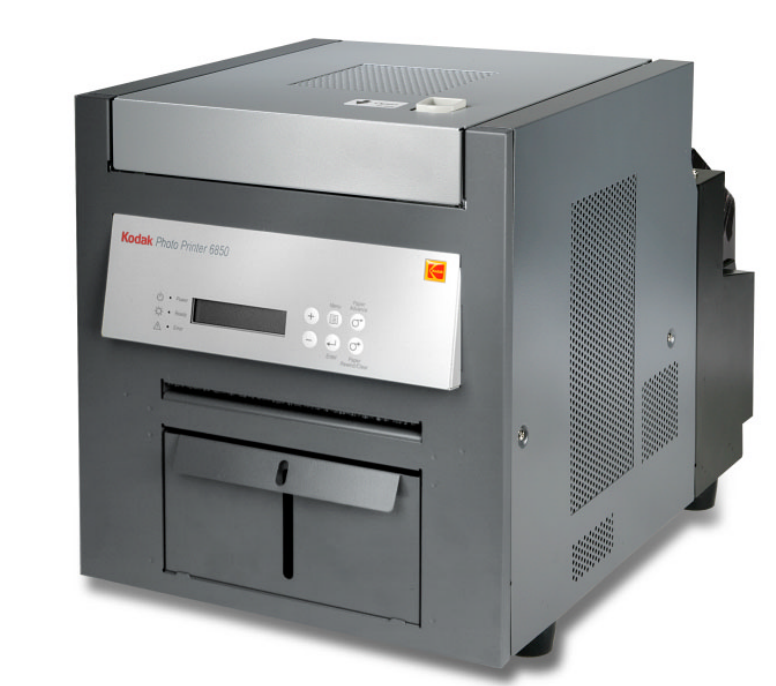
KODAK Photo Printer 6850
User Guide

Eastman Kodak Company
343 State Street
Rochester, New York 14650
© Eastman Kodak Company, 2005
Kodak is a trademark of Eastman Kodak Company.
ENERGY STAR is a U.S. registered trademark.
Part Number 4J0939_US
Product Overview
May 4, 2005 i
A161_3004AC
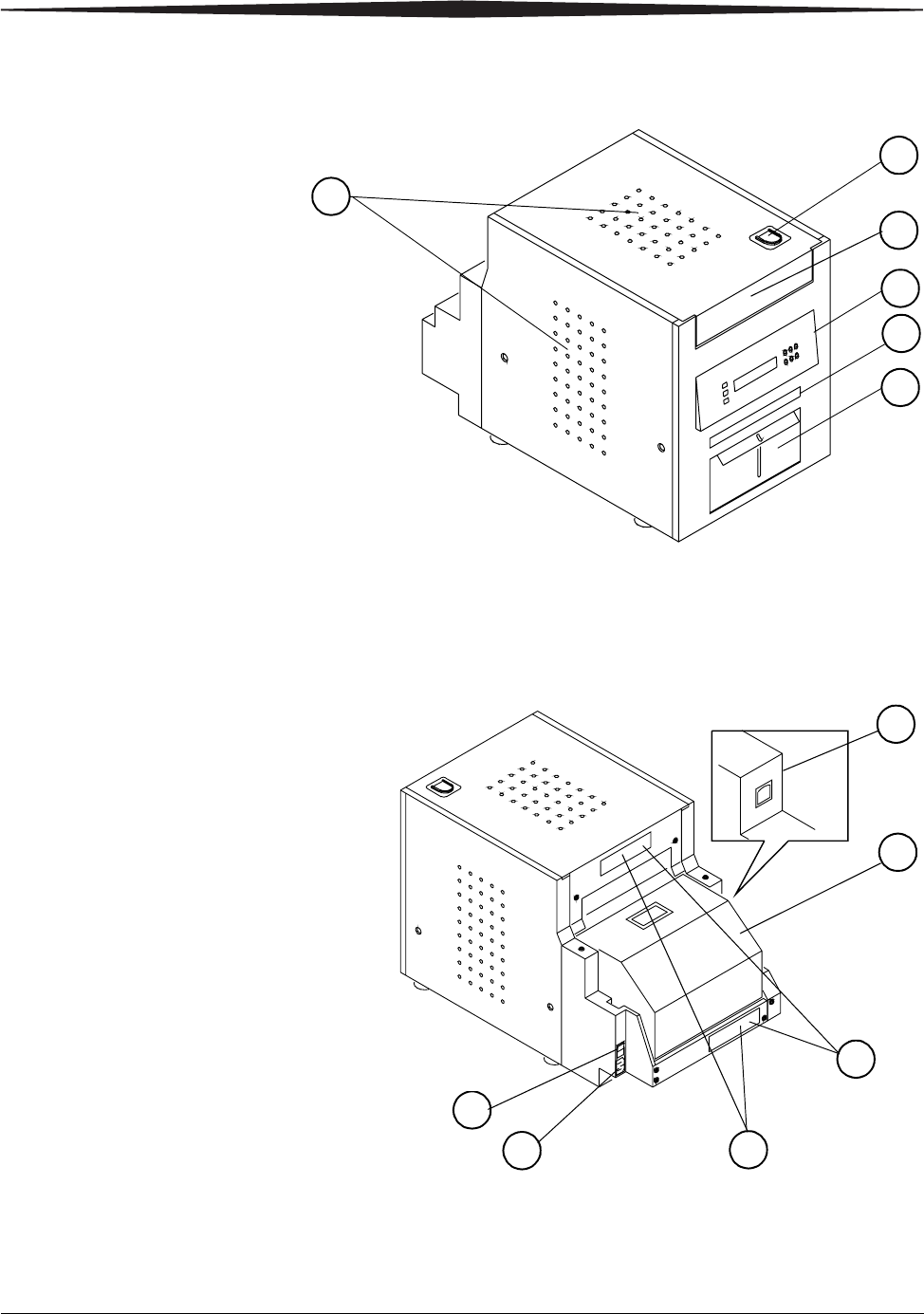
Rear
8
12
9
7
10
11
1
2
4
6
3
Front
1. Filter openings
2. Cover release
3. Upper cover
4. Operator panel
5. Print exit slot (print catcher not shown)
8. Paper door
9. Data plate (location may vary)
10. Serial number/Bar code label
11. Power connector
7. USB connector
5
6. Trim tray
12. Power switch
(location may vary)
ii May 4, 2005
Product Overview
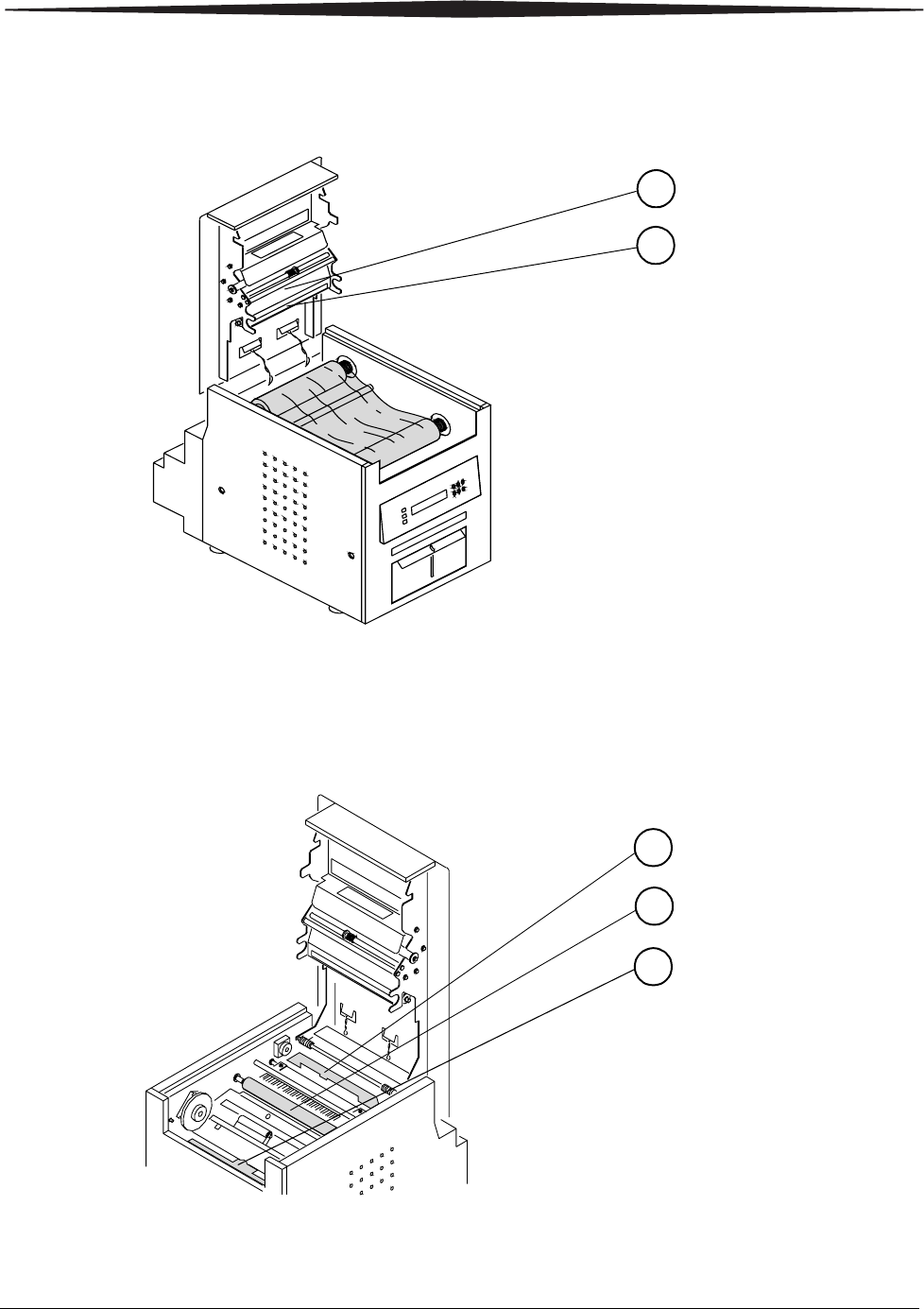
Internal View with Ribbon Installed
1
2
1. Thermal head
2. Stripper plate
Internal View with Ribbon Removed
3
5
4
3. Cleaning roller, rear
4. Platen roller
5. Cleaning roller, front
Product Overview
May 4, 2005 iii
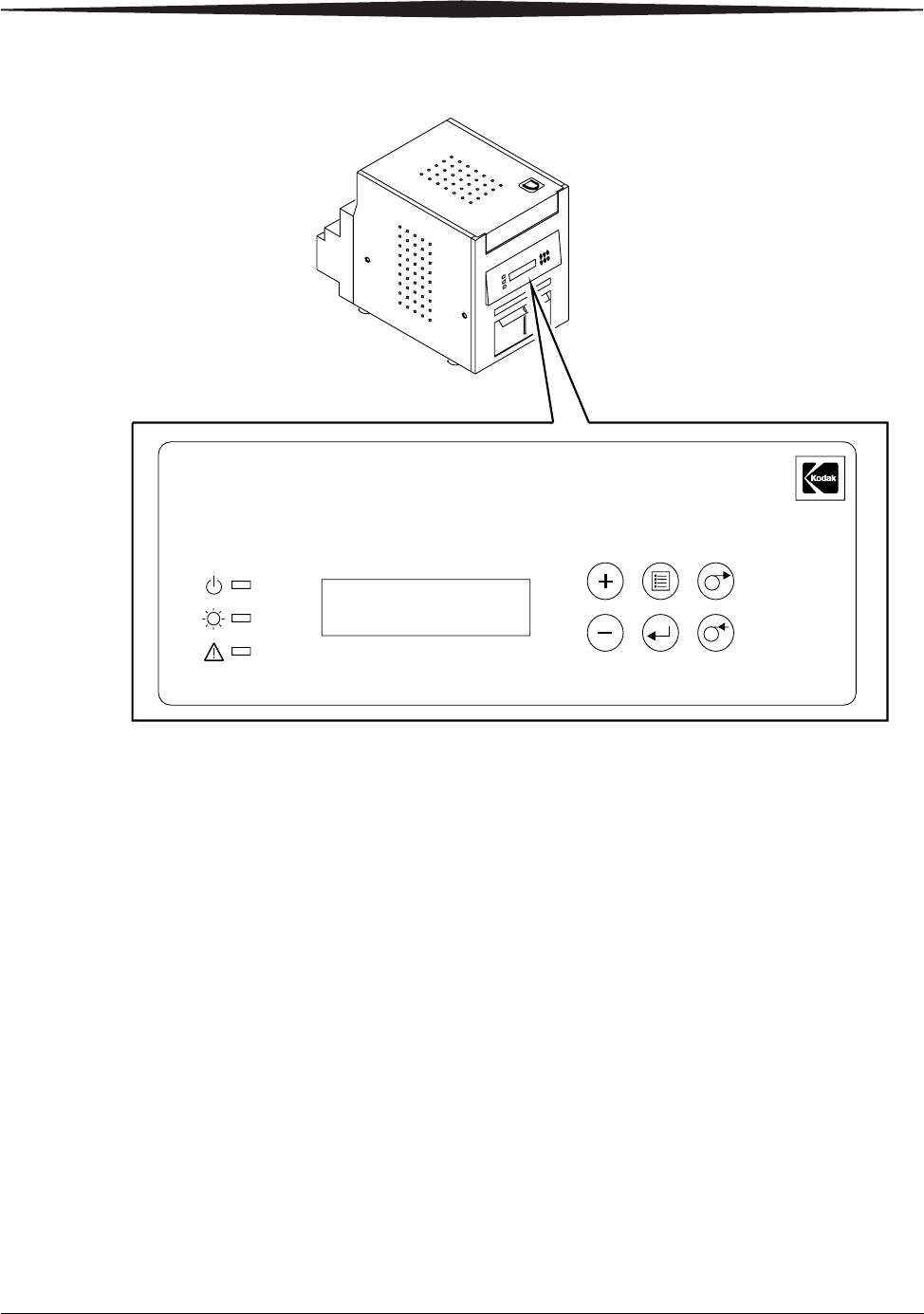
Kodak
Photo Printer 6850
Power
Ready
Error
Rewind/Clear
Paper
Enter
Paper
AdvanceMenu
Operator Panel

May 4, 2005 v
Table of Contents
1 Setting Up the Printer
Package Contents.............................................................................................................................................1-1
Before You Begin.............................................................................................................................................1-2
Recommended Air Flow Clearances ...........................................................................................................1-2
Removing the Packing Material........................................................................................................................1-3
Installing the Trim Tray....................................................................................................................................1-4
Installing the Print Catcher...............................................................................................................................1-4
Loading the Ribbon..........................................................................................................................................1-5
Connecting the Cables......................................................................................................................................1-7
Connecting the Power Cable.......................................................................................................................1-7
Connecting the USB Cable..........................................................................................................................1-8
Turning On the Printer.....................................................................................................................................1-8
Loading the Paper............................................................................................................................................1-9
Making a Test Print........................................................................................................................................1-11
Online User Guide..........................................................................................................................................1-11
2 Installing the Printer Driver Software
Installing the Printer Driver..............................................................................................................................2-1
Customizing Printer Properties.........................................................................................................................2-2
Customizing Printing Preferences.....................................................................................................................2-2
Uninstalling the Printer and Printer Driver.......................................................................................................2-3
3 Calibrating the Printer
Installing the Calibration Software....................................................................................................................3-1
Using the Calibration Utility..............................................................................................................................3-1
Uninstalling the Calibration Software................................................................................................................3-8
Resolving Calibration Error Messages ..............................................................................................................3-8
4 Operating the Printer
Making Prints...................................................................................................................................................4-1
Handling and Storing Prints .............................................................................................................................4-1
Understanding the Operator Panel Lights .........................................................................................................4-1
Using Setup Mode to Review Printer Settings....................................................................................................4-2
Accessing the Printer Settings.....................................................................................................................4-2

vi May 4, 2005
Table of Contents
5 Maintaining the Printer
Cleaning the Cabinet.........................................................................................................................................5-1
Performing Routine Maintenance.....................................................................................................................5-1
Cleaning the Thermal Head and Stripper Plate ...........................................................................................5-2
Cleaning the Platen Roller..........................................................................................................................5-3
Cleaning the Cleaning Rollers.....................................................................................................................5-3
6 Troubleshooting
Resolving Potential Problems...........................................................................................................................6-1
Resolving Operator Panel Error Messages........................................................................................................6-2
Clearing a Paper Jam........................................................................................................................................6-3
Method 1 ...................................................................................................................................................6-3
Method 2 ...................................................................................................................................................6-3
Recovering from a Power Interruption.............................................................................................................6-4
Appendix A: Important Printer Information
System Requirements.......................................................................................................................................A-1
Printer Specifications.......................................................................................................................................A-1
Printer Supplies ...............................................................................................................................................A-2
Paper and Ribbon......................................................................................................................................A-2
Handling and Storing the Paper and Ribbon.........................................................................................A-2
Thermal Printer Cleaning Kit......................................................................................................................A-3
Packing and Transporting the Printer...............................................................................................................A-3
ENERGY STAR Partner......................................................................................................................................A-3
Getting Help.....................................................................................................................................................A-3
Appendix B: Safety and Regulatory Information
Important Safety Information ...........................................................................................................................B-1
Safety Labels.....................................................................................................................................................B-2
Regulatory and Safety Compliance....................................................................................................................B-3
Safety.........................................................................................................................................................B-3
Electromagnetic Compatibility (EMC) ........................................................................................................B-3
Noise Emission...........................................................................................................................................B-4
Index
Disposal.....................................................................................................................................................B-4
May 4, 2005 1-1
1
Setting Up the Printer
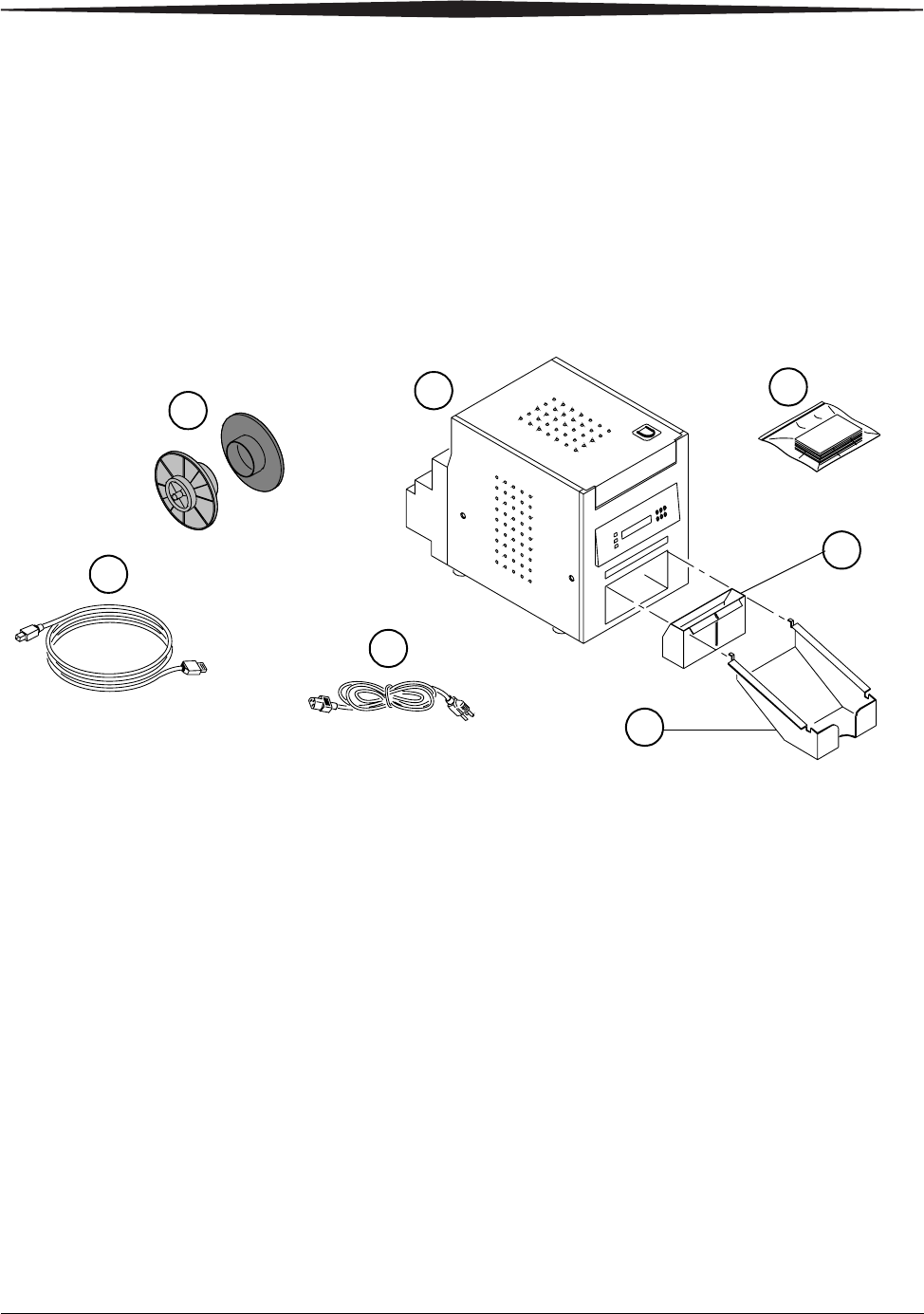
Package ContentsThe KODAK Photo Printer 6850 is packaged with the following items:
1. Printer
2. KODAK Thermal Printer Cleaning Kit
3. Trim Tray (not installed)
4. Print Catcher (not installed)
5. (4) 6850 Power Cable (1 US, 1 Europe, 1 Australia, 1 China)
6. USB Cable
7. (2) Paper Flange
8. User Guide and software CD, not pictured (in some countries, the User
Guide is provided on the CD, not in printed form)
61_3000BC
12
3
5
4
6
7
1-2 May 4, 2005
Setting Up the Printer
Before You Begin IMPORTANT: Your KODAK Photo Printer comes with several power cables.
Be sure to select the correct power cable required for your
country.
Have the following items available before you begin your printer setup:
• KODAK Photo Print Kit 6800/4R or KODAK Photo Print Kit 6800/6R which
contains the correct paper and ribbon for the best print quality and print
life from your printer. See Appendix A for details on the Photo Print Kit
(sold separately).
• USB cable (included).
IMPORTANT: The printer weighs 56 lb (25 kg) and is heavier at the front
than at the back. Use caution when lifting or moving the
printer.
Recommended Air
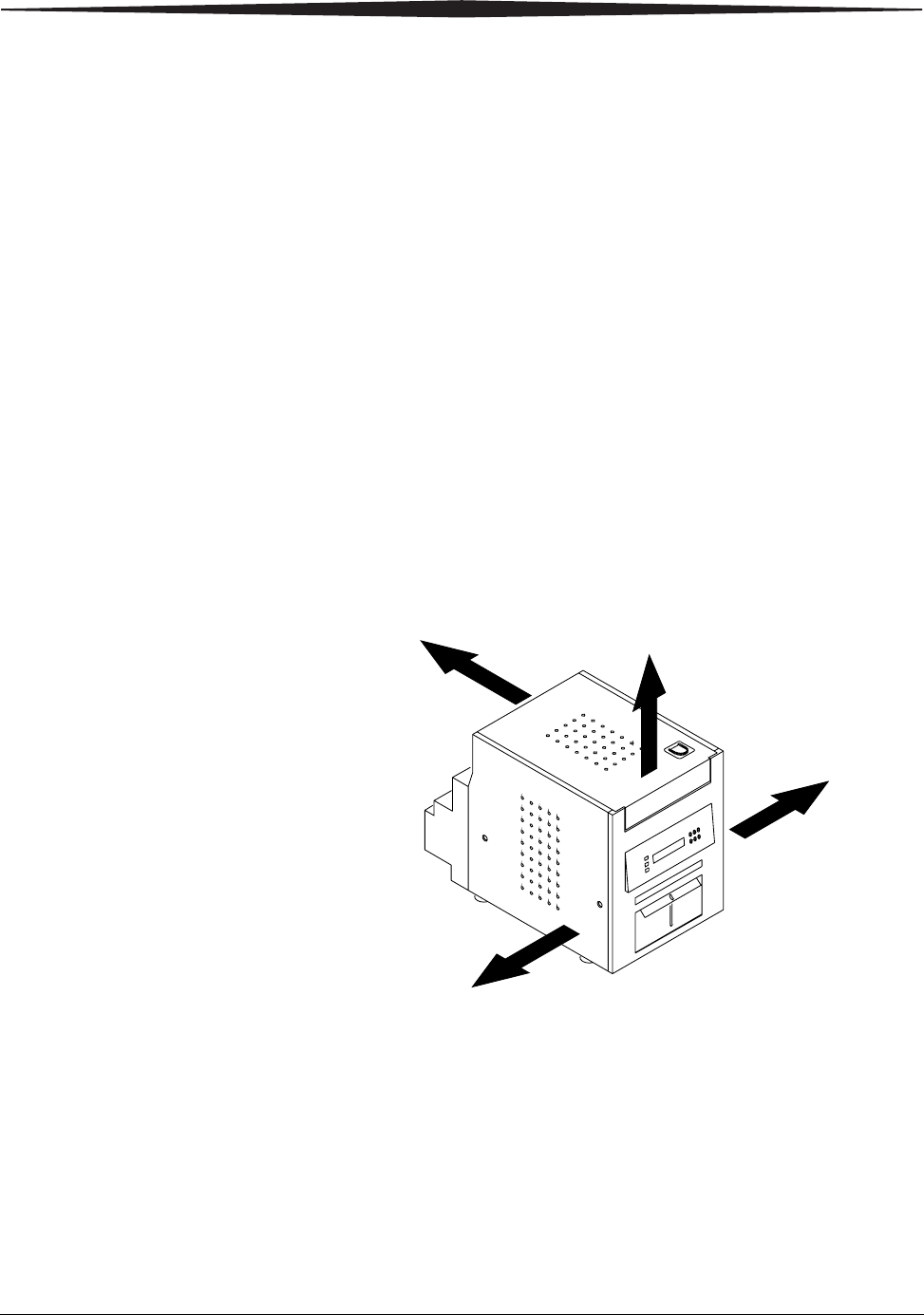
Flow Clearances If you plan to set up the printer in a restricted space, such as in a cabinet,
refer to the following illustration for the recommended air flow clearances for
this type of setup.
50 mm
50 mm
50 mm
10 mm
Setting Up the Printer
May 4, 2005 1-3
Removing the Packing Material
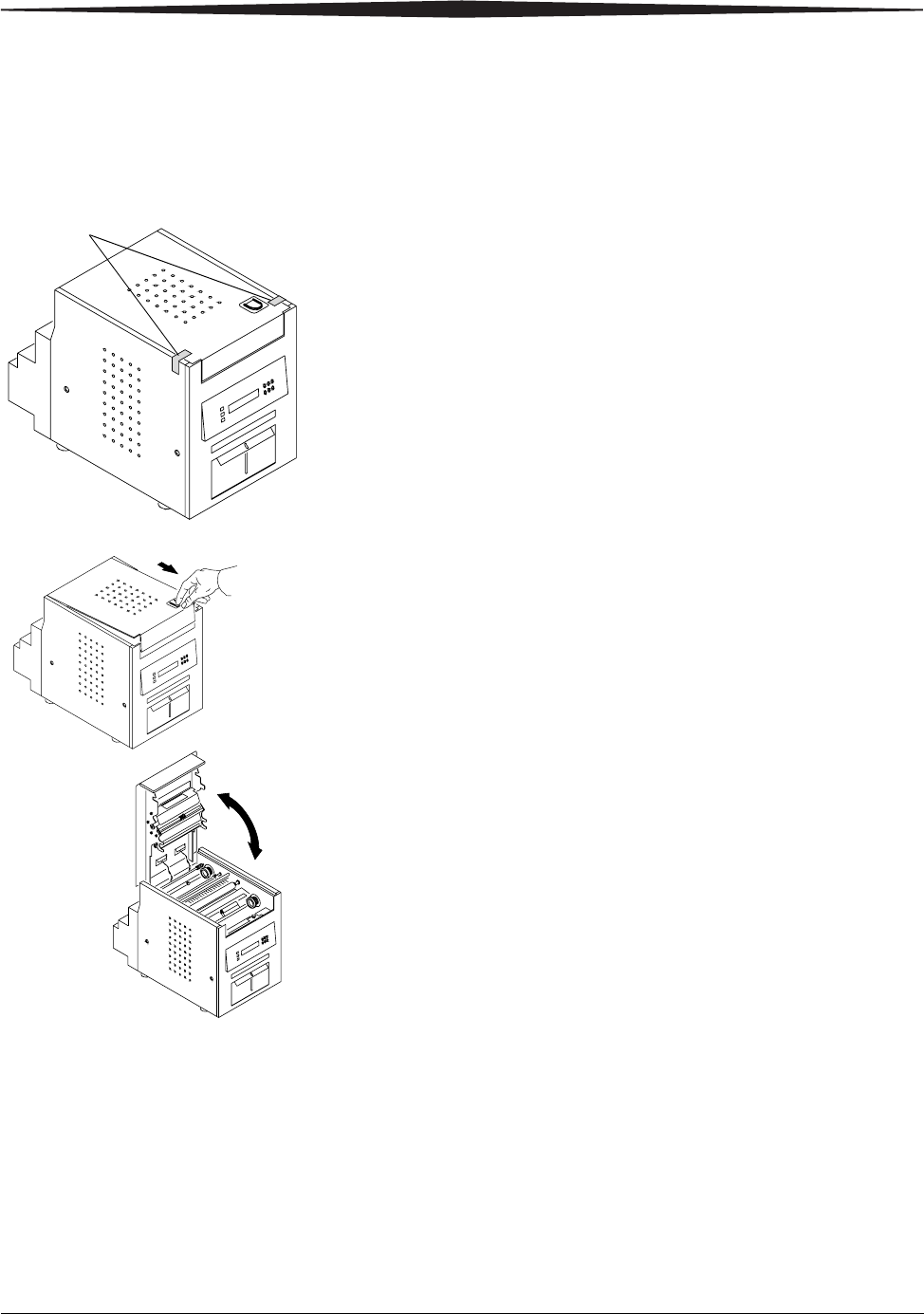
The printer is packaged with protective inserts that prevent damage during
shipping. Remove these inserts before using the printer. Keep the carton and
packing inserts; reinstall them when repacking and transporting the printer.
1. Remove the tape from the upper cover.
2. Slide the cover release toward you, then open the upper cover carefully.
IMPORTANT: Cover does not open beyond a 90° angle.
Tape
90˚
1-4 May 4, 2005
Setting Up the Printer
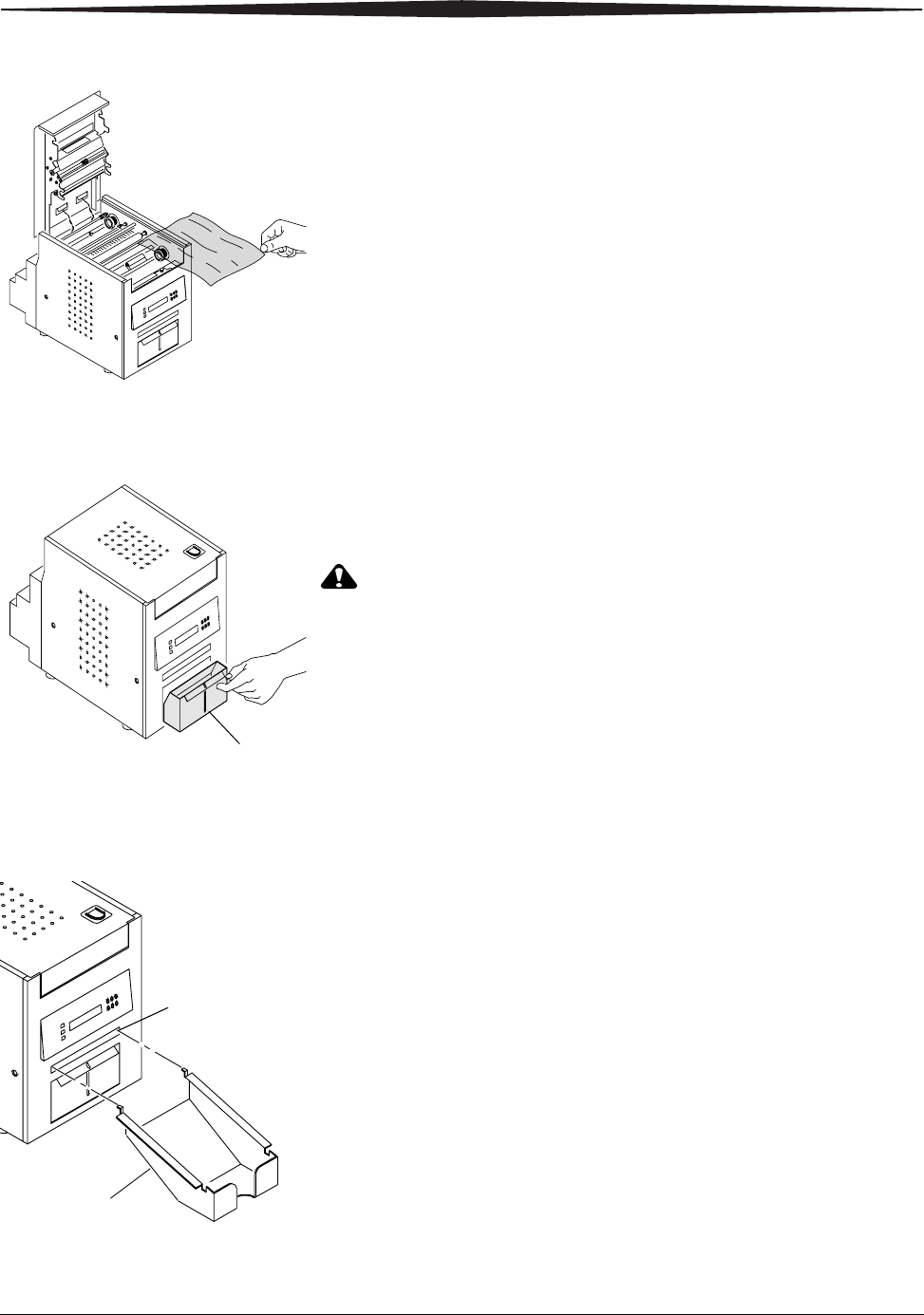
3. Remove the packing material.
Installing the Trim Tray
The trim tray collects paper trimmings that are generated when the printer
cuts the prints.
• Slide the trim tray into the printer as shown.
CAUTION:
There are sharp cutter blades inside the printer. Do not insert
hands or objects.
IMPORTANT: To keep your prints dust-free and to prevent paper jams,
empty the trim tray each time you change the paper.
Installing the Print Catcher
The print catcher collects the finished prints as they exit the printer.
• Attach the print catcher from the print exit slot as shown.
Trim tray
Print exit
slot
Print
catcher
Setting Up the Printer
May 4, 2005 1-5
Loading the Ribbon
Have a KODAK Photo Print Kit 6800/4R or KODAK Photo Print Kit 6800/6R
available. These kits contain the correct size ribbon for your printer. See
Appendix A for details on the Photo Print Kits (sold separately).
To load the ribbon into the printer:
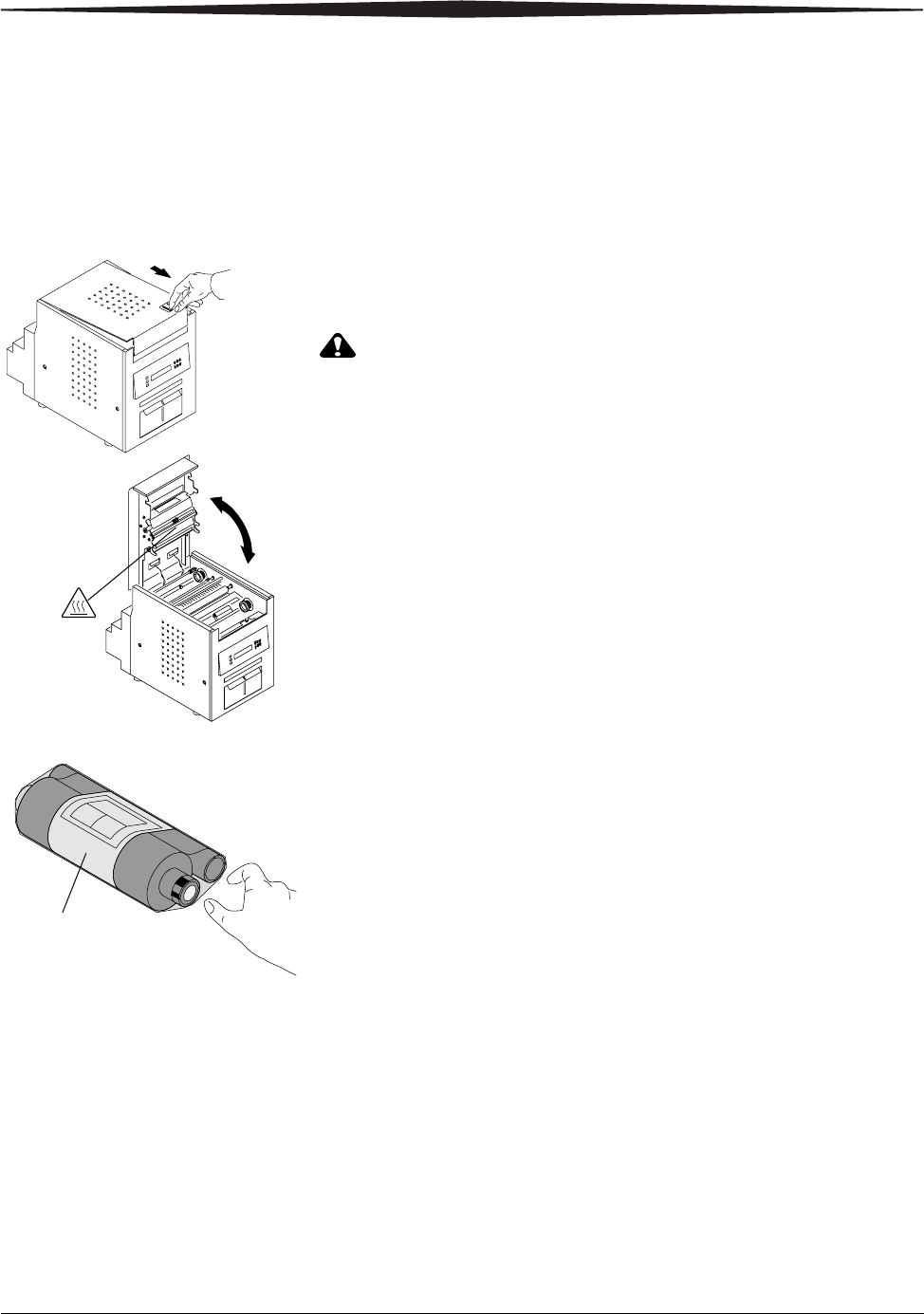
1. Slide the cover release toward you, then open the upper cover carefully.
IMPORTANT: Cover does not open beyond a 90° angle.
CAUTION:
The thermal head becomes extremely hot during normal
operation. Do not touch it.
2. If you are replacing a ribbon, remove the used ribbon from the printer.
NOTE: Images remain on the ribbon after printing. If you need to maintain
confidentiality, dispose of the used ribbon appropriately.
3. Insert your fingers into the holes in the plastic on the end of the ribbon.
Remove the plastic cover from the ribbon.
IMPORTANT: Do not remove the wrapper from the ribbon at this time.
90˚
Wrapper
1-6 May 4, 2005
Setting Up the Printer
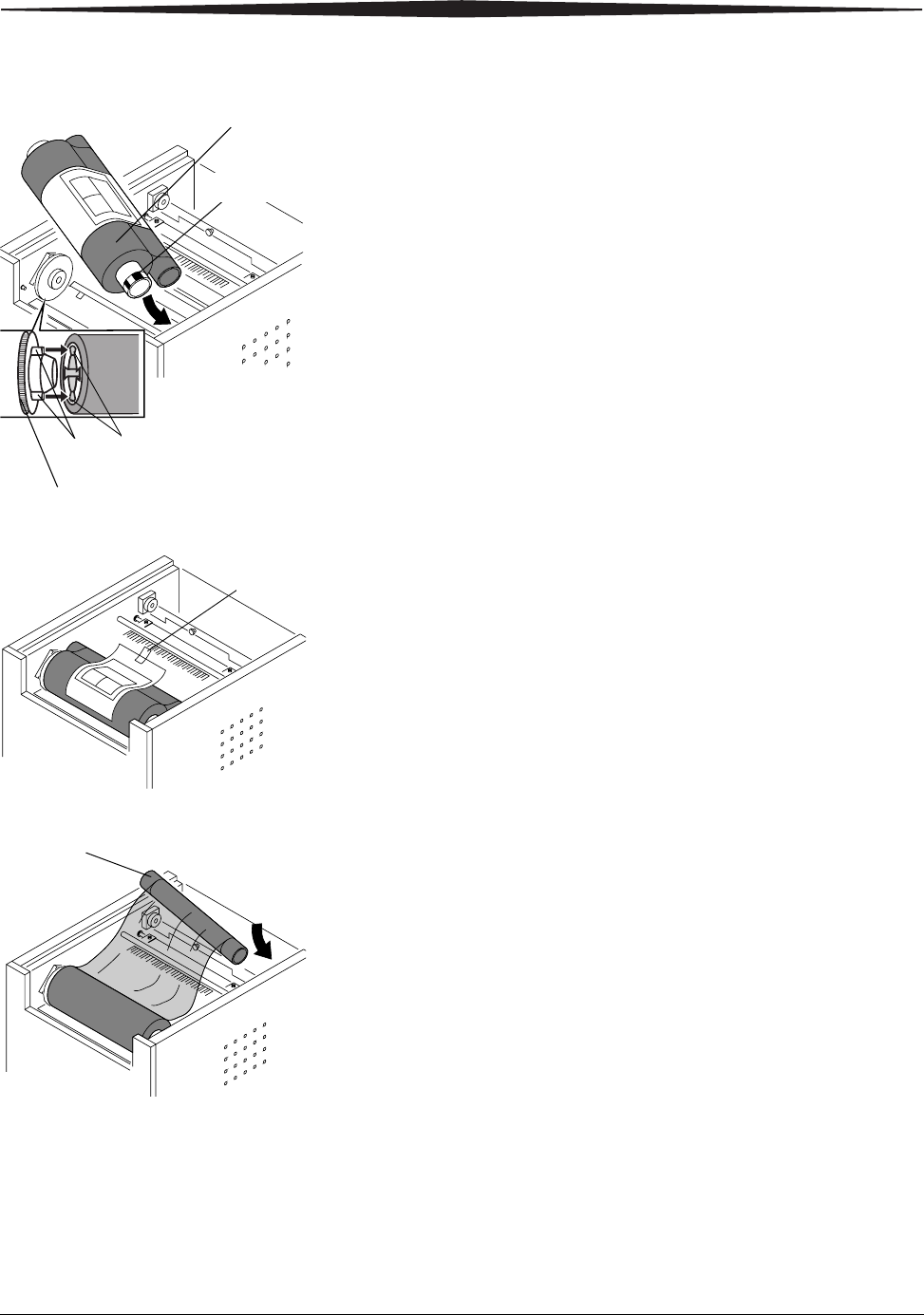
4. Push the bar code end of the supply spool into the spool holder on the
right.
5. Place the left side of the supply spool into the spool holder on the left.
6. Rotate the thumb wheel until the lugs on the spool holder lock into the
notches on the supply spool.
7. Remove the label and wrapper from the ribbon.
8. Push the right side of the take-up spool into the spool holder on the
right.
9. Place the left side of the take-up spool into the spool holder on the left.
10. Adjust the take-up spool until the lugs on the spool holder lock into the
notches on the take-up spool.
11. If there is any slack in the ribbon, remove it by turning the supply spool.
IMPORTANT: Slack in the ribbon can cause a paper jam when making
prints.
Supply spool
Thumb wheel
Lugs Notches
Bar code
Label
Take-up spool
Setting Up the Printer
May 4, 2005 1-7
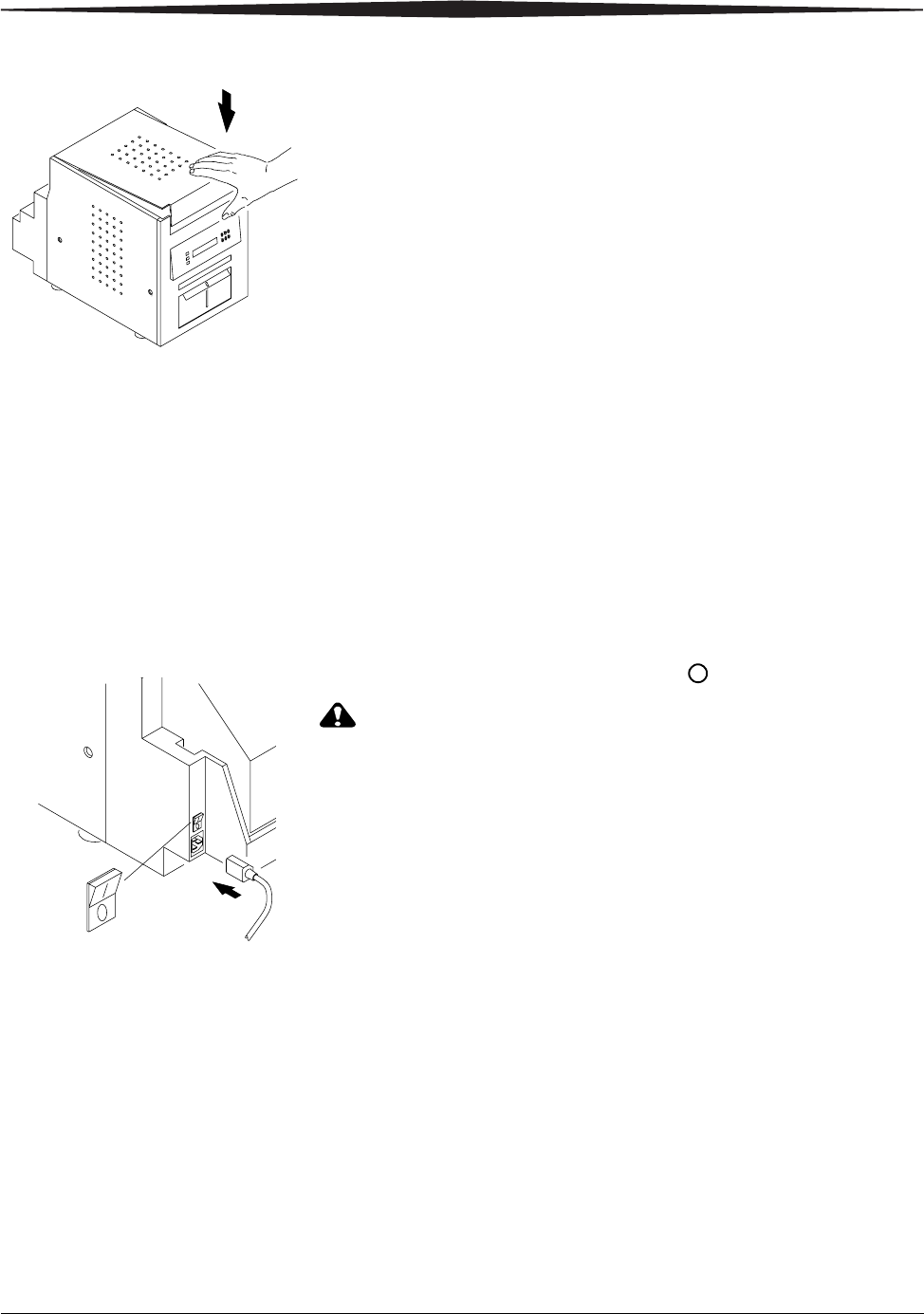
12. Close the upper cover by pressing on the center of the cover until it clicks
in place.
Connecting the Cables
If you plan to install the printer driver software on your computer, you will
need to install the software before you connect the cables. See Chapter 2,
Installing the Printer Driver Software.
IMPORTANT: You must install the printer driver software before
connecting the cables or your printer will not work.
Connecting the Power
Cable You may have received more than one power cable with your printer. Be sure
to use the correct power cable required for your country.
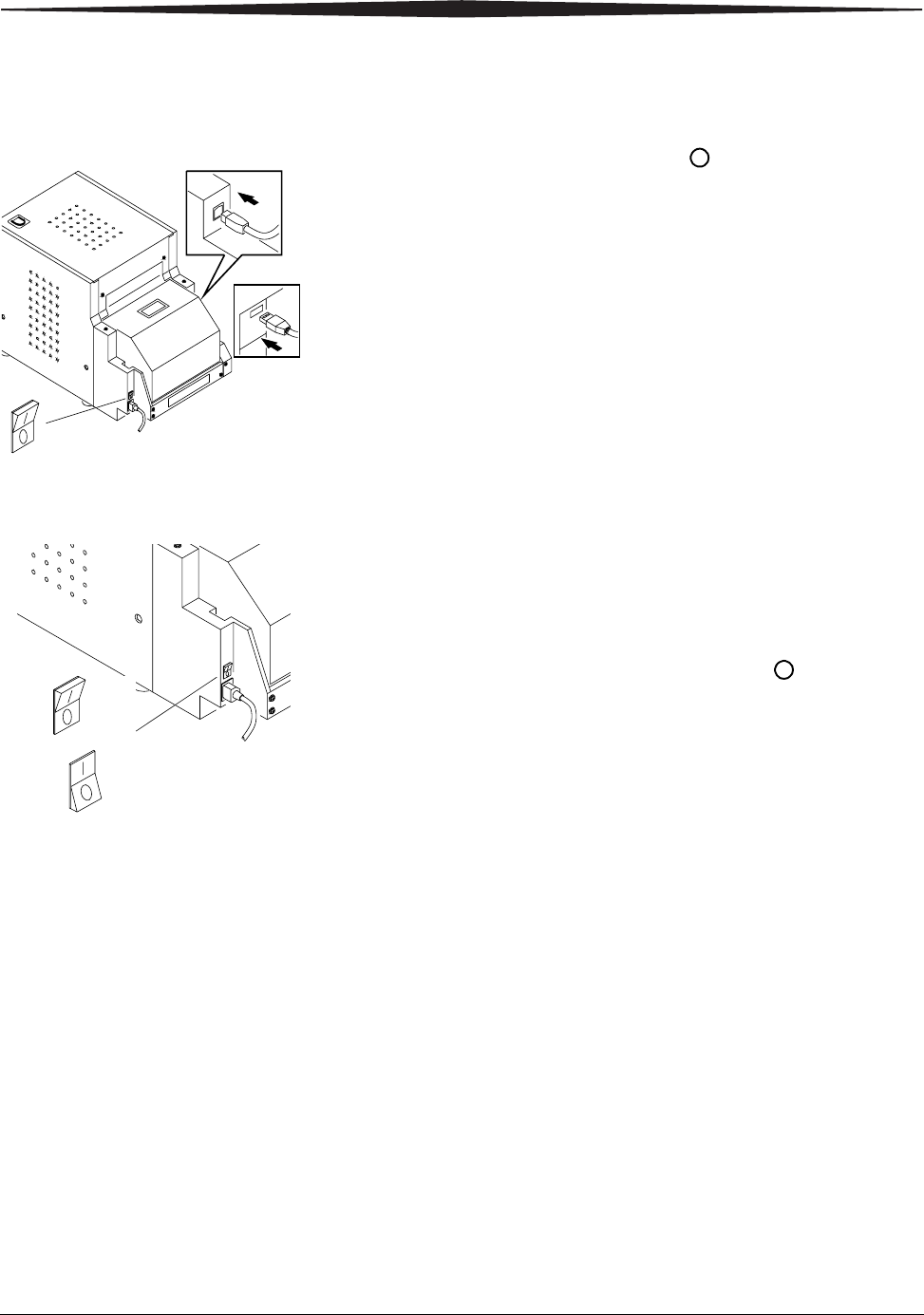
1. Check that the power switch is turned off ( ).
CAUTION:
The power outlet must be grounded. An ungrounded outlet can
cause fire, electric shock, or harmful interference to nearby
electrical devices.
2. Connect the power cable to the power connector on the back of the
printer and to a grounded power outlet.
A
OFF
1-8 May 4, 2005
Setting Up the Printer
Connecting the USB
Cable Use the included USB cable.
1. Check that the power switch is turned off ( ).
2. Connect the USB cable to the USB connector on the back of the printer
and to the USB connector on the computer.
Turning On the Printer
1. Press the power switch to on ( | ).
On the operator panel, the orange Power light and the green Ready
light illuminate, and the Ready message appears when the printer is
initialized.
2. To turn off the printer, press the power switch to off ( ).
OFF
OFF
ON
Setting Up the Printer
May 4, 2005 1-9
Loading the PaperHave a KODAK Photo Print Kit 6800/4R or KODAK Photo Print Kit 6800/6R
available. These kits contain the correct size paper for your printer. See
Appendix A for details on the Photo Print Kits (sold separately).
IMPORTANT: To keep your prints dust-free and to prevent paper jams,
empty the trim tray each time you change the paper.
To load the paper into the printer:
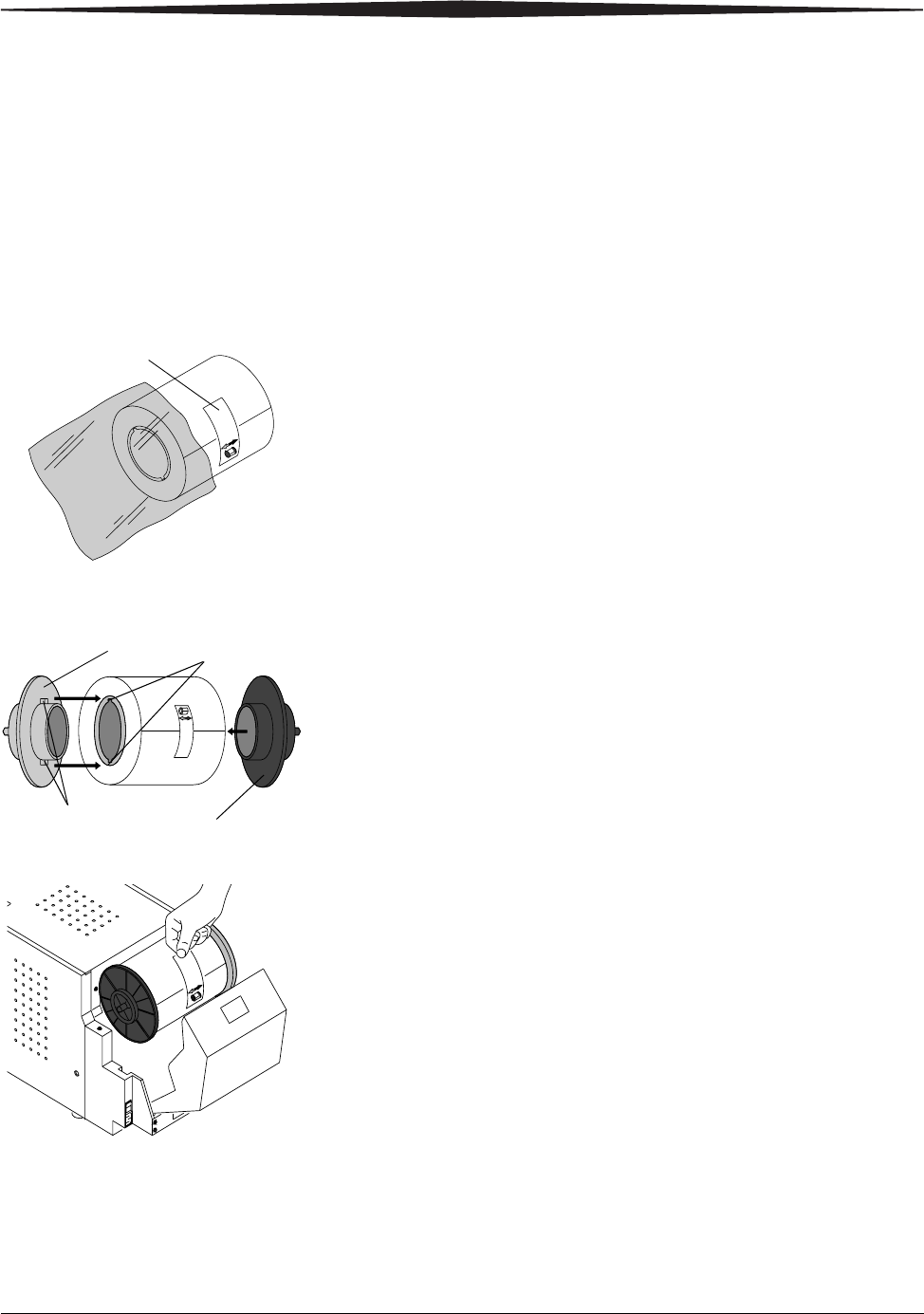
1. Remove the plastic cover from the new paper roll.
IMPORTANT: Do not remove the label from the paper roll until you have
successfully loaded the paper into the printer.
2. Attach the paper flanges to each end of the paper roll.
a. Line up the lugs on the green paper flange with the notches on the left
side of the paper roll.
b. Place the green paper flange on the left side of the paper roll.
c. Place the black paper flange on the right side of the paper roll.
NOTE: Be sure to match up the lugs on the green paper flange with the
notches on the left side of the paper roll. If you do not attach the
paper flange properly, the paper roll will not fit into the printer.
3. Open the paper door.
The operator panel displays the Cover Open message.
4. Set the paper roll into the printer according to the green and black
arrows on the label.
5. Remove the label from the paper roll.
Label
Lugs
Notches
Green paper flange
Black paper flange
1-10 May 4, 2005
Setting Up the Printer
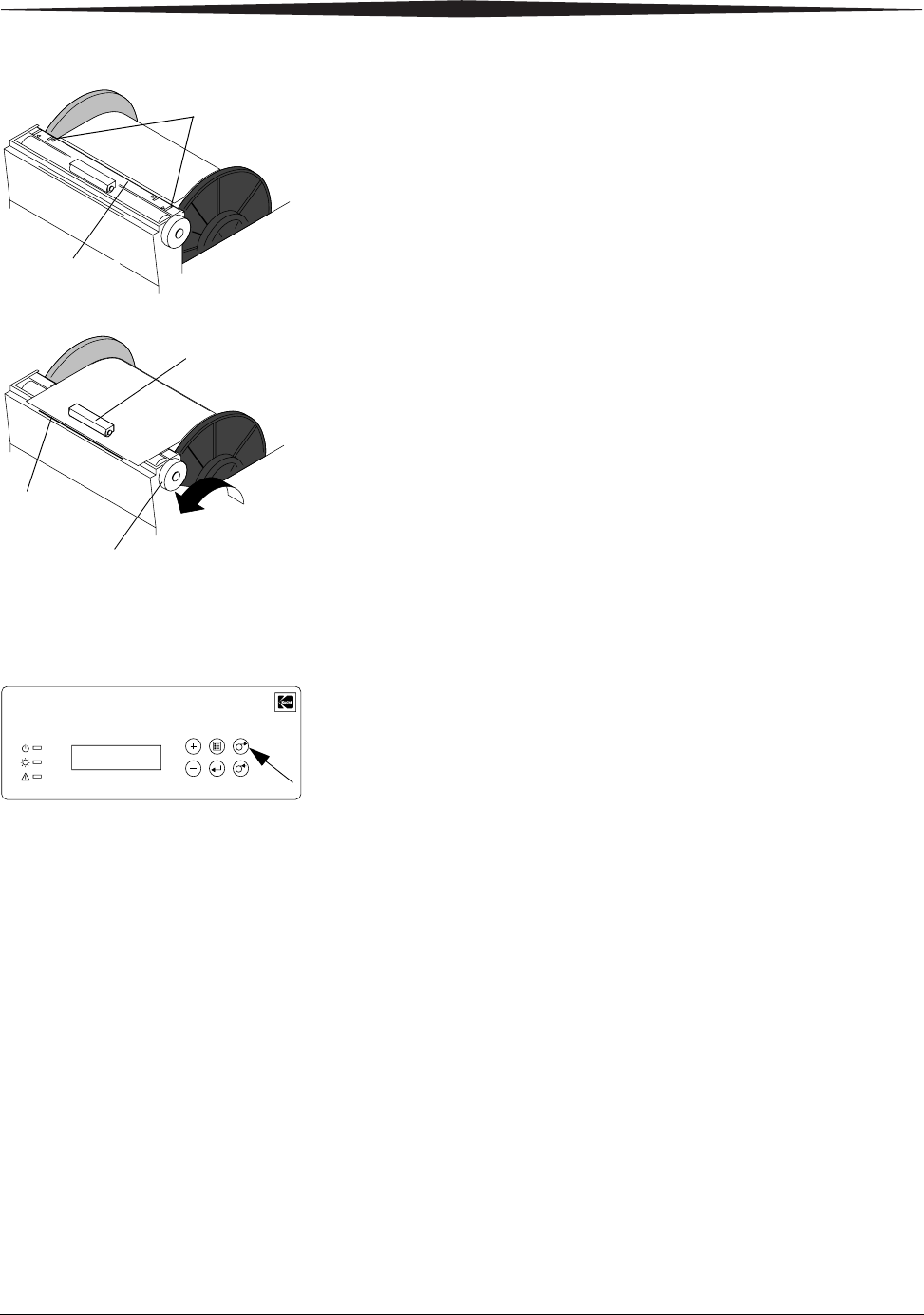
6. Align the edge of the paper with the alignment marks on the paper guide.
7. Insert the paper under the pinch roller.
IMPORTANT: Do not advance the paper past the red line or you may
cause the paper to jam.
8. Advance the paper to the red line by turning the paper feeding knob.
9. Carefully close the paper door.
The operator panel displays the Paper Empty message.
10. Press Paper Advance to load the paper into the printer.
The printer advances the paper, then cuts and discharges about
24 in. (61 cm) of blank paper. This reduces the possibility of
fingerprints or other damage to the prints. It does not decrease the
750 4 x 6 in. (10 x 15 cm) print capacity of the paper roll (see
page A-2).
The operator panel displays the Ready message.
Alignment
marks
Paper guide
Pinch roller
Red line
Paper feeding knob
Kodak
Photo Printer 6850
Power
Ready
Error
Rewind/Clear
Paper
Enter
Paper
AdvanceMenu
Setting Up the Printer
May 4, 2005 1-11
Making a Test Print
Make a test print to check that the printer is installed and set up correctly.
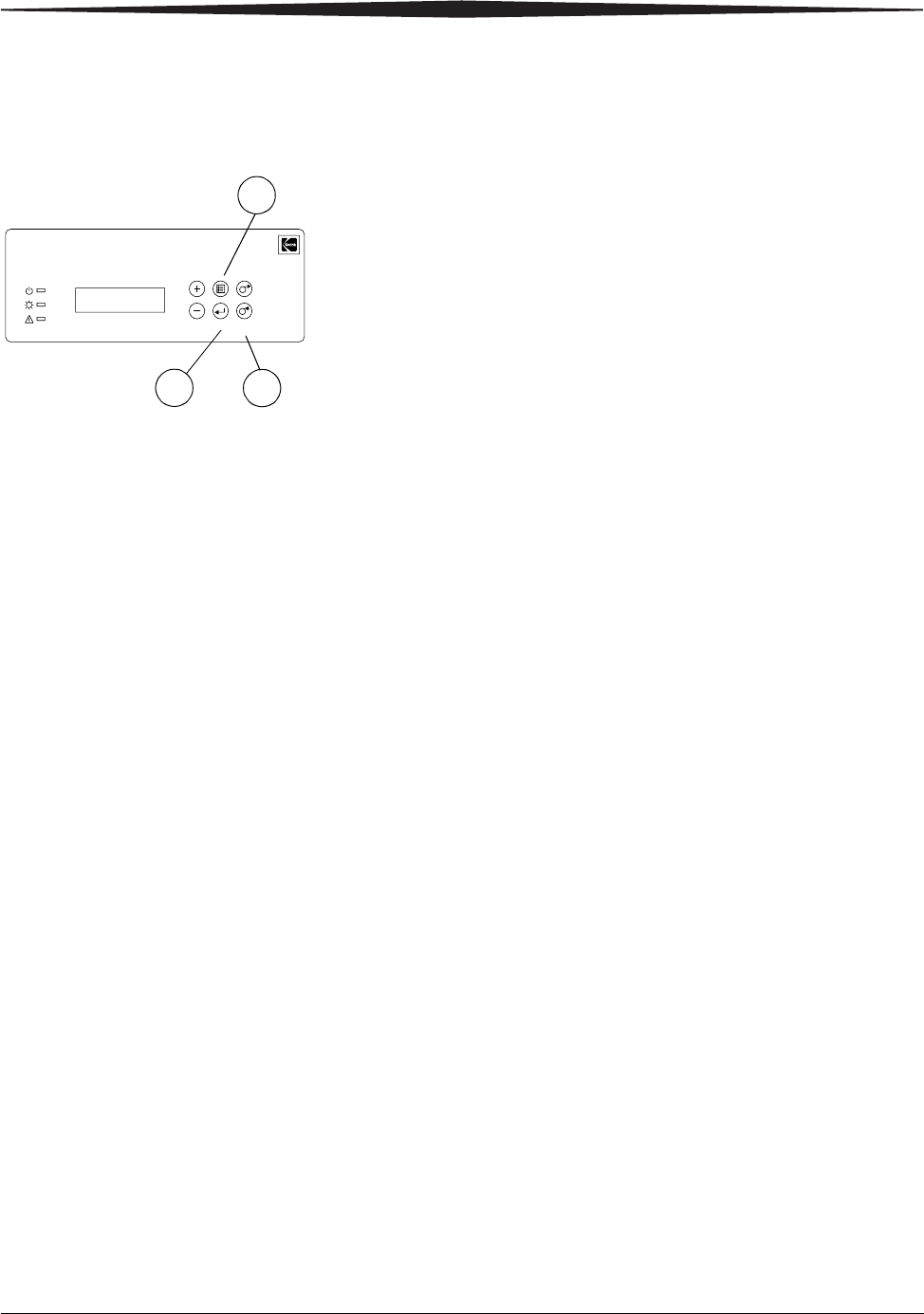
1. Press Menu once until Test Print Mode appears.
2. Press Enter to start printing the test print.
3. Press Clear to return to Ready after the test print is printed.
For more information on using the operator panel in Setup mode, see “Using
Setup Mode to Review Printer Settings” on page 4-2.
Online User GuideThis User Guide and the Quick Setup Guide are also provided on the CD that
came with your printer. The Guides are in PDF format; ADOBE ACROBAT
Reader (also provided) is required to read them.
Follow the on-screen directions to install ADOBE ACROBAT Reader if you do
not already have it installed on your system.
Kodak
Photo Printer 6850
Power
Ready
Error
Rewind/Clear
Paper
Enter
Paper
AdvanceMenu
1
23
May 4, 2005 2-1
2
Installing the Printer
Driver Software
A printer driver is software that allows the operating software to access the
printer features.
The WINDOWS 2000/XP 6850 printer driver requires the following:
The printer driver also requires a functional USB port to communicate with
the printer. The printer is compliant with the USB 2.0 protocol.
NOTE: If your equipment only supports the USB 1.1 protocol, data
communication to the printer will be slower and may affect print
times.
Installing the Printer Driver
IMPORTANT: You must have Administrator privileges to install the
printer driver.
NOTE: The driver installer automatically uninstalls older versions of the
6800 printer driver.
1. Insert the CD that came with the printer into your CD-ROM drive.
The CD Browser launches automatically. If it does not, double-click
the Kodak68xx.exe file in the CD root directory.
2. Select your language.
3. Click Software.
NOTE: Before installing the software, read the Printer Driver Readme file for
important information and updates about the software.
4. Click Printer Driver to start the installer.
5. Follow the on-screen instructions to install the printer driver.
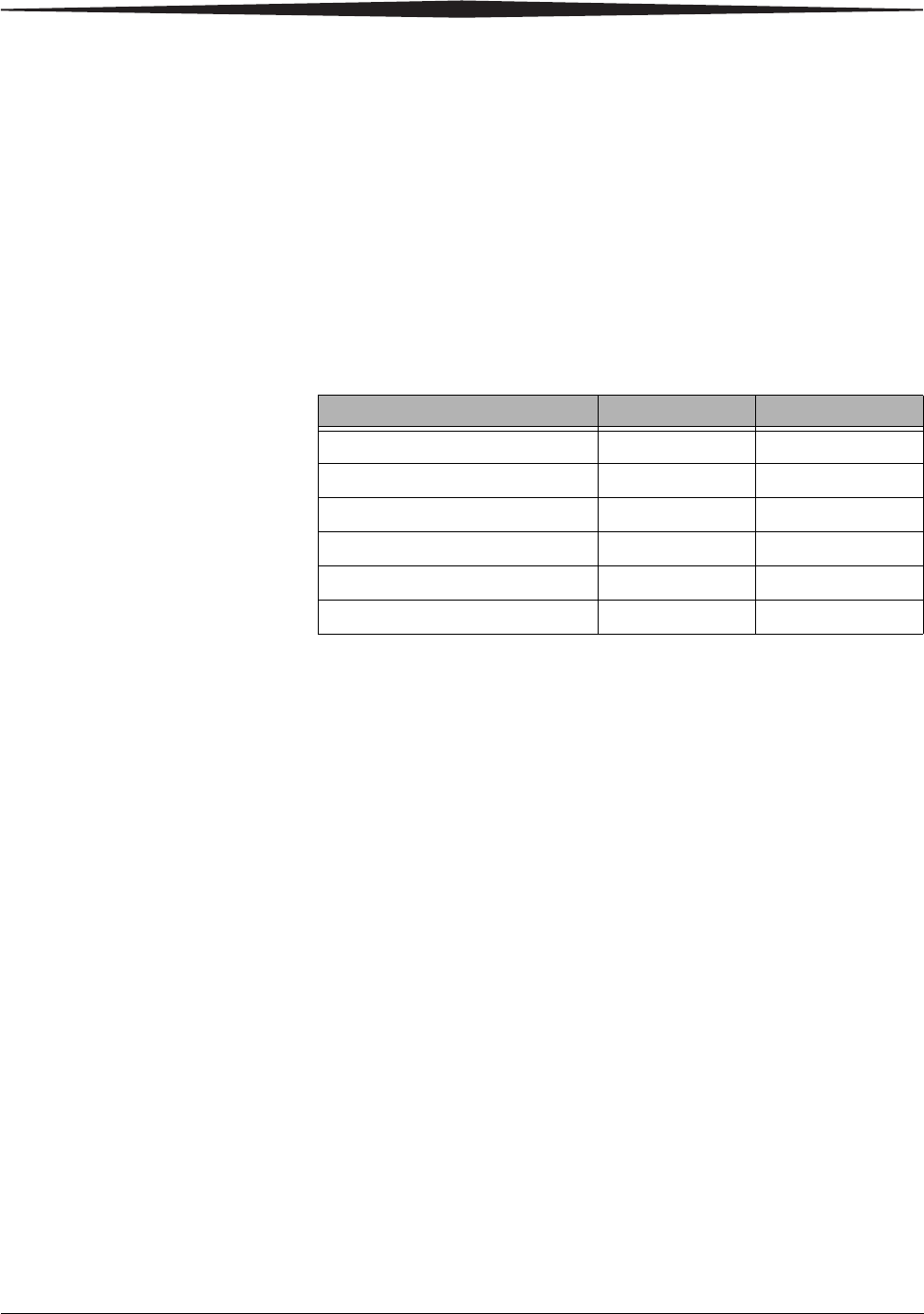
Operating System Service Pack Minimum Memory
WINDOWS 2003 Server SP1 512 MB
WINDOWS 2000 Professional SP3 128 MB
WINDOWS 2000 Server SP3 256 MB
WINDOWS 2000 Advanced Server SP3 256 MB
WINDOWS XP Home SP1 128 MB
WINDOWS XP Professional SP1 128 MB
2-2 May 4, 2005
Installing the Printer Driver Software
Customizing Printer Properties
The Printer Properties dialog box displays options for setting the printer
properties.
1. For your operating system, do the following:
2. Right-click the printer icon for your printer model.
3. Select Properties.
4. Adjust the printer settings appropriately for your printer.
Customizing Printing Preferences
The Printing Preferences dialog box displays options for setting how your
printer will print.
1. For your operating system, do the following:
2. Right-click the printer icon for your printer model.
3. Select Printing Preferences.
4. On the Layout tab, click Advanced.
The Advanced Options dialog box appears.
5. Adjust the printing preferences appropriately for your printer.
WINDOWS 2000 WINDOWS XP
Select Start > Settings > Printers. Select Start > Printers and Faxes.
WINDOWS 2000 WINDOWS XP
Select Start > Settings > Printers. Select Start > Printers and Faxes.

Installing the Printer Driver Software
May 4, 2005 2-3
Uninstalling the Printer and Printer Driver
IMPORTANT: You must have Administrator privileges to uninstall the
printer and printer driver.
1. For your operating system, do the following:
2. Right-click the printer you want to remove and select Delete.
3. Click Yes to delete the printer.
4. Select File > Server Properties.
5. Select Drivers.
6. Highlight the printer driver you want to remove and click Remove.
7. Click Yes to delete the printer driver.
8. Click Close.
WINDOWS 2000 WINDOWS XP
• Select Start > Settings >
Printers.
The Printers dialog box appears.
• Select Start > Printers and
Faxes.
The Printers and Faxes dialog
box appears.

May 4, 2005 3-1
3
Calibrating the Printer
The KODAK Calibration Utility (calibration utility) allows the KODAK Photo
Printer to produce the best possible color response. Printer calibration
adjusts the response of the printer so that a specific data input value yields a
specific color density output. When a printer is properly calibrated, it
generates the correct density for each given data value.
Your KODAK Photo Printer is shipped with default factory calibration values.
You should be able to set up your printer and begin printing right away
without having to first calibrate the printer. However, if you are dissatisfied
with the color of your prints, follow the steps in this chapter to calibrate your
printer.
Installing the Calibration Software
1. Insert the CD that came with the printer into your CD-ROM drive.
The CD Browser launches automatically. If it does not, double-click
the Kodak68xx.exe file in the CD root directory.
2. Select your language.
3. Click Software.
NOTE: Before installing the software, read the Calibration Software Readme
file for important information and updates about the software.
4. Click Calibration Software to start the installer.
5. Follow the on-screen instructions to install the calibration software.
Using the Calibration Utility
Before you use the calibration utility, make sure you are familiar with how
your KODAK Photo Printer operates.
Calibrate your printer whenever the color balance of prints does not look
right. You may also want to calibrate your printer after it has been serviced.
Easy Cal is a five-step process that quickly calibrates your printer using the
Visual Gray Balance method. Before using Easy Cal, start the calibration utility.
3-2 May 4, 2005
Calibrating the Printer
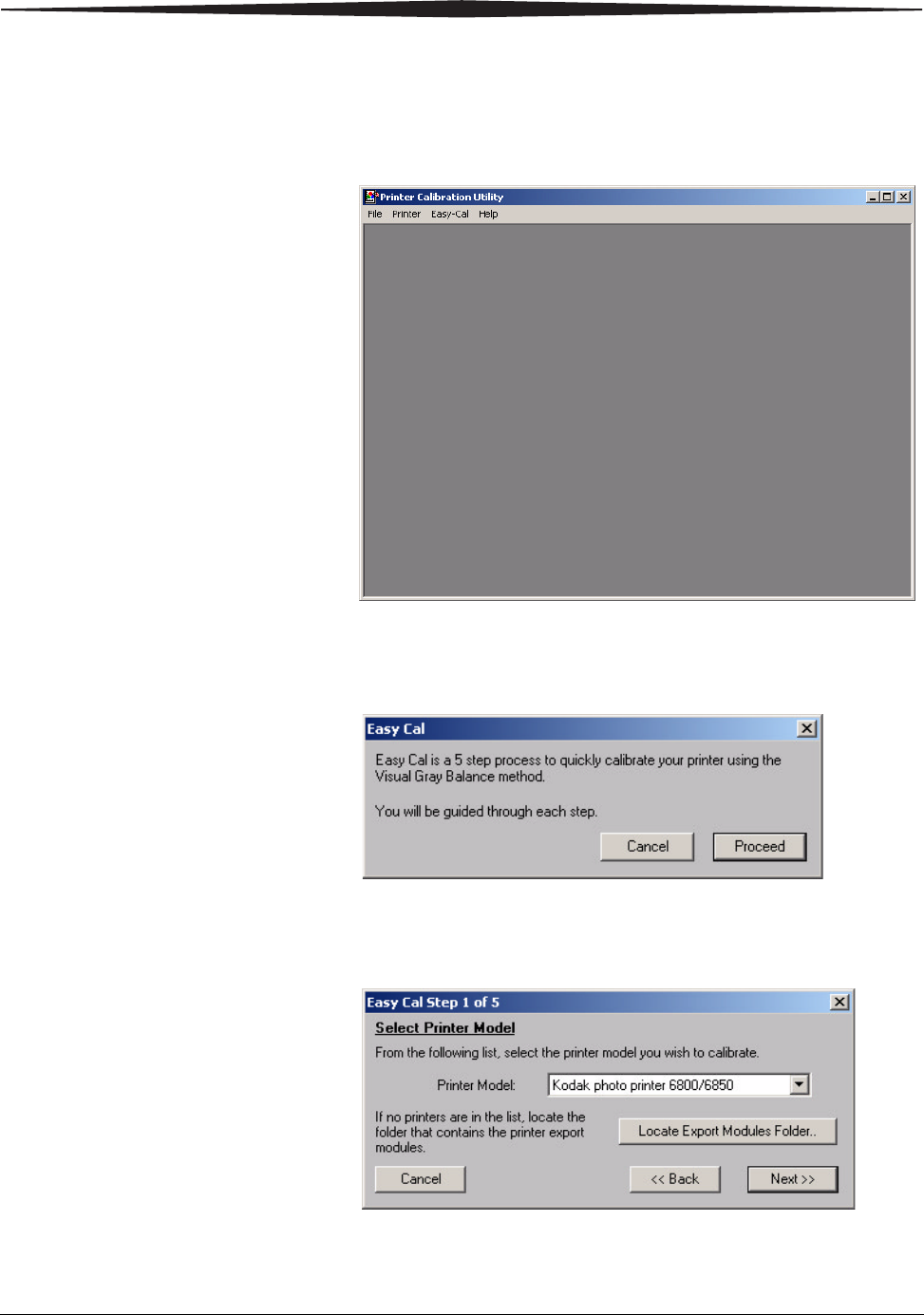
1. Select Start > Programs > KODAK Calibration Utility.
The following dialog box appears.
2. Select Easy Cal > Begin.
The following dialog box appears.
3. Click Proceed.
The following dialog box appears.
Calibrating the Printer
May 4, 2005 3-3
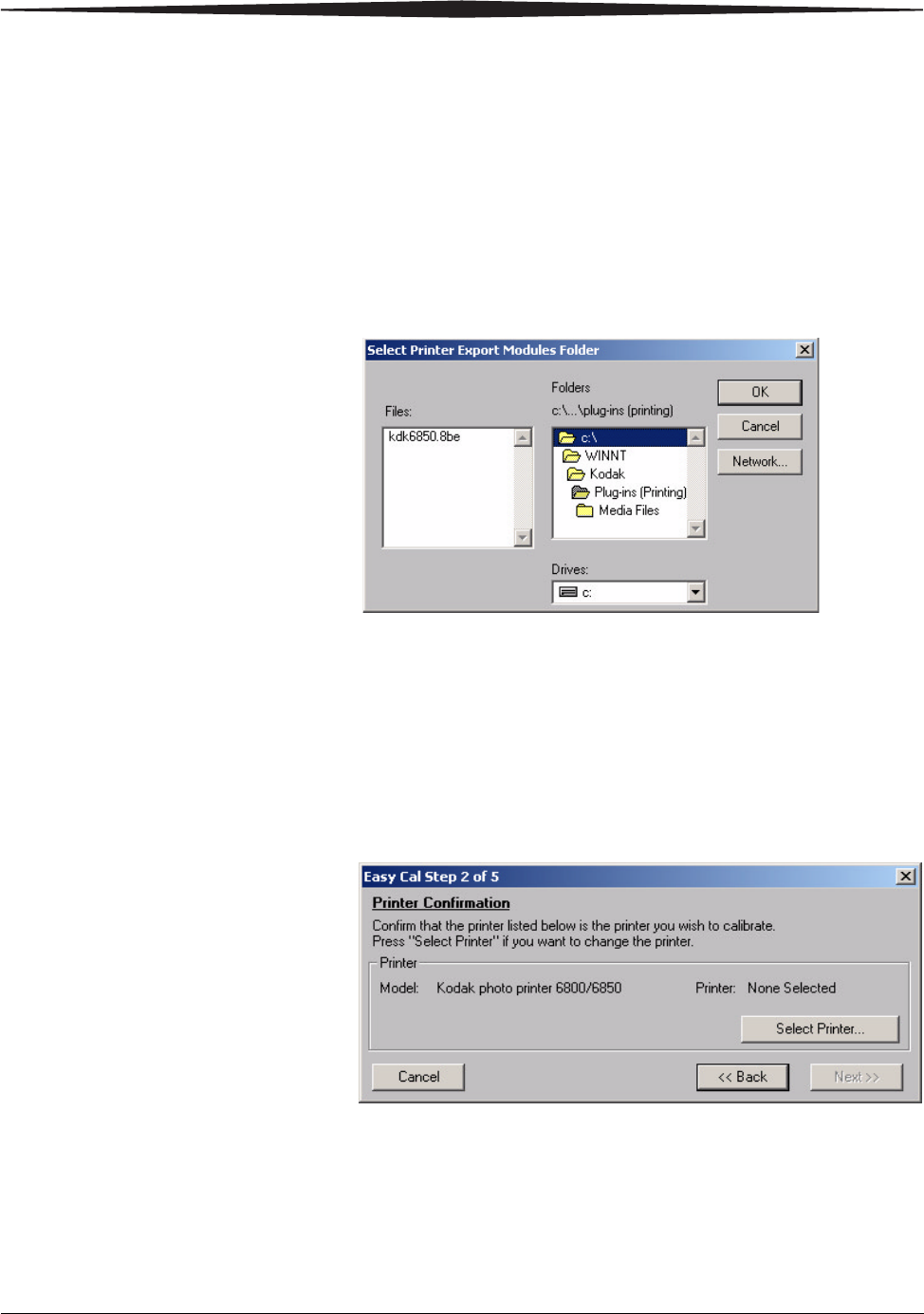
4. Select your printer from the Printer Model list.
• If the printer you want to calibrate is on the list, select it and
go to Step 8.
• If the printer you want to calibrate does not appear in the list,
continue with Step 5.
5. Click Locate Export Modules Folder.
A file selection dialog box appears.
6. Browse to C:/WINNT/Kodak/Plug-Ins (Printing) folder.
NOTE: The exact path to the export module folder may differ depending on
your operating system.
7. Select the folder that the export module is in, and then click OK.
8. Click Next.
The following dialog box appears.
9. Confirm that the printer model listed is the printer you want to calibrate.
• If the printer model you want to calibrate is listed, go to Step 13.
• If you want to calibrate a different printer model than the one that is
listed, continue with Step 10.
3-4 May 4, 2005
Calibrating the Printer
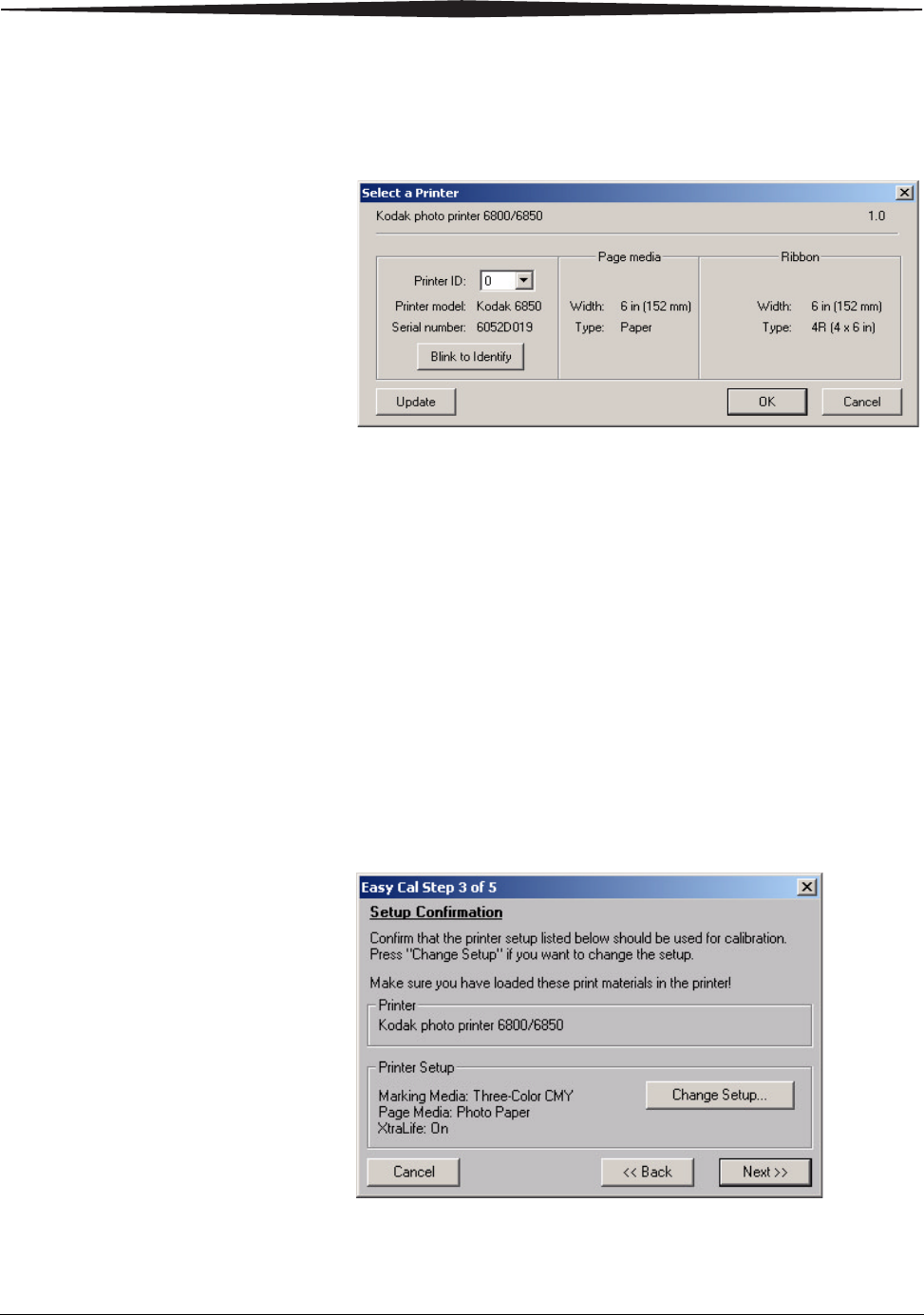
10. Click Select Printer.
The following dialog box appears.
NOTE: The appearance of this dialog box may vary, depending on your
printer setup and the media file you selected.
11. From the Printer ID: list, select your printer ID.
NOTE: Click Blink to Identify to locate a specific printer if you have more
than one printer. The Ready light on the operator panel of the printer
will blink five times.
NOTE: Click Update if you want to update the printer information on the
dialog box. You may need to do this if your printer is accidentally
shut off.
12. Click OK to close the dialog box.
13. Click Next.
The following dialog box appears.
Calibrating the Printer
May 4, 2005 3-5
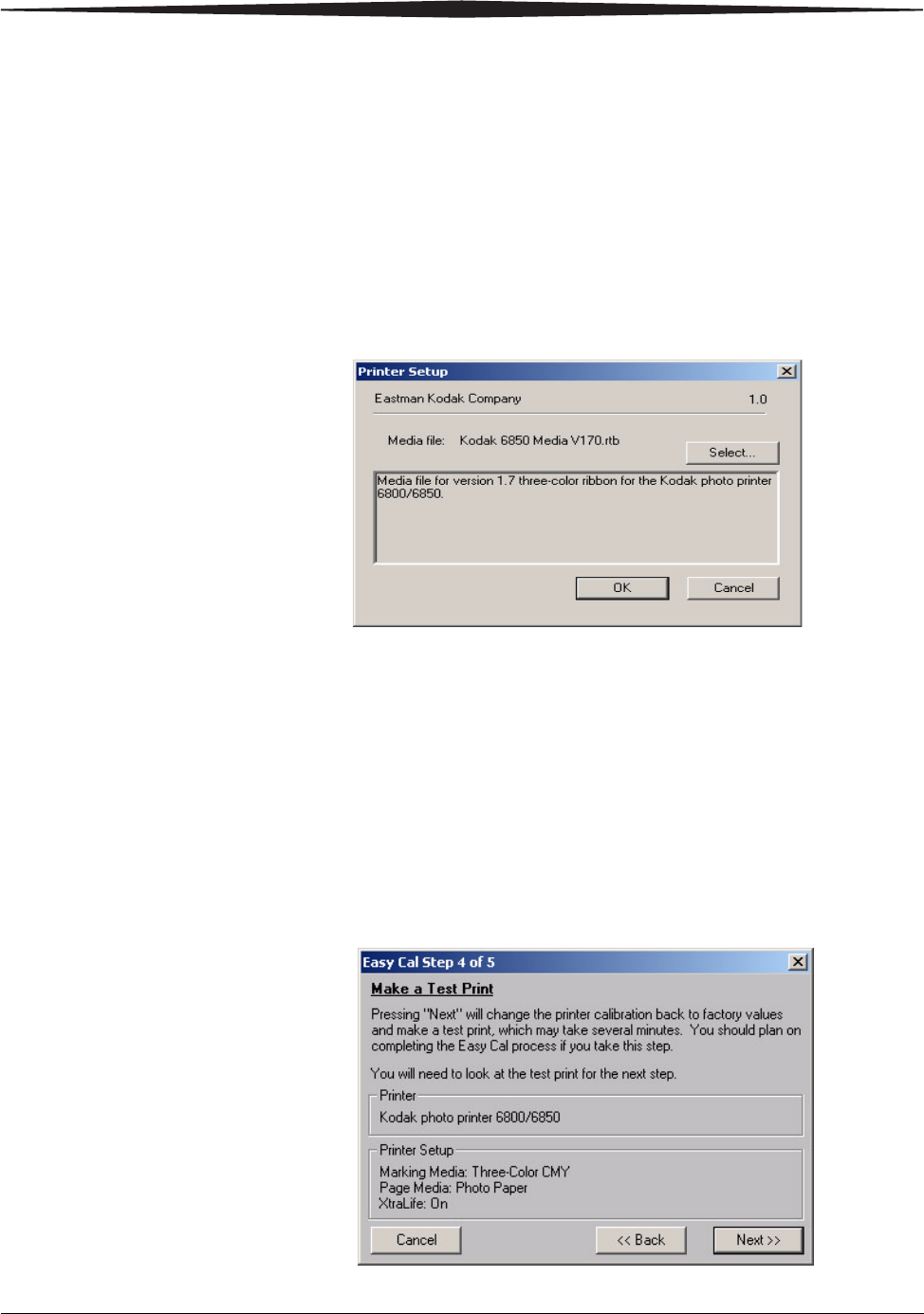
14. Check that the printer setup listed is the printer setup you want to use for
calibration.
• If the printer setup listed is the correct printer setup for your printer,
go to Step 19.
• If you want a different printer setup than what is listed, continue with
Step 15.
15. Click Change Setup.
The following dialog box appears.
NOTE: The appearance of this dialog box may vary, depending on your
printer export module.
16. Click Select to change the media file for your printer.
A file selection dialog box appears.
17. Select the media file and then click OK.
18. Click OK to close the dialog box.
19. Click Next.
The following dialog box appears.
3-6 May 4, 2005
Calibrating the Printer
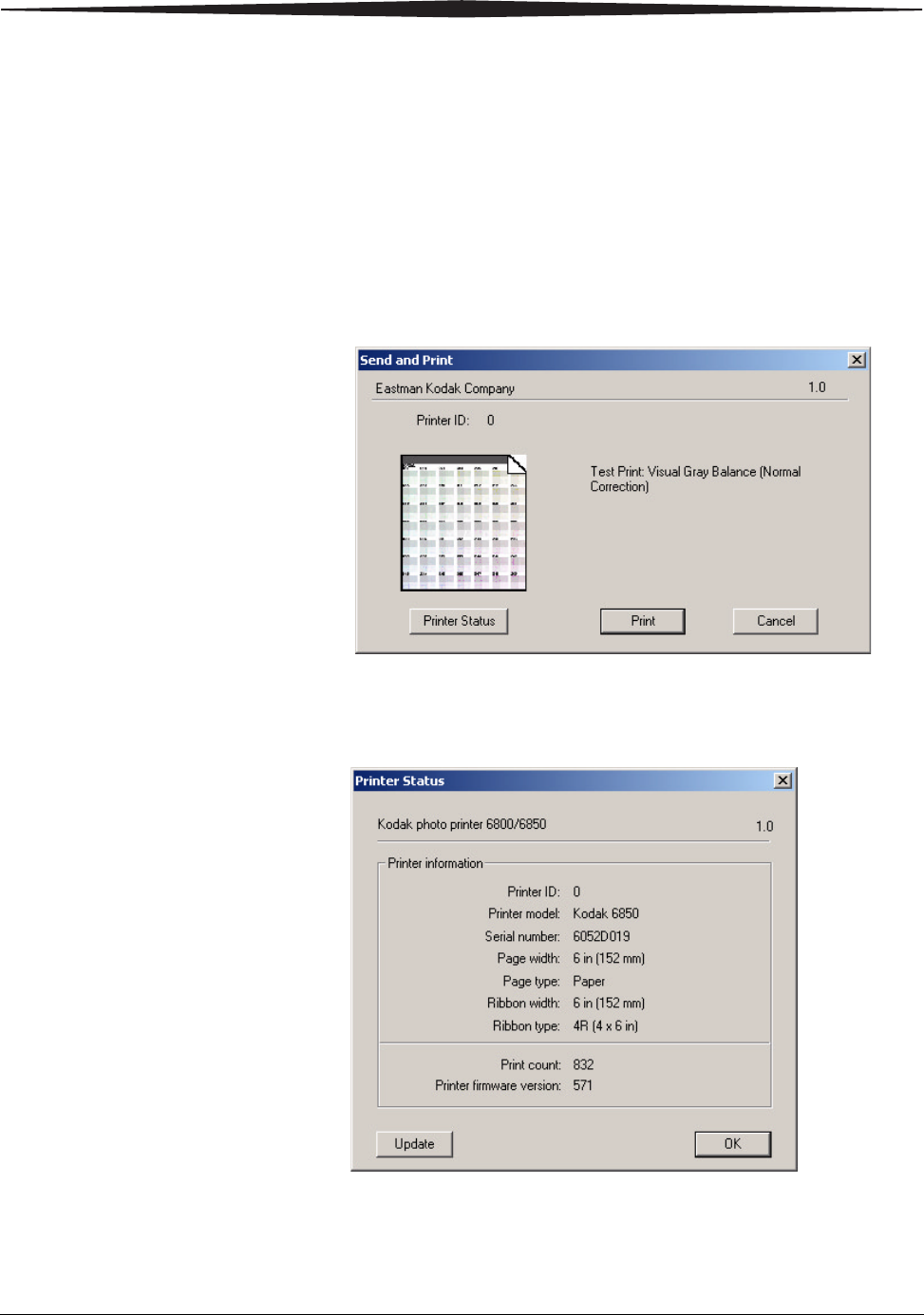
20. Check that the Printer and Printer Setup information are correct.
• If the information is not correct and you have more than one media
file, click Back and go to Step 15.
• If the information is correct, click Next to send the default table to the
printer.
NOTE: The previous table is overwritten.
The following dialog box appears.
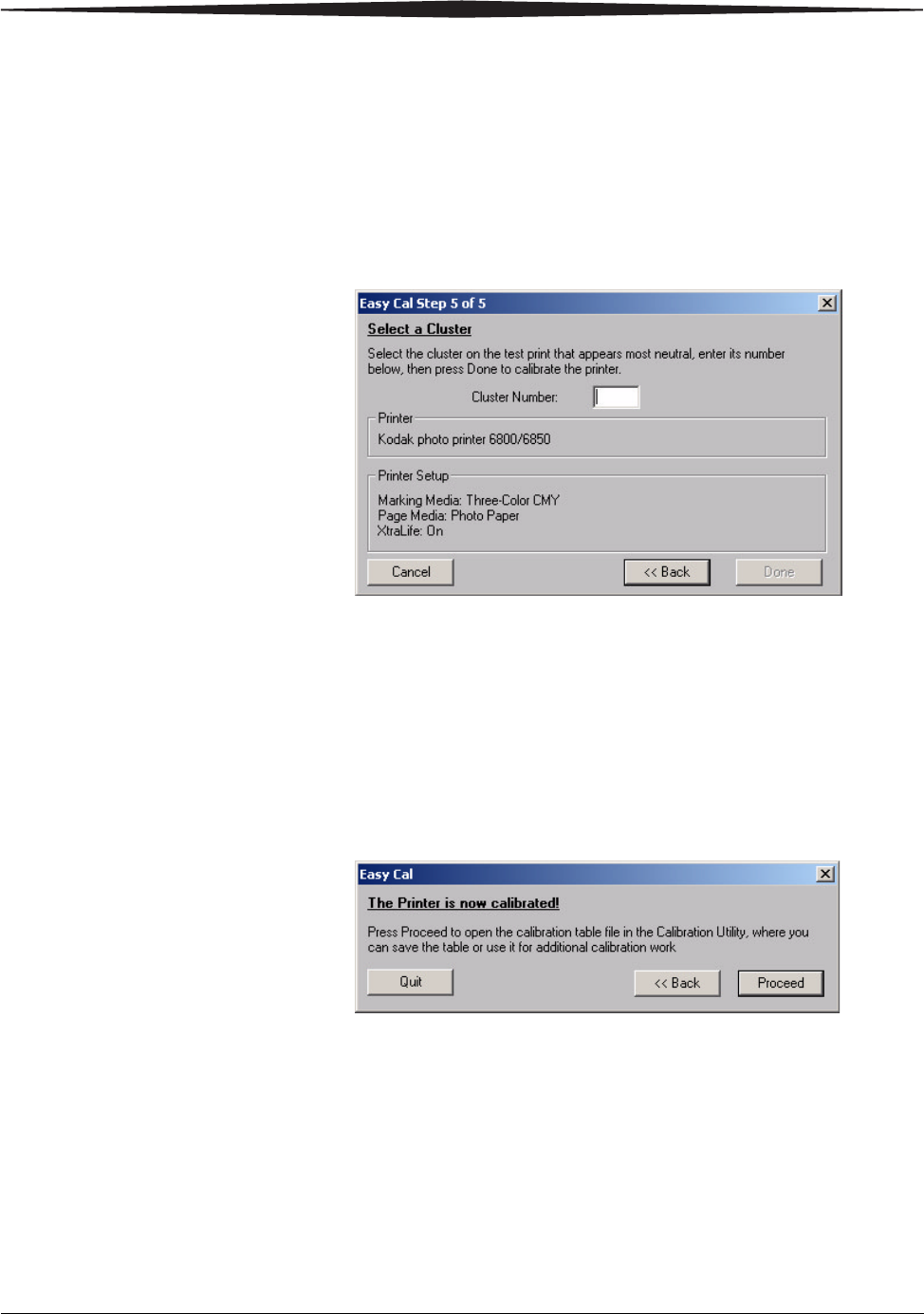
21. Click Printer Status to find out more information about your printer.
The following dialog box appears.
NOTE: Click Update if you want to update the information on the Printer
Status dialog box. You may need to do this if your printer is
accidentally shut off.
Calibrating the Printer
May 4, 2005 3-7
22. Click OK to close the dialog box.
23. Click Print.
The information is processed and the calibration test print is printed
on the specified printer. Processing may take several minutes.
The following dialog box appears.
24. Look at the test print and determine which cluster appears the most
neutral (has the least amount of color).
25. Enter the number of the most neutral cluster in the Cluster Number box
(in a range from 201-249).
26. Click Done.
The printer calibration begins. When calibration is complete, the
following dialog box appears.
27. Click Quit to close the Calibration Utility. Your printer is now calibrated.

3-8 May 4, 2005
Calibrating the Printer
Uninstalling the Calibration Software
You can remove the calibration software from your computer in two ways:
• Select Start > Programs > KODAK Calibration Utility >
Uninstall KODAK Calibration Utility and follow the directions to
uninstall the software.
• Select Start > Settings > Control Panel > Add/Remove Programs >
KODAK Calibration Utility and follow the directions to remove the
software.
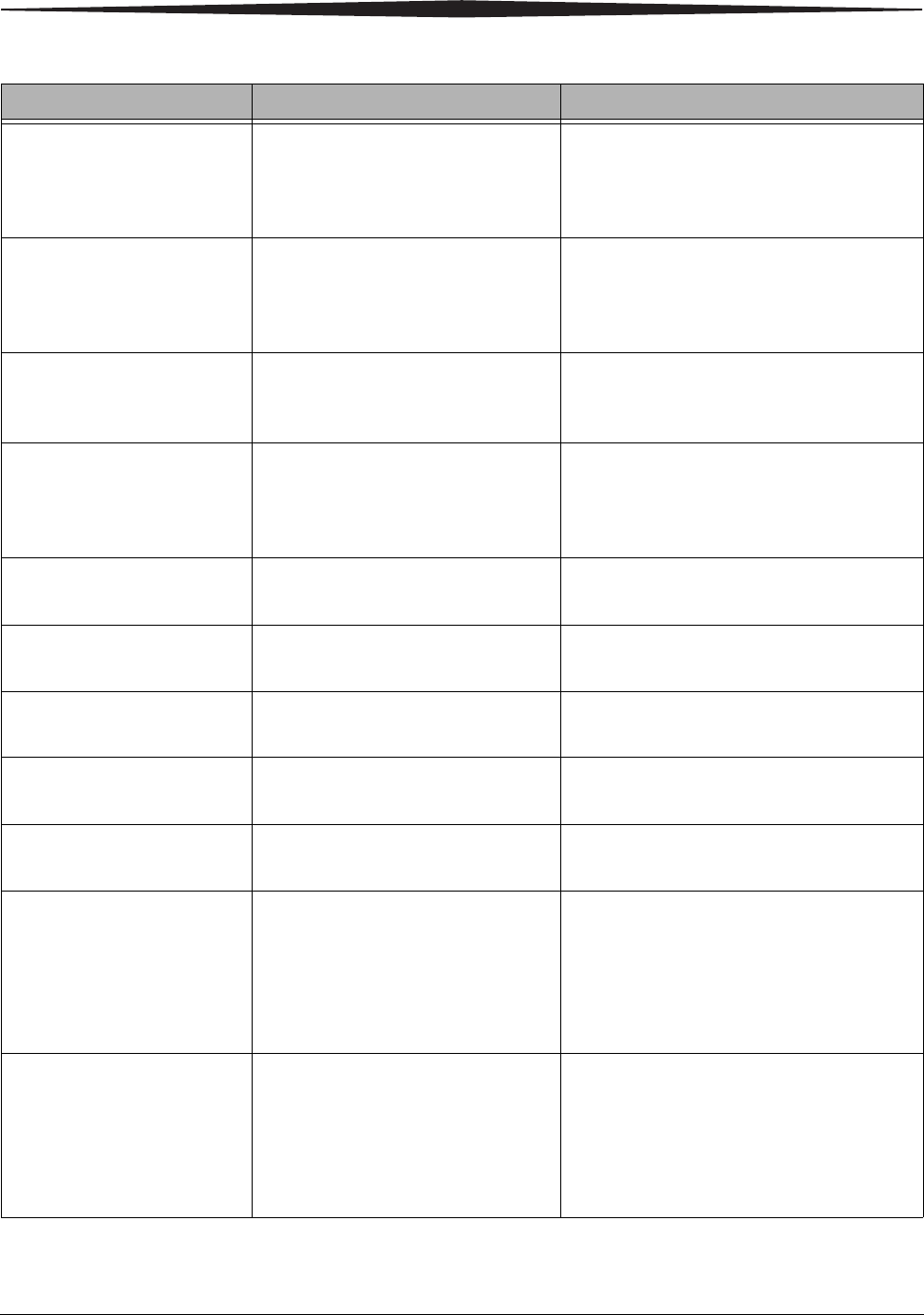
Resolving Calibration Error Messages
Refer to the following table to resolve errors reported during the printer
calibration process. If the problem persists, contact your KODAK Service
Representative.
Error Message Description or Cause Possible Solution
The printer cannot be found. The printer selected cannot be
located. • Check that the printer cables are secure.
• Check that the printer is turned on.
• Select another printer. See Step 10 on
page 3-4.
The media file, which
identifies the ribbon and
paper characteristics of the
media you are using, cannot
be found or is corrupt.
The media file cannot be located or is
corrupt. • Click OK to locate the media file using the
File Selection dialog box. See Step 16 on
page 3-5. Right-click the media file, and
then select Properties. If the Read-only
check box is selected, clear the check
box. This is the only file which cannot be
Read-only.
• Uninstall then reinstall the calibration
software. See “Uninstalling the Calibration
Software” on page 3-8 and “Installing the
Calibration Software” on page 3-1.
The selected file will not work
with this printer. Please
choose another.
An inappropriate media file was
selected for the printer. • Click OK to locate the media file using the
File Selection dialog box. See Step 16 on
page 3-5. Right-click the media file, and
then select Properties. If the Read-only
check box is selected, clear the check
box. This is the only file which cannot be
Read-only.
• Uninstall then reinstall the calibration
software. See “Uninstalling the Calibration
Software” on page 3-8 and “Installing the
Calibration Software” on page 3-1.

Calibrating the Printer
May 4, 2005 3-9
Cannot load DLLs. Insufficient
memory. There is not enough memory available
for the calibration software to load all
the necessary DLLs.
• Close any other open programs to free up
memory.
• Reboot the computer then run only the
calibration software.
Cannot load the file
SDKColorMatch.dll.
Please reinstall the software.
A file required by the calibration
software is missing or corrupt. Uninstall then reinstall the calibration
software. See “Uninstalling the Calibration
Software” on page 3-8 and “Installing the
Calibration Software” on page 3-1.
Cannot load the file
SDKUsbCtrl.dll.
Please reinstall the software.
A file required by the calibration
software is missing or corrupt. Uninstall then reinstall the calibration
software. See “Uninstalling the Calibration
Software” on page 3-8 and “Installing the
Calibration Software” on page 3-1.
Cannot open the USB port.
Please check the printer
cables and power.
The software is unable to
communicate with the printer. • Check that the printer cables are secure.
• Check that the printer is turned on and the
operator panel Ready light is illuminated.
• Power the printer off then on.
• Reboot your computer.
Cannot access the file or read
the data. A file required by the calibration
software is missing or corrupt. Uninstall then reinstall the calibration
software. See “Uninstalling the Calibration
Software” on page 3-8 and “Installing the
Calibration Software” on page 3-1.
Parameter error, such as
undefined tag or insufficient
data.
An internal error has occurred within
the calibration software. • Close the calibration software and try
calibrating the printer again.
• Uninstall then reinstall the calibration
software. See “Uninstalling the Calibration
Software” on page 3-8 and “Installing the
Calibration Software” on page 3-1.
• Check the Kodak Web site for an updated
version of the calibration software.
The printer with the selected
ID number cannot be found. The calibration software is unable to
find the printer with the selected
Printer ID.
• Close the calibration software.
• Check that the printer cables are secure.
• Check that the printer is turned on and the
operator panel Ready light is illuminated.
• Run the calibration software and try
choosing the printer again.
The printer is not ready. The printer is not ready for
calibration. • Check that the printer cables are secure.
• Check that the printer is turned on and the
operator panel Ready light is illuminated.
Error Message Description or Cause Possible Solution
3-10 May 4, 2005
Calibrating the Printer
The printer is busy. The printer is not ready for
calibration. • Wait a few minutes until the operator
panel Ready light is illuminated.
• If this message continues to occur, power
the printer off and then on.
The ribbon is advancing. The printer is not ready for
calibration. • Wait a few minutes until the operator
panel Ready light is illuminated.
• If this message continues to occur, power
the printer off and then on.
The operator panel is in use. The printer is not ready for
calibration. • Press the Clear button to return to Ready.
• If this message continues to occur, power
the printer off and then on.
The printer is initializing. The printer is not ready for
calibration. • Wait a few minutes until the operator
panel Ready light is illuminated.
• If this message continues to occur, power
the printer off and then on.
Paper error. The paper is empty or not loaded. Load the paper. See See “Loading the Paper”
on page 1-9.
Paper empty. The paper is empty. Reload the paper. See See “Loading the
Paper” on page 1-9.
Ribbon empty. The ribbon is empty. Reload the ribbon. See See “Loading the
Ribbon” on page 1-5.
Paper jam. The paper is stuck in the printer or
paper path. Clear the paper jam. See See “Clearing a
Paper Jam” on page 6-3.
Cover open. The upper cover is open or not
latched. Close the upper cover by pressing on the
center of the cover until it clicks.
Printer error: 2500. Please
call for service. _ Contact your KODAK Service Representative.
Have available:
• the error code number
• the printer model number and serial
number (listed on the printer data plate)
Printer error 2504. Please call
for service. _ Contact your KODAK Service Representative.
Have available:
• the error code number
• the printer model number and serial
number (listed on the printer data plate)
Error Message Description or Cause Possible Solution

Calibrating the Printer
May 4, 2005 3-11
USB communication error. The software is unable to
communicate with the printer. • Check the USB cable connection.
• Replace the USB cable.
• Try using a different USB port on the
computer.
• If the printer is connected through a USB
hub, try connecting directly to the
computer.
Error Message Description or Cause Possible Solution
May 4, 2005 4-1
4
Operating the Printer
Making Prints You make prints using photo printing software applications. For
application-specific printing information, see the user’s guide or online Help
for the software application.
Handling and Storing Prints
For best results:
• Make sure hands are clean and free of food, oil, and grease.
• Store prints in a cool, dry environment free of chemical contamination.
• Store prints at temperatures below 72° F (25° C) for extended periods.
• Store prints at a relative humidity between 30% and 50%.
• Avoid exposure to high-intensity light sources, particularly fluorescent light
and sunlight, which are rich in ultraviolet radiation.
• Avoid exposure to vinyl items (those made of polyvinyl chloride, PVC) and
any plastic that contains plasticizer. If you use transparent sleeves, make
sure that they are not PVC-based.
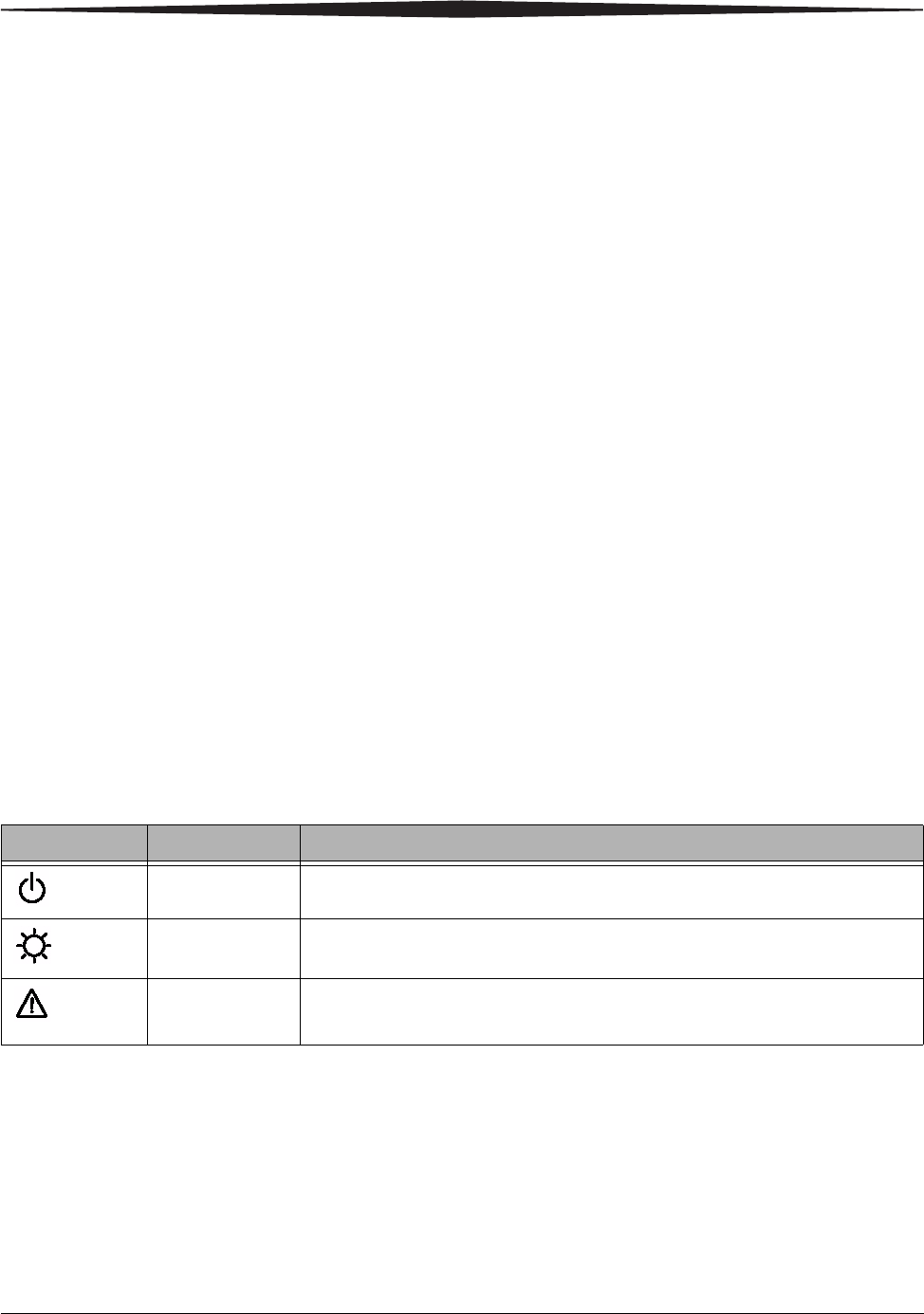
Understanding the Operator Panel Lights
Light Color Printer Status
Power Orange The printer power is on.
Ready Green The printer is ready to make prints.
Error Red An error has occurred. See the message on the operator panel, then see
“Resolving Operator Panel Error Messages” on page 6-2.
4-2 May 4, 2005
Operating the Printer
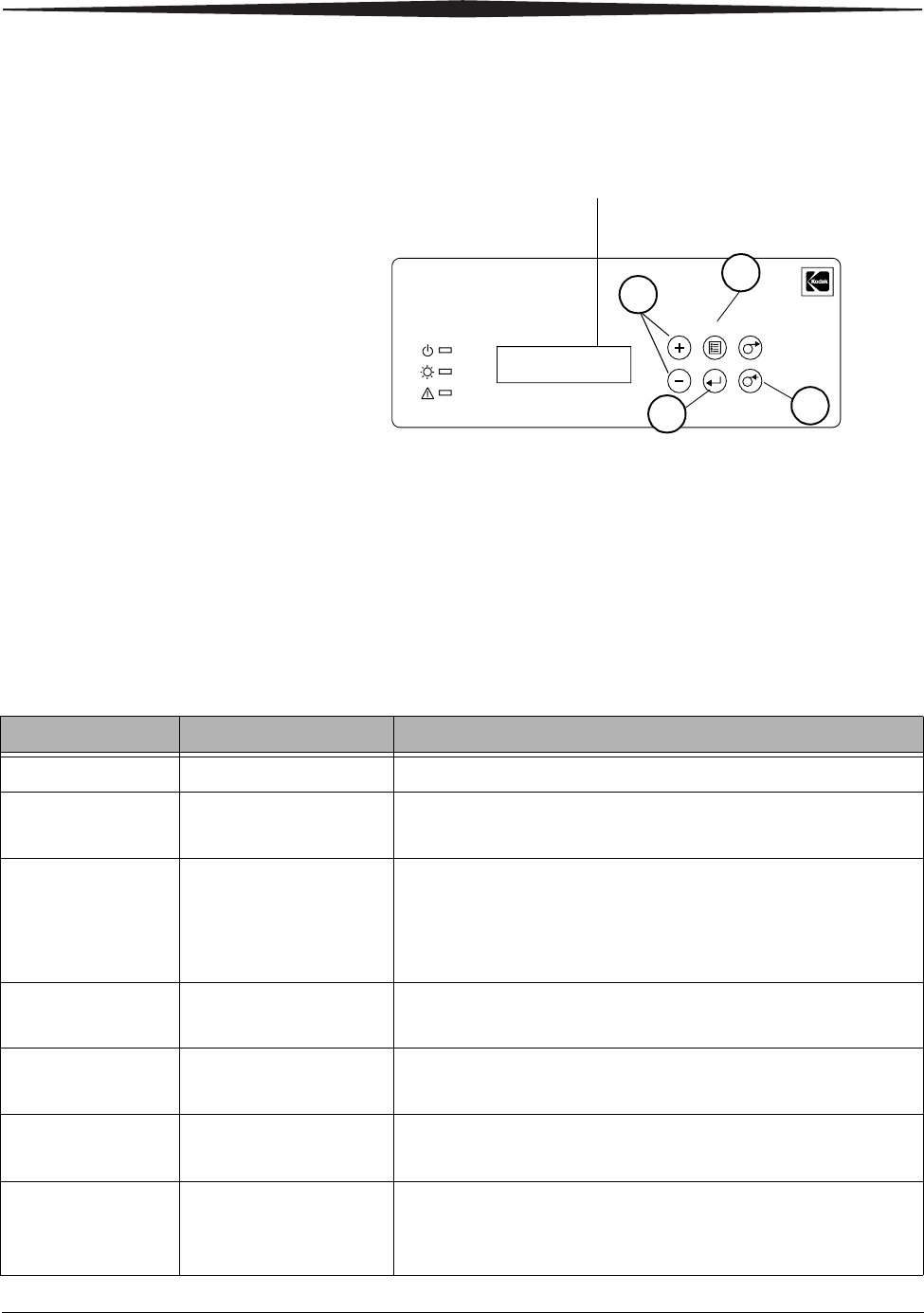
Using Setup Mode to Review Printer Settings
Use the operator panel to review printer settings in Setup mode.
1. Press Menu to enter Setup Mode.
2. Press Menu repeatedly to scroll through the printer settings.
3. Press +/- to scroll through selections.
4. Press Enter to initiate an action or accept a change.
5. Press Clear to exit Setup Mode.
Accessing the Printer
Settings Press Menu repeatedly to scroll through the printer settings in the following
order.
Kodak
Photo Printer 6850
Power
Ready
Error
Rewind/Clear
Paper
Enter
Paper
AdvanceMenu
Printer settings
are displayed here
31,2
45
Printer Setting Operator Panel Display Action Required
Printer ready Ready None. The printer is on and ready to make prints.
Making a test print Test Print Mode Press Enter to make a test print. See “Making a Test Print” on
page 1-11.
Check remaining
paper status Remain = XXX/YYY None. XXX represents how many remaining prints you can make
with the current paper roll. YYY represents the total number of
prints on a paper roll. The counter is reset each time you press
Paper Rewind.
Checking the ribbon
status DonorRemain = XX[%] None. XX[%] represents the percentage of the installed ribbon that
is available for making prints.
Checking the printer
total print count Printed = XXXXX None. XXXXX represents the total number of prints made since the
printer was manufactured. This counter cannot be reset.
Checking the printer
firmware version Main Firm = None. The printer control firmware version number is displayed.
Checking the image
processing firmware
version
DSP Firm = None. The image processing firmware version is displayed.

May 4, 2005 5-1
5
Maintaining the Printer
To ensure good printer performance and high-quality prints, keep the printer
and its environment clean and dust-free.
Cleaning the Cabinet
Clean the exterior cabinet and filter openings regularly to eliminate dust
build-up and to prevent dirt from entering the printer.
CAUTION:
Never use abrasives or harsh chemicals to clean any part of the
printer. Do not allow any foreign objects or liquids to fall or
spill inside the printer. Fire or electric shock could result. If
any foreign object enters the printer, turn off the printer power
immediately, remove the power cord, and contact your KODAK
Service Representative.
1. Wipe the exterior cabinet, print catcher, and trim tray with a damp,
lint-free cloth.
2. Vacuum the filter openings to remove dust.
Performing Routine Maintenance
To maintain good print quality:
1. Clean the stripper plate, platen roller, and cleaning rollers monthly,
using the alcohol pads included in the KODAK Thermal Printer Cleaning
Kit.
2. Only clean the thermal head if directed to do so by a KODAK Service
Representative. Do not include the thermal head in your monthly
cleaning process.
NOTE: If there is paper or ribbon loaded in the printer, remove it before
performing maintenance procedures.
CAUTION:
Alcohol is a flammable liquid. It can cause eye irritation and
dry skin. Prolonged or repeated skin contact may cause drying,
cracking or irritation. Wash your hands with soap and water
following any maintenance procedures where you use alcohol
pads. For additional information, see the Material Safety Data
Sheet (MSDS).
5-2 May 4, 2005
Maintaining the Printer
In the United States for health, safety, and environment information, call
585-722-5151. Customers outside the U.S. can contact their local KODAK
Service Representative.
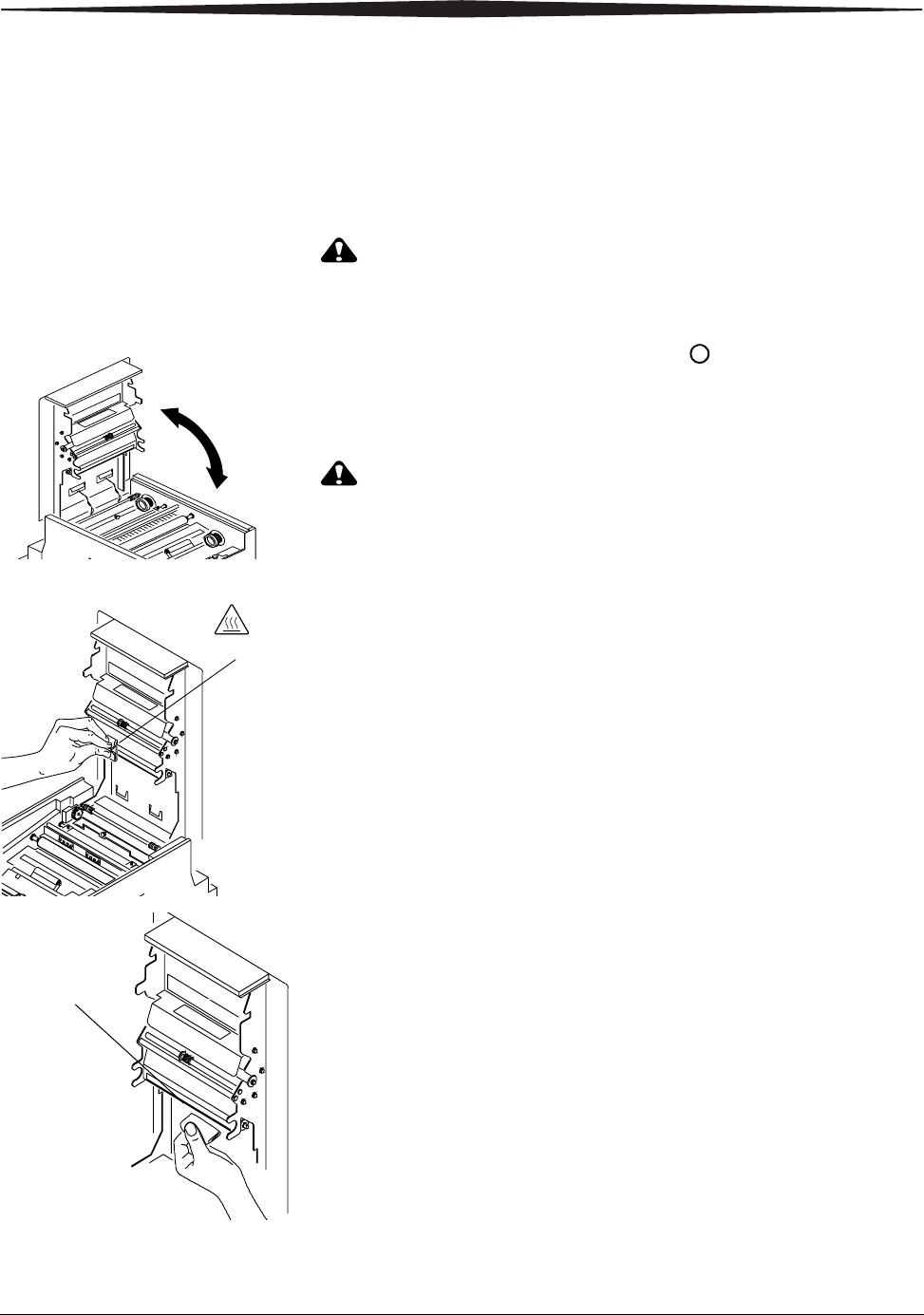
Cleaning the Thermal
Head and Stripper
Plate CAUTION:
Fingerprints can damage the thermal head, which looks like a
glass bar. Never touch it with your bare hands or fingers.
1. Make sure the power switch is turned off ( ).
2. Slide the cover release toward you, then open the upper cover carefully.
IMPORTANT: Cover does not open beyond a 90° angle.
CAUTION:
The thermal head becomes extremely hot during normal
operation. Wait approximately five minutes to begin cleaning
the head after you open the upper cover.
3. Remove an alcohol pad from its packaging. Move the pad along the
entire length of the thermal head, in one direction only. When you clean
the thermal head:
– Apply firm, even pressure.
– Make three passes along the thermal print head.
– Use a clean part of the pad for each pass.
4. Use another clean alcohol pad to wipe the edge of the stripper plate.
90˚
Thermal head
Stripper plate
Maintaining the Printer
May 4, 2005 5-3
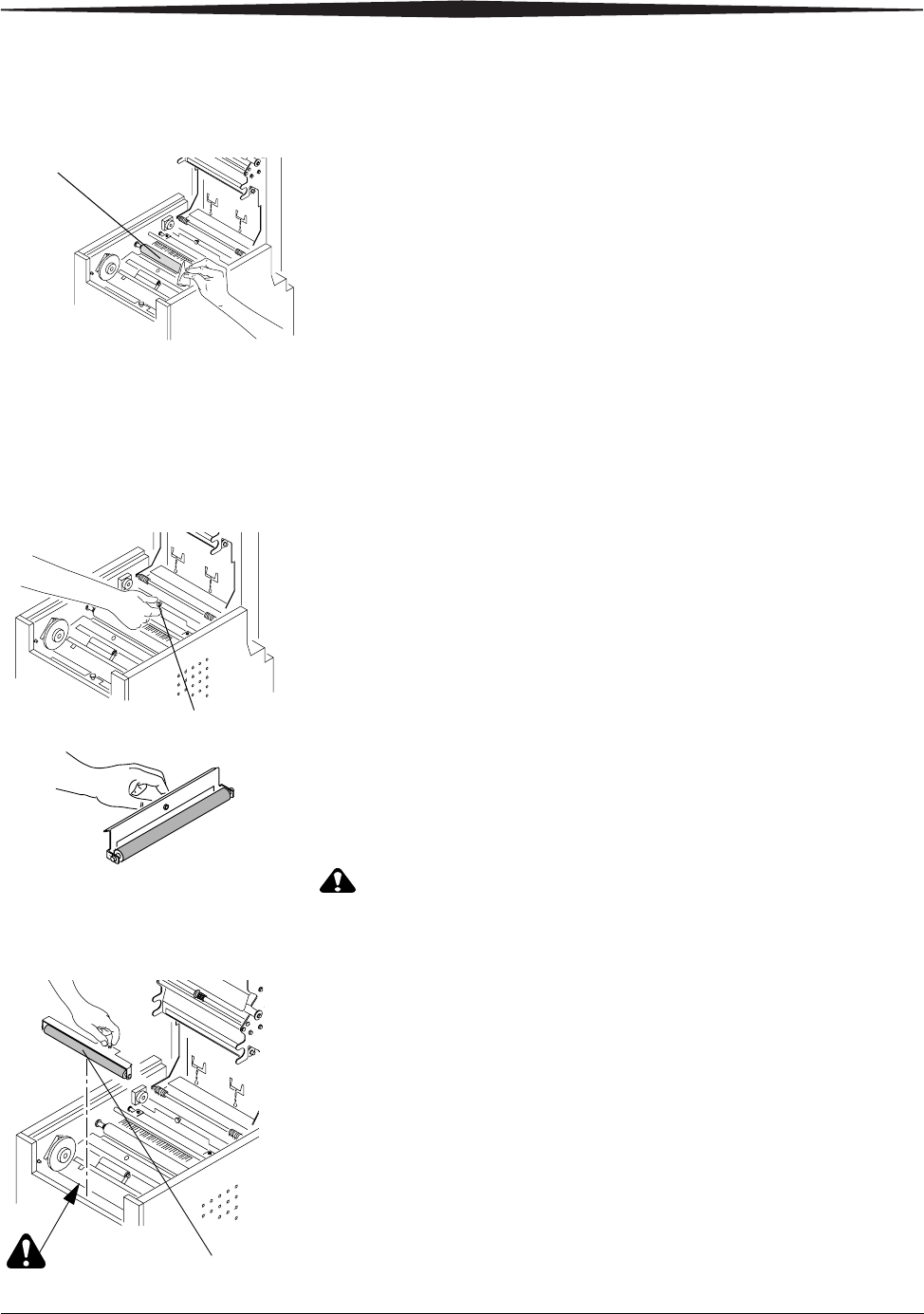
Cleaning the Platen
Roller
1. Remove an alcohol pad from its packaging. Wipe the rubber section of
the platen roller with the pad.
2. Rotate the roller to clean the entire surface.
3. Allow the alcohol to dry completely (about five minutes) before you
resume printing.
Cleaning the Cleaning
Rollers It is essential to keep the cleaning rollers clean to prevent dirt from
transferring back onto the prints and to keep the printer operating correctly.
IMPORTANT: There are two cleaning rollers in the printer. They are not
interchangeable. Clean them separately to prevent
reinstalling them in the wrong position.
1. Remove the rear cleaning roller by pulling up on the black knob.
2. Remove an alcohol pad from its packaging. Wipe the rubber section of
the roller with the pad.
3. Reinstall the rear cleaning roller in the printer. Push the black knob until
the roller clicks into place.
CAUTION:
There are sharp cutter blades inside the front roller area. Do
not insert hands or objects.
4. Repeat steps 1 - 3 to remove, clean, and reinstall the front cleaning
roller.
Platen roller
Rear cleaning roller
Front cleaning roller
5-4 May 4, 2005
Maintaining the Printer
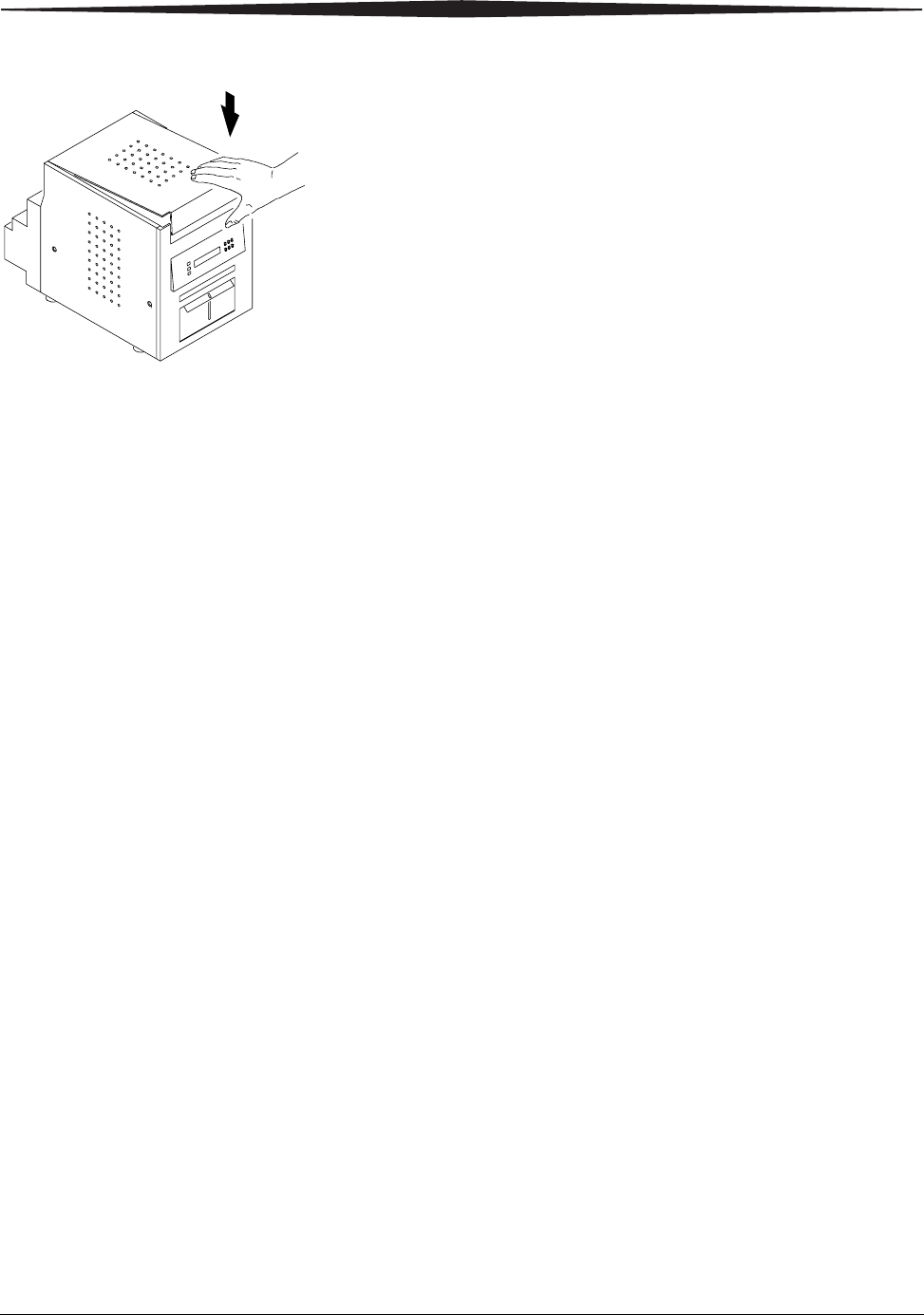
5. Close the upper cover by pressing on the center of the cover until it
clicks in place.
6. Allow the alcohol to dry completely (about five minutes) before you
resume printing.

May 4, 2005 6-1
6
Troubleshooting
Resolving Potential Problems
Problem Description or Cause Possible Solution
Paper jam; error light is on,
printer does not operate The paper is stuck in the
printer. Clear the paper jam. See “Clearing a Paper Jam”
on page 6-3.
Prints have linear streaks The thermal head is dirty. Clean the thermal head. See “Cleaning the
Thermal Head and Stripper Plate” on page 5-2.
If the problem persists, the heating element may
be damaged. Contact your KODAK Service
Representative.
Prints have streaks made up of
small dots The cleaning rollers are dirty. Clean the cleaning rollers. See “Cleaning the
Cleaning Rollers” on page 5-3.
Print size or aspect ratio is not
what you expected The image file or printing
options need to be adjusted in
your photo printing software
application.
In your photo printing software application:
• Use the Fit to Page or Clip options (may not
be offered by all photo printing
applications).
• Adjust the image size to match the paper
size.
• Make sure the Portrait / Landscape setting
matches the orientation of the picture.
• For details, see the photo printing
application online Help.
NOTE: It is not necessary to adjust the image
resolution (dpi) to match the printer
resolution. The printer driver
automatically scales your image to
match the printer resolution.
6-2 May 4, 2005
Troubleshooting
Resolving Operator Panel Error Messages
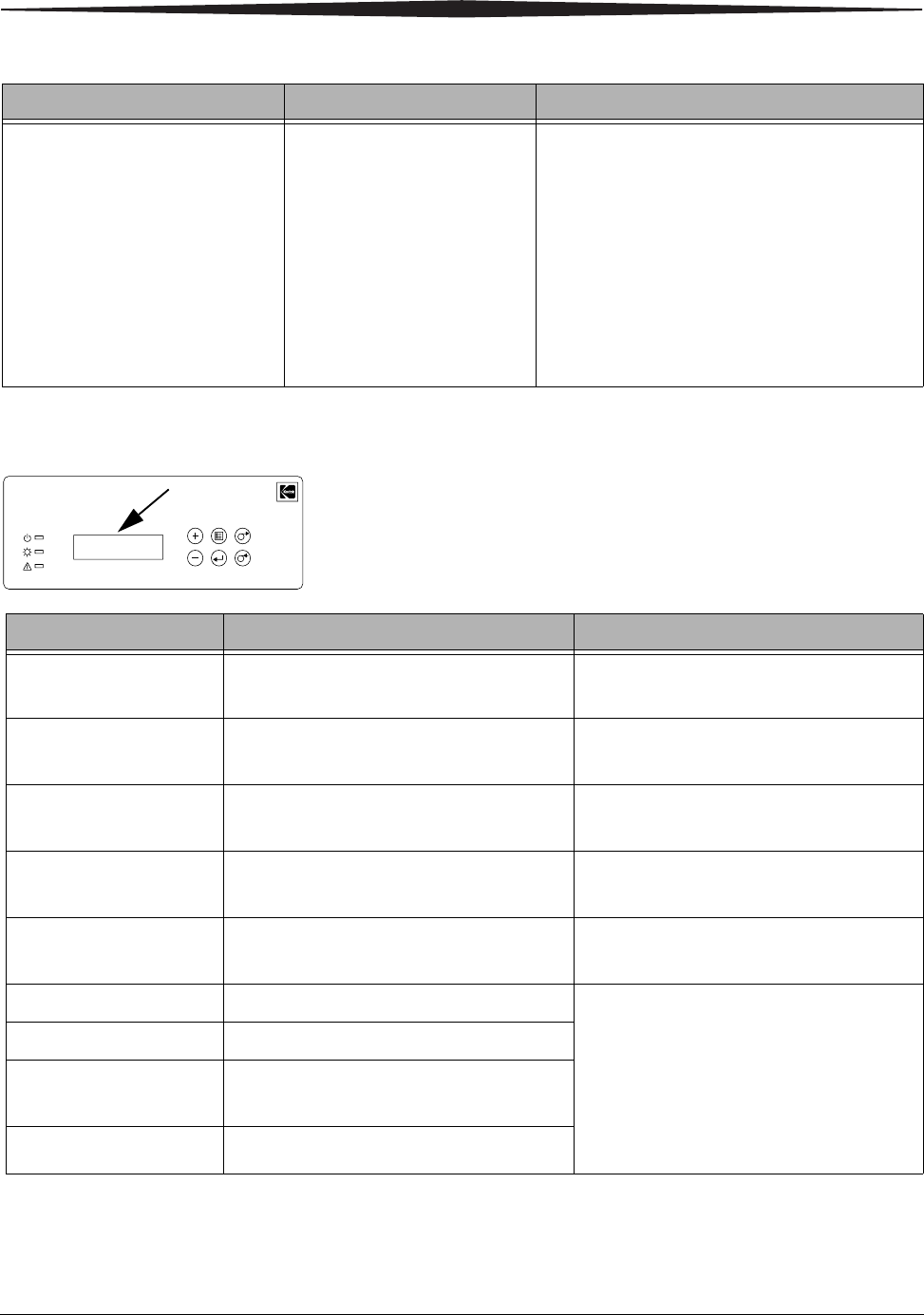
Refer to the following table to resolve errors reported on the operator panel.
If the problem persists, contact your KODAK Service Representative.
Insufficient Memory errors occur
on your computer (not on the
printer) after making a substantial
number of prints
Your computer is low on RAM
and/or disk caching memory.
This can happen when you are
manipulating (rotating,
scaling, retouching, etc.)
high-resolution images
(>72 dpi).
• Minimize the number of images that are open
at the same time.
• Purge the contents of the clipboard often.
• Close all applications except the photo
printing software application.
• See the photo printing software application
online Help for tips on memory optimization.
• See page A-1 for recommended system
requirements.
Problem Description or Cause Possible Solution
Kodak
Photo Printer 6850
Power
Ready
Error
Rewind/Clear
Paper
Enter
Paper
AdvanceMenu
Error Message Description or Cause Possible Solution
Paper Empty The paper is empty or is not loaded. Load the paper. See “Loading the Paper”
on page 1-9.
Ribbon Empty The ribbon is empty or is not loaded. Load the ribbon. See “Loading the Ribbon”
on page 1-5.
Paper Jam XX The paper is stuck in the printer or paper
path. See “Clearing a Paper Jam” on page 6-3.
Cover Open The upper cover is open or not latched. Close the upper cover by pressing on the
center of the cover until it clicks.
Data Error There is a communication problem
between the printer and host computer. Check the host computer.
Mecha Error XX The printer has a mechanical problem. Contact your KODAK Service
Representative. Have available:
• the error code number (XX)
• the printer model number and serial
number (listed on the printer data
plate)
Control Error XX The printer has a system control problem.
TempSensErr XX The printer has a problem with the
temperature sensor.
Sensor Error XX The printer has a sensor problem.
Troubleshooting
May 4, 2005 6-3
Clearing a Paper Jam
If the Paper Jam message is displayed on the operator panel, there are two
methods that you can use to try to clear the paper jam.
Method 1
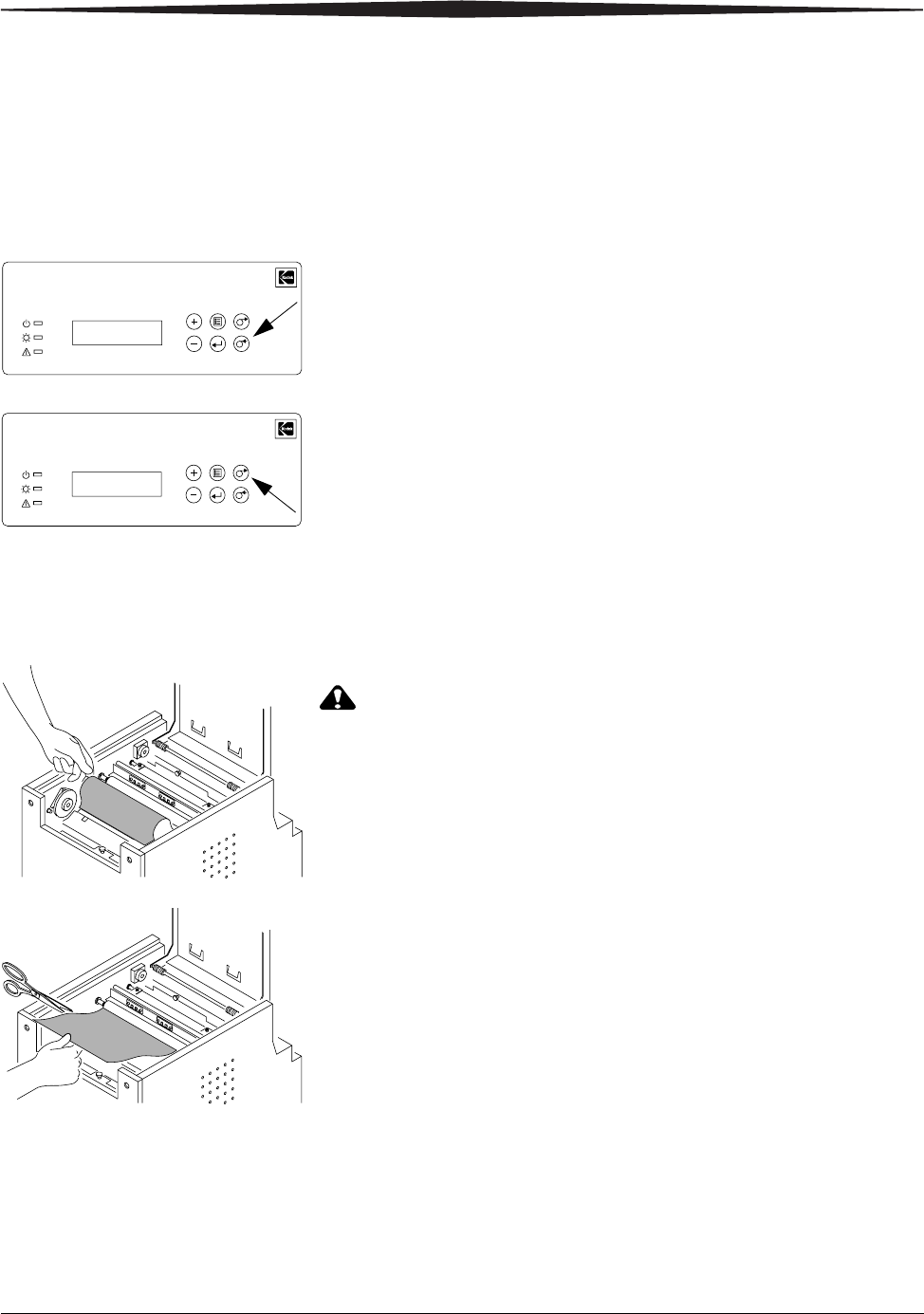
1. Press Paper Rewind until the Paper Empty message appears.
2. Press Paper Advance to re-load the paper into the printer.
The printer advances the paper, then cuts and discharges about 20 in.
(508 mm) of blank paper. This reduces the possibility of fingerprints
or other damage to the prints (see page A-2).
The operator panel displays the Ready message.
Method 2 If the Paper Jam message is still displayed on the operator panel:
1. Turn off the printer and open the upper cover.
2. Remove the ribbon from the printer.
CAUTION:
Prevent damage to the printer. Do not pull abruptly on the
paper.
3. Slowly and carefully pull the jammed paper out of the printer.
4. Cut off any damaged or printed areas of the paper.
NOTE: Do not damage or mark any of the rollers.
Kodak
Photo Printer 6850
Power
Ready
Error
Rewind/Clear
Paper
Enter
Paper
AdvanceMenu
Kodak
Photo Printer 6850
Power
Ready
Error
Rewind/Clear
Paper
Enter
Paper
AdvanceMenu
6-4 May 4, 2005
Troubleshooting
5. Close the upper cover and turn on the printer.
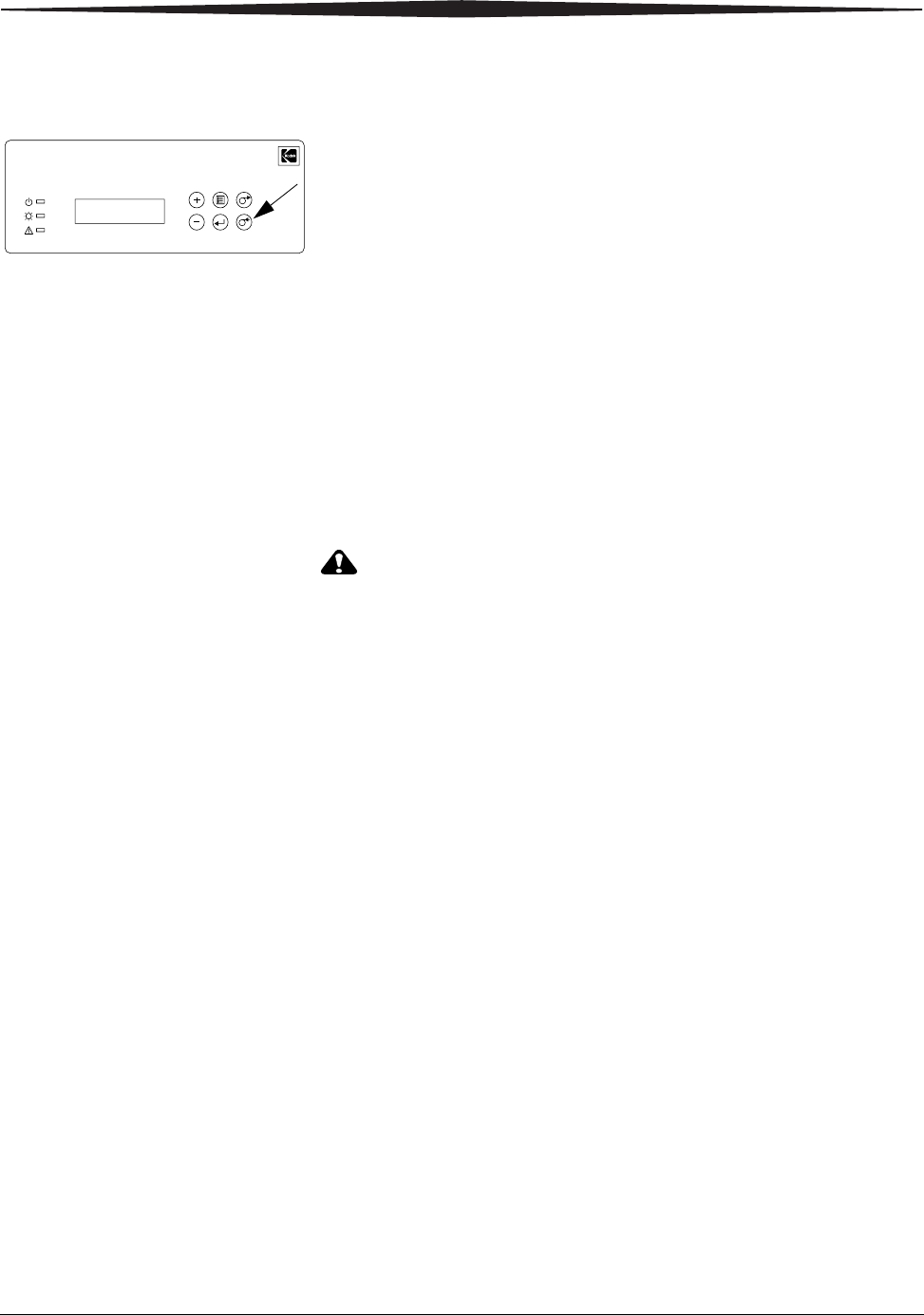
6. Press Paper Rewind to rewind the paper into the printer.
If the Paper Jam message still appears on the operator panel, press
Paper Rewind again.
7. Open the upper cover and reload the ribbon. See “Loading the Ribbon”
on page 1-5.
8. Close the cover.
9. Reload the paper. See “Loading the Paper” on page 1-9.
NOTE: If the Paper Jam message is still displayed on the operator panel, and
you are at the end of a paper roll, it is possible that a segment of
paper is too short to automatically exit the printer. Remove the front
cleaning roller (see “Cleaning the Cleaning Rollers” on page 5-3)
and remove the segment of paper.
Recovering from a Power Interruption
CAUTION:
If the printer loses power while printing, the printer stops with
the thermal head positioned against the platen roller. The
platen roller could be deformed and damaged if the thermal
head is left in this position.
If a power outage occurs:
1. Open the upper cover immediately to release the pressure on the platen
roller. Leave the cover open until power is restored.
2. When power is restored, restart the printer by following the procedure
for “Clearing a Paper Jam” on page 6-3.
3. Submit your print job again.
Kodak
Photo Printer 6850
Power
Ready
Error
Rewind/Clear
Paper
Enter
Paper
AdvanceMenu
A-1
Appendix A: Important
Printer
Information
System Requirements
• Personal computer with MICROSOFT WINDOWS 2000 or
MICROSOFT WINDOWS XP Operating System
• Minimum 1.0 GHz PENTIUM III Microprocessor
• Minimum 128 MB of RAM
• Minimum 2 GB of available hard disk space
NOTE: You may need up to 256 MB of RAM and 10 GB of hard disk space for
acceptable performance with some imaging applications on high
performance, multi-tasking operating systems.
• USB High Speed (2.0) compliant host device
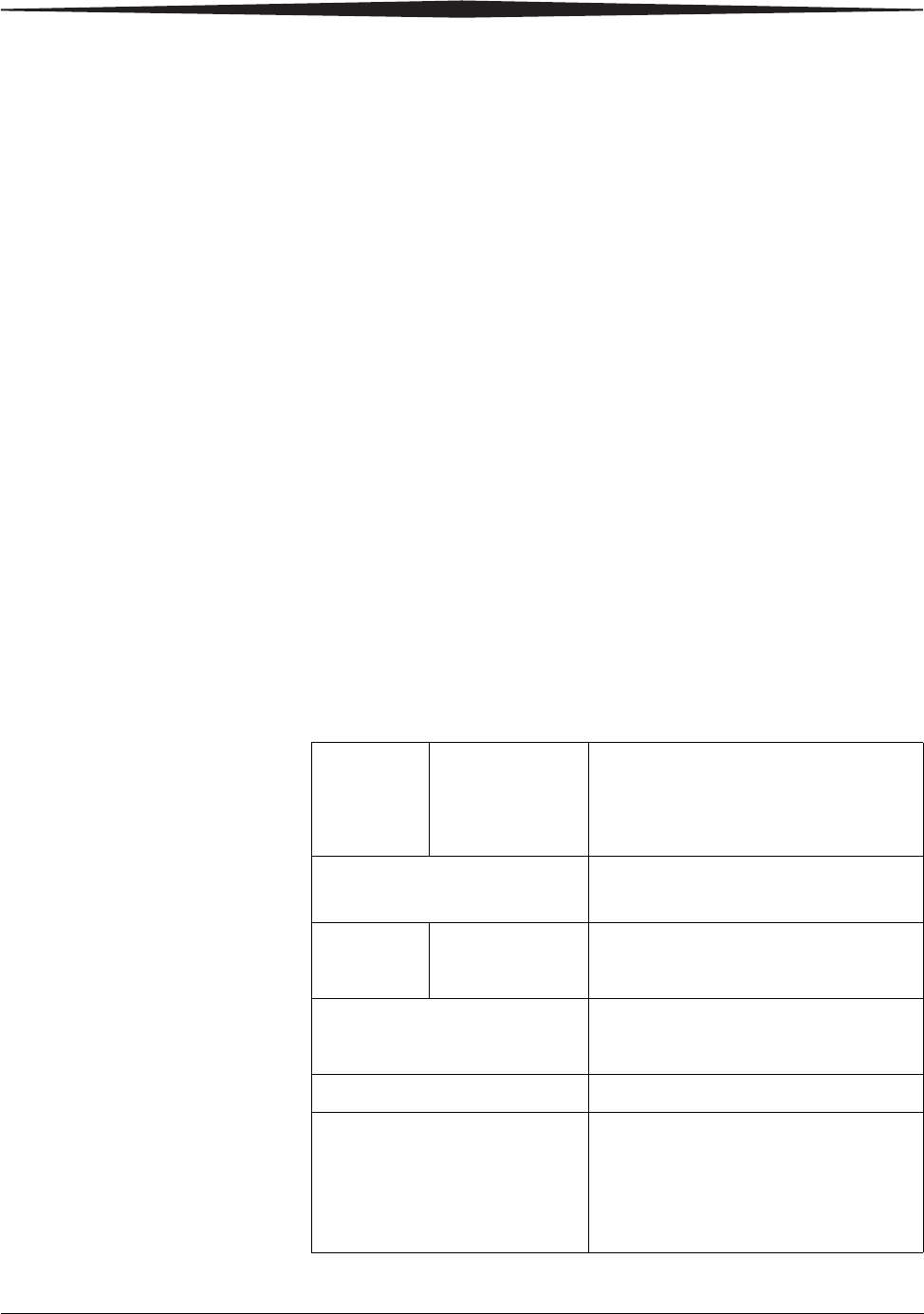
Printer Specifications
Dimensions Width
Depth
Height
11.4 in. (290 mm)
19.6 in. (496 mm)
13.6 in. (346 mm)
Weight
(without ribbon and paper) 56 lbs (25 kg)
Operating
environment Temperature
Relative Humidity 50 to 95° F (+10 to +35° C)
20 to 80%
Power Voltage/Frequency (auto
detection of the following ranges) 90 V to 132 V / 48 Hz to 62 Hz
180 V to 264 V / 48 Hz to 62 Hz
Power consumption 320 watts maximum
Print size KODAK Photo Printer 6850:
• 4 x 6 in. (10 x 15 cm)
• 6 x 8 in. (15 x 20 cm) with border
• 6 x 8 in. (15 x 20 cm) borderless
A-2 May 4, 2005
Important Printer Information
Printer Supplies
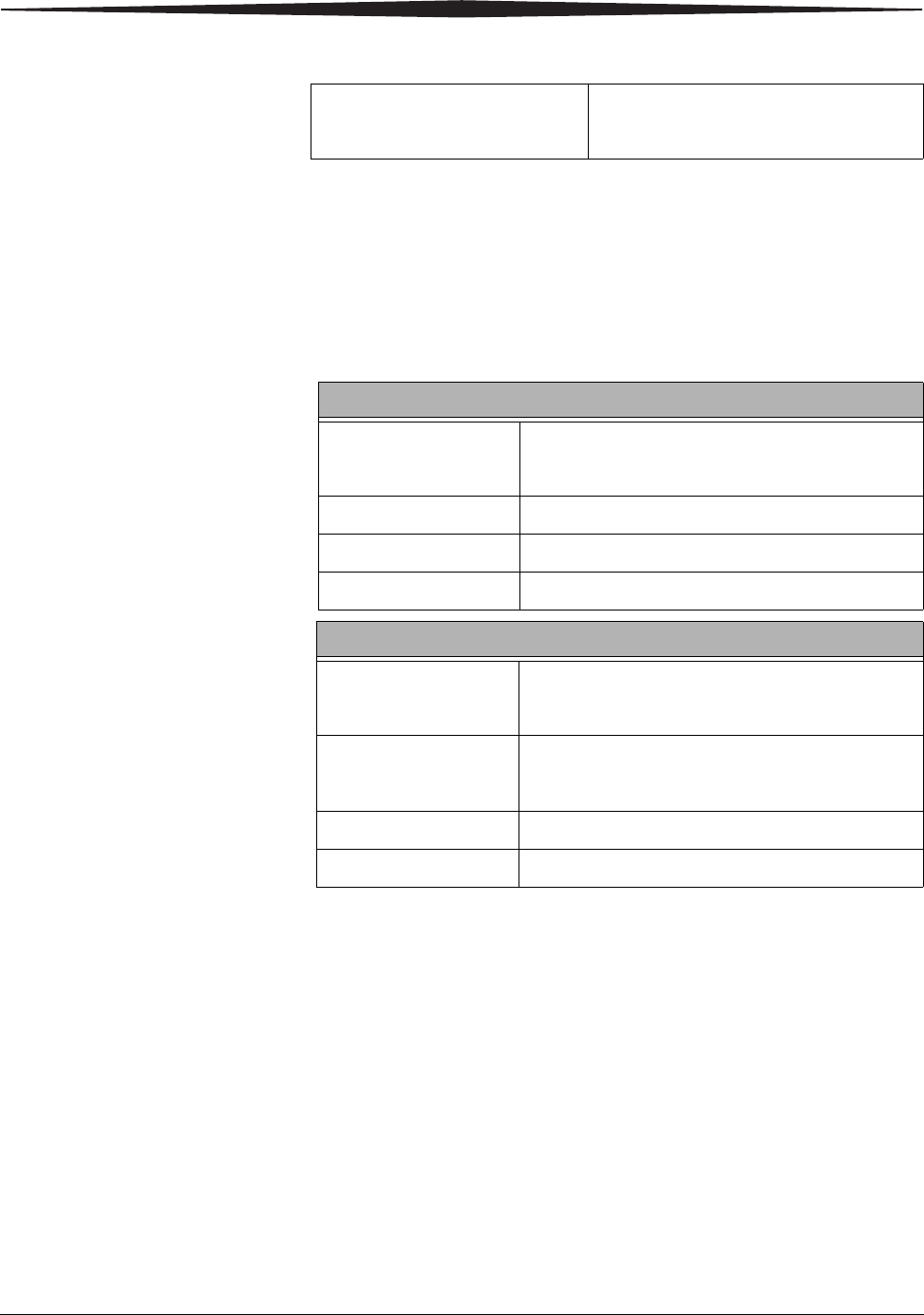
Paper and Ribbon Each Photo Print Kit contains the correct media set (roll-feed paper and
ribbon) for your printer model. Photo Print Kits are sold separately.
IMPORTANT: For best results, replace both the paper and ribbon at the
same time.
* Paper and ribbon rolls contain material to make the stated print quantity.
Printing of mixed 4 x 6 in. and 6 x 8 in. sizes may yield fewer prints per roll.
** The paper roll contains a small amount of additional paper to allow for the
extra feed when loading the paper and to minimize end-of-roll impressions.
Handling and Storing the
Paper and Ribbon For the best quality prints, carefully handle and store your paper and ribbon:
• To avoid fingerprints, handle the ribbon by the spool ends; do not touch
the ribbon material. Do not touch the glossy side of the paper.
• Store the paper and ribbon away from direct sunlight.
Printing time
(after file download) 4 x 6 in. (10 x 15 cm) - 8 seconds
6 x 8 in. (15 x 20 cm) - 14 seconds
KODAK Photo Print Kit 6800 / 4R Specifications
Storage specifications 86° F (30° C) or lower
60% relative humidity or lower
Capacity 750 prints, paper and ribbon*
Paper and ribbon width 6 in. (15 cm)
Ribbon patch length 4 in. (10 cm)
KODAK Photo Print Kit 6800 / 6R Specifications
Storage specifications 86° F (30° C) or lower
60% relative humidity or lower
Capacity* 750 - 4 x 6 in. prints, paper, and ribbon** or
375 - 6 x 8 in. prints, paper, and ribbon**
Paper and ribbon width 6 in. (152 mm)
Ribbon patch length 8 in. (203 mm)
Important Printer Information
May 4, 2005 A-3
Thermal Printer
Cleaning Kit Use the KODAK Thermal Printer Cleaning Kit when performing routine
maintenance on the printer (see page 5-1). One Thermal Printer Cleaning Kit
is included with your printer.
CAUTION:
Alcohol is a flammable liquid. It can cause eye irritation and
dry skin. Wash your hands with soap and water following any
maintenance procedures where you use alcohol pads.
Packing and Transporting the Printer
WARNING:
Do not ship the paper and ribbon in the printer. Doing so
may cause physical damage to the printer during shipping.
Ship paper and ribbon separately.
1. Remove the paper and ribbon from the printer.
2. Reinstall the packing materials (see page 1-3).
3. Repack the printer in the original packing box. See the
packing/unpacking instructions included with the box.
ENERGY STAR Partner
As an ENERGY STAR Partner, Eastman Kodak Company has determined that
this product meets the ENERGY STAR Guidelines for energy efficiency.
Getting Help Help with your printer is available from the following sources:
• Troubleshooting section in this manual, Chapter 6.
• Your KODAK Service Representative.
KODAK Thermal Printer Cleaning Kit
Catalog number 172-1117
Contents Individually packaged alcohol pads (10)

May 4, 2005 B-1
Appendix B: Safety and
Regulatory
Information
Important Safety Information
CAUTION:
Use of controls or adjustments, or performance of procedures
other than those specified in this manual may result in injury
and/or damage to the printer.
• The power outlet should be easily accessible and installed near the
printer.
• Position the power cable so that it cannot be pulled on or tripped over.
• Never allow the power cable to contact hot surfaces.
• The power outlet must be grounded. An ungrounded outlet can cause
fire, electric shock, or harmful interference to nearby electrical devices.
• Use only the power cable provided with the printer.
• Do not operate the printer with a damaged power cable.
• Always unplug the power cable from the printer before cleaning or when
the printer is not in use.
• If the printer has been dropped or damaged, be sure a qualified service
person examines the printer before you use it.
• Do not block the filter openings on the printer cabinet.
• Do not expose the printer to moisture or water.
• Do not allow any foreign objects or liquids to fall or spill inside the
printer. Fire or electric shock could result.
• The thermal head becomes extremely hot during normal operation. Do
not touch it.
• Alcohol pads are used to clean the thermal head and other internal
printer components. In the United States for health, safety, and
environment information, call 585-722-5151. Customers outside the
U.S. can contact their local KODAK Service Representative.
B-2 May 4, 2005
Safety and Regulatory Information
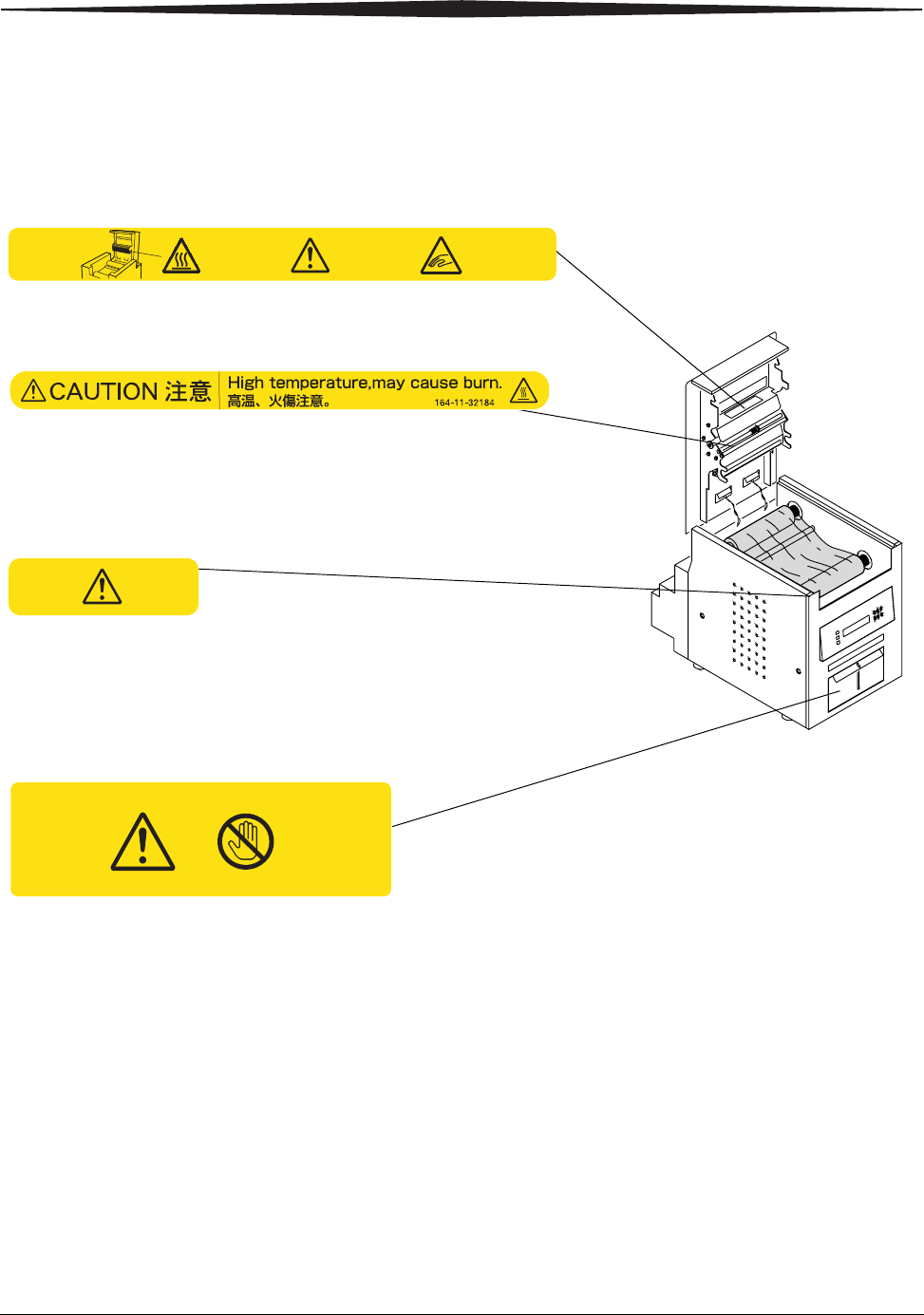
Safety Labels Please observe the important safety warnings that are posted on the printer.
This label is posted behind the trim tray.
CAUTION HOT SURFACE
To avoid burns, use caution when closing the cover.
CAUTION HOT SURFACE
The thermal head becomes extremely hot
during normal operation. Do not touch it.
CAUTION SHARP OBJECTS
The metal edges of the printer may be sharp.
CAUTION SHARP CUTTER BLADE
There are sharp cutter blades inside the printer. Do not
insert hands or objects.
P/N 2J5439
1641132233
P/N 2J5452
1641132183
P/N 2J5451
1641132182

Safety and Regulatory Information
May 4, 2005 B-3
Regulatory and Safety Compliance
Safety Complies with UL 60950 Third Edition—CAN/CSA C22.2
No. 60950 Third Edition
EN 60950-1
IEC 60950
Tested for Norwegian IT Power systems 240V phase to phase
Electromagnetic
Compatibility (EMC) NOTE: This equipment has been tested and found to comply with the limits
for a Class A digital device, pursuant to part 15 of the FCC rules. These
limits are designed to provide reasonable protection against
interference when the equipment is operated in a commercial
environment. This equipment generates, uses, and can radiate radio
frequency energy and, if not installed and used in accordance with
the instruction manual, may cause interference to radio
communications. Operation of this equipment in a residential area is
likely to cause interference in which case the user will be required to
correct the interference at his or her own expense.
Requirements of the EMC directive 89/336/EEC were met through compliance
with the following:
• EN 55022: 94 (class B) with Amendments A1:95 and A2:97
• EN 55024: 98 ITE Immunity includes the following:
EN 61000-4-2 ESD
EN 61000-4-3 Radiated RF immunity
EN 61000-4-4 EFT
EN 61000-4-5 Surge
EN 61000-4-6 Conducted RF immunity
EN 61000-4-11 Voltage dips and interruptions
• EN 61000-3-2 Harmonics
• EN 61000-3-3 Flicker
"Changes or modifications not expressly approved by the party responsible for
compliance could void the user’s authority to operate the equipment."
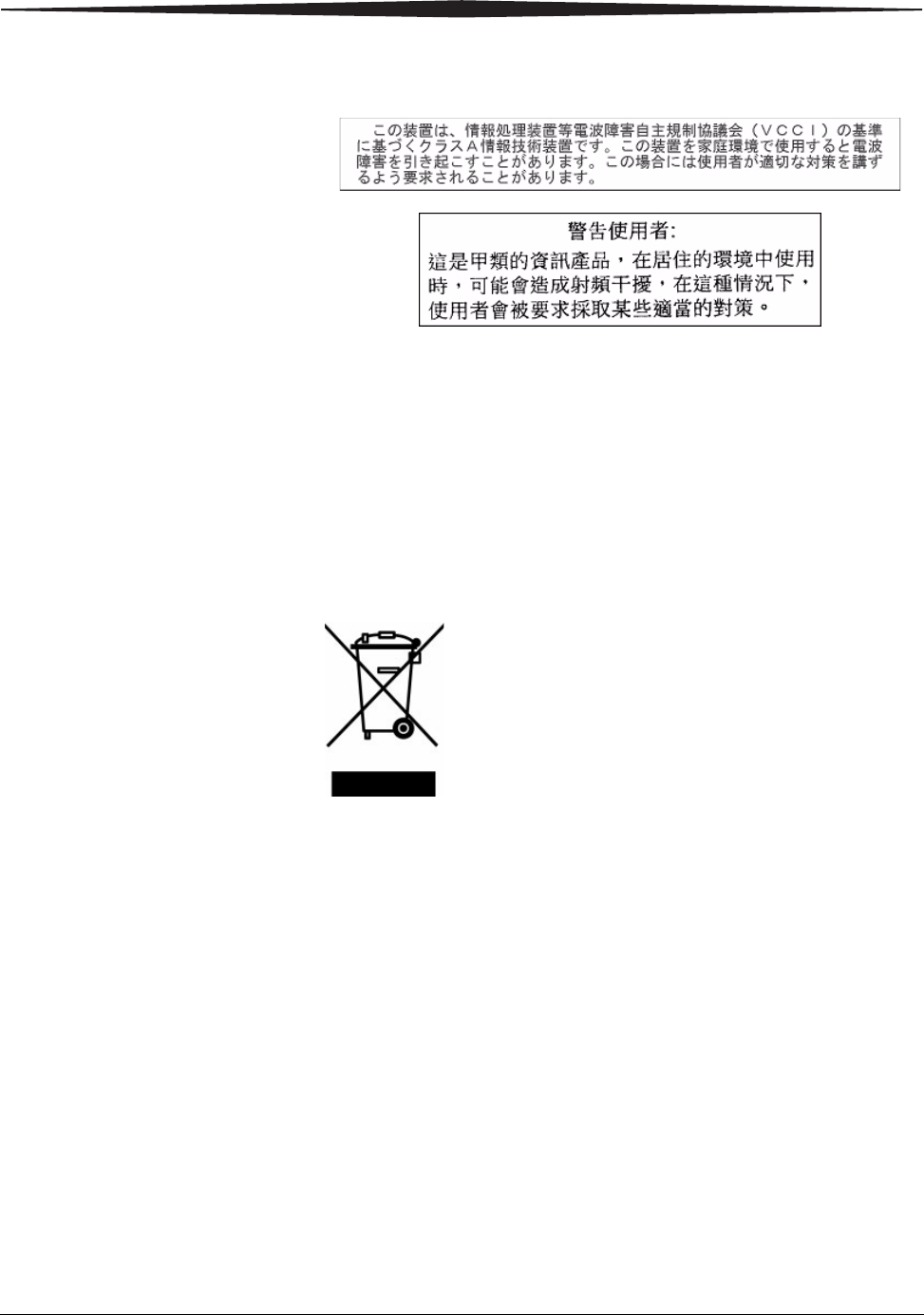
This is a Class A product based on the standard of the Voluntary Control
Council for Interference from Information Technology Equipment (VCCI). If
this is used near a radio or television receiver in a domestic environment, it
may cause radio interference. Install and use the equipment according to the
instruction manual.
B-4 May 4, 2005
Safety and Regulatory Information
Noise Emission The operator-position noise emission value is less than 70 dB(A).*
* Average value specified in accordance to JIS Z8731
Disposal This product contains a small amount of lead in the solder on the circuit
boards. Disposal of this material may be regulated due to environmental
considerations. For disposal or recycling information, please contact your
local authorities. In the USA, contact the Electronics Industry Alliance at
www.eiae.org.In the European Union, this symbol indicates that when the
last user wishes to discard this product, it must be sent to
appropriate facilities for recovery and recycling. Contact
your local KODAK Representative or refer to
www.kodak.com/go/recycle for additional information on
the collection and recovery programs available for this
product.

May 4, 2005 I-1
Index
A
air flow clearances, 1-2
C
cabinet, cleaning, 5-1
cables
connecting, 1-7
power, 1-7
USB, 1-8
calibrating the printer, 3-1
calibration errors, 3-8
calibration software
installing, 3-1
uninstalling, 3-8
calibration utility, 3-1
checking
paper status, 4-2
ribbon status, 4-2
cleaning
cabinet, 5-1
cleaning rollers, 5-3
platen roller, 5-3
stripper plate, 5-2
thermal head, 5-2
cleaning rollers, cleaning, 5-3
clearing paper jam, 6-3
connecting cables, 1-7
contents, package, 1-1
D
disposal, B-4
E
electromagnetic compatibility, B-3
EMC, B-3
error messages
calibration, 3-8
operator panel, 6-2
H
handling
paper, A-2
prints, 4-1
ribbon, A-2
help with your printer, A-3
humidity
paper and ribbon specifications, A-2
printer specifications, A-1
I
installing
calibration software, 3-1
paper, 1-9
print catcher, 1-4
printer driver, 2-1
ribbon, 1-5
trim tray, 1-4
K
KODAK Photo Print Kit, A-2
KODAK Thermal Printer Cleaning Kit, A-3
L
labels, safety, B-2
loading
paper, 1-9
ribbon, 1-5
M
maintenance
cabinet, 5-1
cleaning rollers, 5-3
KODAK Thermal Printer Cleaning Kit, A-3
platen roller, 5-3
stripper plate, 5-2
thermal head, 5-2
N
noise emission spec, B-4

I-2 May 4, 2005
Index
O
online user guide, 1-11
operator panel
error messages, 6-2
lights, 4-1
making a test print, 4-2
Paper Advance, loading paper, 1-10
printer settings, 4-2
Ready message, 4-2
setup mode, 4-2
ordering supplies, A-2
output tray
See print catcher, 1-4
P
package contents, 1-1
packing material, removing, 1-3
packing the printer, A-3
paper
handling and storing, A-2
loading, 1-9
reordering, A-2
specifications, A-2
Paper Advance, operator panel, 1-10
paper jam, clearing, 6-3
paper status, checking, 4-2
platen roller, cleaning, 5-3
power
cable, 1-7
interruption, recovering, 6-4
requirements, A-1
turning on, 1-8
print catcher, 1-4
printer
calibrating, 3-1
operating, 4-1
preferences, customizing, 2-2
properties, customizing, 2-2
setting up, 1-1
settings, 4-2
specifications, A-1
printer disposal, B-4
printer driver
installing, 2-1
uninstalling, 2-3
printer problems, resolving, 6-1
printing
making prints, 4-1
test print, 4-2
prints
handling and storing, 4-1
making, 4-1
problems, 6-1
R
radio frequency compliance, B-3
Ready message, operator panel, 4-2
recycling, B-4
reordering supplies, A-2
ribbon
handling and storing, A-2
loading, 1-5
reordering, A-2
specifications, A-2
ribbon status, checking, 4-2
S
safety
compliance, B-3
tips, B-1
warning labels, B-2
setting up the printer, 1-1
setup mode, 4-2
software
installing
calibration software, 3-1
printer driver, 2-1
uninstalling
calibration software, 3-8
printer driver, 2-3
specifications
paper and ribbon, A-2
printer,A-1
storing
prints,4-1
ribbon, A-2
stripper plate, cleaning, 5-2
supplies, printer, A-2
support, A-3
switch, power, 1-8
system requirements, A-1
T
temperature
paper and ribbon specifications, A-2
printer specifications, A-1
test print, making, 1-11
thermal head, cleaning, 5-2