KALED55XXXVA 55 LED TV (Full HD) User Manual A
2015-09-18
: Kogan Kaled55Xxxva-A kaled55xxxva-a usermanuals files
Open the PDF directly: View PDF  .
.
Page Count: 18
Table of Contents
Safety Instructions.............................................................................................................................3
General Safety Instructions.......................................................................................................3
Installation........................................................................................................................................4
Cleaning............................................................................................................................................5
Specifications & Accessories........................................................................................................6
Specifications.................................................................................................................................6
Accessories......................................................................................................................................6
Buttons and Terminal Interface...................................................................................................7
TV Buttons.......................................................................................................................................7
Terminal Interface.........................................................................................................................7
Installation of TV................................................................................................................................7
TV placement..................................................................................................................................7
Connect antenna and power....................................................................................................7
Turn on the TV...............................................................................................................................7
Remote Control..................................................................................................................................8
TV Menu...............................................................................................................................................10
Input Source..................................................................................................................................10
Picture Menu.................................................................................................................................10
Picture MODE...............................................................................................................................10
Brightness/Contrast/Sharpness/Saturation/Hue.....................................................10
Color Temp.................................................................................................................................11
Aspect Ratio..............................................................................................................................11
PC Setting...................................................................................................................................11
Advanced Settings..................................................................................................................11
Sound Menu....................................................................................................................................11
Sound MODE.................................................................................................................................12
Treble/Bass/Balance.............................................................................................................12
Surround Sound......................................................................................................................12
EQ Setting..................................................................................................................................12
AVL...............................................................................................................................................12
SPDIF...........................................................................................................................................12
Audio Description...................................................................................................................12
Sound Type...............................................................................................................................12
Channel Menu................................................................................................................................12
Auto Scan...................................................................................................................................13
Manual Scan..............................................................................................................................13
Digital Manual Scan................................................................................................................13
Analog Manual Scan..............................................................................................................13
Channel Edit..............................................................................................................................13
Signal Information..................................................................................................................14
Lock System..................................................................................................................................14
Channel Locks..........................................................................................................................14
Parental Rating........................................................................................................................14
Lock Keypad.............................................................................................................................14
New Password.........................................................................................................................14
SETUP MENU.................................................................................................................................15
1
OSD Language.........................................................................................................................15
Audio Languages....................................................................................................................15
Subtitles......................................................................................................................................15
Teletext.......................................................................................................................................15
Mode Setting............................................................................................................................15
Time Settings............................................................................................................................15
PVR Settings.............................................................................................................................15
First Time Setup......................................................................................................................16
OAD..............................................................................................................................................16
Reset............................................................................................................................................16
USB Operation..............................................................................................................................16
Setting Up TV Stand or Mount...................................................................................................16
TV Stand Installation..................................................................................................................16
Mounting the TV to the wall...................................................................................................16
Troubleshooting................................................................................................................................17
2
Safety Instructions
General Safety Instructions
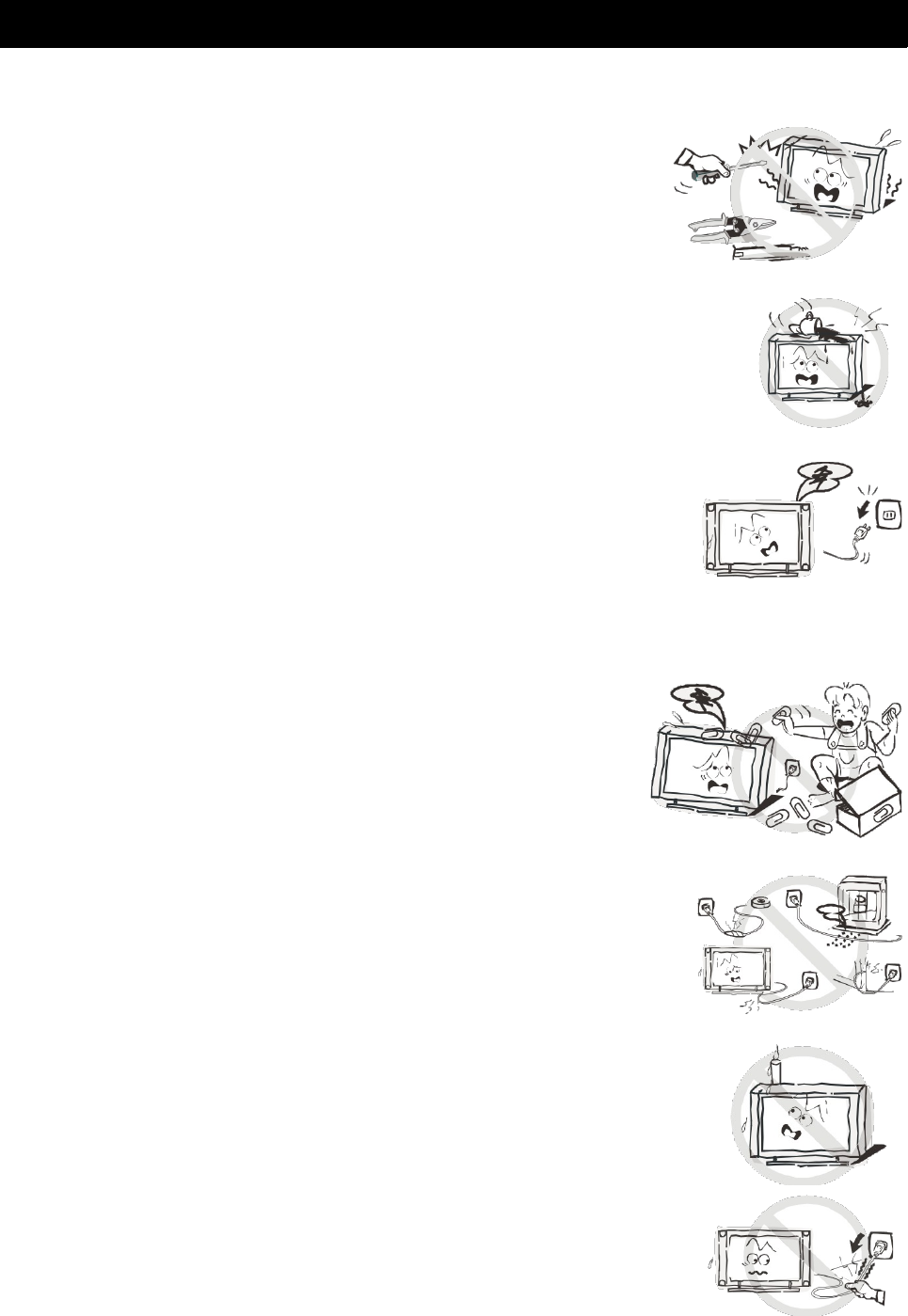
Risk of electric shock. DO NOT OPEN!
Do not attempt to service the television yourself, as
opening or removing the covers may expose you to
dangerous voltage or other hazards. Refer all servicing to
the Kogan customer support team.
To reduce the risk of fire or electric shock, do not expose this
product to rain or moisture. The television should not be
exposed to dripping or or splashing, and no liquid filled objects
such as vases should be placed on the case.
In the event of smoke, strange noises or a strange smell from
the unit, you should follow these steps:
•Turn off the unit immediately.
•Disconnect the power plug from the power outlet.
•Contact the Kogan customer support team. Never
attempt to make repairs yourself.
Never push objects of any kind into the set through the
cabinet slots as they may touch dangerous voltage
points or short-circuit parts that could result in a fire or
electric shock. Never spill any liquids onto the set. Use
special caution in households where children are
present. The television is not suitable for children under
4 years old to operate.
Power supply cords should be routed safely to prevent
dangers due to damaged cords.
The mains plug is the main disconnect method, so it should
be easily accessible and not be obstructed during use.
To avoid fires, no naked flame sources such as lit candles or
burning incense should be placed onto the casing of the
television.
Do not pull the plug out of a power outlet by pulling on the
power cable. Always grasp the plug and pull.
Never touch the plug with wet hands.
3
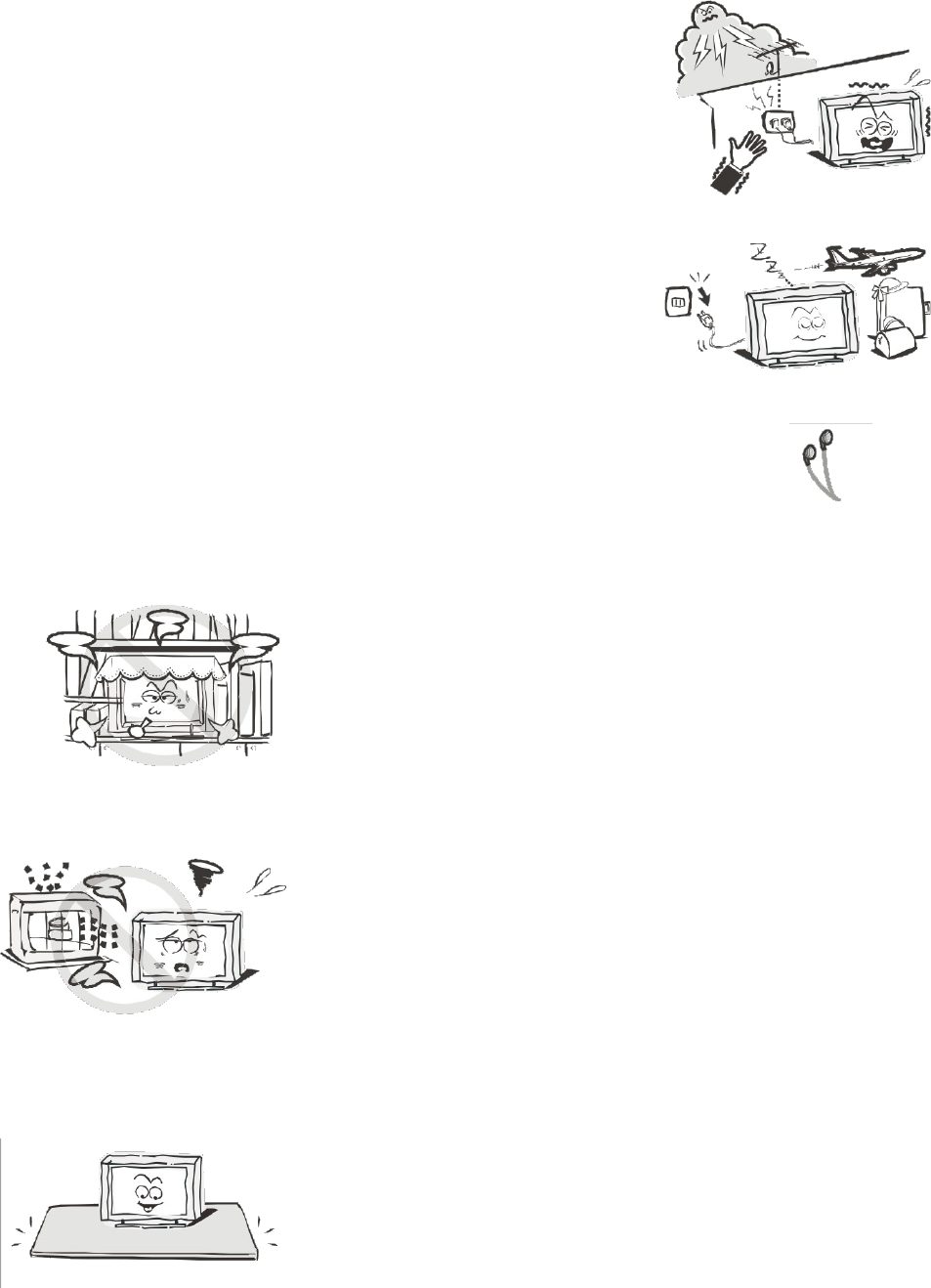
An outside antenna system should not be located in the
vicinity of overhead power lines or other electric light or
power circuits.
When installing an outside antenna system, extreme
care should be taken to keep from touching such power
lines or circuits, as contact with them may be fatal.
Always turn the set off when it is not being used.
Unplug the television from the power outlet when it will
not be used for a long time or when there is an
electrical storm.
Never touch the antenna cable during a lightning storm.
Excessive volume from earphones and headphones can
cause permanent hearing loss. Always monitor the volume of
noise from these devices, especially when children are using
them.
Installation
Ventilation should not be impeded or limited by
covering the ventilation slots with items such as
newspapers, tablecloths, curtains etc..
At least 10cm of space should be left around the
apparatus for sufficient ventilation.
The television should be situated away from heat
sources such as radiators, heaters, stoves or other
products that product heat.
Place the television in a position where the screen is
not exposed to direct sunlight. It is best to have soft
indirect lighting while watching, and you should avoid
a completely dark viewing environment and
reflections to avoid eye fatigue.
Keep the product away from high magnetic fields
(such as near an amplifier speaker) to avoid affecting
the tint.
Do not place the television on an unstable table, stand
or shelf. The set may fall, causing serious injury as well
as damage to the television itself.
If moving the television on a cart, move the unit with
care as sudden stops and starts may cause the
television to overturn.
4
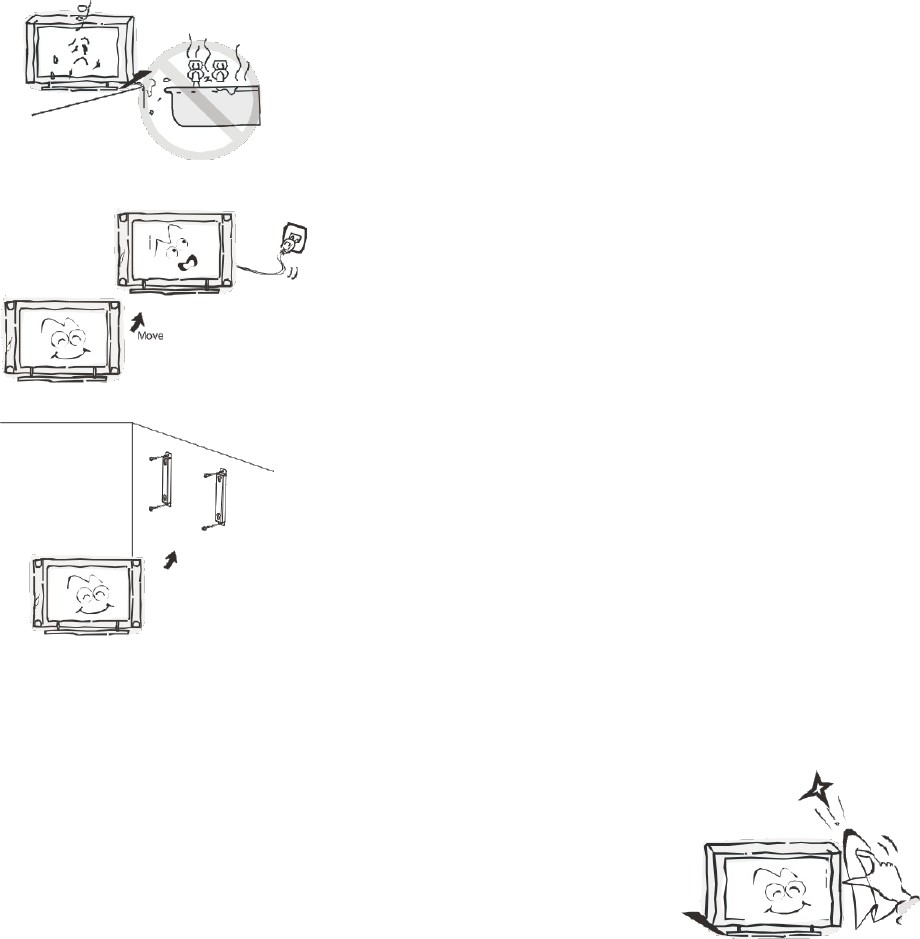
Do not place this television near water, for example
near a bathtub, wash bowl, kitchen sink, laundry tub,
swimming pool or in a damp basement etc..
When moving the television to a warm location from
a cold location, allow some time for any dew or
condensation inside the television to evaporate fully
before you turn the unit on.
To prevent injury, the television must be securely
attached to the floor/wall in accordance to the
supplied installation instructions.
Cleaning
Unplug the television from the power supply before
cleaning. Do not use any liquid cleaners or harsh
chemicals. Use a soft, damp cloth.
5
Specifications & Accessories
Specifications
Model KALED55XXXVA
Display Screen Size 55” Diagonal
Power Supply 100-240V ~ 50/60Hz
Video In PAL/NTSC
Sound Output 2 x 10W
Remote Power Input DC 3V (Two AAA batteries)
Power Consumption 135W
Operating Temperatures 0°C ~ 40°C
Accessories
Remote Control
6
Buttons and Terminal Interface
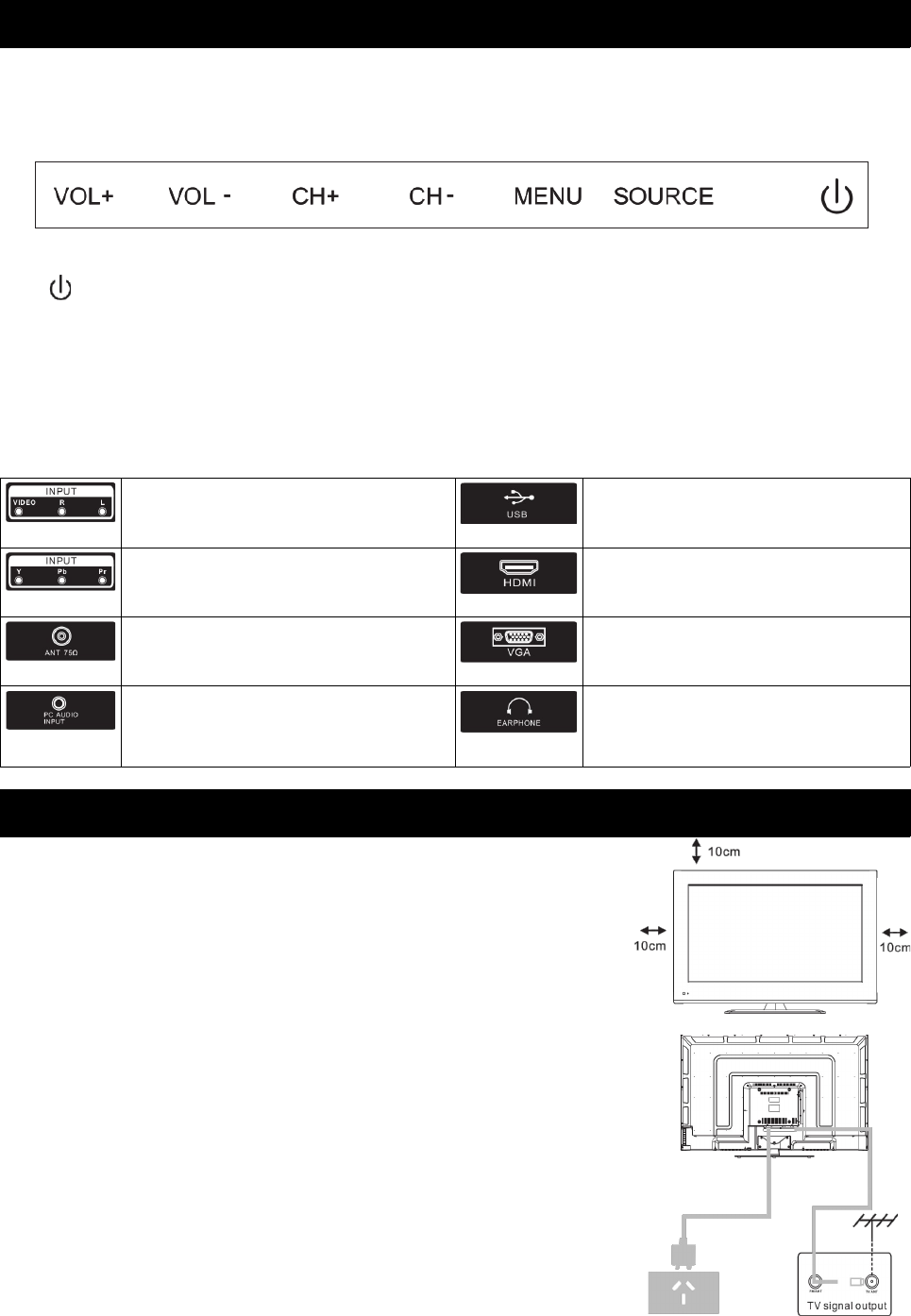
TV Buttons
Note: The following is a function schematic. The actual position and arrangement of buttons may differ.
Turn power ON/OFF
SOURCE External Signal Input Selection
MENU Display main MENU and confirm MENU item selection
CH +/- Select channel
VOL +/- Adjust volume
Terminal Interface
AV Input
External AV signal input with relevant
left/right audio channels.
USB Input
Connect USB device to play media files or
record programs via the PVR function.
Y Pb Pr Input
Connect to the composite terminal of your
DVD/VCR.
HDMI Input
Digital signal from a HDMI video
connector.
ANT 75
Connect the antenna/cable TV input
(75/VHF/UHF)
VGA Input
PC analog signal input.
PC Audio Input
VGA input and audio input when in VGA
mode.
Earphone Output
For use with headphones or external
speakers. TV speakers will be disabled
while in use.
Installation of TV
TV placement
Place your TV on a flat surface that is able to bear the weight of the TV.
To avoid damage, please don't expose the TV to water or direct heat. Do
not block the ventilation on the back of the TV.
Connect antenna and power
Connect the antenna cable to the antenna socket on the back of the
television.
Plug the power cable into the wall socket.
Turn on the TV
Press the power button on the TV and the indicator light will turn green.
If the TV is in standby mode (the indicator showing as red), then press
the power button on the remote control to turn the TV on.
Note: These images are for reference purposes only.
7
Remote Control
8
9
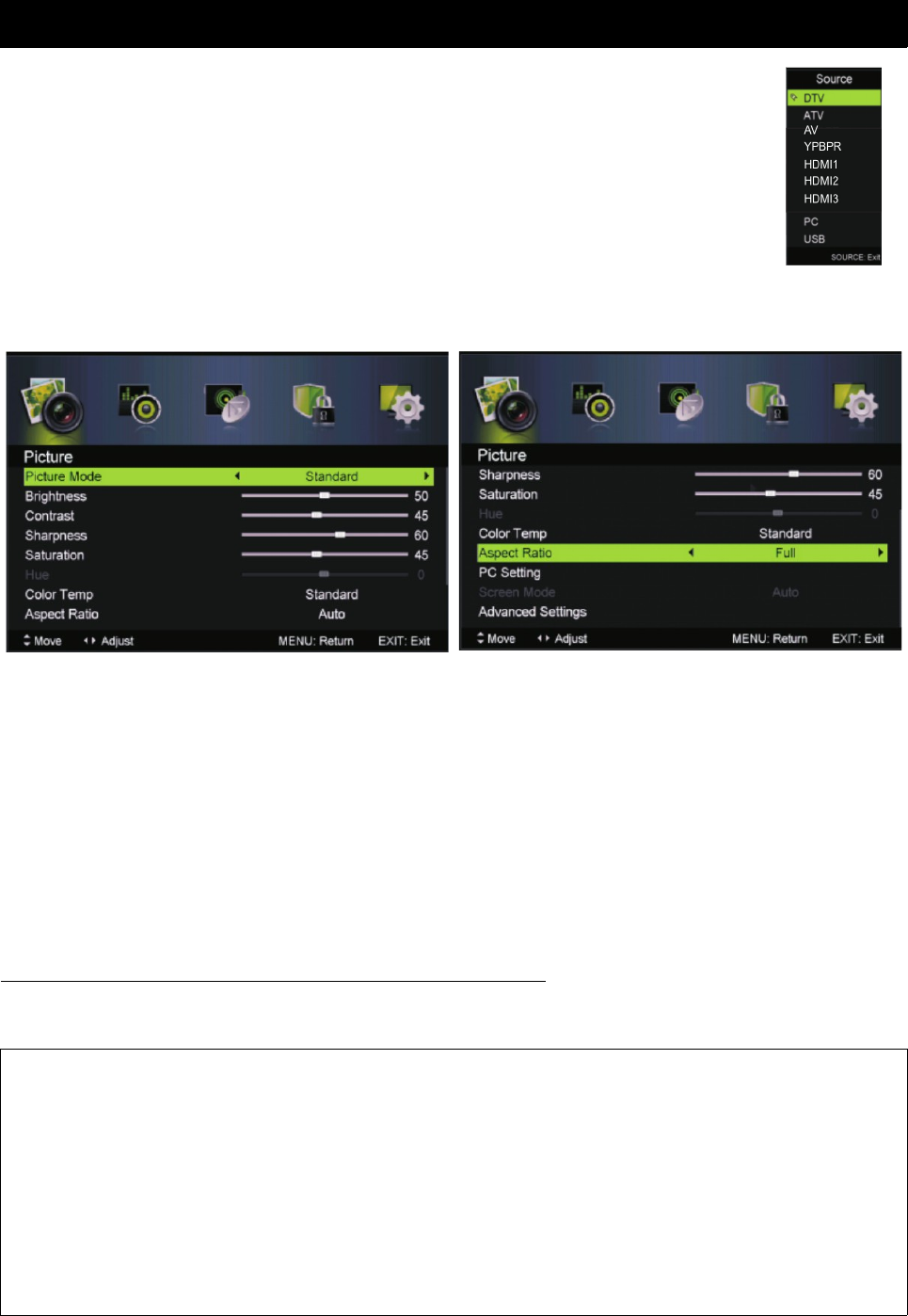
TV Menu
Input Source
Press INPUT to select the input source.
Press / or ▲ ▼ INPUT to select the source your want.
Press ENTER to confirm your selection.
Press EXIT to quit.
Picture Menu
Press MENU button to display the main menu.
Press / to select PICTURE in the main menu, then press /ENTER to enter.◀ ▶ ▼
1. Press / button to select the option that you want to adjust in the ▲ ▼
PICTURE menu.
2. Press ENTER/ / to adjust settings.◀ ▶
3. Once adjusted, press the MENU button to save and return back to the
previous menu.
Picture MODE
Press / button to select the picture mode, then press / to select.▲ ▼ ◀ ▶
TIP: You can press the PMODE button to change the picture mode directly.
Brightness/Contrast/Sharpness/Saturation/Hue
Press / to select option, then press / to adjust.▲ ▼ ◀ ▶
Brightness Adjust the optical fibre output of the entire picture. This option
will affect the dark regions of the picture.
Contrast Adjusts the highlight intensity of the picture. With this option,
the dark regions of the picture will remain unaffected.
Sharpness Adjusts the peaking in the detail of the picture.
Saturation Adjusts the saturation of colour, based on your preferences.
Hue Used in compensating the colour changes associated with
transmission when in NTSC format.
10
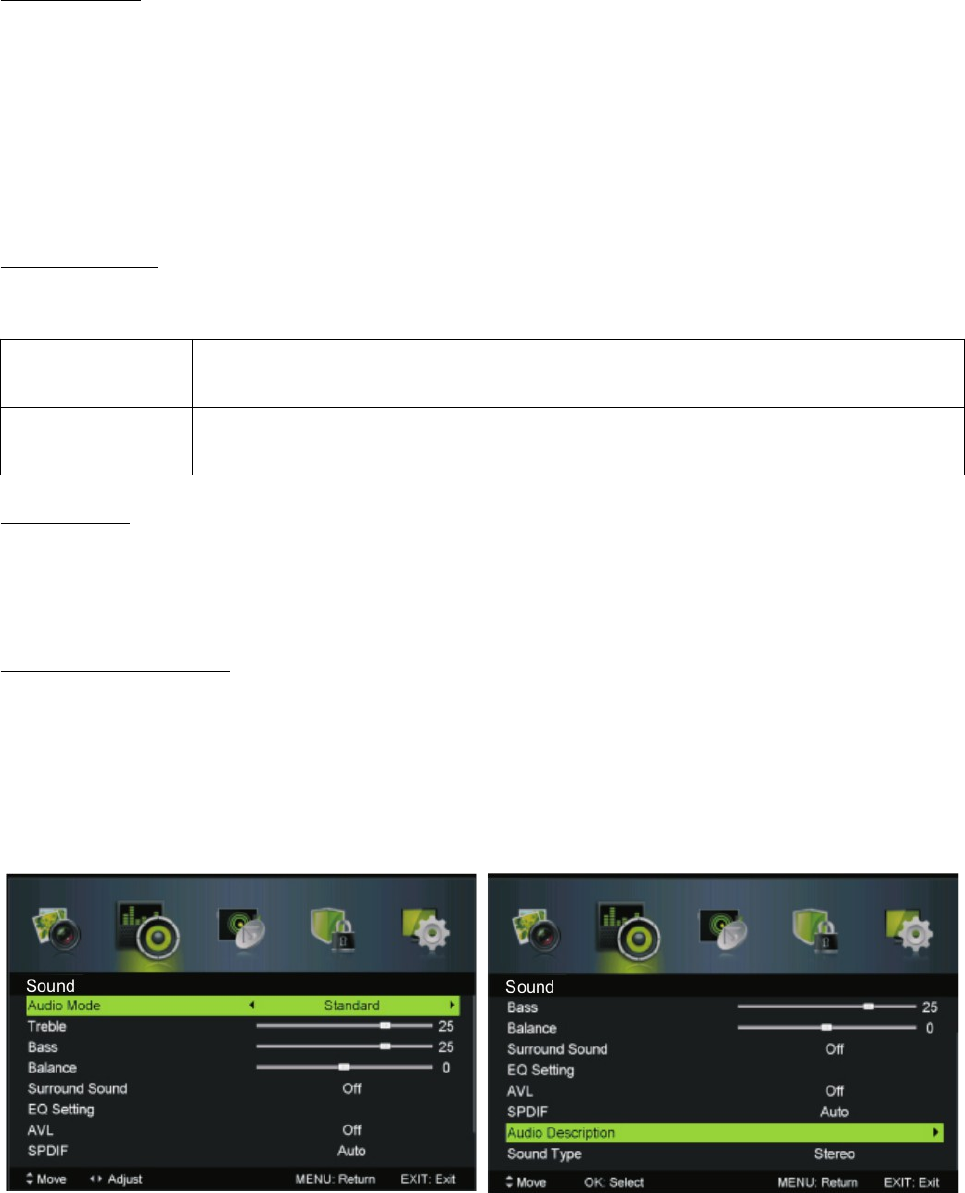
Color Temp
Changes the overall colour cast of the picture.
Press / to select Color Temp, then press / to select Standard/Cool/Warm.▲ ▼ ◀ ▶
Standard Produces a vivid, neutral image.
Cool Produces a gentle, blue-tinged image.
Warm Produces a red-hued image.
Aspect Ratio
Press / to select Aspect Ratio, then press / to select.▲ ▼ ◀ ▶
Auto Automatically adjusts the aspect ratio based on the TV size and
the format of the program.
Full/4:3
Zoom1/Zoom2
Select to force the TV to display the image according to your
personal preferences.
PC Setting
Press INPUT to select PC source.
Press MENU to enter the main menu, then press / to select the ◀ ▶ PICTURE menu.
Press ENTER/ to enter, then press to select PC setting.▼ ▼
Advanced Settings
Adjust advanced video features to fine tune the image.
Press / to select Advanced Settings, then press ▲ ▼ ENTER/ to enter sub-menu.▶
Sound Menu
Press MENU button to display the main menu.
Press / to select ◀ ▶ SOUND in the menu, then press ENTER/ to enter.▶
1. Press / button to select the option that you want to adjust in the ▲ ▼
SOUND menu.
2. Press ENTER/ / to adjust settings.◀ ▶
3. Once adjusted, press the MENU button to save and return back to the
previous menu.
11
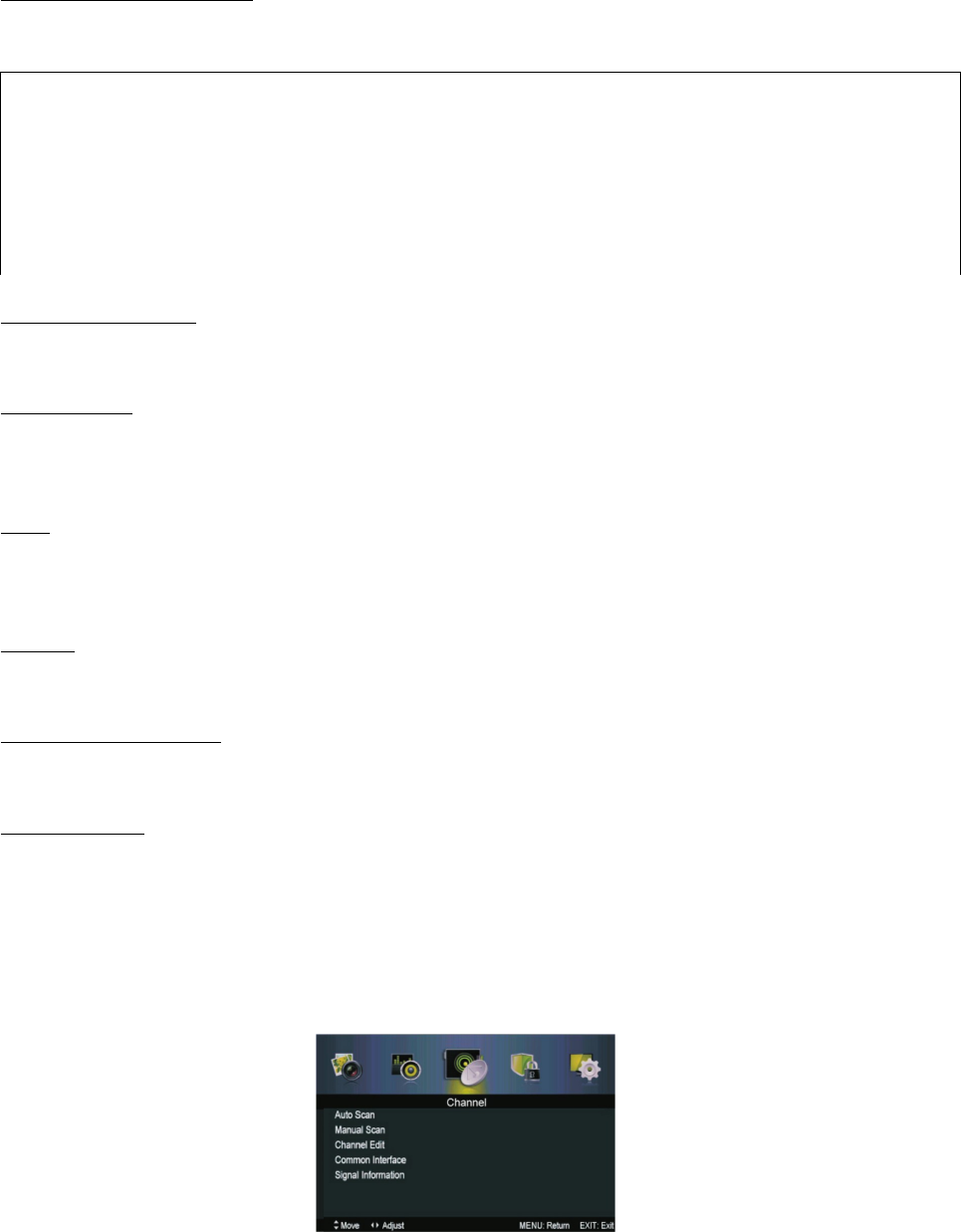
Sound MODE
Press / to select the Sound Mode, then press ◀ ▶ ENTER/ to select.▼
Treble/Bass/Balance
Press / to select option, then press / to adjust.▲ ▼ ◀ ▶
Treble Adjust the treble effect. Increases or decreases high pitched
sounds.
Bass Adjust the bass effect. Increases or decreases lower pitched
sounds.
Balance Adjust balance shift between left and right speakers to adapt to
your listening position.
Surround Sound
Press / to select Surround Sound, then press / to select On or Off.▲ ▼ ◀ ▶
EQ Setting
Adjust the curve of 7 bands equalizer.
Press / to select EQ Setting, then press ▲ ▼ ENTER/ to enter sub-menu.▶
AVL
Set the auto-volume control.
Press / to select AVL, then press / to select On or Off.▲ ▼ ◀ ▶
SPDIF
Press / to select SPDIF, then press / to select Off / Auto / PCM.▲ ▼ ◀ ▶
Audio Description
Press / to select Audio Description, then press ▲ ▼ ENTER/ to enter sub-menu.▶
Sound Type
Press / to select Sound Type, then press / to select.▲ ▼ ◀ ▶
(Available Sound Types: Stereo, Dual I, Dual II, Mixed)
Channel Menu
Press MENU button to display the main menu.
Press / to select ◀ ▶ CHANNEL in the menu, then press ENTER/ to enter.▶
12
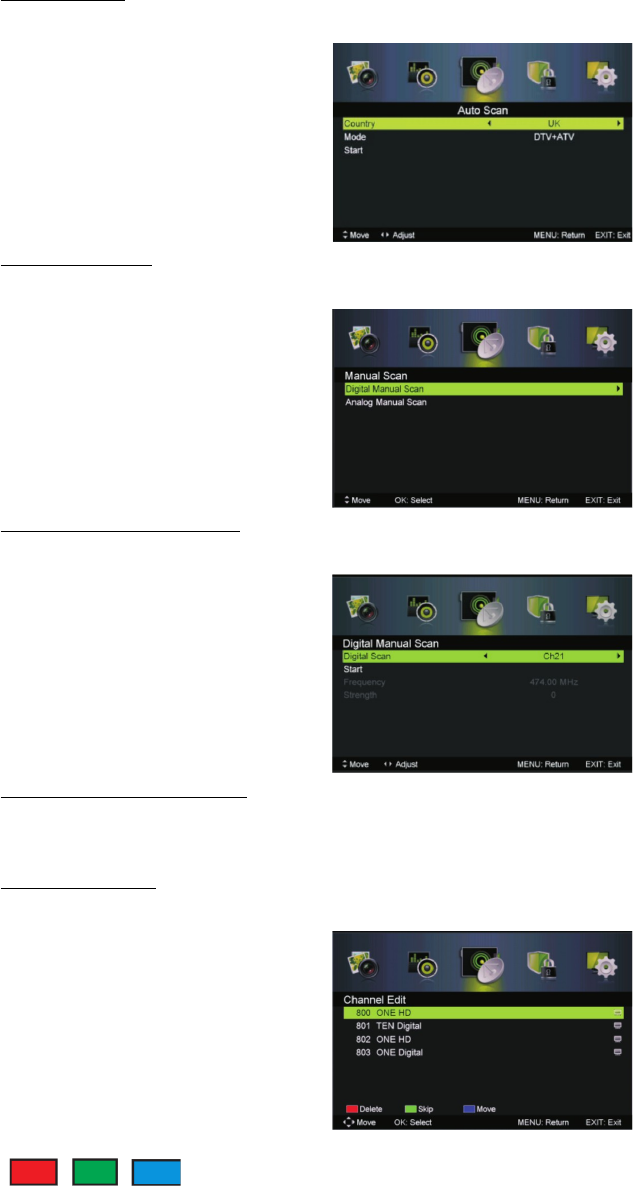
1. Press / button to select the option that you want to adjust in the ▲ ▼
CHANNEL menu.
2. Press ENTER/ / to enter sub-menu.◀ ▶
3. Press the MENU button to save and return back to the previous menu.
Auto Scan
Press / to select Auto Scan, then press ▲ ▼ ENTER/ to enter sub-menu.▶
Manual Scan
Press / to select Manual Scan, then press ▲ ▼ ENTER/ to enter sub-menu.▶
Digital Manual Scan
Press / to select Digital Manual Scan, then press ▲ ▼ ENTER/ to enter sub-menu.▶
Analog Manual Scan
Australia no longer has analog TV signals.
Channel Edit
Press / to select Channel Edit, then press ▲ ▼ ENTER/ to enter sub-menu.▶
The 3 coloured keys are the shortcuts for programming channels.
13
Firstly, press / to highlight the channel that you want to delete, move or skip, ▲ ▼
and then;
Press the RED button to delete the channel.
Press the GREEN button to skip the channel. (Your TV will skip the channel
automatically when using CH+/- to view channels)
Press the BLUE button to set the channel into moving mode. You can then
press / to move it to the position you want.▲ ▼
Signal Information
Press / to select Signal Information. Then press ▲ ▼ ENTER to see detailed
information about the signal. This option is only functional in DTV mode.
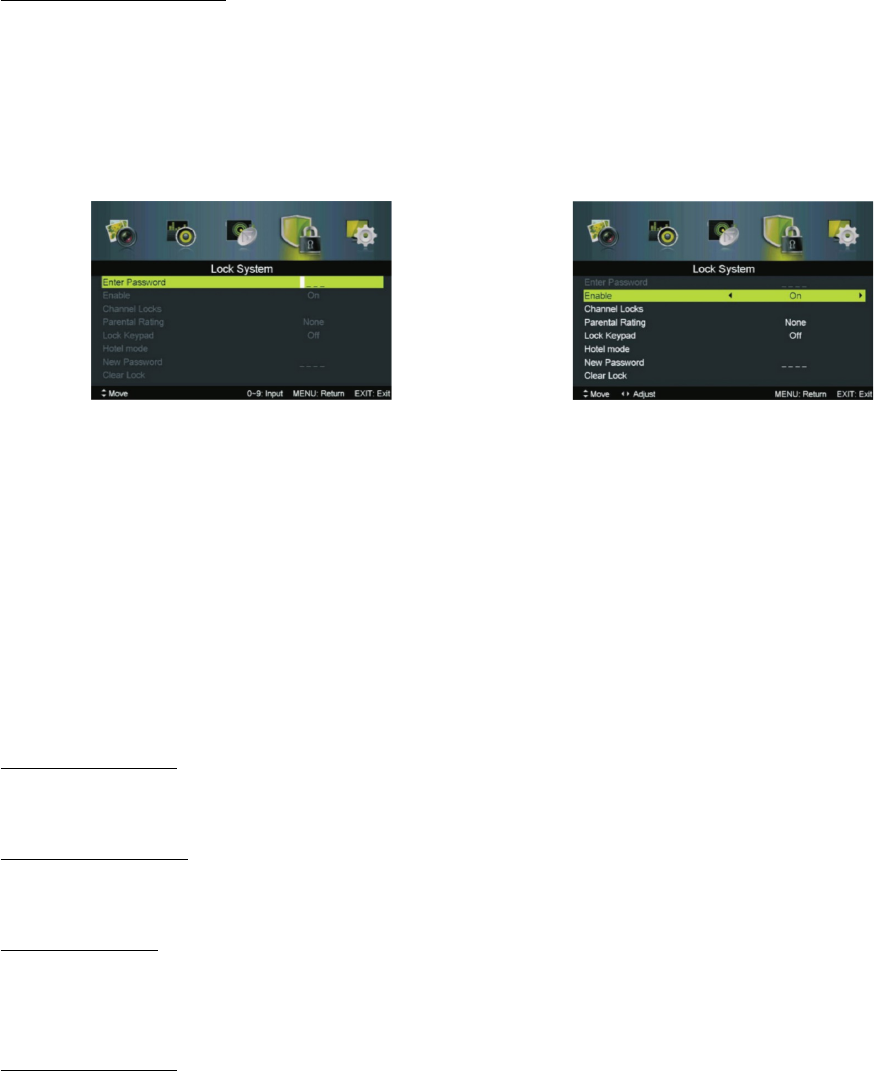
Lock System
Press MENU button to display the main menu.
Press / to select ◀ ▶ Lock System in the menu, then press ENTER/ to enter.▼
1. Press / to select the option that you want to adjust in the ▲ ▼ Lock System
menu.
2. Press ENTER/ / to adjust.◀ ▶
3. Once adjustment is finished, press MENU to save and return to the
previous menu.
Note: Default password is 0000.
Press / to select enable, then press / to select ON or OFF.▲ ▼ ◀ ▶
Channel Locks, Parental Rating and Lock Keypad are available when enabled.
Channel Locks
Press / to select Channel Locks, then press ▲ ▼ ENTER/ to enter sub-menu.▶
Parental Rating
Press / to select Parental Rating, then press ▲ ▼ ◀/ to select.▶
Lock Keypad
Set to prevent changes being set by young children or other unexpected usage.
Press / to select Lock Keypad, then press ▲ ▼ ◀/ to select ON or OFF.▶
New Password
Press / to select New Password, then enter 4 digit code twice to set.▲ ▼
14
SETUP MENU
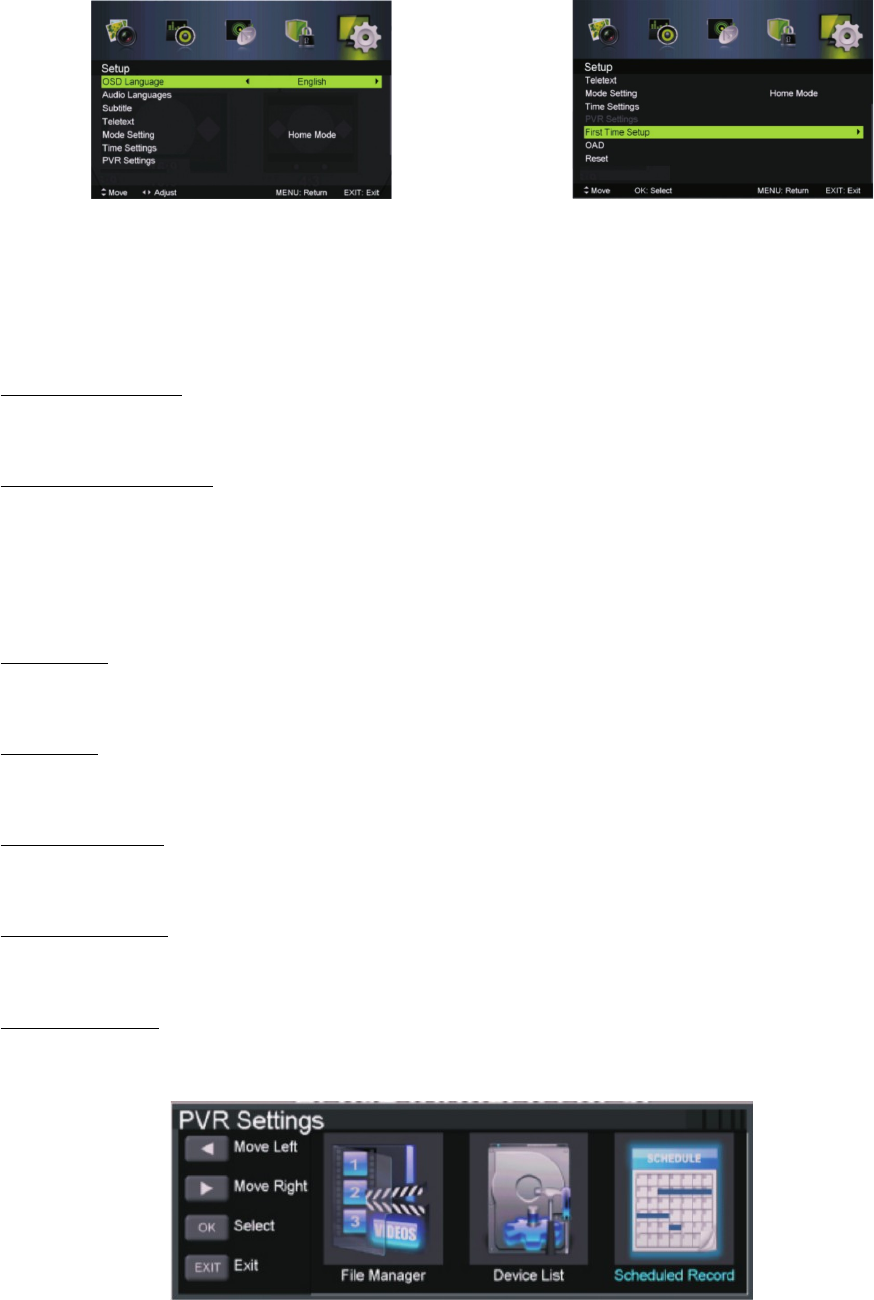
Press MENU button to display the main menu.
Press / to select ◀ ▶ SETUP in the menu, then press ENTER/ to enter.▼
1. Press / to select the option that you want to adjust in the ▲ ▼ Setup menu.
2. Press ENTER/ / to adjust.◀ ▶
3. Once adjustment is finished, press MENU to save and return to the
previous menu.
OSD Language
Press / button to select OSD language, then press / to select.▲ ▼ ◀ ▶
Audio Languages
Press / button to select Audio Language, then press ▲ ▼ ENTER to enter the sub-
menu.
Press / / / to select the Audio Primary Language and Audio Secondary ▲ ▼ ◀ ▶
Language.
Subtitles
Press / to select Subtitle, then press ▲ ▼ ENTER to enter the sub-menu.
Teletext
Teletext is not currently available on Australian TV networks.
Mode Setting
Press / to select mode setting.▲ ▼
Time Settings
Press / to select Time Settings, then press ▲ ▼ ENTER/ to enter sub-menu.▶
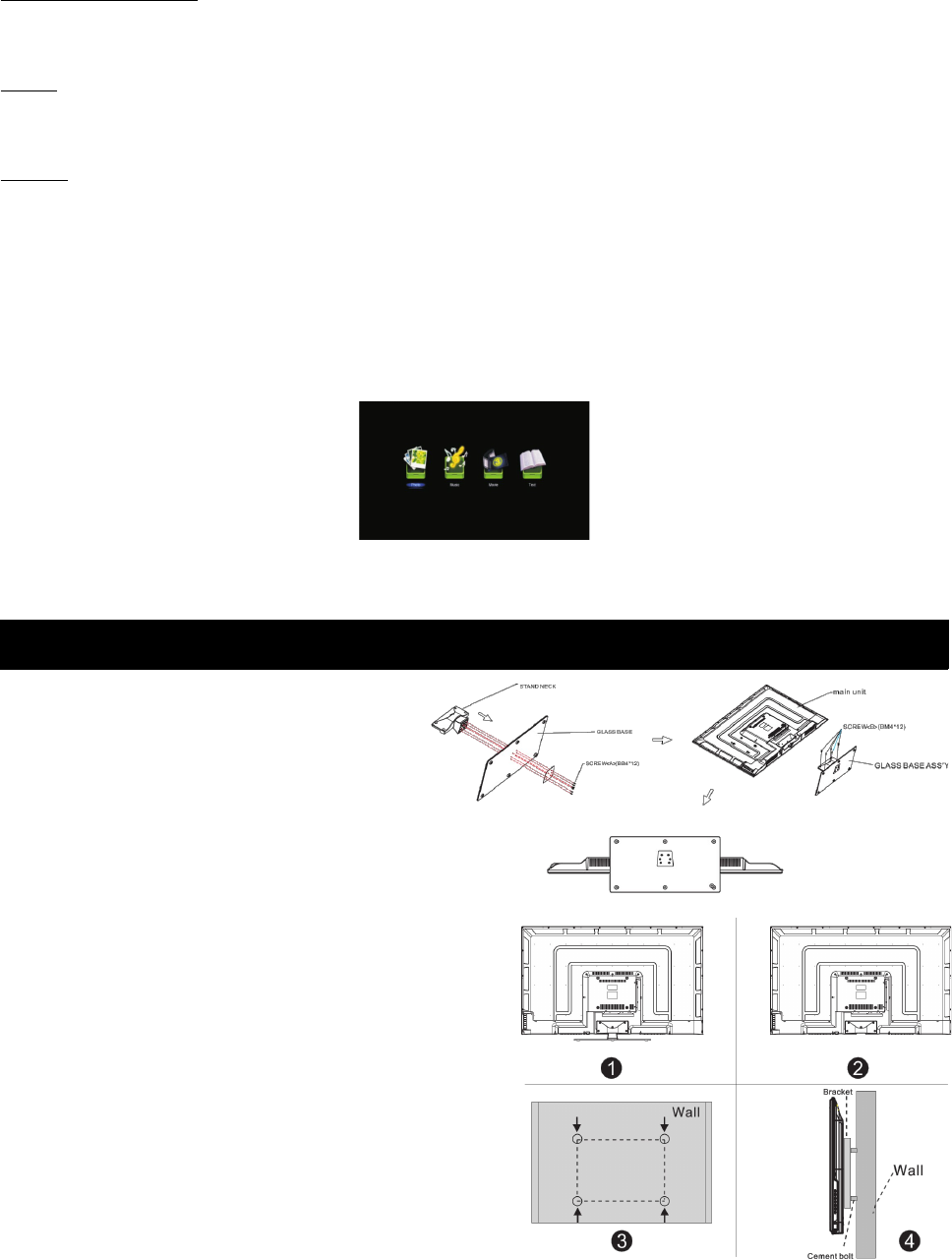
PVR Settings
Press button to select PVR Settings, then press ENTER to enter sub-menu.
It will check the USB.
15
First Time Setup
Press / to select First Time Setup, then press ▲ ▼ ENTER to enter.
OAD
Press / to select OAD, then press ▲ ▼ ENTER to enter sub-menu.
Reset
Press / to select Reset, then press ▲ ▼ ENTER to enter sub-menu.
USB Operation
Note: Before operating the USB menu, plug in a USB device, then press the
INPUT button to set the Input Source to USB.
Press / to select USB in the Source menu, then press ◀ ▶ ENTER to enter.
Press / to select the option you want to adjust in the main USB menu, then ◀ ▶
press ENTER to enter.
Setting Up TV Stand or Mount
TV Stand Installation
1. Insert the stand bracket into the glass base.
Ensure all of the mount screws are aligned
properly, then screw them in with the 6 x
screws (A) and the metal plate.
2. Put the glass base assembly onto the main
TV unit, then screw them together using the
5 x screws (B).
3. Installation is complete.
Mounting the TV to the wall
1. Place the TV on a table covered with towels or other soft
protective layers with the screen facing downwards.
Take care to keep the screen safe from being scratched.
2. Use a screwdriver to remove screws from the bottom
stand (as shown in picture 1), then remove the stand.
3. Using the measurements between the screw holes (as
shown in picture 2), mark out the bracket points on the
wall (as shown in picture 3).
4. Drill four holes into the wall (size shown in image is for
reference only), then place in the 4 mounting screws.
5. As shown in picture 4, use a screwdriver to fasten the
screws into the back of the TV, then mount the TV on the
wall.
Note
•The bracket and wall mounting equipment is not
supplied with the TV.
•When mounting the TV, we recommend you have it installed and mounted by a professional, as incorrect
installation may result in the mount coming away from the wall, causing structural damage to your room and
damage to the TV itself.
•Images shown above are for reference only.
16

Troubleshooting
If you have any problems with your television, please check the suggested solutions below, as these issues may be
caused by improper adjustment/setup rather than a malfunction with the unit. If the problem persists, please contact the
Kogan customer support team.
Problem Possible Solution
Poor picture and sound quality •Try a different channel
•Adjust the antenna
•Check all connections
No picture or sound in TV status •Try another channel
•Press the TV/AV button
•Make sure TV is plugged in
•Check the antenna connection
No sound, or sound is too low at maximum volume •Check the volume settings on any external
speakers connected to your television
•Adjust the TV volume accordingly
•Check that MUTE hasn't been turned on
No colour, wrong colour or tints •Make sure the program itself is broadcast in
colour
•Select the picture menu, then adjust the colour
and tint submenus
Picture rolls vertically •Check all connections
Blurred or snowy picture, distorted sound •Check direction, location and connections to your
antenna
•Issues may be caused by use of an indoor
antenna
Remote control malfunctions •Replace remote control batteries
•Check battery terminals
•Remote is out of range, move closer to TV
•Confirm there is no obstructions between remote
and TV
•Make sure power cord is plugged in
Image is not centered on the screen •Adjust the horizontal and vertical position
If you have any questions or problems with your television, please contact the
Kogan.com customer support team.
17
