LSR NAVC 818SHD
2017-06-19
: Kogan Lsr-Navc-818Shd LSR-NAVC-818SHD usermanuals files
Open the PDF directly: View PDF  .
.
Page Count: 18
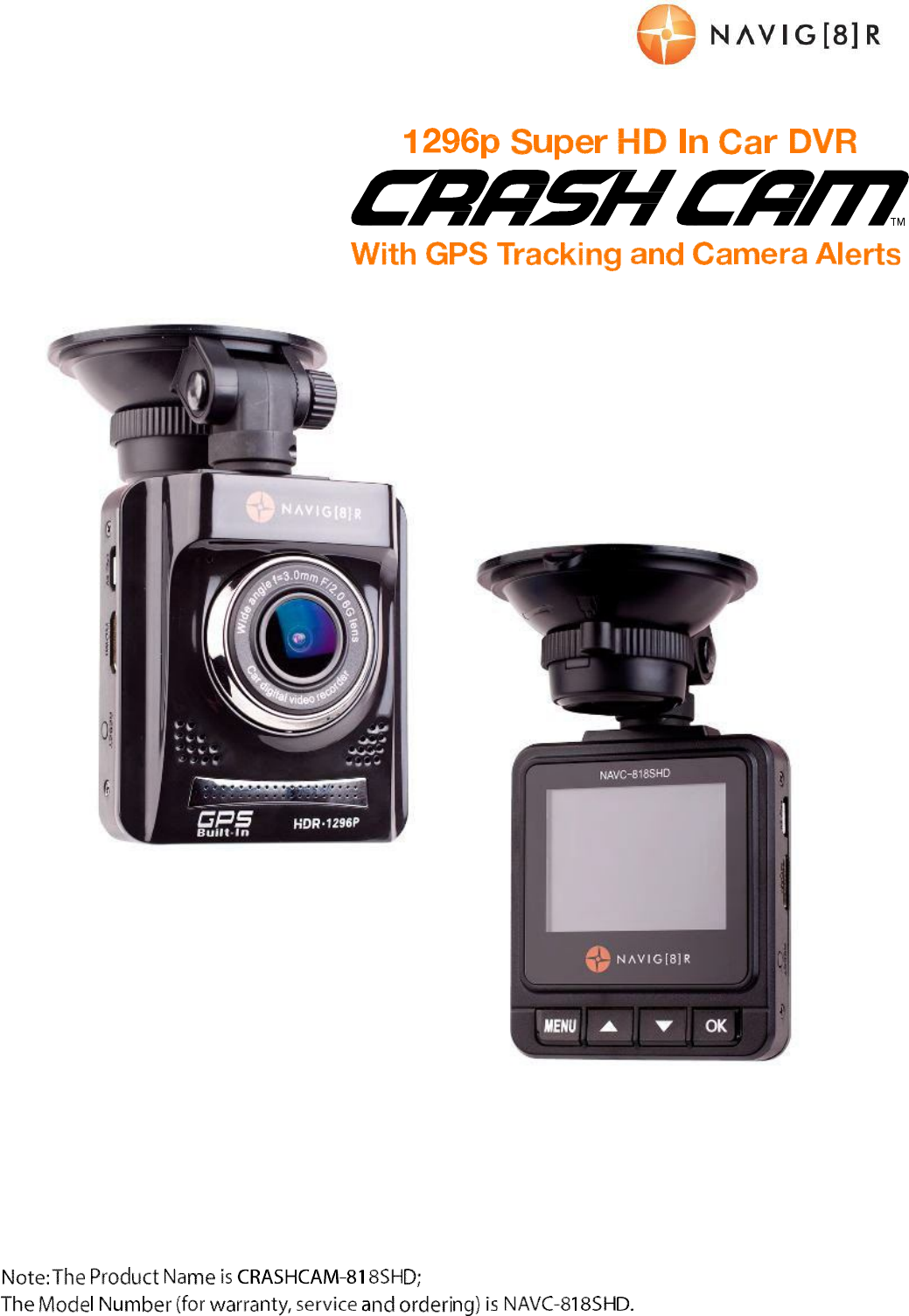
USER
MANUAL
NAVCAM
-
818SHD
1

USER
MANUAL
NAVCAM
-
818SHD
2
TABLE OF CON TEN TS
Important safety instructions and precautions 3
What’s in the box 3
Micro SD card
requirements
3
Ca m e r a b u t t o n a n d h a r d w ar e
overview
4
What do the but tons
do?
5
On scr een display 6
What do the led indictors mean? 7
Qui ck ref er ence
guide
8
Oper at i ng t he NAVCAM -818SHD for t he first time 9
Po w er ON/ OFF ( Aut o
ON/ OFF)
9
About GPS signal
reception
9
Aut o record when t ur ned on 9
Re co r d i n g files 9
Pl ay i n g back a r eco r d ed file 10
Delet ing a
file
10
Aut o bump f ile record (g sensor)
-
savi ng r ecor di ng video
files
10
Taki ng a st i l l picture 10
Ot her shor t cut s f r om t he mai n scr een 10
Pl ay back o n TV ( Wi t h HDM I ) 11
USB Co n n e c t i o n 11
User
set t i ngs
11
Tr acki ng sof t w ar e – quick guide
13
The GPS sof t w ar e - overview
14
FAQ 15
Pr oduct speci f i cat i on s
16
Feat ur e explanations
17

USER
MANUAL
NAVCAM
-
818SHD
3
IMPORTANT SAFETY INSTRUCTIONS AND PRECAUTIONS
- Re a d a l l i n st r u c t i o n s c ar ef u l l y b e f o r e use.
- Re t a i n m a n u a l s f o r f u t u r e reference.
- Use t hi s product only in the manner described.
- Onl y use a wat er -dampened soft-clot h t o clean the surface of t his product.
- The f ol l owi ng w i l l damage t hi s pr oduct : any l i qui d such as w at er or moi st ur e, ext r eme heat ; col d;
humidity, dusty or sandy environment s.
- The NAVCAM -818SHD is designed t o be mount ed on a vehicle windscreen, as high as possible, to
ensure a maximum viewpoint. Please ensure that any attached cables are secured and will not
cause t he device t o fall.
- Ther e ar e no u ser ser vi ceabl e par t s in this product.
- Un-aut horized at t empt s t o dismantle or repair this product will void product warranty
WHAT’S IN THE BOX
1) NAVCAM-818SHD
2) Thi s u ser manual
3) Micro USB Charge and data transfer cable
4) CD d i s c t o i n s t a l l t h e t r a ck i n g a n d r e v i e w so f t w a r e o n a W i n d o w s ® PC
MICRO SD CARD REQUI REM ENTS
The NAVCAM -818SHD requires a Micro SD card (not included) to record video/ image content . For
optimal performance, we recommend using a Class 10 micro SD card UHS 3 (minimum) to ensure
fast data transfer rates
Not e: Some “Extreme Speed” class 10 UHS 2 cards will not work correctly with the
NAVCAM-818SHD. Other low speed cards are not recommended and the user
many experience constant intermittent faults.
USER
MANUAL
NAVCAM
-
818SHD
4
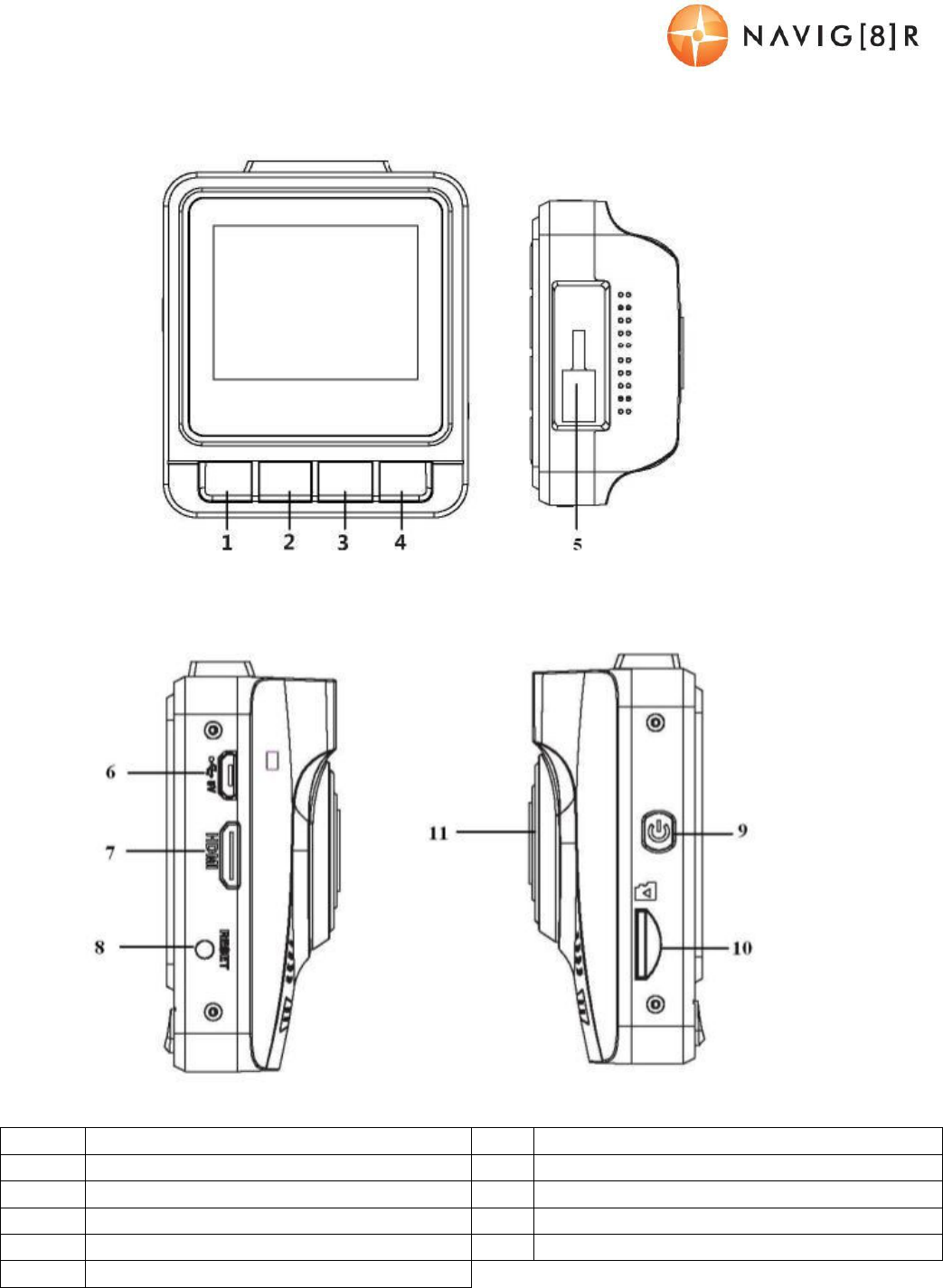
CA M ERA BUT T O N AND HARDWARE OVERVIEW
1 Menu / Re t u r n 7 Mini HDMI Out
2
Pl ayb ack / UP / M ap sh o r t cu t
button
8
Re se t
button
3
Sn a p / Do w n / Pr e se r v e f i l
button
9
Po w er ON / OFF
button
4
Re c o r d /
OK
10
Micro
SD
slot
5
Mount
So c k e t
11
Len s
6 Micro USB Charging Po r t
USER
MANUAL
NAVCAM
-
818SHD
5
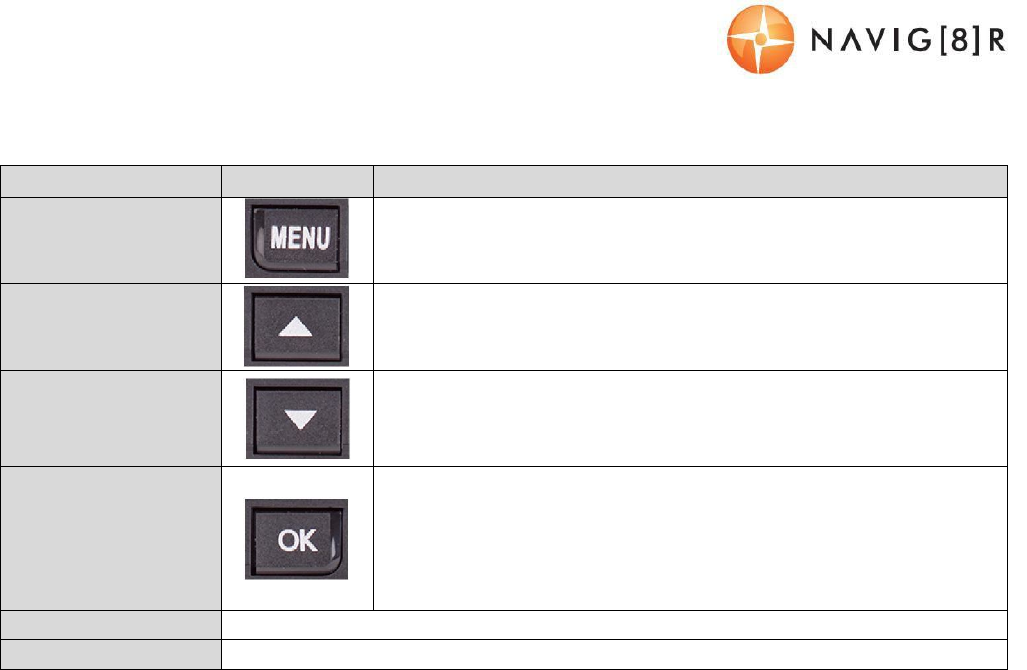
WHAT DO THE BUTTONS DO?
Funct i on
But t on
What does
it
do?
Menu and Settings
options
When recording, press
to
ent er
set t i ngs
When video preview, press to enter/ exit settings
When video playback, press to return to preview interface.
Pr ess f o r M ap ( GPS
connect ion
required)
When recording with GPS connection, press to show the map
Pr ess to select next menu/ video/ image
SOS / DOWN:
When recording, press to preserve the video recording file.
Pr ess to select next menu/ video/ image
In video preview, press to take a shoot i ng.
Re co r d i n g/ OK:
Pr ess
to
st ar t / st op
recording.
In Setting Menu, press to conf irm set t i ngs
When video preview, press to confirm playing selected
video/ images
When video playback, press
to
st op
playback.
Pow er
Sw i t c h
Pr ess an d h ol d
to
turn the unit ON and
OFF.
Re se t
Pr ess an d h ol d
to
reset the
device.
USER
MANUAL
NAVCAM
-
818SHD
6
1
2
3
4
5
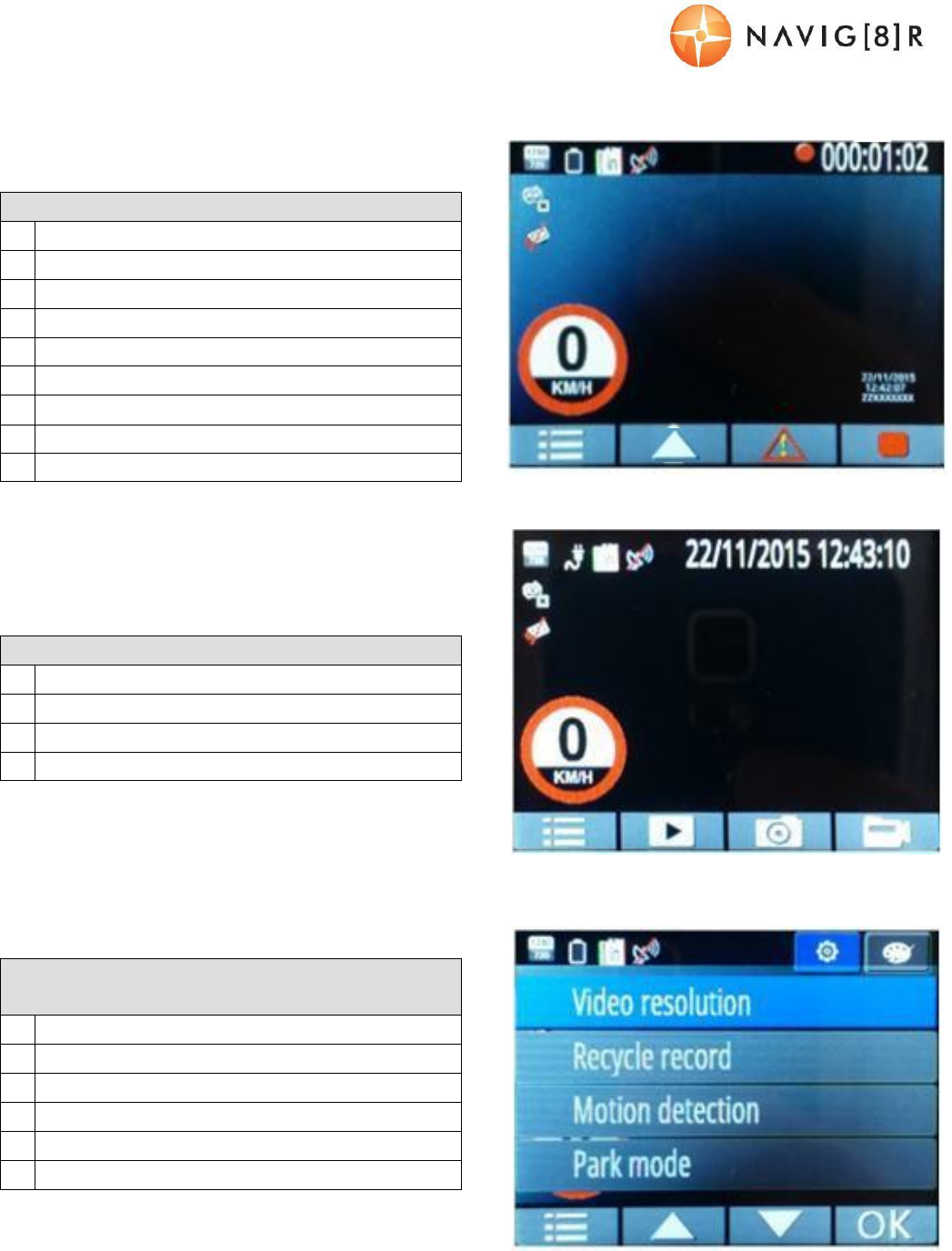
ON SCREEN DISPLAY
6 7 8 9
1 2 3 4
1 2
MENU SCREEN
(PRESS MENU FROM PLAYBACK SCREEN )
1
User
Se t t i n g s
2
Fi l e Ed i t op t i o n s
(Delete)
3
Menu Settings (Press to Toggle
thru)
4
Sc r o l l u p t h r o u gh
options
5 Sc r o l l d o w n t h r o u g h options
6
Co n f i r m
sel ect i on
3 4 5 6
PLAYBACK SCREEN (RECORDING STOPPED)
1
Menu Settings (Press to Toggle
thru)
2
Pl ay back r eco r d ed
files
3
Take Phot o
(DSC)
4 Take Vi deo (Crashcam)
HOME SCREEN (IN RECORD MODE)
1 Re so l u t i o n
2 Po w er / Bat t er y/ Char gi n g
3
Micro SD Card
Inserted
4
GPS Si gn al
St a t u s
5
Cu r r e n t Da t e an d
Ti me
6 Menu Se t t i n g s
7
Navigat ion
Map
8
Em e r g e n c y f i l e
save
9
Re co r d
USER
MANUAL
NAVCAM
-
818SHD
7
1 2 3 4
1 2 3 4
WHAT DO THE LED INDICTORS MEAN?
ICON Def ini t i on
Fl ash i n g Bl u e
dot
Video is
Re co r d i n g
Sa t e l l i t e
icon
GPS l o cat i o n f i xed an d
tracking
Sa t e l l i t e i c o n ( w i t h st r i k e
Thr o ugh)
GPS l o cat i o n n o t f o u nd ( eg. I f
indoors)
Re d LED
(Light)
Devi ce
is
charging
Bl ue LED (Light) Device is ON
PLAYBACK SCREEN
(PRESS PLAY FROM THE MENU SCREEN )
1
Re t u r n t o m a i n
scr een
2
Sc r o l l u p t h r o u gh
options
3
Sc r o l l d o w n t h r o u gh
options
4 Co n f i r m sel ect i on
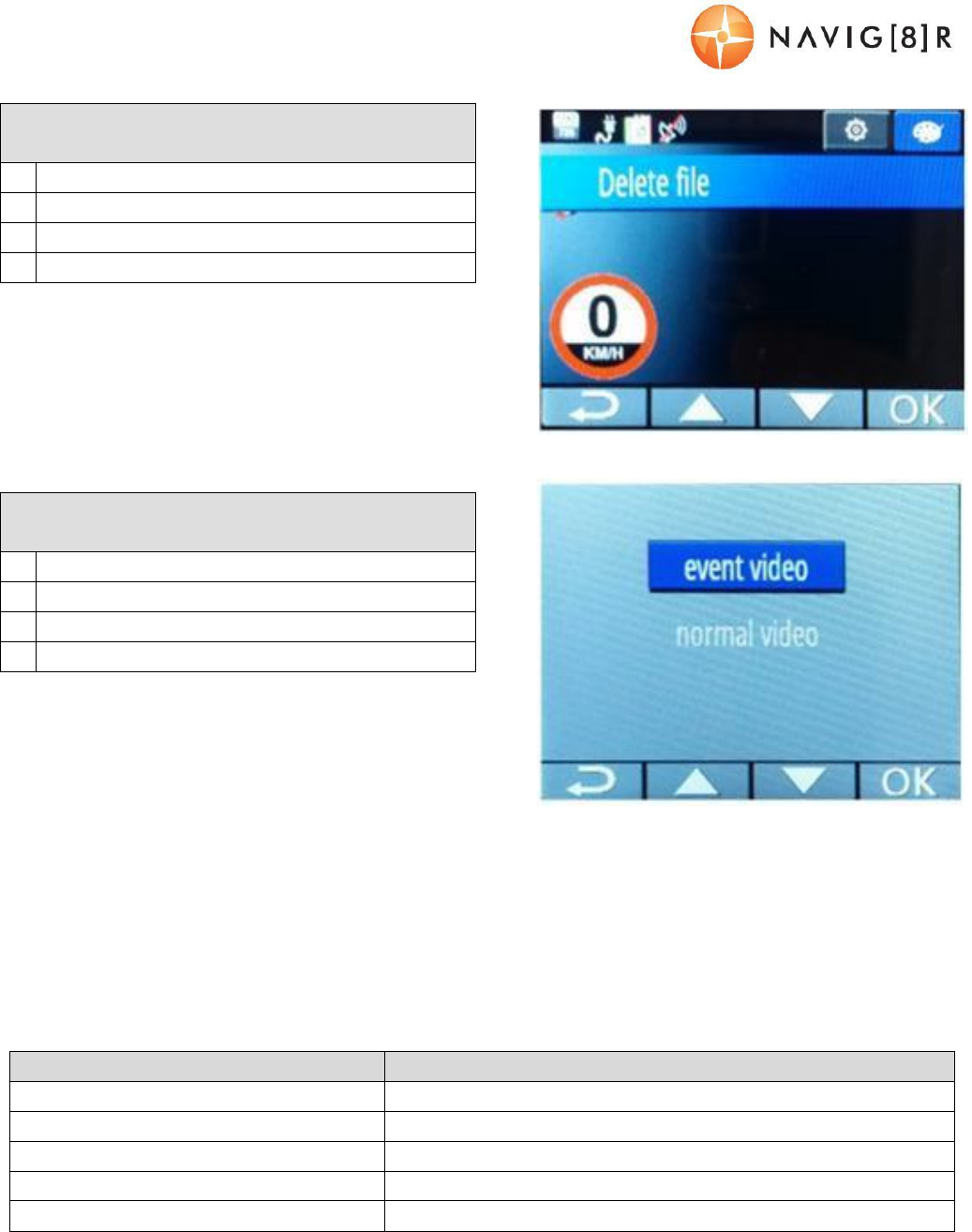
DELETE
FI LES
(PRESS MENU A SECOND TIM E)
1
Re t u r n t o m a i n
scr een
2
Sc r o l l u p t h r o u gh
options
3
Sc r o l l d o w n t h r o u gh
options
4
Co n f i r m
sel ect i on
USER
MANUAL
NAVCAM
-
818SHD
8
QUICK REFERENCE GUI DE
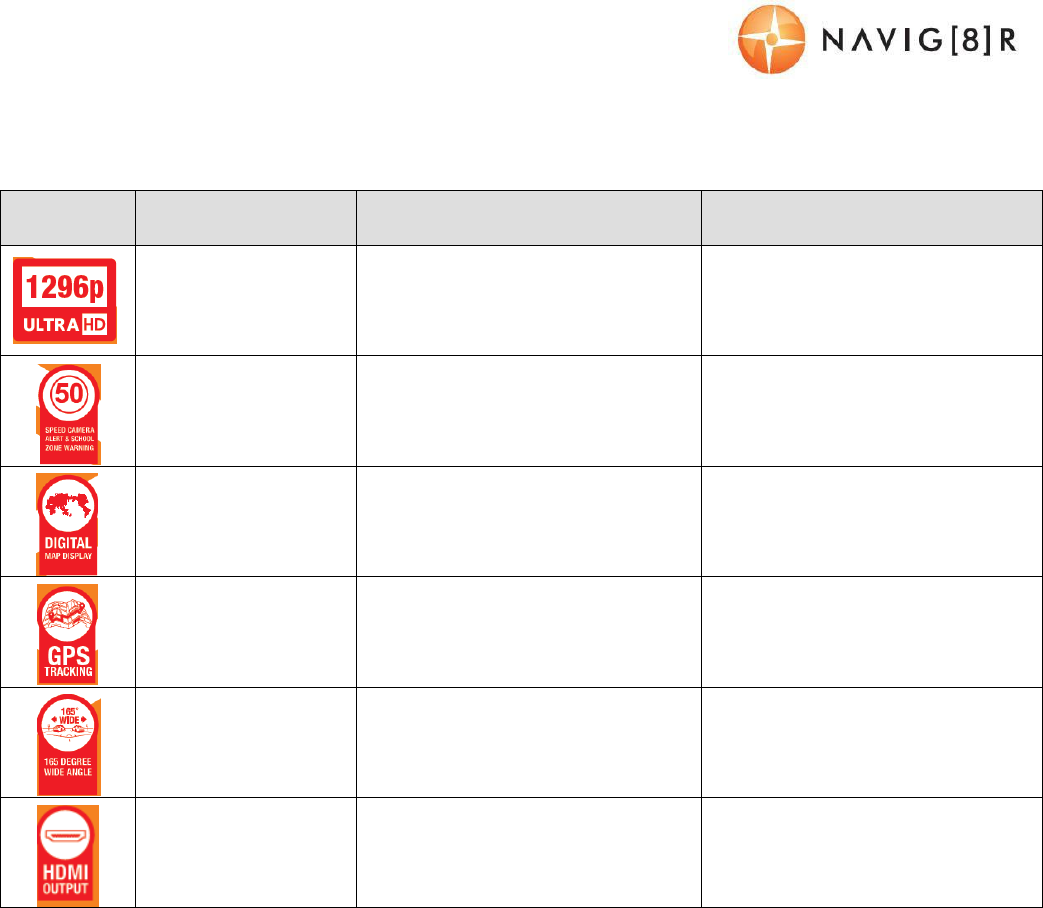
Feat u r e Fu nct i o n Descr i pt i on How t o use
Su p e r Hi gh
Def i ni t ion
(1296p)
View your recorded video and
digital photos in super high
definition resolution
Go t o t h e set t i n gs m en u and
sel ect SHD f rom t he
resolutions option.
Sp e e d Ca m e r a a n d
Sc h o o l Zo n e alert s
Audible and visual aler t s t o
remind you when travelling
through school zones and near
speed cameras
When entering t hese zones,
you will automatically be
prompted with visual and
audio (optional) warnings
GPS Di sp l ay f or
Navigat ion
Watch your progress using the
onscreen real time using the
onscreen GPS guided map
Pr ess t h e UP ARROW b ut t o n t o
view maps, once you are
connect ed t o GPS Sa t e l l i t e s
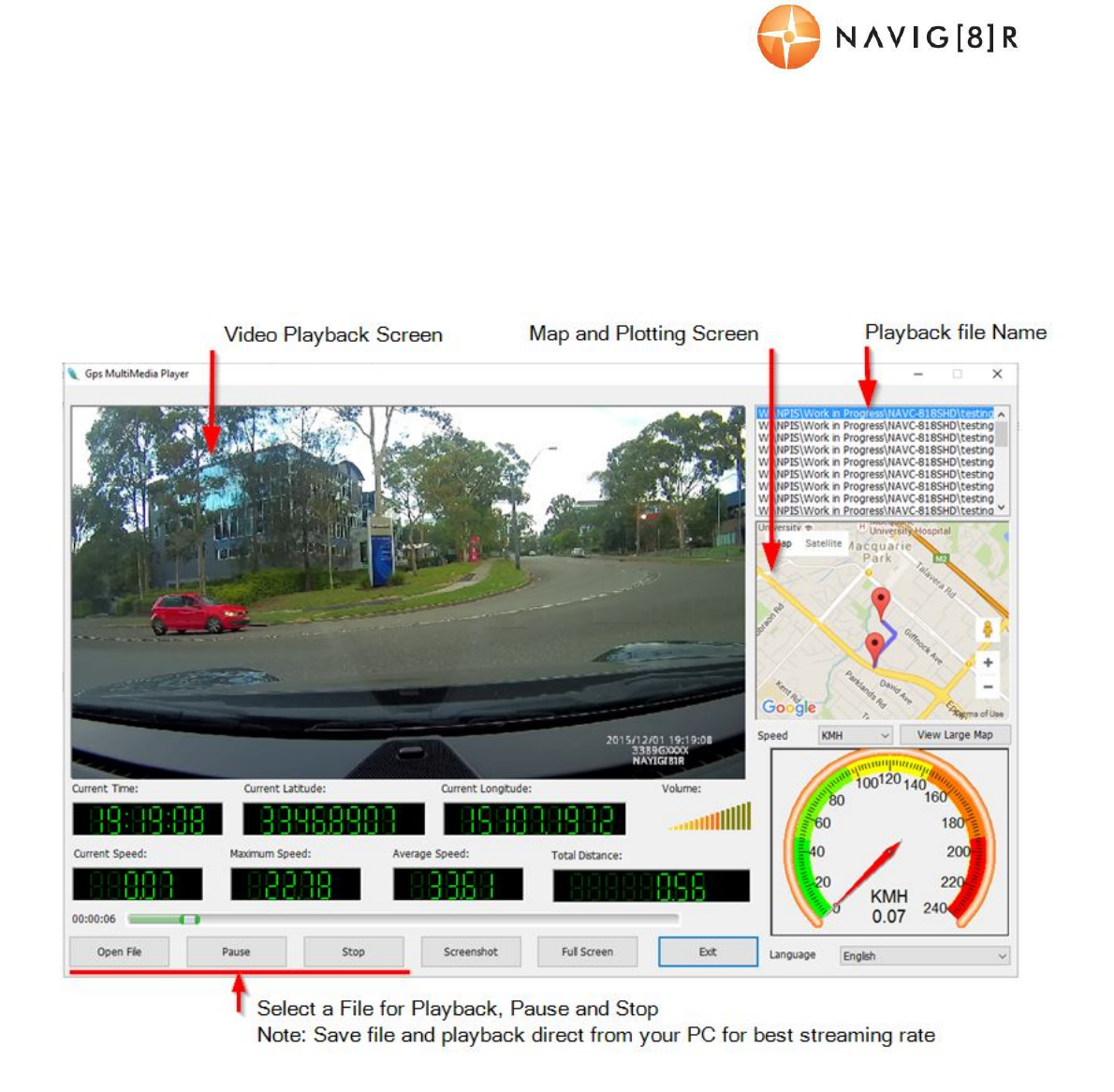
GPS Tr acki ng
Pl o t yo ur r o u t e o n Go o gl e
Ea r t h u s i n g o u r e a s y t o u se GPS
viewer sof t war e
When connected to GPS
Sa t e l l i t e s, t r ac k i n g y o u r G PS
co-ordinates automatically
when recording video.
165° Wide angle
lens
Ca p t u r e e v e n m o r e d e t a i l s a n d
more vehicles around you
The w i de angl e l ens is
st andar d w i t h t hi s model , so
there is no need to turn this
feature off and on.
HDMI A/ V output
Watch your Videos simply by
plugging your crash-cam int o
your TV via HDM I
Si m p l y c o n n e c t a M i n i HDM I t o
HDMI cabl e t o your Cr ash-Cam
and TV

USER
MANUAL
NAVCAM
-
818SHD
9
OPERATING THE NAVCAM -818SHD FOR THE FIRST TIM E
Co n n e ct a U SB c a r c h a r g e r t o t h e car ’ s 12 v ( o r t r u ck s 2 4 v ) Ci g a r e t t e l i g h t e r s o c k e t a n d t h e o t h e r
end to the Micro USB port on the NAVCAM-818SHD.
Insert a Micro SD card into the Micro SD slot and turn the device on. When the ignition is turned
on, the NAVCAM-818SHD will turn on.
POWER ON/ OFF (AUTO ON/ OFF)
When connected to power, t he NAVCAM-818SHD will turn ON or OFF aut omat i cal ly w hen t he car ’ s
ignition is turned ON or OFF. If the NAVCAM-818SHD does not turn off immediately it means the
device is completing the file save process before turning off (usually only a few seconds).
To turn the NAVCAM-818SHD ON, press and hold the power butt on on the side of t he device to
ON. To t u r n of f , pr ess and hol d t he po w er but t o n again.
If power is “constant on” (in some European vehicles), then the NAVCAM-818SHD will need t o be
turned ON/OFF manually using the power swi t ch.
ABOUT GPS SI GN AL RECEPTI ON
Fo r co n venience, your NAVCAM-818SHD will automatically connect to GPS satellites when in range.
Ju st l i k e a l l PN D ( Po r t a b l e N a v i g a t i o n De v i c e s) t h i s m a y t a k e a f e w m i n u t e s ( e sp e c i a l l y t h e f i r st
time). The signal can also be affected by driving through tunnels for example. The GPS connection
however will reconnect when the GPS satellites come back into range.
Unt il GPS is re-connect ed, t he following feat ures may not be displayed properly:
- The navi gat i on map scr een
- Dr iving speed display
- Sa f e t y a l e r t s su c h as Re d Li g h t , Sp e e d Cam e r a s , Sc h o o l Zo n e s et c.
- Tr acki ng det ai l s used by t he GPS Pl ayer such as speed, l ongi t ude, Lat i t ude and Dat e and Ti me.
Not e: Sc h o o l s zo n e s b y d e f a u l t a r e se t t o 8 – 9:30am and 2:30 – 4pm 40KpH and cannot be changed
with this model.
AUTO RECORD WHEN TURNED ON
When t he NAVCAM-818SHD is turned on (via t he auto on feature) the device will automatically
begin recording. To st op r ecor ding, pr ess t he OK but t on or turn the device OFF using the power
button.
RECORDI NG FI LES
Tur n o n t he NAVCAM -818SHD. Recording should start automatically, if not press the Video Camera
button. When recording has started, a RED dot will appear on the screen (next to the timer) as well

USER
MANUAL
NAVCAM
-
818SHD
10
as a FLASHING BLUE LED i ndi cat or at t he t op r i ght hand si de of t he uni t . The screen wi l l al so di spl ay
a count up t imer for t he recordi ng at t he top.
The r ecor ded f i l es ar e saved t o t he memor y or micro SD Card. Recording can be stopped, by either
pressing the OK button or by turning the car ignition off (stopping power to the device)
The NAVCAM -818SHD supports cycle recording. It will overwrite the oldest video files with new
ones. Depending on the size of the memory card and the speed rating of the card, there may be as
much as a 3 second pause whilst old files are select ed and overwrit ing begins wit h newer files. This
pause time will not be recorded.
PLAYING BACK A RECORDED FI LE
Fr o m t h e m ai n scr e en ( an d w h i l e n o t r e co r d i n g) , p r e ss t h e PLAY (Up ar r o w ) bu t t o n , t h en sel ect t he
sour ce f ol der of t he f il e i e. (Event or Normal Video). Then, select the video you wish t o view using
the up and down arrow keys and the OK button to confirm.
DELETING A FI LE
Fr o m t h e m ai n scr e en ( an d w h i l e n o t r e co r d i n g) , p r e ss M en u b u t t o n t w o t i m e s t o en t e r t h e f i l e
deleting menu. Select whether you would like to delete from your delete-protected files (Event
Video) or from your normal f iles (Normal Video). Cont inue using t he arrow keys and t he OK butt on
to delete one or all files from the folder.
Not e: Once files are deleted you cannot get t hem back.
AUTO BUM P FILE RECORD (G SENSOR) - SA VI N G RECORDI NG VI DEO FI LES
Due to the “cycle recording” nature of this technology, older recorded files will be overwritten
(depending on the chosen resolution settings and the memory capacity of the memory card).
Alt ernat ely t he G sensor will t ri gger an aut o save lock if it senses a bump (sensit i vi t y is select abl e
via the user sett ings), so that the file being recorded is not overwritten in the cycle record process.
Su c h f i l e s w i l l b e sa v e d t o t h e f o l d e r c al l e d EVEN T.
TAKING A STILL PI CTURE
While not in record mode, press the CA M ERA button. A “ shutter” noise will then be heard to let
you know the image has been taken. The image will be saved to the memory card in the folder
called NORMAL.
OTHER SHORTCUTS FROM THE M AIN SCREEN
Pr eser ve f i l e: Pr ess t h e ar r o w d ow n b u t t o n t o p r e ser ve a f i l e f r o m bei n g overwritten.

USER
MANUAL
NAVCAM
-
818SHD
11
PLAYBACK ON TV (WITH HDM I)
Co n n e ct t h e N A V CA M -818SHD t o a HDMI equipped TV or AV monitor with a mini-HMDI t o HDMI
cable. Turn on the NAVCAM-818SHD and select PLAY.
USB CONNECTION
Co n n e ct t h e N A V CA M -818SHD t o a Windows PC with a Micro USB to USB cable. The scr een wi l l
then display “USB Connecting…” The unit is now connect ed.
Fi n d t h e de vi ce Un d er “ M y co m pu t er ” o r “ Wi n d ow s Exp l o r e r ” f i n d t h e new l y co n nect e d dr i ve.
Re c o r d e d f i l e s an d i m ag e s ar e recorded in the NORMAL folder, while preserved files are recorded
in the EVENT folder. Files can be played back using Windows Media player, VLC or a compat ible
.MOV media player or an image viewer (for images).
USER SETTI N GS
Fr o m t h e m ai n scr e en , p r e ss t h e MENU button, then using a combination of the arrow keys and
the OK button to confirm your choice, select settings from the following options list:
Feat u r e Opt i ons Descr i pt i on
Video Re so l u t i o n
2560x1080 30f ps 21:9,
2304x1296 30f ps 16:9,
1920x1080 45f ps 16:9,
1920x1080 30f ps 16:9,
1920x1080 30f ps 16:9,
1280x720 60fps 16:9,
1280x720 30fps 16:9
Ch a n g e t h e r e so l u t i o n o f r e c o r d e d f i l e s
(Note: Higher Resolution files take up more
st or age space)
Re cy c l e record
Of f / 1 M inut e / 3 M i nut es / 5
Minutes Se l e c t t h e l e n g t h o f e a ch r e c o r d e d file
Motion Det ect i on On /Off
When power is connected, begin recording
when motion is detected.
Par k Mode On /Off When t he car is turned off, begin recording
if an impact is detected.
Image Quali t y S. F i n e , F i n e , Normal Increase or decrease the image quality.
Microphone Se t u p On /Off
Re c o r d t h e so u n d s/ v o i c e s f r o m i n si d e y o u r
car whilst recording
St a m p Se t t i n g Dat e / Time / Dr i ver ID
Se l e c t o n / o f f t o a d d a t i m e
-
st amp t o t he
recorded video
Dr i ver ID Se t t i n g
[Enter your own number
plate details]
St a m p y o u r o w n n u m b e r p l a t e d e t a i l s o n t o
video recordings
G Sensor Se t t i n g Of f / Hi gh / M edi um /Low
Adjust t he level of impact required t o
preserve recorded incident files.

USER
MANUAL
NAVCAM
-
818SHD
12
WB (White Bal ance) Aut o / Incandescent /Sunny
/Cloudy /Fluorescent
Adjust light ing t o your envi ronment using
these pre-set set t i ngs
EV Bi as
-
2.0/
-
1.7/
-
1.3/
-
1.0/
-
0.7/
-
0.3/ 0/ 0.3/ 0.7/ 1.0/ 1.3/ 1.7/ 2.0
/
Fi l l l i gh t acco r d i n g t o di f f er en t l i gh t so u r ce
intensity in different environment.
Language En g l i s h / Si m p l i f i e d Ch i n e se
/Chinese /Russian
Se l e c t b e t w e e n v a r i o u s l a n g u a g e s f o r t h e
LCD readout
Ti me Se t u p [Set the date and time] Pr ess UP/ Do w n b u t t o n t o se t p r o pe r l y ,
press OK to save your setting and exit.
Beep Soun d Se t t i n g On /Off Sw i t c h b u t t o n s o u n d ON o r OFF
Aut o Power Of f
Se t t i n g
Of f / 1 M inut e / 3 M i nut es / 5
Minutes
If no buttons have been pressed and if
no
recording is taking place, the unit can be
shut of f aut omat i cal l y af t er set per iods of
time.
Backl i ght Of f Se t t i n g On /Off
Tur n t he scr een l i ght o n or of f accor di ng t o
your driving si t uat i on
Car d Volume [Display storage space
details] Sh o w the memory card remaining capacit y
Fo r m at
Ye s /No
Fo r m at SD car d ( No t e: Per m an en t l y e r ases
all data on card. Note: the unit cannot be
used until formatting is complete, which
usually takes about 20seconds depending
on the size of your card.)
Def aul t Se t t i n g Ye s /No
Re s et a l l se t t i n gs b a c k t o f a ct o r y d e f a u l t
set t i ngs
Dr i ver Time Warning
Of f / 1 / 2 / 3 / 4 Hour s
Se t a t i m e r t o r e m i n d y o u t o t a k e r e g u l a r
breaks while driving
Map Di r ect i on Nort h Up / Track Up Or i ent at e t he map vi ew t o sui t you
Zo o m Level 50 / 100 / 200 / 400 Meters
Get a cl oser l o ok at map s by f or easi er
reading
DN
(Day / Night)
Mode Auto /Day /Night Mode
Adjust t he screen backlight ing for easier
viewing
Map Mode 2D /3D Increase the maps detail for easier viewing
Version
Info
[Display build info of
device]
Displ ay t he f i rmwar e version
number
Sa t e l l i t e info [Display Satellite info]
Ch e c k sa t e l l i t e st a t u s . 3 t o 5 s at e l l i t e s ar e
required for a positive location fix
USER
MANUAL
NAVCAM
-
818SHD
13
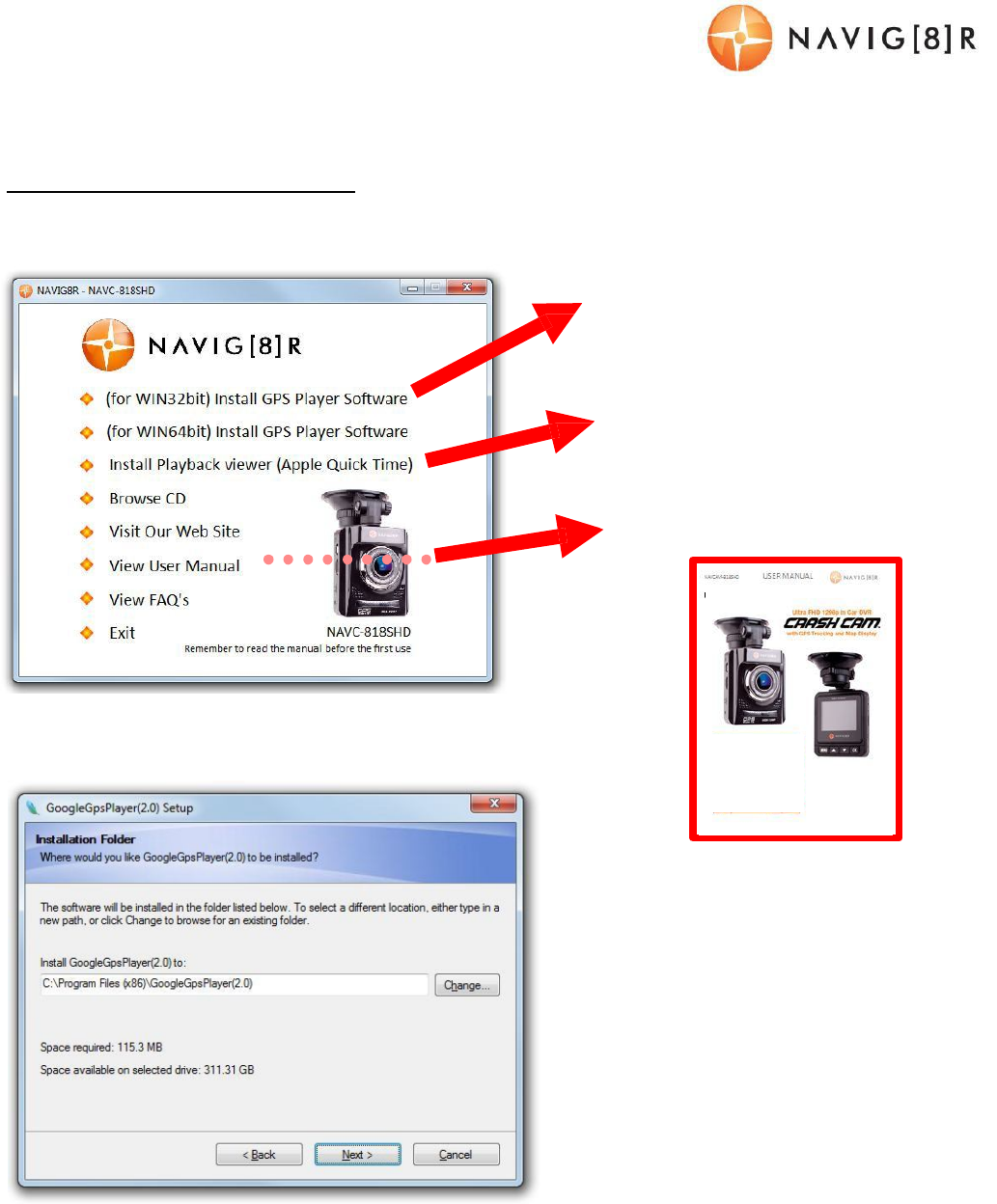
TRACKING SOFTWARE – QUICK GUI DE
INSTALLING THE SOFTW ARE
Install the software disc and select an installation (or view the user manual)
Install GPS Player Software
Fo r 32 or 64bit Windows O/ S
Install Video Player So f t w a r e
View User Manual
Cl i c k n e x t a n d f o l l o w t h e prompts
USER
MANUAL
NAVCAM
-
818SHD
14
THE GPS SOFTWARE - OVERVIEW

USER
MANUAL
NAVCAM
-
818SHD
15
FAQ
Fau l t
Su gge st i o n
The devi ce has f r ozen /
st opped w or ki ng.
Ch e c k t h e s p e e d o f y o u r m e m o r y c a r d . W e r e c o m m e n d cl a s s
10 for faster transfer rates, especially If the record file size is
bigger (say 15 min recording increments at 1080Full HD).
Alt ernat ely, check t he car’s i nt er nal t emper at ur e. The devi ce
will enter standby mode if the ambient vehicle temperature is
below 0 or above 30 degrees C.
The devi ce w i l l n ot st ar t
recording, or stop recording or
has other intermittent faults
Most common cause of intermittent faults is an under rated
SD c ar d . W e r e c o m m e n d a c l a s s 1 0 c a r d f o r t h i s d e v i c e a s
recording at 4K resolution requires a superior speed card.
The speaker w ar ni ng sounds
are a lit tle loud. Can you t urn
them off?
Ye s . Ju s t g o t h e u s e r se t t i n g s s cr e e n a n d s el e c t s p e a k e r . Th en
turn the speaker to OFF.
Devi ce does not t ur n
o
ff
If in vehicle: check that the 12V socket
is
not still powered (on)
when the key is removed (as with some European cars).
Wait 10 seconds f or file
finalization / closure. Disconnect
power lead to device
Ca n t p l a y b ac k t h e . M OV vi d e o
files
Upgrade your windows media player version or use an
alt ernat e media player such as VLC media player
My video/pictures of an
incident are NOT there
Ch e c k t h e cap a c i t y o f y o u r m e m o r y c a r d , t h e files may have
been overwrit ten in the record cycle process. If the Bump file
record feature did not automatically preserve the footage, then
be sure to manually save the footage next time by pressing the
The dat e/ t i me
is
incorrect
Re s et t h e d a t e / t i m e
in
the settings menu. Otherwis
e check
that the time settings have been updated automatically via the
GPS connect i o n . If t he b at t er y r u ns com pl et el y flat, t hen the
date/ time will need to be reset.
Don’ t f orget t o manuall y adjust t he set t i ngs for your time zone
in the user settings menu.
St a n d a r d Ti me Zon es Dayl ight
Sa v i n g s Ti m e Zon es
QLD +10
+10
NSW +10 +11
ACT +10 +11
VIC +10 +11
TAS +10 +11
SA +9.3
+10.3
WA
+8
+8
Ca n ’ t s e e t h e d e vi c e i n m y
comput er
Ch e c k t h e U SB cab l e c o n n e c t i o n t o t h e d e v i c e a n d U SB p o r t . Tr y
anot her USB port , possibly direct ly t o t he PC/ not ebook (rat her
than through a USB hub)
No Video displayed on
TV
Ch e c k t h e cab l e c o n n e ct i o n s o n t h e N A V CA M -818SHD and
that playback mode is sel ect ed

USER
MANUAL
NAVCAM
-
818SHD
16
PRODUCT SPECI FI CATI ONS
LCD Sc r e e n
2.0” TFT Colour LCD Display showing forward video image and Menu
set t i ngs as well as playback for recorded video
Video Re so l u t i o n
2560* 1080 @ 30fps 21:9 / 2340* 1296 @ 30fps 16:9
/
1920* 1080P 45fps 16:9 / HDR 1920* 1080P 30fps 16:9 /
1280* 720 60fps 16:9 / 1280 * 720 30fps 16:9
USB
Por t
Fo r Po w er
or
sync wi t h a PC
(USB2.0)
TV
St a n d a r d
PAL or NTSC
–
via HDMI
output
Bui l t
-
in Speaker /
Microphone Ye s / Ye s
AV Out put
Opt i o ns
HDM I
Aut o Recording
on
power-up Yes . Reco r d i n g st a r t s o n i g n i t i o n p o w e r ( Ch a r g i n g socket )
Dat e / Time
st amp
Su p p o r t e d
–
on
video and on phot os (Auto update via
GPS)
GPS l o cat i o n and Speed
st amp Su p p o r t e d – on video
Po w er of f au t o
save
Ye s . Cu r r e n t f i l e w i l l a u t o sa v e w h e n p o w e r i s t u r n e d
off.
Aut o power
on/ off
Ye s
–
when ignition turned on / off (1, 3, 5
Minutes)
Lens
High quali t y 6 gl ass l ens el ement s wi t h low dispersion coat ings. Low
light capable with minimal edge distortion.
Phot o
Re so l u t i o n
4MP (2688 x 1512
pixels)
Fi l e
preservation
Ye s . On e t o u ch “ SO S”
button
Aut o Bump
Re co r d
Ye s . A d j u s t ab l e s e n s i t i v i t y
(low/ medium/ high)
Phot o
mode
Si n g l e sh o t w h i l s t v i d e o
recording.
Lens Vi ew i ng
angle
165 degree wide
angle
Cy
cle recording
times
1, 3
or
5
Minutes
Fi l e
Fo r m at
Image:
JPG
Video : .MOV (MPEG) using H.264 video
compression
Micro SD Memory
Car d
Cl a s s 6
or
10 UHS3 or above recommended. Max capacity 64GB
Language
Sy st e m
En gl i sh
Sy st e m
suppor t
Windows XP2/ Vist a/ Windows 7/ Windows 8
(tbc)
USER
MANUAL
NAVCAM
-
818SHD
17
FEATURE EXPLANATI ONS
Feat u r e
Descr i pt i on
Ex a m p l e
GPS Tr acki ng
Locat i o n and speed i nf or m at i on i s
recorded along with video for
later review on PC
sof t war e
When playing bac
k your video on the PC
sof t war e you can see wher e you wer e on
Googl e M aps as w el l as o t h er
data
Aut o Bump
Re co r d
Aut omat ically pr ot ect s t he
current video file so it’s not
overwritten in the loop
record.
When an incident (hit) occurs the video of
the incident will be protected for a later
review.
165
0
wide
viewing
angle
Allows a wider
fi
eld of view to
be
recorded
Ca p t u r e 3 l an e s o f t r a
ffi
c or more det ail on
the sides (say at an
intersection)
HDMI Vi deo
(TV) Out put Fo r AV o ut p u t t o a TV Co n n e c t d i r e c t l y t o a H D M I e q u i p p e d TV
for playback from the Cr ash cam
Dr i ver f at igue
reminder
Re m i n d s t h e d r i v e r t o h a v e a
break after a (user set) period of
cont inuous
driving.
Ideal for long journeys
Ti me St a m p
The t i me and dat e
is
st amped on
the video
On Vi deo pl ayback (w i t h or w i t h out
sof t war e), you can see t he t i me and date
Loop record
Se t i n 1 o r 3 o r 5 m i n increments
Dependi ng on t he size of your memor y
card, the oldest files are overwritten with
new
ones
Aut o On/ Off
Devi ce t ur ns on or o
ff
with the
car
So y o u c an se t a n d f o r ge t . W h e n e v e r
you’re driving, you’re recording.
Designed f or
Low light
Bet t er cl ar i t y and det ai l i n t he
dark (when compared to IR LED
assist
devices)
Whether at night t ime, in a car park or a
tunnel, superior lens quality and image
processor will result in clearer
video
Fo r f u r t h er p r o d uc t i n f o r m at i o n p l ease vi si t o u r p r o d u ct w eb page at www.laserco.com.au or email
supp or t @l aser co.com.au
Pl ease n ot e: As co n t i n ual i m p r o vem en t s ar e mad e t o t h i s p r o duct , sl i gh t o per at i o nal di fferences
may occur. For the most up-to-date user manual, please visit our web si t e.

USER
MANUAL
NAVCAM
-
818SHD
18
Warranty Against Defects
Laser Cor por at i on Pt y Lt d ( “ Laser ” ) w ar r ant s yo ur new pr oduct t o be f r ee f r om def ect s i n mat er i al s
and workmanship for 12 months, from the date of purchase, provided that the product is used in
accordance wit h accompanying recommendations or instructions where provided. The benefit of
this warranty is in addition to your rights under the Australian Consumer Law and to other rights
and remedies of the consumer under a law in relation to the goods or services to which the
warranty relat es.
Thr ough a net w or k of r et ai l er s and r esel l er s, Laser w i l l pr ovi de yo u w i t h your choi ce of a r ef und,
repair or exchange (where possible) for t his product if it becomes defective wit hin t he warranty
period. This warranty will no longer apply where the defect is a result of alterat ion, accident,
misuse, abuse, normal wear and tear, neglect or improper storage.
Pl ease r et ai n y our r ecei p t as p r o o f of pu r ch ase
How t o make a product war rant y claim:
St e p 1: Fi n d y our r e cei p t w h i ch p r o ve s t h e dat e o f p ur ch ase. Where t he date of purchase cannot
be verified, your place of purchase or Laser will make an assessment based on t he date of
manufacture, the condition of the Laser Product and the type of defect.
St e p 2a): Co n t a c t y o u r p l a c e of purchase. They will assess t he nat ur e of t he f ault and refund or
replace the product as per their store refund or warranty policy.
St e p 2 b ) : I f y o u r p l a c e o f p u r c h a s e c a n n o t b e c o n t a c t e d , t h e n y o u c a n c o n t a c t L a s e r . Cu st o m e r
Se r v i c e w i t h d e t a i l s o f y o u r d e f e c t i v e L a s e r P r o d u c t : P hone: (02) 9870 3388; or Email:
ser vi ce@laser co.com.au or online www.laserco.com.au/warranty (click on “Consumers (End
Users)” ). Our business address is at 1/ 6-8 Byfield Street, Nort h Ryde, NSW 2113
St e p 3: Laser wi l l i ssue you w i t h a Ret ur n Aut hor i sat i on (RA) num ber w i t hi n 48 hours. When
requested, send us the defective Product and a copy of your receipt. Laser will cover the cost of
the return delivery.
St e p 4: Wait for us to cont act you. Once we have received your defective Laser Pr o d u ct for
inspection, we will inform you of our assessment of your claim within 7 days. When we contact you,
we will firstly let you know whether you have a valid claim under this Warranty, and if so, we wi ll
inform you whether your defective Laser Product will be replaced or repaired, together with the
number of days you can expect to wait to receive your replaced or repaired Laser Pr odu ct .
Our goods come wi t h guar ant ees t hat can not be excluded under the Aust ralian Consumer Law.
Yo u a r e e n t i t l e d t o a r e p l a c e m e n t o r r e f u n d f o r a m a j o r f a i l u r e a n d c o m p e n s a t i o n f o r an y o t h e r
reasonably foreseeable loss or damage. You are also entitled to have the goods repaired or
replaced if the goods fail to be of acceptable quality and the failure does not amount to a major
failure.
