Konftel KT300F Conference telephone User Manual 2

Konftel AB Conference telephone 2

User manual 2

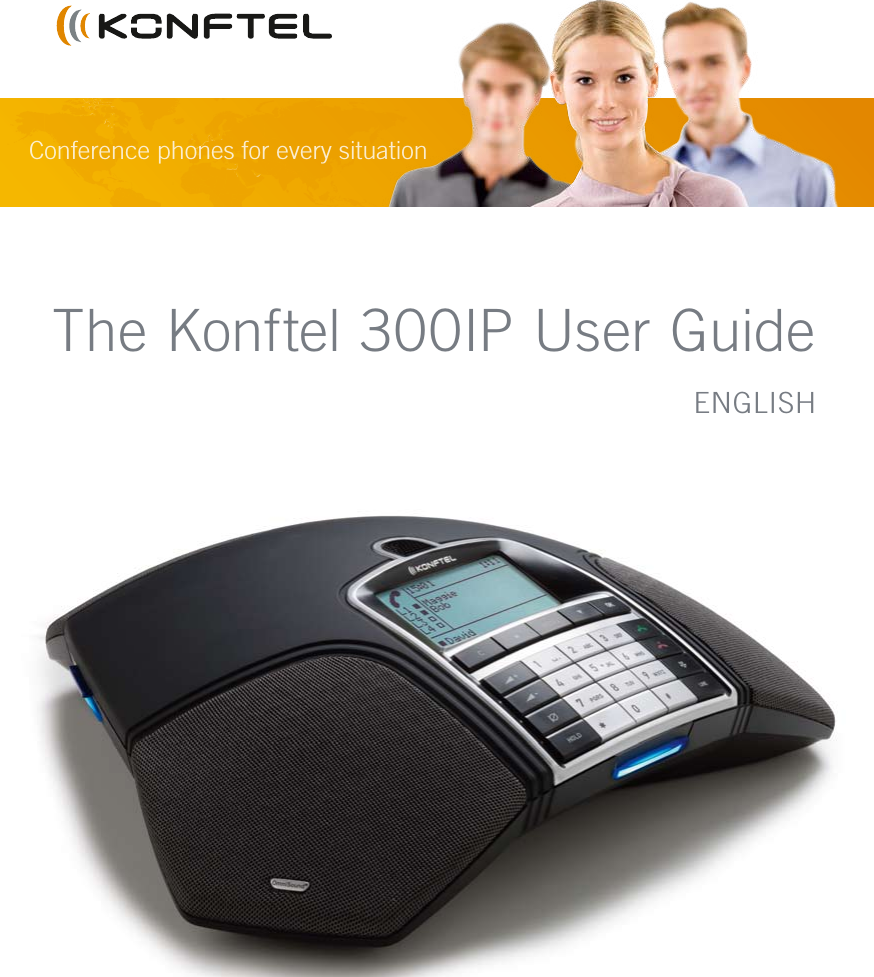
Conference phones for every situationThe Konftel 300IP User GuideENGLISH
21TABLE OF CONTENTSOur patented audio technology, OmniSound®, is embedded into all Konftel phones to ensure crystal-clear voice transmission. We’re now taking OmniSound® to the next level. OmniSound® 2.0 provides the Konftel 300 with the capability to deliver an even more impressive audio quality. Just like OmniSound full duplex,® OmniSound 2.0 uses® an omni-directional microphone and three speakers for optimal audio performance. OmniSound® 2.0 is enhanced with innovative features – noise suppression minimises distracting background noise, wideband voice transmission gives 7 kHz during VoIP calls and an equaliser allows you to adjust sound levels during your meeting.Konftel AB hereby declares that this conference unit complies with all essential require-ments and other relevant provisions of Directive 1999/5/EC.   Warning!  do not expose the Konftel 300IP to rain or moisture.  Warning!  Do not open the case on the Konftel 300IP.Description  2General .................................................. 2Maintenance .......................................... 2Connections ........................................... 2Keypad .................................................. 4Display screen ........................................ 5Navigation and selection in menus ........... 6Answering and making calls  8Answering calls....................................... 8Answering calls on hold ........................... 8Making calls ........................................... 8Redialling............................................... 8Calling from the phonebook ..................... 9During a call  10Adjusting the speaker volume ..................10Placing calls on temporary hold ...............10Ending calls ..........................................10Secure connection .................................10Making multi-party calls  11Adding another party to a call .................11Making conference group calls ................11Managing phone lines  12Selecting account when dialling  .............12Switching between lines during multi- party calls .............................................13Cutting a line ........................................14Transferring calls ...................................14Proles  15Using a user prole ................................15Changing the prole name and password .16Phonebook  17Searching for contacts ...........................17Adding contacts ....................................17Editing contacts ....................................17Deleting contacts ...................................18Deleting all conference groups ................18Displaying phonebook status ...................18Conference guide ...................................19Making conference group calls ................19Displaying conference group participants  20Adding a conference group .................... 20Editing a conference group .................... 20Deleting a conference group ...................21Deleting all conference groups ................21Displaying conference guide status ..........21Recording  22Starting a recording .............................. 22Mute function ....................................... 22Hold .................................................... 22Ending a recording ................................ 22Listening to a recording ......................... 23Editing the name of a recording.............. 23Deleting a recording ...............................24Deleting all recordings ............................24Adjusting the recording indicator .............24Displaying recording feature status ..........24Settings  25Basic settings....................................... 25Advanced settings ................................ 27Settings during a call ............................ 28System ................................................ 29Checking status .................................... 30Using the web interface  32Checking network addresses .................. 32Logging in to the Konftel 300IP ............. 33Managing the phonebook ....................... 34Managing the conference guide ...............37Checking the call list ............................. 39Basic settings....................................... 40Restarting the Konftel 300IP ................. 42Checking status .................................... 43IP, SIP, URI and IP telephony  44FAQ and Troubleshooting  46Optional accessories  47Technical specications  48Service and guarantee  50
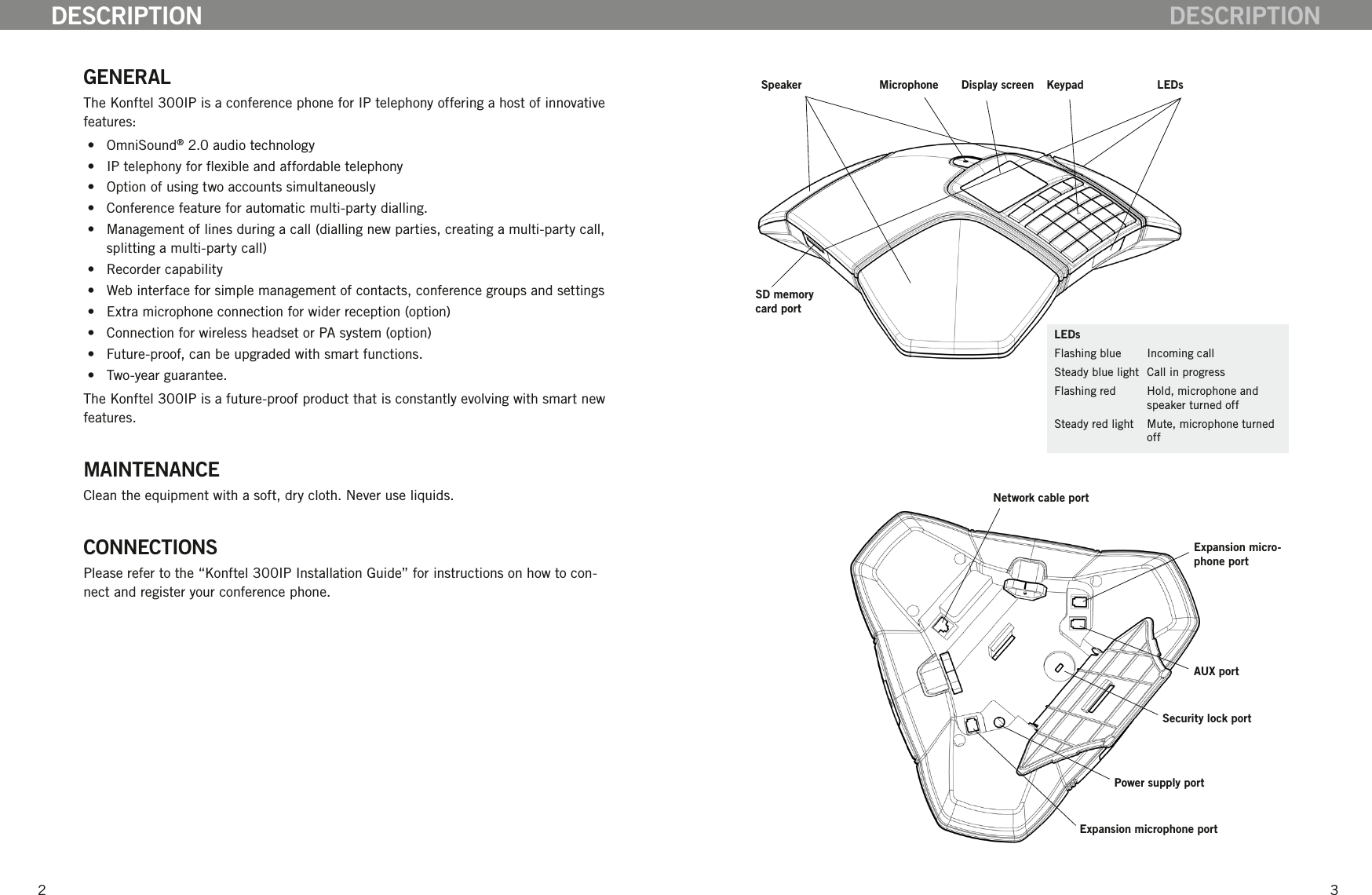
23DESCRIPTIONGENERALThe Konftel 300IP is a conference phone for IP telephony offering a host of innovative features:  •  OmniSound® 2.0 audio technology •  IP telephony for exible and affordable telephony •  Option of using two accounts simultaneously •  Conference feature for automatic multi-party dialling. •  Management of lines during a call (dialling new parties, creating a multi-party call, splitting a multi-party call) •  Recorder capability •  Web interface for simple management of contacts, conference groups and settings •  Extra microphone connection for wider reception (option) •  Connection for wireless headset or PA system (option) •  Future-proof, can be upgraded with smart functions. •  Two-year guarantee.The Konftel 300IP is a future-proof product that is constantly evolving with smart new features. MAINTENANCEClean the equipment with a soft, dry cloth. Never use liquids.CONNECTIONSPlease refer to the “Konftel 300IP Installation Guide” for instructions on how to con-nect and register your conference phone. SD memory card portExpansion micro-phone portDisplay screenSpeaker Microphone Keypad LEDsPower supply portSecurity lock portAUX portNetwork cable portExpansion microphone portLEDsFlashing blue   Incoming callSteady blue light  Call in progressFlashing red   Hold, microphone and speaker turned offSteady red light   Mute, microphone turned offDESCRIPTION
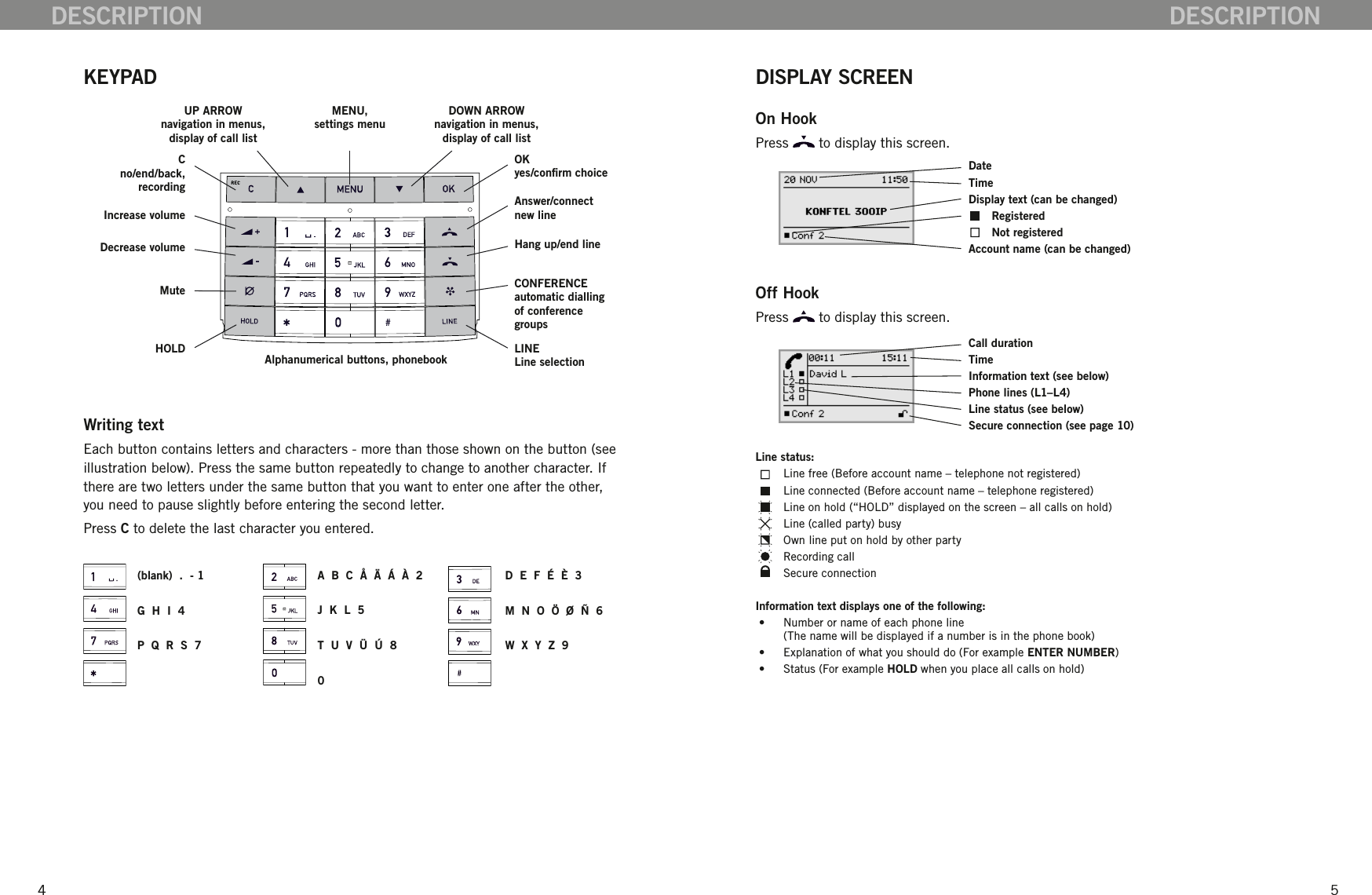
(blank)  .  - 1G  H  I  4P  Q  R  S  7  D  E  F  É  È  3 M  N  O  Ö  Ø  Ñ  6W  X  Y  Z  9 A  B  C  Å  Ä  Á  À  2J  K  L  5T  U  V  Ü  Ú  8045KEYPADWriting textEach button contains letters and characters - more than those shown on the button (see illustration below). Press the same button repeatedly to change to another character. If there are two letters under the same button that you want to enter one after the other, you need to pause slightly before entering the second letter. Press C to delete the last character you entered. DESCRIPTIONDESCRIPTIONMENU,  settings menuUP ARROW navigation in menus, display of call listC no/end/back, recordingIncrease volumeDecrease volumeMuteHOLDOK yes/conrm choiceAnswer/connect new lineHang up/end lineCONFERENCE automatic dialling of conference groupsLINE   Line selectionDOWN ARROW navigation in menus, display of call listDISPLAY SCREENOn HookPress   to display this screen.Off HookPress   to display this screen.Line status:  Line free (Before account name – telephone not registered)  Line connected (Before account name – telephone registered)  Line on hold (“HOLD” displayed on the screen – all calls on hold)  Line (called party) busy  Own line put on hold by other party  Recording call  Secure connectionInformation text displays one of the following: •  Number or name of each phone line (The name will be displayed if a number is in the phone book) •  Explanation of what you should do (For example ENTER NUMBER) •  Status (For example HOLD when you place all calls on hold)Alphanumerical buttons, phonebookDateTimeDisplay text (can be changed)  Registered  Not registeredAccount name (can be changed)Call durationTimeInformation text (see below) Phone lines (L1–L4)Line status (see below)Secure connection (see page 10)
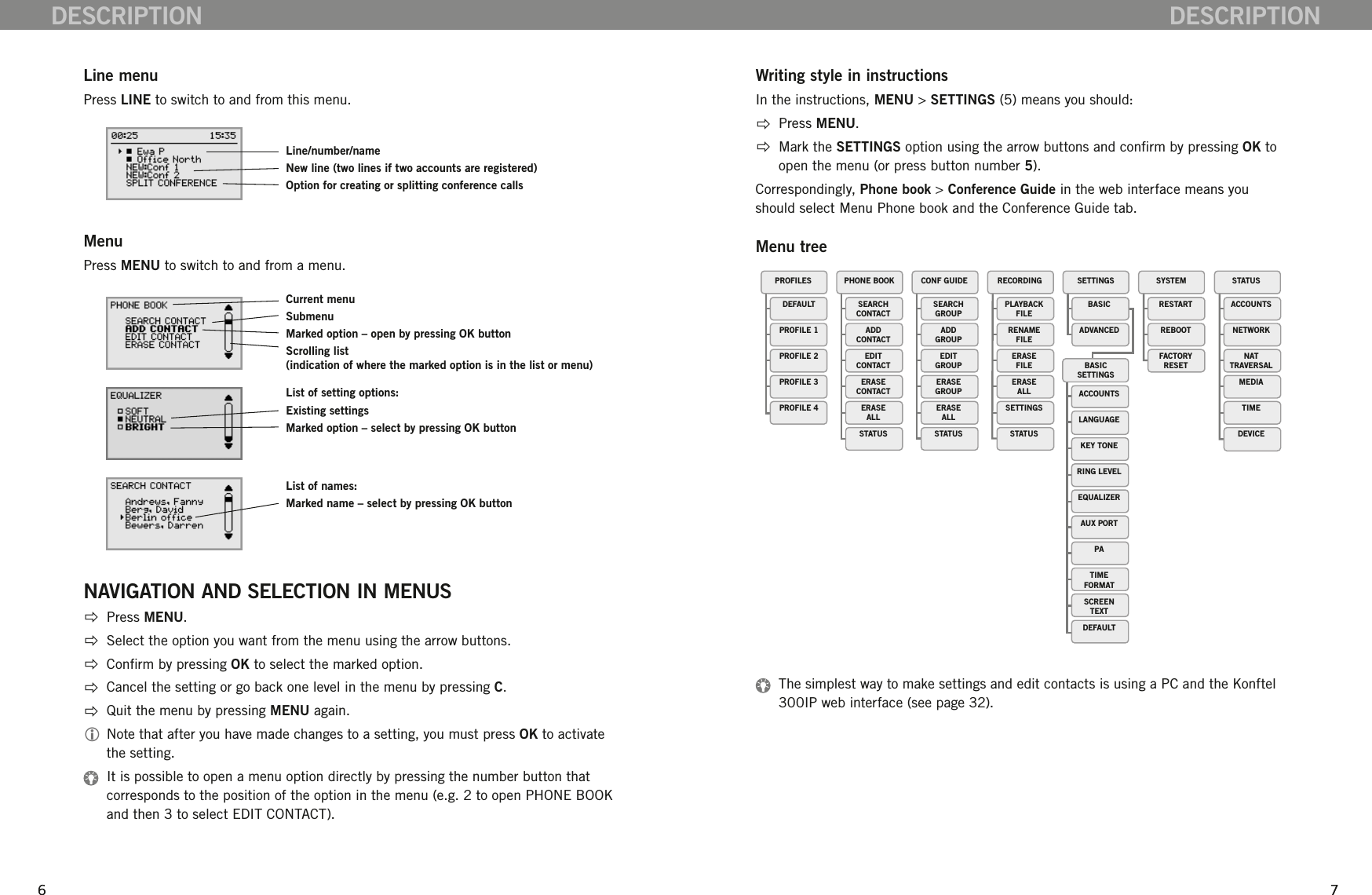
676 7Line menuPress LINE to switch to and from this menu.MenuPress MENU to switch to and from a menu.NAVIGATION AND SELECTION IN MENUS  Press MENU.   Select the option you want from the menu using the arrow buttons.  Conrm by pressing OK to select the marked option.  Cancel the setting or go back one level in the menu by pressing C.  Quit the menu by pressing MENU again.  Note that after you have made changes to a setting, you must press OK to activate the setting.   It is possible to open a menu option directly by pressing the number button that corresponds to the position of the option in the menu (e.g. 2 to open PHONE BOOK and then 3 to select EDIT CONTACT).DESCRIPTIONDESCRIPTIONWriting style in instructionsIn the instructions, MENU > SETTINGS (5) means you should:  Press MENU.  Mark the SETTINGS option using the arrow buttons and conrm by pressing OK to open the menu (or press button number 5).Correspondingly, Phone book > Conference Guide in the web interface means you should select Menu Phone book and the Conference Guide tab. Menu tree  The simplest way to make settings and edit contacts is using a PC and the Konftel 300IP web interface (see page 32).CONF GUIDEBASICSETTINGSSETTINGS SYSTEM STATUSRECORDINGDEFAULTPROFILE 1PROFILE 2PROFILE 3PROFILE 4PROFILES PHONE BOOKSEARCHCONTACTADDCONTACTEDITCONTACTERASECONTACTERASEALLSTATUSSEARCHGROUPADDGROUPEDITGROUPERASEGROUPERASEALLSTATUSPLAYBACKFILERENAMEFILEERASEFILEERASEALLSETTINGSSTATUSBASICADVANCEDRESTARTREBOOTFACTORYRESETACCOUNTSNETWORKNATTRAVERSALMEDIATIMEDEVICEACCOUNTSLANGUAGEKEY TONERING LEVELEQUALIZERAUX PORTPATIMEFORMATSCREENTEXTDEFAULTCurrent menuSubmenuMarked option – open by pressing OK buttonScrolling list (indication of where the marked option is in the list or menu)List of setting options:Existing settingsMarked option – select by pressing OK buttonList of names:Marked name – select by pressing OK buttonLine/number/nameNew line (two lines if two accounts are registered)Option for creating or splitting conference calls
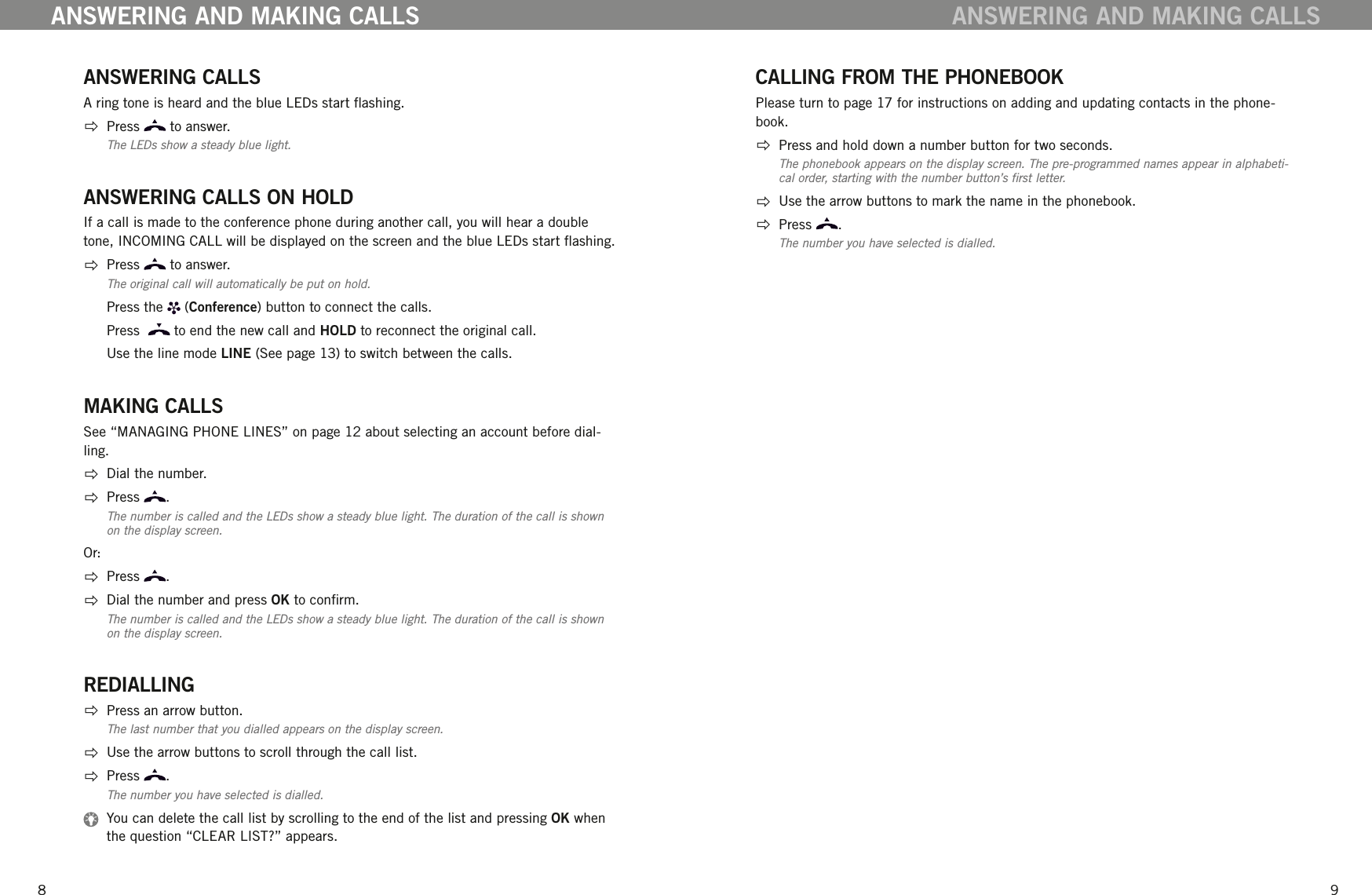
89ANSWERING CALLSA ring tone is heard and the blue LEDs start ashing.  Press   to answer. The LEDs show a steady blue light.ANSWERING CALLS ON HOLDIf a call is made to the conference phone during another call, you will hear a double tone, INCOMING CALL will be displayed on the screen and the blue LEDs start ashing.  Press   to answer. The original call will automatically be put on hold.  Press the   (Conference) button to connect the calls.   Press    to end the new call and HOLD to reconnect the original call.   Use the line mode LINE (See page 13) to switch between the calls. MAKING CALLSSee “MANAGING PHONE LINES” on page 12 about selecting an account before dial-ling.  Dial the number.  Press  . The number is called and the LEDs show a steady blue light. The duration of the call is shown on the display screen.Or:  Press  .   Dial the number and press OK to conrm.The number is called and the LEDs show a steady blue light. The duration of the call is shown on the display screen.REDIALLING  Press an arrow button. The last number that you dialled appears on the display screen.  Use the arrow buttons to scroll through the call list.  Press  .The number you have selected is dialled.   You can delete the call list by scrolling to the end of the list and pressing OK when the question “CLEAR LIST?” appears.ANSWERING AND MAKING CALLSCALLING FROM THE PHONEBOOKPlease turn to page 17 for instructions on adding and updating contacts in the phone-book.  Press and hold down a number button for two seconds. The phonebook appears on the display screen. The pre-programmed names appear in alphabeti-cal order, starting with the number button’s rst letter.   Use the arrow buttons to mark the name in the phonebook.   Press  .The number you have selected is dialled.ANSWERING AND MAKING CALLS
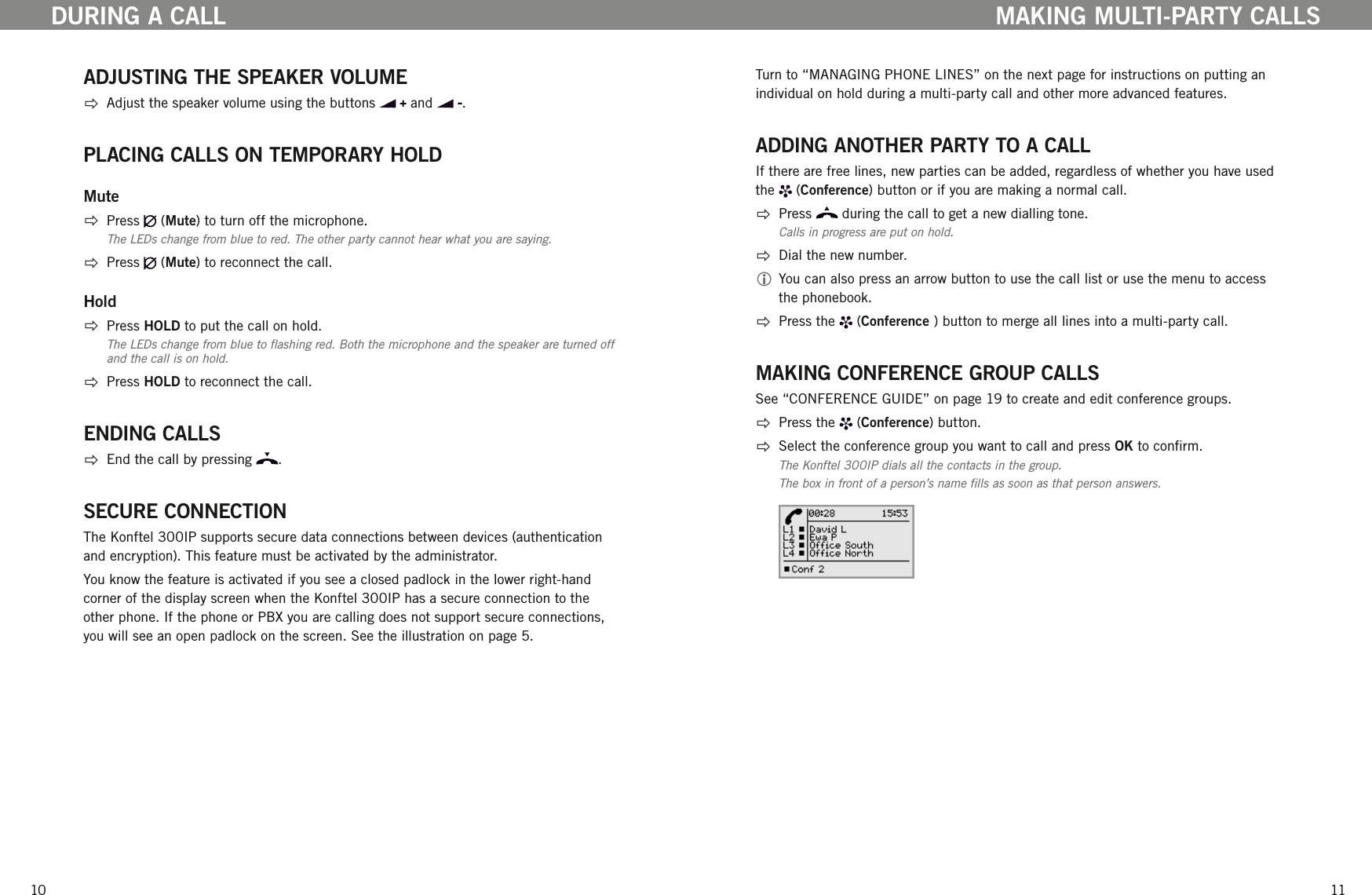
1011ADJUSTING THE SPEAKER VOLUME  Adjust the speaker volume using the buttons   and  . PLACING CALLS ON TEMPORARY HOLDMute  Press   (Mute) to turn off the microphone. The LEDs change from blue to red. The other party cannot hear what you are saying.   Press   (Mute) to reconnect the call.Hold  Press HOLD to put the call on hold. The LEDs change from blue to ashing red. Both the microphone and the speaker are turned off and the call is on hold.   Press HOLD to reconnect the call.ENDING CALLS  End the call by pressing  .SECURE CONNECTIONThe Konftel 300IP supports secure data connections between devices (authentication and encryption). This feature must be activated by the administrator. You know the feature is activated if you see a closed padlock in the lower right-hand corner of the display screen when the Konftel 300IP has a secure connection to the other phone. If the phone or PBX you are calling does not support secure connections, you will see an open padlock on the screen. See the illustration on page 5.DURING A CALLTurn to “MANAGING PHONE LINES” on the next page for instructions on putting an individual on hold during a multi-party call and other more advanced features.ADDING ANOTHER PARTY TO A CALLIf there are free lines, new parties can be added, regardless of whether you have used the   (Conference) button or if you are making a normal call.   Press   during the call to get a new dialling tone.Calls in progress are put on hold.  Dial the new number.  You can also press an arrow button to use the call list or use the menu to access the phonebook.  Press the   (Conference ) button to merge all lines into a multi-party call.MAKING CONFERENCE GROUP CALLSSee “CONFERENCE GUIDE” on page 19 to create and edit conference groups.  Press the   (Conference) button.  Select the conference group you want to call and press OK to conrm.The Konftel 300IP dials all the contacts in the group.The box in front of a person’s name lls as soon as that person answers.MAKING MULTI-PARTY CALLS
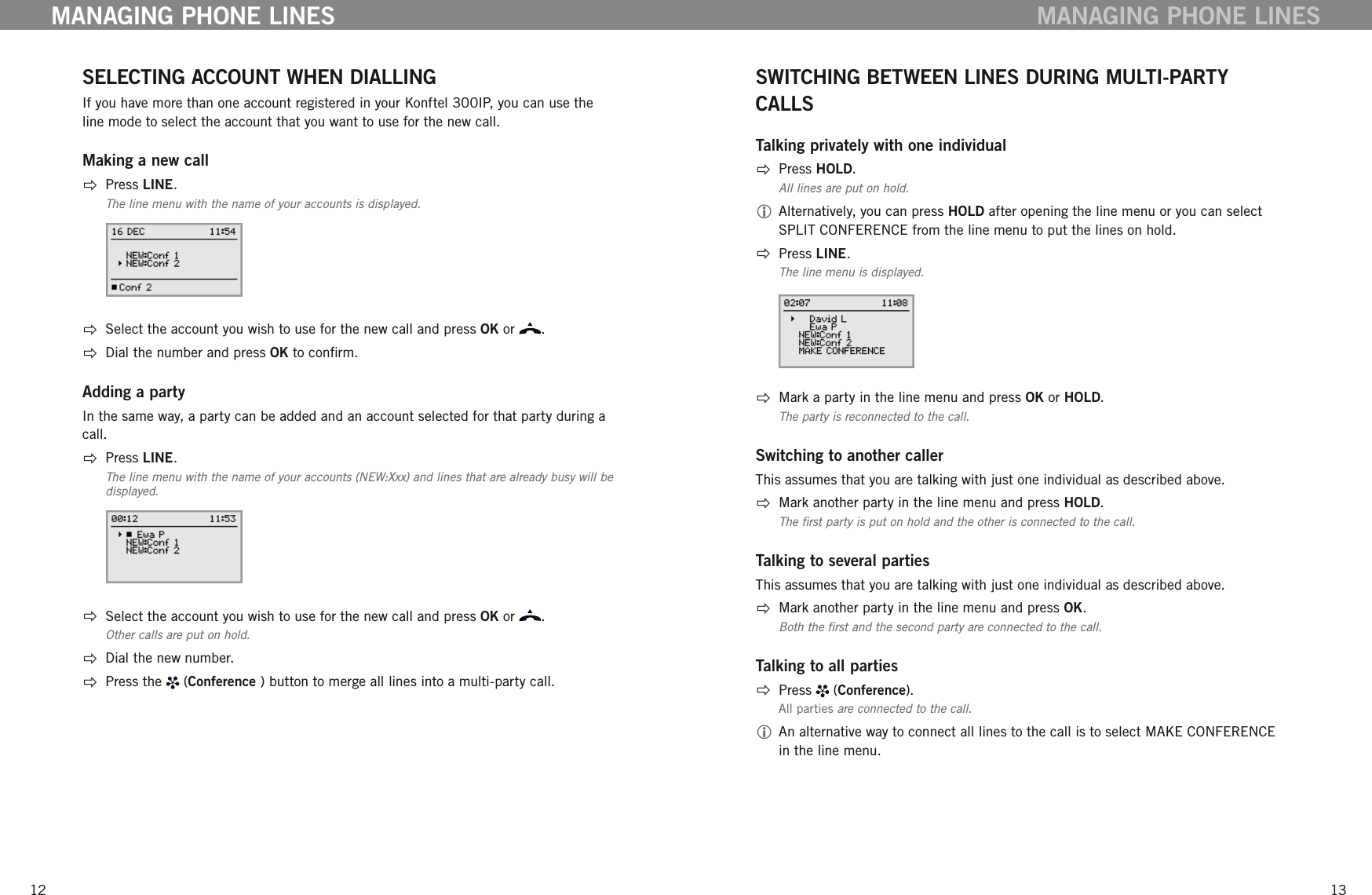
1213SELECTING ACCOUNT WHEN DIALLING If you have more than one account registered in your Konftel 300IP, you can use the line mode to select the account that you want to use for the new call. Making a new call  Press LINE.The line menu with the name of your accounts is displayed.  Select the account you wish to use for the new call and press OK or  .   Dial the number and press OK to conrm. Adding a partyIn the same way, a party can be added and an account selected for that party during a call.   Press LINE.The line menu with the name of your accounts (NEW:Xxx) and lines that are already busy will be displayed.  Select the account you wish to use for the new call and press OK or  . Other calls are put on hold.  Dial the new number.   Press the   (Conference ) button to merge all lines into a multi-party call.MANAGING PHONE LINESSWITCHING BETWEEN LINES DURING MULTI-PARTY CALLSTalking privately with one individual  Press HOLD.All lines are put on hold. Alternatively, you can press HOLD after opening the line menu or you can select SPLIT CONFERENCE from the line menu to put the lines on hold.   Press LINE.The line menu is displayed.  Mark a party in the line menu and press OK or HOLD.The party is reconnected to the call. Switching to another callerThis assumes that you are talking with just one individual as described above.  Mark another party in the line menu and press HOLD.The rst party is put on hold and the other is connected to the call. Talking to several partiesThis assumes that you are talking with just one individual as described above.  Mark another party in the line menu and press OK.Both the rst and the second party are connected to the call. Talking to all parties  Press   (Conference).All parties are connected to the call.  An alternative way to connect all lines to the call is to select MAKE CONFERENCE in the line menu. MANAGING PHONE LINES
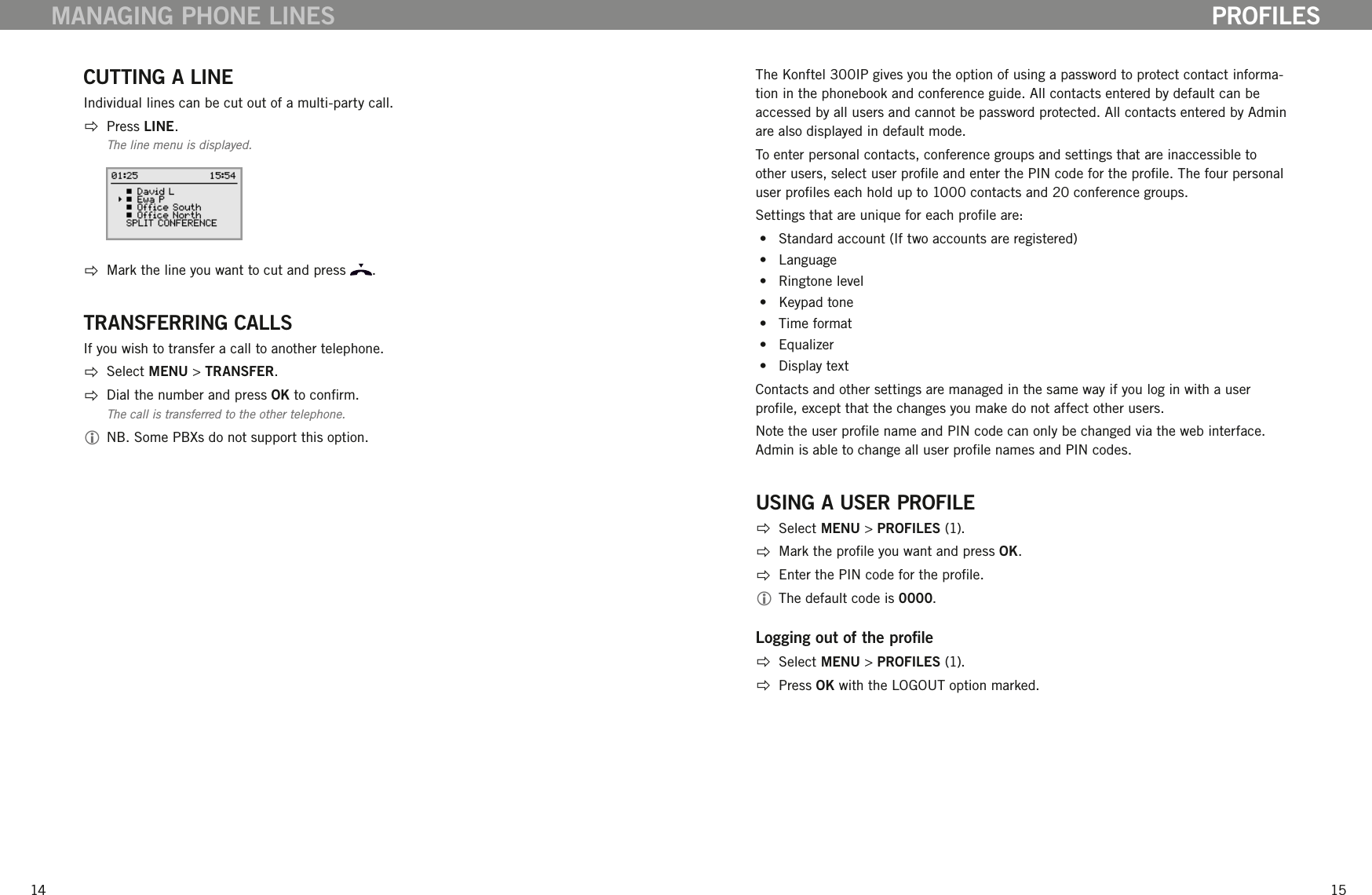
1415CUTTING A LINEIndividual lines can be cut out of a multi-party call.   Press LINE.The line menu is displayed.  Mark the line you want to cut and press  .TRANSFERRING CALLSIf you wish to transfer a call to another telephone.  Select MENU > TRANSFER.  Dial the number and press OK to conrm.The call is transferred to the other telephone. NB. Some PBXs do not support this option.MANAGING PHONE LINESThe Konftel 300IP gives you the option of using a password to protect contact informa-tion in the phonebook and conference guide. All contacts entered by default can be accessed by all users and cannot be password protected. All contacts entered by Admin are also displayed in default mode. To enter personal contacts, conference groups and settings that are inaccessible to other users, select user prole and enter the PIN code for the prole. The four personal user proles each hold up to 1000 contacts and 20 conference groups. Settings that are unique for each prole are: •  Standard account (If two accounts are registered) •  Language •  Ringtone level •  Keypad tone •  Time format •  Equalizer •  Display textContacts and other settings are managed in the same way if you log in with a user prole, except that the changes you make do not affect other users. Note the user prole name and PIN code can only be changed via the web interface. Admin is able to change all user prole names and PIN codes. USING A USER PROFILE  Select MENU > PROFILES (1).  Mark the prole you want and press OK.  Enter the PIN code for the prole. The default code is 0000.Logging out of the prole  Select MENU > PROFILES (1).  Press OK with the LOGOUT option marked.PROFILES
1617CHANGING THE PROFILE NAME AND PASSWORD  Log in to Konftel 300IP, see pages 32–33.   Select Settings > Basic.  Click on the Edit button under the heading Proles.   Enter a name and a new PIN code.  Click on Set and save your settings by clicking on Save.   Make a note of the name and PIN code and keep them in a safe place. The adminis-trator is able to reset the settings.PROFILESThe Konftel 300IP’s phonebook can hold up to 1000 numbers in each user prole. See page 8 for making calls via the phonebook. Entering text with the keypadPlease turn to page 4 for instructions on using the keypad to enter text. SEARCHING FOR CONTACTS  The simplest way to search for a contact in the address book is to hold down an alphanumeric button for two seconds (see page 8). You can also search for a contact via the PHONEBOOK menu.   Select MENU > PHONE BOOK > SEARCH CONTACT.  Mark the contact you want.  You can use the arrow buttons to press an alphanumeric button to jump to the rst name that starts with that letter in the list.  Press OK or   to dial the selected contact, C to return to the PHONEBOOK menu or MENU to exit the menu. ADDING CONTACTS  Select MENU > PHONE BOOK > ADD CONTACT.  Enter the name of the contact and press OK to conrm.   Write the number and press OK to conrm.  Press OK to add another contact or MENU to exit the menu. EDITING CONTACTS  Select MENU > PHONE BOOK > EDIT CONTACT.  Mark the contact you want to change. Press OK to conrm.  Make the change and press OK to conrm.  Delete a number or a letter in a name by pressing C. If you want to cancel the change you are making and leave the name or number as they were, press C until the PHONEBOOK menu appears. PHONEBOOK
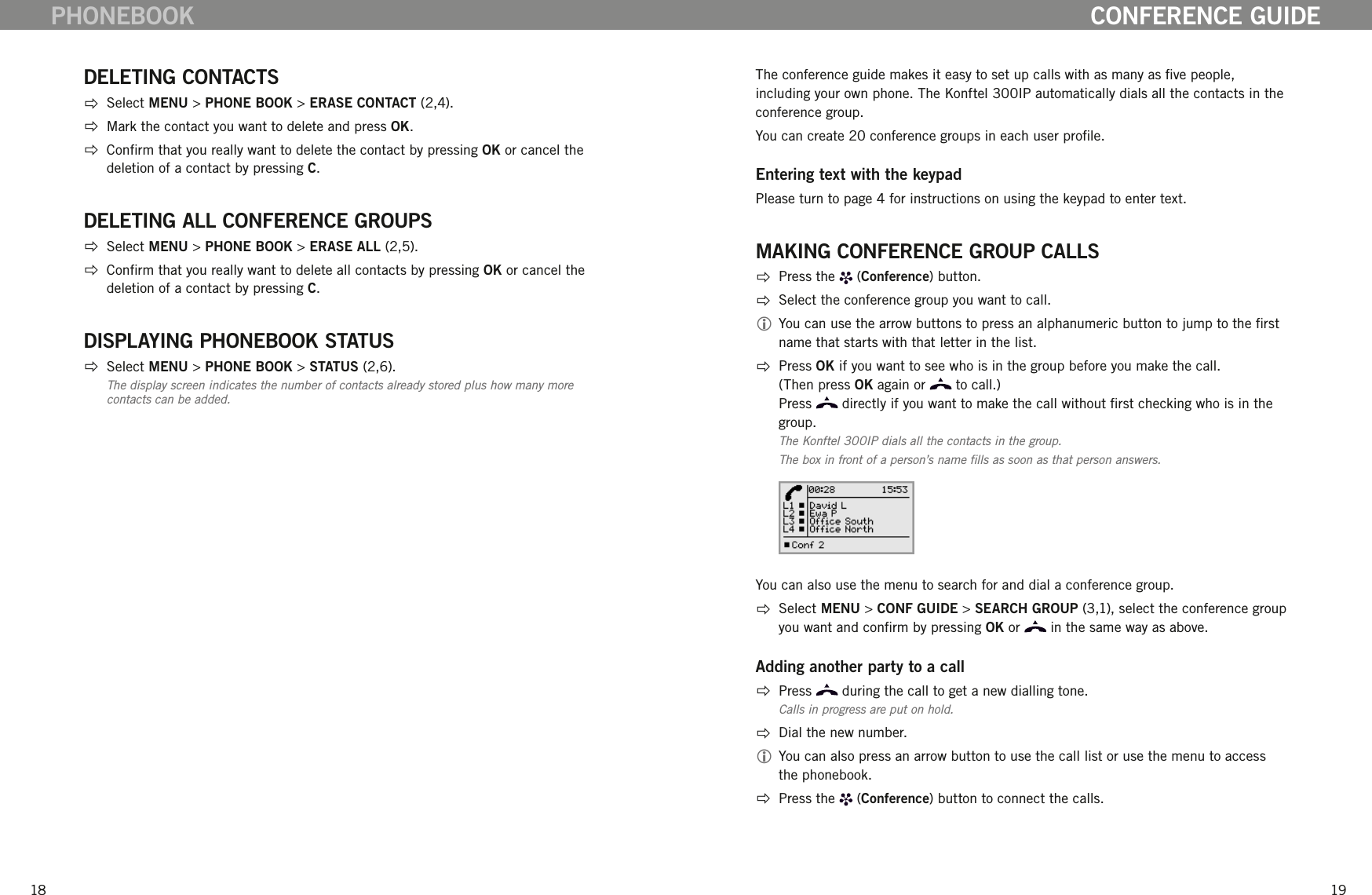
1819DELETING CONTACTS  Select MENU > PHONE BOOK > ERASE CONTACT (2,4).  Mark the contact you want to delete and press OK.    Conrm that you really want to delete the contact by pressing OK or cancel the deletion of a contact by pressing C. DELETING ALL CONFERENCE GROUPS  Select MENU > PHONE BOOK > ERASE ALL (2,5).  Conrm that you really want to delete all contacts by pressing OK or cancel the deletion of a contact by pressing C. DISPLAYING PHONEBOOK STATUS  Select MENU > PHONE BOOK > STATUS (2,6).The display screen indicates the number of contacts already stored plus how many more contacts can be added. PHONEBOOKThe conference guide makes it easy to set up calls with as many as ve people, including your own phone. The Konftel 300IP automatically dials all the contacts in the conference group. You can create 20 conference groups in each user prole.Entering text with the keypadPlease turn to page 4 for instructions on using the keypad to enter text. MAKING CONFERENCE GROUP CALLS  Press the   (Conference) button.  Select the conference group you want to call. You can use the arrow buttons to press an alphanumeric button to jump to the rst name that starts with that letter in the list.  Press OK if you want to see who is in the group before you make the call.  (Then press OK again or   to call.) Press   directly if you want to make the call without rst checking who is in the group. The Konftel 300IP dials all the contacts in the group.The box in front of a person’s name lls as soon as that person answers.You can also use the menu to search for and dial a conference group.   Select MENU > CONF GUIDE > SEARCH GROUP (3,1), select the conference group you want and conrm by pressing OK or   in the same way as above.Adding another party to a call  Press   during the call to get a new dialling tone.Calls in progress are put on hold.  Dial the new number.  You can also press an arrow button to use the call list or use the menu to access the phonebook.  Press the   (Conference) button to connect the calls.CONFERENCE GUIDE
2021CONFERENCE GUIDEDISPLAYING CONFERENCE GROUP PARTICIPANTS  Select MENU > CONF GUIDE > SEARCH GROUP (3,1).  Mark the group you want and press OK. The names of the conference group participants are displayed.   Press C to return to the CONFERENCE GUIDE menu or MENU to exit the menu. Press OK or   to dial the group.ADDING A CONFERENCE GROUP  Select MENU > CONF GUIDE > ADD GROUP (3,2).   Enter a group name and press OK to conrm.   Press OK to enter the rst person.   Write the name of the rst person and press OK to conrm. Enter the number and press OK to conrm.  Press OK to add another person and repeat the above steps.   Conclude by pressing C.EDITING A CONFERENCE GROUP  Select MENU > CONF GUIDE > EDIT GROUP (3,3).Here, you can change the name of a conference group, add or delete a person from a group and change a person’s name and phone number.    Mark your choice of option in the menu using the arrow buttons and press OK to conrm. The names of the conference groups are displayed.   Mark the group you want to change and press OK to conrm.  Mark a person you want to change and press OK to conrm.  Make the change and press OK to conrm.  Delete a number or a letter in a name by pressing C. If you want to cancel the change you are making and leave the name or number as they were, press C until the CONFERENCE GUIDE menu appears. DELETING A CONFERENCE GROUP  Select MENU > CONF GUIDE > ERASE GROUP (3,4).  Mark the group you want to delete and press OK.    Conrm that you really want to delete the group by pressing OK or cancel the dele-tion of a group by pressing C. DELETING ALL CONFERENCE GROUPS  Select MENU > CONF GUIDE > ERASE ALL (3,5).  Conrm that you really want to delete all groups by pressing OK or cancel the dele-tion of all groups by pressing C. DISPLAYING CONFERENCE GUIDE STATUS  Select MENU > CONF GUIDE > STATUS (3,6).The display screen indicates the number of conference groups already stored plus how many more groups can be added. CONFERENCE GUIDE
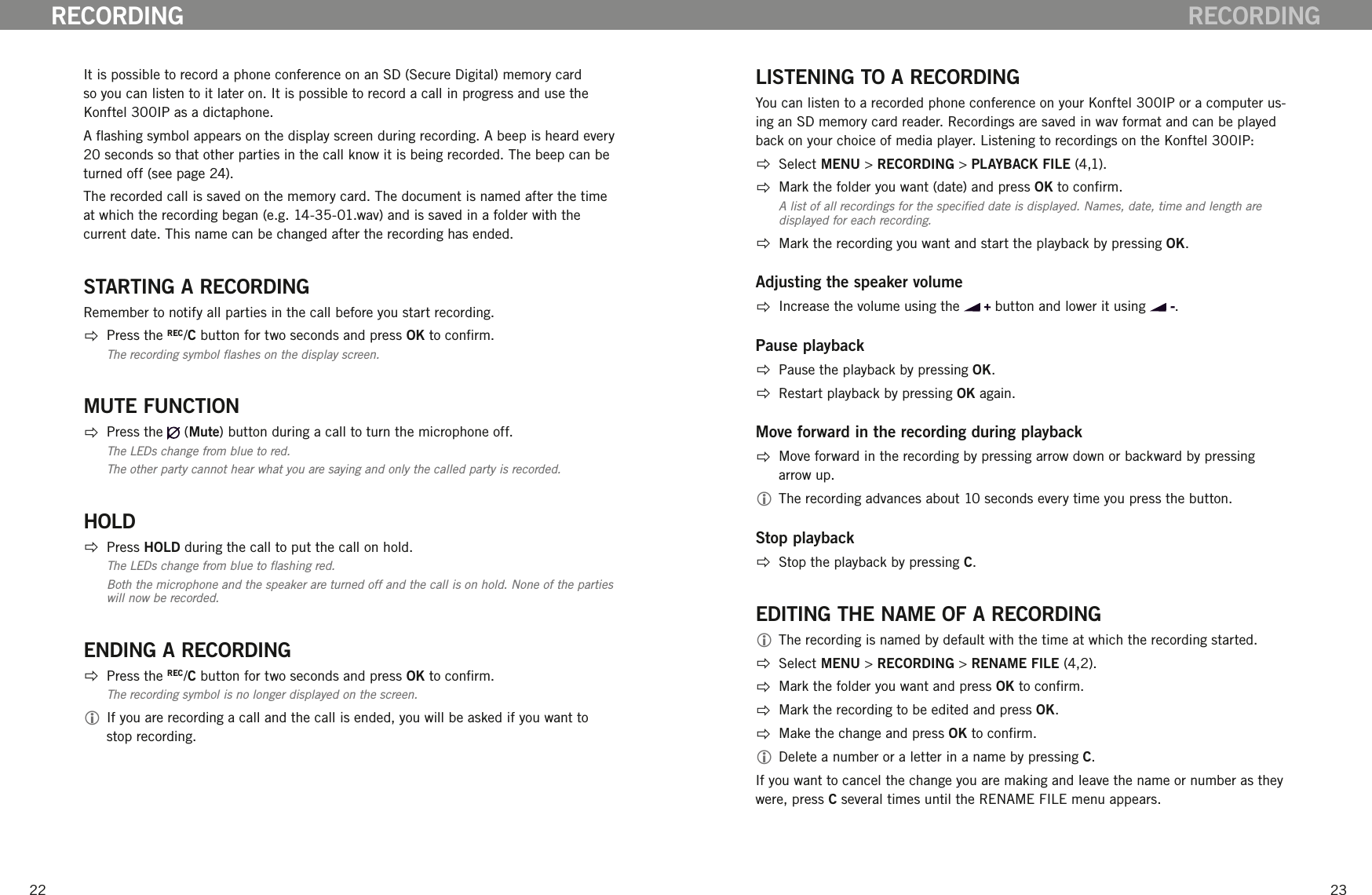
2223It is possible to record a phone conference on an SD (Secure Digital) memory card so you can listen to it later on. It is possible to record a call in progress and use the Konftel 300IP as a dictaphone.A ashing symbol appears on the display screen during recording. A beep is heard every 20 seconds so that other parties in the call know it is being recorded. The beep can be turned off (see page 24).The recorded call is saved on the memory card. The document is named after the time at which the recording began (e.g. 14-35-01.wav) and is saved in a folder with the current date. This name can be changed after the recording has ended.STARTING A RECORDINGRemember to notify all parties in the call before you start recording.  Press the REC/C button for two seconds and press OK to conrm. The recording symbol ashes on the display screen.MUTE FUNCTION  Press the   (Mute) button during a call to turn the microphone off. The LEDs change from blue to red. The other party cannot hear what you are saying and only the called party is recorded.HOLD  Press HOLD during the call to put the call on hold.The LEDs change from blue to ashing red. Both the microphone and the speaker are turned off and the call is on hold. None of the parties will now be recorded. ENDING A RECORDING  Press the REC/C button for two seconds and press OK to conrm. The recording symbol is no longer displayed on the screen. If you are recording a call and the call is ended, you will be asked if you want to stop recording.RECORDINGLISTENING TO A RECORDINGYou can listen to a recorded phone conference on your Konftel 300IP or a computer us-ing an SD memory card reader. Recordings are saved in wav format and can be played back on your choice of media player. Listening to recordings on the Konftel 300IP:  Select MENU > RECORDING > PLAYBACK FILE (4,1).  Mark the folder you want (date) and press OK to conrm.A list of all recordings for the specied date is displayed. Names, date, time and length are displayed for each recording.   Mark the recording you want and start the playback by pressing OK.Adjusting the speaker volume  Increase the volume using the   button and lower it using  .Pause playback  Pause the playback by pressing OK.   Restart playback by pressing OK again.Move forward in the recording during playback  Move forward in the recording by pressing arrow down or backward by pressing arrow up.  The recording advances about 10 seconds every time you press the button.Stop playback  Stop the playback by pressing C.EDITING THE NAME OF A RECORDING The recording is named by default with the time at which the recording started.   Select MENU > RECORDING > RENAME FILE (4,2).  Mark the folder you want and press OK to conrm.  Mark the recording to be edited and press OK.  Make the change and press OK to conrm. Delete a number or a letter in a name by pressing C. If you want to cancel the change you are making and leave the name or number as they were, press C several times until the RENAME FILE menu appears. RECORDING
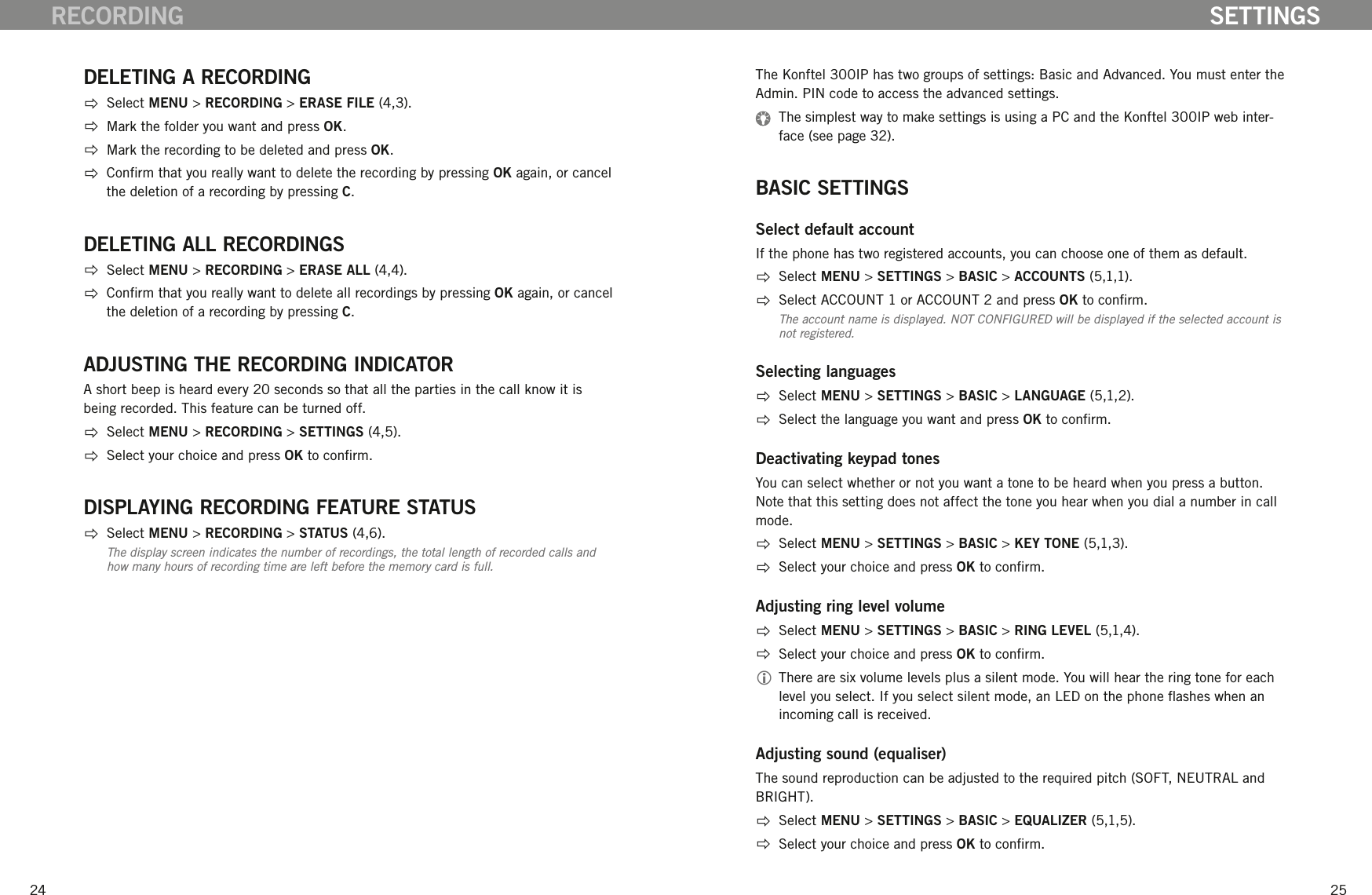
2425DELETING A RECORDING  Select MENU > RECORDING > ERASE FILE (4,3).  Mark the folder you want and press OK.  Mark the recording to be deleted and press OK.  Conrm that you really want to delete the recording by pressing OK again, or cancel the deletion of a recording by pressing C.DELETING ALL RECORDINGS  Select MENU > RECORDING > ERASE ALL (4,4).  Conrm that you really want to delete all recordings by pressing OK again, or cancel the deletion of a recording by pressing C.ADJUSTING THE RECORDING INDICATORA short beep is heard every 20 seconds so that all the parties in the call know it is being recorded. This feature can be turned off.  Select MENU > RECORDING > SETTINGS (4,5).  Select your choice and press OK to conrm.DISPLAYING RECORDING FEATURE STATUS  Select MENU > RECORDING > STATUS (4,6).The display screen indicates the number of recordings, the total length of recorded calls and how many hours of recording time are left before the memory card is full.RECORDINGThe Konftel 300IP has two groups of settings: Basic and Advanced. You must enter the Admin. PIN code to access the advanced settings.   The simplest way to make settings is using a PC and the Konftel 300IP web inter-face (see page 32).BASIC SETTINGSSelect default accountIf the phone has two registered accounts, you can choose one of them as default.  Select MENU > SETTINGS > BASIC > ACCOUNTS (5,1,1).  Select ACCOUNT 1 or ACCOUNT 2 and press OK to conrm.The account name is displayed. NOT CONFIGURED will be displayed if the selected account is not registered. Selecting languages  Select MENU > SETTINGS > BASIC > LANGUAGE (5,1,2).  Select the language you want and press OK to conrm.Deactivating keypad tonesYou can select whether or not you want a tone to be heard when you press a button. Note that this setting does not affect the tone you hear when you dial a number in call mode.   Select MENU > SETTINGS > BASIC > KEY TONE (5,1,3).  Select your choice and press OK to conrm.Adjusting ring level volume  Select MENU > SETTINGS > BASIC > RING LEVEL (5,1,4).  Select your choice and press OK to conrm. There are six volume levels plus a silent mode. You will hear the ring tone for each level you select. If you select silent mode, an LED on the phone ashes when an incoming call is received. Adjusting sound (equaliser)The sound reproduction can be adjusted to the required pitch (SOFT, NEUTRAL and BRIGHT).   Select MENU > SETTINGS > BASIC > EQUALIZER (5,1,5).  Select your choice and press OK to conrm.SETTINGS
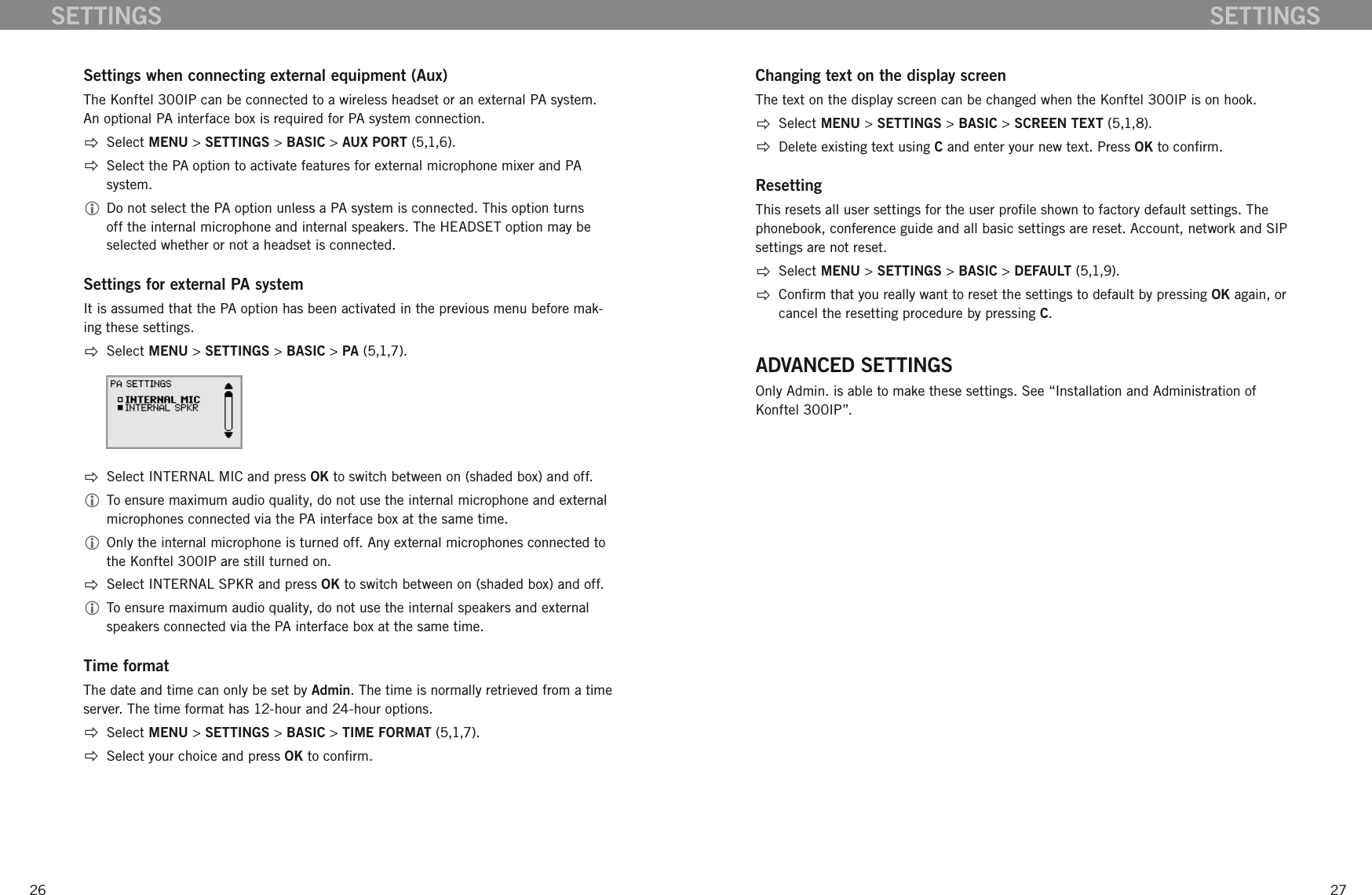
2627SETTINGSSettings when connecting external equipment (Aux)The Konftel 300IP can be connected to a wireless headset or an external PA system. An optional PA interface box is required for PA system connection.  Select MENU > SETTINGS > BASIC > AUX PORT (5,1,6).  Select the PA option to activate features for external microphone mixer and PA system.  Do not select the PA option unless a PA system is connected. This option turns off the internal microphone and internal speakers. The HEADSET option may be selected whether or not a headset is connected. Settings for external PA systemIt is assumed that the PA option has been activated in the previous menu before mak-ing these settings.   Select MENU > SETTINGS > BASIC > PA (5,1,7).  Select INTERNAL MIC and press OK to switch between on (shaded box) and off.  To ensure maximum audio quality, do not use the internal microphone and external microphones connected via the PA interface box at the same time. Only the internal microphone is turned off. Any external microphones connected to the Konftel 300IP are still turned on.  Select INTERNAL SPKR and press OK to switch between on (shaded box) and off.  To ensure maximum audio quality, do not use the internal speakers and external speakers connected via the PA interface box at the same time. Time formatThe date and time can only be set by Admin. The time is normally retrieved from a time server. The time format has 12-hour and 24-hour options.  Select MENU > SETTINGS > BASIC > TIME FORMAT (5,1,7).  Select your choice and press OK to conrm.Changing text on the display screenThe text on the display screen can be changed when the Konftel 300IP is on hook.   Select MENU > SETTINGS > BASIC > SCREEN TEXT (5,1,8).  Delete existing text using C and enter your new text. Press OK to conrm.ResettingThis resets all user settings for the user prole shown to factory default settings. The phonebook, conference guide and all basic settings are reset. Account, network and SIP settings are not reset.  Select MENU > SETTINGS > BASIC > DEFAULT (5,1,9).  Conrm that you really want to reset the settings to default by pressing OK again, or cancel the resetting procedure by pressing C.ADVANCED SETTINGSOnly Admin. is able to make these settings. See “Installation and Administration of Konftel 300IP”. SETTINGS
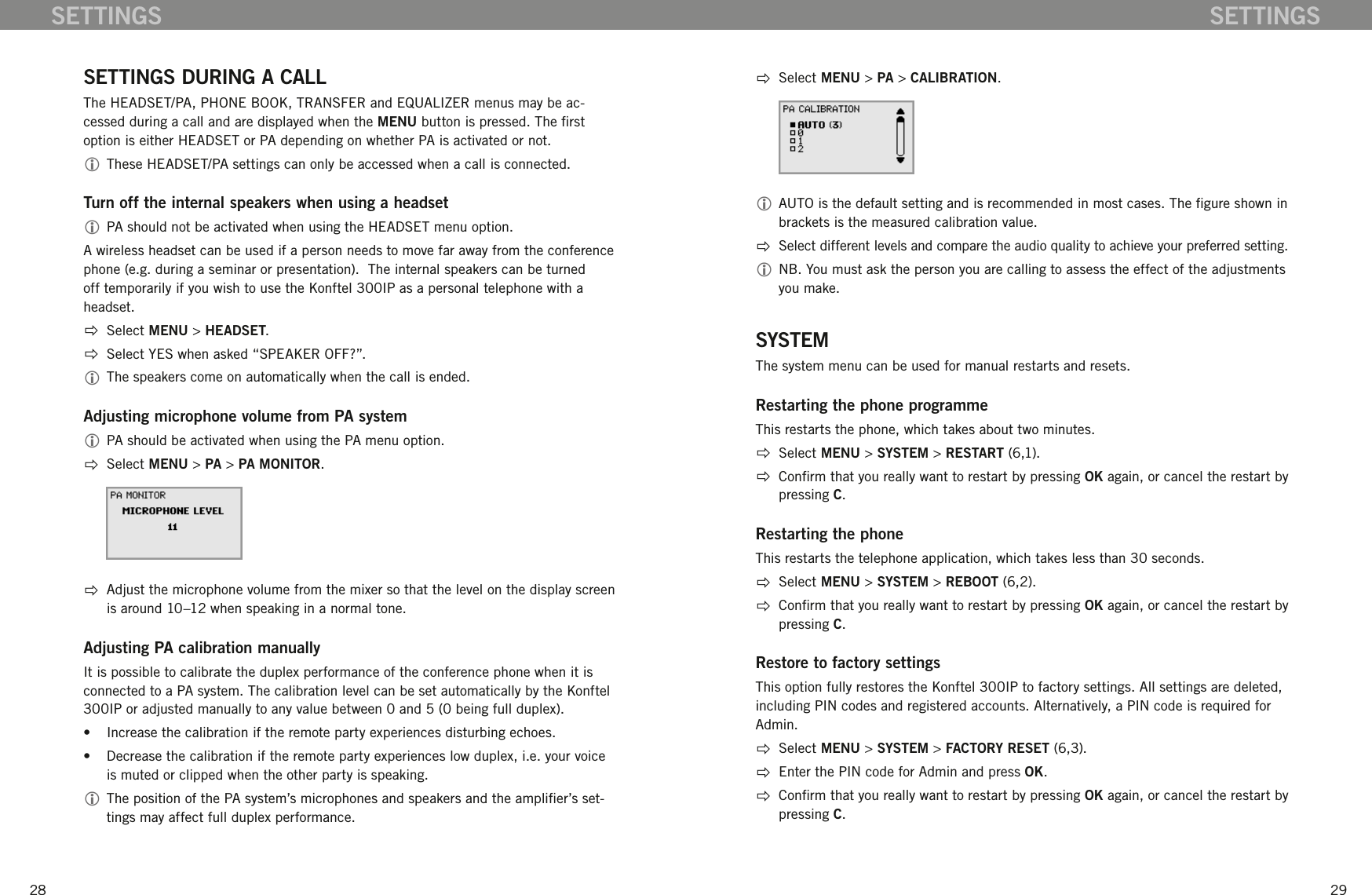
2829SETTINGSSETTINGS DURING A CALLThe HEADSET/PA, PHONE BOOK, TRANSFER and EQUALIZER menus may be ac-cessed during a call and are displayed when the MENU button is pressed. The rst option is either HEADSET or PA depending on whether PA is activated or not.  These HEADSET/PA settings can only be accessed when a call is connected. Turn off the internal speakers when using a headset PA should not be activated when using the HEADSET menu option.  A wireless headset can be used if a person needs to move far away from the conference phone (e.g. during a seminar or presentation).  The internal speakers can be turned off temporarily if you wish to use the Konftel 300IP as a personal telephone with a headset.   Select MENU > HEADSET.  Select YES when asked “SPEAKER OFF?”. The speakers come on automatically when the call is ended.Adjusting microphone volume from PA system PA should be activated when using the PA menu option.    Select MENU > PA > PA MONITOR.  Adjust the microphone volume from the mixer so that the level on the display screen is around 10–12 when speaking in a normal tone.Adjusting PA calibration manuallyIt is possible to calibrate the duplex performance of the conference phone when it is connected to a PA system. The calibration level can be set automatically by the Konftel 300IP or adjusted manually to any value between 0 and 5 (0 being full duplex). •  Increase the calibration if the remote party experiences disturbing echoes. •  Decrease the calibration if the remote party experiences low duplex, i.e. your voice is muted or clipped when the other party is speaking. The position of the PA system’s microphones and speakers and the amplier’s set-tings may affect full duplex performance.   Select MENU > PA > CALIBRATION. AUTO is the default setting and is recommended in most cases. The gure shown in brackets is the measured calibration value.  Select different levels and compare the audio quality to achieve your preferred setting.  NB. You must ask the person you are calling to assess the effect of the adjustments you make.SYSTEMThe system menu can be used for manual restarts and resets.Restarting the phone programmeThis restarts the phone, which takes about two minutes.   Select MENU > SYSTEM > RESTART (6,1).  Conrm that you really want to restart by pressing OK again, or cancel the restart by pressing C.Restarting the phoneThis restarts the telephone application, which takes less than 30 seconds.   Select MENU > SYSTEM > REBOOT (6,2).  Conrm that you really want to restart by pressing OK again, or cancel the restart by pressing C.Restore to factory settingsThis option fully restores the Konftel 300IP to factory settings. All settings are deleted, including PIN codes and registered accounts. Alternatively, a PIN code is required for Admin.   Select MENU > SYSTEM > FACTORY RESET (6,3).  Enter the PIN code for Admin and press OK.  Conrm that you really want to restart by pressing OK again, or cancel the restart by pressing C.SETTINGS
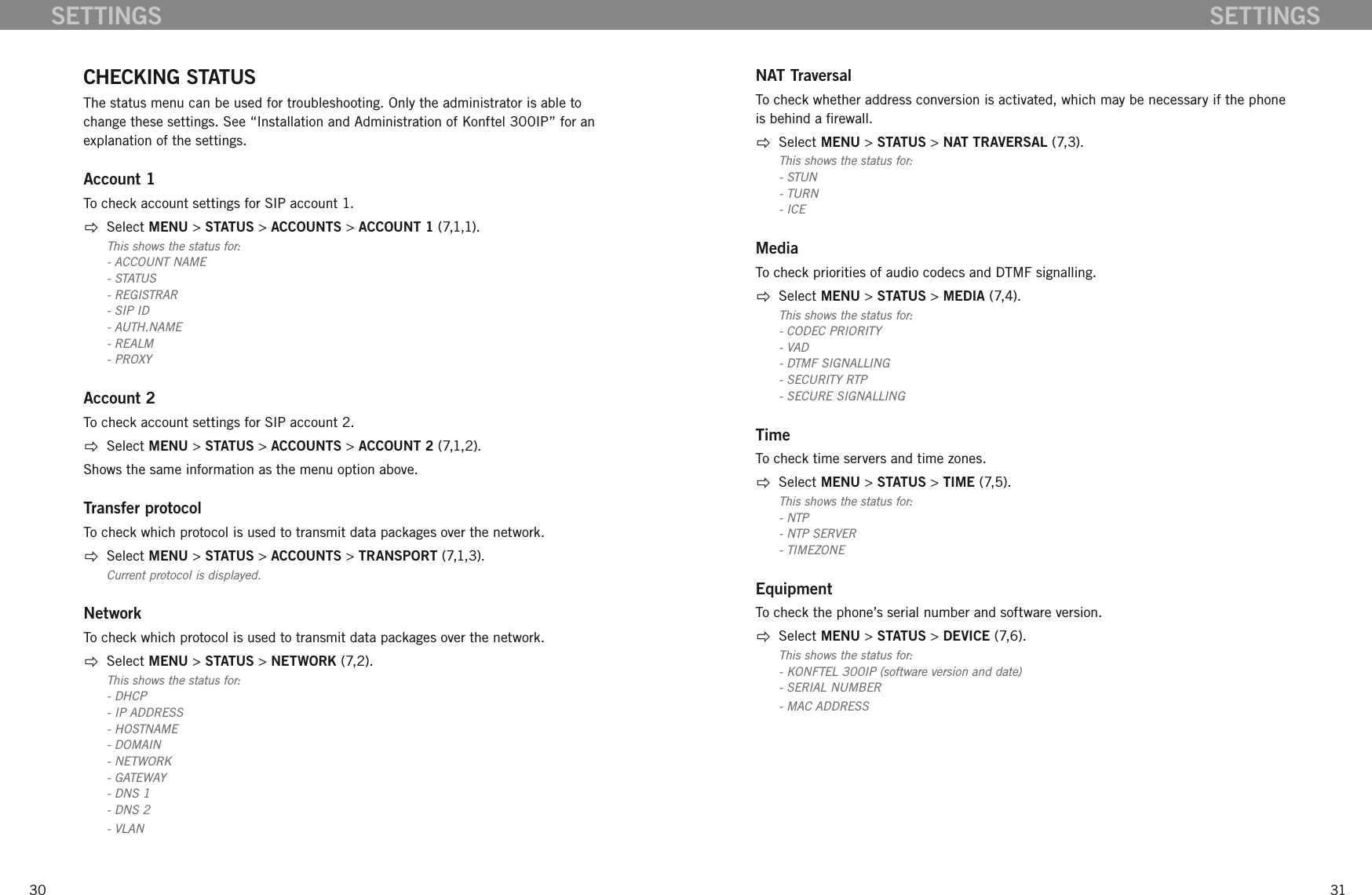
3031SETTINGS SETTINGSCHECKING STATUSThe status menu can be used for troubleshooting. Only the administrator is able to change these settings. See “Installation and Administration of Konftel 300IP” for an explanation of the settings.Account 1To check account settings for SIP account 1.  Select MENU > STATUS > ACCOUNTS > ACCOUNT 1 (7,1,1).This shows the status for:- ACCOUNT NAME- STATUS- REGISTRAR- SIP ID- AUTH.NAME- REALM- PROXYAccount 2To check account settings for SIP account 2.  Select MENU > STATUS > ACCOUNTS > ACCOUNT 2 (7,1,2).Shows the same information as the menu option above.Transfer protocolTo check which protocol is used to transmit data packages over the network.  Select MENU > STATUS > ACCOUNTS > TRANSPORT (7,1,3).Current protocol is displayed.NetworkTo check which protocol is used to transmit data packages over the network.  Select MENU > STATUS > NETWORK (7,2).This shows the status for:- DHCP- IP ADDRESS- HOSTNAME- DOMAIN- NETWORK- GATEWAY- DNS 1- DNS 2- VLANNAT TraversalTo check whether address conversion is activated, which may be necessary if the phone is behind a rewall.  Select MENU > STATUS > NAT TRAVERSAL (7,3).This shows the status for:- STUN- TURN- ICEMediaTo check priorities of audio codecs and DTMF signalling.  Select MENU > STATUS > MEDIA (7,4).This shows the status for:- CODEC PRIORITY- VAD- DTMF SIGNALLING- SECURITY RTP- SECURE SIGNALLINGTimeTo check time servers and time zones.  Select MENU > STATUS > TIME (7,5).This shows the status for:- NTP- NTP SERVER - TIMEZONEEquipmentTo check the phone’s serial number and software version.   Select MENU > STATUS > DEVICE (7,6).This shows the status for:- KONFTEL 300IP (software version and date)- SERIAL NUMBER- MAC ADDRESS
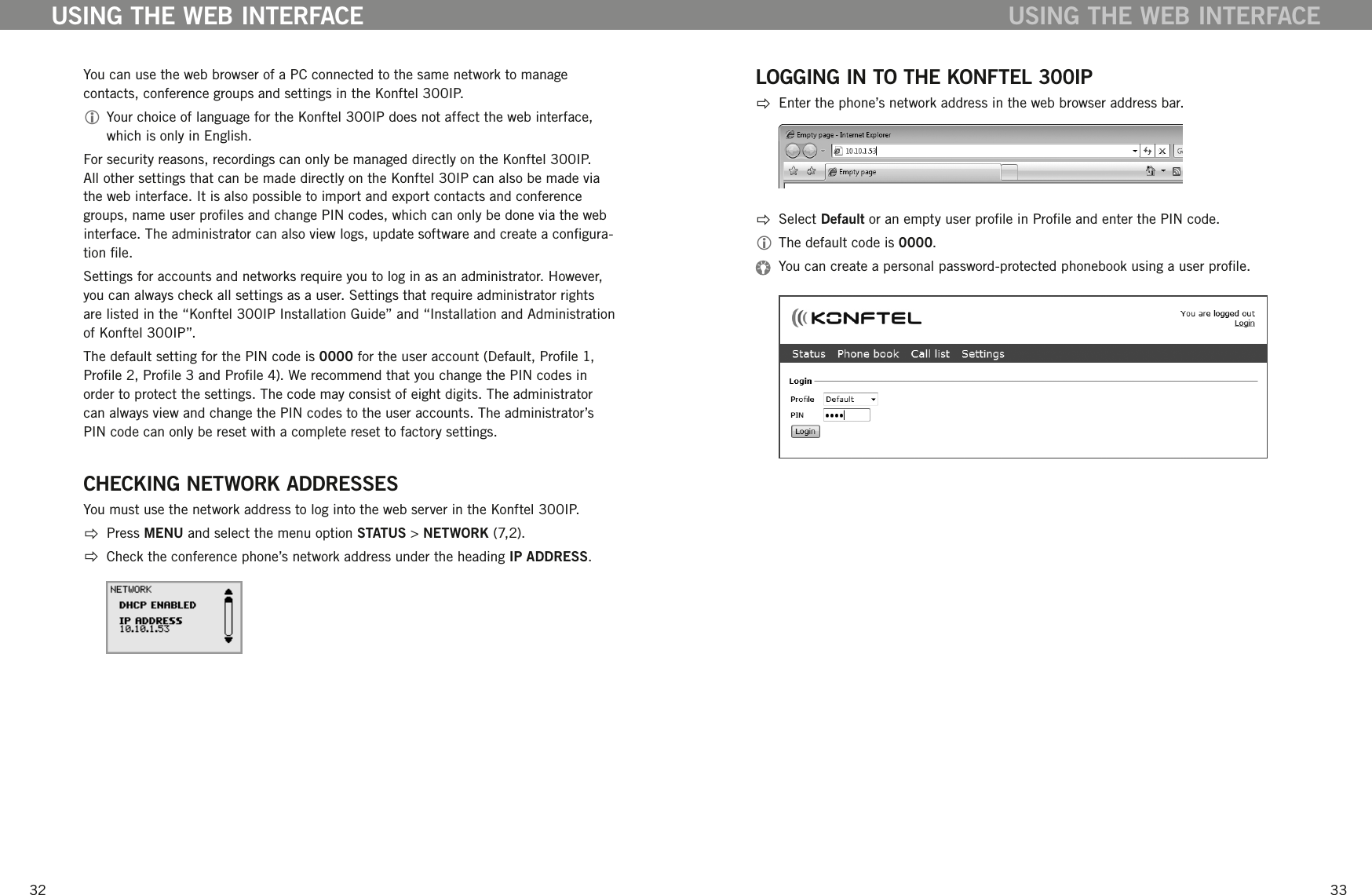
3233You can use the web browser of a PC connected to the same network to manage contacts, conference groups and settings in the Konftel 300IP.  Your choice of language for the Konftel 300IP does not affect the web interface, which is only in English. For security reasons, recordings can only be managed directly on the Konftel 300IP. All other settings that can be made directly on the Konftel 30IP can also be made via the web interface. It is also possible to import and export contacts and conference groups, name user proles and change PIN codes, which can only be done via the web interface. The administrator can also view logs, update software and create a congura-tion le.Settings for accounts and networks require you to log in as an administrator. However, you can always check all settings as a user. Settings that require administrator rights are listed in the “Konftel 300IP Installation Guide” and “Installation and Administration of Konftel 300IP”.The default setting for the PIN code is 0000 for the user account (Default, Prole 1, Prole 2, Prole 3 and Prole 4). We recommend that you change the PIN codes in order to protect the settings. The code may consist of eight digits. The administrator can always view and change the PIN codes to the user accounts. The administrator’s PIN code can only be reset with a complete reset to factory settings. CHECKING NETWORK ADDRESSESYou must use the network address to log into the web server in the Konftel 300IP.  Press MENU and select the menu option STATUS > NETWORK (7,2).  Check the conference phone’s network address under the heading IP ADDRESS.USING THE WEB INTERFACELOGGING IN TO THE KONFTEL 300IP  Enter the phone’s network address in the web browser address bar.  Select Default or an empty user prole in Prole and enter the PIN code.  The default code is 0000.  You can create a personal password-protected phonebook using a user prole. USING THE WEB INTERFACE
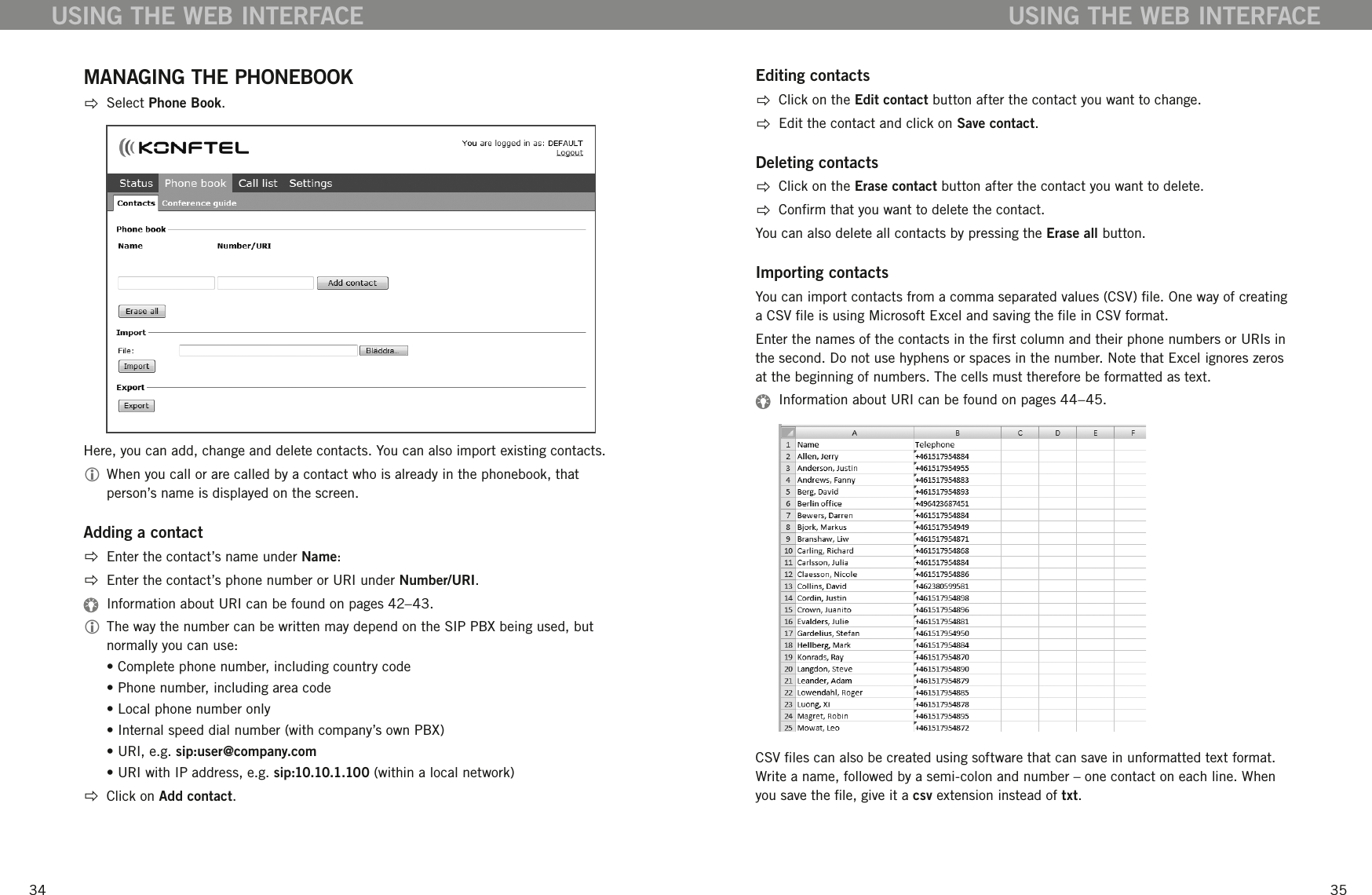
3435MANAGING THE PHONEBOOK  Select Phone Book.Here, you can add, change and delete contacts. You can also import existing contacts.  When you call or are called by a contact who is already in the phonebook, that person’s name is displayed on the screen. Adding a contact  Enter the contact’s name under Name:  Enter the contact’s phone number or URI under Number/URI.  Information about URI can be found on pages 42–43. The way the number can be written may depend on the SIP PBX being used, but normally you can use:• Complete phone number, including country code• Phone number, including area code• Local phone number only• Internal speed dial number (with company’s own PBX)• URI, e.g. sip:user@company.com• URI with IP address, e.g. sip:10.10.1.100 (within a local network)  Click on Add contact.USING THE WEB INTERFACEEditing contacts  Click on the Edit contact button after the contact you want to change.  Edit the contact and click on Save contact. Deleting contacts  Click on the Erase contact button after the contact you want to delete.  Conrm that you want to delete the contact. You can also delete all contacts by pressing the Erase all button. Importing contactsYou can import contacts from a comma separated values (CSV) le. One way of creating a CSV le is using Microsoft Excel and saving the le in CSV format. Enter the names of the contacts in the rst column and their phone numbers or URIs in the second. Do not use hyphens or spaces in the number. Note that Excel ignores zeros at the beginning of numbers. The cells must therefore be formatted as text.   Information about URI can be found on pages 44–45.CSV les can also be created using software that can save in unformatted text format. Write a name, followed by a semi-colon and number – one contact on each line. When you save the le, give it a csv extension instead of txt.USING THE WEB INTERFACE
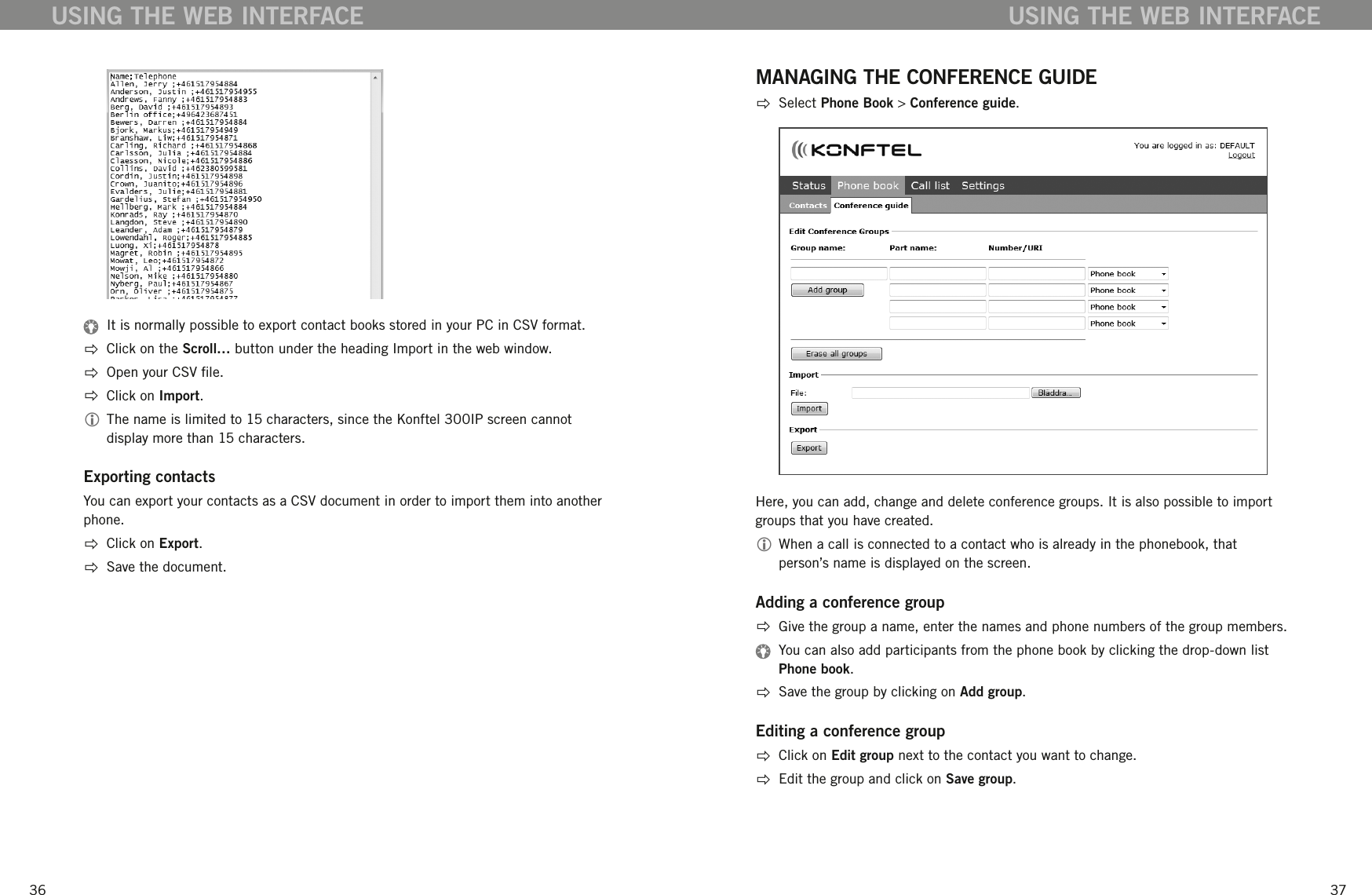
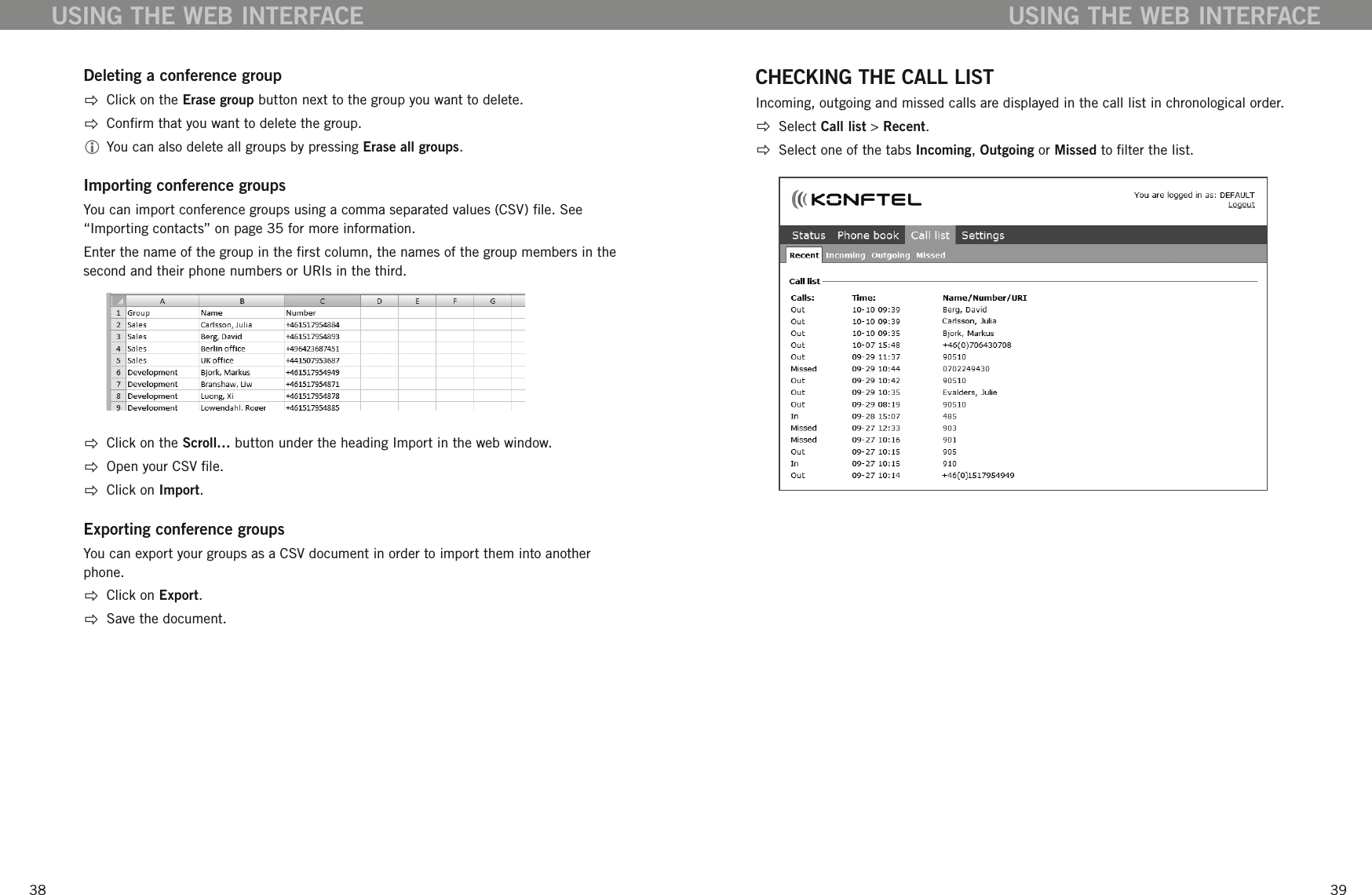
3637  It is normally possible to export contact books stored in your PC in CSV format.   Click on the Scroll… button under the heading Import in the web window.  Open your CSV le.  Click on Import. The name is limited to 15 characters, since the Konftel 300IP screen cannot display more than 15 characters.Exporting contactsYou can export your contacts as a CSV document in order to import them into another phone.  Click on Export.   Save the document.USING THE WEB INTERFACEMANAGING THE CONFERENCE GUIDE  Select Phone Book > Conference guide.Here, you can add, change and delete conference groups. It is also possible to import groups that you have created.  When a call is connected to a contact who is already in the phonebook, that person’s name is displayed on the screen. Adding a conference group  Give the group a name, enter the names and phone numbers of the group members.  You can also add participants from the phone book by clicking the drop-down list Phone book.  Save the group by clicking on Add group. Editing a conference group  Click on Edit group next to the contact you want to change.  Edit the group and click on Save group. USING THE WEB INTERFACE
3839Deleting a conference group  Click on the Erase group button next to the group you want to delete.  Conrm that you want to delete the group.  You can also delete all groups by pressing Erase all groups. Importing conference groupsYou can import conference groups using a comma separated values (CSV) le. See “Importing contacts” on page 35 for more information. Enter the name of the group in the rst column, the names of the group members in the second and their phone numbers or URIs in the third.   Click on the Scroll… button under the heading Import in the web window.  Open your CSV le.  Click on Import.Exporting conference groupsYou can export your groups as a CSV document in order to import them into another phone.  Click on Export.   Save the document.USING THE WEB INTERFACECHECKING THE CALL LISTIncoming, outgoing and missed calls are displayed in the call list in chronological order.   Select Call list > Recent.  Select one of the tabs Incoming, Outgoing or Missed to lter the list. USING THE WEB INTERFACE
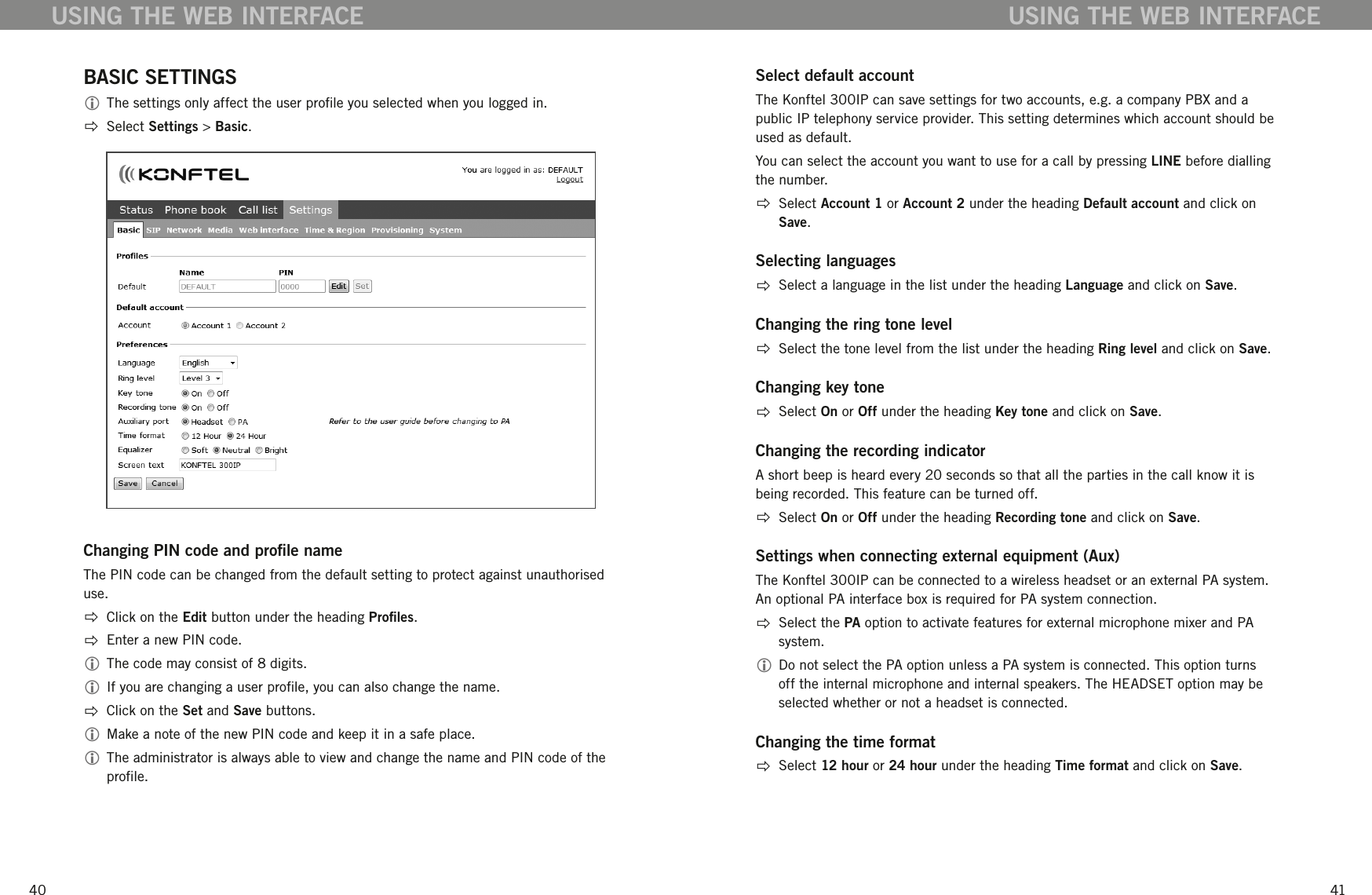
4041BASIC SETTINGS The settings only affect the user prole you selected when you logged in.   Select Settings > Basic.  Select Settings > Basic.Changing PIN code and prole nameThe PIN code can be changed from the default setting to protect against unauthorised use.   Click on the Edit button under the heading Proles.   Enter a new PIN code.  The code may consist of 8 digits. If you are changing a user prole, you can also change the name.   Click on the Set and Save buttons.  Make a note of the new PIN code and keep it in a safe place.  The administrator is always able to view and change the name and PIN code of the prole.USING THE WEB INTERFACESelect default accountThe Konftel 300IP can save settings for two accounts, e.g. a company PBX and a public IP telephony service provider. This setting determines which account should be used as default. You can select the account you want to use for a call by pressing LINE before dialling the number.   Select Account 1 or Account 2 under the heading Default account and click on Save.Selecting languages  Select a language in the list under the heading Language and click on Save.Changing the ring tone level  Select the tone level from the list under the heading Ring level and click on Save.Changing key tone  Select On or Off under the heading Key tone and click on Save.Changing the recording indicatorA short beep is heard every 20 seconds so that all the parties in the call know it is being recorded. This feature can be turned off.  Select On or Off under the heading Recording tone and click on Save.Settings when connecting external equipment (Aux)The Konftel 300IP can be connected to a wireless headset or an external PA system. An optional PA interface box is required for PA system connection.  Select the PA option to activate features for external microphone mixer and PA system.  Do not select the PA option unless a PA system is connected. This option turns off the internal microphone and internal speakers. The HEADSET option may be selected whether or not a headset is connected. Changing the time format  Select 12 hour or 24 hour under the heading Time format and click on Save.USING THE WEB INTERFACE
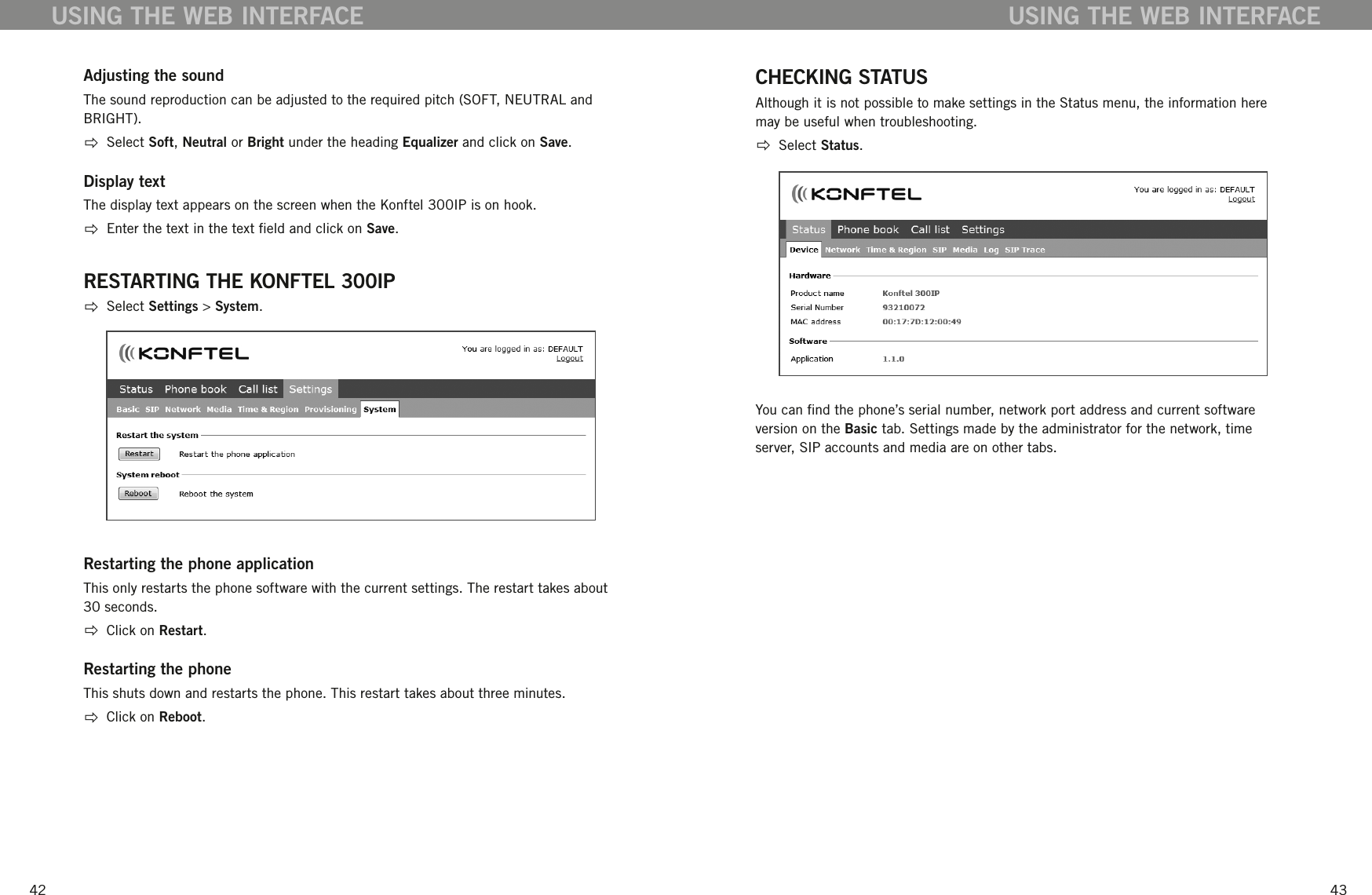
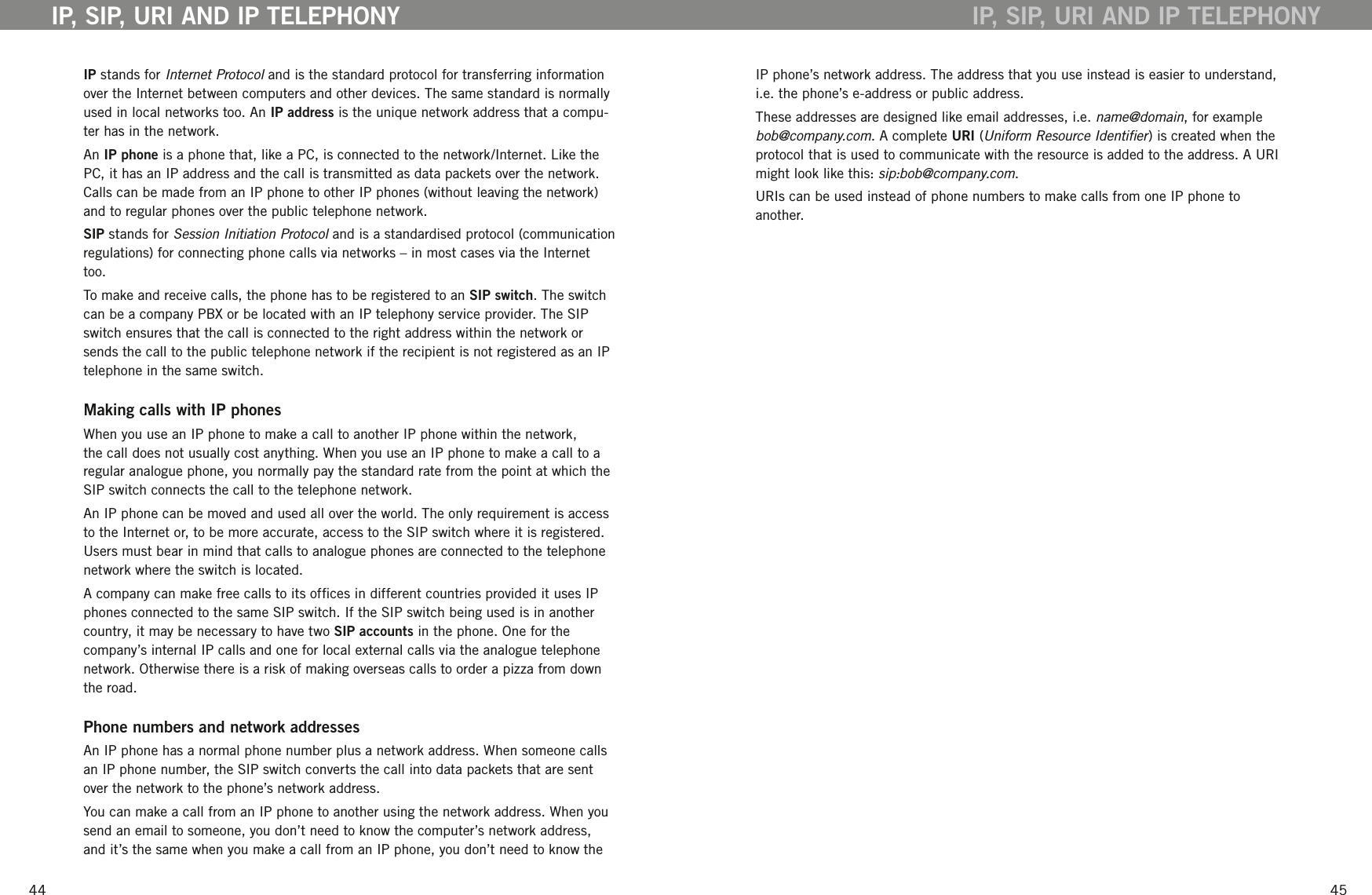
4243Adjusting the soundThe sound reproduction can be adjusted to the required pitch (SOFT, NEUTRAL and BRIGHT).   Select Soft, Neutral or Bright under the heading Equalizer and click on Save.Display textThe display text appears on the screen when the Konftel 300IP is on hook.   Enter the text in the text eld and click on Save.RESTARTING THE KONFTEL 300IP  Select Settings > System.Restarting the phone applicationThis only restarts the phone software with the current settings. The restart takes about 30 seconds.  Click on Restart.Restarting the phoneThis shuts down and restarts the phone. This restart takes about three minutes.   Click on Reboot.USING THE WEB INTERFACECHECKING STATUSAlthough it is not possible to make settings in the Status menu, the information here may be useful when troubleshooting.  Select Status.You can nd the phone’s serial number, network port address and current software version on the Basic tab. Settings made by the administrator for the network, time server, SIP accounts and media are on other tabs. USING THE WEB INTERFACE
4445IP stands for Internet Protocol and is the standard protocol for transferring information over the Internet between computers and other devices. The same standard is normally used in local networks too. An IP address is the unique network address that a compu-ter has in the network. An IP phone is a phone that, like a PC, is connected to the network/Internet. Like the PC, it has an IP address and the call is transmitted as data packets over the network. Calls can be made from an IP phone to other IP phones (without leaving the network) and to regular phones over the public telephone network.  SIP stands for Session Initiation Protocol and is a standardised protocol (communication regulations) for connecting phone calls via networks – in most cases via the Internet too. To make and receive calls, the phone has to be registered to an SIP switch. The switch can be a company PBX or be located with an IP telephony service provider. The SIP switch ensures that the call is connected to the right address within the network or sends the call to the public telephone network if the recipient is not registered as an IP telephone in the same switch. Making calls with IP phonesWhen you use an IP phone to make a call to another IP phone within the network, the call does not usually cost anything. When you use an IP phone to make a call to a regular analogue phone, you normally pay the standard rate from the point at which the SIP switch connects the call to the telephone network. An IP phone can be moved and used all over the world. The only requirement is access to the Internet or, to be more accurate, access to the SIP switch where it is registered. Users must bear in mind that calls to analogue phones are connected to the telephone network where the switch is located. A company can make free calls to its ofces in different countries provided it uses IP phones connected to the same SIP switch. If the SIP switch being used is in another country, it may be necessary to have two SIP accounts in the phone. One for the company’s internal IP calls and one for local external calls via the analogue telephone network. Otherwise there is a risk of making overseas calls to order a pizza from down the road.Phone numbers and network addressesAn IP phone has a normal phone number plus a network address. When someone calls an IP phone number, the SIP switch converts the call into data packets that are sent over the network to the phone’s network address. You can make a call from an IP phone to another using the network address. When you send an email to someone, you don’t need to know the computer’s network address, and it’s the same when you make a call from an IP phone, you don’t need to know the IP, SIP, URI AND IP TELEPHONYIP phone’s network address. The address that you use instead is easier to understand, i.e. the phone’s e-address or public address. These addresses are designed like email addresses, i.e. name@domain, for example bob@company.com. A complete URI (Uniform Resource Identier) is created when the protocol that is used to communicate with the resource is added to the address. A URI might look like this: sip:bob@company.com. URIs can be used instead of phone numbers to make calls from one IP phone to another. IP, SIP, URI AND IP TELEPHONY
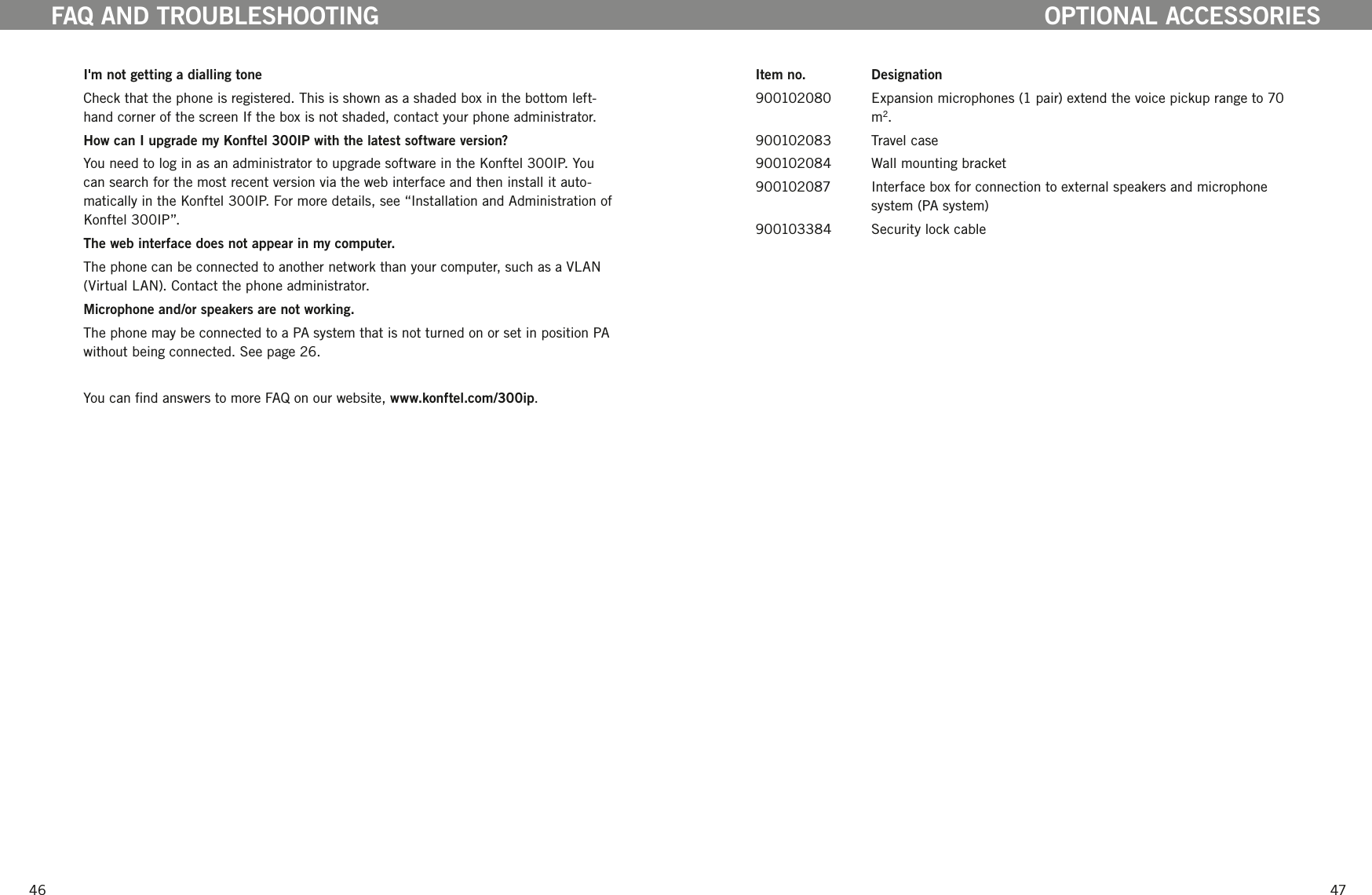
4647I'm not getting a dialling toneCheck that the phone is registered. This is shown as a shaded box in the bottom left-hand corner of the screen If the box is not shaded, contact your phone administrator. How can I upgrade my Konftel 300IP with the latest software version?You need to log in as an administrator to upgrade software in the Konftel 300IP. You can search for the most recent version via the web interface and then install it auto-matically in the Konftel 300IP. For more details, see “Installation and Administration of Konftel 300IP”.The web interface does not appear in my computer. The phone can be connected to another network than your computer, such as a VLAN (Virtual LAN). Contact the phone administrator. Microphone and/or speakers are not working. The phone may be connected to a PA system that is not turned on or set in position PA without being connected. See page 26.You can nd answers to more FAQ on our website, www.konftel.com/300ip.FAQ AND TROUBLESHOOTINGItem no.   Designation900102080  Expansion microphones (1 pair) extend the voice pickup range to 70 m2. 900102083  Travel case900102084  Wall mounting bracket900102087   Interface box for connection to external speakers and microphone system (PA system)900103384   Security lock cableOPTIONAL ACCESSORIES
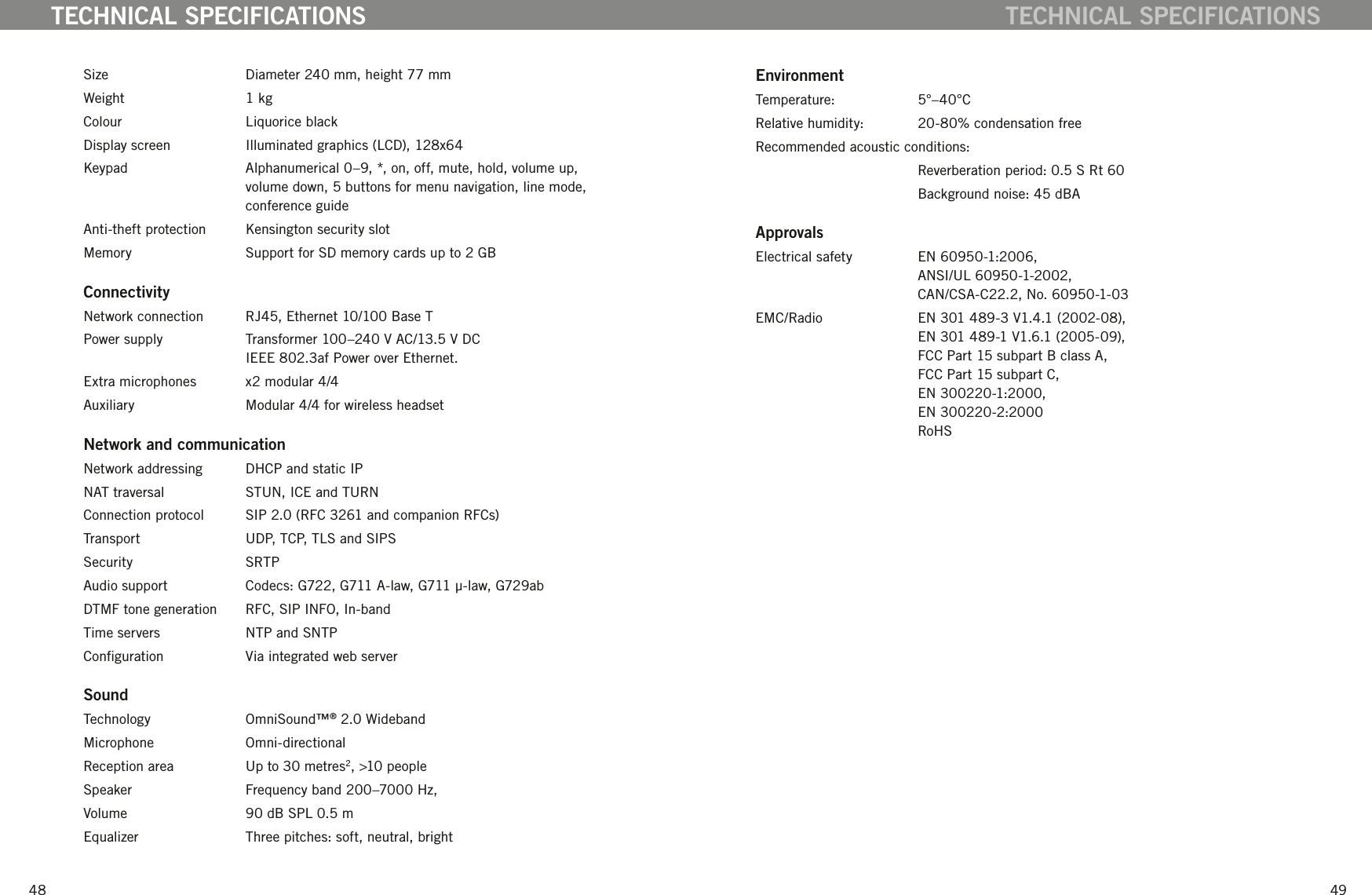
4849Size  Diameter 240 mm, height 77 mmWeight  1 kgColour  Liquorice blackDisplay screen  Illuminated graphics (LCD), 128x64Keypad  Alphanumerical 0–9, *, on, off, mute, hold, volume up, volume down, 5 buttons for menu navigation, line mode, conference guideAnti-theft protection   Kensington security slotMemory  Support for SD memory cards up to 2 GBConnectivityNetwork connection  RJ45, Ethernet 10/100 Base TPower supply  Transformer 100–240 V AC/13.5 V DC IEEE 802.3af Power over Ethernet.Extra microphones  x2 modular 4/4Auxiliary  Modular 4/4 for wireless headsetNetwork and communicationNetwork addressing  DHCP and static IPNAT traversal  STUN, ICE and TURNConnection protocol  SIP 2.0 (RFC 3261 and companion RFCs)Transport  UDP, TCP, TLS and SIPSSecurity  SRTPAudio support  Codecs: G722, G711 A-law, G711 µ-law, G729abDTMF tone generation  RFC, SIP INFO, In-bandTime servers  NTP and SNTPConguration  Via integrated web serverSoundTechnology  OmniSound™® 2.0 WidebandMicrophone  Omni-directionalReception area  Up to 30 metres2, >10 peopleSpeaker  Frequency band 200–7000 Hz, Volume  90 dB SPL 0.5 m Equalizer  Three pitches: soft, neutral, brightTECHNICAL SPECIFICATIONSEnvironmentTemperature:  5°–40°CRelative humidity:  20-80% condensation freeRecommended acoustic conditions:   Reverberation period: 0.5 S Rt 60  Background noise: 45 dBAApprovalsElectrical safety  EN 60950-1:2006,  ANSI/UL 60950-1-2002,  CAN/CSA-C22.2, No. 60950-1-03EMC/Radio  EN 301 489-3 V1.4.1 (2002-08),  EN 301 489-1 V1.6.1 (2005-09),  FCC Part 15 subpart B class A,  FCC Part 15 subpart C,  EN 300220-1:2000,  EN 300220-2:2000  RoHSTECHNICAL SPECIFICATIONS
5051If anything is wrong with your Konftel unit, please contact the place of purchase. GuaranteeWe give a two-year guarantee on our conference telephones. ServiceService is offered after the expiration of the guarantee. Please contact your retailer and ask for a cost estimate.Konftel support If you have any questions about the guarantee and service, please contact your Konftel support centre.Europe: +46(0)90-706 489 (Monday–Friday 8.00–17.00 GMT+1) E-mail: rma@konftel.comUSA and Canada:+1 866-606-4728 (Monday–Friday 08.00–17.00 GMT-8)E-mail: konftel.usa@konftel.comSERVICE AND GUARANTEE
www.konftel.comKonftel is a leading company within loudspeaker communication and audio technology. We develop and sell products and technology for telephone conferences based on cutting-edge expertise within acoustics and digital signal processing. A key attribute of our products is that all the conference telephones  have built-in, high-quality  audio  technology  –  OmniSound®  providing  crystal-clear sound. Read more about Konftel and our products on www.konftel.com.110048-61-001 Rev 2cKonftel AB, Box 268, SE-901 06 Umeå, SwedenPhone: +46 90 706 489   Fax: +46 90 131 435   E-mail: info@konftel.com

Navigation menu