Konftel KTEGO Konftel Ego User Manual

Konftel AB Konftel Ego Users Manual

Users Manual

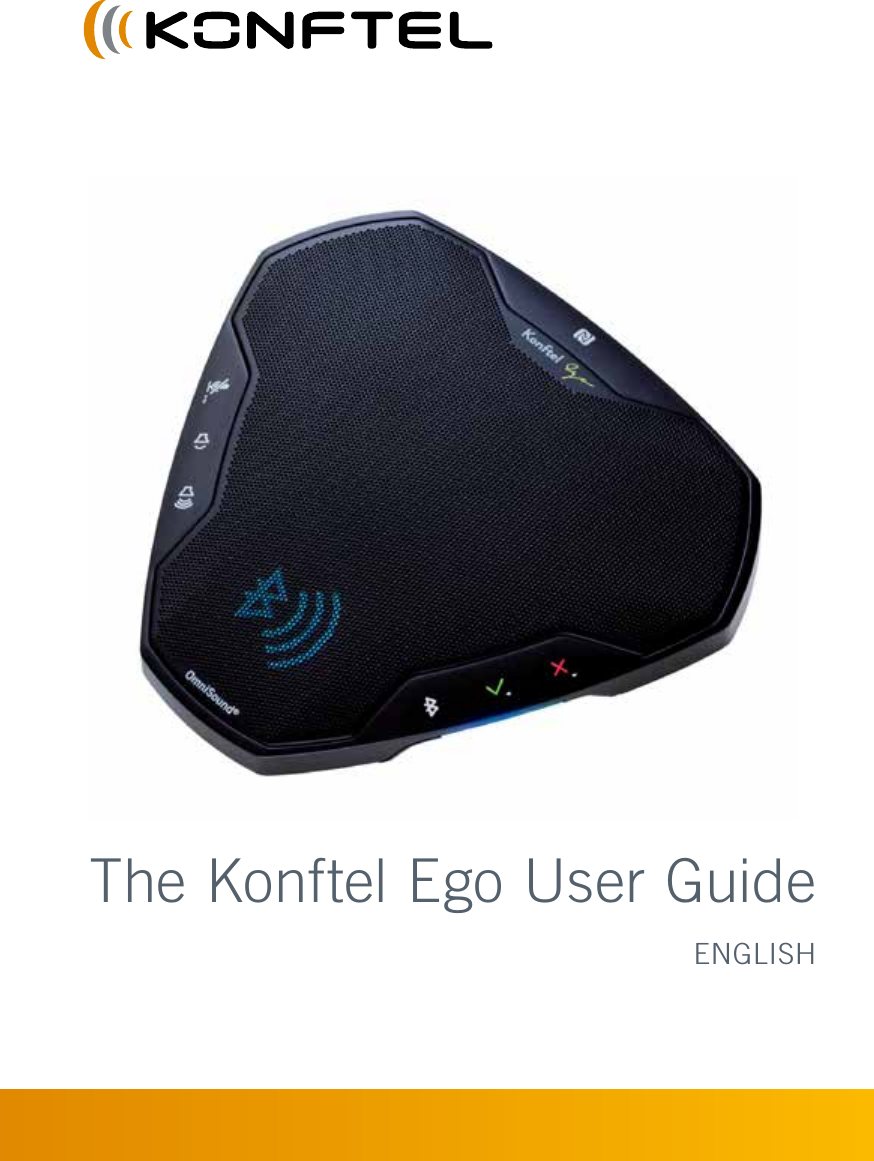
The Konftel Ego User GuideENGLISH
2OmniSound® – superior audio qualityOmniSound®'s patented audio optimisation technology guarantees impressive, crystal-clear, full-duplex audio in both directions for efcient and effective virtual meetings. The sound is powerfully transmitted to all attendees thanks to two hypersensitive microphones with 360° audio pick-up and speakers.OmniSound® delivers HD audio during VoIP calls. It also incorporates automatic echo cancella-tion and noise suppression, which minimises background noise interference, and an equaliser for personal adaptation of the audio properties. You can walk freely around the room, talking, sharing and discussing with others without loss of sound quality and without any annoying audio clipping, mufing or echoes. It's as close to real sound as you can get.Konftel AB hereby declares that this conference phone is in conformity with all the essen-tial requirements and other relevant provisions of Directive 1999/5/EC. Please visit www.konftel.com/doc to view the complete declaration of conformity. Warning!  Do not expose the Konftel Ego to water or moisture. Warning!  Do not open the casing of the Konftel Ego.
1CONTENTSIntroduction 2Maintenance ................................................................................... 2Description 3Connections and buttons .................................................................. 3Information on the LCD display ......................................................... 4Turning off and on ........................................................................... 5Using with a computer  6Connecting to a computer ................................................................. 6Using as a computer speaker (music mode) ........................................ 6Using as a conference unit ............................................................... 7Using with a Bluetooth device  8Pairing and connecting ..................................................................... 8Reconnecting already paired devices ................................................. 9Using as a speaker (music mode) ...................................................... 9Using as a conference unit ............................................................. 10Using a headset  11Settings 12Keypad tone .................................................................................. 12Clearing the list of paired devices .................................................... 12Upgrading software  13Installing Konftel Upgrade Utility .................................................... 13Upgrading software ........................................................................ 13Technical data  14
2The Konftel Ego is a conference unit that can be connected to your mobile phone, tablet and computer to obtain crystal-clear, powerful OmniSound® audio in your virtual meetings. •  OmniSound® audio optimisation technology with full duplex, echo cancellation and static reduction in HD bandwidth. (The bandwidth may be limited by the connection) •  Support for UC applications. Optimised for Skype for Business, but also supports other UC applications such as Avaya Communicator and Cisco Jabber. •  LCD display for easy viewing and use. •  Support for simplied Bluetooth pairing and connection using NFC (near-eld commu-nications). •  Support for Bluetooth A2DP (advanced audio distribution prole) for superior audio quality when playing music. •  USB port for connection to a computer or other compatible USB device. •  Integrated battery makes the Konftel Ego completely cordless with a Bluetooth-connected phone. The battery is charged from a USB port. •  Headset connectivity option allows easy switching between headset and speaker function. •  Upgradeable. •  2-year warranty.MAINTENANCEClean the equipment with a soft, dry cloth. Never use liquids.INTRODUCTION
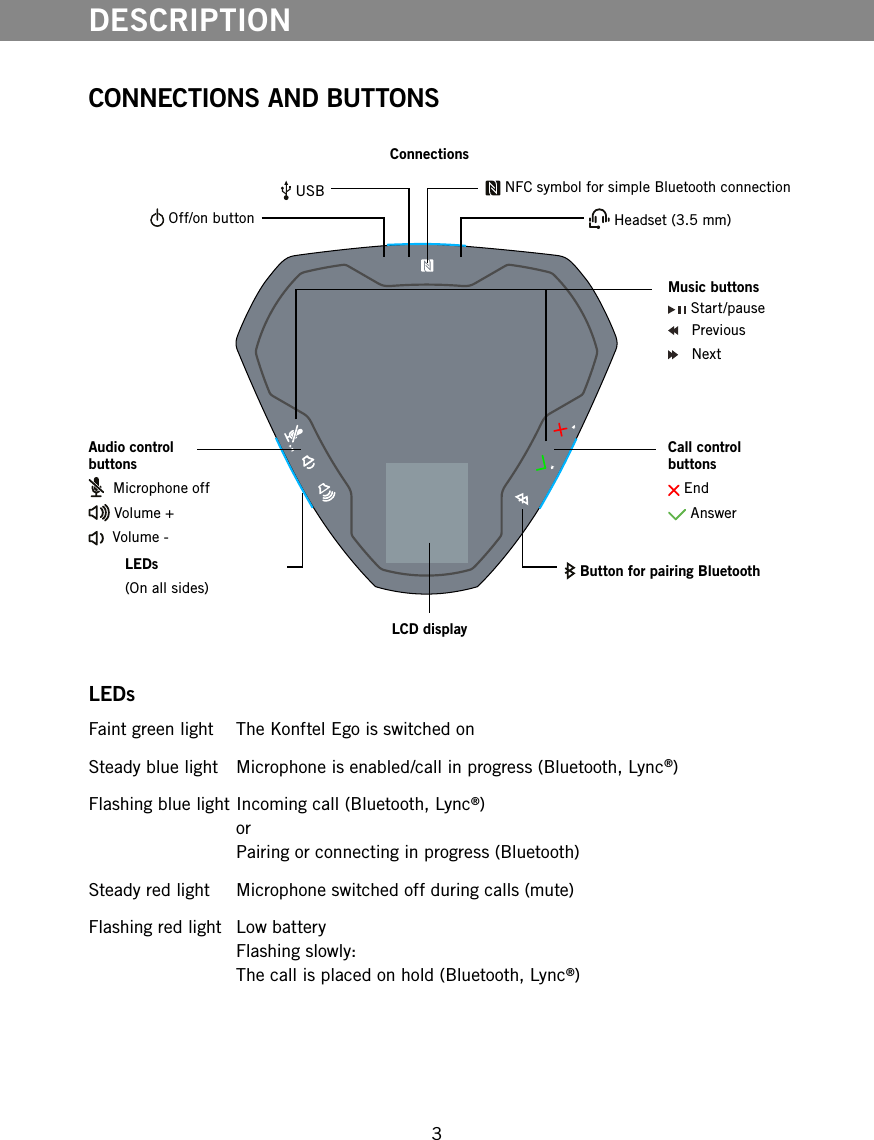
3DESCRIPTIONConnectionsAudio control buttons  Microphone off Volume +  Volume -Call control buttons End AnswerMusic buttons Start/pause   Previous   NextLEDsFaint green light  The Konftel Ego is switched onSteady blue light   Microphone is enabled/call in progress (Bluetooth, Lync®)Flashing blue light  Incoming call (Bluetooth, Lync®) or Pairing or connecting in progress (Bluetooth)Steady red light   Microphone switched off during calls (mute)  Flashing red light  Low battery Flashing slowly: The call is placed on hold (Bluetooth, Lync®) Headset (3.5 mm) Off/on button NFC symbol for simple Bluetooth connection USB Button for pairing BluetoothLEDs(On all sides)LCD displayCONNECTIONS AND BUTTONS
4DESCRIPTIONINFORMATION ON THE LCD DISPLAYThe icons are normally displayed for a couple of seconds on connection.  The same symbol is displayed in red when the connection is broken.   USB device connected   Incoming call or call in progress via USB   Music mode via USB   Lync/Skype for Business connected (via USB)   Incoming call or call in progress via Lync/Skype for Business   Visible for pairing via Bluetooth   Reconnecting to Bluetooth device   Bluetooth device connected   Incoming call or call in progress via Bluetooth   Music mode via Bluetooth   Headset connected   Volume adjustment (number of bars indicates the volume selected)   Microphone switched off (mute)    Battery status Displayed automatically when there is 1 hour remaining and then every 5 minutes. The number of bars in the battery icon indicates the charging status. The battery needs charging when the icon turns red.Manual display of battery status  Quickly press   (off/on).The battery status is displayed on the Konftel Ego.
5TURNING OFF AND ONThe Konftel Ego starts automatically when it is connected with a USB cable to a powered-up computer. The three LEDs show a faint green light to indicate that it is switched on. The battery is simultaneously trickle charged. Hold   (off/on) down for ve seconds to manually switch the Konftel Ego off or on. To save the battery when the unit is not being used and it is not connected via USB, you can switch it off by pressing  .   If the Konftel Ego is connected via USB, it will continue charging even if it is switched off, but at a reduced rate. The Konftel Ego switches off automatically after 3 hours to save the battery unless it is being charged via USB or is connected via Bluetooth. Restart the Konftel Ego by connecting it to a USB port or by pressing   (off/on).DESCRIPTION
6The Konftel Ego transforms your computer into high-quality conferencing equipment with OmniSound®. Unlike normal computer speakers and microphones, the Konftel Ego provides full duplex (two-way audio) and efcient echo cancellation and static reduction. The computer identies the Konftel Ego as an echo cancellation device which means that communication software usually leaves the audio processing to the Konftel Ego, resulting in better sound quality. This can also be manually adjusted, for example in Skype®.  OmniSound® performs over the full audio bandwidth (50–7,000 Hz). However, there may be some factors that limit the sound quality, depending on the equipment in the network and that used by the other call participants.If you are playing music, or some other one-way audio stream, the Konftel Ego switches automatically to music mode so that the sound is not altered by OmniSound®. CONNECTING TO A COMPUTER  Connect the computer to the Konftel Ego with a suitable USB cable.The   icon is displayed on the Konftel Ego. If Lync or Skype for Business is started on the computer, the status icon   is displayed instead. The computer's operating system normally automatically selects the Konftel Ego as a speaker and microphone. If the Konftel Ego is not automatically selected as an audio device in the computer, you may have to access the computer settings and manually select Konftel Ego.  If the computer has active software that is using the computer's built-in speakers, you may need to restart the software to switch to the new speaker (Konftel Ego).USING AS A COMPUTER SPEAKER (MUSIC MODE)The computer normally only activates the speaker in the Konftel Ego if no other software is running that can use the microphone. This means that the Konftel Ego acts as a computer speaker and that the audio processing in OmniSound® is turned off so that the sound is not altered.  When the Konftel Ego is connected via USB, you have to use the computer to control the music. The  ,   and   buttons only work for music via Bluetooth. Adjusting the volume Press   and   to adjust the volume. The volume can also be controlled from the computer.USING WITH A COMPUTER
7USING WITH A COMPUTERUSING AS A CONFERENCE UNITTo make a VoIP call from the computer, use Skype®, Microsoft® Lync®, Skype® for Business, an online meeting service or some other VoIP (Voice over IP) software. The Konftel Ego microphone will be automatically enabled when you start a VOIP call or a recording using audio recording software on the computer. OmniSound® now handles full duplex and echo cancellation. Starting a call  Starting the call from the computer. The LEDs on the Konftel Ego show a steady blue light. Answering incoming calls  Answering a call from the computer. The LEDs on the Konftel Ego show a steady blue light.  If you are using Lync®/Skype® for Business, you can also answer by pressing   on the Konftel Ego.Ending calls  Ending a call from the computer. The LEDs on the Konftel Ego go out.  If you are using Lync®/Skype® for Business, you can also end a call by pressing   on the Konftel Ego.Switching the microphone off during a call (mute) Press   to switch the microphone off temporarily during a call.The LEDs on the Konftel Ego ash red.   Press once more to switch the microphone on again.Holding a call This only works with Lync®/Skype® for Business. Press   to put the call on hold.  Press once again to return to the call.Adjusting the volume during calls Press   and   to adjust the volume.
8The Konftel Ego can be connected to a mobile phone, tablet and computer via Bluetooth. We are using a mobile phone in these examples. Bluetooth must be enabled in the mobile phone's settings.Audio can be transmitted in two different ways via Bluetooth. One is two-way and is optimised for speech. The other (A2DP) has higher audio bandwidth, is one-way and is optimised for music. The Konftel Ego supports both of these. OmniSound® performs over the full audio bandwidth (50–7,000 Hz). However, limitations in the telecommunications networks and in Bluetooth technology reduce the bandwidth somewhat and the sound is compressed. This has an effect on the sound quality.PAIRING AND CONNECTINGTwo devices have to be paired before they can communicate with Bluetooth. You do this in different ways depending on whether your telephone supports simplied pairing via NFC (near-eld communications) or not. A maximum of eight devices can be paired with the Konftel Ego. If another device is then paired, the oldest pairing information is deleted. It is also possible to delete all pairings, see page 12.Pairing and connecting with NFC NFC must be enabled on your mobile phone and the screen unlocked.  Hold the mobile phone next to the NFC symbol   on the Konftel Ego. You might need to move the phone closer then further away from the Konftel Ego to make contact via NFC. The range is only about one centimetre.The mobile phone and the Konftel Ego are paired and connected.Pairing without NFC  Turn Bluetooth on in your mobile phone.This normally makes the phone visible to other Bluetooth devices and even starts a search on some phones. Hold   down for two seconds on the Konftel Ego.This makes the Konftel Ego visible to other Bluetooth devices.  The   icon is displayed and the LEDs ash blue.  Start a search on your mobile phone.  Select the Konftel Ego from the list of devices found and select pairing. (It may take a while for the devices to nd one another.)The devices are paired and usually automatically connect to one another. The   icon is displayed on the Konftel Ego.  After 60 seconds in pairing mode, the Konftel Ego returns to normal mode even if pairing has not been established. USING WITH A BLUETOOTH DEVICE
9RECONNECTING ALREADY PAIRED DEVICESA pairing means that the phone and the Konftel Ego save information about one another. This information is saved, even if the connection is broken.The connection is broken if: •  The devices are far apart (Bluetooth has a range of about 10 metres). •  You turn off Bluetooth in your mobile phone.The next time your mobile phone and the Konftel Ego are within range of one another, you will not need to pair them. Simply connect. Your mobile phone must have Bluetooth switched on.  Press   when the phone is within range.  If you have a call in progress on your mobile phone, it is transferred to the Konftel Ego. Some mobile phones try to connect automatically to a paired handsfree (Konftel Ego) when you make or take a call.USING AS A SPEAKER (MUSIC MODE)The Konftel Ego functions as a powerful speaker for playing music from your mobile phone. If your phone supports A2DP, you'll get the best audio quality. When music is being played, the audio processing feature in OmniSound® is turned off so that the sound is not altered. Adjusting the volume Press   and   to adjust the volume. The volume can also be controlled from the computer.Controlling the music Press  ,  , and   to simply pause, play and skip tracks in the playlist on your  mobile phone. USING WITH A BLUETOOTH DEVICE
10USING AS A CONFERENCE UNITWhen you make or take a call, music mode automatically stops and the Konftel Ego microphone is enabled. OmniSound® now handles full duplex and echo cancellation. Making calls  Dial the number on your mobile phone.The LEDs on the Konftel Ego light up blue and the sound is audible there. On some mobile phones, you can choose to have the sound play through your mobile or headset (Konftel Ego) when you make the call.Answering incoming calls  Answer by pressing   on the Konftel Ego.The LEDs on the Konftel Ego light up blue and the sound is audible there. The call will play through your mobile phone if you take the call there. You can reject the call by pressing   . Transferring a mobile call in progress Press   on the Konftel Ego. The call is transferred between the Konftel Ego and the mobile phone each time you press.Ending calls Press   on the Konftel Ego or end the call from the phone. The blue LEDs on the Konftel Ego go out. Switching the microphone off during a call (mute) Press   to switch the microphone off temporarily during a call.The LEDs on the Konftel Ego ash red.   Press once more to switch the microphone on again.Holding a call Press   to put the call on hold.  Press once again to return to the call.Adjusting the volume during calls Press   and   to adjust the volume.USING WITH A BLUETOOTH DEVICE
11 Warning!  Use of headphones/earbuds at high volumes can damage your hearing.  Connect the headset to the   port on the Konftel Ego.The sound automatically transfers to the headset.  Unplug the headset.The sound automatically transfers to the Konftel Ego speakers.USING A HEADSET
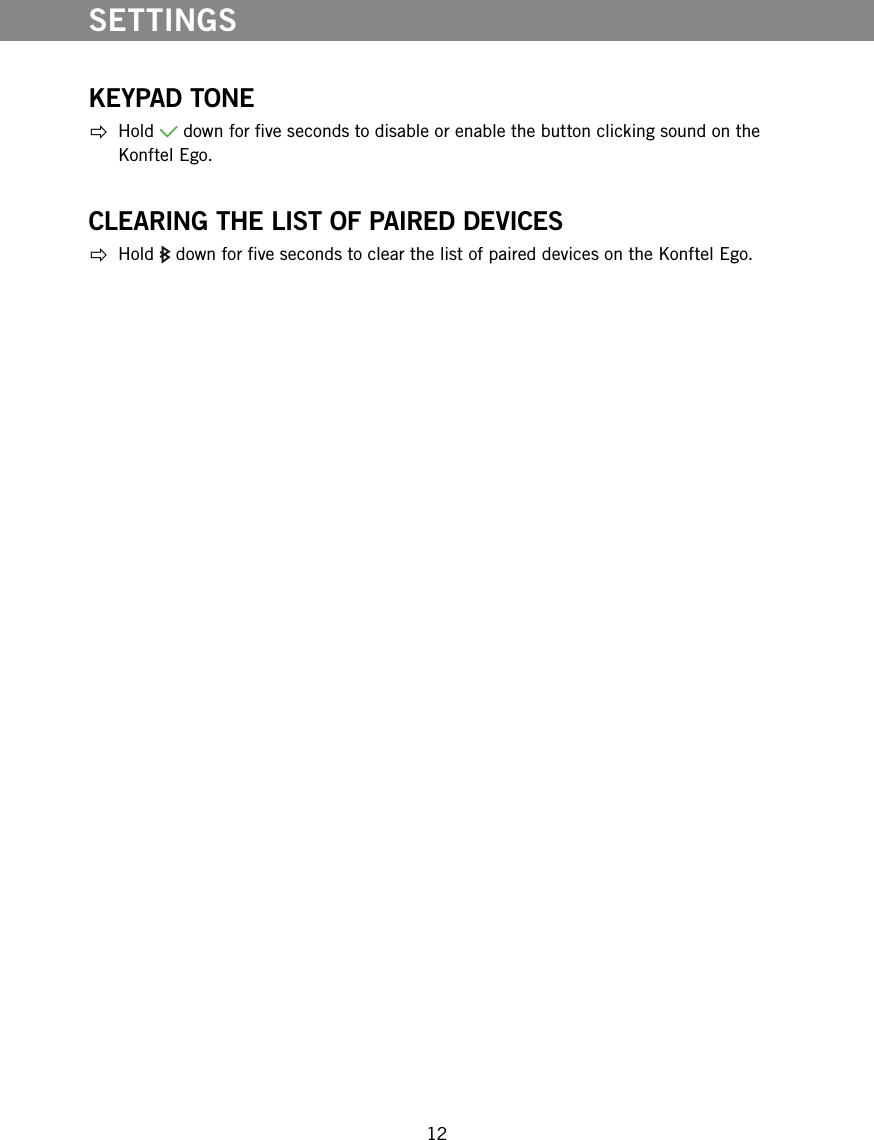
12KEYPAD TONE Hold   down for ve seconds to disable or enable the button clicking sound on the Konftel Ego.CLEARING THE LIST OF PAIRED DEVICES Hold   down for ve seconds to clear the list of paired devices on the Konftel Ego. SETTINGS
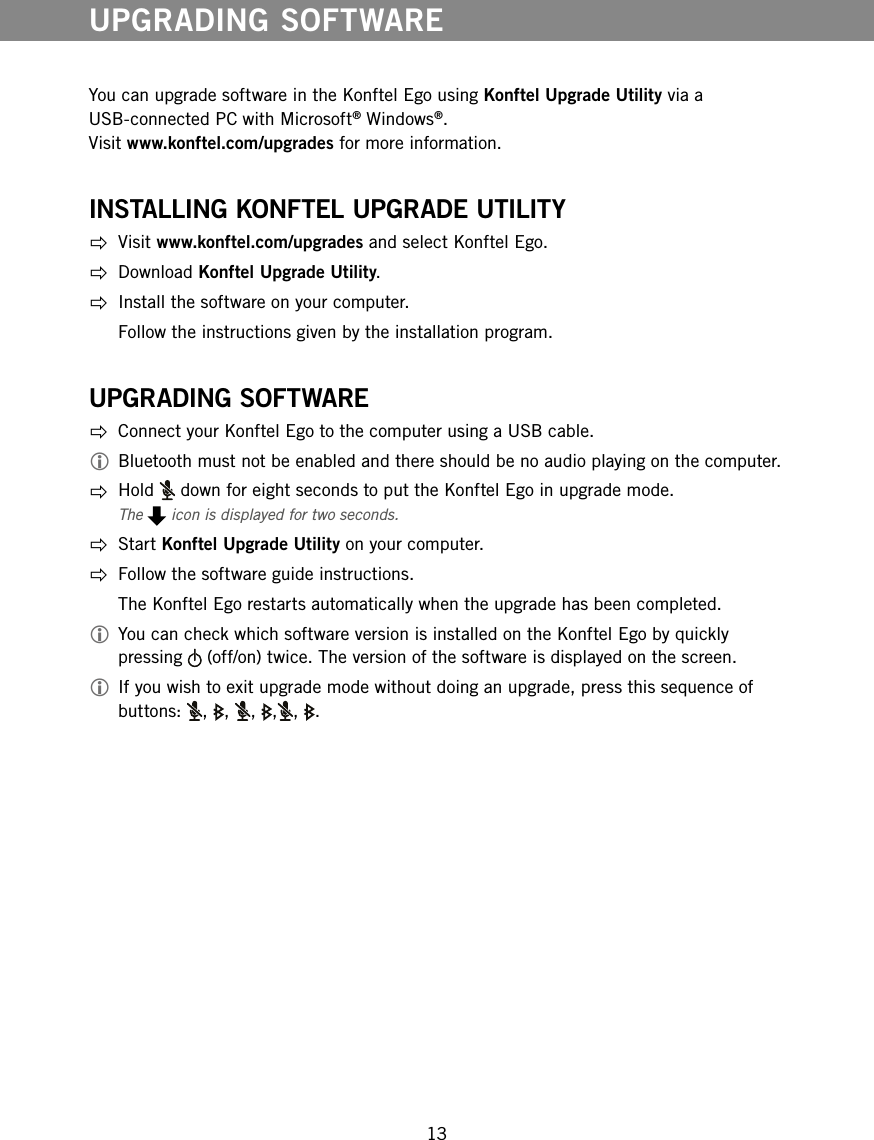
13You can upgrade software in the Konftel Ego using Konftel Upgrade Utility via a USB-connected PC with Microsoft® Windows®.  Visit www.konftel.com/upgrades for more information.INSTALLING KONFTEL UPGRADE UTILITY Visit www.konftel.com/upgrades and select Konftel Ego. Download Konftel Upgrade Utility.  Install the software on your computer.  Follow the instructions given by the installation program.UPGRADING SOFTWARE  Connect your Konftel Ego to the computer using a USB cable. Bluetooth must not be enabled and there should be no audio playing on the computer. Hold   down for eight seconds to put the Konftel Ego in upgrade mode.The   icon is displayed for two seconds. Start Konftel Upgrade Utility on your computer.  Follow the software guide instructions.   The Konftel Ego restarts automatically when the upgrade has been completed. You can check which software version is installed on the Konftel Ego by quickly pressing   (off/on) twice. The version of the software is displayed on the screen. If you wish to exit upgrade mode without doing an upgrade, press this sequence of buttons:  , , , , , .UPGRADING SOFTWARE
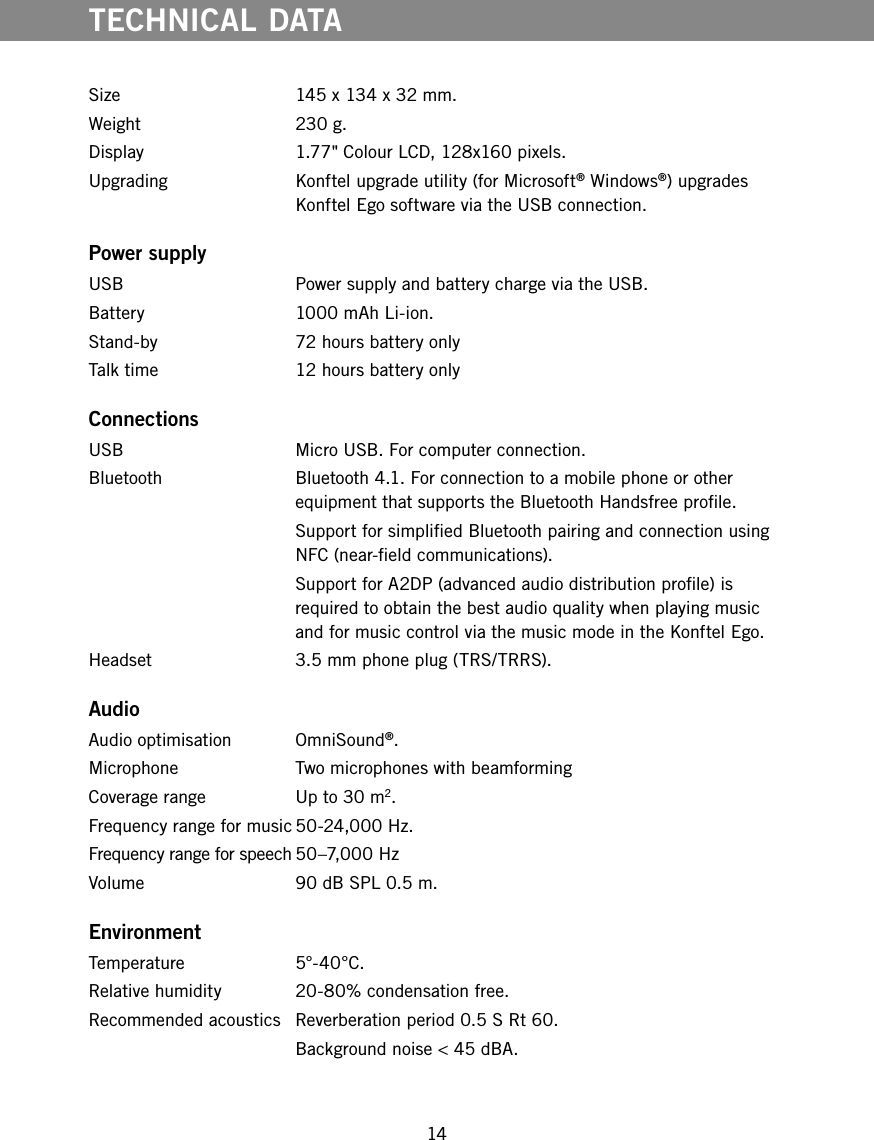
14Size  145 x 134 x 32 mm.Weight  230 g.Display 1.77" Colour LCD, 128x160 pixels.Upgrading  Konftel upgrade utility (for Microsoft® Windows®) upgrades Konftel Ego software via the USB connection. Power supplyUSB  Power supply and battery charge via the USB.Battery   1000 mAh Li-ion.Stand-by  72 hours battery onlyTalk time   12 hours battery onlyConnectionsUSB  Micro USB. For computer connection.Bluetooth  Bluetooth 4.1. For connection to a mobile phone or other equipment that supports the Bluetooth Handsfree prole.  Support for simplied Bluetooth pairing and connection using NFC (near-eld communications).  Support for A2DP (advanced audio distribution prole) is required to obtain the best audio quality when playing music and for music control via the music mode in the Konftel Ego.Headset   3.5 mm phone plug (TRS/TRRS).Audio Audio optimisation  OmniSound®.Microphone  Two microphones with beamformingCoverage range  Up to 30 m2.Frequency range for music 50-24,000 Hz.Frequency range for speech 50–7,000 HzVolume  90 dB SPL 0.5 m. EnvironmentTemperature 5°-40°C.Relative humidity  20-80% condensation free.Recommended acoustics  Reverberation period 0.5 S Rt 60.  Background noise < 45 dBA.TECHNICAL DATA
Konftel is a leading company and a strong brand in the teleconferencing industry.  Since 1988, our mission has been to help people around the world to conduct meetings, regardless of distance. We know from experience that teleconferences are an efcient way to save time, money and contribute to a better environment. Superior audio quality is key to productive meetings which is why we incorporate OmniSound®, our patented audio technology, into all Konftel telephones. Our products are marketed worldwide under the Konftel name via our head ofces in Umeå. Find out more about the company and our products at www.konftel.com.Rev 1AHead ofce: Konftel AB, Box 268, 901 06 Umeå, Sweden Tel: +46 (0)90-70 64 89, Fax: +46 (0)90-13 14 35, info@konftel.com www.konftel.com

Navigation menu