Konica Minolta Ip 711 Users Manual
IP-711 to the manual 14f555c4-83a3-4ab3-ac86-96ee4f3f069b
2014-12-13
: Konica-Minolta Konica-Minolta-Ip-711-Users-Manual-124594 konica-minolta-ip-711-users-manual-124594 konica-minolta pdf
Open the PDF directly: View PDF  .
.
Page Count: 209 [warning: Documents this large are best viewed by clicking the View PDF Link!]
- IP-711
- Contents
- Welcome
- 1. Before Using the Controller
- Setup
- 2. Connecting the Cable
- 3. Settings Required for Local Connection
- 4. Settings Required for Network Printing
- 4.1 Network Connection That Can be Selected in Each of Different Windows OSs
- 4.2 To Make the Settings on the Controller Side
- 4.3 Windows Printing Setting
- 4.4 Settings for Printing through LPR
- 4.5 Settings for Printing using IPP
- 4.6 Print Service Setting in NetWare
- 4.7 Operation Checks after Installation of Driver
- 5. Uninstalling the Driver
- Advanced Operations
- 6. Printing
- 6.1 Device Option Setting
- 6.2 Using Easy Set
- 6.3 Displaying Page Layout and Printer Figure
- 6.4 Effecting N-up Printing
- 6.5 Printing Pages with Watermarks
- 6.6 Effecting Duplex/Booklet Printing
- 6.7 Effecting Staple
- 6.8 Effecting Folding
- 6.9 Effecting Hole Punch
- 6.10 Adding a Cover or Interleaf
- 6.11 Print to Suit the Paper Size
- 6.12 Printing on Paper from Manual Bypass Tray
- 7. Settings and Operations for Scan Functions
- 8. Job Management
- 9. Troubleshooting
- Appendixes
- INDEX
- 6. Printing

IP-711
Print Controller
Read this manual before printing.
Keep readily available for reference.

i
Welcome
This User Manual explains the functions and operations of the printer controller
model IP-711 for the Konica digital color copier Konica 8020/8031. To ensure that
the controller is used correctly, first read this manual carefully and thoroughly; then,
keep it close at hand so you can refer to it whenever it becomes necessary.
The information contained in this manual is subject to change without notice. No
part of the contents of this manual may be reproduced, quoted, or translated into any
language without the permission of Konica.
About This Manual
This manual is divided into two parts: Setup and Advanced Operations.
In Setup, the text is organized to allow the user to perform the procedures in a step-
by-step fashion.
Advanced Operations mainly explains how to use the functions that can be used
when the printer controller is mounted. Read the portions that explain the specific
functions you want to use.
Images and descriptions in this manual may differ from that of the purchased
product depending on the time of shipment.
Naming of Equipment
Different names are used between the printer controller and the copier to identify
the same piece of equipment. Note the following.
Controller Copier
LCT Large Capacity Tray DB-432
Welcome
ii
Precautions for Using the Controller
Heading Precautions
For the U.S.A. Users
FCC Part 15-Radio Frequency Devices
This device complies with Part 15 of the FCC Rules. Operation is subject to the
following two conditions: (1) This device may not cause harmful interference,
and (2) this device must accept any interference received, including interference
that may cause undesired operation.
NOTE
This equipment has been tested and found to comply with the limits for a Class A
digital device, pursuant to Part 15 of the FCC Rules. These limits are designed to
provide reasonable protection against harmful interference when the equipment is
operated in a commercial environment. This equipment generates, uses, and
radiate radio frequency energy and, if not installed and used in accordance with
the instruction manual, may cause harmful interference to radio communications.
Operation of this equipment in a residential area is likely to cause harmful
interference in which case the user will be required to correct the interference at
his own expense.
WARNING
The design and production of this unit conform to FCC regulations, and any
changes or modifications must be registered with the FCC and are subject to FCC
control. Any changes made by purchaser or user without first contacting the
manufacturer will be subject to penalty under FCC regulations.
This device must be used with a shielded parallel cable and a shielded USB cable.
The use of non-shielded cables is likely to result in interference with radio
communications and is prohibited under FCC rules.
Welcome
iii
For Canada Users
Interference-Causing Equipment Standard (ICES-003 Issue 3)
This Class A digital apparatus complies with Canadian ICES-003.
Cet appareil numérique de la classe A est conforme à la norme NMB-003 du
Canada.
For European Users
CE Marking (Declaration of Conformity)
This product complies with the following EU directives:
89/336/EEC, 73/23/EEC and 93/68/EEC directives.
This declaration is valid for the area of the European Union.
This device must be used with a shielded parallel cable, a shielded USB cable and
a shielded Ethernet 10/100 Base-T cable. The use of non-shielded cables is likely
to result in interference with radio communications and is prohibited under EU
directives.
For users in countries subject to Class B regulations
This device must be used with a shielded parallel cable, a shielded USB cable and
a shielded Ethernet 10/100 Base-T cable. The use of non-shielded cables is likely
to result in interference with radio communications and is prohibited under
CISPR 22 rules and local rules.
Welcome
iv
For users in countries not subject to Class B regulations
WARNING
This is a Class A product. In a domestic environment this product may cause
radio interference in which case the user may be required to take adequate
measures.
This device must be used with a shielded parallel cable, a shielded USB cable and
a shielded Ethernet 10/100 Base-T cable. The use of non-shielded cables is likely
to result in interference with radio communications and is prohibited under
CISPR 22 rules and local rules.
Trademark Acknowledgments
Ethernet is a registered trademark of Xerox Corporation.
Microsoft, Windows and Windows NT are either registered trademarks or
trademarks of Microsoft Corporation in the United States and/or other countries.
Novell and NetWare are registered trademarks of Novell Inc., U.S.A.
LaserJet and PCL5c are registered trademarks of Hewlett-Packard Company,
U.S.A.
All other product and brand names are trademarks or registered trademarks of their
respective companies or organizations.
This product uses NEST Office SDK of Novell, Inc.
Copyright © 1999 Novell, Inc. NEST is a trademark of Novell, Inc. in the United
States and other countries.
This product uses Software Developer Kit of Peerless Systems Corporation.
Copyright © 2001 Peerless Systems Corporation. All rights reserved.

Welcome
v
Product Overview
The IP-711 controller is optional equipment used for adding printer, scanner and
network functions to the Konica 8020/8031 copier. Mounting the controller on the
Konica 8020/8031 will allow the following functions to be used:
•Print functions effected through PCL5c
•Supporting TCP/IP, NetBEUI, and IPX/SPX network protocols.
•Direct printing functions over the network using Windows Printing, LPR, IPP, and
others.
•Function to transfer and/or notify scanned image over the network.
•Fax functions using the Internet (Internet Fax)
•Setting the copier and printer controller from a client PC over the network by
means of an HTTP server (using a Web browser)

vi
Contents
Welcome
About This Manual .......................................................... i
Naming of Equipment ...................................................... i
Precautions for Using the Controller ............................... ii
Heading Precautions .................................................. ii
Trademark Acknowledgments................................... iv
Product Overview ............................................................ v
1. Before Using the Controller
1.1 Operating Environment ............................................. 1
Setup 2. Connecting the Cable
2.1 Connector Locations ................................................. 5
3. Settings Required for Local Connection
3.1 Installing the Printer Driver ...................................... 7
For Windows 98, 98SE and Me:................................ 7
For Windows 2000, NT 4.0, and XP: ........................ 11
Installation through Plug and Play............................. 15
Local Interface Setting............................................... 16
4. Settings Required for Network Printing
4.1 Network Connection That Can be Selected
in Each of Different Windows OSs 17
4.2 To Make the Settings on the Controller Side ............ 18
IP Address Setting ..................................................... 18
4.3 Windows Printing Setting ......................................... 20
Settings made on the controller side.......................... 20
Settings made on the Printer Driver side ................... 21
4.4 Settings for Printing through LPR ............................ 22
Settings made on the controller side.......................... 22
Settings made on the Printer Driver side ................... 22
4.5 Settings for Printing using IPP .................................. 23
Settings made on the controller side.......................... 23
Settings made on the Printer Driver side ................... 25
4.6 Print Service Setting in NetWare .............................. 26
4.7 Operation Checks after Installation of Driver ........... 39
Test Printing from Client PC ..................................... 39
5. Uninstalling the Driver
5.1 Uninstalling the Driver ............................................. 41

Contents
vii
Advanced Operations
6. Printing
6.1 Device Option Setting ............................................... 47
6.2 Using Easy Set .......................................................... 47
6.3 Displaying Page Layout and Printer Figure .............. 48
6.4 Effecting N-up Printing ............................................ 49
6.5 Printing Pages with Watermarks ............................... 50
6.6 Effecting Duplex/Booklet Printing ........................... 54
6.7 Effecting Staple ......................................................... 55
6.8 Effecting Folding ...................................................... 56
6.9 Effecting Hole Punch ................................................ 57
6.10Adding a Cover or Interleaf ...................................... 58
6.11Print to Suit the Paper Size ....................................... 59
6.12Printing on Paper from Manual Bypass Tray ........... 60
7. Settings and Operations for Scan Functions
7.1 Scan Settings (Basic Settings) .................................. 62
URL Notification....................................................... 63
Selectable File Format for Scanning.......................... 63
7.2 Scan to PC ................................................................. 64
Setting the FTP Application ...................................... 65
Scan Operation........................................................... 66
Details of Scan Operation Settings............................ 67
7.3 Scan to FTP Server ................................................... 69
Controller Setting....................................................... 70
Setting the Proxy Server ............................................ 73
Scan Operation........................................................... 74
Details of Scan Operation Settings............................ 75
7.4 Scan to HDD ............................................................. 77
Creating a HDD Directories ...................................... 78
Scan Operation........................................................... 80
Details of Scan Operation Settings............................ 81
Downloading Scanned Data from the Hard Disk ...... 83
7.5 Scan to E-mail ........................................................... 86
Controller Setting....................................................... 87
Scan Operation........................................................... 90
Details of Scan Operation Settings............................ 92
7.6 Internet Fax ............................................................... 94
Controller Setting....................................................... 96
Setting the Internet FAX Options.............................. 98
Scanning Operation for Internet Fax Transmission... 100
Details of Scan Operation Settings............................ 102

Contents
viii
Internet Fax Reception............................................... 105
7.7 The Operation of Capturing Images by TWAIN ...... 106
Installing the TWAIN Driver..................................... 106
Controller Setting....................................................... 106
Capturing Images by TWAIN.................................... 107
7.8 Advance Registration of Destinations ...................... 110
One-Touch Key Registration..................................... 110
One Time Registration............................................... 115
8. Job Management
8.1 Print Job Management .............................................. 121
Specifying Operation for Job..................................... 121
Identifying a Print Job by Name................................ 121
Transmitting a Print Job to a Copier in Which
the Copy Track Function is Active............................ 122
Printing Pages with a Distribution Number............... 123
Lock Job..................................................................... 123
Proof and Print........................................................... 124
Store to HDD ............................................................. 124
Store to Memory........................................................ 125
8.2 Job Operations on Network Management Utility
Light .......................................................................... 126
Print job list................................................................ 126
Scanner job list........................................................... 127
Print job history ......................................................... 128
Scanner job history .................................................... 129
9. Troubleshooting
9.1 Unable to Print .......................................................... 131
9.2 Unable to Make Correct Settings /
Unable to Print Exactly as Set .................................. 133
Appendixes
A. Product Information............................................. 137
B. How to Use Network Management Utility Light. 138
C. Incompatible Function Combinations................... 194
INDEX
INDEX ............................................................................. 197
1
1. Before Using the Controller
1.1 Operating Environment
Operating Environment
The printer controller operates under the following environment.
Accessories
PCL5c Printer Driver CD-ROM 1 sheet
•The PCL5c Printer Driver CD-ROM contains the following:
· Printer Driver (for Windows 98/98SE/Me, Windows NT4.0, and Windows
2000/XP)
·TWAIN Driver
· USB Device Driver
· Font Manager
· User Manual (this manual: PDF file)
· Latest information (Readme.txt)
■Password for the Administrator Mode
A password is necessary to enter the “Administrator Mode.”
For the password, ask the administrator of your copier.
OS Windows 98, Windows 98SE, Windows Me, Windows NT 4.0,
Windows 2000, Windows XP
PC IBM PC or compatatible
Direct
Connection
USB (version 1.1)
IEEE1284 (Compatible/Nibble/ECP)
Network
Environment Connection scheme Ethernet 10Base-T, 100Base-TX
Protocol TCP/IP
IPX/SPX (NetWare 3.2 or later, 4x, 5x)
NetBEUI
Software Microsoft Internet Explorer version 5.5 (Java-compliant) or
later.
Netscape Communicator version 4.5 (Java-compliant) or later

1. Before Using the Controller
2

3
Setup

4
5
2. Connecting the Cable
Make the cable connection between the PC and the controller by using the
appropriate cable for the specific connection scheme used.
If the copier is to be used in stand-alone environment, use the IEEE1284
(Centronics) or USB cable. If the copier is used in network environment, use the
network cable.
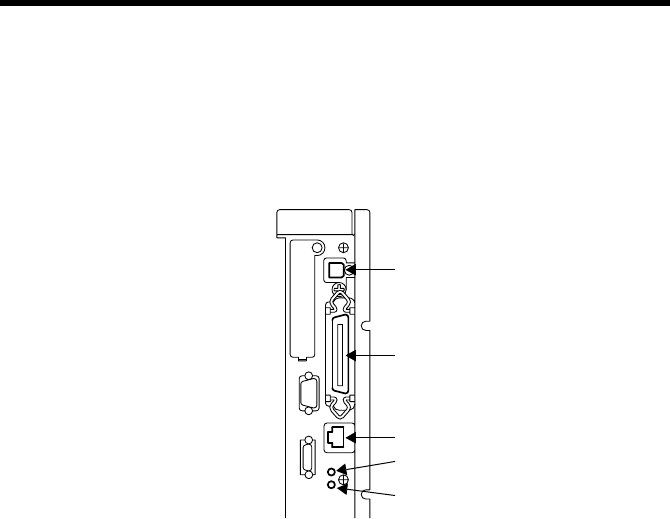
2.1 Connector Locations
(1) USB
(2) IEEE1284 (Centronics)
(3) Network
■Connecting the Network Cable
1. Use the cable that complies with the 10Base-T or 100Base-TX standard.
Use Category 5 or 5E cables for the network cable.
2. When the cable is connected to the connector, LED1 turns ON.
[Description of the LEDs]
LED1: LINK = Lights if the network connection is established.
LED2: ACT = Blinks depending on the data reception status.
4334O034AA
(1)
(2)
(3)
LED1
LED2

2. Connecting the Cable
6
7
3. Settings Required for Local Connection
To make a local connection between the PC and printer controller, make the settings
by following the procedures given below.
3.1 Installing the Printer Driver
For Windows 98, 98SE and Me:
The following procedure applies to the installation of the printer driver for Windows
98.
NOTE
To connect the copier to a PC, in which Windows 98, 98SE, or Me is installed,
through the USB, it is necessary that the USB device driver be installed in the
PC.
For the procedure to install the USB device driver, see “Installing through Plug
and Play” and “Connecting the USB Cable.” ☞p.15
1. Click the “Start” button and, from the menu that will then appear, select
“Settings” – “Printers.”
2. The Printers window will appear.
Double-click the “Add Printer” icon in the window.
3. The “Add Printer Wizard” will start.
Click the “Next>” button.
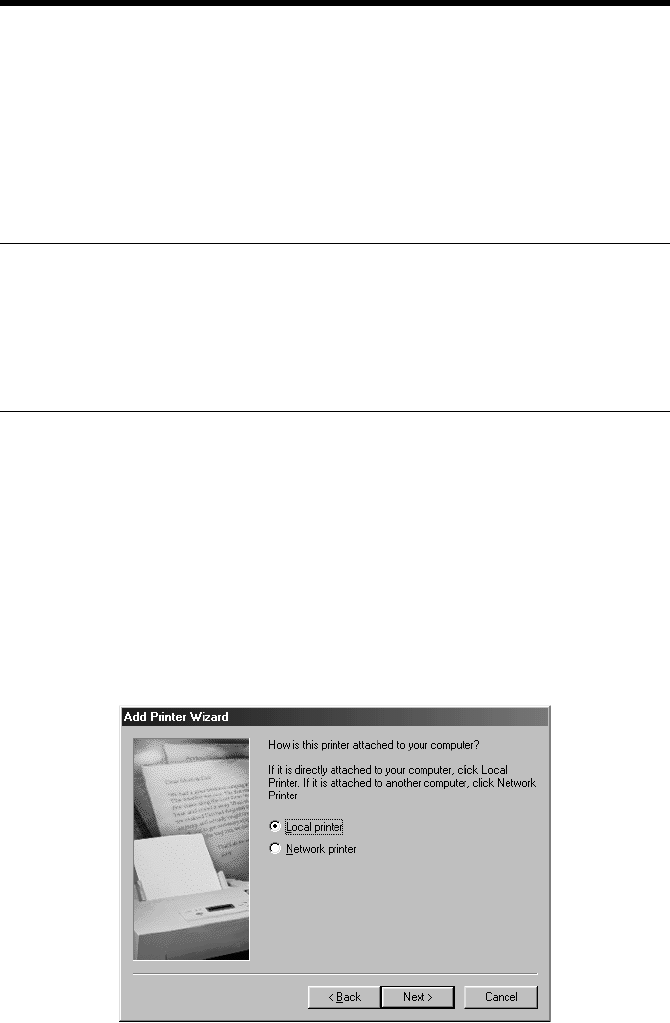
4. A window will appear, asking how the printer is to be connected.
Select “Local printer” and then click the “Next>” button.
4668P004CA
3. Settings Required for Local Connection
8
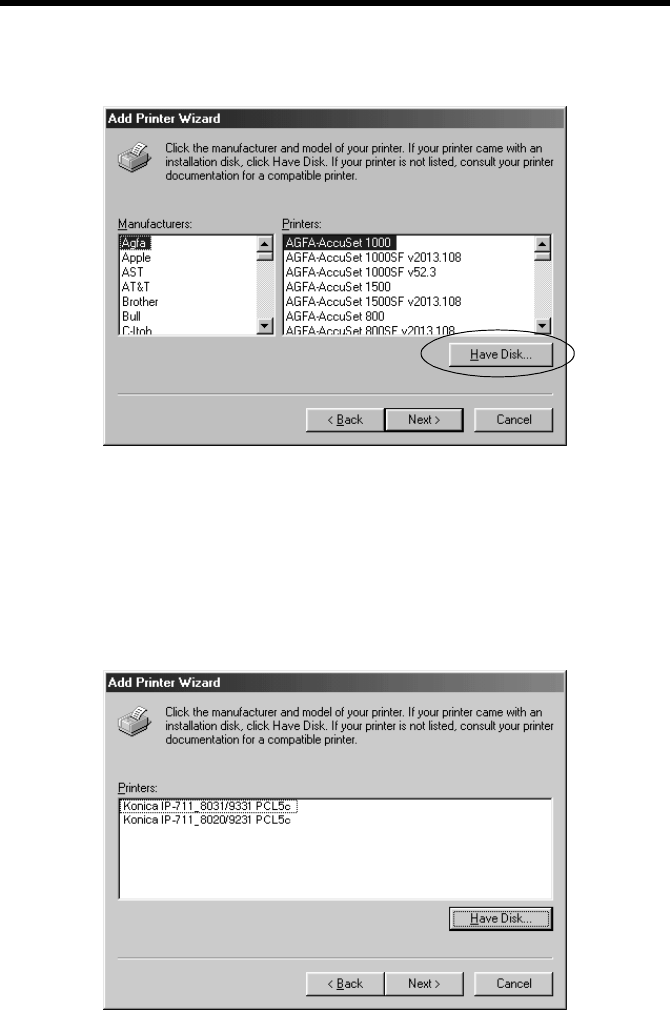
5. A window will appear, prompting you to select the manufacturer and model of
your printer.
Click the “Have Disk..” button on the lower right part of the screen.
6. The “Install From Disk” dialog box will appear.
Insert the Printer Driver CD-ROM, which comes with the controller, in the CD-
ROM drive of your PC.
7. Specify the storage of the printer driver for Windows 98/98SE/Me in the CD-
ROM to the “Copy manufacturer’s files from:” box, then click the “OK” button.
8. A “Printers” list will appear.
Select the printer driver to be installed and click the “Next>” button.
4668P005CA
k4334P158CA
3. Settings Required for Local Connection
9
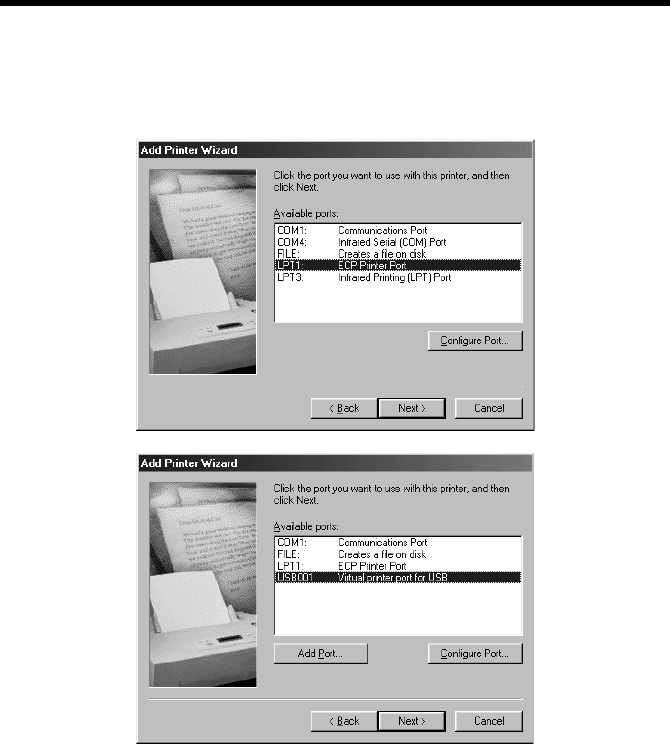
9. A window that prompts you to select the port will appear.
Select “EPUSB1” if the connection is made through the USB cable and “LPT1”
if the connection is made through the IEEE1284 cable. Then, click the “Next>”
button.
10. A window that asks you to confirm the printer name will appear.
Check the printer name.
“Konica IP-711_8031/9331 PCL5c” or “Konica IP-711_8020/9231 PCL5c”
If you want to designate this printer as the default printer, select “Yes.”
Click the “Next>” button.
11. A screen that allows you to select printing of a test page will appear.
If you want to print a test page, select “Yes.”
4668P009CA
4334P227CA
3. Settings Required for Local Connection
10
12. Installation will complete.
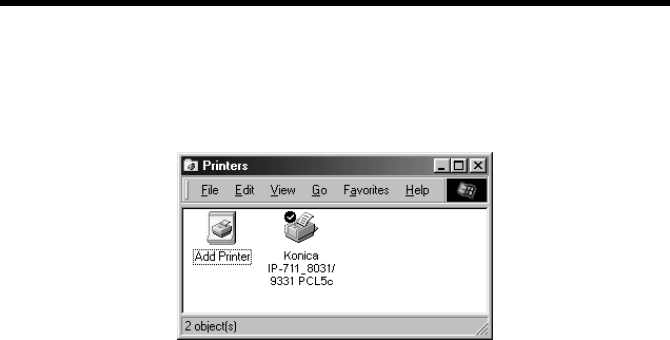
When all the files have been copied from the CD-ROM, the corresponding icon will
be added to the “Printers” window.
This completes the installation.
k4334P159CA
3. Settings Required for Local Connection
11
For Windows 2000, NT 4.0, and XP:
The following procedure applies to the installation of the printer driver for Windows
2000. Note that different names are used for the Windows NT users and different
contents of displays are given for the Windows XP users.
1. Click the “Start” button and, from the menu that will then appear, select
“Settings” – “Printers.”
2. The Printers window will appear.
Double-click the “Add Printer” icon in the window.
3. The “Add Printer Wizard” will start.
Click the “Next>” button.
4. A screen that allows you to select the type of connection made of the printer will
appear.
Select “Local printer” and then click the “Next>” button.
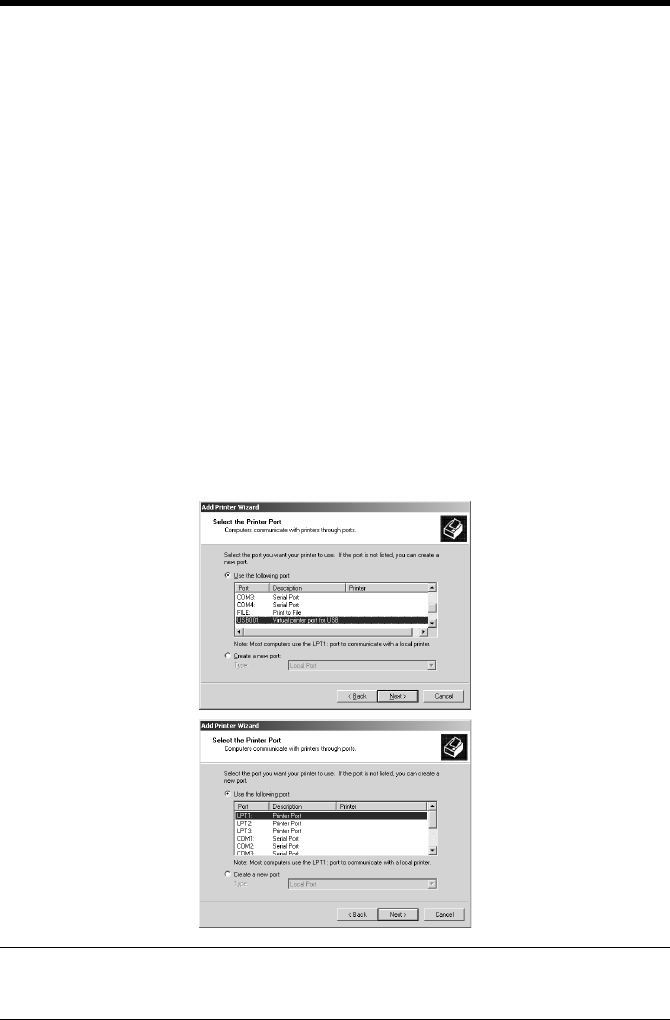
5. A window that prompts you to select the port will appear.
Select “USB001” if the connection is made through the USB cable and “LPT1”
if the connection is made through the IEEE1284 cable. Then, click the “Next>”
button.
NOTE
Windows NT 4.0 does not support USB.
4668P021CA
4334P228CA
3. Settings Required for Local Connection
12
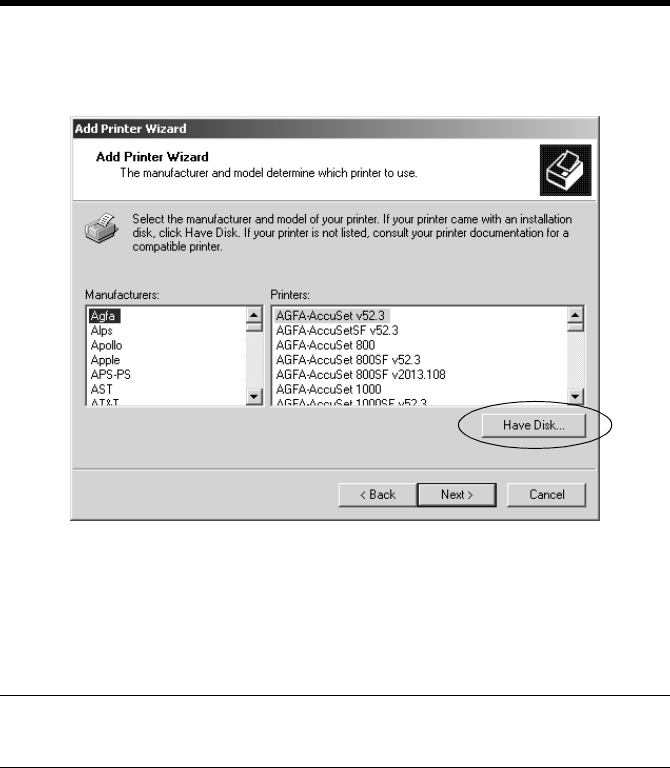
6. A window will appear, prompting you to select the manufacturer and model of
your printer.
Click the “Have Disk..” button on the lower right part of the screen.
7. The “Install From Disk” dialog box will appear.
Insert the Printer Driver CD-ROM, which comes with the printer controller, in
the CD-ROM drive of your PC.
8. Specify the storage of the printer driver for Windows NT or 2000 in the CD-
ROM to the “Copy manufacturer’s files from:” box, then click the “OK” button.
MEMO
For Windows XP users, use the printer driver for Windows 2000.
4668P022CA
3. Settings Required for Local Connection
13
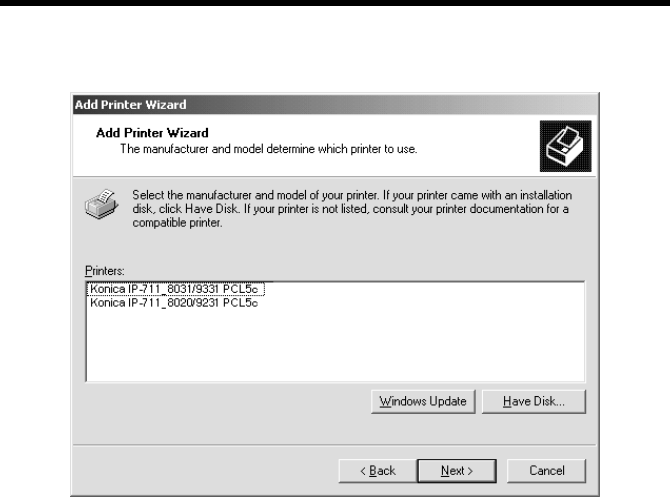
9. A “Printers” list will appear.
Select the printer driver to be installed and click the “Next>” button.
10. A window that asks you to confirm the printer name will appear.
Check the printer name.
“Konica IP-711_8031/9331 PCL5c ” or “Konica IP-711_8020/9231 PCL5c ”
If you want to designate this printer as the default printer, select “Yes.”
Click the “Next>” button.
11. A screen that allows you to select whether to share the printer or not.
If you share the printer with other users, select “Shared” and type the share
name in the box to the right of “Share Name.”
If not, select “Do not share this printer” and then click the “Next>” button.
12. A screen that allows you to select printing of a test page will appear.
If you want to print a test page, select “Yes.”
k4334P161CA
3. Settings Required for Local Connection
14
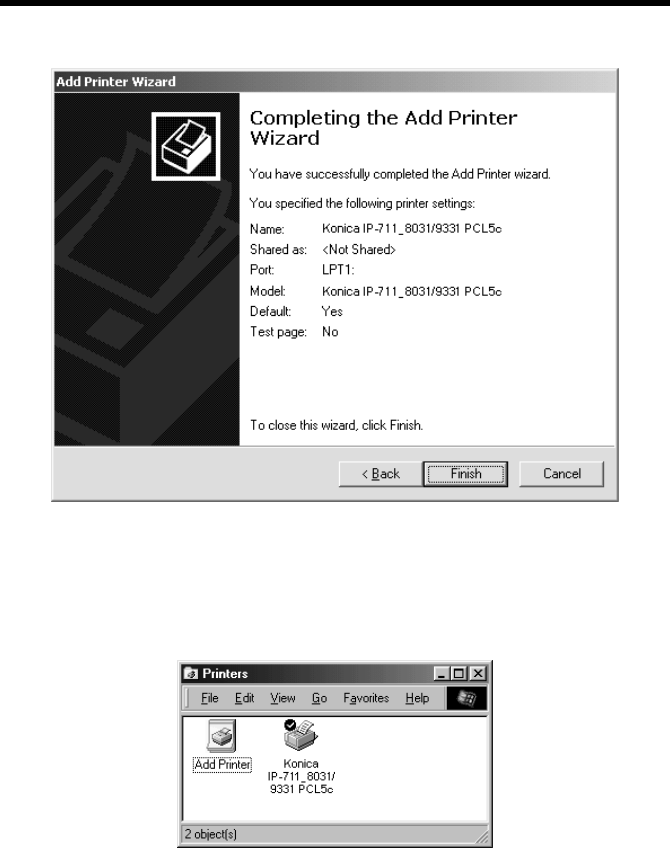
13. As the last step, click the “Finish” button.
14. Installation will complete.
When all the files have been copied from the CD-ROM, the corresponding icon will
be added to the “Printers” window.
This completes the installation.
k4334P162CA
k4334P159CA

3. Settings Required for Local Connection
15
Installation through Plug and Play
If the local connection (IEEE1284 or USB) is made between the PC and the copier,
the printer driver can be installed through the “Plug and Play” function.
For details of how to install the printer driver, see “3. Setting Required for Local
Connection.” ☞p.7
NOTE
Windows NT 4.0 does not support “Plug and Play.”
■Connecting the IEEE1284 (Centronics) Cable
1. Make the connection after the copier and PC have been turned OFF.
2. Plug one end of the cable into the printer controller and fix the lock springs on
both sides of the connector.
3. Connect the other end of the cable to the PC.
4. The copier and PC are turned ON in that order.
Windows is started, the installation guide for the printer driver through Plug and
Play is automatically started on the PC.
5. Install the printer driver according as instructed by the “Add New Hardware
Wizard.”
■Connecting the USB Cable
•Windows 98, 98SE and Me:
Following the instructions given in the “Add New Hardware Wizard” that will be
automatically started through Plug and Play, install the USB device driver and then
install the printer driver.
1. Connect the USB cable to the copier and PC with the Power Switch ON.
2. The installation of the printer driver through Plug and Play is automatically
started on the PC.
3. Install the USB device driver according as instructed by the “Add New
Hardware Wizard.”
NOTE
The USB device driver is stored in the printer driver CD-ROM.
4. Following the instructions given in the “Add New Hardware Wizard” that will
automatically appear after the USB device driver has been installed, install the
printer driver.
3. Settings Required for Local Connection
16
•Windows 2000 and XP:
1. Connect the USB cable to the copier and PC with the Power Switch ON.
2. The installation of the printer driver through Plug and Play is automatically
started on the PC.
3. Install the printer driver according as instructed by the “Add New Hardware
Wizard.”
NOTE
Windows NT 4.0 does not support USB.
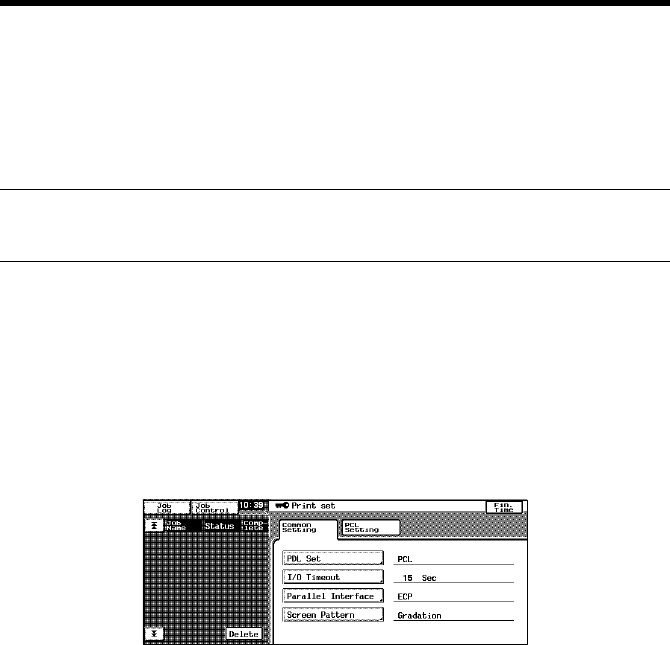
Local Interface Setting
If necessary, set the local interface on the copier control panel.
1. On the control panel of the copier, select “Utility” – “Admin. Mode” and then
enter the password.
2. Select “Print Set” – “Common Setting.”
3. Make the following settings.
I/O Timeout : Set the communications timeout (10 to 300 sec.).
Parallel Interface : Set the mode for use of parallel interface
(Compatible, Nibble, ECP).
4334P151CA

17
4. Settings Required for Network Printing
This chapter explains the settings that need to be made for network printing.
Make the necessary settings for network printing by following the procedures given
below.
1. Referring to “3. Settings Required for Local Connection,” install the printer
driver. ☞p.7
At this time, select “LPT1” for the port.
NOTE
Do not execute a test print at this time.
Do that after the network connections and settings have been made.
2. Following the instructions given in this chapter, make the necessary settings for
network printing.
Change the port of the printer driver installed in step 1 to one for the network
connection and change the settings on the controller side as may become
necessary.
NOTE
For the IPP connection, it is necessary to start with the step to add the printer
driver.
4.1 Network Connection That Can be Selected in Each of
Different Windows OSs
Different setting procedures apply depending on the output method (LPR, Windows
Printing, IPP).
Select the connection scheme optimum for the operating environment.
Windows
98,98SE Windows
Me Windows
NT4.0 Windows
2000 Windows
XP Protocol Used
LPR ❍❍❍TCP/IP
Windows
Printing ❍❍❍❍❍
NetBEUI
IPP ❍❍TCP/IP
4. Settings Required for Network Printing
18
4.2 To Make the Settings on the Controller Side
Network settings on the controller side may be made either from the copier control
panel or through Network Management Utility Light used on a PC connected to the
network. Use of Network Management Utility Light allows detailed settings that
cannot be made from the copier control panel to be made. For the details of
Network Management Utility Light, see “Appendix B. How to Use Network
Management Utility Light.” ☞p.138
To use Network Management Utility Light, it is necessary to first set the IP address
by following the procedure given below.
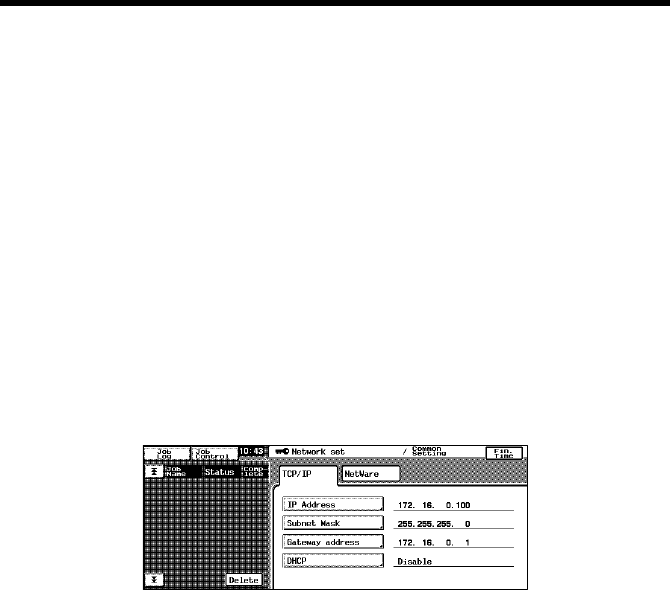
IP Address Setting
1. On the control panel of the copier, select “Utility” – “Admin. Mode” and then
enter the password.
2. Select “Network set” – “Common Setting” – “TCP/IP” to open the “TCP/IP”
screen.
3. Make the following settings:
IP Address : Set the IP address of the controller.
Subnet Mask : Set the subnet mask for the network to be
connected.
Gateway Address : Set the default gateway address for the network to
be connected.
Check with the network administrator on these three items in advance.
4. Turn OFF the Power Switch OFF of the copier.
Turn the Power Switch ON again, then the settings are effective.
4334P152CA

4. Settings Required for Network Printing
19
■Accessing Network Management Utility Light
Network Management Utility Light can be accessed directly using a Web browser.
1. Start the Web browser.
2. Type the IP address of the controller as follows in the address box and press the
Enter key.
http://<controller IP address>/
E.g.: If the controller IP address is 172.16.0.100
http://172.16.0.100/
3. Network Management Utility Light will appear.
For the details of Network Management Utility Light, see “Appendix B. How to Use
Network Management Utility Light.” ☞p.138
4. Settings Required for Network Printing
20
4.3 Windows Printing Setting
The use of Windows Printing enables direct printing over the Microsoft network.
NOTE
To make the Windows Printing setting, it is necessary to install the NetBEUI
protocol in the PC.
Settings made on the controller side
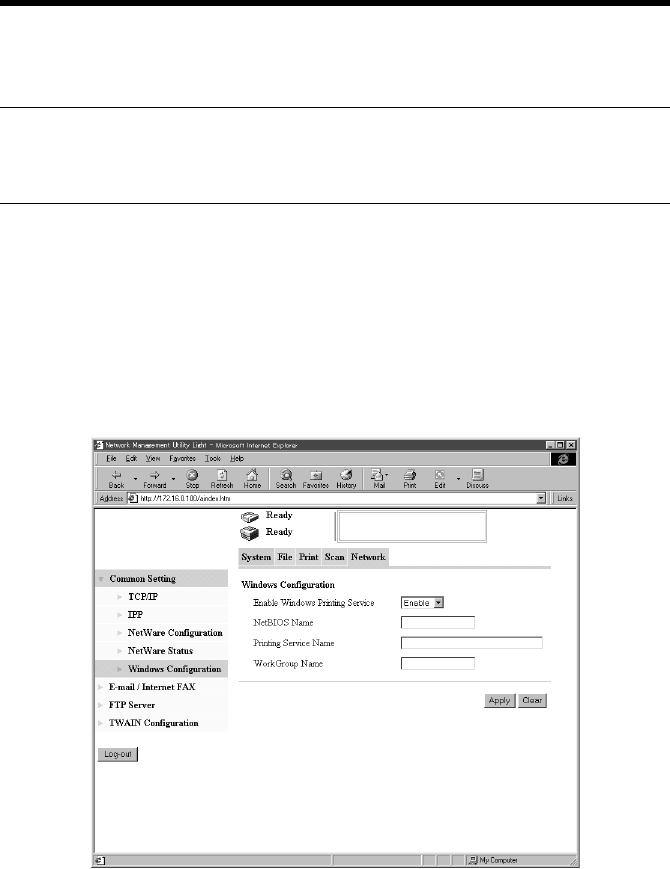
Make the settings for Windows Printing from Network Management Utility Light.
The setting is necessary for Windows Printing.
1. Start Network Management Utility Light.
2. Enter the password to log on to the Administrator mode.
3. Click the “Network” tab and then select “Common Setting” – “Windows
Configuration.”
4. Make the following settings.
Enable Windows Printing Service:
Set the Windows print service.
Setting values : Enable, Disable
k4334P156CA

4. Settings Required for Network Printing
21
NetBIOS Name : Set the NetBIOS name.
Setting value : 15 alphanumeric characters or less
Printing Service Name : Set the print service name.
Setting value : 13 alphanumeric characters or less
WorkGroup Name : Set the work group name.
Setting value : 15 alphanumeric characters or less
Settings made on the Printer Driver side
•Windows 98, 98SE and Me:
1. Click the “Start” button and, from the menu that will then appear, select
“Settings” – “Printers.” Select the icon of the printer that has been installed;
then, right-click it and choose “Properties.”
2. On the “Details” tab, click the “Add Port” button.
3. Select “Network” and click the “Browse” button. On the network configuration
that will then be displayed, select the target printer icon.
•Windows NT 4.0, 2000 and XP:
1. Click the “Start” button and, from the menu that will then appear, select
“Settings” – “Printers.” Select the icon of the printer that has been installed;
then, right-click it and choose “Properties.”
2. Select the “Port” tab. Then, select “Add Port” – “Local Port” and type the
\\NetBIOSname\PrintingService name.
3. Click the “OK” button to exit the function.
4. For the NetBIOS name and the Printing Service name to be entered, click the
“Network” tab of Network Management Utility Light and see “Windows
Configuration” by selecting “Common Setting” – “Windows Configuration.”

4. Settings Required for Network Printing
22
4.4 Settings for Printing through LPR
The following explain how to make settings for printing through LPR in different
OSs.
Settings made on the controller side
Set the IP address in the controller. ☞p.18
Settings made on the Printer Driver side
•Windows NT 4.0:
1. Click the “Start” button and, from the menu that will then appear, select
“Settings” – “Printers.” Select the icon of the printer that has been installed;
then, right-click it and choose “Properties.”
2. Select the “Port” tab and click the “Add Port..” button.
3. From the “Available port types” list, select “LPR Port” and then click “New
Port.”
NOTE
If “LPR Port” is not available in the list, click the “Start” button and select
“Control Panel” – “Network.” Click the “Services” tab, click the “Add” button,
and install the Microsoft TCP/IP print service.
4. On the “Add LPR compatible printer” dialog box, type the IP address of the
printer in the “Name or address of server providing lpd:” field.
Type “Print” in the “Name of printer or print queue on that server” field.
5. When the setting has completed, carry out the test print.
•Windows 2000 and XP:
1. Click the “Start” button and, from the menu that will then appear, select
“Settings” – “Printers.” Select the icon of the printer that has been installed;
then, right-click it and choose “Properties.”
2. Select the “Port” tab and click the “Add Port..” button.
3. From the “Available port types” list, select “Standard TCP/IP Port” and then
click “New Port.”
4. Type the IP address of the printer in the “Name of printer or IP address” field.
5. Select “Custom” and click “Setting.”
6. Select “LPR.”
7. Type “Print” in the “Queue Name” field and click “OK.”
8. Click “Next” and then “Finish” to exit from the dialog box.
4. Settings Required for Network Printing
23
4.5 Settings for Printing using IPP
Settings made on the controller side
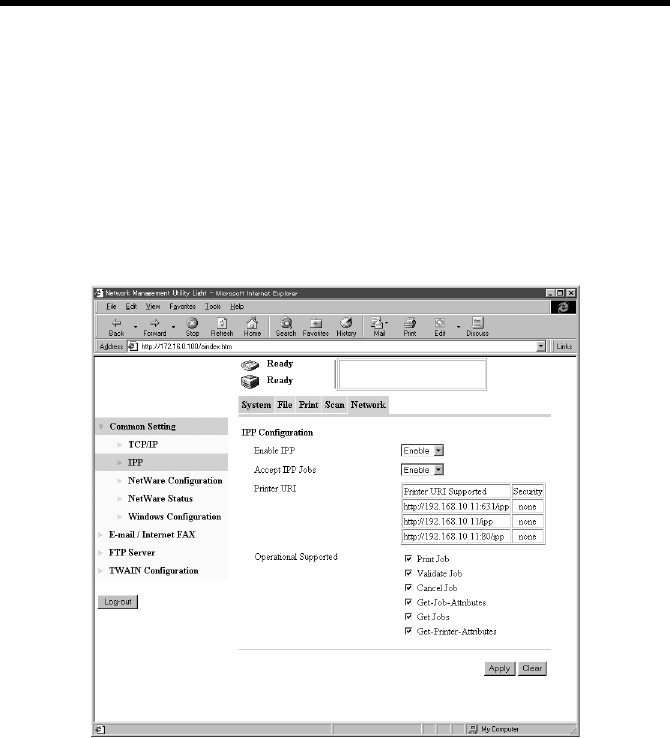
If IPP (Internet Printing Protocol) is used, make the following settings on Network
Management Utility Light. (Printing can be done with the default settings.)
1. Start Network Management Utility Light.
2. Enter the password to log on to the Administrator mode.
3. Click the “Network” tab and then select “Common Setting” – “IPP.”
4. Make the following settings.
Enable IPP : Set the IPP function.
Setting values : Enable, Disable
Accept IPP Jobs : Set the IPP reception function.
Setting values : Enable, Disable
Printer URI : Displays the URL of the printer, with which data
can be printed using IPP.
Operational Supported : Specify the print operation supported by the IPP.
Setting values : Print Job, Validate Job, Cancel Job, Get Job
Attributes, Get Jobs, Get Printer Attributes
k4334P235CA
4. Settings Required for Network Printing
24
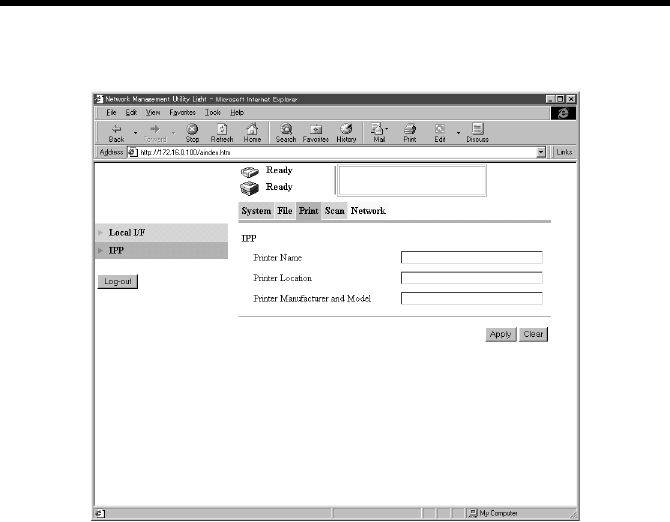
Furthermore, make settings as they relate to IPP printing.
1. Click the “Print” tab and then select “IPP.”
2. Make the following settings.
Printer Name : Set the printer name.
Setting value : 127 alphanumeric characters or less
Printer Location : Set the installed site of the printer.
Setting value : 127 alphanumeric characters or less
Printer Manufacturer and Model:
Set the manufacturing information of the printer.
Setting value : 127 alphanumeric characters or less
k4334P154CA

4. Settings Required for Network Printing
25
Settings made on the Printer Driver side
•Windows 2000 and XP:
1. Click the “Start” button and, from the menu that will then appear, select
“Settings” – “Printers.” Start the printer addition wizard and select “Network
printer.”
2. Select the “Locate Your Printer” tab and then select “Connect to a printer on the
Internet or on your intrernet.”
3. Type http://“IP address”/ipp in the “URL” field.
4. Insert the printer driver CD-ROM in the CD-ROM drive.
5. On the screen for selecting the manufacturer and model of your printer, click the
“Have Disk..” button.
6. Click the “Browse..” button and specify where the printer driver is from the CD-
ROM.
NOTE
For Windows XP users, use the printer driver for Windows 2000.
7. Make sure that “Konica IP-711_8031/9331 PCL5c” or “Konica IP-711_8020/
9231 PCL5c” appears in the printer list. Then, click “Next>.”
8. Change the default printer setting and printer name as necessary. Then, carry
out the test print.

4. Settings Required for Network Printing
26
4.6 Print Service Setting in NetWare
■Print settings on the PC from which printing is effected
The controller supports the following environment.
■NetWare Server Setting Procedure
•NetWare 3.2 print server mode settings
1. Log on to the NetWare server, in which PServer is to be registered, by the
Supervisor right.
2. Start Pconsole.
3. Select “Print Queue Information” from “Available Options” and then press
“Enter.”
4. Click “Insert,” type “Print Queue Name,” and press “Enter” to register the [print
queue name].
5. Press “Esc” to return to “Available Options.”
6. Select “Print Server Information” and press “Enter.”
7. Press “Insert,” type “Print server name” in “New print server name,” and click
“Enter” to register the [print server name].
8. Select the print server, which has been created, and press “Enter” to display the
“Print Server Information” menu.
9. Select “Print Server Configuration” from the “Print Server Information” menu
to display the “Print Server Configuration Menu.”
10. Select “Printer Configuration” and press “Enter” to display the “Configured
Printers” list.
11. Select “Not Installed” at the top row and press “Enter” to display “Printer 0
configuration.”
12. Change the printer name in the “Name” column to “IP-711” and press “Enter” to
validate the change.
13. With the “Type” column selected, press “Enter.” Then, select “Remote Parallel/
LPT1” and press “Enter” to validate the selection.
14. Press “Esc” to save the settings.
15. Press “Esc” once again to return to “Print Server Configuration Menu.”
16. Select “Queues Serviced by Printer” and press “Enter.”
NetWare Version Protocol Emulation Service Mode
NetWare 3.2 IPX Bindery PServer/Rprinter
NetWare 4.x IPX NDS,
Bindery emulation PServer/Nprinter
NetWare 5.x IPX,
TCP/IP NDS PServer/NDPS
(lpr)
4. Settings Required for Network Printing
27
17. Select “IP-711” created in step 12 from the “Defined printer” list and press
“Enter.”
18. Press “Insert” to display the “Available Queue” list of the printer.
19. Select the print queue prepared in step 4. Specify priority using a corresponding
number, 1 being the top priority and 10 being the lowest. Then, press “Enter” to
validate the selection.
20. Press “Esc” to quit Pconsole.
* For the queue user rights, printer notification option, assignment of multiple
queues, and password, see the document available for NetWare and set them as
necessary.
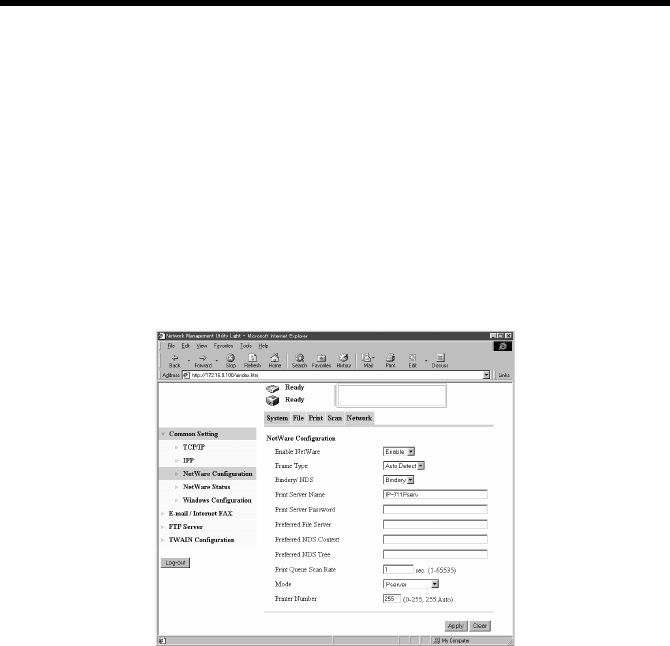
21. Using Network Management Utility Light, set the controller as detailed below
and restart it.
Details of Setting:
Enable NetWare : Enable
Frame Type : Auto Detect (Select the frame type according to the
network environment.)
Bindery/NDS : Bindery
Print Server Name : Print server name created in step 7
Print Server Password : (Set only when the password is set on the NetWare
server side.)
Preferred File Server : Name of the file server to which PServer is
connected
Print Queue Scan Rate : 1 (Change as necessary.)
Mode : PServer
22. At the NetWare server console, load MONITOR.NLM.
23. Select “Connection Information” and check that the PServer created is
connected in the active connection column.
k4334P237CA

4. Settings Required for Network Printing
28
•NetWare 3.2 remote printer mode settings
1. Log on to the NetWare server, in which PServer is to be registered, by the
Supervisor right.
2. Start Pconsole.
3. Select “Print Queue Information” from “Available Options” and then press
“Enter.”
4. Click “Insert,” type “Print Queue Name,” and press “Enter” to register the [print
queue name].
5. Press “Esc” to return to “Available Options.”
6. Select “Print Server Information” and press “Enter.”
7. Press “Insert,” type “Print server name” in “New print server name,” and click
“Enter” to register the [print server name].
8. Select the print server, which has been created, and press “Enter” to display the
“Print Server Information” menu.
9. Select “Print Server Configuration” from the “Print Server Information” menu
to display the “Print Server Configuration Menu.”
10. Select “Printer Configuration” and press “Enter” to display the “Configured
Printers” list.
11. Select “Not Installed” at the top row and press “Enter” to display “Printer 0
configuration.”
12. Change the printer name in the “Name” column to “IP-711” and press “Enter” to
validate the change.
13. With the “Type” column selected, press “Enter.” Then, select “Remote Parallel
LPT1” and press “Enter” to validate the selection.
14. Press “Esc” to save the settings.
15. Press “Esc” once again to return to “Print Server Configuration Menu.”
16. Select “Queues Serviced by Printer” and press “Enter.”
17. Select “IP-711” created in step 12 from the “Defined printer” list and press
“Enter.”
18. Press “Insert” to display the “Available Queues” list of the printer.
19. Select the print queue prepared in step 4. Specify priority using a corresponding
number, 1 being the top priority and 10 being the lowest. Then, press “Enter” to
validate the selection.
20. Press “Esc” to quit Pconsole.
21. At the NetWare server console, load PSERVER.NLM.
* For the queue user rights, printer notification option, assignment of multiple
queues, and password, see the document available for NetWare and set them as
necessary.
4. Settings Required for Network Printing
29
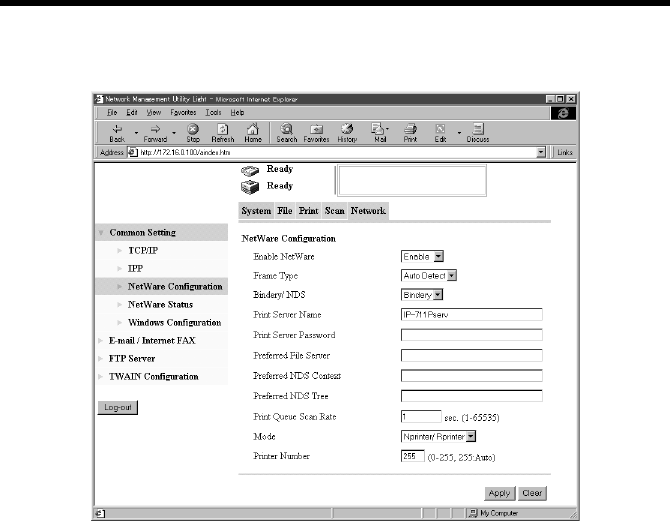
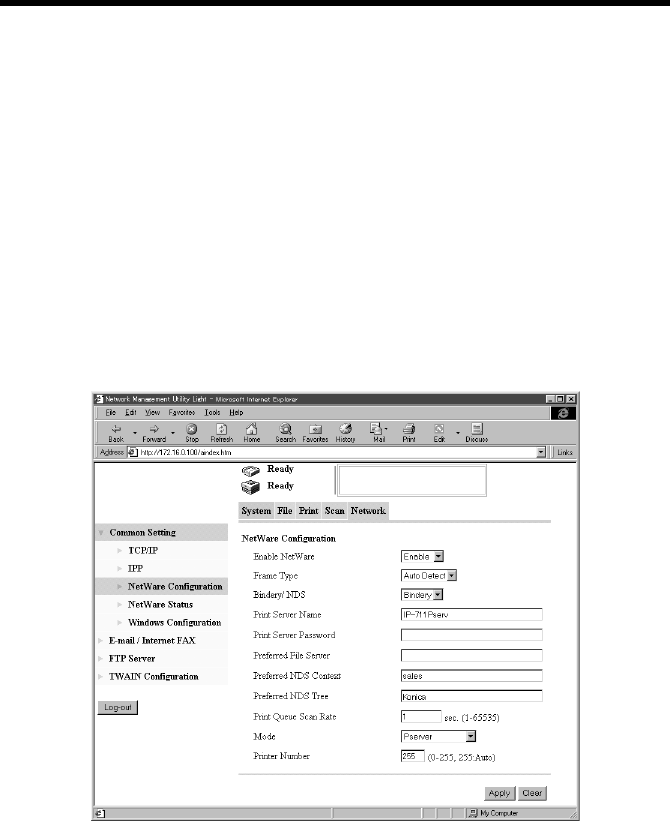
22. Using Network Management Utility Light, set the controller as detailed below
and restart it.
Details of Setting:
Enable NetWare : Enable
Frame Type : Auto Detect (Select the frame type according to the
network environment.)
Bindery/NDS : Bindery
Print Server Name : Print server name created in step 7
Print Server Password : (Set only when the password is set on the NetWare
server side.)
Mode : Nprinter/Rprinter
Printer Number : 255 (Set 255 or the numbers (0-15) assigned to the
printer.)
23. At the NetWare server console, display the print server screen and check that
“IP-711” (created printer) is in the status of “Waiting for job” with printer
connected to it.
k4334P163CA
4. Settings Required for Network Printing
30
•NetWare 4.x NDS print server mode settings
1. Log on to the NDS Tree by the Administrator right.
2. Start NWADMIN.
3. Select the container object, either Organization or Organizational Unit, that
offers the print service and select “Print Service Quick Setup” from the tool
menu.
4. Type “Print server name,” “Printer name,” “Print Queue Name,” and “Volume.”
Then, set “Remote Other/Unknown” for the “Type” name of the printer and save
the settings.
* For the queue user rights, printer notification option, assignment of multiple
queues, and password, see the document available for NetWare and set them as
necessary.
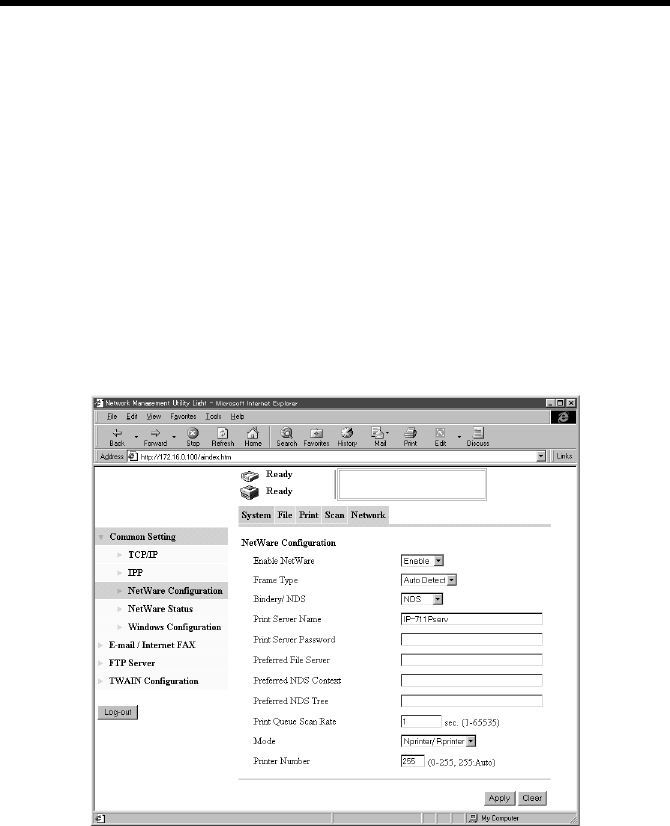
5. Using Network Management Utility Light, set the controller as detailed below
and restart it.
Details of Setting:
Enable NetWare : Enable
Frame Type : Auto Detect (Select the frame type according to the
network environment.)
Bindery/NDS : NDS
Print Server Name : Print server name created in step 4
k4334P164CA

4. Settings Required for Network Printing
31
Print Server Password : (Set only when the password is set on the NetWare
server side.)
Preferred NDS Context : Name of the context to which PServer is connected
Preferred NDS Tree : Name of the tree to which PServer logs on
Print Queue Scan Rate : 1 (Change as necessary.)
Mode : PServer
6. At the NetWare server console, load MONITOR.NLM.
7. Select “Connection Information” and check that the PServer created is
connected in the active connection column.
4. Settings Required for Network Printing
32
•NetWare 4.x NDS remote printer mode settings
1. Log on to the NDS Tree by the Administrator right.
2. Start NWADMIN.
3. Select the container object, either Organization or Organizational Unit, that
offers the print service and select “Print Service Quick Setup” from the tool
menu.
4. Type “Print Server Name,” “Printer name,” “Print Queue Name,” and “Volume.”
Then, set “Remote Other/Unknown” for the “Type” name of the printer and save
the settings.
* For the queue user rights, printer notification option, assignment of multiple
queues, and password, see the document available for NetWare and set them as
necessary.
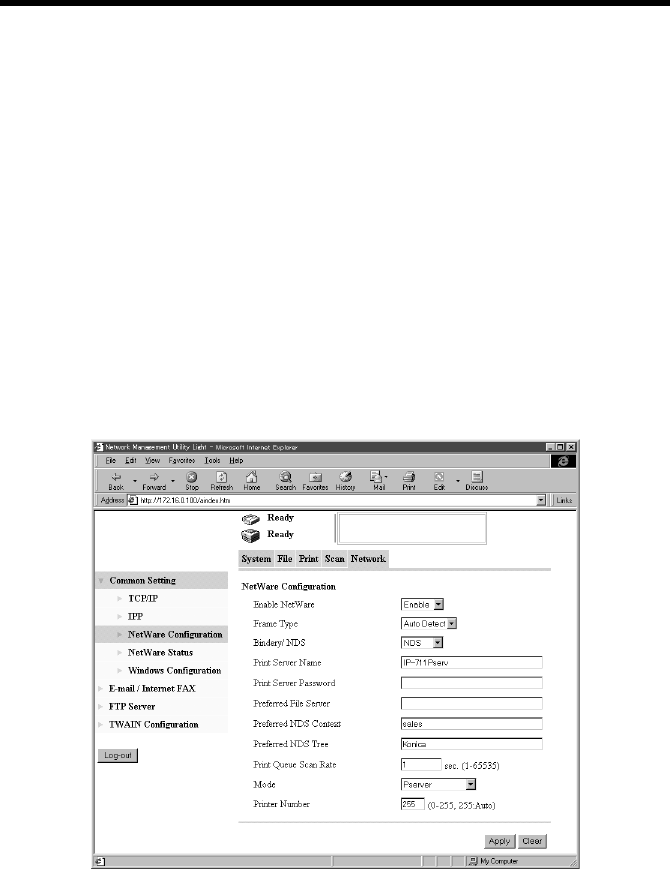
5. Using Network Management Utility Light, set the controller as detailed below
and restart it.
Details of Setting:
Enable NetWare : Enable
Frame Type : Auto Detect (Select the frame type according to the
network environment.)
Bindery/NDS : NDS
Print Server Name : Print server name created in step 4
k4334P165CA

4. Settings Required for Network Printing
33
Print Server Password : (Set only when the password is set on the NetWare
server side.)
Preferred NDS Context : Name of the context in which PServer is loaded
Preferred NDS Tree : Name of the tree in which PServer is loaded
Print Queue Scan Rate : 1 (Change as necessary.)
Mode : Nprinter/Rprinter
Printer Number : 255 (Set 255 or the numbers (0-254) assigned to the
printer.)
6. At the NetWare server console, load PSERVER.NLM.
7. At the NetWare server console, display the print server screen and check that
“IP-711” (created printer) is in the status of “Waiting for job” with printer
connected to it.
NetWare 4.x supports both the NDS and bindery emulation.
NOTE
To use bindery emulation, check that bindery emulation is enabled in the
NetWare server.
4. Settings Required for Network Printing
34
•NetWare 5.x NDS print server mode settings
* To use the print server mode, it is necessary that the IPX protocol have been
loaded in the NetWare server.
1. Log on to the NDS Tree by the Administrator right.
2. Start NWADMIN.
3. Select the container object, either Organization or Organizational Unit, that
offers the print service and select “Print Service Quick Setup” from the tool
menu.
4. Type “Print Sever Name,” “Printer name,” “Print Queue Name,” and “Volume.”
Then, set “Remote Other/Unknown” for the “Type” name of the printer and save
the settings.
* For the queue user rights, printer notification option, assignment of multiple
queues, and password, see the document available for NetWare and set them as
necessary.
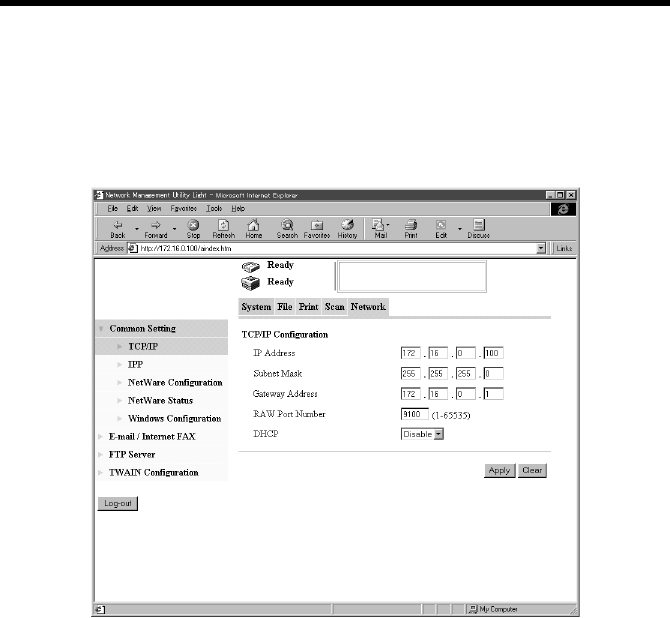
5. Using Network Management Utility Light, set the controller as detailed below
and restart it.
Details of Setting:
Enable NetWare : Enable
Frame Type : Auto Detect (Select the frame type according to the
network environment.)
Bindery/NDS : NDS
k4334P166CA

4. Settings Required for Network Printing
35
Print Server Name : Print server name created in step 4
Print Server Password : (Set only when the password is set on the NetWare
server side.)
Preferred NDS Context : Name of the context to which PServer is connected
Preferred NDS Tree : Name of the tree to which PServer logs on
Print Queue Scan Rate : 1 (Change as necessary.)
Mode : PServer
6. At the NetWare server console, load MONITOR.NLM.
7. Select “Connection Information” and check that the PServer created is
connected in the active connection column.
4. Settings Required for Network Printing
36
•NetWare 5.x Novell Distributed Print Service (NDPS) settings
* Before making settings for NDPS, make sure that the NDPS Broker and NDPS
Manager have been created and loaded.
* Before starting the procedure, make sure that the TCP/IP protocol has been set
in the NetWare server and an IP address has been assigned to the controller, and
started, using Network Management Utility Light.
Creating the NDPS Printer Agent
1. Log on to the NDS Tree by the Administrator right.
2. Start NWADMIN.
3. Right-click the “Organization Unit” container under “Organization,” in which
the printer agent is created. From “Create,” select “NDPS Printer.”
4. Type the “Printer Name” in the “NDPS Printer Name” column.
5. Select “Create a New Printer Agent” in the “Printer Agent Source” column and
click “Create.”
6. Check the printer agent name and, in the “NDPS Manager Name” column,
browse through NDPS managers and set one.
7. Select “Novell Printer Gateway” “Gateway Types” and set it in “Gateway
Types.”
8. In the “Configure Novell PDS for Priner Agent” window, select and set
“((None))” for printer type and “Novell Port Handler” for port handler type.
9. Select and set “Remote (LPR on IP)” for “Connection Type.”
k4334P153CA

4. Settings Required for Network Printing
37
10. Set the IP address set in the controller for the host address, type “Print” in
“Printer name,” and press “Finish” to validate the settings.
11. The printer driver registration screen will then appear. Select “None” for all OSs
and complete the registration procedure.
* For the printer user rights, printer notification option, and assignment of
multiple queues, see the document available for NetWare and set them as
necessary.

4. Settings Required for Network Printing
38
•Client Print Setting
Click “Start” – “Settings” – “Printers” and then double-click the “Add Printer” icon.
Refer to the network in the destination port setting and specify the queue name
previously created (NDPS printer name).
On the list of printer models, select the driver from the printer driver CD-ROM.
Complete the installation procedure according as instructed by the wizard.
4. Settings Required for Network Printing
39
4.7 Operation Checks after Installation of Driver
Test Printing from Client PC
A test page is printed to check to see if the printer driver has been properly installed.
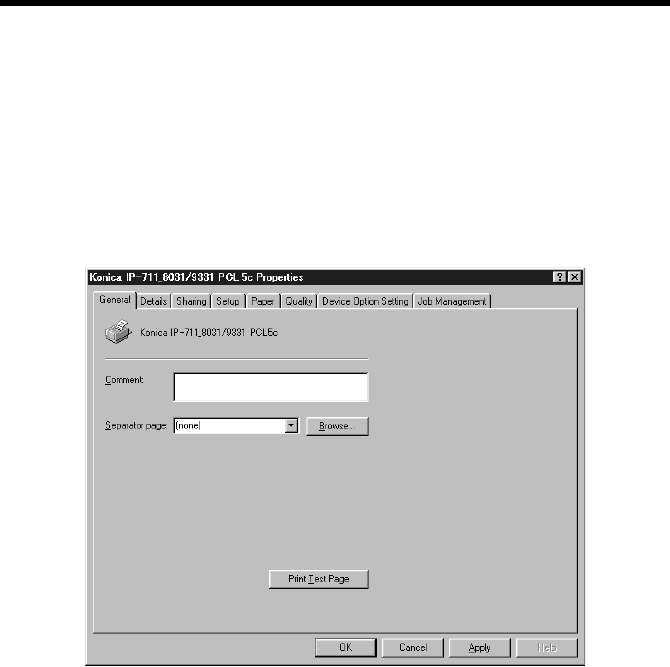
1. Click the “Start” button and, from the menu that will then appear, select
“Settings” – “Printers.”
2. Select the icon of the printer that has been installed; then, right-click it and
choose “Properties.”
3. From the screen that will then appear, click the “Print Test Page” button.
k4334P167CA

4. Settings Required for Network Printing
40

41
5. Uninstalling the Driver
5.1 Uninstalling the Driver
1. Click the “Start” button and, from the menu that will then appear, select
“Settings” – “Printers.”
2. Click the icon of the printer to be deleted.
3. Select the “Delete” key to delete the driver.
4. When the uninstalling procedure is completed, the printer icon disappears from
the “Printers” window.
This completes the uninstalling procedure.

5. Uninstalling the Driver
42

43
Advanced Operations

44
45
6. Printing
This chapter explains printing operations that can be set from the printer driver.
How to Display the Printer Driver Property Sheet
There are two approaches available for use to display the property sheet. (Each
offers different ranges of settings that can be incorporated.)
•Displaying the property sheet from the printer folder
1. Click the “Start” button and, from the menu that will then appear, select
“Settings” – “Printers.”
2. Right-click the “Konica IP-711_8031/9331 PCL5c” or “Konica IP-711_8020/
9231 PCL5c” icon. Then, select “Properties” from the menu.
3. A property sheet will then appear. Make the setting of each item and click
“OK.”
The settings made are applicable to all printed pages produced with the copier.
•Displaying the property sheet from the application menu
1. Select “Print” from the application.
2. A print dialog box will appear. Click “Properties” beside the printer name
(Konica IP-711_8031/9331 PCL5c” or “Konica IP-711_8020/9231 PCL5c”
should be displayed) and make the necessary settings.
The settings are valid only in the application for which printing is specified.
Components of Property Sheet
The window of Easy Set and Printer Figure/Page Layout is displayed at all times.
k4334P168CA

6. Printing
46
Following give an overview of each function available from different tabs.
For details of the “Job Management” tabs, see “8. Job Management.” ☞p.121
Tab Name Function Name Description
Setup N-up Print two or more pages on a sheet of paper.
Ref.: Effecting N-up Printing ☞p.49
Watermark Print pages with text put in the background.
The text can be changed or edited.
Ref.: Printing Pages with Watermarks ☞p.50
Duplex/Booklet Set Duplex or Booklet function.
Ref.: Effecting Duplex/Booklet Printing ☞p.54
Paper Source Specify the paper source and the type of paper.
Set Front Cover, Back Cover or OHP Interleaving.
Ref.: Adding a Cover or Interleaf ☞p.58
Output Setting Set Staple, Hole Punch, Folding or other finishing type.
Ref.: Effecting Staple ☞p.55
Effecting Folding ☞p.56
Effecting Hole Punch ☞p.57
Paper Original Document Size Specify the document size.
Output Paper Size Specify the output paper size.
Set an enlarged or reduced size.
Ref.: Print to Suit the Paper Size ☞p.59
Copies Specify the number of copies to be made.
Collate Specify an output by set.
Orientation Specify print orientation.
Quality Select Color or Grayscale Set color or monochrome.
Exposure Modes Set the color matching mode.
Document: Text mode
Photo: Photo mode
Use Printer Font Set use of the printer font.
Resolution Select the print resolution (600 dpi fixed)
Download as Bitmap Select the mode, in which a bitmapped font or the program (vector font) is
downloaded.
Glossy Mode Select the Glossy Mode
Device Option
Setting Device Option Specify the options mounted on the copier.
Job Owner
(Default User Name) Displays the specified user name on the control panel of the copier as the
job user name.
Access Number
(Default Access Number) Set the default value for the access number (i.e., default access number).
Job Management Lock Job Specify the password for Lock Job.
Ref.: Lock Job ☞p.123
Store to Memory Store the job in memory until it is canceled on the copier side.
Ref.: Store to Memory ☞p.125
Store to HDD Store the job in the hard disk until it is canceled on the copier side.
Ref.: Store to HDD ☞p.124
Proof and Print Print the first set only of the job and store the rest in memory.
Ref.: Proof and Print ☞p.124
Access Code Type the access number assigned if the Copy Track function is set on the
copier side.
Ref.: Transmitting a Print Job to a Copier in Which the Copy Track
Function is Active ☞p.122
Distribution Print a distribution number in the background.
Ref.: Printing Pages with a Distribution Number ☞p.123
6. Printing
47
6.1 Device Option Setting
Options installed on the copier are enabled from the printer driver.
Setting Procedure
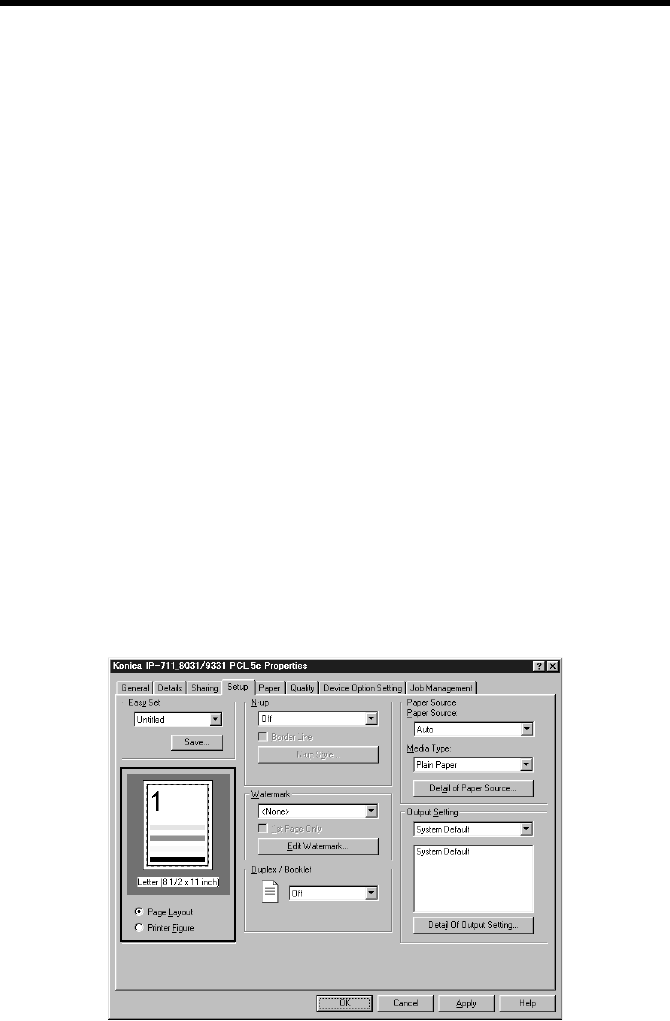
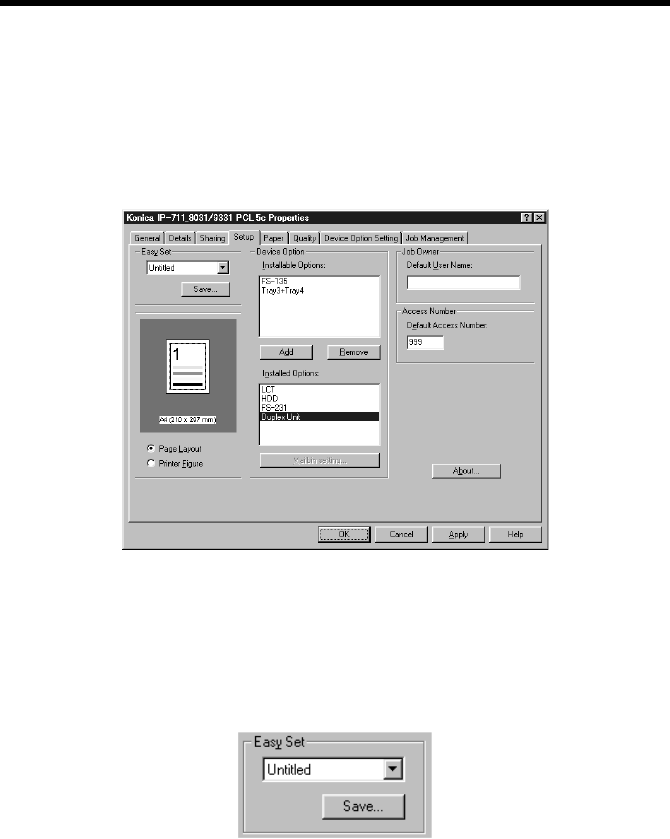
1. Start the printer driver and select the “Device Option Setting” tab.
2. From the “Installable Options” list, select the device to be installed and click the
“Add” button.
Check that the selected option is now shown under the “Installed Options” list.
6.2 Using Easy Set
The current setting value can be saved under a name you specify.
Calling up settings
Click the [ ▼ ] button in the combo box and choose the desired setting from the list.
Saving or deleting settings
The contents of each property sheet may be saved or deleted.
Clicking the “Save” button will open the Easy Set Name Box.
The current setting value can be saved under a name you specify.
k4334P249CA
4334P241CA
6. Printing
48
6.3 Displaying Page Layout and Printer Figure
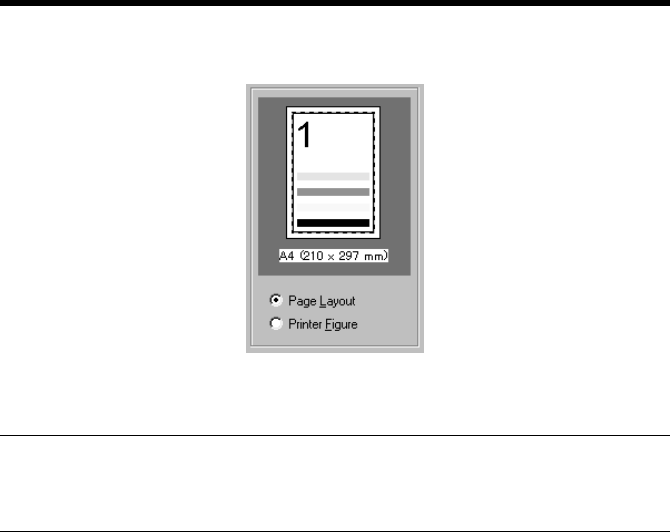
•Page Layout shows a simplified image of a printed page.
•Printer Figure shows the devices mounted on the copier.
MEMO
Page Layout allows you to check how a printed page will look like before
actually printing it.
4334P242CA
6. Printing
49
6.4 Effecting N-up Printing
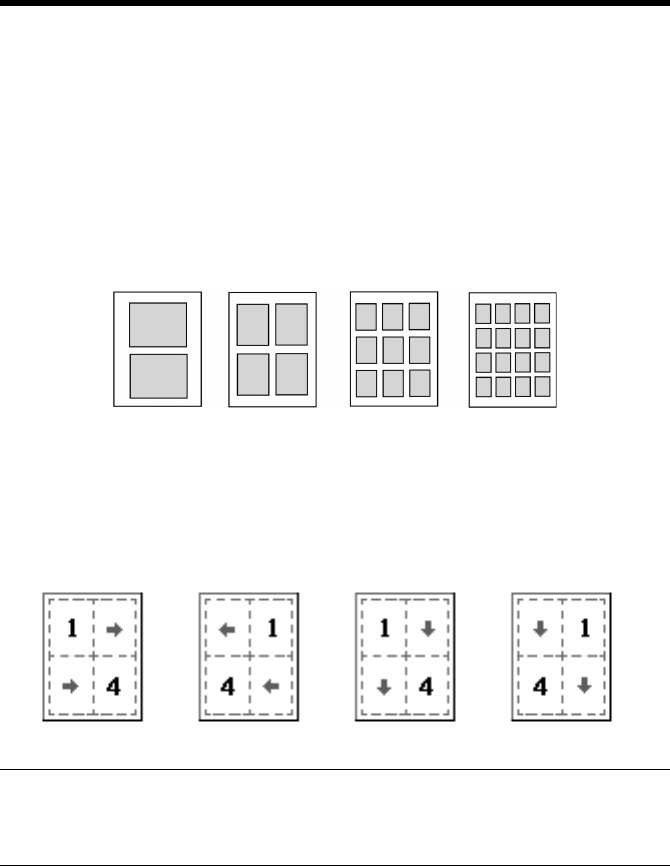
N-up printing refers to the function that prints a document consisting of two or more
pages on a sheet of paper. It comes in handy for printing a large volume of data and
reducing the number of printed pages.
Setting Procedure
1. Click the “Setup” tab.
2. In the “N-up” function, select any one of the following N-up subfunctions.
When “Border Line” is selected, the boundary line of each page will be printed.
3. The printing sequence in N-up can be changed.
Click “N-up Style.” Select any one of the following functions from the dialog
box that will then appear.
NOTE
Void image and image overlap may result in printing of a document that contains
pages of assorted sizes and directions.
Page Layout allows you to check the layout and printing sequence in N-up.
4334P033AA
2-up 4-up 9-up 16-up
4668P051CA
Horiz. Ascending Horiz. Descending Vert. Ascending Vert. Descending

6. Printing
50
6.5 Printing Pages with Watermarks
Specific text is printed in the background.
Setting Procedure
1. Select the “Setup” tab.
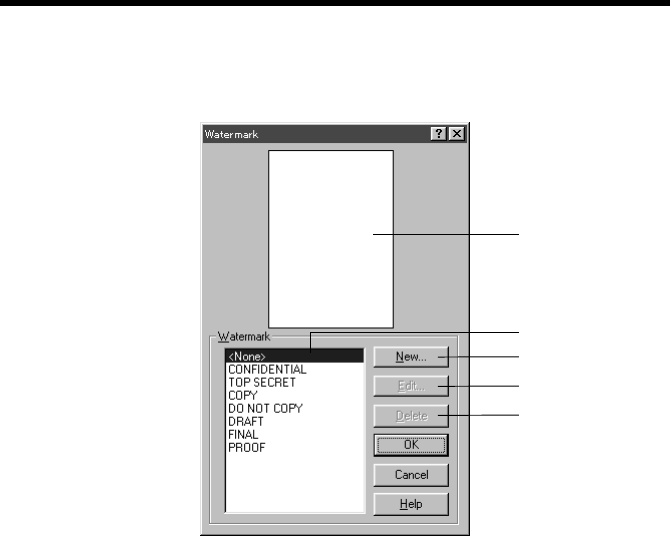
2. From the list of “Watermark,” select the desired text to be put in the background
as a watermark.
Text : Select the word to be entered as the watermark.
<NONE>, CONFIDENTIAL, TOP SECRET,
COPY, DO NOT COPY, DRAFT, FINAL, PROOF
1st Page Only : The watermark is placed only on the first page.
Edit Watermark : Click to edit the font and position of the watermark.
NOTE
If the setting is made to have no image in the Cover function, that setting takes
precedence over Watermark and no watermark is printed on the cover.
Page Layout shows roughly how the watermark looks on the printed page.
4692O098BA
Watermark Print
6. Printing
51
Editing the Watermark
Clicking “Edit Watermark” will allow you to edit the font and position of the
watermark.
(1) Preview
Displays the print image.
(2) Watermark text
Select the desired watermark from the list of existing watermarks.
(3) New
Click to create new text. It will open a dialog box for setting details.
(4) Edit
Click to edit the text selected from (2). It will open a dialog box for setting
details.
(5) Delete
Click to delete the text selected from (2).
4334P243CA
(1)
(2)
(3)
(5)
(4)
6. Printing
52
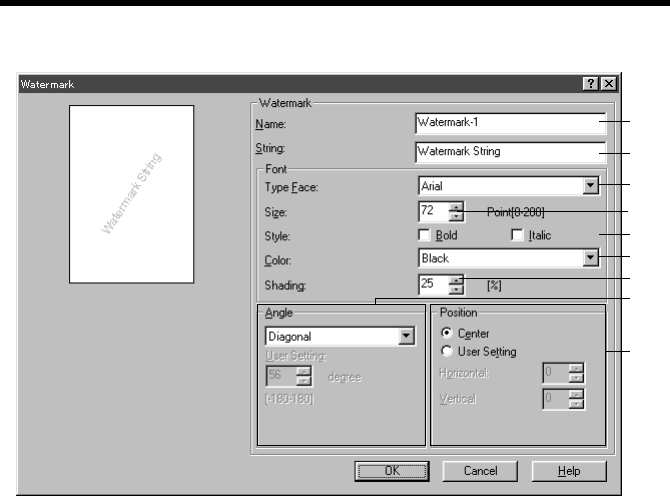
Details Setting
(1) Name
Type the name of the new watermark (consisting of up to 20 characters).
(2) String
Type the character string to be printed as the watermark (consisting of up to 127
characters).
(3) Type Face
Select the font of the watermark from among the fonts installed in the PC.
(4) Size
Specify the size of the characters (from 8 points to 200 points).
(5) Style
Specify the style of the characters.
• Bold : Prints bold characters.
• Italic : Prints italic characters.
(6) Color
Set the color applied to the characters.
(7) Shading
Specify the density of the characters.
Setting value: 5% to 100% (1% increments)
4334P244CA
(1)
(2)
(3)
(4)
(5)
(6)
(7)
(8)
(9)

6. Printing
53
(8) Angle: Specify the angle of characters with reference to the paper.
• Fixed Angle : Standard fixed angle provided by the printer driver.
Setting values: Horizontal, Diagonal, Vertical,
User Setting
• User Setting : When User Setting is selected for Fixed Angle, you can
set an arbitrary angle.
Setting value: -180 to +180 degrees
(-: clockwise; 0: horizontal;
+: counterclockwise)
(9) Position: Specify the position of the watermark.
• Center : Watermark is printed at the center of the paper.
• User Setting : The position is defined by the numeric values entered in
the Horizontal and Vertical boxes.
Setting value
Horizontal: -999 to 999 points
Vertical: -999 to 999 points
(1 point increments; 72 points = 1 inch)
“Position” defines the distance from the center. Positive in the horizontal
direction is rightward and positive in the vertical direction is upward.
Preview allows you to view the settings.
6. Printing
54
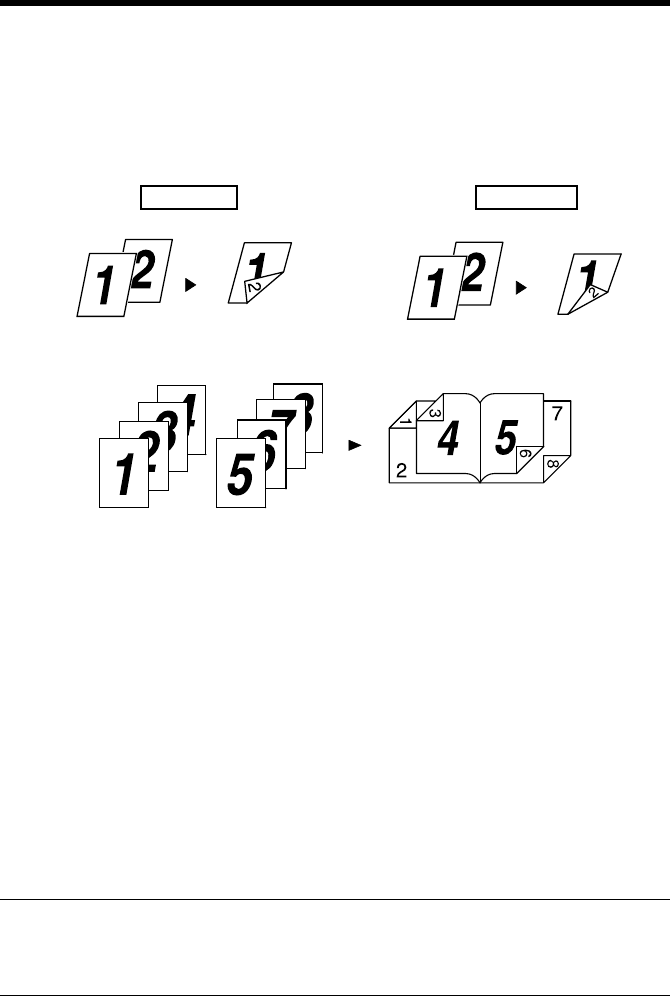
6.6 Effecting Duplex/Booklet Printing
A document can be printed onto both sides of a sheet of paper or into a booklet
format (two facing pages). This function can be used only when the copier is
equipped with an Automatic Duplex Unit.
Duplex Printing
Booklet Printing
Setting Procedure
1. Select the “Setup” tab.
2. In the “Duplex/Booklet” function, select any one of the following subfunctions.
Off : Function disabled
Top Binding : Images are printed on both sides of a single sheet of
paper so that the top edge is the file margin.
Left Binding : Images are printed on both sides of a single sheet of
paper so that the left edge is the file margin.
Booklet Left Binding : Images of four pages are printed on both sides of a
single sheet of paper so that the printout may be folded
at its center to form a booklet bound at its left edge.
Booklet Right Binding: Images of four pages are printed on both sides of a
single sheet of paper so that the printout may be folded
at its center to form a booklet bound at its right edge.
NOTE
Void image and image overlap may result in printing of a document that contains
pages of assorted sizes and directions.
Page Layout allows you to view the result of layout by Duplex/Booklet.
4608O009AA
Print data Printout
4608O008AA
Print data Printout
Top Binding Left Binding
Print data Printout
4608O011AB

6. Printing
55
6.7 Effecting Staple
The Staple function can be used only when the copier is equipped with the Finisher
FS-231 or FS-135.
1. Select the “Setup” tab.
2. Clicking “Detail of Output Setting” will open a dialog box for setting details.
Make the following settings in the “Staple” column.
• If FS-231 is mounted:
OFF, Corner, Top Side 2 Points, Left Side 2 Points, Auto 2 Points
• If FS-135 is mounted:
OFF, Corner
NOTE
• When the FS-135 is mounted, stapling can be made up to 30 sheets of paper.
• When the FS-231 is mounted, stapling can be made up to 50 sheets of A4
lengthwise (Letter lengthwise) paper or 25 sheets of B4 lengthwise (Legal
lengthwise) paper.

6. Printing
56
6.8 Effecting Folding
Folding is used in combination with Booklet to produce a booklet through center
folding and center stapling. It can be used only when the copier is equipped with
the Finisher FS-231.
Setting Procedure
1. Select the “Setup” tab.
2. Clicking “Detail of Output Setting” will open a dialog box for setting details.
Make the following settings in the “Folding” column.
OFF : Disables folding.
Crease + Center Staple : Produces a booklet through center folding and center
stapling.
NOTE
No folding can be effected if the number of prints to be made at once exceeds 10.

6. Printing
57
6.9 Effecting Hole Punch
The Hole Punch function can be used only when the copier is equipped with the
Finisher FS-231.
Setting Procedure
1. Select the “Setup” tab.
2. Clicking “Detail of Output Setting” will open a dialog box for setting details.
Make the following settings in the “Punch” column.
OFF, Top Side Punch, Left Side Punch, Auto Punch, Punch Holes: 2, 3, 4
NOTE
For customers in inch areas:
When effecting Hole Punch, select “2” or “3” for “Punch Holes” according to
your copier system configuration. No Hole Punch is effected when “4” is
selected.
For customers in metric areas:
When effecting Hole Punch, select “4” for “Punch Holes” according to your
copier system configuration. No Hole Punch is effected when “2” or “3” is
selected.

6. Printing
58
6.10 Adding a Cover or Interleaf
A front cover and/or a back cover can be added to each of your copy sets.
When printing on sheets of OHP transparencies, an interleaf can also be inserted
between sheets of OHP transparencies.
Setting Procedure
1. Select the “Setup” tab.
2. In the “Paper Source” function, clicking “Detail of Paper Source” will open a
dialog box for setting details.
•Cover
A front cover and/or a back cover can be added to each of your copy sets. You can
also select to print data on the covers or leave them blank.
Front Cover Page : Enables the Cover function.
With Image : Prints data on the front cover.
Front Cover Page Source : Specify the paper source for the front cover
(Manual Tray, Tray 1 to 4, or LCT).
Back Cover Page : Adds a back cover.
With Image : Prints data on the back cover.
Back Cover Page Source : Specify the paper source for the back cover
(Manual Tray, Tray 1 to 4, or LCT).
•Interleaf (OHP Interleaving)
When printing on sheets of OHP transparencies, an interleaf can be inserted
between sheets of OHP transparencies. The interleaf may be left blank or have the
same data printed on it as the OHP transparencies.
OHP Interleaving : Enables OHP Interleaving.
OHP Interleaving Paper Source:
Specify the paper source for the interleaves (Tray 2
to 4, or LCT).
NOTES
• Select “1” for “Copies” when using OHP Interleaving.
• The paper source for OHP transparencies is Manual Tray or Tray1.
• OHP Interleaving cannot be combined with Duplex.
For how to load a paper source with OHP transparencies, see User Manual of the
copier.
6. Printing
59
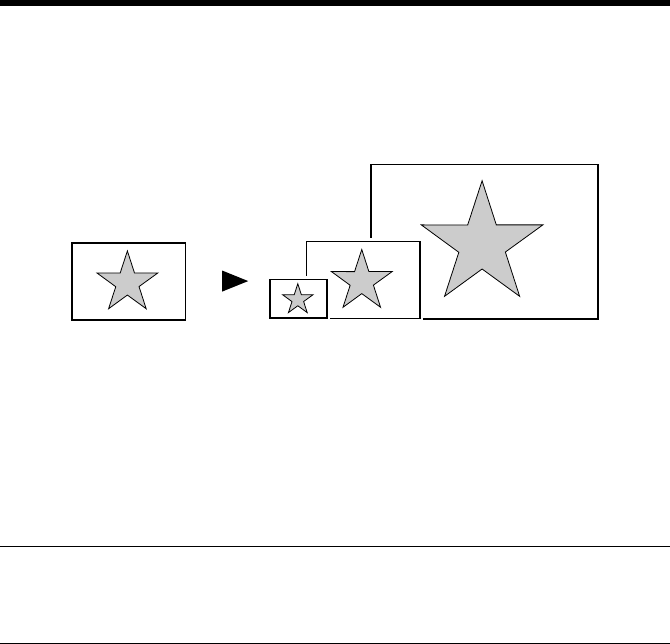
6.11 Print to Suit the Paper Size
The image on the document created with an application can be enlarged or reduced
when printing according to the paper size.
Setting Procedure
1. Select the “Paper” tab.
2. Check that “Original Document Size” represents the size of the document
created with the application.
3. For “Output Paper Size,” specify the size of the output paper.
4. If “Fit to Paper” is selected, the copier prints the image on the document to fit
nicely to the paper size selected for use.
NOTES
Make sure that the paper of the size set in “Output Paper Size” is loaded in the
copier.
Print data Printout
1149O004AA

6. Printing
60
6.12 Printing on Paper from Manual Bypass Tray
The Manual Bypass Tray can be selected as the paper source for printing.
1. Select the “Setup” tab.
2. Select “Manual Feed Tray” from the “Paper Source” list.
3. Click “OK” twice to send the job.
4. Load the Manual Bypass Tray of the copier with paper.
NOTES
• Place one sheet of paper at a time.
• An error message will be displayed on the control panel of the copier if a print
job is sent with paper loaded in the Manual Bypass Tray. (In this case, remove
the paper from the Manual Bypass Tray and then reinsert it into the tray.)
• To use paper of A4, B5, or Invoice (5-1/2
×
8-1/2) size, place the paper
crosswise on the Manual Bypass Tray.
(Touching the job displayed on the copier control panel will display
instructions on how to place the paper. Load the paper according as
instructed.)

61
7. Settings and Operations for Scan Functions
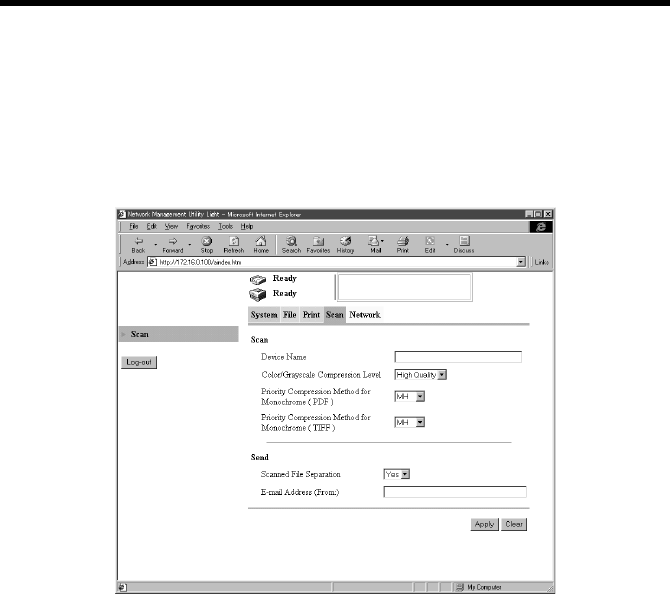
This chapter explains how to make settings for and operate the scan functions that
become usable when the controller is added.
The copier control panel or Network Management Utility Light is used for setting.
Refer to Usage of Network Management Utility Light on Appendix B for the
procedures to start Network Management Utility Light and log in the administrator
mode. ☞p.138
The following scan functions are available for use:
• File (Scan to PC) : Transfers scanned image data to the PC through
FTP. ☞p.64
• File (Scan to FTP Server) : Transfers scanned image data to the server through
FTP. ☞p.69
• Scan to E-mail : Transfers scanned image data as a file attached to e-
mail. ☞p.86
• File (Scan to HDD) : Captures scanned image data to the hard disk of the
copier. ☞p.77
• Scan to Internet FAX : Transmits and receives image data through the
Internet Fax standard. ☞p.94
The following environment is necessary to use the scan functions.
•Network environment using TCP/IP protocol
• File (Scan to PC) : The FTP server application must be installed in
the receiving PC.
• File (Scan to FTP Server) : The FTP server application must be installed in
the receiving PC.
• Scan to E-mail : A mail server must be available for the network.
• Scan to Internet FAX : A mail server must be available for the network.
When data is to be transmitted, it is necessary that
the machine on the receiving end be capable of
receiving Internet Fax.
7. Settings and Operations for Scan Functions
62
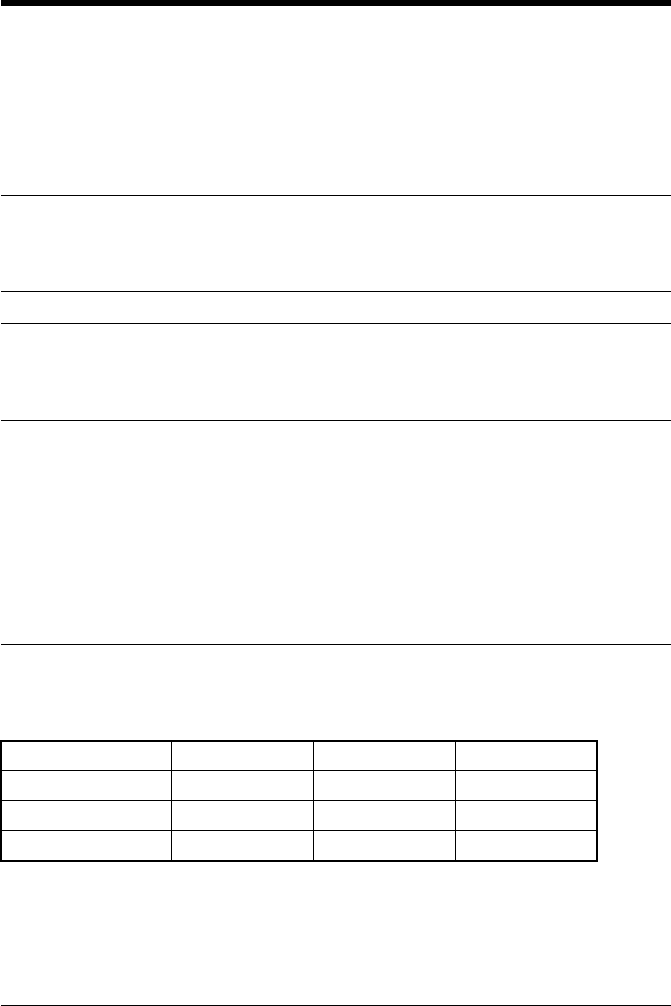
7.1 Scan Settings (Basic Settings)
Make the basic settings for scan functions.
Setting from Network Management Utility Light
1. Start Network Management Utility Light.
2. Enter the password and log on to the Administrator mode.
3. From the “Scan” tab, select “Scan.”
4. The following items can be set.
• Scan
Device Name : The characters set for this parameter is appended
before the name of the image file created with the
scan function.
Setting value : 36 alphanumeric characters or less
Color/Grayscale Compression Level: Select the compression level for images.
Setting values : High Quality, Normal, Economy
Priority Compression Method for Monochrome (PDF): MH, MMR
Priority Compression Method for Monochrome (TIFF): MH, MMR
•Send
Scanned File Separation : Set the division method (by page) when the
maximum size is exceeded. ☞p.88, ☞p.94
Setting values : Yes, No
E-mail Address (From:) : Specify the e-mail address (From:) of the sender.
☞p.93, ☞p.104
k4334P171CA
7. Settings and Operations for Scan Functions
63
URL Notification
URL Notification notifies, by means of e-mail, information on the location, in
which scanned data created through a scan function is stored.
The scanned data is not attached to the e-mail message.
The party that receives the e-mail message refers to the information given in the e-
mail message to access the image data storage location.
MEMO
The information does not contain the user name or password.
If you must know it to access the image data, check the administrator.
NOTE
URL Notification is enabled through the setting made for Scan to E-mail. To use
URL Notification, it is necessary to make the settings for Scan to E-mail. ☞p.86
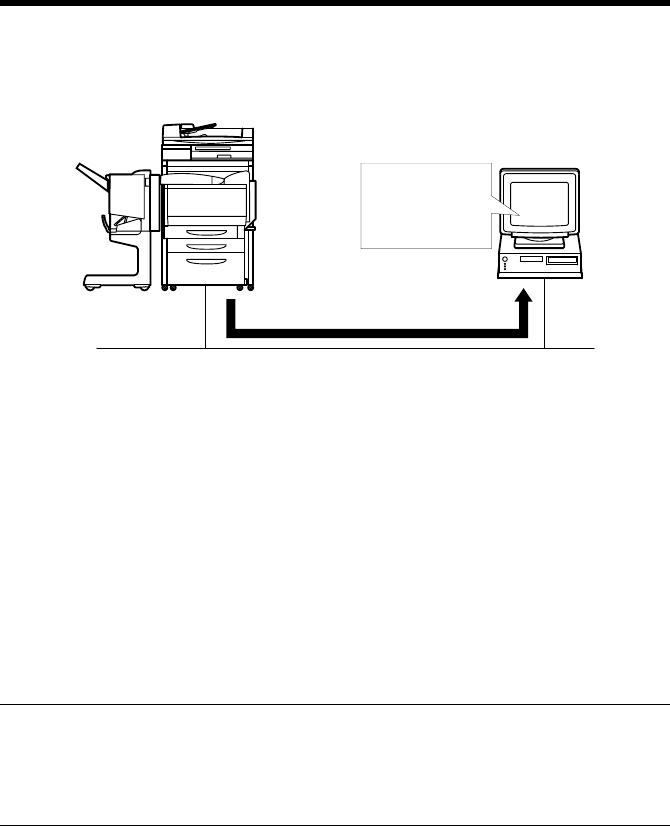
Selectable File Format for Scanning
The format for the scanned image data can be selected from among the following.
Setting values : TIFF, PDF, JPEG
•Prepare the file to be transmitted according to the specified file format.
•An extension corresponding to the specified file format is assigned.
PDF format → .pdf; JPEG format → .jpg; TIFF format → .tif
NOTE
• Some file formats are not available for selection depending on the “Color
Mode” selected during scan setting.
• It is not possible to select the format for Internet Fax scanning. (The TIFF
format is fixed for transmitting.)
• In JPEG format, it will transmits the data per page by scanning more than one
document.
Example: When it scan 10 pages, 10 JPEG files are transmitted.
PDF TIFF JPEG
Full Color ❍×❍
Gray Scale ❍×❍
Monochrome ❍❍ ×
7. Settings and Operations for Scan Functions
64
7.2 Scan to PC
Scan to PC is the function that transmits image data scanned by the copier to the PC
using FTP. It is necessary that the FTP server application be started on the PC side.
1. Using Network Management Utility Light, make the setting for One-Touch Key
Registration or One Time Registration.
The destination and IP address can be set on the One-Touch Key Registration
screen, and the destination, IP address, and other scan mode functions can be set
on the One Time Registration screen. ☞p.110
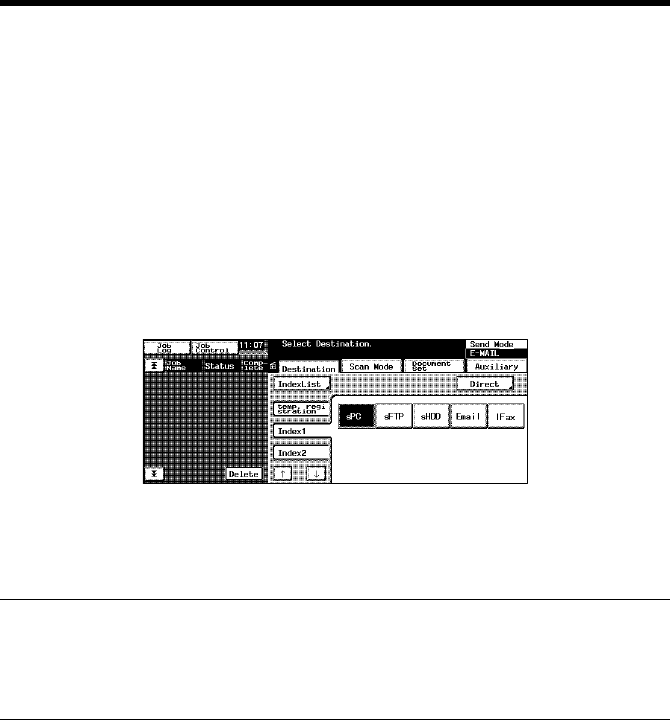
2. On the copier control panel, specify the destination to which the scanned data is
to be transmitted.
The destination is set by selecting the key, in which One-Touch Key Registration
or One Time Registration has been made in step 1. ☞p.66
3. On the copier control panel, specify the document scan mode.
4. Press the Start key on the copier. This lets the copier scan the document and
send the scanned data to the application for reception through FTP.
5. Check the scanned data sent.
NOTE
The root folder to which the data is transferred is that specified on the
application.
It cannot be specified from the copier side.
4334O001AA
PC
FTP Server
Application
Software

7. Settings and Operations for Scan Functions
65
Setting the FTP Application
It is the function that transmits data using following settings of FTP.
If necessary, set following by FTP application of receiving PC.
• Login Name : anoyamous
• Password : “POP3 login name” @ “IP address of the printer
controller”
How to Check the Password
1 Start the Network Management Utility Light, and log on to the
Administrator mode.
2. Form the “Network” tab, go to “Mail/Internet FAX” – “Receive” and you
can check “POP3 login name” (Internet FAX Reception Setting ☞p.96)
•Port Number :21
7. Settings and Operations for Scan Functions
66
Scan Operation
You have the choice of two scan operating procedures available selected according
to whether the one-touch key is used to specify the destination or one time key is
used.
■Specifying the destination using a one-touch key:
1. Press the Scan key on the copier.
2. Select the “Destination” tab.
3. Select the “IndexList” key.
4. Select the target index from the index list. Touch “Enter.” (Registering Index
☞p.110)
5. Select the one-touch key which has been registered for Scan to PC.
6. Set the scanning mode. (Ref.: Setting the Scanning Mode) ☞p.67
7. Specify the document. (Ref.: Specifying the Document) ☞p.67
8. Press the Start key.
MEMOS
• One-touch key registration is possible from Network Management Utility Light.
• For details of one-touch key registration, see “Advance Registration of
Destinations” of chapter 7. ☞p.110
■Specifying the destination using a one time key:
The destination may be set using a one time key. ☞p.115
4334P192CA

7. Settings and Operations for Scan Functions
67
Details of Scan Operation Settings
■Setting the Scanning Mode
1. Press the Scan key on the copier.
2. Select the “Scan Mode” tab.
3. Set the following items.
Scan Size : Set the scanning size for the document.
Or, specify any given size (in mm or 1/16”).
Resolution : Select the scanning resolution.
Setting values : 600, 400, 300, 200 dpi
File Format : Select the format, with which the file to be
transmitted is stored.
Setting values : TIFF, PDF, JPEG
Color Mode : Set the scanning color mode.
Setting values : Full Color, Monochrome, Gray Scale, Auto Color
Background Remove : Set background removal.
■Specifying the Document
Set the type of the document to be scanned.
1. Press the Scan key on the copier.
2. Select the “Document Set” tab.
3. Set the following items.
Original Direction : Set the placement direction of the document.
Setting values : Not selected (Auto detect), Portrait documents
“Place Horizontally,” “Place vertically,” Landscape
documents “Place Horizontally,” “Place Vertically.”
Doc. Mode : Set the document mode.
Setting values : 1, 2, Book
Mixed Original Detection : For scanning different sized documents, select
“Mixed Original Detection” key.
Separate Scan : When Separate Scan is selected, the data read by
the time “Finish” key displayed on the copier
control panel after scanning completion is selected
are dealt as a job.
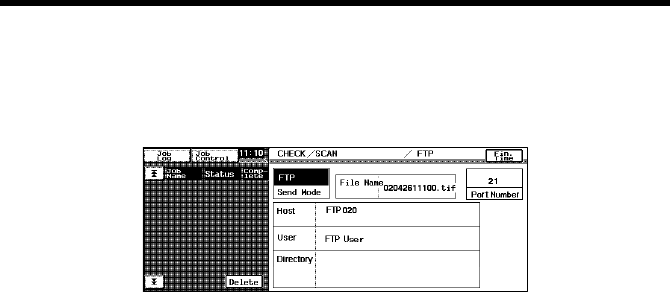
7. Settings and Operations for Scan Functions
68
■Setting Checks
It is possible to check the details of settings on the copier control panel.
•Select the “CHECK” key.
•Check the settings of “Scan to PC.”
k4334P194CA
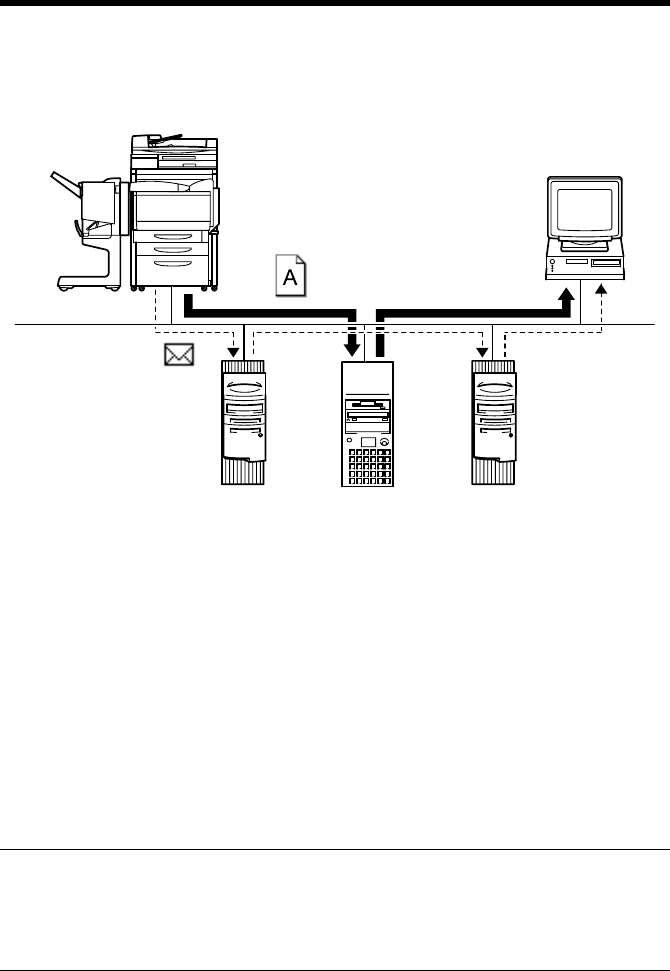
7. Settings and Operations for Scan Functions
69
7.3 Scan to FTP Server
Scan to FTP Server is the function that transmits image data scanned by the copier
to the FTP server.
1. Using Network Management Utility Light, register the FTP servers (up to five).
☞p.70
2. Using Network Management Utility Light, make the setting for One-Touch Key
Registration or One Time Registration.
The destination, FTP server and URL Notification E-mail Address can be set on
the One-Touch Key Registration screen, and the destination, FTP server, URL
Notification E-mail Address, and other scan mode functions can be set on the
One Time Registration screen. ☞p.110
3. On the copier control panel, specify the destination to which the scanned data is
to be transmitted.
The destination is set by selecting the key, in which One-Touch Key Registration
or One Time Registration has been made in step 2. ☞p.74
4. On the copier control panel, specify the document scan mode.
MEMO
Even if URL Notification has not been set during One-Touch Key Registration or
One Time Registration on Network Management Utility Light, it is possible to
specify the URL Notification party from the copier control panel.☞p.76
4334O002AA
PC
Scan data
Information
Mail server FTP server Mail server
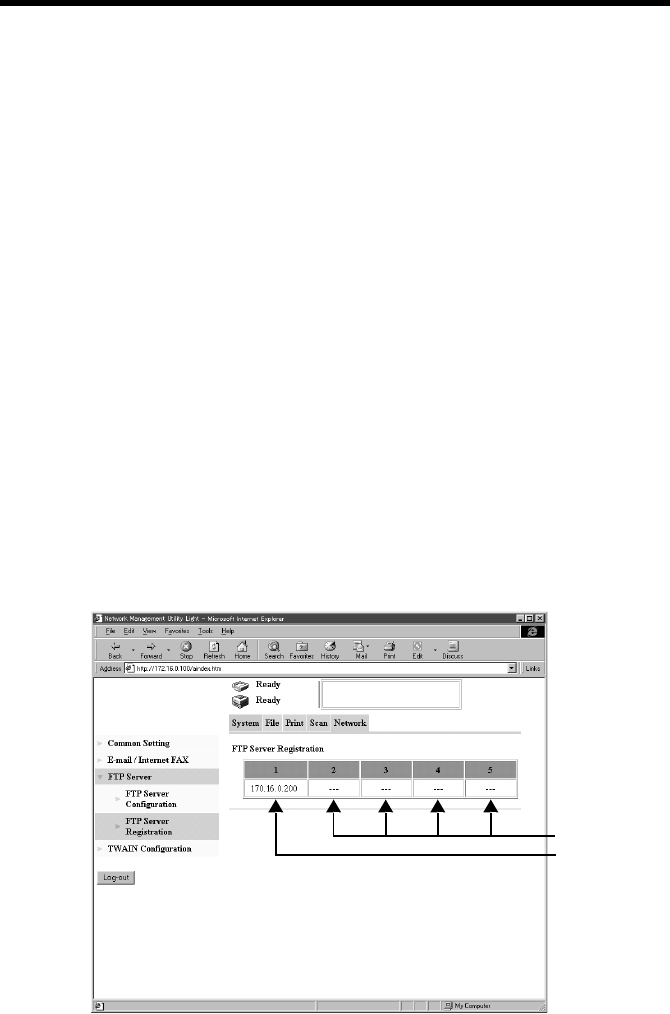
7. Settings and Operations for Scan Functions
70
5. Press the Start key on the copier. This lets the copier scan the document and
send the scanned data to the FTP server.
If the URL notification party has been specified, the information on the location,
in which scanned data is stored, is transmitted by e-mail.
6. Download the scanned data from the FTP server using the FTP client software.
If URL Notification has not been specified:
Directly access the FTP server from your FTP client software and download the
data from the folder, in which the scanned data has been stored. At this time, a
user name and a password may be necessary to access the FTP server.
If URL Notification has been specified:
Refer to the information given in the e-mail message and access the location, in
which scanned data is stored. At this time, a user name and a password may be
necessary to access the FTP server.
Controller Setting
■Registering FTP Servers
Up to five FTP servers can be registered.
Setting from Network Management Utility Light
1. Start Network Management Utility Light.
2. Enter the password and log on to the Administrator mode.
3. From the “Network” tab, select “FTP Server” – “FTP Server Registration.”
k4334P172CA
Not registered
Registered
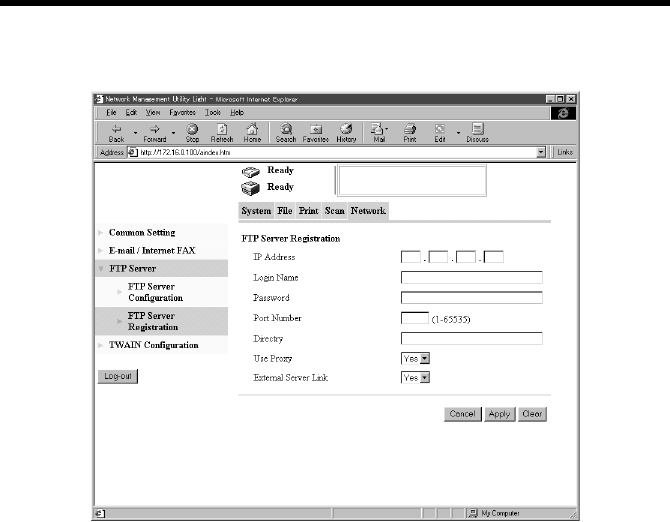
7. Settings and Operations for Scan Functions
71
4. When an empty field, in which no FTP servers have previously been registered,
is selected, it will bring you to a server registration screen.
5. Set the following items.
IP Address : Specify the IP address of the FTP server.
Login Name : Specify the name with which to log on to the FTP
server.
Setting value : 32 alphanumeric characters or less
Password : Specify the password with which to log on to the
FTP server.
Setting value : 64 alphanumeric characters or less
Port Number : Specify the port number of the FTP.
(The default value of “21” is generally used.)
Directory : Set the directory through which the scanned image
is stored in the FTP server.
Setting value : 128 alphanumeric characters or less (Enter “\” to
specify default folder.)
Use Proxy : Set whether to use the proxy server or not.
Setting values : Yes, No
k4334P173CA

7. Settings and Operations for Scan Functions
72
External Server Link : Set “Enable” and double-click the IP address of the
FTP displayed on the server link screen, which will
access the FTP server. The server link screen can
be displayed by selecting “Filing” – “External
Server Link.”
Setting values : Yes, No
NOTE
“External Server Link” can be used only when “anonymous” is set in “Login
Name” on the FTP Server Registration screen.
Setting from the copier control panel
1. Enter the Administrator mode from the Utility mode.
2. Select “Network set” – “FTP server.”
3. Set the IP Address, Login name, PIN#, and Directory.
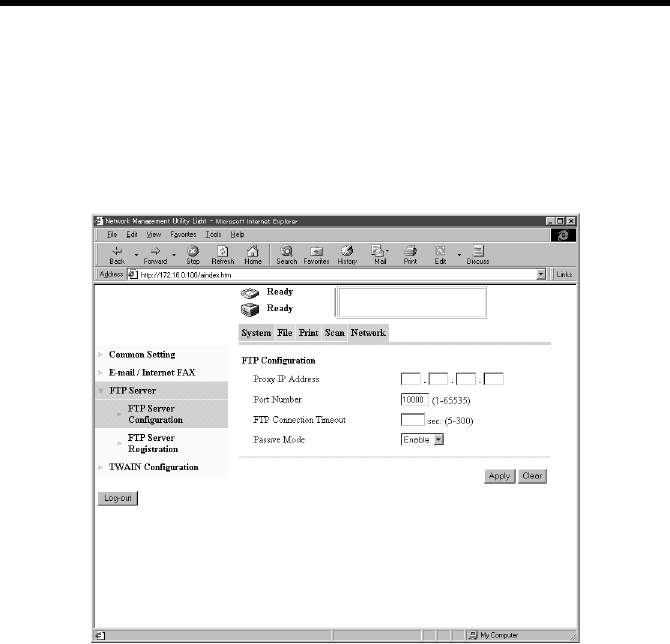
7. Settings and Operations for Scan Functions
73
Setting the Proxy Server
Make the following settings to use the proxy server.
Setting from Network Management Utility Light
1. Start Network Management Utility Light.
2. Enter the password and log on to the Administrator mode.
3. From the “Network” tab, select “FTP Server” – “FTP Server Configuration.”
4. Set the following items.
Proxy IP Address : To use a proxy server, set the IP address of the
proxy server.
Port Number : Set the port number of the proxy server.
FTP Connection Timeout : Set the communications timeout value with the FTP
server.
Passive Mode : Set the Passive Mode
Setting values : Enable, Disable
k4334P174CA
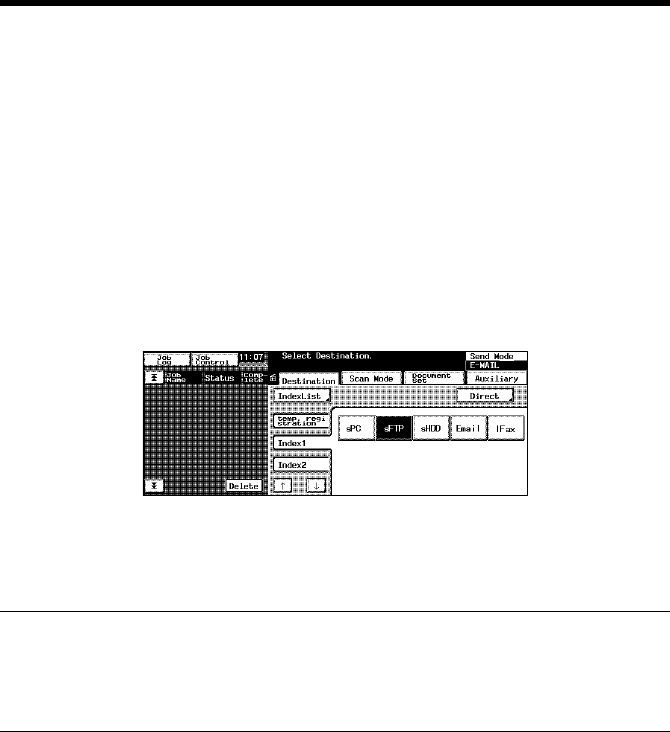
7. Settings and Operations for Scan Functions
74
Scan Operation
You have the choice of two scan operating procedures available selected according
to whether the one-touch key is used to specify the destination or one time key is
used.
■Specifying the destination using a one-touch key:
1. Press the Scan key on the copier.
2. Select the “Destination” tab.
3. Select the “IndexList” key.
4. Select the target index from the index list. Touch “Enter.” (Registering Index
☞p.110)
5. Select the one-touch key which has been registered for Scan to FTP Server.
6. Set the scanning mode. (Ref.: Setting the Scanning Mode) ☞p.75
7. Specify the document. (Ref.: Specifying the Document) ☞p.75
8. Press the Start key.
MEMOS
• One-touch key registration is possible from Network Management Utility Light.
• For details of one-touch key registration, see “Advance Registration of
Destinations” of chapter 7. ☞p.110
■Specifying the destination using a one time key:
The destination may be set using a one time key. ☞p.115
4334P195CA

7. Settings and Operations for Scan Functions
75
Details of Scan Operation Settings
■Setting the Scanning Mode
1. Press the Scan key on the copier.
2. Select the “Scan Mode” tab.
3. Set the following items.
Scan Size : Set the scanning size for the document.
Or, specify any given size (in mm or 1/16”).
Resolution : Select the scanning resolution.
Setting values : 600, 400, 300, 200 dpi
File Format : Select the format, with which the file to be
transmitted is stored.
Setting values : TIFF, PDF, JPEG
Color Mode : Set the scanning color mode.
Setting values : Full Color, Monochrome, Gray Scale, Auto Color
Background Remove : Set background removal.
■Specifying the Document
Set the type of the document to be scanned.
1. Press the Scan key on the copier.
2. Select the “Document Set” tab.
3. Set the following items.
Original Direction : Set the placement direction of the document.
Setting values : Not selected (Auto detect), Portrait documents
“Place Horizontally,” “Place vertically,” Landscape
documents “Place Horizontally,” “Place Vertically.”
Doc. Mode : Set the document mode.
Setting values : 1, 2, Book
Mixed Original Detection : For scanning different sized documents, select
“Mixed Original Detection” key.
Separate Scan : When Separate Scan is selected, the data read by
the time “Finish” key displayed on the copier
control panel after scanning completion is selected
are dealt as a job.
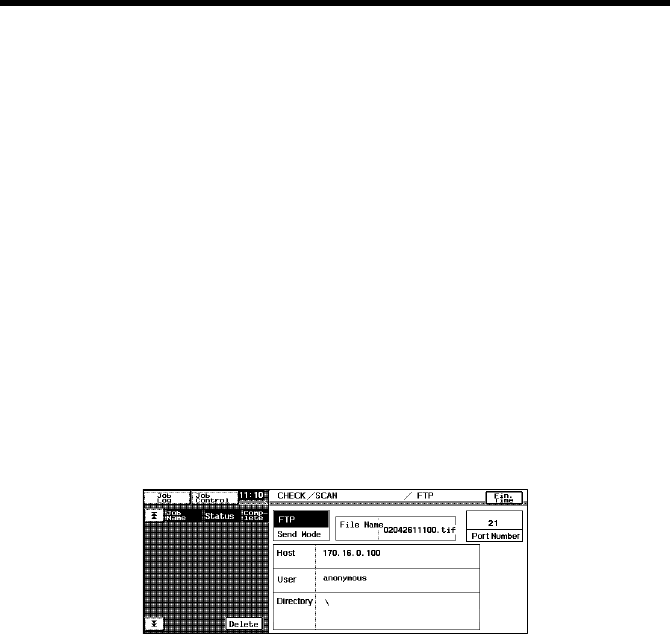
7. Settings and Operations for Scan Functions
76
■URL Notification
This function notifies the information on the location, in which scanned data is
stored, by e-mail.
•Select the notifying party using one-touch key registration.
•The party is one selected from among only those registered in one-touch key
registration with e-mail addresses.
Procedure
1. Press the “SCAN” key on the copier.
2. Select the “Auxiliary” key to go to the “Auxiliary” screen.
3. Specify the notifying party using the corresponding one-touch key.
4. Specify the e-mail address, which automatically sets the function.
■Setting Checks
It is possible to check the details of settings on the copier control panel.
•Select the “CHECK” key.
•Check the settings of “Scan to Server.”
k4334P197CA
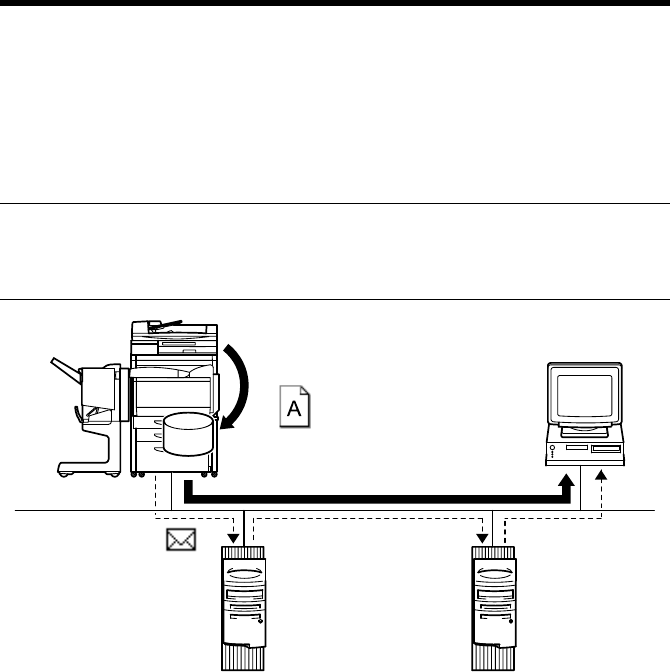
7. Settings and Operations for Scan Functions
77
7.4 Scan to HDD
Scan to HDD is the function that saves image data scanned by the copier in the
HDD directories of the hard disk built in the copier. The image data saved in the
hard disk can be downloaded to the PC using Network Management Utility Light.
For management of the saved data, see “Job Operations on Network Management
Utility Light,” “Job Management” of chapter 8. ☞p.121
NOTE
The hard disk is optional. This function can be used only after the hard disk has
been mounted on the copier.
1. Using Network Management Utility Light, create the HDD directories.
On the Create HDD directories screen, you specify the HDD Directories Name
and Password. ☞p.78
2. Using Network Management Utility Light, make the setting for One-Touch Key
Registration or One Time Registration.
The destination, HDD directories and URL Notification E-mail Address can be
set on the One-Touch Key Registration screen, and the destination, HDD
Directories, URL Notification E-mail Address, and other scan mode functions
can be set on the One Time Registration screen. ☞p.110
3. On the copier control panel, specify the destination to which the scanned data is
to be transmitted.
The destination is set by selecting the key, in which One-Touch Key Registration
or One Time Registration has been made in step 2. ☞p.80
4. On the copier control panel, specify the document scan mode.
4334O003AA
PC
Scan data
Information
Mail server Mail server

7. Settings and Operations for Scan Functions
78
MEMO
Even if URL Notification has not been set during One-Touch Key Registration or
One Time Registration on Network Management Utility Light, it is possible to
specify the URL Notification party from the copier control panel. ☞p.82
5. Press the Start key on the copier. This lets the copier scan the document and
save the scanned data in the hard disk.
If the URL notification party has been specified, the information on the location,
in which scanned data is stored, is transmitted by e-mail.
6. Download the scanned data from the hard disk. ☞p.83
If URL Notification has not been specified:
Access the HDD directories specified on Network Management Utility Light
and download the data from the hard disk. At this time, a password for
accessing the HDD directories is required. If PUBLIC has been specified, no
password is necessary.
If URL Notification has been specified:
Refer to the information given in the e-mail message and access the location, in
which scanned data is stored. At this time, a password for accessing the HDD
directories is required. If PUBLIC has been specified, no password is necessary.
Creating a HDD Directories
■Creating Procedure
1. Start Network Management Utility Light.
2. From the “File” tab, select “User Directory.”
3. Clicking the “Create” button will open the “Create HDD Directories” screen.
Type data in “HDD Directories Name” (8 alphanumeric characters or less),
“Password,” and “Retype Password” and click the “Create” button.
When you type data in “HDD Directories Name” with alphabet, always type in
the capital letters.
dir1 No name can be registered.
DIR1 OK
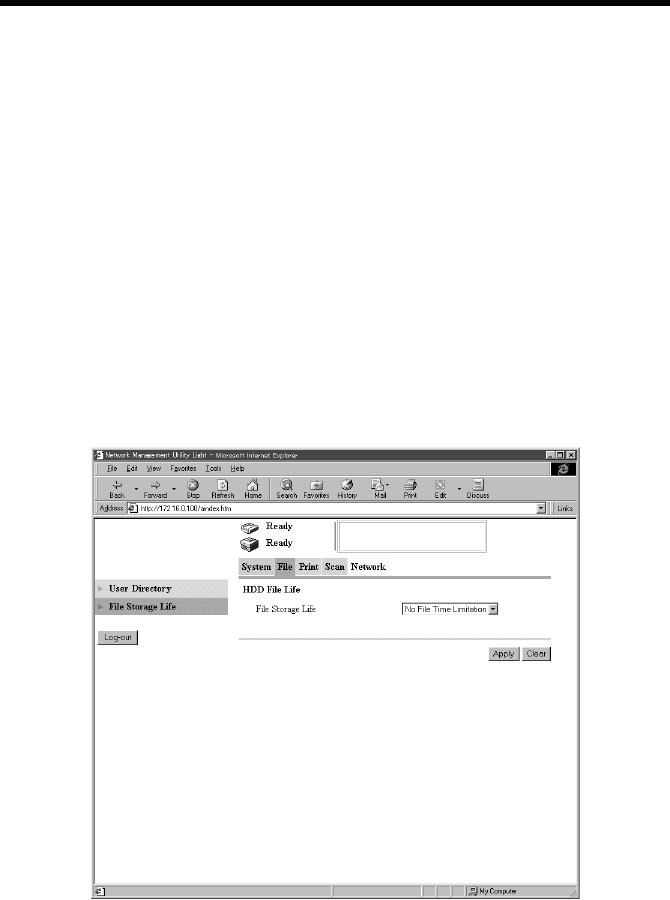
7. Settings and Operations for Scan Functions
79
•“Public directory” and “HDD directories”
The “directory name” can be freely assigned for “HDD Directories”. It is the
location, in which scanned data is stored for Scan to HDD.
The contents of the “HDD directories” can be accessed only when the password set
upon registration is entered. The “HDD directories” can be created arbitrarily from
a Network Management Utility Light screen.
The “public directory” is the location, in which scanned data is stored for Scan to
HDD and which anyone can access without needing a password. The directory
name is “PUBLIC.”
■File Storage Life
It can set the period of storage of scanned data in the hard disk.
1. Start Network Management Utility Light.
2. Enter the password and log on to the Administrator mode.
3. From the “File” tab, select “File Storage Life.”
4. Set the following items.
File Storage Life : Specify the period of storage of files in the hard
disk.
Setting value : No File Time Limitation, 1 day, 2 day, 3 day, 4 day,
5 day, 6 day, 7day
k4334P234CA
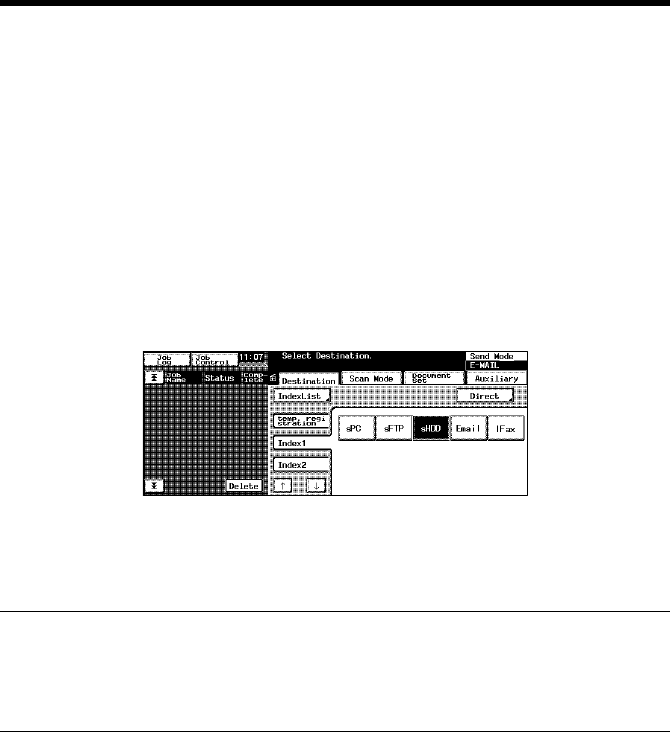
7. Settings and Operations for Scan Functions
80
Scan Operation
You have the choice of two scan operating procedures available selected according
to whether the one-touch key is used to specify the destination or one time key is
used.
■Specifying the destination using a one-touch key:
1. Press the Scan key on the copier.
2. Select the “Destination” tab.
3. Select the “IndexList” key.
4. Select the target index from the index list. Touch “Enter.” (Registering Index
☞p.110)
5. Select the one-touch key which has been registered for Scan to HDD.
6. Set the scanning mode. (Ref.: Setting the Scanning Mode) ☞p.81
7. Specify the document. (Ref.: Specifying the Document) ☞p.81
8. Press the Start key.
MEMOS
• One-touch key registration is possible from Network Management Utility Light.
• For details of one-touch key registration, see “Advance Registration of
Destinations” of chapter 7. ☞p.110
■Specifying the destination using a one time key:
The destination may be set using a one time key. ☞p.115
4334P198CA

7. Settings and Operations for Scan Functions
81
Details of Scan Operation Settings
■Setting the Scanning Mode
1. Press the Scan key on the copier.
2. Select the “Scan Mode” tab.
3. Set the following items.
Scan Size : Set the scanning size for the document.
Or, specify any given size (in mm or 1/16”).
Resolution : Select the scanning resolution.
Setting values : 600, 400, 300, 200 dpi
File Format : Select the format, with which the file to be
transmitted is stored.
Setting values : TIFF, PDF, JPEG
Color Mode : Set the scanning color mode.
Setting values : Full Color, Gray Scale, Monochrome, Auto Color
Background Remove : Set background removal.
■Specifying the Document
Set the type of the document to be scanned.
1. Press the Scan key on the copier.
2. Select the “Document Set” tab.
3. Set the following items.
Original Direction : Set the placement direction of the document.
Setting values : Not selected (Auto detect), Portrait documents
“Place Horizontally,” “Place vertically,” Landscape
documents “Place Horizontally,” “Place Vertically.”
Doc. Mode : Set the document mode.
Setting values : 1, 2, Book
Mixed Original Detection : For scanning different sized documents, select
“Mixed Original Detection” key.
Separate Scan : When Separate Scan is selected, the data read by
the time “Finish” key displayed on the copier
control panel after scanning completion is selected
are dealt as a job.
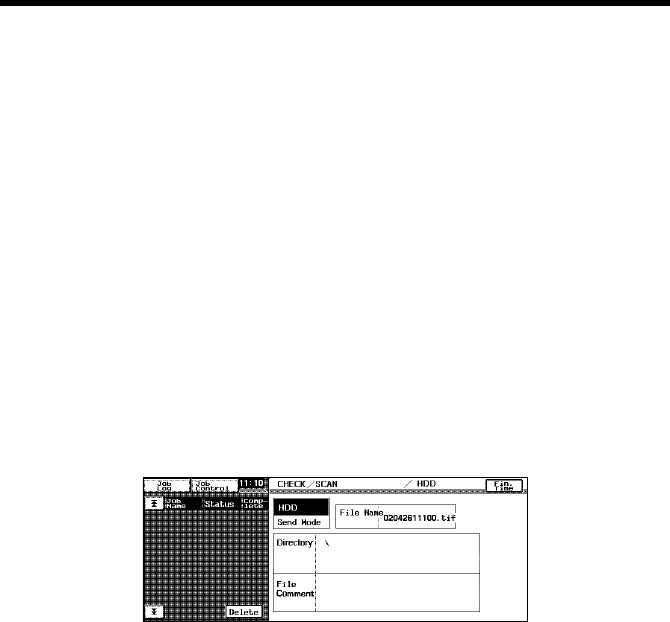
7. Settings and Operations for Scan Functions
82
■URL Notification
This function notifies the information on the location, in which scanned data is
stored, by e-mail.
•Select the notifying party using one-touch key registration.
•The party is one selected from among only those registered in one-touch key
registration with e-mail addresses.
Procedure
1. Press the “SCAN” on the copier.
2. Select the “Auxiliary” key to go to the “Auxiliary” screen.
3. Specify the notifying party using the corresponding one-touch key.
4. Specify the e-mail address, which automatically sets the function.
■Setting Checks
•Select the “CHECK” key.
•Check the settings of “Scan To HDD.”
The specific settings made can be checked on the copier control panel.
k4334P200CA
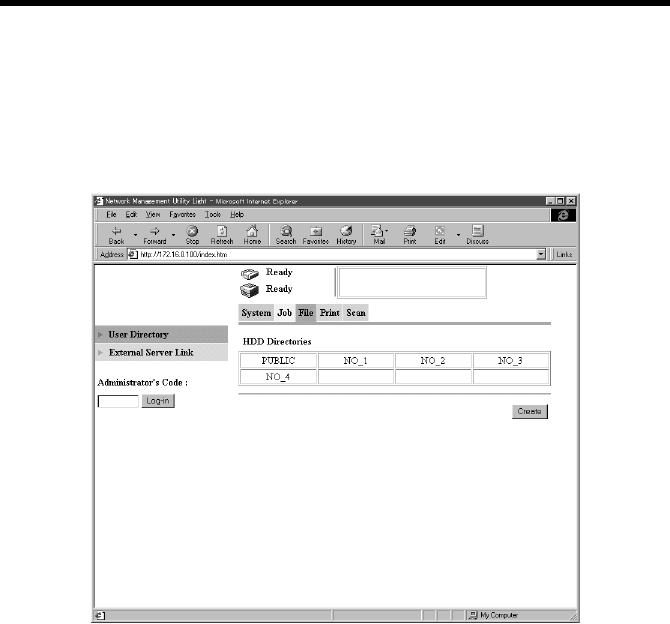
7. Settings and Operations for Scan Functions
83
Downloading Scanned Data from the Hard Disk
Start Network Management Utility Light and download the scanned data.
1. Start Network Management Utility Light.
2. Select “File” – “User Directory.”
3. Click the specified HDD directories or PUBLIC.
4. If the HDD directories has been clicked, type the password.
k4334P185CA
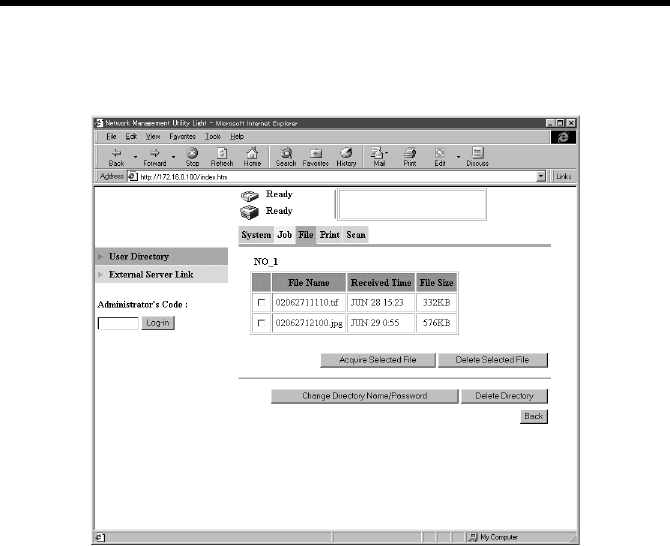
7. Settings and Operations for Scan Functions
84
5. A list of files stored is displayed.
Select the specific file to be downloaded and click the “Acquire Selected File”
button.
Data list screen
File Name : Displays the name of the file stored in the HDD
directories.
Received Time : Displays the time-of-day when the file was stored
in the HDD directories.
File Size : Displays the size of the file stored in the HDD
directories.
Buttons
Acquire Selected File : Downloads the selected file in the PC.
Delete Selected File : Deletes the selected from the copier HDD.
Change Directory Name/Password:
Accesses a screen that allows you to change the
HDD directories name and password set for the
HDD directories.
Delete Directory : Deletes the HDD directories being displayed on the
screen.
4334P186CA

7. Settings and Operations for Scan Functions
85
6. Follow these procedures to acquire the scanned data from Network Management
Utility Light.
For TIFF and PDF format
1. It opens “Downloading files...” dialog box.
2. Specify the place in which the files can be downloaded, then click “OK” button.
For JPEG format
1. Scanned image will then appear.
2. Click and select on the image and show the menu by right-click.
3. Select “Save the image as...” and save the file.
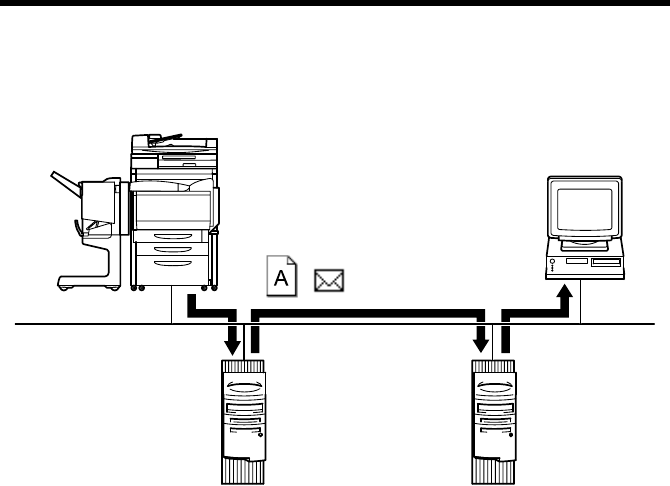
7. Settings and Operations for Scan Functions
86
7.5 Scan to E-mail
Scan to E-mail is the function that transmits image data scanned by the copier as a
file attached to e-mail.
If the size of the file attached to e-mail is limited and if a file size exceeds this limit,
the file may be divided (in binary units) for transmission. For mail (file) division
setting, see “Scan to E-mail Setting” of chapter 7. ☞p.88
1. Using Network Management Utility Light, make the mail transmission setting
and option setting.
2. Using Network Management Utility Light, make the setting for One-Touch Key
Registration or One Time Registration.
The destination and the destination e-mail address can be set on the One-Touch
Key Registration screen, and the destination, destination e-mail address, and
other scan mode functions can be set on the One Time Registration screen.
☞p.110
3. On the copier control panel, specify the destination to which the scanned data is
to be transmitted.
The destination is set by selecting the key, in which One-Touch Key Registration
or One Time Registration has been made in step 2, or through direct input.
☞p.90
4. On the copier control panel, specify the document scan mode.
5. Press the Start key on the copier. This lets the copier scan the document and
send the scanned data to the mail server by attaching it to an e-mail message.
6. From the PC, receive the e-mail stored in the mail server.
Check the file attached to the e-mail.
4334O004AA
PC
Mail server Mail server
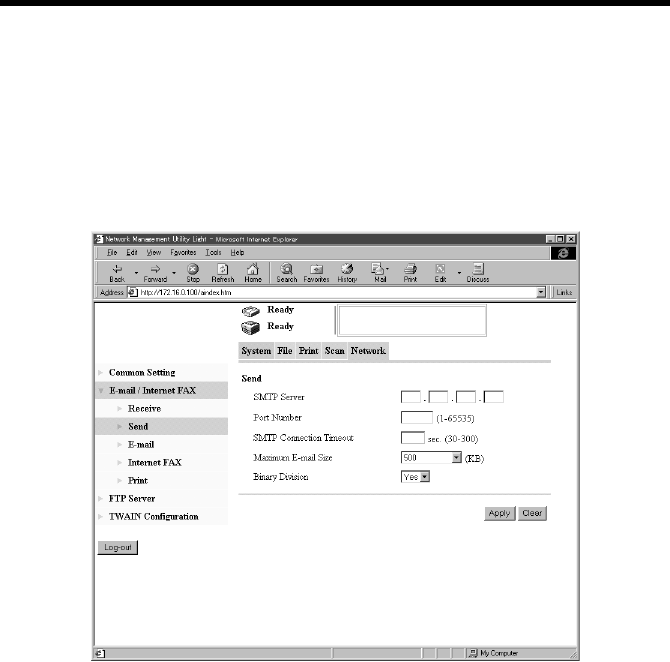
7. Settings and Operations for Scan Functions
87
Controller Setting
■E-mail Transmission Setting
Set the mail server (SMTP server) to enable mail transmission.
Setting from Network Management Utility Light
1. Start Network Management Utility Light.
2. Enter the password and log on to the Administrator mode.
3. From the “Network” tab, select “E-mail/Internet FAX” – “Send.”
4. Set the following items.
SMTP Server : Set the IP address of the SMTP server.
Port Number : Set the port number of the SMTP server.
(The default value of “25” is generally used.)
SMTP Connection Timeout : Set the communications timeout value with the
SMTP server.
Setting values : 30 to 300 sec.
Maximum E-mail Size : Set the maximum size of transmission mail
capacity.
Setting values : No Limitation, 100 to 3000 KB (100 increments)
Binary Division : Set whether to divide mail exceeding the
maximum mail size into two or more mails (in
units of binary). ☞p.88, ☞p.94
Setting values : Yes, No
k4334P175CA

7. Settings and Operations for Scan Functions
88
Setting from the copier control panel
1. Enter the Administrator mode.
2. Select “Network set” – “E-mail/I-Fax” – “Send.”
3. Set the SMTP Server, Timeout of SMTP Server, and Mail Separation.
Binary Division and Scanned File Separation ☞p.62
Different mail transmission operations of Scan to E-mail result depending on the
combination of the settings of Binary Division and Scanned File Separation.
Examine the following.
Settings [Scanned File Separation: Yes; Binary Division: Yes]
If the scanned data exceeds the setting value for “Maximum E-mail Size,” the data
is divided into each page. If the data size of each page after Scanned File
Separation still exceeds the setting value for “Maximum E-mail Size,” the data is
further divided into a size on a binary level that falls within the setting value.
Settings [Scanned File Separation: Yes; Binary Division: No]
If the scanned data exceeds the setting value for “Maximum E-mail Size,” the data
is divided into each page. If the data size of each page after Scanned File
Separation still exceeds the setting value for “Maximum E-mail Size,” the data is
discarded.
Settings [Scanned File Separation: No; Binary Division: Yes]
If the scanned data exceeds the setting value for “Maximum E-mail Size,” it is
divided into a size on a binary level that falls within the setting value.
Settings [Scanned File Separation: No; Binary Division: No]
If the scanned data exceeds the setting value for “Maximum E-mail Size,” it is
discarded.
NOTE
If two or more pages are scanned with no hard disk mounted in the copier, the
data is transmitted at all times by the page regardless of the setting made of
Scanned File Separation.
Restoring binary-divided data to an original state
If binary-divided scanned data is received, it can be restored to the original state by
using mail client software that is capable of doing that.
For more details, see the instruction manual of your mail client software or help.
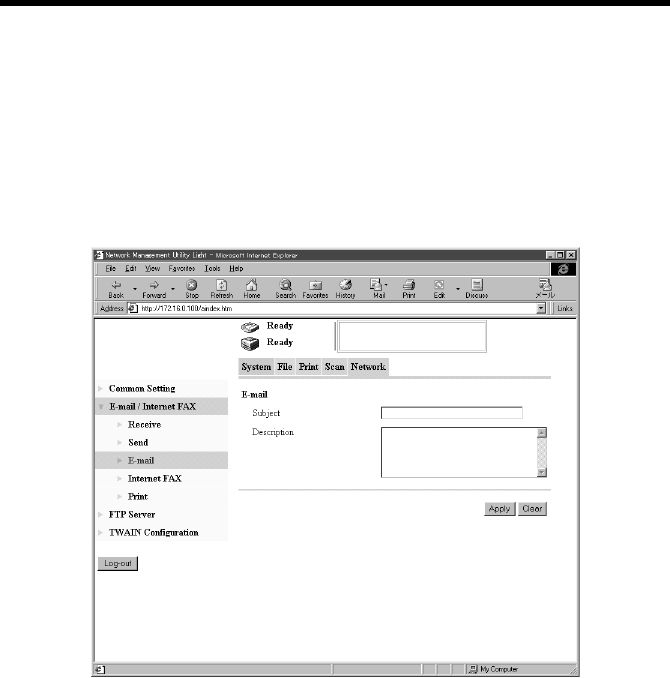
7. Settings and Operations for Scan Functions
89
■Setting the Mail Options
The subject and message of e-mail can be set for mail transmission through Scan to
E-mail.
Setting from Network Management Utility Light
1. Start Network Management Utility Light.
2. Enter the password and log on to the Administrator mode.
3. From the “Network” tab, select “E-mail/Internet FAX” – “E-mail.”
4. Set the following items.
Subject : Type the title of the e-mail.
Setting value : 64 characters
Description : Type the message of the e-mail.
Setting value : 256 characters
When the above settings are made, the subject and message are appended to the e-
mail in Scan to E-mail.
k4334P177CA
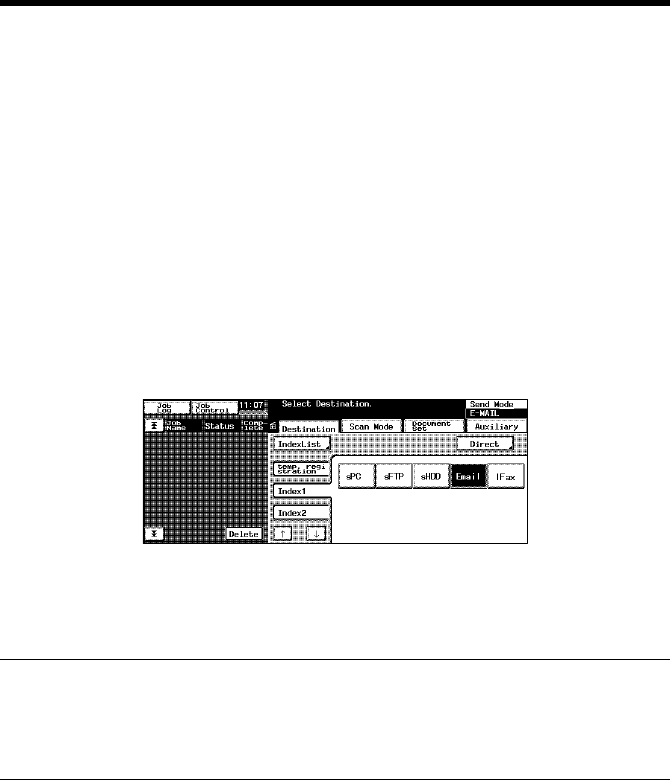
7. Settings and Operations for Scan Functions
90
Scan Operation
You have three ways to choose from to perform the scan operation depending on
whether the destination is set with a one-touch key or a one time key, or set through
direct input from the copier control panel.
■Specifying the destination using a one-touch key:
1. Press the Scan key on the copier.
2. Select the “Destination” tab.
3. Select the “IndexList” key.
4. Select the target index from the index list. Touch “Enter.” (Registering Index
☞p.110)
5. Select the one-touch key in which the destination has been set. The one-touch
keys that can be used at this time are only those, for which “Scan To E-mail” has
been set for Job Type when one-touch key registration was made.
6. Set the scanning mode. (Ref.: Setting the Scanning Mode) ☞p.92
7. Specify the document. (Ref.: Specifying the Document) ☞p.92
8. Press the Start key.
NOTES
• One-touch key registration is possible from Network Management Utility Light.
• For details of one-touch key registration, see “Advance Registration of
Destinations” of chapter 7. ☞p.110
■Specifying the destination using a one time key:
The destination may be set using a one time key. ☞p.115
4334P201CA
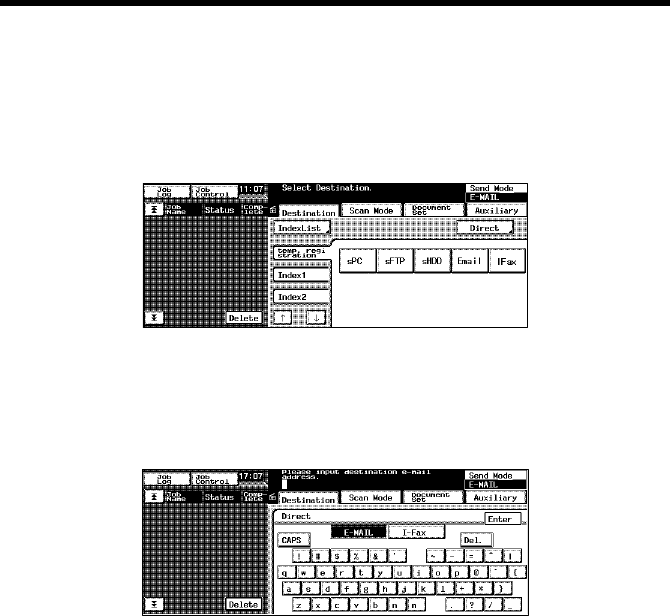
7. Settings and Operations for Scan Functions
91
■Direct Input
The address used in Scan to E-mail can be directly input from the control panel of
the copier, instead of using the one-touch key or one time key.
1. Press the Scan key on the copier.
2. Select “Direct.”
3. Select “E-MAIL.”
4. Using keys on the control panel and 10-Key Pad, type the e-mail address of the
destination. (1800 alphanumeric characters or less; if two or more addresses are
entered, place “,” between two different addresses.)
5. Select “Enter.” This brings you back to the scan basic screen.
6. Set the scanning mode. (Ref.: Setting the Scanning Mode) ☞p.92
7. Specify the document. (Ref.: Specifying the Document) ☞p.92
8. Press the Start key.
4334P202CA
4334P203CA

7. Settings and Operations for Scan Functions
92
Details of Scan Operation Settings
■Setting the Scanning Mode
1. Press the Scan key on the copier.
2. Select the “Scan Mode” tab.
3. Set the following items.
Scan Size : Set the scanning size for the document.
Or, specify any given size (in mm or 1/16”).
Resolution : Select the scanning resolution.
Setting values : 600, 400, 300, 200 dpi
File Format : Select the format, with which the file to be
transmitted is stored.
Setting values : TIFF, PDF, JPEG
Color Mode : Set the scanning color mode.
Setting values : Full Color, Gray Scale, Monochrome, Auto Color
Background Remove : Set background removal.
■Specifying the Document
Set the type of the document to be scanned.
1. Press the Scan key on the copier.
2. Select the “Document Set” tab.
3. Set the following items.
Original Direction : Set the placement direction of the document.
Setting values : Not selected (Auto detect), Portrait documents
“Place Horizontally,” “Place vertically,” Landscape
documents “Place Horizontally,” “Place Vertically.”
Doc. Mode : Set the document mode.
Setting values : 1, 2, Book
Mixed Original Detection : For scanning different sized documents, select
“Mixed Original Detection” key.
Separate Scan : When Separate Scan is selected, the data read by
the time “Finish” key displayed on the copier
control panel after scanning completion is selected
are dealt as a job.
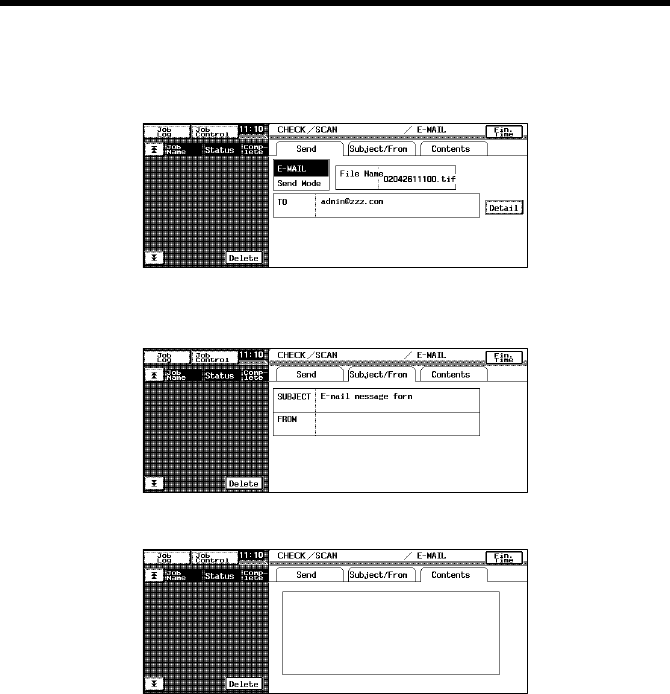
7. Settings and Operations for Scan Functions
93
■Setting Checks
1. Select the “CHECK” key.
2. Select the “Send” tab to check the settings made for Scan to E-mail.
3. Select the “Subject/From” tab to check the data set for “SUBJECT” and
“FROM” (sender’s address).
4. Select the “Contents” tab to check the message of the e-mail.
5. Select the “Send” tab then “Detail” to check the e-mail address of the sender.
■Error Message
For [E-mail Address (From:)], set the address to which the mail server sends the
error message when an error occurs during transmission of the e-mail.
Setting from Network Management Utility Light
[E-mail Address (From:)] ☞p.62
k4334P205CA
k4334P206CA
k4334P207CA
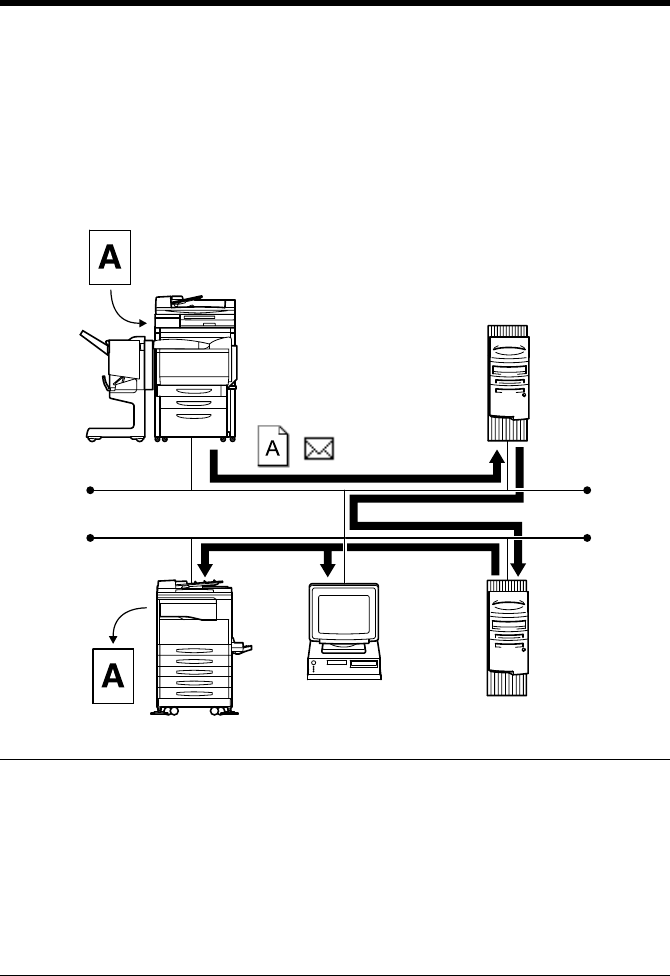
7. Settings and Operations for Scan Functions
94
7.6 Internet Fax
Internet Fax is the function that transmits the image data captured through scanning
as a file attached to e-mail. It differs from Scan to E-mail in that the format of the
attached file is standardized. Image data can be transmitted and received among the
a devices that complies with the Internet Fax standard.
Transmission can be executed by following the same procedure as in Scan to E-
mail.
NOTES
• If “Scanned File Separation” (☞p.62) is set to “Yes” and a document
consisting of two or more pages is sent by Internet Fax, the document will be
sent page-by-page regardless of the setting of the maximum mail size.
• Depending on the model of the Internet Fax machine on the receiving end, a file
transmitted through binary division (☞p.87) may not be properly received by
the receiving machine. Check with the receiving end before actually sending
the Internet Fax.
4334O005AA
Mail server
Internet
Mail server

7. Settings and Operations for Scan Functions
95
1. Using Network Management Utility Light, make the settings for mail
transmission, mail reception, mail options, and printing for the Internet Fax
received data. ☞p.96
2. Using Network Management Utility Light, make the setting for One-Touch Key
Registration or One Time Registration.
The destination, destination e-mail address, and e-mail address to which Internet
Fax is replied can be set on the One-Touch Key Registration screen, and the
destination, destination e-mail address, e-mail address to which Internet Fax is
replied, and other scan mode functions can be set on the One Time Registration
screen. ☞p.110
3. On the copier control panel, specify the destination to which the scanned data is
to be transmitted.
The destination is set by selecting the key, in which One-Touch Key Registration
or One Time Registration has been made in step 2, or through direct input.
☞p.100
4. On the copier control panel, specify the document scan mode.
5. Press the Start key on the copier. This lets the copier scan the document and
send the scanned data through Internet Fax.
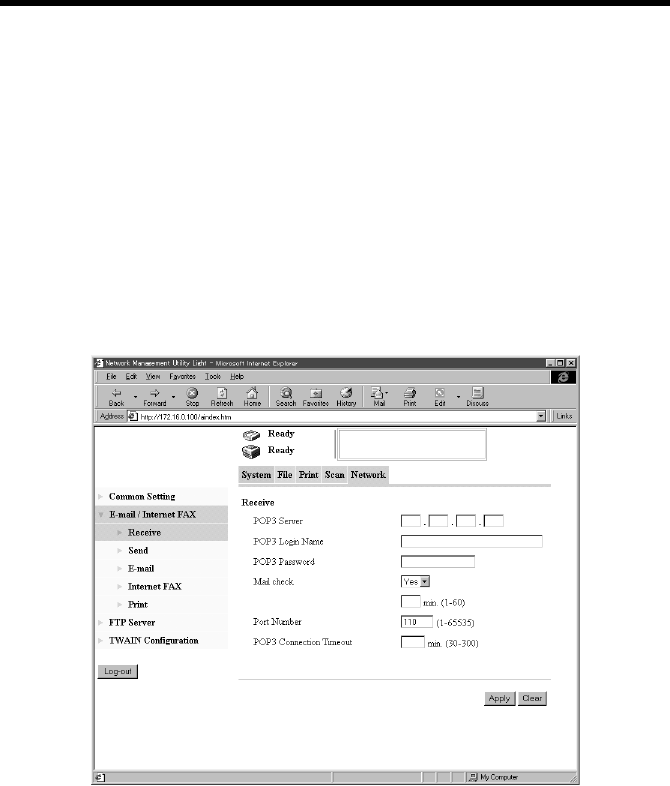
7. Settings and Operations for Scan Functions
96
Controller Setting
■Internet Fax Transmission Setting
To make the settings, use the same screen as that used for setting for Scan to E-mail.
(The same transmission settings are made for Scan to E-mail and Internet Fax.)
■Reception Setting
Set the mail server (POP3 server) to enable mail reception from the lnternet FAX.
Setting from Network Management Utility Light
1. Start Network Management Utility Light.
2. Enter the password and log on to the Administrator mode.
3. From the “Network” tab, select “E-mail/Internet FAX” – “Receive.”
4. Set the following items.
POP3 Server : Set the IP address of the POP3 server.
POP3 Login Name : Set the logon name of the POP3 server.
Setting value : 63 alphanumeric characters
POP3 Password : Set the password used when logging on to the POP3
server.
Setting value : 15 alphanumeric characters
k4334P176CA

7. Settings and Operations for Scan Functions
97
Mail Check : Set whether to make a periodic check of the
contents of the mail server or not. If “No” is
selected, mail is not received.
Setting values : Yes, No
1-60 min.
Port Number : Set the port number of the POP3 server.
(The default value of “110” is generally used.)
POP3 Connection Timeout: Set the communications timeout value with the
POP3 server.
Setting values : 30 to 300 sec.
Setting from the copier control panel
1. Enter the Administrator mode.
2. Select “Network set” – “E-mail/I-Fax” – “Receive.”
3. Set the POP3 server, POP3 login name, POP3 password, and mail check.
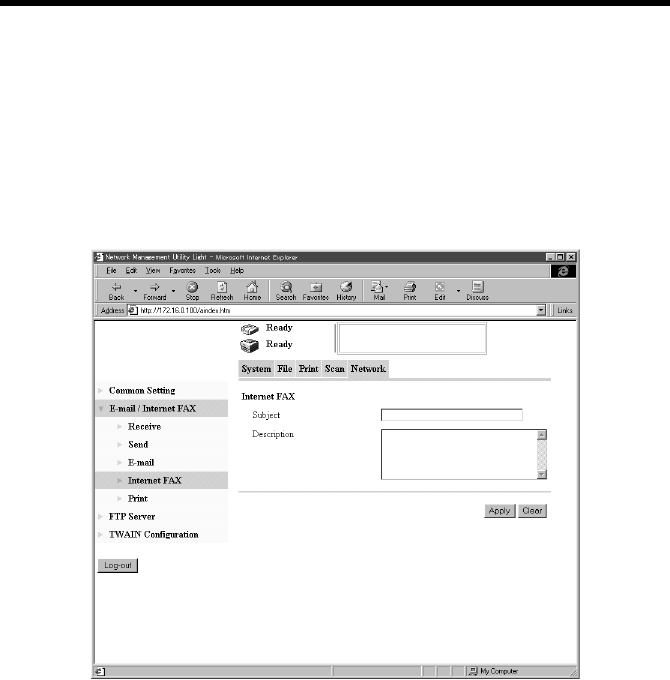
7. Settings and Operations for Scan Functions
98
Setting the Internet FAX Options
The subject and message of e-mail can be set for mail transmission through Internet
Fax.
Setting from Network Management Utility Light
1. Start Network Management Utility Light.
2. Enter the password and log on to the Administrator mode.
3. From the “Network” tab, select “E-mail/Internet FAX” – “Internet FAX.”
4. Set the following items.
Subject : Type the title of the e-mail.
Setting value : 64 characters
Description : Type the message of the e-mail.
Setting value : 256 characters
When the above settings are made, the subject and message are appended to the e-
mail sent through Internet FAX.
k4334P178CA
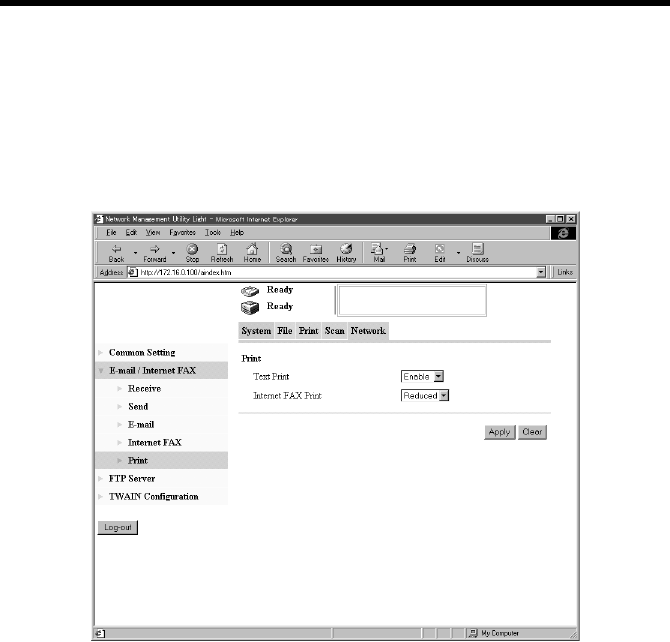
7. Settings and Operations for Scan Functions
99
■Setting for Printing E-mail/Internet FAX
Set for printing for internet FAX received data.
Setting from Network Management Utility Light
1. Start Network Management Utility Light.
2. Enter the password and log on to the Administrator mode.
3. From the “Network” tab, select “E-mail/Internet FAX” – “Print.”
4. Set the following items.
Text Print : Set whether to print an E-mail/Internet FAX
message received by the copier.
Setting values : Enable, Disable
Internet Fax Print : Set the magnification for printing of received data.
Setting values : Full Size, Reduced (default), A4/Letter
Full Size:
The received data is printed in full size.
Reduced (default):
Select this to slightly reduce the received data.
A4/Letter:
Select this to fit the received data to A4 or Letter
size.
k4334P179CA
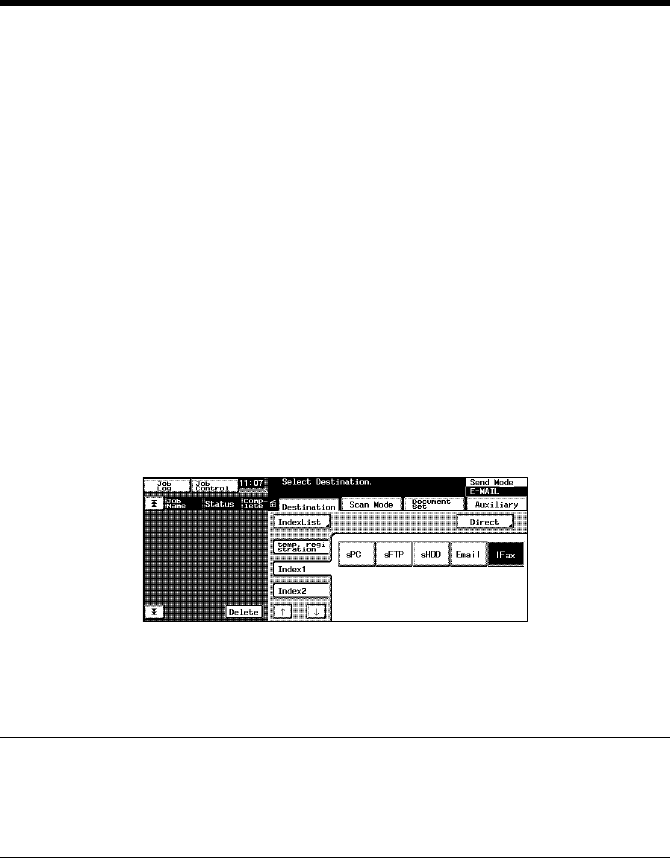
7. Settings and Operations for Scan Functions
100
Setting from the copier control panel
1. Enter the Administrator mode.
2. Select “Network set” – “E-mail/I-Fax” – “Print.”
3. The same items as those with Network Management Utility Light can be set.
Scanning Operation for Internet Fax Transmission
You have three ways to choose from to perform the scan operation depending on
whether the destination is set with a one-touch key or a one time key, or set through
direct input from the copier control panel.
■Specifying the destination using a one-touch key:
1. Press the Scan key on the copier.
2. Select the “Destination” tab.
3. Select the “IndexList” key.
4. Select the target index from the index list. Touch “Enter.” (Registering Index
☞p.110)
5. Select the one-touch key in which the destination has been set.
6. Set the scanning mode. (Ref.: Setting the Scanning Mode) ☞p.102
7. Specify the document. (Ref.: Specifying the Document) ☞p.103
8. Press the Start key.
MEMOS
• One-touch key registration is possible from Network Management Utility Light.
• For details of one-touch key registration, see “Advance Registration of
Destinations” of chapter 7. ☞p.110
■Specifying the destination using a one time key:
The destination may be set using a one time key. ☞p.115
4334P209CA
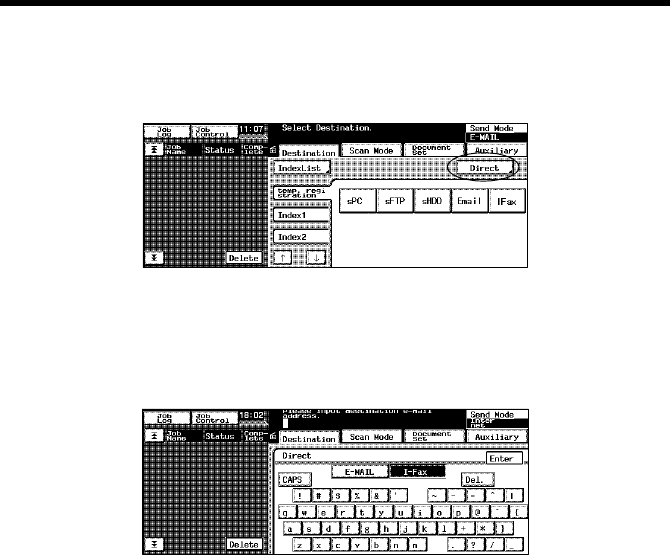
7. Settings and Operations for Scan Functions
101
■Direct Input
1. Press the Scan key on the copier.
2. Select “Direct.”
3. Select “I-FAX.”
4. Using keys on the control panel and 10-Key Pad, type the e-mail address of the
destination. (1800 alphanumeric characters or less; if two or more addresses are
entered, place “,” between two different addresses.)
5. Select “Enter.” This brings you back to the scan basic screen.
6. Set the scanning mode. (Ref.: Setting the Scanning Mode) ☞p.102
7. Specify the document. (Ref.: Specifying the Document) ☞p.103
8. Press the Start key.
4334P202CA
4334P208CA

7. Settings and Operations for Scan Functions
102
Details of Scan Operation Settings
■Setting the Scanning Mode
1. Press the Scan key on the copier.
2. Select the “Scan Mode” tab.
3. Set the following items.
Scan Size : Set the scanning size for the document.
Or, specify any given size (in mm or 1/16”).
Resolution : Select the scanning resolution.
Setting values : 200 dpi (fixed)
File Format : Select the format, with which the file to be
transmitted is stored.
Setting values : TIFF (fixed)
Color Mode : Set the scanning color mode.
Setting values : Monochrome (fixed)
Background Remove : Set background removal.
NOTE
Regardless of reading size, the paper size actually transmitted is A4/Letter/Legal.
For example, when A3 size (11
×
17) document is read, the image will be
compressed to A4 (Letter) size and transmitted to the receiver as A4 (Letter) size.
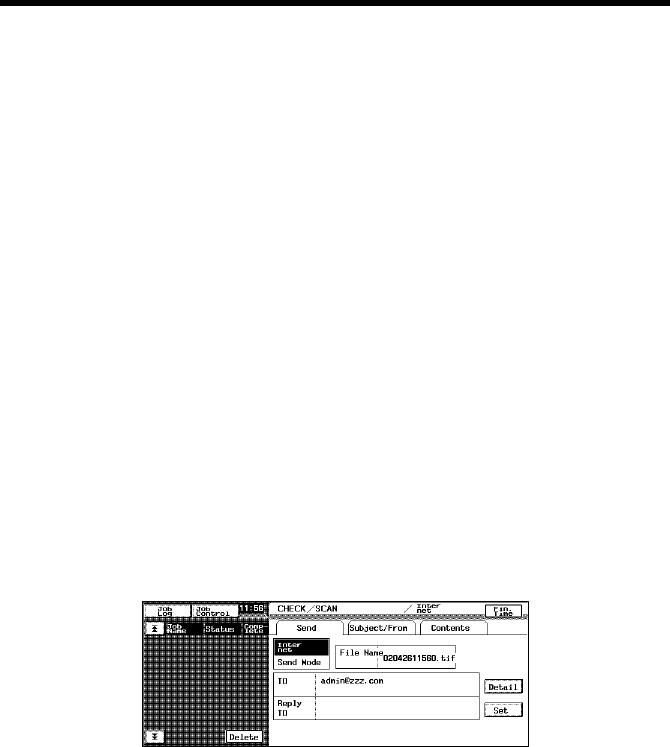
7. Settings and Operations for Scan Functions
103
■Specifying the Document
Set the type of the document to be scanned.
1. Press the Scan key on the copier.
2. Select the “Document Set” tab.
3. Set the following items.
Original Direction : Set the placement direction of the document.
Setting values : Not selected (Auto detect), Portrait documents
“Place Horizontally,” “Place vertically,” Landscape
documents “Place Horizontally,” “Place Vertically.”
Doc. Mode : Set the document mode.
Setting values : 1, 2, Book
Mixed Original Detection : For scanning different sized documents, select
“Mixed Original Detection” key.
Separate Scan : When Separate Scan is selected, the data read by
the time “Finish” key displayed on the copier
control panel after scanning completion is selected
are dealt as a job.
■Setting Checks
1. Select the “CHECK” key.
When the “Send” tab is selected, the settings made for Internet Fax can be
checked.
When the “Detail” key is selected, the list of registered e-mail address will then
appear.
When the “Set” key is selected, it can select and add “Reply-To address” from
the one-touch key.
k4334P211CA
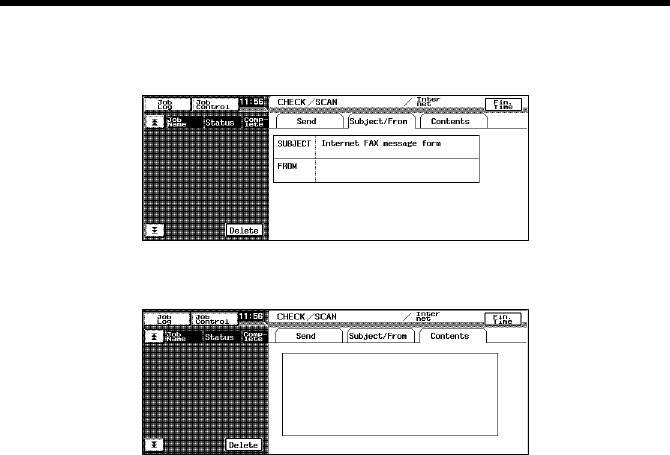
7. Settings and Operations for Scan Functions
104
2. Select the “Subject/From” tab to check the data set for “SUBJECT” and
“FROM” (sender’s address).
3. Select the “Contents” tab to check the message of the e-mail.
■Error Message
For [E-mail Address (Reply-To:)] (Ref.: Advance Registration of Destinations
☞p.110) and [E-mail Address (From:)], set the addresses to which the mail server
sends the error message when an error occurs during transmission of the e-mail. If
both [E-mail Address (Reply-To:)] and [E-mail Address (From:)] are set, [E-mail
Address (Reply-To:)] takes precedence. If either one of these is set, the address
entered becomes valid.
Setting from Network Management Utility Light
[E-mail Address (Reply-To:)] ☞p.110
[E-mail Address (From:)] ☞p.62
k4334P212CA
k4334P213CA

7. Settings and Operations for Scan Functions
105
Internet Fax Reception
Internet Fax data (e-mail) transmitted from another device that complies with
Internet Fax can be received.
The received Internet Fax e-mails on the mail server are collectively retrieved from
the mail server and temporarily stored in the copier. The stored data is printed, one
job after another, as soon as all the jobs being currently executed are completed. No
mails on the mail server will be erased until it is confirmed that they have been
correctly printed.
The printed data is not stored in memory or hard disk of the copier; rather, it is
erased.
Reception of Internet Fax messages is done by asking the POP3 server if there are
any e-mails addressed to the inquirer at regular intervals. For the setting of this
inquiring interval, see “Reception Setting” of chapter 7. ☞p.96
MEMOS
• The following data can be received:
Size :Letter, A4, Legal, B4, A3
Color mode :Monochrome binary
Compression method :MH, MR, MMR
• The print jobs of data received through Internet Fax are not incorporated in the
job history of the copier.
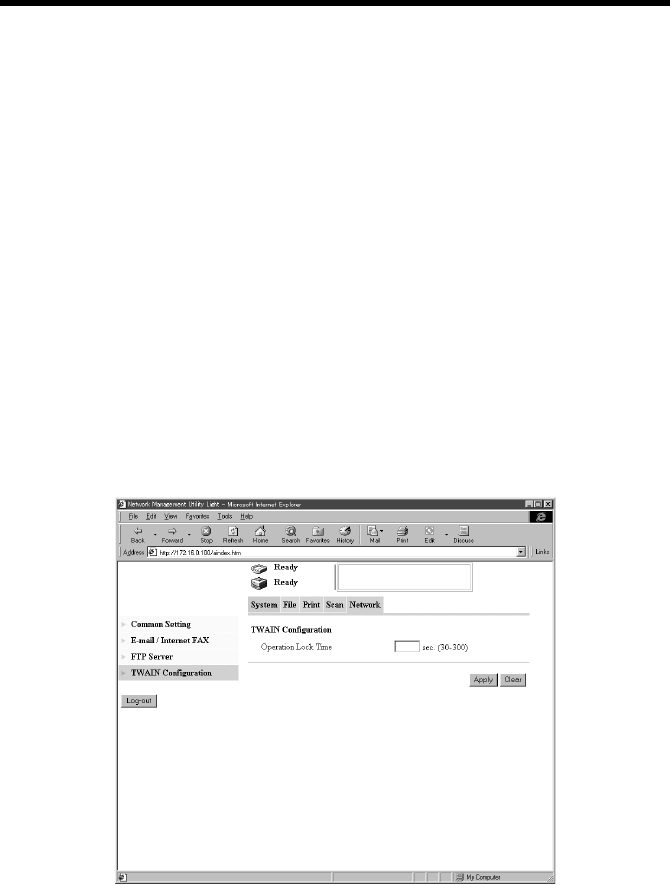
7. Settings and Operations for Scan Functions
106
7.7 The Operation of Capturing Images by TWAIN
TWAIN is the interface that allows images captured by a specific device to be input
through a computer of a different platform. It is applied to control the scanner of
the copier so as to capture scanned images in applications. To use TWAIN, it is
necessary that a TWAIN driver be installed in the PC and TWAIN settings be made
on the copier. The function described in this step is valid only for use in network
environment.
Installing the TWAIN Driver
1. Open the location of the printer driver CD-ROM, in which the TWAIN driver is
stored.
2. Execute SETUP.EXE.
Controller Setting
Setting from Network Management Utility Light
1. Start Network Management Utility Light.
2. Enter the password and log on to the Administrator mode.
3. From the “Network” tab, select “TWAIN Configuration.”
4. Set the following items.
Operation Lock Time : Set the operation lock time of the control panel to
enable TWAIN operations from the PC.
Setting values : 30 to 300 sec.
k4334P180CA
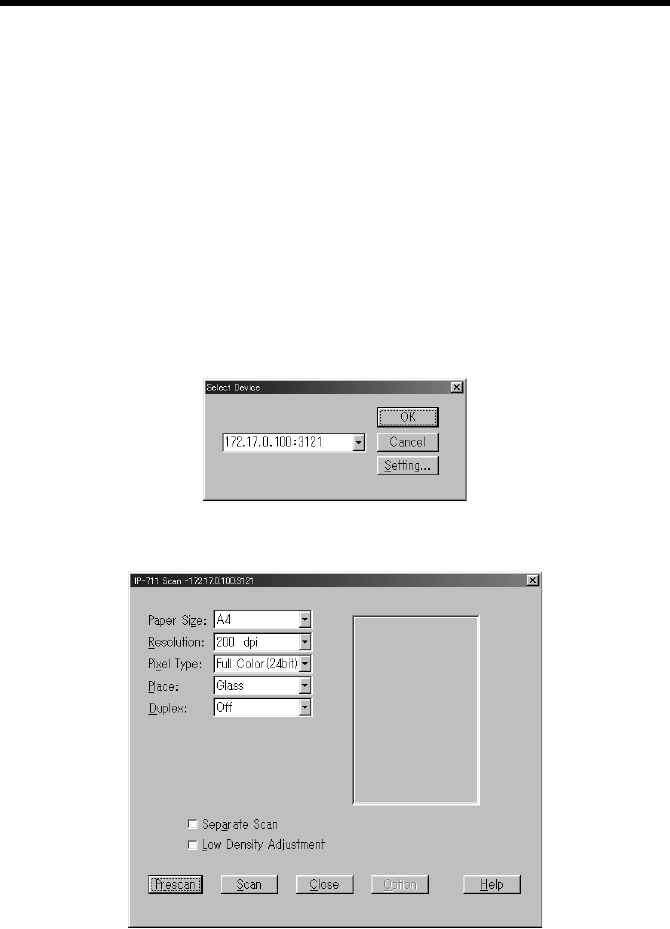
7. Settings and Operations for Scan Functions
107
Setting from the copier control panel
1. Enter the Administrator mode.
2. Select “Network set” – “Twain.”
3. The Panel lock timeout for TWAIN can be set.
Capturing Images by TWAIN
■Setting the Document
1. Select scan by TWAIN from the application.
2. Select the device (IP address + port number), from which the scanned data is to
be captured. The list of image-capturing devices contains all TWAIN-
compatible devices on the network. The conditions for retrieving the image-
capturing devices can be set in the Setting dialog box that will be displayed
when the “Setting” button is clicked (Ref.: “Retrieving Scanners”) ☞p.109.
3. Clicking the “OK” button will open the scan dialog box.
Paper Size : Set the paper size to be scanned.
Resolution : Set resolution.
Setting values : 600, 400, 300, 200 dpi
4334P245CA
k4334P246CA
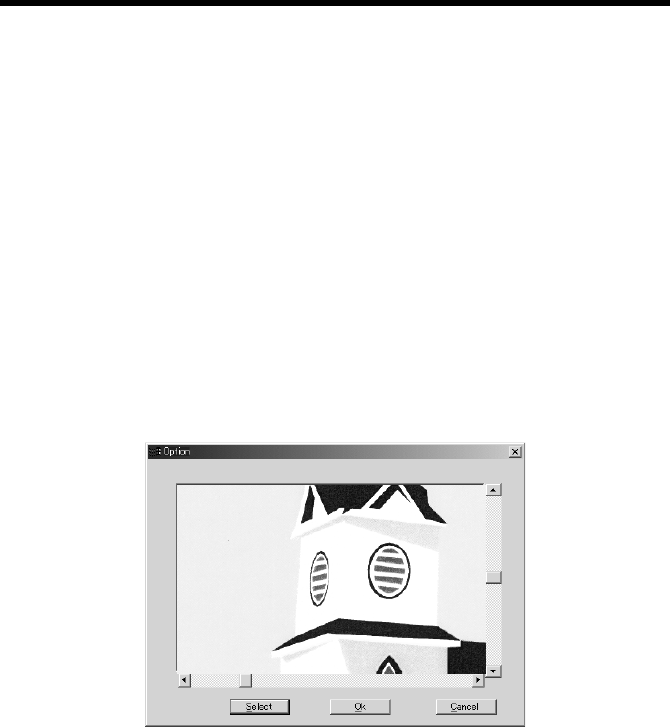
7. Settings and Operations for Scan Functions
108
Pixel Type : Specify the type of data to be captured.
Setting values : Full Color, Gray Scale, Black & White
Place : Set how the document is to be scanned.
Setting values : Glass, ADF
Duplex : Select whether the document to be scanned is two-
sided or not.
Setting values : Off, On
Low Density Adjustment : Select if low density adjustment is to be made.
Separate Scan : Select to handle two or more different originals.
Buttons
Prescan : Performs a prescan.
Scan : Scans the data and captures it in the application.
Option : Displays the Option dialog box.
Click the “Scan” button will scans the data and captures it in the application.
•Setting on the Option dialog box
Clip an area enclosed by a rectangle (up to five areas can be set).
4334P247CA
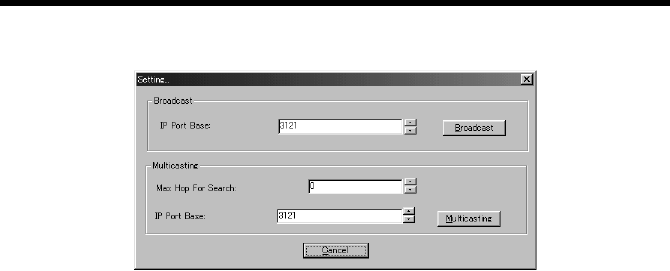
7. Settings and Operations for Scan Functions
109
Retrieving Scanners
•Broadcast: Retrieves scanners by the broadcast protocol.
IP Port Base : Specify the IP Port Base to be retrieved.
Broadcast : Executes retrieval.
•Multicasting: Retrieves scanners by the multicasting protocol.
Max Hop for Search : Set the number of hops to be retrieved.
IP Port Base : Specify the IP Port Base to be retrieved.
Multicasting : Executes retrieval.
4334P248CA
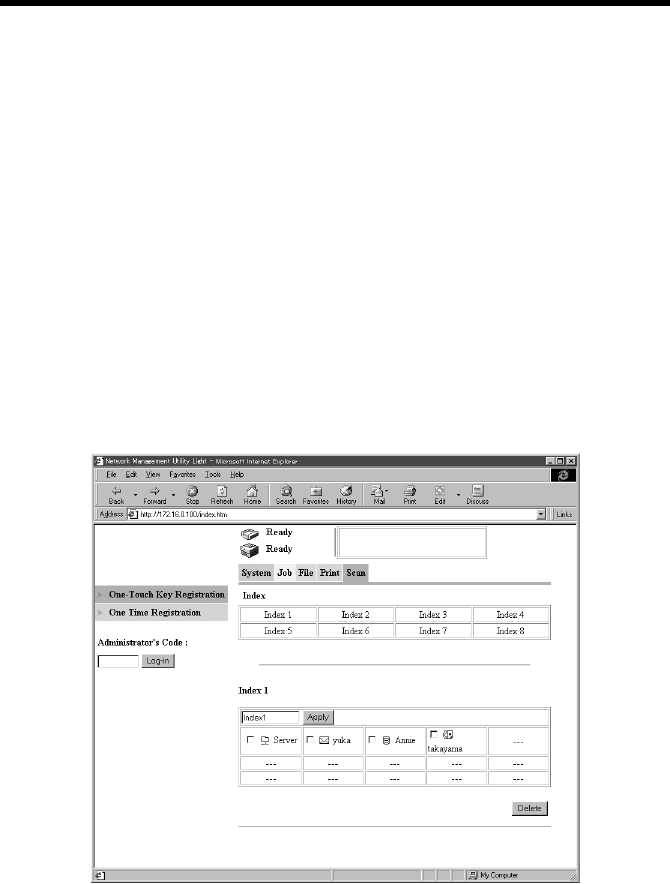
7. Settings and Operations for Scan Functions
110
7.8 Advance Registration of Destinations
When using the scan function, it is convenient if the destination is registered
through the copier control panel in advance. Network Management Utility Light is
used to register the destination.
One-Touch Key Registration
One-Touch Key Registration allows you to call up destination at the touch of a key.
It eliminates the need for entering the destination each time the scan function is
used. It is extremely effective for the destinations, to which data is frequently
transmitted. Settings for this function are made using Network Management Utility
Light.
Setting Procedure
1. Start Network Management Utility Light.
2. From the “Scan” tab, select “One-Touch Key Registration.”
3. From the list of One-Touch Key Registration, select one Index.
Index name : Displays the name of the index set. It can be
selected and renamed.
k4334P188CA
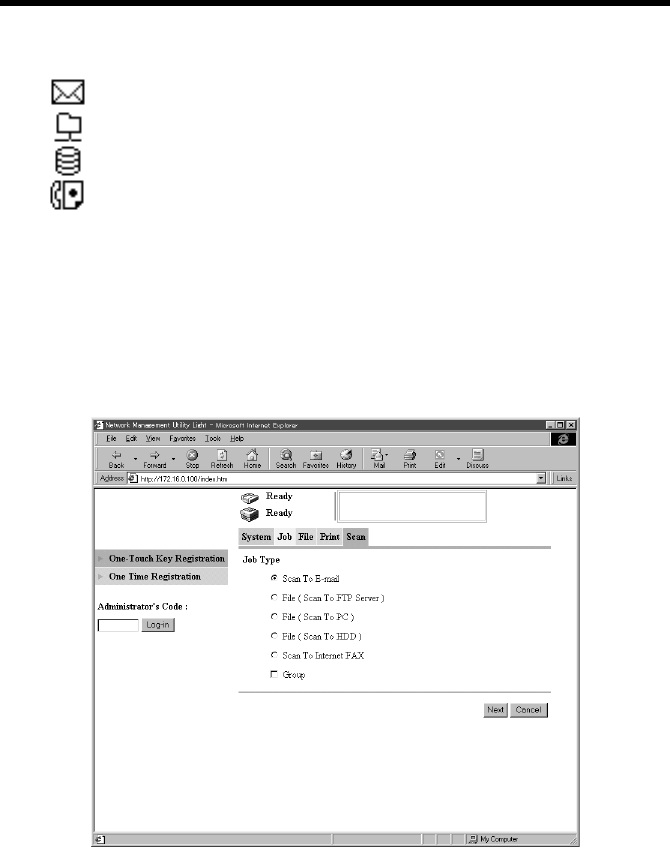
7. Settings and Operations for Scan Functions
111
Job Type : An icon corresponding to the job type registered is
displayed.
Destination Name : Displays the destination name registered.
Buttons
Apply : Validates the change of the index name.
Delete : Deletes the selected one-touch key registration.
4. Click the one-touch key registration box.
5. Select the appropriate job type.
Job Type
Scan To E-mail
File (Scan To FTP Server)
File (Scan To PC)
File (Scan To HDD)
Scan To Internet Fax
Scan To E-mail icon
File (Scan To PC/FTP Server) icon
File (Scan To HDD) icon
Scan To Internet Fax icon
– Icon not registered
k4334P189CA

7. Settings and Operations for Scan Functions
112
6. When “Group” is selected, the destination to be newly registered for one-touch
key registration can be set as group transmission.
7. Clicking the “Next” button will display the items to be set for each job type.
Registration Items
•When “Scan To E-mail” is selected
Destination Name : Specify the name of the destination to be registered
for one-touch key.
Setting value : 12 alphanumeric characters or less
Address (To:) : Type the destination address.
When inputting two or more addresses, put comma
between the address.
Setting value : 1800 alphanumeric characters or less if “Group” is
selected
72 alphanumeric characters or less if “Group” is not
selected
•When File (Scan To FTP Server) is selected
Destination Name : Specify the name of the destination.
Setting value : 12 alphanumeric characters or less
Destination Server : Select the destination for Scan to FTP Server. The
list displays the FTP servers created in “FTP Server
Registration.” (Ref.: “Scan to FTP Server Setting”
of chapter 7) ☞p.69
URL Notification : Select whether or not to notify the information on
the location, in which scanned data is stored, by e-
mail.
Setting values : Yes, No
URL Notification E-mail Address:
Set the party (e-mail address). When inputting two
or more addresses, put comma between the address.
Setting value : 1800 alphanumeric characters or less if “Group” is
selected
72 alphanumeric characters or less if “Group” is not
selected

7. Settings and Operations for Scan Functions
113
•When File (Scan To PC) is selected
Destination Name : Specify the name of the destination to be registered
for one-touch key.
Setting value : 12 alphanumeric characters or less
IP Address : Set the destination IP address of the PC, on which
the FTP application is running.
•When File (Scan To HDD) is selected
Destination Name : Specify the name of the destination to be registered
for one-touch key.
Setting value : 12 alphanumeric characters or less
HDD Directories : The list displays the HDD directories that has been
registered.
Password : Type the password set for the HDD directories. If
“PUBLIC” is selected, there is no need to enter the
password.
Setting value : 64 alphanumeric characters or less
URL Notification : Select whether or not to notify the information on
the location, in which scanned data is stored, by e-
mail.
Setting values : Yes, No
URL Notification E-mail Address:
Set the party (e-mail address). When inputting two
or more addresses, put comma between the address.
Setting value : 1800 alphanumeric characters or less if “Group” is
selected
72 alphanumeric characters or less if “Group” is not
selected
•When Scan To Internet Fax is selected
Destination Name : Specify the name of the destination to be registered
for one-touch key.
Setting value : 12 alphanumeric characters or less
Address (To:) : Set the destination (e-mail address) to which
Internet Fax is sent. When inputting two or more
addresses, put comma between the address.
Setting value : 1800 alphanumeric characters or less if “Group” is
selected
72 alphanumeric characters or less if “Group” is not
selected

7. Settings and Operations for Scan Functions
114
E-mail Address (Reply-To:): Set the e-mail address of the sender.
Setting value : 72 alphanumeric characters or less
MEMO
When inputting two or more addresses, put comma between the address.
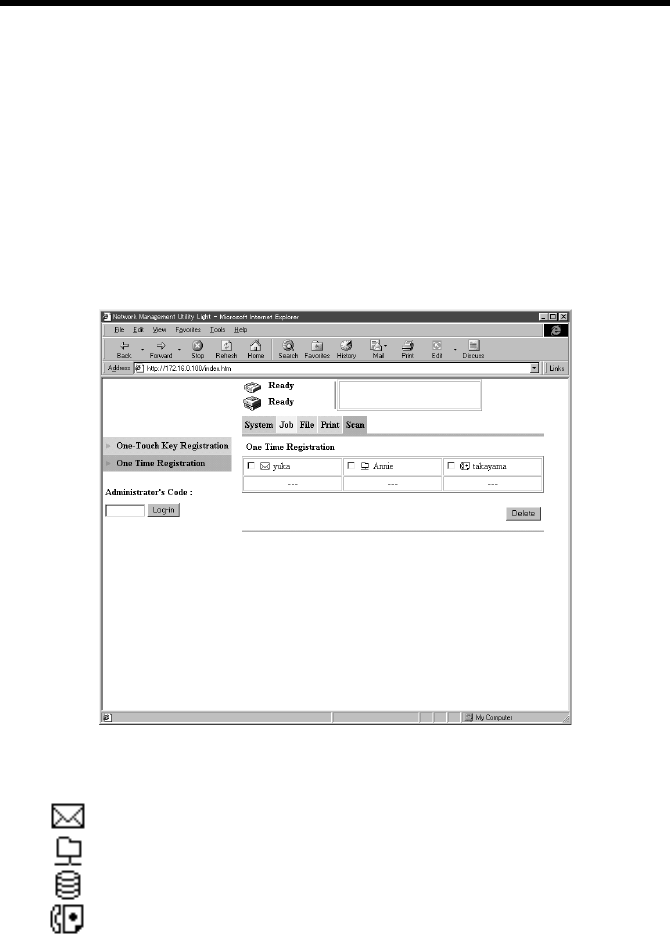
7. Settings and Operations for Scan Functions
115
One Time Registration
Settings for One Time Registration are made using Network Management Utility
Light. This function differs from One-Touch Key Registration in that, when the
transmission task is executed, these settings are gone. That is, the settings for One
Time Registration are valid only for one time use. If you want to recall settings a
number of times, use One-Touch Key Registration.
Setting Procedure
1. Start Network Management Utility Light.
2. From the “Scan” tab, select “One Time Registration.”
3. The One Time Registration list will be displayed.
Job Type : An icon corresponding to the job type registered for
one time registration is displayed.
Destination Name : Displays the destination name registered for one
time registration.
Scan To E-mail icon
File (Scan To PC/FTP Server) icon
File (Scan To HDD) icon
Scan To Internet Fax icon
– Icon not registered
k4334P190CA
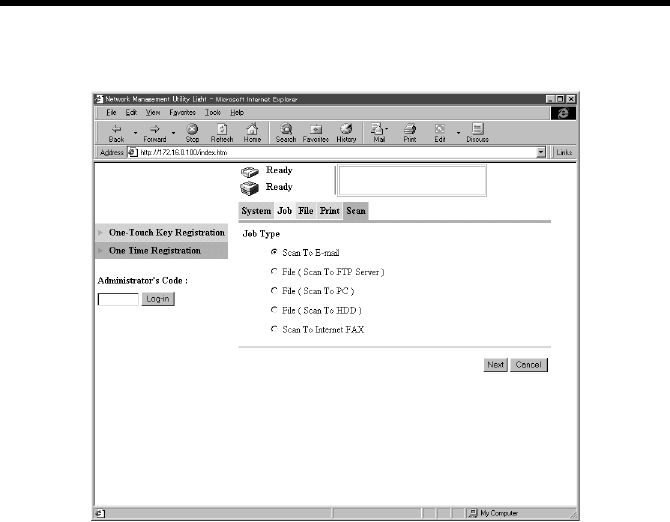
7. Settings and Operations for Scan Functions
116
4. Click the One Time Registration box.
5. Select the appropriate job type.
6. Clicking the “Next” button will display the items to be set for each job type.
Registration Items
•When “Scan To E-mail” is selected
Destination Name : Specify the name of the destination to be registered
for one time use.
Setting value : 12 alphanumeric characters or less
Address (To:) : Displays a list of addresses previously set. When
inputting two or more addresses, put comma
between the address.
Setting value : 1800 alphanumeric characters or less
Scan Mode Setting
Document Mode : Set the scanning size for the document.
Setting values : Single Sided, Double Sided, Book Divide, Book
Open
Original Size : Select the size of the document to be scanned. Or,
specify any given size (in mm or 1/16”).
Resolution : Select the scanning resolution color mode.
Setting values : 600, 400, 300, 200 dpi
k4334P191CA

7. Settings and Operations for Scan Functions
117
File Type : Select the file format in which the scanned image is
to be stored.
Setting values : TIFF, PDF, JPEG
Color Mode : Select the color, in which the document is scanned.
Setting values : Auto Color, Gray Scale, B/W, Full Color
Background Remove : Set background removal.
Orientation : Set the orientation of the document.
Setting values : Auto, Portrait, Landscape
Margin : Set the margin edge.
Setting values : Left Binding, Top Binding
Erase : Select the erase type.
Setting values : No, Left Erase, Top Erase, Frame Erase
Set the erase width in mm or 1/16”.
•When File (Scan To FTP Server) is selected
Destination Name : Specify the name of the destination to be registered
for one time use.
Setting value : 12 alphanumeric characters or less
Destination Server : Select the destination for Scan to FTP Server. The
list displays FTP servers set in FTP server
registration. (Ref.: “Scan to FTP Server Setting” of
chapter 7) ☞p.69
URL Notification : Select whether or not to notify the information on
the location, in which scanned data is stored, by e-
mail.
Setting values : Yes, No
URL Notification E-mail Address:
Set the party (e-mail address). When inputting two
or more addresses, put comma between the address.
Setting value : 1800 alphanumeric characters or less
Scan Mode Setting (same as “Scan To E-mail”)
•When File (Scan To PC) is selected
Destination Name : Specify the name of the destination to be registered
for one time use.
Setting value : 12 alphanumeric characters or less
IP Address : Set the destination IP address of the PC, on which
the FTP application is running.
Scan Mode Setting (same as “Scan To E-mail”)

7. Settings and Operations for Scan Functions
118
•When File (Scan To HDD) is selected
Destination Name : Specify the name of the destination to be registered
for one time use.
Setting value : 12 alphanumeric characters or less
HDD Directories : The list displays the HDD directories that has been
registered.
Password : Type the password set for the HDD directories. If
“PUBLIC” is selected, there is no need to enter the
password.
Setting value : 64 alphanumeric characters or less
URL Notification : Select whether or not to notify the information on
the location, in which scanned data is stored, by e-
mail.
Setting values : Yes, No
URL Notification E-mail Address:
Set the party (e-mail address). When inputting two
or more addresses, put comma between the address.
Setting value : 1800 alphanumeric characters or less
Scan Mode Setting (same as selecting “Scan To E-mail”)
•When Scan To Internet Fax is selected
Destination Name : Specify the name of the destination to be registered
for one time use.
Setting value : 12 alphanumeric characters or less
Address (To:) : Set the destination (e-mail address) to which
Internet Fax is sent. When inputting two or more
addresses, put comma between the address.
Setting value : 1800 alphanumeric characters or less
E-mail Address (Reply-To:): Set the address, to which Internet Fax is replied.
Setting value : 72 alphanumeric characters or less
Scan Mode Setting
Document Mode : Single Sided, Double Sided, Book Divide, Book
Open
Original Size : Select the size of the document to be scanned. Or,
specify any given size (in mm or 1/16”).
Orientation : Set the orientation of the document.
Setting values : Auto, Portrait, Landscape
Margin : Set the margin edge.
Setting values : Left Binding, Top Binding

7. Settings and Operations for Scan Functions
119
Erase : Select the erase type.
Setting values : No, Left Erase, Top Erase, Frame Erase
Set the erase width in mm or 1/16”.
NOTE
Though entry of the number characters more than the specified limit may be
possible on the browser, the effective number of characters is as specified.

7. Settings and Operations for Scan Functions
120

121
8. Job Management
8.1 Print Job Management
This chapter explains print job management.
Specifying Operation for Job
It is possible to specify the operation for the job in the copier by setting the printer
driver.
•Select the “Job Management” tab and select, from the “Store Job” list, what to do
with the job after it has been electronically processed.
OFF : Directly printed
Store to HDD : Stores the job in the hard disk. ☞p.124
Store to Memory : Stores the job in memory. The data is gone when
the copier is turned OFF. ☞p.125
Proof and Print : Prints only the first set and sores the rest in
memory. The data is gone when the copier is turned
OFF. ☞p.124
Lock Job : Stores the job in memory until the password set
when printing is entered from the copier control
panel. ☞p.123
■The Number of Holdable Job
The copier can hold up to 50 jobs (which is copying, printing or scanning function).
NOTES
• It can hold up to 5 jobs of scanning function.
• It can hold up to 49 print jobs.
One job is saved for copying or scanning function.
• Job transmitted by Lock Job setting are not counted in 50 jobs
Identifying a Print Job by Name
A unique name can be given to a print job for identification. When a name is given,
the job name will be displayed on the copier control panel and Network
Management Utility Light.
1. Select the “Job Management” tab.
2. Type the user name in “User Name” of “Job Owner” (up to 255 alphanumeric
characters).
3. Type the job name in “Job Name” of “Job Owner” (up to 255 alphanumeric
characters).
A default value can be set and used for “User Name,” instead of assigning a user

8. Job Management
122
name for each job.
Setting the default user name:
1. Select the “Device Option Setting” tab.
2. Type the default user name in “Default User Name” of “Job Owner” (up to 255
alphanumeric characters).
Transmitting a Print Job to a Copier in Which the Copy Track
Function is Active
If the Copy Track function is enabled in the copier, it is necessary to enter the access
number before running a print cycle. For the procedure to set the management
function using the access number on the copier side, see Administrator Operations
(5.6 Supervising Copier Use (Copy Track Function)) of User Manual of the copier.
1. Select the “Job Management” tab.
2. Select “Access Code” and enter an access number (3 digits, 0 to 998) in “Access
Number.”
A default value can be set and used for the access number instead of assigning
one for each job.
3. Transmit a job.
When a division No. entered is a valid division No. of the copier, the job will be
printed and counted for the division No. specified.
If a print job is transmitted by entering an access number that is illegal with
the Copy Track function on the copier side or a job is transmitted without
checking Access Code:
1. The message “Job has been done improperly. Check the record.” appears on the
copier control panel. At this time, the job is canceled.
2. Select “Job Log” – “Print Log” tabs on the copier control panel and check the
history.

8. Job Management
123
Printing Pages with a Distribution Number
To identify each print job, a distribution number can be printed in the background.
The optional HDD and 256-MB memory must be mounted on the copier.
1. Select the “Job Management” tab.
2. Select “Distribution Number” of “Distribution.”
3. When “1st Page Only” is selected, the distribution number will be printed on the
first page only.
4. In “Distribution Color,” specify the color (red, blue, or black) of the distribution
number.
5. Set the starting distribution number in “Starting Number.”
Lock Job
When Lock Job is set for printing, the copier will not start the print cycle until the
password entered when the print job is set up is entered on the copier. It comes in
handy for printing a confidential document.
Operation on the PC side:
1. Select the “Job Management” tab.
2. Select “Lock Job” from “Store Job.”
3. Type the password (4 digits, 0000 to 9999).
Operation on the copier side:
The copier cancels the lock and starts a print cycle after a job has been transmitted
with Lock Job specified. For details, see Basic Operations (6.3 Job Control Screens
(To Unlock a job)) of User Manual of the copier.
1. Touch “Job Control” – “Unlock Job” on the control panel to display a list of
locked jobs.
2. From the list of locked jobs, select one to be unlocked. To unlock more than one
locked jobs, touch “Job” in succession.
3. Enter the 4-digit password for unlocking from the 10-Key Pad.
When press the password, the job disappears from the list of locked jobs. This
job will then be put in the status of “Waiting Print” and wait for its turn.
MEMO
If, for example, a print job is transmitted with “123” entered on the computer
side, you need to enter “0123” on the copier side to unlock the job.
4. When the “Increase Priority” is touched, the job will be printed ahead of others
in the print queue. For details, see Basic Operations (6.3 Job Control Screens
(Increase Priority Screen)) of User Manual of the copier.
The “Job Log” can be used to check the status of the job.

8. Job Management
124
Proof and Print
When a print cycle is run with Proof and Print set, only the first copy will be
printed, while the rest of the copies will be stored in memory. The rest will not be
printed until the job is unlocked by the copier control panel.
Operation on the PC Side:
1. Select the “Job Management” tab.
2. From the “Store Job” list, select “Proof and Print.”
Operation on the copier side:
1. Touch “Job Control” – “Scanned Job” on the control panel to display the stored
job list.
2. Check the contents of the printed pages for the first set.
If you want to print the rest, select the job, for which “Proof and Print” has been
set, from the stored job list and click “OK.” To quit printing the rest, click
“Delete.”
Store to HDD
When “Store to HDD” is set for a job, the job will be printed only after certain steps
have been taken. To print the job, call it from the hard disk to the memory and
cancel its status of “Job Stored.”
The data held in the hard disk are not lost even when the power of the copier is
turned OFF. The copier must be mounted with an optional hard disk.
Operation on the PC Side:
1. Select the “Job Management” tab.
2. From the “Store Job” list, select “Store to HDD.”
Operation on the copier side:
1. Touch “ Job Control” – “User Box” on the control panel to display the job list
held in the hard disk.
2. From the job list held in the hard disk, select one to be called to the memory and
touch “Open Job”.
This job will be called to the memory and come into the status of “Job Stored”.
3. Touch “Job Control” – “Scanned Job” on the control panel. Then select a job
from the stored job list displayed and touch “OK”.
4. The job will be changed to the status of “Waiting Print” and wait for its turn.
5. When the “Increase Priority” is touched, the job will be printed ahead of others
in the print queue. For details, see Basic Operations (6.3 Job Control Screens
(Increase Priority Screen)) of User Manual of the copier.
The “Job Log” can be used to check the status of the job.

8. Job Management
125
Store to Memory
If Store to Memory is set for a print job to be printed and the job is transmitted, the
job is stored in the memory of the copier and is not printed. The setting must be
canceled from the copier control panel to effect printing of the job.
The job will be gone when the copier is turned OFF.
Operation on the PC Side:
1. Select the “Job Management” tab.
2. From the “Store Job” list, select “Store to Memory.”
Operation on the copier side:
1. Touch “Job Control” – “Scanned Job” on the control panel. Then select a job
from the stored job list displayed and touch “OK”.
2. The job will be changed to the status of “Waiting Print” and wait for its turn.
3. When the “Increase Priority” is touched, the job will be printed ahead of others
in the print queue. For details, see Basic Operations (6.3 Job Control Screens
(Increase Priority Screen)) of User Manual of the copier.
The “Job Log” can be used to check the status of the job.
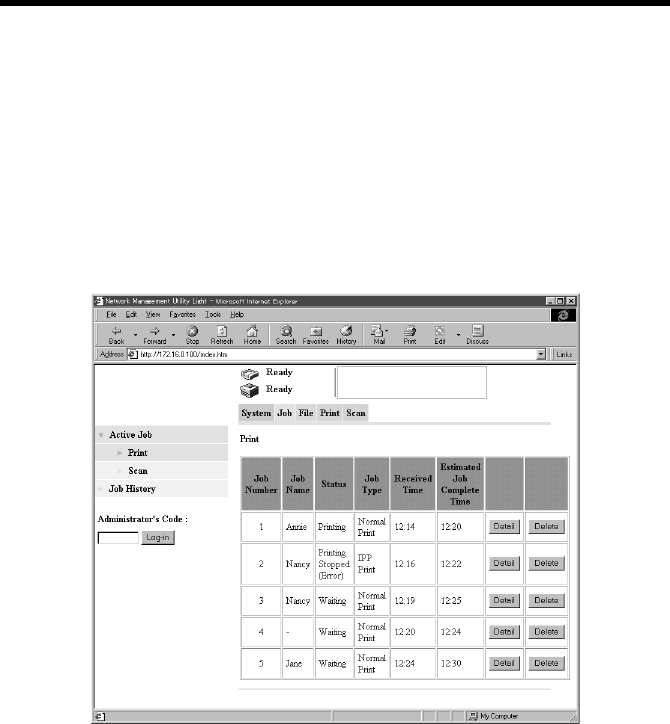
8. Job Management
126
8.2 Job Operations on Network Management Utility Light
The status of the job being processed by the copier can be checked on Network
Management Utility Light. It is also possible to delete or otherwise operate a job.
Print job list
This lists the jobs being processed for printing.
Display Procedure
1. Start Network Management Utility Light.
2. From the “Job” tab, select “Active Job” – “Print.”
Descriptions of Contents of Display
Job Name : Displays the User Name specified on the printer driver.
Status : Indicates the status of the job.
[Printing, Waiting, Printing Stopped, Printing Stopped (Error),
Receiving, Job Stored, Job Locked]
Job Type : Displays the printing method of the job.
[IPP Print, Normal Print, Copy]
Detail button : Opens the details display screen.
Delete button : Clicking this button will delete the job.
k4334P183CA

8. Job Management
127
•Detailed information displayed
Division ID : Shows the access number [1 to 998] if the Copy
Track function is active.
Error Information : Displays the status of the job in detail. If the job
status is “Printing Stopped (Error),” it shows the
details of the warning.
Destination : Displays the exit port of the job.
When FS-135 is mounted:
[Top Tray, Elevator Tray, Third Tray]
When FS-231 is mounted:
[Elevator Tray, Saddle Stack Tray]
File Name : Displays the name of the job.
Number of Pages : Displays the number of pages per one copy set of
the job.
Copy : Displays the number of copies produced for the job.
Delete button : Clicking this button will delete the job.
Scanner job list
This lists the jobs being scanned.
Display Procedure
1. Start Network Management Utility Light.
2. From the “Job” tab, select “Active Job” – “Scan.”
Descriptions of Contents of Display
Status : Indicates the status of the job.
[Scanning, Scanning Stopped, Separate Scanning Stopped,
Scanning Stopped (Error), Transfering]
Job Type : Displays the type of the job.
[Scan to E-mail, FTP (Includes File (Scan to FTP Server) and
File (Scan to PC)), Scan to HDD, Scan to Internet Fax, TWAIN]
Destination : Displays the destination to which the job is delivered.
Detail button : Opens the details display screen.
Delete button : Clicking this button will delete the job.
•Detailed information displayed
Error Information : Displays the status of the job in detail.
Number of Pages : Displays the number of pages of the job to be sent.
Received Time : Displays the time-of-day when the job was
registered with the copier.
Delete button : Clicking this button will delete the job.
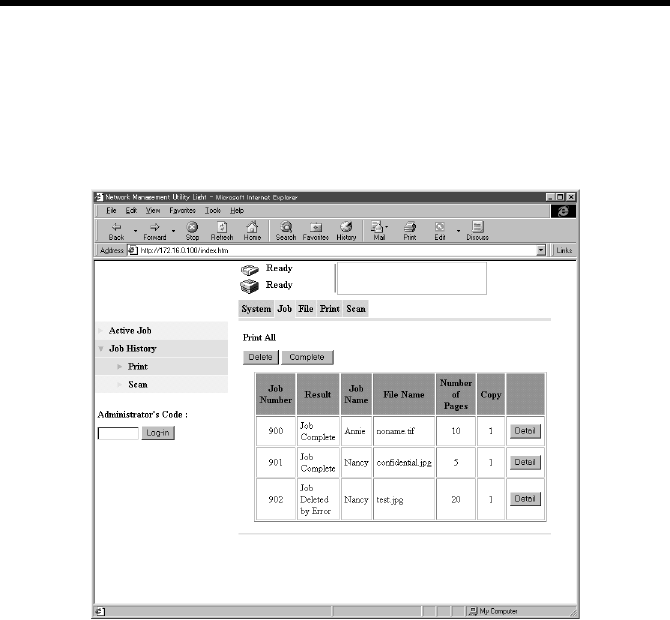
8. Job Management
128
Print job history
This lists the jobs which have been processed for printing.
Display Procedure
1. Start Network Management Utility Light.
2. From the “Job” tab, select “Job History” – “Print.”
Descriptions of Contents of Display
Result : Displays the result of execution of the job. [Job Completed, Job
Deleted by Error, Job Deleted by User, Staple Canceled, Punch
Canceled, Paper Fold Canceled]
Job Name : Indicates the name of the user who has issued the job.
File Name : Displays the name given to the job.
Number of Pages: Displays the number of pages per one copy set of the job.
Copy : Displays the number of copies produced for the job.
Detail button : Opens the details display screen.
•Detailed information displayed
Division ID : Shows the access number.
Error Information : Displays the status of the job in detail.
k4334P184CA

8. Job Management
129
Destination : Displays the exit port of the job.
When FS-135 is mounted:
[Top Tray, Elevator Tray, Third Tray]
When FS-231 is mounted:
[Elevator Tray, Saddle Stack Tray]
Received Time : Displays the time-of-day when the job was
registered with the device.
Job Complete Time : Displays the time-of-day when the job was
completed.
Data Type : Displays the output data format of the data.
Delete button : Displays the jobs whose “Results” were “Job Deleted by Error”
and “Job Deleted by User.”
Complete button : Displays the jobs whose “Results” were “Job Completed.”
Scanner job history
This lists the history of the jobs which have been scanned.
Display Procedure
1. Start Network Management Utility Light.
2. From the “Job” tab, select “Job History” – “Scan.”
Descriptions of Contents of Display
Result : Displays the result of execution of the job. [Job
Completed, Job Deleted by Error, Job Deleted by
User]
Job Type : Displays the method of delivery for the job. [Scan
to E-mail, FTP (Includes File (Scan to FTP Server)
and File (Scan to PC)), Scan to HDD, Scan to
Internet Fax, TWAIN]
Destination : Displays the destination to which the job is sent.
Number of Pages : Displays the number of pages sent of the job.
Detail button : Opens the details display screen when clicked.
•Detailed information displayed
Received Time : Displays the time-of-day when the job was
registered with the device.
Job Complete Time : Displays the time-of-day when the job was
completed.
Error Information : Displays the status of the job in detail.
Delete button : Displays the jobs whose “Results” were “Job Deleted by Error”
and “Job Deleted by User.”
Complete button : Displays the jobs whose “Results” were “Job Completed.”

8. Job Management
130

131
9. Troubleshooting
9.1 Unable to Print
This chapter explains the troubleshooting procedures for possible malfunctions.
Perform the troubleshooting procedures given below when the copier is unable to
print even if you execute a print command from your PC.
Symptom Possible Cause Action
A message
appears on the
PC screen,
saying
something to
the effect that
“no printers are
connected,” “no
paper is
loaded,” or
“LPT1 write
error.”
An error is probably
present in the copier. Check the control panel of the
copier.
The printer cable or
network cable is
disconnected.
Check that the printer cable or
network cable is connected
properly to the PC and controller.
Printing does
not start despite
the completion
of printing
setup on the
PC.
An error is probably
present in the copier. Check the control panel of the
copier.
The printer cable or
network cable is
disconnected.
Check that the printer cable or
network cable is connected
properly to the PC and controller.
The printer driver
selected for printing is
not compatible with
the controller.
Check the printer name selected in
the “Print” dialog box.
A print job yet to be
processed is loaded in
the copier, causing the
printer to wait.
Check with the job list on the
copier control panel to check for
print order.

9. Troubleshooting
132
If the problem persists after all these procedures have been performed, read the User
Manual of the copier.
Symptom Possible Cause Action
Continuation
from previous
page (Printing
does not start
despite the
completion of
printing setup
on the PC.)
The print job is locked. Check with the job list on the
copier control panel to see if the
print job in question is locked. If
so, unlock it.
The connection of the
controller to the
network is yet to be
established.
Consult the network administrator.
If the copy track
function is active, an
illegal access number
might have been
entered.
Enter the correct access number.

9. Troubleshooting
133
9.2 Unable to Make Correct Settings / Unable to Print
Exactly as Set
Perform these troubleshooting procedures if you cannot make proper settings in the
print driver or when the print results do not represent what has been set.
MEMO
Some of the printer driver functions cannot be combined with another. For
details, see “Appendix C: Incompatible Function Combinations.” ☞p.194
Symptom Possible Cause Action
Unable to select an
item in the printer
driver.
Some functions cannot be
combined. Do not select items that are
dimmed.
The “Conflicts” dialog
box is displayed on
the PC screen.
An illegal combination of
functions has been made. Check for combination and
make a correct combination of
functions.
Unable to print exactly
as set. Incorrect settings are
made. Check the setting for each
item of the printer driver.
The combination of the
functions, though valid on
the printer driver, is invalid
on the copier.
The paper size, paper
direction, and other
settings made on the
application takes
precedence over those
made in the printer driver.
Make correct settings on the
application.

9. Troubleshooting
134
Symptom Possible Cause Action
The watermark
cannot be printed. The watermark is not
correctly set. Check the watermark setting.
The watermark density is
set to a low level. Check the “Shading” setting.
Watermark may not be
printed in graphics
applications.
No watermark can be printed
in this case.
Unable to specify
Staple. No staple can be made if
Media Type is Thick or
Transparency.
Check the setting for each
item of the printer driver.
Unable to staple. The number of prints to be
stapled (with FS-135
mounted): Up to 30 prints.
Change the Copies setting.
The number of prints to be
stapled (with FS-231
mounted):
A4 L (Letter L) Up to 50
prints
B4 L (Legal L) Up to 25
Prints.
The number of prints to be
center stapled (with FS-
231): Up to 10 prints.
No stapling can be
effected if the document
contains pages of different
sizes.
Check the document.
The stapling position
is not what is
expected.
Orientation setting is
wrong. Check the stapling position
on “Page Layout” of a printer
driver property sheet.

9. Troubleshooting
135
Symptom Possible Cause Action
Unable to specify
Punch. Hole Punch cannot be
specified together with
Booklet, OHP, Thick2,
and/or Thick3.
Check the setting for each
item of the printer driver.
Unable to effect
Punch. Printed pages can at times
be fed out without being
punched if the direction of
the paper loaded in the
paper source is not correct.
Check the setting for
Orientation.
The hole punch
position is not what is
expected.
Orientation setting is not
correct. Check the punch position on
“Page Layout” of a printer
driver property sheet.
Unable to specify
Folding. FS-231 is necessary for
Folding. FS-231 must be
selected on “Device
Option.”
Specify FS-231 for “Device
Option.”
Folding cannot be
specified together with
Staple and/or Thick.
Check the setting for each
item of the printer driver.
Unable to print image
properly. Memory space available is
not sufficient. Simplify the image to reduce
the volume of data
manipulated.
Paper is not fed from
the specified paper
source.
Paper will not be fed from
the specified paper source
if that paper source is
loaded with paper of a
different size and
direction.
Load the paper source with
paper of the appropriate size
and in the appropriate
direction.

9. Troubleshooting
136
Symptom Possible Cause Action
Distribution Number
cannot be specified. To specify Distribution
Number, an optional HDD
and an optional 256-MB
memory must be mounted
on the copier. The
function can be specified
when “HDD” is added to
“Device Option” of the
printer driver.
•Add the necessary options.
•Select “HDD” for “Device
Option.”

137
Appendixes
A. Product Information
This product is due to be approved by WHQL.
Item Detail Remark
CPU MPC8240-200 MHz The copier CPU is used.
RAM 32MB (on copier board)
+ 128MB (memory that comes with the
controller)
Printer Emulation PCL5c
Host Interface IEEE1284 (Compatible, Nibble, ECP)
USB (version 1.1)
Ethernet 10Base-T, 100Base-TX RJ45 (auto
identification)
Frame Type Ethernet 802.2
Ethernet 802.3
Ethernet II
Ethernet SNAP
Protocol TCP/IP
IPX/SPX
NetBEUI
Compatible OS Windows 98, 98SE, Me, NT4.0, 2000, XP IBM PC or
Compatatible
Compatible Browser Internet Explore 5.5 or later (Java-compliant)
Netscape Communicator 4.5 or later (Java-
compliant)
Utility Network Management Utility Light Built into controller

Appendixes
138
B. How to Use Network Management Utility Light
What is Network Management Utility Light?
Network Management Utility Light is a device management utility built into the
controller. From a PC on the network, start a Web browser and access Network
Management Utility Light. Then, controller settings can be changed.
System Requirements
Network : Ethernet + TCP/IP protocol
Application : Web browser
Microsoft Internet Explorer version 5.5 or later (Java-compliant),
Netscape Communicator version 4.5 or later (Java-compliant)
Accessing Network Management Utility Light
Network Management Utility Light can be accessed directly using a Web browser.
1. Start the Web browser.
2. Type the IP address of the controller as follows in the address box and press the
Enter key.
http://<controller IP address>/
E.g.: If the controller IP address is 172.16.0.100
http://172.16.0.100/
3. Network Management Utility Light will appear.
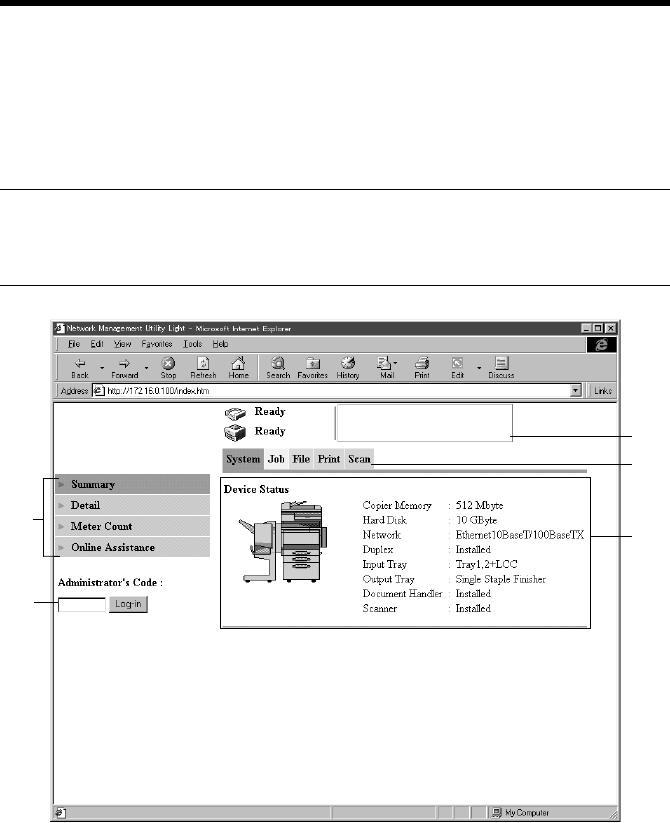
Appendixes
139
Initial Screen Components
The screen that is displayed immediately after Network Management Utility Light
has been accessed consists of the following components. This screen is generally
referred to as the user mode screen and can be viewed by anyone. In addition,
entering the specified number in “Administrator’s Code” on the user mode screen
will allow you to enter the “Administrator Mode.” ☞p.141
MEMO
To set the display environment (language) of Network Management Utility Light,
enter the Administrator mode and make the necessary settings on “Preference.”
(1) Status display
Displays the system status by means of icons and text.
(3)
k4334P214CA
(5)
(4)
(1)
(2)

Appendixes
140
(2) Tabs
Displays the categories to be controlled by Network Management Utility Light.
•System
•Job
• File
•Print
• Scan
(3) Menu
Displays information and settings in the selected tab. The menu items differ
according the specific tab selected for use.
(4) Information/setting display
Displays the details of the menu selected.
(5) Administrator’s Code
Enter the administrator number to log on to the Administrator mode.
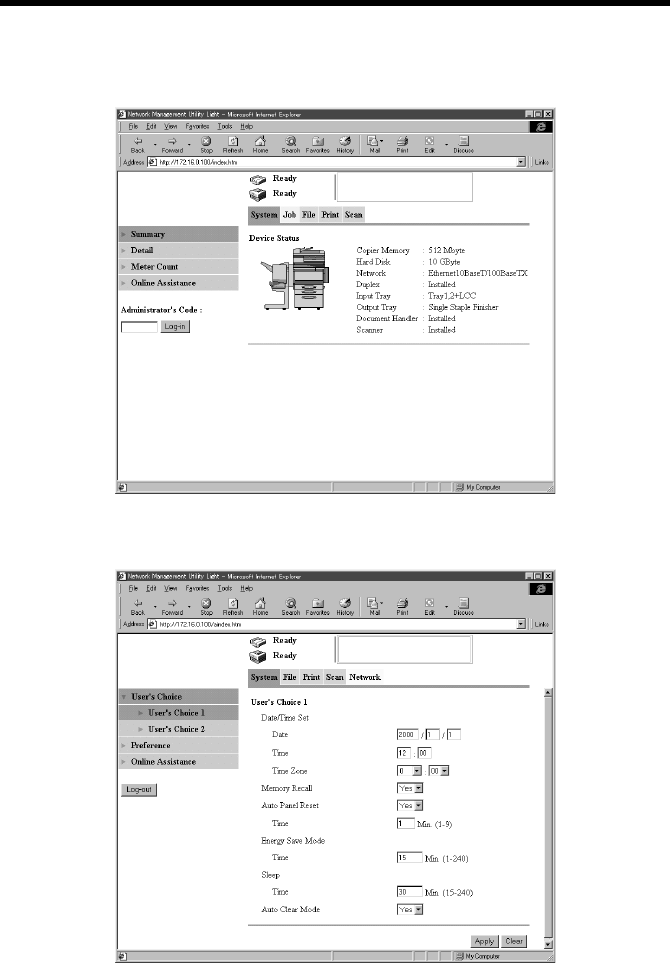
Appendixes
141
Entering the Administrator Mode
The operating mode can be switched between the User mode and Administrator
mode. To make system settings, it is necessary to enter the Administrator mode.
Type the administrator password of the copier in the Administrator’s Code box and
then click the “Log-in” button. This selects the Administrator mode screen.
To return to “User Mode,” click the “Log-out” button to exit from the Administrator
mode.
k4334P214CA
k4334P215CA
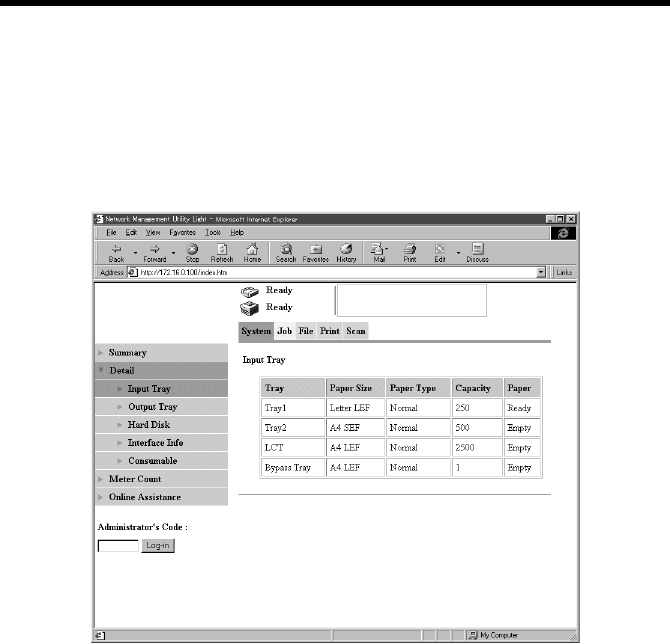
Appendixes
142
1. User Mode
Checking Copier Status
•Checking Paper Source Status
Display Procedure
Click the “System” tab and then select “Detail” – “Input Tray.”
Screen Description
Input Tray : Shows the names of the trays.
Tray 1, Tray 2, Tray 3, Tray 4, LCT, Bypass Tray
Paper Size : Shows the size of the paper loaded.
Display
Lengthwise: A4 SEF
Crosswise: A4 LEF
(Standard sizes) : A3, A4, A5, A6, B4, B5, B6, 11×17, 11×14, Legal,
Letter, 5.5×8.5, Executive, F4, A3 Wide, Post Card,
4×6
(Nonstandard sizes) : (CD)×(FD) mm, (CD)×(FD) inches
k4334P217CA

Appendixes
143
Paper Type : Shows the type of the paper loaded.
Normal, Thick 1, Thick 2, Thick 3, Envelope,
Label, Post Card, OHP, Normal 2nd-Side, Thick 1
2nd-Side, Thick 2 2nd-Side, Thick 3 2nd-Side, Post
Card Second Side For Duplex
If paper attributes have been set, Normal (Specialty,
etc.) will be displayed.
Single Sided Only, High Quality Paper, Specialty
Capacity : Shows the loading capacity of the cassette. The
figure represents the maximum number of sheets of
plain paper to be loaded.
Paper : Shows the level of paper loaded in the cassette.
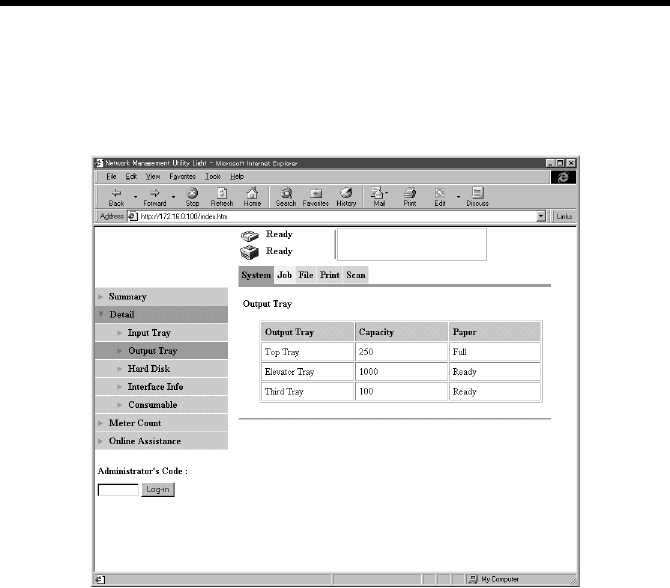
Appendixes
144
•Checking Exit Tray Status
Display Procedure
Click the “System” tab and then select “Detail” – “Output Tray.”
Screen Description
Output Tray : Shows the names of the trays of the option mounted
on the copier.
When FS-135 is mounted:Top Tray, Elevator Tray,
Third Tray
When FS-231 is mounted:Top Tray, Second Tray
Capacity : Shows the loading capacity of the tray in terms of
A4/Letter plain paper.
Paper : Shows the condition of each tray.
k4334P218CA
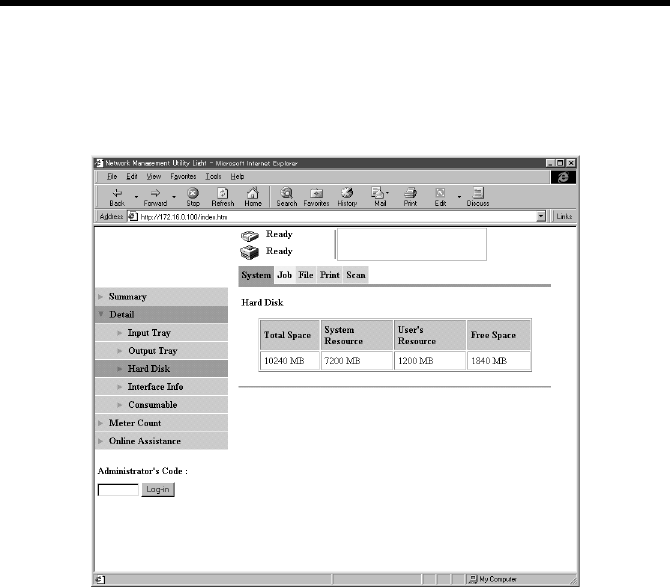
Appendixes
145
•Checking Hard Disk Status
Display Procedure
Click the “System” tab and then select “Detail” – “Head Disk”
Screen Description
Total Space : Shows the space available for use of the hard disk
mounted in the copier.
System Resource : Shows the space used by the system of the total
hard disk space available.
User’s Resource : Shows the space used by the user of the total hard
disk space available.
Free Space : Shows the space still available for use of the total
hard disk space available.
k4334P219CA
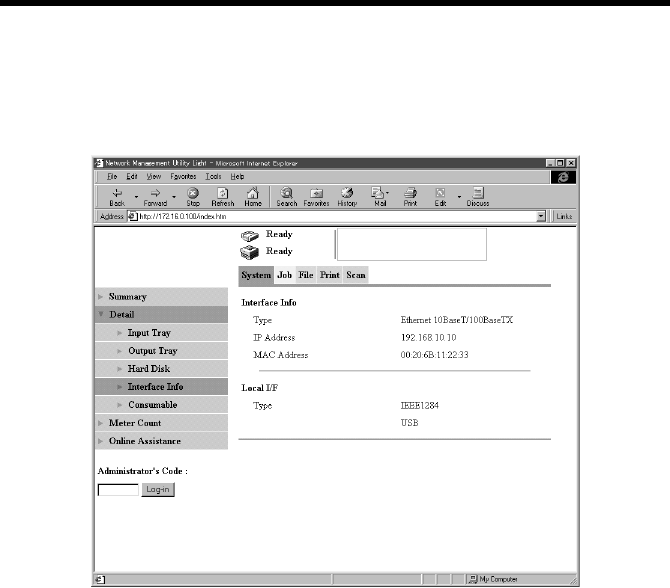
Appendixes
146
•Checking Network Status
Display Procedure
Click the “System” tab and then select “Detail” – “Interface Info”
Screen Description
Interface Info
Type : Shows the type of the network to be used.
Ethernet 10Base-T/100Base-TX
IP Address : Shows the IP address that has been set.
MAC Address : Shows the MAC address of the device.
Local I/F
Type : Shows the local interface that can be used by the
device.
IEEE1284, USB
k4334P220CA
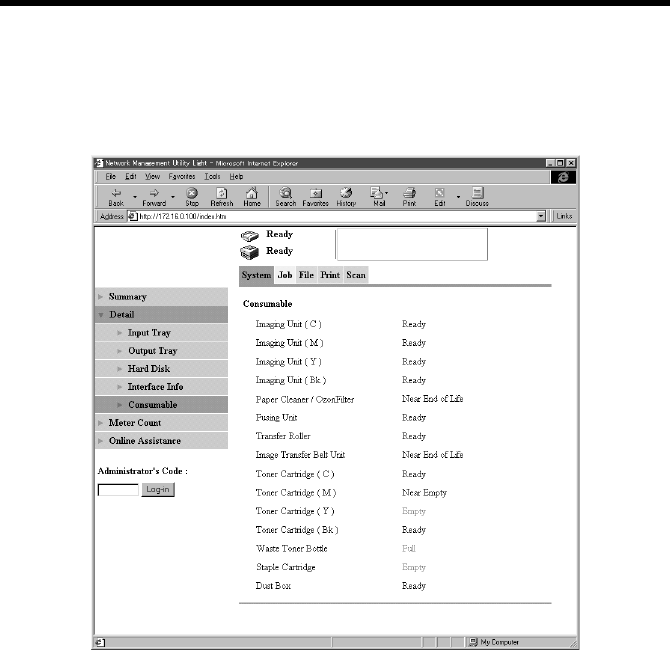
Appendixes
147
•Checking Consumables and Supplies Status
Display Procedure
Click the “System” tab and then select “Detail” – “Consumables”
Screen Description
Imaging Unit (C) : Shows the information concerning each Imaging
Unit.
Ready, Near End of Life, End of Life
Imaging Unit (M) : Shows the information concerning each Imaging
Unit.
Ready, Near End of Life, End of Life
Imaging Unit (Y) : Shows the information concerning each Imaging
Unit.
Ready, Near End of Life, End of Life
Imaging Unit (Bk) : Shows the information concerning each Imaging
Unit.
Ready, Near End of Life, End of Life
Paper Cleaner/OzonFilter : Shows the information concerning the Paper Dust
Remover and Ozone Filter.
k4334P221CA

Appendixes
148
Ready, Near End of Life, End of Life
Fusing Unit : Shows the information concerning the Fusing Unit.
Ready, Near End of Life, End of Life
Transfer Roller : Shows the information concerning the Transfer
Roller Unit.
Ready, Near End of Life, End of Life
Image Transfer Belt Unit : Shows the information concerning the Image
Transfer Belt Unit.
Ready, Near End of Life, End of Life
Toner Cartridge (C) : Shows the information concerning the Toner
Cartridge of each color of toner.
Ready, Near Empty, Empty
Toner Cartridge (M) : Shows the information concerning the Toner
Cartridge of each color of toner.
Ready, Near Empty, Empty
Toner Cartridge (Y) : Shows the information concerning the Toner
Cartridge of each color of toner.
Ready, Near Empty, Empty
Toner Cartridge (Bk) : Shows the information concerning the Toner
Cartridge of each color of toner.
Ready, Near Empty, Empty
Waste Toner Bottle : Shows the information concerning the Waste Toner
Bottle.
Ready, Near Full, Full
Staple Cartridge : Shows the information concerning the Staple Unit.
Ready, Empty
Dust Box : Shows the information concerning the Dust Box.
Ready, Full
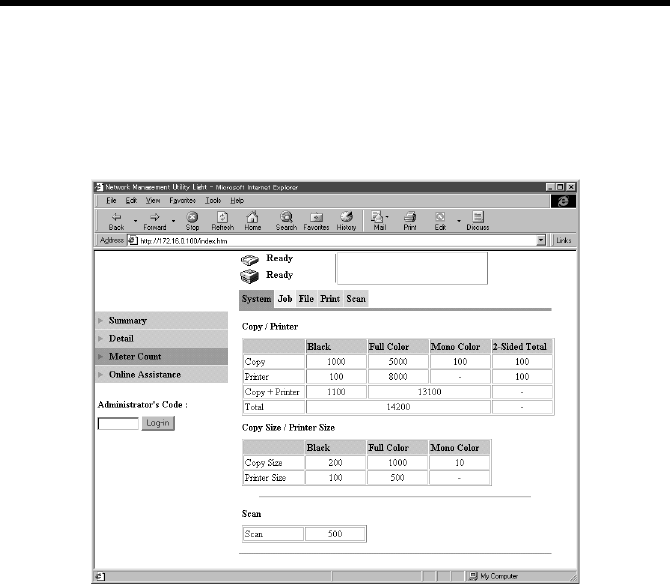
Appendixes
149
Meter Count
•Meter Count
Display Procedure
Click the “System” tab and then select “Detail” – “Meter Count”
Screen Description
Copy/Printer
Copy Black counter : Shows the count of black copies of the copy output
counter controlled by the copier.
Copy Full Color counter : Shows the count of full color copies of the copy
output counter controlled by the copier.
Copy Mono Color counter: Shows the count of mono color copies of the copy
output counter controlled by the copier.
Copy 2-Sided Total counter:Shows the count of 2-sided copies of the copy
output counter controlled by the copier.
Printer Black counter : Shows the count of black printed pages of the
printed output counter controlled by the copier.
Printer Full Color counter: Shows the count of full color printed pages of the
printed output counter controlled by the copier.
Printer 2-Sided Total counter:
Shows the count of 2-sided printed pages of the
printed output counter controlled by the copier.
k4334P222CA

Appendixes
150
Copy + Printer Black counter:
Shows the count of black copies and printed pages
of the copy and printed output counter controlled by
the copier.
Copy + Printer Color counter:
Shows the count of color copies and printed pages
of the copy and printed output counter controlled by
the copier.
Total : Shows the grand total of the copy and printed
output counter controlled by the copier.
Copy Size/Printer Size
Copy Size Black counter : Shows the count of black copies made on large
sized paper of the copy output counter controlled by
the copier.
Copy Size Full Color counter:
Shows the count of full color copies made on large
sized paper of the copy output counter controlled by
the copier.
Copy Size Mono Color counter:
Shows the count of mono color copies made on
large sized paper of the copy output counter
controlled by the copier.
Printer Size Black counter: Shows the count of black printed pages produced
on large sized paper of the printed output counter
controlled by the copier.
Printer Size Full Color counter:
Shows the count of full color printed pages
produced on large sized paper of the printed output
counter controlled by the copier.
Scan counter : Shows the scan counter controlled by the copier.
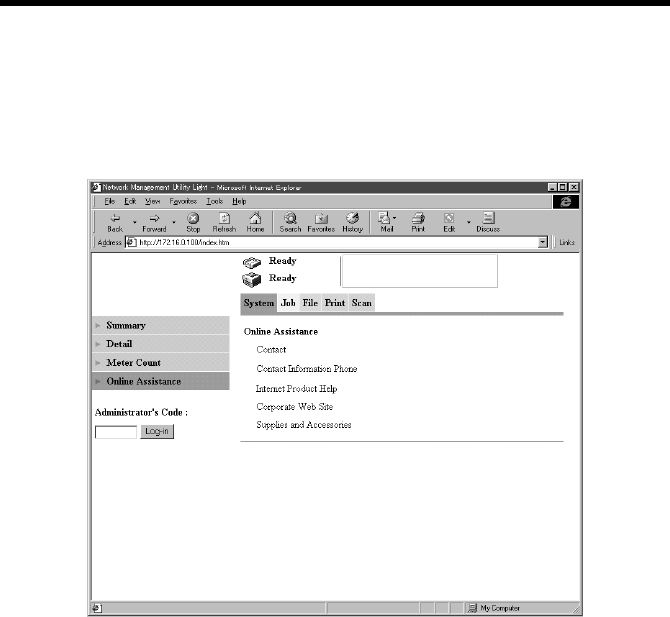
Appendixes
151
Online Support Information
•Online Support Information
Display Procedure
Click the “System” tab and then select “Online Assistance”
Screen Description
Contact : Shows the contact, to which you can direct your
inquiries about the product.
Contact Information Phone: Shows the phone number, at which you can call for
information on the product.
Internet Product Help : Shows the URL of the home page concerning the
product.
Corporate Web Site : Shows the URL of the home page of the
manufacturer.
Supplies and Accessories : Shows information on the source, from which
supplies and consumables are ordered.
k4334P239CA
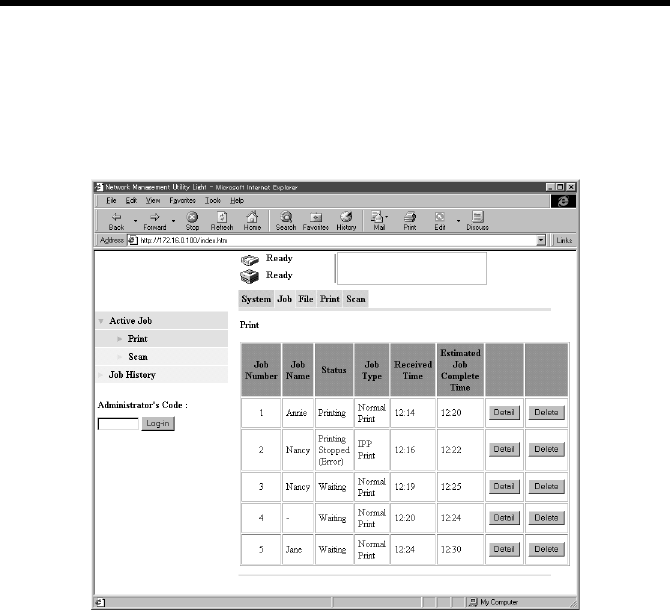
Appendixes
152
Print job list
•Print job list
Display Procedure
Click the “Job” tab and then select “Active Job” – “Print”
Screen Description
Job Name : Displays the User Name specified on the printer driver.
Status : Indicates the status of the job.
[Printing, Waiting, Printing Stopped, Printing Stopped (Error),
Receiving, Job Stored, Job Locked]
Job Type : Displays the printing method of the job.
[IPP Print, Normal Print, Copy]
Detail button : Opens the details display screen.
Delete button : Clicking this button will delete the job.
•Detailed information displayed
Division ID : Shows the access number [1 to 999] if the Copy
Track function is active.
Error Information : Displays the status of the job in detail. If the job
status is “Printing Stopped (Error),” it shows the
details of the warning.
k4334P183CA

Appendixes
153
Destination : Displays the exit port of the job.
When FS-135 is mounted:
[Top Tray, Elevator Tray, Third Tray]
When FS-231 is mounted:
[Elevator Tray, Saddle Stack Tray]
File Name : Displays the name of the job.
Number of Pages : Displays the number of pages per one copy set of
the job.
Copy : Displays the number of copies produced for the job.
Delete button : Clicking this button will delete the job.
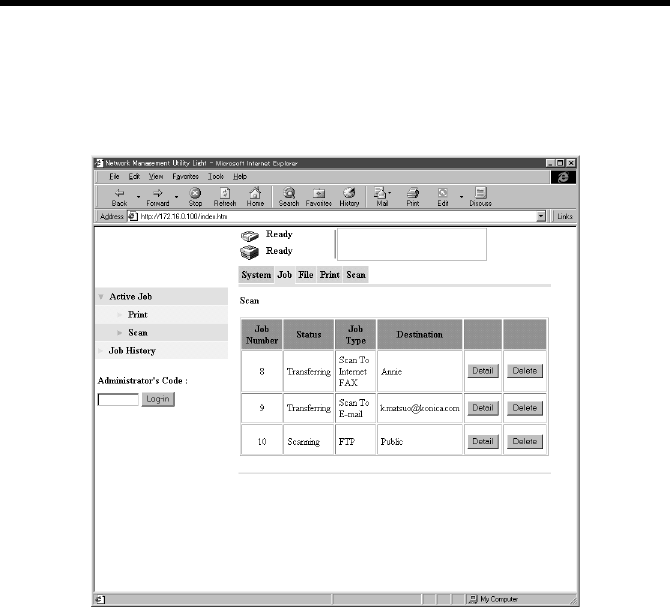
Appendixes
154
•Scanner job list
Display Procedure
Click the “Job” tab and then select “Active Job” – “Scan”
Screen Description
Status : Indicates the status of the job.
[Scanning, Scanning Stopped, Separate Scanning Stopped,
Scanning Stopped (Error), Transfering]
Job Type : Displays the type of the job.
[Scan to E-mail, FTP (Includes File (Scan to FTP Server) and
File (Scan to PC)), Scan to HDD, Scan to Internet Fax, TWAIN]
Destination : Displays the destination to which the job is delivered.
Detail button : Opens the details display screen.
Delete button : Clicking this button will delete the job.
•Detailed information displayed
Error Information : Displays the status of the job in detail.
Number of Pages : Displays the number of pages of the job to be sent.
Received Time : Displays the time-of-day when the job was
registered with the copier.
Delete button : Clicking this button will delete the job.
k4334P229CA
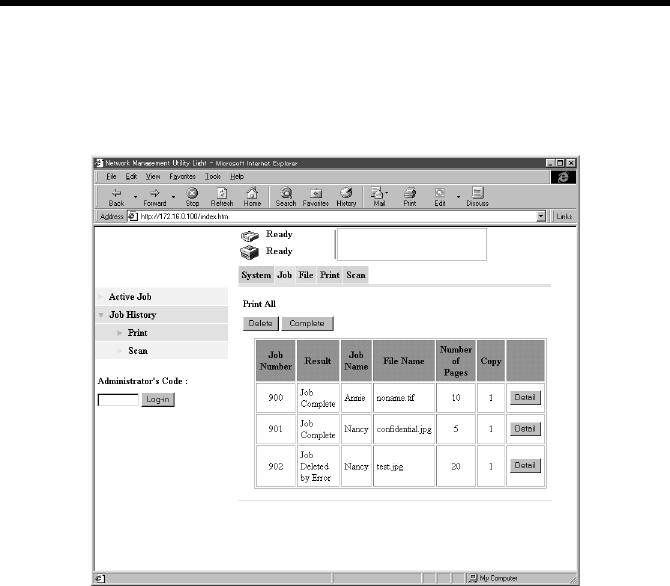
Appendixes
155
•Print job history
Display Procedure
Click the “Job” tab and then select “Job History” – “Print”
Screen Description
Result : Displays the result of execution of the job. [Job Completed, Job
Deleted by Error, Job Deleted by User, Staple Canceled, Punch
Canceled, Paper Fold Canceled]
Job Name : Indicates the name of the user who has issued the job.
File Name : Displays the name given to the job.
Number of Pages: Displays the number of pages per one copy set of the job.
Copy : Displays the number of copies produced for the job.
Detail button : Opens the details display screen.
•Detailed information displayed
Division ID : Shows the access number if the Copy Track
function is active.
Error Information : Displays the status of the job in detail.
k4334P184CA

Appendixes
156
Destination : Displays the exit port of the job.
When FS-135 is mounted:
[Top Tray, Elevator Tray, Third Tray]
When FS-231 is mounted:
[Elevator Tray, Saddle Stack Tray]
Received Time : Displays the time-of-day when the job was
registered with the device.
Job Complete Time : Displays the time-of-day when the job was
completed.
Data Type : Displays the output data format of the data.
PCL (fixed)
Delete button : Displays the jobs whose “Results” were “Job Deleted by Error”
and “Job Deleted by User.”
Complete button : Displays the jobs whose “Results” were “Job Completed.”
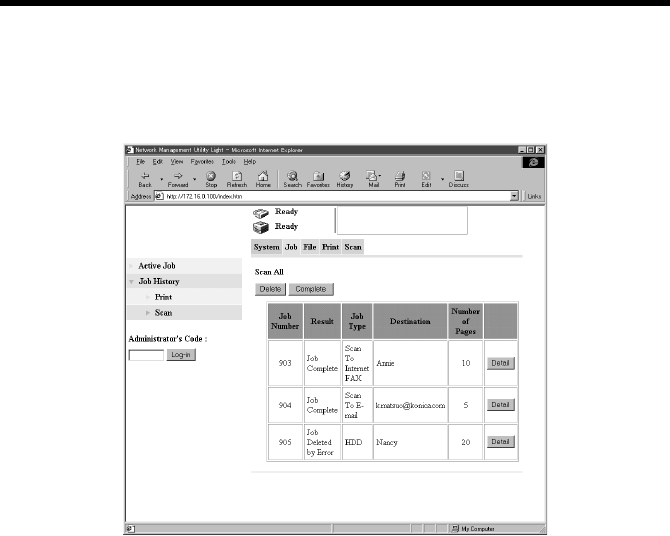
Appendixes
157
•Scanner job history
Display Procedure
Click the “Job” tab and then select “Job History” – “Scan”
Screen Description
Result : Displays the result of execution of the job. [Job
Completed, Job Deleted by Error, Job Deleted by
User]
Job Type : Displays the method of delivery for the job. [Scan
to E-mail, FTP (Includes File (Scan to FTP Server)
and File (Scan to PC)), Scan to HDD, Scan to
Internet Fax, TWAIN]
Destination : Displays the destination to which the job is sent.
Number of Pages : Displays the number of pages sent of the job.
Detail button : Opens the details display screen when clicked.
•Detailed information displayed
Received Time : Displays the time-of-day when the job was
registered with the device.
Job Complete Time : Displays the time-of-day when the job was
completed.
Error Information : Displays the status of the job in detail.
Delete button : Displays the jobs whose “Results” were “Job Deleted by Error”
and “Job Deleted by User.”
Complete button : Displays the jobs whose “Results” were “Job Completed.”
k4334P230CA
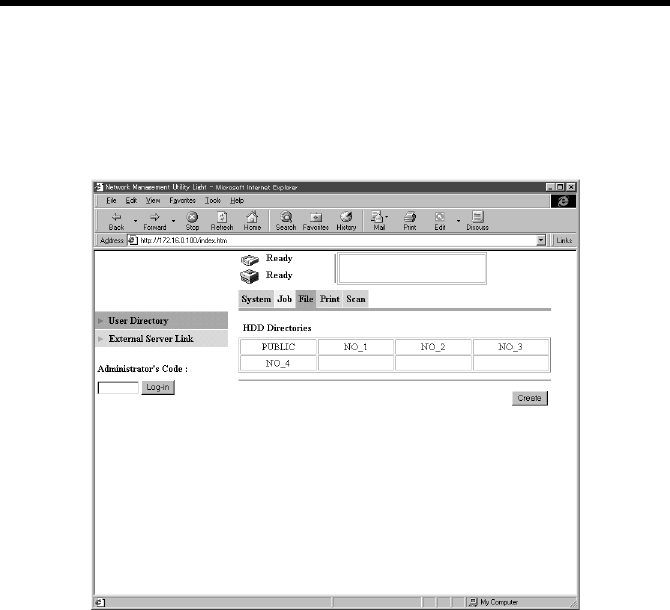
Appendixes
158
File
•User Directory
Display Procedure
Click the “File” tab and then select “User Directory.”
Screen Description
HDD directories : Click to display a list of files contained in the directory.
A password is necessary for all but PUBLIC.
(8 alphanumeric characters or less)
“Create” button : Selecting an unused directory and clicking “Create” will display
the “Create HDD Directories” registration screen.
k4334P185CA
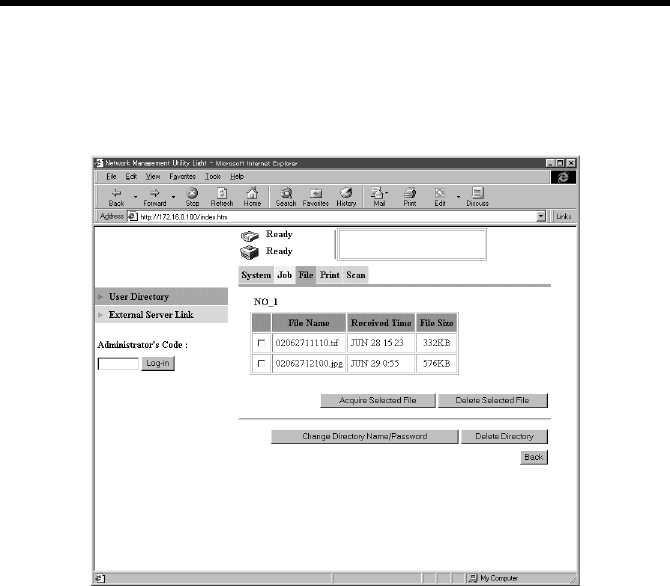
Appendixes
159
•Fil list
Display Procedure
Click the “File” tab and then select “User Directory”
Screen Description
Data list screen
File Name : Displays the name of the file stored in the HDD
directories.
Received Time : Displays the time-of-day when the file was stored
in the HDD directories.
File Size : Displays the size of the file stored in the HDD
directories.
Buttons
Acquire Selected File : Downloads the selected file in the PC.
Delete Selected File : Deletes the selected from the copier HDD.
Change Directory Name/Password:
Accesses a screen that allows you to change the
HDD directories name and password set for the
HDD directories.
Delete Directory : Deletes the HDD directories being displayed on the
screen.
k4334P186CA
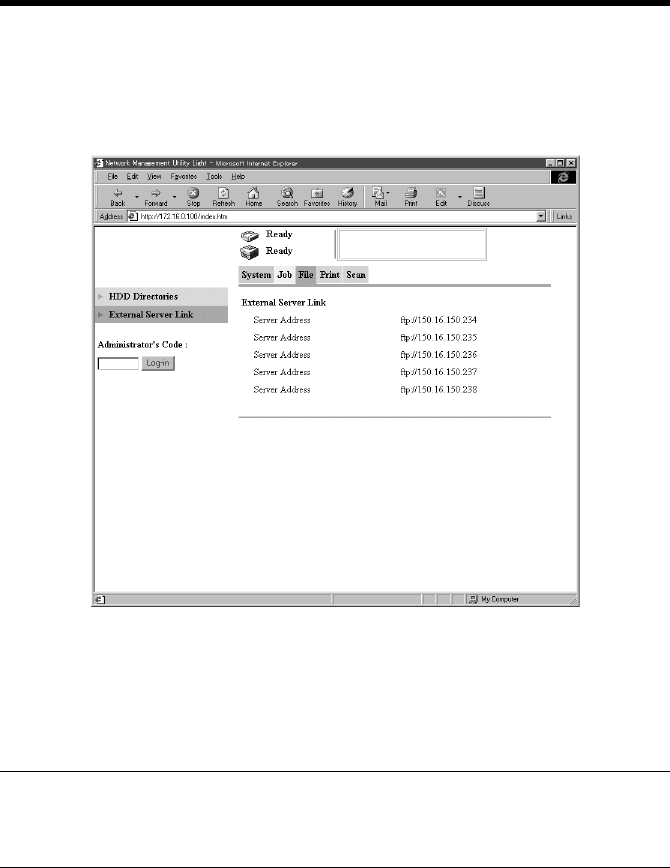
Appendixes
160
•External server link status
Display Procedure
Click the “File” tab and then select “External Server Link”
Screen Description
Server Address : Displays the FTP server, which has been set “ON”
to “External Server Link,” of all the FTP servers
registered in the Administrator mode.
Double-clicking the address will allow you to
access the FTP server.
NOTE
In the “External Server Link” function, the FTP server is accessed by the
authority of “anonymous.”
k4334P231CA
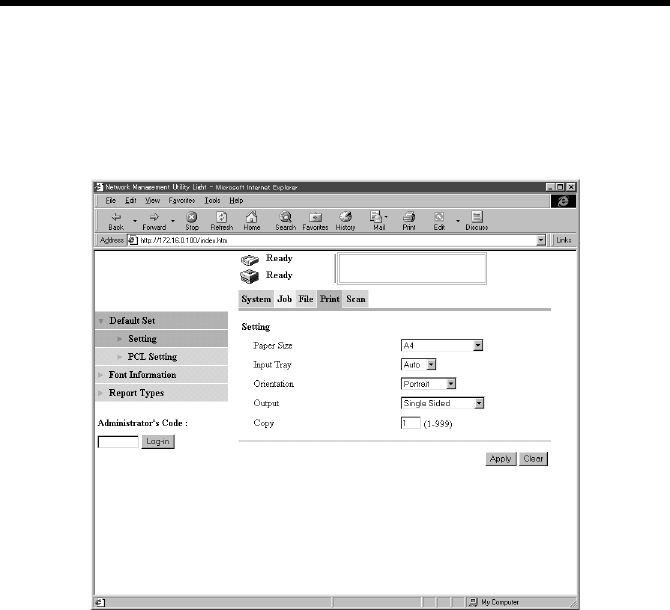
Appendixes
161
Print
•Setting Printer
Display Procedure
Click the “Print” tab and then select “Default Set” – “Setting”
Screen Description
Paper Size : Select the default paper size selected when the
controller receives a print job that does not specify
any specific paper size.
Setting values : A3, A4, A5, A6, B4, B5, Invoice, Letter, Ledger
(11×17), 11×14, Executive, Postcards, F4, K16, K8,
Envelope B5, Envelope Com10, Envelope C5,
Envelope DL, Envelope Monarch
Input Tray : Select the default paper source selected when a
device receives a print job that does not specify any
specific paper source.
Setting values : Auto, Tray 1, Tray 2, Tray 3, Tray 4, LCT
Orientation : Select the default orientation selected when a
device receives a print job that does not specify any
specific image orientation.
Setting values : Portrait, Landscape
k4334P169CA

Appendixes
162
Output : Select the default double-sided print function
selected when a device receives a print job that does
not specify any specific double-sided print function.
Setting values : Single Sided, Long Edge Binding, Short Edge
Binding
Copy : Select the default setting of the number of copies
selected when a device receives a print job that does
not specify any specific number of copies.
Setting values : 1 to 999
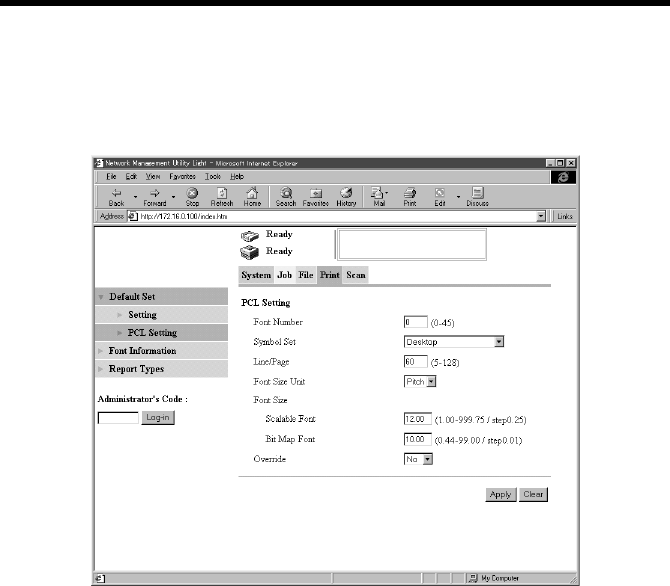
Appendixes
163
•PCL Setting
Display Procedure
Click the “Print” tab and then select “Default Set” – “PCL Setting”
Screen Description
Font Number : Set the default font number.
Setting values : 0 to 45
Symbol Set : Set the default symbol set.
Line/Page : Set the default number of lines per page.
Setting values : 5 to 128
Font Size Unit : Set the default font size unit.
Setting values : Pitch, Point
Font Size (Scalable Font) : Set the default scalable font size.
Setting values : 1.00 to 999.75 (0.25 increments)
Font Size (Bit Map Font) : Set the default bit map font size.
Setting values : 0.44 to 99.00 (0.01 increments)
Override : A4 paper is used if Letter is not loaded, or Letter is
used if A4 paper is not loaded.
Setting values : Yes, No
k4334P170CA
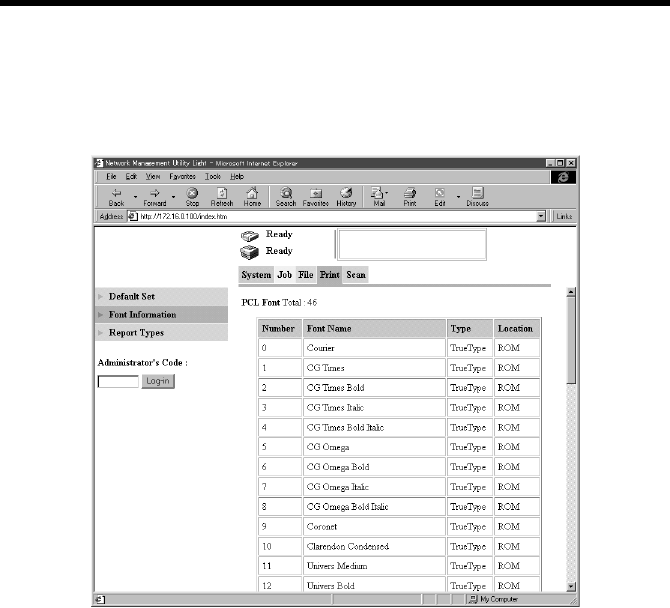
Appendixes
164
•Font Information
Display Procedure
Click the “Print” tab and then select “Font Information”
Screen Description
Show the PCL font List.
k4334P232CA
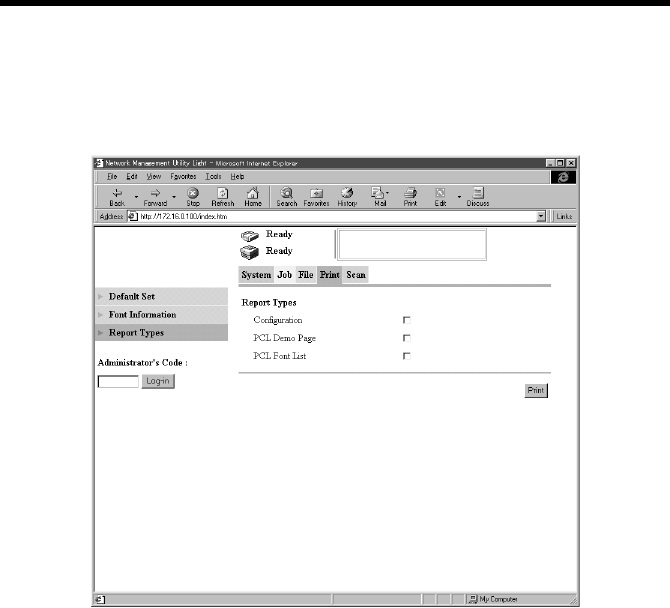
Appendixes
165
•Report Type
Display Procedure
Click the “Print” tab and then select “Report Type”
Screen Description
Configuration : Insert a check mark into the box to print the printer
controller setup page.
PCL Demo Page : Insert a check mark into the box to print the PCL
demo page.
PCL Font List : Insert a check mark into the box to print the PCL
font list.
Print Button : Click this button to execute a test print operation.
k4334P233CA
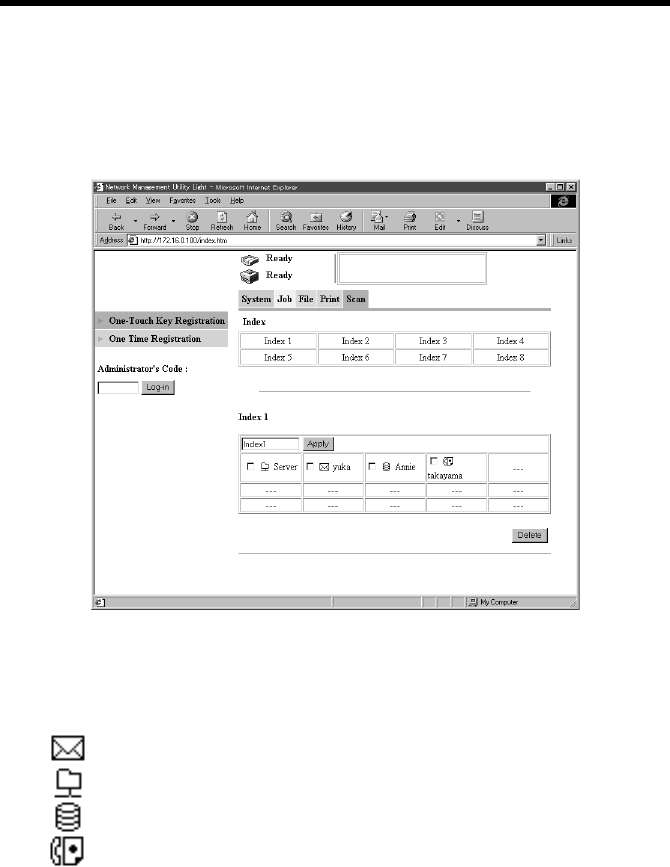
Appendixes
166
Scan
•One Touch Key Registration
Display Procedure
Click the “Scan” tab and then select “One Touch Key Registration”
Screen Description
Index name : Displays the name of the index set. It can be
selected and renamed.
Job Type : An icon corresponding to the job type registered is
displayed.
Destination Name : Displays the destination name registered.
Buttons
Apply : Validates the change of the index name.
Delete : Deletes the selected one-touch key registration.
Scan To E-mail icon
File (Scan To PC/FTP Server) icon
File (Scan To HDD) icon
Scan To Internet Fax icon
– Icon not registered
k4334P188CA
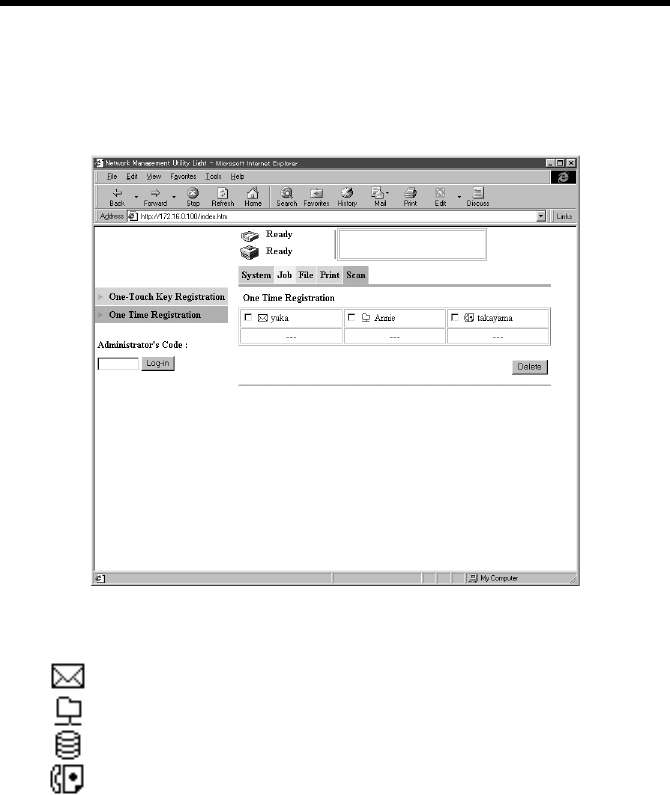
Appendixes
167
•One Time Registration
Display Procedure
Click the “Scan” tab and then select “One Time Registration”
Screen Description
Job Type : An icon corresponding to the job type registered for
one time registration is displayed.
Destination Name : Displays the destination name registered for one
time registration.
Scan To E-mail icon
File (Scan To PC/FTP Server) icon
File (Scan To HDD) icon
Scan To Internet Fax icon
– Icon not registered
k4334P190CA
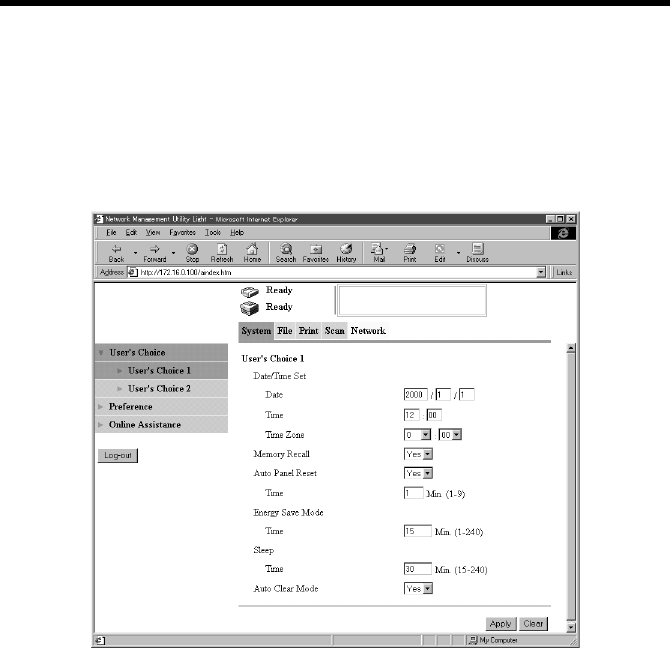
Appendixes
168
2. Administrator Mode
System
•User’s Choice 1
Display Procedure
Click the “System” tab and then select “User’s Choice” – “User’s Choice1”
Screen Description
Date/Time Set : Set the date and time-of-day.
Memory Recall : Set the memory recall function.
Setting values: Yes, No
Auto Panel Reset : Set the auto panel reset function of the copier.
Setting values : Yes, No
Auto Panel Reset Time : Set the time for the auto panel reset function of the
copier.
Setting value : 1 to 9 (min.)
Energy Save Mode Time : Set the time it takes the copier to enter the Energy
Saver mode.
Setting value : 1 to 240 (min.)
Sleep Time : Set the sleep time of the copier.
Setting value : 15 to 240 (min.)
k4334P215CA

Appendixes
169
Auto Clear Mode : If “Yes” is set, the copier determines, when the
optional Plug-In Counter or the magnetic card of
the Data Controller is removed, that a new user is
about to use it, thus clearing the settings.
Setting values : Yes, No
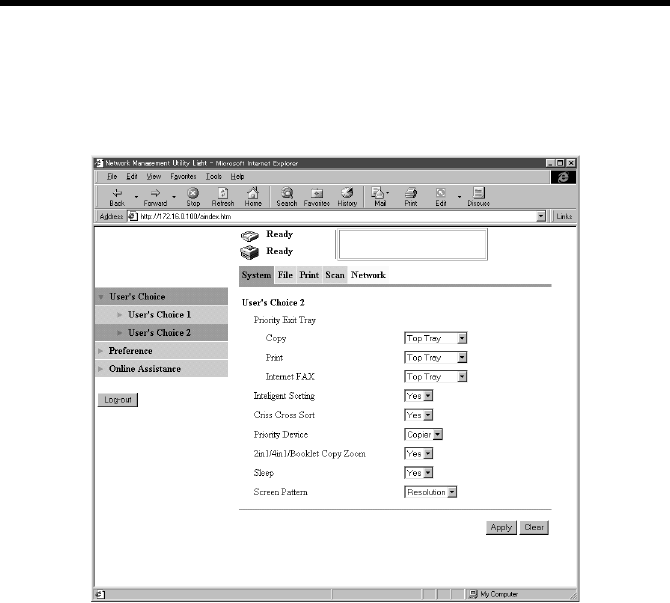
Appendixes
170
•User’s Choice 2
Display Procedure
Click the “System” tab and then select “User’s Choice” – “User’s Choice2.”
Screen Description
Priority Exit Tray : Set the exit tray that is given priority when FS-135
is mounted.
(Copy) : Top Tray, Elevator Tray, Third Tray
(Print) : Top Tray, Elevator Tray, Third Tray
(Internet Fax) : Top Tray, Elevator Tray, Third Tray
Intelligent Sorting : Set the function that automatically selects Sort or
Non-Sort.
Setting values : Yes, No
Criss Cross Sort : Set the function that performs crisscross sorting, in
which copy or printed page sets are stacked in a
sawtooth manner so that individual sets are easy to
identify.
Setting values : Yes, No
Priority Device : Set the timing at which a print cycle is started when
a print job is received from the PC.
Setting values : Copier, Printer
4334P224CA

Appendixes
171
2in1/4in1/Booklet Copy Zoom:
Set the function that automatically selects the zoom
ratio when 2in1 or 4in1 is selected.
Setting values : Yes, No
Sleep : Set the Sleep function.
Setting values : Yes, No
Screen Pattern : Set the screen pattern for PC print output.
Setting values : Gradation, Resolution
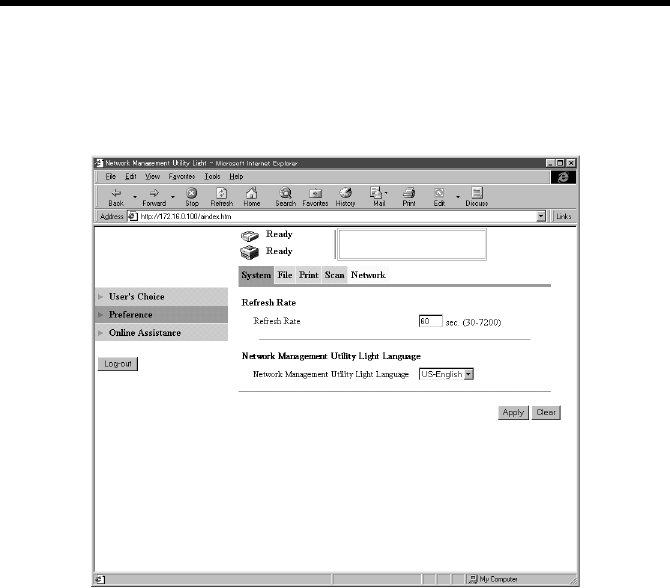
Appendixes
172
•Setting the Browser
Display Procedure
Click the “System” tab and then select “Preference”
Screen Description
Refresh Rate : Set the screen refresh rate of Network Management
Utility Light.
Setting value : 30 to 7200 (sec.)
Language : Set the display language of Network Management
Utility Light.
Setting values : US-English, UK-English, German, French, Italian,
Dutch, Spanish, Danish, Czech, Japanese
k4334P216CA
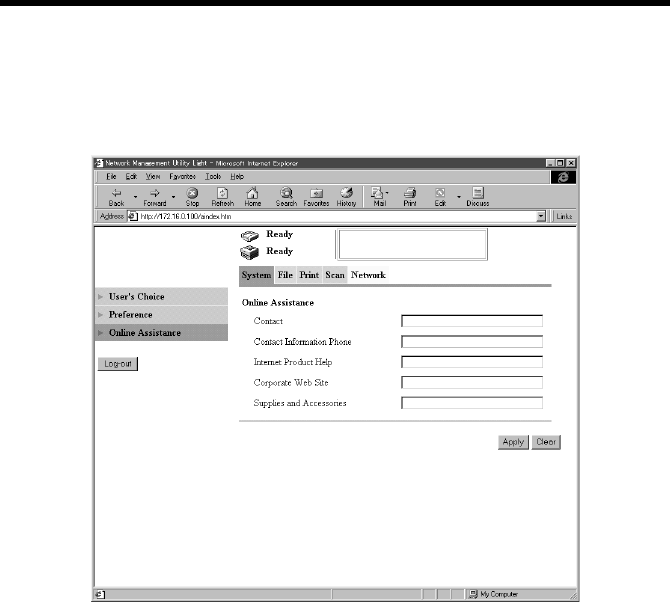
Appendixes
173
•Online Support Function
Display Procedure
Click the “System” tab and then select “Online Assistance.”
Screen Description
Contact : Types the contact, to which you can direct your
inquiries about the product.
Contact Information Phone: Types the phone number, at which you can call for
information on the product.
Internet Product Help : Types the URL of the home page concerning the
product.
Corporate Web Site : Types the URL of the home page of the
manufacturer.
Supplies and Accessories : Types information on the source, from which
supplies and consumables are ordered.
k4334P225CA
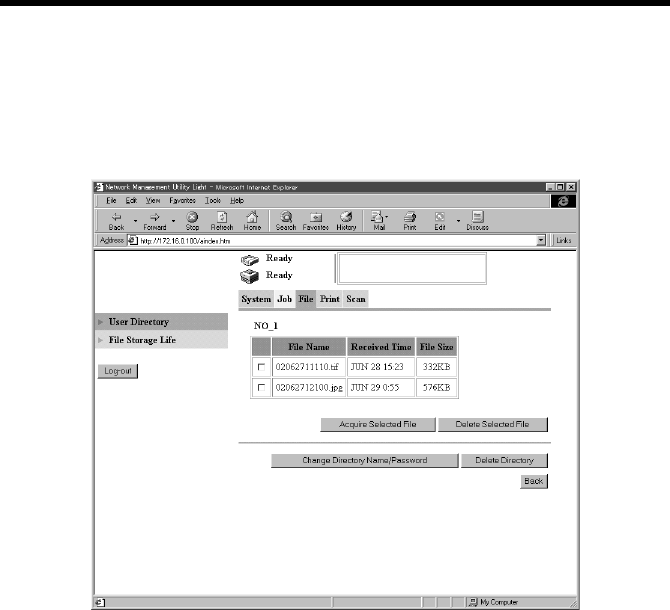
Appendixes
174
File
•User Directory
Display Procedure
Click the “File” tab and then select “User Directory.”
Screen Description
Data list screen
File Name : Displays the name of the file stored in the HDD
directories.
Received Time : Displays the time-of-day when the file was stored
in the HDD directories.
File Size : Displays the size of the file stored in the HDD
directories.
Buttons
Acquire Selected File : Downloads the selected file in the PC.
Delete Selected File : Deletes the selected from the copier HDD.
Change Directory Name/Password:
Accesses a screen that allows you to change the
HDD directories name and password set for the
HDD directories.
Delete Directory : Deletes the HDD directories being displayed on the
screen.
k4334P240CA
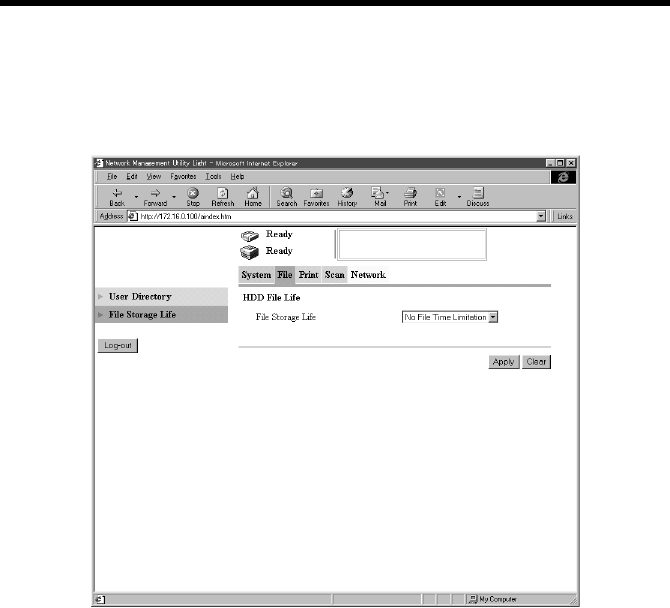
Appendixes
175
•HDD File Life
Display Procedure
Click the “File” tab and then select “File Storage Life.”
Screen Description
File Storage Life : Specify the period of storage of files in the hard
disk. (Valid only with files saved in the hard disk
through Scan to HDD)
Setting value : No File Time Limitation, 1 day, 2 day, 3 day, 4 day,
5 day, 6 day, 7day
Apply Button : Fixes the setting.
Clear Button : Cancels the setting.
k4334P234CA
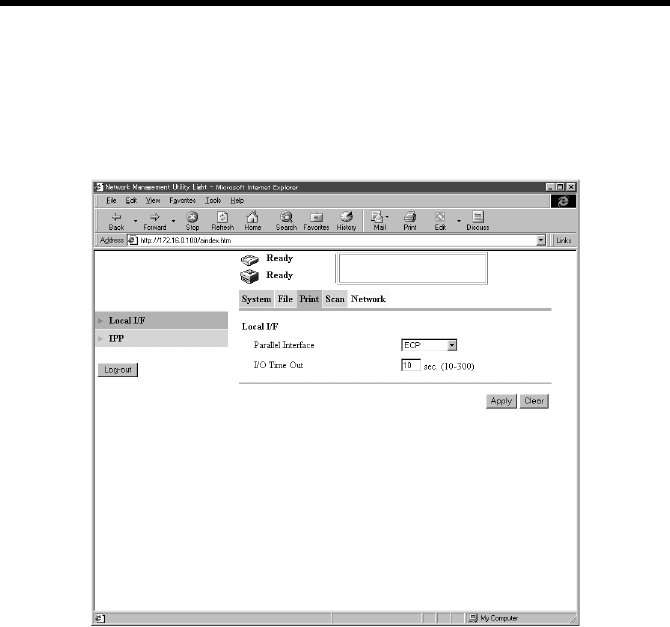
Appendixes
176
Print
•Local Interface Setting
Display Procedure
Click the “Print” tab and then select “Local I/F.”
Screen Description
Parallel Interface : Set the communication method.
Setting values : Compatible, Nibble, ECP
I/O Timeout : Set the communication timeout.
Setting value : 10 to 300 (sec.)
k4334P226CA
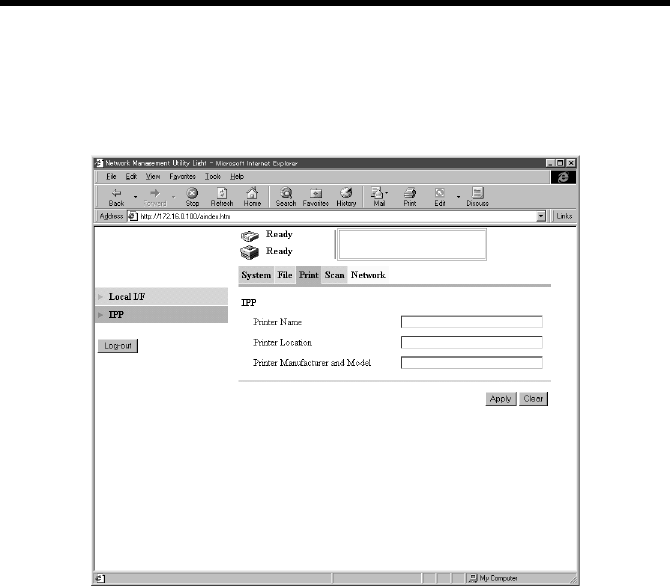
Appendixes
177
•IPP Setting
Display Procedure
Click the “Print” tab and then select “IPP.”
Screen Description
Printer Name : Type in a name to identify the printer during IPP
printing.
Printer Local : Type in the location of the printer.
Printer Manufancturer and Model:
Type in the printer manufancturer name and model
name.
k4334P154CA
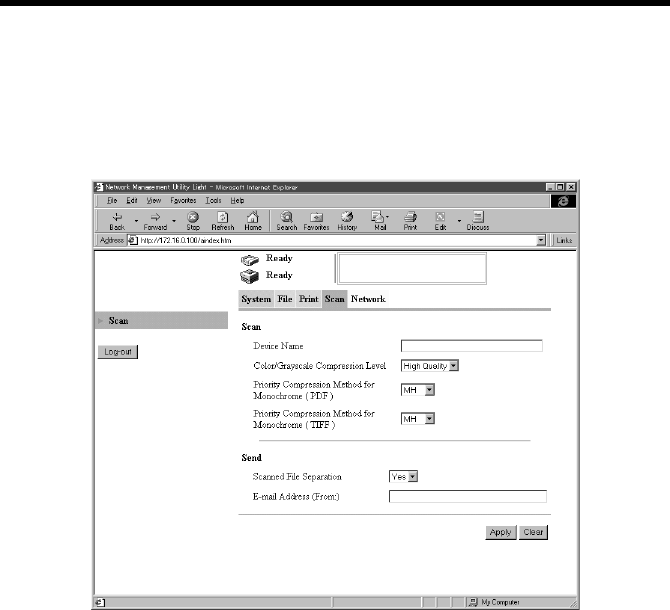
Appendixes
178
Scan
•Setting the File Format
Display Procedure
Click the “Scan” tab and then select “Scan”
Screen Description
• Scan
Device Name : The characters set for this parameter is appended
before the name of the image file created with the
scan function.
Setting value : 36 alphanumeric characters or less
Color/Grayscale Compression Level: Select the compression level for images.
Setting values : High Quality, Normal, Economy
Priority Compression Method for Monochrome (PDF): MH, MMR
Priority Compression Method for Monochrome (TIFF): MH, MMR
•Send
Scanned File Separation : Set the division method (by page) when the
maximum size is exceeded. ☞p.88, ☞p.94
Setting values : Yes, No
E-mail Address (From:) : Specify the e-mail address of the sender.
☞p.93, ☞p.104
k4334P171CA
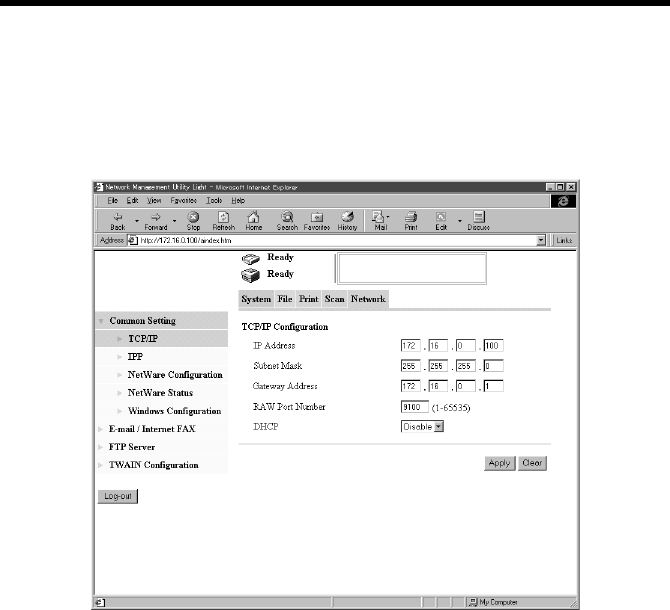
Appendixes
179
NetWork
•TCP/IP Setting
Display Procedure
Click the “Network” tab and then select “Common Setting” – “TCP/IP”
Screen Description
IP Address : Set the IP address of the controller.
Subnet Mask : Set the subnet mask for the network to be
connected.
Gateway Address : Set the default gateway address for the network to
be connected.
RAW Port Number : default value 9100
DHCP : Set use of DHCP server.
k4334P153CA
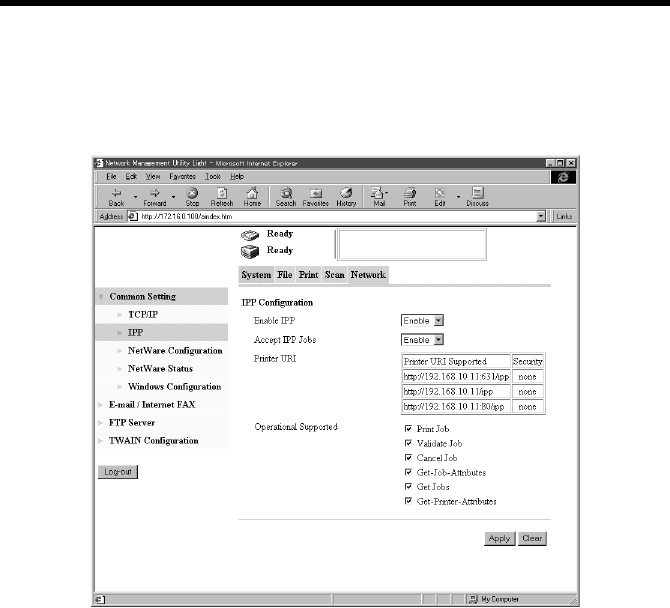
Appendixes
180
•IPP Setting
Display Procedure
Click the “Network” tab and then select “Common Setting” – “IPP.”
Screen Description
Enable IPP : Set the IPP function.
Setting values : Enable, Disable
Accept IPP Jobs : Set the IPP reception function.
Setting values : Enable, Disable
Printer URI : Displays the URL of the printer, with which data
can be printed using IPP.
Operational Supported : Specify the print operation supported by the IPP.
Setting values : Print Job, Validate Job, Cancel Job, Get-Job-
Attributes, Get Jobs, Get-Printer-Attributes
k4334P235CA
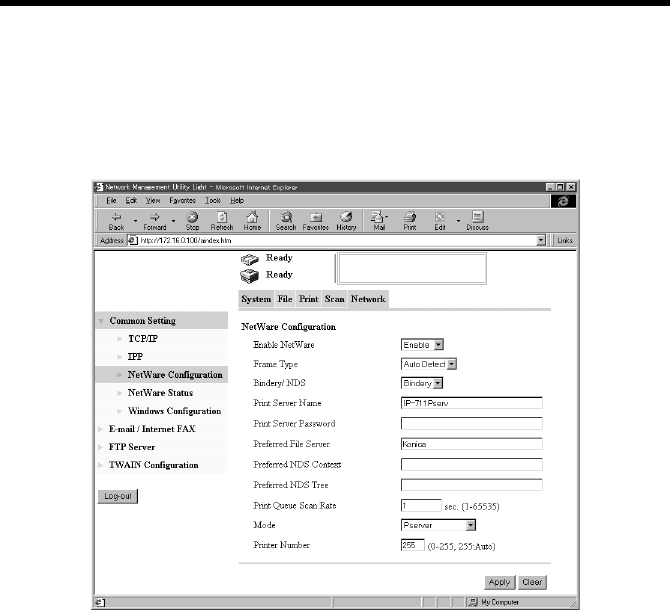
Appendixes
181
•NetWare Setting
Display Procedure
Click the “Network” tab and then select “Common Setting” – “NetWare
Configuration.”
Screen Description
Enable NetWare : Set the NetWare printing.
Setting values : Enable, Disable
Frame Type : Set the frame type.
Setting values : Auto Detect, II, 802.2, 802.3, SNAP
Bindery/NDS : Set Bindery/NDS.
Setting values : Both, NDS, Bindery
Print Server Name : Set the print server name for NetWare.
Setting value : 63 alphanumeric characters or less
Print Server Password : Set the print server password for NetWare.
Setting value : 127 alphanumeric characters or less
Preferred File Server : Set the preferred file server for NetWare.
Setting value : 47 alphanumeric characters or less
Preferred NDS Context : Set the preferred NDS context name for NetWare.
Setting value : 191 alphanumeric characters or less
k4334P155CA

Appendixes
182
Preferred NDS Tree : Set the preferred NDS tree name for NetWare.
Setting value : 63 alphanumeric characters or less
Print Queue Scan Rate : Set the print queue scan rate for NetWare.
The default value is 1 sec.
Setting value : 1 to 65535 sec.
Mode : Set the mode for NetWare.
Setting value : PServer, Nprinter/Rprinter
Printer Number : Set the printer number for NetWare. The number is
assigned automatically if it is 255.
Setting value : 0 to 255
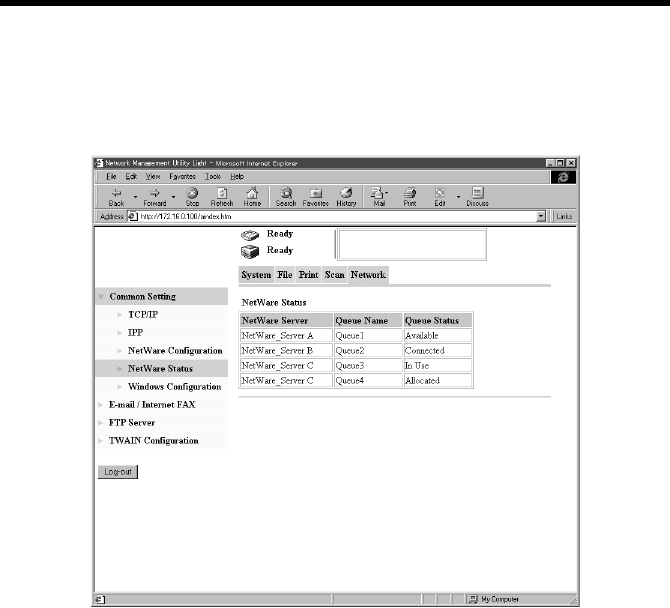
Appendixes
183
•NetWare Status
Display Procedure
Click the “Network” tab and then select “Common Setting” – “NetWare Status.”
Screen Description
NetWare Server : Displays the NetWare server name.
Queue Name : Displays the queue name of the NetWare server.
Queue Status : Displays the queue status of the NetWare server.
[Available, Allocated, In Use, Connected]
k4334P236CA
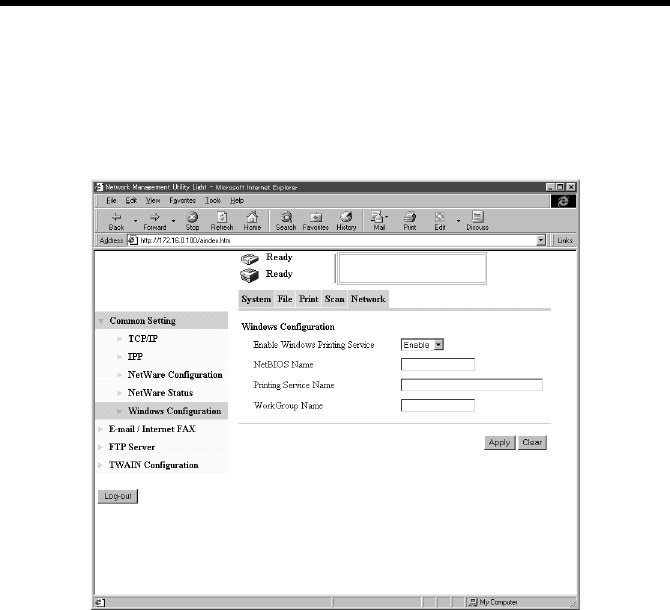
Appendixes
184
•Windows Printing Setting
Display Procedure
Click the “Network” tab and then select “Common Setting” – “Windows
Configuration.”
Screen Description
Enable Windows Printing Service:
Set the Windows printing service.
Setting values : Enable, Disable
NetBIOS Name : Set the NetBIOS name.
Setting value : 15 alphanumeric characters or less
Printing Service Name : Set the printing service name.
Setting value : 31 alphanumeric characters or less
WorkGroup Name : Set the work group name.
Setting value : 15 alphanumeric characters or less
k4334P156CA
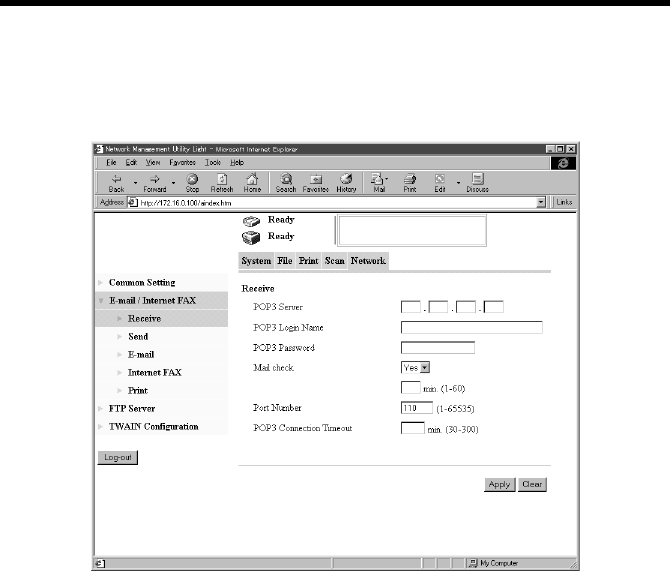
Appendixes
185
•E-mail/Internet FAX Reception Setting
Display Procedure
Click the “Network” tab and then select “E-mail/Internet FAX” – “Receive.”
Screen Description
POP3 Server : Set the IP address of the POP3 server.
POP3 Login Name : Set the logon name of the POP3 server.
Setting value : 63 alphanumeric characters
POP3 Password : Set the password used when logging on to the POP3
server.
Setting value : 15 alphanumeric characters
Mail Check : Set whether to make a periodic check of the
contents of the mail server or not. If “Disable” is
selected, mail is not automatically received.
Setting values : Yes, No
1-60
Port Number : Set the port number of the POP3 server.
(The default value of “110” is generally used.)
POP3 Connection Timeout: Set the communications timeout with the POP3
server.
Setting values : 30 to 300 min.
k4334P176CA
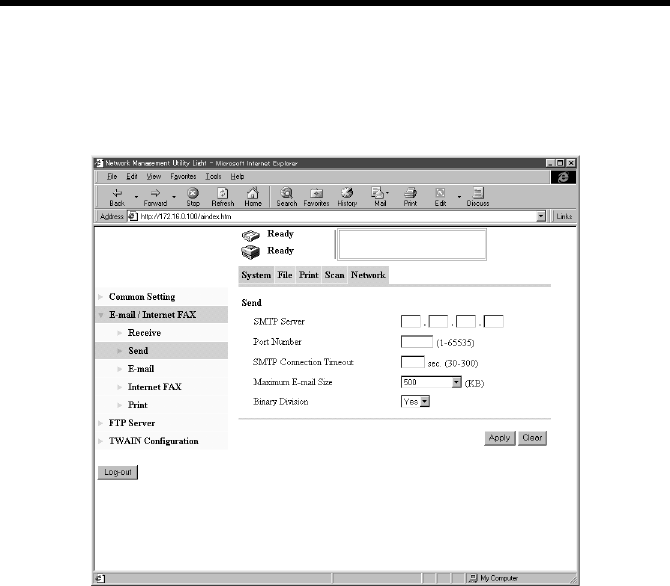
Appendixes
186
•E-mail/Internet FAX Transmission Setting
Display Procedure
Click the “Network” tab and then select “E-mail/Internet FAX” – “Send.”
Screen Description
SMTP Server : Set the IP address of the SMTP server.
Port Number : Set the port number of the SMTP server.
(The default value of “25” is generally used.)
SMTP Connection Timeout : Set the communications timeout with the SMTP
server.
Setting values : 30 to 300 sec.
Maximum E-mail Size : Set the maximum size of transmission mail
capacity.
Setting values : No Limitation, 100 to 3000 KB (100 increments)
Binary Division : Set whether to divide mail exceeding the
maximum size into two or more mails (in units of
binary). ☞p.88, ☞p.94
Setting values : Yes, No
4334P175CA
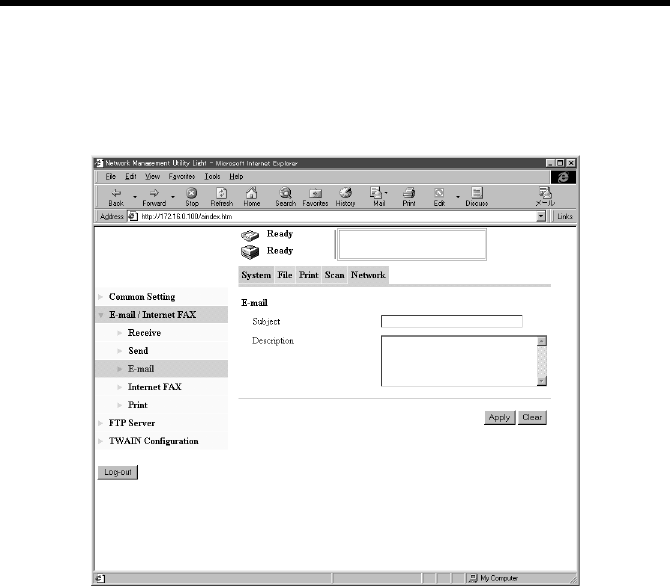
Appendixes
187
•Setting the Mail Options
Display Procedure
Click the “Network” tab and then select “E-mail/Internet FAX” – “E-mail.”
Screen Description
Subject : Type the title of the e-mail.
Setting value : 64 characters
Description : Type the message of the e-mail.
Setting value : 256 characters
k4334P177CA
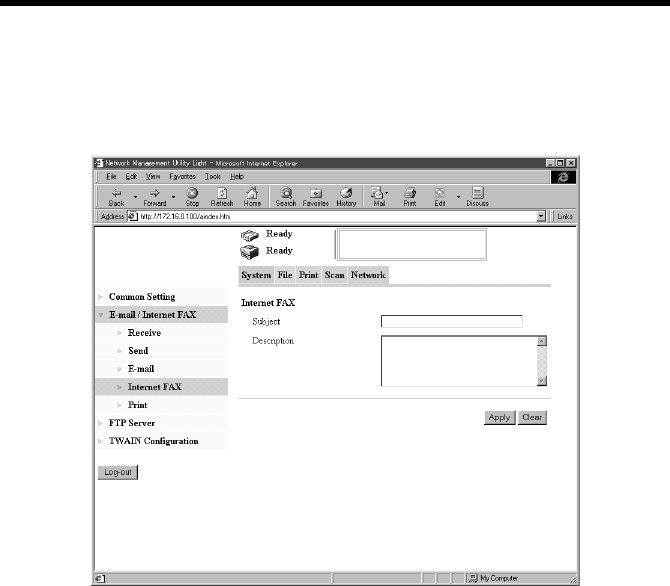
Appendixes
188
•Setting the Internet FAX Options
Display Procedure
Click the “Network” tab and then select “E-mail/Internet FAX” – “Internet FAX.”
Screen Description
Subject : Type the title of the e-mail.
Setting value : 64 characters
Description : Type the message of the e-mail.
Setting value : 256 characters
k4334P178CA
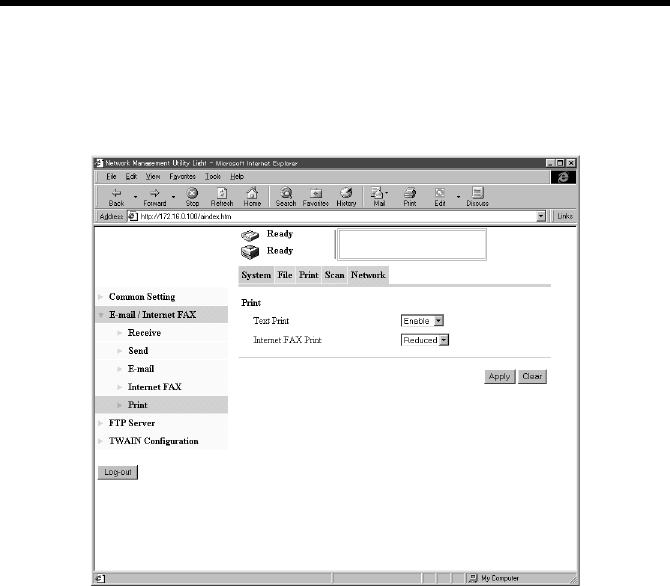
Appendixes
189
•Setting for Printing E-mail/Internet FAX
Display Procedure
Click the “Network” tab and then select “E-mail/Internet FAX” – “Print.”
Screen Description
Text Print : Set whether to print an E-mail message received by
the copier.
Setting values : Enable, Disable
Internet Fax Print : Set the magnification for printing of received data.
Setting values : Full Size, Reduced (default), A4/Letter
Full Size:
The received data is printed in full size.
Reduced (default):
Select this to slightly reduce the received data.
A4/Letter:
Select this to fit the received data to A4 or Letter
size.
k4334P179CA
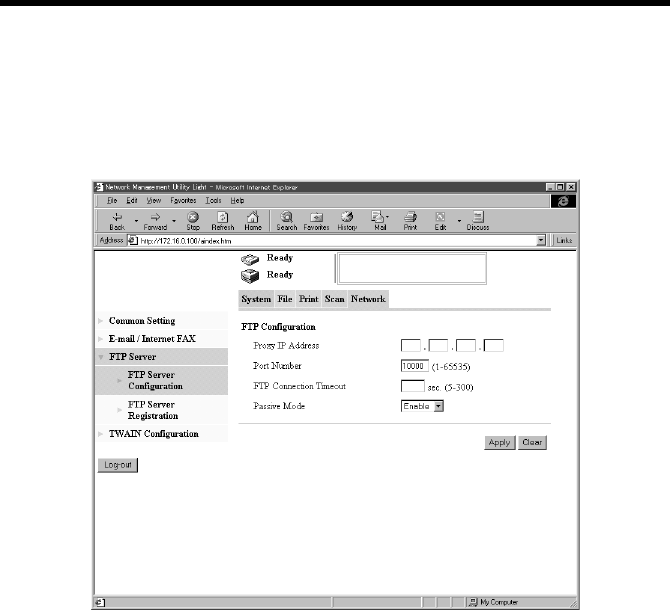
Appendixes
190
•Setting the (Proxy) FTP Server
Display Procedure
Click the “Network” tab and then select “FTP Server” – “FTP Server
Configuration.”
Screen Description
Proxy IP Address : When a proxy server is to be used, set the IP
address of the proxy server.
Port Number : Set the port number of the proxy server.
(The default value of “21” is generally used.)
FTP Connection Timeout : Set the communications timeout with the FTP
server.
Passive Mode : Set the Passive Mode.
Setting values : Enable, Disable
k4334P174CA
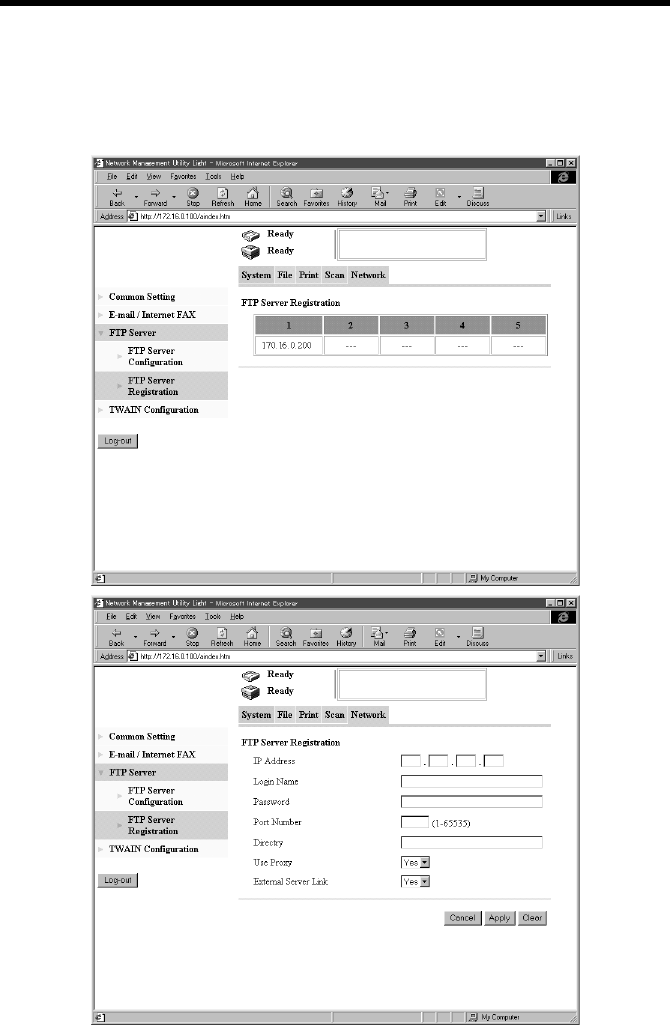
Appendixes
191
•Registering FTP Servers
Display Procedure
Click the “Network” tab and then select “FTP Server” – “FTP Server Registration.”
Screen Description
k4334P172CA
k4334P173CA

Appendixes
192
IP Address : Specify the IP address of the FTP server.
Login Name : Specify the name with which to log on to the FTP
server.
Setting value : 32 alphanumeric characters or less
Password : Specify the password with which to log on to the
FTP server.
Setting value : 64 alphanumeric characters or less
Port Number : Specify the port number of the FTP.
(The default value of “21” is generally used.)
Directory : Set the directory through which the scanned image
is stored in the FTP server.
Setting value : 128 alphanumeric characters or less
Use Proxy : Set whether to use the proxy server or not.
Setting values : Yes, No
External Server Link : Set whether to enable FTP connection by the user to
the FTP server from Network Management Utility
Light.
Setting values : Yes, No
NOTE
“External Server Link” can be used only when “anonymous” is set in “Login
Name” on the FTP Server Registration screen.
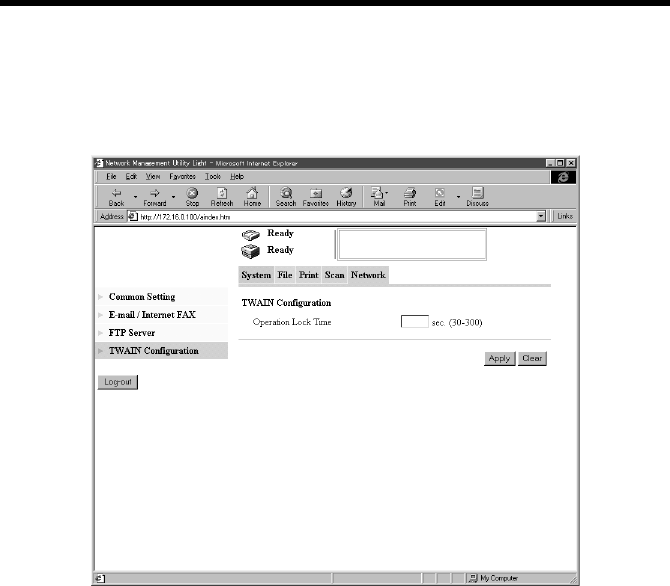
Appendixes
193
•TWAIN Setting
Display Procedure
Click the “Network” tab and then select “TWAIN Coufiguration”
Screen Description
Operation Lock Time : Set the operation lock time of the control panel to
enable TWAIN operations from the PC.
Setting values : 30 to 300 sec.
k4334P180CA
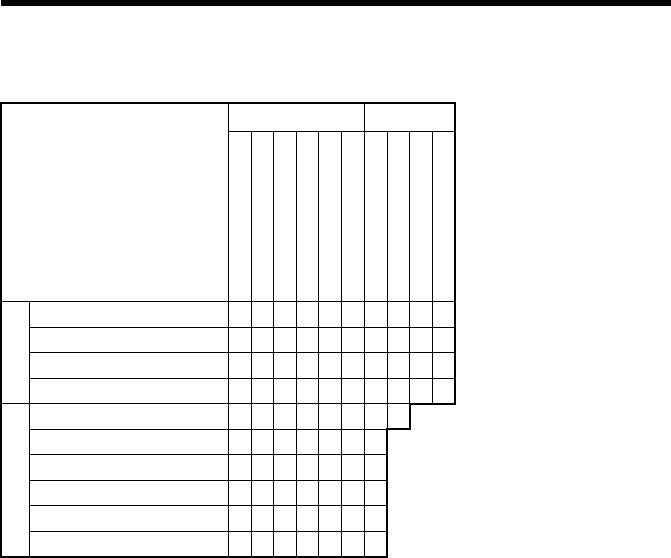
Appendixes
194
C. Incompatible Function Combinations
■Function Limitation Matrix
Blank : selectable combination
×: not selectable combination
Media Type Output
Plain Paper
Thick Paper 1
Thick Paper 2
Thick Paper 3
Transparency
Envelope
OHP Interleaving
N-up
Booklet
Duplex
Paper Source
Manual Feed Tray ×××
Tray 1 (Multi-purpose tray)
Tray 2 ×××××
Tray 3,4, LCT ×××××
Output Setting
Booklet ×××××××
Duplex ××××××
N-up
Staple ××××××
Punch ×××××
Folding ××××××

Appendixes
195
■Limitation between Paper Size and Functions
Blank : selectable combination
×: not selectable combination
Paper Source Media Type Output Setting
Tray1 (Multi-purpose tray)
Tray2,3,4
LCT
Manual Feed Tray
Plain Paper
Thick Paper 1
Thick Paper 2
Thick Paper 3
Transparency
Envelope
Duplex
Booklet
N-up
FS-135
FS-231
Staple
Staple
Punch
Crease + Center Staple
Corner
Top side 2 Points
Left side 2 Points
Auto 2 Points
Corner
Paper Size
A3 Wide ×× × × × ×××
A3 ××
JIS B4 ×× ××
A4 ×
JIS B5 ××
B5 ××
A5 ×× ××× × × × ×
JIS B6 ×× ××× × × ×××
A6 ×× ××× × × ×××
Post Card ×× ×××× × × ×××
F4 ×× ××
F4 ×× ××
F4 ×× ××
F4 ×× ××
Legal ×× ×
Letter ×
Executive ×× × × ×
Invoice ×× ××× × × ×××
Ledger ××
11×14 ××
Envelope B5 ×× ××××× ××× × × ×××
Envelope Com10 ×× ××××× ××× × × ×××
Envelope C5 ×× ××××× ××× × × ×××
Envelope DL ×× ××××× ××× × × ×××
Envelope Monarch ×× ××××× ××× × × ×××
K16 ×× × × × ×××
K8 ×× × × × ×××
Custom Paper ×× ×××× × × ×××
Note
Inch Area (3Holes)
Metric Area (4Holes)
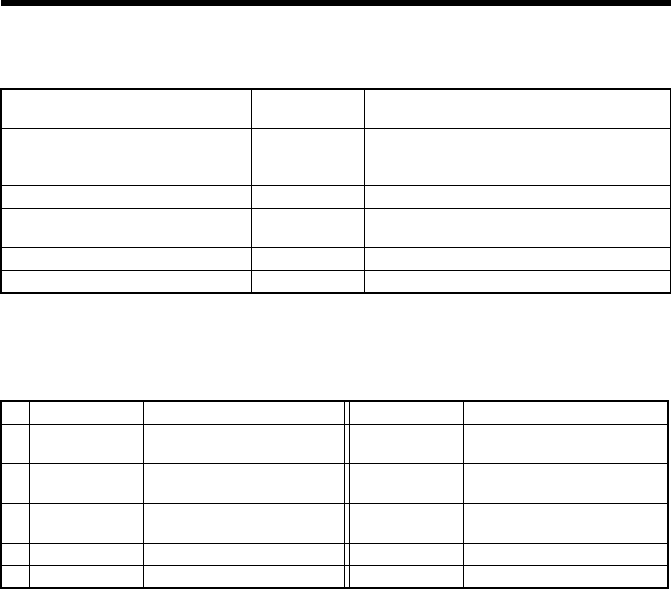
Appendixes
196
Add the following Options in the column “Installed Options” by depressing “Device
Option Setting” Tab, and the function(s) shown in the right columns can be selected.
The following combination of functions in the left and right column can not be
selected at the same time.
Option(s) added to “Installed
Options” Tab Function(s) to be selected after adding the
option(s) in the left columns
Tray 3 + Tray 4 or LCT Paper Tray 3, Tray 4, LCT (Font Cover Paper Source,
Back Cover Paper Source, OHP Interleaving
Paper Source)
HDD Job Management Distribution Number, Store to HDD
FS-231 Paper Staple (Top side 2 Points, Left side 2 Points,
Auto 2 Points, Corner), Punch, Folding
FS-135 Paper Staple (Corner)
Duplex Unit Paper Duplex/Booklet
Tab Function(s) Tab Function(s)
1 Setup Booklet left binding
Booklet right binding Paper Uncollated
2 Setup Booklet left binding
Booklet right binding Quality Download as bitmap
3 Paper Fit to Paper
Scaling Quality Download as bitmap
4 Setup N-up Quality Download as bitmap
5 Quality Grayscale Job Management Distribution color (Red, Blue)

197
INDEX
INDEX
A
Administrator Mode 141
B
Booklet Printing 54
C
Connecting the Network Cable 5
Cover 58
D
Duplex Printing 54
Duplex/Booklet Printing 54
E
Easy Set 45
Energy Save Mode Time 168
G
Gateway Address 18, 179
H
HDD directories 79
I
IEEE1284 (Centronics) Cable 15
Installation through Plug and Play 15
Installing the Printer Driver 7
Interleaf (OHP Interleaving) 58
Internet Fax 94
IP Address 18, 179
IP Address Setting 18
IPP (Internet Printing Protocol) 23
L
Lock Job 121, 123
N
Network Management Utility Light 138
N-up Printing 49

INDEX
198
O
One Time Registration 115
One-Touch Key Registration 110
Operating Environment 1
P
Printer Figure 45
Printing Pages with Watermarks 50
Proof and Print 121, 124
Public directory 79
R
Registering FTP Servers 70
S
Scan to E-mail 86
Scan to FTP Server 69
Scan to HDD 77
Scan to PC 64
Scanned File Separation 62, 178
Setting the Proxy Server 73
Store to HDD 121, 124
Store to Memory 121, 125
Subnet Mask 18, 179
T
TWAIN 106, 107
U
Uninstalling the Driver 41
USB Cable 15
User directory 158
Thank you very much for purchasing the Konica IP-711 Print Controller.
This User's Manual includes instructions for making prints, correct handling of the machine, and precautions for
safety. Please read this manual before printing.
In order to maintain a satisfactory printing performance, please keep this User's Manual readily available for
reference.
Konica Business Technologies, Inc.
Corporate Publications
500 Day Hill Road
Windsor, CT 06095
COPYRIGHT
© 2002 by Konica Business Technologies, Inc.
MANUAL PART NUMBER:
OP-IP711-01
WABSITE ADDRESS:
http://www.konicabt.com
CORRESPONDENCE:
Correspondence regarding this manual may be mailed to the address shown below.

2002.9
4334-7738-01
MANUFACTURER
TOKYO JAPAN
KONICA CORPORATION
