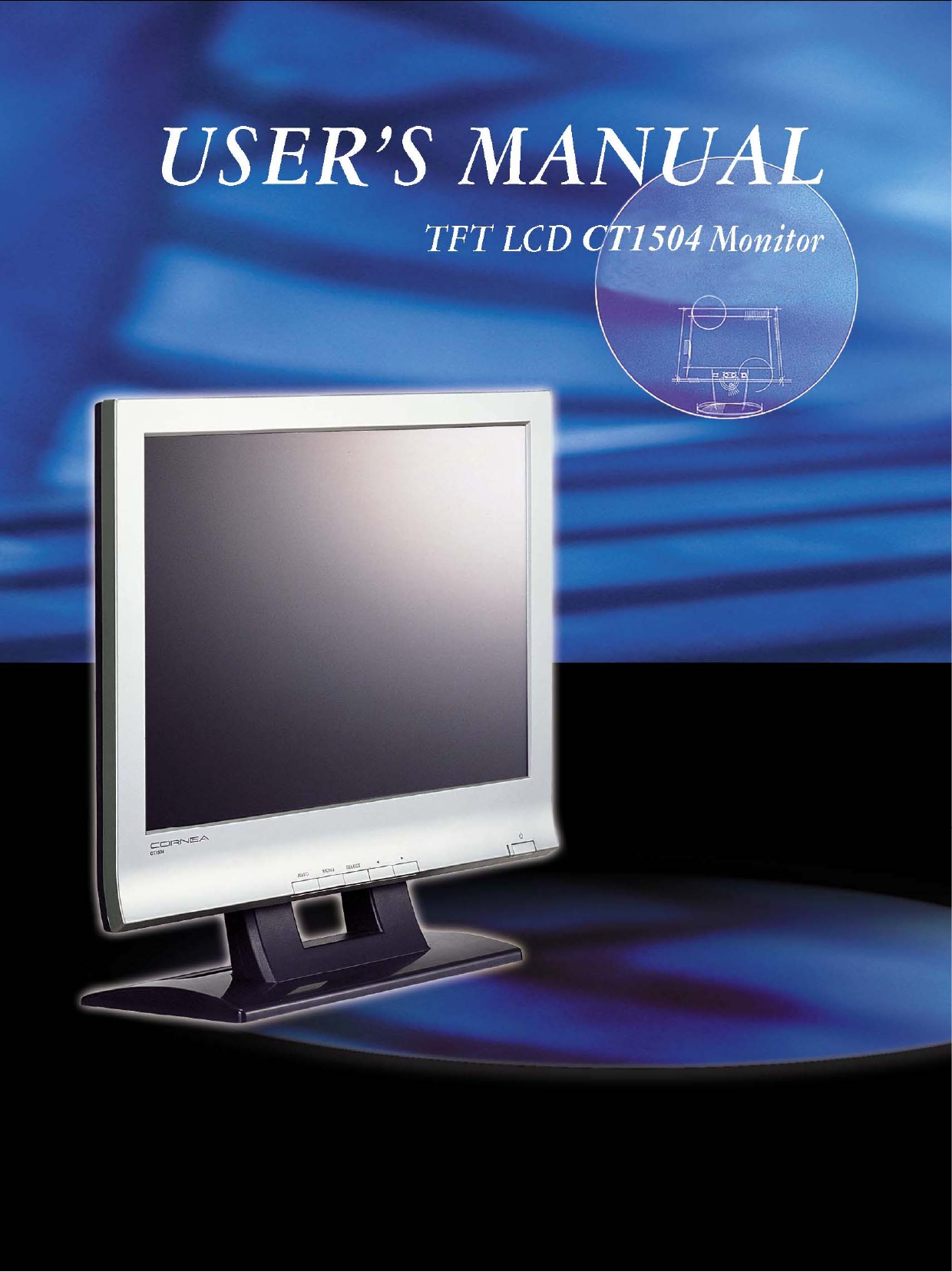
Korea Data Systems Co CT1504 15” LCD Monitor User Manual 1 intro1 1904

Korea Data Systems Co Ltd 15” LCD Monitor 1 intro1 1904

User Manual

   Congratulations!  Congratulations on your purchase of a state-of-the-art TFT-LCD monitor by Korea Data Systems Co., Ltd.  We know you will be pleased with your investment and will enjoy the dynamic viewing experience — You will never look at digital images the same again!    Our monitor is easy to set up. Just follow these simple instructions and you will be viewing a “new digital world” in no time:  • Connect the monitor to your PC. • Configure the monitor • Adjust the display • Enjoy!   Copyright© 2002 by Korea Data Systems Co., Ltd.  All rights reserved. No part of this manual may be reproduced, stored in retrieval system or transmitted in any form or by any means electronic, mechanical or otherwise, without the prior written permission of Koera Data Systems Co., Ltd. Korea Data Systems Co., Ltd. is under no obligation to hold any submitted material of information confidential unless prior arrangements are made pursuant to Korea Data Systems Co., Ltd.’s receipt of said information. Although every effort has been made to ensure that this manual provides up-to-date information, please note that KDS monitor specifications are subject to change without notice.   Part Number: 8007000007
   Table of Contents  General Information Safety Symbols    . . . . . . . . . . . . . . . . . . . . . . . . . . . . . . . . . . . . . . . .    2 Warning    . . . . . . . . . . . . . . . . . . . . . . . . . . . . . . . . . . . . . . . . . . . . .    3 Caution    . . . . . . . . . . . . . . . . . . . . . . . . . . . . . . . . . . . . . . . . . . . . .    6 LCD Panel    . . . . . . . . . . . . . . . . . . . . . . . . . . . . . . . . . . . . . . . . . .    7 Unpacking Your Monitor and Taking Inventory of the Parts  . . . . . .    8  Component Information The Front of the Monitor    . . . . . . . . . . . . . . . . . . . . .. . ... . . . . . . . .   10 The Back of the Monitor (Connection Locations)  . . . . .. . . . . . .. . ...  11 Adjust the Tilt / Viewing Angle    . . . . . . . . . . . . . . . . . . . .. . . . . . .  12 Power Management Function    . . . . . . . . . . . . . . . . . . . . . .. . . . . . .  13  Connecting Connect Your Monitor to Your Computer   . . . . . . . . . . . . . . . . . . . . .   14  Configuring/Adjusting Configuring and Adjusting the Display  . . . . . . . . . . . .. . . . . .   17 Explanation of Remaining Menu Items / PC Mode  . . . . . . . . . . . . . .   22  Troubleshooting How to Resolve to Potential Problems    . . . . . . . . . . . . . . . . . . . .  26  Appendix  CT1504 Analog Display Modes      . . . . . . . . . . . . . . . . . . . . .   28 CT1504 Specifications    . . . . . . . . . . . . . . . . . . . . . . . . . . . . . . . . .  29 Regulatory Compliance  . . . . . . . . . . . . . . . . . . . . . . . . . . . . . . . .  30
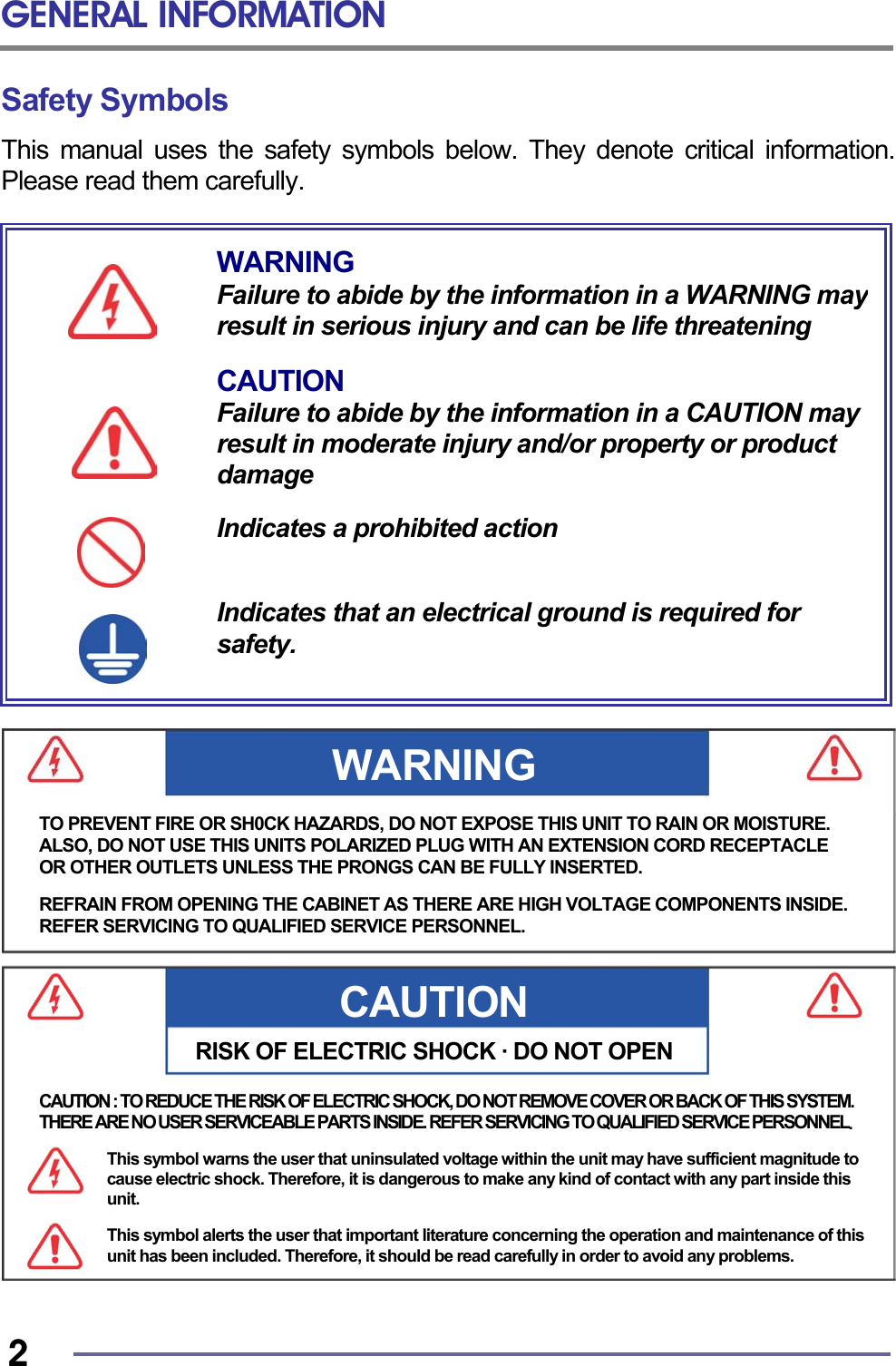
GENERAL INFORMATION   2 Safety Symbols This manual uses the safety symbols below. They denote critical information. Please read them carefully.                                     WARNING Failure to abide by the information in a WARNING mayresult in serious injury and can be life threatening  CAUTION Failure to abide by the information in a CAUTION may result in moderate injury and/or property or product damage  Indicates a prohibited action   Indicates that an electrical ground is required for safety. CAUTIONRISK OF ELECTRIC SHOCK · DO NOT OPENWARNING TO PREVENT FIRE OR SH0CK HAZARDS, DO NOT EXPOSE THIS UNIT TO RAIN OR MOISTURE. ALSO, DO NOT USE THIS UNITS POLARIZED PLUG WITH AN EXTENSION CORD RECEPTACLE OR OTHER OUTLETS UNLESS THE PRONGS CAN BE FULLY INSERTED.  REFRAIN FROM OPENING THE CABINET AS THERE ARE HIGH VOLTAGE COMPONENTS INSIDE.REFER SERVICING TO QUALIFIED SERVICE PERSONNEL. CAUTION : TO REDUCE THE RISK OF ELECTRIC SHOCK, DO NOT REMOVE COVER OR BACK OF THIS SYSTEM. THERE ARE NO USER SERVICEABLE PARTS INSIDE. REFER SERVICING TO QUALIFIED SERVICE PERSONNEL.  This symbol warns the user that uninsulated voltage within the unit may have sufficient magnitude to cause electric shock. Therefore, it is dangerous to make any kind of contact with any part inside this unit.  This symbol alerts the user that important literature concerning the operation and maintenance of this unit has been included. Therefore, it should be read carefully in order to avoid any problems.
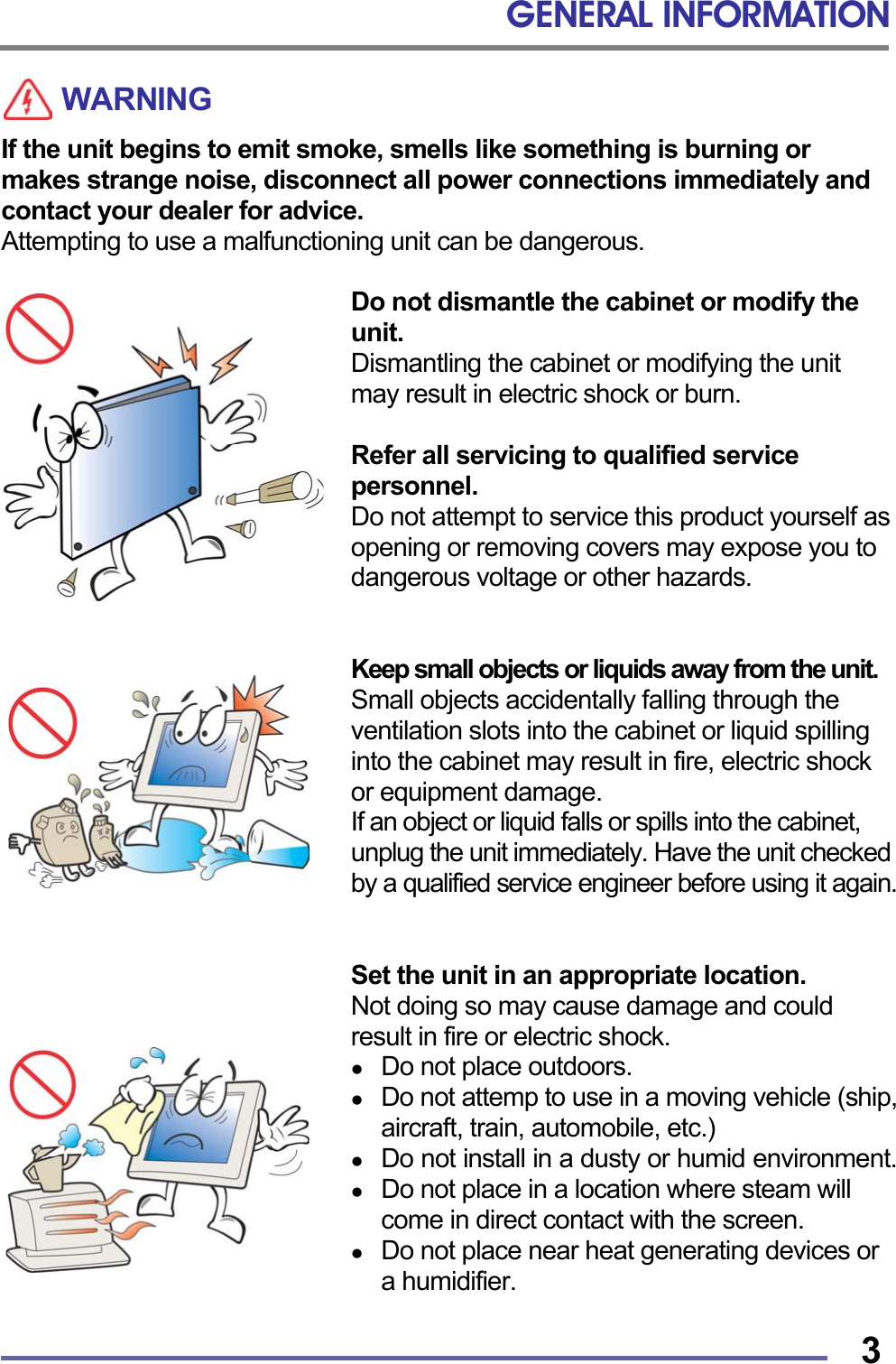
GENERAL INFORMATION   3WARNING If the unit begins to emit smoke, smells like something is burning or makes strange noise, disconnect all power connections immediately and contact your dealer for advice. Attempting to use a malfunctioning unit can be dangerous.  Do not dismantle the cabinet or modify the unit. Dismantling the cabinet or modifying the unit may result in electric shock or burn.  Refer all servicing to qualified service personnel. Do not attempt to service this product yourself as opening or removing covers may expose you to dangerous voltage or other hazards.   Keep small objects or liquids away from the unit. Small objects accidentally falling through the ventilation slots into the cabinet or liquid spilling into the cabinet may result in fire, electric shock or equipment damage. If an object or liquid falls or spills into the cabinet, unplug the unit immediately. Have the unit checked by a qualified service engineer before using it again.   Set the unit in an appropriate location. Not doing so may cause damage and could result in fire or electric shock.   Do not place outdoors.   Do not attemp to use in a moving vehicle (ship, aircraft, train, automobile, etc.)   Do not install in a dusty or humid environment.   Do not place in a location where steam will come in direct contact with the screen.   Do not place near heat generating devices or a humidifier.
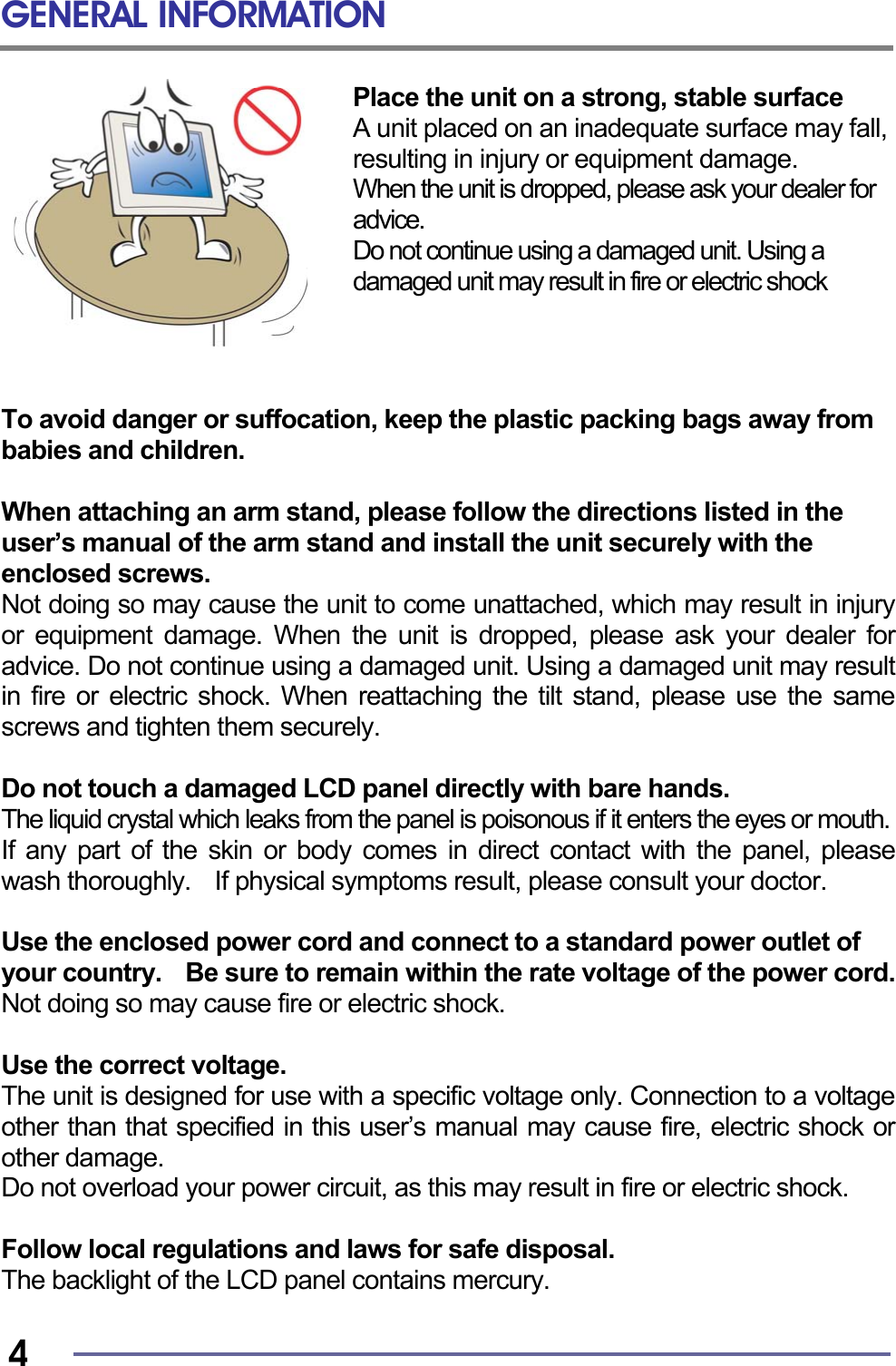
GENERAL INFORMATION   4 Place the unit on a strong, stable surface A unit placed on an inadequate surface may fall, resulting in injury or equipment damage. When the unit is dropped, please ask your dealer for advice.   Do not continue using a damaged unit. Using a damaged unit may result in fire or electric shock     To avoid danger or suffocation, keep the plastic packing bags away from babies and children.  When attaching an arm stand, please follow the directions listed in the   user’s manual of the arm stand and install the unit securely with the enclosed screws. Not doing so may cause the unit to come unattached, which may result in injury or equipment damage. When the unit is dropped, please ask your dealer for advice. Do not continue using a damaged unit. Using a damaged unit may result in fire or electric shock. When reattaching the tilt stand, please use the same screws and tighten them securely.  Do not touch a damaged LCD panel directly with bare hands. The liquid crystal which leaks from the panel is poisonous if it enters the eyes or mouth.  If any part of the skin or body comes in direct contact with the panel, please wash thoroughly.    If physical symptoms result, please consult your doctor.  Use the enclosed power cord and connect to a standard power outlet of your country.    Be sure to remain within the rate voltage of the power cord. Not doing so may cause fire or electric shock.  Use the correct voltage. The unit is designed for use with a specific voltage only. Connection to a voltage other than that specified in this user’s manual may cause fire, electric shock or other damage. Do not overload your power circuit, as this may result in fire or electric shock.  Follow local regulations and laws for safe disposal. The backlight of the LCD panel contains mercury.
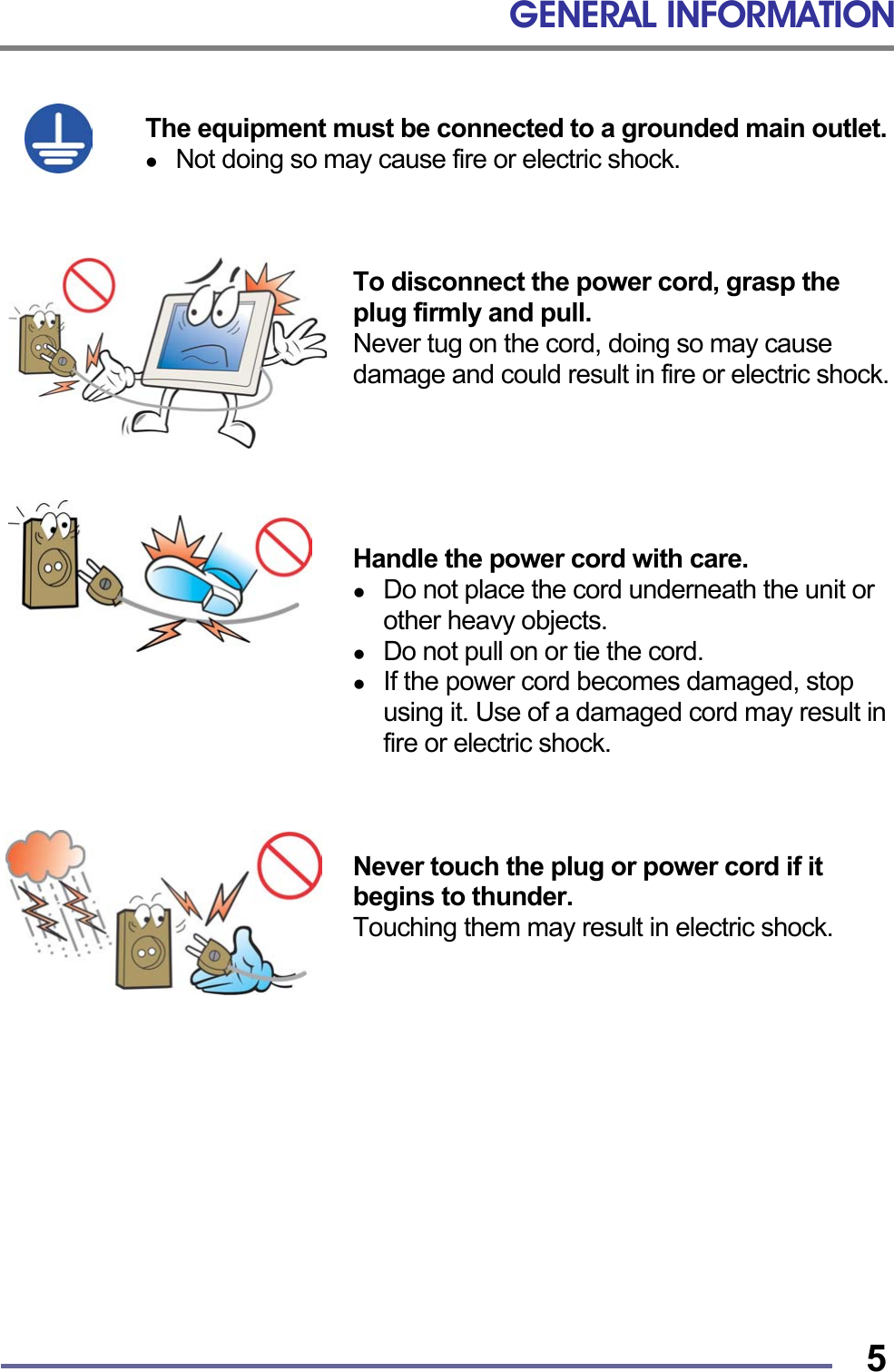
GENERAL INFORMATION   5 The equipment must be connected to a grounded main outlet.   Not doing so may cause fire or electric shock.    To disconnect the power cord, grasp the plug firmly and pull. Never tug on the cord, doing so may cause damage and could result in fire or electric shock.      Handle the power cord with care.   Do not place the cord underneath the unit or other heavy objects.   Do not pull on or tie the cord.   If the power cord becomes damaged, stop using it. Use of a damaged cord may result in fire or electric shock.    Never touch the plug or power cord if it begins to thunder. Touching them may result in electric shock.
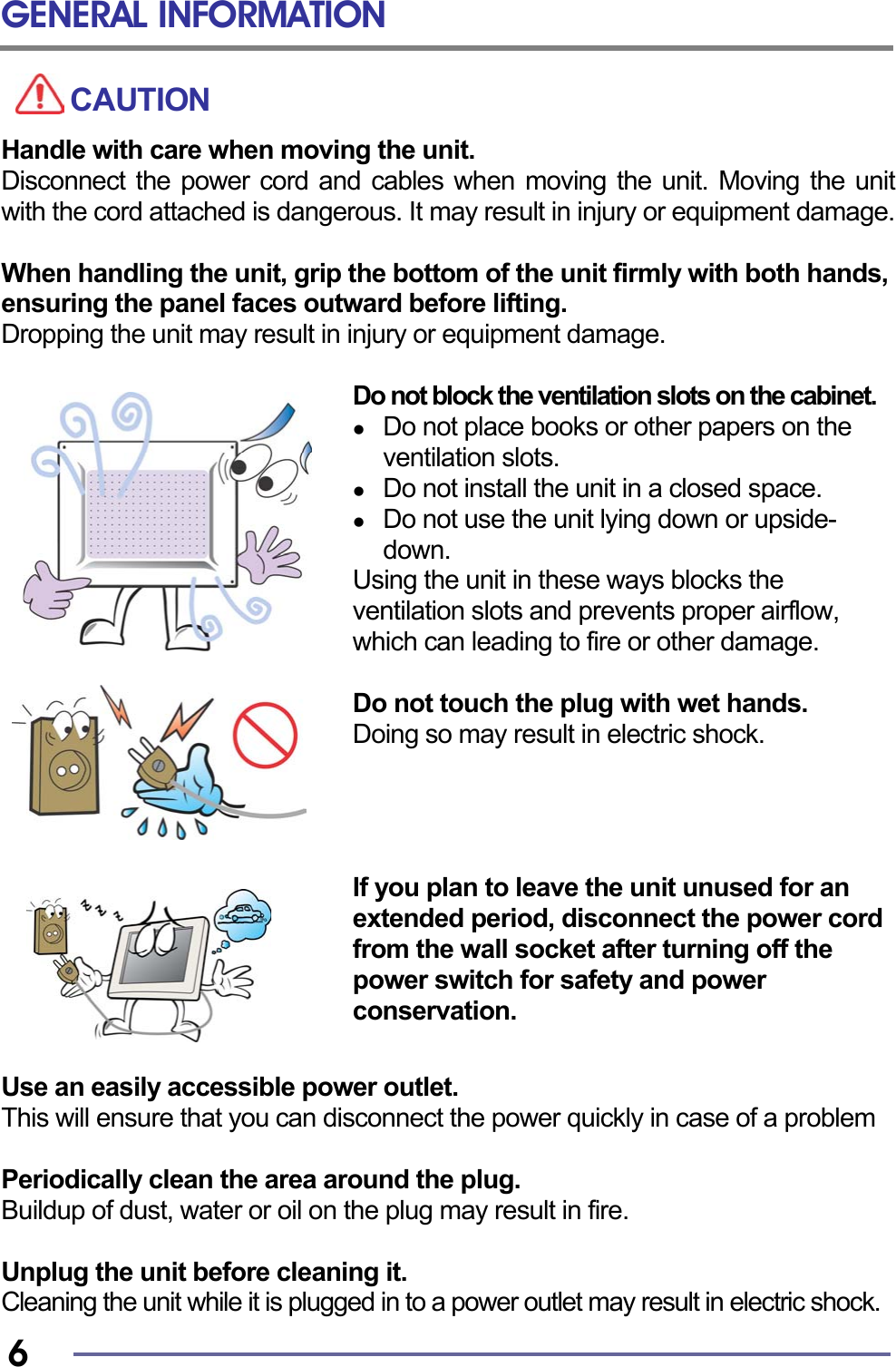
GENERAL INFORMATION   6 CAUTION Handle with care when moving the unit. Disconnect the power cord and cables when moving the unit. Moving the unit with the cord attached is dangerous. It may result in injury or equipment damage.  When handling the unit, grip the bottom of the unit firmly with both hands, ensuring the panel faces outward before lifting. Dropping the unit may result in injury or equipment damage.  Do not block the ventilation slots on the cabinet.   Do not place books or other papers on the ventilation slots.   Do not install the unit in a closed space.   Do not use the unit lying down or upside-down. Using the unit in these ways blocks the ventilation slots and prevents proper airflow, which can leading to fire or other damage.  Do not touch the plug with wet hands. Doing so may result in electric shock.     If you plan to leave the unit unused for an extended period, disconnect the power cord from the wall socket after turning off the power switch for safety and power conservation.   Use an easily accessible power outlet. This will ensure that you can disconnect the power quickly in case of a problem  Periodically clean the area around the plug. Buildup of dust, water or oil on the plug may result in fire.  Unplug the unit before cleaning it. Cleaning the unit while it is plugged in to a power outlet may result in electric shock.
GENERAL INFORMATION   7LCD Panel The screen may have defective pixels. These pixels may appear as slightly light or dark areas on the screen. This is due to the characteristics of the panel itself and not the product.  The backlight of the LCD panel has a fixed life span.    When the screen becomes dark or begins to flicker, please contact your dealer.  Do not press on the panel or edge of the frame strongly, as this will result in damage to the screen.    There will be prints left on the screen if the image on the screen when pressed is dark or black. If pressure is repeatedly applied to the screen, it may deteriorate or damage your LCD panel. To decrease the possibility of prints, try to keep the images on the screen as light as possible.  Do not scratch or press on the panel with any sharp objects, such as a pencil or pen as this may result in damage to the panel.    Do not attempt to wipe with tissues as this may scratch the LCD panel.
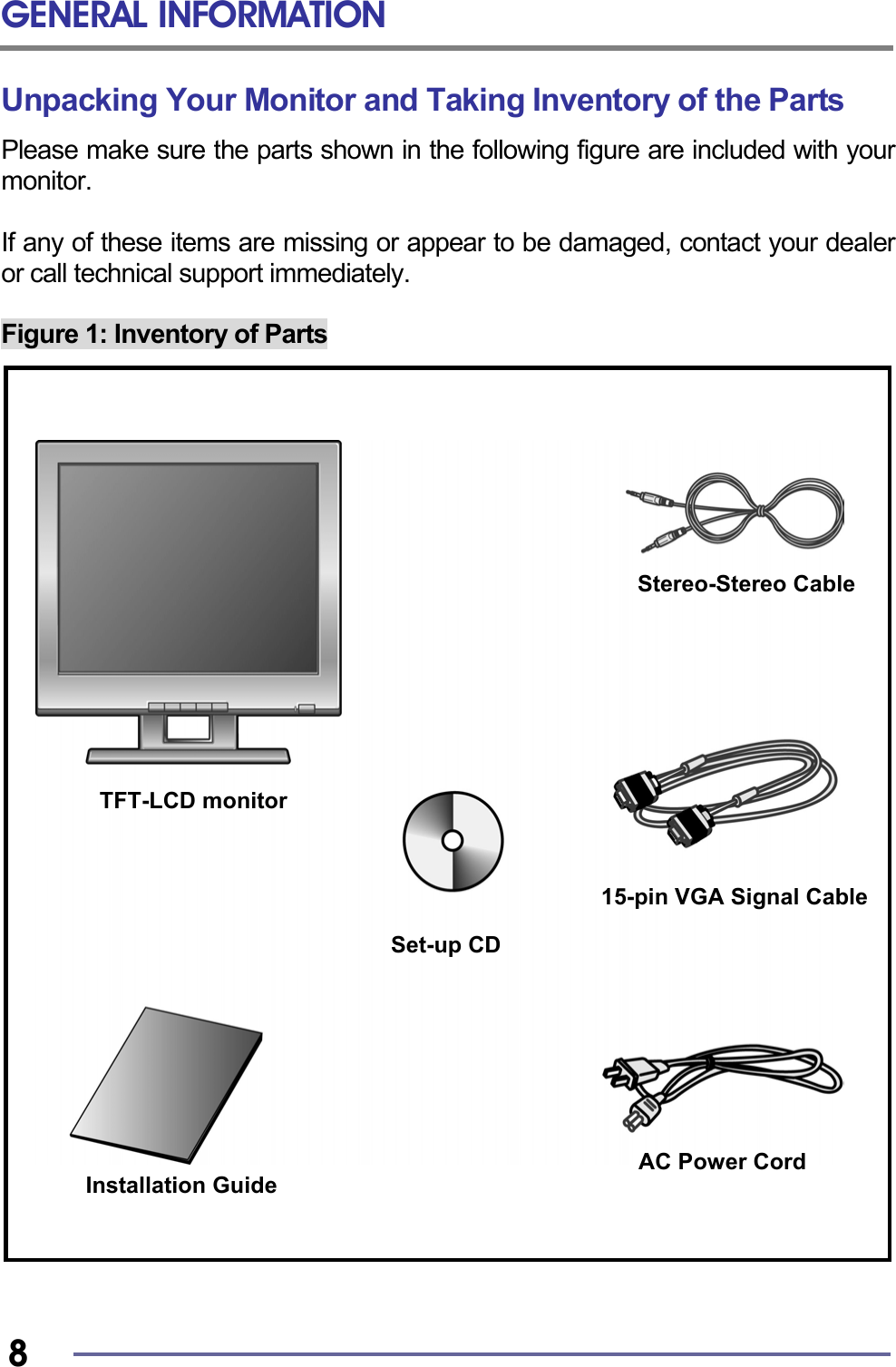
GENERAL INFORMATION   8 Unpacking Your Monitor and Taking Inventory of the Parts Please make sure the parts shown in the following figure are included with your monitor.  If any of these items are missing or appear to be damaged, contact your dealer or call technical support immediately.  Figure 1: Inventory of Parts                                 TFT-LCD monitor Installation Guide AC Power Cord Stereo-Stereo CableSet-up CD 15-pin VGA Signal Cable
GENERAL INFORMATION   9        When unpacking the monitor and its components:  • Carefully open the box. • Lay the box flat on a table and carefully slide the contents out of the box. • Do not “dump” the contents out of the box.  When inspecting the monitor and its components:  • Verify all the components are present, according to the previous figure. • Verify the parts are not damaged.     TIP: Save the box and other packing material in case the Monitor needs to be returned. NOTE: Depending on the voltage requirements for your area, the power cord may be different than what is indicatedin the figure.
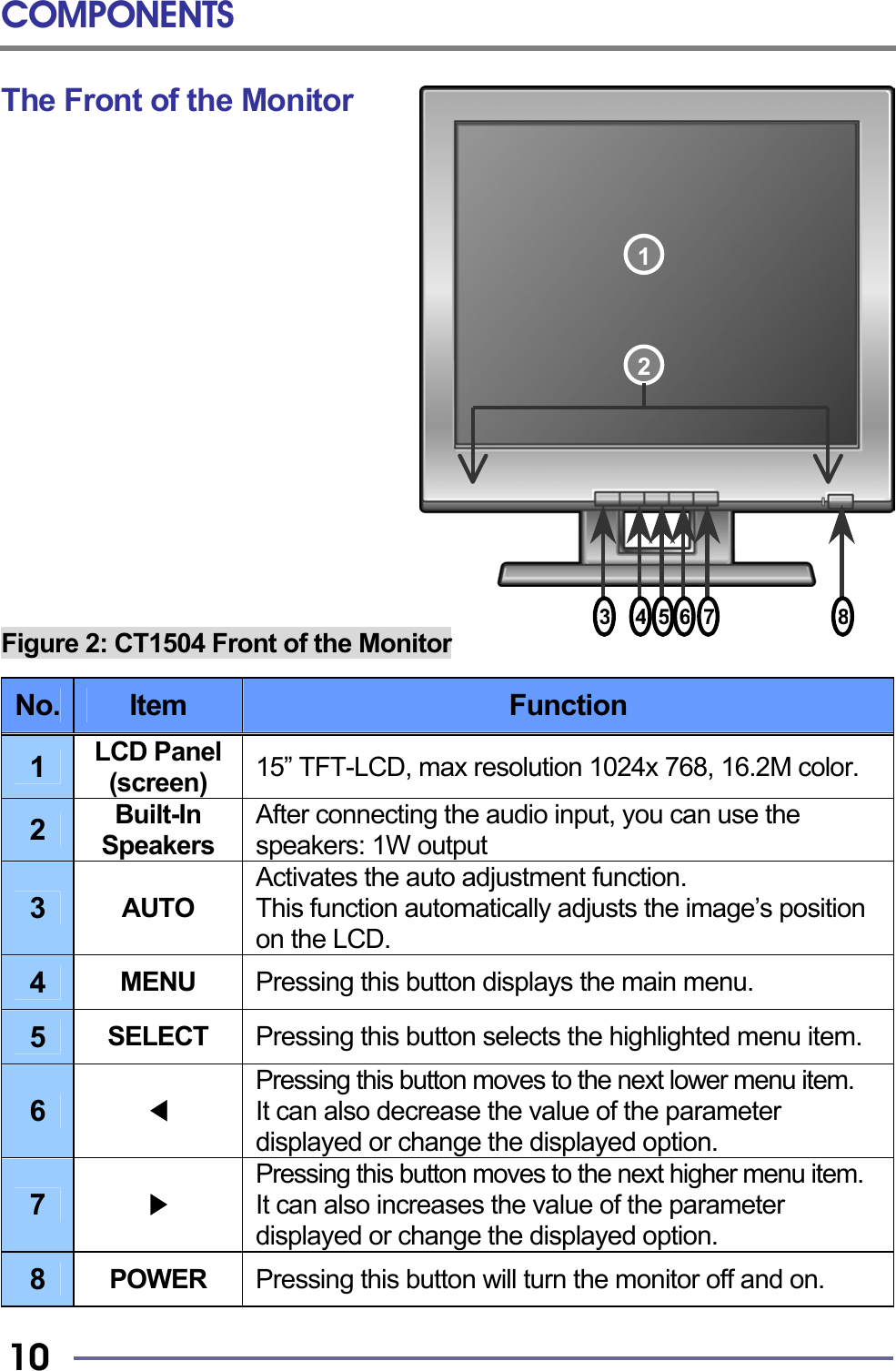
COMPONENTS   10 The Front of the Monitor                 Figure 2: CT1504 Front of the Monitor  No.  Item  Function 1  LCD Panel (screen)  15” TFT-LCD, max resolution 1024x 768, 16.2M color.2  Built-In Speakers After connecting the audio input, you can use the speakers: 1W output 3  AUTO Activates the auto adjustment function.   This function automatically adjusts the image’s position on the LCD. 4  MENU  Pressing this button displays the main menu. 5  SELECT  Pressing this button selects the highlighted menu item. 6  ◀ Pressing this button moves to the next lower menu item. It can also decrease the value of the parameter displayed or change the displayed option. 7  ▶ Pressing this button moves to the next higher menu item. It can also increases the value of the parameter displayed or change the displayed option.  8  POWER  Pressing this button will turn the monitor off and on. 21375468
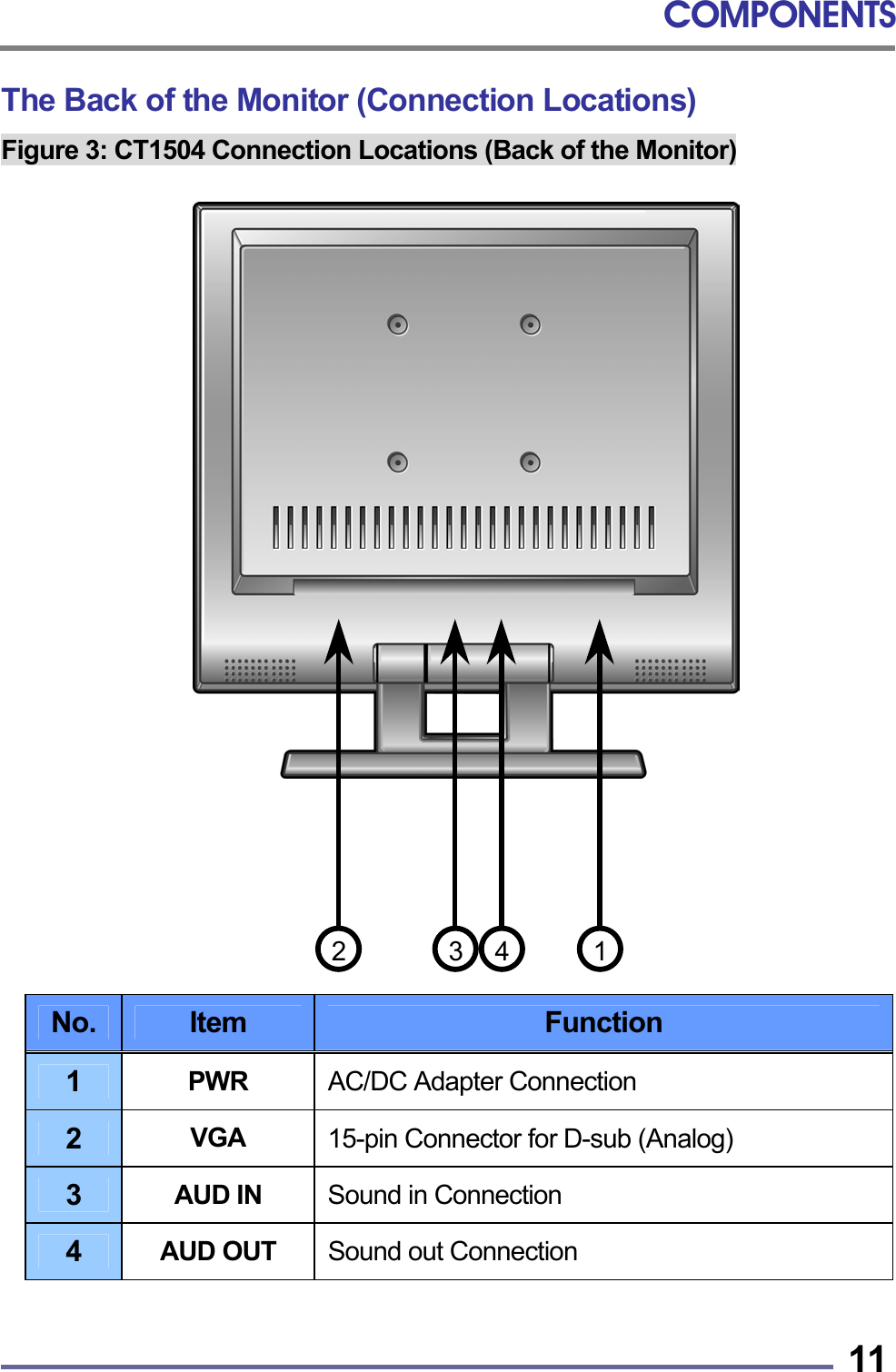
COMPONENTS   11The Back of the Monitor (Connection Locations) Figure 3: CT1504 Connection Locations (Back of the Monitor)                           No.  Item  Function 1  PWR  AC/DC Adapter Connection 2  VGA  15-pin Connector for D-sub (Analog) 3  AUD IN  Sound in Connection 4  AUD OUT  Sound out Connection  2  431
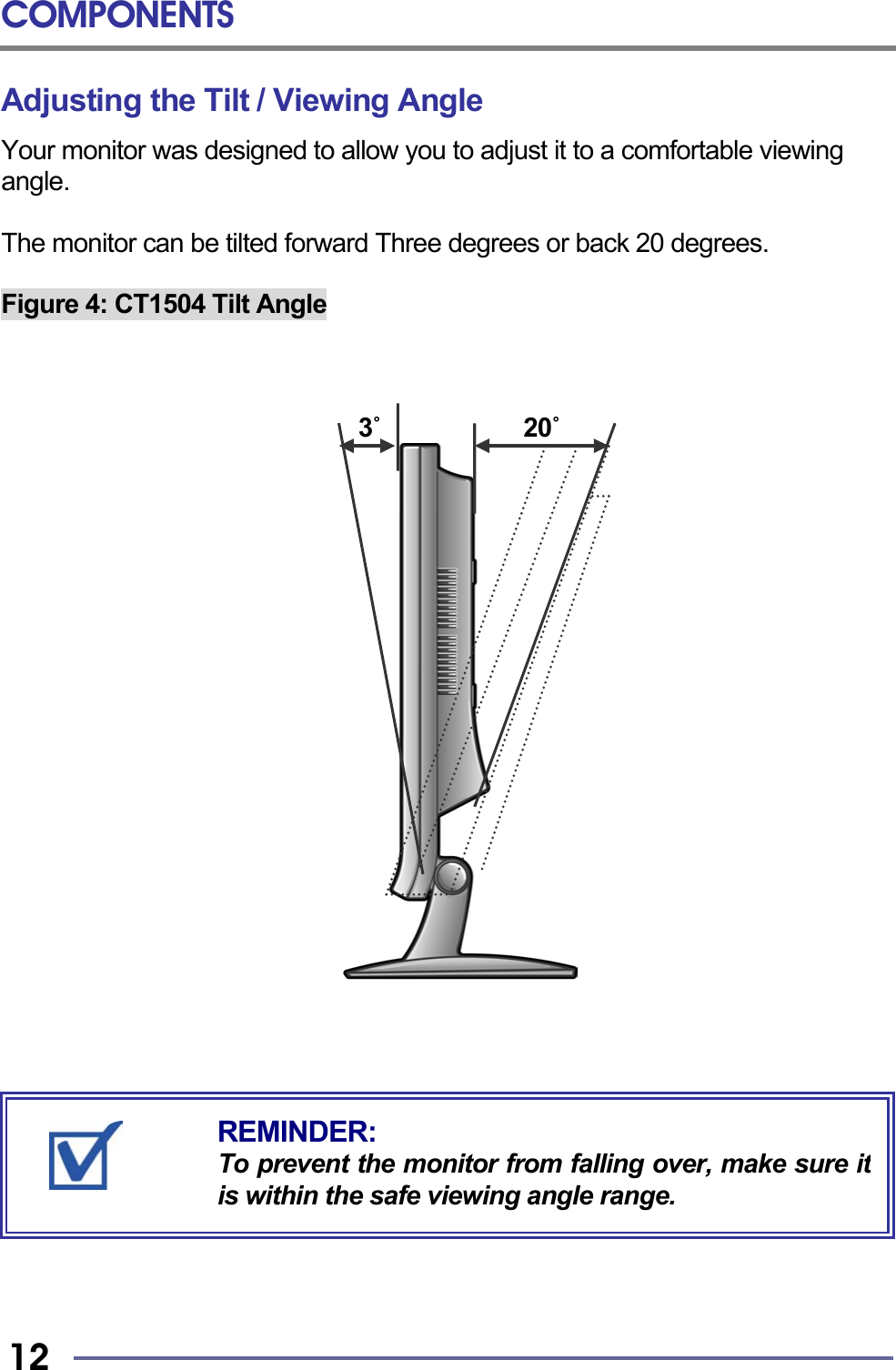
COMPONENTS   12 Adjusting the Tilt / Viewing Angle Your monitor was designed to allow you to adjust it to a comfortable viewing angle.  The monitor can be tilted forward Three degrees or back 20 degrees.  Figure 4: CT1504 Tilt Angle                                  3˚            20˚                                   REMINDER: To prevent the monitor from falling over, make sure itis within the safe viewing angle range.
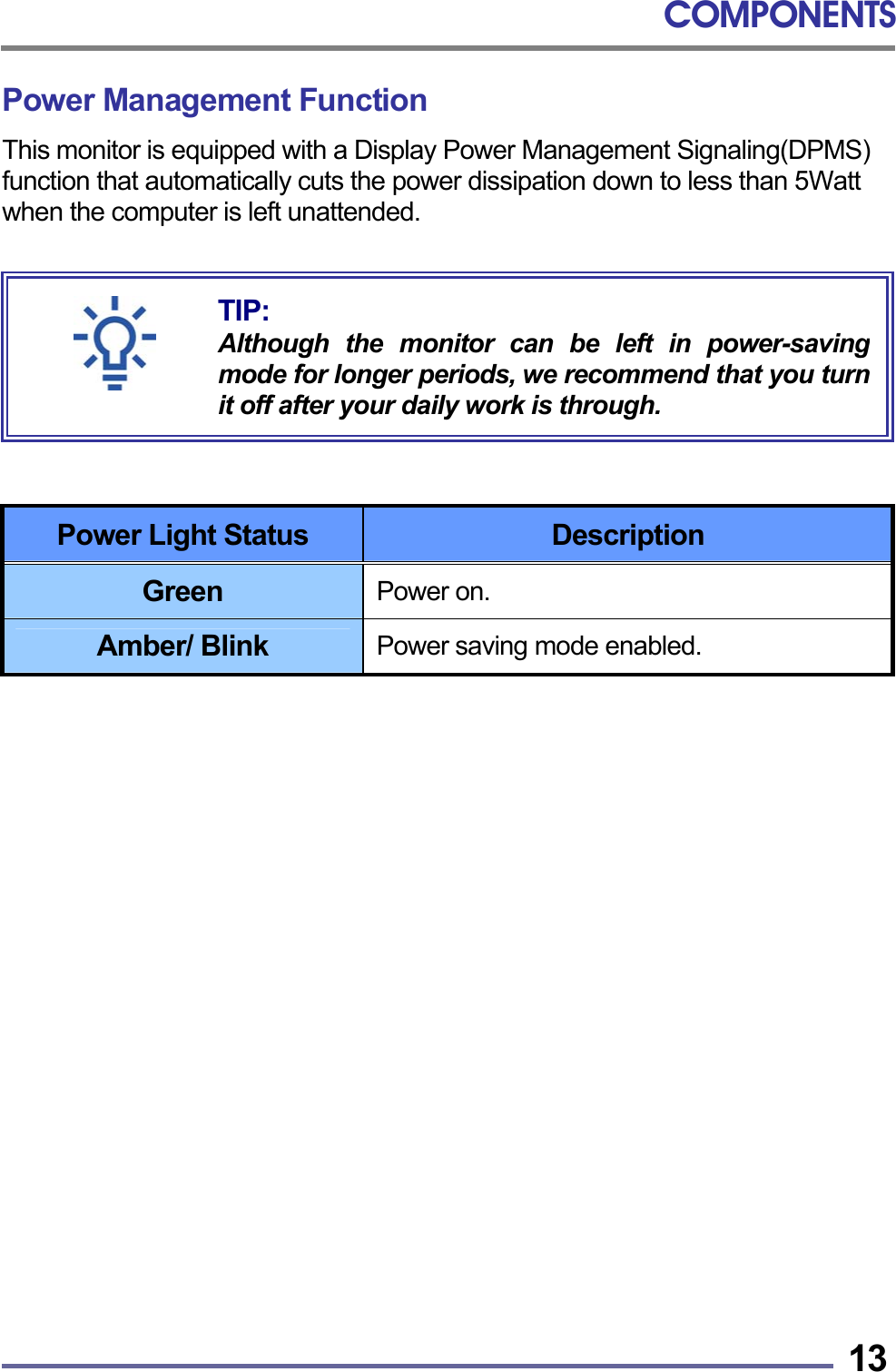
COMPONENTS   13Power Management Function This monitor is equipped with a Display Power Management Signaling(DPMS) function that automatically cuts the power dissipation down to less than 5Watt when the computer is left unattended.          Power Light Status  Description Green  Power on. Amber/ Blink  Power saving mode enabled.                TIP: Although the monitor can be left in power-savingmode for longer periods, we recommend that you turnit off after your daily work is through.
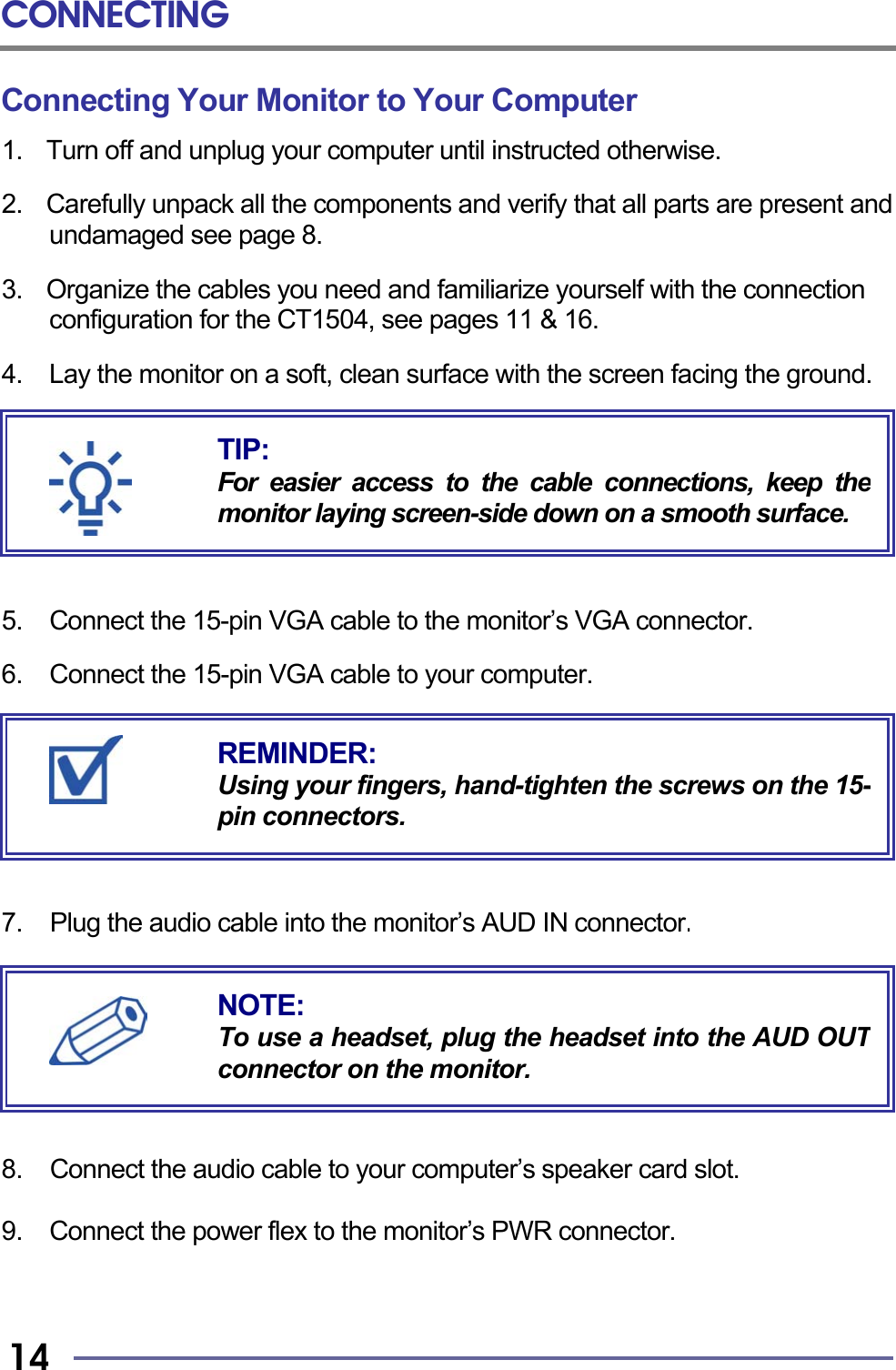
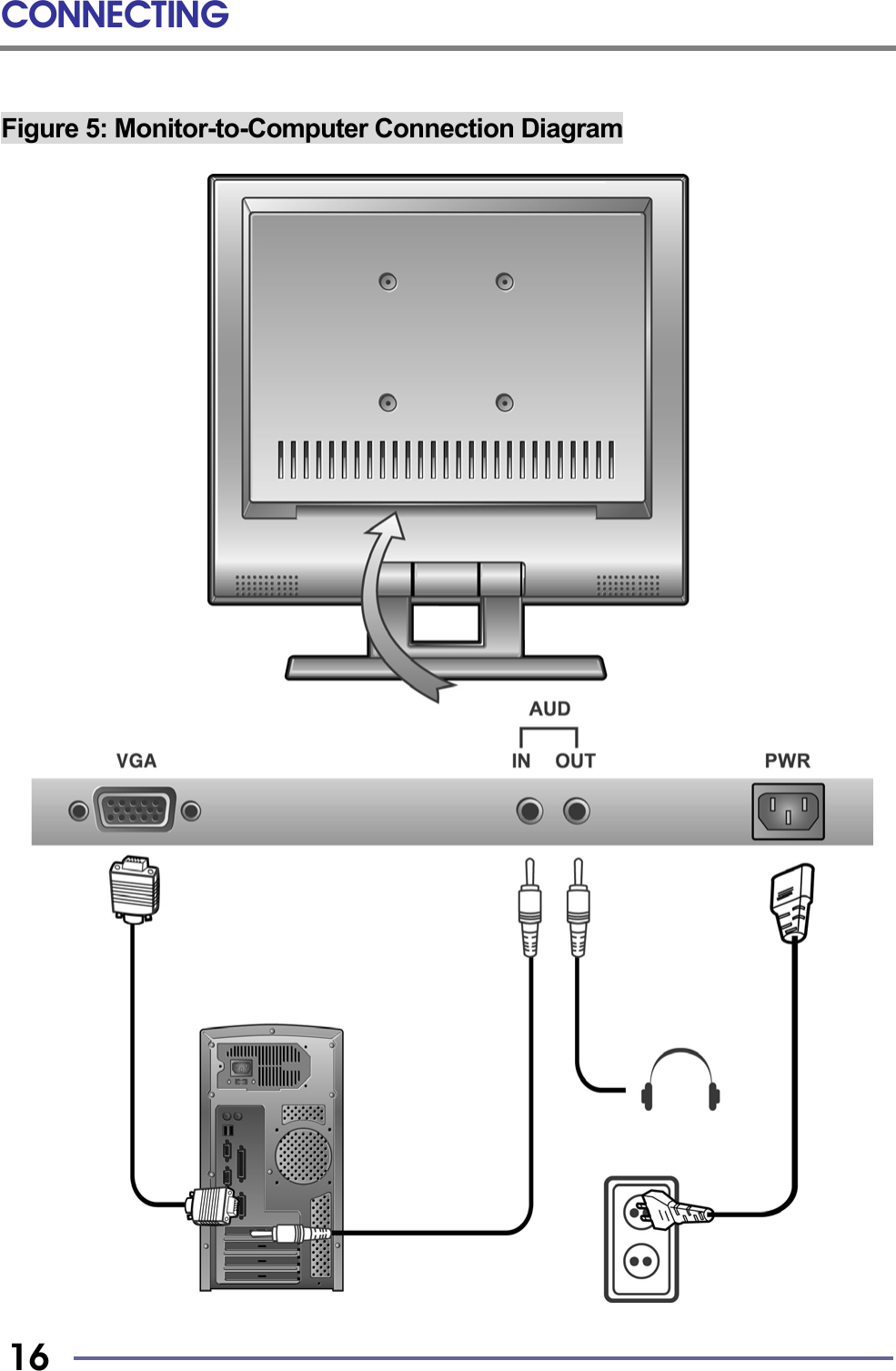
CONNECTING   14 Connecting Your Monitor to Your Computer 1.  Turn off and unplug your computer until instructed otherwise.  2.    Carefully unpack all the components and verify that all parts are present and undamaged see page 8.  3.    Organize the cables you need and familiarize yourself with the connection configuration for the CT1504, see pages 11 & 16.  4.    Lay the monitor on a soft, clean surface with the screen facing the ground.        5. Connect the 15-pin VGA cable to the monitor’s VGA connector.  6.  Connect the 15-pin VGA cable to your computer.        7.  Plug the audio cable into the monitor’s AUD IN connector.           8.  Connect the audio cable to your computer’s speaker card slot.  9.  Connect the power flex to the monitor’s PWR connector.    REMINDER: Using your fingers, hand-tighten the screws on the 15-pin connectors. NOTE: To use a headset, plug the headset into the AUD OUTconnector on the monitor. TIP: For easier access to the cable connections, keep themonitor laying screen-side down on a smooth surface.
CONNECTING   15      10.  Stand your Monitor up and adjust it to the most comfortable viewing angle (see page 12).  11.  Plug the power cords for both the monitor and computer in to the wall power outlet or surge protector.  12.  Turn both the monitor and computer on.  13.  Insert the set-up CD into your computer’s CD or DVD drive and follow the instructions (see page 17).  14.  If necessary, fine-tune the display by using the on screen display (OSD) menus (image position, brightness, etc). (see page 19-21).  15. Enjoy your new monitor from Korea Data Systems Co., Ltd.                    TIP: Save the original container and the packingmaterials in case there are difficulties and youneed to return the monitor. REMINDER: Do not plug the power cord into the wall outlet orsurge  protector yet.
CONNECTING   16  Figure 5: Monitor-to-Computer Connection Diagram
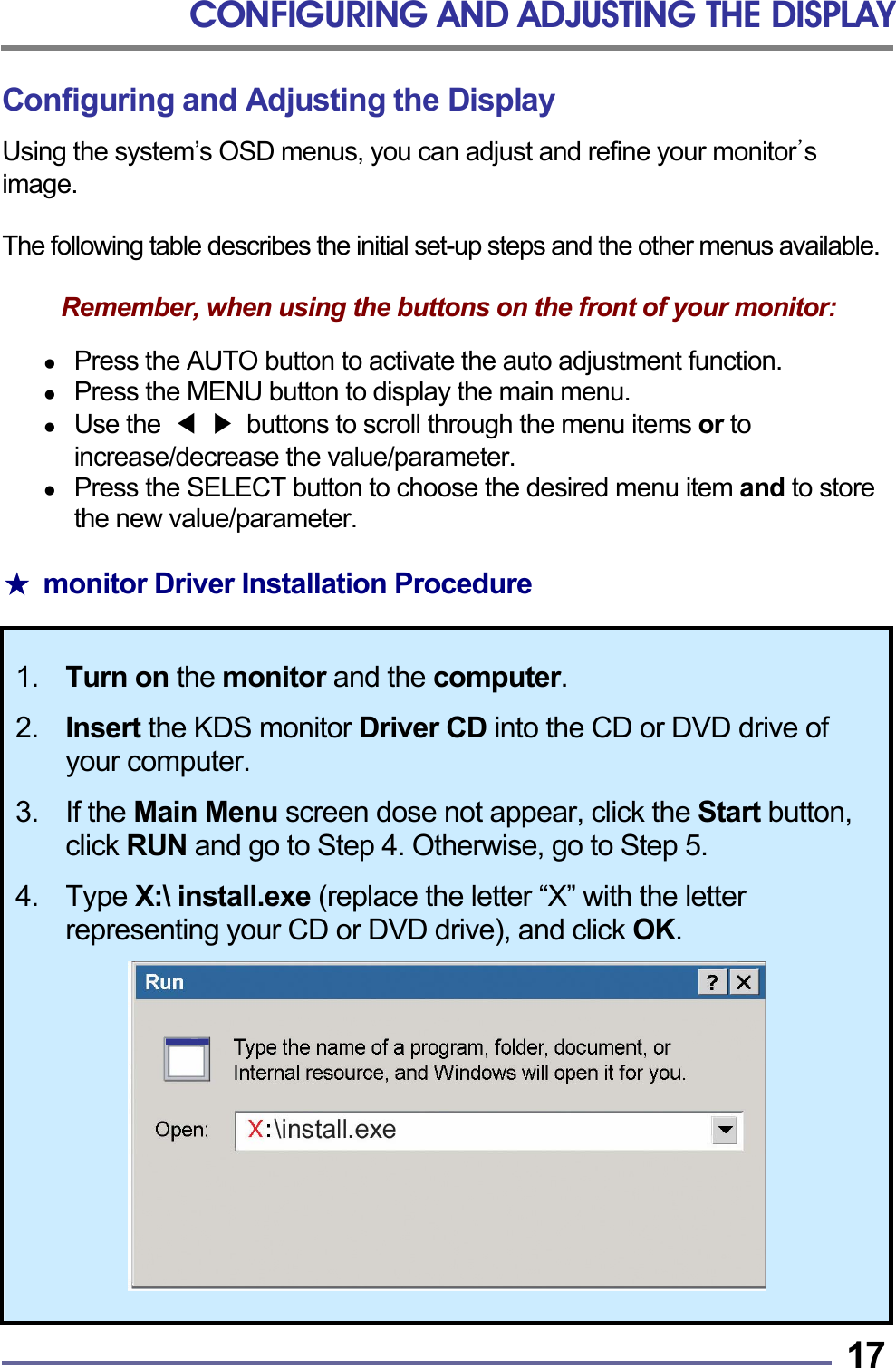
CONFIGURING AND ADJUSTING THE DISPLAY   17Configuring and Adjusting the Display Using the system’s OSD menus, you can adjust and refine your monitor’s  image.  The following table describes the initial set-up steps and the other menus available.  Remember, when using the buttons on the front of your monitor:    Press the AUTO button to activate the auto adjustment function.   Press the MENU button to display the main menu.   Use the  ◀ ▶  buttons to scroll through the menu items or to increase/decrease the value/parameter.   Press the SELECT button to choose the desired menu item and to store the new value/parameter.  ★  monitor Driver Installation Procedure  1.  Turn on the monitor and the computer.  2. Insert the KDS monitor Driver CD into the CD or DVD drive of your computer.  3. If the Main Menu screen dose not appear, click the Start button, click RUN and go to Step 4. Otherwise, go to Step 5.  4. Type X:\ install.exe (replace the letter “X” with the letter representing your CD or DVD drive), and click OK.
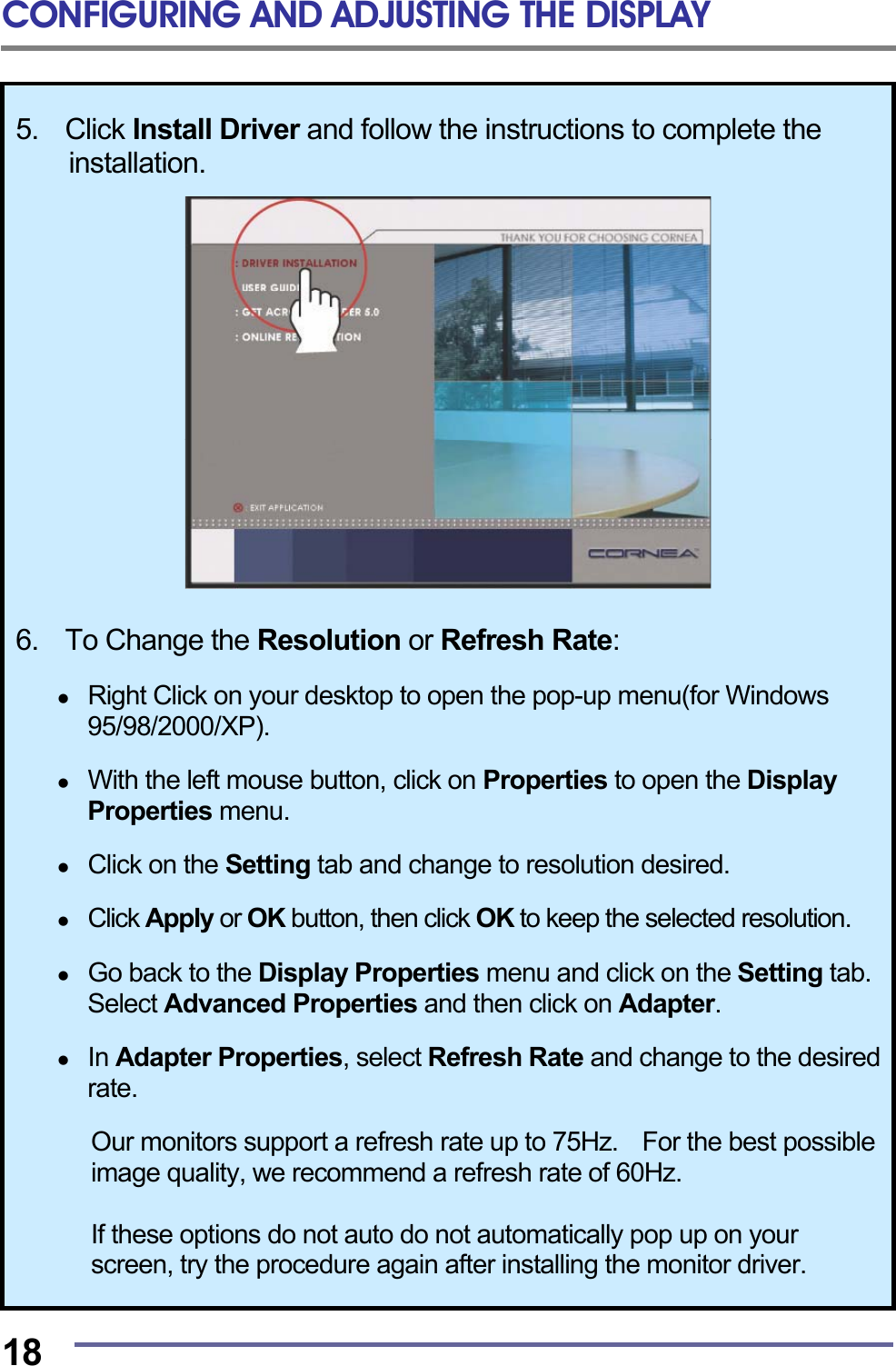
CONFIGURING AND ADJUSTING THE DISPLAY  18 5.  Click Install Driver and follow the instructions to complete the installation.    6.  To Change the Resolution or Refresh Rate:    Right Click on your desktop to open the pop-up menu(for Windows 95/98/2000/XP).    With the left mouse button, click on Properties to open the Display Properties menu.    Click on the Setting tab and change to resolution desired.    Click Apply or OK button, then click OK to keep the selected resolution.    Go back to the Display Properties menu and click on the Setting tab. Select Advanced Properties and then click on Adapter.    In Adapter Properties, select Refresh Rate and change to the desired rate.  Our monitors support a refresh rate up to 75Hz.    For the best possible image quality, we recommend a refresh rate of 60Hz.  If these options do not auto do not automatically pop up on your screen, try the procedure again after installing the monitor driver.
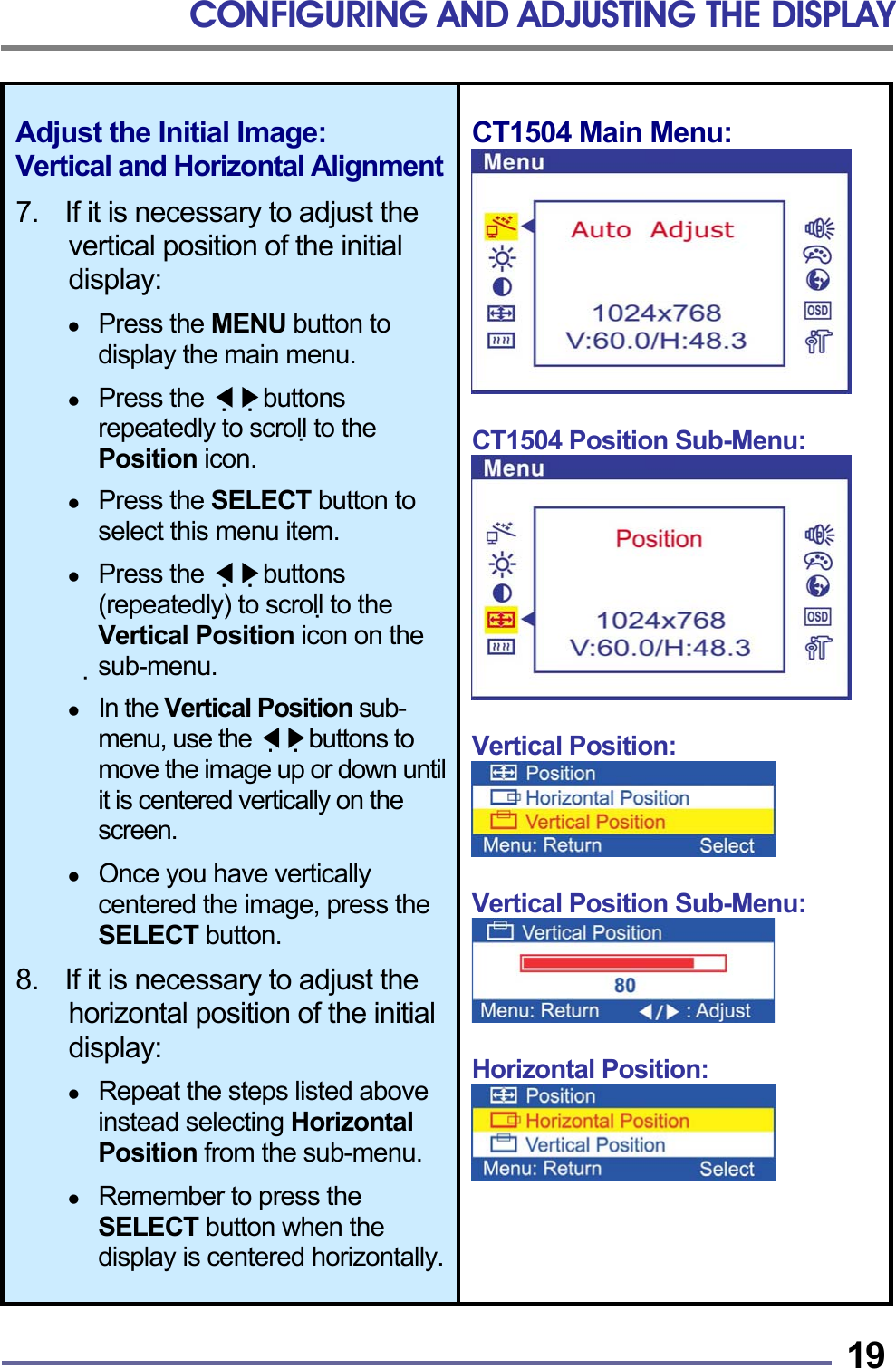
CONFIGURING AND ADJUSTING THE DISPLAY   19Adjust the Initial Image: Vertical and Horizontal Alignment 7.    If it is necessary to adjust the vertical position of the initial display:    Press the MENU button to display the main menu.    Press the   ◀▶buttons repeatedly to scroll to the Position icon.    Press the SELECT button to select this menu item.    Press the   ◀▶buttons (repeatedly) to scroll to the Vertical Position icon on the sub-menu.    In the Vertical Position sub-menu, use the   ◀▶buttons to move the image up or down until it is centered vertically on the screen.    Once you have vertically centered the image, press the SELECT button.  8.    If it is necessary to adjust the horizontal position of the initial display:    Repeat the steps listed above instead selecting Horizontal Position from the sub-menu.    Remember to press the SELECT button when the display is centered horizontally.CT1504 Main Menu:   CT1504 Position Sub-Menu:   Vertical Position:   Vertical Position Sub-Menu:   Horizontal Position:
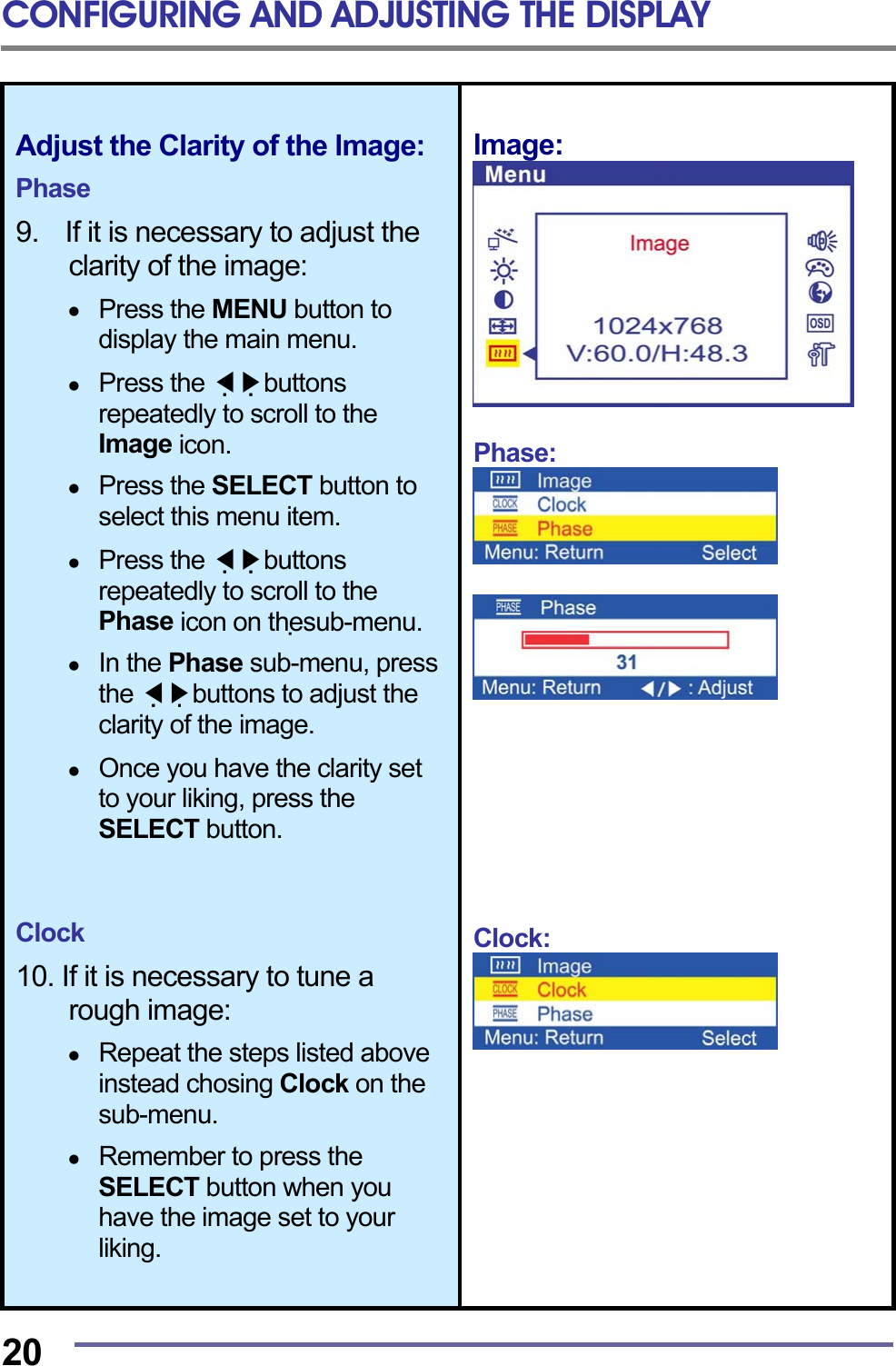
CONFIGURING AND ADJUSTING THE DISPLAY  20 Adjust the Clarity of the lmage:  Phase  9.    If it is necessary to adjust the clarity of the image:    Press the MENU button to display the main menu.    Press the   ◀▶buttons repeatedly to scroll to the Image icon.    Press the SELECT button to select this menu item.    Press the   ◀▶buttons repeatedly to scroll to the Phase icon on thesub-menu.    In the Phase sub-menu, press the   ◀▶buttons to adjust the clarity of the image.    Once you have the clarity set to your liking, press the SELECT button.    Clock  10. If it is necessary to tune a rough image:    Repeat the steps listed above instead chosing Clock on the sub-menu.    Remember to press the SELECT button when you have the image set to your liking. lmage:   Phase:            Clock:
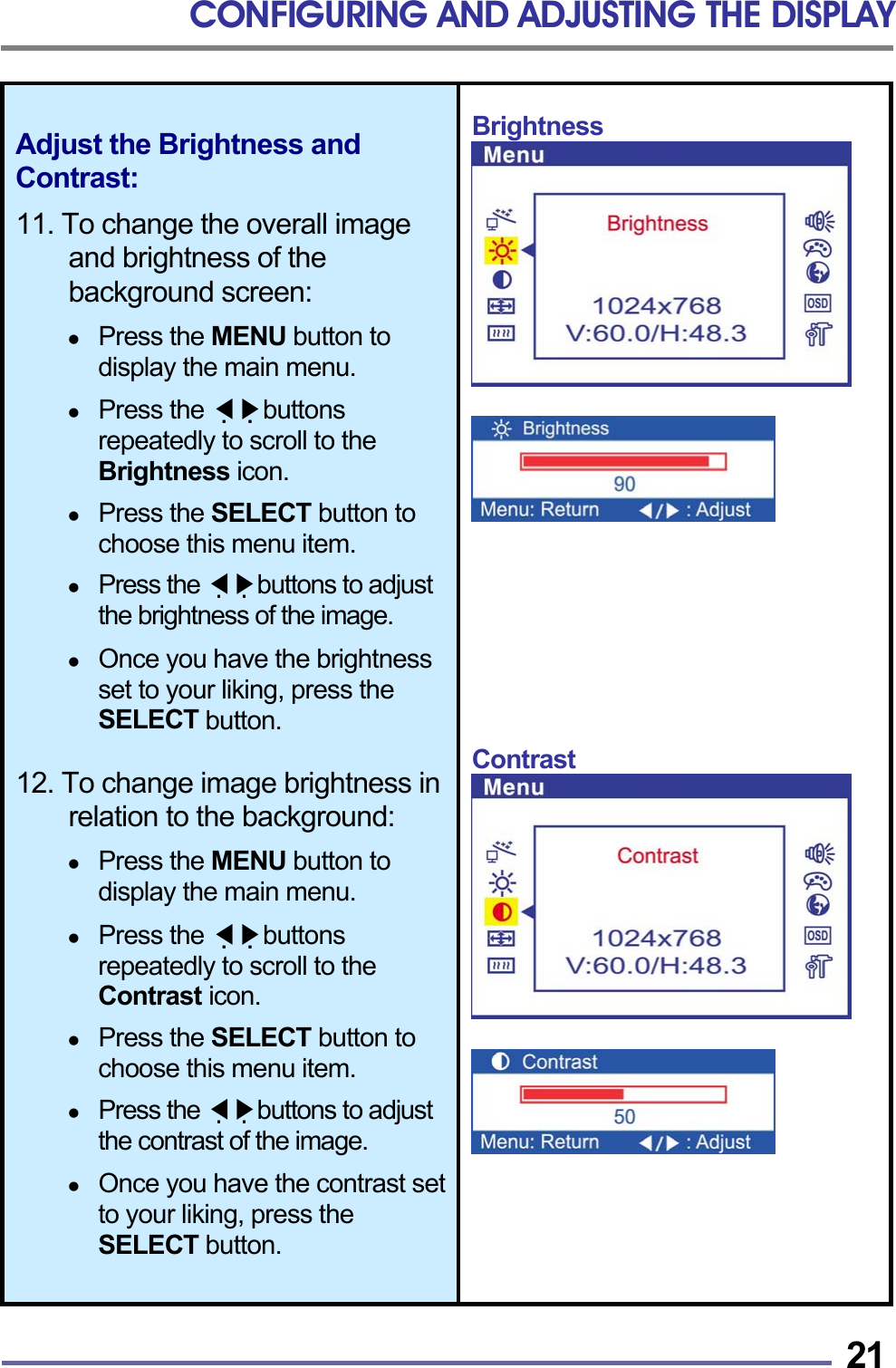
CONFIGURING AND ADJUSTING THE DISPLAY   21Adjust the Brightness and Contrast:  11. To change the overall image and brightness of the background screen:    Press the MENU button to display the main menu.    Press the   ◀▶buttons repeatedly to scroll to the Brightness icon.    Press the SELECT button to choose this menu item.    Press the   ◀▶buttons to adjust the brightness of the image.    Once you have the brightness set to your liking, press the SELECT button.  12. To change image brightness in relation to the background:    Press the MENU button to display the main menu.    Press the   ◀▶buttons repeatedly to scroll to the Contrast icon.    Press the SELECT button to choose this menu item.    Press the   ◀▶buttons to adjust the contrast of the image.    Once you have the contrast set to your liking, press the SELECT button. Brightness            Contrast
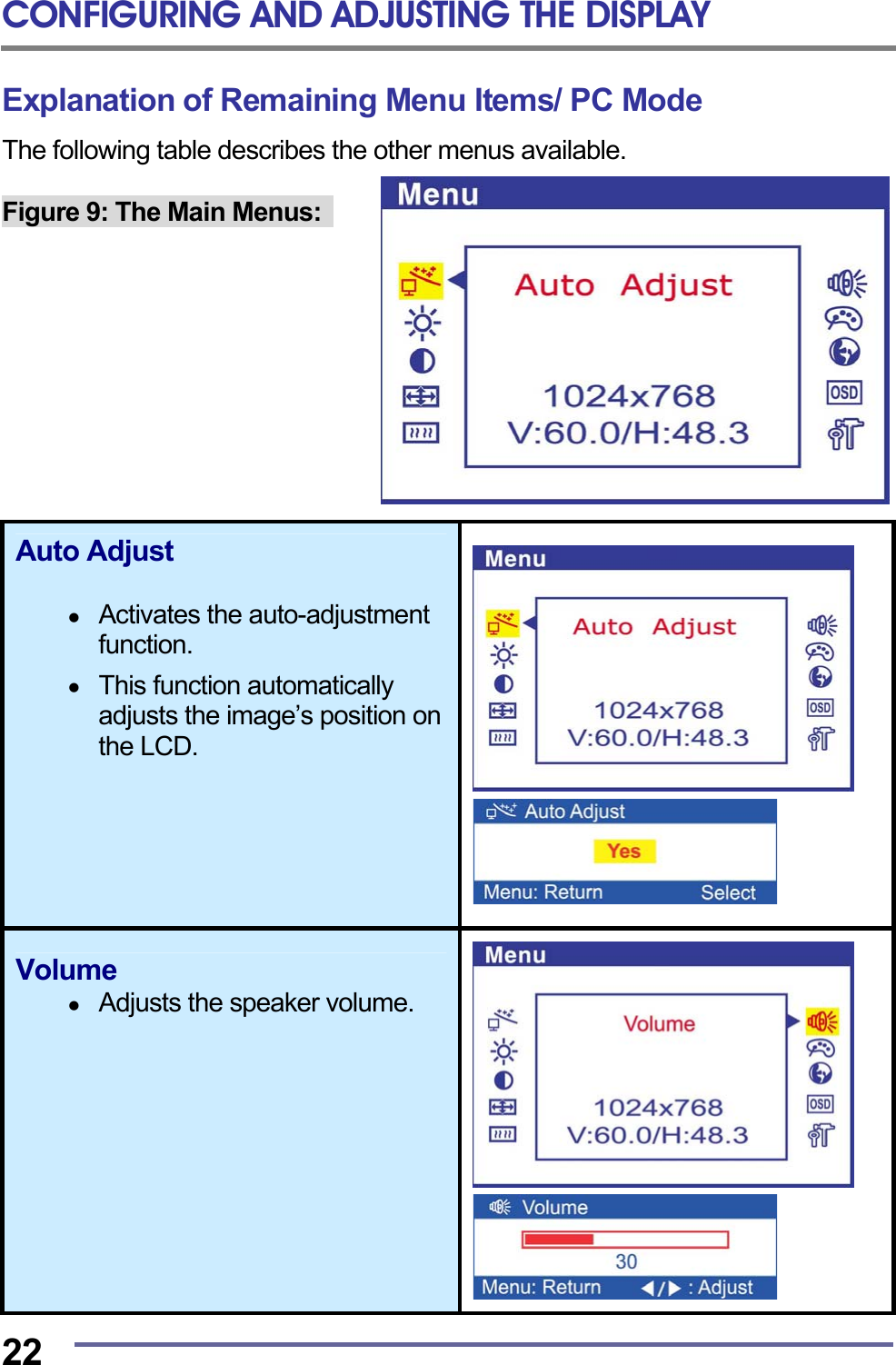
CONFIGURING AND ADJUSTING THE DISPLAY  22 Explanation of Remaining Menu Items/ PC Mode The following table describes the other menus available.  Figure 9: The Main Menus:             Auto Adjust    Activates the auto-adjustment function.    This function automatically adjusts the image’s position on the LCD.         Volume   Adjusts the speaker volume.
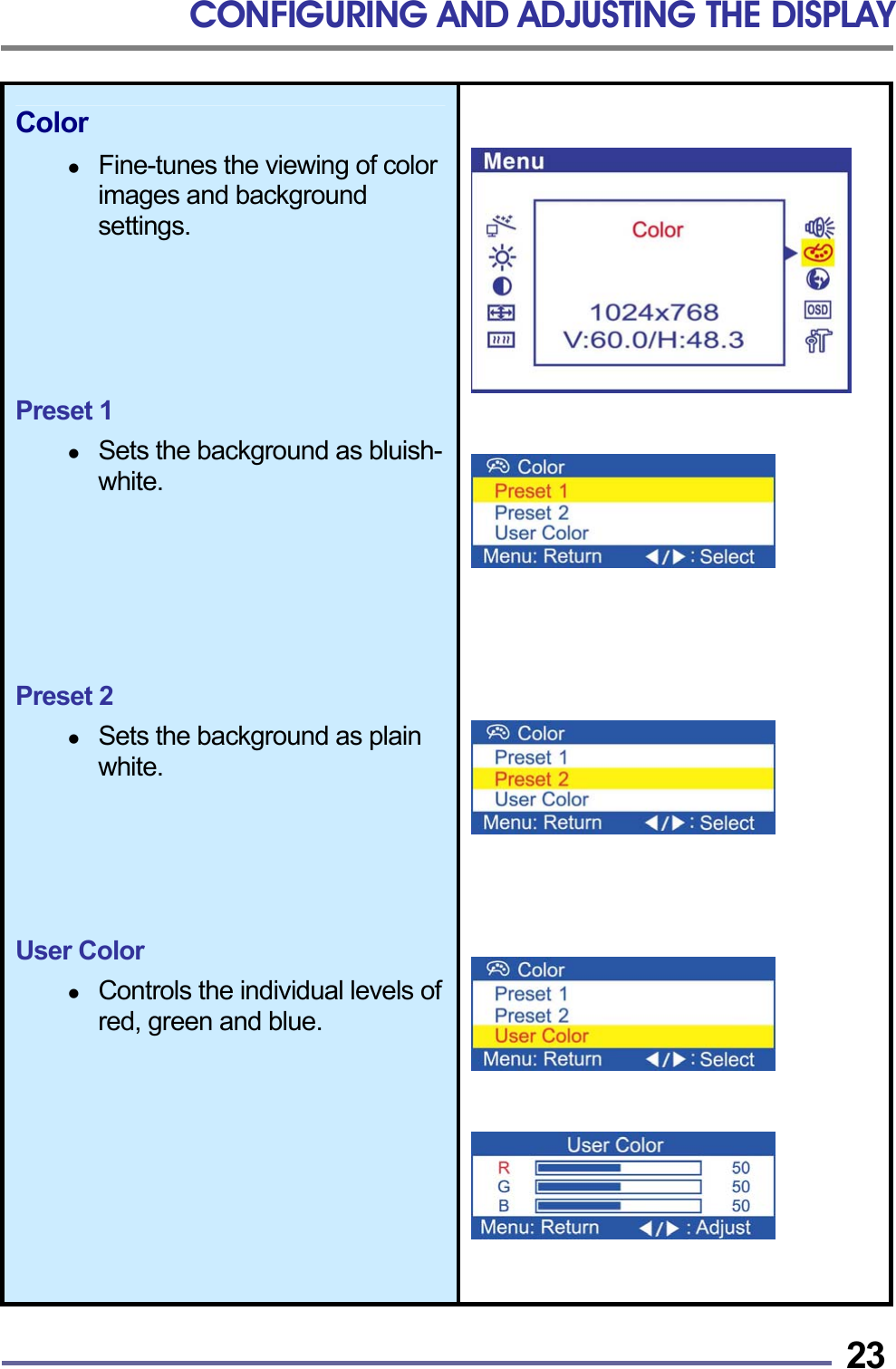
CONFIGURING AND ADJUSTING THE DISPLAY   23Color    Fine-tunes the viewing of color images and background settings.      Preset 1    Sets the background as bluish-white.       Preset 2    Sets the background as plain white.      User Color    Controls the individual levels of red, green and blue.
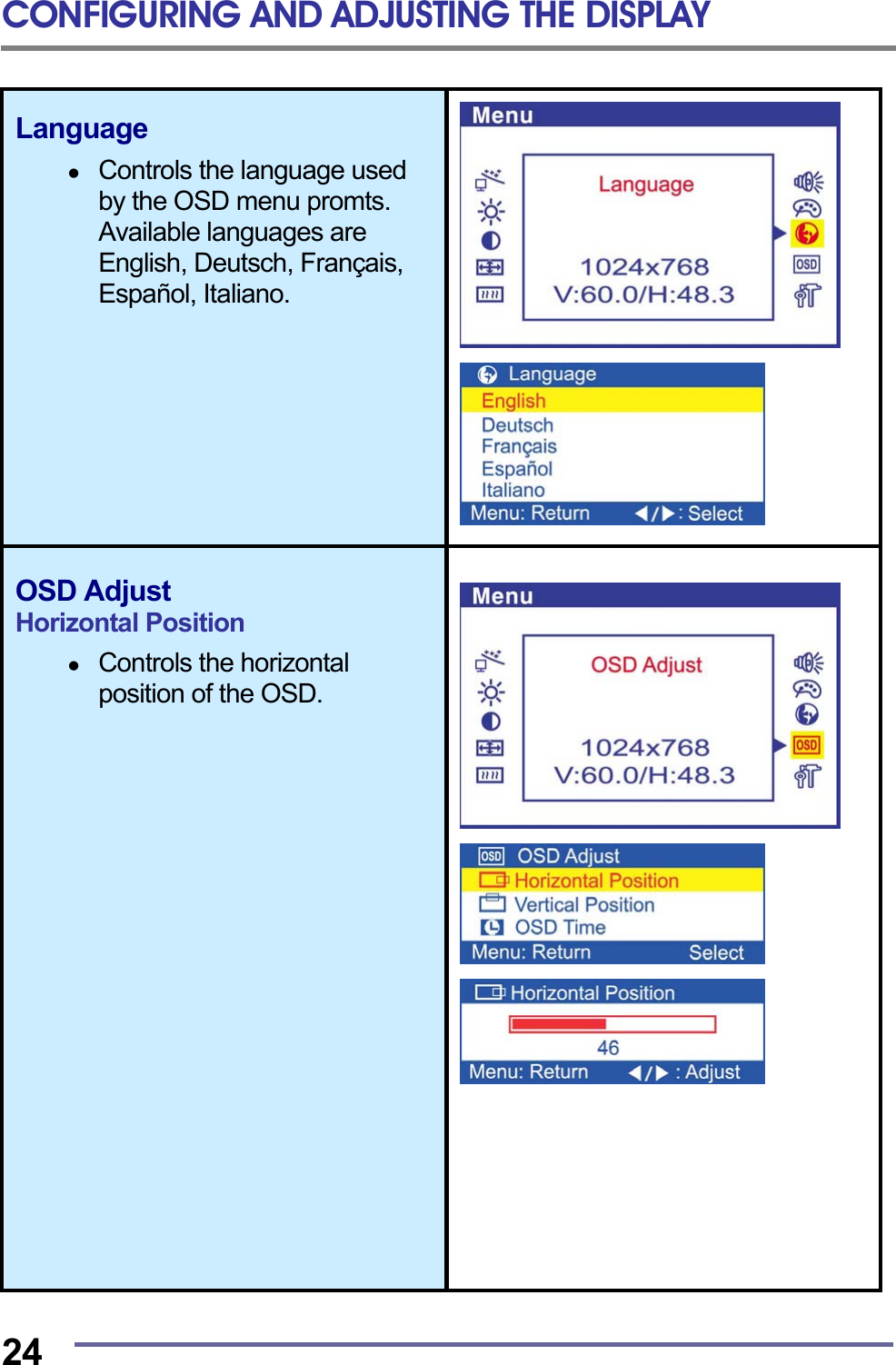
CONFIGURING AND ADJUSTING THE DISPLAY  24  Language    Controls the language used by the OSD menu promts. Available languages are English, Deutsch, Français, Español, Italiano.             OSD Adjust Horizontal Position    Controls the horizontal position of the OSD.
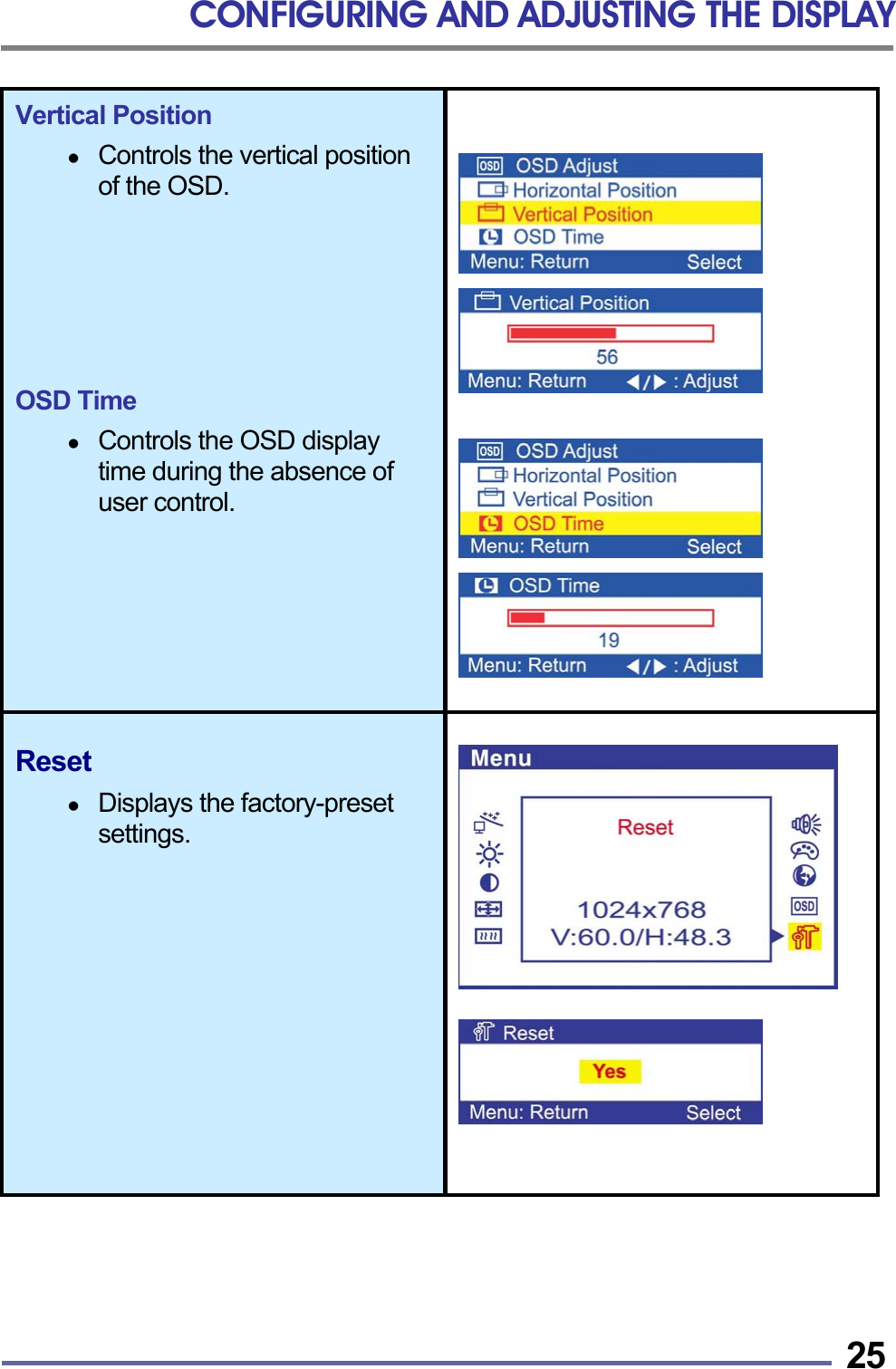
CONFIGURING AND ADJUSTING THE DISPLAY   25  Vertical Position    Controls the vertical position of the OSD.       OSD Time    Controls the OSD display time during the absence of user control.                Reset    Displays the factory-preset settings.
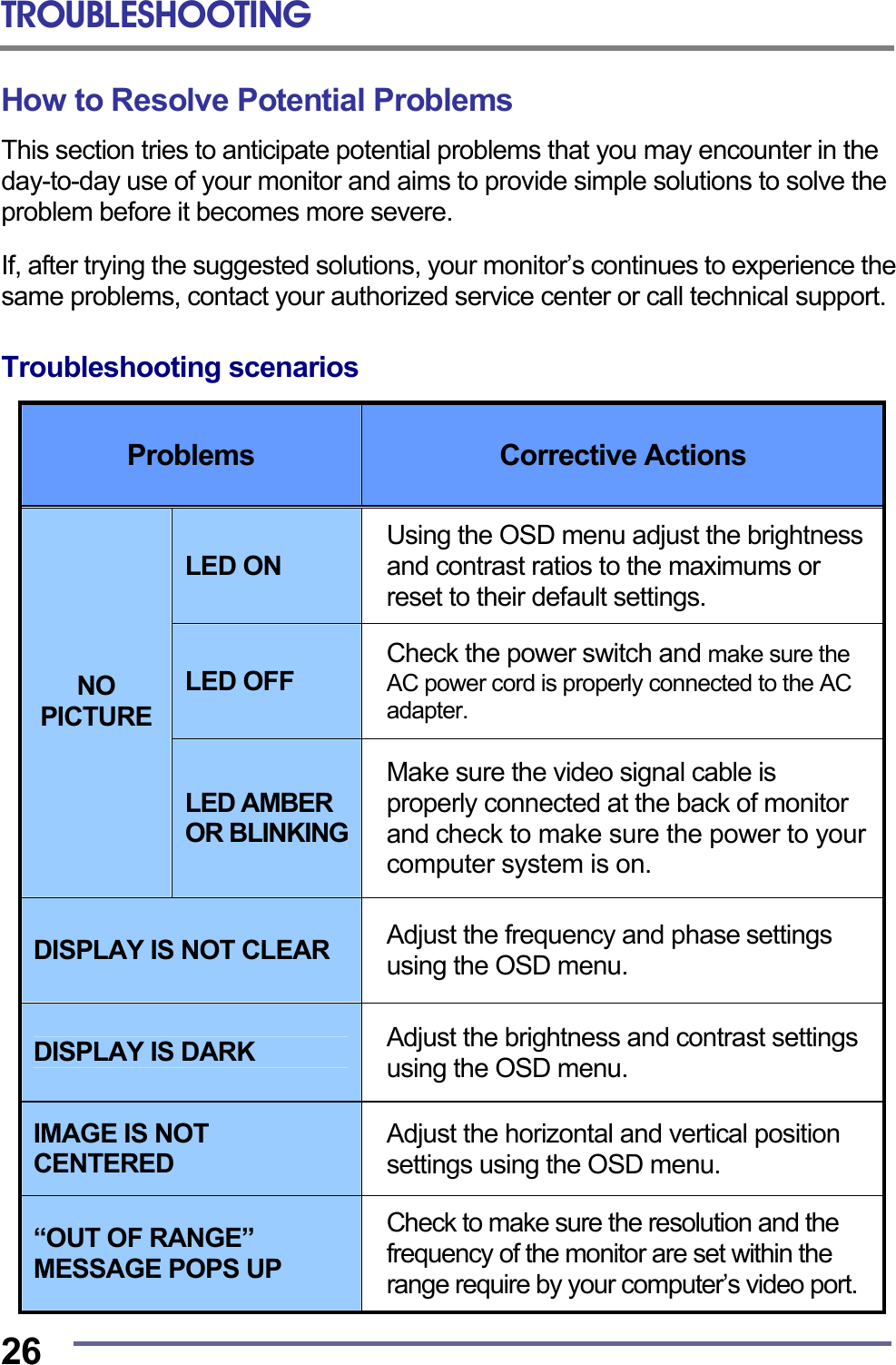
TROUBLESHOOTING  26 How to Resolve Potential Problems This section tries to anticipate potential problems that you may encounter in the day-to-day use of your monitor and aims to provide simple solutions to solve the problem before it becomes more severe.  If, after trying the suggested solutions, your monitor’s continues to experience the same problems, contact your authorized service center or call technical support.  Troubleshooting scenarios  Problems  Corrective Actions LED ON Using the OSD menu adjust the brightness and contrast ratios to the maximums or reset to their default settings. LED OFF Check the power switch and make sure the AC power cord is properly connected to the AC adapter. NO PICTURE LED AMBER OR BLINKING Make sure the video signal cable is properly connected at the back of monitor and check to make sure the power to your computer system is on. DISPLAY IS NOT CLEAR  Adjust the frequency and phase settings using the OSD menu. DISPLAY IS DARK  Adjust the brightness and contrast settings using the OSD menu. IMAGE IS NOT CENTERED Adjust the horizontal and vertical position settings using the OSD menu. “OUT OF RANGE” MESSAGE POPS UP Check to make sure the resolution and the frequency of the monitor are set within the range require by your computer’s video port.
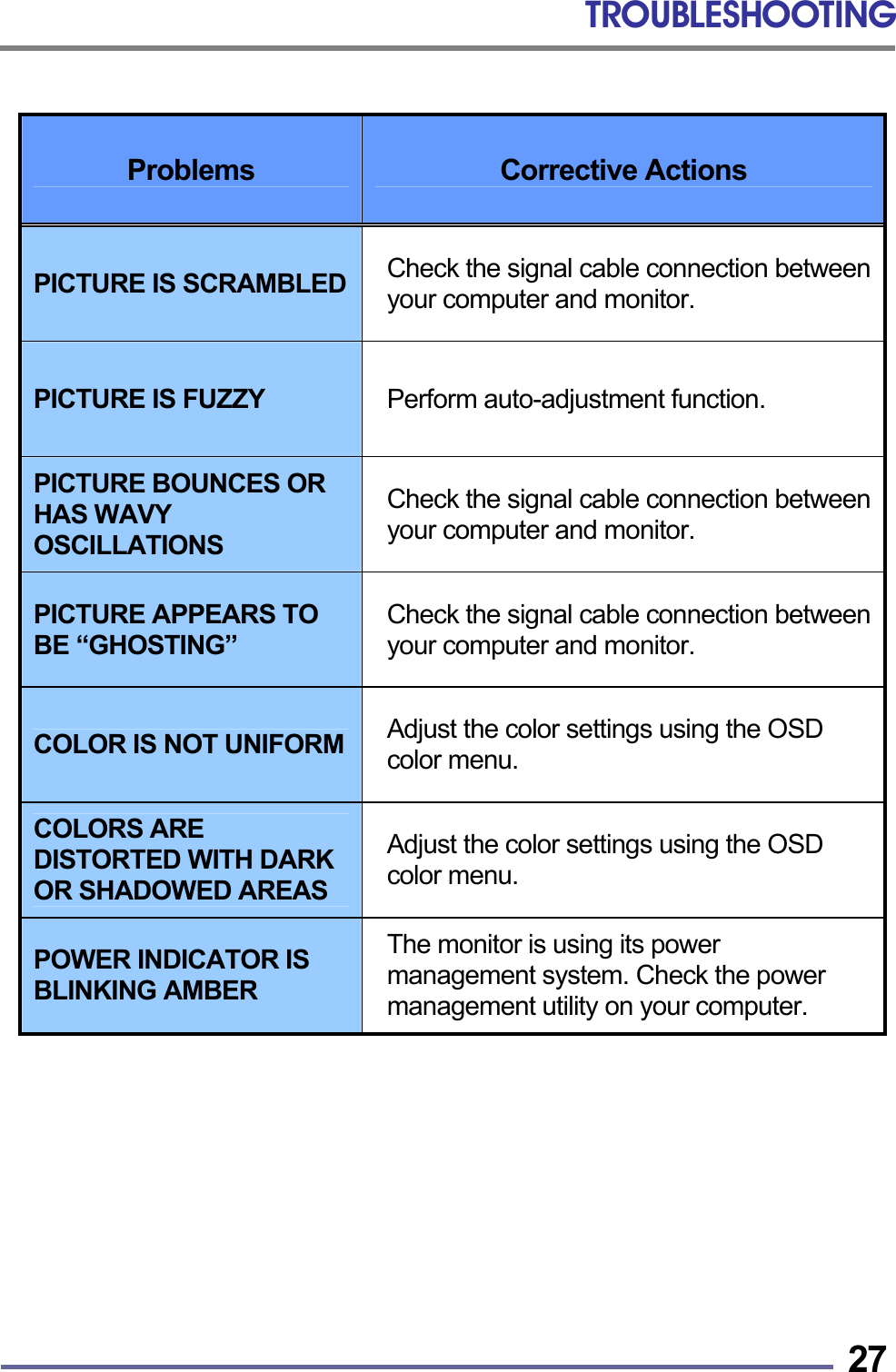
TROUBLESHOOTING   27 Problems  Corrective Actions PICTURE IS SCRAMBLED  Check the signal cable connection between your computer and monitor. PICTURE IS FUZZY  Perform auto-adjustment function. PICTURE BOUNCES OR HAS WAVY OSCILLATIONS Check the signal cable connection between your computer and monitor. PICTURE APPEARS TO BE “GHOSTING” Check the signal cable connection between your computer and monitor. COLOR IS NOT UNIFORM  Adjust the color settings using the OSD color menu. COLORS ARE DISTORTED WITH DARK OR SHADOWED AREAS Adjust the color settings using the OSD color menu. POWER INDICATOR IS BLINKING AMBER The monitor is using its power management system. Check the power management utility on your computer.
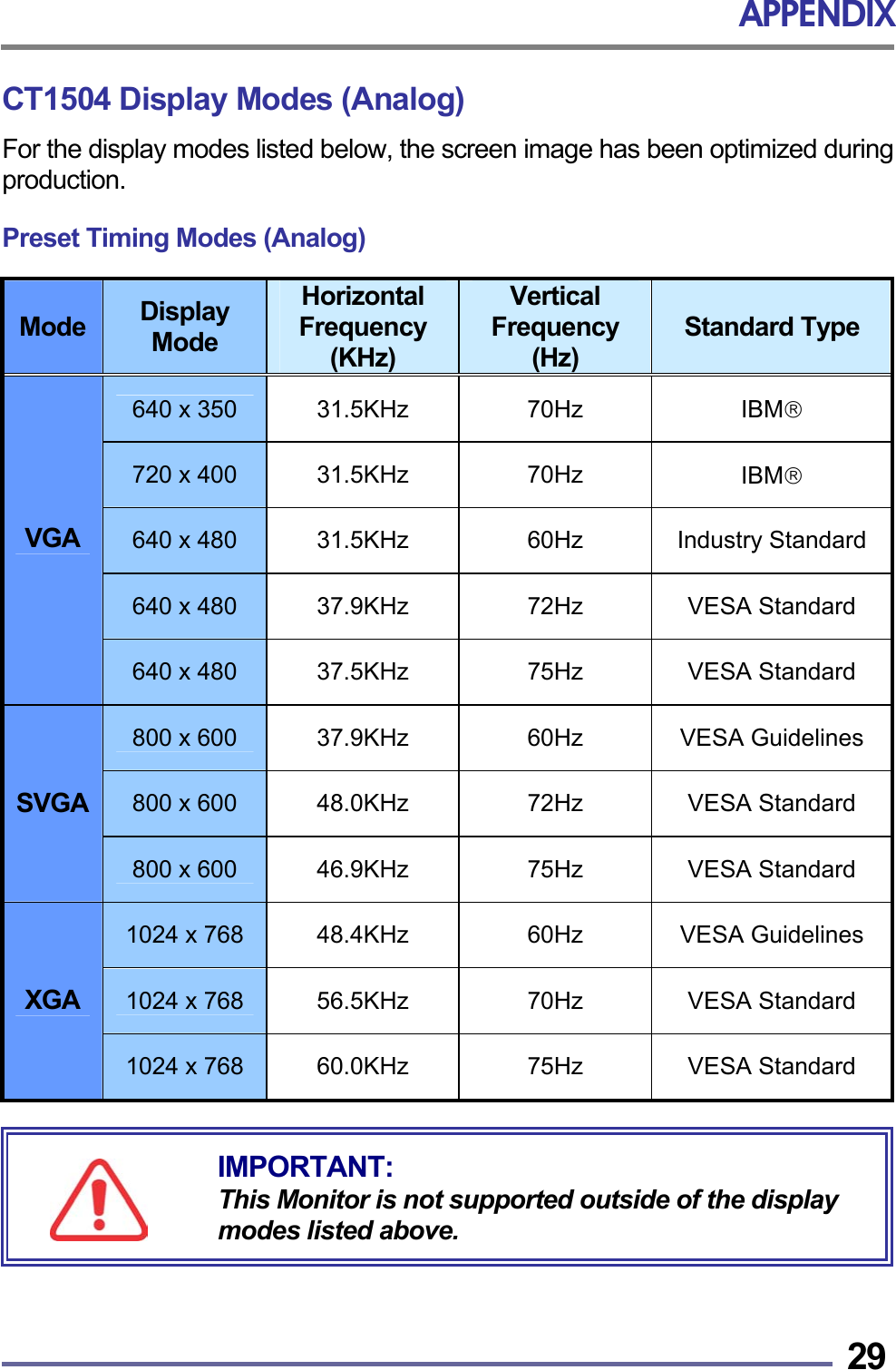
APPENDIX   29CT1504 Display Modes (Analog) For the display modes listed below, the screen image has been optimized during production.  Preset Timing Modes (Analog)  Mode  Display Mode Horizontal Frequency (KHz) Vertical Frequency (Hz) Standard Type 640 x 350  31.5KHz 70Hz  IBM 720 x 400  31.5KHz 70Hz  IBM 640 x 480  31.5KHz 60Hz Industry Standard640 x 480  37.9KHz 72Hz VESA Standard VGA 640 x 480  37.5KHz 75Hz VESA Standard 800 x 600  37.9KHz 60Hz VESA Guidelines 800 x 600  48.0KHz 72Hz VESA Standard SVGA 800 x 600  46.9KHz 75Hz VESA Standard 1024 x 768  48.4KHz 60Hz VESA Guidelines 1024 x 768  56.5KHz 70Hz VESA Standard XGA 1024 x 768  60.0KHz 75Hz VESA Standard       IMPORTANT: This Monitor is not supported outside of the display modes listed above.
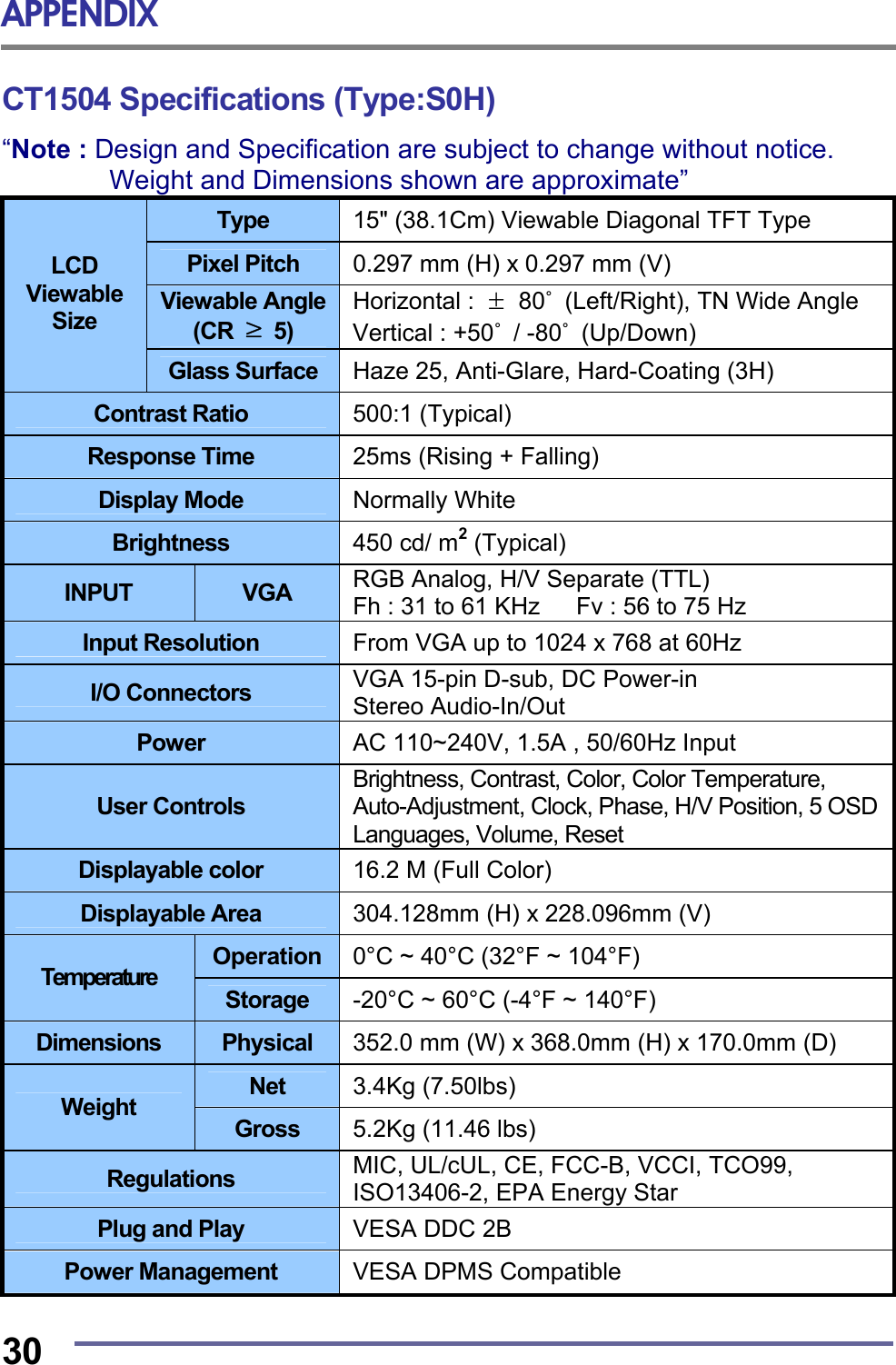
APPENDIX  30 CT1504 Specifications (Type:S0H) “Note : Design and Specification are subject to change without notice.   Weight and Dimensions shown are approximate” Type  15" (38.1Cm) Viewable Diagonal TFT Type Pixel Pitch  0.297 mm (H) x 0.297 mm (V) Viewable Angle (CR  ≥ 5) Horizontal :  ± 80˚  (Left/Right), TN Wide Angle Vertical : +50˚ / -80˚ (Up/Down) LCD Viewable Size Glass Surface  Haze 25, Anti-Glare, Hard-Coating (3H) Contrast Ratio  500:1 (Typical) Response Time  25ms (Rising + Falling) Display Mode  Normally White Brightness  450 cd/ m2 (Typical) INPUT  VGA  RGB Analog, H/V Separate (TTL) Fh : 31 to 61 KHz      Fv : 56 to 75 Hz Input Resolution  From VGA up to 1024 x 768 at 60Hz I/O Connectors  VGA 15-pin D-sub, DC Power-in Stereo Audio-In/Out Power  AC 110~240V, 1.5A , 50/60Hz Input User Controls Brightness, Contrast, Color, Color Temperature, Auto-Adjustment, Clock, Phase, H/V Position, 5 OSD Languages, Volume, Reset Displayable color  16.2 M (Full Color) Displayable Area  304.128mm (H) x 228.096mm (V) Operation  0°C ~ 40°C (32°F ~ 104°F) Temperature  Storage  -20°C ~ 60°C (-4°F ~ 140°F) Dimensions  Physical  352.0 mm (W) x 368.0mm (H) x 170.0mm (D) Net  3.4Kg (7.50lbs) Weight  Gross  5.2Kg (11.46 lbs) Regulations  MIC, UL/cUL, CE, FCC-B, VCCI, TCO99, ISO13406-2, EPA Energy Star Plug and Play  VESA DDC 2B   Power Management  VESA DPMS Compatible
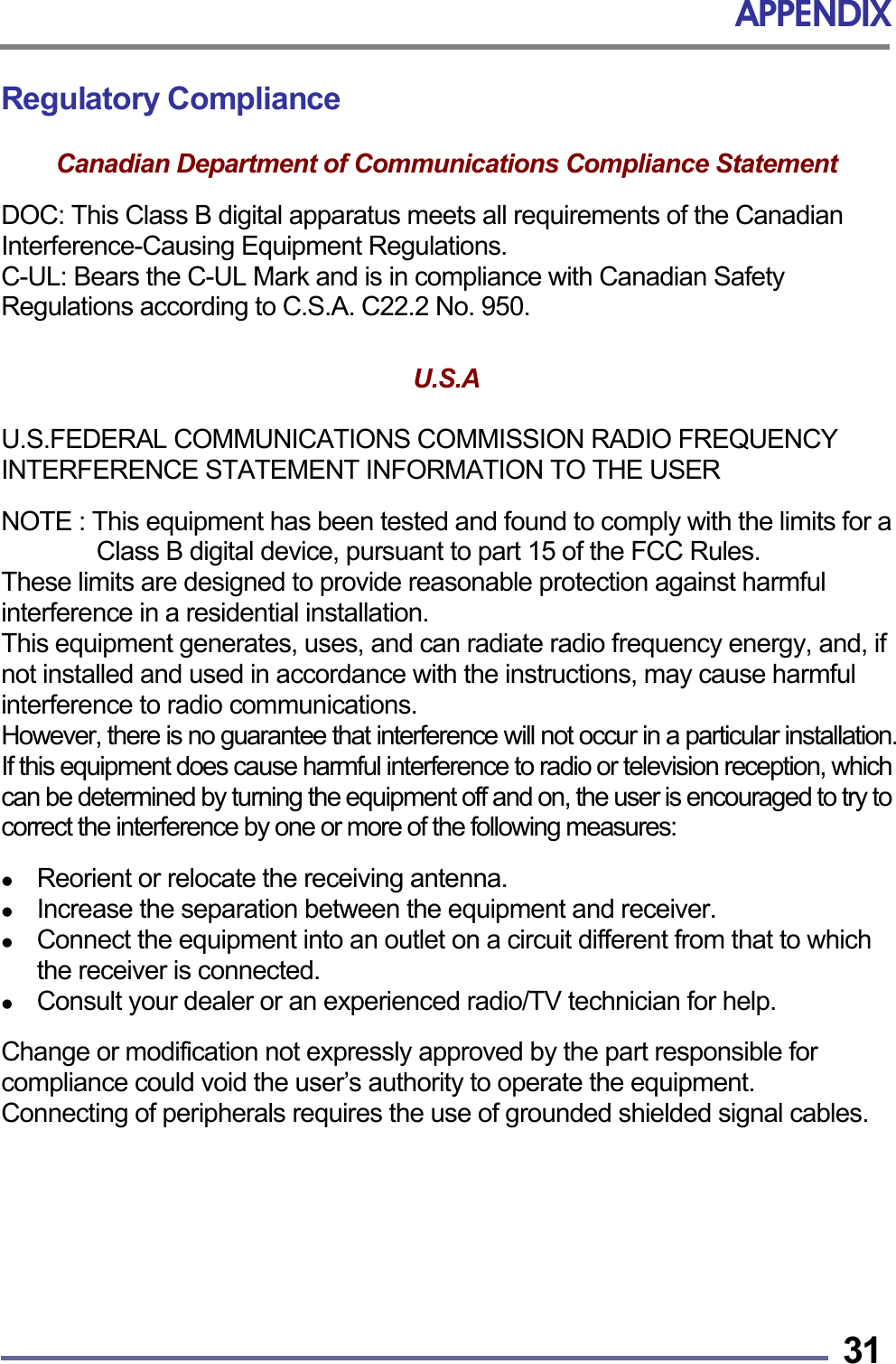
APPENDIX   31Regulatory Compliance  Canadian Department of Communications Compliance Statement  DOC: This Class B digital apparatus meets all requirements of the Canadian Interference-Causing Equipment Regulations. C-UL: Bears the C-UL Mark and is in compliance with Canadian Safety Regulations according to C.S.A. C22.2 No. 950.   U.S.A   U.S.FEDERAL COMMUNICATIONS COMMISSION RADIO FREQUENCY INTERFERENCE STATEMENT INFORMATION TO THE USER  NOTE : This equipment has been tested and found to comply with the limits for a Class B digital device, pursuant to part 15 of the FCC Rules.   These limits are designed to provide reasonable protection against harmful interference in a residential installation.   This equipment generates, uses, and can radiate radio frequency energy, and, if not installed and used in accordance with the instructions, may cause harmful interference to radio communications. However, there is no guarantee that interference will not occur in a particular installation. If this equipment does cause harmful interference to radio or television reception, which can be determined by turning the equipment off and on, the user is encouraged to try to correct the interference by one or more of the following measures:    Reorient or relocate the receiving antenna.   Increase the separation between the equipment and receiver.   Connect the equipment into an outlet on a circuit different from that to which the receiver is connected.   Consult your dealer or an experienced radio/TV technician for help.  Change or modification not expressly approved by the part responsible for compliance could void the user’s authority to operate the equipment. Connecting of peripherals requires the use of grounded shielded signal cables.
APPENDIX  32 Notice for Japan   This is a Class B product based on the standard of the Voluntary Control Council for Interference from Information Technology Equipment (VCCI). If this is used near a radio or television receiver in a domestic environment, it may cause radio interference. Install and use the equipment according to the instruction manual.   CE Conformity   The device complies with the requirements of the EEC directive 89/336/EEC as amended by 92/31/EEC and 93/68/EEC Art.5 with regard to “Electromagnetic compatibility,” and 73/23/EEC as amended by 93/68/EEC Art.13 with regard to “Safety.”

Navigation menu