Korea Data Systems Co KL1722BM 17" LCD MONITOR User Manual User s Manual H

Korea Data Systems Co Ltd 17" LCD MONITOR User s Manual H

USERS MANUAL

   EUT Type: 17” LCD Monitor FCC ID : EVOKL1722BM Test Report No.: GETEC-E3-04-001 FCC Class B Certification   APPENDIX H : USER’S MANUAL
LCD MonitorUser’s GuideModelsKL1722BM
TABLE OF CONTENTSINTRODUCTIONFCC Compliance Statement  ………………………………… ⅰSafety Instructions  …………………………………………….  ⅲGeneral Information  …………………………………………..  1Equipment Check list  ………………………………………… 2Monitor Features  ……………………………………………… 3GETTING STARTEDInstallation  ……………………………………………………… 4Control Buttons  ………………………………………………..  6On-Screen Display  …………………………………………… 7ON-SCREEN CONTROLSMenu Descriptions  …………………………………………… 8REFERENCEPower Management  ………………………………………….  11Timing Guide  ………………………………………………….  12Pin Assignment  ……………………………………………….  13Specifications  ………………………………………………… 14Troubleshooting  ……………………………………………… 15
FCC COMPLIANCE STATEMENTNote:This equipment has been tested and found to comply with the limits for aClass B digital device, pursuant to Part15 of FCC Rules. These llimitsAre designed to provide reasonable protection against radio frequencyInterference in a residential installation. This equipment generates, usesAnd can radiate radio frequency energy. If not installed and used inAccordance with the instructions, it may cause interference to radioCommunications. However,there is no guarantee that interference willNot occur in a particular installation. If this equipment does causeInterference to radio or television reception(this can be determined byTurning this equipment off and on), the user is encouraged to try toCorrect the interference by one or more of the following measures:•Reorient or relocate the receiving antenna.•Increase the separation between the equipment and receiver.•Connect the equipment to an outlet on a circuit different from that to which the receiver is connected.CAUTION TO THE USER:The Federal Communications Commission warns that changes orModifications to the unit not expressly approved by the party responsibleFor compliance could void the user’s authority to operate the equipment.If necessary, the user should contact the dealer or an experiencedRadio/television technician for additional suggestions. The usermay findThe Federal Communications Commission booklet, How to Identify andResolve Radio-TV Interference Problems, helpful. This booklet isAvailable from the U.S.Government Printing Office, Washington, D.C.,Stock No.004-000-00345-4.NOTICE OF COMPLIANCE WITH CANADIANINTERFERENCE-CAUSING EQUIPMENTREGULATIONSINTRODUCTIONⅰ
SAFETY INSTRUCTIONSINTRODUCTION■HandlingDue to its fragile glass panel, this monitor must be handled withCaution and not be exposed to impact or shock.Never touch the display area or rub it with a hard object or tool, as thePanel is easily scratched.■CleaningThe display area is sensitive to scratching. Do not use ketone-typeCleaners(i.e.acetone),ethyl alcohol, toluene, ethyl acid or methylChloride to clean the panel. Doing so may result in permanent damage.Water, IPA(Iso Prophyl Alcohol) and Hexane are safe cleaners.Do not allow oil or water to penetrate the display, this will causeStaining and discoloration.Avoid getting food particles and fingerprints on the display area at allTimes.■StorageStore the monitor in a dark place away from sunlight and ultraviolet(UV)radiation, this may cause air bubbles to develop within theglass panel.Do not store the display in temperatures higher than 40℃/104℉ orHumidity greater than 90%. Avoid condensation.ⅲ
SAFETY INSTRUCTIONSINTRODUCTION■Caution1. Do not open any covers on the monitor. No user serviceableparts are inside.2. In an emergency, disconnect the AC power plug.3. To avoid electrical shock, disconnect the power cord from themonitor before connecting the signal cable to the computer.4. Keep away from liquids and flame. Do not immerse this monitorin water or any other liquid. Do not use this device in excessivelyhot conditions.5. Handle the power cord with care. Do not bend the power cordexcessively or place heavy objects on it. Do not use a damagedpower cord, doing so can result in fire or electrical shock hazards.When disconnecting the power cord, always grasp the plug, notthe cord.6. The liquid crystals in the display panel contain several irritants. Ifthe panel is damaged or broken, do not allow the liquid to comein contact with skin, eyes, or mouth. If you come in contact withthe liquid, flush the affected area with running water for at least15minutes, then consult a doctor.7. Handle this monitor with care when moving it. When lifting themonitor, support it with one hand holding the stand, and onehand holding the LCD screen.8. Always disconnect the power cord when moving this monitor.9. Do not lay this monitor in a horizontal position when operating.ⅳ
GENERAL INFORMATIONINTRODUCTIONYour new LCD monitor incorporates the latest state-of the art color LiquidCrystal Display(LCD) technology providing a wider viewing angle withHigher contrast ratio.Your new LCD monitor has many advantages : safe from electromagneticWave, llights, sharps and slims. This makes the monitor extremelySuitable in the environment of administration, transportation systemResearch, etc.Your new LCD monitor is designed for Analog, Digital(KL1722B,BM)inputs.Your new LCD monitor does not emit any X-ray radiation and the magneticEmission greatly reduces the eyestrain. Moreover, our On ScreenControls on the side of the panel provide flexibility with simple controls.You can use these controls to adjust the display as you desire.Your new LCD monitor incorporates an active TFT module. It has a1280×1024 pixel resolution, high contrast, wide viewing angle and colors upTo 16.7M.1
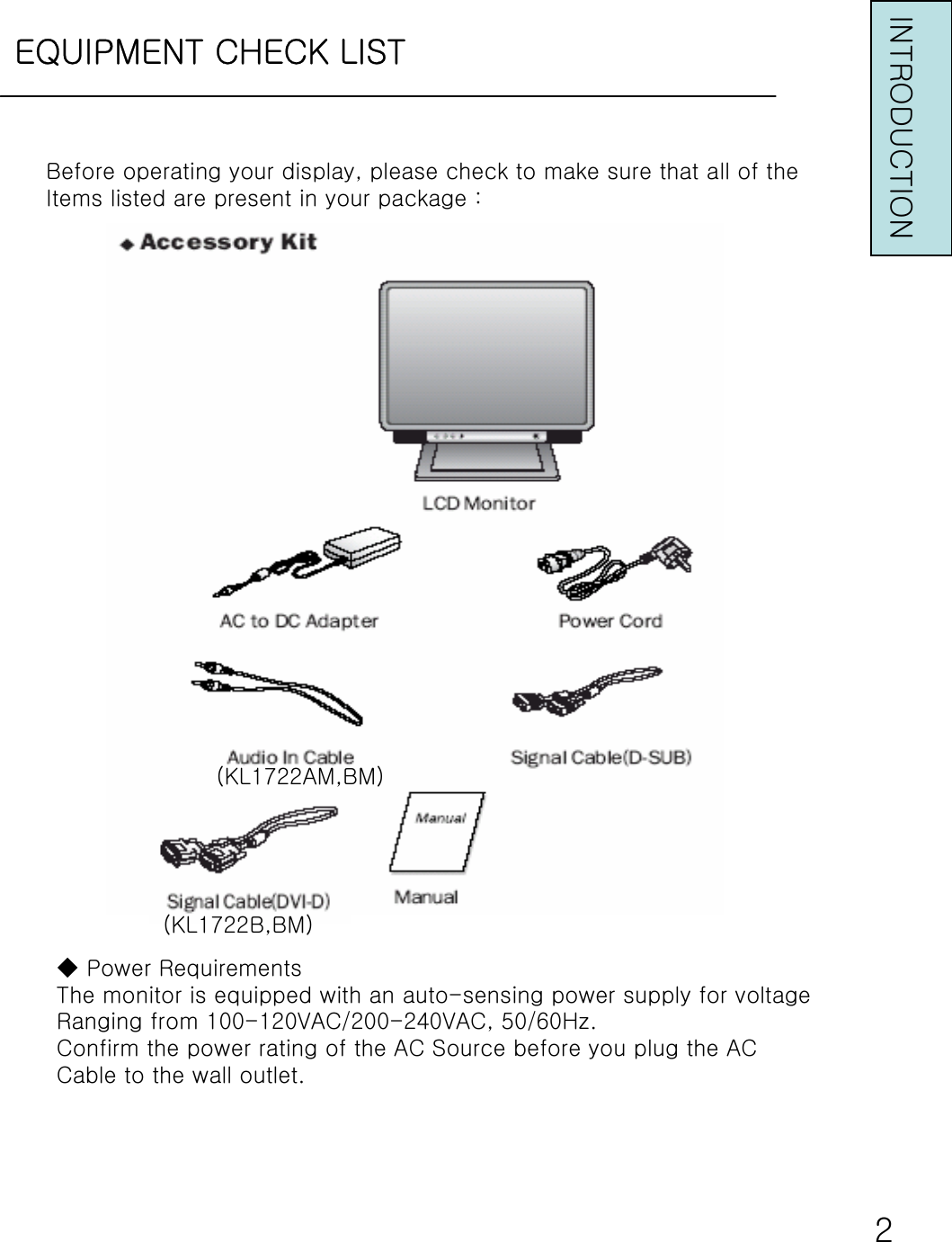
EQUIPMENT CHECK LISTINTRODUCTION◆ Power RequirementsThe monitor is equipped with an auto-sensing power supply for voltageRanging from 100-120VAC/200-240VAC, 50/60Hz.Confirm the power rating of the AC Source before you plug the ACCable to the wall outlet.2Before operating your display, please check to make sure that all of theItems listed are present in your package :(KL1722AM,BM)(KL1722B,BM)
MONITOR FEATURESINTRODUCTION•Supports Analog IBM compatible PC, Apple MacintoshTM(Adapter optional)• Supports DPMS for monitor power management• Support DDC2B• On Screen Control : Auto-Tuning, Contrast, Brightness, H/V Position, H-Size,Phase, Auto-Level, Color Control, Sharpness, OSD Position, OSD Time-out, Power Save Delay, Language, Information.• Built-in color active matrix TFT(Thin Film Transistor) Liquid CrystalDisplay(LCD) that uses amorphous silicon TFTs as a switching device.• Built-in Audio Amp. And internal Speaker : 2W+2W(at 1KHz)=>(KL1722AM,BM)• Resolution : up to 1280 × 1024• Color : 16.2M Color support.• Pixel pitch : 0.264mm(H)×0.264mm(W).•Scanning frequency : 30KHz ~ 80KHz(H), 55Hz ~ 75Hz(V).•Universal power supply : AC100-240V allowed.•Power consumption Normal : 50 Watt Max.Off : 3 Watt Max.• Outside dimension : 381mm(W)×394mm(H)×182mm(D)15”(W)×15.5”(H)×7.2”(D)•Weight(net) : 5.0kg(11 lbs.)3
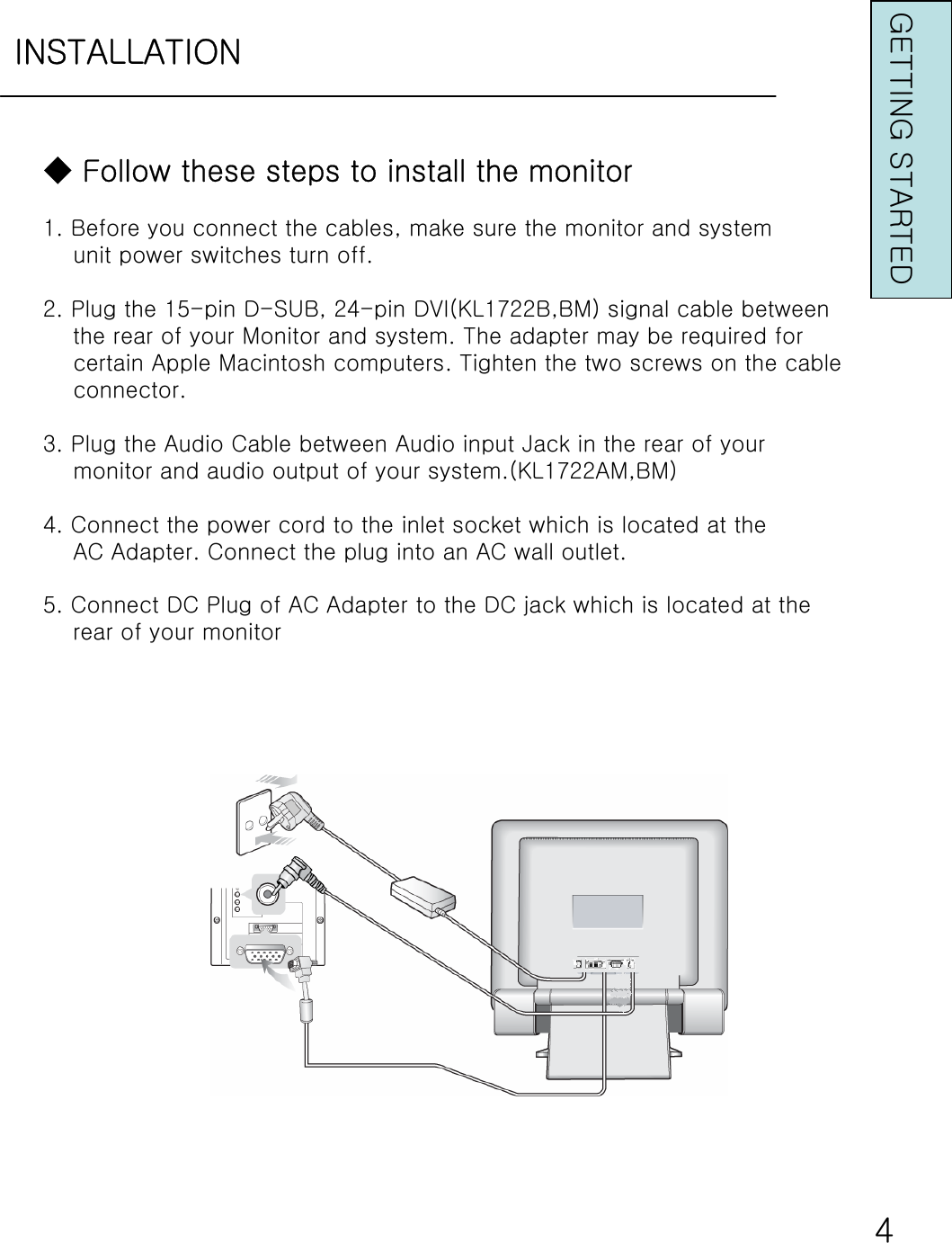
INSTALLATIONGETTING STARTED◆ Follow these steps to install the monitor1. Before you connect the cables, make sure the monitor and systemunit power switches turn off.2. Plug the 15-pin D-SUB, 24-pin DVI(KL1722B,BM) signal cable betweenthe rear of your Monitor and system. The adapter may be required for certain Apple Macintosh computers. Tighten the two screws on the cableconnector.3. Plug the Audio Cable between Audio input Jack in the rear of yourmonitor and audio output of your system.(KL1722AM,BM)4. Connect the power cord to the inlet socket which is located at theAC Adapter. Connect the plug into an AC wall outlet.5. Connect DC Plug of AC Adapter to the DC jack which is located at the rear of your monitor4
CONTROL BUTTONSGETTING STARTEDOSD Buttons : The OSD control keys are located on lower left of theMonitor.MENU(Enter)a. No OSD : This buttons will enable the main OSD menu.b. Main OSD menu : Press this button to enter to the selected OSDcontrol menu.c. Control OSD menu : Swap the control item.▲ or ▼(Up/Down) : Use these buttons to increase or decrease each value.a. No OSD : - ▲ : Contrast & Brightness control menu will be shown. Press ‘MENU‘to switch to another menu between Contrast andBrightness.- ▼ : Audio volume control menu will be shown.=>(KL1722AM,BM)b. Main OSD menu : Use these button to move up(or down)the OSDselection menu and adjust the attribute of the monitor while in OSDmode.AUTO(Auto)a. No OSD : - Pressing this button for 3 seconds out of OSD menu allows you to change the video input signal either either D-SUB(Analog) or DVI(TMDS).=>(KL1722B,BM)- Pressing this button shortly out of OSD menu allows you to do ‘Auto-Tune’function.(H,V-position, Size, Phase)b. Main OSD menu : Press this button to exit from the main OSD menu.c. Control OSD Menu : Return to the previous menu.5
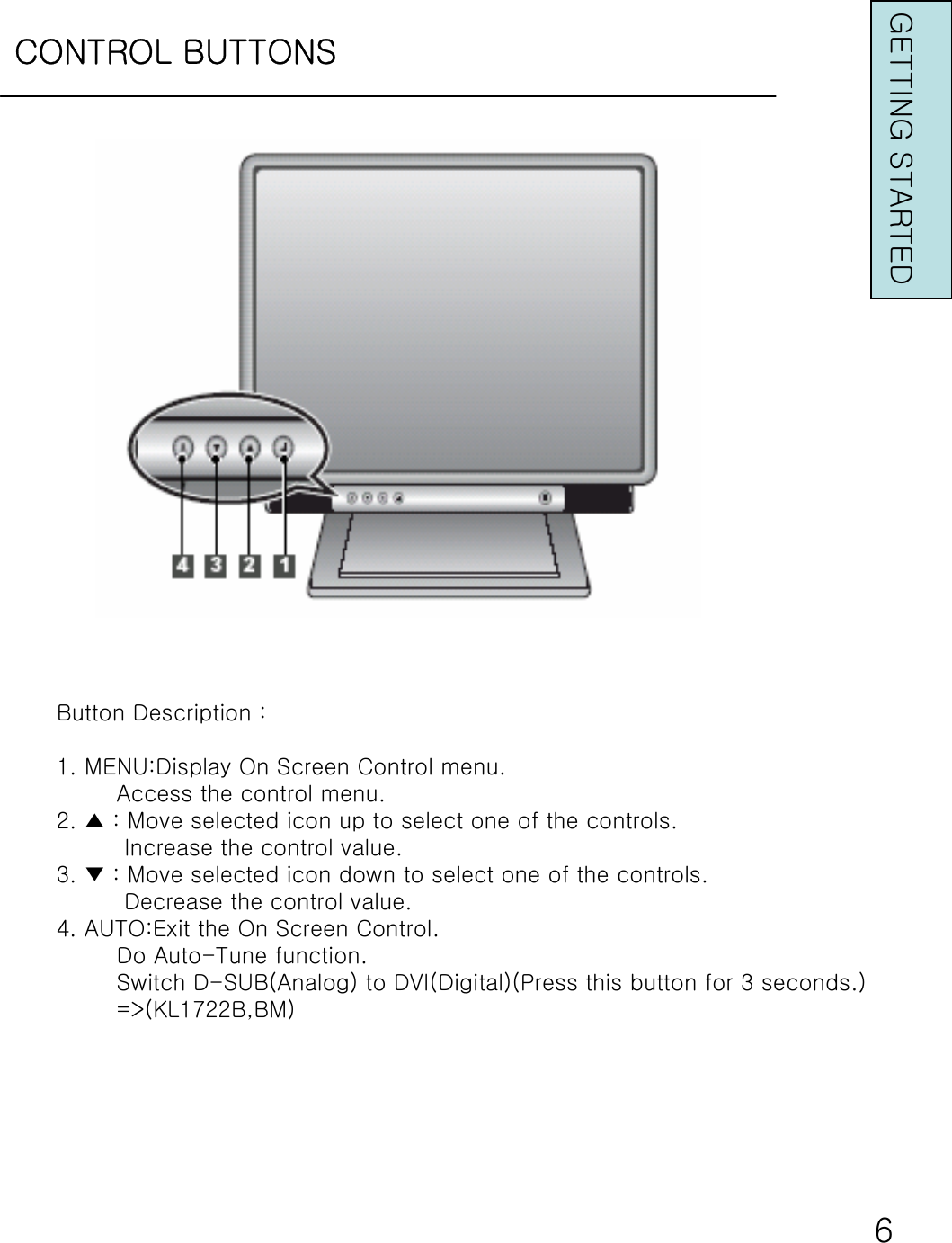
CONTROL BUTTONSGETTING STARTEDButton Description :1. MENU:Display On Screen Control menu.Access the control menu.2. ▲ : Move selected icon up to select one of the controls.Increase the control value.3. ▼ : Move selected icon down to select one of the controls.Decrease the control value.4. AUTO:Exit the On Screen Control.Do Auto-Tune function.Switch D-SUB(Analog) to DVI(Digital)(Press this button for 3 seconds.)=>(KL1722B,BM)6
ON-SCREEN DISPLAYThis LCD monitor features an On-Screen Display(OSD)menu. TheseIcons are designed to make your monitor display settings easier.Whenhighlighted, the icons illustrate the control function to assistyou inidentifying which control needs adjustment.Before activating the OSD menu, the ‘AUTO’button can be used toautomatically adjust the display to the proper size and horizontal andvertical position.The OSD menu activates automatically when you press the ‘MENU’buttonon the lower left of the monitor. The OSD remains centered on the screenwhile you make your adjustments. Use either the ‘▲’or ‘▼’button to movethe highlight to your selection. ‘AUTO’submenu or control with a status barwill appear. The status bar indicates the direction which adjustments arebeing made. Use the ‘▲’or ‘▼’button to adjust the control.The Audio Volume=>(KL1722AM,BM) and contrast/brightness menu canalso be adjusted by simply pressing either the ‘▲’or ‘▼’buttons.When you have finished making adjustments, press the ‘AUTO’button to save setting and exit back to main menu.7GETTING STARTED
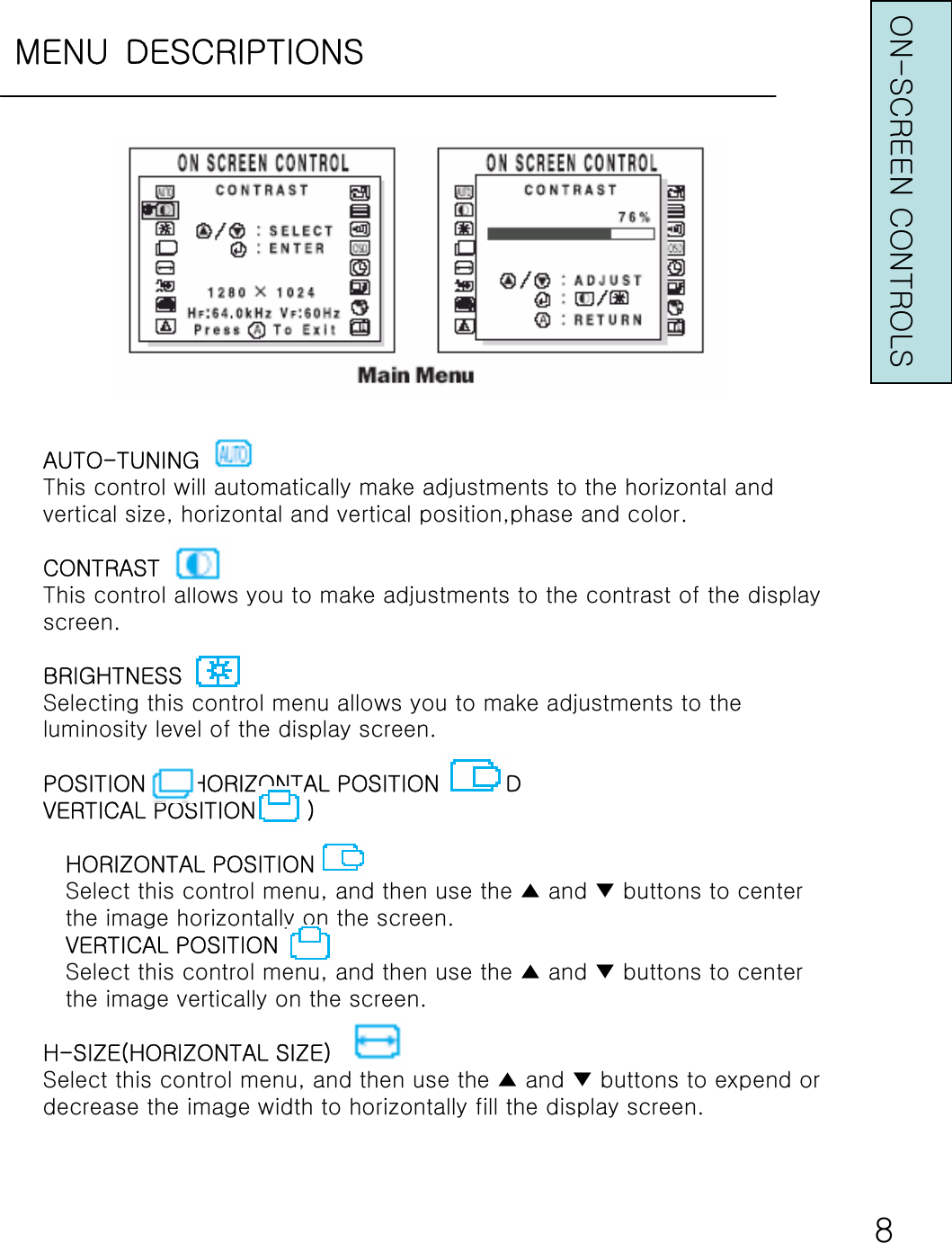
MENU DESCRIPTIONSON-SCREEN CONTROLS8AUTO-TUNINGThis control will automatically make adjustments to the horizontal andvertical size, horizontal and vertical position,phase and color.CONTRASTThis control allows you to make adjustments to the contrast of the displayscreen.BRIGHTNESSSelecting this control menu allows you to make adjustments to theluminosity level of the display screen.POSITION     (HORIZONTAL POSITION     ANDVERTICAL POSITION       )HORIZONTAL POSITIONSelect this control menu, and then use the ▲ and ▼ buttons to centerthe image horizontally on the screen.VERTICAL POSITIONSelect this control menu, and then use the ▲ and ▼ buttons to centerthe image vertically on the screen.H-SIZE(HORIZONTAL SIZE)Select this control menu, and then use the ▲ and ▼ buttons to expend ordecrease the image width to horizontally fill the display screen.
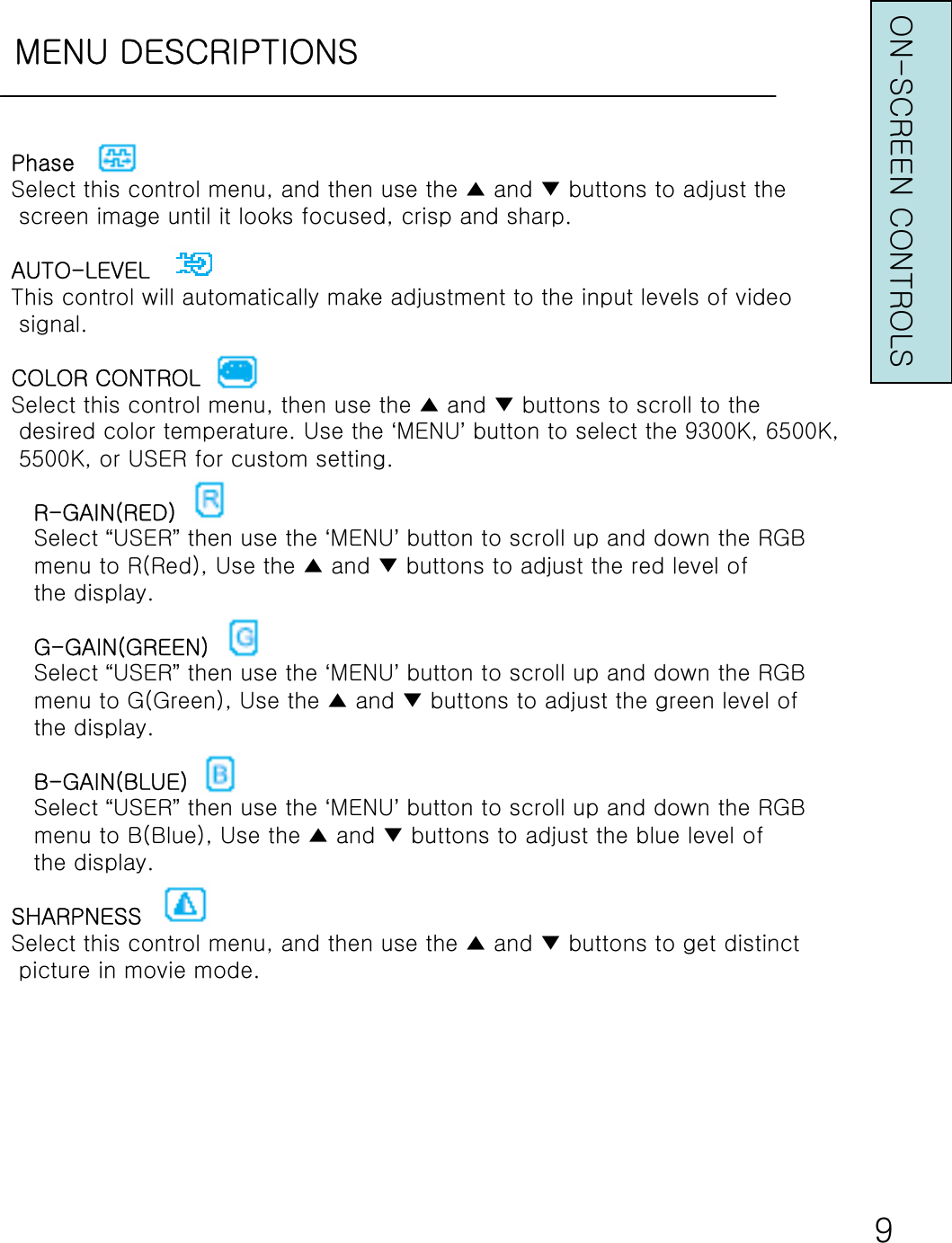
MENU DESCRIPTIONS9PhaseSelect this control menu, and then use the ▲ and ▼ buttons to adjust thescreen image until it looks focused, crisp and sharp.AUTO-LEVELThis control will automatically make adjustment to the input levels of videosignal.COLOR CONTROLSelect this control menu, then use the ▲ and ▼ buttons to scroll to thedesired color temperature. Use the ‘MENU’button to select the 9300K, 6500K,5500K, or USER for custom setting.R-GAIN(RED)Select “USER”then use the ‘MENU’button to scroll up and down the RGBmenu to R(Red), Use the ▲ and ▼ buttons to adjust the red level ofthe display.G-GAIN(GREEN)Select “USER”then use the ‘MENU’button to scroll up and down the RGBmenu to G(Green), Use the ▲ and ▼ buttons to adjust the green level ofthe display.B-GAIN(BLUE)Select “USER”then use the ‘MENU’button to scroll up and down the RGBmenu to B(Blue), Use the ▲ and ▼ buttons to adjust the blue level ofthe display.SHARPNESSSelect this control menu, and then use the ▲ and ▼ buttons to get distinctpicture in movie mode. ON-SCREEN CONTROLS
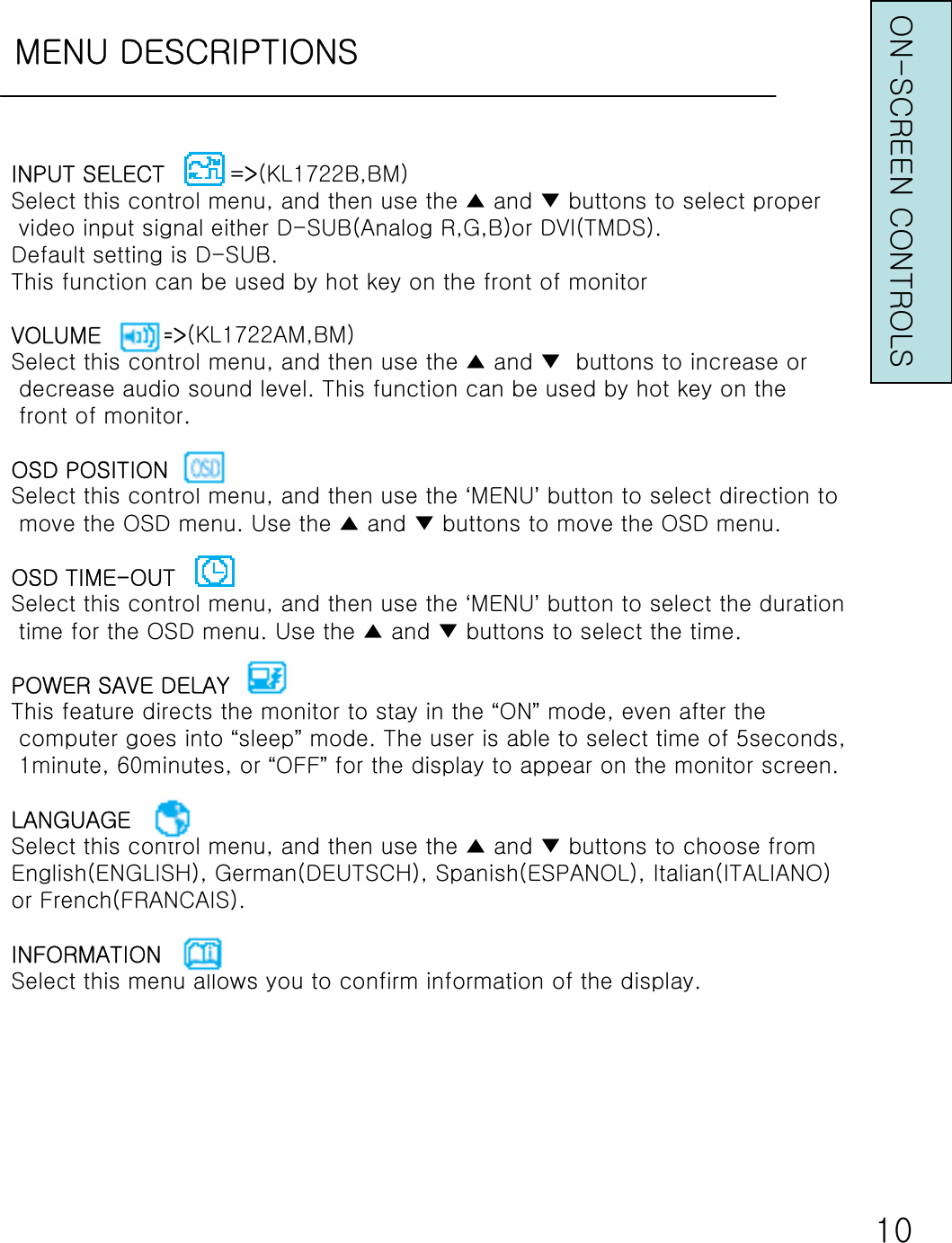
MENU DESCRIPTIONS10INPUT SELECT         =>(KL1722B,BM)Select this control menu, and then use the ▲ and ▼ buttons to select propervideo input signal either D-SUB(Analog R,G,B)or DVI(TMDS).Default setting is D-SUB.This function can be used by hot key on the front of monitorVOLUME        =>(KL1722AM,BM)Select this control menu, and then use the ▲ and ▼ buttons to increase ordecrease audio sound level. This function can be used by hot key on thefront of monitor.OSD POSITIONSelect this control menu, and then use the ‘MENU’button to select direction tomove the OSD menu. Use the ▲ and ▼ buttons to move the OSD menu.OSD TIME-OUTSelect this control menu, and then use the ‘MENU’button to select the durationtime for the OSD menu. Use the ▲ and ▼ buttons to select the time.POWER SAVE DELAYThis feature directs the monitor to stay in the “ON”mode, even after thecomputer goes into “sleep”mode. The user is able to select time of 5seconds,1minute, 60minutes, or “OFF”for the display to appear on the monitor screen.LANGUAGESelect this control menu, and then use the ▲ and ▼ buttons to choose fromEnglish(ENGLISH), German(DEUTSCH), Spanish(ESPANOL), Italian(ITALIANO)or French(FRANCAIS).INFORMATIONSelect this menu allows you to confirm information of the display.ON-SCREEN CONTROLS
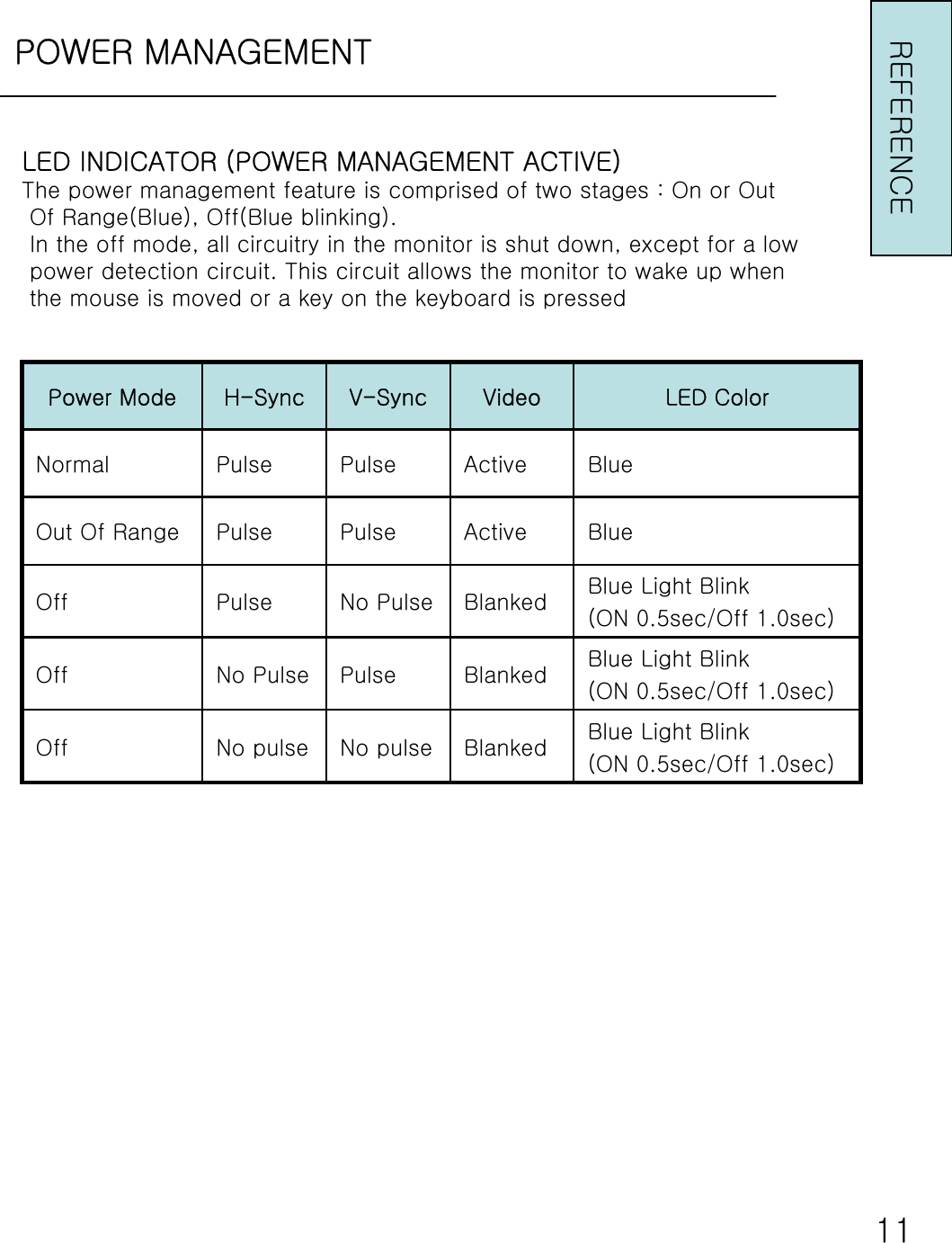
POWER MANAGEMENTREFERENCELED INDICATOR (POWER MANAGEMENT ACTIVE)The power management feature is comprised of two stages : On or OutOf Range(Blue), Off(Blue blinking).In the off mode, all circuitry in the monitor is shut down, except for a lowpower detection circuit. This circuit allows the monitor to wake up whenthe mouse is moved or a key on the keyboard is pressedBlue Light Blink (ON 0.5sec/Off 1.0sec)BlankedNo pulseNo pulseOffBlue Light Blink (ON 0.5sec/Off 1.0sec)BlankedPulseNo PulseOffBlue Light Blink (ON 0.5sec/Off 1.0sec)BlankedNo PulsePulseOffBlueActivePulsePulseOut Of RangeBlueActivePulsePulseNormalLED ColorVideoV-SyncH-SyncPower Mode11
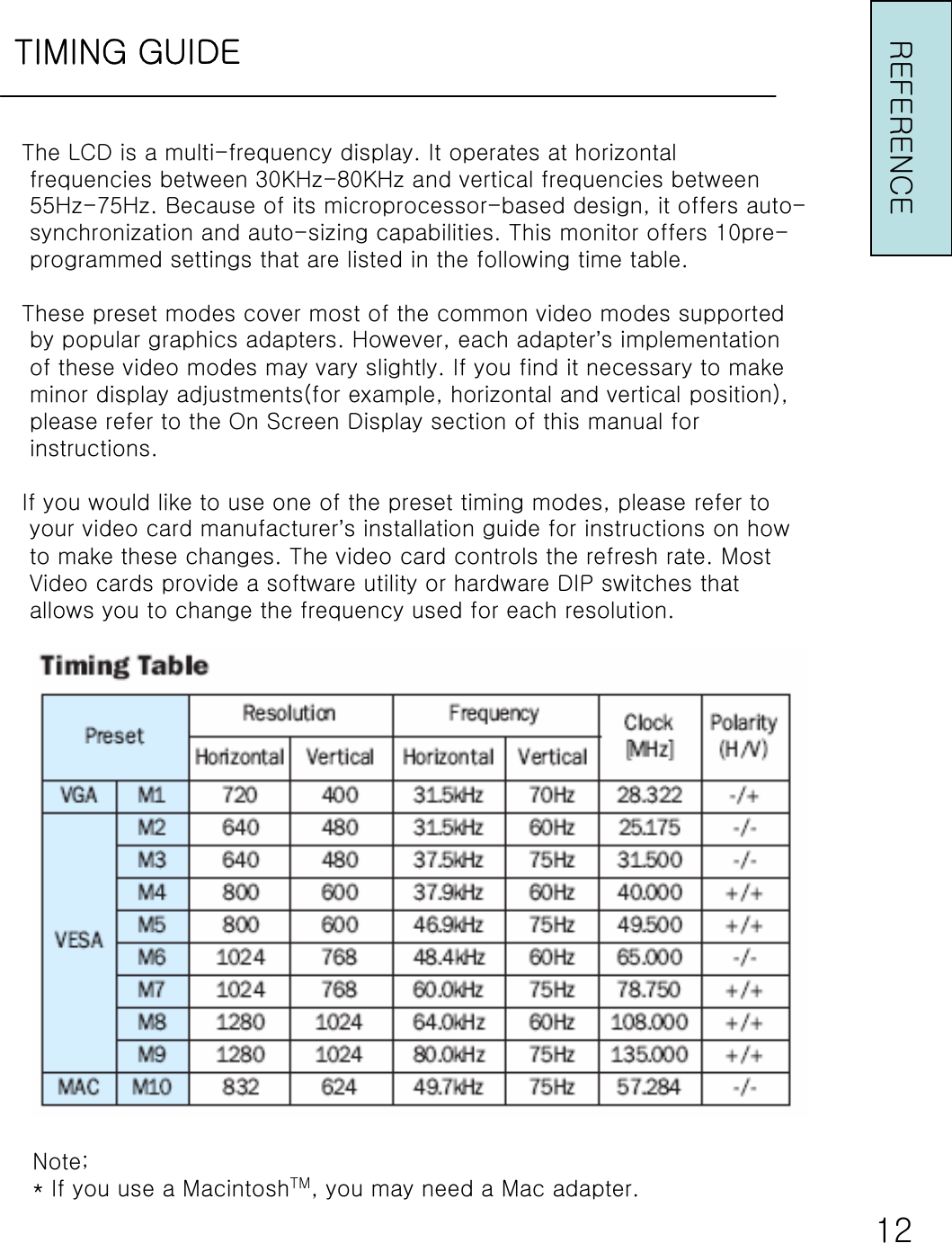
TIMING GUIDEREFERENCE12The LCD is a multi-frequency display. It operates at horizontalfrequencies between 30KHz-80KHz and vertical frequencies between55Hz-75Hz. Because of its microprocessor-based design, it offers auto-synchronization and auto-sizing capabilities. This monitor offers 10pre-programmed settings that are listed in the following time table.These preset modes cover most of the common video modes supportedby popular graphics adapters. However, each adapter’s implementationof these video modes may vary slightly. If you find it necessary to makeminor display adjustments(for example, horizontal and vertical position),please refer to the On Screen Display section of this manual forinstructions.If you would like to use one of the preset timing modes, please refer toyour video card manufacturer’s installation guide for instructions on howto make these changes. The video card controls the refresh rate. MostVideo cards provide a software utility or hardware DIP switches thatallows you to change the frequency used for each resolution.Note;* If you use a MacintoshTM, you may need a Mac adapter.
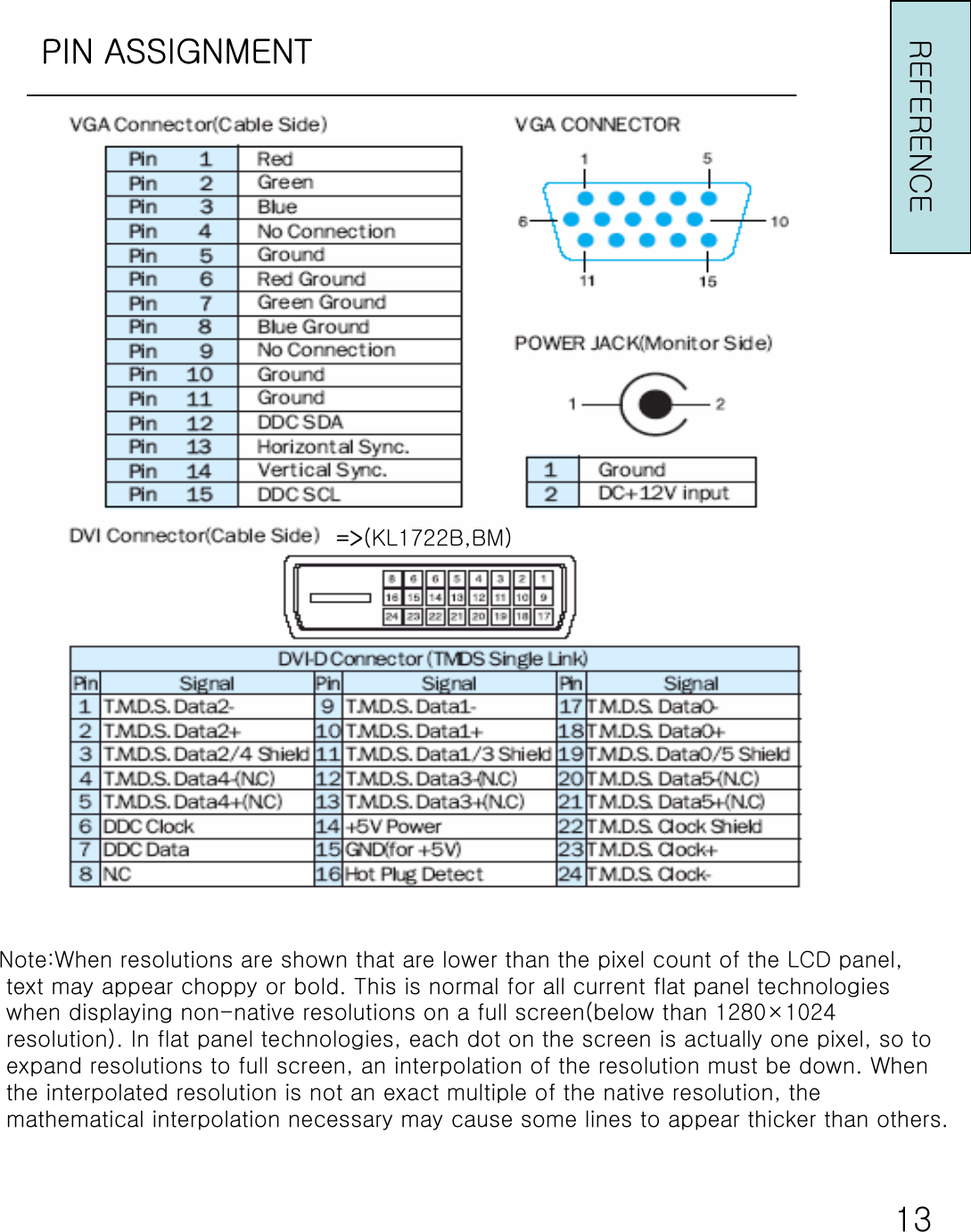
PIN ASSIGNMENTNote:When resolutions are shown that are lower than the pixel count of the LCD panel,text may appear choppy or bold. This is normal for all current flat panel technologieswhen displaying non-native resolutions on a full screen(below than 1280×1024resolution). In flat panel technologies, each dot on the screen is actually one pixel, so toexpand resolutions to full screen, an interpolation of the resolution must be down. Whenthe interpolated resolution is not an exact multiple of the native resolution, themathematical interpolation necessary may cause some lines to appear thicker than others.13REFERENCE=>(KL1722B,BM)
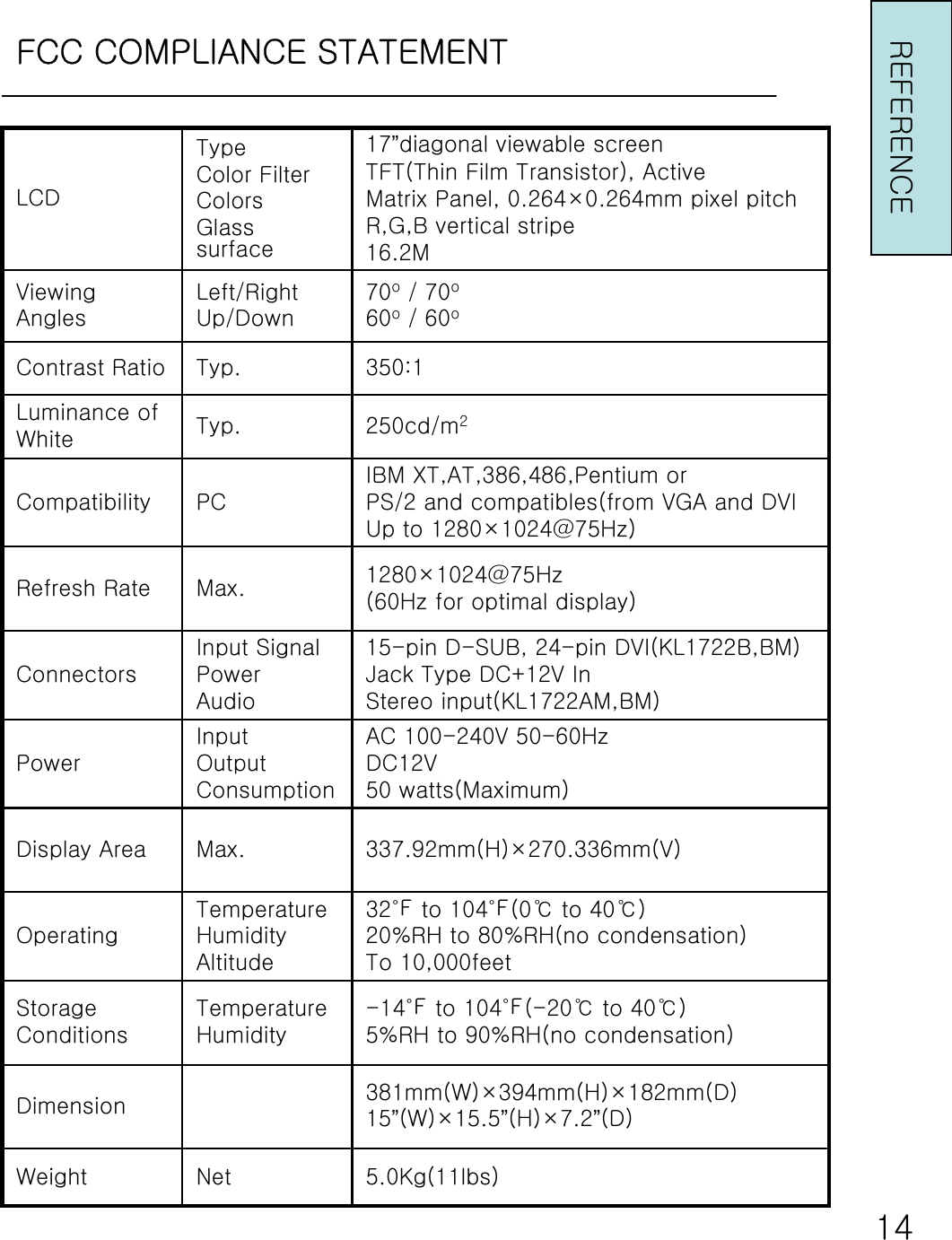
FCC COMPLIANCE STATEMENTREFERENCE145.0Kg(11lbs)NetWeight381mm(W)×394mm(H)×182mm(D)15”(W)×15.5”(H)×7.2”(D)Dimension-14℉ to 104℉(-20℃ to 40℃)5%RH to 90%RH(no condensation)TemperatureHumidityStorageConditions337.92mm(H)×270.336mm(V)Max.Display AreaAC 100-240V 50-60HzDC12V50 watts(Maximum)InputOutputConsumptionPower1280×1024@75Hz(60Hz for optimal display)Max.Refresh RateIBM XT,AT,386,486,Pentium orPS/2 and compatibles(from VGA and DVIUp to 1280×1024@75Hz)PCCompatibility350:1Typ.Contrast Ratio70o/ 70o60o/ 60oLeft/RightUp/DownViewingAngles32℉ to 104℉(0℃ to 40℃)20%RH to 80%RH(no condensation)To 10,000feetTemperatureHumidityAltitudeOperating15-pin D-SUB, 24-pin DVI(KL1722B,BM)Jack Type DC+12V InStereo input(KL1722AM,BM)Input SignalPowerAudioConnectors250cd/m2Typ.Luminance ofWhite17”diagonal viewable screenTFT(Thin Film Transistor), ActiveMatrix Panel, 0.264×0.264mm pixel pitchR,G,B vertical stripe16.2MTypeColor FilterColorsGlass surfaceLCD
TROUBLESHOOTING◆ No power•Flip the power switch ON. The Power LED turns on.•Make sure AC power cord is securely connected to a power outlet.◆ Power on but no screen image.•Make sure the video cable attached with this monitor is tightlysecured to the video output port on the back of the computer.•Adjust the brightness and contrast.◆ Image is unstable, unfocused.•Use “AUTO-TUNE”to adjust automatically.•If the image is still unstable after “AUTO-TUNE”processing,please adjust “PHASE”manually to get image focused.•Check whether the resolution or refresh rate in windows display settingis beyond supported range(please refer to the specificationof supported mode).◆Flickering•Not enough power is being supplied to the LCD Monitor.Connect the LCD Monitor to a different outlet. If a surgeprotector is being used, there may be too many devices plugged in.•See Timing Guide in this manual with a list of refresh rates andfrequency settings showing the recommended setting for the LCDMonitor◆ Wrong or abnormal colors.•If any colors(Red, Green, or Blue) are missing, check the videocable to make sure it is securely connected. Loose pins in thecable connector could cause a bad connection.REFERENCE15
TROUBLESHOOTINGINTRODUCTION•Connect the LCD Monitor to another computer.•Check the graphics card for proper sync scheme(or syncpolarities) to match the LCD Monitor’s specifications◆Double (split) screen image.•Make sure your graphics card is set to Non-Interlaced mode.◆Entire screen image rolls (scrolls) vertically.•Make sure the input signals are within the LCD monitor’s specifiedfrequency range.(Maximum:VESA, MAC1280×102475Hz)•Connect the video cable securely.•Try the this Monitor with another power source.◆Control buttons do not work.•Press only one button at a time.◆No Sound•Make Sure the audio cable is properly connected between this monitorand your system.•Check the audio volume of this monitor and your system.ABOUT THE LCDThe LCD contains over 2,359,296 thin-film transistors(TFTs).A small number of missing, discolored, or lighted dots on the screen is anIntrinsic characteristic of TFT LCD technology and is not an LCD defect.If you display a fixed pattern for more than 10hours, its image may remain onThe screen in overlap mode when you display something else.16

Navigation menu