Kpnetworks KPWL0300 Wireless Lan Access Point User Manual USER S MANUAL

Kpnetworks Ltd. Wireless Lan Access Point USER S MANUAL

User Manual

           KPWL-0300    Kpnetworks Ltd. [USER'S MANUAL] VERSION 1.0 (LATEST VERSION 2016/1/13) This manual is a collection of the information and knowledge necessary to install the KPWL-0300 Wireless Access Point from Kpnetworks, which allows you to "Create a Wireless LAN area by just setting it down". With this manual you can do a basic or custom installation of the KPWL-0300 without any further specialized knowledge of wireless networks.
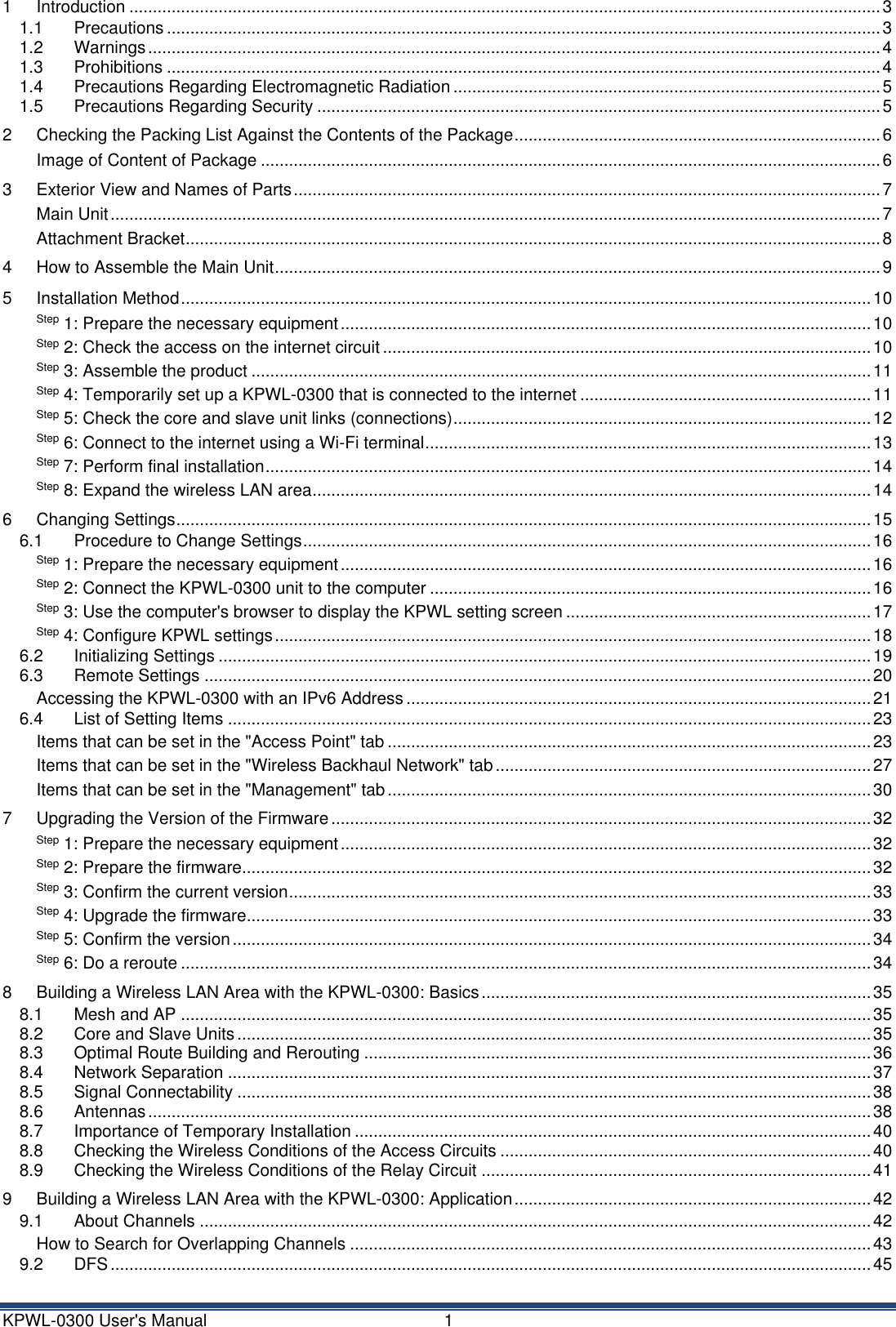
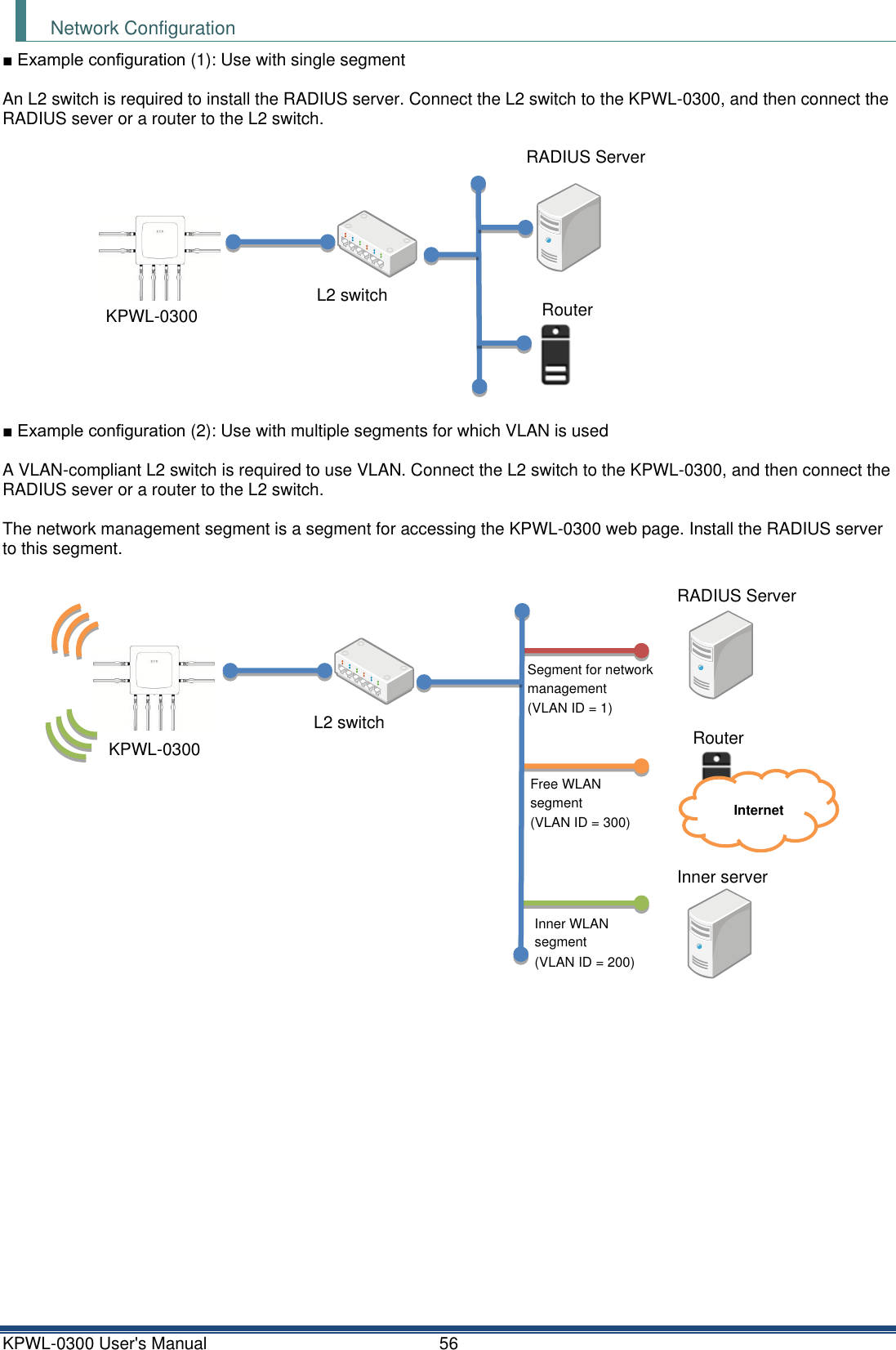
KPWL-0300 User's Manual  1 1 Introduction ................................................................................................................................................................ 3 1.1 Precautions ........................................................................................................................................................ 3 1.2 Warnings ............................................................................................................................................................ 4 1.3 Prohibitions ........................................................................................................................................................ 4 1.4 Precautions Regarding Electromagnetic Radiation ........................................................................................... 5 1.5 Precautions Regarding Security ........................................................................................................................ 5 2 Checking the Packing List Against the Contents of the Package .............................................................................. 6 Image of Content of Package .................................................................................................................................... 6 3 Exterior View and Names of Parts ............................................................................................................................. 7 Main Unit .................................................................................................................................................................... 7 Attachment Bracket .................................................................................................................................................... 8 4 How to Assemble the Main Unit ................................................................................................................................. 9 5 Installation Method ................................................................................................................................................... 10 Step 1: Prepare the necessary equipment ................................................................................................................. 10 Step 2: Check the access on the internet circuit ........................................................................................................ 10 Step 3: Assemble the product .................................................................................................................................... 11 Step 4: Temporarily set up a KPWL-0300 that is connected to the internet .............................................................. 11 Step 5: Check the core and slave unit links (connections) ......................................................................................... 12 Step 6: Connect to the internet using a Wi-Fi terminal ............................................................................................... 13 Step 7: Perform final installation ................................................................................................................................. 14 Step 8: Expand the wireless LAN area ....................................................................................................................... 14 6 Changing Settings .................................................................................................................................................... 15 6.1 Procedure to Change Settings ......................................................................................................................... 16 Step 1: Prepare the necessary equipment ................................................................................................................. 16 Step 2: Connect the KPWL-0300 unit to the computer .............................................................................................. 16 Step 3: Use the computer's browser to display the KPWL setting screen ................................................................. 17 Step 4: Configure KPWL settings ............................................................................................................................... 18 6.2 Initializing Settings ........................................................................................................................................... 19 6.3 Remote Settings .............................................................................................................................................. 20 Accessing the KPWL-0300 with an IPv6 Address ................................................................................................... 21 6.4 List of Setting Items ......................................................................................................................................... 23 Items that can be set in the "Access Point" tab ....................................................................................................... 23 Items that can be set in the "Wireless Backhaul Network" tab ................................................................................ 27 Items that can be set in the "Management" tab ....................................................................................................... 30 7 Upgrading the Version of the Firmware ................................................................................................................... 32 Step 1: Prepare the necessary equipment ................................................................................................................. 32 Step 2: Prepare the firmware...................................................................................................................................... 32 Step 3: Confirm the current version ............................................................................................................................ 33 Step 4: Upgrade the firmware..................................................................................................................................... 33 Step 5: Confirm the version ........................................................................................................................................ 34 Step 6: Do a reroute ................................................................................................................................................... 34 8 Building a Wireless LAN Area with the KPWL-0300: Basics ................................................................................... 35 8.1 Mesh and AP ................................................................................................................................................... 35 8.2 Core and Slave Units ....................................................................................................................................... 35 8.3 Optimal Route Building and Rerouting ............................................................................................................ 36 8.4 Network Separation ......................................................................................................................................... 37 8.5 Signal Connectability ....................................................................................................................................... 38 8.6 Antennas .......................................................................................................................................................... 38 8.7 Importance of Temporary Installation .............................................................................................................. 40 8.8 Checking the Wireless Conditions of the Access Circuits ............................................................................... 40 8.9 Checking the Wireless Conditions of the Relay Circuit ................................................................................... 41 9 Building a Wireless LAN Area with the KPWL-0300: Application ............................................................................ 42 9.1 About Channels ............................................................................................................................................... 42 How to Search for Overlapping Channels ............................................................................................................... 43 9.2 DFS .................................................................................................................................................................. 45
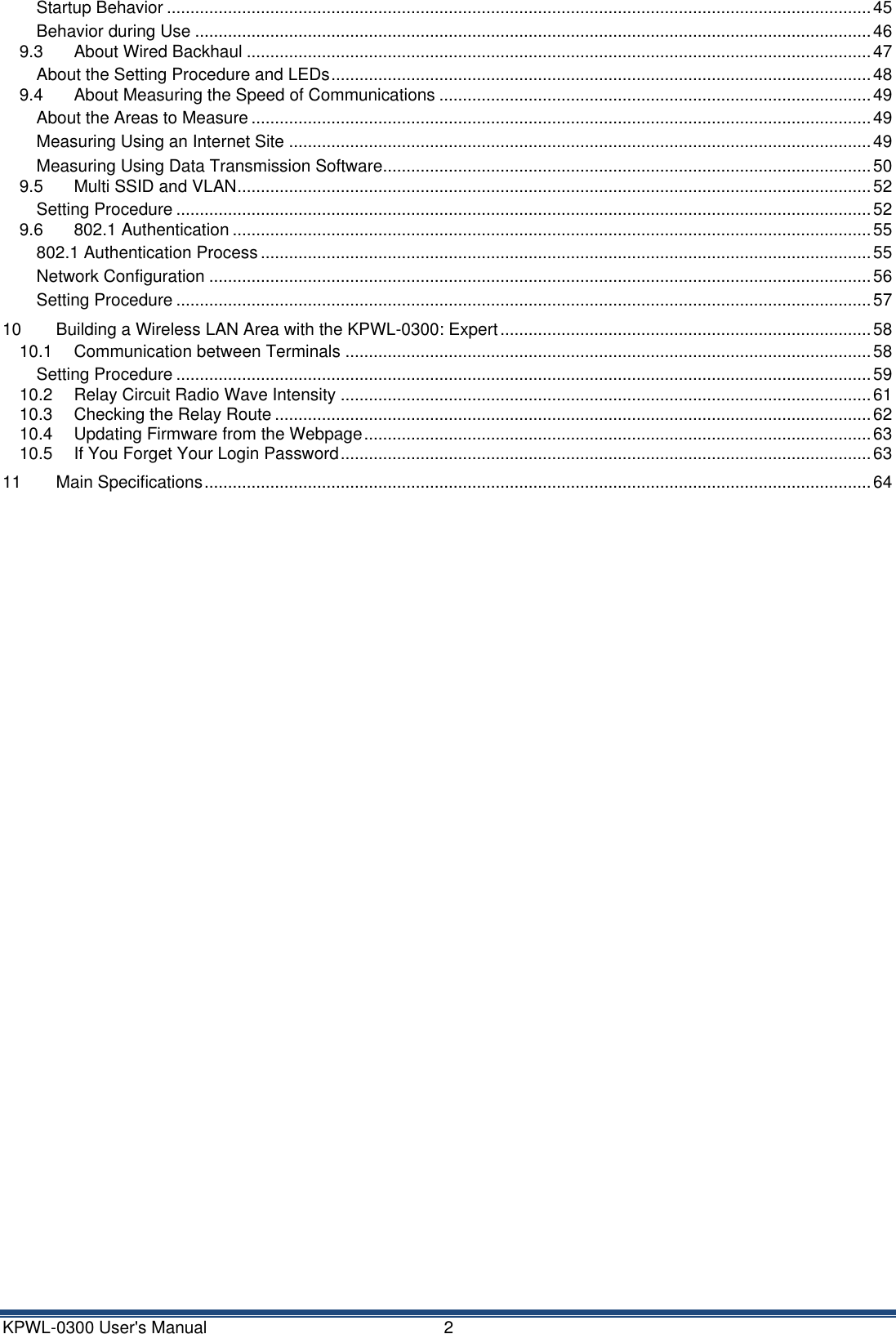
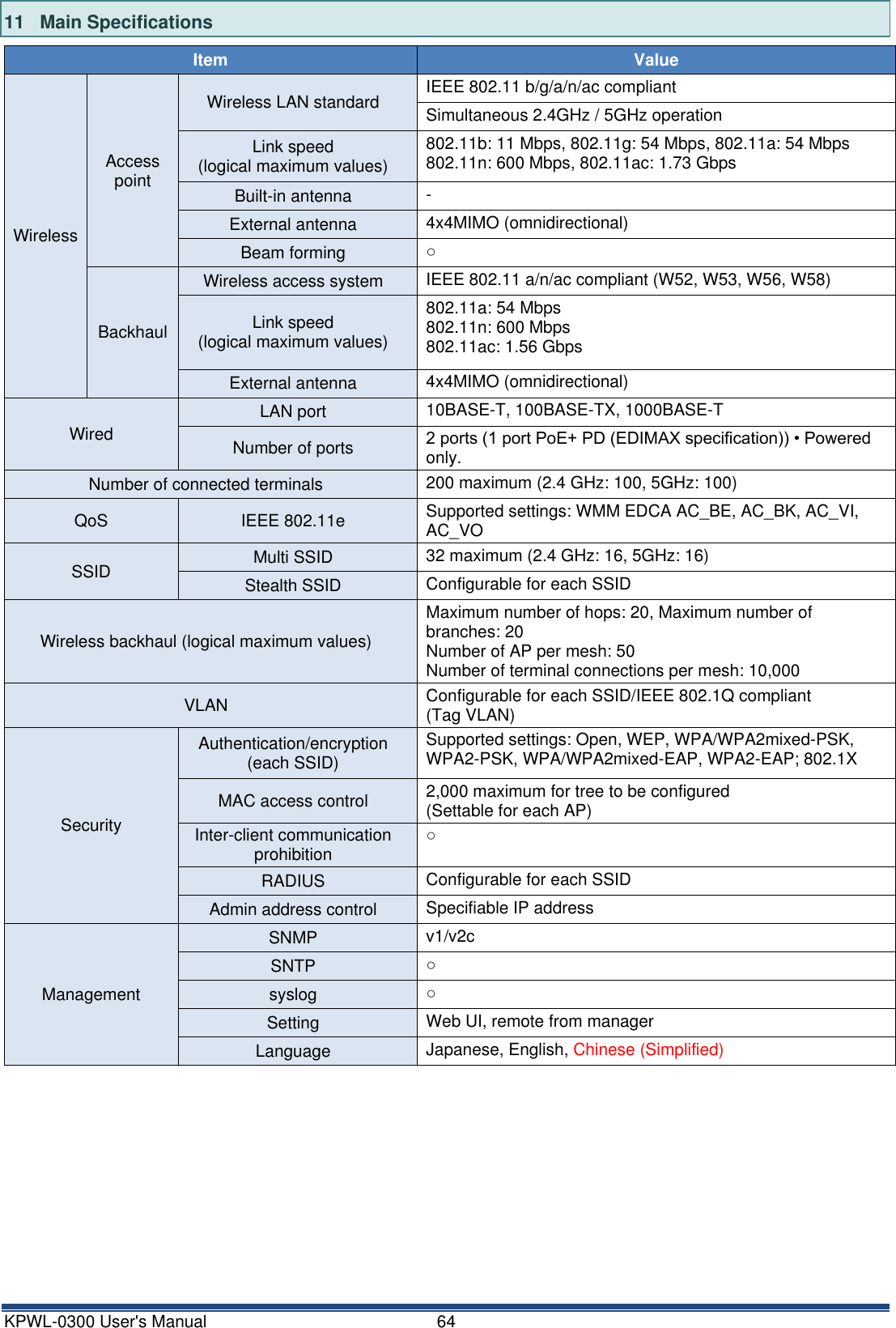
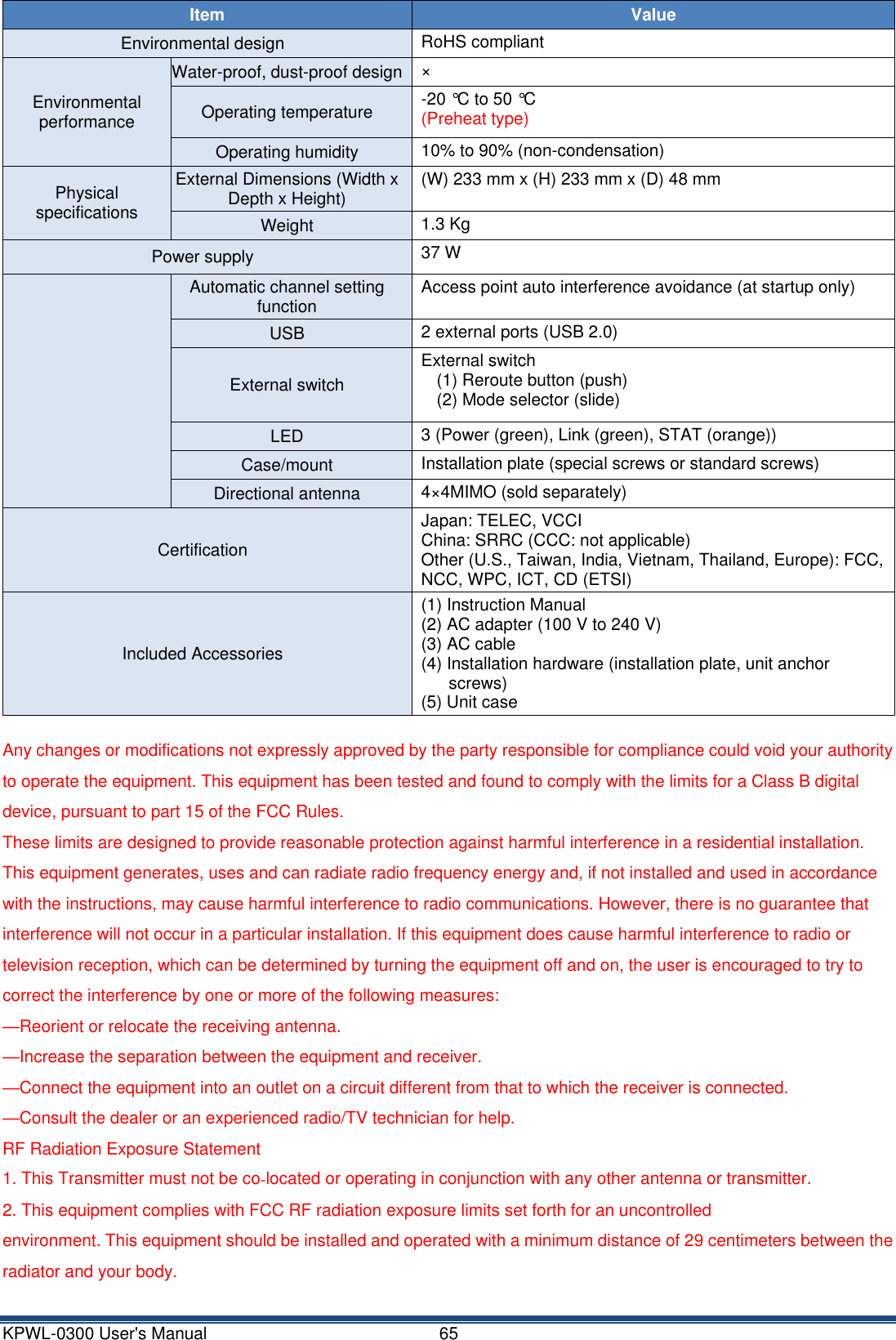
KPWL-0300 User's Manual  2 Startup Behavior ...................................................................................................................................................... 45 Behavior during Use ................................................................................................................................................ 46 9.3 About Wired Backhaul ..................................................................................................................................... 47 About the Setting Procedure and LEDs ................................................................................................................... 48 9.4 About Measuring the Speed of Communications ............................................................................................ 49 About the Areas to Measure .................................................................................................................................... 49 Measuring Using an Internet Site ............................................................................................................................ 49 Measuring Using Data Transmission Software ........................................................................................................ 50 9.5 Multi SSID and VLAN ....................................................................................................................................... 52 Setting Procedure .................................................................................................................................................... 52 9.6 802.1 Authentication ........................................................................................................................................ 55 802.1 Authentication Process .................................................................................................................................. 55 Network Configuration ............................................................................................................................................. 56 Setting Procedure .................................................................................................................................................... 57 10 Building a Wireless LAN Area with the KPWL-0300: Expert ............................................................................... 58 10.1 Communication between Terminals ................................................................................................................ 58 Setting Procedure .................................................................................................................................................... 59 10.2 Relay Circuit Radio Wave Intensity ................................................................................................................. 61 10.3 Checking the Relay Route ............................................................................................................................... 62 10.4 Updating Firmware from the Webpage ............................................................................................................ 63 10.5 If You Forget Your Login Password ................................................................................................................. 63 11 Main Specifications .............................................................................................................................................. 64
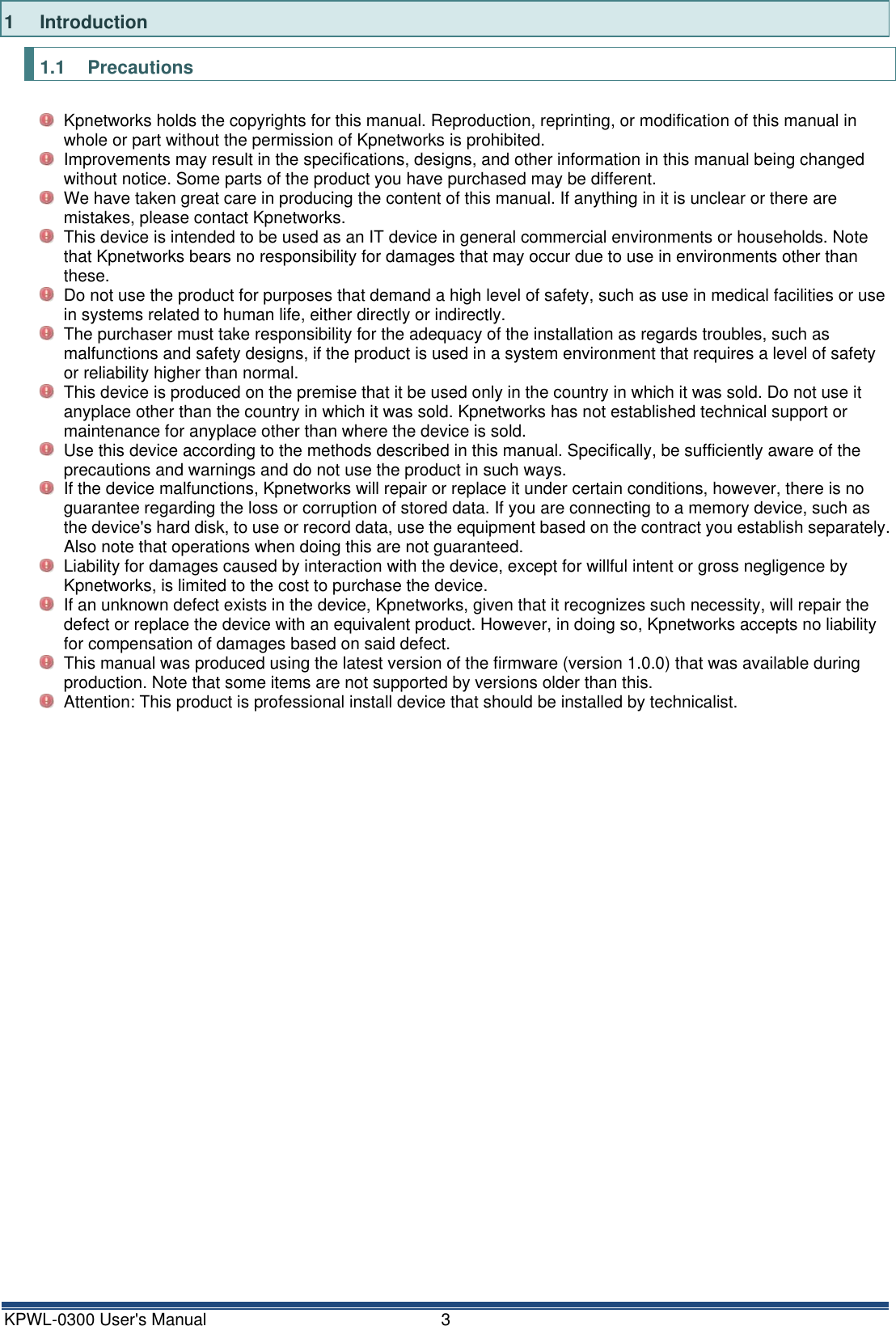
KPWL-0300 User's Manual  3 1  Introduction 1.1  Precautions   Kpnetworks holds the copyrights for this manual. Reproduction, reprinting, or modification of this manual in whole or part without the permission of Kpnetworks is prohibited.   Improvements may result in the specifications, designs, and other information in this manual being changed without notice. Some parts of the product you have purchased may be different.   We have taken great care in producing the content of this manual. If anything in it is unclear or there are mistakes, please contact Kpnetworks.   This device is intended to be used as an IT device in general commercial environments or households. Note that Kpnetworks bears no responsibility for damages that may occur due to use in environments other than these.   Do not use the product for purposes that demand a high level of safety, such as use in medical facilities or use in systems related to human life, either directly or indirectly.   The purchaser must take responsibility for the adequacy of the installation as regards troubles, such as malfunctions and safety designs, if the product is used in a system environment that requires a level of safety or reliability higher than normal.   This device is produced on the premise that it be used only in the country in which it was sold. Do not use it anyplace other than the country in which it was sold. Kpnetworks has not established technical support or maintenance for anyplace other than where the device is sold.   Use this device according to the methods described in this manual. Specifically, be sufficiently aware of the precautions and warnings and do not use the product in such ways.   If the device malfunctions, Kpnetworks will repair or replace it under certain conditions, however, there is no guarantee regarding the loss or corruption of stored data. If you are connecting to a memory device, such as the device's hard disk, to use or record data, use the equipment based on the contract you establish separately. Also note that operations when doing this are not guaranteed.   Liability for damages caused by interaction with the device, except for willful intent or gross negligence by Kpnetworks, is limited to the cost to purchase the device.   If an unknown defect exists in the device, Kpnetworks, given that it recognizes such necessity, will repair the defect or replace the device with an equivalent product. However, in doing so, Kpnetworks accepts no liability for compensation of damages based on said defect.   This manual was produced using the latest version of the firmware (version 1.0.0) that was available during production. Note that some items are not supported by versions older than this.   Attention: This product is professional install device that should be installed by technicalist.
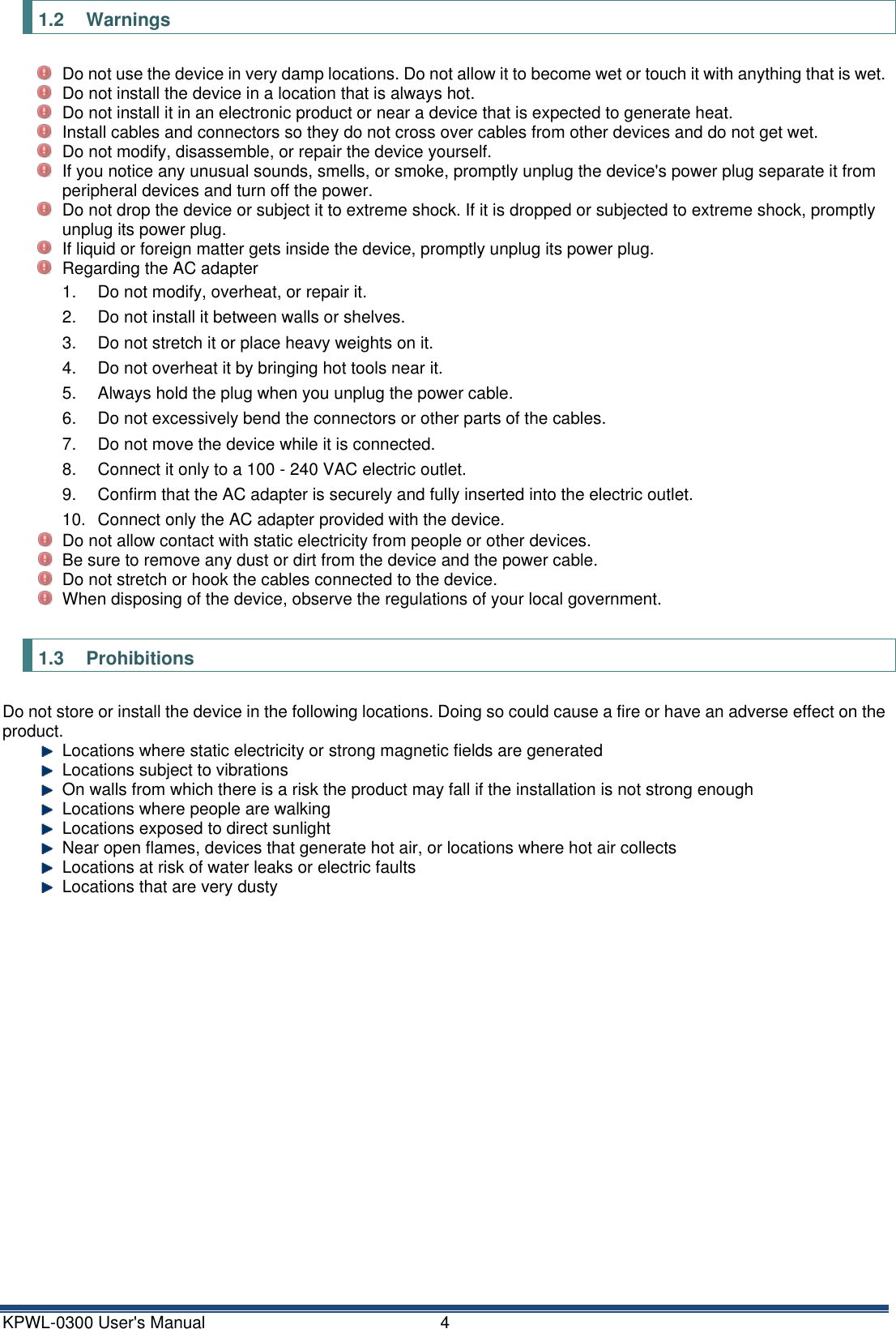
KPWL-0300 User's Manual  4 1.2  Warnings   Do not use the device in very damp locations. Do not allow it to become wet or touch it with anything that is wet.   Do not install the device in a location that is always hot.   Do not install it in an electronic product or near a device that is expected to generate heat.   Install cables and connectors so they do not cross over cables from other devices and do not get wet.   Do not modify, disassemble, or repair the device yourself.   If you notice any unusual sounds, smells, or smoke, promptly unplug the device's power plug separate it from peripheral devices and turn off the power.   Do not drop the device or subject it to extreme shock. If it is dropped or subjected to extreme shock, promptly unplug its power plug.   If liquid or foreign matter gets inside the device, promptly unplug its power plug.   Regarding the AC adapter 1.  Do not modify, overheat, or repair it. 2.  Do not install it between walls or shelves. 3.  Do not stretch it or place heavy weights on it. 4.  Do not overheat it by bringing hot tools near it. 5.  Always hold the plug when you unplug the power cable. 6.  Do not excessively bend the connectors or other parts of the cables. 7.  Do not move the device while it is connected. 8.  Connect it only to a 100 - 240 VAC electric outlet. 9.  Confirm that the AC adapter is securely and fully inserted into the electric outlet. 10.  Connect only the AC adapter provided with the device.   Do not allow contact with static electricity from people or other devices.   Be sure to remove any dust or dirt from the device and the power cable.   Do not stretch or hook the cables connected to the device.   When disposing of the device, observe the regulations of your local government.  1.3  Prohibitions Do not store or install the device in the following locations. Doing so could cause a fire or have an adverse effect on the product.   Locations where static electricity or strong magnetic fields are generated   Locations subject to vibrations   On walls from which there is a risk the product may fall if the installation is not strong enough   Locations where people are walking   Locations exposed to direct sunlight   Near open flames, devices that generate hot air, or locations where hot air collects   Locations at risk of water leaks or electric faults   Locations that are very dusty
KPWL-0300 User's Manual  5 1.4    Precautions Regarding Electromagnetic Radiation The device is technically certified as a wireless radio station in various countries and regions. Therefore, a radio station license is not needed to use this product. Also, the device can only be used in countries for which it has received certification.   The device is technically certified as a wireless radio station in various countries and regions, so disassembly, modification, or removal of certification labels is prohibited.   Use of IEEE802.11a/na/ac W52, W53 (36ch - 64ch) is prohibited outdoors depending on the radio laws of the region in which it is used.   The device supports IEEE802.11b/g/n, so do not use it in locations where static electricity is generated, near microwave ovens, or near equipment that uses electricity near the 2.4 GHz range.   The wireless channels of products that support IEEE802.11b/g/n are used for some industrial, scientific, and medical equipment, indoor radio stations, and special low-power radio stations.   IEEE802.11b/g/n may cause radio wave interference with the equipment and radio stations described above, so be careful to not bring them too close.   In addition, usage must be according to the radio laws of the country in which it is used.  1.5  Precautions Regarding Security A wireless LAN uses radio waves to connect to terminals, such as computers and wireless access points (hereafter AP) to exchange information. Therefore, compared to using LAN cables, it is remarkably more convenient and people can connect to the network from any place that is within the range of the radio waves.  On the other hand, it is possible to connect from any place within range of the radio waves, even if there are obstructions, for example. Because of this, if you do not do the security settings, there is a risk that the following problems may occur.    Your communications could be intercepted. A malevolent third party could purposefully intercept your radio transmissions and see your personal information, emails, and other communications.   They could gain unauthorized access. There is a risk of leaking information, such as secret information or personal information, if they get unauthorized access to the network. There is also a risk of fraudulent information being released through identity fraud. Also, there is a possibility that the intercepted data could be falsified and then released or it could be infected with a virus.  Nevertheless, the APs used for wireless communications support security systems that are engineered to handle these problems. So, it is possible to eliminate almost all risk of problems developing by doing the security settings before using the devices.  For some devices, the security settings have not been done at the default level. Therefore, the users must do the settings before using them as an AP to avoid security related risks. Furthermore, please note that when you use the device, there is a possibility that the security settings may be circumvented using some special methods.  Note that Kpnetworks has no liability for compensation in regard to losses due to wireless interception, regardless of whether or not the security settings were done.
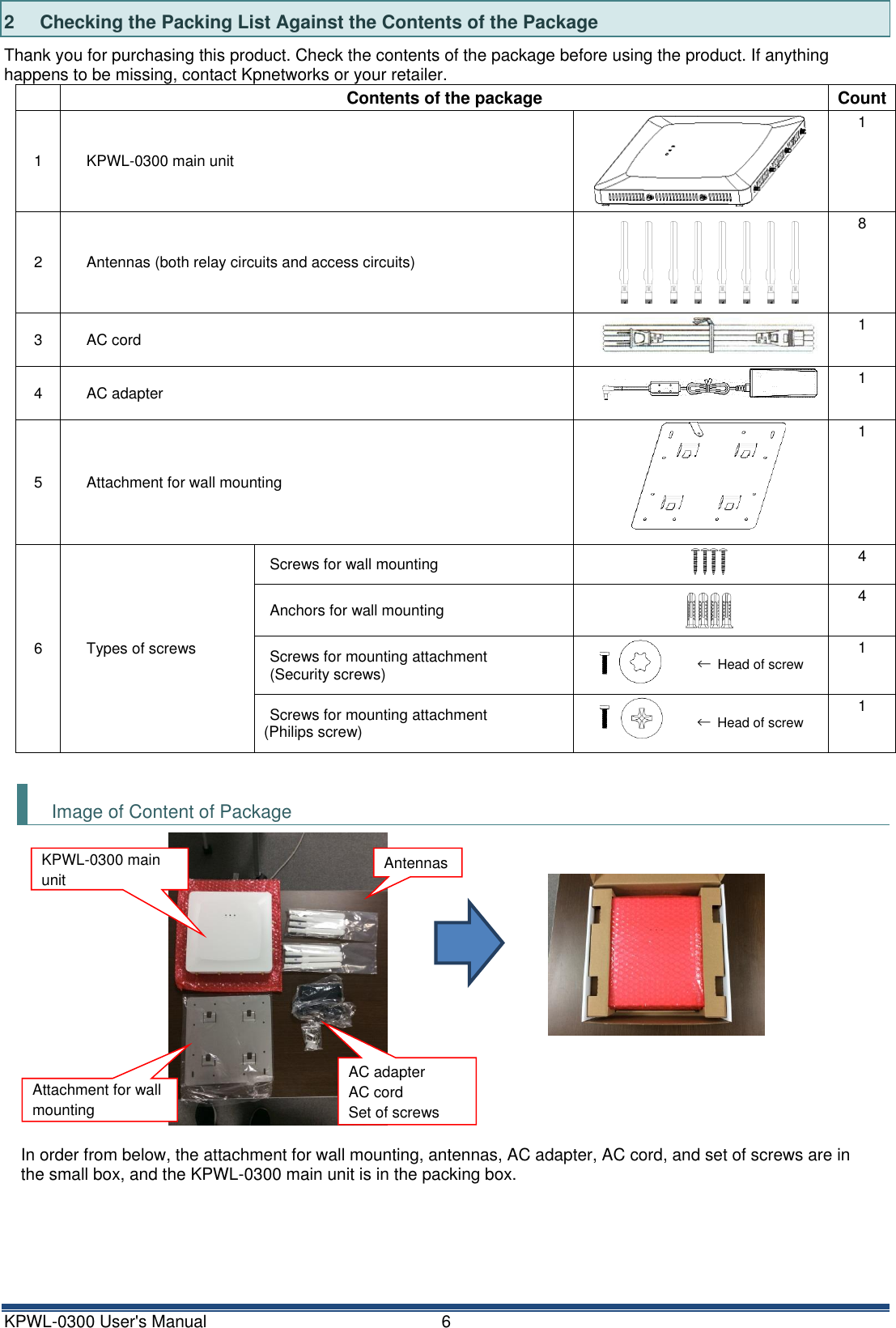
KPWL-0300 User's Manual  6 2  Checking the Packing List Against the Contents of the Package Thank you for purchasing this product. Check the contents of the package before using the product. If anything happens to be missing, contact Kpnetworks or your retailer.  Contents of the package Count 1 KPWL-0300 main unit  1 2 Antennas (both relay circuits and access circuits)  8 3 AC cord  1 4 AC adapter  1 5 Attachment for wall mounting  1 6 Types of screws Screws for wall mounting  4 Anchors for wall mounting  4 Screws for mounting attachment (Security screws)  ← Head of screw 1 Screws for mounting attachment   (Philips screw)  ← Head of screw 1  Image of Content of Package   In order from below, the attachment for wall mounting, antennas, AC adapter, AC cord, and set of screws are in the small box, and the KPWL-0300 main unit is in the packing box.   AC adapter AC cord Set of screws KPWL-0300 main unit Attachment for wall mounting  Antennas
KPWL-0300 User's Manual  7 3  Exterior View and Names of Parts Main Unit Main unit front view and rear view   Main unit views (top, left, right, and bottom)   Names of parts                     1 2 [Main unit front view and rear view] (1) LED lamps  (2) Hole for attachment for wall mounting   [Main unit top view] (3) AC power cable inlet  (4) Reroute button  (5) LAN port (LINK2)  (6) LAN port (LINK1) [Left view/right view] (7) Antenna connectors (for access circuits)  (8) USB port  (9) Security slot   [Bottom view] (10) Antenna connectors (for relay circuits)  (11) Mode switch 3 4 5 6 7 7 7 7 8 9 10 10 10 10 11
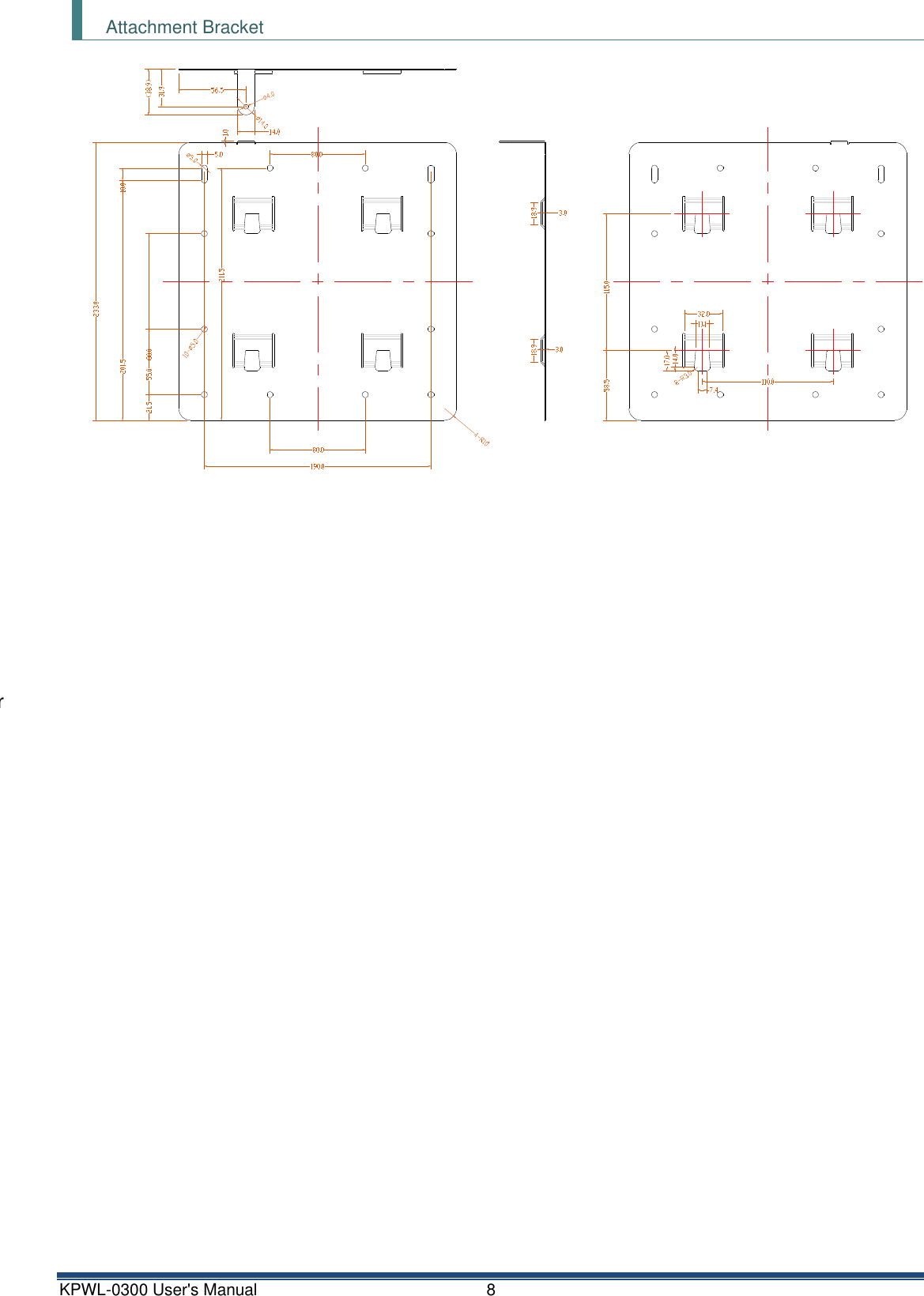
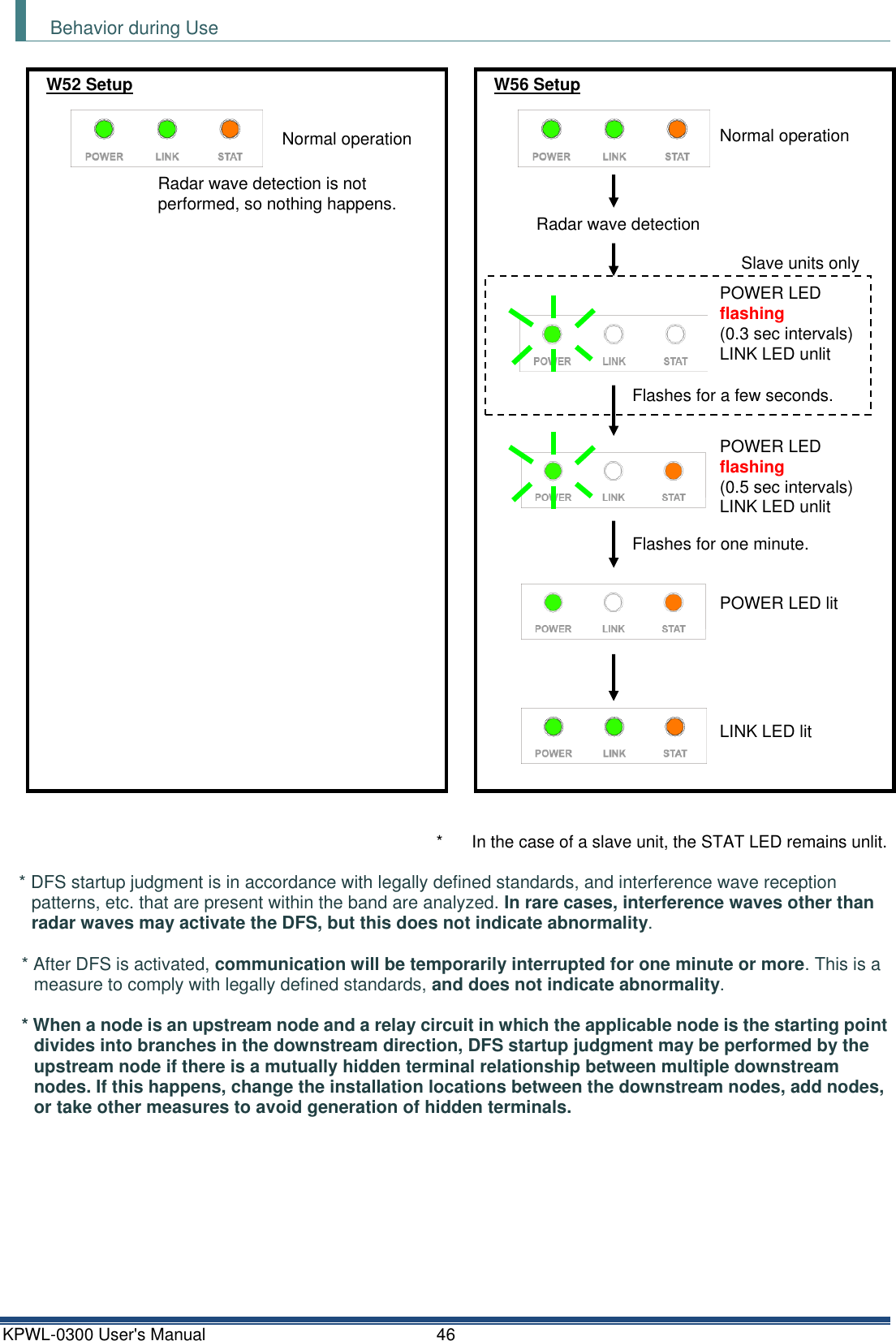
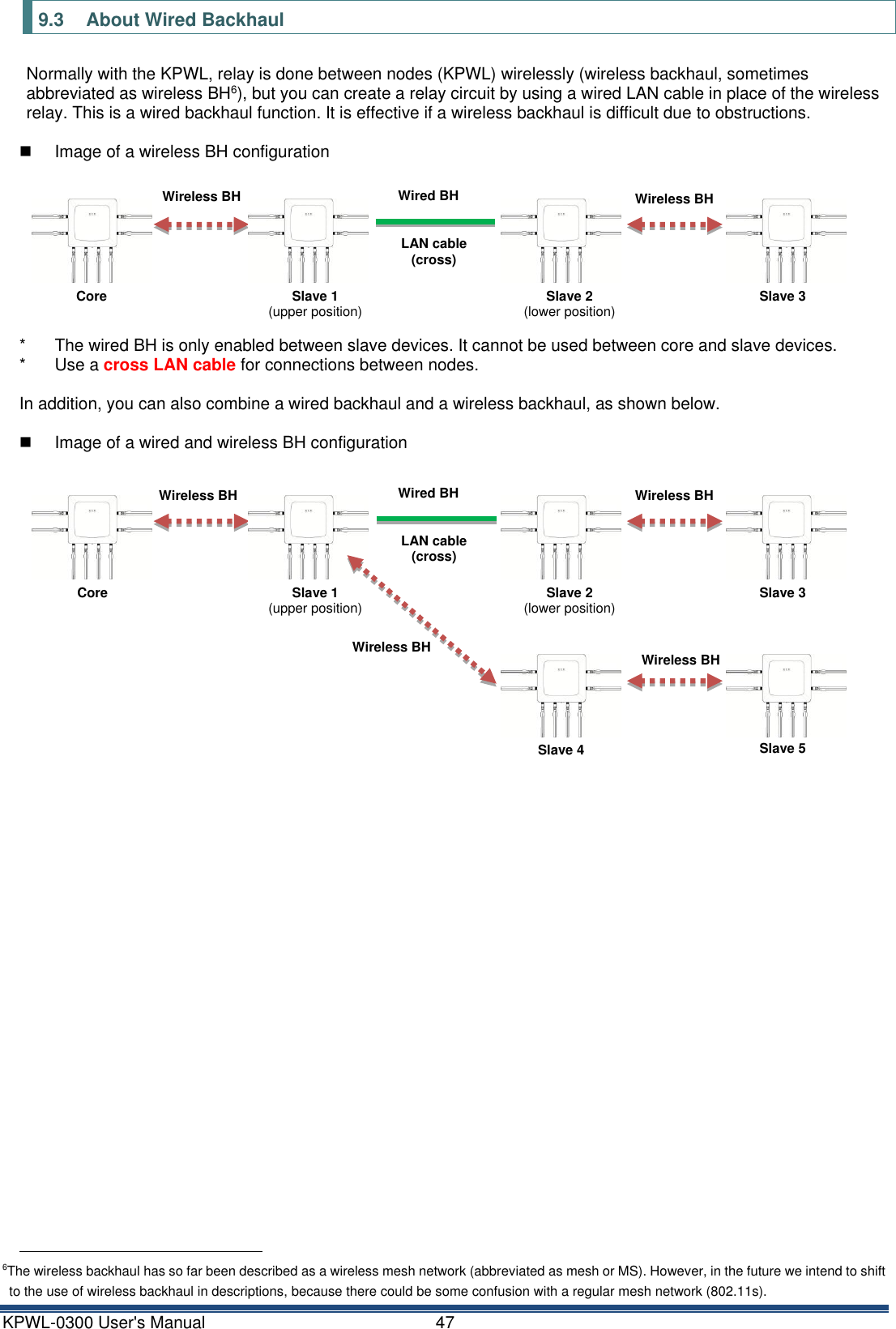
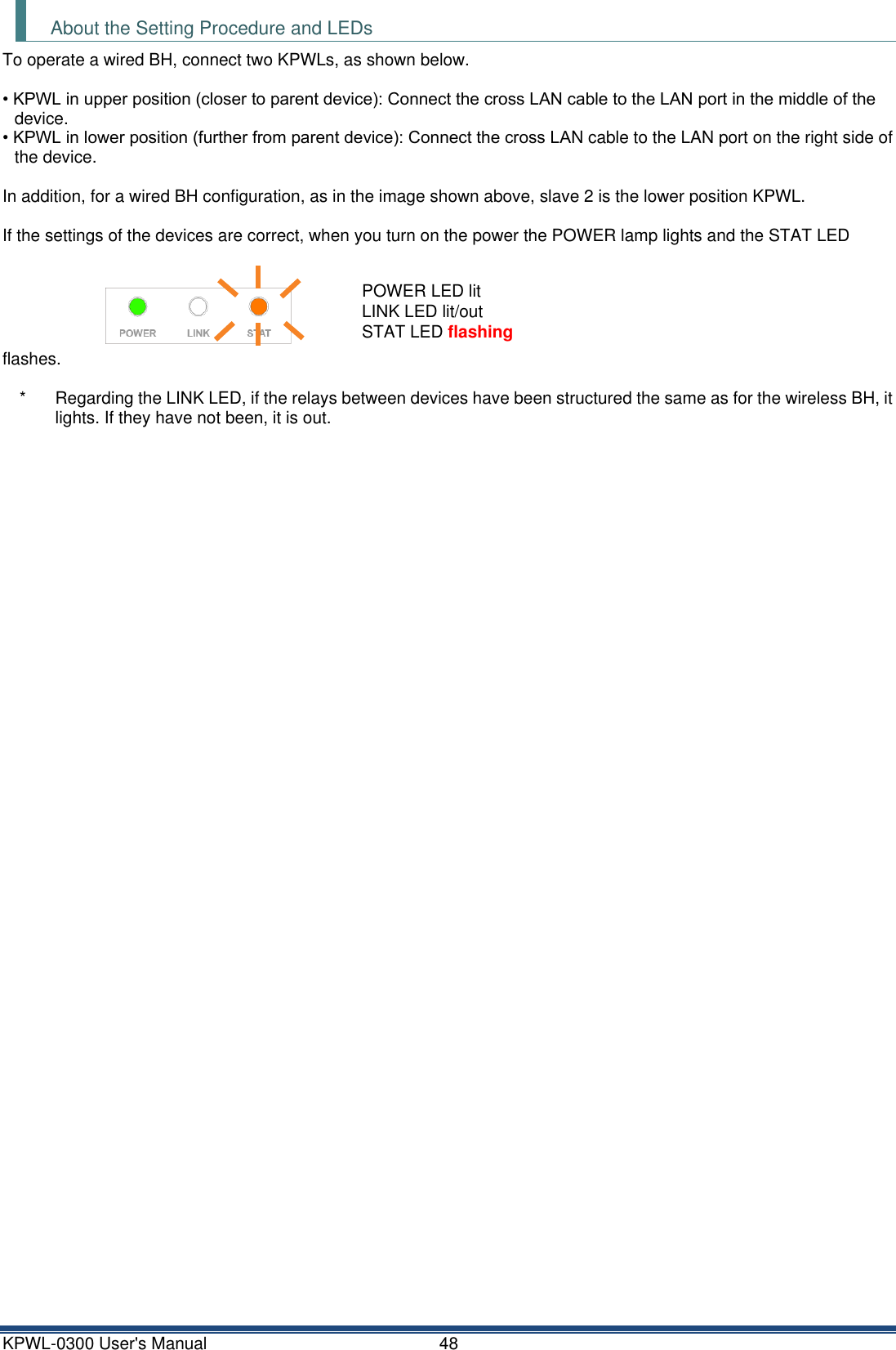
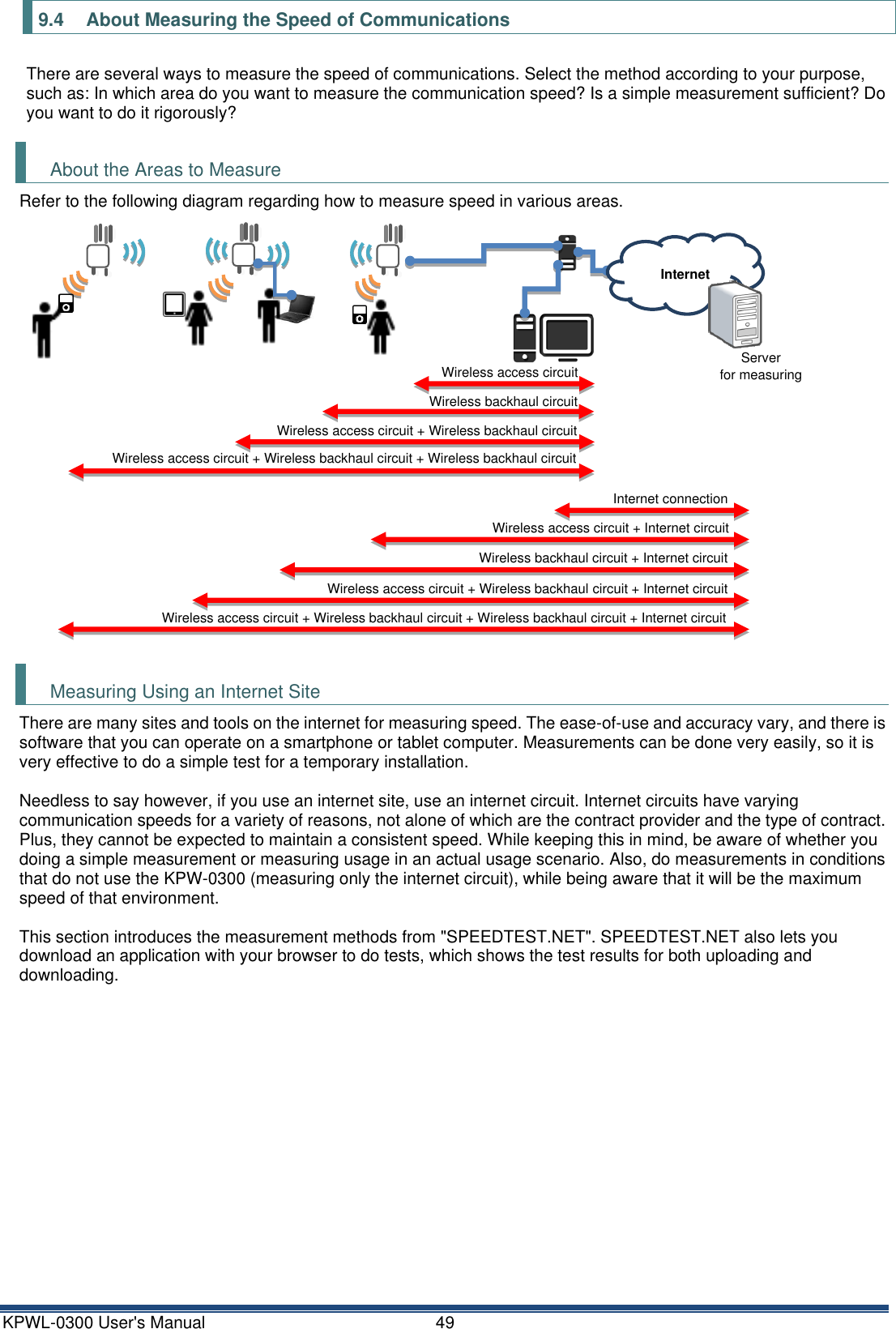
KPWL-0300 User's Manual  8 Attachment Bracket       Power connector (EIAJ#4)
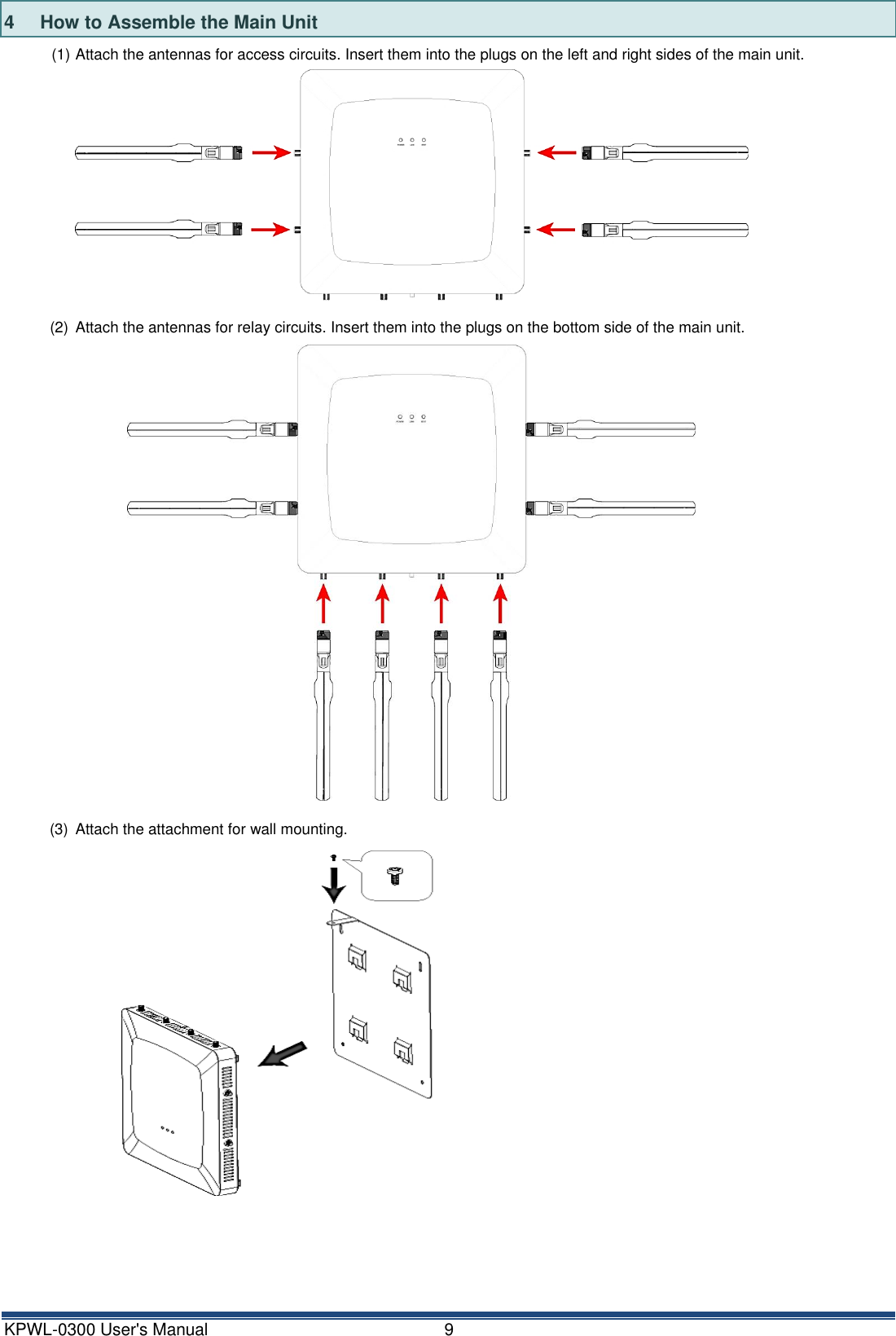
KPWL-0300 User's Manual  9 4  How to Assemble the Main Unit (1) Attach the antennas for access circuits. Insert them into the plugs on the left and right sides of the main unit.  (2)  Attach the antennas for relay circuits. Insert them into the plugs on the bottom side of the main unit.  (3)  Attach the attachment for wall mounting.
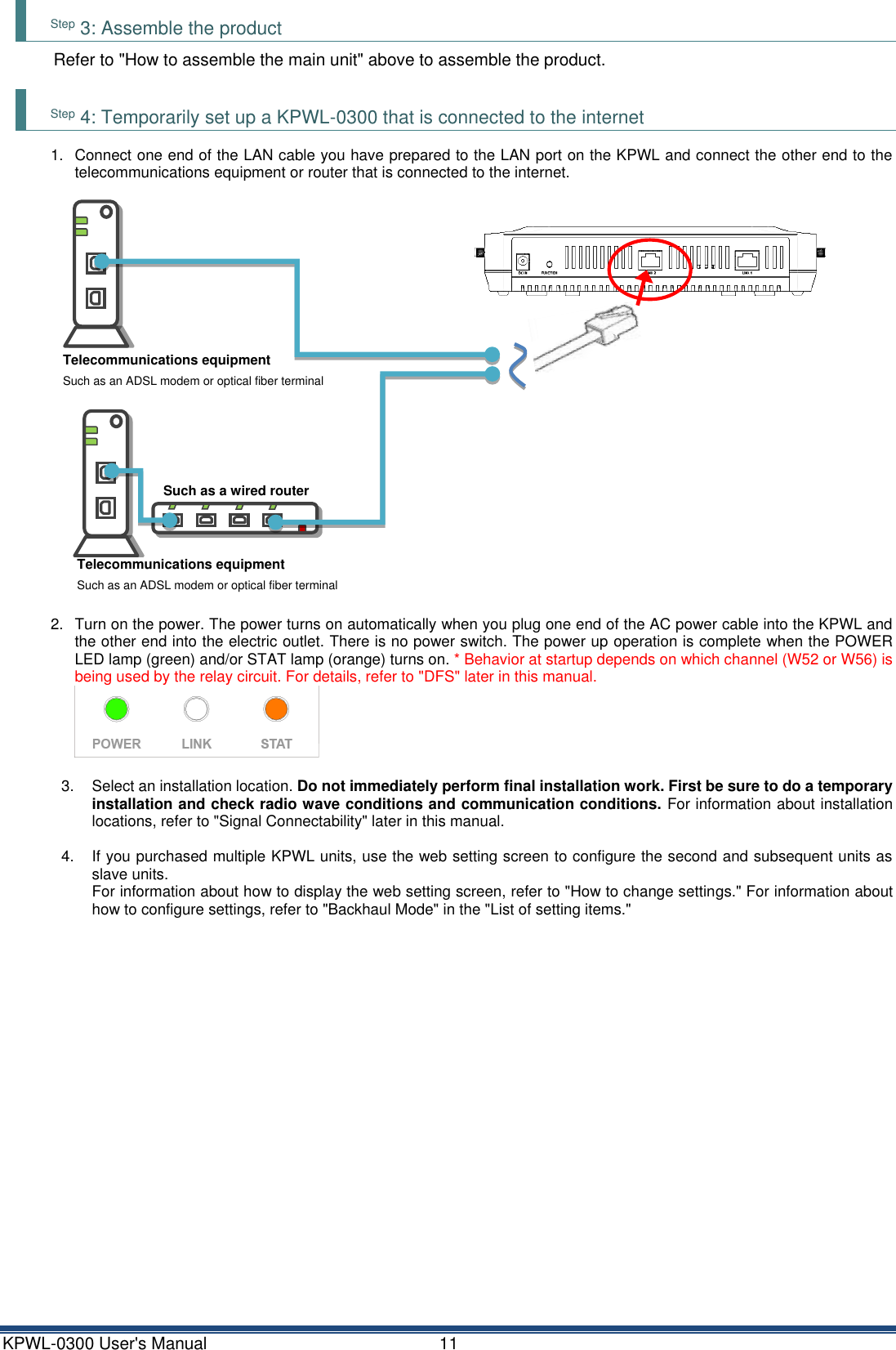
KPWL-0300 User's Manual  10 5  Installation Method This section explains the installation method when installing the units as they are shipped. If you want to change the settings, refer to "How to change the settings" to change the settings. Step 1: Prepare the necessary equipment □ Internet accessible environment You need one LAN port for the KPWL on a device (such as a router or a hub) that is connected to the internet. □ LAN cable ………… 1 You need a cable to connect the KPWL to the internet. □ Computer with a built-in LAN port         * If a there is no wired LAN port, use a USB-wired LAN adapter. □ Wi-Fi compatible terminal, such as a computer or iPhone, with a built-in LAN port □ One set KPWL Main unit, 8 antennas, AC power cable, AC adapter, mounting bracket (screw)   Step 2: Check the access on the internet circuit Confirm that it is possible to connect to the internet, in advance. 1.  Confirm that you have telecommunications equipment (such as a modem) that you rent or purchase from a telecommunications carrier or provider with whom you have contracted for internet access.  2.  Connect the computer to telecommunications equipment or a wired router with a LAN cable.   3.  Confirm that it is possible to connect to the internet under these conditions. Ex) For a computer running Windows, go to [Local Area Connections] in [Network Connections] to confirm that the IP address can be correctly acquired, and then start a browser and confirm you can display a site on the internet. 4.  When you have confirmed connectivity, remove the LAN cable and proceed to the next step.    Telecommunications equipment Such as an ADSL modem or optical fiber terminal Internet connection Telecommunications equipment Such as an ADSL modem or optical fiber terminal Internet connection Such as a wired router or hub Telecommunications equipment Such as an ADSL modem or optical fiber terminal Telecommunications equipment Such as an ADSL modem or optical fiber terminal Such as a wired router or hub
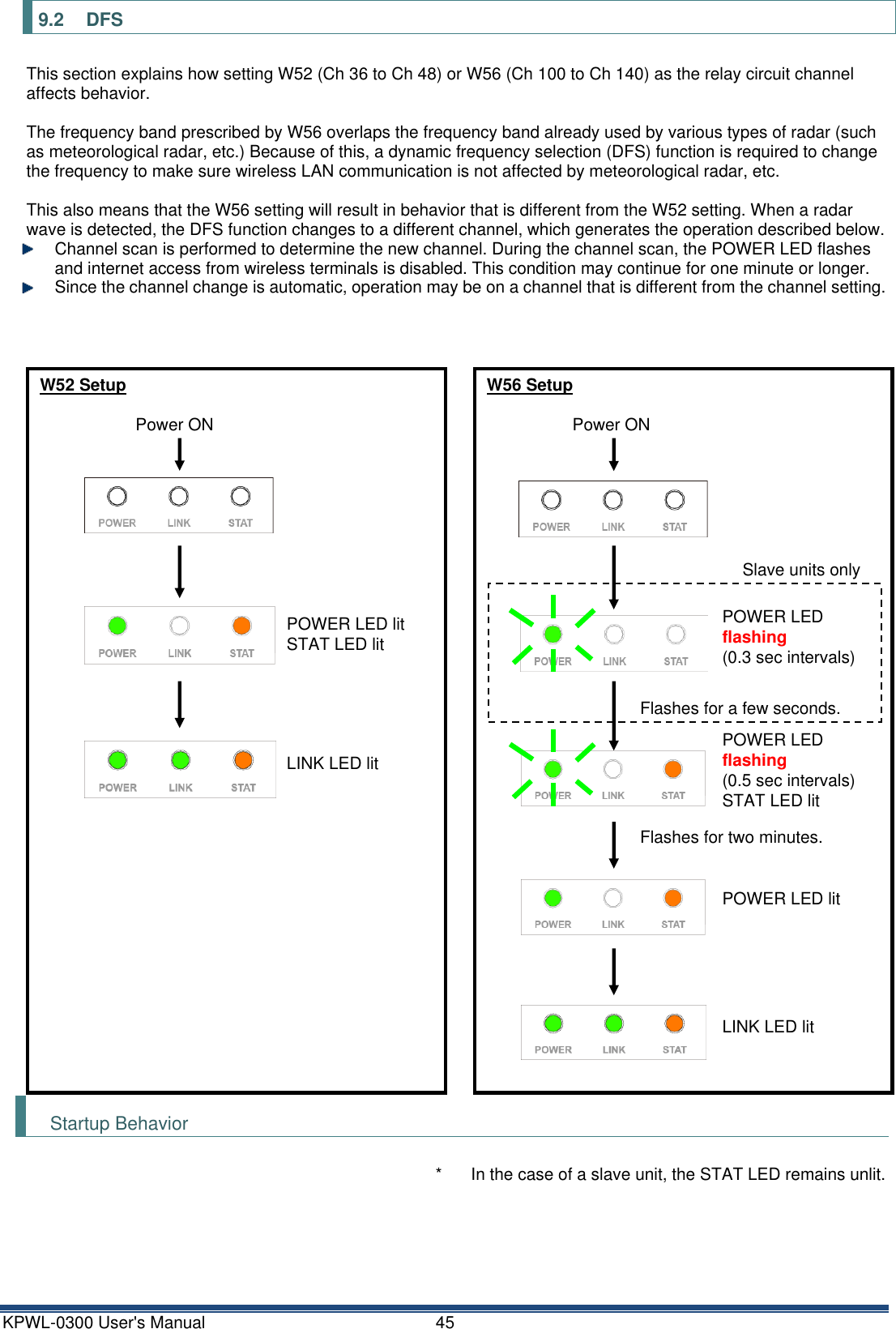
KPWL-0300 User's Manual  11 Step 3: Assemble the product Refer to "How to assemble the main unit" above to assemble the product.  Step 4: Temporarily set up a KPWL-0300 that is connected to the internet 1.  Connect one end of the LAN cable you have prepared to the LAN port on the KPWL and connect the other end to the telecommunications equipment or router that is connected to the internet.   2.  Turn on the power. The power turns on automatically when you plug one end of the AC power cable into the KPWL and the other end into the electric outlet. There is no power switch. The power up operation is complete when the POWER LED lamp (green) and/or STAT lamp (orange) turns on. * Behavior at startup depends on which channel (W52 or W56) is being used by the relay circuit. For details, refer to "DFS" later in this manual.   3.  Select an installation location. Do not immediately perform final installation work. First be sure to do a temporary installation and check radio wave conditions and communication conditions. For information about installation locations, refer to "Signal Connectability" later in this manual.  4.  If you purchased multiple KPWL units, use the web setting screen to configure the second and subsequent units as slave units.   For information about how to display the web setting screen, refer to "How to change settings." For information about how to configure settings, refer to "Backhaul Mode" in the "List of setting items."     Telecommunications equipment Such as an ADSL modem or optical fiber terminal Telecommunications equipment Such as an ADSL modem or optical fiber terminal Such as a wired router or hub
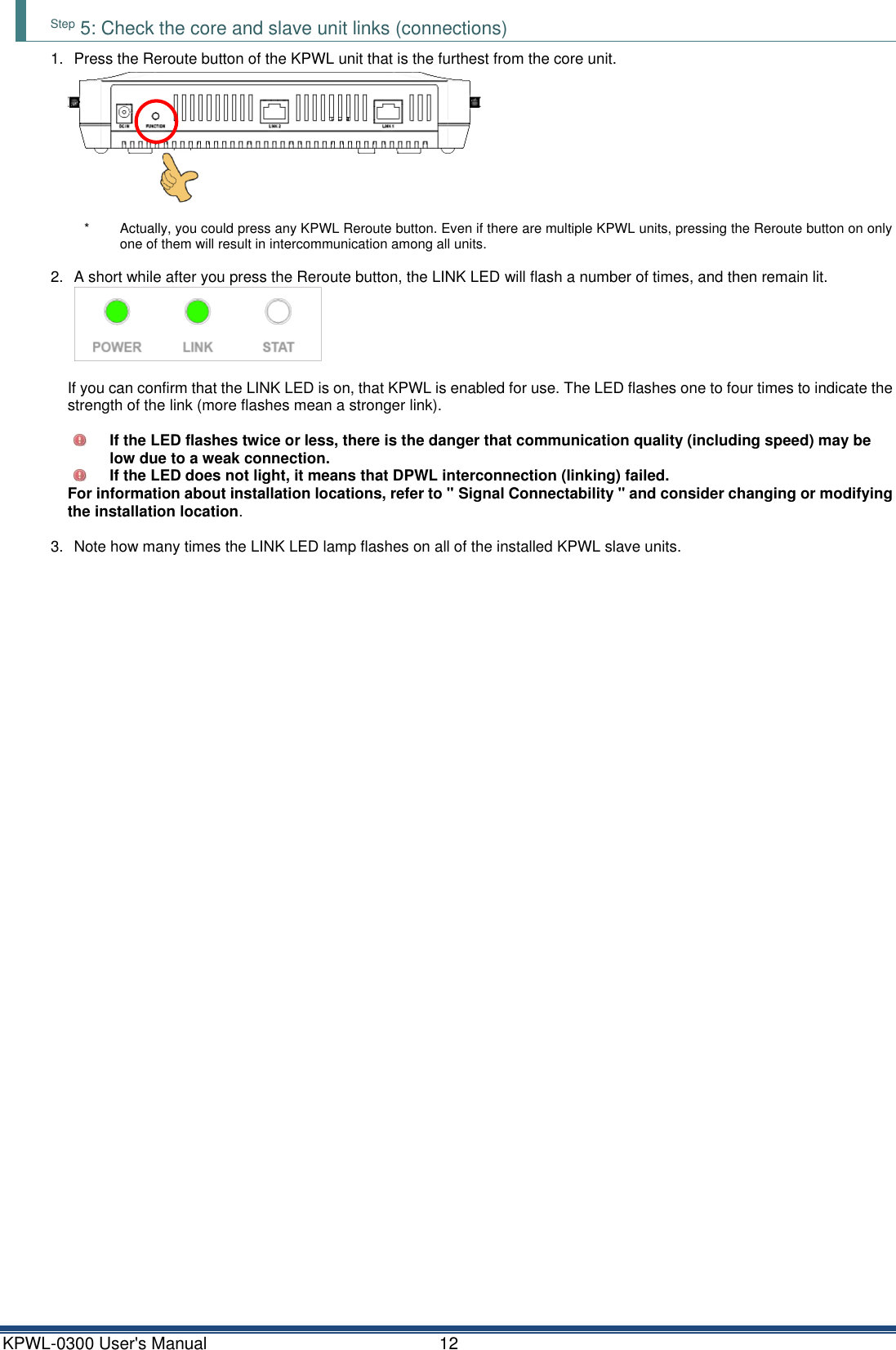
KPWL-0300 User's Manual  12 Step 5: Check the core and slave unit links (connections) 1.  Press the Reroute button of the KPWL unit that is the furthest from the core unit.  *  Actually, you could press any KPWL Reroute button. Even if there are multiple KPWL units, pressing the Reroute button on only one of them will result in intercommunication among all units.  2.  A short while after you press the Reroute button, the LINK LED will flash a number of times, and then remain lit.  If you can confirm that the LINK LED is on, that KPWL is enabled for use. The LED flashes one to four times to indicate the strength of the link (more flashes mean a stronger link).   If the LED flashes twice or less, there is the danger that communication quality (including speed) may be low due to a weak connection.  If the LED does not light, it means that DPWL interconnection (linking) failed. For information about installation locations, refer to " Signal Connectability " and consider changing or modifying the installation location.  3.  Note how many times the LINK LED lamp flashes on all of the installed KPWL slave units.
KPWL-0300 User's Manual  13 Step 6: Connect to the internet using a Wi-Fi terminal Actually try to connect to the internet using a Wi-Fi terminal. Connect in accordance with the connection method of the applicable equipment.  For Windows (Windows 7) *  This is the procedure for connections if the operating environment you are using is a computer with a built-in wireless LAN running on Windows 7. *  Some computers use their own independent wireless connection software. If this is the case, refer to the manual for that software.  1.  Open the Control Panel 2.  Click [Network and Internet], and then click [Network connections] in the Network and Sharing Center. 3.  Select "KPWL-0300-******_G" or "KPWL-0300-******_A" (the ****** are the last 6 digits of the MAC address) from the wireless network connections, and then click the [Connect] button. You do not need to input a security key or passphrase because the prescribed values have not been encrypted. If you are going to use encryption for security, do the settings according to the procedures in the  separate "Easy Customization" manual. 4.  Confirm that your system is connected. Click the wireless network connection icon in the system tray in the bottom right of the screen, and confirm that "Connected" appears to the side of "KPWL-0300-******_G" or "KPWL-0300-******_A" (the ****** are the last 6 digits of the MAC address). 5.  Start your browser and access the internet, such as by displaying a web page, to confirm the connection.  For iPad, iPhone, iPod touch, etc. * This is the connection procedure for iPad version 4.2.1, but other systems can be connected in almost the same way. 1.  Tap [Settings] 2.  Tap [Wi-Fi] 3.  Select "KPWL-0300-******_G" or "KPWL-0300-******_A" (the ****** are the last 6 digits of the MAC address) from the wireless network selections. You do not need to input a security key or passphrase because the prescribed values have not been encrypted. If you are going to use encryption for security, do the settings according to the procedures in the separate "Easy Customization" manual. 4.  Return to the top page, tap [safari], and display a page on the internet to confirm the connection.  For Nintendo DS, DS Lite, DSi, and DSi LL * This is the procedure for connecting on a Nintendo DSi. 1.  Touch [Main Unit Settings] 2.  On the third page, touch [Internet] 3.  Touch [Connection Settings] 4.  Select a connection from 1 to 3, and then touch [Not connected] (or [Change]) 5.  Touch [Search for an access point] 6.  Touch "KPWL-0300-******_G" or "KPWL-0300-******_A" (the ****** are the last 6 digits of the MAC address) in the list that appears 7.  "Do you want to save this content" appears, to confirm touch [OK] 8.  "Settings were saved. Connection test will start" appears, touch [OK] 9.  If "Connection test was successful" appears, connection is complete.
KPWL-0300 User's Manual  14 For Sony PlayStation Portable (PSP) 1.  Select [Network settings] in [Settings] 2.  Select [Infrastructure mode] 3.  Select [New connection settings] 4.  Select [Scan] 5.  Select "KPWL-0300-******_G" or "KPWL-0300-******_A" (the ****** are the last 6 digits of the MAC address) in the list that appears 6.  Leave the SSID as it is, and go to the next step (→  key) 7.  Leave the wireless LAN security setting as [None], and then go to the next step 8.  Leave the address setting as [Easy], and then go to the next step 9.  Input any connection name in "Enter the connection name". The SSID becomes the connection name if you do not change it. Go to the next step. 10. This displays the list of settings, so just go to the next step 11. Press the  ○  button to save the settings 12. After [Save is complete.] appears, select [Test Connection]. After [Connecting to access point...]  →  [Obtaining IP Address...]  → [Testing internet connection] appear, and then the connection name and the signal strength appear, the connection is complete.  Step 7: Perform final installation After confirming connection of the KPWL, perform final installation.  The position and the height of a temporary installation and the final installation may change somewhat. Press the Reroute button to confirm that the link is good following final installation.  Step 8: Expand the wireless LAN area If you want to expand the wireless LAN area, you will need to purchase an additional KPWL-0300 unit. Perform steps 3 through 7 of this procedure on the purchased KPWL-0300 unit.
KPWL-0300 User's Manual  15 6  Changing Settings Though you can easily build and expand a wireless LAN area using the factory setup, you can also modify settings in order to improve user friendliness, operability, and performance in cases like the ones described below.    When you want to set up security (the security is not set up when shipped from the factory)   When you want to use an SSID with the name of the shop or service ("KPWL-0300-******_G" or "KPWL-0300-******_A" (the ****** are the last 6 digits of the MAC address) is set shipped from the factory)   When you want to separate the SSIDs for each access point (when you want separate SSIDs for the conference rooms and offices, for example)   When there are other wireless LAN access points or wireless LAN routers in the building or on your floor (interference may degrade performance)   When you want to separate networks (such as for employees and customers, for example)  In the above cases, you can easily change the settings by using the KPWL web setting screen.  When you want to set security: Access the web setting screen, go to the "Access Point" tab > "Security" > "Authentication Method" and select WEP or WPA-PSK, and then set a security key (encryption key or pre-shared key). Regarding the setting items, refer to "Setting Item List", explained later. Regarding the setting methods, refer to "How to change settings" later in this manual.  When you want to use an SSID with the name of the shop or service: Access the web setting screen, go to the "Access Point" tab > "Basic Settings" > "SSID" and set an arbitrary text string. Regarding the setting items, refer to "Setting Item List", explained later. Regarding the setting methods, refer to "How to change settings" later in this manual.  When you want to separate the SSIDs for each access point: For each of the KPWL-0300s, access the web setting screen, go to the "Access Point" tab > "Basic Settings" > "SSID" and set different arbitrary text strings for each one. Regarding the setting items, refer to "Setting Item List", explained later. Regarding the setting methods, refer to "How to change settings" later in this manual.  When interference from other wireless LAN access points or wireless LAN routers degrades performance: Access the web setting screen, go to the "Access Point" tab > "Basic Settings" and change the "Channel" settings. Detailed information about channels is given in "About channels" later in this manual. Regarding the setting items, refer to "Setting Item List", explained later. Regarding the setting methods, refer to "How to change settings" later in this manual.  When you want to separate networks: You can separate the network by accessing the web setting screen for each of the KPWL-0300s on the "Wireless Backhaul Network" tab > "Basic Settings" and specifying a "Channel" and "SafeKey". Information about separating networks is given in "Separating networks" later in this manual. Regarding the setting items, refer to "Setting Item List", explained later. Regarding the setting methods, refer to "How to change settings" later in this manual.
KPWL-0300 User's Manual  16 6.1  Procedure to Change Settings This section explains how to change settings using the KPWL-0300 web screen.  Step 1: Prepare the necessary equipment □ LAN cable (cross cable) ………… 1 A cross cable is required to connect the KPWL to a computer. (If the computer you are using supports Auto-MDI, connection using a standard straight LAN cable is also supported.)  □ KPWL unit and its AC power cable  * Installation of an antenna is not required just to configure settings. Install an antenna for connection testing and to check the radio wave intensity.  □ Computer for configuring settings: Use a computer that has a wired LAN port* and web browsing capabilities.  * If a there is no wired LAN port, use a USB-wired LAN adapter, etc. * The explanation here uses a computer running Windows 7, with the Internet Explorer 8.0 web browser.     Step 2: Connect the KPWL-0300 unit to the computer (1)  Power up the KPWL unit (connect the AC power cable). Next, connect one end of the LAN cable to the computer's LAN port and then connect the other end to the KPWL unit's LAN port.  (2)  Configure the computer's internet settings. 1. In Control Panel, click "Network and Internet" and then click "Network and Sharing Center." 2. Click "Local Area Connection." On the Local Area Connection Status dialog box that appears, click [Properties]. 3. In the list that appears, select "Internet Protocol Version 4 (TCP/IPv4)" and then click [Properties]. 4. Select the "Use the following IP address:" option and then input the IP address and subnet mask shown below.  IP Address 192.168.3.x (x = 2 to 255) Subnet Mask 255.255.255.0 *  Take a screen shot of or otherwise record the original IP address and subnet mask settings so you can restore them when necessary. 5. After inputting the settings, click [OK] to close the dialog box. 6. Click [Cancel] on the Local Area Connection Properties dialog box, and then click [Close] on the Local Area Connection Status dialog box.
KPWL-0300 User's Manual  17 Step 3: Use the computer's browser to display the KPWL setting screen KPWL has access point function settings and relay function settings, both of which can be viewed and configured using a web browser.  (1)  In the browser address bar, input "192.168.3.1". This displays an authentication dialog box.  (2)  Input "admin" for both the user name and password, and then click [OK].    This displays the web setting screen.  You can change the user name and password with the "Admin Account Settings" on the [Management] tab of the web setting screen.
KPWL-0300 User's Manual  18 Step 4: Configure KPWL settings Displaying the web setting screen with a browser will display System Information.  You can use the System Information screen to view current settings.    Use the menu on the left side of the screen to select a category (page name), and the applicable setting items will appear. For information about the meaning of each setting, available settings, and more, refer to the " List of setting items " later in this manual.  After all the settings are the way you want, click [Apply].
KPWL-0300 User's Manual  19 The screen shown below will be displayed while reboot is in progress. The setup page will appear after reboot is complete.    If you do not click [Apply] after updating settings, they will not be saved.  For information about the settings you can configure on this page, refer to the "List of setting items" later in this manual.  In addition to configuring settings, you can also reboot the KPWL unit and perform a reroute operation (the same operation performed when the Reroute button is pressed) on the web setting screen.  6.2 Initializing Settings You can use the web setting screen to initialize settings. (1)  Click the [Management] tab. Next, on the side menu, click "Factory Defaults." (2)  Click "Factory Defaults."  You can also initialize settings from the KPWL-0300 unit. (1)  Hold down the Reroute button for about 10 seconds and then release it. (2)  Confirm that the LED lamps turn off momentarily, and then all lamps turn back on. (3)  Confirm that the LINK light is turned off.  Furthermore, if PicoManager is registered, the settings can be initialized from PicoManager also. Refer to the PicoManager manual regarding the operating procedure.  Note that initializing settings causes all settings to be initialized.
KPWL-0300 User's Manual  20 6.3  Remote Settings If the KPWLs that configure the network are mutually connected using relay circuits, it is possible to do the access circuit settings of each KPWL from a computer connected to the core (parent) wired LAN.  Specify the IPv6 address that was automatically assigned to the main unit.  With remote settings, you can also specify rebooting or rerouting by operations from the web page. These operations are effective when the KPWL-0300s are already installed, for instance if the installation is in a high location or there are many passersby, so it is not possible to work near the devices.  However, there is a precondition that the relay circuits have been established (so that KPWL-0300 units can interactively communicate), so changes cannot be made to devices (slave 4 in the example in the diagram) that are not linked due to communications obstructions, etc.  Also, for the same reason, remote setting changes cannot be done to the relay circuits (the links break if the relay circuit settings are changed).     Slave -1 Mac:xx-xx-xx-63-07-08 IPv6: fd00:5043::ae64:ddff:fe63:0708 Such as a wired router or hub Slave -3 Mac:xx-xx-xx-60-01-02 IPv6:   fd00:5043::ae64:ddff:fe60:0102 Slave -2 Mac:xx-xx-xx-63-04-05 IPv6: fd00:5043::ae64:ddff:fe63:0405 Core Mac:xx-xx-xx-69-0A-0B IPv6: fd00:5043::ae64:ddff:fe69:0A0B Slave -4 Mac:xx-xx-xx-6C-0D-0E IPv6:   fd00:5043::ae64:ddff:fe6c:0d0e It is possible to set the access circuits of the KPWL-0300 core and slaves-1 to -3.  Example)   By inputting " http://[fd00:5043::ae64:ddff:fe60:0102]/" in the address bar, You can access the web setting page of slave-3. The access circuits can be set or rebooted/rerouted from the web.
KPWL-0300 User's Manual  21 Accessing the KPWL-0300 with an IPv6 Address The KPWL-0300 can be accessed with an IPv6 address. Computer Settings 1) Display Control Panel.  2) Click "Network and Sharing Center."  3) Click "Change adapter settings." This displays a Network Connections screen.  4) Right-click the wired LAN interface (Local Area Connection, etc.), and then click "Properties."  5) Select "Internet Protocol Version 6 (TCP/IPv6)" and then click [Properties].  6) Select the "Use the following IP address:" option and then configure the settings as described below. IPv6 Address Any IPv6 address starting with "fd00:5043::". Example: fd00:5043::xxxx:xxxx:xxxy:yyyy   * For the part of the address inside the rectangular boundary above, specify any hexadecimal number. Note, however that you should not use the following for the red characters: ae64:ddff:fe6. * If you do not want to specify anything in particular for the part within the rectangular boundary, specify the address below. "fd00:5043::1111:2222:3333:4444" Subnet Prefix Length 64 * Other fields can be left blank.
KPWL-0300 User's Manual  22 Calculating a Device's IPv6 Address 1) Check the serial number on the label affixed to the back of the device.   * The following steps are performed using the serial number above.  2) A serial number is made up of a series of two-digit values. AC / 64 / DD / 60 / 00 / BE  3) The final six digits of the divided serial number shown in step 2 are positioned in the address as shown below. fd00:5043::ae64:ddff:fe60:00be  The above value is the device's IPv6 address. Note the precautions below when calculating an IPv6 address. • The black characters (fd00:5043::ae64:ddff:fe) in the above address are fixed. Do not change them. • Input two colons between the 5043 and ae64 parts of the fixed address.  Specifying the URL of the Management Page Input the calculated IP address in the browser address bar.  Input the calculated IP address that was calculated as described in the example above in "Calculating a Device's IPv6 Address", as shown below. http://[fd00:5043::ae64:ddff:fe60:00be]/  * Make sure you do not forget to include square brackets ([ and ]) at the beginning and end of the iPv6 address.
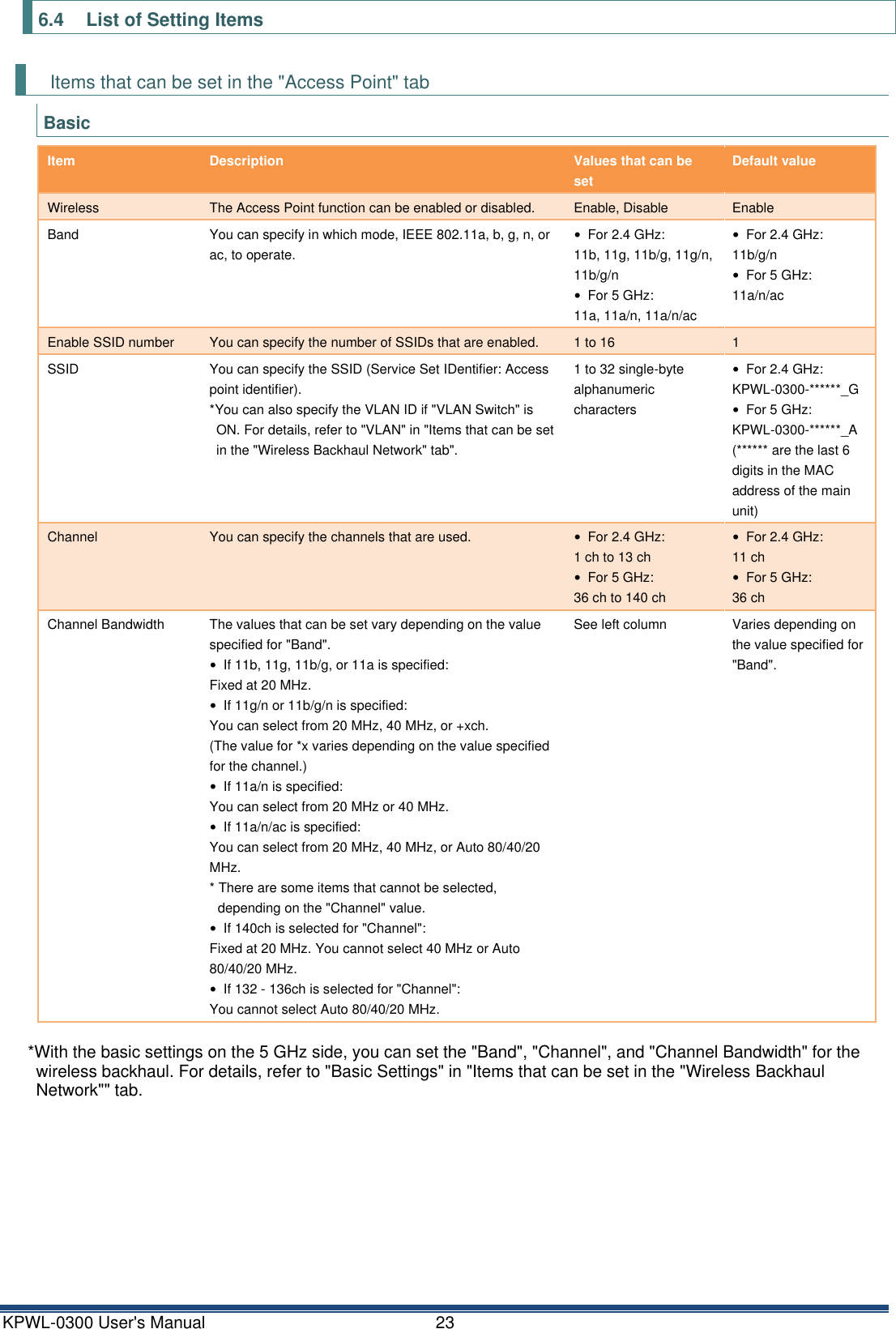
KPWL-0300 User's Manual  23 6.4 List of Setting Items Items that can be set in the "Access Point" tab Basic Item Description Values that can be set Default value Wireless The Access Point function can be enabled or disabled. Enable, Disable Enable Band You can specify in which mode, IEEE 802.11a, b, g, n, or ac, to operate. •  For 2.4 GHz: 11b, 11g, 11b/g, 11g/n, 11b/g/n •  For 5 GHz: 11a, 11a/n, 11a/n/ac •  For 2.4 GHz: 11b/g/n •  For 5 GHz: 11a/n/ac Enable SSID number You can specify the number of SSIDs that are enabled. 1 to 16 1 SSID You can specify the SSID (Service Set IDentifier: Access point identifier). *You can also specify the VLAN ID if "VLAN Switch" is ON. For details, refer to "VLAN" in "Items that can be set in the "Wireless Backhaul Network" tab". 1 to 32 single-byte alphanumeric characters •  For 2.4 GHz: KPWL-0300-******_G •  For 5 GHz: KPWL-0300-******_A (****** are the last 6 digits in the MAC address of the main unit) Channel You can specify the channels that are used. •  For 2.4 GHz: 1 ch to 13 ch •  For 5 GHz: 36 ch to 140 ch •  For 2.4 GHz: 11 ch •  For 5 GHz: 36 ch Channel Bandwidth The values that can be set vary depending on the value specified for "Band". • If 11b, 11g, 11b/g, or 11a is specified: Fixed at 20 MHz. • If 11g/n or 11b/g/n is specified: You can select from 20 MHz, 40 MHz, or +xch. (The value for *x varies depending on the value specified for the channel.) • If 11a/n is specified: You can select from 20 MHz or 40 MHz. • If 11a/n/ac is specified: You can select from 20 MHz, 40 MHz, or Auto 80/40/20 MHz. * There are some items that cannot be selected, depending on the "Channel" value. •  If 140ch is selected for "Channel": Fixed at 20 MHz. You cannot select 40 MHz or Auto 80/40/20 MHz. • If 132 - 136ch is selected for "Channel": You cannot select Auto 80/40/20 MHz. See left column  Varies depending on the value specified for "Band".  *With the basic settings on the 5 GHz side, you can set the "Band", "Channel", and "Channel Bandwidth" for the wireless backhaul. For details, refer to "Basic Settings" in "Items that can be set in the "Wireless Backhaul Network"" tab.
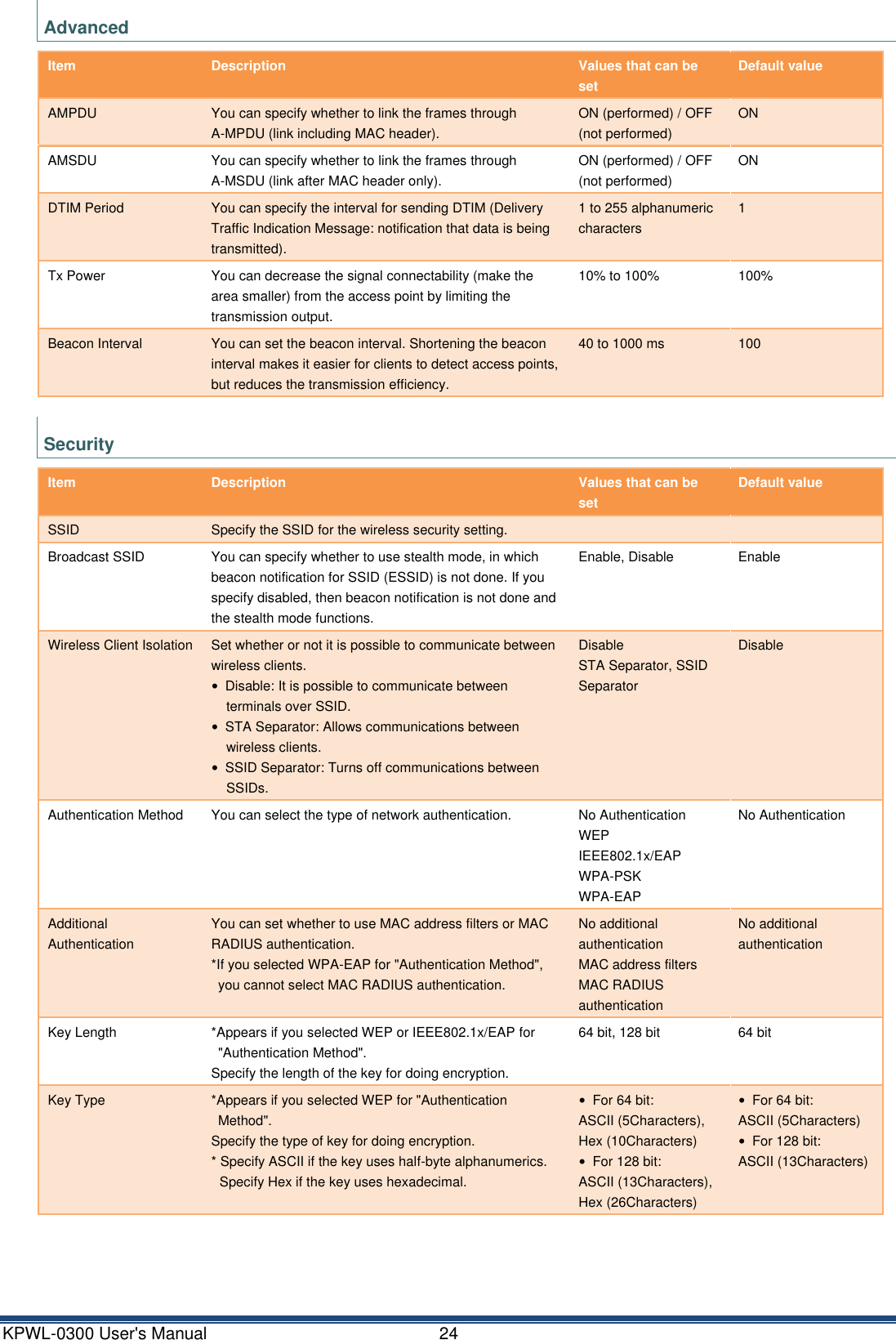
KPWL-0300 User's Manual  24 Advanced Item Description Values that can be set Default value AMPDU You can specify whether to link the frames through A-MPDU (link including MAC header). ON (performed) / OFF (not performed) ON AMSDU You can specify whether to link the frames through A-MSDU (link after MAC header only). ON (performed) / OFF (not performed) ON DTIM Period You can specify the interval for sending DTIM (Delivery Traffic Indication Message: notification that data is being transmitted). 1 to 255 alphanumeric characters 1 Tx Power You can decrease the signal connectability (make the area smaller) from the access point by limiting the transmission output. 10% to 100% 100% Beacon Interval You can set the beacon interval. Shortening the beacon interval makes it easier for clients to detect access points, but reduces the transmission efficiency. 40 to 1000 ms 100  Security Item Description Values that can be set Default value SSID Specify the SSID for the wireless security setting.   Broadcast SSID You can specify whether to use stealth mode, in which beacon notification for SSID (ESSID) is not done. If you specify disabled, then beacon notification is not done and the stealth mode functions. Enable, Disable Enable Wireless Client Isolation Set whether or not it is possible to communicate between wireless clients. •  Disable: It is possible to communicate between terminals over SSID. •  STA Separator: Allows communications between wireless clients. •  SSID Separator: Turns off communications between SSIDs. Disable STA Separator, SSID Separator Disable Authentication Method You can select the type of network authentication. No Authentication WEP IEEE802.1x/EAP WPA-PSK WPA-EAP No Authentication Additional Authentication You can set whether to use MAC address filters or MAC RADIUS authentication. *If you selected WPA-EAP for "Authentication Method", you cannot select MAC RADIUS authentication. No additional authentication MAC address filters MAC RADIUS authentication No additional authentication Key Length *Appears if you selected WEP or IEEE802.1x/EAP for "Authentication Method". Specify the length of the key for doing encryption. 64 bit, 128 bit 64 bit Key Type *Appears if you selected WEP for "Authentication Method". Specify the type of key for doing encryption. * Specify ASCII if the key uses half-byte alphanumerics. Specify Hex if the key uses hexadecimal. •  For 64 bit: ASCII (5Characters), Hex (10Characters) •  For 128 bit: ASCII (13Characters), Hex (26Characters) •  For 64 bit: ASCII (5Characters) •  For 128 bit: ASCII (13Characters)
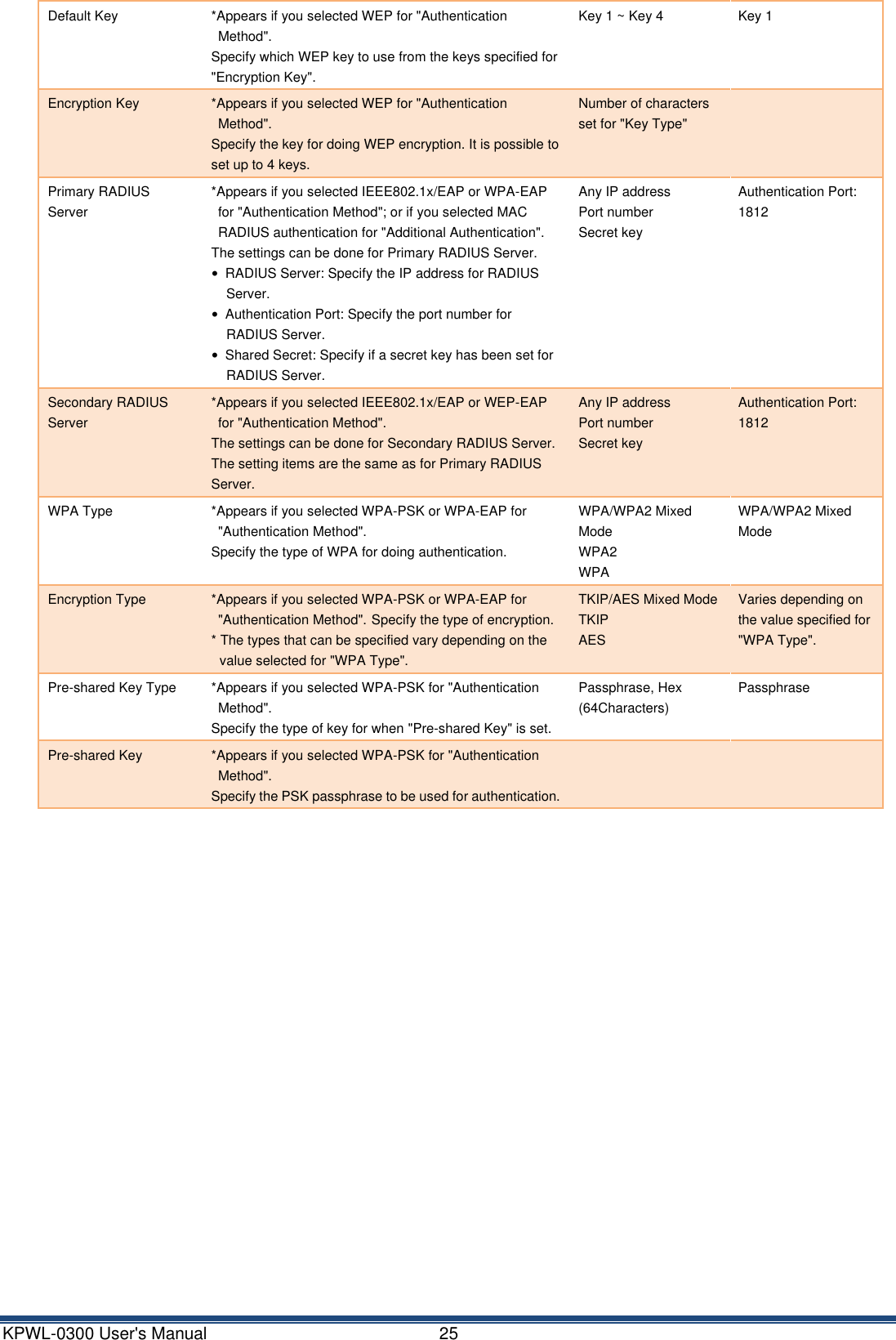
KPWL-0300 User's Manual  25 Default Key *Appears if you selected WEP for "Authentication Method". Specify which WEP key to use from the keys specified for "Encryption Key". Key 1 ~ Key 4 Key 1 Encryption Key *Appears if you selected WEP for "Authentication Method". Specify the key for doing WEP encryption. It is possible to set up to 4 keys. Number of characters set for "Key Type"  Primary RADIUS Server *Appears if you selected IEEE802.1x/EAP or WPA-EAP for "Authentication Method"; or if you selected MAC RADIUS authentication for "Additional Authentication". The settings can be done for Primary RADIUS Server. •  RADIUS Server: Specify the IP address for RADIUS Server. •  Authentication Port: Specify the port number for RADIUS Server. •  Shared Secret: Specify if a secret key has been set for RADIUS Server. Any IP address Port number Secret key Authentication Port: 1812 Secondary RADIUS Server *Appears if you selected IEEE802.1x/EAP or WEP-EAP for "Authentication Method". The settings can be done for Secondary RADIUS Server. The setting items are the same as for Primary RADIUS Server. Any IP address Port number Secret key Authentication Port: 1812 WPA Type *Appears if you selected WPA-PSK or WPA-EAP for "Authentication Method". Specify the type of WPA for doing authentication. WPA/WPA2 Mixed Mode WPA2 WPA WPA/WPA2 Mixed Mode Encryption Type *Appears if you selected WPA-PSK or WPA-EAP for "Authentication Method". Specify the type of encryption. * The types that can be specified vary depending on the value selected for "WPA Type". TKIP/AES Mixed Mode TKIP AES Varies depending on the value specified for "WPA Type". Pre-shared Key Type     *Appears if you selected WPA-PSK for "Authentication Method". Specify the type of key for when "Pre-shared Key" is set. Passphrase, Hex (64Characters) Passphrase Pre-shared Key *Appears if you selected WPA-PSK for "Authentication Method". Specify the PSK passphrase to be used for authentication.
KPWL-0300 User's Manual  26 MAC Filter With "MAC Filter", you can add MAC addresses to be used for items that were set in "Additional Authentication" in "Security" on the side menu. Input a MAC address and click [Add]. The added MAC address can be confirmed in the MAC address filter table.  QoS With "QoS", you can do the settings to assign priority for specific communications. You can set both the access point (AP) side and the station (ST) side. You can set the priorities for the following parameters. Low (background: BK), Normal (best effort: BE), priority (video: VI), and highest priority (audio: VO).  Item Description Values that can be set Default value (AP) Default value (ST) CWmin You can specify the minimum value for the contention window that is used for the frame collision avoidance configuration. Generally, the smaller the value, the higher the probability of acquiring transmission rights. 1 to 15 alphanumeric characters BK: 4 BE: 4 VI: 3 VO: 2 BK: 4 BE: 4 VI: 3 VO: 2 CWmax You can specify the maximum value for the contention window. 1 to 15 alphanumeric characters BK: 10 BE: 6 VI: 4 VO: 3 BK: 10 BE: 10 VI: 4 VO: 3 AIFSN You can specify the frame transmission interval slot (number of windows). The smaller the transmission interval, the higher the priority. 1 to 15 alphanumeric characters BK: 7 BE: 3 VI: 1 VO: 1 BK: 7 BE: 3 VI: 2 VO: 2 TxOP You can specify the time that can be appropriated when acquiring transmission rights. The higher this value is, the larger amount of data can be sent at one time, but the real-time performance is reduced. 1 unit is 32 ms. If you specify 0, then each transmission is 1 frame only. 0 to 256 BK: 0 BE: 0 VI: 94 VO: 47 BK: 0 BE: 0 VI: 94 VO: 47
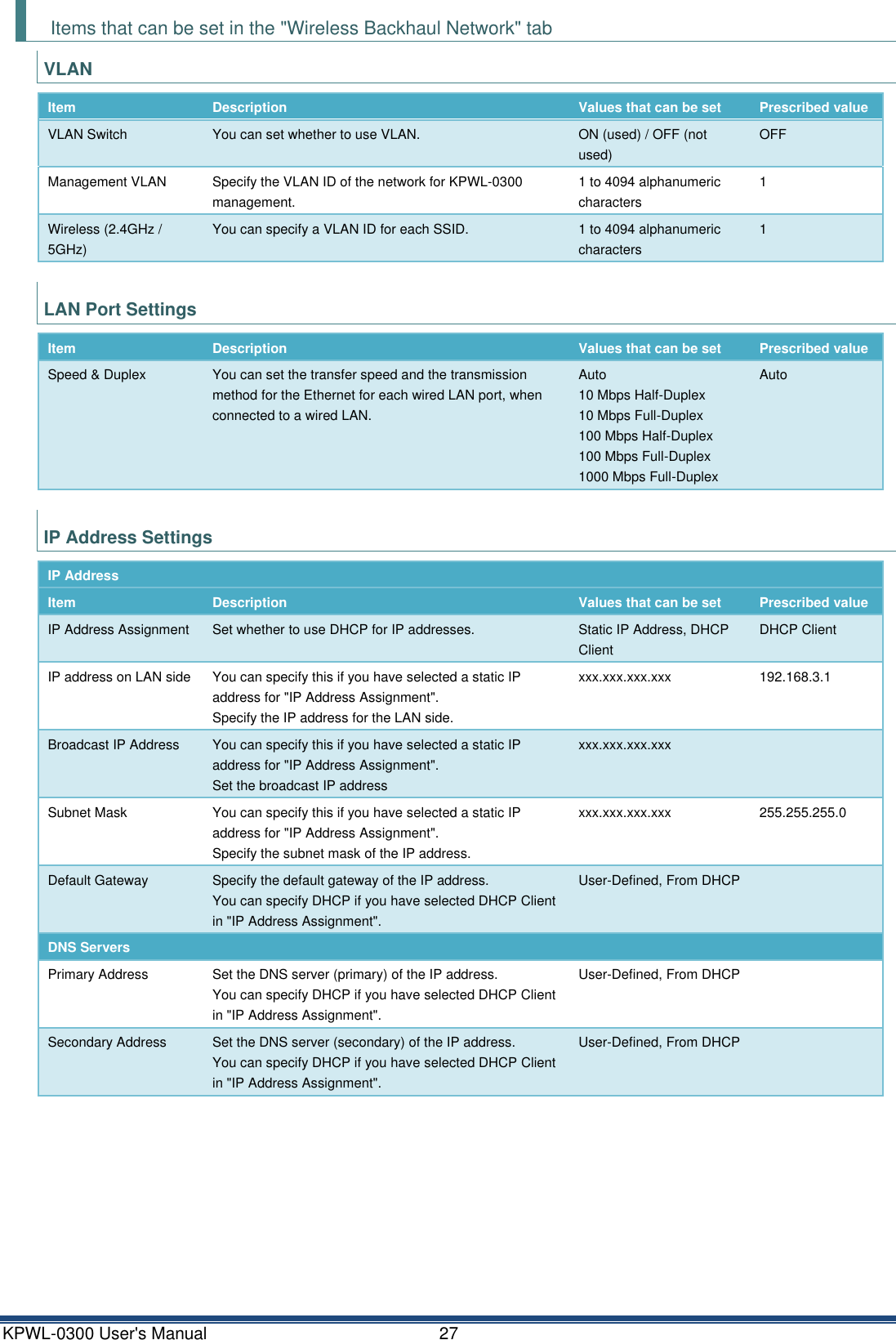
KPWL-0300 User's Manual  27 Items that can be set in the "Wireless Backhaul Network" tab VLAN Item Description Values that can be set Prescribed value VLAN Switch You can set whether to use VLAN. ON (used) / OFF (not used) OFF Management VLAN Specify the VLAN ID of the network for KPWL-0300 management. 1 to 4094 alphanumeric characters 1 Wireless (2.4GHz / 5GHz) You can specify a VLAN ID for each SSID. 1 to 4094 alphanumeric characters 1  LAN Port Settings Item Description Values that can be set Prescribed value Speed & Duplex You can set the transfer speed and the transmission method for the Ethernet for each wired LAN port, when connected to a wired LAN. Auto 10 Mbps Half-Duplex 10 Mbps Full-Duplex 100 Mbps Half-Duplex 100 Mbps Full-Duplex 1000 Mbps Full-Duplex Auto  IP Address Settings IP Address    Item Description Values that can be set Prescribed value IP Address Assignment Set whether to use DHCP for IP addresses. Static IP Address, DHCP Client DHCP Client IP address on LAN side You can specify this if you have selected a static IP address for "IP Address Assignment". Specify the IP address for the LAN side. xxx.xxx.xxx.xxx 192.168.3.1 Broadcast IP Address You can specify this if you have selected a static IP address for "IP Address Assignment". Set the broadcast IP address xxx.xxx.xxx.xxx  Subnet Mask You can specify this if you have selected a static IP address for "IP Address Assignment". Specify the subnet mask of the IP address. xxx.xxx.xxx.xxx 255.255.255.0 Default Gateway Specify the default gateway of the IP address. You can specify DHCP if you have selected DHCP Client in "IP Address Assignment". User-Defined, From DHCP  DNS Servers    Primary Address Set the DNS server (primary) of the IP address. You can specify DHCP if you have selected DHCP Client in "IP Address Assignment". User-Defined, From DHCP  Secondary Address Set the DNS server (secondary) of the IP address. You can specify DHCP if you have selected DHCP Client in "IP Address Assignment". User-Defined, From DHCP
KPWL-0300 User's Manual  28 Basic Settings Item Description Values that can be set Prescribed value Backhaul Mode You can specify whether to treat the device as a core unit or slave unit. Slave, Core Slave Band You can specify in which mode, IEEE 802.11a, n, or ac, to operate. 11a, 11a/n, 11a/n/ac 11a/n/ac Channel You can specify the channels that are used. The values that can be set vary depending on the value specified for "Band". •  For 11a: 36 ch to 140 ch •  For 11a/n: 38 ch to 134 ch •  For 11a/n/ac: 42 ch to 122 ch •  For 11a: 36 ch •  For 11a/n: 38 ch •  For 11a/n/ac: 106 ch Automatic Channel Selection You can specify whether to automatically select unused channels when scanning for channels at startup. ON, OFF OFF Indoor/Outdoor Specify whether to use the device indoors or outdoors. By selecting outdoor, you are prevented from selecting channels that are prohibited from use outdoors by accident. Indoor, Outdoor Indoor Channel Bandwidth The values that can be set vary depending on the value specified for "Band". •  For 11a: Fixed at 20 MHz •  For 11a/n: 20 MHz, 40 MHz •  For 11a/n/ac: 20 MHz, 40 MHz, Auto 80/40/20 MHz •  For 11a: 20 MHz •  For 11a/n: 40 MHz •  For 11a/n/ac: Auto 80/40/20 MHz Tx Power You can specify the strength of the wireless output. The larger it is, the higher the output. 1 to 12 12 SafeZone You can specify whether to allow encryption of the relay circuits. ON (performed) / OFF (not performed) ON SafeKey Devices that have the same value are considered to belong to the same network so intercommunication is possible. If they are different, relaying is not possible. This is how networks are separated. 1 to 64 single-byte alphanumeric characters picocela AP Control You can specify whether to detect when the upstream circuit is cut off and automatically turn off the access point function. ON, OFF ON Waiting time for turning off AP If you selected ON for "AP Control", specify the time that the access point function is automatically turned off.  60 Reroute Clicking [Execute] implements rerouting.    * You can set the "Band", "Channel", and "Channel Bandwidth" on the access point (5 GHz) on this page. For details, refer to "Basic Settings" in "Items that can be set in the "Access Point" tab".
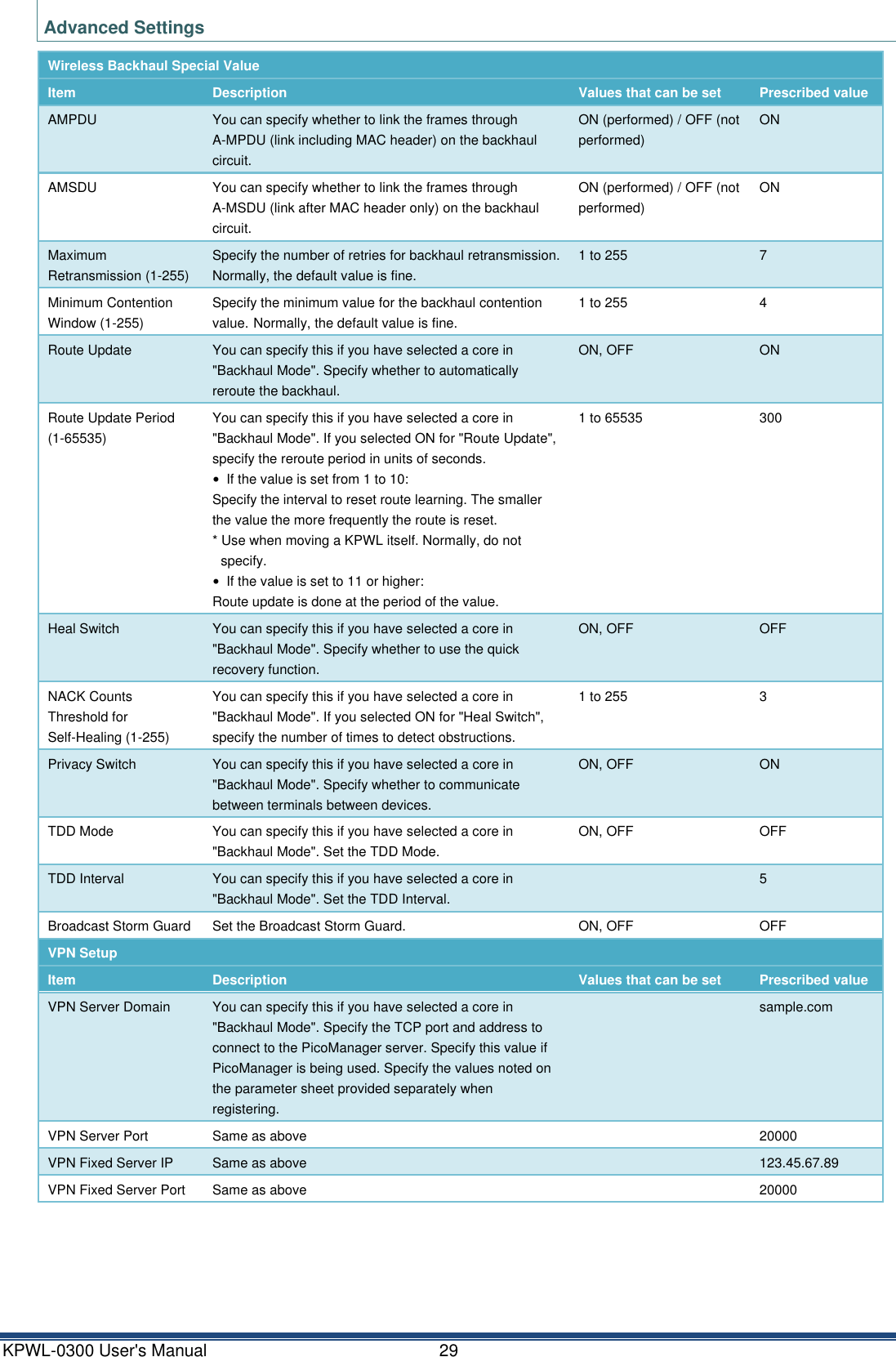
KPWL-0300 User's Manual  29 Advanced Settings Wireless Backhaul Special Value   Item Description Values that can be set Prescribed value AMPDU You can specify whether to link the frames through A-MPDU (link including MAC header) on the backhaul circuit. ON (performed) / OFF (not performed) ON AMSDU You can specify whether to link the frames through A-MSDU (link after MAC header only) on the backhaul circuit. ON (performed) / OFF (not performed) ON Maximum Retransmission (1-255) Specify the number of retries for backhaul retransmission. Normally, the default value is fine. 1 to 255 7 Minimum Contention Window (1-255) Specify the minimum value for the backhaul contention value. Normally, the default value is fine. 1 to 255 4 Route Update You can specify this if you have selected a core in "Backhaul Mode". Specify whether to automatically reroute the backhaul. ON, OFF ON Route Update Period (1-65535) You can specify this if you have selected a core in "Backhaul Mode". If you selected ON for "Route Update", specify the reroute period in units of seconds. • If the value is set from 1 to 10: Specify the interval to reset route learning. The smaller the value the more frequently the route is reset. * Use when moving a KPWL itself. Normally, do not specify. • If the value is set to 11 or higher: Route update is done at the period of the value. 1 to 65535 300 Heal Switch You can specify this if you have selected a core in "Backhaul Mode". Specify whether to use the quick recovery function. ON, OFF OFF NACK Counts Threshold for Self-Healing (1-255) You can specify this if you have selected a core in "Backhaul Mode". If you selected ON for "Heal Switch", specify the number of times to detect obstructions. 1 to 255 3 Privacy Switch You can specify this if you have selected a core in "Backhaul Mode". Specify whether to communicate between terminals between devices. ON, OFF ON TDD Mode You can specify this if you have selected a core in "Backhaul Mode". Set the TDD Mode. ON, OFF OFF TDD Interval You can specify this if you have selected a core in "Backhaul Mode". Set the TDD Interval.  5 Broadcast Storm Guard Set the Broadcast Storm Guard. ON, OFF OFF VPN Setup   Item Description Values that can be set Prescribed value VPN Server Domain You can specify this if you have selected a core in "Backhaul Mode". Specify the TCP port and address to connect to the PicoManager server. Specify this value if PicoManager is being used. Specify the values noted on the parameter sheet provided separately when registering.  sample.com VPN Server Port Same as above  20000 VPN Fixed Server IP Same as above  123.45.67.89 VPN Fixed Server Port Same as above  20000
KPWL-0300 User's Manual  30 Expanded Settings Item Description Values that can be set Prescribed value Periods for IPT (0-65535) Manually specify the values related to IPT in reference to backhaul operations. Normally, operation of the values in these places is not required. Leave the default value (0) as it is. 0 to 65535 0 Option Specify the optional values if special options have been incorporated. Normally, operation of the values in these places is not required. Leave the default value as it is.  00000000000000000000   00000000000000000000   00000000000000000000  Items that can be set in the "Management" tab Admin Account Settings Item Description Values that can be set Prescribed value Administrator Name You can specify a user name for accessing the web setting page. Single-byte alphanumeric characters admin Administrator Password You can specify a password for accessing the web setting page. Single-byte alphanumeric characters admin Management Protocol If you select this check box, you can do the following settings related to SNMP.   SNMP Version You can specify the SNMP version. v1/v2c v1/v2c SNMP Get Community You can specify the SNMP Get Community. Single-byte alphanumeric characters public SNMP Set Community You can specify the SNMP Set Community. Single-byte alphanumeric characters private  Factory Default You can initialize settings by using "Factory Default". Click [Factory Default] to initialize the settings.  Date and Time Item Description Values that can be set Prescribed value Local Time You can set the local time. By clicking [Acquire Current Time from Your PC], you can set it to the time that is set for the PC you are using.   Use NTP If you select this check box, you can do the following settings related to NTP (Network Time Protocol).   Server Name You can set this if "Use NTP" was enabled. You can specify the NTP server name that is used. User-Defined  Update Interval You can set this if "Use NTP" was enabled. You can specify the update interval for the date and time used for NTP.  24 Time Zone You can set the time zone.  (GMT + 09:00) Osaka, Sapporo, Tokyo
KPWL-0300 User's Manual  31 System Log In the "System Log", you can confirm the system log. By clicking [Save], you can save data in a log format. Clicking [Refresh] updates the system log display to the newest status.  Syslog Server Item Description Values that can be set Prescribed value Transfer Logs If you select this check box, the system log used by the Syslog Server can be transferred.   You can specify the Syslog Server name in the input field. Single-byte alphanumeric characters  Copy Logs to Attached USB Device If you select this check box, the system log is copied to a USB device.   E-mail Logs If you select this check box, the changes in the system log are sent via email.   E-mail Subject You can specify the e-mail subject line. Any subject line  Interval You can specify the interval at which e-mails are sent. Half hour, One hour, Two hours, Half day, One day, Two days Half hour SMTP Server Address You can specify the SMTP server address. Single-byte alphanumeric characters  SMTP Server Port You can specify the SMTP server port. Single-byte alphanumeric characters  Sender E-mail You can specify the e-mail address of the sender. Single-byte alphanumeric characters  Receiver E-mail You can specify the e-mail address of the receiver. Single-byte alphanumeric characters  Authentication Specify the method to authenticate and connect to the mail server. •  Disable: No Authentication •  SSL: Authentication and connection via SMTP over SSL •  TLS: Authentication and connection using STARTTLS Disable, SSL, TLS Disable Account You can specify the user ID for the e-mail server. Single-byte alphanumeric characters  Password You can specify the password for the e-mail server. Single-byte alphanumeric characters   Firmware Upgrade You can update the firmware by using "Firmware Upgrade". For details, refer to "Updating Firmware from the Webpage" later in this manual.  Reboot With "Reboot", you can reboot the KPWL-0300. Clicking [Reboot], reboots the KPWL-0300.
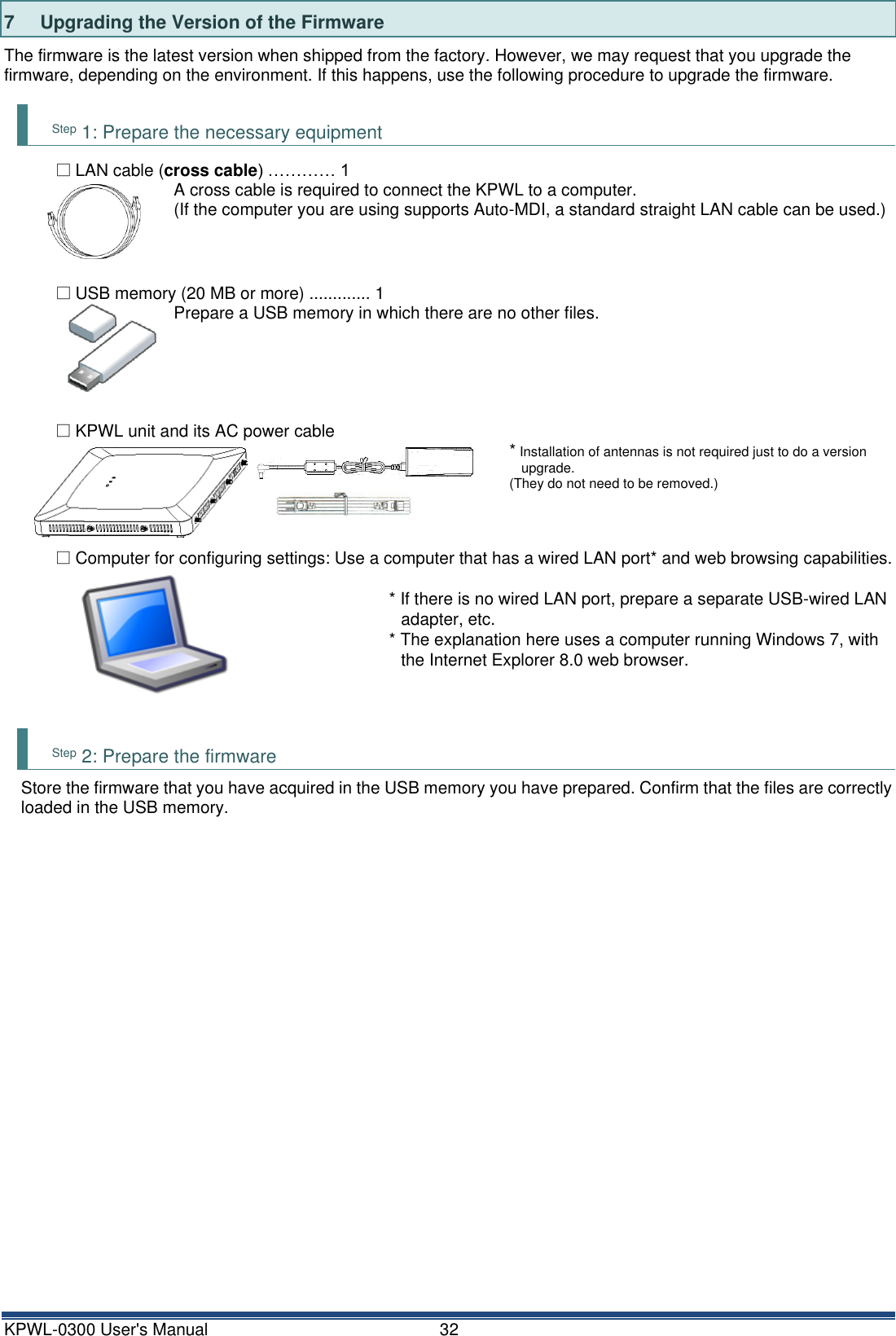
KPWL-0300 User's Manual  32 7  Upgrading the Version of the Firmware The firmware is the latest version when shipped from the factory. However, we may request that you upgrade the firmware, depending on the environment. If this happens, use the following procedure to upgrade the firmware.  Step 1: Prepare the necessary equipment □ LAN cable (cross cable) ………… 1 A cross cable is required to connect the KPWL to a computer. (If the computer you are using supports Auto-MDI, a standard straight LAN cable can be used.)    □ USB memory (20 MB or more) ............. 1 Prepare a USB memory in which there are no other files.     □ KPWL unit and its AC power cable  * Installation of antennas is not required just to do a version upgrade. (They do not need to be removed.)    □ Computer for configuring settings: Use a computer that has a wired LAN port* and web browsing capabilities.  * If there is no wired LAN port, prepare a separate USB-wired LAN adapter, etc. * The explanation here uses a computer running Windows 7, with the Internet Explorer 8.0 web browser.    Step 2: Prepare the firmware Store the firmware that you have acquired in the USB memory you have prepared. Confirm that the files are correctly loaded in the USB memory.
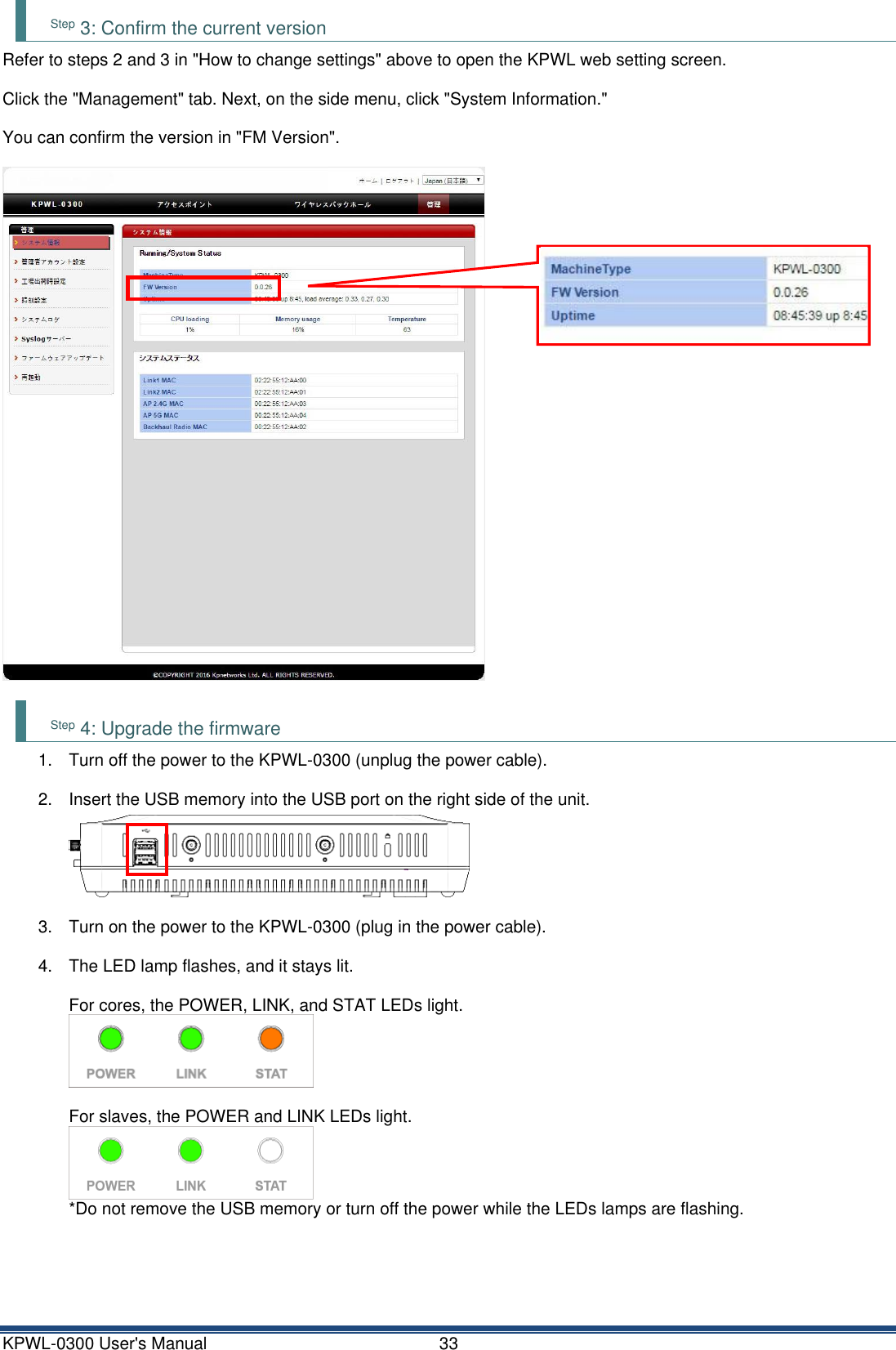
KPWL-0300 User's Manual  33 Step 3: Confirm the current version Refer to steps 2 and 3 in "How to change settings" above to open the KPWL web setting screen.  Click the "Management" tab. Next, on the side menu, click "System Information."  You can confirm the version in "FM Version".    Step 4: Upgrade the firmware 1.  Turn off the power to the KPWL-0300 (unplug the power cable).  2.  Insert the USB memory into the USB port on the right side of the unit.  3.  Turn on the power to the KPWL-0300 (plug in the power cable).  4.  The LED lamp flashes, and it stays lit.  For cores, the POWER, LINK, and STAT LEDs light.     For slaves, the POWER and LINK LEDs light.    *Do not remove the USB memory or turn off the power while the LEDs lamps are flashing.
KPWL-0300 User's Manual  34 Step 5: Confirm the version The same as in step 3, confirm the version from the KPWL web setting screen. The firmware upgrade is complete if the version is as specified. If there is no change, do step 4 again.  Step 6: Do a reroute When the firmware update is complete, press the reroute button on one of the KPWL-0300s to do a reroute.  However, note that links cannot be established if the versions of the firmware are not the same.
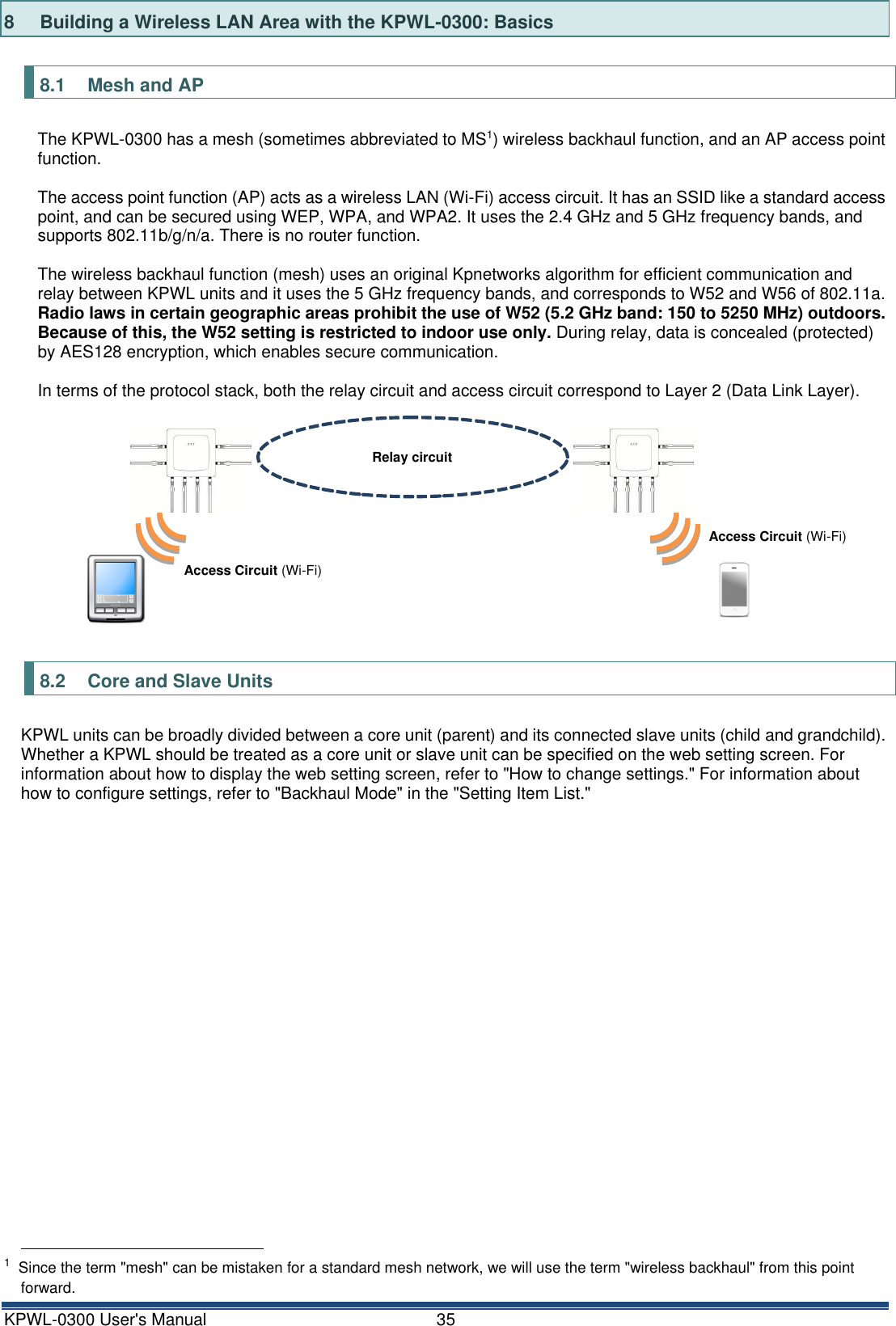
KPWL-0300 User's Manual  35 8  Building a Wireless LAN Area with the KPWL-0300: Basics  8.1  Mesh and AP The KPWL-0300 has a mesh (sometimes abbreviated to MS1) wireless backhaul function, and an AP access point function.  The access point function (AP) acts as a wireless LAN (Wi-Fi) access circuit. It has an SSID like a standard access point, and can be secured using WEP, WPA, and WPA2. It uses the 2.4 GHz and 5 GHz frequency bands, and supports 802.11b/g/n/a. There is no router function.  The wireless backhaul function (mesh) uses an original Kpnetworks algorithm for efficient communication and relay between KPWL units and it uses the 5 GHz frequency bands, and corresponds to W52 and W56 of 802.11a. Radio laws in certain geographic areas prohibit the use of W52 (5.2 GHz band: 150 to 5250 MHz) outdoors. Because of this, the W52 setting is restricted to indoor use only. During relay, data is concealed (protected) by AES128 encryption, which enables secure communication.  In terms of the protocol stack, both the relay circuit and access circuit correspond to Layer 2 (Data Link Layer).  8.2  Core and Slave Units KPWL units can be broadly divided between a core unit (parent) and its connected slave units (child and grandchild). Whether a KPWL should be treated as a core unit or slave unit can be specified on the web setting screen. For information about how to display the web setting screen, refer to "How to change settings." For information about how to configure settings, refer to "Backhaul Mode" in the "Setting Item List."                                                          1 Since the term "mesh" can be mistaken for a standard mesh network, we will use the term "wireless backhaul" from this point forward. Access Circuit (Wi-Fi) Access Circuit (Wi-Fi) Relay circuit
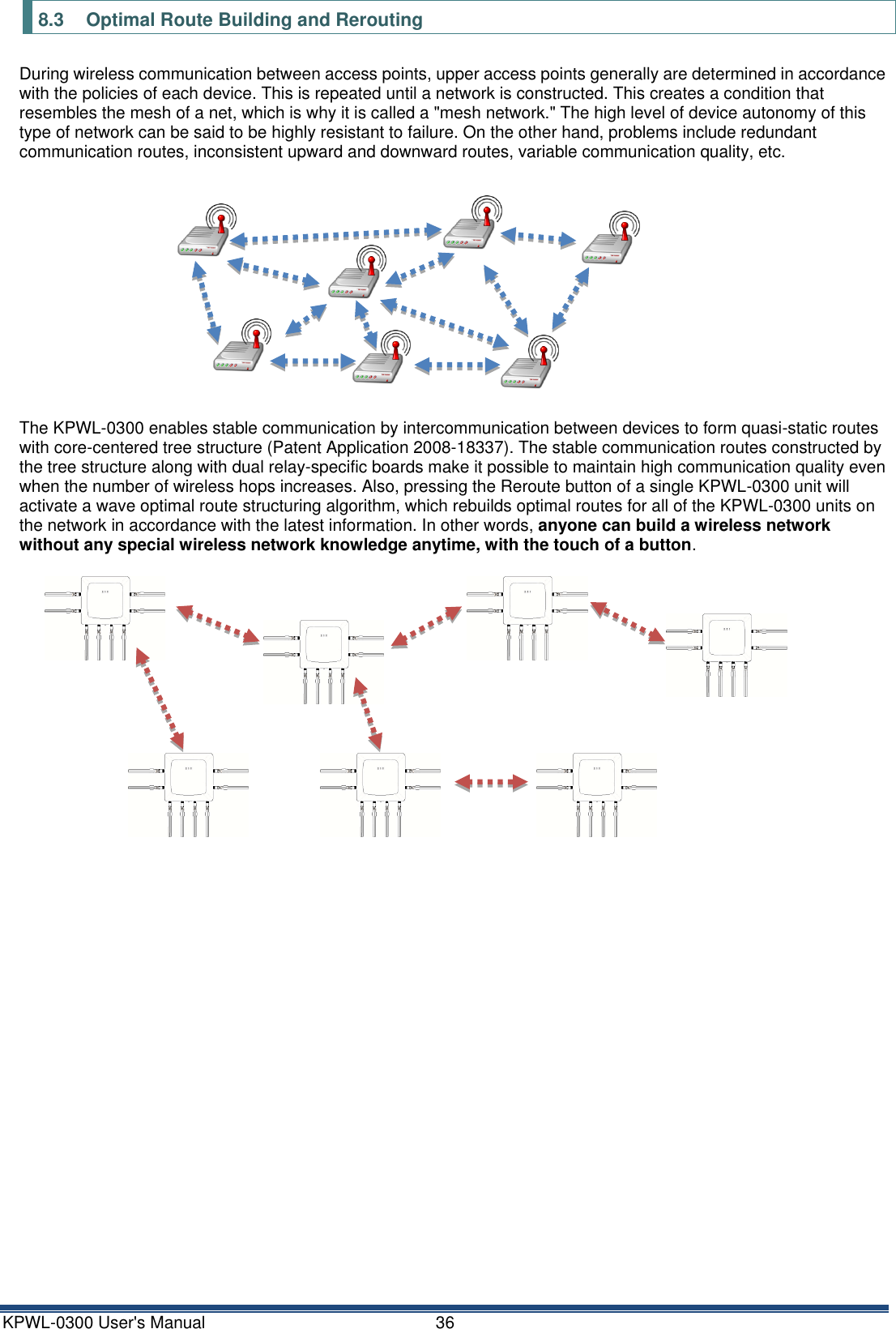
KPWL-0300 User's Manual  36 8.3  Optimal Route Building and Rerouting During wireless communication between access points, upper access points generally are determined in accordance with the policies of each device. This is repeated until a network is constructed. This creates a condition that resembles the mesh of a net, which is why it is called a "mesh network." The high level of device autonomy of this type of network can be said to be highly resistant to failure. On the other hand, problems include redundant communication routes, inconsistent upward and downward routes, variable communication quality, etc.   The KPWL-0300 enables stable communication by intercommunication between devices to form quasi-static routes with core-centered tree structure (Patent Application 2008-18337). The stable communication routes constructed by the tree structure along with dual relay-specific boards make it possible to maintain high communication quality even when the number of wireless hops increases. Also, pressing the Reroute button of a single KPWL-0300 unit will activate a wave optimal route structuring algorithm, which rebuilds optimal routes for all of the KPWL-0300 units on the network in accordance with the latest information. In other words, anyone can build a wireless network without any special wireless network knowledge anytime, with the touch of a button.
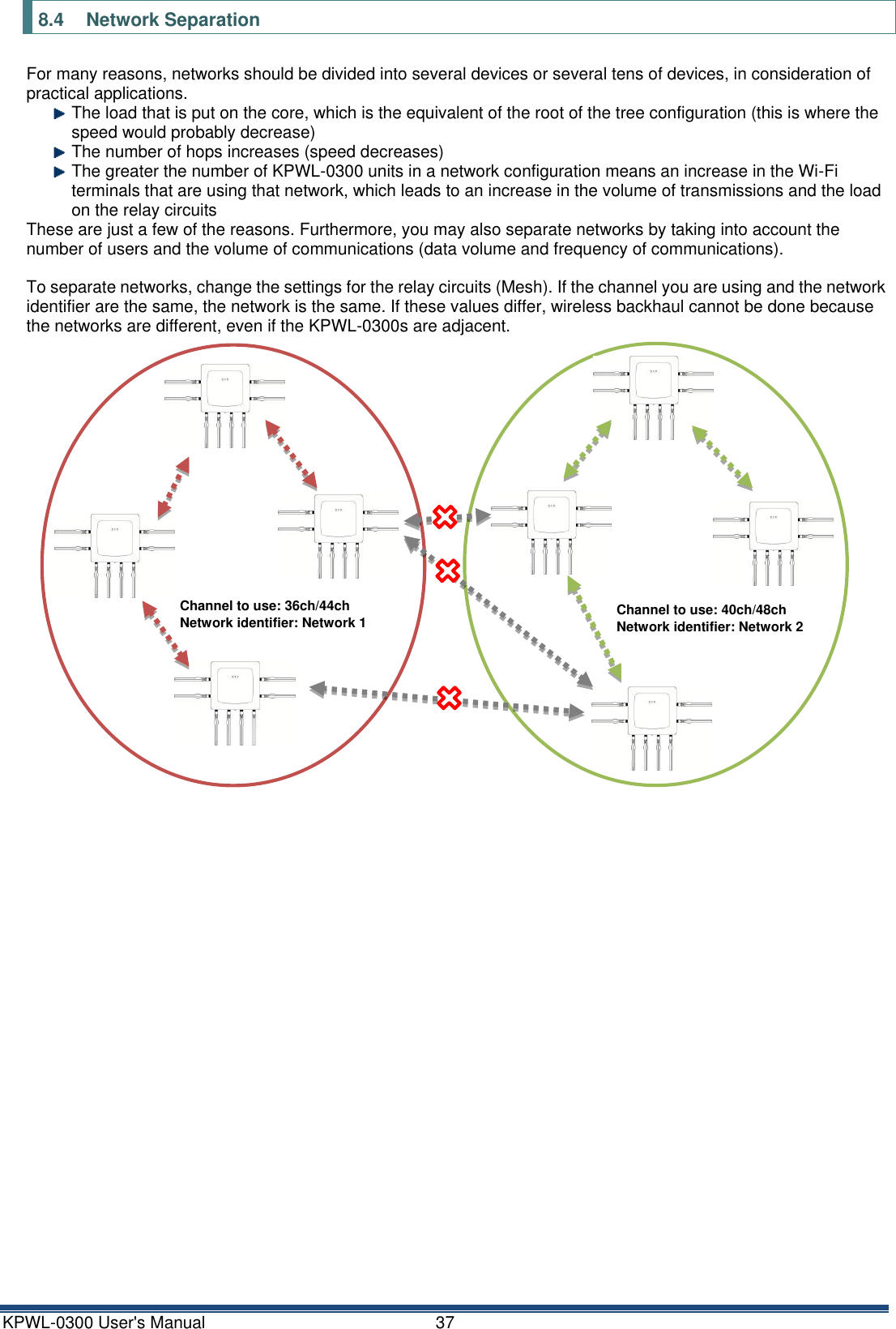
KPWL-0300 User's Manual  37 8.4  Network Separation For many reasons, networks should be divided into several devices or several tens of devices, in consideration of practical applications.   The load that is put on the core, which is the equivalent of the root of the tree configuration (this is where the speed would probably decrease)   The number of hops increases (speed decreases)   The greater the number of KPWL-0300 units in a network configuration means an increase in the Wi-Fi terminals that are using that network, which leads to an increase in the volume of transmissions and the load on the relay circuits These are just a few of the reasons. Furthermore, you may also separate networks by taking into account the number of users and the volume of communications (data volume and frequency of communications).  To separate networks, change the settings for the relay circuits (Mesh). If the channel you are using and the network identifier are the same, the network is the same. If these values differ, wireless backhaul cannot be done because the networks are different, even if the KPWL-0300s are adjacent.        Channel to use: 36ch/44ch Network identifier: Network 1 Channel to use: 40ch/48ch Network identifier: Network 2
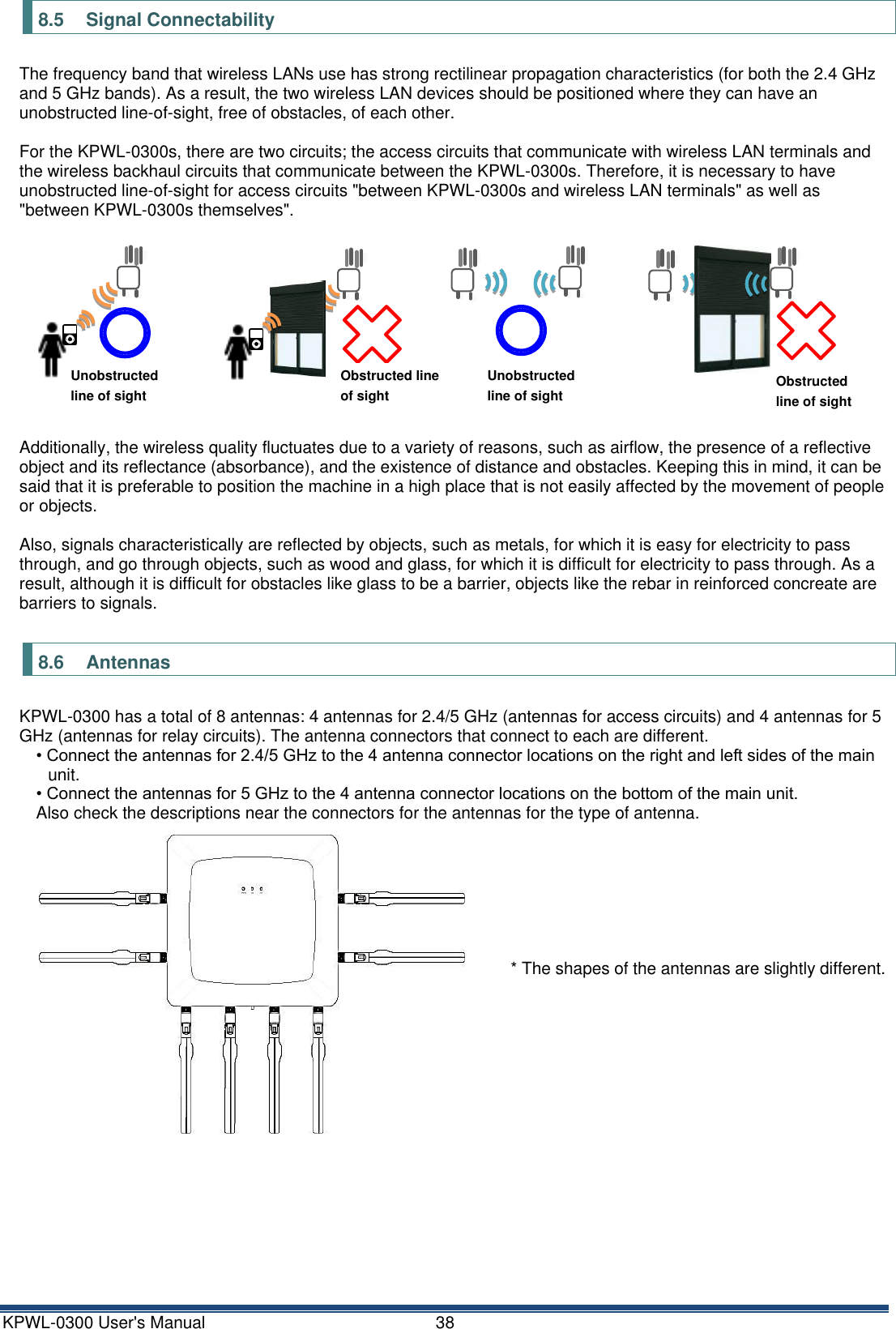
KPWL-0300 User's Manual  38 8.5  Signal Connectability The frequency band that wireless LANs use has strong rectilinear propagation characteristics (for both the 2.4 GHz and 5 GHz bands). As a result, the two wireless LAN devices should be positioned where they can have an unobstructed line-of-sight, free of obstacles, of each other.  For the KPWL-0300s, there are two circuits; the access circuits that communicate with wireless LAN terminals and the wireless backhaul circuits that communicate between the KPWL-0300s. Therefore, it is necessary to have unobstructed line-of-sight for access circuits "between KPWL-0300s and wireless LAN terminals" as well as "between KPWL-0300s themselves".   Additionally, the wireless quality fluctuates due to a variety of reasons, such as airflow, the presence of a reflective object and its reflectance (absorbance), and the existence of distance and obstacles. Keeping this in mind, it can be said that it is preferable to position the machine in a high place that is not easily affected by the movement of people or objects.  Also, signals characteristically are reflected by objects, such as metals, for which it is easy for electricity to pass through, and go through objects, such as wood and glass, for which it is difficult for electricity to pass through. As a result, although it is difficult for obstacles like glass to be a barrier, objects like the rebar in reinforced concreate are barriers to signals.  8.6  Antennas KPWL-0300 has a total of 8 antennas: 4 antennas for 2.4/5 GHz (antennas for access circuits) and 4 antennas for 5 GHz (antennas for relay circuits). The antenna connectors that connect to each are different. • Connect the antennas for 2.4/5 GHz to the 4 antenna connector locations on the right and left sides of the main unit. • Connect the antennas for 5 GHz to the 4 antenna connector locations on the bottom of the main unit. Also check the descriptions near the connectors for the antennas for the type of antenna.        * The shapes of the antennas are slightly different.    Unobstructed line of sight Obstructed line of sight Unobstructed line of sight Obstructed line of sight
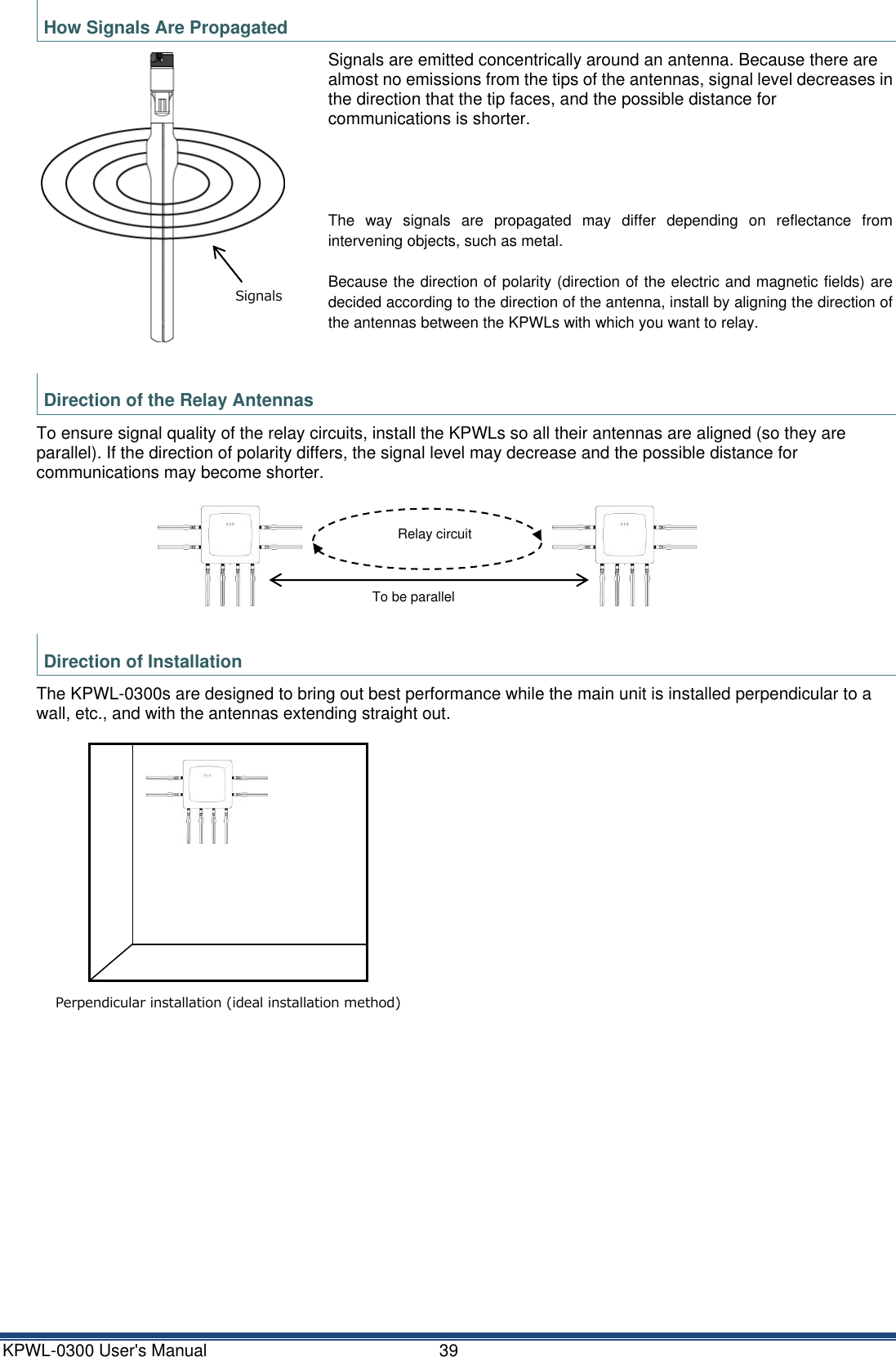
KPWL-0300 User's Manual  39 Signals How Signals Are Propagated  Signals are emitted concentrically around an antenna. Because there are almost no emissions from the tips of the antennas, signal level decreases in the direction that the tip faces, and the possible distance for communications is shorter.     The  way  signals  are  propagated  may  differ  depending  on  reflectance  from intervening objects, such as metal.  Because the direction of polarity (direction of the electric and magnetic fields) are decided according to the direction of the antenna, install by aligning the direction of the antennas between the KPWLs with which you want to relay.   Direction of the Relay Antennas To ensure signal quality of the relay circuits, install the KPWLs so all their antennas are aligned (so they are parallel). If the direction of polarity differs, the signal level may decrease and the possible distance for communications may become shorter.   Direction of Installation The KPWL-0300s are designed to bring out best performance while the main unit is installed perpendicular to a wall, etc., and with the antennas extending straight out.    Relay circuit To be parallel Perpendicular installation (ideal installation method)
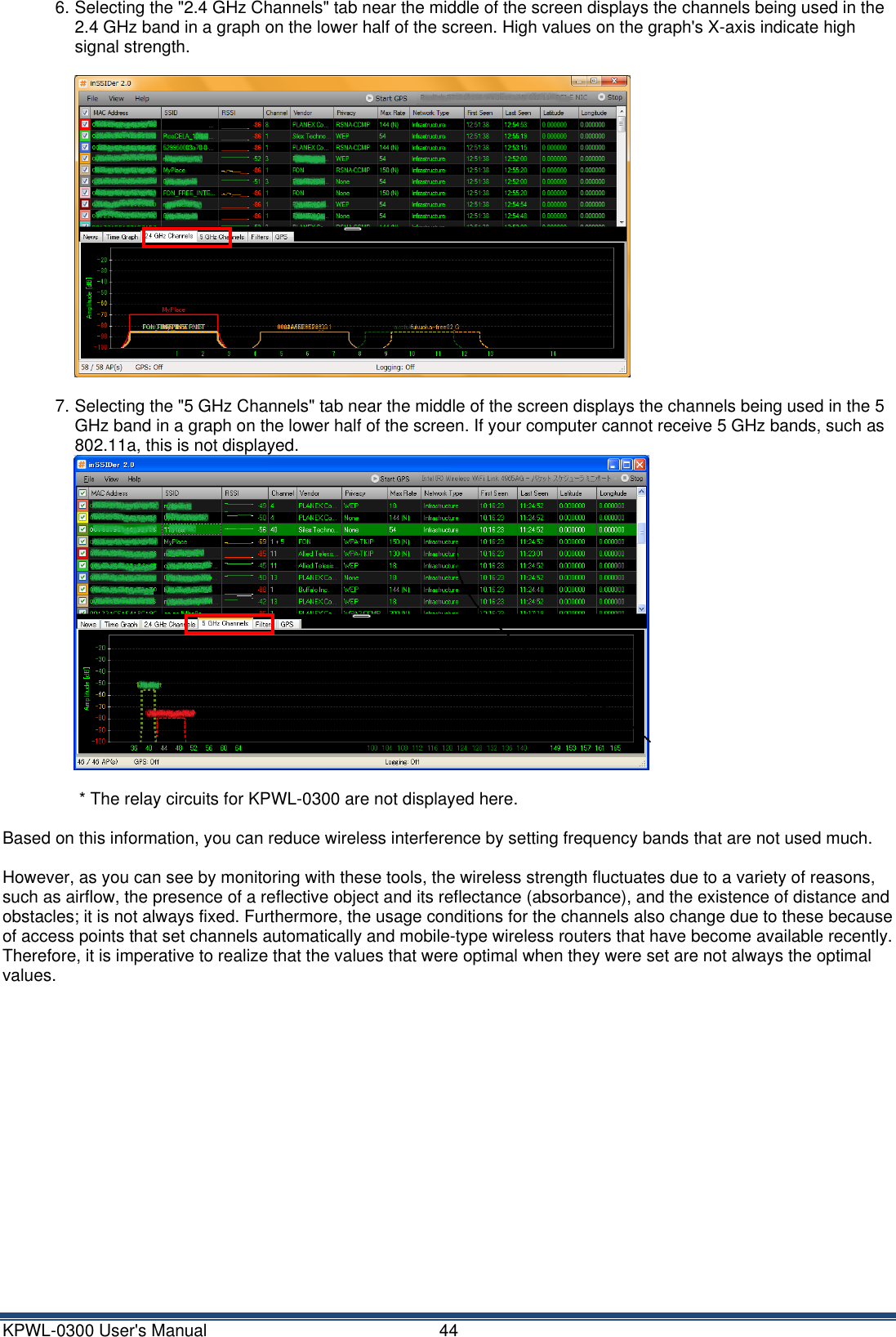
KPWL-0300 User's Manual  40 8.7  Importance of Temporary Installation When installing a KPWL-0300 unit, do not immediately perform final installation work. First be sure to do a temporary installation and check radio wave conditions and communication conditions.  In particular, when using multiple KPWL-0300 units to form a LAN area, it is essential that the units are able to communicate with each other. Temporarily set up2  the KPWL-0300 units so they are close to the final installation configuration as possible, and check relay circuit wireless conditions (KPWL-0300 link conditions), access circuit wireless conditions, throughput, etc.  Installation locations cannot be changed once final installation work is complete, use temporary installation to make these checks. If there are any problems, change the installation location, the number of units, etc. 8.8  Checking the Wireless Conditions of the Access Circuits Check the wireless strength of the access circuits. As a simple way to check, use a smartphone, iPhone, laptop, etc., that is equipped with wireless LAN (Wi-Fi) to display a list of access points, and check the strength via the icons, etc.  You can also check in more detail by using wireless access point monitoring tools like inSSIDer2, which is introduced in "About channels" later in this manual.  However, because RSSI (received signal strength indication), mentioned above, is just signal strength, you cannot check the degradation of wireless quality due to interference, etc. You can estimate whether or not there is sufficient wireless quality using the throughput measurements noted later on.  If sufficient radio wave intensity cannot be obtained, change the location of the unit and try again.                                                          2You can use tripods, stepladders, or other similar setups for the temporary installation. A temporary installation that is as close to the actual installation configuration increases accuracy. You can check the approximate wireless strength using the icons on the side of the access point list. * This screen is when using Windows 7 With RSSI, you can check the received signal strength in units of dBm. Wireless connections may become unstable when the strength is -60 dBm or under. RSSI:    Received Signal Strength Indication
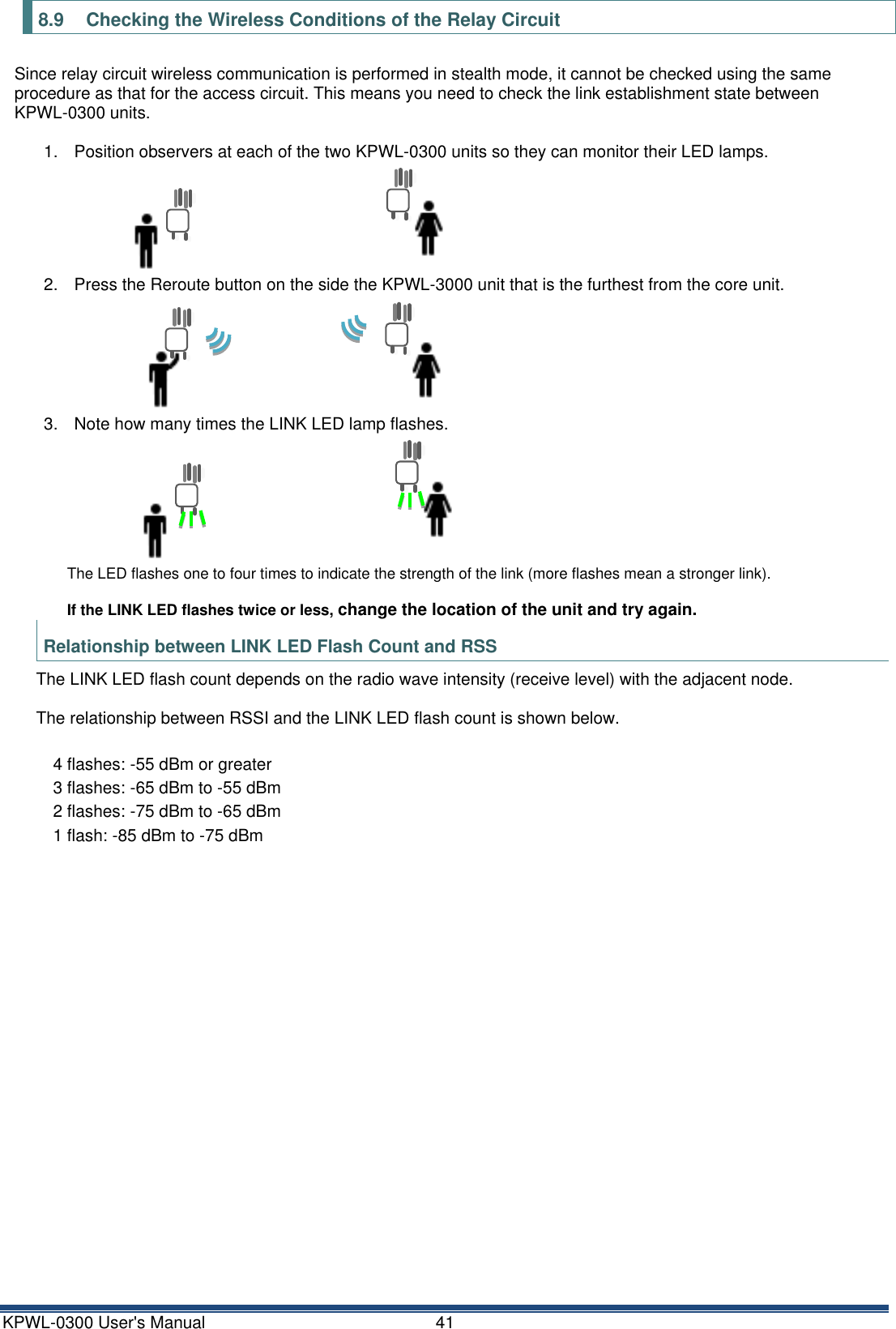
KPWL-0300 User's Manual  41 8.9  Checking the Wireless Conditions of the Relay Circuit Since relay circuit wireless communication is performed in stealth mode, it cannot be checked using the same procedure as that for the access circuit. This means you need to check the link establishment state between KPWL-0300 units.  1.  Position observers at each of the two KPWL-0300 units so they can monitor their LED lamps. 2.  Press the Reroute button on the side the KPWL-3000 unit that is the furthest from the core unit. 3.  Note how many times the LINK LED lamp flashes. The LED flashes one to four times to indicate the strength of the link (more flashes mean a stronger link).  If the LINK LED flashes twice or less, change the location of the unit and try again. Relationship between LINK LED Flash Count and RSS The LINK LED flash count depends on the radio wave intensity (receive level) with the adjacent node.  The relationship between RSSI and the LINK LED flash count is shown below.  4 flashes: -55 dBm or greater 3 flashes: -65 dBm to -55 dBm 2 flashes: -75 dBm to -65 dBm 1 flash: -85 dBm to -75 dBm
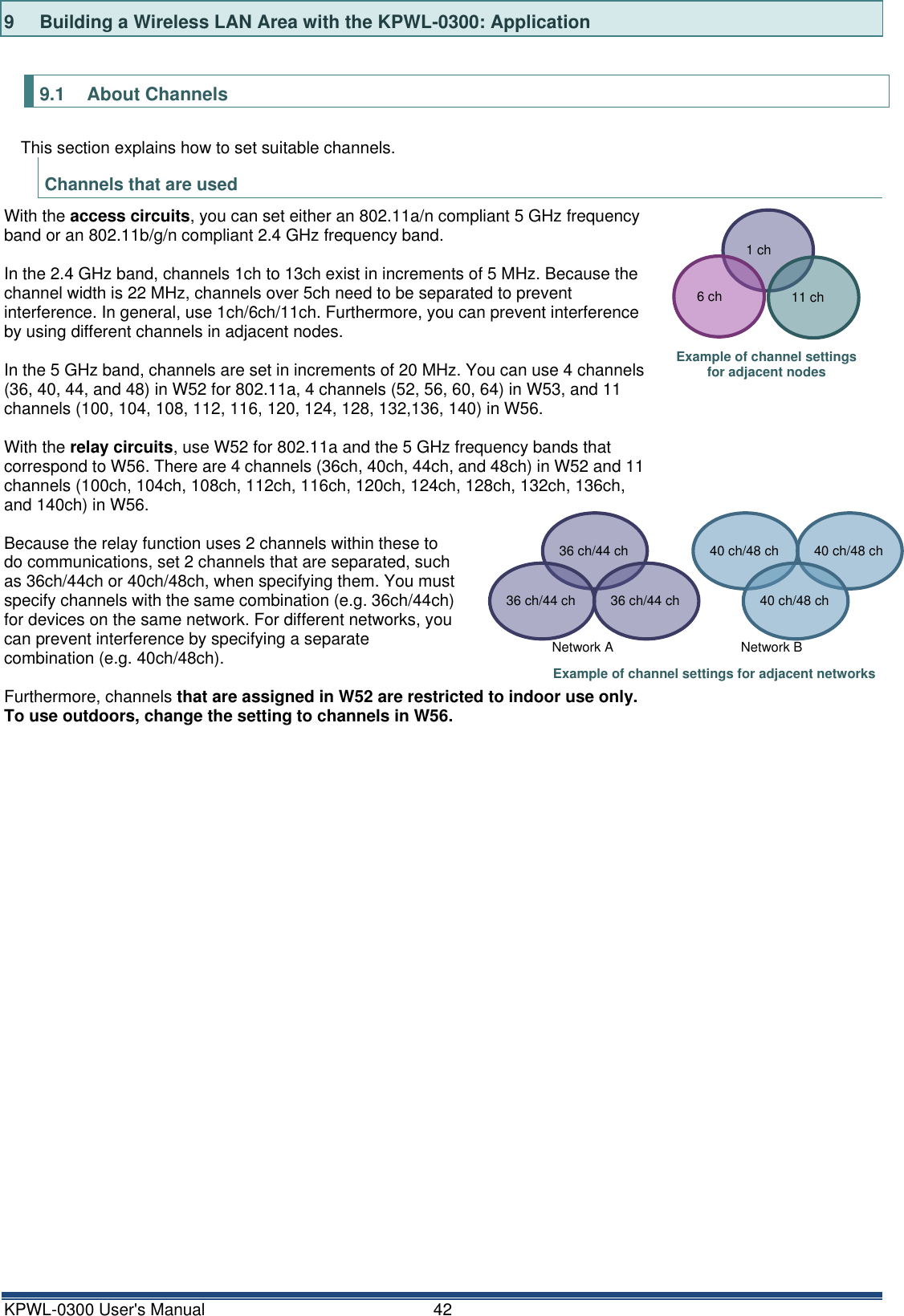
KPWL-0300 User's Manual  42 9  Building a Wireless LAN Area with the KPWL-0300: Application  9.1  About Channels This section explains how to set suitable channels. Channels that are used With the access circuits, you can set either an 802.11a/n compliant 5 GHz frequency band or an 802.11b/g/n compliant 2.4 GHz frequency band.  In the 2.4 GHz band, channels 1ch to 13ch exist in increments of 5 MHz. Because the channel width is 22 MHz, channels over 5ch need to be separated to prevent interference. In general, use 1ch/6ch/11ch. Furthermore, you can prevent interference by using different channels in adjacent nodes.  In the 5 GHz band, channels are set in increments of 20 MHz. You can use 4 channels (36, 40, 44, and 48) in W52 for 802.11a, 4 channels (52, 56, 60, 64) in W53, and 11 channels (100, 104, 108, 112, 116, 120, 124, 128, 132,136, 140) in W56.  With the relay circuits, use W52 for 802.11a and the 5 GHz frequency bands that correspond to W56. There are 4 channels (36ch, 40ch, 44ch, and 48ch) in W52 and 11 channels (100ch, 104ch, 108ch, 112ch, 116ch, 120ch, 124ch, 128ch, 132ch, 136ch, and 140ch) in W56.  Because the relay function uses 2 channels within these to do communications, set 2 channels that are separated, such as 36ch/44ch or 40ch/48ch, when specifying them. You must specify channels with the same combination (e.g. 36ch/44ch) for devices on the same network. For different networks, you can prevent interference by specifying a separate combination (e.g. 40ch/48ch).  Furthermore, channels that are assigned in W52 are restricted to indoor use only. To use outdoors, change the setting to channels in W56.    36 ch/44 ch 36 ch/44 ch 36 ch/44 ch 40 ch/48 ch 40 ch/48 ch 40 ch/48 ch Network A Network B Example of channel settings for adjacent networks Example of channel settings   for adjacent nodes 1 ch 6 ch 11 ch
KPWL-0300 User's Manual  43 How to Search for Overlapping Channels Due to the popularization of wireless LAN, several access points may be installed in office buildings and apartments. Wireless quality may decline considerably because of overlapping channels, mutual interference, etc.  As a result, it is important to search for frequencies that are being used in the area of installation and do your best to set channels so that they do not overlap.  Many tools for searching for frequency bands that are being used are available, both for free or for sale. This section introduces a way to search for frequencies that are in use by using freeware3  for Windows, called "InSSIDer2".  1. Prepare a computer, such as a laptop, equipped with Windows that can be carried to the installation locations, and then open the following site. http://inssider.softonic.jp/    2. Click [Free download]   The download does not start immediately, it stops until you have moved to the page, and then starts in about 15 seconds4.        3. Execute the inSSIDer-Installer-2.x.x.xxxxxx.exe5  that you downloaded and install it.  4. Start inSSIDer2.  5. Clicking "Start" at the top right displays a list of access points on the upper half of the screen.        RSSI is the wireless strength and Channel is the channel.               You can check which access points are using which channels and their strength.                                                           3  Ver4 and later of inSSIDer requires a fee ($19.99). Understand that, although you can currently download free versions from places like softonic, future distribution cannot be guaranteed. 4 "To help protect your security, Internet explorer blocked this site from downloading files to your computer. Click here for options ..." appears on the top part of the page in Internet Explorer. Click it, and then select "Download file". 5  As of July 20, 2011, the newest version is inSSIDer-Installer-2.0.7.0126.exe.
KPWL-0300 User's Manual  44 6. Selecting the "2.4 GHz Channels" tab near the middle of the screen displays the channels being used in the 2.4 GHz band in a graph on the lower half of the screen. High values on the graph's X-axis indicate high signal strength.    7. Selecting the "5 GHz Channels" tab near the middle of the screen displays the channels being used in the 5 GHz band in a graph on the lower half of the screen. If your computer cannot receive 5 GHz bands, such as 802.11a, this is not displayed.  * The relay circuits for KPWL-0300 are not displayed here.  Based on this information, you can reduce wireless interference by setting frequency bands that are not used much.  However, as you can see by monitoring with these tools, the wireless strength fluctuates due to a variety of reasons, such as airflow, the presence of a reflective object and its reflectance (absorbance), and the existence of distance and obstacles; it is not always fixed. Furthermore, the usage conditions for the channels also change due to these because of access points that set channels automatically and mobile-type wireless routers that have become available recently. Therefore, it is imperative to realize that the values that were optimal when they were set are not always the optimal values.
KPWL-0300 User's Manual  45 9.2  DFS This section explains how setting W52 (Ch 36 to Ch 48) or W56 (Ch 100 to Ch 140) as the relay circuit channel affects behavior.  The frequency band prescribed by W56 overlaps the frequency band already used by various types of radar (such as meteorological radar, etc.) Because of this, a dynamic frequency selection (DFS) function is required to change the frequency to make sure wireless LAN communication is not affected by meteorological radar, etc.  This also means that the W56 setting will result in behavior that is different from the W52 setting. When a radar wave is detected, the DFS function changes to a different channel, which generates the operation described below.   Channel scan is performed to determine the new channel. During the channel scan, the POWER LED flashes and internet access from wireless terminals is disabled. This condition may continue for one minute or longer.   Since the channel change is automatic, operation may be on a channel that is different from the channel setting.  Startup Behavior  *  In the case of a slave unit, the STAT LED remains unlit.   W52 Setup POWER LED lit STAT LED lit LINK LED lit Power ON Power ON POWER LED flashing (0.3 sec intervals) POWER LED lit LINK LED lit Flashes for two minutes. W56 Setup Flashes for a few seconds. POWER LED flashing (0.5 sec intervals) STAT LED lit  Slave units only
KPWL-0300 User's Manual  46 Behavior during Use   *  In the case of a slave unit, the STAT LED remains unlit.  * DFS startup judgment is in accordance with legally defined standards, and interference wave reception patterns, etc. that are present within the band are analyzed. In rare cases, interference waves other than radar waves may activate the DFS, but this does not indicate abnormality.  * After DFS is activated, communication will be temporarily interrupted for one minute or more. This is a measure to comply with legally defined standards, and does not indicate abnormality.  * When a node is an upstream node and a relay circuit in which the applicable node is the starting point divides into branches in the downstream direction, DFS startup judgment may be performed by the upstream node if there is a mutually hidden terminal relationship between multiple downstream nodes. If this happens, change the installation locations between the downstream nodes, add nodes, or take other measures to avoid generation of hidden terminals.    W52 Setup Radar wave detection is not performed, so nothing happens. Normal operation Radar wave detection POWER LED flashing (0.5 sec intervals) LINK LED unlit POWER LED lit LINK LED lit Flashes for one minute. W56 Setup Normal operation POWER LED flashing (0.3 sec intervals) LINK LED unlit  Flashes for a few seconds. Slave units only
KPWL-0300 User's Manual  47 9.3  About Wired Backhaul Normally with the KPWL, relay is done between nodes (KPWL) wirelessly (wireless backhaul, sometimes abbreviated as wireless BH6), but you can create a relay circuit by using a wired LAN cable in place of the wireless relay. This is a wired backhaul function. It is effective if a wireless backhaul is difficult due to obstructions.    Image of a wireless BH configuration          *  The wired BH is only enabled between slave devices. It cannot be used between core and slave devices. *  Use a cross LAN cable for connections between nodes.  In addition, you can also combine a wired backhaul and a wireless backhaul, as shown below.    Image of a wired and wireless BH configuration                                                                    6The wireless backhaul has so far been described as a wireless mesh network (abbreviated as mesh or MS). However, in the future we intend to shift to the use of wireless backhaul in descriptions, because there could be some confusion with a regular mesh network (802.11s). Core Slave 1   (upper position) Slave 2   (lower position) Slave 3 Wireless BH Wired BH LAN cable (cross) Slave 4 Slave 5 Wireless BH Wireless BH Wireless BH Slave 1   (upper position) Slave 2   (lower position) Slave 3 Wireless BH Wired BH LAN cable (cross) Wireless BH Core
KPWL-0300 User's Manual  48 About the Setting Procedure and LEDs To operate a wired BH, connect two KPWLs, as shown below.  • KPWL in upper position (closer to parent device): Connect the cross LAN cable to the LAN port in the middle of the device. • KPWL in lower position (further from parent device): Connect the cross LAN cable to the LAN port on the right side of the device.  In addition, for a wired BH configuration, as in the image shown above, slave 2 is the lower position KPWL.  If the settings of the devices are correct, when you turn on the power the POWER lamp lights and the STAT LED flashes.  *  Regarding the LINK LED, if the relays between devices have been structured the same as for the wireless BH, it lights. If they have not been, it is out.    POWER LED lit LINK LED lit/out STAT LED flashing
KPWL-0300 User's Manual  49 9.4  About Measuring the Speed of Communications There are several ways to measure the speed of communications. Select the method according to your purpose, such as: In which area do you want to measure the communication speed? Is a simple measurement sufficient? Do you want to do it rigorously?  About the Areas to Measure Refer to the following diagram regarding how to measure speed in various areas.  Measuring Using an Internet Site There are many sites and tools on the internet for measuring speed. The ease-of-use and accuracy vary, and there is software that you can operate on a smartphone or tablet computer. Measurements can be done very easily, so it is very effective to do a simple test for a temporary installation.  Needless to say however, if you use an internet site, use an internet circuit. Internet circuits have varying communication speeds for a variety of reasons, not alone of which are the contract provider and the type of contract. Plus, they cannot be expected to maintain a consistent speed. While keeping this in mind, be aware of whether you doing a simple measurement or measuring usage in an actual usage scenario. Also, do measurements in conditions that do not use the KPW-0300 (measuring only the internet circuit), while being aware that it will be the maximum speed of that environment.  This section introduces the measurement methods from "SPEEDTEST.NET". SPEEDTEST.NET also lets you download an application with your browser to do tests, which shows the test results for both uploading and downloading.    Wireless access circuit Wireless backhaul circuit Wireless access circuit + Wireless backhaul circuit Wireless access circuit + Wireless backhaul circuit + Wireless backhaul circuit Internet connection Wireless access circuit + Internet circuit Wireless backhaul circuit + Internet circuit Wireless access circuit + Wireless backhaul circuit + Internet circuit Wireless access circuit + Wireless backhaul circuit + Wireless backhaul circuit + Internet circuit Internet Server   for measuring
KPWL-0300 User's Manual  50    Software for smartphones and tablet computers Start the software and when "Begin Test" appears, touch it to start measuring. It also leaves a history. Access http://speedtest.net to start the SPEEDTEST.NET using Flash, and click "BEGIN TEST" to start measuring.   Measuring Using Data Transmission Software You can use data transmission software, download files via HTTP, and transfer files via FTP if you want to measure the speed of only the relay circuits or only the access circuits for KPWL-03000, or if you want to measure the speed when you are not using an internet connection.  This section introduces ways to use iPerf to measure the throughput of the "wireless access circuits". iPerf is a tool that measures throughput by sending TCP and UDP, and operates in Linux, Windows, and MacOS. The server receives data and the client sends data using a cloud-based server system.  1.  Prepare two computers and install iPerf on each. Download iPerf from the following site. https://iperf.fr/ Copy the file you downloaded anywhere (we recommend directly on the C drive).  2.  Start command prompt, and then move to the folder in which iPerf was copied.  3.  Input "iperf –s" to the command line for the receiver.   4.  Input "iperf –c recipient IP Address" to the command line for the sender.   5.  Traffic is sent via TCP for 30 seconds, and then the results are output. Recipient's results screen:  Sender's results screen:   For instance, if you want to measure the throughput of the wireless access circuits, do the following configurations.
KPWL-0300 User's Manual  51  In upward communications, PC-1 is the sender and PC-2 is the recipient.  In downward communications, PC-1 is the recipient, and PC-2 is the sender.    According to each option setting in iPerf, you can change the type of traffic, do UDP communications, and change and send the TCP buffer size. Help appears in "iperf --help", so set the options to match the conditions.  Additionally, because it relies on the TCP/IP overhead in the throughput measurements that used iPerf and the performance of the PC being used, the maximum speed specified in 802.11 may not be reached.    PC-1  Iperf -s PC-2  Iperf –c y.y.y.y PC-1  Iperf -s PC-2  Iperf –c x.x.x.x Upward communications Downward communications PC-1 PC-2
KPWL-0300 User's Manual  52 9.5  Multi SSID and VLAN For the KYPWL-0300's access circuits, you can set an SSID at the maximum of 32 characters (16 × 2 bands), apply different wireless LAN policies (authentication method, encryption method) for each SSID, and do VLAN mapping.  As a result, you can achieve flexible control over security and control over communications on the wireless network.  For example, by separating inner SSIDs and guest SSIDs, such as in the following diagrams, and doing VLAN mapping, you can separate inner networks and guest networks, and ensure their security.   * Because there are only 2 LAN ports on a KPWL-0300, a VLAN-compliant L2 switch is required to configure networks for which VLAN is used.  Setting Procedure Assume that you are configuring the network in the diagram above. In this section, the inner VLAN ID is 101, and the guest VLAN ID is 102. Additionally, the management VLAN ID to access the KPWL-0300 webpage is 103.  L2 Switch Settings The L2 switch settings differ according to the type of device, so refer to the manual of the device you are using to do settings. The required items are as noted below.  Port that connects to KPWL-0300: Trunk, Allow (101, 102, 103)   Port that connects to the inner network: Access, VLAN ID = 101 Port that connects to the guest network: Access, VLAN ID = 102 Port that connects to the PC to access the KPWL-0300 webpage: Access, VLAN ID = 103    Employee A Access to inner SSID Inner network inner SSID Authentication via WPA2/AES  Internet guest SSID No authentication, free Wi-Fi Guest A Access to guest SSID L2-SW
KPWL-0300 User's Manual  53 KPWL-0300 Settings You can do settings on the web setting screen. For information about the IP address for the web setting screen, refer to the chapter, "How to change settings".  • Setting procedure  1) Click the [Wireless Backhaul Network] tab, and then click [VLAN] from the side menu.  2) Turn on [VLAN Switch], and then input each VLAN ID as follows. • Management VLAN: 103 • SSID 1: 101 • SSID 2: 102  3) Click [Apply] to enable the settings.  4) Click the [Access Point] tab, and then click [Basic Settings] from the side menu.  5) Enable [Wireless], and then input the SSID names as follows. • SSID 1: inner SSID • SSID 2: guest SSID  6) Click [Apply] to enable the settings.
KPWL-0300 User's Manual  54 7) Click [Security] from the side menu.  8) Select "inner SSID" in [SSID], and then set the following. • Authentication Method: MPA-PSK • WPA Type: WPA2 • Encryption Type: AES • Pre-shared Key: Any passphrase  9) Click [Apply] to enable the settings.  10) Select "guest SSID" in [SSID], and then set the following. • Authentication Method: No Authentication  11) Click [Apply] to enable the settings.
KPWL-0300 User's Manual  55 9.6  802.1 Authentication KPWL-0300 supports 802.1X authentication (WPA-EAP/WPA2-EAP). By using 802.1X authentication, you can allow use to only specific users with IDs and passwords for authentication when participating in specific or all networks.  A separate RADIUS server is required to use 802.1X authentication.  802.1 Authentication Process            (2) Queries the RADIUS server whether authentication is possible (1) Request connection using an authentication ID (realm) and password (3) RADIUS server responds regarding whether or not to permit authentication (4) Connects or denies connection depending on the authentication results RADIUS Server KPWL-0300
KPWL-0300 User's Manual  56 Network Configuration ■ Example configuration (1): Use with single segment  An L2 switch is required to install the RADIUS server. Connect the L2 switch to the KPWL-0300, and then connect the RADIUS sever or a router to the L2 switch.  ■ Example configuration (2): Use with multiple segments for which VLAN is used  A VLAN-compliant L2 switch is required to use VLAN. Connect the L2 switch to the KPWL-0300, and then connect the RADIUS sever or a router to the L2 switch.  The network management segment is a segment for accessing the KPWL-0300 web page. Install the RADIUS server to this segment.       RADIUS Server KPWL-0300 L2 switch Router Segment for network management (VLAN ID = 1) Inner WLAN segment (VLAN ID = 200) Free WLAN segment (VLAN ID = 300) RADIUS Server KPWL-0300 L2 switch Router Internet Inner server
KPWL-0300 User's Manual  57 Setting Procedure  RADIUS Server Settings How to set the RADIUS server differs according to the type of device, so refer to the manual of the device you are using to do settings.  KPWL-0300 RADIUS Server Settings You can do settings on the web setting screen. For information about the IP address for the web setting screen, refer to the chapter, "How to change settings".  • Setting procedure  1) Click the [Access Point] tab, and then click [Security] from the side menu.  2) Select either [IEEE802.1x/EAP] or [WPA-EAP] from [Authentication Method], or select [MAC RADIUS authentication] from [Additional Authentication]. Items appear for setting the RADIUS Server.  3) Do settings for the RADIUS Server. • RADIUS Server: Specify the IP address for RADIUS Server. • Authentication Port: Specify the port number for RADIUS Server. (Normally keep this 1812) • Shared Secret: Specify if a secret key has been set for RADIUS Server.  4) Click [Apply] to enable the settings.   To separate segments and use multiple VLANs, refer to "Multi SSID and VLAN" above and do the VLAN settings.
KPWL-0300 User's Manual  58 10  Building a Wireless LAN Area with the KPWL-0300: Expert  10.1  Communication between Terminals The next two types of communications are defined for the communications between terminals that is explained here. The first indicates communications between terminals that are wirelessly connected on the same node (unicasting). The second indicates communications between terminals that are wirelessly connected on different nodes (multicasting). Here, node indicates a KPWL and terminal indicates computers, mobile devices, etc., that are wirelessly connected to the KPWL.    Unicasting Control intercommunications that are permitted/not permitted between Terminal A and Terminal B.    Multicasting Control intercommunications that are permitted/not permitted between Terminal C, Terminal D, and Terminal E.        Terminal A Terminal B Terminal C Terminal D Terminal E Wireless backhaul network Wireless backhaul network
KPWL-0300 User's Manual  59 Setting Procedure You can do settings for both unicasting and multicasting on the web setting screen. For information about the IP address for the web setting screen, refer to the chapter, "How to change settings". Doing Unicasting Settings 1) Click the [Access Point] tab, and then click [Security] from the side menu.  2) Select either [Disable], [STA Separator], or [SSID Separator] in [Wireless Client Isolation]. * Refer to "Wireless Client Isolation" below for details on permitting and/or not permitting communications depending on the setting items and setting results for [Wireless Client Isolation].  3) Click [Apply]. Unicasting is enabled.   Wireless Client Isolation ■ Items that can be set with [Wireless Client Isolation] • Disable:    Terminals that are connected to the same AP can communicate with each other. • STA Separator:    Terminals that are connected to the same AP cannot communicate with each other. • SSID Separator:    Terminals that are connected using the same SSID for the same AP can communicate with each other. However, terminals that are connected using different SSIDs, even on the same AP, cannot communicate with each other.  ■ Communications that are permitted/not permitted depending on the setting results of [Wireless Client Isolation]  • When two terminals are connected to different SSIDs When assuming that Terminal A is connected to SSID #1 and Terminal B is connected to SSID #2, communications between Terminal A and Terminal B are permitted/not permitted as noted below.  [Wireless Client Isolation] settings Permitting/not permitting communications between Terminal A and Terminal B SSID #1 settings SSID #2 settings Disable Disable Can STA Separator Disable Cannot SSID Separator Disable Cannot STA Separator SSID Separator Cannot STA Separator STA Separator Cannot SSID Separator SSID Separator Cannot
KPWL-0300 User's Manual  60  • When two terminals are connected to the same SSID When assuming that both Terminal A and Terminal B are connected using an SSID, communications between Terminal A and Terminal B are permitted/not permitted as noted below.  [Wireless Client Isolation] settings Permitting/not permitting communications between Terminal A and Terminal B Disable Can STA Separator Cannot SSID Separator Can  Doing Multicasting Settings 1) Click the [Wireless Backhaul Network] tab, and then click [Advanced Settings] from the side menu.  2) Select [ON] in [Privacy Switch]. * This item can only be set on the parent (core). The child (slave) takes over the settings of the parent (core).  3) Click [Apply]. Multicasting is enabled.
KPWL-0300 User's Manual  61 10.2  Relay Circuit Radio Wave Intensity There are two methods for checking relay circuit radio wave intensity.  One method is to press the Reroute button and observe how many times the LINK LED flashes. The LINK LED will flash one to four times. More flashes indicate greater radio wave intensity.  The second method is to check the RSSI values on the web setting screen.  Click the [Wireless Backhaul Network] tab. Next, on the side menu, click "System Information" to display the RSSI Table. Note however that the second method can be used for a slave node only. Since there are no nodes above the core node, the table is not displayed for it.  Mac address MAC address E (RSSI) RSSI value successive average E (dbm) dBm value successive average V (RSSI) RSSI value variance RSSI Newest RSSI (Not a real-time value) Count Counter (Not a Routing Index)
KPWL-0300 User's Manual  62 10.3  Checking the Relay Route The relay route can be checked with the web setting screen.  Click the [Wireless Backhaul Network] tab. Next, on the side menu, click "System Information" to display relay route information. * Displayed for the core node only.  Node Mac address Node MESH MAC address Parent Mac address Node directly above (MESH MAC) hop num Number of hops from the core type Type (core or slave unit) web UI Link to the slave unit web UI (IPv6 address) * For information about the IPv6 address, refer to "Remote settings" earlier in this manual.  A constructed route (topology) can be divided by combining Hop and Parent.
KPWL-0300 User's Manual  63 10.4  Updating Firmware from the Webpage Firmware can be updated from the web setting screen.  • Update Procedure 1) Click the [Management] tab. Next, on the side menu, click "Firmware Upgrade."  2) Click [Browse] and then select the firmware file (KPWL-0300-FW-V******.bin).   (****** is the version number.)  3) Click "Update." This displays a dialog box.  4) Click [OK] twice. This starts the firmware update. * The device will not respond for a number of minutes while firmware is being updated. Do not turn off the devices during the update.  5) Reboot starts after the firmware update is finished. Wait until the reboot is complete.  10.5  If You Forget Your Login Password If you change the password used to access the web management screen (Default: admin) and then forget it, you will need to restore factory default settings.  For information about how to restore factory default settings, refer to "6.2 Initializing Settings." If you forget the password you will not be able to access the web management screen. You will need to use PicoManager.  Note that returning settings to their factory defaults will cause all settings to be initialized.
KPWL-0300 User's Manual  64 11  Main Specifications Item Value Wireless Access point Wireless LAN standard IEEE 802.11 b/g/a/n/ac compliant Simultaneous 2.4GHz / 5GHz operation Link speed   (logical maximum values) 802.11b: 11 Mbps, 802.11g: 54 Mbps, 802.11a: 54 Mbps   802.11n: 600 Mbps, 802.11ac: 1.73 Gbps Built-in antenna - External antenna 4x4MIMO (omnidirectional) Beam forming ○ Backhaul Wireless access system IEEE 802.11 a/n/ac compliant (W52, W53, W56, W58) Link speed   (logical maximum values) 802.11a: 54 Mbps   802.11n: 600 Mbps   802.11ac: 1.56 Gbps External antenna 4x4MIMO (omnidirectional) Wired LAN port 10BASE-T, 100BASE-TX, 1000BASE-T Number of ports 2 ports (1 port PoE+ PD (EDIMAX specification)) • Powered only. Number of connected terminals 200 maximum (2.4 GHz: 100, 5GHz: 100) QoS IEEE 802.11e Supported settings: WMM EDCA AC_BE, AC_BK, AC_VI, AC_VO SSID Multi SSID 32 maximum (2.4 GHz: 16, 5GHz: 16) Stealth SSID Configurable for each SSID Wireless backhaul (logical maximum values) Maximum number of hops: 20, Maximum number of branches: 20   Number of AP per mesh: 50   Number of terminal connections per mesh: 10,000 VLAN Configurable for each SSID/IEEE 802.1Q compliant   (Tag VLAN) Security Authentication/encryption   (each SSID) Supported settings: Open, WEP, WPA/WPA2mixed-PSK, WPA2-PSK, WPA/WPA2mixed-EAP, WPA2-EAP; 802.1X MAC access control 2,000 maximum for tree to be configured   (Settable for each AP) Inter-client communication prohibition ○ RADIUS Configurable for each SSID Admin address control Specifiable IP address Management SNMP v1/v2c SNTP ○ syslog ○ Setting Web UI, remote from manager Language Japanese, English, Chinese (Simplified)
KPWL-0300 User's Manual  65 Item Value Environmental design RoHS compliant Environmental performance Water-proof, dust-proof design × Operating temperature -20 °C to 50 °C   (Preheat type) Operating humidity 10% to 90% (non-condensation) Physical specifications External Dimensions (Width x Depth x Height) (W) 233 mm x (H) 233 mm x (D) 48 mm Weight 1.3 Kg Power supply 37 W  Automatic channel setting function Access point auto interference avoidance (at startup only) USB 2 external ports (USB 2.0) External switch External switch (1) Reroute button (push)   (2) Mode selector (slide) LED 3 (Power (green), Link (green), STAT (orange)) Case/mount Installation plate (special screws or standard screws) Directional antenna 4×4MIMO (sold separately) Certification Japan: TELEC, VCCI China: SRRC (CCC: not applicable) Other (U.S., Taiwan, India, Vietnam, Thailand, Europe): FCC, NCC, WPC, ICT, CD (ETSI) Included Accessories (1) Instruction Manual (2) AC adapter (100 V to 240 V) (3) AC cable (4) Installation hardware (installation plate, unit anchor screws) (5) Unit case  Any changes or modifications not expressly approved by the party responsible for compliance could void your authority to operate the equipment. This equipment has been tested and found to comply with the limits for a Class B digital device, pursuant to part 15 of the FCC Rules.   These limits are designed to provide reasonable protection against harmful interference in a residential installation.   This equipment generates, uses and can radiate radio frequency energy and, if not installed and used in accordance with the instructions, may cause harmful interference to radio communications. However, there is no guarantee that interference will not occur in a particular installation. If this equipment does cause harmful interference to radio or television reception, which can be determined by turning the equipment off and on, the user is encouraged to try to correct the interference by one or more of the following measures:   —Reorient or relocate the receiving antenna.   —Increase the separation between the equipment and receiver.   —Connect the equipment into an outlet on a circuit different from that to which the receiver is connected.   —Consult the dealer or an experienced radio/TV technician for help.   RF Radiation Exposure Statement 1. This Transmitter must not be co‐located or operating in conjunction with any other antenna or transmitter.   2. This equipment complies with FCC RF radiation exposure limits set forth for an uncontrolled   environment. This equipment should be installed and operated with a minimum distance of 29 centimeters between the radiator and your body.

Navigation menu