Kyocera C2520 2FZ_BOG_KME User Manual To The 3aa8061b 12d1 4bf1 A99b 712ff6eb0c45
User Manual: Kyocera C2520 to the manual
Open the PDF directly: View PDF  .
.
Page Count: 180 [warning: Documents this large are best viewed by clicking the View PDF Link!]
- Legal and Safety Information
- About this Operation Guide
- 1 Part Names
- 2 Preparation for Usage
- 3 Basic Operation
- 4 Optional Equipment
- 5 Maintenance
- 6 Troubleshooting
- Appendix
- Index

This Operation Guide is for models C2520, C3225 and C3232. In this guide, C2520 refers to the
25/20 ppm (prints per minutes) model, C3225 to the 32/25 ppm model and C3232 to the 32/32
ppm model.
NOTE: This Operation Guide contains information that corresponds to using both the inch and
metric versions of these machines.
The inch versions of these machines are shown in the screens in this guide. If you are using the
metric version, use the messages provided for the inch version as reference only. In the body
text, only the inch messages are given if these versions differ only in capitalization. When there
is even a slight difference in the message, we have listed the information for the inch version
followed, in brackets, by the corresponding information for the metric version.
i
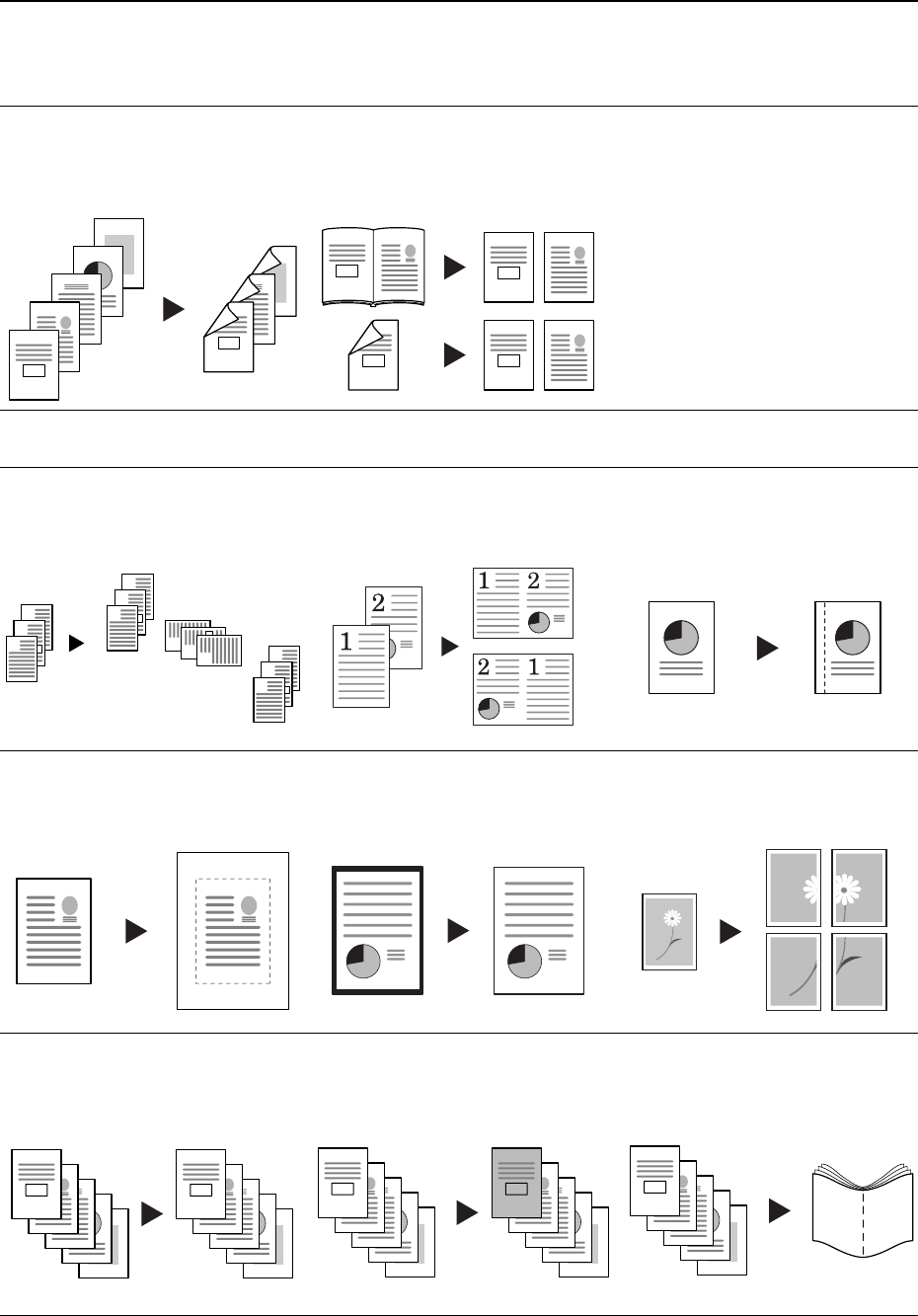
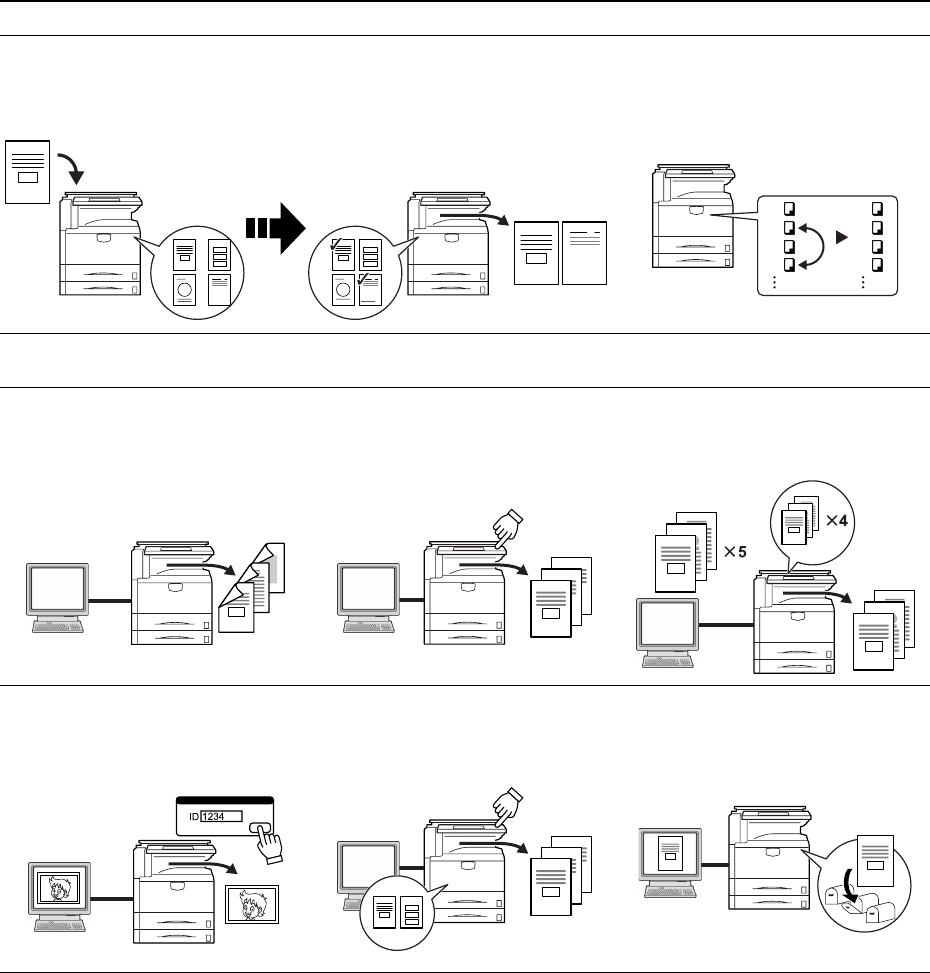
Taking Advantage of Advanced Functions
Basic Copying...See Operation Guide Chapter 3
Advanced Copying
Duplex Mode
Create two-sided copies automatically
from any kind of original
Split Mode
Copy double-sided or two-page
originals onto separate sheets
automatically
Offset Mode
Handy option to stack sets in
alternating orientations
Combine Mode
Combine two or four originals on a
single page
Margin Mode
Set up blank margin or gutter space
for your binding needs
Centering Originals
Customize output by centering the
image on the page
Border Erase
Eliminate unnecessary borders on the
original for cleaner output
Poster
Copy an enlarged image onto several
pages
Page Numbering
Print sequential page numbers on the
copies
Cover Mode
Use a distinctive front and/or back
cover
Booklet
Copy pages for stacking and folding
into booklets
5
4
3
2
1
5
3
4
1
2
2
1
21
2
1
1
2
3
2
1
3
2
1
3
2
1
3
2
1
E
D
C
B
A
E
-5-
D
-4-
C
-3-
B
-2-
A
-1-
ii
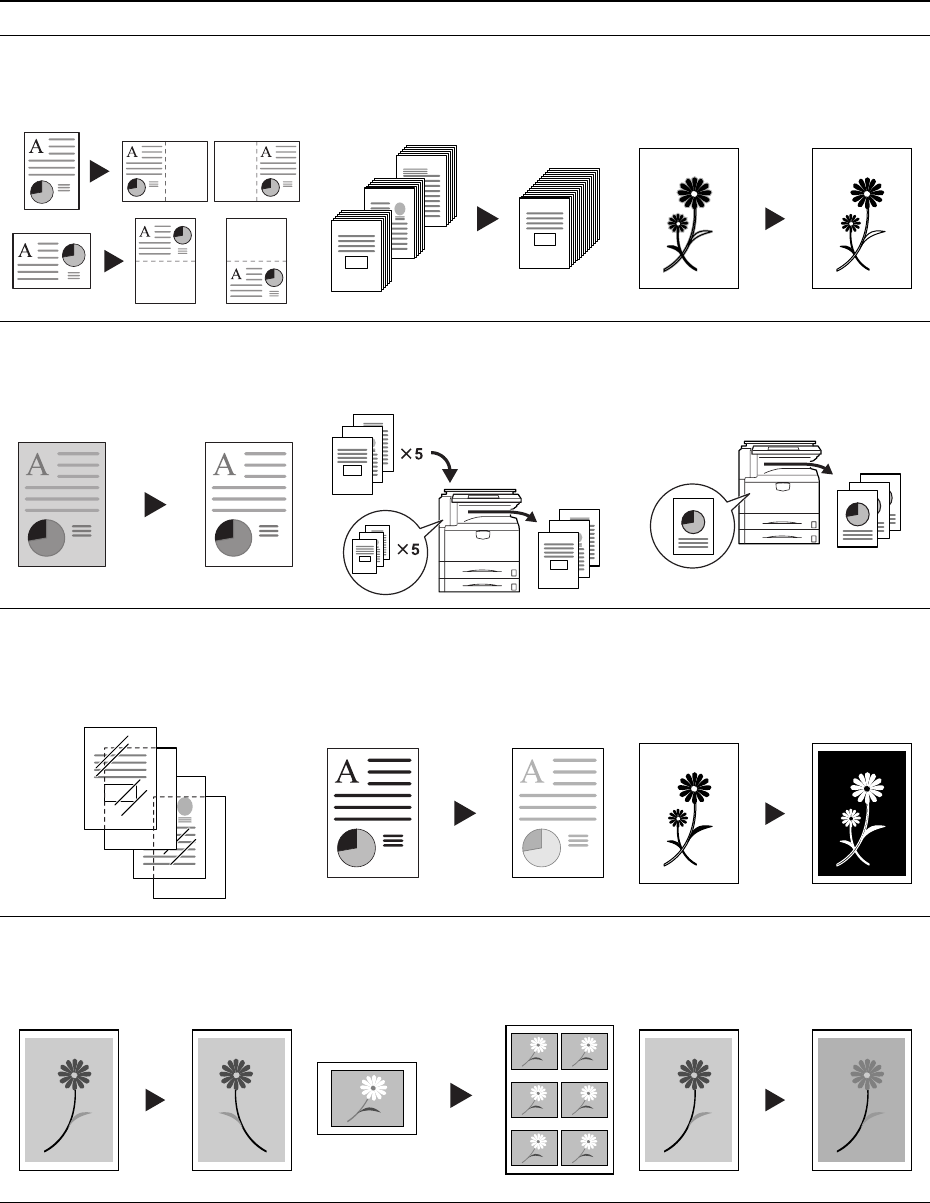
Memo Mode
Add space for notes next to copied
images
Batch Scanning
Copy high-volume originals in a single
copy job
Sharpness Adjust
Adjust the sharpness of image
outlines
Background Exposure Adjust
Adjust the background of color
images
Proof Copy
Copy a test sheet before a
high-volume job
Repeat Copy
Produce more copies as needed after
making the initial copies
OHP Backing Sheet Mode
Insert plain paper backing sheets
when printing transparencies for
projectors
EcoPrint
Use toner more efficiently as
necessary
Inverted Copying
Invert both black and white and color
images
Mirror Copying
Create mirror images of originals
Image Repeat Copy
Tiles a copied sheet with an original
image
Color Balance Adjust
Change the strength of image colors
200
100
1
1
3
2
1
3
2
1
3
2
1
iii
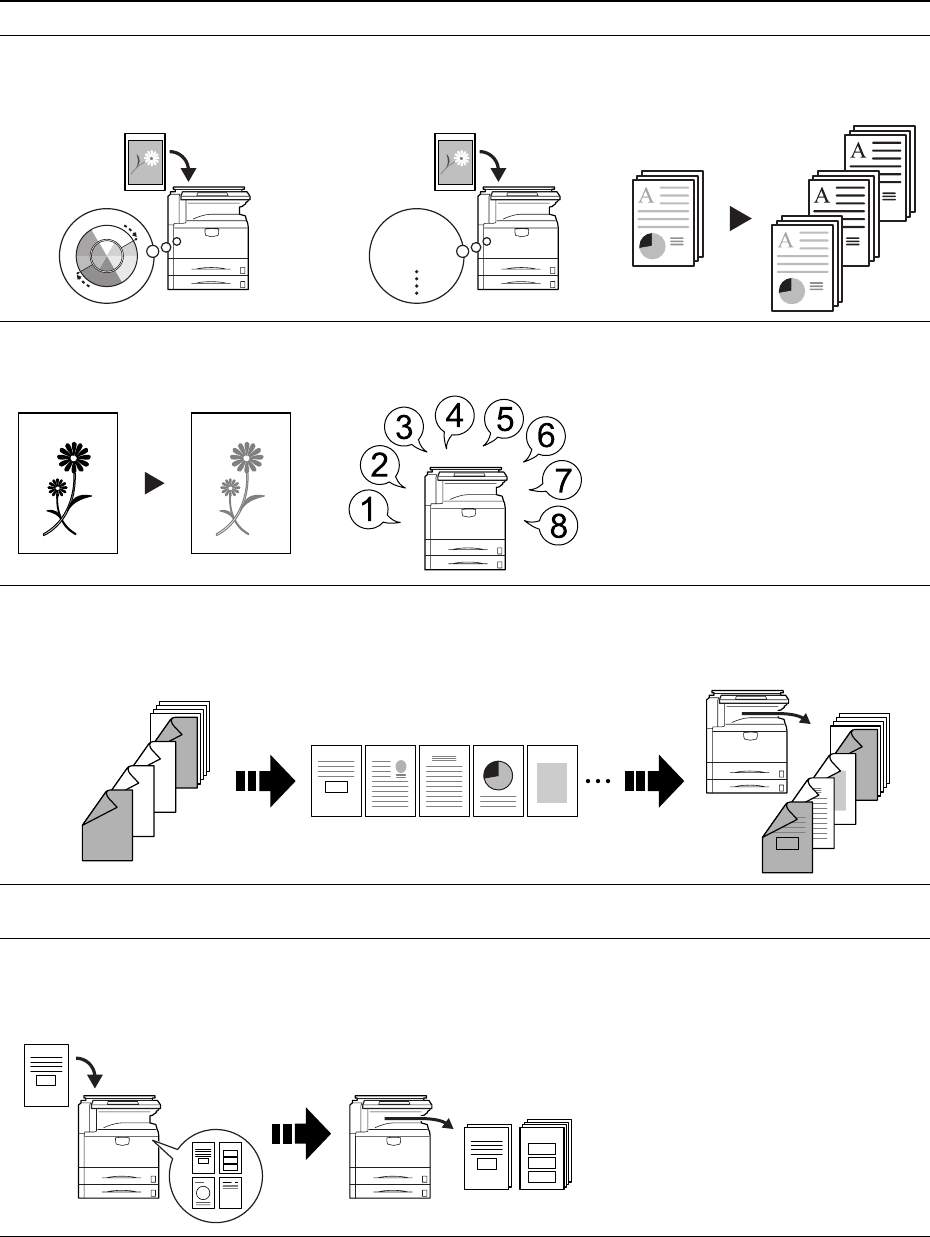
Convenient document/output management functionality
Hue Adjust
Adjust the color (hue) of images
One Touch Image Adjust
Adjust image quality to match the
image
Color/B&W Selection
Make color and B&W copies in one
operation
Single Color Copy
Make copies in 1 other than black
Programmed Copying
Remember commonly used settings
Job Build
Set cover page, middle pages and for each page set shrink/enlarge
and border erase settings and
copy all pages in single operation
Shared Data Box
Store frequently used documents to reproduce them later as needed
even without the original
Vivid
Dull
Sharp
7
8
5
6
3
4
1
2
5
4
3
21
7
8
5
6
3
4
1
2
iv
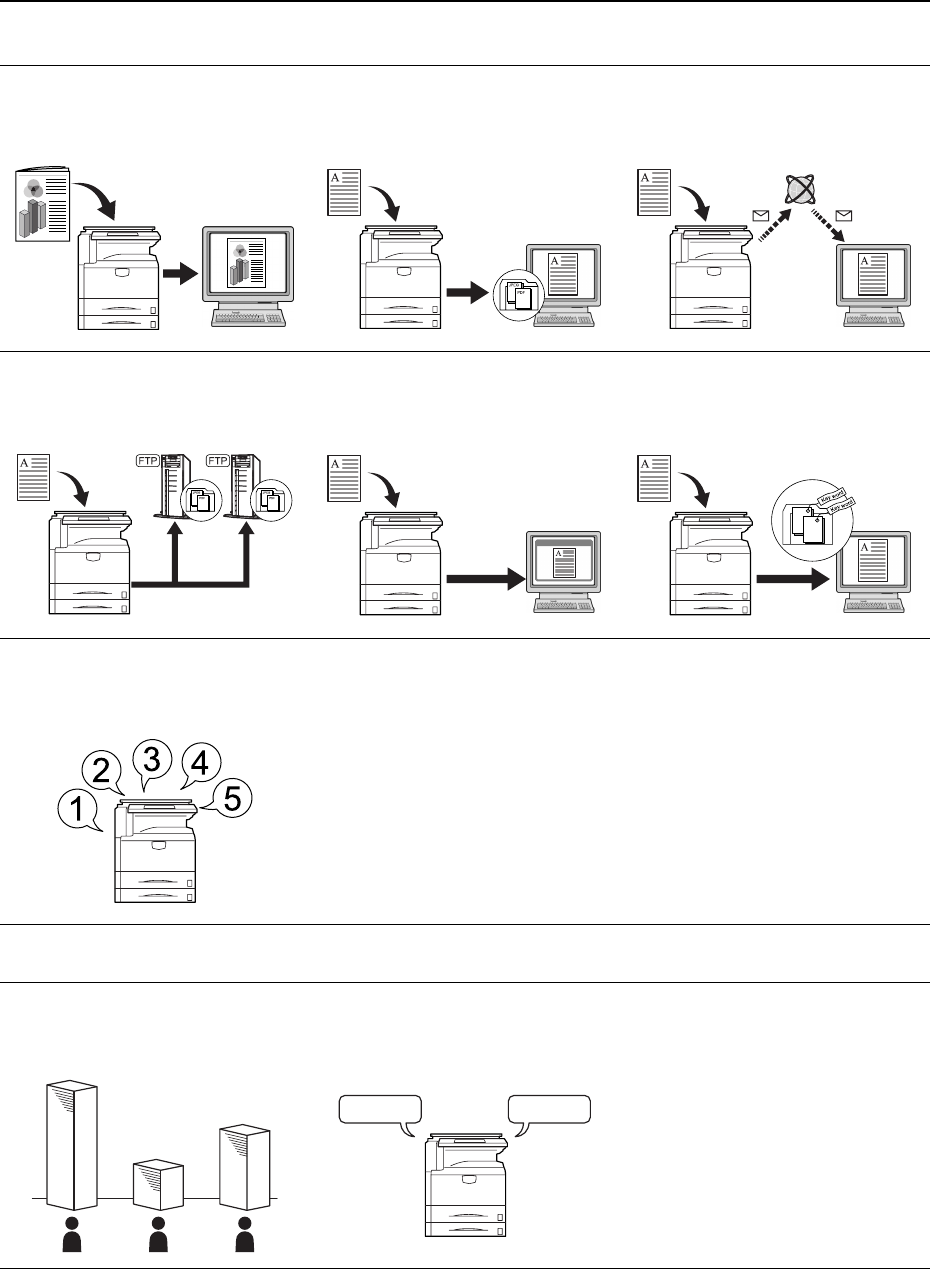
Printing Functionality
Synergy Print Box
Store commonly used documents... to make them instantly available later
in combination with other copying jobs
Output Management
Modify and manage the output queue
Duplex Path
Automatic duplex printing
Quick Copy †
Reprint as many sheets as needed
from the operation panel
† Optional hard disk required for quick copy, job storage, and virtual mailbox
Proof and Hold ††
Bulk print after test print
†† Proof and hold and private print require RAM disk to be configured or optional hard disk
Private Print ††
Delay printing until entry from the
operation panel
Job Storage †
Enable printing commonly used data
any time from the operation panel
Virtual Mailbox †
Save print data to a virtual mailbox
1
2
3
4
1
4
3
2
5
3
4
1
2
3
2
1
3
2
1
3
2
1
v
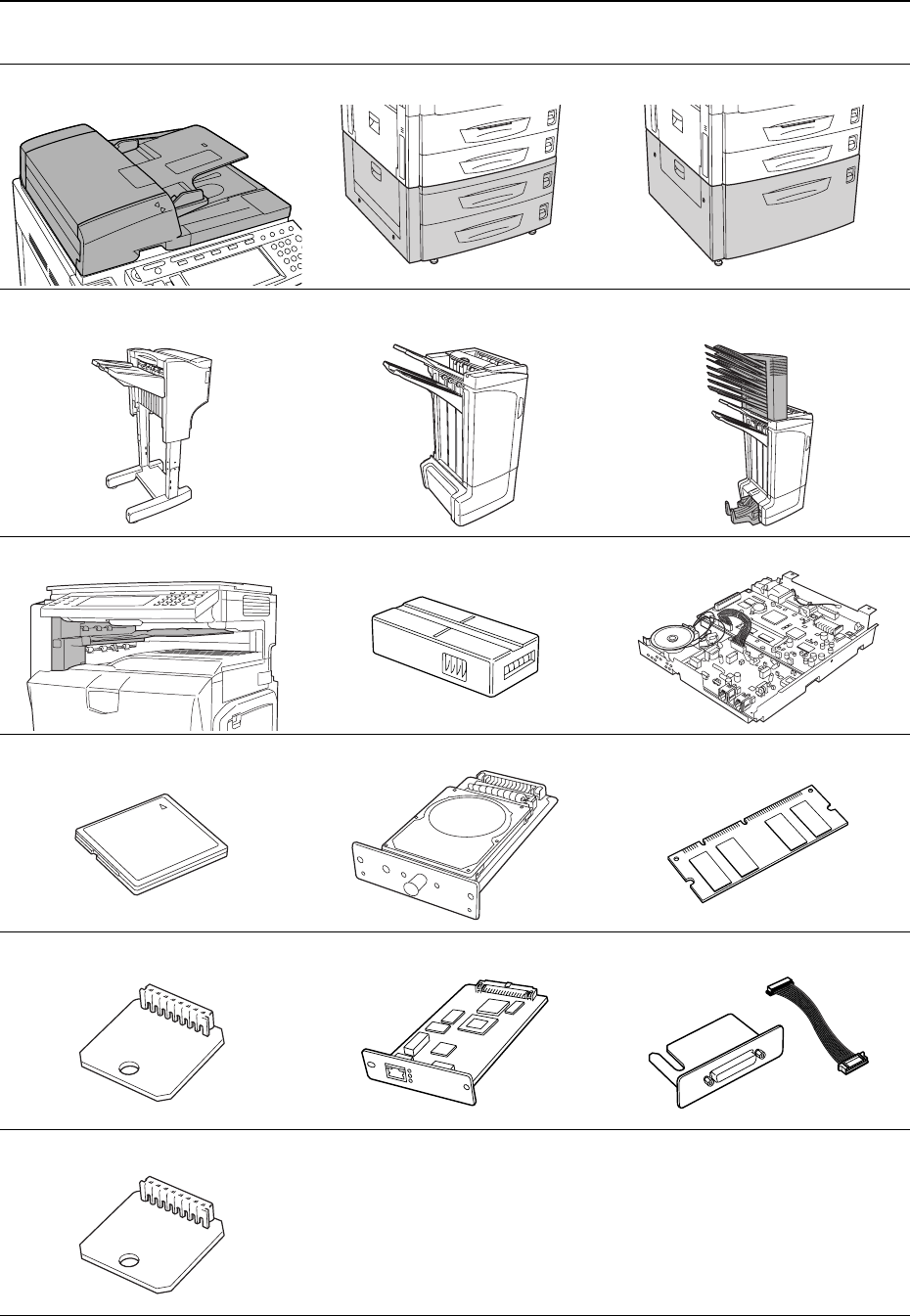
Scanning Functionality
Features for Easier Copying
Full-color Scan
Make high quality scans of even color
documents
Scan to PC
Send scanned images to a computer
as PDF or JPEG files
Send E-mail
Send scanned images as e-mail
Scan to FTP
Upload scanned images to FTP
server directly
TWAIN
Import images using a
TWAIN-compliant application
Database Connection
Send scanned images to a computer
after adding text data
Programmed Scanning
Remember destination and feature
settings
Job Accounting
Use department codes to manage
total copy volume
Language
Choose the language to display
messages
A B C
DeutschEnglish
vi
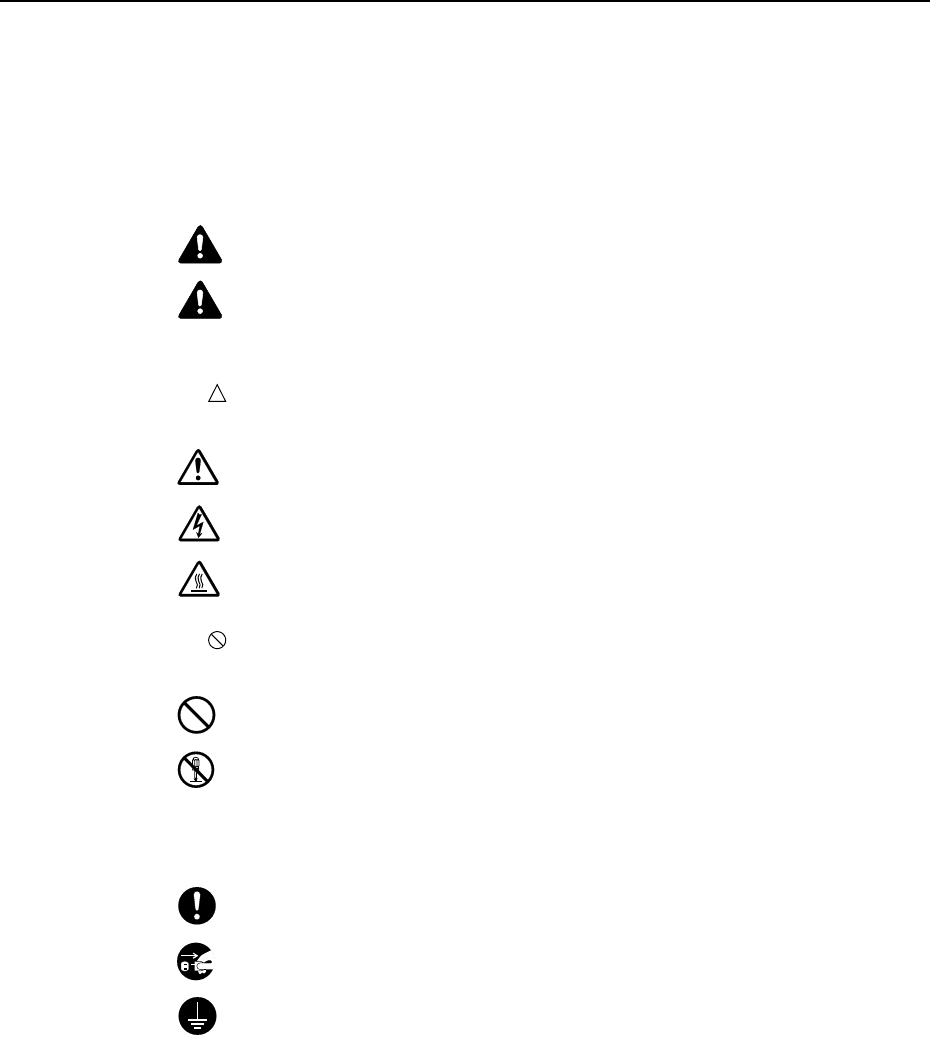
Full optional equipment lineup... See Optional Equipment on page 4-1
Document Processor Paper Feeder 3000 Sheet Paper Feeder
Document Finisher 3000 Sheet Document Finisher (When equipped with a mailbox and
folding unit)
Job Separator Key Counter Fax Kit
Memory Card (CompactFlash) Hard Disk Additional Memory
Security Kit Network Interface Card Serial Interface
PDF Upgrade Kit

vii
Legal and Safety Information
Please read this information before using your machine. This chapter provides information on
the following topics:
• Legal Information...viii
• Regarding Tradenames...ix
• Energy Star (ENERGY STAR®) Program...x
• Safety Conventions in This Guide...xi
• Caution Labels...xii
• Installation Precautions...xiii
• Precautions for Use...xiv

viii
Legal Information
Notice The information in this guide is subject to change without notification. Additional pages may be
inserted in future editions. The user is asked to excuse any technical inaccuracies or
typographical errors in the present edition.
No responsibility is assumed if accidents occur while the user is following the instructions in this
guide. No responsibility is assumed for defects in the printer’s firmware (contents of its read-only
memory).
This guide, any copyrightable subject matter sold or provided with or in connection with the sale
of the machine, are protected by copyright. All rights are reserved. Copying or other
reproduction of all or part of this guide, any copyrightable subject matter without the prior written
consent of Kyocera Mita Corporation is prohibited. Any copies made of all or part of this guide,
any copyrightable subject must contain the same copyright notice as the material from which the
copying is done.
Legal Restriction On Copying
• It may be prohibited to copy copyrighted material without permission of the copyright owner.
• It is prohibited under any circumstances to copy domestic or foreign currencies.
• Copying other items may be prohibited.

ix
Regarding Tradenames
• PRESCRIBE and ECOSYS are registered trademarks of Kyocera Corporation.
• KPDL is trademark of Kyocera Corporation.
• Windows and Windows Server are registered trademarks of Microsoft Corporation.
• Windows NT is a trademark of Microsoft Corporation.
• PCL and PJL are registered trademarks of Hewlett-Packard Company.
• Adobe, Adobe Acrobat and Adobe Reader are registered trademarks of Adobe Systems
Inc.
• PowerPC is a trademark of International Business Machines Corporation.
• CompactFlash is a trademark of SanDisk Corporation.
All other brand and product names are registered trademarks or trademarks of their respective
companies. The designations ™ and ® will not be used in this Operation Guide.

x
Energy Star (ENERGY STAR®) Program
We have determined as a participating company in the International Energy Star Program that
this product is compliant with the standards laid out in the International Energy Star Program.
International Energy Star Program has as its basic goals the promotion of efficient energy use
and the reduction of the environmental pollution that accompanies energy consumption by
promoting the manufacture and sale of products that fulfill program standards.
International Energy Star Program standards require that multifunction devices come equipped
with a Low Power Mode where printer and fax functions remain in a waiting state but energy
consumption is still reduced after a certain amount of time elapses since the device was last
used, as well as a Sleep Mode where printer and fax functions remain in a waiting state but
power consumption is still reduced to a minimum when there is no activity with the device within
a set amount of time. This product is equipped with the following features as a result of its
compliance with International Energy Star Program standards.
Low Power Mode
The device automatically enters Low Power Mode when 15 minutes have passed since the
device was last used. The amount of time of no activity that must pass before Low Power Mode
is activated may be lengthened. See Low-Power Mode on page 3-35 for more information.
Sleep Mode
The device automatically enters Sleep Mode when 45 minutes have passed since the device
was last used. The amount of time of no activity that must pass before Sleep Mode is activated
may be lengthened. For more information see Sleep Mode on page 3-36.
Automatic 2-Sided Copy Function
The Energy Star Program encourages the use of 2-sided copying which reduces the load on the
environment and this device includes 2-sided copying as a standard function. For example, by
copying two 1-sided originals onto a single sheet of paper as a 2-sided copy, it is possible to
lower the amount of paper used. For more information refer to Duplex Mode on page 3-11.
Paper Recycling
The Energy Star Program encourages the use of environmentally friendly recycled paper. Your
sales or service representative can provide information about recommended paper types.
About the International Energy Star Program
xi
Safety Conventions in This Guide
Please read this Operation Guide before using the machine. Keep it close to the machine
for easy reference.
The sections of this guide and parts of the machine marked with symbols are safety warnings
meant to protect the user, other individuals and surrounding objects, and ensure correct and
safe usage of the machine. The symbols and their meanings are indicated below.
Symbols
The symbol indicates that the related section includes safety warnings. Specific points of
attention are indicated inside the symbol.
The symbol indicates that the related section includes information on prohibited actions.
Specifics of the prohibited action are indicated inside the symbol.
The symbol indicates that the related section includes information on actions which must be
performed. Specifics of the required action are indicated inside the symbol.
Please contact your service representative to order a replacement if the safety warnings in this
Operation Guide are illegible or if the guide itself is missing. (fee required)
Note
An original which resembles a bank note closely may not be copied properly in some rare cases
because this machine is equipped with a counterfeiting prevention function.
WARNING: Indicates that serious injury or even death may result from
insufficient attention to or incorrect compliance with the related points.
CAUTION: Indicates that personal injury or mechanical damage may result from
insufficient attention to or incorrect compliance with the related points.
.... [General warning]
.... [Warning of danger of electrical shock]
.... [Warning of high temperature]
.... [Warning of prohibited action]
.... [Disassembly prohibited]
.... [Alert of required action]
.... [Remove the power plug from the outlet]
.... [Always connect the machine to an outlet with a ground connection]
xii
Caution Labels
Caution labels have been attached to the machine at the following locations for safety purposes.
Be sufficiently careful to avoid fire or electric shock when removing a paper jam or when
replacing toner.
NOTE: Do not remove these labels.
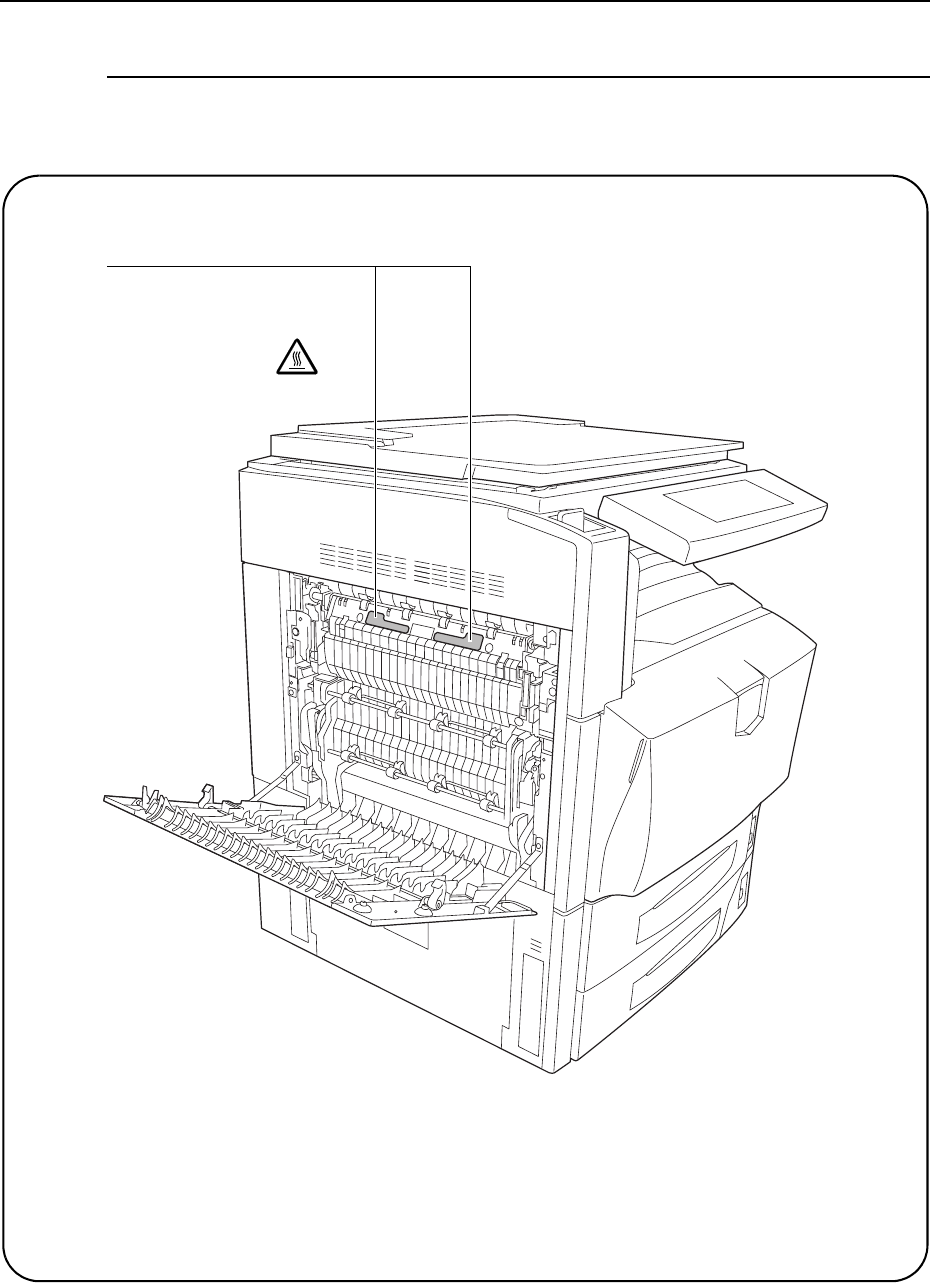
Label 1, 2
High temperature inside. Do not
touch parts in this area,
because there is a danger of
getting burned.
xiii
Installation Precautions
Environment
Caution
Avoid placing the machine on or in locations which are unstable or not level. Such
locations may cause the machine to fall down or fall over. This type of situation presents
a danger of personal injury or damage to the machine.
Avoid locations with humidity or dust and dirt. If dust or dirt become attached to the
power plug, clean the plug to avoid the danger of fire or electrical shock.
Avoid locations near radiators, heaters, or other heat sources, or locations near
flammable items, to avoid the danger of fire.
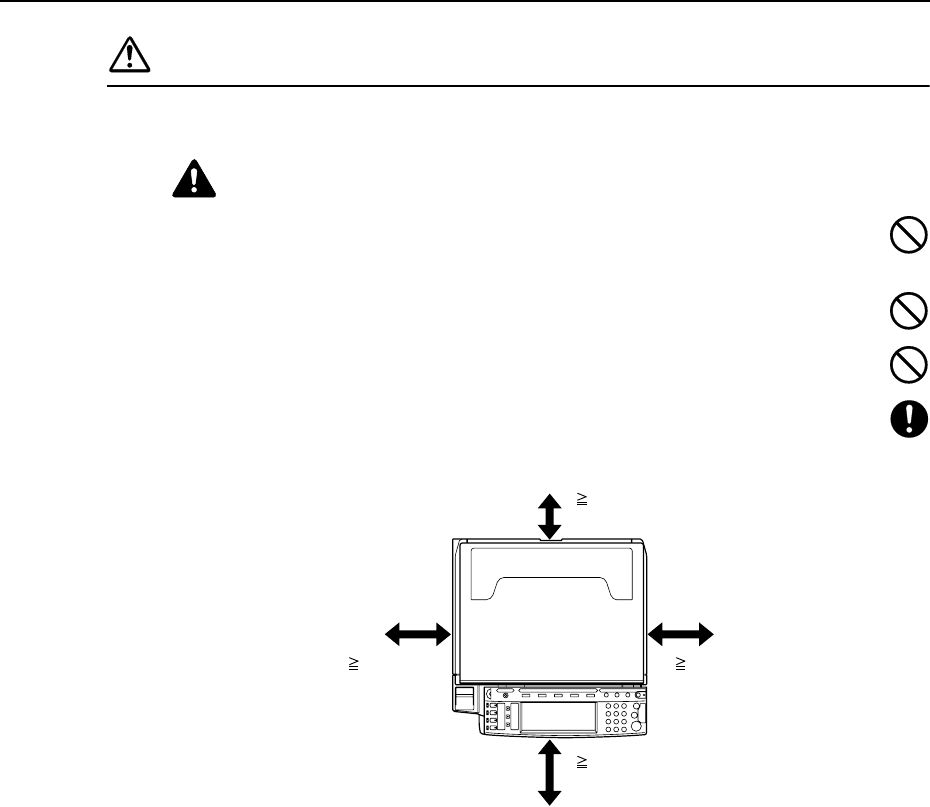
To keep the machine cool and facilitate changing of parts and maintenance, allow access
space as shown below. Leave adequate space, especially around the rear cover, to allow
air to be properly ventilated out of the machine.
Other precautions
Adverse environmental conditions may affect the safe operation and performance of the
machine. Install in an air-conditioned room (recommended room temperature: around 50 to
90.5 °F (10 to 32.5 °C), humidity: around 15 to 80 %) and avoid the following locations when
selecting a site for the machine.
• Avoid locations near a window or with exposure to direct sunlight.
• Avoid locations with vibrations.
• Avoid locations with drastic temperature fluctuations.
• Avoid locations with direct exposure to hot or cold air.
• Avoid poorly ventilated locations.
Small amounts of ozone and other chemicals are released during copying, but the quantities do
not present any health risk to humans. If, however, the machine is used over a long period of
time in a poorly ventilated room or when making an extremely large number of copies, the smell
may become unpleasant. To maintain the appropriate environment for copy work, it is suggested
that the room be properly ventilated.
Do not install this machine beneath fluorescent lights. The original size may be detected
incorrectly.
11 13/16"
30 cm
11 13/16"
30 cm
39 3/8"
100 cm
315/16"
10 cm
xiv
Power supply/Grounding the machine
Warning
Do not use a power supply with a voltage other than that specified. Avoid multiple
connections in the same outlet. These types of situations present a danger of fire or
electrical shock.
Plug the power cord securely into the outlet. If metallic objects come in contact with the
prongs on the plug, it may cause a fire or electric shock.
Always connect the machine to an outlet with a ground connection to avoid the danger of
fire or electrical shock in case of an electric short. If an earth connection is not possible,
contact your service representative.
Other precautions
Connect the power plug to the closest outlet possible to the machine.
The power supply cord is used as the main disconnect device. Ensure that the socket/outlet is
located/installed near the equipment and is easily accessible.
Handling of plastic bags
Warning
Keep the plastic bags that are used with the machine away from children. The plastic
may cling to their nose and mouth causing suffocation.
Precautions for Use
Cautions when using the machine
Warning
Do not place metallic objects or containers with water (flower vases, flower pots, cups,
etc.) on or near the machine. This of situation presents a danger of fire or electrical shock
should they fall inside.
Do not remove any of the covers from the machine as there is a danger of electrical
shock from high voltage parts inside the machine.
Do not damage, break or attempt to repair the power cord. Do not place heavy objects on
the cord, pull it, bend it unnecessarily or cause any other type of damage. These types of
situations present a danger of fire or electrical shock.
Never attempt to repair or disassemble the machine or its parts as there is a danger of
fire, electrical shock or damage to the laser. If the laser beam escapes, there is a danger
of it causing blindness.
If the machine becomes excessively hot, smoke appears from the machine, there is an
odd smell, or any other abnormal situation occurs, there is a danger of fire or electrical
shock. Turn the main power switch off ( position) immediately, be absolutely certain to
remove the power plug from the outlet and then contact your service representative.
If anything harmful (paper clips, water, other fluids, etc.) falls into the machine, turn the
main power switch off ( position) immediately. Next, be absolutely certain to remove the
power plug from the outlet to avoid the danger of fire or electrical shock. Then contact
your service representative.
xv
Do not remove or connect the power plug with wet hands, as there is a danger of
electrical shock.
Always contact your service representative for maintenance or repair of internal parts.
Caution
Do not pull the power cord when removing it from the outlet. If the power cord is pulled,
the wires may become broken and there is a danger of fire or electrical shock. (Always
grasp the power plug when removing the power cord from the outlet.)
Always remove the power plug from the outlet when moving the machine. If the power
cord is damaged, there is a danger of fire or electrical shock.
Always hold the designated parts only when lifting or moving the machine.
For safety purposes, always remove the power plug from the outlet when performing
cleaning operations.
If dust accumulates within the machine, there is a danger of fire or other trouble. It is
therefore recommended that you consult with your service representative in regard to
cleaning of internal parts. This is particularly effective if accomplished prior to seasons of
high humidity. Consult with your service representative in regard to the cost of cleaning the
internal parts of the machine.
Other precautions
If the optional fax kit is installed, when the main power switch is off ( position), fax send/receive
is disabled. To turn the power off, press the Power key on the operation panel.
Do not place heavy objects on the machine or cause other damage to the machine.
Do not open the front cover, turn off the main power switch, or pull out the power plug during
copying.
When lifting or moving the machine, contact your service representative.
Do not touch electrical parts, such as connectors or printed circuit boards. They could be
damaged by static electricity.
Do not attempt to perform any operations not explained in this handbook.
Caution: Use of controls or adjustments or performance of procedures other than those
specified herein may result in hazardous radiation exposure.
Do not look directly at the light from the scanning lamp as it may cause your eyes to feel tired or
painful.
This machine comes equipped with an HDD (hard disk). Do not attempt to move the machine
while the power is still on; Since any resulting shock or vibration may cause damage to the hard
disk, be sure to turn off the power before attempting to move the machine.
Cautions when handling consumables
Caution
Do not attempt to incinerate the toner container or the waste toner box. Dangerous
sparks may cause burns.
Keep the toner container and the waste toner box out of the reach of children.
If toner happens to spill from the toner container or the waste toner box, avoid inhalation
and ingestion, as well as contact with your eyes and skin.
• If you do happen to inhale toner, move to a place with fresh air and gargle thoroughly
with a large amount of water. If coughing develops, contact a physician.

xvi
• If you do happen to ingest toner, rinse your mouth out with water and drink 1 or 2 cups of
water to dilute the contents of your stomach. If necessary, contact a physician.
• If you do happen to get toner in your eyes, flush them thoroughly with water. If there is any
remaining tenderness, contact a physician.
• If toner does happen to get on your skin, wash with soap and water.
Do not attempt to force open or destroy the toner container or the waste toner box.
Other precautions
After use, always dispose of the toner container and the waste toner box in accordance with
Federal, State and Local rules and regulations.
If the machine will not be used for an extended period of time, remove the paper from the
cassette and the MP tray (multi-purpose tray), return it to its original package and reseal it.
Don’t store the unit in a place exposed to:
• Direct sunlight
• High or rapidly variable temperature or humidity (limit: 104 °F or 40 °C)
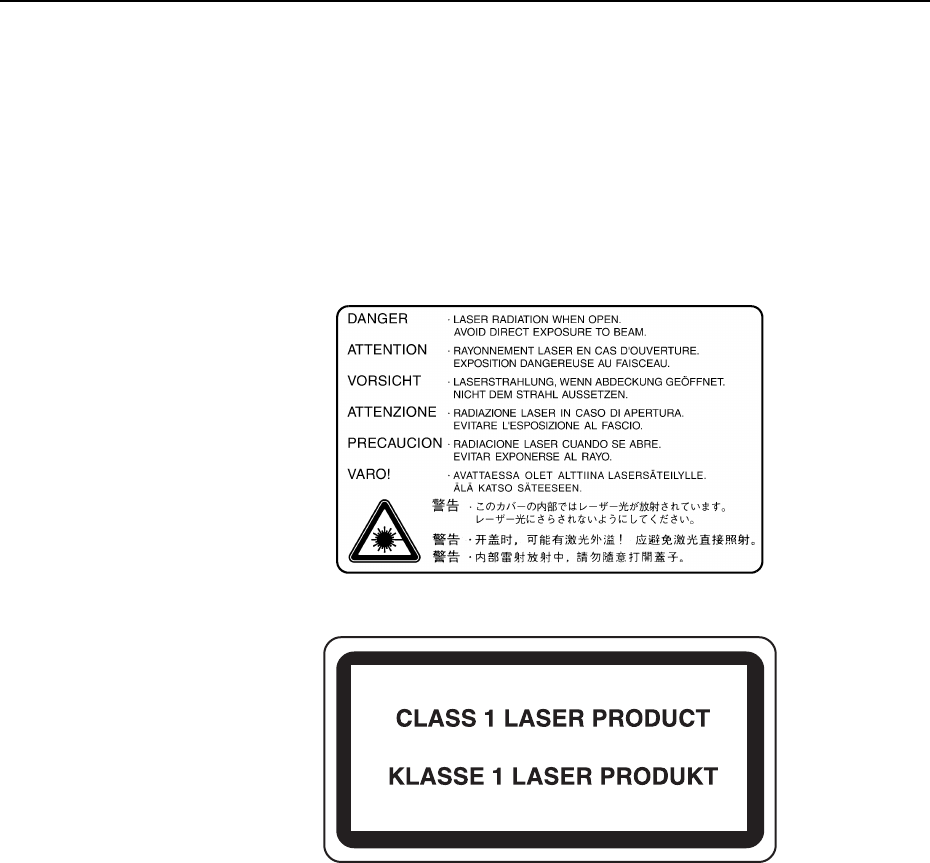
xvii
Laser Safety (Europe)
Laser radiation could be hazardous to the human body. For this reason, laser radiation emitted
inside this machine is hermetically sealed within the protective housing and external cover. In
the normal operation of the product by user, no radiation can leak from the machine.
This machine is classified as Class 1 laser product under IEC 60825.
Caution: Performance of procedures other than those specified in this manual may result in
hazardous radiation exposure.
These labels are attached to the laser scanner unit inside the machine and are not in a user
access area.
The label shown below is attached on the right side of the machine.

xviii
Safety Instructions Regarding the Disconnection of Power
Caution: The power plug is the main isolation device! Other switches on the equipment are only
functional switches and are not suitable for isolating the equipment from the power source.
VORSICHT: Der Netzstecker ist die Hauptisoliervorrichtung! Die anderen Schalter auf dem
Gerät sind nur Funktionsschalter und können nicht verwendet werden, um den Stromfluß im
Gerät zu unterbrechen.
DECLARATION OF CONFORMITY
TO
89/336/EEC, 73/23/EEC, 93/68/EEC and 1995/5/CE
Radio Frequency Transmitter
This machine contains the transmitter module. We, the manufacturer (Kyocera Mita
Corporation) hereby declare that this equipment is in compliance with the essential
requirements and other relevant provisions of Directive 1999/5/EC.
Radio Tag Technology
In some countries the radio tag technology used in this equipment to identify the toner container
may be subject to authorization and the use of this equipment may consequently be restricted.
We declare under our sole responsibility that the product to which this
declaration relates is in conformity with the following specifications.
EN55024
EN55022 Class B
EN61000-3-2
EN61000-3-3
EN60950
EN60825-1
EN300330-1
EN300330-2
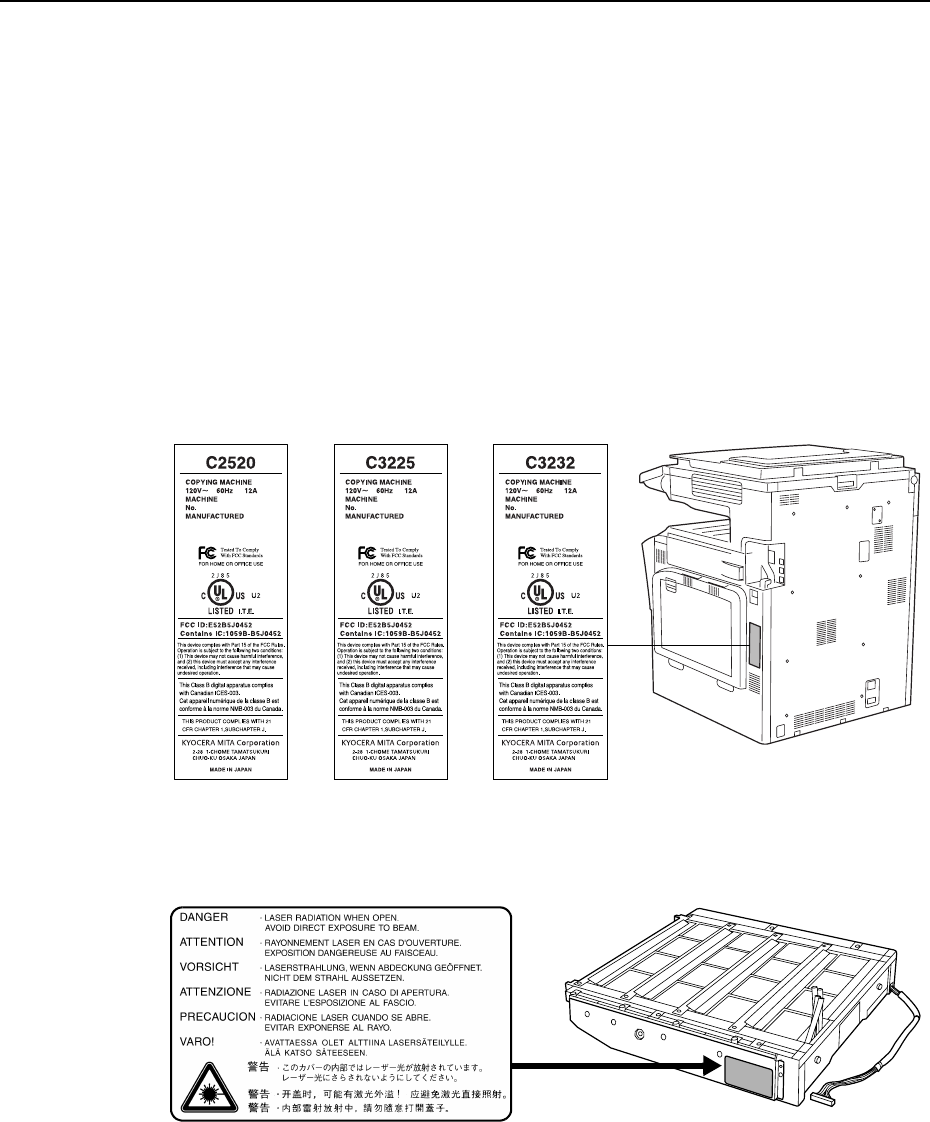
xix
SAFETY OF LASER BEAM (USA)
1. Safety of laser beam
This machine has been certified by the manufacturer to Class 1 level under the radiation
performance standards established by the U.S.DHHS (Department of Health and Human
Services) in 1968. This indicates that the product is safe to use during normal operation and
maintenance. The laser optical system, enclosed in a protective housing and sealed within the
external covers, never permits the laser beam to escape.
2. The CDRH Act
A laser-product-related act was implemented on Aug. 2, 1976, by the Center for Devices and
Radiological Health (CDRH) of the U.S. Food and Drug Administration (FDA). This act prohibits
the sale of laser products in the U.S. without certification, and applies to laser products
manufactured after Aug. 1, 1976. The label shown below indicates compliance with the CDRH
regulations and must be attached to laser products marketed in the United States. On this
machine, the label is on the right.
3. Optical unit
When checking the optical unit, avoid direct exposure to the laser beam, which is invisible.
Shown at below is the label located on the cover of the optical unit.
4. Maintenance
For safety of the service personnel, follow the maintenance instructions in the other section of
this manual.
5. Safety switch
The power to the laser unit is cut off when the front cover is opened.

xx
Safety Instructions Regarding the Disconnection of Power
Caution: The power plug is the main isolation device! Other switches on the equipment are only
functional switches and are not suitable for isolating the equipment from the power source.
Attention: Le débranchement de la fiche secteur est le seul moyen de mettre l’appareil hors
tension. Les interrupteurs sur l’appareil ne sont que des interrupteurs de fonctionnement: ils ne
mettent pas l’appareil hors tension.
WARNING
This equipment has been tested and found to comply with the limits for a Class B digital device, pursuant to
Part 15 of the FCC Rules. These limits are designed to provide reasonable protection against harmful
interference in a residential installation. This equipment generates, uses and can radiate radio frequency
energy and, if not installed and used in accordance with the instructions, may cause harmful interference to
radio communications. However, there is no guarantee that interference will not occur in a particular
installation. If this equipment does cause harmful interference to radio or television reception, which can be
determined by turning the equipment off and on, the user is encouraged to try to correct the interference by
one or more of the following measures:
• Reorient or relocate the receiving antenna.
• Increase the separation between the equipment and receiver.
• Connect the equipment into an outlet on a circuit different from that to which the receiver is connected.
• Consult the dealer or an experienced radio/TV technician for help.
• The use of a non-shielded interface cable with the referenced device is prohibited.
CAUTION — The changes or modifications not expressly approved by the party responsible for compliance
could void the user’s authority to operate the equipment.
This device complies with Part 15 of FCC Rules and RSS-Gen of IC Rules.
Operation is subject to the following two conditions; (1) this device may not cause interference, and (2) this
device must accept any interference, including interference that may cause undesired operation of the device.
* The above warning is valid only in the United States of America.
Radio Tag Technology
In some countries the radio tag technology used in this equipment to identify the toner container may be
subject to authorization and the use of this equipment may consequently be restricted.
MERCURY WARNING
THE LAMP(S) INSIDE THIS PRODUCT CONTAIN MERCURY AND MUST BE RECYCLED OR
DISPOSED OF ACCORDING TO LOCAL, STATE OR FEDERAL LAWS.

xxi
Warranty (USA)
NEW C2520/C3225/C3232 MULTIFUNCTIONAL PRODUCT LIMITED
WARRANTY
1. Kyocera Mita America, Inc. and Kyocera Mita Canada, Ltd. (both referred to as “Kyocera”)
warrant the Customer’s new color Multifunctional Product (referred to as “MFP”) and the new
accessories installed with the initial installation of the MFP, against any defects in material and
workmanship for a period of one (1) year from date of installation by an Authorized Kyocera
Dealer, or 300,000 copies/prints, whichever first occurs. In the event the MFP or an accessory is
found to be defective within the warranty period, Kyocera’s only obligation and the Customer’s
exclusive remedy shall be replacement of any defective parts. It is understood that Kyocera shall
have no obligation to furnish labor.
2. This warranty is valid only as to the original retail purchaser (referred to as the “Customer”) of
the MFP in the United States of America or Canada, based upon the country of purchase.
3. In order to obtain performance of this warranty, the Customer must immediately notify the
Authorized Kyocera Dealer from whom the MFP was purchased. If the Kyocera Dealer is not
able to provide service, write to Kyocera at the address below for the name and address of the
Authorized Kyocera Dealer in your area or check Kyocera’s website at www.kyoceramita.com.
4. This warranty does not cover MFPs which: (a) have become damaged due to operator
negligence, misuse, accidents, improper storage or unusual physical or electrical stress, (b)
have used parts or supplies which are not genuine Kyocera brand, (c) have been serviced by a
technician not employed by Kyocera or an Authorized Kyocera Dealer, or (d) have had the serial
number modified, altered, or removed.
5. This warranty does not cover Maintenance Kits, the components of Maintenance Kits, or
Photoconductor Drums. Kyocera Maintenance Kits and Photoconductor Drums have separate
warranties.
6. This warranty gives the Customer specific legal rights. The Customer may also have other
rights, which vary from state to state, or province to province. Neither the seller, nor any other
person is authorized to extend the time period, or expand this warranty on behalf of Kyocera.
7. THIS WARRANTY IS MADE IN LIEU OF ALL OTHER WARRANTIES AND CONDITIONS,
EXPRESS OR IMPLIED, AND KYOCERA SPECIFICALLY DISCLAIMS ANY IMPLIED
WARRANTY OR CONDITION OF MERCHANTABILITY OR FITNESS FOR A PARTICULAR
PURPOSE. THIS WARRANTY SHALL NOT EXTEND TO, AND KYOCERA SHALL NOT BE
LIABLE FOR, ANY INCIDENTAL OR CONSEQUENTIAL DAMAGES WHICH MAY ARISE OUT
OF THE USE, OR INABILITY TO USE, THE MFP.

xxii

xxiii
About this Operation Guide
This Operation Guide contains the following chapters:
1Part Names
Identifies machine parts and operation panel keys.
2 Preparation for Usage
Explains adding paper, placing original, connecting the machine, and necessary configurations
before first use.
3 Basic Operation
Describes the procedures for basic copying, printing and scanning.
4 Optional Equipment
Introduces the convenient optional equipment available for this machine.
5 Maintenance
Describes cleaning and toner replacement.
6 Troubleshooting
Explains how to handle error messages, paper jams, and other problems.
Appendix
Lists the machine specifications.

xxiv
Included Guides
The following guides are included with this machine. Refer to the proper guide based on your
requirements.
Operation Guide (This Guide)
Describes how to load paper, basic copy, print and scan operations, and troubleshooting.
Advanced Operation Guide
Explains copying, printing and scanning features in depth, as well as default settings. This guide
is contained on the CD-ROM as a PDF file.
Kyocera Extended Driver User Guide
Explains how to install and setup the printer driver. This guide is contained on the CD-ROM as a
PDF file.
PRESCRIBE Commands Command Reference
Explains each command for realizing various features and controls through prescribed
commands. This guide is contained on the CD-ROM as a PDF file.

xxv
Conventions in This Guide
The following conventions are used depending on the nature of the description.
Convention Description Example
Bold Indicates a message or button
displayed on the operation panel key or
a computer screen.
Press the Start key.
[Regular] Indicates touch panel keys. Press [Basic].
Italic Indicates touch panel messages. Ready to copy is displayed.
Note Indicates supplemental information or
operations for reference. NOTE: -
Important Indicates items that are required or
prohibited so as to avoid problems. IMPORTANT: -
xxvi
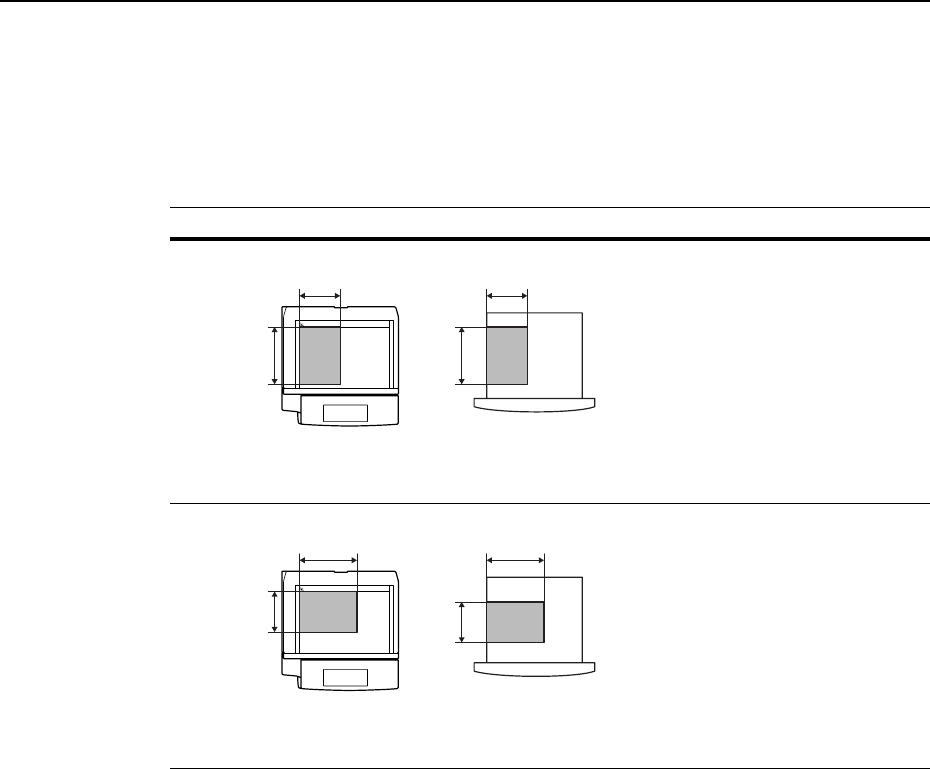
Originals and Paper Sizes
This section explains the notation used in this guide when referring to sizes of originals or paper
sizes.
As in A4 and B5, which may be used either in the horizontal or vertical direction, in order to
indicate the orientation of the original/paper, horizontal orientation is indicated by an additional R
character.
Set direction Indicated size †
† The size of original/paper that can be used depends on the function and source tray. For
further details, refer to the page detailing that function or source tray.
Vertical direction
For original/paper, dimension A is longer than B.
A4, B5, A5, B6, A6, 16K
Horizontal direction
For original/paper, dimension A is shorter than B.
A4R, B5R, A5R, B6R, A6R,
16KR
B B
A A
Original Size
B B
AA
Original Size

xxvii
Contents
Legal and Safety Information ....................................................................................................................... vii
About this Operation Guide ....................................................................................................................... xxiii
1 Part Names .................................................................................................... 1-1
Body ........................................................................................................................................ 1-2
Operation Panel ...................................................................................................................... 1-4
Touch Panel ............................................................................................................................ 1-5
2 Preparation for Usage ................................................................................... 2-1
Loading Paper ......................................................................................................................... 2-2
Setting Paper Type and Size for the Cassettes and MP Tray ................................................. 2-7
Placing Originals ................................................................................................................... 2-16
Language .............................................................................................................................. 2-20
Connecting Cables ................................................................................................................ 2-21
Preparing the Printer ............................................................................................................. 2-22
Preparing the Scanner .......................................................................................................... 2-31
3 Basic Operation ............................................................................................ 3-1
Basic Copying Procedures ...................................................................................................... 3-2
Selecting Image Quality .......................................................................................................... 3-5
Adjusting Exposure ................................................................................................................. 3-6
Reducing/Enlarging ................................................................................................................. 3-7
Duplex Mode ......................................................................................................................... 3-11
Split Mode ............................................................................................................................. 3-14
Sort Mode .............................................................................................................................. 3-16
Interrupt Copy ....................................................................................................................... 3-17
Job Reservation .................................................................................................................... 3-18
Canceling a Print Job ............................................................................................................ 3-19
Scanner Operation ................................................................................................................ 3-20
Low-Power Mode .................................................................................................................. 3-35
Sleep Mode ........................................................................................................................... 3-36
4 Optional Equipment ...................................................................................... 4-1
Overview of Optional Equipment ............................................................................................. 4-2
Document Processor ............................................................................................................... 4-4
Paper Feeder .......................................................................................................................... 4-4
3000 Sheet Paper Feeder ....................................................................................................... 4-4
Document Finisher .................................................................................................................. 4-5
3000 Sheet Document Finisher ............................................................................................... 4-5
Job Separator .......................................................................................................................... 4-5
Key Counter ............................................................................................................................ 4-6
Fax Kit ..................................................................................................................................... 4-6
Memory Card (CompactFlash) ............................................................................................... 4-6
Hard Disk ............................................................................................................................... 4-7
Additional Memory .................................................................................................................. 4-7
Security Kit .............................................................................................................................. 4-7
Network Interface Card ........................................................................................................... 4-8
Serial Interface ........................................................................................................................ 4-8
PDF Upgrade Kit ..................................................................................................................... 4-8
5 Maintenance .................................................................................................. 5-1
Cleaning .................................................................................................................................. 5-2
Toner Container and Waste Toner Box Replacement ............................................................. 5-5

xxviii
6 Troubleshooting ............................................................................................ 6-1
Solving Malfunctions ............................................................................................................... 6-2
Responding to Error Messages .............................................................................................. 6-4
Clearing Paper Jams ............................................................................................................ 6-15
Appendix .................................................................................................... Appendix-1
Specifications ............................................................................................................ Appendix-2
Index .................................................................................................................. Index-1
Part Names
1-2
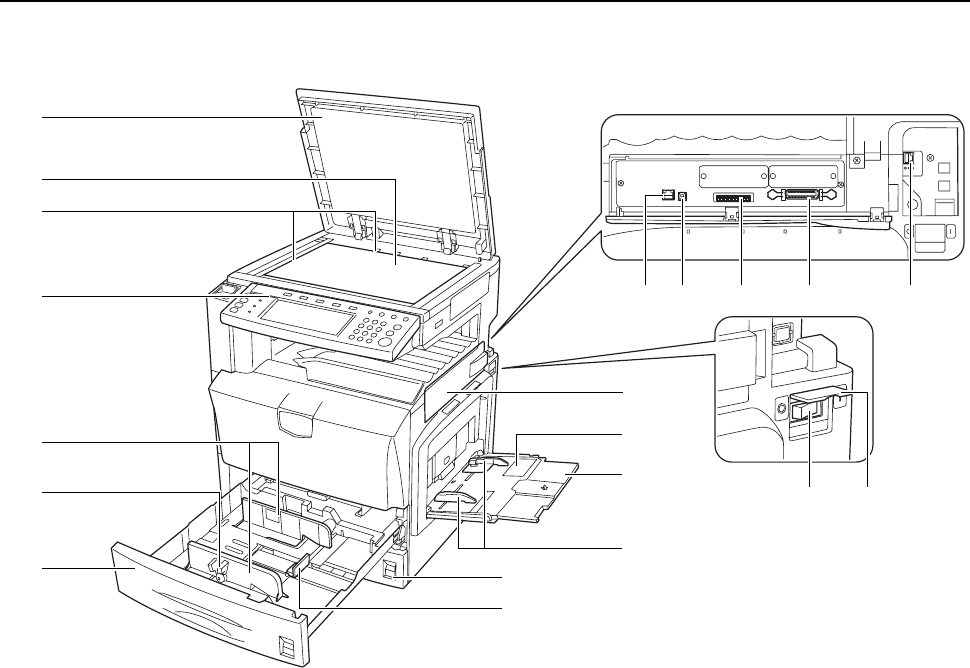
Body
1Original Platen (Option)
2Platen
3Original Size Indicator Plates
4Operation Panel
5MP Tray (multi-purpose tray)
6Slider
7MP Tray Extension
8Cassette 1
9Cassette 2
10 Paper Length Guide
11 Paper Width Guide
12 Paper Width Adjusting Tab
13 Interface Cover
14 Network Interface Connector (Printer)
15 USB Interface Connector
16 Parallel Port Interface Connector
17 Memory Card (CompactFlash) Slot
18 Network Interface Connector (Scanner)
19 Main Power Switch
20 Main Power Switch Cover
3
1
4
11
2
5
7
6
89
10
12
13
14 15 17 16 18
19 20
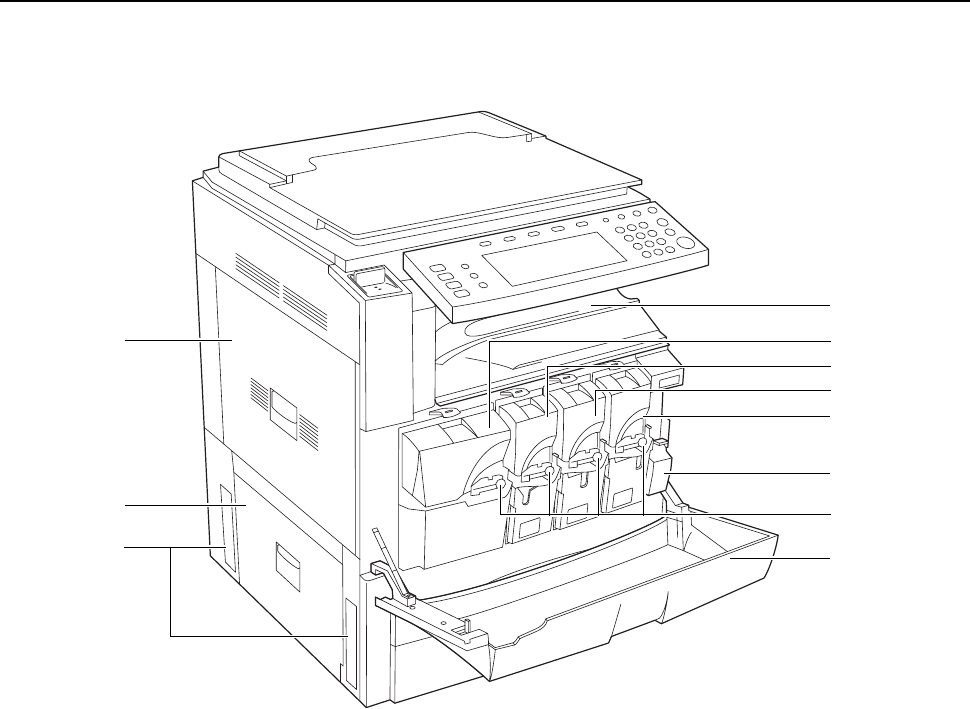
Part Names
1-3
21 Output Tray
22 Left Cover 1
23 Left Cover 2
24 Front Cover
25 Toner Container (Black)
26 Toner Container (Yellow)
27 Toner Container (Cyan)
28 Toner Container (Magenta)
29 Toner Container Lock Lever
30 Waste Toner Box
31 Carrying Handles
22
21
23
24
25
26
28
27
29
30
31
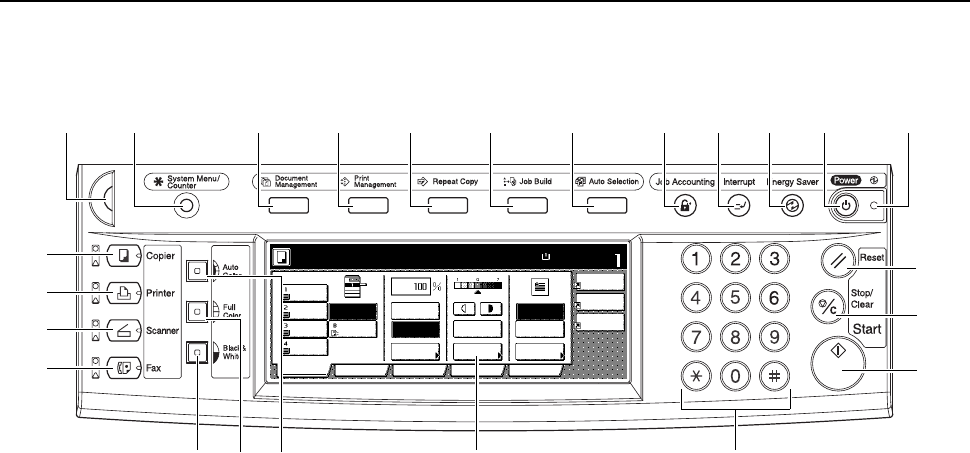
Part Names
1-4
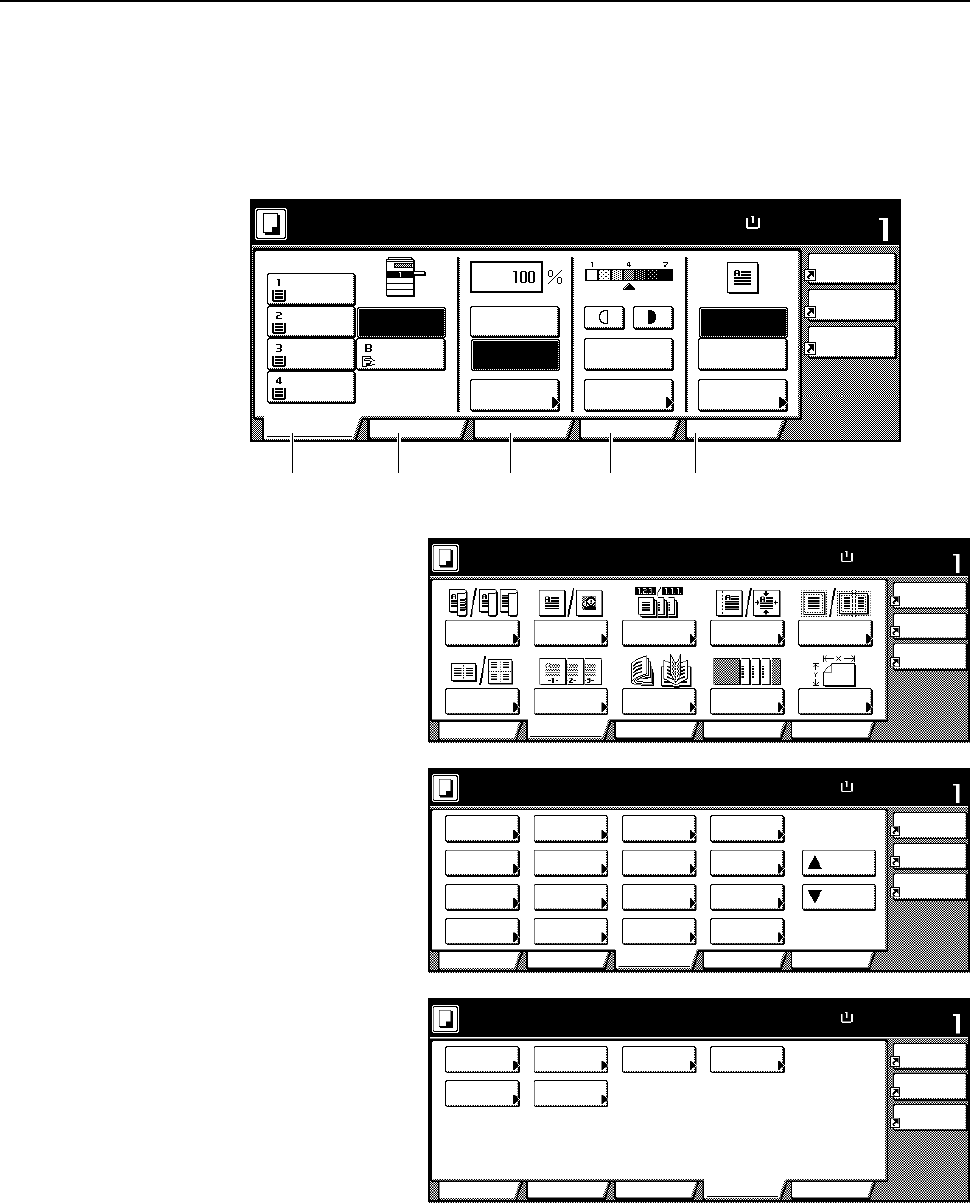
Operation Panel
1Brightness Adjustment Dial
2Copier Key (Indicator/Lamp)
3Printer Key (Indicator/Lamp)
4Scanner Key (Indicator/Lamp)
5Fax Key (Indicator/Lamp)
6 System Menu/Counter Key
7 Auto Color Key
8 Full-Color Key
9Black&White Key
10 Document Management Key/Indicator
11 Print Management Key/Indicator
12 Repeat Copy Key/Indicator
13 Job Build Key/Indicator
14 Auto Selection Key/Indicator
15 Job Accounting Key
16 Interrupt Key/Indicator
17 Energy Saver Key/Indicator
18 Power Key/Indicator
19 Main Power Indicator
20 Touch Panel
21 Numeric Keys
22 Reset Key
23 Stop/Clear Key
24 Start Key/Indicator
11×8½"
Paper Size Set
Combi ne
Sheet
Ma r gi n /
Center ing
Color func.FunctionUser choice
Basic
11×8½"
Plain
11×17"
Col or
11×8½"
Plain
11×8½"
Plain
MP tr ay
Plain
APS Auto %
Reduce
100%
Exposure
Auto
Staple
Staple
Left Top
Staple Off
100%
Exposure
/Enlarge Mode
Erase
Program
Ready to copy. ( Full-Color )
2
1101112131415161719
920
22
21
3
4
5
6
78
18
23
24
Part Names
1-5
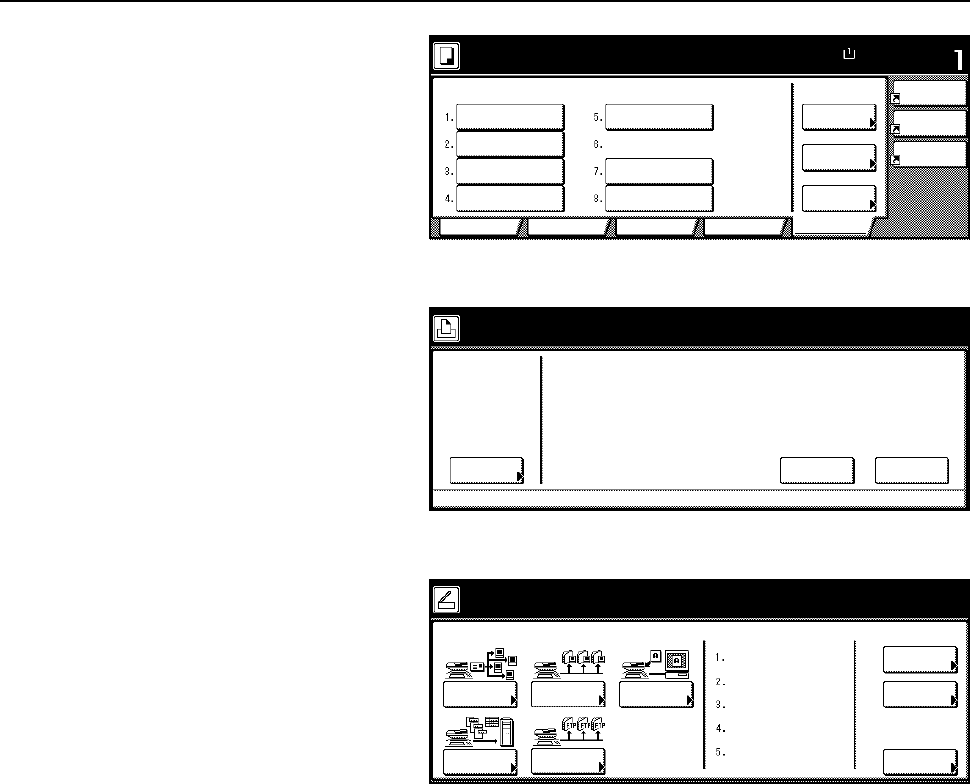
Touch Panel
Copy Screen
Displayed by pressing the Copier key. Screen changes when 1, 2, 3, 4, and 5 are pressed.
1[Basic] screen
2[User choice] screen
3[Function] screen
4[Color func.] ([Colour
func.]) screen
11×8½"
Paper Size Set
Combine
Sheet
Ma r gi n /
Centering
Color func.FunctionUser choice
Basic
11×8½"
Plain
11×17"
Color
11×8½"
Plain
11×8½"
Plain
MP tr a y
Plain
APS Auto %
Reduce
100%
Exposure
Auto
Staple
Staple
Left Top
Staple Off
100%
Exposure
/Enlarge Mode
Erase
Program
Ready to copy. ( Full-Color )
1 2 3 4 5
Ready to copy.
11×8½"
Paper Size Set
Combine
Sheet
Ma r gi n/
Centeri ng
Color func.Function
User choice
Basic
2 sided/
Combi ne
Orig.Image
Booklet Cov er
Border
Select
Orig.Size
Ma r gi n /
Centering
Sort/
Offset
Page #
100%
Separation Quality Erase
Mode
Erase
Program
( Full-Color )
11×8½"
Paper Size Set
Combine
Sheet
Ma r gi n/
Centeri ng
Color func.
Function
User choiceBasic
Exposure Reduce
Cov er Booklet
Up
Batch
Scanning
Auto
Selection
Border
Select
Orig.Image
2 sided/
Ma r gi n /
Centering
Sort/
Offset
Select
Orig.Size
Page #
Combine
Poster Down
100%
Ready to copy.
Paper Separation
Mode /Enlarge
Quality
ModeErase
Erase
Program
( Full-Color )
11×8½"
Paper Size Set
Combine
Sheet
Ma r gi n/
Centeri ng
Color func.
FunctionUser choiceBasic
Mono Background
Color Adjust Hue One touch
image
Col or/B&W
100%
Ready to copy.
balance selection
color exp. adj.
Erase
Program
( Full-Color )
Part Names
1-6
5[Program] screen
Printer Screen
Displayed by pressing the
Printer key.
Scanner Screen
Displayed by pressing the
Scanner key.
11×8½"
Paper Size Set
Combine
Sheet
Ma r gi n/
Centeri ng
Color func.FunctionUser choiceBasi c
Change
Delete
abc
100%
Ready to copy.
Name
Erase
Program
Reg./Delete
list a
list b
list c
list d
file 1
file 2
Re gi ste r
Recal l
( Full-Color )
Printer
Menu Cancel
Ready to print.
GO
Select scanner function.
Send
Database
Connection
Scan to PC TWAIN
Edit
Addr. Book
Cha nge
User Info.
History
Recal l Pr ogr am
E-mail
of Sending
08/08/’05 14:00
Scan to
FTP
2-1
2 Preparation for Usage
This chapter explains the preparations required before using the machine.
• Loading Paper...2-2
• Setting Paper Type and Size for the Cassettes and MP Tray...2-7
• Placing Originals...2-16
• Language...2-20
• Connecting Cables...2-21
• Preparing the Printer...2-22
• Preparing the Scanner...2-31
Preparation for Usage
2-2
Loading Paper
Load paper in the 2 cassettes, the MP tray, and/or the optional paper feeder or 3000 sheet paper
feeder.
Before Loading Paper
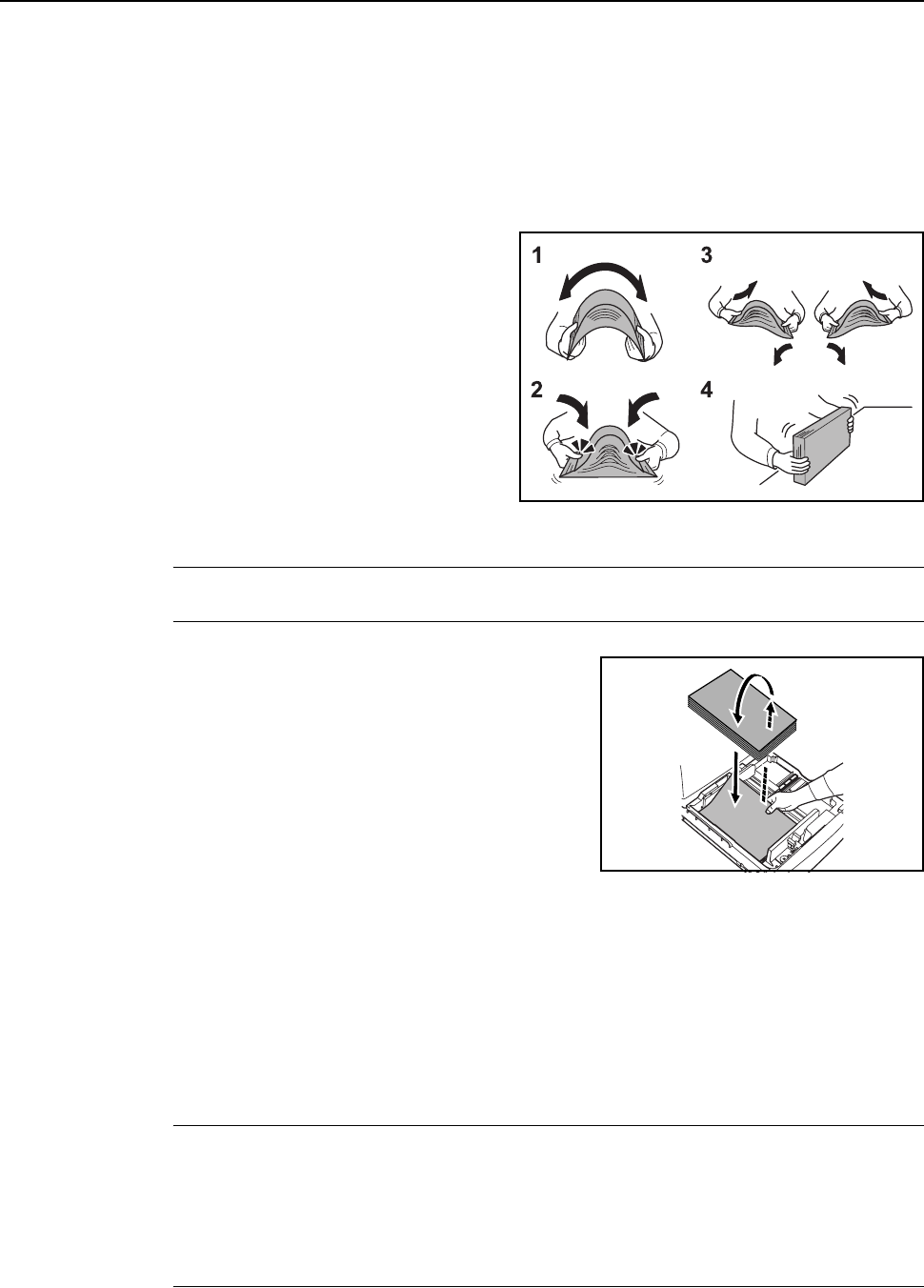
When you open a new package of paper, fan through the sheets to separate them slightly prior to
loading as described below.
1Bend the stack of paper so that the
middle of the paper lifts upwards.
2Gripping both ends of the paper, push
inward to cause the stack of paper to
fluff up.
3Introduce air into the stack of paper by
alternately raising and lowering your left
and right hands.
4Finally, align the edges of the paper
using a flat surface such as a
countertop.
If the paper is curled or folded, straighten it before loading. Overloading may cause paper jams.
IMPORTANT: If you copy onto used paper (paper already used for copying), do not use paper that
is stapled or clipped together. This may damage the machine or cause poor image quality.
If output paper curls or does not line up properly, try
flipping over the paper loaded into the cassette.
Avoid exposing opened paper to high temperatures
and high humidity as dampness may cause copying
problems. Seal any remaining paper after loading the
MP tray or a cassette in its original package. If the
machine will not be used for a prolonged period,
protect all paper from humidity by removing from the
cassettes and sealing in the original package.
Loading Paper into Cassette 1, 2
Cassettes 1 and 2 support standard, recycled, and colored paper. 500 sheets of standard paper less
than 11 × 8 1/2" or A4 in size (80 g/m2), or 250 sheets of standard paper greater than 8 1/2 ×14" or B4
size (80 g/m2) may be loaded into Cassette 1. 500 sheets of standard paper (80 g/m2) may be
loaded into Cassette 2.
Supported paper sizes are 11 × 17", 8 1/2 × 14", 11 × 8 1/2", 8 1/2 ×11", 51/2 ×81/2", 8 1/2 ×13",
81/2 ×131/2", A3, B4, A4, A4R, B5, B5R, A5R, Folio, 8K, 16K and 16KR.
Load paper into the optional paper feeder (Cassettes 3 and 4) in the same manner.
IMPORTANT: When making color copies, use special color paper for best results.
Do not use inkjet printer paper or paper with special surface coatings. (They may cause a failure,
such as a paper jam.)
After loading paper, be sure to specify the type and size of the paper loaded in the cassettes on the
operation panel. For further details, refer to Specifying Paper Size on page 2-7 and Specifying the
Paper Type on page 2-8.
Preparation for Usage
2-3
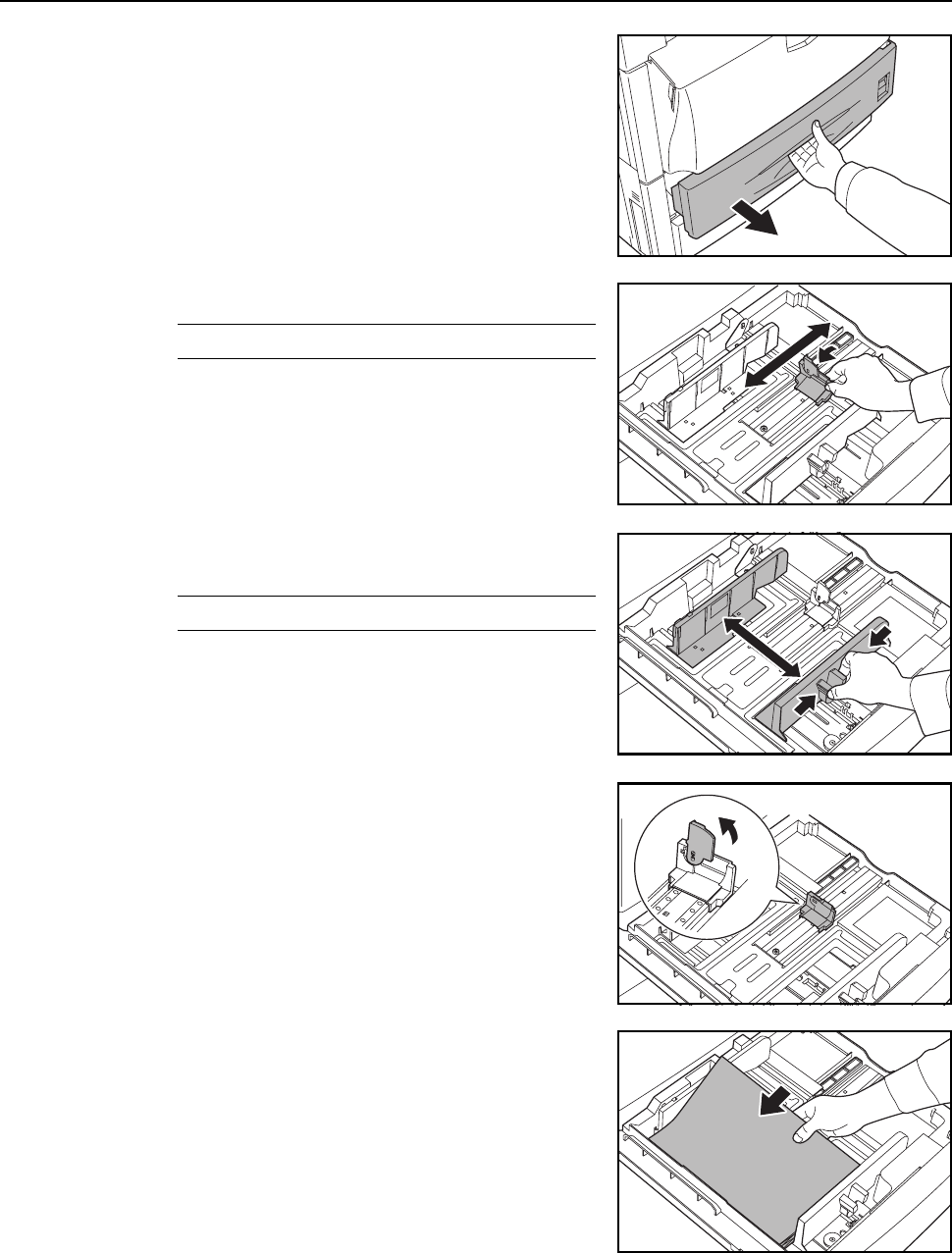
1Pull the cassette out toward you until it stops.
2Adjust the paper length guide to fit the paper size.
NOTE: Paper sizes are marked on the cassette.
3Holding the paper width adjusting tab both ends, move
the paper width guide to fit the paper.
NOTE: Paper sizes are marked on the cassette.
When loading paper smaller than 11 × 8 1/2" or A4 into
Cassette 1, raise the support lever as shown in the
illustration.
4Align the paper flush against the left side of the
cassette as you load it.
Preparation for Usage
2-4
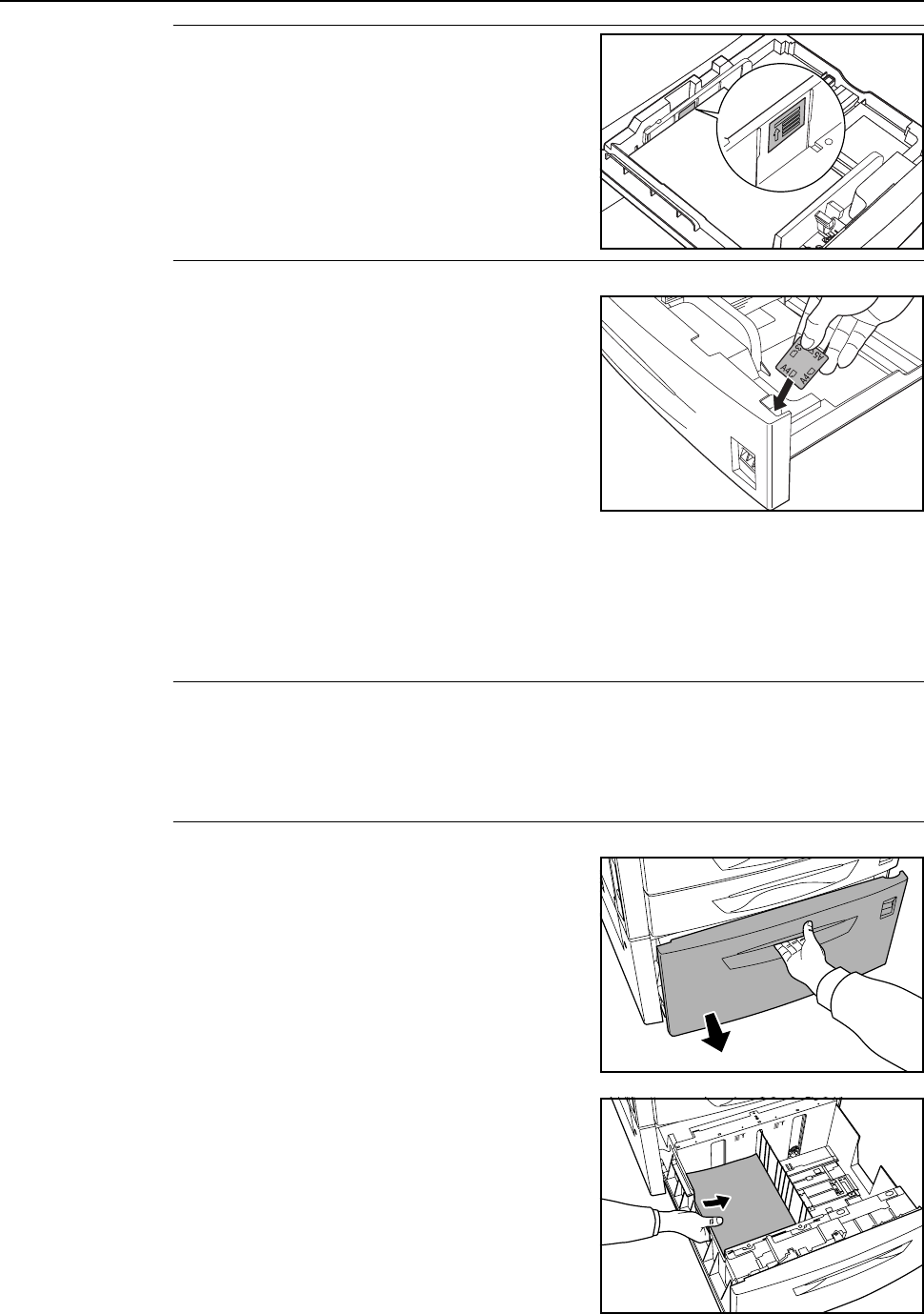
IMPORTANT: Verify that the paper is pressed snugly
against the vertical and horizontal size guides. If a gap
is present, reset the width guide or length guide.
Overloading may cause paper jams.
Before loading the paper, be sure that it is not curled
or folded. Overloading may cause paper jams.
Ensure that the loaded paper does not exceed the
level indicated. Overloading may cause paper jams.
5Insert the appropriate paper size card in the slot to
indicate the size of the loaded paper.
6Gently push the cassette back in.
Loading Paper into 3000 Sheet Paper Feeder
3000 sheets of 11 × 8 1/2" or A4 paper (80 g/m2) may be loaded into the optional 3000 sheet paper
feeder (Cassette 3).
IMPORTANT: When making color copies, use special color paper for best results.
Do not use inkjet printer paper or paper with special surface coatings. (They may cause a failure,
such as a paper jam.)
Specify the type of paper loaded in the 3000 paper feeder. Refer to Specifying the Paper Type on
page 2-8 for details.
1Pull the cassette out toward you until it stops.
2Align the paper to the center of the cassette as you
load it.
Preparation for Usage
2-5
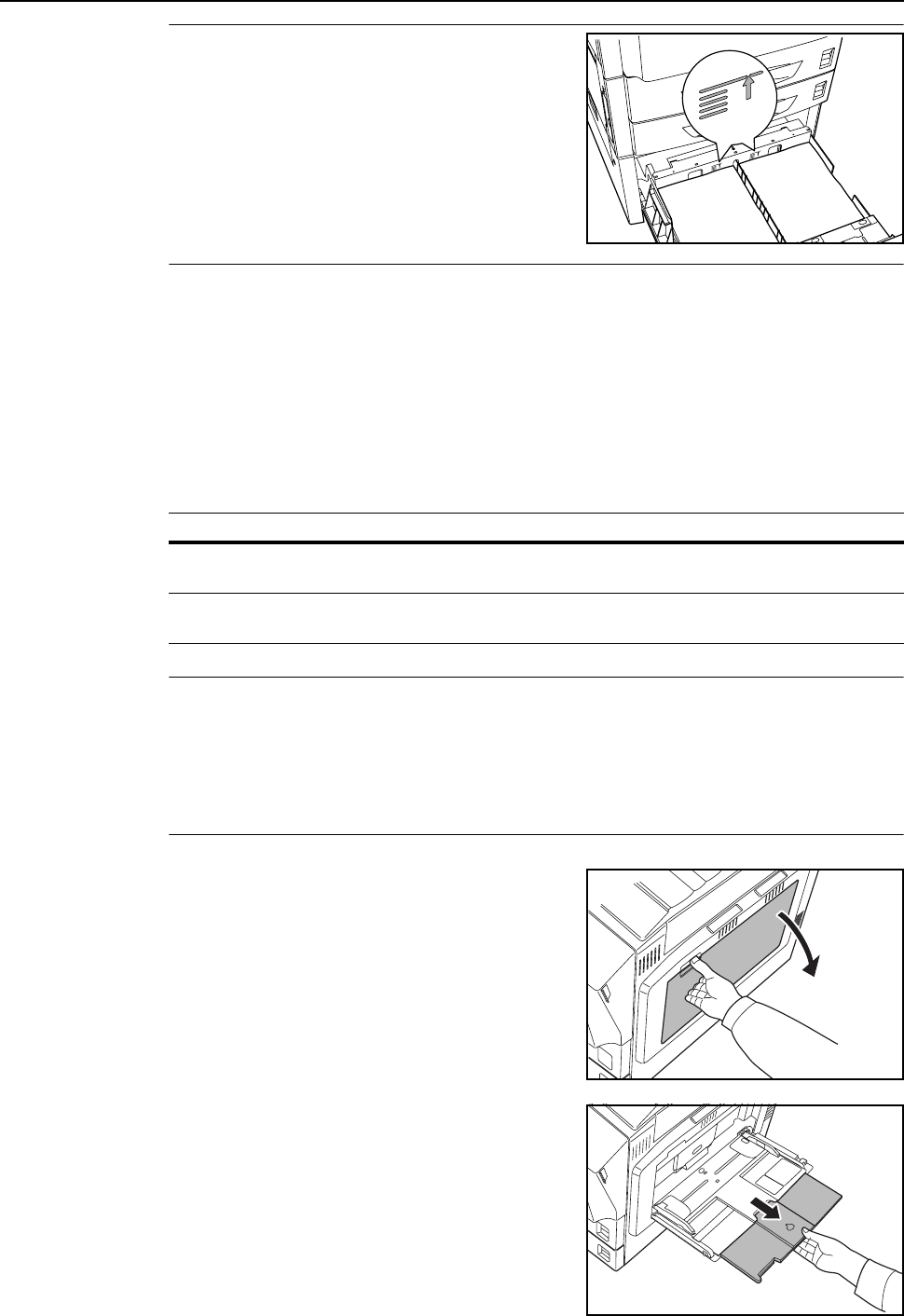
NOTE: Before loading the paper, be sure that it is not
curled or folded. Curled or folded paper may cause
paper jams.
Ensure that the loaded paper does not exceed the
level indicated.
3Gently push the cassette back in.
Loading Paper in the MP Tray
In addition to standard and recycled paper, special paper (60 - 220 g/m2) may be loaded. 100 sheets
of 11 × 8 1/2" or A4 or smaller size paper (80 g/m2) or 50 sheets of 8 1/2 × 14" or B4 or larger paper
(80 g/m2) may be loaded.
Paper sizes 11 × 17" - 5 1/2 ×81/2", A3 - A6R, 8K, 16K, and 16KR can be loaded.
The capacity of the MP tray is as follows.
IMPORTANT: When making color copies, use special color paper for best results.
Do not use inkjet printer paper or paper with special surface coatings. (They may cause a failure,
such as a paper jam.)
After loading paper, be sure to specify the type and size of the paper loaded in the MP tray on the
operation panel. For further details, refer to Specifying the Paper Size to the MP Tray on page 2-10
and Specifying the Paper Type to the MP Tray on page 2-15.
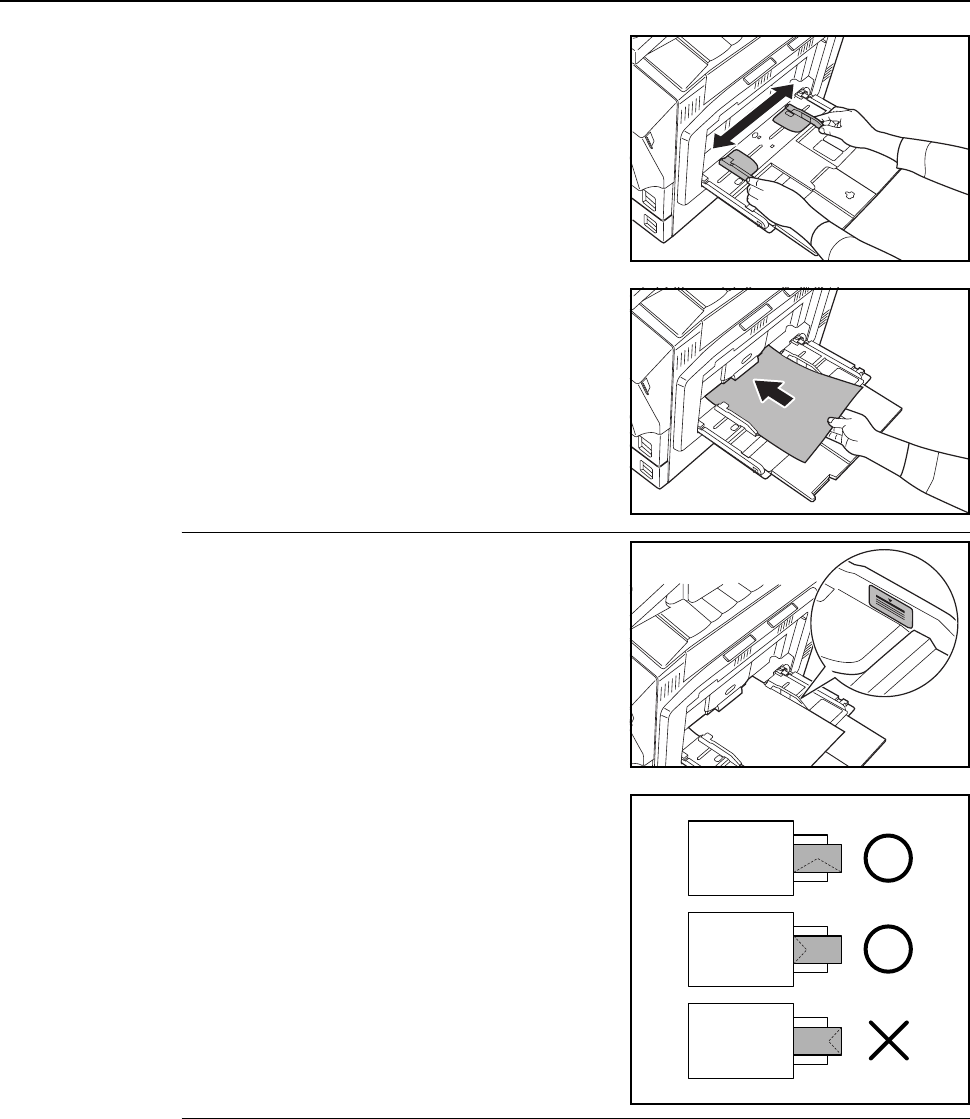
1Open the MP tray.
When loading paper larger than 8 1/2 × 11" or A4R, pull
out the MP tray extension.
Paper types Capacity
Standard paper (80 g/m2), recycled paper,
colored paper
11 × 8 1/2" or A4 or smaller: 100 sheets,
81/2 × 14"or B4 or larger: 50 sheets
Standard paper (120 g/m2, 160 g/m2, 200 g/m2)
or transparencies
10 sheets
Preparation for Usage
2-6
2Adjust the sliders to fit the width of the paper.
3Insert the paper along the sliders into the tray until it
stops.
Ensure that the sliders are flush against the edges of
the paper.
IMPORTANT: Before loading postcards and other
types of thick paper that may be curled, straighten out
the paper. The paper may not be fed depending on the
paper quality.
Only load paper into the MP tray when it is in use.
Avoid leaving paper in the MP tray.
Ensure that the loaded paper does not exceed the
level indicated. Overloading may cause paper jams.
When loading envelopes, with the envelope flap closed
and keep the printing side face-up. Insert envelopes
against the guide with the flap on the front or right side
until they stop.
Preparation for Usage
2-7
Setting Paper Type and Size for the Cassettes and MP Tray
When loading paper into Cassette 1 and 2 and the optional paper feeders (Cassette 3 and 4), set
the paper size and type. Refer to Specifying Paper Size and Specifying the Paper Type on page 2-8
below.
When loading paper into the optional 3000 sheet paper feeder (Cassette 3), set the paper type.
Refer to Specifying the Paper Type on page 2-8.
After loading paper in the MP tray, specify both the paper type and size. Refer to Specifying the
Paper Size to the MP Tray on page 2-10 and Specifying the Paper Type to the MP Tray on
page 2-15.
Specifying Paper Size
When loading paper into Cassette 1 and 2 and the optional paper feeders (Cassette 3 and 4), set
the paper size. To automatically detect the paper size, set to [Auto Detection] and select either
[Centimeter] or [Inch] units.
The following paper sizes are available.
11 × 17", 8 1/2 ×14", 11×81/2", 8 1/2 ×11", 51/2 ×81/2", 8 1/2 ×131/2", 8 1/2 × 13" (Oficio 2), A3, B4,
A4, A4R, B5, B5R, A5R, Folio, 8K, 16K, 16KR
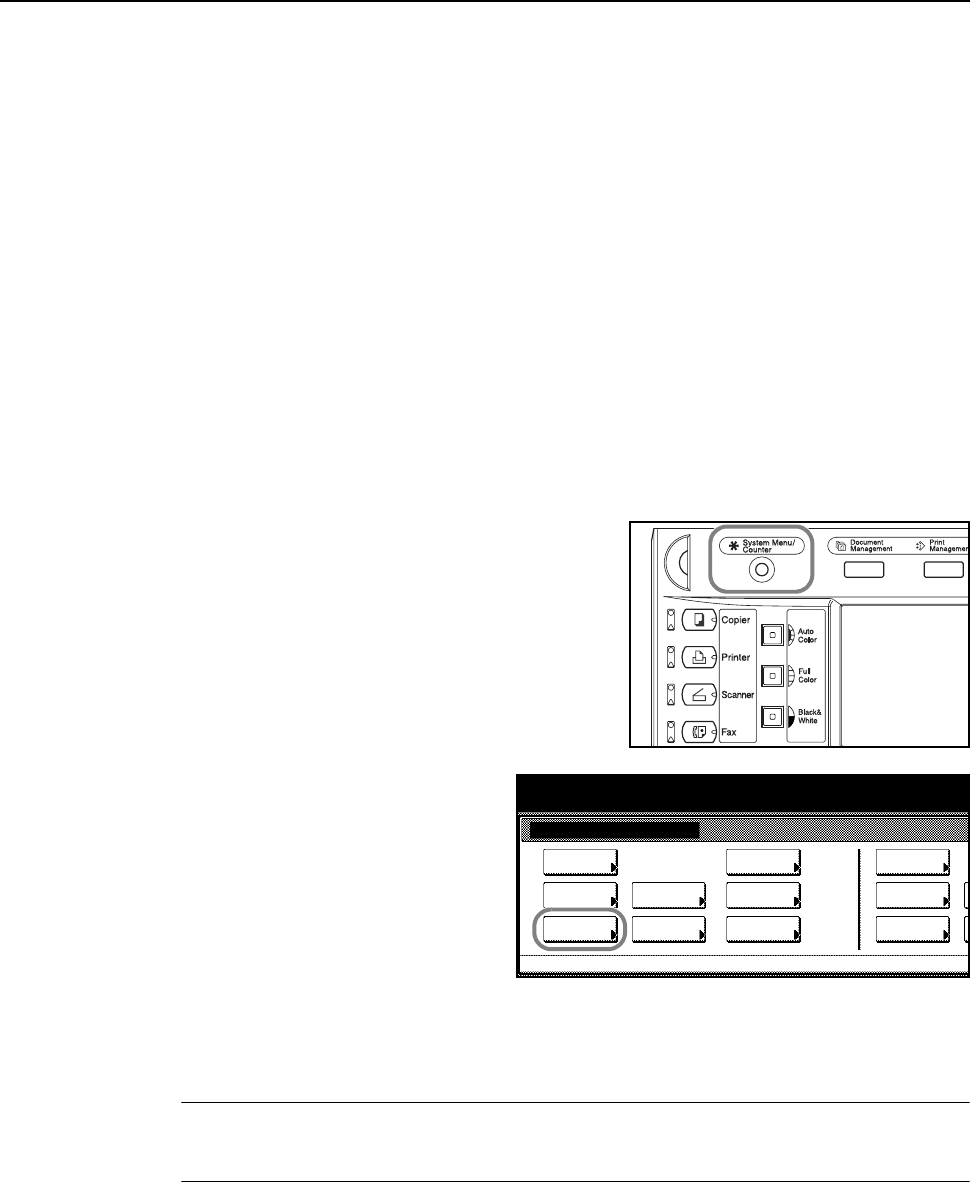
1Press the System Menu/Counter key.
2Press the [Machine Default] key.
3Use the numeric keys to enter the 4 digit management code. The default setting is 2500 for the
25/20 ppm model and 3200 for the 32/25 and 32/32 ppm models.
If the correct management code has been entered, the Machine Default screen will be displayed.
NOTE: If the optional security kit has been installed, the management code is 8 digits long. The
default setting is 25002500 for the 25/20 ppm model and 32003200 for the 32/25 and 32/32 ppm
models.
System Menu / Counter
System Menu
Default
Copy Language Accounting
Job
Default
Scanner
Default
Ma chi n e
Default
Printer
Setting
MP tr ay
Management
BOX
Management
Document
Orig. Size
Regi ster
Re po r t
Print
Preparation for Usage
2-8
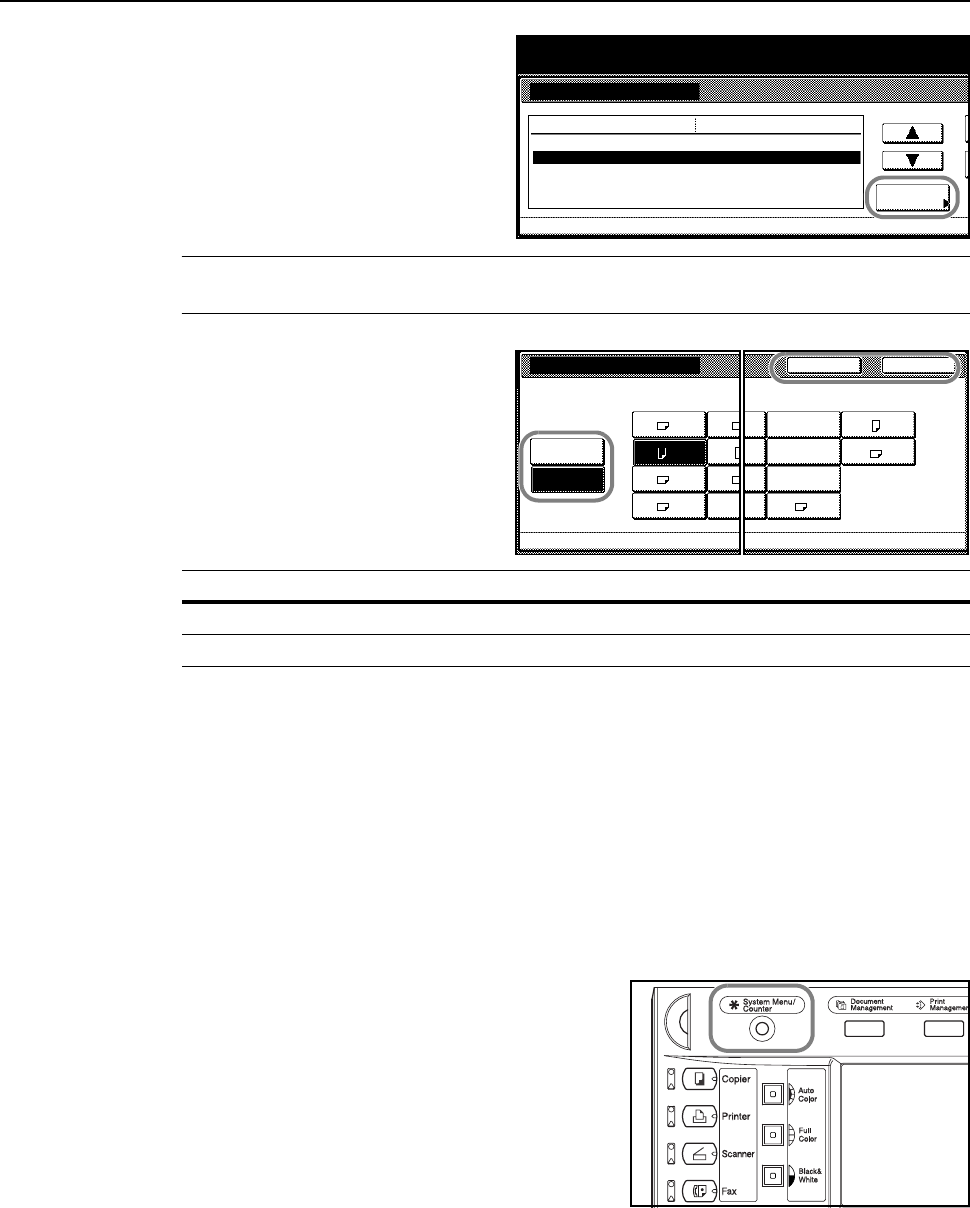
4Press [S] or [T], select the cassette you
wish to set the paper size from Paper
size (1st cassette) - Paper size (4th
cassette) and press [Change #].
NOTE: 3rd cassette and 4th cassette are shown when the optional paper feeder or 3000 sheet
paper feeder have been installed.
5If [Auto Detection] is selected, choose
the unit type. If [Standard sizes] is
selected, choose the paper size.
Press [Close].
6Press [Close].
7Press [End]. The display returns to the [Basic] screen.
Specifying the Paper Type
When loading paper into Cassette 1 and 2 or the optional paper feeder (Cassette 3 and 4) or the
3000 sheet paper feeder (Cassette 3), set the paper size.
The following paper types are available.
Plain, Rough, Vellum, Recycled, Preprinted, Bond, Color (Colour), Prepunched, Letterhead, High
Quality, Custom 1 - 8
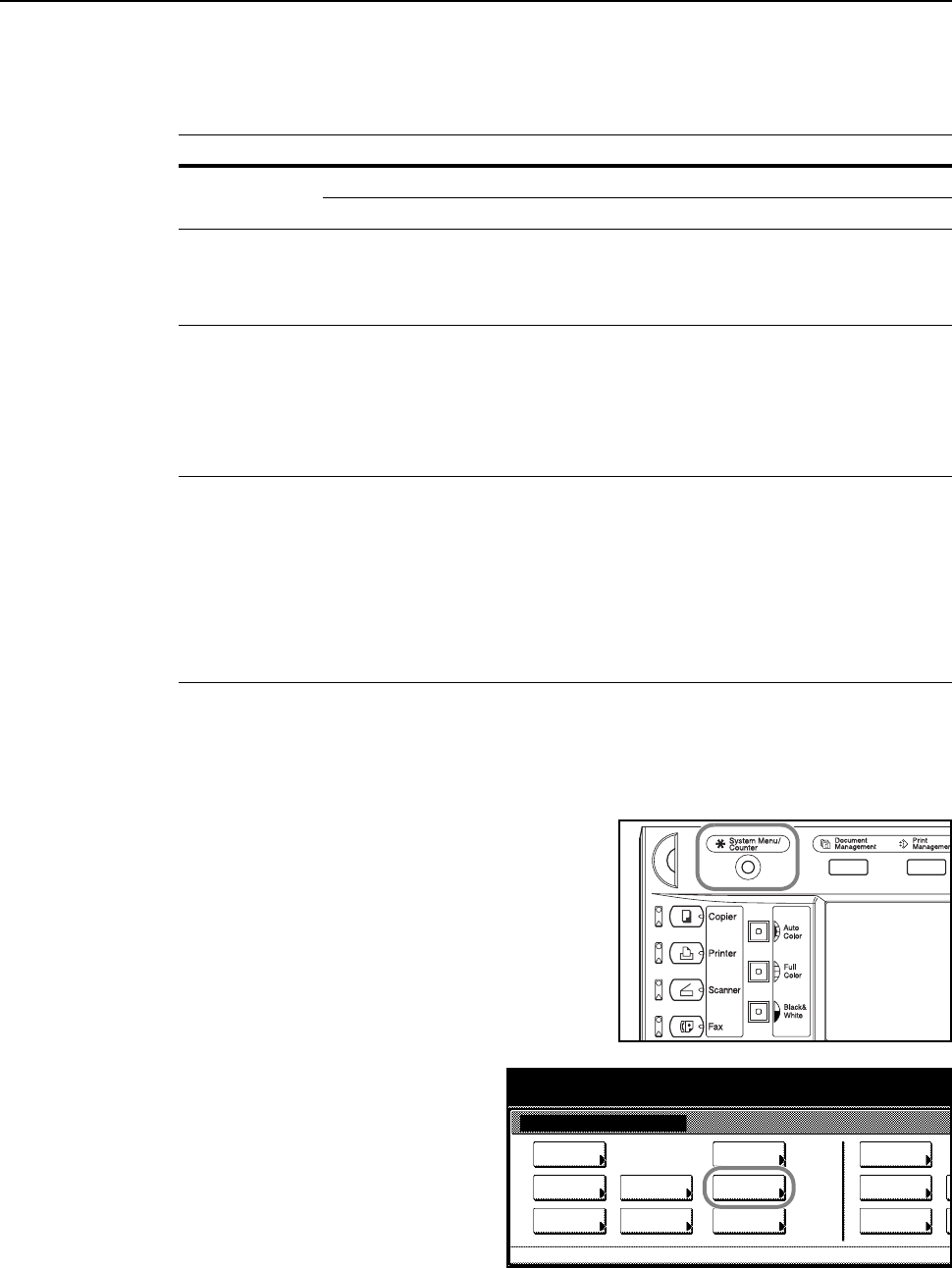
1Press the System Menu/Counter key.
System Menu
System Menu / Counter
Auto cassette swi tchi ng
Paper size (1st cassette)
Paper size (2nd cassette)
Paper size (3rd cassette)
Paper size (4th cassette) Change #
Default menu
On / All types of paper
Auto/I nch
Auto/I nch
Auto/I nch
Auto/I nch
Setting mode
Machi ne De fa ul t
Key Description
[Close] Keeps the settings and returns to the previous page.
[Back] Cancels settings and returns to the previous page.
Auto
A5
B5
B5A4
Standard
A3 B4
A4
Folio
Paper size (1st cassette)
Select paper size.
Sy stem Me nu Ma chi ne D efa ul t-
Detection
sizes
Close
5½×8½"
8½×13½"
8½×13"
8K
Back
16K
16K
Preparation for Usage
2-9
2Press [Machine Default].
3Use the numeric keys to enter the 4 digit management code. The default setting is 2500 for the
25/20 ppm model and 3200 for the 32/25 and 32/32 ppm models.
If the correct management code has been entered, the Machine Default screen will be displayed.
NOTE: If the optional security kit has been installed, the management code is 8 digits long. The
default setting is 25002500 for the 25/20 ppm model and 32003200 for the 32/25 and 32/32 ppm
models.
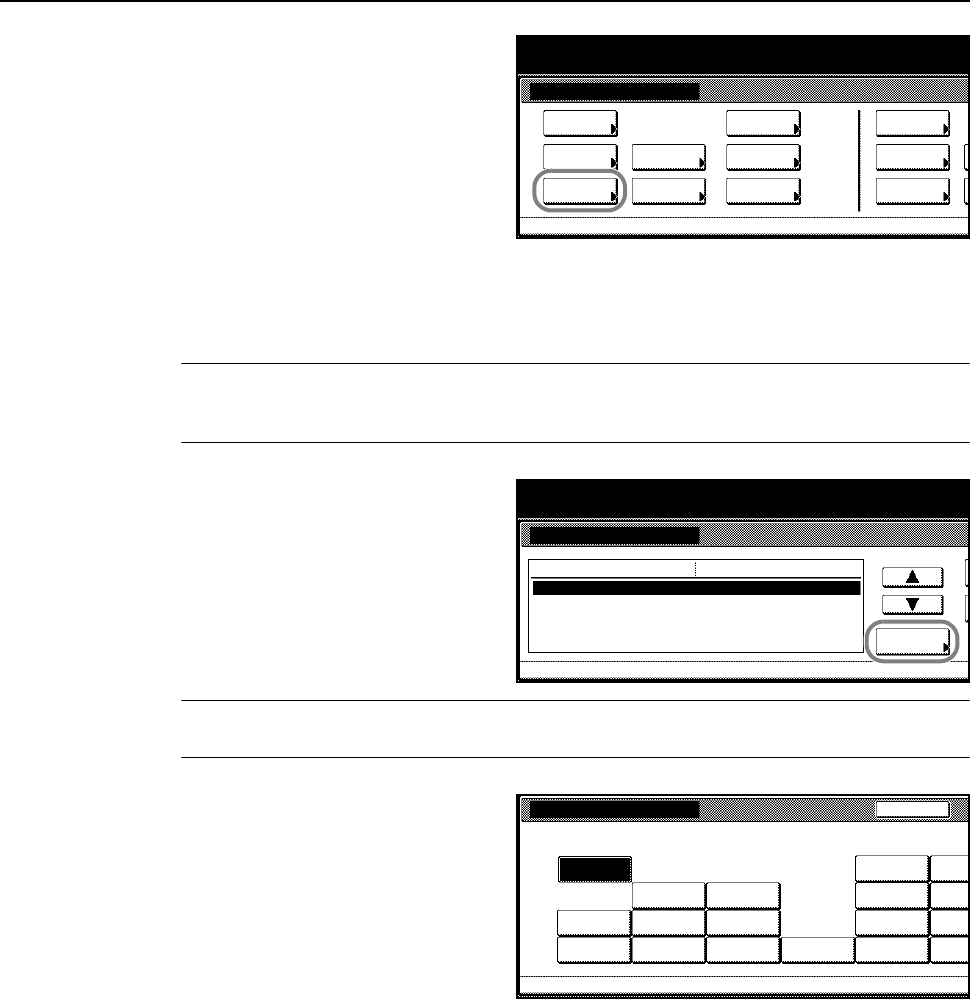
4Press [S] or [T], select the cassette you
wish to set the paper type from Paper
type (1st cassette) - Paper type (4th
cassette) and press [Change #].
NOTE: 3rd cassette and 4th cassette are shown when the optional paper feeder or 3000 sheet
paper feeder have been installed.
5Select the paper type and press [Close].
6Press [Close].
7Press [End]. The display returns to the [Basic] screen.
System Menu / Counter
System Menu
Default
Copy Language Accounting
Job
Default
Scanner
Default
Ma chi n e
Default
Printer
Setting
MP tr ay
Management
BOX
Management
Document
Orig. Size
Regi ster
Re po r t
Print
System Menu
System Menu / Counter
Paper type (1st cassette)
Pape r type (2nd cassette)
Pape r type (3r d cassette)
Paper type (4th cassette)
Store Paper Size for MPT Change #
Default menu
Plain
Color
Plain
Plain
Setting mode
Machine Default
Paper type (1st cassette)
Machine De faul tSystem Menu
Plain
Preprinted
Back
Select and display paper type.
-
Recycled Color Custom 2 Custom
Custom 1 Custom
Custom 3 Custom
Bond Letterhead High
Quality Custom 4 Custom
PrepunchedRough
Vel lum
Preparation for Usage
2-10
Specifying the Paper Size to the MP Tray
Specify the paper size when using the MP tray.
The following paper sizes are available.
Auto Detect
The paper size is automatically detected. Select between [Centimeter] ([Centimetre]) and [Inch]
measurement units.
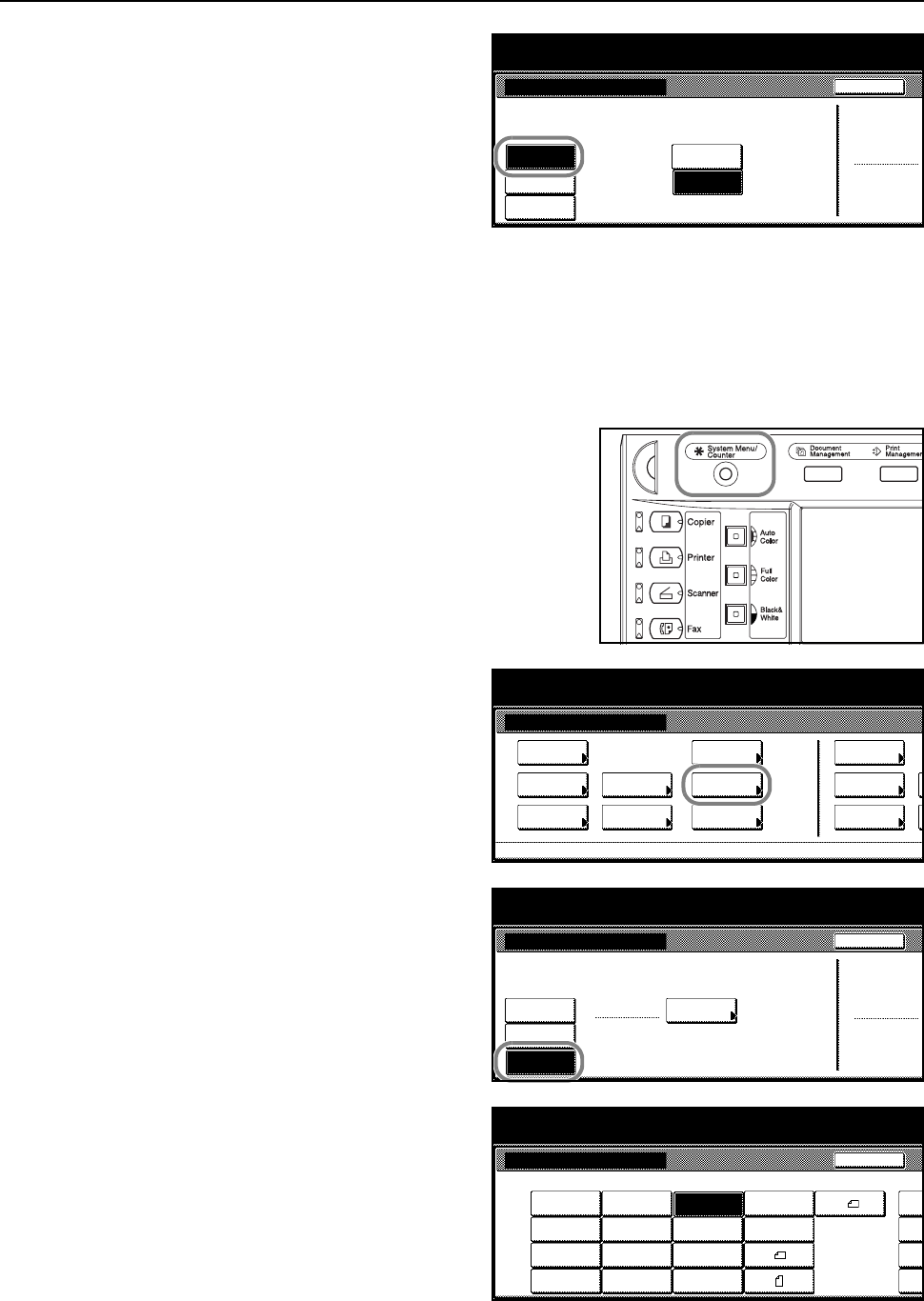
1Press the System Menu/Counter key.
2Press [MP tray Setting].
Setting method Unit Paper size
Auto Detect Inch 11 × 17", 8 1/2 ×14", 11×81/2", 8 1/2 ×11", 51/2 ×81/2"
Centimeter A3, B4, A4, A4R, B5, B5R, A5R, B6R, A6R
Other Standard Sizes ISO B5, Envelope DL, Envelope C5, Envelope C4, Comm. #10,
Comm. #9, Comm. #6-3/4, Monarch, Executive, OUFUKU
HAGAKI (return postcard), YOUKEI 2, YOUKEI 4, 8 1/2 ×131/2",
81/2 × 13" (Oficio 2), 8K, 16K, 16KR
Input Size Inch models
Height: 3 7/8 - 11 5/8" (1/8" increments)
Width: 5 7/8 - 17" (1/8" increments)
Metric models
Height: 98 - 297 mm (1 mm increments)
Width: 148 - 432 mm (1 mm increments)
Custom Size Pre-assigned paper size 1-4
Assignable paper sizes
Inch models
Height: 3 7/8 - 11 5/8" (1/8" increments)
Width: 5 7/8 - 17" (1/8" increments)
Metric models
Height: 98 - 297 mm (1 mm increments)
Width: 148 - 432 mm (1 mm increments)
System Menu / Counter
System Menu
Default
Copy Language Accounting
Job
Default
Scanner
Default
Ma ch i ne
Default
Printer
Setting
MP tr a y
Management
BOX
Management
Document
Orig. Size
Regi ste r
Report
Print
Preparation for Usage
2-11
3Press [Auto Detection].
4Select [Centimeter] ([Centimetre]) or [Inch].
5Press [Close]. The display returns to the [Basic] screen.
Other Standard Sizes
Specify special standard sizes.
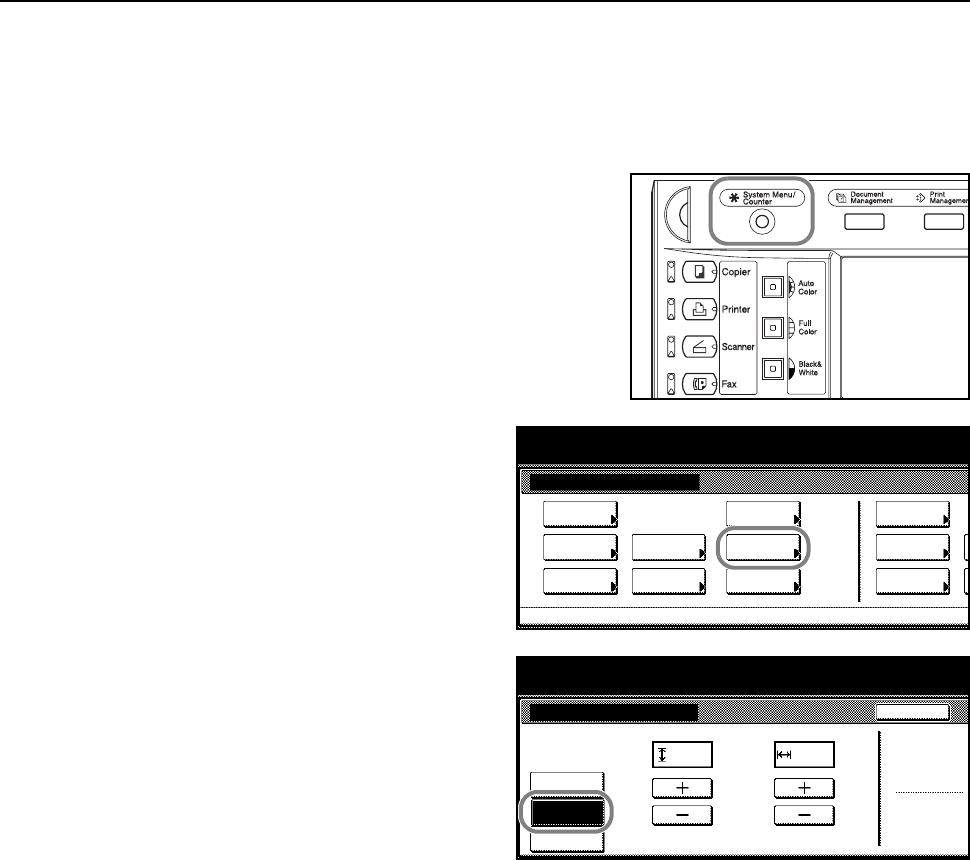
1Press the System Menu/Counter key.
2Press [MP tray Setting].
3Press [Others Standard] and press
[Select size].
4Select the paper size.
5Press [Close].
MP tray Setting
Auto
Back
System Menu / Counter
Input size
Others
Standard
Paper Size Paper Type
Plain
Centimeter
Inch
Unit
Detection
System Menu / Counter
System Menu
Default
Copy Language Accounting
Job
Default
Scanner
Default
Ma chi n e
Default
Printer
Setting
MP tr ay
Management
BOX
Management
Document
Orig. Size
Regi ster
Re po r t
Print
MP tray Setting
Auto
Back
System Menu / Counter
Input size
Others
Standard
Paper Size Paper Type
Plain
Select
Detection size
EX
System Menu / Counter
Back
C5
Envelope
Select size
DL
Envelope
C4
Envelope
ISO B5 Comm.#10 EX
Comm.#9 HAGAKI
OUFUKU
#6- 3/4
Comm.
MO YOU KEI 4
YOUKEI 2
8½×13½"
8½×13"
8K
16K
16K
Cus
t
11
11 /
1
11
11 /
1
11
11 /
1
11
11 /
1
Preparation for Usage
2-12
6Press [Close]. The display returns to the [Basic] screen.
Input Size
Specify the required paper size.
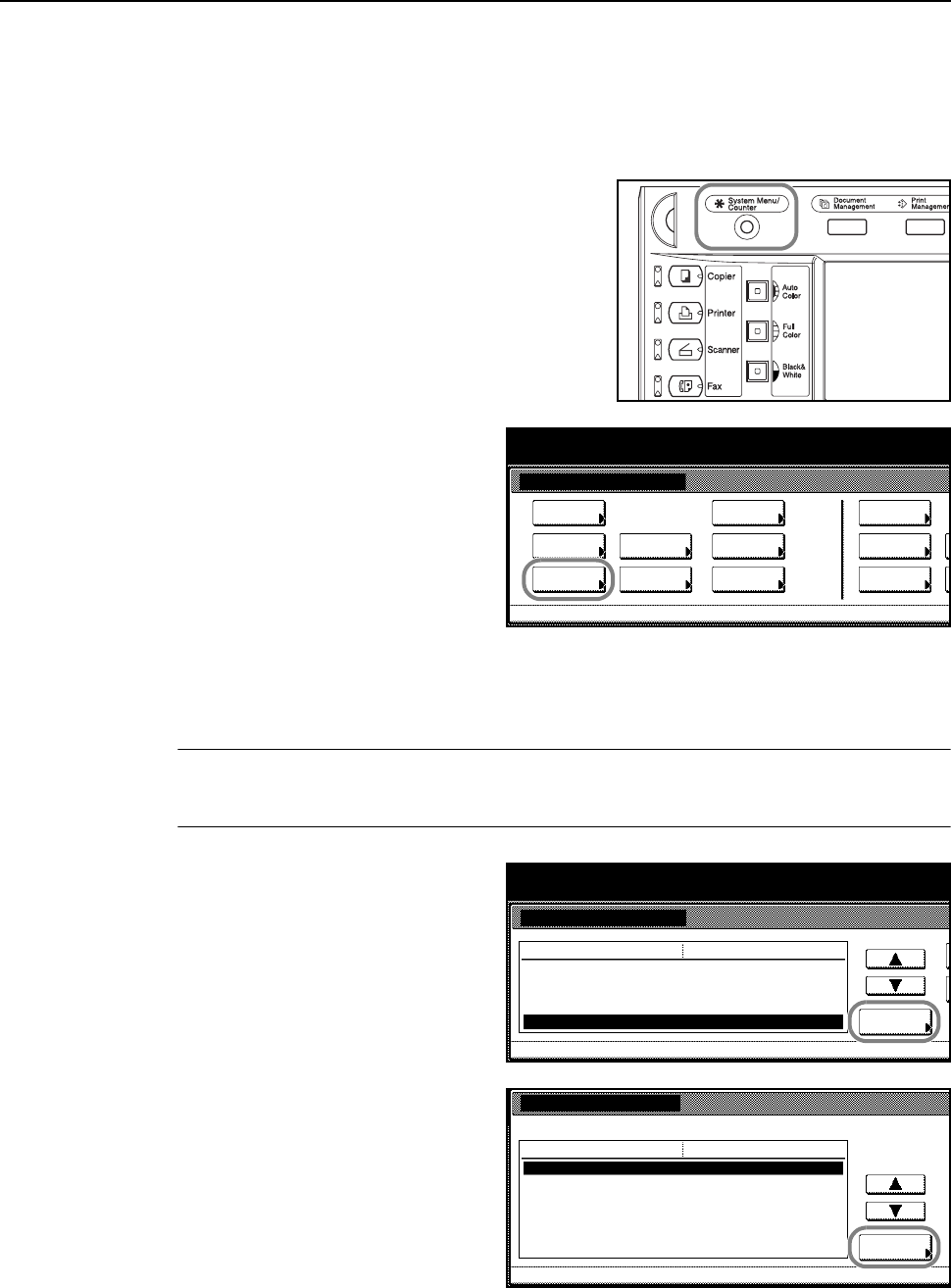
1Press the System Menu/Counter key.
2Press [MP tray Setting].
3Press [Input size].
4Press [+] and [–] to set the Y (height) and X (width) sizes.
With the metric models, you may enter the size directly using the numeric keys by pressing
[#-Keys].
5Press [Close]. The display returns to the [Basic] screen.
System Menu / Counter
System Menu
Default
Copy Language Accounting
Job
Default
Scanner
Default
Ma ch i ne
Default
Printer
Setting
MP tr a y
Management
BOX
Management
Document
Orig. Size
Regi ste r
Report
Print
MP tray Setting
Auto
Back
System Menu / Counter
Y
Input size
Others
Standard
X
Paper Size Paper Type
Plain
(3
7/8
~11
5/8
)
.11
11/16
"
.16
9/16
"
(5
7/8
~17)
Detection
Preparation for Usage
2-13
Custom Size
Store frequently used paper sizes as custom sizes. Also, the paper type can be set for each custom
size.
Assignment Method
1Press the System Menu/Counter key.
2Press [Machine Default].
3Use the numeric keys to enter the 4 digit management code. The default setting is 2500 for the
25/20 ppm model and 3200 for the 32/25 and 32/32 ppm models.
If the correct management code has been entered, the Machine Default screen will be displayed.
NOTE: If the optional security kit has been installed, the management code is 8 digits long. The
default setting is 25002500 for the 25/20 ppm model and 32003200 for the 32/25 and 32/32 ppm
models.
4Press [S] or [T] to select Store Paper
Size for MPT, and press [Change #].
5Press [S] or [T], select the number to
register from Paper size (User reg. 1 - 4)
and press [Change #].
System Menu / Counter
System Menu
Default
Copy Language Accounting
Job
Default
Scanner
Default
Ma chi n e
Default
Printer
Setting
MP tr ay
Management
BOX
Management
Document
Orig. Size
Regi ster
Re po r t
Print
System Menu
System Menu / Counter
Paper type (1st cassette)
Paper type (2nd cassette)
Paper type (3rd cassette)
Paper type ( 4th cassette)
Store Paper Size for MPT Change #
Default menu
Plain
Color
Plain
Setting mode
Machi ne De fa ul t
Plain
Store Paper Size for MPT
11
11/16
×16
9/16
"
Change #
Default menu
Paper size (User reg. 1)
Paper size (User reg. 2)
Paper size (User reg. 3)
Paper size (User reg. 4)
Setting mode
11
11/16
×16
9/16
"
11
11/16
×16
9/16
"
11
11/16
×16
9/16
"
Sy stem Me nu Machine De faul t-
Stores Paper Size for MP Tray
Preparation for Usage
2-14
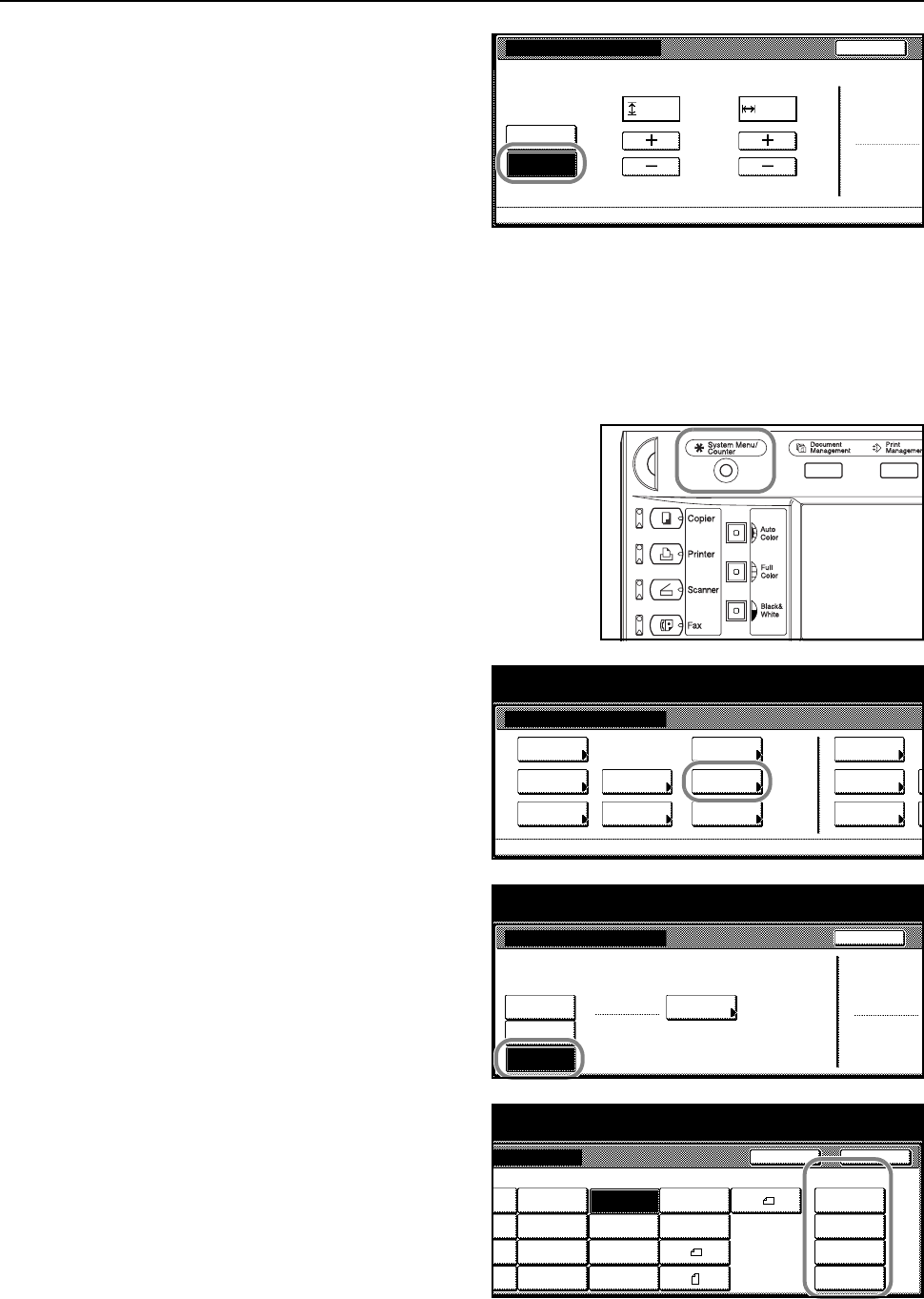
6Press [On] and press [+] or [–] to set the
Y (Length) and X (Width) sizes.
With the metric models, you may enter
the size directly using the numeric keys
by pressing [#-Keys].
To specify a paper type, press [Select
Paper Type]. Select the paper type and
press [Close].
7Press [Close].
8Press [Close].
9Press [End]. The display returns to the [Basic] screen.
Setting Method
1Press the System Menu/Counter key.
2Press [MP tray Setting].
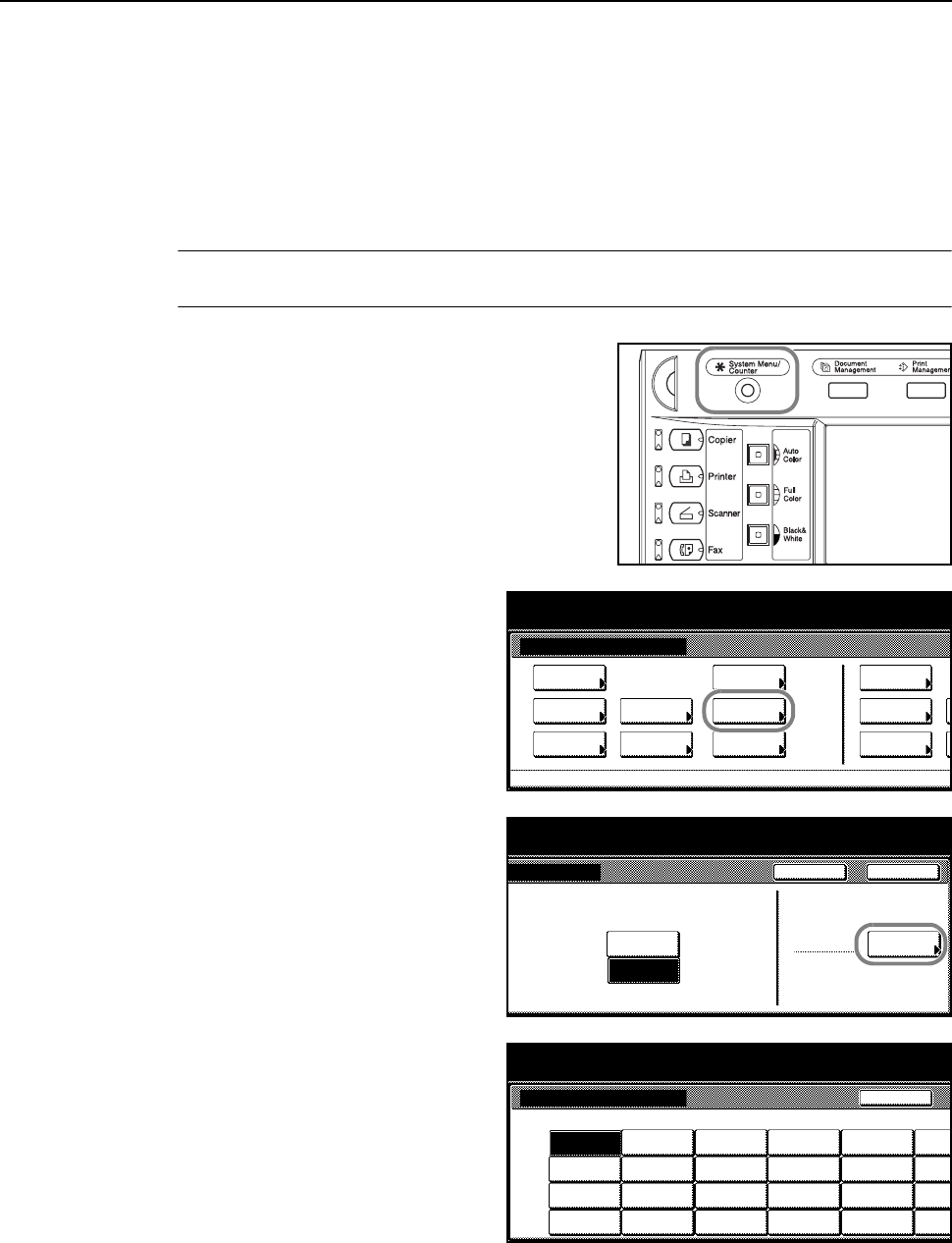
3Press [Others Standard] and press
[Select size].
4Select the paper size from Custom Size
(Use regist).
5Press [Close].
Color/B&W selection
Off
On
Back
100%
(3
7/8
~11
5/8
)(5
7/8
~17)
Y"X"
Paper size (User reg. 1)
Stores Paper Size for MP Tray
Paper Type
Plain
11
11/16
.16
9/16
Sy stem Me nu Machine De faul t- Store Paper Size for MPT-
System Menu / Counter
System Menu
Default
Copy Language Accounting
Job
Default
Scanner
Default
Ma ch i ne
Default
Printer
Setting
MP tr a y
Management
BOX
Management
Document
Orig. Size
Regi ste r
Report
Print
MP tray Setting
Auto
Back
System Menu / Counter
Input size
Others
Standard
Paper Size Paper Type
Plain
Select
Detection size
EX
m
Menu / Counter
Back
e
Close
e
e
Comm.#10 EX
Comm.#9 HAGAKI
OUFUKU
#6- 3/4
Comm.
MO YOU KEI 4
YOUKEI 2
8½×13½"
8½×13"
8K
16K
16K
Custom Size
11
11 /16
×16
9/ 16
"
11
11 /16
×16
9/ 16
"
11
11 /16
×16
9/ 16
"
11
11 /16
×16
9/ 16
"
Preparation for Usage
2-15
6Press [Close]. The display returns to the [Basic] screen.
Specifying the Paper Type to the MP Tray
Set the paper type when using the MP tray.
The following paper types are available.
Plain, Transparency, Rough, Vellum, Labels, Recycled, Preprinted, Bond, Cardstock, Color
(Colour), Prepunched, Letterhead, Thick paper, Envelope, Coated, High Quality, Custom 1 - 8
NOTE: Paper type cannot be changed for MP tray paper size when a Custom size has been
selected that has already set the paper type.
1Press the System Menu/Counter key.
2Press [MP tray Setting].
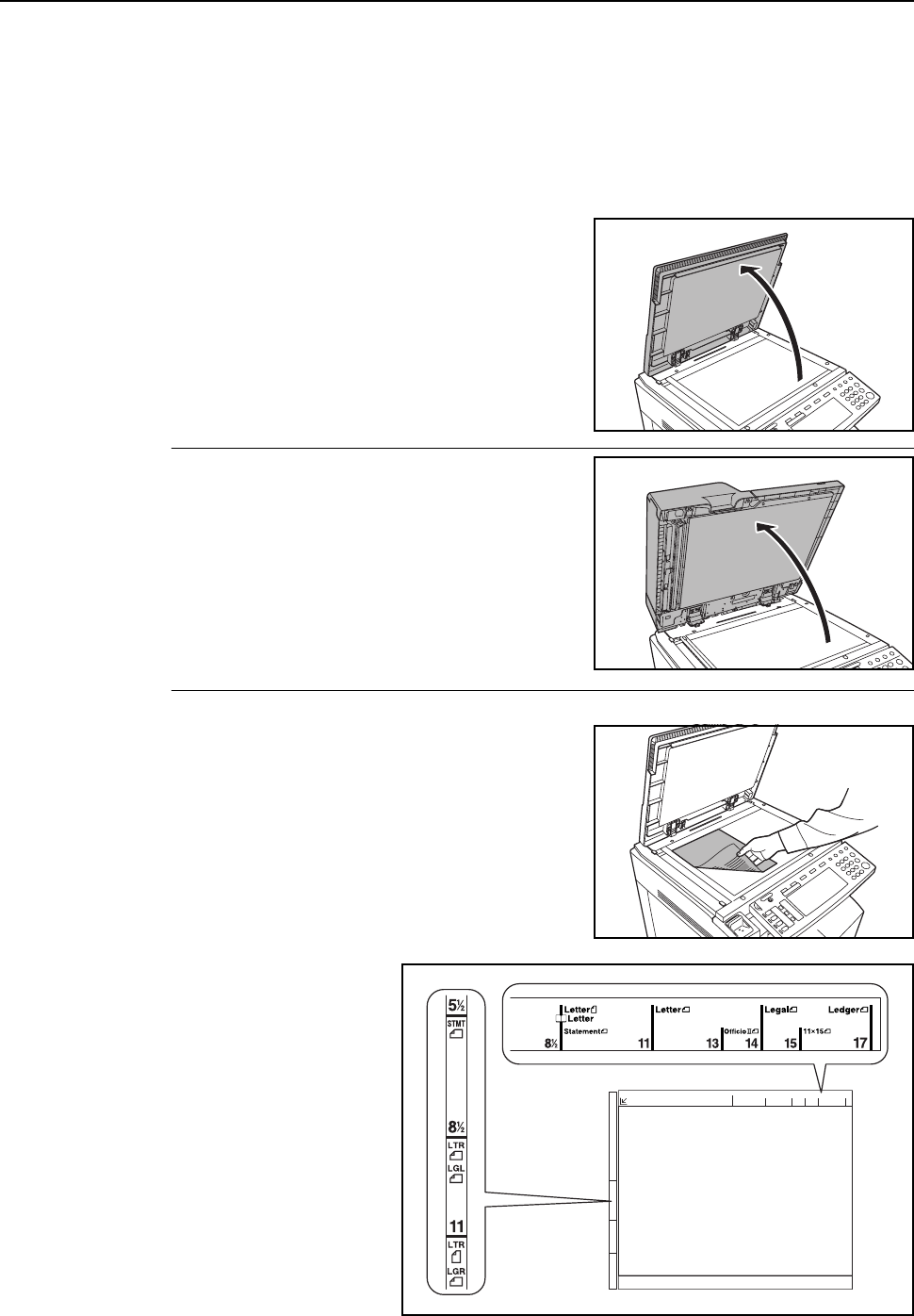
3Press [Select Paper Type].
4Select the paper type.
5Press [Close].
6Press [Close]. The display returns to the [Basic] screen.
System Menu / Counter
System Menu
Default
Copy Language Accounting
Job
Default
Scanner
Default
Ma chi n e
Default
Printer
Setting
MP tr ay
Management
BOX
Management
Document
Orig. Size
Regi ster
Re po r t
Print
Close
g
Back
m
Menu / Counter
Paper Type
Plain Select
Centi meter
Inch
Unit
Paper Type
System Menu / Counter
Transp-
Plain
Preprinted
BackSelect Paper Type
arency
Vel lum
Labels Cardstock Thick
paper Custom 1 Custo
m
Recycled Color Envelope Custom 2 Custo
m
Prepunched Custom 3 Custo
m
Bond Letterhead High
Quality Custom 4 Custo
m
CoatedRough
Preparation for Usage
2-16
Placing Originals
This section explains how to place an original for copying or scanning.
Loading Originals on the Platen
Open the original platen and place the original on the platen. You may also place non-sheet
originals such as books or magazines.
1Open the original platen.
NOTE: If the optional document processor has been
installed, open the document processor. Before
opening the document processor, be sure that there
are no originals left on the original tray or on the
original eject table. Originals left on the original table or
on the original eject table may fall off the machine
when the document processor is opened.
For originals over 4 cm thick, leave the document
processor open during copying.
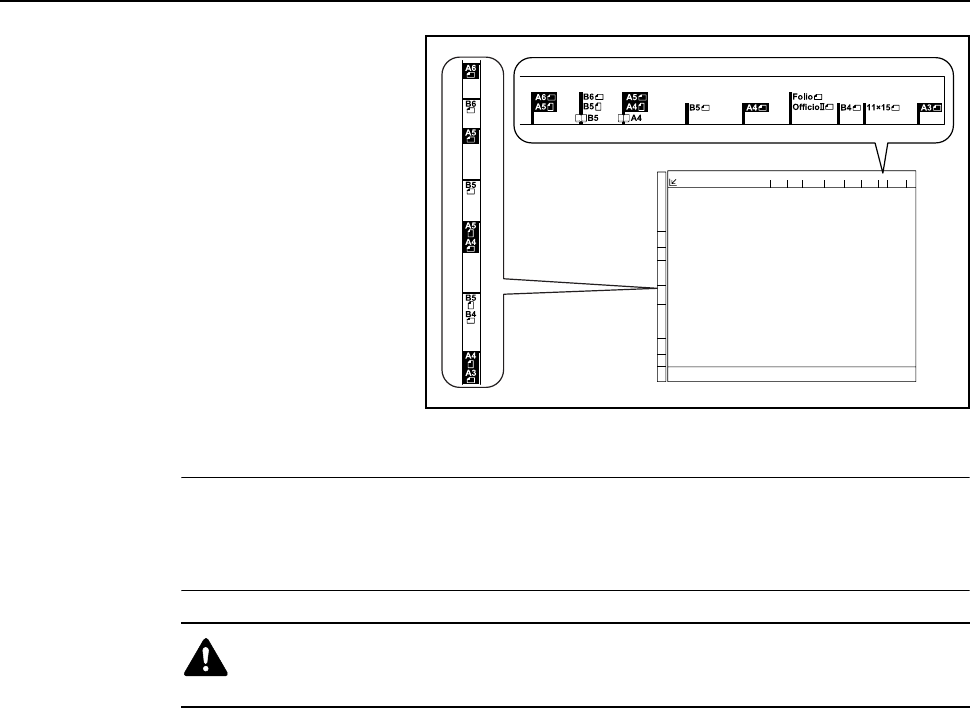
2Place the original. Place the side to be copied face
down and starting from the back left corner, align flush
against the original size indicator plates.
Original size indicator plates
(Inch models)
Preparation for Usage
2-17
(Metric models)
3Close the original platen.
IMPORTANT: Do not push the original platen or document processor forcefully when you close it.
Excessive pressure may crack the platen glass.
Shadows may appear around the edges and in the middle of copies of open-faced originals such as
books.
Caution: Do not leave the document processor open as there is a danger of
personal injury.
Preparation for Usage
2-18
Loading Originals in the Document Processor (option)
Use the optional document processor to automatically read multi-page originals one page at a time.
Also automatically turn over and read both sides of two-sided originals.
The document processor supports the following types of originals.
Precautions on Types of Originals for Document Processor
Do not use the document processor for the following types of originals. Additionally, if originals have
punched holes or perforations, load them with the holes or perforations away from the leading edge.
• Transparent films such as OHP transparencies
• Delicate originals such as carbon paper, heavily crumpled paper, or vinyl sheets
• Irregularly shaped (non-rectangular) originals, wet originals, or originals containing adhesive
tape or glue
• Remove clips or staples and straighten any curls, wrinkles, or creases before loading. Failure to
do so may cause the originals to jam.
• Originals with cut-out sections or with very slippery surfaces
• Originals with correction fluid that has not dried
• Straighten the folds of bent originals before loading. Failure to do so may cause the originals to
jam.
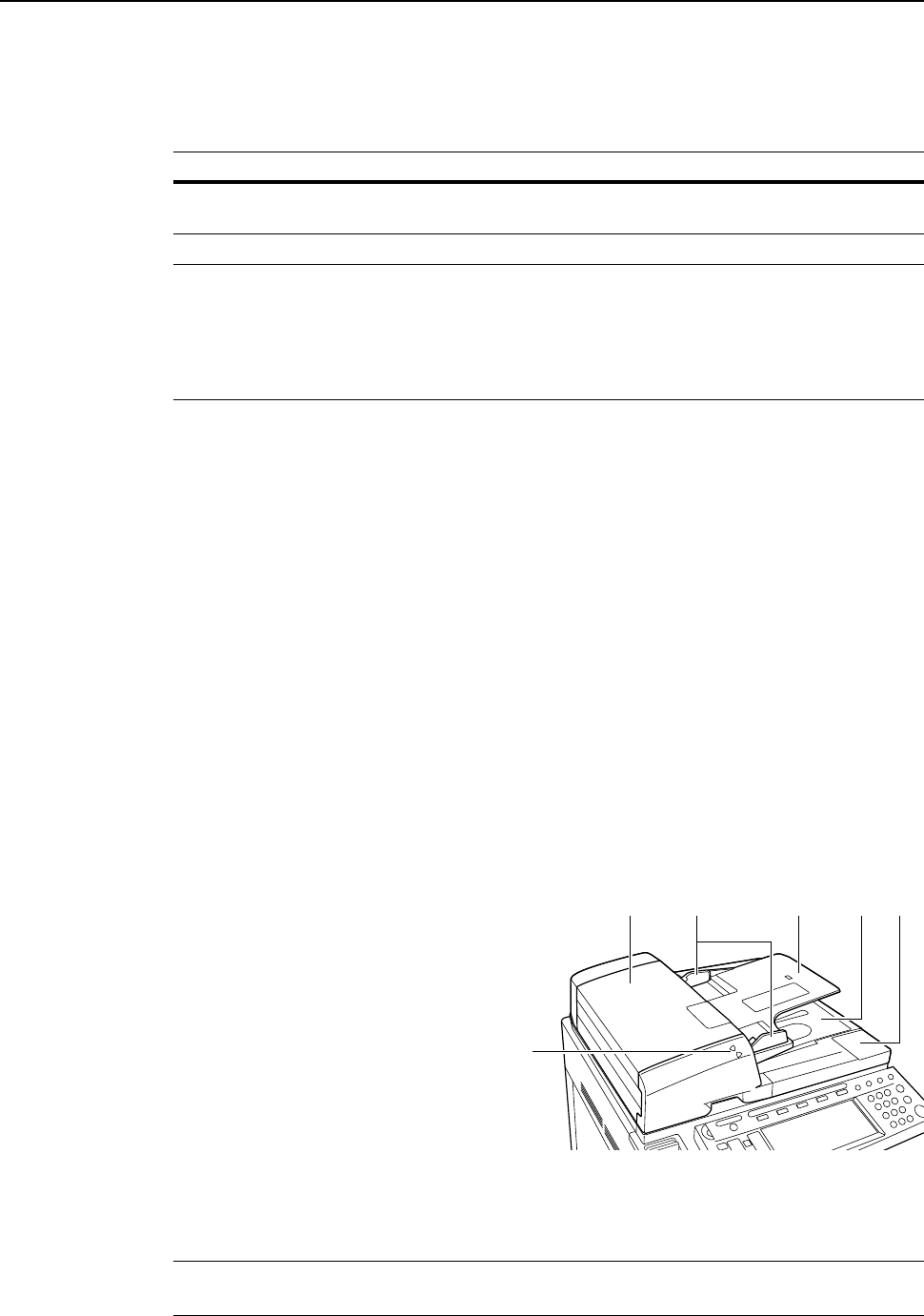
Document Processor Part Names
1Original table
2Original width guides
3Original eject table
4Document processor cover
5Original loaded indicator
6Cleaning cloth compartment
How to Load Originals
Follow these steps to load originals in the document processor.
IMPORTANT: Before loading originals, be sure there are no originals left on the original eject table.
Originals left on the original eject table may cause the new originals to jam.
Item Specifications
Weight 1-sided original: 45 g/m2 - 160 g/m2
2-sided original: 50 g/m2 - 120 g/m2
Size Maximum 11 × 17"/A3 - Minimum 5 1/2 ×81/2"/A5R
Capacity Standard paper (80 g/m2, 11 × 8 1/2"/A4 or smaller), color paper (11 × 8 1/2"/A4
or smaller), recycled paper (11 × 8 1/2"/A4 or smaller): 100 sheets or less
(Auto Selection Mode: 30 sheets)
Standard paper (80 g/m2, 8 1/2 × 14"/B4 or larger), color paper (8 1/2 × 14"/B4
or larger), recycled paper (8 1/2 × 14"/B4 or larger): 70 sheets or less
Art paper: 1 sheet
123
5
46
Preparation for Usage
2-19
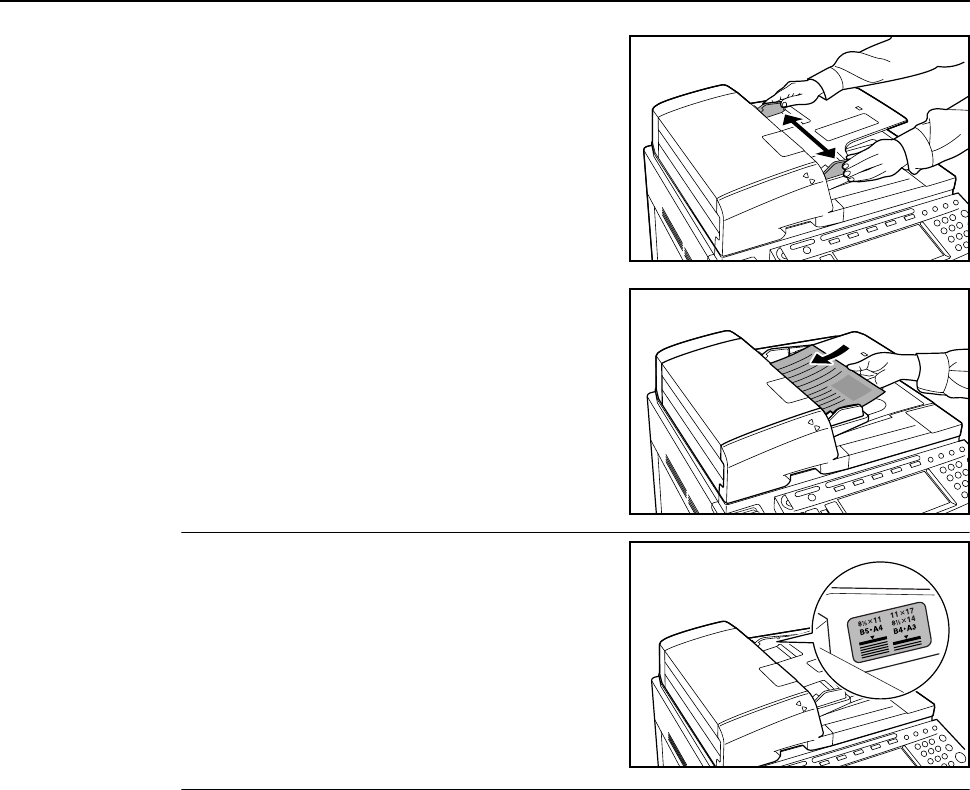
1Adjust the original width guides to fit the originals.
2Place the originals. Place the side to be read facing up
(the front side up for two-sided originals) and push the
front edge of the original deep into the document
processor.
IMPORTANT: Confirm that the original width guides
exactly fits the originals. If there is a gap, readjust the
original width guides. Failure to do so may cause the
originals to jam.
Ensure that loaded originals do not exceed the level
indicated. Exceeding the maximum level may cause
the originals to jam.
Preparation for Usage
2-20
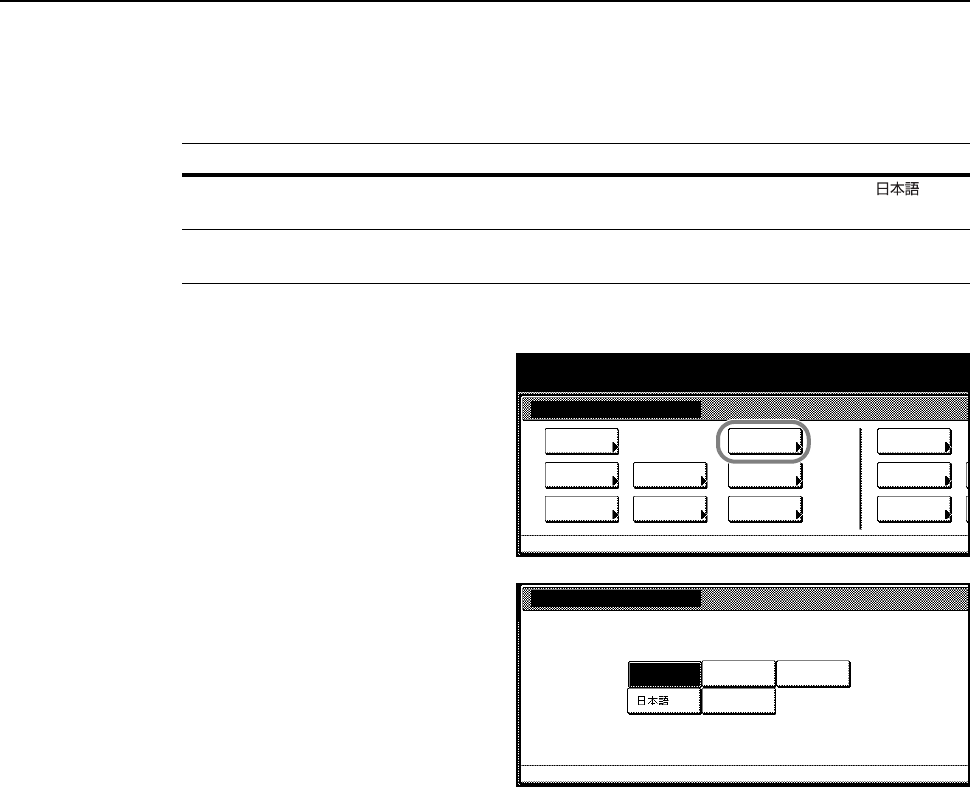
Language
Select the language displayed on the touch panel.
The following languages are available.
1Press the System Menu/Counter key.
2Press [Language].
3Select the key for the language you
would like to set. The touch panel
display will change to that language.
Model Type Language
Inch models English, French (Français), Spanish (Español), Japanese ( ),
Portuguese (Português)
Metric models English, German (Deutsch), French (Français), Spanish (Español),
Italian (Italiano)
System Menu / Counter
System Menu
Default
Copy Language Accounting
Job
Default
Scanner
Default
Ma chi n e
Default
Printer
Setting
MP tr ay
Management
BOX
Management
Document
Orig. Size
Regi ster
Re po r t
Print
System Menu
Language
English Français Español
Português
Preparation for Usage
2-21
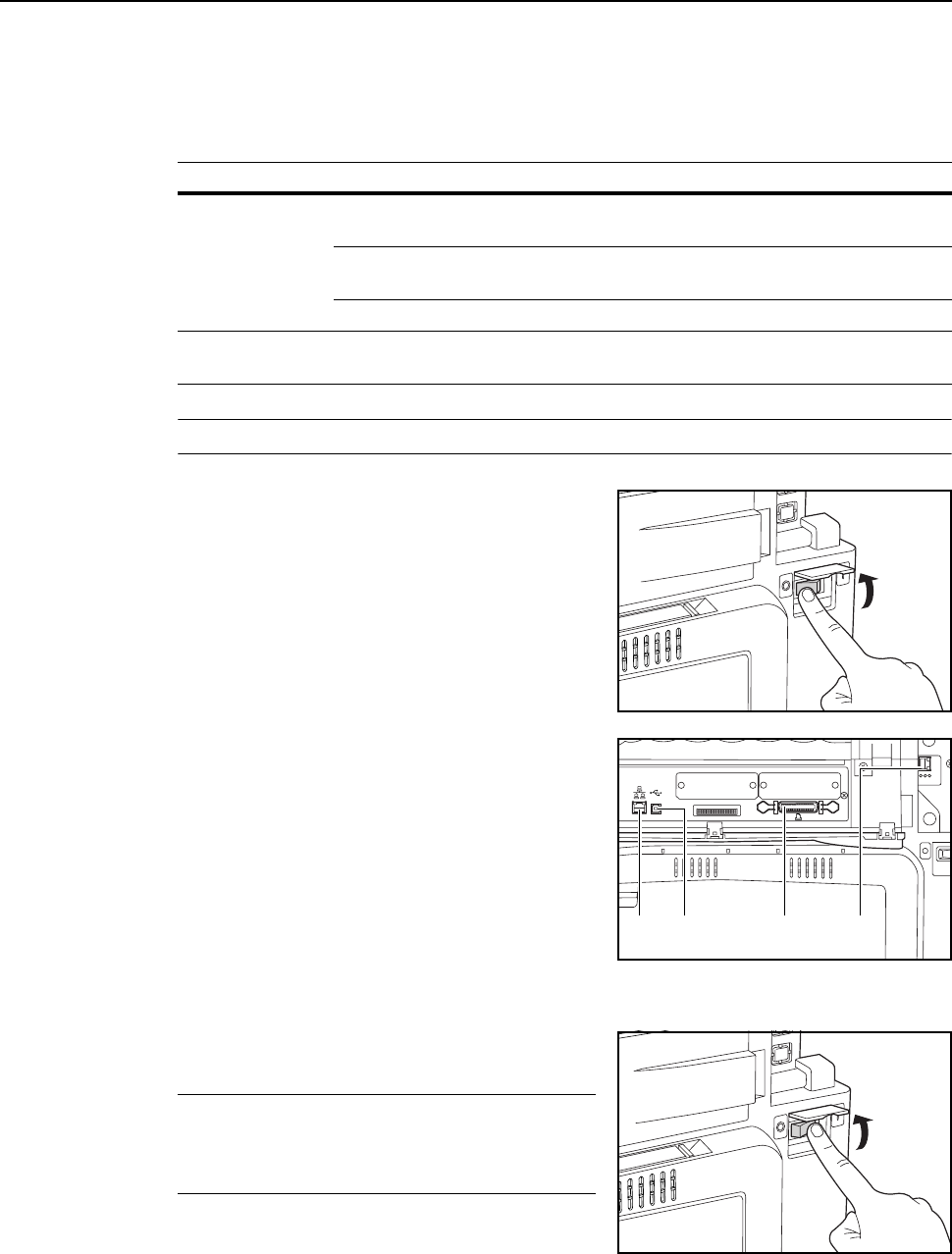
Connecting Cables
Connect to a computer to use the printer and scanner features. This device has the following
interfaces for connecting to computers.
Use the type of cable appropriate for the interface used.
NOTE: Use shielded USB, 10Base-T and 100Base-TX cables.
1Open the main power switch cover, and switch the
main power switch to off ( position).
Turn off the computer’s power when connecting a
parallel port cable.
2Open the interface cover on the right side of the unit
and connect the cable to the interface.
A: Network interface (printer)
B: USB interface (printer)
C: Parallel port interface (printer)
D: Network interface (scanner)
3Connect the other end of the cable to the computer or a hub (network switching device).
4Open the main power switch cover, and switch the
main power switch to on ( | position).
NOTE: For network cable connections, configure the
network after connecting the cables. For details, refer
to Network (TCP/IP) Settings on page 2-22 and
Scanner Basic Settings on page 2-32.
Function Interface Required cable
Printing
Functionality
Parallel port interface Parallel Port Cable (IEEE1284 specification, 1.5 m or
less)
USB Interface USB 2.0-compatible cable (Hi-Speed USB specification,
5.0 m or less) shielded cable
Network interface Network Cable (10Base-T or 100Base-TX)
Scanning
Functionality
Network interface Network Cable (10Base-T or 100Base-TX)
AB C D
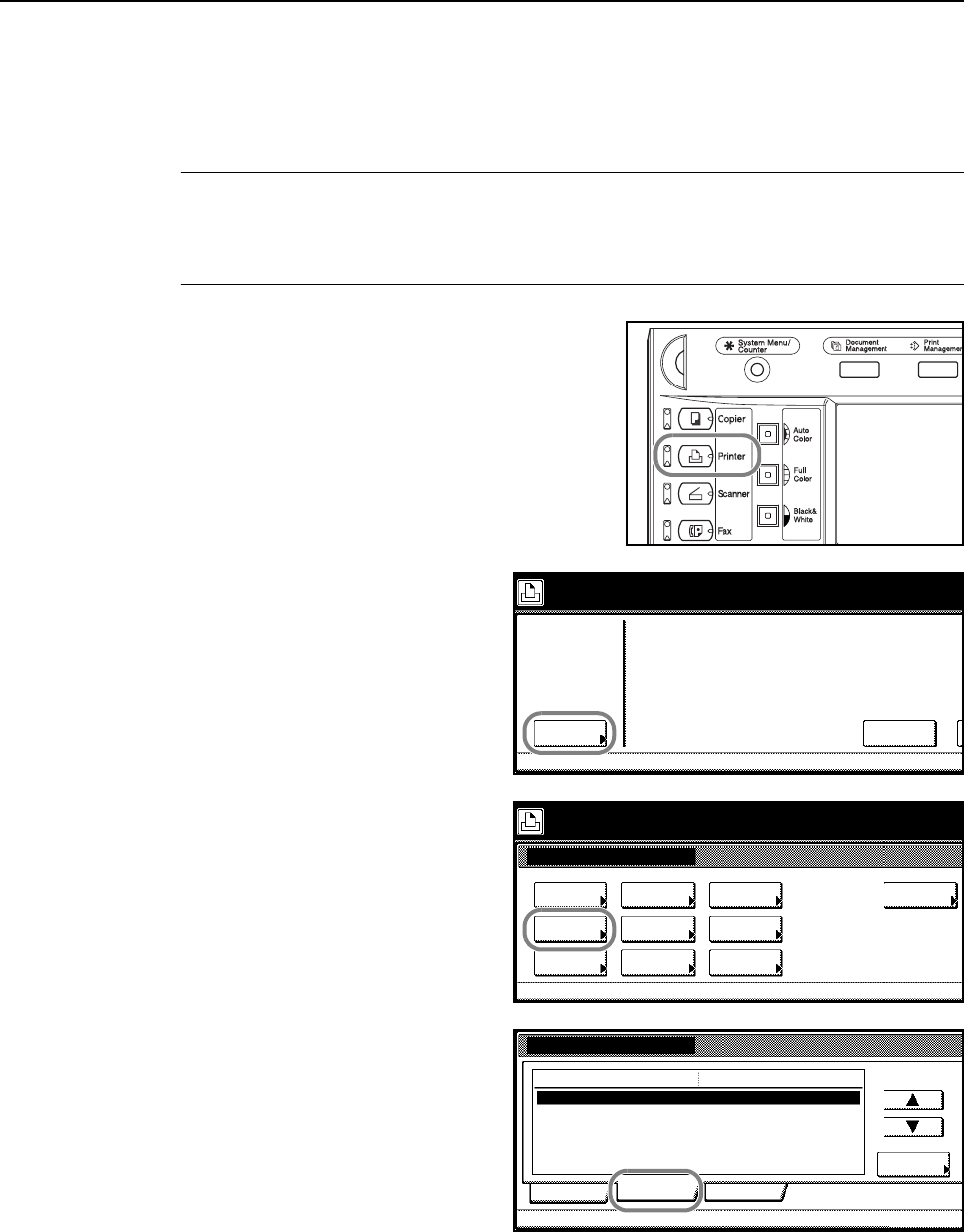
Preparation for Usage
2-22
Preparing the Printer
Network (TCP/IP) Settings
To use this device as a network printer, first set the device IP address.
NOTE: Set the IP address according to the operating environment. Obtain this address from your
network administrator.
For environments that use DHCP or BOOTP to automatically assign the IP address, this setting is
not required because the DHCP or BOOTP setting is enabled by default.
1Press the Printer key.
2Press [Printer Menu].
3Press [Interface].
4Press [Network].
Printer
Menu Cancel
Ready to print.
Printer menu
Print Sta-
tus Page
Interface
Emulation
Page Set
Print
Paper
RAM DISK
Mod e
Select item.
Font
Color Mode
Handling
Quality
Others
Interface
NetWare
Parallel Network
Cha nge #
Setting Item Value
On
TCP/IP On
Ethertalk On
Network Status Page Off
USB
Printer menu
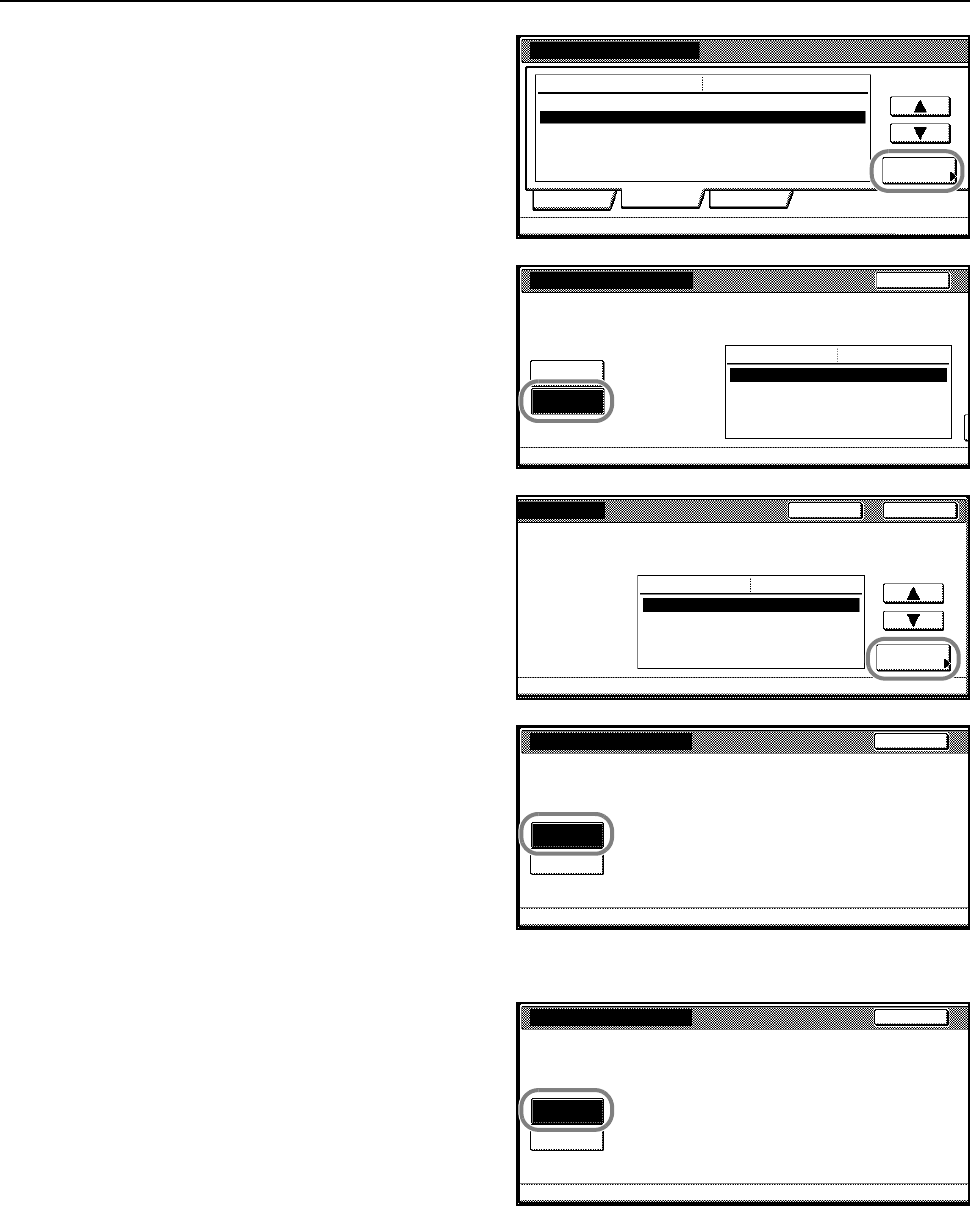
Preparation for Usage
2-23
5Press [S] or [T] to select TCP/IP and
press [Change #].
6Press [On] below TCP/IP.
7Press [S] or [T] to select DHCP and
press [Change #].
8Press [Off] and press [Close].
9Press [S] or [T] to select BOOTP and press [Change #].
10 Press [Off] and press [Close].
Interface
NetWare
Parallel Network
Change #
Setting Item Value
On
TCP/IP On
Ethertalk On
Network Status Page Off
USB
Printer menu
TCP/I P
Off
On
DHCP On
BOOTP On
IP Address 0. 0. 0. 0
Subnet Mask 0. 0. 0. 0
Gateway 0. 0. 0. 0
TCP/IP
Back
Setting Item Value
Printer menu-Interface -Network
Change #
Close
DHCP On
BOOTP On
IP Address 0. 0. 0. 0
Subnet Mask 0. 0. 0. 0
Gateway 0. 0. 0. 0
Back
Setting Item Value
t
erface - Network
DHCP Setting
Off
On
Back
Printer menu - Interface - Network - TCP/IP
BOOTP Setting
Off
On
Back
Printer menu - Interface - Network - TCP/IP
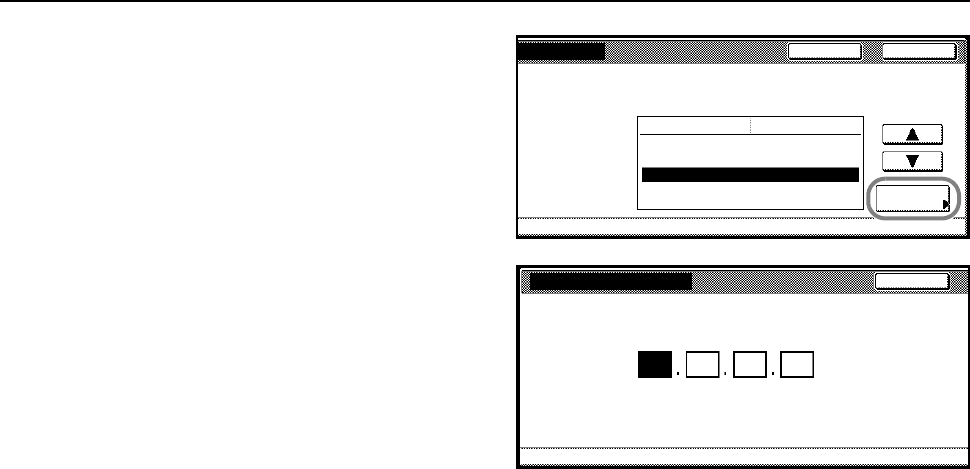
Preparation for Usage
2-24
11 Press [S] or [T] to select IP Address
and press [Change #].
12 Enter the IP address using the numeric
keys. Input the address for the 3 digits
displayed in reverse black and white and
press the # key.
Verify the 3 digits entered # key.
13 Input the address for the next 3 digits displayed in reverse black and white and press the # key.
To correct an address entry, press the # key to select the 3 digit address you would like to correct
and reenter the address using the numeric keys.
14 After inputting the rest of the address in the same manner, press [Close]. The display returns to the
TCP/IP screen.
Press [Back] to delete the entered address and set the previous address.
15 Press [S] or [T] to select Subnet Mask and press [Change #].
16 Set the address in the same manner as Steps 12 - 14 to set the IP address.
17 Press [S] or [T] to select Gateway and press [Change #].
18 Set the address in the same manner as Steps 12-14 to set the IP address.
19 Press [Close] after all settings are complete.
20 Press [Close].
21 Press [Close]. The display returns to Printer mode.
Included Printer Utilities
This product includes the following printer utilities Install them as necessary. For details, refer to the
manual included with each utility.
• KM-NET for Clients
• KM-NET for Direct Printing
•IC-Link
• KM-NET VIEWER
• KM-NET VIEWER for Web Edition
•KM-NET KPrint
• KM NET Quick Setup
Change #
Close
DHCP On
BOOTP On
IP Address 0. 0. 0. 0
Subnet Mask 0. 0. 0. 0
Gateway 0. 0. 0. 0
Back
Setting Item Value
I
nterface - Network
IP Address
.10 (with #key)
Back
Printer menu- Interface - Network - TCP/IP
.0.0.0
Confirm per 3 lines pressing # key.
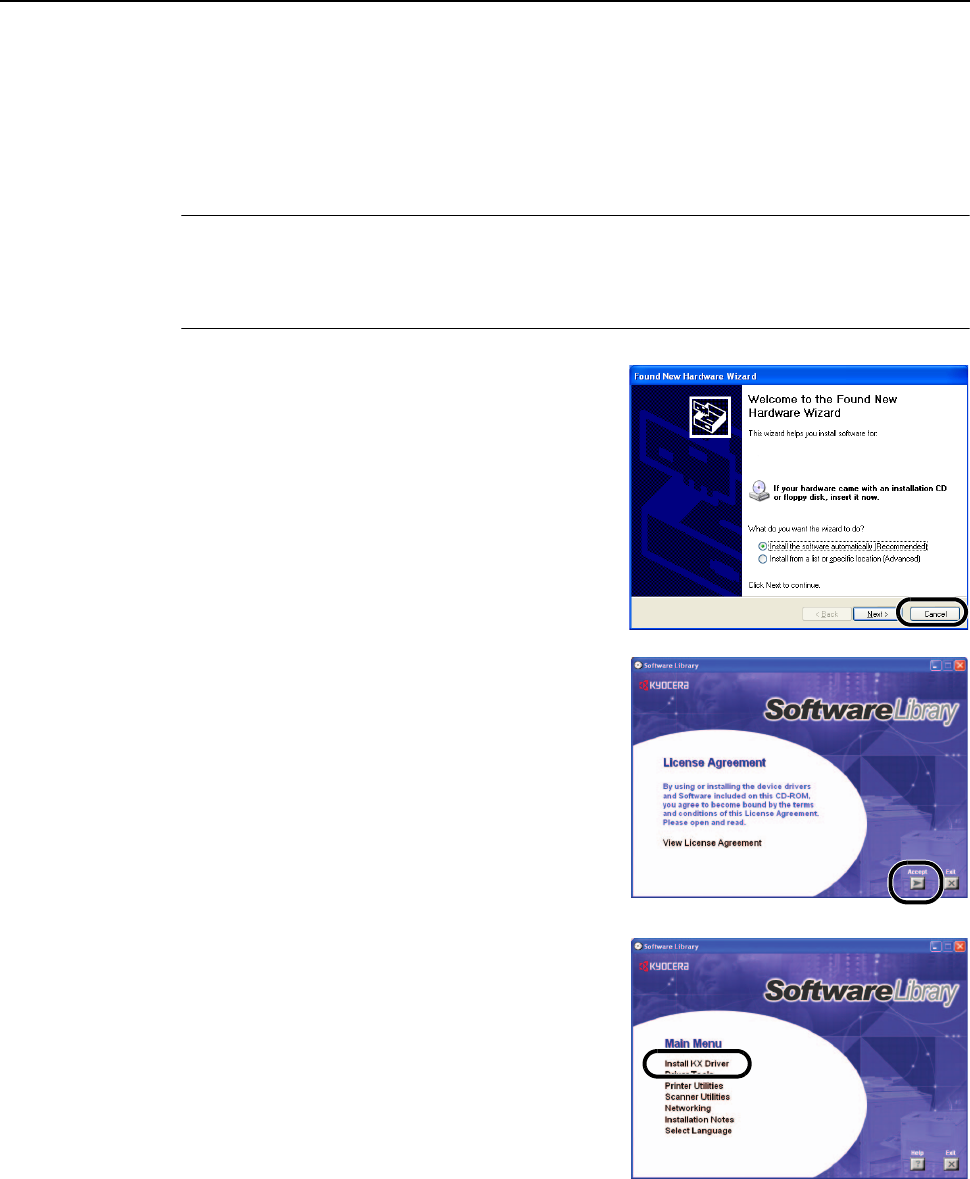
Preparation for Usage
2-25
Installing the Printer Driver
Install the printer driver to connect this device to a computer. Install from the included Software
Library CD-ROM for connections via the parallel port interface, network interface or the USB
interface.
The following procedures are based on a Windows XP installation, but the same procedure may be
followed to install on other Windows operating systems.
NOTE: Installation on Windows XP, Windows NT 4.0/2000 and Server 2003 must be installed by a
user logged on with administrator privileges.
Plug and Play is disabled on this device when in Sleep Mode. Wake the device from Sleep Mode
before continuing. See Sleep Mode on page 3-36
1Refer to Connecting Cables on page 2-21 to connect
this device to the computer. After connecting, switch
the main power switch to on ( | position) and switch on
the computer.
If a Plug and Play window like that shown at right
appears, click the Cancel button.
2Insert the included Software Library CD-ROM into the
CD-ROM drive.
A usage agreement is displayed. Click the Accept
button to accept the agreement terms. The Main Menu
screen is displayed.
If the screen is not displayed even after loading the
CD-ROM, open the CD-ROM drive letter and
double-click on the setup.exe file shown in the
window.
3Click on Install KX Driver.
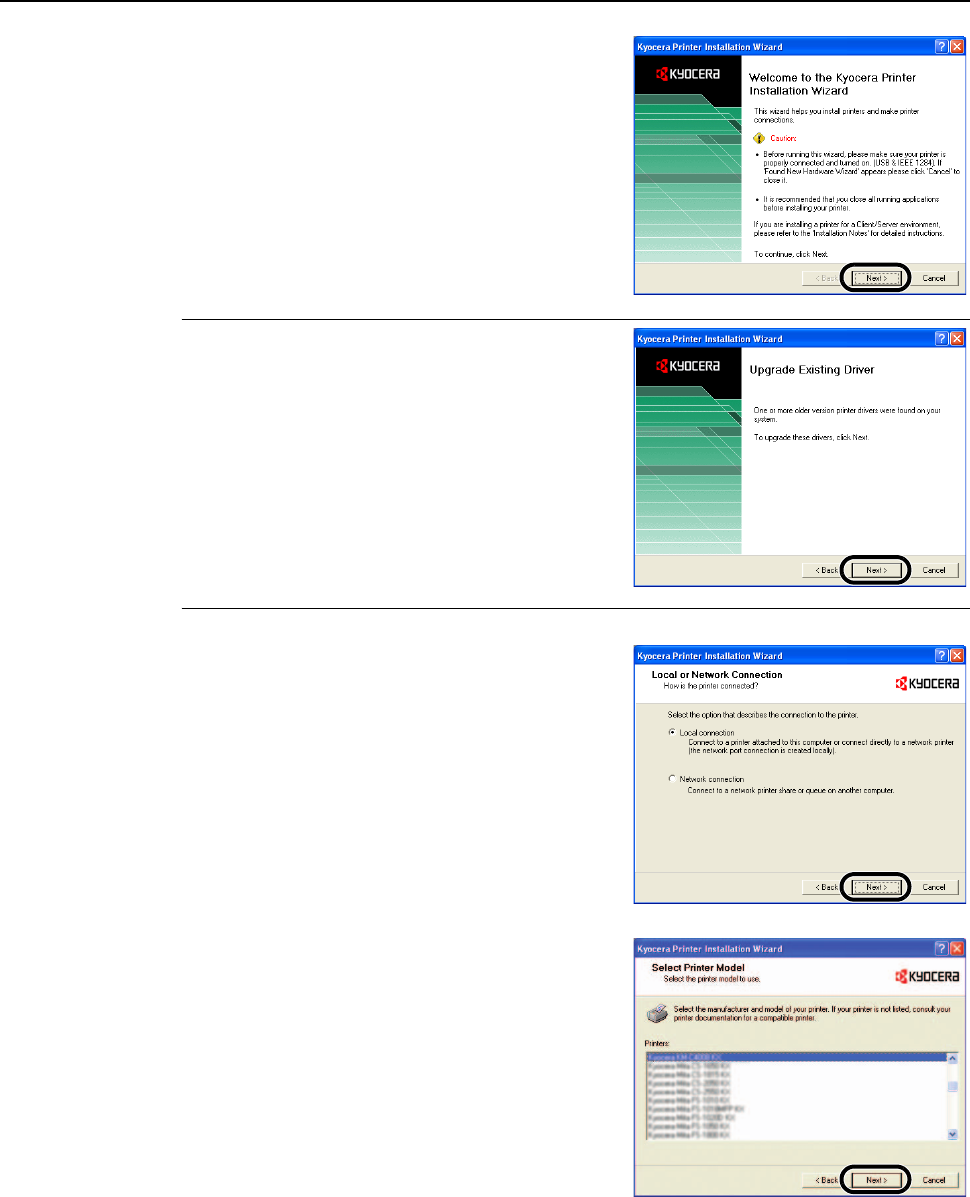
Preparation for Usage
2-26
4Click the Next button.
NOTE: If an older driver is already installed, the Install
Wizard will automatically detect it and display the
existing driver upgrade screen. Click the Next button
and follow the screen prompts to upgrade the driver.
5Select Local connection and press the Next button.
For Network connection, refer to the IB-21E/IB-22
Operation Guide on the included CD-ROM.
6Select the device and press the Next button. At this
point the Plug and Play window may reappear. Cancel
any Printer Found screens that appear.
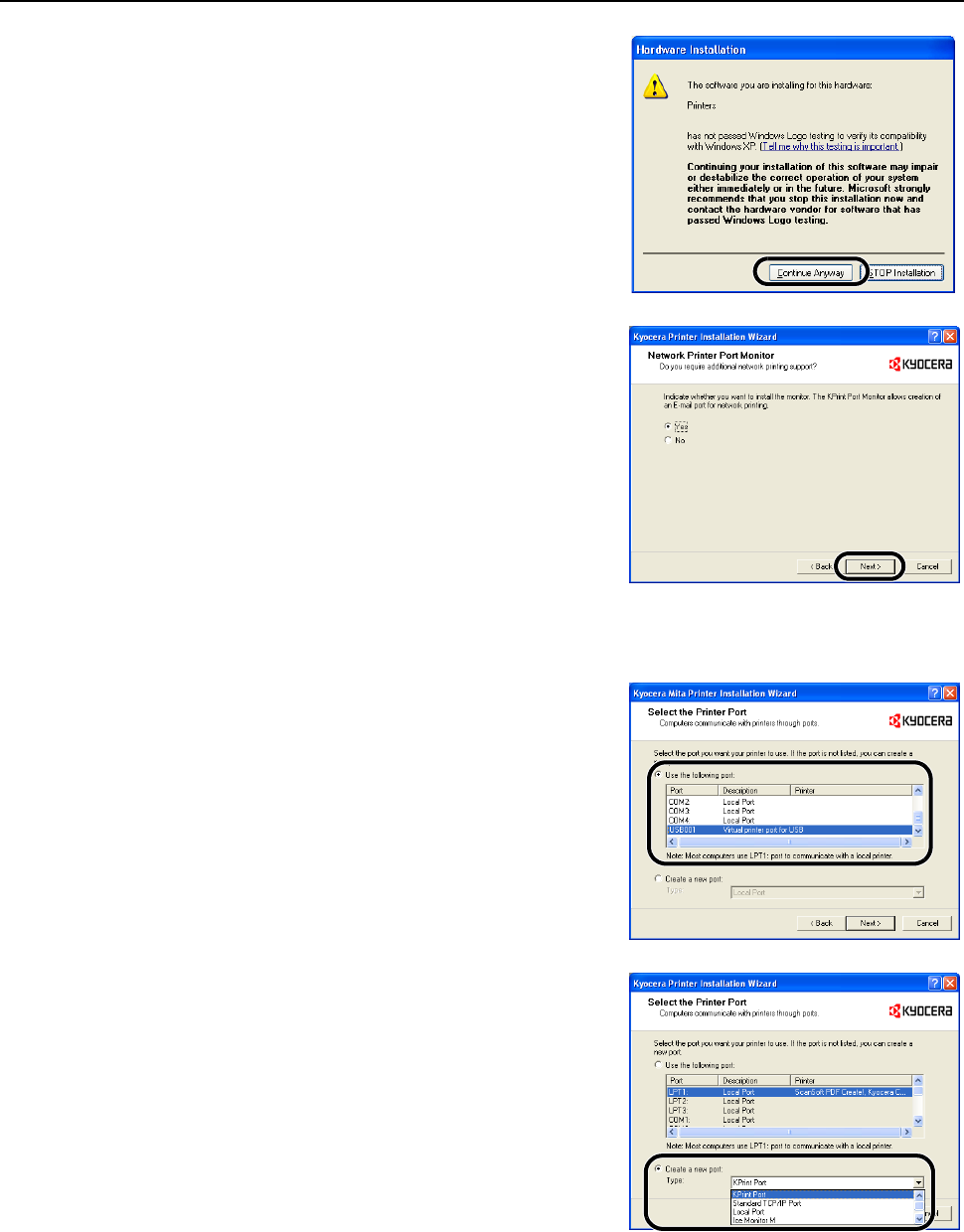
Preparation for Usage
2-27
It is safe to proceed if the Hardware Installation
screen appears. Press the Continue Anyway button.
If the Network Printer Port Monitor screen is
displayed, select Yes and click the Next button.
7The Select the Printer Port screen is displayed. Follow the procedure below for parallel port or
USB connection. Skip to Step 9 for network port connection.
8For parallel port connection, select LPT1 in the Use
the following port list, click the Next button, and skip
to Step 19.
For USB connection, select the USB port (example:
USB001, KMUSB001), click the Next button, and skip
to Step 19. If the USB port to be used is not found, go
to Step 17.
9Click on Create a new port. Set the type to KPrint
Port and click the Next button.
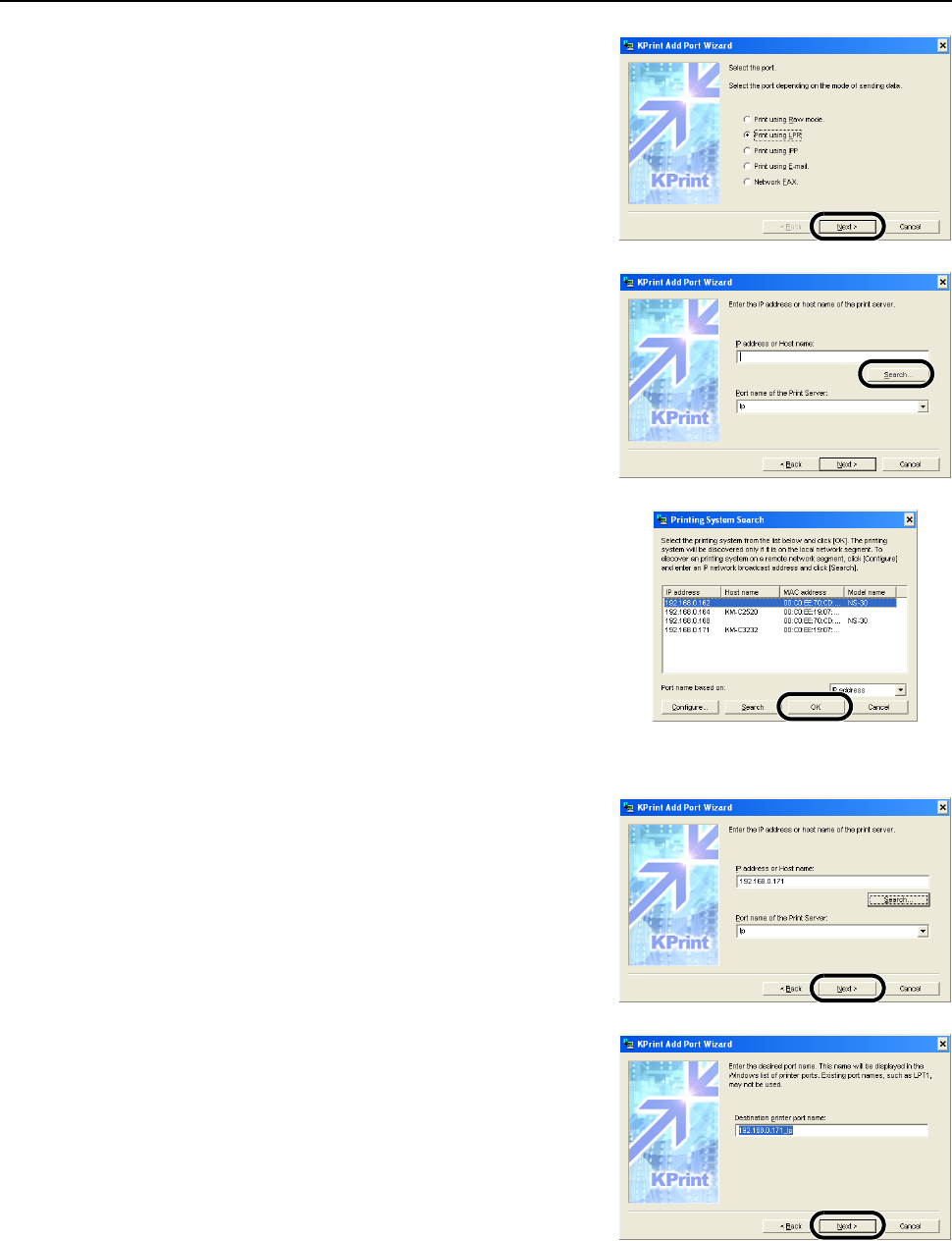
Preparation for Usage
2-28
10 Select Print using LPR and click the Next button.
The following steps may vary slightly if KPrint has been
installed before.
11 Input the IP address or host name for this device in IP
address or Host name and go to Step 14. If you don’t
know the IP address or host name for this device, click
Search and go to the next step.
12 A list of printers available on the network is displayed.
Select this device and click the OK button.
13 The IP address or host name selected in Step 12 is displayed in IP address or Host name.
14 Confirm the print server port and click the Next button.
15 Input the Destination printer port name and click the
Next button.
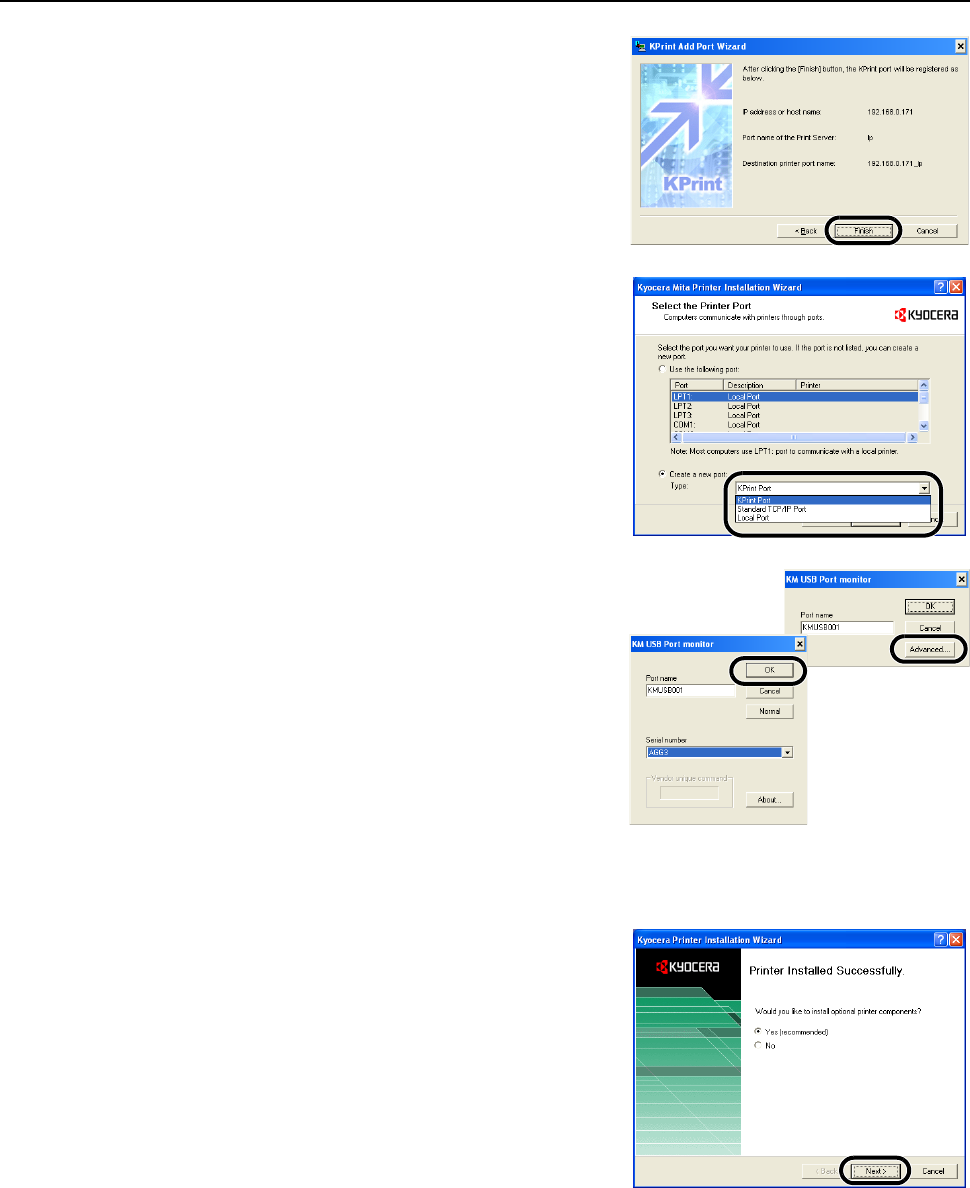
Preparation for Usage
2-29
16 Confirm settings and click the Finish button. Go to
Step 19.
17 Click on Create a new port. Set the type to KM USB
Port and click the Next button.
18 Confirm the Port name. The Serial number can be
confirmed after clicking the Advanced button. Click the
OK button.
If Serial number is empty, USB port recognition has
failed. Cancel the installation, switch the main power
switch to off ( position), and begin again from Step 1.
19 Confirm that the model name for this device is shown in Printer name and click the Next button.
Follow the remaining screen prompts to complete the installation.
20 After completing the printer driver installation, install
the optional printer components. Select Yes to install
the components and click the Next button to proceed
to the next step. Press No to skip installation, click the
Next button and proceed to Step 23.
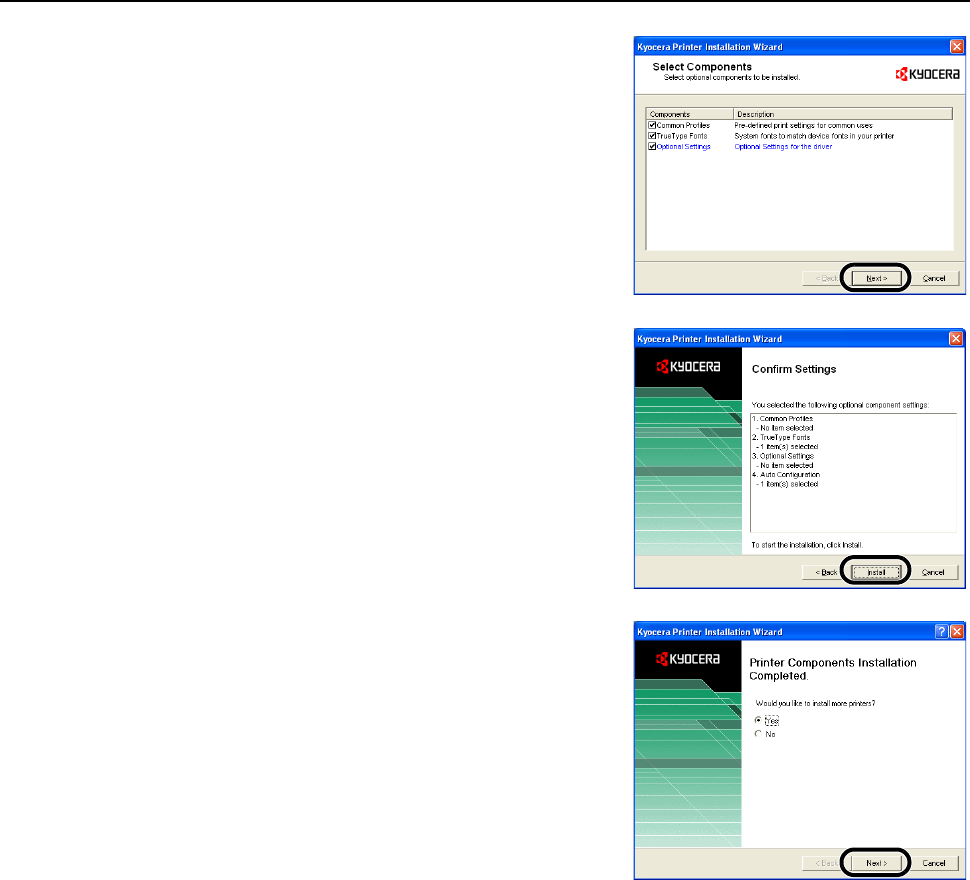
Preparation for Usage
2-30
21 Select the desired items according to the screen
prompts and click the Next button.
22 Confirm selection and click the Install button. The
printer components will be installed.
23 To end the installation, select No and click the Finish
button. To continue installing another printer driver,
select Yes and click the Next button.
This concludes the printer driver installation.
Depending on the operating system, the computer may
prompt you to be restarted. If so, follow the display to
reboot the computer.
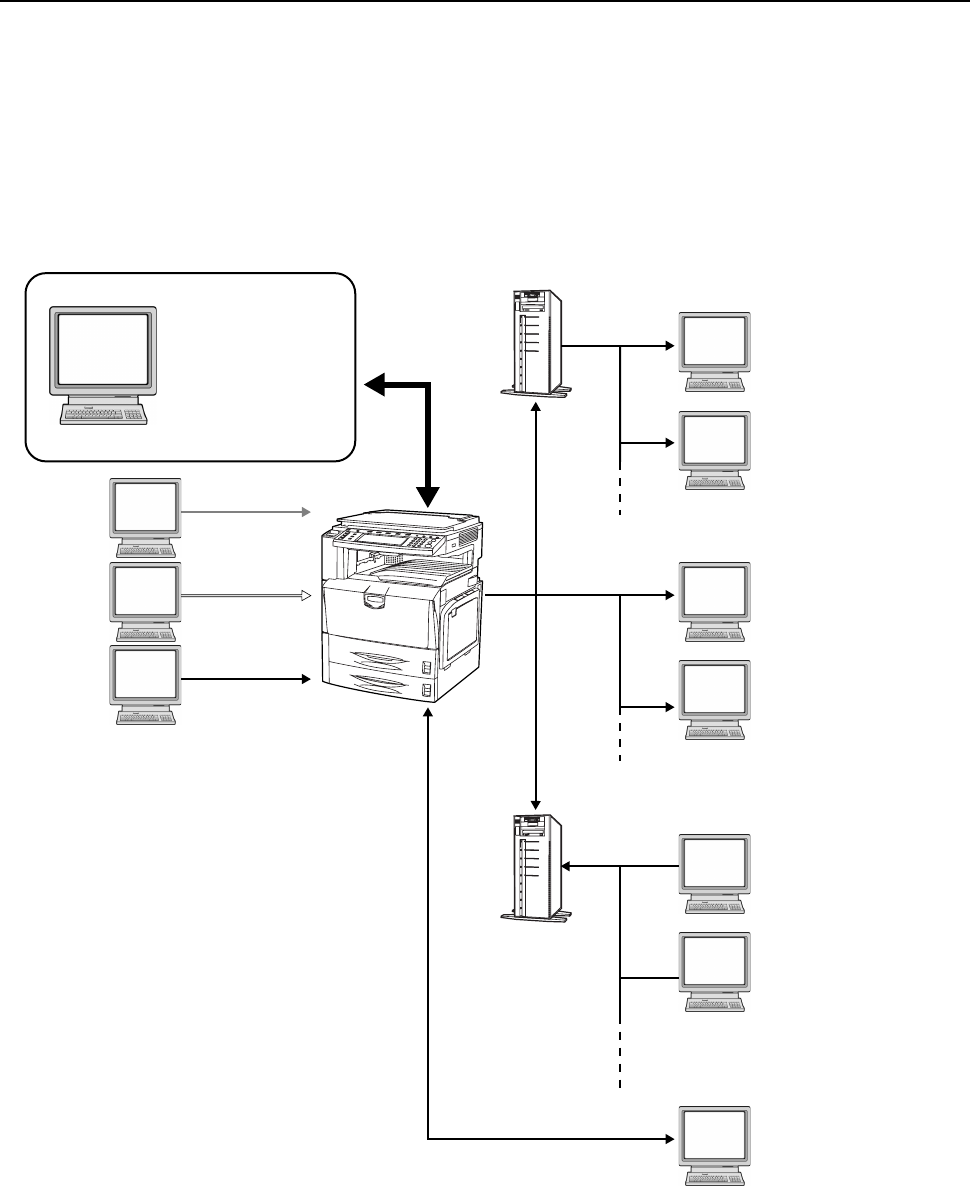
Preparation for Usage
2-31
Preparing the Scanner
This section explains the necessary operations to prepare the scanner function.
Connecting to a Computer
Connection Example
Connect the scanner and computer with a network cable (10Base-T or 100Base-TX). Refer to
Connecting Cables on page 2-21.
Web Browser
Address Editor
DB Assistant
Network Settings
Scanner Settings
User/Destination
Registration
Adminis-
trator PC
Printer
Parallel
USB
Network
Printer
SMTP
Server
Send
E-mail
Scan to PC
Scan to
FTP
FTP
Server
Send E-mail
Send scanned images
as e-mail attachments.
Scan to FTP
Send scanned image
files to an FTP server.
Scan to PC
Send scanned image
files to a computer.
TWAIN
Imports images
scanned from a
TWAIN-compliant
application.
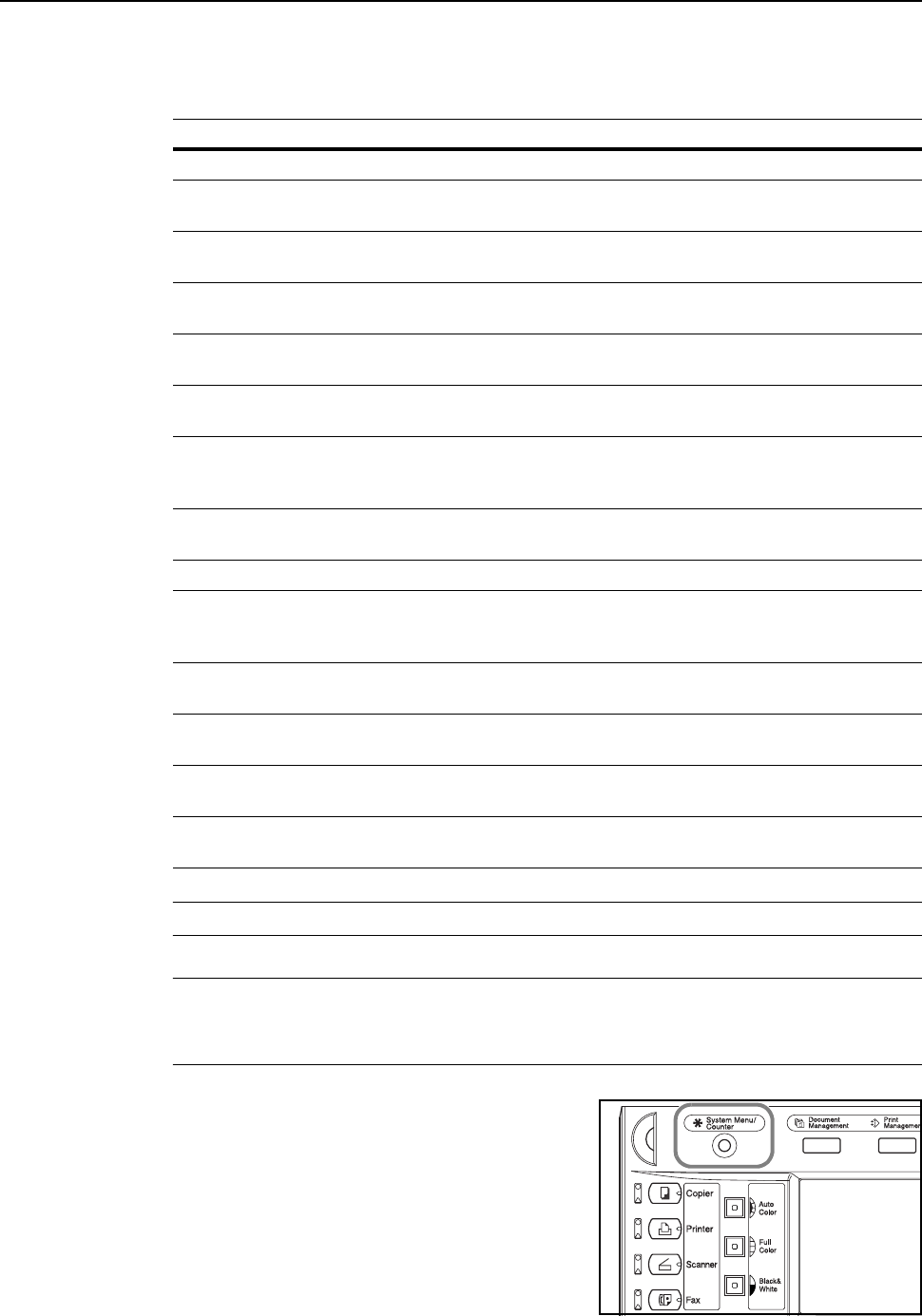
Preparation for Usage
2-32
Scanner Basic Settings
The network settings for this device must be configured before using the scanner feature. The
setting items are as follows.
IMPORTANT: E-mail cannot be sent if the SMTP and Administrator’s E-mail ad are not properly set.
NOTE: Set the IP address according to the operating environment. Obtain this address from your
network administrator.
Scanner basic settings may be also configured from a computer using a web browser.
1Press the System Menu/Counter key.
Configuration Item Description
Host name Input a scanner host name no longer than 32 characters.
IP address Enter the scanner interface IP address in ‘XXX.XXX.XXX.XXX’
notation.
Subnet Mask Enter the scanner subnet mask in ‘XXX.XXX.XXX.XXX’
notation.
Default Gateway Enter the scanner default gateway in ‘XXX.XXX.XXX.XXX’
notation.
DHCP/BOOTP Set DHCP and BOOTP to either [Valid] or [Invalid]. The default
setting is [Valid].
RARP Set RARP to either [Valid] or [Invalid]. The default setting is
[Valid].
DNS Server (primary) For sending data using host names in environments that have
DNS servers available, enter the primary DNS server IP
address in this field in ‘XXX.XXX.XXX.XXX’ notation.
DNS Server (secondary) Enter the secondary DNS server IP address in
‘XXX.XXX.XXX.XXX’ notation.
DNS Domain name Enter the domain name in less than 64 characters.
WINS Server (primary) To use WINS (Windows Internet Name Service) to resolve
computer names from IP addresses, enter the primary WINS
server IP address in ‘XXX.XXX.XXX.XXX’ notation.
WINS Server (secondary) Enter the secondary WINS server IP address in this field in
‘XXX.XXX.XXX.XXX’ notation.
SMTP Enter into this field the SMTP server host name or IP address in
‘XXX.XXX.XXX.XXX’ notation.
DB Assistant Enter the IP address or hostname (under 32 characters) of the
computer with DB Assistant installed.
Administrator’s E-mail ad Enter the administrator e-mail address. Scanner status log files
and error reports will be via e-mail to this address.
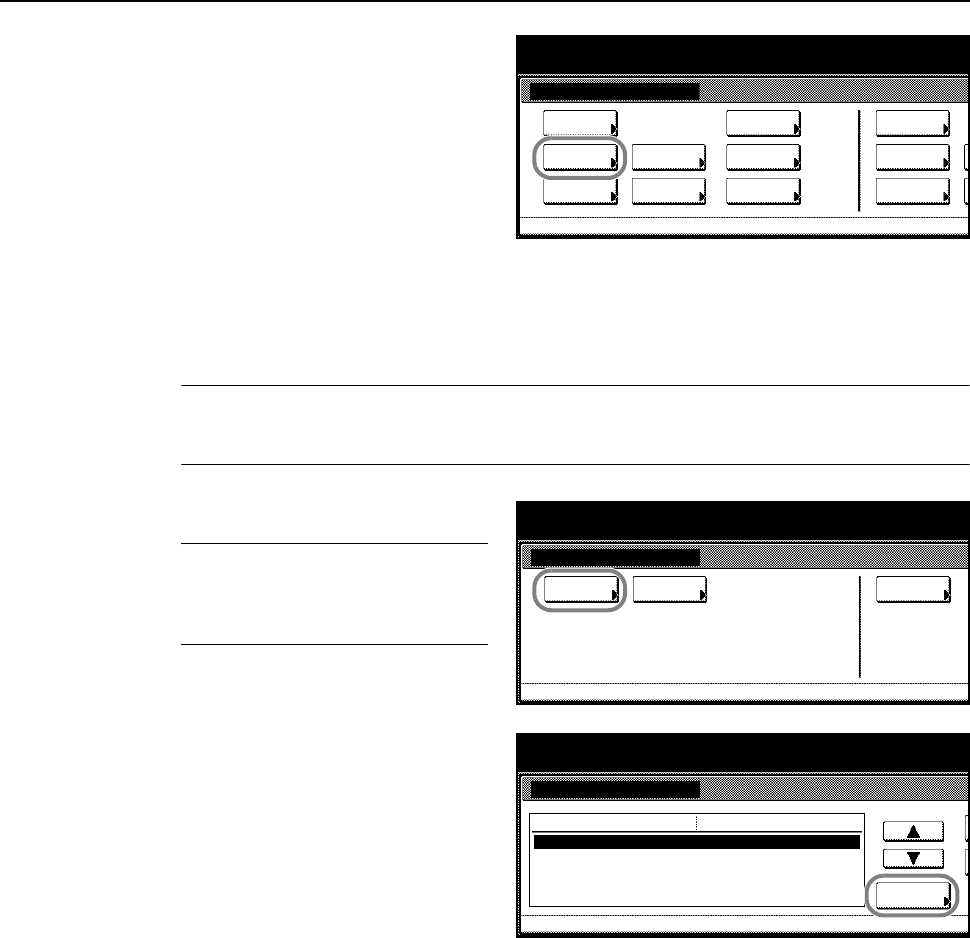
Preparation for Usage
2-33
2Press [Scanner Default].
3Use the numeric keys to enter the 4 digit management code. The default setting is 2500 for the
25/20 ppm model and 3200 for the 32/25 and 32/32 ppm models.
If the correct management code has been entered, the Scanner setting menu screen will be
displayed.
NOTE: If the optional security kit has been installed, the management code is 8 digits long. The
default setting is 25002500 for the 25/20 ppm model and 32003200 for the 32/25 and 32/32 ppm
models.
4Press [System Basic].
NOTE: If Unable to use scanner is
displayed, return to the System Menu
screen, and after waiting (about 2
minutes), press [System Basic] again.
5Press [S] or [T] to select Host name
and press [Change #].
6Input the host name and press [End]. The host name is saved and the System Basic screen is
displayed.
7Refer to Steps 5 - 6 to continue setting other items.
8Press [Close] after all settings are complete. Scanner setting menu screen is displayed.
System Menu / Counter
System Menu
Default
Copy Language Accounting
Job
Default
Scanner
Default
Ma chi n e
Default
Printer
Setting
MP tr ay
Management
BOX
Management
Document
Orig. Size
Regi ster
Re po r t
Print
System Menu / Counter
System
Basic
System Menu
Func. Def.
setting.
Scanner setting menu
User
registr.
System Menu / Counter
Host name.
IP address
Subnet Mask
Default Gateway
DHCP/BOOTP Change #
Default menu
Scanner.
10.181.125.31.
255.255.0.0.
10.181.125.1.
Setting mode
System Basic
System Menu Scanner setting menu-
Val id
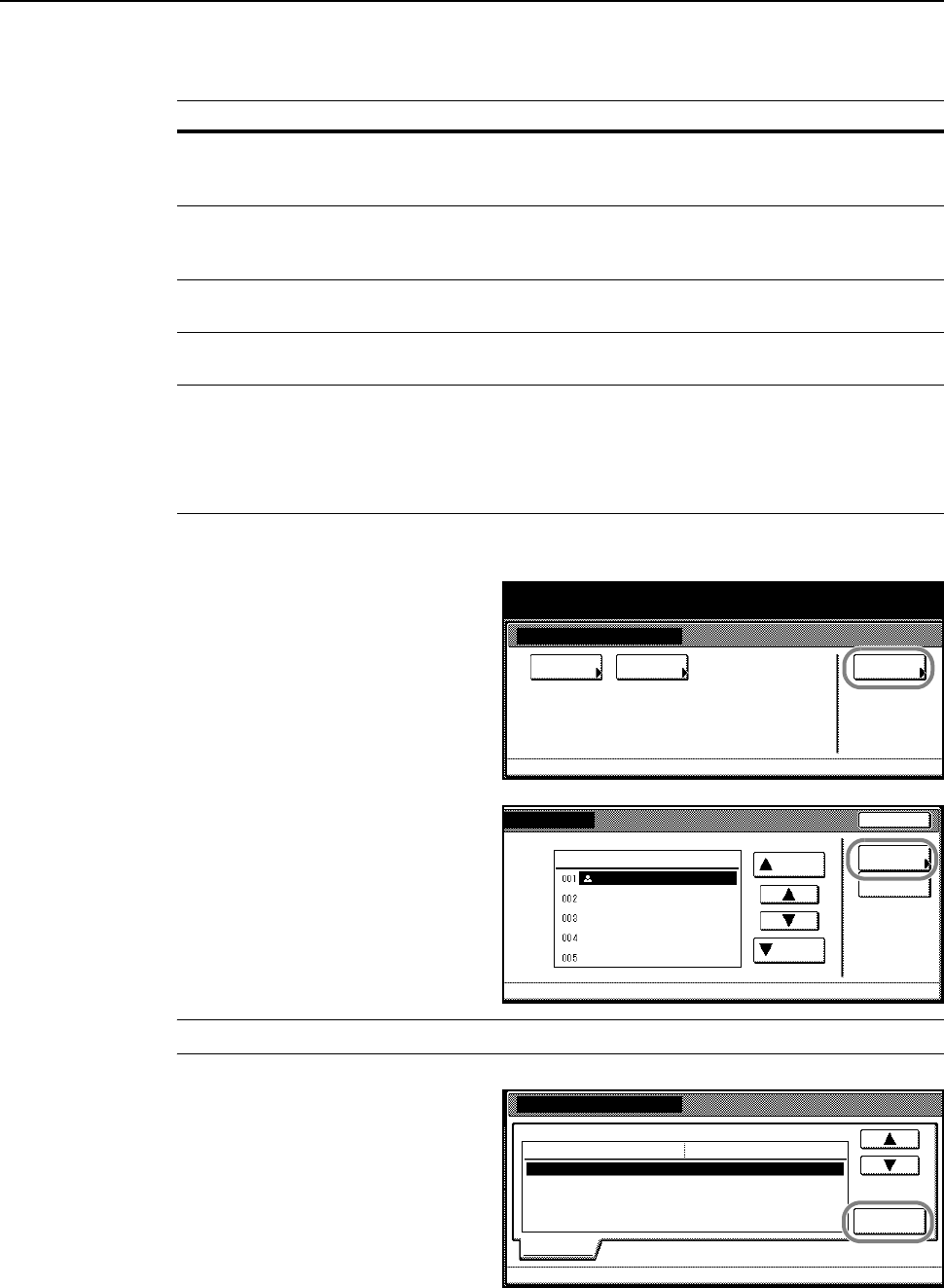
Preparation for Usage
2-34
Registering User Information
Please register a user. The setting items are as follows.
1Continue the process Scanner Basic Settings on page 2-32 for 1 to 3.
2Press [User registr.] ([User register]).
3Press [S] or [T] to select the user
number to register and press [Change
User Info.].
To correct an already registered user,
press [S] or [T] to select the user to
correct and press [Change User Info.].
If a user password has been set, enter
the password.
NOTE: To delete a registered user, press [S] or [T] to select the user to delete and press [Delete].
4Press [S] or [T] to select the item to
configure and press [Change #].
Continue to follow the screen
instructions.
Configuration Item Description
E-mail address For Send E-mail, mail will be sent to this address when
recipients reply to the received mail. Also, transmission error
notifications will be sent to this address.
IP address or host name When selecting Scan to PC as the destination, select Save to
User PC to send a graphic image to the computer at this
address.
Name to display Username shown during user selection. This value must be
entered.
User password Input a password less than 8 characters long (numerals only) to
be input during user selection. (Password entry is optional)
Save folder No. Folder number to specify as destination when Save to User PC
is selected. Use Scanner File Utility to set the folder
corresponding to this number. Input a 3 digit number (from
001-100).
Only one save location folder number may be registered here.
System Menu / Counter
System
Basic
System Menu
Func. Def.
setting.
Scanner setting menu
User
registr.
End
e
lete
Scanner setting menu-
Change
User A
User Up
Down
User Info.
Delete
Correct User Info.
User number 2.:
(Not specified)
Registration list:user list
Change #
(Not specified)
(Not specified)
(Not specified)
Setting item
E-mail address
IP address or host name
Name to display
User password
Setting value
Information
(Not specified)Save folder No.

Preparation for Usage
2-35
Modifying Common Address Book
Register a destination in the common address book.
E-Mail Common Address Book ... address book used when sending e-mail attachments
Scan to PC Common Address Book ... address book used to directly send to recipient computer
FTP Common Address Book ... address book used to send data to an FTP server
NOTE: New addresses may also be registered.
A web browser can also be used to make additions to the Common Address Book.
Use Address Editor to add entries to the E-Mail Common Address Book and the Scan to PC
Common Address Book.
E-Mail Common Address Book and Scan to PC Common Address Book registration fields are as
follows.
The configuration items for the FTP Common Address Book are as follows.
Configuration Item Description
E-mail address For Send E-mail, sends graphic image as an e-mail attachment
to this address.
IP address or host name For Scan to PC, sends graphic image data to the computer at
this address.
Name to display Configure the destination name to be displayed in the Address
Book.
Save folder No. For Scan to PC, the folder number set as the destination. Set
the folder corresponding to this number with the Scanner File
Utility on the destination computer.
Add dest. For group registration, add the destination to be added to the
group from the Common Address Book.
Configuration Item Description
IP address or host name Graphic images are sent to the FTP server at this address.
Name to display Configure the destination name to be displayed in the Address
Book.
Port Enter the port number for the FTP server. (Usually 21)
Path Enter the path to the folder to which you wish to upload. For
example, to save to a ScanData folder in the home directory,
input ScanData. Data will be saved to the home directory if
nothing is input.
User Name & Password Input the user name and password used to logon to the FTP
server. This item is displayed if Skip Auth. info Input is set to
[On].
Skip Auth. info Input If set to [On], users are not prompted for user name and
password when sending. To set to [On], register User Name &
Password.
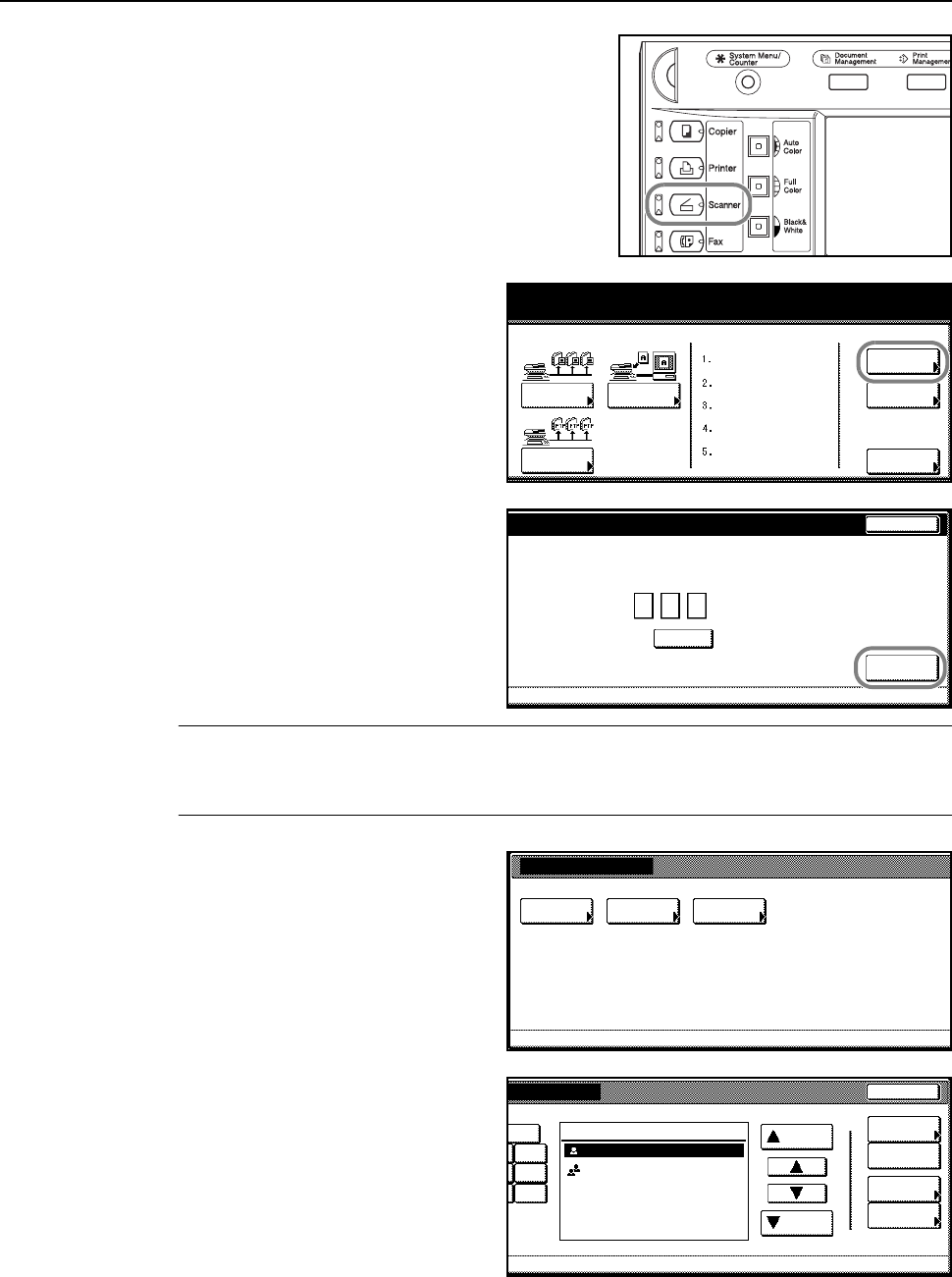
Preparation for Usage
2-36
1Press the Scanner key.
2Press [Edit Addr. Book].
3Input the sending user’s user number
and press [Enter].
NOTE: Input the user number registered during user registration. For example, in the screen shown
in the process on page 2-34 for Step 3, the user number for User A is ‘001’.
If a password was set during user registration, enter that password.
4Select the Common Address Book you
wish to edit.
5To add a destination, press [Register
new dest.] and go to Step 6.
To add a group, press [Register new
group] and go to Step 7.
To edit a destination that already exists
or to add a destination to a group, press
[S] or [T] to select the destination you
wish to modify and press [Address
Properties] ([Correct Dest. Info]) and
make the modifications.
To delete a registered destination, press [S] or [T] to select the destination and press [Delete].
scanner function.
Scan to PC TWAIN
Edit
Addr. Book
Cha nge
User Info.
History
Recal l Pr ogr am
of Sending
08/08/’05 14:00
Scan to
FTP
Stop
d
e.
(with #key)User number
Clear
Enter
Edit Address Book
Select the list
Common
Send Email Common
Scan to PC
Select the list to edit.
FTP Common
Add. Book
End
to
PC
t
.
Destination Address
Properties
0-9
Delete
Re gi ste r
new group
Re gi ste r
new dest.
Up
Down
# of register. 2/100
UserGroup
User B
GHI
O
PQR
X
YZ
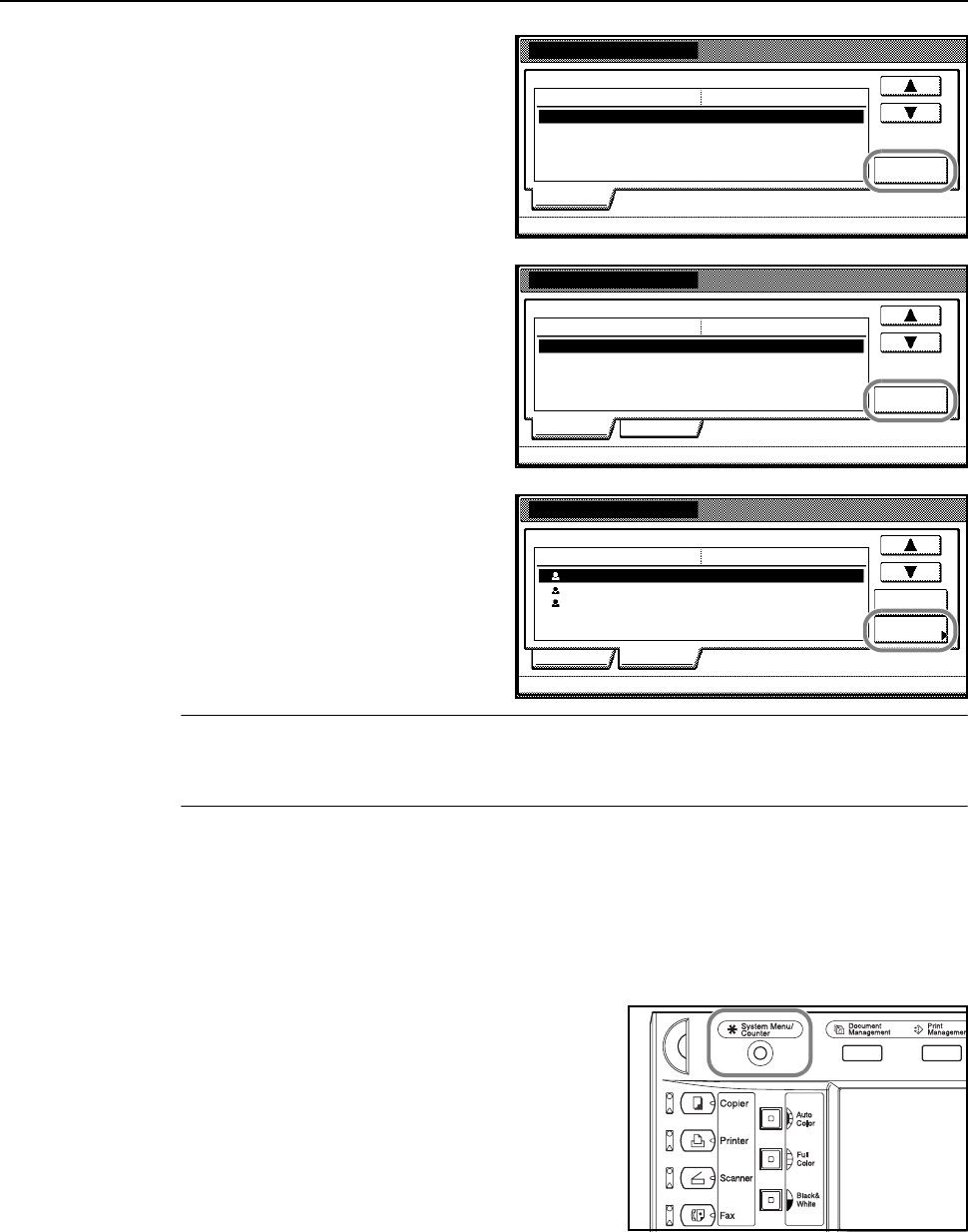
Preparation for Usage
2-37
6Destination Registration
Select the item to be configured using
[S] or [T] and press [Change #]. The
settings configuration screen is
displayed. Follow the screen instructions
to make the changes. When done, press
[Complete entering] to save the
destination.
7Group Registration
Press [Information], press [S] or [T] to
select the item to be configured and
press [Change #]. The settings
configuration screen is displayed. Follow
the screen instructions to make the
changes.
Press [Destination] and press [Add
dest.]. The destination registration
screen is displayed. Press [S] or [T] to
select the destination to be added and
press [Add].
When done, press [Complete entering]
to save the group.
NOTE: Perform destination registration before group registration. Destinations will not be shown in
the list until destinations have been registered.
Group registration is not possible for Scan to FTP.
Configuring Date/Time and Time Difference
Configure the necessary regional information for the e-mail sending functionality.
The time the e-mail was sent from the scanner will be recorded as the transmission time in the
e-mail header. Follow the steps below to set the date, current time and time difference from GMT
(Greenwich Mean Time).
1Press the System Menu/Counter key.
New Dest. Register
(Not specified)
Regi stra.l ist:Scan to PC address book
Change #
(Not specified)
(Not specified)
Setting item
IP address or host name
Name to display
Save folder No.
Setting value
Information
# of re
Register new group
(Not specified)
Regi stra.l ist:Scan to PC address book
Change #
(Not specified)
Setting item
Name to display
Password
Setting value
Information Destination
# of re
Register new group
10.111.111.112
Regi stra.l ist:Scan to PC address book
Add
10.111.111.113
10.111.111.114
Display name
UserA
UserB
UserC
Destination
Information
dest.
Destination
# of re
Delete
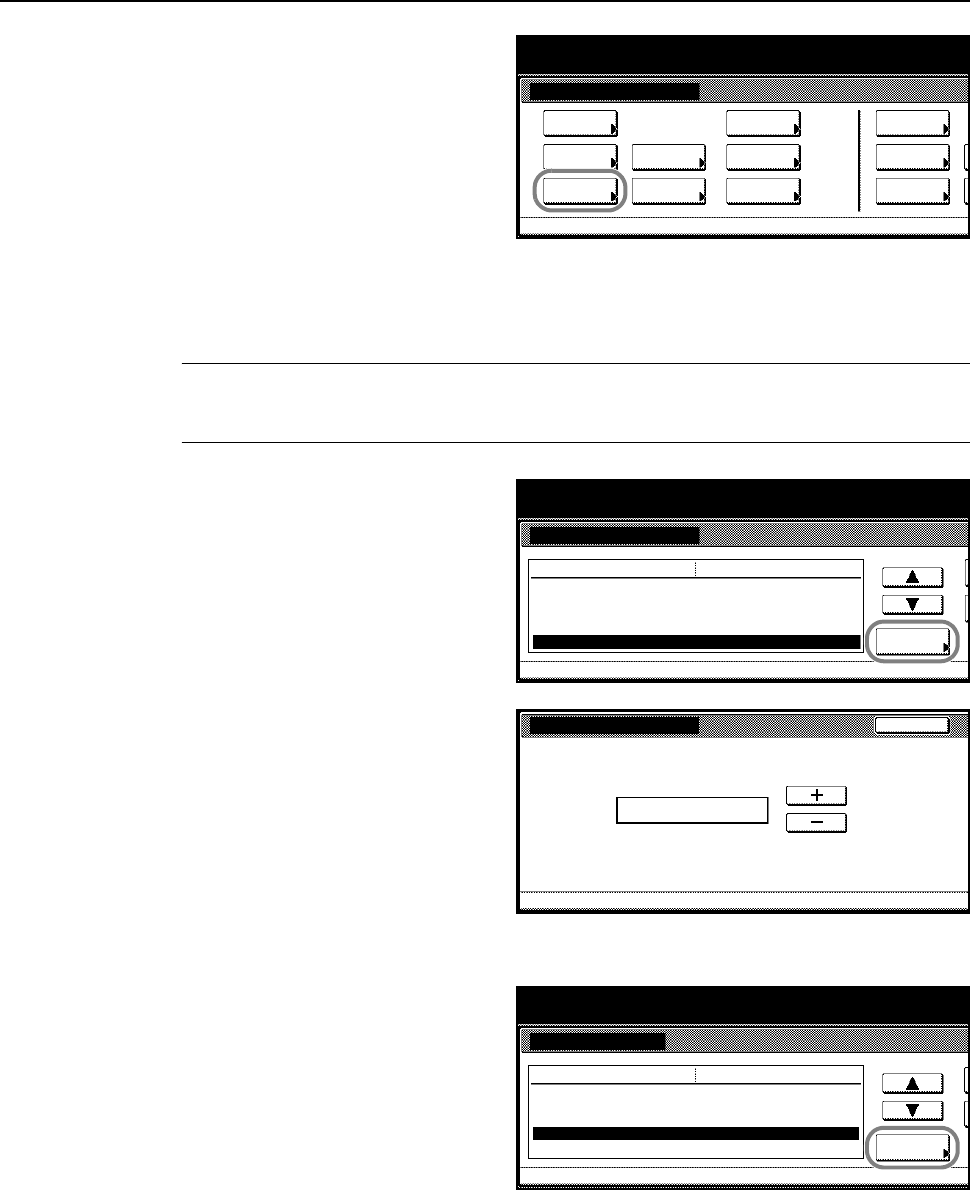
Preparation for Usage
2-38
2Press [Machine Default].
3Use the numeric keys to enter the 4 digit management code. The default setting is 2500 for the
25/20 ppm model and 3200 for the 32/25 and 32/32 ppm models.
If the correct management code has been entered, the Machine Default screen will be displayed.
NOTE: If the optional security kit has been installed, the management code is 8 digits long. The
default setting is 25002500 for the 25/20 ppm model and 32003200 for the 32/25 and 32/32 ppm
models.
4Press [S] or [T] to select Time
difference and press [Change #].
5Press [+] and [–] to set the time
difference.
Example: Washington - GMT-5:00,
London - GMT 0:00
6Press [Close]. Settings are saved.
7Press [S] or [T] to select Date/Time
and press [Change #].
System Menu / Counter
System Menu
Default
Copy Language Accounting
Job
Default
Scanner
Default
Ma ch i ne
Default
Printer
Setting
MP tr a y
Management
BOX
Management
Document
Orig. Size
Regi ste r
Report
Print
System Menu
System Menu / Counter
Notify (Ready)
Noti fy (Atte nti on)
Silent Mode
Date/Time
Time difference Change #
Default menu
On
On
On
‘05/07/20 14:00
Setting mode
Machi ne De fa ul t
GMT+01:00
Time difference
GMT+01:00
System Menu
Back
Machine Default-
System Menu
System Menu / Counter
Notify (Ready)
Noti fy (Atte nti on)
Silent Mode
Date/Time
Time difference Change #
Default menu
On
On
On
‘05/07/20 14:00
Setting mode
Machi ne De fa ul t
GMT+01:00
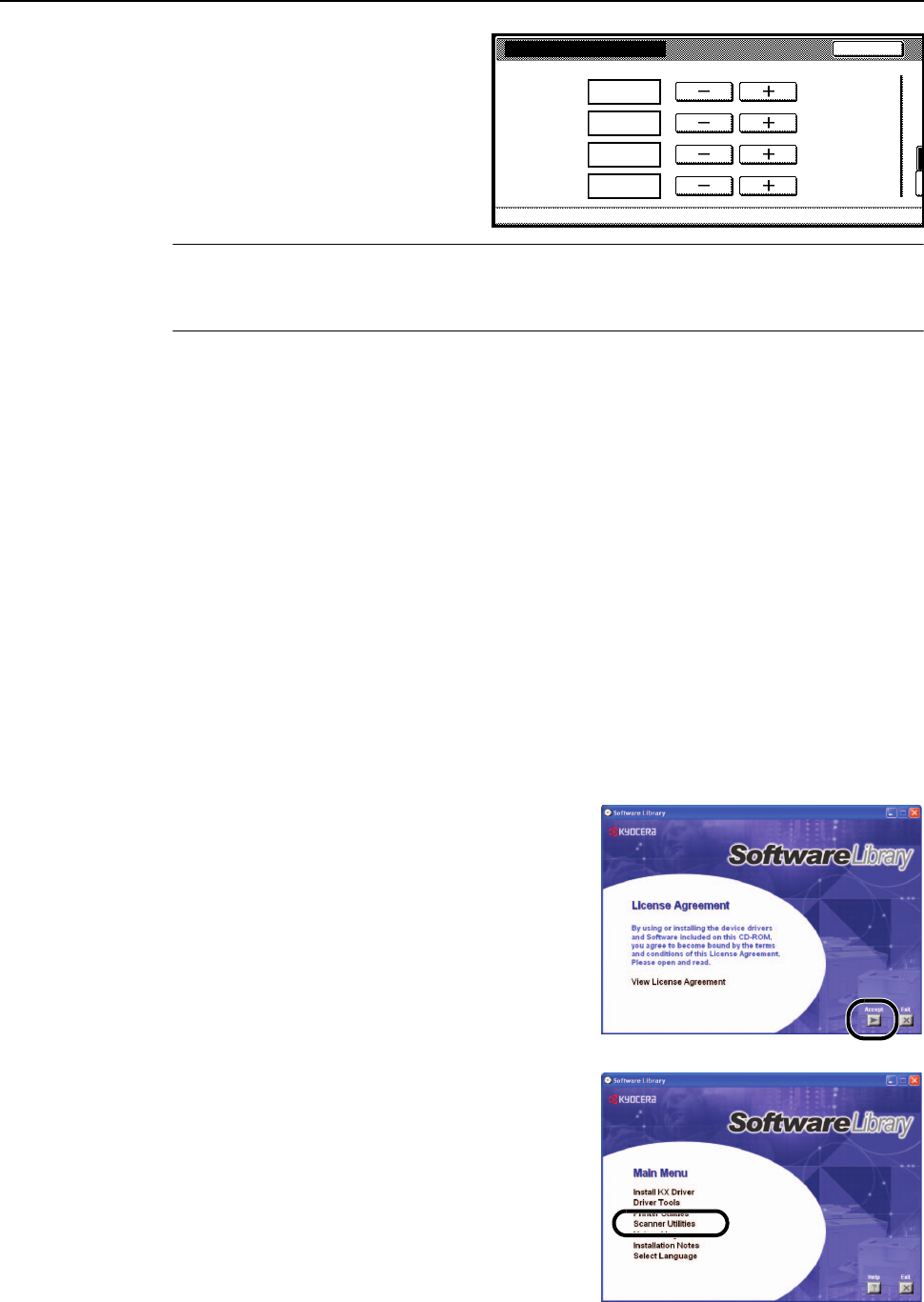
Preparation for Usage
2-39
8Press [+] and [–] to set the time and
date.
NOTE: Set the date and time after setting the time difference.
Daylight savings time is disabled if daylight savings time and time/date are changed at the same
time.
9Press [Close]. Settings are saved.
Installing the Scanner Utilities
The CD-ROM contains the following utilities for this scanner system.
• Scanner File Utility
• Address Book for Scanner
• Address Editor (Administrator Tool)
• DB Assistant (Administrator Tool)
• TWAIN Source
The following procedures are based on a Windows XP installation, but the same procedure may be
followed to install on other Windows operating systems.
1Start up Windows.
Close any other running applications.
2Insert the included Software Library CD-ROM into the
CD-ROM drive.
A usage agreement is displayed. Click the Accept
button to accept the agreement terms. The Main Menu
screen is displayed.
If the screen is not displayed even after loading the
CD-ROM, open the CD-ROM drive letter and
double-click on the setup.exe file shown in the
window.
3Click on Scanner Utilities.
Date/Time
Year
System Menu
Back
Machine De faul t-
O
Month
Day
Time
.2005
.7
.20
14:00
O
S
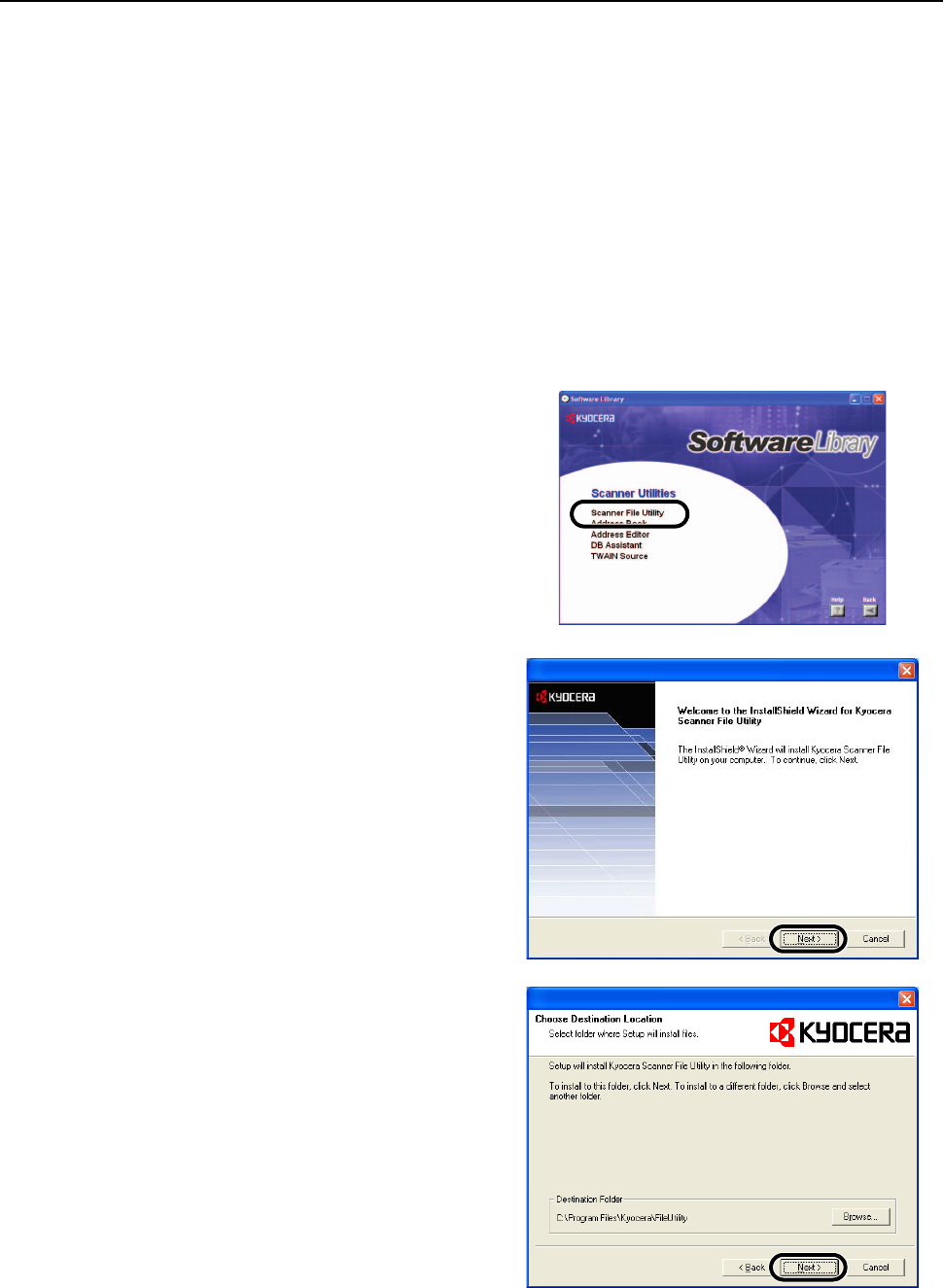
Preparation for Usage
2-40
4Click on the name of the utility you would like to install.
The installation screen for the utility is displayed. Follow the screen prompts to perform the
installation.
Using the Scanner File Utility
This section explains the necessary software installation and configuration steps to use the Scanner
File Utility to use the Scan to PC functionality.
Installing Scanner File Utility
This section explains how to install the Scanner File Utility.
1Display the Scanner Utilities screen, referring to Steps 1-3 of Installing the Scanner Utilities on
page 2-39.
2Click on Scanner File Utility.
3Click the Next button.
4Confirm the installation directory and
click the Next button.
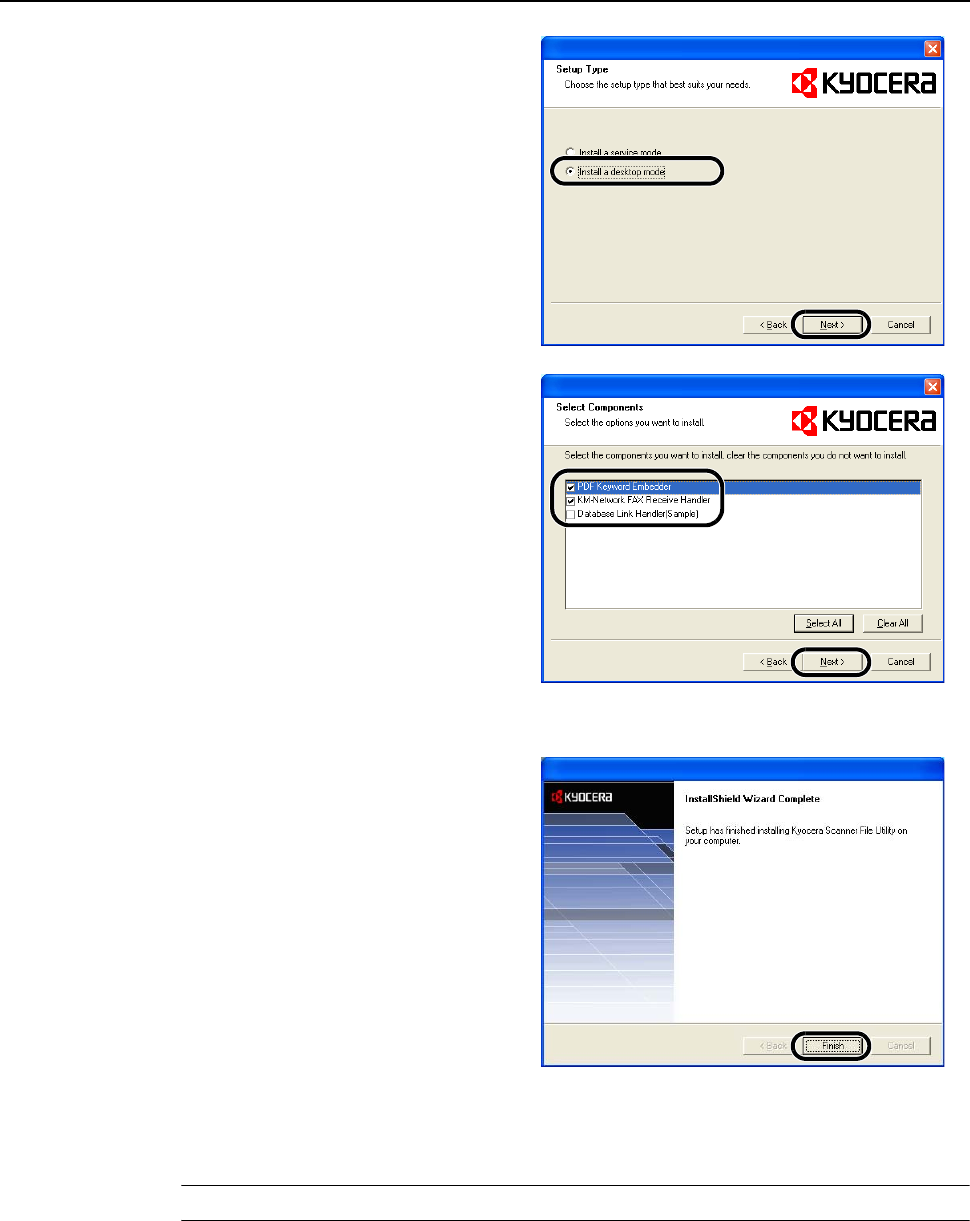
Preparation for Usage
2-41
5Select Install a desktop mode and click
the Next button.
6Select the components to install and
click the Next button.
7Click the Next button.
8Click the Finish button.
Registering File Save Folders
Specify in Scanner File Utility which folders to use to save scanned documents.
NOTE: The following explanation is based on a Desktop Mode installation of Scanner File Utility.
1Launch the Scanner File Utility by clicking on the start Menu and clicking Programs J Scanner
User Software J Scanner File Utility.
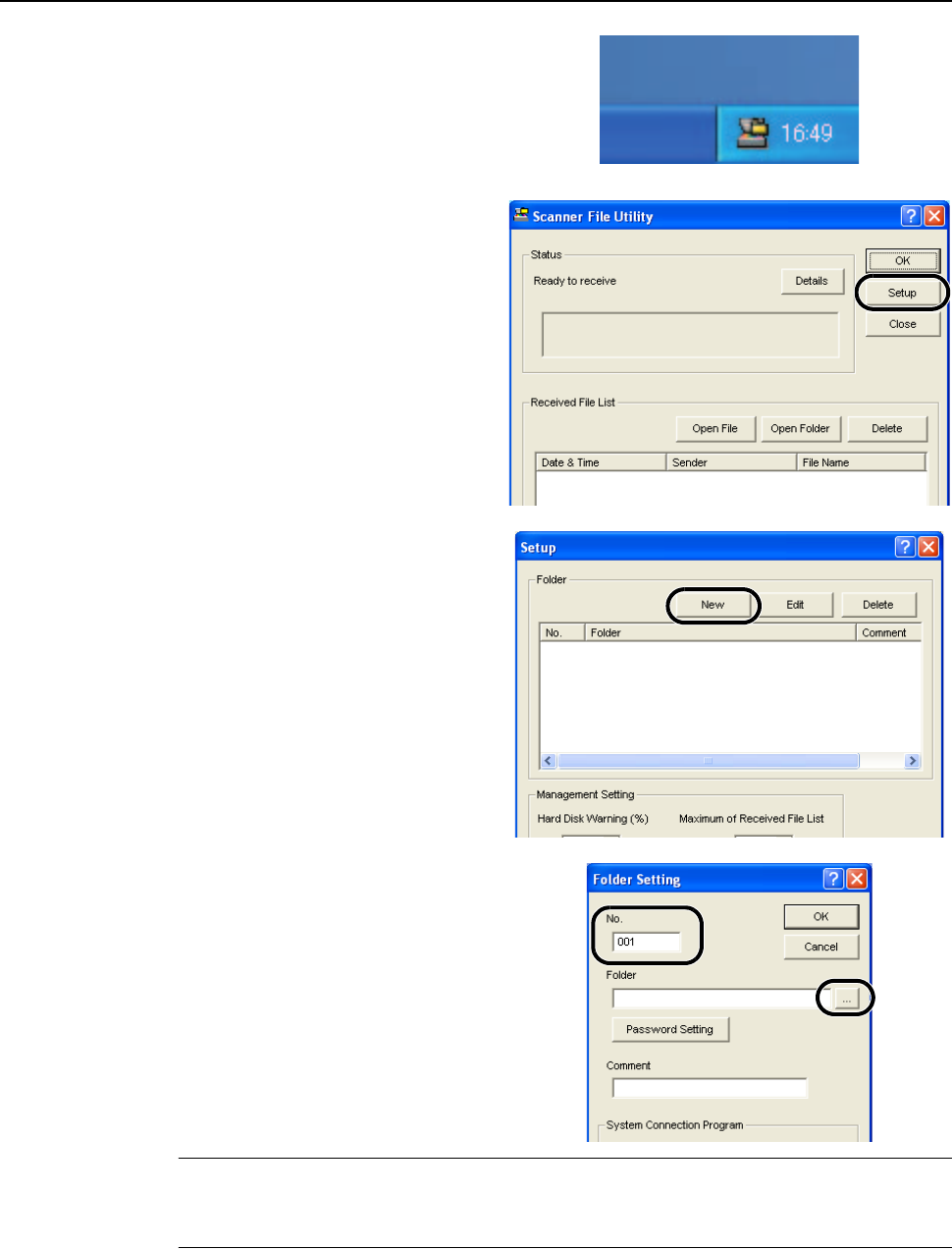
Preparation for Usage
2-42
2Double-click the Scanner File Utility icon
shown in the taskbar to show the start
dialog box.
3Click the Setup button.
4Click the New button.
5Input the file save folder number in the
No. column and click the ... button.
NOTE: Input a number (from 1-100) for the file save folder No. column.
Enter the file save folder number from the No. column (001 in this example) into Save Number in
Step 5 of Setting from a Web Browser on page 2-44.
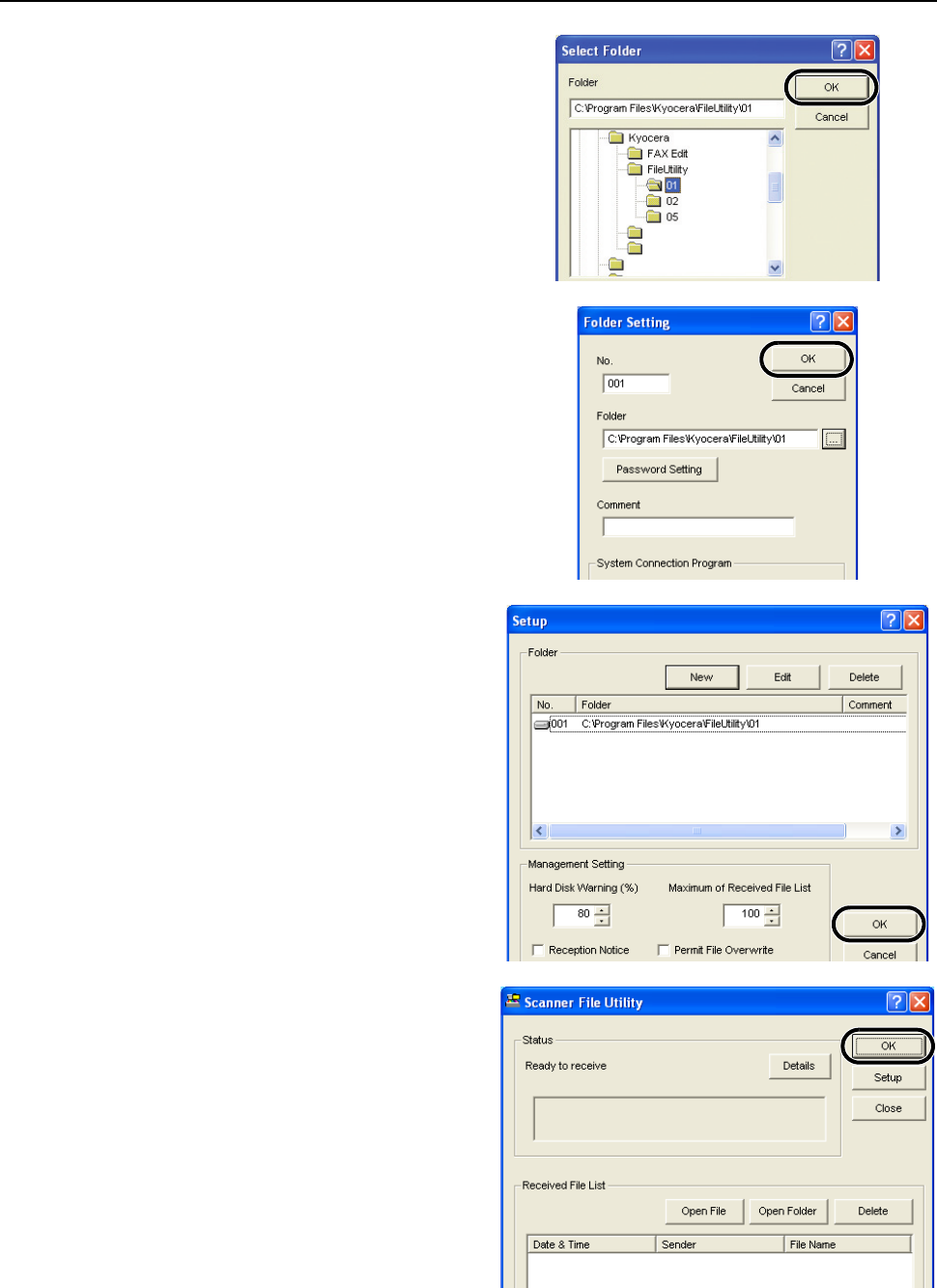
Preparation for Usage
2-43
6Choose a folder and click the OK button.
7Click the OK button.
8The save folder is registered. Click the
OK button.
9Click the OK button.
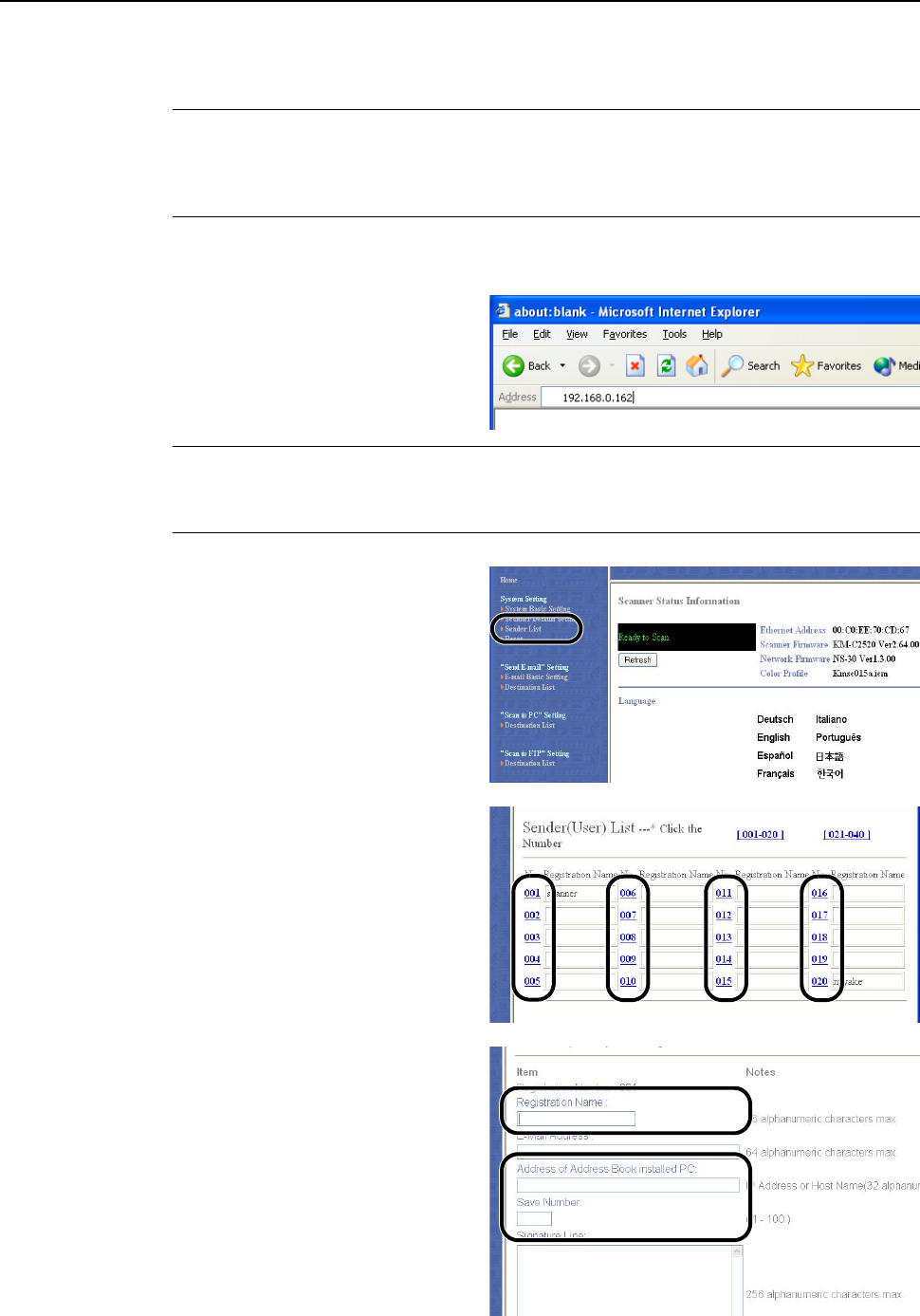
Preparation for Usage
2-44
Setting from a Web Browser
Register users into this device using a web browser.
NOTE: The network configuration for this device must be done before performing this setting.
Contact your system administrator.
This function is not available during scanning. Verify that the scanner function is not in use before
configuring.
1Start Internet Explorer or another web browser.
2Input the device’s IP address into the
web browser’s address bar and press
the Enter key on the your keyboard.
NOTE: Check with your administrator for the device IP address.
Please note that the IP address set for scanning functionality and the IP address set for printing
functionality are different.
3Click on Sender List.
4Click on the number of the Sender
(User) List to register.
5Input the Registration Name, Address
of Address Book installed PC, and
Save Number.
Preparation for Usage
2-45
NOTE: For Address of Address Book installed PC, enter the address of the computer on which
Scanner File Utility is installed.
For Save Number, enter the file save folder number you entered in the No. column in Step 5 of
Registering File Save Folders on page 2-41.
6Click the Registration button.
NOTE: Be sure to click the Registration button. Settings are not saved if you change screens or
close the browser window without pressing Registration.
After the above settings have been completed, scanned images can be sent to user PCs
(computers registered in the Sender list) using Scan to PC.
To send to destinations other than User PCs, register the destination using a web browser, the
Address Editor, or Address Book for Scanner.

Preparation for Usage
2-46
3-1
3 Basic Operation
This chapter explains the following operations.
• Basic Copying Procedures...3-2
• Selecting Image Quality...3-5
• Adjusting Exposure...3-6
• Reducing/Enlarging...3-7
• Duplex Mode...3-11
• Split Mode...3-14
• Sort Mode...3-16
• Interrupt Copy...3-17
• Job Reservation...3-18
• Canceling a Print Job...3-19
• Scanner Operation...3-20
• Low-Power Mode...3-35
• Sleep Mode...3-36
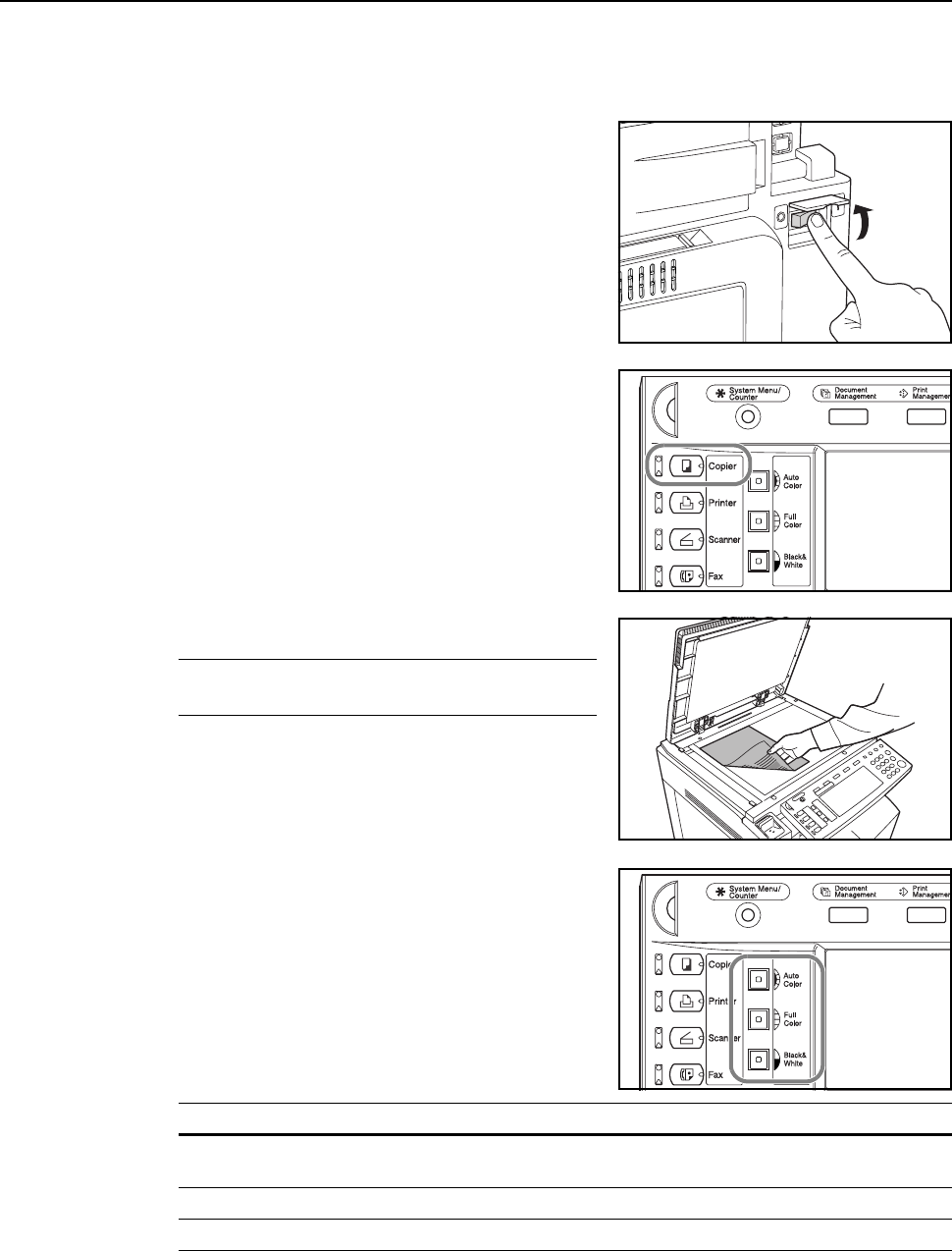
Basic Operation
3-2
Basic Copying Procedures
Follow the steps as below for basic copying.
1Open the main power switch cover and move the main
power switch to on ( | position).
After warm-up is complete, the Start key’s Start
indicator will glow green.
2Press the Copier key.
3Place the original.
NOTE: Refer to Placing Originals on page 2-16 for
original placement instructions.
4Press the Auto Color, Full Color or Black&White key
to select a color mode.
Color Mode Description
Auto color mode Automatically detects color and black and white originals and copies
color originals in color and black and white originals in black and white.
Full Color mode Copies all originals in full color.
Black and White mode Copies all originals in black and white.
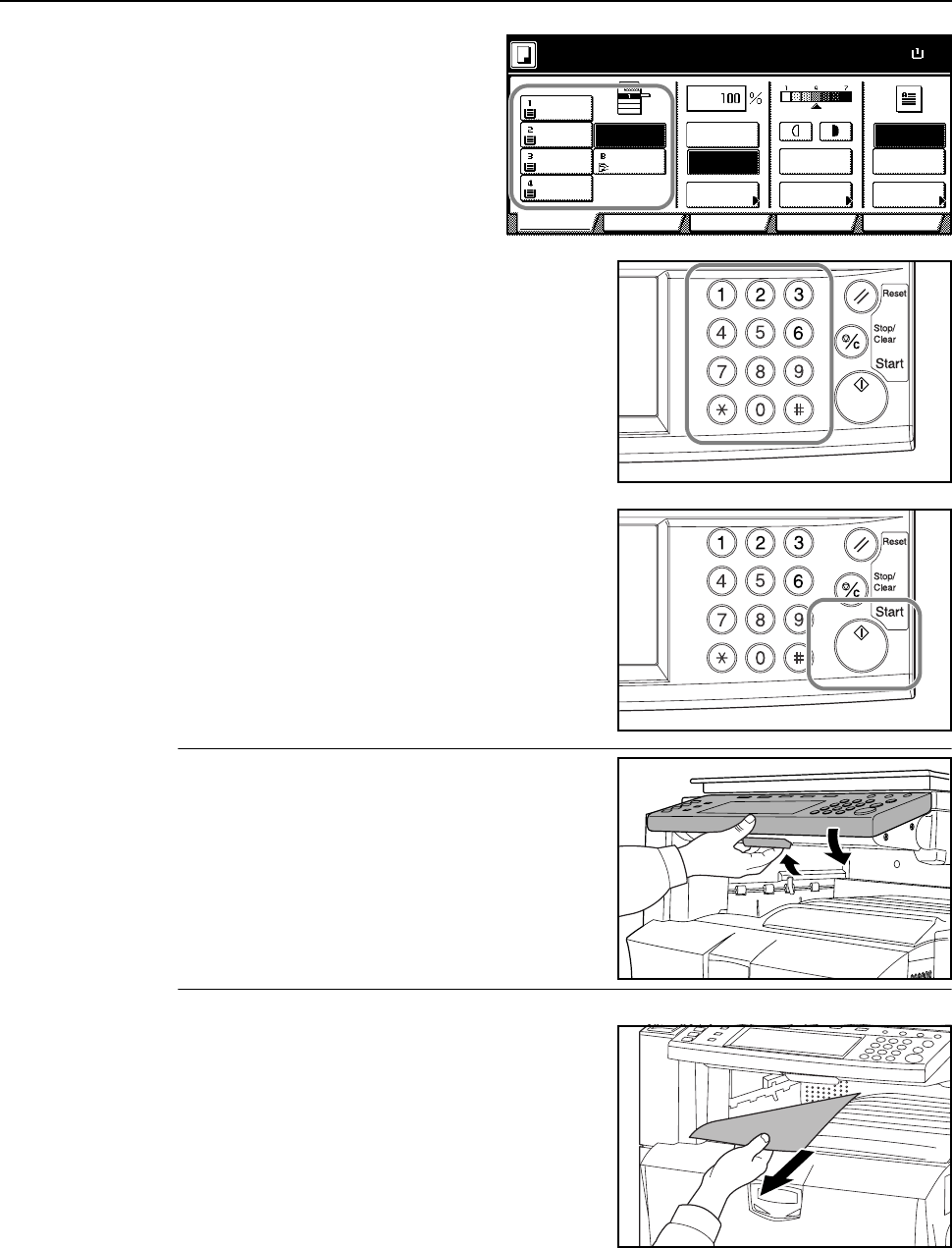
Basic Operation
3-3
5Confirm that [APS] is selected. In this
mode, paper that matches the size of the
originals will be selected automatically.
To change the paper size, press the
desired paper size to select the paper
source.
6Use the numeric keys to enter the copy quantity. You
can specify up to 999 copies.
7Press the Start key.
NOTE: Adjust the angle of the operation panel by
pulling the operation panel lower lever.
8Remove the finished copies from the output tray.
The output tray can hold up to 250 sheets of standard
paper (80 g/m2). However, the actual capacity varies
depending on the type and condition of the paper.
11×
8
Paper Size
Col or func.FunctionUser choice
Basic
11×8½"
Plain
11×17"
Color
11×8½"
Plain
11×8½"
Plain
MP tr a y
Plain
APS Auto %
Reduce
100%
Exposure
Auto
Staple
Staple
Left Top
Staple Off
100%
Exposure
/Enlarge Mode
Program
Ready to copy. ( Full-Color )
Basic Operation
3-4
Turning off the main power switch
Press the Power key on the operation panel, and after
verifying the Power indicator has gone off, switch off
the main power switch. Switching off the main power
switch before pressing the Power key may cause
damage to the internal hard disk.
If the optional fax kit is installed, when the main power
switch is off ( position), fax send/receive is disabled.
To turn the power off, press the Power key on the
operation panel.
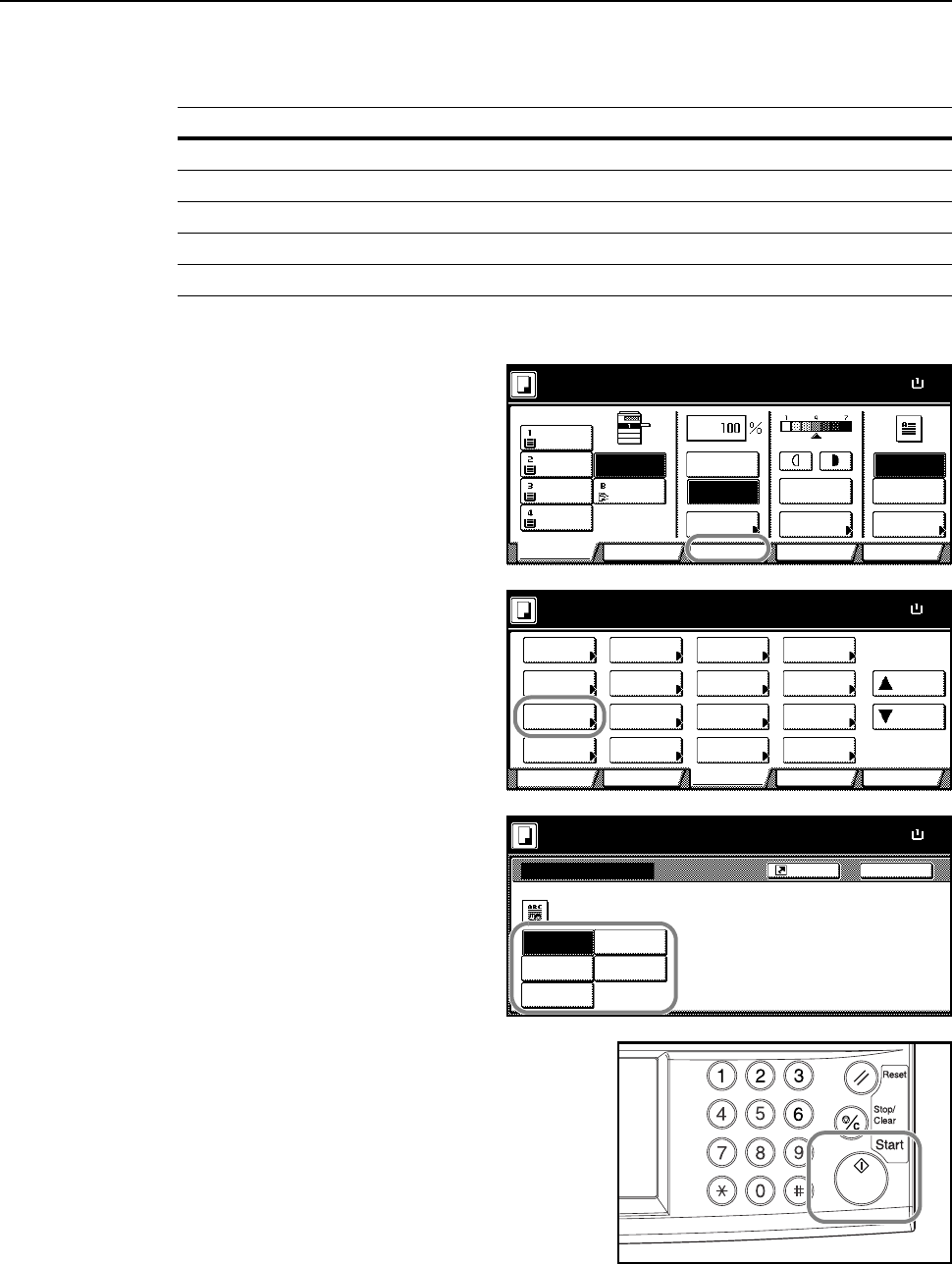
Basic Operation
3-5
Selecting Image Quality
Choose the image quality suited to the type of original.
1Place the original.
2Press [Function].
3Press [Orig. Image Quality] ([Image
Quality]).
4Select the image quality.
5Press the Start key. Copying begins.
Image Quality Description
Text+Photo Appropriate for mixed text and photo originals.
Photo Appropriate for photo originals taken with a camera.
Print Appropriate for photo originals from magazines or printed media.
Text Appropriate for document originals with large amounts of text.
Map Appropriate for map originals.
11×
8
Paper Size
Col or func.FunctionUser choice
Basic
11×8½"
Plain
11×17"
Color
11×8½"
Plain
11×8½"
Plain
MP tr a y
Plain
APS Auto %
Reduce
100%
Exposure
Auto
Staple
Staple
Left Top
Staple Off
100%
Exposure
/Enlarge Mode
Program
Ready to copy. ( Full-Color )
11×8
½
Paper Size
Col or func.
Function
User choiceBasi c
Exposure Reduce
Cover Booklet
Up
Batch
Scanning
Auto
Selection
Bor der
Select
Orig.Image
2 sided/
Ma r gi n /
Centeri ng
Sort/
Offset
Select
Orig.Size
Page #
Combi ne
Poster Down
100%
Ready to copy.
Paper Separation
Mode /Enlarge
Quality
ModeErase
Program
( Full-Color )
Orig.Image Quality
Text+Photo
Print
Photo
BackShortcut
Paper Size
11×8
½
Text+Photo:Text+Photo origi nal.
Photo: For photographic prints
Print: For book and magazine ima
Text: For text, pencil,or fine lines
Map: For maps or pencil illustratio
100%
Text
Map
Ready to copy. ( Full-Color )
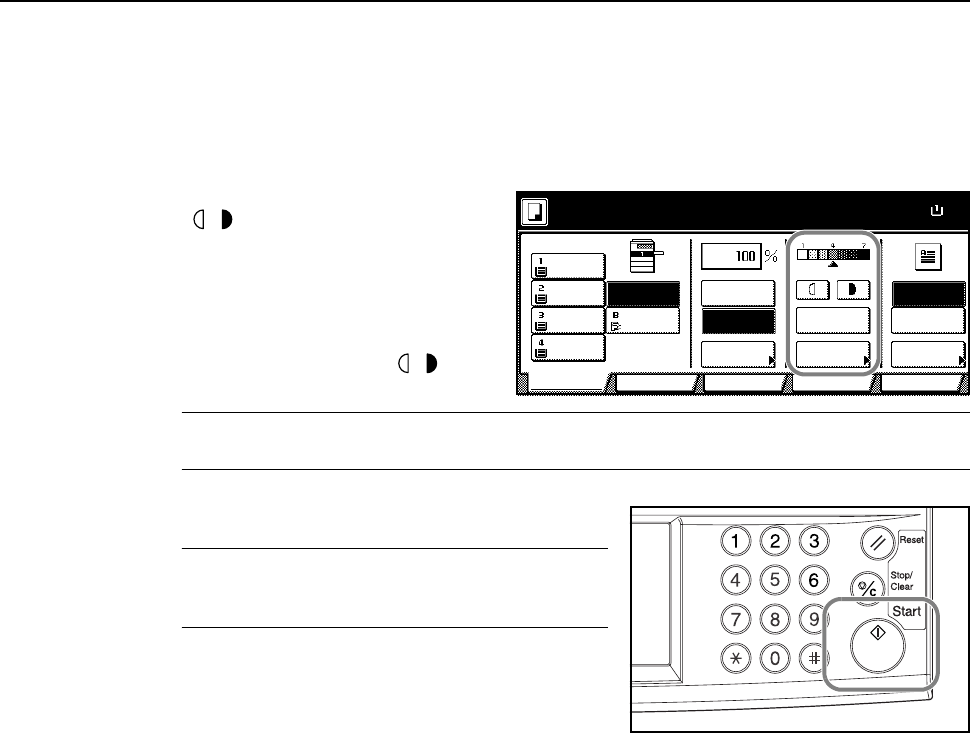
Basic Operation
3-6
Adjusting Exposure
Adjust the exposure automatically or manually. The default setting is [Manual]. Follow the steps as
below for Manual mode.
1Place the original.
2Press the exposure adjustment key
( / ) to adjust the exposure level.
Press [Auto Exposure] to use Auto
Exposure mode. The machine
determines a suitable exposure level for
copying. To change the exposure mode
from [Auto] to [Manual], press the
exposure adjustment key ( / ).
NOTE: Auto Exposure mode is only available for black and white copying. Also, copies will be made
in Manual Exposure mode if the Auto Color mode detects a full color original.
3Press the Start key. Copying begins.
NOTE: Press [Exposure Mode] to display the
Exposure Mode screen. You can also adjust the
exposure from this screen.
11×
8
Paper Size
Col or func.FunctionUser choice
Basic
11×8½"
Plain
11×17"
Color
11×8½"
Plain
11×8½"
Plain
MP tr a y
Plain
APS Auto %
Reduce
100%
Exposure
Auto
Staple
Staple
Left Top
Staple Off
100%
Exposure
/Enlarge Mode
Program
Ready to copy. ( Full-Color )
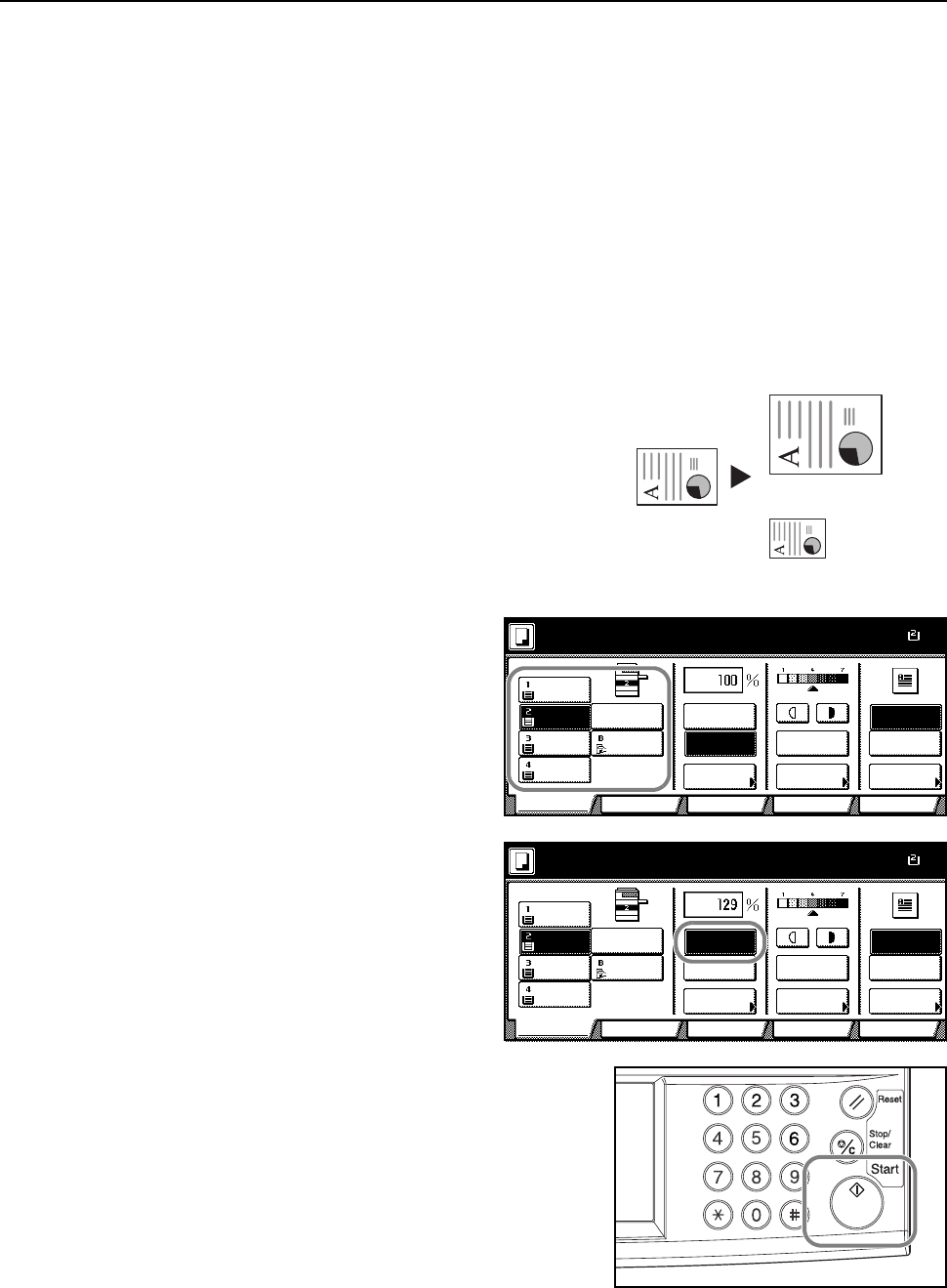
Basic Operation
3-7
Reducing/Enlarging
Adjust the magnification to reduce or enlarge the original image.
The following zoom modes are available.
• Auto Zoom – Automatically reduces or enlarges the original image suited to the selected paper
size.
• Manual Zoom – Reduces or enlarges the original image in 1 % increments between 25 - 400 %.
• Preset Zoom – Reduces or enlarges at preset magnifications.
• XY Zoom – Independently adjust vertical and horizontal magnifications. Set zoom size in 1 %
increments between 25 - 400 %.
Auto Zoom
Automatically reduces or enlarges the original image
suited to the selected paper size.
Follow the steps below to use auto zoom.
1Place the original and select paper size.
2Press [Auto %].
The magnification will be displayed.
3Press the Start key. The image will be automatically
reduced or enlarged for copying onto the selected
paper.
81/2 ×11"
11 × 17": 129 %
51/2 ×81/2": 64 %
A3: 141 %
A5: 70 %
A4
11×
1
Paper Size
Color func.FunctionUser choice
Basic
11×8½"
Plain
11×17"
Color
11×8½"
Plain
11×8½"
Plain
MP tr a y
Plain
APS Auto %
Reduce
100%
Exposure
Auto
Staple
Staple
Left Top
Staple Off
100%
Exposure
/Enlarge Mode
Program
Ready to copy. ( Full-Color )
11×1
7
Paper Size
Color func.FunctionUser choice
Basic
11×8½"
Plain
11×17"
Color
11×8½"
Plain
11×8½"
Plain
MP tr a y
Plain
APS Auto %
Reduce
100%
Exposure
Auto
Staple
Staple
Left Top
Staple Off
100%
Exposure
/Enlarge Mode
Program
Ready to copy. ( Full-Color )
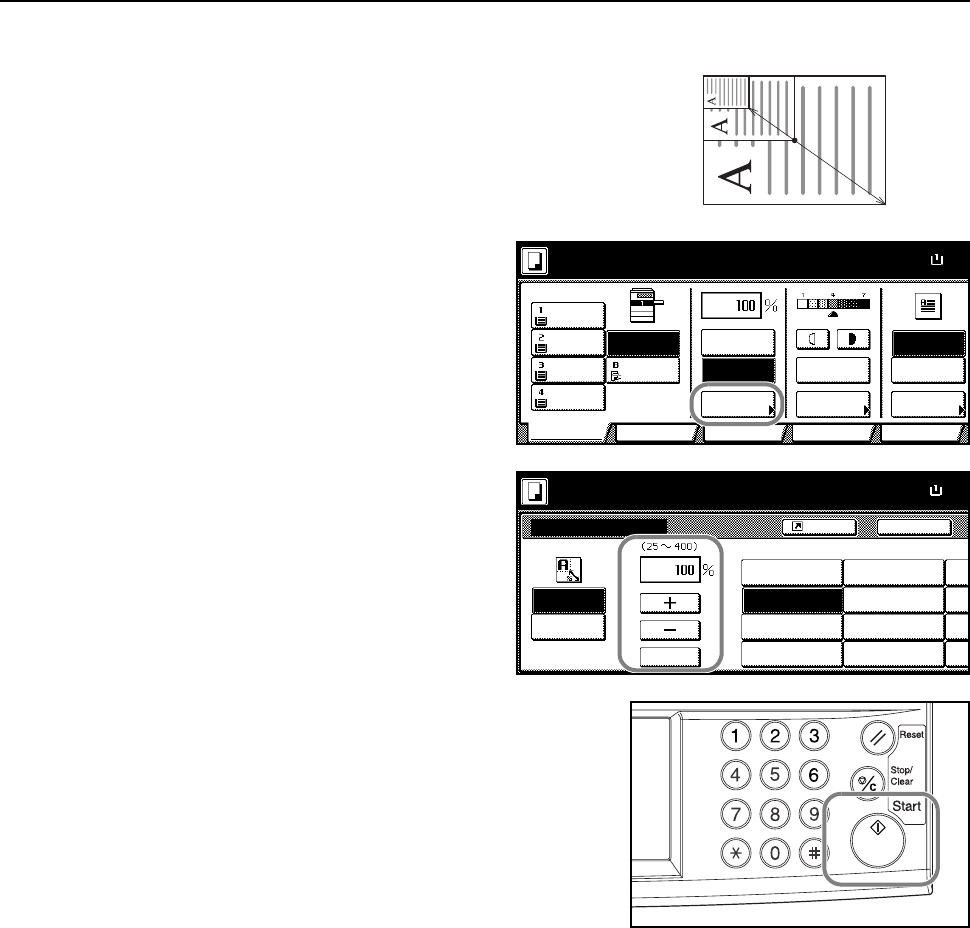
Basic Operation
3-8
Manual Zoom
Reduces or enlarges the original image in 1 %
increments between 25 - 400 %.
Follow the steps as below to use manual zoom.
1Place the original and press
[Reduce/Enlarge].
2Press [+] and [–] to set the displayed
magnification.
Press [# keys] ([#-Keys]) to enter with
numeric keys.
3Press the Start key. Copying begins.
25 %
400 %
11×
8
Paper Size
Col or func.FunctionUser choice
Basic
11×8½"
Plain
11×17"
Color
11×8½"
Plain
11×8½"
Plain
MP tr a y
Plain
APS Auto %
Reduce
100%
Exposure
Auto
Staple
Staple
Left Top
Staple Off
100%
Exposure
/Enlarge Mode
Program
Ready to copy. ( Full-Color )
BackRe du ce/ Enl a r ge
Standard
XY Zoom
Auto %
100%
400%
200%
# keys
Shortcut
11×8
Paper Size
100%
Ready to copy.
Zoom
5½×8½"J11×17"
154%
129%
121%
78%
5½×8½"J8½×14"
8½×11"J11×17"
8½×14"J11×17"
8½×14"J8½×11"
77
%
64
%
50
%
25
%
1
1
1
1
11
×
( Full-Color )
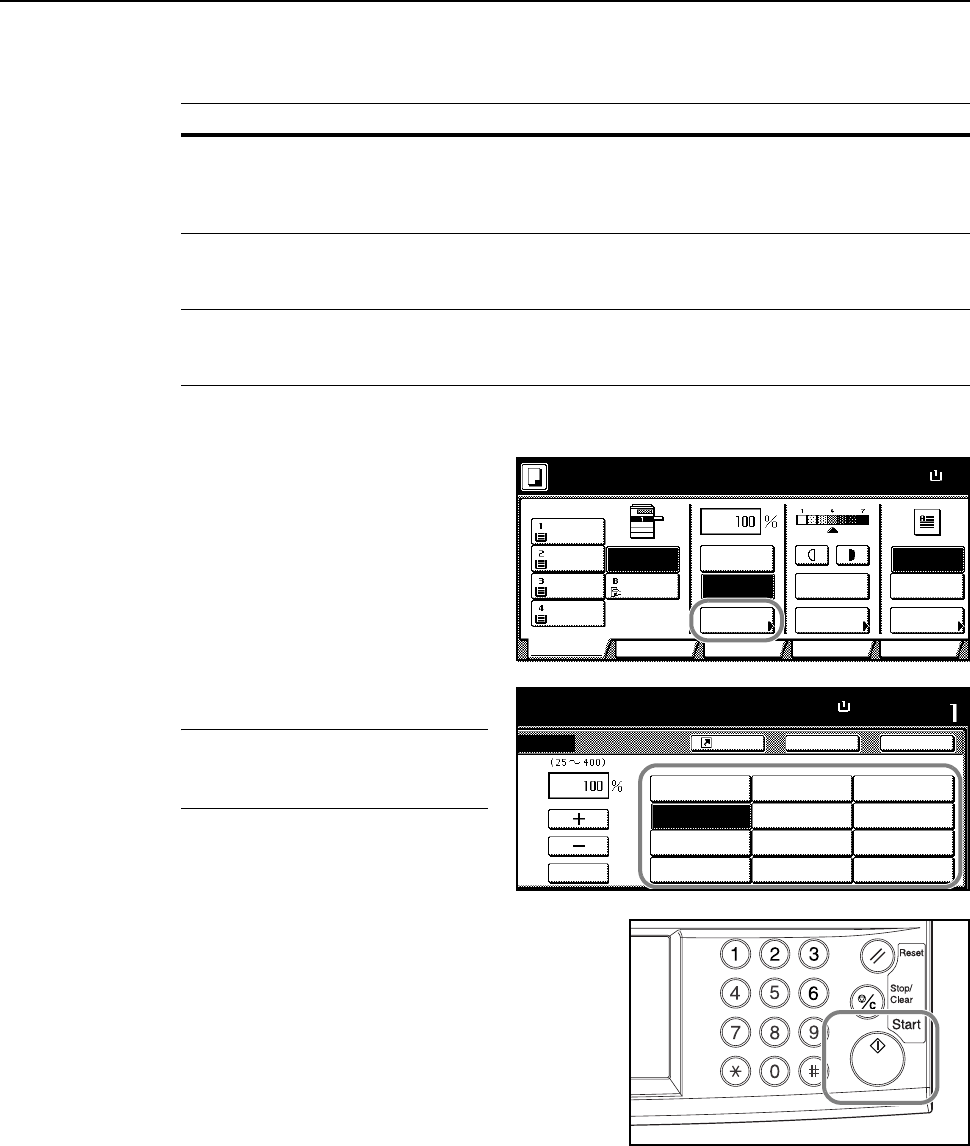
Basic Operation
3-9
Preset Zoom
Reduces or enlarges at preset magnifications.
Follow the steps as below to use preset zoom.
1Place the original and press
[Reduce/Enlarge].
2Select the magnification.
NOTE: You can also adjust the
magnification in 1 % increments as
desired by pressing [+] and [–].
3Press the Start key. Copying begins.
Model Type Zoom Level
Inch models 200 % (5 1/2 ×81/2"J11 × 17"), 154 % (5 1/2 ×81/2"J81/2 × 14"),
129 % (8 1/2 ×11"J11 × 17"), 121 % (8 1/2 ×14"J11 × 17"),
78 % (8 1/2 × 14"J81/2 × 11"), 77 % (11 × 17"J81/2 × 14"),
64 % (11 × 17"J81/2 × 11"), 50 % (11 × 17"J51/2 ×81/2")
Metric models 200 % (A5JA3), 141 % (A4JA3, A5JA4), 127 % (FolioJA3),
106% (11×15"JA3), 90 % (FolioJA4), 75 % (11 × 15"JA4),
70 % (A3JA4, A4JA5)
Metric models (Asia
Pacific)
200 % (A5JA3), 141 % (A4JA3, B5JB4), 122 % (A4JB4, A5JB5),
115 % (B4JA3, B5JA4), 86 % (A3JB4, A4JB5),
81 % (B4JA4, B5JA5), 70 % (A3JA4, B4JB5)
11×
8
Paper Size
Color func.FunctionUser choice
Basic
11×8½"
Plain
11×17"
Color
11×8½"
Plain
11×8½"
Plain
MP tr a y
Plain
APS Auto %
Reduce
100%
Exposure
Auto
Staple
Staple
Left Top
Staple Off
100%
Exposure
/Enlarge Mode
Program
Ready to copy. ( Full-Color )
Back Close
e
Auto %
Set
100%
400%
200%
# keys
Shortcut
11×8½"
Paper Size
100%
to copy.
5½×8½"J11×17"
154%
129%
121%
78%
5½×8½"J8½×14"
8½×11"J11×17"
8½×14"J11×17"
8½×14"J8½×11"
77%
64%
50%
25%
11×17"J8½×14"
11×17"J8½×11"
11×17"J5½×8½"
( Full-Color )
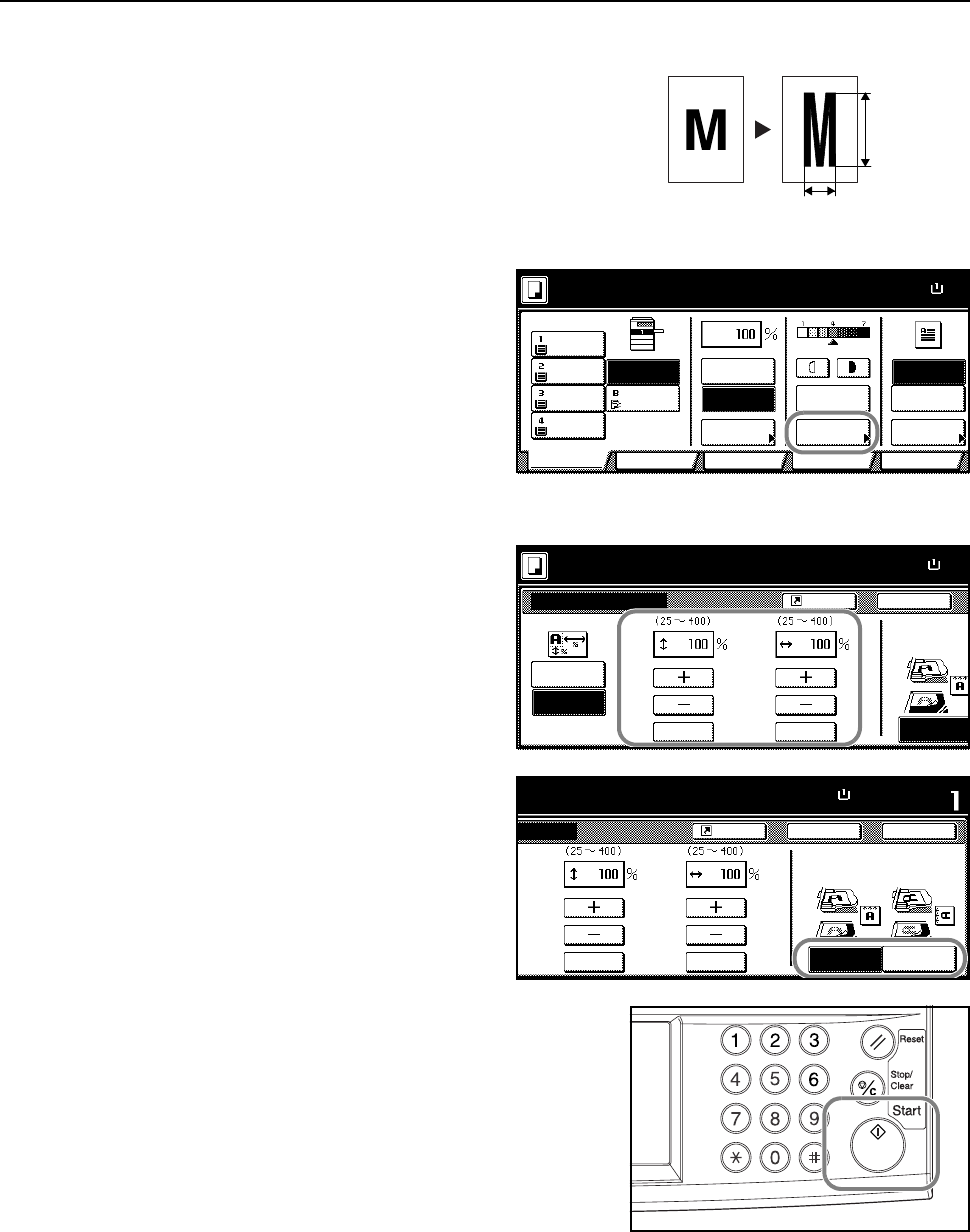
Basic Operation
3-10
XY Zoom
Select vertical and horizontal magnifications
individually. Set zoom size in 1 % increments between
25 - 400 %.
Follow the steps as below to use XY zoom.
1Place the original and press
[Reduce/Enlarge].
2Press [XY Zoom].
3Press [+] and [–] to set the X and Y
zoom ratios.
Press [# keys] ([#-Keys]) to enter with
numeric keys.
4Under Select Original Image Direction,
select [Top Edge] ([Back Edge]) or [Left
Top Edge] ([Left top corner]).
5Press the Start key. Copying begins.
Y
X
11×
8
Paper Size
Col or func.FunctionUser choice
Basic
11×8½"
Plain
11×17"
Color
11×8½"
Plain
11×8½"
Plain
MP tr a y
Plain
APS Auto %
Reduce
100%
Exposure
Auto
Staple
Staple
Left Top
Staple Off
100%
Exposure
/Enlarge Mode
Program
Ready to copy. ( Full-Color )
Back
Select Original I
Direction.
Top Edge
Re du ce /En l ar g e
Paper Size
11×8
½
Shortcut
Standard
XY Zoom
XY
# keys # keys
100%
Ready to copy.
Zoom
( Full-Color )
Set
Back
Left Top
Select Original Image
Direction.
Top Edge
Close
e
Paper Size
11×8½"
Shortcut
XY
# keys # keys
100%
to copy.
Edge
( Full-Color )
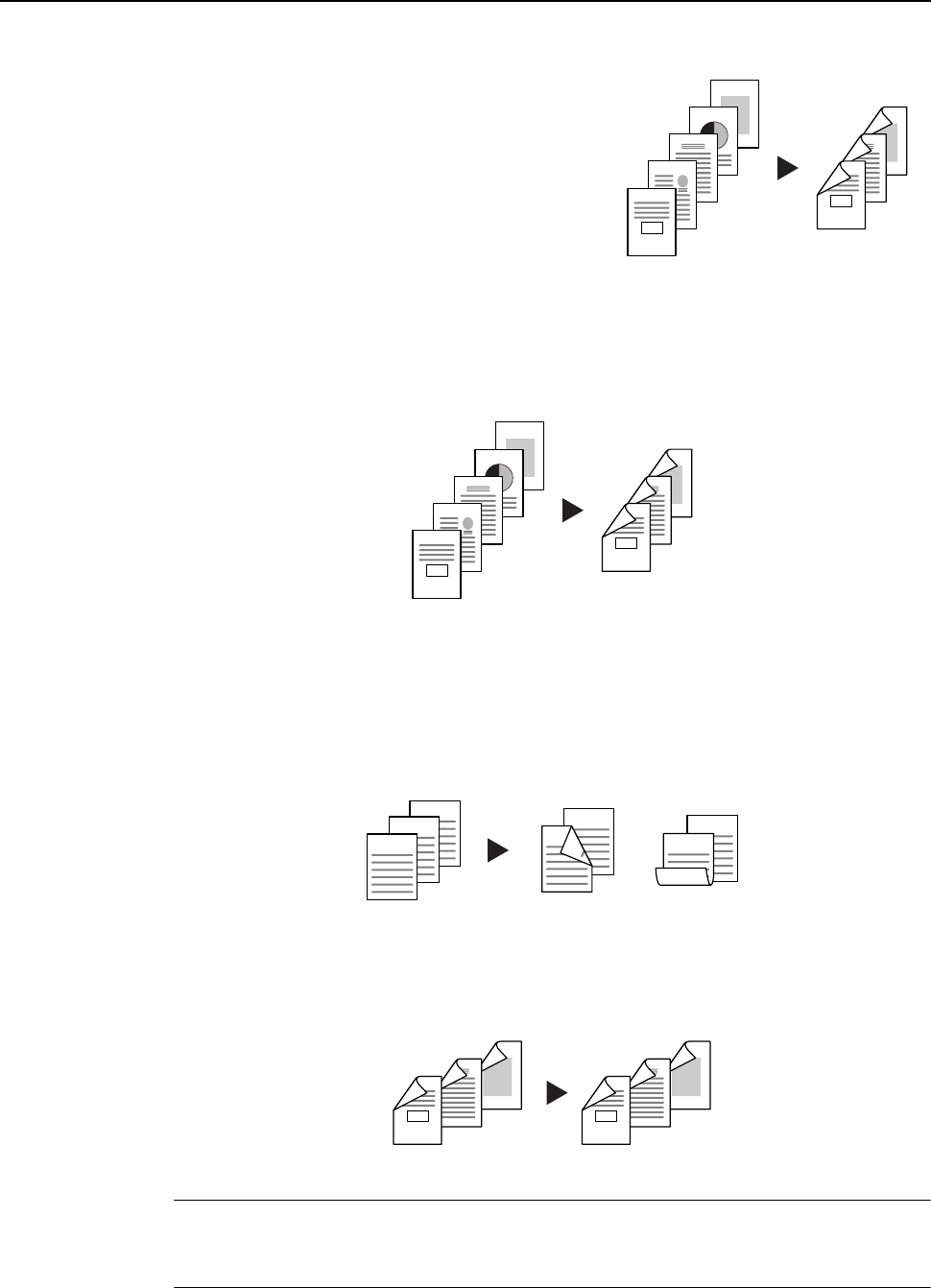
Basic Operation
3-11
Duplex Mode
Use Duplex mode to create two-sided copies from a
variety of originals, including facing pages (such as
books or magazines) and two-sided originals.
One-sided to Two-sided
Produces two-sided copies from one-sided originals. The back side of the last copied page will be
blank for originals with an odd number of pages.
The following binding options are available.
• Original Left/Right Bind to Finish Left/Right Bind: Back side is copied with same orientation as
front side. ...A
• Original Left/Right Bind to Finish Top Bind: Images are copied onto the back side rotated 180°.
Pages of the copied document are in the same orientation if pages are flipped upward. ...B
Two-sided to Two-sided
Produces two-sided copies from two-sided originals.
NOTE: This operation requires the optional document processor.
Supported paper sizes for Two-sided to Two-sided operation are: 11 × 17", 8 1/2 ×14", 11×81/2",
81/2 ×11", 51/2 ×81/2", 8 1/2 × 13", 8 1/2 ×131/2", A3, B4, A4, A4R, B5, B5R, A5R and Folio.
Original Copy
5
4
3
2
1
5
3
4
1
2
Original Copy
5
4
3
2
1
5
3
4
1
2
ghi
def
abc
ghi
abc
def
ghi
abc
def
Original Copy
AB
Original Copy
5
3
4
1
2
5
3
4
1
2
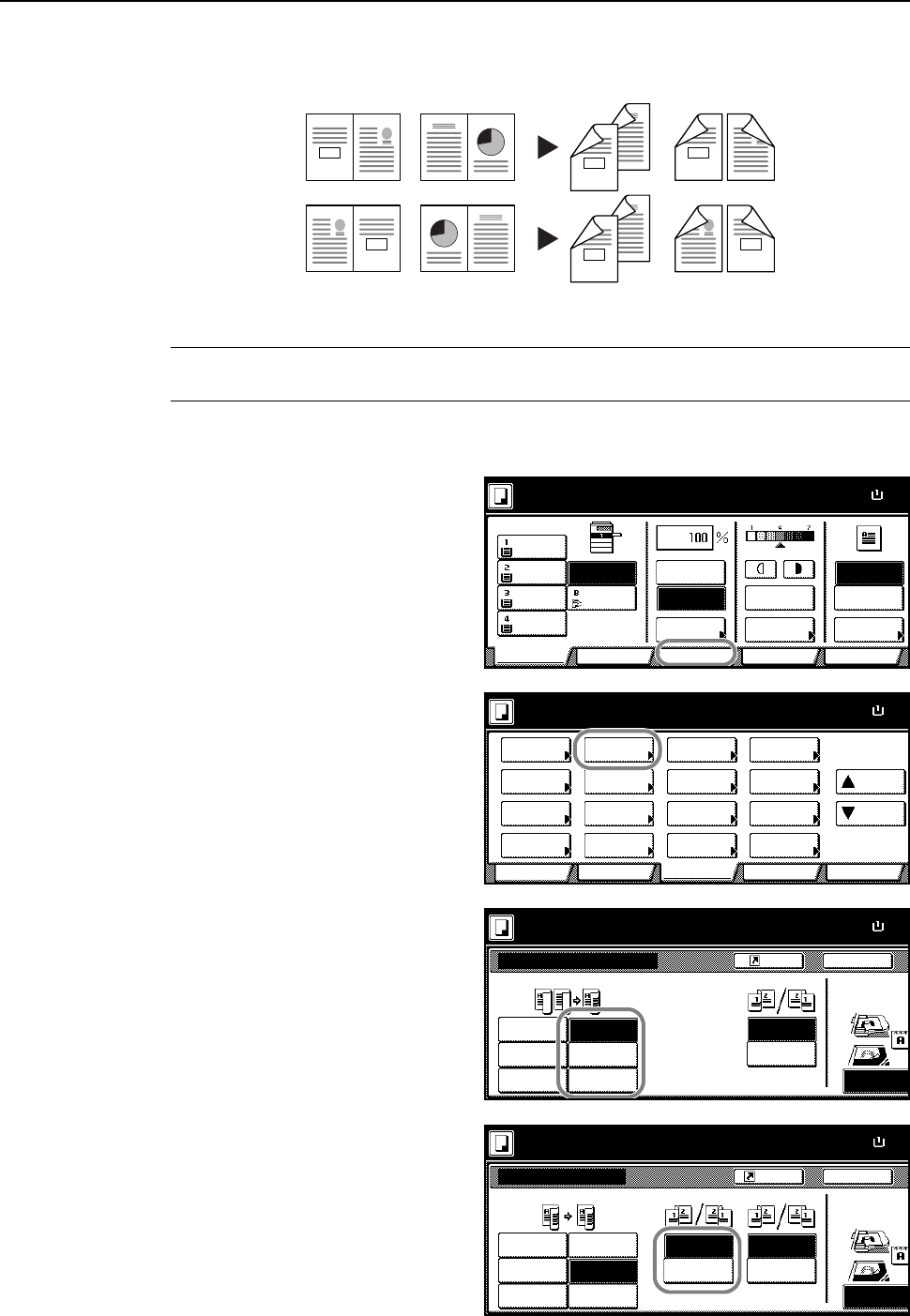
Basic Operation
3-12
Book to Two-sided
Produces two-sided copies from originals such as books and magazines with facing pages.
NOTE: Supported paper sizes for Book to Two-Sided operation are limited to: 11 × 17", 8 1/2 ×11",
A3, B4, A4R, B5R, A5R, and 8K.
Follow the steps as below to use duplex copying.
1Press [Function].
2Press [2 sided/Separation]
([2-sided/Split]).
3Select the desired Duplex mode.
4For [2 sided J 2 sided] ([2-sided J
2-sided]) or [Book J 2 sided] ([Book J
2-sided]), select the bind direction for
Original.
3
4
3
4
34
21
21
43
1
2
1
2
1
0
2
3
21
3
0
Original Copy
11×
8
Paper Size
Color func.FunctionUser choice
Basic
11×8½"
Plain
11×17"
Color
11×8½"
Plain
11×8½"
Plain
MP tr a y
Plain
APS Auto %
Reduce
100%
Exposure
Auto
Staple
Staple
Left Top
Staple Off
100%
Exposure
/Enlarge Mode
Program
Ready to copy. ( Full-Color )
11×8
½
Paper Size
Col or func.
Function
User choiceBasi c
Exposure Reduce
Cover Booklet
Up
Batch
Scanning
Auto
Selection
Bor der
Select
Orig.Image
2 sided/
Ma r gi n /
Centeri ng
Sort/
Offset
Select
Orig.Size
Page #
Combi ne
Poster Down
100%
Ready to copy.
Paper Separation
Mode /Enlarge
Quality
ModeErase
Program
( Full-Color )
11×8
½
Paper Size
Back
1 sided
2 sided
1 sided
Shortcut
Top Edge
J1 sided
Book
2 sided
J2 sided
Book
Finished
2 sided/Separation
100%
Select Original I
Direction.
2 sided mode.
J1 sided
J1 sided
J2 sided
J2 sided
Open from
Open from
Left/Right
top
(Full-Color)
11×8
½
Paper Size
Back
1 sided
2 sided
1 sided
Shortcut
Top Edge
J1 sided
Book
2 sided
J2 sided
Book
Finished
2 sided/Separation
100%
Select Original I
Direction.
2 sided mode.
J1 sided
J1 sided
J2 sided
J2 sided
Open from
Open from
Left/Right
top
Original
Open from
Open from
Left/Right
top
(Full-Color)
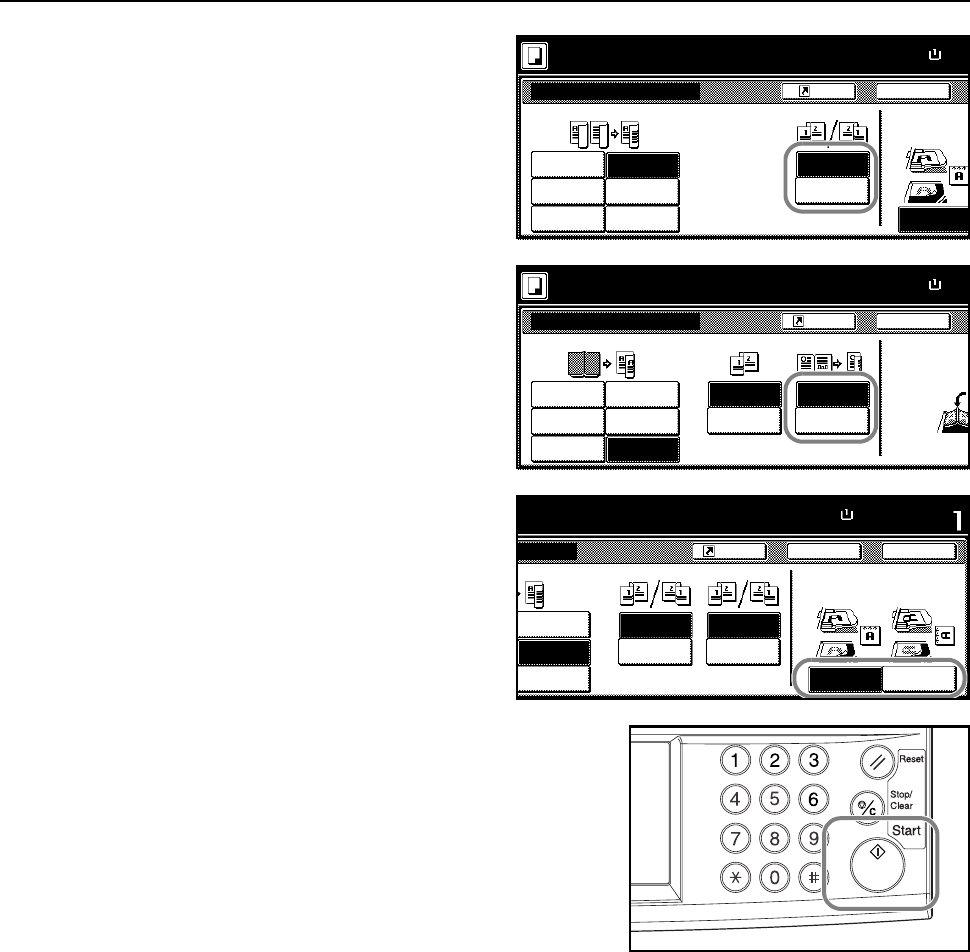
Basic Operation
3-13
For [1 sided J 2 sided] ([1-sided J
2-sided]) or [2 sided J 2 sided] ([2-sided
J 2-sided]), select the bind direction for
Finished.
For [Book J 2 sided] ([Book J 2-sided]),
set the copy page order for Finished.
For [1 sided J 2 sided] ([1-sided J
2-sided]) or [2 sided J 2 sided] ([2-sided
J 2-sided]), set [Top Edge] ([Back
Edge]) or [Left Top Edge] ([Left top
corner]) from Select Original Image
Direction.
5Place the original and press the Start key.
If the original has been placed on the optional
document processor, copying begins automatically.
If the original is placed on the platen, Scan next
original(s) is displayed. Place the next original page
and press the Start key.
If all original pages have been scanned, press
[Scanning finished]. Copying begins.
11×8
½
Paper Size
Back
1 sided
2 sided
1 sided
Shortcut
Top Edge
J1 sided
Book
2 sided
J2 sided
Book
Finished
2 sided/Separation
100%
Select Original I
Direction.
2 sided mode.
J1 sided
J1 sided
J2 sided
J2 sided
Open from
Open from
Left/Right
top
(Full-Color)
11×8
½
Paper Size
Back
1 sided
2 sided
1 sided
Shortcut
J1 sided
Book
2 sided
J2 sided
Book
Finished
2 sided/Separation
100%
Set the book or i
g
top side direct t
o
2 sided mode.
J1 sided
J1 sided
J2 sided
J2 sided
BookJ
BookJ
2 sided
Book
Original
Open from
Open from
left
right
(Full-Color)
11×8½"
Paper Size Set
Back
Left Top
1 sided
Shortcut
Top Edge
2 sided
J2 sided
Book
Finished
Close
a
tion
100%
Select Original Image
Direction.
d
mode.
J2 sided
J2 sided
Open from
Open from
Left/Right
top
Edge
Original
Open from
Open from
Left/Right
top
(Full-Color)
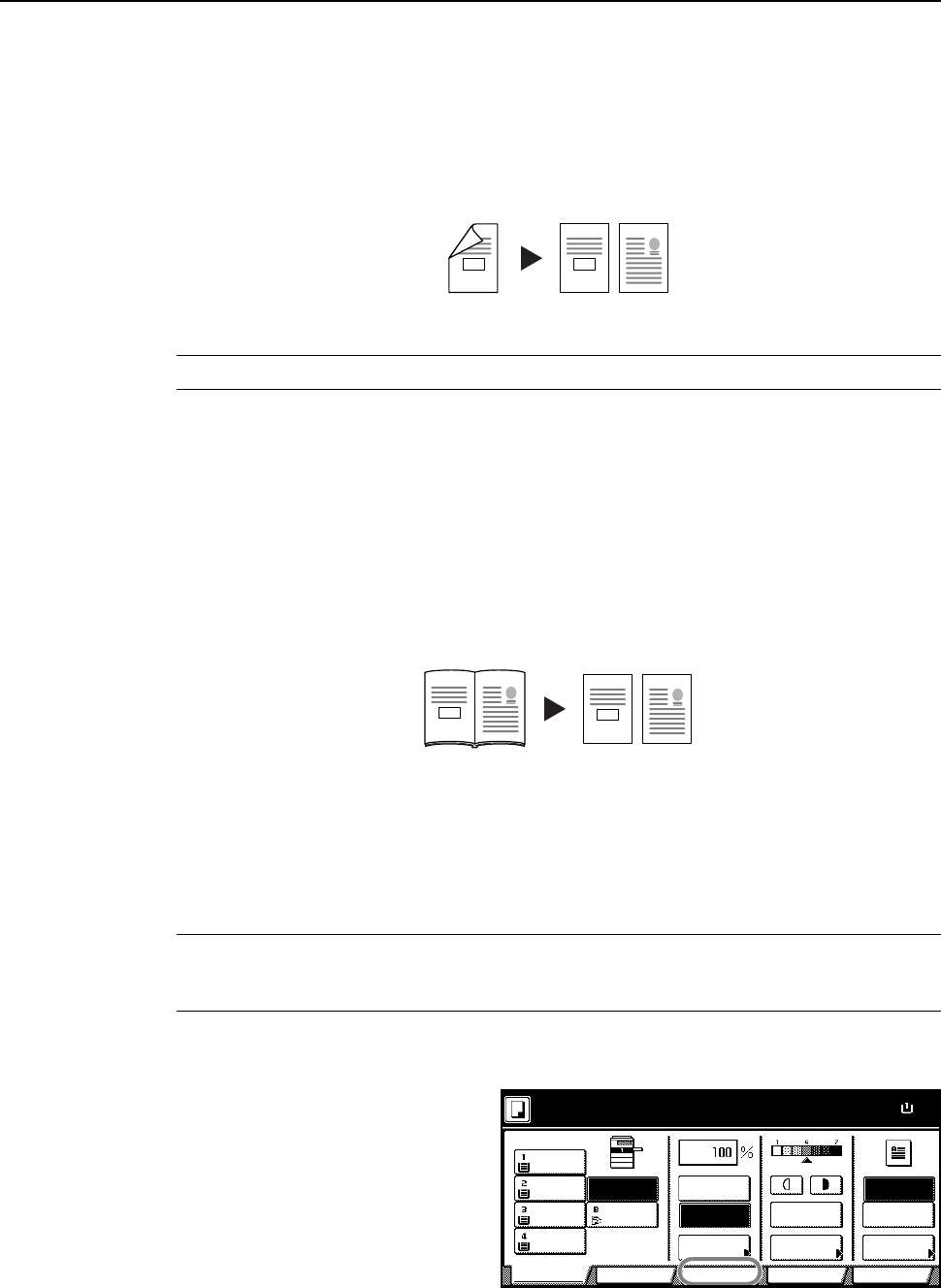
Basic Operation
3-14
Split Mode
Use Split mode to create single-sided copies from two-sided originals or originals with facing pages
(such as books or magazines) as follows.
Two-sided to One-sided
Copies each side of a two-sided original onto two individual sheets.
NOTE: This operation requires the optional document processor.
The following binding options are available.
• Open from Left/Right: The back side and front side of the original are copied with the same
orientation.
• Open from top: The back side is copied rotated 180% from the orientation of the front side.
Book to One-sided
Copies each page of originals with facing pages (such as books or magazines) onto two individual
sheets.
The following binding options are available.
• Open from left: Originals with facing pages are copied from left to right.
• Open from right: Originals with facing pages are copied from right to left.
NOTE: Original sizes for split mode copy mode are limited to 11 × 17", 8 1/2 × 11", A3, B4, A4R, B5R
and 8K. Paper sizes are limited to 11 × 8 1/2", A4, B5 and 16K. Change the paper size to fit the
original to that size.
Follow the steps as below to use Split mode.
1Press [Function].
2
1
1
2
Original Copy
2
1
21
Original Copy
11×
8
Paper Size
Color func.FunctionUser choice
Basic
11×8½"
Plain
11×17"
Color
11×8½"
Plain
11×8½"
Plain
MP tr a y
Plain
APS Auto %
Reduce
100%
Exposure
Auto
Staple
Staple
Left Top
Staple Off
100%
Exposure
/Enlarge Mode
Program
Ready to copy. ( Full-Color )
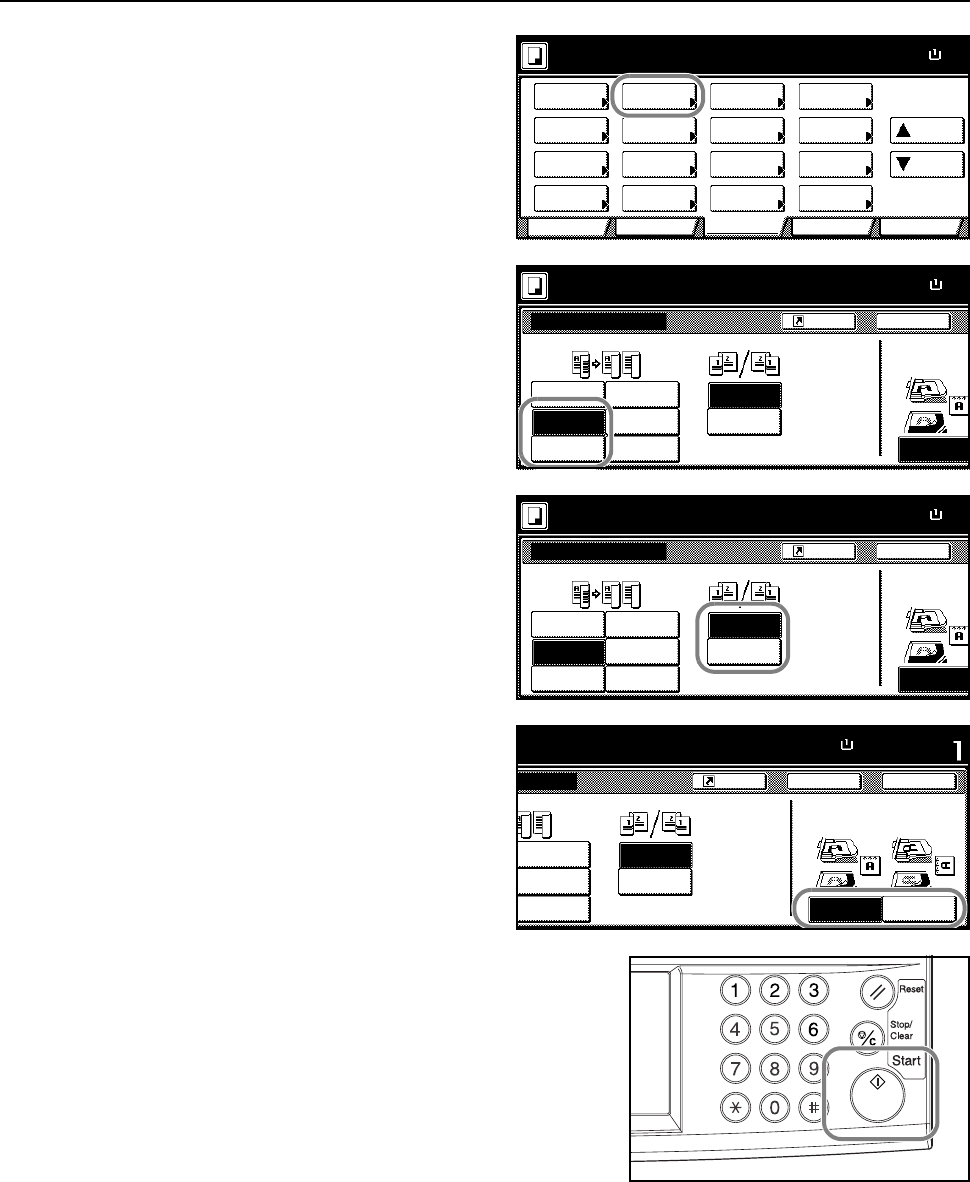
Basic Operation
3-15
2Press [2 sided/Separation]
([2-sided/Split]).
3 Select the desired Split mode.
4Specify the binding in the Original
section.
5When [2 sided J 1 sided] ([2-sided J
1-sided]) is selected, select [Top Edge]
([Back Edge]) or [Left Top Edge] ([Left
top corner]) for Select Original Image
Direction.
6Place the original and press the Start key.
If the original has been placed on the optional
document processor, copying begins automatically.
If the original is placed on the platen, Scan next
original(s) is displayed. Place the next original page
and press the Start key.
If all original pages have been scanned, press
[Scanning finished]. Copying begins.
11×8
½
Paper Size
Color func.
Function
User choiceBasi c
Exposure Reduce
Cov er Booklet
Up
Batch
Scanning
Auto
Selection
Border
Select
Orig.Image
2 sided/
Ma r gi n /
Centering
Sort/
Offset
Select
Orig.Size
Page #
Combine
Poster Down
100%
Ready to copy.
Paper Separation
Mode /Enlarge
Quality
ModeErase
Program
( Full-Color )
11×8
½
Paper Size
Back
1 sided
2 sided
1 sided
Shortcut
Top Edge
J1 sided
Book
2 sided
J2 sided
Book
2 sided/Separation
100%
Select Original I
Direction.
Ready to copy.
J1 sided
J1 sided
J2 sided
J2 sided
Original
Open from
Open from
Left/Right
top
(Full-Color)
11×8
½
Paper Size
Back
1 sided
2 sided
1 sided
Shortcut
Top Edge
J1 sided
Book
2 sided
J2 sided
Book
2 sided/Separation
100%
Select Original I
Direction.
Ready to copy.
J1 sided
J1 sided
J2 sided
J2 sided
Original
Open from
Open from
Left/Right
top
(Full-Color)
11×8½"
Paper Size Set
Back
Left Top
1 sided
Shortcut
Top Edge
2 sided
J2 sided
Book
Close
a
tion
100%
Select Original Image
Direction.
to copy.
J2 sided
J2 sided
Edge
Original
Open from
Open from
Left/Right
top
(Full-Color)
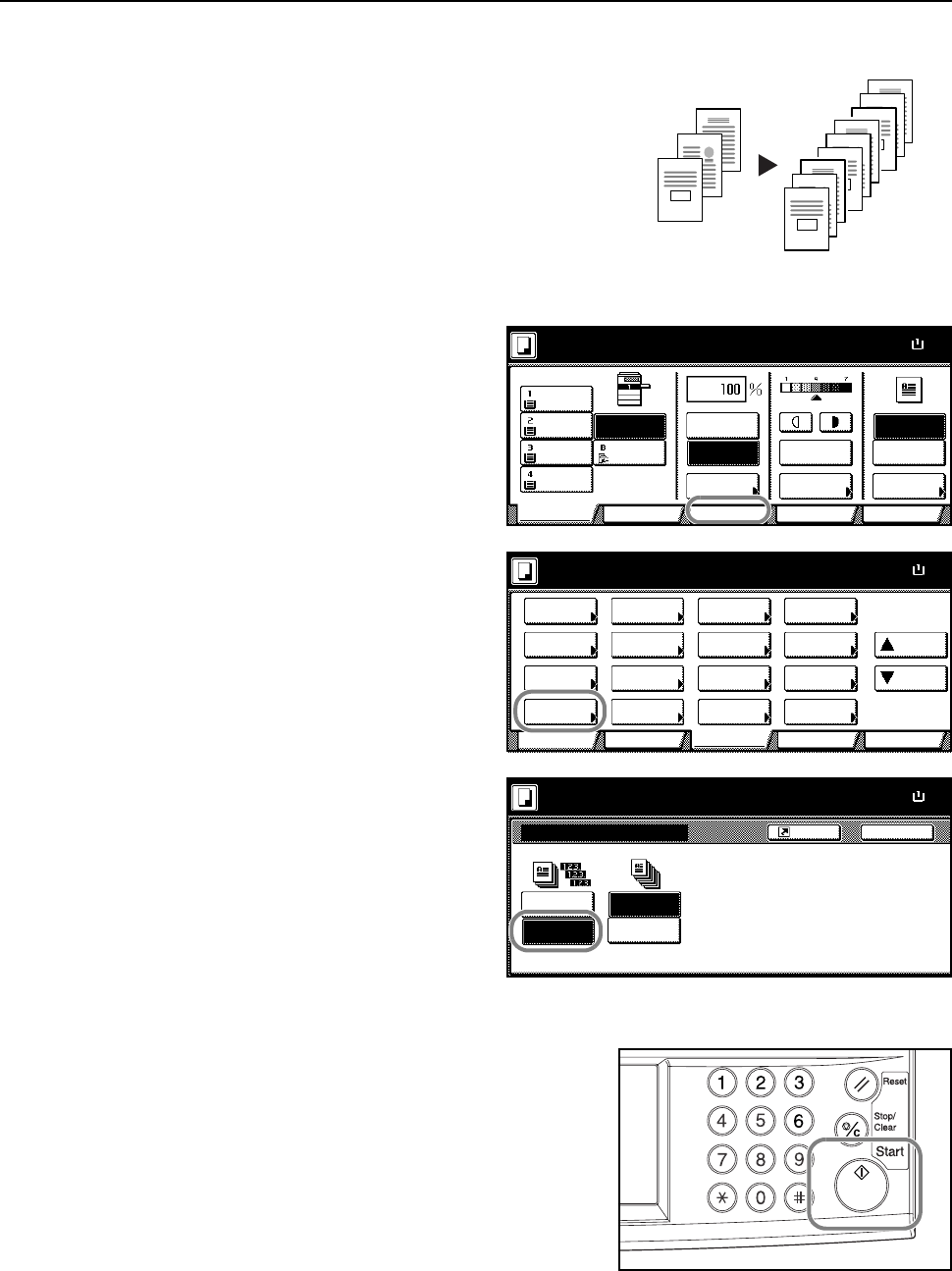
Basic Operation
3-16
Sort Mode
Scans multiple originals to deliver complete sets of
copies as required according to page number.
Follow the steps as below to use Sort mode.
1Press [Function].
2Press [Sort/Offset] ([Sort/Group]).
3Press [Sort: On].
4Use the numeric keys to enter the copy quantity.
5Place the original and press the Start key.
If the original has been placed on the optional
document processor, copying begins automatically.
If the original is placed on the platen, Scan next
original(s) is displayed. Place the next original page
and press the Start key.
If all original pages have been scanned, press
[Scanning finished]. Copying begins.
Complete sets of copies will be delivered on the output
tray.
3
2
1
3
2
1
3
2
1
3
2
1
Original Copy
11×
8
Paper Size
Color func.FunctionUser choice
Basic
11×8½"
Plain
11×17"
Color
11×8½"
Plain
11×8½"
Plain
MP tr a y
Plain
APS Auto %
Reduce
100%
Exposure
Auto
Staple
Staple
Left Top
Staple Off
100%
Exposure
/Enlarge Mode
Program
Ready to copy. ( Full-Color )
11×8
½
Paper Size
Col or func.
Function
User choiceBasi c
Exposure Reduce
Cover Booklet
Up
Batch
Scanning
Auto
Selection
Bor der
Select
Orig.Image
2 sided/
Ma r gi n /
Centeri ng
Sort/
Offset
Select
Orig.Size
Page #
Combi ne
Poster Down
100%
Ready to copy.
Paper Separation
Mode /Enlarge
Quality
ModeErase
Program
( Full-Color )
Sort/Offset
Sort:Off
BackShortcut
Paper Size
11×8
On
Off
Sort:On
Sort Offset
100%
Ready to copy. ( Full-Color )
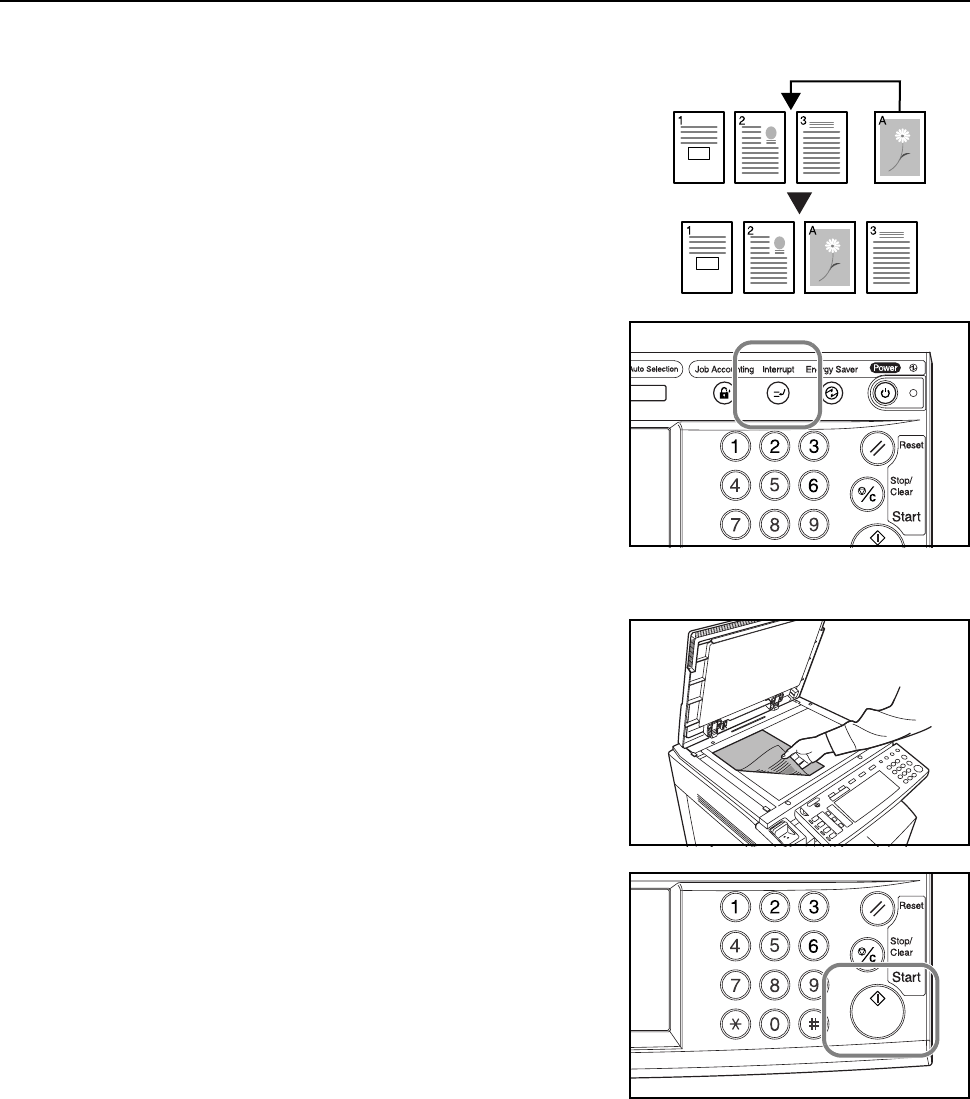
Basic Operation
3-17
Interrupt Copy
Interrupt copying is useful to pause one copy job and
copy other originals with different copy settings. After
completing the urgent job, you can resume the
interrupted jobs according to their original settings. You
can also pause copy or print jobs to make emergency
copies.
Follow the steps as below to use interrupt copying.
1Press the Interrupt key.
Interrupt Mode OK will be displayed.
2Temporarily remove and set aside the original pages of the current job.
3 Place the original for the interrupt job.
4Specify the copy settings for the interrupt job and press
the Start key.
5After the interrupt job is completed, remove the originals and press the Interrupt key.
The previous settings will be restored. If there was a job being printed, it will be resumed.
6Replace the interrupted original and press the Start key to restart the job.
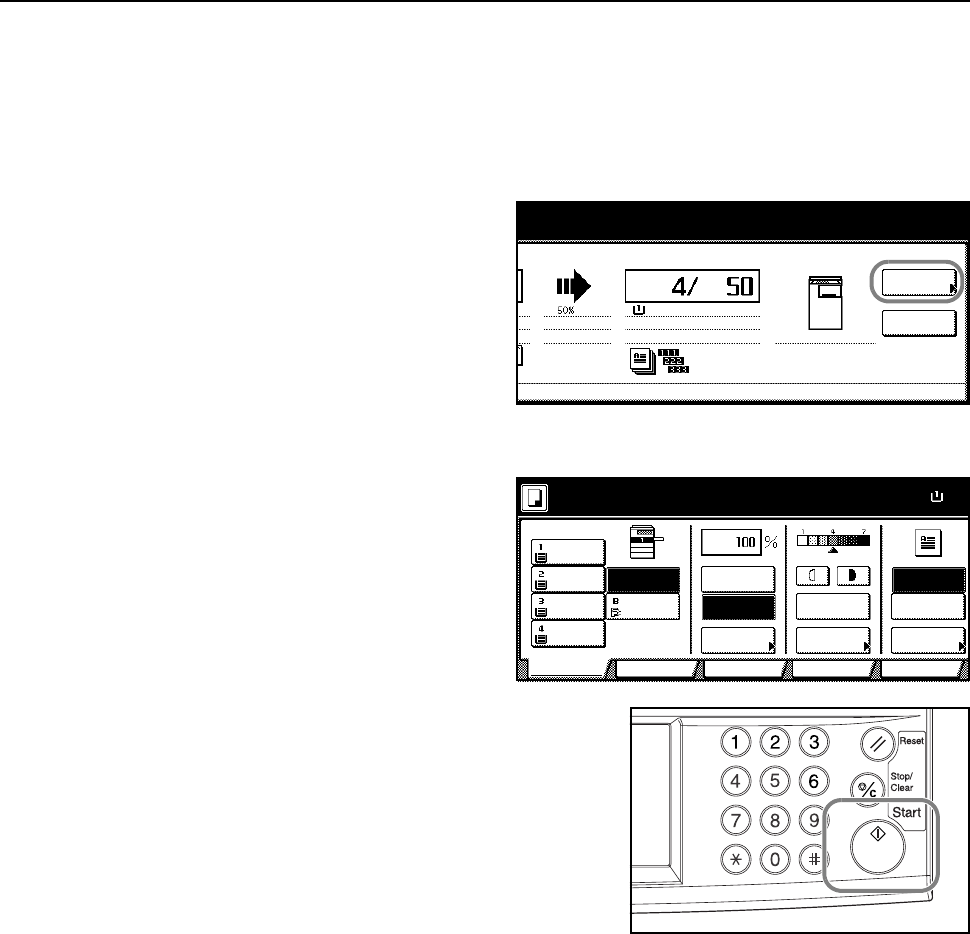
Basic Operation
3-18
Job Reservation
Scan an original and reserve the next job even when a copy or print job is being outputted. The
reserved job will be started after the current job is completed. If the optional fax is installed, reserve
jobs even when received fax data is being printed.
Follow the steps as below to use Job Reservation mode.
1Press [Reserve next copy].
Copying can be reserved will be
displayed.
2Place the Job Reservation original.
3Specify the copy settings for the
reserved job.
To cancel a reserved job, press [Finish
Job res.] ([Job resrv. finished]).
4Press the Start key. Scanning of the original begins.
After scanning all the originals, the touch panel will
return to output screen.
The reserved job will be started after the current job is
completed.
o
pying.
Output
Reserv e
Auto %
11×8½" Plain
Count/Set
Color , 1 si de
Top tray
next copy
Pause
11×8
½
Paper Size
Col or func.FunctionUser choice
Basic
11×8½"
Plain
11×17"
Color
11×8½"
Plain
11×8½"
Plain
MP tr a y
Color
APS Auto %
Reduce
100%
Exposure
Auto
Staple
Staple
Left Top
Staple Off
100%
Exposure
/Enlarge Mode
Program
Copying can be reserved. (Full-Color)
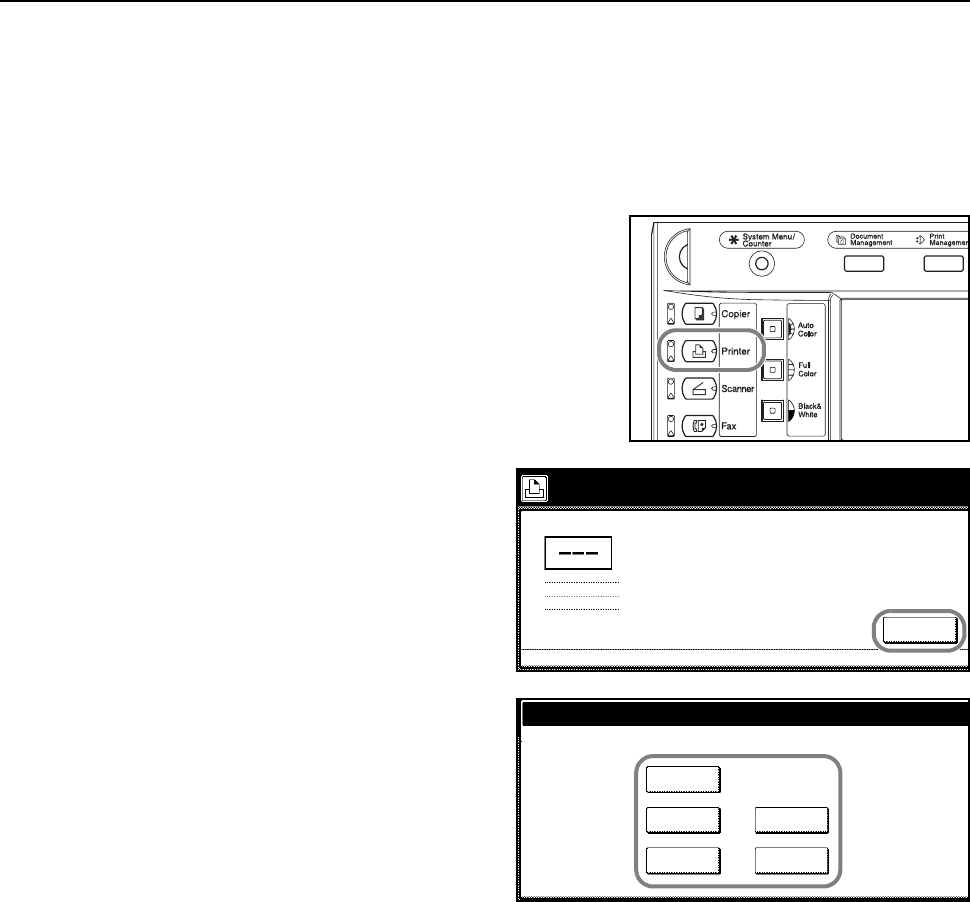
Basic Operation
3-19
Canceling a Print Job
Follow the steps below to cancel printing and clear data.
Canceling a Print Job Currently Being Processed
Use the printer screen to cancel a print job that is currently spooling.
1Press the Printer key.
2Press [Cancel].
3 Select the interface to cancel.
4Printing is canceled.
Orig. Page
Cancel
Processing.
11×8½"
Network I/F
User name: NO USER NAME
Select interface to cancel the job.
On
Back
USB
Network
Serial
Parallel
Current
Job
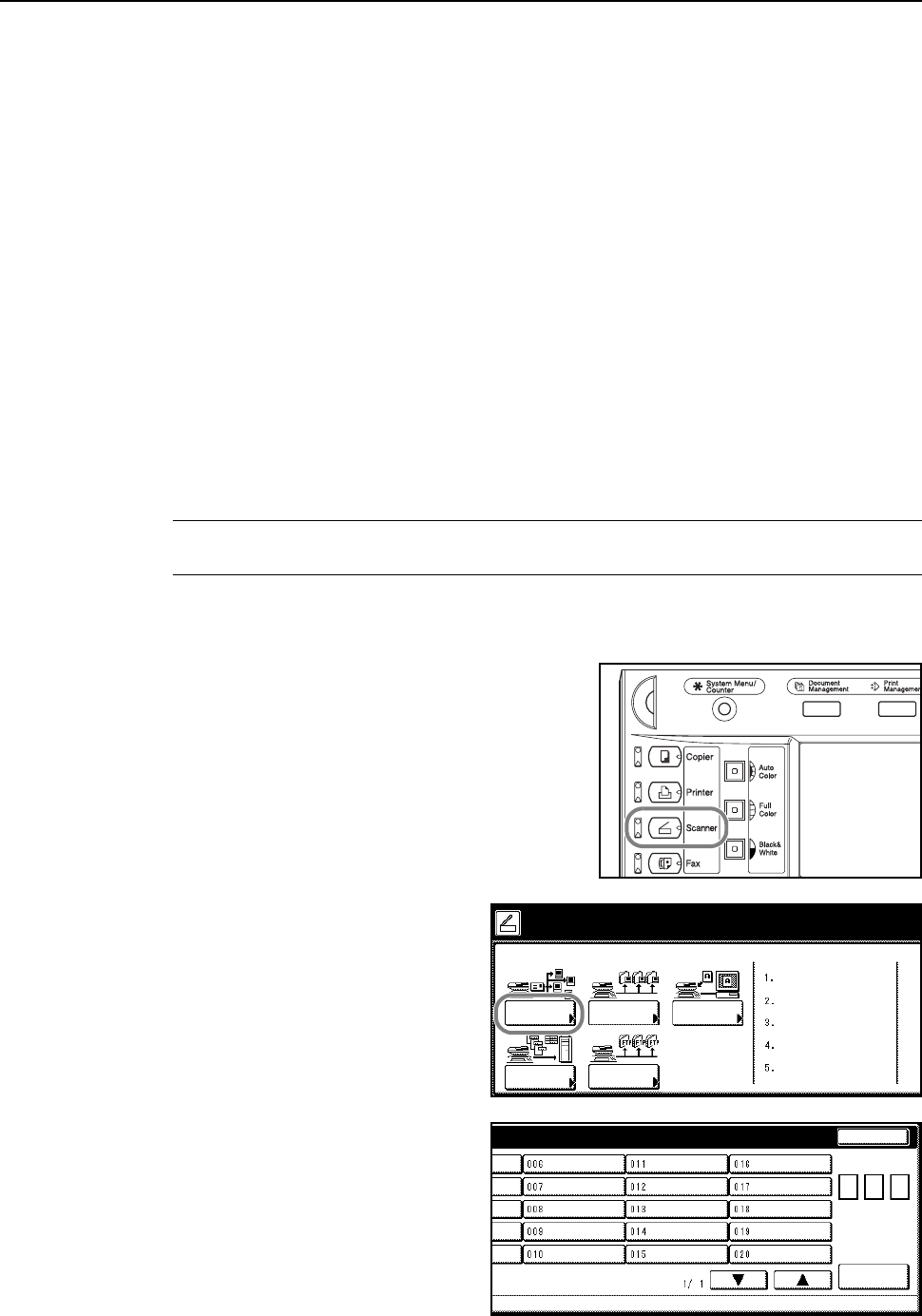
Basic Operation
3-20
Scanner Operation
This section explains basic scanner operation. The following 5 methods may be used to scan
originals.
• Scan an Image for Send E-mail...3-20
• Scan an Image for Scan to PC...3-23
• Scan an Image Using TWAIN...3-27
• Database Connection Setup...3-28
• Scan an Image for Scan to FTP...3-32
Scan an Image for Send E-mail
Use Send E-mail to send a scanned original image to an e-mail recipient as an attachment.
Before using Send E-mail
This operation requires the scanner SMTP to be set (see Scanner Basic Settings on page 2-32).
Also, the Registered Name and E-mail Address for the destination must also be registered (see
Registering User Information on page 2-34).
NOTE: refer to Modifying Common Address Book on page 2-35 for how to add to the Common
Address Book from the operation panel.
Scan an image for Send E-mail
1Press the Scanner key.
2Press [Send E-mail].
3Select a destination (user name). Either
press the number key or use the
numeric keys to enter the user number
and press [Enter].
Select scanner function.
Send
Database
Connection
Scan to PC TWAIN
Reca ll Pr ogr am
E-mail
08/08/’0
5
Scan to
FTP
Stop
n
ame.
User number
(with #key)
Enter
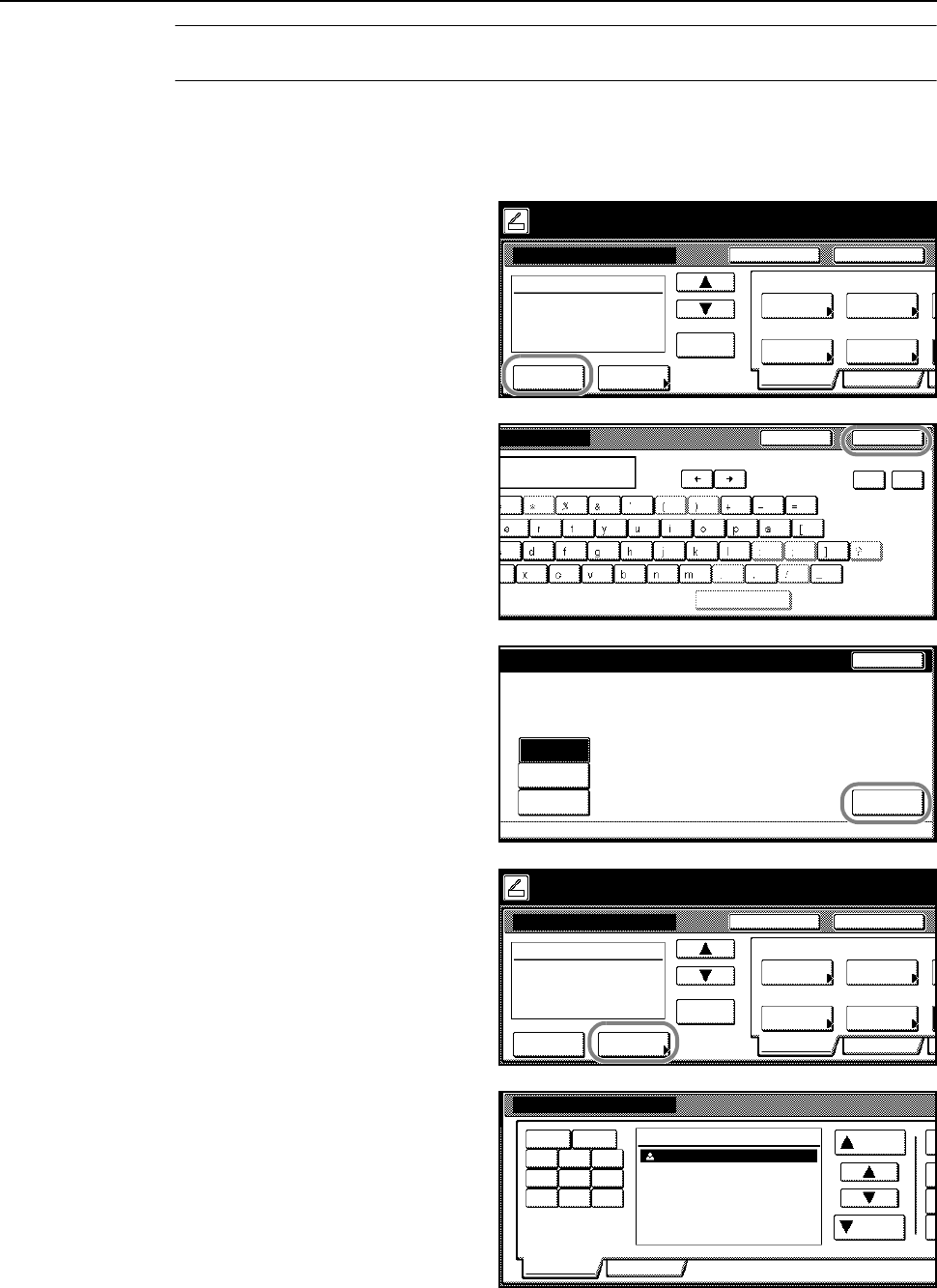
Basic Operation
3-21
NOTE: If the scanner default setting for Selec. of senders (users) is set to [On], user number 001
will automatically be selected.
If a password was entered when the user was registered, the password input screen is displayed.
Input the password and press [Enter]. If the password is correct, the scanner settings screen is
displayed.
4To input a mail address, press [Enter
dest.].
5Enter the e-mail address for the
destination (recipient). After inputting,
press [End] to display the sending
method screen.
6Select whether to send as [To:], [CC:], or
[BCC:] and press [Enter].
7Press [Address Book] to use a private
address book or common address book.
8Press [Common] ([Common book]) or
[Private] ([Private book]) to display the
destinations stored in the selected
address book. In this example a
destination is selected from the
Common Address Book.
Press [S] or [T] to select a destination
and select whether to send as [To:],
[CC:], or [BCC:].
When a destination is selected, an ⌧ is displayed next to it in the Select column to the right of the
Address column.
Place the original and select destination.
Send E-mail-Sending
Destination
Original
11×8½"
Address
Select
Auto
Scanning
Basi c Quality
Auto si ze
Select
Send Size
Top Edge
Ori g. Set
08/0
8
Book
Orig.Size Direction
Resol uti on
Ready to scan. ( )Full-Color
Cont. TX toRegister Prgrm
200dpi
Enter
dest.
Delete
End
s
Space
Char.Limit:64 letters including #
Back Del.
Stop
d
of receiver. StopBack
To:
CC:
BCC: Enter
Place the original and select destination.
Send E-mail-Sending
Destination
Original
11×8½"
Address
Select
Auto
Scanning
Basi c Quality
Auto si ze
Select
Send Size
Top Edge
Ori g. Set
08/0
8
Book
Orig.Size Direction
Resol uti on
Ready to scan. ( )Full-Color
Cont. TX toRegister Prgrm
200dpi
Enter
dest.
Delete
Address Book
Address Up
Down
User A
Select:
Common Pr ivate
1.Symbol 0-9
ABC DEF GHI
JKL MNO PQR
STU VWX YZ
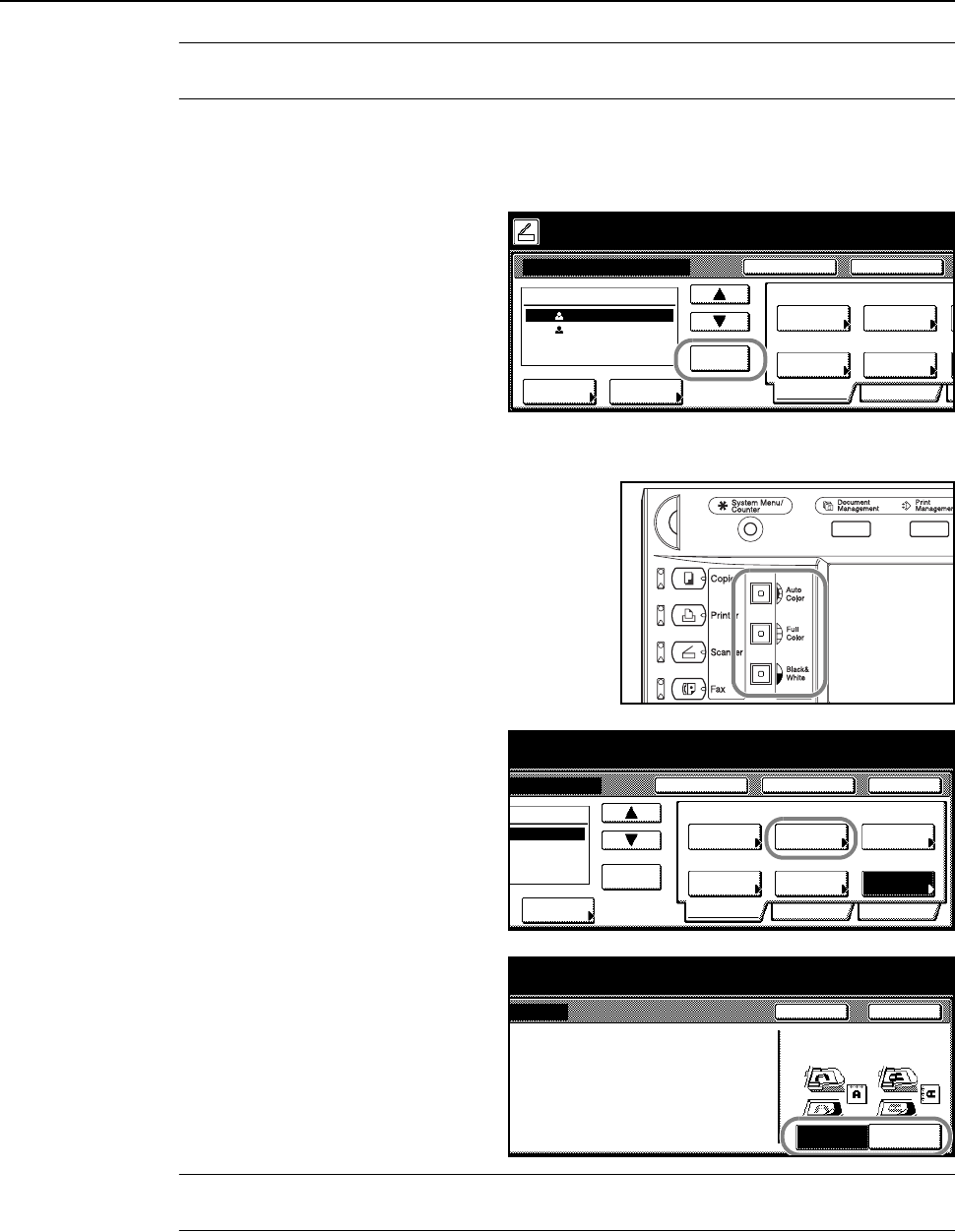
Basic Operation
3-22
NOTE: The private address book is not displayed if the Address Book for Scanner is not running on
the sender(user)’s computer.
9Confirm the destination(s) and press [Close].
Return to Step 4 to continue adding recipients.
10 Confirm the destination(s). Press [S] or
[T] to confirm that all selected
destinations are correct. Press [Delete] if
a selected destination is not needed.
Scanner Setup
11 Press the Auto Color, Full Color or Black&White key
to select a color mode.
12 The scanner setup screen is displayed
in the right side of the screen. Press the
appropriate keys to configure the various
settings. This section explains the setup
procedure using [Orig. Set Direction] as
an example.
Press [Orig. Set Direction].
13 If the original has been loaded with Top
edge set at the rear, select [Top Edge]
([Back Edge]). If the original has been
set to the left, press [Left Top Edge]
([Left top corner]). Press [Close] to save
the setting, or press [Back] to leave
settings as they are and return to the
screen shown in Step 10.
NOTE: The original may not be scanned correctly if original set direction is not correctly configured.
Be sure to confirm the original set direction when configuring the scanner.
Place the original and select destination.
Send E-mail-Sending
Destination
Original
11×8½"
Address
Select
Auto
Scanning
Basi c Quality
Auto size
Select
Send Size
Top Edge
Orig. Set
08/0
8
Book
Orig.Size Direction
Re so l uti o n
Ready to scan. ( )Full-Color
Cont. TX toRegister Pr grm
200dpi
Enter
dest.
Delete
User A
To:
To: User B
r
iginal and select destination.
Send
Cancel
e
nding
Original
11×8½"
Address
8½×11"
Select
Auto
Scanning
Basi c Quality Edi t
Auto size
Select
Send Size
JPEG
File Type
Top Edge
Orig. Set
08/08/’05 14:00
Book
Orig.Size Direction
Re so l uti o n
to scan. ( )Full-Color
Cont. TX toRegister Pr grm
Auto
200dpi
File Name
Input
Delete
A
B
Send
Back
Left Top
Select Original Image
Direction.
Top Edge
Close
t
ion
Original
"Check direction of or igi nal " shown at
right side of display. Follow the steps.
If setting mode is wrong, incorrect send
will result.
to scan.
Edge
( )Full-Color
08/08/’05 14:00
8½×11"11×8½"
r
iginal and select destination.
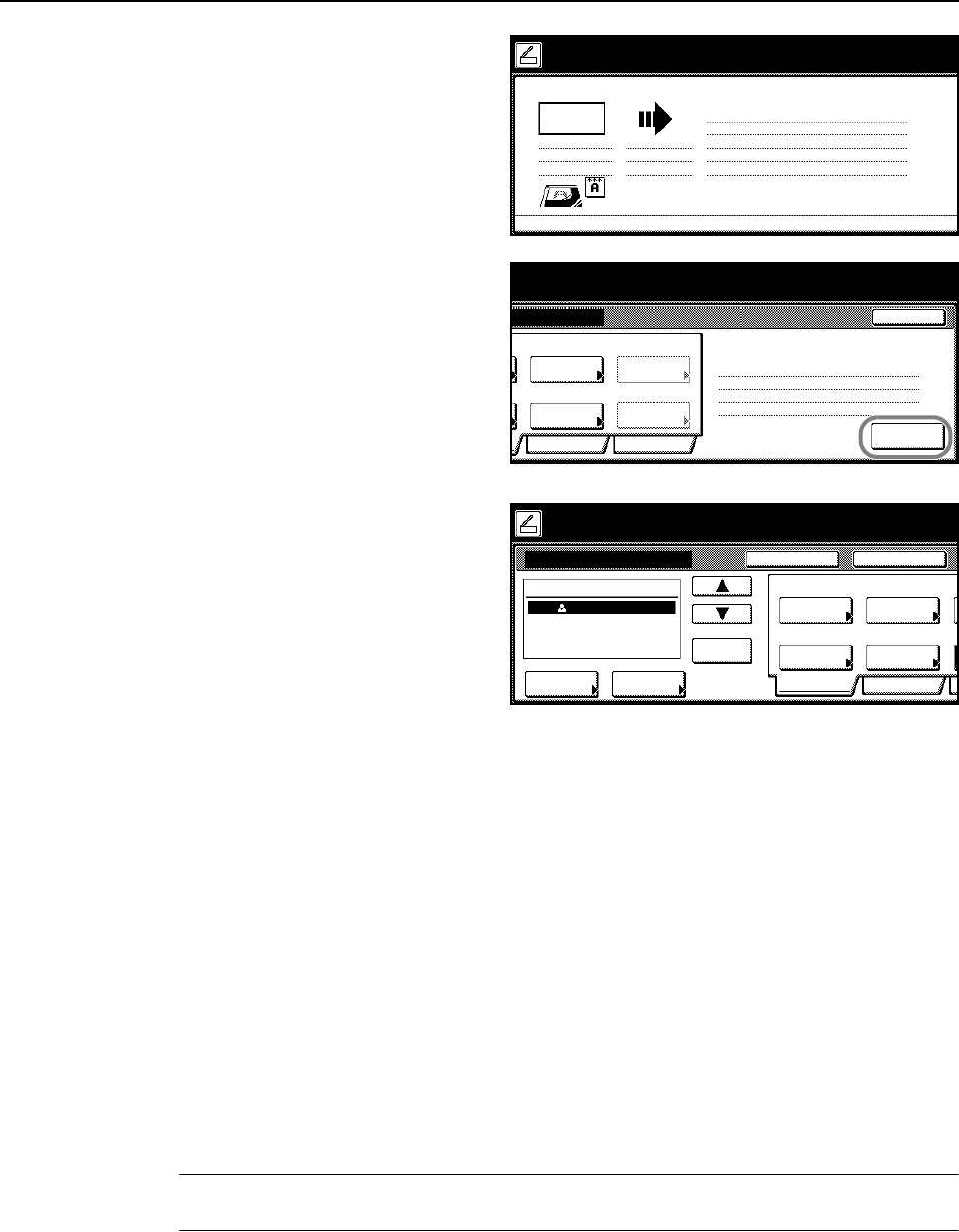
Basic Operation
3-23
14 Confirm settings, place the original, and
press the Start key.
Scanning of the original begins.
If continuous scan is enabled, proceed
to Step 15. If continuous sending is
enabled, proceed to Step 16.
15 If [Batch Scanning] is set to [On] from
[Edit] from the scanner settings screen,
after scanning is complete, a screen
prompt appears asking whether to
continue scanning or to finish.
To continue scanning, place the next
original, select scanner settings as
necessary and press the Start key.
When done, press [Scanning finished].
16 If [Continuous TX] is enabled from the
scanner settings screen, after a
transmission is complete, the scanner
settings screen is displayed with the
same settings used in the previous
transmission.
To continue, place the next original,
select scanner settings as necessary
and press the Start key.
To end the operation, press [Cancel] ([Job cancel]).
Scan an Image for Scan to PC
Use Scan to PC to save scanned original images as files to a folder on a computer. Access to this
feature is provided by installing the Scanner File Utility on the target computer.
Before using Scan to PC
Configure the following before using Scanner File Utility for the first time.
1Install Scanner File Utility on the sending computer.
2Launch Scanner File Utility and register the folders to save image files.
3From the operation panel, register the IP address of the target computer, a registration name and a
save number.
In the save number entry field, enter the same number (from 001-100) as registered for the save
folder in Scanner File Utility.
NOTE: Refer to Modifying Common Address Book on page 2-35 for how to add to the Common
Address Book from the operation panel.
Now scanning originals.
1 sided
Orig. Page
Top Edge
11×8½"
User name:
Send
SCAN0006_nnn.jpg
Send E-mail
8½×11"
08/0
8
UserA
.3
n
ning finished" key to finish scanning.
Cancel
Top Edge
Quality
Scanning
Edit
Original
200dpi
Orig. Set
Direction
Resol uti on
Page
Scanning
finished
r
igi nals and press star t key.
riginal(s).
08/08/’05 14:00
Step .2
1.
SCAN0004_nnn.jpg
JPEG
File Type
Auto
File Name
Input
Place the original and select destination.
Send E-mail-Continuous TX
Destination
Original
11×8½"
Address
Select
Auto
Scanning
Basi c Quality
Auto si ze
Select
Send Size
Top Edge
Ori g. Set
08/0
8
Book
Orig.Size Direction
Resol uti on
Ready to scan. ( )Full-Color
Single ScanRegister Prgrm
200dpi
Enter
dest.
Delete
User A
To:
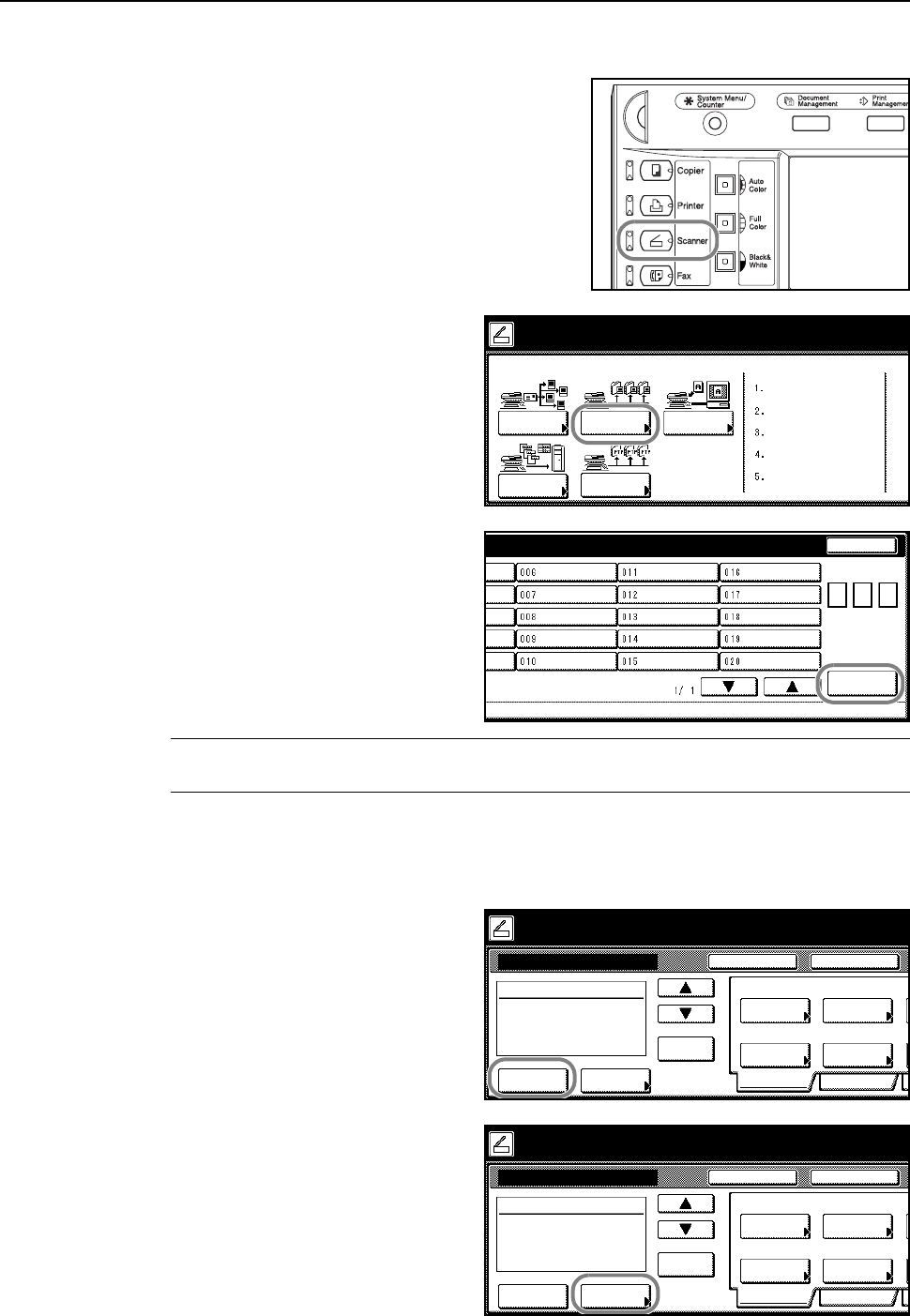
Basic Operation
3-24
Scanning an Image for Scan to PC
1Press the Scanner key.
2Press [Scan to PC].
3Select a destination (user name). Either
press the number key or use the
numeric keys to enter the user number
and press [Enter].
NOTE: If the scanner default setting for Selec. of senders (users) is set to [On], user number 001
will automatically be selected.
If a password was entered when the user was registered, the password input screen is displayed.
Input the password and press [Enter]. If the password is correct, the scanner settings screen is
displayed.
4To save a copy for the sender (user),
press [Save at User PC].
The sender (user) is displayed in the
destination column.
5Press [Address Book] to use a private
address book or common address book.
Select scanner function.
Send
Database
Connection
Scan to PC TWAIN
Reca l l Pr ogr am
E-mail
08/08/’0
5
Scan to
FTP
Stop
n
ame.
User number
(with #key)
Enter
Place the original and select destination.
Scan to PC-Sending
Destination
Original
11×8½"
Address
Select
Auto
Scanning
Basi c Quality
Auto size
Select
Send Size
Top Edge
Orig. Set
08/0
8
Book
Orig.Size Direction
Re so l uti o n
Ready to scan. ( )Full-Color
Cont. TX toRegister Pr grm
200dpi
Save at
User PC
Delete
Place the original and select destination.
Scan to PC-Sending
Destination
Original
11×8½"
Address
Select
Auto
Scanning
Basi c Quality
Auto size
Select
Send Size
Top Edge
Orig. Set
08/0
8
Book
Orig.Size Direction
Re so l uti o n
Ready to scan. ( )Full-Color
Cont. TX toRegister Pr grm
200dpi
Save at
User PC
Delete
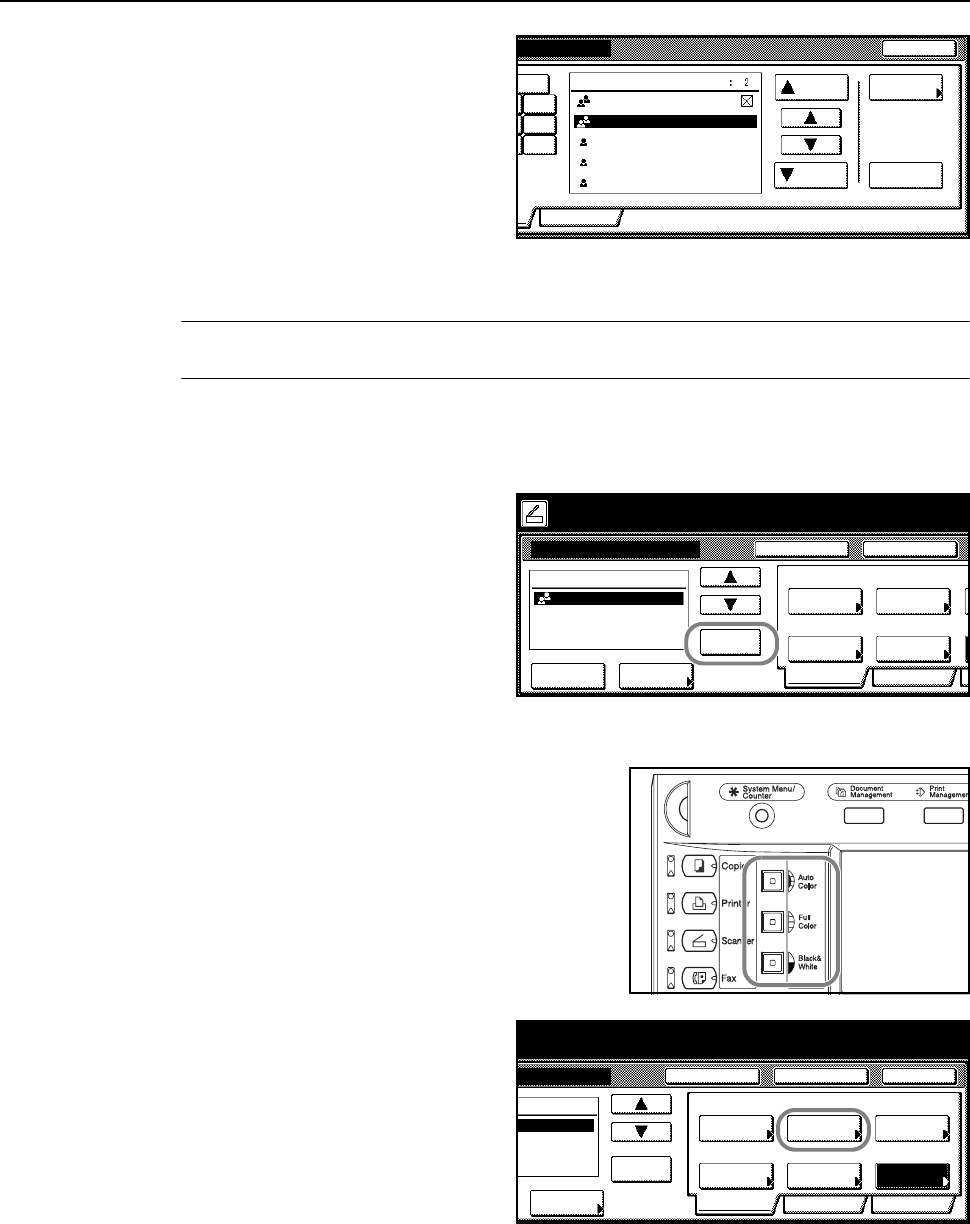
Basic Operation
3-25
6Press [Common] ([Common book]) or
[Private] ([Private book]) to display the
destinations stored in the selected
address book. In this example a
destination is selected from the
Common Address Book.
Press [S] or [T], select the desired
destination to be added and press
[Enter] ([Add dest.]).
When a destination is selected, an ⌧ is displayed next to it in the Select column to the right of the
Address column.
NOTE: The private address book is not displayed if the Address Book for Scanner is not running on
the sender(user)’s computer.
7Confirm the destination(s) and press [Close].
Return to Step 5 to continue adding recipients.
8Confirm the destination(s). Press [S] or
[T] to confirm that all selected
destinations are correct. Press [Delete] if
a selected destination is not needed.
Scanner Setup
9Press the Auto Color, Full Color or Black&White key
to select a color mode.
10 The scanner setup screen is displayed
in the right side of the screen. Press the
appropriate keys to configure the various
settings. This section explains the setup
procedure using [Orig. Set Direction] as
an example.
Press [Orig. Set Direction].
Close
Address Address
Properties
Up
Down
Group A
Select
Private
Enter
1.0-9
GHI
O
PQR
X
Group B
User A
User B
User C
Place the original and select destination.
Scan to PC-Sending
Destination
Original
11×8½"
Address
Select
Auto
Scanning
Basi c Quality
Auto si ze
Select
Send Size
Top Edge
Ori g. Set
08/0
8
Book
Orig.Size Direction
Resol uti on
Ready to scan. ( )Full-Color
Cont. TX toRegister Prgrm
200dpi
Save at
User PC
Delete
Group A
r
iginal and select destination.
Send
Cancelding
Original
11×8½"
Address
8½×11"
Select
Auto
Scanning
Basi c Quality Edi t
Auto size
Select
Send Size
JPEG
File Type
Top Edge
Orig. Set
08/08/’05 14:00
Book
Orig.Size Direction
Re so l uti on
to scan. ( )Full-Color
Cont. TX toRegister Prgrm
Auto
200dpi
File Name
Input
Delete
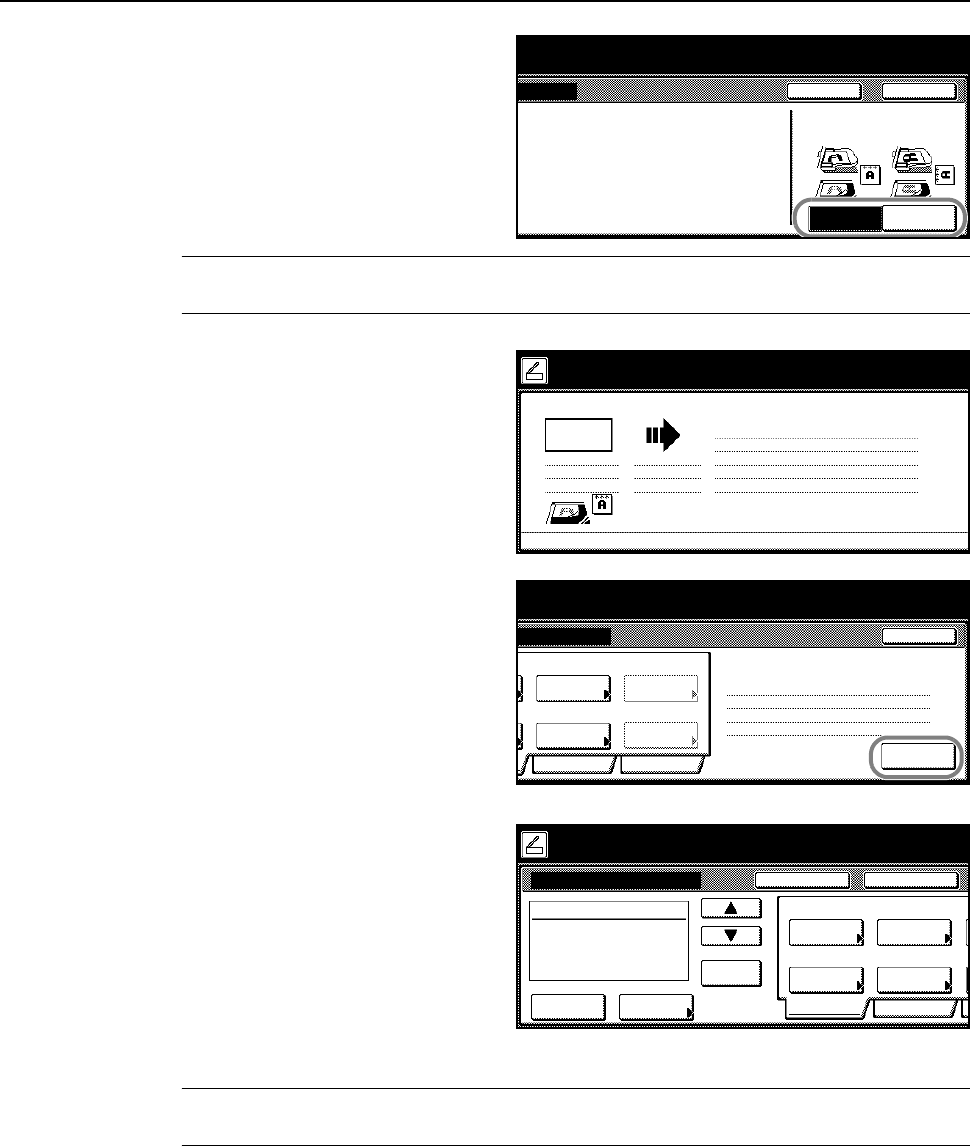
Basic Operation
3-26
11 If the original has been loaded with Top
edge set at the rear, select [Top Edge]
([Back Edge]). If the original has been
set to the left, press [Left Top Edge]
([Left top corner]). Press [Close] to save
the setting, or press [Back] to leave
settings as they are and return to the
screen shown in Step 8.
NOTE: The original may not be scanned correctly if original set direction is not correctly configured.
Be sure to confirm the original set direction when configuring the scanner.
12 Confirm settings, place the original, and
press the Start key.
Scanning of the original begins.
If continuous scan is enabled, proceed
to Step 13. If continuous sending is
enabled, proceed to Step 14.
13 If [Batch Scanning] is set to [On] from
[Edit] from the scanner settings screen,
after scanning is complete, a screen
prompt appears asking whether to
continue scanning or to finish.
To continue scanning, place the next
original, select scanner settings as
necessary and press the Start key.
When done, press [Scanning finished].
14 If [Continuous TX] is enabled from the
scanner settings screen, after a
transmission is complete, the scanner
settings screen is displayed with the
same settings used in the previous
transmission.
To continue, place the next original,
select scanner settings as necessary
and press the Start key.
To end the operation, press [Cancel] ([Job cancel]).
NOTE: If Permit File Overwrite is checked in Scanner File Utility, files with already existing names
will be overwritten. Exercise caution when inputting file names during Batch Scanning mode.
Send
Back
Left Top
Select Original Image
Direction.
Top Edge
Close
t
ion
Original
"Check direction of or igi nal " shown at
right side of display. Follow the steps.
If setting mode is wrong, incorrect send
will result.
to scan.
Edge
( )Full-Color
08/08/’05 14:00
8½×11"11×8½"
r
iginal and select destination.
Now scanning originals.
1 sided
Orig. Page
Top Edge
11×8½"
User name:
Send
SCAN0004_nnn.jpg
Scan to PC
8½×11"
08/0
8
UserA
.3
n
ning finished" key to finish scanning.
Cancel
Top Edge
Quality
Scanning
Edit
Original
200dpi
Orig. Set
Direction
Resol uti on
Page
Scanning
finished
r
igi nals and press star t key.
riginal(s).
08/08/’05 14:00
Step .2
.1
SCAN0005_nnn.jpg
JPEG
File Type
Auto
File Name
Input
Place the original and select destination.
Scan to PC-Continuous TX
Destination
Original
11×8½"
Address
Select
Auto
Scanning
Basi c Quality
Auto size
Select
Send Size
Top Edge
Orig. Set
08/0
8
Book
Orig.Size Direction
Re so l uti o n
Ready to scan. ( )Full-Color
Single ScanReg iste r Pr gr m
200dpi
Save at
User PC
Delete
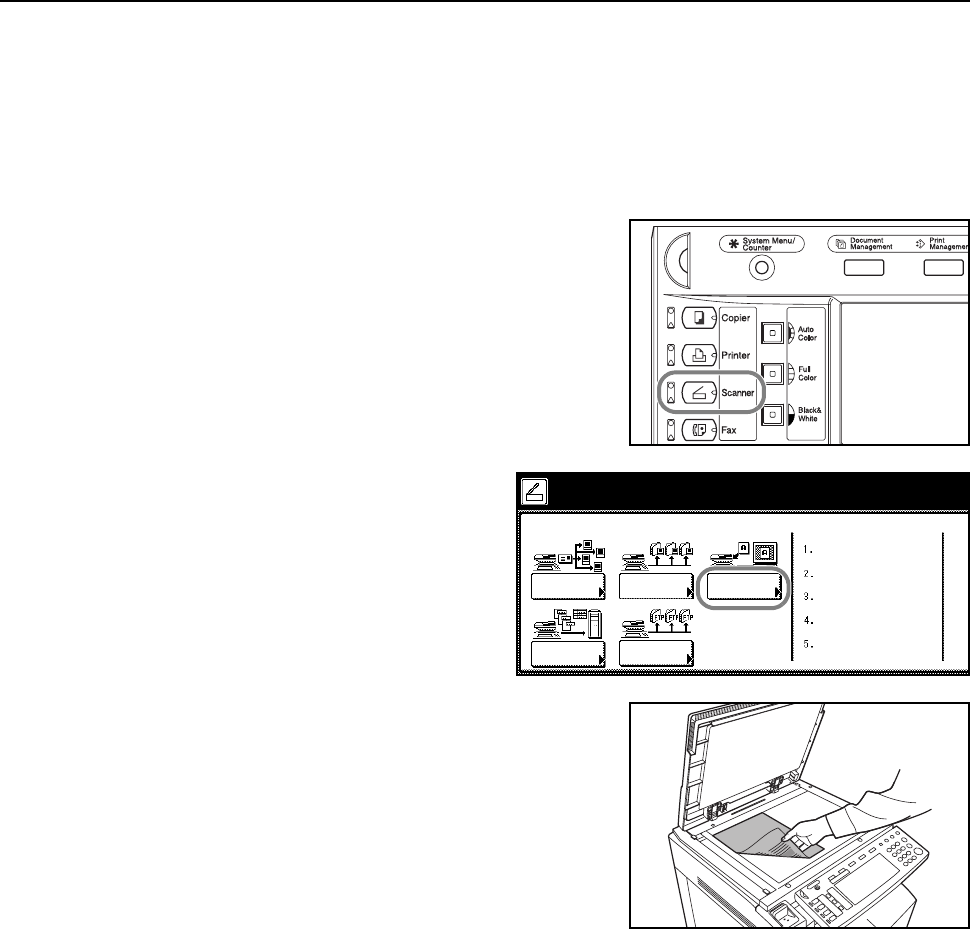
Basic Operation
3-27
Scan an Image Using TWAIN
TWAIN provides method to connect to the scanner from within TWAIN-compatible applications.
Install the TWAIN driver together with the application you plan to use. This section only explains the
settings to be made to the machine to enable TWAIN usage.
Initiating the Connection from the Machine
1Press the Scanner key.
2Press [TWAIN].
3Place the original.
4Launch TWAIN Source from your application.
The TWAIN Source main dialog box appears.
5Click the Scan. Setup button to confirm that this machine is selected.
If this machine is not selected, click the Edit button and input the IP address or host name, for the
scanner to be used, in Scanner Address, then click the OK button.
6Click the OK button.
7Make necessary settings here, click the Connect(s) button on the dialog box, and after connecting
to the scanner click the Scan button. Scanning begins.
Initiating the Connection from the Computer
1Launch TWAIN Source from your application.
The TWAIN Source main dialog box appears.
Select scanner function.
Send
Database
Connection
Scan to PC TWAIN
Recall Program
E-mail
08/08/’0
5
Scan to
FTP
Basic Operation
3-28
2Click the Scan. Setup button to confirm that this machine is selected.
If this machine is not selected, click the Edit button and input the IP address or host name, for the
scanner to be used, in Scanner Address, then click the OK button.
3Click the OK button.
4Make necessary settings here and check the Waiting Scan checkbox.
NOTE: Scanning begins after pressing the Start key on the operation panel while Waiting Scan is
checked.
5Click the Connect(s) button on the dialog box, and after connecting to the scanner click the Scan
button.
Connection may fail if the machine is currently starting up or in use. If this happens, press [TWAIN]
from the scanner function screen to enable TWAIN mode.
6At the machine, place the original, and press the Start
key to begin scanning.
NOTE: Configure various settings from the operation
panel. Change settings as necessary. If a setting is
changed from both the computer and from the
operation panel, the settings from the operation panel
take priority.
Database Connection Setup
When originals are converted to data, Database Connection allows text information to be added and
the data stored in a folder on a computer. The image transmission method is the same as Scan to
PC.
Before using Database Connection
Configure the following before using Database Connection.
1Install DB Assistant onto the administrator’s computer.
2Launch DB Assistant and configure Database Connection.
3Launch Scanner File Utility on the save destination computer and configure Database Connection.
In the save number entry field, enter the same number (from 001-100) as registered for the save
folder in Scanner File Utility.
The computer to which DB Assistant was installed and the computer to which Scanner File Utility
was installed must be pre-registered using from a web browser or the operation panel.
This section focuses on how to setup KM-DB Assist (functionality to add keywords as text data to
scanned images).
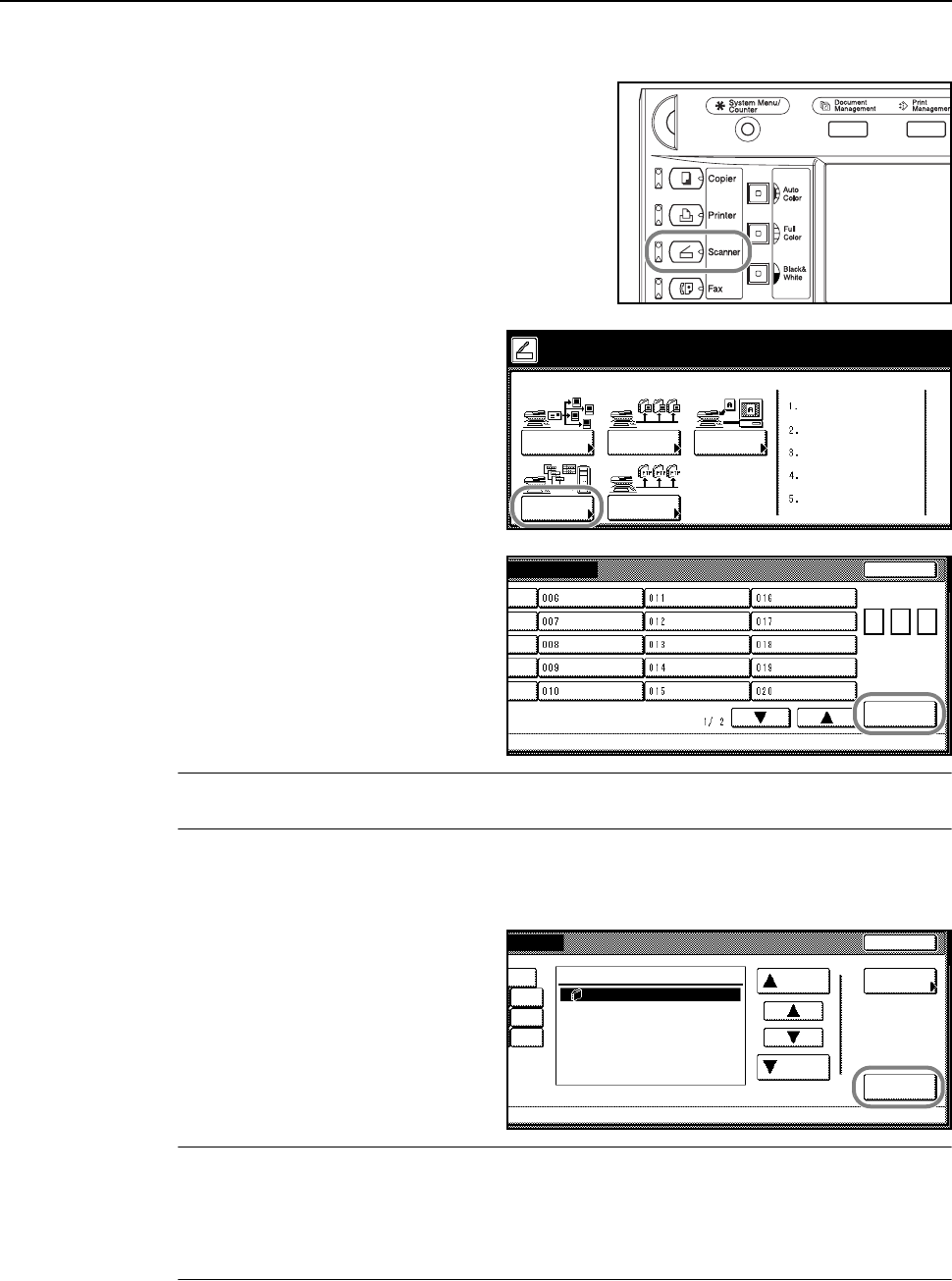
Basic Operation
3-29
Database Connection Setup
1Press the Scanner key.
2Press [Database Connection].
3Select a destination (user name). Either
press the number key or use the
numeric keys to enter the user number
and press [Enter].
NOTE: If the scanner default setting for Selec. of senders (users) is set to [On], user number 001
will automatically be selected.
If a password was entered when the user was registered, the password input screen is displayed.
Input the password and press [Enter].
4Select the input data source. Press [S]
or [T], select the desired input data
source, and press [Enter].
This section explains how to select
KM-DB Assist (functionality to add
keywords as text data to scanned
images).
NOTE: Press [S] or [T], select the input source verify and press [Information]. This screen allows
confirmation of details such as the IP address of the data input source PC and the save folder
number.
Password entry is required if DB Assist (functionality to create CSV files from scanned image files
and text data) is selected and a password has been set from DB Assistant,
Select scanner function.
Send
Database
Connection
Scan to PC TWAIN
Recall Program
E-mail
08/08/’0
5
Scan to
FTP
Stop
n
ection
User number
m
e.
(with #key)
Enter
Cancel
e
ction
on from the list.
Dest. of input data Infor-
mation
Enter
Up
Down
File A
0
-9
GHI
PQR
YZ
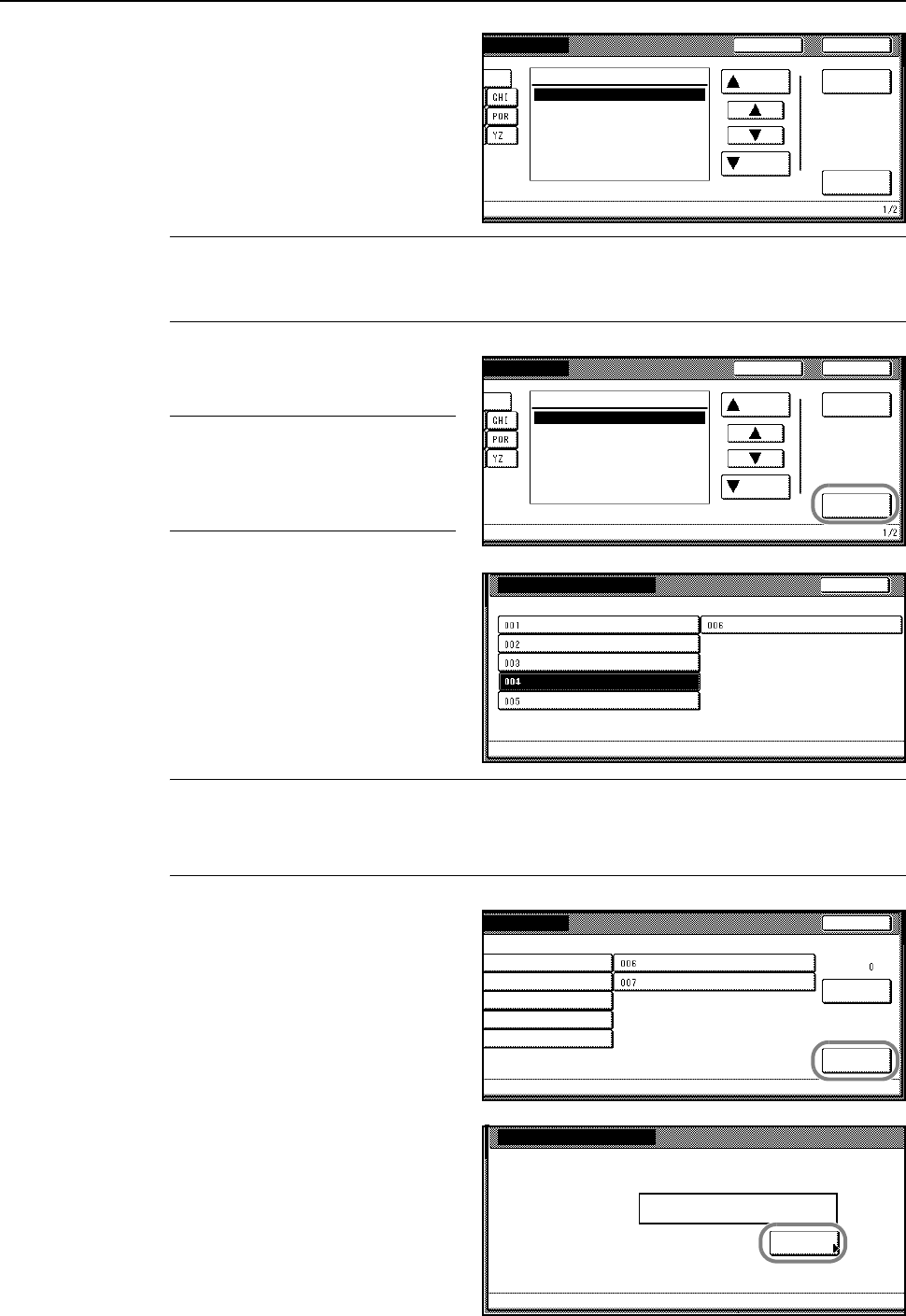
Basic Operation
3-30
5Select the save folder for the desired
image. From the folder selection screen,
to save the image to the currently
selected folder, press [Enter]. The text
data screen is displayed (Proceed to
Step 7). To save to a subfolder of the
selected folder, press [Change inp.
Folder]. The contents of the specified
folder are displayed.
NOTE: Folder names may not be displayed correctly if in the safe folder selection screen if the save
folder name contains a period ( . ) .
The input source cannot be modified from DB Assist.
6Press [S] or [T] to select the desired
save folder and press [Enter].
NOTE: To move to the next higher
folder level, select [up] and press
[Enter]. Folders higher than the folder
specified in Scanner File Utility cannot
be set as input sources.
7Select the item to register and press
[Enter]. The settings screen is displayed
for the selected item. Here, Keyword is
selected.
NOTE: Use File Name to change the filename for the scanned image.
Keyword, Subject, Creator, and Comment may all be saved as text data keywords.
The configuration items may vary if DB Assist Function has been selected.
8Select the keyword to add and press
[Enter].
To input a new keyword other than those
included with DB Assistant, select
(Other) after the item and press [Enter].
New keywords may be entered. To enter
new letters, press [Type letter].
Cancel
n
ation folder.
100\.Change
inp.Folder
0
-9
Enter
Up
Down
[100].
Back
Cancel
n
ation folder.
\100.Change
inp.Folder
0
-9
Enter
Up
Down
[up]
Back
[A].
[B].
[C].
[D].
File Information
Please select item for setting. 003-006 can be set for PDF only.
Indexing completed
File Name
Subject
Keywor d
Comment
Creator
Back
Cancel
w
ord.
Enter
1
2
3
4
5
Keyword6
Cancel al l
keywords
Select:
(Other)
New Keyword
Please enter new keyword.
Type
letter
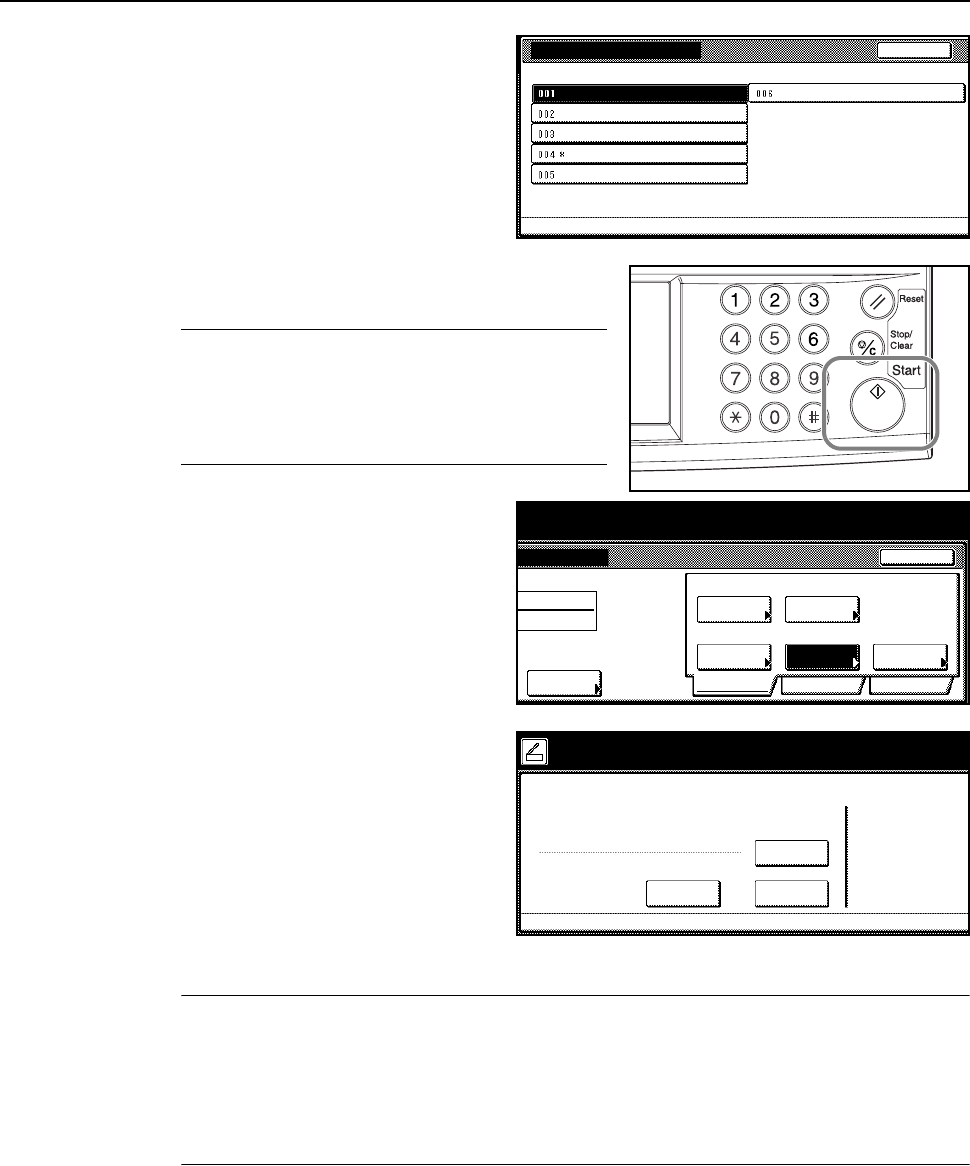
Basic Operation
3-31
9Changed items are identified with a *
mark. When satisfied with changes,
select Indexing complete and press
[Enter].
10 At the machine, place the original, and press the Start
key to begin scanning.
NOTE: Configure various settings from the operation
panel. Change settings as necessary.
If a setting is changed from both the computer and
from the operation panel, the settings from the
operation panel take priority.
To reconfigure text data input, press [Try
again input data].
To end the operation, press [Cancel]
([Job cancel]).
11 The following screen is displayed when
scanning is complete. To finish scanning
originals, press [Input data complete].
The KM-DB Assist function adds text the
previously registered text information
(keywords) to the scanned image and
saves to the specified folder.
The Database Assist function adds text
information from the scanned image as
a CSV file and save to the specified folder.
NOTE: To re-use the database connection, press [Sel. folder input data]. Follow Step 4 from
page 3-29.
To re-use the database connection with the same settings, press [Same mode input data]. Follow
Step 6 from page 3-30.
To re-use the database connection with the same Assist function selection, press [Input of new
data]. Follow Step 5 from page 3-30.
File Information
Please select item for setting. 003-006 can be set for PDF only.
Indexing completed
File Name
Subject
Keywor d
Comment
Creator
Back
als then press Start key.
Send
Cancel
e
ction
Original
11×8½"
a
ta
Try again
8½×11"
Select
Auto
Scanning
Basic Quality Edit
Auto si ze
Select
Send Size
PDF
File Type
Top Edge
Orig. Set
input data
Orig.Size Direction
Re so l uti o n
to scan. ( )Full-Color
200dpi
08/08/’05 14:00
Select the method to continue
Dest. of input data:
Input of
new data
08/0
8
How-continue
User name:
Sel.folder
input data
Same mode
input da ta
Press 'Input data complete'key.
File A
001.
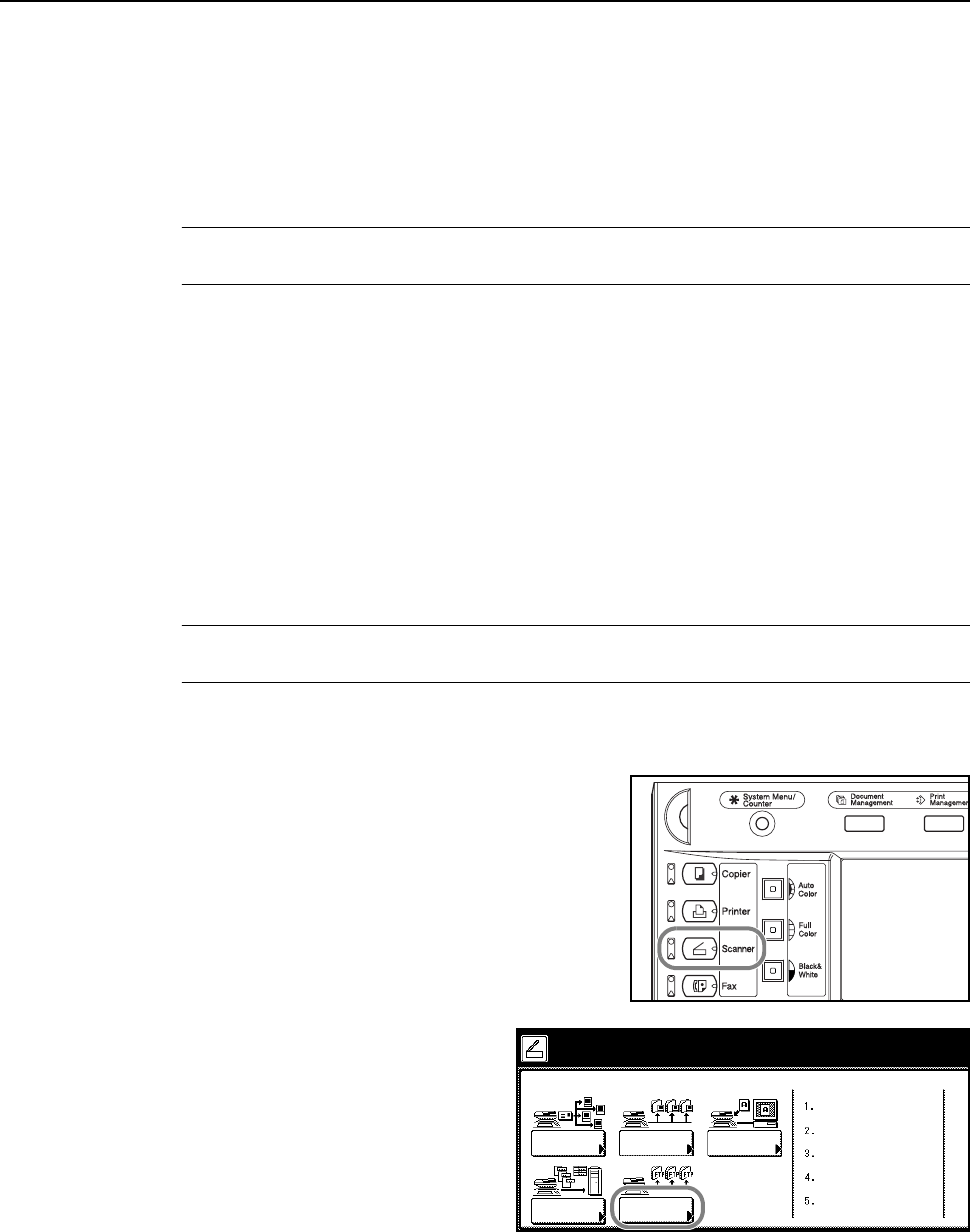
Basic Operation
3-32
Scan an Image for Scan to FTP
Scan FTP is a feature that converts original data scanned using the machine to PDF or TIFF format
data and uploads directly to an FTP server.
Up to 10 destination FTP servers can be saved and data can be simultaneously uploaded to those
10 saved FTP servers.
If you already have a running FTP server, no additional software is necessary.
IMPORTANT: Connection to servers outside the local area network (LAN) may fail due to network
configuration.
Before using Scan to FTP
Before using Scan to FTP, confirm with your administrator the credentials to access the FTP server
and save these to the machine.
• User name
• Password
• FTP Server hostname or IP address
• Port number (Usually 21)
• Path (Path from the FTP server home directory to the save folder)
NOTE: Refer to Modifying Common Address Book on page 2-35 for how to add to the Common
Address Book from the operation panel.
Scanning an image for Scan to FTP
1Press the Scanner key.
2Press [Scan to FTP].
Select scanner function.
Send
Database
Connection
Scan to PC TWAIN
Reca ll Pr ogr am
E-mail
08/08/’0
5
Scan to
FTP
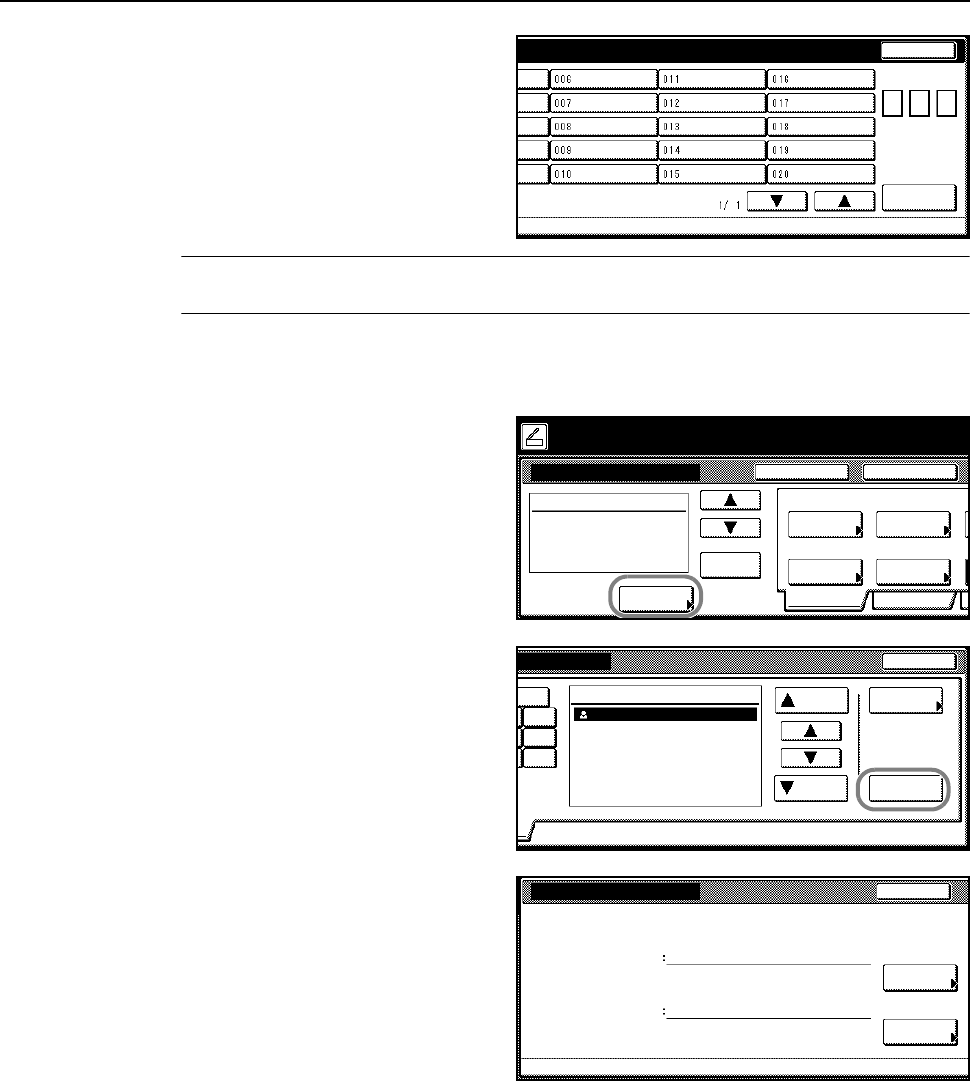
Basic Operation
3-33
3Select a destination (user name). Either
press the number key or use the
numeric keys to enter the user number
and press [Enter].
NOTE: If the scanner default setting for Selec. of senders (users) is set to [On], user number 001
will automatically be selected.
If a password was entered when the user was registered, the password input screen is displayed.
Input the password and press [Enter].
4Press [Address Book].
5Press [S] or [T], select the desired
destination FTP server and press [Enter]
([Add dest.]). Log in to the destination
FTP Server.
When a destination is selected, an ⌧ is
displayed next to it in the Select column
to the right of the Address column.
6If destination FTP server is selected
where in Skip Auth. info Input (Modifying
Common Address Book on page 2-35)
has been set to [Off], at the following
step enter the usename and password
and press [Close].
Username entry
1Press [Change #] for the username.
2Input the username.
3Press [End].
Password entry
1Press [Change #] for the password.
2Enter the password.
3Press [End].
7Press [Close].
Stop
n
ame.
User number
(with #key)
Enter
Place the original and select destination.
Scan to FTP-Sending
Destination
Original
11×8½"
Address
Select
Auto
Scanning
Basi c Quality
Auto si ze
Select
Send Size
Top Edge
Ori g. Set
08/0
8
Book
Orig.Size Direction
Resol uti on
Ready to scan. ( )Full-Color
Cont. TX toRegi ste r Pr gr m
200dpi
Delete
Close
Address Address
Properties
Up
Down
FTP01
Select:
Enter
0.0-9
GHI
O
PQR
X
YZ
User Name & Password
On
Back
Cha nge #
Cha nge #
Password
User name
Destination :ftp001
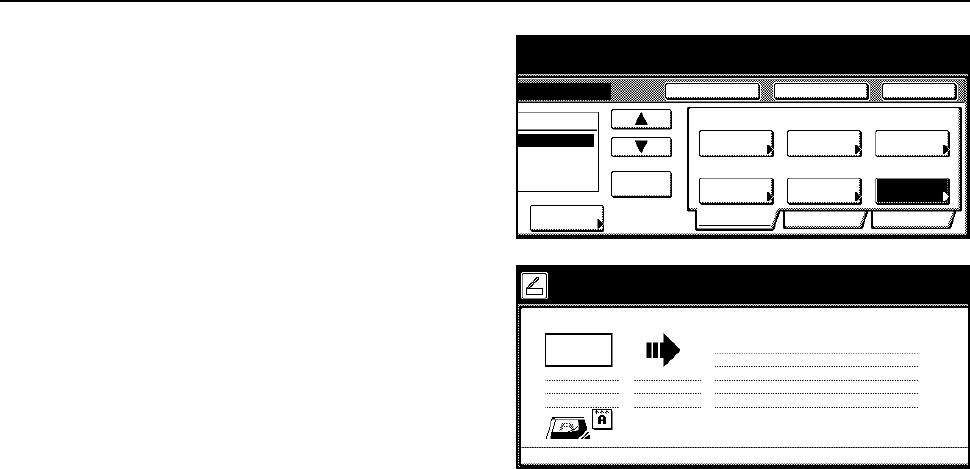
Basic Operation
3-34
8Configure the scan settings.
9Place the original and press the Start
key. Scanning of the original begins.
After scanning is complete, the machine
uploads the scanned data to the
destination FTP server(s).
r
iginal and select destination.
Send
Cancelnding
Original
11×8½"
Address
8½×11"
Select
Auto
Scanning
Basi c Quality Edi t
Auto size
Select
Send Size
JPEG
File Type
Top Edge
Orig. Set
08/08/’05 14:00
Book
Orig.Size Direction
Re so l uti o n
to scan. ( )Full-Color
Cont. TX toRegister Pr grm
Auto
200dpi
File Name
Input
Delete
Now scanning originals.
1 sided
Orig. Page
Top Edge
11×8½"
User name:
Send
SCAN0004_nnn.jpg
Scan to FTP
8½×11"
08/0
8
UserA
3.
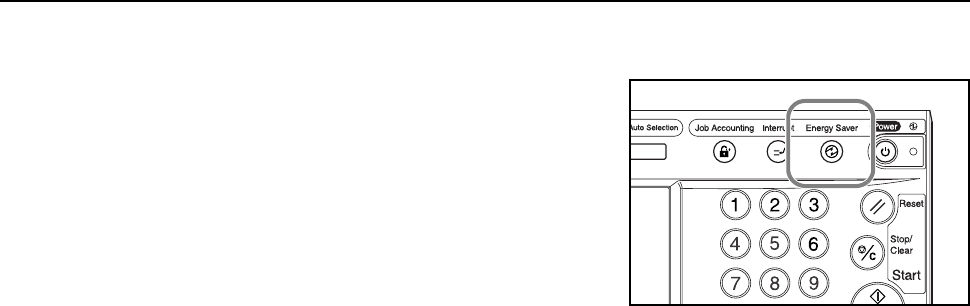
Basic Operation
3-35
Low-Power Mode
To activate Low-Power mode, press the Energy Saver
key.
On the operation panel, only the Energy Saver,
Power, and main power indicators will remain lit.
The machine automatically wakes and begins printing
if print data is received during Low-Power mode. If the
optional fax is installed, the machine also wakes up
and begins printing when a fax is received.
To resume copying, perform one of the following
actions. The machine returns to a copy-ready
condition.
• Press any key on the operation panel.
• Open the original platen or the optional document processor.
• Place originals in the optional document processor.
The machine will resume copy functionality in 10 seconds.
Auto Low-Power Mode
In Auto Low-Power mode, the machine automatically switches to Low-Power mode if left idle for a
preset period. The default period for Auto Low-Power mode is 15 minutes.
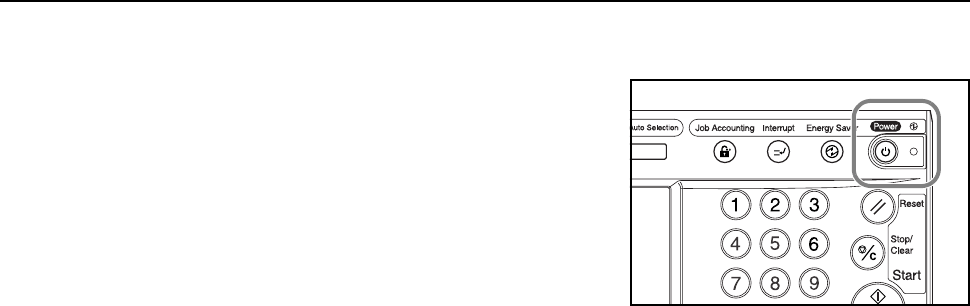
Basic Operation
3-36
Sleep Mode
To activate Sleep mode, press the Power key.
On the operation panel, only the Main Power indicator
will remain lit. The machine will use much less power
than Low-Power mode.
Without illuminating the operation panel, printing
begins automatically if print data is received during
Sleep mode. If the optional fax is installed, the machine
also wakes up and begins printing when a fax is
received, without illuminating the operation panel.
To resume copying, press the Power key again. The
machine will resume copy functionality in 45 seconds.
Auto Sleep Mode
In Auto Sleep mode, the machine automatically switches to Sleep mode if left idle for a preset
period. The default period for Auto Sleep mode is 45 minutes.
4-1
4 Optional Equipment
This chapter introduces the optional equipment available for the machine.
• Overview of Optional Equipment...4-2
• Document Processor...4-4
• Paper Feeder...4-4
• 3000 Sheet Paper Feeder...4-4
• Document Finisher...4-5
• 3000 Sheet Document Finisher...4-5
• Job Separator...4-5
• Key Counter...4-6
• Fax Kit...4-6
• Memory Card (CompactFlash)...4-6
• Hard Disk...4-7
• Additional Memory...4-7
• Security Kit...4-7
• Network Interface Card...4-8
• Serial Interface...4-8
• PDF Upgrade Kit...4-8
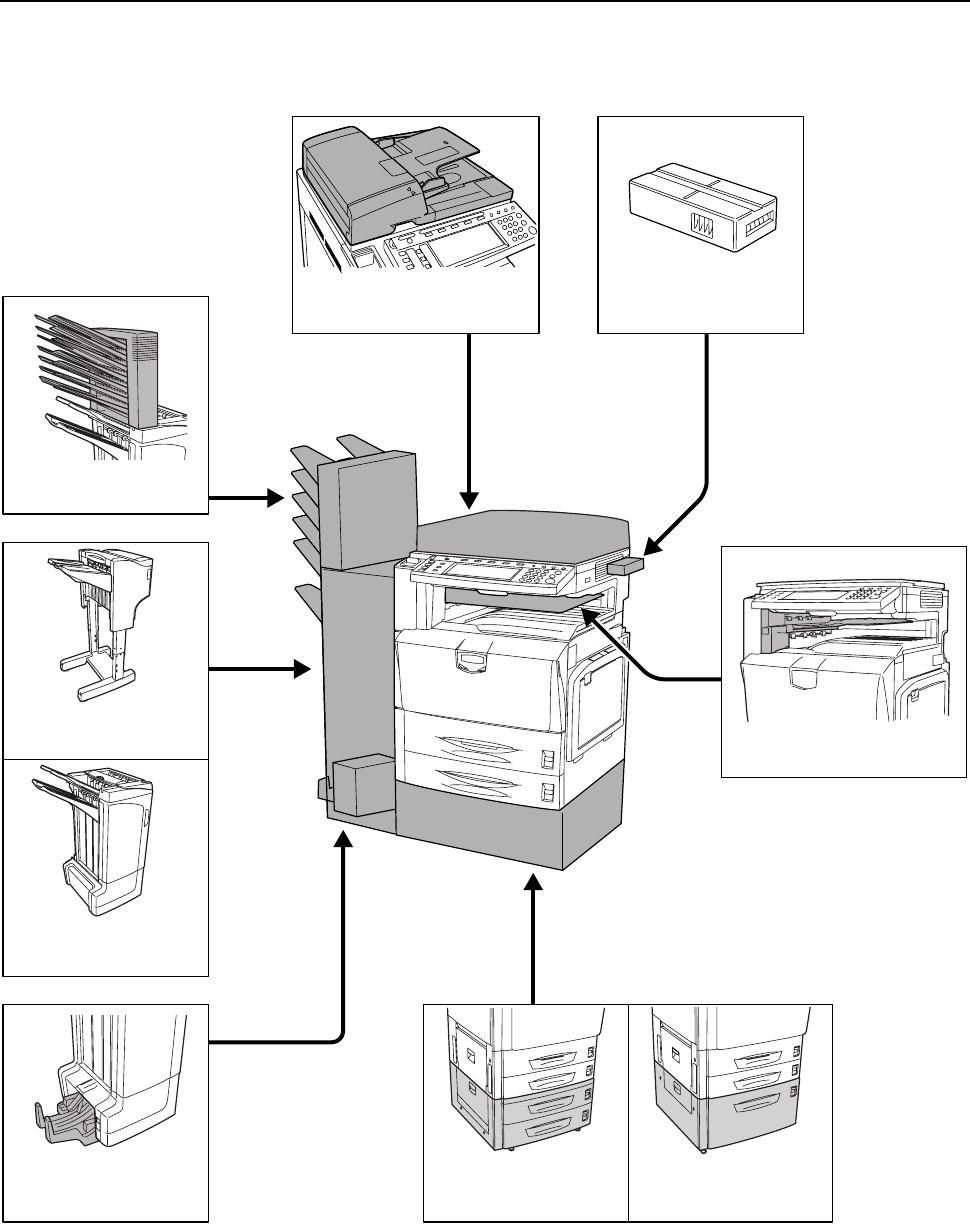
Optional Equipment
4-2
Overview of Optional Equipment
The following optional equipment is available for the machine.
Key Counter
Folding Unit
Document Finisher
Document Processor
Mailbox
Job Separator
Paper Feeder
3000 Sheet Paper
Feeder
3000 Sheet Document
Finisher
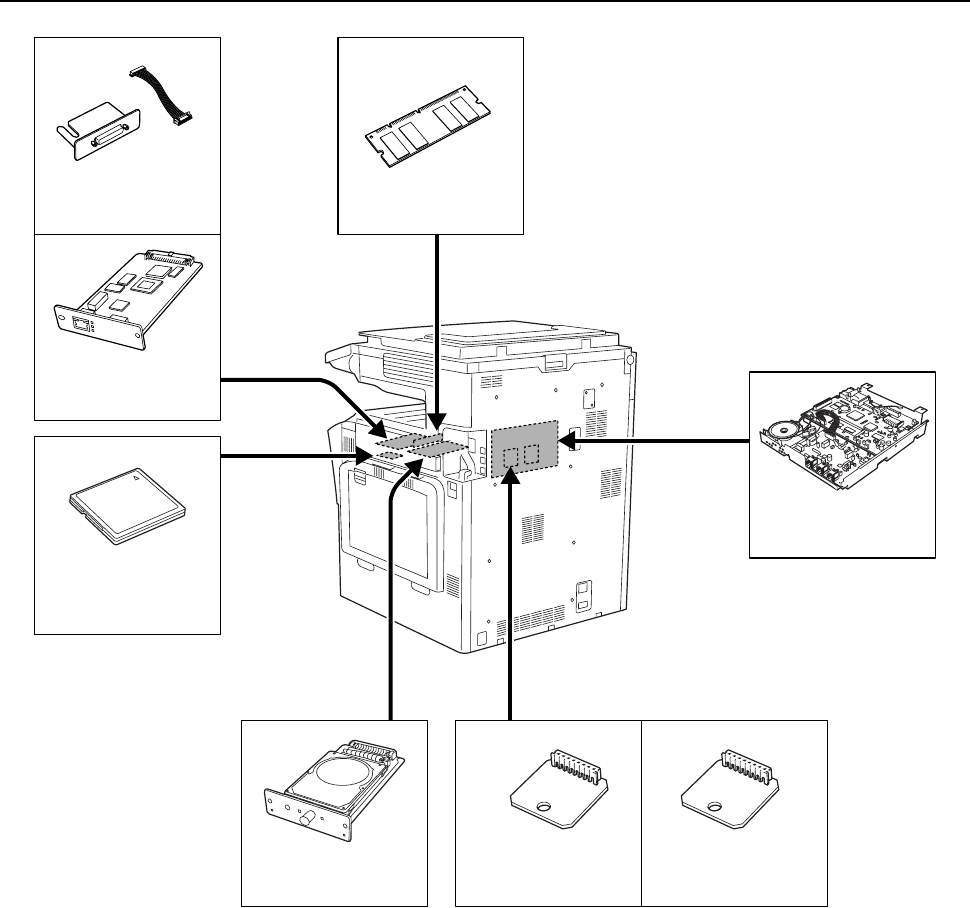
Optional Equipment
4-3
Additional Memory
Fax Kit
Network Interface
Card
Serial Interface
PDF Upgrade KitSecurity Kit
Memory Card
(CompactFlash)
Hard Disk
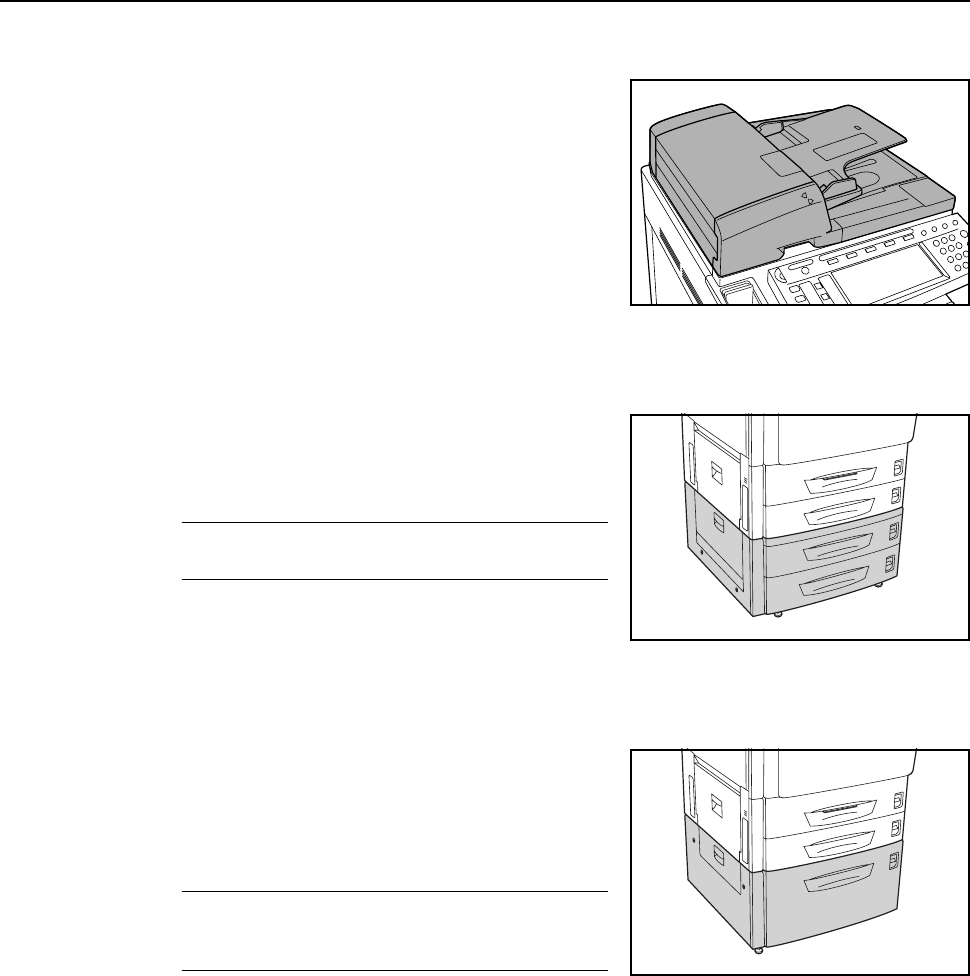
Optional Equipment
4-4
Document Processor
Automatically scans each page of single sided
originals. Also automatically flips over 2-sided originals
for duplex copying and split copying. For document
processor usage operation, see Loading Originals in
the Document Processor (option) on page 2-18.
Paper Feeder
Add an additional 2 paper cassettes like Cassette 2 of
the main unit. Paper capacity and loading method is the
same as Cassettes 1 and 2. See Loading Paper into
Cassette 1, 2 on page 2-2.
NOTE: Left cover 3 is located on the left side of the
paper feeder for use in clearing paper jams.
3000 Sheet Paper Feeder
In addition to the standard cassettes, a 3,000 sheet
paper feeder can be added which holds 3,000 sheets of
11 × 8 1/2" or A4 paper.
See Loading Paper into 3000 Sheet Paper Feeder on
page 2-4 for paper loading operation.
NOTE: Left cover 3 is located on the left side of the
3,000 sheet paper feeder for use in clearing paper
jams.
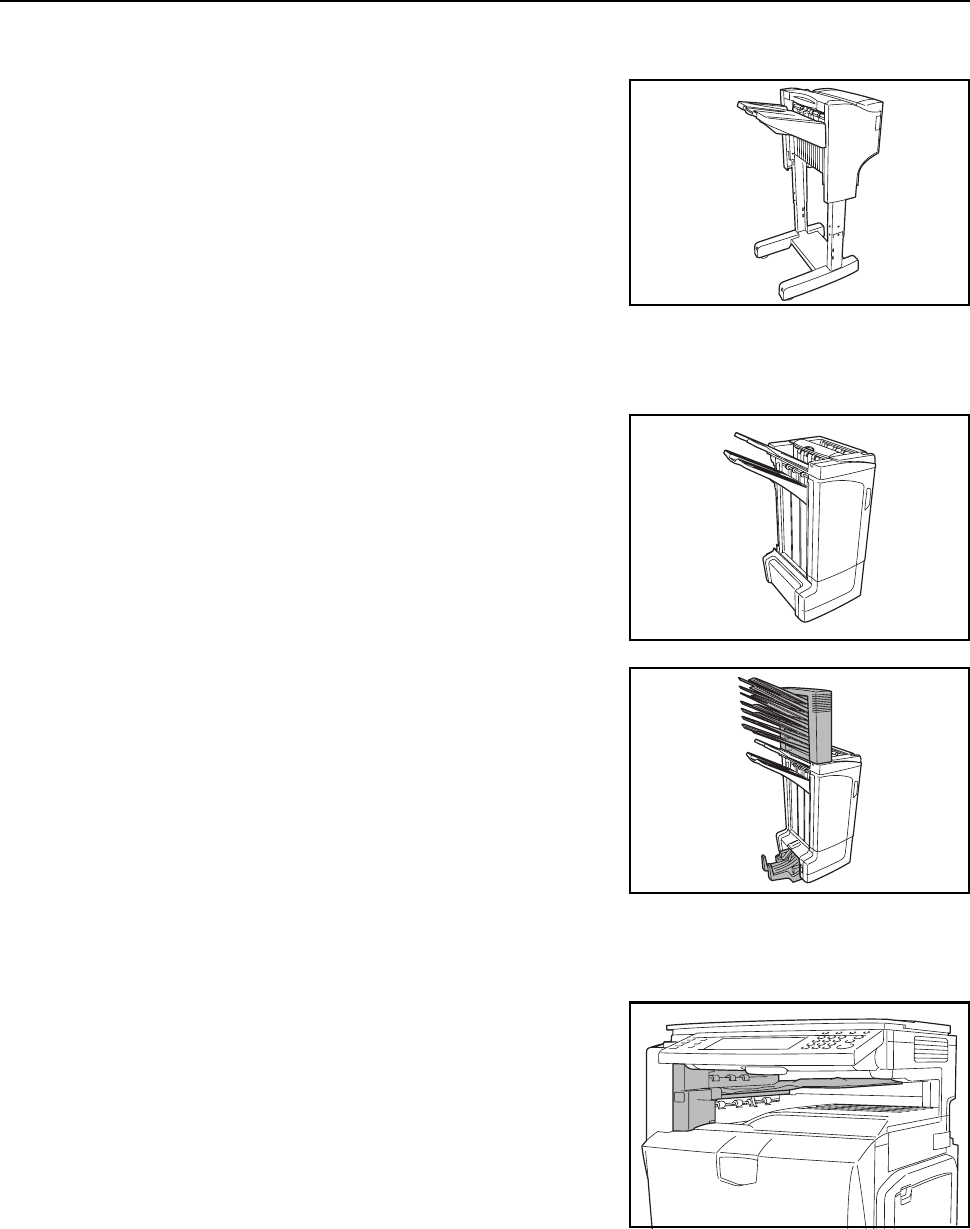
Optional Equipment
4-5
Document Finisher
The document finisher holds a large quantity of finished
copies. The finisher offers a convenient means of
sorting. Sorted finished copies may also be stapled.
For further details, refer to the document finisher
Operation Guide.
3000 Sheet Document Finisher
The document finisher holds a large quantity of finished
copies. The finisher offers a convenient means of
sorting. It can also staple finished sets and punch holes
if equipped with the appropriate optional accessories.
For further details, refer to the 3000 sheet document
finisher Operation Guide. Other options include the
mailbox and folding unit. (See images below.)
Job Separator
Separates paper according to output destination for
easier sorting. Specify an output destination for copy or
print jobs. Or, specify the default mode output
destination for copying or faxing with the optional fax
kit.
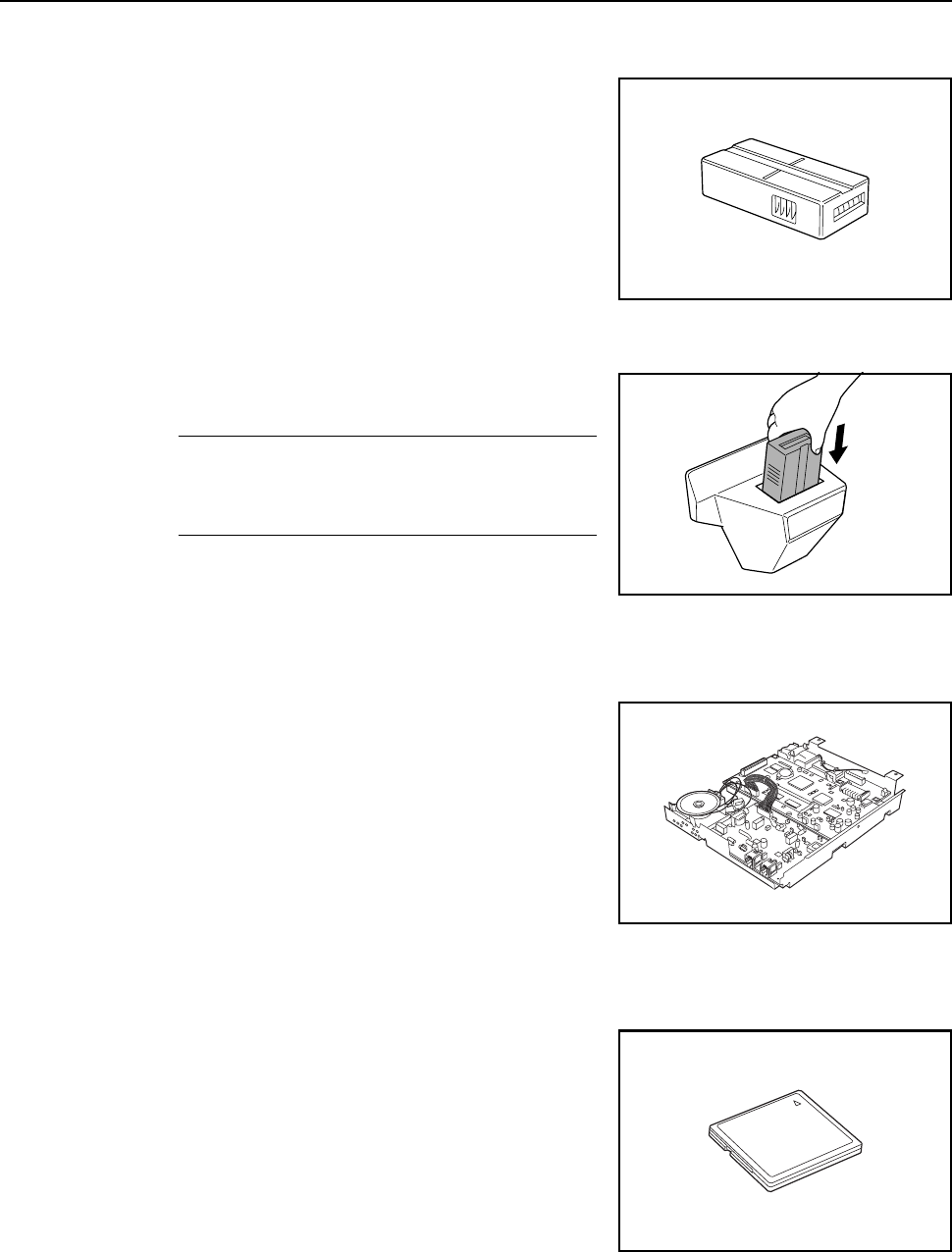
Optional Equipment
4-6
Key Counter
Use the key counter to monitor machine usage. The
key counter offers a convenient solution for centralized
management of copy volume for different departments
in a large company.
Inserting the Key Counter
Insert the key counter securely into the key counter
slot.
NOTE: When the key counter function is activated,
copies can only be made when a key counter is
inserted into the machine. If the key counter is not
inserted securely, Insert key counter will be displayed.
Fax Kit
By installing the fax kit, fax send/receive is enabled.
Also, it is possible to use it as a network fax, by using it
with a computer. For further details, refer to the Fax kit
Operation Guide.
Memory Card (CompactFlash)
A microchip card for storing optional fonts, macros or
forms. Insert into the memory card slot on the
machine’s right side.
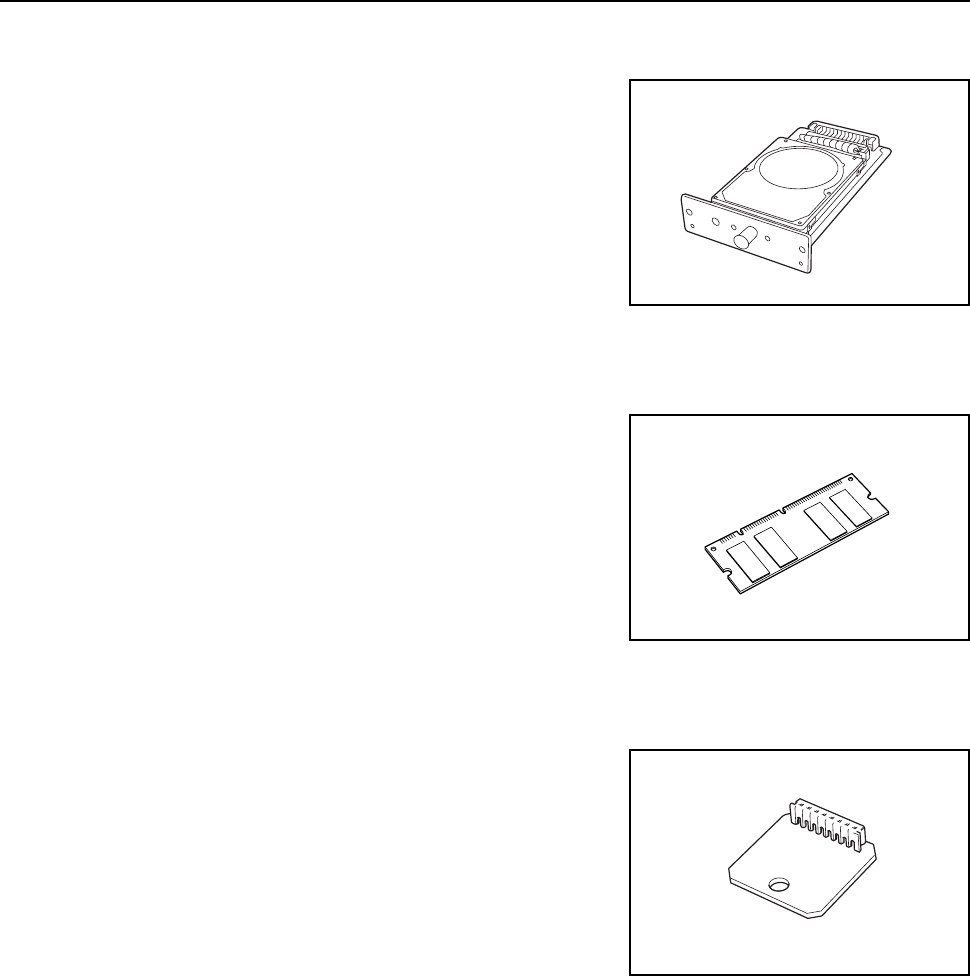
Optional Equipment
4-7
Hard Disk
The hard disk is used to store print queue data. Also,
the hard disk is required to use all e-MPS functionality.
Additional Memory
Increase the memory available to the printer. Additional
memory enables printing more complex data. An
additional 128 MB, 256 MB or 512 MB may be added.
Security Kit
This machine functions by temporarily storing scanned
data on an internal hard disk. After being used for
copying, this data is not accessible from the operation
panel, but a record of the data remains on the hard disk
until it is overwritten by other data. Thus, the data could
conceivably be retrieved by accessing the hard disk
using specialized tools.
For greater security, the security kit prevents this by
overwriting all unnecessary data in the storage area of
the hard disk so that it cannot be retrieved.
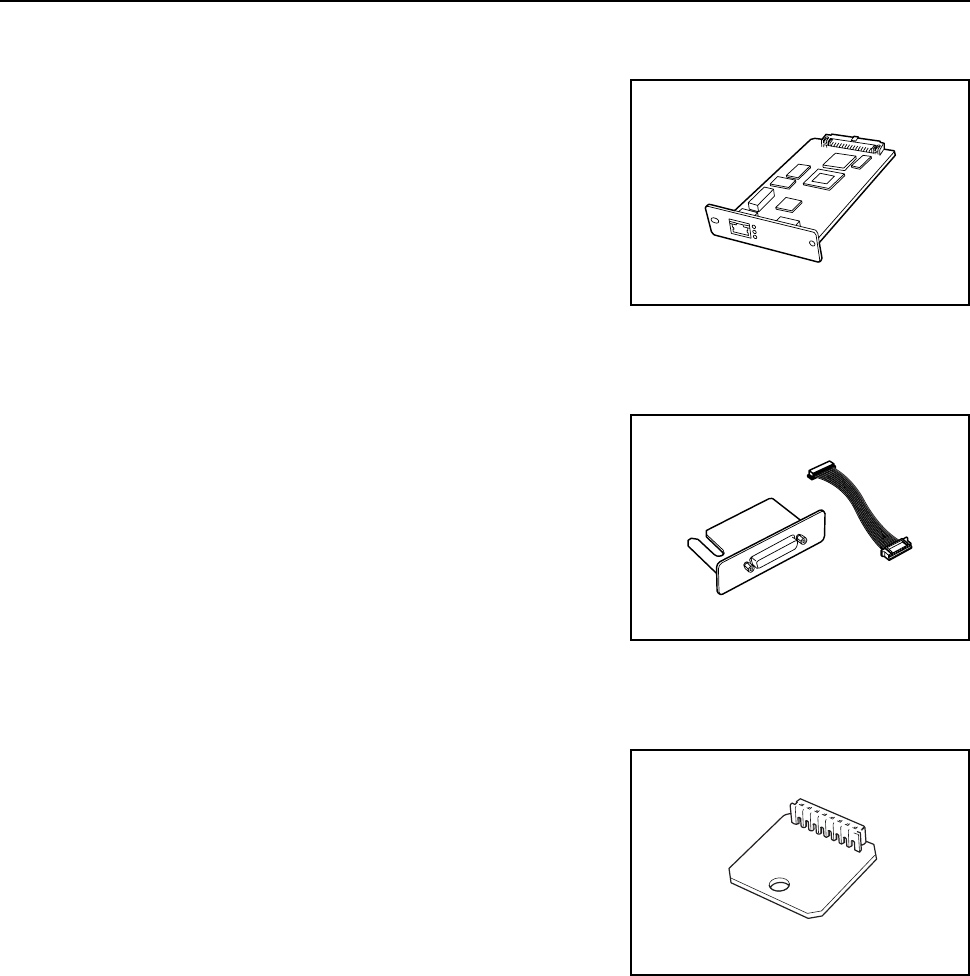
Optional Equipment
4-8
Network Interface Card
Like the machine’s standard network interface, the
network interface card supports TCP/IP, IPX/SPX,
NetBEUI and EtherTalk protocols to enable network
printing for Windows, Macintosh, UNIX, Netware and
other environments.
Serial Interface
Install for connecting to printers with serial port
interfaces. Supports the RS-232C serial interface.
PDF Upgrade Kit
When saving scanned originals as PDF files, enables
the creation of high compression PDF files and PDF
encryption.
Use PDF file encryption to customize password-based
rights access.
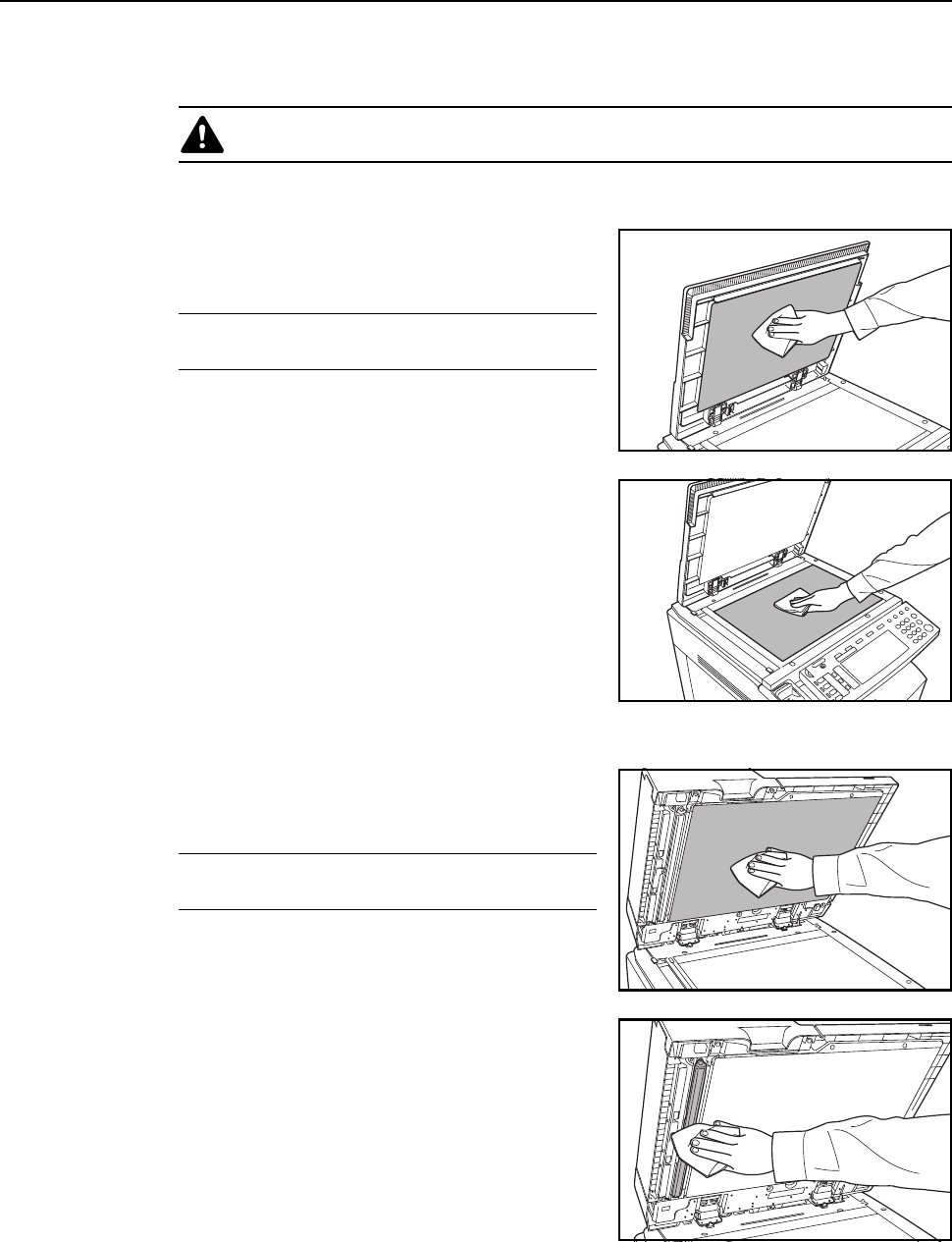
Maintenance
5-2
Cleaning
Clean the machine regularly to ensure optimum copy quality.
Original Platen and Platen
Open the document processor. Wipe the platen and
the backside of the document processor with a soft
cloth dampened with alcohol or mild detergent.
IMPORTANT: Do not use thinner or other organic
solvents.
Document Processor (option)
Open the document processor. Wipe the backside of
the document processor and the white rollers with a
soft cloth dampened with alcohol or mild detergent.
IMPORTANT: Do not use thinner or other organic
solvents.
Caution: For safety, always unplug the power cord before cleaning the machine.
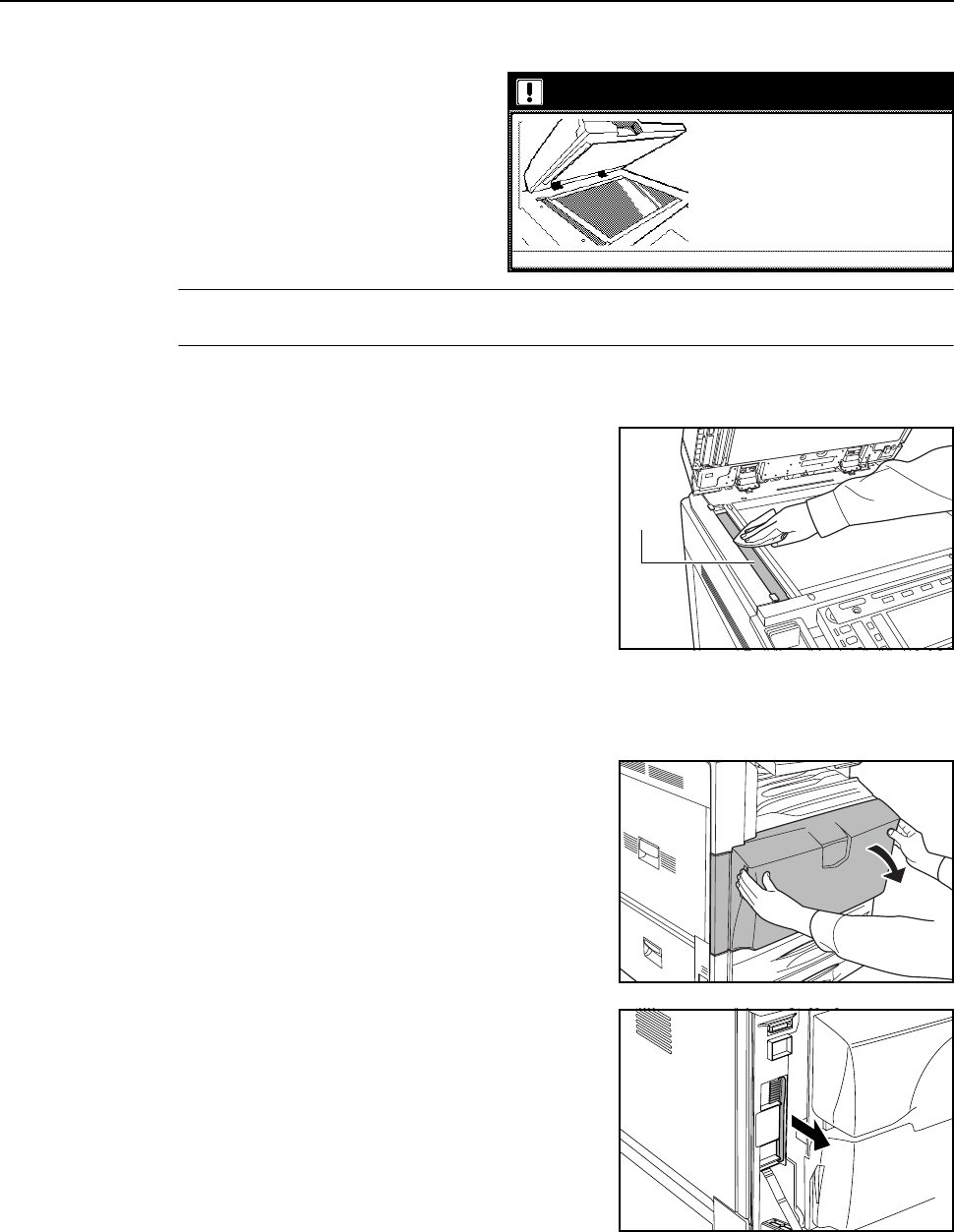
Maintenance
5-3
Slit Glass
When black streaks or dirt appears in
copies when using the optional
document processor, clean the slit glass
with the included cleaning cloth. The
message: Clean the slit glass for original
fed from DP (Clean the slit glass for
original fed) may be displayed if the slit
glass requires cleaning. After cleaning,
press [End].
IMPORTANT: Lightly wipe the slit glass with a dry cloth. To remove adhesive material or ink, apply
alcohol to a cloth and wipe lightly. Do not use water, thinner, or organic solvents.
1Remove the cloth from the cleaning cloth compartment.
2Open the document processor and wipe slit glass A.
Separator
If wrinkles appear in the output paper, clean the separator.
1Open the front cover.
2Remove the cleaning brush.
Clean the slit glass for original fed from DP.
located at left with a dr y cloth.
3.Please close the document processor.
4.Press END key
2.Clean the surface of narrower glass
1.Open the document processor.
If the slit glass is dirty, black line
will appear on the copy.
A
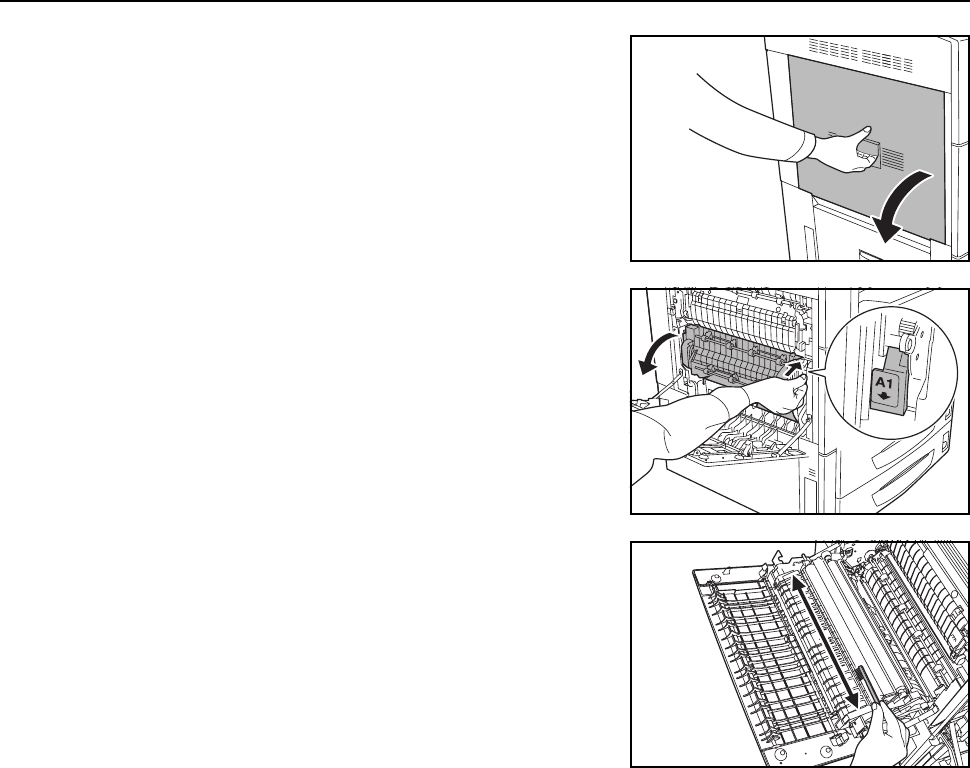
Maintenance
5-4
3Open left cover 1.
4Open duplex unit A1.
5As shown in the figure, clean dirt from the separator by
moving the brush from side to side along the separator.
6Close duplex unit A1 and left cover 1.
7Put away the cleaning brush and close the front cover.
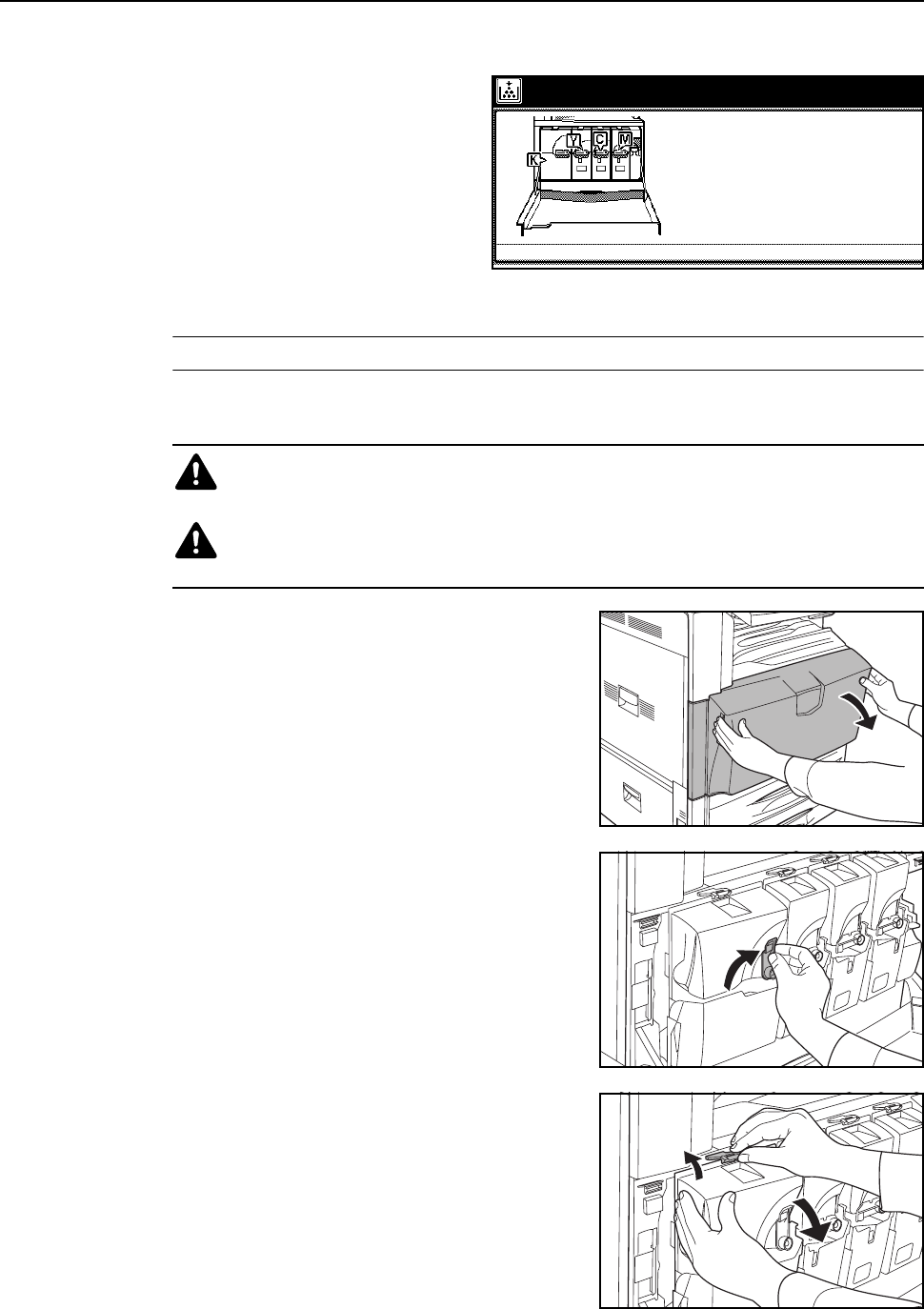
Maintenance
5-5
Toner Container and Waste Toner Box Replacement
This machine uses 4 types of toner:
cyan (C), magenta (M), yellow (Y) and
black (K). When the touch panel displays
Add toner. [C] [M] [Y] [K], replace the
toner container for the color shown.
Replace the toner without delay when
this message is displayed. When
replacing the toner container, also
replace the waste toner box.
Replace the toner container only if this
messages appears.
NOTE: Press [Adding toner] to display the replacement instructions on the touch panel.
Replacement of black toner is explained here as an example.
1Open the front cover.
2Turn the toner container lock lever to the vertical
position.
3Push up the toner container top clip A and pull the
toner container down towards you.
Caution: Do not attempt to incinerate the toner container or the waste toner box.
Dangerous sparks may cause burns.
Caution: Do not attempt to force open or destroy the toner container or the waste
toner box.
Add toner.
See the toner container box or
operation manual for replacement procedures
and replace the toner container
Open the front cov er of the machine
[C][M]
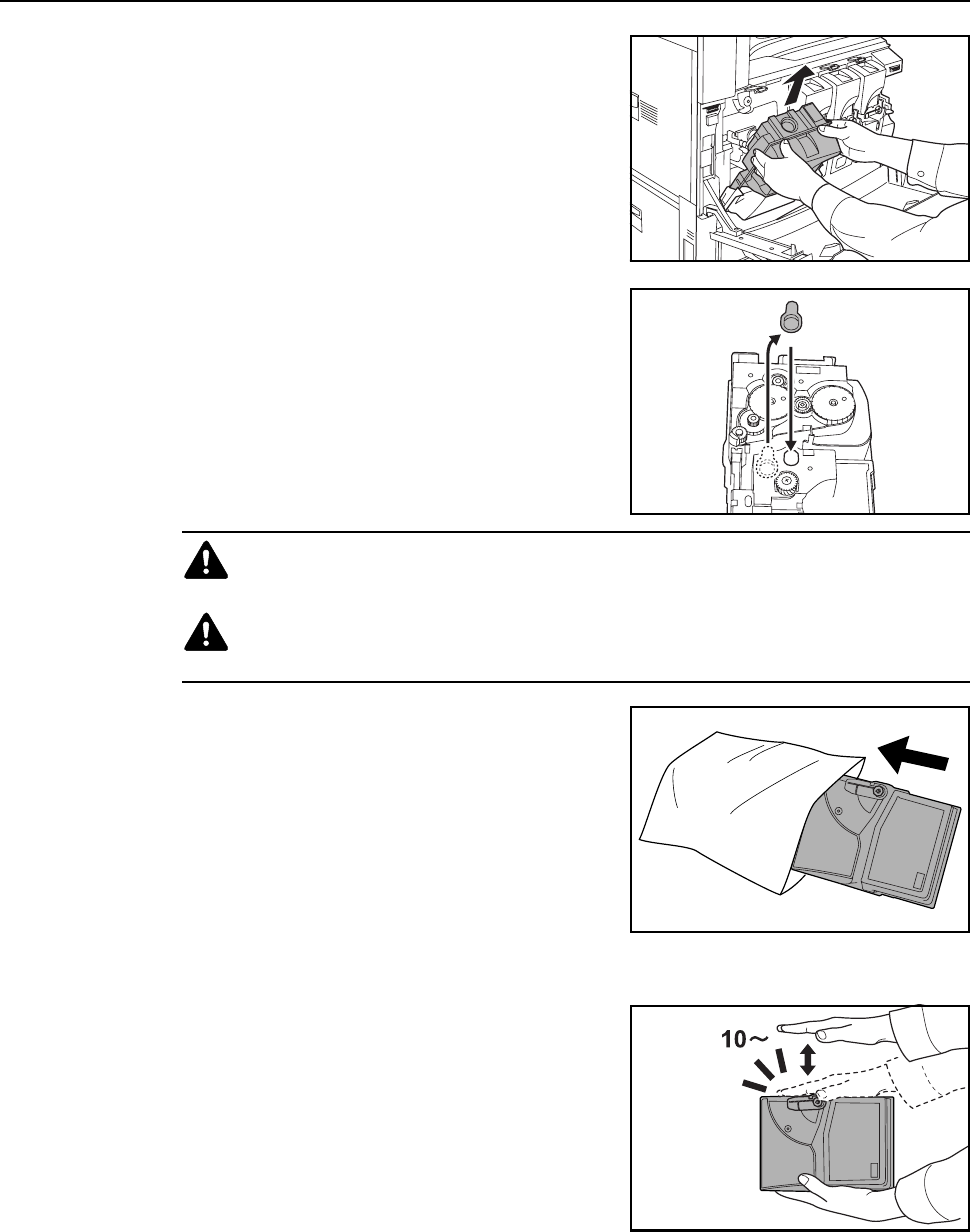
Maintenance
5-6
4Lift the toner container up and out.
5Close the pickup opening, with the cap attached to the
back side, on the old toner container.
6Place the used toner container in the provided plastic
disposal bag.
7Remove the new toner container from the box.
8Hold the toner container with the toner container lock
lever positioned on the top, and tap the top side ten
times or more while keeping the container horizontal.
Caution: Do not attempt to incinerate the toner container or the waste toner box.
Dangerous sparks may cause burns.
Caution: Do not attempt to force open or destroy the toner container or the waste
toner box.
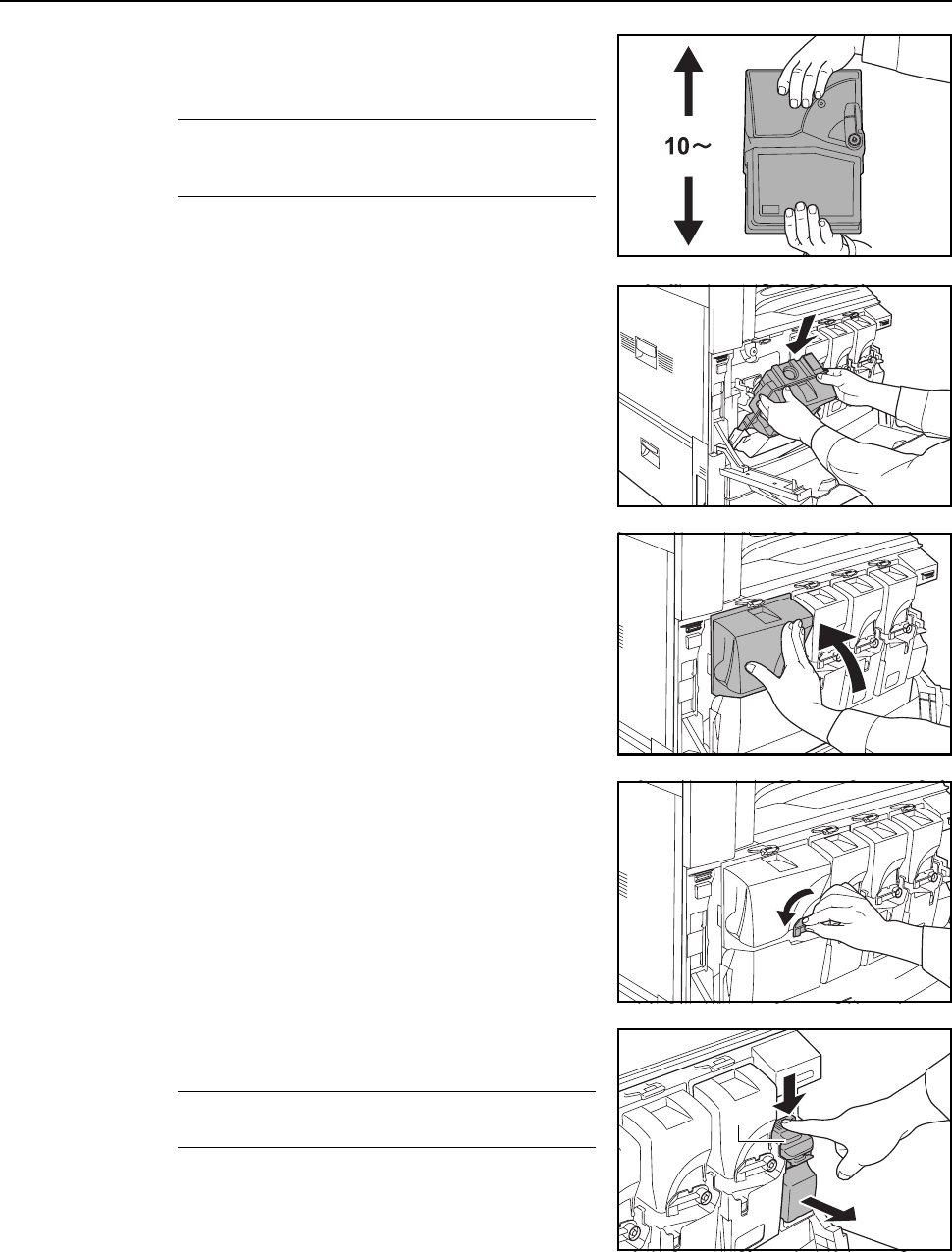
Maintenance
5-7
9Holding the toner container in both hands, hold
vertically and shake up and down strongly at least ten
times to distribute the toner evenly.
IMPORTANT: Do not install the toner container
before shaking it sufficiently. This may cause errors
due to insufficient toner replenishment.
10 Insert the new toner container into the machine.
11 Press in the toner container upper portion. There will be
an audible ‘click’ when the container is inserted in the
correct position.
12 Return the toner container lock lever to its original
position.
Replace the other toner colors in the same fashion.
13 Hold down waste toner box release lever B, and slowly
pull out the waste toner box.
NOTE: Do not turn the removed old waste toner box
upside down. B
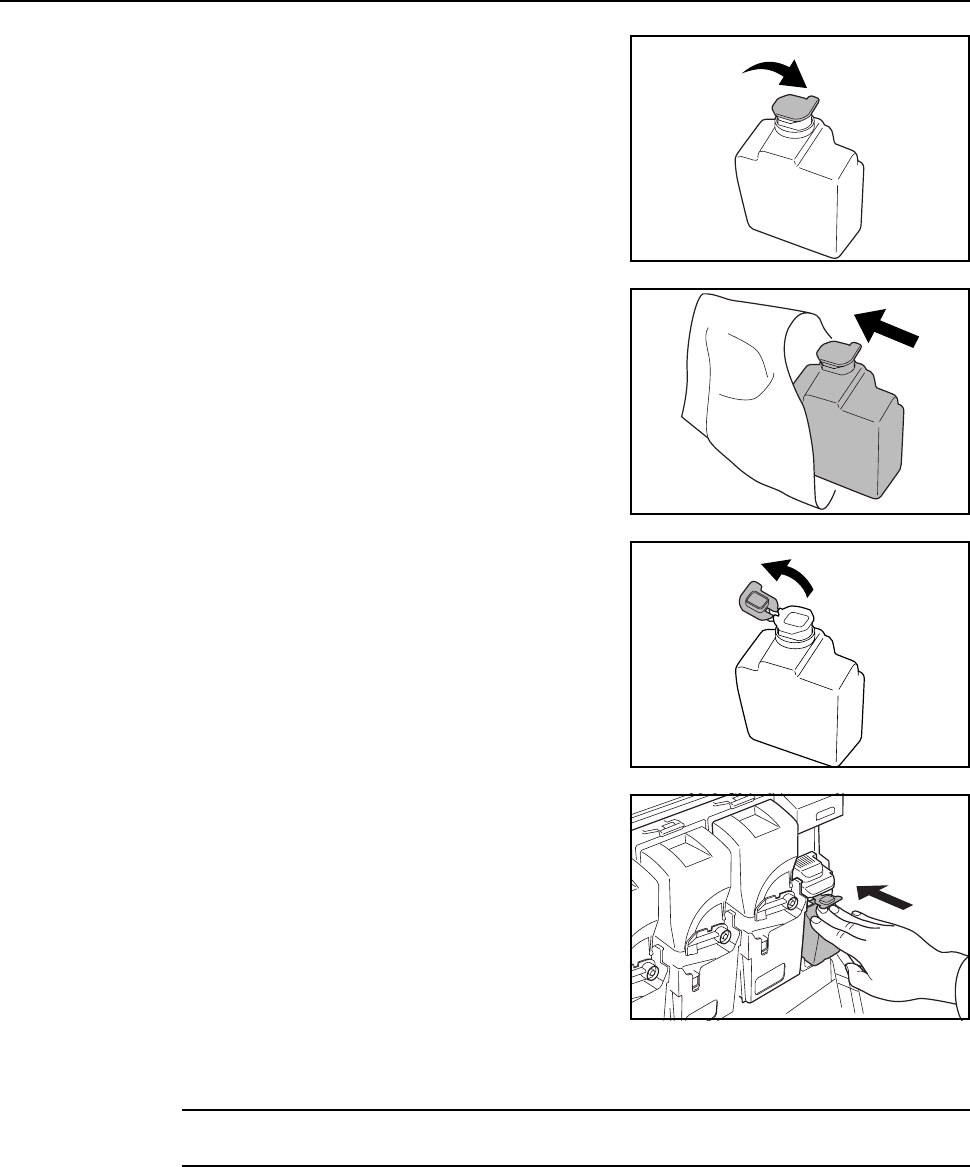
Maintenance
5-8
14 As shown in the illustration, seal the old waste toner
box with a cap.
15 Place the used toner container in the provided plastic
disposal bag.
16 Remove the cap from the new waste toner box.
17 Install the new waste toner box.
18 Close the front cover.
After use, always dispose of the toner container and the waste toner box in accordance with
Federal, State and Local rules and regulations.

Troubleshooting
6-2
Solving Malfunctions
The table below provides general guidelines for problem solving.
If a problem occurs with your machine, check the checkpoints and perform procedures indicated on
the following pages. If the problem persists, contact your Service Representative.
Symptom Checkpoints Corrective Actions Reference
Page
The operation panel does
not respond when the
machine is turned on ( |
position).
Is the machine plugged in? Plug the power cord into an AC outlet. —
Pressing the Start key
does not produce copies.
Is a message displayed on the touch
panel?
Determine the appropriate response to
the message and take action
accordingly.
page 6-4
The original size is not
detected properly.
Are the originals loaded correctly? When placing originals on the platen,
place them face-down and align them
with the original size indicator plates.
page 2-16
Place originals face-up in the optional
document processor.
page 2-18
Is the machine installed beneath
fluorescent lights?
Do not install this machine beneath
fluorescent lights.
—
Blank sheets are output. Are the originals loaded correctly? When placing originals on the platen,
place them face-down and align them
with the original size indicator plates.
page 2-16
Place originals face-up in the optional
document processor.
page 2-18
Is the machine installed beneath
fluorescent lights?
Do not install this machine beneath
fluorescent lights.
—
Printing is too light. Is the machine set to Manual Exposure
mode?
Use the exposure adjustment key to set
the correct exposure level.
page 3-6
Is the toner distributed evenly within the
toner container?
Shake the toner container up and down
approximately 10 times.
page 5-5
Is there a message indicating the
addition of toner?
Replace the toner container. page 5-5
Is the copy paper damp? Replace the copy paper with new paper. page 2-2
Printing is too dark. Is the machine set to Manual Exposure
mode?
Use the exposure adjustment key to set
the correct exposure level.
page 3-6
Copies have a moire
pattern (dots grouped
together in patterns and
not aligned uniformly).
Is the original a printed photograph? Set the image quality to [Print]. page 3-5
Copies are not clear. Did you choose appropriate image
quality for the original?
Select an appropriate Image Quality
mode.
page 3-5
Is the copy paper damp? Replace the copy paper with new paper. page 2-2
Is special color copy paper being used? Use special color copy paper. —
Copies are dirty. Are the original platen or platen dirty? Clean the original platen or platen glass. page 5-2
Printer output is fuzzy. Is the copy paper damp? Replace the copy paper with new paper. page 2-2
Is special color copy paper being used? Use special color copy paper. —

Troubleshooting
6-3
Printing is skewed. Are the originals loaded correctly? When placing originals on the platen,
place them face-down and flush against
the original size indicator plates.
page 2-16
When placing originals in the document
processor, align the original width
guides securely before placing the
originals.
page 2-18
Is the paper loaded correctly? Check the position of the paper width
guides.
page 2-2
Paper jams frequently
occur.
Is the paper loaded correctly? Load the paper correctly. page 2-2
Is the paper of the supported type? Is it
in good condition?
Remove the paper, turn it over, and
reload it.
page 2-2
Is the paper curled, folded, or wrinkled? Replace the paper with new paper. page 2-2
Are there any loose scraps or jammed
paper in the machine?
Remove any jammed paper. page 6-15
Is the copy paper damp? Replace the copy paper with new paper. page 2-2
Is special color copy paper being used? Use special color copy paper. —
Copies from the optional
document processor
have black lines.
Is the slit glass dirty? Clean the slit glass. page 5-2
Printing is wrinkled. Is the separator dirty? Clean the separator. page 5-3
Is the copy paper damp? Replace the copy paper with new paper. page 2-2
Is special color copy paper being used? Use special color copy paper. —
Is the paper set in a proper orientation? Change the orientation in which the
paper is positioned.
—
Unable to print. Is the machine plugged in? Plug the power cord into an AC outlet. —
Is the machine switched on? Turn the main power switch to on ( |
position).
—
Is the printer cable connected? Confirm the printer cable is securely
connected.
page 2-21
Was the printer switched off when
connecting the printer cable?
Switch on the printer after connecting
the printer cable.
page 2-21
Is the device in Offline mode? Press the Printer key and press [GO] to
restore Online mode.
—
Characters are not
printed correctly.
Is the printer cable connected? Confirm the printer cable is securely
connected.
page 2-21
Are the computer settings configured
correctly?
Confirm printer driver and application
software settings.
—
Print output is not correct. Are the computer settings configured
correctly?
Confirm printer driver and application
software settings.
—
Symptom Checkpoints Corrective Actions Reference
Page

Troubleshooting
6-4
Responding to Error Messages
If the touch panel displays any of these messages, follow the corresponding procedure.
Copy Error Messages
If the Copy mode touch panel displays any of these messages, follow the corresponding procedure.
Error Messages Checkpoints Corrective Actions Reference
Page
Close ### cover. Is the indicated cover open? Close all covers securely. —
Check the cover. Are any covers open?
Does the message indicate which
cover is open?
Close all covers securely. —
Close Document processor. Is the optional document processor
open while loading the original?
Close the document processor. —
Close Document processor
cover.
Is the optional document
processor’s document processor
cover open?
Close the document processor
cover.
page 6-26
Set cassette #.
(Close paper cassette #.)
Is the indicated cassette not fully
closed?
Pull out the cassette and push in
securely.
—
Open cassette #, check and
remove paper from inside of the
machine.
(Open cassette #, check and
remove paper from inside of
machine.)
— Completely pull out the indicated
cassette and remove any paper
inside.
—
Reset feeding unit for paper
cassette.
Is the paper feeder securely pushed
into the machine?
Pull out the paper feeder and
securely push it all the way into the
machine.
page 6-19
Add paper in cassette #.
(Add paper cassette #.)
Is the indicated cassette out of
paper?
Load paper. If the same type of
paper is loaded in another cassette
in the same orientation, you can
press either one of paper selection
keys on the left of the touch panel to
switch to that cassette for copying.
—
Add paper in the Multipurpose
tray.
## size
(Place paper on the
Multipurpose tray.
## size)
Is paper of the specified size loaded
in the MP tray?
Load paper of the size indicated in
the MP tray.
page 2-5
Add paper in the Multipurpose
tray.
(Add paper on the Multipurpose
tray.)
Has all the paper on the MP tray
been fed?
Load paper in the MP tray. page 2-5
Place transparency in the
Multipurpose tray.
(Place transparencies on the
Multipurpose tray.)
Are any transparencies loaded in the
MP tray?
Place transparencies on the MP tray. page 2-5
Change the size of MP tray. Is the specified size paper loaded in
the MP tray?
Reconfigure the size of the MP tray. page 2-10

Troubleshooting
6-5
Check paper size. Is the specified size paper loaded? Load paper of a size that can be
used.
—
Reposition original. Is the orientation of the specified
paper different from that of the
original?
Change the orientation of the
original. If you press the Start key
without doing so, the original will be
copied at the current size.
—
Check paper size. Copy paper is
not the same size as original.
(Paper size in cassette differs
from actual size.
Check paper size in cassette.)
Is the specified paper loaded? Or
are the settings incorrect?
Load the specified paper. Adjust any
settings that are incorrect.
—
Reposition original or change
cassette.
(Reset original or select another
paper cassette.)
Is the orientation of the specified
paper different from that of the
original?
Change the orientation of the
original.
—
Is the copier installed beneath
fluorescent lights?
Do not install this machine beneath
fluorescent lights.
—
Reset originals in processor. — Remove originals from the optional
document processor, stack them
uniformly and reset them.
page 2-16
Reset all originals in processor.
(Reset originals in processor.)
— Remove originals from the optional
document processor, and reset them
in the original order.
page 2-16
Reset all originals in Document
Processor.
(Reset originals in Document
Processor.)
Are there any originals left in the
optional document processor?
Reset all originals in the optional
document processor.
—
Cannot copy this paper type. Can the specified copy functions be
used with the selected paper type?
Select another type of paper. —
Cannot staple this paper type. Did you select a paper type that
cannot be stapled?
Select another type of paper. —
Cannot punch this paper type. Did you select a paper type that
cannot be punched?
Select another type of paper. —
Cannot staple this size.
(Cannot staple this paper size.)
Is stapling available for the size of
the loaded paper? For further
details, see the optional document
finisher or 3000 sheet document
finisher Operation Guide.
Change the paper size. —
Cannot punch this size.
(Cannot punch this paper size.)
Is punching available for the size of
the loaded paper? For further
details, refer to the optional 3000
sheet document finisher Operation
Guide.
Change the paper size. —
Cannot staple.
## :maximum capacity (Staple)
(Cannot staple.
## :Max. staples)
Is the maximum page quantity for
stapling exceeded? For further
details, see the optional document
finisher or 3000 sheet document
finisher Operation Guide.
Decrease the number of sheets to
be stapled to less than the maximum
staple sheet count.
—
The top tray is full of paper.
Remove paper, and press "Start"
key.
During copying, is the maximum
capacity of the output tray
exceeded?
Remove some pages from the
output tray and press the Start key.
Printing continues.
—
Error Messages Checkpoints Corrective Actions Reference
Page

Troubleshooting
6-6
The top tray is full of paper.
Remove paper, and press
"Continue" key.
During printing, is the maximum
capacity of the output tray
exceeded?
Remove some pages from the
output tray and press [Continue].
Printing continues.
—
Finisher paper capacity
exceeded. (Tray #)
Remove paper, and press "Start"
key.
During copying, is the maximum
capacity of the optional document
finisher or 3000 sheet document
finisher output tray exceeded?
Remove some pages from the
optional document finisher or 3000
sheet document finisher and press
the Start key. Printing continues.
—
Finisher paper capacity
exceeded. (Tray #)
Remove paper, and press
"Continue" key.
During printing, is the maximum
capacity of the optional document
finisher or 3000 sheet document
finisher output tray exceeded?
Remove some pages from the
optional document finisher or 3000
sheet document finisher and press
[Continue]. Printing continues.
—
Remove paper. Finisher tray. Is the maximum capacity of the
optional document finisher output
tray exceeded?
Remove some pages from the
optional document finisher.
—
These functions cannot be
combined.
Have you selected functions that
cannot be used together?
Check the settings. —
Insert key counter. Is the key counter inserted
correctly?
Insert the key counter securely and
completely.
—
Memory full — The current copy cannot be
processed because there is no more
copy memory free space, or the
number of original pages exceeded
the maximum 999 pages. When the
following message is displayed
select the resolution method.
[Cancel]: Cancels copying.
[Continue]: Copies up to the last
scanned page.
—
Toner will be empty soon. [C],
[M], [Y], [K]
— The toner container will need to be
replaced soon. Prepare the
replacement toner container for the
indicated color.
page 5-5
Ready to copy.
Add toner. [C], [M], [Y], [K]
— The machine is running low on
toner; only one page may be printed
at a time. Prepare the replacement
toner container.
page 5-5
Add toner. [C], [M], [Y], [K] — Replace the toner container for the
indicated color.
page 5-5
Image cycle.
(Now adding toner.)
— Toner replenishment is in progress.
Wait until the process is completed.
—
Please wait.
Now in the fusing temperature
adjustment process.
— Performing internal maintenance.
Wait until the process is completed.
—
Check waste toner box. Is the waste toner box securely
fastened?
Securely fasten the waste toner box. page 5-5
Replace the waste toner box. — Replace the waste toner box. page 5-5
Clean the slit glass for original
fed from DP.
(Clean the slit glass for original
fed.)
— Rub the slit glass with the included
dry cleaning cloth.
page 5-3
Error Messages Checkpoints Corrective Actions Reference
Page

Troubleshooting
6-7
Check the waste punch box.
(Check Punch Hole box.)
Is the optional 3000 sheet document
finisher waste punch box securely
fastened?
Refer to the optional 3000 sheet
document finisher Operation Guide
to securely fasten the waste punch
box.
—
Empty waste punch box. Is the container for hole punch waste
paper in the optional 3000 sheet
document finisher full?
Refer to the optional 3000 sheet
document feeder Operation Guide to
empty the waste punch box.
—
Out of staples.
Add staples.
(Stapler empty.
Add staples.)
Is the optional document finisher or
3000 sheet document finisher out of
staples?
Refer to the optional document
finisher or 3000 sheet document
finisher Operation Guide to refill
staples.
—
Time for maintenance. — Periodic maintenance is required to
keep your machine in good
condition. Contact your Service
Representative or Authorized
Service Center promptly.
—
Paper misfeed. — If a paper jam occurs, the location of
the jam will be indicated on the
touch panel and the machine will
stop. Leave the machine switched
on (| position) and follow the
instructions to remove the jammed
paper.
page 6-15
Remove paper from inner tray of
Finisher.
Is there any paper left in the optional
document finisher or 3000 sheet
document finisher?
Remove all paper left in the optional
document finisher or 3000 sheet
document finisher.
—
Remove paper from the folding
unit of the finisher.
Is there any paper left in the folding
unit of the optional 3000 sheet
document finisher?
Refer to the optional 3000 sheet
document finisher Operation Guide
to remove all paper left in the
ejection section of the folding unit.
Staple jam. Is the optional document finisher or
3000 sheet document finisher
experiencing a staple jam?
Refer to the optional document
finisher or 3000 sheet document
finisher Operation Guide to remove
the jammed staple.
—
System error.
Call service.
Is it re-displayed after opening and
closing the front cover, turning off
and on the main power switch, and
plugging out and plugging in the
power plug in the power outlet?
Make a note of this message (C
followed by a number). Turn off the
machine ( position), unplug the
power cord, and contact your
Service Representative or
Authorized Service Center.
—
Paper cassette is out of order.
Select another paper cassette.
(Paper cassette is out of order.
Select other paper cassette.)
— The cassette in use has a problem
and is temporarily unavailable.
Contact your Service Representative
or Authorized Service Center
promptly. To continue copying, use
another cassette.
—
System error.
Main Power Switch Off / On.
— A system error has occurred. Turn
the main power switch off and on
again.
—
HDD error.
Cannot activate Job Accounting
mode.
Is it re-displayed after opening and
closing the front cover, turning off
and on the main power switch, and
plugging out and plugging in the
power plug in the power outlet?
A hard disk error has occurred.
Contact your Service Representative
or Authorized Service Center.
—
Error Messages Checkpoints Corrective Actions Reference
Page

Troubleshooting
6-8
Printer Error Messages
If the Printer mode touch panel displays any of these messages after pressing the Printer key,
follow the corresponding procedure.
Please wait.
Remote edit.
Is Job account editing being done
from a network connected
computer?
Copying is not possible until editing
is complete.
—
Security key is not recognized.
Not available.
Is it re-displayed after opening and
closing the front cover, turning off
and on the main power switch, and
plugging out and plugging in the
power plug in the power outlet?
Contact your Service Representative
or Authorized Service Center.
—
Error Messages Checkpoints Corrective Actions Reference
Page
Error Messages Checkpoints Corrective Actions Reference
Page
Load Paper.
## size (##)
Does the print data match the feed
paper size and paper type?
Replace the size or type of source
paper.
To change the paper source, select
paper source from the touch panel
and press [GO].
To print on the loaded paper, press
the Printer key and press [GO].
To cancel printing, press the Printer
key and press [Cancel].
page 2-2
Use alternative?
Press GO.
— Displayed when paper source is
changed. Press [GO].
—
Set paper Press GO. — This mode supplies paper one sheet
at a time even if multiple sheets
have been loaded. To feed each
sheet, press [GO].
—
Load Paper. Is the paper source empty? Load more paper. page 2-2
Out of staples.
Add staples.
(Stapler empty.
Add staples.)
Is the optional document finisher or
3000 sheet document finisher out of
staples?
Refer to the optional document
finisher or 3000 sheet document
finisher Operation Guide to refill
staples.
—
Call service. — An internal error has occurred.
Contact your Service Representative
or Authorized Service Center.
—
Account ID mismatch. — No matching ID-code found. Verify
the registered ID-code using the
driver.
—
Error has occur. PLS change to
printer screen and check.
— Shown when a printer error has
occurred when other modes are
currently being displayed. Press the
Printer key to switch to the printer
screen and display the specific error
message.
—
Option interface error
Code: ##
Is the installed option interface slot
incorrect?
Switch the main power switch to off
( position) and install in the correct
slot.
—

Troubleshooting
6-9
File not found Press GO. — A file error has occurred. Press
[GO].
—
Warning image adapt. — Printing not possible at currently set
resolution due to insufficient
memory. Add memory to the printer
or change the print resolution.
—
Print overrun Press GO. — Overrun has occurred due to
insufficient memory.
Press the Printer key to switch to
printer mode.
Press [GO] to continue printing.
Press [Cancel] to cancel printing.
If resume time has been configured
for Auto Continue, printing resumes
automatically after the set time has
elapsed. After displaying this
message, Page Protect mode is
automatically set to [On].
—
Memory overflow Press GO. — The current print job cannot be
processed due to insufficient free
memory.
Press the Printer key to switch to
printer mode.
Press [GO] to continue printing. The
remaining pages will be printed up to
the final processed data.
Press [Cancel] to cancel printing.
If RAM Disk is enabled, decrease
the RAM disk size. Additional printer
memory is recommended if this error
frequently occurs. For additional
printer memory, contact your Service
Representative or Authorized
Service Center. If resume time has
been configured for Auto Continue,
printing resumes automatically after
the set time has elapsed.
—
Interface is occupied. Is the selected interface currently in
use?
Try the operation again later. —
Opt. ROM error Press GO. — An option ROM read error has
occurred. Press the Printer key and
press [GO]. The error is cleared.
—
Check the waste punch box.
(Check Punch Hole box.)
Is the optional 3000 sheet document
feeder waste punch box securely
fastened?
Refer to the optional 3000 sheet
document feeder Operation Guide to
securely fasten the waste punch
box.
—
Error Messages Checkpoints Corrective Actions Reference
Page

Troubleshooting
6-10
Scanner Error Messages
If the Scanner mode touch panel displays any of these messages after pressing the Scanner key,
follow the corresponding procedure.
Error Messages Checkpoints Corrective Actions Reference
Page
Unable to use scanner. Is the network cable connected
properly?
Confirm the network cable is
properly connected. If the scanner
has just been started, try again later
(approximately 2 minutes).
—
This name is already in use.
Input new name again.
— Change the name and re-enter. —
This number is already in use.
Input new number again.
— Change the number and re-enter. —
Registration full.
You can not add any more.
(Registration full.
Cannot register anymore.)
— Delete unnecessary entries before
registering a new entry.
—
E-mail size, exceeds data
capacity.
(E-mail size exceeds send
capacity limit.)
— Resend after decreasing the number
of sheets to be transmitted or
decreasing resolution.
—
Destination address is not being
registered.
(This number is not registered.
Input number again.)
— The specified number does not
exist.
Check the number and try again.
—
Unable to find SMTP server.
Contact administrator.
Is the network cable connected
properly?
Confirm the network cable is
properly connected. If the scanner
has just been started, try again later
(approximately 2 minutes).
page 2-21
Is the SMTP server running? Contact your system administrator
or support personnel.
—
SMTP Authentication error.
Contact Administrator.
Have the correct login account name
and password for SMTP
authentication been set?
Contact your system administrator
or support personnel.
—
Unable to find PC for personal
address list.
Check the PC.
Is Address Book for Scanner
running on the computer?
Launch Address Book for Scanner. —
Is the network properly connected
on the specified computer?
Confirm the computer is properly
connected to the network.
—
Is the network cable properly
connected to the scanner network
interface?
Confirm the network cable is
properly connected to the scanner
network interface.
page 2-21
Network scanner system error. — Switch the device off and back on
again.
—
Communication error. Scan to PC:
Sending computer status.
Try retransmitting. —
E-Mail Send:
Is the SMTP server running?
Contact your system administrator. —
Database Connection:
Save destination computer status.
An unsupported response was
received from DB Assistant. Check
the computer running DB Assistant.
—
Destination PC’s system error. Sending PC computer status. Try retransmitting. —

Troubleshooting
6-11
The file was not saved.
Check the destination PC.
Has the maximum hard disk usage
set by Scanner File Utility at the
sending PC been exceeded?
Increase available space and try
again.
—
Are you trying to from multiple
scanners using the same filename?
Try again later or change the
filename.
—
Destination PC is in use.
Try again later.
— A connection currently exists
between the sending PC and a
scanner. Try retransmitting later.
—
PC’s version of personal address
list is different.
Contact administrator.
Is the Address Book for Scanner
version different?
Contact your system administrator
or support personnel.
—
PC of personal address list is in
use.
Try again later.
(PC’s version of personal
address list is in use.
Try again later.)
— A connection current exists between
the specified Address Book for
Scanner and a scanner. Try making
the selection again later.
—
Sender (user) is not registered.
Contact administrator.
Is the sender (user) registered as
User No. 001 in the scanner’s
sender (user) list?
Create a new user number 001 entry
or select another user after setting
the scanner default for Selec. of
senders (user) to [Off].
page 2-34
No Destination address being
registered.
(Destination address has not
being registered.)
Is the specified destination
registered?
Create a new entry or select another
destination.
—
Wrong password.
(Incorrect password.)
— Enter the correct password. —
Check domain name and host
name.
Scanner domain name, host name
not set.
Check if domain name and host
name have been configured.
page 2-32
Overflow of original pages.
Scanned documents were sent.
Limit of 999 pages that can be sent
at 1 time has been exceeded.
Send the excess pages separately.
Depending on 2-sided or book
original settings, the maximum
sheets that can be sent may be 998
pages.
—
Check the DB Assistant PC.
Contact administrator.
— DB Assistant not found. Make sure
that DB Assistant is running on the
computer which has DB Assistant
installed.
—
DB Assistant Server version is
different.
Contact administrator.
Is the DB Assistant version
different?
Contact your system administrator
or support personnel.
—
DB Assistant Server error.
Contact administrator.
— An error has occurred with DB
Assistant or the computer running
DB Assistant. Communication
cannot continue. Check the
computer running DB Assistant.
—
DB Assistant Server is in use.
Try again later.
— DB Assistant currently connected to
another scanner. Try connecting
again later.
—
Error Messages Checkpoints Corrective Actions Reference
Page

Troubleshooting
6-12
Unable to find FTP server.
Contact administrator.
Is the network cable connected
properly?
Confirm the network cable is
properly connected.
page 2-21
Is the FTP server running? Contact your server administrator or
support personnel.
—
Unable to Log in to the FTP
Server.
— FTP server login failed. Make sure
username and password have been
configured.
page 2-35
The Path attempted to use for
saving does not exist.
— Save folder does not exist or path to
save folder is incorrect. Verify that
the FTP server save folder and the
path registered in the machine
match.
page 2-35
Error occurred at FTP Server.
Please contact Administrator.
— FTP server returned an unexpected
error. Unable to save. Ask your
server administrator to verify that the
logged in user account has write
permissions.
—
Unable to find POP3 server.
Contact Administrator.
Is the network cable connected
properly?
Confirm the network cable is
properly connected.
page 2-21
Is the POP3 server running? Start the POP3 server. —
Error Messages Checkpoints Corrective Actions Reference
Page

Troubleshooting
6-13
Scanner Error Codes
Below is a list of scanner send log error codes and their corrective actions.
Error code Detail contents Corrective Actions Reference
Page
E001 User initiated cancel during send. —
E010 Connection to destination PC lost during
data transmission (an error greater than
E011 has occurred that cannot be further
categorized). Or, connection to the
computer running Address Book for
Scanner (Private Address Book) has been
lost.
• Confirm that there is no link fault by
checking whether the network cable is
properly connected.
• Check that the destination PC is running
properly.
page 2-21
E011 Transmission aborted due to error in
transmitted image data.
Retry the operation. —
E012 Access to Address Book for Scanner
(Private Address Book) data during image
transmission was lost due to a line fault.
Check that the computer running Address
Book for Scanner (Private Address Book) is
properly connected.
—
E020 Connection to SMTP server lost while
opening E-mail transmission.
Confirm that there is no link fault by
checking whether the network cable is
properly connected. Otherwise, ask your
system administrator or support personnel
to check that the SMTP server is working
properly.
page 2-21
E022 Recipient(s) list includes e-mail address not
recognizable by SMTP server.
Check that the destination e-mail address
has been correctly entered.
—
E023 SMTP server not functioning correctly. Ask system administrator or support
personnel to verify SMTP server is
functioning properly.
—
E030 Unable to recognize destination PC.
Scanner File Utility not running or already
connected to another scanner.
• Verify that Scanner File Utility is running
on the destination PC and if it is
currently connected to another scanner.
• Confirm that there is no link fault by
checking whether the network cable is
properly connected.
page 2-21
E031 Scanner password and destination PC
password do not match when preparing for
image transmission.
Check the destination PC password. —
E032 During Scan to PC, destination PC hard
disk usage limit exceeded.
Try again after increasing available space
on the destination PC hard disk.
—
E033 Version of the Scanner File Utility is
different.
Check the Scanner File Utility version. —
E034 Scanner File Utility connected to another
scanner. Send failed.
Try Scan to PC again after closing
connection to another scanner.
—
E035 No match for Scanner File Utility folder
number during group send. Configuration
change was made during send operation.
Check the Scanner File Utility settings. —
E036 During scanned image compression,
compressed data overran available
memory.
Decrease data size as follows and try
again.
• Decrease resolution.
• Set image quality to OCR.
• Decrease number of pages scanned in
one operation.
—

Troubleshooting
6-14
E039 Invalid command received from computer
during Scan to PC. An unexpected
condition has occurred on the destination
PC.
• Check that the Scanner File Utility on
the destination PC is running properly.
• Confirm that no other programs to
receive network data are running on the
computer other than Scanner File Utility.
• Resolve the error condition on the
destination PC.
—
E059 Command received from computer is
invalid. An error condition on the computer
running Address Book for Scanner (Private
Address Book).
• Confirm that Address Book for Scanner
(Private Address Book) is running
properly on the destination PC.
• Confirm that no other programs to
receive network data are running on the
computer other than Address Book for
Scanner (Private Address Book).
• Resolve the error condition on the
destination PC.
—
E061 An error has occurred for one of the group
members (destinations) when group is
selected during E-Mail Send or Scan to PC.
Check the group member (destination)’s
computer and clear the error condition, if
any.
—
E080 The network cable is not connected
properly.
Confirm the network cable is properly
connected. Also, ask system administrator
or support personnel to verify FTP server is
functioning properly.
page 2-21
E081 FTP server login failed. Make sure username and password have
been configured.
page 2-35
E082 Save folder does not exist or path to save
folder is incorrect.
Verify that the FTP server save folder and
the path registered in the machine match.
page 2-35
E083 FTP server returned an unexpected error.
Unable to save.
Ask your server administrator to verify that
the logged in user account has write
permissions.
—
E090 POP3 server not found. • Check that the POP3 server is running
properly.
• Confirm that there is no link fault by
checking whether the network cable is
properly connected.
page 2-21
E101 Error occurred when multiple destinations
selected.
Check for error for each individual selection
and resolve the error condition.
—
Error code Detail contents Corrective Actions Reference
Page
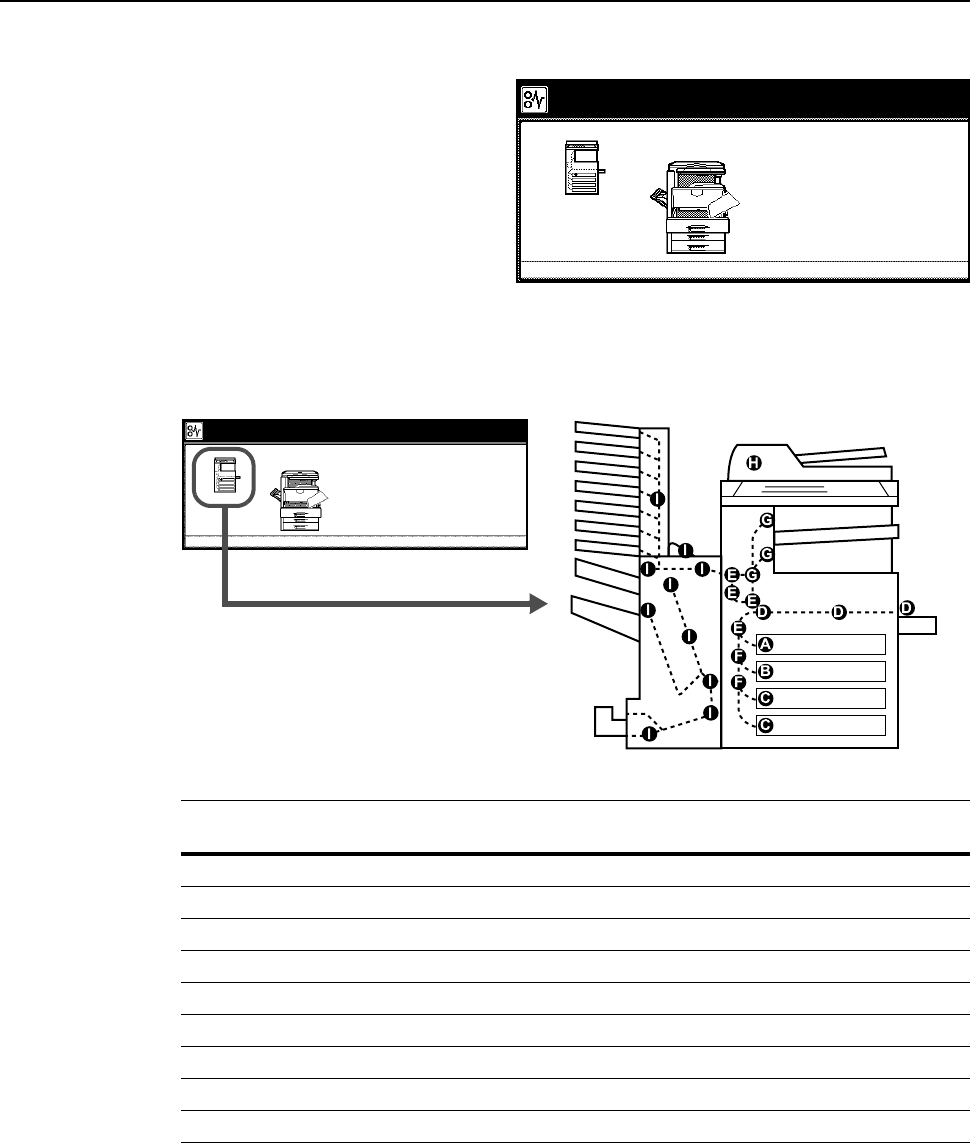
Troubleshooting
6-15
Clearing Paper Jams
If a paper jam occurs, the touch panel
will display Paper misfeed and the
copying will stop. Refer to these
procedures to remove the jammed
paper.
Jam Location Indicators
When a paper jam occurs, the jam location indicators and corrective action are displayed. Jam
location indicators indicate the paper jam position, as shown below.
After clearing the jam, the machine will warm up again and the error message will be cleared. The
machine resumes from the page on which the jam occurred.
Paper misfeed.
remove any paper that is inside.
3.Open cassette 1.
4.Remove paper.
5.Reset the cassette and close the cover
.
2.Open duplex unit A1 and
1.Remove paper.
JAM 00
Jam Location
Indicators
Paper Jam Location Reference
Page
ACassette 1 page 6-16
BCassette 2 page 6-17
CCassette 3, 4 (option) page 6-18
DMP Tray page 6-19
ELeft Cover 1 Interior page 6-23
FLeft Cover 2 Interior page 6-24
GFixing Unit page 6-24
HDocument Processor (option) page 6-26
IDocument Finisher (option) page 6-27
Paper misfeed.
remove any paper that is inside.
3.Open cassette 1.
4.Remove paper.
5.Reset the ca ssette a nd cl o se the co v er .
2.Open duplex unit A1 and
1.Remove paper.
JAM 00
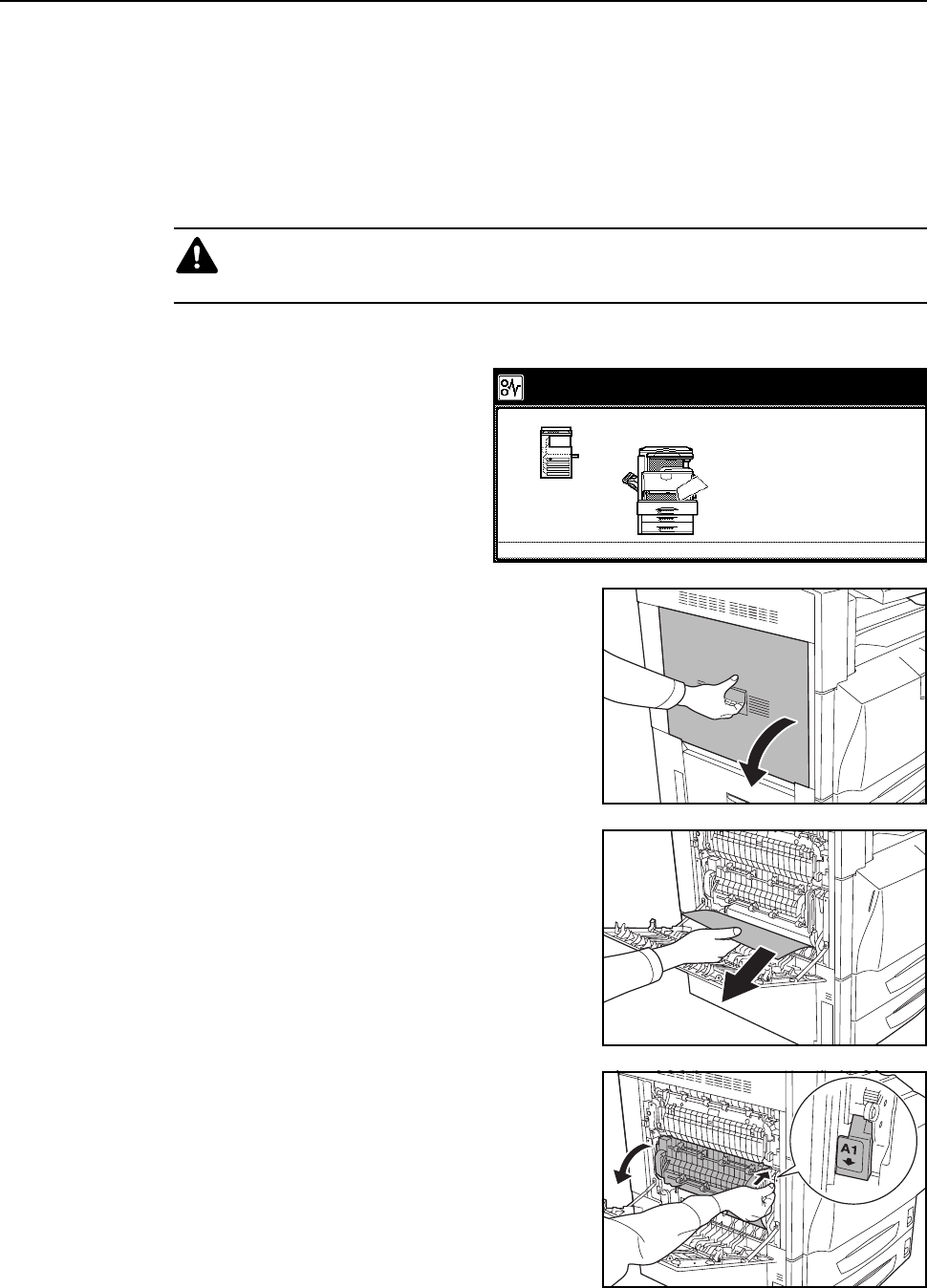
Troubleshooting
6-16
Paper Jam Precautions
• Do not reuse paper cleared from a jam.
• If the paper was torn during removal, be sure to remove any loose scraps of paper from the
machine inside. Scraps of paper left in the machine may cause subsequent jamming.
• Jammed paper from the document finisher (option) or 3000 sheet document finisher (option)
will be fed out again. Do not return this paper to the document finisher tray.
Cassette 1
Follow the steps below to clear Cassette
1 jams.
1Open left cover 1.
2Remove any jammed paper.
If the paper tears, remove any loose scraps from the
machine.
3Open duplex unit A1.
Caution: The fixing unit of this product is extremely hot. Take sufficient care when
working in this area, as there is a danger of getting burned.
Paper misfeed.
remove any paper that is inside.
3.Open cassette 1.
4.Remove paper.
5.Reset the cassette and cl ose the cov er
.
2.Open duplex unit A1 and
1.Remove paper.
JAM 00
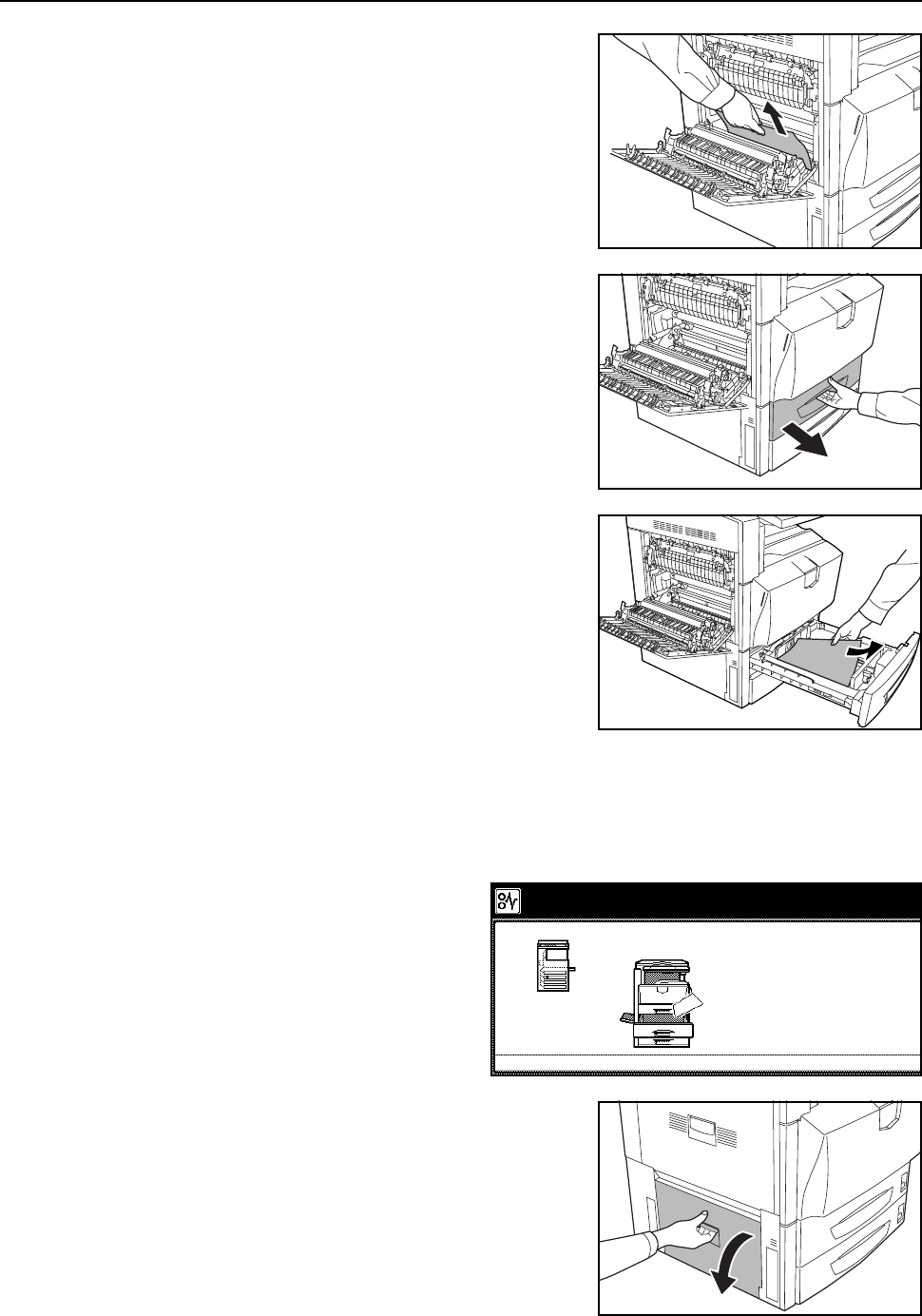
Troubleshooting
6-17
4Remove any jammed paper.
If the paper tears, remove any loose scraps from the
machine.
5Pull out Cassette 1.
6Remove any jammed paper.
If the paper tears, remove any loose scraps from the
machine.
7Securely push Cassette 1 back in place.
8Close duplex unit A1 and left cover 1.
Cassette 2
Follow the steps below to clear Cassette
2 jams.
1Open left cover 2.
Paper misfeed.
2.Open cassette 2.
3.Remove paper.
4.Reset the cassette and cl ose the cov er
.
and remove any paper that is inside.
1.Open left cover 2 of the machine
JAM 00
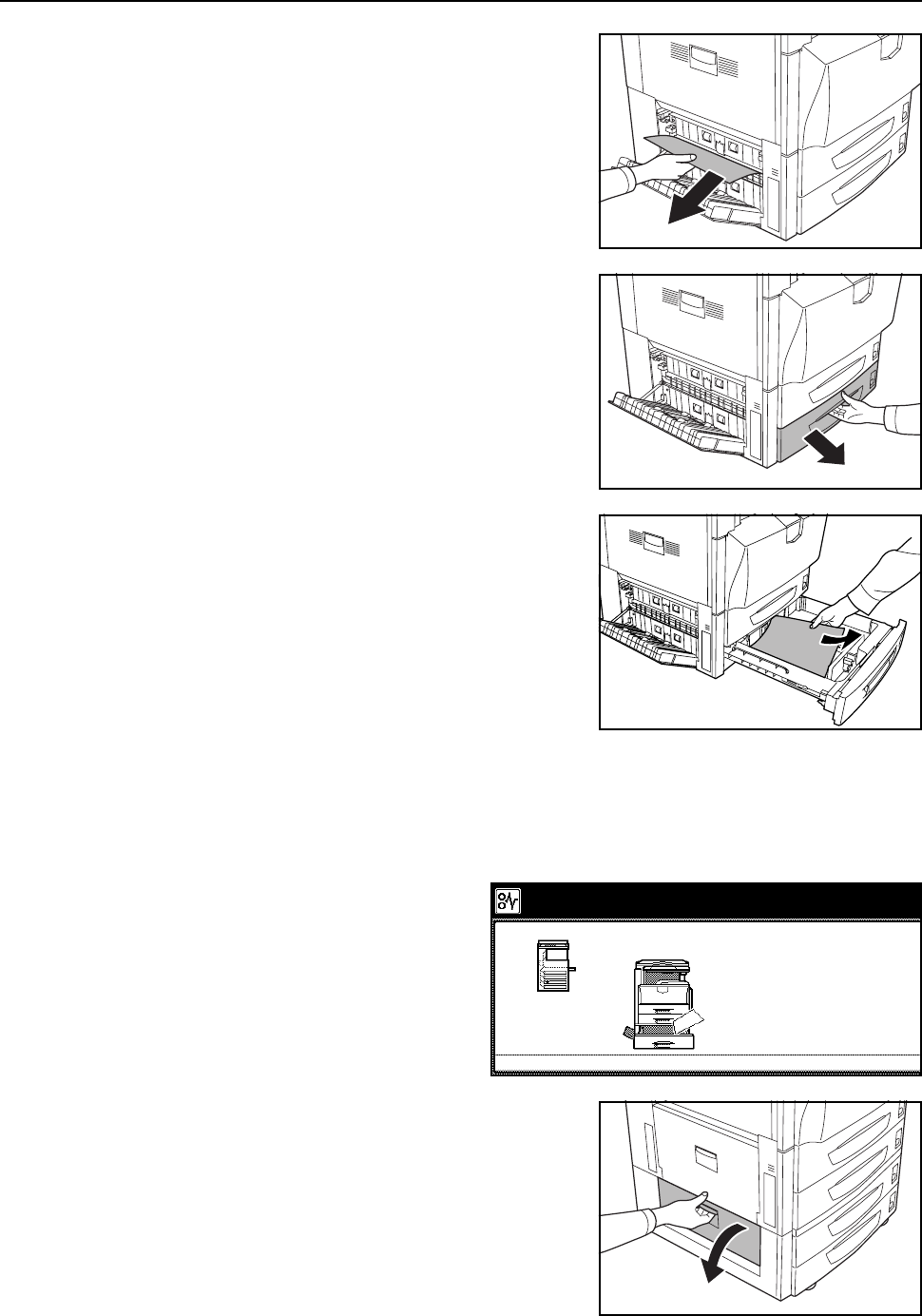
Troubleshooting
6-18
2Remove any jammed paper.
If the paper tears, remove any loose scraps from the
machine.
3Pull out Cassette 2.
4Remove any jammed paper.
If the paper tears, remove any loose scraps from the
machine.
5Securely push Cassette 2 back in place.
6Close left cover 2.
Cassette 3, 4 (option)
Follow the steps below to clear paper
jams when using the optional paper
feeder or 3000 sheet paper feeder and a
jam occurs in Cassettes 3 or 4.
1Open left cover 3.
Paper misfeed.
2.Open cassette 3.
3.Remove paper.
4.Reset the cassette and cl ose the cov er
.
and remove any paper.
1.Open the left cover 3 of the machine
JAM 00
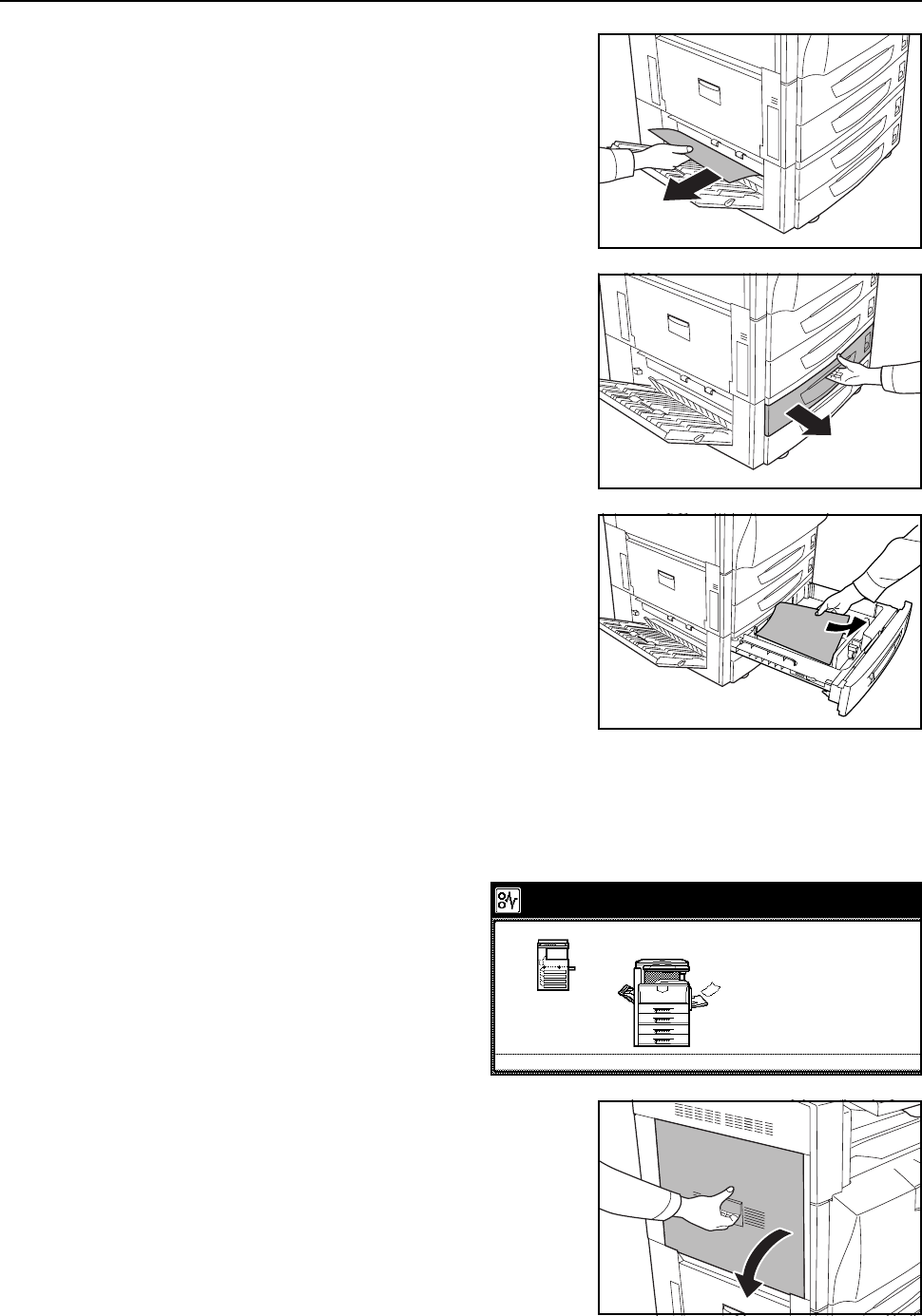
Troubleshooting
6-19
2Remove any jammed paper.
If the paper tears, remove any loose scraps from the
machine.
3Pull out the cassette in use.
4Remove any jammed paper.
5Push the cassette back in securely.
6Close left cover 3.
MP Tray
Follow the steps as below to clear paper
jams in the MP tray.
1Open left cover 1.
Paper misfeed.
guide B1 to remove any paper.
3.Remove any paper from
the multi purpose tray.
4.Open cassette 1. Follow the guidance.
2.Open duplex unit A1 and paper feed
1.Remove paper.
JAM 00
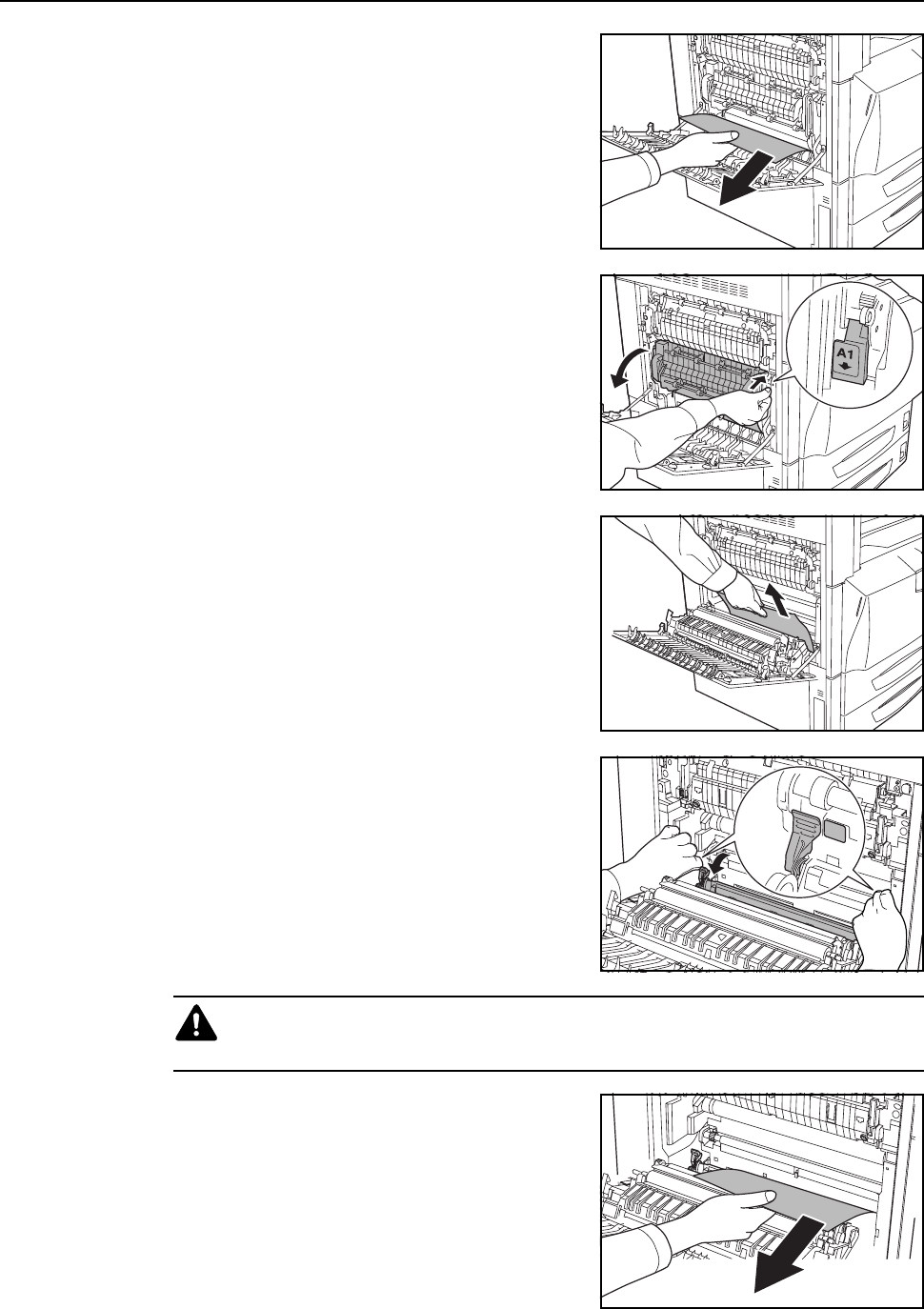
Troubleshooting
6-20
2Remove any jammed paper.
If the paper tears, remove any loose scraps from the
machine.
3Open duplex unit A1.
4Remove any jammed paper.
If the paper tears, remove any loose scraps from the
machine.
5Open feed guide B1.
6Remove any jammed paper.
If the paper tears, remove any loose scraps from the
machine.
Caution: The fixing unit of this product is extremely hot. Take sufficient care when
working in this area, as there is a danger of getting burned.
B1
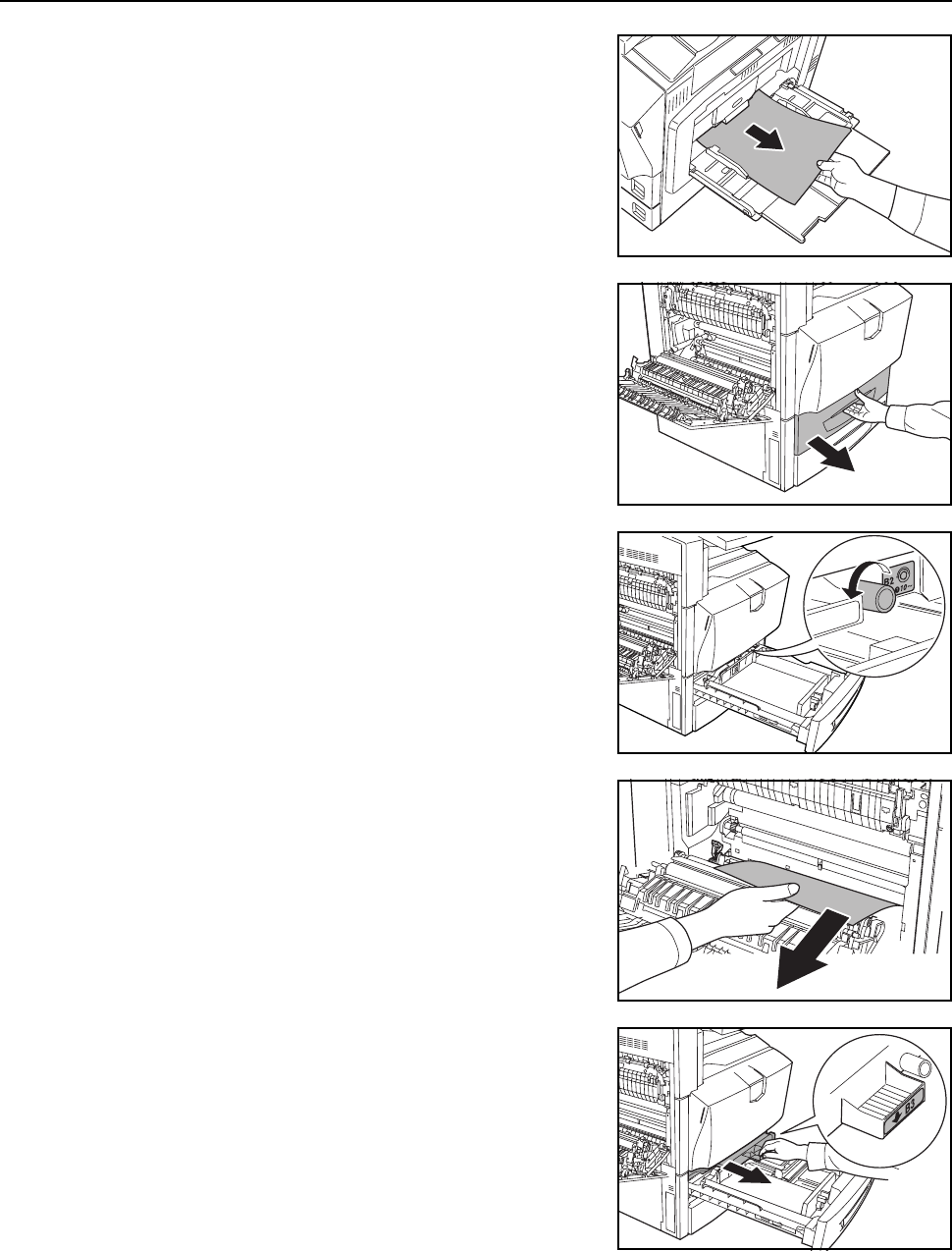
Troubleshooting
6-21
7Remove all paper from the MP tray.
8Pull out Cassette 1.
9Rotate Handle B2 to the left at least 10 times. Jammed
paper will be fed inside the left cover.
10 Remove any jammed paper. Follow the steps below if
unable to remove jammed paper.
11 Pull out paper feed unit B3.
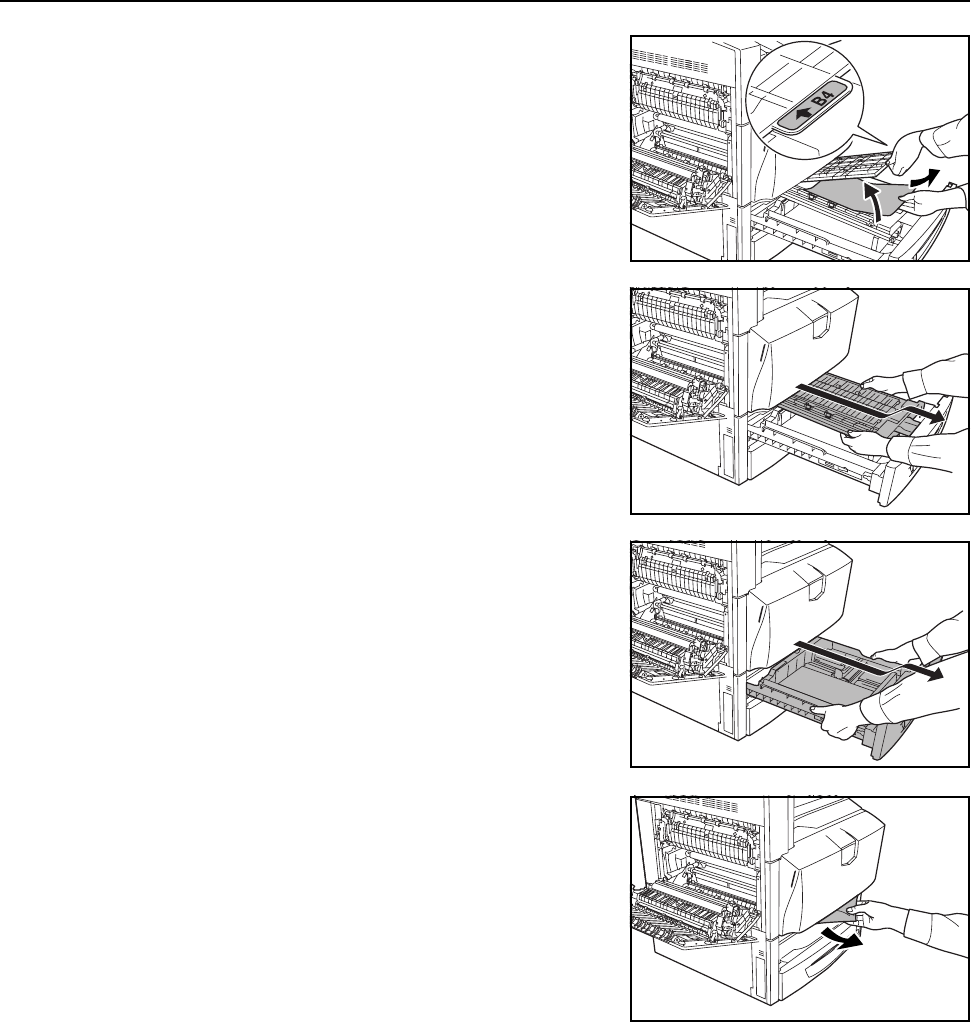
Troubleshooting
6-22
12 Open the cover B4 and remove the jammed paper.
13 If the paper tears, pull paper feed unit B3 out fully, lift
upward and remove.
14 Pull Cassette 1 out fully, lift upward and remove.
15 Remove any jammed paper.
16 Return Cassette 1 and paper feed unit B3 to their original positions.
17 Close feed guide B1, duplex unit A1 and left cover 1.
18 Reload the paper in the MP tray.
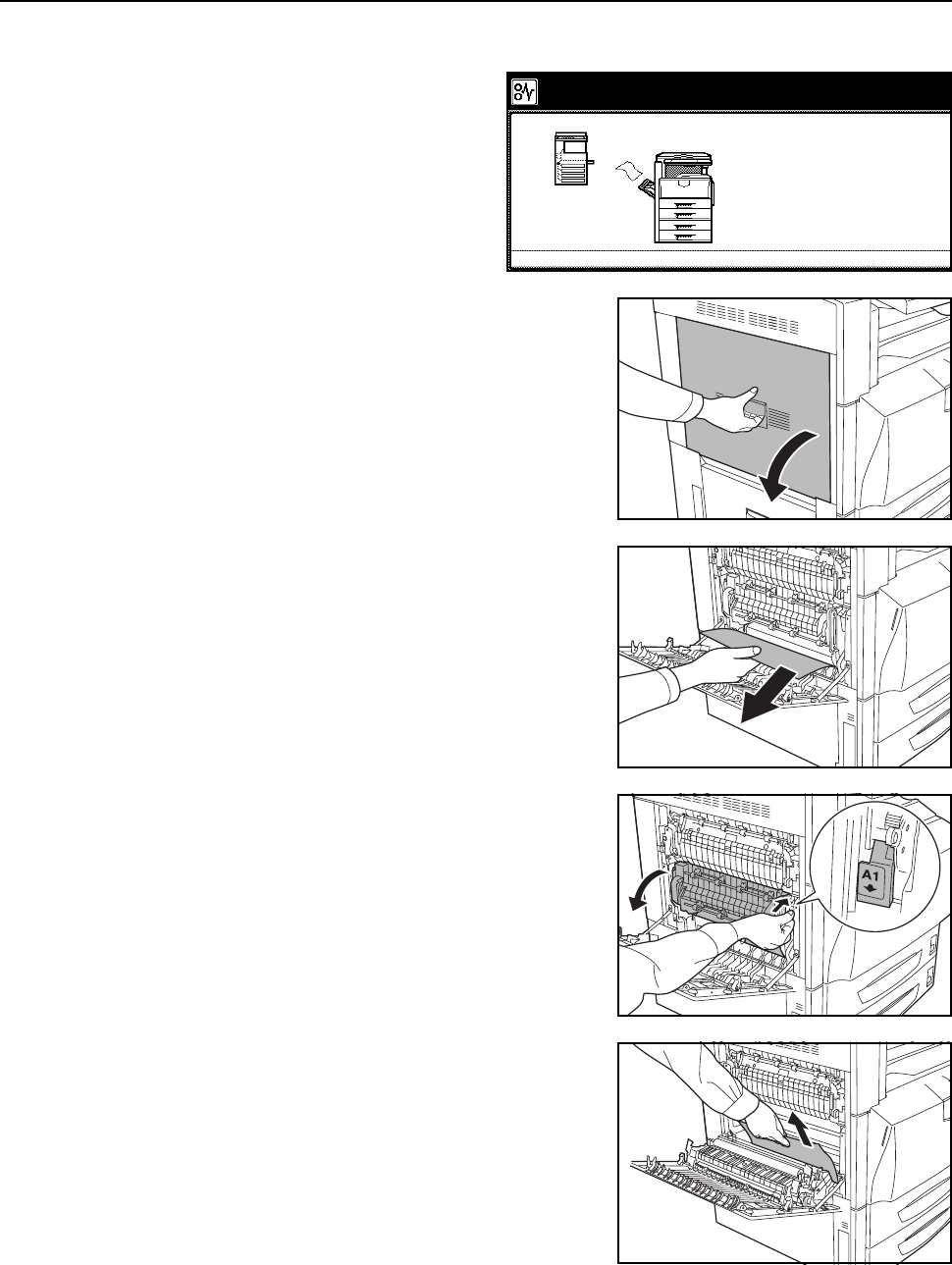
Troubleshooting
6-23
Left Cover 1 Interior
Follow the steps below to clear jams
occurring inside left cover 1.
1Open left cover 1.
2Remove any jammed paper.
If the paper tears, remove any loose scraps from the
machine.
3Open duplex unit A1.
4Remove any jammed paper.
If the paper tears, remove any loose scraps from the
machine.
5Close duplex unit A1 and left cover 1.
Paper misfeed.
3.Open duplex unit A1 and
remove any paper that is inside.
4.Close the cover.
2.Remove paper.
1.Open left cover 1.
JAM 00
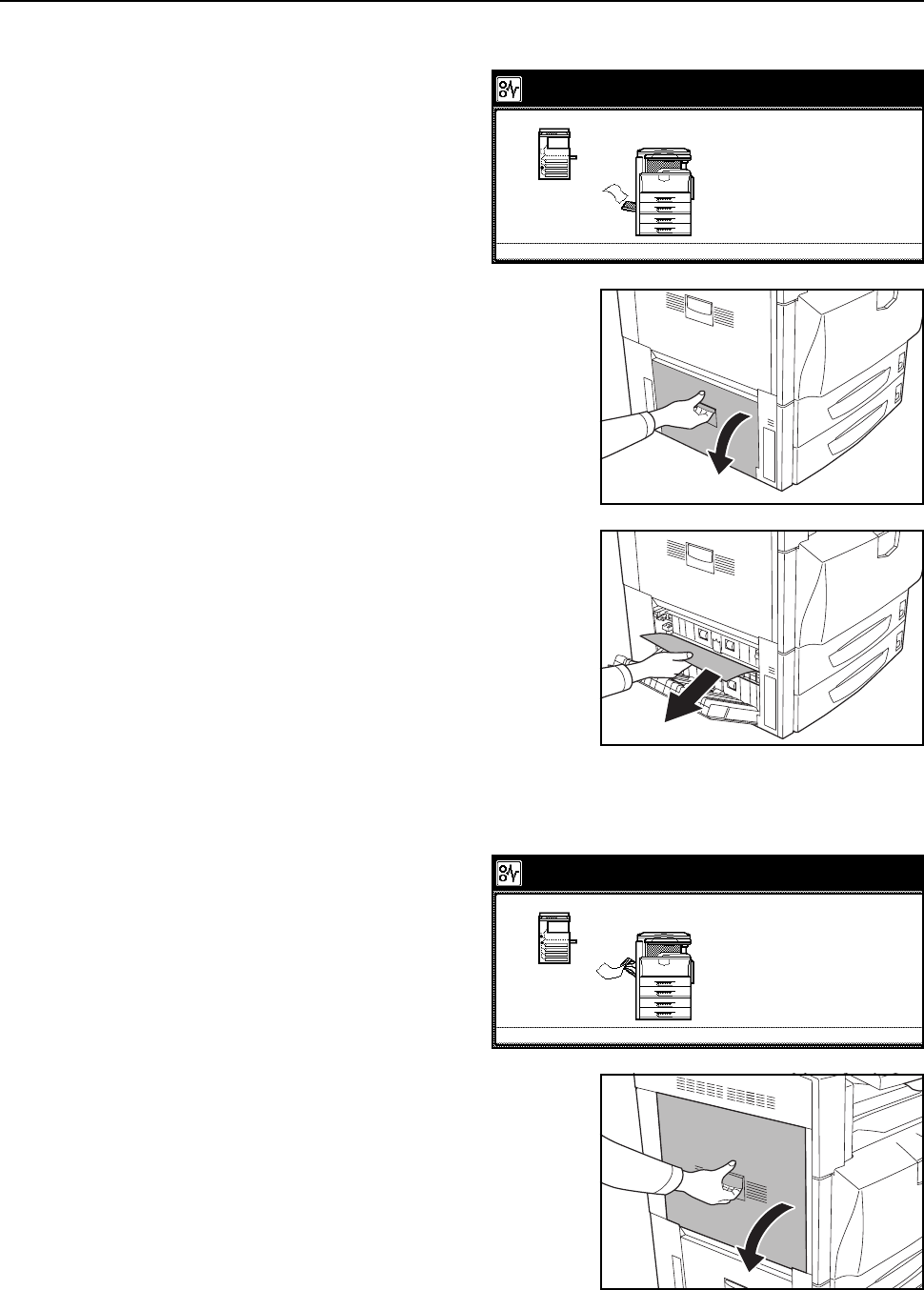
Troubleshooting
6-24
Left Cover 2 Interior
Follow the steps below to clear jams
occurring inside left cover 2.
Follow the steps below at left cover 3 to
clear paper jams when using the
optional paper feeder or 3000 sheet
paper feeder and a jam occurs in
Cassette 3.
1Open left cover 2.
2Remove any jammed paper.
If the paper tears, remove any loose scraps from the
machine.
3Close left cover 2.
Fixing Unit
Follow the steps as below to clear paper
jams in the fixing unit.
1Open left cover 1.
Paper misfeed.
3.Close the cover.
2.Remove the paper.
1.Open left cover 2 of the machine.
JAM 00
Paper misfeed.
3.Open fixing cover A2 to check
paper inside.
4.Close the cover.
2.Open duplex unit A1 and remove any
1.Remove paper.
JAM 00
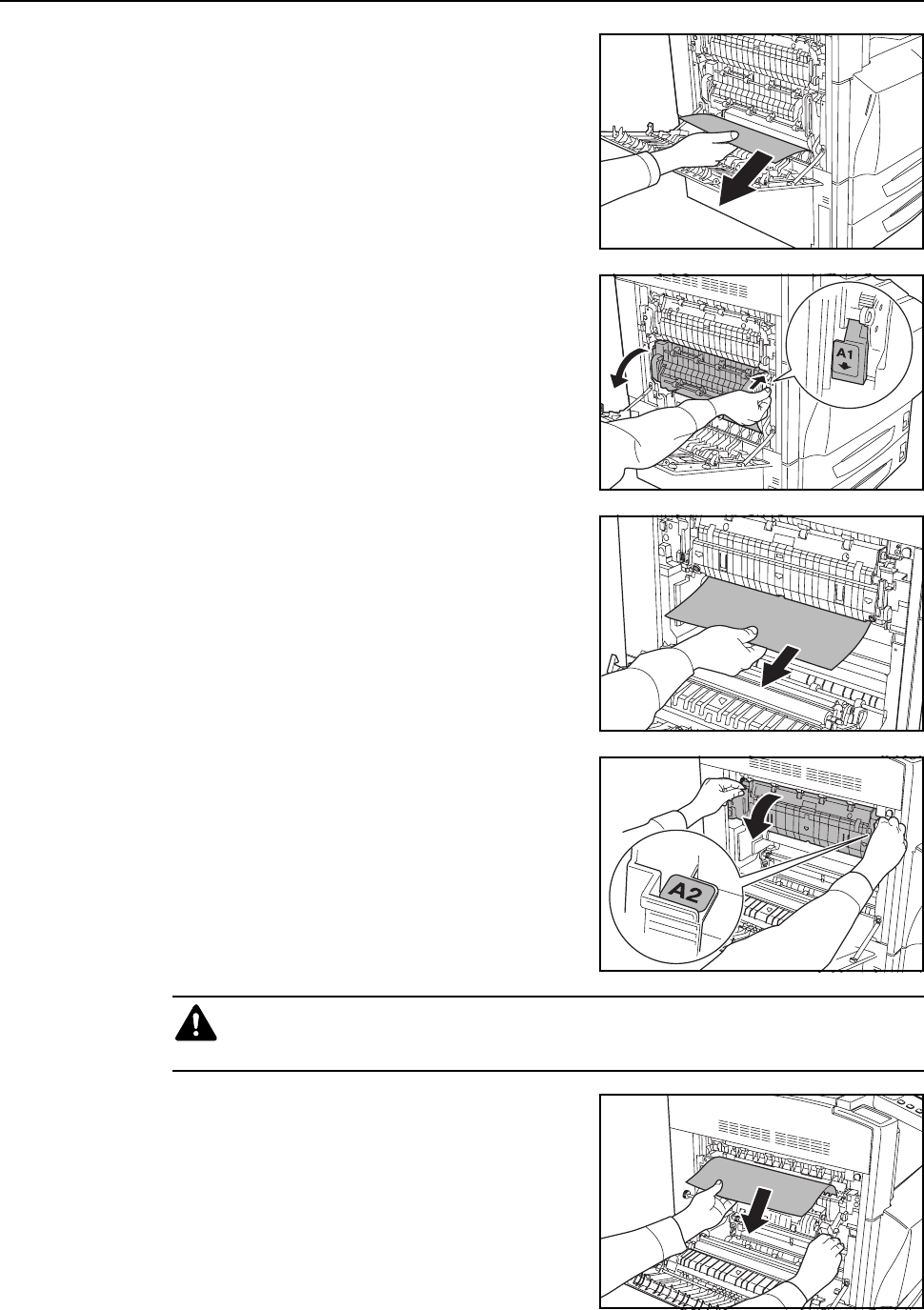
Troubleshooting
6-25
2Remove any jammed paper.
If the paper tears, remove any loose scraps from the
machine.
3Open duplex unit A1.
4Remove any jammed paper.
If the paper tears, remove any loose scraps from the
machine.
5Open fixing unit cover A2.
6Remove any jammed paper.
If the paper tears, remove any loose scraps from the
machine.
Caution: The fixing unit of this product is extremely hot. Take sufficient care when
working in this area, as there is a danger of getting burned.
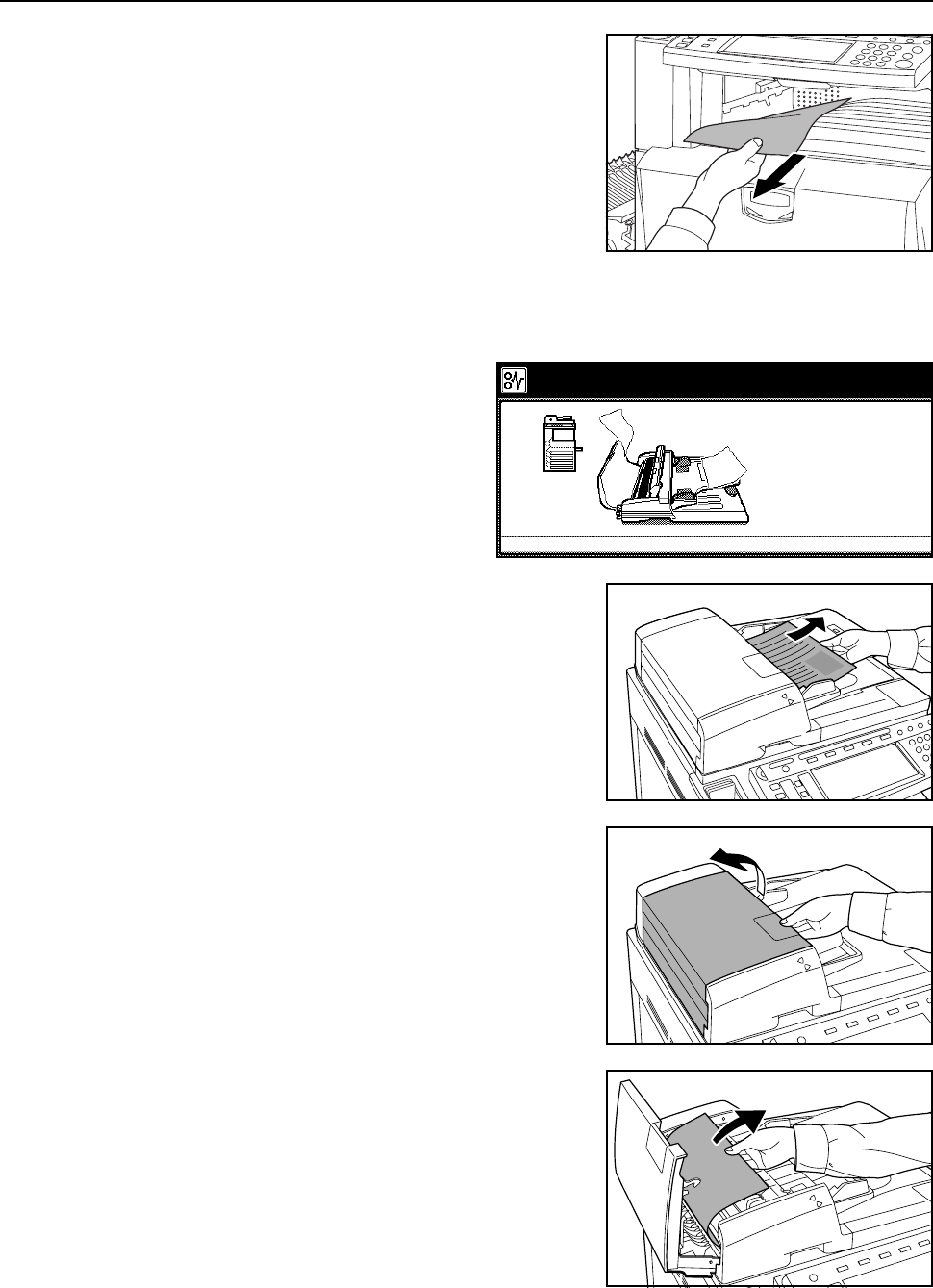
Troubleshooting
6-26
7If jammed paper can be seen around the eject section,
remove by pulling toward you.
8Close fixing unit A2, duplex unit A1 and left cover 1.
Document Processor (option)
Follow the steps as below to clear paper
jams in the document processor.
1Remove any originals on the original table.
2Open the document processor cover.
3Remove the jammed paper.
Paper misfeed.
3.Turn the left dial.
4.Remove the original.
5.Close the document processor top cov
e
2.Hold up the reverse unit.
1.Open the document processor top cov
e
JAM 00
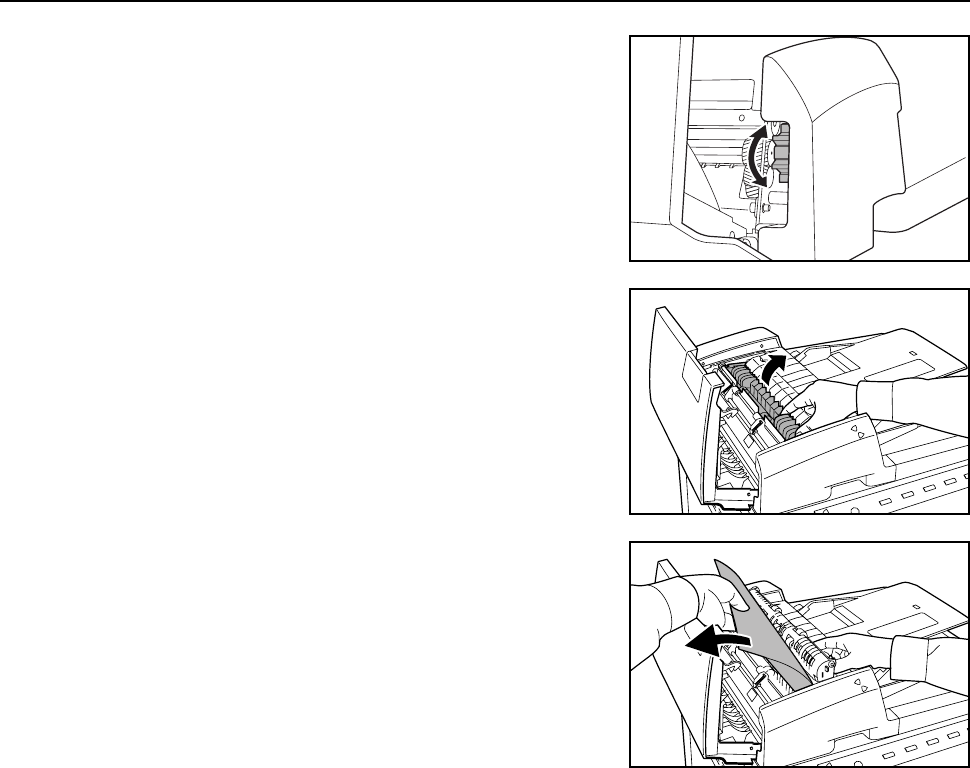
Troubleshooting
6-27
If the original cannot be easily removed, turn the feed
knob. The original will move to a more easily
accessible location.
If the original tears, remove any loose scraps from
inside the machine.
4Lift up the reverse unit.
5Remove the jammed paper.
If the original tears, remove any loose scraps from
inside the machine.
6Return the reverse unit to its original position and close the document processor cover.
7Replace the originals into the original table.
Document Finisher (option)
If a paper jam occurs in the optional document finisher or 3000 sheet document finisher, clear jams
according to the corresponding Operation Guide.

Troubleshooting
6-28
Appendix-1
Appendix
This section explains the specifications of this device.
• Body...Appendix-2
• Copying Performance...Appendix-3
• Printing Performance...Appendix-3
• Scanning Performance...Appendix-4
• Document Processor (option)...Appendix-4
• Paper Feeder (option)...Appendix-5
• 3000 Sheet Paper Feeder (option)...Appendix-5
• Document Finisher (option)...Appendix-5
• 3000 Sheet Document Finisher (option)...Appendix-6
• Job Separator (option)...Appendix-6
• Environmental Specifications...Appendix-7

Appendix
Appendix-2
Specifications
NOTE: These specifications are subject to change without notice.
Body
Copying System Dry static transfer copy system (Laser), Tandem drum system
Supported Original Types Sheet, Book, 3-dimensional objects (maximum original size:
11 × 17"/A3
Copy Sizes
Cassette 1, 2
MP Tray
During Duplex Usage
Non-Copying Margin
11 × 17", 8 1/2 ×14", 11×81/2", 8 1/2 ×11", 51/2 ×81/2", 8 1/2 × 13",
81/2 ×131/2", A3, B4, A4, A4R, B5, B5R, A5R, Folio, 8K, 16K, 16KR
11 × 17" - 5 1/2 ×81/2", A3 - A6R, 8K, 16K, 16KR, YOUKEI 2,
YOUKEI 4
11 × 17" - 5 1/2 ×81/2", A3 - A5R
4 mm or less
Paper Supply Capacity
Cassette 1
Cassette 3 and 4
MP Tray
500 sheets (80 g/m2, 11 × 8 1/2"/A4 or smaller), 250 sheets (80 g/m2,
81/2 × 14"/B4 or larger)
500 sheets (80 g/m2)
100 sheets (80 g/m2, 11 × 8 1/2"/A4 or smaller), 50 sheets (80 g/m2,
81/2 × 14"/B4 or larger)
Output Tray Capacity 250 Sheets (80 g/m2)
Warm-up Time Less than 45 seconds
Recovery time from energy save mode: 10 seconds or less
Recovery time from sleep mode: 45 seconds or less
(Room temperature 71.6 °F/22 °C, humidity 60 %)
Memory
For Copying/
For Scanner
For Printing
Additional Memory
768 MB
256 MB
Printer: 128 MB, 256 MB, 512 MB
Operating Environment
Temperature
Humidity
Altitude
Brightness
10 to 32.5 °C
15 to 80 %
2,500 m or less
1,500 lux or less
Power Supply AC 120 V 60 Hz 12 A
AC 220 to 240 V 50 Hz 7.2 A
Dimensions
(W) × (D) × (H)
23 13/16 ×253/8 ×295/16"
605 × 645 × 745 mm
Weight 215.6 lbs./98 kg (excluding toner containers and waste toner box)
Space Required
(W) × (D)
34 1/2 ×253/8"
877 × 645 mm

Appendix
Appendix-3
Copying Performance
Printing Performance
Copying Speed
25/20 ppm model
32/25 ppm model
32/32 ppm model
Color copy
11 × 17"/A3: 10 sheets/min
81/2 × 14"/B4: 10 sheets/min
11 × 8 1/2"/A4: 20 sheets/min
81/2 × 11"/A4R: 14 sheets/min
B5: 20 sheets/min
B5R: 14 sheets/min
Color copy
11 × 17"/A3: 13 sheets/min
81/2 × 14"/B4: 13 sheets/min
11 × 8 1/2"/A4: 25 sheets/min
81/2 × 11"/A4R: 17 sheets/min
B5: 25 sheets/min
B5R: 17 sheets/min
Color copy
11 × 17"/A3: 16 sheets/min
81/2 × 14"/B4: 16 sheets/min
11 × 8 1/2"/A4: 32 sheets/min
81/2 × 11"/A4R: 22 sheets/min
B5: 32 sheets/min
B5R: 22 sheets/min
Black and White copy
11 × 17"/A3: 13 sheets/min
81/2 × 14"/B4: 13 sheets/min
11 × 8 1/2"/A4: 25 sheets/min
81/2 × 11"/A4R: 17 sheets/min
B5: 25 sheets/min
B5R: 17 sheets/min
Black and White copy
11 × 17"/A3: 16 sheets/min
81/2 × 14"/B4: 16 sheets/min
11 × 8 1/2"/A4: 32 sheets/min
81/2 × 11"/A4R: 22 sheets/min
B5: 32 sheets/min
B5R: 22 sheets/min
Black and White copy
11 × 17"/A3: 16 sheets/min
81/2 × 14"/B4: 16 sheets/min
11 × 8 1/2"/A4: 32 sheets/min
81/2 × 11"/A4R: 22 sheets/min
B5: 32 sheets/min
B5R: 22 sheets/min
First Copy Time Full color: 7.9 seconds or less 1:1, 11 × 8 1/2"/A4
B/W - Single color: 5.9 seconds or less (1:1, 11 × 8 1/2"/A4)
Resolution Scanning: 600 × 600 dpi
Printing: 600 × 600 dpi
Continuous Copying 1 - 999 sheets
Zoom Level Any level of zoom from 25 - 400 % (in 1 % increments)
includes preset zoom levels
Printing Speed Same as Copying Speed
First Print Time Same as First Copy Time
Resolution 300 dpi, 600 dpi, Fast 1200 mode
Supported Operating
Systems
Windows 95 OSR2, Windows 98 Second Edition,
Windows NT 4.0 Service Pack 5 or later,
Windows 2000 Service Pack 2 or later, Windows Me, Windows XP,
Windows Server 2003, Apple Macintosh OS 9.x/OS X 10.x
Interface Parallel port interface: 1 IEEE1284
Network interface: 1
USB 2.0: 1 USB Hi-Speed
Network interface cards (option): 1
Serial interface (option): 1

Appendix
Appendix-4
Scanning Performance
Document Processor (option)
Hardware IBM PC/AT Compatible
Supported Operating
Systems
Windows 95 OSR2, Windows 98 Second Edition,
Windows NT 4.0 Service Pack 5 or later,
Windows 2000 Service Pack 2 or later, Windows Me, Windows XP,
Windows Server 2003, Mac OS 9.1-9.2.2, Mac OS 10.1.5-10.4
(TWAIN: Mac OS 10.2-10.4)
Operating Environment CPU Pentium 133 MHz or higher (Windows Me 150 MHz or
higher, Windows XP Celeron 600 MHz or higher,
Macintosh Power PC G3 or higher)
RAM 64 MB or greater (Windows XP 128 MB)
HDD 20 MB or greater
Recommended
Environment
CPU Celeron 266 MHz or higher (Windows XP Celeron
800 MHz or higher)
RAM 64 MB or greater
HDD 300 MB or greater
CD-ROM 1 drive
Ethernet 10BASE-T/100BASE-TX
Network Protocol TCP/IP
Communications Protocols Proprietary (image transferring, setting via utility), SMTP (e-mail
sending), HTTP (setting via web), FTP (When sending FTP), TWAIN
(When using TWAIN)
Original Feed Method Automatic feed
Supported Original Types Sheet originals
Paper Size Maximum: 11 × 17"/A3
Minimum: 5 1/2 ×81/2"/A5R
Paper Weight 1-sided original: 45 - 160 g/m2
2-sided original: 50 - 120 g/m2
Original No. of Sheets 11 × 8 1/2"/A4 or smaller: 100 sheets or less 50 - 80 g/m2
81/2 × 14"/B4 or larger: 70 sheets or less 50 - 80 g/m2
Device Dimensions
(W) × (D) × (H)
22 1/2 ×193/16 ×51/4"
571 × 488 × 134 mm
Weight Approx. 25.3 lbs./Approx. 11.5 kg

Appendix
Appendix-5
Paper Feeder (option)
3000 Sheet Paper Feeder (option)
Document Finisher (option)
NOTE: When using the document finisher or 3000 sheet document finisher, the optional job
separator must be installed.
Only paper that can be fed from the cassette can be ejected from the document finisher or 3000
sheet document finisher.
Paper Supply Method Friction Feed (No. Sheets: 500, 80 g/m2, 2 cassettes)
Paper Size 11 × 17", 8 1/2 ×14", 11×81/2", 8 1/2 ×11", 101/2 ×71/4", 7 1/4 ×101/2",
51/2 ×81/2", 8 1/2 ×13", 81/2 ×131/2", A3, B4, A4, A4R, B5, B5R, A5R,
Folio, 8K, 16K, 16KR
Supported Paper Paper weight: 60 - 105 g/m2
Paper types: standard, recycled, color
Dimensions
(W) × (D) × (H)
23 5/16 ×231/4 ×123/8"
585 × 590 × 315 mm
Weight Approx. 57.2 lbs. / Approx. 26 kg
Paper Supply Method Friction retard method (No. sheets: 3000, 80 g/m2)
Paper Size 11 × 8 1/2", A4
Supported Paper Paper weight: 60 - 105 g/m2
Paper types: standard, recycled, color
Dimensions
(W) × (D) × (H)
23 5/16 ×235/8 ×123/8"
585 × 600 × 314 mm
Weight Approx. 50.6 lbs. / Approx. 23 kg
Number of Trays 1 tray
Paper Size
(Non-stapling)
11 × 17", 8 1/2 × 14", A3, B4: 500sheets
11 × 8 1/2", 8 1/2 × 11", A4, A4R, B5, B5R, Folio: 1000 sheets
Supported Paper
Weight
Stapling: 80 g/m2 or less
Maximum Sheets for
Stapling†
† When using color copy paper, stapling up to the number of allowed sheets may not be
possible due to paper quality.
11 × 17", 8 1/2 × 14", A3, B4: 20 sheets, 11 × 8 1/2", 8 1/2 × 11", A4, A4R,
B5: 30 sheets (Paper weight 80 g/m2 or less)
Dimensions
(W) × (D) × (H)
22 × 20 11/16 ×361/16"
558 × 526 × 916 mm
Weight Approx. 55 lbs./Approx. 25 kg

Appendix
Appendix-6
3000 Sheet Document Finisher (option)
NOTE: When using the document finisher or 3000 sheet document finisher, the optional job
separator must be installed.
Only paper that can be fed from the cassette can be ejected from the document finisher or 3000
sheet document finisher.
Job Separator (option)
Number of Trays 3 tray
Paper Size
Tray A (Non-stapling)
Tray B
Tray C
11 × 17", 8 1/2 × 14" A3, B4, 8K: 1500 sheets
11 × 8 1/2", 8 1/2 × 11", A4, A4R, B5, Folio, 16K: 3000 sheets
11 × 17", 8 1/2 × 14" A3, B4, 8K: 100 sheets
11 × 8 1/2", 8 1/2 ×11", 51/2 ×81/2", A4, A4R, B5, B5R, A5, A5R, B6R, A6R,
Folio, 16K, 16KR: 200 sheets
Postcard: 50 sheets
11 × 8 1/2", 5 1/2 ×81/2", A4, B5, A5, A5R, B6R, A6R, 16K: 50 sheets
Postcard: 10 sheets
Supported Paper
Weight
Stapling: 90 g/m2 or less
Punchingoption: 45 - 200 g/m2
Maximum Sheets for
Stapling†
† When using color copy paper, stapling up to the number of allowed sheets may not be
possible due to paper quality.
11 × 17", 8 1/2 × 14", A3, B4: 30 sheets, 11 × 8 1/2", 8 1/2 × 11", A4, A4R,
B5: 50 sheets (Paper weight 90 g/m2 or less)
Dimensions
(W) × (D) × (H)
26 15/16 ×223/16 ×4213/16"
684 × 563 × 1087 mm
Weight Approx. 105.6 lbs. or less/Approx. 48 kg or less
Number of Trays 1 tray
Maximum Sheets 100 sheets (80 g/m2)
Paper Size 11 × 17", 8 1/2 × 14", 11 × 8 1/2", 8 1/2 ×11", 71/4 ×101/2", 5 1/2 ×81/2",
81/2 × 13", 8 1/2 ×131/2", A3, B4, A4, A4R, B5, B5R, A5R, Folio
Paper Type Paper weight: 60 - 105 g/m2
Paper type: standard, recycled, color, thin, letterhead
Device Dimensions
(W) × (D) × (H)
22 7/16 ×227/16 ×91/2"
570 × 570 × 240 mm
Weight 5.06 lbs. or less /2.3 kg or less

Appendix
Appendix-7
Environmental Specifications
NOTE: Contact your Dealer or Service Representative for recommended paper types.
Recovery time from Low-Power mode 10 seconds or less
Time to Low-Power mode (factory default setting) 15 minutes
Time to Sleep mode (factory default setting) 45 minutes
Duplexing Standard
Paper supply capability Paper with 100 % recycled paper
content may be used

Appendix
Appendix-8

Index
Index-1
Index
Numerics
3000 sheet document finisher 4-5
Paper jams 6-27
Specifications Appendix-6
3000 sheet paper feeder 4-4
Loading paper 2-4
Paper jams 6-18
Specifications Appendix-5
Specifying the paper type 2-8
A
Additional memory 4-7
Adjusting exposure
Auto Exposure mode 3-6
Manual Exposure mode 3-6
Auto Low-Power mode 3-35
Auto Sleep mode 3-36
B
Background exposure adjust ii
Batch scanning ii
Booklet i
Border erase i
C
Cable connection
Network interface 2-21
Parallel port interface 2-21
USB interface 2-21
Canceling a print job 3-19
Carrying handles 1-3
Cassette
Cassette 1 1-2, 2-2
Cassette 2 1-2, 2-2
Loading paper 2-2
Paper jams 6-16, 6-17
Specifying paper size 2-7
Specifying the paper type 2-8
Caution labels xii
Centering originals i
Cleaning
Original platen, platen 5-2
Separator 5-3
Slit glass 5-3
Document processor 5-2
Color balance adjust ii
Color/B&W selection iii
Combine mode i
Conventions in this guide xxv
Copy
Adjusting exposure 3-6
Basic copying procedures 3-2
Duplex mode 3-11
Error message 6-4
Interrupt copy 3-17
Job reservation 3-18
Reducing/Enlarging 3-7
Selecting image quality 3-5
Sort mode 3-16
Specifications Appendix-3
Split mode 3-14
Copy screen 1-5
Copying speed Appendix-3
Cover mode i
D
Database connection v, 3-28
Document finisher 4-5
Paper jams 6-27
Specifications Appendix-5
Document processor 4-4
Cleaning 5-2
Loading originals 2-18
Paper jams 6-26
Part names 2-18
Precautions 2-18
Specifications Appendix-4
Duplex mode i, 3-11
Duplex path iv
E
EcoPrint ii
Energy Star program x
Environmental specifications Appendix-7
Error code 6-13
Error message
Copy 6-4
Printer 6-8
Scanner 6-10
F
Fax kit 4-6
First copy time Appendix-3
First print time Appendix-3
Front cover 1-3, 5-3, 5-5
Full-color scan v
G
Grounding the machine xiv
H
Hard disk 4-7
Hue adjust iii

Index
Index-2
I
Image repeat copy ii
Included guides xxiv
Installation precautions xiii
Interface cover 1-2, 2-21
Interrupt copy 3-17
Inverted copying ii
J
Job accounting v
Job build iii
Job reservation 3-18
Job separator 4-5
Specifications Appendix-6
Job storage iv
K
Key counter 4-6
How to insert 4-6
L
Language v, 2-20
Left cover 1 1-3, 5-4, 6-16, 6-19
Left cover 2 1-3, 6-17, 6-24
Legal and safety information
Caution labels xii
Energy Star program x
Grounding the machine xiv
Installation precautions xiii
Legal information viii
Power supply xiv
Precautions for use xiv
Regarding tradenames ix
Safety conventions xi
Symbols xi
Legal information viii
List of functions i
Low-Power mode 3-35
M
Main power switch 1-2, 2-21, 3-2, 3-4
Main power switch cover 1-2, 2-21, 3-2
Maintenance 5-1
Margin mode i
Memo mode ii
Memory card 4-6
Memory card slot 1-2, 4-6
Mirror copying ii
MP tray 1-2
Loading paper 2-5
Paper jams 6-19
Specifying paper size 2-10
Specifying the paper type 2-15
MP tray extension 1-2, 2-5
N
Names
Body 1-2
Operation panel 1-4
Touch panel 1-5
Network interface 1-2, 2-21
Network interface card 4-8
O
Offset mode i
OHP backing sheet mode ii
One touch image adjust iii
Operation panel 1-2, 1-4
Option
3000 sheet document finisher 4-5
3000 sheet paper feeder 4-4
Additional memory 4-7
Document finisher 4-5
Document processor 4-4
Fax kit 4-6
Hard disk 4-7
Job separator 4-5
Key counter 4-6
Memory card 4-6
Network interface card 4-8
Overview of optional equipment 4-2
Paper feeder 4-4
PDF upgrade kit 4-8
Security kit 4-7
Serial interface 4-8
Original
Loading on the platen 2-16
Loading originals in the document processor
2-18
Size xxvi
Original platen 1-2, 2-16
Cleaning 5-2
Original size indicator plates 1-2, 2-16
Output management iv
Output tray 1-3, 3-3
P
Page numbering i
Paper
Loading paper in the MP tray 2-5
Loading paper into 3000 sheet paper feeder 2-4
Loading paper into Cassette 1, 2 2-2
Loading paper into paper feeder 2-2
Note 2-2
Size xxvi, 2-7, 2-10
Type 2-8, 2-15
Paper feeder 4-4
Loading paper 2-2
Paper jams 6-18
Specifications Appendix-5

Index
Index-3
Specifying paper size 2-7
Specifying the paper type 2-8
Paper jams 6-15
3000 sheet document finisher 6-27
3000 sheet paper feeder 6-18
Cassette 1 6-16
Cassette 2 6-17
Document finisher 6-27
Document processor 6-26
Fixing unit 6-24
Jam location indicators 6-15
Left cover 1 6-23
Left cover 2 6-24
MP tray 6-19
Paper feeder 6-18
Paper jam precautions 6-16
Paper length guide 1-2, 2-3
Paper width adjusting tab 1-2, 2-3
Paper width guide 1-2, 2-3
Parallel port interface 1-2, 2-21
Part names 1-1
PDF upgrade kit 4-8
Platen 1-2, 2-16
Cleaning 5-2
Poster i
Power supply xiv
Precautions for use xiv
Preparation 2-1
Printer
Cancel 3-19
Error message 6-8
Included printer utilities 2-24
Installing the printer driver 2-25
Network Settings 2-22
Specifications Appendix-3
Printer driver 2-25
Printer screen 1-6
Printing speed Appendix-3
Private print iv
Programmed copying iii
Programmed scanning v
Proof and hold iv
Proof copy ii
Q
Quick copy iv
R
Reducing/Enlarging
Auto zoom 3-7
Manual zoom 3-7, 3-8
Preset zoom 3-7, 3-9
XY zoom 3-7, 3-10
Repeat copy ii
Resolution Appendix-3
S
Safety conventions xi
Scan to FTP v, 3-32
FTP Common Address Book 2-35
Scan to PC v, 3-23
Scan to PC Common Address Book 2-35
Scanner
Basic settings 2-32
Configuring date/time 2-37
Configuring time difference 2-37
Connection 2-31
Database connection 3-28
Error code 6-13
Error message 6-10
Installing utilities 2-39
Modifying Common Address Book 2-35
Registering user information 2-34
Scan to FTP 3-32
Scan to PC 3-23
Scanner File Utility 2-40
Send E-mail 3-20
Specifications Appendix-4
TWAIN 3-27
Scanner File Utility
Installing 2-40
Registering file save folders 2-41
Setting from a web browser 2-44
Scanner screen 1-6
Security kit 4-7
Selecting image quality 3-5
Map 3-5
Photo 3-5
Print 3-5
Text 3-5
Text+Photo 3-5
Send E-mail v, 3-20
E-mail Common Address Book 2-35
Separator
Cleaning 5-3
Serial interface 4-8
Shared data box iii
Sharpness adjust ii
Single color copy iii
Sleep mode 3-36
Slider 1-2, 2-6
Slit glass
Cleaning 5-3
Solving malfunctions 6-2
Sort mode 3-16
Specifications
3000 sheet document finisher Appendix-6
3000 sheet paper feeder Appendix-5
Body Appendix-2
Copying performance Appendix-3
Document finisher Appendix-5
Document processor Appendix-4
Environmental specifications Appendix-7

Index
Index-4
Job separator Appendix-6
Paper feeder Appendix-5
Printing performance Appendix-3
Scanning performance Appendix-4
Split mode i, 3-14
Symbols xi
Synergy print box iv
T
TCP/IP 2-22
Toner container 1-3
Replacement 5-5
Toner container lock lever 1-3, 5-5
Touch panel 1-5
TWAIN v, 3-27
Initiating the connection from the computer 3-27
Initiating the connection from the machine 3-27
U
USB interface 1-2, 2-21
V
Virtual mailbox iv
W
Warm-up 3-2
Waste toner box 1-3
Replacement 5-5
MEMO
MEMO

A1
For best results and machine performance, we recommend that you use only our original supplies for
your products.
©2006
is a trademark of Kyocera Corporation

2006.1
302FZ56030 Rev.1.0
