Kyocera FS C8025MFP C8020MFP_FS C8025MFP_OG_ENG User Manual To The 06751b40 F46f 47cc 91f5 8e31128eb8b4
User Manual: Kyocera FS-C8025MFP to the manual
Open the PDF directly: View PDF  .
.
Page Count: 377 [warning: Documents this large are best viewed by clicking the View PDF Link!]
- Contents
- Quick Guide
- Menu Map
- 1 Preface
- 2 Preparation before Use
- 3 Common Operations
- Loading Paper
- Loading Originals
- Checking the Equipment's Serial Number
- Checking the Counter
- Login/Logout
- Favorites
- Shortcuts
- Quick Setup Wizard
- Help Screen
- Canceling Jobs
- Using Various Functions
- Common Functionality
- Original Size
- Original Orientation
- Mixed Size Originals
- 2-sided/Book Original
- Continuous Scan
- Paper Selection
- Paper Output
- Collate/Offset
- Margin
- Staple
- Density
- Scan Resolution
- Original Image
- Sharpness
- Background Density Adjust
- Prevent Bleed-through
- Zoom
- File Format
- Color Selection
- Job Finish Notice
- File Name Entry
- Priority Override
- 4 Copying
- 5 Printing
- 6 Sending
- 7 Document Box
- 8 Status / Job Cancel
- 9 Setup, Registration, and User Management
- 10 Troubleshooting
- 11 Appendix
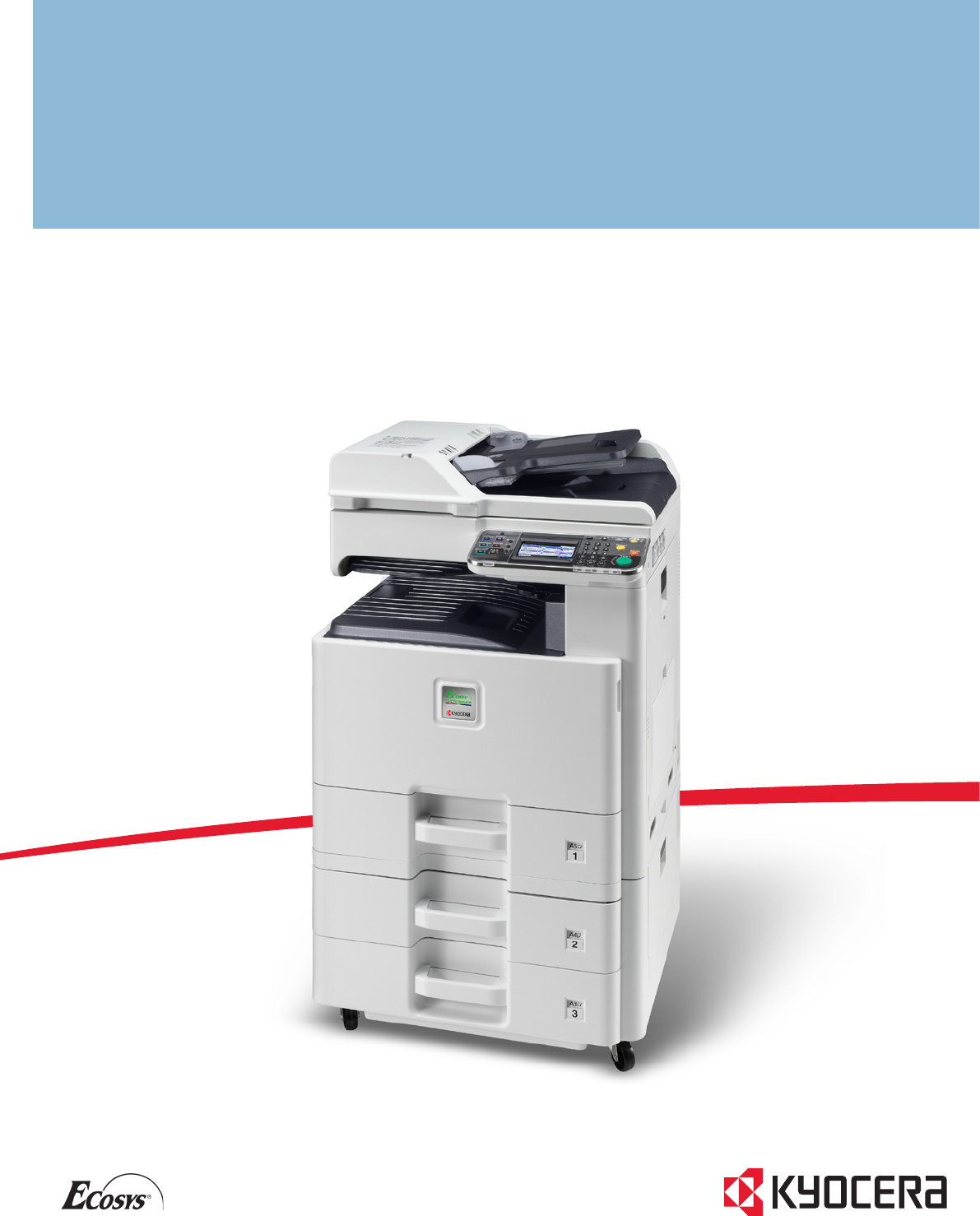
OPERATION GUIDE
FS -110 0
FS-1300D
870CKGB20008
*870CKGB20008*
FS-C8020MFP/FS-C8025MFP
Introduction
Thank you for your purchase of FS-C8020MFP/FS-C8025MFP.
This Operation Guide is intended to help you operate the machine correctly, perform routine maintenance and take a
simple troubleshooting action as necessary, so that you can always use the machine in good condition.
Please read this Operation Guide before you start using the machine.
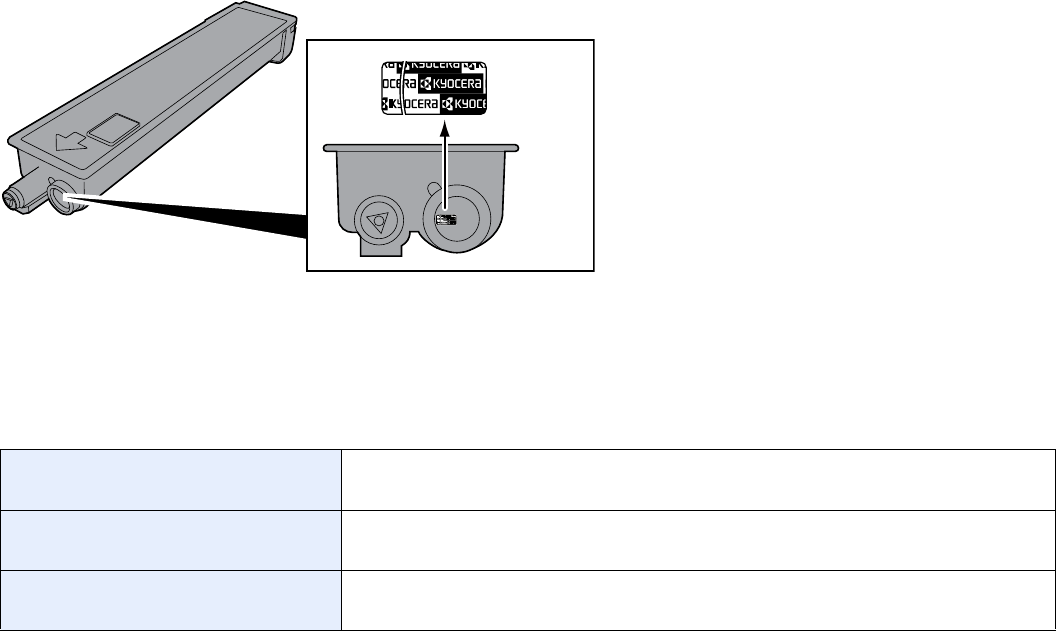
We recommend the use of our own brand supplies. We will not be liable for any damage caused by the use of third party
supplies in this machine.
A label shown in the illustration assures that the supplies are our own brand.
In this Operation Guide, FS-C8020MFP is referred to as 20 ppm model, and FS-C8025MFP is referred to as 25 ppm
model respectively.
Included Guides
The following guides are supplied with the machine. Refer to them as necessary.
Quick Installation Guide Describes the procedures for installation of the machine, frequently-used operations,
routine maintenance, and troubleshooting action.
Safety Guide Provides safety and cautionary information for the installation and use of the machine.
Be sure to read this guide before using the machine.
Safety Guide (FS-C8020MFP/
FS-C8025MFP)
Describes the machine installation space, cautionary space, and other information. Be
sure to read this guide before using the machine.

DVD (Product Library)
Operation Guide (This Guide) Describes how to load paper, basic copy, print and scan operations, and
troubleshooting.
FAX Operation Guide Describes fax functionality.
Card Authentication Kit (B) Operation
Guide
Describes how to authenticate to the machine using the ID card.
KYOCERA COMMAND CENTER
Operation Guide
Describes how to access the machine from a computer via a Web browser to check and
change settings.
Printer Driver User Guide Describes how to install the printer driver and use printer functionality.
Network FAX Driver Operation Guide Describes how to install and use the network fax driver in order to use network fax
functionality.
KM-NET for Direct Printing Operation
Guide
Describes how to use functionality for printing PDF files without launching Adobe
Acrobat or Reader.
KMnet Viewer User Guide Describes how to monitor the network printing system with KMnet Viewer.
File Management Utility User Guide Describes how to distribute scanned documents over the network.
PRESCRIBE Commands Technical
Reference
Describes the native printer language (PRESCRIBE commands).
PRESCRIBE Commands Command
Reference
Describes PRESCRIBE command functionality and control for each type of emulation.

i
Contents
1 Preface .....................................................................................................1-1
Notice ................................................................................................................................... 1-2
Safety Conventions in This Guide .............................................................................. 1-2
Environment ............................................................................................................... 1-3
Precautions for Use .................................................................................................... 1-3
Legal Restriction on Copying/Scanning ..................................................................... 1-8
Legal and Safety Information ............................................................................................... 1-9
Legal Information ....................................................................................................... 1-9
Energy Saving Control Function .............................................................................. 1-12
Automatic 2-Sided Copy Function ............................................................................ 1-12
Paper Recycling ....................................................................................................... 1-12
Energy Star (ENERGY STAR®) Program ................................................................ 1-12
About this Operation Guide ................................................................................................ 1-13
Conventions in This Guide ....................................................................................... 1-13
Originals and Paper Sizes ........................................................................................ 1-15
2 Preparation before Use ...........................................................................2-1
Part Names .......................................................................................................................... 2-2
Machine ...................................................................................................................... 2-2
Operation Panel ......................................................................................................... 2-6
Touch Panel ............................................................................................................... 2-7
Determining the Connection Method and Preparing Cables ................................................ 2-8
Connection Example .................................................................................................. 2-8
Preparing Necessary Cables ..................................................................................... 2-9
Connecting Cables ............................................................................................................. 2-10
Connecting LAN Cable ............................................................................................. 2-10
Connecting USB Cable ............................................................................................ 2-11
Connecting the Power Cable ................................................................................... 2-11
Power On/Off ...................................................................................................................... 2-12
Power On ................................................................................................................. 2-12
Power Off ................................................................................................................. 2-12
Installing Software .............................................................................................................. 2-14
Installing Printer Driver ............................................................................................. 2-14
Setting TWAIN Driver ............................................................................................... 2-18
Setting WIA Driver .................................................................................................... 2-19
Energy Saver function ........................................................................................................ 2-20
Low Power Mode and Auto Low Power Mode ......................................................... 2-20
Sleep and Auto Sleep .............................................................................................. 2-21
Machine Setup Wizard ....................................................................................................... 2-22
COMMAND CENTER (Settings for E-mail) ........................................................................ 2-23
Sending E-mail ......................................................................................................... 2-24
3 Common Operations ...............................................................................3-1
Loading Paper ...................................................................................................................... 3-2
Before Loading Paper ................................................................................................ 3-2
Loading Paper in the Cassettes ................................................................................. 3-3
Loading Paper in the Multi Purpose Tray ................................................................... 3-5
Loading Originals ................................................................................................................. 3-7
Placing Originals on the Platen .................................................................................. 3-7
Loading Originals in the Document Processor ........................................................... 3-8
Checking the Equipment's Serial Number .......................................................................... 3-10
Checking the Counter ......................................................................................................... 3-11
Login/Logout ....................................................................................................................... 3-12
Login ........................................................................................................................ 3-12

ii
Logout ...................................................................................................................... 3-13
Favorites ............................................................................................................................. 3-14
Registering Favorites ............................................................................................... 3-14
Editing and Deleting Favorites ................................................................................. 3-18
Using Favorites ........................................................................................................ 3-20
Shortcuts ............................................................................................................................ 3-22
Registering Shortcuts ............................................................................................... 3-22
Editing and Deleting Shortcuts ................................................................................. 3-24
Using Shortcuts ........................................................................................................ 3-25
Quick Setup Wizard ............................................................................................................ 3-26
Help Screen ........................................................................................................................ 3-28
Canceling Jobs ................................................................................................................... 3-29
Using Various Functions .................................................................................................... 3-30
Common Functionality ............................................................................................. 3-31
Original Size ............................................................................................................. 3-32
Original Orientation .................................................................................................. 3-34
Mixed Size Originals ................................................................................................ 3-35
2-sided/Book Original ............................................................................................... 3-37
Continuous Scan ...................................................................................................... 3-39
Paper Selection ........................................................................................................ 3-41
Paper Output ............................................................................................................ 3-42
Collate/Offset ........................................................................................................... 3-43
Margin ...................................................................................................................... 3-45
Staple ....................................................................................................................... 3-48
Density ..................................................................................................................... 3-50
Scan Resolution ....................................................................................................... 3-51
Original Image .......................................................................................................... 3-52
Sharpness ................................................................................................................ 3-53
Background Density Adjust ...................................................................................... 3-54
Prevent Bleed-through ............................................................................................. 3-55
Zoom ........................................................................................................................ 3-56
File Format ............................................................................................................... 3-57
Color Selection ......................................................................................................... 3-59
Job Finish Notice ...................................................................................................... 3-60
File Name Entry ....................................................................................................... 3-62
Priority Override ....................................................................................................... 3-63
4 Copying ....................................................................................................4-1
Basic Operation .................................................................................................................... 4-2
Copying Functions ................................................................................................................ 4-4
Zoom .......................................................................................................................... 4-5
Duplex ........................................................................................................................ 4-8
Combine ................................................................................................................... 4-12
EcoPrint .................................................................................................................... 4-15
Hue Adjustment ........................................................................................................ 4-16
Color Balance ........................................................................................................... 4-17
Saturation ................................................................................................................. 4-18
Auto Image Rotation ................................................................................................ 4-19
Interrupt Copy ..................................................................................................................... 4-20
5 Printing .....................................................................................................5-1
Printing from Applications .....................................................................................................5-2
Printing Data Saved on the Printer ....................................................................................... 5-6
Private Print ................................................................................................................ 5-6
Proof and Hold ........................................................................................................... 5-8
Automatic Delete Setting for Temporary Documents ............................................... 5-11

iii
6 Sending ....................................................................................................6-1
Basic Operation .................................................................................................................... 6-2
Preparation for Sending a Document to a PC ...................................................................... 6-5
Checking What to Enter for [Host Name] ................................................................... 6-5
Checking What to Enter for [Login User Name] ......................................................... 6-6
Creating a Shared Folder ........................................................................................... 6-7
Checking the [Path] .................................................................................................. 6-10
Configuring Windows Firewall (for Windows 7) ........................................................ 6-11
Specifying Destination ........................................................................................................ 6-15
Choosing from the Address Book ............................................................................ 6-15
Choosing by One Touch Key ................................................................................... 6-17
Entering a New E-mail Address ............................................................................... 6-18
Specifying a New PC Folder .................................................................................... 6-19
Checking and Editing Destinations .......................................................................... 6-22
Sending to Different Types of Destinations (Multi Sending) ..................................... 6-23
Registering Destinations in the Address Book ................................................................... 6-24
Adding a Contact ...................................................................................................... 6-24
Adding a Group ........................................................................................................ 6-28
Editing and Deleting Address Book Entries ............................................................. 6-31
Adding a Destination on One Touch Key ........................................................................... 6-33
Adding a Destination ................................................................................................ 6-33
Editing and Deleting One Touch Key ....................................................................... 6-35
Sending Functions ..............................................................................................................6-36
Sending Size ............................................................................................................ 6-37
File Separation ......................................................................................................... 6-39
E-mail Subject/Body ................................................................................................. 6-40
FTP Encrypted TX .................................................................................................... 6-41
WSD Scan .......................................................................................................................... 6-42
Scanning using TWAIN ...................................................................................................... 6-45
7 Document Box .........................................................................................7-1
Printing Documents Stored in Removable USB Memory ..................................................... 7-2
Saving Documents to USB Memory (Scan to USB) ............................................................. 7-5
Removing USB Memory ....................................................................................................... 7-8
Functions for Document Box ................................................................................................ 7-9
Duplex ...................................................................................................................... 7-10
Encrypted PDF Password ........................................................................................ 7-11
JPEG/TIFF Print ....................................................................................................... 7-12
XPS Fit to Page ........................................................................................................ 7-13
Storing Size .............................................................................................................. 7-14
8 Status / Job Cancel .................................................................................8-1
Checking Job Status ............................................................................................................8-2
Details of the Status Screens ..................................................................................... 8-3
Checking Job History ...........................................................................................................8-6
Sending the Log History ....................................................................................................... 8-7
Setting the Destination ............................................................................................... 8-8
Automatic Log History Transmission .......................................................................... 8-9
Manual Log History Transmission .............................................................................. 8-9
Setting E-mail Subject .............................................................................................. 8-10
Check of Device Status ...................................................................................................... 8-11
Checking the Remaining Amount of Toner and Paper ....................................................... 8-13
9 Setup, Registration, and User Management .........................................9-1
System Menu ....................................................................................................................... 9-2
Operation Method ...................................................................................................... 9-2
System Menu Settings ............................................................................................... 9-3

iv
Language ................................................................................................................... 9-5
Report ........................................................................................................................ 9-5
User Property ............................................................................................................. 9-7
Cassette/MP Tray Settings ........................................................................................ 9-8
Common Settings ....................................................................................................... 9-9
Copy ......................................................................................................................... 9-15
Send ......................................................................................................................... 9-15
Printer ....................................................................................................................... 9-16
System ..................................................................................................................... 9-18
Date/Timer ............................................................................................................... 9-23
Adjustment/Maintenance .......................................................................................... 9-25
Color Registration Procedure ................................................................................... 9-27
User Login Administration .................................................................................................. 9-33
First User Login Administration ................................................................................ 9-33
User Login Settings .................................................................................................. 9-34
Enabling/Disabling User Login Administration ......................................................... 9-35
Adding a User .......................................................................................................... 9-37
Local User Authorization .......................................................................................... 9-41
My Panel .................................................................................................................. 9-42
Editing and Deleting Users ....................................................................................... 9-43
Simple Login ............................................................................................................ 9-46
Group Authorization ................................................................................................. 9-52
Obtain Network User Property ................................................................................. 9-56
Job Accounting ................................................................................................................... 9-58
First Job Accounting Setup ...................................................................................... 9-58
Job Accounting Settings ........................................................................................... 9-60
Enabling/Disabling Job Accounting .......................................................................... 9-61
Login/Logout ............................................................................................................ 9-62
Adding an Account ................................................................................................... 9-63
Editing and Deleting Accounts ................................................................................. 9-65
Restricting the Use of the Machine .......................................................................... 9-67
Counting the Number of Pages Printed ................................................................... 9-69
Printing an Accounting Report ................................................................................. 9-71
Job Accounting Default Setting ................................................................................ 9-73
Unknown Login User Name Job .............................................................................. 9-75
10 Troubleshooting ....................................................................................10-1
Toner Container Replacement ........................................................................................... 10-2
Waste Toner Box Replacement ......................................................................................... 10-4
Replacing Staples ..............................................................................................................10-5
Cleaning ............................................................................................................................. 10-6
Glass Platen ............................................................................................................. 10-6
Document Processor ................................................................................................ 10-6
Solving Malfunctions .......................................................................................................... 10-8
Responding to Error Messages ........................................................................................ 10-13
Clearing Paper Jams ........................................................................................................ 10-23
Jam Location Indicators ......................................................................................... 10-23
Multi Purpose Tray ................................................................................................. 10-24
Inside the Right Cover 1 ......................................................................................... 10-24
Cassette 1 .............................................................................................................. 10-25
Inside the Right Cover 3 ......................................................................................... 10-25
Cassette 2 or 3 ....................................................................................................... 10-26
Optional Document Finisher ................................................................................... 10-26
Optional Document Finisher Staple Jam ................................................................ 10-27
Bridge Unit ............................................................................................................. 10-27
Document Processor .............................................................................................. 10-28

v
11 Appendix ................................................................................................11-1
Optional Equipment ............................................................................................................ 11-2
Overview of Optional Equipment .............................................................................. 11-2
Paper Feeder (single cassette) ................................................................................ 11-3
Paper Feeder (double cassette) ............................................................................... 11-3
Document Finisher ................................................................................................... 11-3
FAX Kit ..................................................................................................................... 11-3
Expansion Memory .................................................................................................. 11-3
Card Authentication Kit ............................................................................................ 11-4
Gigabit Ethernet Board ............................................................................................. 11-5
USB Keyboard ......................................................................................................... 11-5
Optional Function ..................................................................................................... 11-5
Character Entry Method ..................................................................................................... 11-7
Entry Screens ........................................................................................................... 11-7
Entering Characters ................................................................................................. 11-9
Paper ................................................................................................................................ 11-10
Basic Paper Specifications ..................................................................................... 11-11
Choosing the Appropriate Paper ............................................................................ 11-11
Special Paper ......................................................................................................... 11-14
Specifications ................................................................................................................... 11-18
Common functions ................................................................................................. 11-18
Copy functions ....................................................................................................... 11-19
Printer functions ..................................................................................................... 11-20
Scanner .................................................................................................................. 11-20
Document Processor .............................................................................................. 11-21
Paper Feeder (single cassette) (option) ................................................................. 11-21
Paper Feeder (double cassette) (option) ............................................................... 11-21
Document Finisher (option) .................................................................................... 11-22
Environmental Specifications ................................................................................. 11-22
Glossary ........................................................................................................................... 11-23
Index ...............................................................................................................................Index-1

vi
vii
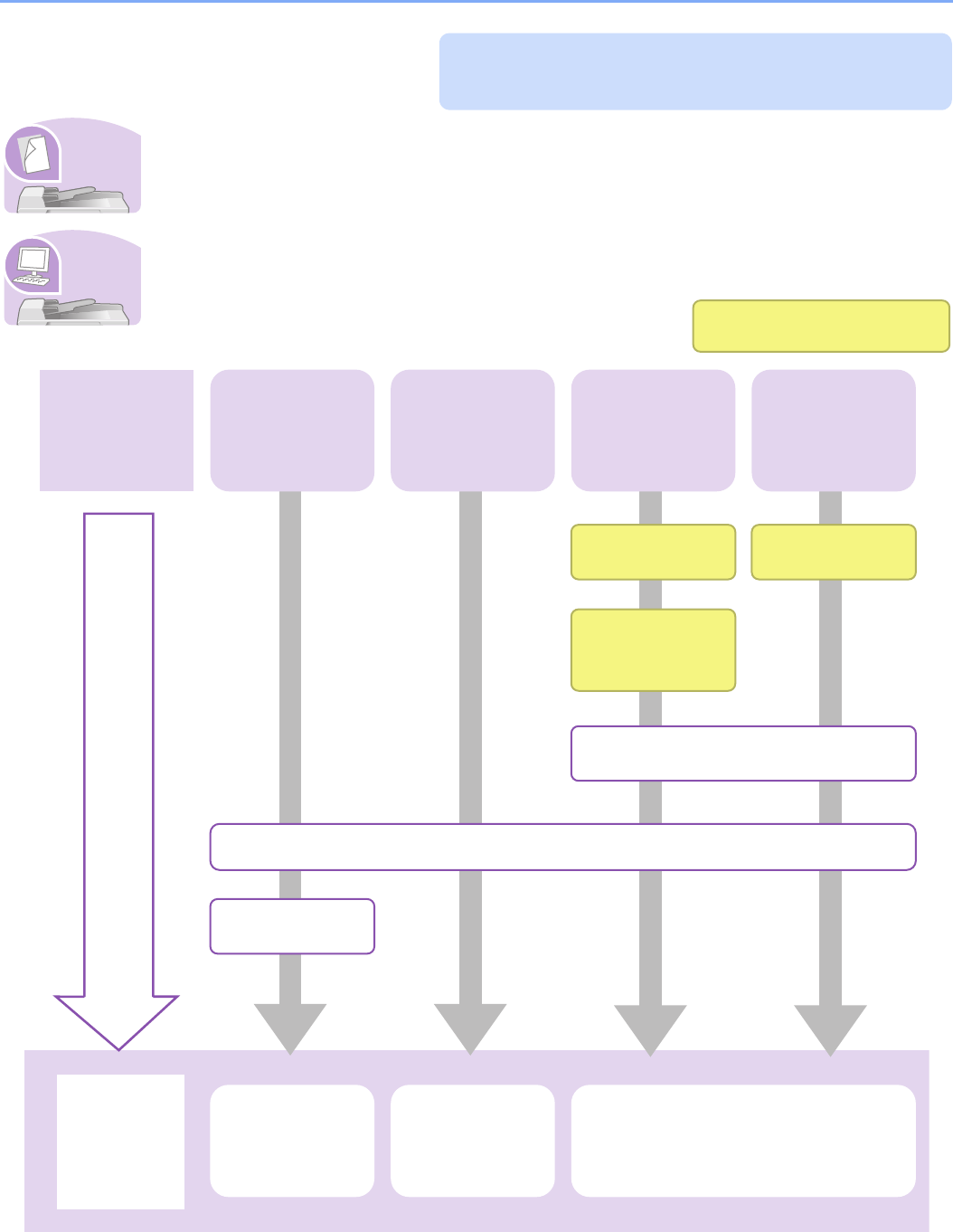
Quick Guide
To make copies
Simply press the Start key to make copies. You can also fine-tune the copy settings by changing the
paper size, adjusting the density, etc.
To print
You can print via a network or print a PDF file directly from USB memory.
Be sure to read Precautions for Use before
using this machine.
It copies.
It prints.
Copying with
specific settings
Printing
Documents
Stored in
Removable USB
Memory
Print via a
network
What you want
to do
Setup
Connecting
Cables
Network Setup
(LAN Cable
Connection)
Install the printer driver on your
computer...2-14
Loading Paper...3-2
Loading
Originals...3-7
Operation Copying...4-2
Printing
Documents
Stored in
Removable USB
Memory...7-2
Printing from Applications...5-2
Administrator tasks
Print over
the USB
connection
Connect the
USB cable
viii
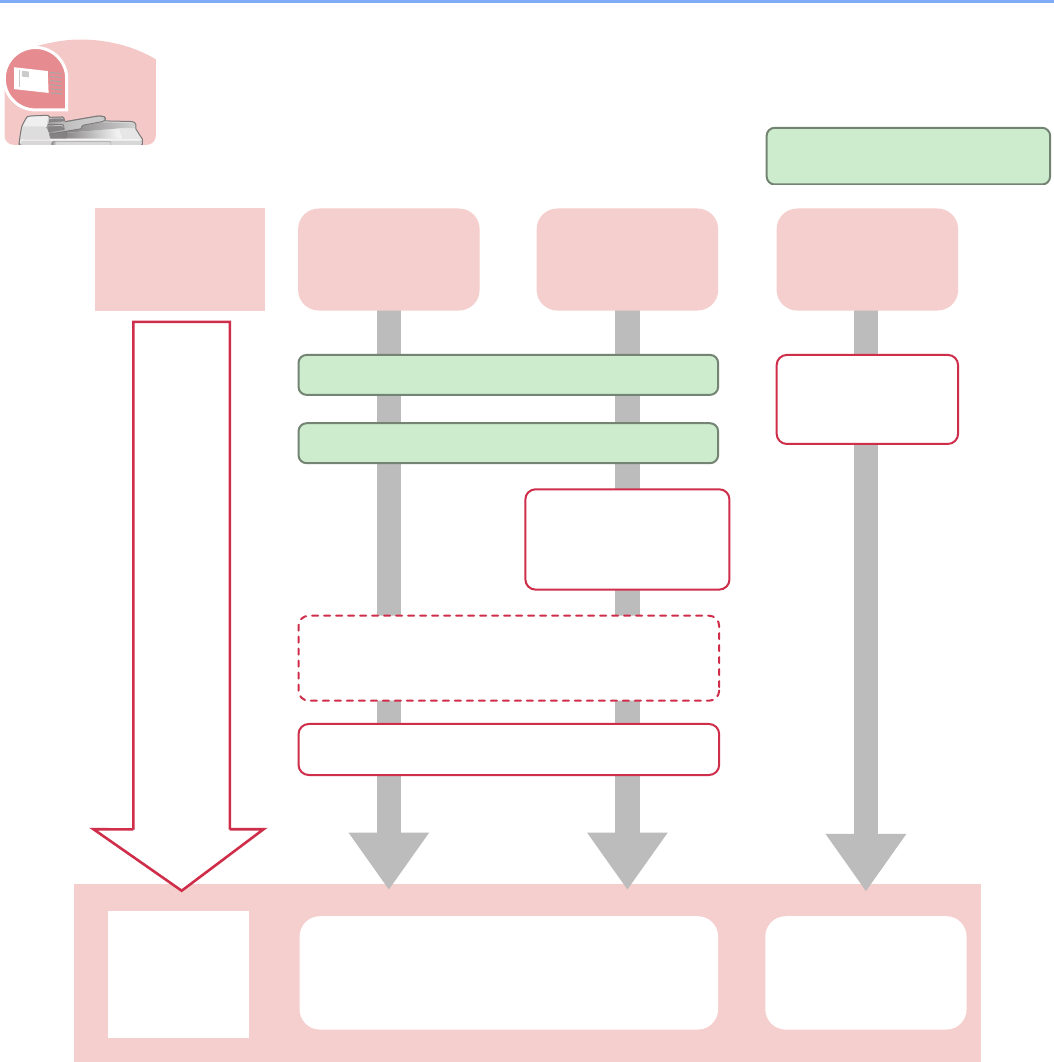
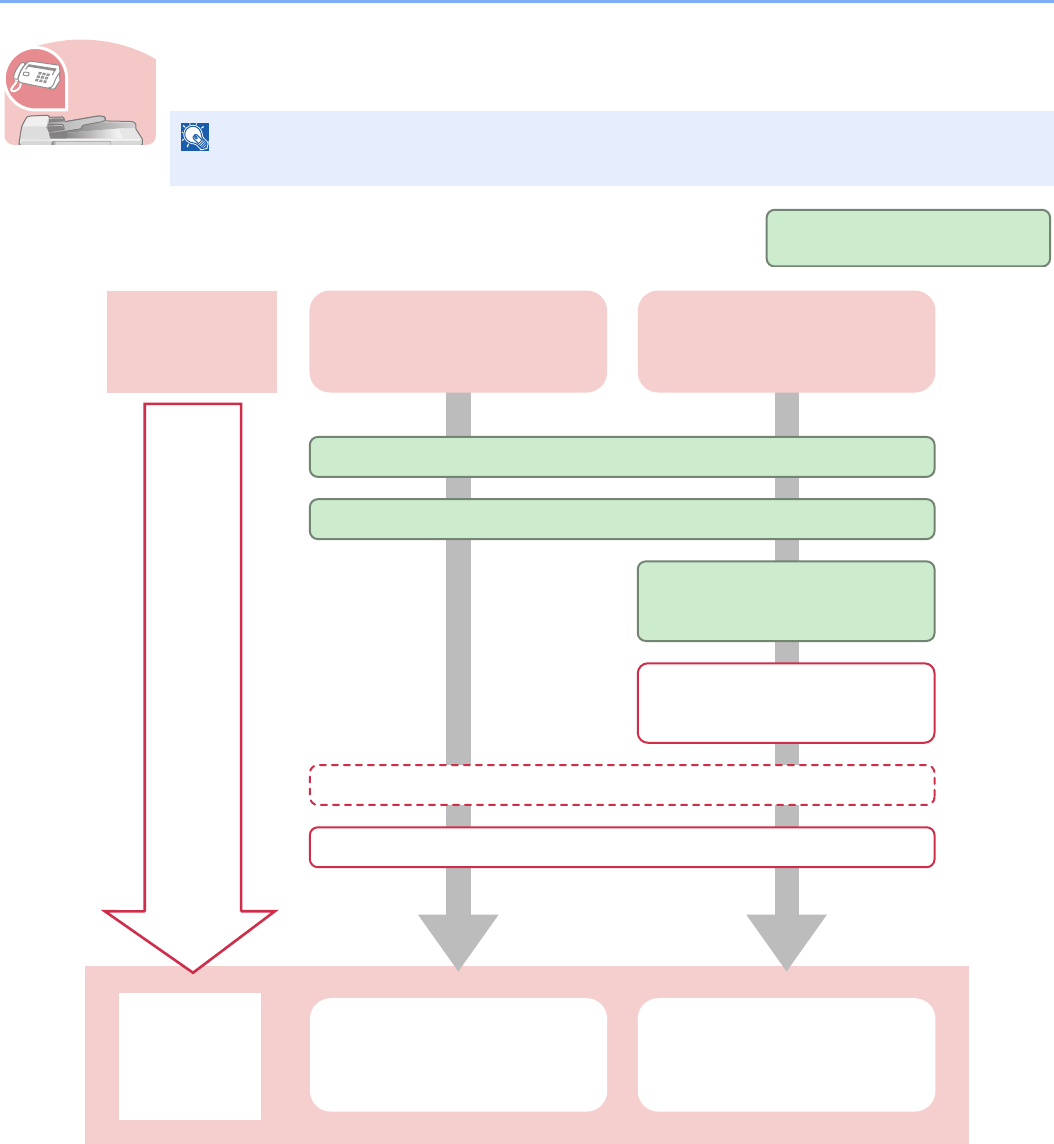
To send documents
You can send scanned images via a network. Or, you can also store scanned images in USB
memory.
* If the destination is not stored in the address book, you can send by entering the address directly.
It sends.
Send as E-mail Send to Folder
(SMB)
Saving
Documents to
USB Memory
What you want
to do
Setup
Connecting Cables
Network Setup (LAN Cable Connection)
Plug the USB
memory
Editing Destination (Address Book/
Adding One Touch Keys)*...6-15
Loading Originals...3-7
Operation Sending...6-2
Saving Documents
to USB Memory
(Scan to USB)...7-5
Administrator tasks
Create a shared
folder on the
destination
computer...6-7
ix
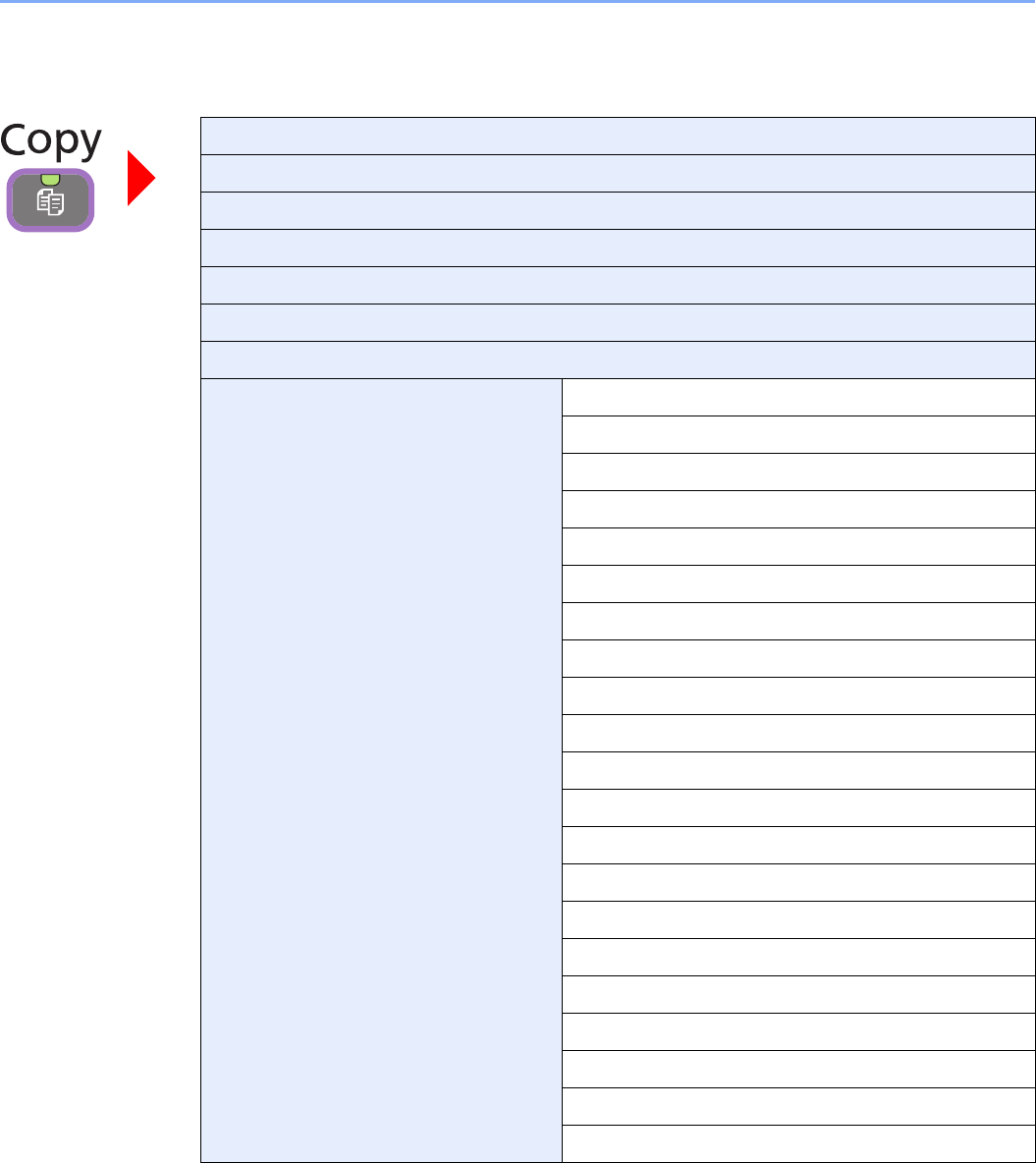
To send a FAX
As well as sending a FAX via the telephone lines, you can also send a FAX via a network.
* For more information, refer to the Network FAX Driver Operation Guide.
** If the destination is not stored in the address book, you can send the FAX by entering the address directly.
NOTE
For more information on setting up and sending a FAX, refer to the FAX Operation Guide.
It faxes.
Send a FAX FAX directly from a computer
What you want
to do
Setup
Connect the modular cord for the telephone line to this machine.
Selection of Telephone Line (Inch version only)
Network Setup (LAN Cable
Connection)
Loading Paper...3-2
Operation FAX Operation Network FAX Operation
Administrator tasks
Install the Network FAX
Driver on your computer*
Editing Destination (Address Book/Adding One Touch Keys)**
x
Menu Map
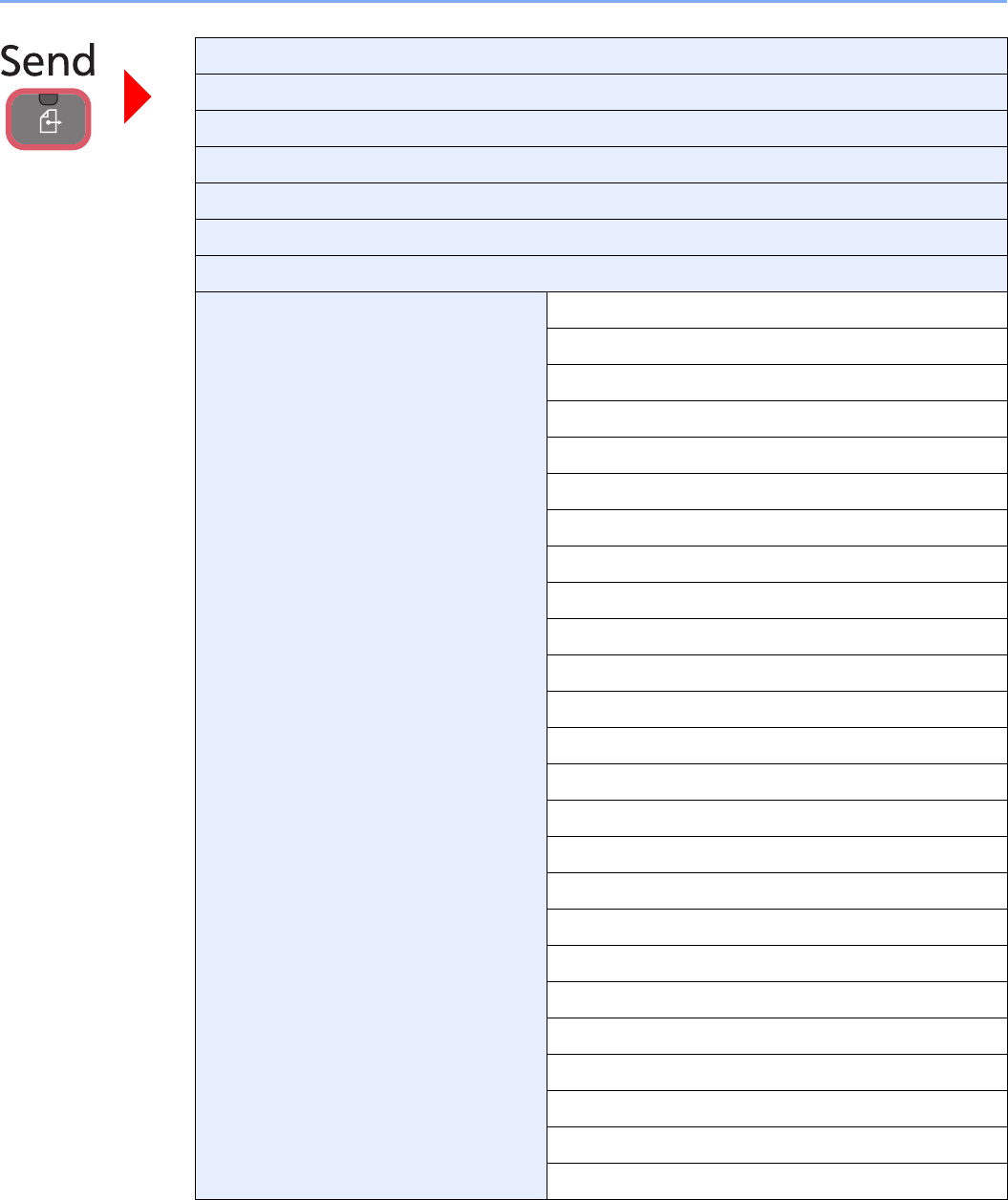
Copies (page 4-3)
Paper Selection (page 3-41)
Zoom (page 4-5)
Density (page 3-50)
Duplex (page 4-8)
Combine (page 4-12)
Collate/Offset (page 3-43)
Functions Original Size (page 3-32)
Original Orientation (page 3-34)
Mixed Size Originals (page 3-35)
Paper Output (page 3-42)
Staple (page 3-48)
Color Selection (page 3-59)
Original Image (page 3-52)
EcoPrint (page 4-15)
Hue Adjustment (page 4-16)
Color Balance (page 4-17)
Sharpness (page 3-53)
Background Density Adj. (page 3-54)
Prevent Bleed-through (page 3-55)
Saturation (page 4-18)
Margin (page 3-45)
Continuous Scan (page 3-39)
Auto Image Rotation (page 4-19)
Job Finish Notice (page 3-60)
File Name Entry (page 3-62)
Priority Override (page 3-63)
Add/Edit Shortcut (page 3-22)
xi
One Touch Key (page 6-17)
Address Book (page 6-15)
Ext. Address Book (refer to KYOCERA COMMAND CENTER Operation Guide)
E-mail (page 6-18)
Folder (page 6-19)
FAX (refer to Fax Operation Guide)
WSD Scan (page 6-42)
Functions File Format (page 3-57)
Original Size (page 3-32)
Original Orientation (page 3-34)
Mixed Size Originals (page 3-35)
2-sided/Book Original (page 3-37)
Sending Size (page 6-37)
File Separation (page 6-39)
Scan Resolution (page 3-51)
Density (page 3-50)
Color Selection (page 3-59)
Original Image (page 3-52)
Sharpness (page 3-53)
Background Density Adj. (page 3-54)
Prevent Bleed-through (page 3-55)
FAX TX Resolution (refer to Fax Operation Guide)
Zoom (page 3-56)
Continuous Scan (page 3-39)
File Name Entry (page 3-62)
E-mail Subject/Body (page 6-40)
Job Finish Notice (page 3-60)
FTP Encrypted TX (page 6-41)
FAX Delayed Transmission (refer to Fax Operation Guide)
FAX Direct Transmission (refer to Fax Operation Guide)
FAX Polling RX (refer to Fax Operation Guide)
Add/Edit Shortcut (page 3-22)

xii
Job Box (page 5-6)
Removable
Memory
Menu Store File File Format (page 3-57)
2-sided/Book Original (page 3-37)
Scan Resolution (page 3-51)
Density (page 3-50)
File Name Entry (page 3-62)
Functions Original Size (page 3-32)
Original Orientation (page 3-34)
Mixed Size Originals (page 3-35)
Storing Size (page 7-14)
Color Selection (page 3-59)
Original Image (page 3-52)
Sharpness (page 3-53)
Background Density Adj. (page 3-54)
Prevent Bleed-through (page 3-55)
Zoom (page 3-56)
Continuous Scan (page 3-39)
Job Finish Notice (page 3-60)
Add/Edit Shortcut (page 3-22)
Print Copies (page 7-3)
Paper Selection (page 3-41)
Collate/Offset (page 3-43)
Duplex (page 7-10)
Functions Paper Output (page 3-42)
Staple (page 3-48)
Color Selection (page 3-59)
Margin (page 3-45)
Job Finish Notice (page 3-60)
Priority Override (page 3-63)
Encrypted PDF Password (page 7-11)
JPEG/TIFF Print (page 7-12)
XPS Fit to Page (page 7-13)
Add/Edit Shortcut (page 3-22)
Sub Address Box (refer to Fax Operation Guide)
Polling Box (refer to Fax Operation Guide)
xiii
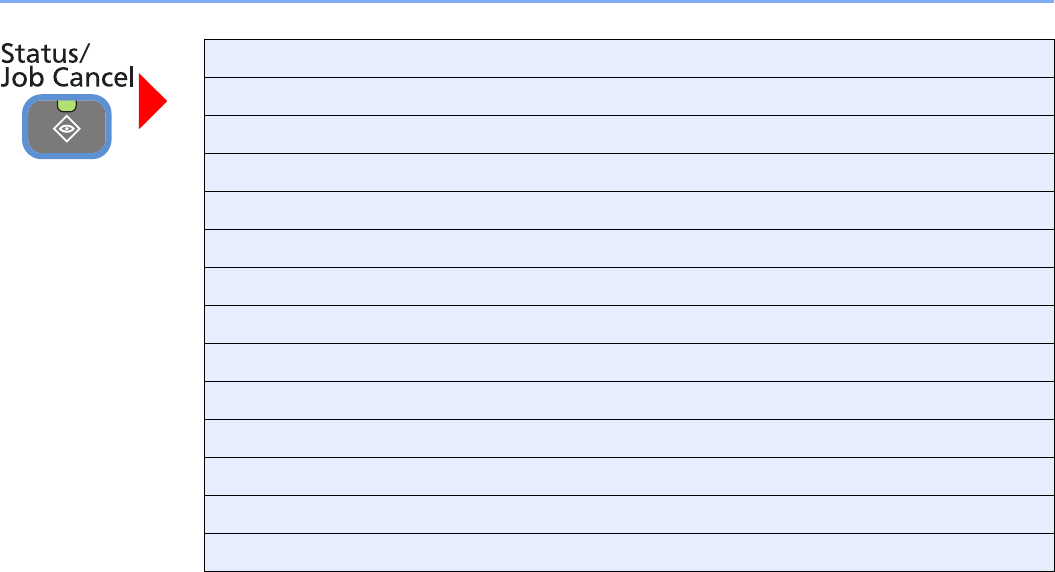
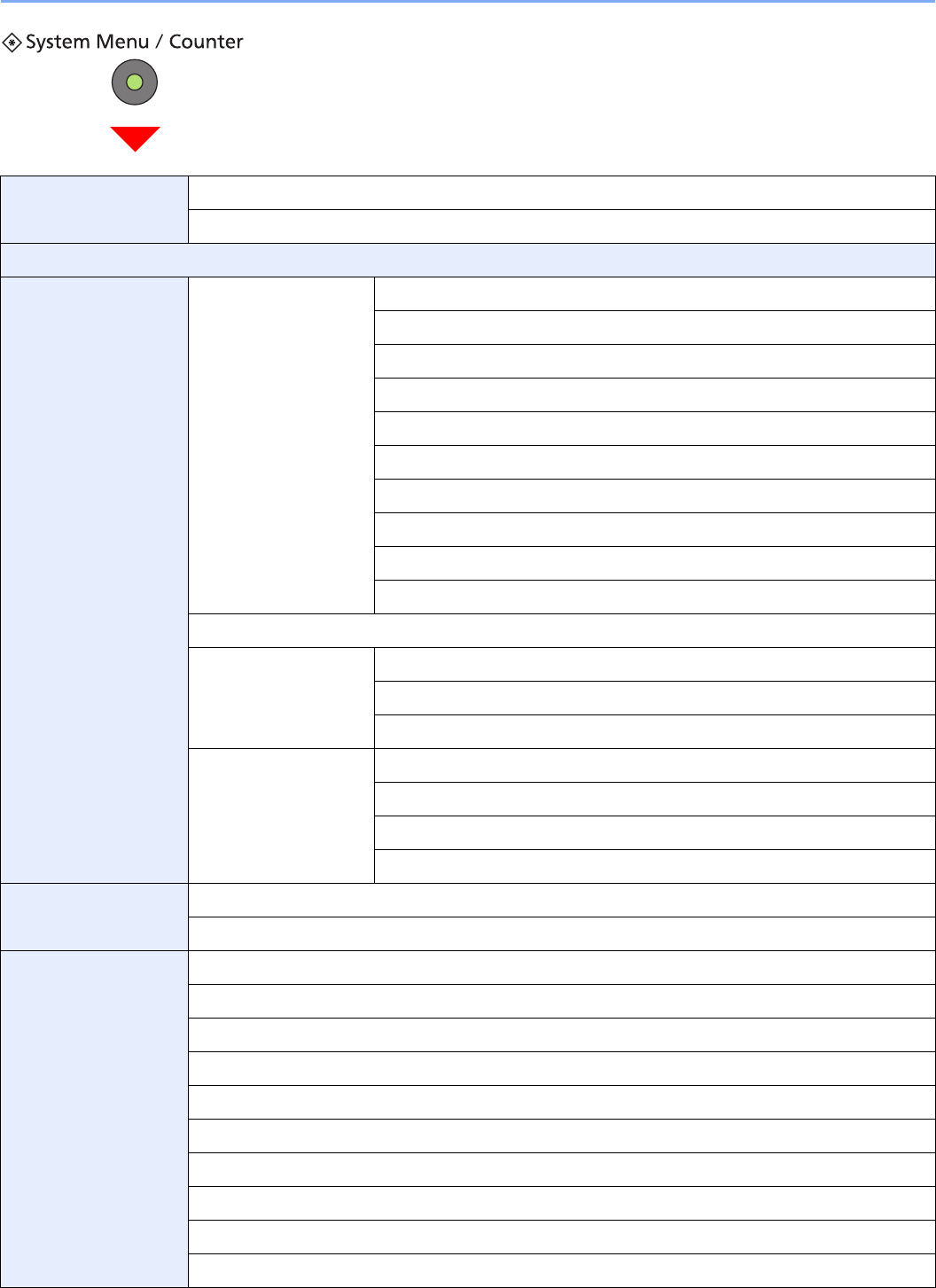
Print Job Status (page 8-3)
Send Job Status (page 8-4)
Store Job Status (page 8-5)
Scheduled Job (page 8-5)
Print Job Log (page 8-6)
Send Job Log (page 8-6)
Store Job Log (page 8-6)
Scanner (page 8-11)
Printer (page 8-12)
FAX (page 8-12)
Removable Memory (page 8-12)
Toner Status (page 8-13)
Paper Status (page 8-13)
Staple (page 8-14)
xiv
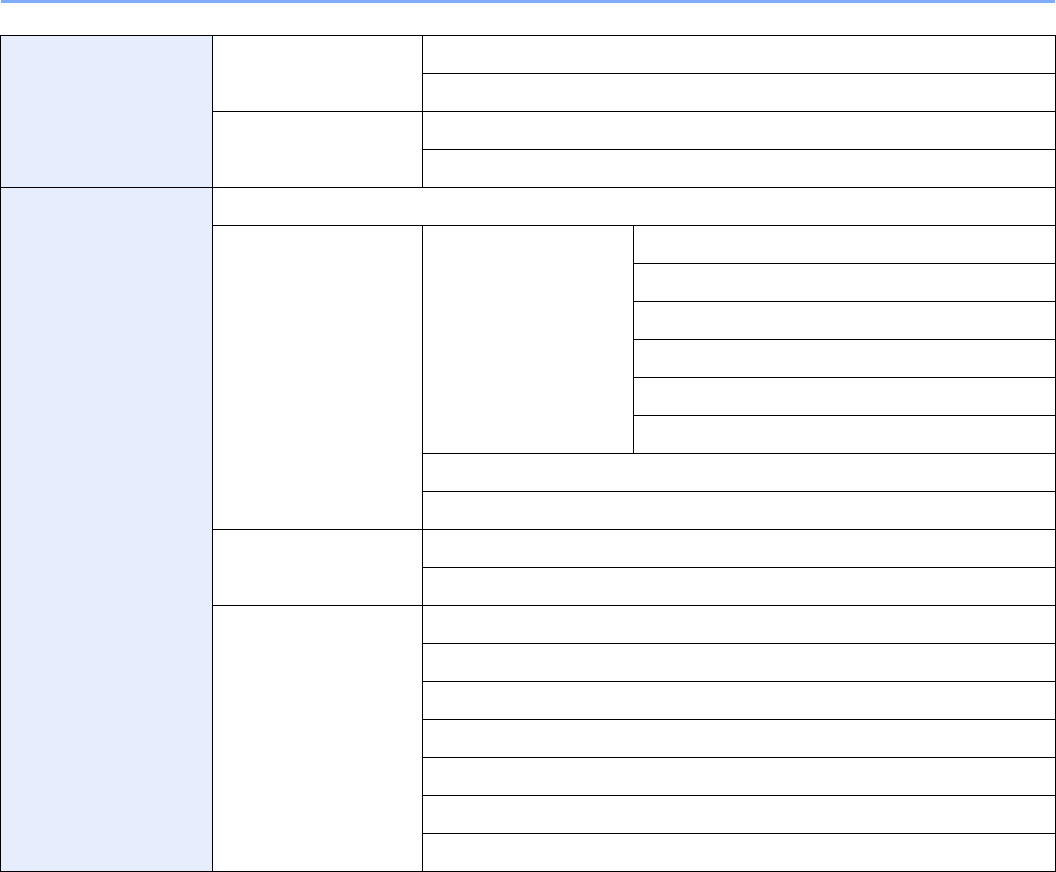
Quick Setup Wizard
(page 3-26)
FAX Setup (page 3-26)
Energy Saver Setup (page 3-26)
Language (page 9-5)
Report (page 9-5) Report Print (page 9-5) Status Page (page 9-5)
Font List (page 9-5)
Network Status (page 9-5)
Service Status (page 9-6)
Accounting Report (page 9-6)
Sub Address Box List (refer to Fax Operation Guide)
FAX List (Index) (refer to Fax Operation Guide)
FAX List (No.) (refer to Fax Operation Guide)
Outgoing FAX Report (refer to Fax Operation Guide)
Incoming FAX Report (refer to Fax Operation Guide)
Admin Report Settings (refer to Fax Operation Guide)
Result Report Setting
(page 9-6)
Send Result Report (page 9-6)
RX Result Report (refer to Fax Operation Guide)
Job Finish Notice Setting (page 9-6)
Send Log History (page
8-7)
Manual Log History Transmission (page 8-9)
Auto Sending (page 8-9)
Destination (page 8-8)
Job Log Subject (page 8-10)
Counter Printed Pages (page 3-11)
Scanned Pages (page 3-11)
User Property (page 9-
7)
User Name (page 9-7)
Login User Name (page 9-7)
Login Password (page 9-7)
Access Level (page 9-7)
Account Name (page 9-7)
E-mail Address (page 9-7)
Simple Login (page 9-7)
My Panel (page 9-7)
Group Name (page 9-7)
Group ID (page 9-7)
xv
Cassette/MP Tray
Settings (page 9-8)
Cassette 1 (to 3) (page
9-8)
Paper Size (page 9-8)
Media Type (page 9-8)
Multi Purpose Tray
(page 9-8)
Paper Size (page 9-8)
Media Type (page 9-8)
Common Settings
(page 9-9)
Default Screen (page 9-9)
Sound (page 9-9) Buzzer (page 9-9) Volume (page 9-9)
Key Confirmation (page 9-9)
Job Finish (page 9-9)
Ready (page 9-9)
Warning (page 9-9)
Key Confirmation (USB Keyboard) (page 9-9)
FAX Speaker Volume (refer to Fax Operation Guide)
FAX Monitor Volume (refer to Fax Operation Guide)
Original Settings (page
9-9)
Custom Original Size (page 9-9)
Original Auto Detect (page 9-10)
Paper Settings (page 9-
10)
Custom Paper Size (page 9-10)
Media Type Settings (page 9-10)
Default Paper Source (page 9-10)
Paper Selection (page 9-10)
Media for Auto (Color) (page 9-10)
Media for Auto (B & W) (page 9-10)
Special Paper Action (page 9-11)

xvi
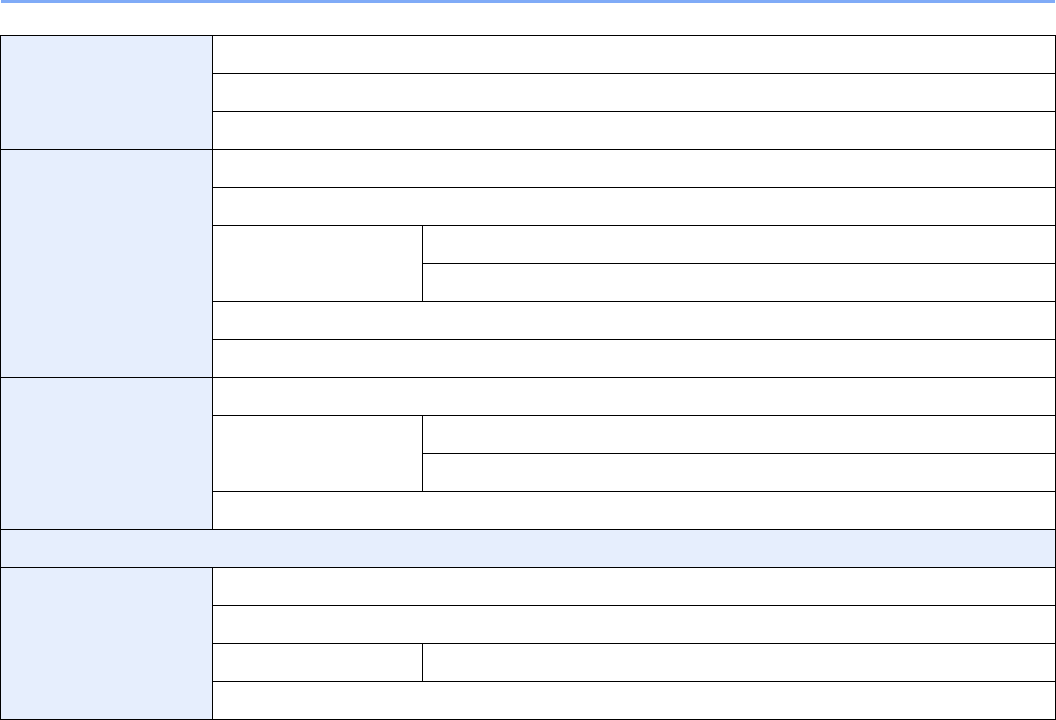
Function Defaults (page
9-12)
File Format (page 9-12)
Original Orientation (page 9-12)
Collate/Offset (page 9-12)
File Separation (page 9-12)
Scan Resolution (page 9-12)
Color Selection (Copy) (page 9-12)
Color Select.(Send/Store) (page 9-12)
Original Image (page 9-12)
Background Density Adj. (page 9-12)
EcoPrint (page 9-12)
Prevent Bleed-through (page 9-12)
FAX TX Resolution (refer to Fax Operation Guide)
Zoom (page 9-12)
Margin (page 9-12)
Continuous Scan (page 9-12)
Auto Image Rotation (page 9-12)
File Name Entry (page 9-13)
E-mail Subject/Body (page 9-13)
FTP Encrypted TX (page 9-13)
JPEG/TIFF Print (page 9-13)
XPS Fit to Page (page 9-13)
Detail Settings (page 9-
13)
Image Quality (page 9-13)
PDF/A (page 9-13)
Paper Output (page 9-
13)
Copy/Document Box (page 9-13)
Printer (page 9-13)
FAX (refer to Fax Operation Guide)
Preset Limit (page 9-13)
Error Handling (page 9-
14)
Duplexing Error (page 9-14)
Finishing Error (page 9-14)
No Staple Error (page 9-14)
Stapling Limit Error (page 9-14)
Paper Mismatch Error (page 9-14)
Inserted Paper Mismatch (page 9-14)
Color Toner Empty Action (page 9-14)
Measurement (page 9-14)
Keyboard Layout (page 9-15)
USB Keyboard Type (page 9-15)
xvii
Copy (page 9-15) Auto Paper Selection (page 9-15)
Auto % Priority (page 9-15)
Reserve Next Priority (page 9-15)
Send (page 9-15) Dest. Check before Send (page 9-15)
Entry Check for New Dest. (page 9-15)
Send and Forward
(page 9-16)
Forward (page 9-16)
Destination (page 9-16)
Color TIFF Compression (page 9-16)
Default Screen (page 9-16)
Document Box Sub Address Box (refer to Fax Operation Guide)
Job Box (page 5-6) Quick Copy Job Retention (page 5-8)
Deletion of Job Retention (page 5-11)
Polling Box (refer to Fax Operation Guide)
FAX (refer to Fax Operation Guide)
Address Book/One
Touch
Address Book (page 6-24)
One Touch Key (page 6-33)
Address Book Defaults Sort
Print List (refer to Fax Operation Guide)

xviii
User Login/Job
Accounting
User Login Settings
(page 9-33)
User Login (page 9-35)
Local User List (page 9-37)
Simple login settings
(page 9-46)
Simple Login (page 9-46)
Simple Login Setup (page 9-46)
Local User Authorization (page 9-41)
Group Authorization
Set. (page 9-52)
Group Authorization (page 9-52)
Group List (page 9-52)
Obtain NW User Property (page 9-56)
Job Accounting
Settings (page 9-58)
Job Accounting (page 9-61)
Print Accounting Report (page 9-71)
Total Job Accounting
(page 9-69)
Printed Pages (page 9-69)
Scanned Pages (page 9-69)
FAX TX Pages (page 9-69)
FAX TX Time (page 9-69)
Counter Reset (page 9-69)
Each Job Accounting (page 9-69)
Accounting List (page 9-63)
Default Setting (page 9-
73)
Apply Limit (page 9-73)
Copier/Printer Count (page 9-73)
Default Counter Limit (page 9-73)
Count by Paper Size (page 9-74)
Unknown ID Job (page 9-75)
Printer (page 9-16) Emulation (page 9-16)
Color Setting (page 9-16)
EcoPrint (page 9-16)
Override A4/Letter (page 9-16)
Duplex (page 9-16)
Copies (page 9-16)
Orientation (page 9-16)
Wide A4 (page 9-17)
Form Feed TimeOut (page 9-17)
LF Action (page 9-17)
CR Action (page 9-17)
Paper Feed Mode (page 9-17)
Gloss Mode (page 9-17)

xix
System (page 9-18) Network (page 9-18) Host Name (page 9-18)
TCP/IP (page 9-18) TCP/IP (page 9-18)
IPv4 Settings (page 9-18)
IPv6 Settings (page 9-19)
Protocol Detail (page 9-20)
Netware (page 9-21)
AppleTalk (page 9-21)
WSD Scan (page 9-21)
WSD Print (page 9-21)
Enhanced WSD (page 9-21)
Enhanced WSD (SSL) (page 9-21)
IPSec (page 9-22)
Secure Protocol (page
9-22)
SSL (page 9-22)
IPP Security (page 9-22)
HTTP Security (page 9-22)
LDAP Security (Ext. Address Book) (page 9-22)
LDAP Security (User Property) (page 9-22)
LAN Interface (page 9-22)
Interface Block Setting
(page 9-22)
USB Host (page 9-22)
USB Device (page 9-22)
Optional Interface 1 (page 9-22)
Optional Interface 2 (page 9-22)
Security Level (page 9-4)
Restart (page 9-4)
RAM Disk Setting (page 9-23)
Main Memory (page 9-23)
Optional Memory (page 9-23)
Optional Function (page 11-5)

xx
Date/Timer (page 9-23) Date/Time (page 9-23)
Date Format (page 9-23)
Time Zone (page 9-23)
Auto Panel Reset (page 9-23)
Auto Sleep (page 9-23)
Sleep Level (page 9-24)
Auto Error Clear (page 9-24)
Low Power Timer (page 9-24)
Panel Reset Timer (page 9-24)
Sleep Timer (page 9-24)
Interrupt Clear Timer (page 9-24)
Error Clear Timer (page 9-24)
Unusable Time (refer to Fax Operation Guide)
Adjustment/
Maintenance (page 9-
25)
Density Adjustment
(page 9-25)
Copy (page 9-25)
Send/Box (page 9-25)
Background Density
Adj. (page 9-25)
Copy (Auto) (page 9-25)
Send/Box (Auto) (page 9-25)
Toner Save Level
(EcoPrint) (page 9-25)
Copy (page 9-25)
Printer (page 9-25)
Auto Color Correction (page 9-25)
Correcting Black Line (page 9-25)
Display Brightness (page 9-25)
Color Registration (page 9-25)
Tone Curve Adjustment (page 9-26)
Drum Refresh (page 9-26)
Calibration (page 9-26)
Laser Scanner Cleaning (page 9-26)
DP Adjustment (page 9-26)
1-1
1 Preface
This chapter explains the following topics:
Notice ................................................................................................................................................................. 1-2
Safety Conventions in This Guide ........................................................................................................... 1-2
Environment ............................................................................................................................................. 1-3
Precautions for Use ................................................................................................................................. 1-3
Legal and Safety Information ............................................................................................................................. 1-9
Legal Information ..................................................................................................................................... 1-9
Energy Saving Control Function ............................................................................................................ 1-12
Automatic 2-Sided Copy Function ......................................................................................................... 1-12
Paper Recycling ..................................................................................................................................... 1-12
Energy Star (ENERGY STAR®) Program .............................................................................................. 1-12
About this Operation Guide .............................................................................................................................. 1-13
Conventions in This Guide ..................................................................................................................... 1-13
Originals and Paper Sizes ..................................................................................................................... 1-15
1-2
Preface > Notice
Notice
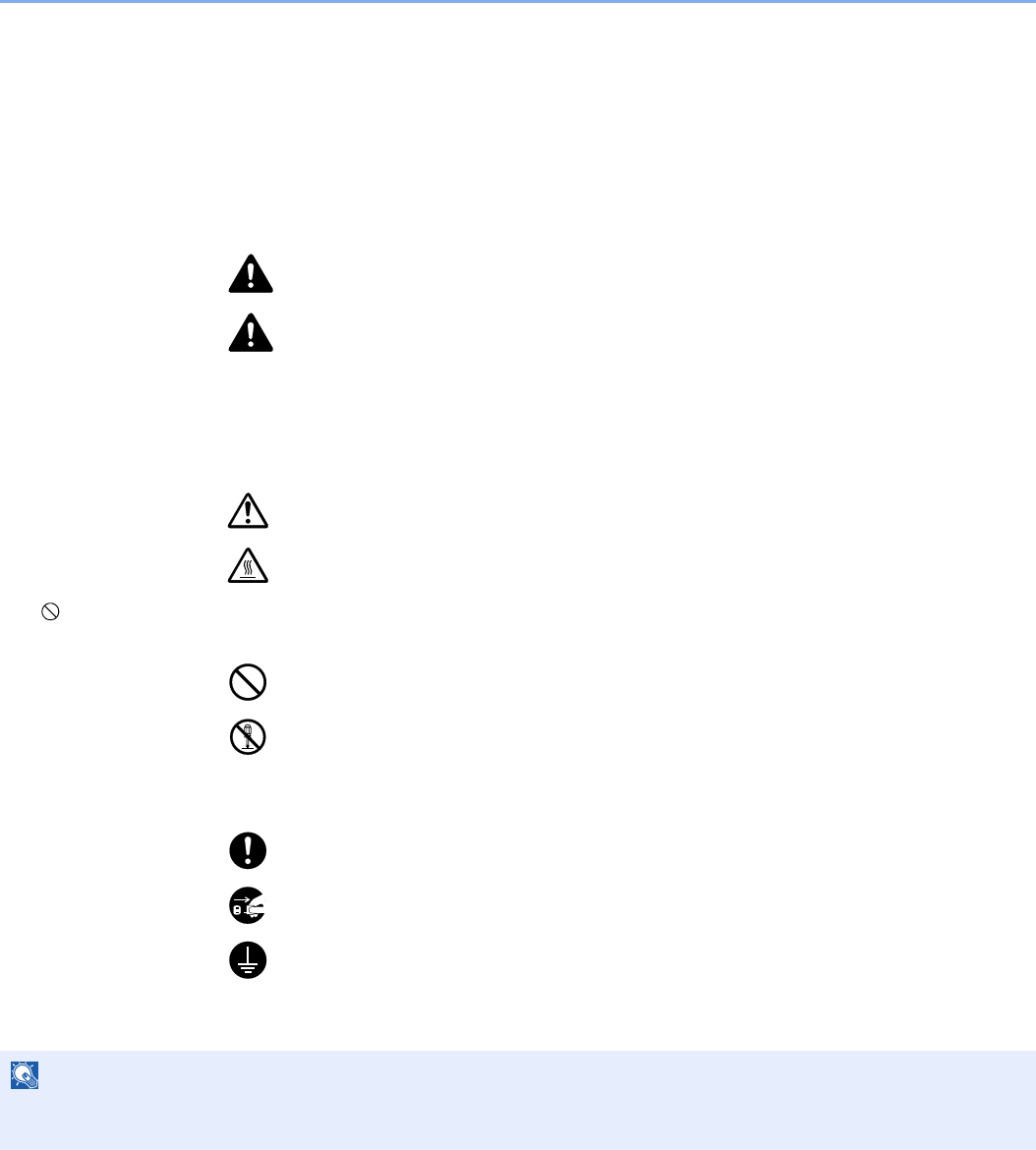
Safety Conventions in This Guide
The sections of this guide and parts of the machine marked with symbols are safety warnings meant to protect the user,
other individuals and surrounding objects, and ensure correct and safe usage of the machine. The symbols and their
meanings are indicated below.
WARNING: Indicates that serious injury or even death may result from insufficient
attention to or incorrect compliance with the related points.
CAUTION: Indicates that personal injury or mechanical damage may result from
insufficient attention to or incorrect compliance with the related points.
Symbols
The U symbol indicates that the related section includes safety warnings. Specific points of attention are indicated
inside the symbol.
... [General warning]
... [Warning of high temperature]
The symbol indicates that the related section includes information on prohibited actions. Specifics of the prohibited
action are indicated inside the symbol.
... [Warning of prohibited action]
... [Disassembly prohibited]
The z symbol indicates that the related section includes information on actions which must be performed. Specifics of
the required action are indicated inside the symbol.
... [Alert of required action]
... [Remove the power plug from the outlet]
... [Always connect the machine to an outlet with a ground connection]
Please contact your service representative to order a replacement if the safety warnings in this Operation Guide are
illegible or if the guide itself is missing (fee required).
NOTE
An original which resembles a bank note closely may not be copied properly in some rare cases because this
machine is equipped with a counterfeiting prevention function.

1-3
Preface > Notice
Environment
The service environmental conditions are as follows:
• Temperature: 50 to 90.5 °F (10 to 32.5 °C)
• Humidity: 15 to 80 %
However, adverse environmental conditions may affect the image quality. It is recommended to use the machine at a
temperature: around 60.8 to 80.6 °F or less (16 to 27 °C), humidity: around 36 to 65%. In addition, Avoid the following
locations when selecting a site for the machine.
• Avoid locations near a window or with exposure to direct sunlight.
• Avoid locations with vibrations.
• Avoid locations with drastic temperature fluctuations.
• Avoid locations with direct exposure to hot or cold air.
• Avoid poorly ventilated locations.
If the floor is delicate against casters, when this machine is moved after installation, the floor material may be damaged.
During copying, some ozone is released, but the amount does not cause any ill effect to one’s health. If, however, the
machine is used over a long period of time in a poorly ventilated room or when making an extremely large number of
copies, the smell may become unpleasant. To maintain the appropriate environment for copy work, it is suggested that
the room be properly ventilated.
Precautions for Use
Cautions when handling consumables
CAUTION
Do not attempt to incinerate the toner container or the waste toner box. Dangerous sparks may cause burns.
Keep the toner container and the waste toner box out of the reach of children.
If toner happens to spill from the toner container or the waste toner box, avoid inhalation and ingestion, as well as
contact with your eyes and skin.
• If you do happen to inhale toner, move to a place with fresh air and gargle thoroughly with a large amount of water. If
coughing develops, contact a physician.
• If you do happen to ingest toner, rinse your mouth with water and drink 1 or 2 cups of water to dilute the contents of
your stomach. If necessary, contact a physician.
• If you do happen to get toner in your eyes, flush them thoroughly with water. If there is any remaining tenderness,
contact a physician.
• If toner does happen to get on your skin, wash with soap and water.
Do not attempt to force open or destroy the toner container or the waste toner box.
Other precautions
Return the exhausted toner container and waste toner box to your dealer or service representative. The collected toner
container and waste toner box will be recycled or disposed in accordance with the relevant regulations.
Store the machine while avoiding exposure to direct sunlight.
Store the machine in a place where the temperature stays below 40 °C while avoiding sharp changes of temperature
and humidity.
If the machine will not be used for an extended period of time, remove the paper from the cassette and the Multi Purpose
(MP) Tray, return it to its original package and reseal it.
1-4
Preface > Notice
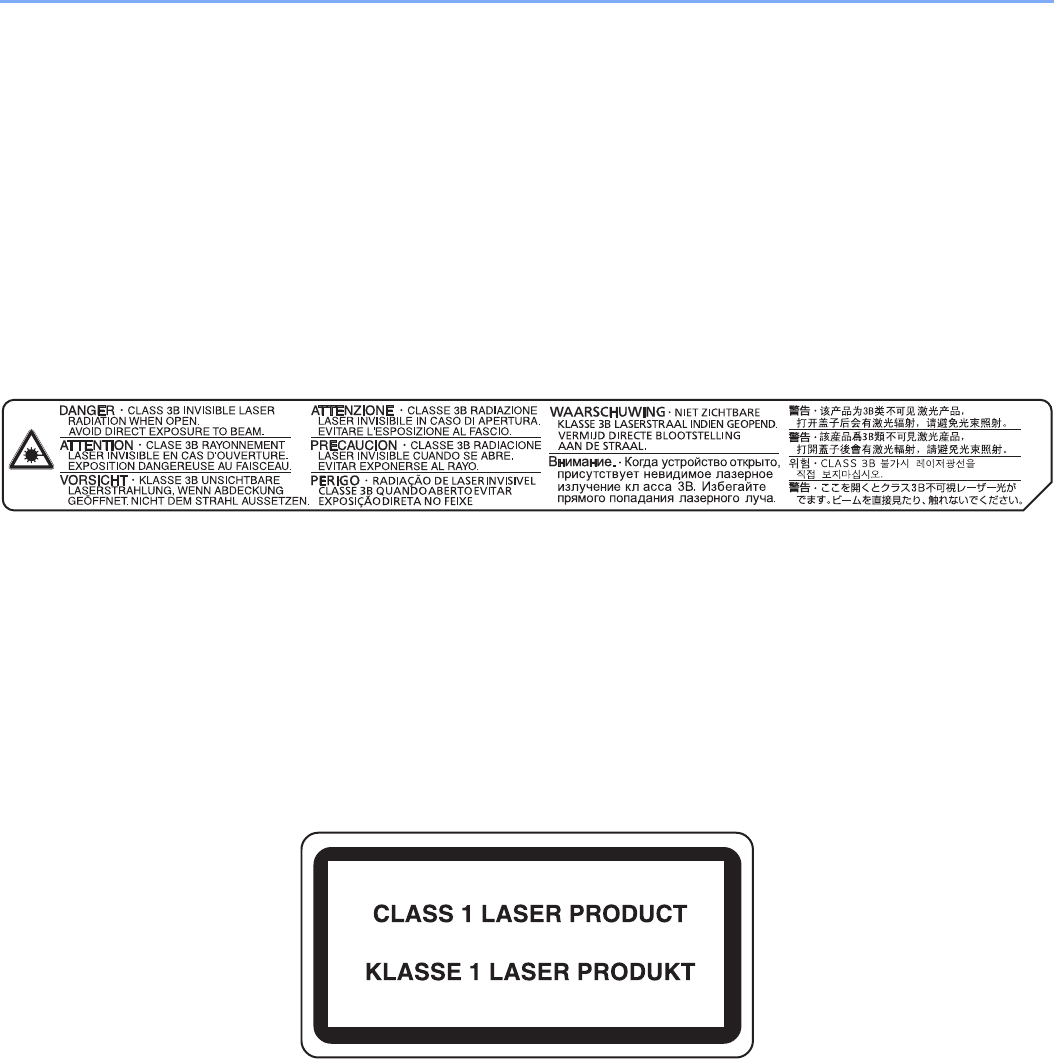
Laser Safety (Europe)
Laser radiation could be hazardous to the human body. For this reason, laser radiation emitted inside this machine is
hermetically sealed within the protective housing and external cover. In the normal operation of the product by user, no
radiation can leak from the machine.
This machine is classified as Class 1 laser product under IEC/EN 60825-1:2007.
Caution: Performance of procedures other than those specified in this manual may result in hazardous radiation
exposure.
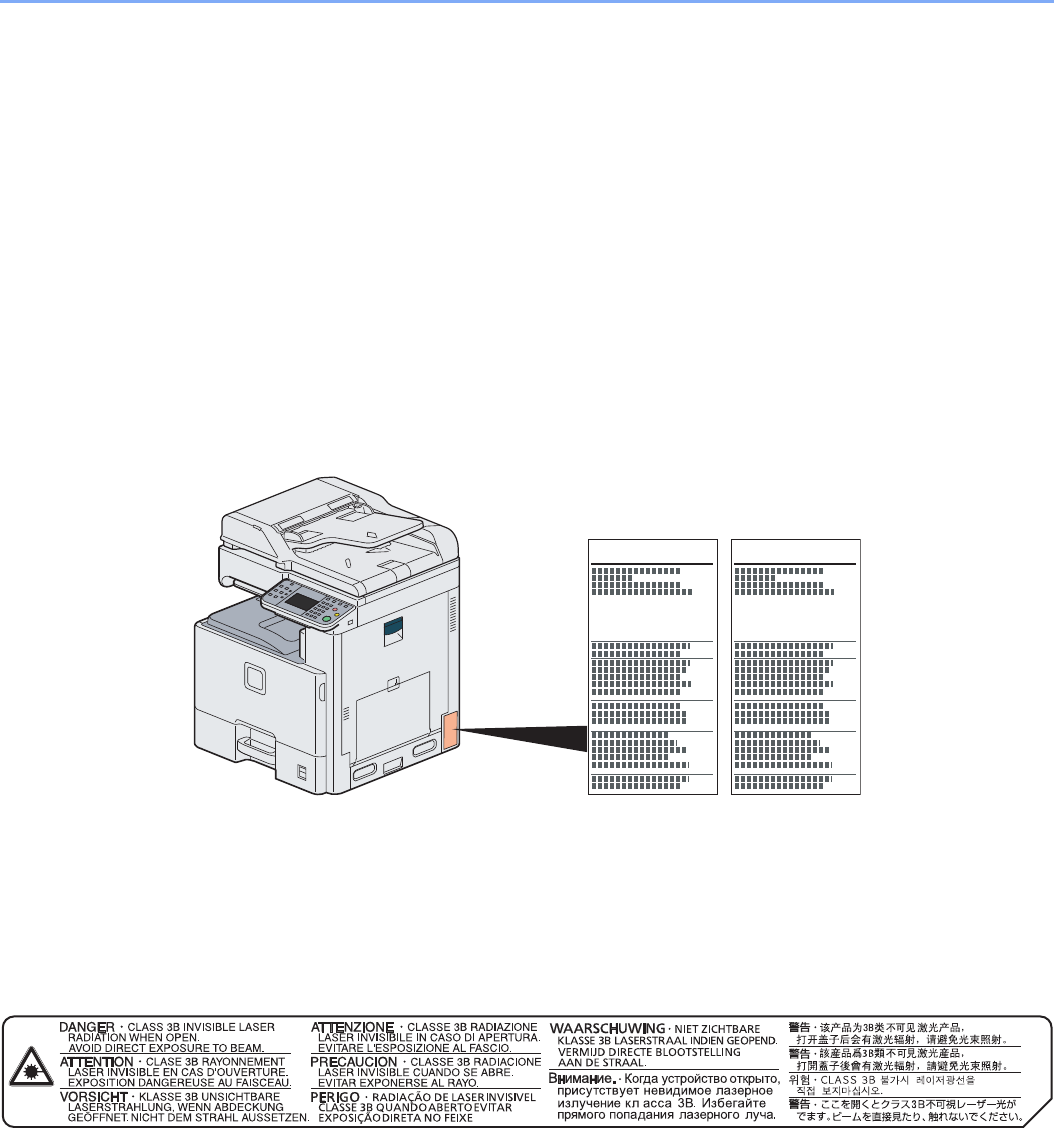
These labels are attached to the laser scanner unit inside the machine and are not in a user access area.
The label shown below is attached on the right side of the machine.
1-5
Preface > Notice
SAFETY OF LASER BEAM (USA)
1. Safety of laser beam
This machine has been certified by the manufacturer to Class 1 level under the radiation performance standards
established by the U.S.DHHS (Department of Health and Human Services) in 1968. This indicates that the product is
safe to use during normal operation and maintenance. The laser optical system, enclosed in a protective housing and
sealed within the external covers, never permits the laser beam to escape.
2. The CDRH Act
A laser-product-related act was implemented on Aug. 2, 1976, by the Center for Devices and Radiological Health
(CDRH) of the U.S. Food and Drug Administration (FDA). This act prohibits the sale of laser products in the U.S. without
certification, and applies to laser products manufactured after Aug. 1, 1976. The label shown below indicates
compliance with the CDRH regulations and must be attached to laser products marketed in the United States. On this
machine, the label is on the right.
3. Optical unit
When checking the optical unit, avoid direct exposure to the laser beam, which is invisible. Shown at below is the label
located on the cover of the optical unit.
4. Maintenance
For safety of the service personnel, follow the maintenance instructions in the other section of this manual.
5. Safety switch
The power to the laser unit is cut off when the front cover is opened.
255c205c

1-6
Preface > Notice
Safety Instructions Regarding the Disconnection of Power
Caution: The power plug is the main isolation device! Other switches on the equipment are only functional switches and
are not suitable for isolating the equipment from the power source.
Attention: Le débranchement de la fiche secteur est le seul moyen de mettre l’appareil hors tension. Les interrupteurs
sur l’appareil ne sont que des interrupteurs de fonctionnement: ils ne mettent pas l’appareil hors tension.
WARNING
This equipment has been tested and found to comply with the limits for a Class B digital device, pursuant to Part 15 and
Part 18 of the FCC Rules. These limits are designed to provide reasonable protection against harmful interference in a
residential installation. This equipment generates, uses and can radiate radio frequency energy and, if not installed and
used in accordance with the instructions, may cause harmful interference to radio communications. However, there is no
guarantee that interference will not occur in a particular installation. If this equipment does cause harmful interference to
radio or television reception, which can be determined by turning the equipment off and on, the user is encouraged to try
to correct the interference by one or more of the following measures:
• Reorient or relocate the receiving antenna.
• Increase the separation between the equipment and receiver.
• Connect the equipment into an outlet on a circuit different from that to which the receiver is connected.
• Consult the dealer or an experienced radio/TV technician for help.
• The use of a non-shielded interface cable with the referenced device is prohibited.
CAUTION — The changes or modifications not expressly approved by the party responsible for compliance could void
the user’s authority to operate the equipment.
This device contains the module (FCC ID: E522K0A0540, IC: 1059B-2K0A0540), which complies with Part 15 of FCC
Rules and RSS-Gen of IC Rules.
Operation is subject to the following two conditions; (1) this device may not cause interference, and (2) this device must
accept any interference, including interference that may cause undesired operation of the device.
Radio Tag Technology
In some countries the radio tag technology used in this equipment to identify the toner container may be subject to
authorization and the use of this equipment may consequently be restricted.
Other precautions (for users in California, the United States)
This product contains a CR Coin Lithium Battery which contains Perchlorate Material - special handling may apply. See
www.dtsc.ca.gov/hazardouswaste/perchlorate.

1-7
Preface > Notice
Warranty (the United States)
205c/255c
MULTIFUNCTIONAL PRODUCT LIMITED WARRANTY
Kyocera Mita America, Inc. and Kyocera Mita Canada, Ltd. (both referred to as “Kyocera”) warrant
the Customer’s new Multifunctional Product (referred to as “MFP”), and the new accessories
installed with the initial installation of the MFP, against any defects in material and workmanship for
a period of one (1) year, or 200,000 copies/prints from date of installation, whichever first occurs. In
the event the MFP or an accessory is found to be defective within the warranty period, Kyocera’s
only obligation and the Customer’s exclusive remedy shall be replacement of any defective parts.
Kyocera shall have no obligation to furnish labor.
This warranty covers Maintenance Kits and the components of Maintenance Kits included with the
original MFP for a period of one year or 200,000 copies/prints, whichever first occurs. Maintenance
Kits consist of the developing unit, the drum unit, the transfer belt, and the fixing unit. Replacement
Maintenance Kits have a 90 day Limited Warranty.
This warranty is valid only for the original retail purchaser (referred to as the “Customer”) of a new
Kyocera MFP in the United States of America or Canada, based upon the country of purchase.
In order to obtain performance of this warranty, the Customer must immediately notify the
Authorized Kyocera Dealer from whom the product was purchased. If the Kyocera Dealer is not
able to provide service, write to Kyocera at the address below for the name and address of the
Authorized Kyocera Dealer in your area, or check Kyocera’s website at
http:// www.kyoceramita.com.
This warranty does not cover MFPs or accessories which: (a) have become damaged due to
operator negligence, misuse, accidents, improper storage or unusual physical or electrical stress,
(b) have used parts or supplies which are not genuine Kyocera brand parts or supplies, (c) have
been installed or serviced by a technician not employed by Kyocera or an Authorized Kyocera
Dealer, or (d) have had the serial number modified, altered, or removed.
This warranty gives the Customer specific legal rights. The Customer may also have other rights,
which vary from state to state, or province to province. Neither the seller, nor any other person, is
authorized to extend the time period or expand this warranty on behalf of Kyocera.
THIS WARRANTY IS MADE IN LIEU OF ALL OTHER WARRANTIES AND CONDITIONS,
EXPRESS OR IMPLIED, AND KYOCERA SPECIFICALLY DISCLAIMS ANY IMPLIED
WARRANTY OR CONDITION OF MERCHANTABILITY OR FITNESS FOR A PARTICULAR
PURPOSE. THIS WARRANTY SHALL NOT EXTEND TO, AND KYOCERA SHALL NOT BE
LIABLE FOR, ANY INCIDENTAL OR CONSEQUENTIAL DAMAGES WHICH MAY ARISE OUT OF
THE USE OF, OR INABILITY TO USE, THE MFP.

1-8
Preface > Notice
Legal Restriction on Copying/Scanning
It may be prohibited to copy/scan copyrighted material without permission of the copyright owner.
Copying/Scanning the following items is prohibited and may be penalized by low. It may not be limited to these items. Do
not knowingly copy/scan the items that are not to be copied/scanned.
• Paper money
• Bank note
• Securities
•Stamp
• Passport
• Certificate
Local laws and regulations may prohibit or restrict copying/scanning of other items not mentioned above.

1-9
Preface > Legal and Safety Information
Legal and Safety Information
Legal Information
Copying or other reproduction of all or part of this guide without the prior written consent of Kyocera Mita Corporation is
prohibited.
Regarding Trade Names
• PRESCRIBE and ECOSYS are trademarks of Kyocera Corporation.
• KPDL is a trademark of Kyocera Corporation.
• Microsoft, MS-DOS and Windows are registered trademarks of Microsoft Corporation in the U.S.A. and/or other
countries.
• PCL is a trademark of Hewlett-Packard Company.
• Adobe Acrobat, Adobe Reader and PostScript are trademarks of Adobe Systems, Incorporated.
• Ethernet is a registered trademark of Xerox Corporation.
• Novell and NetWare are registered trademarks of Novell, Inc.
• IBM and IBM PC/AT are trademarks of International Business Machines Corporation.
• Power PC is a trademark of IBM in the U.S.A. and/or other countries.
• AppleTalk, Bonjour, Macintosh, and Mac OS are trademarks of Apple Inc., registered in the U.S. and other countries.
• All European language fonts installed in this machine are used under licensing agreement with Monotype Imaging
Inc.
• Helvetica, Palatino and Times are registered trademarks of Linotype GmbH.
• ITC Avant Garde Gothic, ITC Bookman, ITC ZapfChancery and ITC ZapfDingbats are registered trademarks of
International Typeface Corporation.
• UFST™ MicroType® fonts by Monotype Imaging Inc. are installed in this machine.
• This machine contains the NF module developed by ACCESS Co., Ltd.
• This machine contains the software having modules developed by Independent JPEG Group.
• ThinPrint is a trademark of ThinPrint GmbH in Germany and other countries.
All other brands and product names are registered trademarks or trademarks designations ™ and ® will not be used in
this Operation Guide.
GPL/LGPL
This product contains GPL (http://www.gnu.org/licenses/gpl.html) and/or LGPL (http://www.gnu.org/licenses/lgpl.html)
software as part of its firmware. You can get the source code, and you are permitted to copy, redistribute and modify it
under the terms of GPL/LGPL. For further information including availability of the source code, visit
http://www.kyoceramita.com/gpl/.
Open SSL License
Copyright (c) 1998-2006 The OpenSSL Project. All rights reserved.
Redistribution and use in source and binary forms, with or without modification, are permitted provided that the following
conditions are met:
1. Redistributions of source code must retain the above copyright notice, this list of conditions and the following
disclaimer.
2. Redistributions in binary form must reproduce the above copyright notice, this list of conditions and the following
disclaimer in the documentation and/or other materials provided with the distribution.

1-10
Preface > Legal and Safety Information
3. All advertising materials mentioning features or use of this software must display the following acknowledgment:
“This product includes software developed by the OpenSSL Project for use in the OpenSSL Toolkit.
(http://www.openssl.org/)”
4. The names “OpenSSL Toolkit” and “OpenSSL Project” must not be used to endorse or promote products derived
from this software without prior written permission.
For written permission, please contact openssl-core@openssl.org.
5. Products derived from this software may not be called “OpenSSL” nor may “OpenSSL” appear in their names without
prior written permission of the OpenSSL Project.
6. Redistributions of any form whatsoever must retain the following acknowledgment: “This product includes software
developed by the OpenSSL Project for use in the OpenSSL Toolkit (http://www.openssl.org/)”
THIS SOFTWARE IS PROVIDED BY THE OpenSSL PROJECT “AS IS” AND ANY EXPRESSED OR IMPLIED
WARRANTIES, INCLUDING, BUT NOT LIMITED TO, THE IMPLIED WARRANTIES OF MERCHANTABILITY AND
FITNESS FOR A PARTICULAR PURPOSE ARE DISCLAIMED. IN NO EVENT SHALL THE OpenSSL PROJECT OR
ITS CONTRIBUTORS BE LIABLE FOR ANY DIRECT, INDIRECT, INCIDENTAL, SPECIAL, EXEMPLARY, OR
CONSEQUENTIAL DAMAGES (INCLUDING, BUT NOT LIMITED TO, PROCUREMENT OF SUBSTITUTE GOODS OR
SERVICES; LOSS OF USE, DATA, OR PROFITS; OR BUSINESS INTERRUPTION) HOWEVER CAUSED AND ON
ANY THEORY OF LIABILITY, WHETHER IN CONTRACT, STRICT LIABILITY, OR TORT (INCLUDING NEGLIGENCE
OR OTHERWISE) ARISING IN ANY WAY OUT OF THE USE OF THIS SOFTWARE, EVEN IF ADVISED OF THE
POSSIBILITY OF SUCH DAMAGE.
Original SSLeay License
Copyright (C) 1995-1998 Eric Young (eay@cryptsoft.com) All rights reserved.
This package is an SSL implementation written by Eric Young (eay@cryptsoft.com). The implementation was written so
as to conform with Netscapes SSL.
This library is free for commercial and non-commercial use as long as the following conditions are aheared to. The
following conditions apply to all code found in this distribution, be it the RC4, RSA, lhash, DES, etc., code; not just the
SSL code. The SSL documentation included with this distribution is covered by the same copyright terms except that the
holder is Tim Hudson (tjh@cryptsoft.com).
Copyright remains Eric Young's, and as such any Copyright notices in the code are not to be removed.
If this package is used in a product, Eric Young should be given attribution as the author of the parts of the library used.
This can be in the form of a textual message at program startup or in documentation (online or textual) provided with the
package.
Redistribution and use in source and binary forms, with or without modification, are permitted provided that the following
conditions are met:
1. Redistributions of source code must retain the copyright notice, this list of conditions and the following disclaimer.
2. Redistributions in binary form must reproduce the above copyright notice, this list of conditions and the following
disclaimer in the documentation and/or other materials provided with the distribution.
3. All advertising materials mentioning features or use of this software must display the following acknowledgement:
“This product includes cryptographic software written by Eric Young (eay@cryptsoft.com)”
The word ‘cryptographic’ can be left out if the rouines from the library being used are not cryptographic related :-).
4. If you include any Windows specific code (or a derivative thereof) from the apps directory (application code) you
must include an acknowledgement: “This product includes software written by Tim Hudson (tjh@cryptsoft.com)”
THIS SOFTWARE IS PROVIDED BY ERIC YOUNG “AS IS” AND ANY EXPRESS OR IMPLIED WARRANTIES,
INCLUDING, BUT NOT LIMITED TO, THE IMPLIED WARRANTIES OF MERCHANTABILITY AND FITNESS FOR A
PARTICULAR PURPOSE ARE DISCLAIMED. IN NO EVENT SHALL THE AUTHOR OR CONTRIBUTORS BE LIABLE
FOR ANY DIRECT, INDIRECT, INCIDENTAL, SPECIAL, EXEMPLARY, OR CONSEQUENTIAL DAMAGES
(INCLUDING, BUT NOT LIMITED TO, PROCUREMENT OF SUBSTITUTE GOODS OR SERVICES; LOSS OF USE,
DATA, OR PROFITS; OR BUSINESS INTERRUPTION) HOWEVER CAUSED AND ON ANY THEORY OF LIABILITY,
WHETHER IN CONTRACT, STRICT LIABILITY, OR TORT (INCLUDING NEGLIGENCE OR OTHERWISE) ARISING IN
ANY WAY OUT OF THE USE OF THIS SOFTWARE, EVEN IF ADVISED OF THE POSSIBILITY OF SUCH DAMAGE.

1-11
Preface > Legal and Safety Information
The licence and distribution terms for any publically available version or derivative of this code cannot be changed. i.e.
this code cannot simply be copied and put under another distribution licence [including the GNU Public Licence.]
Monotype Imaging License Agreement
1Software shall mean the digitally encoded, machine readable, scalable outline data as encoded in a special format as
well as the UFST Software.
2 You agree to accept a non-exclusive license to use the Software to reproduce and display weights, styles and
versions of letters, numerals, characters and symbols (Typefaces) solely for your own customary business or
personal purposes at the address stated on the registration card you return to Monotype Imaging. Under the terms of
this License Agreement, you have the right to use the Fonts on up to three printers. If you need to have access to the
fonts on more than three printers, you need to acquire a multiuser license agreement which can be obtained from
Monotype Imaging. Monotype Imaging retains all rights, title and interest to the Software and Typefaces and no rights
are granted to you other than a License to use the Software on the terms expressly set forth in this Agreement.
3 To protect proprietary rights of Monotype Imaging, you agree to maintain the Software and other proprietary
information concerning the Typefaces in strict confidence and to establish reasonable procedures regulating access
to and use of the Software and Typefaces.
4 You agree not to duplicate or copy the Software or Typefaces, except that you may make one backup copy. You
agree that any such copy shall contain the same proprietary notices as those appearing on the original.
5 This License shall continue until the last use of the Software and Typefaces, unless sooner terminated. This License
may be terminated by Monotype Imaging if you fail to comply with the terms of this License and such failure is not
remedied within thirty (30) days after notice from Monotype Imaging. When this License expires or is terminated, you
shall either return to Monotype Imaging or destroy all copies of the Software and Typefaces and documentation as
requested.
6 You agree that you will not modify, alter, disassemble, decrypt, reverse engineer or decompile the Software.
7 Monotype Imaging warrants that for ninety (90) days after delivery, the Software will perform in accordance with
Monotype Imaging-published specifications, and the diskette will be free from defects in material and workmanship.
Monotype Imaging does not warrant that the Software is free from all bugs, errors and omissions.
The parties agree that all other warranties, expressed or implied, including warranties of fitness for a particular
purpose and merchantability, are excluded.
8 Your exclusive remedy and the sole liability of Monotype Imaging in connection with the Software and Typefaces is
repair or replacement of defective parts, upon their return to Monotype Imaging.
In no event will Monotype Imaging be liable for lost profits, lost data, or any other incidental or consequential
damages, or any damages caused by abuse or misapplication of the Software and Typefaces.
9 Massachusetts U.S.A. law governs this Agreement.
10 You shall not sublicense, sell, lease, or otherwise transfer the Software and/or Typefaces without the prior written
consent of Monotype Imaging.
11 Use, duplication or disclosure by the Government is subject to restrictions as set forth in the Rights in Technical Data
and Computer Software clause at FAR 252-227-7013, subdivision (b)(3)(ii) or subparagraph (c)(1)(ii), as appropriate.
Further use, duplication or disclosure is subject to restrictions applicable to restricted rights software as set forth in
FAR 52.227-19 (c)(2).
12 You acknowledge that you have read this Agreement, understand it, and agree to be bound by its terms and
conditions. Neither party shall be bound by any statement or representation not contained in this Agreement. No
change in this Agreement is effective unless written and signed by properly authorized representatives of each party.
By opening this diskette package, you agree to accept the terms and conditions of this Agreement.

1-12
Preface > Legal and Safety Information
Energy Saving Control Function
The device comes equipped with a Low Power Mode where energy consumption is reduced after a certain amount of
time elapses since the device was last used, as well as a Sleep where printer and fax functions remain in a waiting state
but power consumption is still reduced to a minimum when there is no activity with the device within a set amount of
time.
Sleep
The device automatically enters Sleep when 20 minutes (for the 20 ppm model) or 30 minutes (for the 25 ppm model)
have passed since the device was last used. The amount of time of no activity that must pass before Sleep is activated
may be lengthened. For more information refer to Sleep and Auto Sleep on page 2-21.
Low Power Mode
The device automatically enters Low Power Mode when 3 minutes have passed since the device was last used. The
amount of time of no activity that must pass before Low Power Mode is activated may be lengthened. For more
information refer to Low Power Mode and Auto Low Power Mode on page 2-20.
Automatic 2-Sided Copy Function
This device includes 2-sided copying as a standard function. For example, by copying two 1-sided originals onto a single
sheet of paper as a 2-sided copy, it is possible to lower the amount of paper used. For more information refer to Duplex
on page 4-8.
Paper Recycling
This device supports the recycled paper which reduces the load on the environment. Your sales or service
representative can provide information about recommended paper types.
Energy Star (ENERGY STAR®) Program
We have determined as a company participating in ENERGY STAR that this product has earned the
ENERGY STAR.
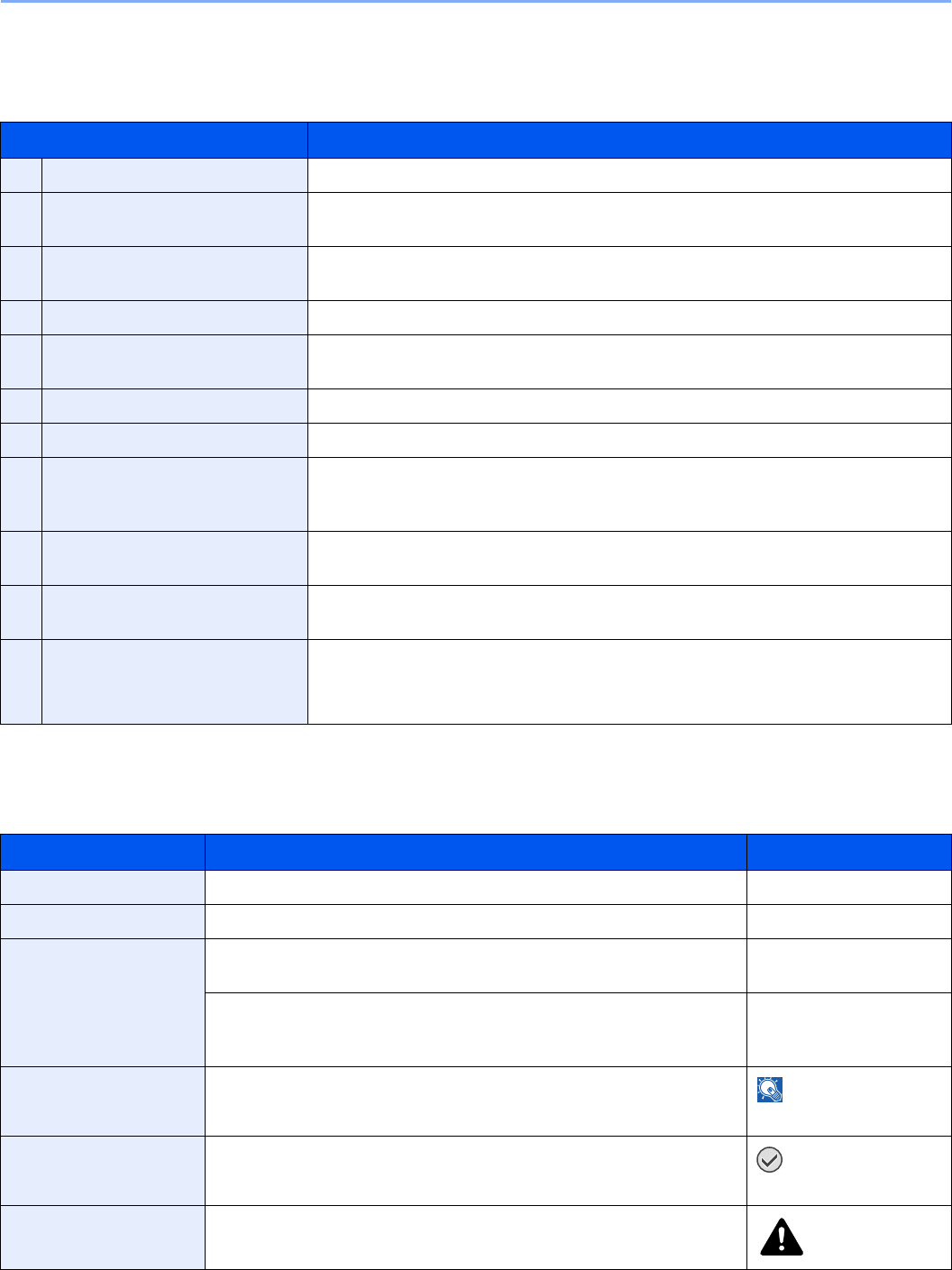
1-13
Preface > About this Operation Guide
About this Operation Guide
This Operation Guide contains the following chapters.
Conventions in This Guide
The following conventions are used depending on the nature of the description.
Chapter Contents
1Preface Includes information about operating precautions, trademarks, and this manual.
2Preparation before Use Provides information about part names, connecting cables, and setting up and
configuring the machine.
3Common Operations Explains overall machine operation, including loading paper and originals and logging in
and out.
4Copying Describes the functions you can use when copying.
5Printing Provides information about functionality that is available when using the machine as a
printer.
6Sending Describes the functions you can use when sending originals.
7Document Box Provides a basic guide to using document boxes.
8Status / Job Cancel Explains how to check the job status and job history and how to cancel jobs being
printed or waiting to print. Also explains how to check the remaining paper and device
status and how to cancel fax transmission.
9Setup, Registration, and User
Management
Explains system menu functionality related to overall machine operation, job
accounting, and user management.
10 Troubleshooting Explains how to respond to error indications such as when the machine runs out of
toner and problems such as paper jams.
11 Appendix Explains how to enter characters, and lists the machine specifications.
Introduces the convenient optional equipment available for this machine.
Provides information on media types and paper sizes. Also includes a glossary of terms.
Convention Description Example
Bold Indicates the operation panel keys or a computer screen. Press the Start key.
[Regular] Indicates the touch panel keys. Press [OK].
Italic Indicates a message displayed on the touch panel. Ready to copy is
displayed.
Used to emphasize a key word, phrase or references to additional
information.
For more information
refer to Sleep and Auto
Sleep on page 2-21.
NOTE Indicates supplemental information or operations for reference.
NOTE
IMPORTANT Indicates items that are required or prohibited so as to avoid problems.
IMPORTANT
Caution Indicates what must be observed to prevent injury or machine breakdown
and how to deal with it. Caution
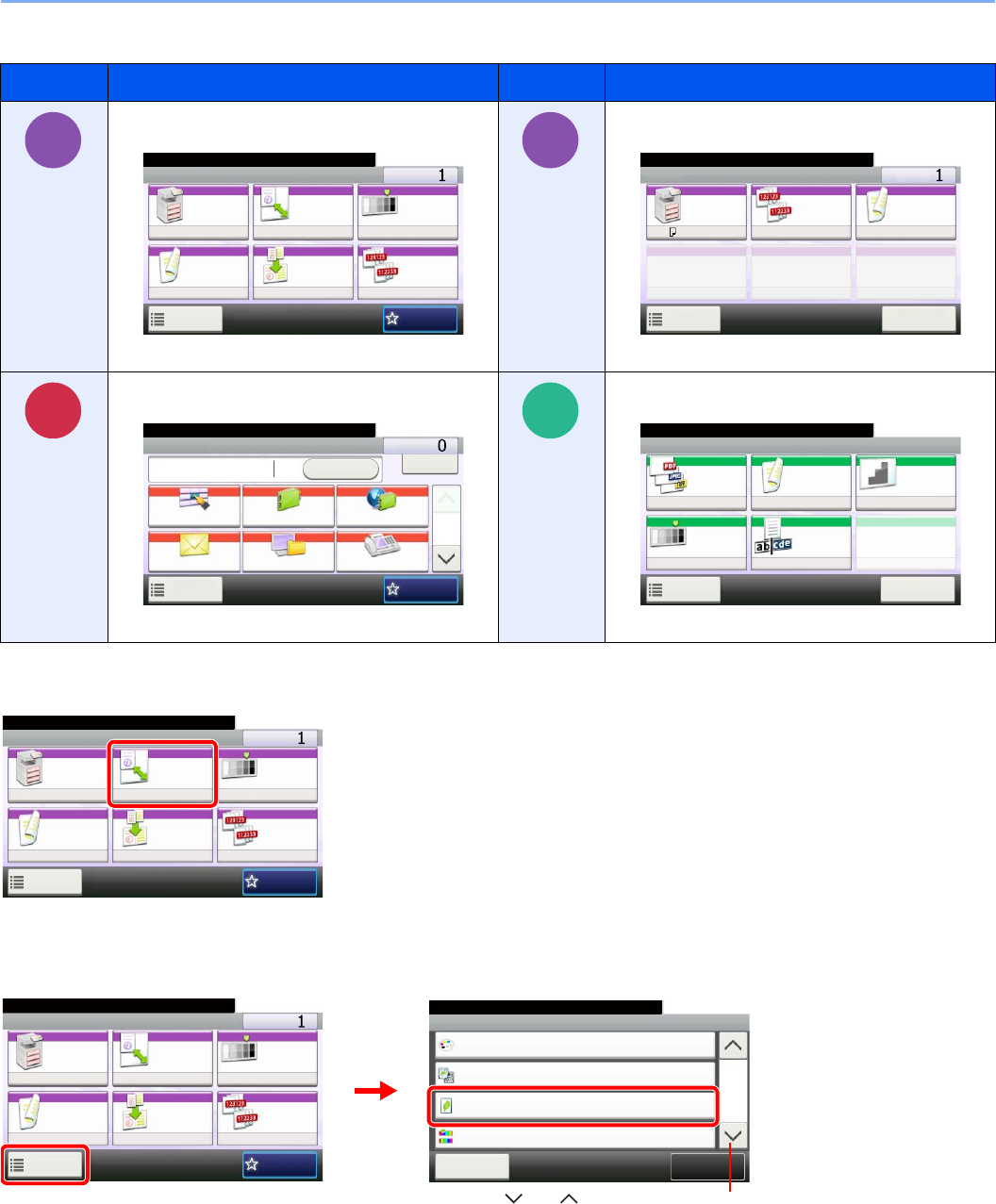
1-14
Preface > About this Operation Guide
Job types for which each function can be set are shown with icons.
In this guide, steps where touch panel keys are used are outlined in red.
E.g.) Select [Zoom].
Procedures consisting of a series of operation panel and/or touch panel operations are numbered as follows:
E.g.) Select [Functions] and then [EcoPrint].
Icon Description Icon Description
This function can be set while copying a
document.
This function can be set while printing from USB
memory.
This function can be set while sending a
document.
This function can be set while saving a file to USB
memory.
Copy
Ready to copy. (Full Color)
Copy Copies
Paper
Selection
Zoom Density
Duplex Combine Collate/
Offset
1-sided>>1-sided
Auto 100% Normal 0
CollateOff
Functions
10:10
Favorites
Copy Screen
GB0001_01
Print from
USB
Print Screen
Ready to print from Box.
Print Copies
Paper
Selection
Collate/
Offset
Duplex
A4
Functions
10:10
Cancel
Collate 1-sided
GB0097_00
Send
Send Screen
Send Dest. :
Recall Check
E-mail
One Touch Key Address Book Ext Address Book
FAXFolder
Functions
10:10
1/2
Favorites
Ready to send.
GB0055_00
Scan to
USB
Store File Screen
Ready to store in Box.
Store File
File
Format
2-sided/
Book
Scan
Resolution
Density File Name
Entry
Normal 0
PDF 1-sided 300x300dpi
doc
Functions
10:10
Cancel
GB0096_00
Ready to copy. (Full Color)
Copy Copies
Paper
Selection
Zoom Density
Duplex Combine Collate/
Offset
1-sided>>1-sided
Auto 100% Normal 0
CollateOff
Functions
10:10
Favorites
GB0001_01
Ready to copy. (Full Color)
Functions
Original Image
Text+Photo
Close
10:10
EcoPrint
Off
0
Full Color
Color Selection
Hue Adjustment
2/5
Add/Edit
Shortcut
Ready to copy. (Full Color)
Copy Copies
Paper
Selection
Zoom Density
Duplex Combine Collate/
Offset
1-sided>>1-sided
Auto 100% Normal 0
CollateOff
Functions
10:10
Favorites
GB0002_01
2
1
GB0001_01
Use [ ] or [ ] to scroll up and down.
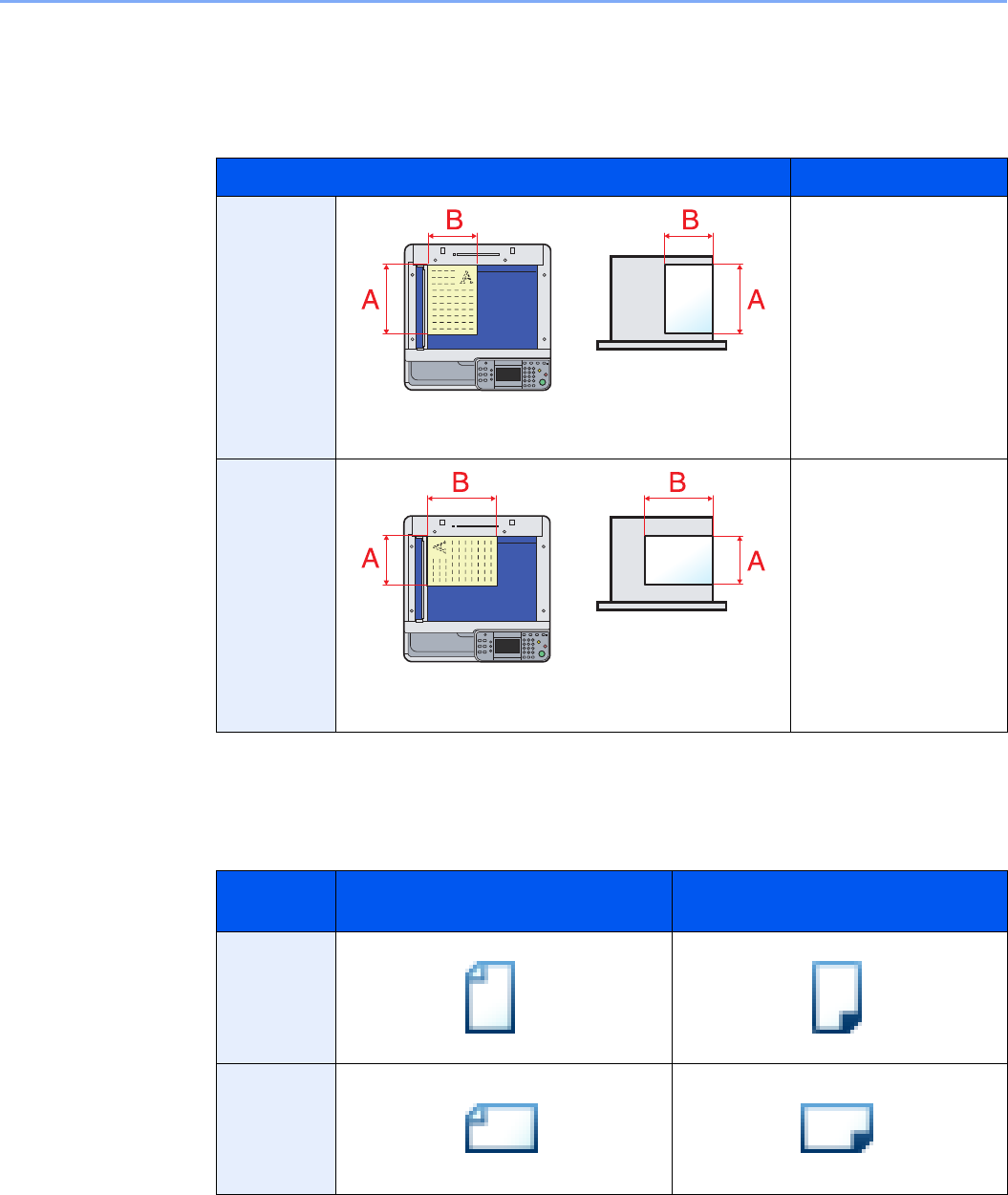
1-15
Preface > About this Operation Guide
Originals and Paper Sizes
This section explains the notation used in this guide when referring to sizes of originals or paper sizes.
As with A4, B5 and Letter, which may be used either in the horizontal or vertical direction, horizontal direction is
indicated by an additional letter R in order to indicate the orientation of the original/paper.
Icons on the Touch Panel
The following icons are used to indicate originals and paper placement directions on the touch panel.
Placement direction Indicated size*
* The size of the original/paper that can be used depends on the function and source tray. For further
details, refer to the page detailing that function or source tray.
Vertical
direction
For the originals/paper, dimension A is longer than B.
A4, B5, A5, Letter,
Statement
Horizontal
direction
For the originals/paper, dimension A is shorter than B.
A4-R, B5-R, A5-R,
Letter-R, Statement-R
Placement
direction
Originals Paper
Vertical
direction
Horizontal
direction
Original Paper
Original Paper

1-16
Preface > About this Operation Guide
2-1
2 Preparation before
Use
This chapter explains the following topics:
Part Names ........................................................................................................................................................ 2-2
Machine ................................................................................................................................................... 2-2
Operation Panel ....................................................................................................................................... 2-6
Touch Panel ............................................................................................................................................. 2-7
Determining the Connection Method and Preparing Cables .............................................................................. 2-8
Connection Example ................................................................................................................................ 2-8
Preparing Necessary Cables ................................................................................................................... 2-9
Connecting Cables ........................................................................................................................................... 2-10
Connecting LAN Cable .......................................................................................................................... 2-10
Connecting USB Cable ........................................................................................................................... 2-11
Connecting the Power Cable .................................................................................................................. 2-11
Power On/Off ................................................................................................................................................... 2-12
Power On ............................................................................................................................................... 2-12
Power Off ............................................................................................................................................... 2-12
Installing Software ............................................................................................................................................ 2-14
Installing Printer Driver ........................................................................................................................... 2-14
Setting TWAIN Driver ............................................................................................................................. 2-18
Setting WIA Driver ................................................................................................................................. 2-19
Energy Saver function ...................................................................................................................................... 2-20
Low Power Mode and Auto Low Power Mode ....................................................................................... 2-20
Sleep and Auto Sleep ............................................................................................................................ 2-21
Machine Setup Wizard ..................................................................................................................................... 2-22
COMMAND CENTER (Settings for E-mail) ...................................................................................................... 2-23
Sending E-mail ...................................................................................................................................... 2-24
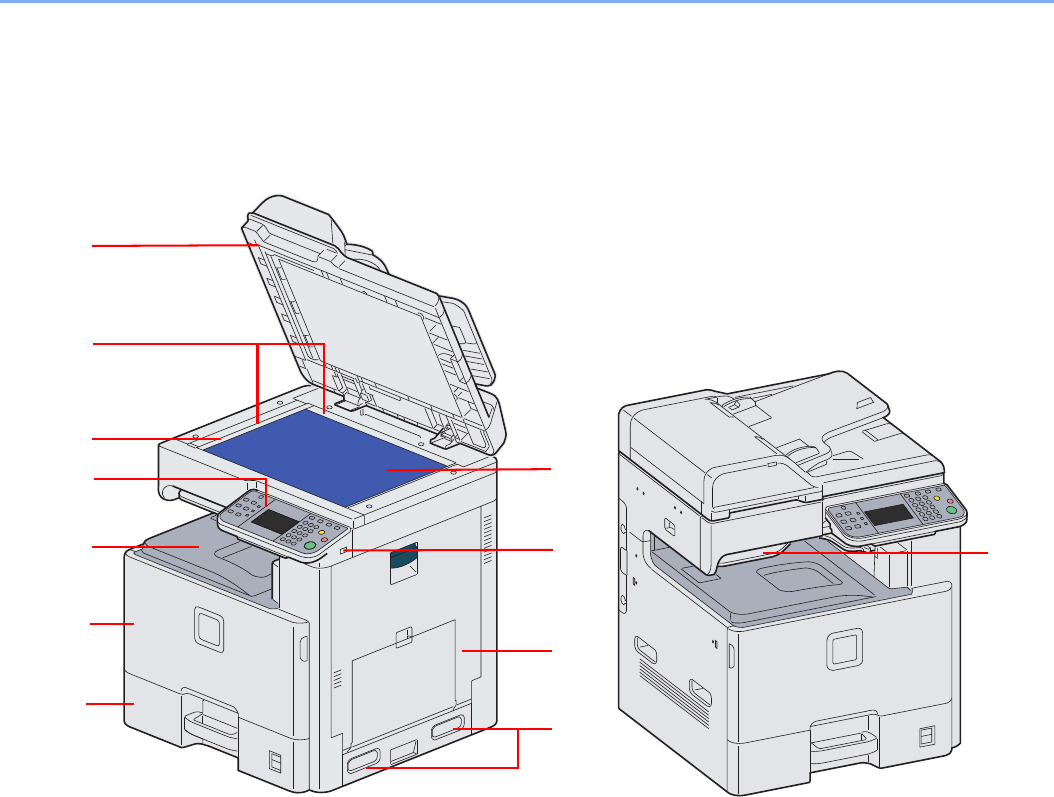
2-2
Preparation before Use > Part Names
Part Names
Machine
1Document Processor
2Platen
3Original Size Indicator Plates
4Slit Glass
5Operation Panel
6Inner Tray
7Front Cover
8Cassette 1
9USB Memory Slot (A1)
10 Right Cover 1
11 Handles
12 Job Separator Tray
2
3
4
5
811
1
6
7
9
10
12
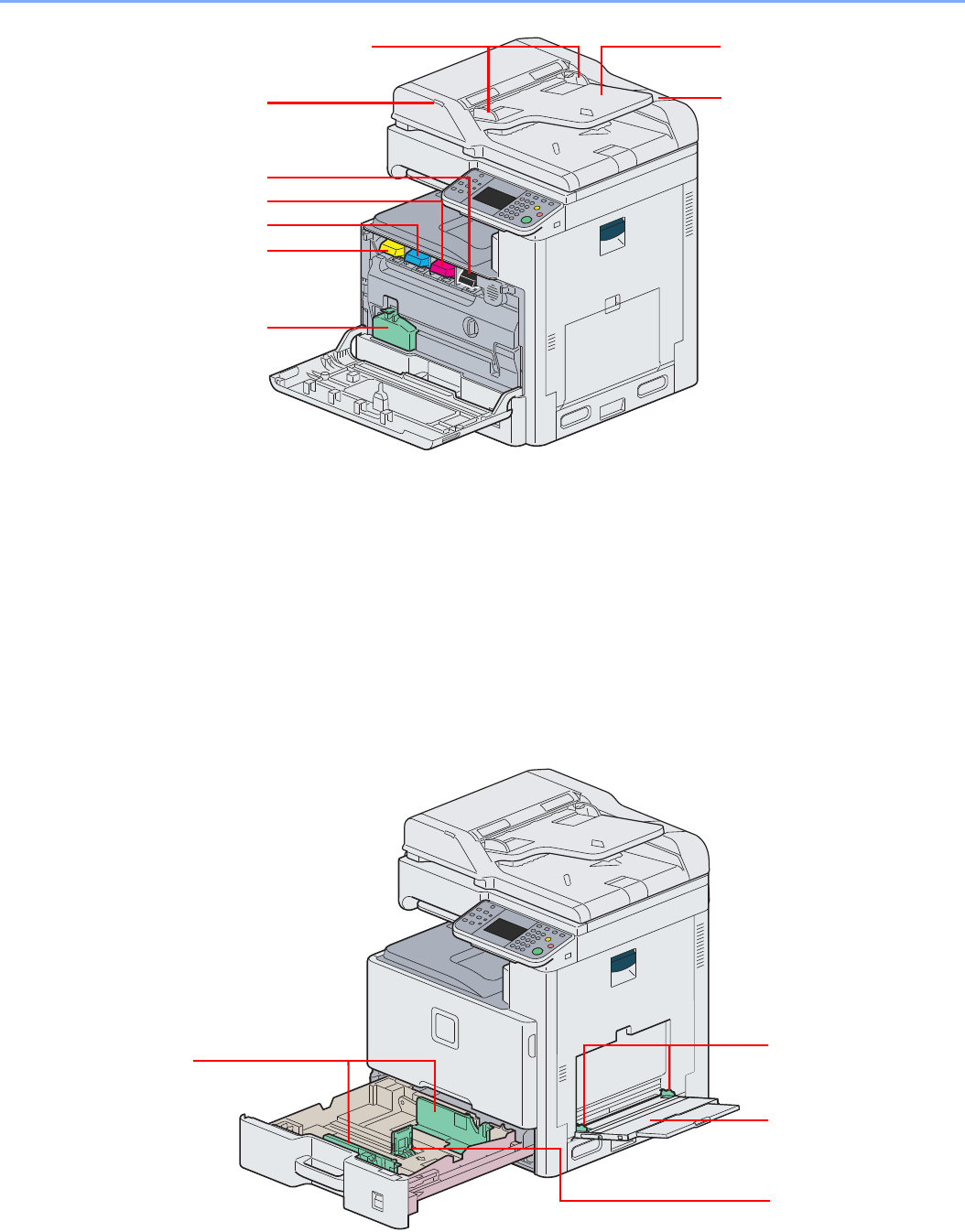
2-3
Preparation before Use > Part Names
13 Original Width Guides
14 Original Table
15 Cleaning Cloth Compartment
16 Original Loaded Indicator
17 Toner Container (Black)
18 Toner Container (Magenta)
19 Toner Container (Cyan)
20 Toner Container (Yellow)
21 Waste Toner Box
22 Paper Width Guide
23 Paper Length Guide
24 Multi Purpose Tray
25 Paper Width Guide
13 14
15
17
16
18
19
20
21
23
22 25
24
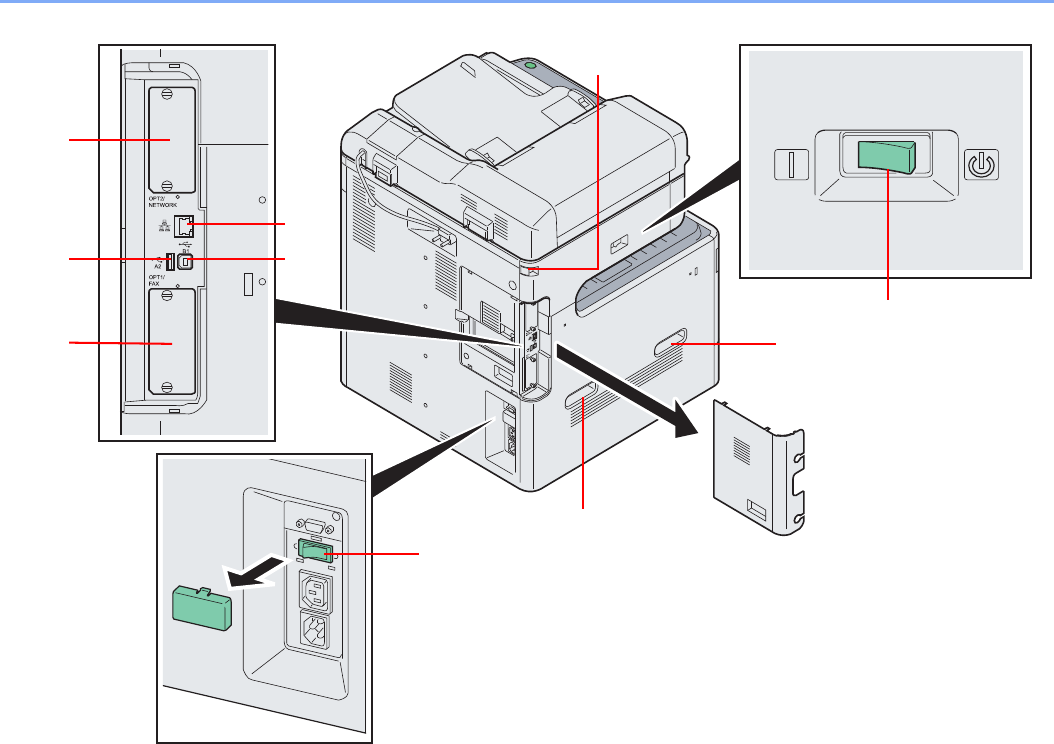
2-4
Preparation before Use > Part Names
26 Option Interface Slot 2
27 Network Interface Connector
28 USB Interface Connector (A2)
29 USB Port (B1)
30 Option Interface Slot 1
31 Scanner Lock
32 Main Power Switch
33 Handles
34 Cassette Heater Switch
26
2928
30 32
34
33
27
31
33
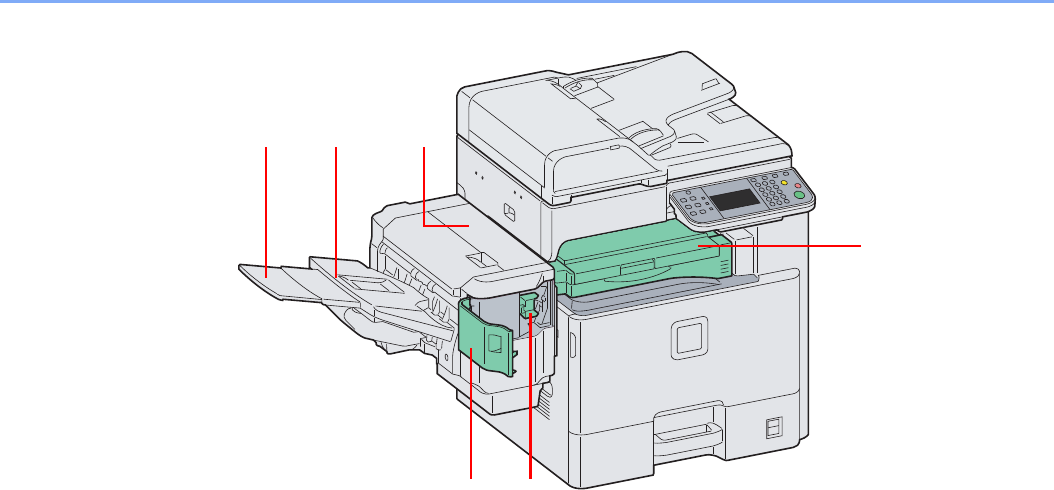
2-5
Preparation before Use > Part Names
35 Top Cover
36 Tray Extension
37 Document Finisher Tray
38 Staple Cover
39 Staple Cartridge Holder
40 Bridge Unit Cover
3536 37
38 39
40
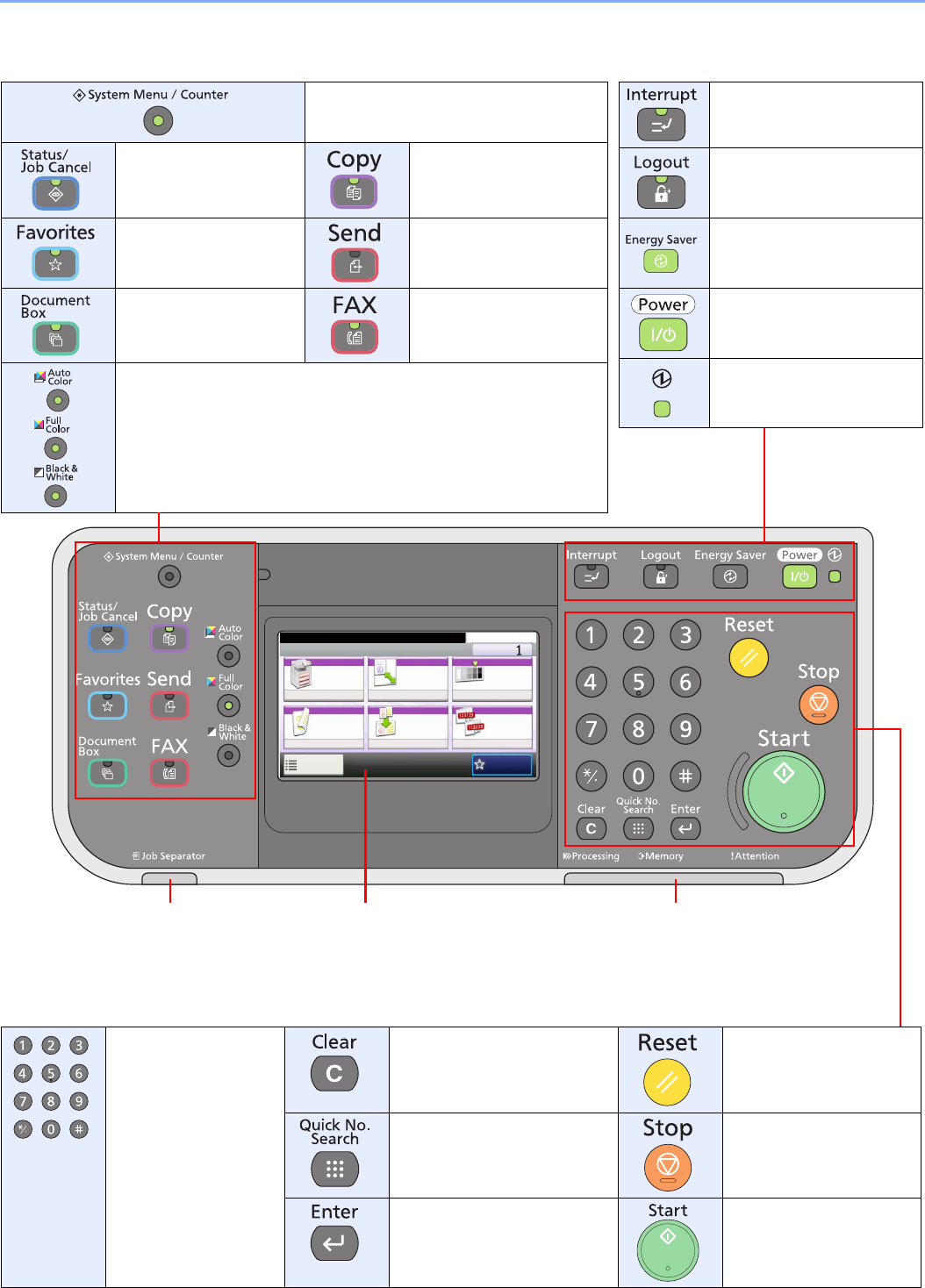
2-6
Preparation before Use > Part Names
Operation Panel
Touch panel. Displays buttons
for configuring machine
settings.
Lights when there is paper in
the job separator tray.
Processing: Blinks while printing or sending.
Memory: Blinks while the machine is accessing the
fax memory or USB memory (generalpurpose item).
Attention: Lights or blinks when an error occurs and
a job is stopped.
Displays the System Menu/Counter
screen.
Displays the Status/Job
Cancel screen.
Displays the Copy screen.
Displays the Favorites
screen.
Displays the screen for
sending.
Displays the Document
Box screen.
Displays the FAX screen.
Select the color mode.
Auto Color: Automatically recognizes whether a document is color or
black & white and then scans the document.
Full Color: Scans all documents in full color.
Black & White: Scans all documents in black & white.
Displays the Interrupt Copy
screen.
Ends operation (logs out) on
the Administration screen.
Puts the machine into Low
Power Mode.
Puts the machine into Sleep
Mode. Recovers from Sleep
if in Sleep Mode.
Lit when the machine's main
power is on.
Numeric keys.
Enter numbers and
symbols.
Clears entered numbers and
characters.
Returns settings to their
default states.
Specifies registered
information such as address
numbers and user IDs by
number.
Cancels or pauses the
printing job in progress.
Finalizes numeric key entry,
and finalizes screen during
setting of functions. Operates
linked with the on-screen [OK].
Starts copying and
scanning operations and
processing for setting
operations.
Ready to copy. (Full Color)
Copy Copies
Paper
Selection
Zoom Density
Duplex Combine Collate/
Offset
1-sided>>1-sided
Auto 100% Normal 0
CollateOff
Functions
10:10
Favorites
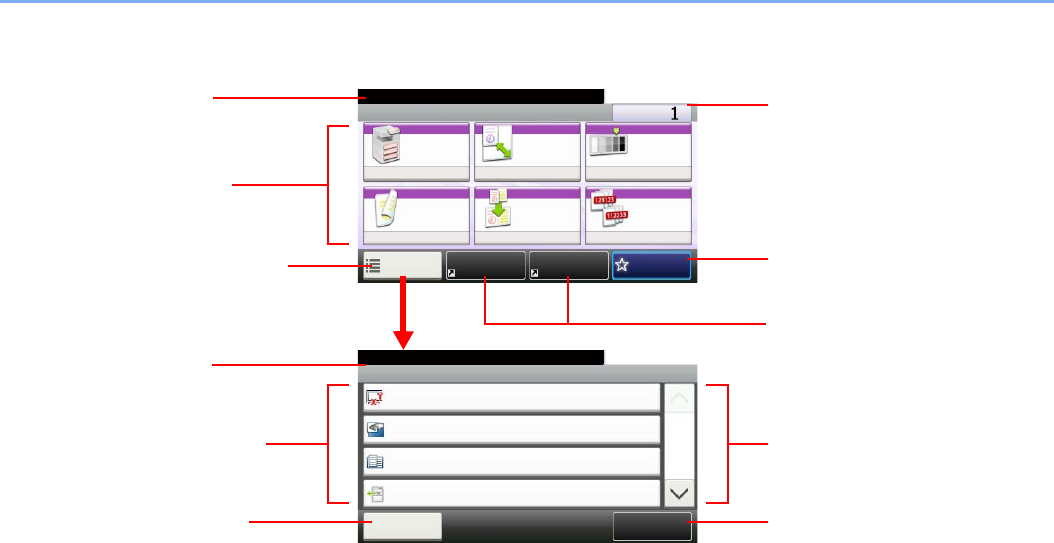
2-7
Preparation before Use > Part Names
Touch Panel
Ready to copy. (Full Color)
Functions
Original Size
Auto
Close
10:10
Original Orientation
Top Edge on Top
Inner tray
Off
Mixed Size Originals
Paper Output
1/5
Add/Edit
Shortcut
Ready to copy. (Full Color)
Copy Copies
Paper
Selection
Zoom Density
Duplex Combine Collate/
Offset
1-sided>>1-sided
Auto 100% Normal 0
CollateOff
Functions
10:10
FavoritesShortcut 1 Shortcut 2
Displays the status of the
equipment as well as necessary
operation messages.
Displays available functions.
Configures more advanced function
settings.
Displays the time and number of
copies.
Displays shortcuts.
GB0001_04GB0002_00
Displays the status of the
equipment as well as necessary
operation messages.
Displays available functions and
settings.
Return to the previous screen.
Scrolls up and down when the list of
values cannot be displayed in its
entirety on a single screen.
Registers functions as shortcuts.
Displays Favorites.
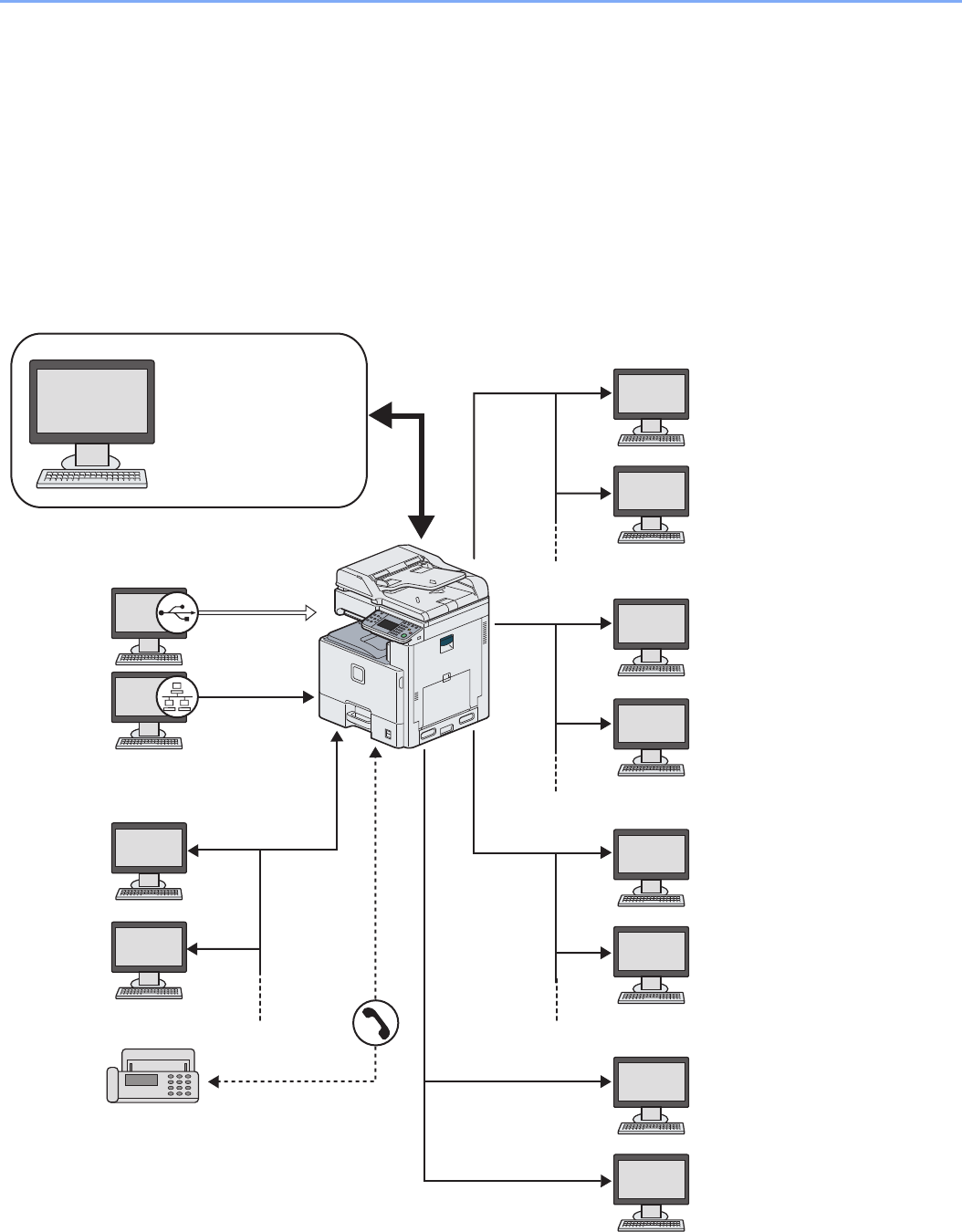
2-8
Preparation before Use > Determining the Connection Method and Preparing Cables
Determining the Connection Method and
Preparing Cables
Check the method to connect the equipment to a PC or network, and prepare the necessary cables for your
environment.
Connection Example
Determine the method to connect the equipment to a PC or network by referring to the illustration below.
Connecting a scanner to your PC network with a network cable (1000BASE-T, 100BASE-TX or 10BASE-T)
Administrator’s PC
COMMAND CENTER
Network settings, Scanner
default settings, User and
destination registration
Printing
Network FAX
(Option)
FAX (Option)
MFP
USB
Network
Network
FAX
Network
Network
Network
Network
Network
Send E-mail
Sends the image data of scanned
originals to the desired recipient as
a file attached to an E-mail
message.
X 6-18
Send SMB
Saves the scanned image as a data
file on your PC.
X 6-19
Send FTP
Sends the scanned image as a
data file on the FTP.
X 6-19
TWAIN Scanning
WIA Scanning
TWAIN and WIA are standardized
interface for communication
between software applications and
image acquisition devices.

2-9
Preparation before Use > Determining the Connection Method and Preparing Cables
Preparing Necessary Cables
Prepare the necessary cables according to the interface you use.
Connection Environment Function Necessary Cable
Connect a LAN cable to the machine. Printer/Scanner/Scanner (TWAIN/WIA) LAN (10Base-T, 100Base-TX, or
1000BASE-T Shielded)
Connect a USB cable to the machine. Printer USB2.0 compatible cable (Hi-Speed USB
compliant, Max. 5.0 m, Shielded)
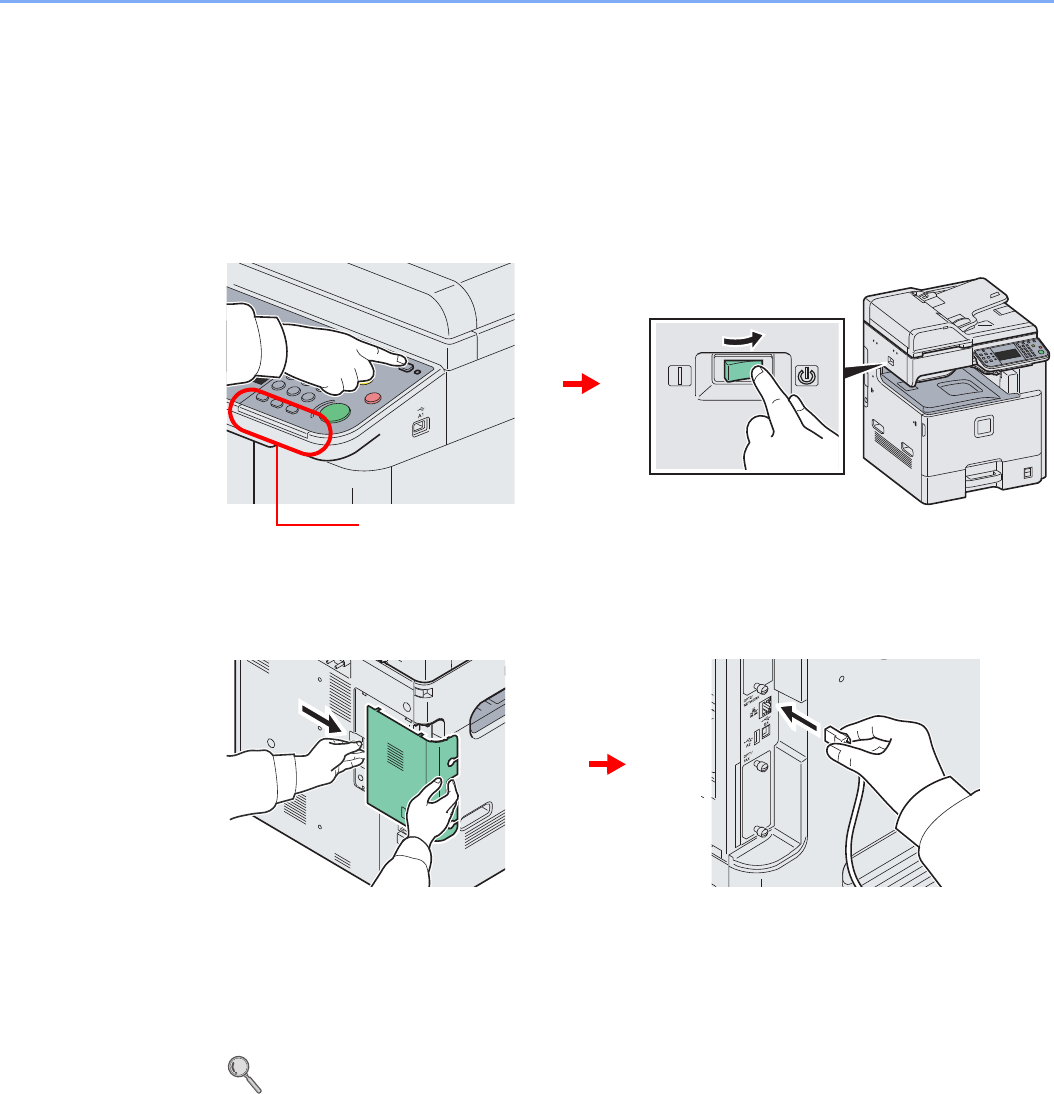
2-10
Preparation before Use > Connecting Cables
Connecting Cables
Connecting LAN Cable
The equipment can be connected with a network cable and used as a network printer or network scanner.
1Power Off.
2Connect the machine.
1Connect the LAN cable to the network interface located on left side of the body.
2Connect the other end of the cable to the hub.
3Set up the machine.
Configure the network settings.
For details, refer to Machine Setup Wizard on page 2-22.
Check that the indicators are off.
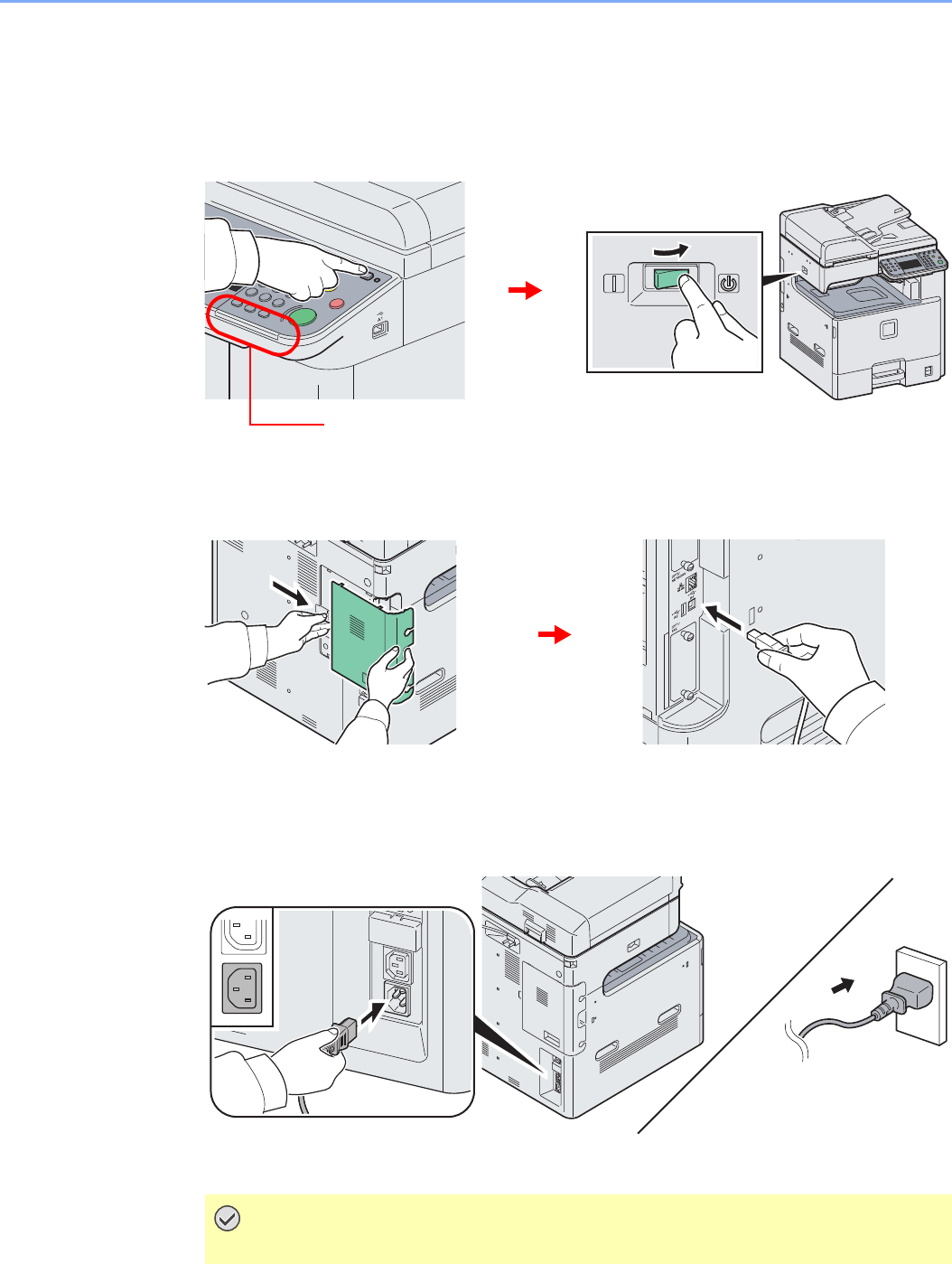
2-11
Preparation before Use > Connecting Cables
Connecting USB Cable
The equipment can be connected with a USB cable and used as a printer or scanner in an environment where there is
no network.
1Power Off.
2Connect the machine.
1Connect the USB cable to the appropriate interface located on the left side of the body.
2Connect the other end of the cable to the PC.
Connecting the Power Cable
Connect one end of the supplied power cable to the machine and the other end to a power
outlet.
IMPORTANT
Only use the power cable that comes with the machine.
Check that the indicators are off.
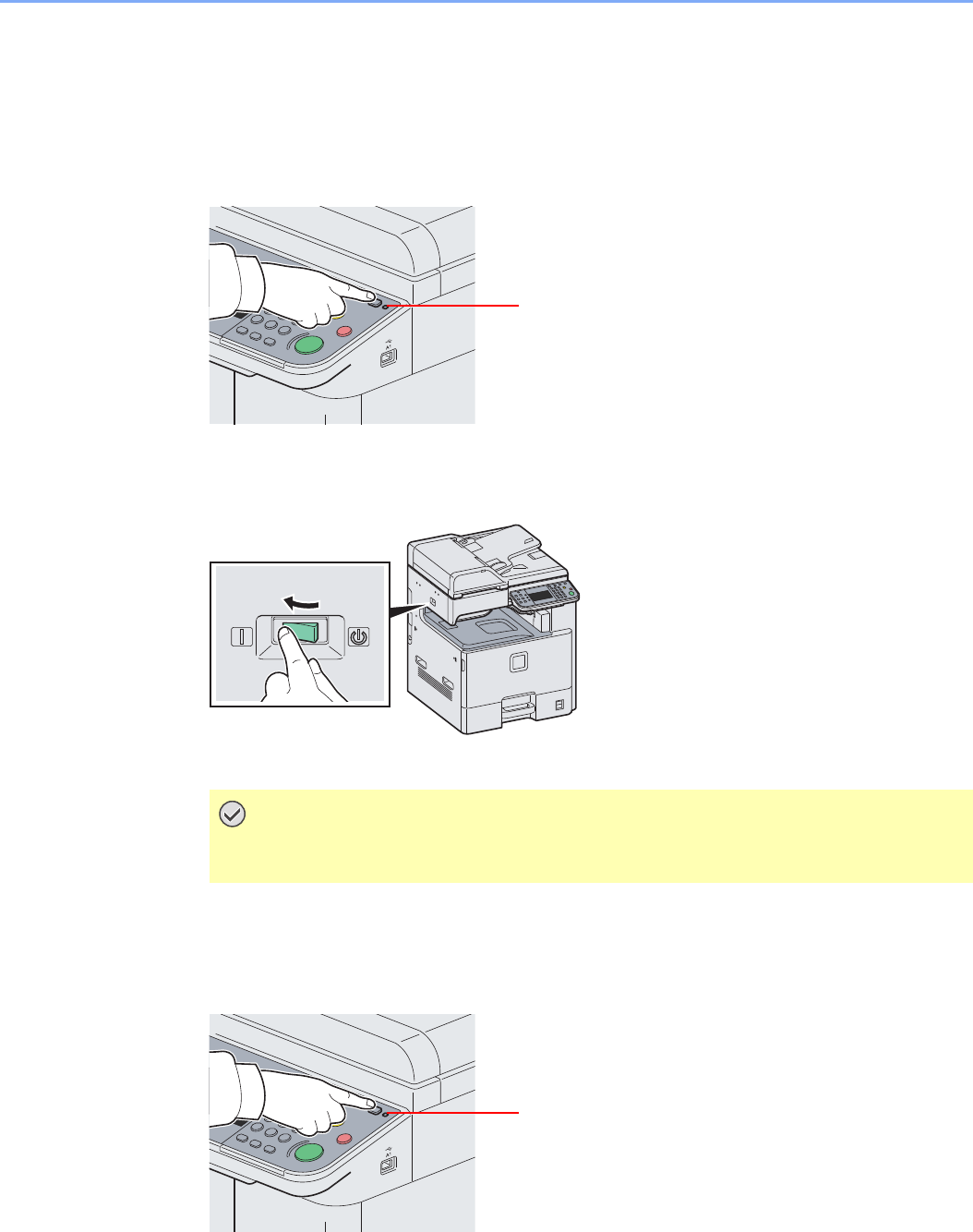
2-12
Preparation before Use > Power On/Off
Power On/Off
Power On
When the main power indicator is lit... (Recovery from sleep)
Press the Power key.
When the main power indicator is off...
Turn the main power switch on.
Power Off
When not turning off the main power switch (sleep)
Press the Power key. The Power key light will go out, and the Main Power indicator will light
up.
IMPORTANT
When turning off the main power switch, do not turn on the main power switch again
immediately. Wait more than 5 seconds, and then turn on the main power switch.
Main Power indicator
Main Power indicator
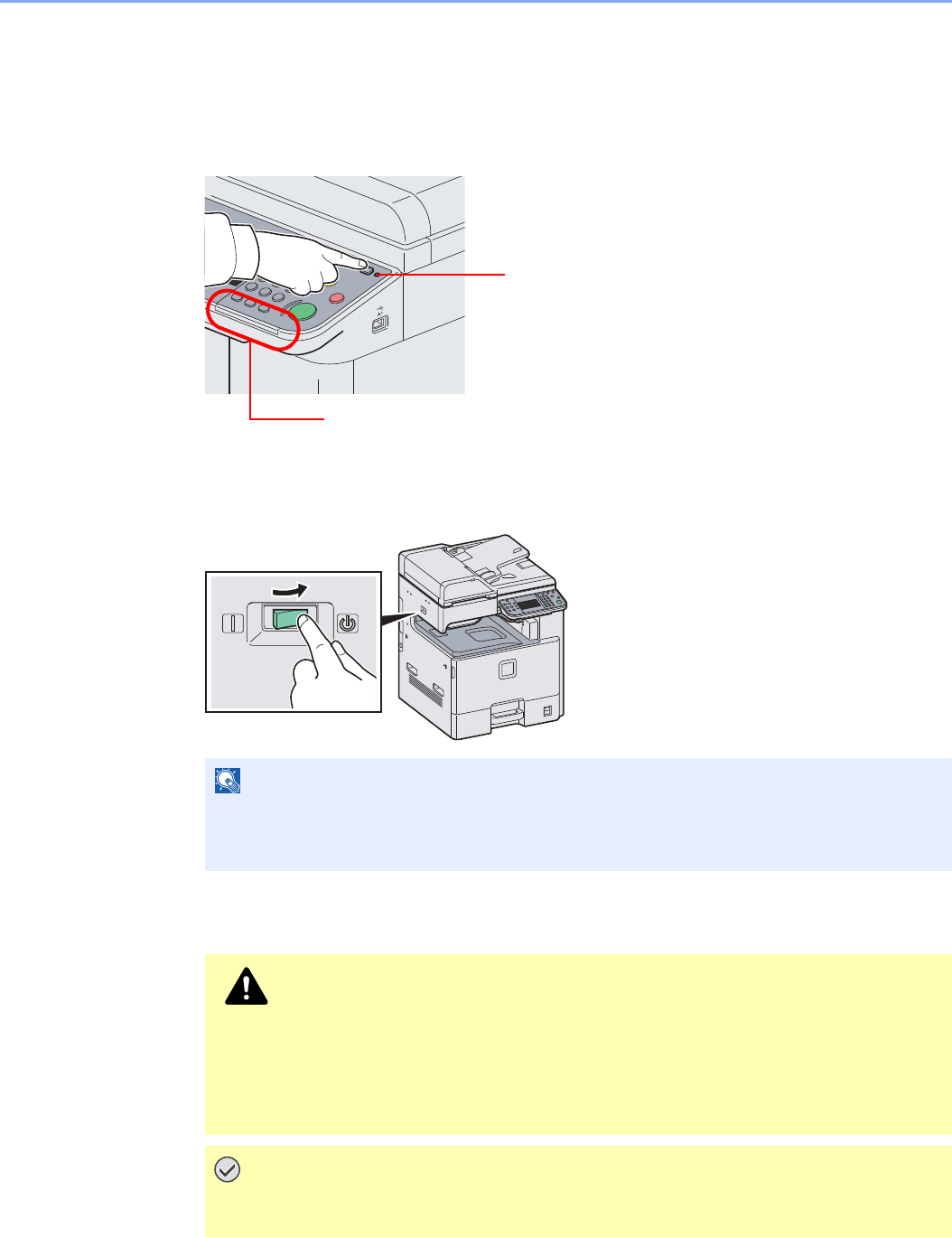
2-13
Preparation before Use > Power On/Off
When turning off the main power switch
Note that when the main power switch is turned off, the machine will be unable to
automatically receive print data from computers or faxes.
1Press the Power key.
Verify that the Power key light has gone out and that the Main Power indicator is lit up.
2Turn the main power switch off.
In case of not using the machine for an extended period of time
NOTE
When the Processing indicator or Memory indicator is lit up, the machine is operating.
Turning off the main power switch while the machine is operating may cause it to
malfunction.
CAUTION
If this machine will be left unused for an extended period (e.g. overnight), turn it off
at the main power switch. If the machine will not be used for an even longer period
of time (e.g. vacation), remove the power plug from the outlet as a safety
precaution. If the optional Fax kit is installed, note that turning the machine off at
the main power switch disables fax transmission and reception.
IMPORTANT
Remove paper from the cassettes and seal it in the paper storage bag to protect it
from humidity.
Check that the indicators are off.
Main Power indicator
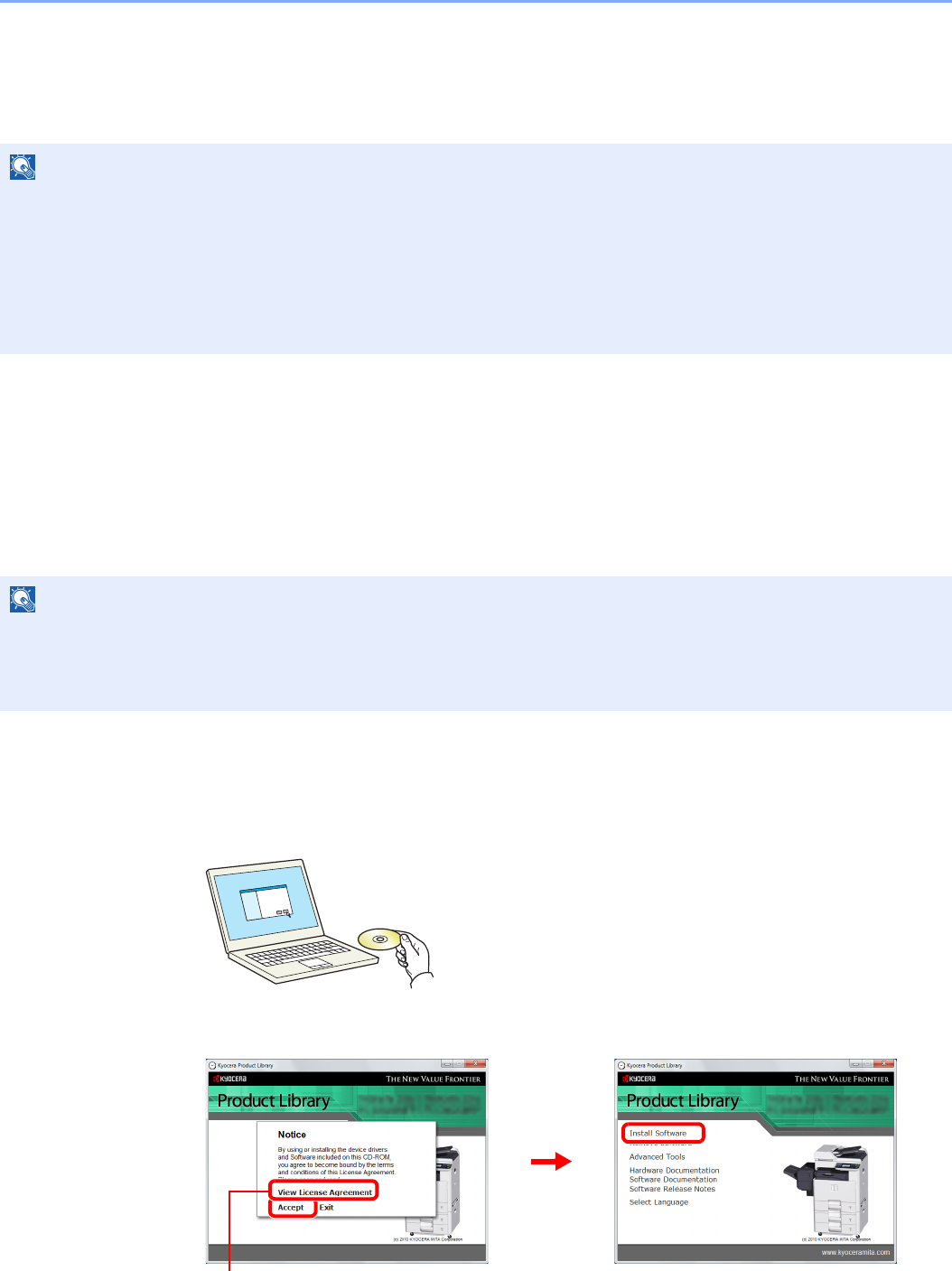
2-14
Preparation before Use > Installing Software
Installing Software
Install appropriate software on your PC from the included Product Library DVD (Product Library) if you want to use the
printer function of this machine or perform TWAIN / WIA transmission or Network FAX transmission from your PC.
Installing Printer Driver
Ensure the machine is plugged in and connected to the PC before installing the printer driver from the DVD.
Installing Printer Driver in Windows
If you are connecting this machine to a Windows PC, follow the next steps to install the printer driver. The example
shows you how to connect your machine to a Windows 7 PC.
You can use either Express Mode or Custom Mode to install the software. Express Mode automatically detects
connected machines and installs the required software. Use Custom Mode if you want to specify the printer port and
select the software to be installed. For details, refer to Custom Installation in the Printer Driver User Guide on the DVD.
1Insert the DVD.
2Display the screen.
NOTE
Installation on Windows must be done by a user logged on with administrator privileges.
Plug and Play is disabled on this device when in Sleep. Wake the device from Low Power Mode or Sleep before
continuing. Refer to Low Power Mode and Auto Low Power Mode on page 2-20 and Sleep and Auto Sleep on page 2-
21.
The optional Fax Kit is required in order to make use of fax functionality.
WIA driver cannot be installed on Windows XP.
NOTE
If the Welcome to the Found New Hardware Wizard dialog box displays, select Cancel.
If the autorun screen is displayed, click Run Setup.exe.
If the user account management window appears, click Allow.
Click View License Agreement and read the License Agreement.
2
13
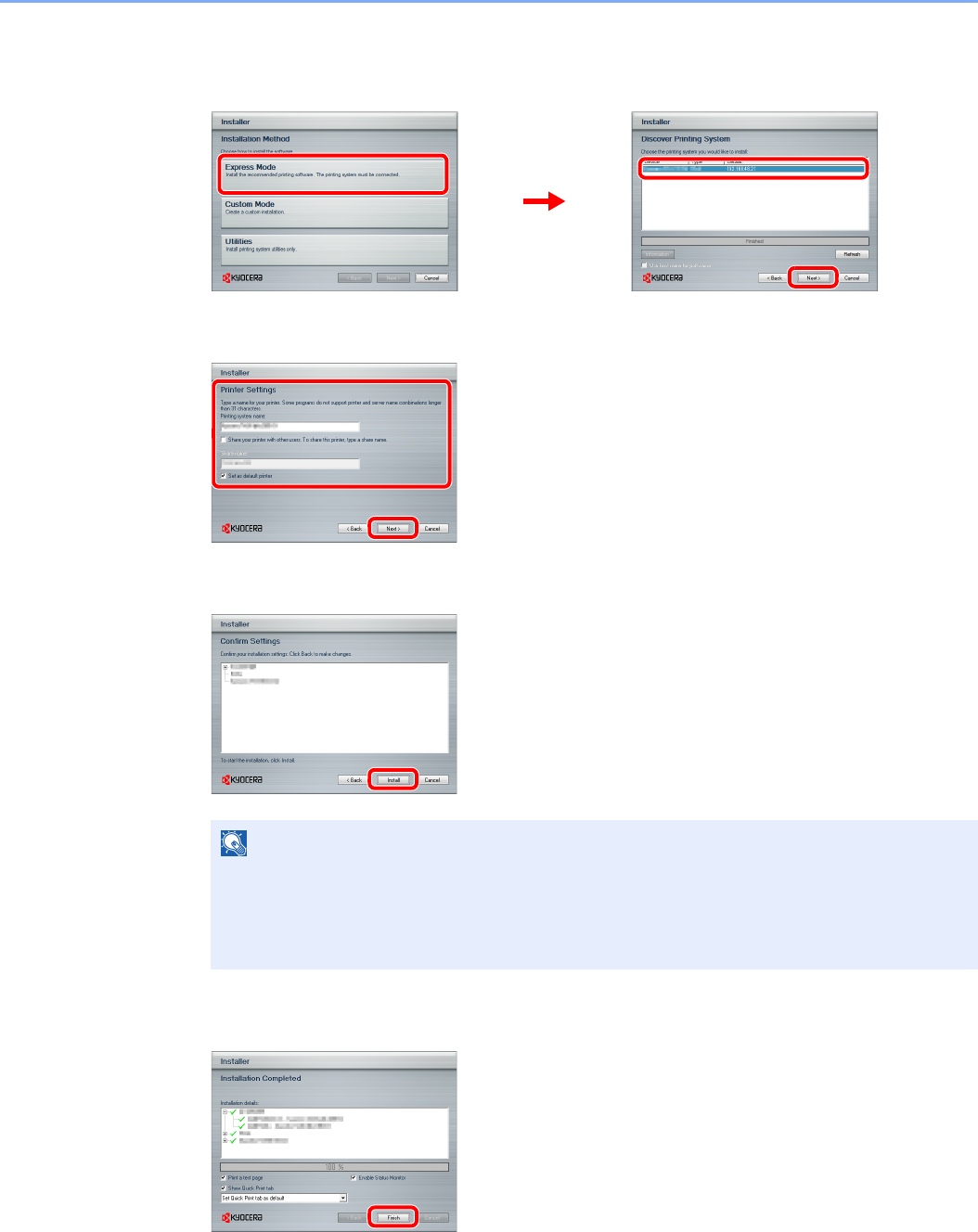
2-15
Preparation before Use > Installing Software
3Install using Express Mode.
1Select the print system to be installed.
2Customize the print system name if the print system is connected via a network.
3Start installing.
4Finish the installation.
This completes the printer driver installation procedure. Follow the on-screen instructions to
restart the system, if required.
The TWAIN driver and WIA driver can be installed if the machine and computer are connected
via a network. You can install the WIA driver using Custom Mode.
NOTE
The machine cannot be detected unless it is on. If the computer fails to detect the machine,
verify that it is connected to the computer via a network or USB cable and that it is turned on
and click Reload.
If the Windows security window appears, click Install this driver software anyway.
12
3
1
2
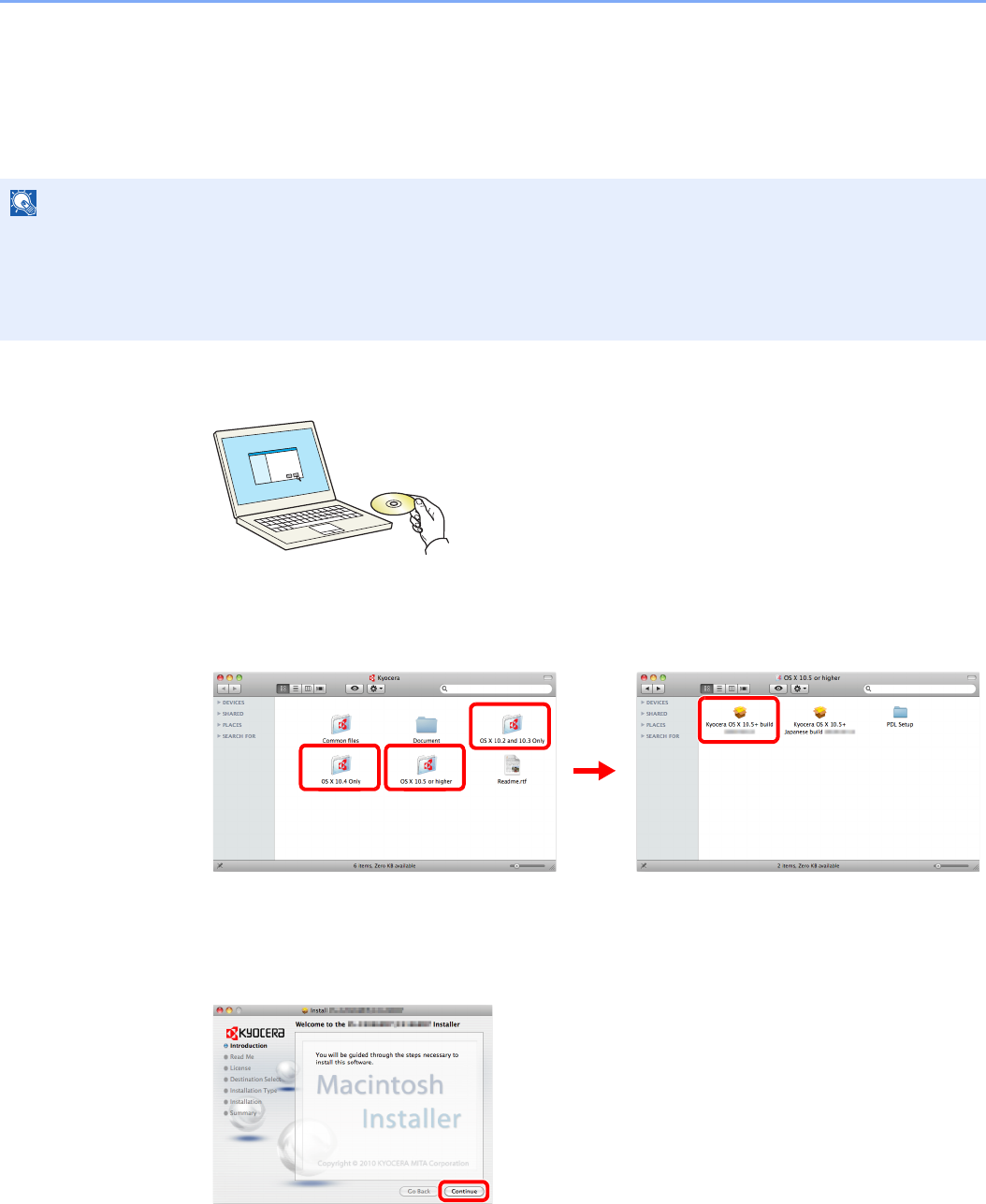
2-16
Preparation before Use > Installing Software
If you are installing the TWAIN driver or WIA driver, continue by configuring the TWAIN driver
(2-18) or WIA driver (2-19).
Installing Printer Driver in Macintosh
The machine's printer functionality can be used by a Macintosh computer.
1Insert the DVD.
Double-click the Kyocera icon.
2Display the screen.
Double-click either OS X 10.2 and 10.3 Only, OS X 10.4 Only or OS X 10.5 or higher
depending on your Mac OS version.
3Install Printer Driver.
Install the printer driver as directed by the instructions in the installation software.
This completes the printer driver installation.
Next, specify the print settings. If an IP or AppleTalk connection is used, the settings below are
required. If a USB connection is used, the machine is automatically recognized and
connected.
NOTE
When printing from a Macintosh computer, set the machine’s emulation to “KPDL” or “KPDL(Auto)”. For details about
the configuration method, refer to Printer on page 9-16.
If connecting by Bonjour, enable Bonjour in the machine's network settings. For details, refer to Network on page 9-18.
In the Authenticate screen, enter the name and password used to log in to the operating system.
Double-click
Double-click
1
2
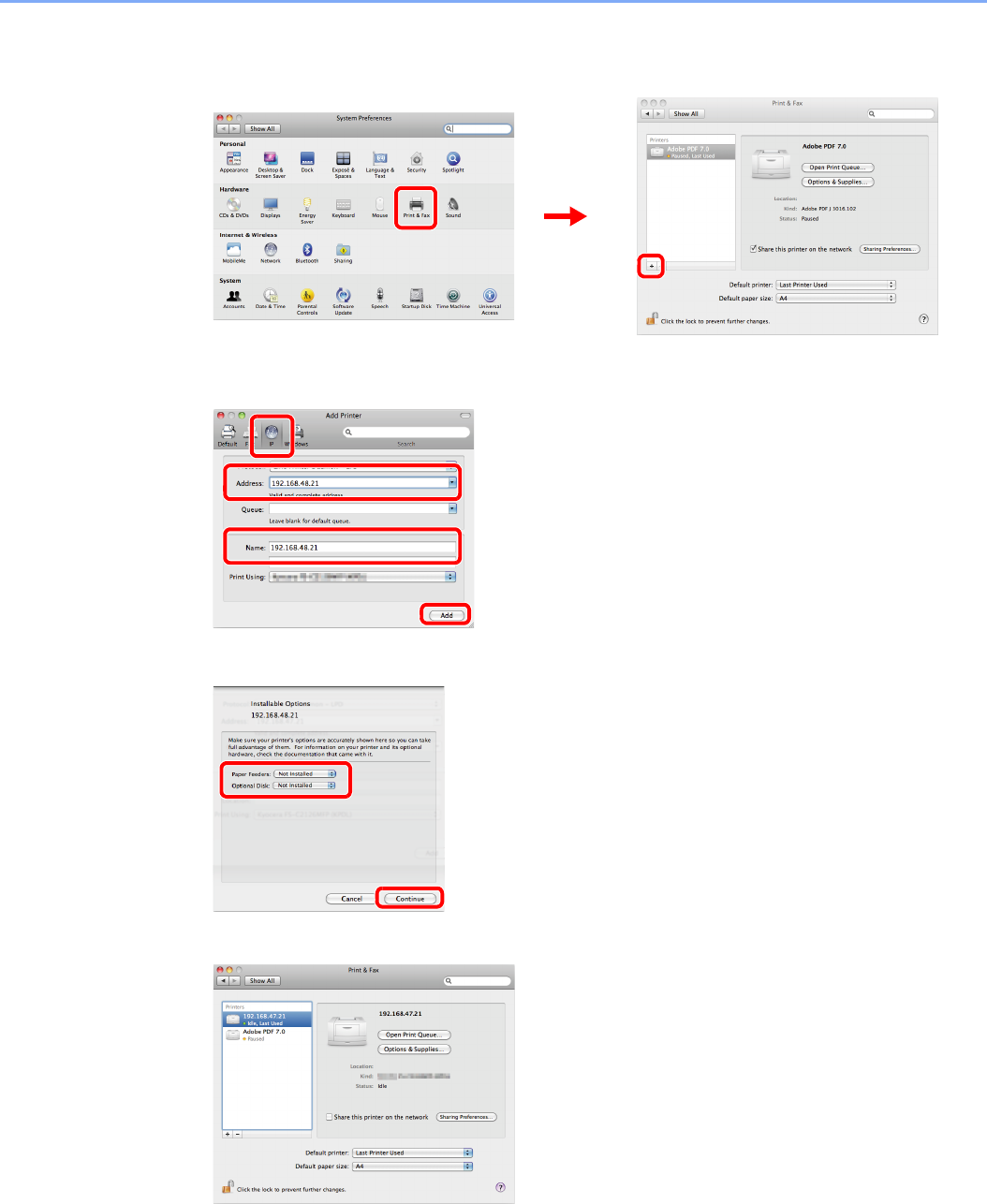
2-17
Preparation before Use > Installing Software
4Configure the printer.
1Display the window.
2Click the IP icon for an IP connection or the AppleTalk icon for an AppleTalk connection
and then enter the IP address and printer name.
3Select the options available for the machine and click Continue.
4The selected machine is added.
12
1
2
4
3
1
2
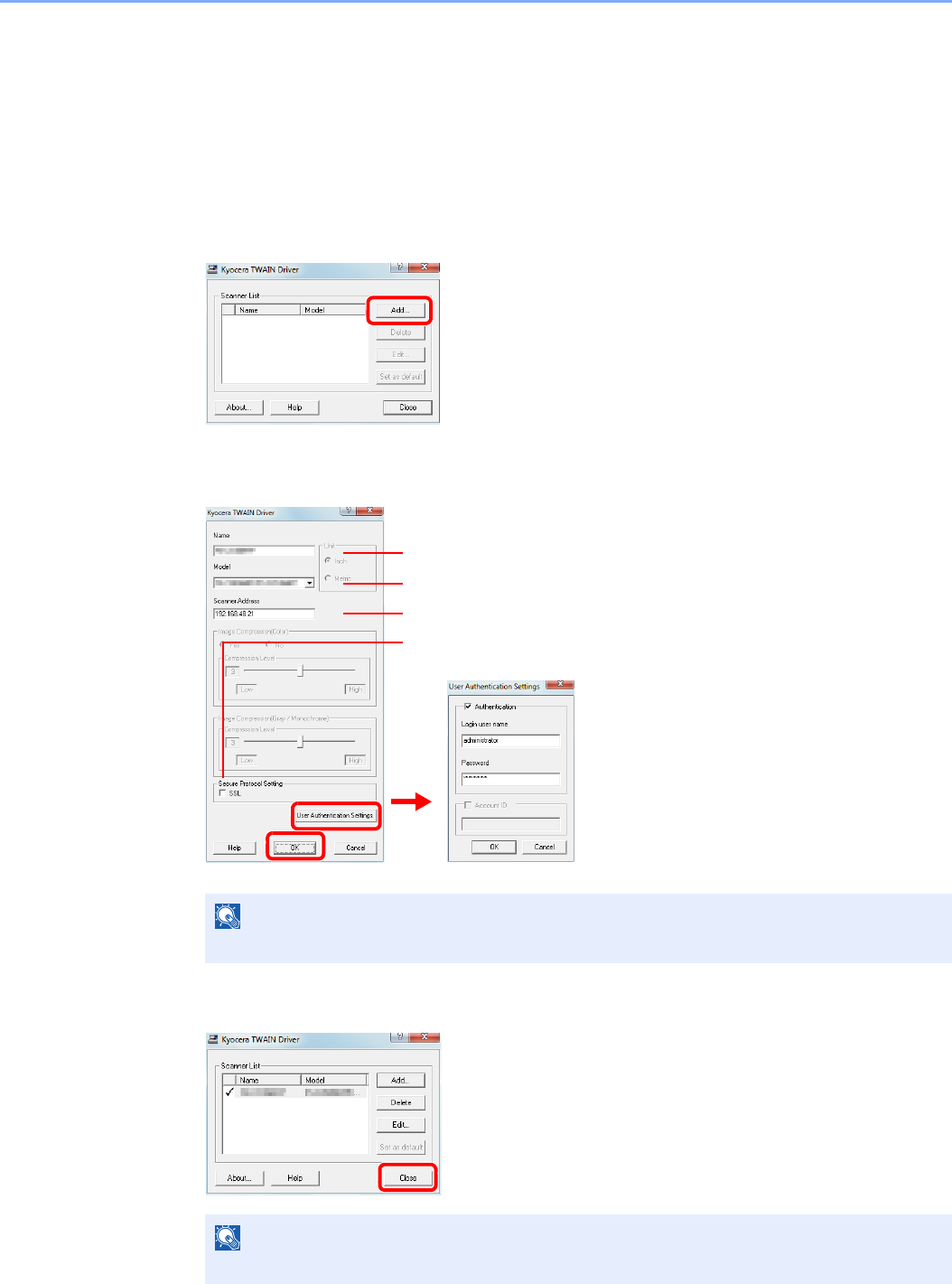
2-18
Preparation before Use > Installing Software
Setting TWAIN Driver
Register this machine to the TWAIN Driver.
1Display the screen.
1Select Start button of the Windows display, All Programs, Kyocera and then TWAIN
Driver Setting.
2Click Add.
2Configure TWAIN Driver.
3Finish registering.
NOTE
When the machine’s IP address is unknown, contact Administrator.
NOTE
Click Delete to delete the added machine. Click Edit to change names.
Enter the machine name.
Select this machine from the list.
Enter the machine's IP address or host name.
When user login administration is enabled, select
the checkbox beside Authentication, and enter
Login User Name (up to 64 characters) and
Password (up to 64 characters).
When job accounting is enabled, select the
checkbox beside Account ID, and enter the
account ID as many as eight digits.
3
2
1
5
6
When using SSL, select the checkbox beside SSL.
4
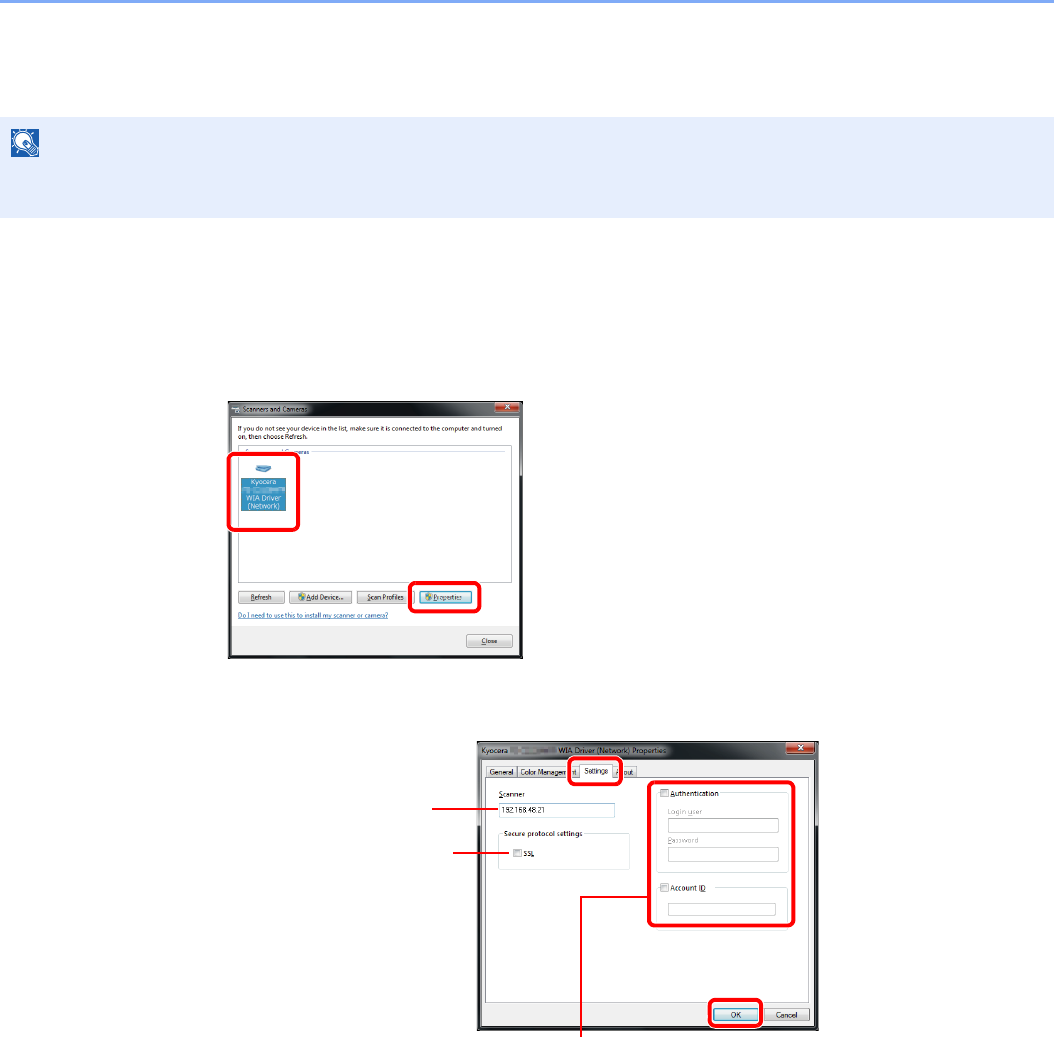
2-19
Preparation before Use > Installing Software
Setting WIA Driver
Register this machine to the WIA Driver. Instructions are based on interface elements as they appear in Windows 7.
1Display the screen.
1Click the Windows Start button and enter Scanner in Program and File Search. Click
View scanners and cameras in the search list.
2Select the same name as this machine from WIA Drivers, and press the Properties.
2Configure WIA Driver.
NOTE
The following is not necessary to register when using the machine possesses an IP address or host name that you
have specified during installation of WIA Driver.
12
Enter the machine name.
1
2
When user login administration is enabled, select the checkbox beside
Authentication, and enter Login User Name (up to 64 characters) and
Password (up to 64 characters).
When job accounting is enabled, select the checkbox beside Account
ID, and enter the account ID as many as eight digits.
4
5
3
When using SSL, select the
checkbox beside SSL.
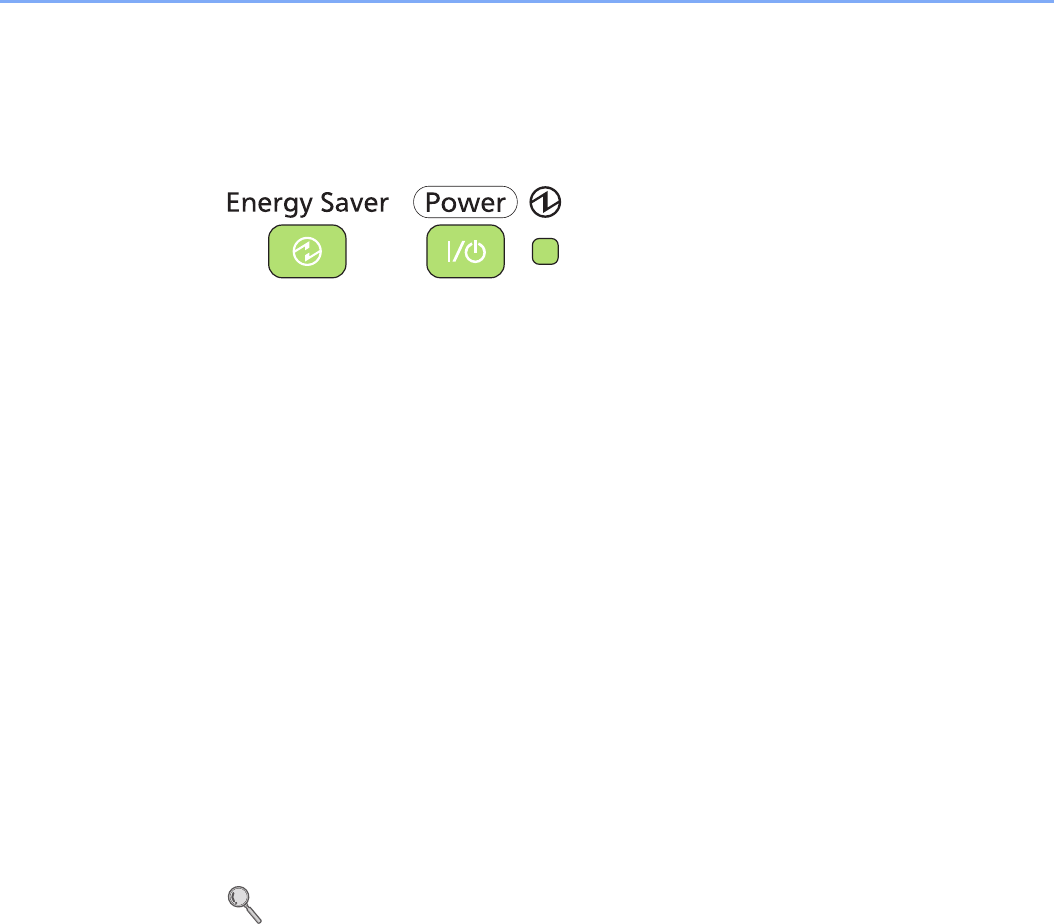
2-20
Preparation before Use > Energy Saver function
Energy Saver function
Low Power Mode and Auto Low Power Mode
Low Power Mode
To activate Low Power Mode, press the Energy Saver key. Touch panel and all indicators on
the operation panel will go out to save power except the Energy Saver, Power, and Main
Power indicators. This status is referred to as Low Power Mode.
If print data is received during Low Power Mode, the machine automatically wakes up and
starts printing. Also when fax data arrives while the machine is in Low Power Mode when
using the optional fax, the machine automatically wakes up and starts printing.
To resume, perform one of the following actions. The machine will be ready to operate within
10 seconds.
• Press any key on the operation panel.
• Open the document processor.
• Place originals in the document processor.
Note that ambient environmental conditions, such as ventilation, may cause the machine to
respond more slowly.
Auto Low Power Mode
Auto Low Power Mode automatically switches the machine into Low Power Mode if left idle for
a preset time. The default preset time is 3 minutes.
For more information about configuring settings, refer to Low Power Timer on page 9-24.
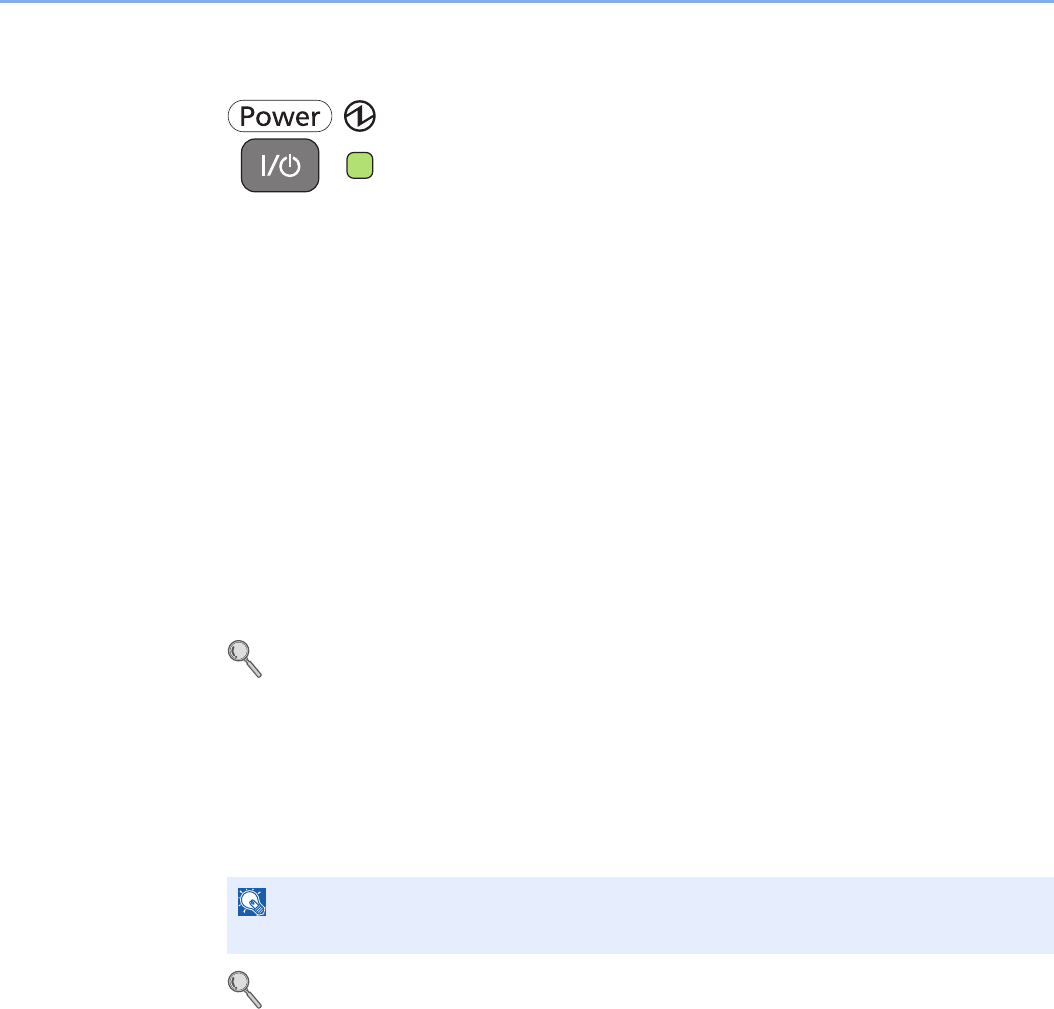
2-21
Preparation before Use > Energy Saver function
Sleep and Auto Sleep
To enter Sleep, press the Power key. Touch panel and all indicators on the operation panel will
go out to save a maximum amount of power except the Main Power indicator. This status is
referred to as Sleep.
If print data is received during Sleep, the touch panel lights up and printing starts.
When using the optional fax, received data is printed out while the operation panel remains
unlit.
To resume, press the Power key. The machine will be ready to use within 23 seconds.
Note that ambient environmental conditions, such as ventilation, may cause the machine to
respond more slowly.
Auto Sleep
Auto Sleep automatically switches the machine into Sleep if left idle for a preset time in the
Low Power Mode. The default preset time is 20 minutes (for the 20 ppm model) and 30
minutes (for the 25 ppm model).
For more information about configuring settings, refer to Sleep Timer on page 9-24.
Energy Saver
This mode reduces power consumption even more than normal Sleep mode, and allows Sleep
Mode to be set separately for each function. Printing from a computer connected with a USB
cable is not available while the machine is asleep.
To use the machine, press the Power key. The time required for the machine to wake up from
power save mode and resume normal operation will be longer than for normal Sleep Mode.
For more information on Energy Saver Mode settings, refer to Sleep Level on page 9-24.
NOTE
If the optional Gigabit Ethernet Board is installed, Energy Saver cannot be specified.
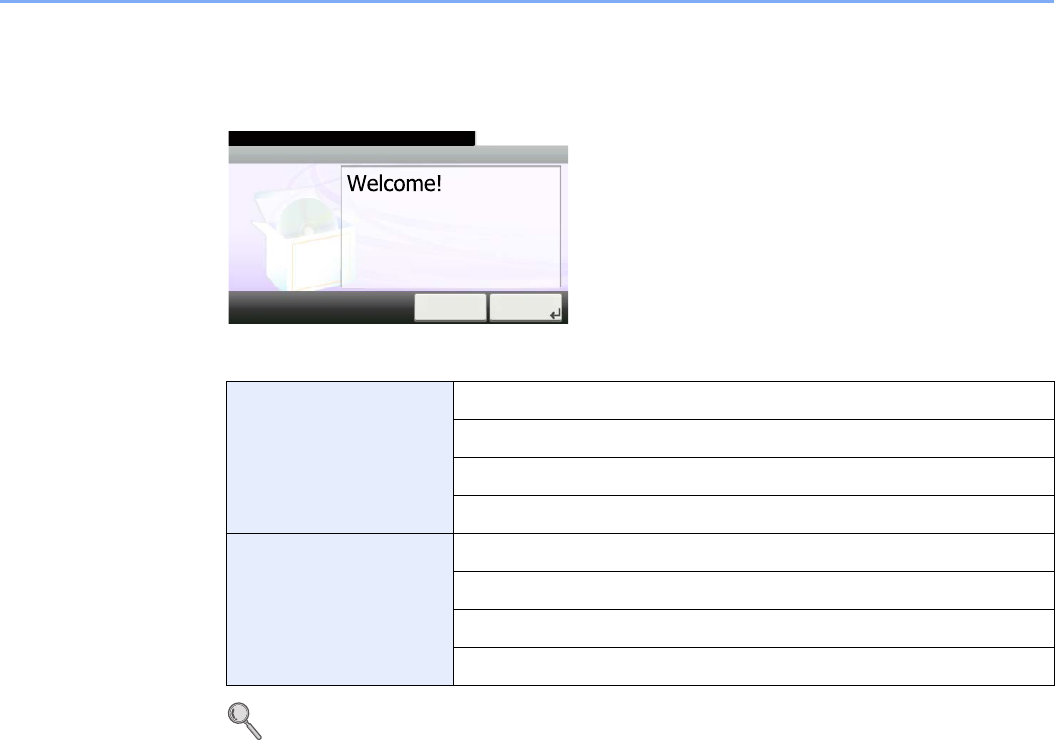
2-22
Preparation before Use > Machine Setup Wizard
Machine Setup Wizard
The Machine Setup Wizard is launched when the equipment is turned on for the first time after being installed.
Following the instructions on the screen to configure the following settings:
For details about settings, refer to the help information displayed on the touch panel.To make
changes after this initial configuration, refer to Date/Timer on page 9-23 and System on page 9-18.
Date/Time settings Time Zone
Summer Time
Date
Time
Network settings Obtain IP Address
IP Address
Subnet Mask
Default Gateway
Machine setup
10:10
This wizard will help you set up
your machine.
To continue, press [Next >].
< Back Next >
1. Date/Time
2. Network
System Menu/Counter.
GB0889_00
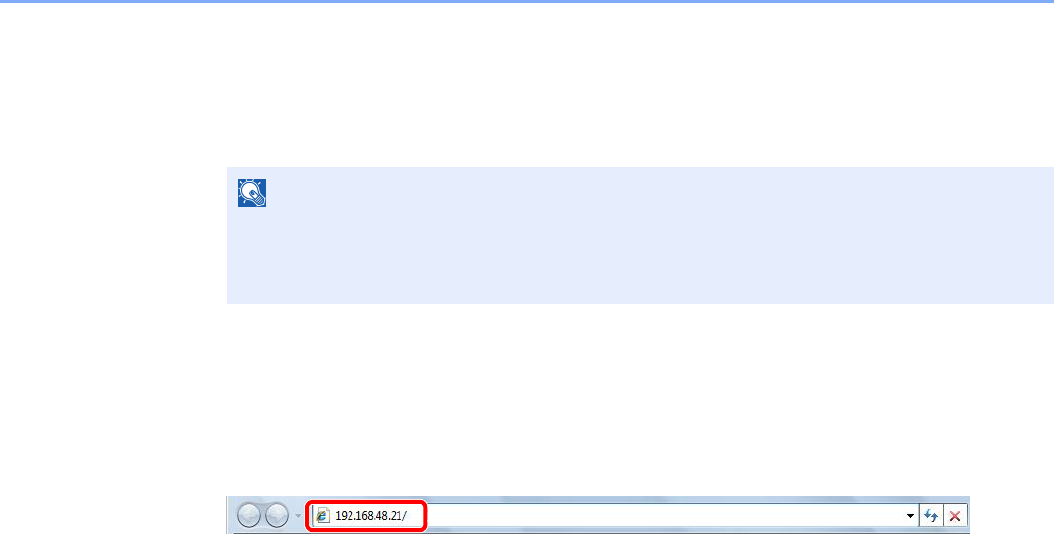
2-23
Preparation before Use > COMMAND CENTER (Settings for E-mail)
COMMAND CENTER (Settings for E-mail)
COMMAND CENTER is a tool used for tasks such as verifying the operating status of the machine and changing the
settings for security, network printing, E-mail transmission and advanced networking.
1Display the screen.
1Launch your Web browser.
2In the Address or Location bar, enter the machine’s IP address.
E.g.) http://192.168.48.21/
The web page displays basic information about the machine and COMMAND CENTER as
well as their current status.
2Configure the function.
Select a category from the navigation bar on the left of the screen. The values for each
category must be set separately.
If restrictions have been set for COMMAND CENTER, enter a password to access pages
other than the startup page. The default password is “admin00.” The password can be
changed.
For details, refer to the KYOCERA COMMAND CENTER Operation Guide.
NOTE
Here, information on the FAX settings has been omitted. For more information on using the
FAX, refer to the FAX Operation Guide.
The optional Fax Kit is required in order to make use of fax functionality.
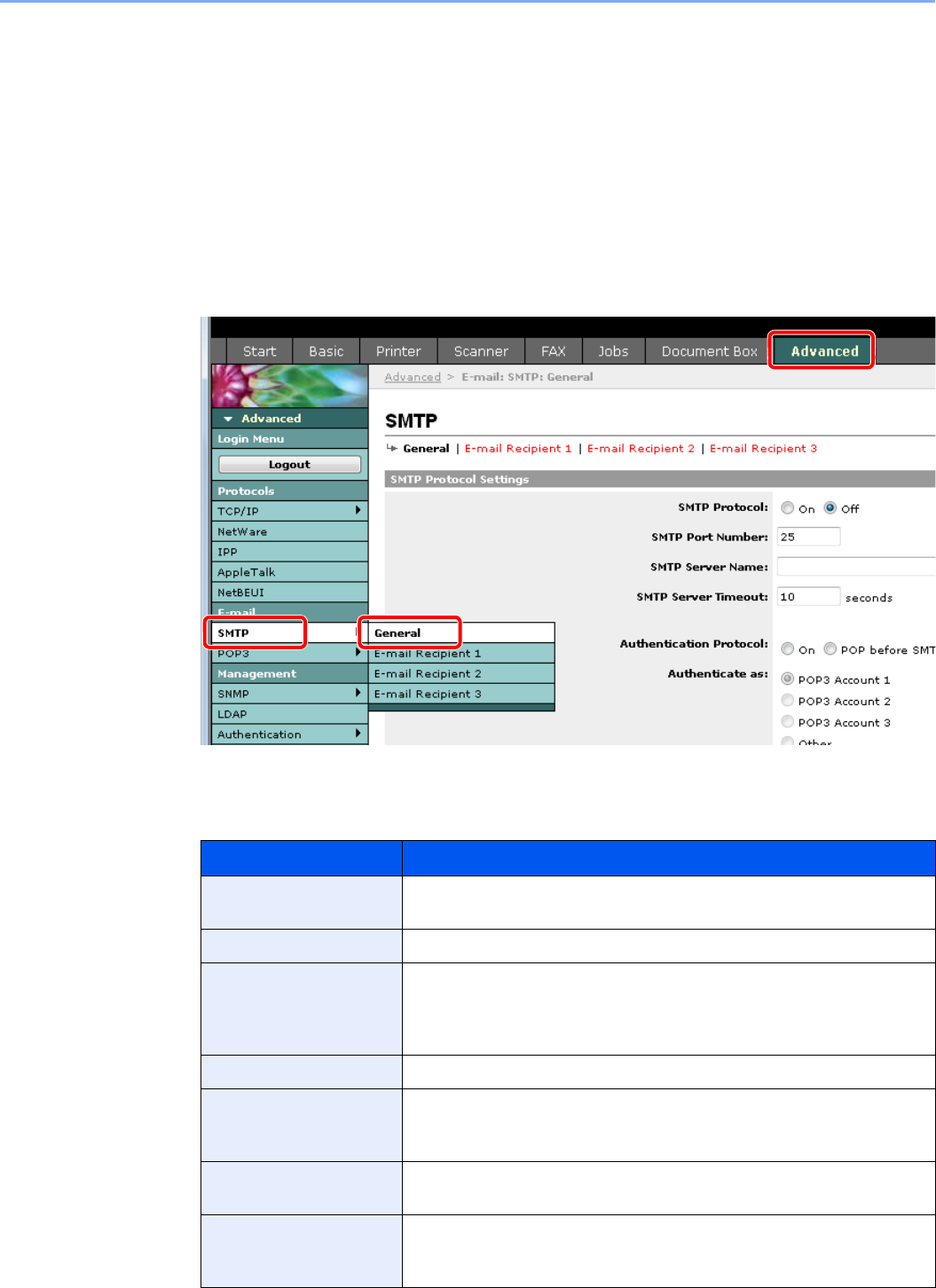
2-24
Preparation before Use > COMMAND CENTER (Settings for E-mail)
Sending E-mail
Specifying the SMTP settings allows you to send images loaded onto this machine as E-mail attachments.
To use this function, this machine must be connected to a mail server using the SMTP protocol.
Before sending images loaded onto this machine as E-mail attachments, check the following:
• The network environment used to connect this machine to the mail server: A full-time connection via a LAN is
recommended.
• SMTP Settings: Use COMMAND CENTER to register the IP address or host name of the SMTP server.
• If limits have been set on the size of E-mail messages, it may not be possible to send very large E-mails.
1Display the screen.
2Configure the function.
Enter the correct settings in each field.
Item Description
SMTP Protocol Enables or disables SMTP protocol. To use E-mail, this protocol must be
enabled.
SMTP Port Number Set the SMTP Port Number or use the SMTP default port 25.
SMTP Server Name Enter the SMTP server IP address or its name. The maximum length of
the SMTP server name and IP address is 64 characters. If entering the
name, a DNS server address must also be configured. The DNS server
address may be entered on the TCP/IP General tab.
SMTP Server Timeout Set the amount of time to wait before time-out in seconds.
Authentication Protocol Enables or disables the SMTP authentication protocol or sets POP before
SMTP as the protocol. The SMTP authentication supports Microsoft
Exchange 2000.
Authenticate as Authentication can be set from three POP3 accounts or you can choose a
different account.
Login User Name When Other is selected for Authenticate, the login user name set here will
be used for SMTP authentication. The maximum length of the login user
name is 64 characters.
1
23

2-25
Preparation before Use > COMMAND CENTER (Settings for E-mail)
3Click [Submit].
Login Password When Other is selected for Authenticate, the password set here will be
used for authentication. The maximum length of the login password is 64
characters.
POP before SMTP
Timeout
Set the amount of time to wait before time-out in seconds when you have
selected POP before SMTP as the Authentication Protocol.
Test This will test if the SMTP connection can be successfully established.
E-mail Size Limit Enter the maximum size of E-mail that can be sent in kilobytes. When the
value is 0, no maximum size is set.
Sender Address Enter the E-mail address of the person responsible for the machine, such
as the machine administrator, so that a reply or non-delivery report will go
to a person rather than to the machine. The sender address must be
entered correctly for SMTP authentication. The maximum length of the
sender address is 128 characters.
Signature Enter the signature. The signature is free form text that will appear at the
end of the E-mail body. It is often used for further identification of the
machine. The maximum length of the signature is 512 characters.
Domain Restriction Enter the domain names that can be permitted or rejected. The maximum
length of the domain name is 32 characters. You can also specify E-mail
addresses.
Item Description

2-26
Preparation before Use > COMMAND CENTER (Settings for E-mail)
3-1
3 Common Operations
This chapter explains the following topics:
Loading Paper .................................................................................................................................................... 3-2
Before Loading Paper .............................................................................................................................. 3-2
Loading Paper in the Cassettes ............................................................................................................... 3-3
Loading Paper in the Multi Purpose Tray ................................................................................................. 3-5
Loading Originals ............................................................................................................................................... 3-7
Placing Originals on the Platen ................................................................................................................ 3-7
Loading Originals in the Document Processor ........................................................................................ 3-8
Checking the Equipment's Serial Number ....................................................................................................... 3-10
Checking the Counter ....................................................................................................................................... 3-11
Login/Logout .................................................................................................................................................... 3-12
Favorites .......................................................................................................................................................... 3-14
Registering Favorites ............................................................................................................................. 3-14
Editing and Deleting Favorites ............................................................................................................... 3-18
Using Favorites ...................................................................................................................................... 3-20
Shortcuts .......................................................................................................................................................... 3-22
Registering Shortcuts ............................................................................................................................. 3-22
Editing and Deleting Shortcuts ............................................................................................................... 3-24
Using Shortcuts ...................................................................................................................................... 3-25
Quick Setup Wizard ......................................................................................................................................... 3-26
Help Screen ..................................................................................................................................................... 3-28
Canceling Jobs ................................................................................................................................................ 3-29
Using Various Functions .................................................................................................................................. 3-30
Original Size .......................................................................................................................................... 3-32
Original Orientation ................................................................................................................................ 3-34
Mixed Size Originals .............................................................................................................................. 3-35
2-sided/Book Original ............................................................................................................................ 3-37
Continuous Scan ................................................................................................................................... 3-39
Paper Selection ..................................................................................................................................... 3-41
Paper Output ......................................................................................................................................... 3-42
Collate/Offset ......................................................................................................................................... 3-43
Margin .................................................................................................................................................... 3-45
Staple ..................................................................................................................................................... 3-48
Density ................................................................................................................................................... 3-50
Scan Resolution ..................................................................................................................................... 3-51
Original Image ....................................................................................................................................... 3-52
Sharpness .............................................................................................................................................. 3-53
Background Density Adjust .................................................................................................................... 3-54
Prevent Bleed-through ........................................................................................................................... 3-55
Zoom ...................................................................................................................................................... 3-56
File Format ............................................................................................................................................. 3-57
Color Selection ...................................................................................................................................... 3-59
Job Finish Notice ................................................................................................................................... 3-60
File Name Entry ..................................................................................................................................... 3-62
Priority Override ..................................................................................................................................... 3-63
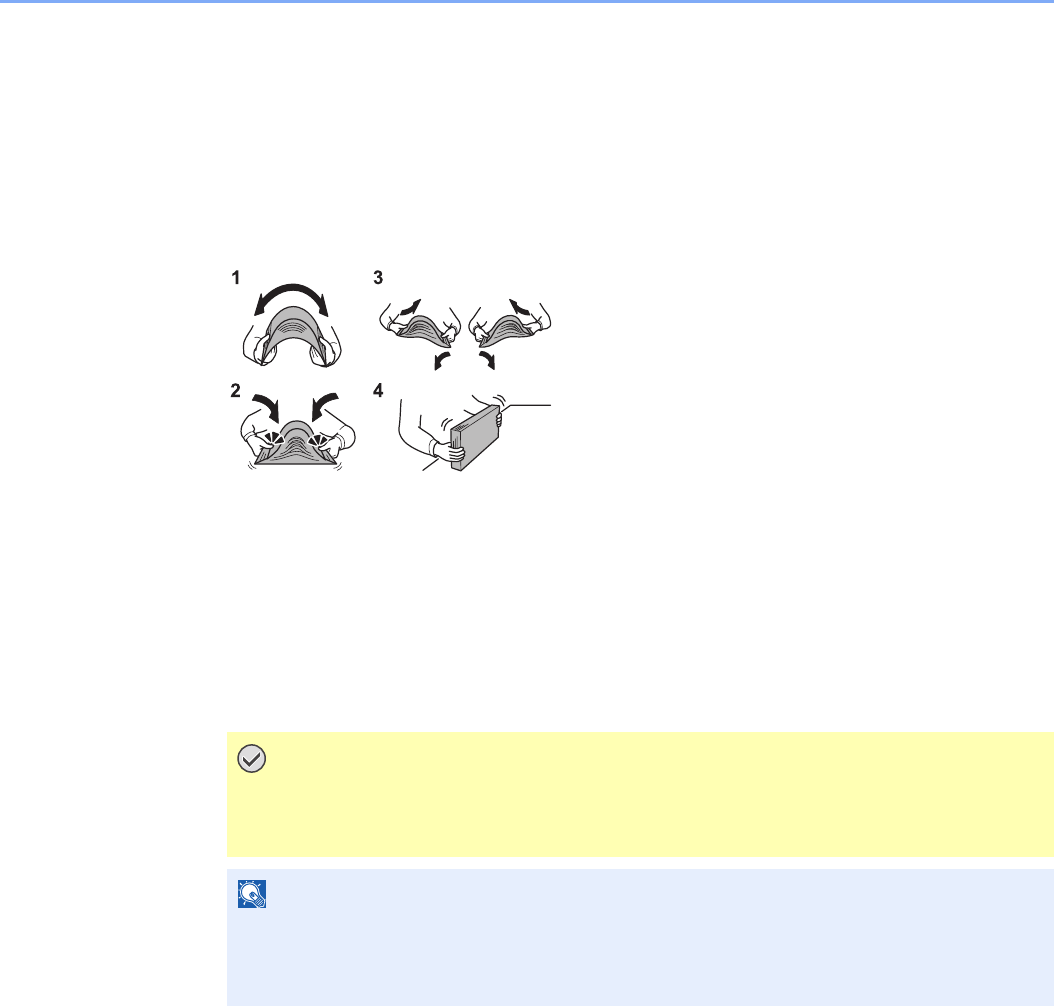
3-2
Common Operations > Loading Paper
Loading Paper
Paper can be loaded standardly in the cassette and the multi purpose tray. A paper feeder is also available as an option
(refer to Optional Equipment on page 11-2).
Before Loading Paper
When you open a new package of paper, fan the sheets to separate them slightly prior to loading in the following steps.
1Bend the whole set of sheets to swell them in the middle.
2Hold the stack at both ends and stretch it while keeping the entire stack swelled.
3Raise the right and left hands alternately to create a gap and feed air between the papers.
4Finally, align the papers on a level, flat table.
If the paper is curled or folded, straighten it before loading. Paper that is curled or folded may
cause a jam.
Avoid exposing opened paper to high temperatures and high humidity as dampness can be a
cause of problems. Seal any remaining paper after loading in the multi purpose tray or
cassettes back in the paper storage bag.
If the machine will not be used for a prolonged period, protect all paper from humidity by
removing it from the cassettes and sealing it in the paper storage bag.
IMPORTANT
If you copy onto used paper (paper already used for copying), do not use paper that
is stapled or clipped together. This may damage the machine or cause poor image
quality.
NOTE
If printouts are curled or not neatly stapled, turn the stack in the cassette upside down.
If you use special paper such as letterhead, paper with holes or paper with pre-prints like
logo or company name, refer to Paper on page 11-10.
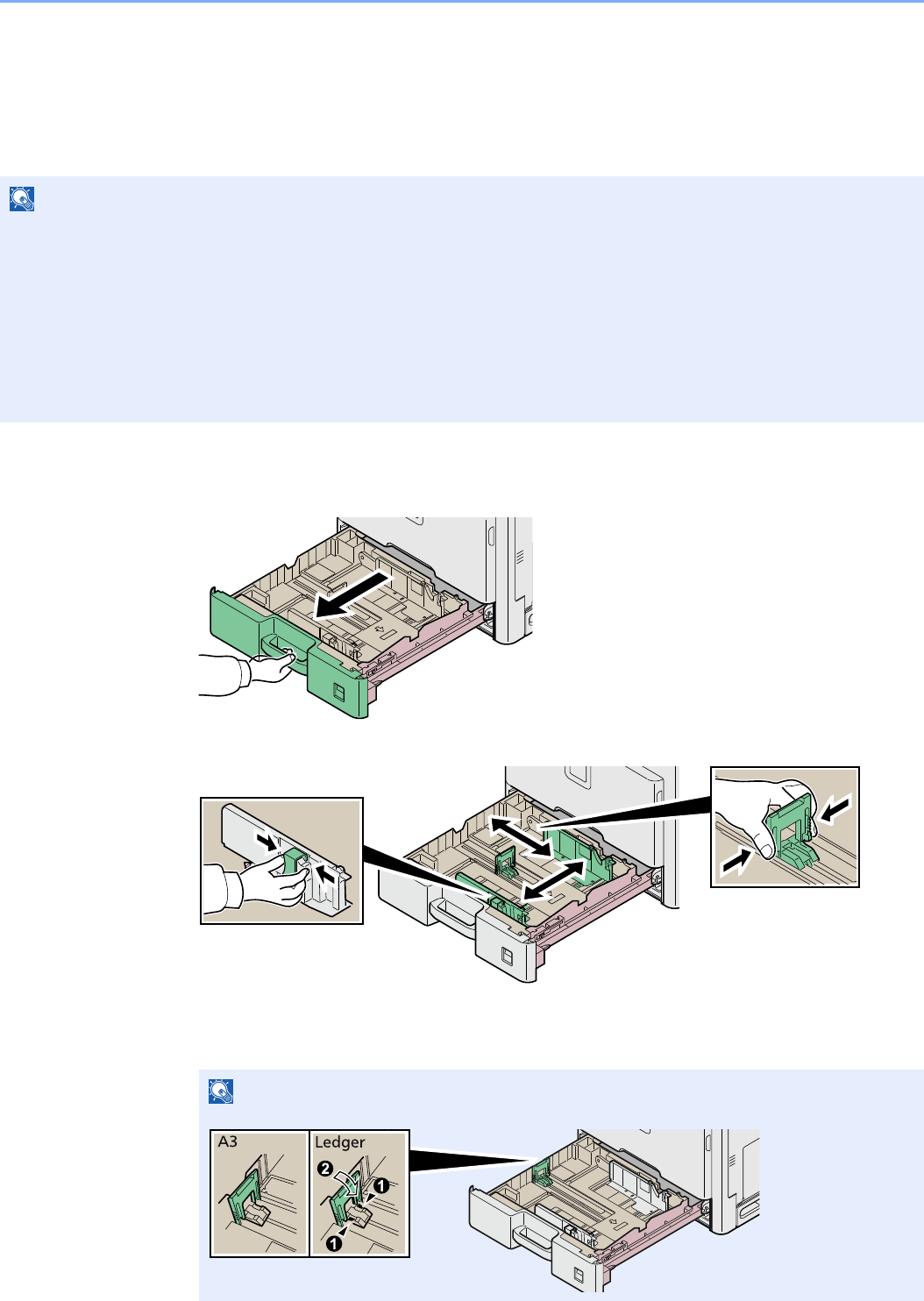
3-3
Common Operations > Loading Paper
Loading Paper in the Cassettes
The standard cassette will each hold plain paper, recycled paper or color paper. The standard cassette holds up to 500
sheets of plain paper (80 g/m²).
The following paper sizes are supported: Ledger, Letter-R, Letter, Legal, Statement-R, Oficio II, A3, B4, A4, A4-R, A5-R,
B5, B5-R, Folio, 216 × 340 mm, 8K, 16K-R, and 16K.
1Adjust the cassette size.
1
2
Adjust the cassette size to reflect the size of paper being loaded. Paper sizes are marked on
the cassette.
NOTE
You should not use inkjet printer paper or any paper with a special surface coating. (Such paper may cause paper
jams or other faults.)
For clearer and brighter color copies, use the special color paper.
When using media types other than plain paper (such as recycled or colored paper), always specify the media type
setting. (Refer to Media Type on page 9-8) The cassettes can hold paper with weights up to 256 g/m². If you are using
a paper weight between 106 and 256 g/m², set the media type to Thick.
If the machine will not be used for a prolonged period, protect all paper from humidity by removing it from the
cassettes and sealing it in the paper storage bag.
NOTE
When using 11 × 17” (ledger) paper, lay the paper length guide down flat.
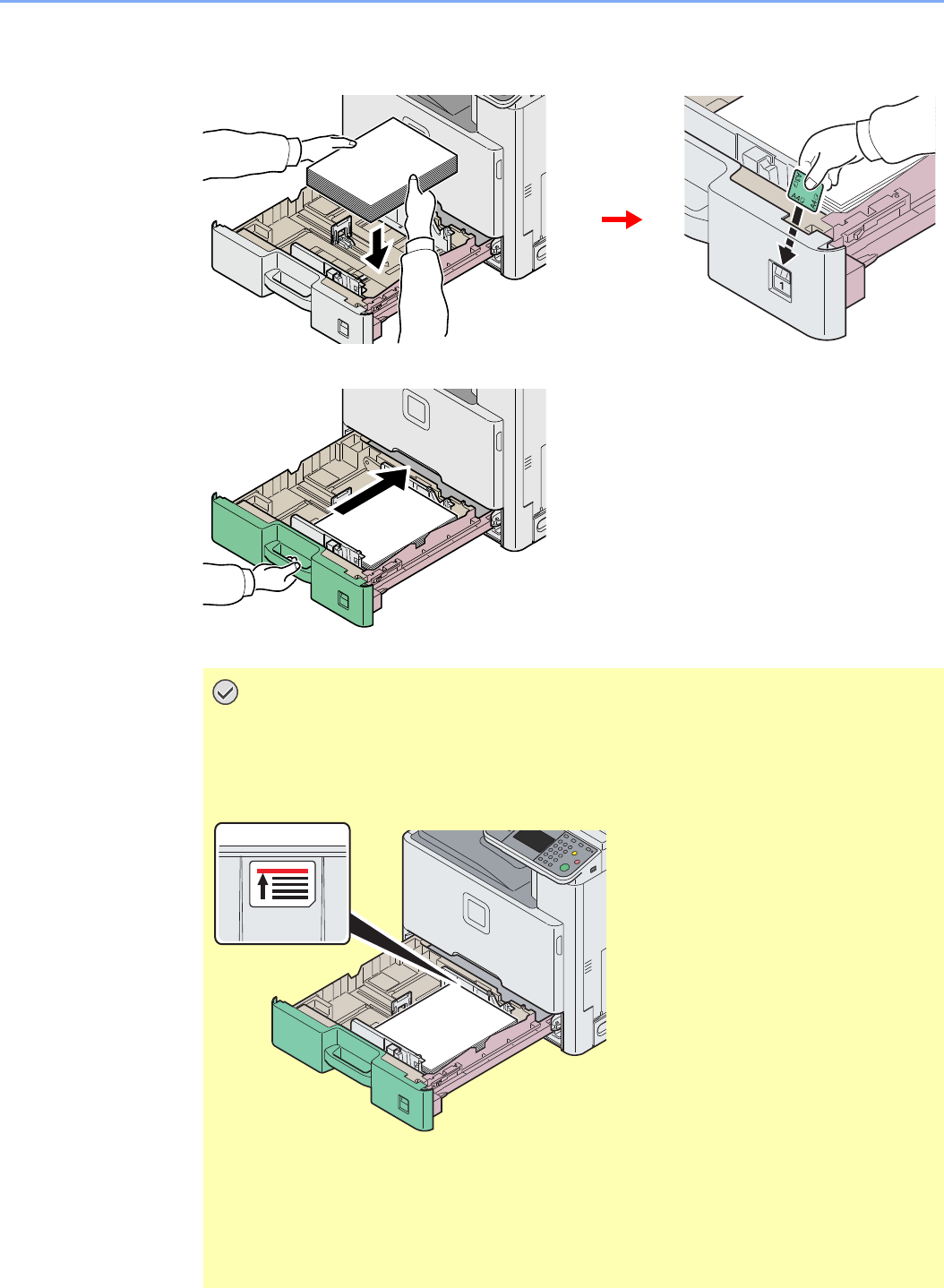
3-4
Common Operations > Loading Paper
2Load paper.
1
2
IMPORTANT
Load the paper with the print side facing up.
Before loading the paper, be sure that it is not curled or folded. Paper that is curled or
folded may cause paper jams.
Ensure that the loaded paper does not exceed the level indicator (see the figure).
When loading the paper, keep the side that was closest the package seal facing up.
The paper length and width guides must be adjusted to the paper size. Loading the
paper without adjusting these guides may cause skewed feeding and paper jams.
Be sure that the paper length and width guides rest securely against the paper. If
there is a gap, readjust the guides to fit the paper.
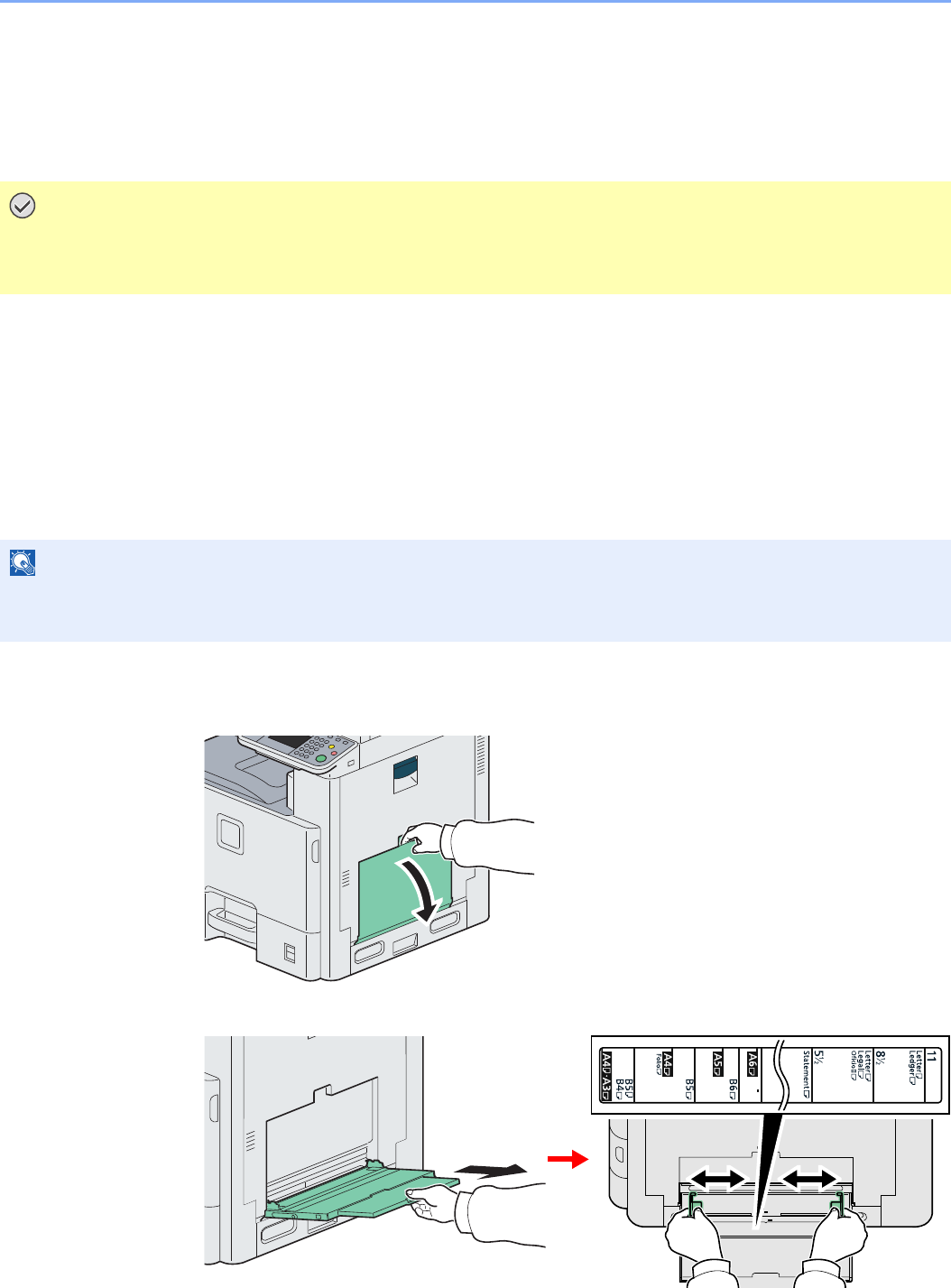
3-5
Common Operations > Loading Paper
Loading Paper in the Multi Purpose Tray
The multi purpose tray will hold up to 100 sheets of A4 or smaller plain paper (80 g/m²) or up to 25 sheets of plain paper
(80 g/m²) lager than A4.
The multi purpose tray accepts paper sizes from A3 to A6 and Hagaki and from Ledger to Statement-R, 8K, 16K-R and
16K. Be sure to use the multi purpose tray when you print on any special paper.
The capacity of the multi purpose tray is as follows.
• A4 or smaller plain paper (80 g/m²), recycled paper or color paper: 100 sheets
• B4 or larger plain paper (80 g/m²), recycled paper or color paper: 25 sheets
• Hagaki: 20 sheet
• Envelope DL, Envelope C5, Envelope #10 (Commercial #10), Monarch, Youkei 4, Youkei 2: 5 sheets
• Heavy paper (106 to 256 g/m²): 10 sheets (when using heavy paper with a weight of 164 g/m² or greater, only A4/
Letter or smaller sheets can be loaded)
1Adjust the multi purpose tray size.
1
2
When loading paper sizes from A3 to B4 and Ledger to Legal, extend the support tray section
of the multi purpose tray.
IMPORTANT
When using media types other than plain paper (such as recycled or colored paper), always specify the media
type setting. (Refer to Cassette/MP Tray Settings on page 9-8.) If you are using a paper weight of 106 g/m² or
more, set the media type to Thick.
NOTE
When you load custom size paper, enter the paper size by referring to Paper Size on page 9-8.
When you use special paper such as thick paper, select the media type by referring to Media Type on page 9-8.
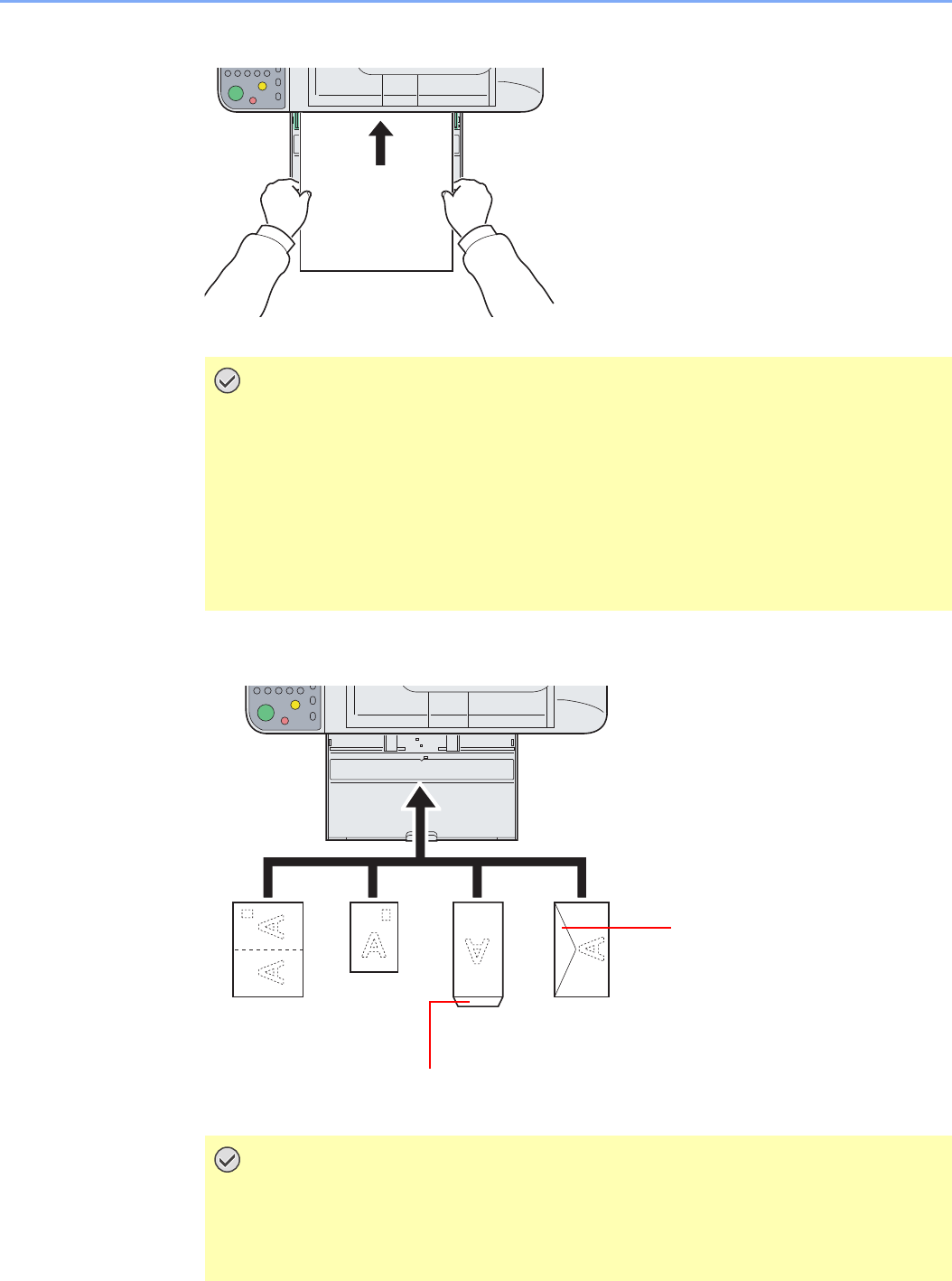
3-6
Common Operations > Loading Paper
2Load paper.
?
Insert the paper along the paper width guides into the tray until it stops.
When you load envelopes or cardstock in the multi purpose tray
Load envelope with the print side facing down.
IMPORTANT
Load the paper with the print side facing down.
Curled paper must be uncurled before use.
Straighten the top edge if it is curled.
When loading paper into the multi purpose tray, check that there is no paper left over
in the tray from a previous job before loading the paper. If there is just a small amount
of paper left over in the multi purpose tray and you want to add more, first remove the
left-over paper from the tray and include it with the new paper before loading the
paper back into the tray.
IMPORTANT
Use unfolded return postcard (Oufukuhagaki).
How to load envelopes (orientation and facing) will differ depending on the type of
envelope. Be sure to load it in correctly, otherwise printing may be done in the wrong
direction or on the wrong face.
Return postcard
(Oufukuhagaki)
Cardstock
(Hagaki) Portrait form
envelopes
Landscape form
envelopes
Close the flap.
Open the flap.
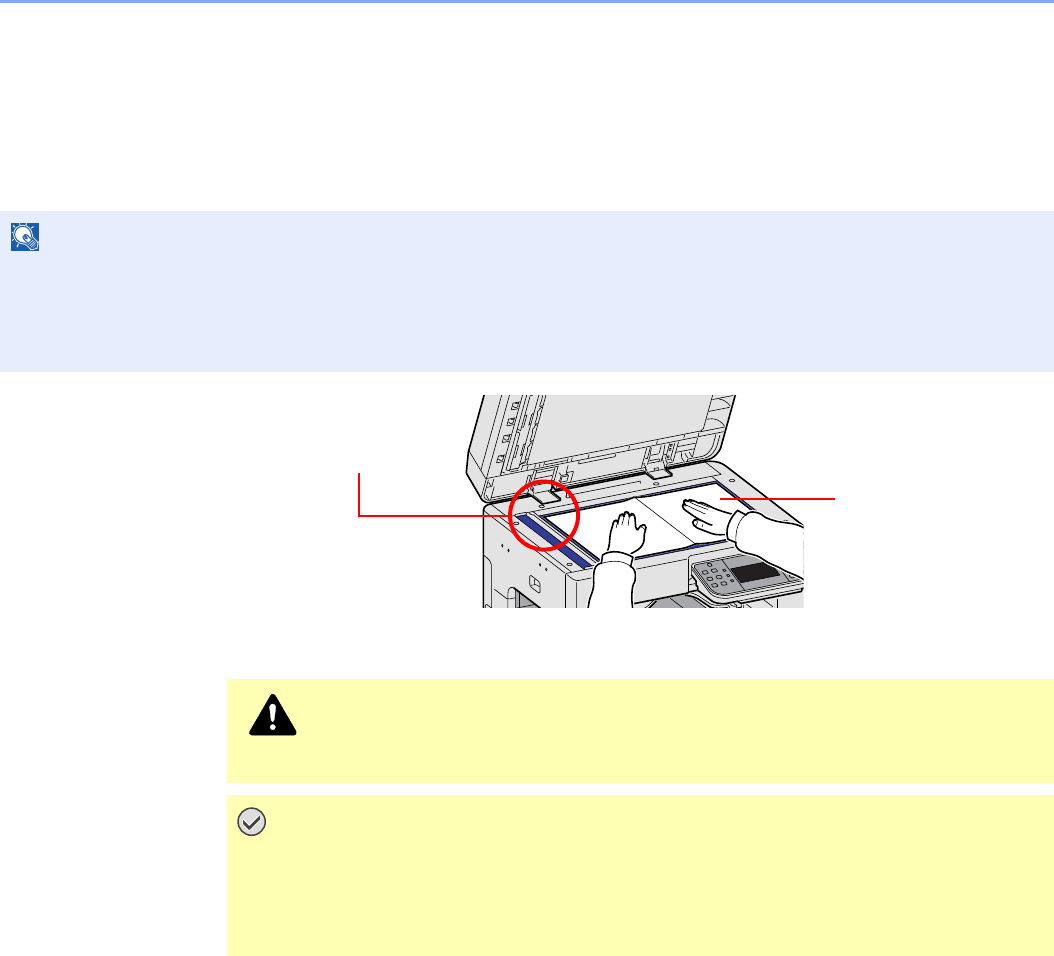
3-7
Common Operations > Loading Originals
Loading Originals
Placing Originals on the Platen
You may place books or magazines on the platen in addition to ordinary sheet originals.
Open the document processor, and place the original.
NOTE
Before opening the document processor, be sure that there are no originals left on the original table or on the original
eject table. Originals left on the original table or on the original eject table may fall off when the document processor is
opened.
Shadows may be produced around the edges and in the middle of open-faced originals.
CAUTION
Do not leave the document processor open as there is a danger of personal injury.
IMPORTANT
Do not push the document processor forcefully when you close it. Excessive
pressure may crack the platen glass.
When placing books or magazines on the machine, do so with the document
processor in the open position.
Align it flush against the
original size indicator plates
with the back left corner as
the reference point.
Put the scanning
side facedown.
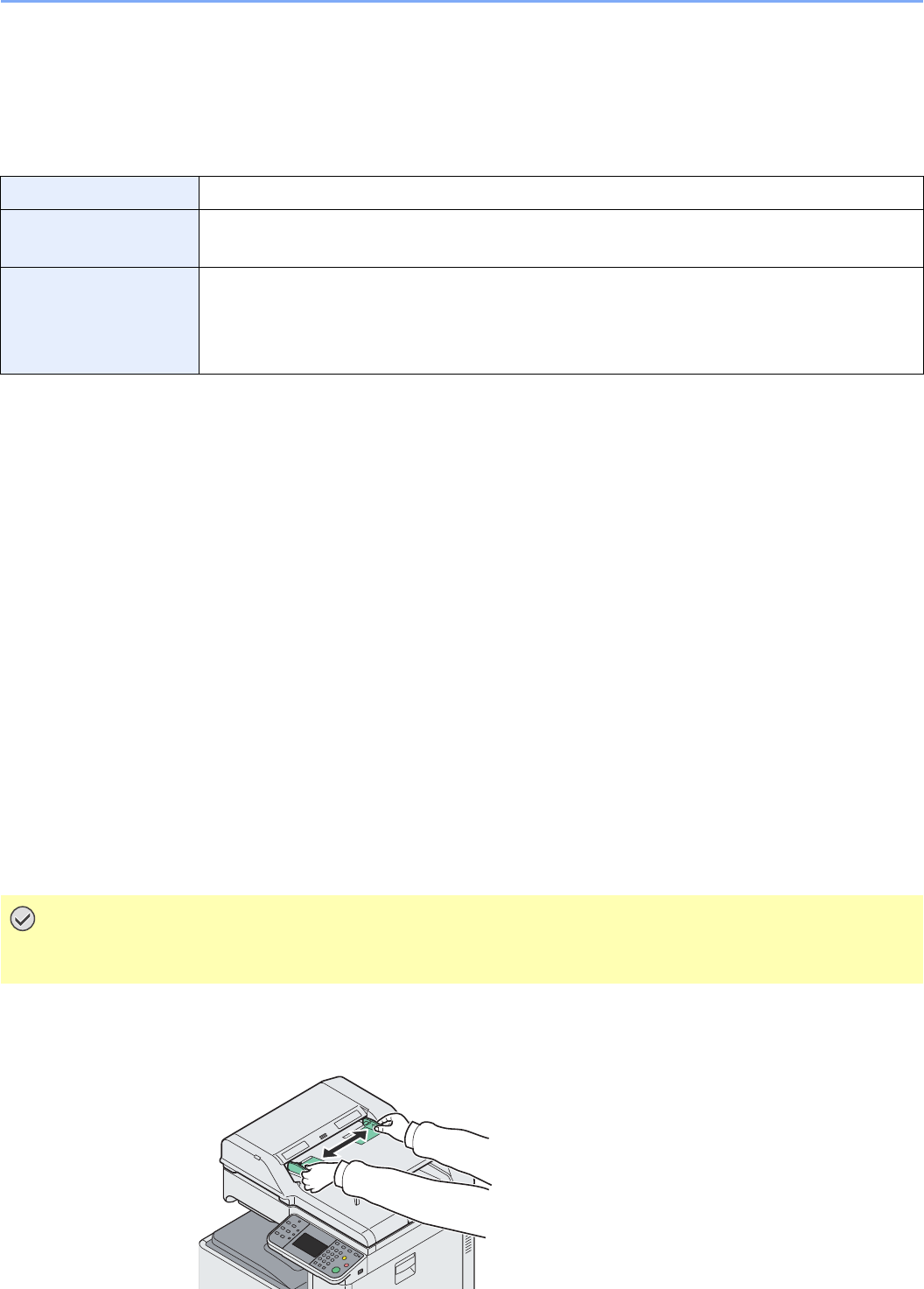
3-8
Common Operations > Loading Originals
Loading Originals in the Document Processor
The document processor automatically scans each sheet of multiple originals. Both sides of two-sided originals are
scanned.
Originals Supported by the Document Processor
Originals Not Supported by the Document Processor
• Soft originals such as vinyl sheets
• Transparencies such as OHP film
• Carbon paper
• Originals with very slippery surfaces
• Originals with adhesive tape or glue
• Wet originals
• Originals with correction fluid which is not dried
• Irregularly shaped (non-rectangular) originals
• Originals with cut-out sections
• Crumpled paper
• Originals with folds (Straighten the folds before loading. Failure to do so may cause the originals to jam).
• Originals bound with clips or staples (Remove the clips or staples and straighten curls, wrinkles or creases before
loading. Failure to do so may cause the originals to jam).
How to Load Originals
1Adjust the original table size.
?
Weight 45 to 160 g/m² (duplex: 50 to 120 g/m²)
Size Maximum A3 to Minimum A5
Maximum Ledger to Minimum Statement-R
Capacity Plain paper (80 g/m²), Colored paper, Recycled paper: 50 sheets (Mixed size originals: 30 sheets)
Thick paper (157 g/m²): 25 sheets
Thick paper (120 g/m²): 33 sheets
Art paper: 1 sheet
IMPORTANT
Before loading originals, be sure that there are no originals left on the original eject table. Originals left on the
original eject table may cause the new originals to jam.
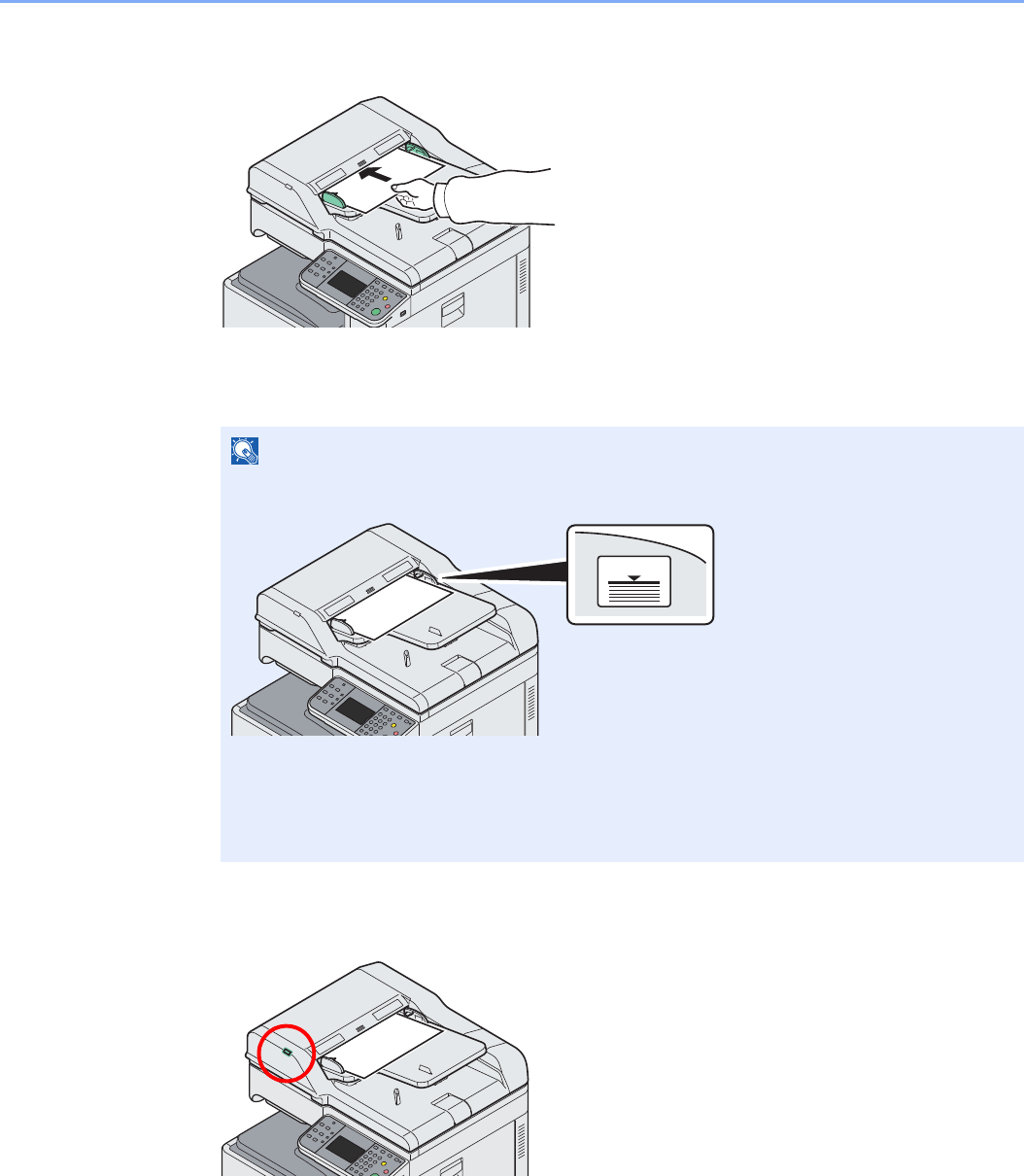
3-9
Common Operations > Loading Originals
2Load Originals.
?
Put the side to be scanned (or the first side of two-sided originals) face-up. Slide the leading
edge into the document processor as far as it will go.
Original Loaded Indicator
The original loaded indicator lits depending on how originals are placed.
Indications and their status are as follows.
• Green (left indicator) lit: Original is placed properly.
NOTE
Ensure that loaded originals do not exceed the level indicator. Exceeding the maximum
level may cause the originals to jam (see the figure).
Confirm that the original width guides exactly fit the originals. If there is a gap, readjust the
original width guides. The gap may cause the originals to jam.
Originals with punched holes or perforated lines should be placed in such a way that the
holes or perforations will be scanned last (not first).
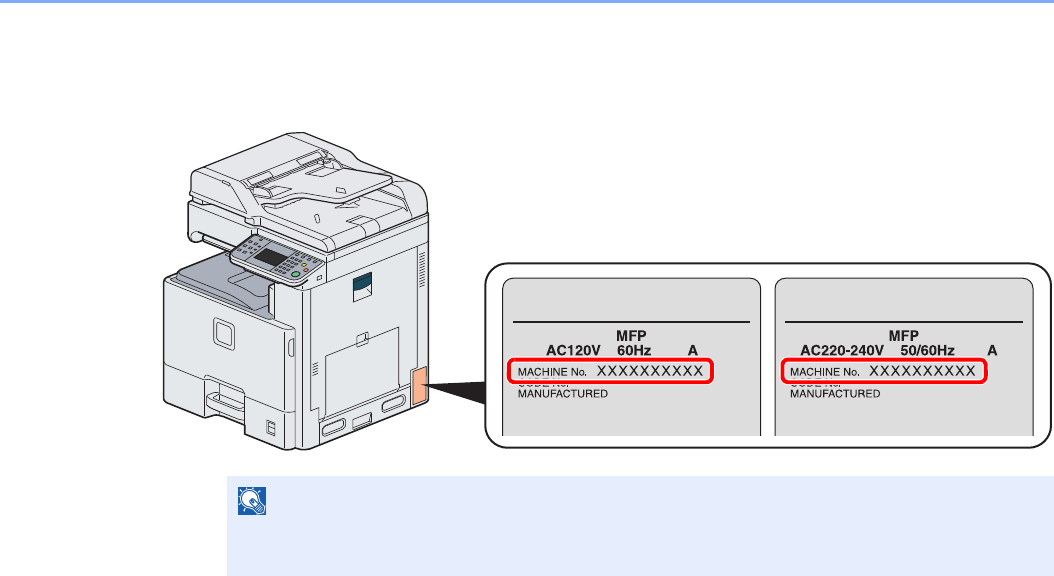
3-10
Common Operations > Checking the Equipment's Serial Number
Checking the Equipment's Serial Number
The equipment's serial number is printed in the location shown in the figure.
NOTE
You'll need the equipment's serial number when contacting your Service Representative.
Please check the number before contacting your Service Representative.
12 7.2
XXX XXXXXXXXX
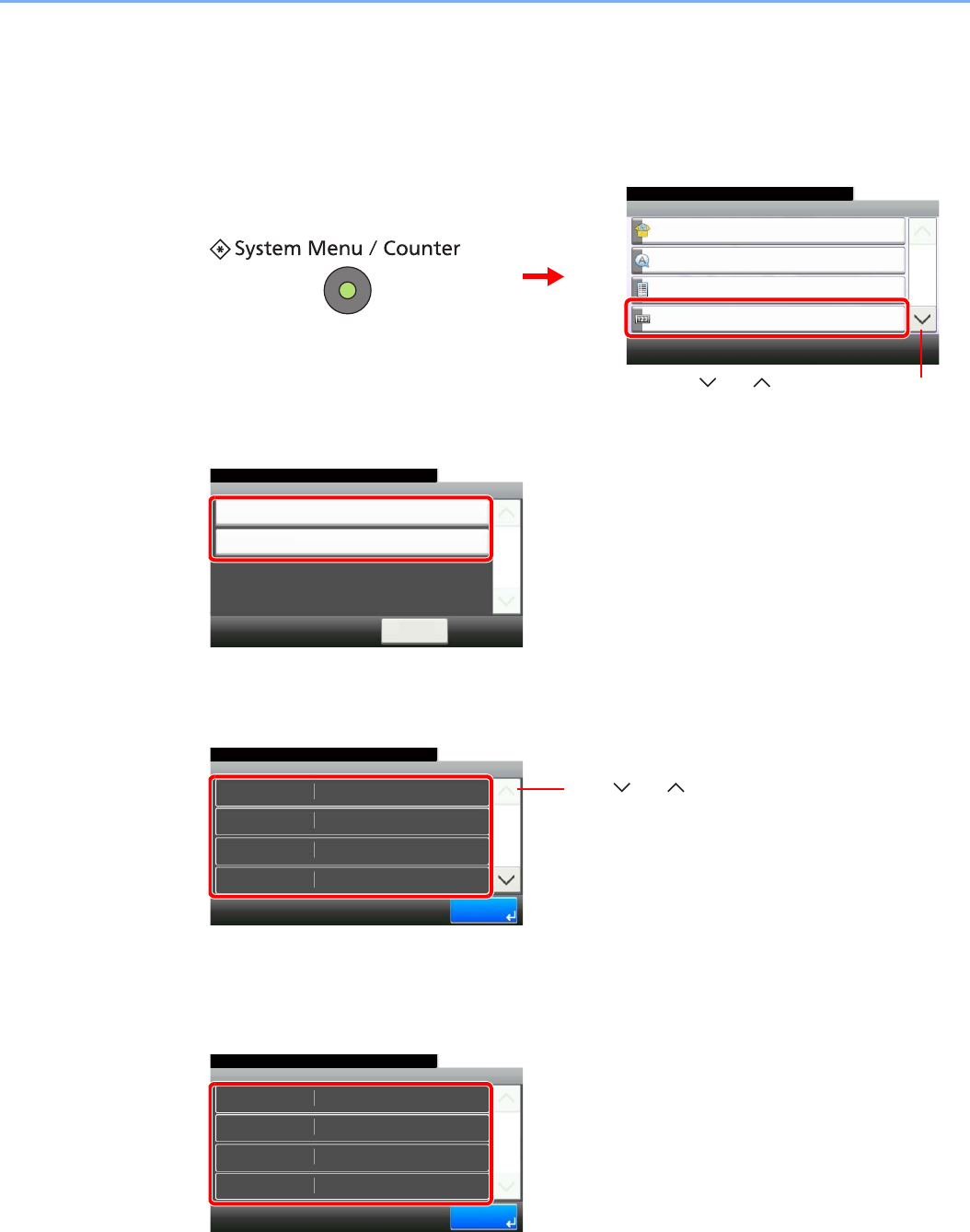
3-11
Common Operations > Checking the Counter
Checking the Counter
Check the number of pages printed and scanned.
1Display the screen.
2Check the counter.
Select the job you wish to check.
[Printed Pages]
Scroll the screen to check the number of pages. Pressing [Count by Paper Size] and then
[Black & White] allows you to check the number of pages by paper size.
[Scanned Pages]
System Menu/Counter.
System Menu
Quick Setup Wizard
10:10
Language
Report
Counter
1/5
GB0054_00
1
2
Use [ ] or [ ] to scroll up and down.
Printed Pages
10:10System Menu/Counter.
Scanned Pages
< Back
1/1
Counter
GB0584_00
Counter - Printed Pages
2
10:10System Menu/Counter.
Copy (Full Color)
Copy (B & W)
Printer (B & W)
Copy (Total)
2
0
1/3
End
0
GB0585_00
Use [ ] or [ ] to scroll up and down.
Counter - Scanned Pages
706
10:10System Menu/Counter.
FAX
Others
Total
Copy
15
11
1/1
End
732
GB0589_00
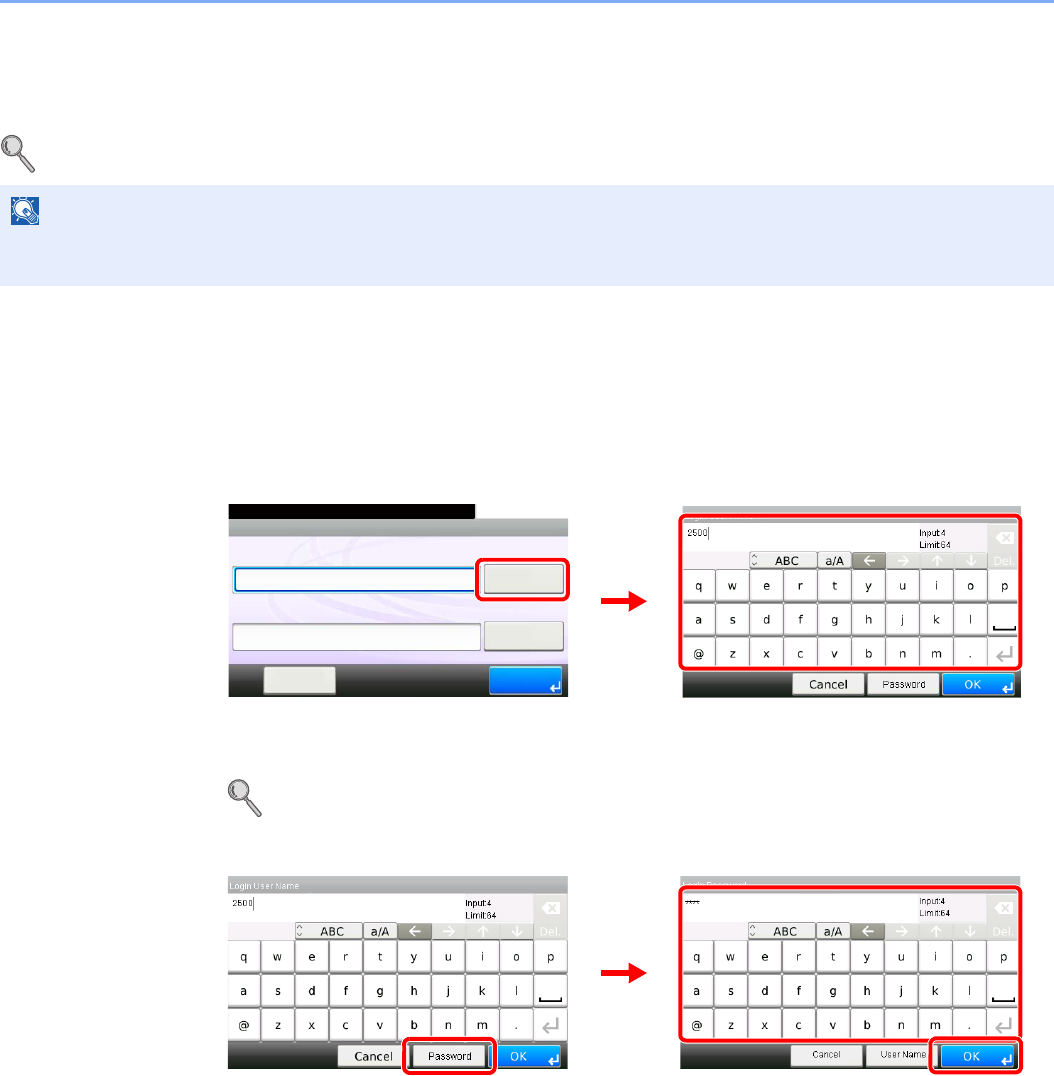
3-12
Common Operations > Login/Logout
Login/Logout
If user login administration is enabled, it is necessary to enter the login user name and password to use the machine.
Refer to Adding a User on page 9-37 for the default login user name and password.
Login
Normal login
1Enter the login user name.
If this screen is displayed during operations, press [Keyboard] to enter the login user name.
The name can also be entered using the numeric keypad.
Refer to Character Entry Method on page 11-7 for details on entering characters.
2Enter the login password.
Press [Password] to enter the login password.
NOTE
You will be unable to login if you forget your login user name or login password. In this event, login with administrator
privileges and change your login user name or login password.
10:10
Keyboard
Login Password
Keyboard
Login User Name
LoginMenu
Enter login user name and password.
1
GB0723_00
GB0057_00
2
2
1
3
GB0057_00
GB0057_01
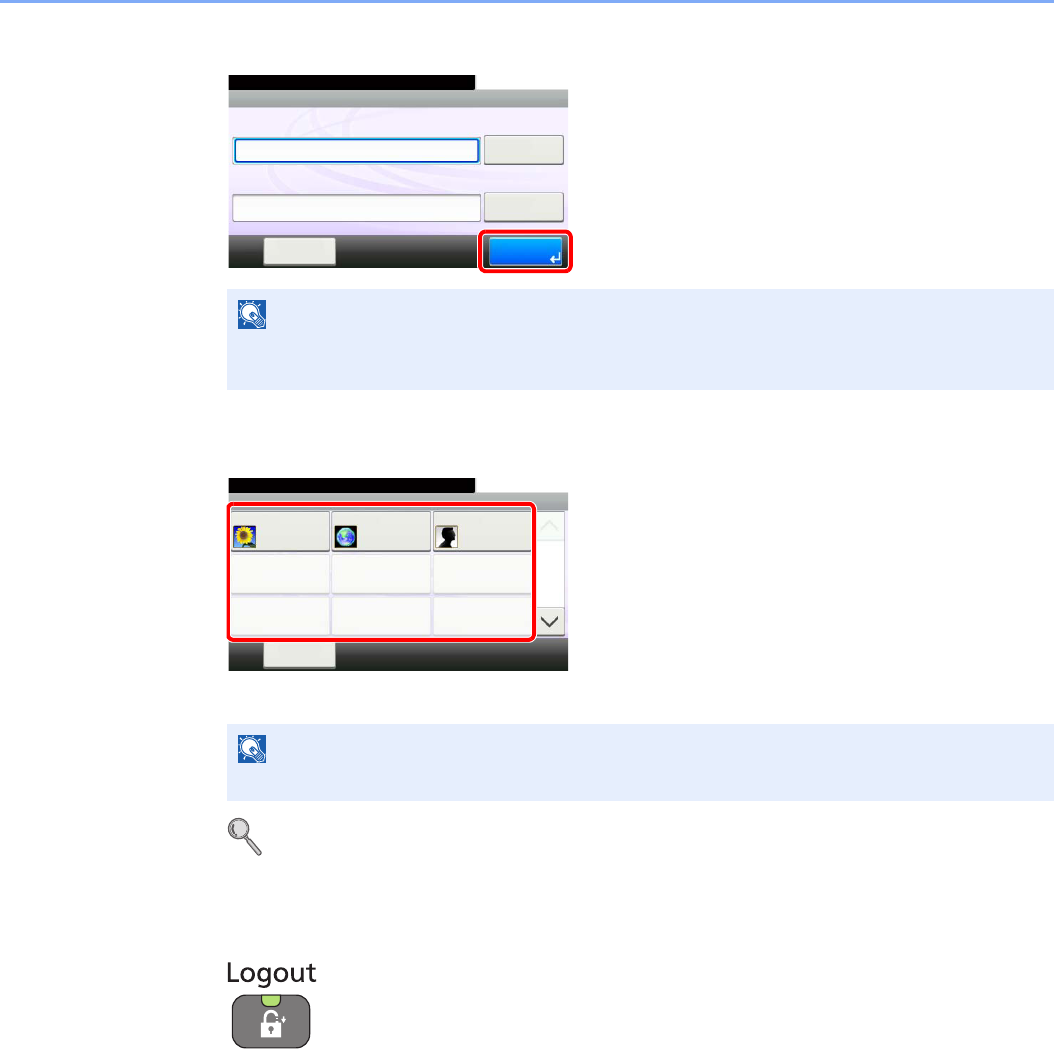
3-13
Common Operations > Login/Logout
3Log in.
Simple Login
If this screen is displayed during operations, select a user and log in.
Refer to Simple Login on page 9-46.
Logout
To logout from the machine, press the Logout key to return to the login user name/password entry screen.
Users are automatically logged out in the following circumstances:
• When the machine is put to Sleep by pressing the Power key.
• When the Auto Sleep function is activated.
• When the auto panel reset function is activated.
• When Auto Low Power Mode is activated.
• When the machine is placed in Low Power Mode by pressing the Energy Saver key.
NOTE
If Network Authentication is selected as the user authentication method, either Local or
Network can be selected as the authentication destination.
NOTE
If a user password is required, an input screen will be displayed.
10:10
Keyboard
Login Password
Keyboard
Login User Name
LoginMenu
2500
****
Enter login user name and password.
GB0723_01
10:10
Menu
Select the user to login.
A
None
None
B
None
None
C
None
None
1/3
01
04
07
02
05
08
03
06
09
GB0023_00
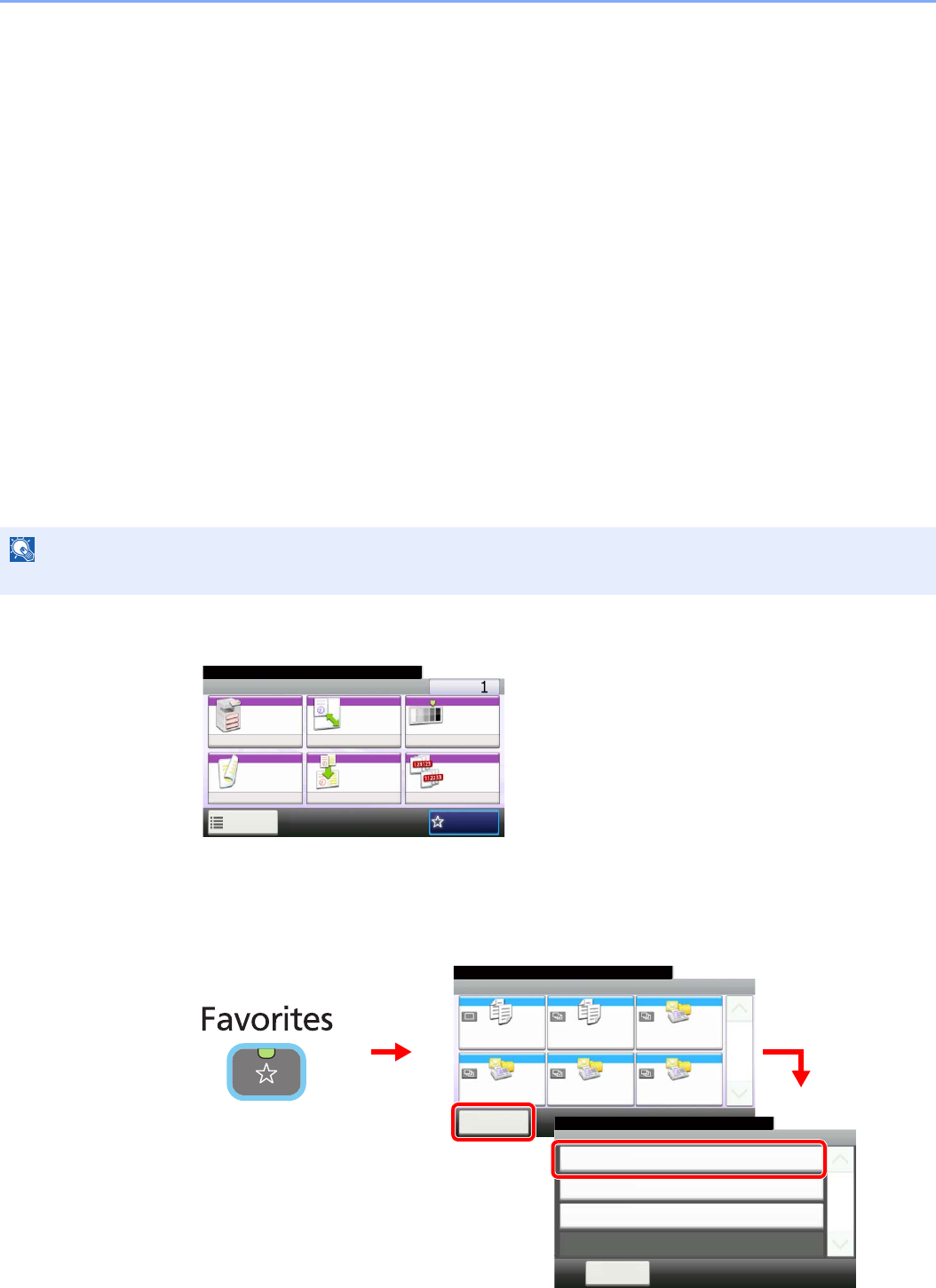
3-14
Common Operations > Favorites
Favorites
Frequently used functions can be registered as favorites so that they can be called up easily.
The following functions are pre-registered on this machine. You can delete these functions as well as register new
functions. The functions created by the external software, such as File Management Utility, are also displayed here.
• ID Card Copy
• Paper Saving Copy
• Scan to PC (Address Entry)
• Scan to PC (Address Book)
• Scan to E-mail (Address Entry)
• Scan to E-mail (Address Book)
Registering Favorites
When registering a favorite, you can choose from two methods for calling it up:
•Wizard mode: Registered settings are called up in order and configured as you check or change each one.
•Program mode: Settings are called up immediately when you press the key to which they are registered.
1Configure the function.
When registering favorites in program mode, configure the copy function, send function, fax
function (option), destination, or other setting to register.
2Display the screen.
NOTE
Up to 20 settings can be registered as favorites.
Ready to copy. (Full Color)
Copy Copies
Paper
Selection
Zoom Density
Duplex Combine Collate/
Offset
1-sided>>1-sided
Auto 100% Normal 0
CollateOff
Functions
10:10
Favorites
GB0001_01
Favorites
㪤㪼㫅㫌
10:10
1/1
Select the function.
ID Card Copy Paper Saving Copy Scan to PC(Addre
ess Entry)
Scan to PC(Addre
ss Book)
Scan to E-mail(A
ddress Entry)
Scan to E-mail(A
ddress Book)
2
GB0056_00
1
Menu
Add
10:10
Close
Edit
Delete
1/1
3
GB0779_00
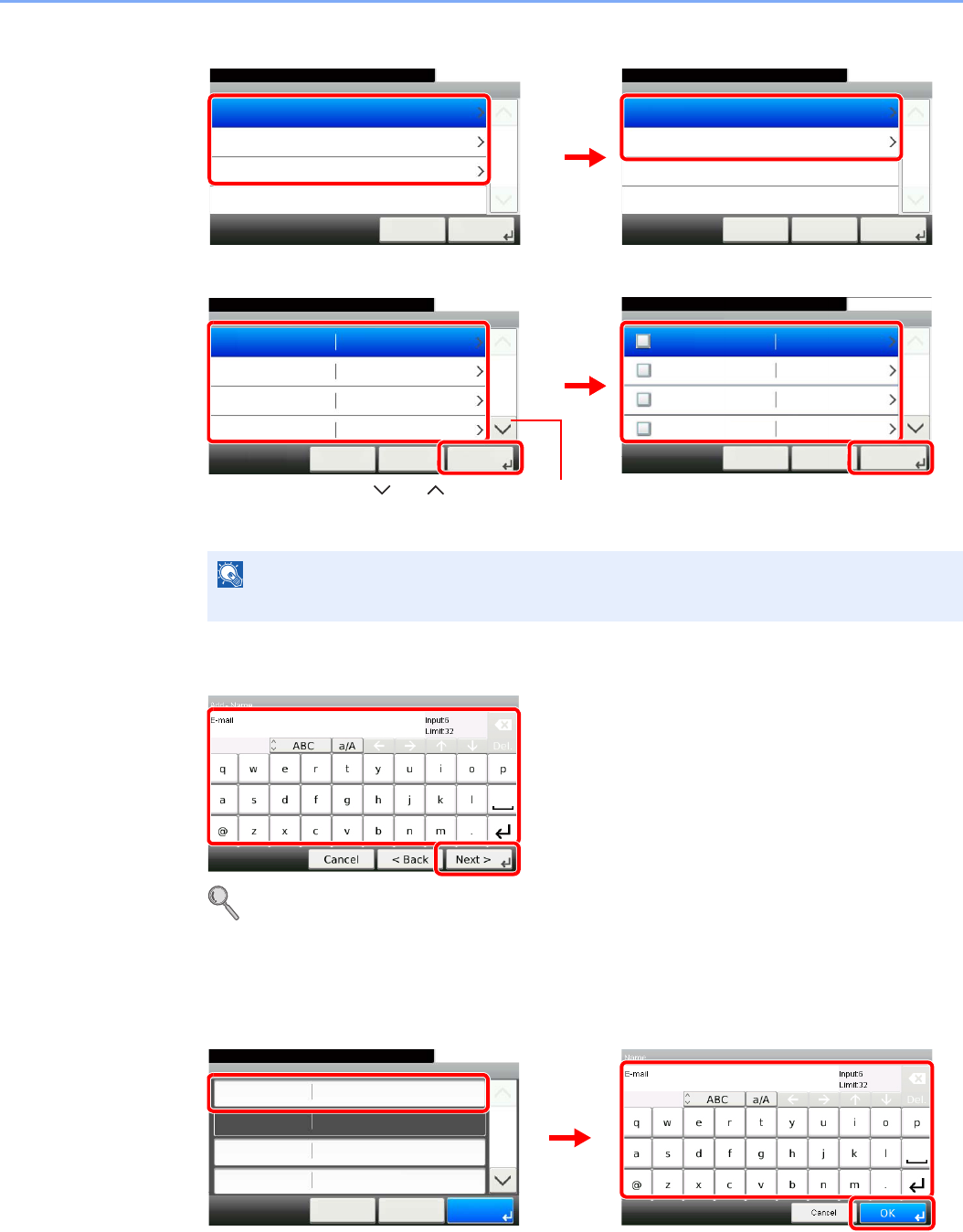
3-15
Common Operations > Favorites
3Select the job type.
When you select the wizard mode
Select the function. Checked items will be shown as part of the wizard.
4Enter a name.
Refer to Character Entry Method on page 11-7 for details on entering characters.
5Check the settings.
Check the settings and change or add information as needed.
[Name]
NOTE
When the job type is Copy, the Destination Recall Method screen will not be displayed.
Add - Job Type
10:10Select the job type.
Send
FAX
Copy
Cancel
1/1
Next >
Add - Function Type
10:10Select how to recall the function.
Wizard
Program
< BackCancel
1/1
Next >
GB0763_00
GB0764_00
12
Add - Functions
10:10
File Format
Cancel
1/6
Next >< Back
Original Size
Original Orientation
Mixed Size Originals
PDF
Auto
Top Edge on Top
Off
Add - Destination Recall Method
10:10
Address Book
Cancel
1/2
Next >< Back
Ext. Address Book
One Touch Key
Address Entry (E-mail)
GB0767_00
Use [ ] or [ ] to scroll up and down.
GB0769_00
24
13
GB0057_80
1
2
Add - Confirmation
Sending Job - E-mail
10:10
Cancel
Select the item that you want to change.
Job Type
Number
Owner
Name
Multi Sending
Admin
< Back
1/2
Save
Auto
GB0766_00
GB0057_81
2
3
1
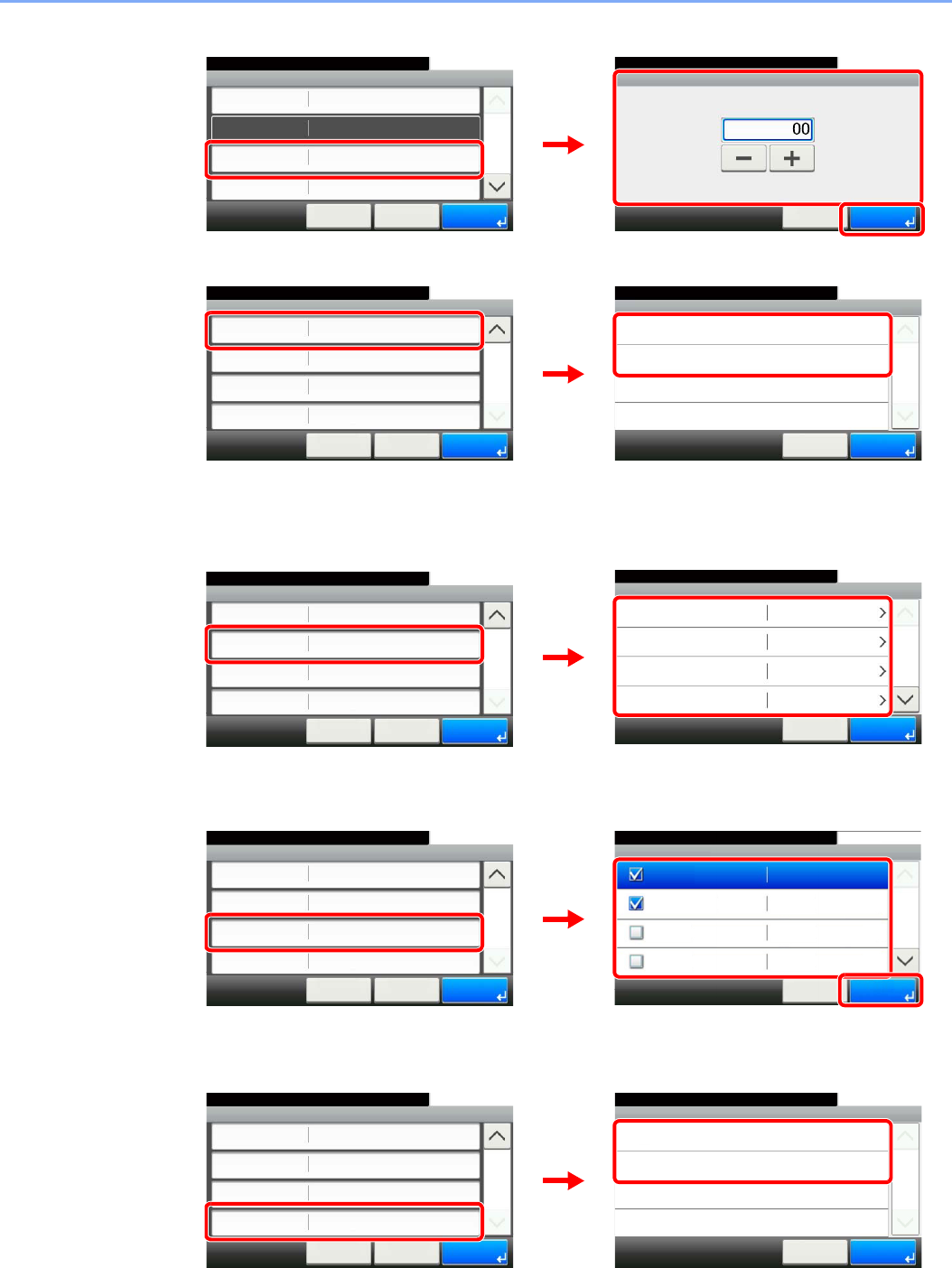
3-16
Common Operations > Favorites
[Number]
[Permission]
Configures permission settings for favorites to determine how they are shared with other
users.
[Destination]
When the job type is [Send] or [FAX], selects the Destination Recall Method.
[Functions]
If you selected wizard mode, check the function and make changes as necessary.
[Function Type]
Add - Confirmation
Sending Job - E-mail
10:10
Cancel
Select the item that you want to change.
Job Type
Number
Owner
Name
Multi Sending
Admin
< Back
1/2
Save
Auto
GB0760_00
Number
10:10
(00 - 20)
Cancel OK
3
GB0766_00
1
2
Permission
10:10
Shared
Private
Cancel
1/1
OK
GB0305_00
Add - Confirmation
Private
10:10
Cancel
Select the item that you want to change.
Destination
Functions
Function Type
Permission
Address Book
Wizard
< Back
2/2
Save
2
GB0766_02
1
2
Destination
10:10
Address Book
1/2
OKCancel
Ext. Address Book
One Touch Key
Address Entry (E-mail)
Add - Confirmation
Private
10:10
Cancel
Select the item that you want to change.
Destination
Functions
Function Type
Permission
Address Book
Wizard
< Back
2/2
Save
2
GB0771_00
GB0766_02
1
2
Functions
10:10
File Format
Cancel
1/6
OK
Original Size
Original Orientation
Mixed Size Originals
PDF
Auto
Top Edge on Top
Off
GB0773_00
Add - Confirmation
Private
10:10
Cancel
Select the item that you want to change.
Destination
Functions
Function Type
Permission
Address Book
Wizard
< Back
2/2
Save
2
GB0766_02
1
2
3
Function Type
10:10
Wizard
Program
< Back
1/1
OK
GB0775_00
Add - Confirmation
Private
10:10
Cancel
Select the item that you want to change.
Destination
Functions
Function Type
Permission
Address Book
Wizard
< Back
2/2
Save
2
GB0766_02
12

3-17
Common Operations > Favorites
6Register the favorite.
Add - Confirmation
Sending Job - E-mail
10:10
Cancel
Select the item that you want to change.
Job Type
Number
Owner
Name
Multi Sending
Admin
< Back
1/2
Save
Auto
GB0766_00
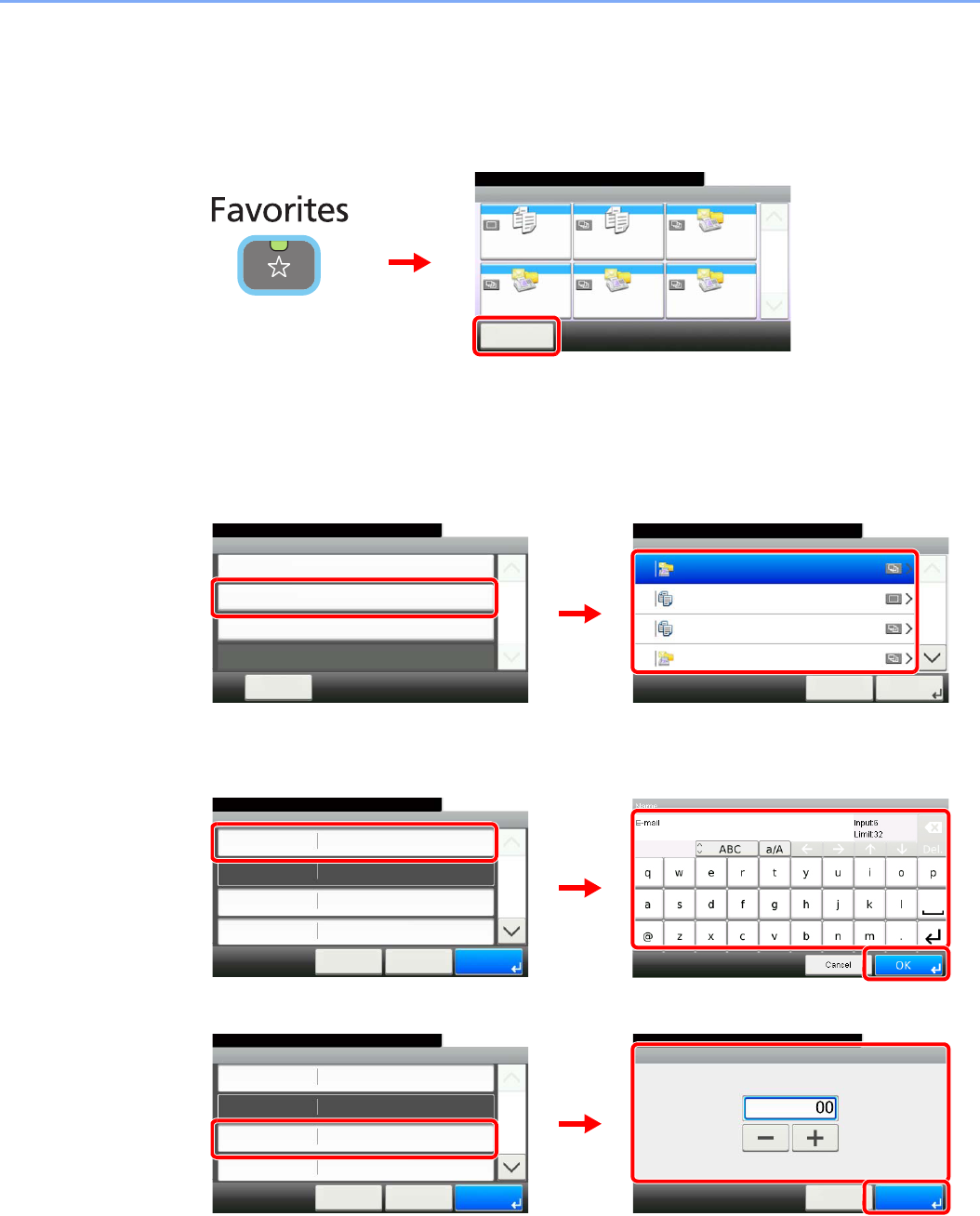
3-18
Common Operations > Favorites
Editing and Deleting Favorites
This section describes how to edit name and permission of the registered favorites and how to delete favorites.
1Display the screen.
2Edit or delete a favorite.
To edit a favorite
1Select the favorite you wish to edit.
2Edit the favorite.
[Name]
[Number]
Favorites
㪤㪼㫅㫌
10:10
1/1
Select the function.
ID Card Copy Paper Saving Copy Scan to PC(Addre
ess Entry)
Scan to PC(Addre
ss Book)
Scan to E-mail(A
ddress Entry)
Scan to E-mail(A
ddress Book)
2
GB0056_00
1
Edit
10:10
Next >Cancel
1/2
01 Sending Job - E-mail
15 ID Card Copy
16 Paper Saving Copy
17 Scan to PC(Addreess Entry)
Menu
Add
10:10
Close
Edit
Delete
1/1
GB0779_00
1
GB0780_00
2
Favorites:E-mail TX
10:10
Cancel
Job Type
Number
Owner
Name
Multi Sending
01
< Back
1/2
Save
Admin
Sending Job - E-mail
GB0781_00
GB0057_82
2
3
1
Favorites:E-mail TX
10:10
Cancel
Job Type
Number
Owner
Name
Multi Sending
01
< Back
1/2
Save
Admin
Sending Job - E-mail
GB0760_00
Number
10:10
(00 - 20)
Cancel OK
GB0781_00
1
3
2
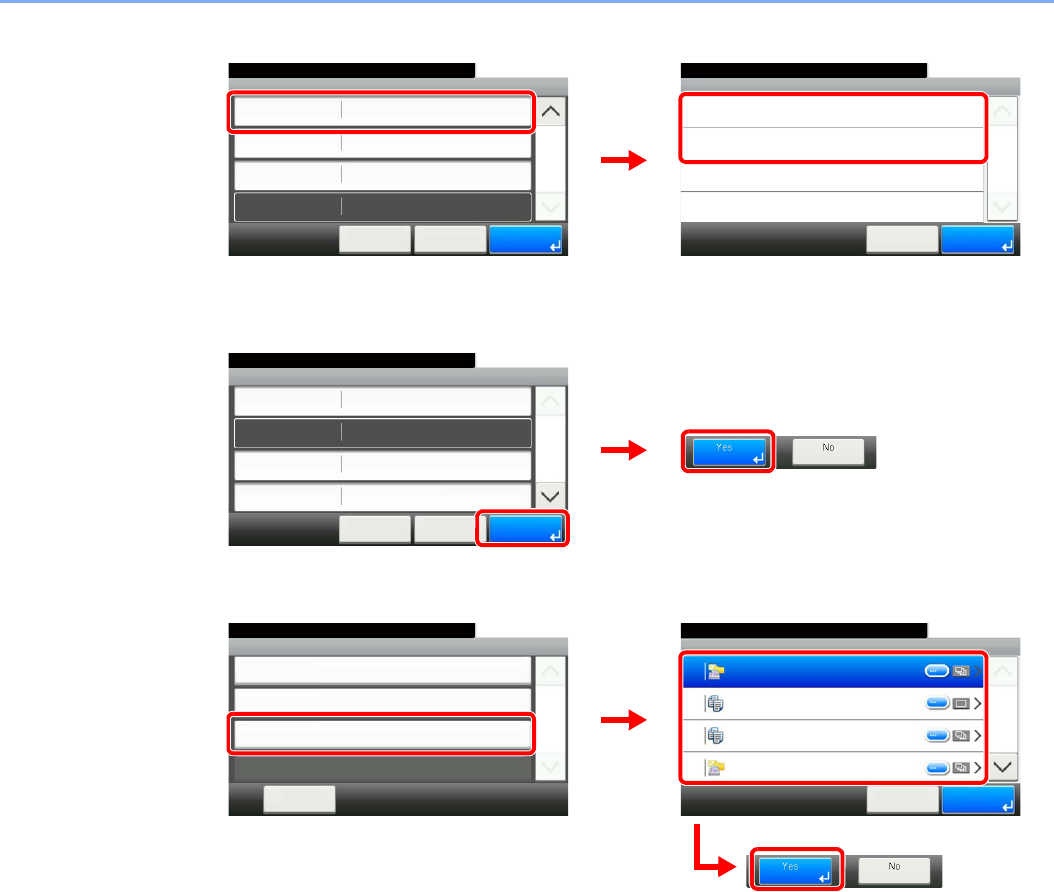
3-19
Common Operations > Favorites
[Permission]
Configures permission settings for favorites to determine how they are shared with other users.
3Register the favorite.
To delete
Select the favorite you wish to delete.
Favorites:E-mail TX
Shared
10:10
Cancel
Functions
Function Type
Permission
< Back
2/2
Save
2
Wizard
Address BookDestination
Permission
10:10
Shared
Private
Cancel
1/1
OK
GB0305_00
GB0781_02
1
2
GB0781_02
Favorites:E-mail TX
10:10
Cancel
Job Type
Number
Owner
Name
Multi Sending
01
< Back
1/2
Save
Admin
Sending Job - E-mail
GB0781_00
1
2
10:10
DeleteCancel
1/2
01 Sending Job - E-mail
15 ID Card Copy
16 Paper Saving Copy
17 Scan to PC(Addreess Entry)
Delete
Menu
Add
10:10
Close
Edit
Delete
1/1
GB0779_00
1
GB0782_00
2
3
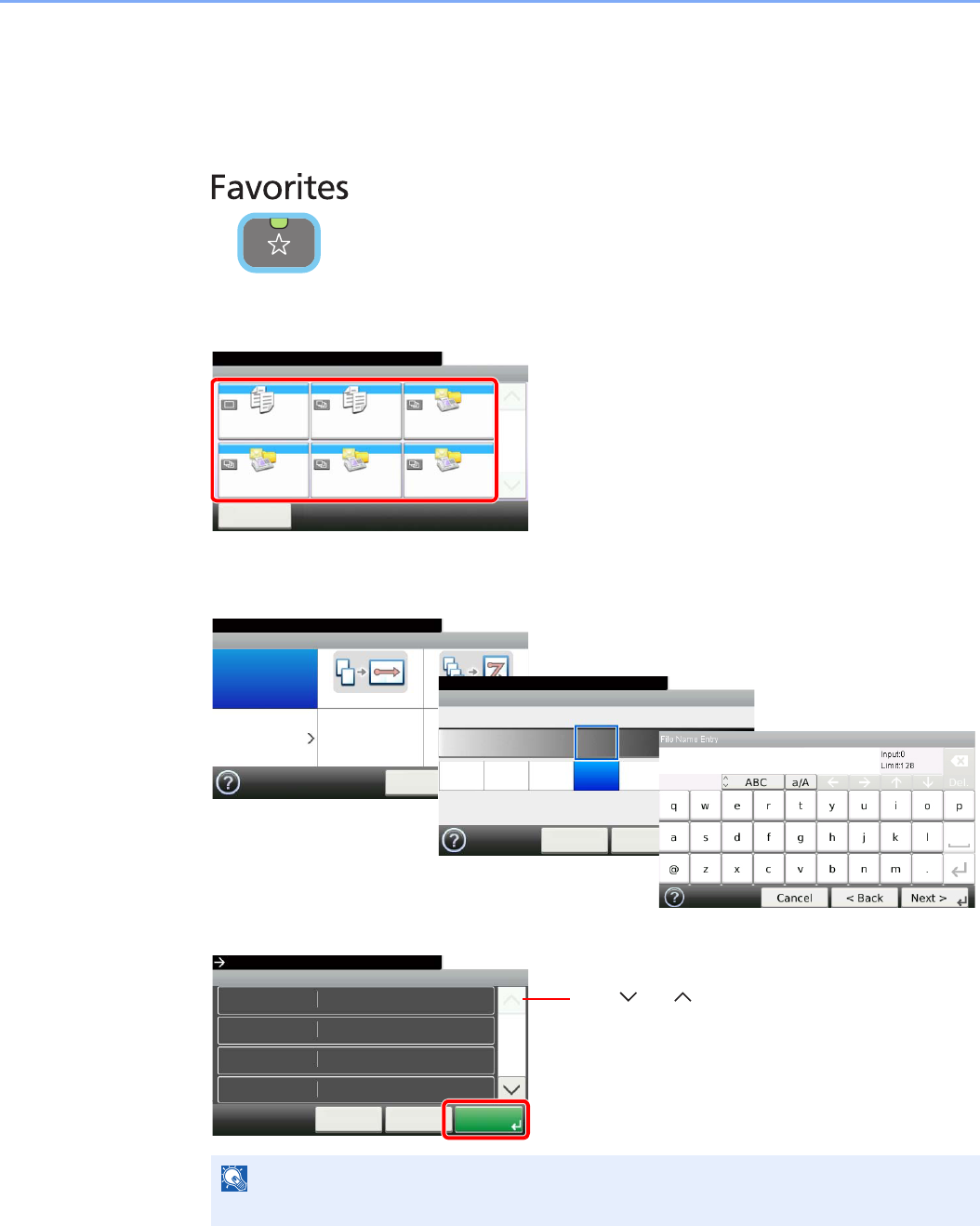
3-20
Common Operations > Favorites
Using Favorites
Call up settings from a favorite.
1Display the screen.
2Select a favorite.
When using the wizard mode
1The registered screens are displayed in order. Make the desired settings.
2Confirm the settings and start the job.
NOTE
To edit the settings, press [<Back] and make changes as desired.
GB0056_00
Favorites
㪤㪼㫅㫌
10:10
1/1
Select the function.
ID Card Copy Paper Saving Copy Scan to PC(Addre
ess Entry)
Scan to PC(Addre
ss Book)
Scan to E-mail(A
ddress Entry)
Scan to E-mail(A
ddress Book)
Set Combine.
Combine
Off 2 in 1 4 in 1
Others
10:10
Next >Cancel
Density
10:10Adjust the density.
Lighter
< Back
Normal
-3
Darker
-2 -1 0
Next >Cancel
+1 +2 +3
GB0008_99
GB0016_99
GB0057_99
GB0820_00
Confirmation
1Copies
10:10
Cancel
Paper Selection
Zoom
Density
Copies
Auto
100%
< Back
1/6
Start
Press [Start] to start copying.
Normal 0
Use [ ] or [ ] to scroll up and down.

3-21
Common Operations > Favorites
When using the program mode
Select a favorite to call up registered settings.
Press the Start key to start the job.
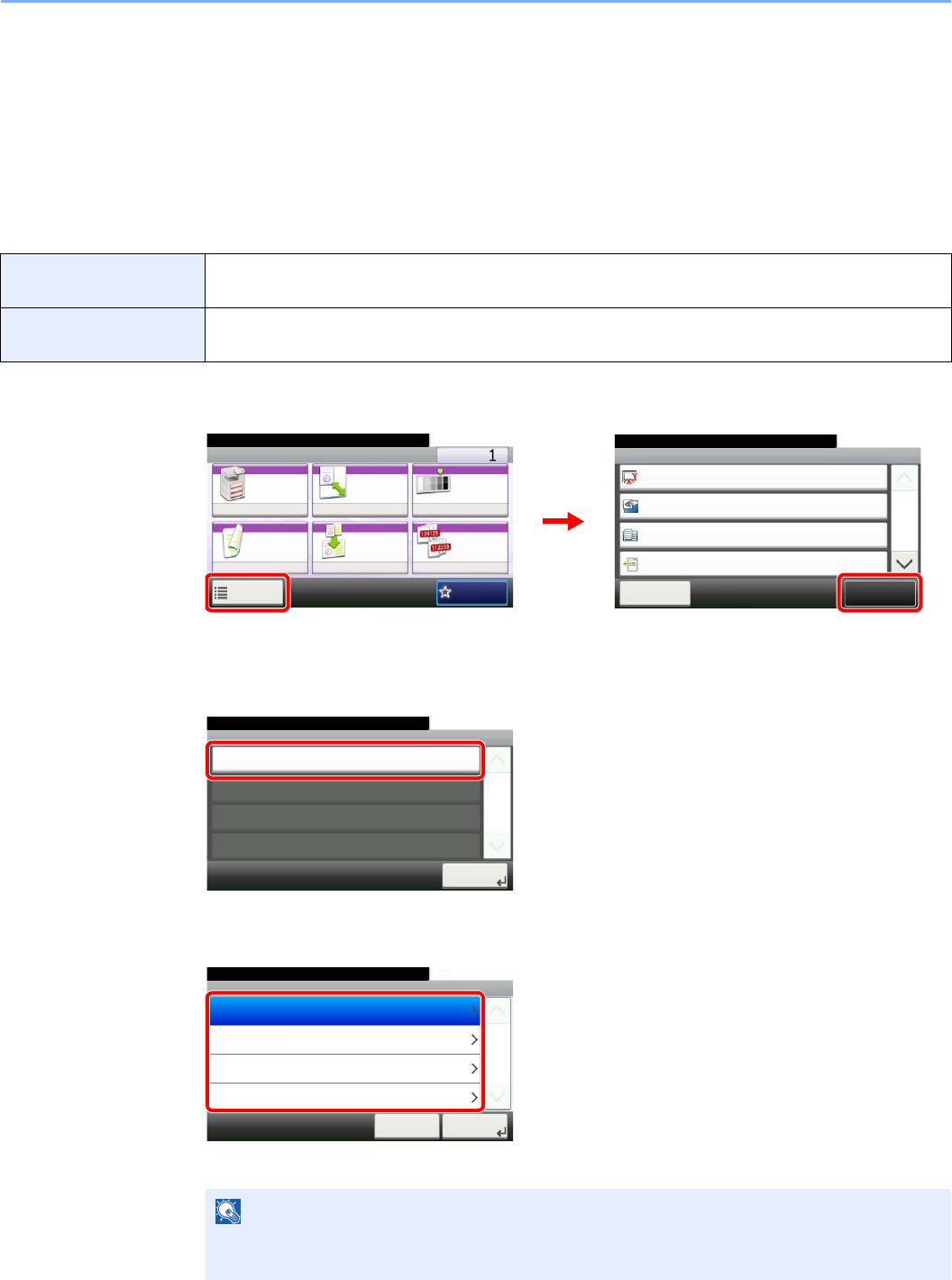
3-22
Common Operations > Shortcuts
Shortcuts
Frequently used function screens can be registered as shortcuts so that they can be called up easily.
Registering Shortcuts
You can register up to 2 shortcuts for copying functions, sending functions, and functions set for document box.
The following types of shortcuts are available:
1Display the screen.
Press [Functions] on the Copy, Send, or Document Box screen and then [Add/Edit Shortcut].
2Select [Add].
3Select the key.
Select the key to which you wish to register the shortcut.
Private Shortcut Private shortcuts are only available for use by the logged in user. They can only be set while using
user login administration.
Shared Shortcut Shared shortcuts can be used by all machine users. When using user login administration, shared
shortcuts can only be set by users who have logged in as administrators.
NOTE
If you select a shortcut number already registered, the currently registered shortcut can be
replaced with a new one.
Ready to copy. (Full Color)
Functions
Original Size
Auto
Close
10:10
Original Orientation
Top Edge on Top
Inner tray
Off
Mixed Size Originals
Paper Output
1/5
Add/Edit
Shortcut
Ready to copy. (Full Color)
Copy Copies
Paper
Selection
Zoom Density
Duplex Combine Collate/
Offset
1-sided>>1-sided
Auto 100% Normal 0
CollateOff
Functions
10:10
Favorites
GB0001_01
GB0002_00
12
Add/Edit Shortcut
Add
10:10Ready to copy. (Full Color)
Edit
1/1
Close
Delete
GB0790_00
10:10Select the key to add shortcut.
Private Shortcut 2
Private Shortcut 1
Cancel
1/1
Next >
Add
Shared Shortcut 1
Shared Shortcut 2
GB0791_00

3-23
Common Operations > Shortcuts
4Select the function.
Select the function screen to display with the shortcut.
5Enter the shortcut name.
Up to 24 characters can be entered.
Refer to Character Entry Method on page 11-7 for details on entering characters.
6Register the shortcut.
Confirm the settings and press [Save]
10:10Select the functions.
Zoom
Density
Duplex
Paper Selection
< BackCancel
1/5
Next >
Add - Functions
GB0792_00
1
2
GB0057_04
Add - Confirmation
Shortcut 1
10:10
Cancel
Ready to copy. (Full Color)
Name
Functions
Number
< Back
1/1
Save
Zoom
Shortcut 1
GB0793_00
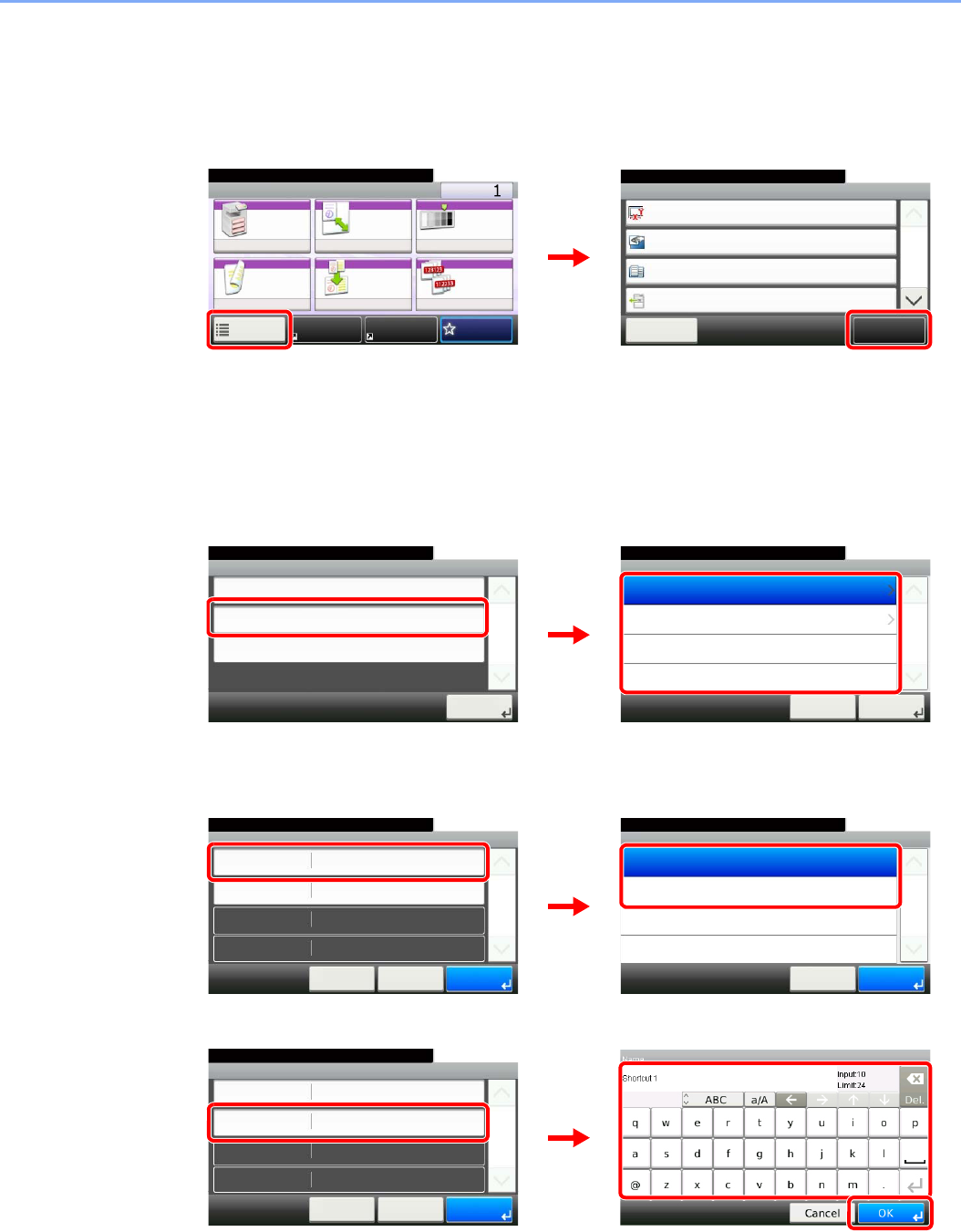
3-24
Common Operations > Shortcuts
Editing and Deleting Shortcuts
Change shortcut number/name or delete shortcut.
1Display the screen.
Press [Functions] on the Copy, Send, or Document Box screen and then [Add/Edit Shortcut].
2Edit or delete a shortcut.
To edit a shortcut
1Select the shortcut type and number you wish to edit.
2Edit the shortcut.
[No.]
[Name]
Ready to copy. (Full Color)
Functions
Original Size
Auto
Close
10:10
Original Orientation
Top Edge on Top
Inner tray
Off
Mixed Size Originals
Paper Output
1/5
Add/Edit
Shortcut
Ready to copy. (Full Color)
Copy Copies
Paper
Selection
Zoom Density
Duplex Combine Collate/
Offset
1-sided>>1-sided
Auto 100% Normal 0
CollateOff
Functions
10:10
FavoritesShortcut 1 Shortcut 2
GB0001_04
GB0002_00
12
Edit
10:10Ready to copy. (Full Color)
Private Shortcut 2
Private Shortcut 1
Cancel
1/1
Next >
Shared Shortcut 2
Shared Shortcut 1
Add/Edit Shortcut
Add
10:10Ready to copy. (Full Color)
Edit
1/1
Close
Delete
GB0790_01
GB0796_00
12
Number
10:10Ready to copy. (Full Color)
Shortcut 2
Shortcut 1
Cancel
1/1
OK
Edit - Confirmation
Shortcut 1
10:10
Cancel
Ready to copy. (Full Color)
Name
Functions
Number
< Back
1/1
Save
Zoom
Shortcut 1
GB0797_00
GB0794_00
1
2
Edit - Confirmation
Shortcut 1
10:10
Cancel
Ready to copy. (Full Color)
Name
Functions
Number
< Back
1/1
Save
Zoom
Shortcut 1
3
GB0057_60
GB0797_00
2
1
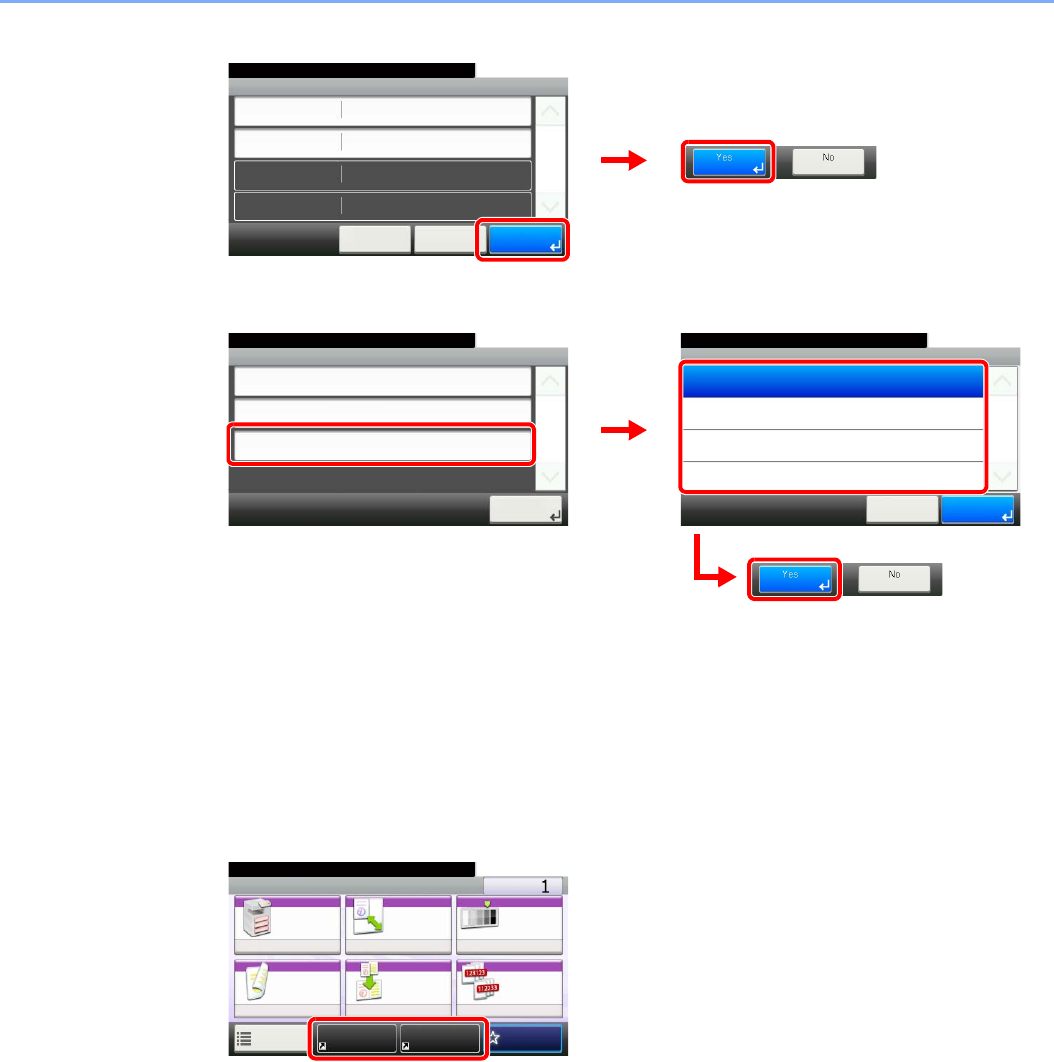
3-25
Common Operations > Shortcuts
3Register the shortcut.
To delete
Select the shortcut you wish to delete.
Using Shortcuts
The registered shortcut will be displayed on the Copy, Send, FAX*, Print from USB Memory, or
Save to USB Memory or Polling Box* initial screen. Pressing [Shortcut] will switch to the
registered function's screen.
* Requires the optional fax kit.
Edit - Confirmation
Shortcut 1
10:10
Cancel
Ready to copy. (Full Color)
Name
Functions
Number
< Back
1/1
Save
Zoom
Shortcut 1
GB0797_00
2
1
10:10Ready to copy. (Full Color)
Cancel
1/1
OK
Delete
Private Shortcut 2
Private Shortcut 1
Shared Shortcut 2
Shared Shortcut 1
Add/Edit Shortcut
Add
10:10Ready to copy. (Full Color)
Edit
1/1
Close
Delete
GB0790_01
1
3
GB0798_00
2
Ready to copy. (Full Color)
Copy Copies
Paper
Selection
Zoom Density
Duplex Combine Collate/
Offset
1-sided>>1-sided
Auto 100% Normal 0
CollateOff
Functions
10:10
FavoritesShortcut 1 Shortcut 2
GB0001_04
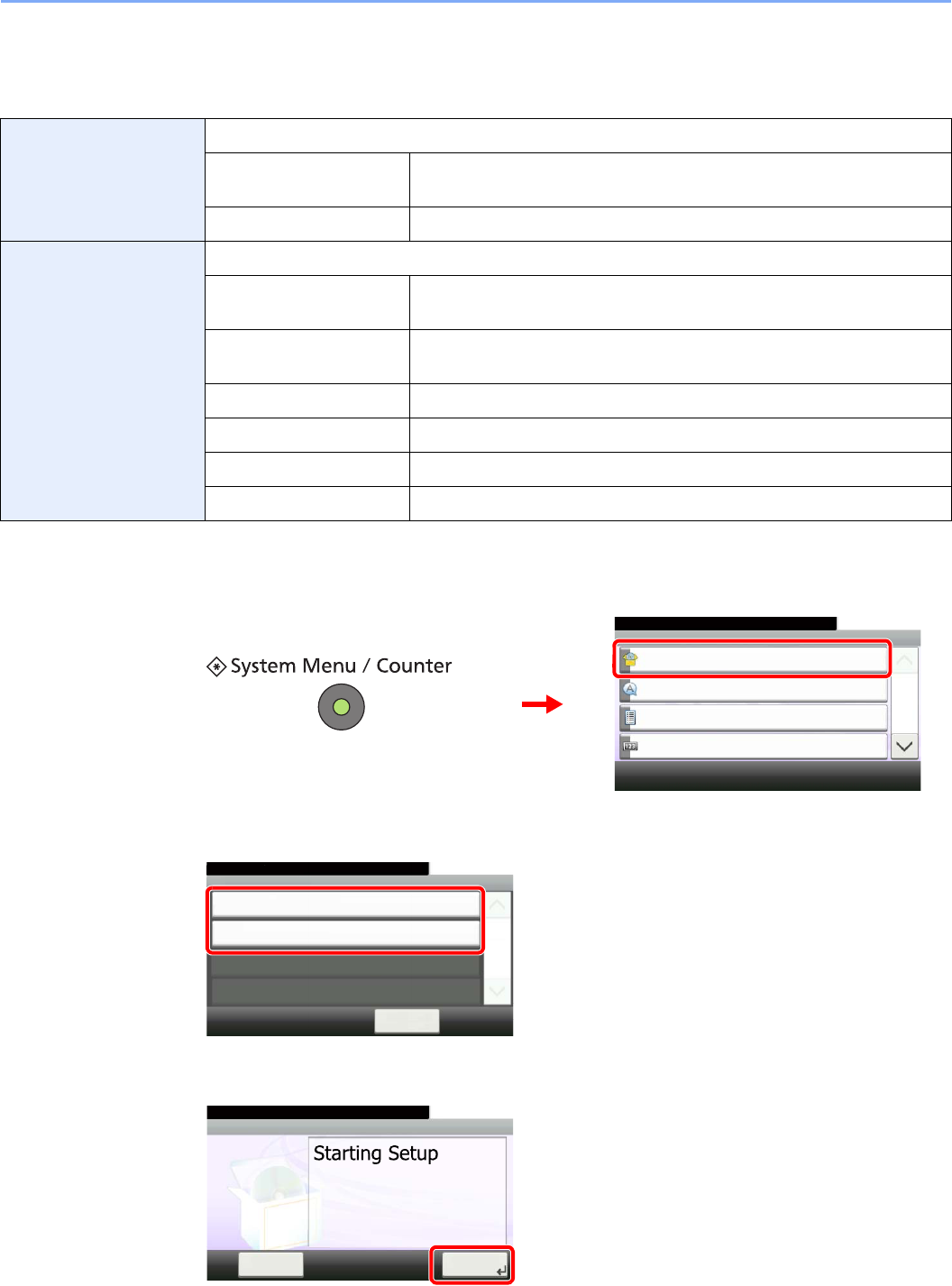
3-26
Common Operations > Quick Setup Wizard
Quick Setup Wizard
Make the following basic settings as instructed by the Wizard:
1Display the screen.
2Select a function.
3Configure the function.
Energy Saver Setup Configures sleep mode and low-power mode.
1. Sleep Mode Sleep Mode - Auto Sleep, Sleep Mode - Sleep Timer,
Sleep Mode - Sleep Level
2. Low Power Mode Low Power Mode - Low Power Timer
FAX Setup*
* This function is displayed when the optional fax is installed.
Configures basic fax settings.
1. Dialing/RX Mode Dialing/RX Mode - Dialing Mode, Dialing/RX Mode - Reception Mode,
Dialing/RX Mode - Auto (DRD)
2. Local FAX Info. Local FAX Info. - Local FAX Number, Local FAX Info. - Local FAX ID,
Local FAX Info. - Print Position
3. Sound Volume Sound Volume - Confirmation, Speaker Volume, Monitor Volume
4. Rings Rings - Confirmation, Answering Machine, FAX/TEL Switch
5. Output Output - Paper Output, Output - Reduced RX Size
6. Redial Redial - Retry Times
System Menu/Counter.
System Menu
Quick Setup Wizard
10:10
Language
Report
Counter
1/5
1
2
GB0054_00
FAX Setup
10:10System Menu/Counter.
< Back
1/1
Energy Saver Setup
Quick Setup Wizard
GB0840_00
FAX Setup
10:10
This wizard will help you set
the basic settings to use the fax.
End Next >
1. Dialing/RX Mode
2. Local FAX Info.
3. Sound Volume
4. Rings
5. Output
6. Redial
System Menu/Counter.
GB0841_00
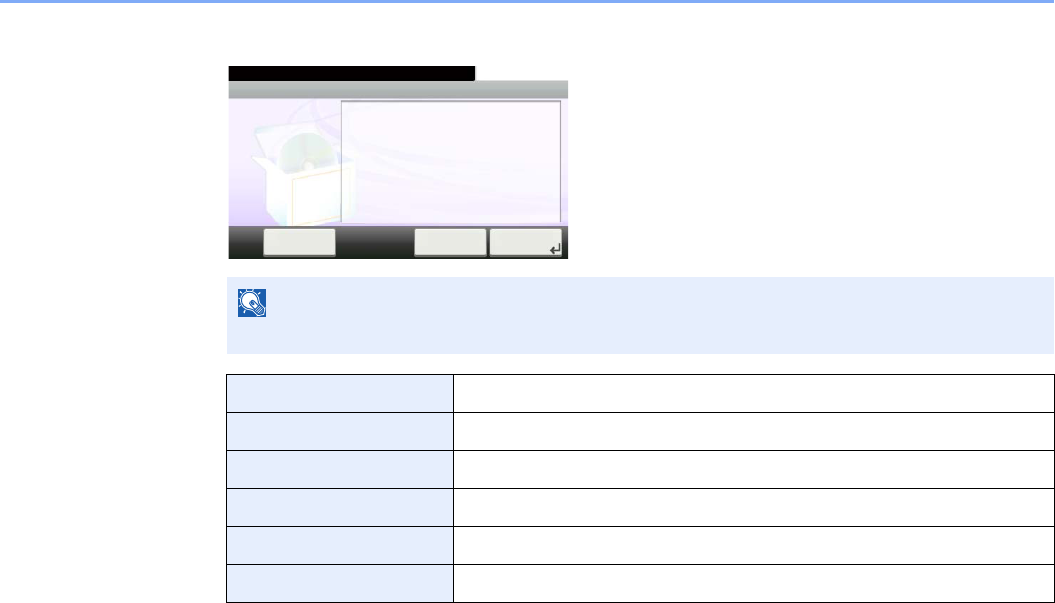
3-27
Common Operations > Quick Setup Wizard
Start the wizard. Follow the instructions on the screen to configure settings.
NOTE
If you experience difficulty configuring the settings, refer to Help Screen on page 3-28.
End Exits the wizard. Settings configured so far are applied.
<< Previous Returns to the previous item.
Skip >> Advances to the next item without setting the current item.
Next > Advances to the next screen.
< Back Returns to the previous screen.
Complete Register the settings and exit the wizard.
Local Fax Info.
10:10
Set the dialing and reception mode.
End Next >
1. Dialing/RX Mode
2. Local FAX Info.
3. Sound Volume
4. Rings
5. Output
6. Redial
System Menu/Counter.
Skip >>
GB0846_00
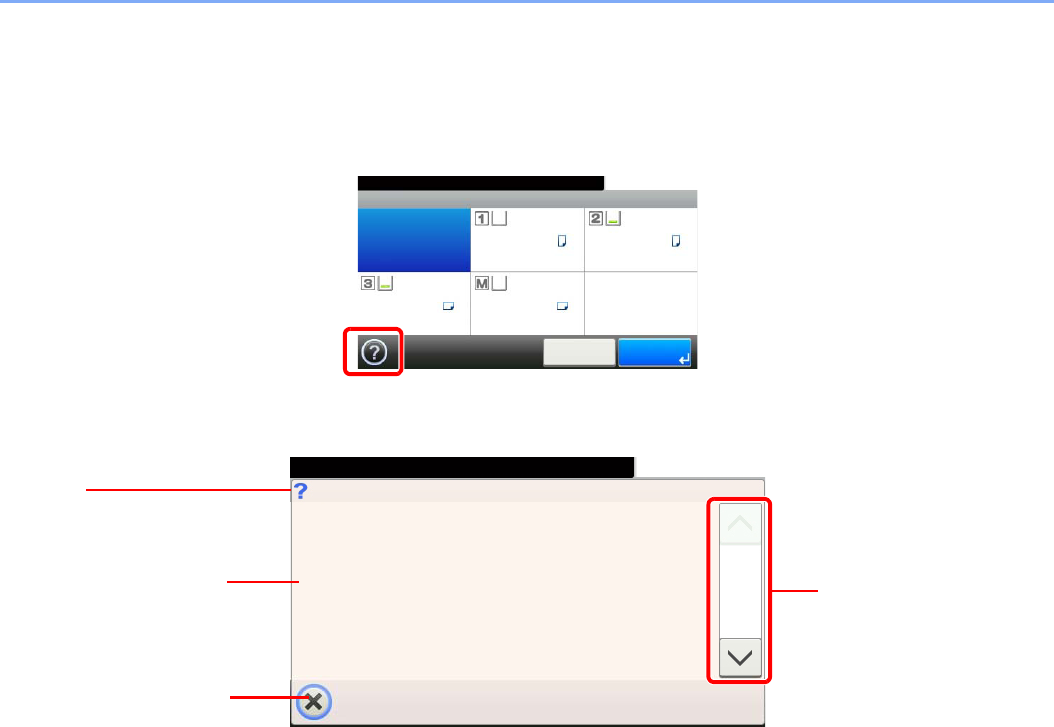
3-28
Common Operations > Help Screen
Help Screen
If you have difficulty operating the machine, you can check how to operate it using the touch panel.
When the [?] (help) is displayed on the touch panel, you can press it to display the Help screen.
How to read the screen
Ready to copy. (Full Color)
Paper Selection
Auto A4 A4
A4 A4
10:10
Cancel OK
Plain Plain
Plain Plain
GB0004_00
Paper Selection
10:10Ready to copy. (Full Color)
Select the cassette or multi-purpose tray
with the desired paper size.
Auto: Automatically selects the appropriate
paper size.
Cassette 1: Selects the paper in cassette 1.
Cassette 2: Selects the paper in cassette 2.
Cassette 3: Selects the paper in cassette 3.
MP Tray: Selects the paper in the multi-purpose
tray.
1/2
Help titles
Displays information about
functions and machine
operation.
Closes the Help screen and
returns to the original
screen.
Scrolls up and down when
the help text cannot be
displayed in its entirety on a
single screen.
GH0001_00
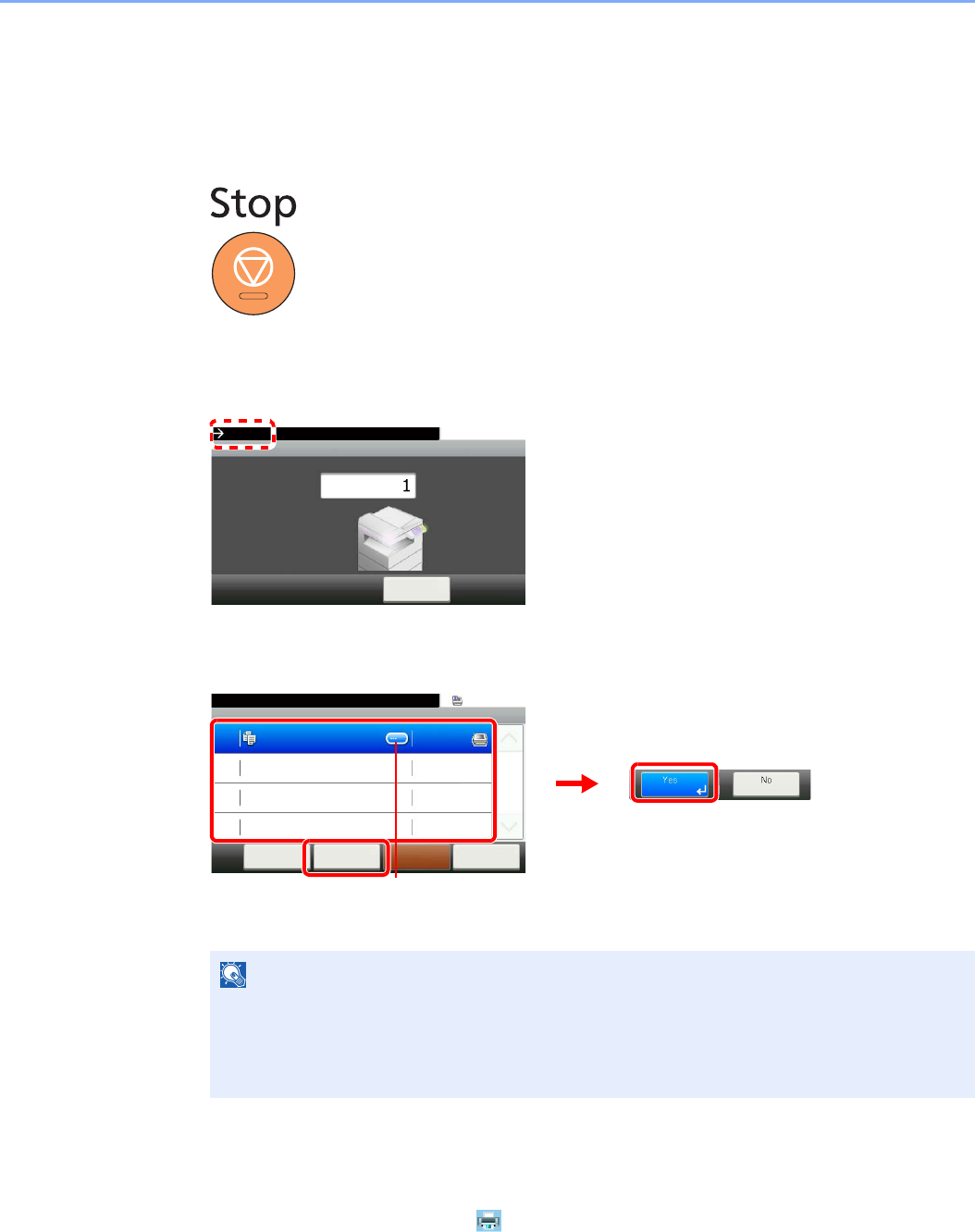
3-29
Common Operations > Canceling Jobs
Canceling Jobs
Cancel any print or send job being executed.
1Press the Stop key.
2Cancel a job.
When there is a job is being scanned
Canceling… will be displayed, and the current job will be canceled.
When there is a job printing or on standby
Select the job you wish to cancel and press [Delete].
Canceling printing from a computer
To cancel a print job executed using the printer driver before the printer begins printing, do the following:
1Double-click the printer icon ( ) displayed on the taskbar at the bottom right of the
Windows desktop to display a dialog box for the printer.
2Click the file for which you wish to cancel printing and select Cancel from the Document
menu.
NOTE
The current print job is temporarily interrupted. Continues without temporarily interrupting
jobs being sent.
You can also cancel executing jobs and jobs on standby after checking their status. Refer to
Status / Job Cancel on page 8-1.
10:10Canceling...
Scanned Pages
Cancel
Job No.:0001 Job Name:doc00000120101010101010
GB0222_01
Job Cancel
10:10The job will be canceled.
doc0000952010092810...
Delete CloseMenu
2/30
1/1
0095
Pause All
Print Jobs
1
2
GB0717_00
3
Displays details for individual jobs.

3-30
Common Operations > Using Various Functions
Using Various Functions
This section describes common functionality that can be configured for copying, sending, and the document box.
1Display the screen.
Press the key of each function.
When using USB memory, plug it into the USB memory slot (A1).
Press [Yes] on the displayed screen.
When printing from USB memory, select the file to be printed and press
[Print].
When storing a document to USB memory, select the folder where the
file will be stored and press [Menu] and then [Store File].
For details, refer to Printing Documents Stored in Removable USB
Memory on page 7-2 or Saving Documents to USB Memory (Scan to
USB) on page 7-5.
2Select the functions.
Select the functions to use.
Press [Functions] to display all the functions.
Refer to Common Functionality on page 3-31.
NOTE
If the touch panel is turned off, press the Energy Saver key or the
Power key and wait for the machine to warm up.
Ready to copy. (Full Color)
Copy Copies
Paper
Selection
Zoom Density
Duplex Combine Collate/
Offset
1-sided>>1-sided
Auto 100% Normal 0
CollateOff
Functions
10:10
Favorites
GB0001_01

3-31
Common Operations > Using Various Functions
Common Functionality
Functionality related to originals
Functionality related to document quality
What do you want to do? Reference Page
Specify the original size. Original Size X page 3-32
Specify the original orientation to scan in the correct direction. Original Orientation X page 3-34
Scan mixed size originals. Mixed Size Originals X page 3-35
Automatically scan 2-sided originals. 2-sided/Book Original X page 3-37
Scan a large number of originals separately and then produce as one job. Continuous Scan X page 3-39
What do you want to do? Reference Page
Specify the paper size and type. Paper Selection X page 3-41
Change the paper output. Paper Output X page 3-42
Collate the output documents in page order.
Offset the output documents by set.
Collate/Offset X page 3-43
Add margins (white space). Margin X page 3-45
Staple in the output documents. Staple X page 3-48
Adjust the density. Density X page 3-50
Set the resolution at which to scan originals. Scan Resolution X page 3-51
Select original image type for best results. Original Image X page 3-52
Emphasize the outline of texts or lines.
Blur the image outline.
Sharpness X page 3-53
Darken or lighten the background (i.e., the area with no text or images) of originals. Background Density Adjust X
page 3-54
Prevent bleed-through for 2-sided originals. Prevent Bleed-through X page 3-55
Enlarge or shrink originals according to the sending or storing size. Zoom X page 3-56
Select the file format for images being sent or stored. File Format X page 3-57
Change the color mode. Color Selection X page 3-59
Send notice by e-mail when a job is complete. Job Finish Notice X page 3-60
Add a file name to the job to easily check its status. File Name Entry X page 3-62
Suspend the current job and override it to give a new job top priority. Priority Override X page 3-63
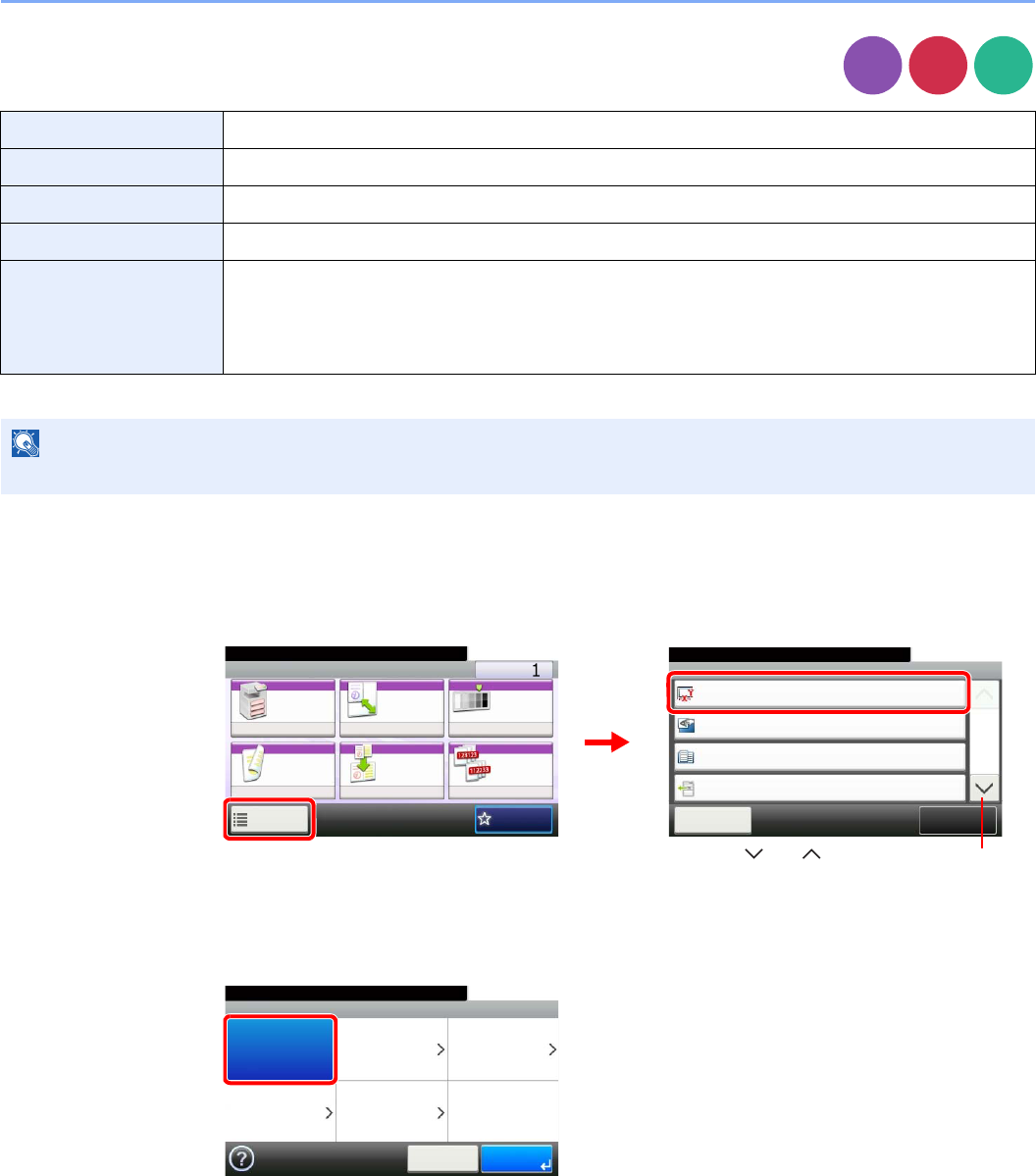
3-32
Common Operations > Using Various Functions
Original Size
Specify the original size to be scanned.
1Display the screen.
1Referring to Using Various Functions on page 3-30, display the screen.
2Press [Functions] and then [Original Size].
2Select the original size.
[Auto]
Auto Automatically detects the size of the original.
Metric Select from A3, A4-R, A4, A5-R, A5, A6-R, B4, B5-R, B5, B6-R, B6, Folio, or 216 × 340 mm.
inch Select from Ledger, Letter-R, Letter, Legal, Statement-R, Statement, 11 × 15", or Oficio II.
Others Select from 8K, 16K-R, 16K, Hagaki, Oufukuhagaki, or Custom*
* For instructions on how to specify the custom original size, refer to Custom Original Size on page 9-9.
Size Entry Enter the size.
Inch models — Horizontal: 2 to 17" (in 0.01" increments), Vertical: 2 to 11.69" (in 0.01" increments)
Metric models — Horizontal: 50 to 432 mm (in 1 mm increments), Vertical: 50 to 297 mm (in 1 mm
increments)
NOTE
Be sure to always specify the original size when using custom size originals.
Copy
Send
Scan to
USB
Ready to copy. (Full Color)
Functions
Original Size
Auto
Close
10:10
Original Orientation
Top Edge on Top
Inner tray
Off
Mixed Size Originals
Paper Output
1/5
Add/Edit
Shortcut
Ready to copy. (Full Color)
Copy Copies
Paper
Selection
Zoom Density
Duplex Combine Collate/
Offset
1-sided>>1-sided
Auto 100% Normal 0
CollateOff
Functions
10:10
Favorites
2
GB0001_01
GB0002_00
1
Use [ ] or [ ] to scroll up and down.
Ready to copy. (Full Color)
Original Size
Auto Metric Inch
Others
10:10
Cancel OK
Size Entry
GB0025_00
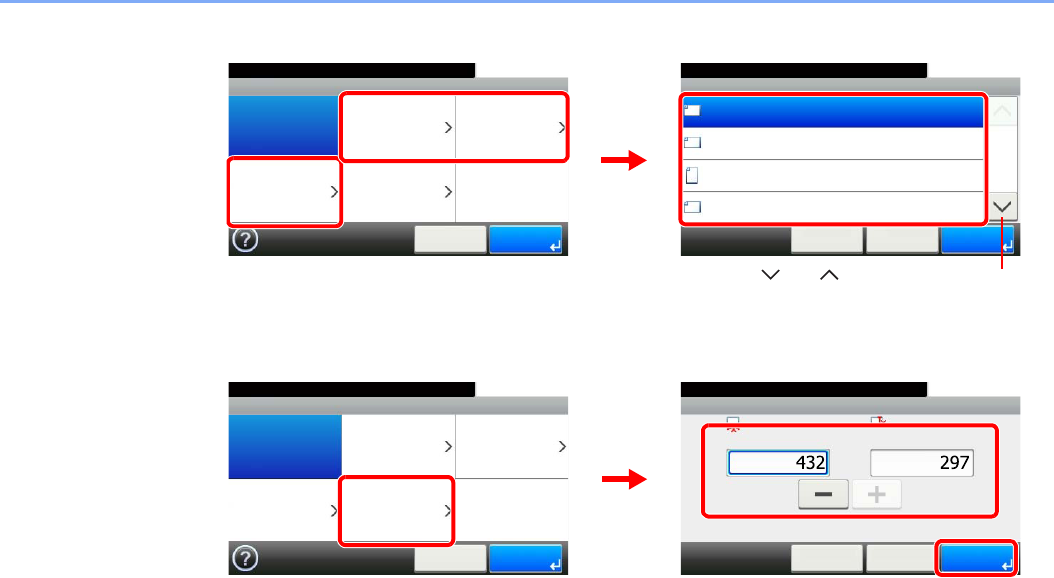
3-33
Common Operations > Using Various Functions
[Metric], [inch], or [Others]
Select the original size.
[Size Entry]
Press the text box displaying the numbers and use [-]/[+] or the numeric keypad to enter a
value.
Original Size - Metric
A3
10:10
A4
A4
A5
1/4
OK
OK< BackCancel
Ready to copy. (Full Color)
Ready to copy. (Full Color)
Original Size
Auto Metric Inch
Others
10:10
Cancel OK
Size Entry
GB0025_00
GB0026_00
Use [ ] or [ ] to scroll up and down.
12
Original Size - Size Entry
10:10Ready to copy. (Full Color)
mm
X (50 - 432)
< BackCancel
Y (50 - 297)
mm
OK
Ready to copy. (Full Color)
Original Size
Auto Metric Inch
Others
10:10
Cancel OK
Size Entry
1
GB0025_00
GB0029_00
3
2
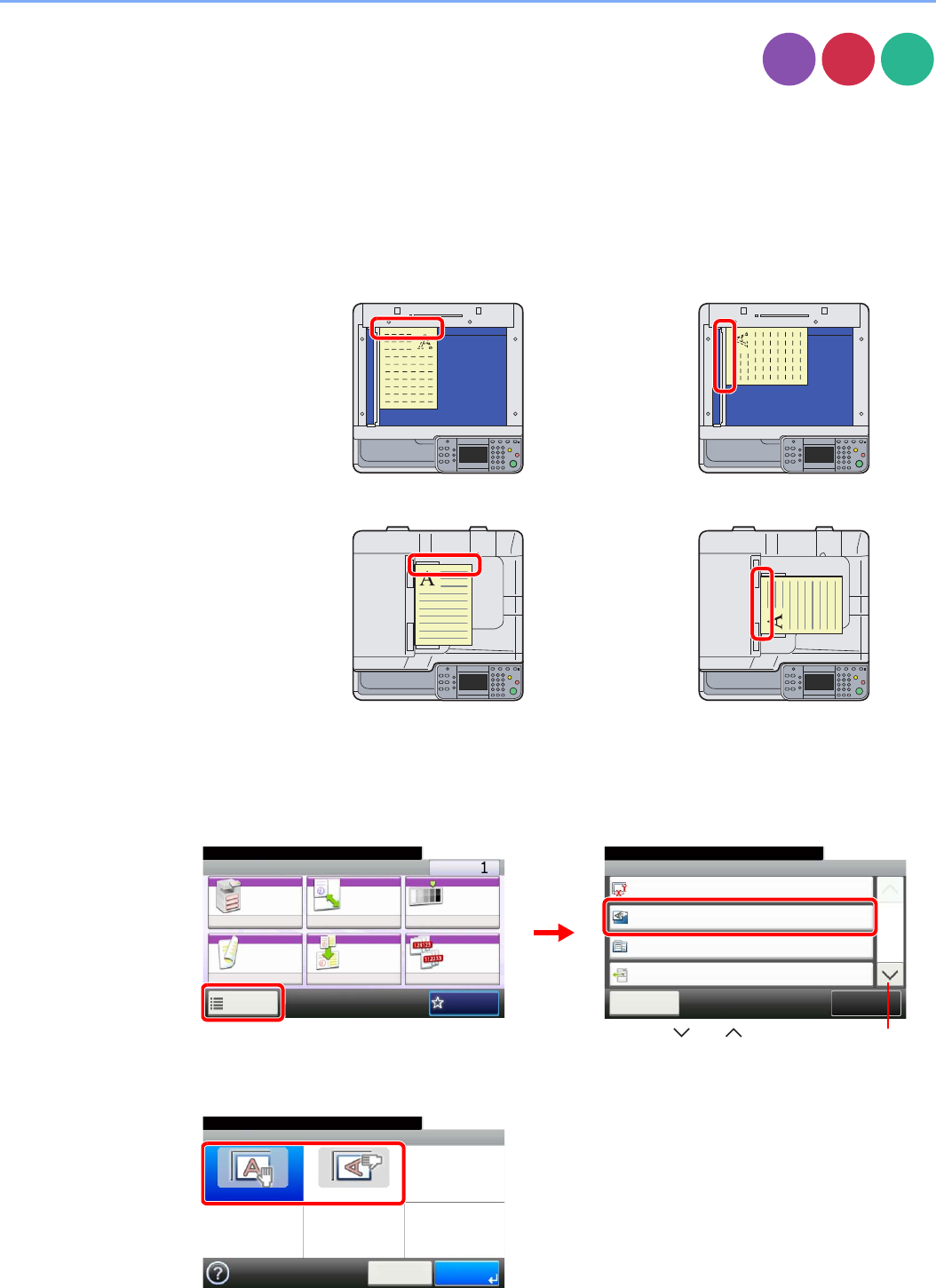
3-34
Common Operations > Using Various Functions
Original Orientation
Select the orientation of the original document top edge to scan correct direction.
To use any of the following functions, the document's original orientation must be set.
•Duplex
• Margin
• Combine
• Staple (option)
When placing originals on the platen
When placing originals on the document processor
1Display the screen.
1Referring to Using Various Functions on page 3-30, display the screen.
2Press [Functions] and then [Original Orientation].
2Select the function.
Select the original orientation.
Copy
Send
Scan to
USB
Top Edge on Top Top Edge on Left
Top Edge on Top Top Edge on Left
Ready to copy. (Full Color)
Functions
Original Size
Auto
Close
10:10
Original Orientation
Top Edge on Top
Inner tray
Off
Mixed Size Originals
Paper Output
1/5
Add/Edit
Shortcut
Ready to copy. (Full Color)
Copy Copies
Paper
Selection
Zoom Density
Duplex Combine Collate/
Offset
1-sided>>1-sided
Auto 100% Normal 0
CollateOff
Functions
10:10
Favorites
GB0001_01
GB0002_00
1
2
Use [ ] or [ ] to scroll up and down.
Ready to copy. (Full Color)
Original Orientation
Top Edge on Top Top Edge on Left
10:10
Cancel OK
GB0036_00
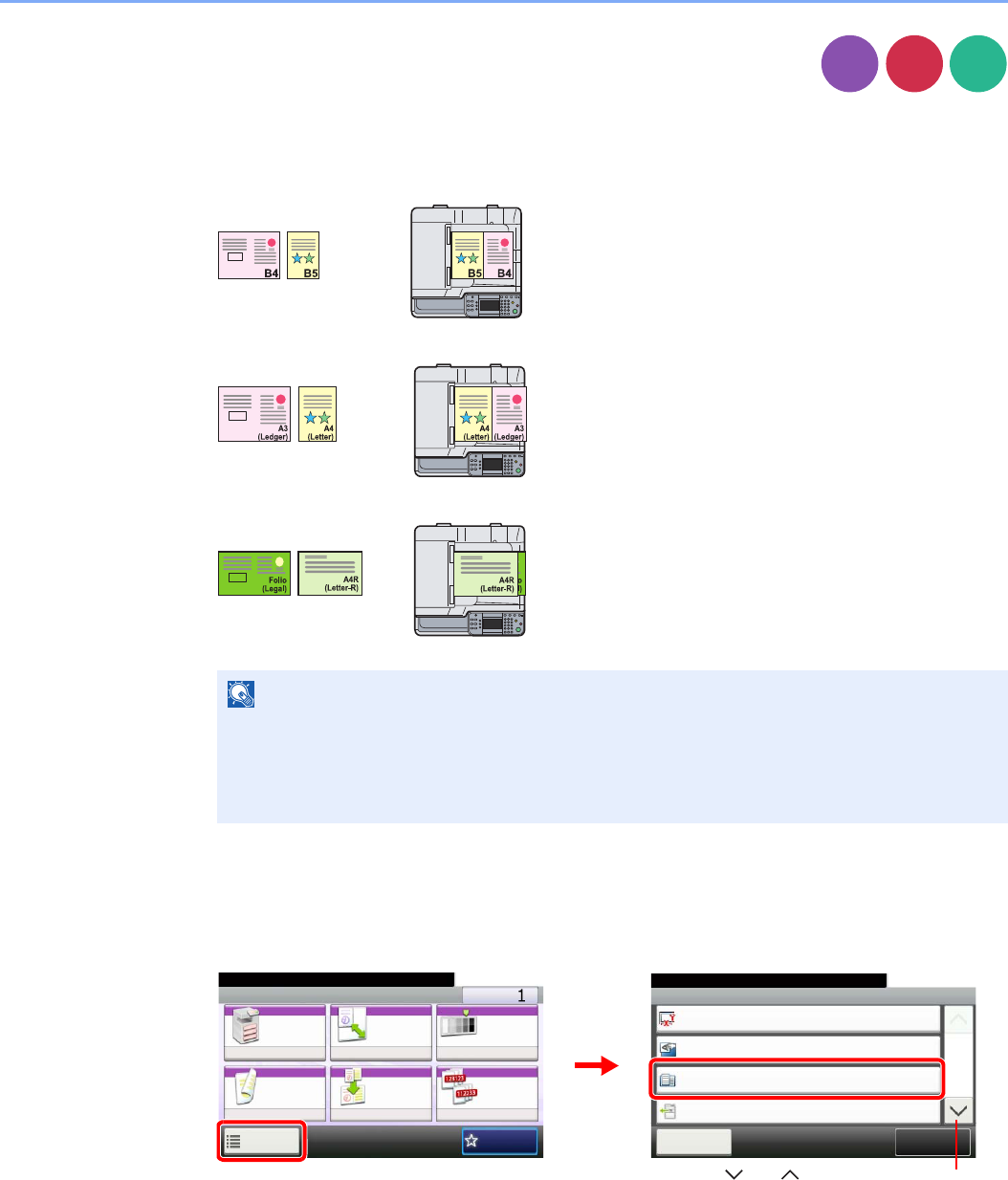
3-35
Common Operations > Using Various Functions
Mixed Size Originals
Scans all sheets in the document processor, even if they are of different sizes.
Supported Combinations of Originals
• B4 and B5
• Ledger and Letter (A3 and A4)
• Ledger and Letter-R (Folio and A4-R)
1Display the screen.
1Referring to Using Various Functions on page 3-30, display the screen.
2Press [Functions] and then [Mixed Size Originals].
NOTE
When mixing the original sizes as using the following combination: Folio and A4-R, make
sure to set Original Auto Detect to [On] for [Folio]. For more information, refer to Original
Auto Detect on page 9-10.
Up to 30 sheets can be placed in the document processor for mixed size originals.
Send
Scan to
USB
Copy
Ready to copy. (Full Color)
Functions
Original Size
Auto
Close
10:10
Original Orientation
Top Edge on Top
Inner tray
Off
Mixed Size Originals
Paper Output
1/5
Add/Edit
Shortcut
Ready to copy. (Full Color)
Copy Copies
Paper
Selection
Zoom Density
Duplex Combine Collate/
Offset
1-sided>>1-sided
Auto 100% Normal 0
CollateOff
Functions
10:10
Favorites
2
GB0001_01
GB0002_00
1
Use [ ] or [ ] to scroll up and down.

3-36
Common Operations > Using Various Functions
2Select the function.
Ready to copy. (Full Color)
Mixed Size Originals
Off On
10:10
Cancel OK
GB0035_00
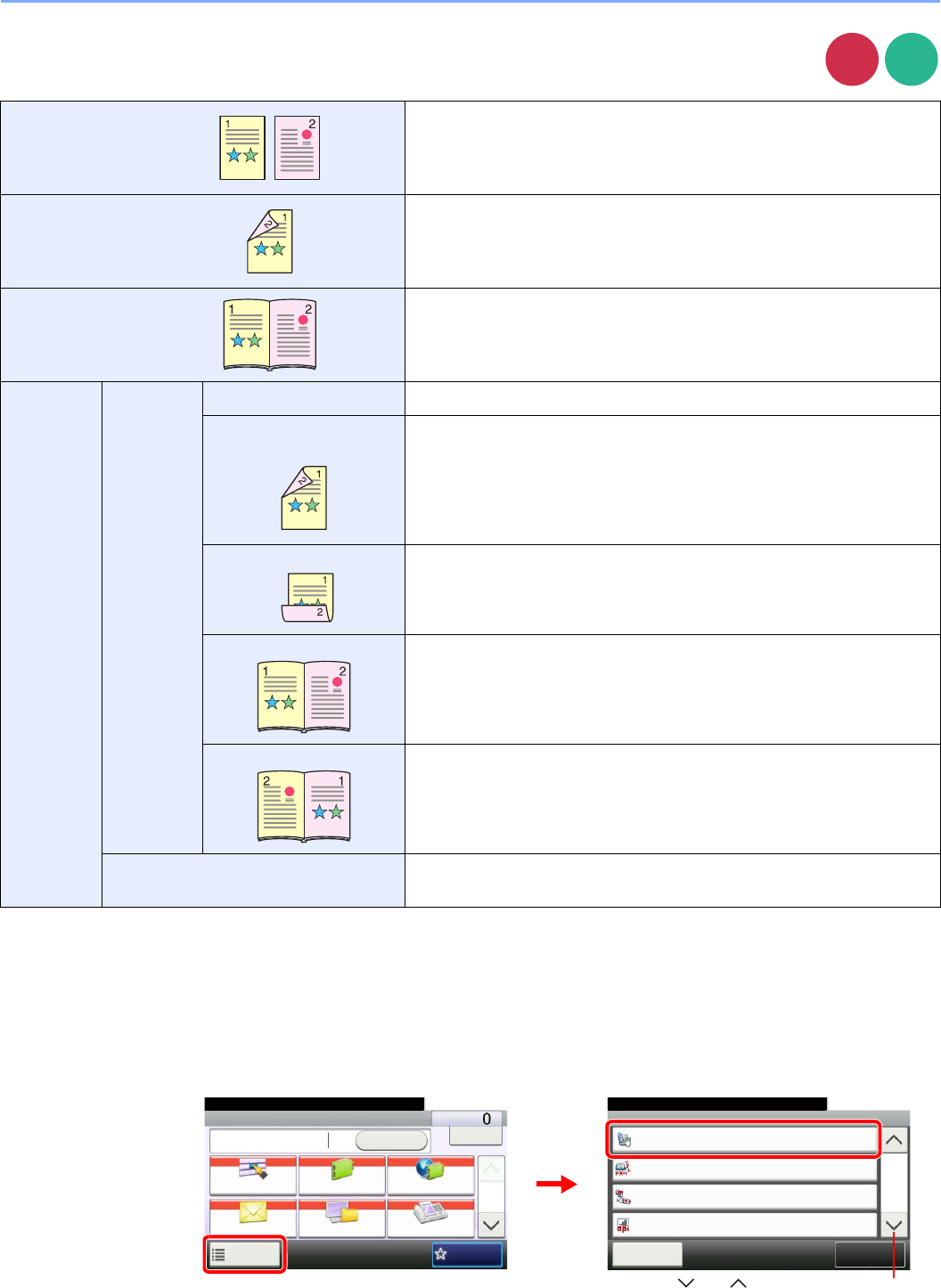
3-37
Common Operations > Using Various Functions
2-sided/Book Original
Select the type and orientation of the binding based on the original.
1Display the screen.
1Referring to Using Various Functions on page 3-30, display the screen.
2
1-sided Set when using a 1-sided sheet original.
2-sided Set when using a 2-sided sheet original that will be bound on the left or
right.
Book Set when using a book original such as a magazine or book that is bound
on the left.
Other
Settings
2-sided/
Book
Original
1-sided Set when using a 1-sided sheet original.
2-sided (Binding Left/
Right)
Set when using a 2-sided sheet original that will be bound on the left or
right.
2-sided (Binding Top) Set when using a 2-sided sheet original that will be bound at the top.
Book (Binding Left) Set when using a book original such as a magazine or book that is bound
on the left.
Book (Binding Right) Set when using a book original such as a magazine or book that is bound
on the right.
Original Orientation*
* This function is displayed when [2-sided (Binding Left/Right)] or [2-sided (Binding Top)] is selected.
Select the orientation of the original document top edge to scan correct
direction.
Send
Scan to
USB
Functions
2-sided/Book Original
1-sided
Close
10:10
Sending Size
300x300dpi
Off
File Separation
Scan Resolution
2/6
Same as Original Size
Add/Edit
Shortcut
Ready to send.
Send Dest. :
Recall Check
E-mail
One Touch Key Address Book Ext Address Book
FAXFolder
Functions
10:10
1/2
Favorites
Ready to send.
GB0055_00
GB0081_01
2
1
Send
Use [ ] or [ ] to scroll up and down.
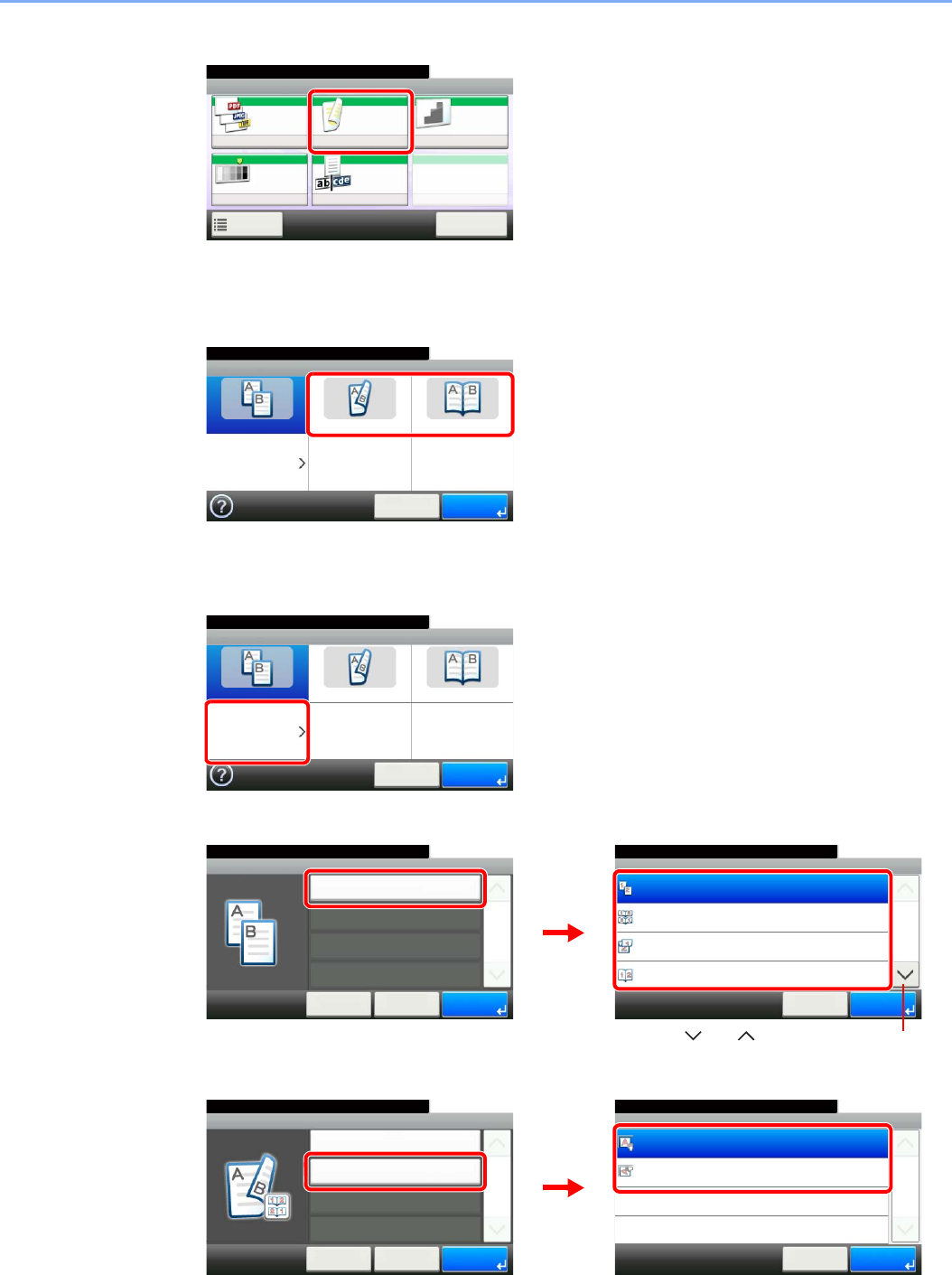
3-38
Common Operations > Using Various Functions
2Select the type of original.
[2-sided] or [Book]
[Others]
1
2Select the type of original.
3Select the original orientation.
Ready to store in Box.
Store File
File
Format
2-sided/
Book
Scan
Resolution
Density File Name
Entry
Normal 0
PDF 1-sided 300x300dpi
doc
Functions
10:10
Cancel
Scan to USB
GB0096_00
2-sided/Book Original
1-sided 2-sided Book
Others
10:10
Cancel OK
Ready to send.
GB0013_00
GB0013_00
2-sided/Book Original
1-sided 2-sided Book
Others
10:10
Cancel OK
Ready to send.
2-sided/Book Original - 2-sided/Book Original
10:10Ready to send.
2-sided (Binding Left/Right)
2-sided (Binding Top)
Book (Binding Left)
1-sided
Cancel
1/2
OK
2-sided/Book Original - Others
2-sided/Book Original
10:10
Cancel < Back
1/1
OK
1-sided
Ready to send.
GB0014_00
GB0011_00
2
1
Use [ ] or [ ] to scroll up and down.
2-sided/Book Ori... - Original Orientation
10:10
Top Edge on Left
Top Edge on Top
Cancel
1/1
OK
Ready to send.
GB0015_00
2-sided/Book Original - Others
2-sided/Book Original
10:10
Cancel
Original Orientation
< Back
1/1
OK
2-sided (Binding Left/Right)
Top Edge on Top
Ready to send.
GB0014_01
2
1
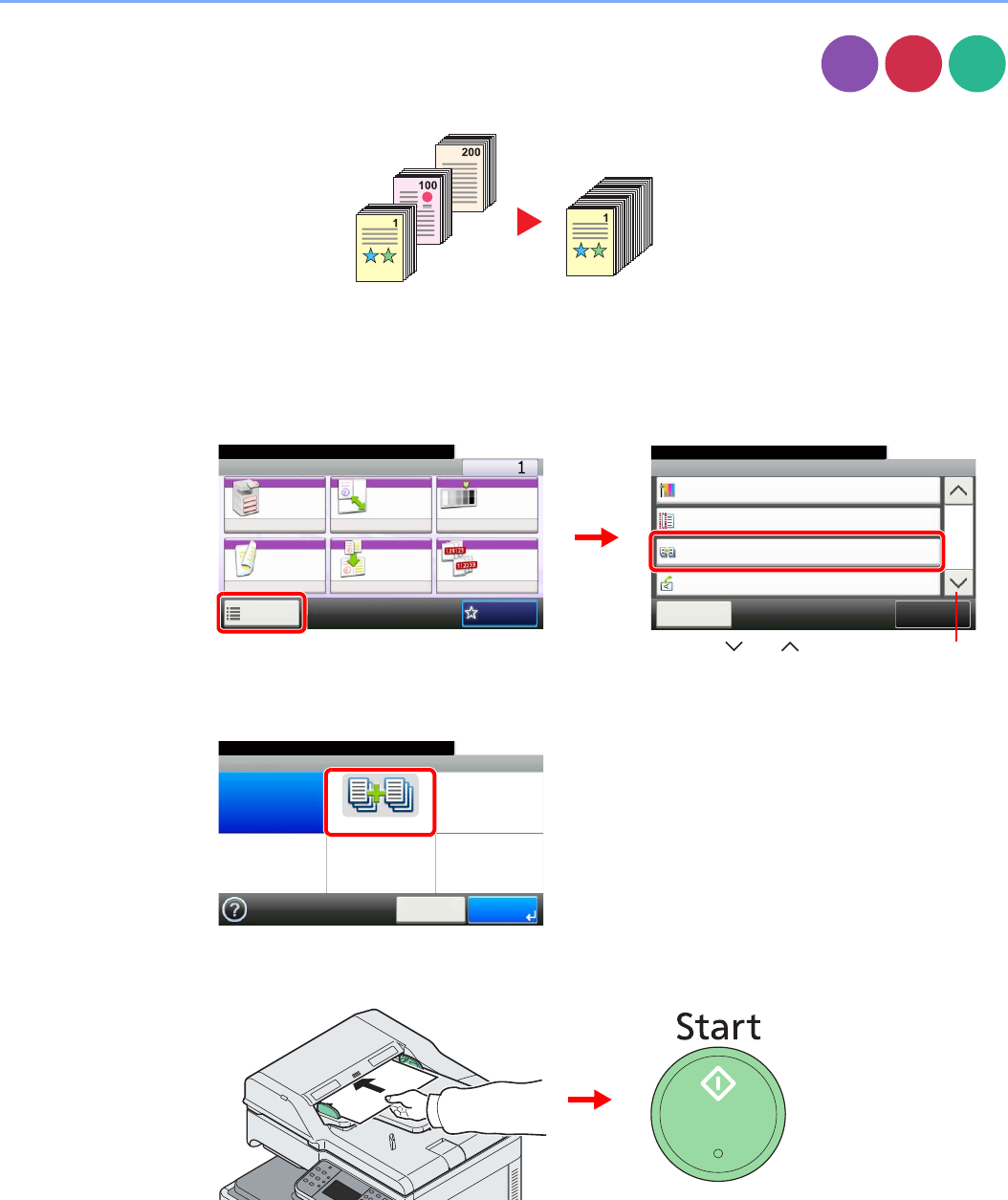
3-39
Common Operations > Using Various Functions
Continuous Scan
Scan a large number of originals in separate batches and then produce as one job. Originals will
be scanned continuously until you press [Finish Scan].
1Display the screen.
1Referring to Using Various Functions on page 3-30, display the screen.
2Press [Functions] and then [Continuous Scan].
2Select the function.
3Scan the originals.
Load the original and press the Start key to start scanning.
Once the original has been scanned, load the next original and press the Start key. Use the
same procedure to scan any remaining originals.
Copy
Send
Scan to
USB
Ready to copy. (Full Color)
Functions
Saturation
0
Close
10:10
Margin
Off
On
Off
Continuous Scan
Auto Image Rotation
4/5
Add/Edit
Shortcut
Ready to copy. (Full Color)
Copy Copies
Paper
Selection
Zoom Density
Duplex Combine Collate/
Offset
1-sided>>1-sided
Auto 100% Normal 0
CollateOff
Functions
10:10
Favorites
GB0001_01
GB0002_03
2
1
Use [ ] or [ ] to scroll up and down.
Ready to copy. (Full Color)
Continuous Scan
Off On
10:10
Cancel OK
GB0043_00

3-40
Common Operations > Using Various Functions
4Finish scanning.
Start copying, sending, or storing.
Job No.:0003
10:10Place the originals and press Start key.
Scanned Pages
Cancel
Job Name:doc00000320101010101010
Finish
Scan
GB0222_00
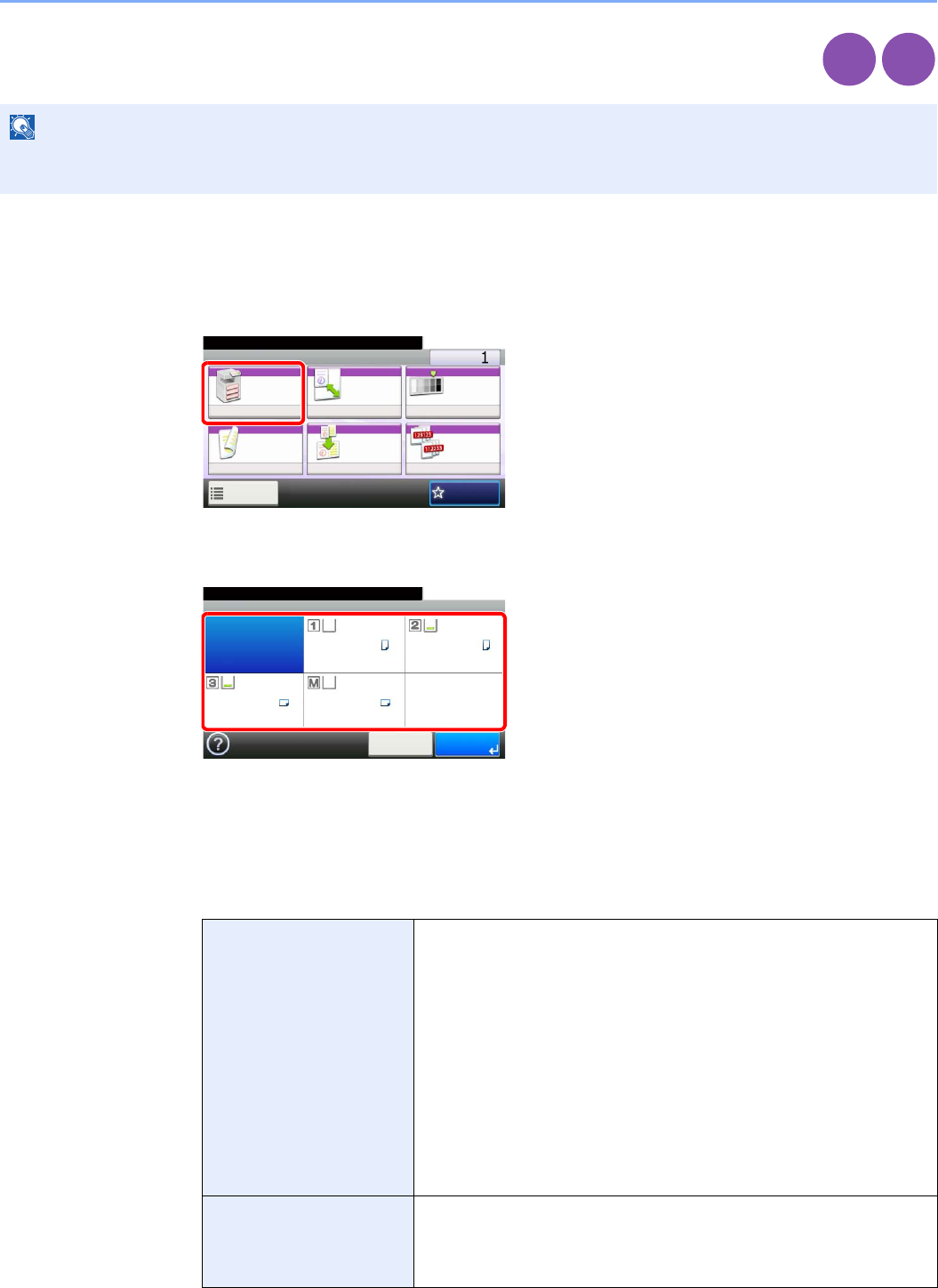
3-41
Common Operations > Using Various Functions
Paper Selection
Select the cassette or multi-purpose tray that contains the required paper size.
1Display the screen.
1Referring to Using Various Functions on page 3-30, display the screen.
2Press [Paper Selection].
2Select the paper source.
If [Auto] is selected, the paper matching the size of the original is selected automatically.
[2] (Cassette 2) and [3] (Cassette 3) are displayed when the optional paper feeder is installed.
[M] indicates the MP tray.
When selecting MP tray, specify the paper size and the media type. The available paper sizes
and media types are shown in the table below.
NOTE
Specify in advance the size and type of the paper loaded in the cassette (refer to Cassette/MP Tray Settings on page
9-8).
Paper Size Metric: Select from A3, A4-R, A4, A5-R, A6-R, B4, B5-R, B5, B6-R,
Folio or 216 × 340 mm.
inch: Select from Ledger, Letter-R, Letter, Legal, Statement-R,
Executive or Oficio II.
others: Select from 8K, 16K-R, 16K, ISO B5, Envelope #10, Envelope
#9, Envelope #6, Envelope Monarch, Envelope DL, Envelope C5,
Envelope C4, Hagaki, Oufukuhagaki, Youkei 4, Youkei 2 or Custom.
Size Entry: Enter a size not displayed in the standard sizes.
Inch models – X: 5.83 to 17" (in 0.01" increments), Y: 3.86 to 11.69" (in
0.01" increments)
Metric models – X: 148 to 432 mm (in 1 mm increments), Y: 98 to
297 mm (in 1 mm increments)
Media Type Plain (105 g/m² or less), Transparency, Rough, Vellum (64 g/m² or less),
Labels, Recycled, Preprinted, Bond, Cardstock, Color, Prepunched,
Letterhead, Envelope, Thick (106 g/m² and more), Coated, High Quality,
Custom 1-8
Copy
Print from
USB
Ready to copy. (Full Color)
Copy Copies
Paper
Selection
Zoom Density
Duplex Combine Collate/
Offset
1-sided>>1-sided
Auto 100% Normal 0
CollateOff
Functions
10:10
Favorites
GB0001_01
Ready to copy. (Full Color)
Paper Selection
Auto A4 A4
A4 A4
10:10
Cancel OK
Plain Plain
Plain Plain
GB0004_00
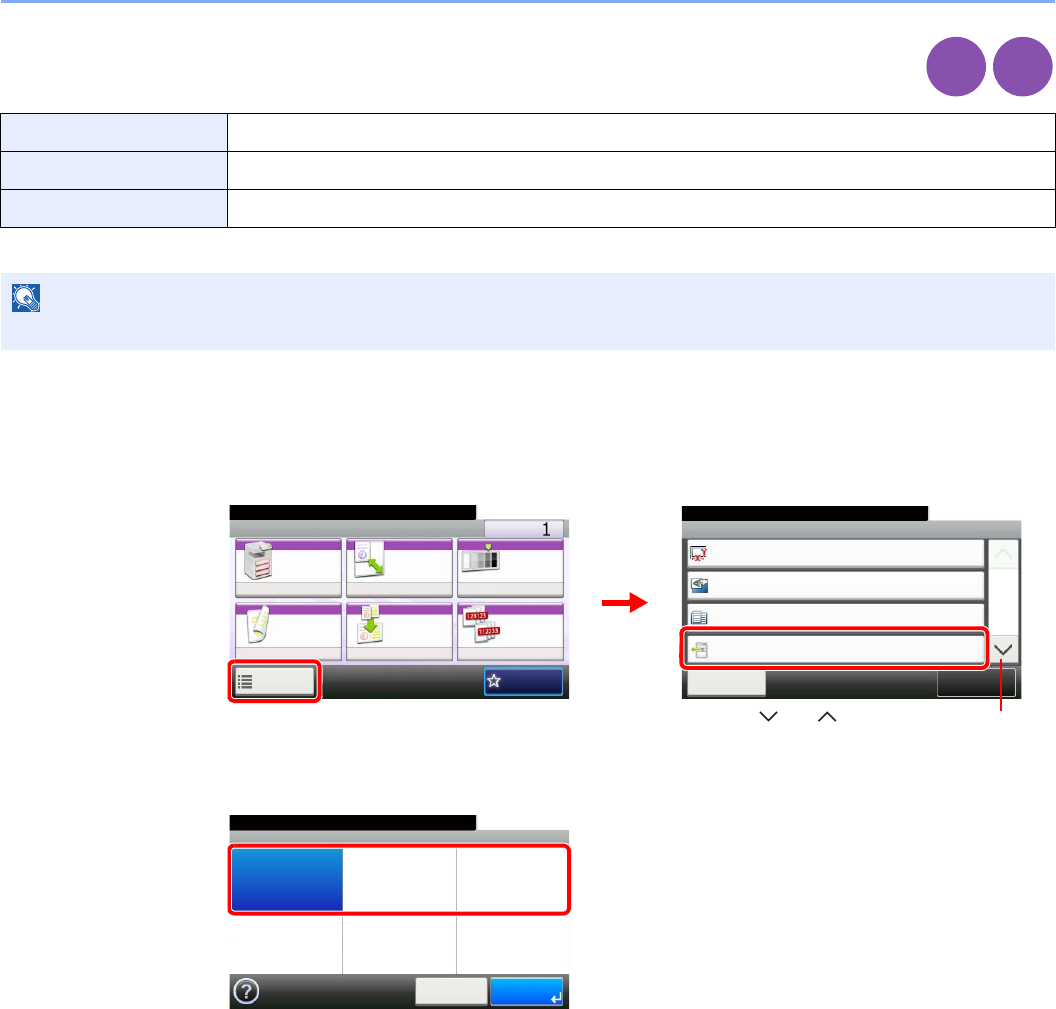
3-42
Common Operations > Using Various Functions
Paper Output
Set paper output to document finisher or job separator tray.
1Display the screen.
1Referring to Using Various Functions on page 3-30, display the screen.
2Press [Functions] and then [Paper Output].
2Select the output destination.
Inner Tray*
* If the optional document finisher has been installed, [Inner Tray] will change to [Finisher Tray].
Places pages face down in the inner tray.
Finisher Tray* Places pages face down in the optional document finisher tray.
Job Separator Tray Places pages face down in the job separator tray.
NOTE
To change default destination, refer to Paper Output on page 9-13 for details.
Copy
Print from
USB
Ready to copy. (Full Color)
Functions
Original Size
Auto
Close
10:10
Original Orientation
Top Edge on Top
Inner tray
Off
Mixed Size Originals
Paper Output
1/5
Add/Edit
Shortcut
Ready to copy. (Full Color)
Copy Copies
Paper
Selection
Zoom Density
Duplex Combine Collate/
Offset
1-sided>>1-sided
Auto 100% Normal 0
CollateOff
Functions
10:10
Favorites
GB0001_01
GB0002_00
2
1
Use [ ] or [ ] to scroll up and down.
Ready to copy. (Full Color)
Paper Output
Inner tray
10:10
Cancel OK
Job Separator
Tray
GB0031_00
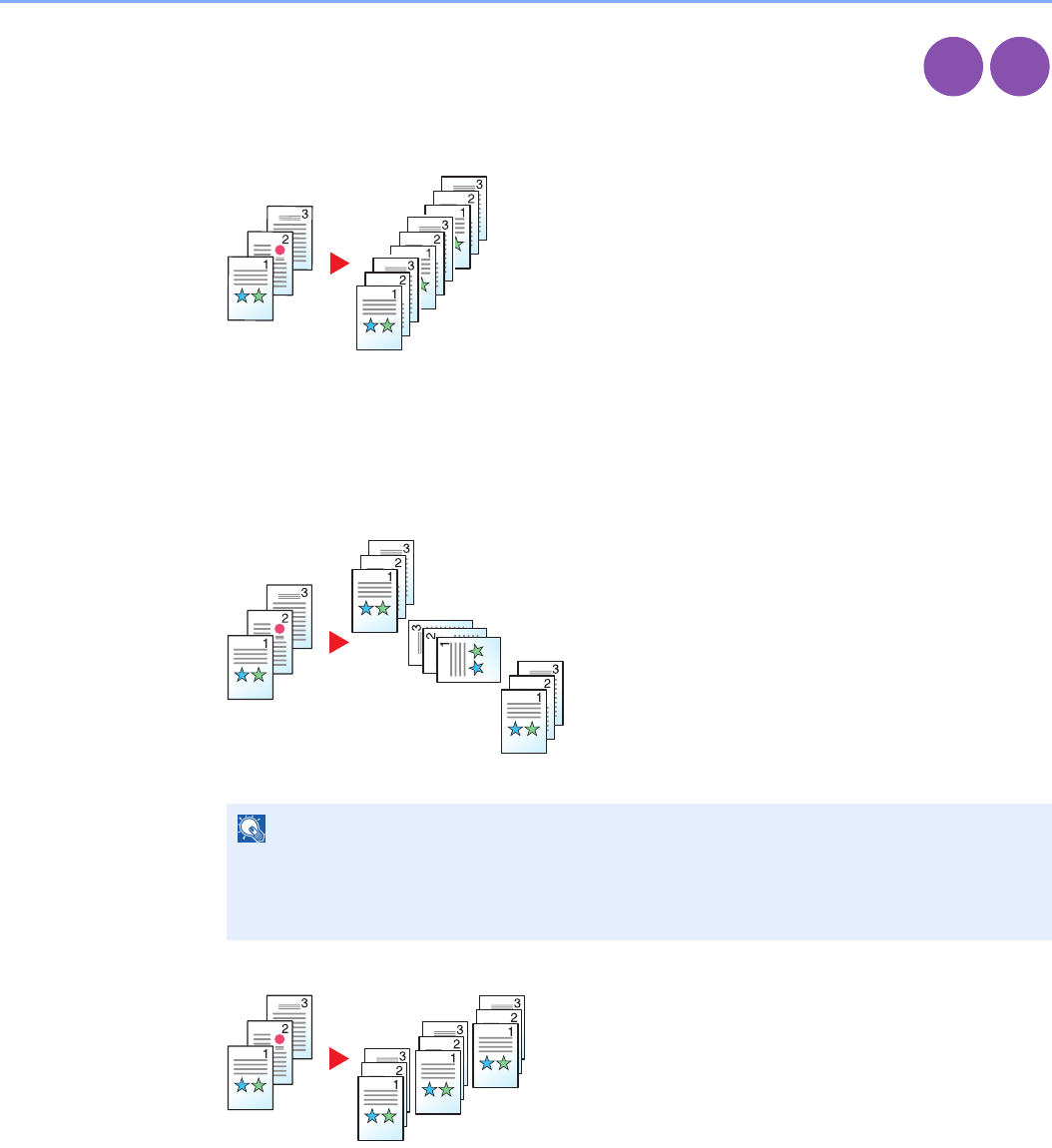
3-43
Common Operations > Using Various Functions
Collate/Offset
Offset the output by page or set.
Collate
Scan multiple originals and deliver complete sets of copies as required according to page
number.
Offset
Without Document Finisher (Option)
When you use offsetting, printed copies are produced after rotating each set (or page) by 90°.
With Document Finisher (Option)
When you use offsetting, printed copies are segregated after each set of copies (or after each
page).
1Display the screen.
1Referring to Using Various Functions on page 3-30, display the screen.
NOTE
To offset without a document finisher, load the same size paper into a second paper source
with a different orientation.
The paper sizes supported in Offset are A4, B5, Letter and 16K.
Copy
Print from
USB
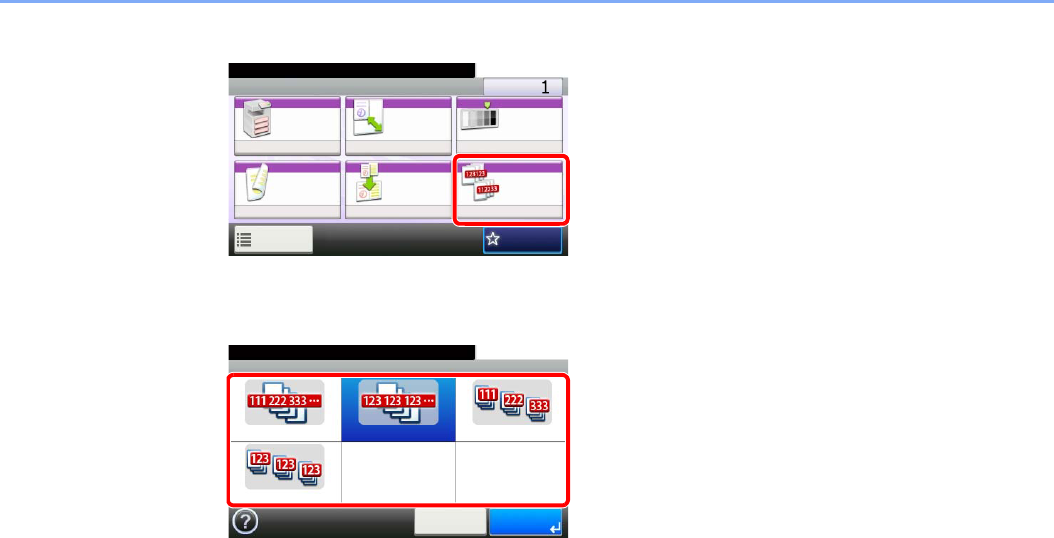
3-44
Common Operations > Using Various Functions
2Press [Collate/Offset].
2Select the function.
GB0001_01
Ready to copy. (Full Color)
Copy Copies
Paper
Selection
Zoom Density
Duplex Combine Collate/
Offset
1-sided>>1-sided
Auto 100% Normal 0
CollateOff
Functions
10:10
Favorites
GB0021_00
Ready to copy. (Full Color)
Collate/Offset
Off Collate Only Offset Each Page
Offset Each Set
10:10
Cancel OK
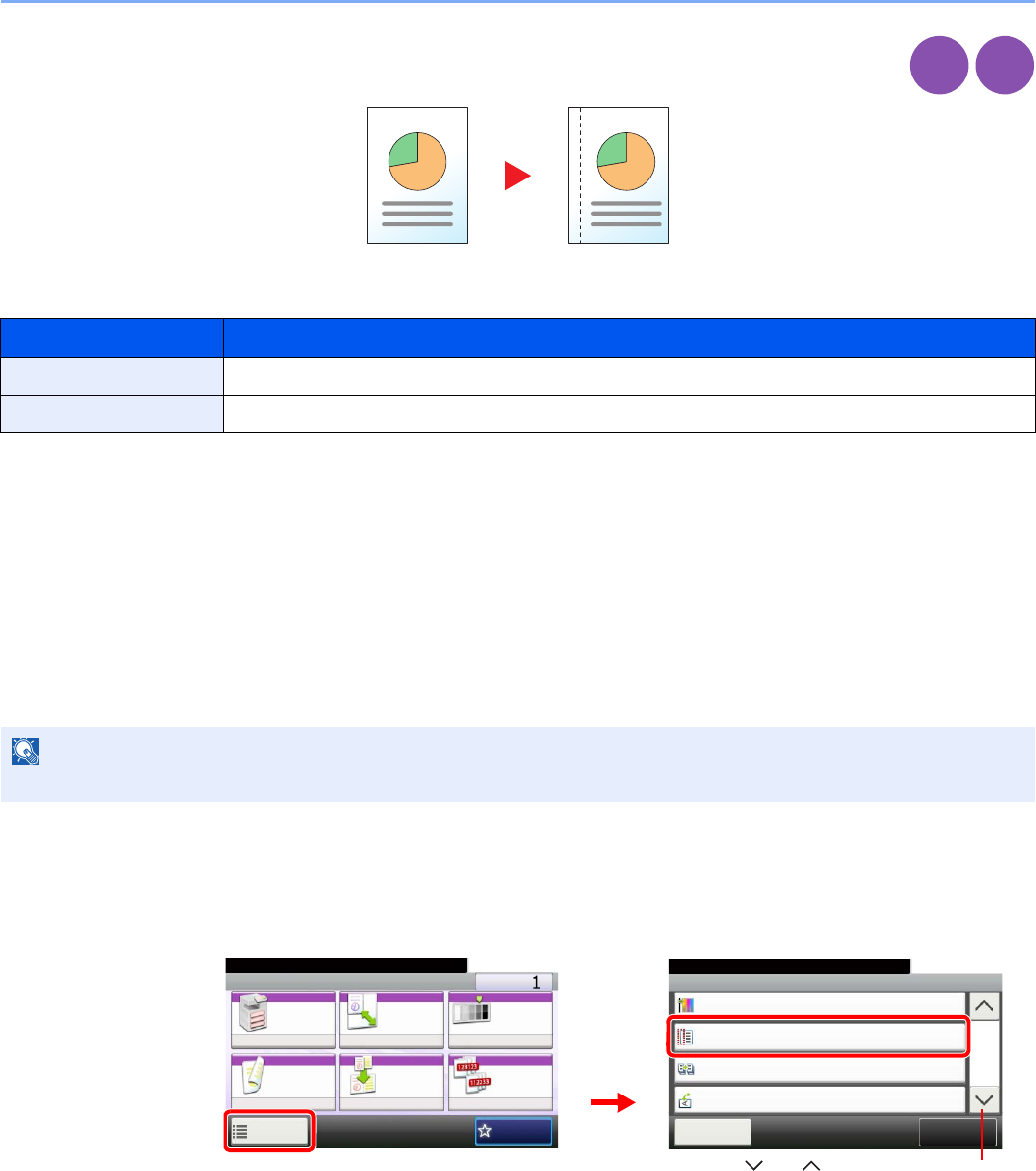
3-45
Common Operations > Using Various Functions
Margin
Add margins (white space).
Margin Width
Margin on the Back Side
When duplex copying, you can also specify the margin on the back side.
Auto
When [Auto] is selected, an appropriate margin is applied automatically on the rear page depending on a margin
specified for the front page and a binding orientation.
Manual
Enables you to specify the front and back settings separately.
1Display the screen.
1Referring to Using Various Functions on page 3-30, display the screen.
2Press [Functions] and then [Margin].
Input units Margin Width
Inch Models -0.75 to 0.75" (in 0.01" increments)
Metric Models -18 mm to 18 mm (in 1-mm increments)
NOTE
You can set the default margin width. Refer to Margin on page 9-12 for details.
Copy
Print from
USB
Ready to copy. (Full Color)
Functions
Saturation
0
Close
10:10
Margin
Off
On
Off
Continuous Scan
Auto Image Rotation
4/5
Add/Edit
Shortcut
Ready to copy. (Full Color)
Copy Copies
Paper
Selection
Zoom Density
Duplex Combine Collate/
Offset
1-sided>>1-sided
Auto 100% Normal 0
CollateOff
Functions
10:10
Favorites
GB0001_01
GB0002_03
2
1
Use [ ] or [ ] to scroll up and down.
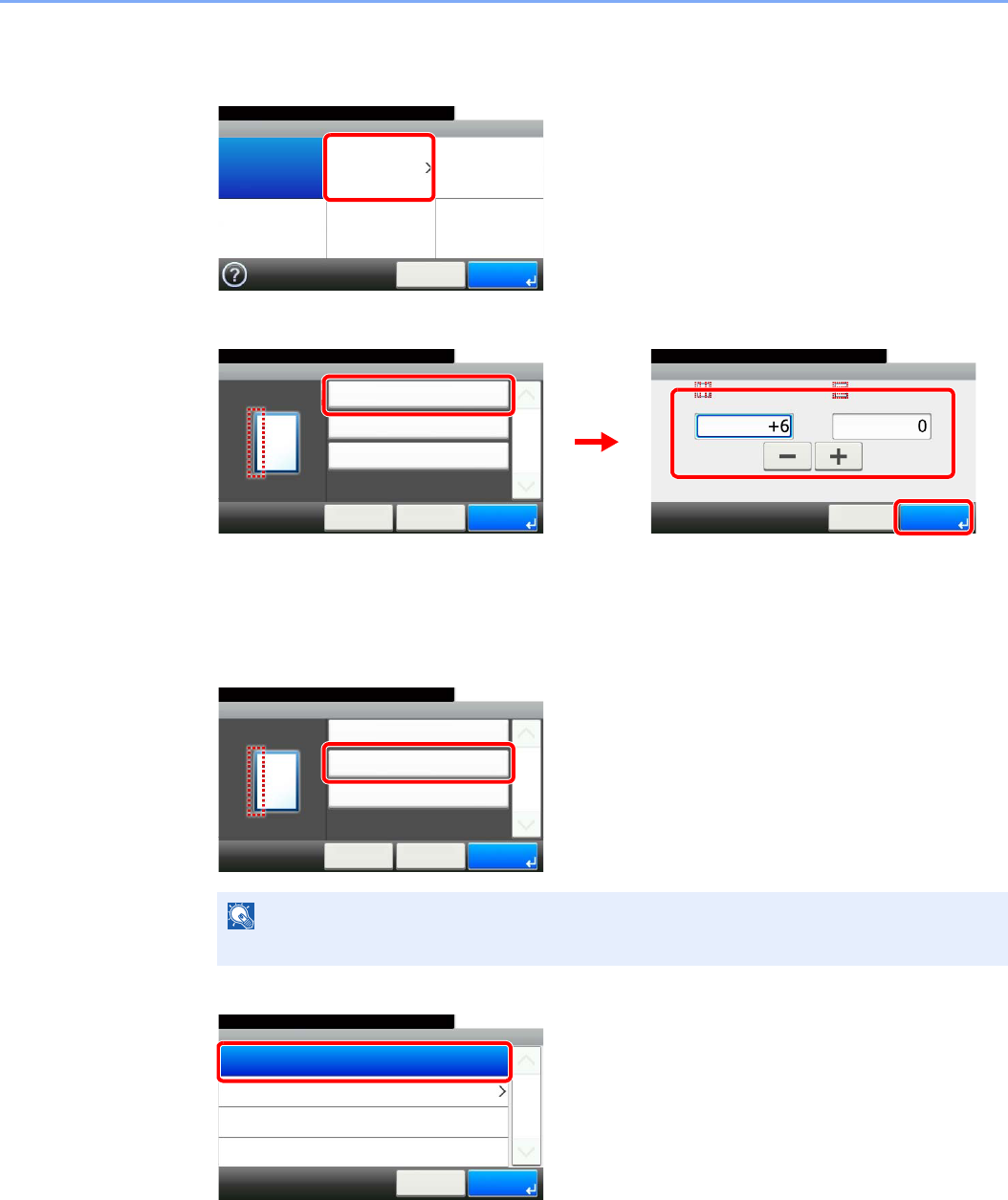
3-46
Common Operations > Using Various Functions
2Enter the margin width.
1
2
Press the text box and use [-]/[+] to enter a value.
3Specify the margin on the back side.
1
[Auto]
NOTE
[Original Orientation] is not displayed when printing a document from USB memory.
Ready to copy. (Full Color)
Margin
Off On
10:10
Cancel OK
GB0038_00
Margin - Margin
10:10Ready to copy. (Full Color)
mm
L/R(-18 - +18)
Cancel
T/B(-18 - +18)
mm
OK
Margin - Settings
Margin
10:10
Cancel
Ready to copy. (Full Color)
Back Page
Original Orientation
< Back
1/1
OK
Left: 6mm
Same as Front Page
Top Edge on Top
GB0040_00
GB0039_00
3
2
1
GB0039_00
Margin - Settings
Margin
10:10
Cancel
Ready to copy. (Full Color)
Back Page
Original Orientation
< Back
1/1
OK
Left: 6mm
Same as Front Page
Top Edge on Top
Margin - Back Page
10:10Ready to copy. (Full Color)
Manual
Auto
Cancel
1/1
OK
GB0041_00
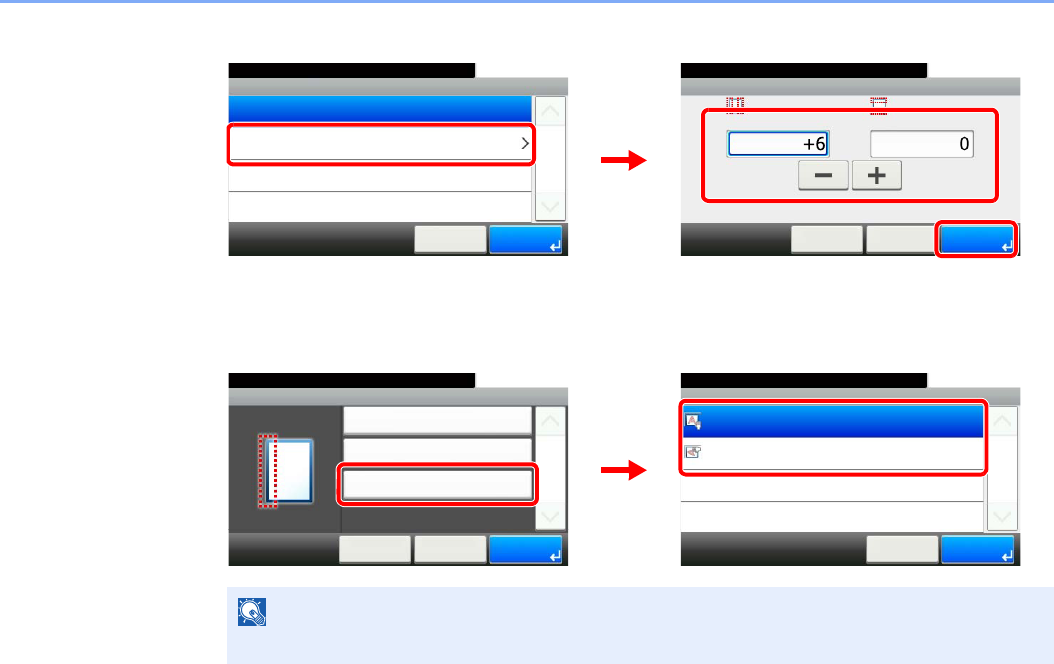
3-47
Common Operations > Using Various Functions
[Manual]
Press the text box and use [-]/[+] to enter a value.
4Select the original orientation.
NOTE
[Original Orientation] is not displayed when printing a document from USB memory.
GB0041_00
GB0042_00
Margin - Back Page
10:10Ready to copy. (Full Color)
Manual
Auto
Cancel
1/1
OK
Margin - Back Page
10:10Ready to copy. (Full Color)
mm
L/R(-18 - +18)
< Back
T/B(-18 - +18)
mm
OKCancel
23
1
Margin - Original Orientation
10:10Ready to copy. (Full Color)
Top Edge on Left
Top Edge on Top
Cancel
1/1
OK
GB0039_00
GB0015_01
Margin - Settings
Margin
10:10
Cancel
Ready to copy. (Full Color)
Back Page
Original Orientation
< Back
1/1
OK
Left: 6mm
Same as Front Page
Top Edge on Top
2
1
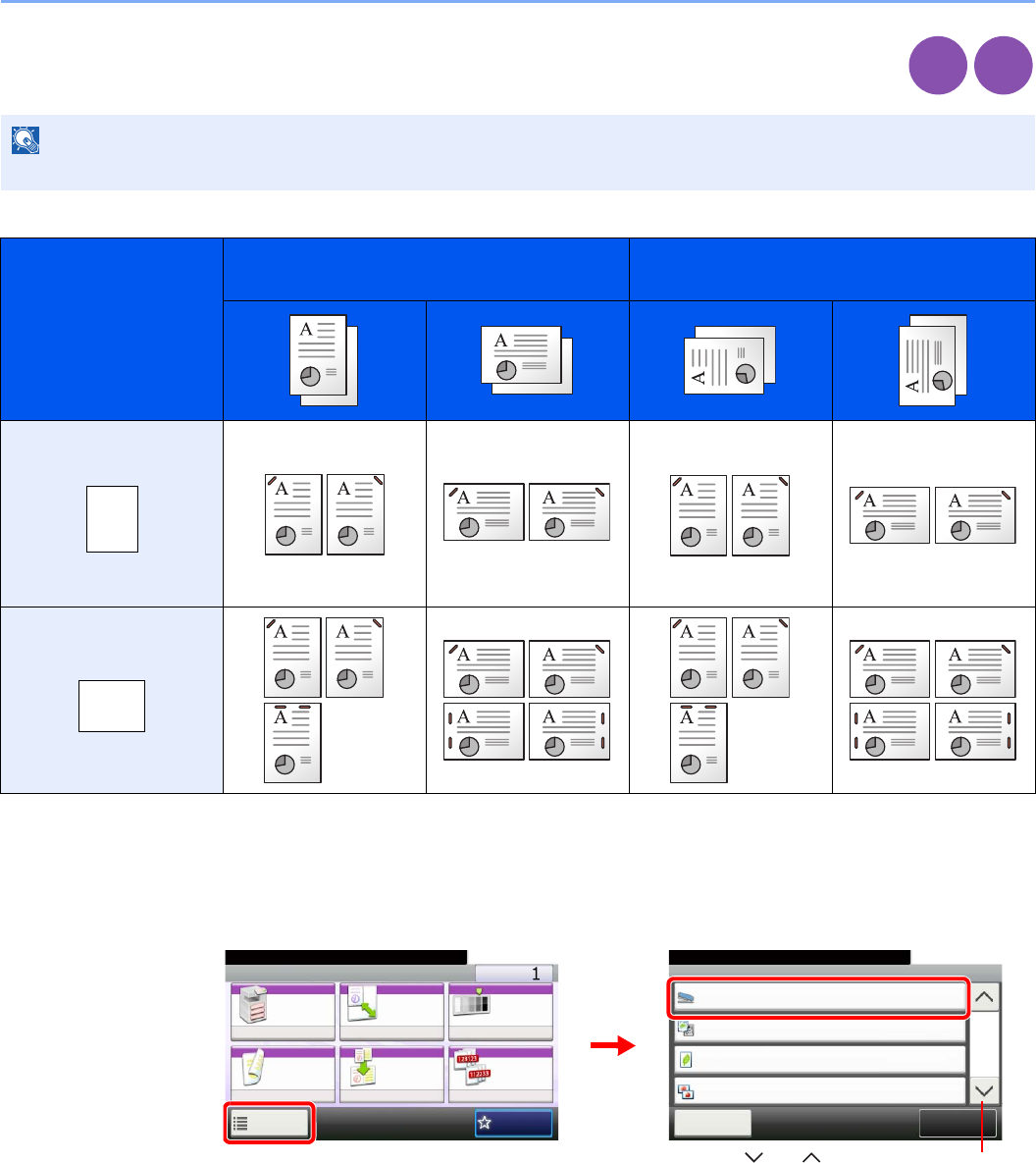
3-48
Common Operations > Using Various Functions
Staple
Staple documents. In addition, you can specify the staple position.
The following stapling options and orientations are available.
1Display the screen.
1Referring to Using Various Functions on page 3-30, display the screen.
2Press [Functions] and then [Staple].
NOTE
Stapling requires the document finisher.
Original Orientation:
Top Edge (Back Edge)
Original Orientation:
Left Top Edge (Left top corner)
Cassette Paper Load
Direction
Cassette Paper Load
Direction
Copy
Print from
USB
Ready to copy. (Full Color)
Functions
Staple
Off
Close
10:10
Original Image
Text+Photo
0
Off
EcoPrint
Sharpness
2/4
Add/Edit
Shortcut
Ready to copy. (Full Color)
Copy Copies
Paper
Selection
Zoom Density
Duplex Combine Collate/
Offset
1-sided>>1-sided
Auto 100% Normal 0
CollateOff
Functions
10:10
Favorites
GB0001_01
GB0002_05
2
1
Use [ ] or [ ] to scroll up and down.
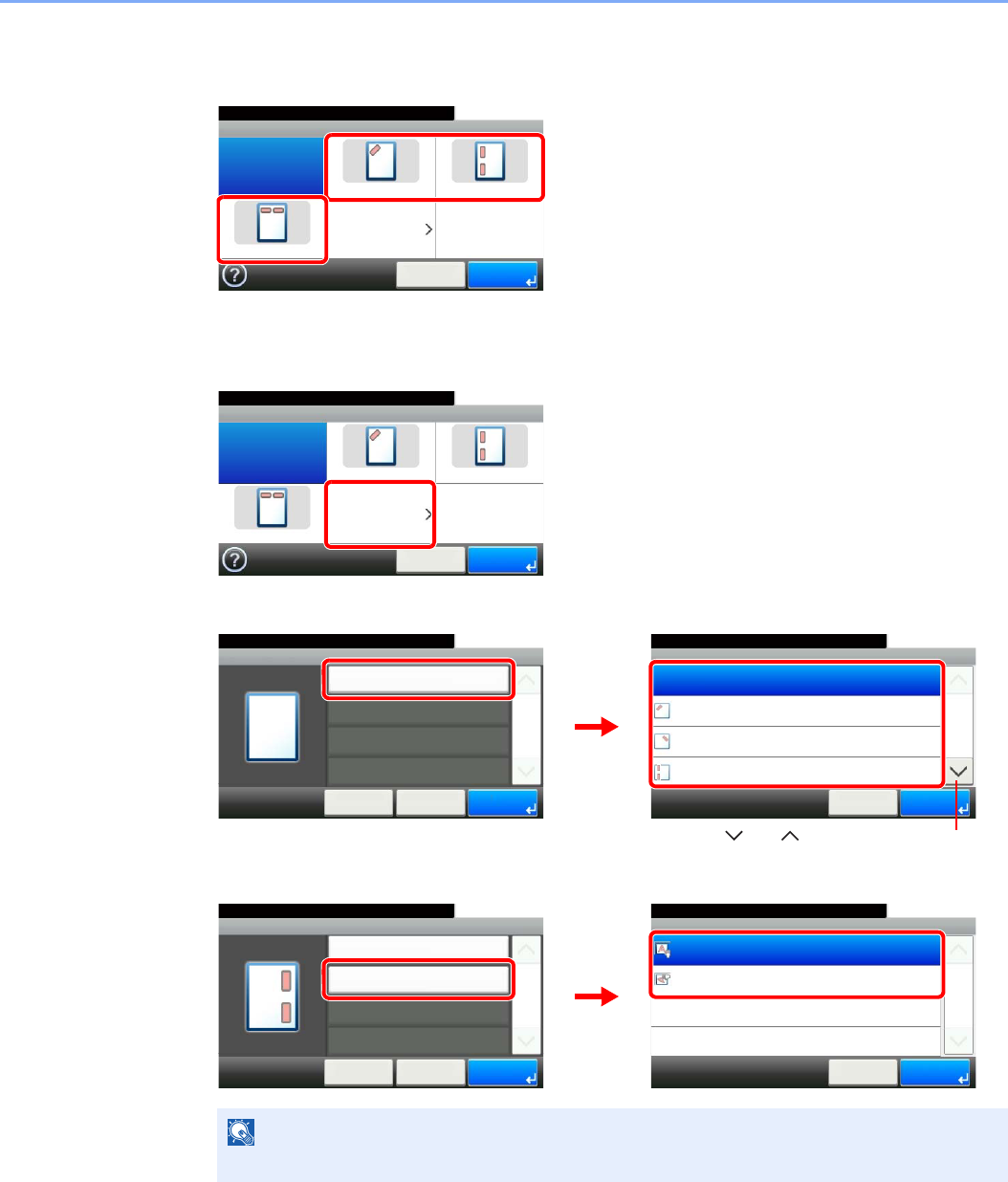
3-49
Common Operations > Using Various Functions
2Select the staple position.
[1 staple] or [2 staples]
[Others]
1
2Select the staple position.
3Select the original orientation.
NOTE
[Original Orientation] is not displayed when printing a document from USB memory.
GB0032_00
Ready to copy. (Full Color)
Staple
Off 1 staple 2 staples
2 staples Others
10:10
Cancel OK
Ready to copy. (Full Color)
Staple
Off 1 staple 2 staples
2 staples Others
10:10
Cancel OK
GB0032_00
Ready to copy. (Full Color)
Staple - Staple
Off
10:10
1 staple (Top Left)
1 staple (Top Right)
2 staples (Left)
1/2
OK
OKCancel
Staple - Others
Staple
10:10
Cancel
Ready to copy. (Full Color)
< Back
1/1
OK
Off
GB0033_00
GB0034_00
2
Use [ ] or [ ] to scroll up and down.
1
Staple - Original Orientation
10:10Ready to copy. (Full Color)
Top Edge on Left
Top Edge on Top
Cancel
1/1
OK
Staple - Others
Staple
10:10
Cancel
Original Orientation
< Back
1/1
OK
2 staples (Right)
Top Edge on Top
Ready to copy. (Full Color)
GB0033_01
1
2
GB0015_02
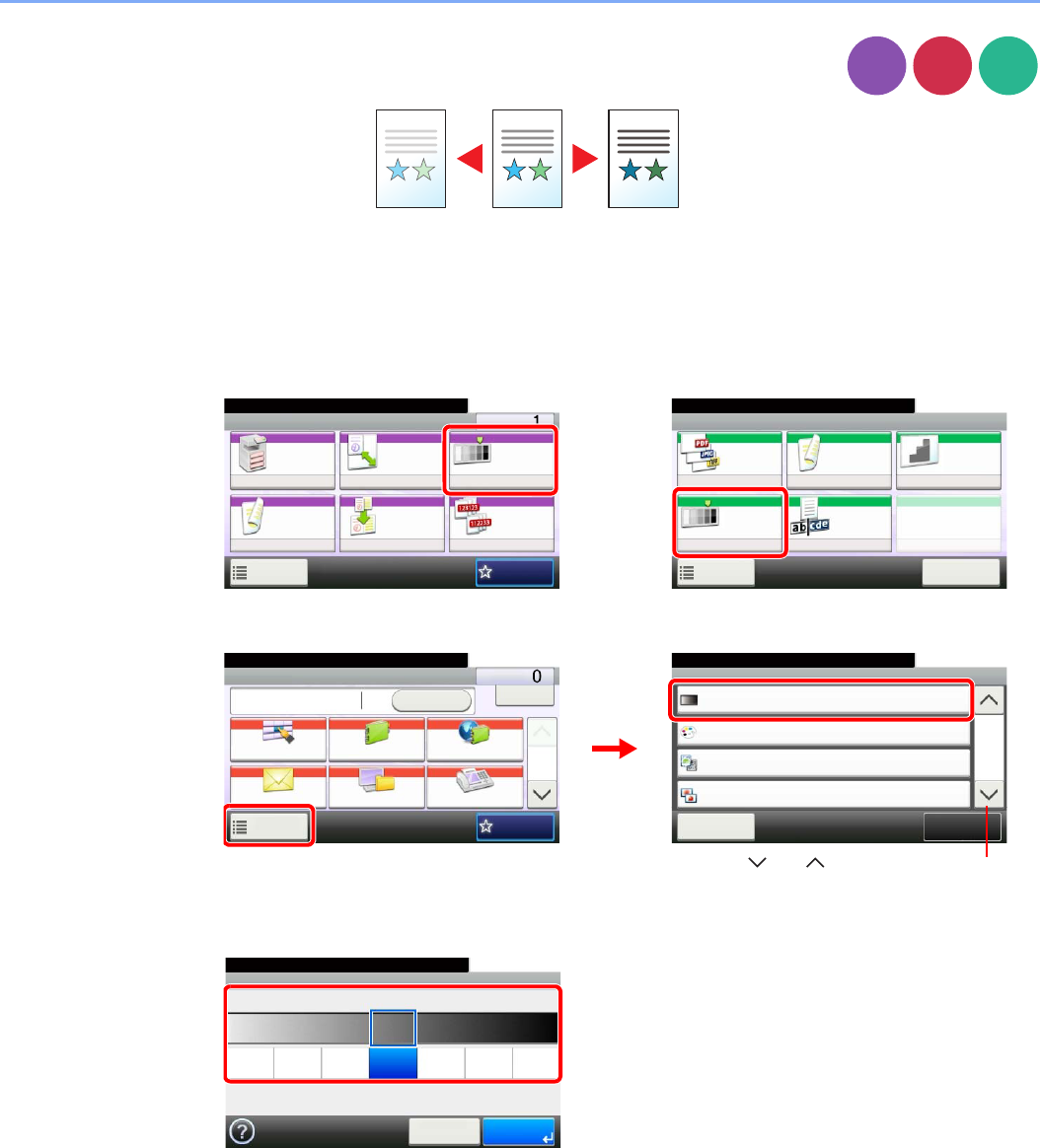
3-50
Common Operations > Using Various Functions
Density
Adjust density using 7 levels.
1Display the screen.
1Referring to Using Various Functions on page 3-30, display the screen.
2
2Adjust density.
Press [-3] to [+3] (Lighter - Darker) to adjust density.
Copy
Send
Scan to
USB
Ready to store in Box.
Store File
File
Format
2-sided/
Book
Scan
Resolution
Density File Name
Entry
Normal 0
PDF 1-sided 300x300dpi
doc
Functions
10:10
Cancel
Ready to copy. (Full Color)
Copy Copies
Paper
Selection
Zoom Density
Duplex Combine Collate/
Offset
1-sided>>1-sided
Auto 100% Normal 0
CollateOff
Functions
10:10
Favorites
Copy Scan to USB
GB0001_01
GB0096_00
Send Dest. :
Recall Check
E-mail
One Touch Key Address Book Ext Address Book
FAXFolder
Functions
10:10
1/2
Favorites
Ready to send.
Send
GB0055_00
GB0081_02
Ready to send.
Functions
Density
Normal 0
Close
10:10
Color Selection
0
Text+Photo
Original Image
Sharpness
3/6
Full Color
Add/Edit
Shortcut
2
1
Use [ ] or [ ] to scroll up and down.
Density
10:10Ready to copy. (Full Color)
Lighter
Cancel
Normal
-3
Darker
-2 -1 0+1 +2 +3
OK
GB0008_00
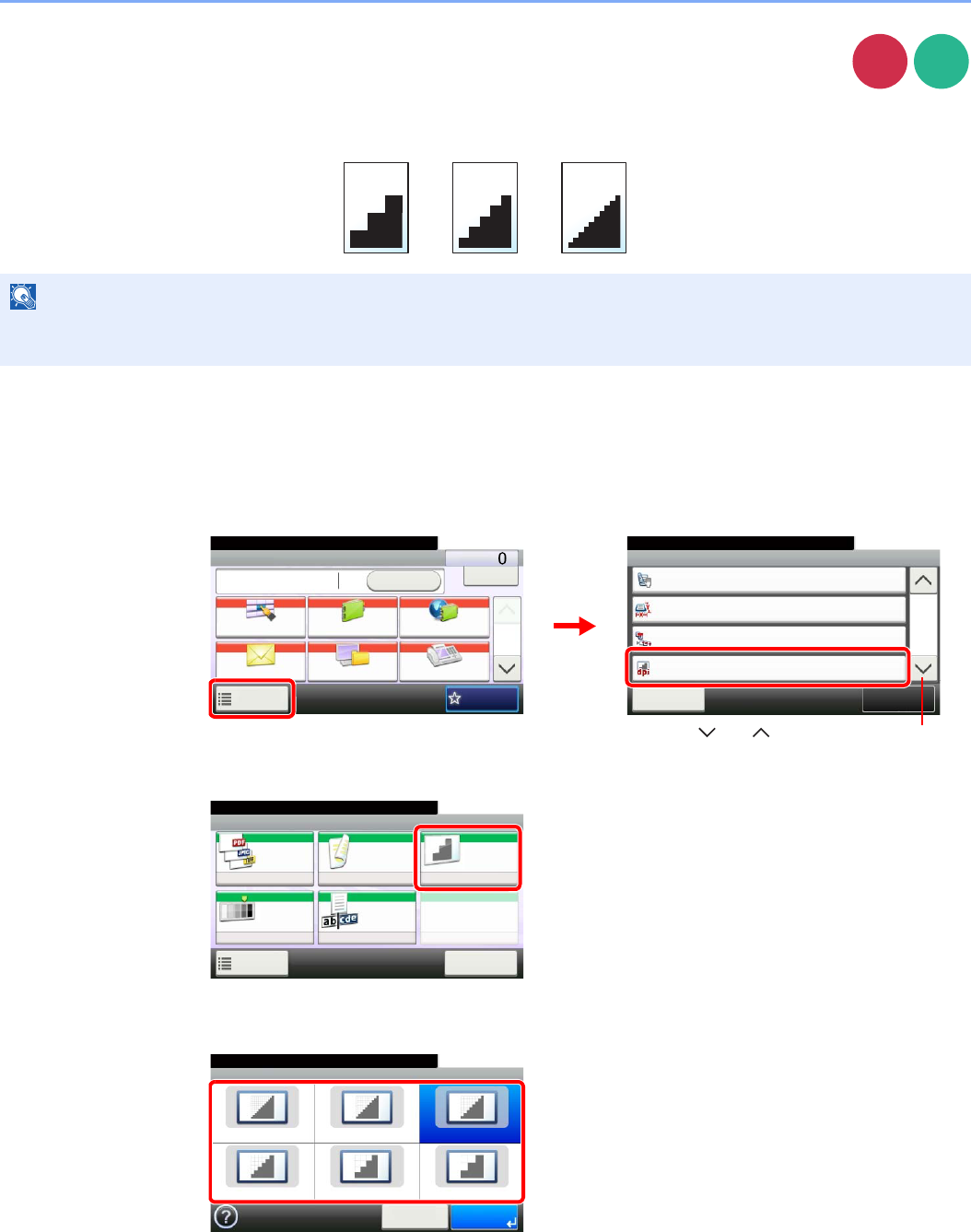
3-51
Common Operations > Using Various Functions
Scan Resolution
Select fineness of scanning resolution.
The selectable resolution is [200×100dpi], [200×200dpi Fine], [200×400dpi Super], [300×300dpi], [400×400dpi Ultra], or
[600×600dpi].
1Display the screen.
1Referring to Using Various Functions on page 3-30, display the screen.
2
2Select the resolution.
NOTE
The larger the number, the better the image resolution. However, better resolution also means larger file sizes and
longer send times.
Send
Scan to
USB
Functions
2-sided/Book Original
1-sided
Close
10:10
Sending Size
300x300dpi
Off
File Separation
Scan Resolution
2/6
Same as Original Size
Add/Edit
Shortcut
Ready to send.
Send Dest. :
Recall Check
E-mail
One Touch Key Address Book Ext Address Book
FAXFolder
Functions
10:10
1/2
Favorites
Ready to send.
GB0055_00
GB0081_01
2
1
Send
Use [ ] or [ ] to scroll up and down.
Ready to store in Box.
Store File
File
Format
2-sided/
Book
Scan
Resolution
Density File Name
Entry
Normal 0
PDF 1-sided 300x300dpi
doc
Functions
10:10
Cancel
Scan to USB
GB0096_00
Scan Resolution
600x600dpi 400x400dpi Ultra 300x300dpi
200x400dpi Super 200x200dpi Fine
10:10
Cancel OK
200x100dpi Normal
Ready to send.
GB0085_00
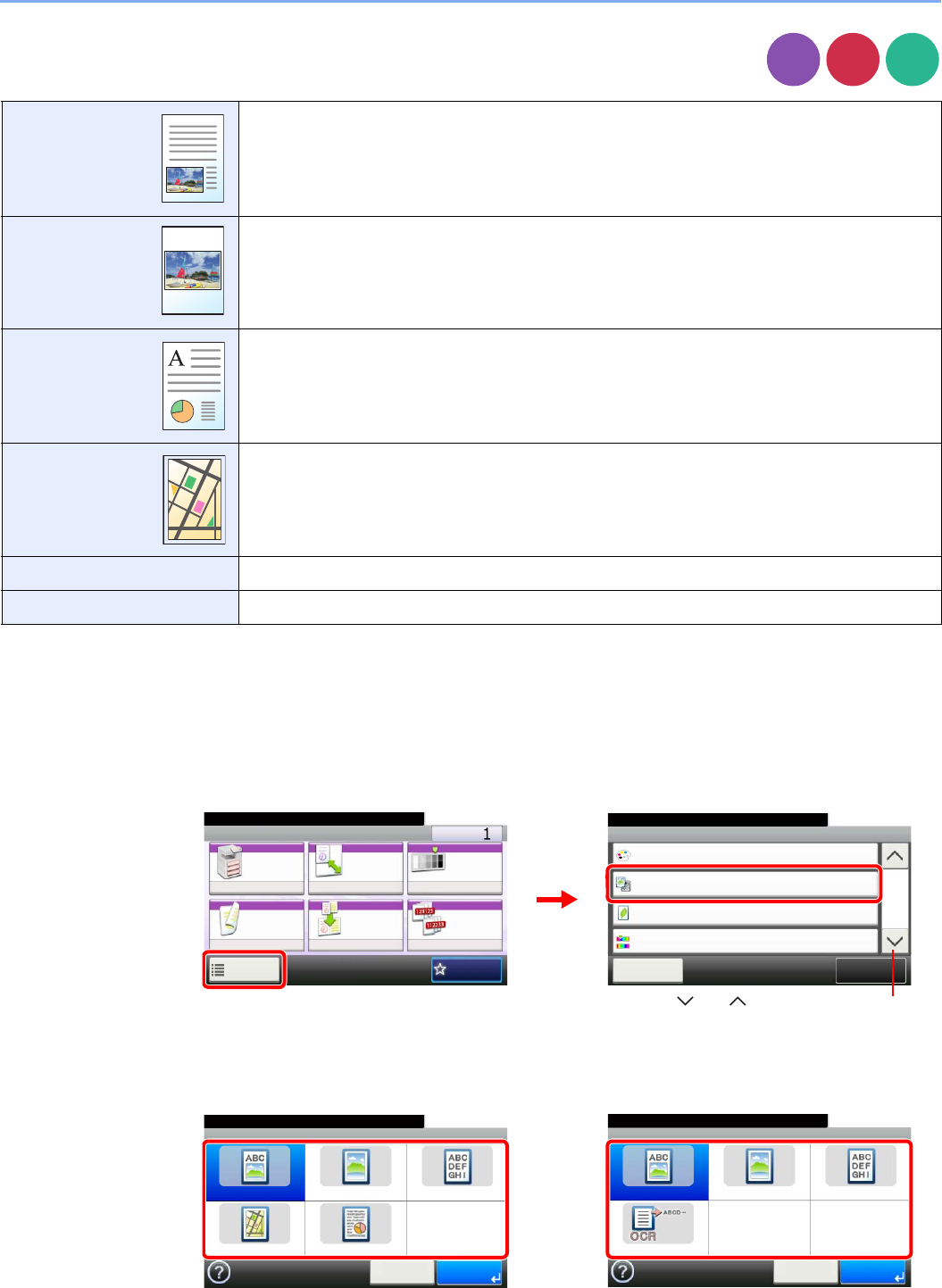
3-52
Common Operations > Using Various Functions
Original Image
Select original image type for best results.
1Display the screen.
1Referring to Using Various Functions on page 3-30, display the screen.
2Press [Functions] and then [Original Image].
2Select the image quality.
Text+Photo Best for originals which contain a mixture of text and photos.
Photo Best for photographs.
Text Sharply renders pencil text and fine lines.
Graphic/Map*
* This function is displayed while copying.
Best for graphics and maps.
Printer Output* Best for documents printed on this machine originally.
Text (for OCR)**
** This function is displayed when the color mode is [Auto (Color/B & W)] or [Black & White] (when sending or storing).
For documents to be read by OCR.
Copy
Send
Scan to
USB
Ready to copy. (Full Color)
Functions
Original Image
Text+Photo
Close
10:10
EcoPrint
Off
0
Full Color
Color Selection
Hue Adjustment
2/5
Add/Edit
Shortcut
Ready to copy. (Full Color)
Copy Copies
Paper
Selection
Zoom Density
Duplex Combine Collate/
Offset
1-sided>>1-sided
Auto 100% Normal 0
CollateOff
Functions
10:10
Favorites
GB0001_01
GB0002_01
1
2
Use [ ] or [ ] to scroll up and down.
Original Image
Text+Photo Photo Text
Text (for OCR)
10:10
Cancel OK
Ready to send.
Ready to copy. (Full Color)
Original Image
Text+Photo Photo Text
Graphic/Map
10:10
Cancel OK
Printer Output
GB0037_01
Copy Send/Scan to USB
GB0037_02
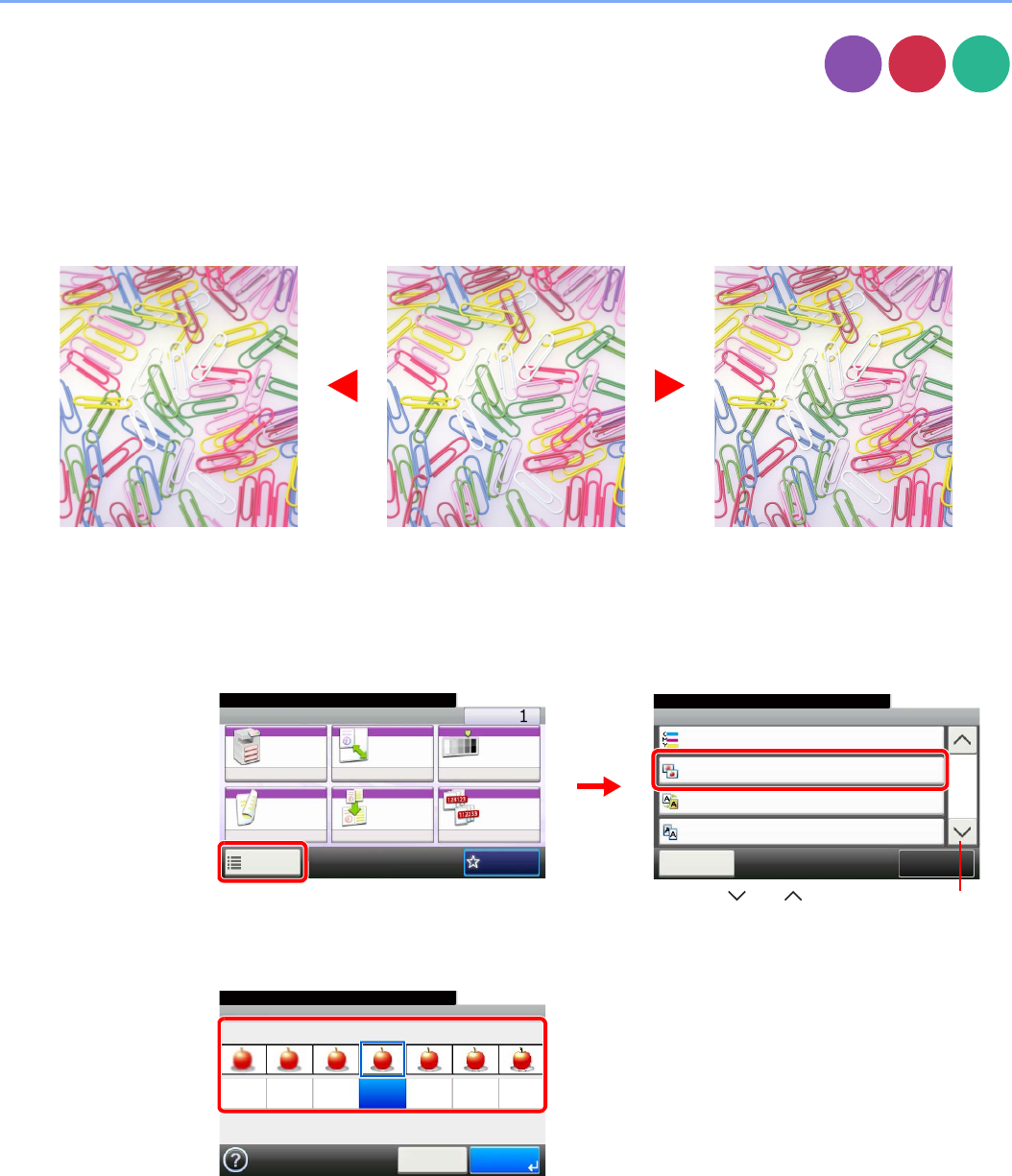
3-53
Common Operations > Using Various Functions
Sharpness
Adjust the sharpness of the image.
When copying penciled originals with rough or broken lines, clear copies can be taken by adjusting sharpness toward
[Sharpen]. When copying images made up of patterned dots such as magazine photos, in which moire* patterns appear,
edge softening and weakening of the moire effect can be obtained by setting the sharpness toward [Blur].
* Patterns that are created by irregular distribution of halftone dots.
1Display the screen.
1Referring to Using Various Functions on page 3-30, display the screen.
2Press [Functions] and then [Sharpness].
2Adjust the sharpness.
Press [-3] to [+3] (Blur - Sharpen) to adjust the sharpness.
Copy
Send
Scan to
USB
Original More SharpLess Sharp
Ready to copy. (Full Color)
Functions
Color Balance
Off
Close
10:10
Off
0
Sharpness
Background Density Adj.
3/5
Add/Edit
Shortcut
Prevent Bleed-through
Off
Ready to copy. (Full Color)
Copy Copies
Paper
Selection
Zoom Density
Duplex Combine Collate/
Offset
1-sided>>1-sided
Auto 100% Normal 0
CollateOff
Functions
10:10
Favorites
GB0001_01
GB0002_02
1
2
Use [ ] or [ ] to scroll up and down.
Sharpness
10:10
Blur
Cancel
-3
Sharpen
-2 -1 0+1 +2 +3
OK
Ready to copy. (Full Color)
GB0060_00
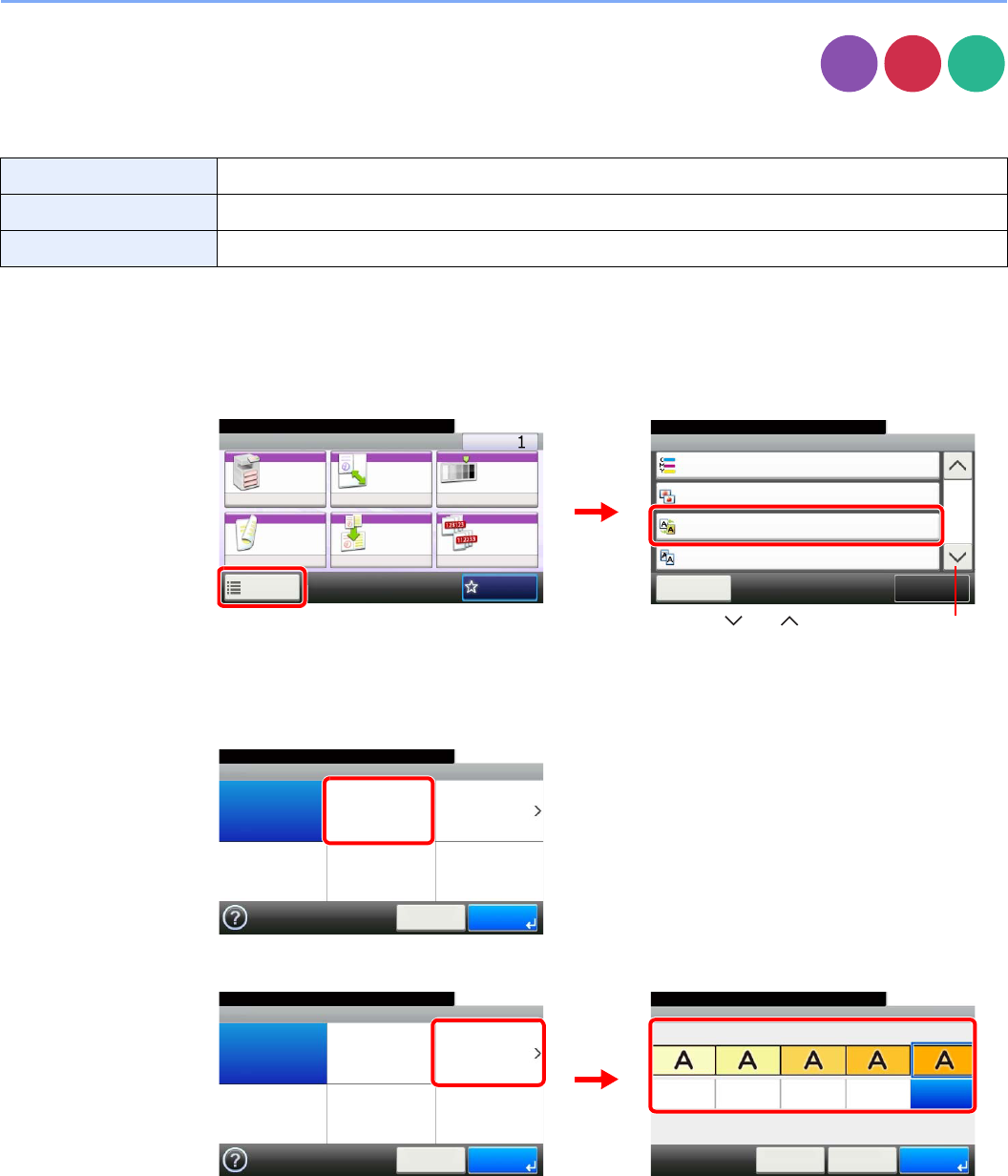
3-54
Common Operations > Using Various Functions
Background Density Adjust
Remove dark background from originals, such as newspapers. This feature is used with full
color and auto color. Background Density Adjust is disabled if Auto Color detects black and
white originals.
1Display the screen.
1Referring to Using Various Functions on page 3-30, display the screen.
2Press [Functions] and then [Background Density Adj.].
2Adjusts the background density.
[Auto]
[Manual]
Press [1] to [5] (Lighter - Darker) to adjust the background density.
Off Do not use this function.
Auto Adjusts the density automatically based on the original.
Manual Manually adjust the density.
Copy
Send
Scan to
USB
Ready to copy. (Full Color)
Functions
Color Balance
Off
Close
10:10
Off
0
Sharpness
Background Density Adj.
3/5
Add/Edit
Shortcut
Prevent Bleed-through
Off
Ready to copy. (Full Color)
Copy Copies
Paper
Selection
Zoom Density
Duplex Combine Collate/
Offset
1-sided>>1-sided
Auto 100% Normal 0
CollateOff
Functions
10:10
Favorites
GB0001_01
GB0002_02
2
1
Use [ ] or [ ] to scroll up and down.
Ready to copy. (Full Color)
Background Density Adj.
Off Manual
10:10
Cancel OK
Auto
GB0061_00
Background Density Adj. - Settings
10:10
Lighter
< Back
1
Darker
2345
Cancel OK
Ready to copy. (Full Color)
GB0061_00
GB0062_00
Ready to copy. (Full Color)
Background Density Adj.
Off Manual
10:10
Cancel OK
Auto
2
1
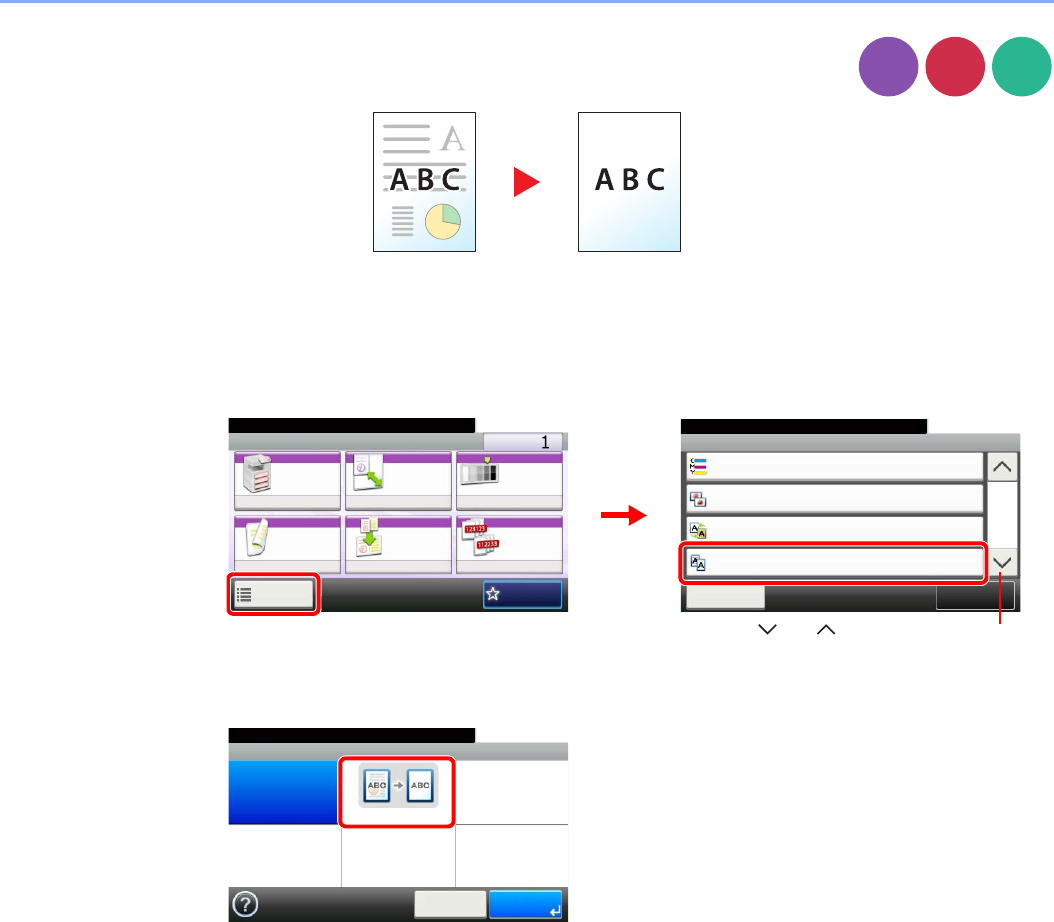
3-55
Common Operations > Using Various Functions
Prevent Bleed-through
Hide background colors and image bleed-through when scanning thin original.
1Display the screen.
1Referring to Using Various Functions on page 3-30, display the screen.
2Press [Functions] and then [Prevent Bleed-through].
2Select the function.
Copy
Send
Scan to
USB
Ready to copy. (Full Color)
Functions
Color Balance
Off
Close
10:10
Off
0
Sharpness
Background Density Adj.
3/5
Add/Edit
Shortcut
Prevent Bleed-through
Off
Ready to copy. (Full Color)
Copy Copies
Paper
Selection
Zoom Density
Duplex Combine Collate/
Offset
1-sided>>1-sided
Auto 100% Normal 0
CollateOff
Functions
10:10
Favorites
GB0001_01
GB0002_02
2
1
Use [ ] or [ ] to scroll up and down.
Prevent Bleed-through
Off On
10:10
Cancel OK
Ready to copy. (Full Color)
GB0835_00
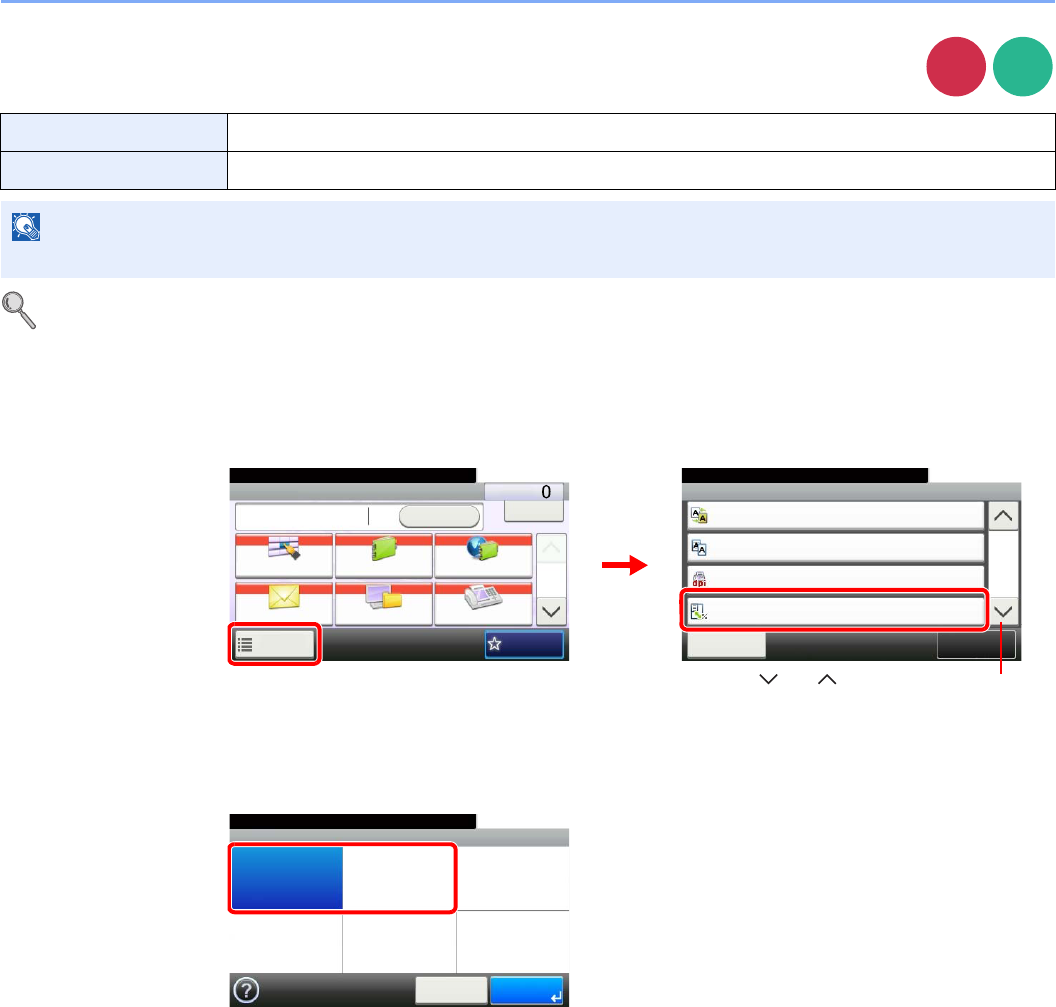
3-56
Common Operations > Using Various Functions
Zoom
Reduce or enlarge original to send or store size.
Refer to Sending Size on page 6-37 and Storing Size on page 7-14.
1Display the screen.
1Referring to Using Various Functions on page 3-30, display the screen.
2
Press [Functions] and then [Zoom].
2Select the function.
100% Reproduces the original size.
Auto Adjust the image to match the send or store size.
NOTE
Original Size (page 3-32), Sending Size (page 6-37), Storing Size (page 7-14), and Zoom are related to each other.
Send
Scan to
USB
Ready to send.
Functions
Background Density Adj.
Off
Close
10:10
Prevent Bleed-through
100%
200x100dpi Normal
FAX TX Resolution
Zoom
4/6
Off
Add/Edit
Shortcut
Send Dest. :
Recall Check
E-mail
One Touch Key Address Book Ext Address Book
FAXFolder
Functions
10:10
1/2
Favorites
Ready to send.
GB0055_00
GB0081_03
1
2
Use [ ] or [ ] to scroll up and down.
Zoom
100% Auto
10:10
Cancel OK
Ready to send.
GB0087_00
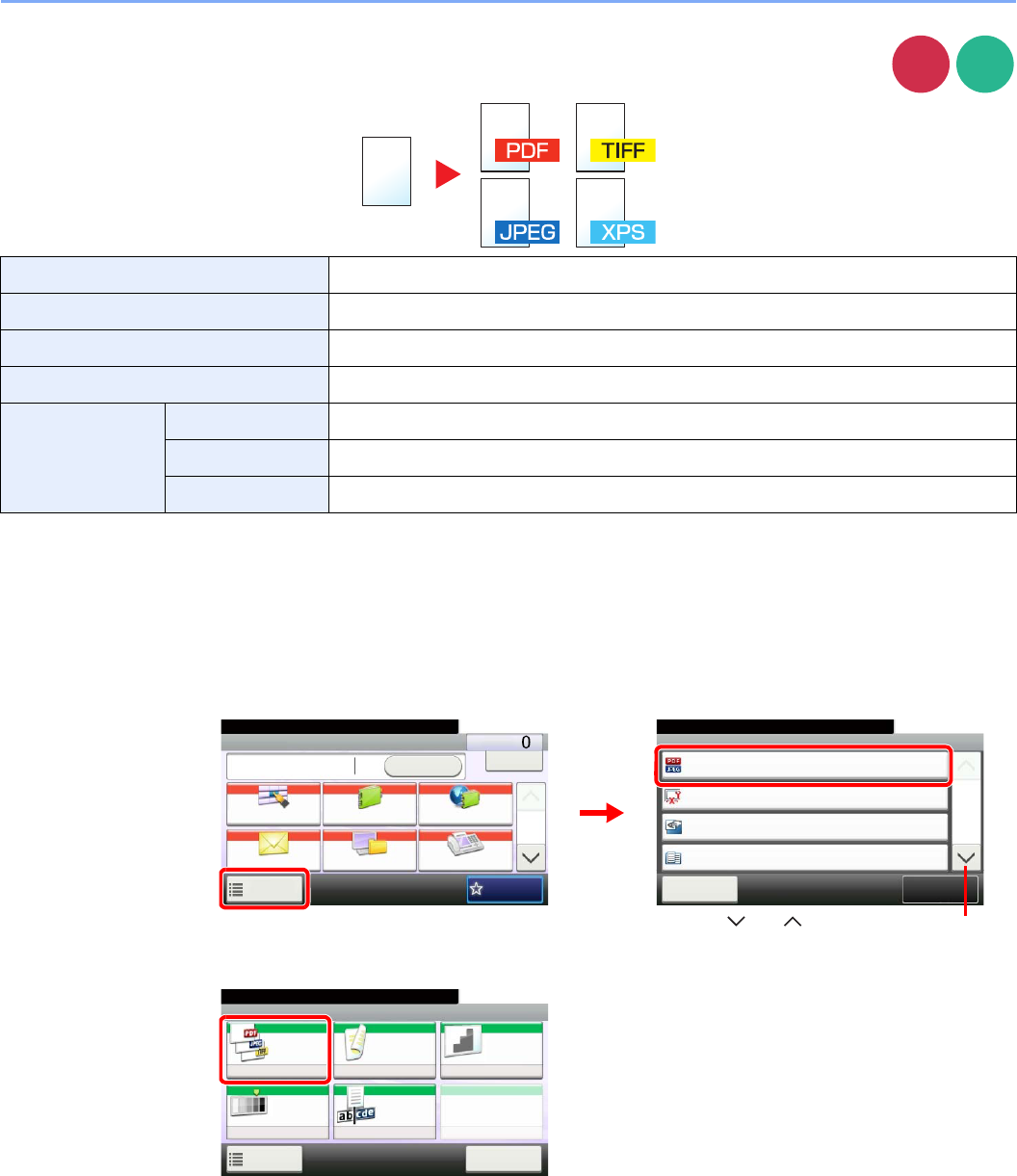
3-57
Common Operations > Using Various Functions
File Format
Specify the image file format. In addition, you can adjust the image quality level.
1Display the screen.
1Referring to Using Various Functions on page 3-30, display the screen.
2
PDF Saves or sends a PDF file. You can specify the format that comply with PDF/A.
TIFF Saves or sends a TIFF file.
JPEG Saves or sends a JPEG file. Each page will be saved individually.
XPS Saves or sends a file in XPS.
Others File Format Select from PDF, TIFF, JPEG, and XPS.
Image Quality Set the image quality from [1] to [5] (Low Quality - High Quality).
PDF/A*
* This setting is displayed only when [PDF] has been selected as the file format.
Set PDF/A from [PDF/A-1a] and [PDF/A-1b].
Send
Scan to
USB
Ready to send.
Functions
File Format
PDF
Close
10:10
Original Size
Off
Top Edge on Top
Original Orientation
Mixed Size Originals
1/6
Add/Edit
Shortcut
Auto
Send Dest. :
Recall Check
E-mail
One Touch Key Address Book Ext Address Book
FAXFolder
Functions
10:10
1/2
Favorites
Ready to send.
GB0055_00
GB0081_00
1
2
Send
Use [ ] or [ ] to scroll up and down.
Ready to store in Box.
Store File
File
Format
2-sided/
Book
Scan
Resolution
Density File Name
Entry
Normal 0
PDF 1-sided 300x300dpi
doc
Functions
10:10
Cancel
Scan to USB
GB0096_00
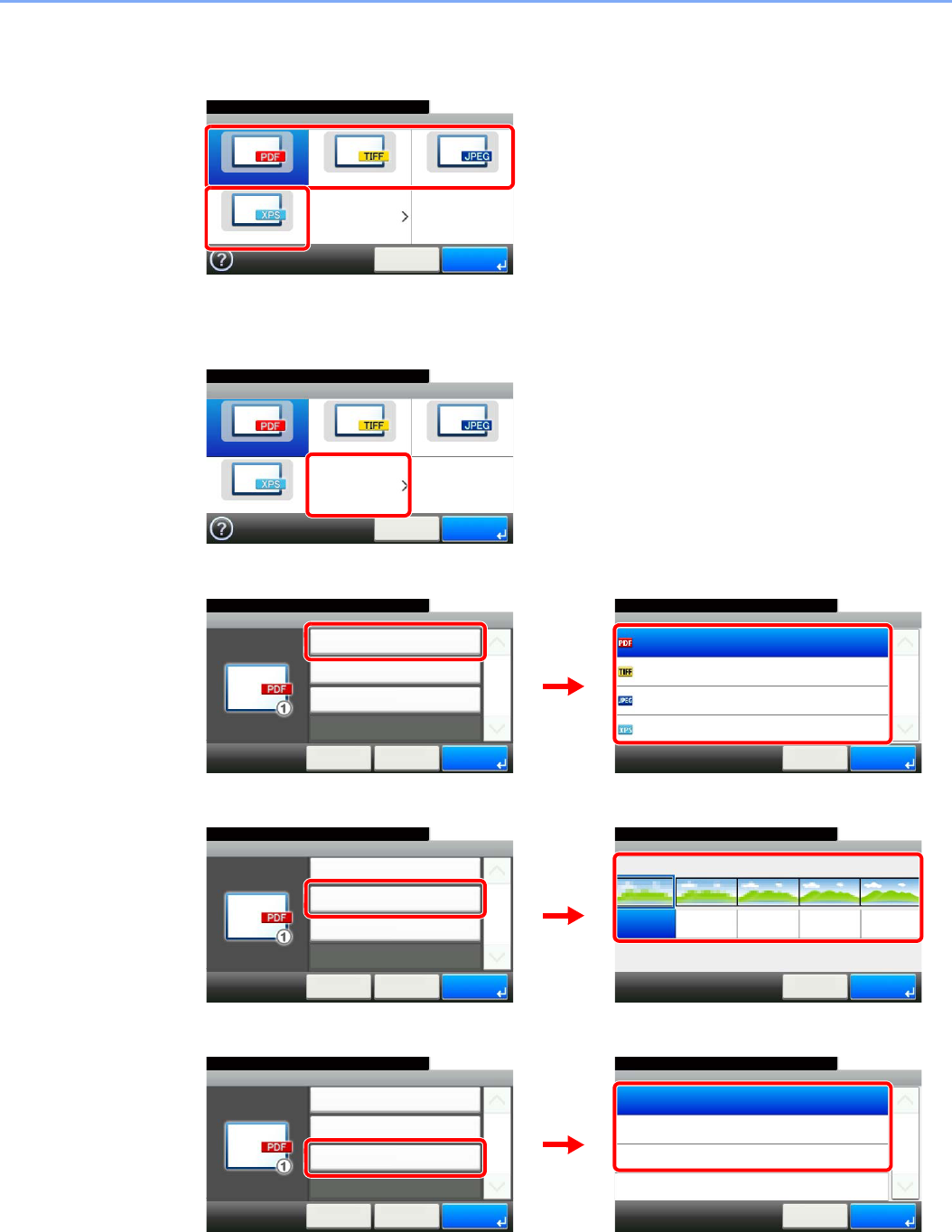
3-58
Common Operations > Using Various Functions
2Select the file format.
[PDF], [TIFF], [JPEG], or [XPS]
[Others]
1
2Select the file format.
3Set the image quality.
4Set PDF/A.
File Format
PDF TIFF JPEG
XPS Others
10:10
Cancel Next >
Ready to send.
GB0082_00
GB0082_00
File Format
PDF TIFF JPEG
XPS Others
10:10
Cancel Next >
Ready to send.
File Format - File Format
PDF
10:10
TIFF
JPEG
XPS
1/1
OK
OKCancel
Ready to send.
File Format - Others
File Format
10:10
Cancel
Ready to send.
Image Quality
PDF/A
< Back
1/1
OK
PDF
1
Off
GB0698_00
GB0145_00
2
1
File Format - Image Quality
10:10
Low Quality
Cancel
1
High Quality
2345
OK
Ready to send.
GB0698_00
GB0083_00
File Format - Others
File Format
10:10
Cancel
Ready to send.
Image Quality
PDF/A
< Back
1/1
OK
PDF
1
Off
1
2
10:10
PDF/A-1a
PDF/A-1b
Off
Cancel
1/1
OK
File Format - PDF/A
Ready to send.
GB0698_00
GB0699_00
File Format - Others
File Format
10:10
Cancel
Ready to send.
Image Quality
PDF/A
< Back
1/1
OK
PDF
1
Off
1
2
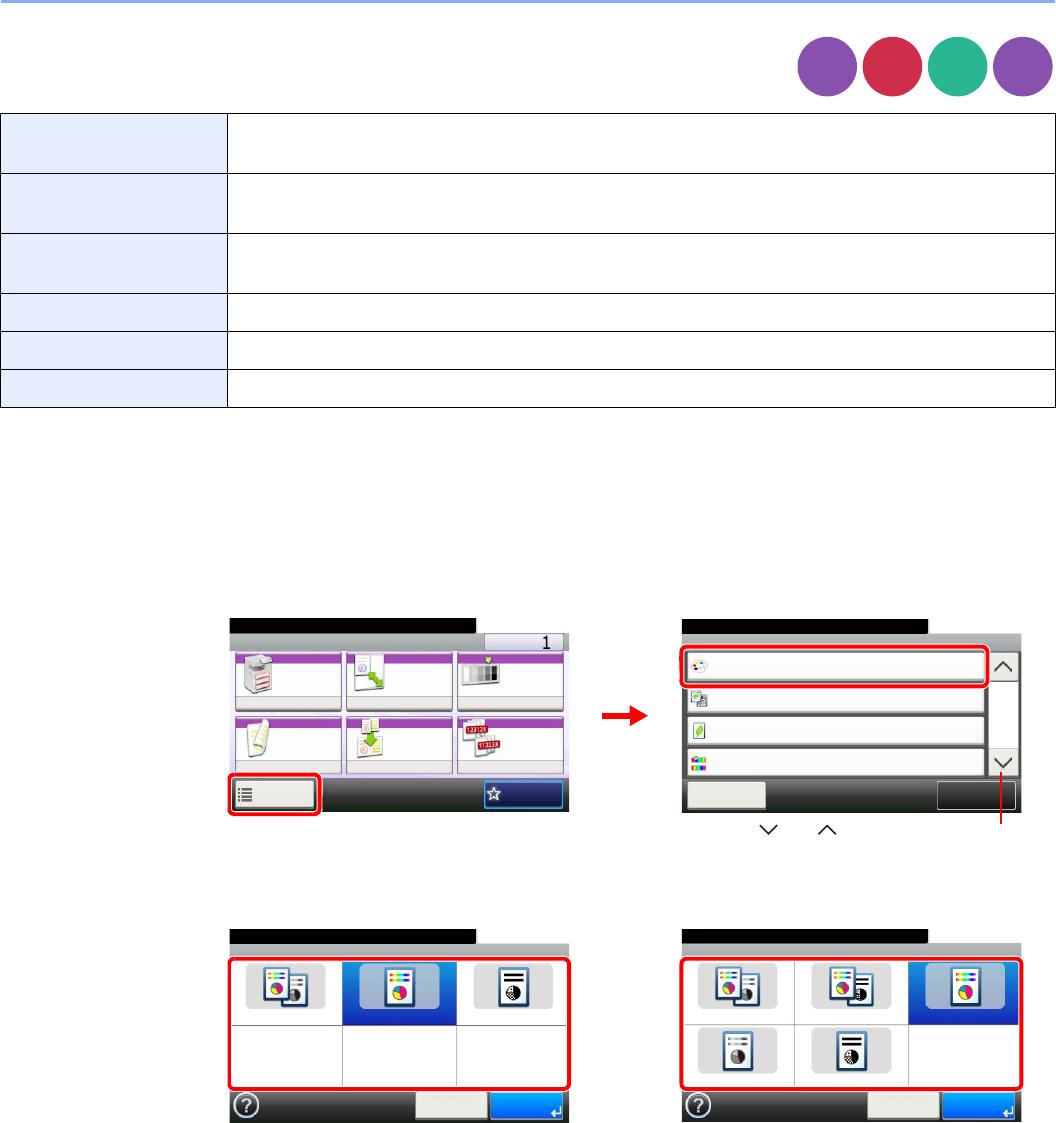
3-59
Common Operations > Using Various Functions
Color Selection
Select the color mode setting.
1Display the screen.
1Referring to Using Various Functions on page 3-30, display the screen.
2Press [Functions] and then [Color Selection].
2Select the color mode.
Auto Color*
* This function is displayed while copying or printing.
Automatically recognizes whether a document is color or black and white, and then scans the
document.
Auto (Color/Gray)**
** This function is displayed while sending or storing.
Automatically detects whether the document is color or black and white, and scan color documents in
Full Color and black and white documents in Grayscale.
Auto (Color/B & W)** Automatically recognize whether the document is color or black and white, and scan color documents
in Full Color and black and white documents in Black and White.
Full Color Scan document in full color.
Grayscale** Scan document in grayscale for smoother and finer finish.
Black & White Scan document in black and white. File size is smaller than Full Color or Grayscale.
Copy
Send Scan to
USB
Print from
USB
Ready to copy. (Full Color)
Functions
Original Image
Text+Photo
Close
10:10
EcoPrint
Off
0
Full Color
Color Selection
Hue Adjustment
2/5
Add/Edit
Shortcut
Ready to copy. (Full Color)
Copy Copies
Paper
Selection
Zoom Density
Duplex Combine Collate/
Offset
1-sided>>1-sided
Auto 100% Normal 0
CollateOff
Functions
10:10
Favorites
GB0001_01
GB0002_01
1
2
Use [ ] or [ ] to scroll up and down.
Ready to send.
Color Selection
Auto (Color/Gray) Auto (Color/B & W) Full Color
Grayscale Black & White
10:10
Cancel OK
GB0022_01
Ready to copy. (Full Color)
Color Selection
Auto Color Full Color Black & White
10:10
Cancel OK
GB0022_00
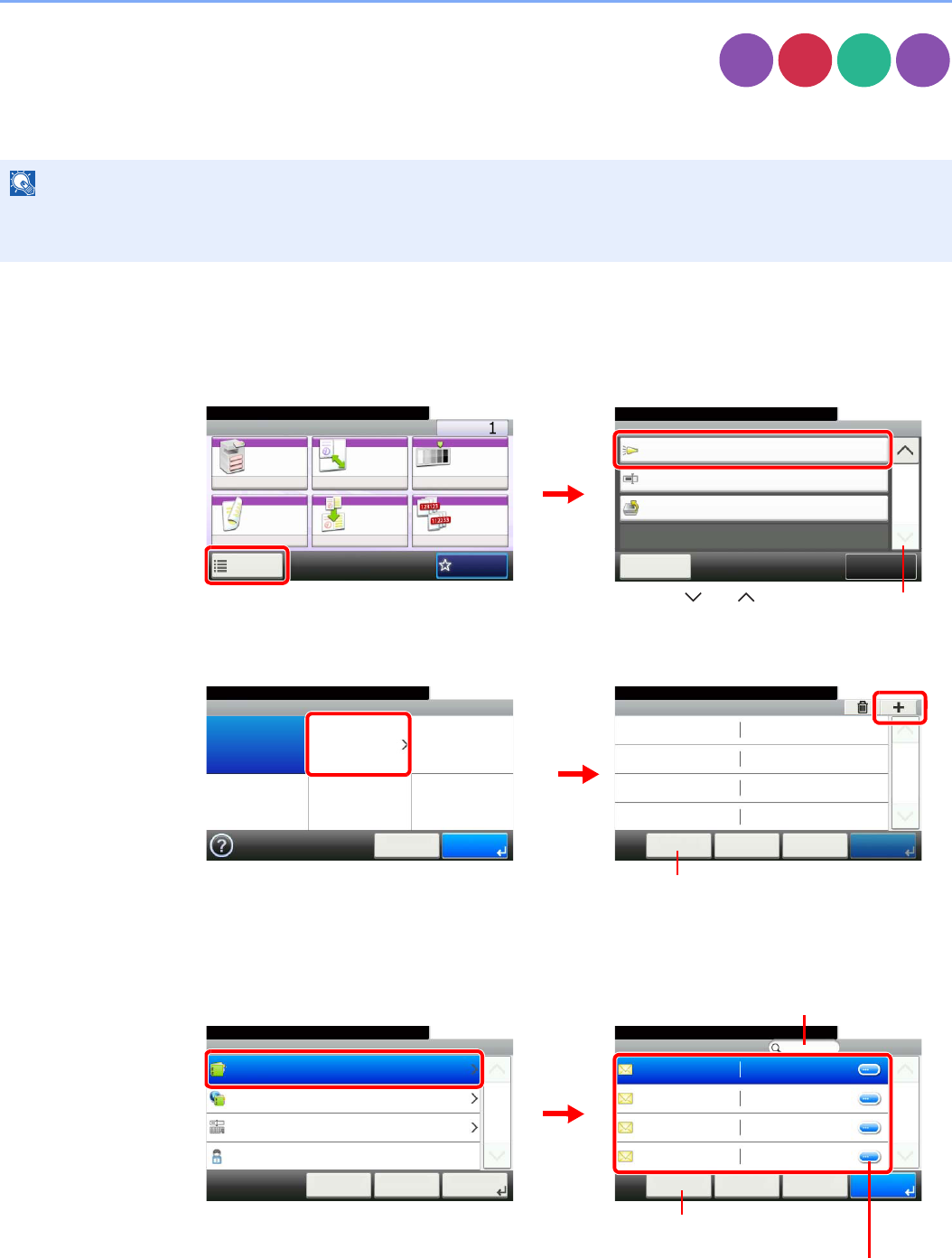
3-60
Common Operations > Using Various Functions
Job Finish Notice
Send e-mail notice when a job is complete.
User can be notified of the completion of a copy job while working at a remote desk, saving the time spent waiting beside
the machine for copying to finish.
1Display the screen.
1Referring to Using Various Functions on page 3-30, display the screen.
2Press [Functions] and then [Job Finish Notice].
2Select the function.
3Select the destination.
Select an e-mail address from the address book.
NOTE
PC should be configured in advance so that E-mail can be used.
Email can be sent to a single destination.
Copy
Send Scan to
USB
Print from
USB
Ready to copy. (Full Color)
Functions
Job Finish Notice
Off
Close
10:10
File Name Entry
doc
Off
Priority Override
5/5
Add/Edit
Shortcut
Ready to copy. (Full Color)
Copy Copies
Paper
Selection
Zoom Density
Duplex Combine Collate/
Offset
1-sided>>1-sided
Auto 100% Normal 0
CollateOff
Functions
10:10
Favorites
GB0001_01
GB0002_04
2
1
Use [ ] or [ ] to scroll up and down.
Ready to copy. (Full Color)
Job Finish Notice
Off On
10:10
Cancel OK
GB0063_00
Job Finish Notice - Destination
10:10Ready to copy. (Full Color)
< BackCancel OK
1/1
GB0938_00
2
1
Allows you to add, edit, or delete a destination.
Job Finish ... - Address Book
10:10Ready to copy. (Full Color)
AAA
Menu
1/1
OK
aaa@abc.com
BBB bbb@abc.com
CCC ccc@abc.com
DDD ddd@abc.com
Cancel < Back
Ready to copy. (Full Color)
Job Finish Notice - Settings
Address Book
10:10
Ext. Address Book
Address Entry
My Address
1/1
OK
Next >< BackCancel
GB0064_00
GB0398_00
Displays details for individual destinations.
Searches by destination name.
Allows you to search for and sort
destinations.
2
1
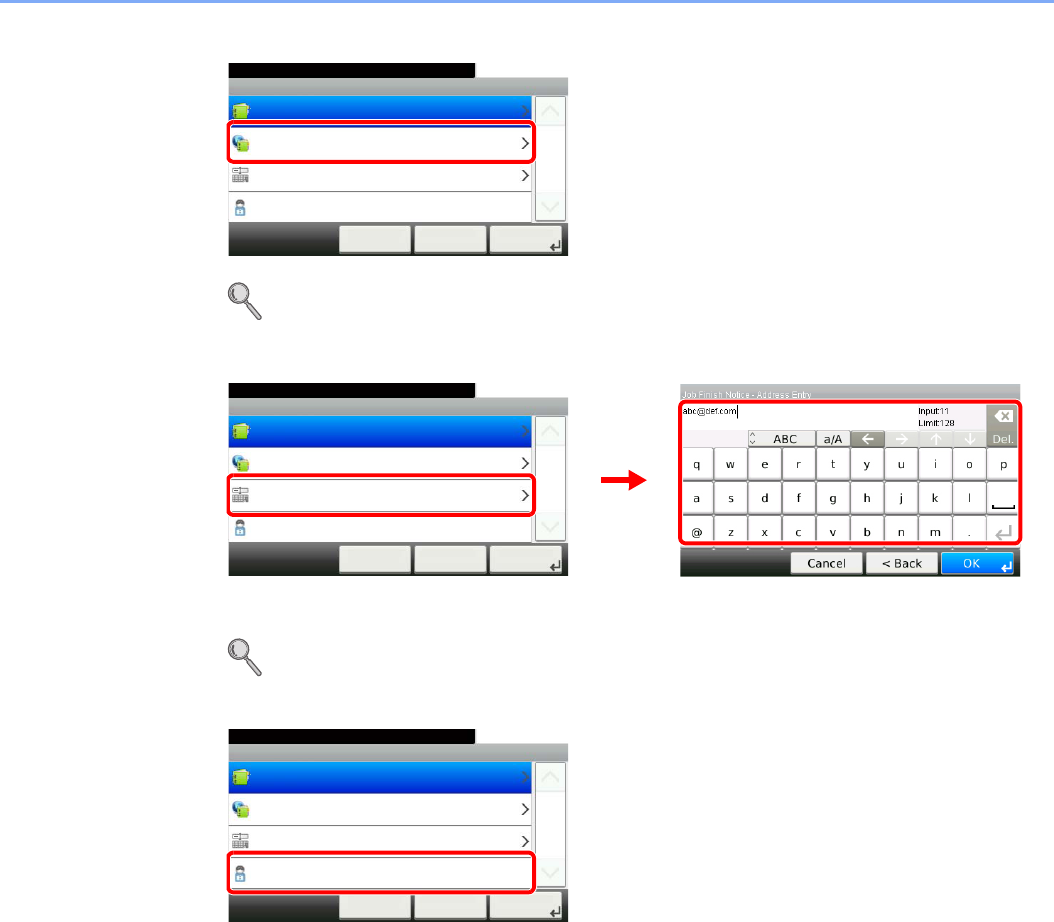
3-61
Common Operations > Using Various Functions
Select the e-mail address from an external address book.
For details on the External Address Book, refer to KYOCERA COMMAND CENTER Operation
Guide.
Enter the e-mail address directly.
Up to 128 characters can be entered.
Refer to Character Entry Method on page 11-7 for details on entering characters.
Uses the e-mail address of the logged in user.
This setting is displayed when using user login administration.
4Accept the destinations.
Press [OK].
GB0064_00
Ready to copy. (Full Color)
Job Finish Notice - Settings
Address Book
10:10
Ext. Address Book
Address Entry
My Address
1/1
OK
Next >< BackCancel
GB0064_00
GB0057_05
Ready to copy. (Full Color)
Job Finish Notice - Settings
Address Book
10:10
Ext. Address Book
Address Entry
My Address
1/1
OK
Next >< BackCancel
1
2
GB0064_00
Ready to copy. (Full Color)
Job Finish Notice - Settings
Address Book
10:10
Ext. Address Book
Address Entry
My Address
1/1
OK
Next >< BackCancel
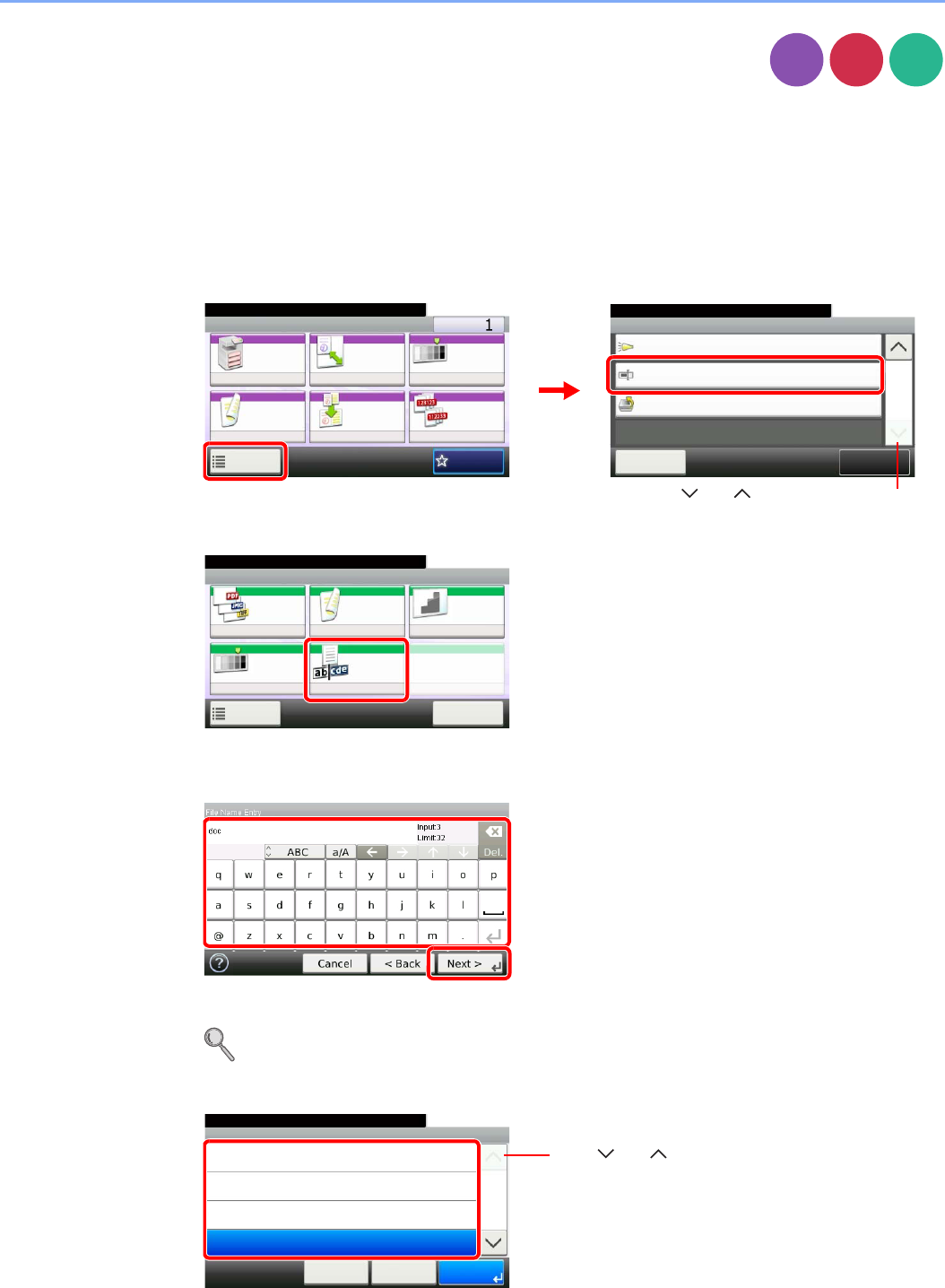
3-62
Common Operations > Using Various Functions
File Name Entry
Add a file name. Additional information such as Job No. and Date and Time can also be set. You
can check a job history or job status using the job name, date and time, or job number specified
here.
1Display the screen.
1Referring to Using Various Functions on page 3-30, display the screen.
2
2Enter the name.
Up to 32 characters can be entered.
Refer to Character Entry Method on page 11-7 for details on entering characters.
3Add other information.
Copy
Send
Scan to
USB
Ready to copy. (Full Color)
Functions
Job Finish Notice
Off
Close
10:10
File Name Entry
doc
Off
Priority Override
5/5
Add/Edit
Shortcut
Ready to copy. (Full Color)
Copy Copies
Paper
Selection
Zoom Density
Duplex Combine Collate/
Offset
1-sided>>1-sided
Auto 100% Normal 0
CollateOff
Functions
10:10
Favorites
GB0001_01
GB0002_04
2
1
Copy/Send
Use [ ] or [ ] to scroll up and down.
Ready to store in Box.
Store File
File
Format
2-sided/
Book
Scan
Resolution
Density File Name
Entry
Normal 0
PDF 1-sided 300x300dpi
doc
Functions
10:10
Cancel
Scan to USB
GB0096_00
GB0057_06
2
1
File Name Entry - Additional Info
10:10Ready to copy. (Full Color)
Date and Time
[Job No.]
[Job No.] & [Date and Time]
None
< BackCancel
1/2
OK
GB0068_00
Use [ ] or [ ] to scroll up and down.
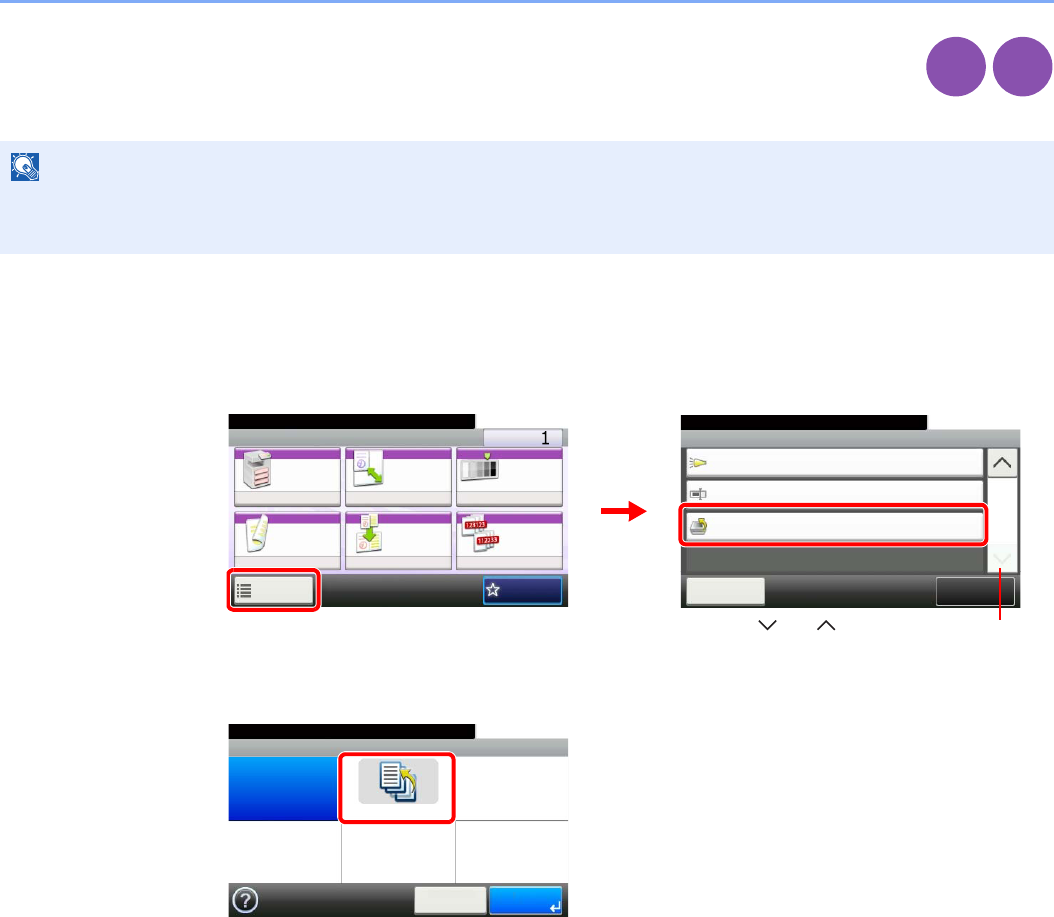
3-63
Common Operations > Using Various Functions
Priority Override
Suspend the current job and give a new job top priority. The suspended job resumes after the other job
is finished.
1Display the screen.
1Referring to Using Various Functions on page 3-30, display the screen.
2Press [Functions] and then [Priority Override].
2Select the function.
NOTE
This function is not available if current job was an override.
Priority override may not be available depending on the status of the current print job and memory usage.
Copy
Print from
USB
Ready to copy. (Full Color)
Functions
Job Finish Notice
Off
Close
10:10
File Name Entry
doc
Off
Priority Override
5/5
Add/Edit
Shortcut
Ready to copy. (Full Color)
Copy Copies
Paper
Selection
Zoom Density
Duplex Combine Collate/
Offset
1-sided>>1-sided
Auto 100% Normal 0
CollateOff
Functions
10:10
Favorites
GB0001_01
GB0002_04
1
2
Use [ ] or [ ] to scroll up and down.
GB0069_00
Priority Override
Off On
10:10
Cancel OK
Ready to copy. (Full Color)

3-64
Common Operations > Using Various Functions
4-1
4 Copying
This chapter explains the following topics:
Basic Operation ................................................................................................................................................. 4-2
Copying Functions ............................................................................................................................................. 4-4
Zoom ........................................................................................................................................................ 4-5
Duplex ...................................................................................................................................................... 4-8
Combine ................................................................................................................................................ 4-12
EcoPrint ................................................................................................................................................. 4-15
Hue Adjustment ..................................................................................................................................... 4-16
Color Balance ........................................................................................................................................ 4-17
Saturation .............................................................................................................................................. 4-18
Auto Image Rotation .............................................................................................................................. 4-19
Interrupt Copy .................................................................................................................................................. 4-20
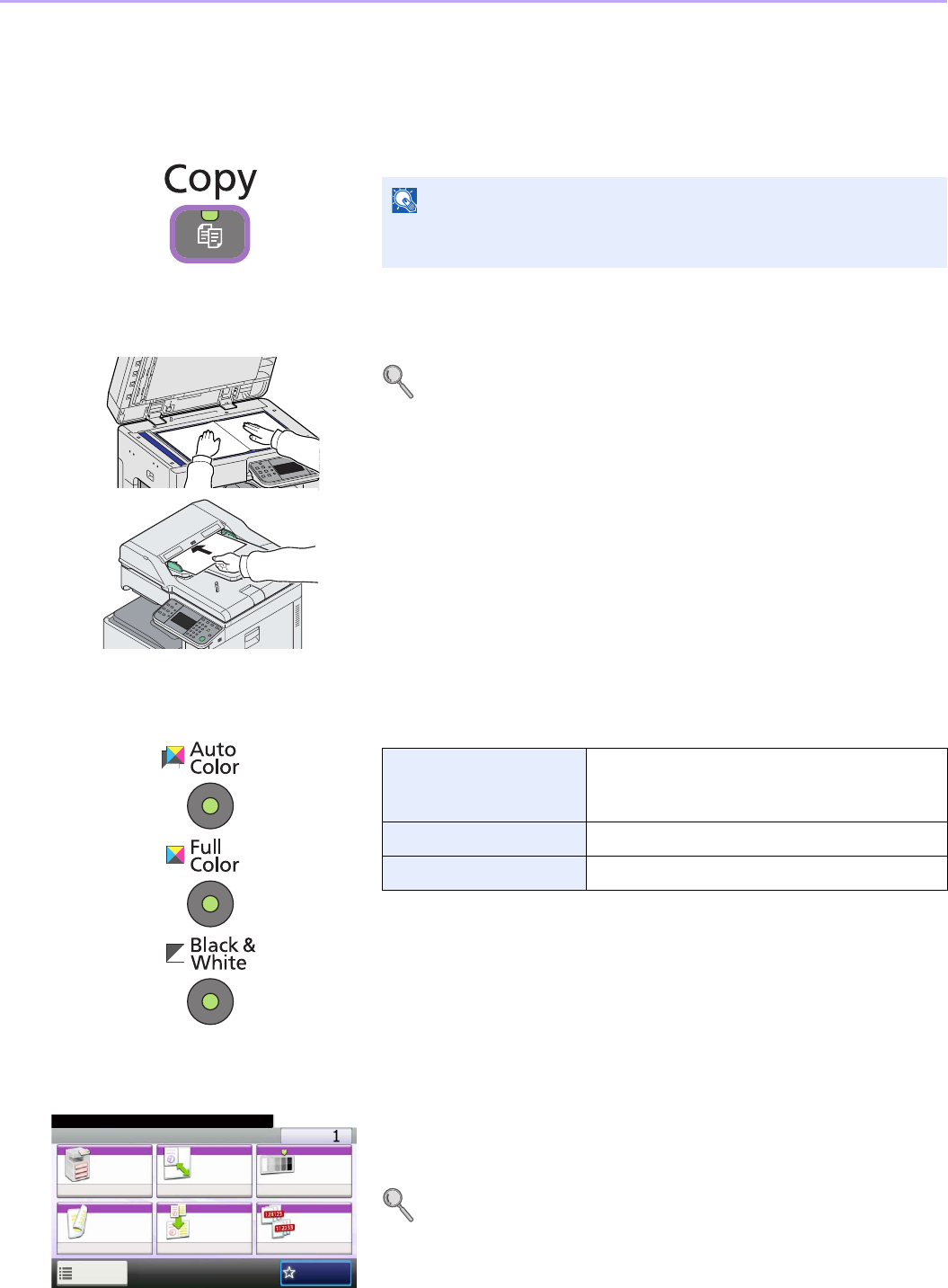
4-2
Copying > Basic Operation
Basic Operation
1Press the Copy key
2Place the originals
For details, refer to Loading Originals on page 3-7.
3Selecting color mode
4Selecting the functions
Select the copier’s functions to use.
Press [Functions] to display other functions.
Refer to Copying Functions on page 4-4.
NOTE
If the touch panel is turned off, press the Energy Saver key or the
Power key and wait for the machine to warm up.
Auto Color Automatically recognizes whether a document is
color or black & white and then scans the
document.
Full Color Scans all documents in full color.
Black & White Scans all documents in black & white.
Ready to copy. (Full Color)
Copy Copies
Paper
Selection
Zoom Density
Duplex Combine Collate/
Offset
1-sided>>1-sided
Auto 100% Normal 0
CollateOff
Functions
10:10
Favorites
GB0001_01
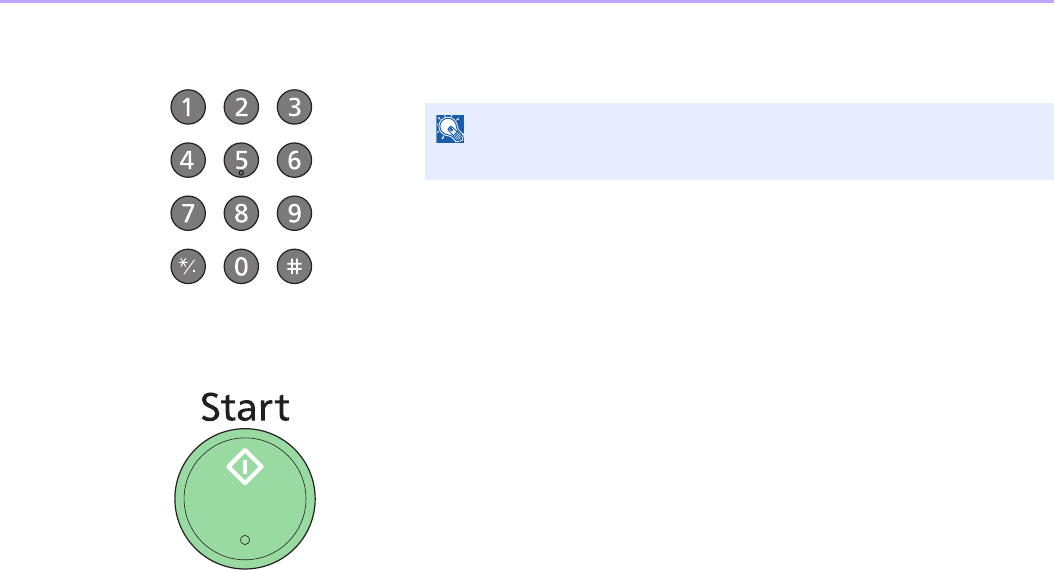
4-3
Copying > Basic Operation
5Entering the copy quantity
6Start copying
Press the Start key to start copying.
NOTE
Press the Clear key to change the copy quantity.

4-4
Copying > Copying Functions
Copying Functions
Copy screen shows the commonly used functions. By pressing [Functions], other selectable functions will be shown as
a list. Use [ ] or [ ] to select the function.
What do you want to do? Reference Page
Specify the paper size and type. Paper Selection X page 3-41
Reduce or enlarge the original. Zoom X page 4-5
Adjust the density. Density X page 3-50
Copy on both sides of the paper. Duplex X page 4-8
Combine 2 or 4 originals into 1 sheet. Combine X page 4-12
Collate the output documents in page order.
Offset the output documents by set.
Collate/Offset X page 3-43
Specify the original size. Original Size X page 3-32
Specify the original orientation to scan in the correct direction. Original Orientation X page 3-34
Copy mixed size originals. Mixed Size Originals X page 3-35
Change the paper output. Paper Output X page 3-42
Staple in the output documents. Staple X page 3-48
Change the color mode. Color Selection X page 3-59
Select original image type for best results. Original Image X page 3-52
Save toner when printing. EcoPrint X page 4-15
Make a copy after changing the appearance of the original's colors. Hue Adjustment X page 4-16
Adjust colors, for example by strengthening cyan or magenta tones. Color Balance X page 4-17
Emphasize the outline of texts or lines.
Blur the image outline.
Sharpness X page 3-53
Darken or lighten the background (i.e., the area with no text or images) of originals. Background Density Adjust X
page 3-54
Prevent bleed-through for 2-sided originals. Prevent Bleed-through X page 3-55
Make a copy with more vivid colors. Saturation X page 4-18
Add margins (white space). Margin X page 3-45
Scan a large number of originals separately and then produce as one job. Continuous Scan X page 3-39
Automatically rotate the scanned image to match the paper orientation. Auto Image Rotation X page 4-19
Send notice by e-mail when a job is complete. Job Finish Notice X page 3-60
Add a file name to the job to easily check its status. File Name Entry X page 3-62
Suspend the current job and override it to give a new job top priority. Priority Override X page 3-63
Pause the current jobs and make copies immediately. Interrupt Copy X page 4-20
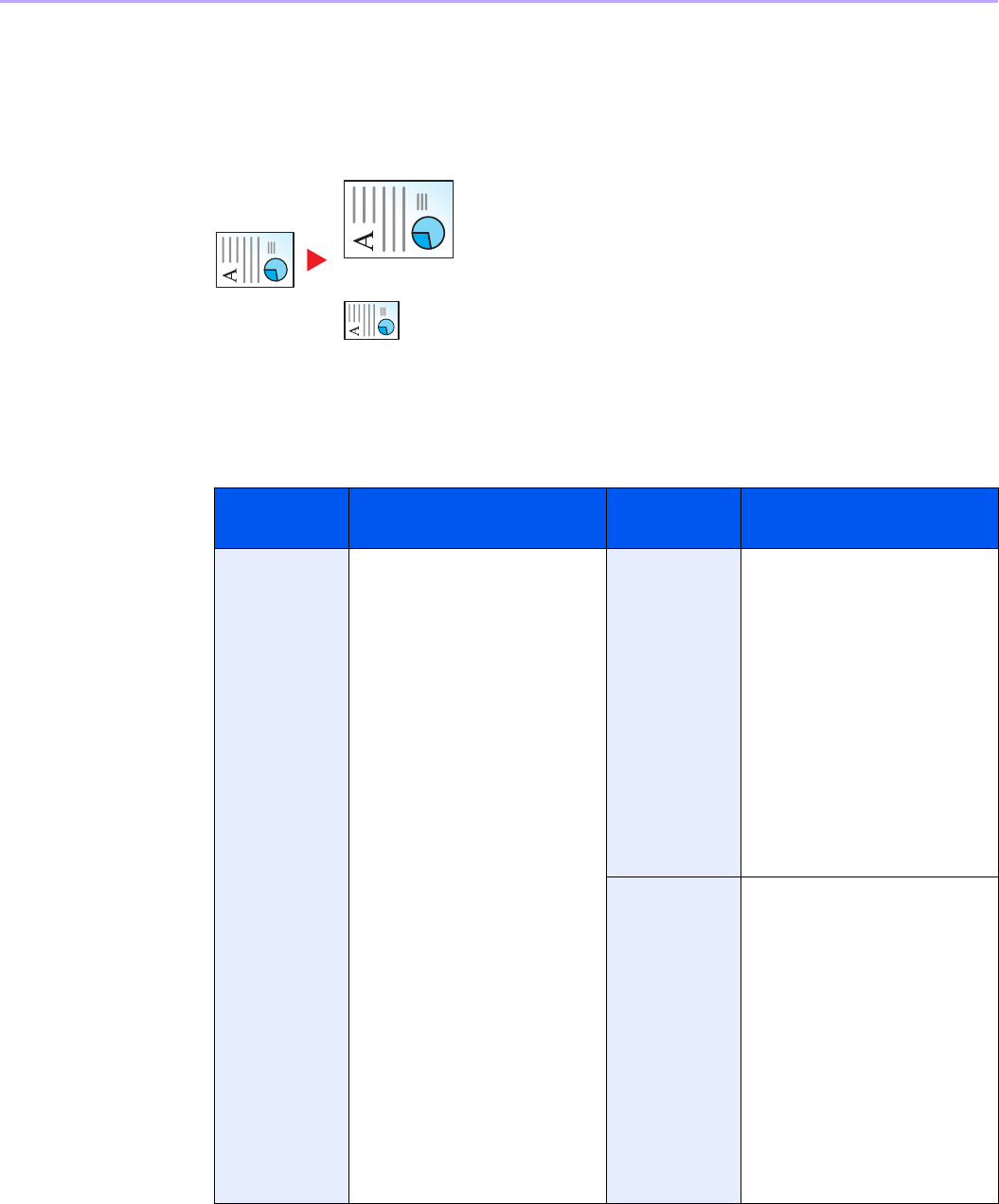
4-5
Copying > Copying Functions
Zoom
Adjust the zoom to reduce or enlarge the image.
Auto
Adjusts the image to match the paper size.
Standard Zoom
Adjusts the image to match present sizes.
Model Zoom Level (Original
Copy)
Model Zoom Level (Original
Copy)
Inch Models Auto
400% (Max.)
200% (STMT >>Ledger)
154%(STMT >> Legal)
129% (Letter >> Ledger)
121% (Legal >> Ledger)
100%
78% (Legal >> Letter)
77% (Ledger >> Legal)
64% (Ledger >> Letter)
50% (Ledger >> STMT)
25% (Min.)
Metric Models Auto
400% (Max.)
200% (A5 >> A3)
141% (A4 >> A3, A5 >> A4)
127% (Folio >> A3)
106% (11×15" >> A3)
100%
90% (Folio >> A4)
75% (11×15" >> A4)
70% (A3 >> A4, A4 >> A5)
50%
25% (Min.)
Metric Models
(Asia Pacific)
Auto
400% (Max.)
200% (A5 >> A3)
141% (A4 >> A3, B5 >> B4)
122% (A4 >> B4, A5 >> B5)
115% (B4 >> A3, B5 >> A4)
100%
86% (A3 >> B4, A4 >> B5)
81% (B4 >> A4, B5 >> A5)
70% (A3 >> A4, B4 >> B5)
50%
25% (Min.)
A4
A3: 141%
A5: 70%
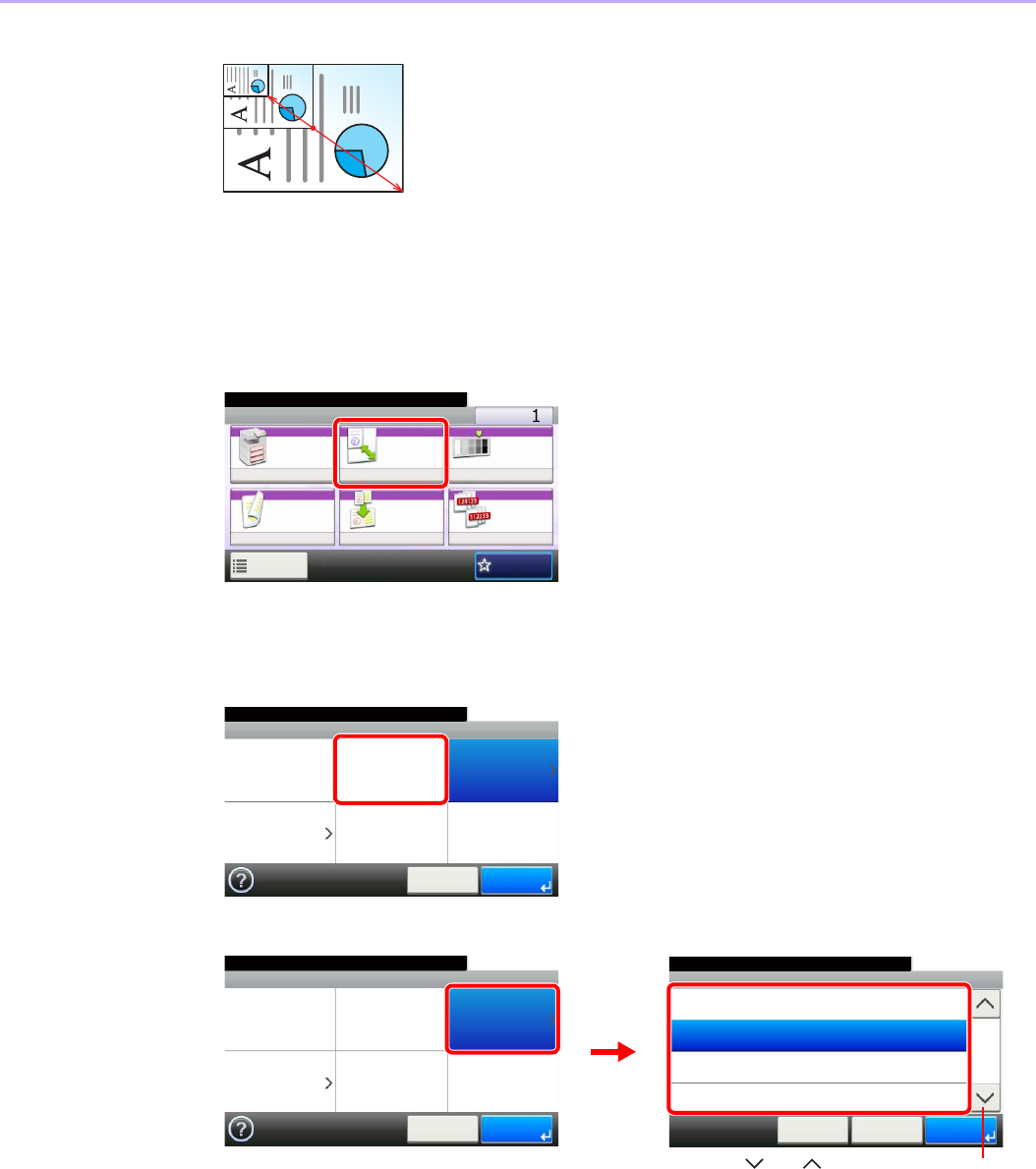
4-6
Copying > Copying Functions
Zoom Entry
Specify the image size in 1% increment between 25% - 400% of the original.
1Display the screen.
1Referring to Basic Operation on page 4-2, display the screen.
2
2Select the function.
[Auto]
[Standard Zoom]
Select the zoom level.
Ready to copy. (Full Color)
Copy Copies
Paper
Selection
Zoom Density
Duplex Combine Collate/
Offset
1-sided>>1-sided
Auto 100% Normal 0
CollateOff
Functions
10:10
Favorites
GB0001_01
Ready to copy. (Full Color)
Zoom
100% Auto Standard Zoom
Zoom Entry
10:10
Cancel Next >
GB0005_00
Zoom - Standard Zoom
10:10Ready to copy. (Full Color)
100%
86% A3>>B4 A4>>B5
81% B4>>A4 B5>>A5
115% B4>>A3 B5>>A4
< BackCancel
2/3
OK
Ready to copy. (Full Color)
Zoom
100% Auto Standard Zoom
Zoom Entry
10:10
Cancel Next >
1
GB0005_00
GB0006_01
2
Use [ ] or [ ] to scroll up and down.
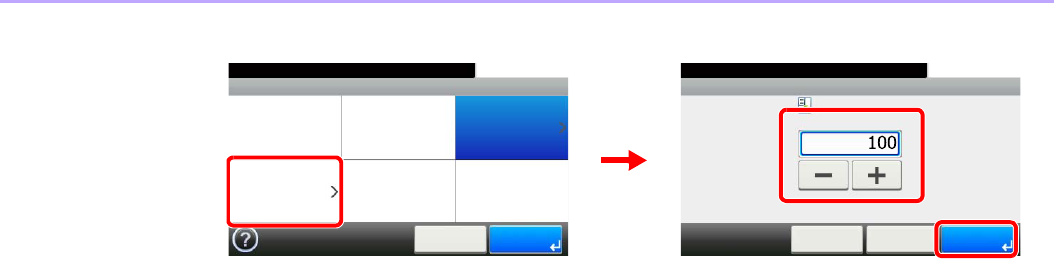
4-7
Copying > Copying Functions
[Zoom Entry]
Enter the magnification.
Zoom - Zoom Entry
10:10Ready to copy. (Full Color)
(25 - 400)
< Back
%
OKCancel
GB0007_00
Ready to copy. (Full Color)
Zoom
100% Auto Standard Zoom
Zoom Entry
10:10
Cancel Next >
1
GB0005_00
3
2
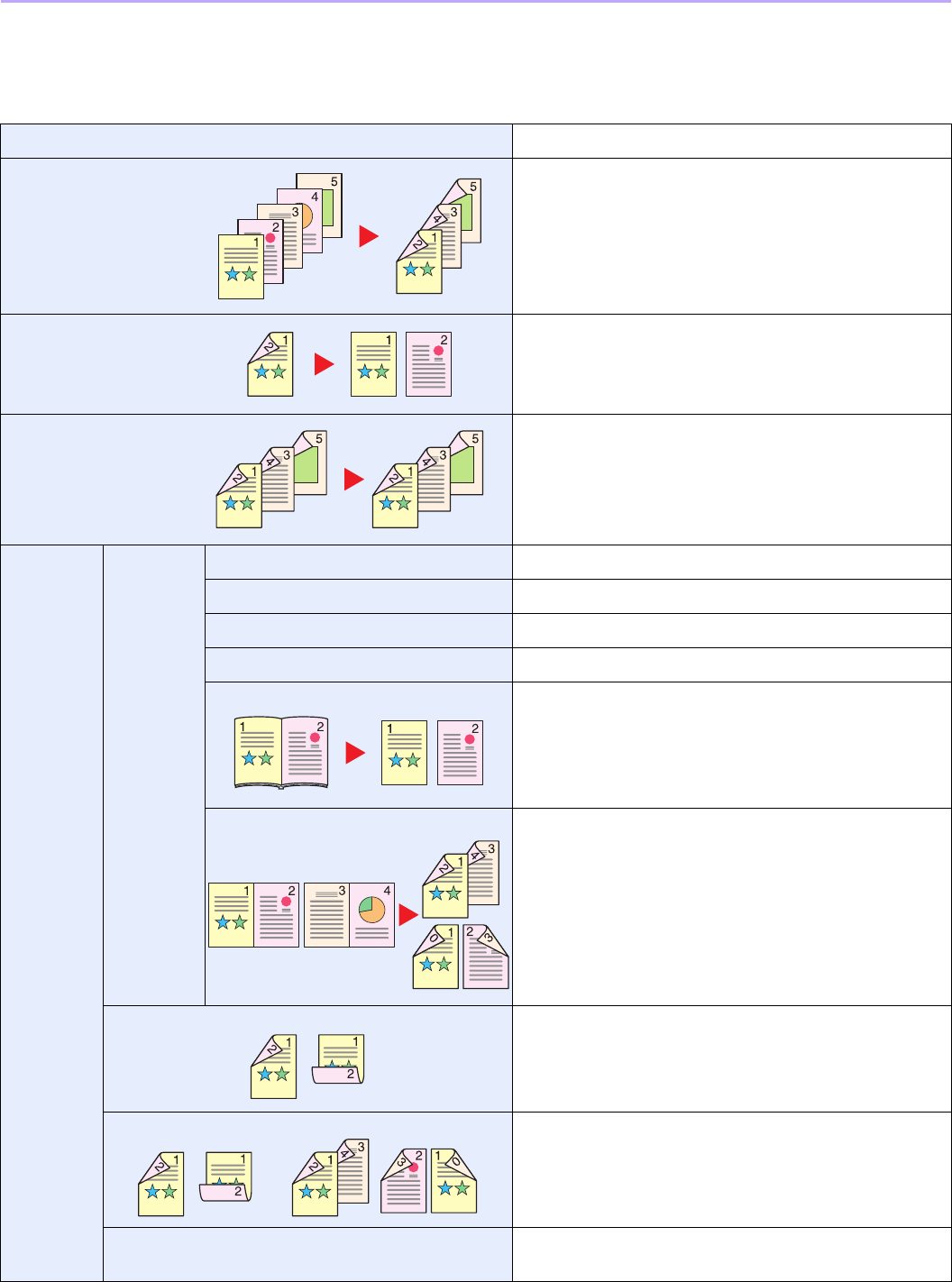
4-8
Copying > Copying Functions
Duplex
Print 1-sided or open book originals to 2-sided, or 2-sided or open book originals to 1-sided. Select the original binding
orientation and desired binding orientation.
1-sided>>1-sided Prints 1-sided to 1-sided.
1-sided>>2-sided Prints 1-sided to 2-sided.
2-sided>>1-sided Prints 2-sided to 1-sided.
2-sided>>2-sided Prints 2-sided to 2-sided.
Others Duplex 1-sided>>1-sided Prints 1-sided to 1-sided.
1-sided>>2-sided Prints 1-sided to 2-sided.
2-sided>>1-sided Prints 2-sided to 1-sided.
2-sided>>2-sided Prints 2-sided to 2-sided.
Book>>1-sided Prints open book originals to 1-sided.
Book>>2-sided Prints open book originals to 2-sided.
Binding in Original If you choose a 2-sided sheet original, select the binding
edge of the originals.
Binding in Finishing If you choose a 2-sided copy, select the binding edge of the
finished copies.
If you choose a 2-sided copy of a book, select the setting
for duplex.
Original Orientation*
* This item is not displayed when [1-sided>>1-sided], [Book>>1-sided] or [Book>>2-sided] is selected.
Select the orientation of the original document top edge to
scan correct direction.
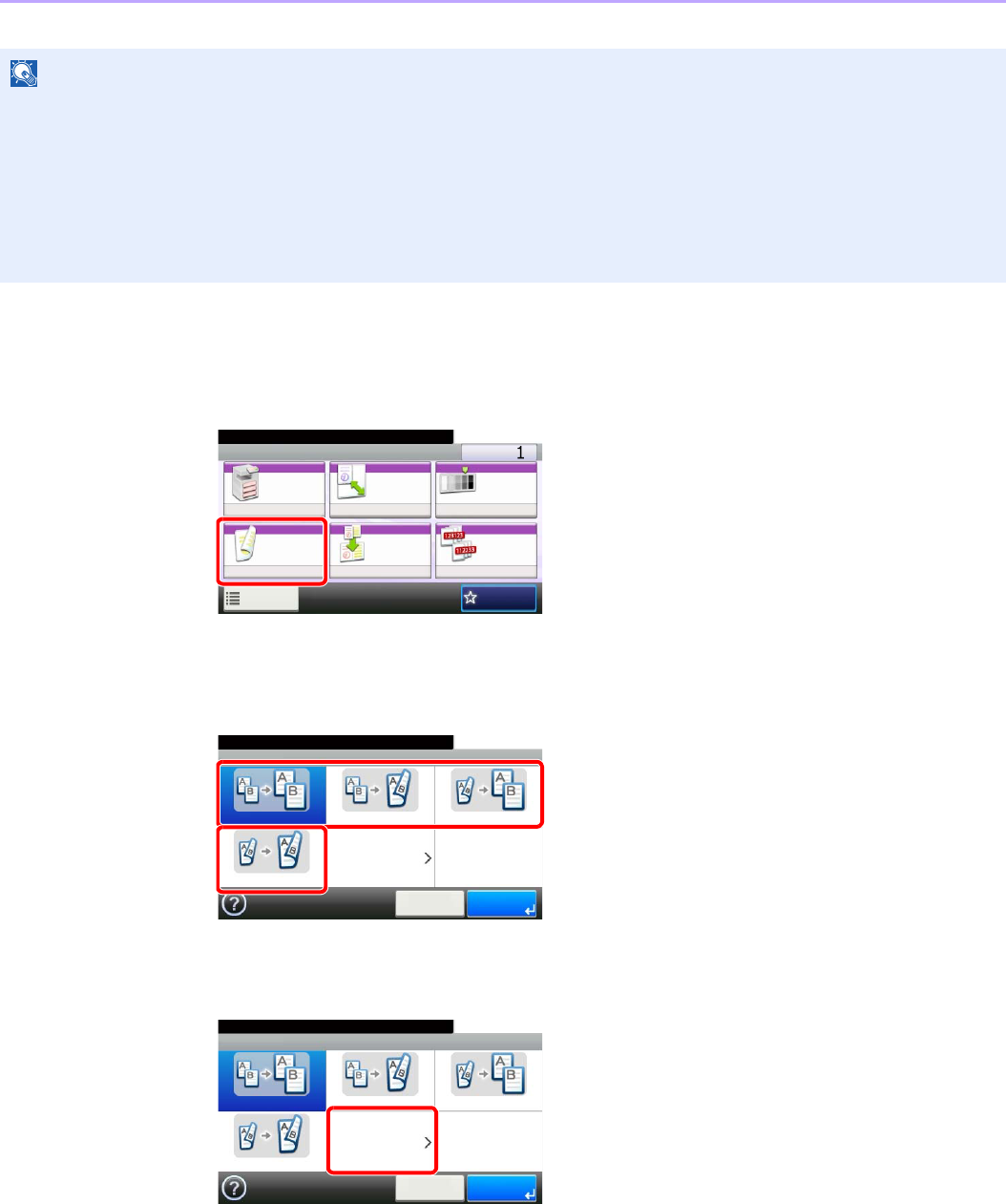
4-9
Copying > Copying Functions
1Display the screen.
1Referring to Basic Operation on page 4-2, display the screen.
2
2Select the function.
[1-sided>>1-sided], [1-sided>>2-sided], [2-sided>>1-sided], or [2-sided>>2-sided]
[Others]
1
NOTE
The paper sizes supported in Two-sided to Two-sided are Ledger, Letter-R, Letter, Legal, Executive, Statement-R,
Oficio II, A3, A4-R, A4, A5-R, B4, B5-R, B5, Folio and 216 × 340 mm.
The following sizes of originals and paper are supported in Book to Two-sided mode. Original: Ledger, Letter-R,
Statement-R, A3, A4-R, A5-R, B4, B5-R and 8K. Paper: Letter, A4 and B5.
The following sizes of originals and paper are supported in Two-sided to One-sided and Book to One-sided. Original:
Ledger, Letter-R, Statement-R, A3, A4-R, A5-R, B4, B5-R and 8K. Paper: Letter, A4, B5 and 16K. You may change
paper size and reduce or enlarge copy to match that size.
Ready to copy. (Full Color)
Copy Copies
Paper
Selection
Zoom Density
Duplex Combine Collate/
Offset
1-sided>>1-sided
Auto 100% Normal 0
CollateOff
Functions
10:10
Favorites
GB0001_01
Ready to copy. (Full Color)
Duplex
1-sided>>1-sided 1-sided>>2-sided 2-sided>>1-sided
2-sided>>2-sided Others
10:10
Cancel OK
GB0009_00
GB0009_00
Ready to copy. (Full Color)
Duplex
1-sided>>1-sided 1-sided>>2-sided 2-sided>>1-sided
2-sided>>2-sided Others
10:10
Cancel OK
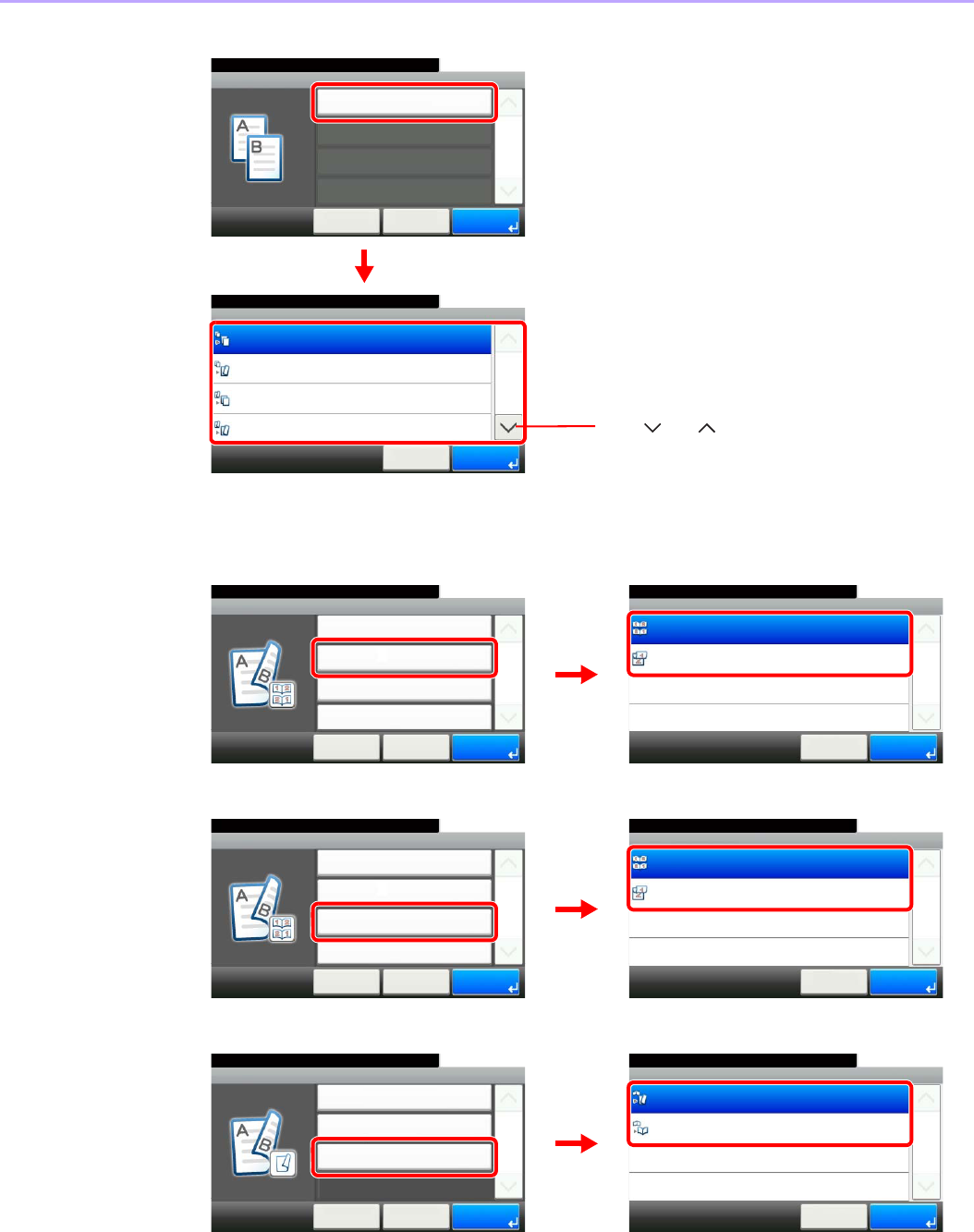
4-10
Copying > Copying Functions
2Select the desired Duplex option.
If you choose a 2-sided sheet or book, proceed to Step 3. If you choose duplex, proceed to
Step 4. If you choose [Book >> 2-sided], proceed to Step 5.
3Select the binding edge of the originals.
4Select the binding edge of the finished copies.
5Select the binding edge of the finished copies.
Ready to copy. (Full Color)
Duplex - Duplex
1-sided>>1-sided
10:10
1-sided>>2-sided
2-sided>>1-sided
2-sided>>2-sided
1/2
OK
OKCancel
Duplex - Duplex
Duplex
10:10
Cancel
Ready to copy. (Full Color)
< Back
1/1
OK
1-sided>>1-sided
GB0010_00GB0024_00
1
2
Use [ ] or [ ] to scroll up and down.
Ready to copy. (Full Color)
Duplex - Binding in Original
Left/Right
10:10
Top
1/1
OK
OKCancel
Duplex - Duplex
Duplex
10:10
Cancel
Binding in Original
< Back
1/1
OK
2-sided>>2-sided
Left/Right
Binding in Finishing
Left/Right
Original Orientation
Top Edge on Top
Ready to copy. (Full Color)
GB0010_01
GB0181_00
12
Duplex - Binding in Finishing
10:10
Top
Left/Right
Cancel
1/1
OK
Ready to copy. (Full Color)
Duplex - Duplex
Duplex
10:10
Cancel
Binding in Original
< Back
1/1
OK
2-sided>>2-sided
Left/Right
Binding in Finishing
Left/Right
Original Orientation
Top Edge on Top
Ready to copy. (Full Color)
GB0010_01
GB0012_00
1
2
Duplex - Binding in Finishing
10:10Ready to copy. (Full Color)
Book>>Book
Book>>2 sided
Cancel
1/1
OK
Duplex - Duplex
Duplex
10:10
Cancel
Binding in Original
< Back
1/1
OK
Book>>2-sided
Left
Binding in Finishing
Book>>2-sided
Original Orientation
Ready to copy. (Full Color)
GB0010_02
GB0012_01
1
2
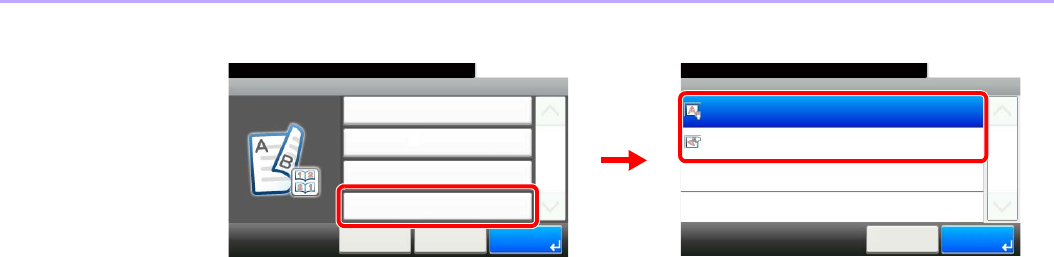
4-11
Copying > Copying Functions
6Select the original orientation.
Duplex - Original Orientation
10:10Ready to copy. (Full Color)
Top Edge on Left
Top Edge on Top
Cancel
1/1
OK
Duplex - Duplex
Duplex
10:10
Cancel
Binding in Original
< Back
1/1
OK
2-sided>>2-sided
Left/Right
Binding in Finishing
Left/Right
Original Orientation
Top Edge on Top
Ready to copy. (Full Color)
GB0010_01
GB0015_03
12
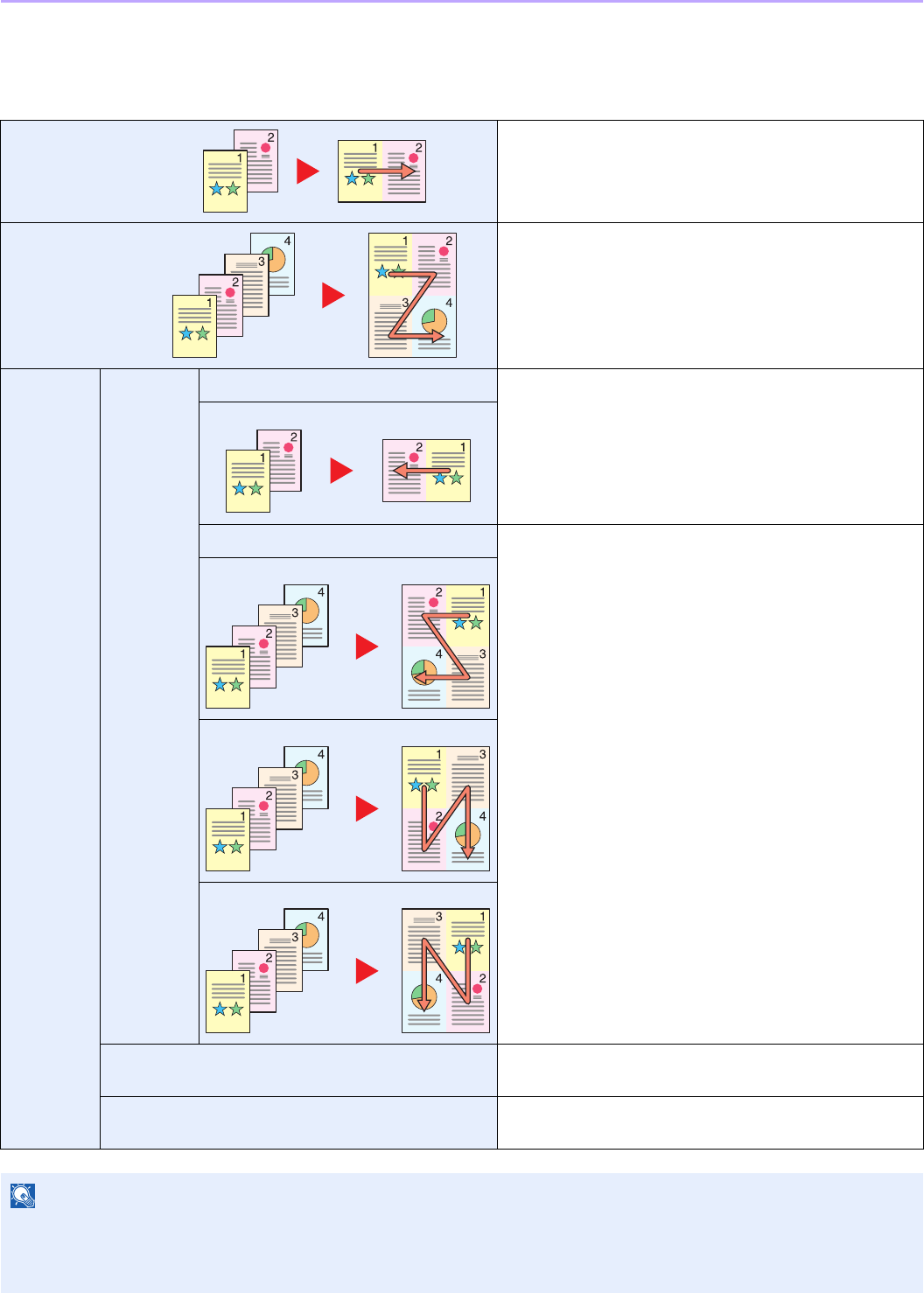
4-12
Copying > Copying Functions
Combine
Combine 2 or 4 original sheets into 1 copied page. You can select the page layout or the type of boundary lines around
the pages.
2 in 1 Copies 2 originals onto each page.
4 in 1 Copies 4 originals onto each page.
Other
Settings
Combine 2 in 1 (L to R/T to B) Copies 2 originals onto each page.
2 in 1 (R to L/B to T)
4 in 1 (Right then Down) Copies 4 originals onto each page.
4 in 1 (Left then Down)
4 in 1 (Down then Right)
4 in 1 (Down then Left)
Border Line Sets the boundary line type to a solid line, dotted line, or
positioning mark.
Original Orientation Select the orientation of the original document top edge to
scan correct direction.
NOTE
Combine mode is available for the copy paper sizes of A3, A4-R, A4, A5-R, B4, B5-R, B5, Folio, 216 × 340 mm,
Ledger, Letter-R, Letter, Legal, Statement-R, Oficio II, 8K, 16K-R and 16K.
When placing the original on the platen, be sure to copy the originals in page order.
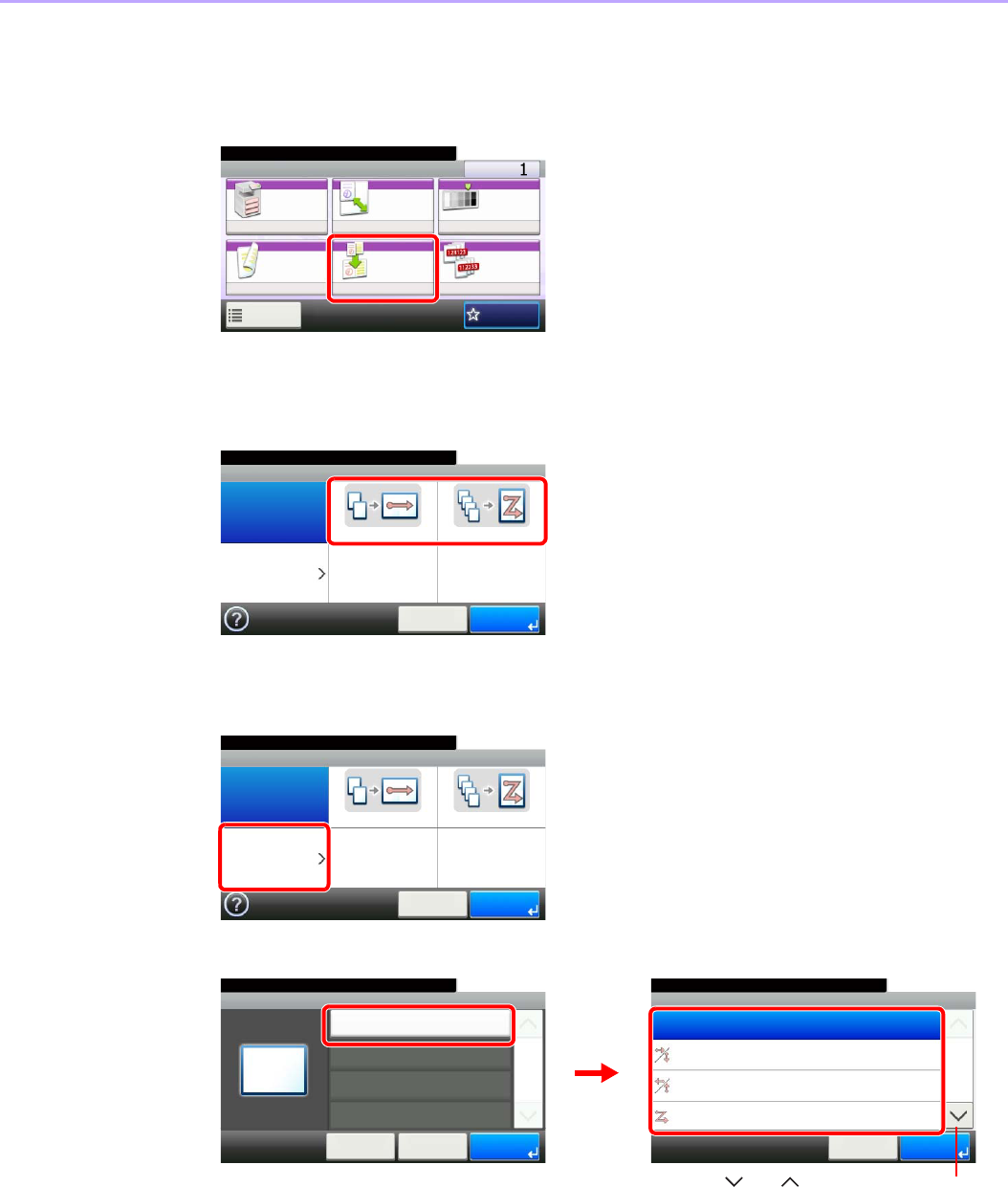
4-13
Copying > Copying Functions
1Display the screen.
1Referring to Basic Operation on page 4-2, display the screen.
2
2Select the function.
[2 in 1] or [4 in 1]
[Others]
1
2Select the desired Combine option.
Ready to copy. (Full Color)
Copy Copies
Paper
Selection
Zoom Density
Duplex Combine Collate/
Offset
1-sided>>1-sided
Auto 100% Normal 0
CollateOff
Functions
10:10
Favorites
GB0001_01
GB0016_00
Ready to copy. (Full Color)
Combine
Off 2 in 1 4 in 1
Others
10:10
Cancel OK
GB0016_00
Ready to copy. (Full Color)
Combine
Off 2 in 1 4 in 1
Others
10:10
Cancel OK
Ready to copy. (Full Color)
Combine - Combine
Off
10:10
2 in 1 (L to R/T to B)
2 in 1 (R to L/B to T)
4 in 1 (Right then Down)
1/2
OK
OKCancel
Combine - Others
Combine
10:10
Cancel
Ready to copy. (Full Color)
< Back
1/1
OK
Off
GB0017_00
GB0018_00
12
Use [ ] or [ ] to scroll up and down.
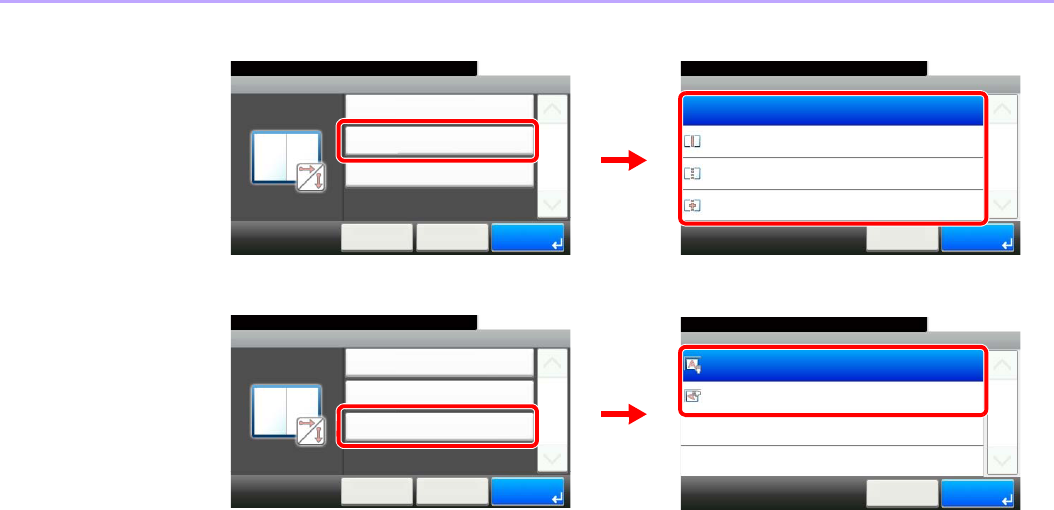
4-14
Copying > Copying Functions
3Sets the boundary line type.
4Select the original orientation.
Ready to copy. (Full Color)
Combine - Border Line
None
10:10
Solid Line
Dotted Line
Positioning Mark
1/1
OK
OKCancel
Combine - Others
Combine
10:10
Cancel
Border Line
< Back
1/1
OK
2 in 1 (L to R/T to B)
None
Original Orientation
Top Edge on Top
Ready to copy. (Full Color)
GB0017_01
GB0019_00
12
Combine - Others
Combine
10:10
Cancel
Border Line
< Back
1/1
OK
2 in 1 (L to R/T to B)
None
Original Orientation
Top Edge on Top
Ready to copy. (Full Color)
GB0017_01
GB0015_04
1
Combine - Original Orientation
10:10Ready to copy. (Full Color)
Top Edge on Left
Top Edge on Top
Cancel
1/1
OK
2
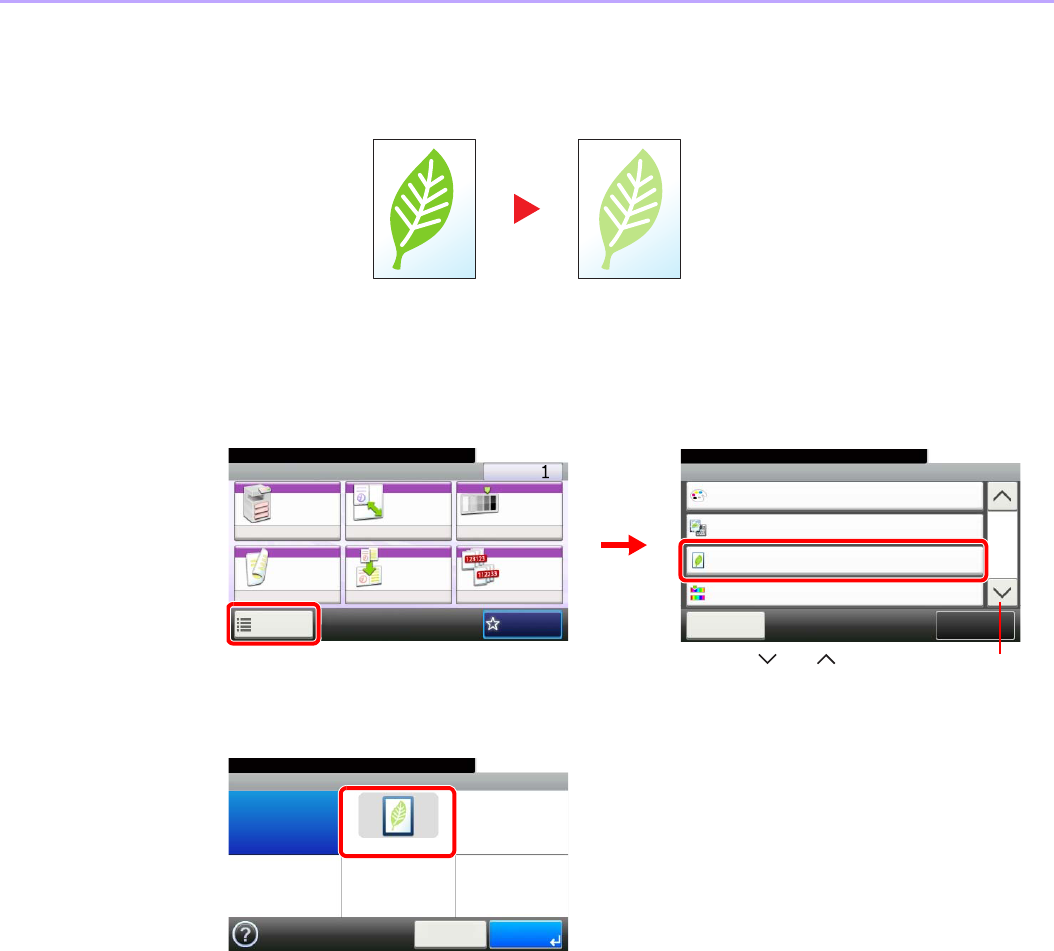
4-15
Copying > Copying Functions
EcoPrint
Use EcoPrint to save toner when printing. Use this function for test copies or any other occasion when high quality print
is not required.
1Display the screen.
1Referring to Basic Operation on page 4-2, display the screen.
2
2Select the function.
Ready to copy. (Full Color)
Functions
Original Image
Text+Photo
Close
10:10
EcoPrint
Off
0
Full Color
Color Selection
Hue Adjustment
2/5
Add/Edit
Shortcut
Ready to copy. (Full Color)
Copy Copies
Paper
Selection
Zoom Density
Duplex Combine Collate/
Offset
1-sided>>1-sided
Auto 100% Normal 0
CollateOff
Functions
10:10
Favorites
GB0001_01
GB0002_01
2
1
Use [ ] or [ ] to scroll up and down.
GB0045_00
Ready to copy. (Full Color)
EcoPrint
Off On
10:10
Cancel OK
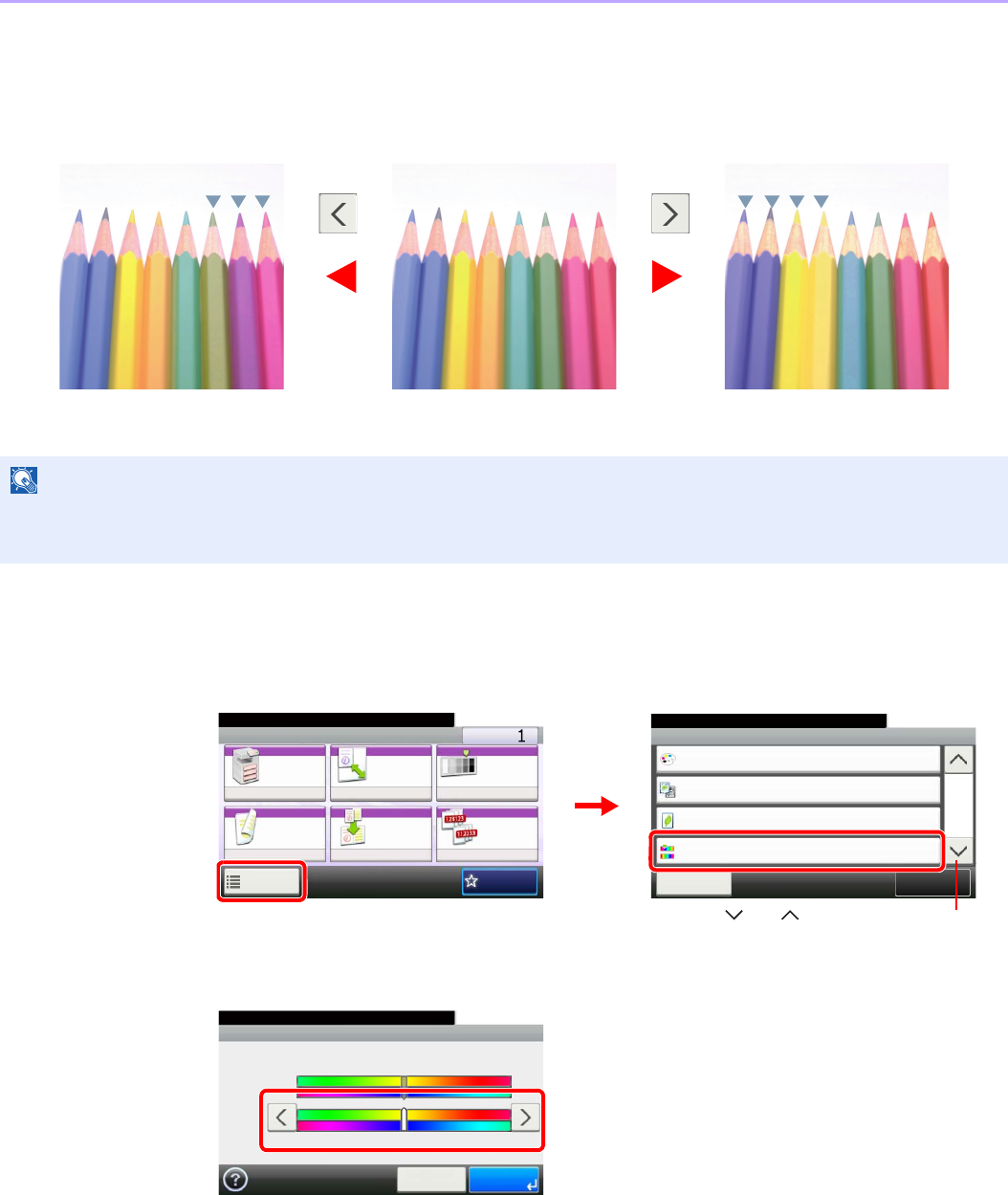
4-16
Copying > Copying Functions
Hue Adjustment
Adjust the color (hue) of images. Make adjustments such as adjusting red to a strong yellow-red or yellow to a strong
green-yellow to make more creative copies.
1Display the screen.
1Referring to Basic Operation on page 4-2, display the screen.
2
2Select the function.
Press [<] or [>] to make the adjustment.
NOTE
This feature is used with full color and auto color copying.
These adjustments are especially useful on rich color images.
Adjust yellow to more green,
adjust blue to more magenta
Original
Adjust yellowish-red to more yellow,
adjust bluish-cyan to more blue
Ready to copy. (Full Color)
Functions
Original Image
Text+Photo
Close
10:10
EcoPrint
Off
0
Full Color
Color Selection
Hue Adjustment
2/5
Add/Edit
Shortcut
Ready to copy. (Full Color)
Copy Copies
Paper
Selection
Zoom Density
Duplex Combine Collate/
Offset
1-sided>>1-sided
Auto 100% Normal 0
CollateOff
Functions
10:10
Favorites
GB0001_01
GB0002_01
2
1
Use [ ] or [ ] to scroll up and down.
GB0047_00
Hue Adjustment
10:10
Average
Cancel
-3
Adjust
-2 -1 0 +1 +2 +3
OK
Ready to copy. (Full Color)
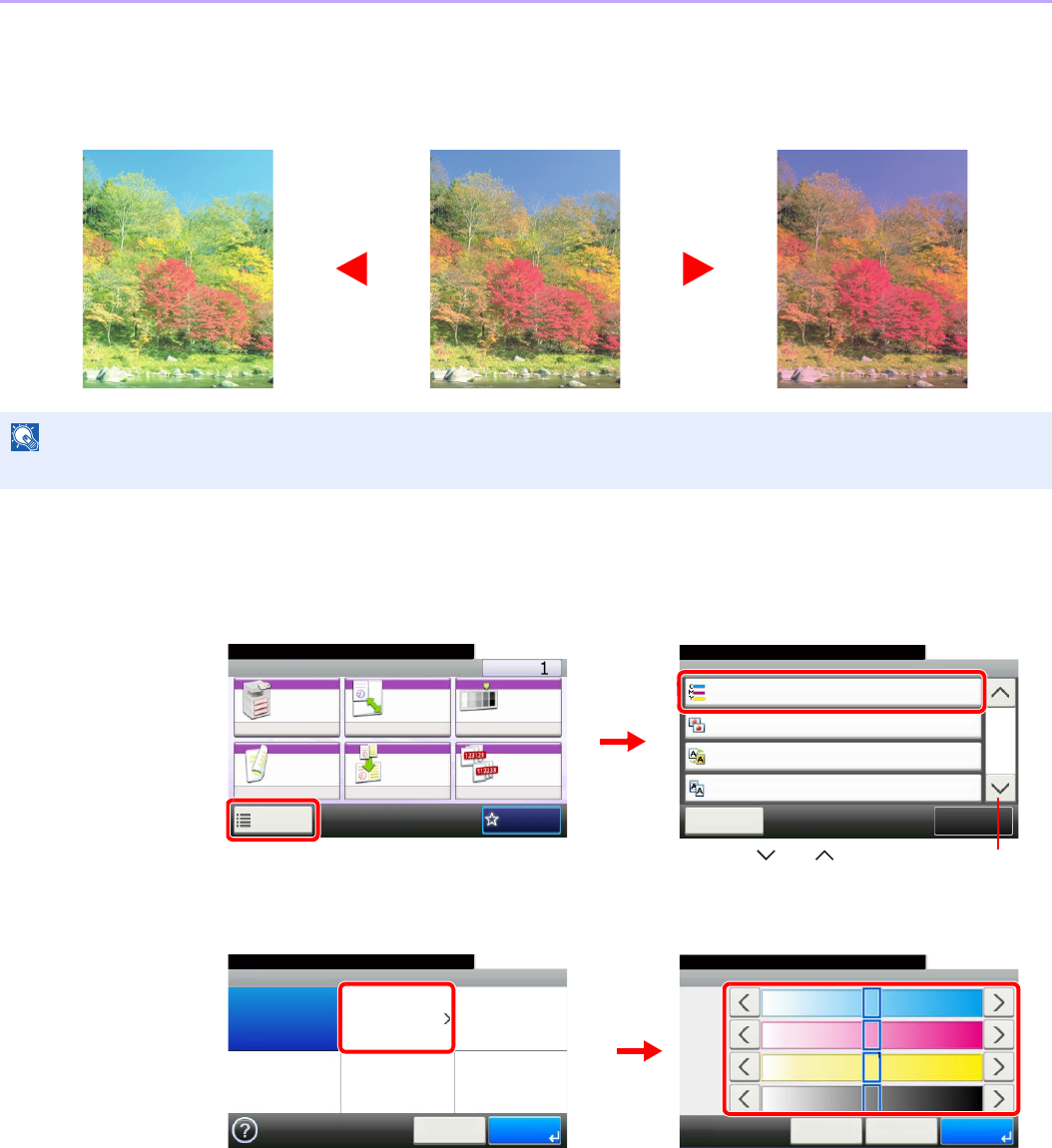
4-17
Copying > Copying Functions
Color Balance
Adjust the strength of cyan, magenta, yellow, and black.
1Display the screen.
1Referring to Basic Operation on page 4-2, display the screen.
2
2Select the function.
Press [<] or [>] on each side of the color to be adjusted (Cyan, Magenta, Yellow, Black) to
adjust each color.
NOTE
This feature is used with full color and auto color copying.
More MagentaOriginalLess Magenta
Ready to copy. (Full Color)
Functions
Color Balance
Off
Close
10:10
Off
0
Sharpness
Background Density Adj.
3/5
Add/Edit
Shortcut
Prevent Bleed-through
Off
Ready to copy. (Full Color)
Copy Copies
Paper
Selection
Zoom Density
Duplex Combine Collate/
Offset
1-sided>>1-sided
Auto 100% Normal 0
CollateOff
Functions
10:10
Favorites
GB0001_01
GB0002_02
2
1
Use [ ] or [ ] to scroll up and down.
GB0058_00
Ready to copy. (Full Color)
Color Balance
Off On
10:10
Cancel OK
1
GB0059_00
Color Balance - Settings
10:10Ready to copy. (Full Color)
Cancel OK< Back
Cyan
Magenta
Yellow
Black
2
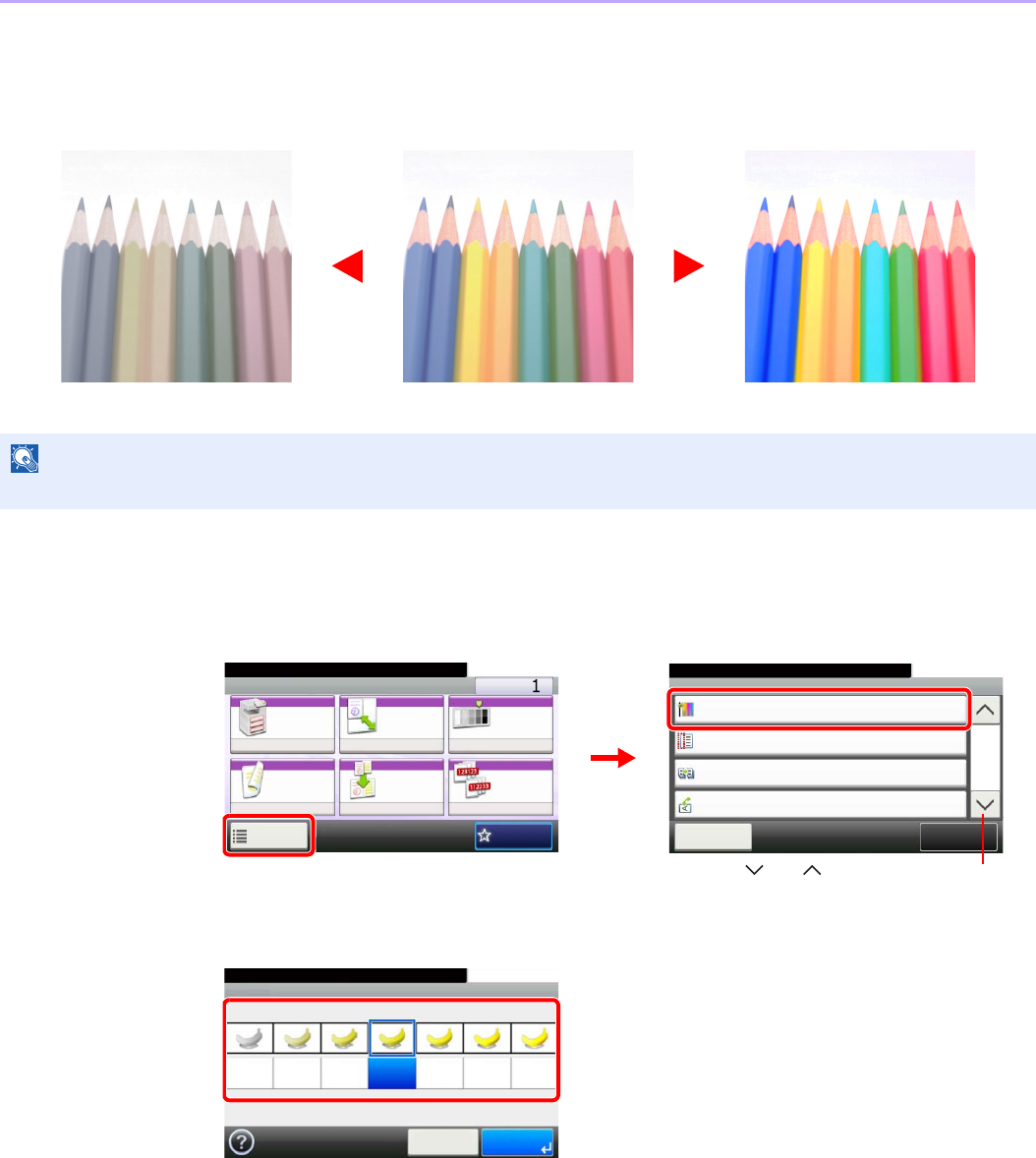
4-18
Copying > Copying Functions
Saturation
Adjust the color saturation of the image.
1Display the screen.
1Referring to Basic Operation on page 4-2, display the screen.
2
2Select the function.
Press [-3] or [+3] (Grayish - Vivid) to adjust the color saturation.
NOTE
This feature is used with full color and auto color copying.
OriginalGrayish Vivid
Results in paler color. Results in more vivid color.
Ready to copy. (Full Color)
Functions
Saturation
0
Close
10:10
Margin
Off
On
Off
Continuous Scan
Auto Image Rotation
4/5
Add/Edit
Shortcut
Ready to copy. (Full Color)
Copy Copies
Paper
Selection
Zoom Density
Duplex Combine Collate/
Offset
1-sided>>1-sided
Auto 100% Normal 0
CollateOff
Functions
10:10
Favorites
GB0001_01
GB0002_03
2
1
Use [ ] or [ ] to scroll up and down.
GB0070_00
Saturation
10:10
Grayish
Cancel
-3
Vivid
-2 -1 0
OK
Ready to copy. (Full Color)
+1 +2 +3
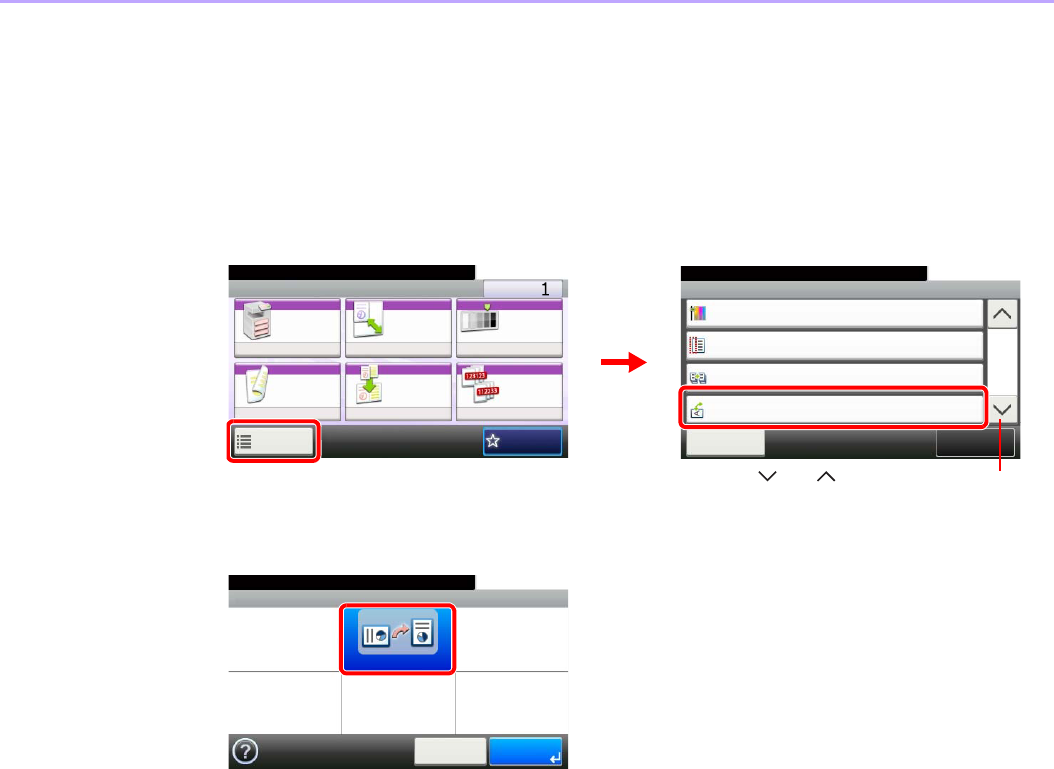
4-19
Copying > Copying Functions
Auto Image Rotation
When original and paper source size are the same, but their orientation is different, rotate image 90 degrees.
1Display the screen.
1Referring to Basic Operation on page 4-2, display the screen.
2
2Select the function.
Ready to copy. (Full Color)
Functions
Saturation
0
Close
10:10
Margin
Off
On
Off
Continuous Scan
Auto Image Rotation
4/5
Add/Edit
Shortcut
Ready to copy. (Full Color)
Copy Copies
Paper
Selection
Zoom Density
Duplex Combine Collate/
Offset
1-sided>>1-sided
Auto 100% Normal 0
CollateOff
Functions
10:10
Favorites
GB0001_01
GB0002_03
1
2
Use [ ] or [ ] to scroll up and down.
GB0044_00
Ready to copy. (Full Color)
Auto Image Rotation
Off On
10:10
Cancel OK
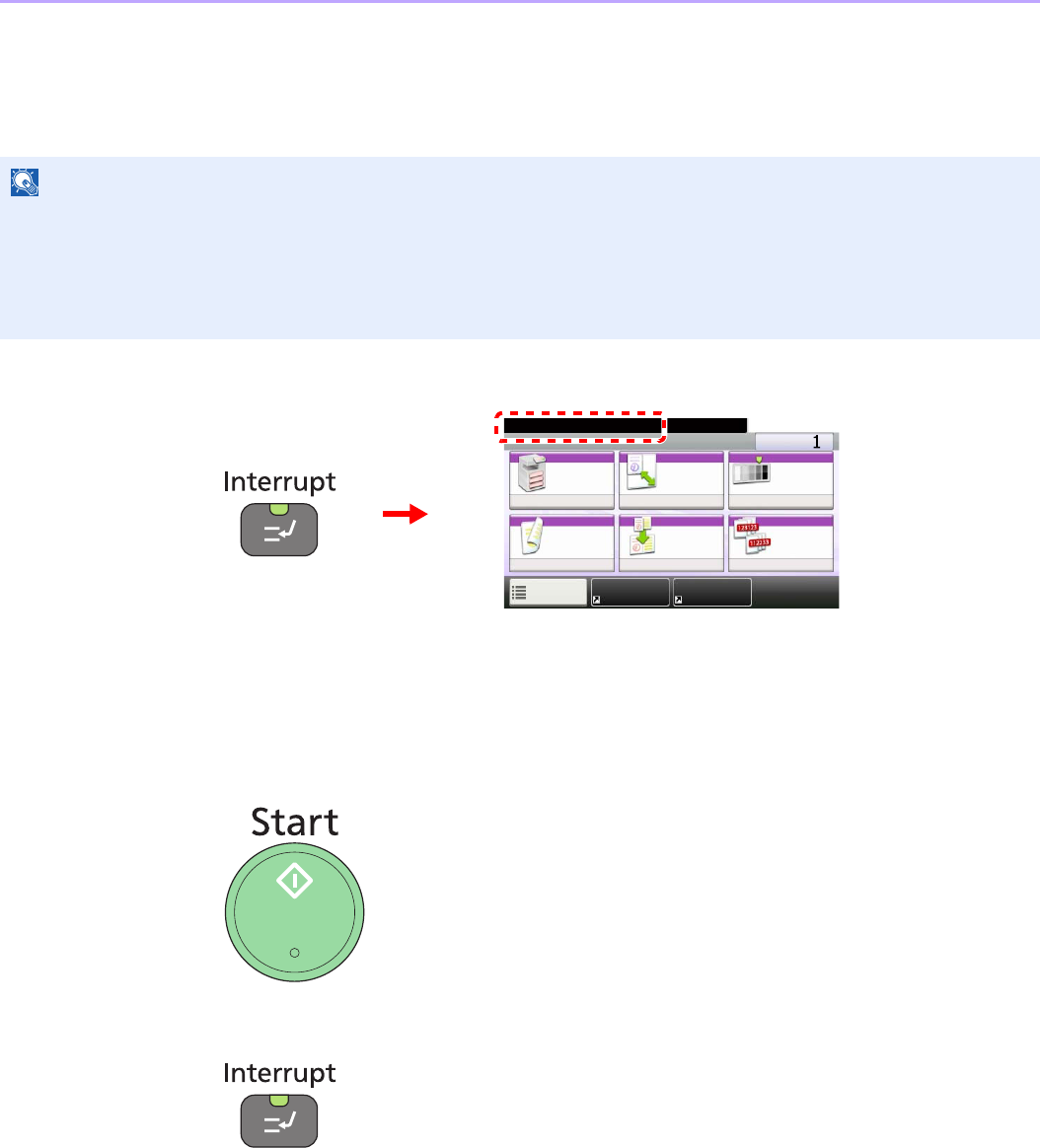
4-20
Copying > Interrupt Copy
Interrupt Copy
This function allows you to pause the current jobs in progress when you need to make copies immediately. When
interruption copy ends, the machine resumes the paused print jobs.
1Press the Interrupt key.
The current print job is temporarily interrupted.
2Make an interrupt copy.
1Place the originals onto the machine for interrupt copy, and configure the copy settings.
2Press the Start key to start interrupt copying.
3End the interrupt copy.
When interrupt copying ends, press the Interrupt key. The machine resumes the paused print
jobs.
NOTE
If the machine is left unused for 60 seconds in interrupt copy mode, interrupt copying is automatically cancelled and
printing resumes. You can change the delay until interrupt copying is cancelled. Change the delay as required. For
more information, refer to Interrupt Clear Timer on page 9-24.
The interrupt copy function may be unavailable due to insufficient memory depending on the manner in which the
equipment is being utilized.
Ready for interrupt. (Full Color)
Copy Copies
Paper
Selection
Zoom Density
Duplex Combine Collate/
Offset
1-sided>>1-sided
Auto 100% Normal 0
CollateOff
Functions
10:10
Shortcut 1 Shortcut 2
GB0001_99
5-1
5Printing
This chapter explains the following topics:
Printing from Applications .................................................................................................................................. 5-2
Printing Data Saved on the Printer ..................................................................................................................... 5-6
Private Print ............................................................................................................................................. 5-6
Proof and Hold ......................................................................................................................................... 5-8
Automatic Delete Setting for Temporary Documents .............................................................................. 5-11
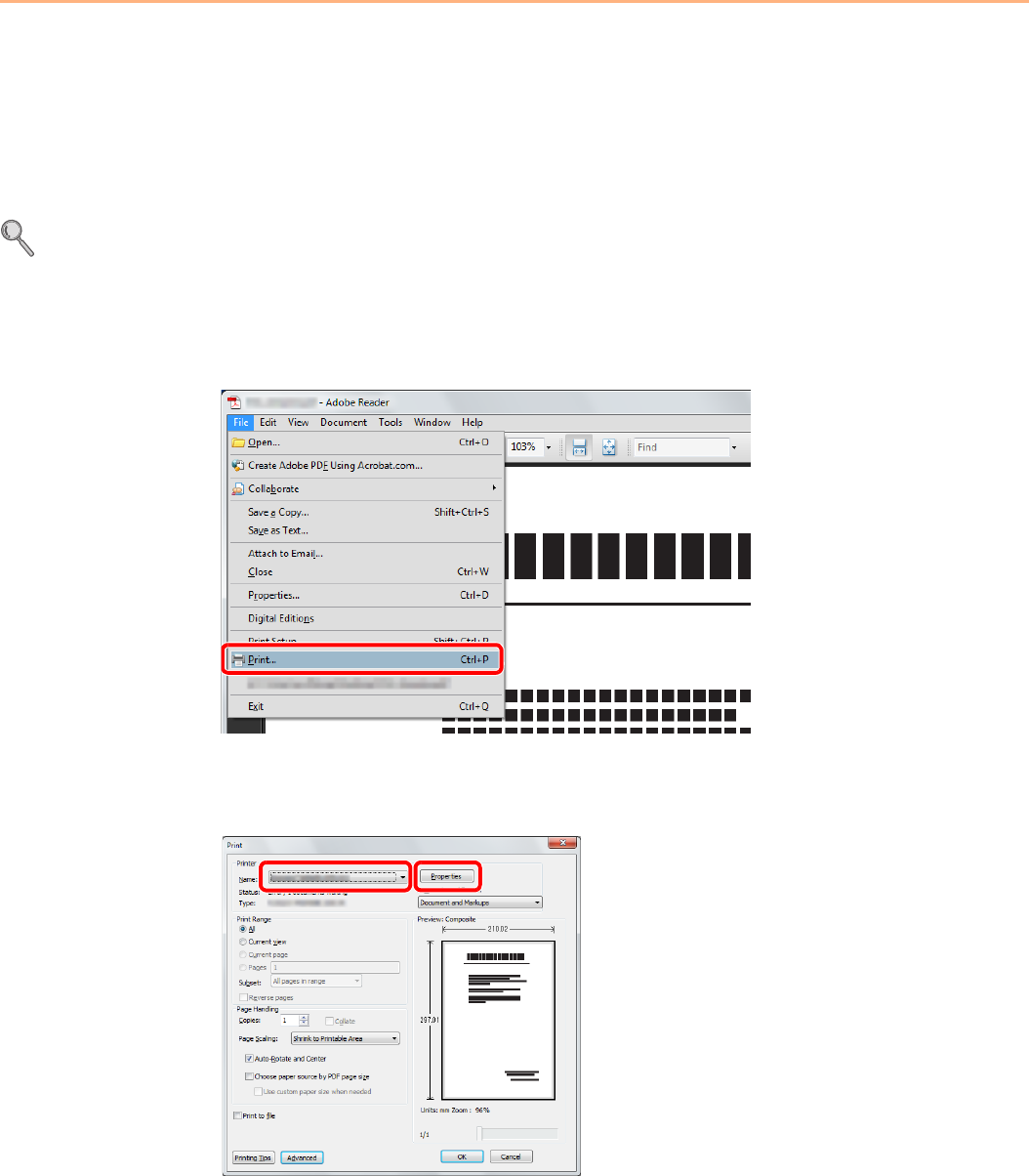
5-2
Printing > Printing from Applications
Printing from Applications
This section provides basic instructions for printing documents. Instructions are based on interface elements as they
appear in Windows 7.
You can print documents created on your computer once you install the printer driver from the included DVD (Product
Library).
Refer to Installing Software on page 2-14.
For more information about how to configure advanced printer driver settings and print documents, refer to the Printer
Driver User Guide on the DVD.
1Display the window.
Click File and select Print in the application.
2Configure the printer.
1Select the printer.
2Click Properties button.
1
2
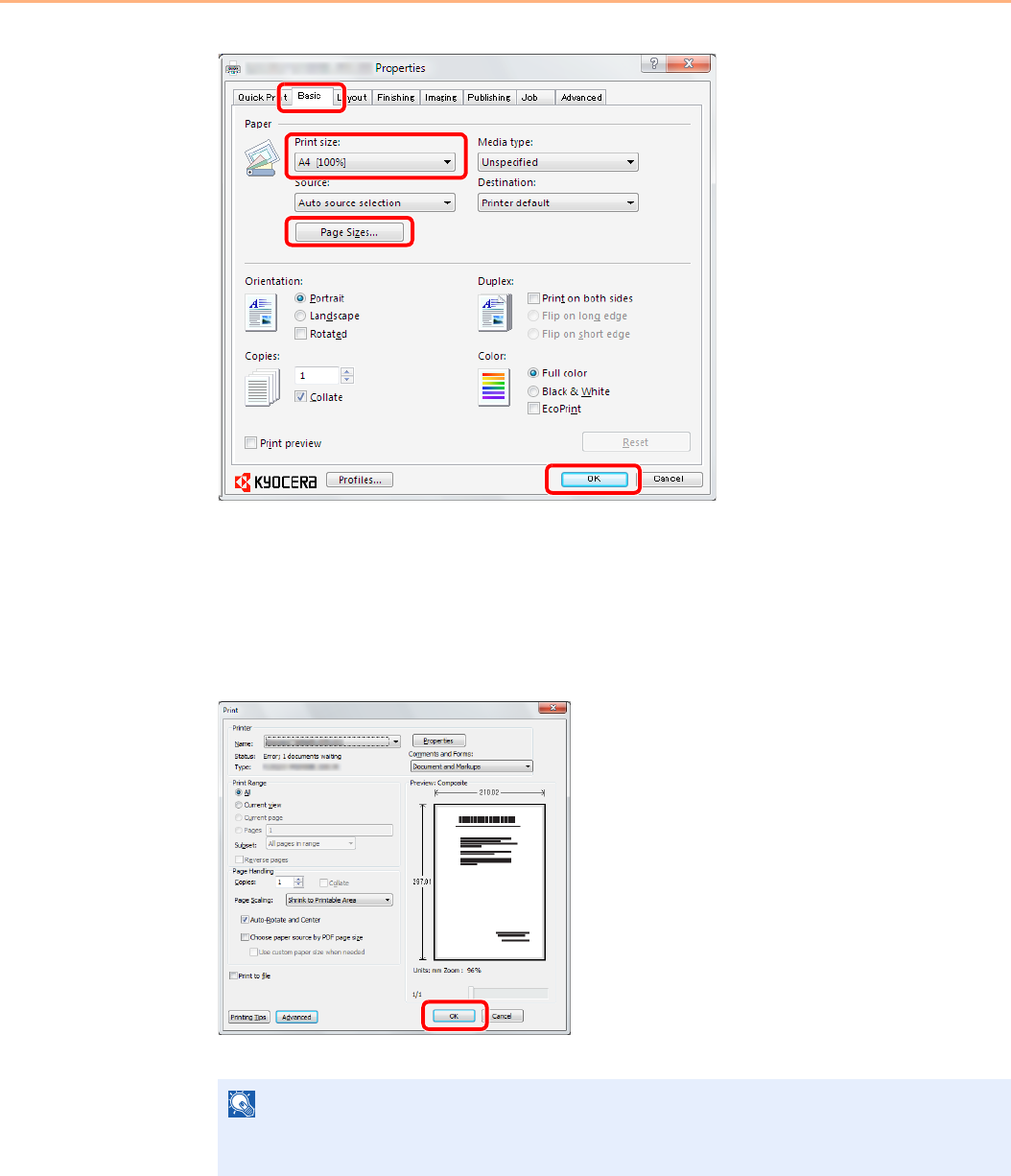
5-3
Printing > Printing from Applications
3Select the Basic tab.
4Click the Page Sizes button to select the paper size for the document data.
5Click Print size and select the paper size to use for printing.
6Click OK button to return to the Print dialog box.
3Start printing.
Click OK button.
NOTE
Click the tabs on the print settings screen and configure the print settings as necessary. For
more information, refer to the Printer Driver User Guide.
3
6
4
5
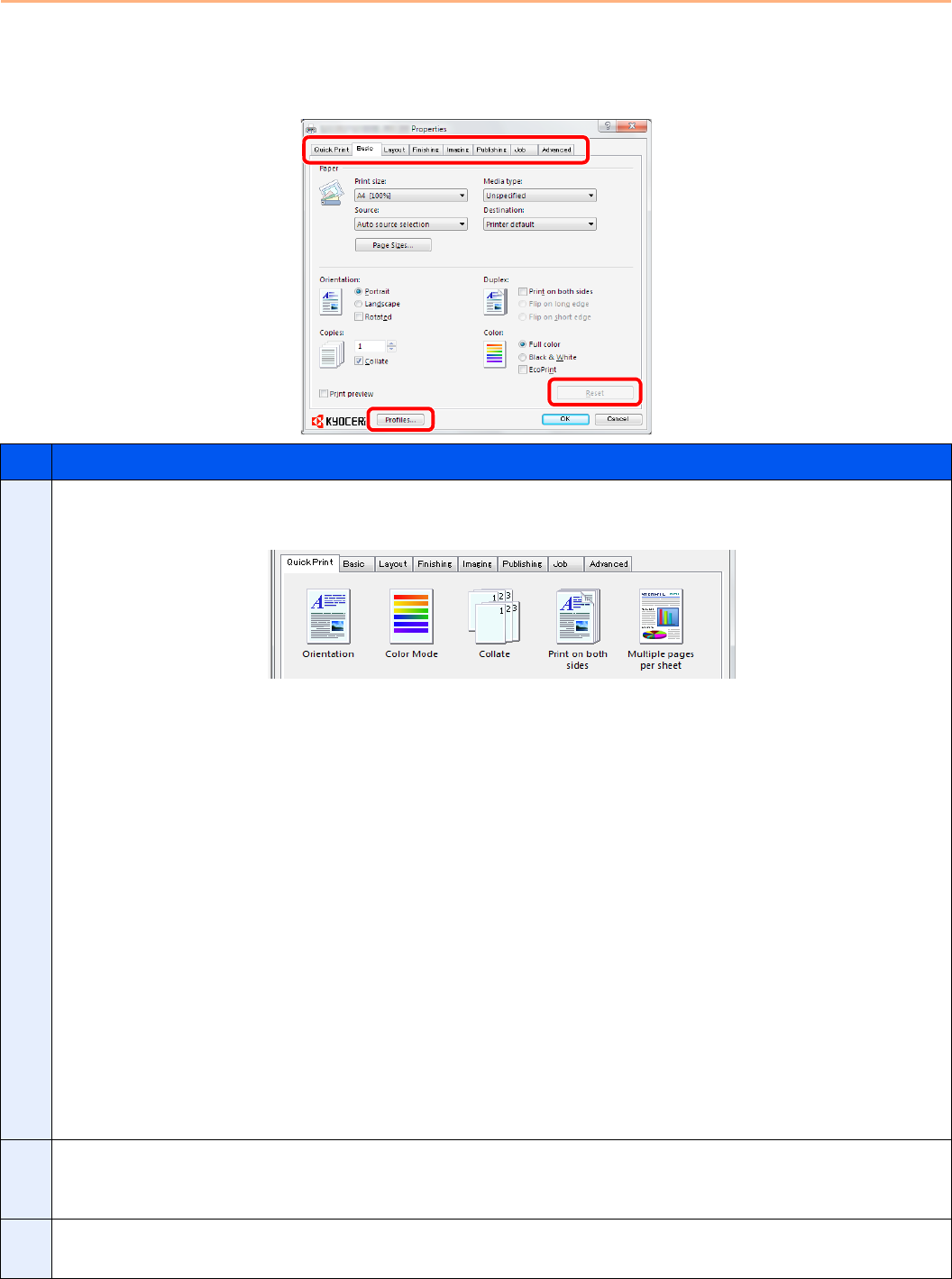
5-4
Printing > Printing from Applications
Printer driver print settings screen
The printer driver print settings screen allows you to configure a variety of print-related settings. For more information,
refer to the Printer Driver User Guide on the DVD.
No. Description
1Quick Print
Provides icons that can be used to easily configure frequently used functions. Each time you click an icon, it changes to an
image resembling the print results and applies the settings.
Basic
This tab groups basic functions that are frequently used. You can use it to configure the paper size, destination, duplex
printing, and color mode.
Layout
This tab lets you configure settings for printing various layouts, including booklet printing, combine mode, poster printing,
and scaling.
Finishing
This tab lets you configure settings related to finishing of printed media, including binding and stapling.
Imaging
This tab lets you configure settings related to the quality and color mode of the print results.
Publishing
This tab lets you create cover sheets and insert and add OHP film for print jobs.
Job
This tab lets you configure settings for saving print data from the computer to the machine. Regularly used documents and
other data can be saved to the machine for easy printing later. Since saved documents can be printed directly from the
machine, this function is also convenient when you wish to print a document that you don't want others to see.
Advanced
This tab lets you configure settings for adding text pages or watermarks to print data. It also provides simple color
adjustment functionality.
2Profiles
Printer driver settings can be saved as a profile. Saved profiles can be recalled at any time, so it's a convenient practice to
save frequently used settings.
3Reset
Click to revert settings to their initial values.
1
23
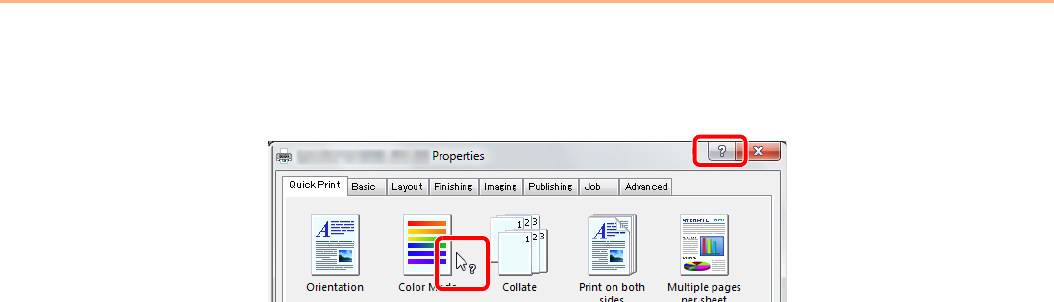
5-5
Printing > Printing from Applications
Printer Driver Help
The printer driver includes Help. To learn more about print settings, display the printer driver print settings screen and
display Help using either of the methods explained below.
• Click the ? button in the upper right corner of the screen and then click the item you want to
know about.
• Click the item you want to know about and press the [F1] key on your keyboard.
1
2
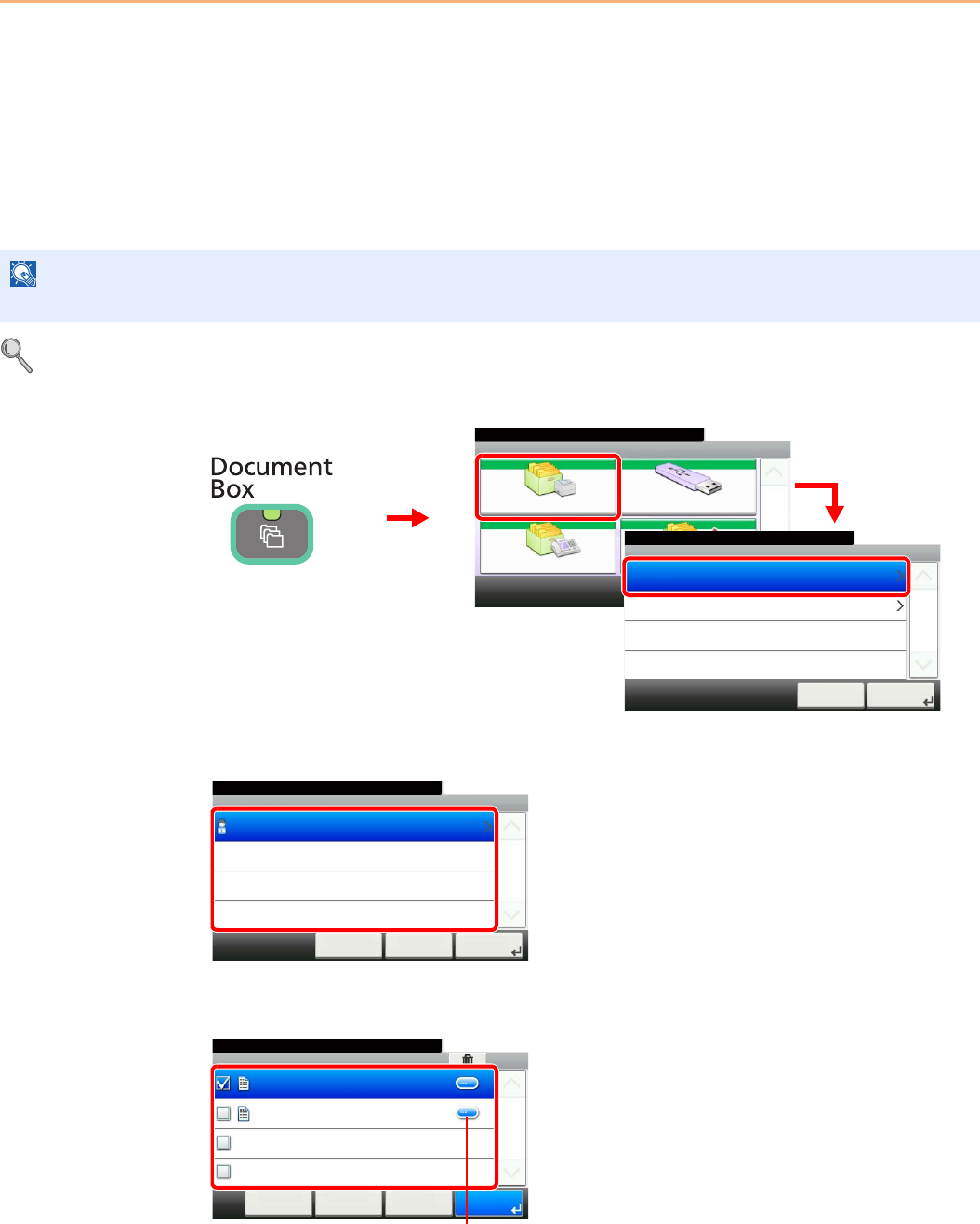
5-6
Printing > Printing Data Saved on the Printer
Printing Data Saved on the Printer
Print data can be saved in the machine's Job Box and printed when needed.
Private Print
Private Print stores the print data which is printed by using the printer driver as a Private Print.
Refer to the Printer Driver User Guide on how to print a job as Private Print using the printer driver.
For details, refer to RAM Disk Setting on page 9-23.
1Display the screen.
2Select the creator of the document to print.
3Select the document.
NOTE
RAM disk mode must be enabled. RAM disk mode can be used when optional memory has been installed.
Document Box.
Box
Sub Address Box
Job Box Removable Memory
Polling Box
10:10
1/1
GB0051_00
GB0650_00
Job Box
10:10Document Box.
Proof and Hold
Private Print
Cancel
1/1
Next >
3
1
2
Document Box.
Job Box - Private Print
user 1
10:10
1/1
OK
Next >< BackCancel
GB0651_00
Job Box - Private Print
10:10Document Box.
doc 0100908134821
doc 4100908135138
< Back PrintMenu
1/1
Cancel
GB0653_01
Displays details for individual documents.
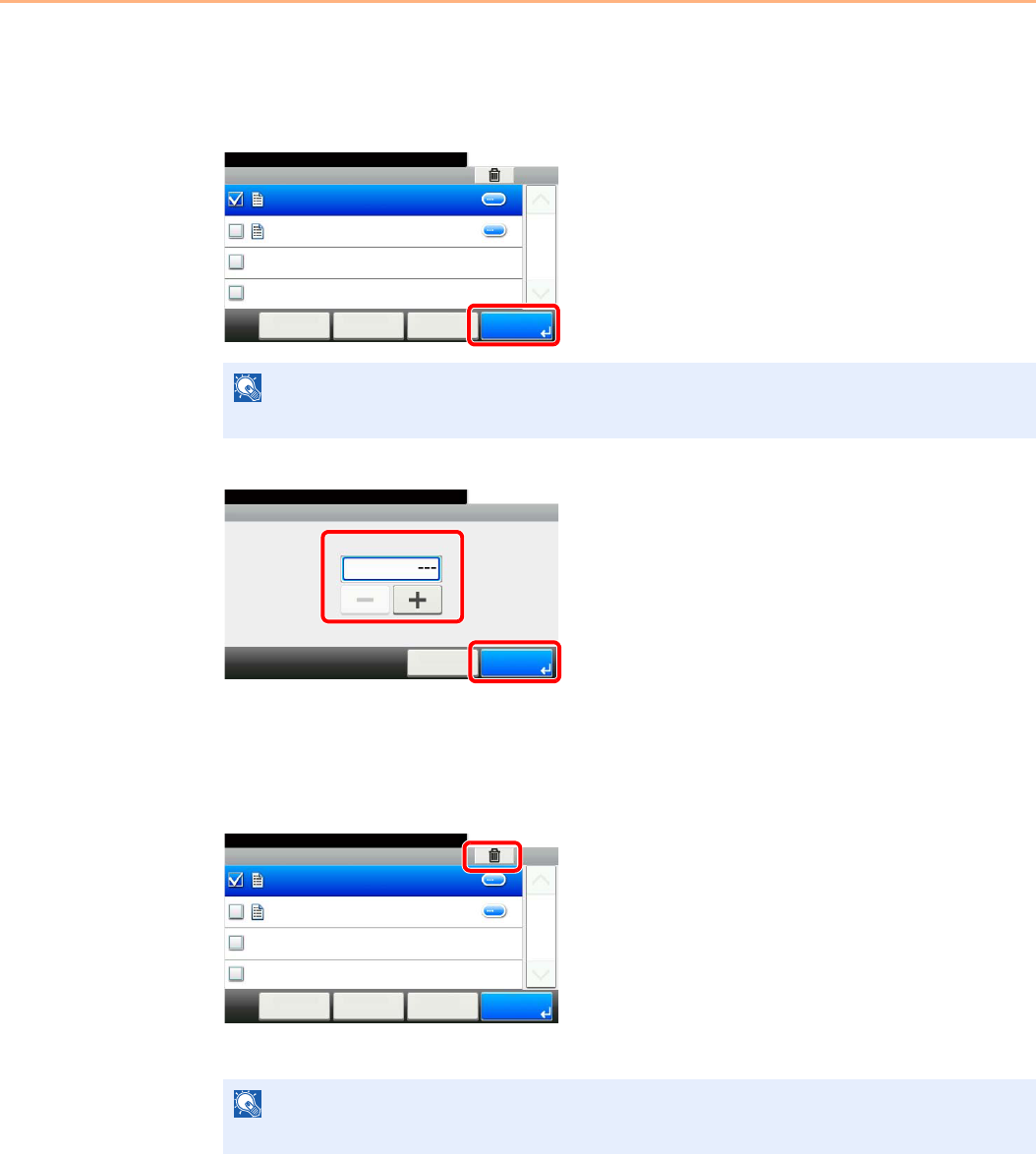
5-7
Printing > Printing Data Saved on the Printer
4Print and delete the document.
To print the document
1
2
Specify the number of copies to print as desired. When using the number of copies specified
with print job, select “---”.
Upon completion of printing, the Private Print job is automatically deleted.
To delete
Select the document you wish to delete and press [(Delete)] (the trash can icon).
NOTE
The password entry screen will be displayed. Enter the password using the numeric keys.
NOTE
The password entry screen will be displayed. Enter the password using the numeric keys.
Job Box - Private Print
10:10Document Box.
doc 0100908134821
doc 4100908135138
< Back PrintMenu
1/1
Cancel
GB0653_01
Copies
10:10Document Box.
(1 - 999, ---)
Cancel
copy(s)
OK
GB0003_00
12
Job Box - Private Print
10:10Document Box.
doc 0100908134821
doc 4100908135138
< Back PrintMenu
1/1
Cancel
GB0653_01
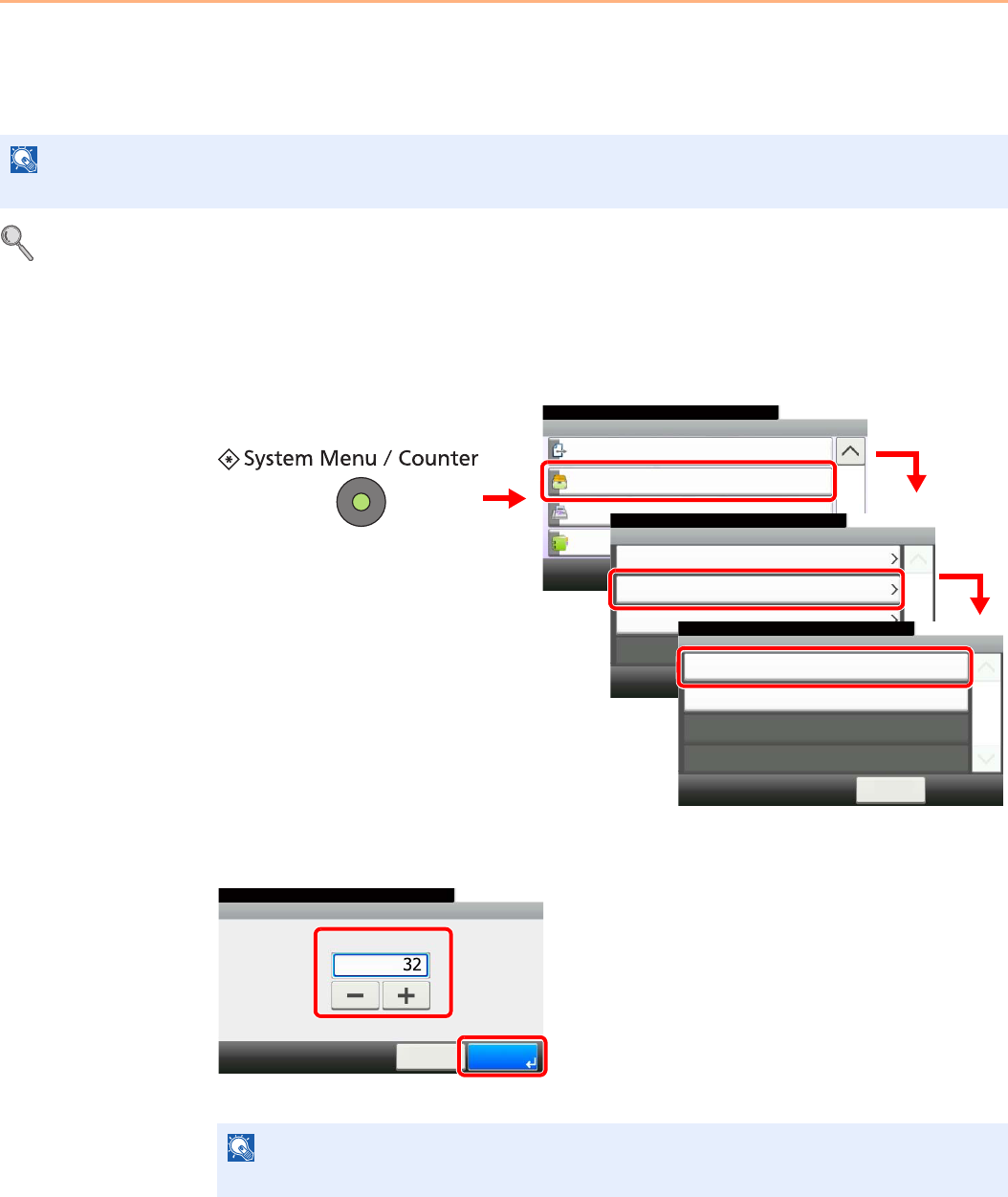
5-8
Printing > Printing Data Saved on the Printer
Proof and Hold
Proof and Hold stores the print data which is printed by using the printer driver as a Proof and Hold Print job.
Refer to the Printer Driver User Guide on how to print a job as Proof and Hold Print job using the printer driver.
For details, refer to RAM Disk Setting on page 9-23.
Setting the Number of Stored Jobs
To maintain free space on the RAM disk, you can set the maximum number of stored jobs.
1Display the screen.
2Enter the maximum number of stored jobs.
You can enter any number between 0 and 50.
NOTE
RAM disk mode must be enabled. RAM disk mode can be used when optional memory has been installed.
NOTE
If you enter a value of 0 (zero), you cannot use the Proof and Hold function.
System Menu/Counter.
System Menu
Send
10:10
Document Box
FAX
Address Book/One Touch
3/5
Document Box
10:10System Menu/Counter.
Job Box
Polling Box
Sub Address Box
< Back
1/1
Quick Copy Job Retention
10:10System Menu/Counter.
Deletion of Job Retention
< Back
1/1
32job(s)
Off
Document Box - Job Box
1
GB0054_02
GB0290_00
4
GB0310_00
3
2
GB0311_00
Job Box - Quick Copy Job Retention
10:10System Menu/Counter.
(0 - 50)
Cancel
job(s)
OK
12
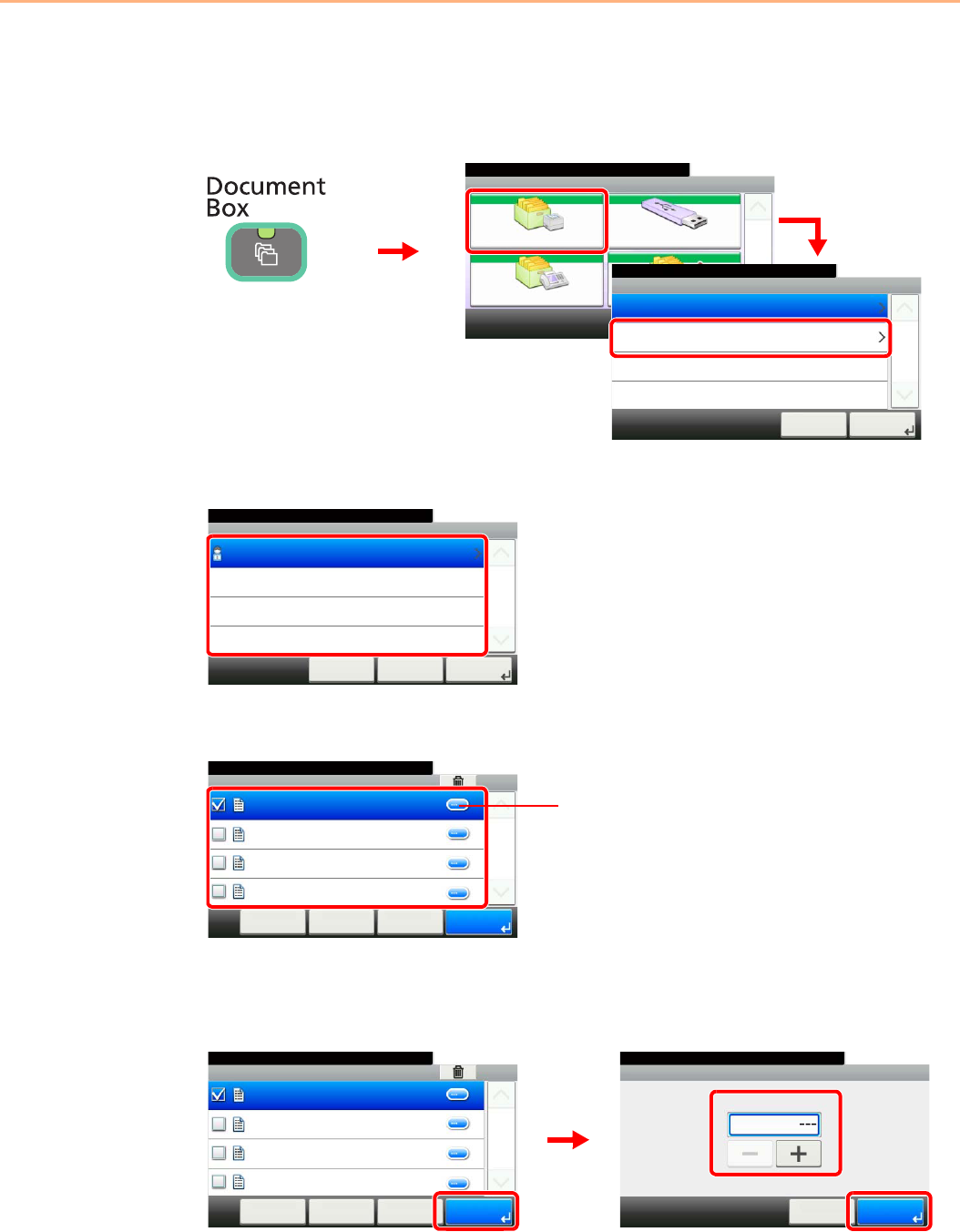
5-9
Printing > Printing Data Saved on the Printer
Printing and Deleting the Document
You can print and delete documents stored in the Proof and Hold box.
1Display the screen.
2Select the creator of the document.
3Select the document.
4Print and delete the document.
To print the document
Specify the number of copies to print as desired. When using the number of copies specified
with print job, select “---”.
Document Box.
Box
Sub Address Box
Job Box Removable Memory
Polling Box
10:10
1/1
GB0051_00
GB0650_00
Job Box
10:10Document Box.
Proof and Hold
Private Print
Cancel
1/1
Next >
3
1
2
GB0652_00
Job Box - Proof and Hold
10:10Document Box.
user 1
< BackCancel
1/1
Next >
Job Box - Proof and Hold
10:10Document Box.
doc 100831170814
doc 100831170850
< Back PrintMenu
1/1
Cancel
doc 100831170659
doc 100831170519
GB0654_00
Displays details for individual documents.
Job Box - Proof and Hold
10:10Document Box.
doc 100831170814
doc 100831170850
< Back PrintMenu
1/1
Cancel
doc 100831170659
doc 100831170519
GB0654_00
GB0003_00
Copies
10:10Document Box.
(1 - 999, ---)
Cancel
copy(s)
OK
23
1
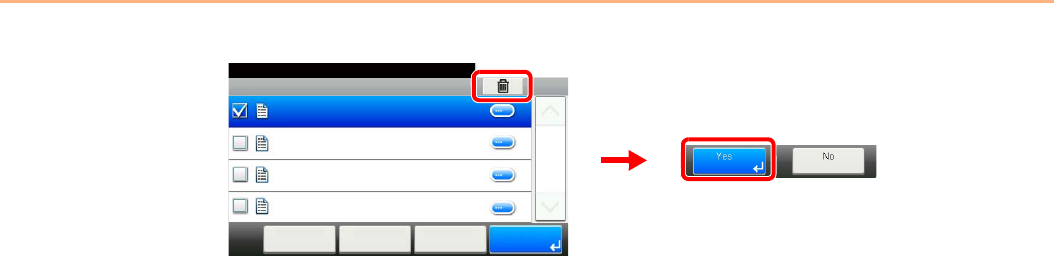
5-10
Printing > Printing Data Saved on the Printer
To delete
Select the document you wish to delete and press [(Delete)] (the trash can icon).
Job Box - Proof and Hold
10:10Document Box.
doc 100831170814
doc 100831170850
< Back PrintMenu
1/1
Cancel
doc 100831170659
doc 100831170519
GB0654_00
2
1
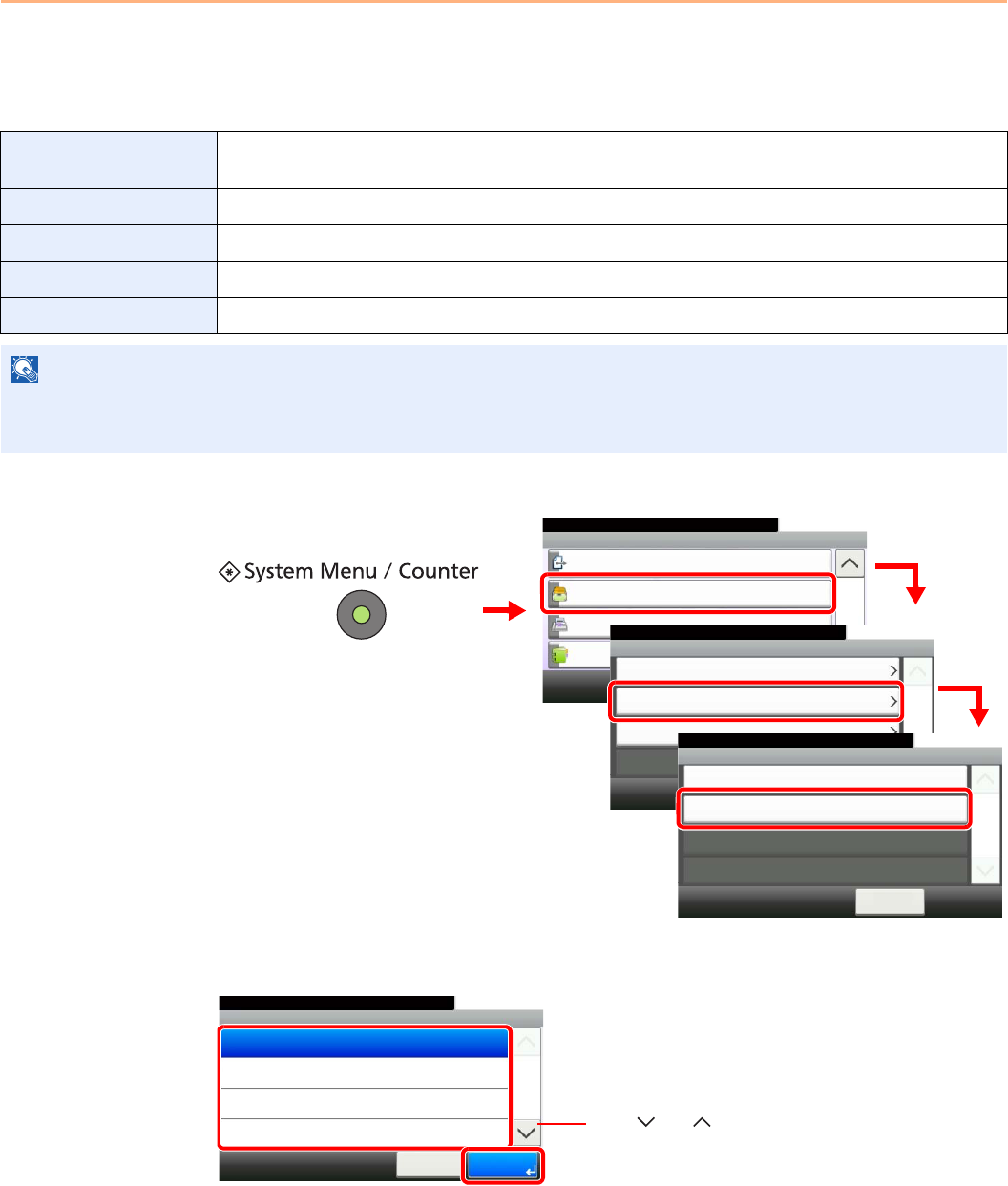
5-11
Printing > Printing Data Saved on the Printer
Automatic Delete Setting for Temporary Documents
This setting specifies that documents, such as Private Printing, or Proof and Hold Printing, saved temporarily in the job
box are automatically deleted after they have been saved for a set time.
1Display the screen.
2Select the time.
Off Temporary documents are not automatically deleted. However, the temporary documents will be
deleted when the power is turned off.
1 hour Documents are deleted after 1 hour.
4 hours Documents are deleted after 4 hours.
1 day Documents are deleted after 1 day.
1 week Documents are deleted after 1 week.
NOTE
This function is valid for documents saved after the function is set.
Regardless of this function setting, temporary documents are deleted when the main power switch is turned off.
System Menu/Counter.
System Menu
Send
10:10
Document Box
FAX
Address Book/One Touch
3/5
Document Box
10:10System Menu/Counter.
Job Box
Polling Box
Sub Address Box
< Back
1/1
Quick Copy Job Retention
10:10System Menu/Counter.
Deletion of Job Retention
< Back
1/1
32job(s)
Off
Document Box - Job Box
1
GB0054_02
GB0290_00
4
GB0310_00
3
2
GB0312_00
Job Box - Deletion of Job Retention
10:10System Menu/Counter.
1 hour
4 hours
1 day
Off
Cancel
1/2
OK
Use [ ] or [ ] to scroll up and down.
1
2

5-12
Printing > Printing Data Saved on the Printer
6-1
6 Sending
This chapter explains the following topics:
Basic Operation ................................................................................................................................................. 6-2
Preparation for Sending a Document to a PC .................................................................................................... 6-5
Checking What to Enter for [Host Name] ................................................................................................. 6-5
Checking What to Enter for [Login User Name] ....................................................................................... 6-6
Creating a Shared Folder ........................................................................................................................ 6-7
Checking the [Path] ............................................................................................................................... 6-10
Configuring Windows Firewall (for Windows 7) ...................................................................................... 6-11
Specifying Destination ...................................................................................................................................... 6-15
Choosing from the Address Book .......................................................................................................... 6-15
Choosing by One Touch Key ................................................................................................................. 6-17
Entering a New E-mail Address ............................................................................................................. 6-18
Specifying a New PC Folder .................................................................................................................. 6-19
Checking and Editing Destinations ........................................................................................................ 6-22
Sending to Different Types of Destinations (Multi Sending) ................................................................... 6-23
Registering Destinations in the Address Book ................................................................................................. 6-24
Adding a Contact ................................................................................................................................... 6-24
Adding a Group ...................................................................................................................................... 6-28
Editing and Deleting Address Book Entries ........................................................................................... 6-31
Adding a Destination on One Touch Key ......................................................................................................... 6-33
Adding a Destination .............................................................................................................................. 6-33
Editing and Deleting One Touch Key ..................................................................................................... 6-35
Sending Functions ........................................................................................................................................... 6-36
Sending Size .......................................................................................................................................... 6-37
File Separation ....................................................................................................................................... 6-39
E-mail Subject/Body .............................................................................................................................. 6-40
FTP Encrypted TX ................................................................................................................................. 6-41
WSD Scan ....................................................................................................................................................... 6-42
Scanning using TWAIN .................................................................................................................................... 6-45
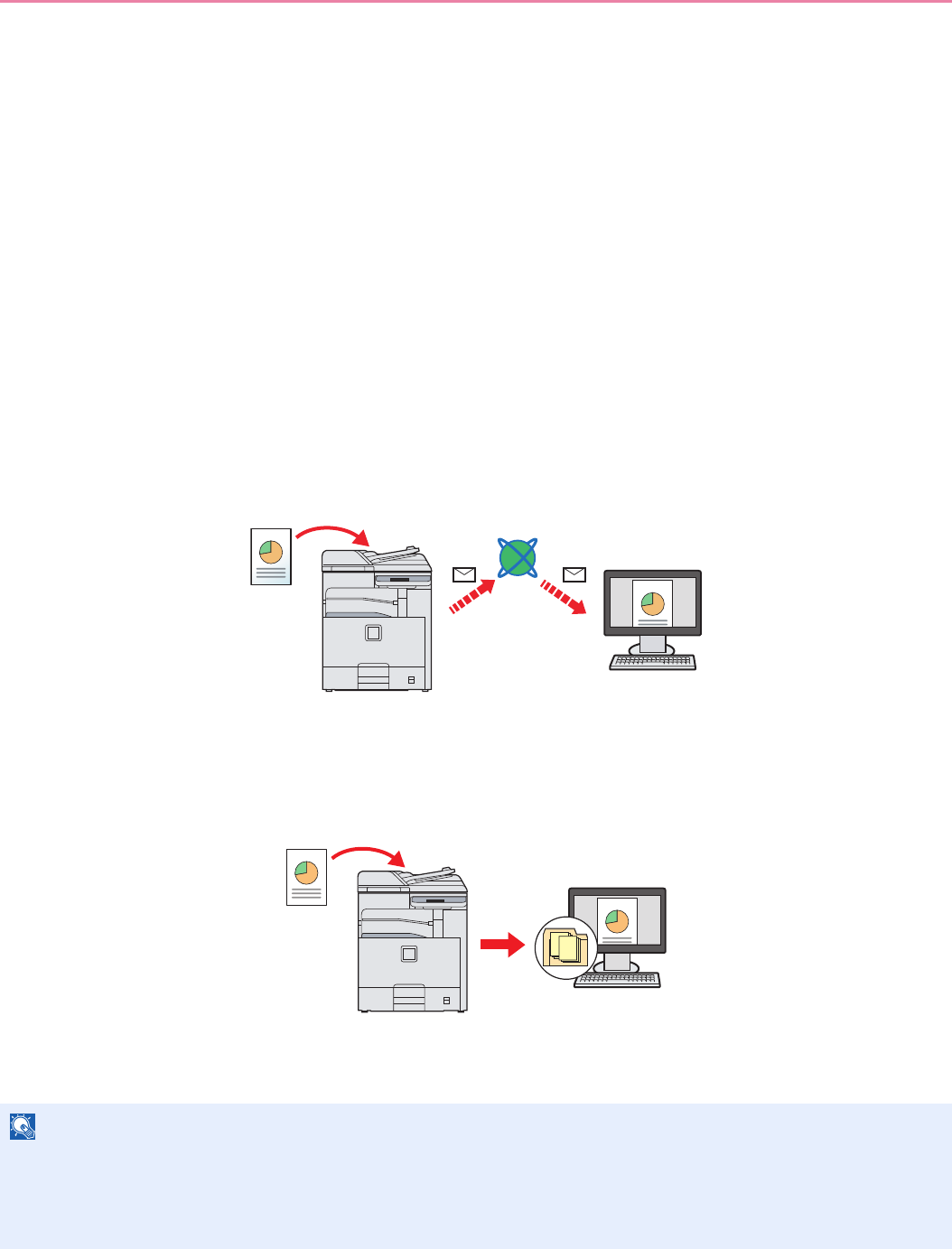
6-2
Sending > Basic Operation
Basic Operation
This machine can send a scanned image as an attachment to an E-mail message or to a PC linked to the network. In
order to do this, it is necessary to register the sender and destination (recipient) address on the network.
A network environment which enables the machine to connect to a mail server is required in order to send e-mail. It is
recommended that a Local Area Network (LAN) be used to assist with transmission speed and security issues.
To use the transmission function, verify the following:
• Program the settings, including the E-mail setting on the machine.
• Use COMMAND CENTER (the internal HTML web page) to register the IP address, the host name of the SMTP
server, and the recipient.
• Register the destination in the Address Book or One Touch keys.
• Create a share folder in the destination computer, when a folder (SMB/FTP) is selected as the destination.
Consult your network administrator concerning destination folder sharing settings.
Basic Sending
Send as E-mail
Sends a scanned original image as an E-mail attachment. (page 6-18)
Send to Folder (SMB)
Stores a scanned original image in a shared folder of any PC. (page 6-19)
Send to Folder (FTP)
Stores a scanned original image in a folder of an FTP server. (page 6-19)
Image Data Scanning with TWAIN/WIA
Scan the document using a TWAIN or WIA compatible application program. (page 6-45)
NOTE
Different sending options can be specified in combination. Refer to Sending to Different Types of Destinations (Multi
Sending) on page 6-23.
The fax function can be used when the optional fax kit has been installed. For details about this function, refer to the
FAX Operation Guide.
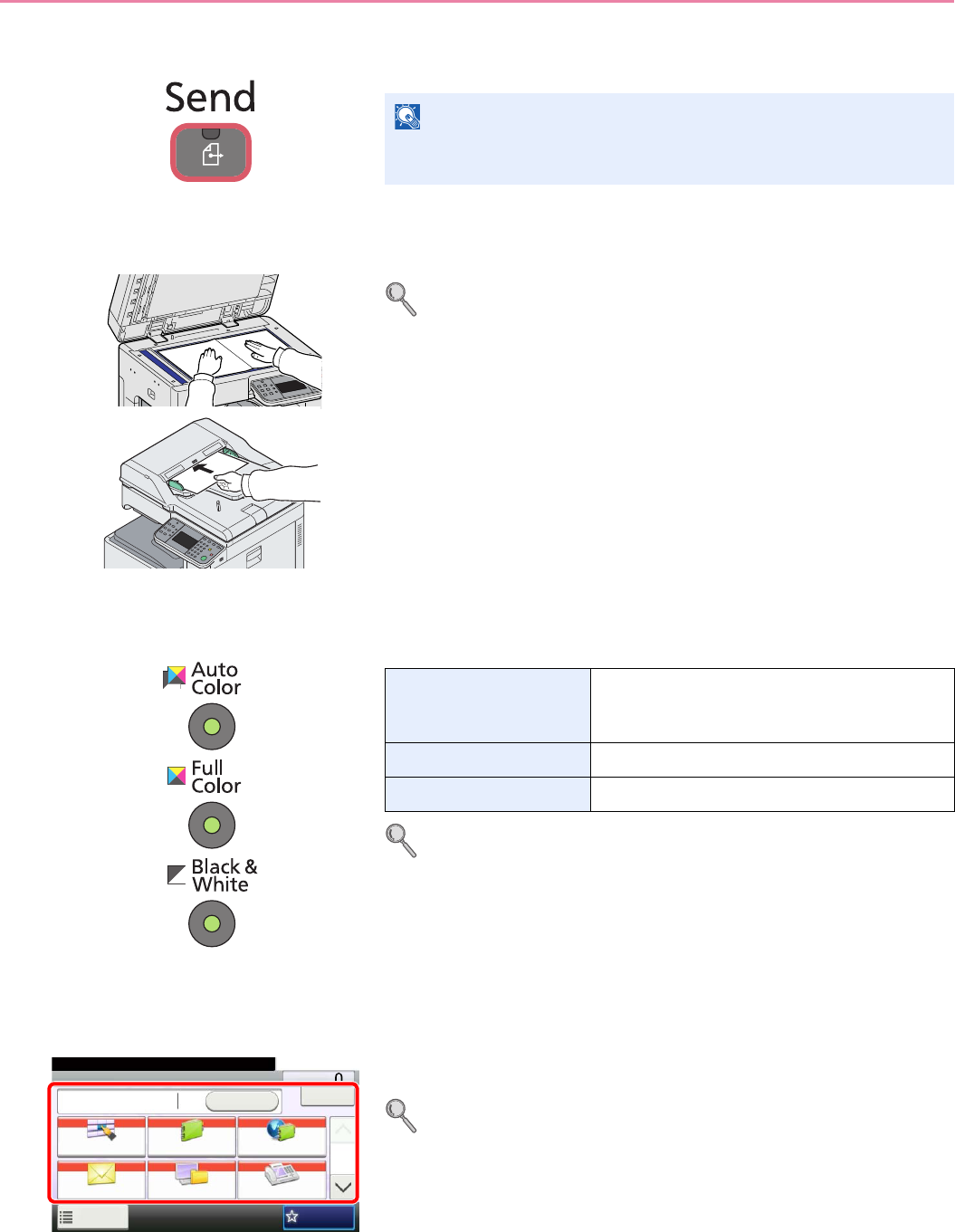
6-3
Sending > Basic Operation
1Press the Send key
2Place the originals
For details, refer to Loading Originals on page 3-7.
3Selecting color mode
To make more detailed settings, refer to Color Selection on page 3-59.
4Specifying destination
Select the destination to which to send an image.
For details, refer to Specifying Destination on page 6-15.
NOTE
If the touch panel is turned off, press the Energy Saver key or the
Power key and wait for the machine to warm up.
Auto Color Automatically recognizes whether a document is
color or black & white and then scans the
document.
Full Color Scans all documents in full color.
Black & White Scans all documents in black & white.
Send Dest. :
Recall Check
E-mail
One Touch Key Address Book Ext Address Book
FAXFolder
Functions
10:10
1/2
Favorites
Ready to send.
GB0055_00

6-4
Sending > Basic Operation
5Selecting the functions
Press [Functions] to display the sending functions to use.
For details, refer to Sending Functions on page 6-36.
6Start sending
Press the Start key to start sending.
Send Dest. :
Recall Check
E-mail
One Touch Key Address Book Ext Address Book
FAXFolder
Functions
10:10
1/2
Favorites
Ready to send.
GB0055_00
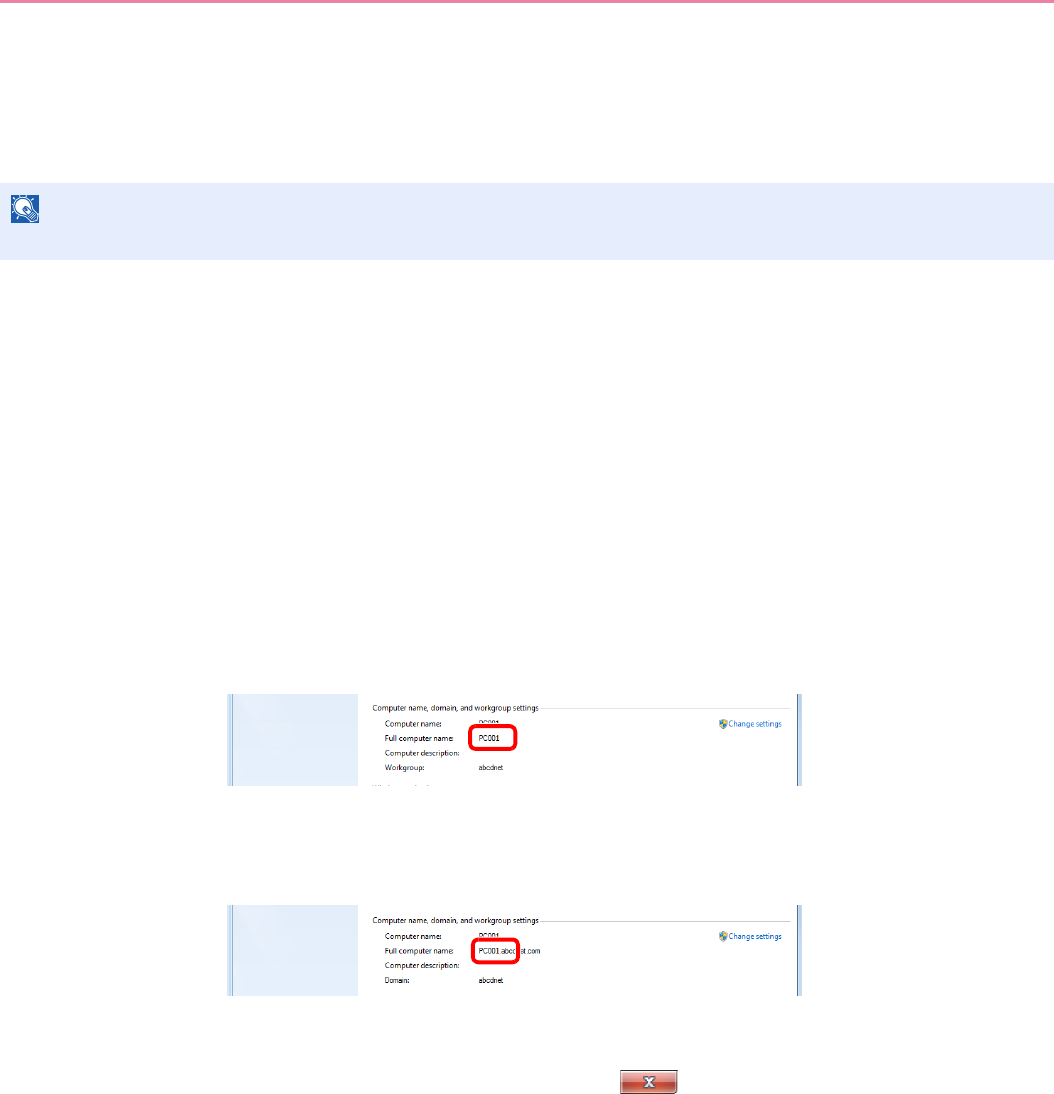
6-5
Sending > Preparation for Sending a Document to a PC
Preparation for Sending a Document to a PC
Check the information that needs to be set on the machine and create a folder to receive the document on your
computer. Screens of Windows 7 are used in the following explanation. The details of the screens will vary in other
versions of Windows.
Checking What to Enter for [Host Name]
Check the name of the destination computer.
1Display the window.
From the Start menu, select Computer and then System Properties.
In Windows XP, right-click My Computer and select Properties. The System Properties
dialog box appears. Click the Computer Name tab in the window that appears.
2Check the computer name.
Check the computer name in the window that appears.
If there is a workgroup
All characters appearing in "Full computer name" should be entered in [Host Name].
(Example: PC001)
If there is a domain
The characters to the left of the first dot (.) in "Full computer name" should be entered in [Host
Name]. (Example: pc001)
After checking the computer name, click the (Close) button to close the System
Properties screen.
In Windows XP, after checking the computer name, click the Cancel button to close the
System Properties screen.
NOTE
Log on to Windows with administrator privileges.
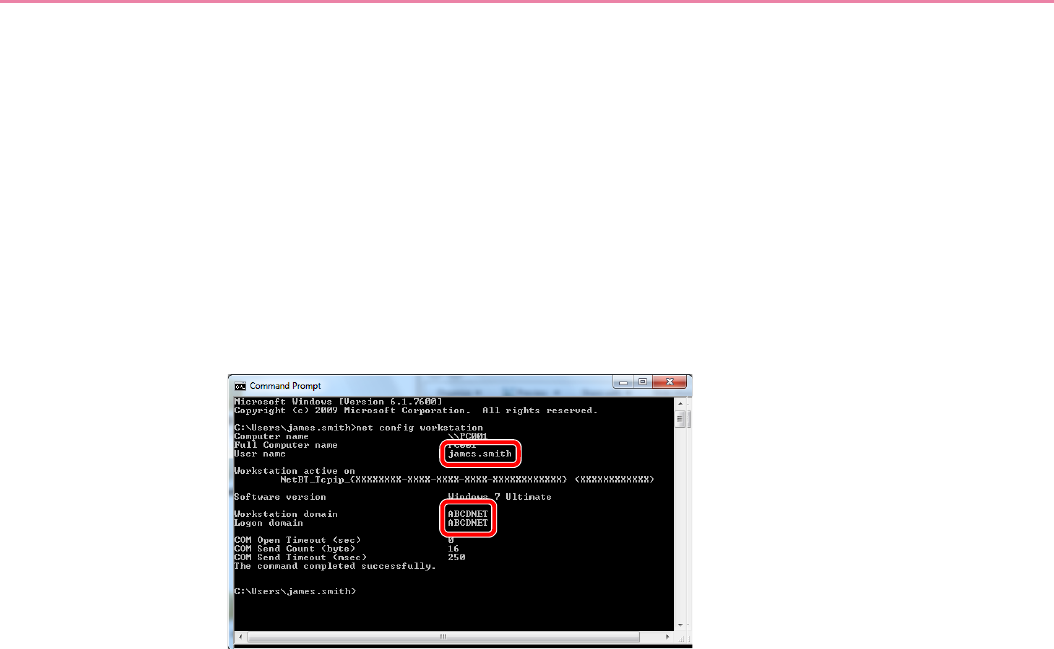
6-6
Sending > Preparation for Sending a Document to a PC
Checking What to Enter for [Login User Name]
Check the domain name and user name for logging onto Windows.
1Display the window.
From the Start menu, select All Programs (or Programs), Accessories and then Command
Prompt.
The Command Prompt window appears.
2Check the domain name and user name.
At the Command Prompt, enter "net config workstation" and then press [Enter].
Screen example: user name "james.smith" and domain name "ABCDNET"

6-7
Sending > Preparation for Sending a Document to a PC
Creating a Shared Folder
Create a shared folder to receive the document in the destination computer.
1Create a folder.
1Create a folder on the local disk (C).
For example, create a folder with the name "scannerdata" on the local disk (C).
2Right-click the scannerdata folder and click Share and Advanced sharing. Click the
Advanced Sharing button.
In Windows XP, right-click the scannerdata folder and select Sharing and Security... (or
Sharing).
NOTE
If there is a workgroup in System Properties, configure the settings below to limit folder access to a specific user or
group.
1From the Start menu, select Control Panel, Appearance and Personalization, and
then Folder Options.
Windows XP, click My Computer and select Folder Options in Tools.
2
Remove the checkmark from Use Sharing Wizard (Recommended) in Advanced
settings.
In Windows XP, click the View tab and remove the checkmark from Use Simple File
Sharing (Recommended) in Advanced settings.
1
2
3
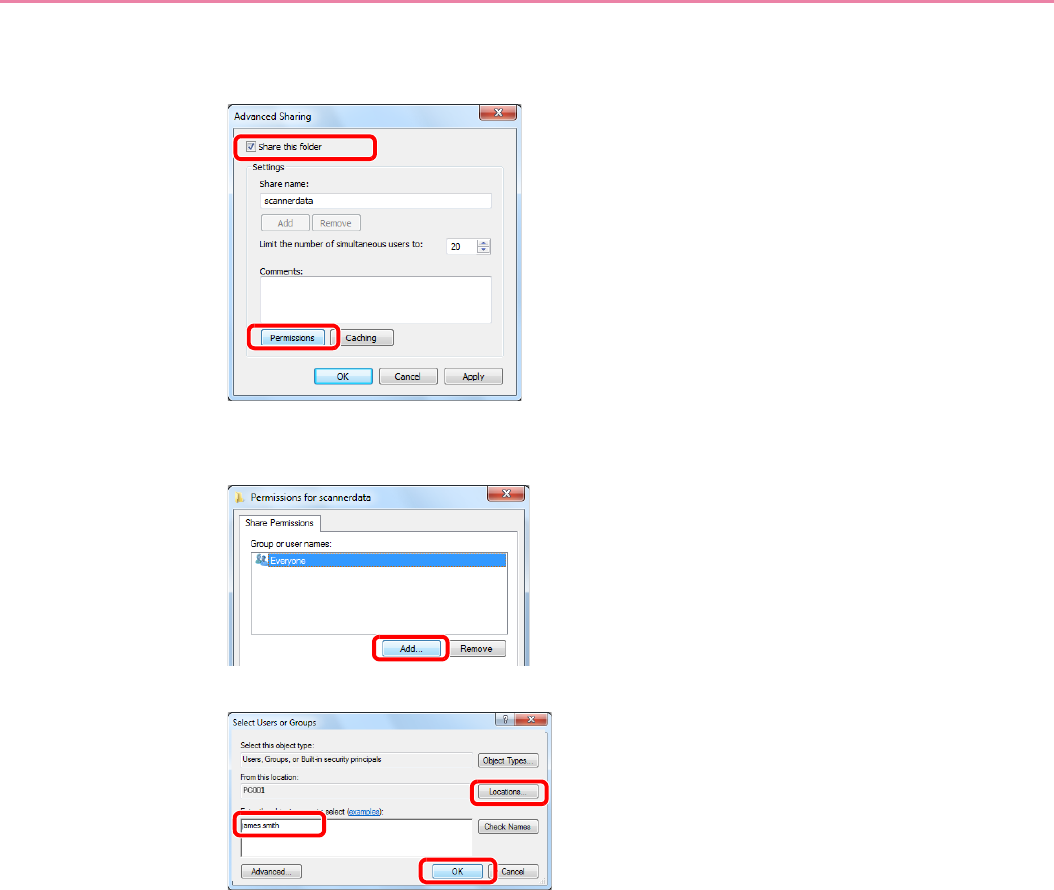
6-8
Sending > Preparation for Sending a Document to a PC
2Configures permission settings.
1
In Windows XP, select Share this folder and click the Permissions button.
2
3
Enter the user name in the text box.
Click the [Location] button and select the desired location. To select the search target, click a
location to select it. When you are a member of a domain, your current domain will be set as
the search target by default.
1
2
13
2
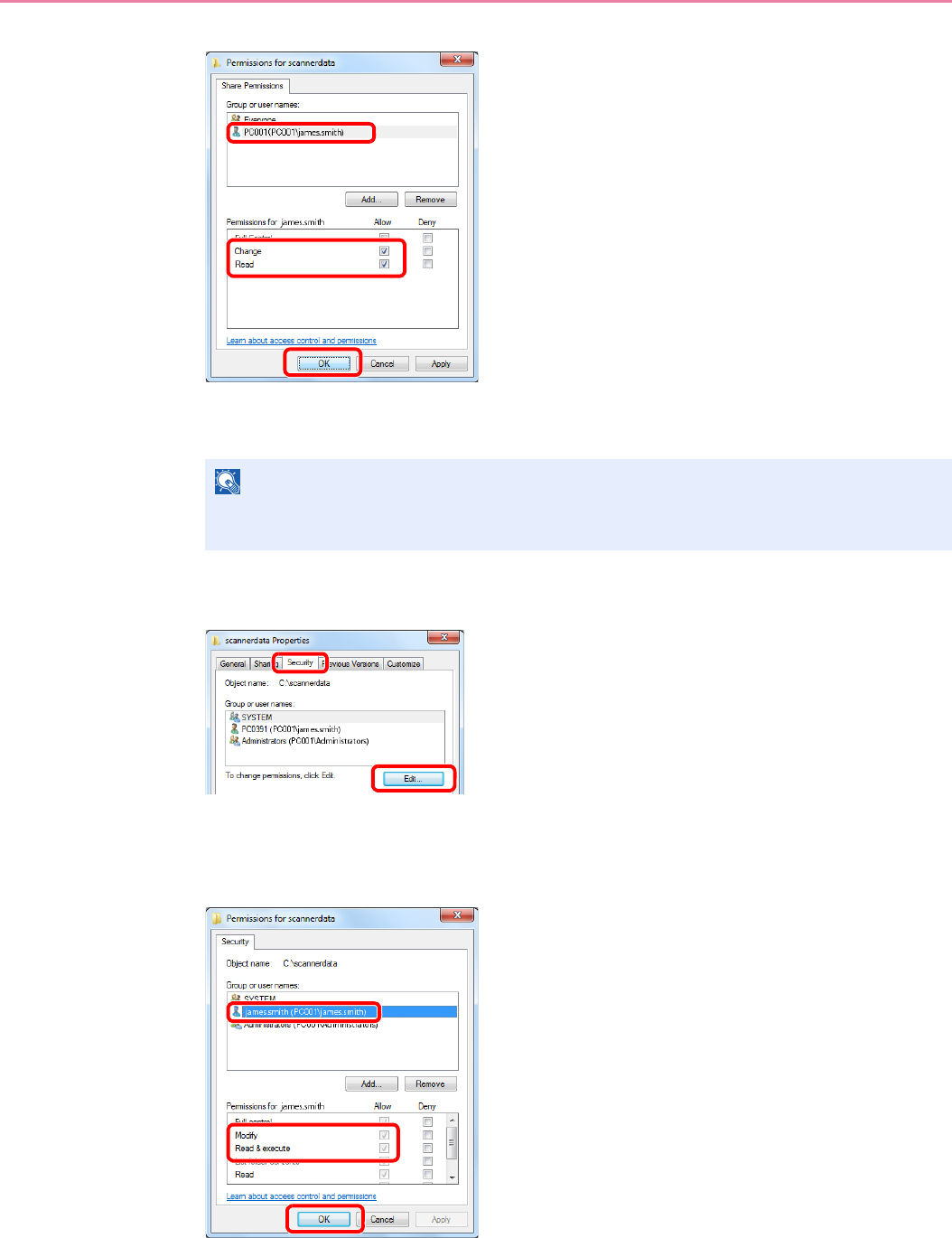
6-9
Sending > Preparation for Sending a Document to a PC
4
Select the entered user, select the Change and Read permissions.
In Windows XP, go to step 6.
5Click the OK button in the Advanced Sharing screen to close the screen.
6
In Windows XP, click the Security tab and then click the Add button.
7Proceed in the same way as in step 3 to add a user to Group or user names.
8
Select the added user, select the Modify and Read & execute permissions.
NOTE
"Everyone" gives sharing permission to everyone on the network. To strengthen security, it
is recommended that you select Everyone and remove the Read permission checkmark.
1
2
3
1
2
1
2
3
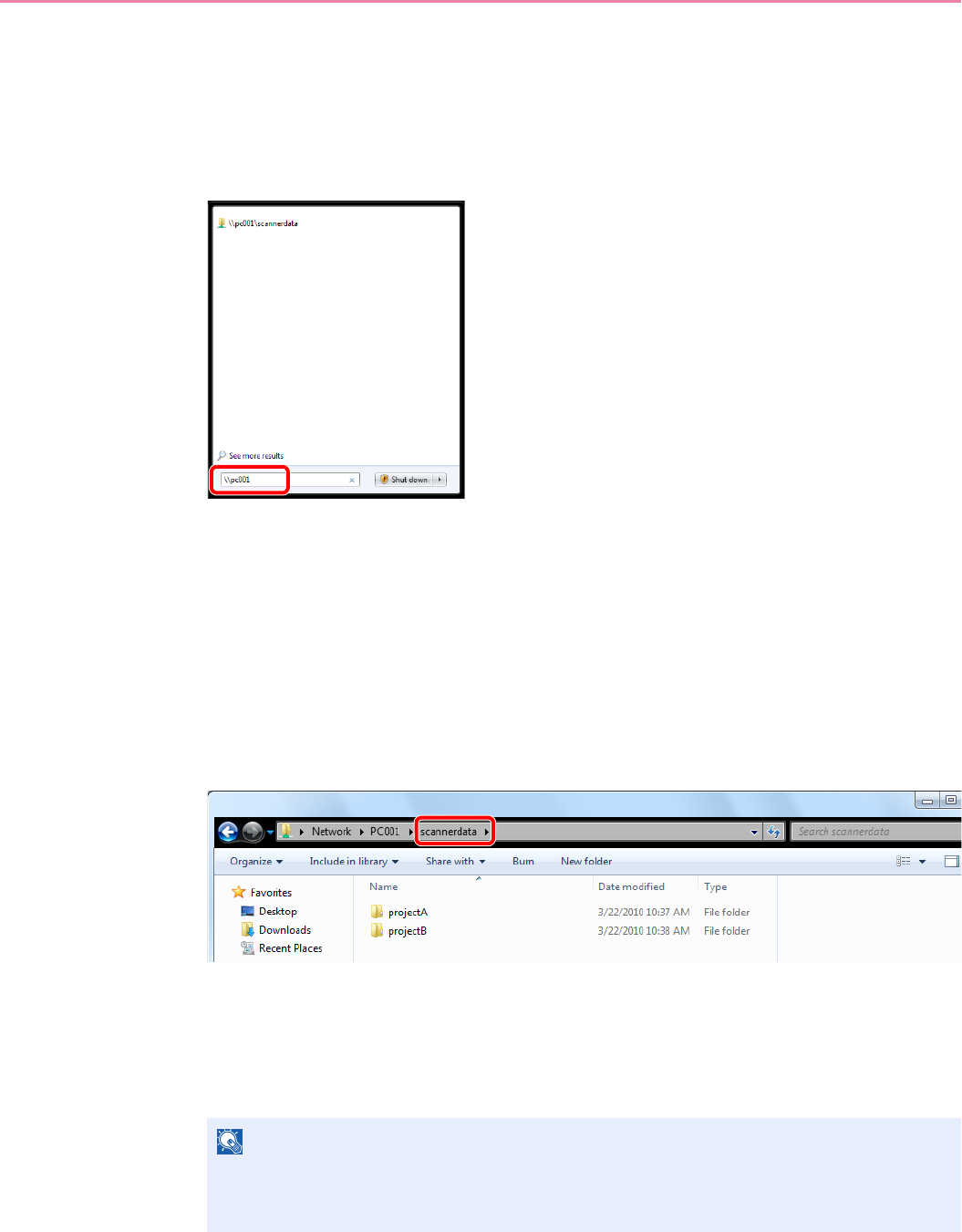
6-10
Sending > Preparation for Sending a Document to a PC
Checking the [Path]
Check the share name of the shared folder that will be the destination for the document.
1Display the window.
1Enter "\\pc001" in "Program and File Search" in the Start menu.
In Windows XP, click Search in the Start menu, select All files and folders, and search for
the destination computer to which the file will be sent.
In Search Companion, click Computers or people and then A computer on the network.
In the "Computer name:" text box, enter the name of the computer that you checked (pc001)
and then click Search.
2Click "\\pc001\scannerdata" that appears in the search results.
In Windows XP, double-click the computer ("pc001") that appears in the search results.
2Check the folder that appears.
1Check the address bar. The third and following text strings (X) should be entered for the
path.
In Windows XP, double-click the scannerdata folder and check the address bar. The text string
to the right of the third backslash (\) should be entered in Path.
(Example: scannerdata)
NOTE
You can also specify a subfolder in the shared folder as the location where data is to be
sent. In this case, "share name\name of folder in the shared folder" should be entered for
the Path. In the example window above, "scannerdata\projectA" is the Path.
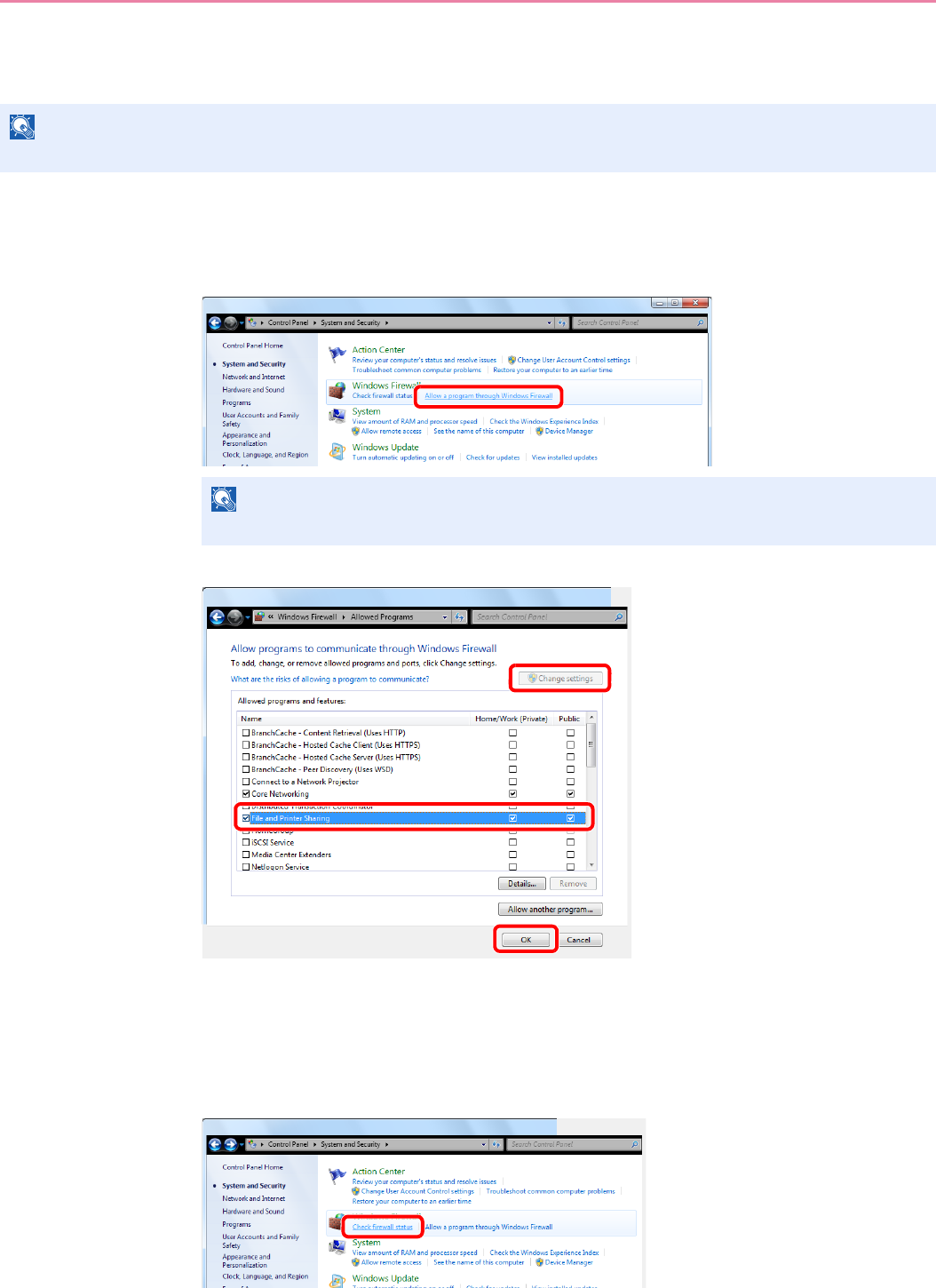
6-11
Sending > Preparation for Sending a Document to a PC
Configuring Windows Firewall (for Windows 7)
Permit sharing of files and printers and set the port used for SMB transmission.
1Check file and printer sharing.
1From the Start menu, select Control Panel, System and Security, and Allow a program
through Windows Firewall.
2
Select the File and Printer Sharing checkbox.
2Add a port.
1From the Start menu, select Control Panel, System and Security, and Check firewall
status.
NOTE
Log on to Windows with administrator privileges.
NOTE
If the User Account Control dialog box appears, click the Continue button.
11
2
3
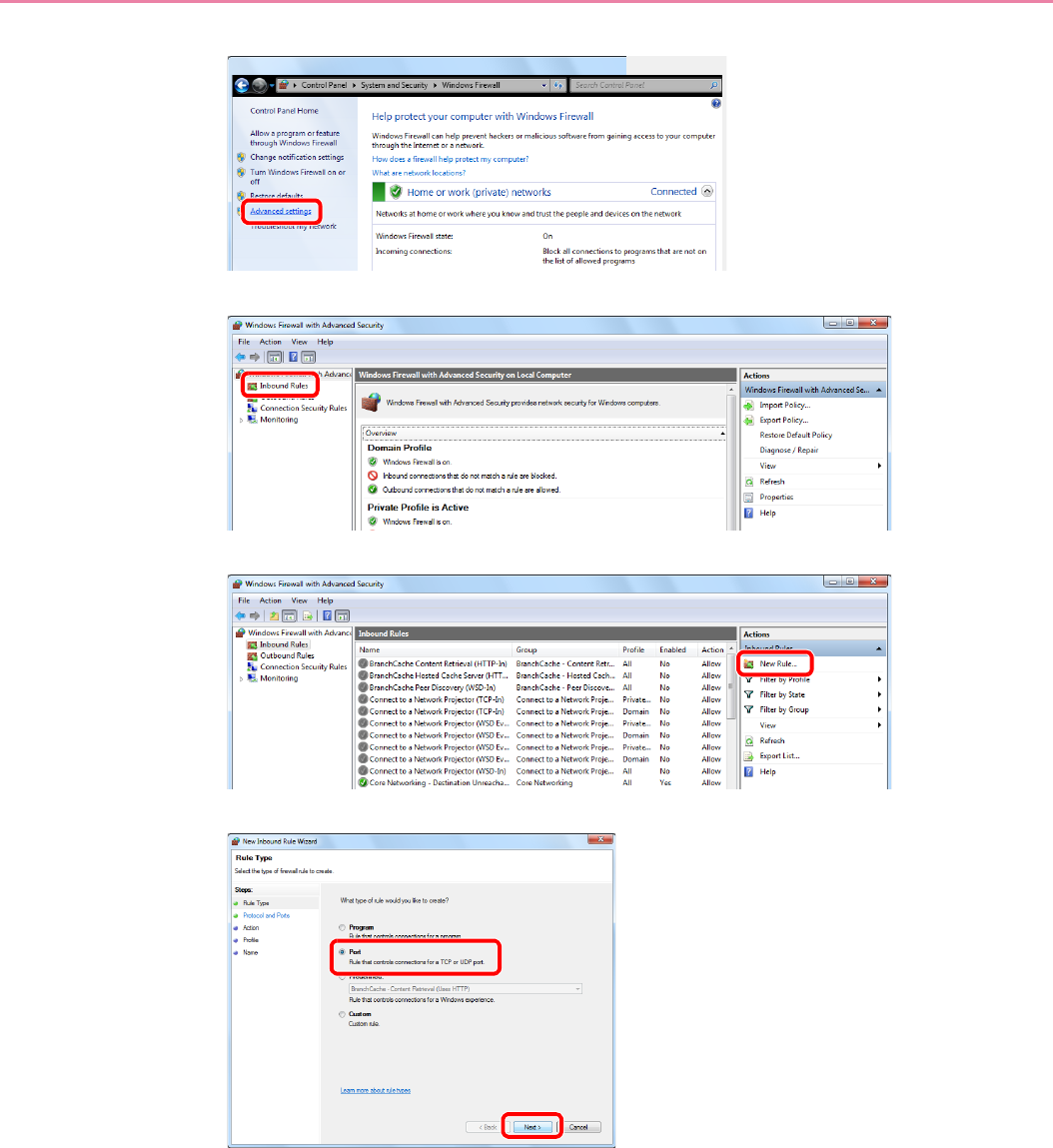
6-12
Sending > Preparation for Sending a Document to a PC
2
3
4
5
1
2
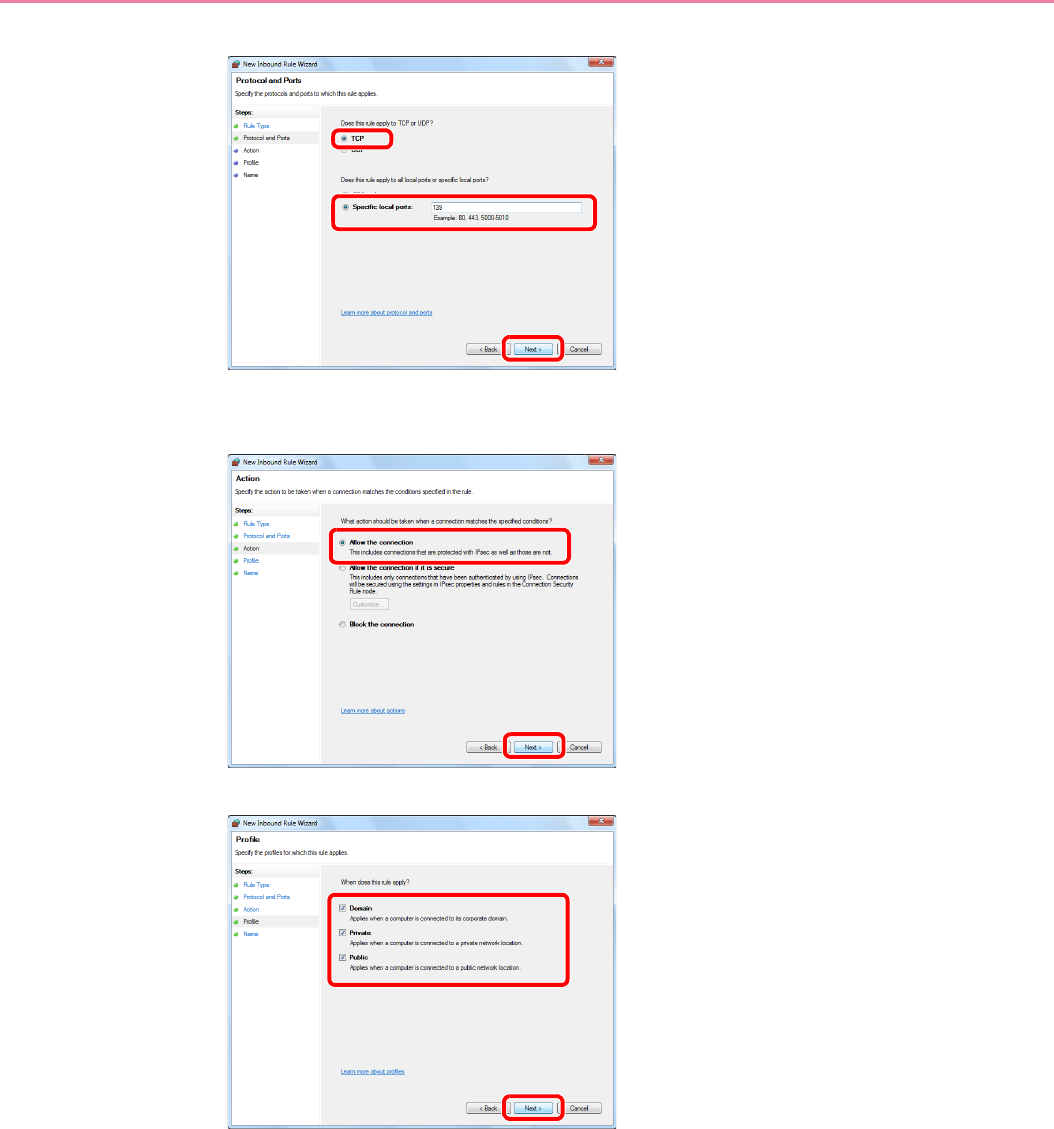
6-13
Sending > Preparation for Sending a Document to a PC
6
Select Specific local ports, and enter "139".
7
8
Make sure all checkboxes are selected.
2
3
1
1
2
1
2
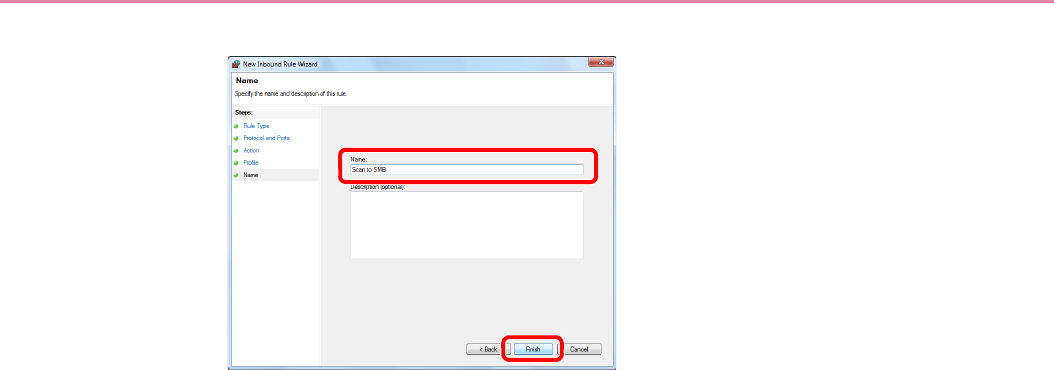
6-14
Sending > Preparation for Sending a Document to a PC
9
Enter "Scan to SMB" in "Name" and click Finish.
In Windows XP or Windows Vista
1From the Start menu, select Control Panel, System and Security (or Security Center),
and then Check Firewall Status) (or Windows Firewall).
If the User Account Control dialog box appears, click the Continue button.
2Click the Exceptions tab and then the Add port... button.
3Specify Add a Port settings.
Enter any name in "Name" (example: Scan to SMB). This will be the name of the new port.
Enter "139" in "Port Number". Select TCP for "Protocol".
4Click the OK button to close the Add a Port dialog box.
1
2
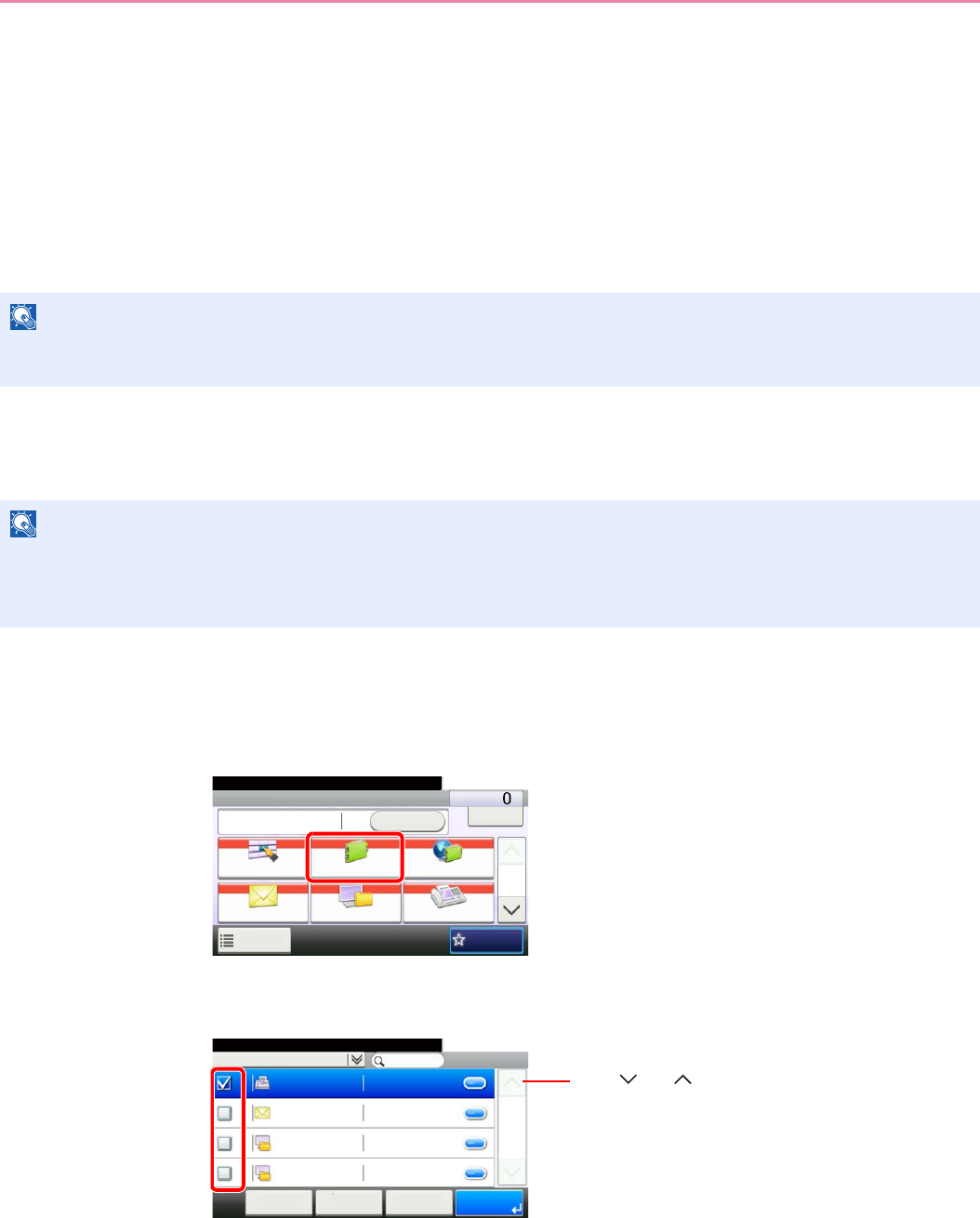
6-15
Sending > Specifying Destination
Specifying Destination
Select the destination to which to send an image.
Select the destination using either of the following methods.
•Choosing from the Address Book (page 6-15)
•Choosing by One Touch Key (page 6-17)
•Entering a New E-mail Address (page 6-18)
•Specifying a New PC Folder (page 6-19)
Choosing from the Address Book
Select a destination registered in the Address Book.
1Display the screen.
1Referring to Basic Operation on page 6-2, display the screen.
2
2Select the destination.
Press the checkbox to select the desired destination from the list. The selected destinations
are indicated by a checkmark in the check box.
NOTE
When the optional fax kit has been installed, you can specify the fax destination. Enter the other party’s number using
the numeric keypad.
NOTE
For more information about how to register destinations in the Address Book, refer to Registering Destinations in the
Address Book on page 6-24.
For details on the External Address Book, refer to KYOCERA COMMAND CENTER Operation Guide.
GB0055_00
Send Dest. :
Recall Check
E-mail
One Touch Key Address Book Ext Address Book
FAXFolder
Functions
10:10
1/2
Favorites
Ready to send.
GB0426_00
Address Book (All)
10:10
002
< Back OKCancelMenu
1/1
003
004
001
Ready to send.
Sales department 1
Sales department 1
Support department
Support department
0123456
abc
0234567
.BOX
Use [ ] or [ ] to scroll up and down.
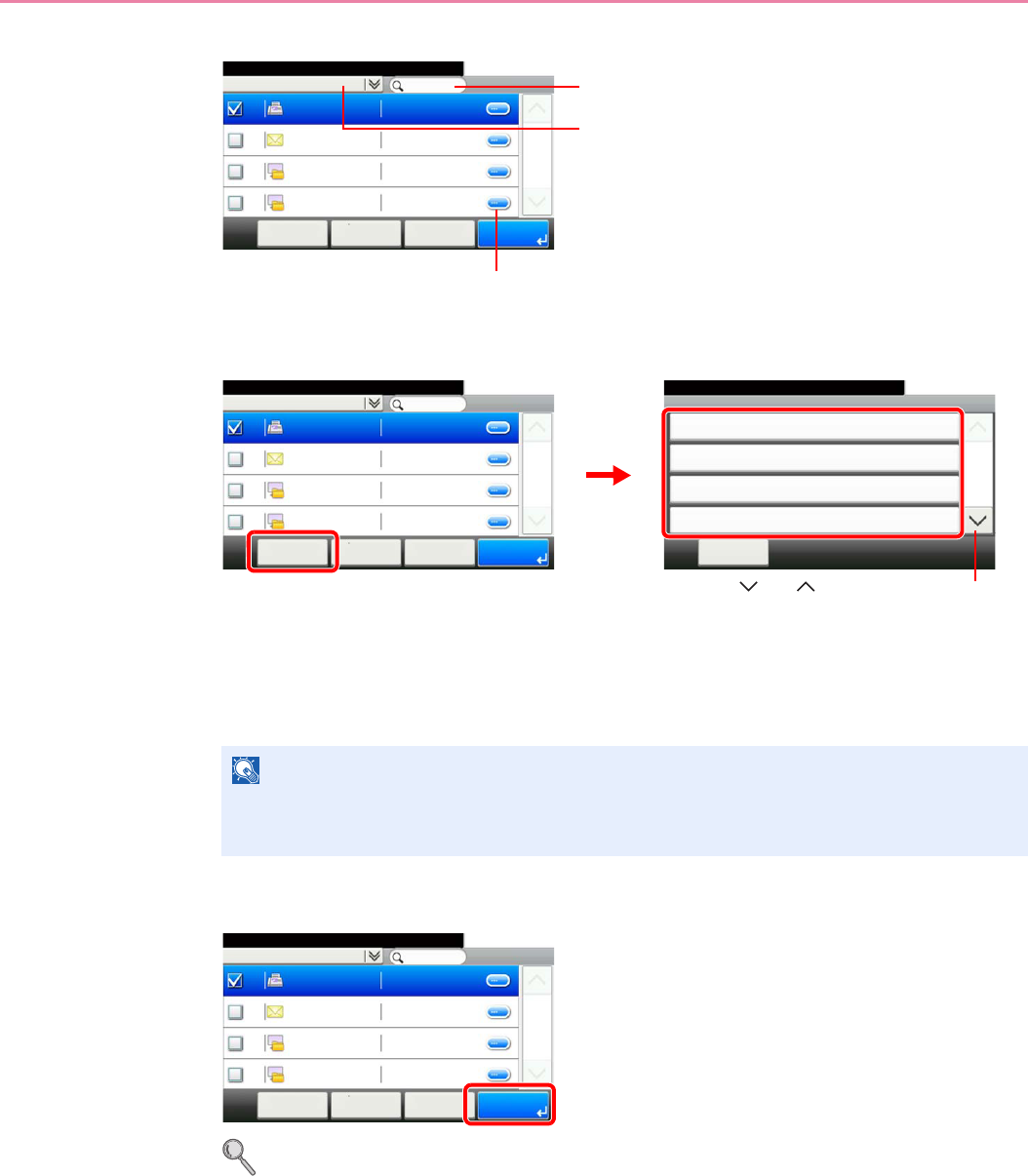
6-16
Sending > Specifying Destination
Destination Search
You can specify a destination by address number by pressing the Quick No. Search key.
You can also press [Menu] to perform a more detailed search.
Narrow Down: Advanced search by type of registered destination (E-mail, Folder (SMB/FTP),
FAX or Group).
Search (Name) and Search (No.): Searches by destination name or address number.
Sort (Name) and Sort (No.): Sorts the list by destination name or address number.
3Accept the destinations.
Destinations can be changed later. Refer to Checking and Editing Destinations on page 6-22.
NOTE
You may choose multiple destinations.
To cancel a selection, press the corresponding checkbox to clear the check mark.
GB0426_00
Address Book (All)
10:10
002
< Back OKCancelMenu
1/1
003
004
001
Ready to send.
Sales department 1
Sales department 1
Support department
Support department
0123456
abc
0234567
.BOX
Displays details for individual destinations.
Searches by destination name.
Advanced search by type of registered destination (E-
mail, Folder (SMB/FTP), FAX or Group).
Address Book (All)
10:10
002
< Back OKCancelMenu
1/1
003
004
001
Ready to send.
Sales department 1
Sales department 1
Support department
Support department
0123456
abc
0234567
.BOX
Menu
Narrow Down
10:10
㪚㫃㫆㫊㪼
Search (Name)
Search(No.)
Sort (Name)
1/2
GB0396_00
GB0426_00
Use [ ] or [ ] to scroll up and down.
GB0426_00
Address Book (All)
10:10
002
< Back OKCancelMenu
1/1
003
004
001
Ready to send.
Sales department 1
Sales department 1
Support department
Support department
0123456
abc
0234567
.BOX
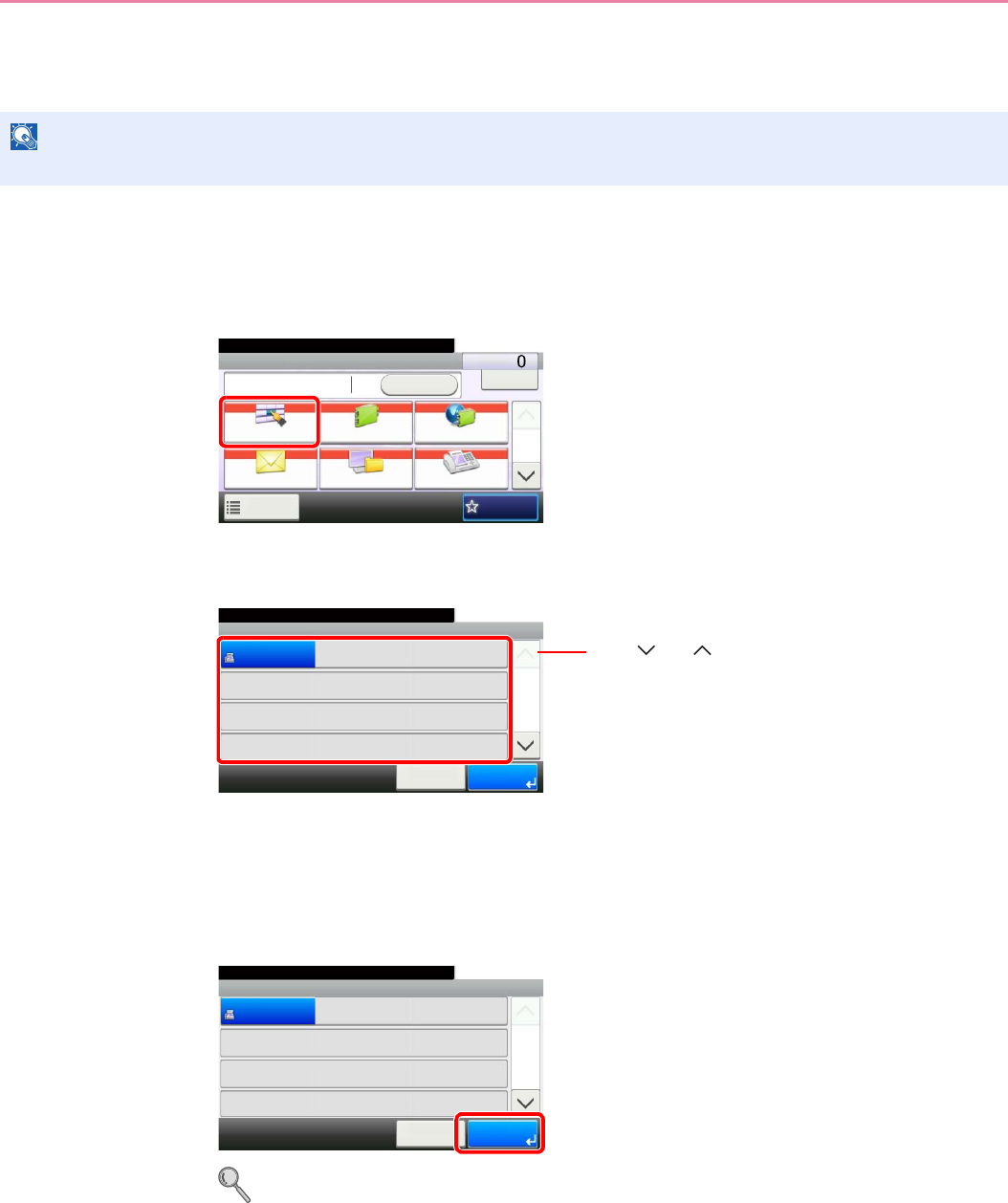
6-17
Sending > Specifying Destination
Choosing by One Touch Key
Select the destination using the One Touch Keys.
1Display the screen.
1Referring to Basic Operation on page 6-2, display the screen.
2
2Select the destination.
Press the One Touch Keys where the destination is registered. Multiple One Touch Keys can
be selected.
You can specify a one-touch key by one-touch number by pressing the Quick No. Search key.
3Accept the destination.
Destinations can be changed later. Refer to Checking and Editing Destinations on page 6-22.
NOTE
For more information on adding One Touch keys, refer to Adding a Destination on One Touch Key on page 6-33.
GB0055_00
Send Dest. :
Recall Check
E-mail
One Touch Key Address Book Ext Address Book
FAXFolder
Functions
10:10
1/2
Favorites
Ready to send.
GB0095_00
One Touch Key
10:10Ready to send.
None
None
None
123456
Cancel
None
None
None
None
None
None
None
None
1/9
OK
001
004
007
010 011
008
005
002
012
009
006
003
Use [ ] or [ ] to scroll up and down.
GB0095_00
One Touch Key
10:10Ready to send.
None
None
None
123456
Cancel
None
None
None
None
None
None
None
None
1/9
OK
001
004
007
010 011
008
005
002
012
009
006
003
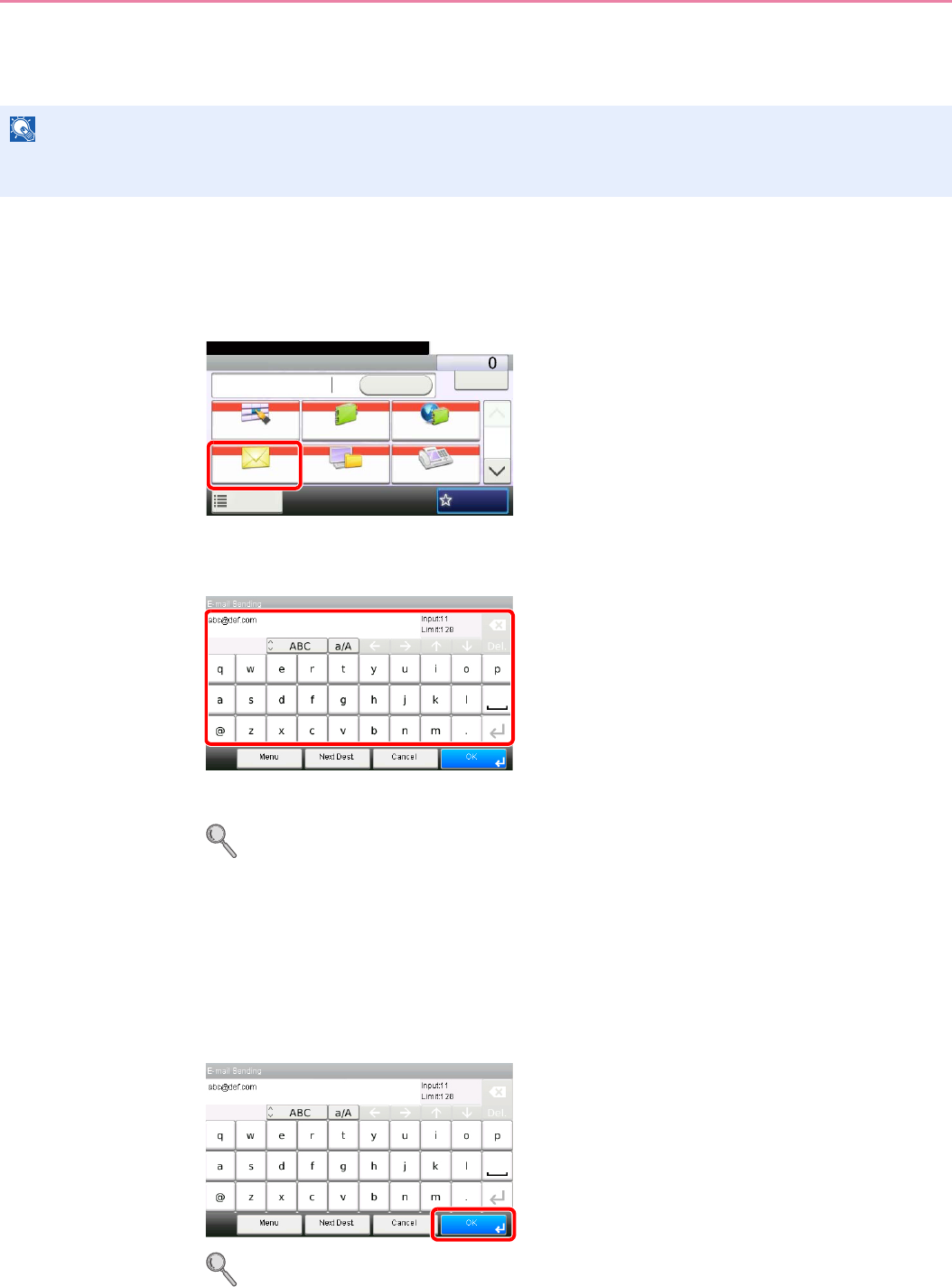
6-18
Sending > Specifying Destination
Entering a New E-mail Address
Enter the desired e-mail address.
1Display the screen.
1Referring to Basic Operation on page 6-2, display the screen.
2
2Enter destination E-mail address.
Up to 128 characters can be entered.
Refer to Character Entry Method on page 11-7 for details on entering characters.
To enter multiple destinations, press [Next Destination] and enter the next destination. Up to
100 E-mail addresses can be specified.
You can register the entered email address in the Address Book by pressing [Menu] and then
[Add to Address Book]. You can also replace the information for a previously registered
destination.
3Accept the destinations.
Destinations can be changed later. Refer to Checking and Editing Destinations on page 6-22.
NOTE
Access the COMMAND CENTER beforehand and specify the settings required for sending e-mail. For details, refer to
COMMAND CENTER (Settings for E-mail) on page 2-23.
GB0055_00
Send Dest. :
Recall Check
E-mail
One Touch Key Address Book Ext Address Book
FAXFolder
Functions
10:10
1/2
Favorites
Ready to send.
GB0057_07
GB0057_07
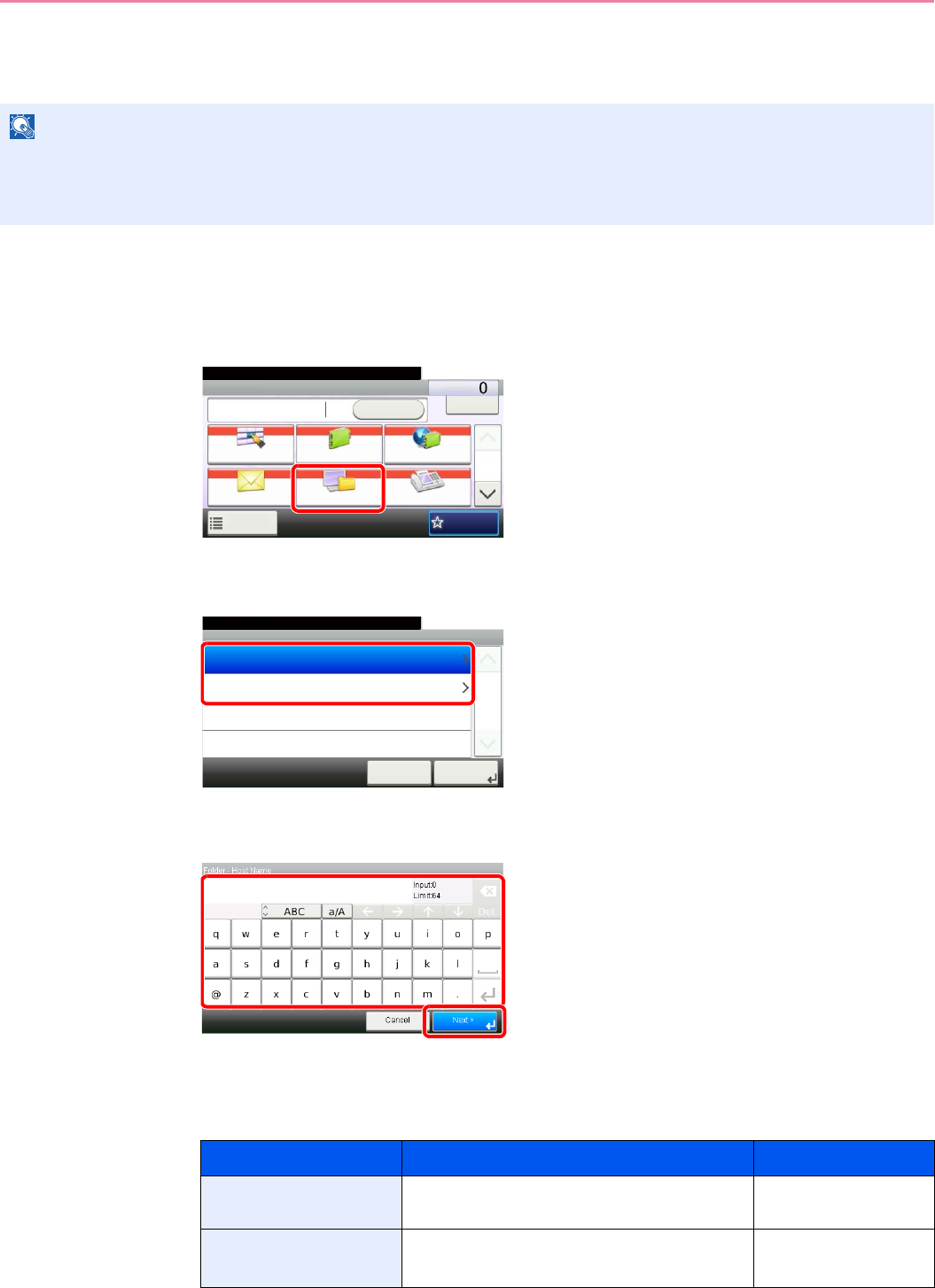
6-19
Sending > Specifying Destination
Specifying a New PC Folder
Specify either the desired shared folder on a computer or an FTP server as the destination.
1Display the screen.
1Referring to Basic Operation on page 6-2, display the screen.
2
2Select the folder type.
3Enter the destination information.
Enter the next information. Once you have entered one item, press [Next] to advance to the
next item.
For send to folder (SMB)
NOTE
Refer to Creating a Shared Folder on page 6-7 for details on how to share a folder.
Be sure that SMB Protocol or FTP in the COMMAND CENTER is On. For details, refer to the KYOCERA COMMAND
CENTER Operation Guide.
Item Data to be entered Max. characters
Host Name Host name or IP address of the PC to receive
the data.
Up to 64 characters
Path Path to the receiving folder such as follows.
For example, \User\ScanData.
Up to 128 characters
GB0055_00
Send Dest. :
Recall Check
E-mail
One Touch Key Address Book Ext Address Book
FAXFolder
Functions
10:10
1/2
Favorites
Ready to send.
GB0103_00
Folder
10:10Ready to send.
FTP Path Entry
SMB Path Entry
Cancel
1/1
Next >
GB0057_08
1
2
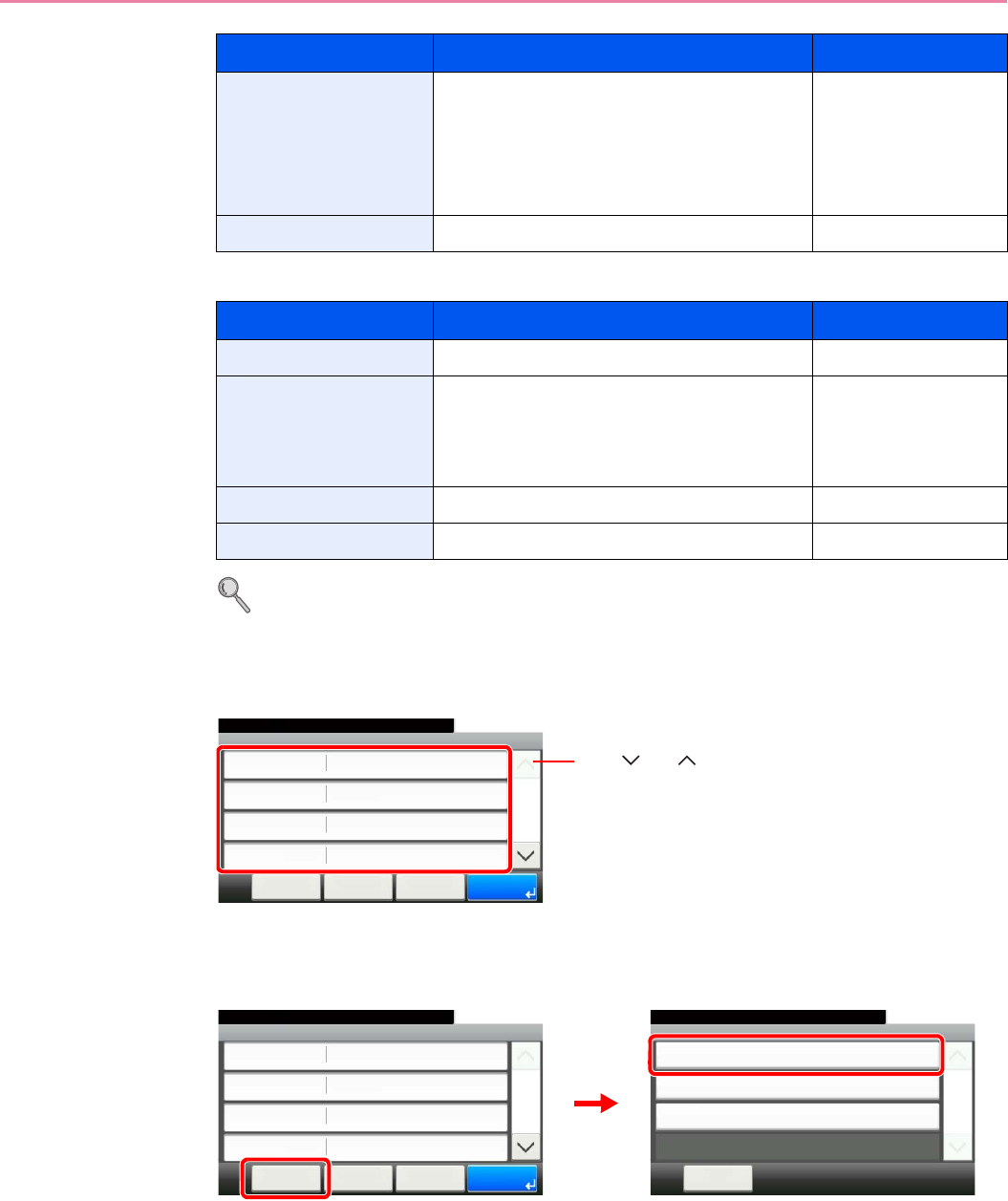
6-20
Sending > Specifying Destination
For send to folder (FTP)
Refer to Character Entry Method on page 11-7 for details on entering characters.
4Confirm the information.
Check the information. Change the information as needed by pressing the item in question.
When specifying a computer or server port number as the destination, press [Port] and enter
the port number. You can enter a number from 1 to 65,535 with a maximum of 5 digits.
Confirm the connection status.
Connected. appears when connection to the destination is correctly established. If Cannot
connect. appears, review the entry.
To enter multiple destinations, press [Next Destination] and enter the next destination. You can
specify a combined total of up to 5 FTP and SMB destination folders.
You can register the entered information in the Address Book by pressing [Menu] and then
[Add to Address Book].
Login User Name User name to access the PC
Domain name/User name
For example, abcdnet\james.smith.
User name@Domain name
For example, james.smith@abcdnet
Up to 64 characters
Login Password Password to access the PC Up to 64 characters
Item Data to be entered Max. characters
Host Name Host name or IP address of FTP server Up to 64 characters
Path Path to the receiving folder.
For example, \User\ScanData.
Otherwise the data will be saved in the home
directory.
Up to 128 characters
Login User Name FTP server login user name Up to 64 characters
Login Password FTP server login password Up to 64 characters
Item Data to be entered Max. characters
GB0128_00
Folder - Confirmation
abc
10:10
Cancel
Ready to send.
Path
Port
Login User Name
Host Name
abc
139
< Back
1/2
OK
abc
Menu
Use [ ] or [ ] to scroll up and down.
Menu
Connection Test
10:10
Close
Next Destination
Add to Address Book
1/1
Folder - Confirmation
abc
10:10
Cancel
Ready to send.
Path
Port
Login User Name
Host Name
abc
139
< Back
1/2
OK
abc
Menu
GB0128_00
GB0020_00
2
1

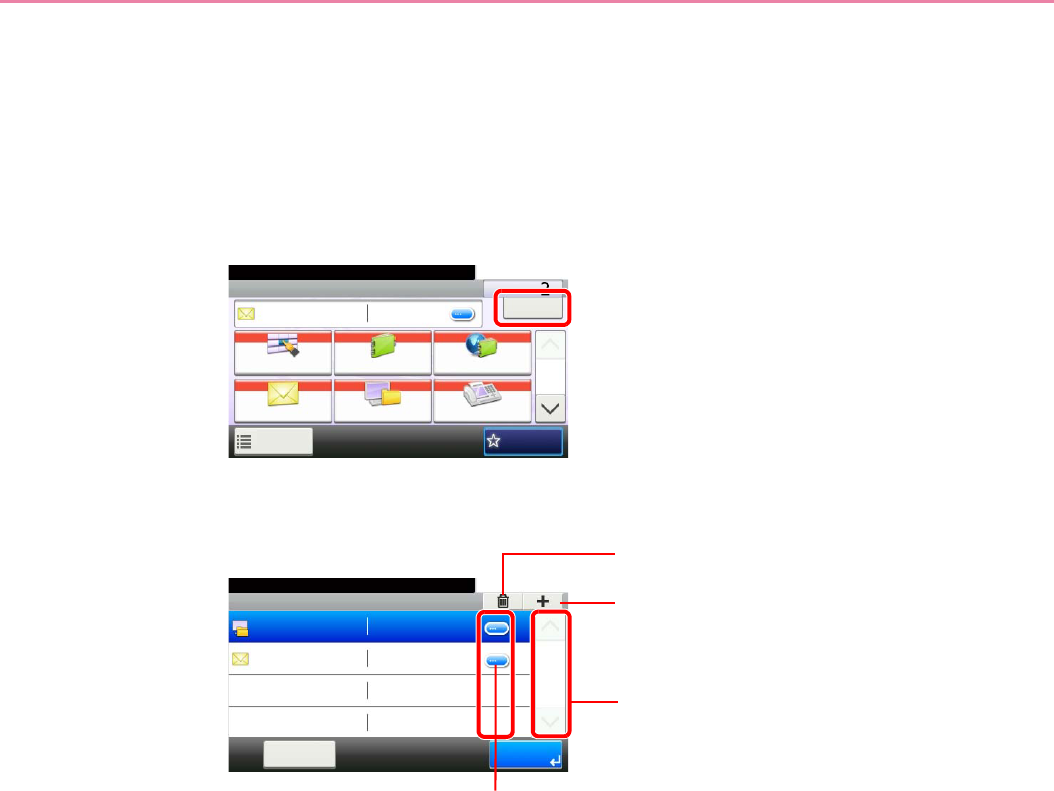
6-22
Sending > Specifying Destination
Checking and Editing Destinations
Check and edit a selected destination.
1Display the screen.
1Referring to Specifying Destination on page 6-15, specify the destination.
2
2Check and edit the destination.
GB0055_02
Ready to send.
Send Dest. :
BBB bbb@abc.com Check
E-mail
One Touch Key Address Book Ext Address Book
FAXFolder
Functions
10:10
1/2
Favorites
Check
10:10Ready to send.
BBB
AAA
Menu
1/1
End
bbb@abc.com
abcdefg
Deletes the selected destination.
Adds a new destination.
Displays details for the destinations. New E-mail addresses and PC
folders can be edited if they have been specified.
GB0105_00
Scrolls up and down when the list of
destinations cannot be displayed in its
entirety on a single screen.
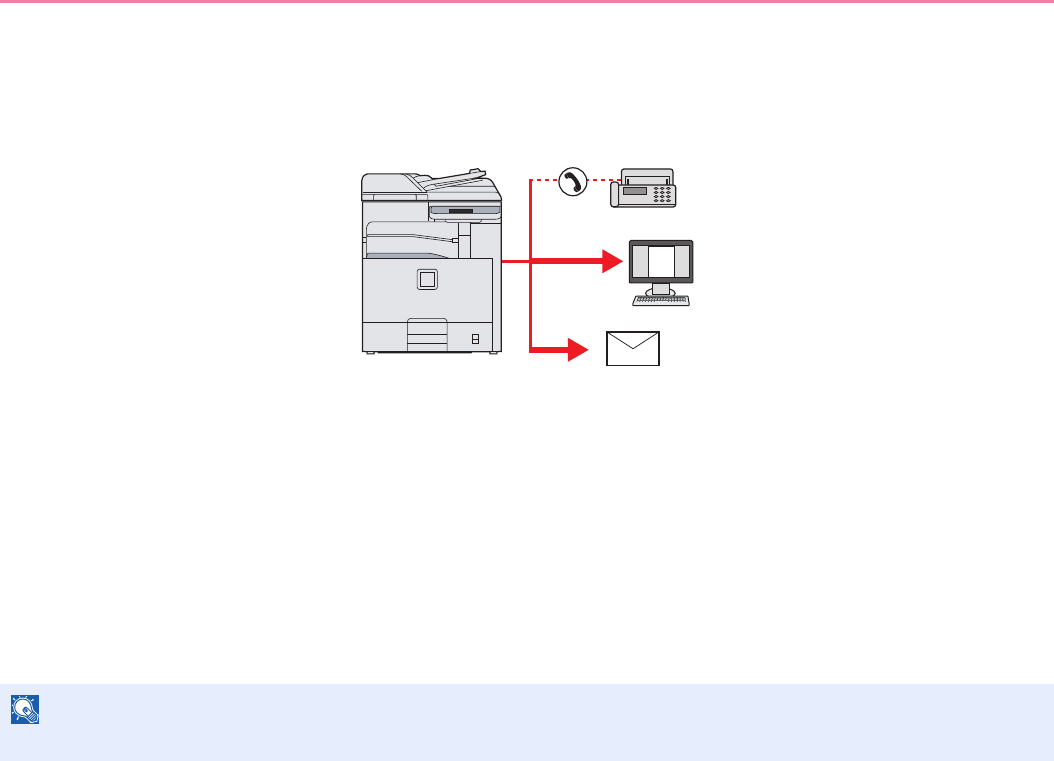
6-23
Sending > Specifying Destination
Sending to Different Types of Destinations (Multi Sending)
You can specify destinations that combine e-mail addresses, folders (SMB or FTP) and fax numbers*. This is referred to
as Multi Sending. This is useful for sending to different types of destination (e-mail addresses, folders, etc.) in a single
operation.
* Requires the optional fax kit.
No. of broadcast items
E-mail: Up to 100
Folders (SMP, FTP): Total of 5 SMB and FTP
FAX: Up to 100
Also, depending on the settings, you can send and print at the same time.
Procedures are the same as used in specifying the destinations of respective types. Continue to enter E-mail address or
folder path so that they appear in the destination list. Press the Start key to launch transmission to all destinations at one
time.
NOTE
If the destinations include a fax, the images sent to all destinations will be black and white.
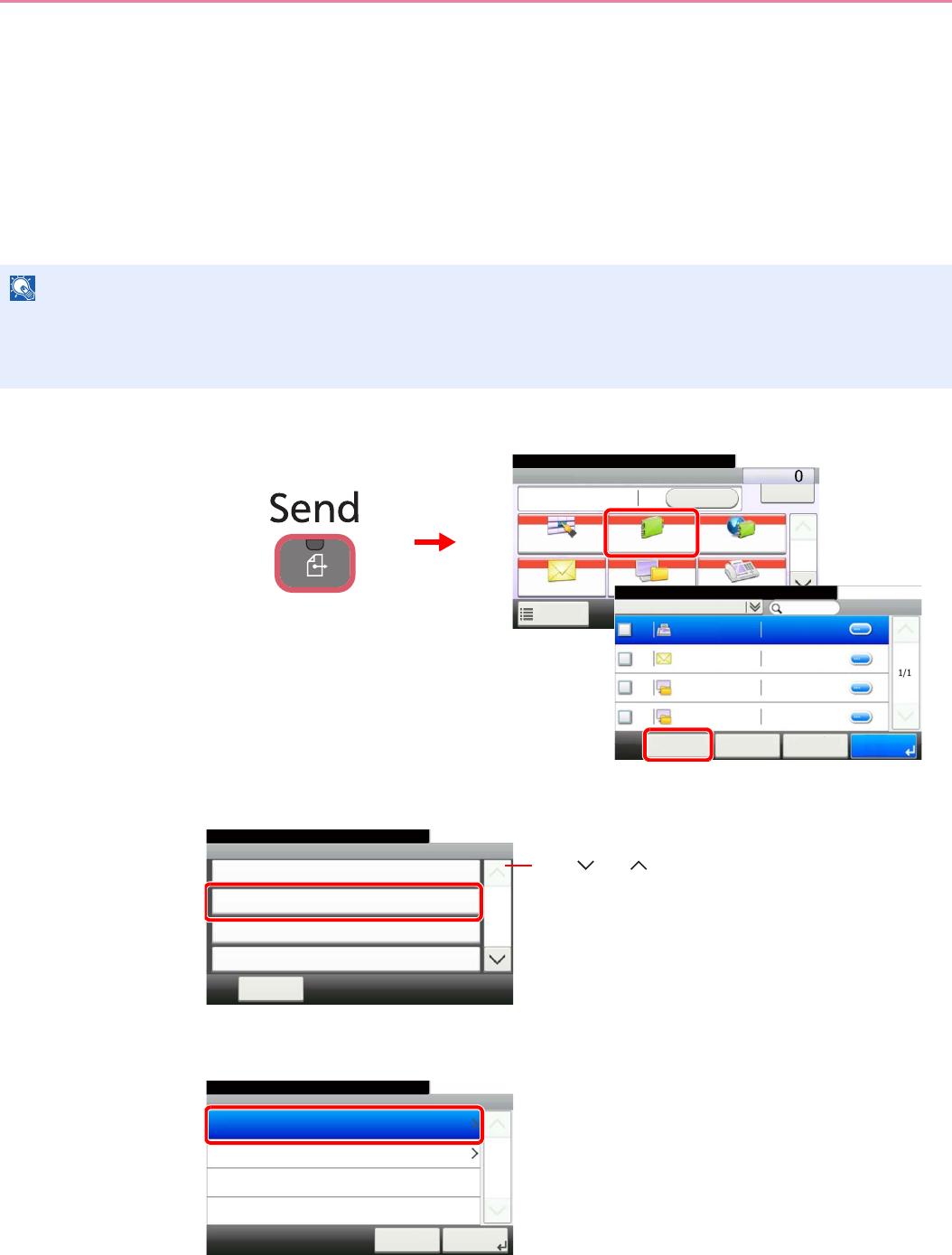
6-24
Sending > Registering Destinations in the Address Book
Registering Destinations in the Address Book
Add a new destination to the Address Book. There are two registering methods, contacts and groups. When adding a
group, enter the group name and select group members from the Address Book.
Adding a Contact
A maximum of 200 contact addresses can be registered. Each address can include the information such as destination
name, E-mail address, FTP server folder path, computer folder path, and FAX No. (optional).
1Display the screen.
2Adds a new destination.
3Select the registration method.
NOTE
If user login administration is enabled, you can only edit destinations in the Address Book by logging in with
administrator privileges.
Contact addresses can also be registered in the system menu.
Send Dest. :
Recall Check
E-mail
One Touch Key Address Book Ext Address Book
FAXFolder
Functions
10:10
1/2
Favorites
Ready to send.
Address Book (All)
10:10Ready to send.
1/1
001
001
002
002
< Back OKMenu Cancel
Sales department 1
Sales department 1
Support department
Support department
0123456
abc
0234567
.BOX
1
GB0426_01
GB0055_00
3
2
GB0396_01
Menu
Sort (No.)
10:10
㪚㫃㫆㫊㪼
Add
Edit
Delete
2/2
Use [ ] or [ ] to scroll up and down.
GB0419_01
Add - Address Type
10:10Select the address type.
Group
Contact
㪚㪸㫅㪺㪼㫃
1/1
㪥㪼㫏㫋㩷㪕
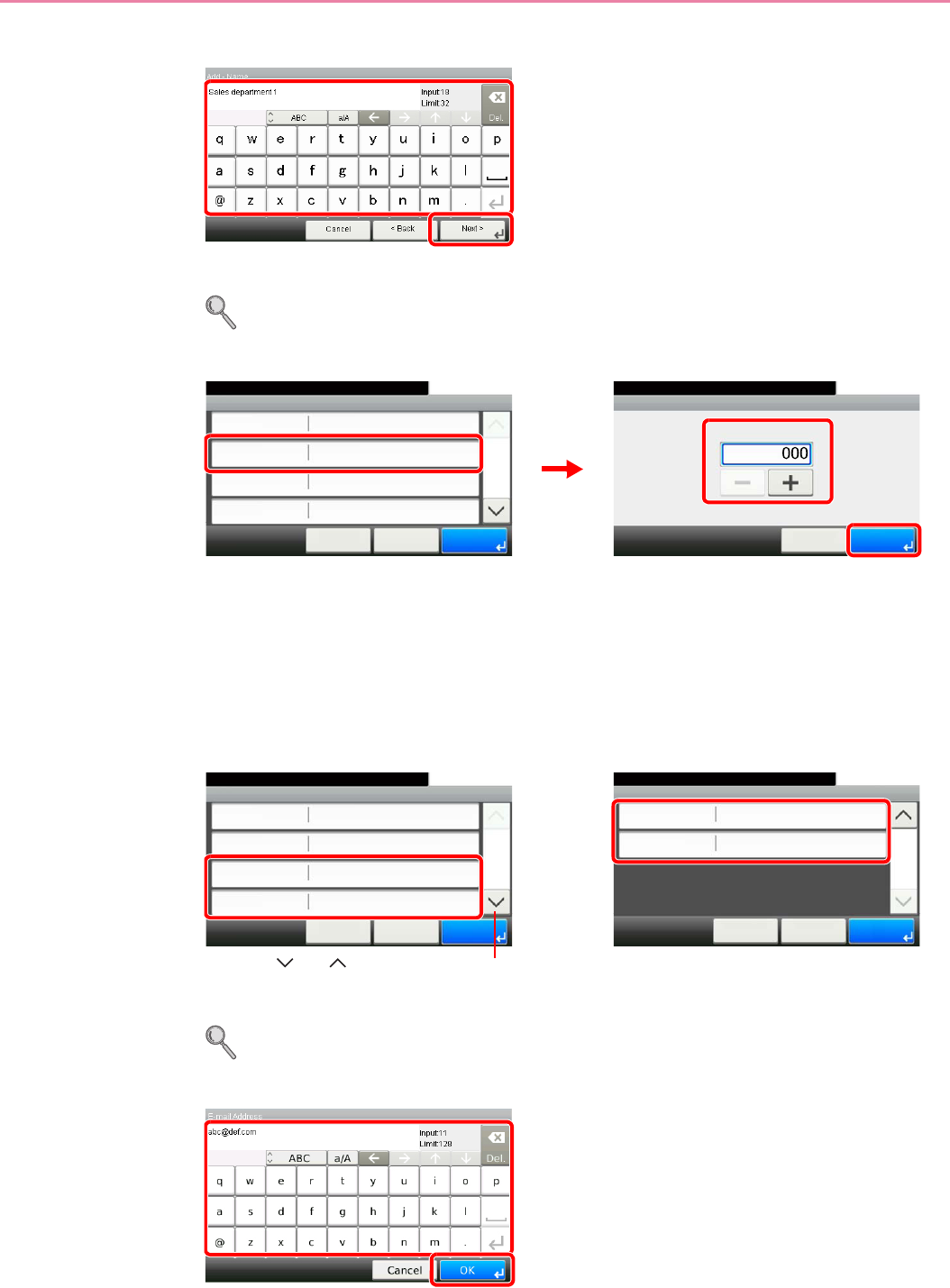
6-25
Sending > Registering Destinations in the Address Book
4Enter the destination name.
Up to 32 characters can be entered.
Refer to Character Entry Method on page 11-7 for details on entering characters.
5Enter the address number.
Press [+], [-] or numeric keys to enter a particular Address Number (1-250).
Address Number is an ID for a destination. You can select any available number out of 200
numbers for contacts and 50 numbers for groups.
If you set “000” as the address number, the address is registered under the lowest available
number.
6Enter the destination.
Select the type of destination to register.
For details on FAX, refer to FAX Operation Guide.
E-mail Address
Enter the E-mail address. Up to 128 characters can be entered.
GB0057_11
1
2
Address Number
10:10Ready to send.
(000 - 250)
㪚㪸㫅㪺㪼㫃 㪦㪢
Add - Confirmation
Sales department 1
10:10
㪚㪸㫅㪺㪼㫃
Select the item that you want to change.
Address Number
FAX
Name
Auto
㪓㩷㪙㪸㪺㫂
1/2
㪪㪸㫍㪼
E-mail Address
GB0078_02
GB0217_01
1
3
2
Add - Confirmation
10:10
㪚㪸㫅㪺㪼㫃
Select the item that you want to change.
SMB
FTP
㪓㩷㪙㪸㪺㫂
2/2
㪪㪸㫍㪼
GB0078_02
Add - Confirmation
Sales department 1
10:10
㪚㪸㫅㪺㪼㫃
Select the item that you want to change.
Address Number
FAX
Name
Auto
㪓㩷㪙㪸㪺㫂
1/2
㪪㪸㫍㪼
E-mail Address
GB0078_03
Use [ ] or [ ] to scroll up and down.
1
GB0057_13
2
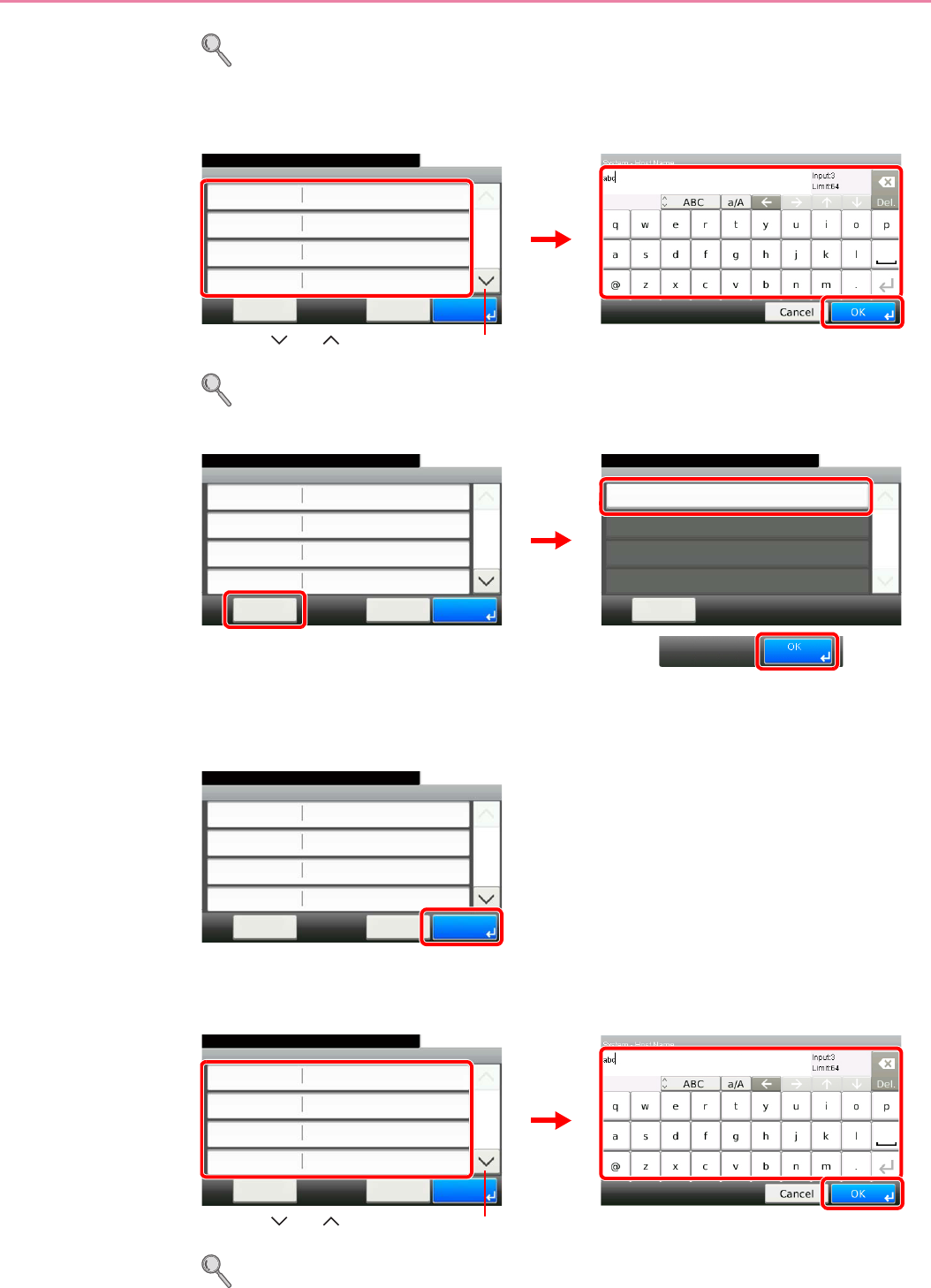
6-26
Sending > Registering Destinations in the Address Book
Refer to Character Entry Method on page 11-7 for details on entering characters.
The Folder (SMB) Address
1Enter Host Name, Path, Port, Login User Name and Login Password.
For more information, refer to Specifying a New PC Folder on page 6-19.
2Confirm the connection status.
Connected. appears when connection to the destination is correctly established. If Cannot
connect. appears, review the entry.
3
The Folder (FTP) Address
1Enter Host Name, Path, Port, Login User Name and Login Password.
For more information, refer to Specifying a New PC Folder on page 6-19.
SMB
10:10
㪤㪼㫅㫌
Ready to send.
Path
Port
Login User Name
Host Name
139
㪚㪸㫅㪺㪼㫃
1/2
㪦㪢
GB0705_02
1
GB0057_15
2
3
Use [ ] or [ ] to scroll up and down.
Menu
Connection Test
10:10
Close
1/1
SMB
10:10
㪤㪼㫅㫌
Ready to send.
Path
Port
Login User Name
Host Name
139
㪚㪸㫅㪺㪼㫃
1/2
㪦㪢
abc
abc
abc
GB0705_03
GB0696_00
2
1
3
SMB
10:10
㪤㪼㫅㫌
Ready to send.
Path
Port
Login User Name
Host Name
139
㪚㪸㫅㪺㪼㫃
1/2
㪦㪢
abc
abc
abc
GB0705_03
FTP
10:10
㪤㪼㫅㫌
Ready to send.
Path
Port
Login User Name
Host Name
21
㪚㪸㫅㪺㪼㫃
1/2
㪦㪢
GB0709_02
1
GB0057_15
2
Use [ ] or [ ] to scroll up and down.
3
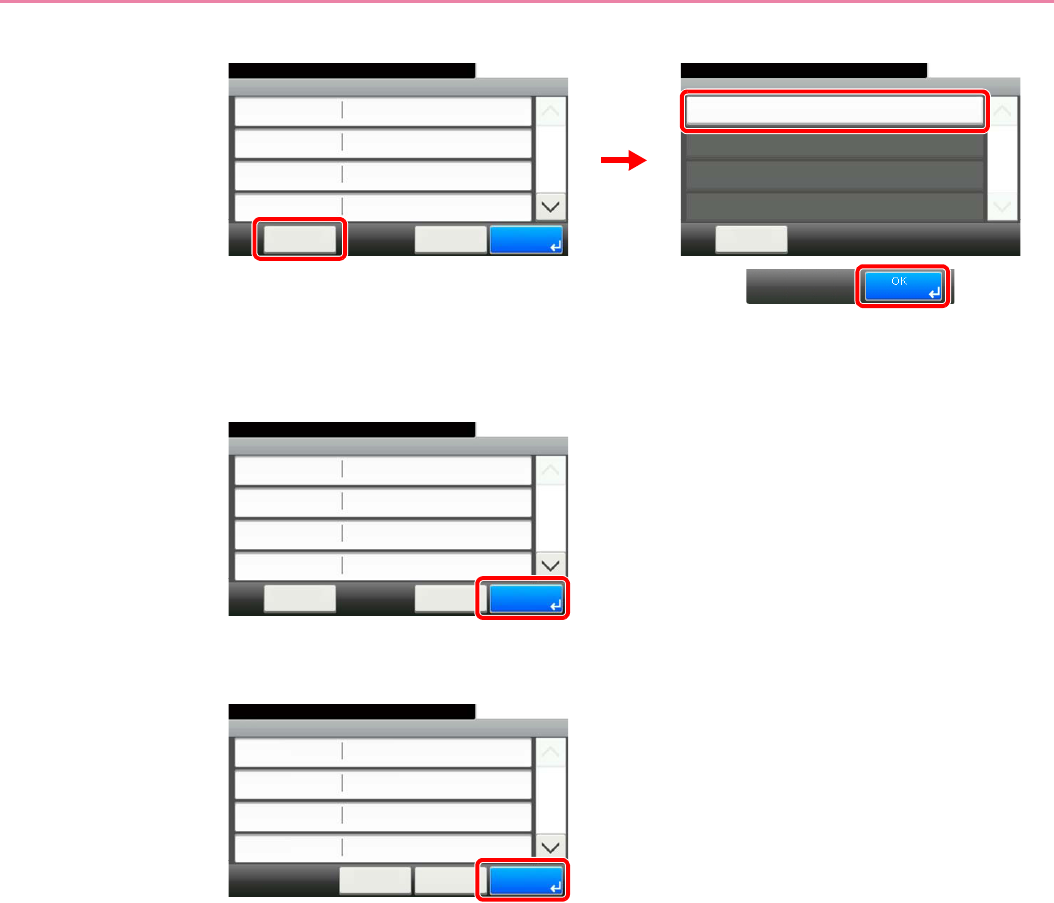
6-27
Sending > Registering Destinations in the Address Book
2Confirm the connection status.
Connected. appears when connection to the destination is correctly established. If Cannot
connect. appears, review the entry.
3
7Register the destination.
Menu
Connection Test
10:10
Close
1/1
FTP
10:10
㪤㪼㫅㫌
Ready to send.
Path
Port
Login User Name
Host Name
21
㪚㪸㫅㪺㪼㫃
1/2
㪦㪢
abc
abc
abc
GB0709_03
GB0696_00
2
1
3
FTP
10:10
㪤㪼㫅㫌
Ready to send.
Path
Port
Login User Name
Host Name
21
㪚㪸㫅㪺㪼㫃
1/2
㪦㪢
abc
abc
abc
GB0709_03
GB0078_02
Add - Confirmation
Sales department 1
10:10
㪚㪸㫅㪺㪼㫃
Select the item that you want to change.
Address Number
FAX
Name
Auto
㪓㩷㪙㪸㪺㫂
1/2
㪪㪸㫍㪼
E-mail Address
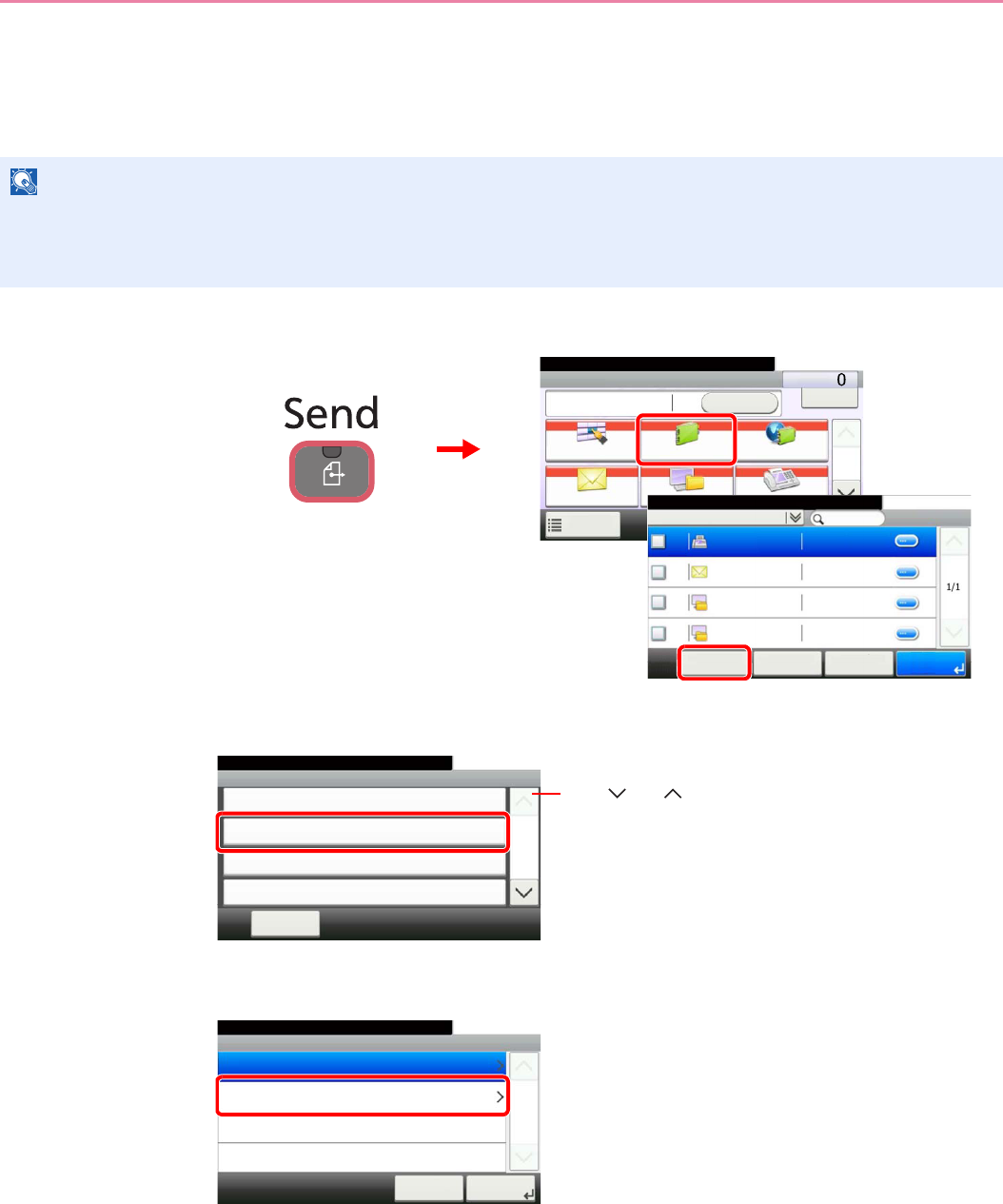
6-28
Sending > Registering Destinations in the Address Book
Adding a Group
Compile two or more contacts into a group. Designations in the group can be added at the same time. When adding a
group, a maximum of 50 groups can be added in the Address Book.
Before adding a group in the Address Book, the contacts to be included in the group must be added first.
1Display the screen.
2Adds a new destination.
3Select the registration method.
NOTE
If user login administration is enabled, you can only edit destinations in the Address Book by logging in with
administrator privileges.
Designations in the group can also be registered in the system menu.
Send Dest. :
Recall Check
E-mail
One Touch Key Address Book Ext Address Book
FAXFolder
Functions
10:10
1/2
Favorites
Ready to send.
Address Book (All)
10:10Ready to send.
1/1
001
001
002
002
< Back OKMenu Cancel
Sales department 1
Sales department 1
Support department
Support department
0123456
abc
0234567
.BOX
1
GB0426_01
GB0055_00
3
2
GB0396_01
Menu
Sort (No.)
10:10
㪚㫃㫆㫊㪼
Add
Edit
Delete
2/2
Use [ ] or [ ] to scroll up and down.
GB0419_01
Add - Address Type
10:10Select the address type.
Group
Contact
㪚㪸㫅㪺㪼㫃
1/1
㪥㪼㫏㫋㩷㪕
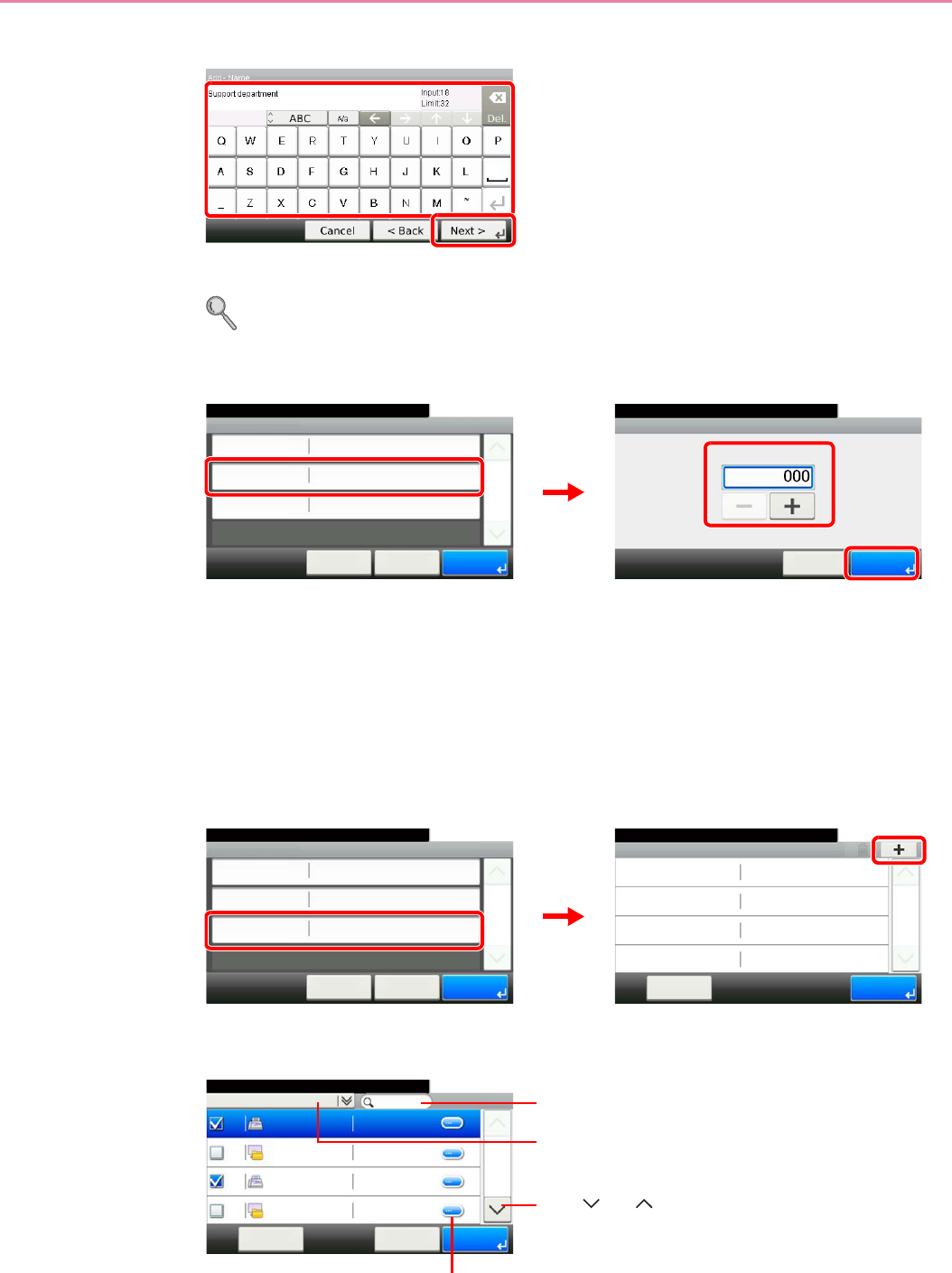
6-29
Sending > Registering Destinations in the Address Book
4Enter the group name.
Up to 32 characters can be entered.
Refer to Character Entry Method on page 11-7 for details on entering characters.
5Enter the address number.
Press [+], [-] or numeric keys to enter a particular Address Number (1-250).
Address Number is an ID for a destination. You can select any available number out of 200
numbers for contacts and 50 numbers for groups.
If you set “000” as the address number, the address is registered under the lowest available
number.
6Select the members (destinations).
1Display the screen.
2Press the checkbox to select the desired destination from the list. The selected
destinations are indicated by a checkmark in the check box.
You can specify a destination by address number by pressing the Quick No. Search key.
GB0057_16
1
2
Address Number
10:10Ready to send.
(000 - 250)
㪚㪸㫅㪺㪼㫃 㪦㪢
Add - Confirmation
Support department
10:10
㪚㪸㫅㪺㪼㫃
Ready to send.
Address Number
Member
Name
Auto
㪓㩷㪙㪸㪺㫂
1/1
㪪㪸㫍㪼
Member:0
GB0420_02
GB0217_01
1
3
2
Member
10:10Ready to send.
㪤㪼㫅㫌
1/1
㪜㫅㪻
Add - Confirmation
Support department
10:10
㪚㪸㫅㪺㪼㫃
Ready to send.
Address Number
Member
Name
Auto
㪓㩷㪙㪸㪺㫂
1/1
㪪㪸㫍㪼
Member:0
GB0420_02
GB0114_03
1
2
Address Book (Contact)
10:10Ready to send.
1/2
001 Sales department 1 0123456
001 Sales department 1 abc
002 Support department 0234567
㪚㪸㫅㪺㪼㫃 㪦㪢㪤㪼㫅㫌
002 Support department .BOX
GB0428_01
Displays details for individual destinations.
Searches by destination name.
Advanced search by type of registered destination (E-
mail, Folder (SMB/FTP) or FAX).
Use [ ] or [ ] to scroll up and down.
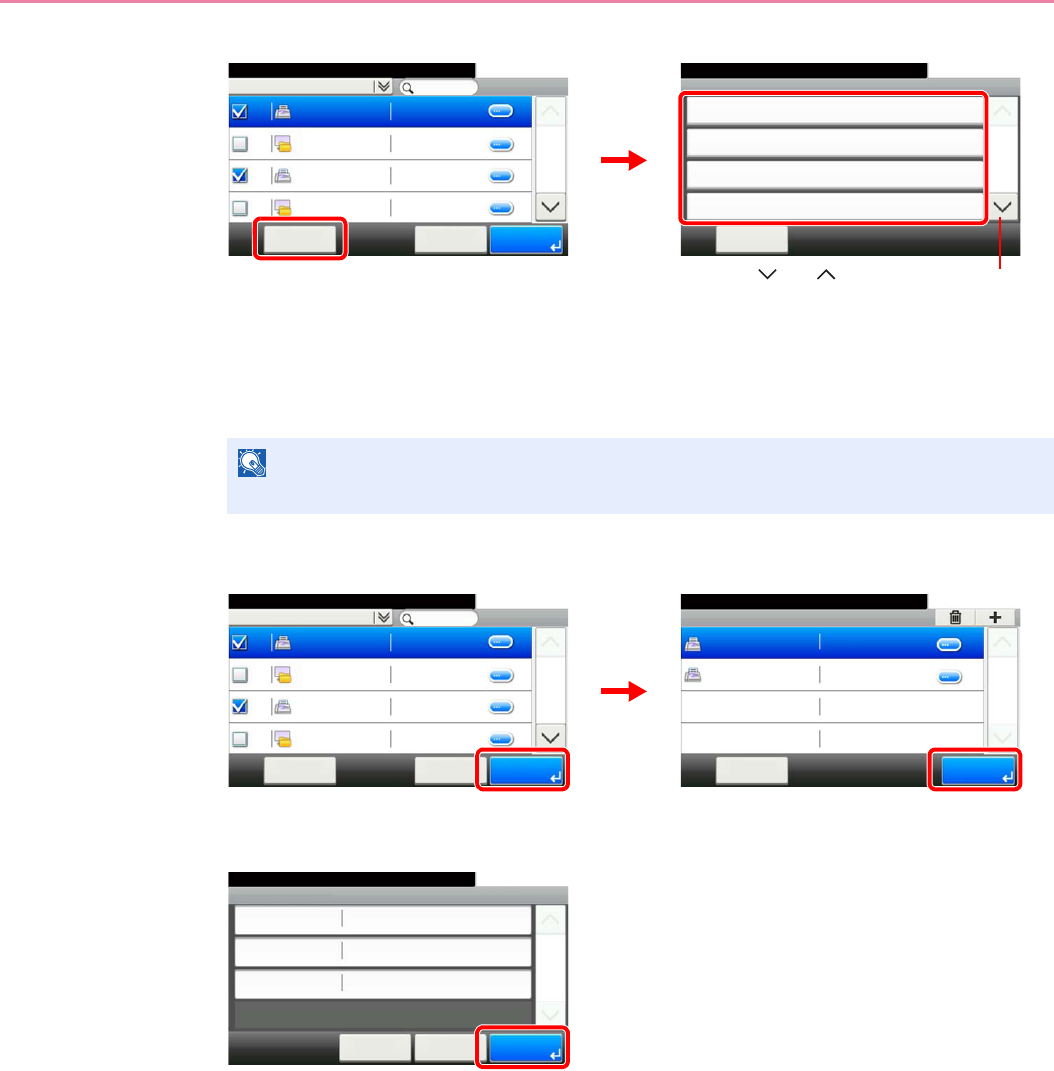
6-30
Sending > Registering Destinations in the Address Book
You can also press [Menu] to perform a more detailed search.
Narrow Down: Advanced search by type of registered destination (E-mail, Folder (SMB/FTP)
or FAX).
Search (Name) and Search (No.): Searches by destination name or address number.
Sort (Name) and Sort (No.): Sorts the list by destination name or address number.
7Accept the members.
8Register the group.
NOTE
To cancel a selection, press the corresponding checkbox to clear the check mark.
Menu
Narrow Down
10:10
㪚㫃㫆㫊㪼
Search (Name)
Search(No.)
Sort (Name)
1/2
GB0396_00
Address Book (Contact)
10:10Ready to send.
1/2
001 Sales department 1 0123456
001 Sales department 1 abc
002 Support department 0234567
㪚㪸㫅㪺㪼㫃 㪦㪢㪤㪼㫅㫌
002 Support department .BOX
GB0428_01
Use [ ] or [ ] to scroll up and down.
1
2
Member
10:10Ready to send.
Sales department 1
㪤㪼㫅㫌
1/1
㪜㫅㪻
0123456
Support department 0234567
GB0428_01
Address Book (Contact)
10:10Ready to send.
1/2
001 Sales department 1 0123456
001 Sales department 1 abc
002 Support department 0234567
㪚㪸㫅㪺㪼㫃 㪦㪢㪤㪼㫅㫌
002 Support department .BOX
GB0114_04
12
GB0420_03
Add - Confirmation
Support department
10:10
㪚㪸㫅㪺㪼㫃
Ready to send.
Address Number
Member
Name
Auto
㪓㩷㪙㪸㪺㫂
1/1
㪪㪸㫍㪼
Member:2
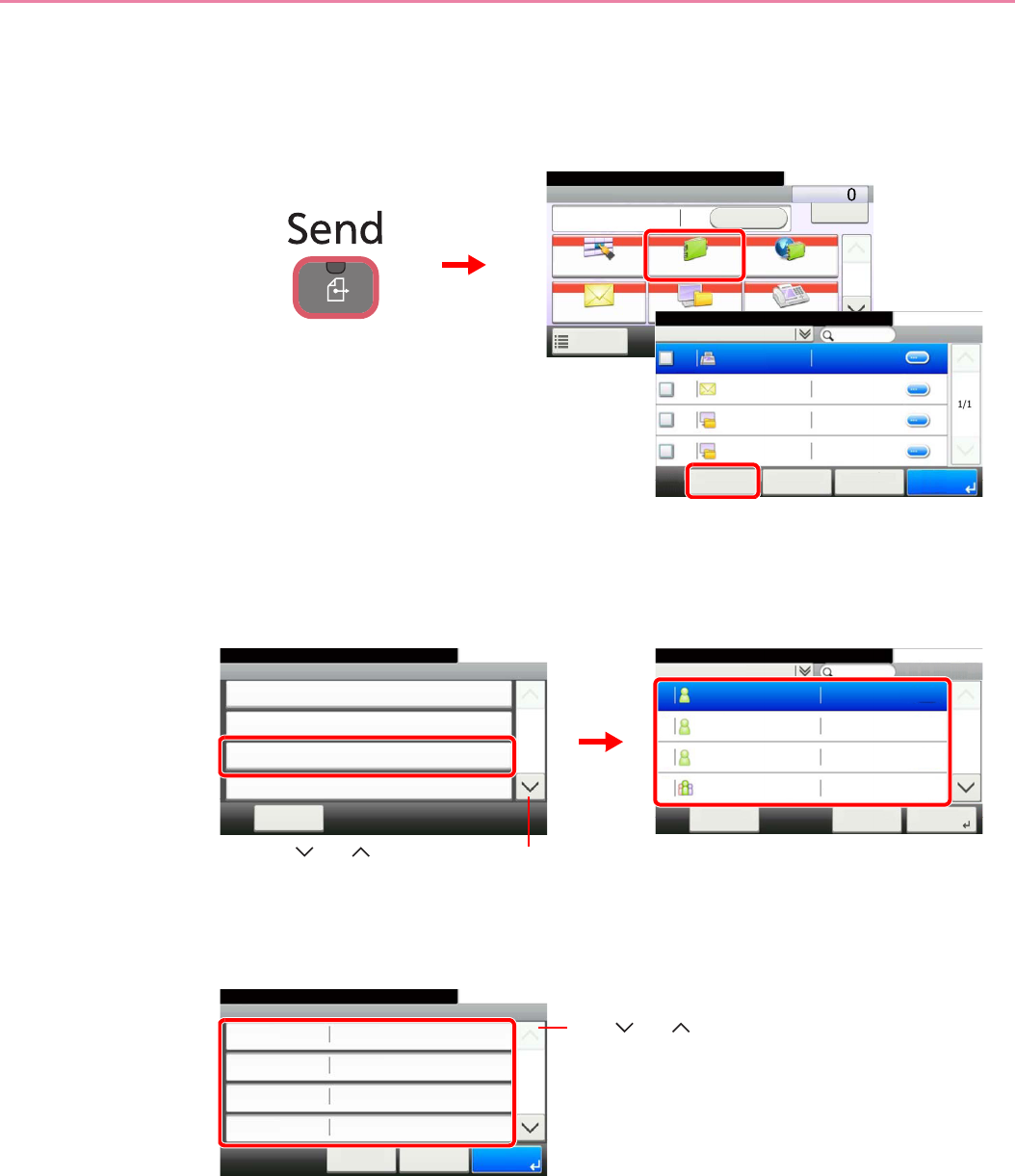
6-31
Sending > Registering Destinations in the Address Book
Editing and Deleting Address Book Entries
Edit and delete the destinations (contacts) you added to the Address Book.
1Display the screen.
2Edit or delete the destination.
To edit the destination
1
Select the destination (contacts) or group to edit.
You can specify a destination by address number by pressing the Quick No. Search key.
2
Change the information as needed by pressing the item in question.
Send Dest. :
Recall Check
E-mail
One Touch Key Address Book Ext Address Book
FAXFolder
Functions
10:10
1/2
Favorites
Ready to send.
Address Book (All)
10:10Ready to send.
1/1
001
001
002
002
< Back OKMenu Cancel
Sales department 1
Sales department 1
Support department
Support department
0123456
abc
0234567
.BOX
1
GB0426_01
GB0055_00
3
2
GB0396_01
Menu
Sort (No.)
10:10
㪚㫃㫆㫊㪼
Add
Edit
Delete
2/2
Use [ ] or [ ] to scroll up and down.
GB0785_00
Address Book (All)
10:10Ready to send.
Sales department 1
㪤㪼㫅㫌
1/2
㪥㪼㫏㫋㩷㪕
Support department
SYSTEM DEP.
Sales department 1 Member:2
019
002
001
003
㪚㪸㫅㪺㪼㫃
1
2
GB0786_00
Edit - Confirm
Sales department 1
10:10
㪚㪸㫅㪺㪼㫃
Ready to send.
Address Number
FAX
Name
Auto
㪓㩷㪙㪸㪺㫂
1/2
㪪㪸㫍㪼
E-mail Address
Use [ ] or [ ] to scroll up and down.
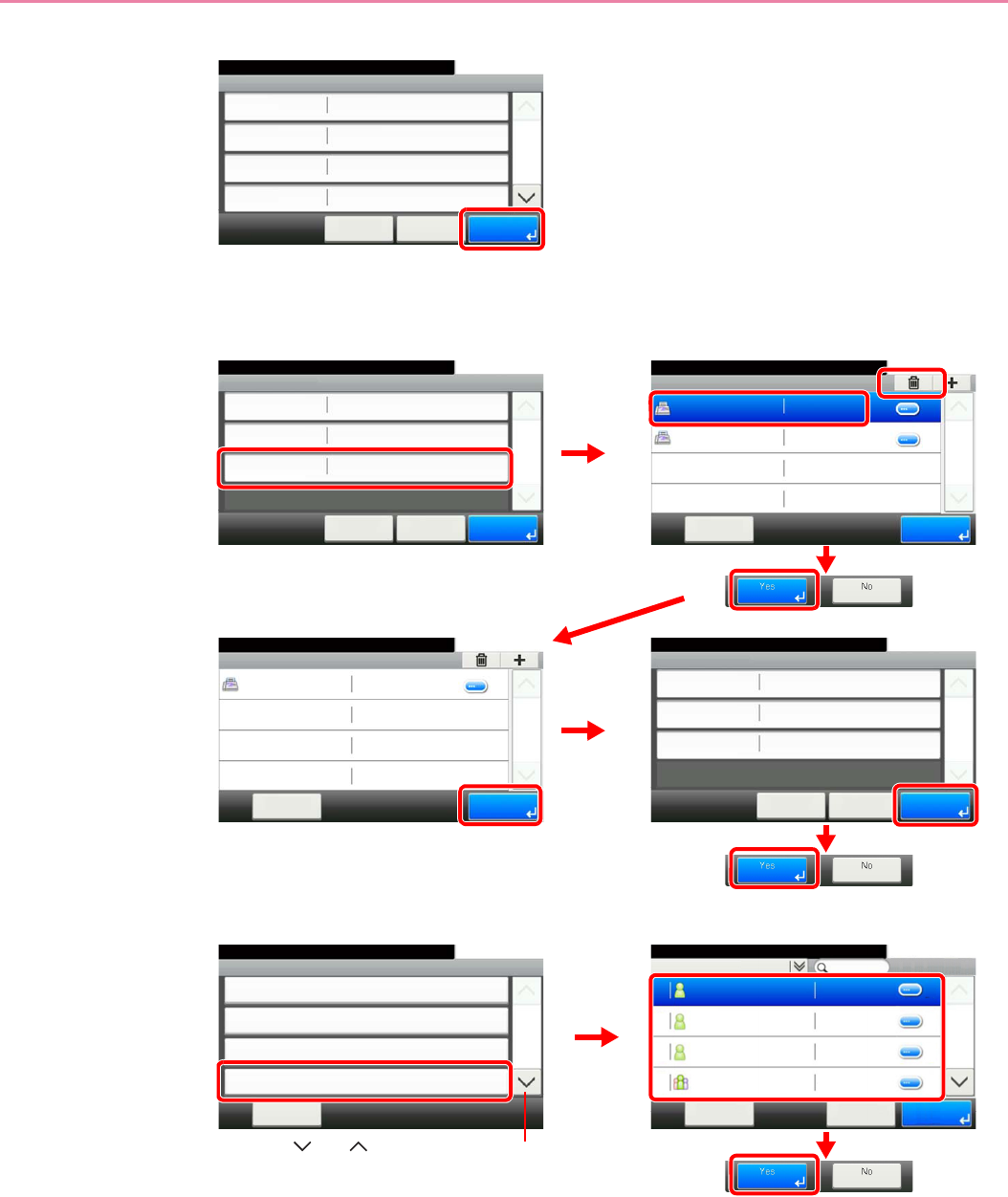
6-32
Sending > Registering Destinations in the Address Book
3
To delete a member (group)
To delete a member from a group, select the destination you wish to delete and press
[(Delete)] (the trash can icon).
To delete
Select the destination (contacts) or group to delete.
GB0786_00
Edit - Confirm
Sales department 1
10:10
㪚㪸㫅㪺㪼㫃
Ready to send.
Address Number
FAX
Name
Auto
㪓㩷㪙㪸㪺㫂
1/2
㪪㪸㫍㪼
E-mail Address
Member
10:10Ready to send.
Sales department 1
㪤㪼㫅㫌
1/1
㪜㫅㪻
0123456
Support department 0234567
Edit - Confirm
Support department
10:10
㪚㪸㫅㪺㪼㫃
Ready to send.
Address Number
Member
Name
Auto
㪓㩷㪙㪸㪺㫂
1/1
㪪㪸㫍㪼
Member:2
GB0787_00
GB0114_04
1
3
2
4
Edit - Confirm
Support department
10:10
㪚㪸㫅㪺㪼㫃
Ready to send.
Address Number
Member
Name
Auto
㪓㩷㪙㪸㪺㫂
1/1
㪪㪸㫍㪼
Member:1
Member
10:10Ready to send.
㪤㪼㫅㫌
1/1
㪜㫅㪻
Support department 0234567
56
GB0114_05
GB0787_01
7
GB0396_01
Menu
Sort (No.)
10:10
㪚㫃㫆㫊㪼
Add
Edit
Delete
2/2
Use [ ] or [ ] to scroll up and down.
GB0788_00
Address Book (All)
10:10Ready to send.
Sales department 1
㪤㪼㫅㫌
1/2
㪛㪼㫃㪼㫋㪼
Support department
SYSTEM DEP.
Sales department 1 Member:2
019
002
001
003
㪚㪸㫅㪺㪼㫃
1
2
3
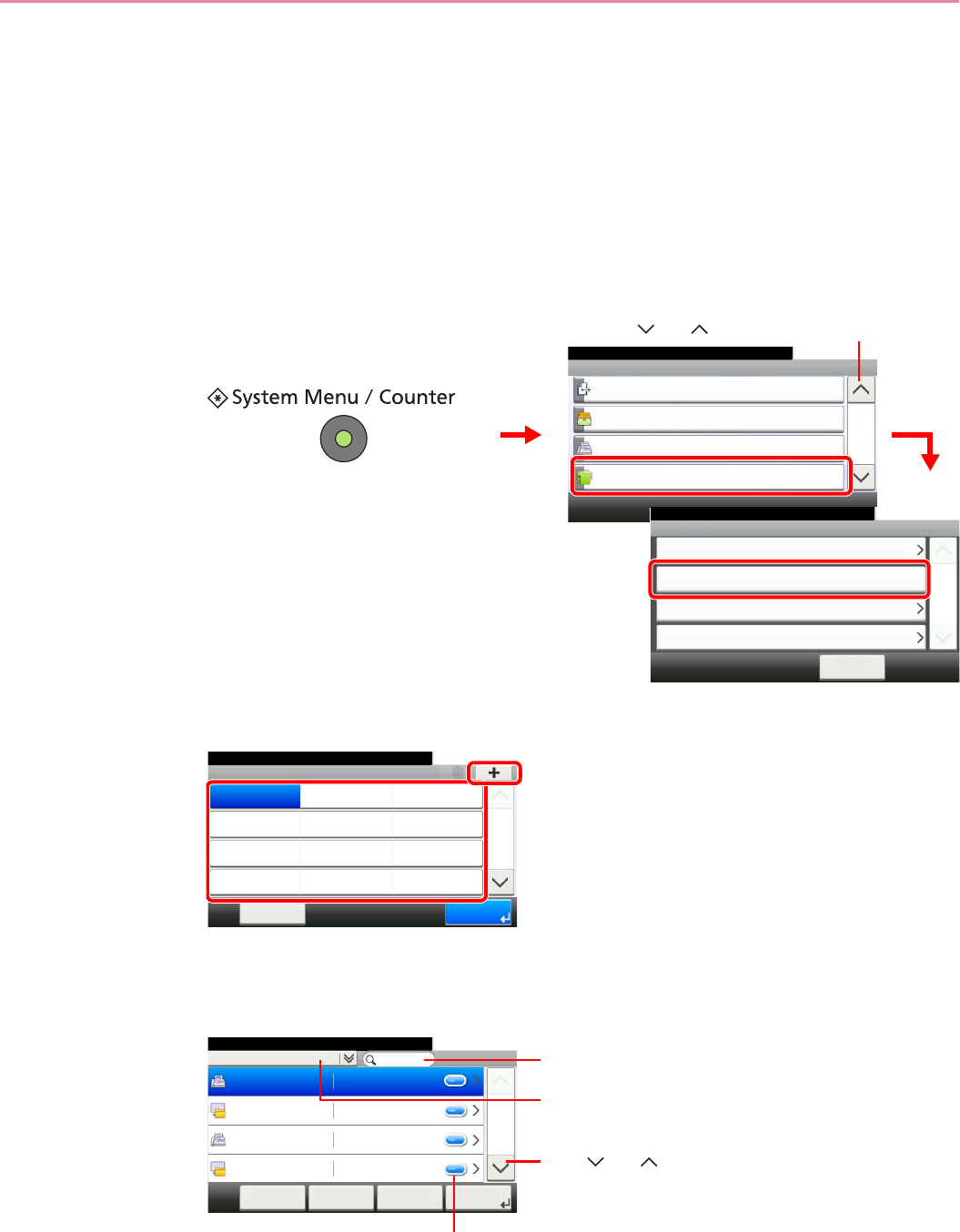
6-33
Sending > Adding a Destination on One Touch Key
Adding a Destination on One Touch Key
Add a new destination (contact or group) on One Touch Key.
Adding a Destination
Add a new destination (contact or group). A maximum of 100 destinations can be registered.
To register a destination to a One Touch Key, it must first be registered in the Address Book. Register one or more
destinations as needed before proceeding.
1Display the screen.
2Add a One-Touch Key.
Select a One Touch Key with no registered destination, and press [+].
3Select the destinations.
Select one destination (contact or group) from the Address Book.
You can specify a destination by address number by pressing the Quick No. Search key.
System Menu/Counter.
System Menu
Send
10:10
Document Box
FAX
Address Book/One Touch
3/5
Address Book
10:10System Menu/Counter.
One Touch Key
< Back
1/1
Address Book Defaults
Print List
Address Book/One Touch
GB0411_00
GB0054_02
2
3
1
Use [ ] or [ ] to scroll up and down.
Address Book/One Touch - One Touch Key
10:10System Menu/Counter.
None
None
None
None
Cancel
None
None
None
None
None
None
None
None
1/9
End
001
004
007
010 011
008
005
002
012
009
006
003
GB0422_00
12
Address Book (All)
10:10System Menu/Counter.
Sales department 1
Menu
1/2
Next >
0123456
Sales department 1 abc
Support department 0234567
Support department .BOX
Cancel < Back
GB0429_00
Displays details for individual destinations.
Searches by destination name.
Advanced search by type of registered destination (E-
mail, Folder (SMB/FTP), FAX or Group).
Use [ ] or [ ] to scroll up and down.
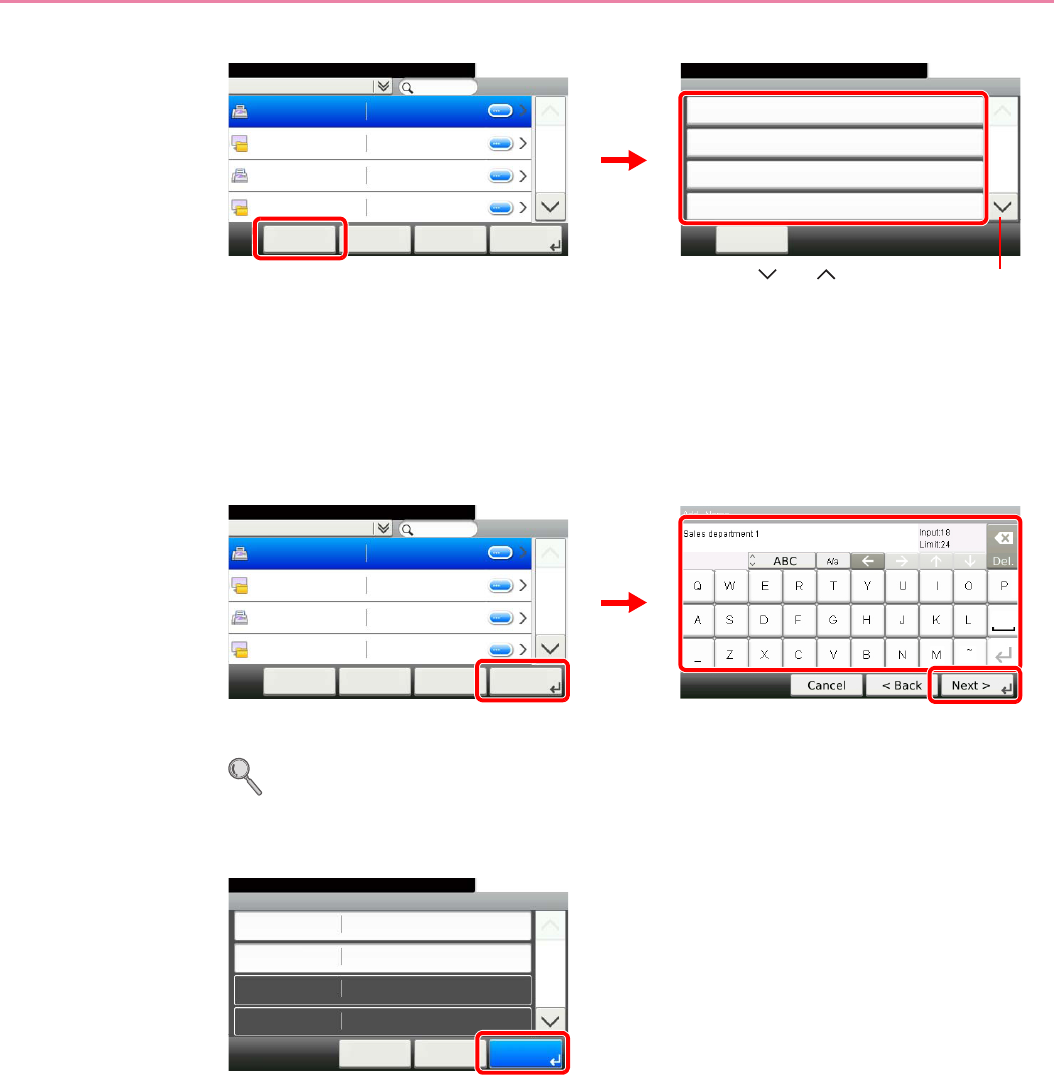
6-34
Sending > Adding a Destination on One Touch Key
You can also press [Menu] to perform a more detailed search.
Narrow Down: Advanced search by type of registered destination (E-mail, Folder (SMB/FTP),
FAX or Group).
Search (Name) and Search (No.): Searches by destination name or address number.
Sort (Name) and Sort (No.): Sorts the list by destination name or address number.
4Enter the One Touch Key name.
Up to 24 characters can be entered.
Refer to Character Entry Method on page 11-7 for details on entering characters.
5Register the destination.
Address Book (All)
10:10System Menu/Counter.
Sales department 1
Menu
1/2
Next >
0123456
Sales department 1 abc
Support department 0234567
Support department .BOX
Cancel < Back
Menu
Narrow Down
10:10
㪚㫃㫆㫊㪼
Search (Name)
Search(No.)
Sort (Name)
1/2
GB0396_00
GB0429_00
Use [ ] or [ ] to scroll up and down.
1
2
GB0057_18
2
3
Address Book (All)
10:10System Menu/Counter.
Sales department 1
Menu
1/2
Next >
0123456
Sales department 1 abc
Support department 0234567
Support department .BOX
Cancel < Back
GB0429_00
1
GB0754_00
Add - Confirmation
Sales department 1
10:10
Cancel
System Menu/Counter.
FAX Number
Sub Address
TX Start Speed
Name
0123456
33600bps
< Back
1/2
Save
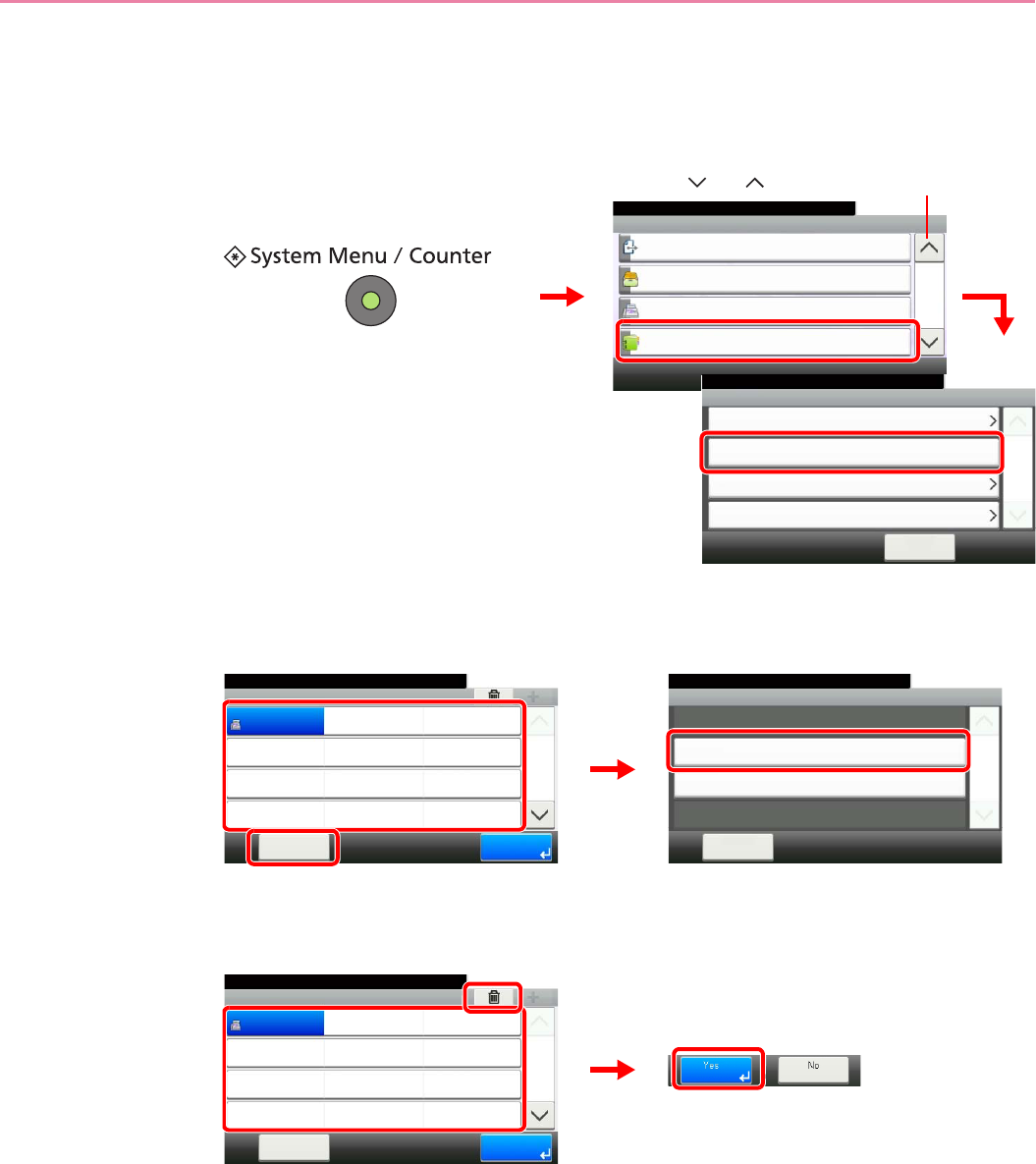
6-35
Sending > Adding a Destination on One Touch Key
Editing and Deleting One Touch Key
Edit and delete the destinations you added to One Touch Key.
1Display the screen.
2Edit or delete the destination.
To edit the destination
Select the One Touch Key you wish to edit and press [Menu] followed by [Edit].
To delete
Select the One Touch Key you wish to delete and press [(Delete)] (the trash can icon).
System Menu/Counter.
System Menu
Send
10:10
Document Box
FAX
Address Book/One Touch
3/5
Address Book
10:10System Menu/Counter.
One Touch Key
< Back
1/1
Address Book Defaults
Print List
Address Book/One Touch
GB0411_00
GB0054_02
2
3
1
Use [ ] or [ ] to scroll up and down.
10:10
Edit
Close
1/1
Delete
Menu
Address Book/One Touch - One Touch Key
10:10System Menu/Counter.
None
None
None
Sales
department 1
Menu
None
None
None
None
None
None
None
None
1/9
End
001
004
007
010 011
008
005
002
012
009
006
003
GB0422_01
1
GB0430_00
2
3
GB0422_01
Address Book/One Touch - One Touch Key
10:10System Menu/Counter.
None
None
None
Sales
department 1
Menu
None
None
None
None
None
None
None
None
1/9
End
001
004
007
010 011
008
005
002
012
009
006
003
12
3
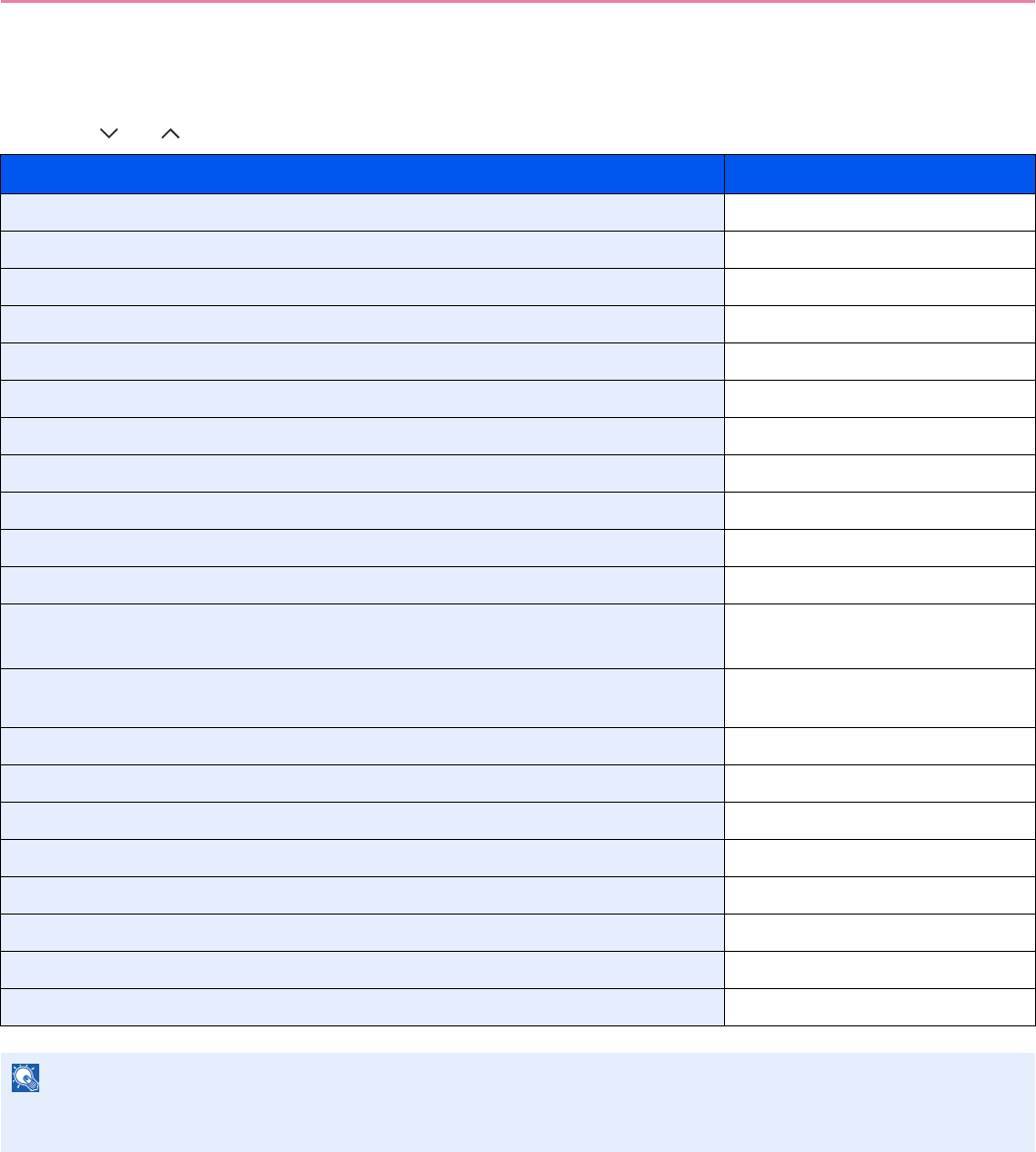
6-36
Sending > Sending Functions
Sending Functions
Send screen shows the commonly used functions. By pressing [Functions], other selectable functions will be shown as
a list. Use [ ] or [ ] to select the function.
What do you want to do? Reference Page
Select the file format for images being sent. File Format X page 3-57
Specify the original size. Original Size X page 3-32
Specify the original orientation to scan in the correct direction. Original Orientation X page 3-34
Send mixed size originals. Mixed Size Originals X page 3-35
Automatically scan 2-sided originals. 2-sided/Book Original X page 3-37
Change the size of the image being sent. Sending Size X page 6-37
Send each page in a separate file. File Separation X page 6-39
Set the resolution at which to scan originals. Scan Resolution X page 3-51
Adjust the density. Density X page 3-50
Change the color mode for images being sent. Color Selection X page 3-59
Select original image type for best results. Original Image X page 3-52
Emphasize the outline of texts or lines.
Blur the image outline.
Sharpness X page 3-53
Darken or lighten the background (i.e., the area with no text or images) of originals. Background Density Adjust X
page 3-54
Prevent bleed-through for 2-sided originals. Prevent Bleed-through X page 3-55
Enlarge or shrink originals according to the sending size. Zoom X page 3-56
Scan a large number of originals separately and then produce as one job. Continuous Scan X page 3-39
Add a file name to the job to easily check its status. File Name Entry X page 3-62
Add an E-mail subject and body (when sending E-mail). E-mail Subject/Body X page 6-40
Send notice by e-mail when a job is complete. Job Finish Notice X page 3-60
Encrypt your message. FTP Encrypted TX X page 6-41
Send a image to a WSD-compatible computer. WSD Scan X page 6-42
NOTE
This section does not include fax settings. For details on fax operation, refer to the FAX Operation Guide. Fax
functionality requires the optional fax kit.
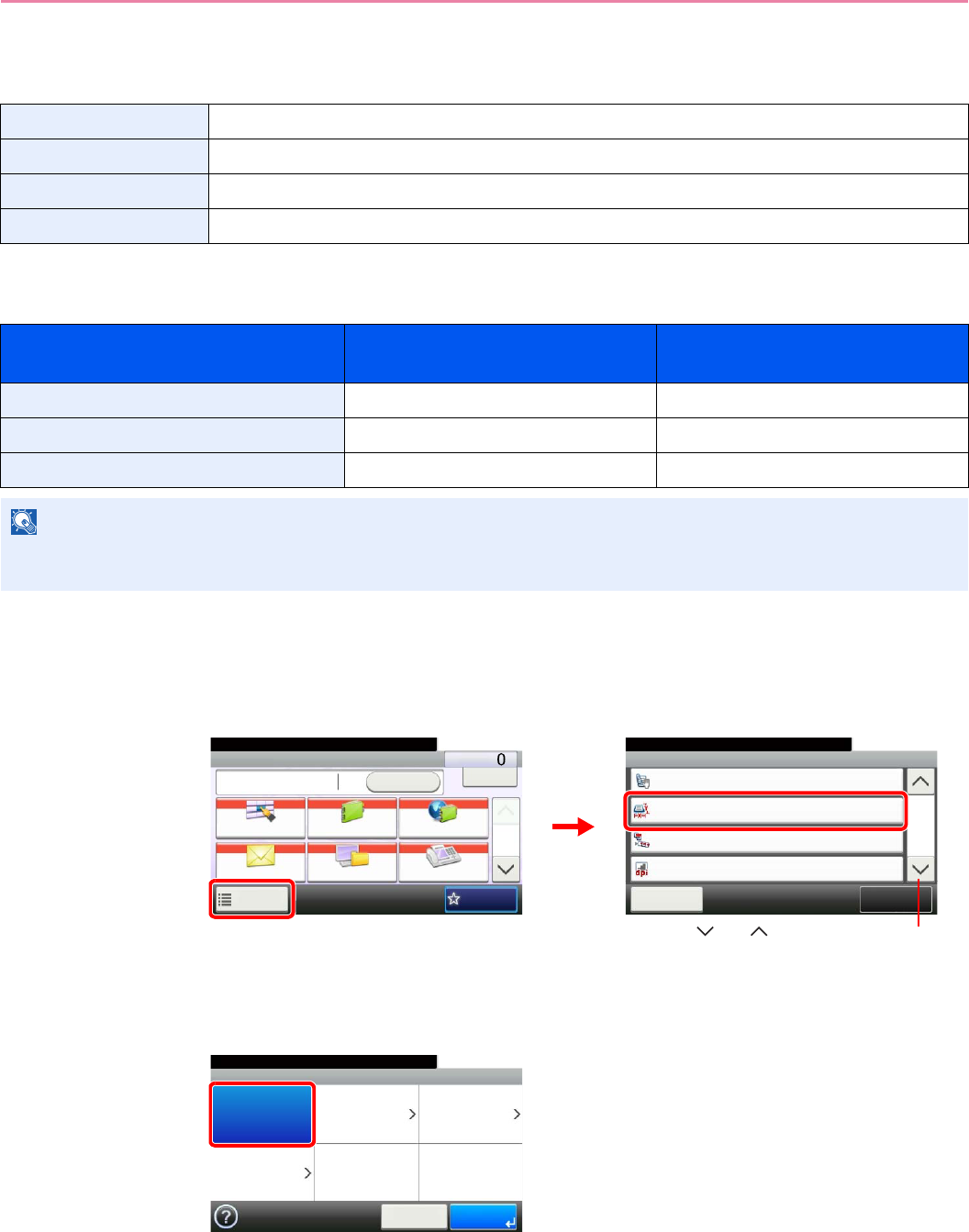
6-37
Sending > Sending Functions
Sending Size
Select size of image to be sent.
Relationship between Original Size, Sending Size, and Zoom
Original Size (page 3-32), Sending Size, and Zoom (page 3-56) are related to each other. Refer to the following table.
1Display the screen.
1Referring to Basic Operation on page 6-2, display the screen.
2
2Select the sending size.
[Same as Original Size]
Same as Original Size Automatically sends the same size as the original.
Metric Select from A3, A4, A5, A5-R, B4, B5, B6, Folio or 216 × 340 mm.
inch Select from Ledger, Letter, Legal, Statement, 11 × 15", or Oficio II.
Others Select from 8K, 16K, Hagaki or Oufukuhagaki,
Original Size and the size you wish to
send as are
the same different
Original Size Specify as necessary Specify as necessary
Sending Size Select [Same as Original] Select the required size
Zoom Select [100%] (or [Auto]) Select [Auto]
NOTE
When you select Sending Size that is different from Original Size, and select the Zoom [100%], you can send the
image as the actual size (No Zoom).
Functions
2-sided/Book Original
1-sided
Close
10:10
Sending Size
300x300dpi
Off
File Separation
Scan Resolution
2/6
Same as Original Size
Add/Edit
Shortcut
Ready to send.
Send Dest. :
Recall Check
E-mail
One Touch Key Address Book Ext Address Book
FAXFolder
Functions
10:10
1/2
Favorites
Ready to send.
GB0055_00
GB0081_01
2
1
Use [ ] or [ ] to scroll up and down.
GB0071_00
Ready to send.
Sending Size
Same as
Original Size
Metric Inch
Others
10:10
Cancel OK
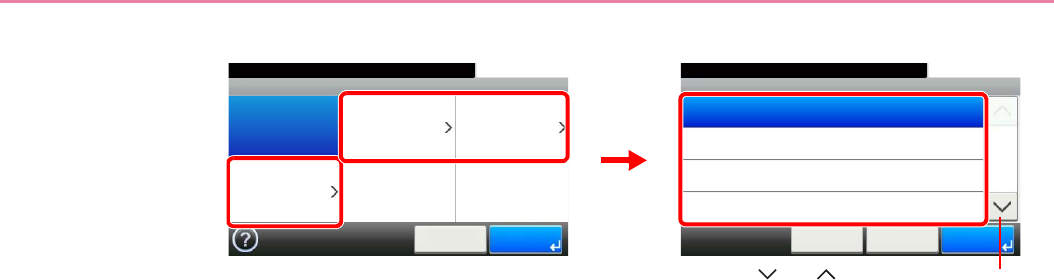
6-38
Sending > Sending Functions
[Metric], [inch] or [Others]
Select the desired size.
Sending Size - Metric
10:10Ready to send.
A4
A5
A6
A3
< BackCancel
1/3
OK
Ready to send.
Sending Size
Same as
Original Size
Metric Inch
Others
10:10
Cancel OK
GB0071_00
GB0072_00
12
Use [ ] or [ ] to scroll up and down.
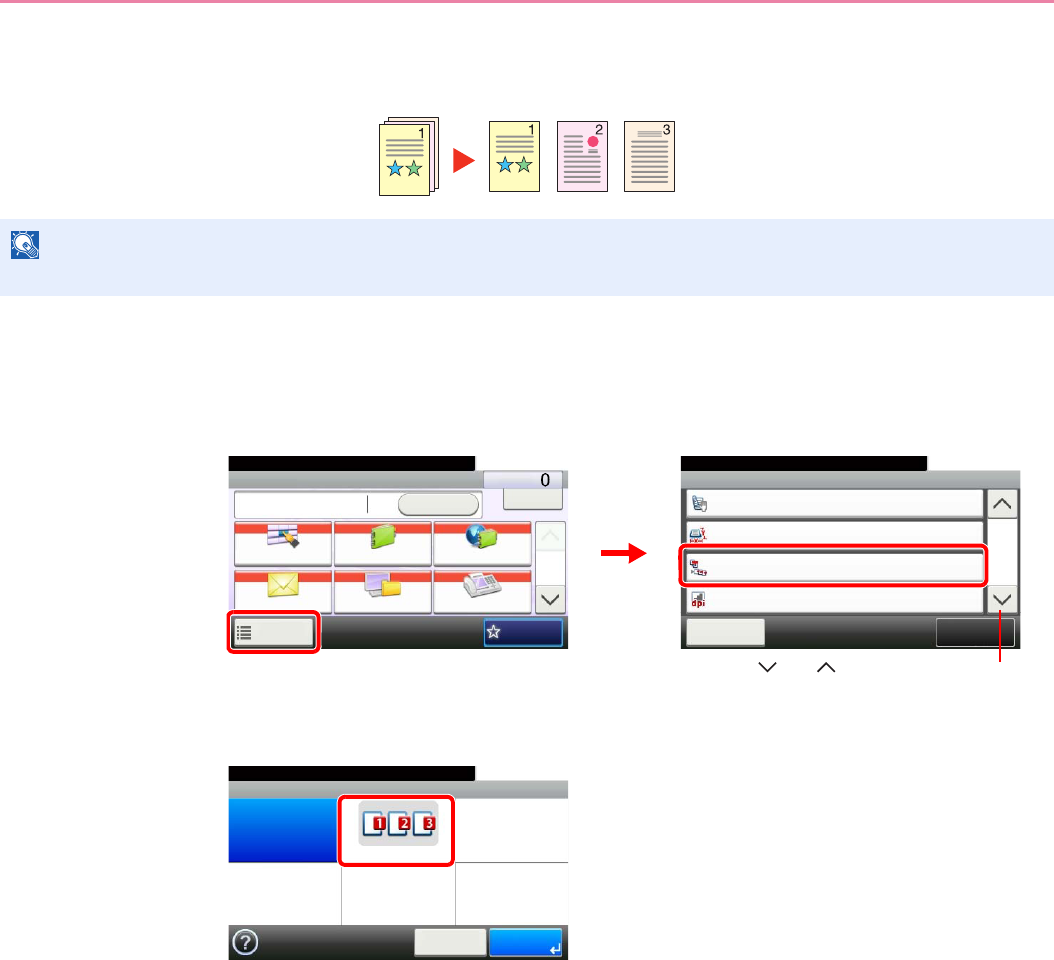
6-39
Sending > Sending Functions
File Separation
Create several files by dividing scanned original data page by page, and send the files.
1Display the screen.
1Referring to Basic Operation on page 6-2, display the screen.
2
2Select the function.
NOTE
Three-digit serial number such as abc_001.pdf, abc_002.pdf... is attached to the end of the file name.
Functions
2-sided/Book Original
1-sided
Close
10:10
Sending Size
300x300dpi
Off
File Separation
Scan Resolution
2/6
Same as Original Size
Add/Edit
Shortcut
Ready to send.
Send Dest. :
Recall Check
E-mail
One Touch Key Address Book Ext Address Book
FAXFolder
Functions
10:10
1/2
Favorites
Ready to send.
GB0055_00
GB0081_01
2
1
Use [ ] or [ ] to scroll up and down.
GB0084_00
Ready to send.
File Separation
Off Each Page
10:10
Cancel OK
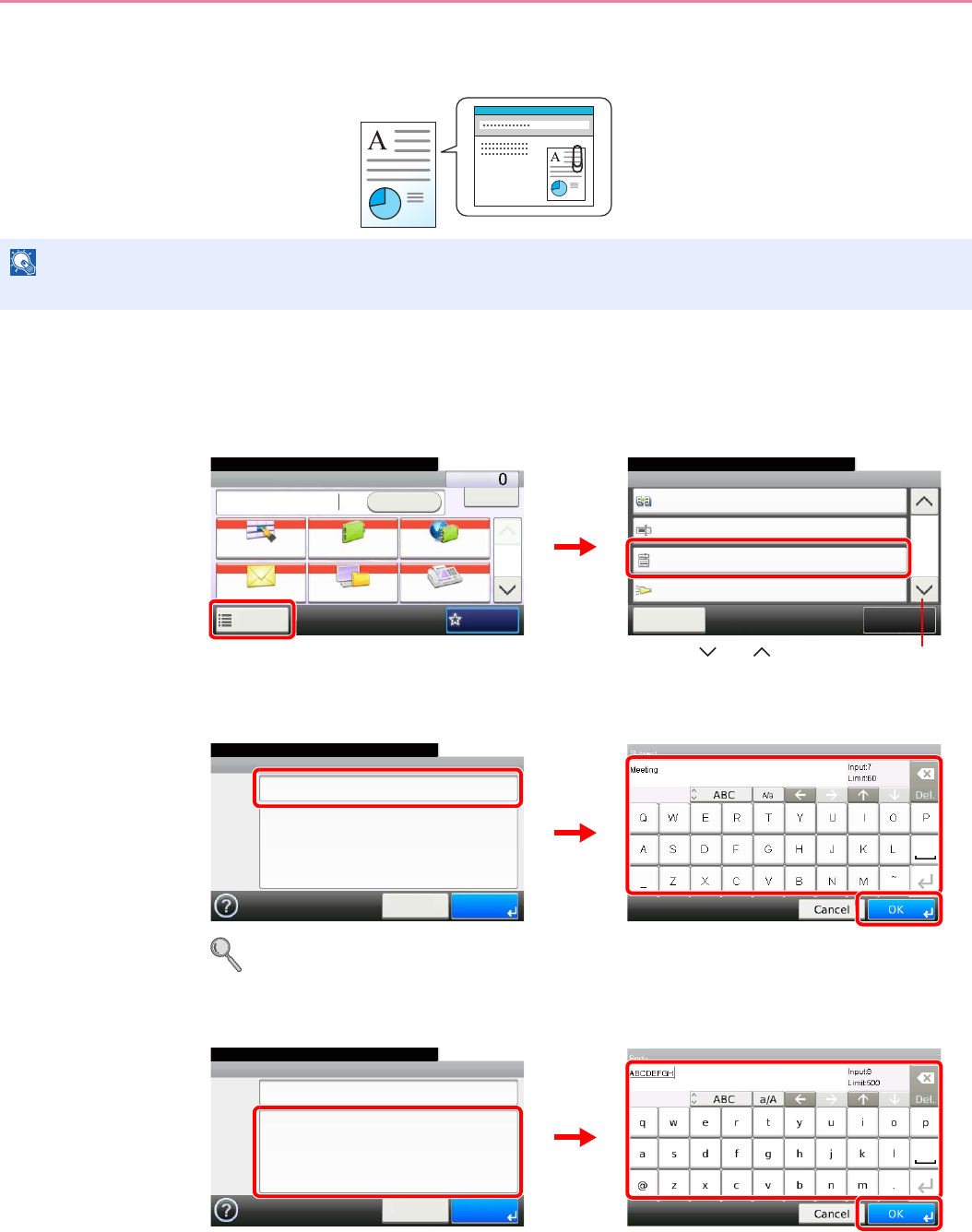
6-40
Sending > Sending Functions
E-mail Subject/Body
Add subject and body when sending a document.
1Display the screen.
1Referring to Basic Operation on page 6-2, display the screen.
2
2Enter the subject.
Refer to Character Entry Method on page 11-7 for details on entering characters.
3Enter the body.
4Press [OK].
NOTE
The subject can include up to 60 characters, and the body can include up to 500 characters.
Functions
Continuous Scan
Off
Close
10:10
File Name Entry
Off
Off
E-mail Subject/Body
Job Finish Notice
5/6
doc
Add/Edit
Shortcut
Ready to send.
Send Dest. :
Recall Check
E-mail
One Touch Key Address Book Ext Address Book
FAXFolder
Functions
10:10
1/2
Favorites
Ready to send.
GB0055_00
GB0081_04
2
1
Use [ ] or [ ] to scroll up and down.
E-mail Subject/Body
10:10
Subject
OK
Body
Cancel
Ready to send.
GB0088_00
GB0057_19
1
2
3
E-mail Subject/Body
Subject Meeting
10:10
Cancel OK
Body
Ready to send.
GB0088_01
GB0057_20
12
3
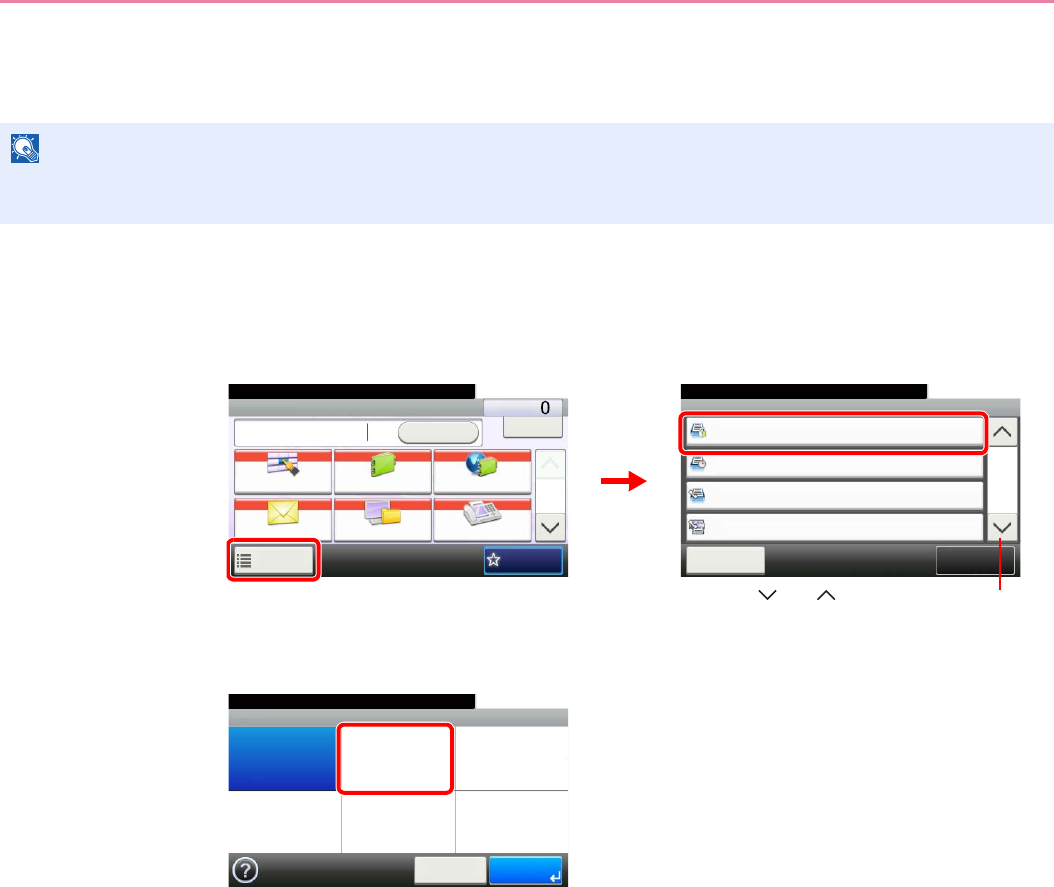
6-41
Sending > Sending Functions
FTP Encrypted TX
Encrypt images when using FTP. Encryption secures the document transmission.
1Display the screen.
1Referring to Basic Operation on page 6-2, display the screen.
2
2Select the function.
NOTE
To use FTP encryption, set SSL to [On] in the Secure Protocol settings. For details, refer to Secure Protocol on page
9-22.
Functions
FTP Encrypted TX
Close
10:10
FAX Delayed Transmission
Off
Off
FAX Direct Transmission
FAX Polling RX
6/6
Off
Add/Edit
Shortcut
Ready to send.
Off
Send Dest. :
Recall Check
E-mail
One Touch Key Address Book Ext Address Book
FAXFolder
Functions
10:10
1/2
Favorites
Ready to send.
GB0055_00
GB0081_05
2
1
Use [ ] or [ ] to scroll up and down.
GB0091_00
FTP Encrypted TX
Off On
10:10
Cancel OK
Ready to send.
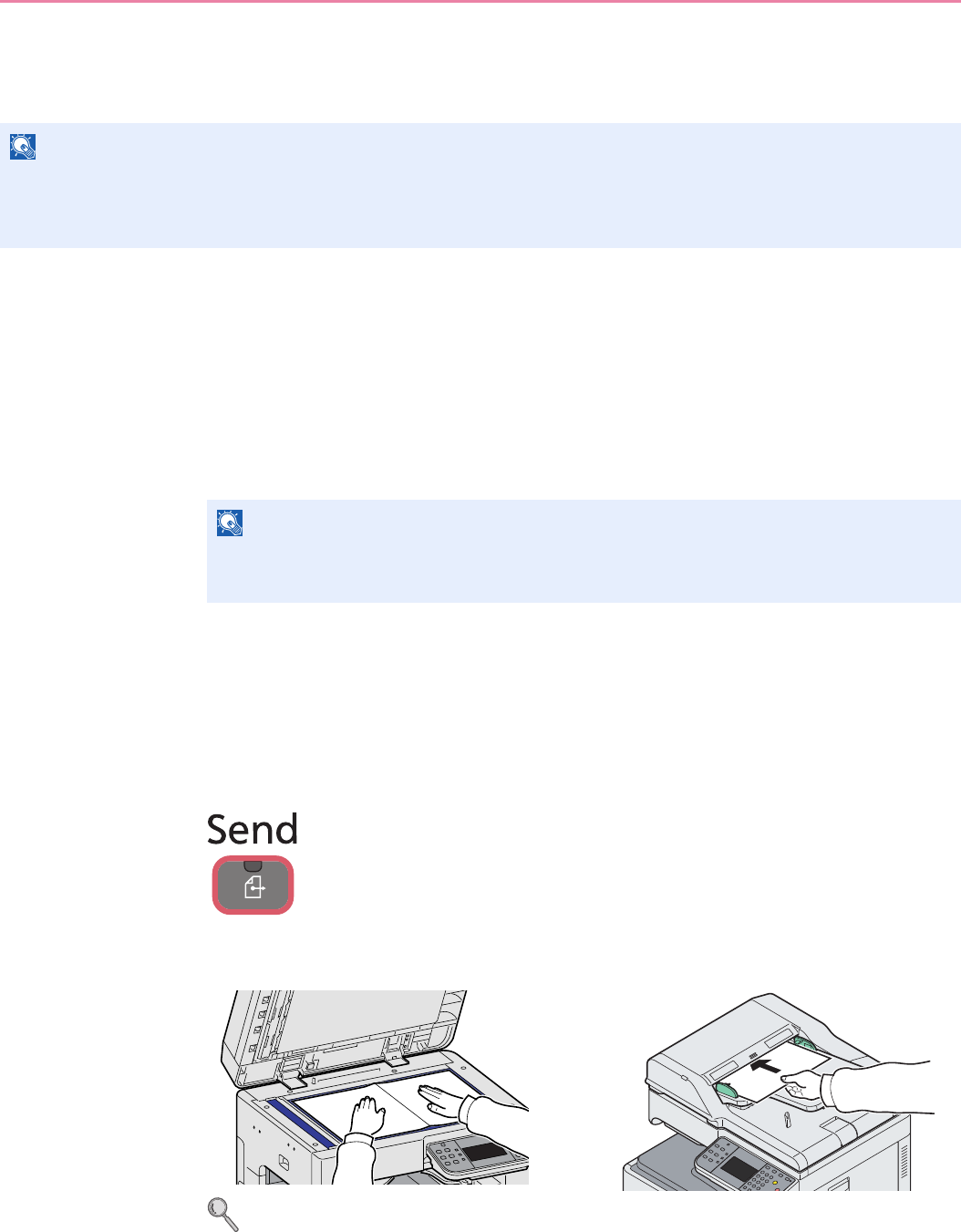
6-42
Sending > WSD Scan
WSD Scan
WSD Scan saves images of originals scanned on this machine as files on a WSD-compatible computer.
Installing Driver Software (for Windows 7)
1Display the window.
From the Start menu, select Network.
2Install the driver.
Right-click the machine’s icon and then click Install.
During the installation, double-click the icon shown on the task bar to display the Driver
Software Installation screen. When Your devices are ready to use is displayed on the
screen, the installation is completed.
Using WSD
1Press the Send key.
2Place the originals.
For details, refer to Loading Originals on page 3-7.
NOTE
To use WSD Scan, confirm that the computer used for WSD scanning and the machine is network-connected, and
WSD Scan (page 9-21) is set to [On] in the network settings.
For information on operating the computer, refer to the computer’s help or the operation guide of your software.
NOTE
If the User Account Control window appears, click Continue.
If the Found New Hardware window appears, click Cancel.
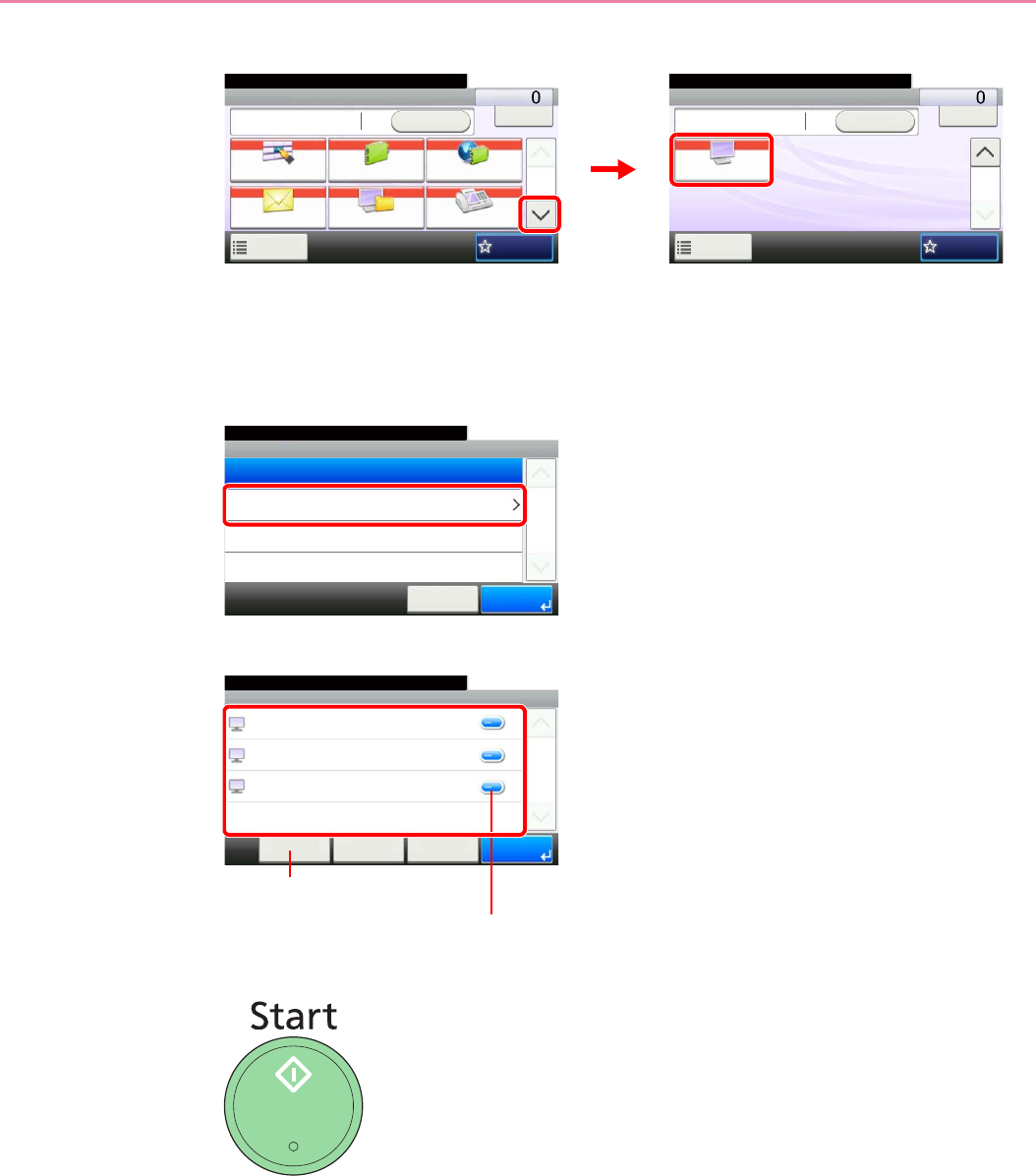
6-43
Sending > WSD Scan
3Display the screen.
4Scan the originals.
Procedure using this machine
1
2Select the destination computer.
3Press the Start key.
Sending begins and the software installed on the computer is activated.
Send Dest. :
Recall Check
WSD Scan
Functions
10:10
2/2
Favorites
Ready to send.
GB0055_01
Send Dest. :
Recall Check
E-mail
One Touch Key Address Book Ext Address Book
FAXFolder
Functions
10:10
1/2
Favorites
Ready to send.
GB0055_00
12
GB0648_00
WSD Scan
10:10Ready to send.
From Operation Panel
From Computer
Cancel
1/1
OK
GB0649_00
WSD Scan - PC
10:10
PC 2
PC 3
PC 1
< Back
1/1
OKCancelReload
Ready to send.
Displays information for individual destination computers.
Updates the list.

6-44
Sending > WSD Scan
Procedure from Your Computer
1
2Use the software installed on the computer to send the images.
GB0648_00
WSD Scan
10:10Ready to send.
From Operation Panel
From Computer
Cancel
1/1
OK
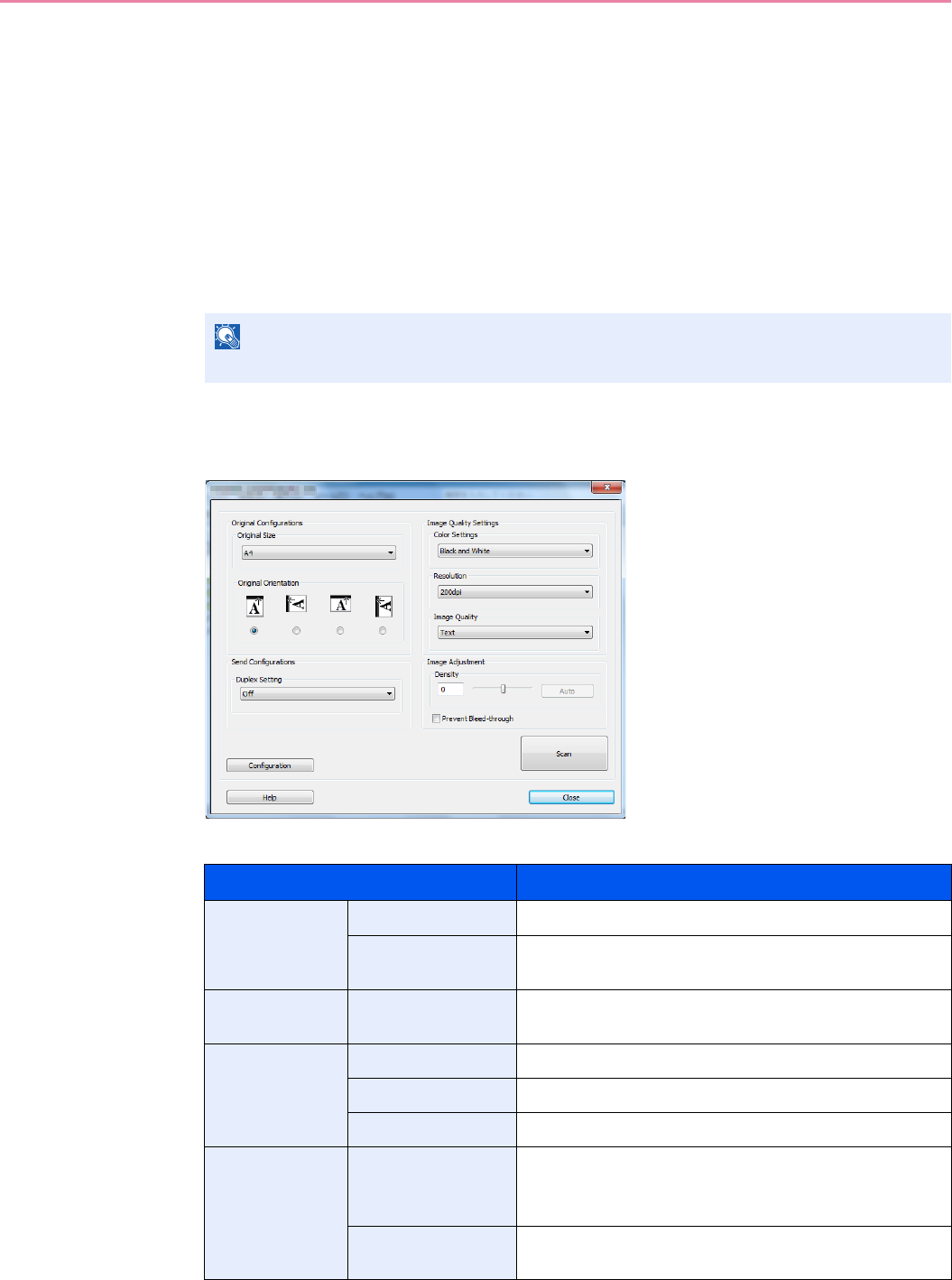
6-45
Sending > Scanning using TWAIN
Scanning using TWAIN
This section explains how to scan an original using TWAIN.
The procedure for scanning using the TWAIN driver is explained as an example. The WIA driver is used in the same
way.
1Display the window.
1Activate the TWAIN compatible application.
2Select the machine using the application and display the TWAIN dialog box.
2Configure the function.
Select scanning settings in the TWAIN dialog box that opens.
The settings that appear in the TWAIN dialog box are as follows.
NOTE
For selecting the machine, see the Operation Guide or Help for each application software.
Item Detail
Original
Configurations
Original Size Select the scan size of the original.
Original
Orientation
Specify the type of binding.
Send
Configurations
Duplex Setting Specify whether the original is one-sided or two-sided.
Image Quality
Settings
Color Settings Select the color mode.
Resolution Select the resolution.
Image Quality Select the image quality according to the type of original.
Image
Adjustment
Density Select the exposure.
Select the Auto button to have the exposure set
automatically based on the original.
Prevent Bleed-
through
Hide background colors and image bleed-through when
scanning thin original.
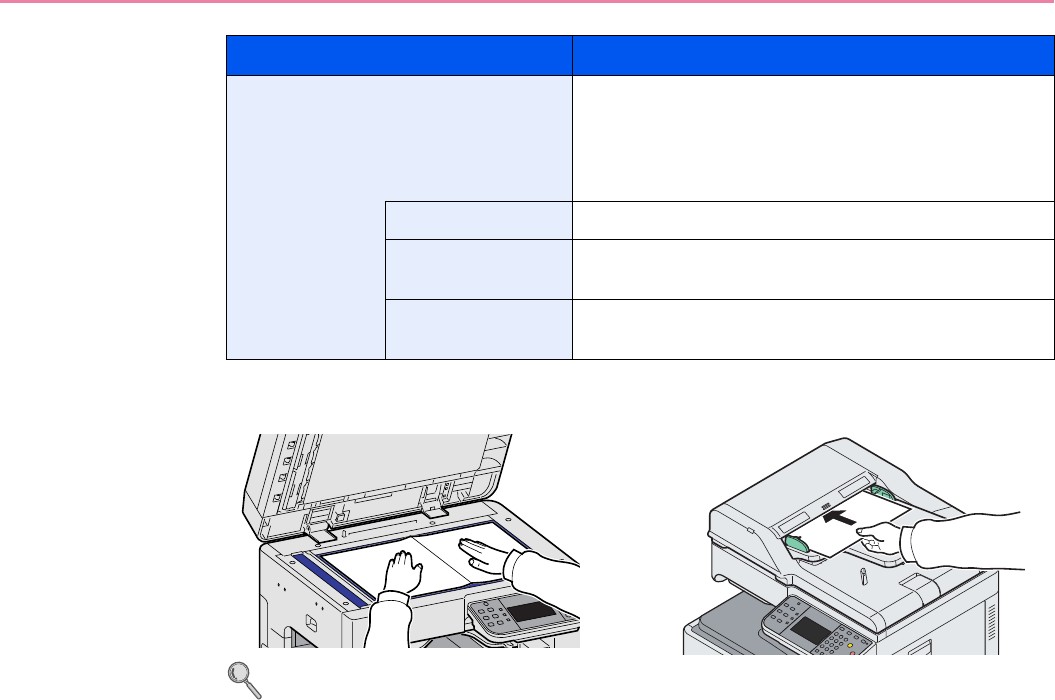
6-46
Sending > Scanning using TWAIN
3Place the originals.
For details, refer to Loading Originals on page 3-7.
4Scan the originals.
Click the Scan button. The document data is scanned.
Configuration This is used to check current settings and store frequently
used settings. When the Configuration button is clicked,
a setting screen opens with buttons for Details, Add
current configuration, and Delete selected
configuration.
Details Current settings can be checked.
Add current
configuration
Save current settings with a name and comment.
Delete selected
configuration
Delete saved settings.
Item Detail
7-1
7 Document Box
This chapter explains the following topics:
Printing Documents Stored in Removable USB Memory ................................................................................... 7-2
Saving Documents to USB Memory (Scan to USB) ........................................................................................... 7-5
Removing USB Memory .................................................................................................................................... 7-8
Functions for Document Box .............................................................................................................................. 7-9
Duplex .................................................................................................................................................... 7-10
Encrypted PDF Password ....................................................................................................................... 7-11
JPEG/TIFF Print .................................................................................................................................... 7-12
XPS Fit to Page ..................................................................................................................................... 7-13
Storing Size ............................................................................................................................................ 7-14
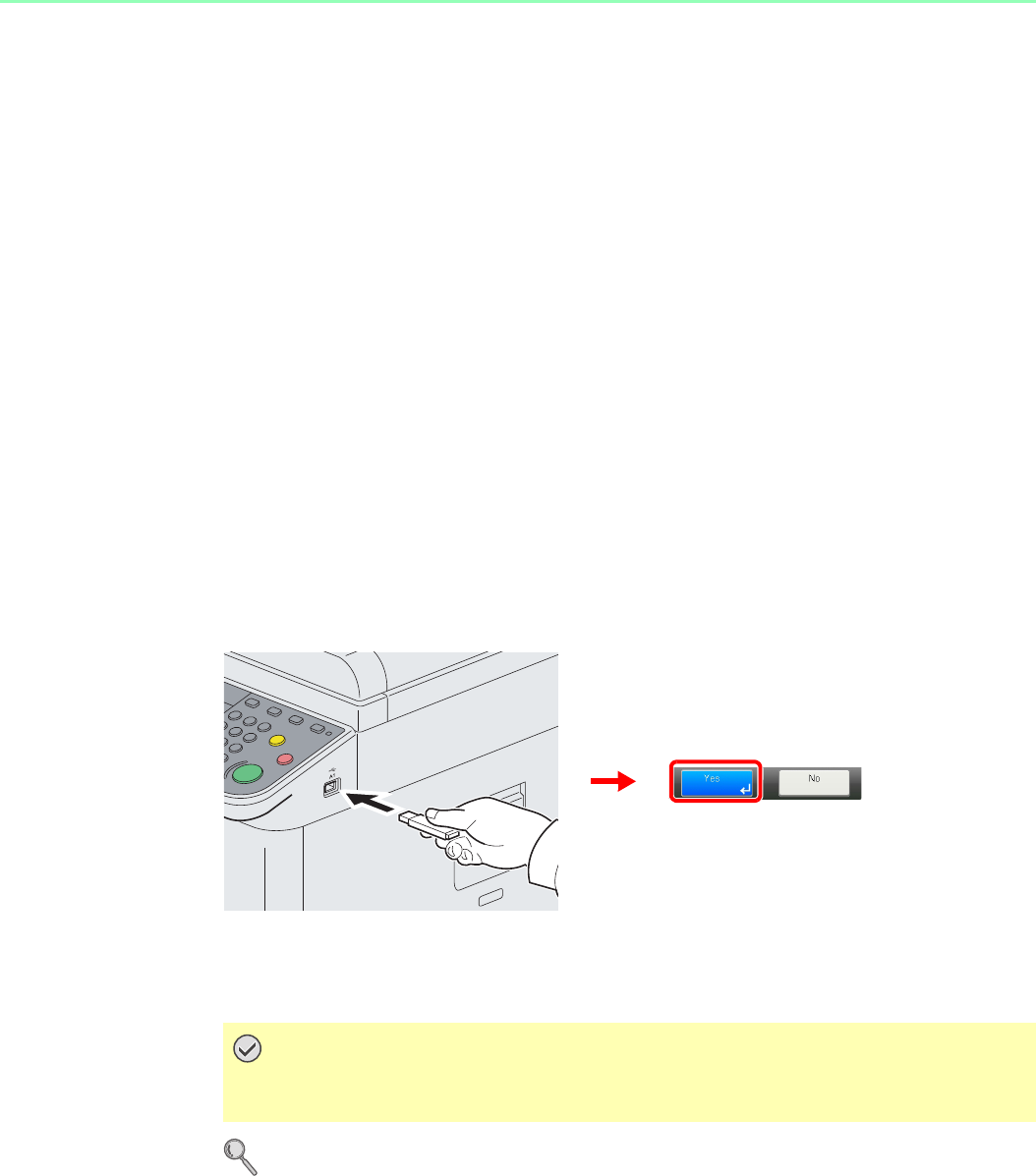
7-2
Document Box > Printing Documents Stored in Removable USB Memory
Printing Documents Stored in Removable USB
Memory
Plugging USB memory directly into the machine enables you to quickly and easily print the files stored in the USB
memory without having to use a computer.
The following file types can be printed:
• PDF file (Version 1.5)
• TIFF file (TIFF V6/TTN2 format)
• JPEG file
• XPS file
• Encrypted PDF file
PDF files you wish to print should have an extension (.pdf).
Files to be printed should be saved no further down than the top 3 folder levels.
Use USB memory properly formatted by this machine.
Plug the USB memory directly into the USB memory slot (A1). We do not guarantee that USB memory printing is error
free if a USB hub is used.
1Plug the USB memory.
Plug the USB memory into the USB memory slot (A1).
When the message Removable Memory is recognized. Displaying files. Are you sure? is
displayed, press [Yes].
Refer to Check of Device Status on page 8-11.
IMPORTANT
Use USB memory formatted by this machine. If a USB memory formatted by any other
device is used, The removable memory is not formatted. may appear.
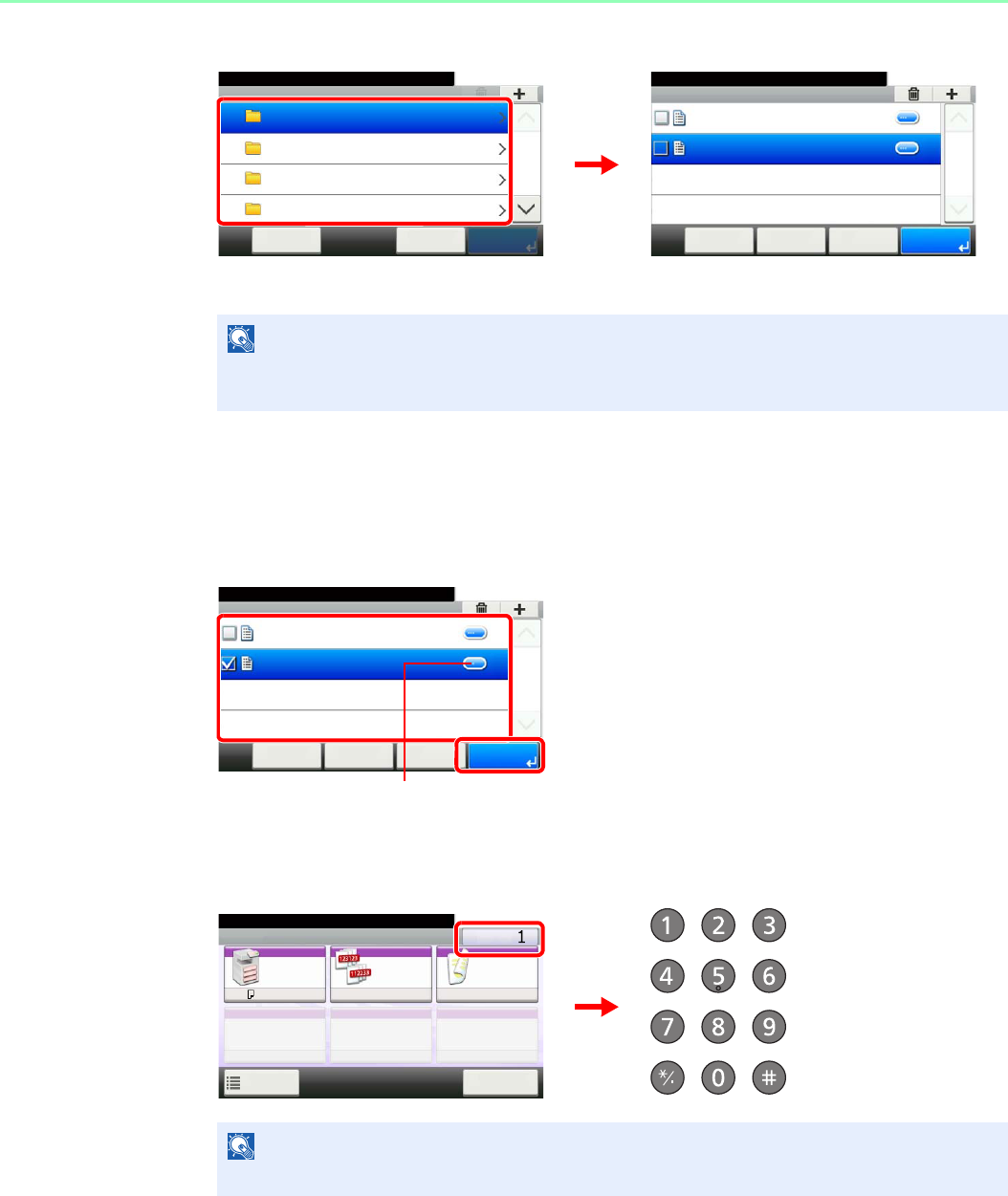
7-3
Document Box > Printing Documents Stored in Removable USB Memory
2Display the screen.
1When the machine reads the USB memory, Removable Memory screen may appear.
2Select and open the folder in which the file you wish to print is stored.
The machine will display documents in the top 3 folder levels, including the root folder. To
return to a higher level folder, press [< Back].
3Select the file.
Select the file to be printed and press [Print].
4Enter the quantity.
NOTE
If the screen does not appear, press the Document Box key and then [Removable
Memory].
NOTE
Press the Clear key to change the copy quantity.
GB0089_00
Removable Memory
10:10Document Box.
DEF
GHI
JKL
ABC
Cancel PrintMenu
1/25
Removable Memory
10:10Document Box.
7-9-2.JPG
11-3-3.JPG
< Back PrintMenu
1/1
Cancel
GB0089_03
Removable Memory
10:10Document Box.
7-9-2.JPG
11-3-3.JPG
< Back PrintMenu
1/1
Cancel
GB0089_02
Displays details for individual files.
1
2
Ready to print from Box.
Print Copies
Paper
Selection
Collate/
Offset
Duplex
A4
Functions
10:10
Cancel
Collate 1-sided
GB0097_00
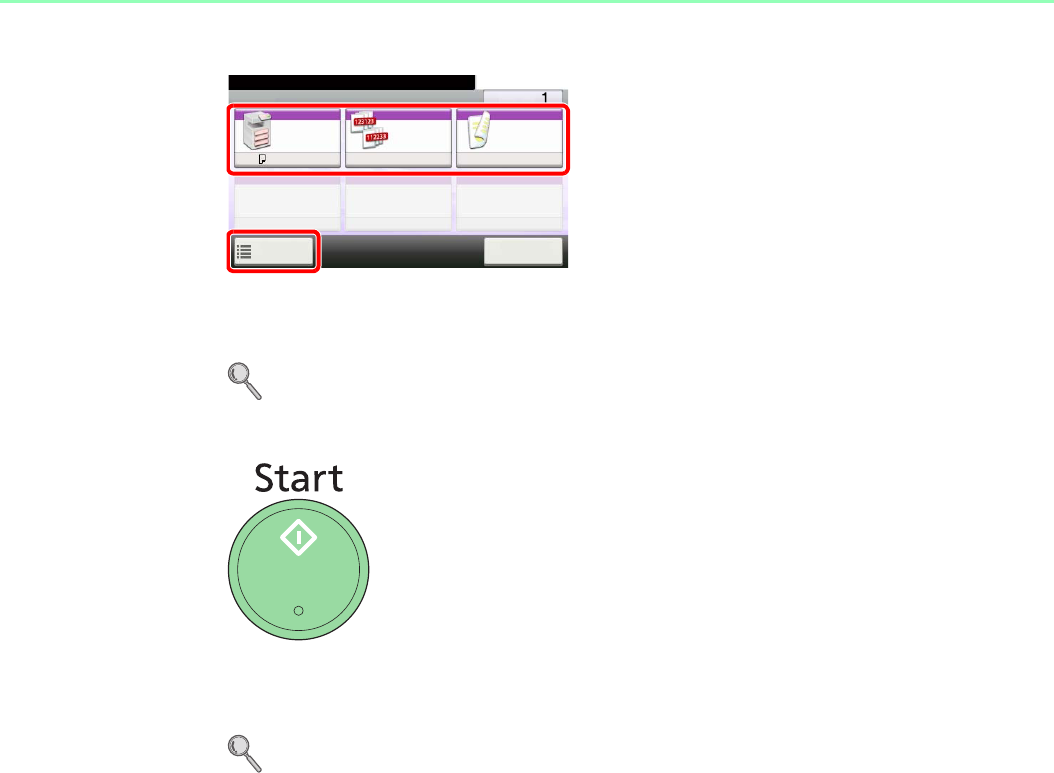
7-4
Document Box > Printing Documents Stored in Removable USB Memory
5Select the functions.
Select the function to use for Document Box.
Press [Functions] to display other functions.
For details, refer to Functions for Document Box on page 7-9.
6Start printing.
Press the Start key to start printing.
Remove the USB memory.
For details, refer to Removing USB Memory on page 7-8.
GB0097_00
Ready to print from Box.
Print Copies
Paper
Selection
Collate/
Offset
Duplex
A4
Functions
10:10
Cancel
Collate 1-sided
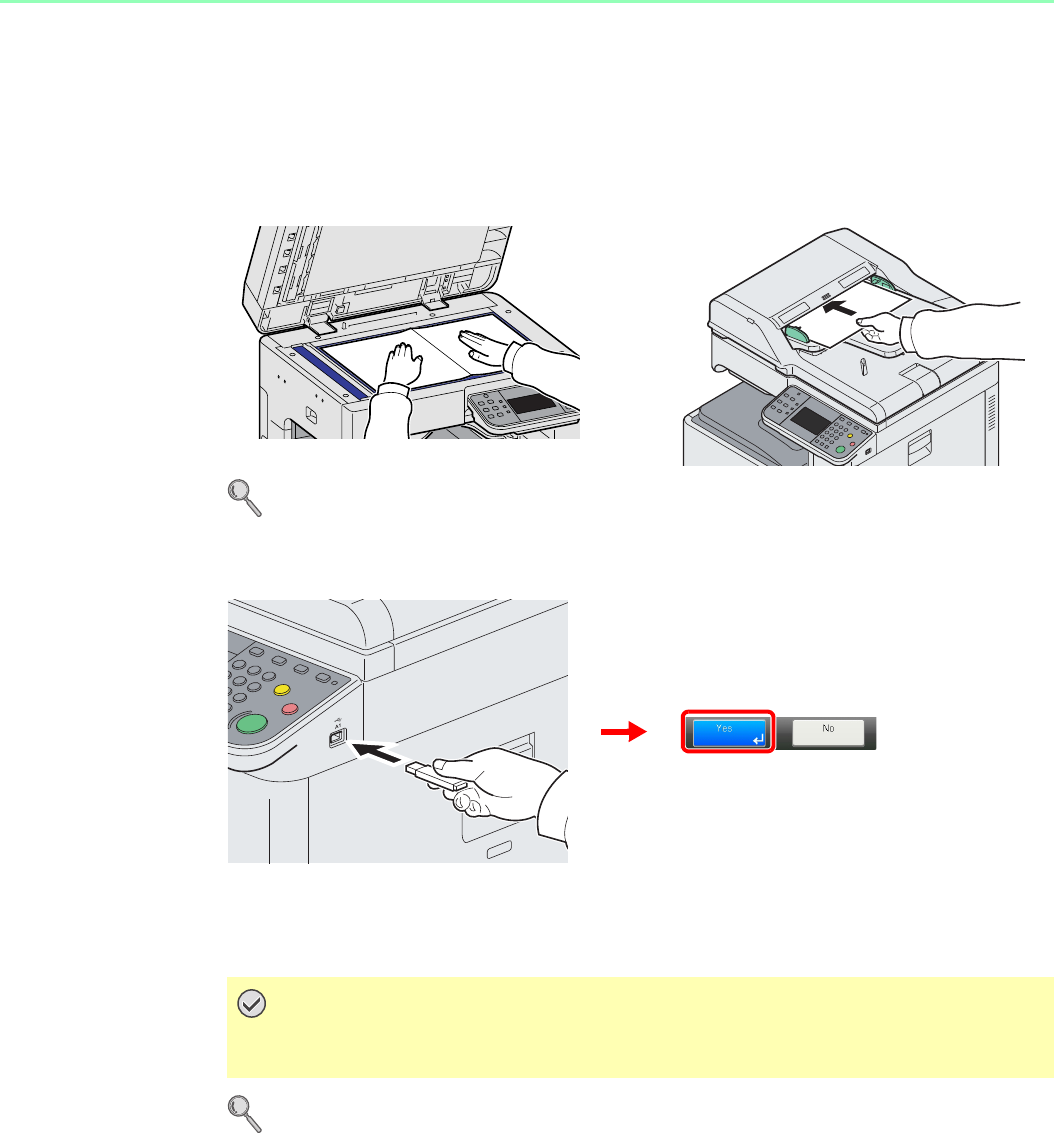
7-5
Document Box > Saving Documents to USB Memory (Scan to USB)
Saving Documents to USB Memory (Scan to USB)
This function allows you to store scanned image files in USB memory connected to the machine. You can store files in
PDF, TIFF, JPEG or XPS format.
1Place the originals.
For details, refer to Loading Originals on page 3-7.
2Plug the USB memory.
Plug the USB memory into the USB memory slot (A1).
When the message Removable Memory is recognized. Displaying files. Are you sure? is
displayed, press [Yes].
Refer to Check of Device Status on page 8-11.
IMPORTANT
Use USB memory formatted by this machine. If a USB memory formatted by any other
device is used, The removable memory is not formatted. may appear.
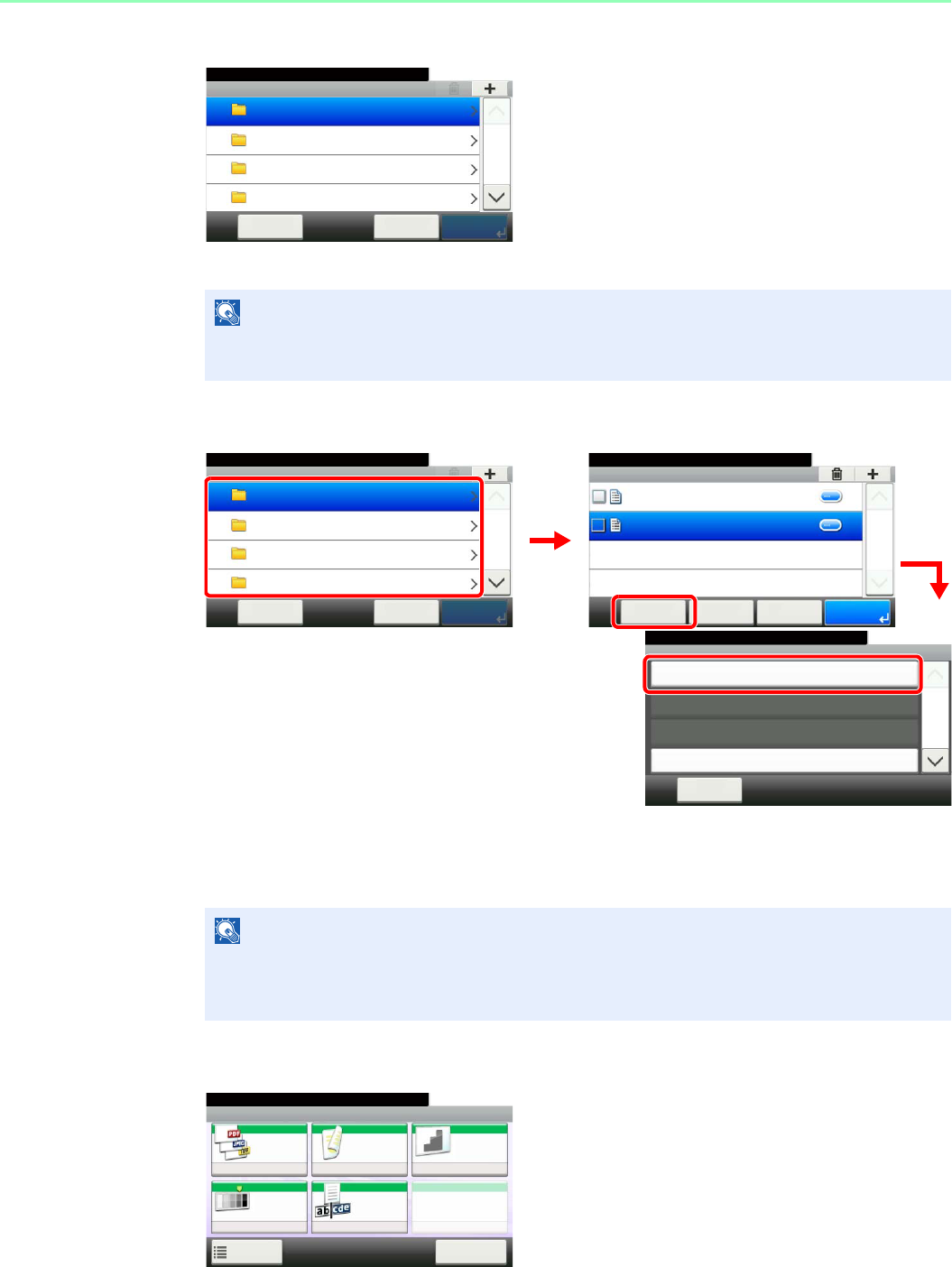
7-6
Document Box > Saving Documents to USB Memory (Scan to USB)
3Display the screen.
When the machine reads the USB memory, Removable Memory screen may appear.
4Select the folder.
Select the folder where the file will be stored and press [Menu] and then [Store File].
The machine will display the top 3 folder levels, including the root folder. To return to a higher
level folder, press [< Back].
5Select the functions.
Select the function to use for Document Box.
Press [Functions] to display other functions.
NOTE
If the screen does not appear, press the Document Box key and then [Removable
Memory].
NOTE
Up to 100 documents and folders can be displayed for each directory. If the number of
documents and folders in a directory exceeds 100, you will be unable to save additional
documents.
GB0089_00
Removable Memory
10:10Document Box.
DEF
GHI
JKL
ABC
Cancel PrintMenu
1/25
Menu
Store File
10:10
Close
Document Box.
Print
Delete
Select All
1/3
GB0089_00
Removable Memory
10:10Document Box.
DEF
GHI
JKL
ABC
Cancel PrintMenu
1/25
Removable Memory
10:10Document Box.
7-9-2.JPG
11-3-3.JPG
< Back PrintMenu
1/1
Cancel
GB0089_03
1
2
3
GB0107_00
GB0096_00
Ready to store in Box.
Store File
File
Format
2-sided/
Book
Scan
Resolution
Density File Name
Entry
Normal 0
PDF 1-sided 300x300dpi
doc
Functions
10:10
Cancel

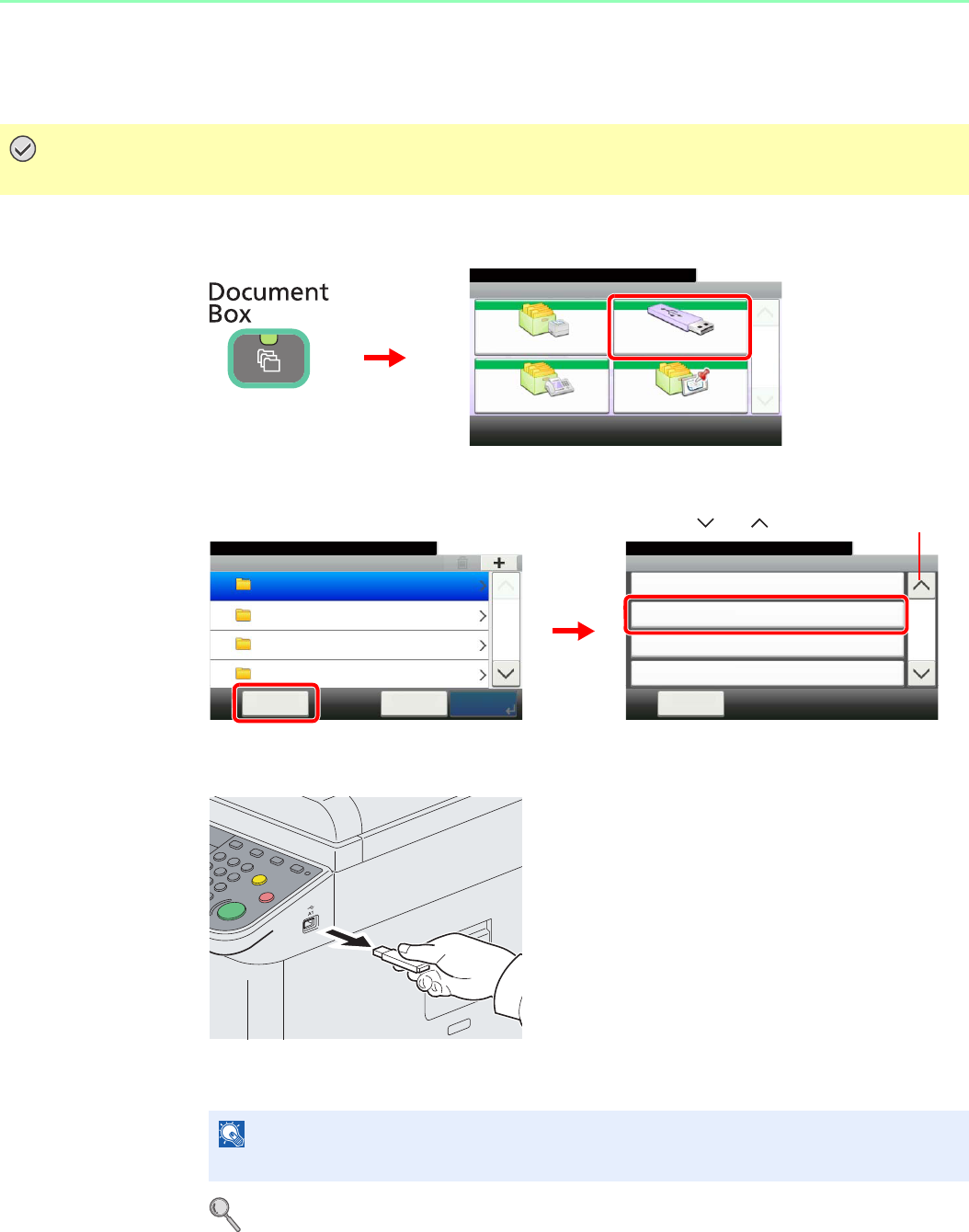
7-8
Document Box > Removing USB Memory
Removing USB Memory
Certain operations must be performed on the screen before USB memory can be removed.
1Display the screen.
2Select [Remove Memory].
3Remove the USB memory.
After Removable Memory can be safely removed. is displayed, press [OK] and remove the
USB memory.
For details, refer to Check of Device Status on page 8-11.
IMPORTANT
Be sure to follow the proper procedure to avoid damaging the data or USB memory.
NOTE
USB memory can also be removed after checking the status of the device.
Document Box.
Box
Sub Address Box
Job Box Removable Memory
Polling Box
10:10
1/1
GB0051_00
1
2
Menu
Clear All
10:10Document Box.
Remove Memory
Sort (Name)
Sort (Date and Time)
2/3
Close
Removable Memory
10:10Document Box.
DEF
GHI
JKL
ABC
Cancel PrintMenu
1/25
GB0089_00
GB0107_01
1
2
Use [ ] or [ ] to scroll up and down.

7-9
Document Box > Functions for Document Box
Functions for Document Box
Print or Store file screen in Document Box shows the commonly used functions. By pressing [Functions], other
selectable functions will be shown as a list. Use [ ] or [ ] to select the function.
When printing from USB memory
When storing a document to USB memory
What do you want to do? Reference Page
Specify the paper size and type. Paper Selection X page 3-41
Collate the output documents in page order. / Offset the output documents by set. Collate/Offset X page 3-43
Print on both sides of the paper. Duplex X page 7-10
Change the paper output. Paper Output X page 3-42
Staple in the output documents. Staple X page 3-48
Change the color mode. Color Selection X page 3-59
Add margins (white space). Margin X page 3-45
Send notice by e-mail when a job is complete. Job Finish Notice X page 3-60
Suspend the current job and override it to give a new job top priority. Priority Override X page 3-63
Password-protect a PDF file. Encrypted PDF Password X page 7-11
Set the image size (resolution) when printing a JPEG or TIFF file. JPEG/TIFF Print X page 7-12
Print an XPS file so that it fits the paper size. XPS Fit to Page X page 7-13
What do you want to do? Reference Page
Select the file format for images being stored. File Format X page 3-57
Automatically scan 2-sided originals. 2-sided/Book Original X page 3-37
Set the resolution at which to scan originals. Scan Resolution X page 3-51
Adjust the density. Density X page 3-50
Add a file name to the job to easily check its status. File Name Entry X page 3-62
Specify the original size. Original Size X page 3-32
Specify the original orientation to scan in the correct direction. Original Orientation X page 3-34
Scan mixed size originals. Mixed Size Originals X page 3-35
Change the size at which to store an image Storing Size X page 7-14
Change the color mode for images being stored. Color Selection X page 3-59
Select original image type for best results. Original Image X page 3-52
Emphasize the outline of texts or lines. / Blur the image outline. Sharpness X page 3-53
Darken or lighten the background (i.e., the area with no text or images) of originals. Background Density Adjust X page 3-54
Prevent bleed-through for 2-sided originals. Prevent Bleed-through X page 3-55
Enlarge or shrink originals according to the storing size. Zoom X page 3-56
Scan a large number of originals separately and then produce as one job. Continuous Scan X page 3-39
Send notice by e-mail when a job is complete. Job Finish Notice X page 3-60
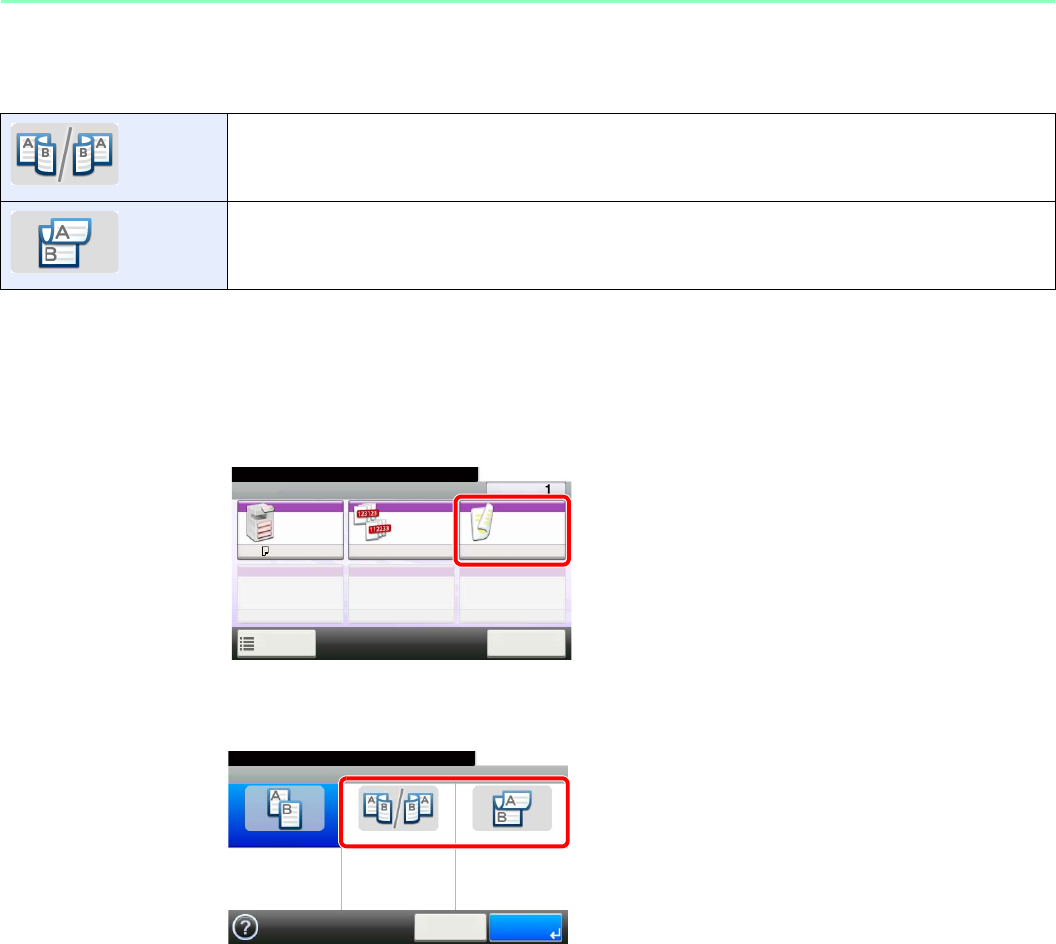
7-10
Document Box > Functions for Document Box
Duplex
Print a document 1-sided or 2-sided. Select the original binding orientation and desired final binding orientation.
1Display the screen.
1Referring to Printing Documents Stored in Removable USB Memory on page 7-2, display
the screen.
2
2Select the function.
2-sided Print a 2-sided document so that the sheets are aligned properly for binding on the left or right
2-sided Print a 2-sided document so that the sheets are aligned properly for binding on the top.
Ready to print from Box.
Print Copies
Paper
Selection
Collate/
Offset
Duplex
A4
Functions
10:10
Cancel
Collate 1-sided
GB0097_00
Ready to print from Box.
Duplex
1-sided 2-sided 2-sided
10:10
Cancel OK
GB0065_00
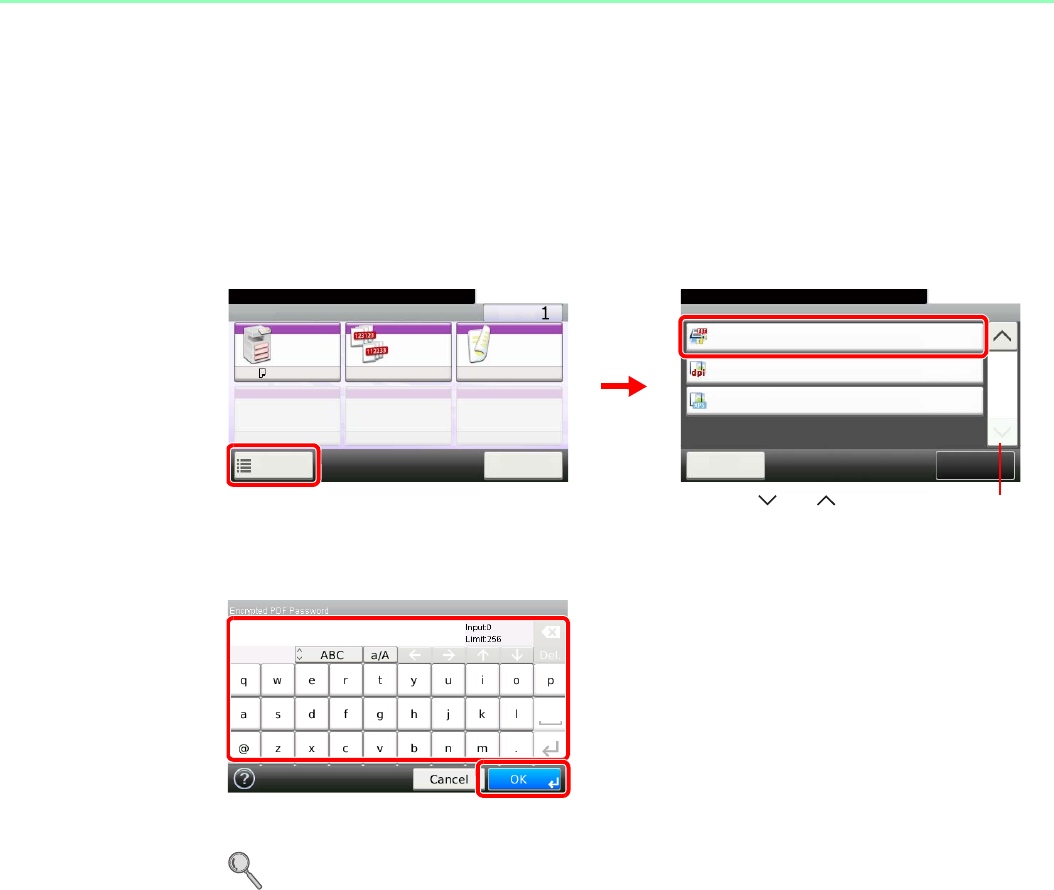
7-11
Document Box > Functions for Document Box
Encrypted PDF Password
Enter the preassigned password to print the PDF data.
1Display the screen.
1Referring to Printing Documents Stored in Removable USB Memory on page 7-2, display
the screen.
2
2Enter the password.
Up to 256 characters can be entered.
Refer to Character Entry Method on page 11-7 for details on entering characters.
Ready to print from Box.
Functions
Encrypted PDF Password
Off
Close
10:10
JPEG/TIFF Print
Paper Size
Off
XPS Fit to Page
2/2
Add/Edit
Shortcut
Ready to print from Box.
Print Copies
Paper
Selection
Collate/
Offset
Duplex
A4
Functions
10:10
Cancel
Collate 1-sided
GB0097_00
GB0099_01
1
Use [ ] or [ ] to scroll up and down.
2
GB0057_21
2
1
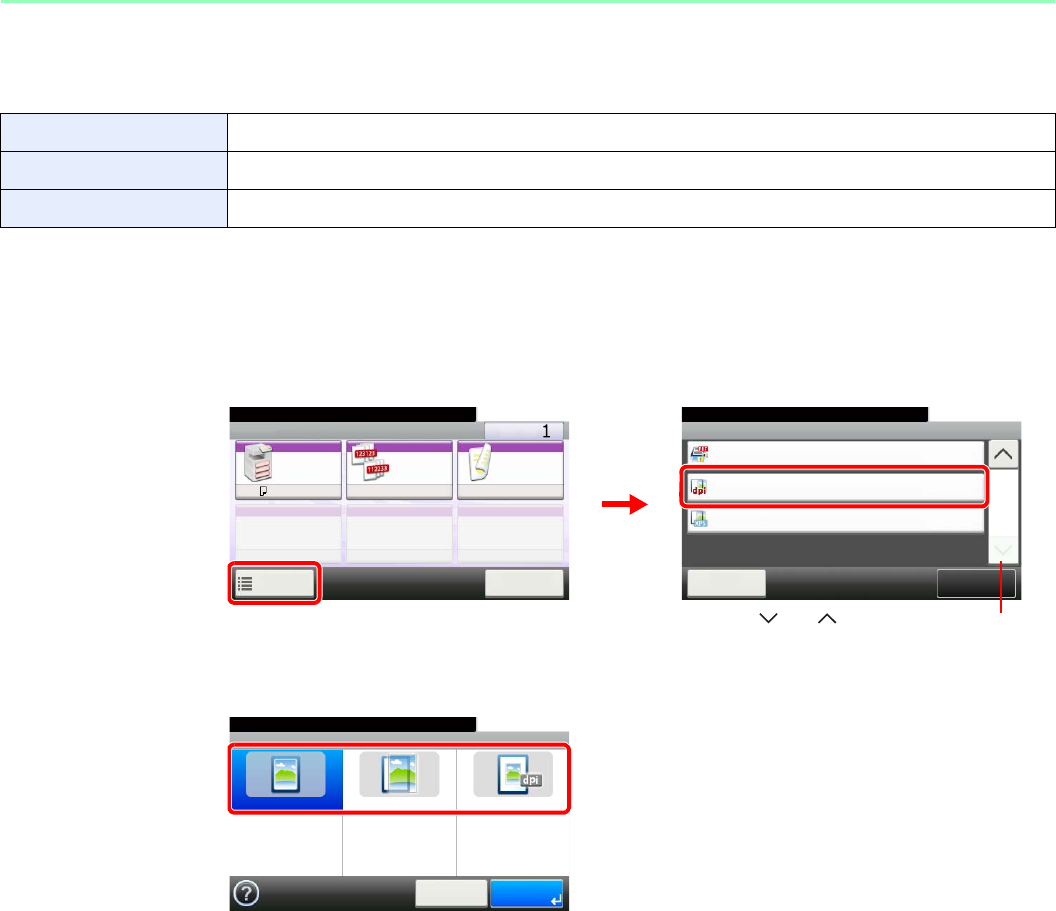
7-12
Document Box > Functions for Document Box
JPEG/TIFF Print
Select the image size when printing JPEG or TIFF files.
1Display the screen.
1Referring to Printing Documents Stored in Removable USB Memory on page 7-2, display
the screen.
2
2Select the function.
Paper Size Fit the image size to the selected paper size.
Image Resolution Print at resolution of the actual image.
Print Resolution Fit the image size to the print resolution.
Ready to print from Box.
Functions
Encrypted PDF Password
Off
Close
10:10
JPEG/TIFF Print
Paper Size
Off
XPS Fit to Page
2/2
Add/Edit
Shortcut
Ready to print from Box.
Print Copies
Paper
Selection
Collate/
Offset
Duplex
A4
Functions
10:10
Cancel
Collate 1-sided
1
2
Use [ ] or [ ] to scroll up and down.
GB0097_00
GB0099_01
GB0101_00
Ready to print from Box.
JPEG/TIFF Print
Paper Size Image Resolution Print Resolution
10:10
Cancel OK
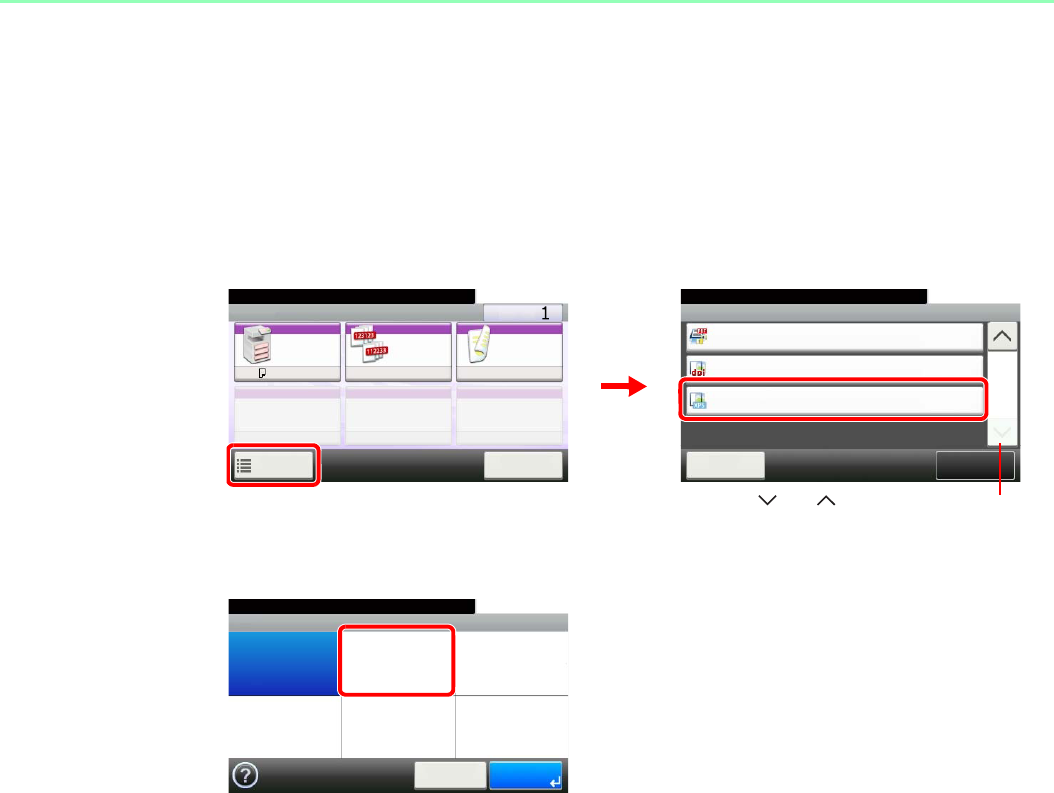
7-13
Document Box > Functions for Document Box
XPS Fit to Page
Reduces or enlarges the image size to fit to the selected paper size when printing XPS files.
1Display the screen.
1Referring to Printing Documents Stored in Removable USB Memory on page 7-2, display
the screen.
2
2Select the function.
Ready to print from Box.
Functions
Encrypted PDF Password
Off
Close
10:10
JPEG/TIFF Print
Paper Size
Off
XPS Fit to Page
2/2
Add/Edit
Shortcut
Ready to print from Box.
Print Copies
Paper
Selection
Collate/
Offset
Duplex
A4
Functions
10:10
Cancel
Collate 1-sided
1
2
Use [ ] or [ ] to scroll up and down.
GB0097_00
GB0099_01
GB0102_00
Ready to print from Box.
XPS Fit to Page
Off On
10:10
Cancel OK
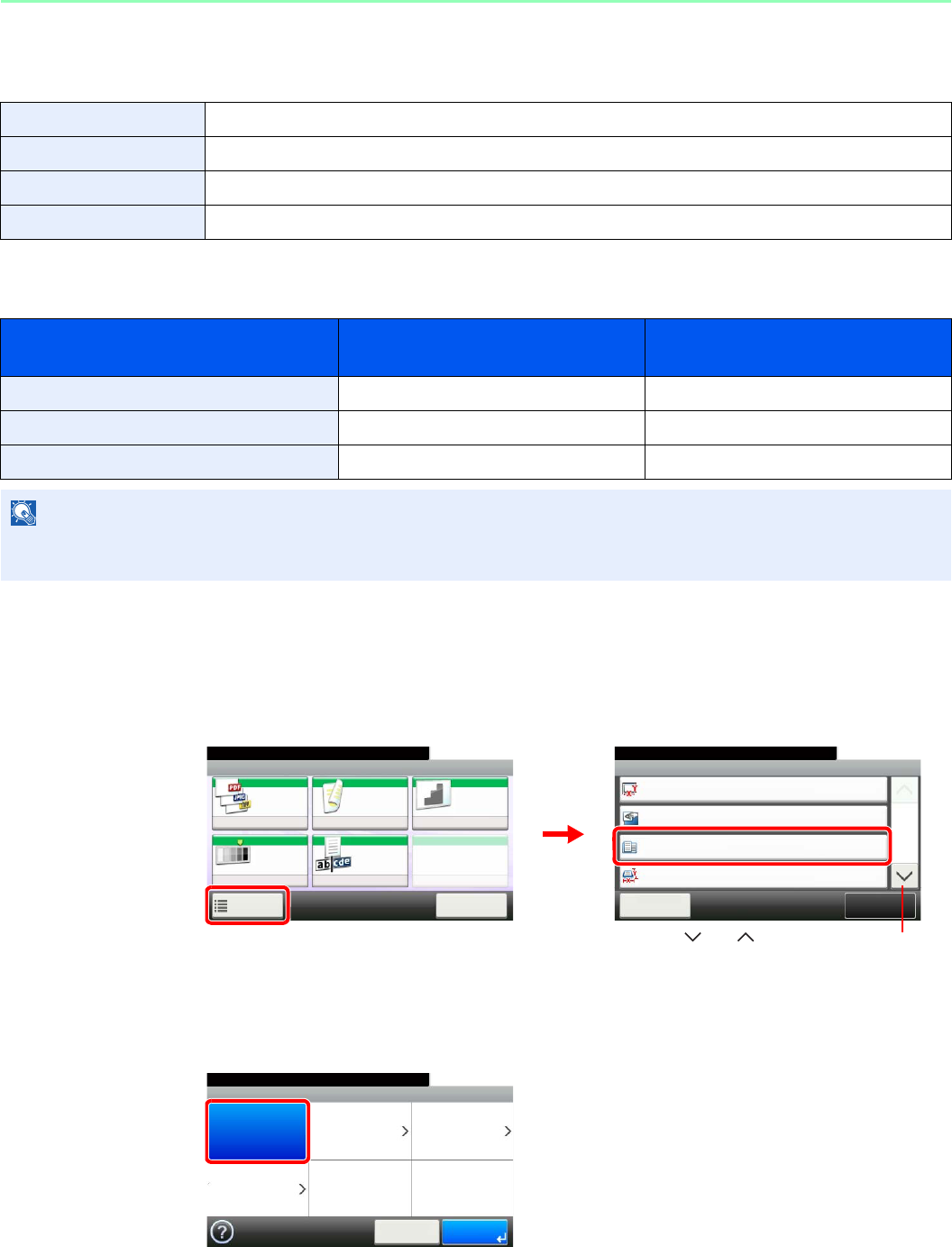
7-14
Document Box > Functions for Document Box
Storing Size
Select size of image to be stored.
Relationship between Original Size, Storing Size, and Zoom
Original Size (page 3-32), Storing Size, and Zoom (page 3-56) are related to each other. Refer to the following table.
1Display the screen.
1Referring to Saving Documents to USB Memory (Scan to USB) on page 7-5, display the
screen.
2
2Select the storing size.
[Same as Original Size]
Same as Original Size Store an image the same size as the original.
Metric Select from A3, A4, A5, A5-R, B4, B5, B6, Folio or 216 × 340 mm.
inch Select from Ledger, Letter, Legal, Statement, 11 × 15" or Oficio II.
Others Select from 8K, 16K, Hagaki or Oufukuhagaki,
Original Size and the size you wish to
store as are
the same different
Original Size Specify as necessary Specify as necessary
Storing Size Select [Same as Original] Select the required size
Zoom Select [100%] (or [Auto]) Select [Auto]
NOTE
When you select Storing Size that is different from Original Size, and select the Zoom [100%], you can store the image
as the actual size (No Zoom).
Ready to store in Box.
Functions
Original Size
Auto
Close
10:10
Original Orientation
Top Edge on Top
Same as Original Size
Storing Size
1/3
Add/Edit
Shortcut
Mixed Size Originals
Off
Ready to store in Box.
Store File
File
Format
2-sided/
Book
Scan
Resolution
Density File Name
Entry
Normal 0
PDF 1-sided 300x300dpi
doc
Functions
10:10
Cancel
GB0096_00
GB0098_00
2
1
Use [ ] or [ ] to scroll up and down.
GB0132_00
Ready to store in Box.
Storing Size
Same as
Original Size
Metric Inch
Others
10:10
Cancel OK
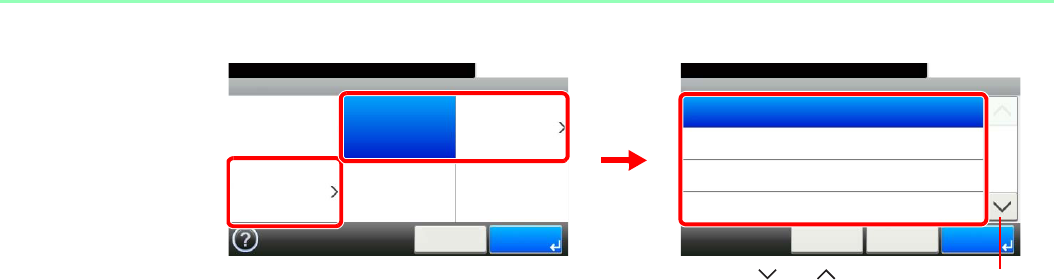
7-15
Document Box > Functions for Document Box
[Metric], [inch] or [Others]
Select the desired size.
Storing Size - Metric
10:10Ready to store in Box.
A4
A5
A6
A3
< BackCancel
1/3
OK
Ready to store in Box.
Storing Size
Same as
Original Size
Metric Inch
Others
10:10
Cancel OK
GB0132_01
GB0133_00
1
2
Use [ ] or [ ] to scroll up and down.

7-16
Document Box > Functions for Document Box
8-1
8 Status / Job Cancel
This chapter explains the following topics:
Checking Job Status .......................................................................................................................................... 8-2
Details of the Status Screens ................................................................................................................... 8-3
Checking Job History ......................................................................................................................................... 8-6
Sending the Log History ..................................................................................................................................... 8-7
Setting the Destination ............................................................................................................................. 8-8
Automatic Log History Transmission ....................................................................................................... 8-9
Manual Log History Transmission ............................................................................................................ 8-9
Setting E-mail Subject ........................................................................................................................... 8-10
Check of Device Status ..................................................................................................................................... 8-11
Checking the Remaining Amount of Toner and Paper ..................................................................................... 8-13
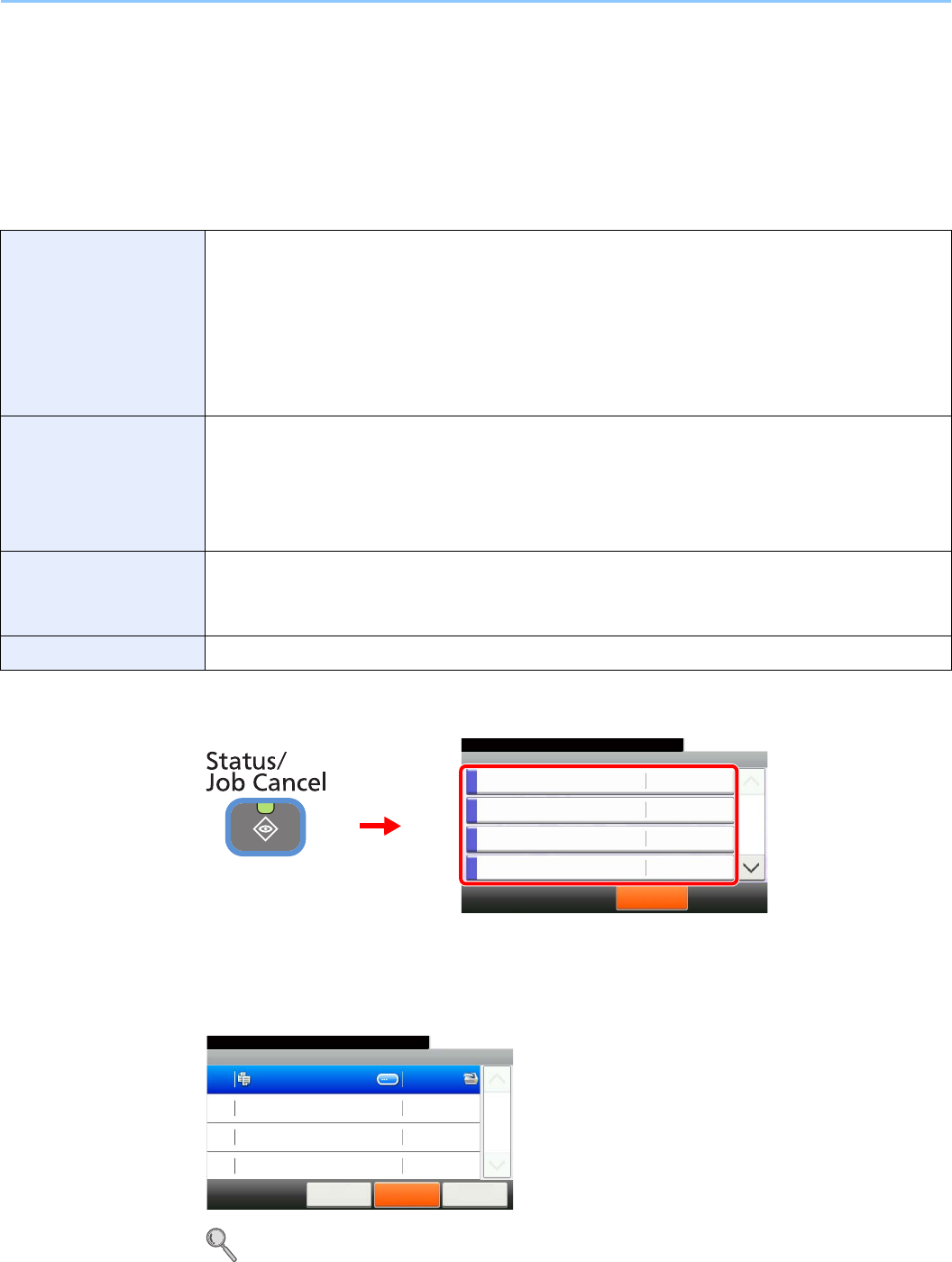
8-2
Status / Job Cancel > Checking Job Status
Checking Job Status
Check the status of jobs being processed or waiting to be printed.
Available Status Screens
The processing and waiting statuses of jobs are displayed as a list on the touch panel in four different screens - Printing
Jobs, Sending Jobs, Storing Jobs, and Scheduled Jobs. The following job statuses are available.
1Display the screen.
Press either of [Print Job Status], [Send Job Status], [Store Job Status] or [Scheduled Job] to
check the status.
2Check the status.
Refer to Print Job Status Screen on page 8-3, Send Job Status screen on page 8-4, Store Job
Status screen on page 8-5, and Scheduled Job screen on page 8-5.
Print Job Status Copy
Printer
Printing from Document Box
FAX reception
E-mail reception
Job Report /List
Printing data from removable memory
Send Job Status FAX transmission
Folder (SMB/FTP) transmission
E-mail
Application
Mixed (Multiple destination)
Store Job Status Scan
FAX
Printer
Scheduled Job Sending Job FAX using Delayed transmission
Status/Job Cancel.
Status
Print Job Status
10:10
Send Job Status
Store Job Status
Scheduled Job
Pause All
Print Jobs
1/4
GB0052_00
2
1
Print Job Status
10:10Status/Job Cancel.
doc0000892010092514...
Cancel Close
5/23
1/1
0089
Pause All
Print Jobs
GB0182_00
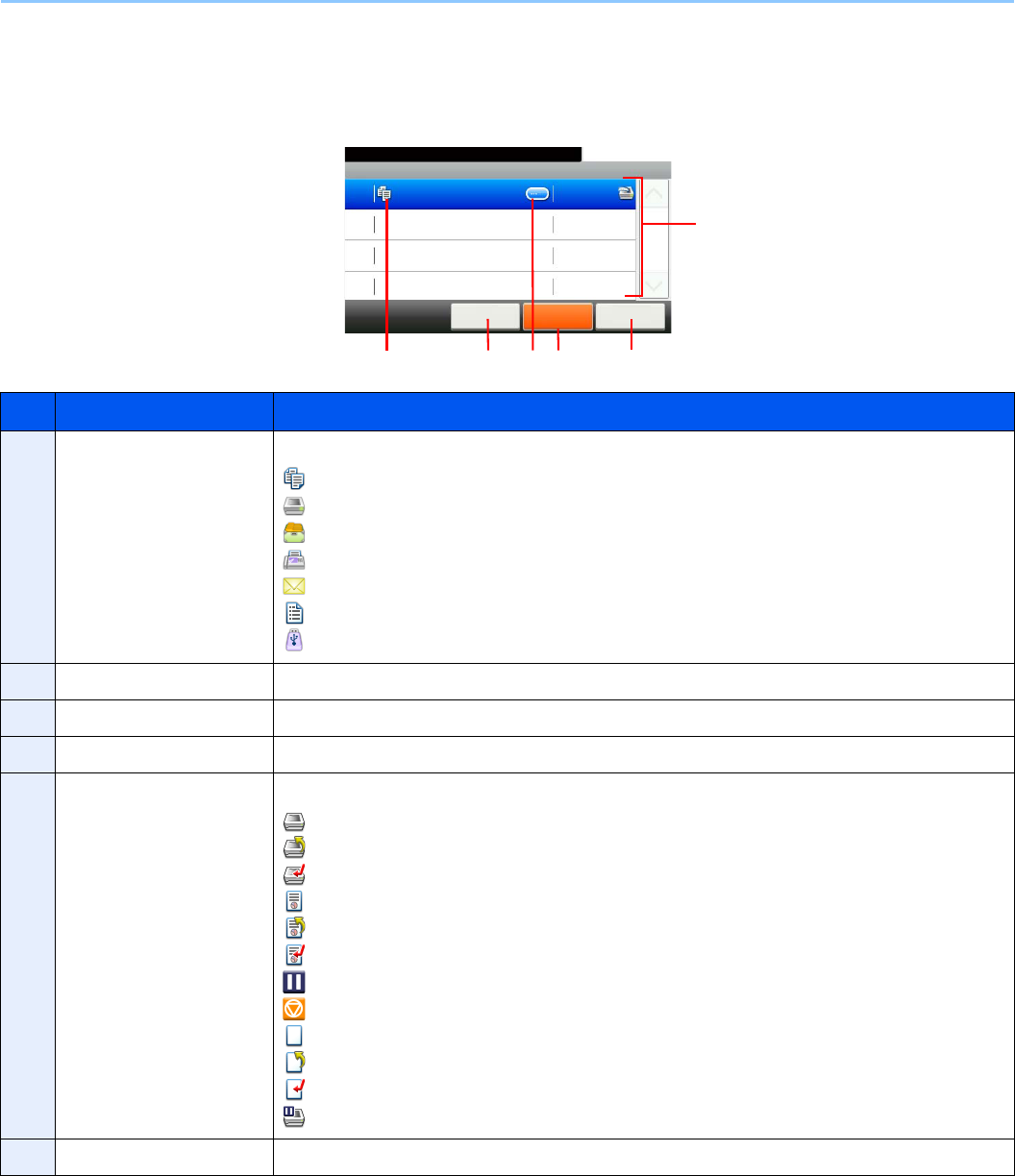
8-3
Status / Job Cancel > Checking Job Status
Details of the Status Screens
Print Job Status Screen
No. Item/Key Detail
1—Icons that indicate the job type
Copy job
Printer job
Job from Document Box
FAX reception
E-mail reception
Report/List
Data from removable memory
2[Cancel] Select the job to be canceled from the list, and press this key.
3[...] Press […] for the job for which you wish to display detailed information.
4[Pause All Print Jobs] Pauses all the printing jobs. By pressing this key again, the printing jobs will be resumed.
5—Status of job
Printing
Printing (priority override)
Printing (interrupt copying)
Print Waiting
Print Waiting (priority override)
Print Waiting (interrupt copying)
Pausing print job or error
Canceling the job
The status before starting to print.
The status before starting to print. (priority override)
The status before starting to print. (interrupt copying)
Printing has been suspended due to priority override or interrupt copy operation.
6[Close] Closes the Print Job Status screen.
Print Job Status
10:10Status/Job Cancel.
doc0000892010092514...
Cancel Close
5/23
1/1
0089
Pause All
Print Jobs
3
5
GB0182_00
124 6
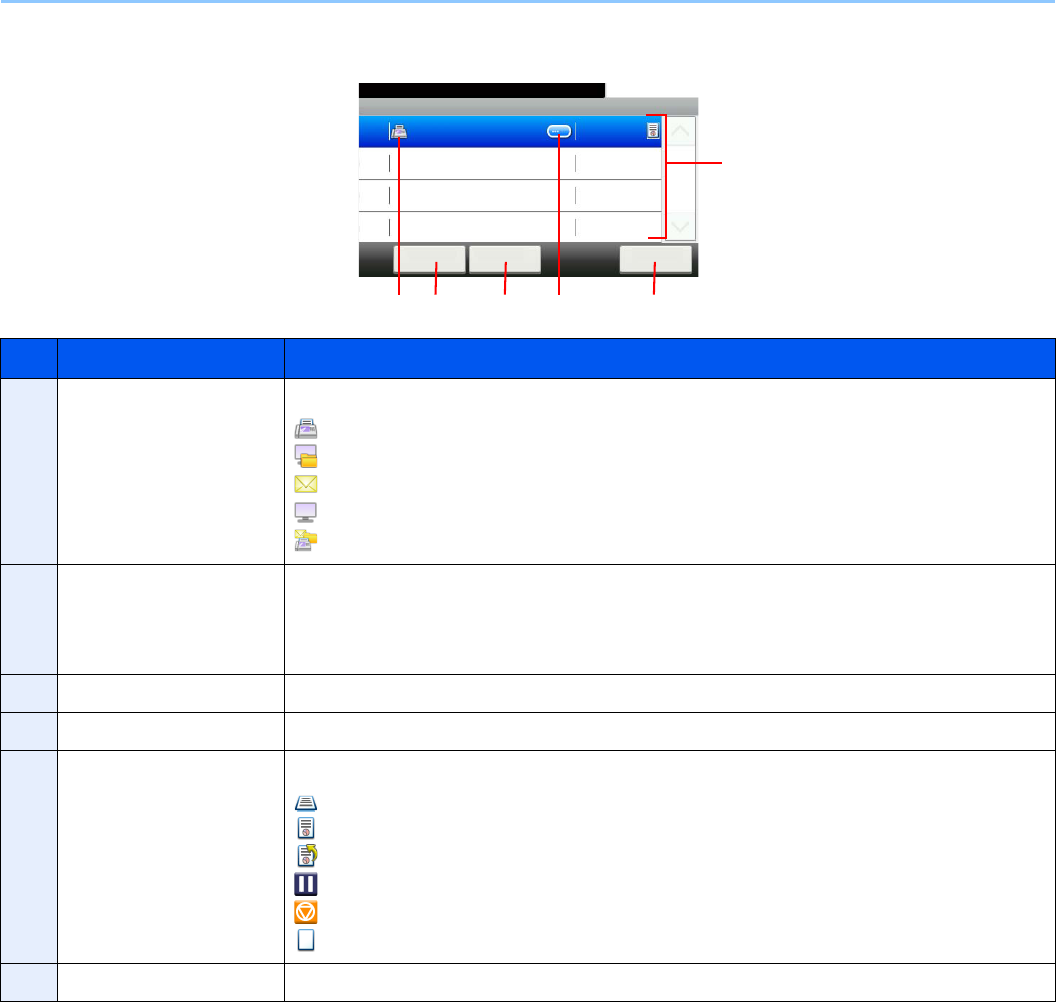
8-4
Status / Job Cancel > Checking Job Status
Send Job Status screen
No. Display/Key Detail
1—Icons that indicate the job type
Sending Job FAX
Sending Job Folder (SMB/FTP)
Sending Job E-mail
Sending Job Application
Sending Job Mixed (Multiple)
2[Menu]*
* This function is displayed when the optional fax is installed.
Pressing this key displays [Priority Override]. This function allows you to give a particular fax
job priority.
Select the fax job you wish to send immediately and then press [Menu], followed by [Priority
Override].
3[Cancel] Select the job you want to cancel from the list, and press this key.
4[...] Press […] for the job for which you wish to display detailed information.
5—Status of job
Sending
Sending Waiting
A job for which immediate transmission was specified is waiting for transmission to start.
Pausing the job or error
Canceling the job
The status before starting sending such as during scanning originals
6[Close] Closes the Send Job Status screen.
Send Job Status
10:10Status/Job Cancel.
0123456
Cancel CloseMenu
Process
1/1
0005
4
5
GB0183_00
1362
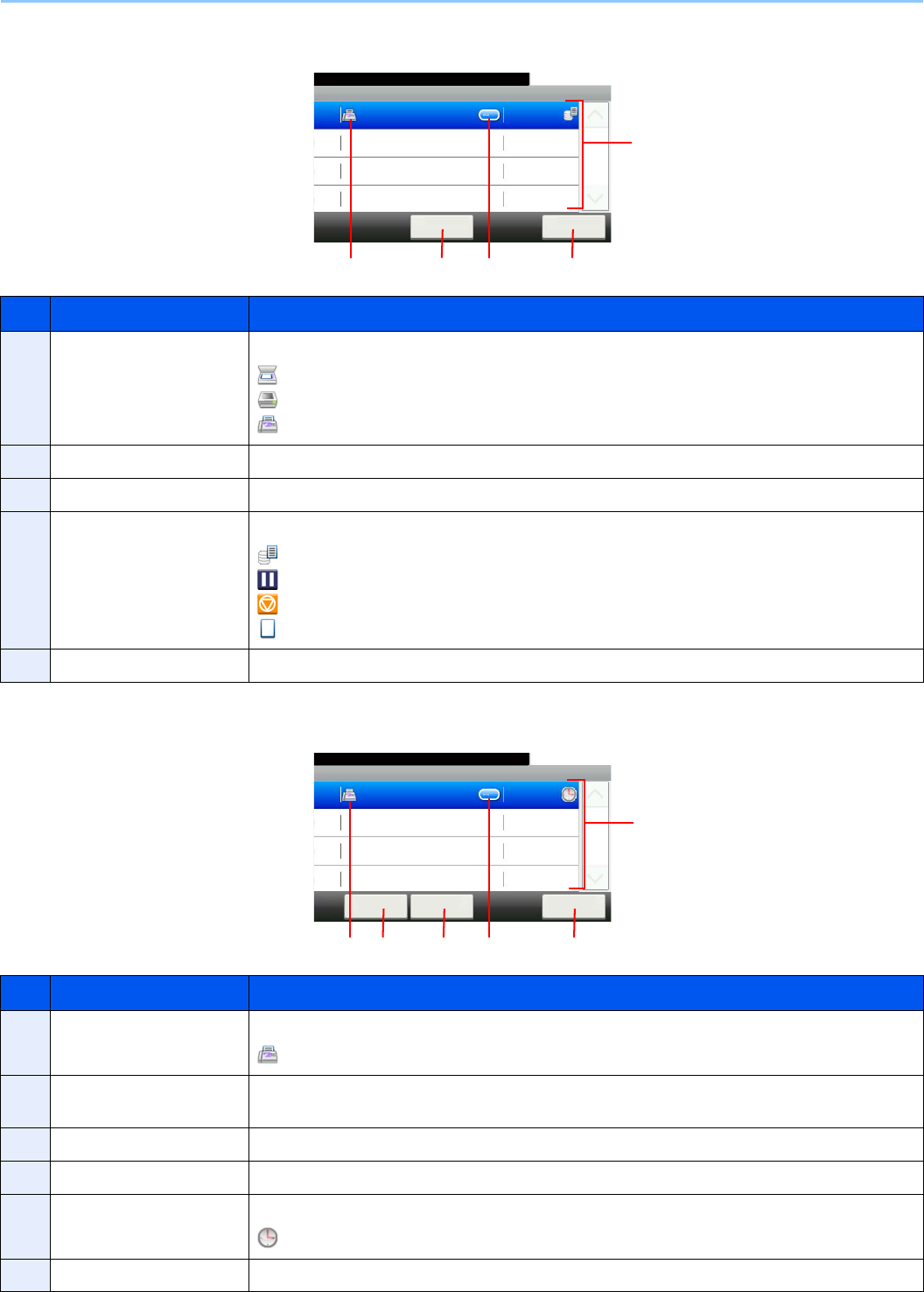
8-5
Status / Job Cancel > Checking Job Status
Store Job Status screen
Scheduled Job screen
No. Display/Key Details
1—Icons that indicate the job type
Storing Job Scan
Storing Job Printer
Storing Job FAX
2[Cancel] Select the job you want to cancel from the list, and press this key.
3[...] Press […] for the job for which you wish to display detailed information.
4—Status of job
Storing Data
Pausing the job or error
Canceling the job
The status before starting to save such as during scanning originals
5[Close] Closes the Store Job Status screen.
No. Display/Key Details
1—Icons that indicate the job type
Sending Job FAX
2[Menu] Pressing this key displays [Start Now]. Select the job you wish to send immediately and then
press [Menu], followed by [Start Now].
3[Cancel] Select the job you want to cancel from the list, and press this key.
4[...] Press […] for the job for which you wish to display detailed information.
5—Status of job
Sending Waiting
6[Close] Closes the Scheduled Job screen.
Store Job Status
10:10Status/Job Cancel.
doc0000162010082913...
Cancel Close
Storing
1/1
0016
3
4
GB0184_00
125
Scheduled Job
10:10Status/Job Cancel.
1233
Cancel Close
04:00
1/1
0014
Menu
4
5
GB0185_00
1362
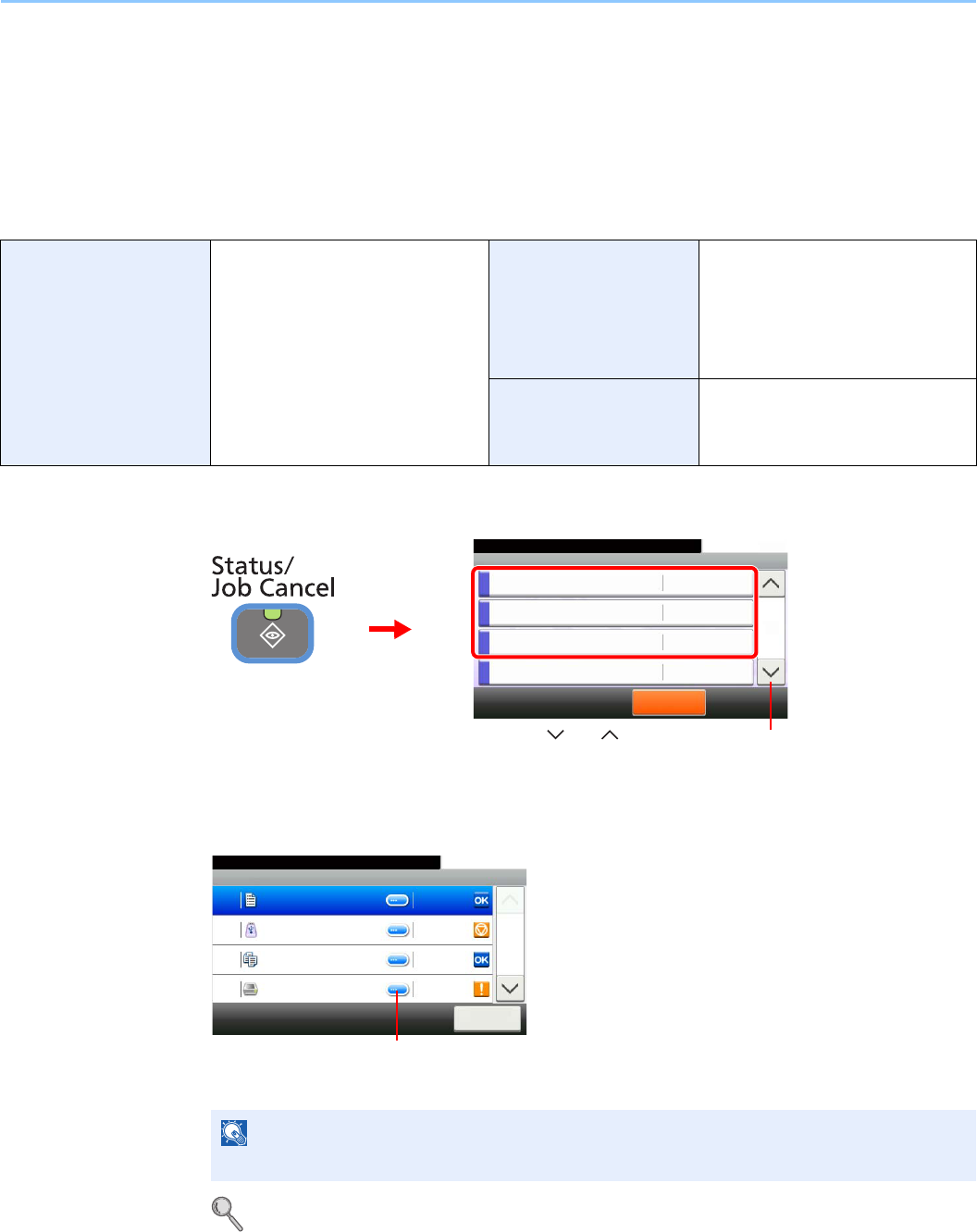
8-6
Status / Job Cancel > Checking Job History
Checking Job History
Check the history of completed jobs.
Available Job History Screens
The job histories are displayed separately in three screens - Printing Jobs, Sending Jobs, and Storing Jobs. The
following job histories are available.
1Display the screen.
Press either of [Print Job Log], [Send Job Log], or [Store Job Log] to check the log.
2Check the log.
Press [Close] to exit the screen.
For details, refer to Sending the Log History on page 8-7.
Print Job Log Copy
Printer
FAX reception
E-mail reception
Printing from Document Box
Job Report/List
Printing data from removable
memory
Send Job Log FAX
Folder (SMB/FTP)
E-mail
Application
Mixed (Multiple destination)
Store Job Log Scan
FAX
Printer
NOTE
The job history can be sent by E-mail.
Status/Job Cancel.
Status
Print Job Log
10:10
Send Job Log
Store Job Log
Scanner
Pause All
Print Jobs
2/4
Waiting
GB0052_01
2
1
Use [ ] or [ ] to scroll up and down.
GB0186_00
Print Job Log
10:10Status/Job Cancel.
doc0000112010081817...
Close
Completed
1/3
0011
doc0000102010081815... Canceled0010
doc0000092010081815... Completed0009
doc Error0008
Displays details for individual jobs.
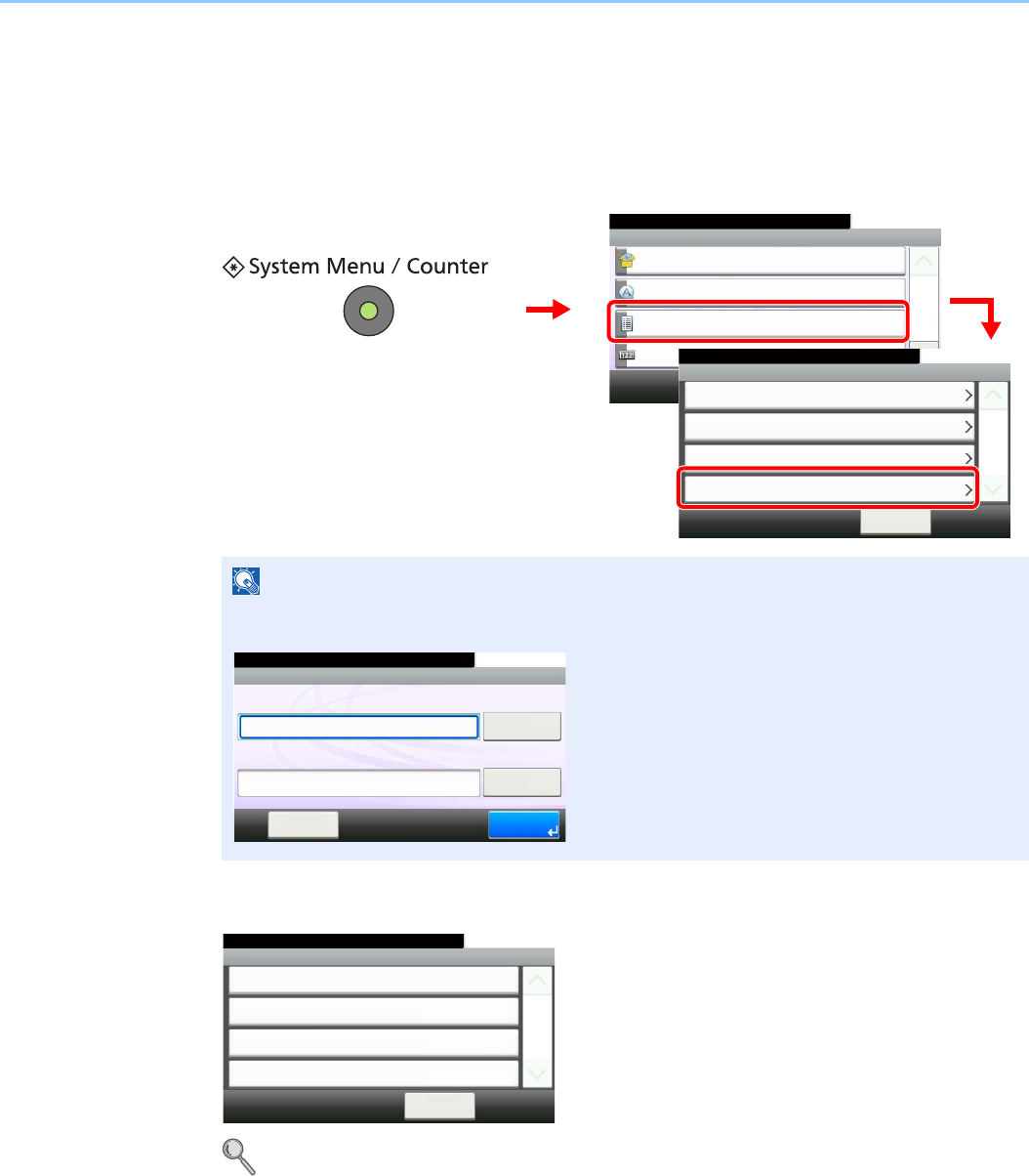
8-7
Status / Job Cancel > Sending the Log History
Sending the Log History
You can send the log history by e-mail. You can either send it manually as needed or have it sent automatically
whenever a set number of jobs is reached.
1Display the screen.
2Configure the function.
Refer to Setting the Destination on page 8-8, Automatic Log History Transmission on page 8-9,
Manual Log History Transmission on page 8-9 and Setting E-mail Subject on page 8-10.
NOTE
If user login administration is enabled, you can only change the settings by logging in with
administrator privileges.
System Menu/Counter.
System Menu
Quick Setup Wizard
10:10
Language
Report
Counter
1/5
Report Print
10:10System Menu/Counter.
Admin Report Settings
< Back
1/1
Result Report Setting
Sending Log History
Report
1
2
3
GB0054_00
GB0560_00
10:10
Keyboard
Login Password
Keyboard
Login User Name
LoginMenu
Enter login user name and password.
GB0723_00
Send Log History
10:10System Menu/Counter.
Auto Sending
< Back
1/1
Off
Destination
E-mail:
Report - Sending Log History
Job Log Subject
GB0578_00
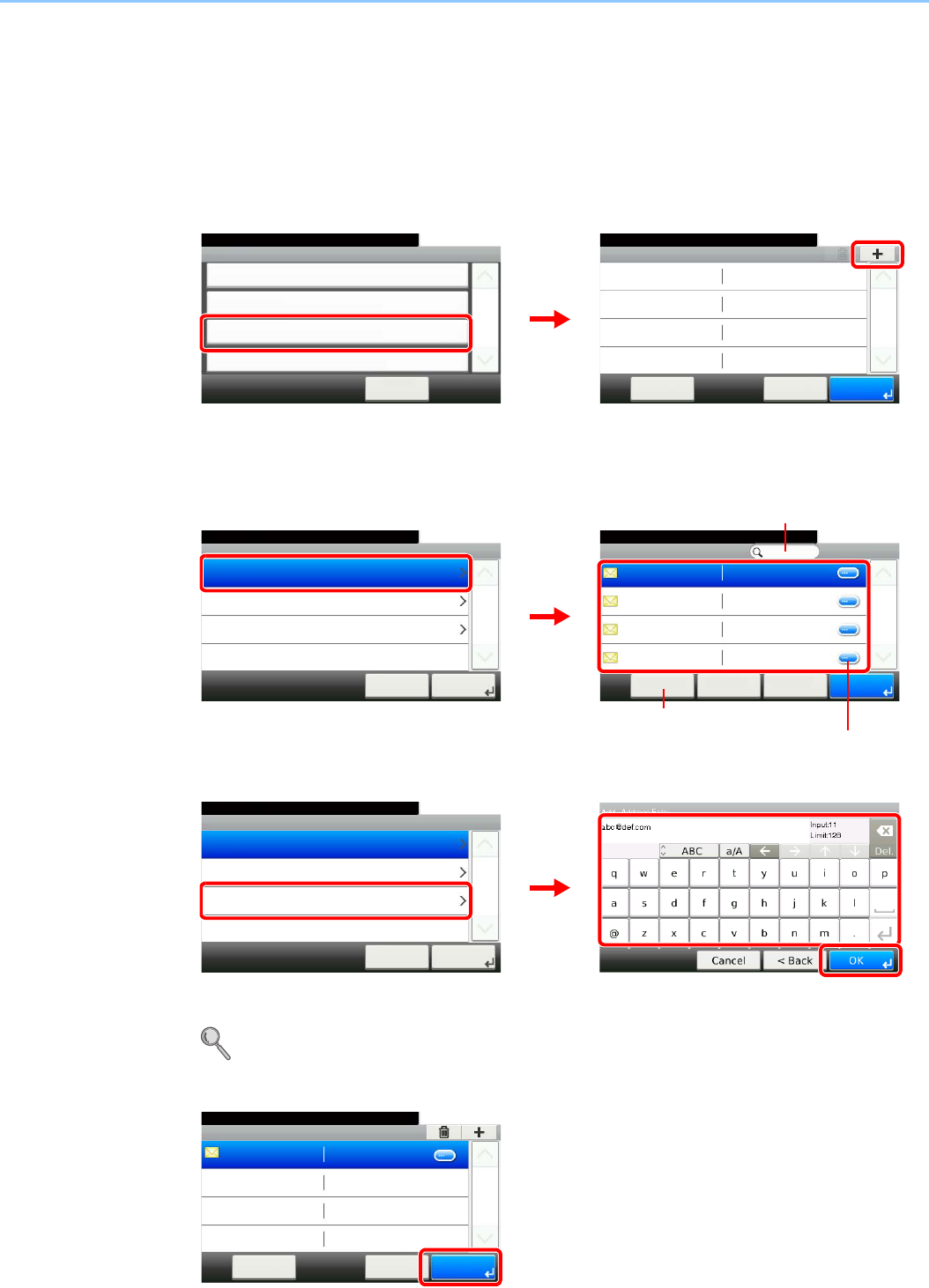
8-8
Status / Job Cancel > Sending the Log History
Setting the Destination
Set the destination to which log histories are sent.
1Display the screen.
1Referring to Sending the Log History on page 8-7, display the screen.
2
2Select the destination.
Select from the Address Book.
Enter a new e-mail address.
Up to 128 characters can be entered.
Refer to Character Entry Method on page 11-7 for details on entering characters.
3Accept the destination.
Sending Log History - Destination
10:10System Menu/Counter.
Menu
1/1
OKCancel
GB0578_00
GB0581_00
Send Log History
10:10System Menu/Counter.
Auto Sending
< Back
1/1
Off
Destination
E-mail:
Report - Sending Log History
Job Log Subject
12
Add - Address Book
10:10System Menu/Counter.
AAA
Menu
1/1
OK
aaa@abc.com
BBB bbb@abc.com
CCC ccc@abc.com
DDD ddd@abc.com
Cancel < Back
GB0398_01
GB0583_00
Add
10:10System Menu/Counter.
Ext. Address Book
Address Entry
Address Book
Cancel
1/1
Next >
Displays details for individual destinations.
Allows you to search for and sort destinations.
1
2
Searches by destination name.
GB0057_22
GB0583_00
Add
10:10System Menu/Counter.
Ext. Address Book
Address Entry
Address Book
Cancel
1/1
Next >
2
3
1
Sending Log History - Destination
10:10System Menu/Counter.
E-mail
Menu
1/1
OK
abc@def.com
Cancel
GB0581_01
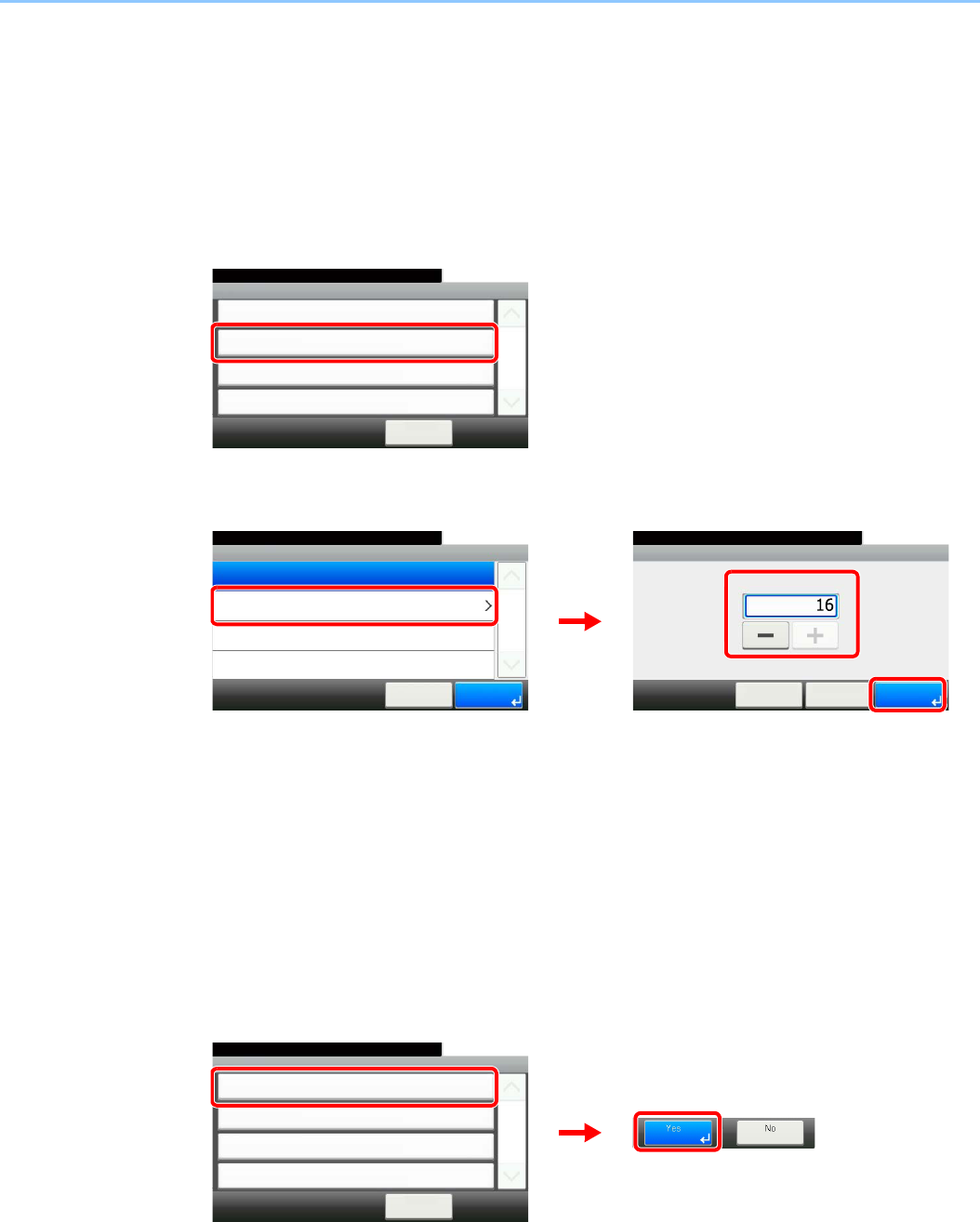
8-9
Status / Job Cancel > Sending the Log History
Automatic Log History Transmission
This function automatically sends the log history to the specified destinations whenever a set number of jobs has been
logged.
1Display the screen.
1Referring to Sending the Log History on page 8-7, display the screen.
2
2Select the function.
Press [On] and enter the number of jobs in the log history print. You can enter any number
between 1 and 16.
Manual Log History Transmission
You can also send the log history to the specified destinations manually.
1Display the screen.
Referring to Sending the Log History on page 8-7, display the screen.
2Send the log history.
GB0578_00
Send Log History
10:10System Menu/Counter.
Auto Sending
< Back
1/1
Off
Destination
E-mail:
Report - Sending Log History
Job Log Subject
Sending Log History - Auto Sending
10:10System Menu/Counter.
On
Off
Cancel
1/1
OK
Auto Sending - Jobs
10:10System Menu/Counter.
(1 - 16)
< Back OKCancel
GB0579_00
GB0580_00
3
2
1
Send Log History
10:10System Menu/Counter.
Auto Sending
< Back
1/1
Off
Destination
E-mail:
Report - Sending Log History
Job Log Subject
GB0578_00
2
1
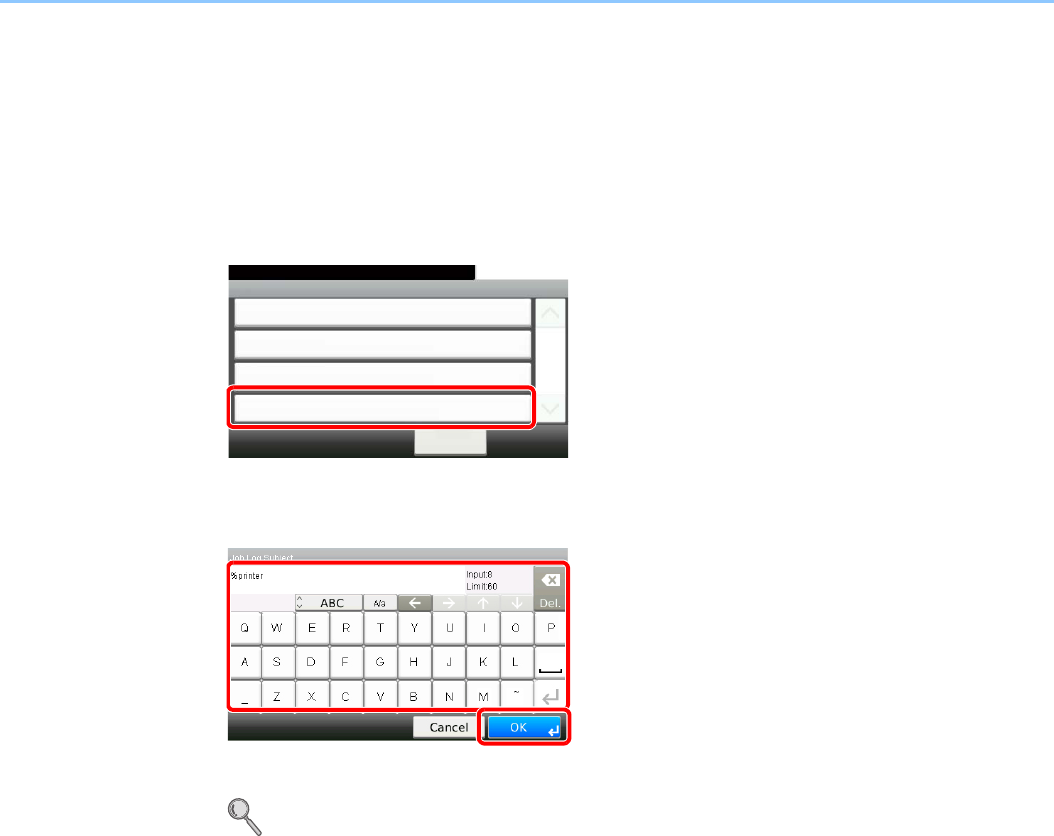
8-10
Status / Job Cancel > Sending the Log History
Setting E-mail Subject
Set the subject automatically entered when sending log histories by E-mail.
1Display the screen.
1Referring to Sending the Log History on page 8-7, display the screen.
2
2Enter an E-mail subject.
Up to 60 characters can be entered.
Refer to Character Entry Method on page 11-7 for details on entering characters.
GB0578_00
Send Log History
10:10System Menu/Counter.
Auto Sending
< Back
1/1
Off
Destination
E-mail:
Report - Sending Log History
Job Log Subject
GB0057_23
1
2
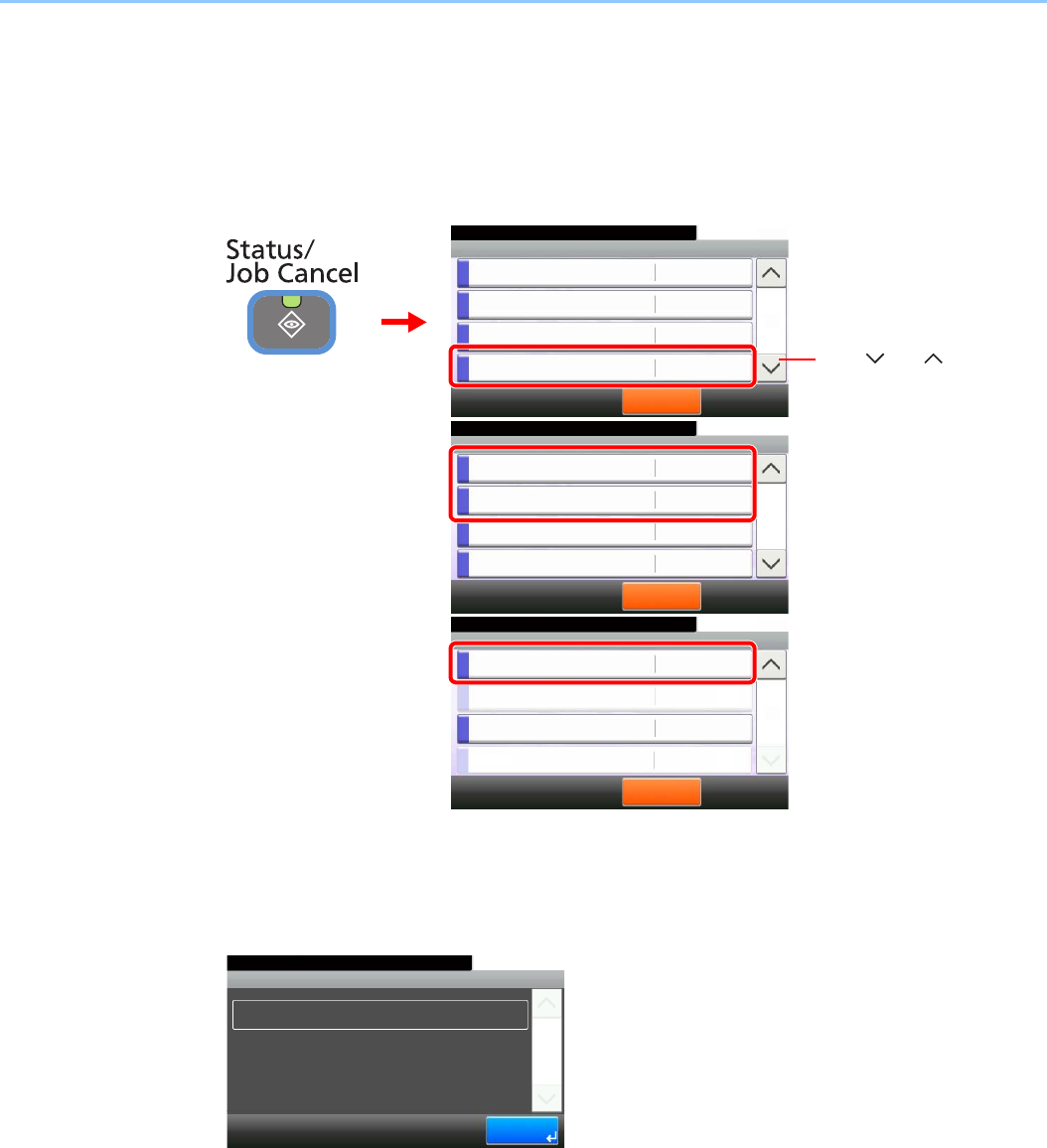
8-11
Status / Job Cancel > Check of Device Status
Check of Device Status
Configure the devices/lines installed or connected to this machine or check their status. You can also control devices
depending on their status.
1Display the screen.
Select the device you wish to check.
2Check the status.
Scanner
The status of an original scanning in the document processor or the error information (paper
jam, opened cover, etc.) is displayed.
Status/Job Cancel.
Status
Print Job Log
10:10
Send Job Log
Store Job Log
Scanner
Pause All
Print Jobs
2/4
Waiting
GB0052_01
2
Status/Job Cancel.
Status
Printer
10:10
FAX
Toner Status
Paper Status
Pause All
Print Jobs
3/4
No Paper
OK
Waiting
Running
GB0052_02
2
Status/Job Cancel.
Status
Removable Memory
10:10
USB Keyboard
Staple
Pause All
Print Jobs
4/4
OK
Attached
Invalid
GB0052_03
2
1Use [ ] or [ ] to scroll up
and down.
GB0189_00
Scanner
10:10Status/Job Cancel.
1/1
End
Ready.
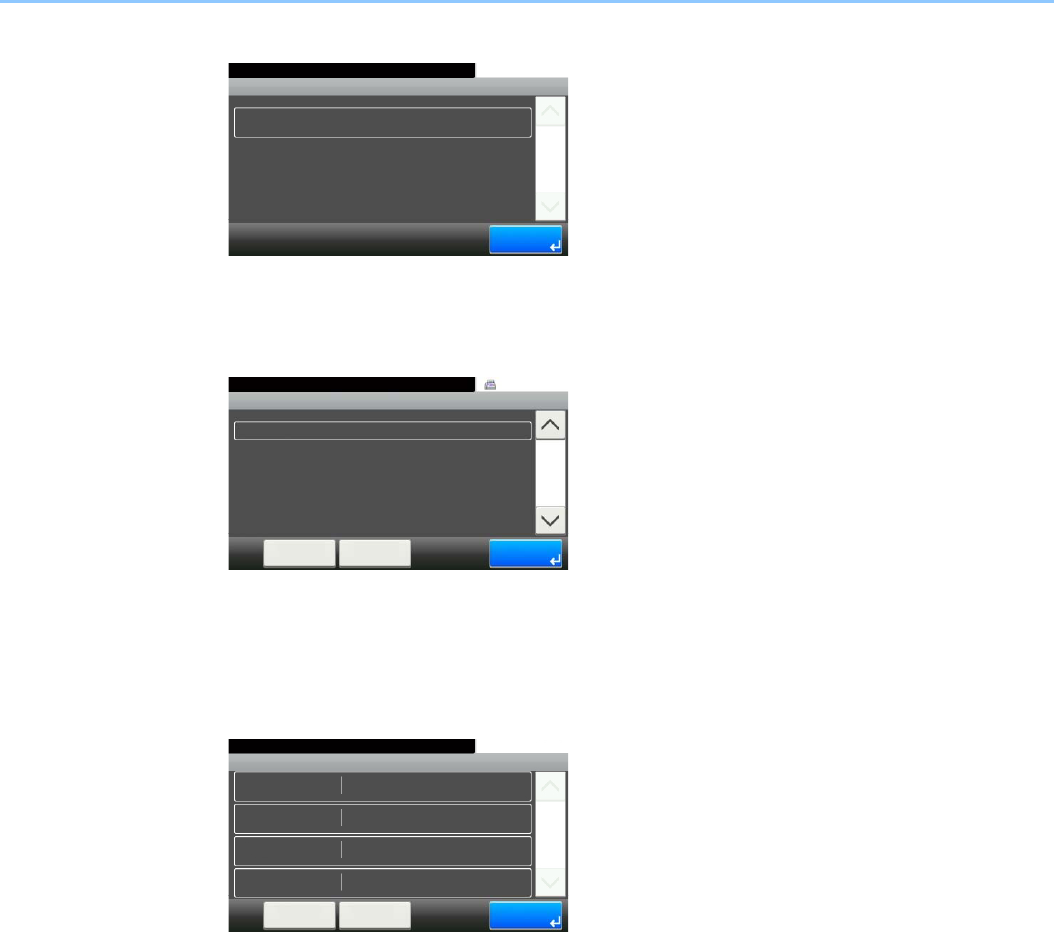
8-12
Status / Job Cancel > Check of Device Status
Printer
Error information such as paper jam, out of toner, or out of paper, and status such as waiting or
printing are displayed.
FAX (Option)
• The information such as sending/receiving and dialing is displayed.
• Press [Line Off] to cancel a fax in sending/receiving.
For details, refer to the FAX Operation Guide.
Removable Memory
• The usage and capacity of the external media connected to this machine are displayed.
• Press [Menu] and then [Format] to format external media.
• Press [Remove Memory] to safely remove the external media. This operation is the same
as that for Removing USB Memory on page 7-8.
Printer
10:10Status/Job Cancel.
1/1
End
Ready.
GB0190_00
GB0191_00
FAX
10:10Status/Job Cancel.
1/1
End
Receiving...
Menu Line Off
Removable Memory
Loaded.
10:10Status/Job Cancel.
Capacity
Used Area
Free Space
Status
1.9GB
684.1MB
1/1
End
1.2GB
Remove
Memory
Menu
GB0194_00
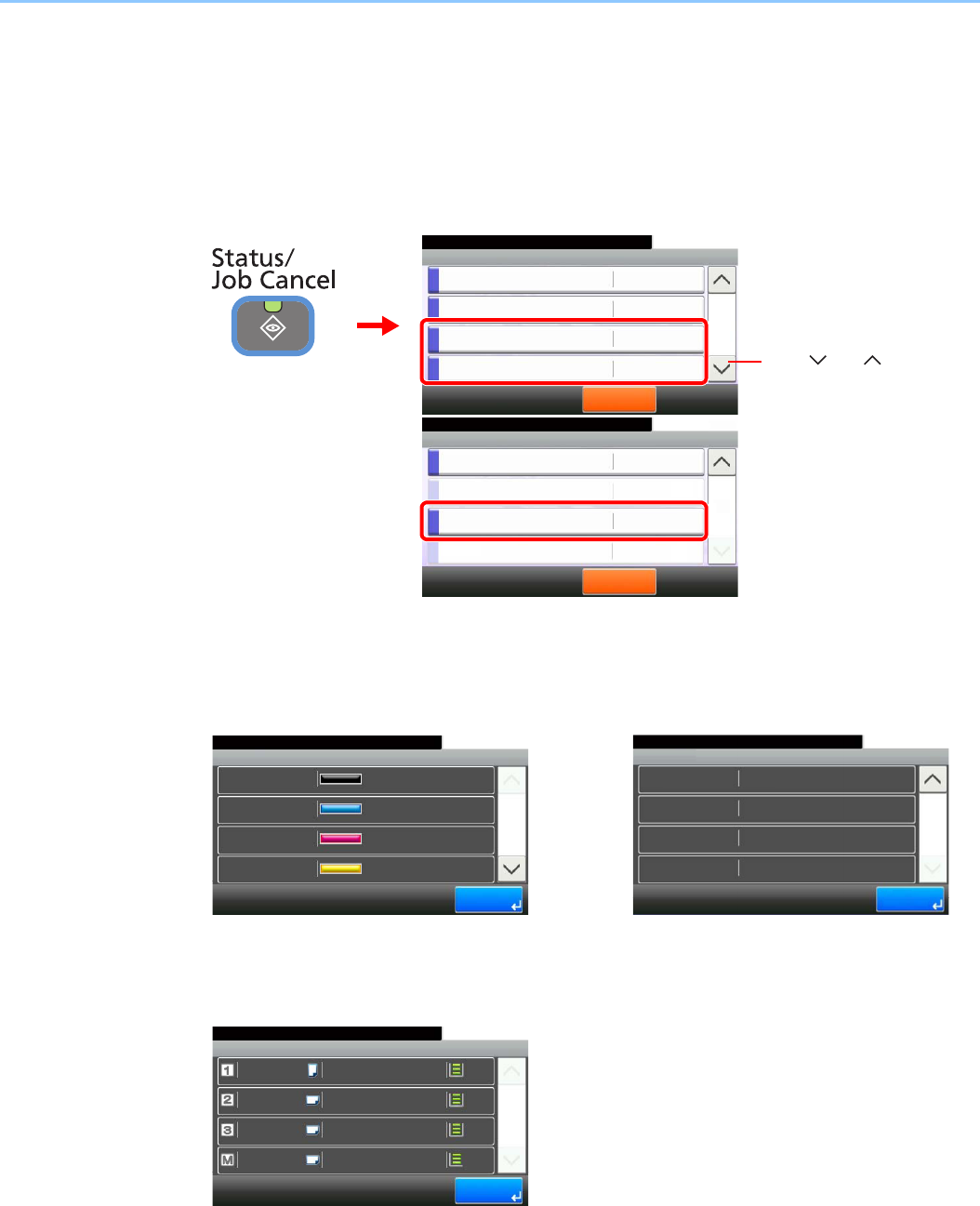
8-13
Status / Job Cancel > Checking the Remaining Amount of Toner and Paper
Checking the Remaining Amount of Toner and
Paper
Check the remaining amount of toner, paper, and staples on the touch panel.
1Display the screen.
Select the consumable you wish to check.
2Check the status.
Toner Status
You can check the remaining amount of each color toner as one of 11 levels from 100 to 0%,
and check the status of waste toner box.
Paper Status
The remaining amount of paper is shown by four levels as 100%, 70%, 30%, and 0% (none),
however, the paper in the multi purpose tray is shown by two levels as 100% and 0%. If there
is no paper in either cassette, the paper status will be shown as No Paper.
Status/Job Cancel.
Status
Printer
10:10
FAX
Toner Status
Paper Status
Pause All
Print Jobs
3/4
No Paper
OK
Waiting
Running
2
Status/Job Cancel.
Status
Removable Memory
10:10
USB Keyboard
Staple
Pause All
Print Jobs
4/4
OK
Attached
Invalid
2
GB0052_02GB0052_03
1Use [ ] or [ ] to scroll up
and down.
Toner Status
100%
10:10Status/Job Cancel.
Cyan
Black
1/2
End
100%
100%
100%
Magenta
Yellow
GB0192_00
Toner Status
10:10Status/Job Cancel.
End
Waste Toner
2/2
OK
GB0192_01
Paper Status
Plain
10:10Status/Job Cancel.
A3
A4
A4
Plain
Plain
1/1
End
Plain
100%
100%
100%
100%
A4
GB0193_00

8-14
Status / Job Cancel > Checking the Remaining Amount of Toner and Paper
Staple Status
You can check the status of staples
GB0195_00
Staple
OK
10:10Status/Job Cancel.
Staple
1/1
End
9-1
9 Setup, Registration,
and User Management
This chapter explains the following topics:
System Menu ..................................................................................................................................................... 9-2
Operation Method .................................................................................................................................... 9-2
System Menu Settings ............................................................................................................................. 9-3
Report ...................................................................................................................................................... 9-5
User Property ........................................................................................................................................... 9-7
Cassette/MP Tray Settings ...................................................................................................................... 9-8
Common Settings .................................................................................................................................... 9-9
Copy ...................................................................................................................................................... 9-15
Send ...................................................................................................................................................... 9-15
Printer .................................................................................................................................................... 9-16
System ................................................................................................................................................... 9-18
Date/Timer ............................................................................................................................................. 9-23
Adjustment/Maintenance ....................................................................................................................... 9-25
Color Registration Procedure ................................................................................................................ 9-27
User Login Administration ................................................................................................................................ 9-33
First User Login Administration .............................................................................................................. 9-33
User Login Settings ............................................................................................................................... 9-34
Enabling/Disabling User Login Administration ....................................................................................... 9-35
Local User Authorization ........................................................................................................................ 9-41
Adding a User ........................................................................................................................................ 9-37
Editing and Deleting Users .................................................................................................................... 9-43
Simple Login .......................................................................................................................................... 9-46
Group Authorization ............................................................................................................................... 9-52
Obtain Network User Property ............................................................................................................... 9-56
Job Accounting ................................................................................................................................................ 9-58
First Job Accounting Setup .................................................................................................................... 9-58
Job Accounting Settings ........................................................................................................................ 9-60
Enabling/Disabling Job Accounting ....................................................................................................... 9-61
Login/Logout .......................................................................................................................................... 9-62
Adding an Account ................................................................................................................................. 9-63
Editing and Deleting Accounts ............................................................................................................... 9-65
Restricting the Use of the Machine ........................................................................................................ 9-67
Counting the Number of Pages Printed ................................................................................................. 9-69
Printing an Accounting Report ............................................................................................................... 9-71
Job Accounting Default Setting .............................................................................................................. 9-73
Unknown Login User Name Job ............................................................................................................ 9-75
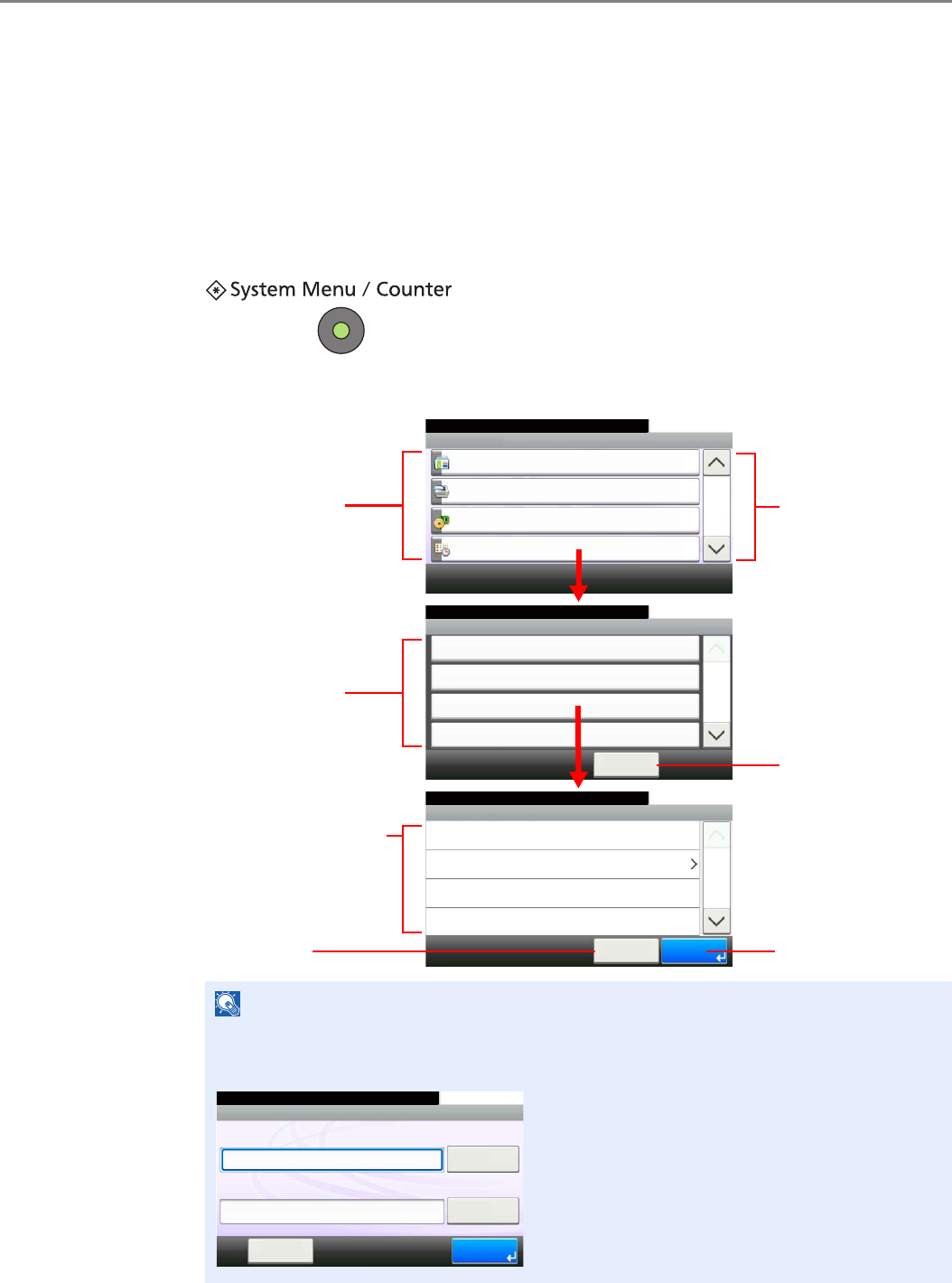
9-2
Setup, Registration, and User Management > System Menu
System Menu
Configure settings related to overall machine operation.
Operation Method
The system menu is operated as follows:
1Display the screen.
2Configure the function.
Refer to System Menu Settings on the following page and configure as needed.
NOTE
In order to change settings that require administer privileges, you must log in with
administrator privileges. Refer to Adding a User on page 9-37 for the default login user
name and password.
System Menu/Counter.
Date/Timer - Time Zone
-12:00 International Date Line West
10:10
-11:00 Samoa
-11:00 Universal Coordinated Time-11
-10:00 Hawaii
1/24
Cancel OK
System Menu/Counter.
Date/Timer
Date/Time
10/10/2010 10:10
10:10
Date Format
DD/MM/YYYY
On
+09:00 Osaka, Sapporo, Tokyo
Time Zone
Auto Panel Reset
1/3
< Back
GB0614_00
Selecting a value it to be
accepted.
Returns to the original
screen without making
any changes.
Accepts the settings
and exits.
Displays available
functions.
GB0610_00
Return to the previous
screen.
Scrolls up and down
when the list of values
cannot be displayed in
its entirety on a single
screen.
GB0054_03
System Menu/Counter.
System Menu
User Login/Job Accounting
10:10
Printer
System
Date/Timer
4/5
Displays available
functions.
10:10
Keyboard
Login Password
Keyboard
Login User Name
LoginMenu
Enter login user name and password.
GB0723_00

9-3
Setup, Registration, and User Management > System Menu
System Menu Settings
System Menu include;
Item Description Reference
Page
Quick Setup Wizard The Quick Setup Wizard configures fax and Energy Saver settings. 3-26
Language Select the language displayed on the touch panel. 9-5
Report Print reports to check the machine settings and status. Default settings
for printing the result reports can also be configured.
9-5
Counter This counts the number of pages printed or scanned. 3-11
User Property Allows you to view information about logged in users and edit some of
that information.
9-7
Cassette/MP Tray Settings Select paper size and media type for Cassette 1 to 3 and multi purpose
tray.
9-8
Common Settings Configures overall machine operation. 9-9
Default Screen Select the screen appearing right after start-up (default screen). 9-9
Sound Set options for buzzer sound during the machine operations. 9-9
Original Settings Configures settings for originals. 9-9
Paper Settings Configures settings for paper. 9-10
Function Defaults Defaults are the values automatically set after the warm-up is completed
or the Reset key is pressed.
Set the defaults for available settings such as copying and sending.
Setting the frequently-used values as defaults makes subsequent jobs
easier.
IMPORTANT: If you want to enable the changed defaults
immediately, move to the function screen and press the Reset key.
9-12
Paper Output Select output tray respectively for copy jobs, print jobs from Custom
Box, computers, and FAX RX data.
9-13
Preset Limit Restrict the number of copies that can be made at one time. 9-13
Error Handling Select whether to cancel or continue the job when error has occurred. 9-14
Color Toner Empty Action Select whether printing is prohibited or the Print in Black and White
setting is used for printing once the color toner runs out.
9-14
Measurement Select inch or metric for the unit for paper dimensions. 9-14
Keyboard Layout Change the layout of the touch panel keyboard used to enter
characters.
9-15
USB Keyboard Type Select the type of USB keyboard that you want to use. 9-15
Copy Configures settings for copying functions. 9-15
Send Configures settings for sending functions. 9-15
Document Box Configures settings related to the Job Box and Sub Address Box. For
details on Job Box, refer to Printing on page 5-1 and for details on Sub
Address Box, refer to the Operation Guide for FAX kit.
—
FAX Configures settings for fax functions. Refer to the Operation Guide for
FAX kit.
—
9-4
Setup, Registration, and User Management > System Menu
Address Book/One Touch Configures Address Book and One Touch Key settings. For details on
Address Book, refer to Registering Destinations in the Address Book on
page 6-24 and for details on One Touch Key, refer to Adding a
Destination on One Touch Key on page 6-33.
—
User Login/Job Accounting Configures settings related to machine management. For details on
User Login, refer to User Login Administration on page 9-33, and for
details on Job Accounting, refer to Job Accounting on page 9-58.
—
Printer Printing from computers, settings are generally made on the application
software screen. However, the following settings are available for
configuring the defaults to customize the machine.
9-16
System Configures machine system settings. 9-18
Network Configures network settings. 9-18
Interface Block Setting This allows you to protect this machine by blocking the interface with
external devices such as USB hosts or optional interfaces.
9-22
Security Level The Security Level setting is primarily a menu option used by service
personnel for maintenance work. There is no need for customers to use
this menu.
—
Restart Restart the CPU without turning the main power switch off. Use this to
deal with any unstable operation by the machine. (Same as the
computer restart.)
—
RAM Disk Setting When optional memory is installed, a RAM disk can be created and its
size can be set. Creating a RAM disk makes it possible to print from a
Job Box.
9-23
Main Memory Select the memory allocation scheme based on the application in which
you are using the equipment.
9-23
Optional Memory When optional memory is installed, select the memory allocation
scheme based on the application in which you are using the equipment.
9-23
Optional Function You can use the optional applications installed on this machine. 11-5
Date/Timer Configures settings related to the date and time. 9-23
Adjustment/Maintenance Adjust printing quality and conduct machine maintenance. 9-25
Item Description Reference
Page
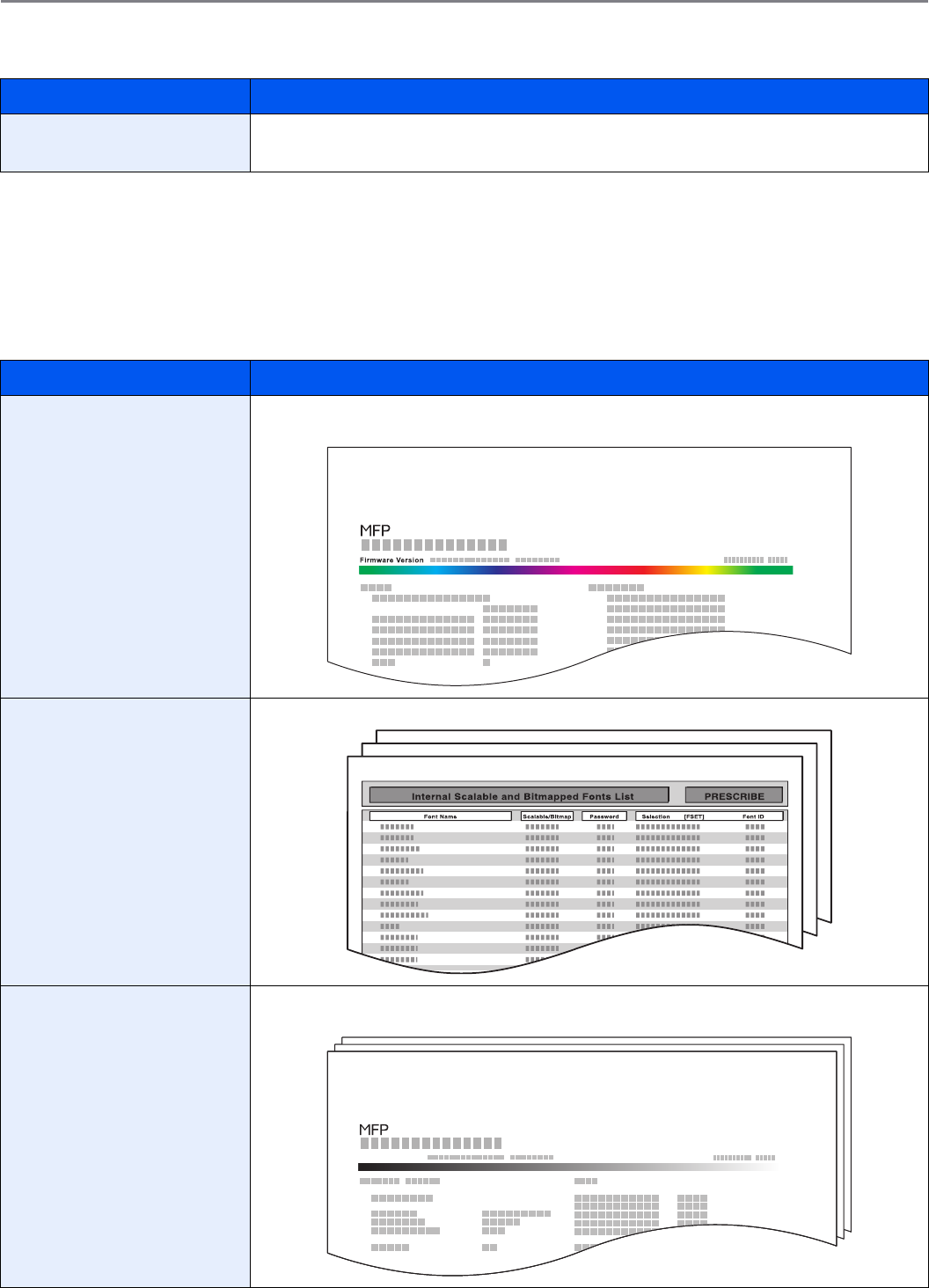
9-5
Setup, Registration, and User Management > System Menu
Language
Report
Print reports to check the machine settings and status. Default settings for printing the result reports can also be
configured.
Report Print
Item Description
Language Select the language displayed on the touch panel.
Value: English, Deutsch, Français, Español, Italiano, Nederlands, Русский, Português
Item Description
Status Page Prints the status page, allowing you to check the information including current settings,
available memory space, and optional equipment installed.
Font List Prints the font list, allowing you to check the font samples installed in the machine.
Network Status Prints the network status, allowing you to check the information including network interface
firmware version, network address and protocol.
Status Page
Network Status Page
Firmware Version
9-6
Setup, Registration, and User Management > System Menu
Result Report Settings
Sending Log History
You can send the log history by e-mail. You can either send it manually as needed or have it sent automatically
whenever a set number of jobs is reached.
Refer to Sending the Log History on page 8-7.
Service Status Prints the service status. More detailed information is available than on the Status Page.
Service personnel usually print the service status pages for maintenance purpose.
Accounting Report Prints the accounting report, allowing you to check the accounts that have been registered on
the machine.
Item Description
Send Result Report Automatically print a report of transmission result when a transmission is complete.
E-mail/Folder Automatically print a report of transmission result when E-mail or SMB/FTP transmission is
complete.
Value: Off, On, Error Only
Canceled before
Sending
Print a send result report if the job is canceled before being sent.
Value: Off, On
Job Finish Notice Setting Attaches sent images to job finish notices.
Value: Do Not Attach Image, Attach Image
Item Description
Firmware Version
ACCOUNT.REPORT
9-7
Setup, Registration, and User Management > System Menu
User Property
Allows you to view information about logged in users and edit some of that information.
For details on User Login, refer to User Login Administration on page 9-33.
Item Description
User Name Changes the name shown on the user list. Up to 32 characters can be entered.
Login User Name Displays the login user name that is entered at login.
Login Password Changes the password that is entered at login. Up to 64 characters can be entered.
Access Level Displays the user's access level.
Account Name Displays the account to which the user belongs.
E-mail Address Changes the user's e-mail address. Up to 128 characters can be entered.
Simple Login When simple login is enabled, changes associated settings.
My Panel Registers settings for individual users. Settings registered here can be applied simply by
logging in. Network users are not displayed.
Group Name When group authorization is enabled, displays the name shown in the group list.
Group ID When group authorization is enabled, displays the ID shown in the group list.

9-8
Setup, Registration, and User Management > System Menu
Cassette/MP Tray Settings
Select paper size and media type for Cassette 1 to 3 and multi purpose tray.
Cassette1 (to 3)
Multi Purpose Tray
Item Description
Paper Size Set the paper size to load in Cassette 1 and optional paper feeders (Cassette 2 and 3).
Value
Auto: Automatically detect paper size. Select [Metric] or [Inch] for paper size.
Metric: Select from A3, A4-R, A4, A5-R, B4, B5-R, B5, Folio or 216 × 340 mm.
inch: Select from Ledger, Letter-R, Letter, Legal, Statement-R or Oficio II.
others: Select from 8K, 16K-R, or 16K.
IMPORTANT: Specify the paper size as follows for the cassette that you want to use for fax
reception.
Inch models: Press [Auto] and then [Inch].
Metric models: Press [Auto] and then [Metric].
Media Type Set the media type to load in Cassette 1 and optional paper feeders (Cassette 2 and 3).
Value: Plain (105 g/m² or less), Rough, Vellum (64 g/m² or less), Recycled, Preprinted, Bond,
Color, Prepunched, Letterhead, Thick (106 g/m² and more), High Quality, Custom 1-8
NOTE: To print on preprinted or prepunched paper or on letterhead, refer to Special Paper
Action on page 9-11.
To change to a media type other than [Plain], refer to Media Type Setting on page 9-10.
When the paper weight settings shown below are selected, the media indicated for each
setting cannot be selected.
Rough: Heavy 3
Bond: Heavy 3
Thick: Extra Heavy
Custom 1 to 8: Heavy3 or Extra Heavy
Refer to Media Type Setting on page 9-10 for selecting Custom 1- 8.
Item Description
Paper Size Set the paper size for multi-purpose tray.
Value
Metric: Select from A3, A4-R, A4, A5-R, A6-R, B4, B5-R, B5, B6-R, Folio or 216 × 340 mm.
inch: Select from Ledger, Letter-R, Letter, Legal, Statement-R, Executive or Oficio II.
others: Select from 8K, 16K-R, 16K, ISO B5, Envelope #10, Envelope #9, Envelope #6,
Envelope Monarch, Envelope DL, Envelope C5, Envelope C4, Hagaki, Oufukuhagaki, Youkei
4, Youkei 2 or Custom.
Size Entry: Enter a size not displayed in the standard sizes.
Inch models – X: 5.83 to 17" (in 0.01" increments), Y: 3.86 to 11.69" (in 0.01" increments)
Metric models – X: 148 to 432 mm (in 1 mm increments), Y: 98 to 297 mm (in 1 mm
increments)
NOTE: For instructions on how to specify the custom paper size, refer to Custom Paper
Size on page 9-10.
Media Type Set the media type for multi-purpose tray.
Value: Plain (105 g/m² or less), Transparency, Rough, Vellum (64 g/m² or less), Labels,
Recycled, Preprinted, Bond, Cardstock, Color, Prepunched, Letterhead, Envelope, Thick
(106 g/m² and more), Coated, High Quality, Custom 1-8
NOTE: To print on preprinted or prepunched paper or on letterhead, refer to Special Paper
Action on page 9-11.
Refer to Media Type Setting on page 9-10 for selecting Custom 1- 8.
9-9
Setup, Registration, and User Management > System Menu
Common Settings
Configures overall machine operation.
Default Screen
Sound
Original Settings
Item Description
Default Screen Select the screen appearing right after start-up (default screen).
Value: Copy, Send, FAX, Document Box, Favorites, Status
Item Description
Buzzer Set options for buzzer sound during the machine operations.
Volume Set the buzzer volume level.
Value: 0 (Mute), 1 (Minimum) to 5 (Maximum)
Key Confirmation Emit a sound when the operation panel and touch panel keys are pressed.
Value: Off, On
Job Finish Emit a sound when a print job is normally completed.
Value: Off, On, FAX Reception Only
NOTE: [FAX Reception Only] is displayed when the optional fax is installed.
Ready Emit a sound when the warm-up is completed.
Value: Off, On
Warning Emit a sound when errors occur.
Value: Off, On
Key Confirmation (USB
Keyboard)
Emit a sound when a key on the optional USB keyboard is pressed.
Value: Off, On
Item Description
Custom Original Size Set up frequently-used custom original size. The custom size option is displayed on the screen
to select original size.
To register a custom paper size, press [On] and enter the desired size. The custom size option
is displayed on the screen to select original size.
Value
Custom: Off, On
Size Entry
Inch models – X: 2 to 17" (in 0.01" increments), Y: 2 to 11.69" (in 0.01" increments)
Metric models – X: 50 to 432 mm (in 1 mm increments), Y: 50 to 297 mm (in 1 mm increments)
9-10
Setup, Registration, and User Management > System Menu
Paper Settings
Original Auto Detect Automatically detect originals of special or non-standard size.
A6/Hagaki As A6 and Hagaki are similar in size, select either one of them for automatic detection.
Value: A6, Hagaki
Folio Select Folio for automatic detection.
Value: Off, On
11 × 15" Select the 11×15" size for automatic detection.
Value: Off, On
Item Description
Custom Paper Size Set up frequently-used custom paper size.
To register a custom paper size, press [On] and enter the desired size. The custom size option
is displayed on the screen to select paper set in the multi purpose tray.
Value
Custom: Off, On
Size Entry
Inch models – X: 5.83 to 17" (in 0.01" increments), Y: 3.86 to 11.69" (in 0.01" increments)
Metric models – X: 148 to 432 mm (in 1 mm increments), Y: 98 to 297 mm (in 1 mm
increments)
Media Type Setting Select weight for each media type.
For Custom 1-8, settings for duplex printing and media type name can be changed.
For details, refer to Media Type Setting on page 9-11.
Default Paper Source Select the default paper source from Cassette 1-3 and multi purpose tray.
Value: Cassette 1 to 3, Multi Purpose Tray
Paper Selection Set the default paper selection.
Value
Auto: Automatically select the cassette containing paper in the same size as originals.
Default Paper Source: Select paper source set by Default Paper Source.
Media for Auto (Color) Select a default media type for auto paper selection when [Auto] is selected of Paper Selection.
If Plain is selected, the paper source with plain paper loaded in the specific size is selected.
Select [All Media Types] for the paper source with any kind of paper loaded in the specific size.
Value: All Media Types, Plain, Transparency, Rough, Vellum, Labels, Recycled, Preprinted,
Bond, Cardstock, Color, Prepunched, Letterhead, Envelope, Thick, Coated, High Quality,
Custom 1 to 8
Media for Auto (B&W)
Item Description
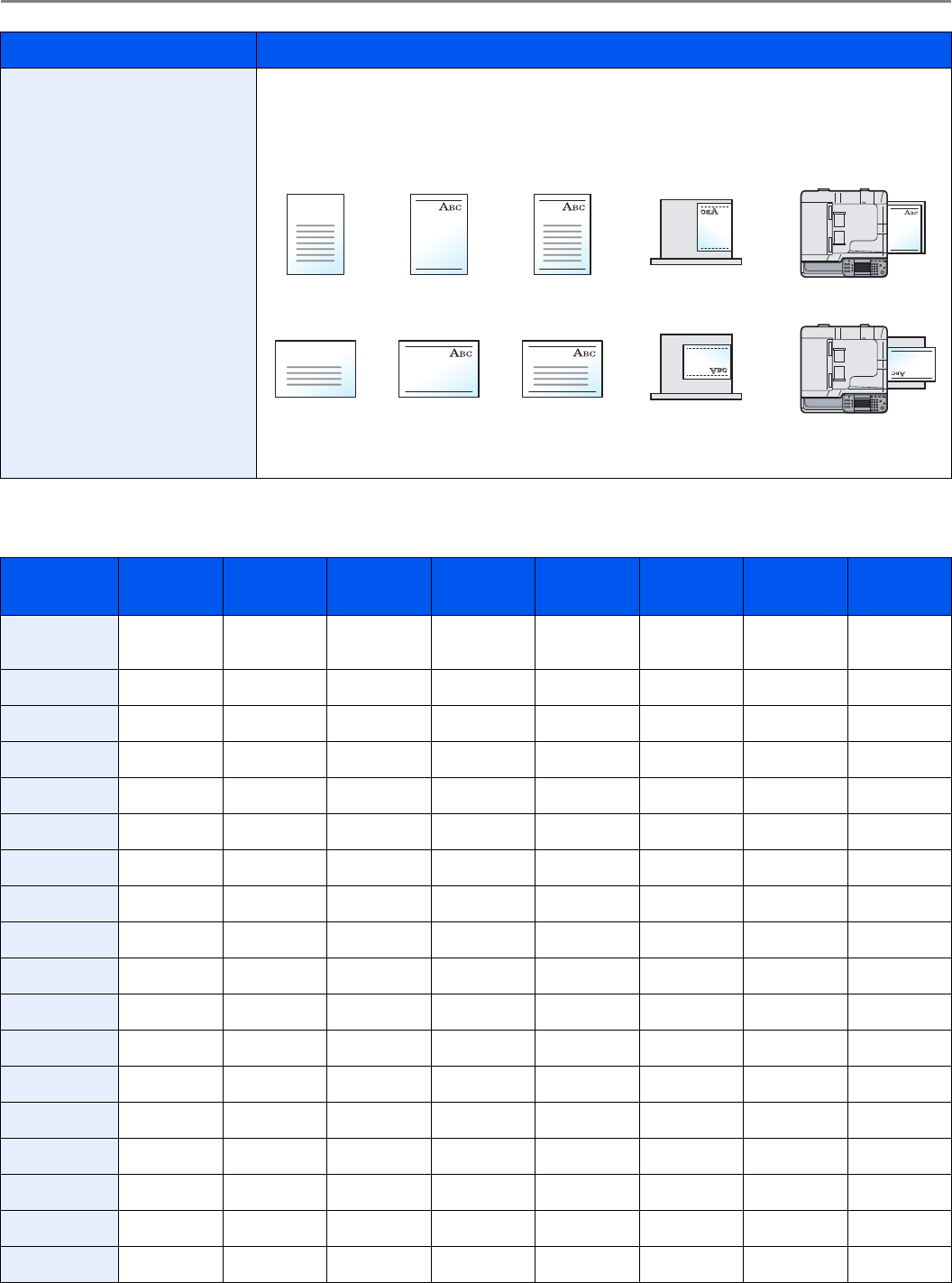
9-11
Setup, Registration, and User Management > System Menu
Media Type Setting
Select the media type you wish to change, press [Paper weight], and select the weight.
Y: Available N: Not available
Special Paper Action When printing on Prepunched, Preprint, and Letterhead, punch-holes might not be aligned or
the print direction might be upside-down depending on how originals are set and the
combination of copying functions. In such a case, select [Adjust Print Direction] to adjust the
print direction. When paper orientation is not important, select [Speed Priority].
Example: copying on Letterhead
Value: Adjust Print Direction, Speed Priority
Paper
Weight
Light Normal 1 Normal 2 Normal 3 Heavy 1 Heavy 2 Heavy 3 Extra
Heavy
Weight (g/m²) 64 g/m² or
less
60 g/m² to
75 g/m²
76 g/m² to
90 g/m²
91 g/m² to
105 g/m²
106 g/m² to
128 g/m²
129 g/m² to
163 g/m²
164 g/m²
and more
Transpar-
encies
Plain YYY (default) YNNNN
Transparency NNNNY*
* The media type cannot be selected for the cassettes.
Y* Y* Y* (default)
Rough YYYY (default) Y*Y*Y*N
Vellum Y (default) YYYNNNN
Labels Y*Y*Y*Y*Y* (default) Y*Y*Y*
Recycled YYY (default) YNNNN
Preprinted YYY (default) YNNNN
Bond YYYY (default) YYY*N
Cardstock NNNNY*Y* (default) Y*Y*
Color YYY (default) YNNNN
Prepunched YYY (default) YNNNN
Letterhead YYY (default) YNNNN
Envelope NNNNY*Y* (default) Y*Y*
Thick NNNNYY (default) YY*
Coated Y*Y*Y*Y*Y* (default) Y*Y*Y*
High Quality YYY (default) YNNNN
Custom 1-8 YYY (default) YYYY*Y*
Item Description
Multi Purpose TrayCassetteFinishedPaperOriginal
Multi Purpose TrayCassetteFinishedPaperOriginal

9-12
Setup, Registration, and User Management > System Menu
For Custom 1-8, settings for duplex printing and media type name can be changed.
Function Defaults
Item Description
Custom 1-8 Duplex Select the setting for duplex.
Value: Prohibit, Permit
Name Change names for Custom 1-8. Names should be not more than 16 characters. Selecting
media type at multi purpose tray, the name after change will be displayed.
Item Description
File Format Select the default type of the files to be sent.
Value: PDF, TIFF, JPEG, XPS
Original Orientation Set the original orientation defaults.
Value: Top Edge Top, Top Edge Left
Collate/Offset Set the defaults for Collate/Offset.
Value: Off, Collate Only, Offset Each Page, Offset Each Set
File Separation Select the default file separation setting.
Value: Off, Each Page
Scan Resolution Select the default scanning resolution.
Value: 600×600dpi, 400×400dpi Ultra Fine, 300×300dpi, 200×400dpi Super Fine, 200×200dpi
Fine, 200×100dpi Normal
Color Selection (Copy) Select the default copying color mode setting.
Value: Auto Color, Full Color, Black & White
Color Select.(Send/Store) Select the default color mode for scanning documents.
Value: Auto (Color/Gray), Auto Color (Color/B & W), Full Color, Grayscale, Black & White
Original Image Set the default original document type.
Value: Text+Photo, Photo, Text, Graphic/Map, Text (for OCR), Printer Output
Background Density Adj. Select the default value for background density adjustment.
Value: Off, Auto, Manual (Darker 5)
EcoPrint Select the EcoPrint default.
Value: Off, On
Prevent Bleed-through Set the default value for preventing bleed-through.
Value: Off, On
Zoom Select the enlarged/reduced default when paper size/sending size changed after the originals
set.
Value: 100%, Auto
Margin Set the default margin.
Value
Left/Right: -18 to 18, Top/Bottom: -18 to 18
Left/Right: -0.75 to 0.75, Top/Bottom: -0.75 to 0.75
Continuous Scan Set the continuous scan defaults.
Value: Off, On
Auto Image Rotation Select the default Auto Image Rotation setting.
Value: Off, On
9-13
Setup, Registration, and User Management > System Menu
* If you want to enable the changed defaults immediately, move to the function screen and press the Reset key.
Paper Output
Preset Limit
File Name Entry Set an automatically entered name (default) for jobs. Additional information such as Date and
Time and Job No. can also be set.
Value
File Name: Up to 32 characters can be entered.
Additional Info: None, Date and Time, Job No., Job No. & Date and Time, Date and Time & Job
No.
E-mail Subject/Body Set the subject and body automatically entered (default subject and body) when sending the
scanned originals by E-mail.
Value
Subject: Up to 60 characters can be entered.
Body: Up to 500 characters can be entered.
FTP Encrypted TX Set the default value for document encryption during transmission.
Value: Off, On
NOTE: This setting is displayed when the secure protocol [SSL] setting is [On].
JPEG/TIFF Print Select the image size (resolution) when printing JPEG or TIFF file.
Value: Paper Size, Image Resolution, Print Resolution
XPS Fit to Page Set the default value for the XPS fit to page function.
Value: Off, On
Detail Settings —
Image Quality Set the default value for the image quality adjustment range when selecting the file format with
which to send and store images.
Value: 1 Low (High Comp.), 2, 3, 4, 5 High (Low Comp.)
PDF/A Set the default value for PDF/A when selecting the file format with which to send and store
images.
Value: Off, PDF/A-1a, PDF/A-1b
Item Description
Paper Output Select output tray respectively for copy jobs, print jobs from Job Box, computers, and FAX RX
data.*
Value: Inner Tray, Finisher Tray, Job Separator Tray
NOTE: If the optional document finisher has been installed, [Inner Tray] will change to
[Finisher Tray].
* If you want to enable the changed defaults immediately, move to the function screen and press the Reset key.
Item Description
Preset Limit Restrict the number of copies that can be made at one time.
Value: 1 to 999 copies.
Item Description
9-14
Setup, Registration, and User Management > System Menu
Error Handling
Color Toner Empty Action
Measurement
Item Description
Duplexing Error Select what to do when duplex printing is not possible for the selected paper size and media
type.
Value
1-sided: Printed in 1-sided
Display Error: Error message to cancel printing is displayed.
Finishing Error Select alternative actions when finishing (stapling or offsetting) is not available for the selected
paper size or media type.
Value
Ignore: The setting is ignored and the job is printed.
Display Error: Error message to cancel printing is displayed.
No Staple Error Select what to do when staples run out during printing.
Value
Ignore: Printing continues without stapling.
Display Error: Error message to cancel printing is displayed.
NOTE: This function requires the optional document finisher.
Stapling Limit Error Select what to do when stapling capacity is exceeded during printing.
Value
Ignore: Printing continues without stapling.
Display Error: Error message to cancel printing is displayed.
NOTE: This function requires the optional document finisher.
Paper Mismatch Error Select what to do when the selected paper size or type does not match paper size or type
loaded in the specified paper source while printing from the computer by specifying the
cassette or multi-purpose tray.
Value
Ignore: The setting is ignored and the job is printed.
Display Error: Error message to cancel printing is displayed.
Inserted Paper Mismatch Select what to do when the paper size set for the paper source does not match the paper size
that was actually loaded.
Value
Ignore: The setting is ignored and the job is printed.
Display Error: Error message to cancel printing is displayed.
Item Description
Color Toner Empty Action Select whether printing is prohibited or the Print in Black and White setting is used for printing
once the color toner runs out.
Value: Stop printing, Print in Black & White
Item Description
Measurement Select inch or metric for the unit for paper dimensions.
Value: mm, inch

9-15
Setup, Registration, and User Management > System Menu
Keyboard Layout
USB Keyboard Type
Copy
Configures settings for copying functions.
Send
Configures settings for sending functions.
Item Description
Keyboard Layout Change the layout of the touch panel keyboard used to enter characters.
Value: QWERTY, QWERTZ, AZERTY
Item Description
USB Keyboard Type Select the type of USB keyboard that you want to use.
Value: US-English, US-English with Euro
Item Description
Auto Paper Selection If [Auto] is selected for Paper Selection, set the paper size selection method when the zoom
changes.*
Value
Most Suitable Size: Select paper based on the current zoom and the size of the original.
Same as Original Size: Select paper that matches the size of the original, regardless the zoom.
* If you want to enable the changed defaults immediately, move to the function screen and press the Reset key.
Auto % Priority When a paper source of different size from the original is selected, select whether automatic
zoom (reduce/zoom) is performed.*
Value: Off, On
Reserve Next Priority Once the scan of the original is complete, the basic screen will be displayed, and you can
proceed to the next operation.
Value: Off, On
Item Description
Dest. Check before Send When performing sending jobs, display the confirmation screen of destinations after pressing
the Start key.
Value: Off, On
Entry Check for New Dest. When adding new destination, display the entry check screen to check the entered destination.
Value: Off, On
9-16
Setup, Registration, and User Management > System Menu
Printer
Printing from computers, settings are generally made on the application software screen. However, the following
settings are available for configuring the defaults to customize the machine.
Send and Forward Set whether to send the original to another destination and store it when sending images.
Forward Set the rule to send the original. Multiple rules can be selected.
Value
Forward: Off, On
Rule: FAX, E-mail, Folder(SMB), Folder(FTP)
NOTE: [FAX] is displayed when the optional FAX kit is installed.
Destination Set the destination to use when storing originals.
Select the destination using either of the following methods:
• Address Book
• Ext. Address Book
• Address Entry (E-mail)
• Address Entry (Folder)
Color TIFF Compression Select the compression method for TIFF images handled on this machine.
Value: TIFF V6, TTN2
Default Screen Use this procedure to set the default screen displayed when you press the Send key.
Value: Destination, Address Book, Ext Address Book, One Touch
Item Description
Emulation Select the emulation for operating this machine by commands oriented to other types of
printers.
Value: PCL6, KPDL, KPDL(Auto)
KPDL Error Report When an error has occurred during printing in KPDL emulation mode, set whether or not the
error report is output.
Value: Off, On
Color Setting You can choose whether status reports are printed in color or black and white.
Value: Color, Black & White
EcoPrint EcoPrint conserves toner when printing. This is recommended for test copies where faded
printing is not a problem.
Value: Off, On
Override A4/Letter Select whether to treat A4 size and Letter, which are similar in size, as the same size when
printing.
Value
Off: A4 and Letter are not regarded as the same in size.
On: A4 and Letter are regarded as the same in size. The machine will use whichever size is in
the paper source.
Duplex Select binding orientation for duplex mode.
Value: 1-sided, 2-sided Bind LongEdge, 2-sided Bind ShortEdge
Copies Set the default number of copies, from 1 to 999.
Value: 1 to 999 copies
Orientation Set the default orientation, [Portrait] or [Landscape].
Value: Portrait, Landscape
Item Description
9-17
Setup, Registration, and User Management > System Menu
Wide A4 Turn this to on to increase the maximum number of characters that can be printed in a line for
an A4 page (78 characters at 10 pitch) and Letter size page (80 characters at 10 pitch). This
setting is only effective in PCL 6 emulation.
Value: Off, On
Form Feed TimeOut Receiving print data from the computer, the machine may sometimes wait if there is no
information signaling that the last page does not have any more data to be printed. When the
preset timeout passes, the machine automatically prints paper. The options are between 5 and
495 seconds.
Value: 5 to 495 seconds
LF Action Set the line feed action when the machine receives the line feed code (character code 0AH).
Value: LF Only, LF and CR, Ignore LF
CR Action Set the character return action when the machine receives the character return code (character
code 0DH).
Value: CR Only, LF and CR, Ignore CR
Paper Feed Mode While printing from the computer, select how to feed paper when the paper source and type are
specified.
Value
Auto: Search the paper source that matches the selected paper size and type.
Fixed: Print on paper loaded in the specified paper source.
Gloss Mode Gloss Mode increases the effect of glossiness in printing by reducing the printing speed by half.
Value: Off, On
IMPORTANT: Gloss Mode is not available when Labels and Transparency is selected as
the paper type setting. (Refer to Cassette/MP Tray Settings on page 9-8.)
Depending on the paper used, printing in gloss mode may cause wrinkle in paper. To
reduce wrinkle, try using thicker paper.
Item Description
9-18
Setup, Registration, and User Management > System Menu
System
Configures machine system settings.
Network
Configures network settings.
Host Name
TCP/IP
Item Description
Host Name Check the host name of the machine.
Item Description
TCP/IP Set up TCP/IP to connect to the Windows network.*
Value: Off, On
* After changing the setting, restart the system or turn the machine OFF and then ON.
IPv4 Settings Set up TCP/IP (IPv4) to connect to the network. The IPv4 setting is available when selecting
[On] for [TCP/IP].*
DHCP Select whether or not to use the DHCP (IPv4) server.
Value: Off, On
Bonjour Select whether or not to use Bonjour.
Value: Off, On
Auto-IP Select whether or not to use Auto-IP.
Value: Off, On
IP Address Set the IP addresses.
Value: ###.###.###.###
Subnet Mask Set the IP subnet masks.
Value: ###.###.###.###
Default Gateway Set the IP gateway addresses.
Value: ###.###.###.###
9-19
Setup, Registration, and User Management > System Menu
Item Description
IPv6 Settings Set up TCP/IP (IPv6) to connect to the network. The IPv6 setting is available when selecting
[On] for [TCP/IP].*
* After changing the setting, restart the system or turn the machine OFF and then ON.
IPv6 Sets whether to use IPv6.
Value: Off, On
Manual Setting Manually specify the IP address, prefix length, and gateway address of TCP/IP (IPv6). The
manual setting is available when selecting [On] for [IPv6].
Value
IP Address (Manual): (numbers (128 bit in total) separated by colons)
Prefix Length: 0 to 128
Default Gateway: ###.###.###.###
NOTE: [Default Gateway] is displayed when selecting [Off] for [RA (Stateless)].
RA (Stateless) Select whether or not to use RA (Stateless). The RA (Stateless) settings are available when
selecting [On] for [IPv6].
When selecting [On], [IP Address 1 (to 5)] appears under [IP Address (Stateless)/Prefix
Length].
Value: Off, On
DHCP Select whether or not to use the DHCP (IPv6) server. The DHCP (IPv6) Settings are available
when selecting [On] for [IPv6].
Value: Off, On

9-20
Setup, Registration, and User Management > System Menu
Item Description
Protocol Detail The table below lists the network related function settings. The network related functions are
available when [TCP/IP] is [On].
NetBEUI Selects whether or not to receive documents using NetBEUI.*
Value: Off, On
* After changing the setting, restart the system or turn the machine OFF and then ON.
LPD Select whether or not to receive documents using LPD as the network protocol.*
Value: Off, On
SMTP (E-mail TX) Select whether or not to send e-mail using SMTP.
Value: Off, On
POP3 (E-mail RX) Select whether or not to receive e-mail using POP3.
Value: Off, On
FTP Client
(Transmission)
Select whether or not to send documents using FTP. When selecting [On], set the FTP Port
Number. Use the FTP default port 21.
Value: Off, On, Port 1 - 65535
FTP Server (Reception) Select whether or not to receive documents using FTP.*
Value: Off, On
SMB Client
(Transmission)
Select whether or not to send documents using SMB. When selecting [On], set the SMB default
Port Number. Use the SMB default port 139. For Windows Vista, use 445.
Value: Off, On, Port 1 - 65535
LDAP Select whether or not to use LDAP.
Value: Off, On
SNMP Select whether or not to communicate using SNMP.*
Value: Off, On
SNMPv3 Select whether or not to communicate using SNMPv3.*
Value: Off, On
HTTP Select whether or not to communicate using HTTP.*
Value: Off, On
HTTPS Select whether or not to communicate using HTTPS. SSL must be set to [On] in SSL on page
9-22.*
Value: Off, On
IPP Select whether or not to communicate using IPP. When selecting [On], set the IPP default Port
Number. Use the IPP default port 631.*
Value: Off, On, Port 1 - 65535
IPP over SSL Select whether or not to use IPP over SSL. When selecting [On], set the IPP over SSL default
Port Number. Use the IPP over SSL default port 443. SSL must be set to [On] in SSL on page
9-22.*
Value: Off, On, Port:1 - 65535
Raw Port Select whether or not to receive documents using Raw Port.*
Value: Off, On
ThinPrint Select whether or not to use ThinPrint.
Value: Off, On
ThinPrintOverSSL Select whether or not to use ThinPrintOverSSL. SSL must be set to [On] in SSL on page 9-22.
Value: Off, On

9-21
Setup, Registration, and User Management > System Menu
NetWare
AppleTalk
WSD Scan
WSD Print
Enhanced WSD
Enhanced WSD (SSL)
Item Description
NetWare Select the NetWare network connection. After that, select frame types for NetWare network
from Auto, Ethernet-II, 802.3, 802.2, or SNAP.*
Value
Off, On, Frame Type: Auto, 802.3, Ether-II, 802.2, SNAP
* After changing the setting, restart the system or turn the machine OFF and then ON.
Item Description
AppleTalk Select the Apple Talk network connection.*
Value: Off, On
* After changing the setting, restart the system or turn the machine OFF and then ON.
Item Description
WSD Scan Select whether or not to use WSD Scan.*
Value: Off, On
* After changing the setting, restart the system or turn the machine OFF and then ON.
Item Description
WSD Print Select whether or not to use WSD Print.*
Value: Off, On
* After changing the setting, restart the system or turn the machine OFF and then ON.
Item Description
Enhanced WSD Set whether to use Kyocera’s proprietary web services.*
Selecting [Off] will disable the functionality of WIA and TWAIN drivers. If you want to disable
KMnet Viewer functionality, Enhanced WSD, Enhanced WSD (SSL), SNMP and SNMPv3
(refer to Protocol Detail on page 9-20) must be set to [Off].
Value: Off, On
* After changing the setting, restart the system or turn the machine OFF and then ON.
Item Description
Enhanced WSD (SSL) Set whether to use Kyocera’s proprietary web services over SSL.*
Value: Off, On
* After changing the setting, restart the system or turn the machine OFF and then ON.
9-22
Setup, Registration, and User Management > System Menu
IPSec
Secure Protocol
LAN Interface
Interface Block Setting
This allows you to protect this machine by blocking the interface with external devices such as USB hosts or optional
interfaces.
Item Description
IPSec Make this setting when you use IPSec.*
Value: Off, On
* After changing the setting, restart the system or turn the machine OFF and then ON.
Item Description
SSL Select whether or not to use SSL.*
Value: Off, On
* After changing the setting, restart the system or turn the machine OFF and then ON.
IPP Security Select the IPP security level. This setup is available when SSL is [On].*
Value: IPP/IPP over SSL, IPPoverSSL only
HTTP Security Select the HTTP security level. This setup is available when SSL is [On].*
Value: HTTP/HTTPS, HTTPS Only
LDAP Security (Ext. Address
Book)
Select the type of encryption according to the type of security employed by the LDAP server.
This setup is available when SSL is [On].*, **
Value: Off, LDAPv3/TLS, LDAP over SSL
** LDAP must be set to [On] in Protocol Detail on page 9-20.
LDAP Security (User Property)
Item Description
LAN Interface Specify the settings for the LAN interface to be used.*
Value: Auto, 10Base-Half, 10Base-Full, 100Base-Half, 100Base-Full, 1000BASE-T
* After changing the setting, restart the system or turn the machine OFF and then ON.
Item Description
USB Host This locks and protects the USB memory slot (A1) or USB port (A2) (USB host).
Value: Unblock, Block
USB Device This locks and protects the USB interface connector (B1) (USB Device).
Value: Unblock, Block
Optional Interface 1 This locks and protects the optional interface slots (OPT1 or OPT2).
Value: Unblock, Block
Optional Interface 2
9-23
Setup, Registration, and User Management > System Menu
RAM Disk Setting
Main Memory
Optional Memory
Date/Timer
Configures settings related to the date and time.
Item Description
RAM Disk Setting When optional memory is installed, a RAM disk can be created and its size can be set.
Creating a RAM disk makes it possible to print from a Job Box.*
Value
RAM Disk Setting: Off, On
RAM Disk Size: Setting range varies with Optional Memory settings.
* After changing the setting, restart the system or turn the machine OFF and then ON.
Item Description
Main Memory Select the memory allocation scheme based on the application in which you are using the
equipment.*
Value: Scan Size Priority, Scan Pages Priority
* After changing the setting, restart the system or turn the machine OFF and then ON.
Item Description
Optional Memory When optional memory is installed, select the memory allocation scheme based on the
application in which you are using the equipment.*
Value: Printer Priority, Normal, Copy Priority
* After changing the setting, restart the system or turn the machine OFF and then ON.
Item Description
Date/Time Set the date and time for the location where you use the machine. If you perform Send as E-
mail, the date and time set here will be displayed on the header.
Value: Year (2000 to 2037), Month (1 to 12), Day (1 to 31), Hour (00 to 23), Minute (00 to 59),
Second (00 to 59)
Date Format Select the display format of year, month, and date. The year is displayed in Western notation.
Value: Month/Day/Year, Day/Month/Year, Year/Month/Day
Time Zone Set the time difference from GMT. Choose the nearest listed location from the list.
Auto Panel Reset If no jobs are run for a certain period of time, automatically reset settings and return to the
default setting. Select to use Auto Panel Reset or not.
Value: Off, On
NOTE: The time allowed to elapse before the panel is reset is set with the Panel Reset
Timer.
Auto Sleep Set Auto Sleep to automatically enter Sleep Mode after a period of inactivity.
Value: Off, On
NOTE: Refer to Sleep and Auto Sleep on page 2-21 for Sleep.
The time allowed to elapse until the auto sleep function is activated is set with the Sleep
Timer.
9-24
Setup, Registration, and User Management > System Menu
Sleep Level Select the Sleep level.
Set the Energy Saver mode to reduce power consumption even more than normal Sleep mode.
Value: Quick Recovery, Energy Saver
NOTE: If the optional Gigabit Ethernet Board is installed, Energy Saver cannot be
specified.
(Detailed settings) Set whether to use the Energy Saver mode for the following functions individually:
Network
USB Cable
Card Reader
RAM Disk
FAX
Value: Off, On
NOTE: When the machine enters Energy Saver, the data stored in the RAM disk will be
deleted. In addition, the machine does not wake from sleep mode when it receives print
data from a PC connected by USB cable. Also, the ID card cannot be recognized.
Auto Error Clear If an error occurs during processing, processing stops to wait for the next step to be taken by
the user. In the Auto Error Clear mode, automatically clear the error after a set amount of time
elapses. For details, refer to Responding to Error Messages on page 10-13.
Value: Off, On
Low Power Timer Set amount of time before entering the Low Power mode.
Value: 1 to 240 minutes (1 minute increments).
Panel Reset Timer If you select [On] for Auto Panel Reset, set the amount of time to wait before Auto Panel Reset.
Value: 5 to 495 seconds (every five seconds)
NOTE: If you select [Off] for [Auto Panel Reset], the time display does not appear.
Sleep Timer Set amount of time before entering Sleep.
Value: 1 to 240 minutes (1 minute increments)
NOTE: If you select [Off] for [Auto Sleep], the time display does not appear.
Interrupt Clear Timer Set the period after which the machine reverts to Normal mode when it has been set to
Interrupt Copy mode and then left unused.
Value: 5 to 495 seconds (every five seconds)
Error Clear Timer If you select [On] for Auto Error Clear, set the amount of time to wait before automatically
clearing errors.
Value: 5 to 495 seconds (every five seconds)
NOTE: If you select [Off] for [Auto Error Clear], the time display does not appear.
Item Description

9-25
Setup, Registration, and User Management > System Menu
Adjustment/Maintenance
Adjust printing quality and conduct machine maintenance.
Item Description
Density Adjustment Adjust density.
Copy Adjust copy density. Adjustment can be made in 7 levels.
Value: -3 (Lighter), -2, -1, 0 (Normal), +1, +2, +3 (Darker)
Send/Box Adjust scan density when sending or storing the data in Document Box. Adjustment can be
made in 7 levels.
Value: -3 (Lighter), -2, -1, 0 (Normal), +1, +2, +3 (Darker)
Background Density Adj. Darkens or lightens overall background density adjustment.
Copy (Auto) Darkens or lightens overall background density adjustment during copying. Adjustment can be
made in 7 levels.
Value: -3 (Lighter), -2, -1, 0 (Normal), +1, +2, +3 (Darker)
Send/Box (Auto) Darkens or lightens overall background density when sending images or storing them in the
Document Box. Adjustment can be made in 7 levels.
Value: -3 (Lighter), -2, -1, 0 (Normal), +1, +2, +3 (Darker)
Toner Save Level (EcoPrint) Set the toner-saving level when using EcoPrint.
Copy Lowers or raises the toner-saving level during copying. Adjustment can be made in 5 levels.*
Value: 1 to 5
Printer Lowers or raises the toner-saving level during printing. Adjustment can be made in 5 levels.
Value: 1 to 5
Auto Color Correction This setting allows you to adjust the detection level used by the machine to determine whether
the original is color or black and white during Auto Color Mode. Setting a lower value will result
in more originals being identified as color, while a larger value will tend to increase the number
of originals being identified as black and white.
Value: 5 (B & W), 4, 3, 2, 1 (Color)
Correcting Black Line Correct fine lines (streaks caused by contamination), which may appear on the image, when
the document processor is used.
Value
Off: No correction performed.
On (Low): Correction performed. The reproduction of fine lines on the original may become
lighter than when using [Off].
On (High): Select this item if a streak remains after using [On (Low)]. The reproduction of fine
lines on the original may become lighter than when using On (Low).
Display Brightness Set the brightness of the touch panel.
Value: 1 (Darker), 2, 3, 4 (Lighter)
Color Registration When first installing the machine or moving it to a new location, color drift during printing may
occur. Use this function to correct the color position of each of cyan, magenta and yellow to
resolve color drift.
For more information, refer to the Color Registration Procedure below.
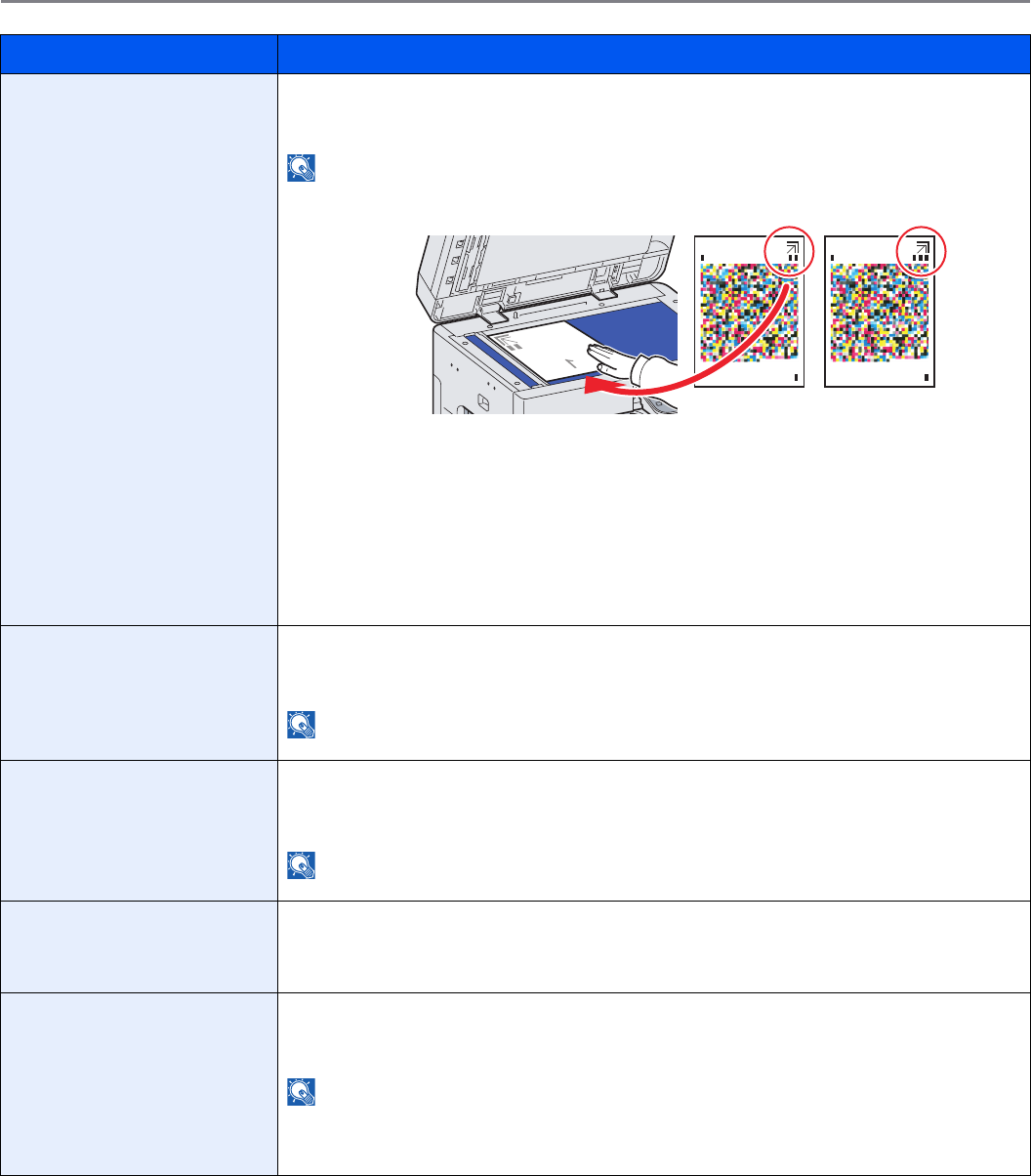
9-26
Setup, Registration, and User Management > System Menu
Tone Curve Adjustment After prolonged use, or from the effects of surrounding temperature or humidity, the hue of
printed color output may shift or color drift may occur. Use this function to correct color settings
when the color of a finished copy does not match the original.
NOTE: To perform tone curve adjustment, verify that either Letter or A4 paper is loaded
into a cassette.
Procedure
Press [Start] and print the first pattern. As shown in the illustration, place the printed side down
on the platen.
Press [Start]. The first pattern is read and adjustment begins.
The second pattern is output. Confirm that a number "2" is printed on the pattern. Place the
pattern on the platen in the same way as the first pattern.
Press [Start]. The second pattern is read and adjustment begins.
Turn the main power switch off and on. The adjustment will be completed after restarting the
system.
Drum Refresh Perform Drum Refresh when images show streaking with white lines. Takes about 120
seconds.
Press [Start] to perform Drum Refresh.
NOTE: Drum Refresh cannot be performed while printing. Execute Drum Refresh after the
printing is done.
Calibration Adjust color drift or hue of printed image in the most appropriate color.
Press [Start] to perform Calibration.
Press [OK] after Calibration is complete.
NOTE: Perform Color Registration when the color drift is not adjusted even after
performing Calibration, and perform Gray Adjust if the color hue is not improved.
Laser Scanner Cleaning Remove white and color streaks from the image.
Press [Start] to perform Laser Scanner Cleaning.
Press [OK] after Laser Scanner Cleaning is complete.
DP Adjustment Adjust scan action of the document processor. Place the adjustment original in the document
processor.
Press [Start] and adjustment begins.
NOTE: This adjustment is for DP Leading edge and DP center adjust. Use this adjustment
when the copy is skewed when using the Document Processor or when advised by a
Service Technician.
Call Service to obtain the adjustment original.
* If you want to enable the changed defaults immediately, move to the function screen and press the Reset key.
Item Description
1 2
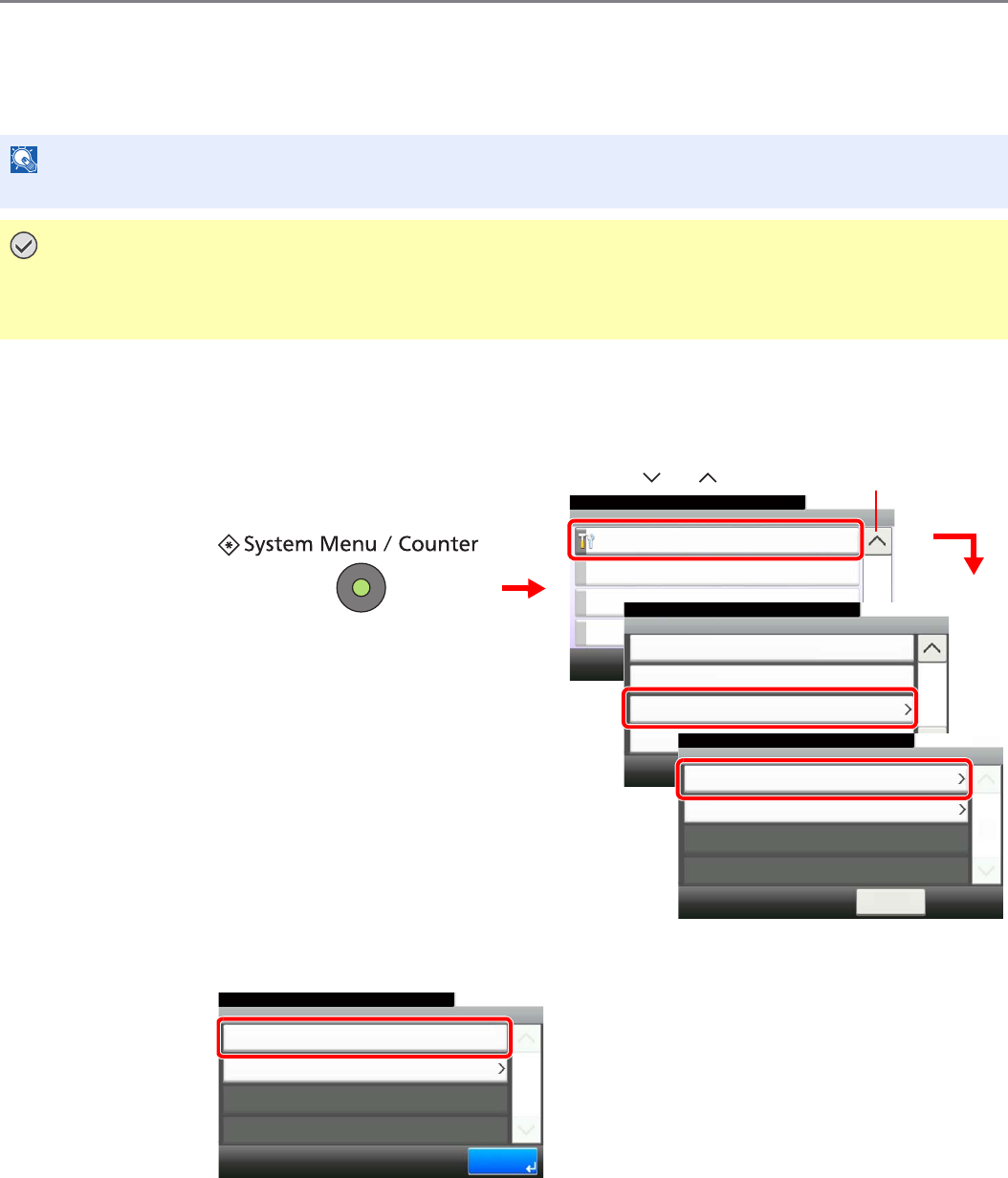
9-27
Setup, Registration, and User Management > System Menu
Color Registration Procedure
Normal registration and detailed settings are available for Color Registration. Color drift can be largely corrected through
normal registration. However, if it is not resolved or to perform more detailed settings, use the detailed settings.
Normal Registration
1Display the screen.
2Print the chart.
A chart is printed. On the chart, for each of M (magenta), C (cyan) and Y (yellow), 3 chart
types are printed on one sheet: H-F (left), V (vertical), H-R (right).
NOTE
To perform color registration, verify that either Letter or A4 paper is loaded into a cassette.
IMPORTANT
Before performing color registration, be sure to perform Calibration (see page 9-26). If color drift remains,
perform color registration. By performing color registration without performing Calibration, the color drift will
be resolved once, however, it may cause the serious color drift later.
1
System Menu/Counter.
System Menu
10:10
Adjustment/Maintenance
5/5
2
Correcting Black Line
10:10System Menu/Counter.
Display Brightness
< Back
2/4
Off
Adjustment/Maintenance
Color Registration
Tone Curve Adjustment
3
3
GB0629_01
Use [ ] or [ ] to scroll up and down.
GB0054_04
Normal
10:10System Menu/Counter.
Detail
< Back
1/1
Adjustment/Maintenance - Color Registration
4
GB0641_00
GB0642_00
Color Registration - Normal
10:10System Menu/Counter.
Registration
Print Chart
1/1
End
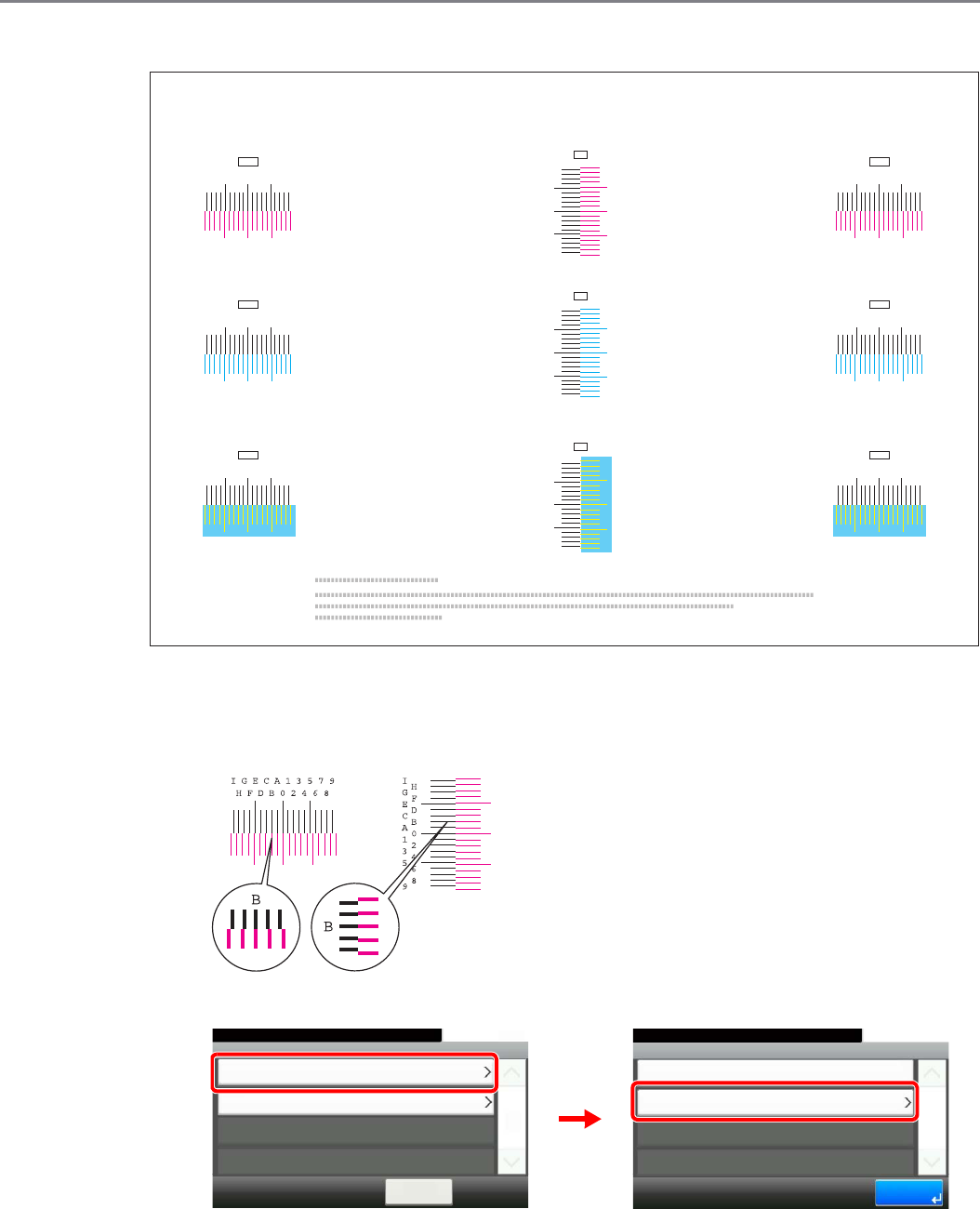
9-28
Setup, Registration, and User Management > System Menu
Chart Example
3Enter the appropriate value.
1Find the location on each chart where 2 lines most closely match. If this is the 0 position,
registration for that color is not required. For the illustration, B is the appropriate value.
2
Color Registration Correction Chart
I
H
G
F
E
D
C
B
A
0
1
2
3
4
5
6
7
8
9
MH-F
MV
9
8
6
4
2
0
B
D
F
H
7
5
3
1
A
C
E
G
II
H
G
F
E
D
C
B
A
0
1
2
3
4
5
6
7
8
9
MH-R
I
H
G
F
E
D
C
B
A
0
1
2
3
4
5
6
7
8
9
CH-F
CV
9
8
6
4
2
0
B
D
F
H
7
5
3
1
A
C
E
G
II
H
G
F
E
D
C
B
A
0
1
2
3
4
5
6
7
8
9
CH-R
I
H
G
F
E
D
C
B
A
0
1
2
3
4
5
6
7
8
9
YH-F
YV
9
8
6
4
2
0
B
D
F
H
7
5
3
1
A
C
E
G
II
H
G
F
E
D
C
B
A
0
1
2
3
4
5
6
7
8
9
YH-R
GB0641_00
Normal
10:10System Menu/Counter.
Detail
< Back
1/1
Adjustment/Maintenance - Color Registration
GB0642_00
Color Registration - Normal
10:10System Menu/Counter.
Registration
Print Chart
1/1
End
1
2
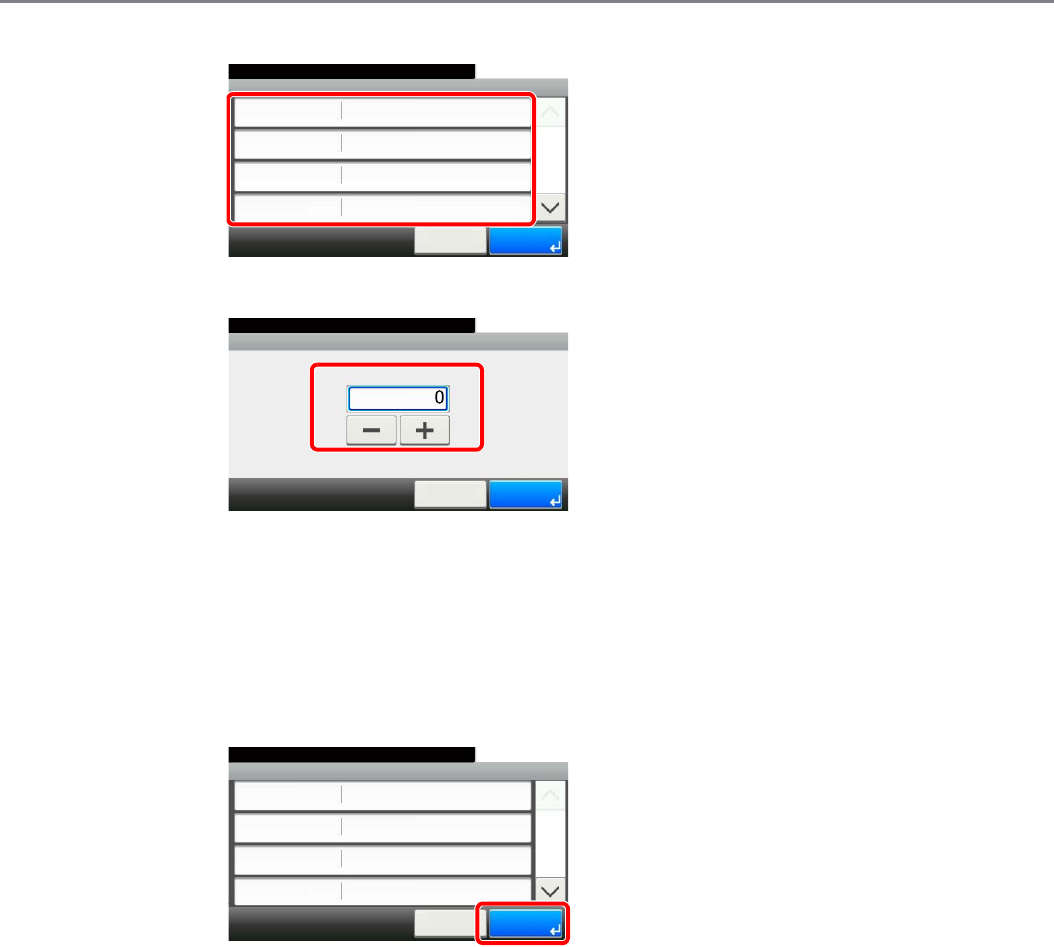
9-29
Setup, Registration, and User Management > System Menu
3Select the chart to be corrected.
4Press [+] or [-] to enter the values read from the chart.
Press [+] to increase the value from 0 to 9. To decrease, press [-].
By pressing [-], the value changes from 0 to alphabetic letters, going from A to I. To move in
the reverse direction, press [+].
You cannot use the numeric keys to enter these values.
5Repeat steps 3 and 4 to enter the registration values for each chart.
6Press [Start] after all values have been entered. Color registration begins.
7Press [OK] after color registration is complete.
GB0643_00
0
10:10System Menu/Counter.
MV
MH-R
CH-F
MH-F
0
0
Cancel
1/3
Start
0
Normal - Registration
GB0644_00
Registration - MH-1
10:10System Menu/Counter.
(I - A, 0 - 9)
Cancel OK
GB0643_00
0
10:10System Menu/Counter.
MV
MH-R
CH-F
MH-F
0
0
Cancel
1/3
Start
0
Normal - Registration
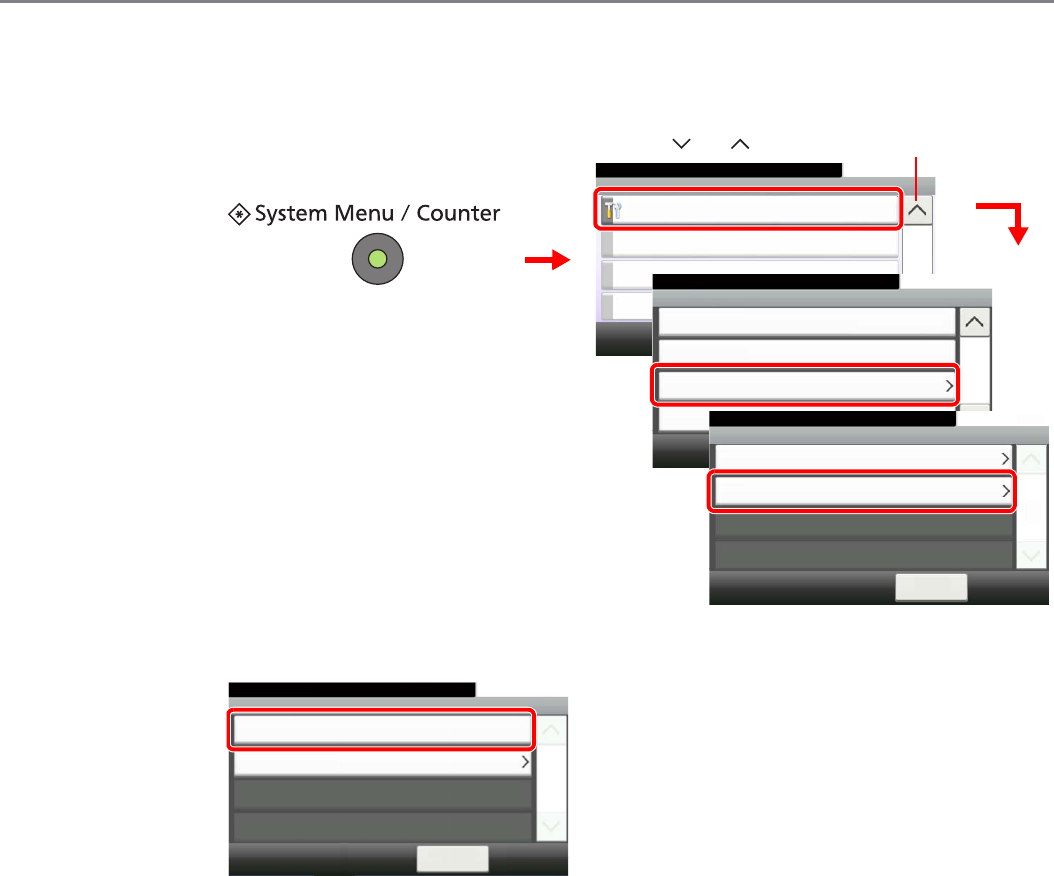
9-30
Setup, Registration, and User Management > System Menu
Detailed Settings
1Display the screen.
2Print the chart.
A chart is printed. On the chart, for each of M (magenta), C (cyan) and Y (yellow), charts for H-
1 to 7 and V-1 to 5 are printed.
1
System Menu/Counter.
System Menu
10:10
Adjustment/Maintenance
5/5
2
Correcting Black Line
10:10System Menu/Counter.
Display Brightness
< Back
2/4
Off
Adjustment/Maintenance
Color Registration
Tone Curve Adjustment
3
3
GB0629_01
Use [ ] or [ ] to scroll up and down.
GB0054_04
Normal
10:10System Menu/Counter.
Detail
< Back
1/1
Adjustment/Maintenance - Color Registration
4
GB0641_00
GB0642_01
Color Registration - Detail
10:10System Menu/Counter.
Registration
Print Chart
1/1
< Back
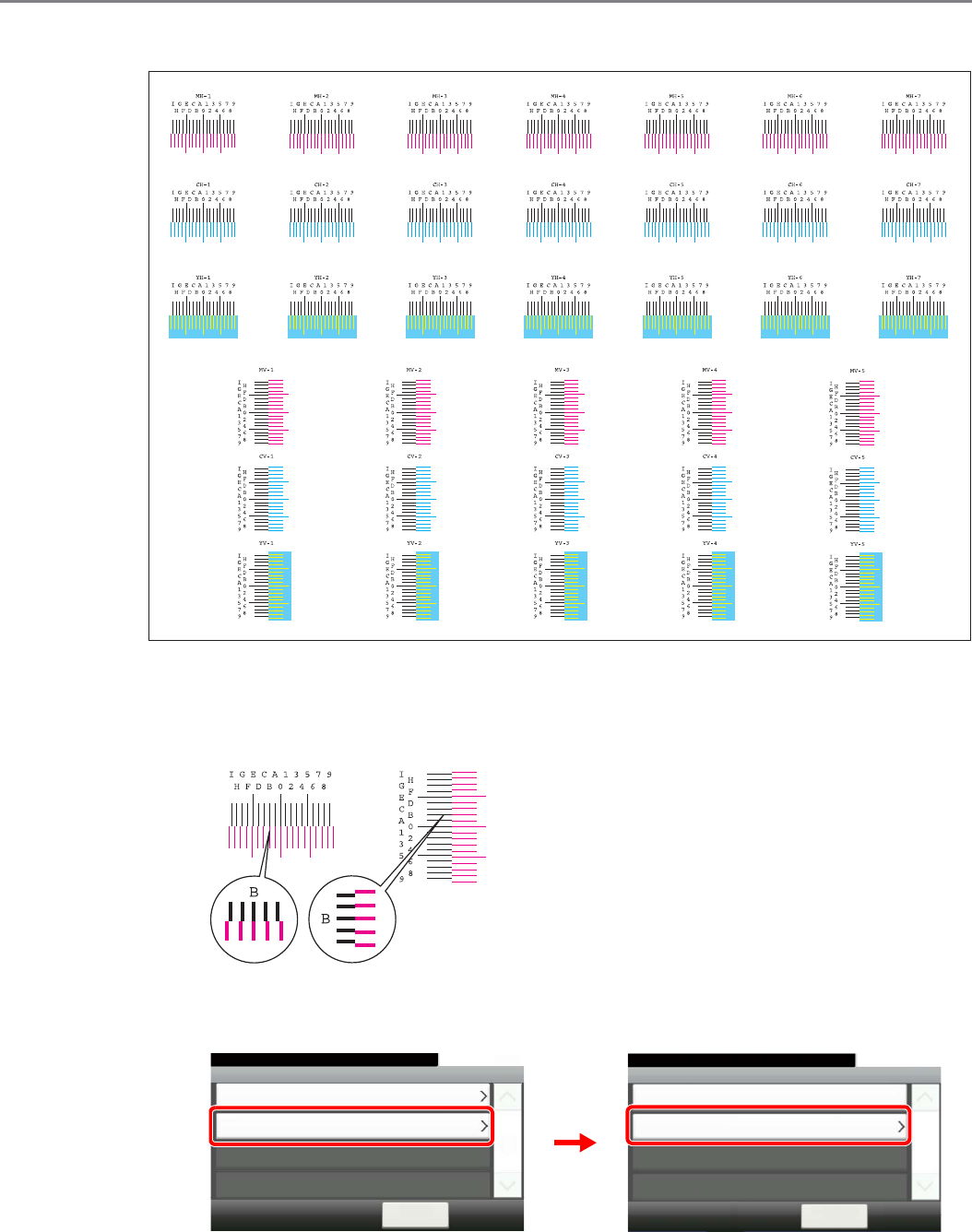
9-31
Setup, Registration, and User Management > System Menu
Chart Example
3Enter the appropriate value.
1Find the location on each chart where 2 lines most closely match. If this is the 0 position,
registration for that color is not required. For the illustration, B is the appropriate value.
From charts V-1 to V-5, read only the values from V-3 (center).
2
GB0641_00
Normal
10:10System Menu/Counter.
Detail
< Back
1/1
Adjustment/Maintenance - Color Registration
GB0642_01
Color Registration - Detail
10:10System Menu/Counter.
Registration
Print Chart
1/1
< Back
12
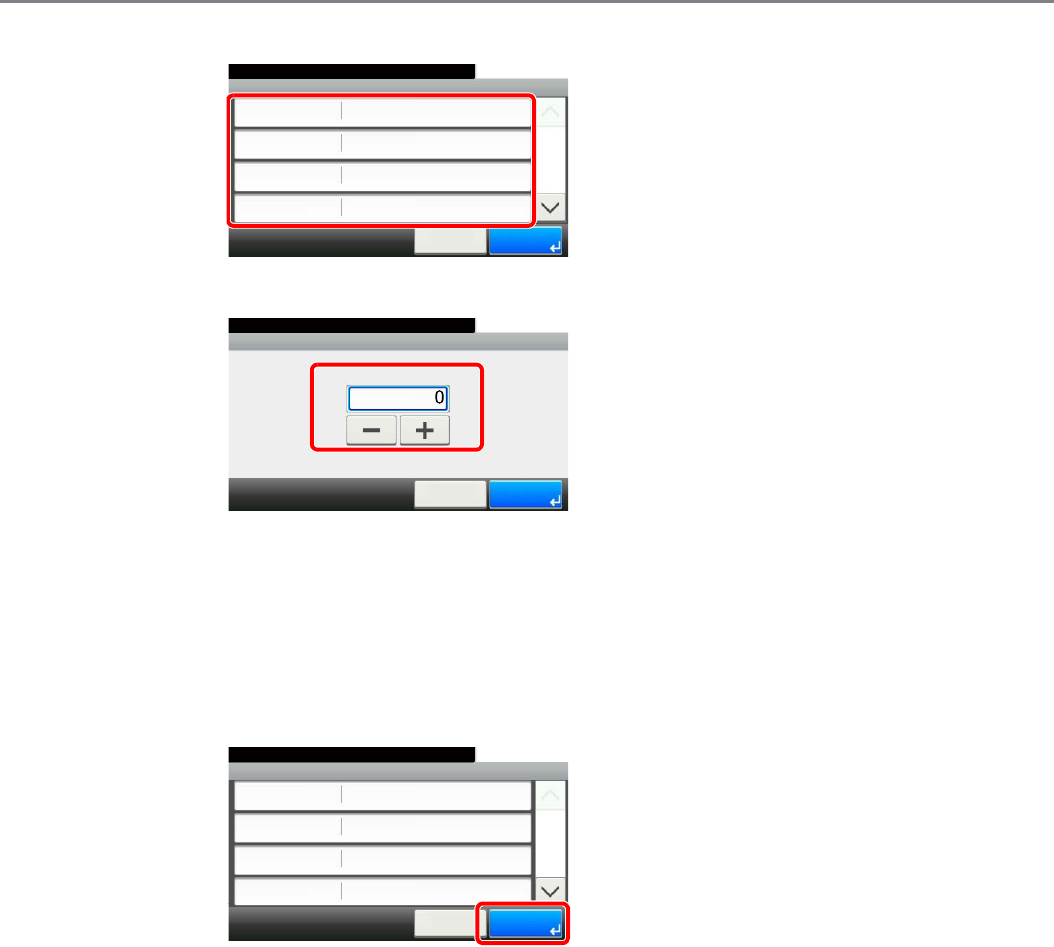
9-32
Setup, Registration, and User Management > System Menu
3Select the chart to be corrected.
4Press [+] or [-] to enter the values read from the chart.
Press [+] to increase the value from 0 to 9. To decrease, press [-].
By pressing [-], the value changes from 0 to alphabetic letters, going from A to I. To move in
the reverse direction, press [+].
You cannot use the numeric keys to enter these values.
5Repeat steps 3 and 4 to enter the registration values for each chart.
6Press [Start] after all values have been entered. Color registration begins.
7Press [OK] after color registration is complete.
GB0643_01
0
10:10System Menu/Counter.
MH-2
MH-3
MH-4
MH-1
0
0
Cancel
1/6
Start
0
Detail - Registration
GB0644_01
Registration - MH-1
10:10System Menu/Counter.
(I - A, 0 - 9)
Cancel OK
GB0643_01
0
10:10System Menu/Counter.
MH-2
MH-3
MH-4
MH-1
0
0
Cancel
1/6
Start
0
Detail - Registration
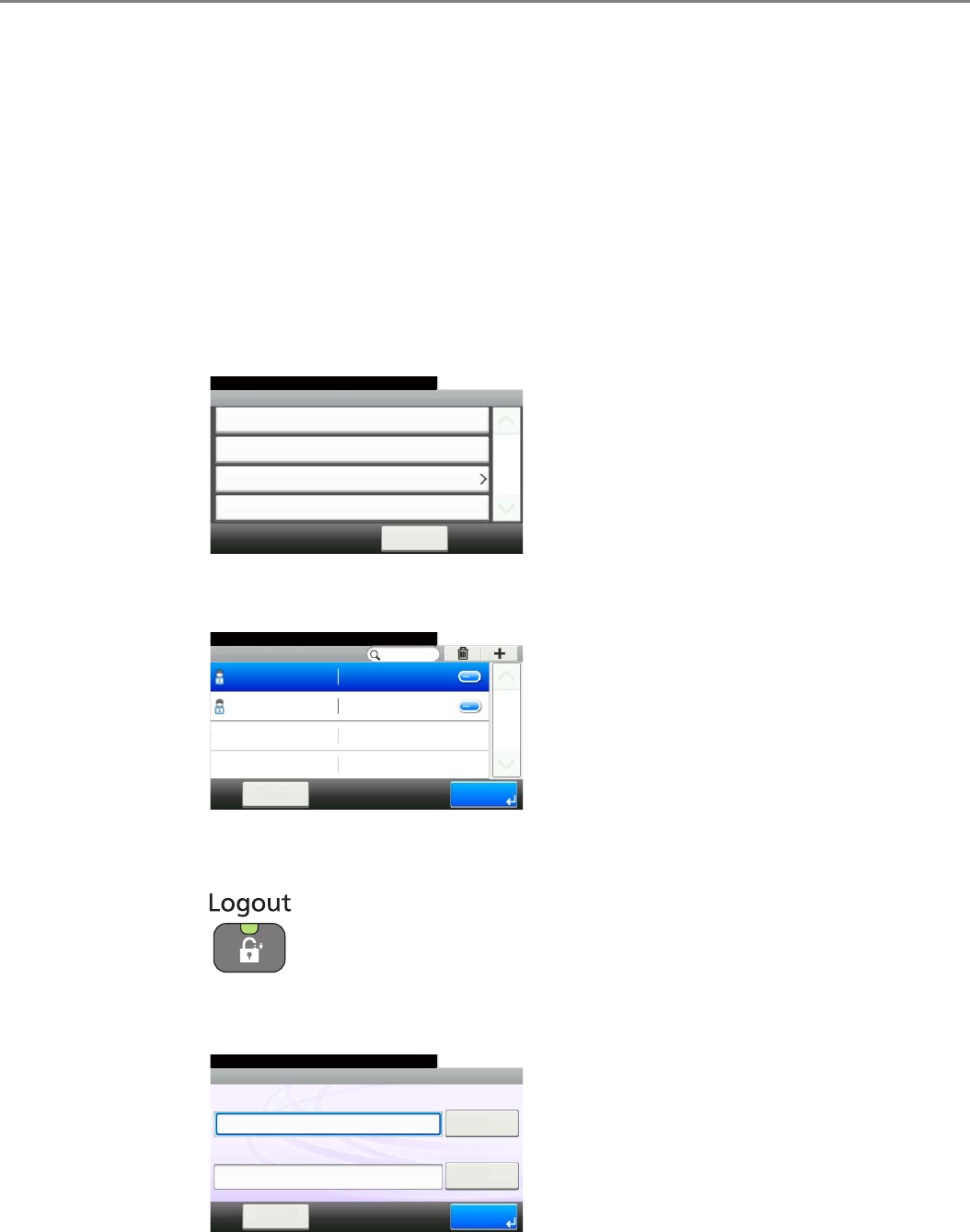
9-33
Setup, Registration, and User Management > User Login Administration
User Login Administration
User login administration specifies how the user access is administered on this machine. Enter correct login user name
and password for user authentication to login.
Access are in three levels - User, Administrator, and Machine Administrator. The security levels can be modified only by
the machine administrator.
First User Login Administration
Follow these steps for the first user login administration. For details about the configuration method, refer to User Login
Settings on page 9-34.
1Enable user login administration.
2Add a user.
3Log out.
4The registered user logs in for operations.
GB0435_00
User Login
10:10System Menu/Counter.
Local User List
< Back
1/1
Local Authentication
Simple login settings
User Login/Job Acco... - User Login Setting
Local User Authorization
Off
GB0440_00
10:10System Menu/Counter.
Admin
Menu
1/1
End
Admin
DeviceAdmin 2500
User Login S... - Local User List
GB0723_00
10:10
Keyboard
Login Password
Keyboard
Login User Name
LoginMenu
Enter login user name and password.
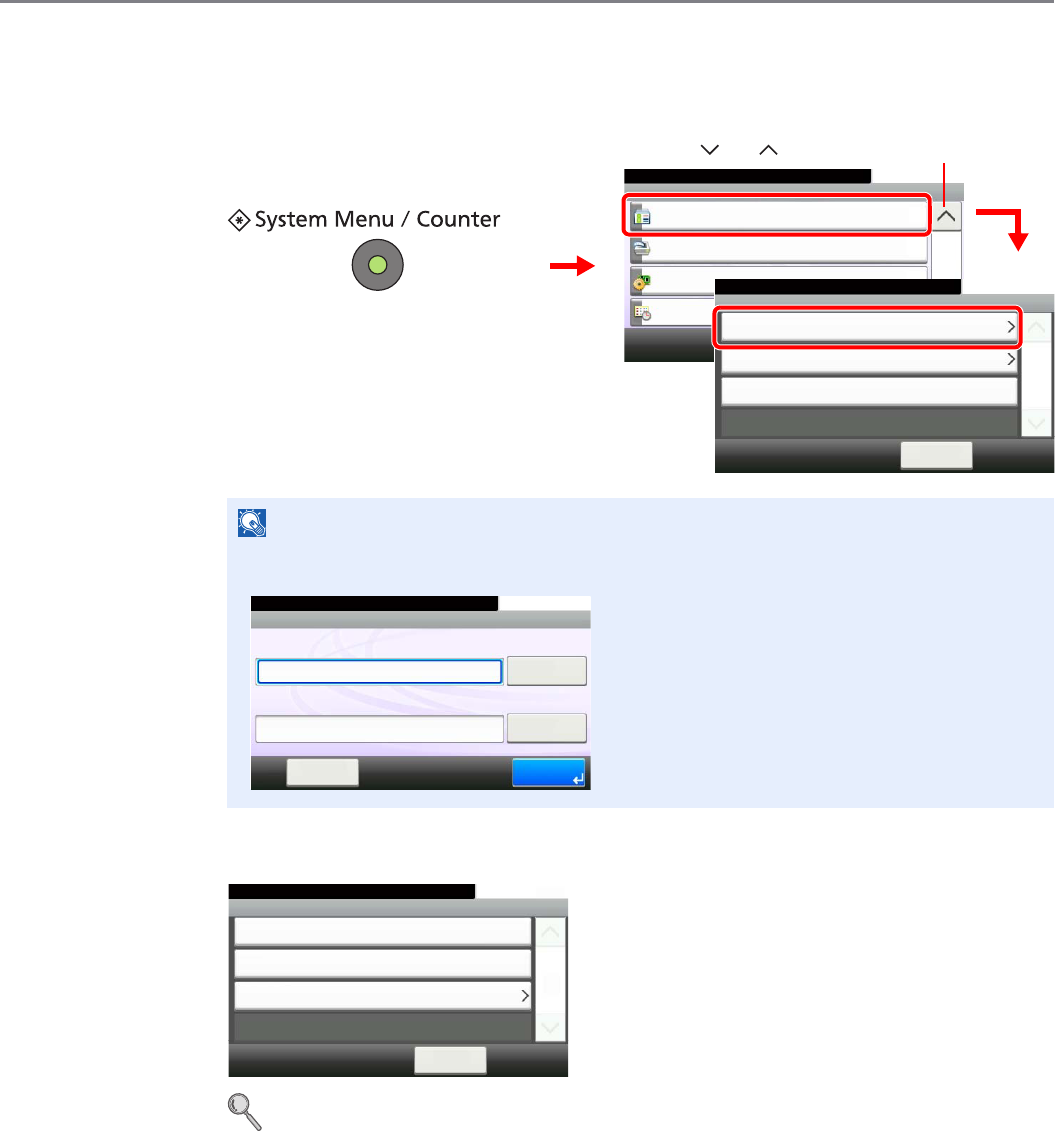
9-34
Setup, Registration, and User Management > User Login Administration
User Login Settings
1Display the screen.
2Configure the function.
Enabling/Disabling User Login Administration X page 9-35
Adding a User X page 9-37
Local User Authorization X page 9-41
Editing and Deleting Users X page 9-43
Simple Login X page 9-46
Group Authorization X page 9-52
Obtain Network User Property X page 9-56
NOTE
You can only change the settings by logging in with administrator privileges. Refer to Adding
a User on page 9-37 for the default login user name and password.
1
GB0054_03
System Menu/Counter.
System Menu
User Login/Job Accounting
10:10
Printer
System
Date/Timer
4/5
2
User Login Settings
10:10System Menu/Counter.
Job Accounting Settings
< Back
1/1
Reject
Unknown ID Job
User Login/Job Accounting
3
GB0434_00
Use [ ] or [ ] to scroll up and down.
GB0723_00
10:10
Keyboard
Login Password
Keyboard
Login User Name
LoginMenu
Enter login user name and password.
GB0435_02
System Menu/Counter.
User Login/Job Acco... - User Login Setting
User Login
Off
< Back
10:10
Local User List
Simple login settings
1/1
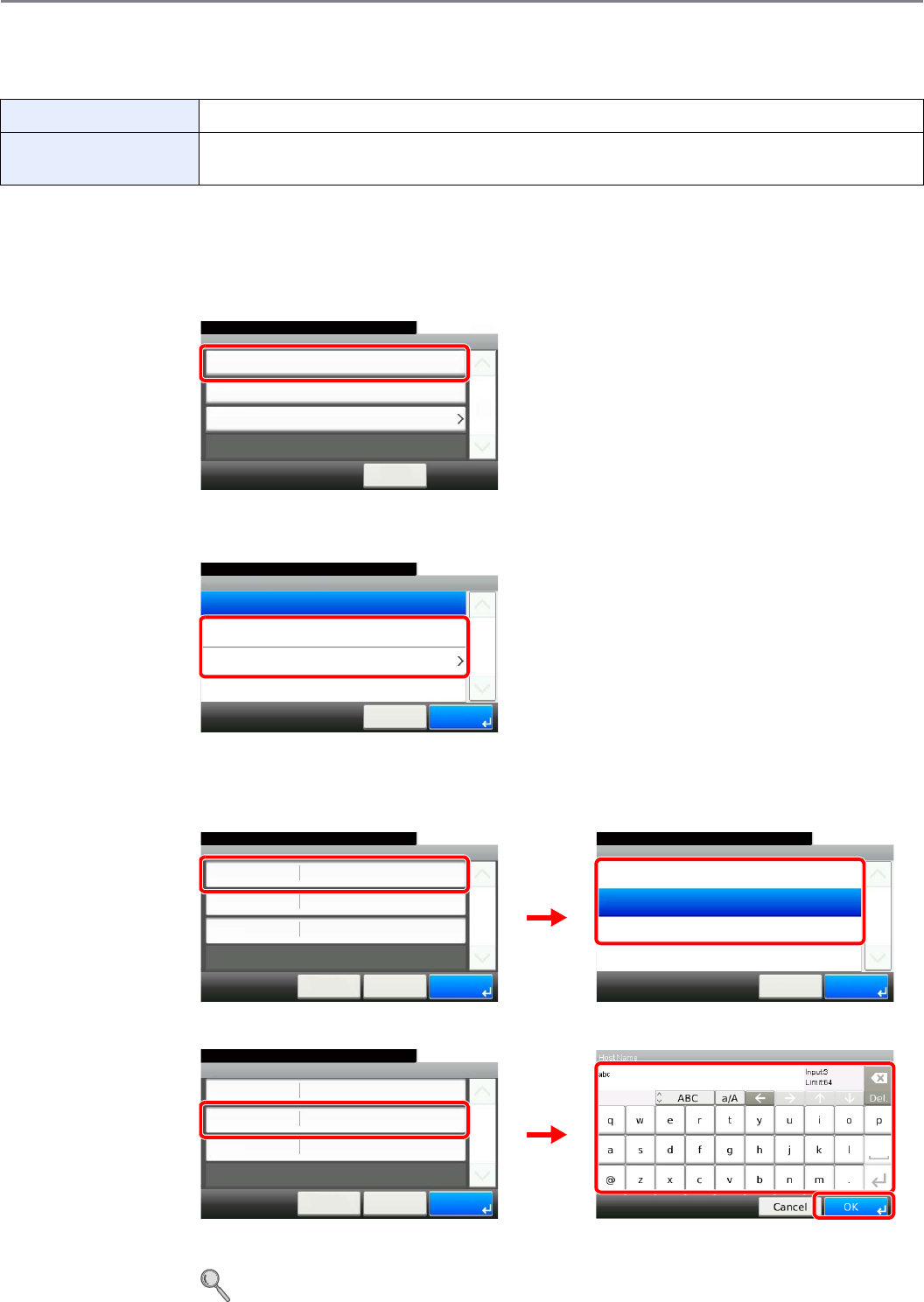
9-35
Setup, Registration, and User Management > User Login Administration
Enabling/Disabling User Login Administration
This enables user login administration. Select one of the following authentication methods:
1Display the screen.
1Referring to User Login Settings on page 9-34, display the screen.
2
2Select the authentication method.
When selecting [Network Authentication]
Select the server type.
Enter the host name.
Up to 64 characters can be entered.
Refer to Character Entry Method on page 11-7 for details on entering characters.
Local Authentication User authentication based on user properties on the local user list stored in the machine.
Network Authentication User authentication based on Authentication Server. Use a user property stored in Authentication
Server to access the network authentication login page.
System Menu/Counter.
User Login/Job Acco... - User Login Setting
User Login
Off
< Back
10:10
Local User List
Simple login settings
1/1
GB0435_02
User Login Setting - User Login
10:10System Menu/Counter.
Local Authentication
Network Authentication
Off
Cancel
1/1
OK
GB0436_00
Network Authentication - Server Type
10:10System Menu/Counter.
Kerberos
Ext.
NTLM
Cancel
1/1
OK
User Login - Network Authentication
Kerberos
10:10
Cancel
System Menu/Counter.
Host Name
Domain Name
Server Type
< Back
1/1
Save
GB0437_00
GB0438_00
1
2
User Login - Network Authentication
Kerberos
10:10
Cancel
System Menu/Counter.
Host Name
Domain Name
Server Type
< Back
1/1
Save
GB0437_00
GB0057_24
1
2
3
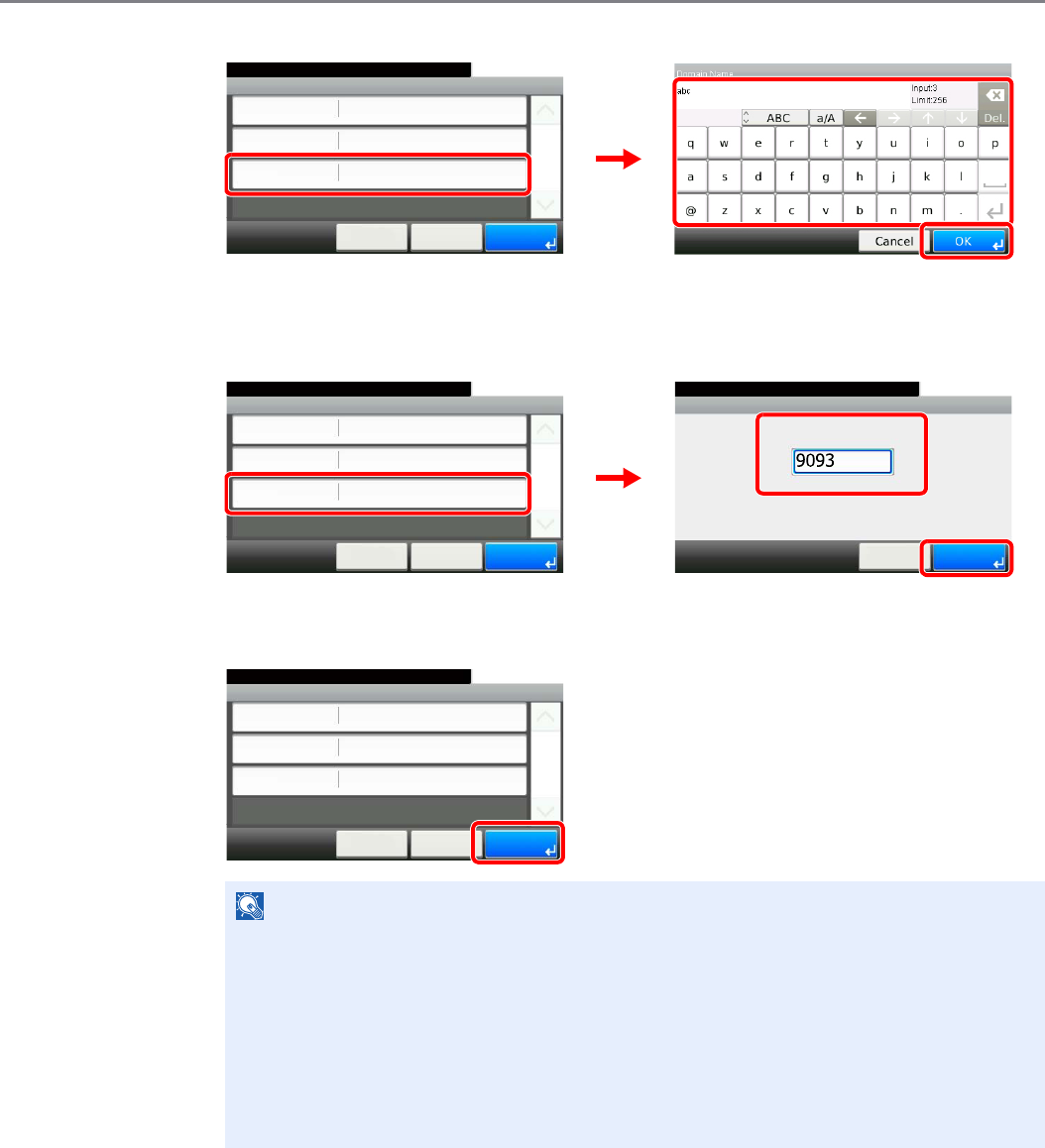
9-36
Setup, Registration, and User Management > User Login Administration
Enter a domain name.
When selecting [NTLM] or [Kerberos] as the server type, enter a domain name of 256
characters or less.
Enter the port number.
When selecting [Ext.] as the server type, enter the port number.
Press [Save].
NOTE
If the login user name and password are rejected, check the following settings.
• Network Authentication setting of the machine
• User property of the Authentication Server
• Date and time setting of the machine and the Authentication Server
If you cannot login because of the setting of the machine, login with any administrator
registered in the local user list and correct the settings. If the server type is [Kerberos], only
domain names entered in uppercase will be recognized.
User Login - Network Authentication
Kerberos
10:10
Cancel
System Menu/Counter.
Host Name
Domain Name
Server Type
< Back
1/1
Save
abc
GB0437_02
GB0057_25
1
2
3
Network Authentication - Port
10:10
(1 - 65535)
Cancel OK
System Menu/Counter.
User Login - Network Authentication
Ext.
10:10
Cancel
System Menu/Counter.
Host Name
Port
Server Type
< Back
1/1
Save
abc
9093
GB0437_01
GB0439_00
1
23
User Login - Network Authentication
Ext.
10:10
Cancel
System Menu/Counter.
Host Name
Port
Server Type
< Back
1/1
Save
abc
9093
GB0437_01
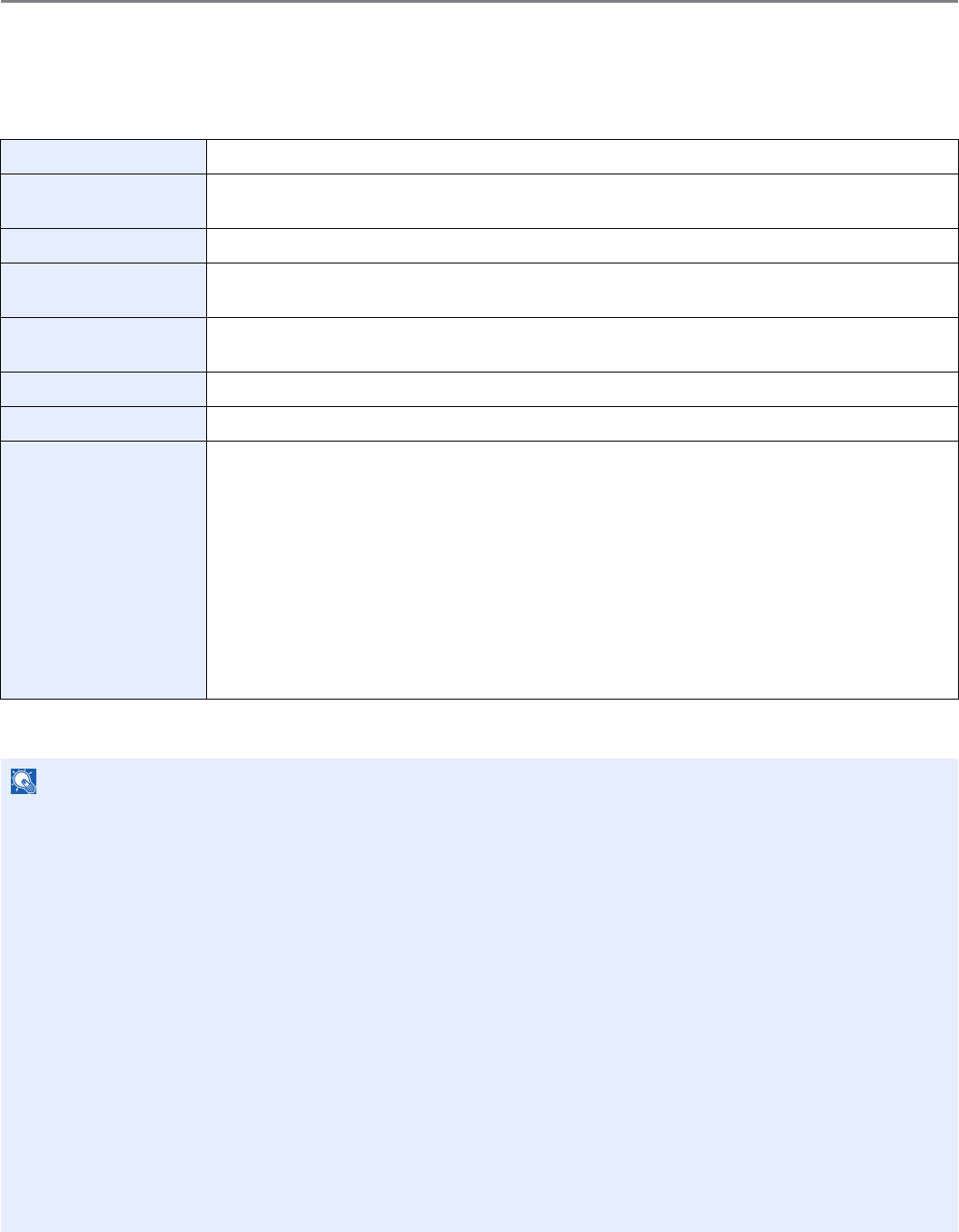
9-37
Setup, Registration, and User Management > User Login Administration
Adding a User
This adds a new user. You can add Up to 100 users (including the default login user name).
The table below explains the user information to be registered.
1Display the screen.
1Referring to User Login Settings on page 9-34, display the screen.
User Name*
* Mandatory at user registration.
Enter the name displayed on the user list (up to 32 characters).
Login User Name* Enter the login user name to login (up to 64 characters). The same login user name cannot be
registered.
Login Password Enter the password to login (up to 16 characters).
Account Name Add an account where the user belongs. The user, who registered his/her account name, can login
without entering the account ID. Refer to Job Accounting on page 9-58.
E-mail Address The user can register his/her E-mail address (up to 128 characters). The registered address will be
automatically selected for subsequent operations that need any E-mail function.
Access Level* Select Administrator or User for user access privileges.
My Panel Registers settings for individual users. Settings registered here can be applied simply by logging in.
Local Authorization Restricts the use of the machine by user. Local user authorization must be enabled to use this function
(see page 9-41). The following restriction items are available:
Printer: Select whether or not to reject usage of print functions for the printer.
Printer (Full Color): Select whether or not to reject usage of full-color print functions for the printer.
Copy: Select whether or not to reject usage of copy functions.
Copy (Full Color): Select whether or not to reject usage of full-color print functions for copies.
Send: Select whether or not to reject usage of send functions other than faxing.
FAX Transmission: Select whether or not to reject usage of the FAX transmissions.
Storing in Box: Select whether or not to reject usage of storing in the document boxes.
Storing in Memory: Select whether or not to reject usage of storing in the removable memory.
NOTE
By default, one of each default user with machine administrator rights and administrator privileges is already stored.
Each user's properties are:
Machine Administrator
• User Name: DeviceAdmin
• Login User Name: 20 ppm model - 2000, 25 ppm model - 2500
• Login Password: 20 ppm model - 2000, 25 ppm model - 2500
• Access Level: Machine Administrator
Administrator
• User Name: Admin
• Login User Name: Admin
• Login Password: Admin
• Access Level: Administrator
It is recommended to periodically change the user name, login user name and login password regularly for your
security.
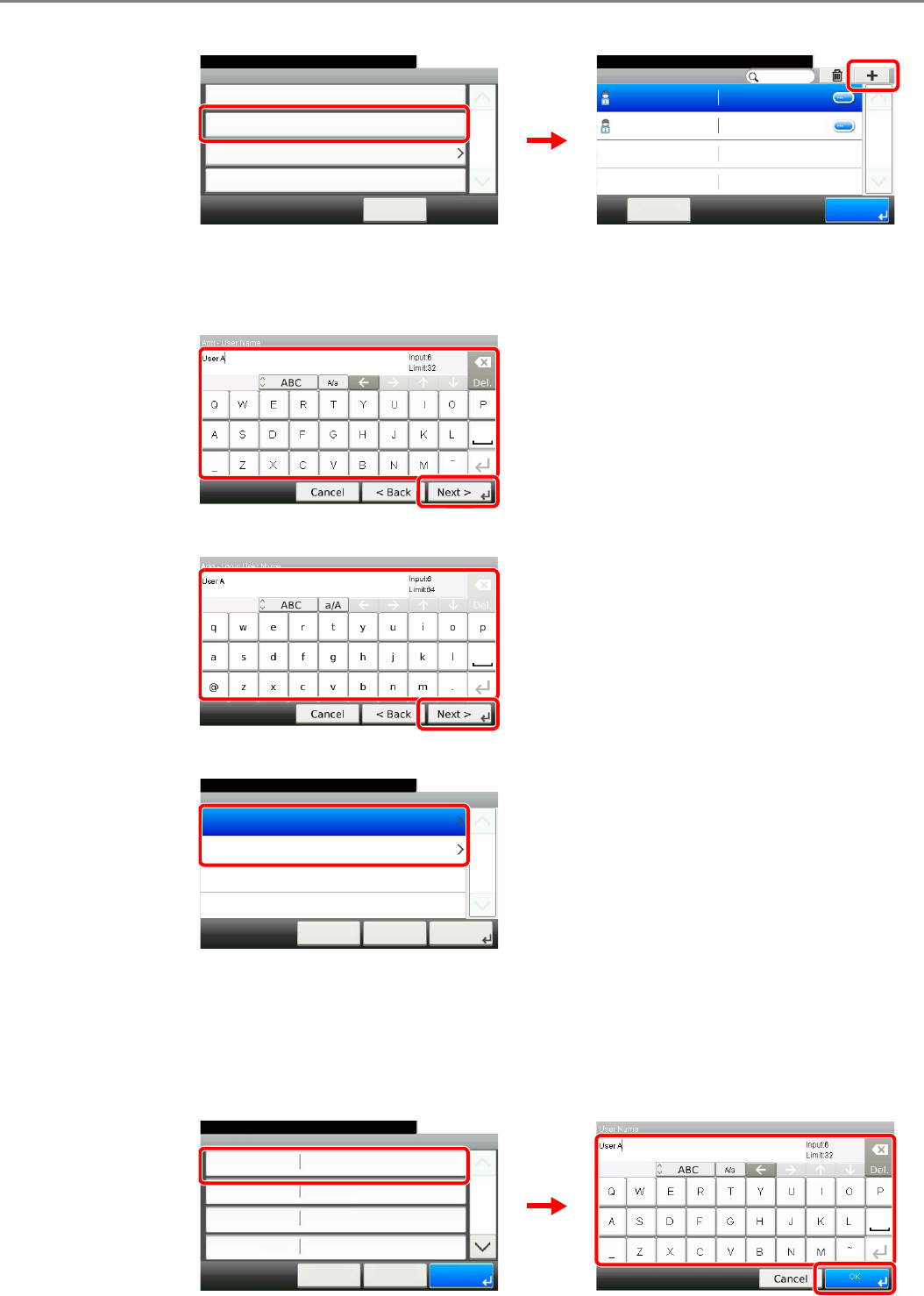
9-38
Setup, Registration, and User Management > User Login Administration
2
2Enter the user information.
[User Name]
[Login User Name]
[Access Level]
Select the user access privilege.
3Check the settings.
Check the settings and change or add information as needed.
[User Name]
User Login
10:10System Menu/Counter.
Local User List
< Back
1/1
Local Authentication
Simple login settings
User Login/Job Acco... - User Login Setting
Local User Authorization
Off
GB0435_00
10:10System Menu/Counter.
Admin
Menu
1/1
End
Admin
DeviceAdmin 2500
User Login S... - Local User List
GB0440_00
12
GB0057_51
1
2
GB0057_53
1
2
GB0445_00
Add - Access Level
10:10System Menu/Counter.
User
Administrator
< Back
1/1
Next >Cancel
Add - Confirmation
User A
10:10
Cancel
Select the item that you want to change.
Login User Name
Login Password
Account Name
User Name
User A
**********
< Back
1/2
Save
Others
GB0446_00
1
2
GB0057_26
3
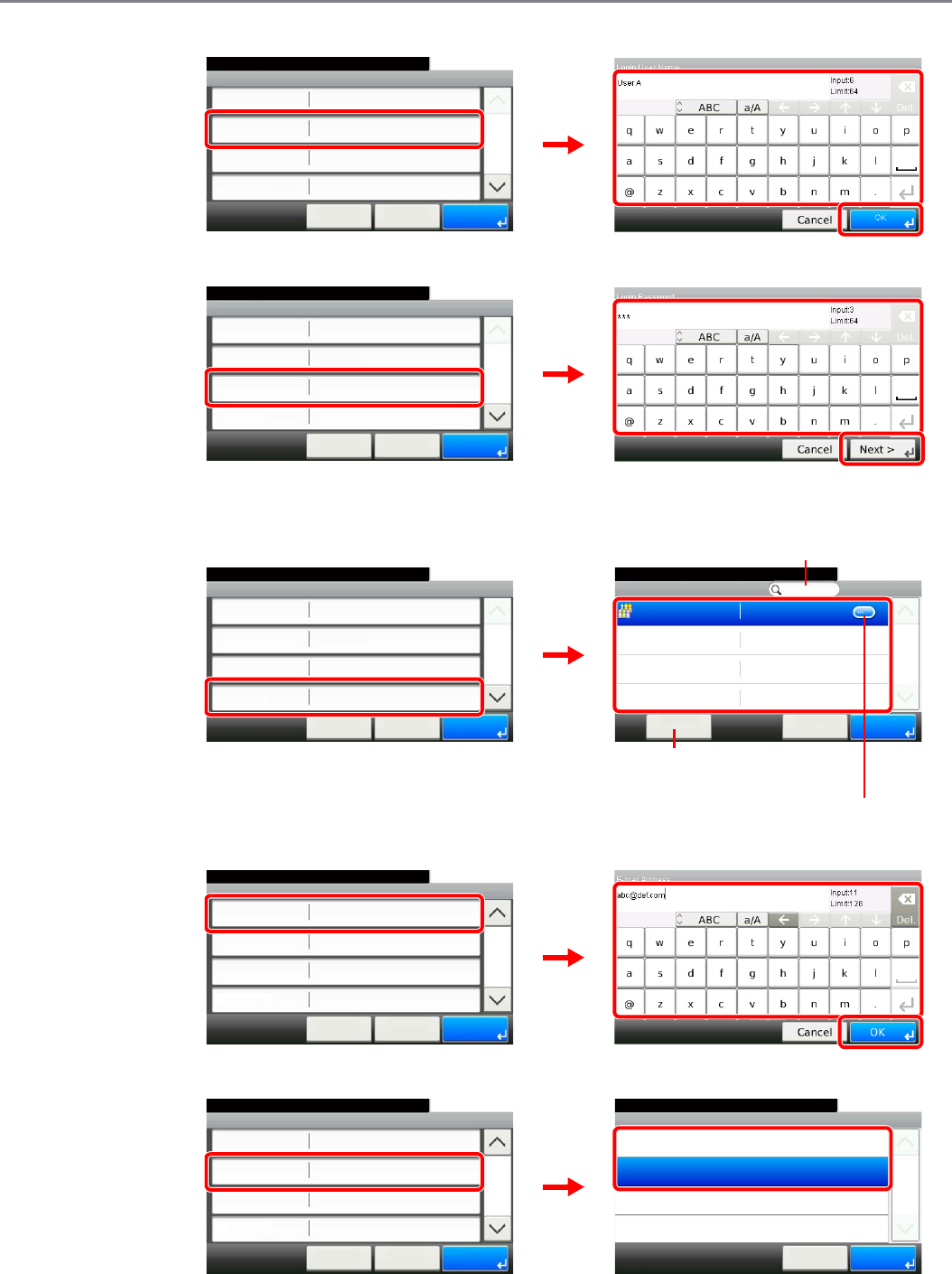
9-39
Setup, Registration, and User Management > User Login Administration
[Login User Name]
[Login Password]
Enter the same login password twice for confirmation purposes.
[Accounting Name]
[E-mail Address]
[Access Level]
Select the user access privilege.
GB0446_00
GB0057_28
Add - Confirmation
User A
10:10
Cancel
Select the item that you want to change.
Login User Name
Login Password
Account Name
User Name
User A
**********
< Back
1/2
Save
Others
12
3
GB0446_00
GB0057_29
Add - Confirmation
User A
10:10
Cancel
Select the item that you want to change.
Login User Name
Login Password
Account Name
User Name
User A
**********
< Back
1/2
Save
Others
1
2
3
GB0446_00
GB0603_00
Add - Confirmation
User A
10:10
Cancel
Select the item that you want to change.
Login User Name
Login Password
Account Name
User Name
User A
**********
< Back
1/2
Save
Others
1
Account Name
10:10System Menu/Counter.
Others
Menu
1/1
OKCancel
2
Displays details for individual account names.
Allows you to search for an account
name and sorts results.
Searches by account name.
GB0057_30
GB0446_01
Add - Confirmation
10:10
Cancel
System Menu/Counter.
Access Level
My Panel
Local Authorization
E-mail Address
User
< Back
2/2
Save
1
2
3
Access Level
10:10System Menu/Counter.
User
Administrator
Cancel
1/1
OK
GB0443_00
GB0446_01
Add - Confirmation
10:10
Cancel
System Menu/Counter.
Access Level
My Panel
Local Authorization
E-mail Address
User
< Back
2/2
Save
1
2
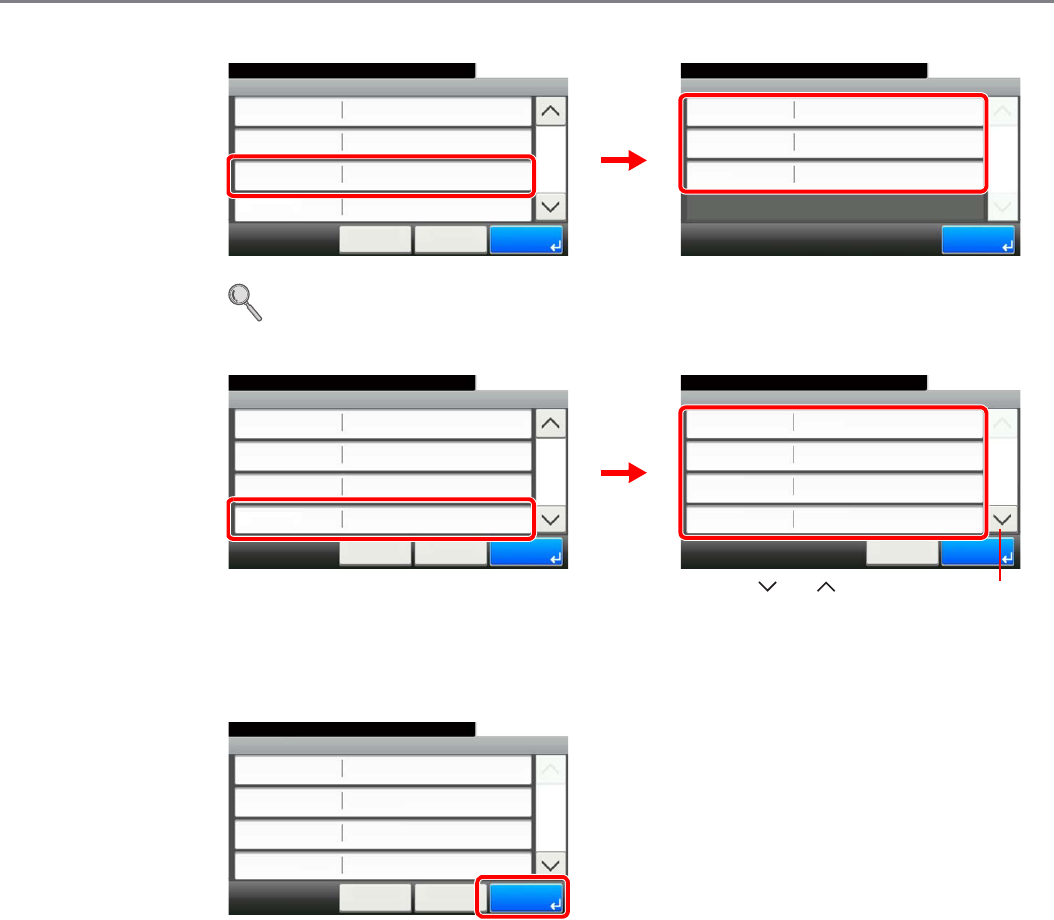
9-40
Setup, Registration, and User Management > User Login Administration
[My Panel]
For details on My Panel, refer to My Panel on page 9-42.
[Local Authorization]
Change the limitations as needed.
4Register the user.
Add - Confirmation
10:10
Cancel
System Menu/Counter.
Access Level
My Panel
Local Authorization
E-mail Address
User
< Back
2/2
Save
GB0446_01
GB0749_00
1
My Panel
Language
10:10System Menu/Counter.
Default Screen
Shortcut
1/1
End
English
Copy
Shared Shortcut
2
Local Authorization
Off
10:10System Menu/Counter.
Printer (Full Color)
Copy
Copy (Full Color)
Printer
Off
Off
Cancel
1/2
OK
Off
GB0446
GB0839_00
Add - Confirmation
10:10
Cancel
System Menu/Counter.
Access Level
My Panel
Local Authorization
E-mail Address
User
< Back
2/2
Save
1
GB0446_01
2
Use [ ] or [ ] to scroll up and down.
GB0446_00
Add - Confirmation
User A
10:10
Cancel
Select the item that you want to change.
Login User Name
Login Password
Account Name
User Name
User A
**********
< Back
1/2
Save
Others
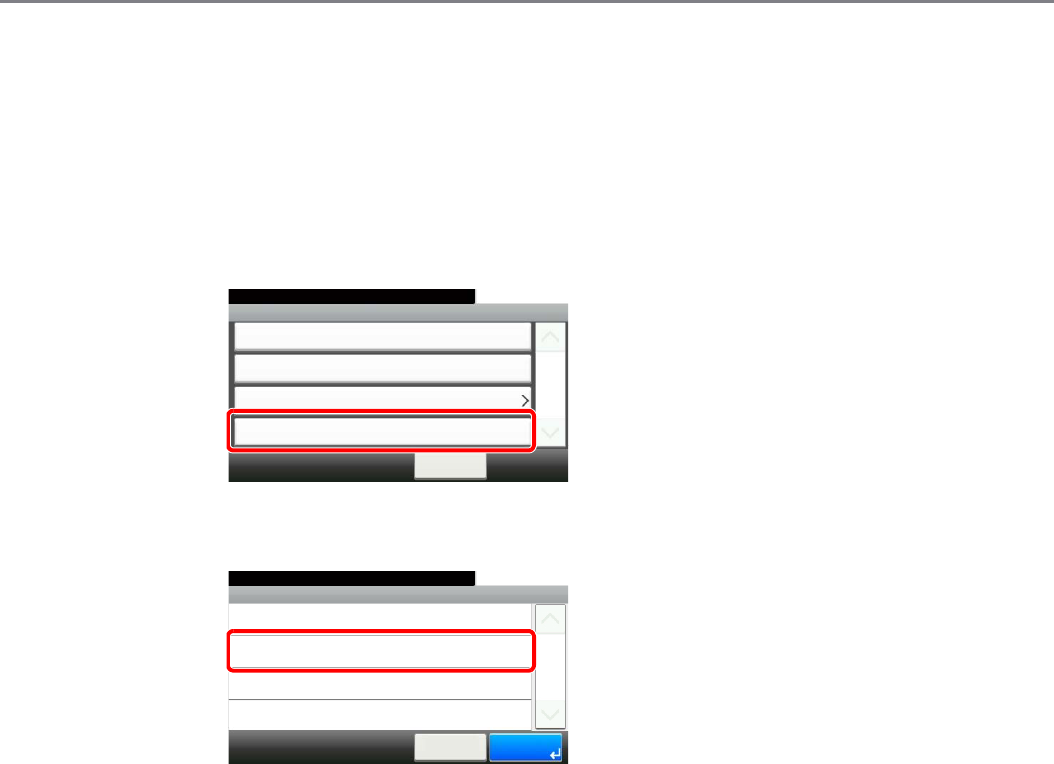
9-41
Setup, Registration, and User Management > User Login Administration
Local User Authorization
Enables local user authorization. Job use can be prohibited for specific users. Set when adding a user (see page 9-37)
or editing and deleting users (see page 9-43).
1Display the screen.
1Referring to User Login Settings on page 9-34, display the screen.
2
2Select [On].
User Login
10:10System Menu/Counter.
Local User List
< Back
1/1
Local Authentication
Simple login settings
User Login/Job Acco... - User Login Setting
Local User Authorization
Off
GB0435_00
User Login S... - Local User Authorization
10:10System Menu/Counter.
On
Administrator
Cancel
1/1
OK
Off
GB0908_00
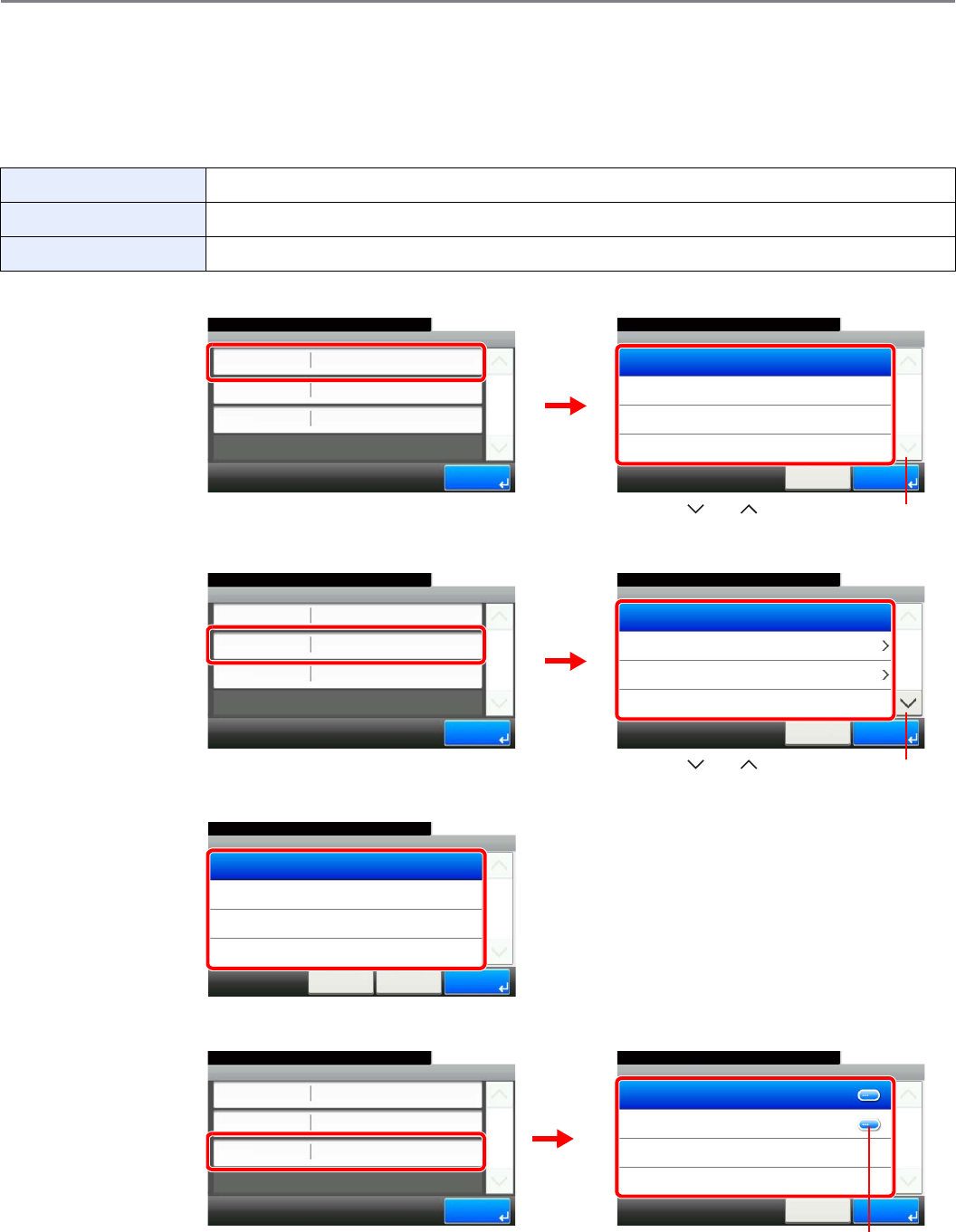
9-42
Setup, Registration, and User Management > User Login Administration
My Panel
Registers settings for individual users. Settings registered here can be applied simply by logging in. Set when Adding a
User (see page 9-37) or Editing and Deleting Users (see page 9-43).
Environments in which shortcut can be configured
[Language]
[Default Screen]
When [Send] or [FAX] has been selected, sets which screen to use as the default screen.
[Shortcut]
Language Select the language displayed on the touch panel.
Default Screen Set the screen appearing right after the user logs in (default screen).
Shortcut Select either [Shared Shortcut] or [Private Shortcut].
My Panel
Language
10:10System Menu/Counter.
Default Screen
Shortcut
1/1
End
English
Copy
Shared Shortcut
GB0749_00
GB0744_00
My Panel - Language
10:10System Menu/Counter.
Deutsch
English
Cancel
1/3
OK
Français
Español
1
2
Use [ ] or [ ] to scroll up and down.
My Panel
Language
10:10System Menu/Counter.
Default Screen
Shortcut
1/1
End
English
Copy
Shared Shortcut
GB0749_00
My Panel - Default Screen
10:10System Menu/Counter.
Send
FAX
Document Box
Copy
Cancel
1/2
OK
12
GB0745_00
Use [ ] or [ ] to scroll up and down.
Default Screen - Send
10:10System Menu/Counter.
Address Book
Ext. Address Book
One Touch
Destination
Cancel
1/1
OK< Back
GB0746_00
My Panel - Shortcut
10:10System Menu/Counter.
Private Shortcut
Shared Shortcut
Cancel
1/1
OK
GB0750_00
Displays details for individual shortcuts.
My Panel
Language
10:10System Menu/Counter.
Default Screen
Shortcut
1/1
End
English
Copy
Shared Shortcut
1
2
GB0749_00
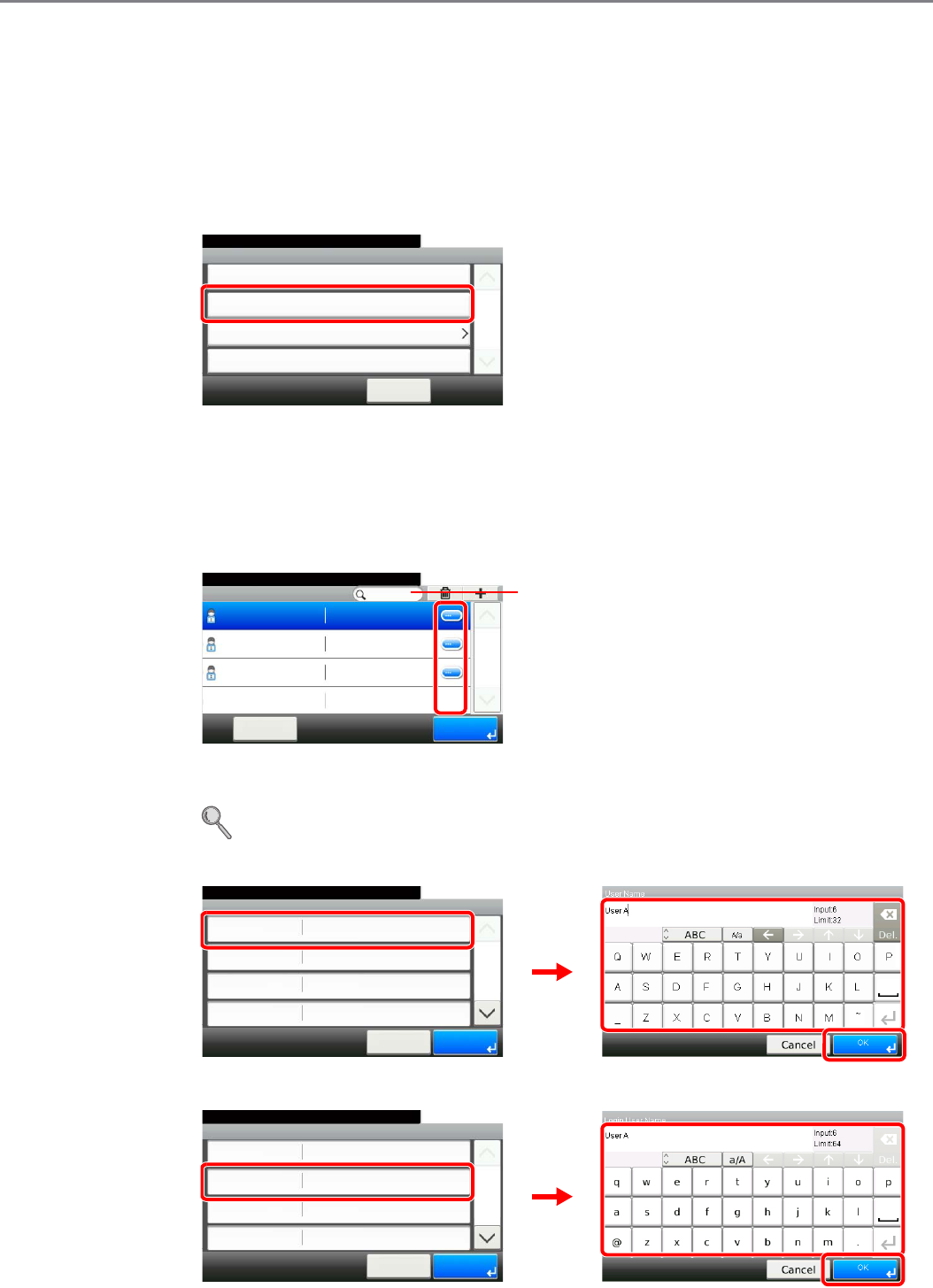
9-43
Setup, Registration, and User Management > User Login Administration
Editing and Deleting Users
User properties can be changed and users can be deleted.
1Display the screen.
1Referring to User Login Settings on page 9-34, display the screen.
2
2Edit or delete a user.
To edit a user
1Press […] for the user whose settings you wish to edit.
2Edit the user.
For more information about individual settings, refer to Adding a User on page 9-37.
[User Name]
[Login User Name]
User Login
10:10System Menu/Counter.
Local User List
< Back
1/1
Local Authentication
Simple login settings
User Login/Job Acco... - User Login Setting
Local User Authorization
Off
GB0435_00
10:10System Menu/Counter.
Admin
Menu
1/1
End
Admin
DeviceAdmin 2500
User A User A
User Login S... - Local User List
GB0440_01
Searches by user name.
User:User A
User A
10:10System Menu/Counter.
Login User Name
Login Password
User Name
User A
Cancel
1/2
Save
**********
Account Name Others
GB0441_00
GB0057_54
1
2
3
User:User A
User A
10:10System Menu/Counter.
Login User Name
Login Password
User Name
User A
Cancel
1/2
Save
**********
Account Name Others
GB0441_00
GB0057_28
12
3
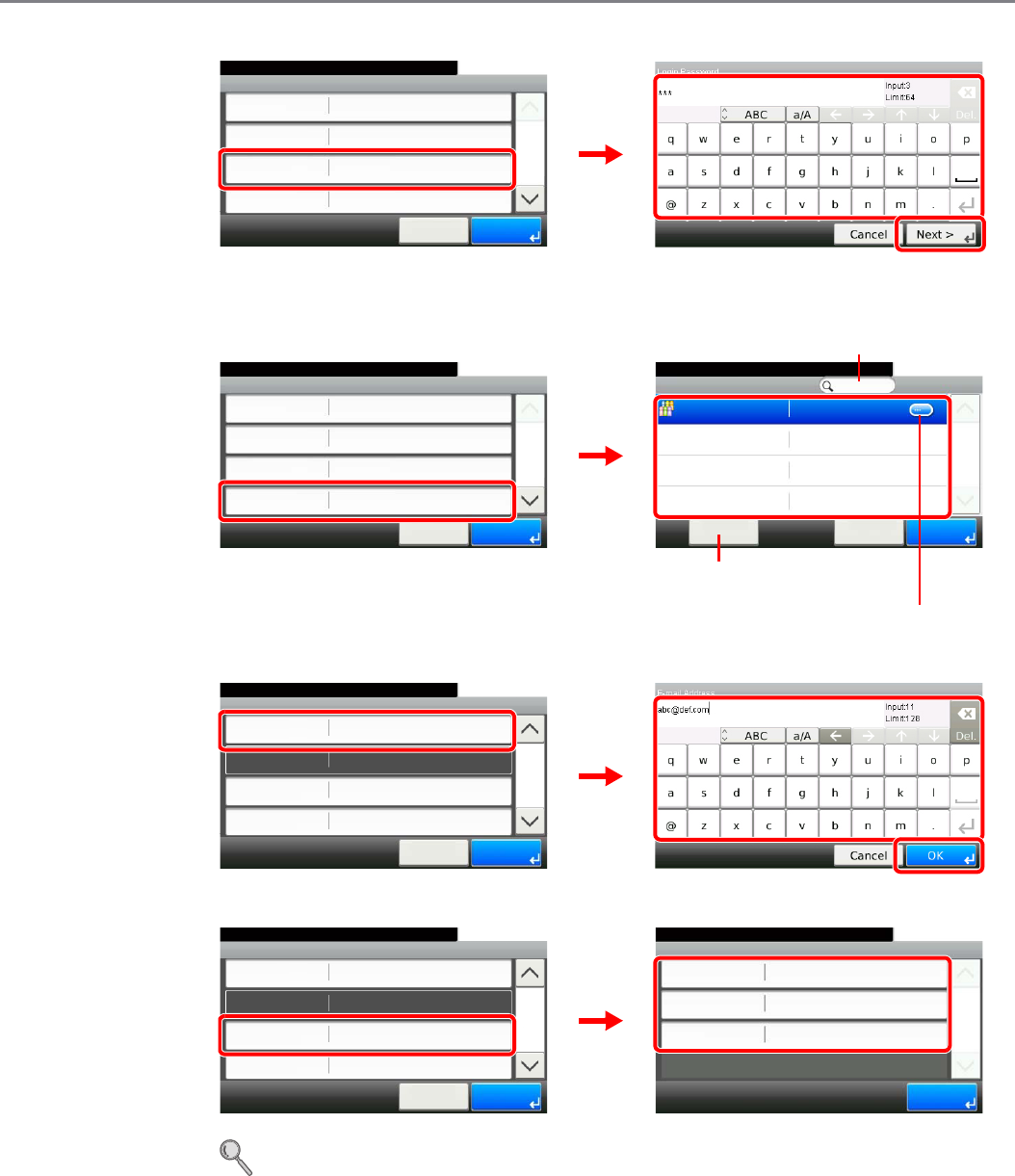
9-44
Setup, Registration, and User Management > User Login Administration
[Login Password]
Enter the same login password twice for confirmation purposes.
[Account Name]
[E-mail Address]
[My Panel]
For details on My Panel, refer to My Panel on page 9-42.
User:User A
User A
10:10System Menu/Counter.
Login User Name
Login Password
User Name
User A
Cancel
1/2
Save
**********
Account Name Others
GB0441_00
GB0057_29
1
2
3
User:User A
User A
10:10System Menu/Counter.
Login User Name
Login Password
User Name
User A
Cancel
1/2
Save
**********
Account Name Others
GB0441_00
GB0603_00
1
Account Name
10:10System Menu/Counter.
Others
Menu
1/1
OKCancel
2
Displays details for individual account names.
Allows you to search for an account
name and sorts results.
Searches by account name.
User:User A
10:10System Menu/Counter.
E-mail Address
Access Level
My Panel
Administrator
Cancel
2/2
Save
Local Authorization
GB0057_30
GB0441_01
1
2
3
User:User A
10:10System Menu/Counter.
E-mail Address
Access Level
My Panel
Administrator
Cancel
2/2
Save
Local Authorization
GB0441_01
GB0749_00
1
My Panel
Language
10:10System Menu/Counter.
Default Screen
Shortcut
1/1
End
English
Copy
Shared Shortcut
2
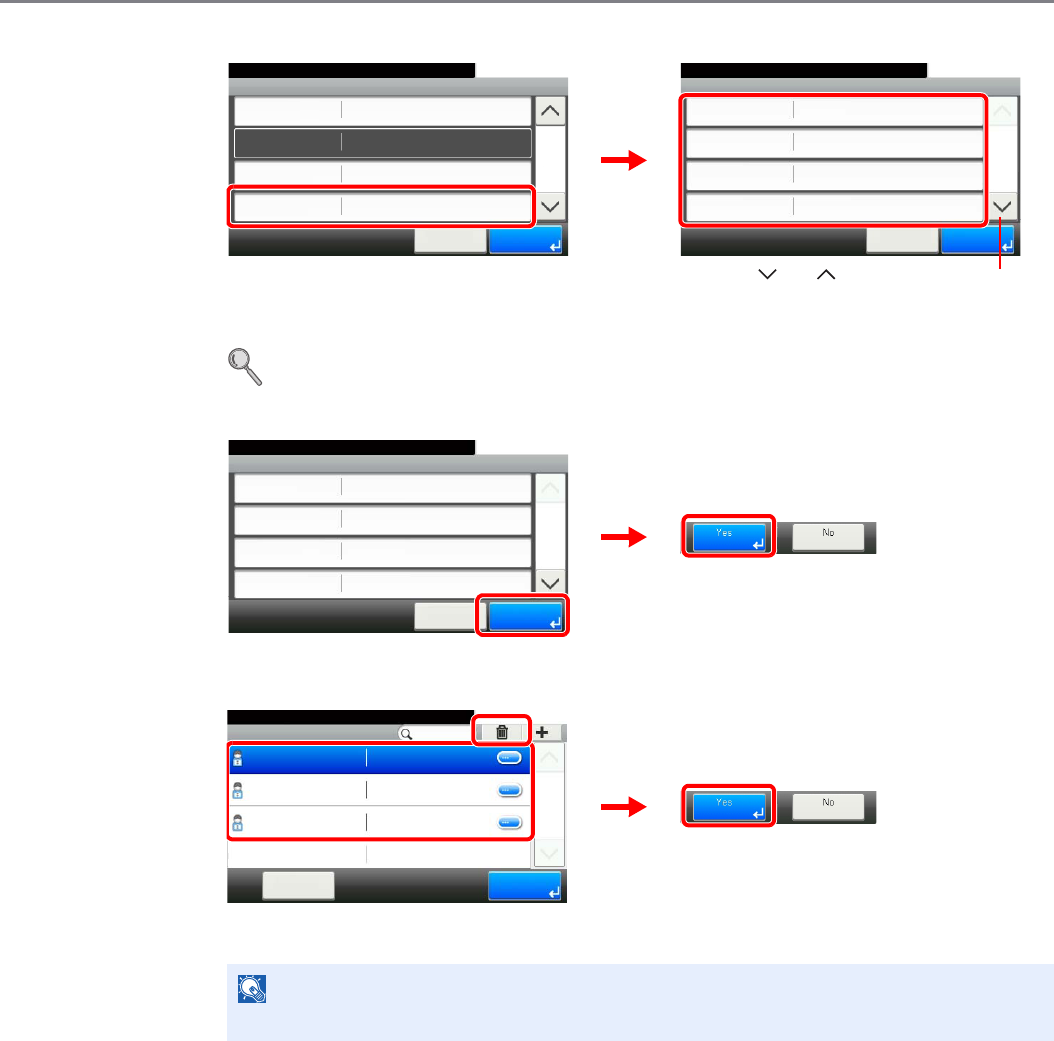
9-45
Setup, Registration, and User Management > User Login Administration
[Local Authorization]
[Local Authorization] is displayed when selecting [On] for [Local User Authorization].
Refer to Local User Authorization on page 9-41.
3Register the user.
To delete
Select the user you wish to delete and press [(Delete)] (the trash can icon).
NOTE
Also, you can delete the user by selecting the user, press [Menu] and then [Delete].
User:User A
10:10System Menu/Counter.
E-mail Address
Access Level
My Panel
Administrator
Cancel
2/2
Save
Local Authorization
Local Authorization
Off
10:10System Menu/Counter.
Printer (Full Color)
Copy
Copy (Full Color)
Printer
Off
Off
Cancel
1/2
OK
Off
GB0839_00
1
GB0441_01
2
Use [ ] or [ ] to scroll up and down.
User:User A
User A
10:10System Menu/Counter.
Login User Name
Login Password
User Name
User A
Cancel
1/2
Save
**********
Account Name Others
GB0441_00
2
1
10:10System Menu/Counter.
Admin
Menu
1/1
End
Admin
DeviceAdmin 2500
User A User A
User Login S... - Local User List
GB0440_01
2
1
3
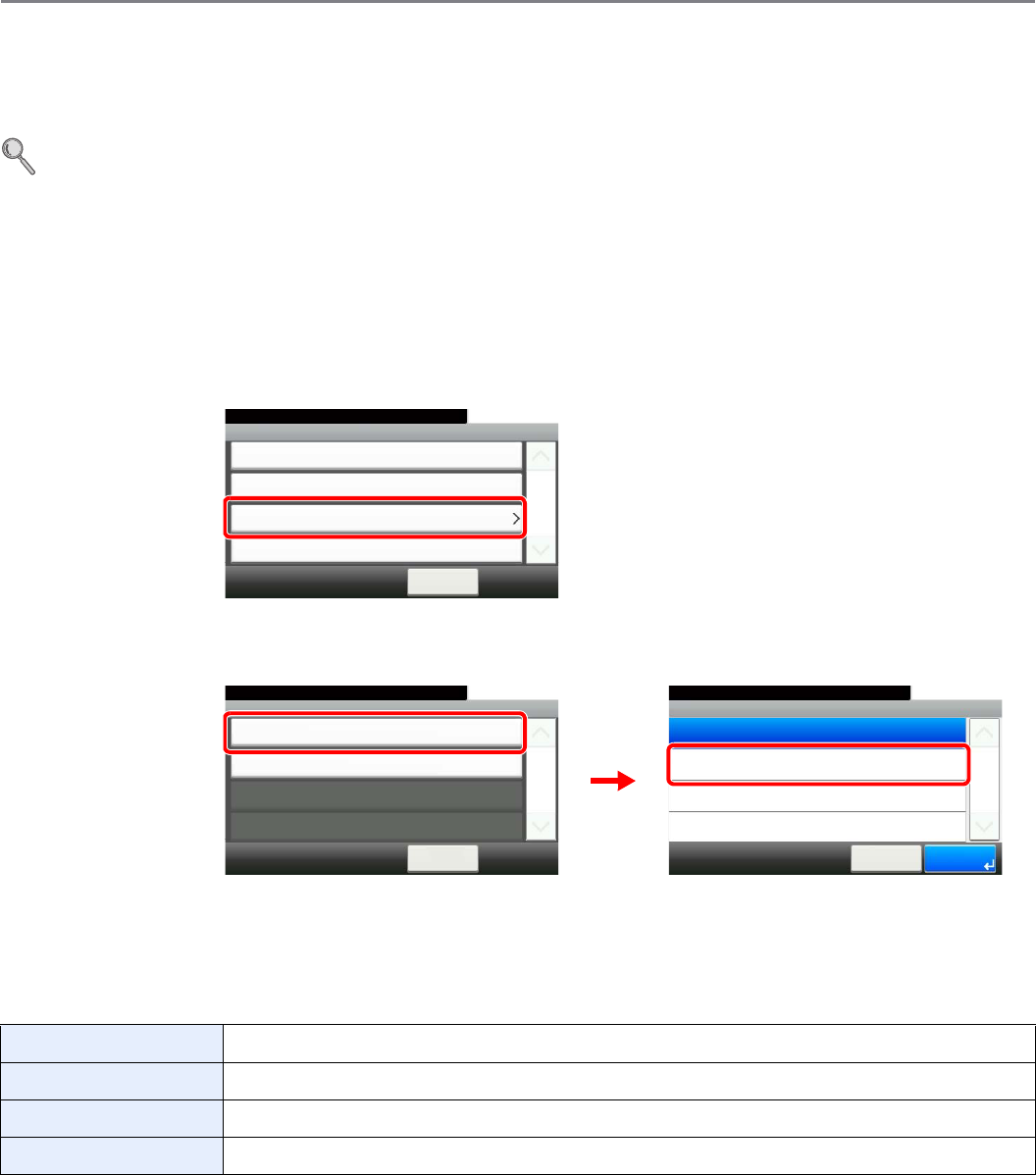
9-46
Setup, Registration, and User Management > User Login Administration
Simple Login
The simple login function allows users to log in simply by selecting a user name. Users must be registered in advance to
use this functionality.
For details, refer to Adding a User on page 9-37.
Simple Login Settings
Enable simple login.
1Display the screen.
1Referring to User Login Settings on page 9-34, display the screen.
2
2Enable simple login.
Register a User
Register users to use simple login. Up to 20 users can be registered.
The table below explains the user information to be registered.
1Display the screen.
1Referring to User Login Settings on page 9-34, display the screen.
Name Set the user name to display on the Simple Login screen.
User Select which registered users can use simple login.
Password Login Set whether to require entry of a login password at login.
Icon Select the icon to display on the Simple Login screen.
GB0435_00
User Login
10:10System Menu/Counter.
Local User List
< Back
1/1
Local Authentication
Simple login settings
User Login/Job Acco... - User Login Setting
Local User Authorization
Off
Simple Login Settings - Simple Login
10:10System Menu/Counter.
On
Off
Cancel
1/1
OK
Simple Login
10:10System Menu/Counter.
Simple Login Setup
< Back
1/1
Off
User Login/Job Acc... - Simple Login Settings
GB0710_00
GB0711_00
1
2
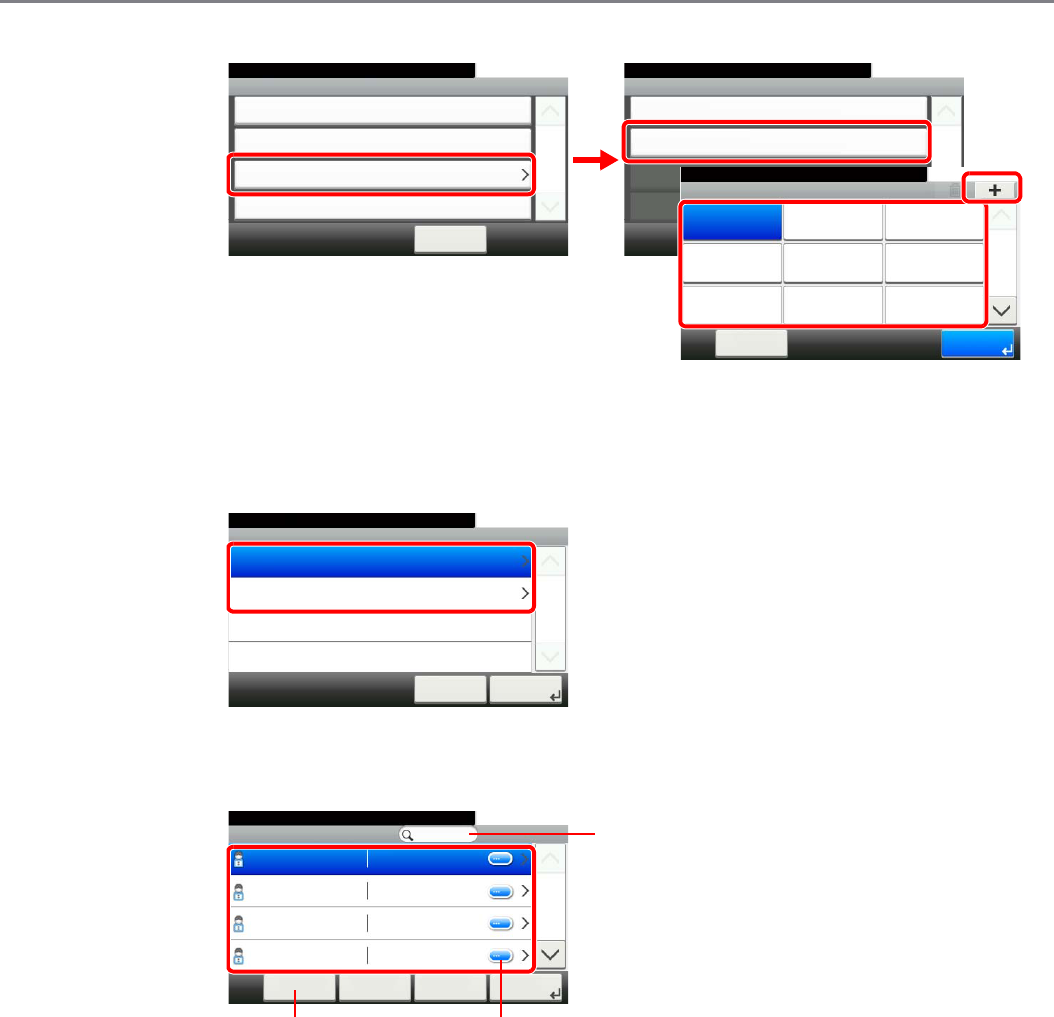
9-47
Setup, Registration, and User Management > User Login Administration
2
Select a key with no registered user, and press [+].
2Enter the user information.
1Select the type of user.
2Select a user.
Local user
GB0435_00
User Login
10:10System Menu/Counter.
Local User List
< Back
1/1
Local Authentication
Simple login settings
User Login/Job Acco... - User Login Setting
Local User Authorization
Off
Simple Login
10:10System Menu/Counter.
Simple Login Setup
< Back
1/1
On
User Login/Job Acc... - Simple Login Settings
2
GB0710_01
10:10
Menu
System Menu/Counter.
00
03
06
01
04
07
02
05
08
1/3
Simple login settings - Simple Login Setup
End
None None None
None None None
None None None
4
GB0712_00
1
3
GB0640_00
Add
10:10
Network User
Local User
Cancel
1/1
Next >
System Menu/Counter.
GB0726_00
Add - Local User
10:10
DeviceAdmin
Menu
1/2
Next >
2500
User A 1111
User B 2222
User C 3333
Cancel < Back
System Menu/Counter.
Displays details for individual users.Allows you to search for a
user and sorts results.
Searches by user name.
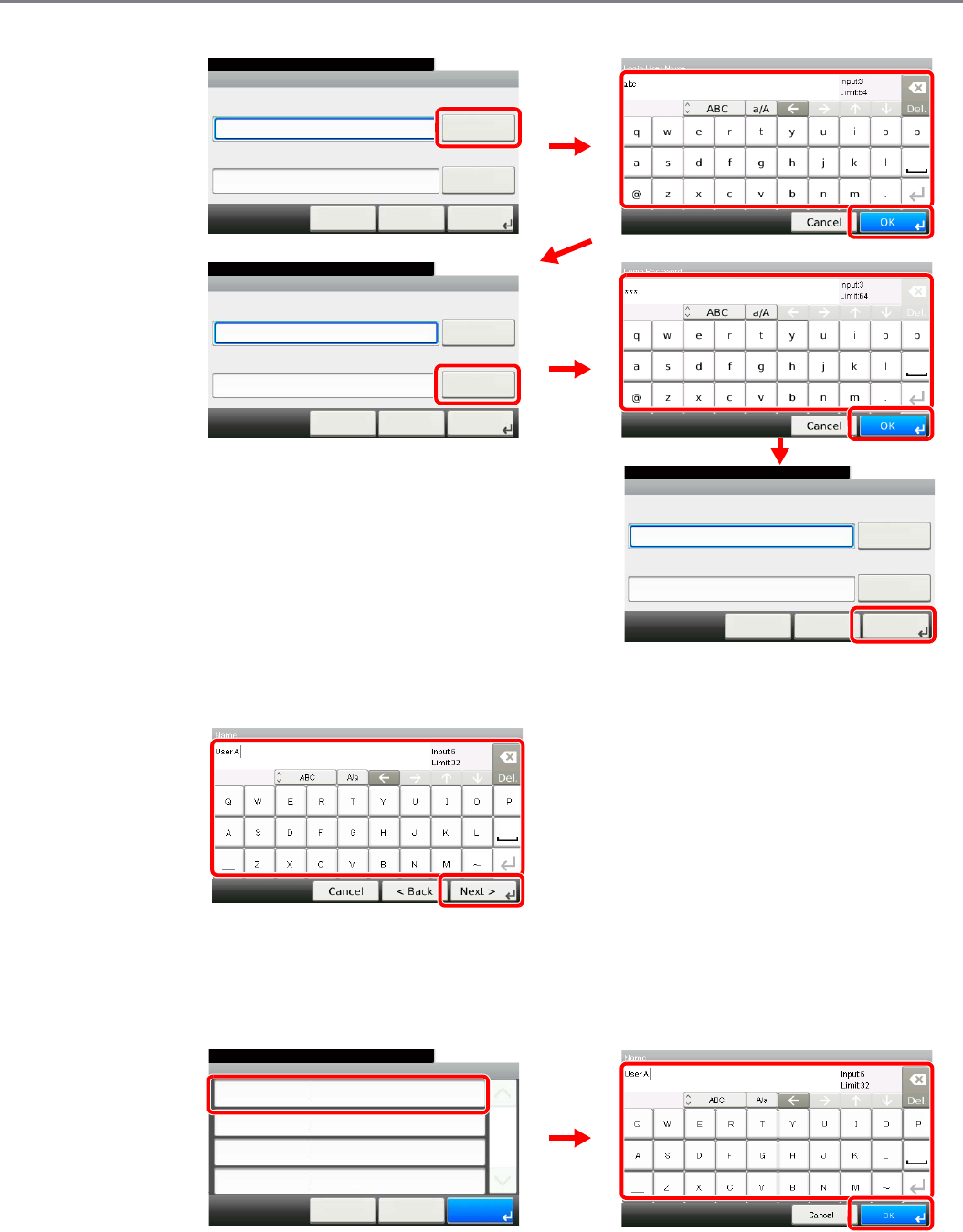
9-48
Setup, Registration, and User Management > User Login Administration
Network user
Enter the Login User Name and Login Password.
3Enter the login user name to use with simple login.
3Check the settings.
Check the settings and change or add information as needed.
[Name]
Add - Network User
10:10
Keyboard
Login Password
Keyboard
Login User Name
< Back Next >Cancel
System Menu/Counter.
Add - Network User
10:10
Keyboard
Login Password
Keyboard
Login User Name
< Back Next >Cancel
abc
System Menu/Counter.
GB0704_00
GB0057_31
2
3
1
GB0704_01
GB0057_61
4
5
6
Add - Network User
10:10
Keyboard
Login Password
Keyboard
Login User Name
< Back Next >Cancel
abc
***
System Menu/Counter.
7
GB0704_02
GB0057_32
1
2
Add - Confirmation
User A
10:10
Cancel
User
Password Login
Icon
Name
User A
Off
< Back
1/1
Save
Male 1
System Menu/Counter.
GB0645_00
GB0057_62
1
2
3
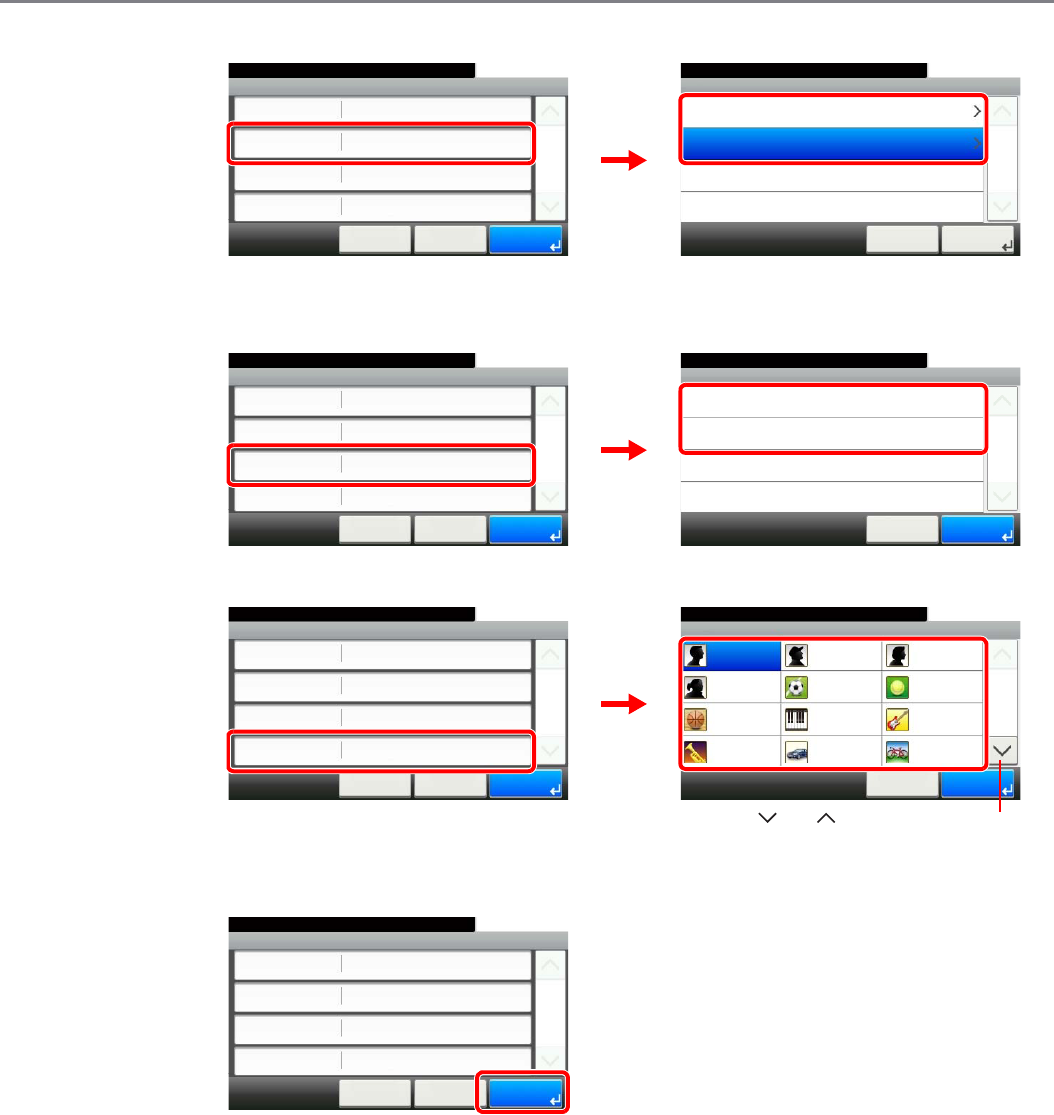
9-49
Setup, Registration, and User Management > User Login Administration
[User]
Select the user to use for simple logins from [Local User] or [Network User].
[Password Login]
[Icon]
4Register the user.
Editing and Deleting Users
User properties can be changed and users can be deleted.
1Display the screen.
1Referring to User Login Settings on page 9-34, display the screen.
User
10:10System Menu/Counter.
Network User
Local User
Cancel
1/1
Next >
GB0645_00
GB0740_00
Add - Confirmation
User A
10:10
Cancel
User
Password Login
Icon
Name
User A
Off
< Back
1/1
Save
Male 1
System Menu/Counter.
1
2
Password Login
10:10System Menu/Counter.
On
Off
Cancel
1/1
OK
GB0645_00
GB0736_00
Add - Confirmation
User A
10:10
Cancel
User
Password Login
Icon
Name
User A
Off
< Back
1/1
Save
Male 1
System Menu/Counter.
1
2
Icon
10:10System Menu/Counter.
Female 2
Basket
Trumpet
Male 1
Cancel
Soccer
Piano
Car
Male 2
Tennis
Guitar
Bicycle
Female 1
1/2
OK
GB0645_00
GB0828_00
Add - Confirmation
User A
10:10
Cancel
User
Password Login
Icon
Name
User A
Off
< Back
1/1
Save
Male 1
System Menu/Counter.
2
1
Use [ ] or [ ] to scroll up and down.
GB0645_00
Add - Confirmation
User A
10:10
Cancel
User
Password Login
Icon
Name
User A
Off
< Back
1/1
Save
Male 1
System Menu/Counter.
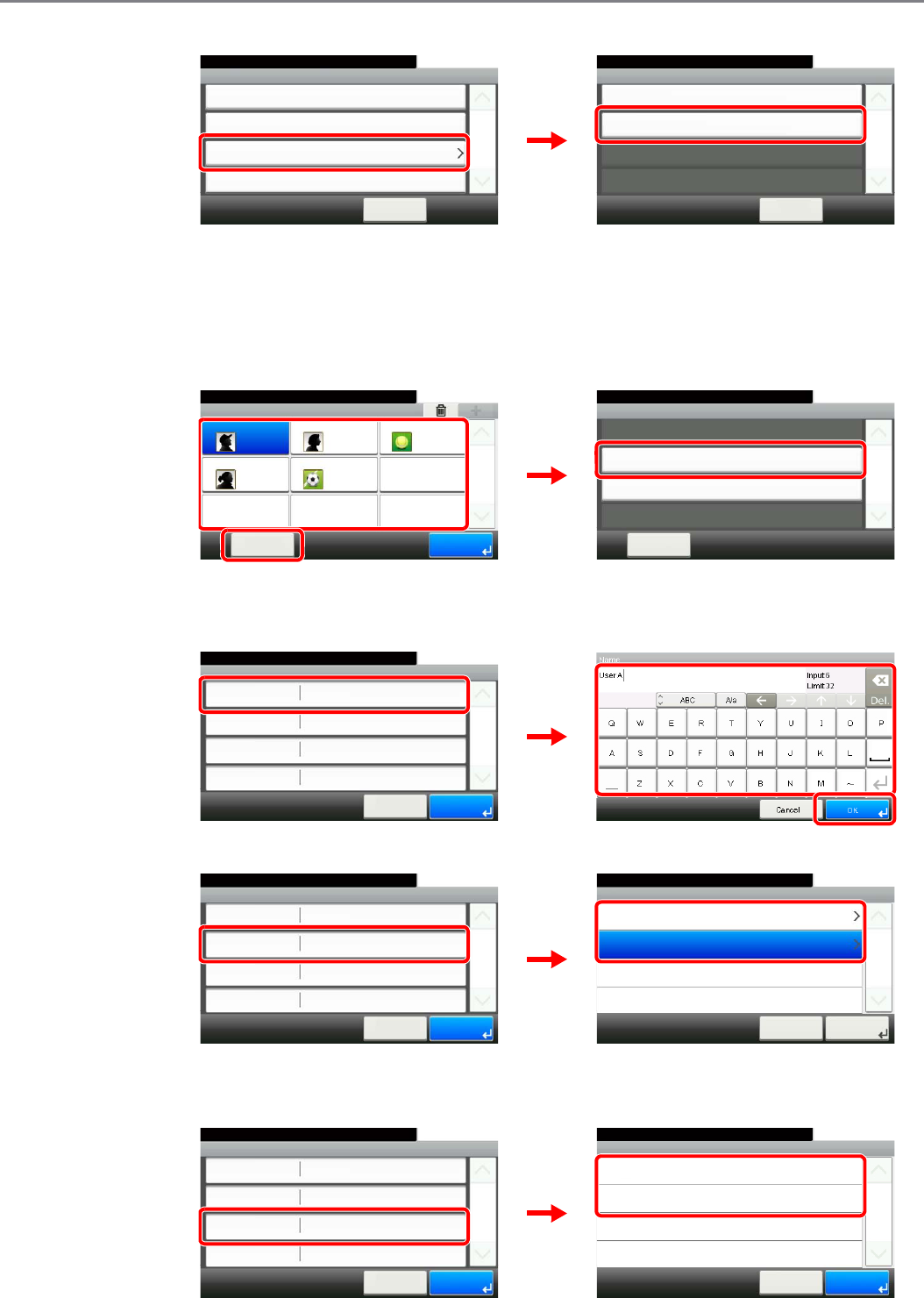
9-50
Setup, Registration, and User Management > User Login Administration
2
2Edit or delete a user.
To edit a user
1Select the user whose information you wish to edit and press [Menu] and then [Edit].
2Edit the user.
[Name]
[User]
Select the user to use for simple logins from [Local User] or [Network User].
[Password Login]
Simple Login
10:10System Menu/Counter.
Simple Login Setup
< Back
1/1
On
User Login/Job Acc... - Simple Login Settings
GB0435_00
User Login
10:10System Menu/Counter.
Local User List
< Back
1/1
Local Authentication
Simple login settings
User Login/Job Acco... - User Login Setting
Local User Authorization
Off
2
GB0710_01
1
GB0712_01
10:10
Menu
System Menu/Counter.
0
0
03
01
04
07
02
05
08
1/1
Simple login settings - Simple Login Setup
End
User A
User D
User B
User E
User C
06
None
None None None
GB0738_00
Menu
Add
10:10
Close
Edit
Delete
1/1
2
3
1
Edit
Name
10:10System Menu/Counter.
User
Password Login
Icon
1/1
Cancel Save
User A
User A
Off
Male 1
GB0739_00
GB0057_62
1
2
3
User
10:10System Menu/Counter.
Network User
Local User
Cancel
1/1
Next >
Edit
Name
10:10System Menu/Counter.
User
Password Login
Icon
1/1
Cancel Save
User A
User A
Off
Male 1
GB0739_00
GB0740_00
1
2
Edit
Name
10:10System Menu/Counter.
User
Password Login
Icon
1/1
Cancel Save
User A
User A
Off
Male 1
10:10System Menu/Counter.
On
Off
Cancel
1/1
OK
Password Login
GB0739_00
GB0736_01
1
2
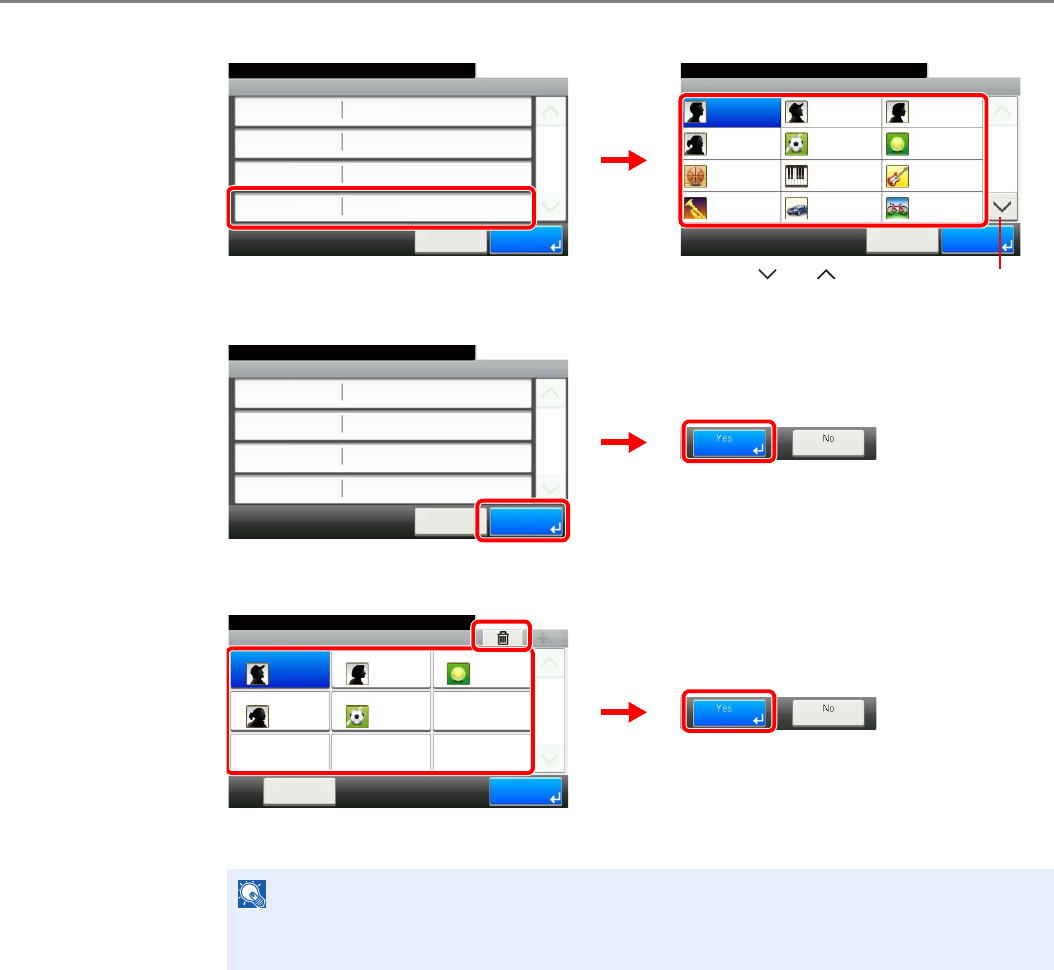
9-51
Setup, Registration, and User Management > User Login Administration
[Icon]
3Register the user.
To delete
Select the user you wish to delete and press [(Delete)] (the trash can icon).
NOTE
You can also delete a user by selecting the name, pressing [Menu], and then pressing
[Delete].
Edit
Name
10:10System Menu/Counter.
User
Password Login
Icon
1/1
Cancel Save
User A
User A
Off
Male 1
Icon
10:10System Menu/Counter.
Female 2
Basket
Trumpet
Male 1
Cancel
Soccer
Piano
Car
Male 2
Tennis
Guitar
Bicycle
Female 1
1/2
OK
GB0739_00
GB0828_01
1
2
Use [ ] or [ ] to scroll up and down.
Edit
Name
10:10System Menu/Counter.
User
Password Login
Icon
1/1
Cancel Save
User A
User A
Off
Male 1
GB0739_00
2
1
10:10
Menu
System Menu/Counter.
0
0
03
01
04
07
02
05
08
1/1
Simple login settings - Simple Login Setup
End
User A
User D
User B
User E
User C
06
None
None None None
GB0712_01
2
13
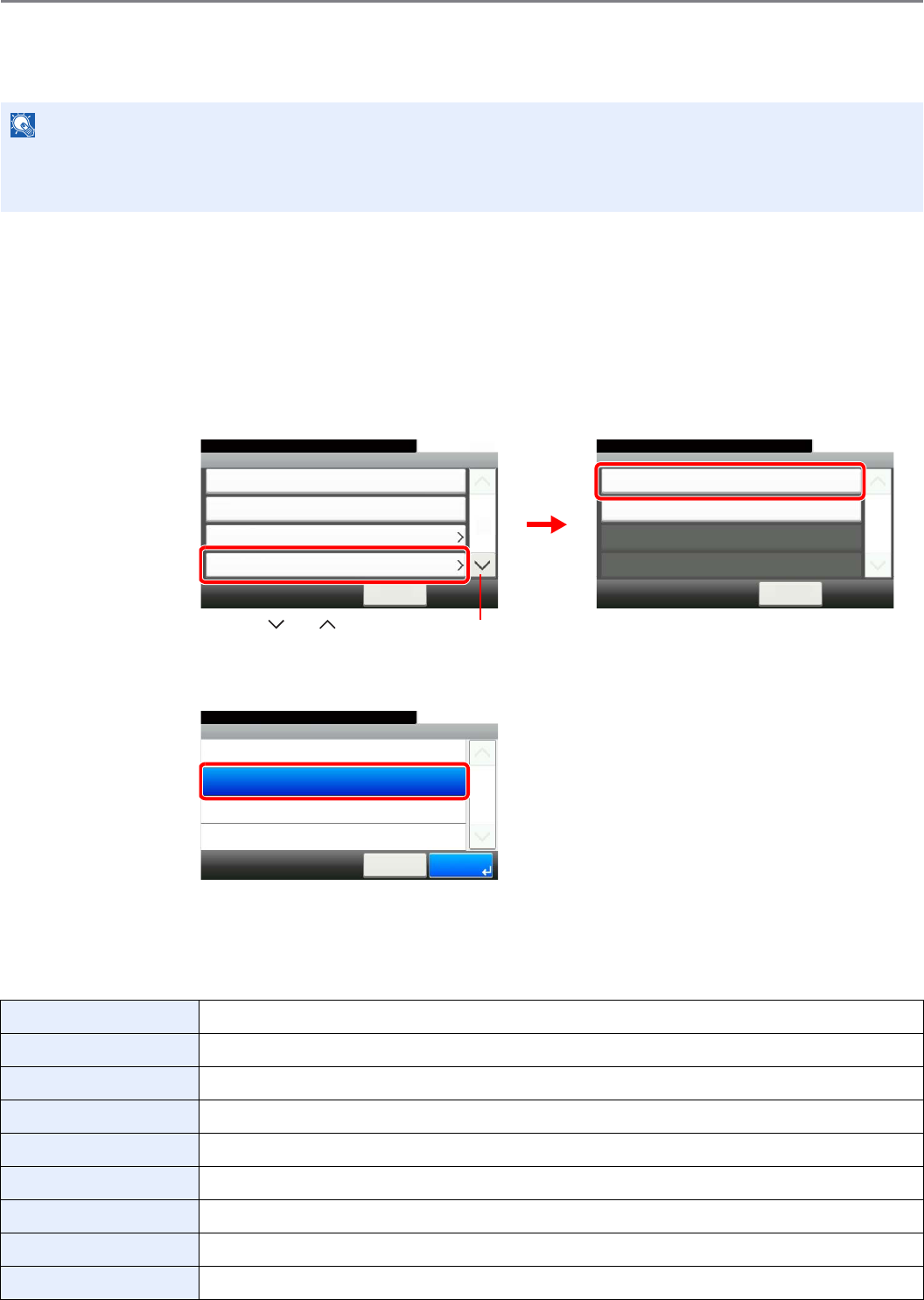
9-52
Setup, Registration, and User Management > User Login Administration
Group Authorization
Set restrictions of the machine usage by each individual group registered in the authentication server.
Group Authorization Settings
Use the group authorization.
1Display the screen.
1Referring to User Login Settings on page 9-34, display the screen.
2
2Select [On].
Add a Group
Register the groups that is restricted the machine usage. Up to 20 groups can be individually registered. Other users
and groups belong to Others.
NOTE
To use the group authorization settings, [Network Authentication] must be selected for the authentication method and
[NTLM] or [Kerberos] must be selected as the server type in Enabling/Disabling User Login Administration on page 9-
35. Select [On] for LDAP in Protocol Detail on page 9-20.
Group ID* Enter the ID displayed on the group list (between 1 and 4294967295).
Group Name Enter the name displayed on the group list (up to 32 characters).
Access Level Select Administrator or User for group access privileges.
Printer Select whether or not to reject usage of print functions for the printer.
Printer (Full Color) Select whether or not to reject usage of full-color print functions for the printer.
Copy Select whether or not to reject usage of copy functions.
Copy (Full Color) Select whether or not to reject usage of full-color print functions for copies.
Send Select whether or not to reject usage of the send functions.
FAX Transmission** Select whether or not to reject usage of the FAX transmissions.
GB0435_03
System Menu/Counter.
User Login/Job Acco... - User Login Setting
User Login
Network Authentication
< Back
10:10
Local User List
Simple login settings
Group Authorization Set.
1/2
Group Authorization
10:10System Menu/Counter.
Group List
< Back
1/1
Off
User Login/Job... - Group Authorization Set.
GB0450_00
1
2
Use [ ] or [ ] to scroll up and down.
Group Authorization Set. - Group Authorization
10:10System Menu/Counter.
On
Off
Cancel
1/1
OK
GB0451_00
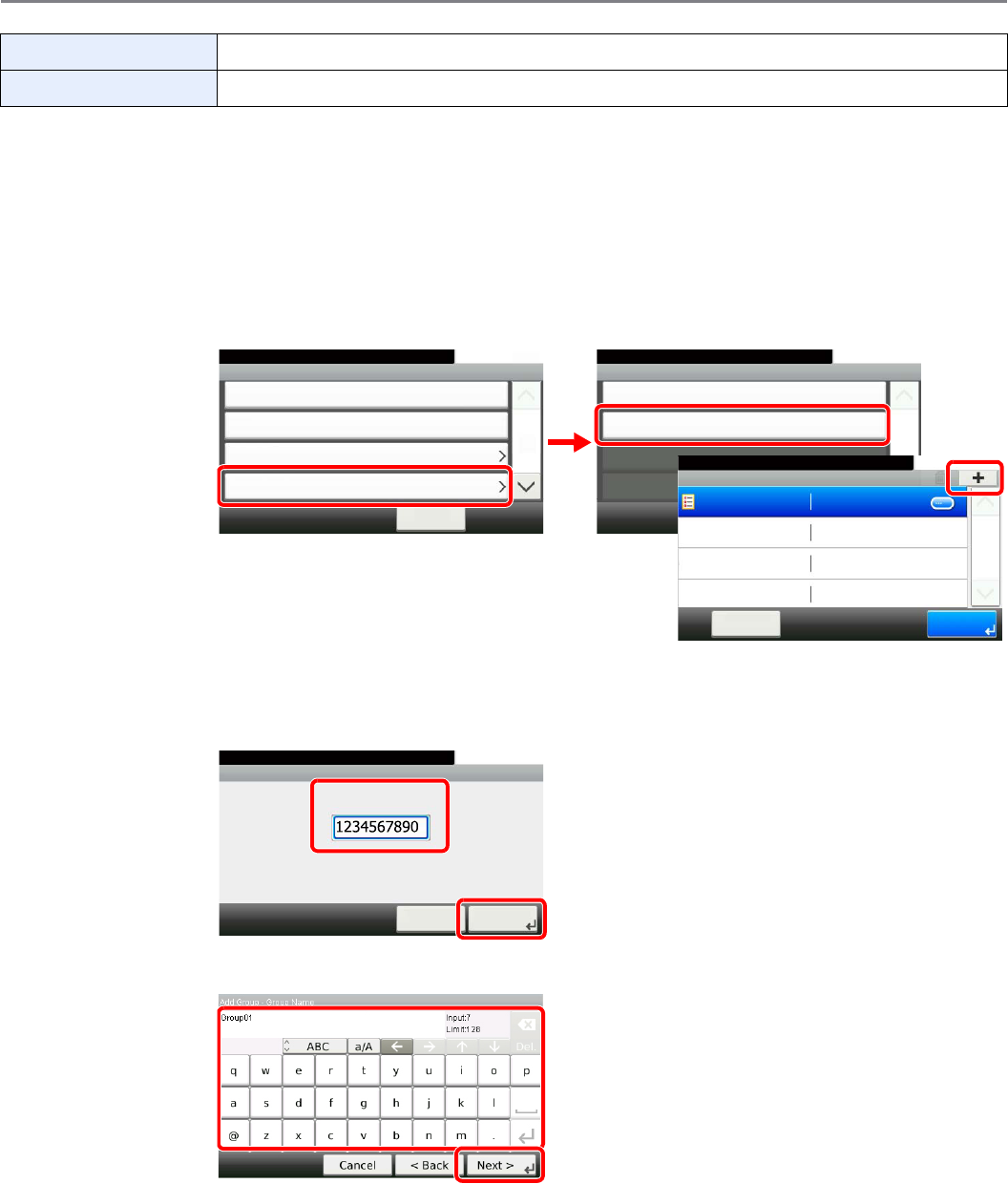
9-53
Setup, Registration, and User Management > User Login Administration
1Display the screen.
1Referring to User Login Settings on page 9-34, display the screen.
2
2Enter the group information.
[Group ID]
[Group Name]
Storing in Box Select whether or not to reject usage of storing in the document boxes.
Storing in Memory Select whether or not to reject usage of storing in the removable memory.
* For Group ID, specify PrimaryGroupID assigned by ActiveDirectory of Windows. If you are using Windows Server 2008, check At-
tribute Editor tab of user properties. If you are using Windows Server 2000/2003, check ADSIEdit. ADSIEdit is a support tool in-
cluded on the installation CD or DVD for Windows Server OS (under \SUPPORT\TOOLS).
** This item is displayed when the optional fax is installed.
GB0435_03
System Menu/Counter.
User Login/Job Acco... - User Login Setting
User Login
Network Authentication
< Back
10:10
Local User List
Simple login settings
Group Authorization Set.
1/2
Group Authorization
10:10System Menu/Counter.
Group List
< Back
1/1
On
User Login/Job... - Group Authorization Set.
2
GB0450_01
Group Authorization Set. - Group List
10:10System Menu/Counter.
Others
Menu
1/1
End
3
GB0452_00
1
GB0458_00
Add - Group ID
10:10
(1 - 4294967295)
Cancel Next >
System Menu/Counter.
12
GB0057_33
1
2
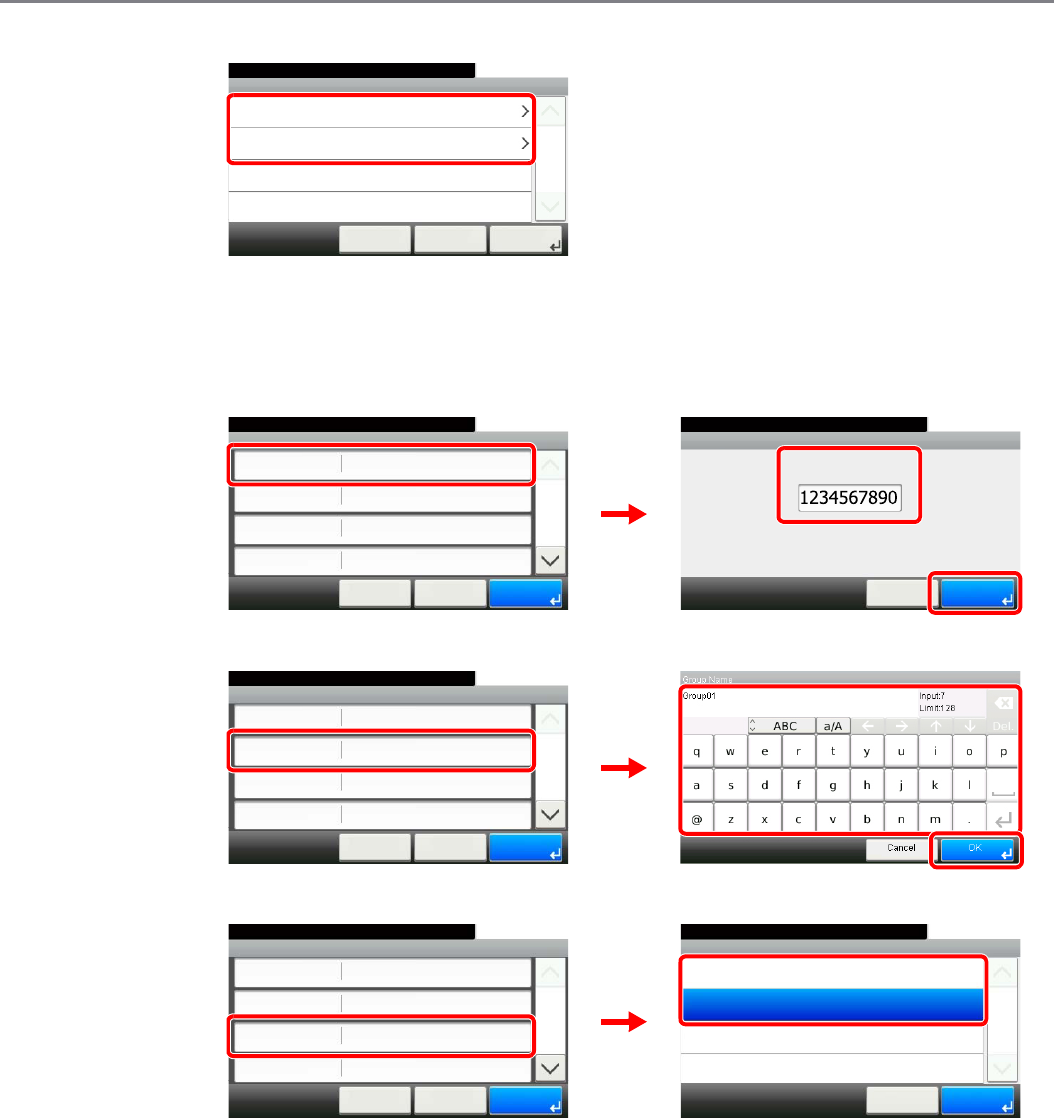
9-54
Setup, Registration, and User Management > User Login Administration
[Access Level]
3Check the settings.
Check the settings and change or add information as needed.
[Group ID]
[Group Name]
[Access Level]
GB0459_00
Add - Access Level
10:10
User
Administrator
< Back
1/1
Next >Cancel
System Menu/Counter.
Add - Confirmation
1234567890
10:10System Menu/Counter.
Group Name
Access Level
Printer
Group ID
Group 01
Administrator
< Back
1/3
Save
Off
Cancel
GB0460_00
Group ID
10:10
(1 - 4294967295)
Cancel OK
System Menu/Counter.
23
1
GB0454_00
Add - Confirmation
1234567890
10:10System Menu/Counter.
Group Name
Access Level
Printer
Group ID
Group 01
Administrator
< Back
1/3
Save
Off
Cancel
GB0460_00
GB0057_63
12
3
Access Level
10:10System Menu/Counter.
User
Administrator
Cancel
1/1
OK
GB0460_00
GB0455_00
Add - Confirmation
1234567890
10:10System Menu/Counter.
Group Name
Access Level
Printer
Group ID
Group 01
Administrator
< Back
1/3
Save
Off
Cancel
1
2
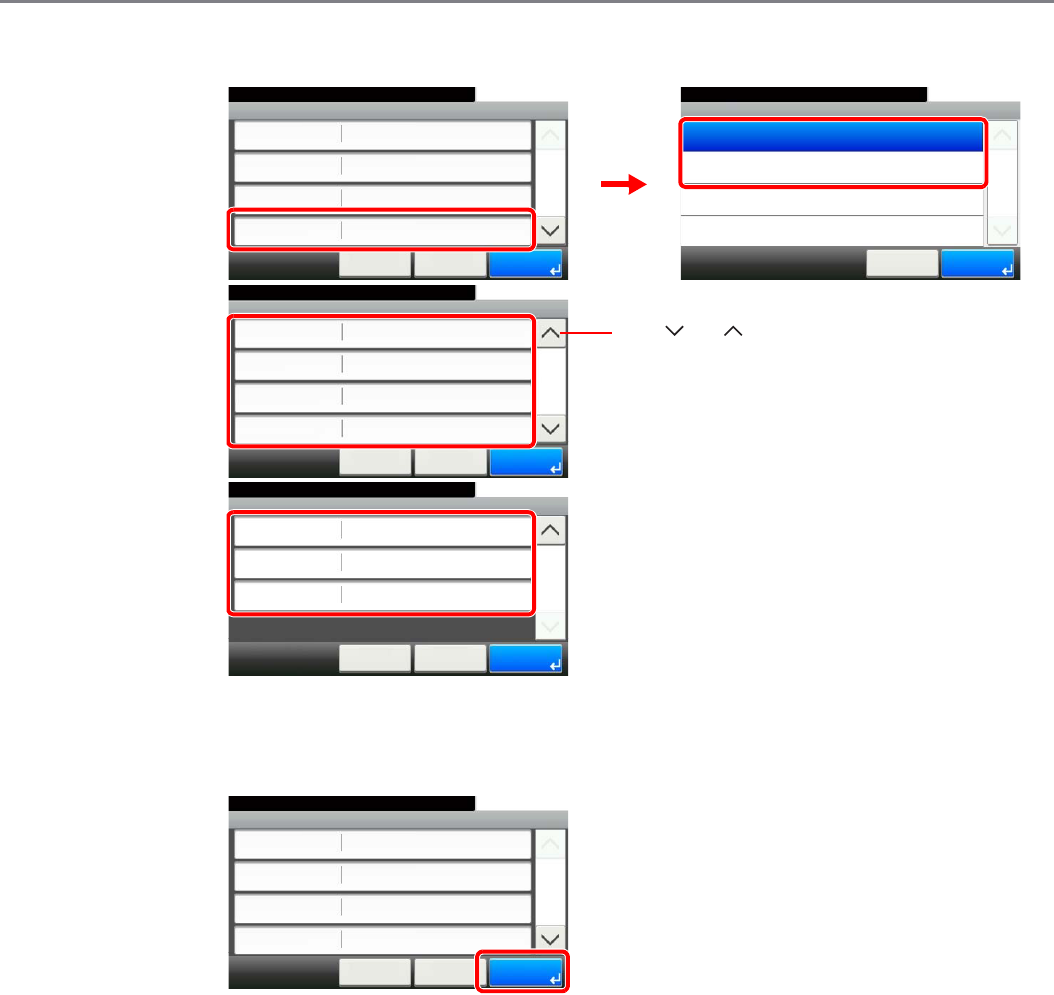
9-55
Setup, Registration, and User Management > User Login Administration
[Printer], [Printer (Full Color)], [Copy], [Copy (Full Color)], [Send], [FAX Transmission],
[Storing in Box], [Storing in Memory]
Change the restrictions as needed.
4Register the group.
Off
10:10System Menu/Counter.
Copy
Copy (Full Color)
Send
Printer (Full Color)
Off
Off
< Back
2/3
Save
Off
Cancel
Add - Confirmation
Printer
10:10System Menu/Counter.
Reject Usage
Off
Cancel
1/1
OK
Add - Confirmation
1234567890
10:10System Menu/Counter.
Group Name
Access Level
Printer
Group ID
Group 01
Administrator
< Back
1/3
Save
Off
Cancel
GB0460_00
GB0456_00
12
GB0460_01
Use [ ] or [ ] to scroll up and down.
Add - Confirmation
Off
10:10
Storing in Memory
< Back
3/3
SaveCancel
System Menu/Counter.
Off
Off
Storing in Box
FAX Transmission
GB0460_02
Add - Confirmation
1234567890
10:10System Menu/Counter.
Group Name
Access Level
Printer
Group ID
Group 01
Administrator
< Back
1/3
Save
Off
Cancel
GB0460_00
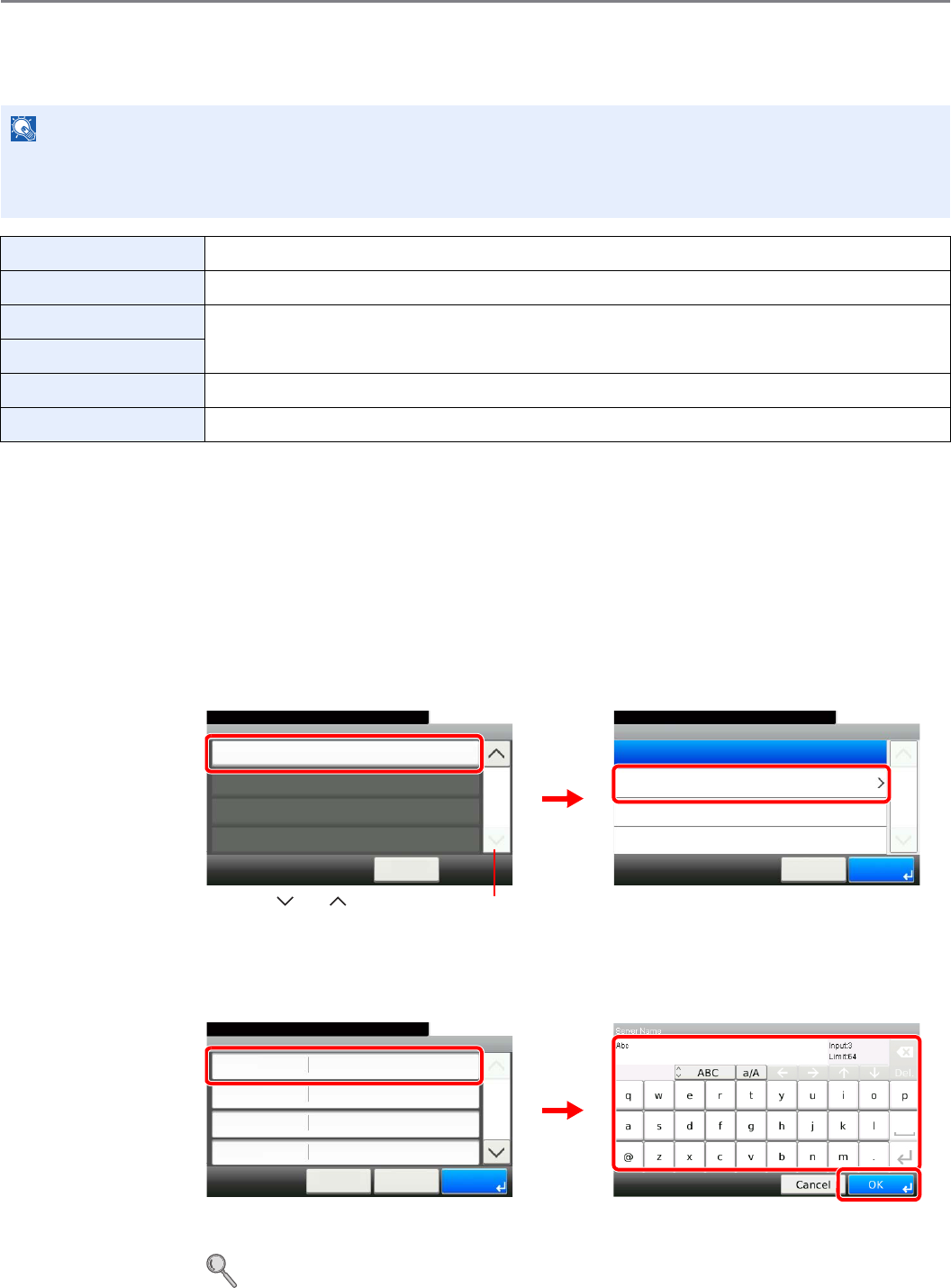
9-56
Setup, Registration, and User Management > User Login Administration
Obtain Network User Property
Set the required information to obtain the network user property from the LDAP server.
1Display the screen.
1Referring to User Login Settings on page 9-34, display the screen.
2
2Configure the function.
[Server Name]
Up to 64 characters can be entered.
Refer to Character Entry Method on page 11-7 for details on entering characters.
NOTE
To obtain the network user property from the LDAP server, [Network Authentication] must be selected for the
authentication method and [NTLM] or [Kerberos] must be selected as the server type in Enabling/Disabling User Login
Administration on page 9-35.
Server Name*
* If using Active Directory of Windows, the server name may be same as the server name entered in the network authentication.
Enter the LDAP server name or the IP address (up to 64 characters).
Port Set the LDAP port number or use the default port 389.
Name 1**
** If using Active Directory of Windows, displayName of Attribute may be used as Name 1.
Enter the LDAP Attribute to obtain the user name to be displayed from the LDAP server (up to 32
characters).
Name 2***
*** Name 2 can be left out. When you assign displayName in Name 1 and department in Name 2, and if the value of displayName
is "Mike Smith" and the value of department is "Sales" in Active Directory of Windows, the user name appears as Mike Smith
Sales.
E-mail Address****
**** If using Active Directory of Windows, mail of Attribute may be used as E-mail Address.
Enter the LDAP Attribute to obtain the e-mail address from the LDAP server (up to 128 characters).
Search Timeout Set the amount of time to wait before time-out in seconds (from 5 to 255 seconds).
GB0435_01
Obtain NW User Property
10:10System Menu/Counter.
< Back
2/2
Off
User Login/Job Acco... - User Login Setting
User Login Setting - Obtain NW User Property
10:10System Menu/Counter.
On
Off
Cancel
1/1
OK
GB0691_00
1
2
Use [ ] or [ ] to scroll up and down.
Obtain NW User... - LDAP Server Information
10:10
Cancel
System Menu/Counter.
Port
Name 1
Name 2
Server Name
389
displayName
< Back
1/2
OK
GB0692_00
GB0057_34
1
2
3
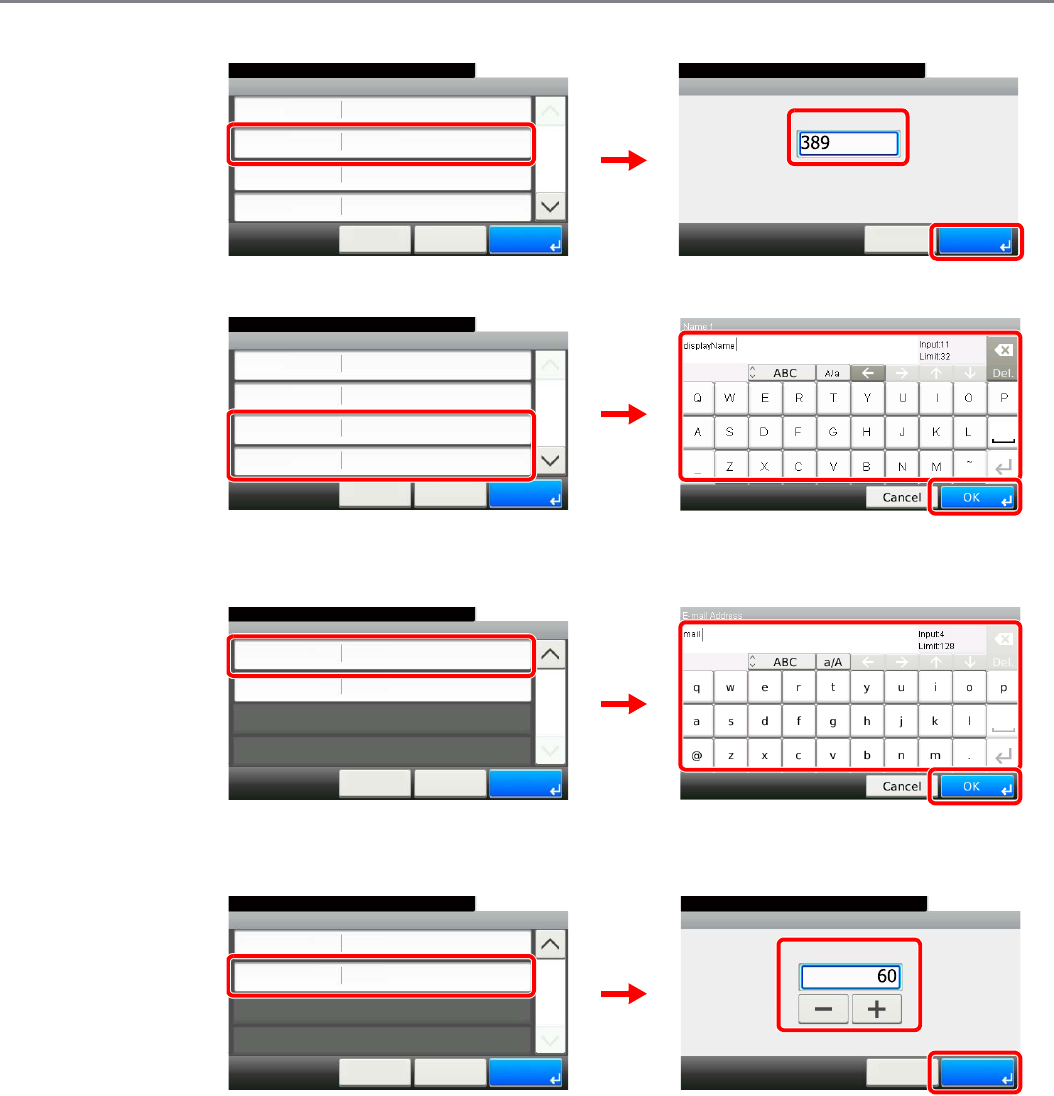
9-57
Setup, Registration, and User Management > User Login Administration
[Port]
[Name 1] and [Name 2]
Up to 32 characters can be entered.
[E-mail Address]
Up to 128 characters can be entered.
[Search Timeout]
3Press [OK].
Obtain NW User Property - Port
10:10
(1 - 65535)
Cancel OK
System Menu/Counter.
Obtain NW User... - LDAP Server Information
10:10
Cancel
System Menu/Counter.
Port
Name 1
Name 2
Server Name
389
displayName
< Back
1/2
OK
Abc
GB0692_02
1
GB0439_01
2
3
Obtain NW User... - LDAP Server Information
10:10
Cancel
System Menu/Counter.
Port
Name 1
Name 2
Server Name
389
displayName
< Back
1/2
OK
Abc
GB0692_02
GB0057_35
1
2
3
Obtain NW User... - LDAP Server Information
10:10
Cancel
System Menu/Counter.
Search Timeout
E-mail Address
60sec.
mail
< Back
2/2
OK
GB0692_01
GB0057_36
1
2
3
Obtain NW User... - LDAP Server Information
10:10
Cancel
System Menu/Counter.
Search Timeout
E-mail Address
60sec.
mail
< Back
2/2
OK
LDAP Server Information - Search Timeout
10:10System Menu/Counter.
(5 - 255)
Cancel
sec.
OK
GB0692_01
GB0693_00
1
23
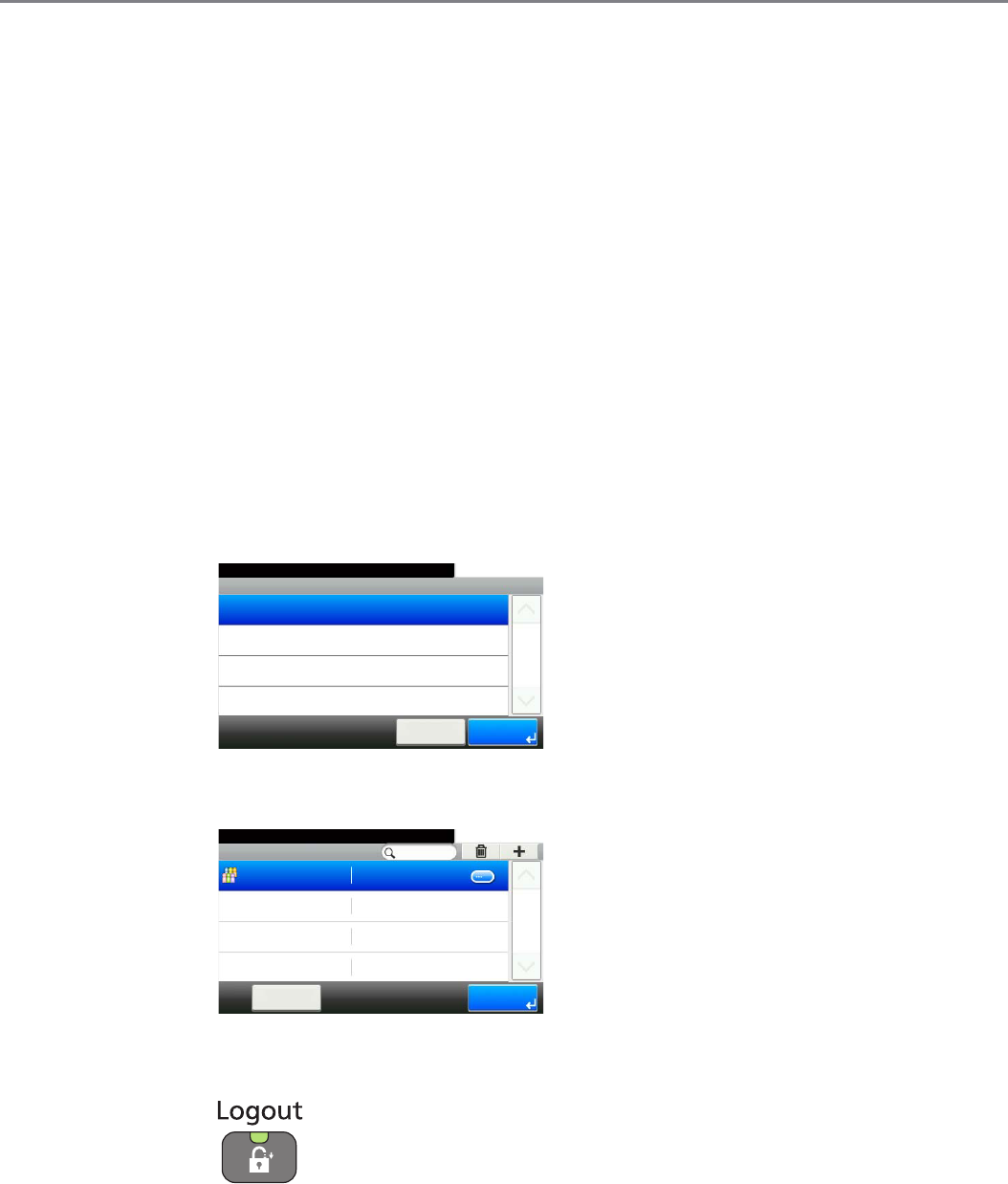
9-58
Setup, Registration, and User Management > Job Accounting
Job Accounting
Job accounting Manages the copy/print count accumulated by individual accounts by assigning an ID to each account.
Job accounting helps the following activities in business organizations.
• Manageability of up to 100 individual accounts.
• Availability for account IDs with as many as eight digits (between 0 and 99999999) for security.
• Integrated management of printing and scanning statistics through the use of an identical account ID.
• Tracking the print volume for each account and for all accounts combined.
• Restricting the print counter in one-page increments up to 9,999,999 copies.
• Resetting the print counter for each account or for all accounts combined.
First Job Accounting Setup
Follow these steps for the first job accounting setup. For details about the configuration method, refer to Job Accounting
Settings on page 9-60.
1Enable job accounting.
2Add an account.
3Log out.
GB0462_00
Job Accounting Settings - Job Accounting
10:10System Menu/Counter.
On
Off
Cancel
1/1
OK
GB0473_00
Job Accounti... - Accounting List
10:10System Menu/Counter.
Sales department
EndMenu
1/1
00000001

9-59
Setup, Registration, and User Management > Job Accounting
4Other users login for operations.
GB0725_00
10:10
LoginCheck
Counter
Enter the account ID.
Enter the account ID.
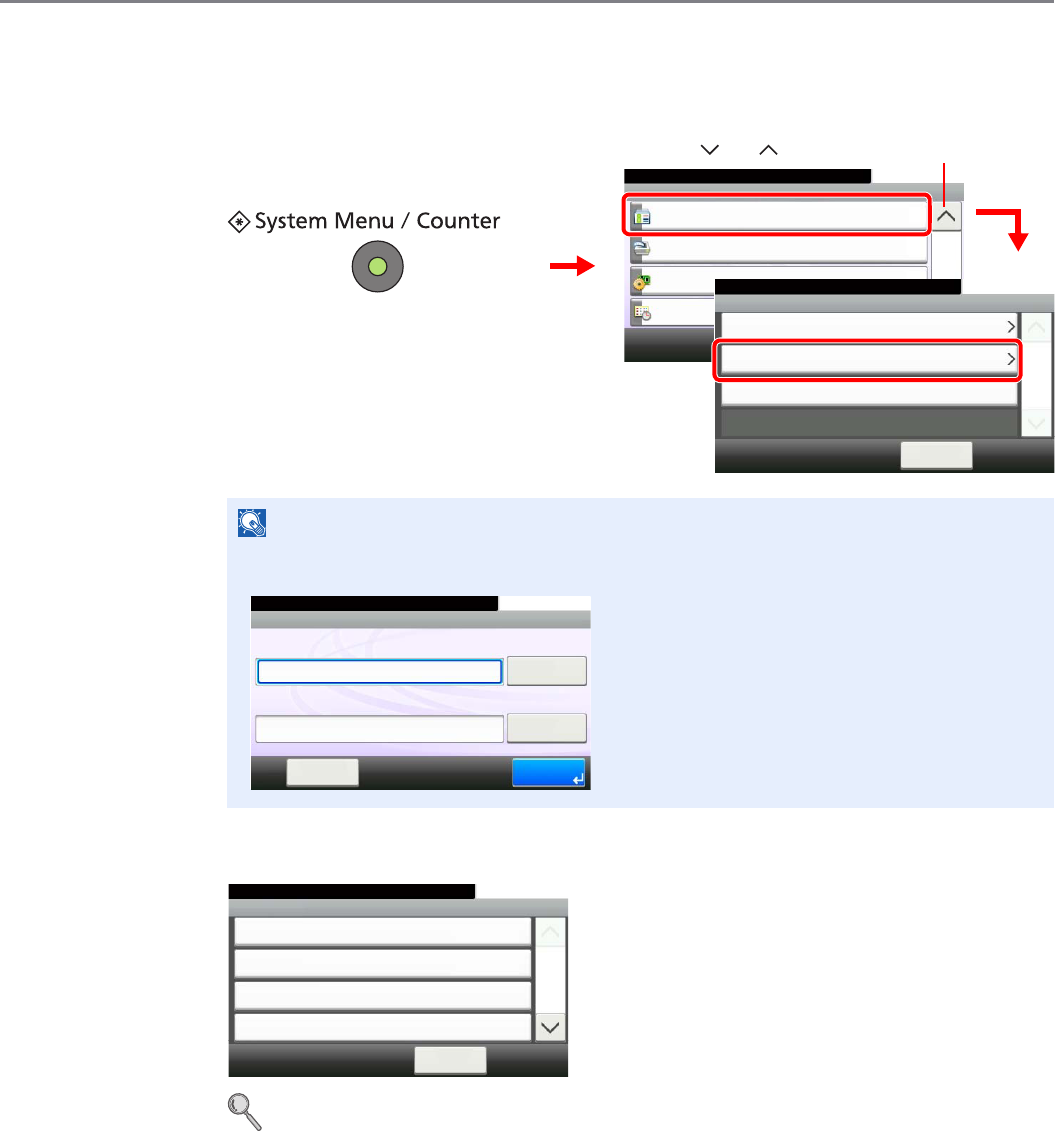
9-60
Setup, Registration, and User Management > Job Accounting
Job Accounting Settings
1Display the screen.
2Configure the function.
Enabling/Disabling Job Accounting X page 9-61
Login/Logout X page 9-62
Adding an Account X page 9-63
Editing and Deleting Accounts X page 9-65
Restricting the Use of the Machine X page 9-67
Counting the Number of Pages Printed X page 9-69
Printing an Accounting Report X page 9-71
Job Accounting Default Setting X page 9-73
Unknown Login User Name Job X page 9-75
NOTE
You can only change the settings by logging in with administrator privileges. Refer to Adding
a User on page 9-37 for the default login user name and password.
GB0054_03
System Menu/Counter.
System Menu
User Login/Job Accounting
10:10
Printer
System
Date/Timer
4/5
2
User Login Settings
10:10System Menu/Counter.
Job Accounting Settings
< Back
1/1
Reject
Unknown ID Job
User Login/Job Accounting
3
GB0434_00
1
Use [ ] or [ ] to scroll up and down.
GB0723_00
10:10
Keyboard
Login Password
Keyboard
Login User Name
LoginMenu
Enter login user name and password.
Job Accounting
10:10System Menu/Counter.
Print Accounting Report
< Back
1/2
Off
Total Job Accounting
Each Job Accounting
User Login/Job... - Job Accounting Settings
GB0461_00
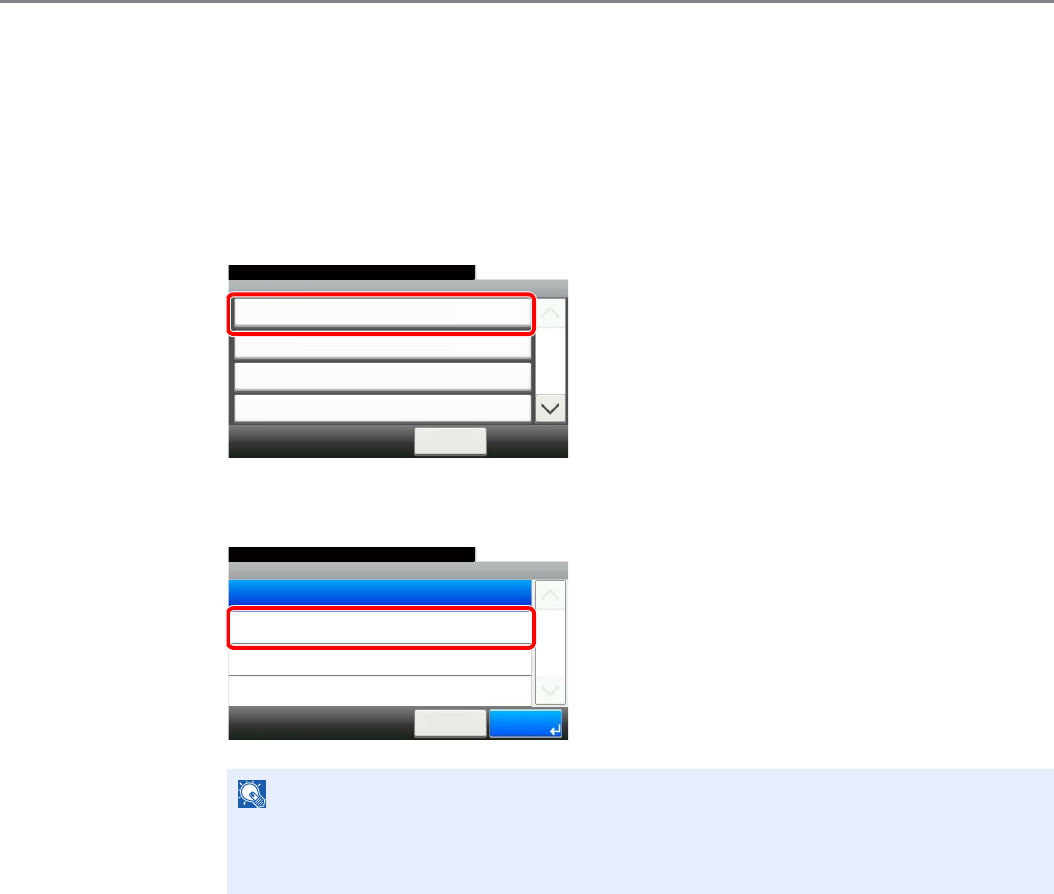
9-61
Setup, Registration, and User Management > Job Accounting
Enabling/Disabling Job Accounting
Enable job accounting.
1Display the screen.
1Referring to Job Accounting Settings on page 9-60, display the screen.
2
2Enable job accounting.
NOTE
When the display returns to the System Menu default screen, logout is automatically
executed and the screen to enter the Account ID appears. To continue the operation, enter
the Account ID.
GB0461_00
Job Accounting
10:10System Menu/Counter.
Print Accounting Report
< Back
1/2
Off
Total Job Accounting
Each Job Accounting
User Login/Job... - Job Accounting Settings
GB0462_00
Job Accounting Settings - Job Accounting
10:10System Menu/Counter.
On
Off
Cancel
1/1
OK
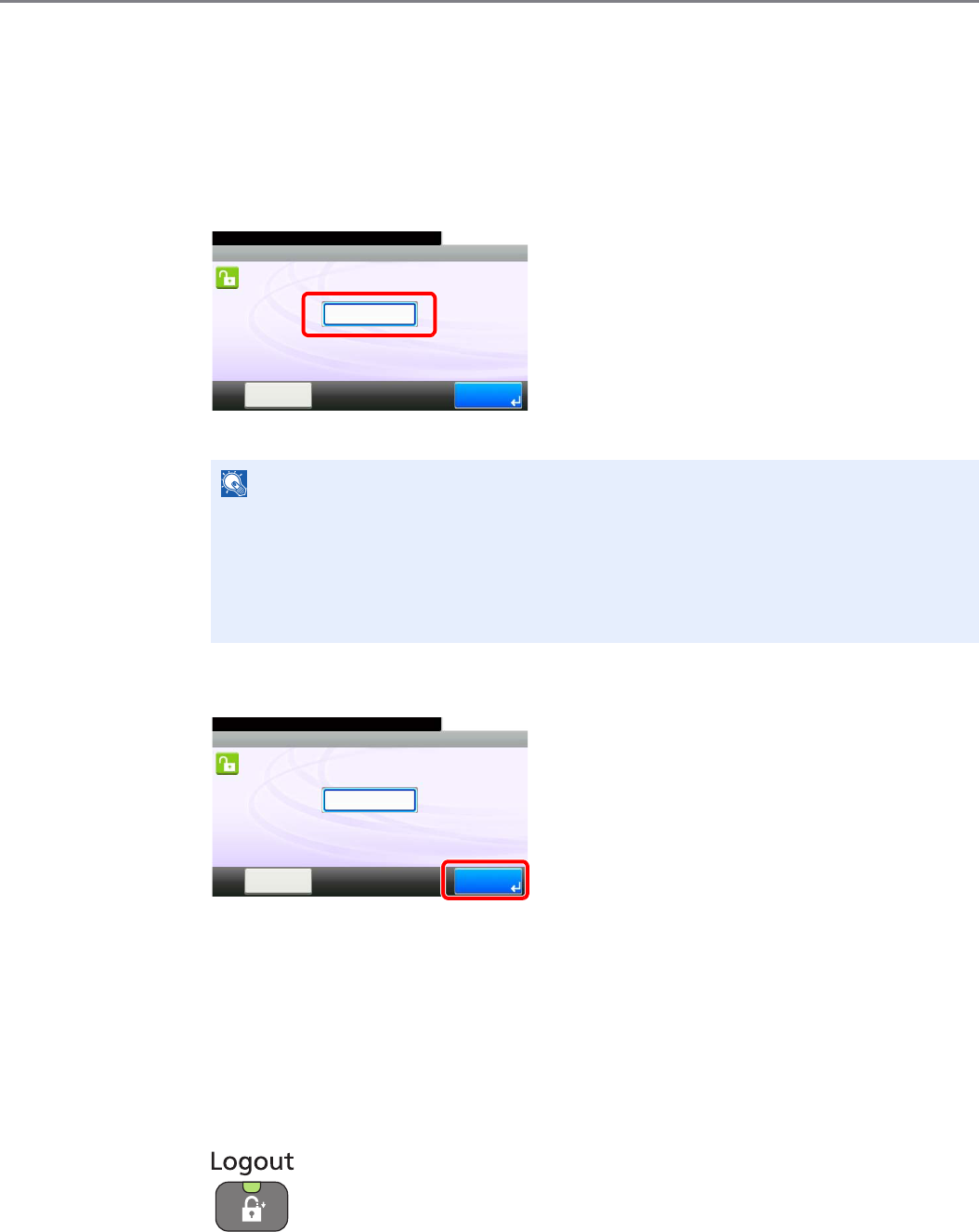
9-62
Setup, Registration, and User Management > Job Accounting
Login/Logout
If job accounting is enabled, an account ID entry screen appears each time you use this machine.
Login
1Enter the account ID.
If this screen is displayed during operations, enter the account ID.
2Log in.
When the screen to enter the login user name and password appears
If user login administration is enabled, the screen to enter the login user name and password
appears. Enter a login user name and password to login. (Refer to Login/Logout on page 3-
12.) If the user has already registered the account information, the account ID entry would be
skipped. (Refer to Adding a User on page 9-37.)
Logout
When the operations are complete, press the Logout key to return to the account ID entry screen.
NOTE
If you entered a wrong character, press the Clear key and enter the account ID again.
If the entered account ID does not match the registered ID, a warning beep will sound and
login will fail. Enter the correct account ID.
By pressing [Check Counter], you can refer to the number of pages printed and the number
of pages scanned.
GB0725_00
10:10
LoginCheck
Counter
Enter the account ID.
Enter the account ID.
GB0725_01
10:10
LoginCheck
Counter
Enter the account ID.
Enter the account ID.
********
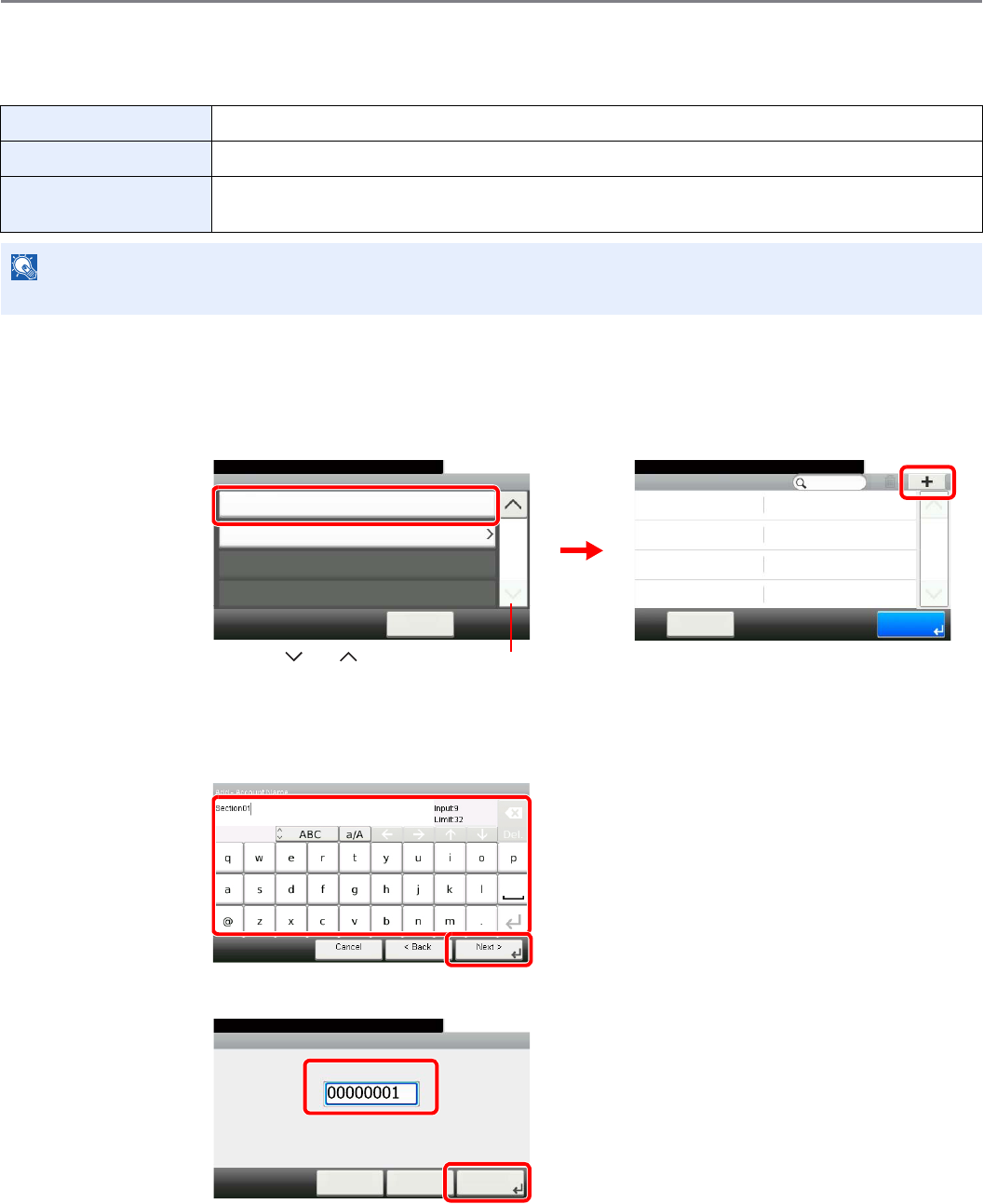
9-63
Setup, Registration, and User Management > Job Accounting
Adding an Account
This section explains how to add a new account. The following entries are required.
1Display the screen.
1Referring to Job Accounting Settings on page 9-60, display the screen.
2
2Enter the account information.
[Account Name]
[Account ID]
Account Name Enter the account name (up to 32 characters).
Account ID Enter the account ID as many as eight digits (between 0 and 99999999).
Restriction This Prohibits printing/scanning or restricts the number of sheets to load. Refer to Restricting the Use
of the Machine on page 9-67.
NOTE
Any account ID that has already registered cannot be used. Enter any other account ID.
Accounting List
10:10System Menu/Counter.
Default Setting
< Back
2/2
User Login/Job... - Job Accounting Settings
Job Accounti... - Accounting List
10:10System Menu/Counter.
EndMenu
1/1
GB0461_01
GB0473_01
1
2
Use [ ] or [ ] to scroll up and down.
GB0057_37
1
2
GB0479_00
Add - Account ID
10:10System Menu/Counter.
(0 ‒ 99999999)
< Back Next >Cancel
2
1
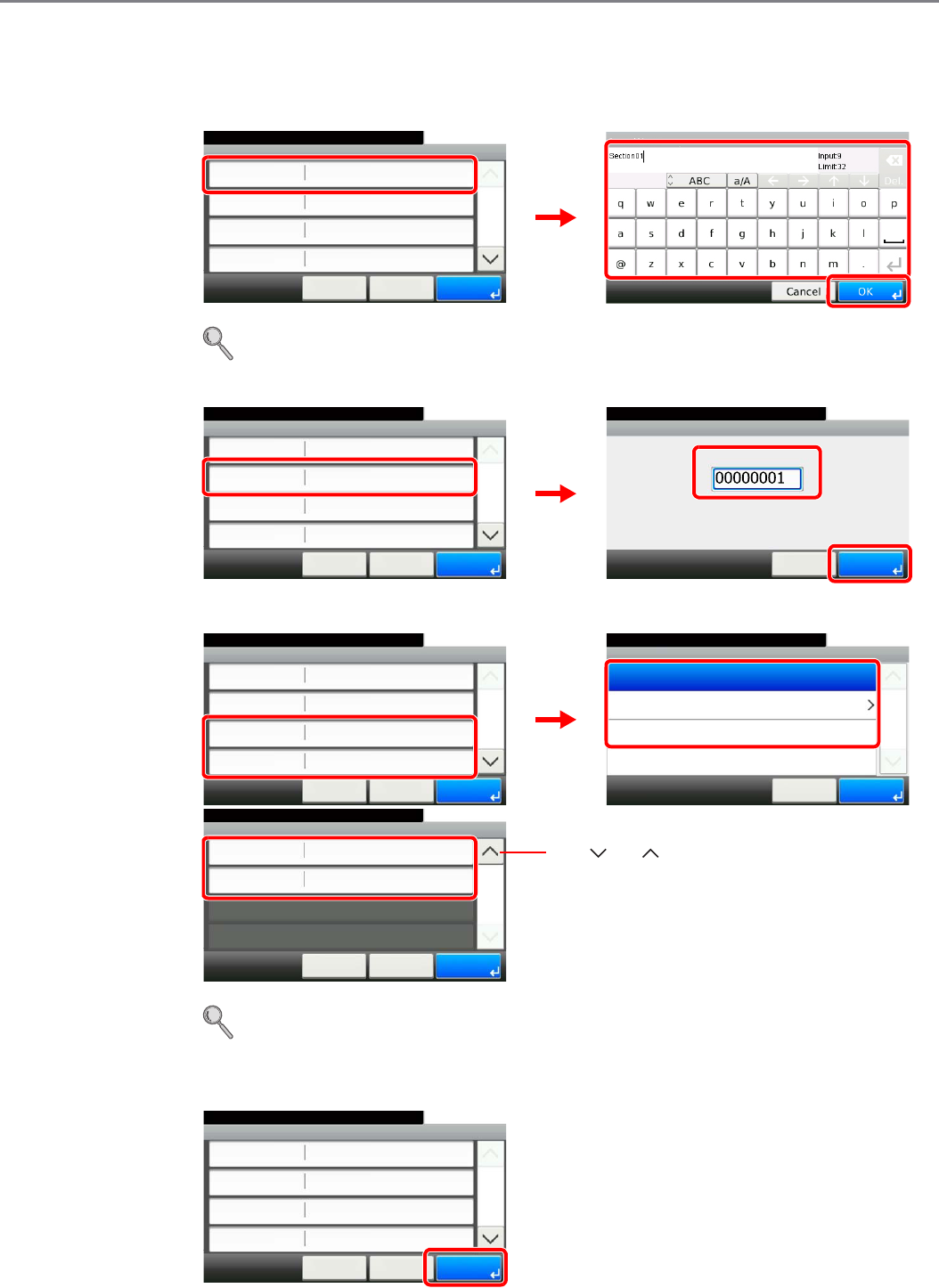
9-64
Setup, Registration, and User Management > Job Accounting
3Check the settings.
Check the settings and change or add information as needed.
[Account Name]
Refer to Character Entry Method on page 11-7 for details on entering characters.
[Account ID]
Restrictions
For details, refer to Restricting the Use of the Machine on page 9-67.
4Register the account.
Add - Confirmation
Section 01
10:10
Cancel
System Menu/Counter.
Account ID
Print (Total)
Account Name
00000001
< Back
1/2
Save
Off
Print (Full Color) Off
GB0480_00
GB0057_64
2
3
1
Account ID
10:10System Menu/Counter.
(0 ‒ 99999999)
Cancel OK
Add - Confirmation
Section 01
10:10
Cancel
System Menu/Counter.
Account ID
Print (Total)
Account Name
00000001
< Back
1/2
Save
Off
Print (Full Color) Off
GB0480_00
1
3
2
GB0476_00
Print (Total)
10:10System Menu/Counter.
Counter Limit
Reject Usage
Off
Cancel
1/1
OK
GB0480_00
GB0474_00
Add - Confirmation
Section 01
10:10
Cancel
System Menu/Counter.
Account ID
Print (Total)
Account Name
00000001
< Back
1/2
Save
Off
Print (Full Color) Off
1
2
GB0480_01
Add - Confirmation
10:10
Cancel
System Menu/Counter.
FAX Transmission Off
< Back
2/2
Save
Scan (Others) Off
Use [ ] or [ ] to scroll up and down.
GB0480_00
Add - Confirmation
Section 01
10:10
Cancel
System Menu/Counter.
Account ID
Print (Total)
Account Name
00000001
< Back
1/2
Save
Off
Print (Full Color) Off
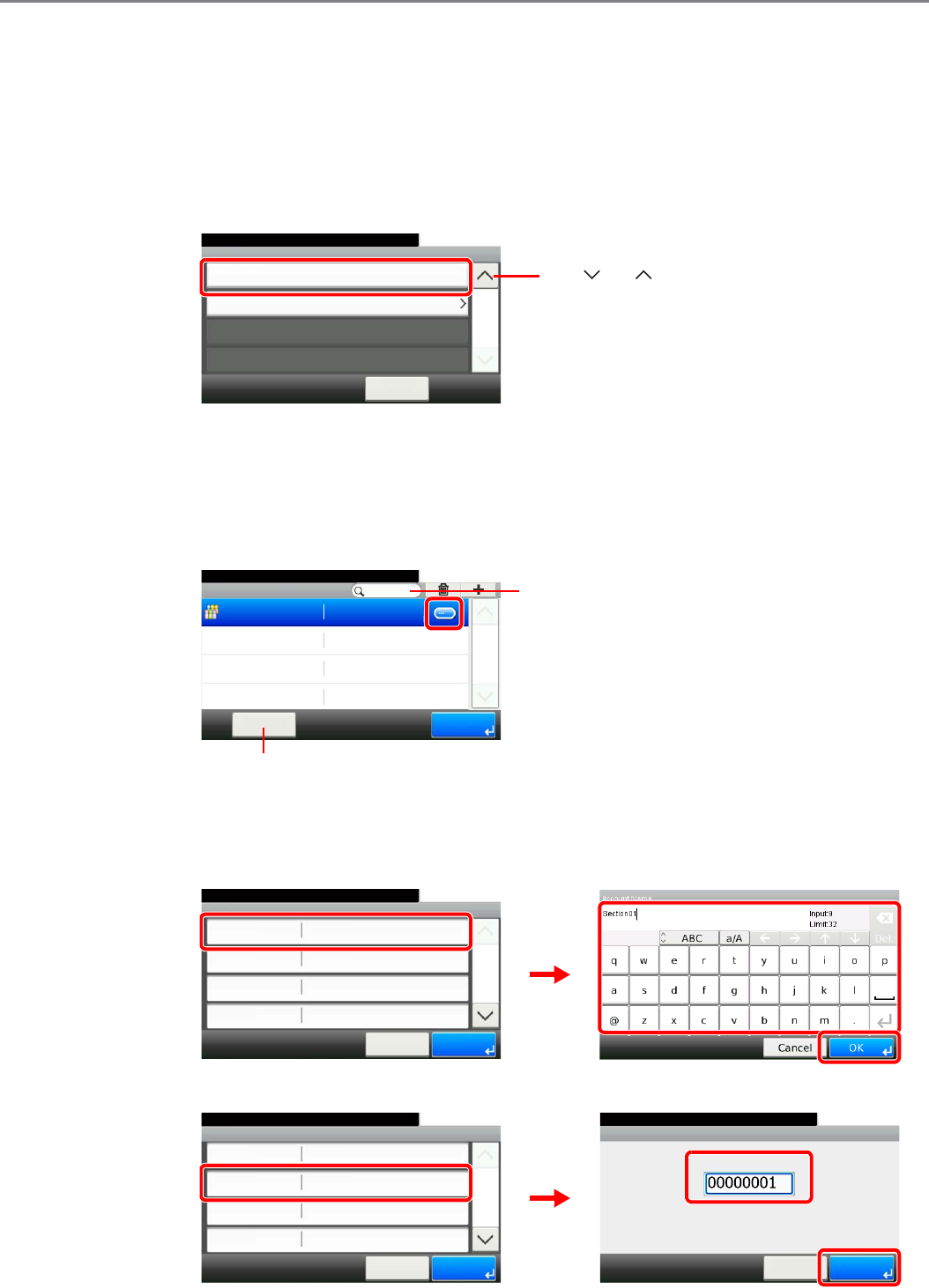
9-65
Setup, Registration, and User Management > Job Accounting
Editing and Deleting Accounts
This changes the registered account information or deletes the account.
1Display the screen.
1Referring to Job Accounting Settings on page 9-60, display the screen.
2
2Edit or delete an account.
To edit an account
1Press […] for the account name you wish to edit.
You can specify an account name by account ID by pressing the Quick No. Search key.
2Edit the account.
[Account Name]
[Account ID]
Accounting List
10:10System Menu/Counter.
Default Setting
< Back
2/2
User Login/Job... - Job Accounting Settings
GB0461_01
Use [ ] or [ ] to scroll up and down.
Job Accounti... - Accounting List
10:10System Menu/Counter.
Sales department
EndMenu
1/1
00000001
GB0473_00
Searches by account name.
Allows you to search for an account name and sorts results.
Account:Section 01
Section 01
10:10System Menu/Counter.
Account ID
Print (Full Color)
Account Name
00000001
Cancel
1/2
Save
Off
Print (Total) Off
GB0478_00
2
3
1
GB0057_65
Account:Section 01
Section 01
10:10System Menu/Counter.
Account ID
Print (Full Color)
Account Name
00000001
Cancel
1/2
Save
Off
Print (Total) Off
Account ID
10:10System Menu/Counter.
(0 ‒ 99999999)
Cancel OK
GB0478_00
GB0476_00
1
3
2
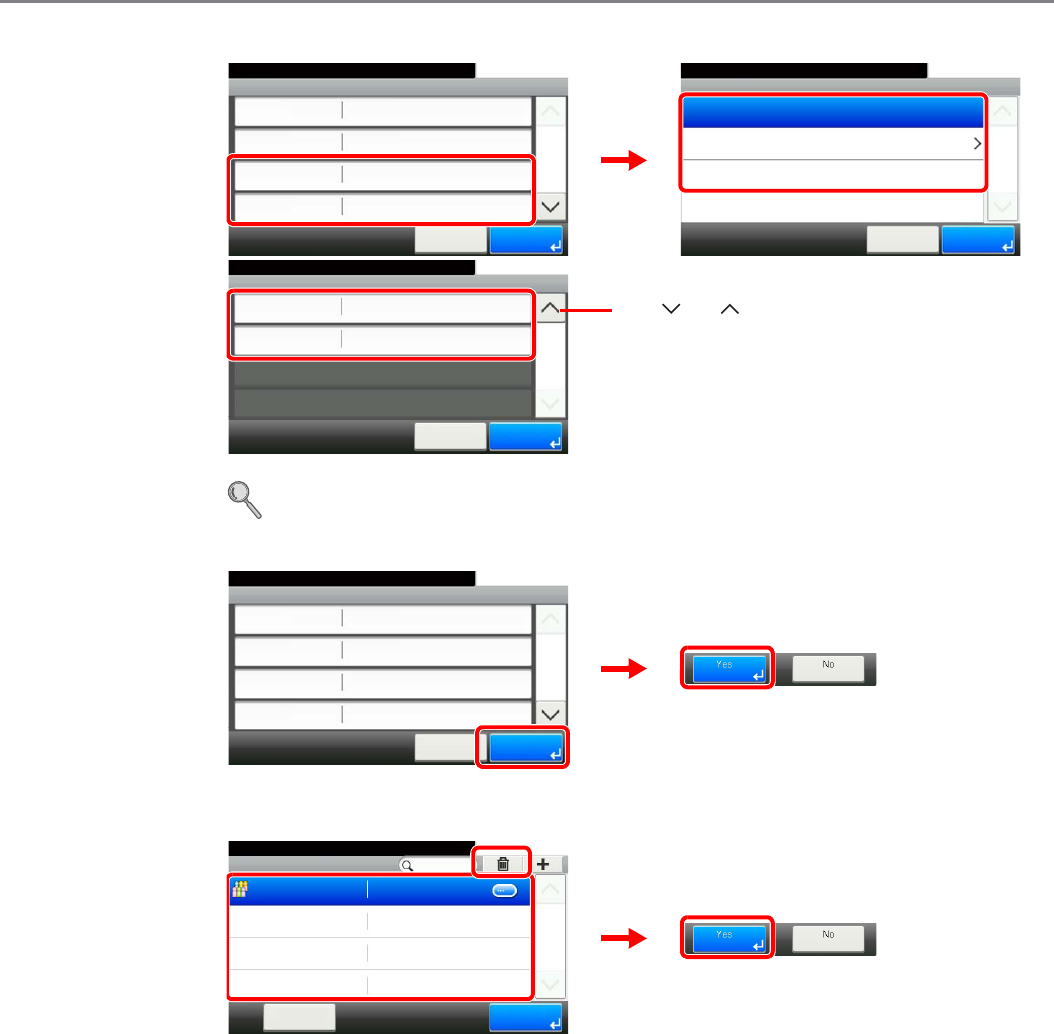
9-66
Setup, Registration, and User Management > Job Accounting
Restriction
For details, refer to Restricting the Use of the Machine on page 9-67.
3Register the account.
To delete
Select the account name you wish to delete and press [(Delete)] (the trash can icon).
Print (Total)
10:10System Menu/Counter.
Counter Limit
Reject Usage
Off
Cancel
1/1
OK
Account:Section 01
Section 01
10:10System Menu/Counter.
Account ID
Print (Full Color)
Account Name
00000001
Cancel
1/2
Save
Off
Print (Total) Off
GB0478_00
GB0474_00
1
2
GB0478_01
Account:Section 01
Off
10:10System Menu/Counter.
Cancel
2/2
Save
FAX Transmission
Scan (Others)
Off
Use [ ] or [ ] to scroll up and down.
Account:Section 01
Section 01
10:10System Menu/Counter.
Account ID
Print (Full Color)
Account Name
00000001
Cancel
1/2
Save
Off
Print (Total) Off
GB0478_00
2
1
Job Accounti... - Accounting List
10:10System Menu/Counter.
Sales department
EndMenu
1/1
00000001
GB0473_00
2
13

9-67
Setup, Registration, and User Management > Job Accounting
Restricting the Use of the Machine
This section explains how to restrict the use of the machine by account or the number of pages available.
Set when Adding an Account (see page 9-63) or Editing and Deleting Accounts (see page 9-65).
The items that can be restricted differ depending on whether [Individual] or [Total] is selected for Copier/Printer Count on
page 9-73.
Restriction Items
[Individual] selected for Copier/Printer Count
[Total] selected for Copier/Printer Count
Applying Restriction
For details on the machine behaves when the counter has reached the limit of restriction, refer to Apply Limit on page 9-73.
Copy (Total) Limits the total number of pages used for full-color and black and white copying.
Copy (Full Color) Limits the number of pages used for full-color copying.
Printer (Total) Limits the total number of pages used for color and black and white printing.
Printer (Full Color) Limits the number of pages used for color printing.
Scan (Others) Limits the number of pages scanned (excludes copying).
FAX Transmission*
* This item is displayed when the optional fax kit is installed.
Limits the number of pages sent by fax.
Print (Total) Limits the total number of pages used for copying and printing.
Print (Full Color) Limits the number of pages used for full-color printing.
Scan (Others) Limits the number of pages scanned (excludes copying).
FAX Transmission*
* Only displayed when the optional fax kit is installed.
Limits the number of pages sent by fax.
Off No restriction given.
Counter Limit Restricts the print counter in one-page increments up to 9,999,999 pages.
Reject Usage Restriction is applied.
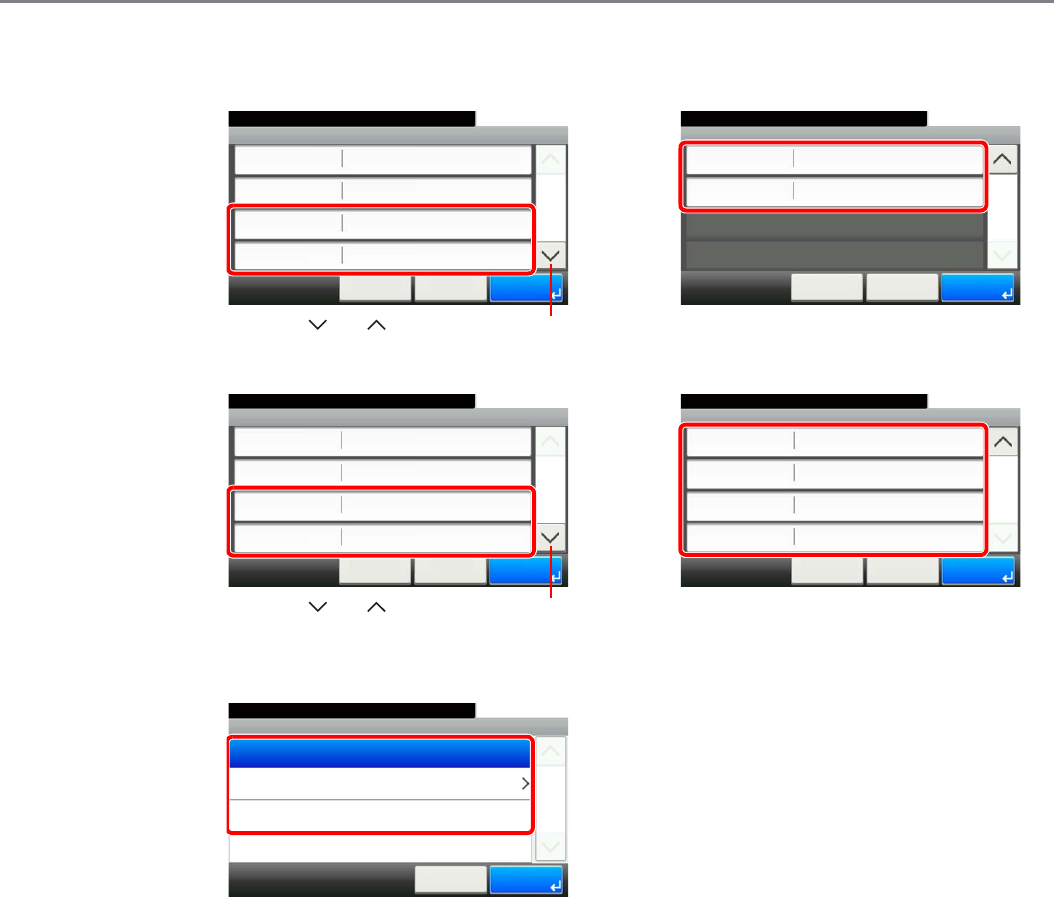
9-68
Setup, Registration, and User Management > Job Accounting
1Select the item to limit.
[Total] selected for Copier/Printer Count
[Individual] selected for Copier/Printer Count
2Select a restriction method.
If [Counter Limit] is selected, press [+], [-] or numeric keys to select the number of pages, and
press [OK].
Add - Confirmation
10:10
Cancel
System Menu/Counter.
FAX Transmission Off
< Back
2/2
Save
Scan (Others) Off
GB0480_00
Add - Confirmation
Section 01
10:10
Cancel
System Menu/Counter.
Account ID
Print (Total)
Account Name
00000001
< Back
1/2
Save
Off
Print (Full Color) Off
GB0480_01
Use [ ] or [ ] to scroll up and down.
Add - Confirmation
10:10
Cancel
System Menu/Counter.
FAX Transmission
Off
< Back
2/2
Save
Scan (Others)
Off
Printer (Total)
Printer (Full Color)
Off
Off
GB0480_02
Add - Confirmation
Section 01
10:10
Cancel
System Menu/Counter.
Account ID
Copy (Full Color)
Account Name
00000001
< Back
1/2
Save
Off
Copy (Total) Off
GB0480_03
Use [ ] or [ ] to scroll up and down.
GB0474_00
Print (Total)
10:10System Menu/Counter.
Counter Limit
Reject Usage
Off
Cancel
1/1
OK
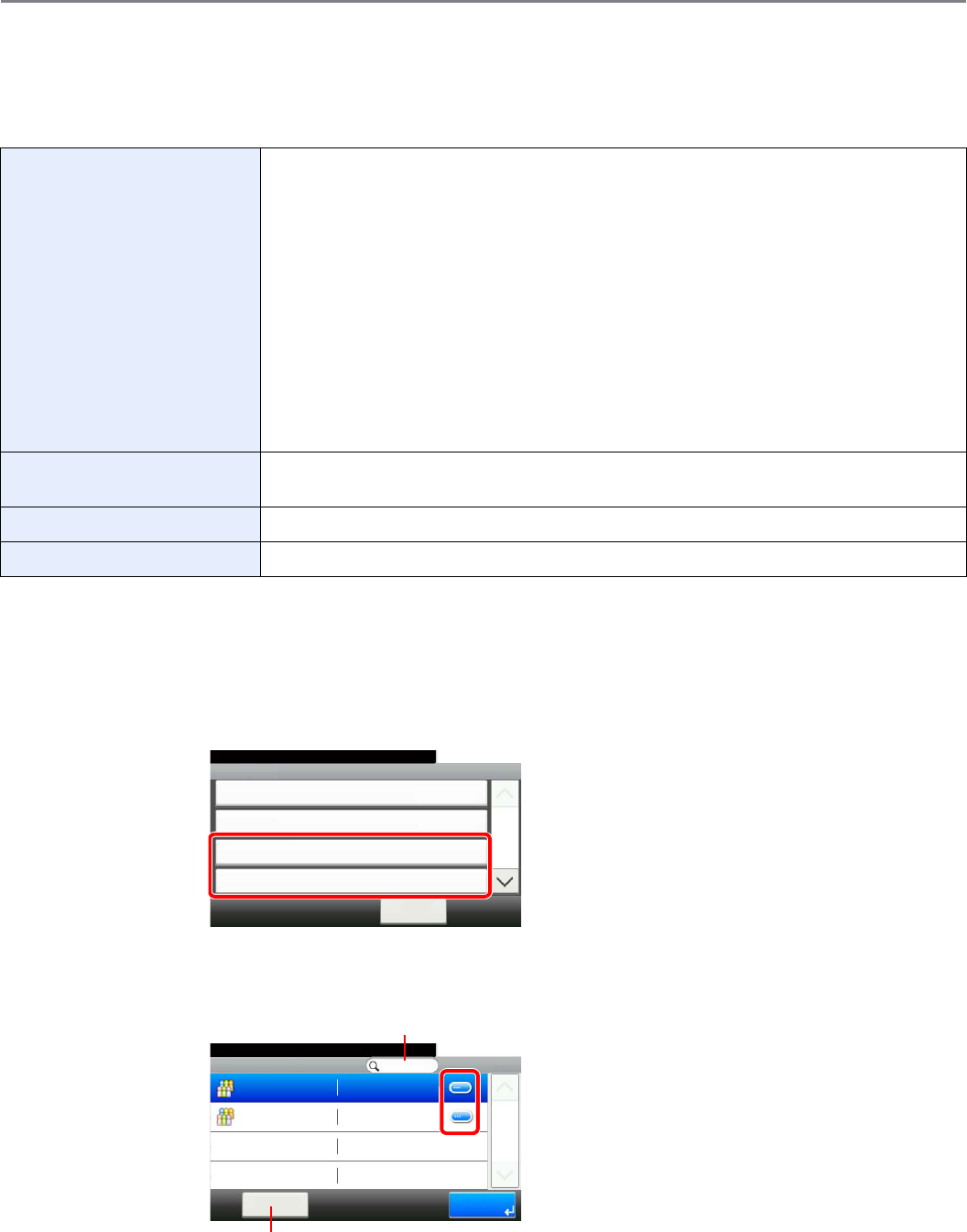
9-69
Setup, Registration, and User Management > Job Accounting
Counting the Number of Pages Printed
This counts the number of pages printed. Counts are classified into Total Job Accounting and Each Job Accounting. A
new count can also be started after resetting the count data which was stored for a certain period of time.
Types of the counts are as follows.
1Display the screen.
1Referring to Job Accounting Settings on page 9-60, display the screen.
2
To count the number of pages for all account, select [Total Job Accounting]. To count the
number of pages by account, select [Each Job Accounting].
To count the number of pages by account name, press […] for the account name whose usage
you wish to view.
Printed Pages Displays the number of pages copied and printed, and the total number of pages used. You can
also use [by Paper Size], [by Duplex] and [by Combine] to check the number of pages used.
• For copying, you can check the pages used for black and white and full-color copying as well
as the total pages used.
• For printing, you can check the pages used for black and white and full-color printing as well
as the total pages used.
• You can use [by Paper Size] to check the number of pages used in the paper size set in
Count by Paper Size on page 9-74 as well as the number of pages used in other paper
sizes.
• You can use [by Duplex] to check the number of pages used in Duplex (1-sided) mode,
Duplex (2-sided) mode and the total for both.
• You can use [by Combine] to check the number of pages used in Combine (None) mode,
Combine (2 in 1) mode, Combine (4 in 1) mode and the total for all three.
Scanned Pages Displays the number of pages scanned for copying, faxing* and other functions, as well as the
total number of pages scanned.
* This item is displayed when the optional fax kit is installed.
FAX Transmission Pages* Displays the number of pages faxed.
FAX Transmission Time* Displays the total duration of fax transmissions.
GB0461_02
Job Accounting
10:10System Menu/Counter.
Print Accounting Report
< Back
1/2
On
Total Job Accounting
Each Job Accounting
User Login/Job... - Job Accounting Settings
GB0469_00
Job Ac... - Each Job Accounting
10:10System Menu/Counter.
Others
Sales department
EndMenu
1/1
00000001
Searches by account name.
Allows you to search for an account name and sorts results.
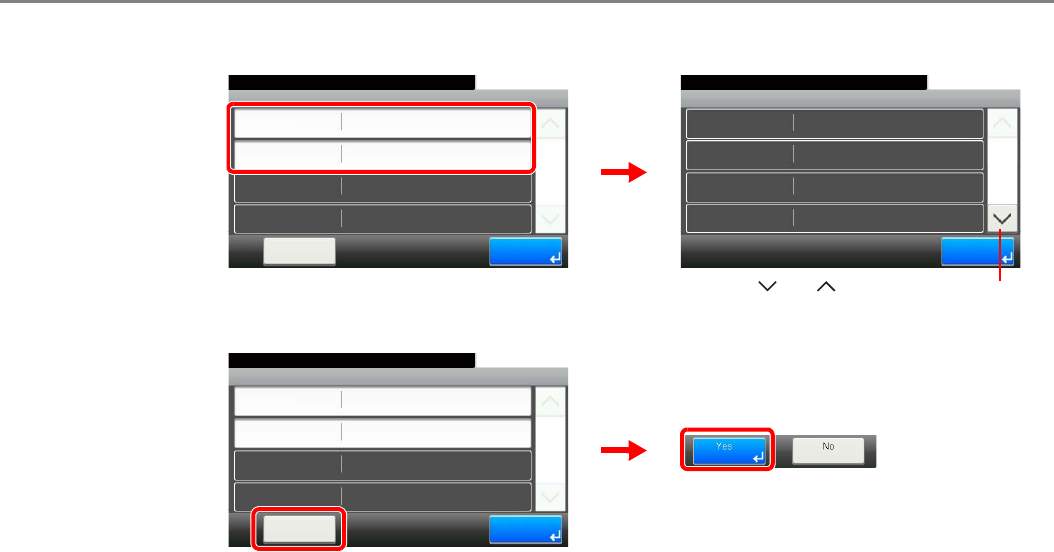
9-70
Setup, Registration, and User Management > Job Accounting
2View the number of pages.
To reset the counter
Total Job Accounting - Printed Pages
111
10:10System Menu/Counter.
Copy (Full Color)
Copy (Total)
Printer (B & W)
Copy (B & W)
222
333
1/3
End
111
Account:Sales department
10:10System Menu/Counter.
Scanned Pages
FAX TX Pages
FAX TX Time
Printed Pages
0
1/1
End
0:00:00
Counter
Reset
GB0463_00
GB0464_00
Use [ ] or [ ] to scroll up and down.
GB0463_00
Account:Sales department
10:10System Menu/Counter.
Scanned Pages
FAX TX Pages
FAX TX Time
Printed Pages
0
1/1
End
0:00:00
Counter
Reset
2
1
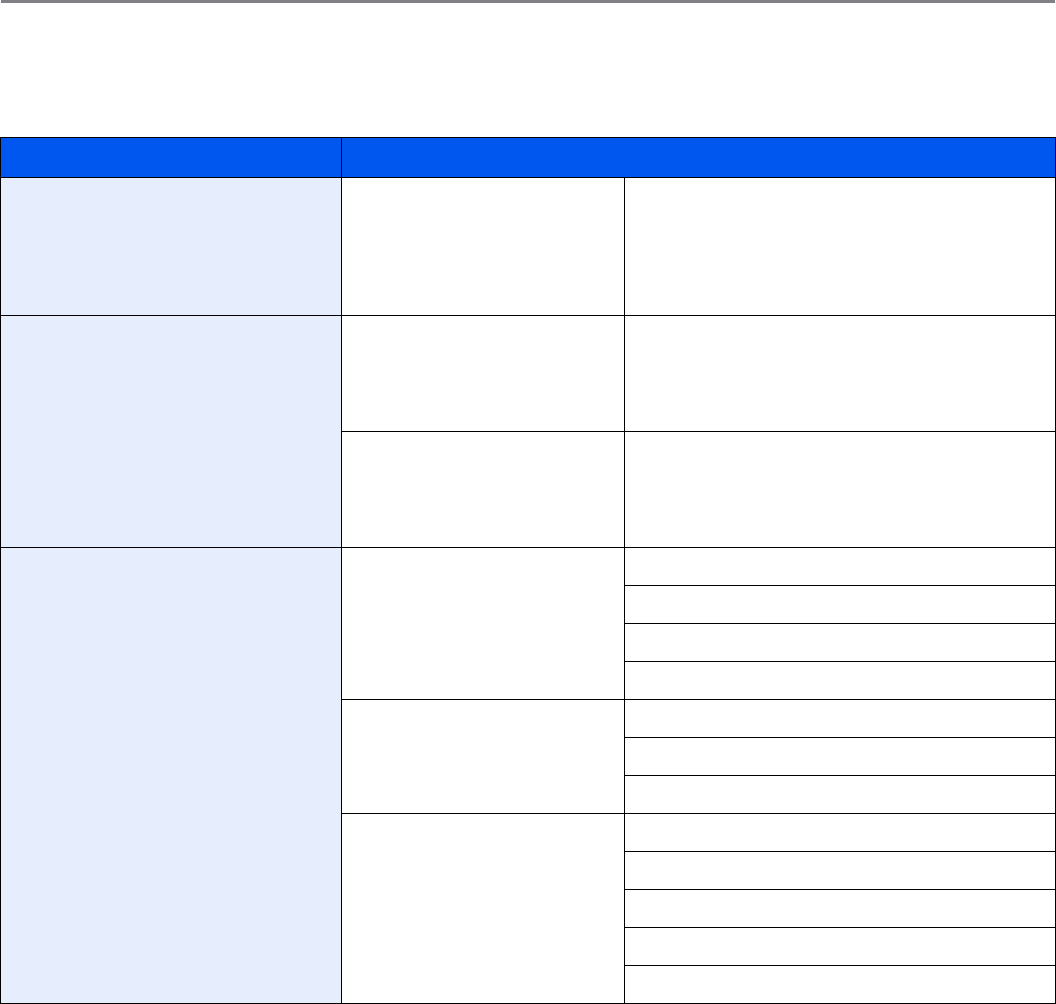
9-71
Setup, Registration, and User Management > Job Accounting
Printing an Accounting Report
Total pages counted at all relevant accounts can be printed as an accounting report.
Reports have different formats depending on how the count of copiers and printers is administered.
For count by paper size, page counts will be printed by paper size under "Paper Count".
1Prepare paper.
Check that Letter or A4 paper is loaded in the cassette.
2Display the screen.
Referring to Job Accounting Settings on page 9-60, display the screen.
Copier/Printer Count Format
When [Total] is selected for Copier/
Printer Count
Print (Total) Total number of pages used for copying and printing
Total number of pages used for full-color copying
and printing
Total number of pages used for black-and-white
copying and printing
When [Individual] is selected for Copier/
Printer Count
Copy Total number of pages used for copying
Total number of pages used for full-color copying
Total number of pages used for black-and-white
copying
Print Total number of pages used for printing
Total number of pages used for full-color printing
Total number of pages used for black-and-white
printing
Shared statistics Scan Total number of pages scanned
Total number of pages scanned for copying
Total number of pages faxed
Total number of other pages scanned
Fax Total number of pages received
Total number of pages sent
Total duration of fax transmissions
Other Total number of duplex pages printed
Total number of 1-sided pages printed
Total number of combine (2 in 1) pages
Total number of combine (4 in 1) pages
Total number of non-combine pages printed
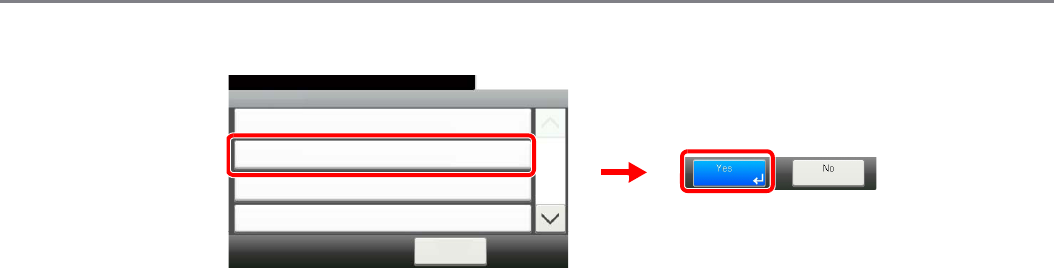
9-72
Setup, Registration, and User Management > Job Accounting
3Print reports.
GB0461_02
Job Accounting
10:10System Menu/Counter.
Print Accounting Report
< Back
1/2
On
Total Job Accounting
Each Job Accounting
User Login/Job... - Job Accounting Settings
2
1
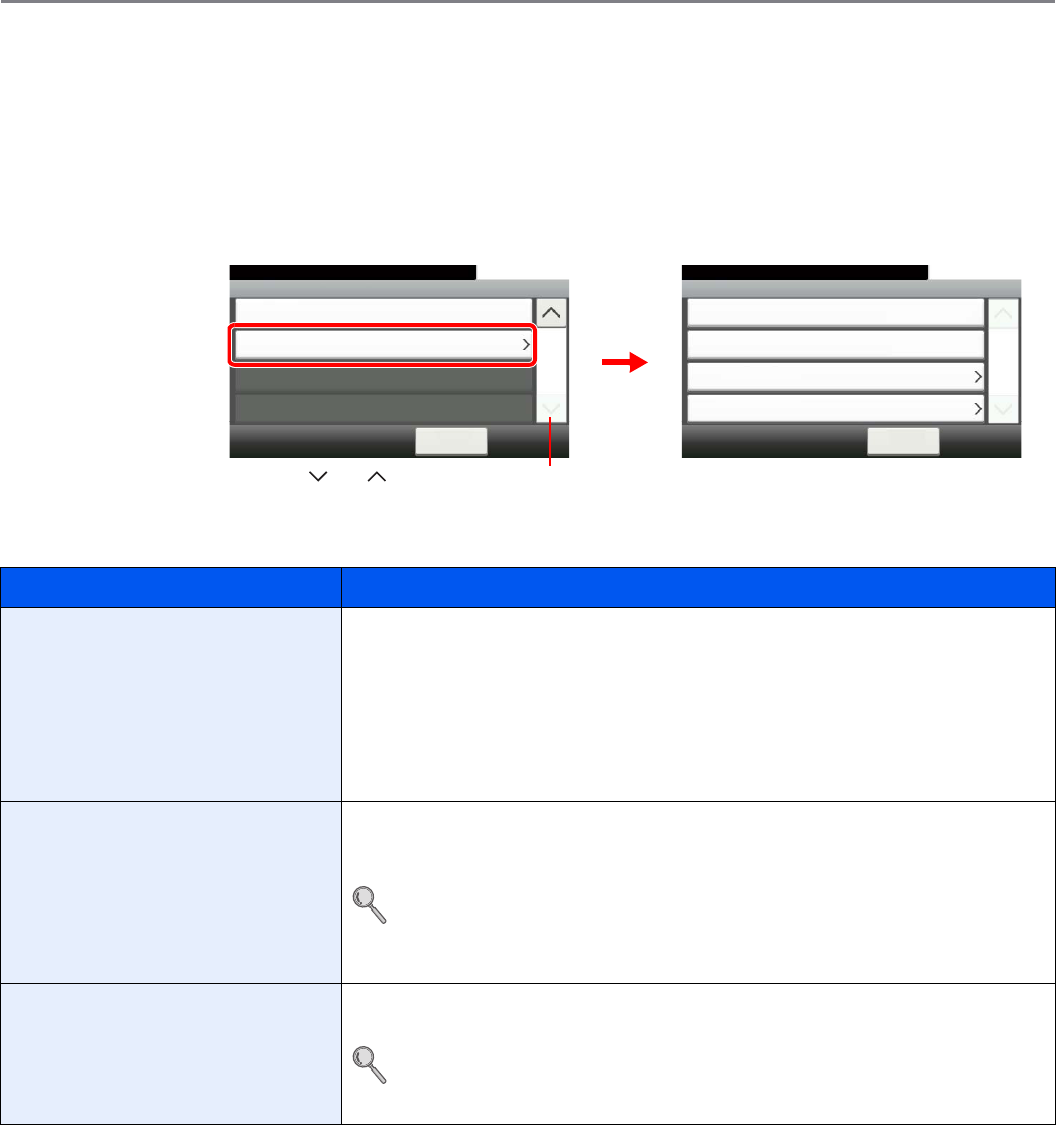
9-73
Setup, Registration, and User Management > Job Accounting
Job Accounting Default Setting
Sets default settings related to job accounting.
Display the screen.
1Referring to Job Accounting Settings on page 9-60, display the screen.
2
Setting Items
Item Description
Apply Limit This specifies how the machine behaves when the counter has reached the limit of
restriction.
Value
Immediately*: Job stops when the counter reaches its limit.
Subsequently: Printing/scanning of the job continues but the subsequent job will be
rejected.
Alert Only: Job continues while displaying an alert message.
Copier/Printer Count You can select how the copying and printing page counts are shown - either the total of
both or each of copying and printing individually. The selection may influence restriction
on the count and count method.
Refer to Restricting the Use of the Machine on page 9-67, Counting the Number of
Pages Printed on page 9-69 and Printing an Accounting Report on page 9-71 for
details.
Value: Total, Individual
Default Counter Limit When you add a new account, you can change the default restrictions on the number of
pages used.
Refer to Restricting the Use of the Machine on page 9-67.
Value: 1 to 9,999,999 in 1-sheet increments
Accounting List
10:10System Menu/Counter.
Default Setting
< Back
2/2
User Login/Job... - Job Accounting Settings
GB0461_01
GB0481_00
Apply Limit
10:10System Menu/Counter.
Copy/Printer Count
< Back
1/1
Subsequently
Individual
Default Counter Limit
Count by Paper Size
User Login/Job Accounting - Default Setting
Use [ ] or [ ] to scroll up and down.
9-74
Setup, Registration, and User Management > Job Accounting
Count by Paper Size This counts the number of pages used for specific paper sizes (for example, count the
number of pages printed using A4 paper).
You can specify five paper sizes (1 to 5). The number of pages used for the paper sizes
specified here can be referenced under [by Paper Size] when counting page use. This
information can also be printed in accounting reports.
Refer to Counting the Number of Pages Printed on page 9-69 and Printing an
Accounting Report on page 9-71.
You can also count page use by specifying paper size and media type (for example,
count the number of pages printed in color using A4 paper). If [All Media Types] is
specified, the number of pages printed using the specified paper size is counted
regardless of media type.
Value
Paper Size 1 to 5
Paper size: A3, A4, A5, B4, B5, Folio, Ledger, Legal, Letter, Statement
Media type: All Media Types, Plain, Transparency, Rough, Vellum, Labels, Recycled,
Preprinted, Bond, Cardstock, Color, Prepunched, Letterhead, Envelope, Thick (106 g/
m² and more), Coated, High Quality, Custom 1 to 8
* The next job will be prohibited in sending or in storing in the box.
Item Description
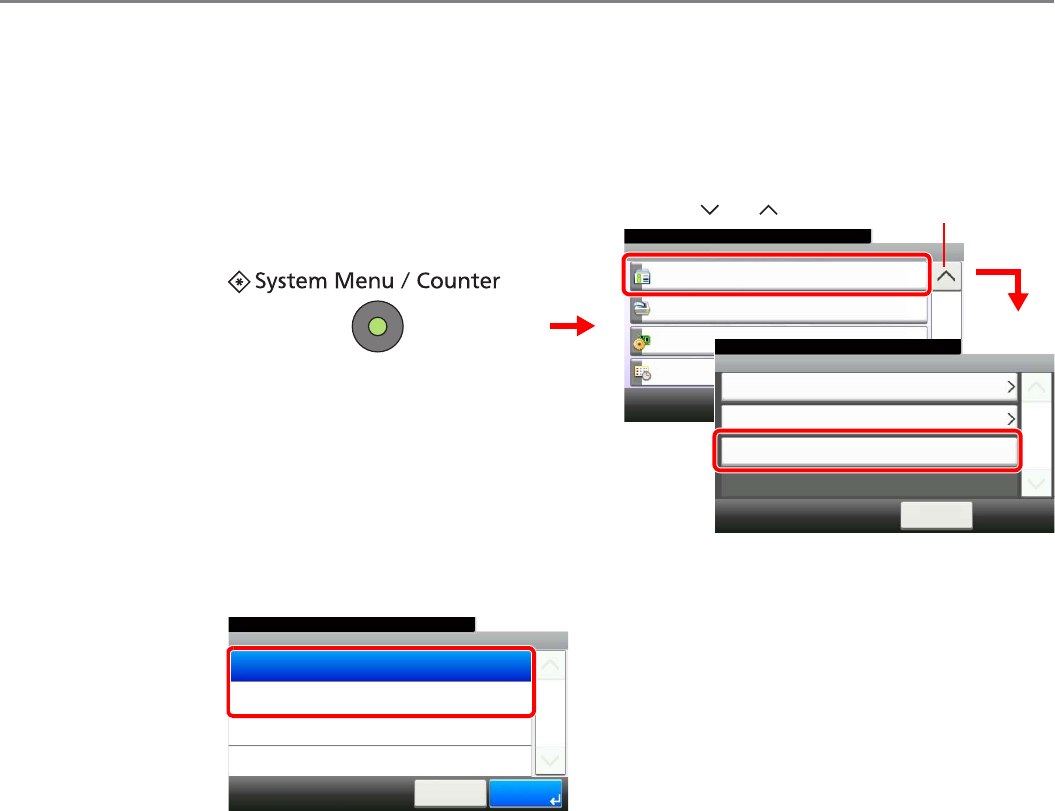
9-75
Setup, Registration, and User Management > Job Accounting
Unknown Login User Name Job
This specifies the behavior for handling the jobs sent with unknown login user names or User ID (i.e. unsent IDs). If the
User Login is set to invalid and Job Accounting is set to valid, follow the procedure when the Account ID is unknown.
1Display the screen.
2Select the function.
GB0054_03
System Menu/Counter.
System Menu
User Login/Job Accounting
10:10
Printer
System
Date/Timer
4/5
2
User Login Settings
10:10System Menu/Counter.
Job Accounting Settings
< Back
1/1
Reject
Unknown ID Job
User Login/Job Accounting
3
GB0434_00
1
Use [ ] or [ ] to scroll up and down.
User Login/Job Accounting - Unknown ID Job
10:10System Menu/Counter.
Permit
Reject
Cancel
1/1
OK
GB0491_00

9-76
Setup, Registration, and User Management > Job Accounting
10-1
10 Troubleshooting
This chapter explains the following topics:
Toner Container Replacement ......................................................................................................................... 10-2
Waste Toner Box Replacement ........................................................................................................................ 10-4
Replacing Staples ............................................................................................................................................ 10-5
Cleaning ........................................................................................................................................................... 10-6
Glass Platen .......................................................................................................................................... 10-6
Document Processor ............................................................................................................................. 10-6
Solving Malfunctions ........................................................................................................................................ 10-8
Responding to Error Messages ..................................................................................................................... 10-13
Clearing Paper Jams ..................................................................................................................................... 10-23
Jam Location Indicators ....................................................................................................................... 10-23
Multi Purpose Tray ............................................................................................................................... 10-24
Inside the Right Cover 1 ...................................................................................................................... 10-24
Cassette 1 ............................................................................................................................................ 10-25
Inside the Right Cover 3 ...................................................................................................................... 10-25
Cassette 2 or 3 .................................................................................................................................... 10-26
Optional Document Finisher ................................................................................................................ 10-26
Optional Document Finisher Staple Jam .............................................................................................. 10-27
Bridge Unit ........................................................................................................................................... 10-27
Document Processor ........................................................................................................................... 10-28
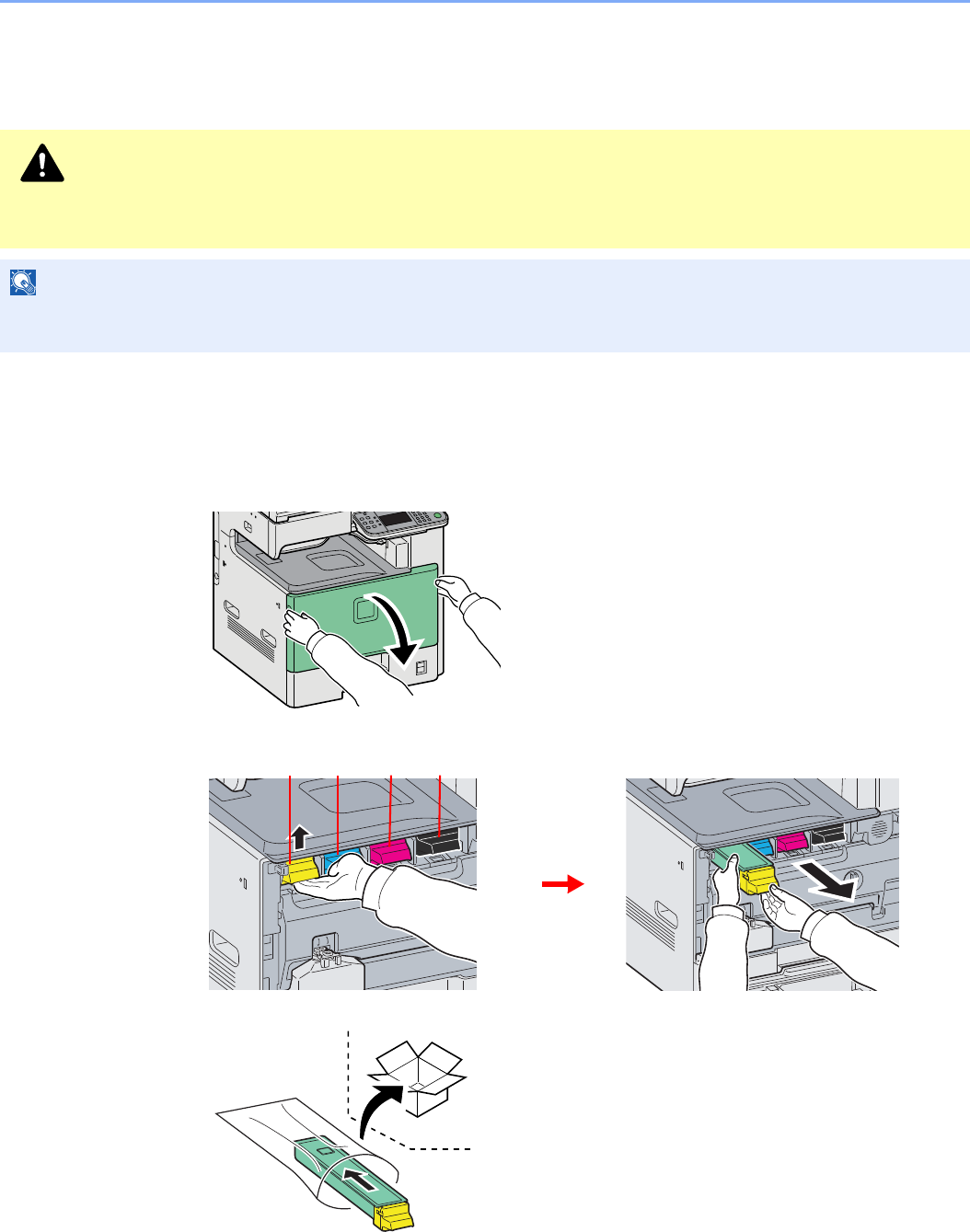
10-2
Troubleshooting > Toner Container Replacement
Toner Container Replacement
When the touch panel displays Toner is empty., replace the toner.
Installation procedures of the toner container is same for every color. The procedures here represent the yellow toner
container.
1Remove the old toner container.
1
2
3
CAUTION
Do not attempt to incinerate the toner container or the waste toner box. Dangerous sparks may cause
burns.
NOTE
Return the exhausted toner container and waste toner box to your dealer or service representative. The collected
toner container and waste toner box will be recycled or disposed in accordance with the relevant regulations.
Y C M K
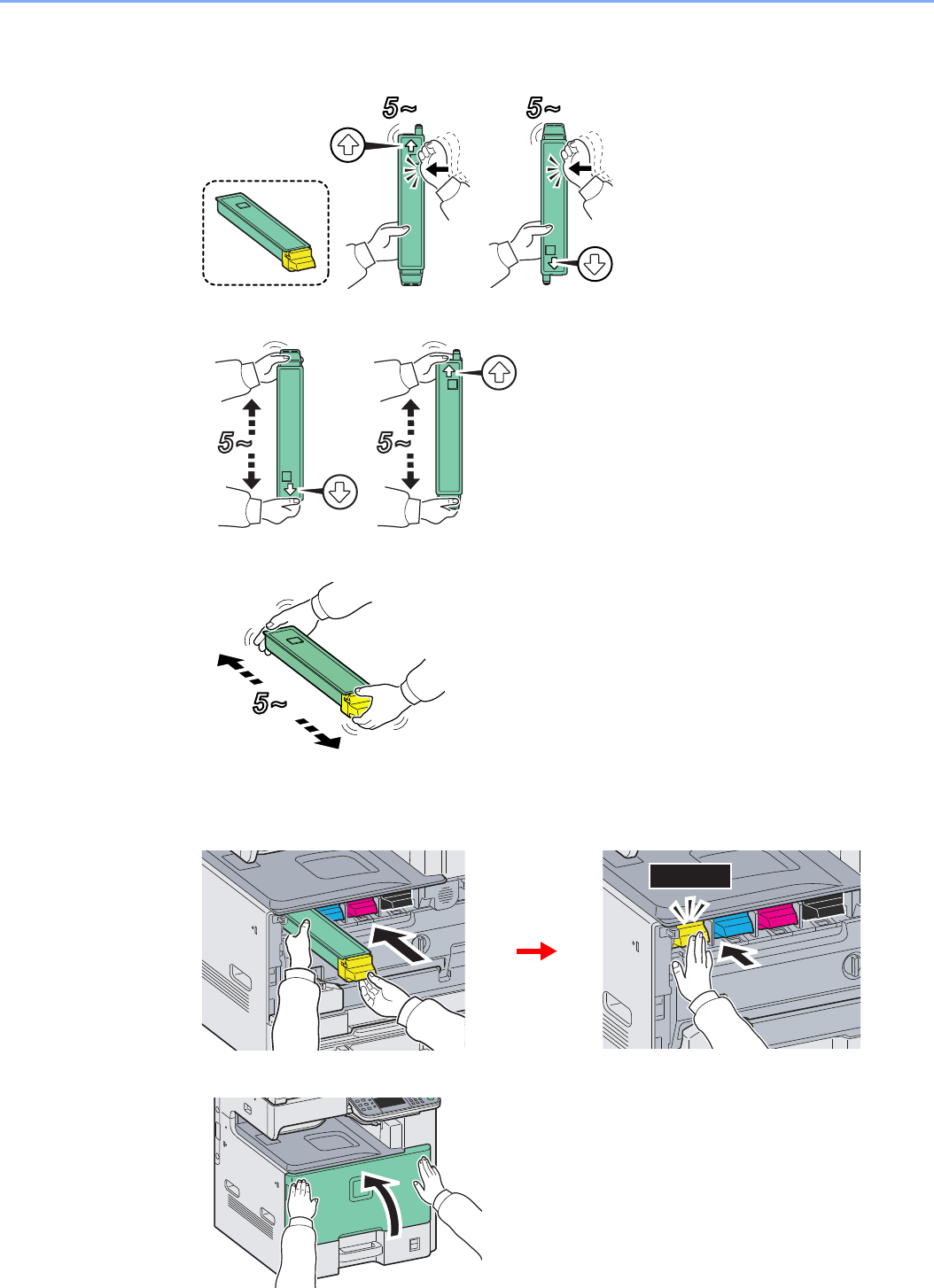
10-3
Troubleshooting > Toner Container Replacement
2Prepare the new toner container.
1
2
3
3Install the new toner container.
1
2
CLICK!
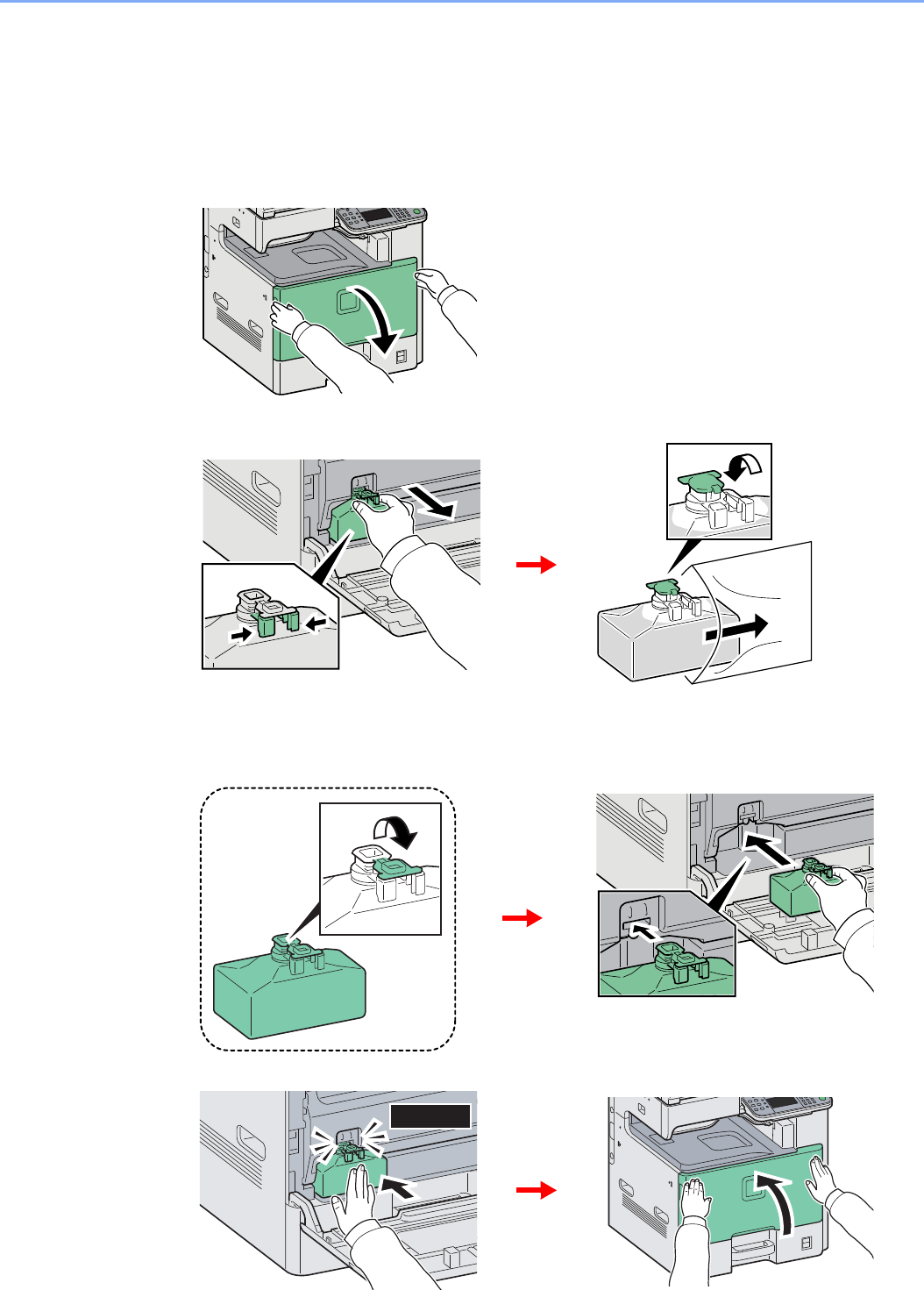
10-4
Troubleshooting > Waste Toner Box Replacement
Waste Toner Box Replacement
When the touch panel displays Check waste toner box., replace the waste toner box.
1Remove the old waste toner box.
1
2
2Install the new waste toner box.
1
2
CLICK!
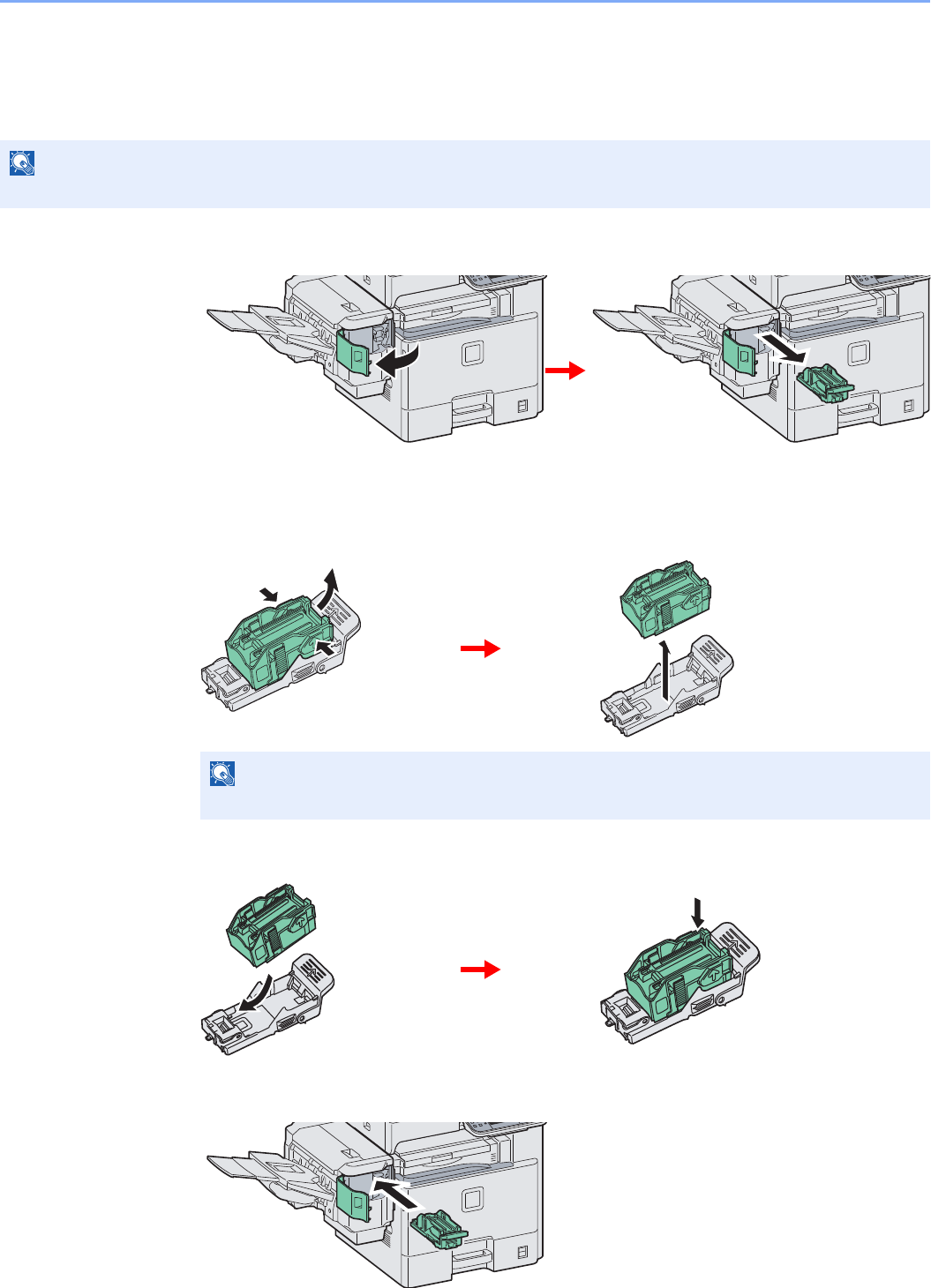
10-5
Troubleshooting > Replacing Staples
Replacing Staples
If a message displays indicating that staples have run out, the staple cartridge holder need to be replenished with
staples.
1Remove the staple cartridge holder.
After the cartridge holder returned to the original position, open the staple cover and remove
the cartridge holder.
2Remove the empty staple cartridge.
3Insert the new staple cartridge.
4Re-install the staple cartridge holder.
The staple cartridge holder will click into place when it has been inserted correctly.
NOTE
If the Staple Unit runs out of staples, contact your service representative or the place of purchase.
NOTE
The staple cartridge can only be removed when it contains no more staples.
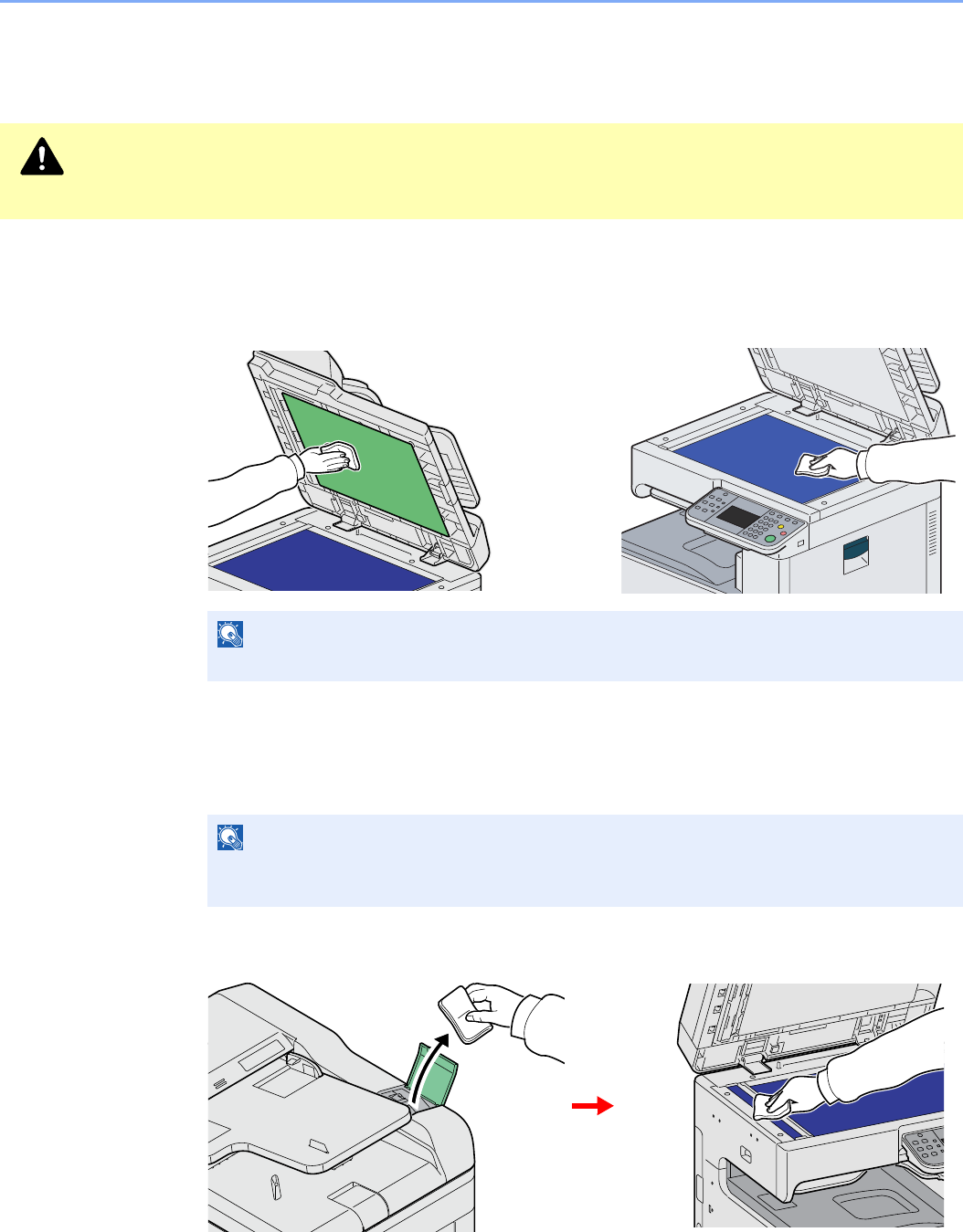
10-6
Troubleshooting > Cleaning
Cleaning
Clean the machine regularly to ensure optimum output quality.
Glass Platen
Wipe the inside of the document processor and the glass platen with a soft cloth dampened
with alcohol or mild detergent.
Document Processor
If black streaks or dirt appears in copies when using the document processor, clean the slit
glass with the supplied cleaning cloth.
1Wipe the slit glass.
Caution
For safety, always unplug the power cord before cleaning the machine.
NOTE
Do not use organic solvents or other strong chemicals.
NOTE
Wipe the slit glasses with the dry accessory cloth. Do not use water, soap or solvents for
cleaning.
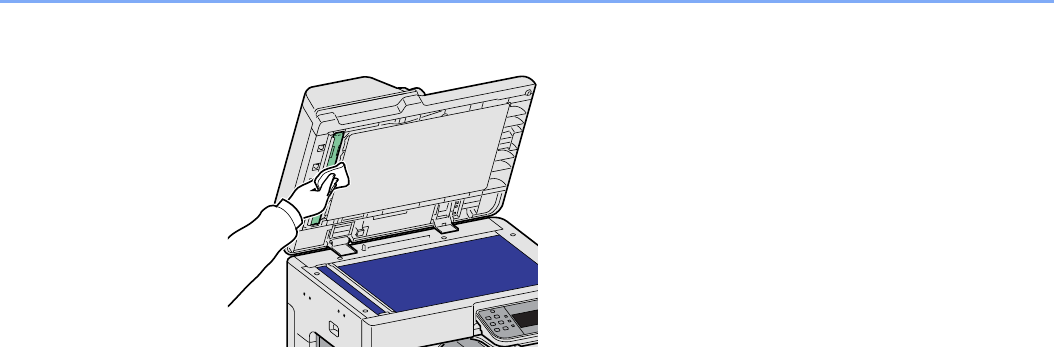
10-7
Troubleshooting > Cleaning
2Wipe the white guide.
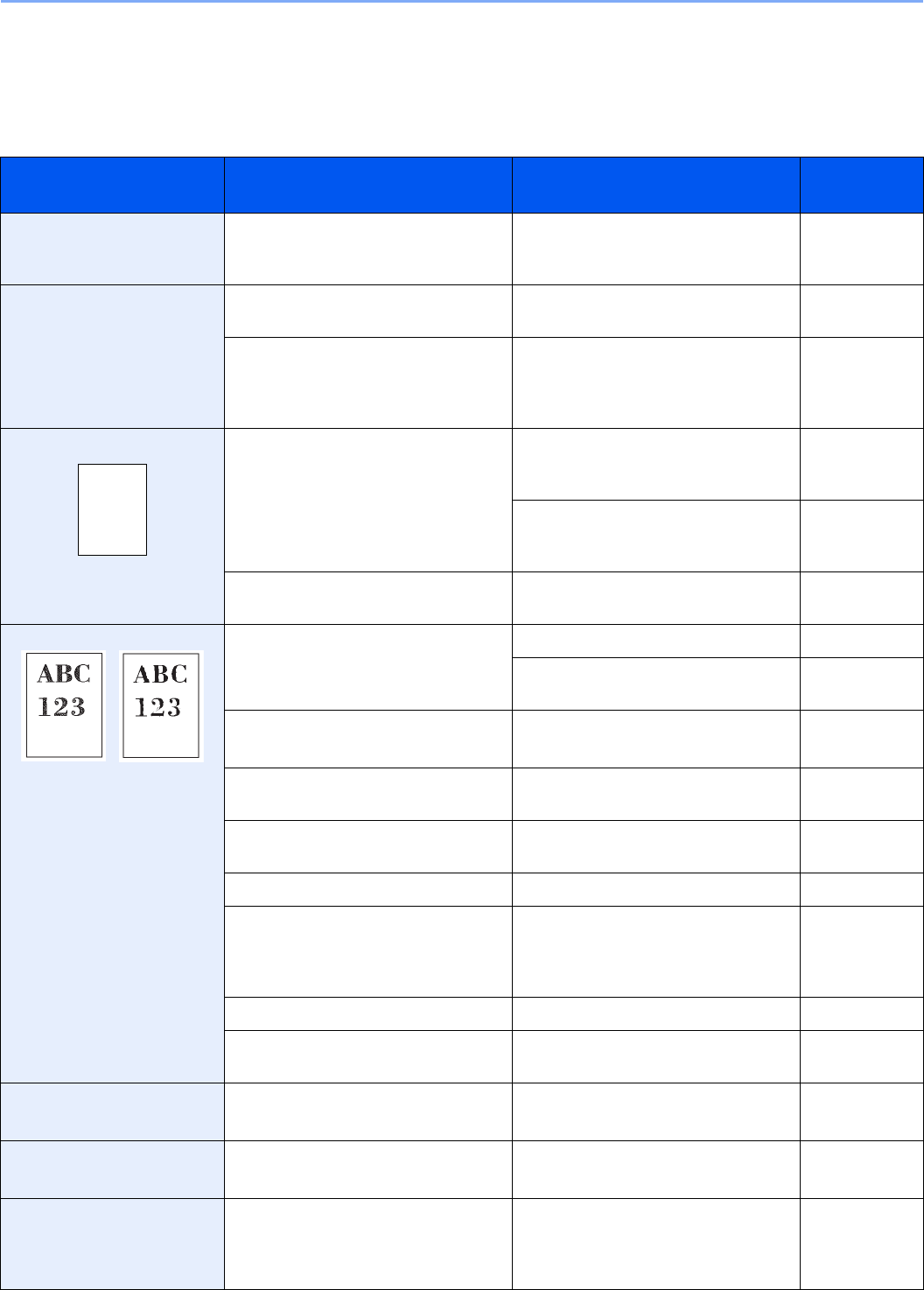
10-8
Troubleshooting > Solving Malfunctions
Solving Malfunctions
The table below provides general guidelines for problem solving.
If a problem occurs with your machine, look into the checkpoints and perform procedures indicated on the following
pages. If the problem persists, contact your Service Representative.
Symptom Checkpoints Corrective Actions Reference
Page
The operation panel does not
respond when the main
power switch is turned on.
Is the machine plugged in? Plug the power cord into an AC outlet. 2-11
Pressing the Start key does
not produce printouts.
Is there a message on the touch
panel?
Determine appropriate response to the
message and respond accordingly.
10-13
Is the machine in Sleep mode? Press the Power key to recover the
machine from Sleep mode. The
machine will be ready to copy within 23
seconds.
2-21
Blank sheets are ejected. Are the originals loaded correctly? When placing originals on the platen,
place them face-down and align them
with the original size indicator plates.
3-7
When placing originals in the
document processor, place them face-
up.
3-9
— Check that the application software is
correctly operated.
—
Printouts are too light. Is the paper damp? Replace the paper with new paper. 3-2
If you experience frequent problems,
turn the cassette heater switch on.
2-4
Have you changed the density? Select appropriate density level. 3-50
9-25
Is the toner distributed evenly within
the toner container?
Shake the toner container from side to
side about several times.
10-2
Is there a message indicating the
addition of toner?
Replace the toner container. 10-2
Is EcoPrint mode enabled? Disable EcoPrint mode. 4-15
— Press the System Menu/Counter key,
[Adjustment/Maintenance], [Service
Setting], [DEV-CLN], and then press
[Start].
—
— Run [Laser Scanner Cleaning]. 9-26
— Make sure the paper type setting is
correct the paper being used.
9-8
Printouts are too dark. Have you changed the density? Select appropriate density level. 3-50
9-25
The background density is
obtrusive.
— Run [Background Density Adjustment]. 3-54
9-25
Printouts have a moire
pattern (dots grouped
together in patterns and not
aligned uniformly).
Is the original a printed photograph? Set the image quality to [Photo]. 3-52

10-9
Troubleshooting > Solving Malfunctions
Printouts are not clear. Did you choose appropriate image
quality for the original?
Select appropriate image quality. 3-52
Dirt on the print side of the
paper.
Is the platen or the document
processor dirty?
Clean the platen or the document
processor.
10-6
— Run [Laser Scanner Cleaning]. 9-26
Printouts are fuzzy. Is the machine being used in very
humid conditions?
Use in an environment that has
suitable humidity.
1-3
If you experience frequent problems,
turn the cassette heater switch on.
2-4
— Run [Drum Refresh]. 9-26
Images are skewed. Are the originals placed correctly? When placing originals on the platen,
align them with the original size
indicator plates.
3-7
When placing originals in the
document processor, align the original
width guides securely before placing
the originals.
3-8
Is the paper loaded correctly? Check the position of the paper width
guides.
3-2
— Perform center line adjustment. For
more information about how to do so,
contact your service representative.
—
Paper often jams. Is the paper loaded correctly? Load the paper correctly. 3-2
— Change the orientation in which the
paper is positioned.
1-15
3-3
3-7
Is the paper of the supported type? Is it
in good condition?
Remove the paper, turn it over, and
reload it.
3-2
Is the paper curled, folded or wrinkled? Replace the paper with new paper. 3-2
Are there any loose scraps or jammed
paper in the machine?
Remove any jammed paper. 10-23
Printouts are wrinkled. Is the paper damp? Replace the paper with new paper. 3-2
If you experience frequent problems,
turn the cassette heater switch on.
2-4
— Change the orientation in which the
paper is positioned.
1-15
3-3
3-7
Cannot print. Is the machine plugged in? Plug the power cord into an AC outlet. 2-11
Is the machine powered on? Turn on the main power switch. 2-12
Are the printer cable and network
cable connected?
Connect the correct printer cable and
network cable securely.
2-10
Was the machine powered on before
the printer cable was connected?
Power on the machine after
connecting the printer cable.
2-10
Is the print job paused? Resume printing. 8-3
Symptom Checkpoints Corrective Actions Reference
Page
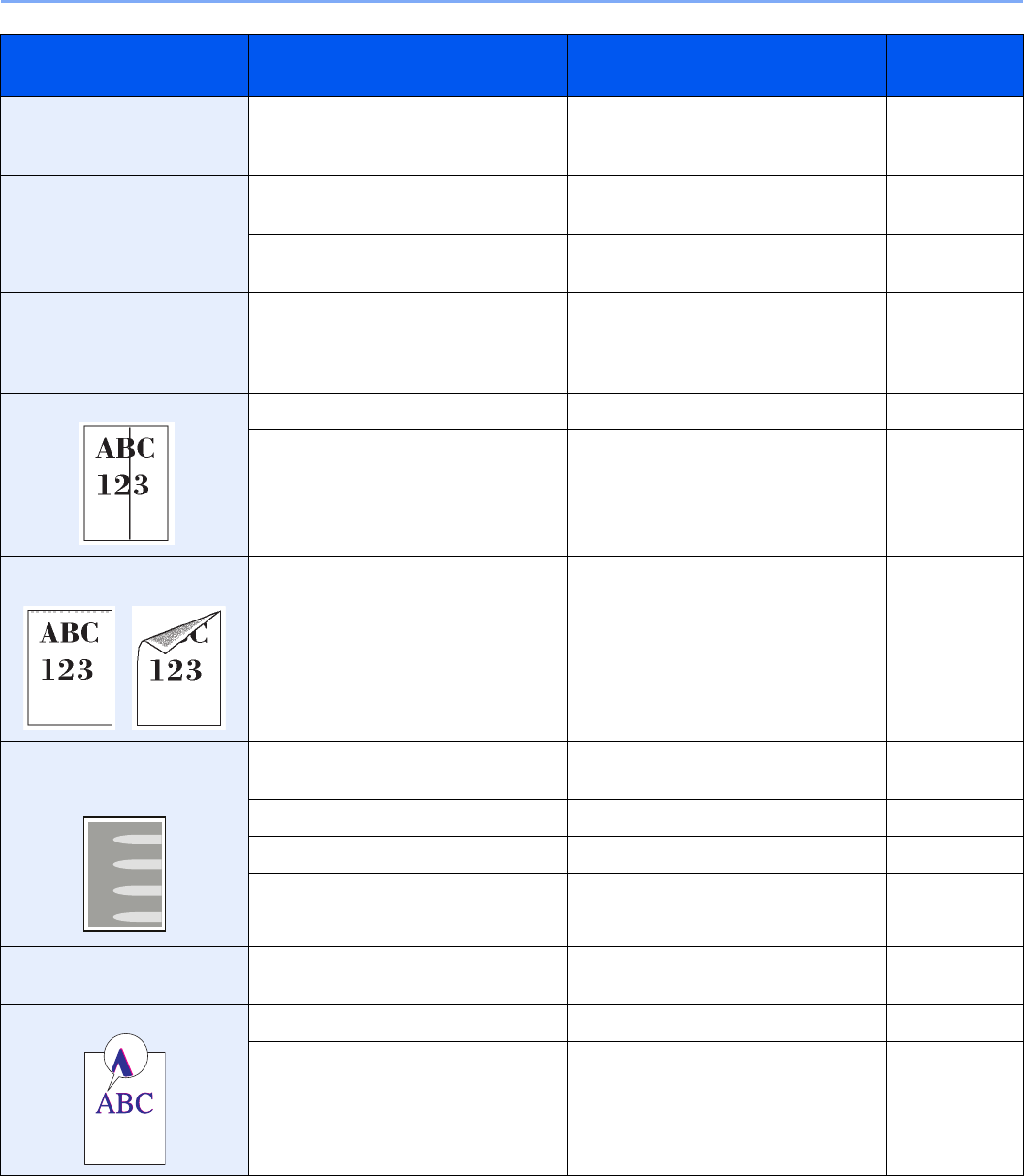
10-10
Troubleshooting > Solving Malfunctions
Documents are printed
improperly.
Are the application software settings at
the PC set properly?
Check that the printer driver and
application software settings are set
properly.
—
Cannot print with USB
memory.
USB memory not recognized.
Is the USB host blocked? Select [Unblock] in the USB host
settings.
9-22
— Check that the USB memory is
securely plugged into the machine.
—
When displaying an image
sent from the machine on the
PC, an image size is shrunk
vertically or horizontally.
Have you selected 200×100dpi Normal
or 200×400dpi Super for the scan
resolution?
Select a scan resolution other than
200×100dpi Normal or 200×400dpi
Super when sending an image.
3-51
Printouts have lines. Is the slit glass dirty? Clean the slit glass. 10-6
— Run [Laser Scanner Cleaning]. 9-26
Dirt on the top edge or back
of the paper.
Check interior of the transfer unit. Open the right cover and check for
toner on the paper transfer unit. Clean
interior of the unit using a soft, dry, lint-
free cloth.
—
Part of the image is
periodically faint or shows
white lines.
Have the developer unit and drum unit
been loaded properly?
Load the developer unit and drum unit
properly.
—
— Open and then close the right cover. —
— Run [Drum Refresh]. 9-26
— If you experience frequent problems,
turn the cassette heater switch on.
2-4
Print on the back of the sheet
is visible on the front.
— Set Prevent Bleed-through to [On]. 3-55
Skewed-color printout. — Run [Calibration]. 9-26
— Run [Color Registration]. 9-27
Symptom Checkpoints Corrective Actions Reference
Page
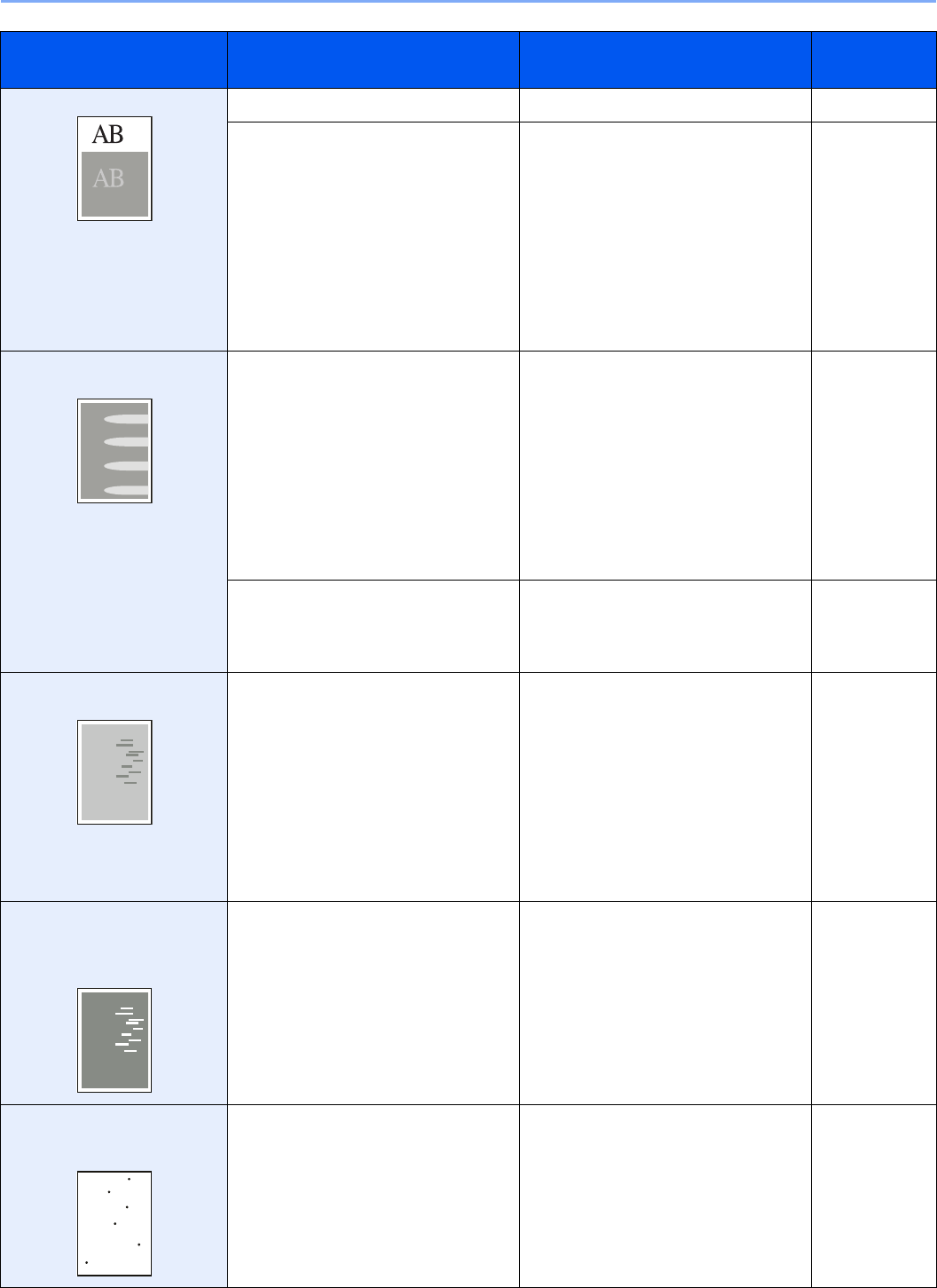
10-11
Troubleshooting > Solving Malfunctions
Offset occurs. — Run [Drum Refresh]. 9-26
— Press the System Menu/Counter key,
[Adjustment/Maintenance], [Service
Setting], [MC] and increase the
adjustment value. Increase the
adjustment value 1 level at a time from
the current value. If there is no
improvement after the value is
increased by 1 level, increase by 1
level again. If there is still no
improvement, return the setting to the
original value.
—
Part of the image is
periodically faint or blurred.
— Press the System Menu/Counter key,
[Adjustment/Maintenance], [Service
Setting], [MC] and decrease the
adjustment value. Decrease the
adjustment value 1 level at a time from
the current value. If there is no
improvement after the value is
decreased by 1 level, decrease by 1
level again. If there is still no
improvement, return the setting to the
original value.
—
— Press the System Menu/Counter key,
[Adjustment/Maintenance], [Service
Setting], [DEV-CLN], and then press
[Start].
—
Irregular horizontal lines
appear in the image.
— Press the System Menu/Counter key,
[Adjustment/Maintenance], [Service
Setting], [MC] and decrease the
adjustment value. Decrease the
adjustment value 1 level at a time from
the current value. If there is no
improvement after the value is
decreased by 1 level, decrease by 1
level again. If there is still no
improvement, return the setting to the
original value.
—
The altitude is 1500 m or
higher and irregular
horizontal white lines appear
in the image.
— Press the System Menu/Counter key,
[Adjustment/Maintenance], [Service
Setting], [Altitude Adjustment] and then
select [High 1]. If there is still no
improvement, change the value to
[High 2].
—
The altitude is 1500 m or
higher and dots appear in the
image.
— Press the System Menu/Counter key,
[Adjustment/Maintenance], [Service
Setting], [Altitude Adjustment] and then
select [High 1]. If there is still no
improvement, change the value to
[High 2].
—
Symptom Checkpoints Corrective Actions Reference
Page

10-12
Troubleshooting > Solving Malfunctions
Colors appear different than
you anticipated.
Did you choose appropriate image
quality for the original?
Select appropriate image quality. 3-52
Have you loaded color copy paper into
the paper tray?
Load color copy paper into the paper
tray.
—
— Run [Calibration]. 9-26
— Run [Tone Curve Adjustment]. 9-26
—When making copies
Adjust the color balance.
4-17
When printing from a computer
Adjust the color using the printer driver.
Printer Driver
User Guide
Perform Tone Curve
Adjustment. is displayed.
Over long periods of use, the effects of
the ambient temperature and humidity
can cause color output hues to vary
slightly.
Run [Tone Curve Adjustment]. 9-26
The machine makes a
clicking sound before starting
to print or after printing.
— The machine is adjusting itself. It is not
a machine failure.
—
Cannot send via SMB. Is the network cable connected? Connect the correct network cable
securely.
2-10
Have the network settings for the
equipment been configured properly?
Configure the TCP/IP settings
properly.
9-18
Have the folder sharing settings been
configured properly?
Check sharing settings and access
privileges under the folder properties.
6-7
Has the SMB protocol been set to
[On]?
Set the SMB protocol setting to [On]. 2-23
Has the [Host Name] been entered
properly?*
Check the name of the computer to
which data is being sent.
6-5
Has the [Path] been entered properly? Check the share name for the shared
folder.
6-10
Has the [Login User Name] been
entered properly?*,**
Check the domain name and login
user name.
6-19
Has the same domain name been
used for the [Host Name] and [Login
User Name]?
Delete the domain name and
backslash ("\") from the [Login User
Name].
6-19
Has the [Login Password] been
entered properly?
Check the login password. 6-19
Have exceptions for Windows Firewall
been configured properly?
Configure exceptions for Windows
Firewall properly.
6-11
6-14
Do the time settings for the equipment,
domain server, and data destination
computer differ?
Set the equipment, domain server, and
data destination computer to the same
time.
—
Is the touch panel displaying Send
error.?
Refer to Responding to Send Error.10-20
* You can also enter a full computer name as the host name (for example, pc001.abcdnet.com).
** You can also enter login user names in the following formats:
Domain_name/user_name (for example, abcdnet/james.smith)
User_name@domain_name (for example, james.smith@abcdnet)
Symptom Checkpoints Corrective Actions Reference
Page

10-13
Troubleshooting > Responding to Error Messages
Responding to Error Messages
If the touch panel displays any of these messages, follow the corresponding procedure.
A
B
C
Error Message Checkpoints Corrective Actions Reference
Page
Acceptable staple count
exceeded.*
* When Auto Error Clear is set to [On], processing resumes automatically after a set amount of time elapses.
Is the acceptable staple count
exceeded? For details, refer to
Document Finisher (option) on
page 11-22.
Press [Continue] to print without
stapling.
Press [Cancel] to cancel the job.
—
Add the following paper in
cassette #.
Is the indicated cassette out of
paper?
Load paper.
Press [Paper Selection] to select the
other paper source.
Press [Continue] to print on the paper in
the currently selected paper source.
3-3
Add the following paper in the
multi purpose tray.
Is the paper of the selected size
loaded in the multi purpose tray?
Load paper.
Press [Paper Selection] to select the
other paper source.
Press [Continue] to print on the paper in
the currently selected paper source.
3-5
Does the paper size set for the
paper source matches the paper
size that was actually loaded?
Press [Continue] to continue printing.
Press [Cancel] to cancel the job.
—
Error Message Checkpoints Corrective Actions Reference
Page
Box limit exceeded.*
* When Auto Error Clear is set to [On], processing resumes automatically after a set amount of time elapses.
— Document box is full, and no further
storage is available; Job is canceled.
Press [End]. Try to perform the job again
after printing or deleting data from the
Document box.
—
Error Message Checkpoints Corrective Actions Reference
Page
Cannot connect to Authentication
Server.*
— Set machine time to match the server’s
time.
9-23
— Check the domain name. 9-33
— Check the host name. 9-33
— Check the connection status with the
server.
—

10-14
Troubleshooting > Responding to Error Messages
D
Cannot duplex print on the
following paper.*
Did you select a paper size/
media type that cannot be duplex
printed?
Press [Paper Selection] to select the
available paper.
Press [Continue] to print without using
Duplex function.
4-8
Cannot offset the following
paper.*
Did you select a paper size/
media type that cannot be offset?
Press [Paper Selection] to select the
available paper.
Press [Continue] to print without using
Offset function.
3-43
Cannot print the specified
number of copies.*
– Only one copy is available due to
processing too many jobs in parallel.
Press [Continue] to continue printing.
Press [Cancel] to cancel the job.
—
Cannot process this job.* — This job is canceled because it is
restricted by User Authorization or Job
Accounting. Press [End].
—
Cannot staple at the specified
position.
Have you selected a position that
cannot be stapled?
Press [Paper Selection] to select the
available paper.
Press [Continue] to print without using
Staple function.
—
Cannot staple the following
paper.*
Did you select a paper size/type
that cannot be stapled?
Press [Paper Selection] to select the
available paper.
Press [Continue] to print without using
Staple function.
—
Cassette # failure. — Contact your Service Representative.
Press the System Menu/Counter key,
[Adjustment/Maintenance], [Service
Setting] and then [Enable Repaired
Unit]. Press [Execute] to perform Enable
Repaired Unit.
—
Check the document processor. Is the document processor
open?
Close the document processor. —
Is the top cover of the document
processor open?
Close the top cover of the document
processor.
—
Check waste toner box. Is the waste toner box full? Replace the waste toner box. 10-4
— The waste toner box is not installed
correctly. Set it correctly.
10-4
* When Auto Error Clear is set to [On], processing resumes automatically after a set amount of time elapses.
Error Message Checkpoints Corrective Actions Reference
Page
Developer unit is not installed.
[C][M][Y][K]
— Replace the developer unit (g) to our
specified developer unit. See the leaflet
supplied with the developer unit.
—
Drum unit is not installed.
[C][M][Y][K]
— Replace the drum unit (f) to our
specified drum unit. See the leaflet
supplied with the drum unit for details.
—
Error Message Checkpoints Corrective Actions Reference
Page

10-15
Troubleshooting > Responding to Error Messages
E
F
H
I
Error Message Checkpoints Corrective Actions Reference
Page
Error occurred at cassette #. — Remove the indicated cassette. Press
[Next >] to follow the instructions.
—
Error Message Checkpoints Corrective Actions Reference
Page
Failed to specify Job
Accounting.*
* When Auto Error Clear is set to [On], processing resumes automatically after a set amount of time elapses.
— Failed to specify Job Accounting when
processing the job externally. The job is
canceled. Press [End].
—
Failed to store job retention data. — The job is canceled. Press [End]. —
Finisher failure. — Contact your Service Representative.
Press the System Menu/Counter key,
[Adjustment/Maintenance], [Service
Setting] and then [Reset Disable
Function Mode]. Press [Execute] to
perform Reset Disable Function Mode.
—
Finisher tray is full of paper. Is the acceptable storage
capacity exceeded for the
document finisher tray?
Remove paper from the document
finisher tray.
—
Fuser unit is not installed. — Replace the fuser unit (h-1) to our
specified fuser unit. See the leaflet
supplied with the fuser unit for details.
—
Error Message Checkpoints Corrective Actions Reference
Page
High temperature. Adjust room
temp.
— Adjust the temperature and the humidity
of your room.
1-3
Error Message Checkpoints Corrective Actions Reference
Page
Incorrect account ID.* — The account ID was incorrect when
processing the job externally. The job is
canceled. Press [End].
—
Incorrect Login User Name or
Password.*
— The login user name or password was
incorrect when processing the job
externally. The job is canceled. Press
[End].
—

10-16
Troubleshooting > Responding to Error Messages
J
K
L
Inner tray is full of paper. — Remove paper from the inner tray.
Printing then resumes.
—
Intermediate transfer unit is not
installed.
— Replace the intermediate transfer unit
(r) to our specified intermediate transfer
unit. See the leaflet supplied with
intermediate transfer unit.
—
* When Auto Error Clear is set to [On], processing resumes automatically after a set amount of time elapses.
Error Message Checkpoints Corrective Actions Reference
Page
Job Accounting restriction
exceeded.*
* When Auto Error Clear is set to [On], processing resumes automatically after a set amount of time elapses.
Is the acceptable printing count
restricted by Job Accounting
exceeded?
The printing count exceeded the
acceptable count restricted by Job
Accounting. Cannot print any more. This
job is canceled. Press [End].
—
Job separator tray is full of paper. Is the maximum capacity of the
job separator exceeded?
Take some paper out of the job
separator. Printing then resumes.
—
Error Message Checkpoints Corrective Actions Reference
Page
KPDL error.*
* When Auto Error Clear is set to [On], processing resumes automatically after a set amount of time elapses.
— PostScript error has occurred.
The job is canceled. Press [End].
—
Error Message Checkpoints Corrective Actions Reference
Page
Low temperature. Adjust room
temp.
— Adjust the temperature and the humidity
of your room.
1-3
Error Message Checkpoints Corrective Actions Reference
Page

10-17
Troubleshooting > Responding to Error Messages
M
P
Error Message Checkpoints Corrective Actions Reference
Page
Machine failure. — Internal error has occurred. Make a note
of the error code displayed on the touch
panel, and contact your Service
Representative.
—
Maximum number of scanned
pages.
Is the acceptable scanning count
exceeded?
Only one copy of the scanned pages is
available.
Press [Continue] to print, send or store
the scanned pages.
Press [Cancel] to cancel printing,
sending or storing.
—
Memory is full.*
* When Auto Error Clear is set to [On], processing resumes automatically after a set amount of time elapses.
— Unable to continue the job as the
memory is used up.
Press [Continue] to print the scanned
pages. The print job cannot be
processed completely.
Press [Cancel] to cancel the job.
—
— The process cannot be performed due
to insufficient memory. If only [End] is
available, press [End]. The job will be
canceled.
—
Error Message Checkpoints Corrective Actions Reference
Page
Paper is left. — Remove paper from the document
finisher.
—
Paper jam. — If a paper jam occurs, the machine will
stop and the location of the jam will be
indicated on the touch panel. Leave the
machine on and follow the instruction to
remove the jammed paper.
10-23
Print overrun. — Warning. Low printer memory. The job
was paused. Press [Continue] to re-start
the job.
—

10-18
Troubleshooting > Responding to Error Messages
R
Error Message Checkpoints Corrective Actions Reference
Page
RAM disk error.*
* When Auto Error Clear is set to [On], processing resumes automatically after a set amount of time elapses.
— An error has occurred on the RAM disk.
Job is canceled. Press [End].
The possible error codes and their
descriptions are as follows.
01: The amount of data that can be
saved at once has been exceeded.
Restart the system or turn the power
OFF/ON. If the error still occurs, divide
the file into smaller files.
04: Insufficient space on the RAM disk.
Increase the RAM disk size by changing
[RAM Disk Setting] in the system menu.
NOTE: The range of RAM disk size
can be increased by selecting
[Printer Priority] in Optional
Memory.
9-23
Removable memory error.* Is writing to a removable
memory prohibited?
An error occurred in the removable
memory. The job stopped. Press [End].
The possible error codes and their
descriptions are as follows.
01: Connect a removable memory that
can be written to.
—
— An error occurred in the removable
memory. The job stopped. Press [End].
The possible error codes and their
descriptions are as follows.
01: The amount of data that can be
saved at once has been exceeded.
Restart the system or turn the power
OFF/ON. If the error still occurs, the
removable memory is not compatible
with the machine. Use the removable
memory formatted by this machine. If
the removable memory cannot be
formatted, it is damaged. Connect a
compatible removable memory.
7-2
Removable Memory is full.* — Job is canceled. Press [End].
Insufficient free space in the removable
memory. Delete unneeded files.
—
Remove originals in the
document processor.
Are there any originals left in the
document processor?
Remove originals from the document
processor.
—
Replace all originals and press
[Continue].
— Remove originals from the document
processor, put them back in their original
order, and place them again. Press
[Continue] to resume printing.
Press [Cancel] to cancel the job.
—
Replace MK. — Replacement of the parts in the
maintenance kit is necessary at every
200,000 pages of printing and requires
professional servicing. Contact your
Service Representative.
—

10-19
Troubleshooting > Responding to Error Messages
S
T
Error Message Checkpoints Corrective Actions Reference
Page
Scanner memory is full.*
* When Auto Error Clear is set to [On], processing resumes automatically after a set amount of time elapses.
— Scanning cannot be performed due to
insufficient memory of scanner. Only
one copy of the scanned pages is
available. Press [Continue] to print,
send or store the scanned pages. Press
[Cancel] to cancel the printing job.
—
Send error.* — An error has occurred during
transmission. The job is canceled. Press
[End].
Refer to Responding to Send Error for
the error code and corrective actions.
10-20
Set cassette. Have the paper width guide and
paper length guide been loaded
properly?
Load the paper width guide and paper
length guide properly so that there is no
space between the guides and the
paper.
3-3
Staple is empty.* Has any of the document finisher
run out of staples?
If the staples are depleted, the machine
will stop and the location of staple
depletion will be indicated on the touch
panel.
Leave the machine on and follow the
instruction to replace the staple case.
Press [Continue] to print without
stapling.
Press [Cancel] to cancel the job.
10-5
Staple jam. — If a staple jam occurs, the machine will
stop and the location of the jam will be
indicated on the touch panel.
Leave the machine on and follow the
instruction to remove the jammed
staple.
10-27
System error. — System error has occurred. Follow the
instructions on the touch panel.
—
Error Message Checkpoints Corrective Actions Reference
Page
The cover is open. Is there any cover which is
open?
Close the cover indicated on the touch
panel.
—
The phone receiver is off the
hook.
— Put down the receiver. —
The slit glass requires cleaning. — Clean the slit glass using the cleaning
cloth supplied with the document
processor.
10-6
This memory is not formatted. Is the removable memory
formatted by this machine?
Perform [Format] on this machine. 8-11
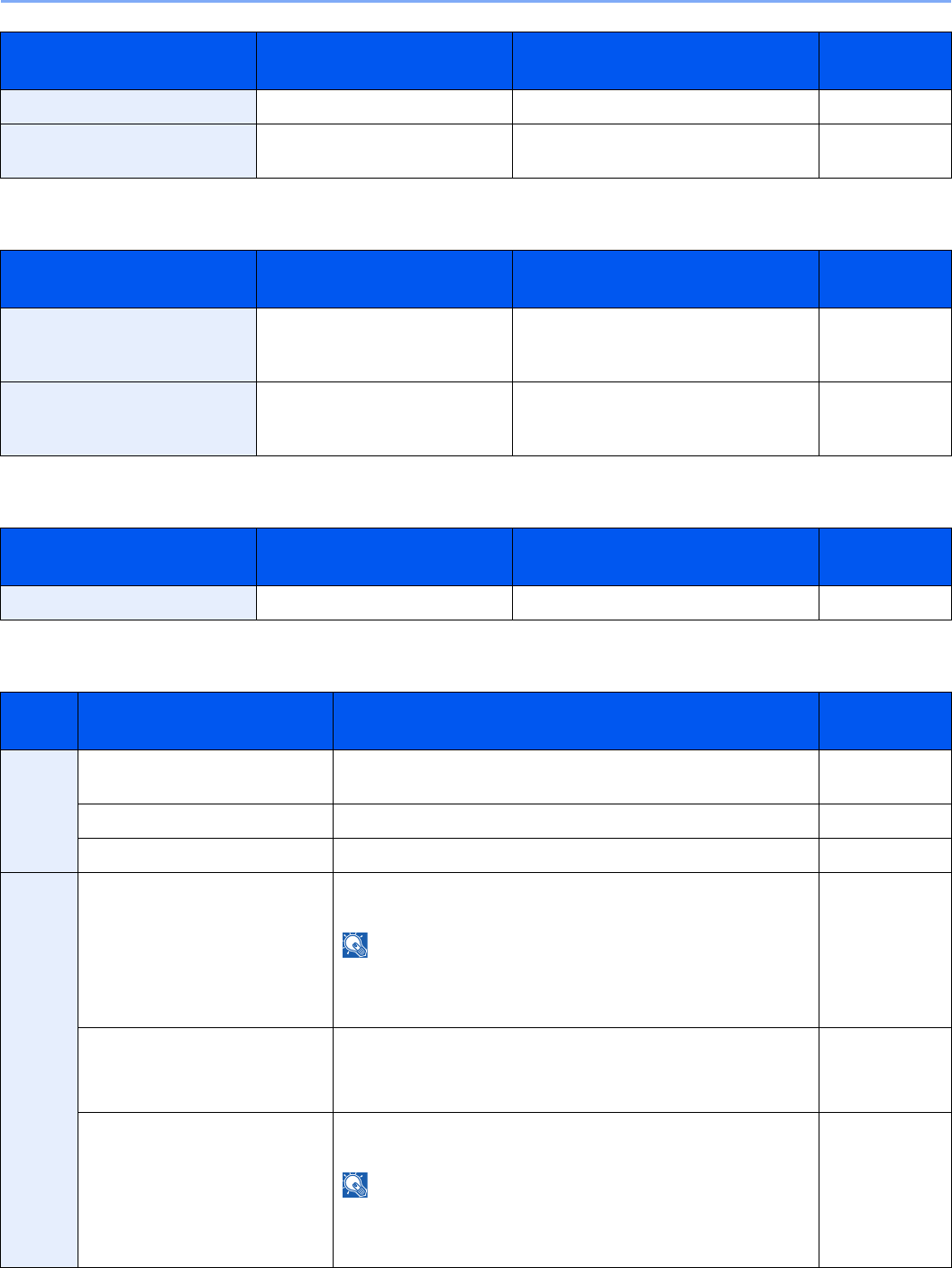
10-20
Troubleshooting > Responding to Error Messages
U
W
Responding to Send Error
Toner is empty. [C][M][Y][K] — Replace the toner container. 10-2
Toner is running out. [C][M][Y][K] — It is almost time to replace the toner
container. Obtain a new toner container.
—
Error Message Checkpoints Corrective Actions Reference
Page
Unknown Toner Installed. Is the installed toner container
our own brand?
We will not be liable for any damage
caused by the use of third party supplies
in this machine.
10-2
Unknown Toner Installed. PC
[C][M][Y][K]
Does the installed toner
container's regional specification
match the machine's?
Install the specified container. 10-2
Error Message Checkpoints Corrective Actions Reference
Page
Warning low memory. — Job cannot be started. Try again later. —
Code Error Corrective Actions Reference
Page
1101 Failed to send the e-mail. Check the host name of the SMTP server on the COMMAND
CENTER.
2-24
Failed to send via FTP. Check the host name of FTP. 6-20
Failed to send via SMB. Check the host name of SMB. 6-19
1102 Failed to send via SMB. Check the SMB settings.
• Login user name and login password
NOTE: If the sender is a domain user, specify the domain
name.
• Host name
•Path
6-20
Failed to send the e-mail. Check the followings on the COMMAND CENTER.
• SMTP login user name and login password
• POP3 login user name and login password
2-24
Failed to send via FTP. Check the FTP settings.
• Login user name and login password
NOTE: If the sender is a domain user, specify the domain
name.
•Path
• Folder share permissions of the recipient
6-20
Error Message Checkpoints Corrective Actions Reference
Page
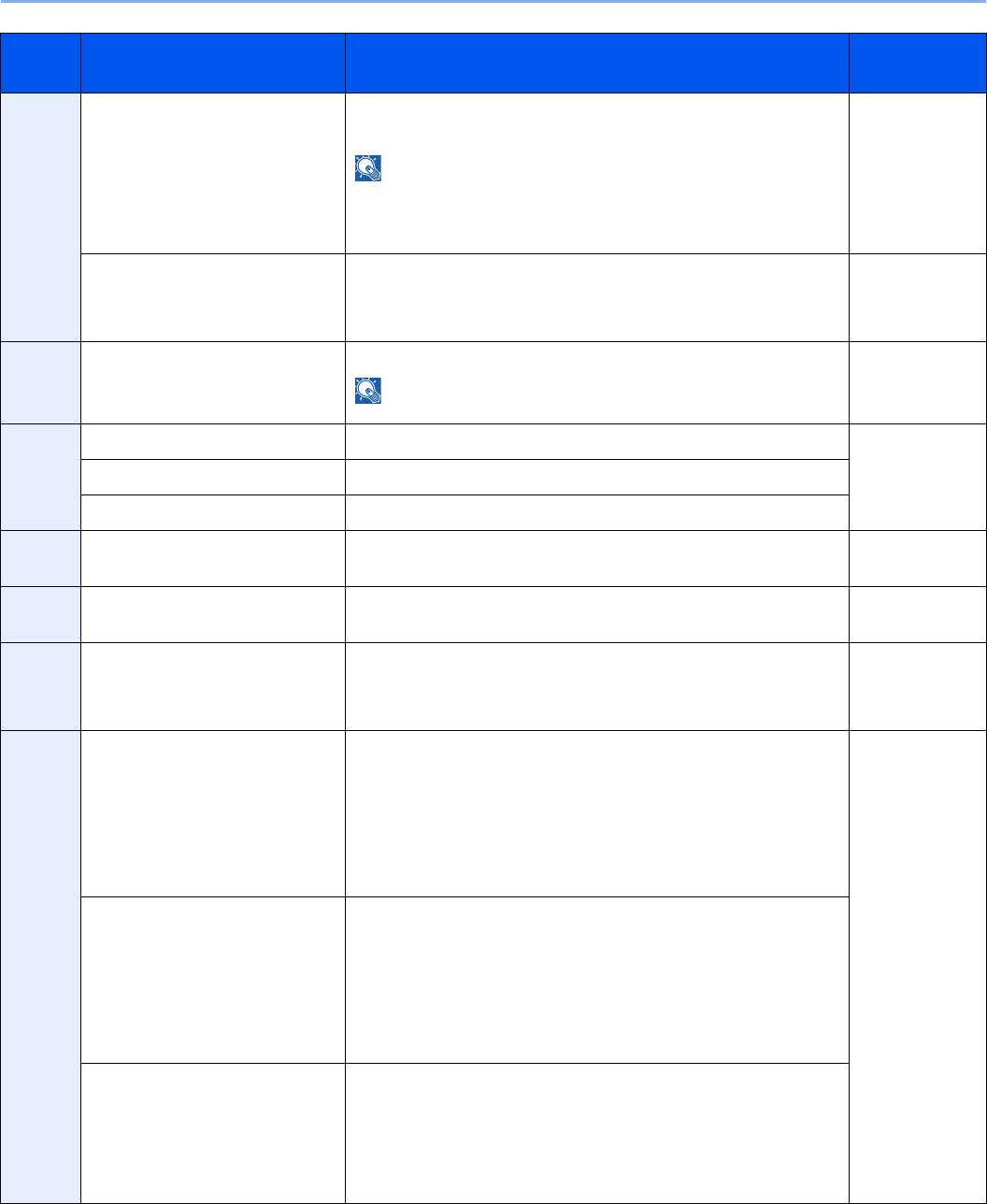
10-21
Troubleshooting > Responding to Error Messages
1103 Failed to send via SMB. Check the SMB settings.
• Login user name and login password
NOTE: If the sender is a domain user, specify the domain
name.
•Path
• Folder share permissions of the recipient
6-20
Failed to send via FTP. Check the FTP settings.
•Path
• Folder share permissions of the recipient
6-20
1104 Failed to send the e-mail. Check the e-mail address.
NOTE: If the address is rejected by the domain, you cannot
send the e-mail.
6-18
1105 Failed to send via SMB. Select [On] of the SMB settings on the COMMAND CENTER. 2-24
Failed to send the e-mail. Select [On] of the SMTP settings on the COMMAND CENTER.
Failed to send via FTP. Select [On] of the FTP settings on the COMMAND CENTER.
1106 Failed to send the e-mail. Check the sender address of SMTP on the COMMAND
CENTER.
2-24
1131 Failed to send via FTP. Select [On] of the secure protocol settings on the COMMAND
CENTER.
2-24
1132 Failed to send via FTP. Check the followings of the FTP server.
• Is FTPS available?
• Is the encryption available?
2-24
2101 Failed to send via SMB. Check the network and SMB settings.
• The network cable is connected.
• The hub is not operating properly.
• The server is not operating properly.
• Host name and IP address
• Port number
2-24
Failed to send via FTP. Check the network and FTP settings.
• The network cable is connected.
• The hub is not operating properly.
• The server is not operating properly.
• Host name and IP address
• Port number
Failed to send the e-mail. Check the network and COMMAND CENTER.
• The network cable is connected.
• The hub is not operating properly.
• POP3 server name of the POP3 user
• SMTP server name
Code Error Corrective Actions Reference
Page
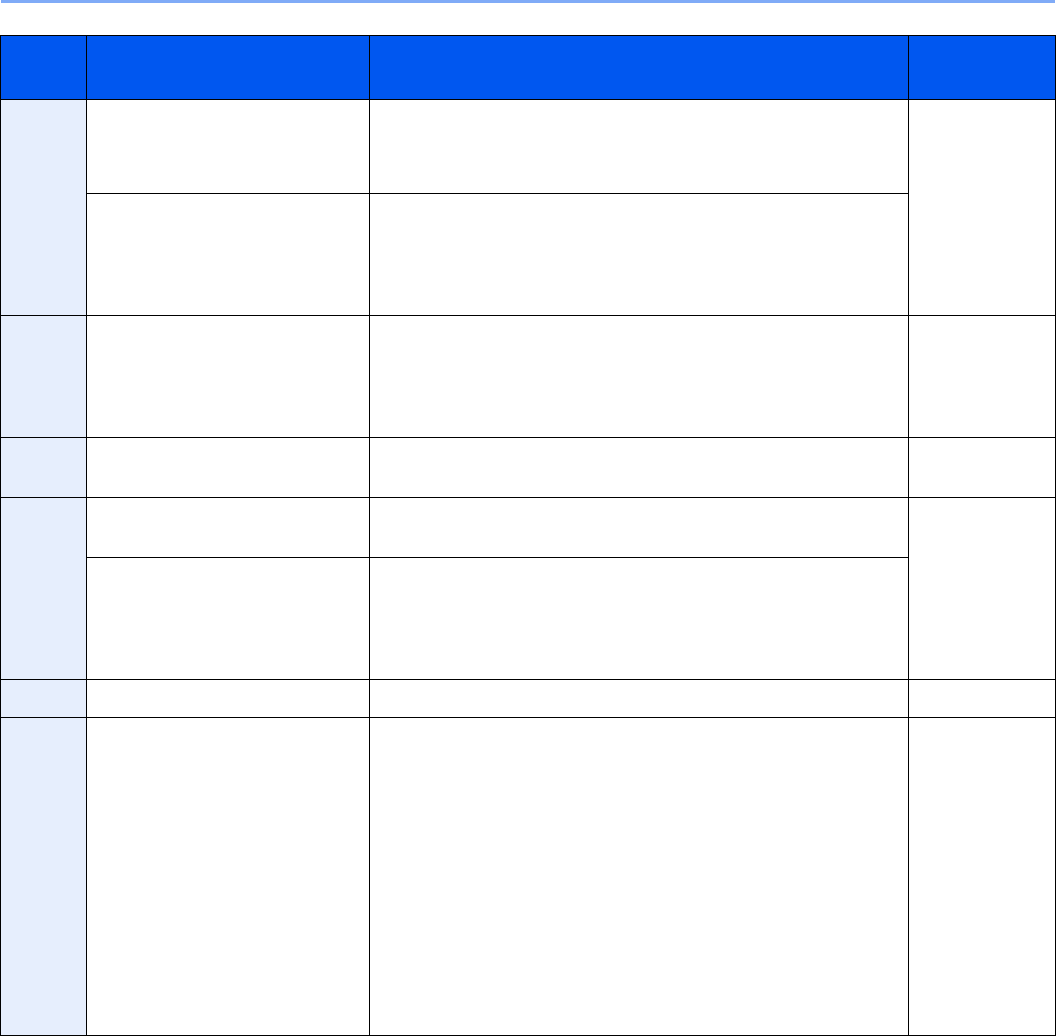
10-22
Troubleshooting > Responding to Error Messages
2102
2103
Failed to send via FTP. Check the followings of the FTP server.
• Is FTP available?
• The server is not operating properly.
—
Failed to send the e-mail. Check the network.
• The network cable is connected.
• The hub is not operating properly.
• The server is not operating properly.
2201
2202
2203
2231
Failed to send the e-mail.
Failed to send via FTP.
Failed to send via SMB.
Failed to send via FTP.
Check the network.
• The network cable is connected.
• The hub is not operating properly.
• The server is not operating properly.
—
2204 Failed to send the e-mail. Check the e-mail size limit of the SMTP settings on the
COMMAND CENTER.
2-24
3101 Failed to send the e-mail. Check the authentication methods of both the sender and the
recipient.
—
Failed to send via FTP. Check the network.
• The network cable is connected.
• The hub is not operating properly.
• The server is not operating properly.
3201 Failed to send the e-mail. Check the SMTP user authentication method of the recipient. —
0007
4201
4701
5101
5102
5103
5104
7101
7102
7103
720f
—Turn the main power switch off and back on. If this error occurs
several times, make a note of the displayed error code and
contact your service representative.
2-12
Code Error Corrective Actions Reference
Page
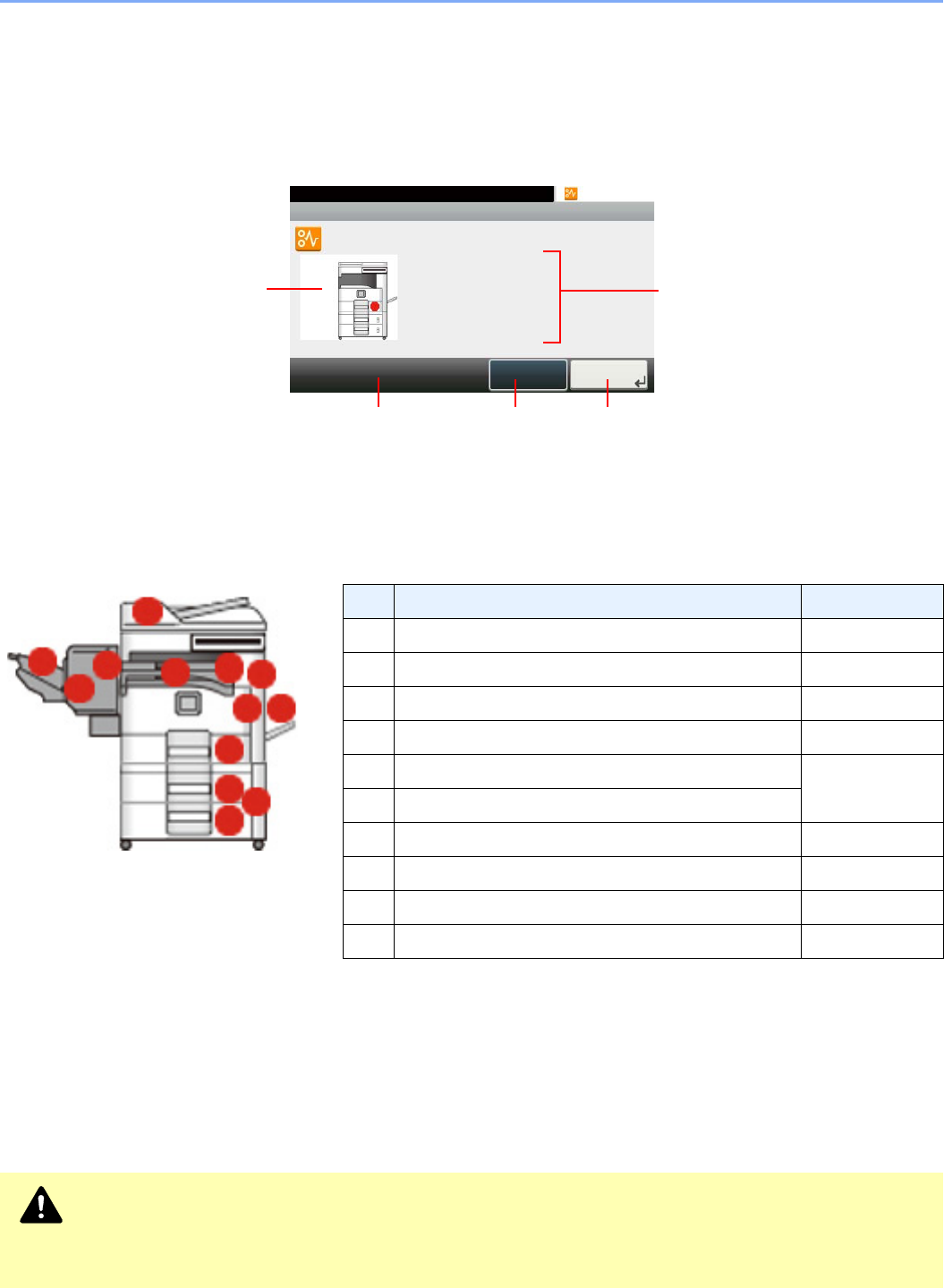
10-23
Troubleshooting > Clearing Paper Jams
Clearing Paper Jams
If a paper jam occurs, the touch panel will display Paper Jam. and the machine will stop. Refer to these procedures to
remove the jammed paper.
How to read the screen
Jam Location Indicators
Detailed paper jam positions are as follows. Refer to the indicated page number to remove the paper jam.
Precautions with Paper Jams
• Do not reuse jammed papers.
• If the paper tears during removal, be sure to remove any loose scraps of paper from inside the machine.
• Scraps of paper left in the machine could cause subsequent jamming.
• Discard paper that has jammed in the optional document finisher. A page affected by a paper jam will be printed
again.
No. Paper Jam Message Reference Page
1Clear the paper jammed in the multi purpose tray. 10-24
2Clear the paper jammed in right cover 1. 10-24
3Clear the paper jammed in cassette 1. 10-25
4Clear the paper jammed in right cover 3. 10-25
5Clear the paper jammed in cassette 2. 10-26
6Clear the paper jammed in cassette 3.
7Clear the paper jammed in the finisher. 10-26
8Clear the staple jammed in the finisher. 10-27
9Clear the paper jammed in the bridge unit. 10-27
10 Clear the paper jammed in the document processor. 10-28
Caution
The fixing unit is extremely hot. Take sufficient care when working in this area, as there is a danger of
getting burned.
10:10
Clear the paper jammed in
cassette 1.
Press [Next >] to follow
the instructions.
JAM 0501
Paper jam.
< Back Next >
GE0001_00
Displays the processing
method.
Displays the current
step.
Advances to the next
step.
Returns to the
previous step.
Puts the current step on hold.
12
2
2
9
7
8
7
10
3
54
6
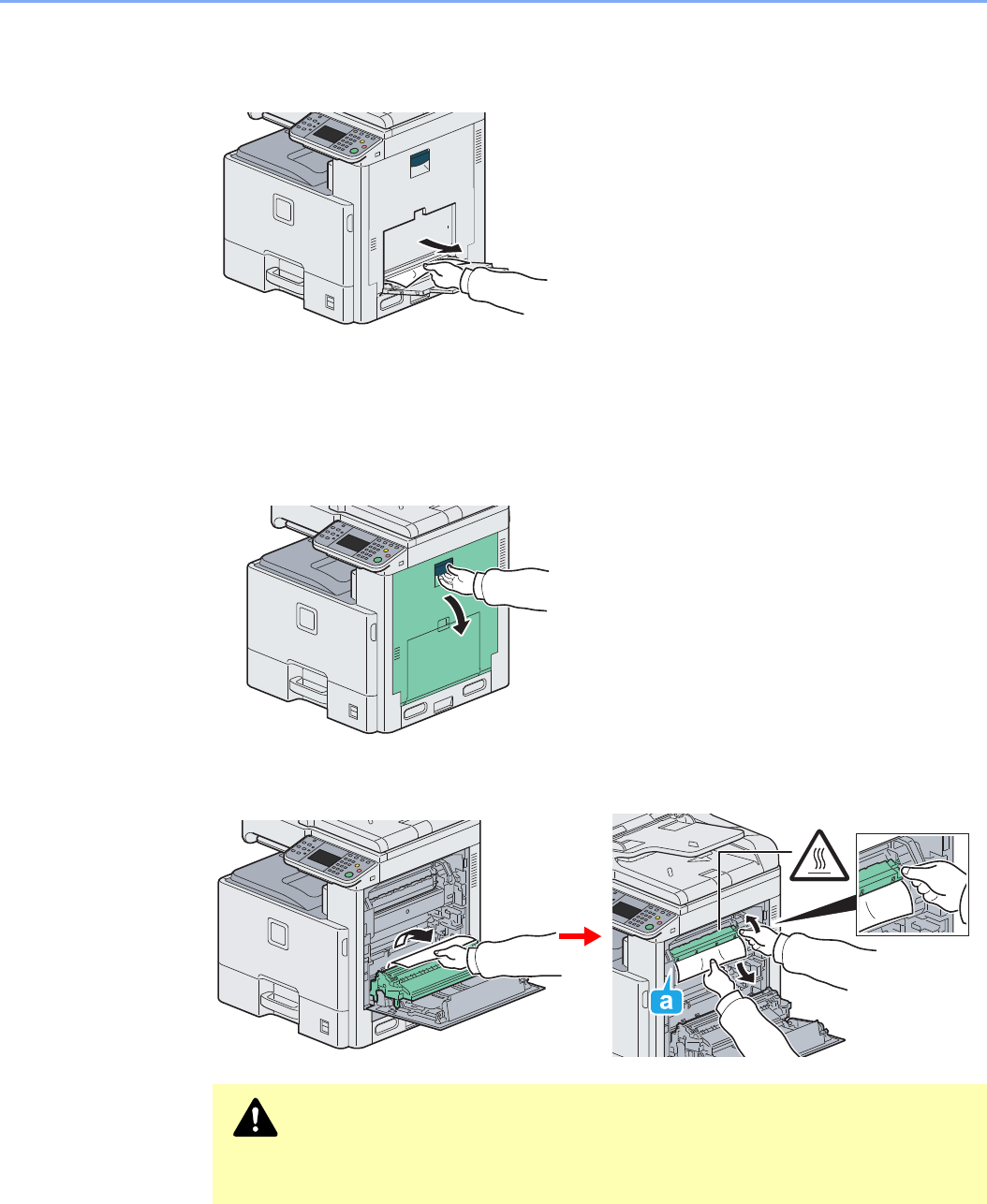
10-24
Troubleshooting > Clearing Paper Jams
Multi Purpose Tray
Follow the steps below to clear paper jams in the multi purpose tray.
Inside the Right Cover 1
Follow the steps below to clear paper jams inside the right cover 1.
1
2
Caution
The fixing unit is extremely hot. Take sufficient care when working in this area, as
there is a danger of getting burned.

10-25
Troubleshooting > Clearing Paper Jams
3
Cassette 1
Follow the steps below to clear paper jams in cassette 1.
Inside the Right Cover 3
Follow the steps below to clear paper jams inside the right cover 3.
1
2
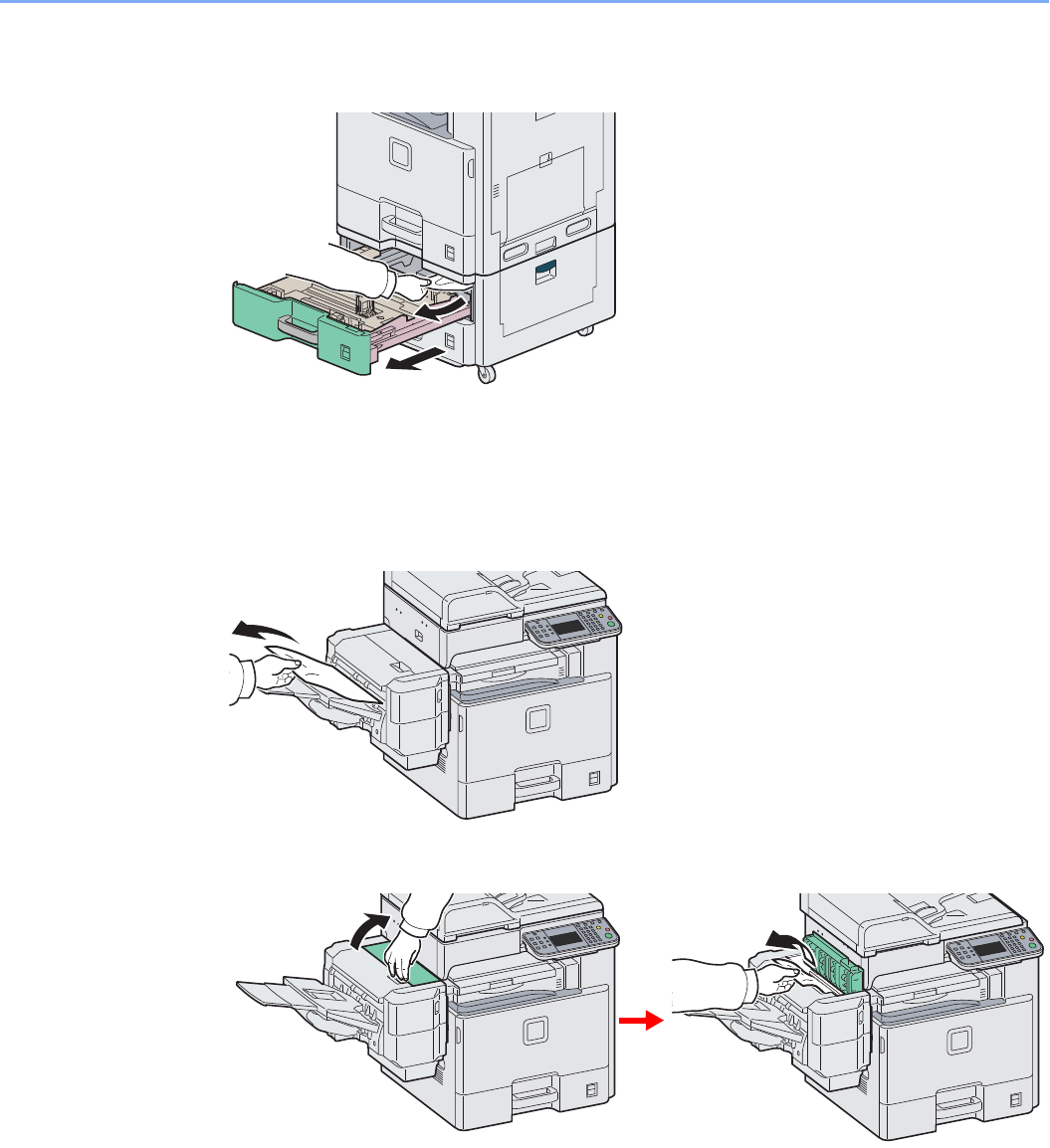
10-26
Troubleshooting > Clearing Paper Jams
Cassette 2 or 3
Follow the steps below to clear paper jams in cassette 2 or 3.
Optional Document Finisher
Follow the steps below to clear paper jams in the optional document finisher.
1
2
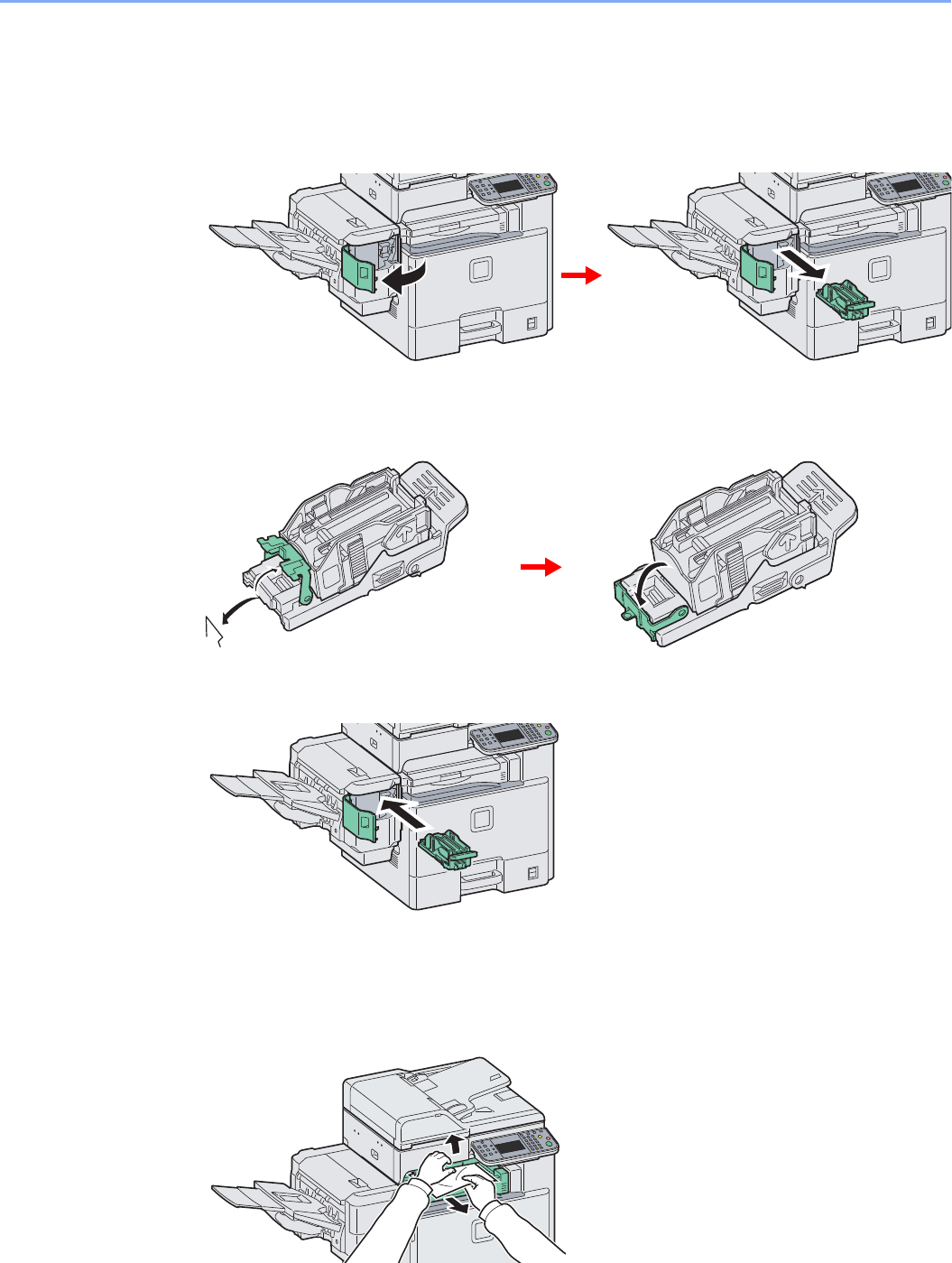
10-27
Troubleshooting > Clearing Paper Jams
Optional Document Finisher Staple Jam
Follow the steps below to clear staple jams in the optional document finisher.
1
2
3
Bridge Unit
Follow the steps below to clear paper jams in the bridge unit.
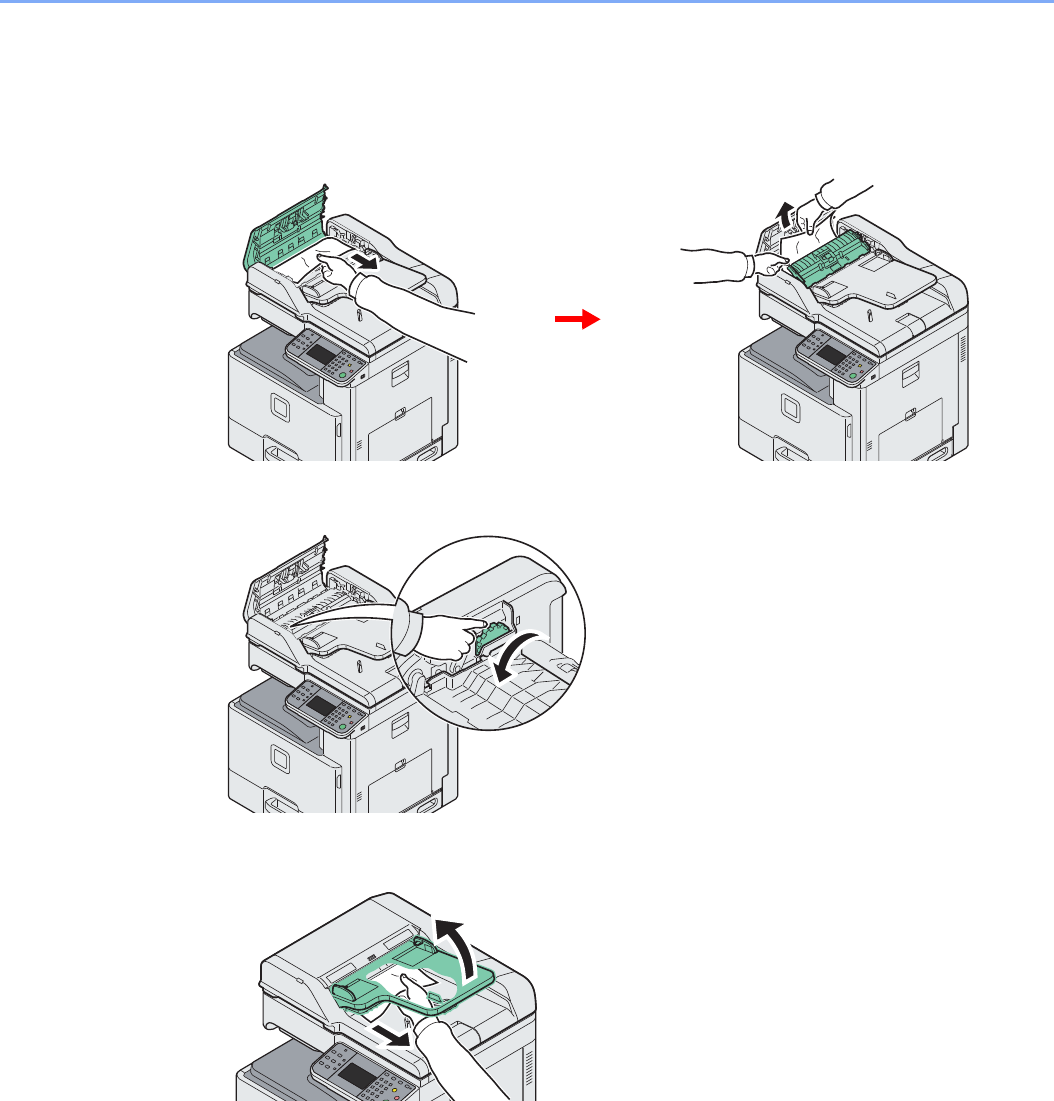
10-28
Troubleshooting > Clearing Paper Jams
Document Processor
Follow the steps below to clear paper jams in the document processor.
1
2
3
11-1
11 Appendix
This chapter explains the following topics:
Optional Equipment .......................................................................................................................................... 11-2
Overview of Optional Equipment ............................................................................................................ 11-2
Paper Feeder (single cassette) ............................................................................................................... 11-3
Paper Feeder (double cassette) ............................................................................................................. 11-3
Document Finisher .................................................................................................................................. 11-3
FAX Kit .................................................................................................................................................... 11-3
Expansion Memory ................................................................................................................................. 11-3
Card Authentication Kit ........................................................................................................................... 11-4
Gigabit Ethernet Board ........................................................................................................................... 11-5
USB Keyboard ........................................................................................................................................ 11-5
Optional Function .................................................................................................................................... 11-5
Character Entry Method .................................................................................................................................... 11-7
Paper .............................................................................................................................................................. 11-10
Basic Paper Specifications ................................................................................................................... 11-11
Choosing the Appropriate Paper .......................................................................................................... 11-11
Special Paper ........................................................................................................................................ 11-14
Specifications .................................................................................................................................................. 11-18
Common functions ................................................................................................................................ 11-18
Copy functions ...................................................................................................................................... 11-19
Printer functions .................................................................................................................................... 11-20
Scanner ................................................................................................................................................ 11-20
Document Processor ............................................................................................................................ 11-21
Paper Feeder (single cassette) (option) ............................................................................................... 11-21
Paper Feeder (double cassette) (option) .............................................................................................. 11-21
Document Finisher (option) .................................................................................................................. 11-22
Environmental Specifications ................................................................................................................ 11-22
Glossary .......................................................................................................................................................... 11-23
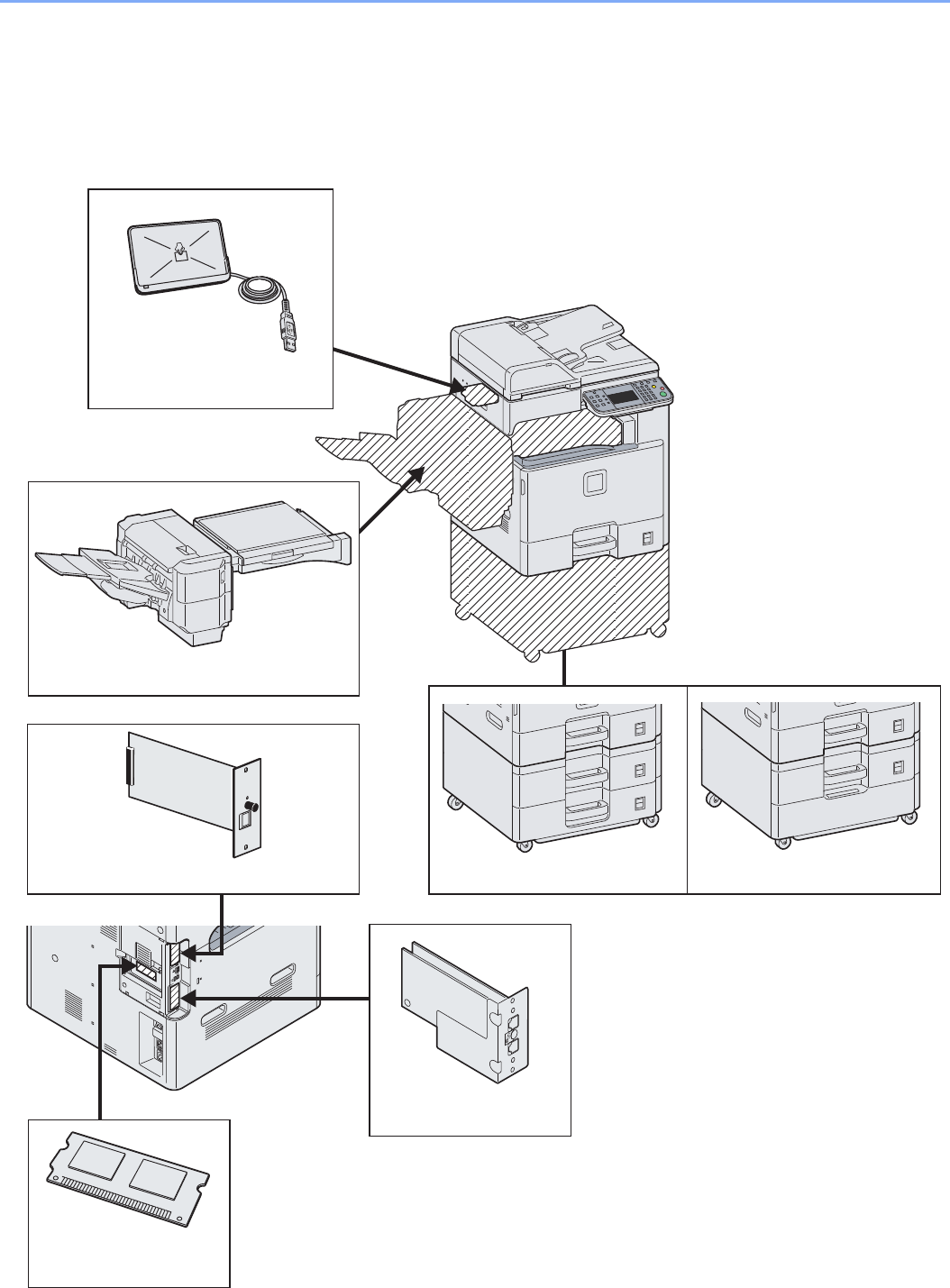
11-2
Appendix > Optional Equipment
Optional Equipment
Overview of Optional Equipment
The following optional equipment is available for the machine.
Document Finisher
Paper Feeder (double cassette) Paper Feeder (single cassette)
FAX Kit
Expansion Memory
Gigabit Ethernet Board
Card Authentication Kit
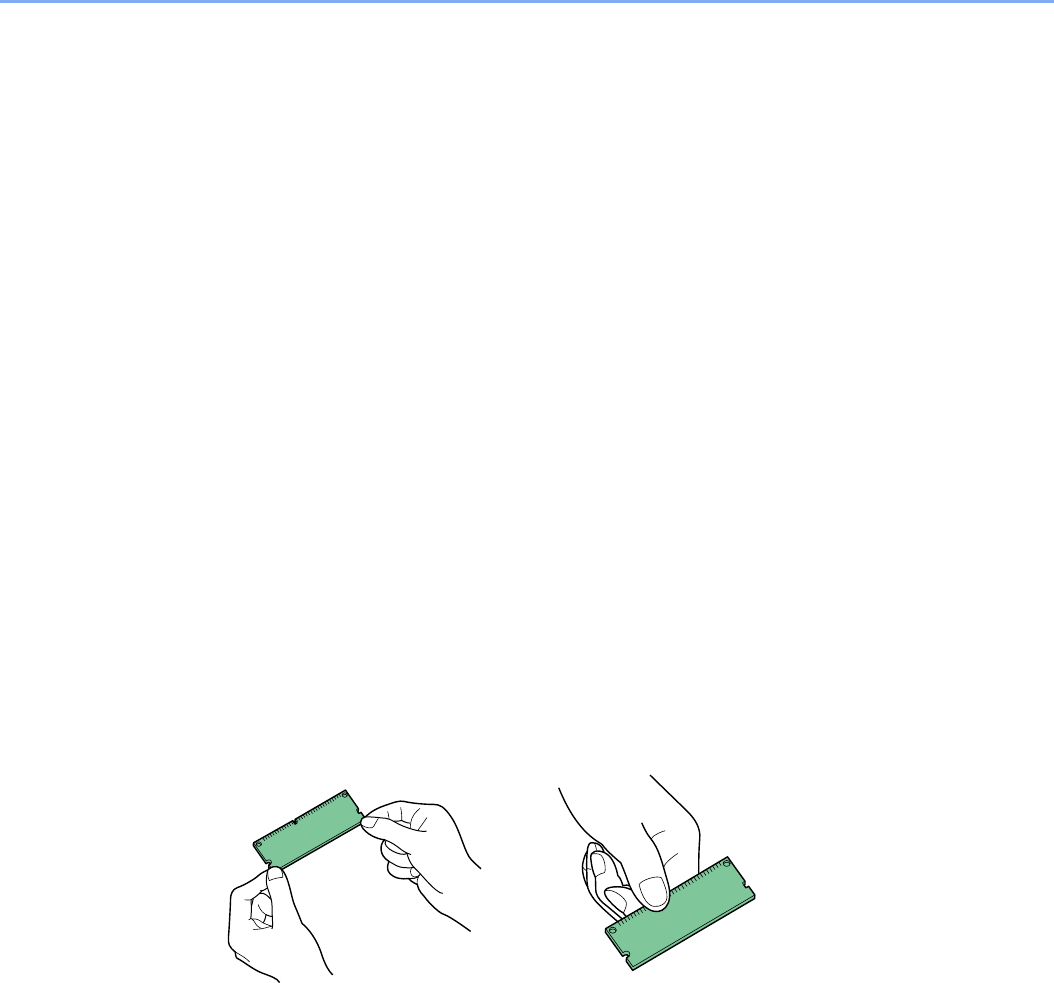
11-3
Appendix > Optional Equipment
Paper Feeder (single cassette)
An additional cassette identical to the machine’s cassettes can be installed in the machine. Paper capacity and loading
method are the same as Cassettes 1.
Paper Feeder (double cassette)
Two additional cassettes identical to the machine’s cassettes can be installed in the machine. Paper capacity and
loading method are the same as Cassettes 1.
Document Finisher
The document finisher holds a large quantity of finished copies. The finisher offers a convenient means of sorting.
Sorted finished copies may also be stapled. For further details, refer to the document finisher Operation Guide.
FAX Kit
By installing the FAX kit, fax send/receive is enabled. Also, it is possible to use it as a network fax, by using it with a
computer. For further details, refer to Fax Kit Operation Guide.
Expansion Memory
To expand the printer memory for more complex print jobs and faster print speed, you can plug in optional memory
module (dual in line memory module) in the memory slot provided on the main controller board. You can select
additional memory module from 256, 512 or 1024 MB. The maximum memory size is 2048 MB.
Precautions for Handling the Memory Module
To protect electronic parts, discharge static electricity from your body by touching a water pipe
(faucet) or other large metal object before handling the memory module. Or, wear an antistatic
wrist strap, if possible, when you install the memory module.
Installing the Memory Module
1Power off.
Turn off the machine and disconnect the power cord and interface cable.
Correct Incorrect
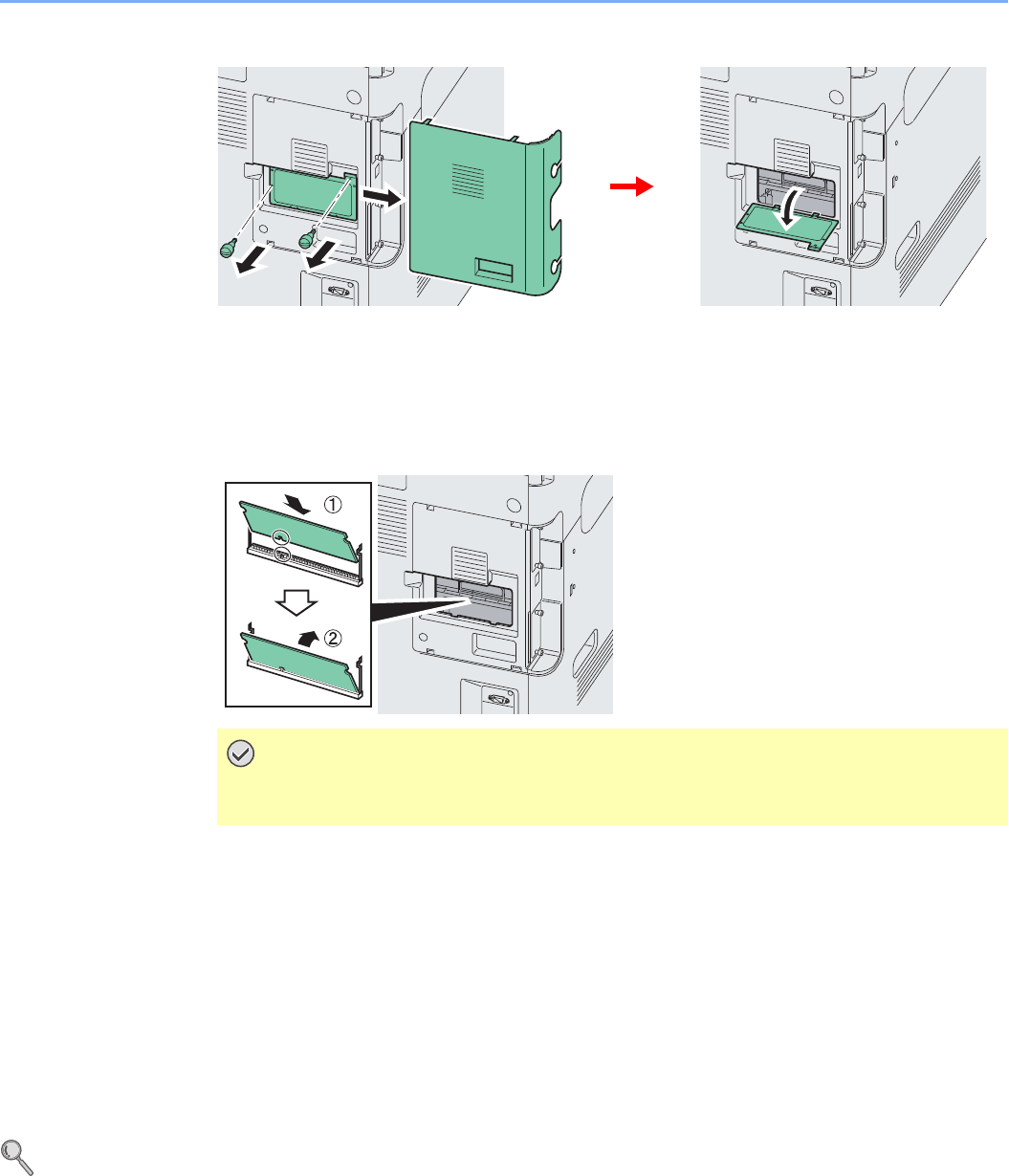
11-4
Appendix > Optional Equipment
2Remove the covers.
3Install the memory module.
1Remove the memory module from its package.
2With the memory connection terminal pointing toward the socket, align the cut-out part with
the socket terminal and insert directly in at an angle.
3Carefully press the inserted memory down and into the machine.
4Reinstall the covers.
Removing the Memory Module
To remove a memory module, remove the right cover and the memory slot cover from the machine. Then, carefully push
out the two socket clamps. Ease the memory module out of the socket to remove.
Verifying the Expanded Memory
To verify that the memory module is working properly, test it by printing a status page.
Refer to Report on page 9-5.
Card Authentication Kit
User login administration can be performed using IC cards. To do so, it is necessary to register IC card information on
the previously registered local user list. For more information about how to register this information, refer to the IC Card
Authentication Kit Operation Guide.
IMPORTANT
Before inserting a memory module in the machine, make sure that the machine is
switched off.
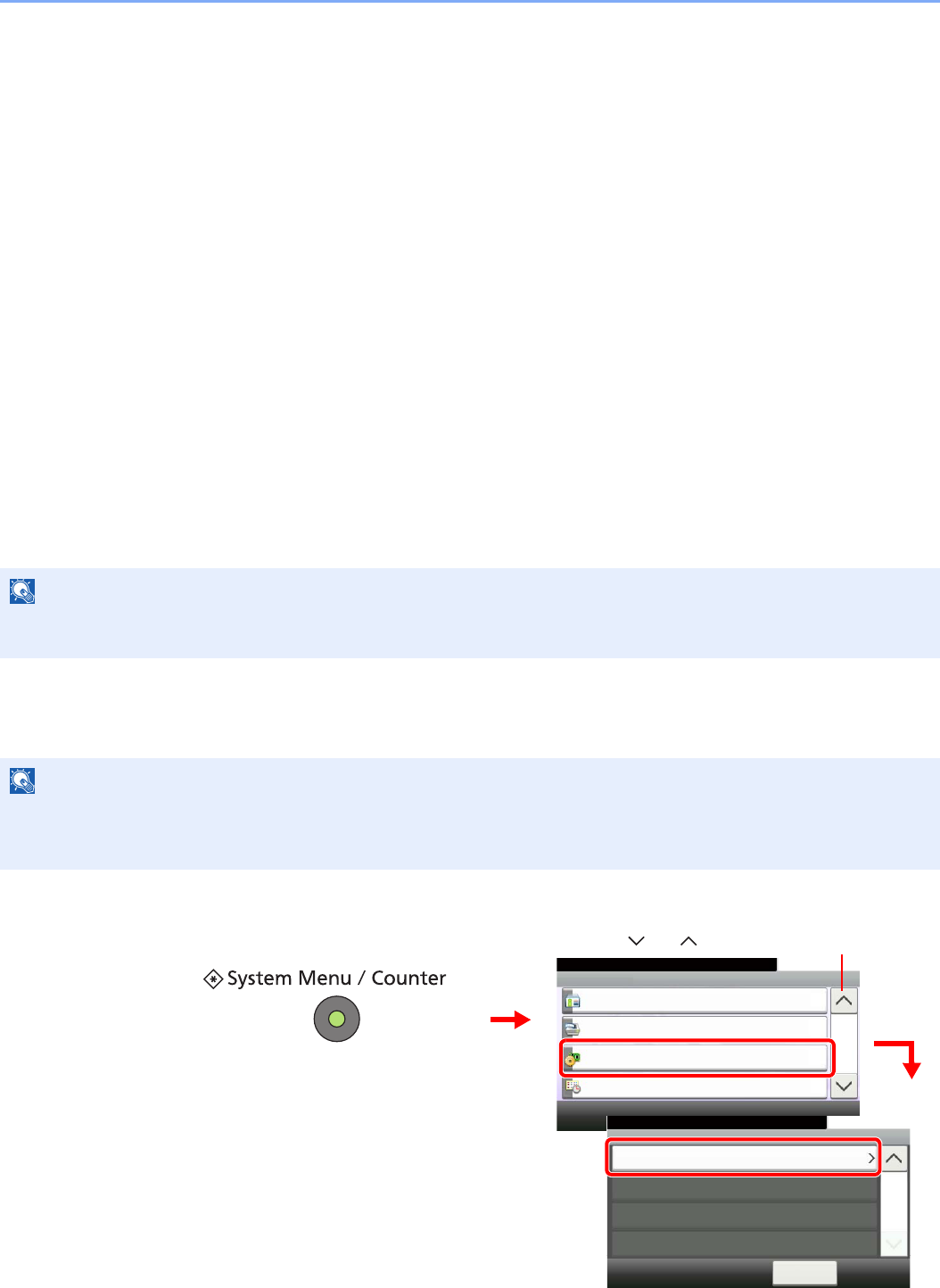
11-5
Appendix > Optional Equipment
Gigabit Ethernet Board
The Gigabit Ethernet Board provides a high-speed connection for the Gigabit-per-second interface. Since the kit was
designed to work with TCP/IP, NetWare, NetBEUI, and AppleTalk protocols, in the same way as the main unit, it fulfills
the network printing demands on Windows, Macintosh, and UNIX environments. This expansion kit is also compatible
with ThinPrint.
USB Keyboard
A USB keyboard can be used to enter information into the text fields on the operation panel. Please contact your dealer
or service representative for information on keyboards that are compatible with your MFP before you purchase one.
Optional Function
You can use the optional applications installed on this machine.
Overview of the Applications
The applications listed below are installed on this machine. You can use these applications for a limited period on a trial
basis.
UG-33 (ThinPrint) (This application can only be activated in Europe.)
This application allows print data to be printed directly without a print driver.
Starting Application Use
Use the procedure below to start using an application.
1Display the screen.
NOTE
Restrictions such as the number of times the application can be used during the trial period differ depending on the
application.
NOTE
If user login administration is disabled, the user authentication screen appears. Enter your login user name and
password and then press [Login]. For this, you need to login with administrator privileges. Refer to Adding a User on
page 9-37 for the default login user name and password.
System Menu/Counter.
System Menu
User Login/Job Accounting
10:10
Printer
System
Date/Timer
4/5
System
Optional Function
10:10
2/2
System Menu/Counter.
< Back
1
GB0511_01
GB0054_03
2
3
Use [ ] or [ ] to scroll up and down.
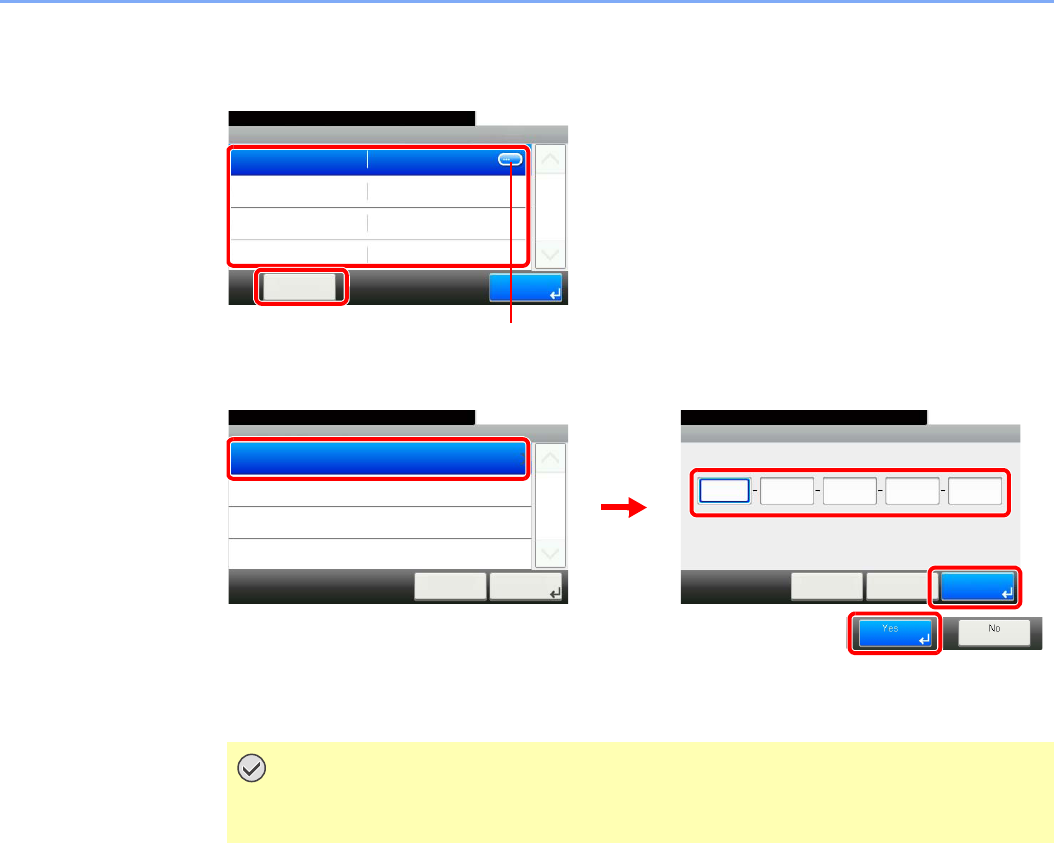
11-6
Appendix > Optional Equipment
2Start using an application.
1Select the desired application and press [Activate].
2Select [Official] and enter the license key using the numeric keys.
Some applications do not require you to enter a license key.
To use the application as a trial, select [Trial].
IMPORTANT
If you change the date/time while using an application, you will no longer be able to
use the application
System - Optional Function
10:10System Menu/Counter.
IC CARD AUTHENTI...
Activate
1/1
End
GB0557_00
1
2Displays details for individual applications.
Activate
10:10System Menu/Counter.
Trial
Official
Cancel
1/1
Next >
GB0608_00
Activate - License Key
10:10System Menu/Counter.
< Back OKCancel
GB0609_00
1
23
4
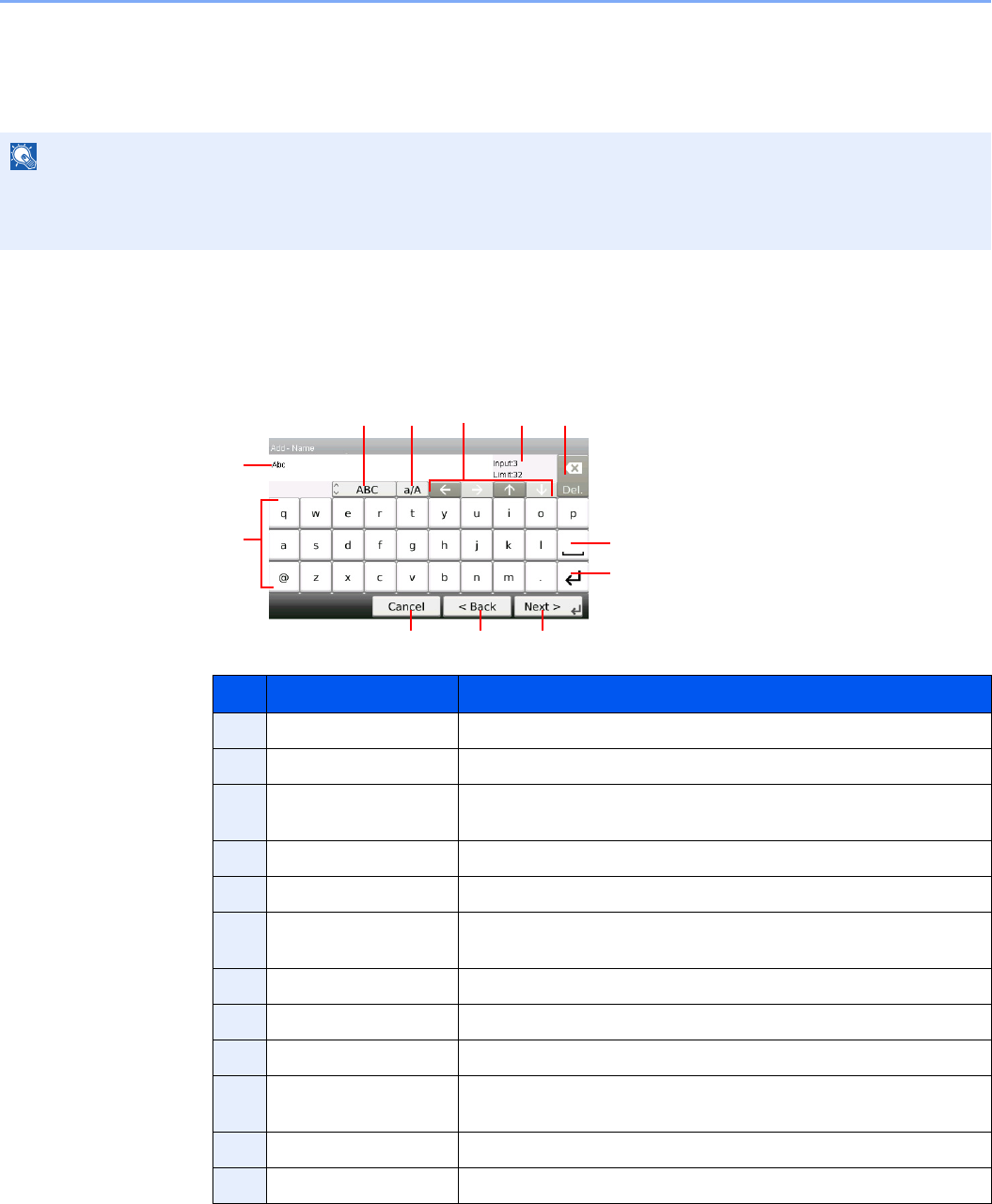
11-7
Appendix > Character Entry Method
Character Entry Method
To enter characters for a name, use the on-display keyboard in the touch panel following the steps as explained below.
Entry Screens
Lower-case Letter Entry Screen
NOTE
QWERTY, QWERTZ and AZERTY are available as keyboard layouts the same as a PC keyboard. Press the System
Menu/Counter key, [Common Settings] and then [Keyboard Layout] to choose desired layout. QWERTY layout is
used here as an example. You may use another layout following the same steps.
No. Display/Key Description
1 Display Displays entered characters.
2 Keyboard Press the character to enter.
3 [ABC] / [Symbol] Select the characters that are entered. To enter symbols or numbers,
select [Symbol].
4 [A/a] / [a/A] Press to switch between upper case and lower case.
5 Cursor Key Press to move the cursor on the display.
6 [Input] / [Limit] Display Displays maximum number of characters and the number of
characters entered.
7 Delete Key Press to delete a character to the left of the cursor.
8 Space Key Press to insert a space.
9 Enter Key Press to enter a line break.
10 [Cancel] Press to cancel entered characters and return to the screen before
the entry was made.
11 [< Back] Press to return to the previous screen.
12 [OK] / [Next >] Press to save the entered characters and move to the next screen.
1
2
10 12
45 7
8
9
63
GB0057_E01
11
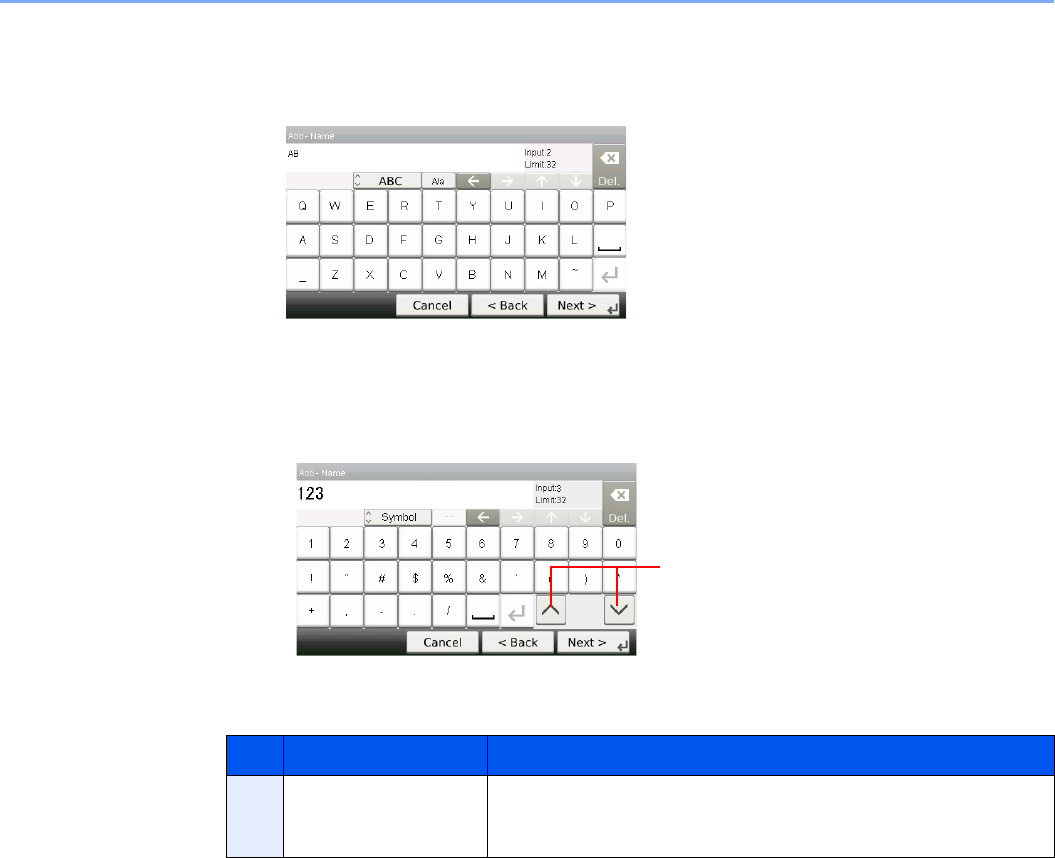
11-8
Appendix > Character Entry Method
Upper-case Letter Entry Screen
Number/Symbol Entry Screen
No. Display/Key Description
13 [S]/[T] To enter a number or symbol not shown in the keyboard, press the
cursor key and scroll the screen to view other numbers or symbols to
enter.
GB0057_E02
13
GB0057_E03
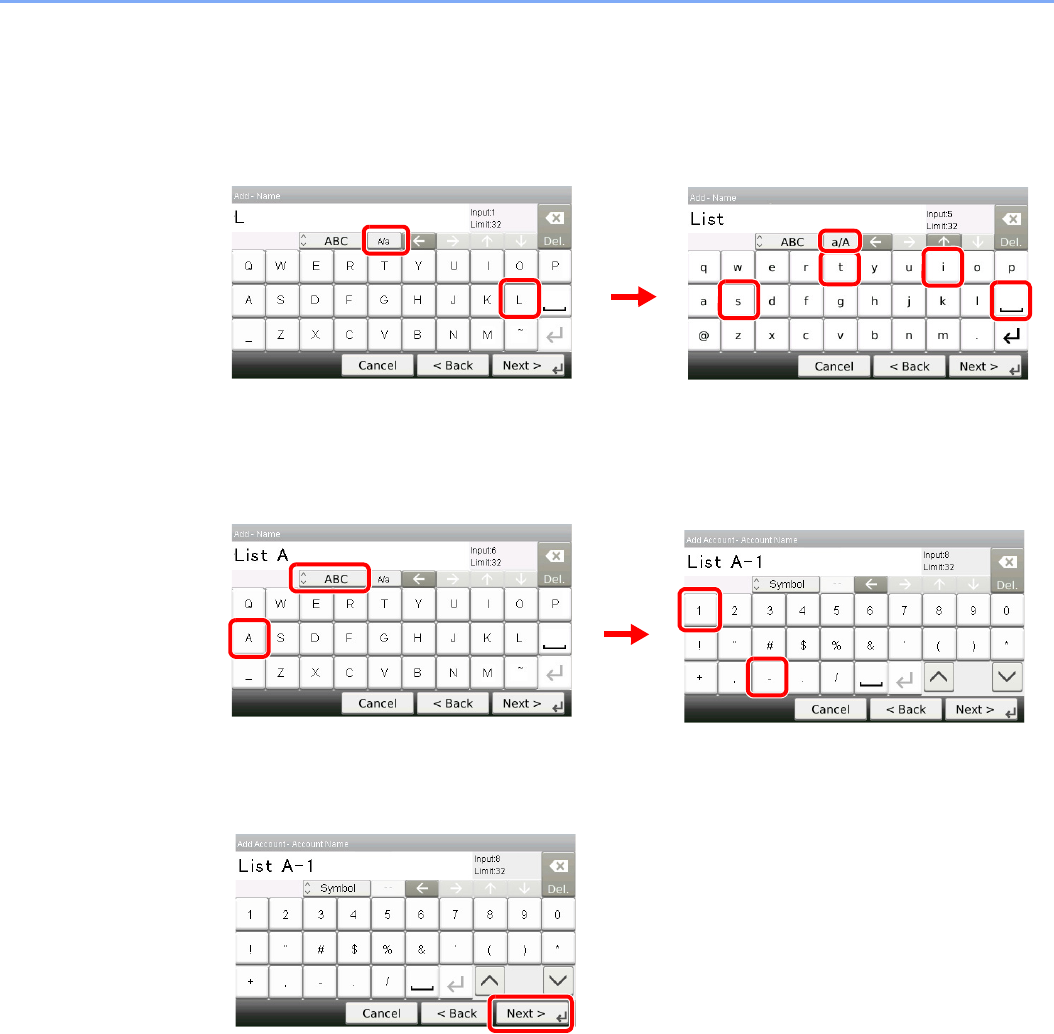
11-9
Appendix > Character Entry Method
Entering Characters
Follow the steps below to enter ‘List A-1’ for an example.
1Enter 'List', (space).
To shift from lower case to upper case letters, press [a/A]. To shift from upper case to lower
case letters, press [A/a].
2Enter 'A-1'.
To enter numbers or symbols, press [ABC] to display [Symbol].
3Register the characters you entered.
Press [Next>]. The entered characters are registered.
1, 3
2
4
56
8
7
GB0057_E11
GB0057_E12
2
1
3
4
GB0057_E13
GB0057_E14
GB0057_E14
11-10
Appendix > Paper
Paper
This section explains the paper sizes and types that can be used in the paper source.
Cassettes
Multi Purpose tray
Supported types Supported paper sizes No. of sheets
Plain paper (60 to 256 g/m²)
Recycled paper (60 to 256 g/m²)
Ledger, Letter-R, Letter, Legal, Statement-R, Oficio II, A3, A4-R,
A4, A5-R, B4, B5-R, B5, Folio, 216 × 340 mm, 8K, 16K-R, 16K
500 (80 g/m²)
Supported types Supported paper sizes No. of sheets
Plain paper (60 to 256 g/m²)
Recycled paper (60 to 256 g/m²)
Colored paper (60 to 256 g/m²)
Letter-R, Letter, Statement-R, Executive, A4-R, A4, A5-R, A6-R,
B5-R, B5, B6-R, Folio, 16K-R, 16K
Other sizes:
Portrait - 3-7/8 to 11-5/8" or 98 to 297 mm
Landscape - 5-7/8 to 17" or 148 to 432 mm
100 (80 g/m²)
Plain paper (60 to 256 g/m²)
Recycled paper (60 to 256 g/m²)
Colored paper (60 to 256 g/m²)
Ledger, Legal, Oficio II, A3, B4, 216 × 340 mm, 8K 25 (80 g/m²)
Postcards Postcards (100 × 148 mm) 20
Oufukuhagaki (return postcard) Return postcard (148 × 200 mm) 10
Envelopes Envelope DL, Envelope C5, Envelope C4, Envelope #10
(Commercial #10), Envelope #9 (Commercial #9), Envelope #6
(Commercial #6 3/4), Monarch, ISO B5, Youkei 2, Youkei 4
Other sizes:
Portrait — 3-7/8 to 11-5/8" or 98 to 297 mm
Landscape — 5-7/8 to 17" or 148 to 432 mm
5
11-11
Appendix > Paper
Basic Paper Specifications
This machine is designed to print on standard copy paper as used in regular ('dry') copiers and page printers such as
laser printers. It also supports a variety of other types of paper that conform to the specifications given in this appendix.
Be careful when choosing paper. Paper unsuitable for the machine may cause jams or may be wrinkled.
Supported Paper
Use standard copy paper for regular copiers or laser printers. The printing quality will be affected by the quality of paper.
Poor quality paper may result in unsatisfactory output.
Basic Paper Specifications
The following table lists the specifications of paper that is supported with this machine. Refer to the subsequent sections
for further details.
We are not responsible for the problems occurred from the use of paper that does not conform to our specifications.
Choosing the Appropriate Paper
This section describes guidelines for choosing paper.
Condition
Avoid using paper with bent corners or that is curled, dirty, or torn. Do not use paper that has a rough surface or paper
fiber lint, or that is especially delicate. Use of paper in any of these conditions will not only deliver poor copies but may
also cause jams and shorten the useful life of the machine. Choose paper with a smooth and even surface; however,
avoid coated paper or paper with a treated surface as it may damage the drum or fusing unit.
Ingredient
Do not use paper such as paper that has been coated or surface-treated or paper that contains plastic or carbon. These
paper may produce harmful fumes from the heat of printing and may damage the drum.
Be sure to use the standard paper that contains at least 80% pulp, i.e., not more than 20% of the total paper content
consists of cotton or other fibers.
Criteria Specifications
Weight Cassettes: 60 to 256 g/m²
Multi purpose tray: 60 to 256 g/m²
Thickness 0.086 to 0.230 mm
Dimensional accuracy ±0.7 mm
Squareness of corners 90°±0.2°
Moisture content 4 to 6%
Grain direction Long grain (paper supply direction)
Pulp content 80% or more
NOTE
Some recycled paper does not meet requirements for use with this machine as listed in the Basic Paper Specifications
shown below, such as moisture or pulp content. For this reason, we recommend purchasing a small amount of
recycled paper as a sample for testing prior to use. Choose recycled paper that gives the best printing results and
contains low levels of paper dust.
11-12
Appendix > Paper
Supported Paper Sizes
Paper of the following sizes is supported by the machine.
Measurements in the table take into account a ±0.7 mm dimensional accuracy for length and width. Corner angles must
be 90°±0.2°.
Smoothness
The paper surface should be smooth, but it must be uncoated. With paper that is too smooth and slippery, several
sheets may accidentally be supplied at once, causing jams.
Basis Weight
In countries that use the metric system, basis weight is the weight in grams of one sheet of paper one square meter in
area. In the United States, basis weight is the weight in pounds of one ream (500 sheets) of paper cut to the standard
size (or trade size) for a specific grade of paper. Paper that is too heavy or too light may be supplied incorrectly or cause
paper jams, which may cause excessive wear of the machine. Mixed paper weight (i.e., thickness) may cause several
sheets to be supplied at once accidentally and may also cause blurring or other printing problems if the toner fails to
adhere correctly.
Thickness
Avoid using paper that is too thick or thin. Signs that paper may be thin include frequent problems with paper jams or
with several sheets being supplied at once. Paper jams may also indicate that the paper is too thick. The proper
thickness is between 0.086 and 0.230 mm.
Multi Purpose Tray Cassette or Multi Purpose Tray
A6-R (105 × 148 mm) A3 (297 × 420 mm)
B6-R (128 × 182 mm) B4 (257 × 364 mm)
Hagaki (100×148mm) A4 (297 × 210 mm)
Oufukuhagaki (148 × 200 mm) A4-R (210 × 297 mm)
Executive (7 1/4 ×10 1/2") B5 (257 × 182 mm)
Envelope DL (110 × 220 mm) B5-R (182 × 257 mm)
Envelope C5 (162 × 229mm) A5-R (148 × 210 mm)
Envelope C4 (229 × 324mm) Folio (210 × 330 mm)
ISO B5 (176 × 250 mm) Ledger
Envelope #10 (Commercial #10) (4 1/8 × 9 1/2") Legal
Envelope #9 (Commercial #9) (3 7/8 × 8 7/8") Letter
Envelope #6 (Commercial #6 3/4) (3 5/8 × 6 1/2") Letter-R
Envelope Monarch (3 7/8 ×7 1/2") Statement-R
Youkei 2 (114 × 162 mm) Oficio II
Youkei 4 (105 × 235 mm) 216 × 340 mm
Size Entry (98 × 148 to 297 × 432 mm) 8K (273 × 394 mm)
16K (273 × 197 mm)
16K-R (197 × 273 mm)

11-13
Appendix > Paper
Moisture Content
Paper moisture content is the ratio of moisture to dryness expressed as a percentage. Moisture affects how the paper is
supplied, the electrostatic changeability of the paper, and how the toner adheres.
Paper moisture content varies depending on the relative humidity in the room. High relative humidity causes paper to
become damp, making the edges expand so it appears wavy. Low relative humidity causes paper to lose moisture,
making the edges tighten and weakening print contrast.
Wavy or tight edges may cause the paper to slip when it is supplied. Try to keep the moisture content between 4 to 6%.
To maintain the right level of moisture content, bear in mind the following considerations.
• Store paper in a cool, well-ventilated place.
• Store paper flat and unopened in the package. Once the package is opened, reseal it if the paper is not to be used for
a while.
• Store paper sealed in the original package and box. Put a pallet under the carton to keep it raised above the floor.
Especially during rainy seasons keep the paper a sufficient distance away from wooden or concrete floors.
• Before using paper that has been stored, keep it at the proper moisture level for at least 48 hours.
• Do not store paper where it is exposed to heat, sunlight, or dampness.
Other Paper Specifications
Porosity: The density of the paper fibers
Stiffness: Paper must be stiff enough or it may buckle in the machine, causing jams.
Curl: Most paper naturally tends to curl after the package is opened. When paper passes through the fixing unit, it curls
upward slightly. To deliver flat printouts, load the paper so that the curl faces towards the bottom of the paper tray.
Static electricity: During printing, paper is electrostatically charged so that the toner adheres. Choose paper that can
be discharged quickly so that copies do not cling together.
Whiteness: Paper whiteness affects print contrast. Use whiter paper for sharper, brighter copies.
Quality: Machine problems may occur if sheet sizes are not uniform or if corners are not square, edges are rough,
sheets are uncut, or edges or corners are crushed. In order to prevent these problems, be especially careful when you
cut the paper yourself.
Packaging: Choose paper that is properly packaged and stacked in boxes. Ideally, the packaging itself should have
been treated with a coating to inhibit moisture.
Specially treated paper: We do not recommend printing onto the following types of paper, even if it conforms to the
basic specifications. When you use these kinds of paper, purchase a small amount first as a sample to test.
• Glossy paper
• Watermarked paper
• Paper with an uneven surface
• Perforated paper

11-14
Appendix > Paper
Special Paper
This section describes printing onto special paper and print media.
The following paper and media can be used.
• Transparencies
• Preprinted paper
• Bond paper
• Recycled paper
• Thin paper (from 60 g/m² to 64 g/m² or less)
• Letterhead
• Colored paper
• Prepunched paper
• Envelopes
• Cardstocks (Hagaki)
• Thick paper (from 106 g/m² to 256 g/m² or less)
• Labels
• Coated paper
• High-quality paper
When using these paper and media, choose that are designed specifically for copiers or page printers (such as laser
printers). Use the multi purpose tray for transparencies, thick paper, envelopes, cardstocks, and labels.
Choosing Special Paper
Although special paper that meets the following requirements can be used with the machine, print quality will vary
considerably due to differences in the construction and quality of special paper. Thus, special paper is more likely than
regular paper to cause printing problems. Before purchasing special paper in volume, try testing a sample to ensure the
print quality is satisfactory. General precautions when printing onto special paper are given below. Note that we are not
responsible for any harm to the user or damage to the machine caused by moisture or specifications of special paper.
Select a cassette or multi purpose tray for special paper.
Transparencies
Transparencies must be able to withstand the heat of printing. Transparencies must meet the following conditions.
To avoid problems, use the multi purpose tray for transparencies and load transparencies with the long side facing the
machine.
If transparencies jam frequently at output, try pulling the leading edge of sheets gently as they are ejected.
Heat resistance Must withstand at least 190°C
Thickness 0.100 to 0.110 mm
Material Polyester
Dimensional accuracy ±0.7 mm
Squareness of corners 90° ±0.2°
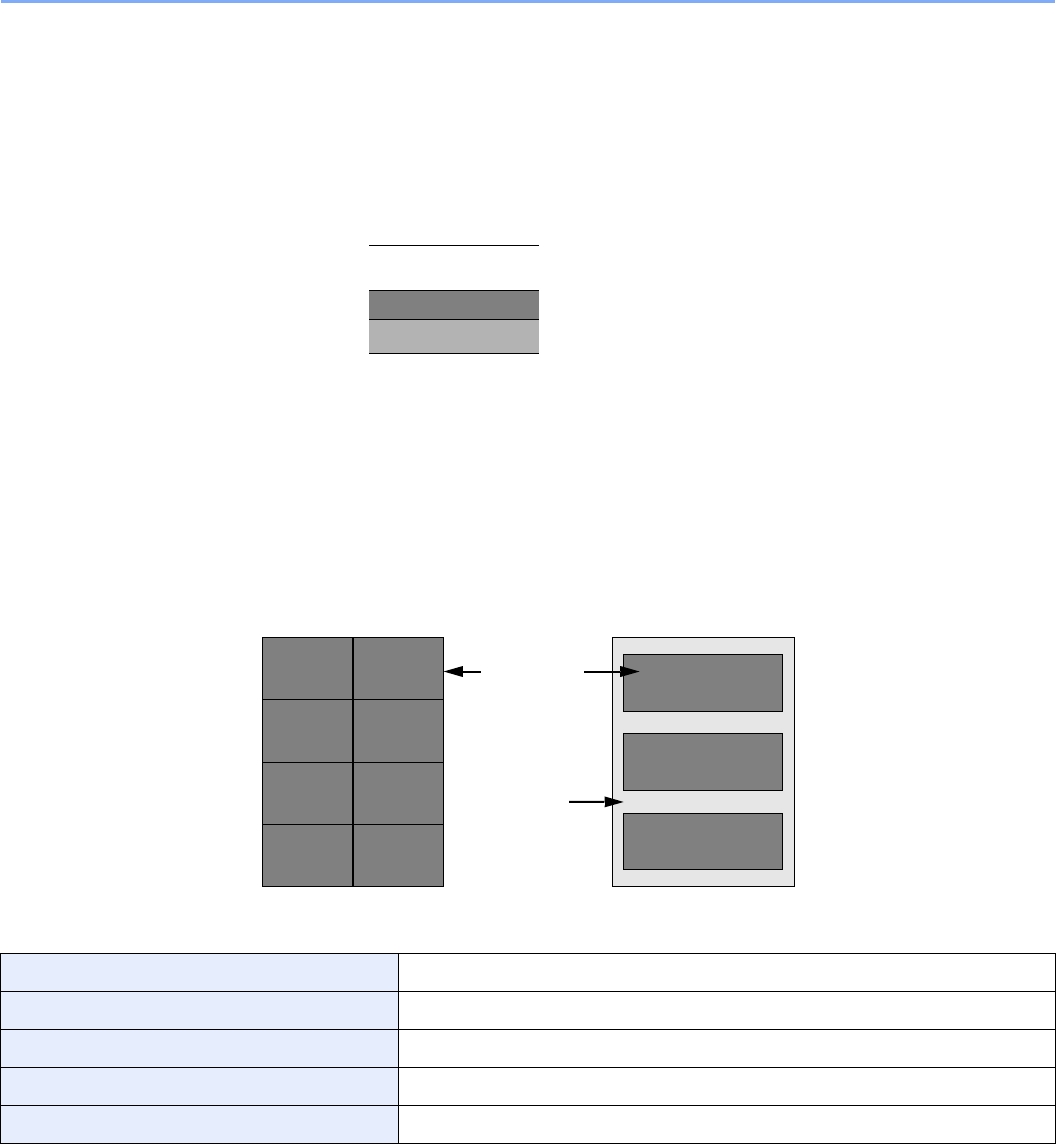
11-15
Appendix > Paper
Label
Be sure to feed labels from the multi purpose tray.
For selecting labels, use extreme care so that the adhesive may not come in direct contact with any part of the machine
and that the labels are not easily peeled from the carrier sheet. Adhesives that stick to the drum or rollers and peeled
labels remaining in the machine may cause a failure.
When printing onto labels, you must be liable for the print quality and possible trouble.
Labels consist of three layers as shown in the illustration. The adhesive layer contains materials that are easily affected
by the force applied in the machine. The carrier sheet bears the top sheet until the label is used. This composition of
labels may cause more problems.
The label surface must be covered completely with the top sheet. Gaps between labels may cause peeling of labels,
resulting in a serious failure.
Some label paper has large margins on the top sheet. When using such paper, do not peel these margins from the
carrier sheet before completing output.
Use label paper that conforms to the following specifications.
Top sheet weight 44 to 74 g/m²
Basis weight (overall paper weight) 104 to 151 g/m²
Top sheet thickness 0.086 to 0.107 mm
Overall paper thickness 0.115 to 0.160 mm
Moisture content 4 to 6 % (composite)
Top sheet
Adhesive layer
Carrier sheet
Not allowedAllowed
Top sheet
Carrier sheet
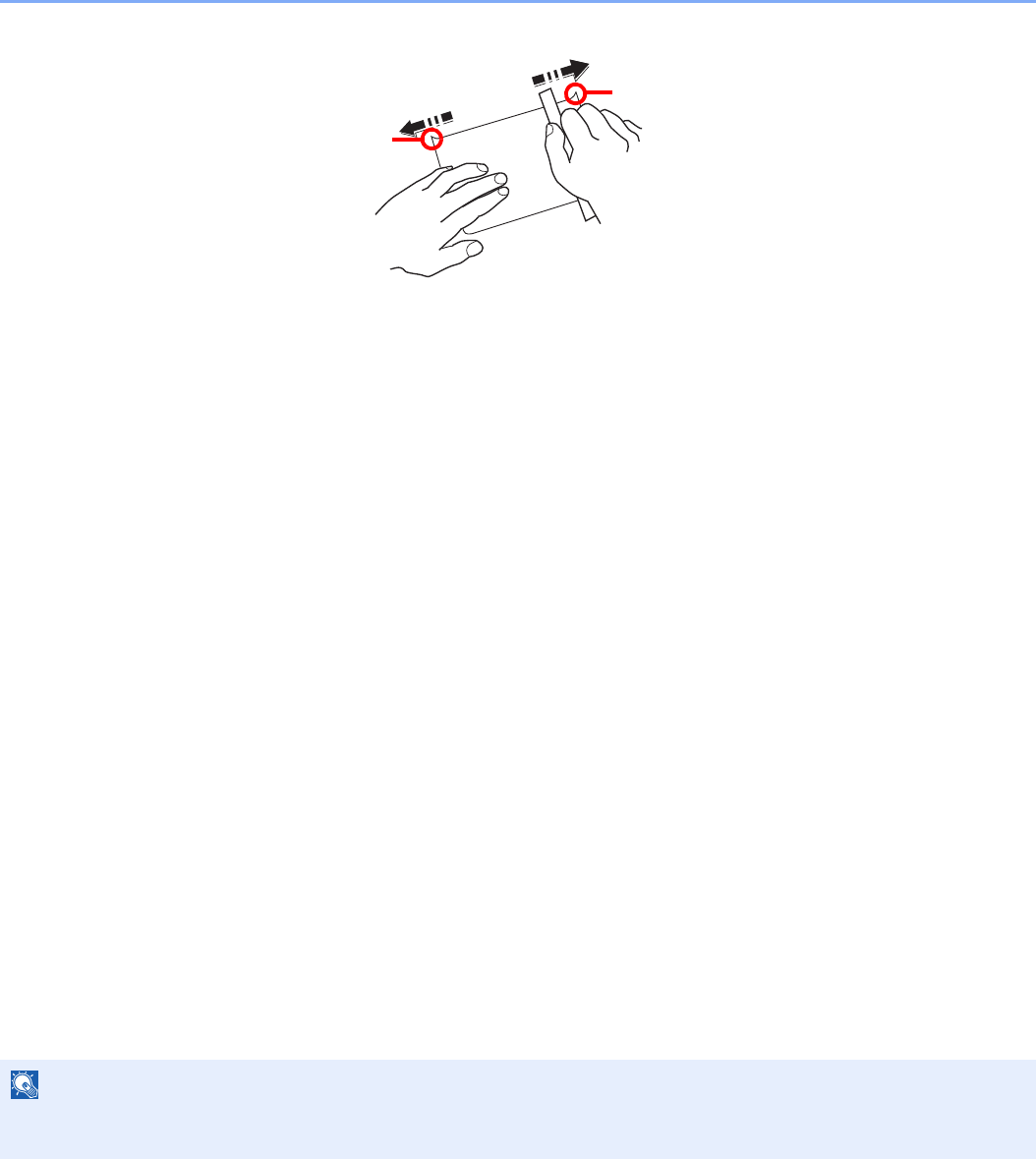
11-16
Appendix > Paper
Hagaki
Before loading Hagaki into the multi purpose tray, fan them and align the edges. If the Hagaki paper is curled, straighten
it before loading. Printing onto curled Hagaki may cause jams.
Use unfolded Oufukuhagaki (available at post offices). Some Hagaki may still have rough edges developed by a paper
cutter on the back side. Remove any such rough edges by placing the Hagaki on a flat surface and rubbing the edges
gently a few times with a ruler.
Envelopes
Use the multi purpose tray for envelopes.
Due to the structure of envelopes, printing evenly over the entire surface may not be possible in some cases. Thin
envelopes in particular may be wrinkled by the machine in some cases as they pass through. Before purchasing
envelopes in volume, try testing a sample to ensure the print quality.
Storing envelopes for a long period may cause them to become wrinkled. Thus, keep the package sealed until you are
ready to use them.
Keep the following points in mind.
• Do not use envelopes with exposed adhesive. In addition, do not use the type of envelope in which the adhesive is
exposed after the top layer is peeled off. Serious damage may be caused if the paper covering the adhesive comes
off in the machine.
• Do not use envelopes with certain special features. For example, do not use envelopes with a grommet for winding a
string to close the flap or envelopes with an open or film-covered window.
• If paper jams occur, load fewer envelopes at once.
Thick Paper
Before loading thick paper in the multi purpose tray, fan it and align the edges. Some thick paper may still have rough
edges developed by a paper cutter on the back side. Remove any such rough edges just as with Hagaki by placing the
paper on a flat surface and rubbing the edges gently a few times with a ruler. Printing onto paper with rough edges may
cause jams
Colored Paper
Colored paper must conform to the specifications listed on the page 11-11. In addition, the pigments in the paper must
be able to withstand the heat of printing (up to 200°C or 392°F).
Preprinted Paper
Preprinted paper must conform to the specifications listed on the page 11-11. The colored ink must be able to withstand
the heat of printing. It must be resistant to silicone oil as well. Do not use paper with a treated surface such as glossy
paper used for calendars.
NOTE
If the paper is not supplied correctly even after it is smoothed, load the paper in the multi purpose tray with the leading
edge raised a few millimeters.
Burrs
Burrs

11-17
Appendix > Paper
Recycled Paper
Recycled paper must conform to the specifications listed on the page 11-11; however, its whiteness may be considered
separately.
Coated Paper
Coated paper is created by treating the surface of the base paper with a coating that provides higher printing quality than
plain paper. Coated paper is used for particularly high quality printing.
The surface of high-quality or medium-quality paper is coated with special agents that improve ink adhesion by making
the paper surface smoother. These agents are used either to coat both sides of the paper or just one side. The coated
side appears slightly glossy.
NOTE
Before purchasing recycled paper in volume, try testing a sample to ensure that the print quality.
IMPORTANT
When printing on coated paper in very humid environments, ensure that the paper is kept dry as moisture
may cause sheets to stick together when they are fed into the machine. If printing in very humid
environments, set coated paper for one sheet each.
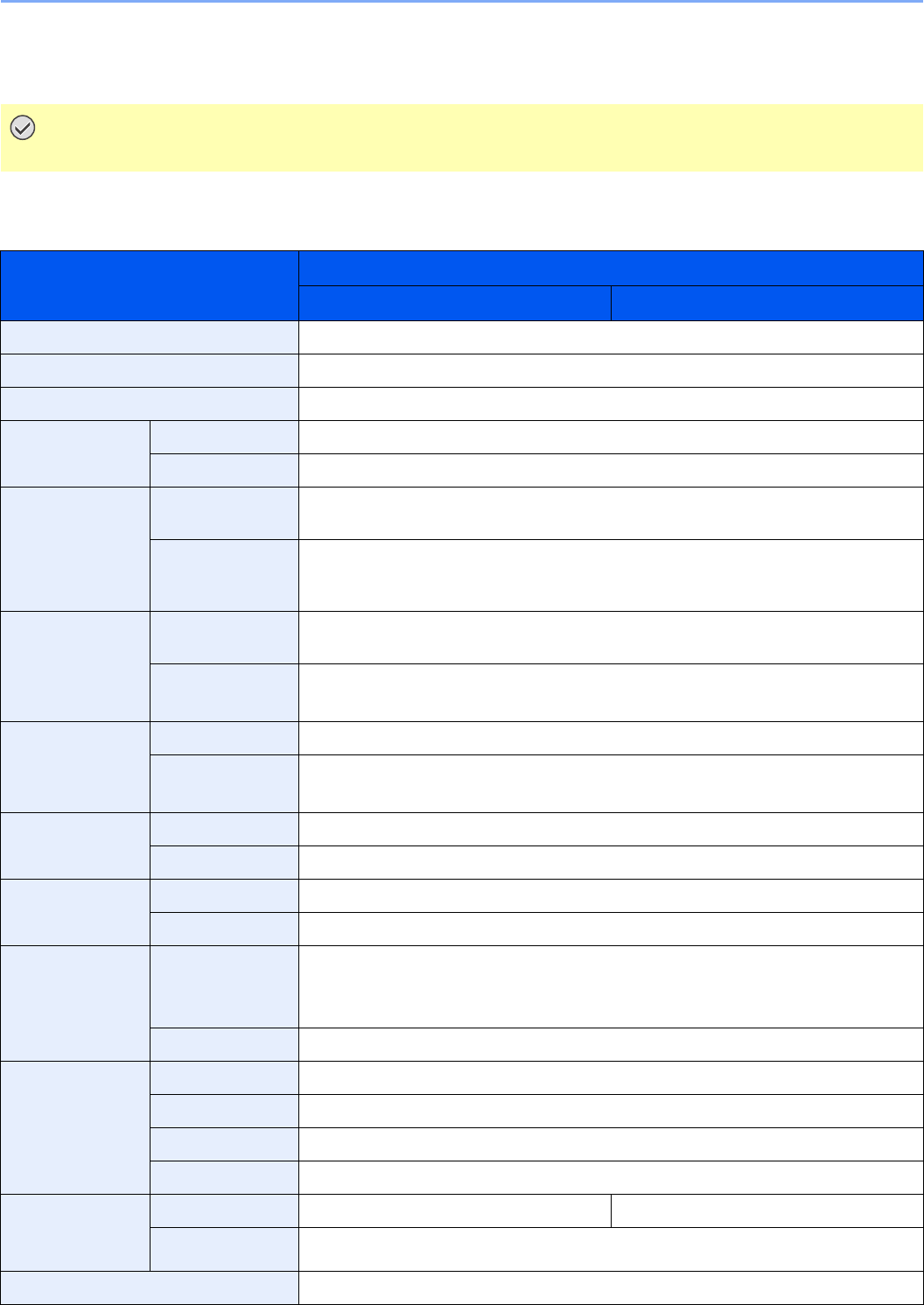
11-18
Appendix > Specifications
Specifications
Common functions
IMPORTANT
Specifications are subject to change without notice.
Item Description
20 ppm model 25 ppm model
Type Desktop
Printing Method Electrophotographic four color (CMYK) printing using tandem (4) drum system
Image Write System Semiconductor laser and electrophotography
Paper Weight Cassette 60 to 256 g/m²
Multi Purpose Tray 60 to 256 g/m²
Media Type Cassette Plain, Rough, Vellum, Recycled, Preprinted, Bond, Color, Prepunched, Letterhead,
Thick, High Quality, Custom 1 to 8 (Duplex: Same as Simplex)
Multi Purpose Tray Plain, Transparency (OHP film), Rough, Vellum, Labels, Recycled, Preprinted, Bond,
Cardstock, Color, Prepunched, Letterhead, Thick, Envelope, Coated, High Quality,
Custom 1 to 8
Paper Size Cassette Ledger, Letter-R, Letter, Legal, Statement-R, Oficio II, A3, A4-R, A4, A5-R, B4, B5-R,
B5, Folio, 216 × 340 mm, 8K, 16K-R, 16K
Multi Purpose Tray Maximum: Ledger/A3
Minimum: Statement-R/A6-R
Paper Capacity Cassette 500 sheets (80 g/m²)
Multi Purpose Tray 100 sheets (80 g/m², Letter/A4 or less),
25 sheets (80 g/m², more than Letter/A4)
Output Tray
Capacity
Inner Tray 250 sheets (80 g/m²)
Job Separator 30 sheets (80 g/m²)
Main Memory Standard 1024 MB
Maximum 2048 MB
Interface Standard USB Interface Connector: 1 (USB Hi-Speed)
USB memory slot: 2 (USB Hi-Speed)
Network interface: 1 (10 BASE-T/100 BASE-TX/1000 BASE-T)
Option eKUIO: 2
Operating
Environment
Temperature 10 to 32.5°C/50 to 90.5°F
Humidity 15 to 80 %
Altitude 2,500 m/8,202 ft maximum
Brightness 1,500 lux maximum
Warm-up Time
(22°C/71.6°F,
60%)
Power on 55 seconds or less 45 seconds or less
Sleep 23 seconds or less
Dimension (W × D × H) 23-1/4×23-1/4×29-7/16", 590×590×748 mm
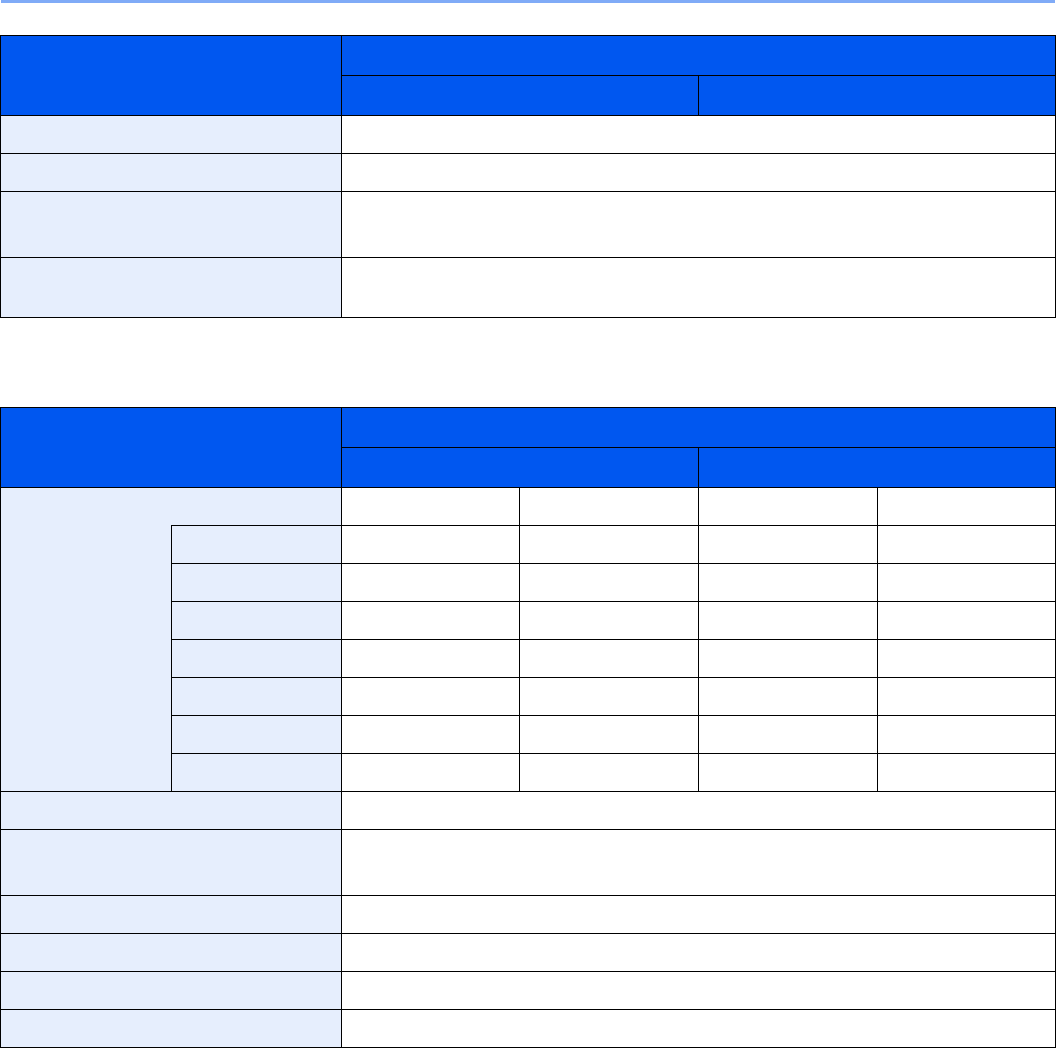
11-19
Appendix > Specifications
Copy functions
Weight (with toner container) Approx. 176 lb/Approx. 80 kg
Space Required (W × D) 34-7/16×23-1/4", 874×590 mm (Using multi purpose tray)
Power Source 120 V Specification Model:120 V (60 Hz, 12 A)
230 V Specification Model: 220 to 240V (50 Hz/ 60 Hz, 7.2 A)
Options Paper feeder (single cassette), Paper feeder (double cassette), Document finisher, FAX
kit, Expansion memory, Card Authentication Kit, Gigabit Ethernet Board, USB keyboard
Item Description
20 ppm model 25 ppm model
Max.Copy Speed Full color Black and White Full color Black and White
Letter/A4 20 sheets/min 20 sheets/min 25 sheets/min 25 sheets/min
Letter-R/A4-R 14 sheets/min 14 sheets/min 17 sheets/min 17 sheets/min
Ledger/A3 8 sheets/min 10 sheets/min 9 sheets/min 13 sheets/min
Legal/B4 9 sheets/min 10 sheets/min 10 sheets/min 13 sheets/min
B5 20 sheets/min 20 sheets/min 25 sheets/min 25 sheets/min
B5-R 14 sheets/min 14 sheets/min 17 sheets/min 17 sheets/min
A5-R 10 sheets/min 10 sheets/min 13 sheets/min 13 sheets/min
First Print Time (A4, feed from Cassette) Full color: 13.6 seconds or less, Black and White: 11.7 seconds or less
Zoom Level Manual mode: 25 to 400%, 1% increments
Auto mode: Preset Zoom
Continuous Copying 1 to 999 sheets
Resolution 600×600 dpi
Supported Original Types Sheet, Book, 3-dimensional objects (maximum original size: Ledger/A3)
Original Feed System Fixed
Item Description
20 ppm model 25 ppm model
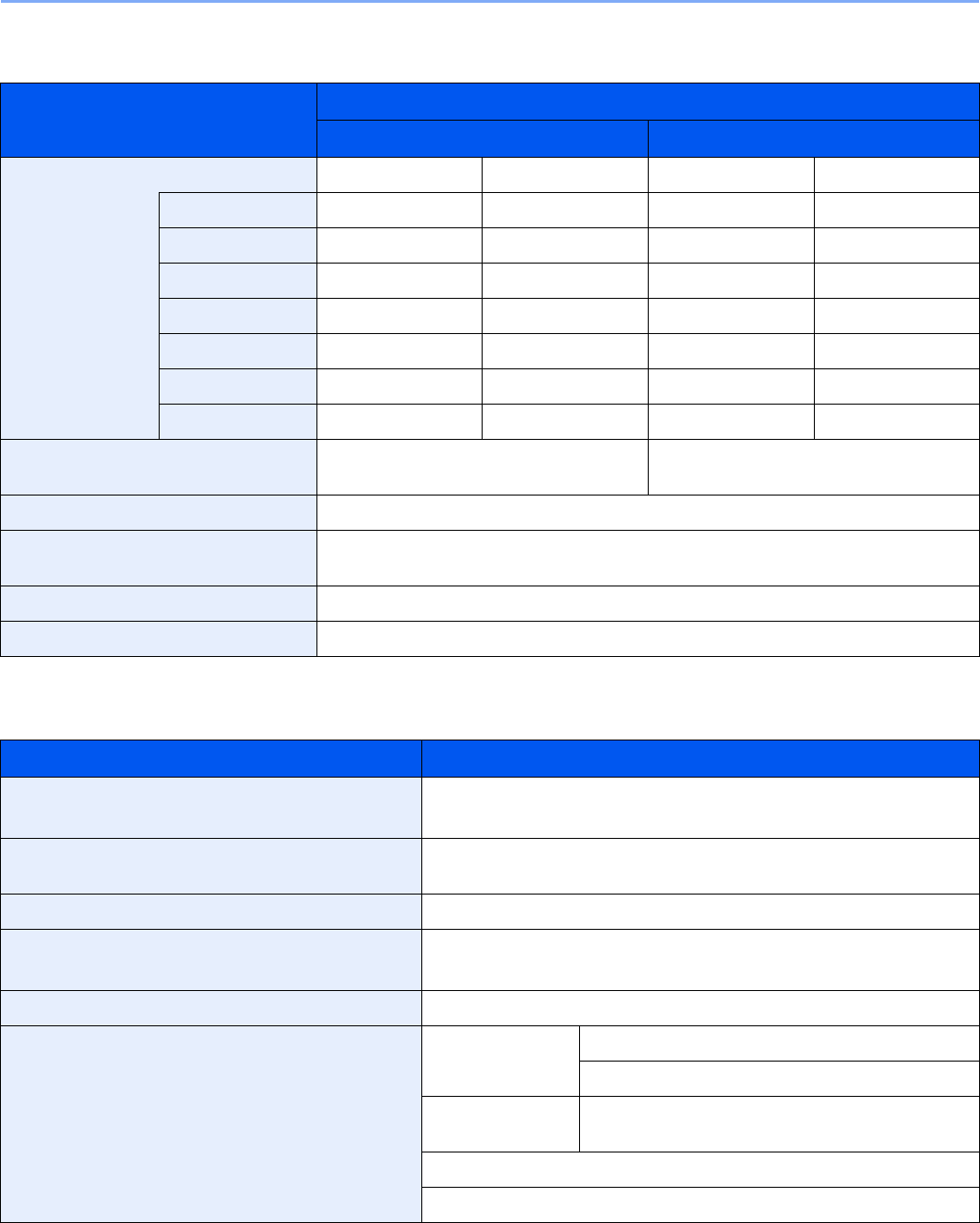
11-20
Appendix > Specifications
Printer functions
Scanner
Item Description
20 ppm model 25 ppm model
Printing Speed Full color Black and White Full color Black and White
Letter/A4 20 sheets/min 20 sheets/min 25 sheets/min 25 sheets/min
Letter-R/A4-R 14 sheets/min 14 sheets/min 17 sheets/min 17 sheets/min
Ledger/A3 10 sheets/min 10 sheets/min 13 sheets/min 13 sheets/min
Legal/B4 10 sheets/min 10 sheets/min 13 sheets/min 13 sheets/min
B5 20 sheets/min 20 sheets/min 25 sheets/min 25 sheets/min
B5-R 14 sheets/min 14 sheets/min 17 sheets/min 17 sheets/min
A5-R 10 sheets/min 10 sheets/min 13 sheets/min 13 sheets/min
First Print Time (A4, feed from Cassette) Full color: 14.0 seconds or less,
Black and White: 11.0 seconds or less
Full color: 12.0 seconds or less,
Black and White: 10.0 seconds or less
Resolution 600×600 dpi
Operating System Windows XP, Windows Server 2003, Windows Vista, Windows 7, Windows Server
2008, Apple Macintosh OS X
Page Description Language PRESCRIBE
Emulations PCL6 (PCL5c, PCL-XL), KPDL3 (PostScript 3 compatible)
Item Description
System requirements CPU: 600 Mhz or higher
RAM: 128 MB or more
Resolution 600 dpi, 400 dpi, 300 dpi, 200 dpi, 200×100 dpi, 200×400 dpi (Resolution
in FAX mode included)
File Format TIFF (JPEG6.0, tn2), JPEG, XPS, PDF (1.4, /A)
Scanning Speed*
* When using the document processor (except TWAIN and WIA scanning)
(A4 landscape, 300 dpi, Image quality: Text/Photo original)
1-sided B/W 40 Images/min, Color 40 Images/min
Network Protocol TCP/IP
Transmission System PC transmission SMB: Scan to SMB
FTP: Scan to FTP, FTP over SSL
E-mail
transmission
SMTP: Scan to E-mail
TWAIN scan**
** Available Operating System: Windows XP, Windows Server 2003, Windows Vista, Windows 7, Windows Server 2008
WIA scan***
*** Available Operating System: Windows Vista, Windows 7, Windows Server 2008
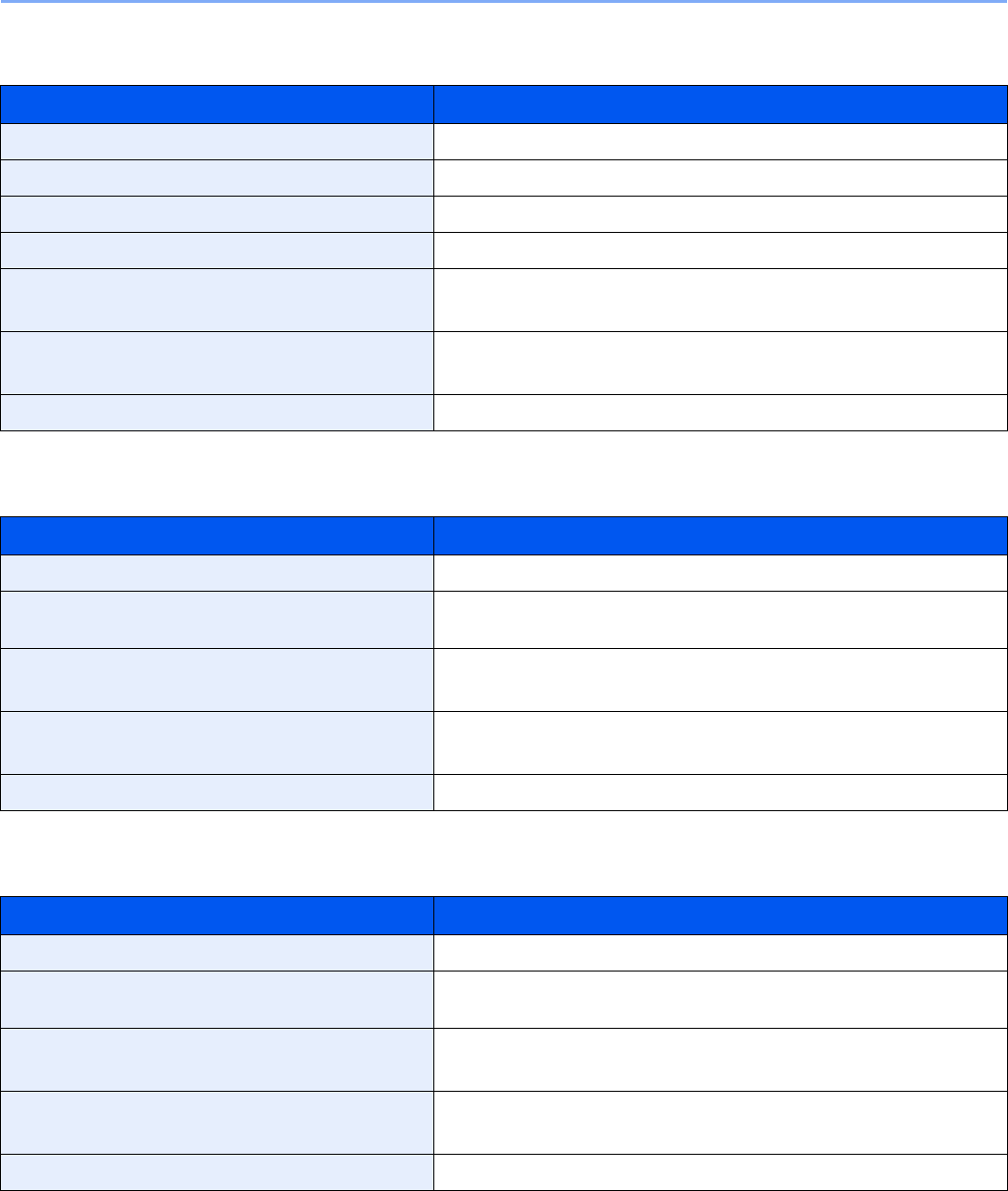
11-21
Appendix > Specifications
Document Processor
Paper Feeder (single cassette) (option)
Paper Feeder (double cassette) (option)
Item Description
Original Feed Method Automatic feed
Supported Original Types Sheet originals
Paper Size Maximum: Ledger/A3, Minimum: Statement-R/A5-R
Paper Weight 45 to 160 g/m²
Loading Capacity 50 sheets (50 to 80 g/m²) maximum
Mixed original sizes (auto selection): 30 sheets (50 to 80 g/m²) maximum
Dimensions (W) × (D) × (H) 23-1/4×19-1/4×4-7/8"
590×489×123 mm
Weight Approx. 15.4 lb or less/Approx. 7 kg or less
Item Description
Paper Supply Method Friction Feed (No. Sheets: 500, 80 g/m², 1 cassette)
Paper Size Ledger, Letter-R, Letter, Legal, Statement-R, Oficio II, A3, A4-R, A4, A5-
R, B4, B5-R, B5, Folio, 216 × 340 mm, 8K, 16K-R, 16K
Supported Paper Paper weight: 52 - 256 g/m²
Media types: standard, recycled, color
Dimensions (W) × (D) × (H) 23-1/4×23-3/16×13-7/8"
590×589×352 mm
Weight Approx. 46 lb/ Approx. 21 kg
Item Description
Paper Supply Method Friction Feed (No. Sheets: 500, 80 g/m², 2 cassette)
Paper Size Ledger, Letter-R, Letter, Legal, Statement-R, Oficio II, A3, A4-R, A4, A5-
R, B4, B5-R, B5, Folio, 216 × 340 mm, 8K, 16K-R, 16K
Supported Paper Paper weight: 52 - 256 g/m²
Media types: standard, recycled, color
Dimensions (W) × (D) × (H) 23-1/4×23-3/16×13-7/8"
590×589×352 mm
Weight Approx. 46 lb/ Approx. 21 kg
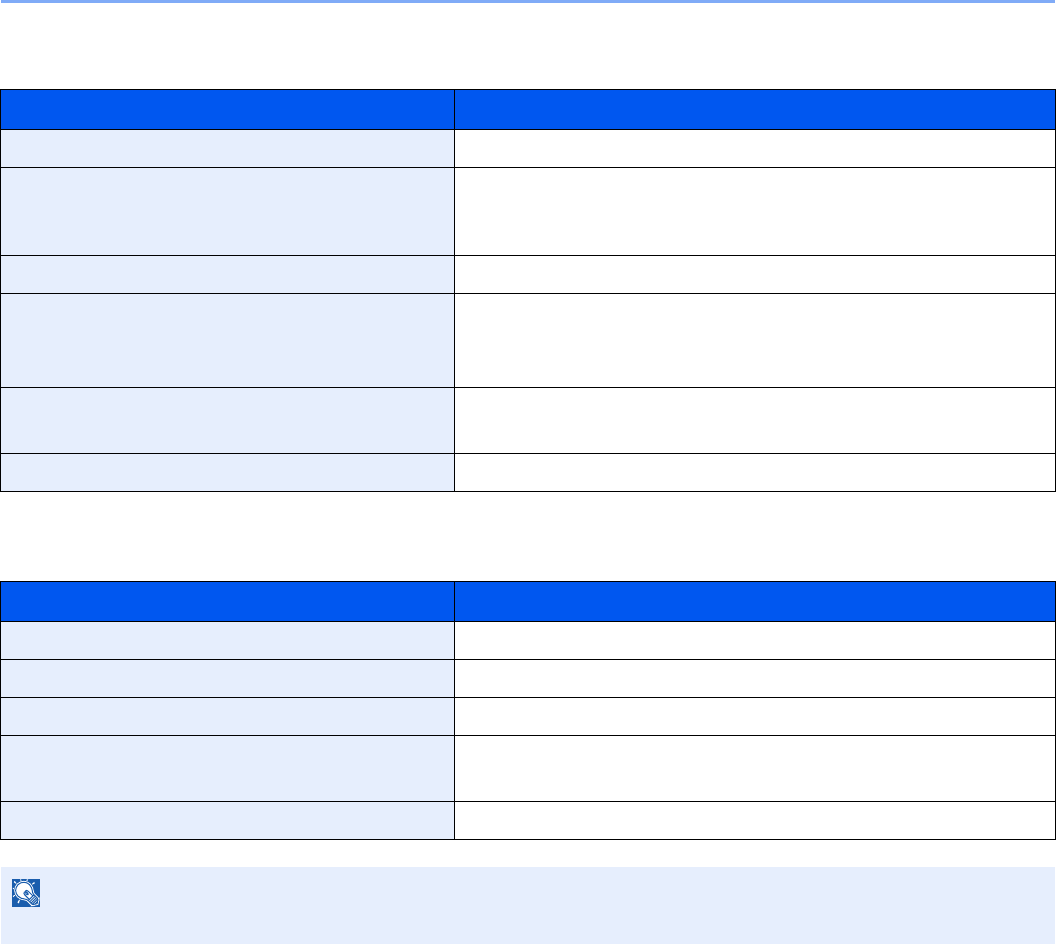
11-22
Appendix > Specifications
Document Finisher (option)
Environmental Specifications
EN ISO 7779
Der höchste Schalldruckpegel beträgt 70 dB (A) oder weniger gemäß EN ISO 7779.
EK1-ITB 2000
Das Gerät ist nicht für die Benutzung im unmittelbaren Gesichtsfeld am Bildschirmarbeitsplatz vorgesehen. Um
störende Reflexionen am Bildschirmarbeitsplatz zu vermeiden, darf dieses Produkt nicht im unmittelbaren Gesichtsfeld
platziert werden.
Item Description
Number of Trays 1 tray
Paper Size (Non-stapling) Ledger, Legal, Oficio II, A3, B4, Folio, 216 × 340 mm, 8K: 250 sheets
Letter, Letter-R, Executive-R, Statement-R, A4, A4-R, B5, B5-R, A5-R,
16K: 500 sheets
Supported Paper Weight 52 to 256 g/m² (Stapling: 90 g/m² or less)
Maximum Sheets for Stapling Ledger, Legal, Oficio II, A3, B4, 216 × 340 mm, 8K: 25 sheets
Letter, Letter-R, A4, A4-R, B5, B5-R, 16K: 50 sheets
(Paper weight 90 g/m² or less)
Dimensions (W) × (D) × (H) 16-3/8×20-1/2×10-7/8"
416×521×275.5 mm
Weight Approx. 26.4 lb/Approx. 12 kg
Item Description
Recovery time from Low Power Mode 10 seconds or less
Time to Low Power Mode 3 minutes
Recovery time from sleep 23 seconds or less
Time to sleep 20 ppm model: 20 minutes
25 ppm model: 30 minutes
Duplexing Standard
NOTE
Consult your dealer or service representative for recommended paper types.

11-23
Appendix > Glossary
Glossary
AppleTalk
AppleTalk, which comes with Apple Computer's Mac OS, is a network protocol. AppleTalk enables file/printer sharing and
also enables you to utilize application software that is on another computer on the same AppleTalk network.
Auto Form Feed Timeout
During data transmission, the machine may sometimes have to wait until receiving the next data. This is the auto form
feed timeout. When the preset timeout passes, the machine automatically put paper out. However, no output is performed
if the last page has no data to be printed.
Auto-IP
Auto-IP is a module that enables dynamic IPv4 addresses to be assigned to a device on startup. However, DHCP requires
a DHCP server. Auto-IP is a server-less method of choosing an IP address. IP addresses between 169.254.0.0 to
169.254.255.255 are reserved for Auto-IP and assinged automatically.
Auto Paper Selection
A function to automatically select paper in the same size as original at printing
Auto Sleep
A mode designed for electrical power saving, activated when the machine is left unused or data transfer for a specific
period. In Sleep mode, power consumption is kept to a minimum.
Bonjour
Bonjour, also known as zero-configuration networking, is a service that automatically detects computers, devices and
services on an IP network. Bonjour, because an industry-standard IP protocol is used, allows devices to automatically
recognize each other without an IP address being specified or DNS server being set. Bonjour also sends and receives
network packets by UDP port 5353. If a firewall is enabled, the user must check that UDP port 5353 is left open so that
Bonjour will run correctly. Some firewalls are set up so as to reject only certain Bonjour packets. If Bonjour does not run
stably, check the firewall settings and ensure that Bonjour is registered on the exceptions list and that Bonjour packets
are accepted. If you install Bonjour on Windows XP Service Pack 2 or later, the Windows firewall will be set up correctly
for Bonjour.
Default Gateway
This indicates the device, such as a computer or router, that serves as the entrance/exit (gateway) for accessing
computers outside the network that you are on, When no specific gateway is designated for a destination IP address, data
is sent to the host designated as the Default Gateway.
DHCP (Dynamic Host Configuration Protocol)
Dynamic Host Configuration Protocol (DHCP) that automatically resolves IP addresses, subnet masks, and gateway
addresses on a TCP/IP network. DHCP minimizes the load of network management employing a large number of client
computers because it relieves individual clients including printers from the IP address being assigned.
DHCP (IPv6)
DHCP (IPv6) is the next-generation of the Internet's Dynamic Host Configuration Protocol and supports IPv6. It extends
the BOOTP startup protocol that defines the protocols used for transferring configuration information to hosts on the

11-24
Appendix > Glossary
network. DHCP (IPv6) permits the DHCP server to use its expanded functionality to send configuration parameters to an
IPv6 node. Because the network addresses that can be used are allocated automatically, the IPv6 node management
workload is reduced in systems where the administrator has to exercise close control over IP address allocation.
dpi (dots per inch)
A unit for resolution, representing the number of dots printed per inch (25.4 mm).
EcoPrint Mode
A printing mode that helps save toner. Copies made in this mode are thus lighter than normal.
Enhanced WSD
Kyocera's proprietary web services.
Emulation
The function to interpret and execute other printers' page description languages. The machine emulates operation of
PCL6, KPDL, and KPDL (automatic).
FTP (File Transfer Protocol)
A protocol to transfer files on the TCP/IP network, whether the Internet or an intranet. Along with HTTP and SMTP/POP,
FTP is now frequently used on the Internet.
Grayscale
A computer color expression. Displayed images of this sort are typically composed of shades of gray, varying from black
at the weakest intensity to white at the strongest, without any other colors. Gray levels are displayed in numerical levels:
that is, white and black only for 1 bit; 256 gray levels (including white and black) for 8 bits; and 65,536 gray levels for 16
bits.
Help
A ? (Help) key is provided on this machine's operation panel. If you are unsure of how to operate the machine, would like
more information on its functions or are having problems getting the machine to work properly, press the ? (Help) key to
view a detailed explanation on the touch panel.
IP Address
An Internet protocol address is a unique number that represents a specific computer or related device on the network.
The format of an IP address is four sets of numbers separated by dots, e.g. 192.168.110.171. Each number should be
between 0 and 255.
IPP
IPP (Internet Printing Protocol) is a standard that uses TCP/IP networks such as the Internet to enable print jobs to be
sent between remote computers and printers.IPP is an extension of the HTTP protocol used to view websites and enables
printing to be carried out via routers on printers in remote locations. It also supports the HTTP authentication mechanisms
along with SSL server and client authentication as well as encryption.
KPDL (Kyocera Page Description Language)
Kyocera's PostScript page description language compatible with Adobe PostScript Level 3.

11-25
Appendix > Glossary
Multi Purpose (MP) Tray
The paper supply tray on the right side of the machine. Use this tray instead of the cassettes when printing onto
envelopes, Hagaki, transparencies, or labels.
NetBEUI (NetBIOS Extended User Interface)
An interface, developed by IBM in 1985, as an update from NetBIOS. It enables more advanced functions on smaller
networks than other protocols such as TCP/IP, etc. It is not suitable for larger networks due to lack of routing capabilities
to choose the most appropriate routes. NetBEUI has been adopted by IBM for its OS/2 and Microsoft for its Windows as
a standard protocol for file sharing and printing services.
NetWare
Novell's network management software that is able to run on a variety of operating systems.
PDF/A
This is "ISO 19005-1. Document management - Electronic document file format for long-term preservation - Part 1: Use
of PDF (PDF/A)", and is a file format based on PDF 1.4. It has been standardized as ISO 19005-1, and is a specialization
of PDF, which has been mainly used for printing, for long-term storage. A new part, ISO 19005-2 (PDF/A-2), is currently
being prepared.
POP3 (Post Office Protocol 3)
A standard protocol to receive E-mail from the server in which the mail is stored on the Internet or an intranet.
PostScript
A page description language developed by Adobe Systems. It enables flexible font functions and highly-functional
graphics, allowing higher quality printing. The first version called Level 1 was launched in 1985, followed by Level 2 that
enabled color printing and two-byte languages (e.g. Japanese) in 1990. In 1996, Level 3 was released as an update for
the Internet access and PDF format as well as gradual improvements in implementation technologies.
PPM (prints per minute)
This indicates the number of A4 size printouts made in one minute.
Printer Driver
The software to enable you to print data created on any application software. The printer driver for the machine is
contained in the DVD enclosed in the package. Install the printer driver on the computer connected to the machine.
RA (Stateless)
The IPv6 router communicates (transmits) information such as the global address prefix using ICMPv6. This information
is the Router Advertisement (RA). ICMPv6 stands for Internet Control Message Protocol, and is a IPv6 standard defined
in the RFC 2463 "Internet Control Message Protocol (ICMPv6) for the Internet Protocol Version 6 (IPv6) Specification".
Send as E-mail
A function to send the image data stored in the machine as an E-mail attachment. E-mail addresses can be selected from
the list or entered at each time.

11-26
Appendix > Glossary
SMTP (Simple Mail Transfer Protocol)
A protocol for E-mail transmission over the Internet or an intranet. It is used for transferring mail between mail servers as
well as for sending mail from clients to their servers.
Status Page
The page lists machine conditions, such as the memory capacity, total number of prints and scans, and paper source
settings.
Subnet Mask
The subnet mask is a way of augmenting the network address section of an IP address. A subnet mask represents all
network address sections as 1 and all host address sections as 0. The number of bits in the prefix indicates the length of
the network address. The term "prefix" refers to something added to the beginning and, in this context, indicates the first
section of the IP address. When an IP address is written, the length of the network address is indicated by the prefix length
after a forward slash (/). For example, "24" in the address "133.210.2.0/24". In this way, "133.210.2.0/24" denotes the IP
address "133.210.2.0" with a 24-bit prefix (network section). This new network address section (originally part of the host
address) made possible by the subnet mask is referred to as the subnet address.When you enter the subnet mask, be
sure to set the DHCP setting to Off.
TCP/IP (Transmission Control Protocol/Internet Protocol)
TCP/IP is a suite of protocols designed to define the way computers and other devices communicate with each other over
a network.
TCP/IP (IPv6)
TCP/IP (IPv6) is based on the current Internet protocol, TCP/IP (IPv4). IPv6 is the next-generation Internet protocol and
expands the available address space, which resolves the problem of the lack of addresses under IPv4, while also
introducing other improvements such as additional security functionality and the capacity to prioritize data transmission.
TWAIN (Technology Without Any Interested Name)
A technical specification for connecting scanners, digital cameras, and other image equipment to the computers. The
TWAIN compatible devices enable you to process image data on any relevant application software. TWAIN is adopted
on a large amount of graphic software (e.g. Adobe Photoshop) and OCR software.
USB (Universal Serial Bus)2.0
A USB interface standard for Hi-Speed USB 2.0. The maximum transfer rate is 480 Mbps. This machine is equipped with
USB 2.0 for high-speed data transfer.
WIA (Windows Imaging Acquisition)
A function to import images supported after Windows Me/XP from digital cameras and other peripheral devices.This
function replaces what TWAIN used to do; the feature is provided as a part of Windows functions and improves ease of
operation, so that you import images directly to My Computer without using any application.

Index-1
Index
Numerics
2-sided/Book Original 3-37
A
Address Book
Adding a Contact 6-24
Adding a Group 6-28
Editing and Deleting 6-31
Adjustment/Maintenance
Auto Color Correction 9-25
Background Density Adj. 9-25
Calibration 9-26
Color Registration 9-25
Correcting Black Line 9-25
Density Adjustment 9-25
Display Brightness 9-25
DP Adjustment 9-26
Drum Refresh 1 9-26
Laser Scanner Cleaning 9-26
Tone Curve Adjustment 9-26
Toner Save Level (EcoPrint) 9-25
AppleTalk 11-23
Setup 9-21
Applications 11-5
Auto Form Feed Timeout 11-23
Auto Image Rotation 4-19
Auto-IP 11-23
Setup 9-18
Automatic 2-Sided Copy Function 1-12
Auto Paper Selection 11-23
Auto Sleep 2-21, 11-23
B
Background Density Adjust 3-54
Bonjour 11-23
Setup 9-18
C
Cassette 2-2
Loading Paper 3-3
Paper Size and Media Type 9-8
Character Entry Method 11-7
Checking the Counter 3-11
Cleaning
Document Processor 10-6
Glass Platen 10-6
Cleaning Cloth 2-3
Coated Paper 11-17
Collate/Offset 3-43
Color Balance 4-17
Color Registration 9-25
Color Selection 3-59
Color Toner Empty Action 9-14
Combine 4-12
2 in 1 4-12
4 in 1 4-12
Border Line 4-12
COMMAND CENTER 2-23
Connecting
LAN Cable 2-10
Power Cable 2-11
USB Cable 2-11
Connection Method 2-8
Continuous Scan 3-39
Conventions in This Guide 1-13
Copying 4-1
Copying Settings
Auto % Priority 9-15
Auto Paper Selection 9-15
Reserve Next Priority 9-15
D
Date/Timer 2-22, 9-23
Auto Error Clear 9-24
Auto Panel Reset 9-23
Auto Sleep 9-23
Date/Time 9-23
Date Format 9-23
Error Clear Timer 9-24
Interrupt Clear Timer 9-24
Low Power Timer 9-24
Panel Reset Timer 9-24
Sleep Level 9-24
Sleep Timer 9-24
Time Zone 9-23
Default
Auto Image Rotation 9-12
Background Density Adj. 9-12
Collate/Offset 9-12
Color Selection (Copy) 9-12
Color Selection (Send/Store) 9-12
Continuous Scan 9-12
EcoPrint 9-12
E-mail Subject/Body 9-13
File Format 9-12
File Name Entry 9-13
File Separation 9-12
FTP Encrypted TX 9-13
Image Quality 9-13
JPEG/TIFF Print 9-13
Margin 9-12
Original Image 9-12
Original Orientation 9-12
PDF/A Setting 9-13
Prevent Bleed-through 9-12
Scan Resolution 9-12
XPS Fit to Page 9-13
Zoom 9-12
Default Gateway 11-23
Setup 9-18
Default Screen 9-9
Density 3-50

Index-2
Destination 6-15
Checking and Editing 6-22
Choosing by One Touch Key 6-17
Choosing from the Address Book 6-15
Dest. Check before Send 9-15
Entering a New E-mail Address 6-18
Entry Check for New Dest. 9-15
Multi Sending 6-23
Specifying a New PC Folder 6-19
Device Status 8-11
FAX 8-12
Printer 8-12
Removable Memory 8-12
Scanner 8-11
DHCP 11-23
Setup 9-18
DHCP (IPv6) 11-23
Setup 9-19
Document Processor 2-2
dpi 11-24
Duplex 4-8
E
EcoPrint 11-24
Copy 4-15
Printer 9-16
Emulation 11-24
Selection 9-16
Encrypted PDF Password 7-11
Energy Saving Control Function 1-12
Energy Star Program 1-12
Enhanced WSD 9-21, 11-24
Environment 1-3
Error Handling 9-14
Expansion Memory 11-3
F
Favorites 3-14
Editing and Deleting 3-18
Registering 3-14
Using 3-20
FAX Kit 11-3
File Format 3-57
File Name Entry 3-62
File Separation 6-39
First Print Time 11-19, 11-20
Front Cover 2-2
FTP 11-24
FTP Client (Transmission)
Protocol Detail 9-20
FTP Encrypted TX 6-41
FTP Server (Reception)
Protocol Detail 9-20
G
Glossary 11-23
GPL/LGPL 1-9
Grayscale 3-59, 11-24
H
Handles 2-2, 2-4
Help 11-24
Help Screen 3-28
Host Name 9-18
HTTP
Protocol Detail 9-20
HTTPS
Protocol Detail 9-20
HTTP Security 9-22
Hue Adjustment 4-16
I
Inner Tray 2-2
Interface Block 9-22
Interrupt Copy 4-20
IP Address 11-24
Setup 9-18
IPP
Protocol Detail 9-20
IPP over SSL
Protocol Detail 9-20
IPP Security 9-22
IPSec
Setup 9-22
J
Job
Canceling 3-29
Checking History 8-6
Checking Status 8-2
Details of the Status Screens 8-3
Pause and Resumption 8-3
Sending the Log History 8-7
Job Accounting 9-58
Adding an Account 9-63
Counting the Number of Pages Printed 9-69
Default Setting 9-73
Editing and Deleting 9-65
Enabling/Disabling 9-61
Login 9-62
Logout 9-62
Printing an Accounting Report 9-71
Restricting the Use of the Machine 9-67
Job Box 5-6
Automatic Delete Setting for Temporary Documents
5-11
Private Print 5-6
Proof and Hold 5-8
Job Finish Notice 3-60
Job Separator 2-2
JPEG/TIFF Print 7-12
K
Keyboard Layout 9-15
KPDL 11-24
L
Language 9-5

Index-3
LAN Interface 9-22
LDAP
Protocol Detail 9-20
LDAP Security 9-22
Legal Information 1-9
Legal Restriction on Copying 1-8
Legal Restriction on Scanning 1-8
Login 3-12, 9-62
Logout 3-13, 9-62
Low Power Mode 2-20
LPD
Protocol Detail 9-20
M
Machine Setup Wizard 2-22
Main Memory 9-23
Main Power Switch 2-4
Manual Setting (IPv6) 9-19
Margin 3-45
Measurement 9-14
Mixed Size Originals 3-35
Monotype Imaging License Agreement 1-11
Multi Purpose Tray 2-3, 11-25
Loading Paper 3-5
Paper Size and Media Type 9-8
Multi Sending 6-23
N
NetBEUI 11-25
Protocol Detail 9-20
NetWare 11-25
Setup 9-21
Network
Preparing 2-8
Setup 2-22, 9-18
Network Cable
Connecting 2-10
Network Interface 2-4, 2-9
O
One Touch Key 6-33
Adding a Destination 6-33
Editing and Deleting 6-35
Open SSL License 1-9
Operation Panel 2-2, 2-6
Option
Card Authentication Kit 11-4
Document Finisher 11-3
Expansion Memory 11-3
FAX Kit 11-3
Gigabit Ethernet Board 11-5
Overview 11-2
Paper Feeder (double cassette) 11-3
Paper Feeder (single cassette) 11-3
Optional Function 11-5
Optional Memory 9-23
Option Interface 2-4
Original Image 3-52
Original Loaded Indicator 2-3
Original Orientation 3-34
Originals
Custom Original Size 9-9
Loading Originals 3-7
Original Auto Detect 9-10
Original Size 3-32
Original Size 3-32
Original Size Indicator Plates 2-2
Original SSLeay License 1-10
Original Table 2-3
Original Width Guides 2-3
P
Paper
Appropriate Paper 11-11
Before Loading 3-2
Cassette 9-8
Checking the Remaining Amount of Paper 8-13
Custom Paper Size 9-10
Default Paper Source 9-10
Loading Envelopes 3-6
Loading in the Cassettes 3-3
Loading in the Multi Purpose Tray 3-5
Media for Auto 9-10
Media Type Setting 9-10
Multi Purpose Tray 9-8
Setup 9-10
Size and Media 9-8
Special Paper 11-14
Special Paper Action 9-11
Specifications 11-11
Paper Feeder (double cassette) 11-3
Paper Feeder (single cassette) 11-3
Paper Feed Mode 9-17
Paper Length Guide 2-3
Paper Output 3-42, 9-13
Paper Selection 3-41
Paper Width Guide 2-3
Part Names 2-2
PDF/A 11-25
Platen 2-2
POP3 11-25
POP3 (E-mail RX)
Protocol Detail 9-20
PostScript 11-25
Power Cable
Connecting 2-11
Power Off 2-12
Power On 2-12
PPM 11-25
Precautions for Use 1-3
Preparing Cables 2-9
Prevent Bleed-through 3-55
Printer Driver 11-25
Installing 2-14

Index-4
Printer Settings
Color Setting 9-16
Copies 9-16
CR Action 9-17
Duplex 9-16
EcoPrint 9-16
Emulation 9-16
Form Feed TimeOut 9-17
Gloss Mode 9-17
LF Action 9-17
Orientation 9-16
Override A4/Letter 9-16
Paper Feed Mode 9-17
Wide A4 9-17
Printing 5-1
Printing Speed 11-20
Priority Override 3-63
Q
Quick Setup Wizard 3-26
R
RA (Stateless) 11-25
Setup 9-19
Raw Port
Protocol Detail 9-20
Recycled Paper 1-12, 11-17
Regarding Trade Names 1-9
Replacing Staples 10-5
Report Print 9-5
Accounting Report 9-6
Font List 9-5
Network Status 9-5
Service Status 9-6
Status Page 9-5
Resolution 11-19, 11-20
Restart 9-4
Result Report Settings 9-6
Right Cover 2-2
S
Safety Conventions in This Guide 1-2
Saturation 4-18
Scan Resolution 3-51
Secure Protocol 9-22
Send as E-mail 6-2, 11-25
E-mail Subject/Body 6-40
Sending 6-1
Preparation for Sending a Document to a PC 6-5
Send as E-mail 6-2
Send to Folder (SMB/FTP) 6-2
Sending E-mail 2-24
Sending Size 6-37
Send Settings
Color TIFF Compression 9-16
Default Screen 9-16
Dest. Check before Send 9-15
Entry Check for New Dest. 9-15
Send and Forward 9-16
Sharpness 3-53
Shortcuts
Editing and Deleting 3-24
Registering 3-22
Using 3-25
Sleep 2-21
Slit Glass 2-2
SMB Client (Transmission)
Protocol Detail 9-20
SMTP 11-26
SMTP (E-mail TX)
Protocol Detail 9-20
SNMP
Protocol Detail 9-20
SNMPv3
Protocol Detail 9-20
Solving Malfunctions 10-8
Sound 9-9
Specifications
Document Finisher 11-22
Document Processor 11-21
Environmental Specifications 11-22
Machine 11-18
Paper Feeder (double cassette) 11-21
Paper Feeder (single cassette) 11-21
Printer 11-19, 11-20
Scanner 11-20
Staple 3-48
Status 11-26
Status/Job Cancel 8-1
Status Page 11-26
Storing Size 7-14
Subnet Mask 11-26
Setup 9-18
Symbols 1-2
System Menu 9-2
T
TCP/IP 11-26
TCP/IP (IPv4)
Setup 9-18
TCP/IP (IPv6) 11-26
ThinPrint
Protocol Detail 9-20
ThinPrintOverSSL
Protocol Detail 9-20
Tone Curve Adjustment 9-26
Toner Container 2-3
Checking the Remaining Amount of Toner 8-13
Replacement 10-2
Touch Panel 2-7
TWAIN 11-26
Setting TWAIN Driver 2-18
U
Unknown Login User Name Job 9-75
USB 11-26
USB Cable
Connecting 2-11
USB Interface 2-4, 2-9

Index-5
USB Keyboard Type 9-15
USB Memory
Printing Documents 7-2
Removing 7-8
Saving Documents 7-5
USB Memory Slot 2-2
User Login Administration 9-33
Adding a User 9-37
Editing and Deleting 9-43
Enabling/Disabling 9-35
Group Authorization 9-52
Local User Authorization 9-41
My Panel 9-42
Obtain Network User Property 9-56
Simple Login 9-46
User Property 9-7
W
Waste Toner Box 2-3
Replacement 10-4
WIA 11-26
Setting WIA Driver 2-19
WSD Print
Setup 9-21
WSD Scan
Setup 9-21
X
XPS Fit to Page 7-13
Z
Zoom
Copy 4-5
Send/Store 3-56

Index-6


Rev.2 2011.07
2K0KMEN002
