L T F Communication Equipment And Technology JH600B Bluetooth Earphone User Manual UserManual
L.T.F Communication Equipment And Technology CO., LTD Bluetooth Earphone UserManual
UserManual
JH600B Bluetooth Earphone
User Guide
1. General Introduction
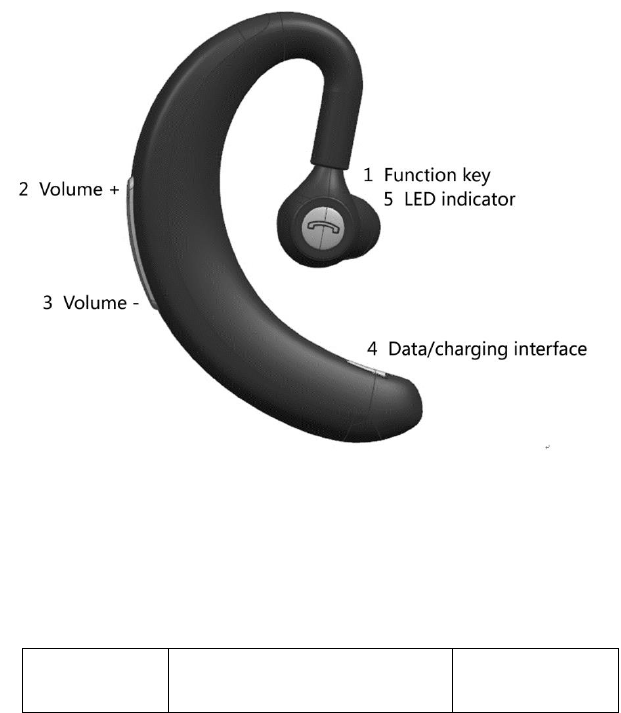
JH600B Bluetooth earphone mainly includes: the device of
Bluetooth earphone and the APP of "Westone Security VoIP" on mobile
telephone (hereinafter referred as "SecCall"). The device of Bluetooth
earphone uses the technology of hardware encryption to encrypt the
voice, and it also can transmit the voice safely with the APP in mobile
telephone which can make sure that users communicate with each other
safely.
Picture 1 Bluetooth earphone
2. Devices And Fittings
Chart1 Devices And Fittings
ID
Name
Count
1
Bluetooth earphone
1
2
CD with software
1
3. Operational Process
(1) Install " SecCall"
Use computer to push the APK of "SecCall" which is loaded in the
CD to the mobile telephone, then click that APK to finish Installing the
"SecCall".
(2) Start " SecCall" And Log In
Start the " SecCall" on the phone, the APP interface will show as
picture 2:
Picture 2 "SecCall" Starting Interface
Input the username, password and domain correctly, then click "Log
in":
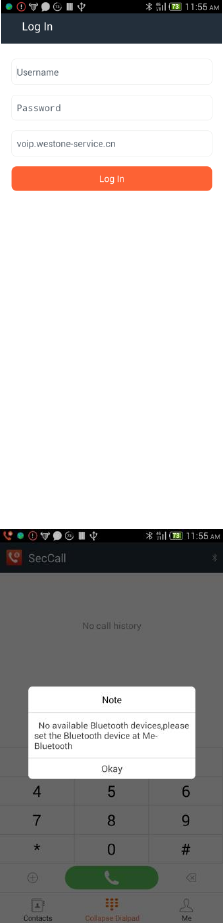
Picture 3 The interface of Log in
After logging in successfully, The interface will show as Picture 4:
Picture 4 First Starting without linking Bluetooth
(3) Starting Bluetooth Earphone
Starting the Bluetooth earphone by pressing the function key. If the
green light blinks 3 times and plays the tone of starting up correctly, that
means the Bluetooth earphone starts up correctly; If the red light blinks
once, that means failing to starting up because of low battery; in that
case user must charge at first.
(4) Bluetooth Earphone Link With App In The Phone
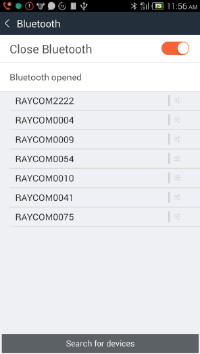
Find the name of Bluetooth earphone at "Me"->"Bluetooth" in
"SecCall", click it and the phone will start pairing that earphone. After
pairing successfully, the APP will quit the interface of "Bluetooth" and
the dialing interface will show as Picture 5:
Picture 5 Interface of Bluetooth
Attention: The "SecCall" must run on the phone when the
Bluetooth earphone is used while pairing the phone, if the "SecCall"
doesn’t run on the phone, the Bluetooth earphone can not be used
while pairing the phone.
(5) Dialing
Input the phone number of whom user wants to communicate with
and click the “Dial” key, then the green light of Bluetooth earphone will
blink every 2 sec.
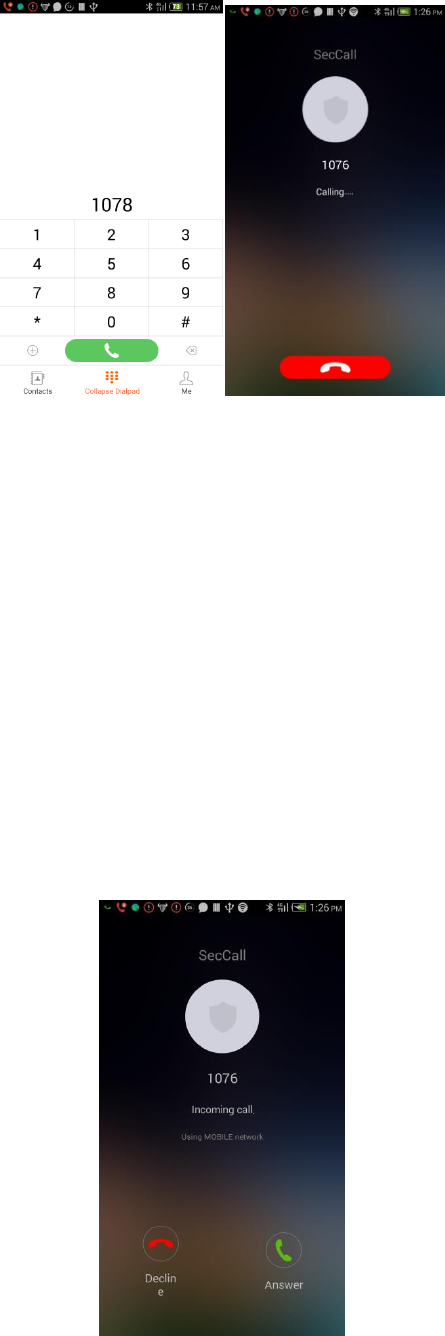
Picture 6 Dialing
(6) Answering The Call
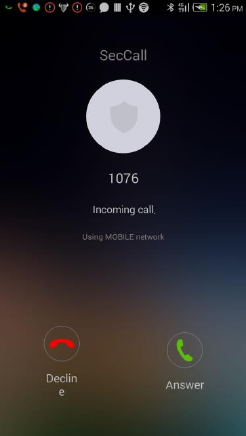
When a call is coming, the interface of incoming call will show, and
the green light of Bluetooth earphone will blink every 2 sec, The users
can click the "Answer" key of "SecCall", or the function key of Bluetooth
earphone to answer the incoming call; and also can press the "Decline"
key of "SecCall", or the function key of Bluetooth earphone about 1 sec
to refusing the incoming call.
Picture 7 Answering a call
(7) Decline The Call
The green light will blink once every 8 sec during the
communication. The users can click the "Decline" key of "SecCall", or the
function key of Bluetooth earphone to decline the call.
Picture 8 Incoming call
(8) The Volume Adjuster Of Bluetooth Earphone
Click the "volume plus" to increase volume or click the "volume
minus" key to decrease volume during the communication.
(9) Bluetooth Earphone Standby
When Bluetooth earphone is in the state of standby, The green light
will blink once every 8 sec.
(10) Bluetooth Earphone Power Off
When pressing the function key of Bluetooth earphone about 5 sec
at the state of running, the Bluetooth earphone will power off after the
red light blinks about 2 sec.

(11) Bluetooth Earphone Low Voltage Protection
If the voltage was at low level during communication, the red light
would blink about every 5 sec, and the Warning tone of low voltage
would play; if the voltage was at low level during the state of standby,
the red light would blink about every 3 sec, and the Warning tone of low
voltage would play.
(12) Charging Bluetooth Earphone
When the red light of Bluetooth earphone blink at the state of starts
up or operation, please charge immediately. The red light will keep on
blinking when charging. After the Bluetooth earphone charges fully, the
red light will turn off, and the green light will turn on.
Attention: During charging, the communication function of
Bluetooth earphone can not be used, and users cannot power off by
pressing function key about 5 sec either; when stopping charging, the
Bluetooth earphone will power off automatically, and users need to
restart it.
(13) Instruction Of Button and Indicator Light
Chart2 Instruction Of Button
Name
Bluetooth State
Definition Of Button
Volume +
Communicating
Shortly press it once for plus the
volume one level
Volume -
Communicating
Shortly press it once for minus

the volume one level
Function
key
Power On
Shortly press it for Power on
Power Off
Long press it about 5 sec for
Power off; Long press it about 8
sec for Restart
Incoming Call
Shortly press it once for
answering the call
Long press it about 1 sec for
refusing the call
Communicating
Shortly press it once for Hang
up
Charging
Long press it about 8 sec for
restart
Chart 3 Introduction Of Indicator Light
Indicator Light
Representation
Green light blink 3 times
Bluetooth earphone power on
Green light blink every 3 sec
Bluetooth earphone at the state
of outgoing call or incoming call
Green light blink every 8 sec
Bluetooth earphone at the state
of standby
Green light blink slowly every
8 sec
Bluetooth earphone at the state
of communicating

Green light on(the state of
charging)
Battery of Bluetooth earphone
charged
Red light blink once
Low power, can not power on
Red light blink every 1 sec
(state of standby)
Low power
Red light blink every 5 sec
(state of communicate)
Low power
Red light on
Charging
Chart4 Problems And Solutions
ID
Problem
Solution
1
If the Bluetooth
earphone has no
response when pressing
the function key to
power on or power up
1) Charge the Bluetooth earphone
until the LED light of charging
turning on.
2) Restart the Bluetooth earphone
by pressing the function key
about 8 sec if the LED light were
still off during charging.
2
" SecCall" hints "Pairing
Bluetooth unmorally"
First of all, please make sure
Bluetooth earphone and the App on
the phone are paired correctly. If
they were paired correctly, then
please restart the Bluetooth

earphone.
3
" SecCall" hints "Getting
Security key
unsuccessfully"
First of all, please make sure
Bluetooth earphone and the App on
the phone is paired correctly. If they
were paired correctly, then please
restart the Bluetooth earphone.
4
" SecCall" hints
"Sending Security key
out of time"
Please check the Network
Connection work properly or not.
FCC Warnning:
This equipment has been tested and found to comply with the limits for a Class B digital device, pursuant
to part 15 of the FCC Rules. These limits are designed to provide reasonable protection against harmful
interference in a residential installation. This equipment generates, uses and can radiate radio frequency
energy and, if not installed and used in accordance with the instructions, may cause harmful interference
to radio communications. However, there is no guarantee that interference will not occur in a particular
installation. If this equipment does cause harmful interference to radio or television reception, which can
be determined by turning the equipment off and on, the user is encouraged to try to correct the
interference by one or more of the following measures:
• Reorient or relocate the receiving antenna.
• Increase the separation between the equipment and receiver.
• Connect the equipment into an outlet on a circuit different from that to which the receiver is connected.
• Consult the dealer or an experienced radio/TV technician for help.
Caution: Any changes or modifications to this device not explicitly approved by manufacturer could void
your authority to operate this equipment.
This device complies with part 15 of the FCC Rules. Operation is subject to the following two conditions: (1)
This device may not cause harmful interference, and (2) this device must accept any interference received,
including interference that may cause undesired operation.
The device has been evaluated to meet general RF exposure requirement. The device can be used in
portable exposure condition without restriction.