LANYA ELECTRONIC BH39 BLUETOOTH HEADSET User Manual BH39 English Manual C6R
LANYA ELECTRONIC CO., Ltd. BLUETOOTH HEADSET BH39 English Manual C6R
Users Manual
BH39 Bluetooth Headset
1. About BH39
The Bluetooth headset BH39 allows you the freedom to make and receive calls while
on the move or in the office, after you connect the headset to a compatible phone that
supports Bluetooth wireless technology.
Read this user guide carefully before using the headset. Read also the user guide for
your phone, which provides important safety and maintenance information.
2. Bluetooth wireless technology
Bluetooth wireless technology makes it possible to connect compatible
communication devices without using cables. A Bluetooth connection does not require
that the phone and the headset be in line of sight, but both devices should be within 10
meters (30feet) of each other. Connections can be subject to interference from
obstructions, such as walls or other electronic devices.
BH39 is compliant with Bluetooth Specification v2.1 supporting Headset profiles 1.1
and Hands-Free Profiles 1.5.
There may be restrictions on using Bluetooth technology in some locations .Check
with your local authorities or service provider.
3. Overview
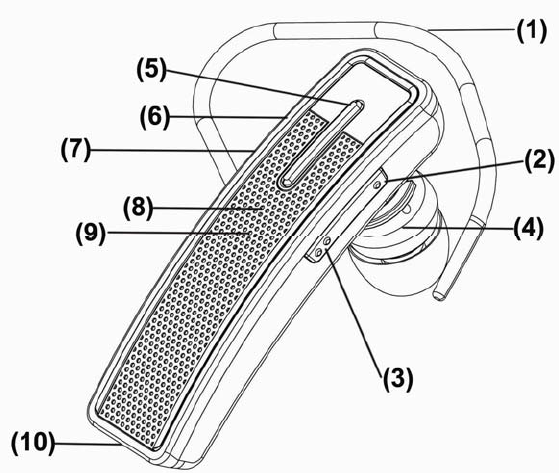
The headset contains the following parts as shown in the figure:
(1). Earhook; (2).Volume -; (3) Volume +; (4) Speaker; (5) Multifunction Key; (6)
Power ON/OFF(Green=ON; RED=OFF); (7) Charging Port; (8) Statues LED; (9)
Microphone; (10) Microphone;
4. Charging the headset
This device has an internal, rechargeable battery which must be fully charged before
used for the first time. It takes you about 2 hours to charge the battery full for the first
time. During charging, the indicator shows a steady red. When the battery is fully
charged, the red light will turn blue. For the later on charging, it takes about 90
minutes.
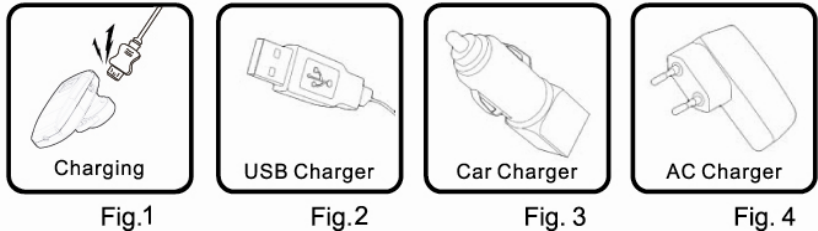
You can charge the headset either by using the AC travel charger, USB charging cable
or the car charger depending on the package accessories available. Please check your
package for details. BH39 is intended for use with the chargers that is included in the
package.
z It your package has a USB charging cable included
Plug the charger lead of USB charging cable into the charging port of your Bluetooth
headset. And then plug the other end of the USB charging cable into the computer’s
USB port. When charging is complete, remove the USB charging cable and remove
the charger lead from your headset (Please refer to Fig.1, Fig.2.)
z If your package has a car charger included
Plug the car charger into the cigarette lighter socket. And then plug the charger lead
into the charging port of the Bluetooth headset. When charging is complete, remove
the car charger and remove the charger lead from your headset (Please refer to Fig.3.)
z If your package has a travel charger included
Plug the travel charger into 110-240V wall socket. And then plug the charge lead into
the charging port on the Bluetooth headset for charging. When charging is complete,
remove the travel charger and remove the charger lead from your headset (Please refer
to Fig.4.)
The fully charged battery has power for up to 4 hours of talking time or up to 100
hours of standby time. However, the talk and standby times may vary when used with
different mobile phones, products that use a Bluetooth connection, usage settings,
usage styles, and environments.
When the battery is running out of power, the blue indicator light starts to flash 3
times every 30 seconds. This indicates that the headset needs to be charged as soon as
possible.
5. Switch on or off the headset
To switch on, when BH39 is in off state, switch on/off button to the on position; the
blue indicator light starts to flash for 3 times with a reminder voice;

To switch off, when BH39 is in on state, switch on/off button to the off position; the
red indicator light flashes for 3 times with a reminder voice;.
6. Pair the headset with a compatible phone
Pairing is the process of establishing encrypted link between BH39 and Bluetooth
devices.
Step-1 The headset must be powered on before you begin to initiate the paring.
Step-2 press and hold the answer/end key for 6 seconds until the blue and red light
flash alternatively. The headset is now in paring mode.
Step-3 Activate the Bluetooth feature on the phone, and set the phone to search for
Bluetooth devices. Check the user guide of your phone for instructions.
Step-4 Select the headset (BH39) from the list of found devices.
Step-5 When asked the PIN code, please enter “0000” to pair and connect the headset
to your phone. In some phones you may need to make the connection separately after
pairing. See the user guide of your phone for details.
If the pairing is successful, the headset enters idle state and blue light will flash
flashes 1 time every 5 seconds. The headset’s name appears in the phone menu where
you can view the currently paired Bluetooth devices.
You only need to pair the headset with your phone once.
Note for Multi-link use: In order to pair a second mobile, please press the volume -
button for 3 seconds until the red and blue light flashes alternatively, headset is ready
into pairing mode and you can pair the second mobile. Turn off the headset and
re-turn on it, both mobile was ready under links.
To activete the Multi-link-funcction, please press volume -/+ at the same time for 1.5
seconds,headset will get into the multilink Mode, the Blue LED indicate 2 seconds
Troubleshooting
If you cannot connect the headset to your phone, do as follows:
· Ensure that the headset is charged, switched on, paired with and connected
to your phone.
· Ensure that the Bluetooth feature is activated on your phone.
· Check that the headset is within 10 meter(30 feet ) of your phone and that there are
no obstructions between the headset and the phone, such as walls or other electronic
devices.
If no paring is made over a period of time, the headset will retreat paring mode. You
have to turn off the headset and operate again.
7. Basic use
7.1 Make a call
To make a call, use your phone in the normal way when the headset is connected to
your phone. The sound will be transmitted to the headset automatically.
7.2 Answer a call
When there is incoming call, press the answer/end key, or use the phone keys to
answer the call.

7.3 End a call
After finishing the call, press the answer/end key, or use the phone keys to end the
call.
7.4 Refuse a call
When there is incoming call, press and hold answer/end button for 3 seconds until you
can hear beep sound from the headset.
7.5 Voice dialing (dialing a number by saying a name)
It is possible to make a call directly from the headset using voice recognition. To use
this voice dialing function, your mobile phone must provide this option and
corresponding voice samples must have been recorded.
Step-1 Enable voice recognition function of your mobile and set the mobile to
handsfree state.
Step-2 When no call is in progress, press and hold the answer/end button for 3
seconds until you can hear beep sound from the headset.
Step-3 Speak out the name of the person you wish to call loudly.
7.6 Redail
Press + key 3 seconds and you can hear beep sound from the headset. Release the
button and the headset will dial the last dialed telephone number.
7.9 Adjust the earphone volume
Press the volume + key to increase or - to decrease the volume during a call.
7.11 Switch the call between mobile and headset
In call state, press and hold the answer/end key for about 3 seconds until there is beep
sound from headset. The call will be switched from headset to mobile or vice versa.
Note for Multi-link use: When the first phone (AG1) under making a call, another
calling into from the second phone which is also connected with the Bluetooth
headsest, press volume+ about 1.5 seconds will answer the call in from the second
phone (AG2), and will hold for the AG1’s calling. press volume + 1.5 seconcds will
switch the calling between two phones. Short press the power key will end the call of
talking, meantime will connect to the hold phone.( some phone will asking if you
want to connect the phone or not ), press again the power key will ending the call of
talking.
8. LED Indication
Headset status LED Indication
In idle state after paired Blue light flashes 1 time every 3 seconds
In coming call Blue light flashes twice every 2 seconds
Low battery Red light flashes 1 time every 15 seconds
and there is beep sound
9. Specification
* Bluetooth Specification v2.1+EDR class 2
* Supports Bluetooth Headset and Hands-free Profile(HFP 1.5)
* RF Frequency Range: 2.402-2.480GHZ, 2.4G ISM band
* Radio Performance: Receive Sensitivity of -90dBm, TX Power Max 4dBm
* Frequency Response: 20 Hz - 20 KHz, Very high Signal to Noise Ratio (SNR):95
Db, Total Harmonic Distortion (THD):0.1%,
* Rechargeable 70mAh Li-Polymer Battery
* Charger adapter Output: DC 5V&200mA
* Nominal charging time: Max 1.5- 2 hours
* Talk time: Up to 4 hours
* Standby time: Up to 100 hours
10. Battery information
Your device is powered by a rechargeable battery. The full performance of a new
battery is achieved only after two or three complete charge and discharge cycles. The
battery can be charged and discharged hundreds of times, but it will eventually wear
out.
Unplug the charger from the electrical plug and the device when not in use. Do not
leave a fully charged battery connected to a charger, since overcharging may shorten
its lifetime. If left unused, a fully charged battery will lose its charge over time.
Leaving the device in hot or cold places, such as in a closed car in summer or winter
conditions, will reduce the capacity and lifetime of the battery. Always try to keep the
battery between 15℃ and 25℃(59℉ and 77℉). A device with a hot or cold battery
may not work temporarily, even when the battery is fully charged. Battery
performance is particularly limited in temperatures well below freezing.
Do not dispose of batteries in a fire as they may explode. Batteries may also explode
if damaged. Dispose of batteries according to local regulations. Please recycle when
possible. Do not dispose as household waste.
11 Care and maintenance
Your device is a product of superior design and craftsmanship and should be treated
with care. The suggestions below will help you protect your warranty coverage.
· Keep all accessories and enhancements out of the reach of small children.
· Keep the device dry. Precipitation, humidity, and all types of liquids or moisture
can contain minerals that will corrode electronic circuits. If your device does get wet,
allow it to dry completely.
· Do not use or store the device in dusty, dirty areas. Its moving parts and electronic
components can be damaged.
· Do not store the device in hot areas. High temperatures can shorten the life of
electronic devices, damage batteries, and warp or melt certain plastics.
· Do not store the device in cold areas. When the device returns to its normal
temperature, moisture can form inside the device and damage electronic circuit
boards.
· Do not drop, knock, or shake the device. Rough handling can break internal circuit
boards and fine mechanics.
· Do ot use harsh chemicals, cleaning solvents, or strong detergents to clean the
device.
· Do not paint the device. Paint can clog the moving parts and prevent proper
operation.
All of the above suggestions apply equally to your device, battery, charger, or any
enhancement. If any device is not working properly, take it to the nearest authorized
service facility.
FCC WARNING
This device complies with Part 15 of the FCC Rules. Operation is subject to the following two
conditions:
(1) this device may not cause harmful interference, and
(2) this device must accept any interference received, including interference that may cause
undesired operation.
NOTE 1: Any changes or modifications to this unit not expressly approved by the party
responsible for compliance could void the user's authority to operate the equipment.
IC WARNING
This device complies with RSS-Gen of the IC Rules. Operation is
subject to the following two conditions:
(1) this device may not cause harmful interference, and (2) this device must accept
any interference received, including interference that may cause undesired operation.
Under Industry Canada regulations, this radio transmitter may only operate using an
antenna of a PCB and maximum 0dBi gain approved for the transmitter by Industry
Canada. To reduce potential radio interference to other users, the antenna type and
its gain should be so chosen that the equivalent isotropically radiated power (e.i.r.p.)
is not more than that necessary for successful communication.