LAVA LAVAA3 Mobile Phone User Manual

LAVA INTERNATIONAL (H.K) LIMITED Mobile Phone

15_A3 UserMan,r1

      I                                                                                                                                                                                                                                                                                                                                                                                                                                                                                                                                                                                                                                                                                                                                                                                                                                                                                                                                                                                                                                                                                                                                                                                                                                                                                                                                                                                                                                                                                                                                                                                        User Manual Mobile Phone LAVA A3
       II       Content 1. Phone layout ......................................................................... 1 1.1. Key and Parts...................................................................... 1 2. Getting started ...................................................................... 2 2.1. Inserting the SIM & SD card .............................................. 2 2.2. Unlock the phone ............................................................... 2 2.3. Using the Touch screen ...................................................... 3 2.4. Connection to Network ...................................................... 3 2.5. Charging the Battery .......................................................... 3 3. Basic Function....................................................................... 3 3.1. Make Calls .......................................................................... 3 3.2. Answer Calls....................................................................... 4 3.3. Phone .................................................................................. 4 3.4. Contacts .............................................................................. 4 3.5. Messages ............................................................................ 4 3.6. Email .................................................................................. 4 3.7. Calculator ........................................................................... 4 3.8. Calendar.............................................................................. 4 3.9. Clock .................................................................................. 4 3.10. Camera.............................................................................. 4 3.11.    Music ............................................................................. 5
       III       3.12.Gallery ............................................................................... 5 3.13. File Manager..................................................................... 5 3.14. Settings ............................................................................. 6 4. Frequently Asked Questions and Troubleshooting ............... 7 5. Safety Information and Notices ............................................ 9 5.1. Emergency call ................................................................... 9 5.2. For your safety.................................................................... 9 6. Service Center Info ............................................................. 13
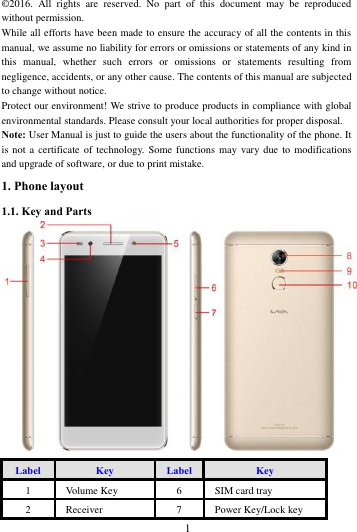
       1             ©2016.  All  rights  are  reserved.  No  part  of  this  document  may  be  reproduced without permission. While all efforts have been made to ensure the accuracy of all the contents in this manual, we assume no liability for errors or omissions or statements of any kind in this  manual,  whether  such  errors  or  omissions  or  statements  resulting  from negligence, accidents, or any other cause. The contents of this manual are subjected to change without notice. Protect our environment! We strive to produce products in compliance with global environmental standards. Please consult your local authorities for proper disposal. Note: User Manual is just to guide the users about the functionality of the phone. It is not  a  certificate of technology.  Some functions  may vary due  to modifications and upgrade of software, or due to print mistake. 1. Phone layout 1.1. Key and Parts         Label Key Label Key 1 Volume Key 6 SIM card tray   2 Receiver 7 Power Key/Lock key
       2             3 Light sensor 8 Rear camera 4 Front camera   9 Rear flash light 5 Front flash light 10 Finger print 2. Getting started Please read the safety instructions in the "Safety Information and Notices" section before use. 2.1. Inserting the SIM & SD card  Gently Insert  SIM  extractor into  the given  pin  hole  which  is  provided  on  the phone, until it takes out the Slot Tray  After takingout  the slot Tray  from the phone make sure that the clipped corner of your SIM card & SD is facing the correct direction.  Keep the SIM cards into the given SIM slots.  Push the SIM Tray inside  2.2. Unlock the phone   The handset provide Swipe, Voice Unlock, PIN, and Password etc.   You may be required to unlock your phone based on the unlock method in settings. To set the unlock method: On the home screen, touch Settings > Security > Screen lock. Choose the type of locking as desired.
       3             2.3. Using the Touch screen   You can use the touch screen in the following ways:  Touch:  Acts on items on the  screen, such as application and  settings icons, to type letters an symbols using the on screen keypad, or to press on screen buttons.  Touch and hold: Touch and hold an item on the screen until an action occurs.  Drags:  Touch and hold  an  item and move your  finger  on the screen until  you reach and target position.  Swipe or slide: Quickly slide  your finger across the surface of the screen. For example, slide the screen up or down to scroll a list.  Rotate  the  screen:  On  most  screens,  the orientation  of the  screen changes  as you rotate it. You can turn this feature on and off.     2.4. Connection to Network When the SIM card is successfully unlocked, the handset will automatically search for  available  network.  The  handset  will  show  the  information  of  the  network provider;  the  status bar  will  show  the  signal  strength  and  the  network  condition once the handset is successfully connected to a network. 2.5. Charging the Battery To charge the battery, plug in the charger connector (USB interface) and then plug the other line end into an AC power socket. The battery icon  indicates  the charging state. While charging, the charge indicate lightning icon.   3. Basic Function 3.1. Make Calls When the network provider is valid, touch the phone icon appears on the standby screen, you can call out or answer calls. The indicator on the upper right part shall show the signal strength.  Make Domestic Calls Use virtual keyboard to enter phone numbers and then press Dial icon to call.  Call Extension Phone Type in as follows to call extension phone: Area code > switchboard number > Add 2-sec pause > extension phone number> call  Make International Calls Type in as follows to call international phone:  + > country code > complete destination number > dialing icon.    Make Listed Calls Listed phone numbers can be called out by pressing the phone number.
       4              Emergency Calls You can call for emergency service as long as you are in the network coverage.   3.2. Answer Calls   Drag the icon to answer an incoming call. 3.3. Phone Touch  the  phone  icon  on the  main  menu  or  the home  screen  to  dial  the desired number.   3.4. Contacts Touch the Contacts icon on the main menu or the home screen , you can check all the contacts, search for contacts or add new contact. When adding a new contact, you can type in the name, phone number etc. 3.5. Messages Touch the Messages icon on the main menu or the home screen , you can create a new  message  to  other  people.  Input  phone  number  or  select  the  number  from contacts. When tap the content, you can add picture, video, audio etc attachments.   3.6. Email The handset provide the email function. You can use the email  conveniently. You need input the email account, address and password. 3.7. Calculator The handset is facilitated with a calculator with basic functions. You can carry out the operation for plus, minus, multiply, and divide by pressing the screen. You can use some functions in the advanced panel. 3.8. Calendar Enter the calendar menu and there shall appear a calendar on the screen with the current date marked out by background frame with a special color. Press the touch screen  to  browse  date  and  the  calendar  information  on  the  screen  shall  be correspondingly updated. 3.9. Clock Enter the  clock application,  press  alarm icon  and press  Add  alarm to  add  a  new alarm. Scroll the scrollbar to set alarm time. Press alarm of list to edit the activation, Time, Ringtone and label.     3.10. Camera Under viewing condition, press the top icons to do the following operations.
       5             1——Change the mode of flash light: auto mode, off mode, on mode 2——Switch the camera between front and back 3——Setting icon   4——Thumbnail icon shows the currently captured picture or video 5——Video mode 6——Photo mode   7——Face beauty mode 8——Function key 9——Press the Capture icon to take a picture/video               3.11.    Music   Use the Music player to  play music files. The songs saved in your  phone can be played using the Music Player of the device.   3.12.Gallery Gallery Application  pick image  and video  from mobile  internal memory  and SD card.show all image and video in managed form. The Gallery allows you to view pictures  and  videos  you  have  captured.  With  photos,  you  can  access  the  edit functions, set an image as a contact photo or wallpaper, or share the image. 3.13. File Manager File Manager – Manage your files like you do on your desktop or laptop. You can manage file, including Download, Music, and  Received File. Tap to create a new folder or select folders to copy, move and delete.
       6             3.14. Settings  General SIM cards You  can  check  the information  of  the SIM  card  ,  set the  Cellular  data  and calls about SIM. Wi-Fi   To browse the Internet via Wi-Fi: Go to settings> Wi-Fi > turn it ON, select the WIFI connection listed under Wi-Fi networks with which you want to connect> Enter the password. Note: Make sure that Wi-Fi network with which you want to connect is in the range and is active. Bluetooth   Go to Settings > Bluetooth. If Bluetooth is off, check Bluetooth to turn it on. Your phone scans and displays the Bluetooth devices in range. If your phone stops scanning before you make the other device discoverable, touch Refresh. Touch the ID of the other device in the list Settings to pair them. If the pairing is successful, your phone connects to the device. More   Include airplane mode, Data usage, tethering & portable hotspot, VPN and cellular networks you can set. Sound & notification In this menu, you can set Notification, Do not disturb, Do not disturb access and Sound enhancement. Storage & USB Display the storage situation. Show the storage using of Available, System Memory, apps etc. Memory   Display the phone memory. Show the apps memory, total memory etc. Battery manager The  menu can  show the  battery  details.  You  can  choose  Power  saver  mode and Super power saver mode. Apps Include all of the apps in the smartphone. Users The handset provide  owner and guest  mode for users, you  can  use phone in  two forms in order to protect your privacy. Location   Go  to  Settings  >  Personal  >Location.  Locate  your  position  through  tools  like
       7             wireless network and GPS satellite. Fingerprint The handset provide  fingerprint  for user.  You can  take  picture and record  call  by fingerprint. Security Go to Settings > Personal > Security. Change the settings of Screen lock, SIM card lock, Passwords, Device administrators and Trusted Credentials. Google manage the google service in this phone. Language & input Include Language, Keyboard &Input methods, Spell checker and so on. Accounts Manage the accounts for Facebook, Email, Google, and so on. Gesture The handset provide custom gesture, smart wake up and motion gesture for users. Date & time Include Automatic date & time, Automatic time zone, Set date, set time and so on. Printing   Connect printer to realize print function. About phone Go to Settings>  About phone.  The menu will introduce  this  phone and show the more information to user. More   This menu include Backup & reset, Accessibility and Scheduled power on & off .  Sound   In this menu you can set Volumes, Call ringtone & vibrate and set the system sound.  Display In this  menu you can set the wallpaper in your phone and set the display such as brightness level, sleep time, daydream etc. 4. Frequently Asked Questions and Troubleshooting Questions Cause and Solution Unable to turn on phone Press the power on key for over 1 second. Check if battery is appropriately charged Unable to connect to network Weak signal. Please Try and move to a location with strong signal and try connecting to the network again; Please ensure that you are not beyond the network coverage of service providers; Please ensure you have a valid SIM card. Please contact your network provider for further information
       8             Display information while turning on Check if the SIM card (insert the SIM card) is installed correctly Handset lock password: If the handset lock is activated, you have to input handset password before using. Input PIN: Inputting PIN while turning on each time is activated, you have to input the PIN code. Input PUK code: Having input wrong PIN code for 3 times straight will lock the SIM card. You need to input the PUK code provided by your network provider. Poor quality of calling Please check if the sound volume is tuned improperly In an area with poor receiving condition, example: basement, the signal might be weak.    Try reaching a location with stronger signal reception and call again. While using the mobile phone in the peak period of communication, like commute time, you may be unable to call because of line congestion. Standby duration Shortened The standby duration is relative to the system setting of network. While the mobile phone is in an area with poor signal strength and cannot receive the signal, the handset will continuously search for a base station. This will significantly reduce battery charge. It is recommended that you turn off your mobile in area with no signal reception to save battery. Need replacing the battery. Please change a new battery. SIM Card Error Dirt on the metal surface of an SIM card. Use clean cloth to wipe the metal touch point on an SIM card. The SIM card is not installed. The SIM card is damaged. Please contact your network service provider. Unable to dial out Please confirm if you pressed the dial key after dialing. Please confirm if calling is forbidden because of default settings. Please confirm if the SIM is valid. Please confirm if the call barring is set. Please confirm if the fixed dial function is set. Callers unable to contact you Please confirm if the mobile phone is on and connected with the network. Please confirm if calling is forbidden because of defaulting. Please confirm if the SIM card is valid. Please confirm if the call barring is set.
       9             Unable to charge handset Poor contact. Please check if the plug is connected well. Please confirm if the environment temperature is within the range of -20ºC ~40ºC while charging. The battery or charger is damaged. You need to replace it. Unable to set some functions Wrong operation. The network provider does not support the function, or you have not applied for it. Note: If the instruction above cannot help you solve problems, please note: Mobile phone model and serial number Specific content of warranty Clear statement of problems Then contact your local dealer or a LAVA authorized service center in your area. 5. Safety Information and Notices 5.1. Emergency call If  any  emergency  arises,  dial  112/911  (or  other  emergency  call  number)  for emergency help. Note:  Due to the nature of cellular networking, the success of emergency call is not guaranteed. 5.2. For your safety  Switch off the phone in hospitals and aircraft. Obey any restrictions. Wireless devices can affect the medical treatment and cause interference in aircraft.  Some medical devices such as hearing aids and pacemaker may be sensitive to external radio frequency emissions. Consult the device manufacturers or your doctor before using the phone around the medical devices.  Pay special attention to the ring tone volume and vibration settings if you have a heart problem.  In areas with potentially explosive atmosphere, such as gas stations, fuel or chemical transfer or storage facilities, obey all signs and instructions.  Your phone will emit radio frequency even in the standby mode. Turn off your phone when so instructed.  Always obey all the local laws and regulations. Do not use your phone while driving. Use Hands-free operation, if available, and give full attention to driving and to the road. Pull off the road and park before making or answering a call if driving conditions so require.    If your phone is lost or stolen, notify your service provider immediately to stop the SIM card from being used.    To prevent your phone from misuse, lock your SIM card or phone, and change
       10             passwords when necessary.  When you leave your vehicle, take the phone with you or place it in the glove compartment to avoid theft.  Keep the phone or charger out of reach of children. Notes on phone usage  Your phone will give off electromagnetic waves. Do not place it near storage medium such as floppy disk.  Using  the  phone  near  television,  land  phone,  radio  and  office  automatic devices may cause interference and affect the function of the mobile phone.  Keep the phone dry; all kinds of liquid can erode electronic circuit.  Keep the phone away from extreme temperatures.  Keep the phone away from fire or a lighted cigarette.  Do not paint the phone.  Do not drop the phone or violently crush or shake the phone.  Do not keep the phone near magcards and other object with magnetism. The phone’s  magnetism  may  clear  the  information  stored  on  floppy  disk, pre-paid phone card and credit card.  Keep the  phone away  from hot  places where the  temperature may  exceed 40C, such as dashboard, windowsill, or areas exposed to direct sunlight.  Do  not  disassemble  or  modify  your  phone.  This  can  damage  the  phone, cause leakage and break the internal circuit.  Use only damp cloth or non-static cloth to clean your phone.    Do not use alcohol, thinner, benzene or other chemicals or abrasive cleaner to clean your phone.  The  phone  will  become  warm  under  normal  use  and  while  in  battery charging.  Do not  leave the phone with  the battery  empty for  a long  period of  time. This may cause data loss.  The  metal  parts  of  the  phone  may  irritate  your  skin  depending  on  your health condition.  Do not put the phone in the back pocket. Sitting on it may damage the phone. Do not put the phone at the bottom of a bag. You may crush it.  When the vibrate mode is on, place the phone carefully to prevent it from being  dropped  from a  height  or  being  moved to  a heat  source  due  to the vibrating.  Do not press the touch screen with needles, pen point or other sharp objects; it can damage the LCD and violate the terms and conditions of the warranty. Notes on battery usage  Keep  metal  objects  (such as  coins or  key rings)  away from  the battery to avoid short circuit.  Do not remove the battery without turning off the phone.  Do not hold the battery in your mouth. The liquid of the battery can be toxic.
       11              Embedded  battery  shall  be  replaced  by  authorized  dealers.  Use  only batteries  approved  by  the  phone  manufacturer;  otherwise,  it  may  cause explosion.    Damage resulting from using un-authorized batteries and chargers will not be covered by the warranty.  Avoid contact with any leaked liquid of the battery. If it touches your skin, wash your skin with fresh water and go to the hospital immediately. Certification Information (SAR)  Your phone is designed not to exceed the limits of emission of radio waves recommended  by international  guidelines. These  guidelines include  safety margins designed to assure the  protection of all persons,  regardless of age and health.  SAR  (specific  absorption  rate)  is  the  unit  of  body-absorbed  RF  quantity when the phone is in use. SAR value is ascertained according to the highest RF level generated during laboratory tests.  The true SAR level during phone usage will be far lower than this level.  The SAR value of the phone may change depending on factors such as how close  you  are  to  a  network  tower,  use  of  accessories  and  other enhancements.  The highest SAR value of the device is less than 1.6W/Kg averaged over 1 gm of human tissue.  The  SAR  value  may  differ  depending  on  national  reporting,  testing requirements and the network band. SAR Recommendations  Use  a  wireless  hands-free  system (headphone,  headset) with  a  low  power Bluetooth emitter.  Please keep your calls short and use SMS whenever more convenient. This advice applies especially to children, adolescents and pregnant women.  Prefer to use your cell phone when the signal quality is good.  Maintain a preferable distance of 5 mm from the device.  Safety precautions:  Use cell phone when the signal quality is good  Use a  wireless hands-free system ( Headphone, headset) with a low power Bluetooth emitter  Make sure the cell phone has a low SAR  Keep  your calls  short  or send  a  text message  (SMS)  instead.  This  advice applies especially to children, adolescents and pregnant women.
       12             E-waste Disposal Mechanism 'E-waste' means waste electrical and electronic equipment (WEEE). In other words E-waste is a popular, informal name for electronic products nearing the end of their "useful  life".  For  more  details  about  e-waste  please  refer  e-waste  rules,  2011 www.moef.nic.in Do’s and Don’ts for disposal e-waste Do’s:    Ensure that an Authorized Person repairs your Lava products    Call Our Local Authorized Collection Centers to Dispose Lava products    Always  drop  your  used  electronic  products,  batteries  or  any  accessories thereof after the end of their life at  nearest Authorized Collection Point or Collection Center.    Separate  the  packaging  material  according  to  responsible  waste  disposal options and sorting for recycling.    Always remove the battery from the product, when you do not intend to use the product anymore it in future.   Don’ts:  Do not Dismantle your Lava Product on your own  Do not give your e-waste to Scrap Dealer/ Rag Pickers.    Do not dispose-off the e-waste in landfills    Never dump E-waste in garbage bins.    Do not dispose of your product at municipal waste bins or rooms.    Do not throw used batteries into household waste.   Consequences of improper handling and disposal of E-Waste  Improper disposal of waste prevents natural resources from being re-used.    Some waste  contains hazardous  chemicals and  if not disposed of  properly may  release  toxins  into  the  soil  and  water,  and  also  releases  greenhouse gases into the environment    If  e-waste  is  not  properly  disposed  of,  it  can  be  a  threat  to  health  and well-being  of  humans  and  animals  and  it  also  has  adverse  effect  on  the environment.    Placing of batteries or devices on or in heating devices, such as microwave, ovens, stoves,  or  radiators  and  improper  disposal of  batteries  may  lead to explosion.    If the battery terminals are in contact with metal objects, it may cause a fire.   For more details on how to dispose of your Lava products at the end of life, Please refer  the  list  of  our  Services  Centers  on  Pan  basis  on  our  website www.lavainternational.com  or  please  view  this  link  for  the  details  of  Service Centers http://www.lavainternational.com/support-services.
       13             6. Service Center Info E-mail: service@lavainternational.com  FCC Warning: This device complies with part 15 of the FCC Rules. Operation is subject to the following two conditions: (1) This device may not cause harmful interference, and (2) this device must accept any interference received, including interference that may cause undesired operation. Any Changes or modifications not expressly approved by the party responsible for compliance could void the user's authority to operate the equipment. This equipment has been tested and found to comply with the limits for a Class B digital device, pursuant to part 15 of the FCC Rules. These limits are designed to provide reasonable protection against harmful interference in a residential installation. This equipment generates uses and can radiate radio frequency energy and, if not installed and used in accordance with the instructions, may cause harmful interference to radio communications. However, there is no guarantee that interference will not occur in a particular installation. If this equipment does cause harmful interference to radio or television reception, which can be determined by turning the equipment off and on, the user is encouraged to try to correct the interference by one or more of the following measures: -Reorient or relocate the receiving antenna. -Increase the separation between the equipment and receiver. -Connect the equipment into an outlet on a circuit different from that to which the receiver is connected. -Consult the dealer or an experienced radio/TV technician for help.  The SAR limit of USA (FCC) is 1.6 W/kg averaged over one gram of tissue.   Device types A3 (FCC ID: 2AEE8LAVAA3) has also been tested against this SAR limit. The highest reported SAR values for head, body-worn accessory are 0.39 W/kg, 0.79 W/kg respectively. The Max simultaneous SAR is 0.98W/kg. This device was tested for typical body-worn operations with the back of the handset kept 10mm from the body. To maintain compliance with FCC RF exposure requirements, use accessories that maintain a 10mm separation distance between the user's body and the back of the handset. The use of belt clips, holsters and similar accessories should not contain metallic components in its assembly. The use of accessories that do not satisfy these requirements may not comply with FCC RF exposure requirements, and should be avoided. The antenna(s) used for this transmitter must not be co-located or operating in conjunction with any other antenna or transmitter.

Navigation menu