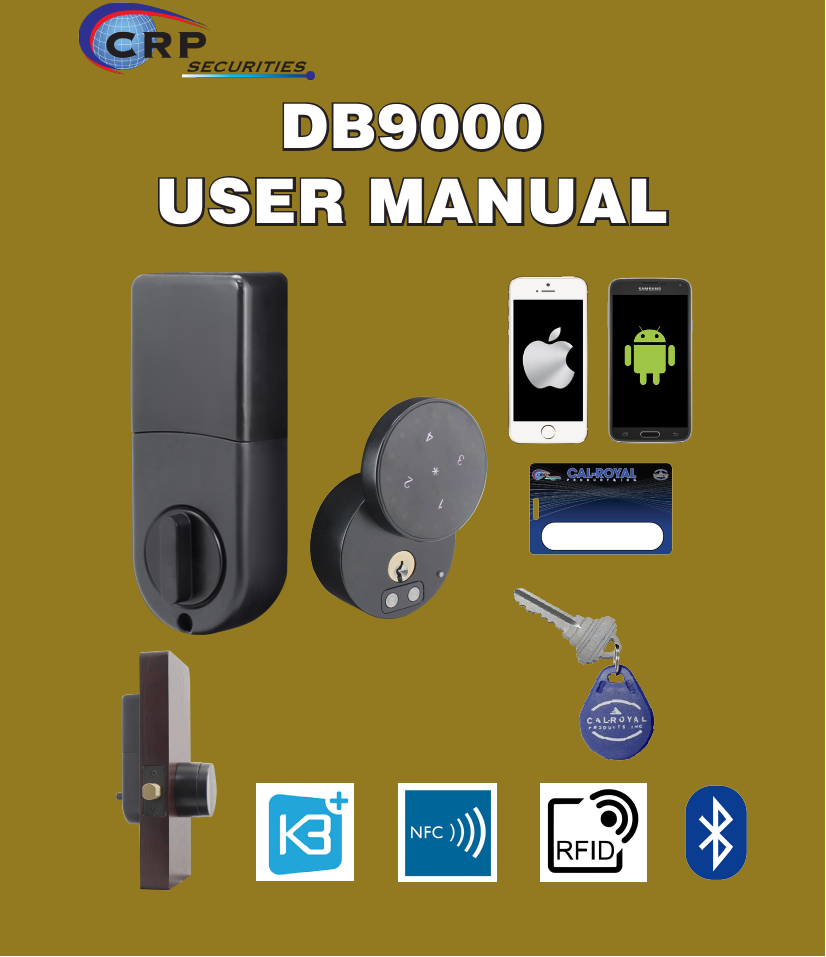
LEON SPECIALTY DB509000 Smart Lock User Manual

LEON SPECIALTY INC. Smart Lock Users Manual

Users Manual

DB9000USER MANUAL
REGULATORY COMPLIANCEThe device complies with Part 15 of the FCC Rules. Operation is subject to the following two conditions:(1)  This device may not cause harmful interference, and(2)  This device must accept any interference received, including interference that may cause undesired operation.FCC WARNING STATEMENTYou are cautioned that changes or modications not expressly approved by the part responsible for compliance could void the user’s authority to operate the equipment.This equipment has been tested and found to comply with the limits for a Class B digital device, pursuant to part 15 of the FCC rules. These limits are designed to provide reasonable protection against harmful interference in a residential installation. This equipment generates, uses and can radiate radio frequency energy and, if not installed and used in accordance with the instructions, may cause harmful interference to radio communications. However, there is no guarantee that interference will not occur in a particular installation. If this equipment does cause harmful interference to radio or television reception, which can be determined by turning the equipment off and on, the user is encouraged to try to correct the interference by one or more of the following measures:-Reorient or relocate the receiving antenna.-Increase the separation between the equipment and receiver.-Connect the equipment into an outlet on a circuit different from that to which the receiver is connected.-Consult the dealer or an experienced radio/TV technician for help.FCC RF Radiation Exposure Statement:This equipment complies with FCC radiation exposure limits set forth for an uncontrolled environment. This equipment should be installed and operated with minimum distance 20cm between the radiator & your body. This transmitter must not be co-located or operating in conjunction with any other antenna or transmitter.Contains Transmitter Module FCC ID: 2AI6W-MCRYA01TABLE OF CONTENTSIntroduction 1 Card Operations 9Compatible Cards 1 Low Battery Warning 9App 1 Wrong-try Lockout 10Door L/R Learning 2 Return to Factory Default 10Door L/R Undecided Warning 2-3 Events, Beeps, LED 10-13Obtaining Lock/Unlocked Status 3Technical Specications 13Management 4 Troubleshooting 14-15 Phone Operations 4-6Keypad Operations 6-8
1DB90001. Introduction  DB9000 is a smart lock with Bluetooth, NFC, MiFARE, and Touch         Keypad capabilities. 2. Compatible cards and phones2.1. Cards  Support MiFARE Classic, MiFARE Ultralight, MiFARE DesFire, or        ISO/IEC 14443 type A with xed UID.2.2. Phones   • iPhone 4S or above with iOS 8.0 or above  • Android 4.3 or above with Bluetooth Low Energy capability. NFC                capability is required for using the NFC feature3. App  Download K3 Connect on App Store or Google Play, and     register an account. For Android users if NFC is available, use     K3 Connect+ instead of K3 Connect. Always update the App to the     latest version.
2DB90004. Door L/R Learning  The deadbolt lock can be installed on a left handed or     right handed door. Firsthand, it needs to learn if the handing     is left or right for it to operate correctly according to the door     handing.     Follow these steps to do L/R learning:    1. Keep pressing the setup button until 4 consecutive beeps         are heard.    2. The lock will start to learn whether the door is right handed           or left handed. The motor will drive the deadbolt locked/        unlocked several times in the learning process.    3. If the lock learned the handing successfully, it will beep and          ash green once. If the lock fails to learn the handing, it will         beep and ash red 3 times. Please re-install the lock         correctly and re-try from step 1. 5. Door L/R Undecided Warning  If door L/R learning has not been done successfully after         rst time of installation or after the procedure of return to      factory default, the following warning will prompt the user to      run door L/R learning.
3DB90005. Door L/R Undecided Warning (Continuation...)   1. Upon unlocking/locking request, there are 3 short beeps and        3 red ashes, then one second pause, 3 short beeps and        3 red ashes again, following the unlock/lock request        indication.   2. There will be 3 short red ashes every 10 seconds       while the lock is idle.6. Obtaining Locked/Unlocked Status after     Battery Replacement  The system may lose the locked/unlocked status information after replacing batteries (especially if you turn the thumb-turn while the lock has no batteries). This may cause the deadbolt rotate the motor to the wrong direction. Follow this procedure to obtain the correct locked/unlocked status after battery replacement:   1. Wait until the lock beeps and ashes green after battery        installation.   2. If the deadbolt is locked, then manually turn the        thumb-turnunlock it. If the deadbolt is unlocked, manually         turn the thumb-turn to lock the deadbolt.
4DB90007. Management7.1. By Phone  A compatible phone with App installed can be used as Admin of        Locks. Management tasks can be performed in the App. An Admin can      manage multiple Locks, but one Lock can only have one Admin at a     time. Other phones can be Clients of the Lock.7.2. By Keypad  If Admin phone is not available, the Keypad can also be used for     selected management tasks. See later section for the full specication.8.  Phone Operations8.1.  Pairing to Become the Admin    Follow these steps to set up a phone to be a lock’s Admin:          1. In K3 Connect, press the “+” on the top-right corner of the Locks             page        2. Fill-in the DIN (db9000) and your selected Lock name, then             conrm and put the phone close to the Lock (within 1 meter)        3. Push the setup button inside the back cover.        4. After Pairing, the phone is the Admin of the Lock
5DB90008.2. Unlocking  Admin or Client can do Unlocking in multiple ways:8.2.1. Bluetooth Manual Unlocking  In K3 Connect, go to the LOCKS page, click on the tab of your           Lock name to trigger it.8.2.2. Bluetooth Auto Unlocking  In K3 Connect, go to the LOCKS page, slide-left on the tab of       your Lock name, select “Info” and navigate into the menu to enable       the Auto Unlocking features. *There are 2 kinds of Auto Unlocking: trigger by touch, or trigger by loca-tion. See the App UI for more description.8.3.3. One-Touch Door LockingIf the bolt is at unlocked position, just touch the front face, the door will be locked.
6DB90008.4. Management  The App can do the following management tasks and more:      (suggest only put minimum App UI in this manual; App is constantly      improved and more features or better UI will be designed in the future)  •  Set Names of Locks  •  Lock parameters setting (such as Passage Mode or Mute)  •  Add/Delete Clients (including other phones, cards, or CODEs)  •  Set Client access rights  •  Set Client Nick-names  •  Generate VARICODE  •  View Audit Trail  •  Check Lock Battery status  •  Update Lock Firmware9.  Keypad Operations9.1. Wake up  Before any keypad operations, make sure the bolt is at locked    position and then touch the Lock front face to wake up the keypad.9.2. Setting the Management Code (MC)Important: There is a default MC of 12341234 in the beginning or after return-to- factory-default.The MC length is between 6 to 12 digits. Set the MC rst by the following steps:        1.  Press the Setup Button    2.  Wake up keypad    3.  Enter the new MC followed by *    4.  Enter the new MC again and followed by *
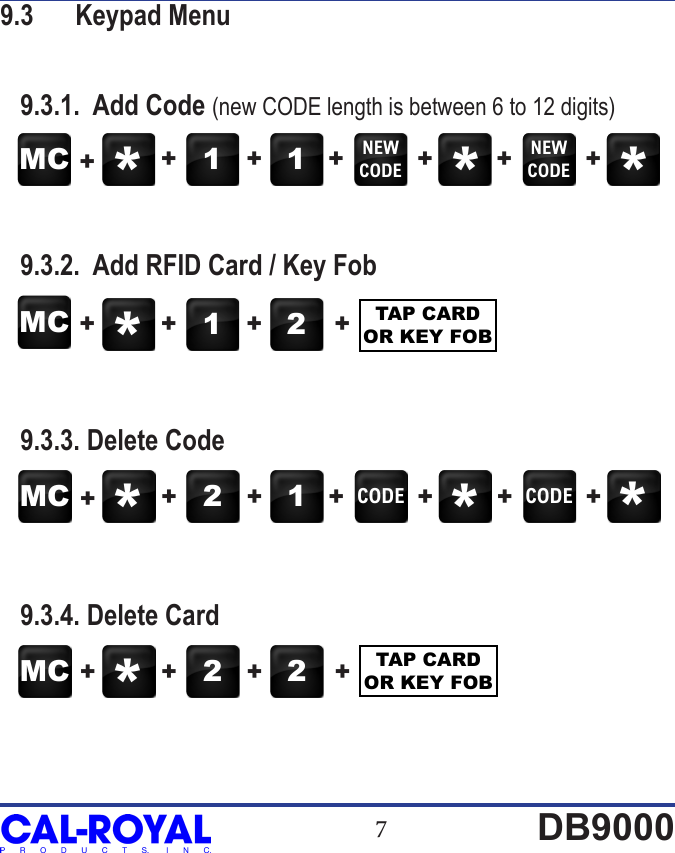
7DB90009.3  Keypad Menu   9.3.1.  Add Code (new CODE length is between 6 to 12 digits)   9.3.2.  Add RFID Card / Key Fob   9.3.3. Delete Code   9.3.4. Delete CardMC 2 2+ + + + TAP CARD OR KEY FOBMC *1 1 NEWCODENEWCODE++ + + + + +* *MC 1 2 TAP CARD OR KEY FOB+ + + +*MC 2 1 CODE CODE++ + + + + +* * **
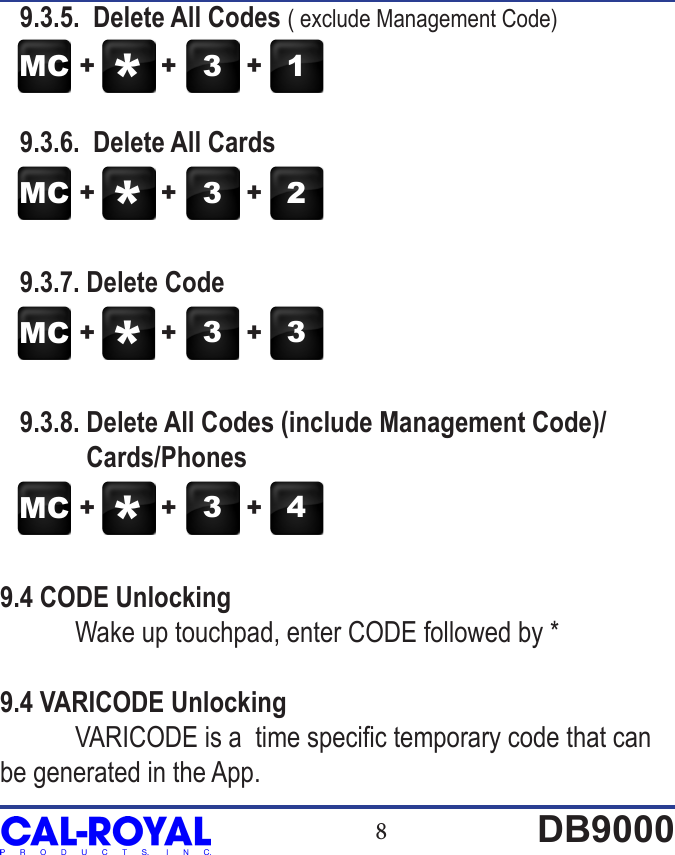
8DB9000   9.3.5.  Delete All Codes ( exclude Management Code)    9.3.6.  Delete All Cards   9.3.7. Delete Code   9.3.8. Delete All Codes (include Management Code)/               Cards/Phones9.4 CODE Unlocking Wake up touchpad, enter CODE followed by *9.4 VARICODE Unlocking VARICODE is a  time specic temporary code that can be generated in the App.MC 3 1+ + +*MC 3 2+ + +*MC 3 3+ + +*MC 3 4+ + +*
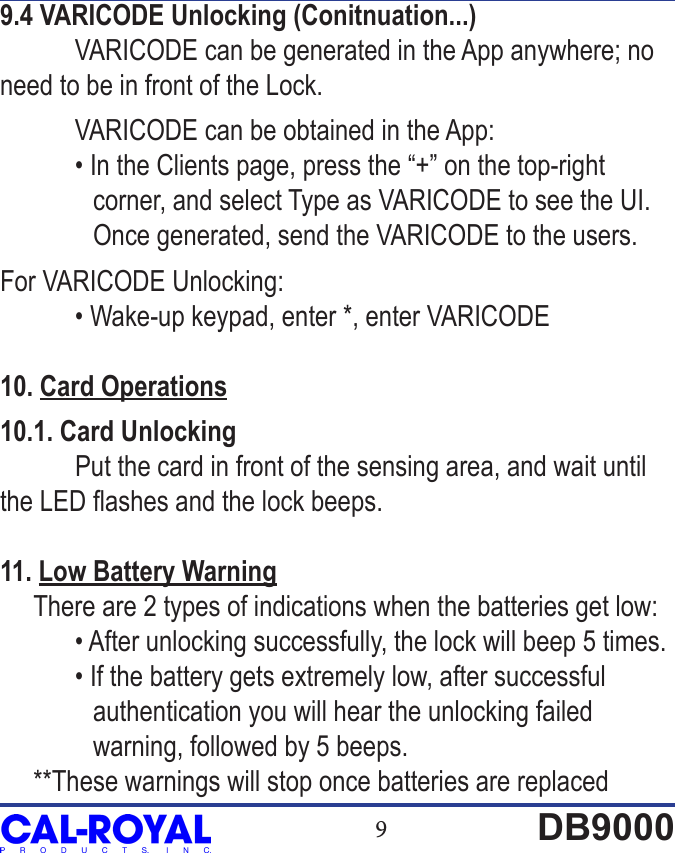
9DB90009.4 VARICODE Unlocking (Conitnuation...)  VARICODE can be generated in the App anywhere; no need to be in front of the Lock.  VARICODE can be obtained in the App:  • In the Clients page, press the “+” on the top-right               corner, and select Type as VARICODE to see the UI.               Once generated, send the VARICODE to the users.For VARICODE Unlocking:   • Wake-up keypad, enter *, enter VARICODE10. Card Operations10.1. Card Unlocking Put the card in front of the sensing area, and wait until the LED ashes and the lock beeps.11. Low Battery Warning     There are 2 types of indications when the batteries get low:  • After unlocking successfully, the lock will beep 5 times.  • If the battery gets extremely low, after successful               authentication you will hear the unlocking failed               warning, followed by 5 beeps.     **These warnings will stop once batteries are replaced
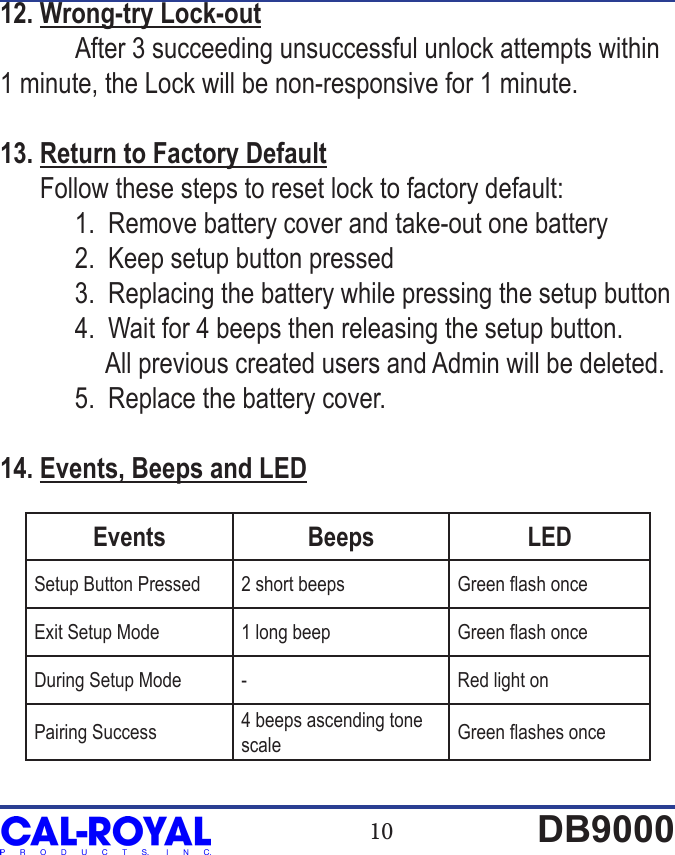
10 DB900012. Wrong-try Lock-out After 3 succeeding unsuccessful unlock attempts within 1 minute, the Lock will be non-responsive for 1 minute.13. Return to Factory Default      Follow these steps to reset lock to factory default:   1.  Remove battery cover and take-out one battery  2.  Keep setup button pressed  3.  Replacing the battery while pressing the setup button  4.  Wait for 4 beeps then releasing the setup button.                 All previous created users and Admin will be deleted.   5.  Replace the battery cover.14. Events, Beeps and LEDEvents Beeps LEDSetup Button Pressed 2 short beeps Green ash onceExit Setup Mode 1 long beep Green ash onceDuring Setup Mode - Red light onPairing Success 4 beeps ascending tone scale Green ashes once
11 DB9000Events Beeps LEDPairing Fail 3 short beeps Red ashes 3 timesSuccessful Unlocking2 short beeps, followed by another beep which indicates successful door unlockGreen ashes twice, followed by 1 green ashSuccessfully authenticated but unlocking failed due to door jam or other mechanical error2 short beeps, followed by 3 short led ashesGreen ashes twice, followed by 3 short red ashesSuccessfully authenticated but unlocking is ignored due to extreme low battery2 short beeps, followed by 5 short red ashes which indicates extreme low batteryGreen ashes twice, followed by 5 short red ashes which indicates extreme low batterySuccessful authenticated but unlocking is ignore owing to undecided door L/R2 short beeps, followed by 3 short beeps, then one second pause, 3 short beeps again2 red ashes, followed by 3 red ashes, then one second pause, 3 red ashes againSuccessful Locking1 beep, followed byanother beep after the bolt locked successfullyGreen ashes once, followed by 1 green ash which indicates the bolt is correctly at locked position
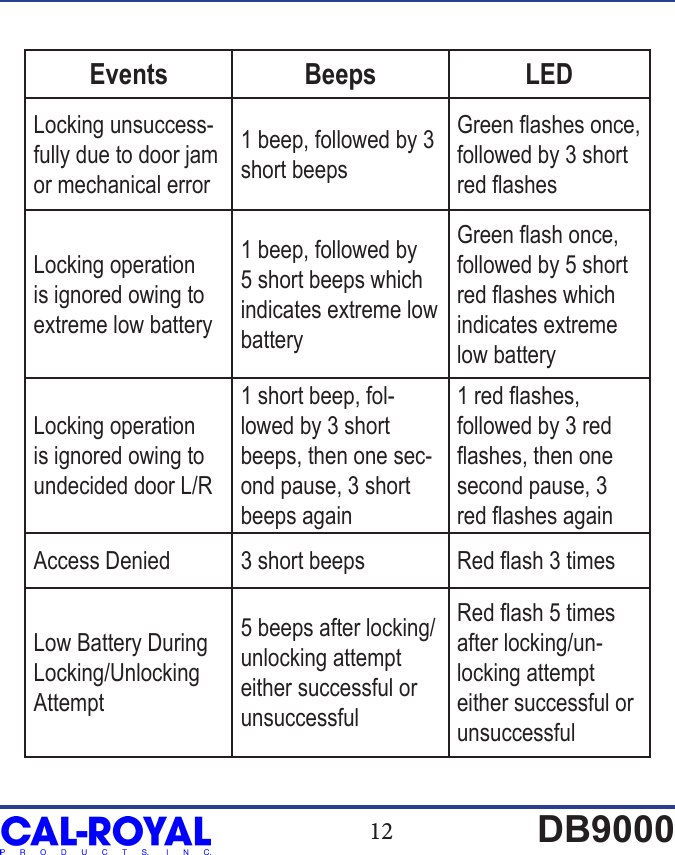
12 DB9000Events Beeps LEDLocking unsuccess-fully due to door jam or mechanical error1 beep, followed by 3 short beepsGreen ashes once, followed by 3 short red ashesLocking operation is ignored owing to extreme low battery1 beep, followed by 5 short beeps which indicates extreme low batteryGreen ash once, followed by 5 short red ashes which indicates extreme low batteryLocking operation is ignored owing to undecided door L/R1 short beep, fol-lowed by 3 short beeps, then one sec-ond pause, 3 short beeps again1 red ashes, followed by 3 red ashes, then one second pause, 3 red ashes againAccess Denied 3 short beeps Red ash 3 timesLow Battery During Locking/Unlocking Attempt5 beeps after locking/unlocking attempt either successful or unsuccessfulRed ash 5 times after locking/un-locking attempt either successful or unsuccessful
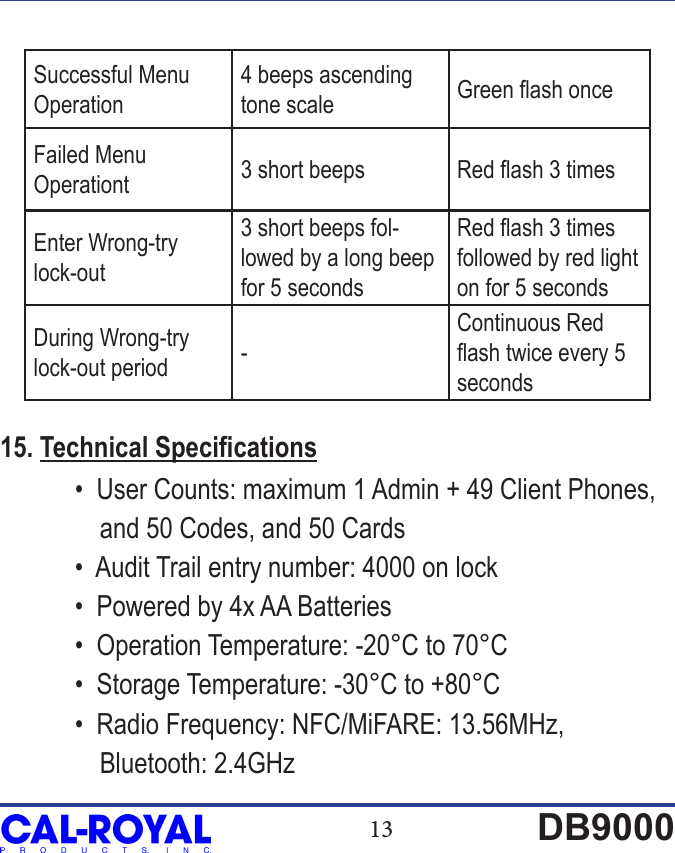
13 DB9000Successful Menu Operation4 beeps ascending tone scale Green ash onceFailed Menu Operationt 3 short beeps Red ash 3 timesEnter Wrong-try lock-out3 short beeps fol-lowed by a long beep for 5 secondsRed ash 3 times followed by red light on for 5 secondsDuring Wrong-try lock-out period -Continuous Red ash twice every 5 seconds15. Technical Specications  •  User Counts: maximum 1 Admin + 49 Client Phones,                and 50 Codes, and 50 Cards  •  Audit Trail entry number: 4000 on lock  •  Powered by 4x AA Batteries  •  Operation Temperature: -20°C to 70°C  •  Storage Temperature: -30°C to +80°C  •  Radio Frequency: NFC/MiFARE: 13.56MHz,                Bluetooth: 2.4GHz
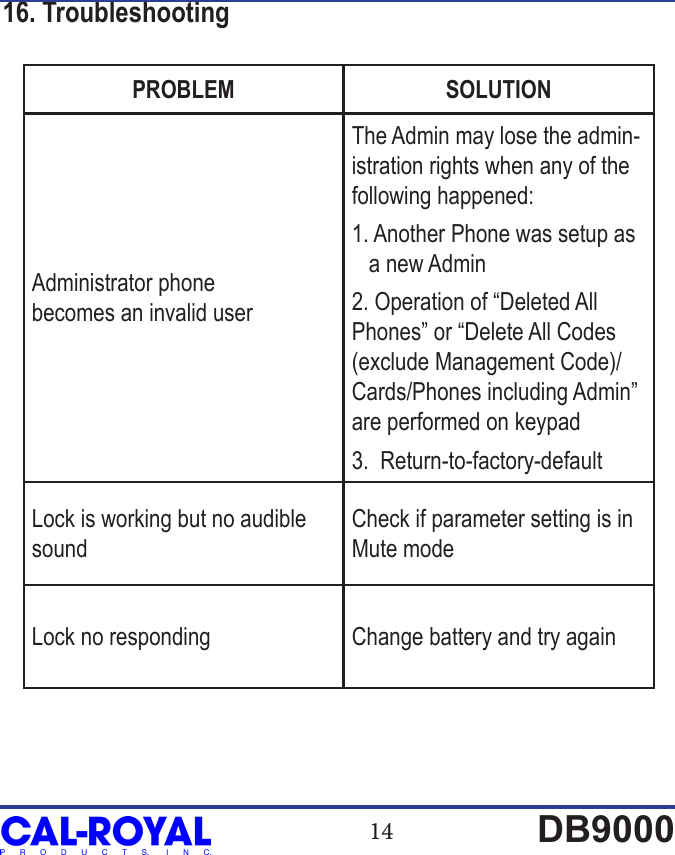
14 DB900016. TroubleshootingPROBLEM SOLUTIONAdministrator phone becomes an invalid userThe Admin may lose the admin-istration rights when any of the following happened:1. Another Phone was setup as    a new Admin2. Operation of “Deleted All  Phones” or “Delete All Codes (exclude Management Code)/Cards/Phones including Admin” are performed on keypad3.  Return-to-factory-default Lock is working but no audible soundCheck if parameter setting is in Mute modeLock no responding Change battery and try again
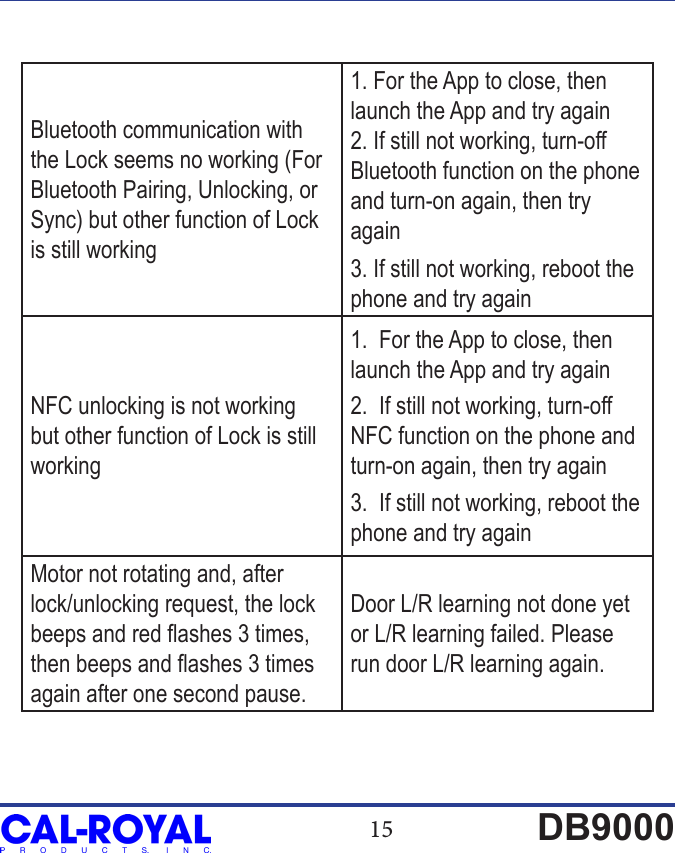
15 DB9000Bluetooth communication with the Lock seems no working (For Bluetooth Pairing, Unlocking, or Sync) but other function of Lock is still working1. For the App to close, then  launch the App and try again2. If still not working, turn-off Bluetooth function on the phone and turn-on again, then try again3. If still not working, reboot the phone and try againNFC unlocking is not working but other function of Lock is still working1.  For the App to close, then launch the App and try again2.  If still not working, turn-off NFC function on the phone and turn-on again, then try again3.  If still not working, reboot the phone and try againMotor not rotating and, after lock/unlocking request, the lock beeps and red ashes 3 times, then beeps and ashes 3 times again after one second pause.Door L/R learning not done yet or L/R learning failed. Please run door L/R learning again.

Navigation menu