LEOPHILE Technology IMPULSE Bluetooth Headset User Manual EEL M14
LEOPHILE Technology Co., Ltd Bluetooth Headset EEL M14
user manual
Do not use earphone in thunderstorm weather, the earphone may
not work properly in the condition, and increase the risk of being hit
by lightning .
Hard reset
RING COLLAR
MUSIC WIRELESS HEADSET
If the earphone cannot be turned on even when fully charged or does
not respond during use, follow the instructions below to reset it.
1.While pressing and holding the multifunction button, connect the
earphone to your PC’s USB port or a USB power adapter with the
charging cable.
2.Keep pressing and holding the Multifunction button until the
earphone turns on. The earphone is now reset.
LEOPHILE IMPULSE INSTRUCTION
Music
Music play / pause
Press Multifunction button once to play / pause music. (Some
phones may require you to start a media player first) .
Track back/forward
Press the Volume "-" for 2 seconds once to skip track backward,
press Volume "+" for 2 seconds once to skip track forward.
Switch Music and Call
When a call rings during a music playing, the music automatically
pauses to allow you to answer or ignore the call. Once the call is
ignored or ends, the music is resumed.
(Need media player support).
Clear paired list
Make sure the earphone is turned off, press and hold the Multifunction
button until the LED indicator flashes red and blue alternately (About 7
seconds), then release Multifunction button. Press volume "+" and
volume "-" button at the same time until LED flashes blue, then LED
flashes red and blue alternately, the paired list was cleared, the
earphone will enter pairing mode after power on next time.
Redial the last call
Mute on/off
Double-press multifunction button in standby mode or streaming.
The mobile phone will redial the last call number.
Press the Volume "-" for about 2 seconds to mute on/off.
Voice dial (Need phone support)
In standby mode press and hold the multifunction button for about
2 seconds wait for phone prompt and then tell the phone to dial
the name of a stored contact.
Switch between the earphone and phone
Press the multifunction button for about 2 seconds during a call,
the call will be switched to the mobile phone, redo this
operation again, the call will be switched to the earphone.
Call
Answer a call
Press the Multifunction button or Volume "+" or Volume "-"
once.
Reject a call
Press and hold the Multifunction button for about 2 seconds.
Press the Multifunction button once.
End a call
Reject the new call hold the current call
During the call there is a new call, press and hold the multifunction
button for about 2 seconds to reject a new call, keeping the active call.
End current call and answer new call
When a new call rings during a call, press the Multifunction
button once to answer new call and end current call
simultaneously.
On hold current call and answer new call
When a new call rings during a call, Double the Multifunction
button to hold current call and answer new call.
Bluetooth
ON
Se arc h
LEO PHILE I MPULS E
Windows Phone 8
a. On your phone, open the Settings menu.
b. Select Bluetooth. If Bluetooth is off, turn it on.
The Phone will search for new devices automatically.
Safety and care
Using earphone at high to moderate volumes for extended periods
of time will result in permanent hearing damage .It is advised you
keep volume levels moderate to low at all times for your safety.
Do not use any corrosive cleaner/oil to clean the earphone.
If the earphone comes in contact with liquids, quickly wipe away .If
submersed in water, do not turn the earphone on until completely dried.
Tips: liquid submersion voids the warranty.
Keep the earphone and packaging out of reach of children .
Enable voice prompts: enter pairing mode: Press the volume "+"
button for 3 seconds, the blue LED lights flash 3 times;
Disable voice prompts: enter pairing mode: Press the volume"-"
button for 3 seconds, the red LED lights flash 3 times. Do not use while driving a car, cycling, operating machinery, or
performing other activities that require hearing surrounding sounds.
Earphone may not work properly under high temperature or high
humidity conditions.
504.00 mm
76.00 mm
Pair one phone
Pairing
iPhone
a.On your phone, open the Settings menu.
b.Select Bluetooth. If Bluetooth is off, turn it on.
The iPhone will search for new devices automatically.
Android phone
a.On your phone, open the Settings menu.
b.Select Bluetooth (For old Android phone, Bluetooth is found in the
Wireless & Networks). If Bluetooth is off, turn it on. Select Search for
Devices if your phone does not automatically search for new devices.
Note: When the earphone and phone have been paired once,
they will automatically connect when the earphone is on and
Bluetooth is activated on the phone.
Following items are included
Start here
USB cable
Ear cushions
Basic operation
Status indicator
Instruction
Power on
Power off
Standby
Incoming call
Pairing
LED status
Stay blue about one second
Stay red about two seconds
Flashes blue quickly
Flashes red and blue alternately
Voice prompts
Power on
Power off
/
Toot
Battery low
Battery low Blink red
Charging Stays on red while charging /
Volume up/down Press the volume "+" to turn volume up
Press the volume "-" to turn volume down
Power on
Power off
Press and hold Multifunction button for about 3 seconds. The
earphone says "power on" and the LED flashes blue one second
Press and hold Multifunction button for about 5 seconds. The
earphone says "power off" and the LED flashes red two seconds.
Tips: When the distance between the earphone and phone is beyond
effective range, earphone disconnects with phone. Earphone will
power off automatically once no active for 15 minutes.
Stays on blue after fully charged.
Blink blue once every 5 seconds
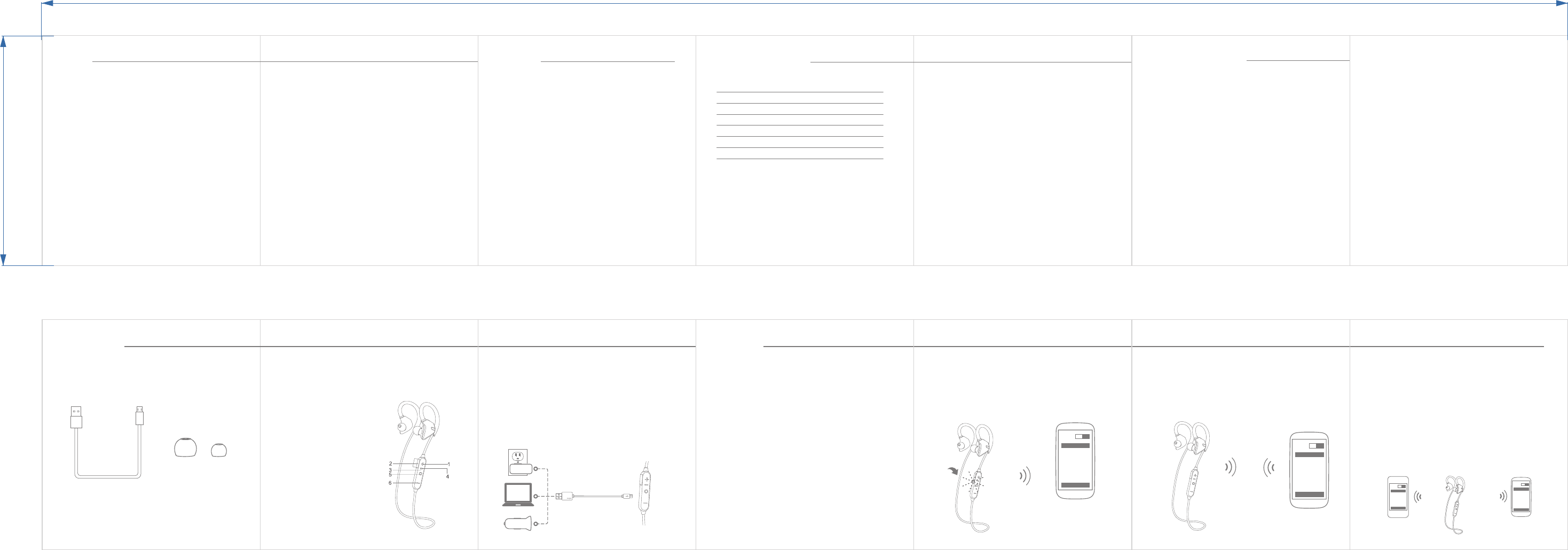
Product overview
1. Volume + / Track forward
2. Charge jack
3. Status indicator
4. Talking mic
5. Multifunction button
6. Volume - / Track back
3. Select "LEOPHILE IMPULSE". If your phone asks, enter 0000 (four zeros)
for the Pass code or accept the connection. The LED indicator stops flashing
red and blue once successfully paired, you hear "Connection successful".
Some phone list an option to "Play through earphone", select to use the
earphones.
Bluetooth
ON
Se arc h
LEO PHILE I MPULS E
Pair another phone
Multipoint technology enables you to pair another phone and take a
call from either.
To paired first smart phone power off the headset , then power on and
paired the second phone and then power off and restart the headset,
it will reconnect to second paired phone automatically for the first paired
phone link, your shall manual operation from the 1st smart phone's
bluetooth has paired list menu and select and click the "LEOPHILE IMPULSE"
Blu etoo th
ON
Con nect
LEOP HILE IM PULSE
ON
Con nect
LEOP HILE IM PULSE
Bl ueto oth
Calling switch
When the first phone call rings, press the Multifunction button
once to answer the call, if the seconds call rings at this moment,
you can answer the second phone by double click Multifunction
button, and on hold the first phone call.
Charging
Your new earphone has enough power to pair and make a few
calls. It takes 2 hours to fully charge the earphone; while charging,
the battery indicator light is red, the indicator light flashes blue
once charging is complete.
Note: The lifetime of the battery will be significantly reduced if
your earphone is left uncharged for a long period. We recommend
that you recharge your earphone at least once a month.
1.After power on,if has PDL,it will reconnect , if fail, earphones
automatically enter pairing mode (the LED indicator flashes red and
blue alternately).
2.Activate on your phone (See below for more details).Bluetooth
/
LEOPHILE
NOTE: This equipment has been tested and found to comply with the limits for a
Class B digital device, pursuant to part 15 of the FCC Rules. These limits are
designed to provide reasonable protection against harmful interference in a
residential installation. This equipment generates uses and can radiate radio
frequency energy and, if not installed and used in accordance with the instructions,
may cause harmful interference to radio communications. However, there is no
guarantee that interference will not occur in a particular installation. If this
equipment does cause harmful interference to radio or television reception, which
can be determined by turning the equipment off and on, the user is encouraged to
try to correct the interference by one or more of the following measures:
- Reorient or relocate the receiving antenna.
- Increase the separation between the equipment and receiver.
-Connect the equipment into an outlet on a circuit different from that to which the
receiver is connected.
-Consult the dealer or an experienced radio/TV technician for help
Changes or modifications not expressly approved by the party responsible for compliance
could void the user's authority to operate the equipment. This device complies with Part
15 of the FCC Rules. Operation is subject to the following two conditions:
(1) this device may not cause harmful interference, and
(2) this device must accept any interference received, including interference that may
cause undesired operation.