LRE Medical Esterline 8051000 Apex Reader User Manual Apex User s Guide 4 6 10 FCC
LRE Medical GmbH Esterline Corporation Apex Reader Apex User s Guide 4 6 10 FCC
USer Manual
FOR INVESTIGATIONAL USE ONLY
To be used by qualified investigators only.
The performance characteristics of this
device have not been established. Part Number: 80 510 00
Revision C
INSTRUMENT DE RECHERCHÉ
Réservé uniquement á l’usage de
chercheurs compétents
Les spécifications de rendement de
l’instrument n’ont pas été éstablies.
Apex Reader
User’s Guide

Apex Reader User’s Guide
2
Copyright
This document discloses subject matter in which AspenBio Pharma, Inc. has certain
proprietary rights. Neither receipt nor possession of this document confers or
transfers any rights to reproduce, store in a retrieval system, transmit or translate in
any form or by any means, electronic, mechanical, photocopying, recording or
otherwise, without prior permission from AspenBio Pharma.
The information contained in this User’s Guide is subject to change. Illustrations,
including software screen illustrations, are representative, and may not reflect the
most recently released updates.
Copyright © 2010 AspenBio Pharma, Inc. All rights reserved.
Distributor
The is distributed by:
AspenBio Pharma, Inc.
1585 South Perry Street
Castle Rock, CO 80104
www.aspenbiopharma.com
T: (303) 794-2000
F: (303) 798-8332
Trademarks
AspenBio Pharma® is a registered trademark of AspenBio Pharma, Inc.
Apex Reader

3
Contents
Introduction ...........................................................................................5
Product Overview .............................................................................5
Kit Components ........................................................................6
Reader Features........................................................................7
Understanding Labelling Symbols ...........................................9
Understanding Screens and Menus.........................................9
Product Specifications ...........................................................18
Safety Symbols ...............................................................................19
Safety Information...........................................................................19
How To Use This Guide ..................................................................21
Setup .....................................................................................................23
Supplying Power to the Reader .....................................................23
Turning On and Configuring the Reader........................................24
Turning On the Reader............................................................24
Setting the Date and Time......................................................25
Installing the Paper .................................................................27
Adding the First Supervisor User ...........................................29
Connecting to the LIS.....................................................................33
Setting Up the Network Connection ......................................33
Providing LIS Settings ............................................................36
Changing Reader Settings .............................................................38
Changing the Language..........................................................39
Changing Patient ID Settings .................................................40
Changing the Print Setting .....................................................43
Changing Security and Power Saving Settings.....................44
Managing Users ..............................................................................47
Adding a User..........................................................................47
Changing User Information.....................................................51
Enabling or Disabling a User ..................................................55
Deleting a User........................................................................57
Daily Operations ................................................................................61
Startup.............................................................................................61
Turning On the Reader............................................................61
Logging In................................................................................62
Running Quality Control Checks ............................................63
Testing a Patient Sample................................................................68
Managing Patient Results ..............................................................72
Viewing Detailed Test Results................................................72
Sending Patient Results .........................................................75
Printing Patient Results ..........................................................76
Viewing a Result Stored on a Test Cartridge.........................78
Daily Shutdown ...............................................................................81

Apex Reader User’s Guide
4
Export / Import Features ................................................................ 83
Exporting Stored Test Results....................................................... 84
Exporting Raw Test Data ............................................................... 86
Importing and Exporting Users...................................................... 87
Exporting a User..................................................................... 87
Exporting All Users................................................................. 89
Importing a User ..................................................................... 91
Importing All Users ................................................................. 93
Other Features ................................................................................... 97
Reviewing Reader Information....................................................... 97
Checking the Software Version.............................................. 97
Reviewing the Supervisor History.......................................... 99
Reviewing Global Settings ................................................... 101
Reviewing Internal Check Results ....................................... 103
Checking Ambient Temperature.................................................. 105
Deleting Stored Test Results ....................................................... 106
Resetting the Reader to Default Settings.................................... 109
Using the Barcode Reader Accessory ........................................ 110
Care & Maintenance....................................................................... 111
Maintaining the Reader ................................................................ 111
Cleaning the Reader............................................................. 111
Changing the Paper.............................................................. 111
Replacing the Batteries........................................................ 114
Changing the Date and Time ............................................... 115
Updating Reader Languages ............................................... 118
Upgrading the Reader Software .......................................... 121
Troubleshooting............................................................................ 123
Troubleshooting Tips............................................................ 123
Understanding Error Messages ........................................... 124
Quality Assurance......................................................................... 126
Returning the Reader ................................................................... 126
Disposing of the Reader............................................................... 126
Glossary ............................................................................................. 127
5
Introduction
Product Overview
The is a portable fluorescence instrument used to measure the
results of tests manufactured by . The reader is designed for use
in a laboratory setting.
The reader uses a Class 1 laser as a light source. Light from the laser hits a test
cartridge that has been inserted in the reader. This causes the fluorescent dye in the
test cartridge to give off energy. The more energy the fluorescent dye gives off, the
stronger the signal.
Each test cartridge includes an RFID tag that identifies relevant parameters for
evaluating the test results. These parameters include:
■Test name
■Calibration coefficients
■Expiry date
■Sample/Reagent Assembly (SRA) type
Assay specific information is stored on the RFID tag on the test cartridge, so it is not
necessary to upload any test-related information prior to running a test. Patient
information can be entered in the reader manually or using the optional barcode
reader accessory.
After a test sample (plasma) from a patient is added to the test cartridge, the
cartridge is inserted in the reader’s drawer with the sample application area facing
toward the user. The reader’s internal scanner reads the RFID tag on the test
cartridge and automatically processes the test. The reader measures how much of a
particular protein marker is present based on pre-programmed standards, and
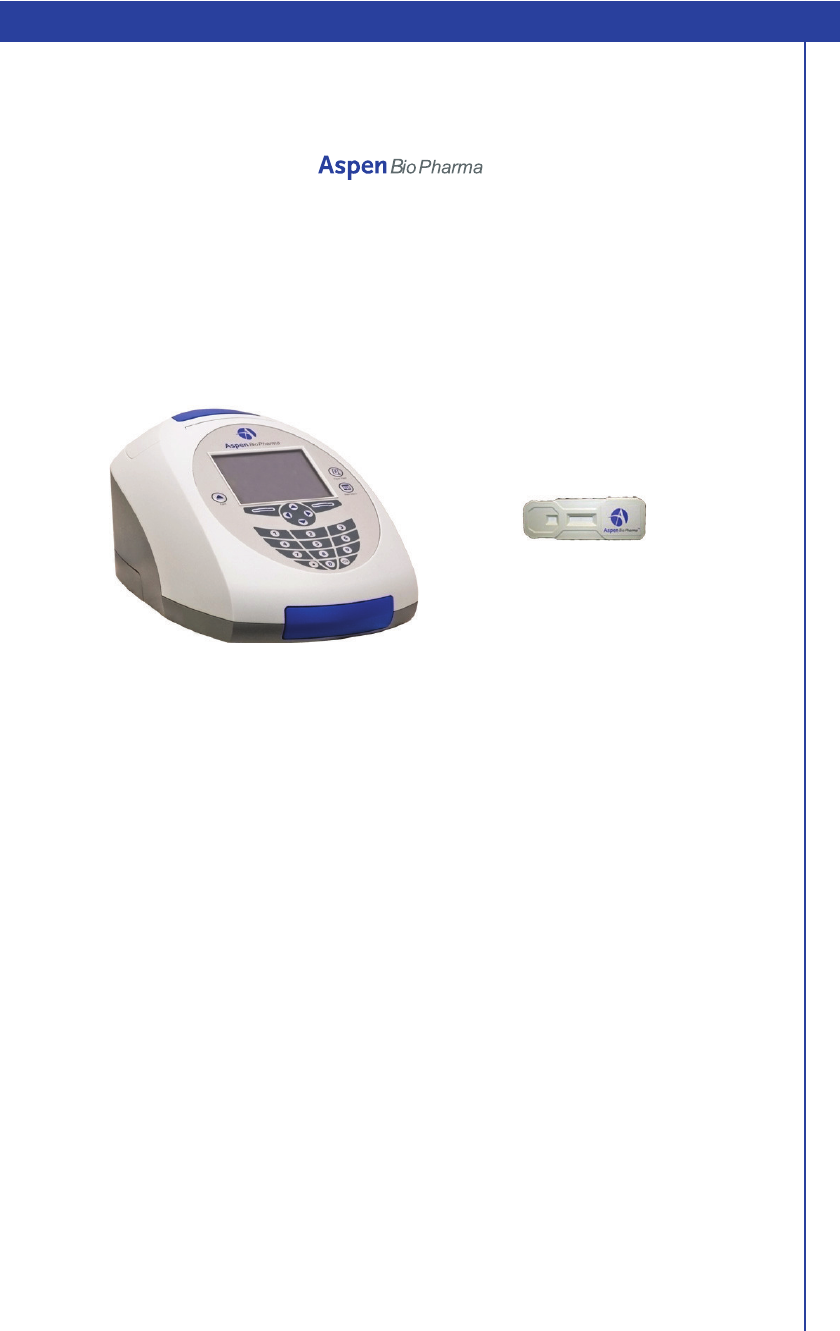
Apex Reader and Test Cartridge
Apex Reader

Apex Reader User’s Guide
6
interprets and reports the test result. Test results can be printed, sent to the LIS, or
exported to an SD card.
Kit Components
The following components are included in the reader kit:
■Reader
■Universal Power Transformer
■Country Extension Cord
■AA Batteries (4)
■System Check Cassette
■External Barcode Reader (Optional)
■Thermal Paper Rolls (4)
■1 GB SD Card
■User’s Guide
■Warranty Card
■Quick Start Card
Kit Components
Introduction
7
Reader Features
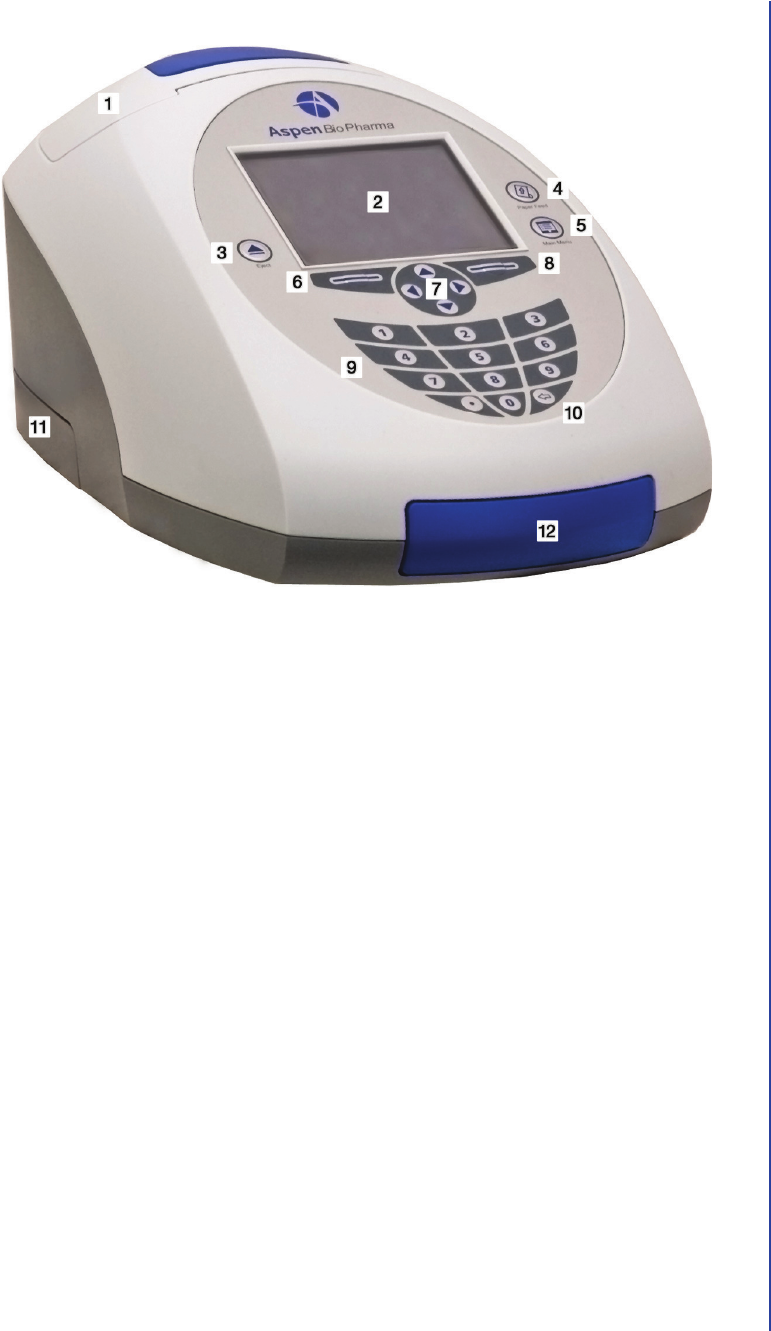
Reader—Front View
Feature Description
1Printer Cover Covers the printer.
2Display Shows screens for navigating, entering data, and
reviewing data.
3Eject button Used to eject the drawer.
4Paper Feed Button Used to advance the paper roll.
5Main Menu Button Used to return to the Main Menu screen.
6Left Soft Key Used to select the option displayed above the key on the
display.
7Navigation Buttons Used to navigate within menus and reader screens.
8Right Soft Key Used to select the option displayed above the key on the
display.
9Numeric Keypad Used to enter numbers and decimal points.
10 Delete Button Used to delete the character to the left of the cursor.
11 Battery Cover Covers the battery compartment.
12 Drawer Used for inserting prepared test cartridges and the system
check cassette in the reader.
Apex Reader User’s Guide
8
Reader—Back View
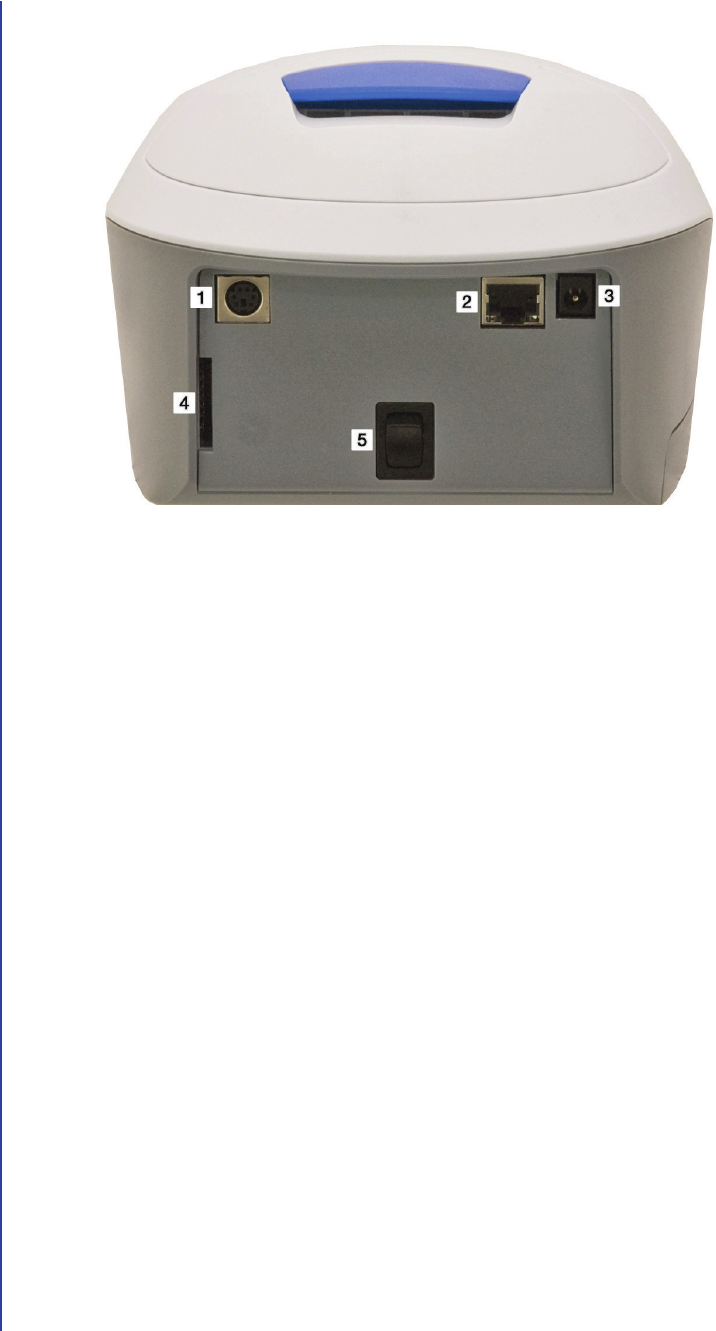
Feature Description
1PS/2 Port Used to connect the optional barcode reader accessory to
the reader.
2Ethernet Port Used to connect the reader to the LIS network.
3AC Power Port Used to connect the AC power adapter to the reader.
4SD Card Slot Used for importing and exporting information via the SD
card.
5On/Off Switch Used to turn the reader on and off.
Introduction
9
Understanding Labeling Symbols
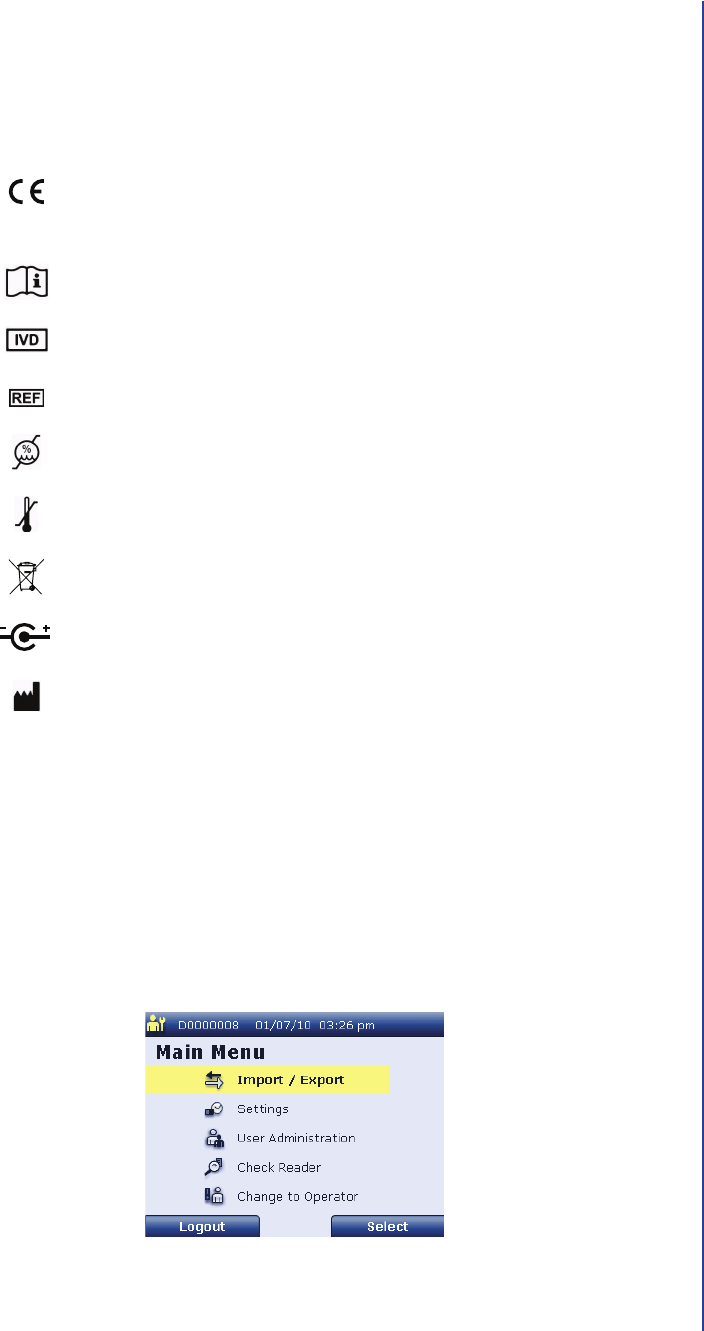
Consult the following table to understand the symbols located on the bottom of the
reader:
Understanding Screens and Menus
The supervisor menu structure is different from the operator menu structure. Refer
to the appropriate section below for information about the menu structure for your
user mode.
Each of the options available on the supervisor Main Menu screen are described
below.
This symbol... indicates...
The device meets the requirements of the directive set
forth by the European Commission for in vitro diagnostic
medical devices.
The user should consult the instructions for use for proper
operation of the device.
The product is designed for use as an in vitro diagnostic
medical device.
The catalog number for the device.
The upper and lower relative humidity limits for operation
of the device.
The upper and lower temperature limits for operation of
the device.
The device requires safe disposal in conformance with the
WEEE Directive.
The polarity of the power supply tip is positive.
The manufacturer of the device.
Supervisor Main Menu Screen

Apex Reader User’s Guide
10
■Import / Export
When you select Import / Export from the supervisor Main Menu, a menu
with the following options appears:
– Import / Export User
Select this option to export user records to or import user records from a
compatible SD card. See Importing and Exporting Users on page87 for
more information.
– Export Result List
Select this option to export test results stored on the reader to a compatible
SD card. See Exporting Stored Test Results on page84 for more
information.
– Export Raw Data Scan
Select this option to export the last 10 raw data scans stored on the reader
to an SD card. See Exporting Raw Test Data on page86 for more
information.
– Import Language
Select this option to update the languages available in the reader. See
Updating Reader Languages on page118 for more information.
– Upgrade Software
Select this option to upgrade the reader software. See Upgrading the
Reader Software on page121 for more information.
Import / Export Screen
Introduction
11
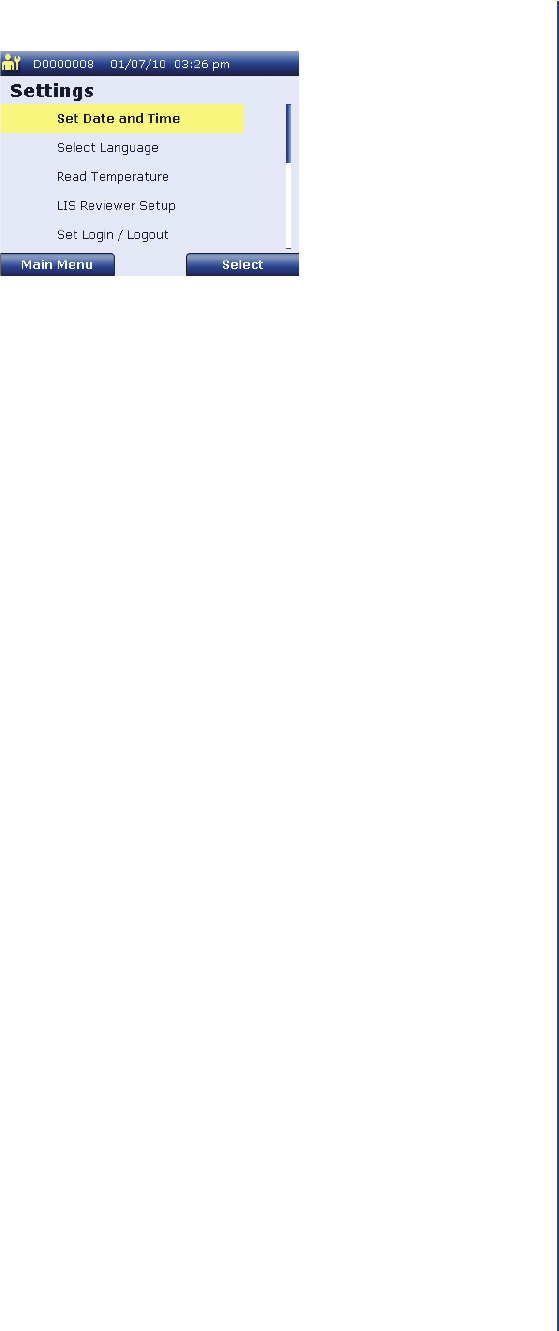
■Settings
When you select Settings from the supervisor Main Menu, a menu with the
following options appears:
– Set Date and Time
Select this option to change the reader’s date and/or time. See Changing
the Date and Time on page115 for more information.
– Select Language
Select this option to change the reader’s language setting. See Changing
the Language on page39 for more information.
– Read Temperature
Select this option to check the ambient temperature detected by the reader.
See Checking Ambient Temperature on page105 for more information.
– LIS Reviewer Setup
Select this option to configure the LIS reviewer settings for the reader. See
Providing LIS Settings on page36 for more information.
– Set Login / Logout
Select this option to change the logout time, power off time, or auto-login
setting. See Changing Security and Power Saving Settings on page44 for
more information.
– Network Setup
Select this option to set up the network connection. See Setting Up the
Network Connection on page33 for more information.
– Printing Setup
Select this option to change the print setting. See Changing the Print
Setting on page43 for more information.
Supervisor Settings Screen

Apex Reader User’s Guide
12
– Set Patient ID
Select this option to change patient ID settings. See Changing Patient ID
Settings on page40 for more information.
– Device Info
Select this option to review software version information, reader settings,
supervisor history, and internal check results. See Reviewing Reader
Information on page97 for more information.
– Delete Results
Select this option to delete test results stored in the reader’s memory. See
Deleting Stored Test Results on page106 for more information.
– Reset to Default
Select this option to reset the reader to its default settings. See Resetting
the Reader to Default Settings on page109 for more information.
■User Administration
When you select User Administration from the supervisor Main Menu, a
menu with the following options appears:
– Organize existing IDs
Select this option to modify or delete existing user records. See Managing
Users on page47 for more information.
– Create new ID
Select this option to add a new user. See Adding a User on page47 for
more information.
User Administration Screen
Introduction
13
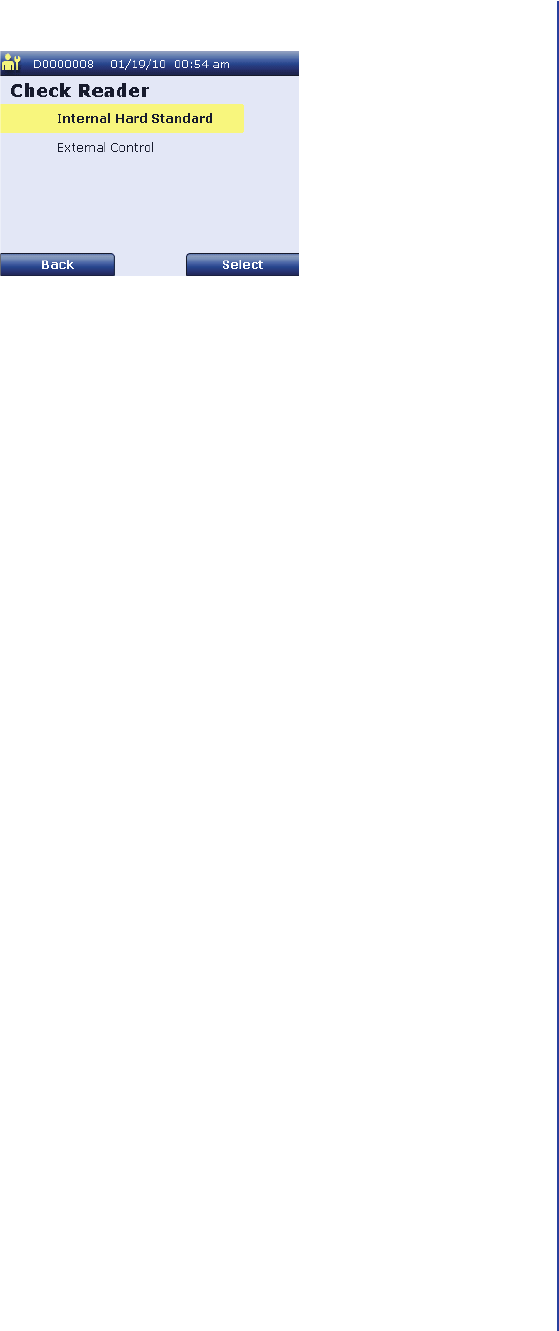
■Check Reader
When you select Check Reader from the supervisor Main Menu, a menu
with the following options appears:
– Internal Hard Standard
Select this option to run an internal QC check on the reader. See Running
Quality Control Checks on page63 for more information.
– External Control
Select this option to run an external QC check using the system check
cassette provided with the reader. See Running Quality Control Checks on
page63 for more information.
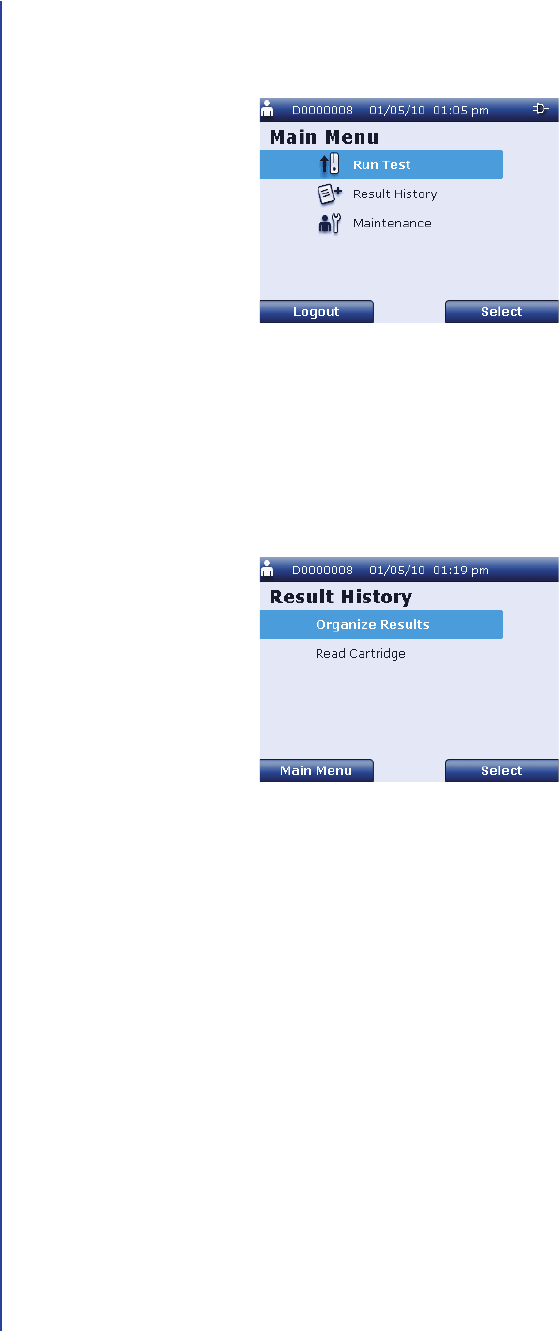
■Change to Operator
Select this option to access the operator Main Menu screen. From this
screen, you can run a test and view, send, and print patient results.
Supervisor Check Reader Screen
Apex Reader User’s Guide
14
Each of the options available on the operator Main Menu screen are described
below.
■Run Test
Select this option to test a patient sample. See Testing a Patient Sample on
page68 for more information.
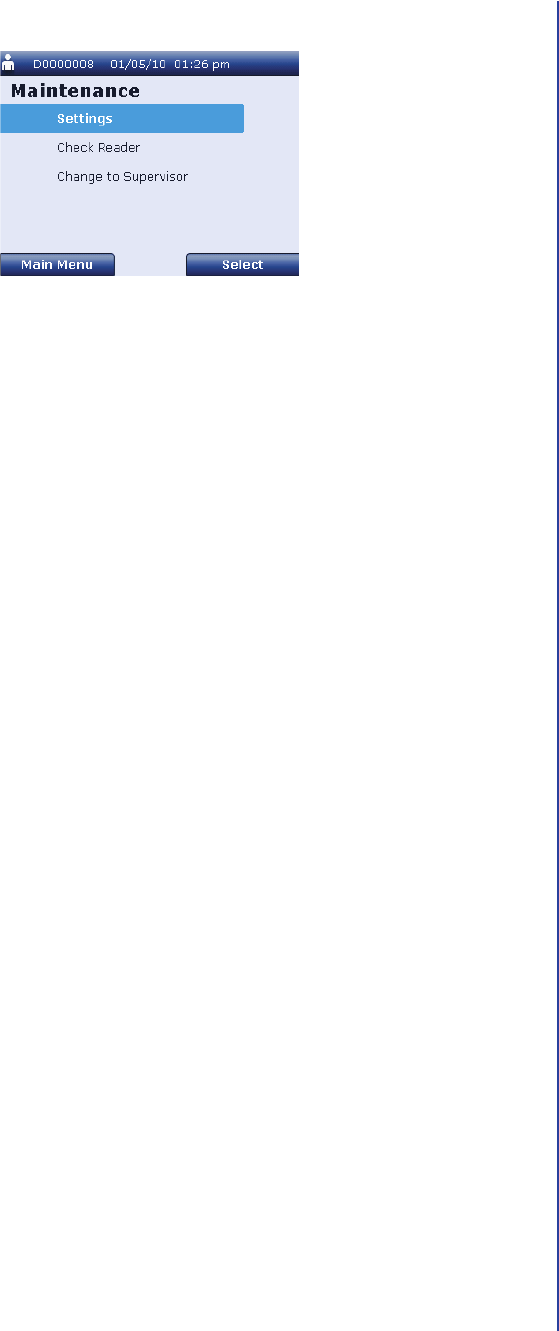
■Result History
When you select Result History from the operator Main Menu, a menu with
the following options appears:
– Organize Results
Select this option to view, send, and print patient results stored in the
reader’s memory. See Managing Patient Results on page72 for more
information.
– Read Cartridge
Select this option to view an individual result stored on a test cartridge. See
Viewing a Result Stored on a Test Cartridge on page78 for more
information.
Operator Main Menu Screen
Result History Screen
Introduction
15
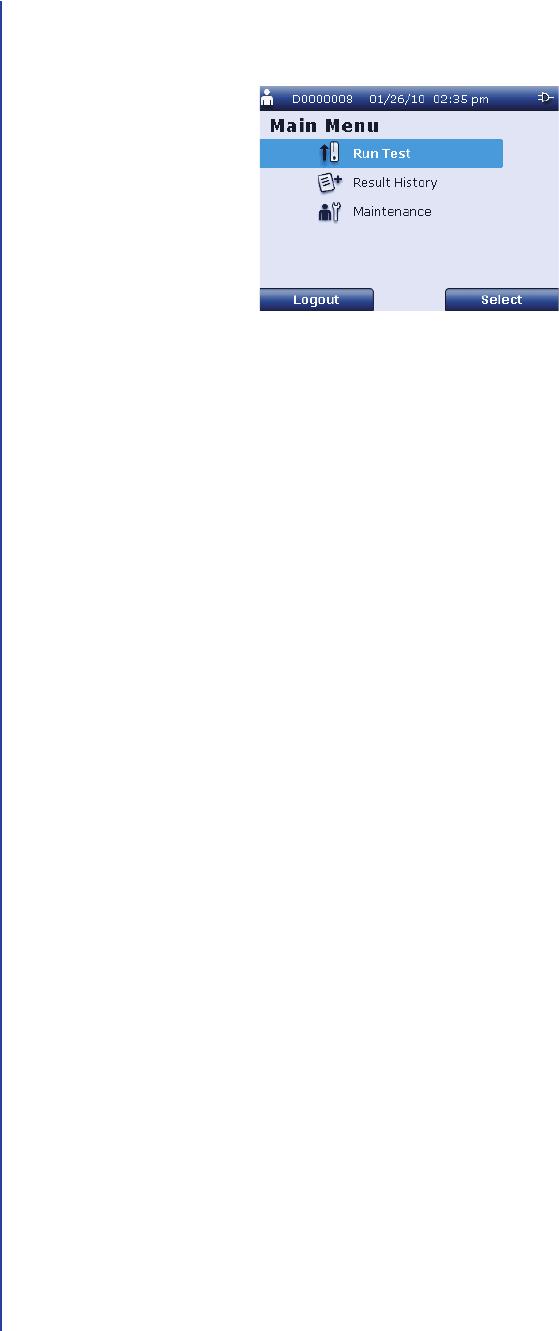
■Maintenance
When you select Maintenance from the operator Main Menu, a menu with
the following options appears:
– Settings
Select this option to review software version information, reader settings,
and supervisor history. See Reviewing Reader Information on page97 for
more information.
– Check Reader
Select this option to run an internal QC check on the reader or to run an
external QC check using the system check cassette provided with the
reader. See Running Quality Control Checks on page63 for more
information.
– Change to Supervisor
Supervisor users can select this option to access the supervisor Main
Menu screen. From this screen, you can import and export information,
change reader settings, and manage user records.
Maintenance Screen
Apex Reader User’s Guide
16
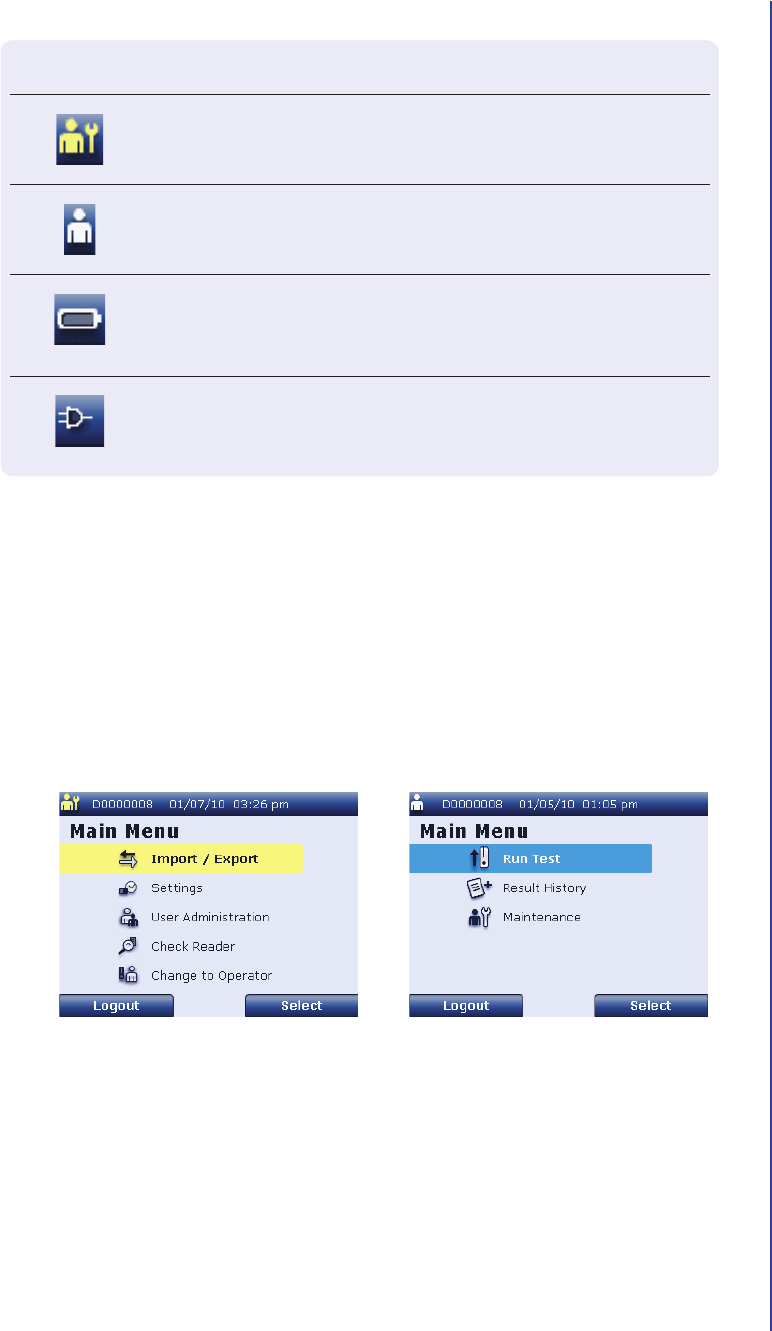
Each screen is divided into three areas: the header bar, the content area, and the
soft keys.
The information displayed in each area is described below.
■Header Bar
The header bar is the dark blue area at the top of the reader screen that
provides the following information:
– The icon shown at the far left of the header bar indicates whether the user is
logged in as a supervisor or an operator.
– The number shown next to the user icon is the user ID for the current user. If
the auto-login setting is enabled, the header bar shows “Auto-Login”
instead of the user ID.
– The current date and time are shown to the right of the user information.
– The icon shown at the far right of the screen indicates whether the reader is
using AC power or battery power.
Introduction
17
The following table identifies the icons that appear in the header bar.
■Content Area
The content area is the light blue area occupying the majority of the reader
screen. This area displays menu options, settings, and data.
When you are logged in as a supervisor, the currently selected option is
indicated by a yellow bar with black text. When you are logged in as an
operator, the currently selected option is indicated by a blue bar with white text
as shown below.
■Soft Key Selections
The soft key selections are the dark blue areas with white text displayed at the
lower left and lower right of the reader screen. Some screens have two soft key
selections, while other screens have only one option.
To use a soft key selection, press the soft key below the desired option.
Supervisor Main Menu Screen Operator Main Menu Screen
This icon... indicates that...
The user is logged in as a supervisor.
The user is logged in as an operator.
The reader is using battery power and the batteries are fully charged.
The battery icon is gradually filled with white as the batteries are
discharged.
The AC power adapter is being used to power the reader.

Apex Reader User’s Guide
18
Product Specifications
AG: CONFIRM ALL AND PROVIDE ANY ADDITIONAL SPECS AND STANDARDS.
Product Information
Model Number: TBD
Dimensions: TBD
Weight: TBD
Power Requirements
AC Operation: 6 VDC at 4.16 A
Battery Operation: 4 AA / LR6 cells
(Nominal voltage > 1.5 VDC)
Operating Environment
Altitude: 0 to 2000 m
Temperature: 15°C to 30°C
Humidity: 30% to 80% noncondensing
Degree of Pollution: 2
Storage Environment
Temperature: – 20°C to 55°C for 24 hours
Humidity: 25% to 85% noncondensing
External Barcode Reader (Optional)
Connector: PS/2
Power: 5 VDC at < 300 mA
Codes Supported: Any 1D code 20 characters or less in
length
Model: Dialogic Touch 65 or equivalent
External Keyboard (Optional)
Connector: PS/2
Network Connectivity (Optional)
Connector: RJ45
Communications: 10(100)BASE-T using TCP/IP
Data Protocol: POCT 1-A2
Applicable Standards
EU: TBD
Rest of World: TBD
Introduction
19
Safety Symbols
The following symbols are used in this user’s guide:
Safety Information
Review the safety information below before using the reader. AG: CONFIRM ALL.
This icon... indicates a...
BIOHAZARD WARNING: A situation, which if not avoided, could
result in a health risk to the user.
ELECTRICAL SHOCK WARNING: A situation, which if not avoided,
could result in electrical damage to the reader or bodily injury
to the user.
CAUTION OR WARNING: A situation, which if not avoided, could
result in incorrect operation or damage to the reader.
CAUTION: Use the reader only in the operating environment specified. For
details, see Product Specifications on page18.
CAUTION: To ensure proper operating temperature, do not place the
reader near radiators, bright sunlight, heat registers, stoves, or other
heat-producing equipment.
WARNING: Operate the reader using only the power cord and power
supply (AC adaptor) provided. Connect the reader to an earth-grounded
outlet that meets the product’s power specifications. For details, see
Product Specifications on page18.
WARNING: The reader is intended for indoor use only. To reduce the risk of
electrical shock, always unplug the power supply from the AC power
source following use.
Apex Reader User’s Guide
20
CAUTION: The printout is the formal record of the test result. Print out
every test result and make 2 photocopies. Place the printed test results
and both photocopies in the patient’s records.
CAUTION: Results are stored in the reader memory for temporary backup
purposes only and may be overwritten. The reader memory stores results
for the last 100 tests run. When memory capacity is reached, the most
recent test result automatically overwrites the oldest test result.
WARNING: When using the reader, observe universal precautions for
safety and laboratory working practices, and follow laboratory operating
procedures regarding personal protective equipment (such as lab coats,
gloves, and so forth) and safety.
WARNING: Handle and dispose of test cartridges in accordance with
standard biohazard practices unless otherwise indicated in the relevant
package insert.
WARNING: Do not remove external panels to access the interior of the
reader. The reader contains a UV LED used to read the test cartridges.
UV LEDs are not considered to be hazardous when used as intended.

Introduction
21
How To Use This Guide
The following conventions are used in this manual to help guide you through use of
the reader’s features:
■Each screen is referenced by the name that appears at the top of the screen.
■Words that appear on the screen (titles, on-screen options and soft key labels)
are shown in bold.
■Buttons are referenced only by their icon.
For example:
Use and to make the necessary changes.
■To make instructions easy to read, soft keys are referenced only by their label.
For example:
Press Select to save this setting.

Apex Reader User’s Guide
22
23
Setup
Supplying Power to the Reader
The reader can be powered by four AA batteries or by the AC power adapter. If you
use the AC power adapter, it is recommended to install batteries as a backup to
prevent loss of data if the AC power adapter is disconnected from the reader.
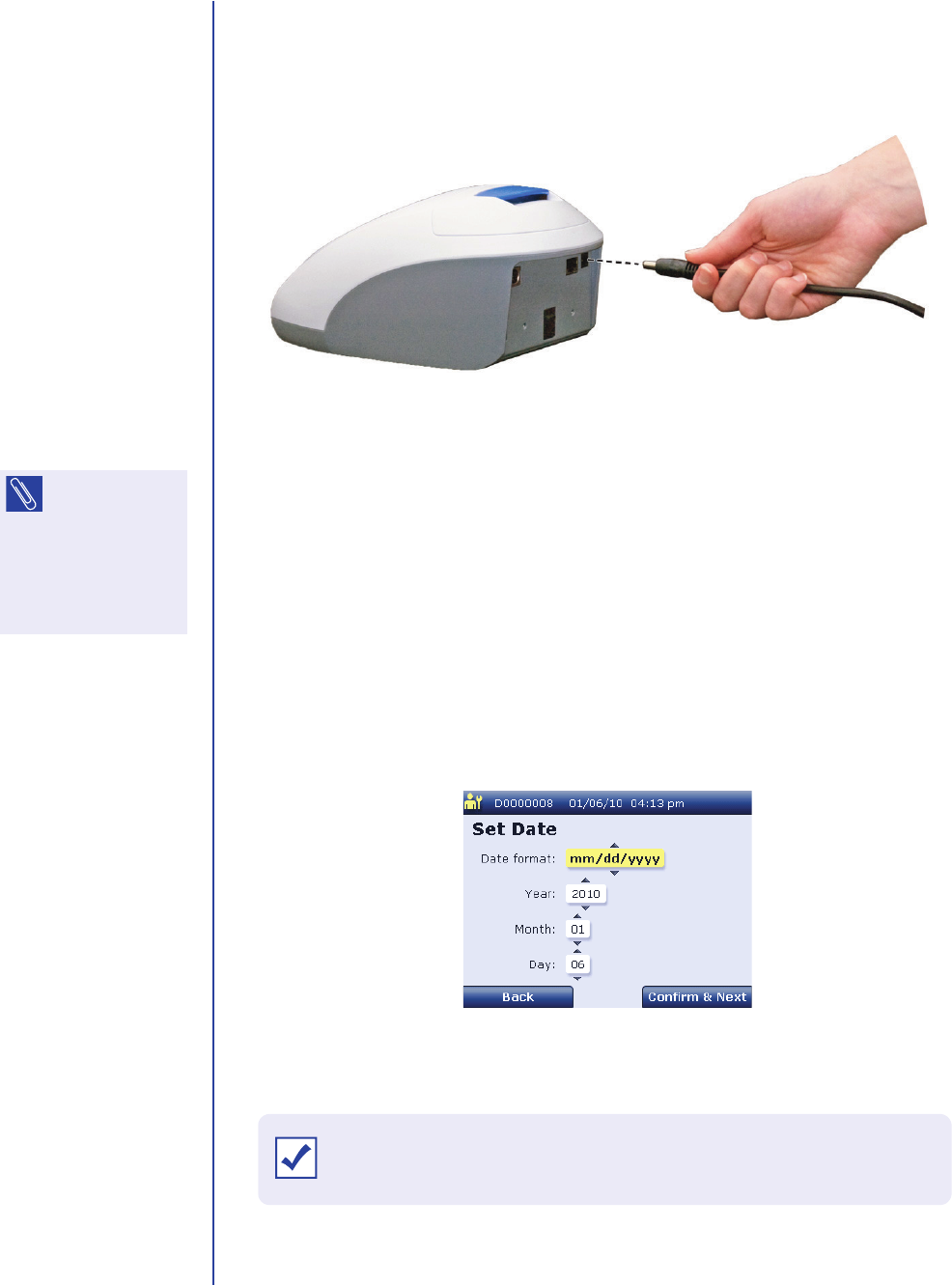
Perform the following steps to install batteries in the reader:
1. Turn the reader over so that the back of the battery cover is visible.
2. To remove the battery cover, place your thumb in the middle of the cover and
exert slight pressure as you slide it in the direction shown below.
3. Insert four size AA 1.5 volt batteries. Be sure that the plus (+) and minus (-)
signs on the batteries match the signs embossed in the battery compartment.
4. Replace the battery cover by positioning it at the edge of the battery
compartment as shown and sliding it into position.
5. When you have completed battery installation and replaced the battery cover,
turn the reader right side up.
Installing the Batteries
NOTE: If the
reader does not
power on after
replacing the
batteries, verify that
the batteries are lined
up according to the
symbols in the battery
compartment.
Apex Reader User’s Guide
24
Perform the following steps to use the AC power adapter:
1. Connect the AC power adapter to the reader by inserting the cylindrical end of
the adapter into the round hole in the back of the reader.
2. Connect the other end of the AC power adapter to a power source.
Turning On and Configuring the Reader
Turning On the Reader
The on/off switch is located on the back of the reader. To turn on the reader, push
the on/off switch up until the Initializing screen appears, then release it. The reader
displays a splash screen during startup, then displays the Set Date screen. You
must set the date and time before running any patient samples.
Connecting the AC Power Adapter
NOTE: If
necessary, use
the extension cord
included with the
reader to convert to a
different type of
electrical outlet.
Set Date Screen
IMPORTANT: Allow the reader to warm up for at least 20 minutes before
running any patient samples.
Setup
25
Setting the Date and Time
Perform the following steps to set the date and time:
1. When the Set Date screen is first displayed, the Date format field is
highlighted. Use and to scroll through the following options for how
to display dates on the reader screen and printouts:
■dd.mm.yyyy: Select this option to display the day, then the month, then
the year with periods used as separators.
■mm/dd/yyyy: Select this option to display the month, then the day, then
the year with slashes used as separators.
■yyyy/mm/dd: Select this option to display the year, then the month, then
the day with slashes used as separators.
When the preferred date format is displayed, press to highlight the Year
field.
2. Use or to increment or decrement the year.
When the correct year is displayed, press to highlight the Month field.
3. Use or to increment or decrement the month.
When the correct month is displayed, press to highlight the Day field.
4. Use or to increment or decrement the day.
When the correct day is displayed, review the date format, year, month, and
day, and confirm that the correct date information is displayed. If you need to
change a setting, use and to highlight the field. Then use and
to make the necessary changes.
5. When you have confirmed that the correct date is displayed, press Confirm &
Next to display the Set Time screen.
Set Time Screen

Apex Reader User’s Guide
26
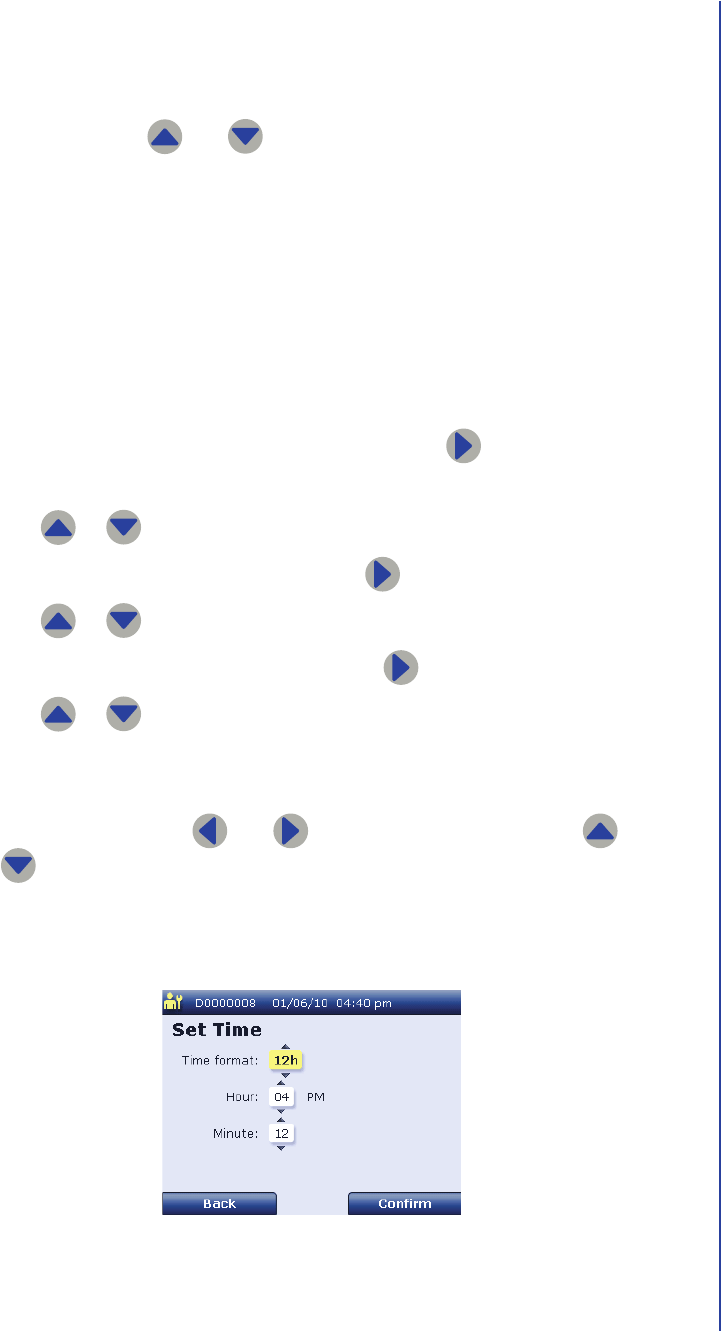
6. When the Set Time screen is first displayed, the Time format field is
highlighted. Use and to toggle between the following options for
how to display times on the reader screen and printouts:
■12h: Select this option to display times in the 12 hour time format with
am and pm.
■24h: Select this option to display times in the 24 hour time format.
When the preferred time format is displayed, press to highlight the Hour
field.
7. Use or to increment or decrement the hour.
When the correct hour is displayed, press to highlight the Minute field.
8. Use or to increment or decrement the minute.
When the correct minute is displayed, review the time format, hour, and
minute and confirm that the correct time information is displayed. If you need
to change a setting, use and to highlight the field. Then use and
to make the necessary changes.
9. When you have confirmed that the correct time is displayed, press Confirm
to display the Enter Patient ID screen.
After the reader has been allowed to warm up for 20 minutes, you can begin
running patient tests. See Testing a Patient Sample on page68 for
instructions.
Setup
27
Installing the Paper
The reader can print test results, device settings, and other information using the
thermal paper rolls included in the reader kit.
Perform the following steps to install paper in the reader:
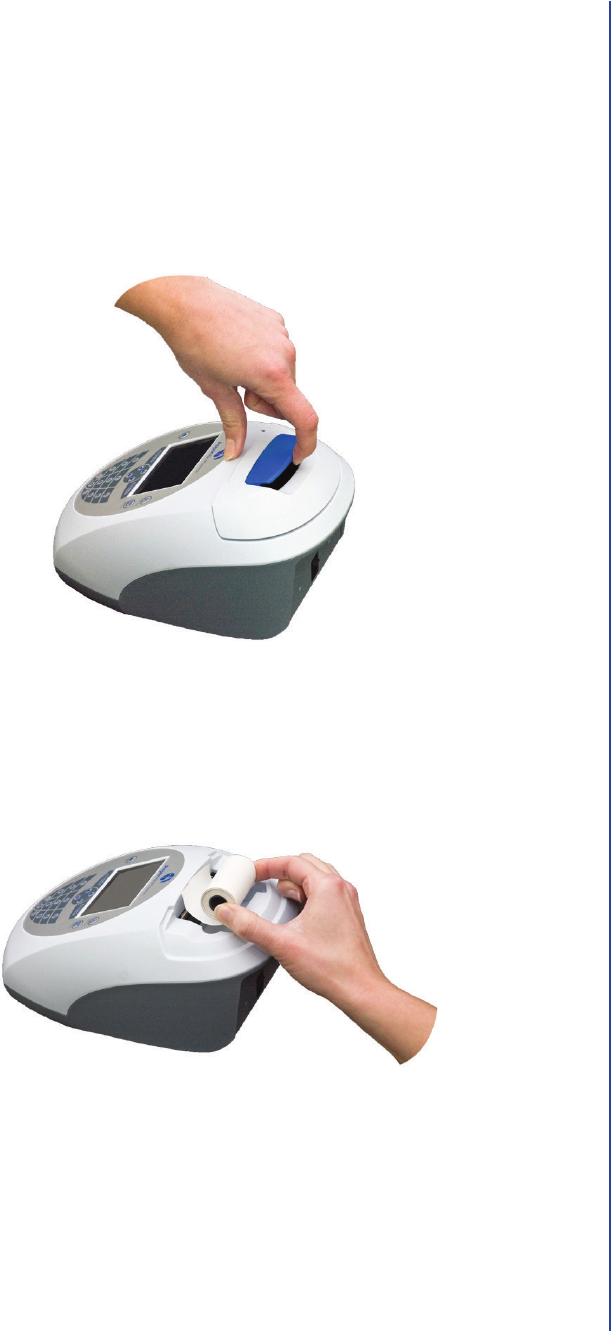
1. Remove the printer cover by pulling up the blue handle on the top of the
cover.
2. If necessary, tear or cut the end of the paper roll to form a straight edge. Then
insert the paper roll in the printer so that the end of the paper comes from
under the roll toward the reader display, as shown below.
Removing the Printer Cover
Inserting the Paper Roll
Apex Reader User’s Guide
28
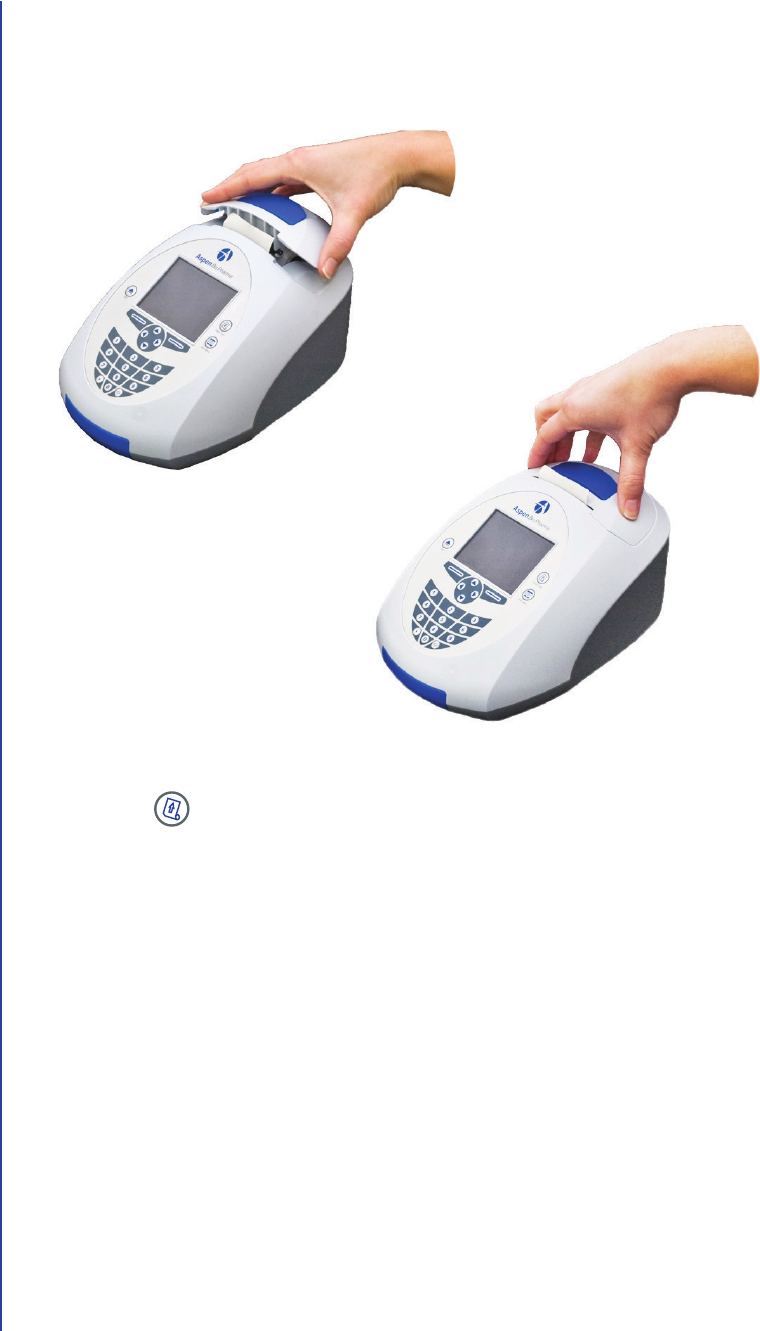
3. To replace the printer cover, insert the paper roller between the edge of the
paper and the paper roll, as shown below. Then push down on the sides of the
printer cover until you hear it snap into place.
4. Press .
The reader feeds the paper so that it extends out the top of the printer.
5. After the reader has been allowed to warm up for 20 minutes, you can begin
running patient tests. See Testing a Patient Sample on page68 for
instructions.
In order to change any reader settings, you will need to add a supervisor user.
See Adding the First Supervisor User on page29 for instructions.
Replacing the Printer Cover
Setup
29
Adding the First Supervisor User
You must add the first supervisor user before you can change any reader settings.
In order to add the first supervisor user, you need to obtain a one-shot PIN by
calling AspenBio Pharma Customer Care at 1-303-794-2000.
When you have obtained a one-shot PIN, perform the following steps to create the
first supervisor user:
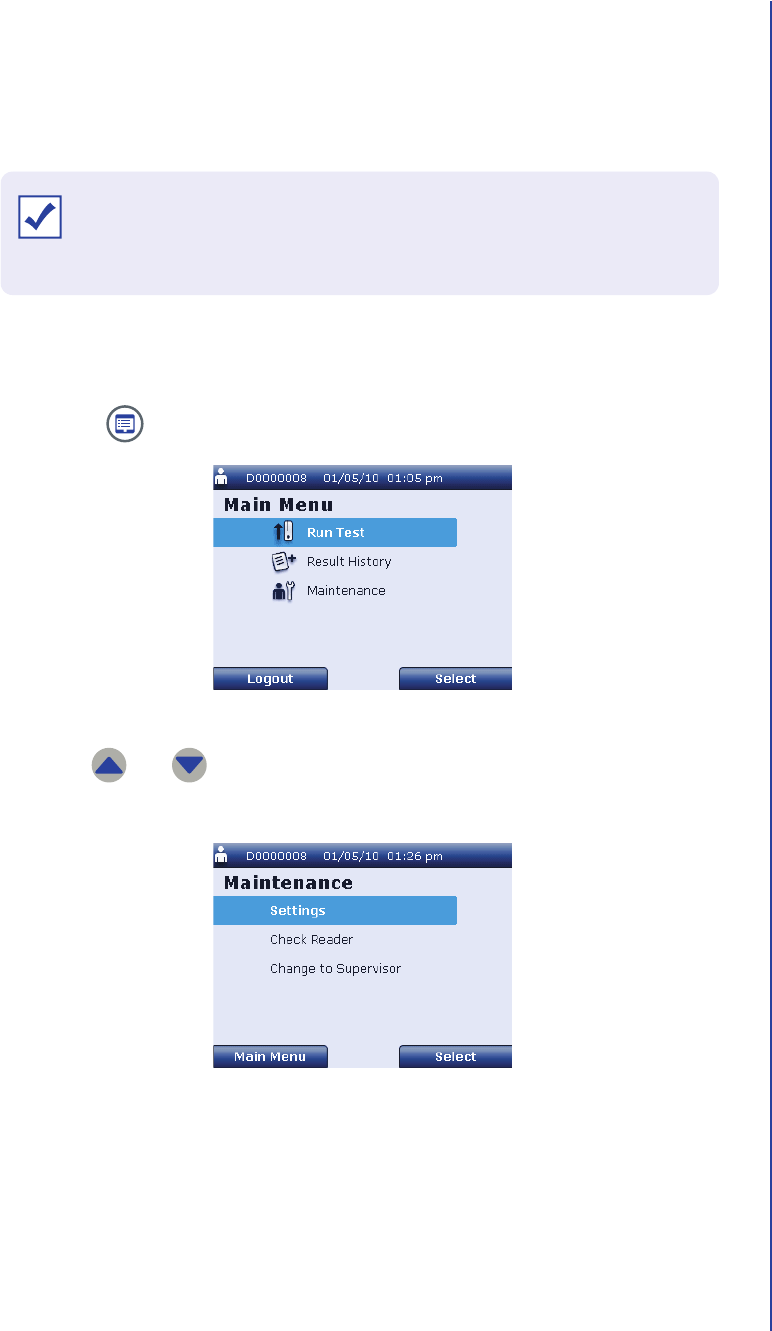
1. Press to display the operator Main Menu screen.
2. Use and to highlight Maintenance and press Select to display the
Maintenance screen.
Operator Main Menu Screen
Maintenance Screen
IMPORTANT: A one-shot PIN can be used only on the day when it is
provided. You should add the first supervisor user as soon as you obtain
this PIN.
Apex Reader User’s Guide
30
3. Use and to highlight Change to Supervisor and press Select to
display the Enter One Shot PIN screen.
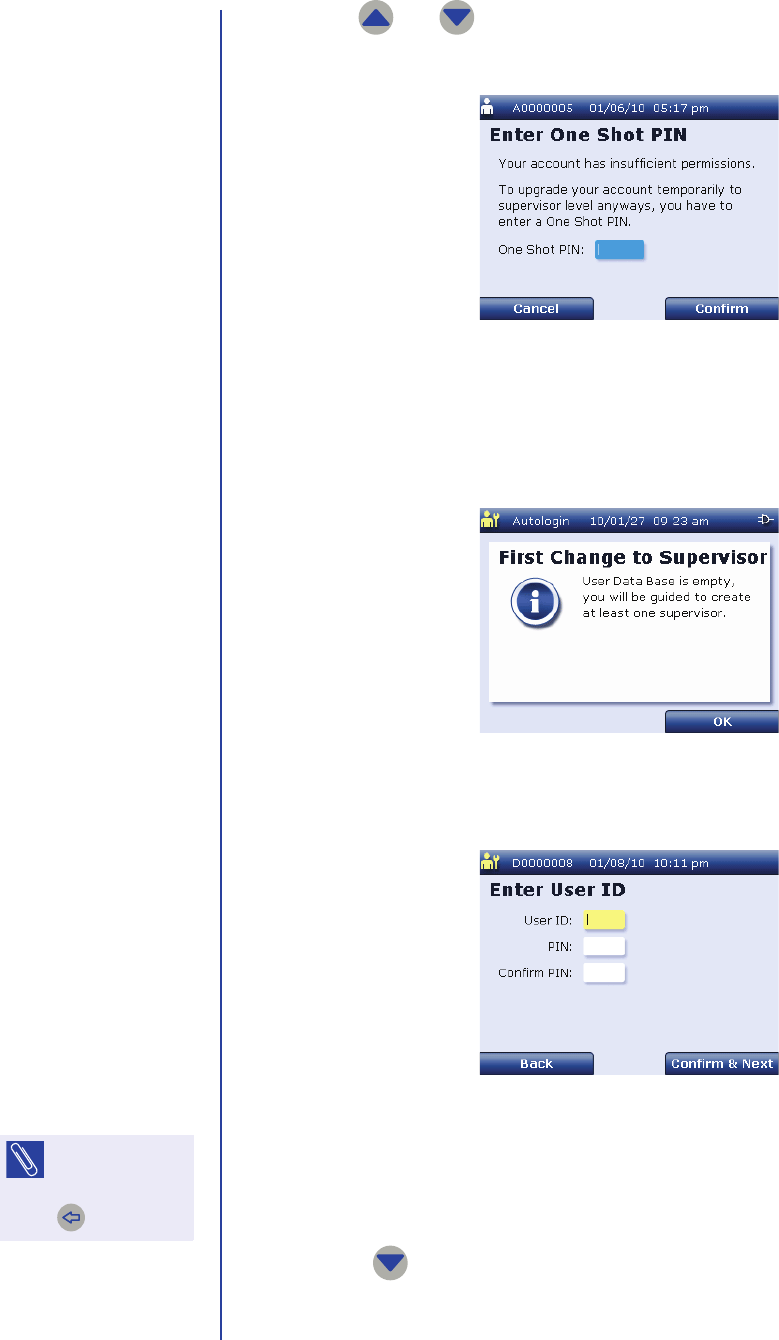
4. Use the numeric keypad to enter your one-shot PIN in the One Shot PIN
field, then press Confirm to display the First Change to Supervisor
confirmation screen.
5. Press OK to display the Enter User ID screen.
6. When the Enter User ID screen is first displayed, the User ID field is
highlighted. Use the numeric keypad to enter the user ID for the first
supervisor user. The user ID must be 4 digits.
7. Press to highlight the PIN field.
Enter One Shot PIN Screen
First Change to Supervisor Confirmation Screen
Enter User ID Screen
NOTE: To delete
the last
character entered,
press .
Setup
31
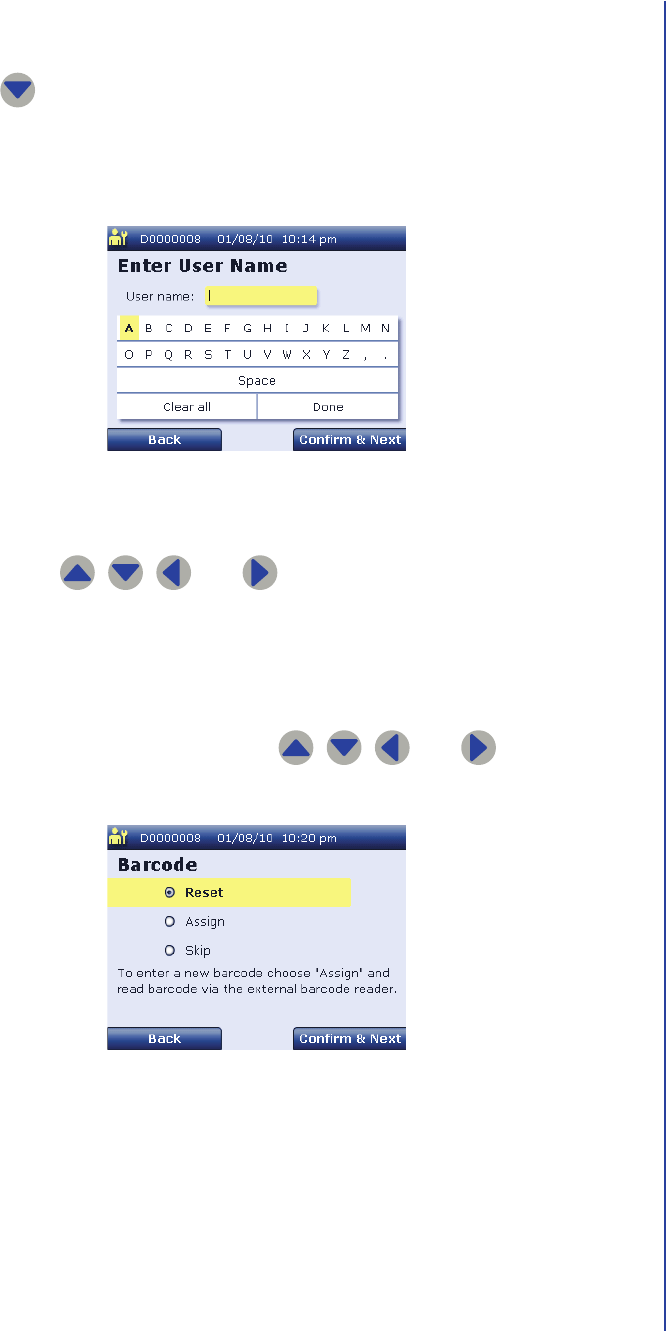
8. Use the numeric keypad to enter the PIN for this user. The PIN must be 4
digits.
9. Press to highlight the Confirm PIN field.
10. Re-enter the 4-digit PIN for this user.
11. Press Confirm & Next to display the Enter User Name screen.
12. Perform the following steps to enter the user name for this user:
a. Use , , , and to highlight the desired character.
b. Press Confirm & Next to add the highlighted character to the user
name.
c. Repeat Step a and Step b as necessary.
13. When the user name is complete, use , , , and to highlight
Done. Then press Confirm & Next to display the Barcode screen.
Enter User Name Screen
Barcode Screen
Apex Reader User’s Guide
32
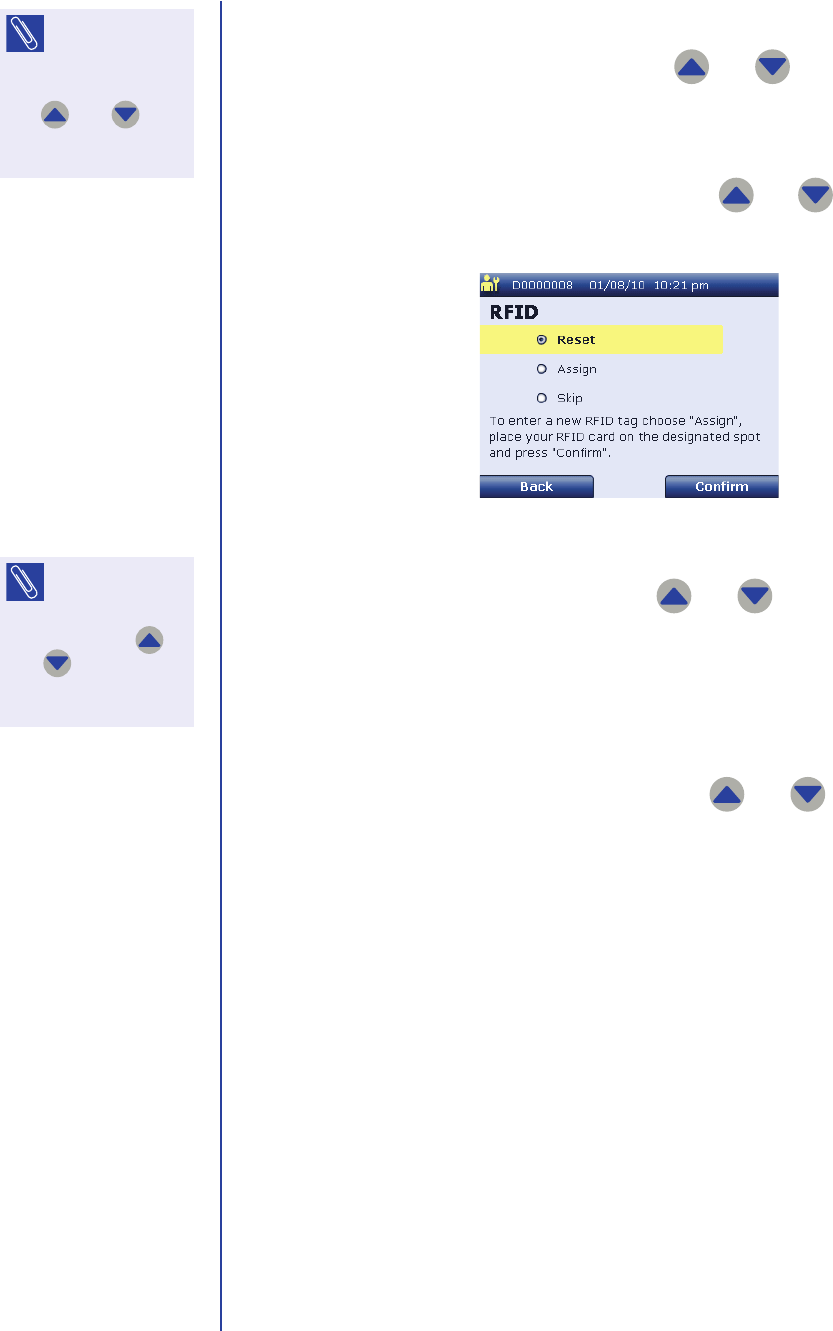
14. The following options are available on the Barcode screen:
a. To assign a barcode for this user, use and to highlight Assign.
Then use the external barcode reader to scan the barcode.
The reader assigns the barcode and displays the RFID screen.
b. If you do not want to assign a barcode, use and to highlight Skip.
Then press Confirm & Next to display the RFID screen.
15. The following options are available on the RFID screen:
a. To assign an RFID for this user, use and to highlight Assign.
Place the user’s ID card on the designated location on the reader and
press Confirm. AG: CLARIFY.
The reader assigns the RFID and displays the User Administration
screen.
b. If you do not want to assign an RFID, use and to highlight Skip.
Then press Confirm to display the User Administration screen.
16. After the first supervisor user has been added, you can set up the LIS
connection, change reader settings, or add more users. Refer to the
appropriate section below for instructions:
■Connecting to the LIS on page33
■Changing Reader Settings on page38
■Managing Users on page47
After the reader has been allowed to warm up for 20 minutes, you can begin
running patient tests. See Testing a Patient Sample on page68 for
instructions.
NOTE: To delete
this user’s
barcode, return to the
Barcode screen and
use and to
highlight Reset. Then
press Confirm & Next.
RFID Screen
NOTE: To delete
this user’s RFID,
return to the RFID
screen and use
and to highlight
Reset. Then press
Confirm.
Setup
33
Connecting to the LIS
The reader can send test results to the LIS over an Ethernet connection. Complete
the following steps to set up the LIS connection.
Setting Up the Network Connection
Perform the following steps to set up the network connection. If you are not using
DHCP, you need to obtain the IP address, port number, subnet mask, and standard
gateway for the reader from your network administrator.
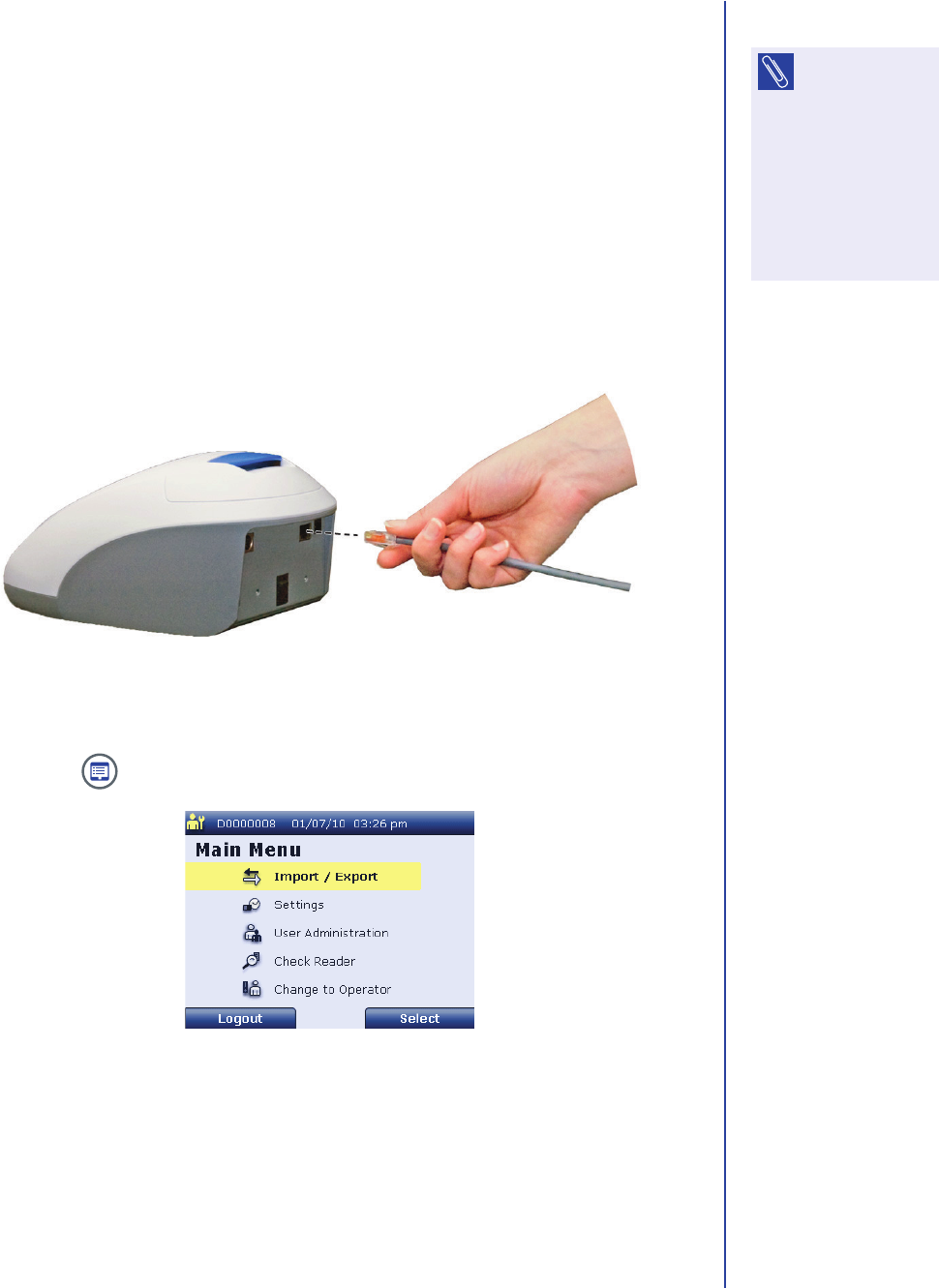
1. Connect an Ethernet cable to the reader by inserting one end of the cable into
the Ethernet port in the back of the reader.
2. Connect the other end of the Ethernet cable to the LIS network.
3. Press to display the supervisor Main Menu screen.
NOTE: Only
supervisor users
can modify these
settings. If you are
logged in as an
operator, select
Maintenance >
Change to Supervisor
to set up the LIS
connection.
Connecting the Ethernet Cable
Supervisor Main Menu Screen
Apex Reader User’s Guide
34
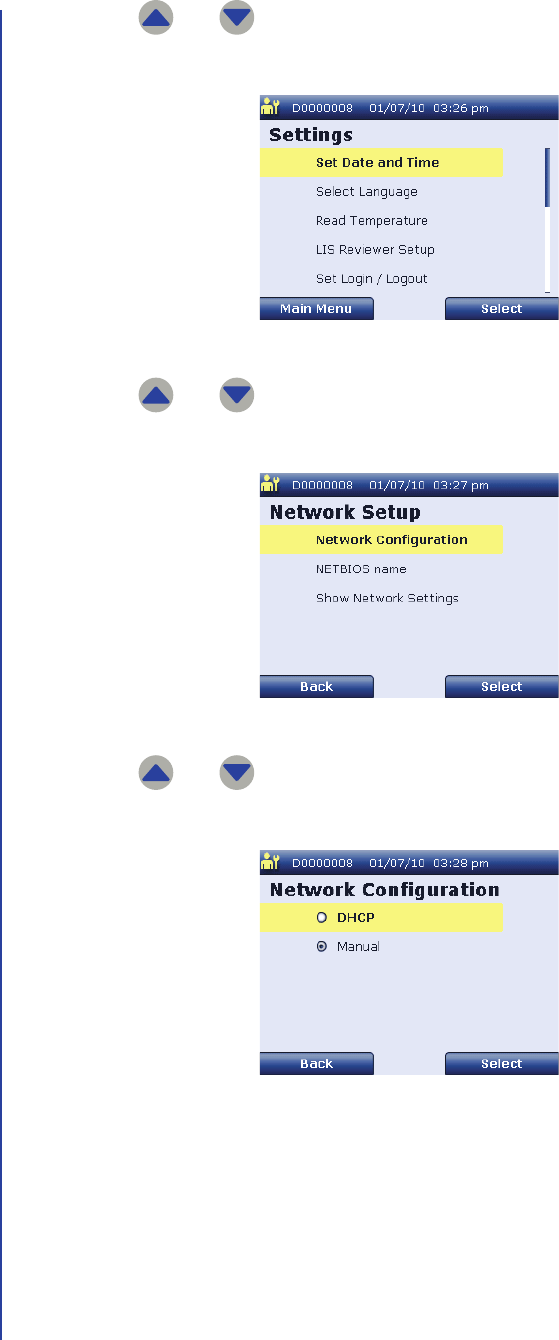
4. Use and to highlight Settings and press Select to display the
supervisor Settings screen.
5. Use and to highlight Network Setup and press Select to display
the Network Setup screen. AG: UPDATE SCREEN.
6. Use and to highlight Network Configuration and press Select to
display the Network Configuration screen.
Supervisor Settings Screen
Network Setup Screen
Network Configuration Screen
Setup
35
7. The following options are available on the Network Configuration screen:
■To obtain the reader’s IP address, port number, subnet mask, and
standard gateway automatically using DHCP, use and to
highlight DHCP. Then press Select.
The reader obtains the network information and displays the Network
Setup screen.
■To enter the reader’s IP address, port number, subnet mask, and standard
gateway manually, use and to highlight Manual. Then press
Select to display the Manual Network Setup screen.
a. When the Manual Network Setup screen is first displayed, the IP
address field is highlighted. Use the numeric keypad to enter the IP
address for the reader. Then press to highlight the Port number
field.
b. Use the numeric keypad to enter the port number for the reader. Then
press to highlight the Subnet Mask field.
c. Use the numeric keypad to enter the subnet mask for the reader.
Then press to highlight the Standard Gateway field.
d. Use the numeric keypad to enter the standard gateway for the reader.
Review the IP address, port number, subnet mask, and standard
gateway and confirm that the correct information is displayed. If you
need to change a setting, use and to highlight the field.
Then use the numeric keypad to make the necessary changes.
e. When you have confirmed that the correct information is displayed,
press Confirm to save these settings and return to the Network
Setup screen.
NOTE: To delete
the last
character entered,
press .
Apex Reader User’s Guide
36
Providing LIS Settings
Perform the following steps to configure the LIS reviewer settings for the reader. You
need to obtain the IP address and port number for the LIS reviewer from your
network administrator.
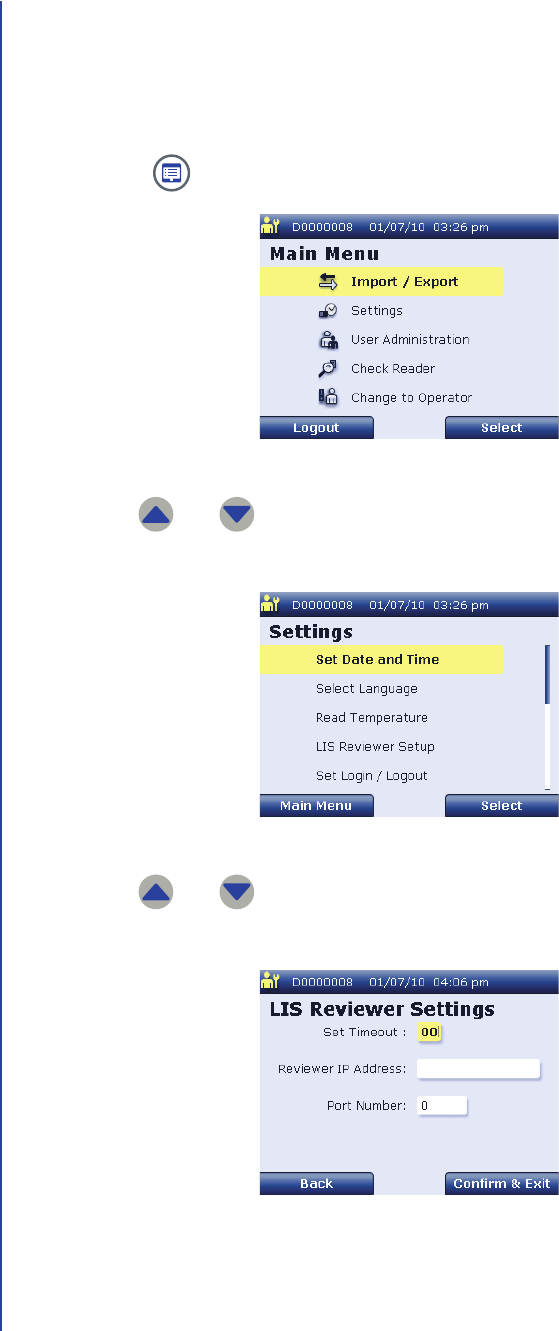
1. Press to display the supervisor Main Menu screen.
2. Use and to highlight Settings and press Select to display the
supervisor Settings screen.
3. Use and to highlight LIS Reviewer Setup and press Select to
display the LIS Reviewer Settings screen.
Supervisor Main Menu Screen
Supervisor Settings Screen
LIS Reviewer Settings Screen

Setup
37
4. When the LIS Reviewer Settings screen is first displayed, the Set Timeout
field is highlighted. Use and to increment or decrement the timeout
for the LIS reviewer. The timeout is the amount of time after which the reader
will stop trying to communicate with the LIS.
5. When the desired setting is displayed in the Set Timeout field, press to
highlight the Reviewer IP Address field.
6. Use and to increment or decrement the IP address for the LIS
reviewer. Then press to highlight the Port Number field.
7. Use and to increment or decrement the port number for the LIS
reviewer.
8. Review the timeout, IP address, and port number and confirm that the correct
information is displayed. If you need to change a setting, use and to
highlight the field. Then use and to make the necessary changes.
9. When you have confirmed that the correct information is displayed, press
Confirm & Exit to return to the supervisor Settings screen.

Apex Reader User’s Guide
38
Changing Reader Settings
Supervisor users can modify the following reader settings:
■Language: The language setting determines what language is displayed on
the reader screen and printouts. For instructions on how to change the
language, see Changing the Language on page39.
■Patient ID Settings: The patient ID settings determine whether patient IDs
can be input by an external barcode reader and whether they can be input by
manual entry. For instructions on how to change the patient ID settings, see
Changing Patient ID Settings on page40.
■Print Setting: The print setting determines whether test results are printed
automatically upon completion of a patient test. For instructions on how to
change printing setup, see Changing the Print Setting on page43.
■Logout Time: The logout time setting is the duration of inactivity after which a
user will be automatically logged out of the reader. For instructions on how to
change the logout time, see Changing Security and Power Saving Settings on
page44.
■Power Off Time: The power off time is the duration of inactivity after which
the reader will automatically turn off. For instructions on how to change the
power off time, see Changing Security and Power Saving Settings on
page44.
■Auto-Login Setting: The auto-login setting determines whether users are
required to enter a login and PIN to use the reader. For instructions on how to
change the auto-login setting, see Changing Security and Power Saving
Settings on page44.
NOTE: Only
supervisor users
can change reader
settings. If you are
logged in as an
operator, select
Maintenance >
Change to Supervisor.
to change settings.
Setup
39
Changing the Language
Supervisor users can change the reader’s language setting. The language setting
determines what language is displayed on the reader screen and printouts.
Perform the following steps to change the language:
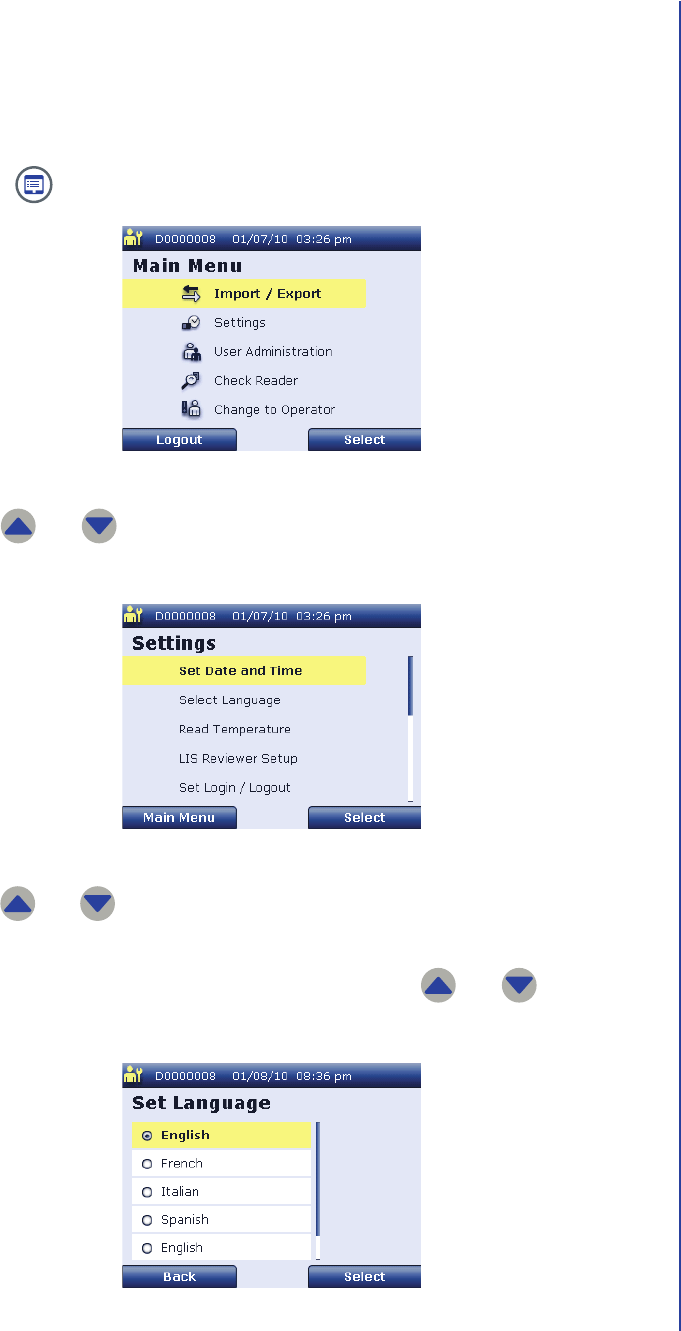
1. Press to display the supervisor Main Menu screen.
2. Use and to highlight Settings and press Select to display the
supervisor Settings screen.
3. Use and to highlight Select Language and press Select to display
the Set Language screen.
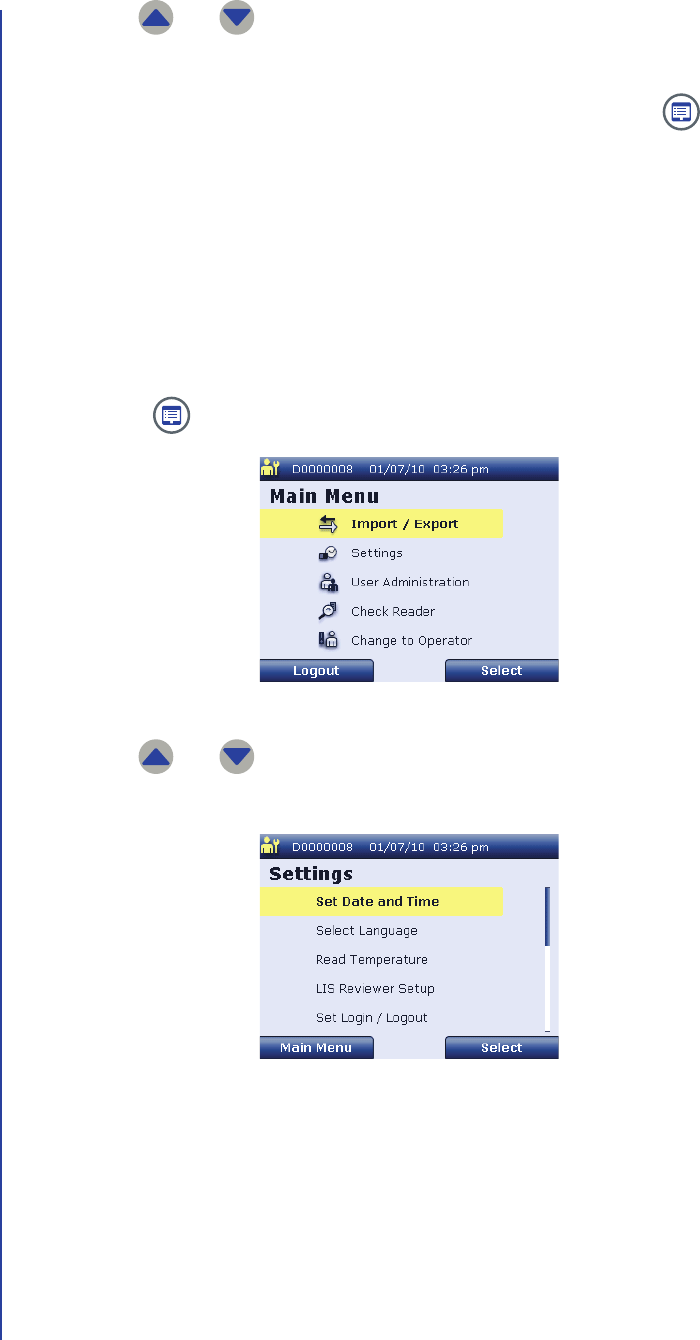
You can scroll through the available languages using and . The
selected radio button indicates the current reader language.
Supervisor Main Menu Screen
Supervisor Settings Screen
Set Language Screen
Apex Reader User’s Guide
40
4. Use and to highlight the desired language.
5. When the desired language is highlighted, press Select to save this setting.
6. Press Back to return to the supervisor Settings screen or press to
return to the supervisor Main Menu screen.
Changing Patient ID Settings
Supervisor users can change patient ID settings. The patient ID settings determine
whether patient IDs can be input by an external barcode reader and whether they
can be input by manual entry.
Perform the following steps to change the patient ID settings:
1. Press to display the supervisor Main Menu screen.
2. Use and to highlight Settings and press Select to display the
supervisor Settings screen.
Supervisor Main Menu Screen
Supervisor Settings Screen
Setup
41
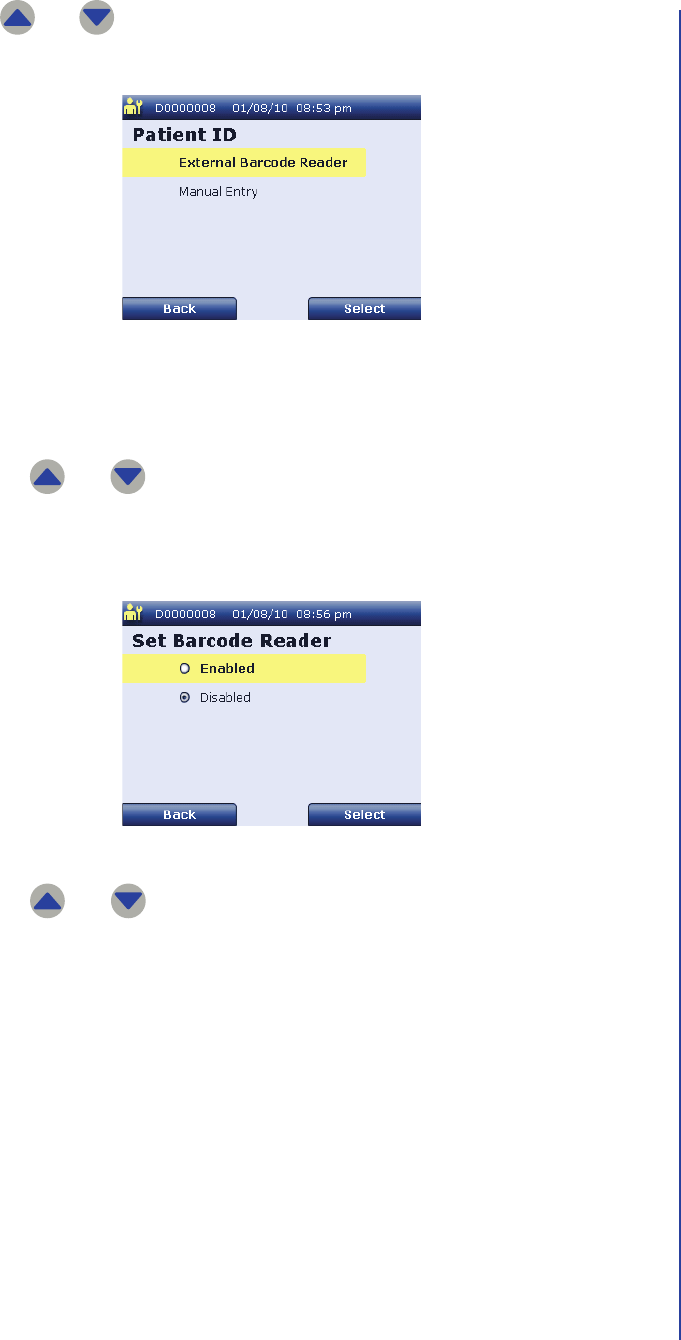
3. Use and to highlight Set Patient ID and press Select to display the
Patient ID screen.
4. Perform the following steps to enable or disable use of an external barcode
reader for reading the patient ID:
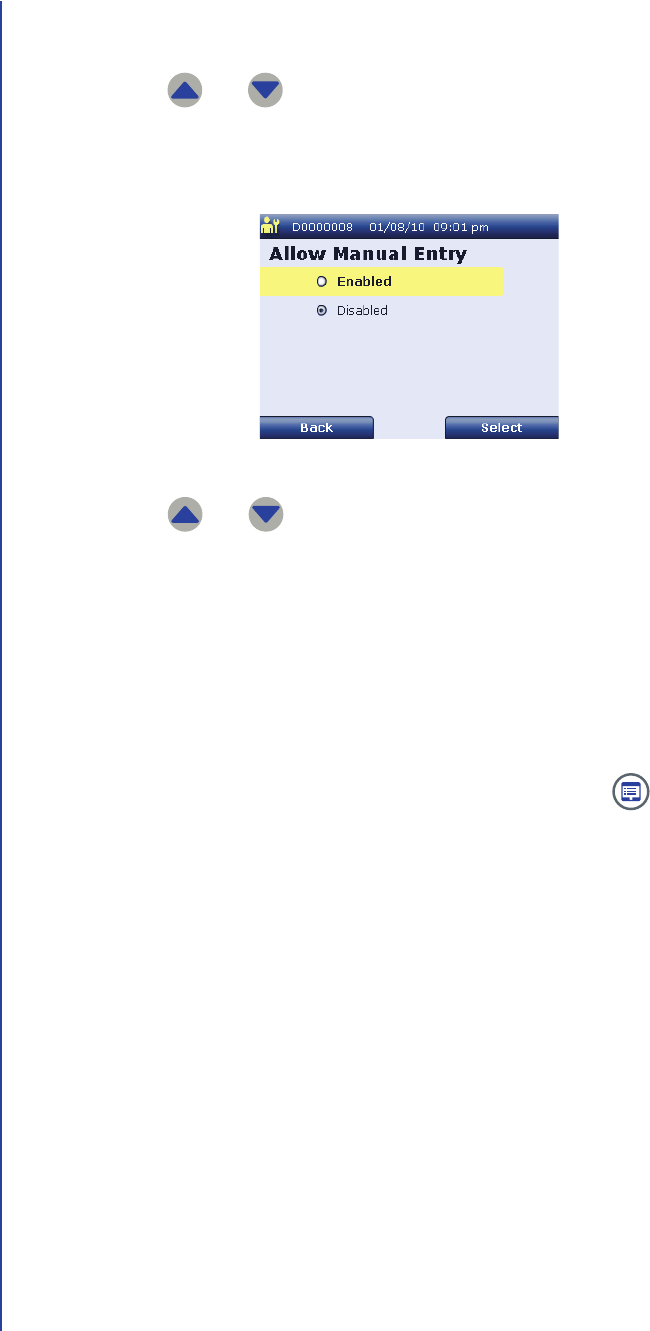
a. Use and to highlight Set Barcode Reader and press Select to
display the Set Barcode Reader screen.
The selected radio button indicates the current setting.
b. Use and to highlight the desired setting.
– If you select Enabled, users will be able to use an external barcode
reader to enter patient IDs.
– If you select Disabled, users will not be able to use an external
barcode reader to enter patient IDs. Patient IDs will have to be input
to the reader manually or by RFID.
c. When the desired setting is highlighted, press Select to save this setting.
d. Press Back to return to the Patient ID screen.
Patient ID Screen
Set Barcode Reader Screen
Apex Reader User’s Guide
42
5. Perform the following steps to enable or disable manual entry of the patient
ID:
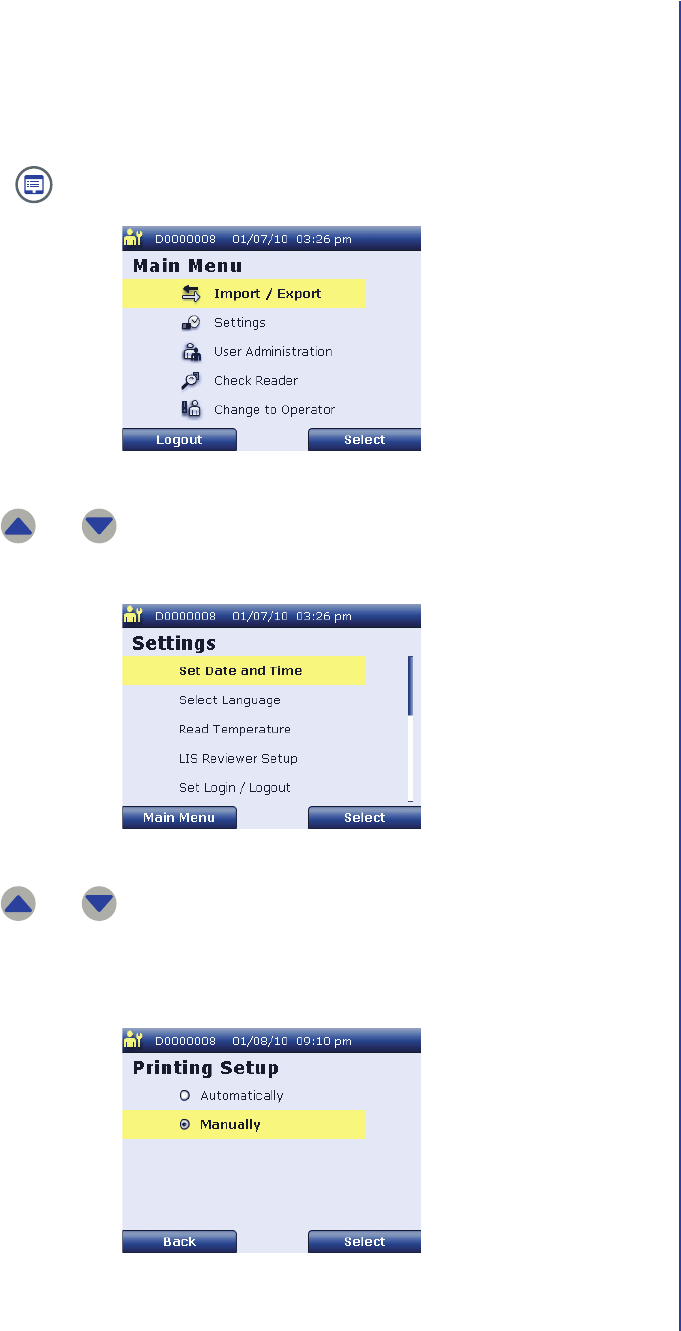
a. Use and to highlight Manual Entry and press Select to display
the Allow Manual Entry screen.
The selected radio button indicates the current setting.
b. Use and to highlight the desired setting.
– If you select Enabled, users will be able to enter patient IDs
manually.
– If you select Disabled, users will not be able to enter patient IDs
manually. Patient IDs will have to be input to the reader by an
external barcode reader or by RFID.
c. When the desired setting is highlighted, press Select to save this setting.
d. Press Back to return to the Patient ID screen or press to return to
the supervisor Main Menu screen.
Allow Manual Entry Screen
Setup
43
Changing the Print Setting
Supervisor users can change the print setting. The print setting determines whether
test results are printed automatically upon completion of a patient test.
Perform the following steps to change the patient ID settings:
1. Press to display the supervisor Main Menu screen.
2. Use and to highlight Settings and press Select to display the
supervisor Settings screen.
3. Use and to highlight Printing Setup and press Select to display
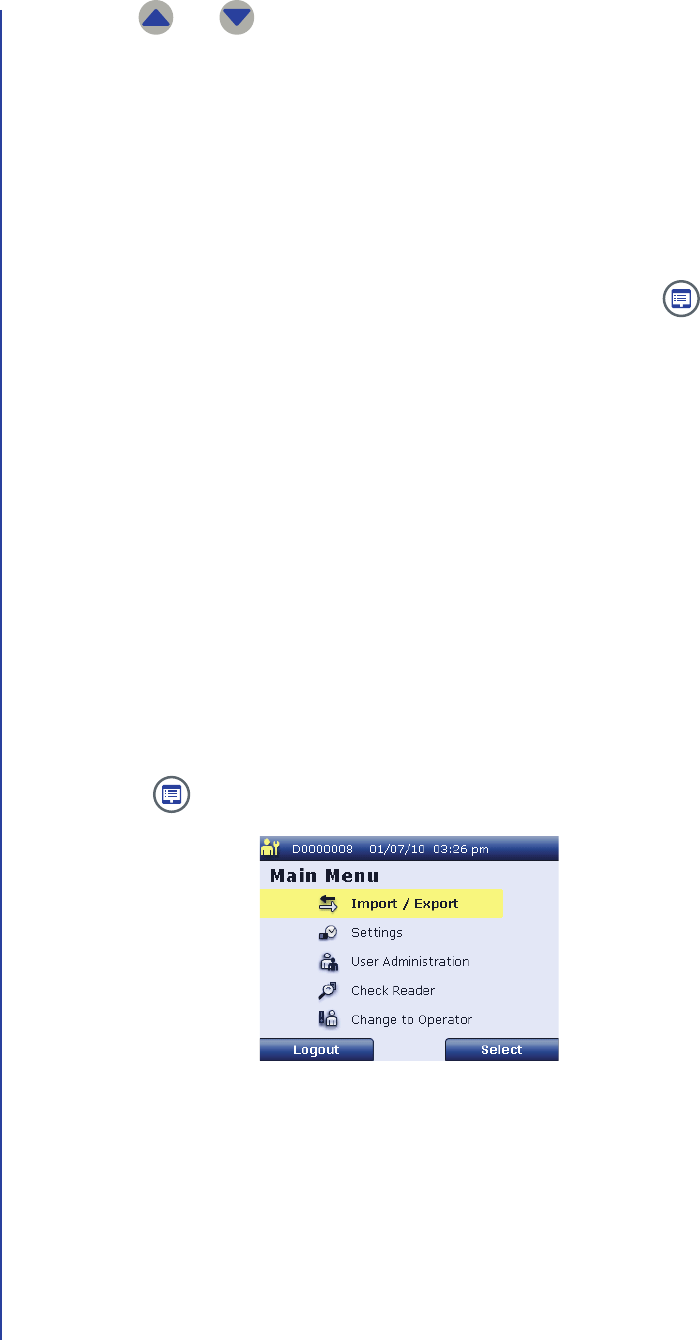
the Printing Setup screen.
The selected radio button indicates the current setting.
Supervisor Main Menu Screen
Supervisor Settings Screen
Printing Setup Screen
Apex Reader User’s Guide
44
4. Use and to highlight the desired setting.
■If you select Automatically, test results will be printed automatically
upon completion of a patient test.
■If you select Manually, test results will not be printed automatically upon
completion of a patient test. Results will have to be printed manually by
the user.
5. When the desired setting is highlighted, press Select to save this setting.
6. Press Back to return to the supervisor Settings screen or press to
return to the supervisor Main Menu screen.
Changing Security and Power Saving Settings
Supervisor users can change the following security and power saving settings:
■Logout Time: The logout time setting is the duration of inactivity after which a
user will be automatically logged out of the reader.
■Power Off Time: The power off time is the duration of inactivity after which
the reader will automatically turn off.
■Auto-Login Setting: The auto-login setting determines whether users are
required to enter a login and PIN to use the reader.
Perform the following steps to change the logout time, power off time, or auto-login
setting:
1. Press to display the supervisor Main Menu screen.
Supervisor Main Menu Screen
Setup
45
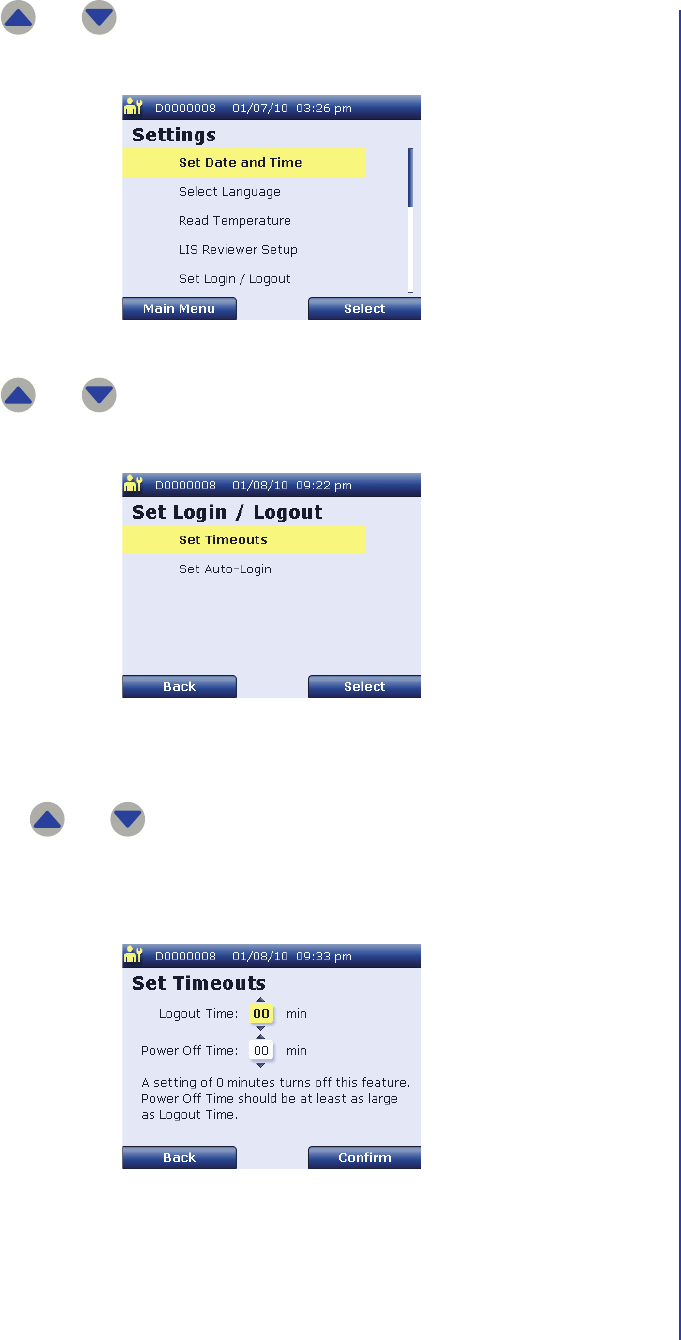
2. Use and to highlight Settings and press Select to display the
supervisor Settings screen.
3. Use and to highlight Set Login / Logout and press Select to
display the Set Login / Logout screen.
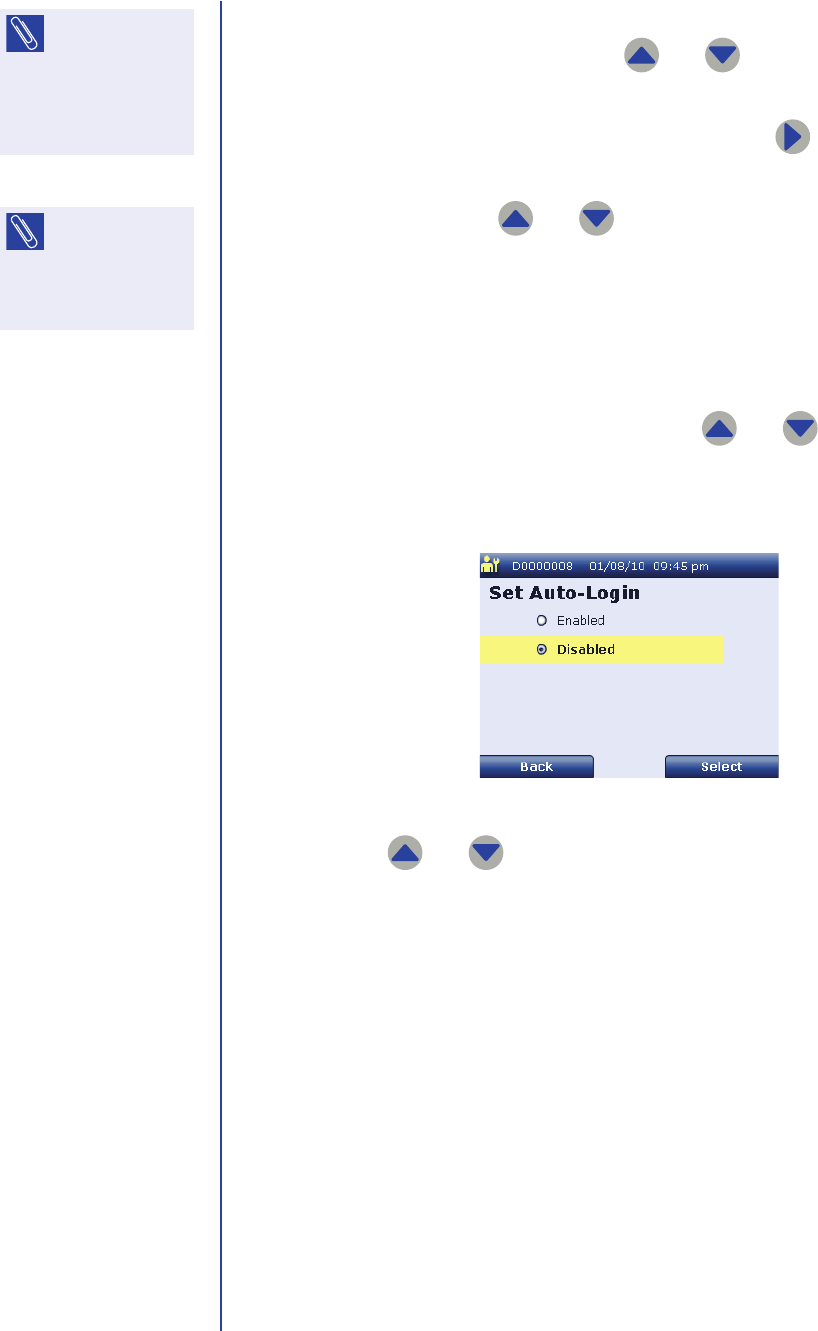
4. Perform the following steps to change the logout time and/or power off time:
a. Use and to highlight Set Timeouts and press Select to display
the Set Timeouts screen.
The current logout time and power off time are shown.
Supervisor Settings Screen
Set Login / Logout Screen
Set Timeouts Screen
Apex Reader User’s Guide
46
b. When the Set Timeouts screen is first displayed, the Logout Time field
is highlighted. If necessary, use and to increment or decrement
the logout time.
c. When the desired logout time is displayed, press to highlight the
Power Off Time field.
d. If necessary, use and to increment or decrement the power off
time.
e. When the desired power off time is displayed, press Confirm to save
these settings and return to the Set Login / Logout screen.
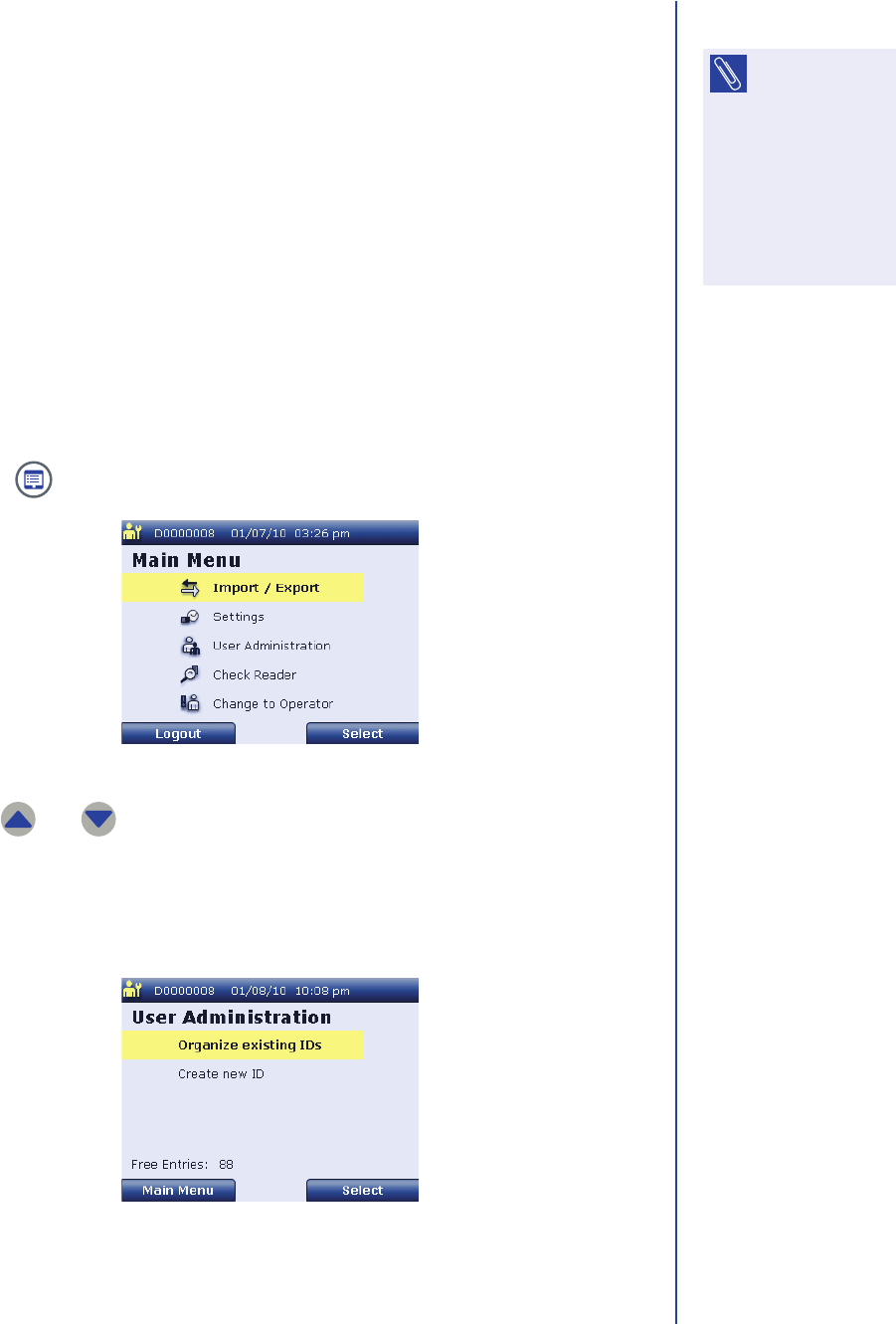
5. Perform the following steps to change the auto-login setting:
a. On the Set Login / Logout screen, use and to highlight Set
Auto-Login and press Select to display the Set Auto-Login screen.
The selected radio button indicates the current setting.
b. Use and to highlight the desired setting.
– If you select Enabled, users will not be required to enter a login
and PIN to use the reader.
– If you select Disabled, users will be required to enter a login and
PIN to use the reader.
c. When the desired setting is highlighted, press Select to save this setting.
d. Press Back to return to the Set Login / Logout screen.
NOTE: Select a
logout time of 0
minutes if you never
want users to be
automatically logged
out of the reader.
NOTE: Select a
power off time of
0 minutes if you never
want the reader to
automatically turn off.
Set Auto-Login Screen
Setup
47
Managing Users
Supervisor users can add new users and modify or delete existing user records. See
the following pages for instructions:
■To add a new user, see Adding a User on page47.
■To modify the login information, user name, or user mode for an existing user,
see Changing User Information on page51.
■To enable or disable a user record, see Enabling or Disabling a User on
page55.
■To delete a user record, see Deleting a User on page57.
Adding a User
Perform the following steps to create a new user:
1. Press to display the supervisor Main Menu screen.
2. Use and to highlight User Administration and press Select to
display the User Administration screen.
The number at the bottom of the screen indicates the number of available user
entries.
NOTE: Only
supervisor users
can modify user
settings. If you are
logged in as an
operator, select
Maintenance >
Change to Supervisor
to add, modify, or
delete a user record.
Supervisor Main Menu Screen
User Administration Screen
Apex Reader User’s Guide
48
3. Use and to highlight Create new ID and press Select to display
the Enter User ID screen.
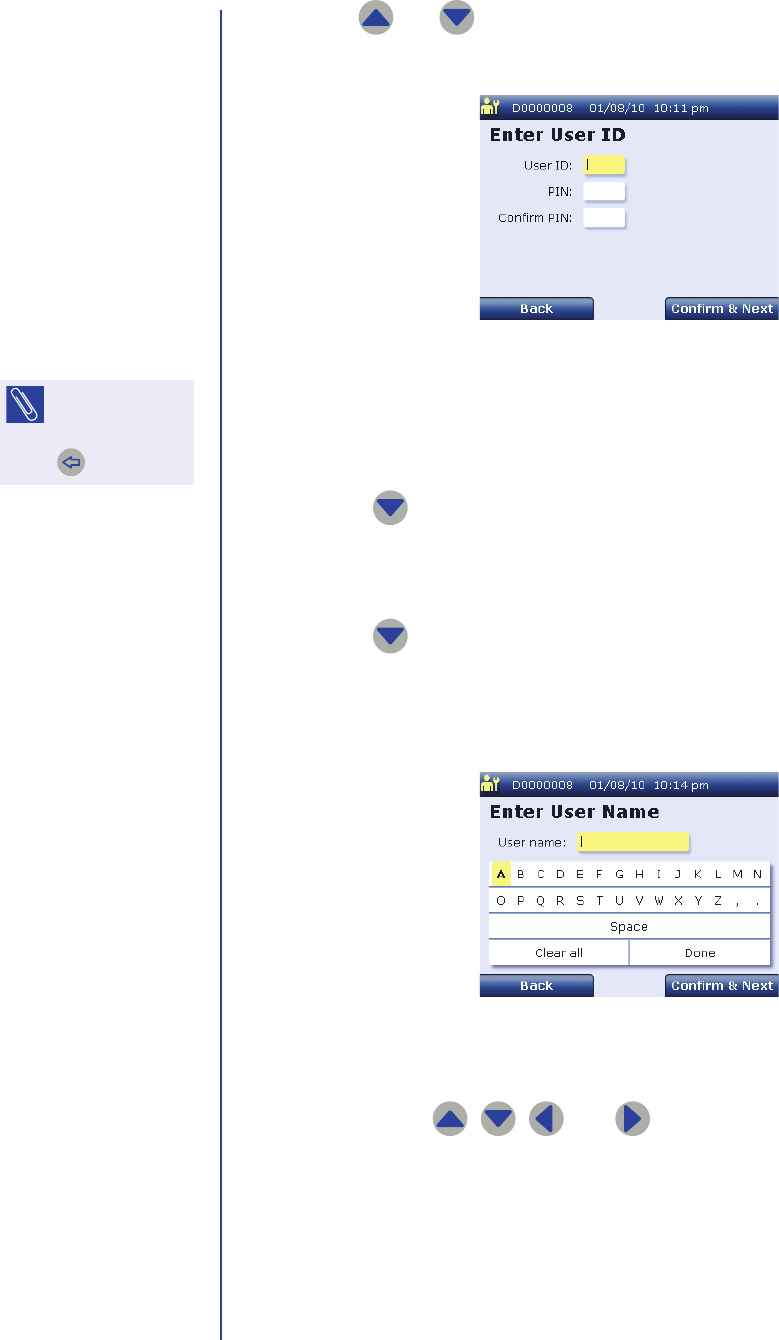
4. When the Enter User ID screen is first displayed, the User ID field is
highlighted. Use the numeric keypad to enter the user ID for this user. The
user ID must be 4 digits.
5. Press to highlight the PIN field.
6. Use the numeric keypad to enter the PIN for this user. The PIN must be 4
digits.
7. Press to highlight the Confirm PIN field.
8. Re-enter the 4-digit PIN for this user.
9. Press Confirm & Next to display the Enter User Name screen.
10. Perform the following steps to enter the user name for this user:
a. Use , , , and to highlight the desired character.
b. Press Confirm & Next to add the highlighted character to the user
name.
c. Repeat Step a and Step b as necessary.
Enter User ID Screen
NOTE: To delete
the last
character entered,
press .
Enter User Name Screen
Setup
49
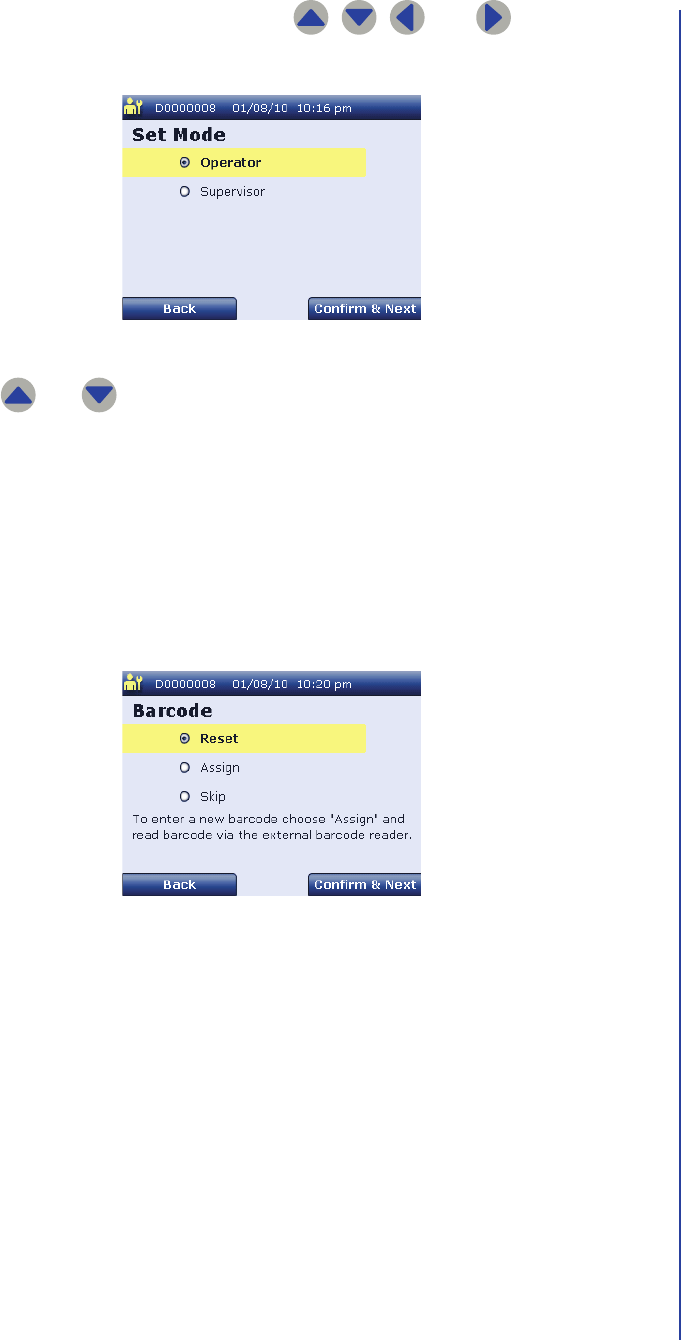
11. When the user name is complete, use , , , and to highlight
Done. Then press Confirm & Next to display the Set Mode screen.
12. Use and to highlight the desired setting.
■If you select Operator, this user will not have access to supervisor
functionality.
■If you select Supervisor, this user will have access to all reader
functionality.
When the desired setting is highlighted, press Confirm & Next to display the
Barcode screen.
Set Mode Screen
Barcode Screen
Apex Reader User’s Guide
50
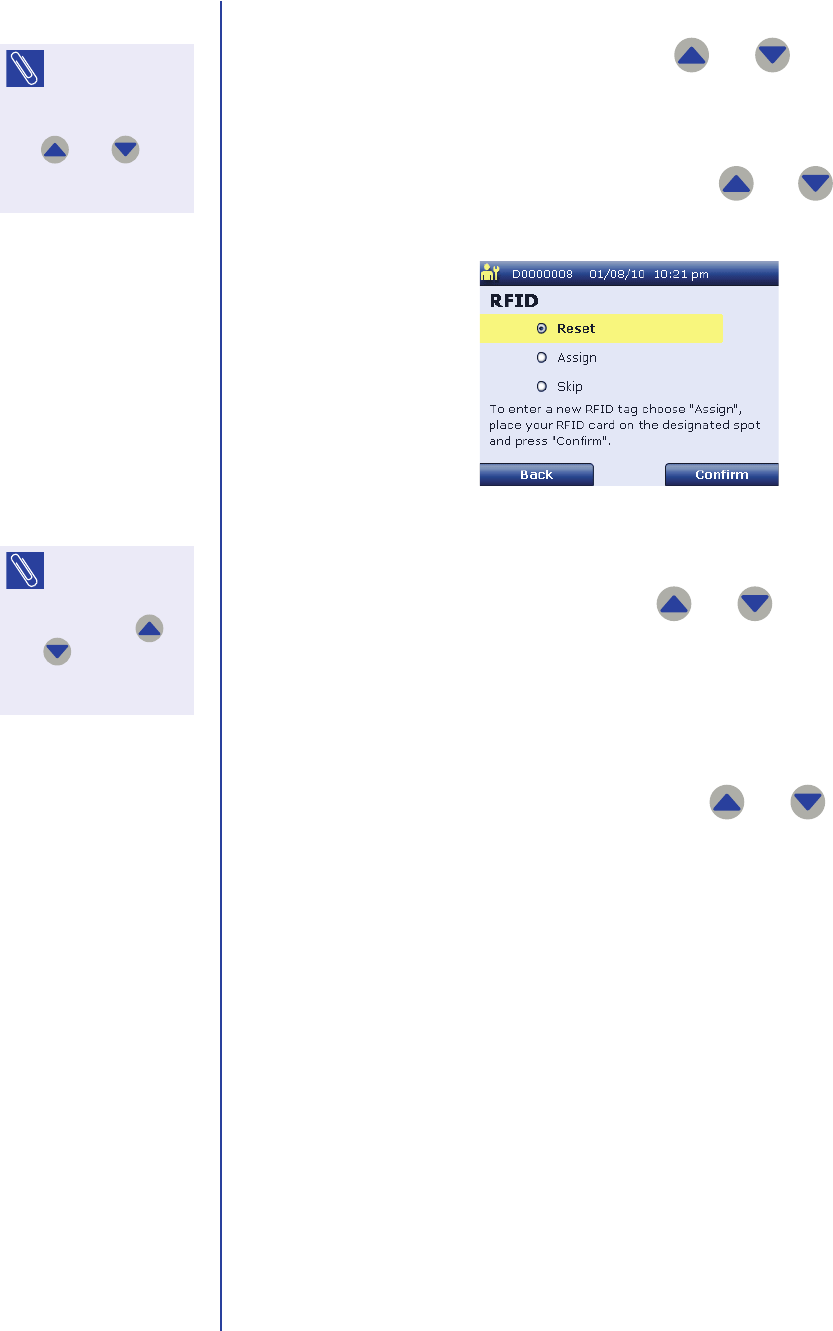
13. The following options are available on the Barcode screen:
a. To assign a barcode for this user, use and to highlight Assign.
Then use the external barcode reader to scan the barcode.
The reader assigns the barcode and displays the RFID screen.
b. If you do not want to assign a barcode, use and to highlight Skip.
Then press Confirm & Next to display the RFID screen.
14. The following options are available on the RFID screen:
a. To assign an RFID for this user, use and to highlight Assign.
Place the user’s ID card on the designated location on the reader and
press Confirm. AG: CLARIFY.
The reader assigns the RFID, saves this user, and returns to the User
Administration screen.
b. If you do not want to assign an RFID, use and to highlight Skip.
Then press Confirm.
The reader saves this user and returns to the User Administration
screen.
NOTE: To delete
this user’s
barcode, return to the
Barcode screen and
use and to
highlight Reset. Then
press Confirm & Next.
RFID Screen
NOTE: To delete
this user’s RFID,
return to the RFID
screen and use
and to highlight
Reset. Then press
Confirm.
Setup
51
Changing User Information
Perform the following steps to modify the login information, user name, or user
mode for an existing user:
1. Press to display the supervisor Main Menu screen.
2. Use and to highlight User Administration and press Select to
display the User Administration screen.
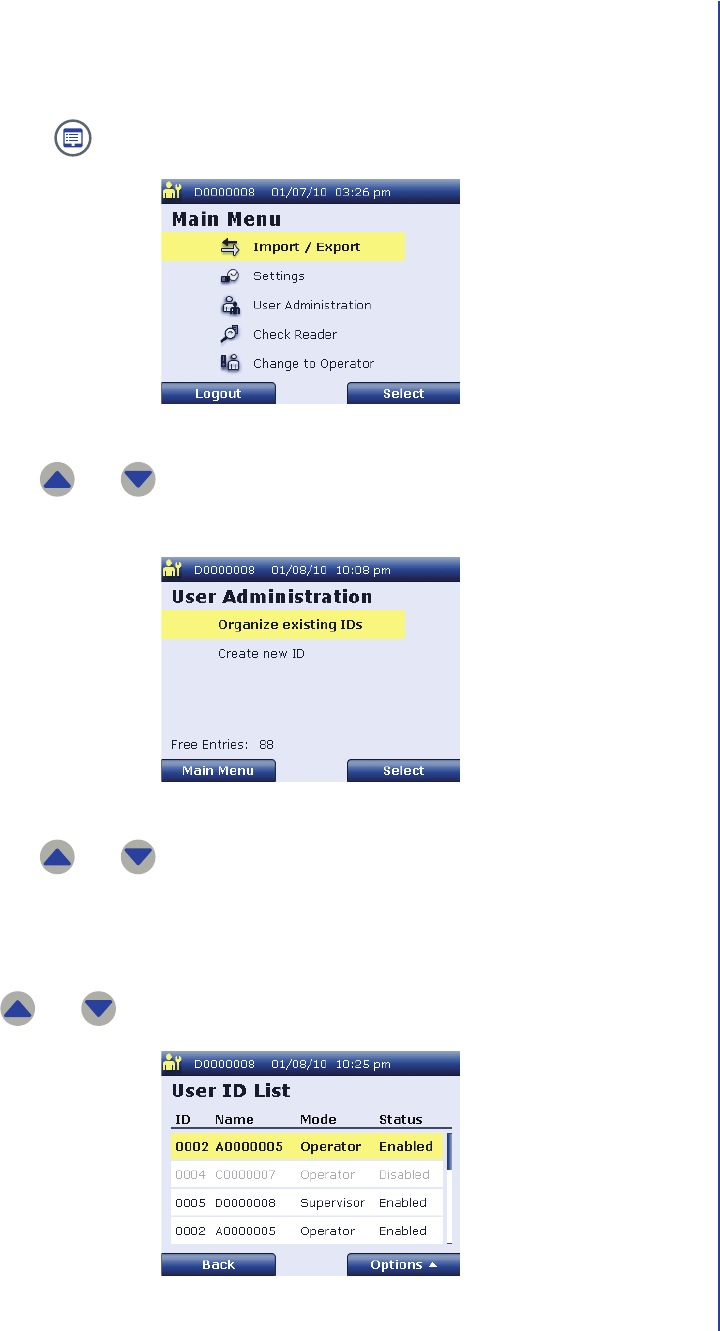
3. Use and to highlight Organize existing IDs and press Select to
display the User ID List screen.
The reader displays the user ID, user name, user mode, and status for all
users that have been added, arranged numerically by user ID. You can use
and to scroll through user records.
Supervisor Main Menu Screen
User Administration Screen
User ID List Screen
Apex Reader User’s Guide
52
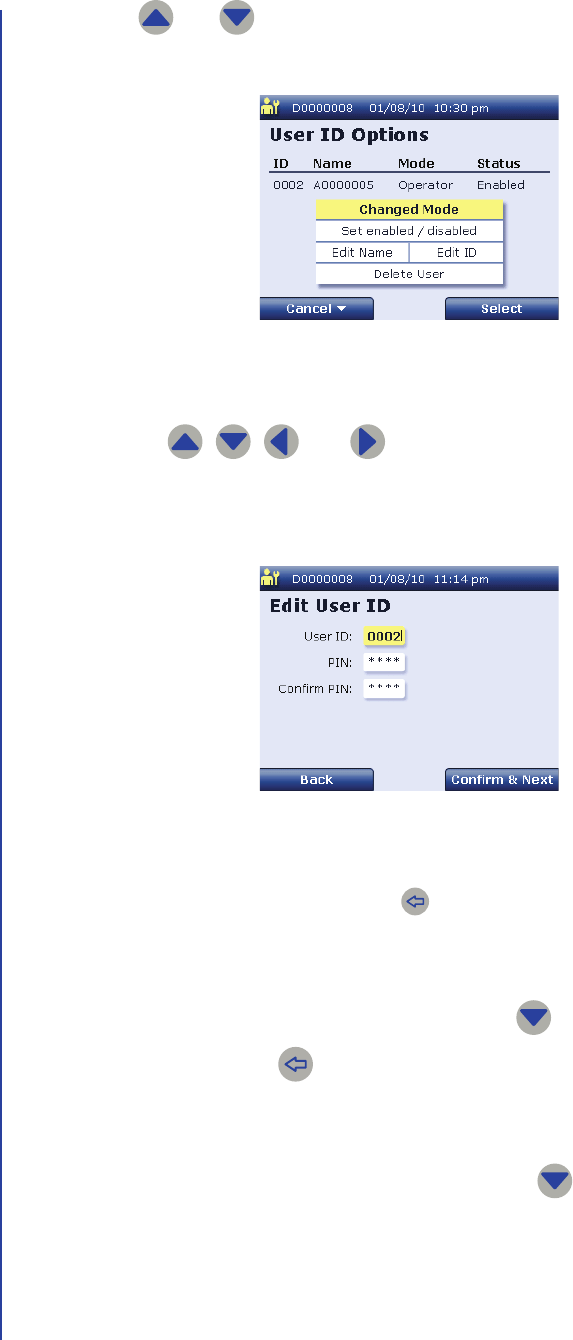
4. Use and to highlight the user record you want to modify and press
Options a to display the User ID Options screen. AG: UPDATE SCREEN.
5. To modify the login information for this user:
a. Use , , , and to highlight Edit ID and press Select to
display the Edit User ID screen.
The user’s current user ID and PIN are displayed.
b. When the Edit User ID screen is first displayed, the User ID field is
highlighted. If necessary, press to delete characters from the current
user ID. Then use the numeric keypad to enter the new user ID for this
user. The user ID must be 4 digits.
When the desired user ID is displayed, press to highlight the PIN field.
c. If necessary, use to delete characters from the current PIN. Then use
the numeric keypad to enter the new PIN for this user. The PIN must be 4
digits.
When the desired PIN has been entered, press to highlight the
Confirm PIN field.
User ID Options Screen
Edit User ID Screen
Setup
53
d. If you entered a new PIN, re-enter the 4-digit PIN for this user. Then press
Confirm & Next to display the Barcode screen.
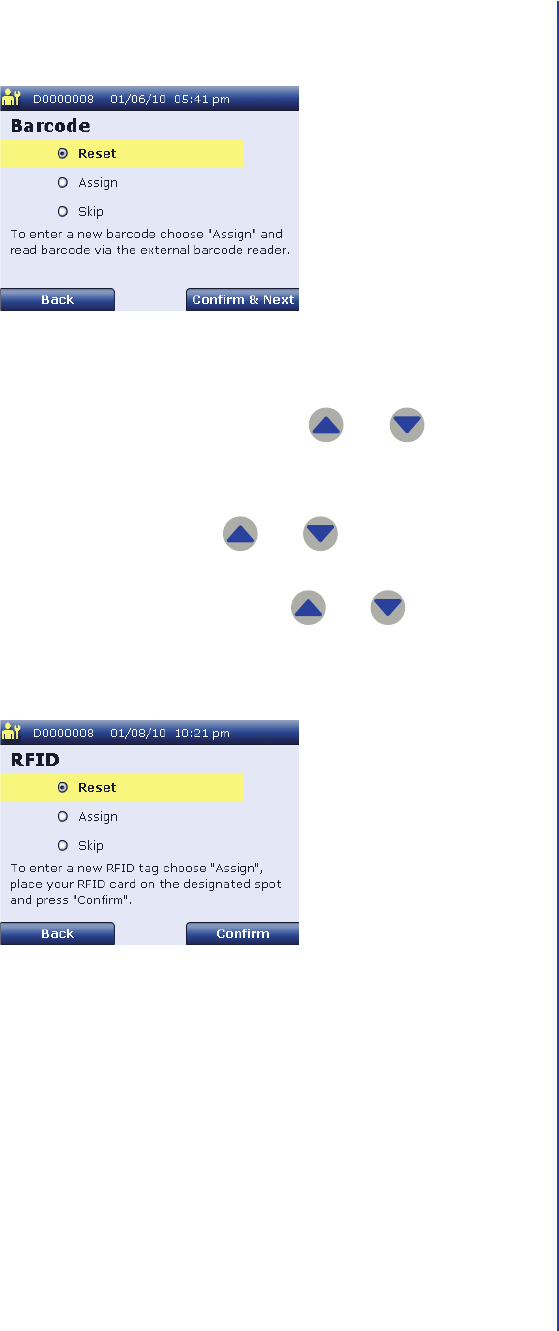
e. The following options are available on the Barcode screen:
–If you do not want to assign a barcode, use and to
highlight Skip. Then press Confirm & Next to display the RFID
screen.
–To delete this user’s barcode, use and to highlight Reset.
Then press Confirm & Next to display the RFID screen.
–To assign a new barcode for this user, use and to highlight
Assign. Then use the external barcode reader to scan the barcode.
The reader assigns the barcode and displays the RFID screen.
Barcode Screen
RFID Screen
Apex Reader User’s Guide
54
f. The following options are available on the RFID screen:
–If you do not want to assign an RFID, use and to highlight
Skip. Then press Confirm to return to the User ID Options
screen.
–To delete this user’s RFID, use and to highlight Reset.
Then press Confirm to return to the User ID Options screen
–To assign a new RFID for this user, use and to highlight
Assign. Place the user’s ID card on the designated location on the
reader and press Confirm. AG: CLARIFY.
The reader assigns the RFID and returns to the User ID Options
screen.
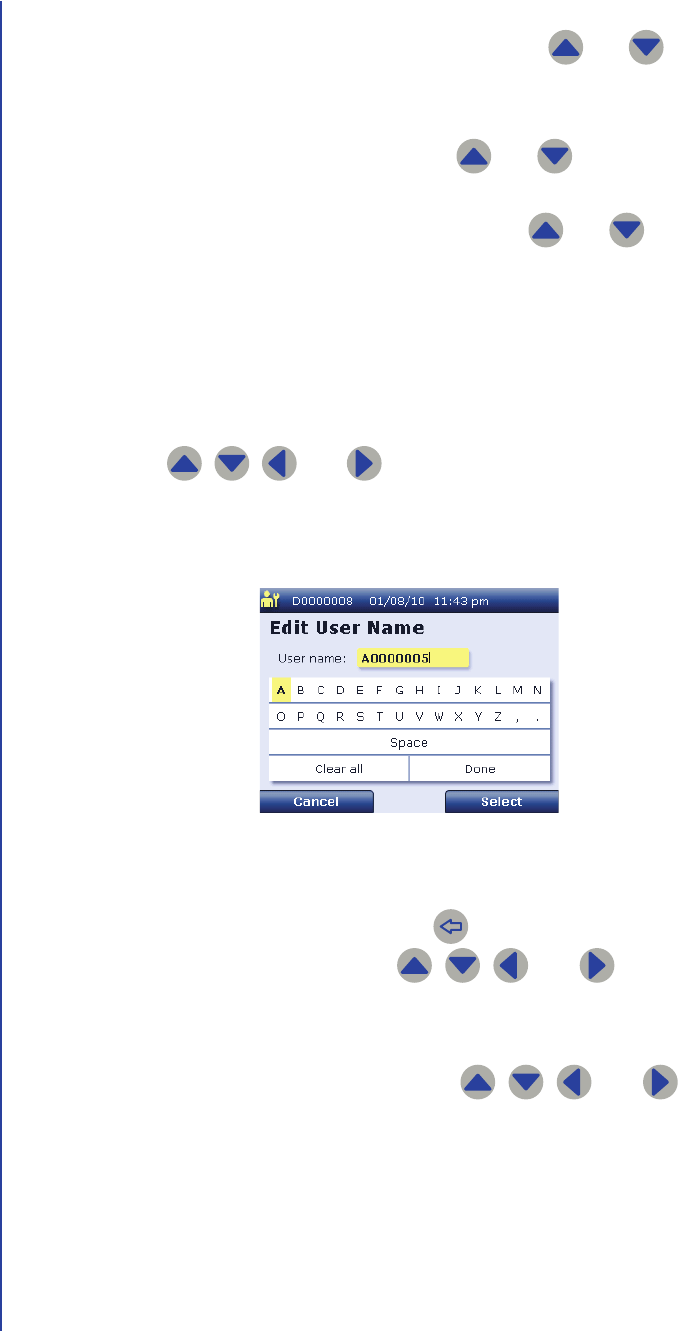
6. To modify the user name for this user:
a. Use , , , and to highlight Edit Name and press Select to
display the Edit User Name screen.
The user’s current user name is displayed.
b. Enter the new user name.
– To delete a character, press .
– To add a character, use , , , and to highlight the
desired character. Then press Confirm & Next to add the
highlighted character to the user name.
c. When the user name is complete, use , , , and to
highlight Done. Then press Select to return to the User ID Options
screen.
Edit User Name Screen
Setup
55
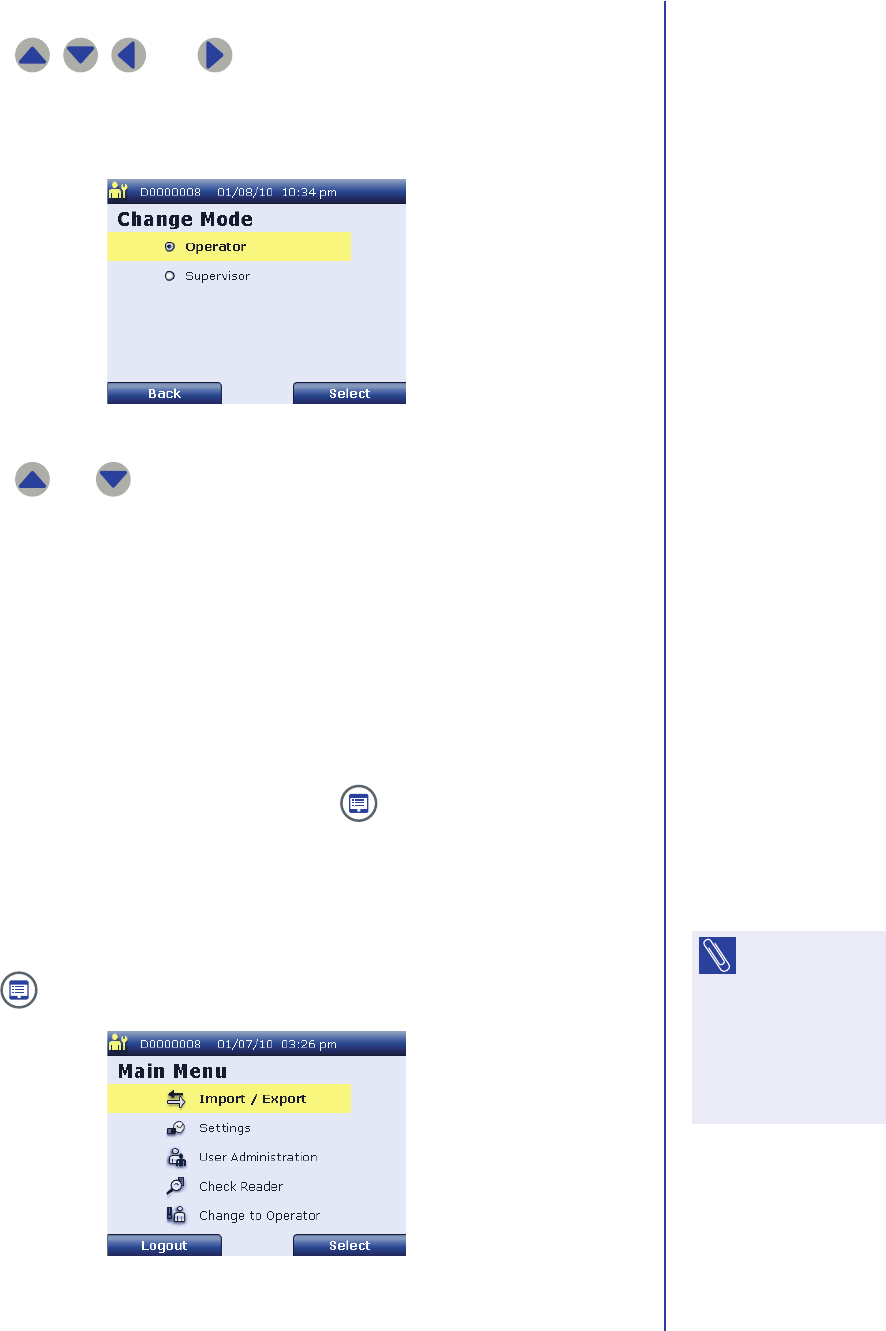
7. To modify the user mode for this user:
a. Use , , , and to highlight Change Mode and press
Select to display the Change Mode screen.
The user’s current user mode is highlighted.
b. Use and to highlight the desired setting.
– If you select Operator, this user will not have access to supervisor
functionality.
– If you select Supervisor, this user will have access to all reader
functionality.
c. When the desired setting is highlighted, press Select to save this setting.
d. Press Back to return to the User ID Options screen.
8. When you have finished modifying the settings for this user, press Cancel b
to return to the User ID List screen or press to return to the supervisor
Main Menu screen.
Enabling or Disabling a User
Perform the following steps to enable or disable an existing user record:
1. Press to display the supervisor Main Menu screen.
Change Mode Screen
NOTE: You can
disable the user
record for a user who
does not currently
need to use the
reader, but might
need to use it in the
future.
Supervisor Main Menu Screen
Apex Reader User’s Guide
56
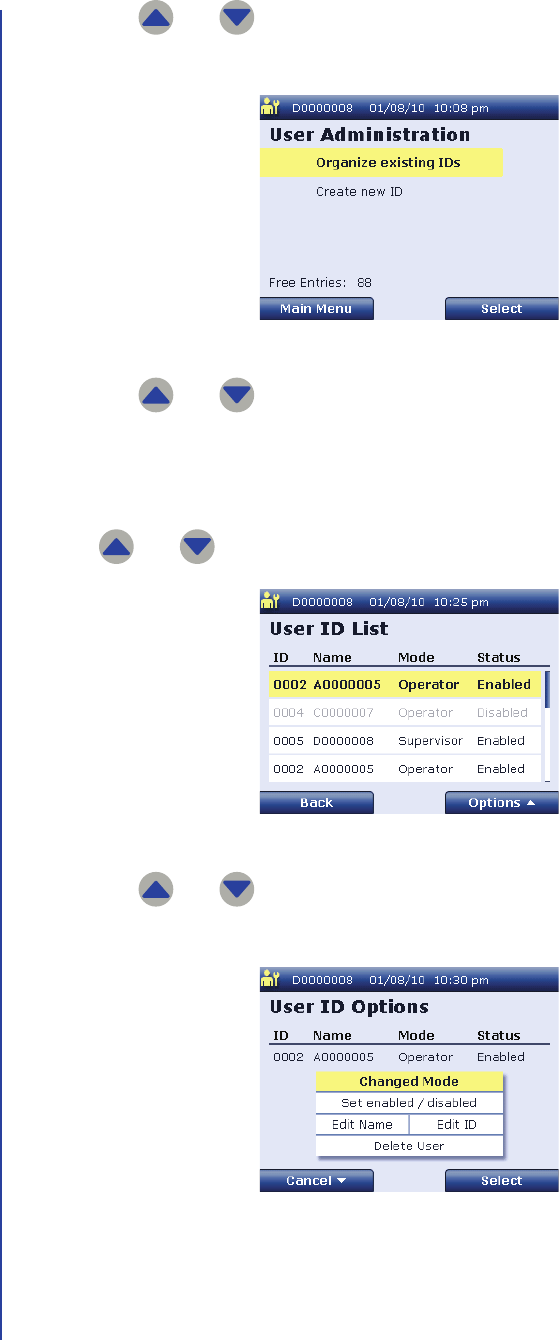
2. Use and to highlight User Administration and press Select to
display the User Administration screen.
3. Use and to highlight Organize existing IDs and press Select to
display the User ID List screen.
The reader displays the user ID, user name, user mode, and status for all
users that have been added, arranged numerically by user ID. You can use
and to scroll through user records.
4. Use and to highlight the user record you want to enable or disable
and press Options a to display the User ID Options screen.
User Administration Screen
User ID List Screen
User ID Options Screen
Setup
57
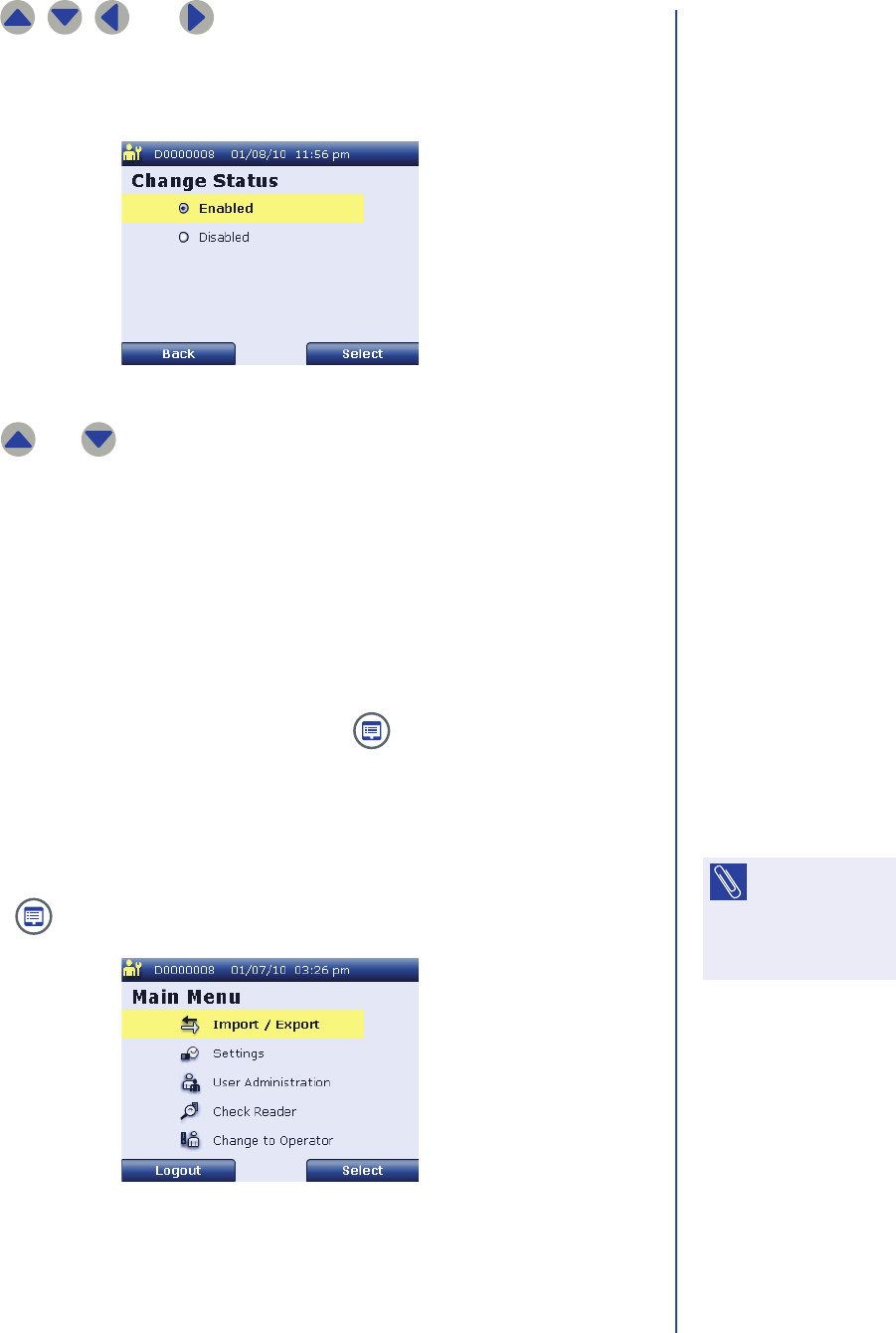
5. Use , , , and to highlight Set enabled / disabled and press
Select to display the Change Status screen.
The user’s current status is highlighted.
6. Use and to highlight the desired setting.
■If you select Enabled, this user will be able to log in to the reader.
■If you select Disabled, this user will no longer be able to log in to the
reader.
7. When the desired setting is highlighted, press Select to save this setting.
8. Press Back to return to the User ID Options screen.
9. When you have finished modifying the settings for this user, press Cancel b
to return to the User ID List screen or press to return to the supervisor
Main Menu screen.
Deleting a User
Perform the following steps to delete a user record:
1. Press to display the supervisor Main Menu screen.
Change Status Screen
NOTE: You can
delete the user
record for a user who
no longer needs to
use the reader.
Supervisor Main Menu Screen
Apex Reader User’s Guide
58
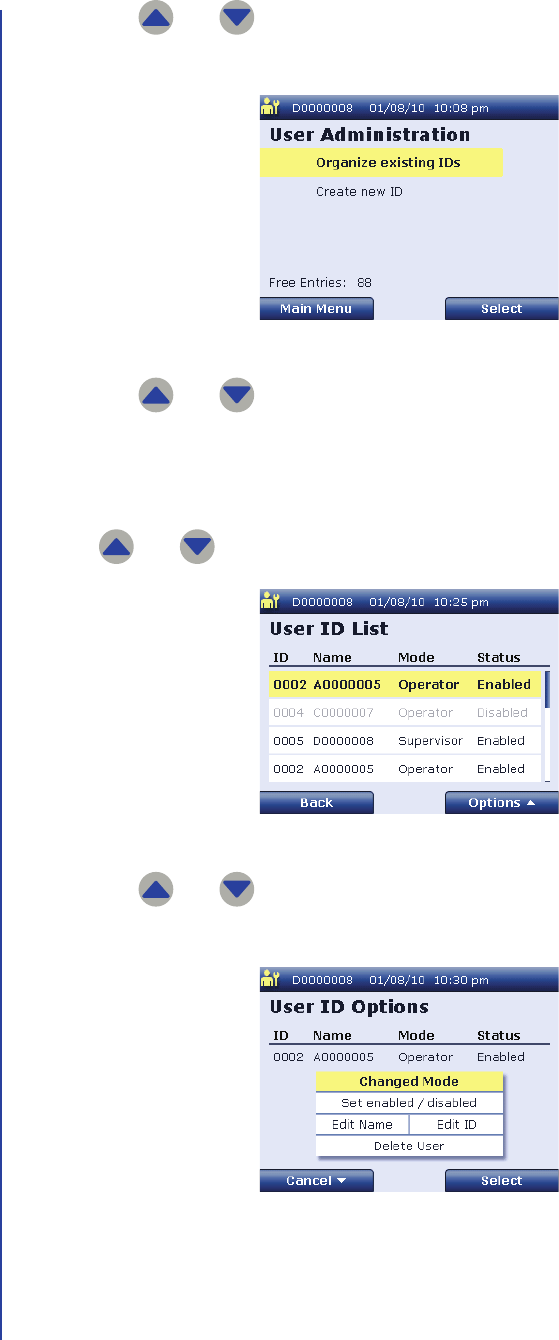
2. Use and to highlight User Administration and press Select to
display the User Administration screen.
3. Use and to highlight Organize existing IDs and press Select to
display the User ID List screen.
The reader displays the user ID, user name, user mode, and status for all
users that have been added, arranged numerically by user ID. You can use
and to scroll through user records.
4. Use and to highlight the user record you want to delete and press
Options a to display the User ID Options screen.
User Administration Screen
User ID List Screen
User ID Options Screen
Setup
59
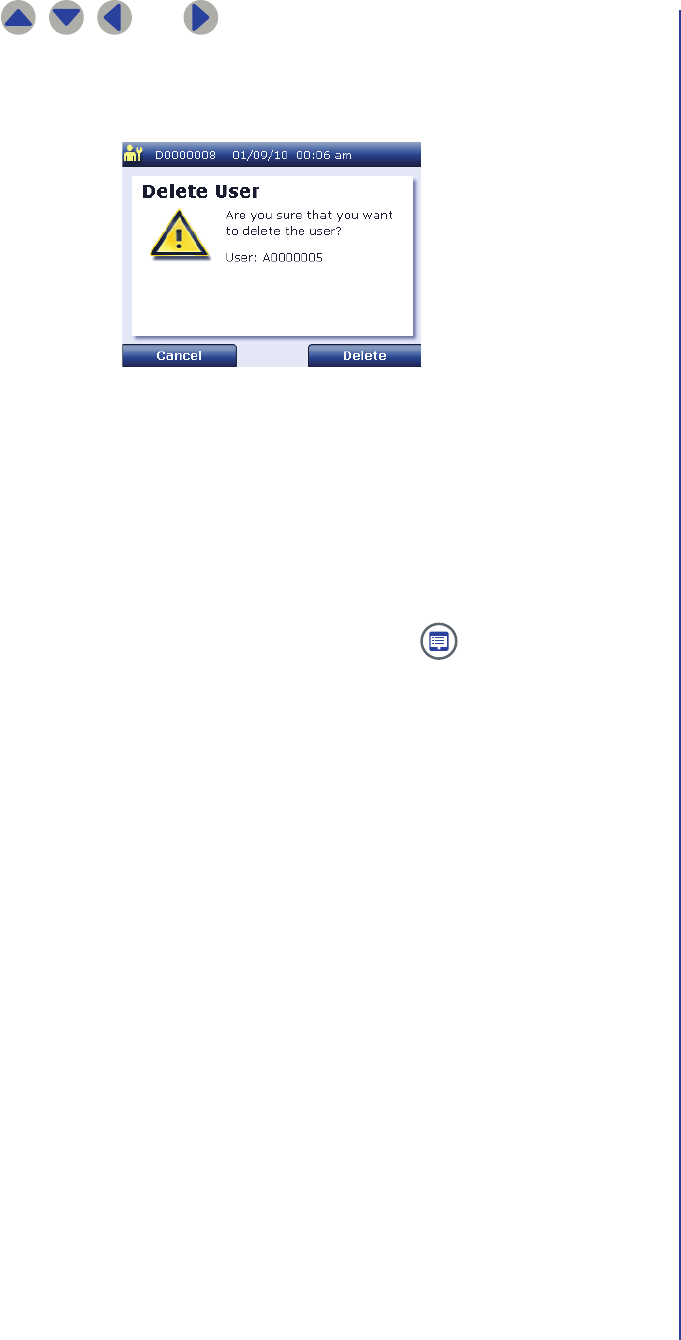
5. Use , , , and to highlight Delete User and press Select to
display the Delete User confirmation screen.
The screen displays the user name for the selected user.
6. The following options are available on the Delete User confirmation screen.
■To delete this user record, press Delete. The selected user record is
deleted and the reader returns to the User ID List screen.
■To keep this user record and return to the User ID Options screen, press
Cancel.
7. When you have finished deleting user records, press to return to the
supervisor Main Menu screen.
Delete User Confirmation Screen

Apex Reader User’s Guide
60
61
Daily Operations
Startup
This section provides information on preparing the reader for daily use. The
following tasks must be completed prior to testing patient samples:
■The reader must be powered on.
■A user must log in to the reader (unless the reader’s auto-login feature is
enabled).
■A quality control check must be performed if required by laboratory
procedures.
Turning On the Reader
The on/off switch is located on the back of the reader. To turn on the reader, push
the on/off switch up until the Initializing screen appears, then release it. The reader
displays a splash screen during startup, then displays one of the following screens:
■The Login screen is displayed if the reader’s auto-login feature is disabled.
■The Enter Patient ID screen is displayed if the reader’s auto-login feature is
enabled.
IMPORTANT: Allow the reader to warm up for at least 20 minutes before
running any patient samples.
Apex Reader User’s Guide
62
Logging In
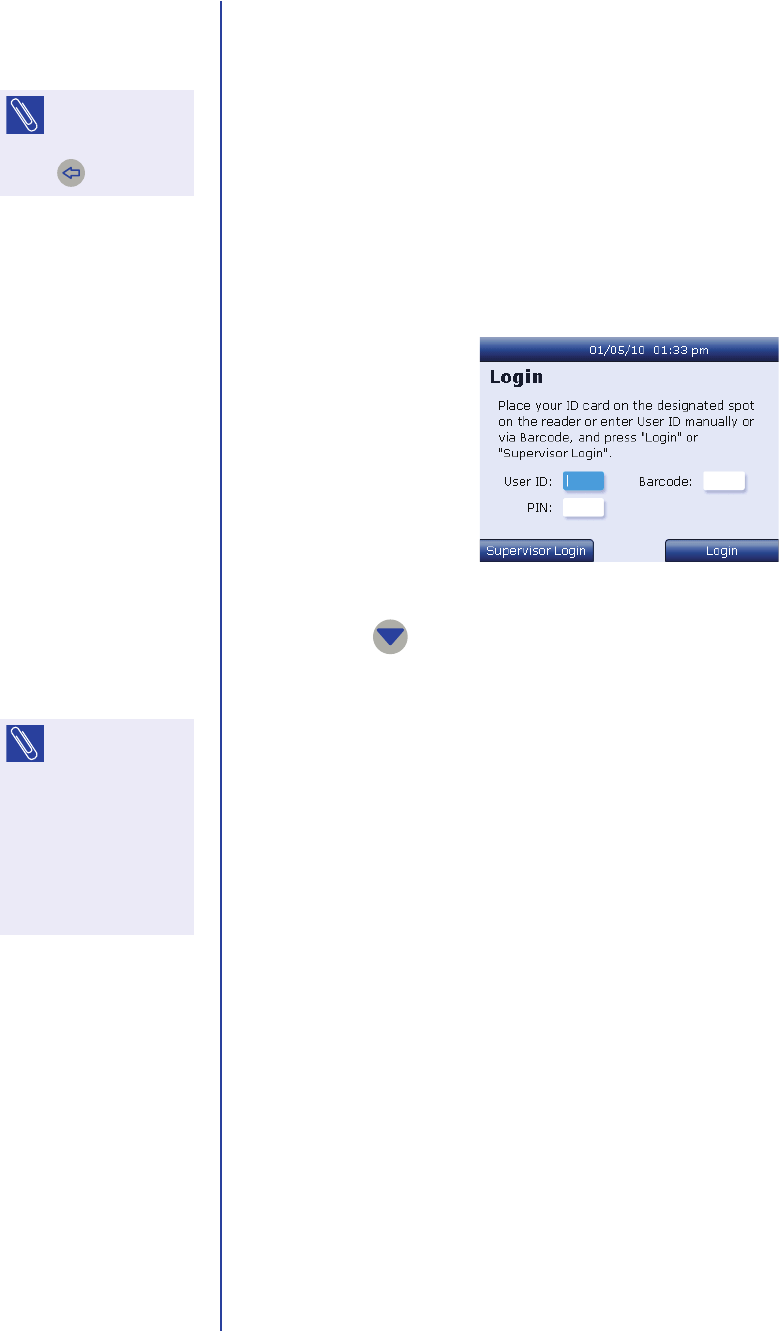
If necessary, perform the following steps to log in to the reader:
1. On the Login screen, enter your 4-digit user ID or barcode number using one
of the following methods:
■Place your ID card on the designated location on the reader. Then go to
Step 4. AG: CLARIFY.
■Use the numeric keypad to enter your user ID manually.
■Use the external barcode reader to scan your barcode.
2. Press to highlight the PIN field.
3. Enter your 4-digit PIN. AG: CONFIRM FOR USE OF AN ID CARD OR BARCODE.
4. Press Login to log in as an operator.
NOTE: To delete
the last
character entered,
press .
Login Screen
NOTE: You can
also press
Supervisor Login to
log in as a supervisor.
If you log in as a
supervisor, you will
need to select Change
to Operator to test
patient samples.
Daily Operations
63
Running Quality Control Checks
Quality control (QC) testing ensures that the reader is operating within acceptable
ranges. QC routines are mandatory and patient tests should not be performed
unless required QC is complete. The manufacturer’s recommendation for QC
testing is to test 1 high control and 1 low control per box of test cartridges.
The reader performs initialization and self-checks each time it is powered on. These
checks ensure that:
■Communication between the different reader modules is working.
■The optics are functioning properly.
■The carriage is free to move correctly.
■The carriage position is zeroed.
From the Check Reader screen, you can run an internal QC check on the reader.
You can also run an external QC check using the system check cassette provided
with the reader. The result of a QC check can be sent to the LIS or printed. This
result is stored in the reader until the next QC check is performed, then the previous
result is over-written with the new result.
Perform the following steps to run an internal QC check:
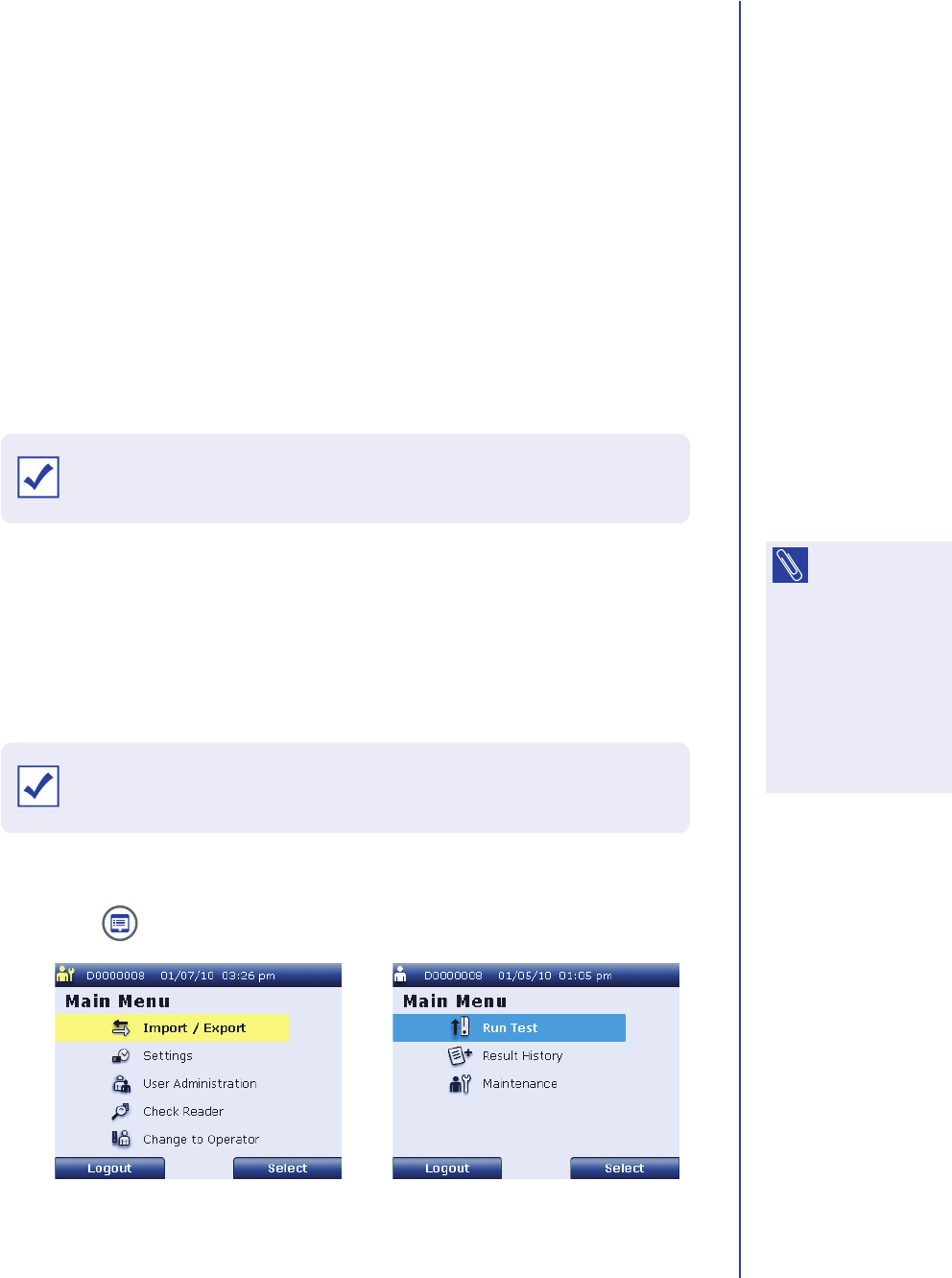
1. Press to display the Main Menu screen.
IMPORTANT: Each day that testing is to be performed, the reader should
be powered on and allowed to complete its initialization and self-checks.
NOTE: To send
the result of a
QC check to the LIS,
the reader must be
connected to the LIS
and the LIS must have
been set up by a
supervisor. See
Connecting to the LIS
on page33 for
instructions.
Supervisor Main Menu Screen Operator Main Menu Screen
IMPORTANT: Follow laboratory procedures regarding how frequently to
perform QC checks and how to document the results.
Apex Reader User’s Guide
64
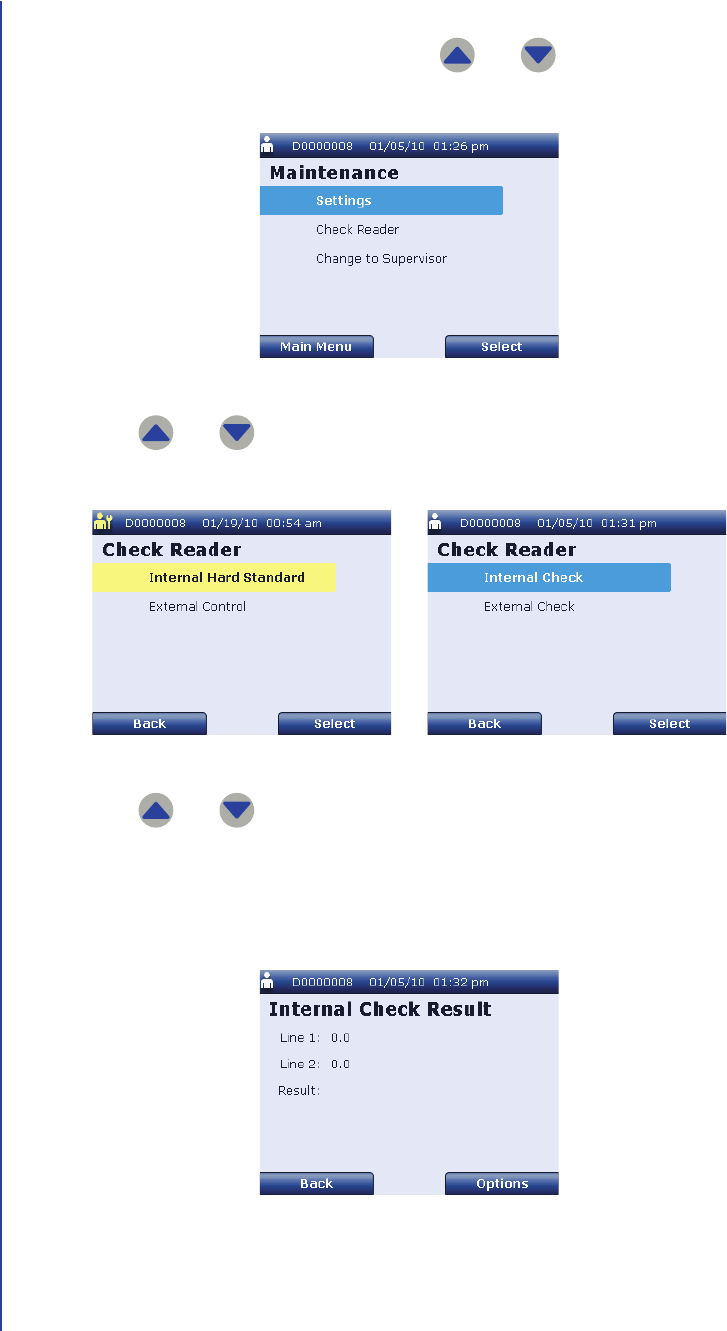
2. If you are logged in as a supervisor, skip this step and go to Step 3.
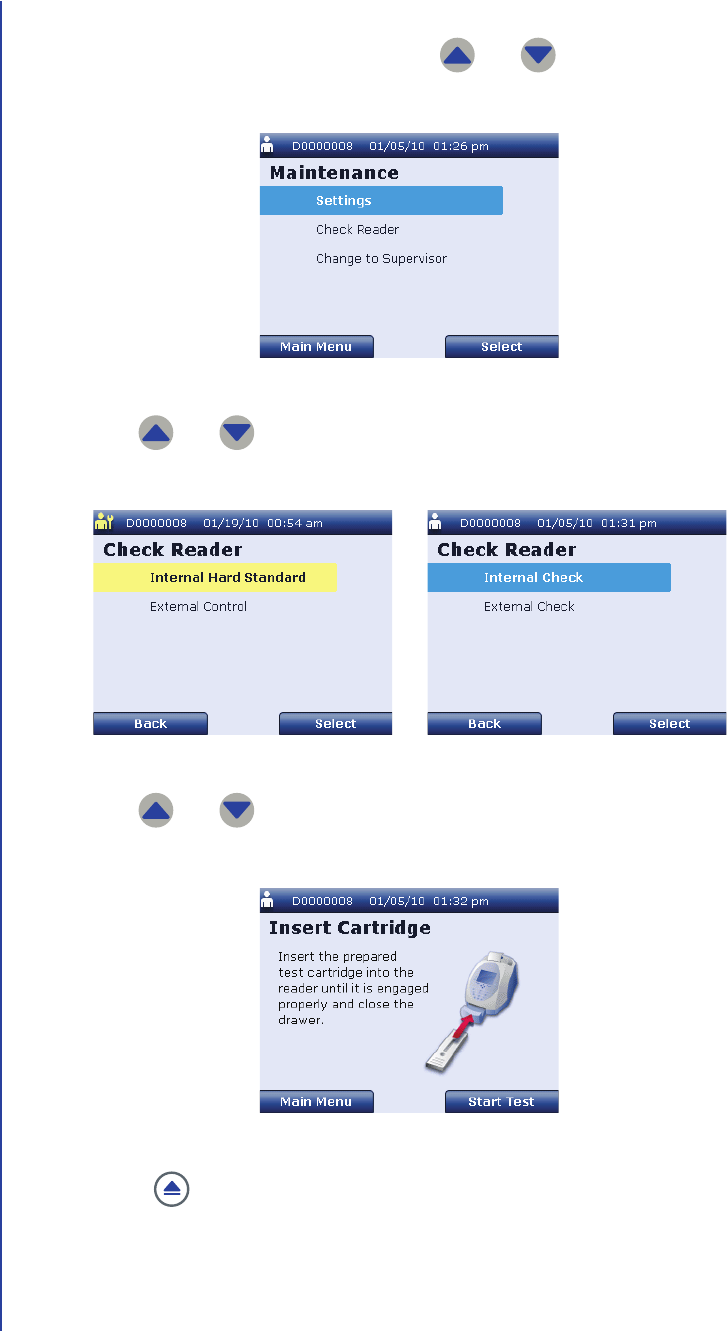
If you are logged in as an operator, use and to highlight
Maintenance and press Select to display the Maintenance screen.
3. Use and to highlight Check Reader and press Select to display
the Check Reader screen.
4. Use and to highlight Internal Hard Standard or Internal Check
and press Select.
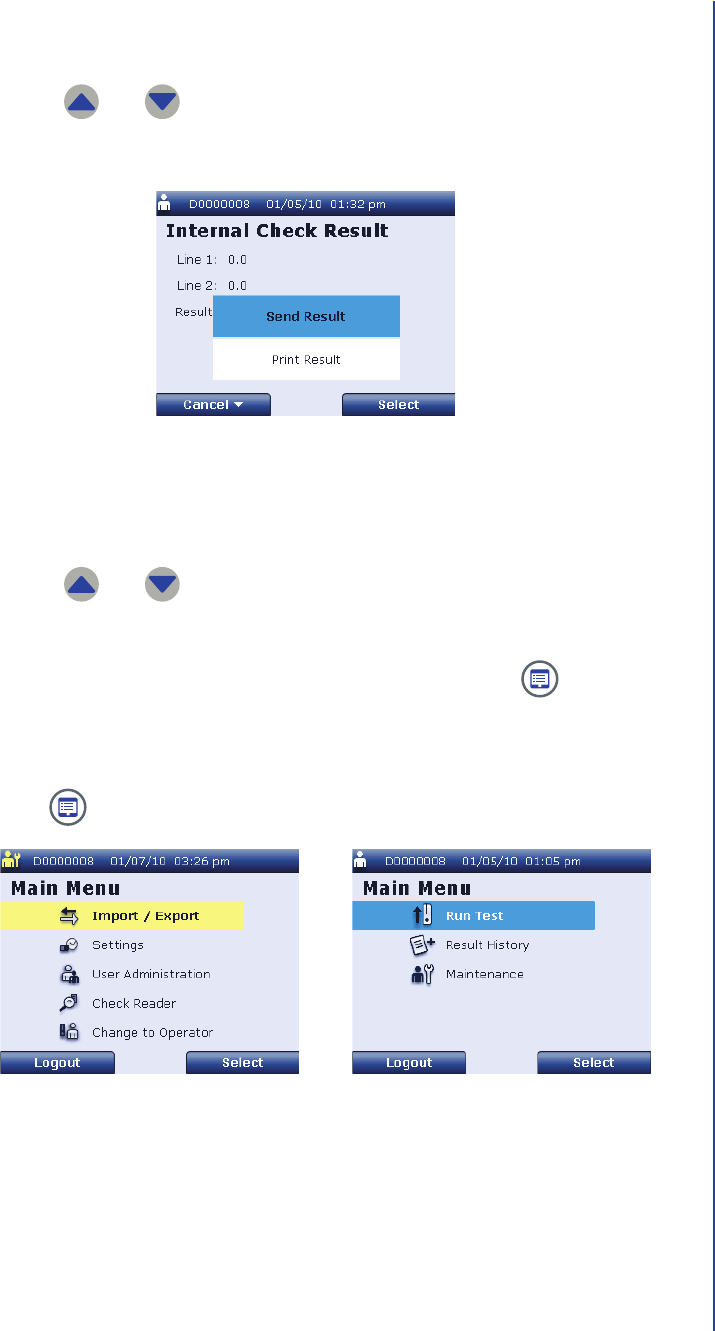
The reader performs an internal check, then displays the Internal Check
Result screen.
Maintenance Screen
Supervisor Check Reader Screen Operator Check Reader Screen
Internal Check Result Screen
Daily Operations
65
5. To send the result of the internal check to the LIS:
a. Press Options.
b. Use and to highlight Send Result and press Select.
The reader sends the result, then returns to the Check Reader screen.
6. To print the result of the internal check:
a. Press Options.
b. Use and to highlight Print Result and press Select.
The reader prints the result, then returns to the Check Reader screen.
7. Press Back to return to the Check Reader screen or press to return to
the Main Menu screen.
Perform the following steps to run an external QC check:
1. Press to display the Main Menu screen.
Internal Check Result Screen — Options
Supervisor Main Menu Screen Operator Main Menu Screen
Apex Reader User’s Guide
66
2. If you are logged in as a supervisor, skip this step and go to Step 3.
If you are logged in as an operator, use and to highlight
Maintenance and press Select to display the Maintenance screen.
3. Use and to highlight Check Reader and press Select to display
the Check Reader screen.
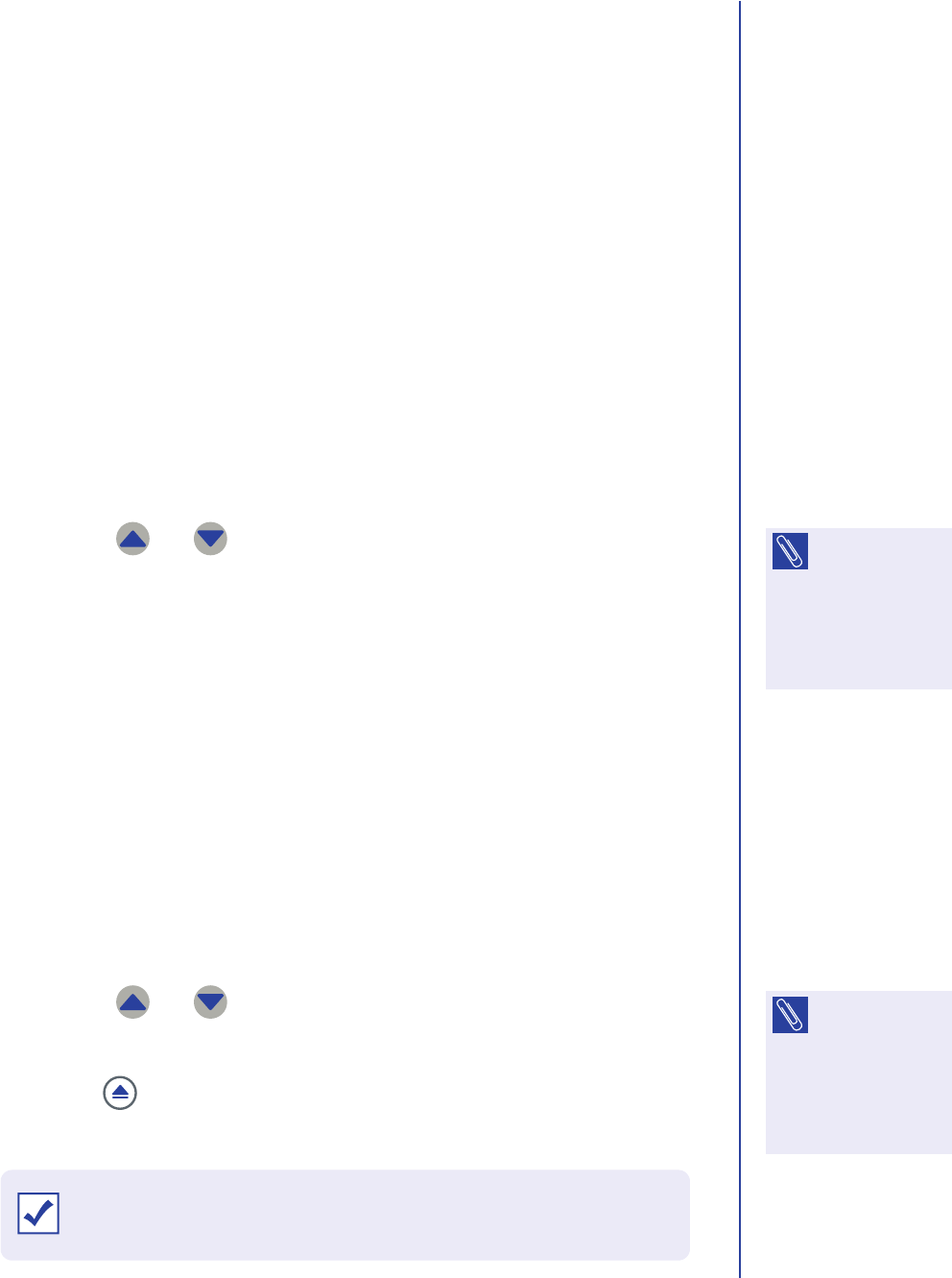
4. Use and to highlight External Control or External Check and
press Select to display the Insert Cartridge screen.
5. Press to eject the drawer. AG: TBD IF THIS STEP IS NECESSARY.
Maintenance Screen
Supervisor Check Reader Screen Operator Check Reader Screen
Insert Cartridge Screen — External Check
Daily Operations
67
6. Insert the system check cassette in the reader with the sample application
area facing toward you. Then close the drawer and press Start Test.
The reader performs a check using the system check cassette, then displays
the External Check Result screen.
7. To send the result of the external check to the LIS:
a. Press Options.
b. Use and to highlight Send Result and press Select.
The reader sends the result, then returns to the Check Reader screen.
8. To print the result of the external check:
a. Press Options.
b. Use and to highlight Print Result and press Select.
The reader prints the result, then returns to the Check Reader screen.
9. Press to eject the drawer. Remove the system check cassette and store
it in its original foil pouch.
External Check Result Screen
NOTE: You can
select Send All
to send the results of
all external checks
performed using this
system check
cassette. AG: CONFIRM
External Check Result Screen — Options
NOTE: You can
select Print All to
print the results of all
external checks
performed using this
system check
cassette. AG: CONFIRM
IMPORTANT: To avoid light exposure, store and reseal the system check
cassette in its original foil pouch immediately after each use.
Apex Reader User’s Guide
68
10. Press Back to return to the Check Reader screen or press to return to
the Main Menu screen.
Testing a Patient Sample
Perform the following steps to test a patient sample:
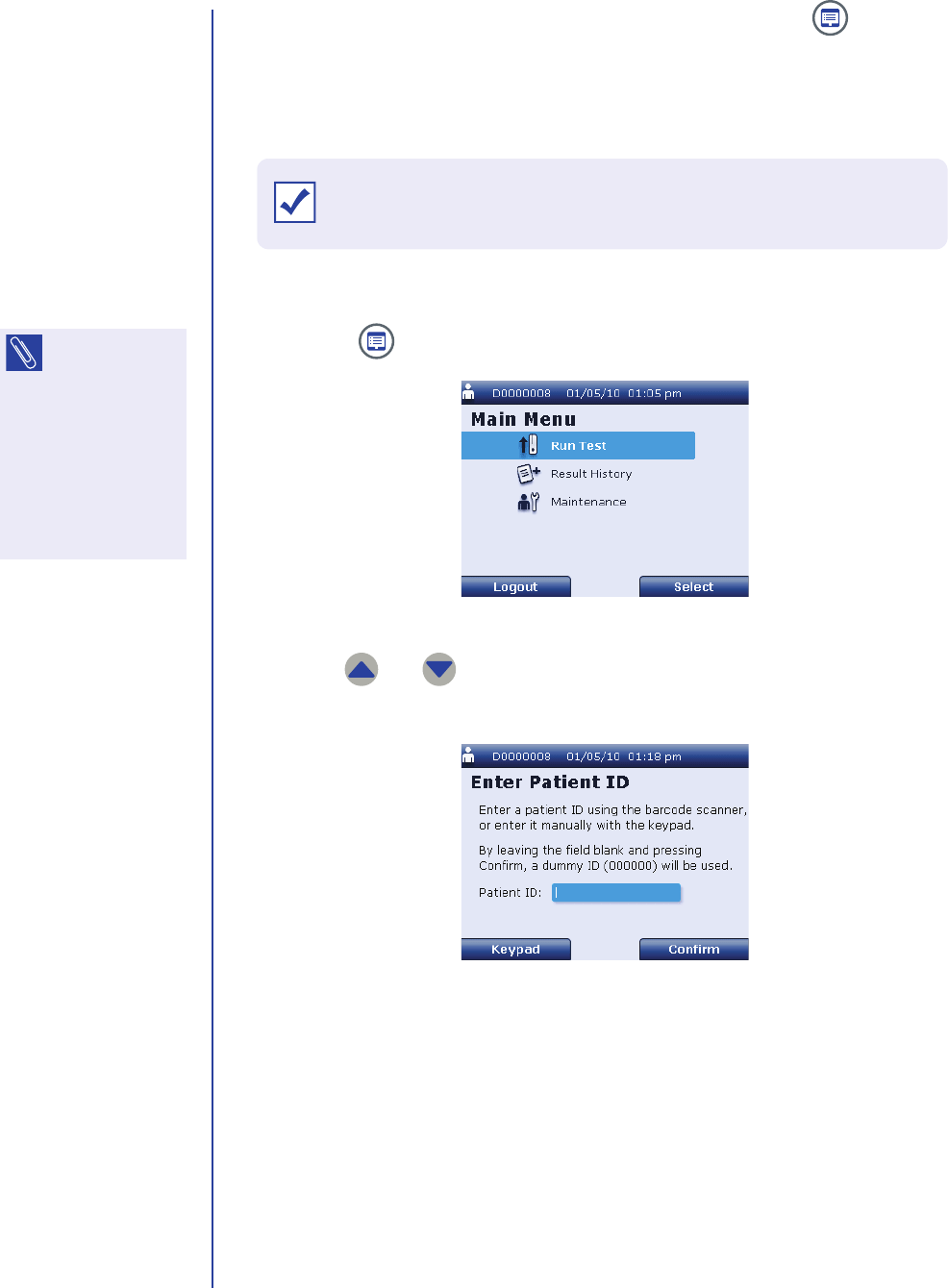
1. Press to display the operator Main Menu screen.
2. Use and to highlight Run Test and press Select to display the
Enter Patient ID screen.
IMPORTANT: Allow the reader to warm up for at least 20 minutes before
running any patient samples.
NOTE: The Run
Test menu item
is not available on the
supervisor Main Menu
screen. If you are
logged in as a
supervisor, select
Change to Operator to
display the operator
Main Menu screen.
Operator Main Menu Screen
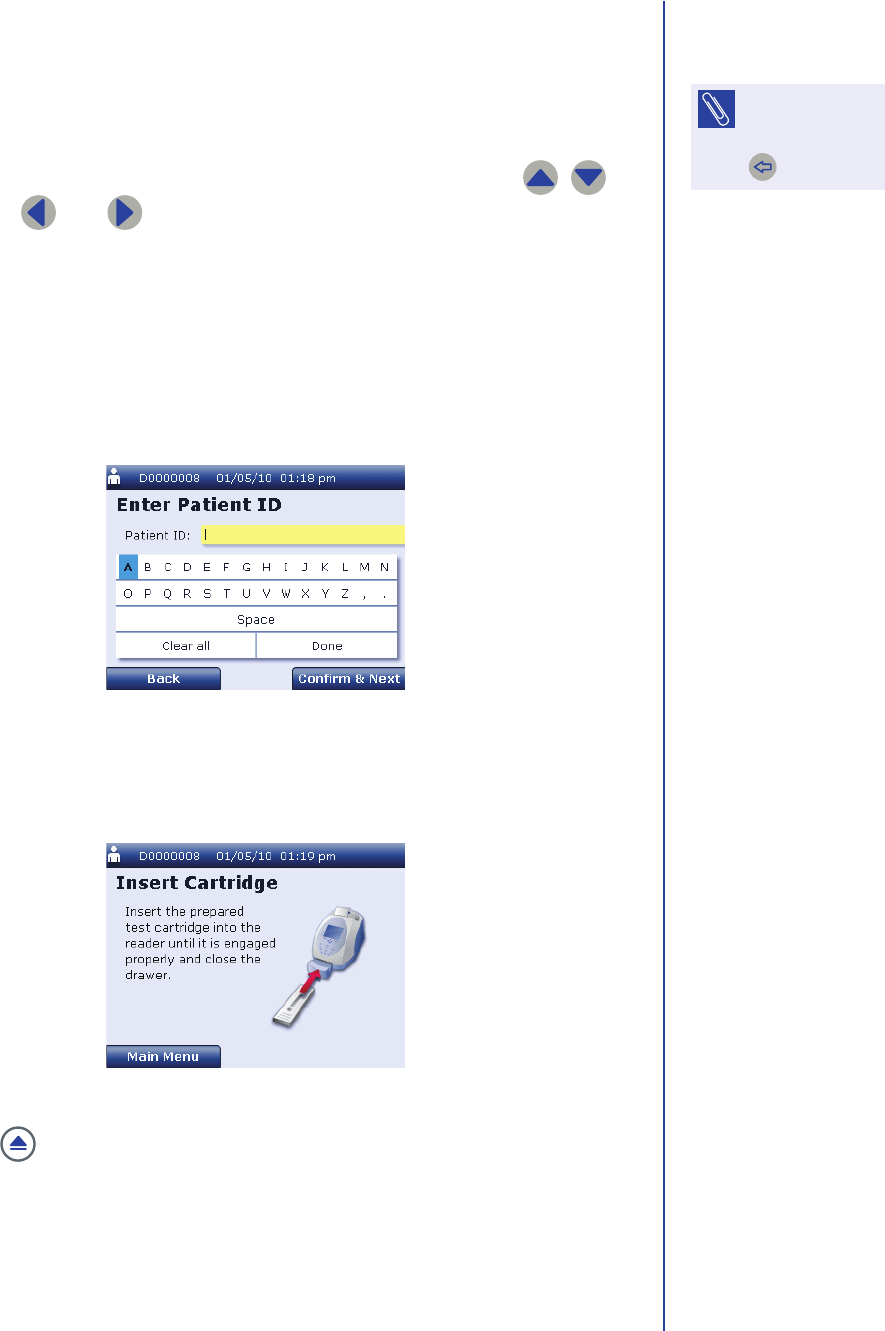
Enter Patient ID Screen
Daily Operations
69
3. Enter the patient ID using one of the following methods:
■Use the external barcode reader to scan the patient’s barcode.
■Use the numeric keypad to enter the patient ID.
■Press Keypad to enter letters, spaces, and punctuation.
a. When the keypad is displayed on the reader’s screen, use , ,
, and to highlight the desired character.
b. Press Confirm & Next to add the highlighted character to the
patient ID.
c. Repeat Step a and Step b as necessary.
d. When the patient ID is complete, press Back to exit the Keypad
feature.
4. On the Enter Patient ID screen, press Confirm to display the Insert
Cartridge screen.
5. Press to eject the drawer.
6. Prepare the test sample in accordance with the instructions provided in the
package of test cartridges.
NOTE: To delete
the last
character entered,
press .
Keypad Screen
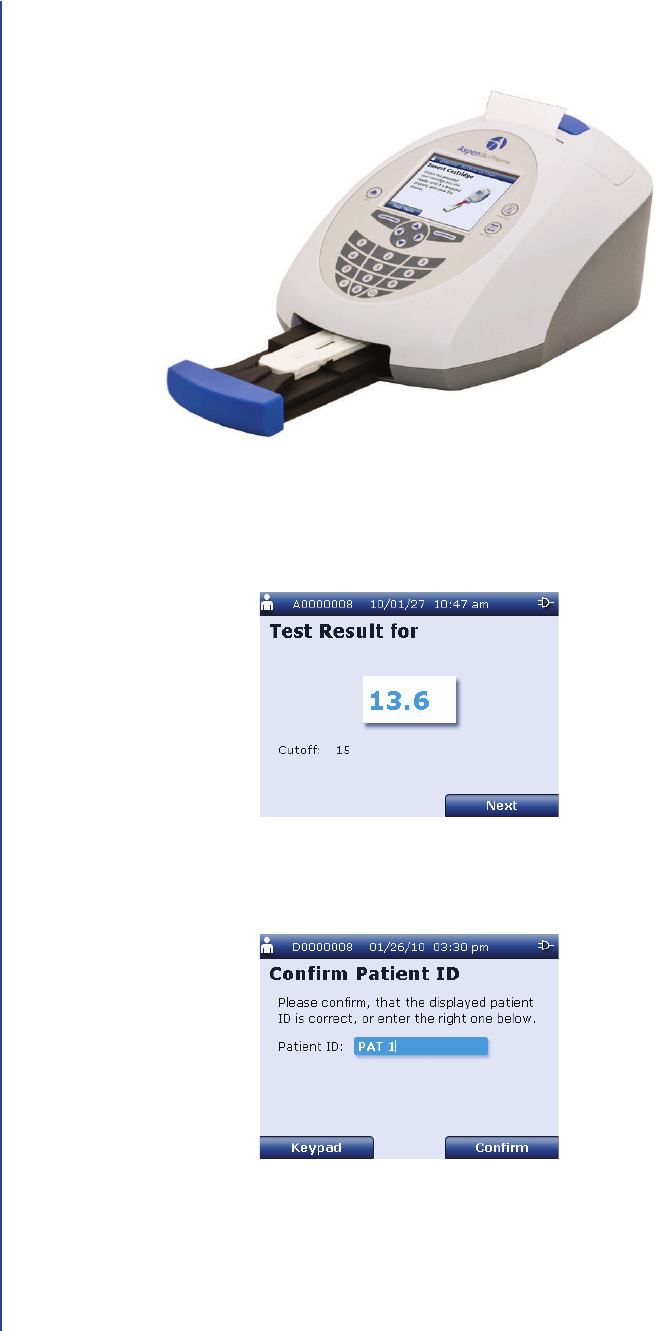
Insert Cartridge Screen — Run Test
Apex Reader User’s Guide
70
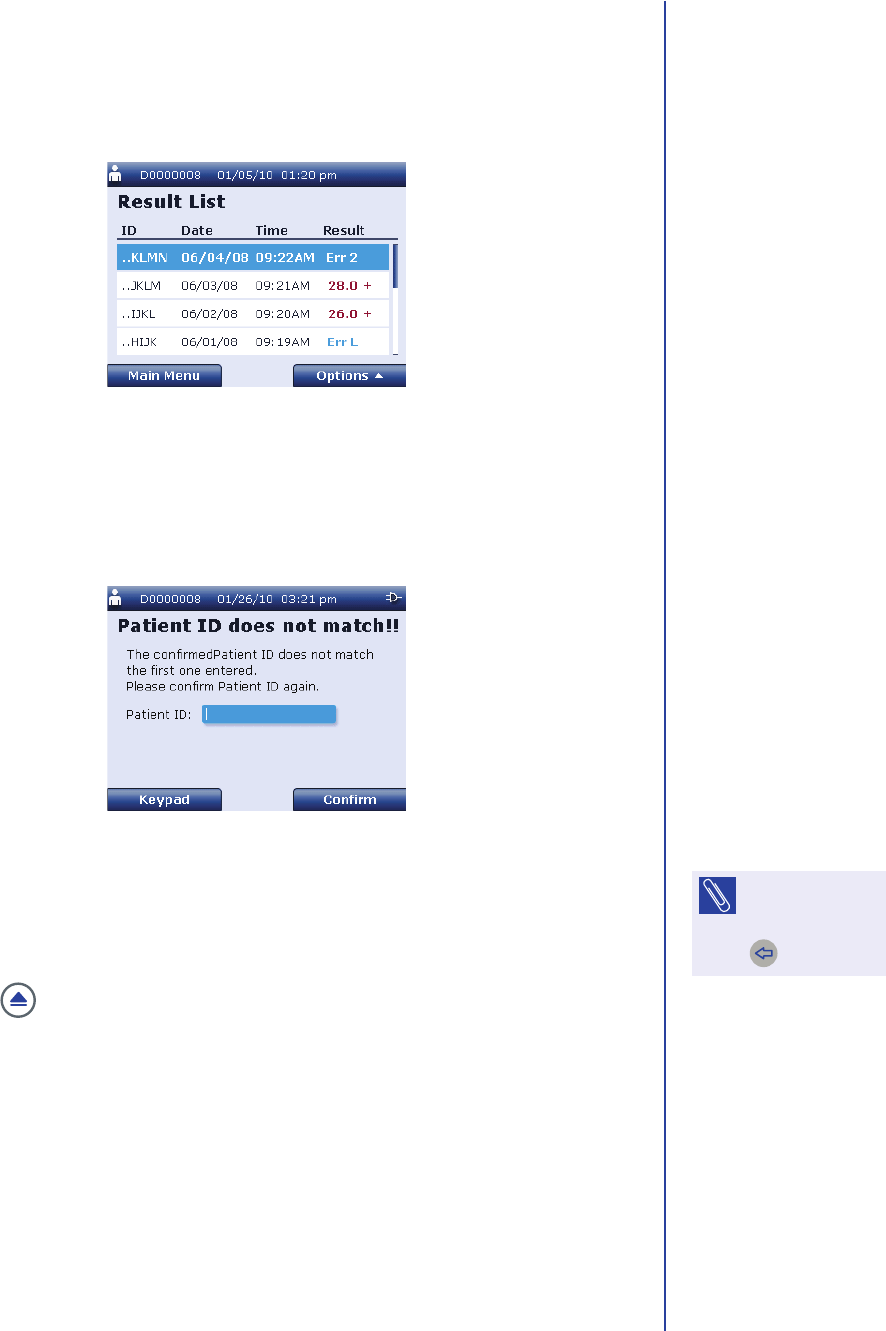
7. Gently insert the prepared test cartridge in the drawer with the sample
application area facing toward you as shown below. Then close the drawer.
The reader displays the status of the test on the Run Test screen, then
displays the Test Result screen when the test is complete.
8. Press Next to display the Confirm Patient ID screen.
Test Cartridge in Reader Drawer
Test Result Screen
Confirm Patient ID Screen
Daily Operations
71
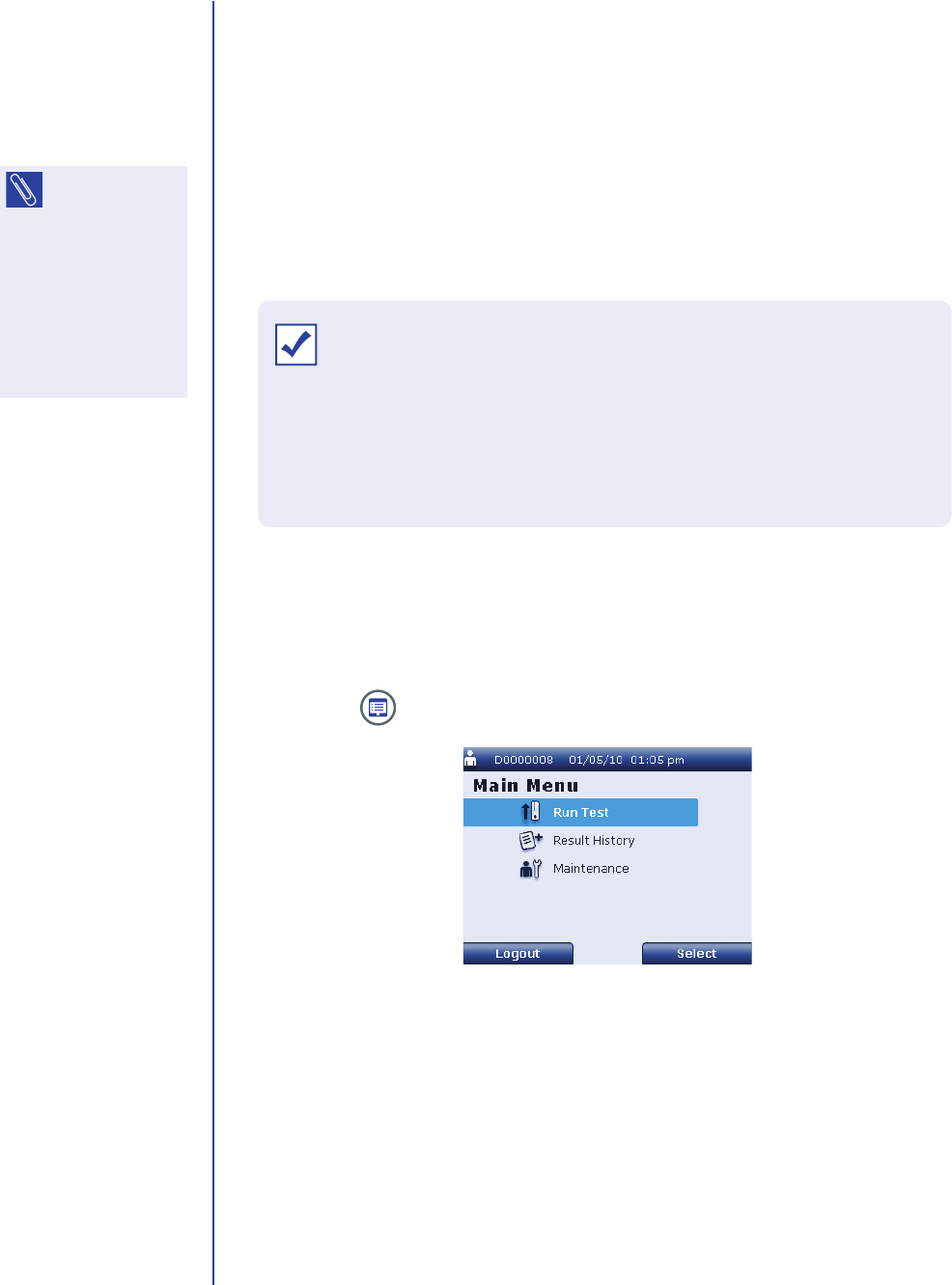
9. Confirm that the patient ID displayed on this screen is correct.
■If the patient ID is correct, press Confirm to view the test result on the
Result List screen. If the reader’s automatic printing feature is enabled,
the result is printed automatically.
■If the patient ID is incorrect:
a. Enter the appropriate patient ID and press Confirm to display the
Patient ID does not match screen.
b. Re-enter the patient ID and press Confirm to view the test result on
the Result List screen. If the reader’s automatic printing feature is
enabled, the result is printed automatically.
10. Press to eject the drawer. Remove the test cartridge and dispose or store
as appropriate. AG: NEED INPUT.
Result List Screen
Patient ID Does Not Match Screen
NOTE: To delete
the last
character entered,
press .
Apex Reader User’s Guide
72
Managing Patient Results
The Result List screen displays basic information for each patient test result
stored in the reader’s memory. From the Result List screen you can:
■view details for a patient test result
■send patient test results to the LIS
■print patient test results
You can also view, send, and print an individual result stored on a test cartridge.
Viewing Detailed Test Results
Perform the following steps to view detailed information for test results stored in the
reader’s memory:
1. Press to display the operator Main Menu screen.
NOTE: To send a
patient result to
the LIS, the reader
must be connected to
the LIS and the LIS
must have been set
up by a supervisor.
See Connecting to the
LIS on page33 for
instructions.
Operator Main Menu Screen
IMPORTANT: Results are stored in the reader’s memory for temporary
backup purposes only. The reader can store up to 100 patient test
results. When the reader’s memory is full, a warning message is
displayed prompting user action. If no action is taken, results are
overwritten as new tests are completed, starting with the oldest result in
memory.
Daily Operations
73
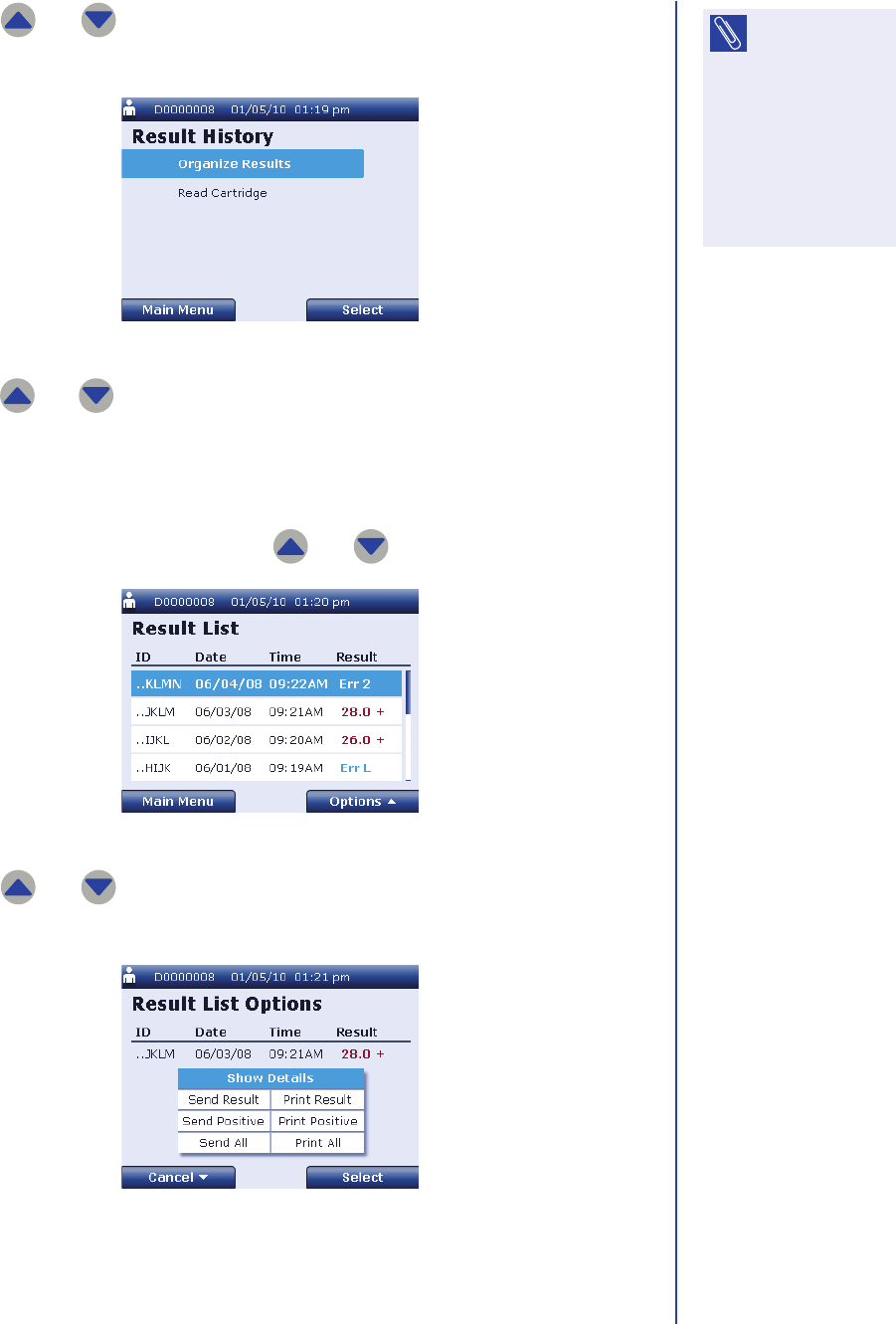
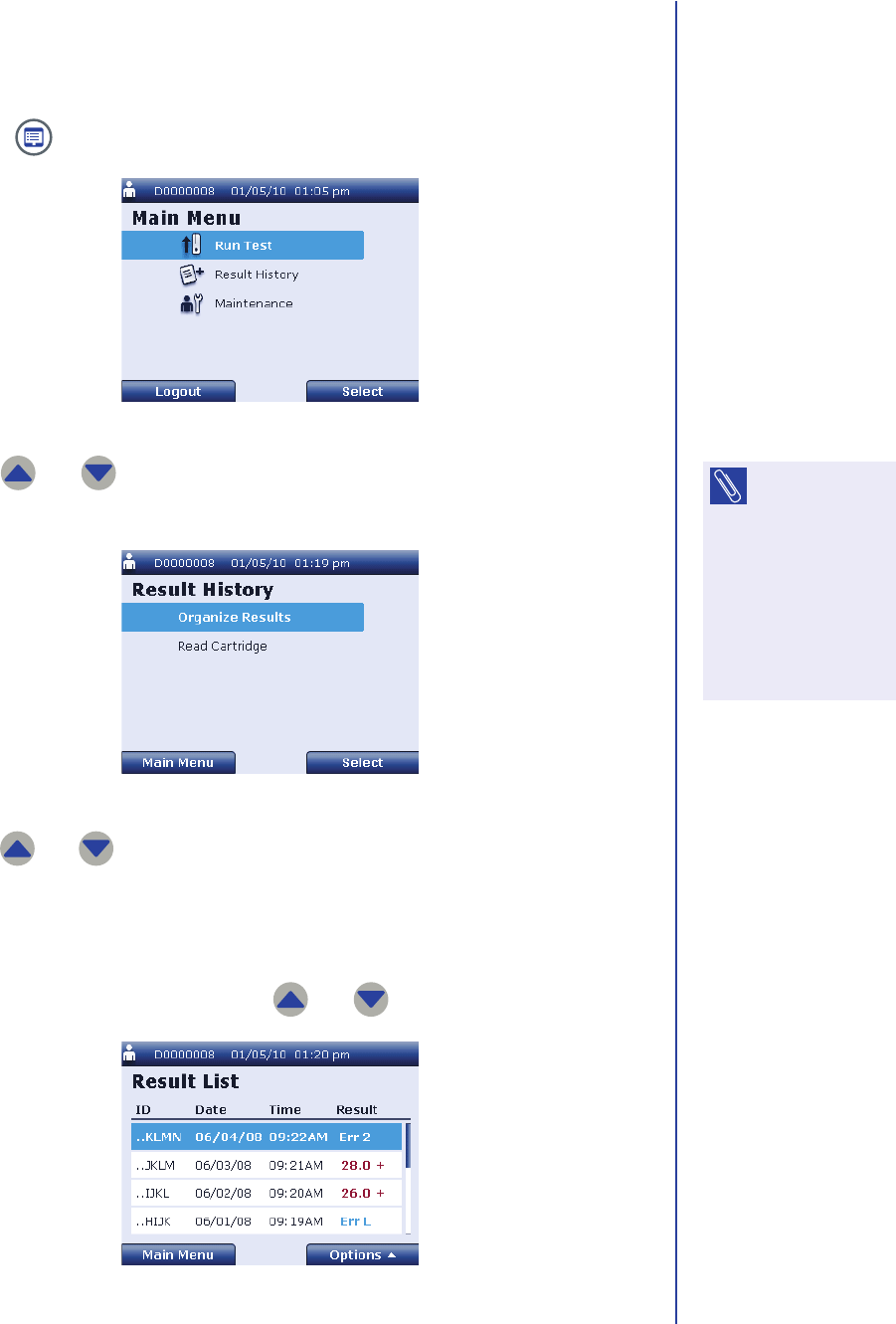
2. Use and to highlight Result History and press Select to display
the Result History screen.
3. Use and to highlight Organize Results and press Select to display
the Result List screen.
The reader displays the patient ID, date, time, and test result for all results
stored in the reader’s memory, starting with the most recent test performed.
You can scroll through results using and .
4. Use and to highlight the desired result and press Options a to
display the Result List Options screen.
NOTE: The Result
History menu
item is not available
on the supervisor
Main Menu screen. If
you are logged in as a
supervisor, select
Change to Operator to
display the operator
Main Menu screen.
Result History Screen
Result List Screen
Result List Options Screen

Apex Reader User’s Guide
74
5. Use and to highlight Show Details and press Select to display the
Detailed Result screen.
The following information is available on the Detailed Result screen:
■Patient ID: The complete patient ID recorded for the test.
■Assay: The assay type that was performed (Appy Score).
■Result: The result of the test.
■Time: The time and date the test was performed.
■Cartridge #: The number of the cartridge used for the test.
■Op ID: The ID for the operator that performed the test.
■Buffer #: The lot number of the buffer used for the test.
■Conjugate #: The lot number of the conjugate used for the test.
■Temperature: The temperature recorded in the reader at the time the
test was performed.
■Last LQC: The date of the last LQC performed on the reader.
6. When you have finished viewing result details, press Back to return to the
Result List screen.
Detailed Result Screen
Daily Operations
75
Sending Patient Results
Perform the following steps to send patient results stored in the reader’s memory to
the LIS:
1. Press to display the operator Main Menu screen.
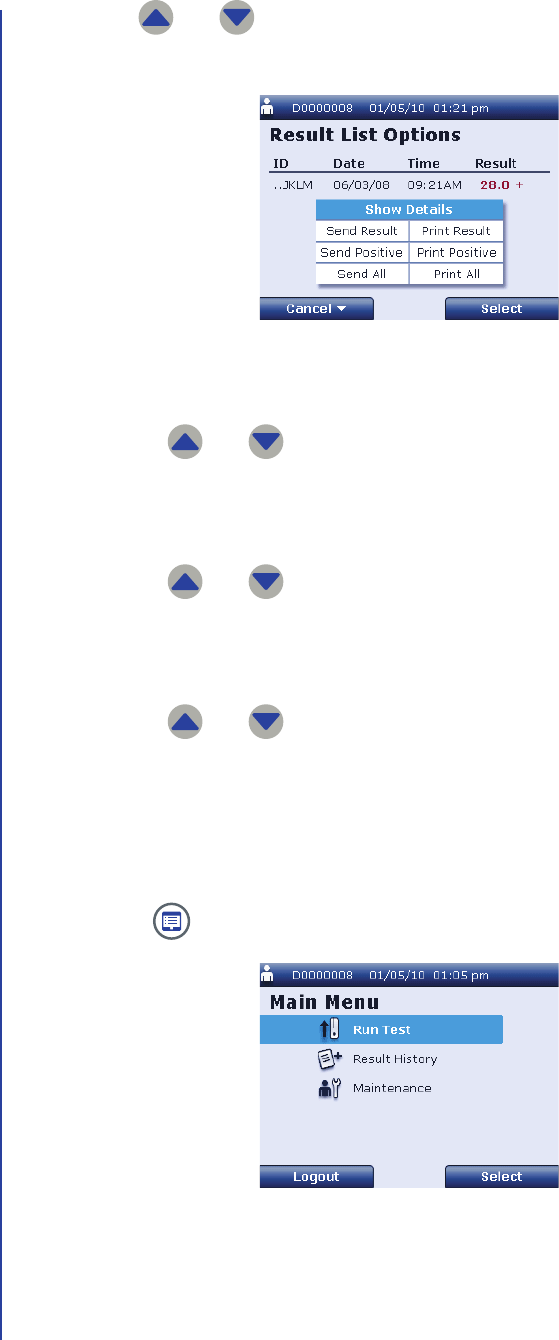
2. Use and to highlight Result History and press Select to display
the Result History screen.
3. Use and to highlight Organize Results and press Select to display
the Result List screen.
The reader displays the patient ID, date, time, and test result for all results
stored in the reader’s memory, starting with the most recent test performed.
You can scroll through results using and .
Operator Main Menu Screen
NOTE: The Result
History menu
item is not available
on the supervisor
Main Menu screen. If
you are logged in as a
supervisor, select
Change to Operator to
display the operator
Main Menu screen.
Result History Screen
Result List Screen
Apex Reader User’s Guide
76
4. Use and to highlight the result you want to send and press
Options a to display the Result List Options screen.
5. To send only the selected result:
a. Use and to highlight Send Result and press Select.
b. The reader sends the result, then returns to the Result List screen.
6. To send all patient results stored in the reader’s memory:
a. Use and to highlight Send All and press Select.
b. The reader sends the results, then returns to the Result List screen.
7. To send all positive results stored in the reader’s memory:
a. Use and to highlight Send Positive and press Select.
b. The reader sends the results, then returns to the Result List screen.
Printing Patient Results
Perform the following steps to print patient results stored in the reader’s memory:
1. Press to display the operator Main Menu screen.
Result List Options Screen
Operator Main Menu Screen
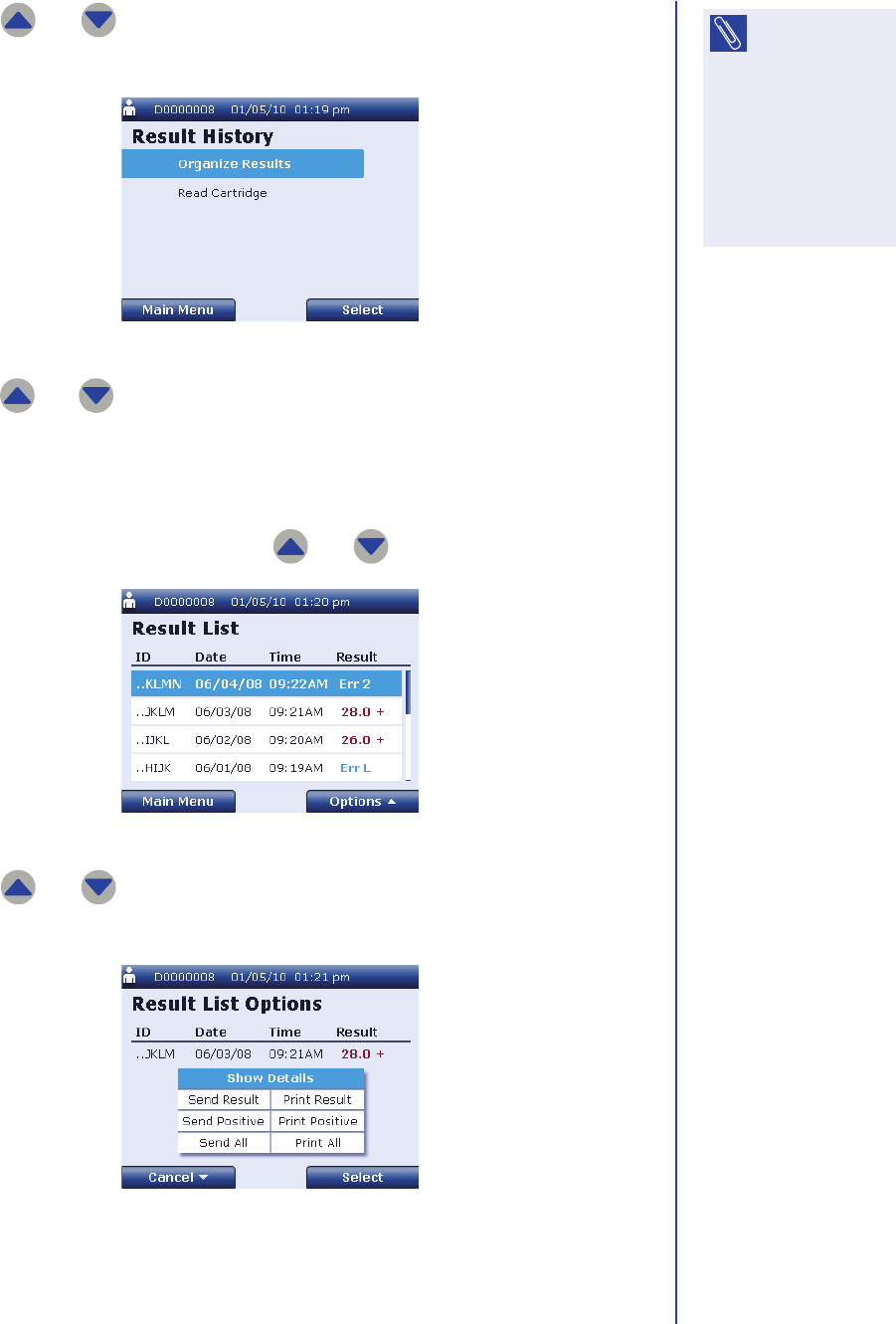
Daily Operations
77
2. Use and to highlight Result History and press Select to display
the Result History screen.
3. Use and to highlight Organize Results and press Select to display
the Result List screen.
The reader displays the patient ID, date, time, and test result for all results
stored in the reader’s memory, starting with the most recent test performed.
You can scroll through results using and .
4. Use and to highlight the desired result and press Options a to
display the Result List Options screen.
NOTE: The Result
History menu
item is not available
on the supervisor
Main Menu screen. If
you are logged in as a
supervisor, select
Change to Operator to
display the operator
Main Menu screen.
Result History Screen
Result List Screen
Result List Options Screen
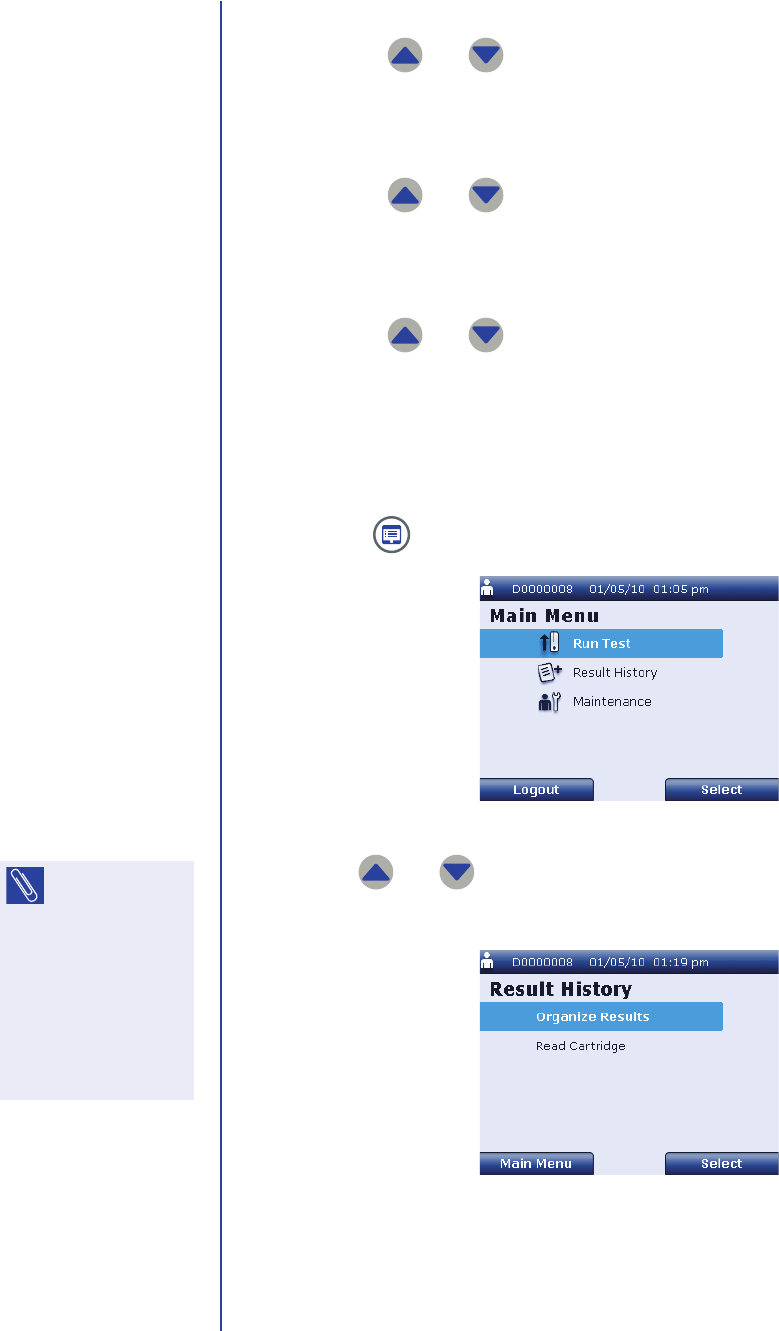
Apex Reader User’s Guide
78
5. To print only the selected result:
a. Use and to highlight Print Result and press Select.
b. The reader prints the result, then returns to the Result List screen.
6. To print all patient results stored in the reader’s memory:
a. Use and to highlight Print All and press Select.
b. The reader prints the results, then returns to the Result List screen.
7. To print all positive results stored in the reader’s memory:
a. Use and to highlight Print Positive and press Select.
b. The reader prints the results, then returns to the Result List screen.
Viewing a Result Stored on a Test Cartridge
Perform the following steps to view an individual result stored on a test cartridge:
1. Press to display the operator Main Menu screen.
2. Use and to highlight Result History and press Select to display
the Result History screen.
3. Place the test cartridge on the designated location on the reader. AG:
CLARIFY.
Operator Main Menu Screen
NOTE: The Result
History menu
item is not available
on the supervisor
Main Menu screen. If
you are logged in as a
supervisor, select
Change to Operator to
display the operator
Main Menu screen.
Result History Screen

Daily Operations
79
4. Use and to highlight Read Cartridge and press Select to display
the Read Result on Cartridge screen.
The reader displays the patient ID, date, time, and test result for the result
stored on the test cartridge.
5. To view detailed information for the test result:
a. Press Options a to display the Read Cartridge Options screen.
b. Use and to highlight Show Details and press Select to display
the Read Cartridge Details screen.
Read Result on Cartridge Screen
Read Cartridge Options Screen

Apex Reader User’s Guide
80
The following information is available on the Read Cartridge Details
screen:
–Patient ID: The complete patient ID recorded for the test.
–Assay: The assay type that was performed (Appy Score).
–Result: The result of the test.
–Time: The time and date the test was performed.
–Cartridge #: The number of the cartridge used for the test.
–Op ID: The ID for the operator that performed the test.
–Buffer #: The lot number of the buffer used for the test.
–Conjugate #: The lot number of the conjugate used for the test.
–Temperature: The temperature recorded in the reader at the time
the test was performed.
–Last LQC: The date of the last LQC performed on the reader.
c. When you have finished viewing result details, press Back to return to the
Read Cartridge Options screen.
6. To send the test result to the LIS:
a. Press Options a to display the Read Cartridge Options screen.
b. Use and to highlight Send to LIS and press Select.
c. The reader sends the result, then returns to the Read Cartridge Options
screen.
7. To print the test result:
a. Press Options a to display the Read Cartridge Options screen.
b. Use and to highlight Print Result and press Select.
c. The reader prints the result, then returns to the Read Cartridge Options
screen.
Read Cartridge Details Screen

Daily Operations
81
Daily Shutdown
Turn off the reader at the end of each day. To turn off the reader, push the on/off
switch up, then release it.

Apex Reader User’s Guide
82
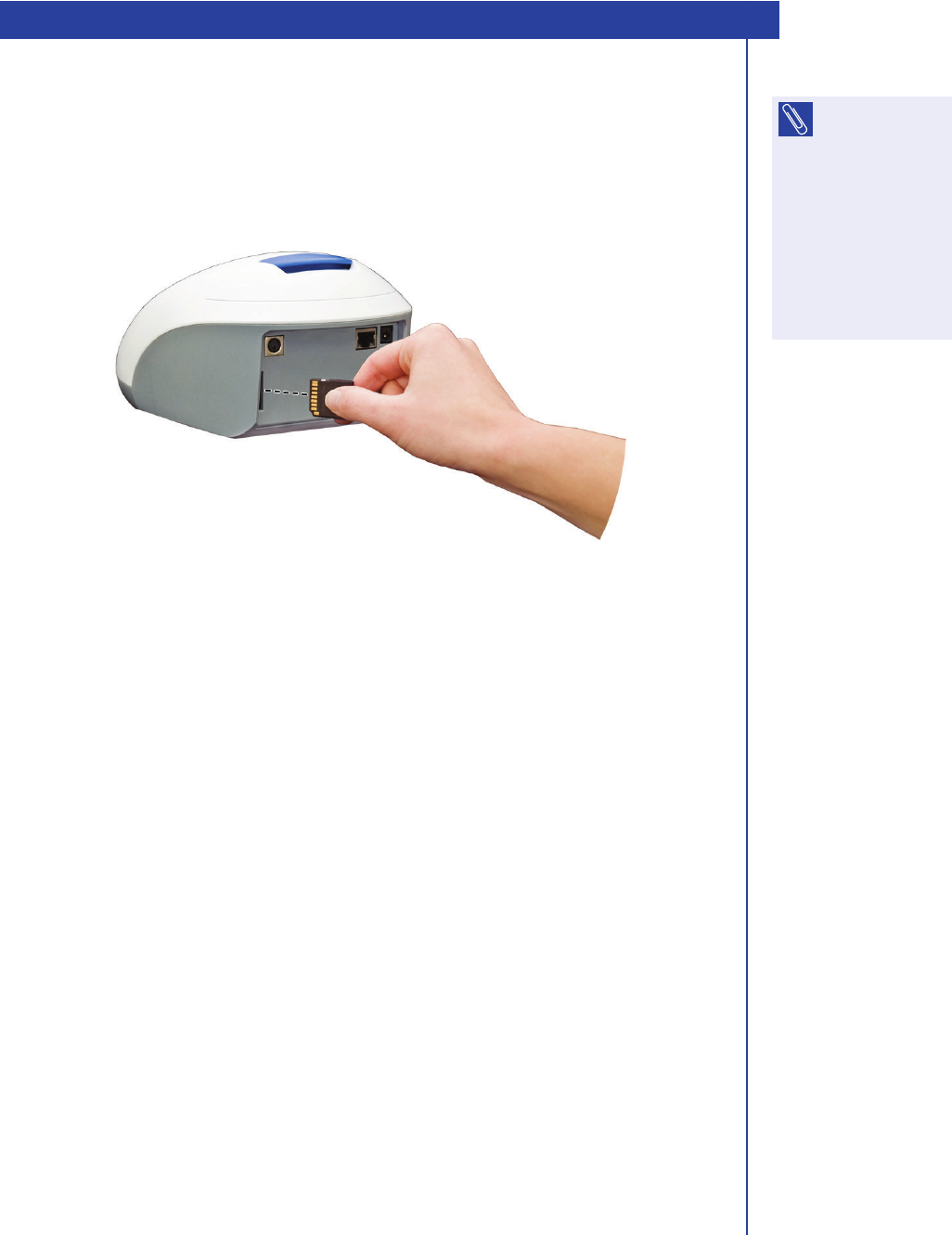
83
Export / Import Features
Supervisor users can export information to and import information from an SD card.
To install the SD card, insert the card into the SD card slot in the back of the reader
as shown below. Ensure that the metallic contacts on the edge of the card are
facing toward the outside of the reader as shown in the figure below. Push in the
card until you feel resistance.
■To export test results stored on the reader to the SD card, see Exporting
Stored Test Results on page84.
■To export the last 10 raw data scans stored on the reader to the SD card, see
Exporting Raw Test Data on page86.
■To export user records to or import user records from the SD card, see
Importing and Exporting Users on page87.
NOTE: Only
supervisor users
can use the reader’s
export / import
features. If you are
logged in as an
operator, select
Maintenance >
Change to Supervisor
to export or import
information.
Installing the SD Card
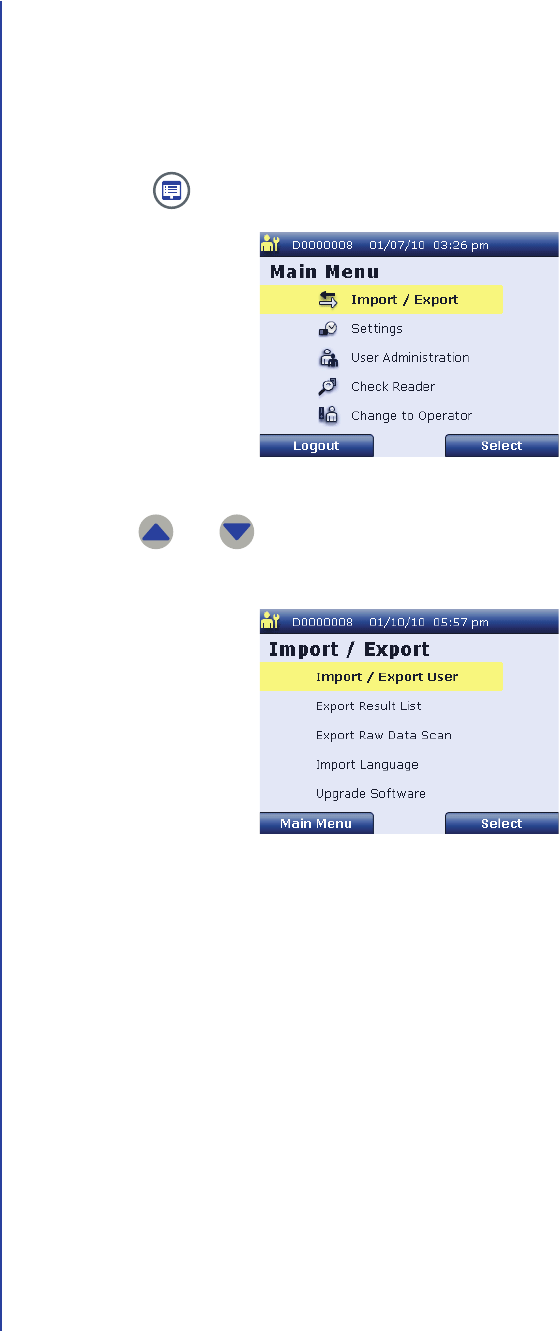
Apex Reader User’s Guide
84
Exporting Stored Test Results
Perform the following steps to export test results stored on the reader to the SD
card:
1. Install the SD card in the reader. For instructions, see page 83.
2. Press to display the supervisor Main Menu screen.
3. Use and to highlight Import / Export and press Select to display
the Import / Export screen.
Supervisor Main Menu Screen
Import / Export Screen
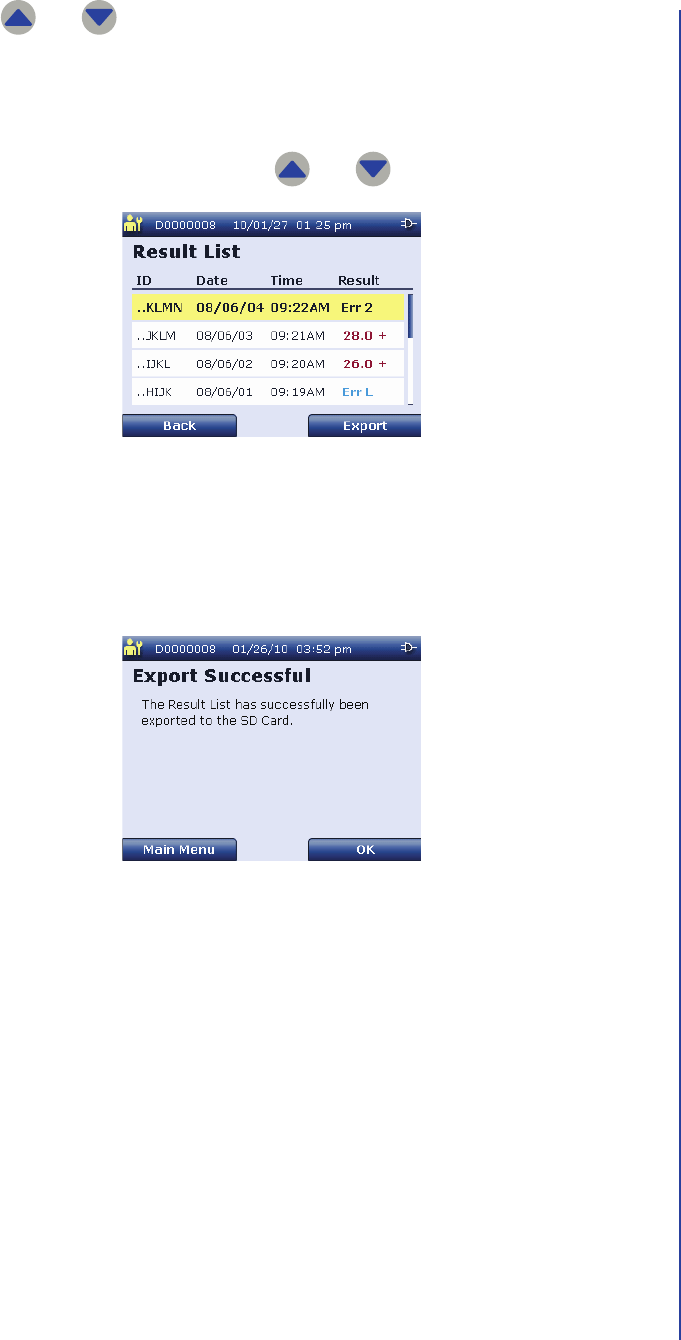
Export / Import Features
85
4. Use and to highlight Export Result List and press Select to
display the Export Result List screen.
The reader displays the patient ID, date, time, and test result for all results
stored in the reader’s memory, starting with the most recent test performed.
You can scroll through results using and .
5. Press Export to export the result list.
The reader displays the Export Successful screen when the result list has
been exported to the SD card.
6. Press OK to return to the Export Result List screen or press Main Menu to
return to the supervisor Main Menu screen.
Export Result List Screen
Export Successful Screen — Result List
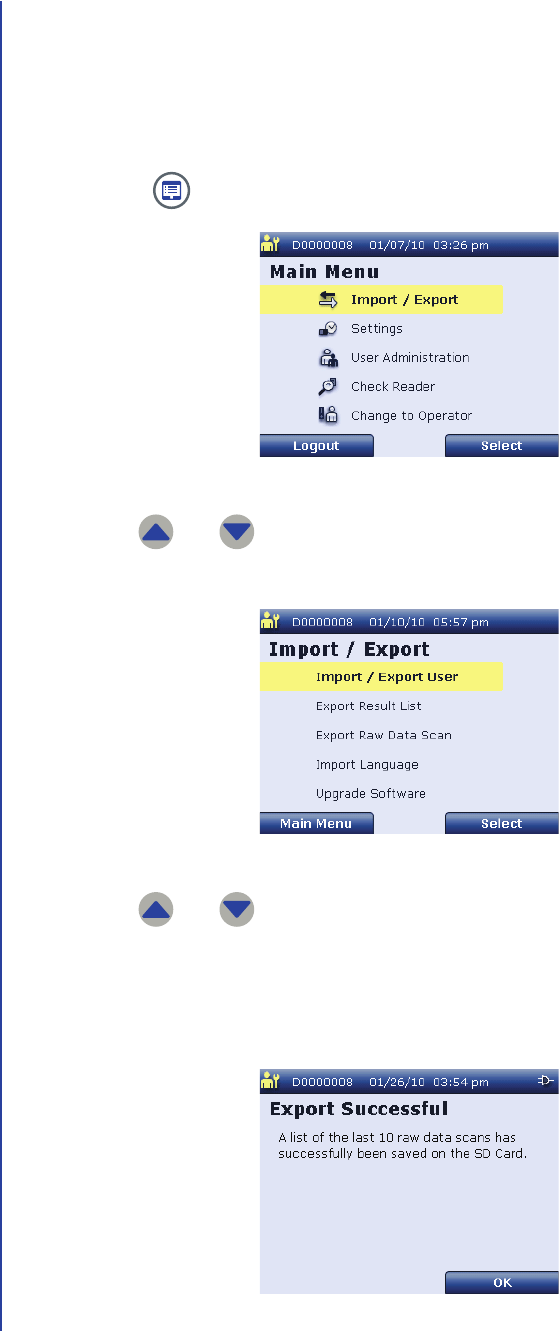
Apex Reader User’s Guide
86
Exporting Raw Test Data
Perform the following steps to export the last 10 raw data scans stored on the
reader to the SD card:
1. Install the SD card in the reader. For instructions, see page 83.
2. Press to display the supervisor Main Menu screen.
3. Use and to highlight Import / Export and press Select to display
the Import / Export screen.
4. Use and to highlight Export Raw Data Scan and press Select to
export the last 10 raw data scans.
The reader displays the Export Successful screen when the data has been
exported to the SD card.
Supervisor Main Menu Screen
Import / Export Screen
Export Successful Screen — Raw Data
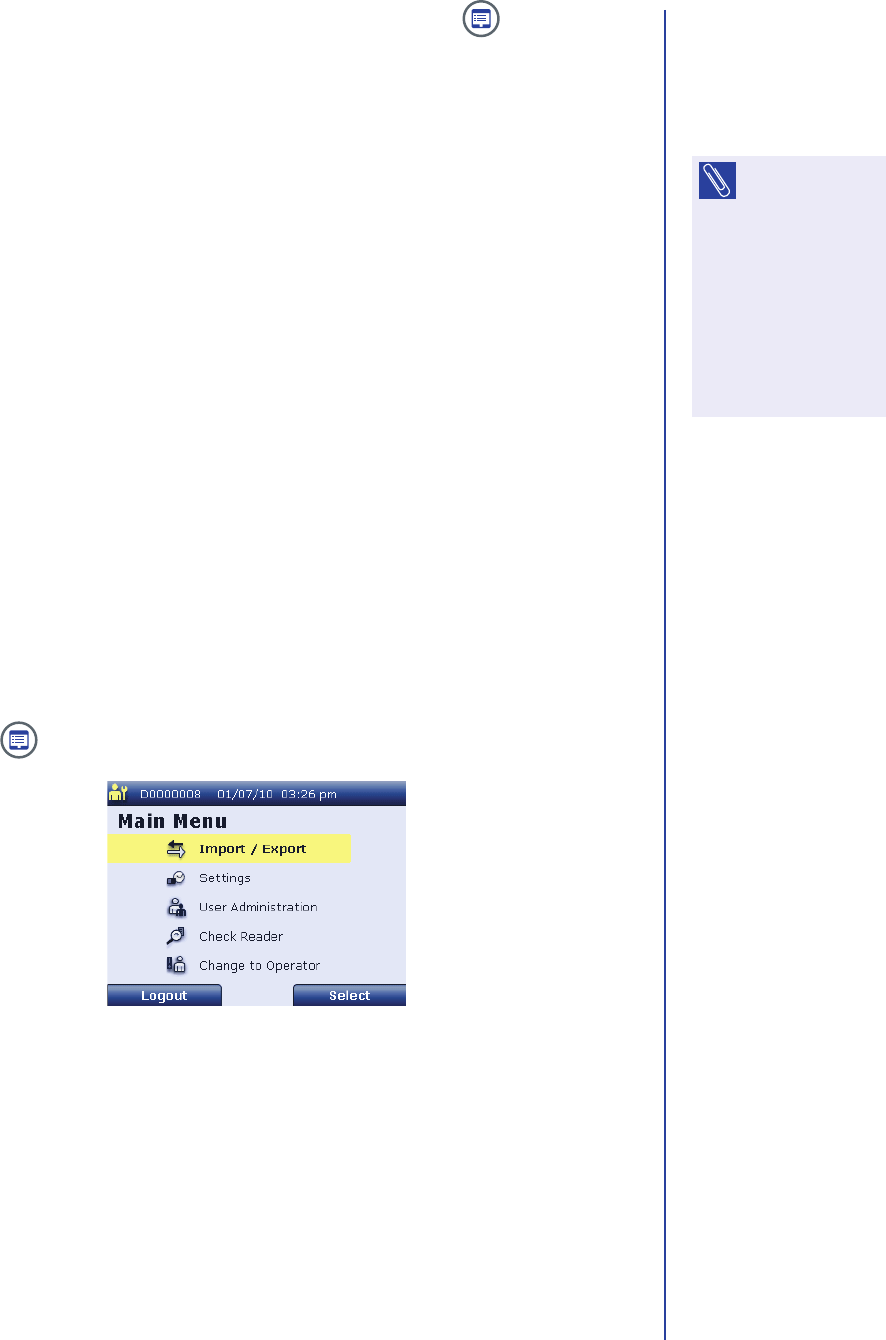
Export / Import Features
87
5. Press OK to return to the Import / Export screen or press to return to
the supervisor Main Menu screen.
Importing and Exporting Users
Supervisor users can export user records to or import user records from the SD
card.
■To export the user record for a selected user to the SD card, see Exporting a
User on page87.
■To export user records for multiple users to the SD card, see Exporting All
Users on page89.
■To import the user record for a selected user from the SD card, see Importing a
User on page91.
■To import user records for multiple users from the SD card, see Importing All
Users on page93.
Exporting a User
Perform the following steps to export the user record for a selected user to the SD
card:
1. Install the SD card in the reader. For instructions, see page 83.
2. Press to display the supervisor Main Menu screen.
NOTE: Only
supervisor users
can use the reader’s
export / import
features. If you are
logged in as an
operator, select
Maintenance >
Change to Supervisor
to export or import
information.
Supervisor Main Menu Screen
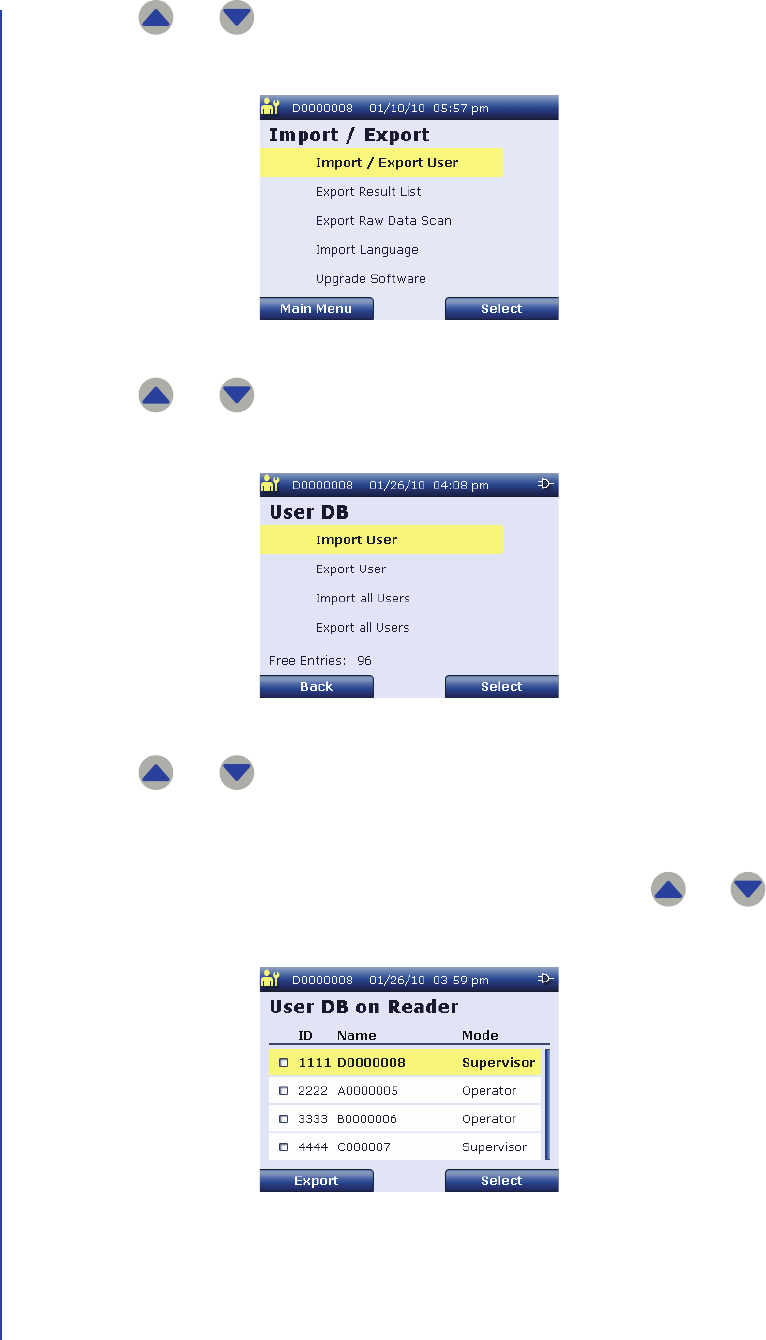
Apex Reader User’s Guide
88
3. Use and to highlight Import / Export and press Select to display
the Import / Export screen.
4. Use and to highlight Import / Export User and press Select to
display the User DB screen.
5. Use and to highlight Export User and press Select to display the
User DB on Reader screen.
The reader displays the user ID, user name, and user mode for all users that
have been added, arranged numerically by user ID. You can use and
to scroll through user records.
Import / Export Screen
User DB Screen
User DB on Reader Screen
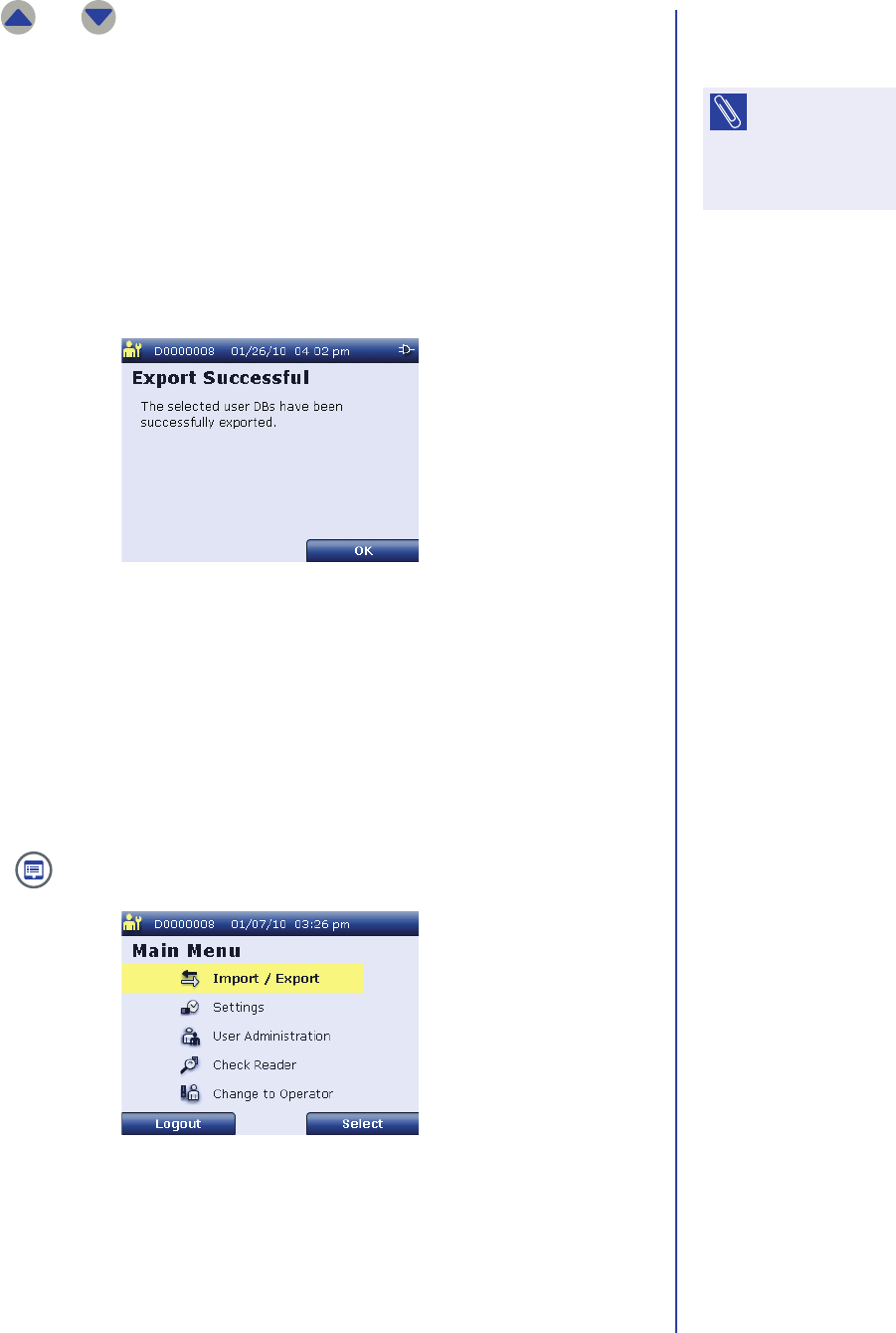
Export / Import Features
89
6. Use and to highlight the user record you want to export and press
Select.
A checkmark appears in the box next to the user ID to indicate the selected
user.
7. Press Export to copy the user information for the selected user to the SD
card.
The reader displays the Export Successful screen when the user record has
been exported to the SD card.
8. Press OK to return to the Import / Export screen or press Main Menu to
return to the supervisor Main Menu screen.
Exporting All Users
Perform the following steps to export multiple user records to the SD card:
1. Install the SD card in the reader. For instructions, see page 83.
2. Press to display the supervisor Main Menu screen.
NOTE: To remove
the checkmark,
highlight the user
record and press
Select again.
Export Successful Screen — User
Supervisor Main Menu Screen
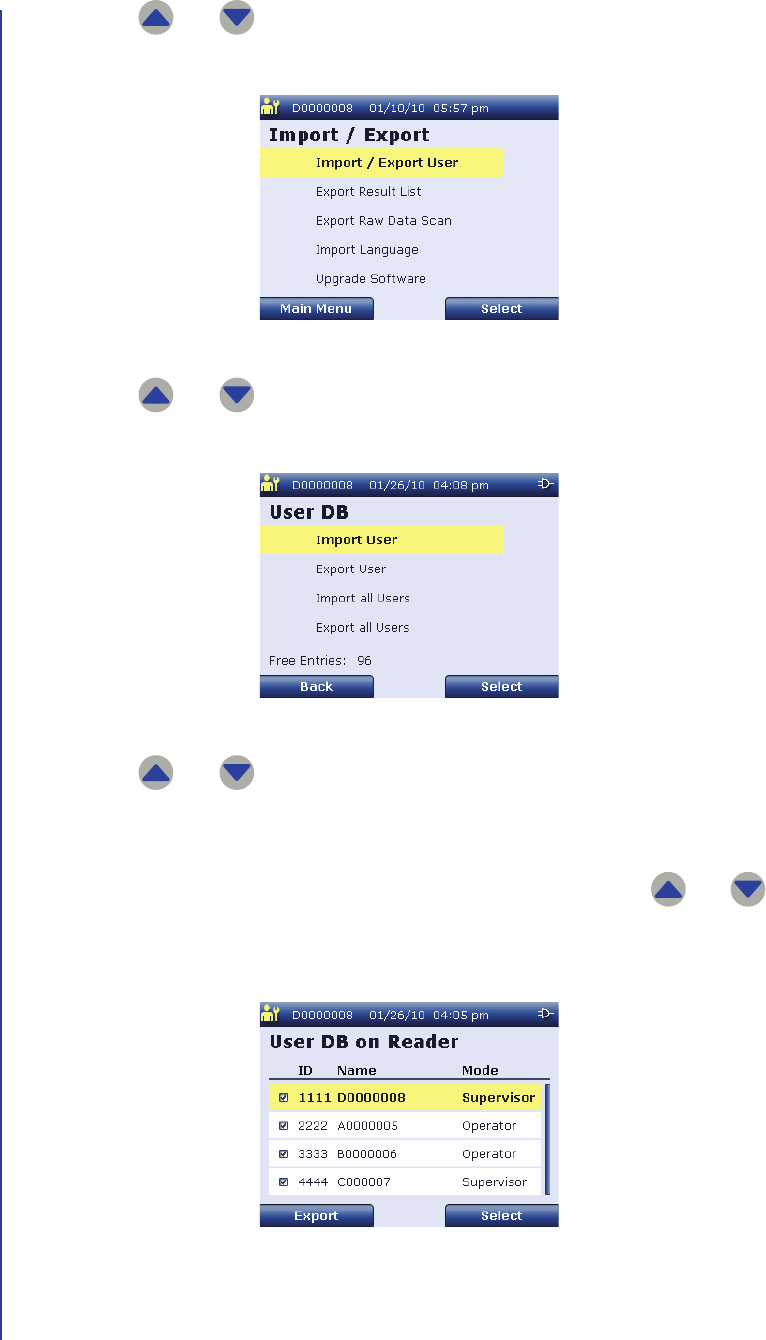
Apex Reader User’s Guide
90
3. Use and to highlight Import / Export and press Select to display
the Import / Export screen.
4. Use and to highlight Import / Export User and press Select to
display the User DB screen.
5. Use and to highlight Export all Users and press Select to display
the User DB on Reader screen.
The reader displays the user ID, user name, and user mode for all users that
have been added, arranged numerically by user ID. You can use and
to scroll through user records. A checkmark is shown in the box next to each
user ID to indicate that all users have been selected to be exported.
Import / Export Screen
User DB Screen
User DB on Reader Screen
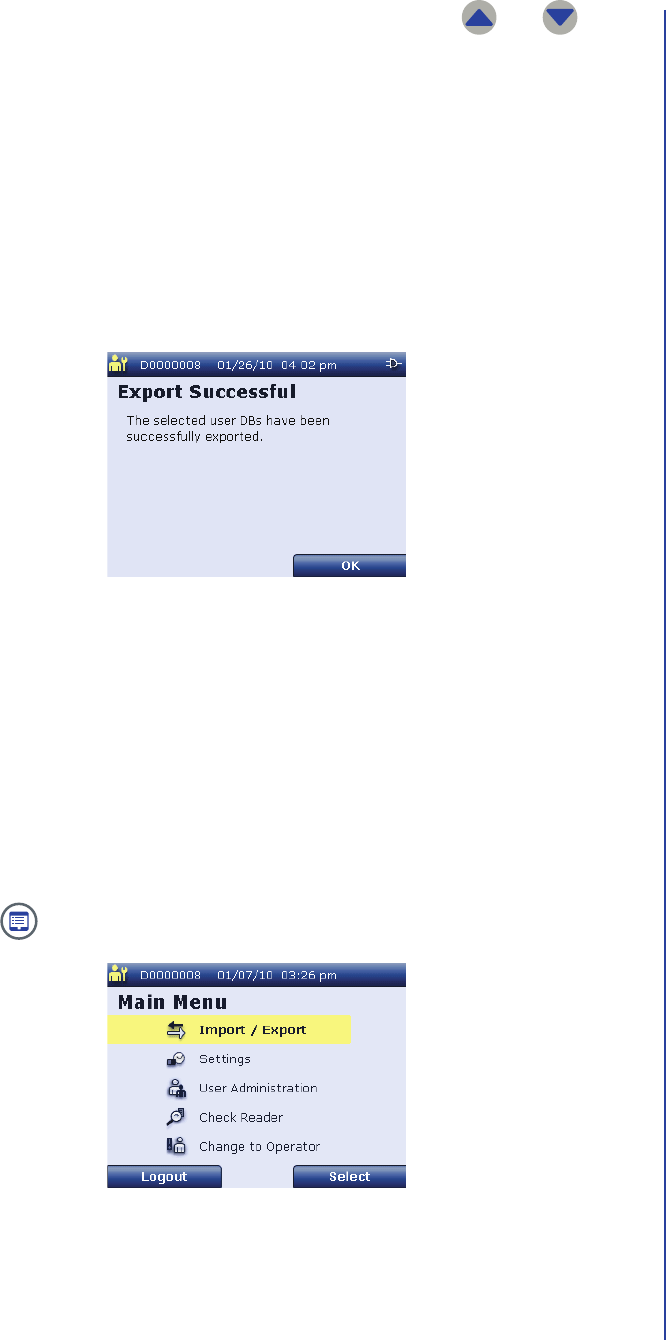
Export / Import Features
91
6. If there is a user record that you do not want to export, use and to
highlight the user record. When the user record is highlighted, press Select.
The checkmark is removed from the box next to the user ID.
7. Repeat Step 6 as necessary.
8. When all desired user records are selected, press Export to copy the user
information for the selected users to the SD card.
The reader displays the Export Successful screen when the user records
have been exported to the SD card.
9. Press OK to return to the Import / Export screen or press Main Menu to
return to the supervisor Main Menu screen.
Importing a User
Perform the following steps to import the user record for a selected user from the
SD card:
1. Install the SD card in the reader. For instructions, see page 83.
2. Press to display the supervisor Main Menu screen.
Export Successful Screen — User
Supervisor Main Menu Screen
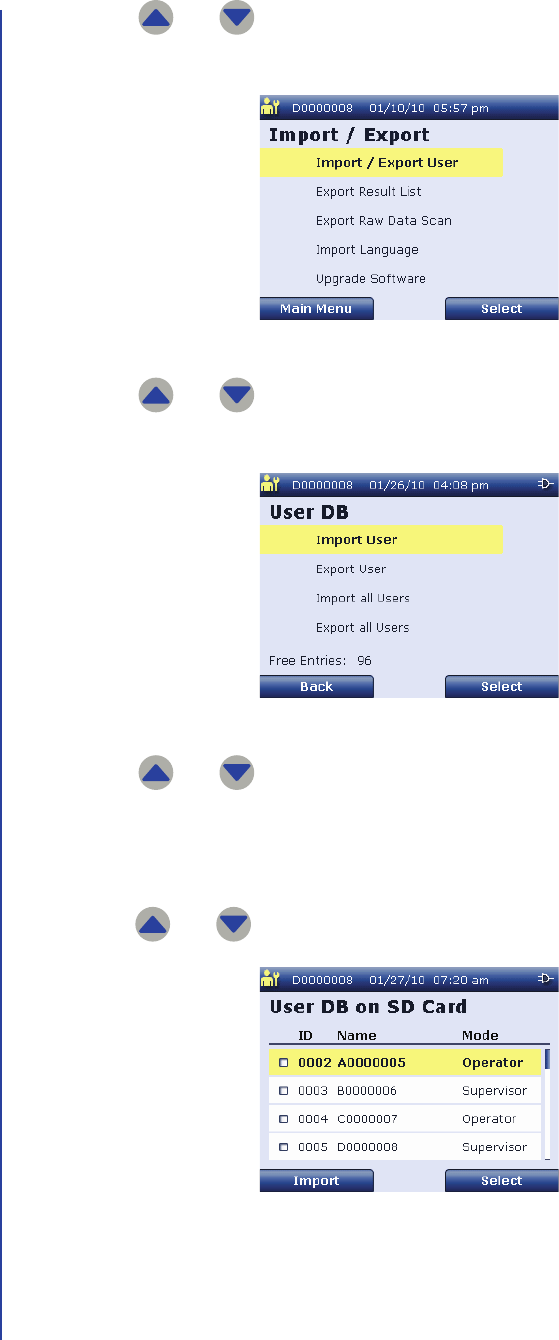
Apex Reader User’s Guide
92
3. Use and to highlight Import / Export and press Select to display
the Import / Export screen.
4. Use and to highlight Import / Export User and press Select to
display the User DB screen.
5. Use and to highlight Import User and press Select.
The user records are read from the SD card and displayed on the User DB on
SD Card screen. This screen displays the user ID, user name, and user mode
for all user records on the SD card, arranged numerically by user ID. You can
use and to scroll through user records.
Import / Export Screen
User DB Screen
User DB on SD Card Screen
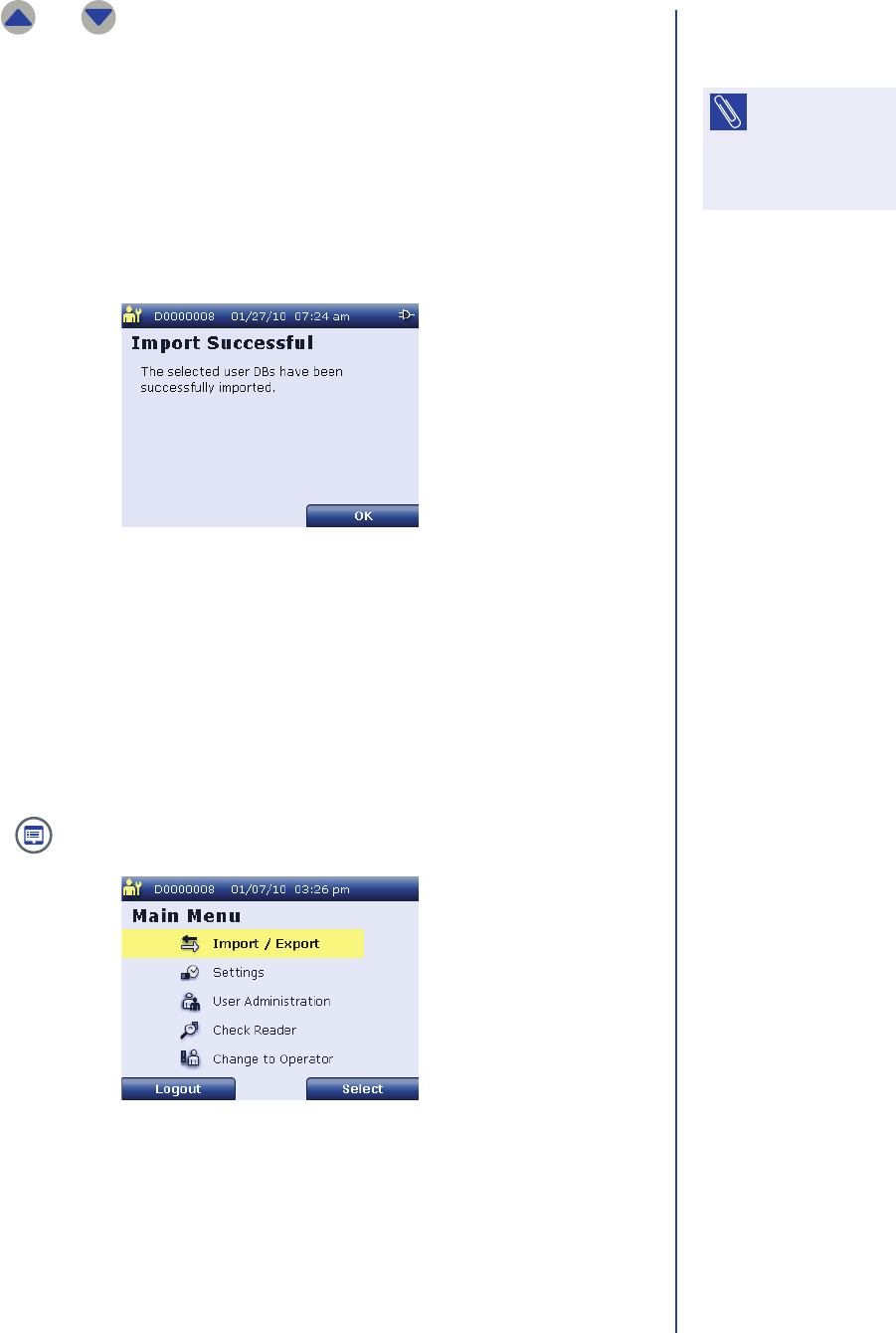
Export / Import Features
93
6. Use and to highlight the user record you want to import. When the
desired user record is highlighted, press Select.
A checkmark appears in the box next to the user ID to indicate the selected
user.
7. Press Import to copy the user information for the selected user to the reader.
The reader displays the Import Successful screen when the user record has
been imported to the reader.
8. Press OK to go to the User ID List screen or press Main Menu to return to
the supervisor Main Menu screen.
Importing All Users
Perform the following steps to import multiple user records from the SD card:
1. Install the SD card in the reader. For instructions, see page 83.
2. Press to display the supervisor Main Menu screen.
NOTE: To remove
the checkmark,
highlight the user
record and press
Select again.
Import Successful Screen
Supervisor Main Menu Screen
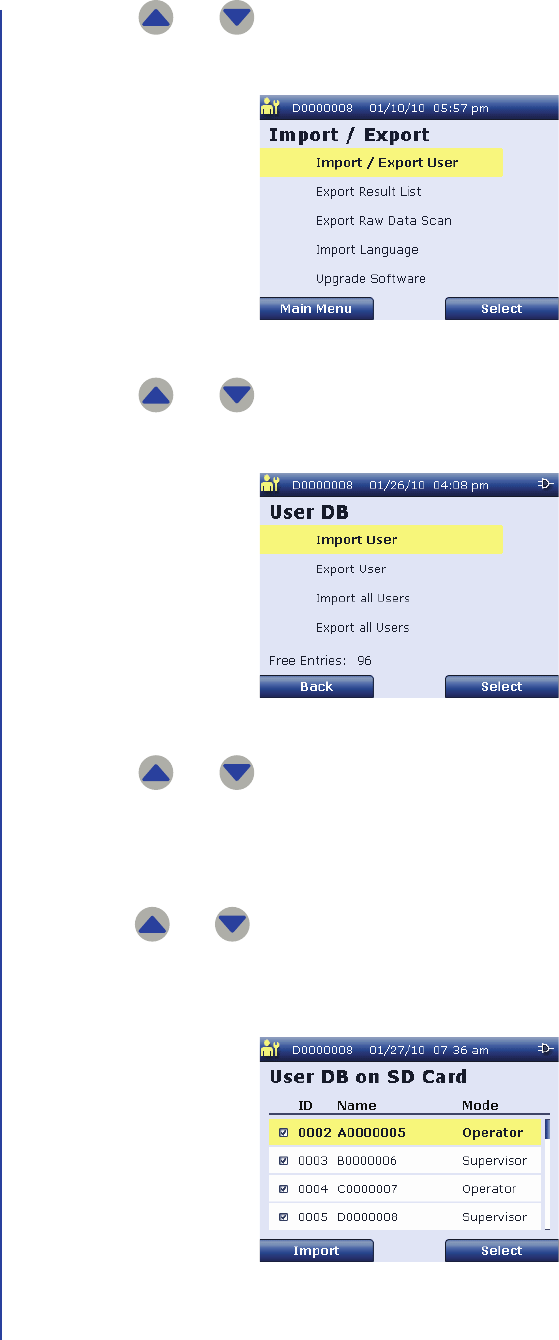
Apex Reader User’s Guide
94
3. Use and to highlight Import / Export and press Select to display
the Import / Export screen.
4. Use and to highlight Import / Export User and press Select to
display the User DB screen.
5. Use and to highlight Import all Users and press Select.
The user records are read from the SD card and displayed on the User DB on
SD Card screen. This screen displays the user ID, user name, and user mode
for all user records on the SD card, arranged numerically by user ID. You can
use and to scroll through user records. A checkmark is shown in the
box next to each user ID to indicate that all users have been selected to be
imported.
Import / Export Screen
User DB Screen
User DB on SD Card Screen
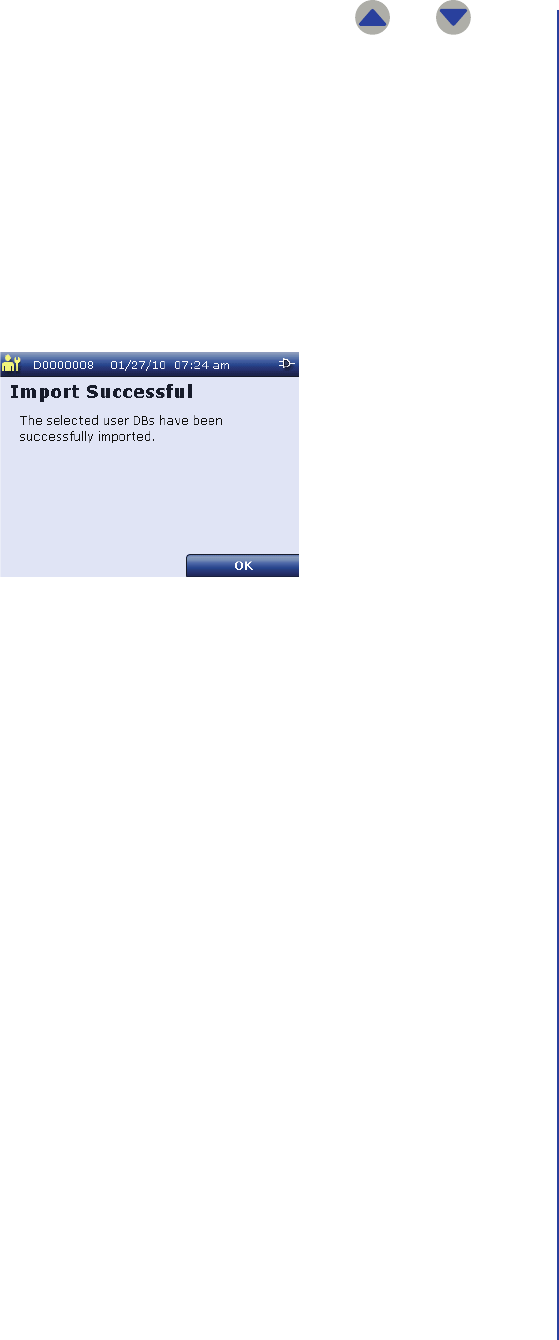
Export / Import Features
95
6. If there is a user record that you do not want to import, use and to
highlight the user record. When the user record is highlighted, press Select.
The checkmark is removed from the box next to the user ID.
7. Repeat Step 6 as necessary.
8. When all desired user records are selected, press Import to copy the user
information for the selected users to the reader.
The reader displays the Import Successful screen when the user records
have been imported to the reader.
9. Press OK to go to the User ID List screen or press Main Menu to return to
the supervisor Main Menu screen.
Import Successful Screen

Apex Reader User’s Guide
96
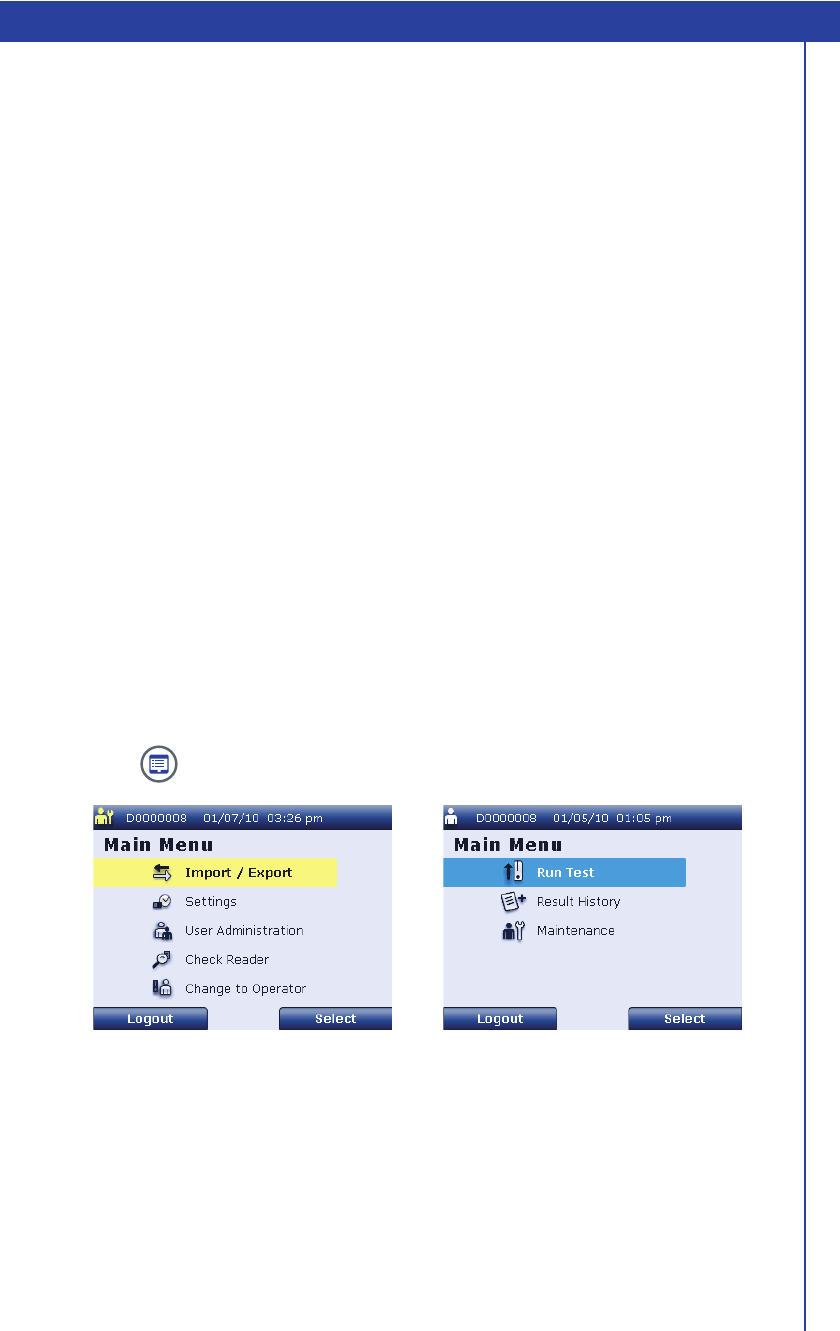
97
Other Features
Reviewing Reader Information
Supervisor users and operator users can review information about the reader. Some
information is only available to supervisor users.
■All users can review the version information for the reader’s software. See
Checking the Software Version on page97 for instructions.
■All users can review a summary of the reader’s settings, including login/logout
settings, patient ID settings, and the reader’s serial number. See Reviewing
Global Settings on page101 for instructions.
■All users can review a listing of actions that have been performed by
supervisors. See Reviewing the Supervisor History on page99 for
instructions.
■Supervisor users can review the results of the last internal check that was
performed on the reader. See Reviewing Internal Check Results on page103
for instructions.
Checking the Software Version
Supervisor users and operator users can review the version information for the
reader’s software. Perform the following steps to check the software version:
1. Press to display the Main Menu screen.
Supervisor Main Menu Screen Operator Main Menu Screen
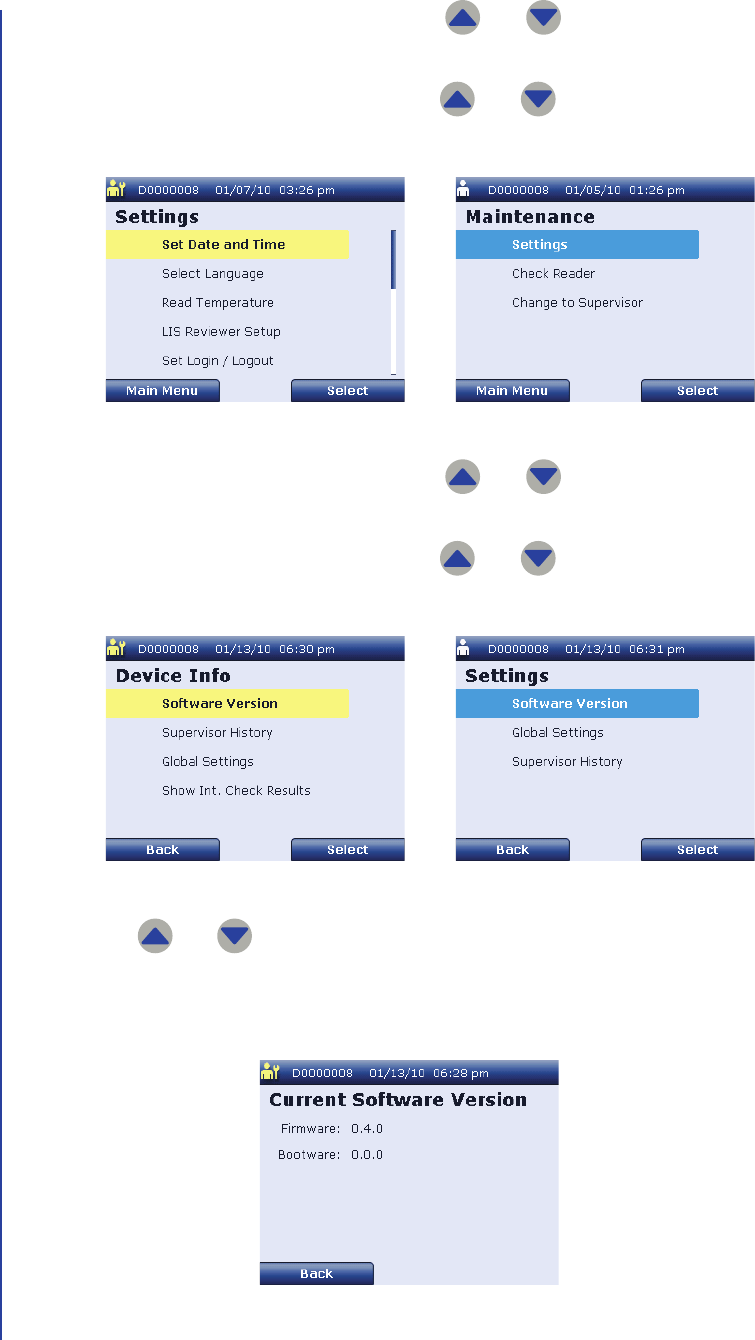
Apex Reader User’s Guide
98
2. If you are logged in as a supervisor, use and to highlight Settings
and press Select to display the supervisor Settings screen.
If you are logged in as an operator, use and to highlight
Maintenance and press Select to display the Maintenance screen.
3. If you are logged in as a supervisor, use and to highlight
Device Info and press Select to display the Device Info screen.
If you are logged in as an operator, use and to highlight Settings
and press Select to display the operator Settings screen.
4. Use and to highlight Software Version and press Select to display
the Current Software Version screen.
The version information for the reader’s software is displayed.
Supervisor Settings Screen Maintenance Screen
Device Info Screen Operator Settings Screen
Current Software Version Screen
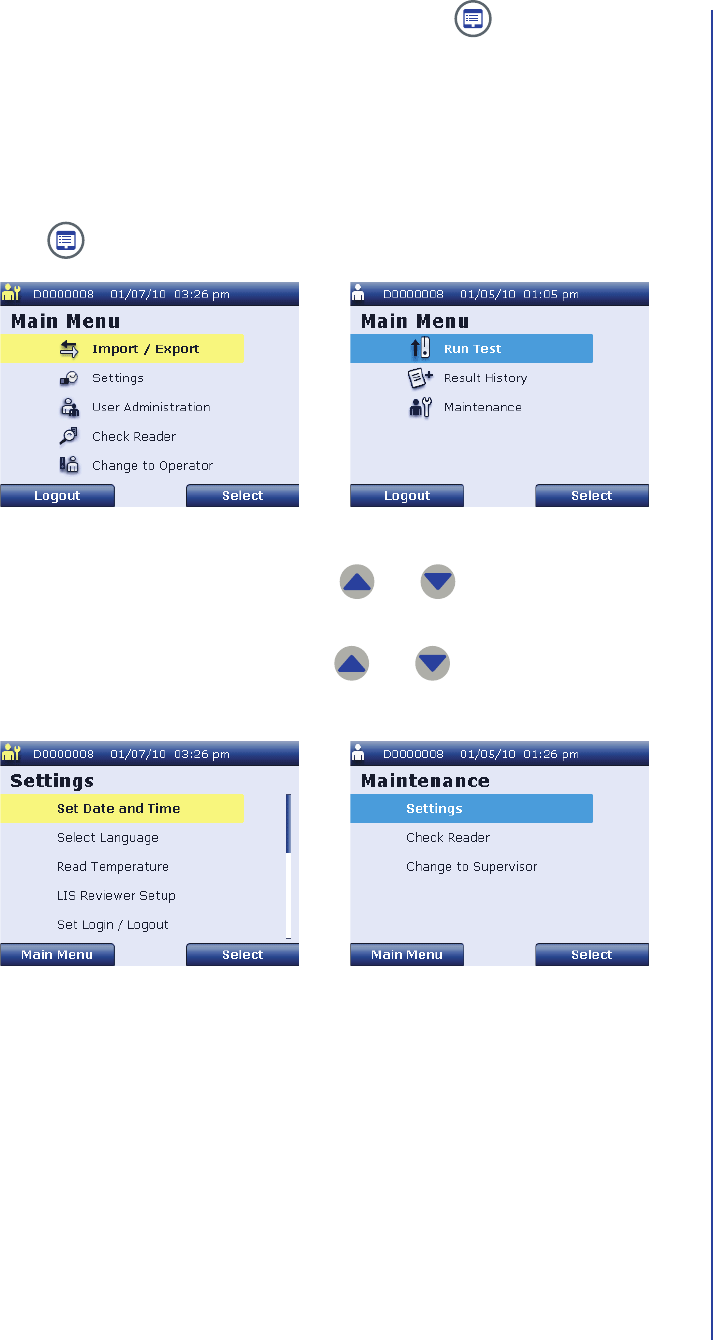
Other Features
99
5. Press Back to return to the previous screen or press to return to the
Main Menu screen.
Reviewing the Supervisor History
Supervisor users and operator users can review a listing of actions that have been
performed by supervisors. Perform the following steps to review supervisor history:
1. Press to display the Main Menu screen.
2. If you are logged in as a supervisor, use and to highlight Settings
and press Select to display the supervisor Settings screen.
If you are logged in as an operator, use and to highlight
Maintenance and press Select to display the Maintenance screen.
Supervisor Main Menu Screen Operator Main Menu Screen
Supervisor Settings Screen Maintenance Screen
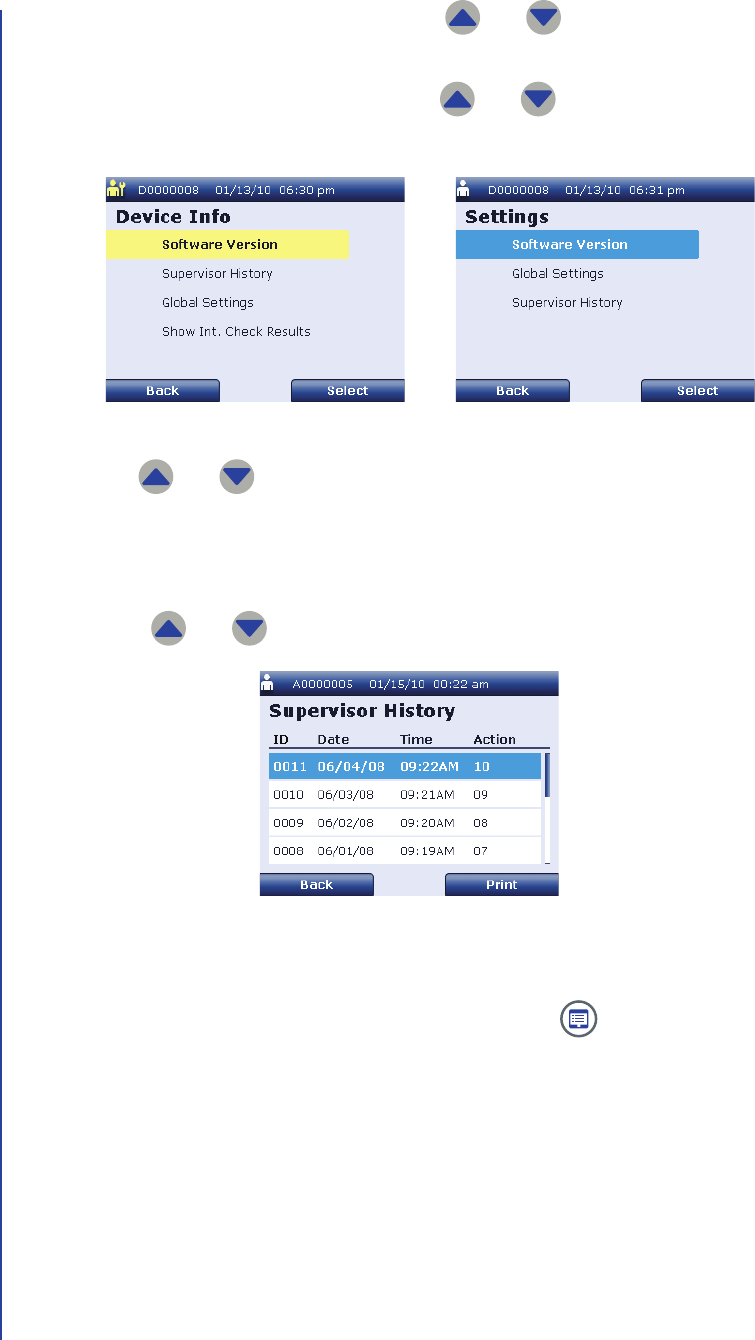
Apex Reader User’s Guide
100
3. If you are logged in as a supervisor, use and to highlight
Device Info and press Select to display the Device Info screen.
If you are logged in as an operator, use and to highlight Settings
and press Select to display the operator Settings screen.
4. Use and to highlight Supervisor History and press Select to
display the Supervisor History screen.
The reader displays the user ID, date, time, and action identifier for actions
that have been performed by supervisor users. You can scroll through actions
using and . AG: CAN WE GET A KEY FOR SUPERVISOR ACTIONS?
5. If you want to print the supervisor history, press Print.
6. Press Back to return to the previous screen or press to return to the
Main Menu screen.
Device Info Screen Operator Settings Screen
Supervisor History Screen

Other Features
101
Reviewing Global Settings
Supervisor users and operator users can review a summary of the following reader
settings:
■Logout Time: The logout time setting is the duration of inactivity after which a
user will be automatically logged out of the reader. For instructions to change
the logout time, see Changing Security and Power Saving Settings on
page44.
■APO Time: The automatic power off time is the duration of inactivity after
which the reader will automatically turn off. For instructions to change the
automatic power off time, see Changing Security and Power Saving Settings
on page44.
■Auto Login: The auto-login setting determines whether users are required to
enter a login and PIN to use the reader. For instructions to change the auto-
login setting, see Changing Security and Power Saving Settings on page44.
■Immediate Print: The immediate print setting determines whether test results
are printed automatically upon completion of a patient test. For instructions to
change printing setup, see Changing the Print Setting on page43.
■Manual Patient ID: The manual patient ID setting determines whether patient
IDs can be input by manual entry. For instructions to change the manual patient
ID setting, see Changing Patient ID Settings on page40.
■External Barcode Reader: The manual patient ID setting determines whether
patient IDs can be input by an external barcode reader. For instructions to
change the external barcode reader setting, see Changing Patient ID Settings
on page40.
■Cutoff: The cutoff setting is the minimum test result that will be considered
positive when the reader tests a patient sample. AG: CONFIRM THAT THIS
SETTING WILL BE AVAILABLE.
■Serial Number: The serial number for the reader is available on this screen.
■Language: The language setting determines what language is displayed on
the reader screen and printouts. For instructions to change the language, see
Changing the Language on page39.
NOTE: Operator
users cannot
modify these settings.
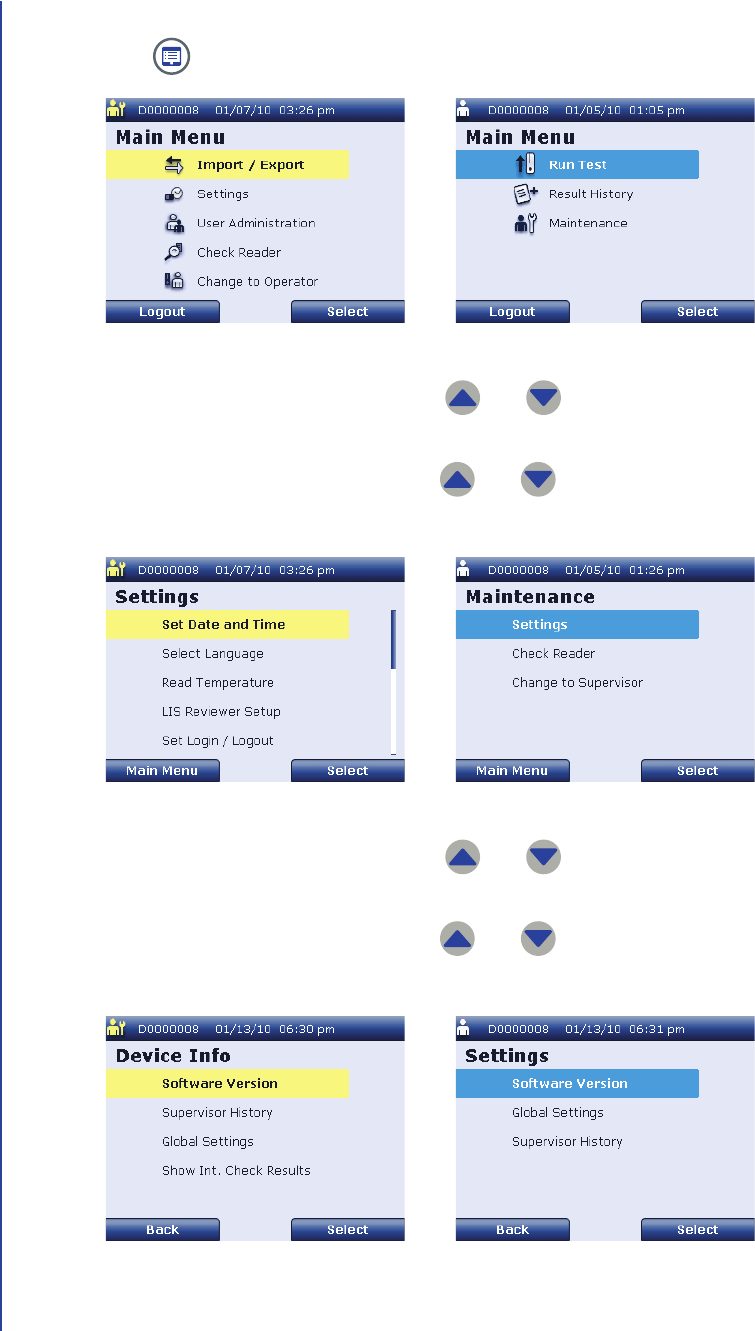
Apex Reader User’s Guide
102
Perform the following steps to review global settings:
1. Press to display the Main Menu screen.
2. If you are logged in as a supervisor, use and to highlight Settings
and press Select to display the supervisor Settings screen.
If you are logged in as an operator, use and to highlight
Maintenance and press Select to display the Maintenance screen.
3. If you are logged in as a supervisor, use and to highlight
Device Info and press Select to display the Device Info screen.
If you are logged in as an operator, use and to highlight Settings
and press Select to display the operator Settings screen.
Supervisor Main Menu Screen Operator Main Menu Screen
Supervisor Settings Screen Maintenance Screen
Device Info Screen Operator Settings Screen
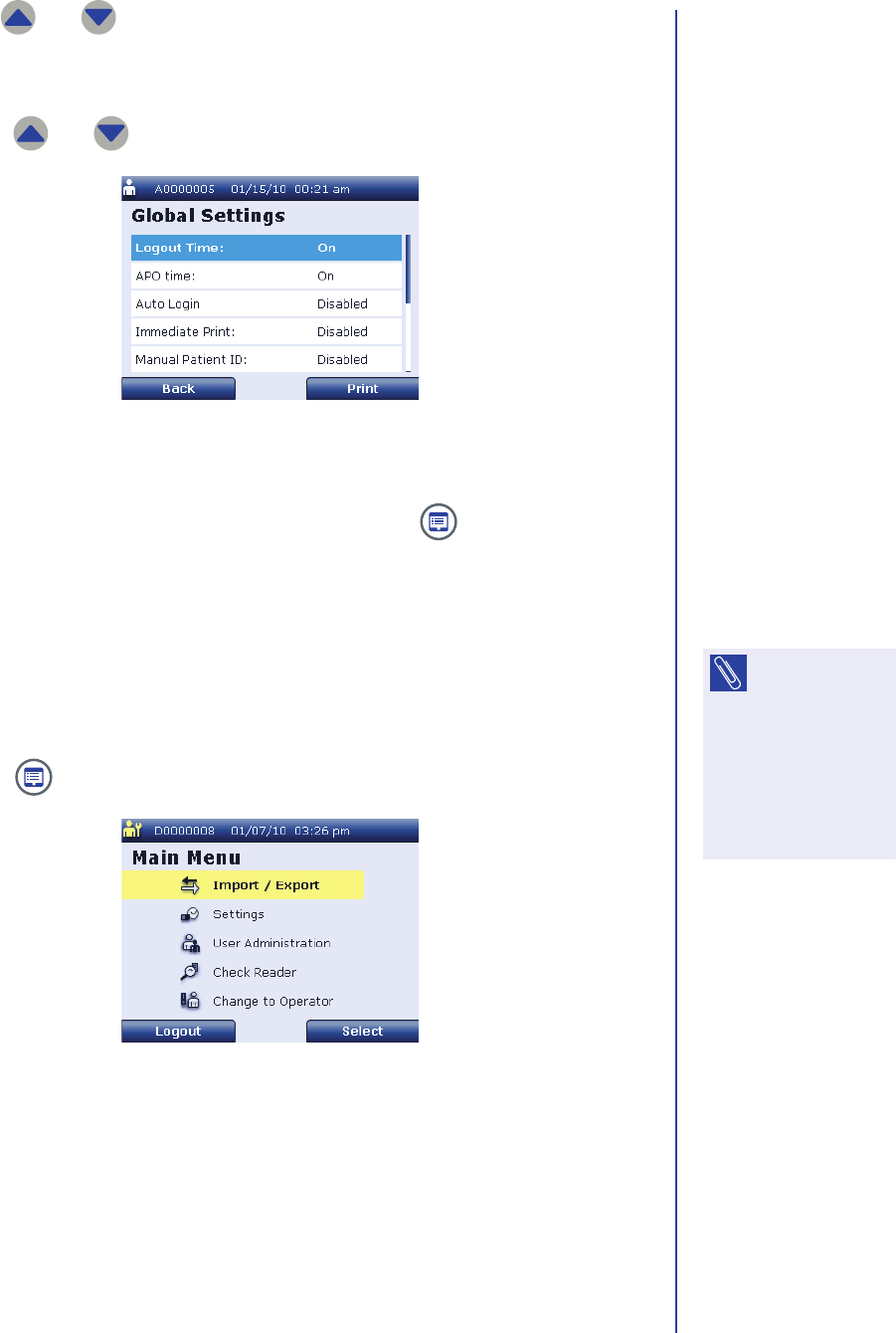
Other Features
103
4. Use and to highlight Global Settings and press Select to display
the Global Settings screen.
The reader’s current settings are displayed. You can scroll through settings
using and .
5. If you want to print the global settings, press Print.
6. Press Back to return to the previous screen or press to return to the
Main Menu screen.
Reviewing Internal Check Results
Supervisor users can review the results of the last internal check that was
performed on the reader. Perform the following steps to review the internal check
results:
1. Press to display the supervisor Main Menu screen.
Global Settings Screen
NOTE: Only
supervisor users
can use this feature. If
you are logged in as
an operator, select
Maintenance >
Change to Supervisor
to review internal
check results.
Supervisor Main Menu Screen
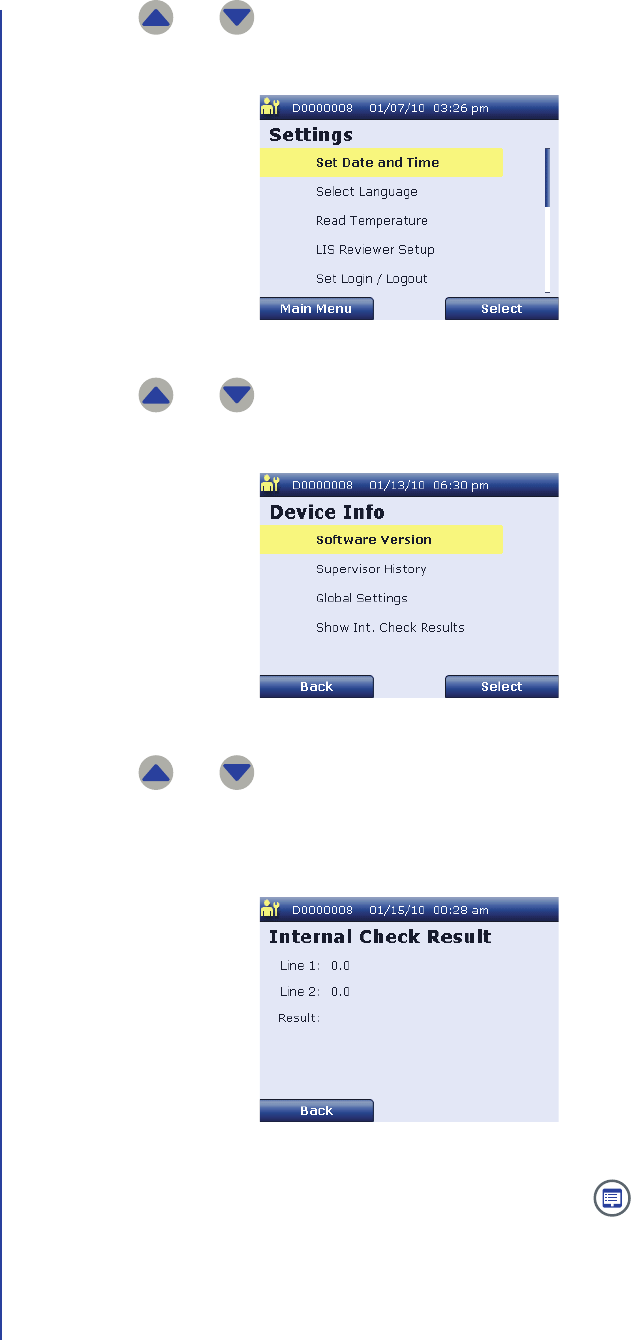
Apex Reader User’s Guide
104
2. Use and to highlight Settings and press Select to display the
supervisor Settings screen.
3. Use and to highlight Device Info and press Select to display the
Device Info screen.
4. Use and to highlight Show Int. Check Results and press Select
to display the stored Internal Check Result screen.
The reader displays the results of the last internal check that was performed.
5. Press Back to return to the Device Info screen or press to return to the
Main Menu screen.
Supervisor Settings Screen
Device Info Screen
Stored Internal Check Result Screen
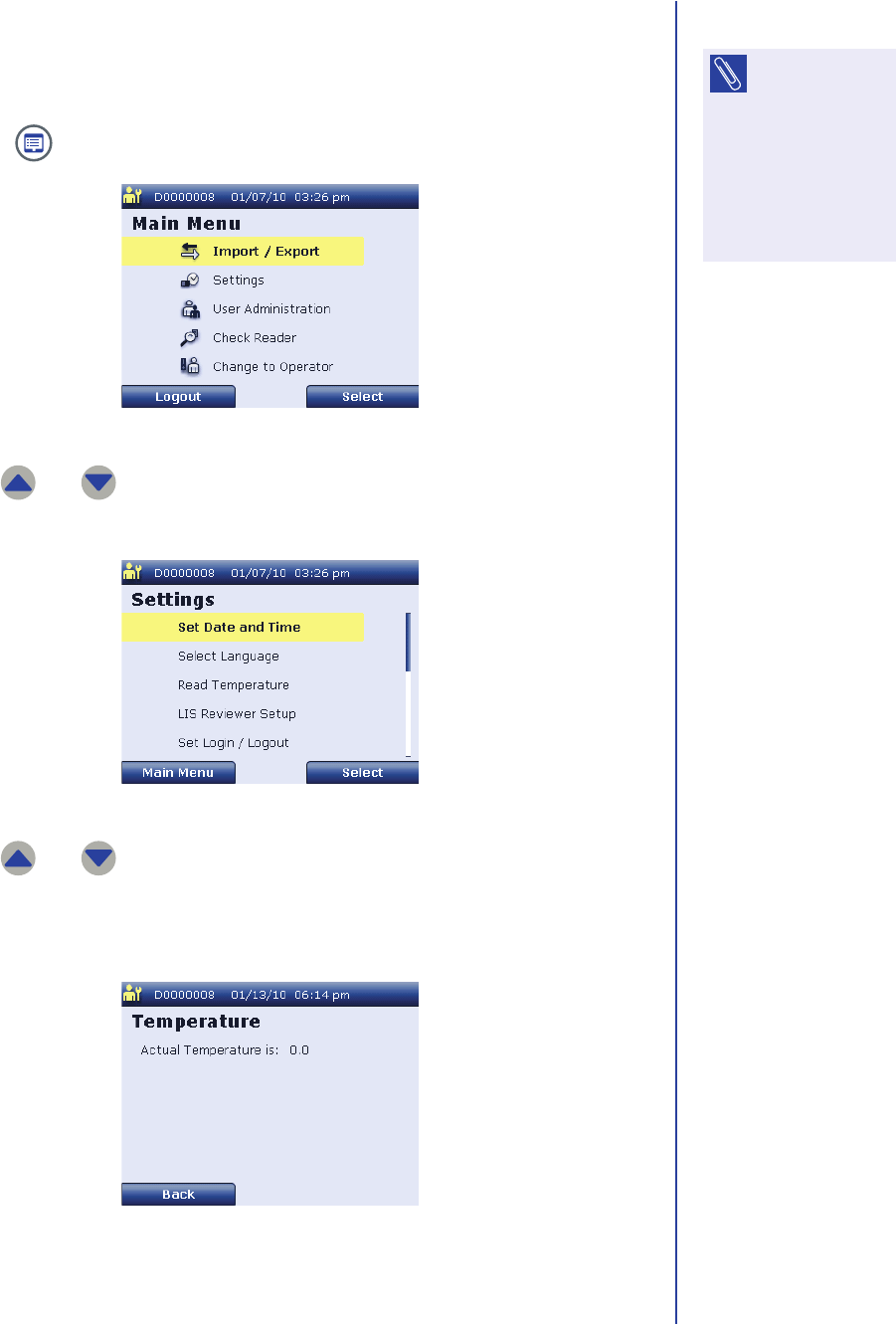
Other Features
105
Checking Ambient Temperature
Supervisor users can check the ambient temperature detected by the reader.
Perform the following steps to check the temperature:
1. Press to display the supervisor Main Menu screen.
2. Use and to highlight Settings and press Select to display the
supervisor Settings screen.
3. Use and to highlight Read Temperature and press Select to
display the Temperature screen.
The current temperature is displayed.
NOTE: Only
supervisor users
can use this feature. If
you are logged in as
an operator, select
Maintenance >
Change to Supervisor
to check the
temperature.
Supervisor Main Menu Screen
Supervisor Settings Screen
Temperature Screen
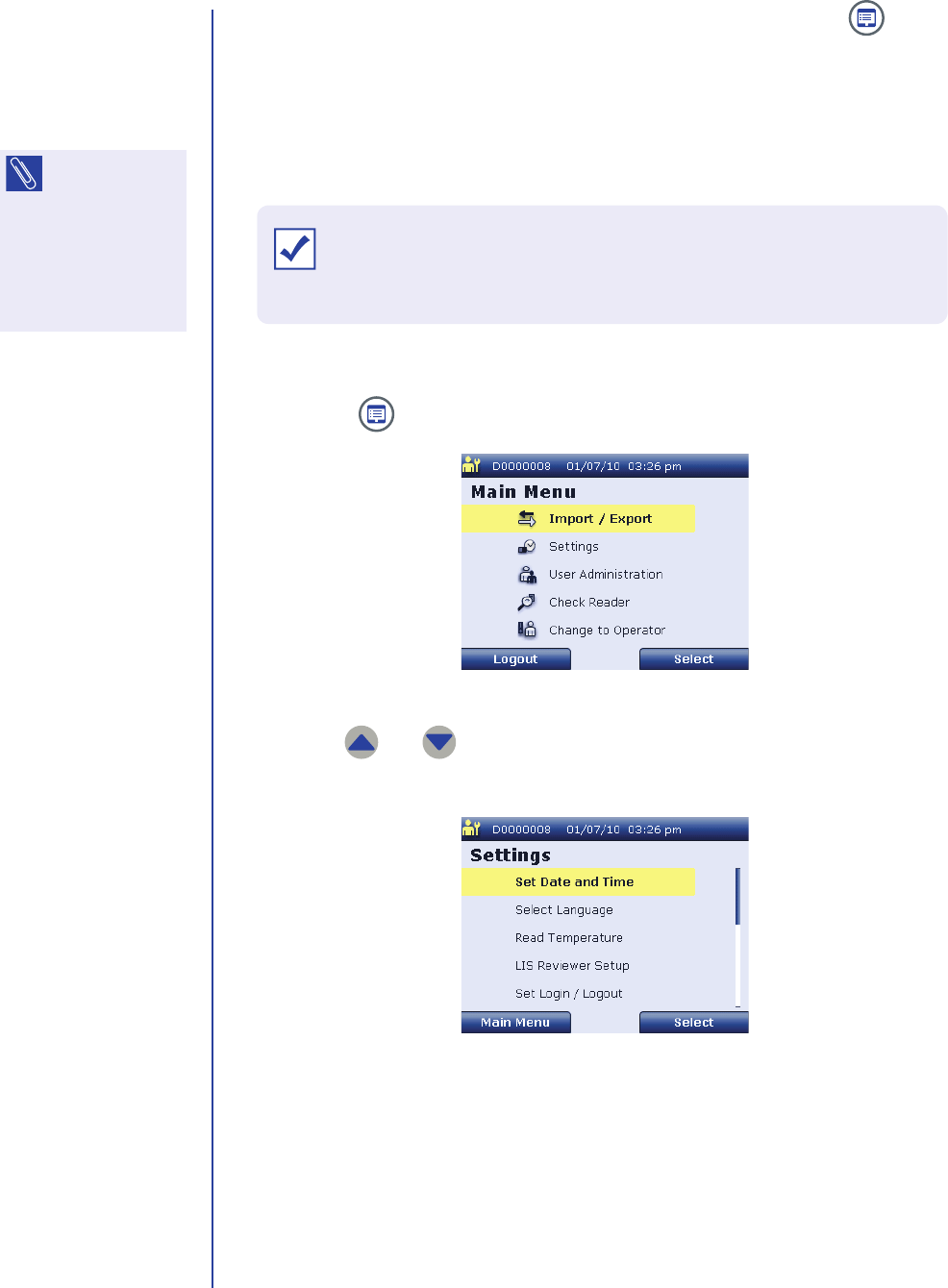
Apex Reader User’s Guide
106
4. Press Back to return to the supervisor Settings screen or press to
return to the supervisor Main Menu screen.
Deleting Stored Test Results
Supervisor users can delete test results stored in the reader’s memory.
Perform the following steps to delete stored test results:
1. Press to display the supervisor Main Menu screen.
2. Use and to highlight Settings and press Select to display the
supervisor Settings screen.
NOTE: Only
supervisor users
can use this feature. If
you are logged in as
an operator, select
Maintenance >
Change to Supervisor
to delete results.
Supervisor Main Menu Screen
Supervisor Settings Screen
IMPORTANT: Test results cannot be retrieved from the reader after they are
deleted. Before you delete any test results, make sure that you have
archived the results appropriately.
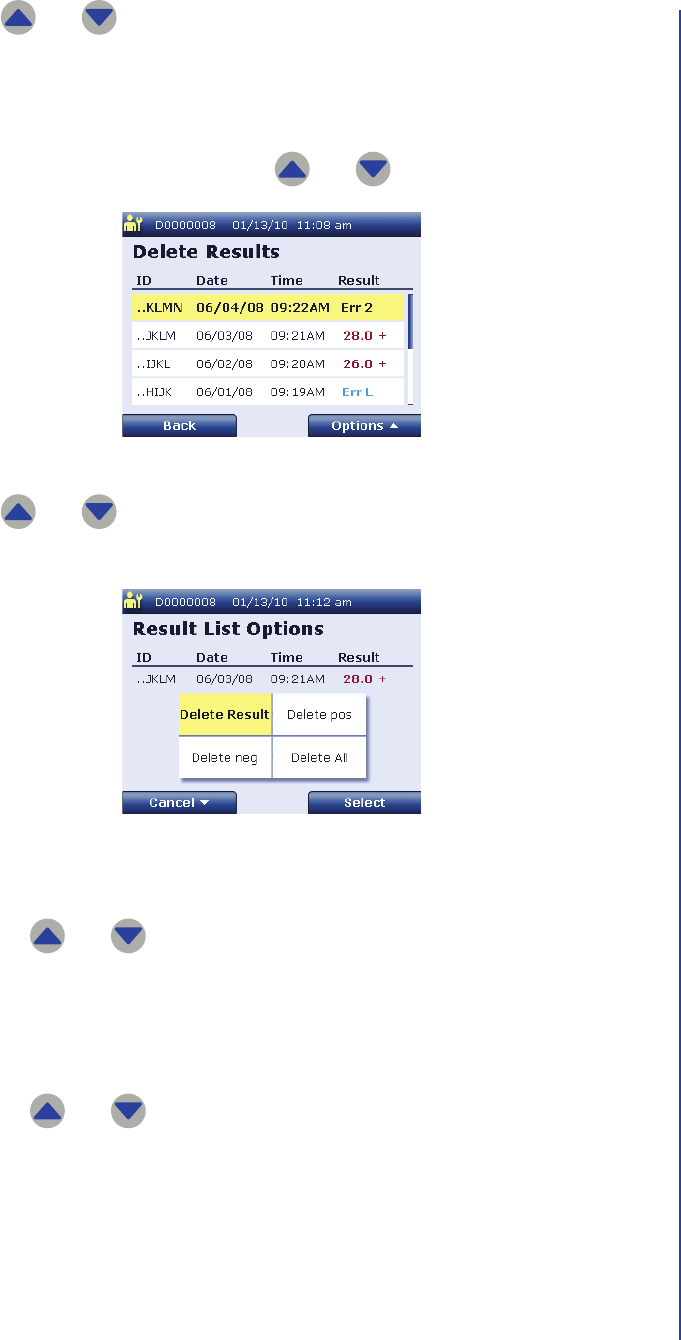
Other Features
107
3. Use and to highlight Delete Results and press Select to display
the Delete Results screen.
The reader displays the patient ID, date, time, and test result for all results
stored in the reader’s memory, starting with the most recent test performed.
You can scroll through results using and .
4. Use and to highlight the result you want to delete and press
Options a to display the Result List Options screen.
5. To delete only the selected result:
a. Use and to highlight Delete Result and press Select.
b. The reader displays the Delete Results confirmation screen to inform you
that the selected results have been deleted.
6. To delete all patient results stored in the reader’s memory:
a. Use and to highlight Delete All and press Select.
b. The reader displays the Delete Results confirmation screen to inform you
that the selected results have been deleted.
Delete Results Screen
Result List Options Screen — Delete Results

Apex Reader User’s Guide
108
7. To delete all positive results stored in the reader’s memory:
a. Use and to highlight Delete pos and press Select.
b. The reader displays the Delete Results confirmation screen to inform you
that the selected results have been deleted.
8. To delete all negative results stored in the reader’s memory:
a. Use and to highlight Delete neg and press Select.
b. The reader displays the Delete Results confirmation screen to inform you
that the selected results have been deleted.
9. Press OK to return to the Delete Results screen or press to return to
the supervisor Main Menu screen.
Delete Results Confirmation Screen
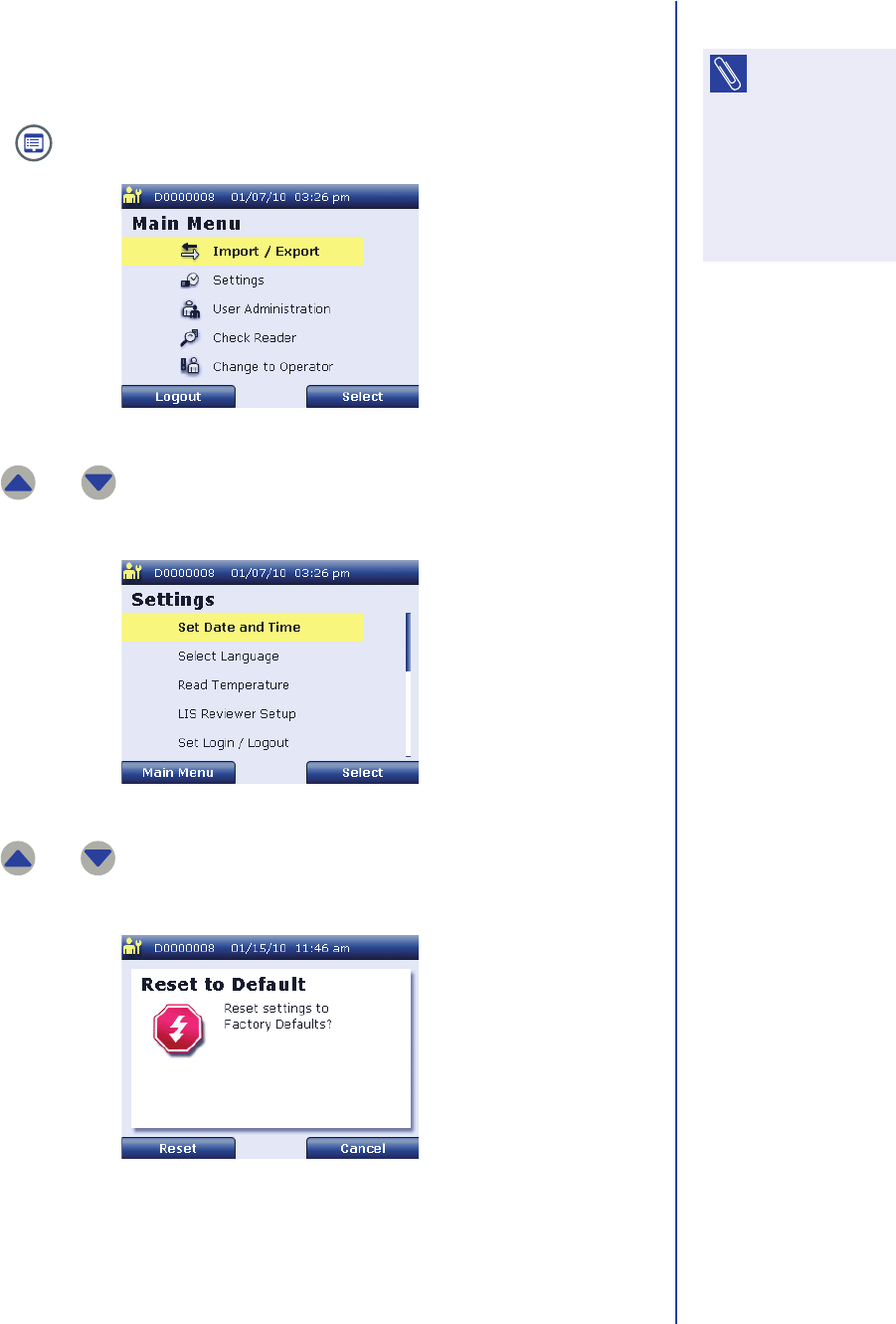
Other Features
109
Resetting the Reader to Default Settings
Supervisor users can reset the reader to its default settings. Perform the following
steps to reset the reader settings:
1. Press to display the supervisor Main Menu screen.
2. Use and to highlight Settings and press Select to display the
supervisor Settings screen.
3. Use and to highlight Reset to Default and press Select to display
the Reset to Default confirmation screen.
4. Press Reset to reset the reader’s settings or press Cancel to retain the
current settings and return to the supervisor Settings screen.
NOTE: Only
supervisor users
can use this feature. If
you are logged in as
an operator, select
Maintenance >
Change to Supervisor
to reset the reader
settings.
Supervisor Main Menu Screen
Supervisor Settings Screen
Reset to Default Confirmation Screen

Apex Reader User’s Guide
110
Using the Barcode Reader Accessory
The reader kit may include a barcode reader accessory that can be used to enter
information.
To use the barcode reader, connect it to the reader by inserting the end of the cable
into the PS/2 port in the back of the reader. You can now use the barcode reader to
enter patient IDs and user IDs.
Connecting the Barcode Reader

111
Care & Maintenance
Maintaining the Reader
Standard maintenance activities for the reader, which can be performed by an
operator, include:
■periodically cleaning the exterior of the reader (see page 111)
■changing the paper (see page 111)
■replacing the batteries (see page 113)
Other maintenance activities that might be performed on occasion and can only be
performed by a supervisor include:
■changing the date and time (see page 115)
■updating languages available in the reader (see page 118)
■upgrading the reader software (see page 121)
If any other service or maintenance is required, the reader should be sent to the
manufacturer. See Returning the Reader on page126.
Cleaning the Reader
The reader requires minimal maintenance. Occasional cleaning of the exterior is
usually sufficient. If blood or other fluids are not allowed enough time to fully absorb
into test devices, the reader drawer may occasionally require cleaning. Use a damp,
not wet, lint-free cloth to apply a 70% ethanol solution on the outside of the reader
or to the inside of the reader drawer.
Do not allow water to seep into the printer. Do not immerse the reader in water or
other liquids.
If the Apex Reader is moved or returned for replacement or repair, the reader should
be cleaned prior to transfer.
Changing the Paper
You can change the paper in the reader anytime. If the reader runs out of paper
while in the middle of a printing task and displays the Empty Paper Tray message,
the paper may be changed and the print job restarted.
NOTE: Never
insert any tools,
swabs, or cleaning
materials into the
reader drawer.
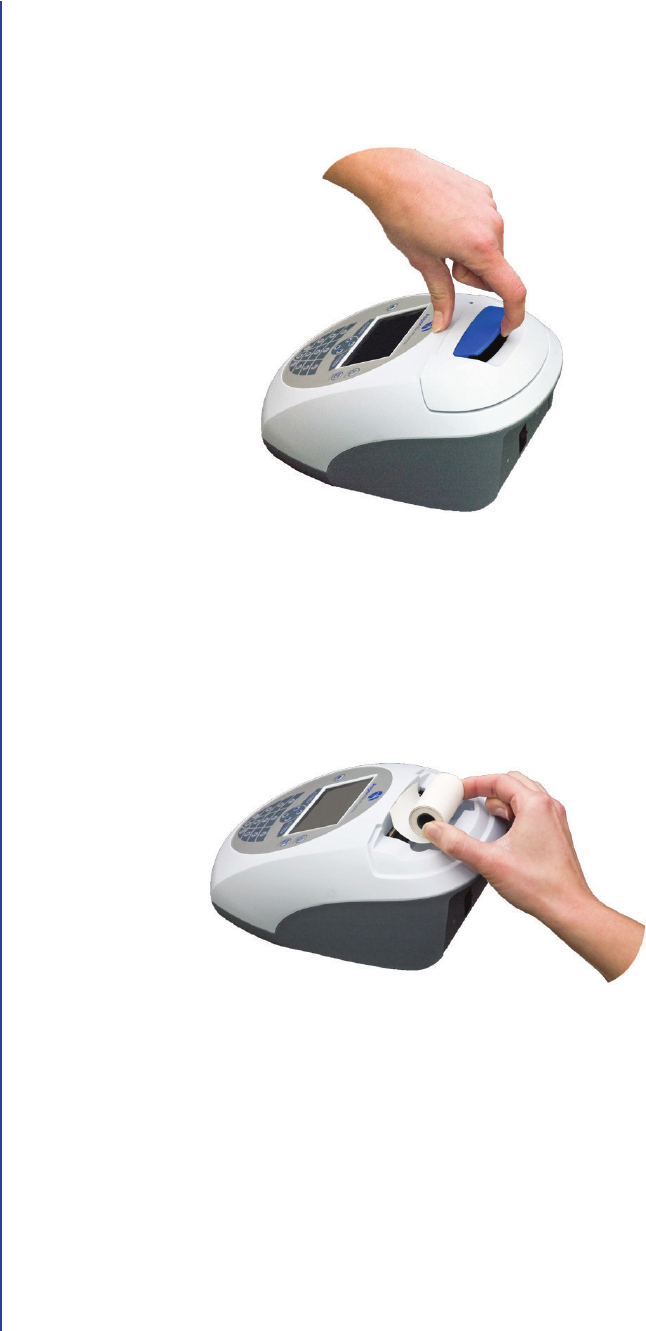
Apex Reader User’s Guide
112
Perform the following steps to change the paper:
1. Remove the printer cover by pulling up the blue handle on the top of the
cover.
2. Remove the empty paper spindle and any unused paper.
3. If necessary, tear or cut the end of the new paper roll to form a straight edge.
Then insert the paper roll in the printer so that the end of the paper comes
from under the roll toward the reader display, as shown below.
Removing the Printer Cover
Inserting the Paper Roll
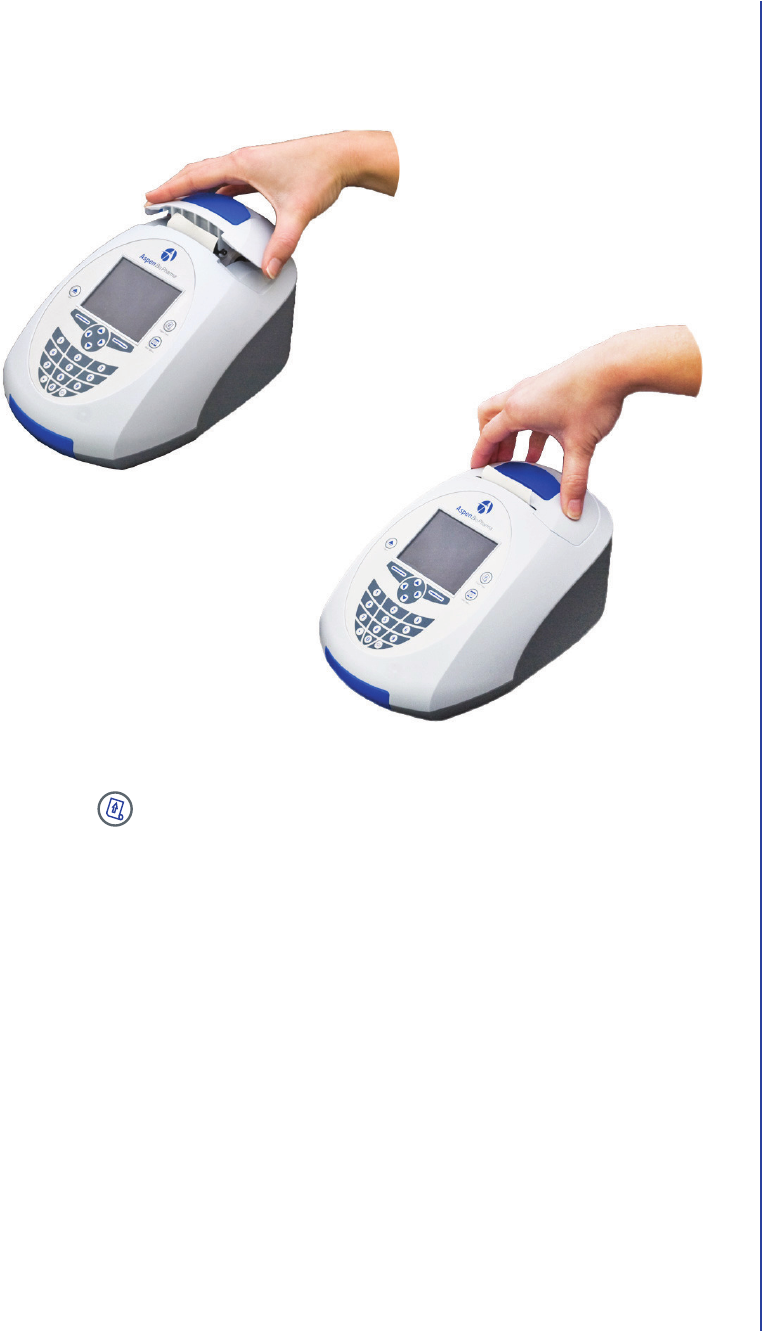
Care & Maintenance
113
4. To replace the printer cover, insert the paper roller between the edge of the
paper and the paper roll, as shown below. Then push down on the sides of the
printer cover until you hear it snap into place.
5. Press .
The reader feeds the paper so that it extends out the top of the printer.
If a print job was interrupted, you need to restart this print job.
Replacing the Printer Cover
Apex Reader User’s Guide
114
Replacing the Batteries
AG: CONFIRM ALL.
The battery power level is indicated by the icon displayed at the top right of the
reader screen. The battery icon is gradually filled with white as the batteries are
discharged.
Perform the following steps to replace the batteries in the reader:
1. Turn the reader off by pushing the on/off switch up, then releasing it.
2. Turn the reader over so that the back of the battery cover is visible.
3. To remove the battery cover, place your thumb in the middle of the cover and
exert slight pressure as you slide it in the direction shown below.
4. Remove the old batteries and discard them in an appropriate waste container.
IMPORTANT: The reader is designed to perform and print at least 50 tests
before replacement batteries are required. If you are using batteries to
power the reader, it should be turned off when not in use. You can use
the automatic Power Off Time setting to help preserve battery life.
IMPORTANT: Rechargeable batteries are authorized for use with the
reader. However, due to the nature of these types of batteries, it is
expected they will require recharging more frequently. The reader does
not contain a built-in battery charger, and rechargeable batteries must be
recharged outside of the reader.
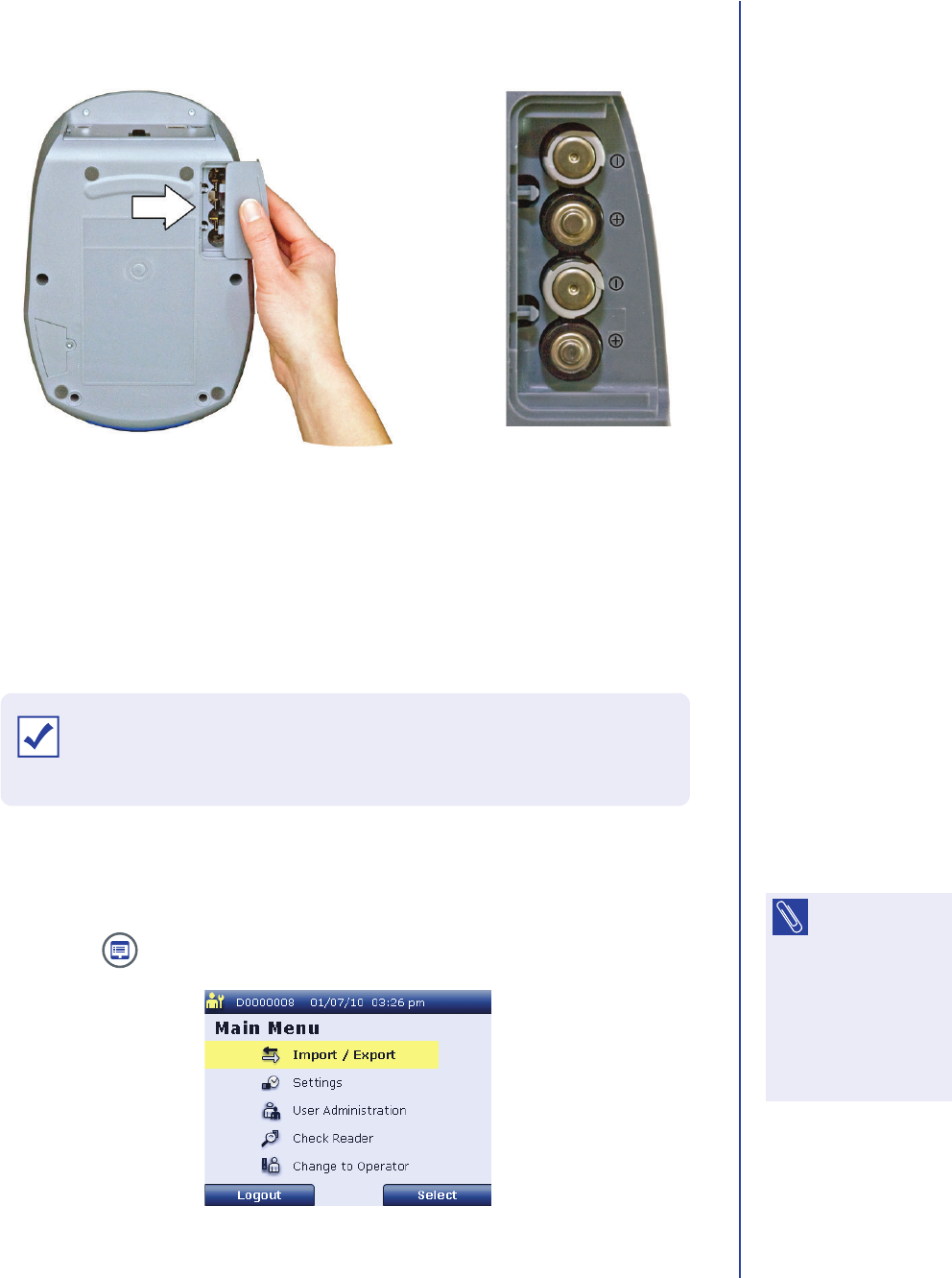
Care & Maintenance
115
5. Insert four size AA 1.5 volt batteries. Be sure that the plus (+) and minus (-)
signs on the batteries match the signs embossed in the battery compartment.
6. Replace the battery cover by positioning it at the edge of the battery
compartment as shown and sliding it into position.
7. When you have completed battery installation and replaced the battery cover,
turn the reader right side up.
Changing the Date and Time
Perform the following steps to change the reader’s date and/or time:
1. Press to display the supervisor Main Menu screen.
Installing the Batteries
IMPORTANT: If the reader does not power on after replacing the batteries,
verify that the batteries are lined up according to the symbols in the
battery compartment.
NOTE: Only
supervisor users
can use this feature. If
you are logged in as
an operator, select
Maintenance >
Change to Supervisor
to change the reader’s
date and time.
Supervisor Main Menu Screen
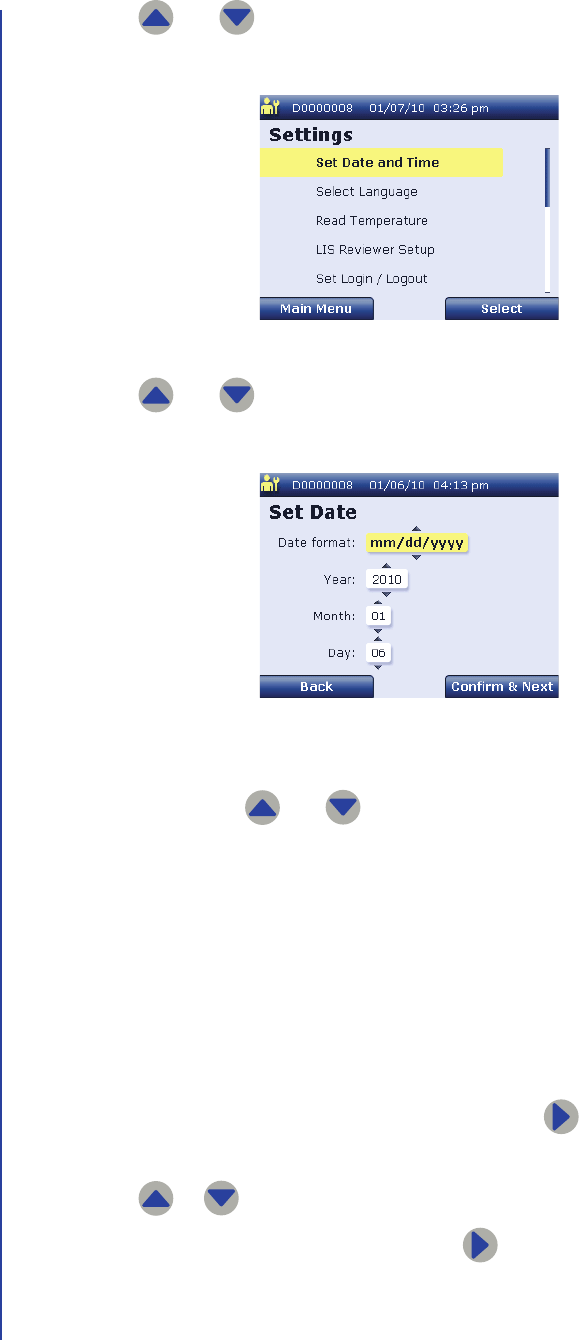
Apex Reader User’s Guide
116
2. Use and to highlight Settings and press Select to display the
supervisor Settings screen.
3. Use and to highlight Set Date and Time and press Select to
display the Set Date screen.
4. When the Set Date screen is first displayed, the Date format field is
highlighted. Use and to scroll through the following options for how
to display dates on the reader screen and printouts:
■dd.mm.yyyy: Select this option to display the day, then the month, then
the year with periods used as separators.
■mm/dd/yyyy: Select this option to display the month, then the day, then
the year with slashes used as separators.
■yyyy/mm/dd: Select this option to display the year, then the month, then
the day with slashes used as separators.
When the preferred date format is displayed, press to highlight the Year
field.
5. Use or to increment or decrement the year.
When the correct year is displayed, press to highlight the Month field.
Supervisor Settings Screen
Set Date Screen
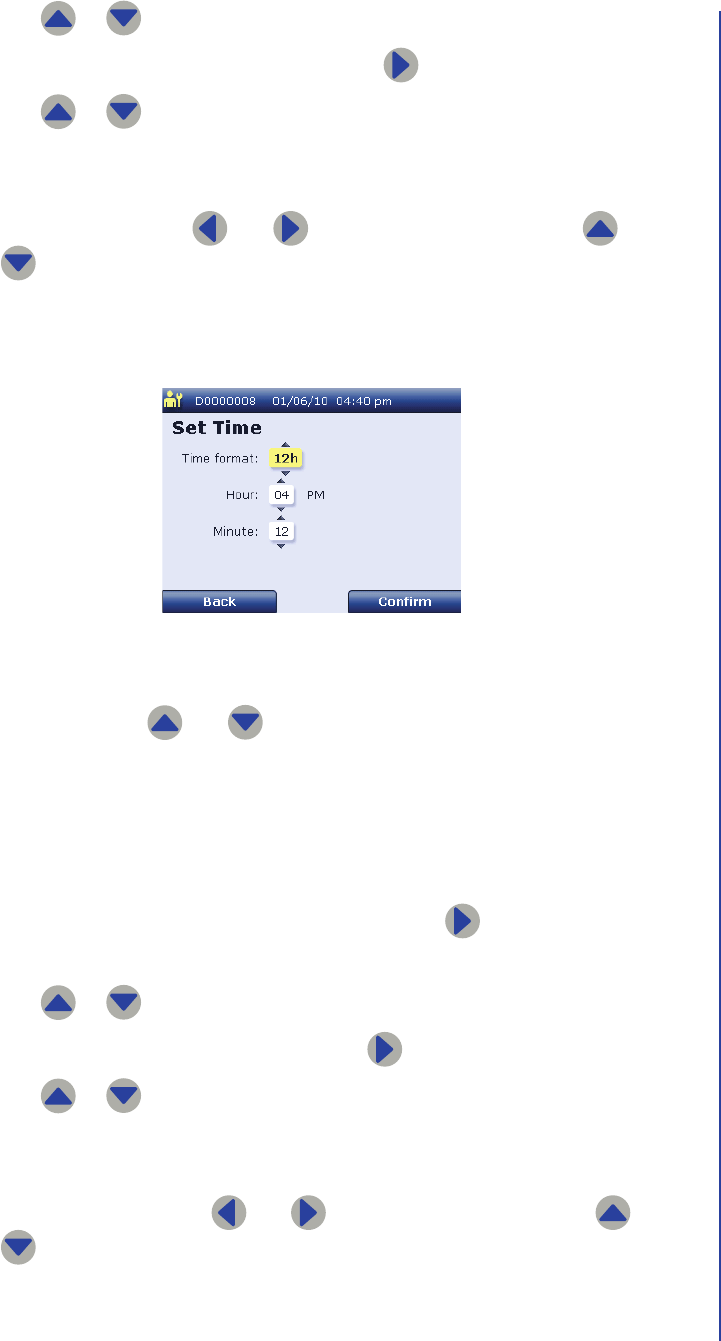
Care & Maintenance
117
6. Use or to increment or decrement the month.
When the correct month is displayed, press to highlight the Day field.
7. Use or to increment or decrement the day.
When the correct day is displayed, review the date format, year, month, and
day, and confirm that the correct date information is displayed. If you need to
change a setting, use and to highlight the field. Then use and
to make the necessary changes.
8. When you have confirmed that the correct date is displayed, press Confirm &
Next to display the Set Time screen.
9. When the Set Time screen is first displayed, the Time format field is
highlighted. Use and to toggle between the following options for
how to display times on the reader screen and printouts:
■12h: Select this option to display times in the 12 hour time format with
am and pm.
■24h: Select this option to display times in the 24 hour time format.
When the preferred time format is displayed, press to highlight the Hour
field.
10. Use or to increment or decrement the hour.
When the correct hour is displayed, press to highlight the Minute field.
11. Use or to increment or decrement the minute.
When the correct minute is displayed, review the time format, hour, and
minute and confirm that the correct time information is displayed. If you need
to change a setting, use and to highlight the field. Then use and
to make the necessary changes.
Set Time Screen
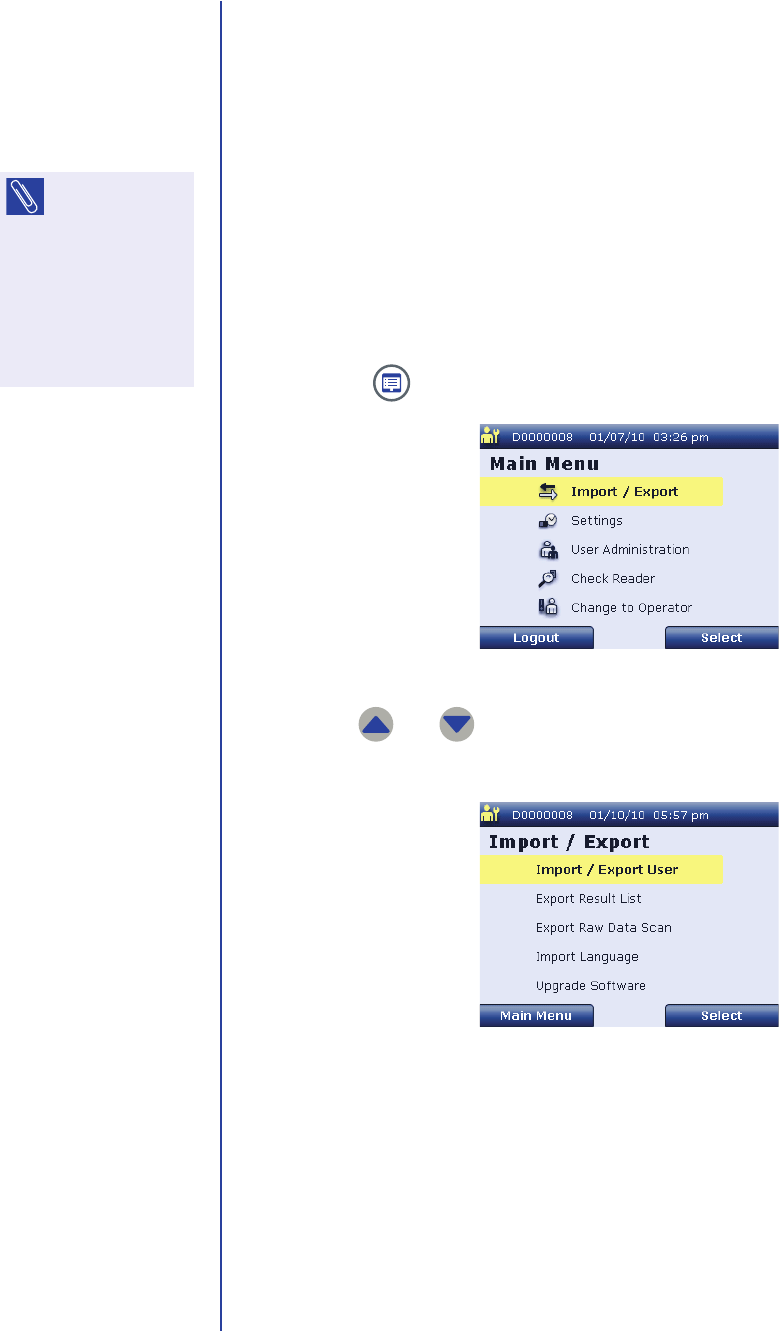
Apex Reader User’s Guide
118
12. When you have confirmed that the correct time is displayed, press Confirm
to save the selected time and date settings and return to the supervisor
Settings screen.
Updating Reader Languages
The reader’s language setting determines what language is displayed on the reader
screen and printouts. Supervisor users can add new language selections to the
reader by importing them from an SD card. Perform the following steps to update
the reader languages:
1. Install the SD card in the reader. For instructions, see page 83.
2. Press to display the supervisor Main Menu screen.
3. Use and to highlight Import / Export and press Select to display
the Import / Export screen.
NOTE: Only
supervisor users
can use this feature. If
you are logged in as
an operator, select
Maintenance >
Change to Supervisor
to update the reader
languages.
Supervisor Main Menu Screen
Import / Export Screen
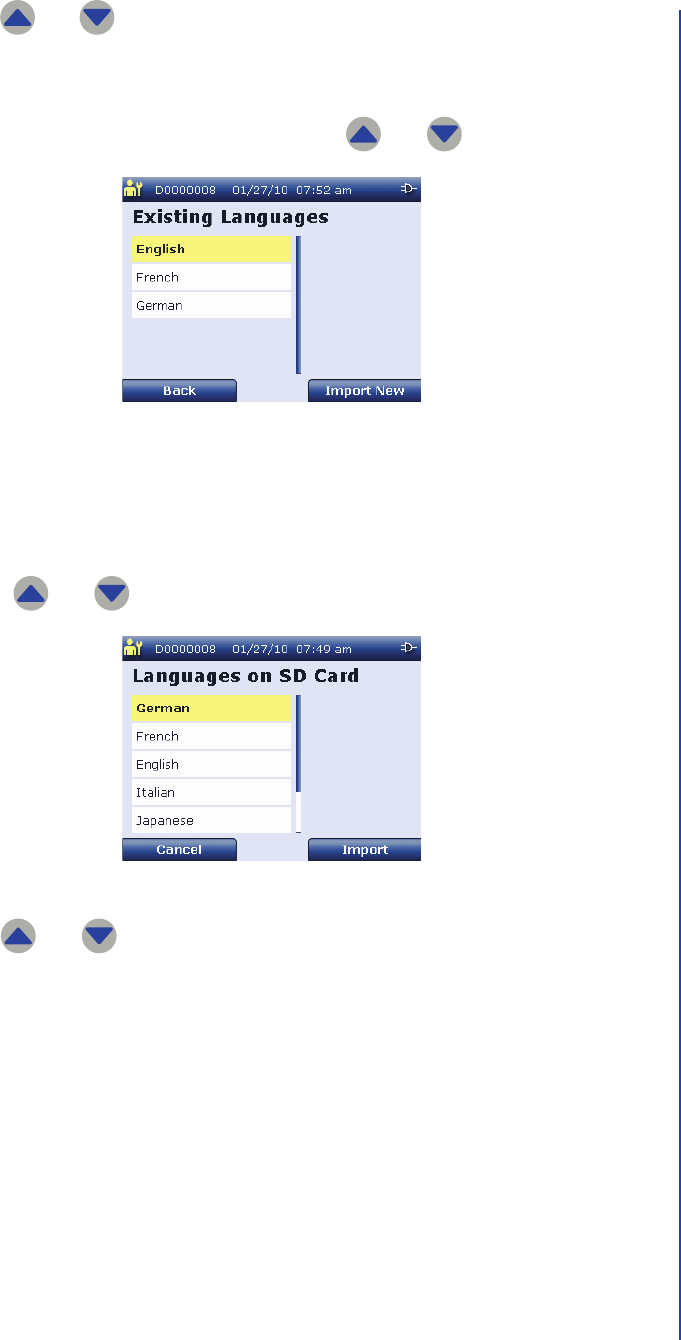
Care & Maintenance
119
4. Use and to highlight Import Language and press Select to display
the Existing Languages screen.
This screen displays all languages currently available on the reader. You can
scroll through the available languages using and .
5. Press Import new to import a new language from the SD card.
The new languages are read from the SD card and displayed on the
Languages on SD Card screen. You can scroll through the new languages
using and .
6. Use and to highlight the language you want to import.
Existing Languages Screen
Languages on SD Card Screen
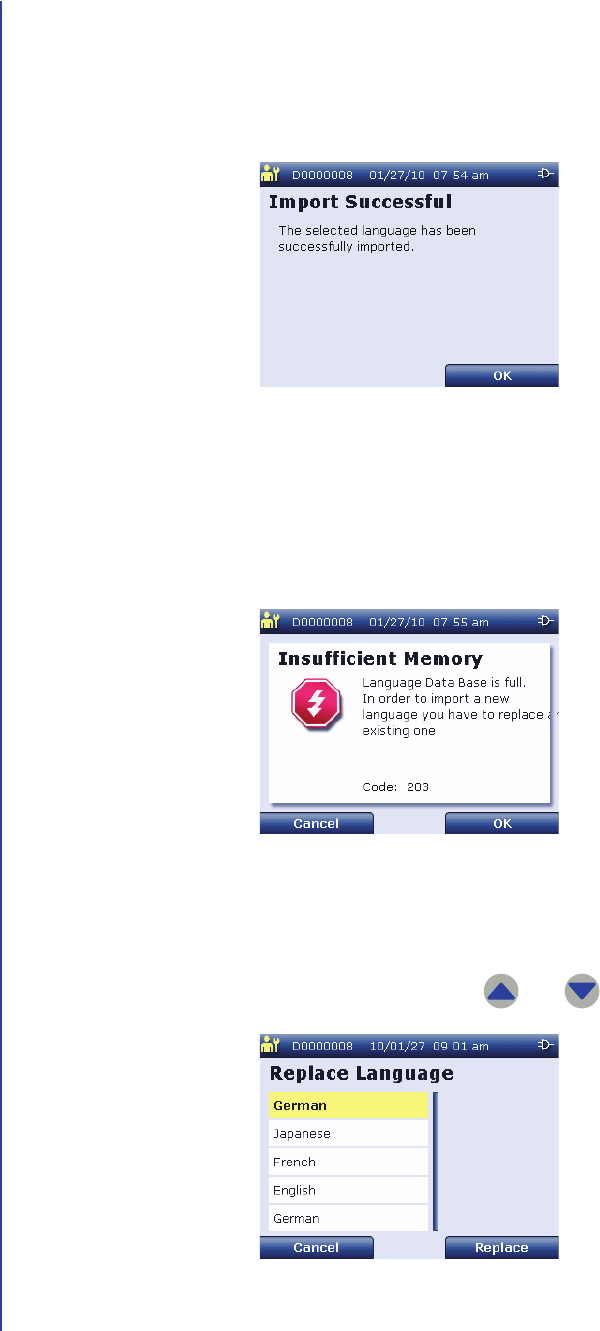
Apex Reader User’s Guide
120
7. When the desired language is highlighted, press Import.
■If the reader’s language database has room for this language, the reader
imports the new language and displays the Import Successful screen.
If this screen appears, go to Step 12.
■If the reader’s language database does not have room for this language,
the Insufficient Memory screen is displayed. If this screen appears,
you will need to replace an existing language on the reader with the new
language.
8. Press OK to display the Replace Language screen.
This screen displays the languages currently available on the reader. You can
scroll through the available languages using and .
Import Successful Screen
Insufficient Memory Screen
Replace Language Screen
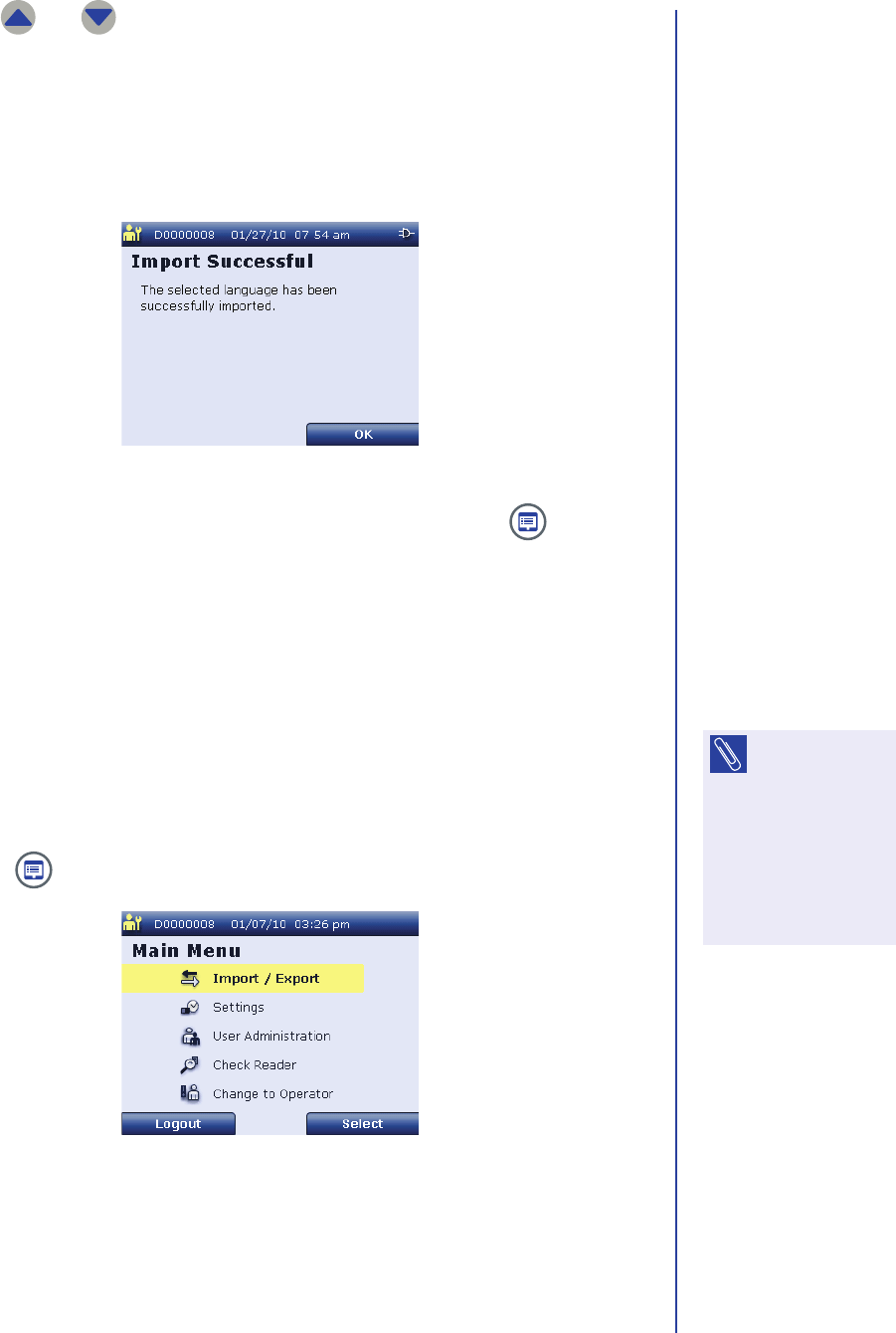
Care & Maintenance
121
9. Use and to highlight the current language you want to replace with
the new language.
10. When the desired language is highlighted, press Replace.
11. The reader imports the new language and displays the Import Successful
screen.
12. Press OK to return to the Existing Languages screen or press to return
to the supervisor Main Menu screen.
13. To change reader’s language setting, see Changing the Language on
page39.
Upgrading the Reader Software
Supervisor users can upgrade the reader’s software by importing the new software
from an SD card. Perform the following steps to upgrade the reader software:
1. Install the SD card in the reader. For instructions, see page 83.
2. Press to display the supervisor Main Menu screen.
Import Successful Screen
NOTE: Only
supervisor users
can use this feature. If
you are logged in as
an operator, select
Maintenance >
Change to Supervisor
to upgrade the reader
software.
Supervisor Main Menu Screen

Apex Reader User’s Guide
122
3. Use and to highlight Import / Export and press Select to display
the Import / Export screen.
4. Use and to highlight Upgrade Software and press Select to
display the Software upgrade available screen.
This screen displays the version information for the reader’s current software
and the version of software available on the SD card.
5. Press Upgrade to upgrade the reader’s software.
The reader performs the upgrade, then shuts down and restarts. AG:
CONFIRM. To confirm that the software was upgraded, see Checking the
Software Version on page97.
Import / Export Screen
Software Upgrade Available Screen
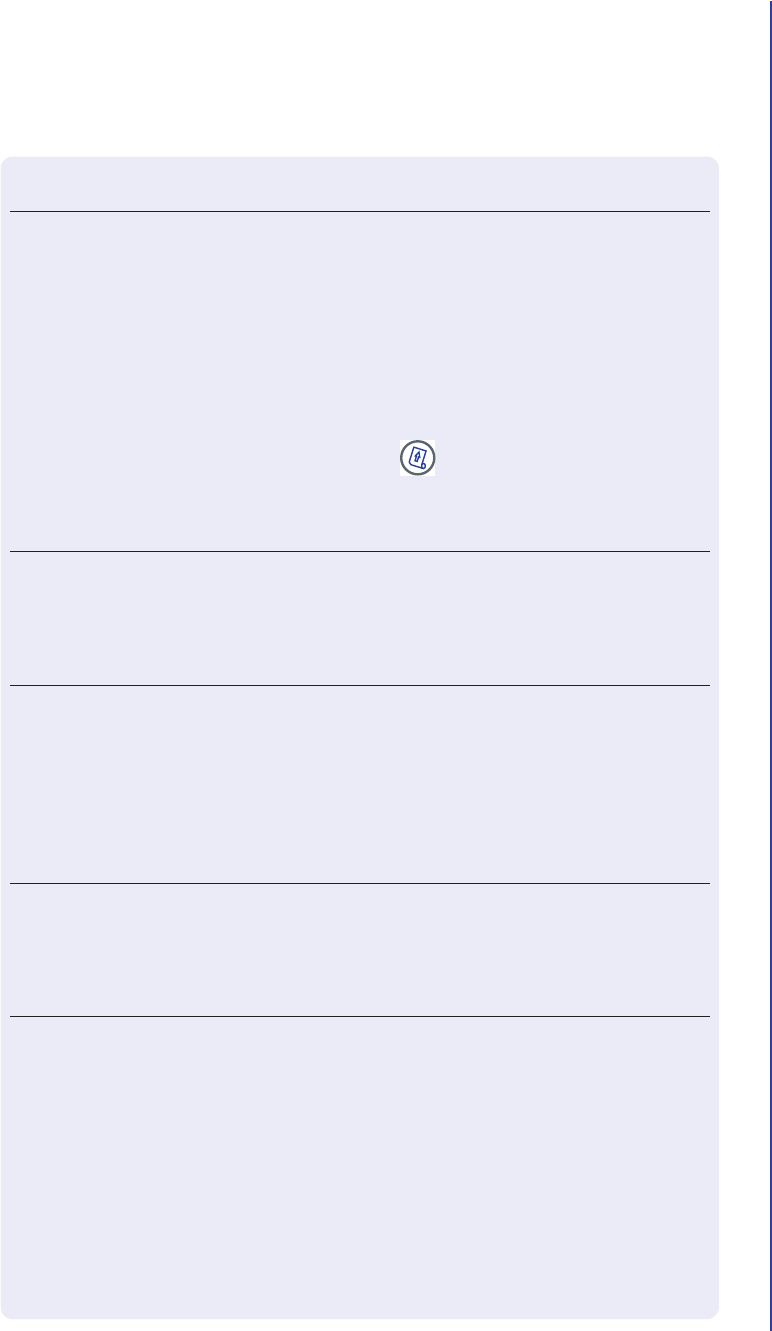
Care & Maintenance
123
Troubleshooting
Troubleshooting Tips
Refer to the table below for instructions for troubleshooting problems.
Problem Condition Corrective Actions
Paper jam 1. Remove the printer cover to reveal the paper
compartment.
2. Remove the paper roll and reinsert it so that
the end of the paper comes from under the
roll toward the reader display.
3. Replace the printer cover.
4. Press to advance the paper.
5. If the error continues, contact Technical
Support for assistance.
Keypad or other keys do not work Reset the reader by disconnecting the AC
power adapter from the reader or removing the
four batteries. Wait 30 seconds and reconnect
the power adapter or reinsert the batteries.
Reader will not turn on Ensure that the AC power adapter is connected
securely to the reader and to the power outlet or
that the four batteries are installed correctly. If
the problem continues, connect the AC power
adapter to a different power supply or replace
the four AA batteries with all new batteries.
Reader is locked up Reset the reader by disconnecting the AC
power adapter from the reader or removing the
four batteries. Wait 30 seconds and reconnect
the power adapter or reinsert the batteries.
Drawer / test cartridge is jammed Do not pull or force the drawer/test cartridge
out of the reader. Reset the reader by
disconnecting the AC power adapter from the
reader or removing the four batteries. Wait 30
seconds and reconnect the power adapter or
reinsert the batteries.
If you are still unable to open the drawer and/or
remove the test cartridge, contact Technical
Support.

Apex Reader User’s Guide
124
Understanding Error Messages
Refer to the table below for instructions for responding to error messages. AG:
CONFIRM THIS LIST IS COMPLETE AND PROVIDE ANY ADDITIONAL RECOMMENDATIONS.
Error Message Corrective Action
Barcode Scan Failed Attempt to read the barcode again.
If the problem persists, check the connection to
the barcode reader.
Battery Low Replace the reader’s 4 AA batteries or connect
the AC power adapter. Try again to print.
Battery Too Low Replace the reader’s 4 AA batteries or connect
the AC power adapter.
Empty Paper Tray Replace the paper roll in the reader.
Expired Cartridge Remove the expired test cartridge and repeat
the test with a new test cartridge.
ID Already Exists The selected user ID is already in use. Enter a
different 4-digit user ID.
Invalid One Shot PIN The entered PIN is invalid. Try again to enter the
one shot PIN that was provided.
If the problem persists, contact Technical
Support to obtain a new one shot PIN.
Invalid Patient ID The patient ID must be 1 to 15 digits. Try again
to enter the patient ID.
Invalid User ID The user ID must be 4 characters. Try again to
enter the user ID.
LAN Error (Cannot Get IP Address) The DCHP server is not responding with an IP
address. Contact your network administrator for
assistance.
LAN Error (Network Cannot Be
Configured)
The network connection cannot be configured.
Contact your network administrator for
assistance.
LIS Error (LIS Connection
Interrupted)
The connection to the LIS was interrupted. Try
the operation again.
LIS Error (LIS Connection Not
Available)
The reader failed to connect to the LIS. Try
again to establish the connection. If the problem
persists, check the network settings or contact
your network administrator for assistance.

Care & Maintenance
125
LIS Error (Reviewer Not Available) The LIS is currently unavailable. Try again to
establish the connection. If the problem
persists, contact your network administrator.
Login Failed The user ID / PIN combination is invalid. Try
again to log in.
Multiple ID Tags Detected Ensure that only one RFID tag is on or near the
reader.
No Control Line Found Remove the test cartridge and repeat the test
with a new cartridge.
No ID Tag Detected Place the RFID on the designated area of the
reader and try again.
No SD Card Found Make sure a valid SD card is properly inserted in
the reader.
No Upgrade Available No software upgrade was found on the SD
card. Make sure a valid SD card with a software
upgrade is properly inserted in the reader.
PIN Mismatch The confirmed PIN must match the entered PIN.
Printer Temperature High The printer temperature is too high for printing.
Allow the printer to cool off and try again to
print.
RFID Error There was an error during RFID communication.
Try again. If the problem persists, move the
reader away from possible sources of RF
interference.
SD Card Read Error The SD card may be wrong type or may be
damaged. Make sure a valid SD card is properly
inserted in the reader.
SD Card Write Error The SD card may be wrong type or may be
damaged. Make sure a valid SD card is properly
inserted in the reader.
Temperature Error The ambient temperature is outside the
measurement range of the reader (15°C to
30°C).
Too Many Users Selected The user database is full. To import more users,
you must first delete existing users.
Used Cartridge Remove the test cartridge and repeat the test
with a new cartridge.
Error Message Corrective Action

Apex Reader User’s Guide
126
Quality Assurance
AG: PROVIDE A QUALITY ASSURANCE STATEMENT.
Returning the Reader
AG: PROVIDE INSTRUCTIONS FOR RETURNING THE READER.
Disposing of the Reader
In conformance with the WEEE (Waste Electrical and Electronic Equipment)
Directive, do not dispose of this product in municipal waste. Please contact
Aspen BioPharma to arrange disposal and recycling.

127
Glossary
Assay Test to determine the presence of a substance.
Barcode reader Scanning device that can interpret a barcode, which is a series
of vertical bars of varying widths that each represent a digit from
0 to 9.
Calibration Process of checking the accuracy of a measuring instrument by
comparison of a result to a reference standard.
Internal QC Quality controls built into the reader’s software and / or the test
cartridge.
Operator user User with operator access privileges, which allow performance
of day-to-day operations with the reader.
QC Quality control. QC refers to steps taken to make sure that a
system is of sufficiently high quality.
Reader The .
Reagent Chemical substance that is used to create a reaction when
combined with another substance for the purpose of analysis.
RFID Radio frequency identification; a data collection technology that
uses electronic tags for storing data and allows automatic
identification of items. Unlike barcode technology, RFID provides
‘out of line of sight’ identification and operates at distances
much greater than those at which barcode readers operate.
SD card Secure digital memory card. An SD card is a small flash memory
card used for portable storage of digital data that can be
imported to and exported from the reader.
Supervisor user User with supervisor access privileges, which allow performance
of advanced reader activities.
Test cartridge Item that holds the sample (for example, blood) from the patient
so it can be inserted into the reader for testing. The test
cartridge contains reagent that reacts with blood so that the
reader can determine the level of specific chemical substances
in the patient.
Apex Reader