Labpano Technology PILOT-CAMERA Panoramic camera User Manual Users manual

Shenzhen Pisoftware Technology Co.,Ltd. Panoramic camera Users manual

Users manual

Pilot EraUser Manual
Product overview1.Please read the user manual seriously before using Pilot Era.2.please keep it carefully for future reference.enance or parts replacement.3.Pilot Era body and lens will attach protective films on surface to prevent the damage. Userscan remove the protective film depends on requirement. Please wipe the lens before startshooting.4.Be careful to carry and store Pilot Era. Avoid lying Pilot Era lenses on any surface whichwill lead to lens damage and imaging problems.5.Surface heating of the camera is normal after long time usage.6.If user do not use the camera for a long time or go on a long-time travel, please remove thebattery from the camera and place it in the portable package.7.This product has Been patented, and copying is not permitted.
ContentsProduct overviewList of itemsCamera InfoCamera OperationCamera main interface contentView camera galleryLive operationShooting settingsQuick StartBattery disassemble / assembleTurn on / turn offMobile ControlDownload the mobile app: PilotGo Control Pilot Era with mobileappSpecificationsCamera specificationsENGLISH
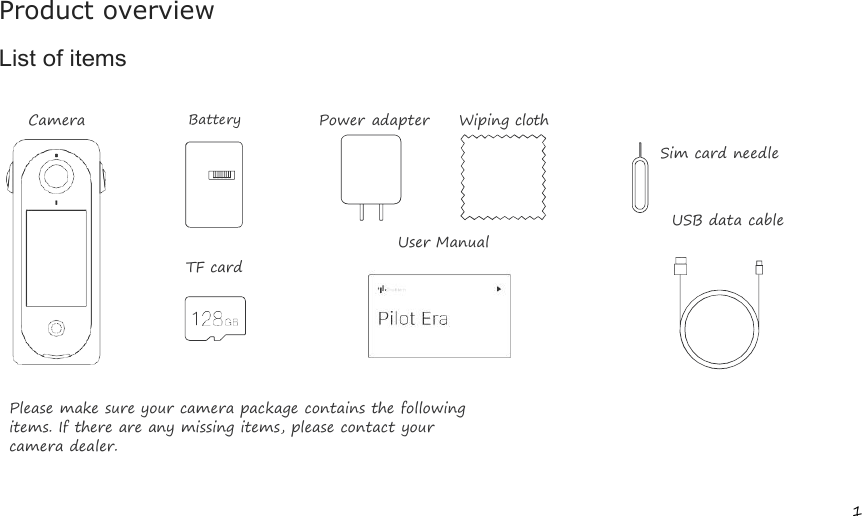
1Product overviewList of itemsCameraBatteryPower adapter Wiping clothSim card needleTF cardUser ManualUSB data cablePlease make sure your camera package contains the followingitems. If there are any missing items, please contact yourcamera dealer.
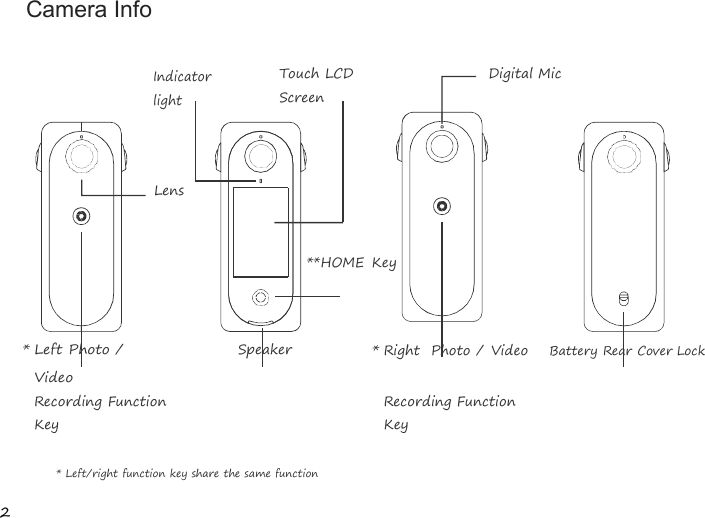
2Camera InfoIndicatorlightTouch LCDScreenDigital MicLens**HOME Key*Left Photo /VideoSpeaker*Right Photo / Video Battery Rear Cover LockRecording FunctionKeyRecording FunctionKey* Left/right function key share the same function
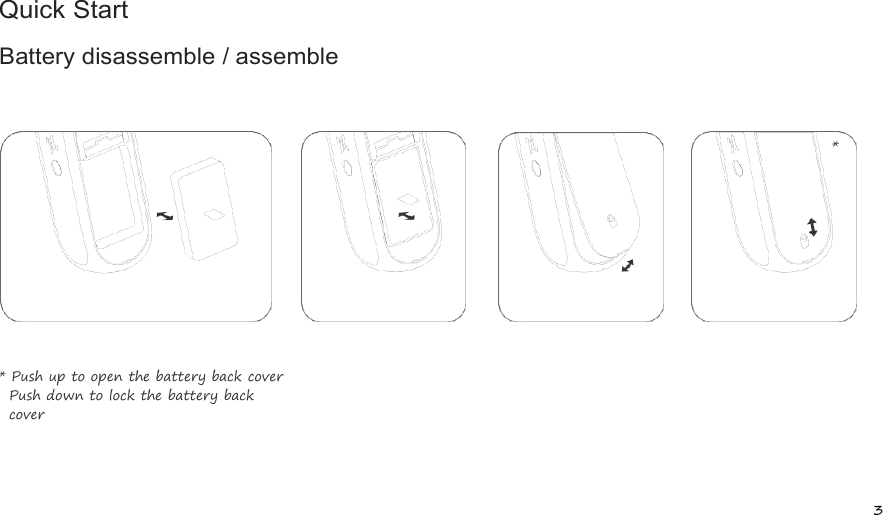
3*Quick StartBattery disassemble / assemble* Push up to open the battery back coverPush down to lock the battery backcover
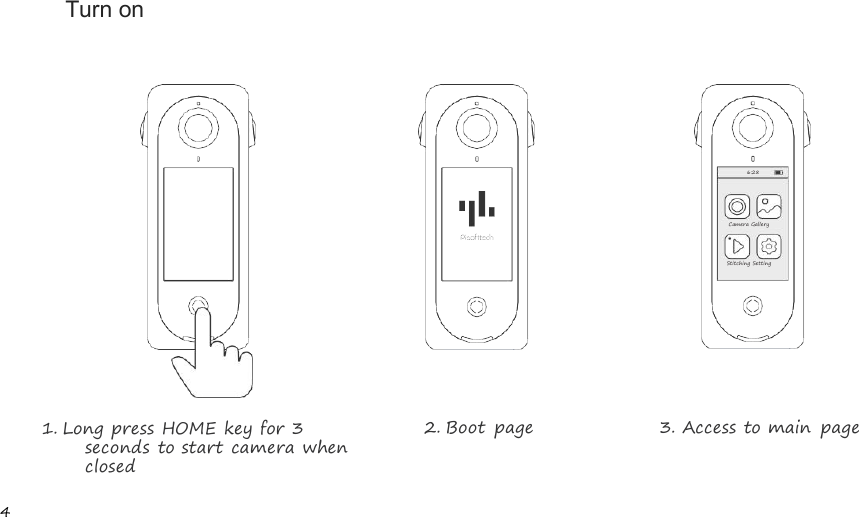
4Turn on1. Long press HOME key for 3seconds to start camera whenclosed2. Boot page 3. Access to main page6:28Camera GalleryStitching Setting
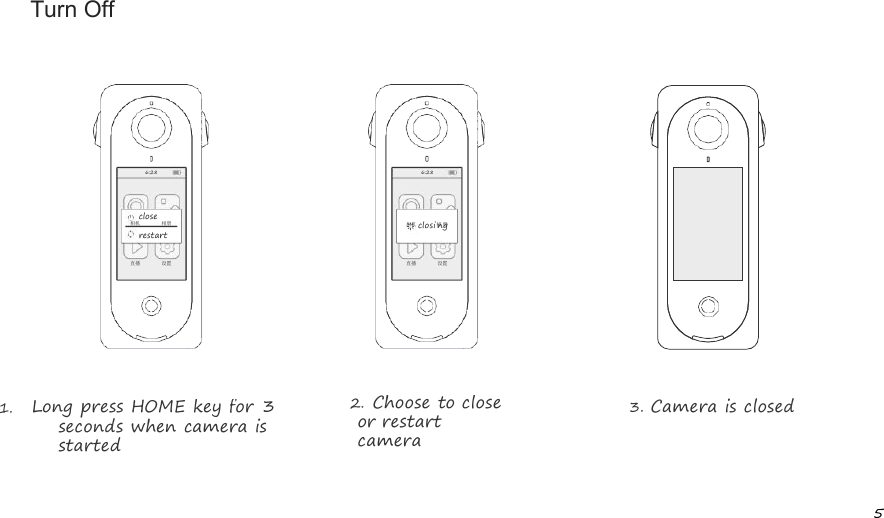
5Turn Off1. Long press HOME key for 3seconds when camera isstarted2. Choose to closeor restartcamera3. Camera is closed6:28close相机 相册restart直播 设置6:28相机 closi相n册g直播 设置
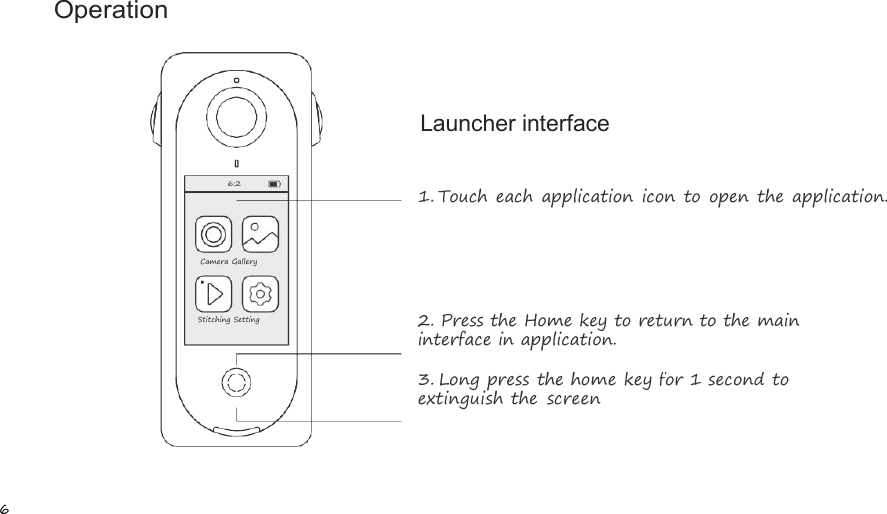
6OperationLauncher interface1.Touch each application icon to open the application.2.Press the Home key to return to the maininterface in application.3.Long press the home key for 1 second toextinguish the screen6:28Camera GalleryStitching Setting
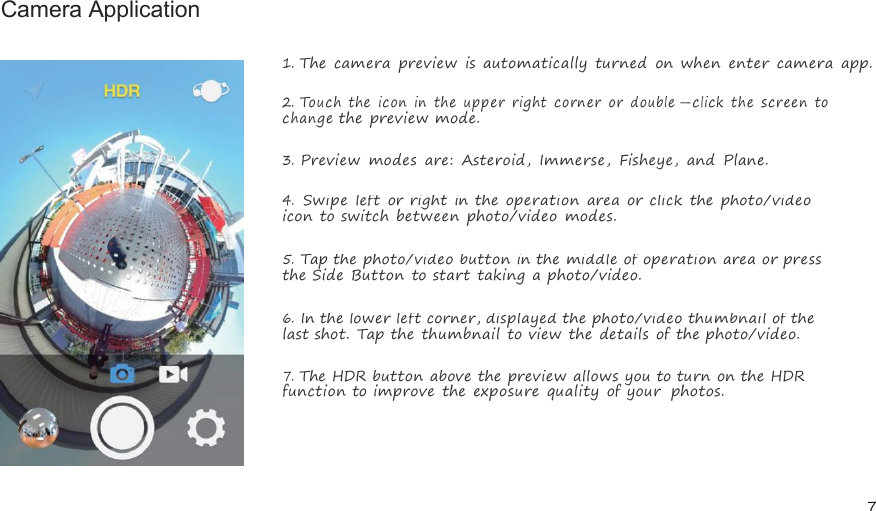
7Camera Application1.The camera preview is automatically turned on when enter camera app.2.Touchtheicon intheupper rightcorneror double-click thescreentochangethe preview mode.3.Preview modes are: Asteroid, Immerse, Fisheye, and Plane.4.Swipe left or right in the operation area or click the photo/videoicon to switch between photo/video modes.5.Tap the photo/video button in the middle of operation area or pressthe Side Button to start taking a photo/video.6.In the lower left corner, displayed the photo/video thumbnail of thelast shot. Tap the thumbnail to view the details of the photo/video.7.The HDR button above the preview allows you to turn on the HDRfunction to improve the exposure quality of your photos.
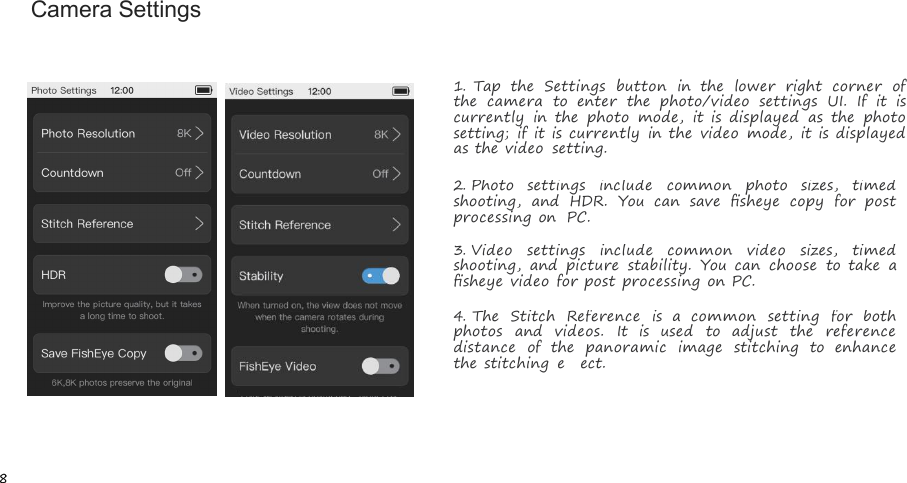
8Camera Settings1.Tap the Settings button in the lower right corner ofthe camera to enter the photo/video settings UI. If it iscurrently in the photo mode, it is displayed as the photosetting; if it is currently in the video mode, it is displayedas the video setting.2.Photo settings include common photo sizes, timedshooting, and HDR. You can save fisheye copy for postprocessing on PC.3.Video settings include common video sizes, timedshooting, and picture stability. You can choose to take afisheye video for post processing on PC.4.The Stitch Reference is a common setting for bothphotos and videos. It is used to adjust the referencedistance of the panoramic image stitching to enhancethe stitching effect.
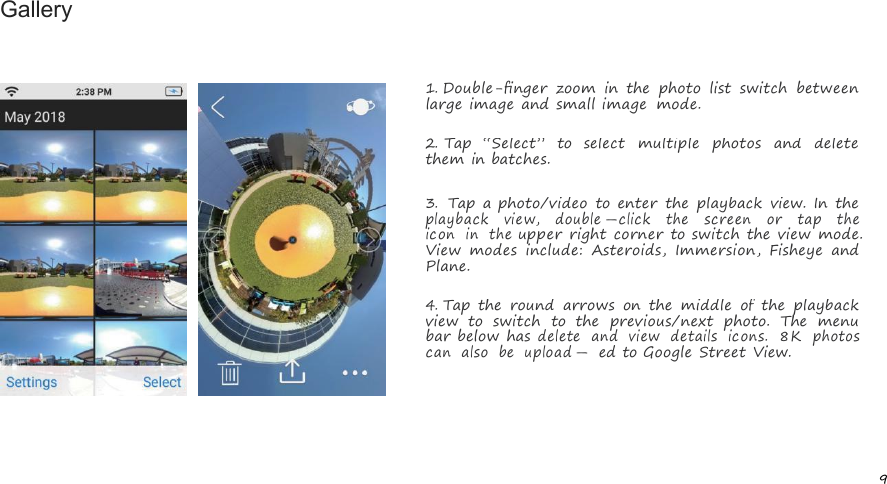
9Gallery1.Double-finger zoom in the photo list switch betweenlarge image and small image mode.2.Tap “Select” to select multiple photos and deletethem in batches.3.Tap a photo/video to enter the playback view. In theplaybackview, double-click thescreenor tap theicon intheupper right corner to switch the view mode.View modes include: Asteroids, Immersion, Fisheye andPlane.4.Tap the round arrows on the middle of the playbackview to switch to the previous/next photo. The menubar below hasdeleteandview detailsicons.8Kphotoscanalsobeupload-ed to Google Street View.
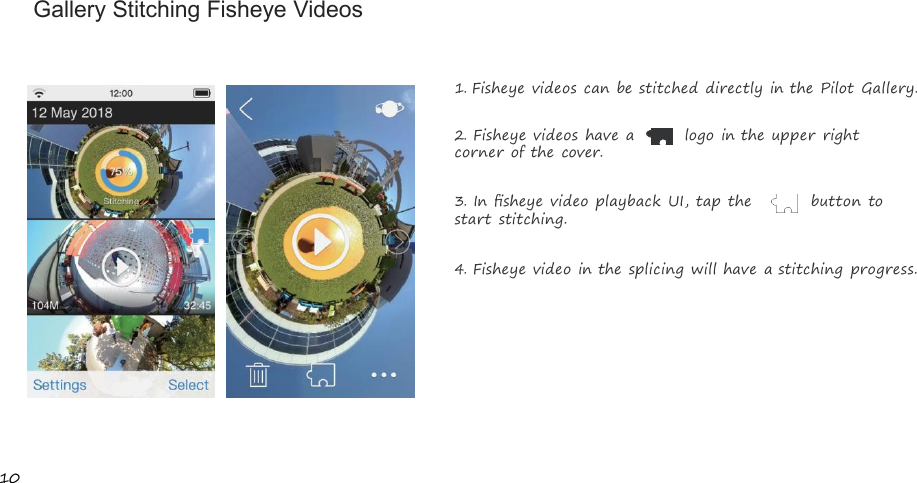
10Gallery Stitching Fisheye Videos1.Fisheye videos can be stitched directly in the Pilot Gallery.2.Fisheye videos have a logo in the upper rightcorner of the cover.3.In fisheye video playback UI, tap the button tostart stitching.4.Fisheye video in the splicing will have a stitching progress.
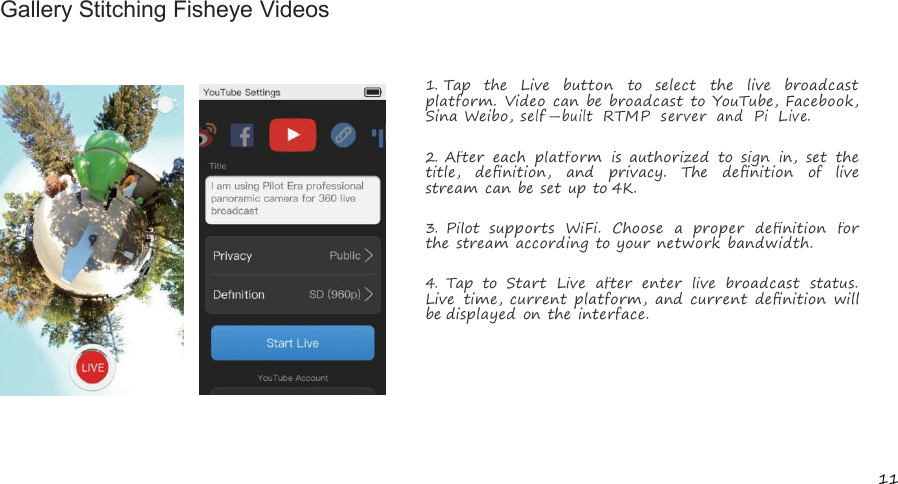
11Gallery Stitching Fisheye Videos1.Tap the Live button to select the live broadcastplatform. Video can be broadcast to YouTube, Facebook,Sina Weibo,self-builtRTMPserverandPiLive.2.After each platform is authorized to sign in, set thetitle, definition, and privacy. The definition of livestream can be set up to 4K.3.Pilot supports WiFi. Choose a proper definition forthe stream according to your network bandwidth.4.Tap to Start Live after enter live broadcast status.Live time, current platform, and current definition willbe displayed on the interface.
12Mobile Control1.Download the official mobile app: Pilot Go2.You can connect camera with Wi-Fi:Connect Pilot Era and mobile phone in a same Wi-Finetwork.3.Pilot Era can be remotely controlled by mobile app to takephoto, record video and manage gallery.Scan QR code Download Pilot GoOr search at the Apple Store orGoogle Play: Pilot Go
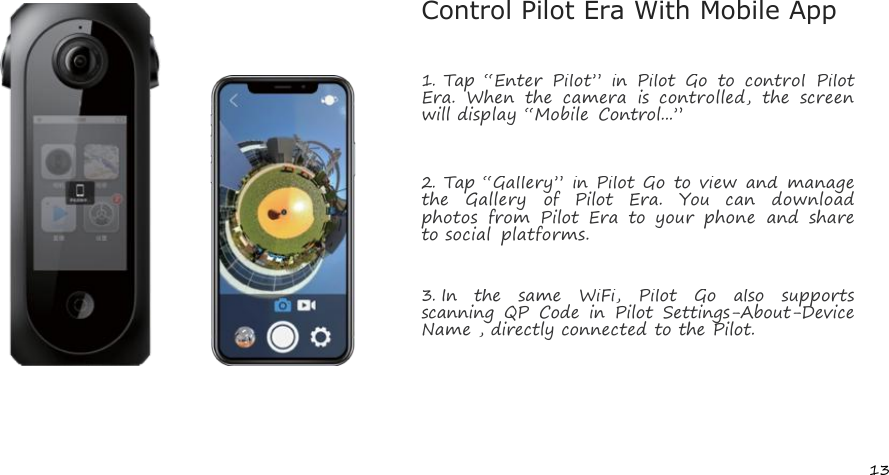
13Control Pilot Era With Mobile App1.Tap “Enter Pilot” in Pilot Go to control PilotEra. When the camera is controlled, the screenwill display “Mobile Control...”2.Tap “Gallery” in Pilot Go to view and managethe Gallery of Pilot Era. You can downloadphotos from Pilot Era to your phone and shareto social platforms.3.In the same WiFi, Pilot Go also supportsscanning QP Code in Pilot Settings-About-DeviceName , directly connected to the Pilot.
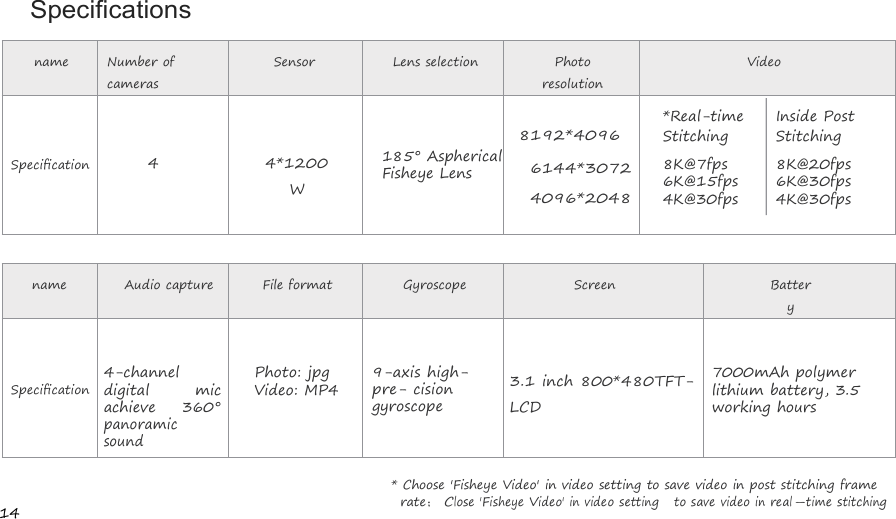
14SpecificationsnameNumber ofcamerasSensorLens selectionPhotoresolutionVideo8192*4096*Real-timeStitchingInside PostStitchingSpecification44*1200W185° AsphericalFisheye Lens6144*30724096*20488K@7fps6K@15fps4K@30fps8K@20fps6K@30fps4K@30fpsnameAudio captureFile formatGyroscopeScreenBatterySpecification4-channeldigital micachieve 360°panoramicsoundPhoto: jpgVideo: MP49-axis high-pre-cisiongyroscope3.1 inch 800*480TFT-LCD7000mAh polymerlithium battery, 3.5working hours* Choose 'Fisheye Video' in video setting to save video in post stitching framerate;Close'FisheyeVideo'in videosettingtosavevideoinreal-timestitching
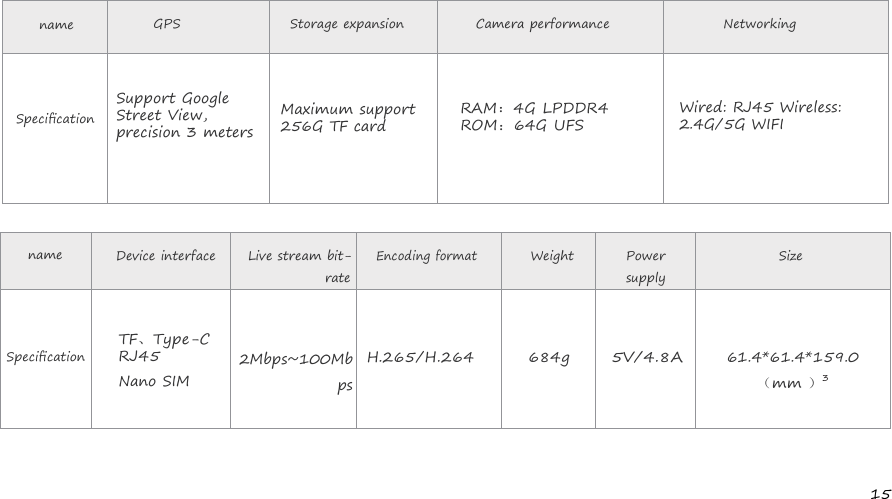
15nameGPSStorage expansionCamera performanceNetworkingSpecificationSupport GoogleStreet View,precision 3 metersMaximum support256G TF cardRAM:4G LPDDR4ROM:64G UFSWired: RJ45 Wireless:2.4G/5G WIFInameDevice interfaceLive stream bit-rateEncoding formatWeightPowersupplySizeSpecificationTF、Type-CRJ45Nano SIM2Mbps~100MbpsH.265/H.264684g5V/4.8A61.4*61.4*159.0(mm )3
16http://pilot.pisofttech.comShenzhen PI Software Technology Co.,Ltd. Visit Pilot Era official network to know more :Web : www.pisofttech.comTel : (+86) 0755-86329023Add : C11-B, International E Park, No.1001 ofZhongshanyuan Road,Nanshan District, Shenzhen City,518057, P.R.ChinaWechatFacebook
PilotEra产品保修卡与产品合格证PRODUCT WARRANTY CARD QUALITY CERTIFICATE
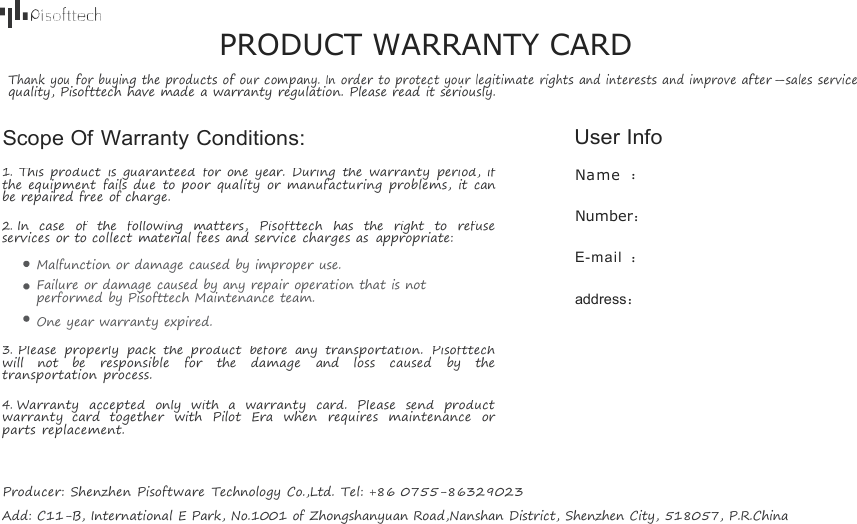
PRODUCT WARRANTY CARDThank youfor buyingtheproductsofourcompany.Inorder toprotect yourlegitimaterightsandinterestsandimprove after-sales servicequality, Pisofttech have made a warranty regulation. Please read it seriously.Scope Of Warranty Conditions: User Info1.This product is guaranteed for one year. During the warranty period, ifthe equipment fails due to poor quality or manufacturing problems, it canbe repaired free of charge.2.In case of the following matters, Pisofttech has the right to refuseservices or to collect material fees and service charges as appropriate:Malfunction or damage caused by improper use.Failure or damage caused by any repair operation that is notperformed by Pisofttech Maintenance team.One year warranty expired.3.Please properly pack the product before any transportation. Pisofttechwill not be responsible for the damage and loss caused by thetransportation process.4.Warranty accepted only with a warranty card. Please send productwarranty card together with Pilot Era when requires maintenance orparts replacement.Name :Number:E-mail :address:Producer: Shenzhen Pisoftware Technology Co.,Ltd.Tel: +86 0755-86329023Add: C11-B, International E Park, No.1001 of Zhongshanyuan Road,Nanshan District, Shenzhen City, 518057, P.R.China
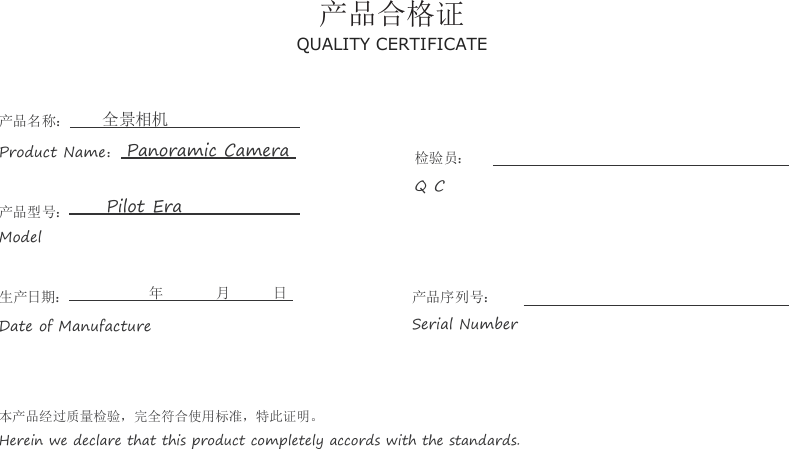
产品合格证QUALITY CERTIFICATE产品名称: 全景相机Product Name:Panoramic Camera产品型号: Pilot EraModel检验员:Q C生产日期: 年 月 日Date of Manufacture产品序列号:Serial Number本产品经过质量检验,完全符合使用标准,特此证明。Herein we declare that this product completely accords with the standards.
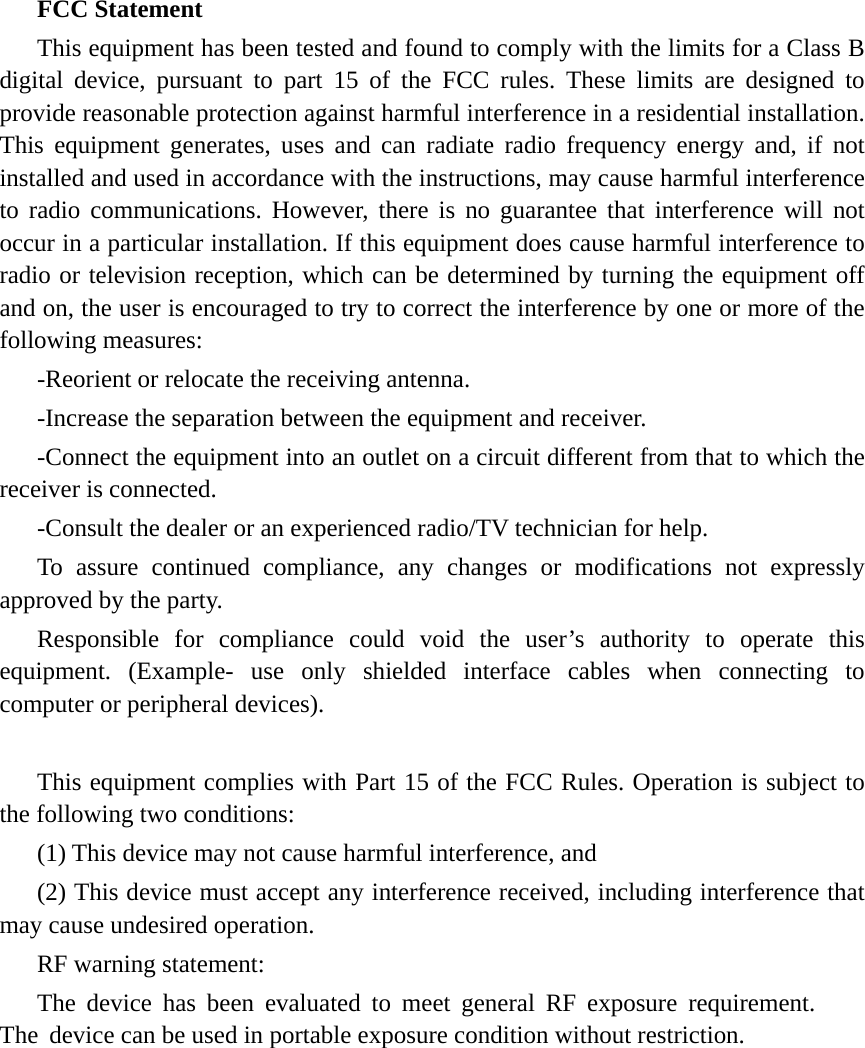
FCC Statement This equipment has been tested and found to comply with the limits for a Class B digital device, pursuant to part 15 of the FCC rules. These limits are designed to provide reasonable protection against harmful interference in a residential installation. This equipment generates, uses and can radiate radio frequency energy and, if not installed and used in accordance with the instructions, may cause harmful interference to radio communications. However, there is no guarantee that interference will not occur in a particular installation. If this equipment does cause harmful interference to radio or television reception, which can be determined by turning the equipment off and on, the user is encouraged to try to correct the interference by one or more of the following measures: -Reorient or relocate the receiving antenna. -Increase the separation between the equipment and receiver. -Connect the equipment into an outlet on a circuit different from that to which the receiver is connected. -Consult the dealer or an experienced radio/TV technician for help. To assure continued compliance, any changes or modifications not expressly approved by the party. Responsible for compliance could void the user’s authority to operate this equipment. (Example- use only shielded interface cables when connecting to computer or peripheral devices). This equipment complies with Part 15 of the FCC Rules. Operation is subject to the following two conditions:     (1) This device may not cause harmful interference, and (2) This device must accept any interference received, including interference that may cause undesired operation.     RF warning statement: The device has been evaluated to meet general RF exposure requirement. The device can be used in portable exposure condition without restriction.

Navigation menu