Langchao LG Digital Mobile Communication MD120 CDMA Cellphone User Manual
Langchao LG Digital Mobile Communication Co. Ltd. CDMA Cellphone
UserManual.wiki
>
Langchao LG Digital Mobile Communication
>
MD120 User Manual
Manual
Navigation menu
Upload a User Manual
Namespaces
Wiki Guide
HTML
PDF
Info
Views
User Manual
Discussion / Help
Navigation
![Chapter 1. Getting Started Cautions z Using the phone in proximity to receiving equipment (i.e., TV or radio) may cause interference. z Keep your phone in a safe place when not in use. z Only use the batteries, antennas, and chargers provided by LG. Using the wrong accessories could void your warranty. z Only authorized personnel should service the phone and its accessories. Faulty installation or service may result in accidents and consequently invalidate the warranty. z Do not hold the antenna while the phone is in use. z Do not use the phone in designated “no cellular phone use” areas. z Do not expose the phone to high temperature or humidity. z Avoid getting your phone wet. If the phone gets wet, turn the power off immediately and remove the battery pack. If the phone is mal-functional, return it to the dealer for service. z Avoid shock or impact on the phone. Phone Overview Function Key Descriptions Lamp The light goes on when you use the power key to turn on the phone and when there are incoming calls and messages. LCD screen Displays messages & indicator icons. END/PWR Used to turn power on/off. This key disconnects a call. Using this key, you can also exit out of a menu back to the phone’s standby display without changing the setting. SEND Allows user to place or answer calls. Mouse Key This mouse key allows quick access to text and voice mail notification messages. Profiles, R-World, and RingTone menu. And these keys are used to scroll through the memory locations and menu items. Alphanumeric Keypad These keys enable you to enter numbers and characters and choose menu items. Soft Keys The current operation of a soft key is defined by the word at the bottom of the display. Soft Keys 2 : If you press this key once in a menu, you can go back one level and if you press and hold the key in a menu, you can go back to the standby display. OK Key This key enables you to choose one item in the menu list. If you press this key in idle, mobile will show you the ‘My menu’ selection window. Star/Pound Key - In the standby status, set the manner mode by pressing the [ * ]button. (for 2 seconds) - In the standby status, set the lock function by pressing the [ # ]button. (for 2 seconds) Clear Key This key enables you to move previous menu or delete on a character in editor On screen Icons The phone screen displays several onscreen icons and onscreen icons appears when the phone is power on. Icons Descriptions Displays the strength of the signal received by the phone and current signal strength is indicated as the number of bars displayed on the screen. No service The phone is not receiving a system signal.](https://usermanual.wiki/Langchao-LG-Digital-Mobile-Communication/MD120/User-Guide-679913-Page-3.png)
![In use A call is in progress. No icon indicates the phone is in standby mode. Indicates that a text message or voice mail has been received Charge level Indicates battery charge level. D Chapter 2. Basic Functions Turning the Phone On and Off Turning the Phone On 1. Install a charged battery pack or connect the phone to an external power source such as the cigarette lighter adapter or car kit. 2. Press [END/PWR] for a few seconds until the red light on the top of the phone flashes. z Fully extend the antenna for the best performance. <Note> Like any other radio device, avoid any unnecessary contact with the antenna while your phone is on. Turning the Phone Off 1. Press and hold[END/PWR] until display screen will be turned off, and then release the key. 2. Protect the antenna by pushing it back into the phone, if extended. Making a Call When you make a call, follow these simple steps: 1. Make sure the phone is turned on. z If not, press [END/PWR]. 2. Enter the phone number with area code, if needed. 3. Press [SEND]. z If the phone is locked, enter the lock code. z “Call Failed” indicates that the call did not go through. 4. Press [END/PWR] to disconnect the call. Correcting Dialing Mistakes If you make mistakes in dialing a number, press [CLR] key once to erase the last entered digit or hold down [CLR] for at least two second to delete all digits, or simply press soft key 2 [BACK] to exit dialing state. Receiving Calls 1. When the phone rings, open cellcase or If cellcase is open, press any key (except [END/PWR],](https://usermanual.wiki/Langchao-LG-Digital-Mobile-Communication/MD120/User-Guide-679913-Page-4.png)
![[5][6], [3((]) to answer. z If you press the key [END/PWR], Side Keys ([(][(]) once when you receive a call, you can hold the present call and ring sound or vibration stops. If you press the [END/PWR] key, Side Keys ([(][(]) twice, the present call is terminated. 2. Press [END/PWR] to disconnect the call. In call waiting mode, the present call is on hold as you answer another incoming call. This service is provided by your service provider. When the call waiting function is activated, your phone will beep to let you know if you have an incoming call. Your phone may also display the incoming caller’s identification. Dialing a call from Phone Book You can place a call from any memory location either by speed dialing or by pressing [SEND] while looking up the memory location. One-Touch Dialing : One-touch dialing is a convenient feature which enables you to dial frequently used numbers in your speed-dial data by pressing a key . z Entry 9 is designated to Emergency Call. z Entry 1 is designated to Voice Mail. z For locations 1 to 8, you can use one-touch dialing (if enabled, see “One-Touch” on page 9.) by pressing and holding down the key corresponding to the memory location. OR z Press digit, then press [SEND]. Two-Touch Dialing (Speed Dialing) : This dialing feature enables you to dial numbers in your phone book through two keys (for locations 10 to 99). 1) Press the first digit. 2) Press and hold the key of the second digit. OR 1) Press the first and second digits, then press [SEND]. Dialing from a Memory List 1) From a memory list, press the scroll keys to go to the memory location you want. 2) Press [SEND]. Dialing from a Memory Location. On viewing and checking the memory location to call, press [SEND]. Chapter 3. Menu Features General Guidelines to MENU Access and Settings 1. Press Soft Key 1 [Menu]. The animation of menu category will appear on the display screen. 2. Press Soft key 1 or Soft Key 3 [Ok]. The menu items will appear on the display screen. 3. Press[v] to go through the list of menu features. 4. Press the corresponding number to the menu item that you want to select. Then the sub-menu list will appear on the screen. 5. Press the appropriate key to select the sub-menu you want to access. 6. Select preferred settings, using the [v] keys. Press Soft Key 2 [Back] to go one step backward](https://usermanual.wiki/Langchao-LG-Digital-Mobile-Communication/MD120/User-Guide-679913-Page-5.png)
![while accessing menu or selecting settings. 7. Press Soft Key 1 or Soft Key 3 [Ok] to save the settings or Soft Key 2 [Back] to cancel without saving. Names ([Menu]+[5]) see “Book Feature” on page 10. Messages ([Menu]+[6]) see “Message Feature” on page 12. Call History ([Menu]+[1]) Allows you to view the 60 most recently dialed phone numbers. Once you exceed the 60-number storage limit, the oldest call history record is overwritten. These calls are divided into 4 types of calls All ([Menu]+[1]+ [1]) Allows you to view list of all the incoming and outgoing calls and you may place a call by pressing [Send]. Missed ([Menu]+[1]+ [2]) Allows you to view list of all missed incoming calls and you may place a call by pressing [Send]. Received ([Menu]+[1]+ [3]) Allows you to view list of all incoming calls and you may place a call by pressing [Send]. Dialled ([Menu]+[1]+ [4]) Allows you to view list of all outgoing calls you made and you may place a call by pressing the [Send]. In call memo ([Menu]+[1]+ [5]) Allows you to view memo saved in use meno Call Duration ([Menu]+[1]+ [6]) 1. Last Dialled call - Displays the time of last call made 2. All Dialled calls - Displays the time of all calls made 3. All calls 4. Reset All Duration – Allows you to clean duration Erase History ([Menu]+[1]+ [7]) Allows you to erase call infomations(missed, received, dialed, data calls) Downloads ([Menu]+[2]) My Vivo ([Menu]+[3]) 1. Main Keys([Menu]+[3]+[1]) Allows you to display the shortcut menu of Idle or not. 2. Menu Style([Menu]+[3]+[2]) Allows you to display the Topmenu in Grid Style or List Style. 3. Menu Reorder([Menu]+[3]+[3]) Allows you to set the shortcut menu of Idle in random order.](https://usermanual.wiki/Langchao-LG-Digital-Mobile-Communication/MD120/User-Guide-679913-Page-6.png)
![4. Sounds([Menu]+[3]+[4]) Allows you to set ringer, volume and alert types refer to 1.sound.Ringers( [Menu]+[3] +[4]+ [1] ) Here,you can set the ringer of Caller ID, No Caller ID, Power on and Power off 2.Volume( [Menu]+[3] +[4]+ [2] ) Allows you to set the volume of Ringer, Earpiece and key beep. 3.Alerts( [Menu]+[3] +[4]+ [3] ) You can set Alert type of Service Change, Minute Beep, and Call Connect. 4.Power On/Off Tone ( [Menu]+[3] +[4]+ [4] ) Allows you to set the type of Power On/Off Tone(On or Off). 5. Display([Menu]+[3]+[5]) Allow you to make any setting of screens. 1. Clock ( [Menu]+[3]+[5]+[1] ) You can determine that clock display or not in standby and time, date type if clock display. Wallpaper ( [Menu]+[5]+[4] ) You can set up the screen displayed on the LCD screen in the standby mode. (Theme, Current Profiles display,Banner) 2. Screens( [Menu]+[3]+[5]+[2] ) You can chose the paper of Wall, Power on and Power off in this item. 3. Banner( [Menu]+[3]+[5]+[3] ) Allow you to set or remove banner in this item. 4. Backlight ( [Menu]+[3]+[5]+[4] ) Allows you to select how long or when the display screen and keypad are backlit. The backlight is turned off 10 seconds/20 seconds/30 seconds/1min after the last key is pushed. 5. Brightness ( [Menu]+[3]+[5]+[5] ) You can set the brightness of the screen to 100% /80% /60% /40%. 6. Contrast ( [Menu]+[3]+[5]+[6] ) Allows you to set up LCD display contrast with [34] key. 6. Language([Menu]+[3]+[6]) Allow you to set the language of the phone. 7. My Menu([Menu]+[3]+[7]) LCD will display top Menu list. You can add one of these to my menu and also remove registered menu from my menu. Add : My menu is possible up to 10 pieces. Remove : Allow you to remove registered menu from my menu. Tone&Images ([Menu]+[4]) 1. Images ([Menu]+[4]+[1]) Display the default and downloaded images in the phone 2. Tones ([Menu]+[4]+[2])](https://usermanual.wiki/Langchao-LG-Digital-Mobile-Communication/MD120/User-Guide-679913-Page-7.png)
![Display the default and downloaded tones in the phone 3. Memory ([Menu]+[4]+[3]) Display the states of memory which is used to store the downloaded images and tones of the phone. Phonebook ([Menu]+[5]) see “Phonebook Feature” on page 12. Messages ([Menu]+[6]) see “Messages” on page 12. Entertainment ([Menu]+[7]) 1. Game and Apps([Menu]+[7]+[1]) Allow you to download games and applications using BREW. 2. Voice Portal([Menu]+[7]+[2]) ??? 3. Voice Informa([Menu]+[7]+[3]) ??? Voice Mail ([Menu]+[8]) 1. Voice Mail([Menu]+[8]+[1]) ??? More ([Menu]+[9]) 1. Tools([Menu]+[9]+[1]) Allow you to use the tools in the phone. 2. Settings([Menu]+[9]+[2]) Allows you to set Menu, Sound, Display, Call, Phone and Security. Select menu with [5] [6] or [v] key. 3. Help([Menu]+[9]+[3]) Display the helps which can be used to help you to use the phone easily. Chapter 4. Phonebook Features Phonebook ([Menu]+[5]) Voice Mail ([Menu]+[5]+[1]) In this menu, you can access the voice mail. Vivo Agenda ([Menu]+[5]+[2]) In this menu, you can make a backup of the list of contacts to a server. Add Name ([Menu]+[5]+[3]) 1. Press Soft Key 1 [Menu] 2. Press [3] 3. Enter the phone number you want to add. 4. Select number’s destination (Mobile Home, Office and Other)](https://usermanual.wiki/Langchao-LG-Digital-Mobile-Communication/MD120/User-Guide-679913-Page-8.png)
![5. Enter name 6. Press Soft Key 1 [Save] Contacts ([Menu]+[5]+[4]) 1. Press Soft Key 1 [Menu] 2. Press [4] 3. Enter the name you want to find. 4. You can go another find menu using Soft Key 1 [Options] 5. In View Menu, LCD will display all information belong to selected contact. And you can edit,send message or erase in this status. 6. In Find number, Enter the number you want to find. 7. In Find Group, You can select group with [v] key. Groups ([Menu]+[5]+[5]) In this menu, you can view group members, set ring tone and msg tone, edit group’s title. 1. Press Soft Key 1 [Menu] 2. Press [5] 3. Select group you wand with [v] key. 4. Press Soft Key 1 [Options]. 5. You can go sub menu(view members, set ring tone, set msg tone) 6. In View members menu, LCD will display all members belong to selected group. And you can add,erase or view contact in this status. 7. In Set Ring Tone menu, you can select ring tone with [v] key. 8. In Set Msg Tone menu,You can select message tone with [v] key. 9. Press Soft Key 2 [Edit], you can enter different group name. Speed Dial ([Menu]+[5]+[6]) 1. Press Soft Key 1 [Menu] 2. Press [6] LCD will display all speed dial address, and you can select a address with [v] key or by inputing address numbers. 3. If a address you selected is empty, you can select one of 3 option(Assign,Next empty and Remove all) with Soft Key 1 [Options]. 4. In Assign menu, you can add name in speed dial 5. In Next empty menu, you can go next empty address 6. In Remove all menu, you can erase all address assigned in speed dial. 7. If a address you selected is assigned, you can select one of 3 option(Replace, Next empty, and Remove all) with Soft Key 1 [Options]. 8. In Replace menu, you can replace another name saved in phonebook data. 9. In Next empty menu, you can go next empty address 10. In Remove all menu, you can erase all address assigned in speed dial. 11. If a address you selected is assigned,you also can press Soft Key 2 [Remove] and erase contact selected.](https://usermanual.wiki/Langchao-LG-Digital-Mobile-Communication/MD120/User-Guide-679913-Page-9.png)
![Chapter 5. Message Features Text message, page and voice mailbox become available as soon as the power is on. You can access the above types of messages using the message key ([4]). In addition, you can make a call to the call back number by pressing the [Send] during a message check. The phone can store up to 31 messages (Voice message : 1, Text messages 30) with 140 characters per message. However, you should check whether your carrier provides the above features. The information that is stored on the message is determined by phone mode and service capability. You can check types of messages by pressing the message key ([4]). Massage Service This service supports reception of the text message, alerting, and the voice mailbox. It is possible to access the above functions with the text message key . It is possible to store up to total 31(new+old+voice) messages. It is recommended to check the number of character receivable because the capacity depends on the system service provider. <Type of Menu> - New SMS: Menu to send message. - Inbox : Menu to check a new incoming, stored text message - Outbox : Menu to check the message user have sent and was saved. - Voice Mail : Menu to check the number of voice messages in the voice mailbox - Templates : Predefined Messages by user. - Archive : Saved message in Inbox - Drafts : Saved message in Write message - Message Groups : Msg Groups consists of 5 SMS/E-mail Group. - Msg Settings : Menu to set the SMS priority or Delivery ack and so on. - Erase Message : Menu to erase all the stored messages - Move the cursor with the upside and downside keys [v], and press Soft Key1 [Select] for the menu requested. Press Soft Key 2 [Back] to return to the initial image on the terminal. 1. New SMS ([4]+[1]) A. Press [Select] B. Enter Message Menu and Press [Option] • Send : send msg • Templates : insert templates • Save : save to Draft • Add Sign: add signature C. Select [Send] D. Enter Phone Number](https://usermanual.wiki/Langchao-LG-Digital-Mobile-Communication/MD120/User-Guide-679913-Page-10.png)
![• Send : send msg • Last : find last number • SMS Groups : find sms groups • Names: find phonebook 2. Inbox ([4]+[2]) A. Press [Select] B. Press [Option] • View : view received msg • Erase : erase received msg C. Select [Reply] • send msg to #CB 3. Outbox ([4]+[3]) 1.Sent A. Press [Option] • View : view sent msg • Erase : erase sent msg B. Press [Forward] • Forward : send msg to another phone number 2.Unsent C. Press [Option] • View : view sent msg • Erase : erase sent msg D. Press [Forward] • Forward : send msg to another phone number 4. Voice Mail ([4]+[4]) 1) Press [Select] 2) Press [Option] 3) Select [Listen] • Listen : listen voice mail • Erase : erase received voice mail 5. Templates ([(]+[5]) 1) Press [Add]](https://usermanual.wiki/Langchao-LG-Digital-Mobile-Communication/MD120/User-Guide-679913-Page-11.png)
![2) Press [Option] ( Edit: • Erase: erase template 3) Select [View] 6. Archive ([(]+[6]) 1) Press [Option] 2) Press [Forward] ( View : view msg ( Erase : erase msg 3) Select [View] Press[Option] • Erase : erase msg • Reply : • Save Address Press [Forward] 7. Drafts([4]+[7]) 1) Press [View] 2) Press [Erase] 3) From this state the same with Write message 8. SMS Groups ([4]+[8]) 1) Press [Option] • View • Rename • Clear Group • Clear All 2) Press [Send] 9.Msg Settings ([4]+[9]) 1) Press [Select] 2) Choose menu item, Press [Select] • Priority : You can select Priority (Normal/Urgent) • Delivery ack : You can select Delivery ack (On / Off) • Validity period : You can select Validity period. (Default, 30 Min etc) • Save sent message : You can select repeat alert (Yes / No) • Auto delete inbox : You can select repeat alert (Yes / No)](https://usermanual.wiki/Langchao-LG-Digital-Mobile-Communication/MD120/User-Guide-679913-Page-12.png)
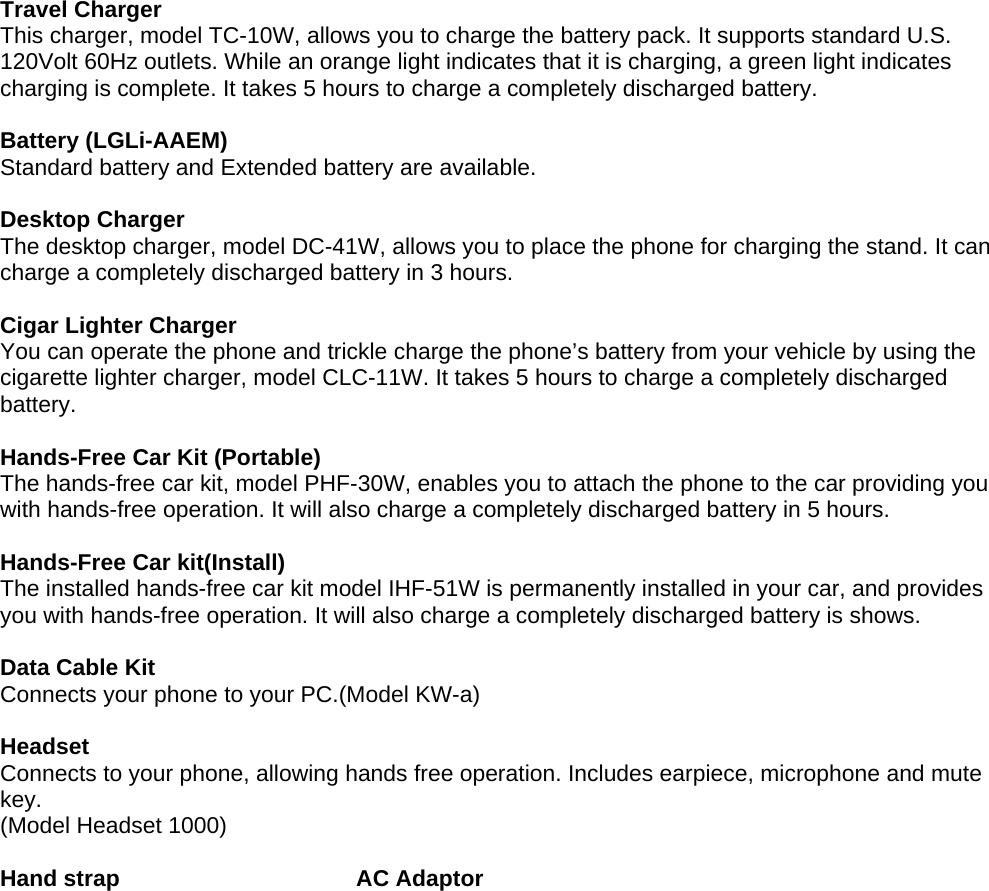
![• Signature: • Archive Lock: • Message Alerts: 10. Erase Msgs ([4]+[0]) 1) Press [Select] 2) Press [Select] This menu will erase Inbox, Outbox, Archive, Draft and All 3) Select [Yes] if you want to erase <SMS SERVICE PROGRAM> ####->[6. SMS MO] Select <SMS MO > 1. SO : Select 8K or 13K 2. L3ACK : Select ON/OFF Chapter 6. Functions used during a call Press soft key 1[Menu]. Some settings will appear on the display screen In Call Memo(During a call : [MENU]+[1] ) You can save memo during a call and this data is saved at call history Mute / Unmute (During a call : [MENU]+[2] ) z Sometimes it is necessary to mute a call so that caller does not hear you or certain background noise. To use this function during a call, Press Soft Key 1 [Menu] and [1]. z If you need to release mute press the Soft Key 1 [Menu] and [1] key again. Call Volume (During a call : [MENU]+[3] ) You can select any volume you need by press right key(Volume up)or left key(Volume down). Press Soft Key 1or Soft Key 3 to save.Certain Volume value will be saved without any key down automatically after 2 seconds. Voice Privacy On/off (During a call : [MENU]+[4] ) Set the voice privacy feature for CDMA calls as “Enhanced” or “Standard” : CDMA offers inherent voice privacy. Check with your service provider for availability of the enhanced voice privacy mode. Long/Short DTMF (During a call : [MENU]+[5] ) If Short DTMF is set,you will hear a short beep as any key pressed.If Long DTMF is set,you will hear a long beep as any key pressed,and the beep will not disappear if you hold any key all thrugh Press soft key 2[Contacts].You can send msg or something else duiring a call. Chapter 7. Accessories There are a variety of accessories available for the phone. You can select these options according to your personal communication requirements. Consult your local dealer for availability.](https://usermanual.wiki/Langchao-LG-Digital-Mobile-Communication/MD120/User-Guide-679913-Page-13.png)