Langchao LG Digital Mobile Communication MG120 Dual Band GSM Flip-Phone User Manual
Langchao LG Digital Mobile Communication Co. Ltd. Dual Band GSM Flip-Phone
UserManual.wiki
>
Langchao LG Digital Mobile Communication
>
MG120 User Manual
Manual
Navigation menu
Upload a User Manual
Namespaces
Wiki Guide
HTML
PDF
Info
Views
User Manual
Discussion / Help
Navigation
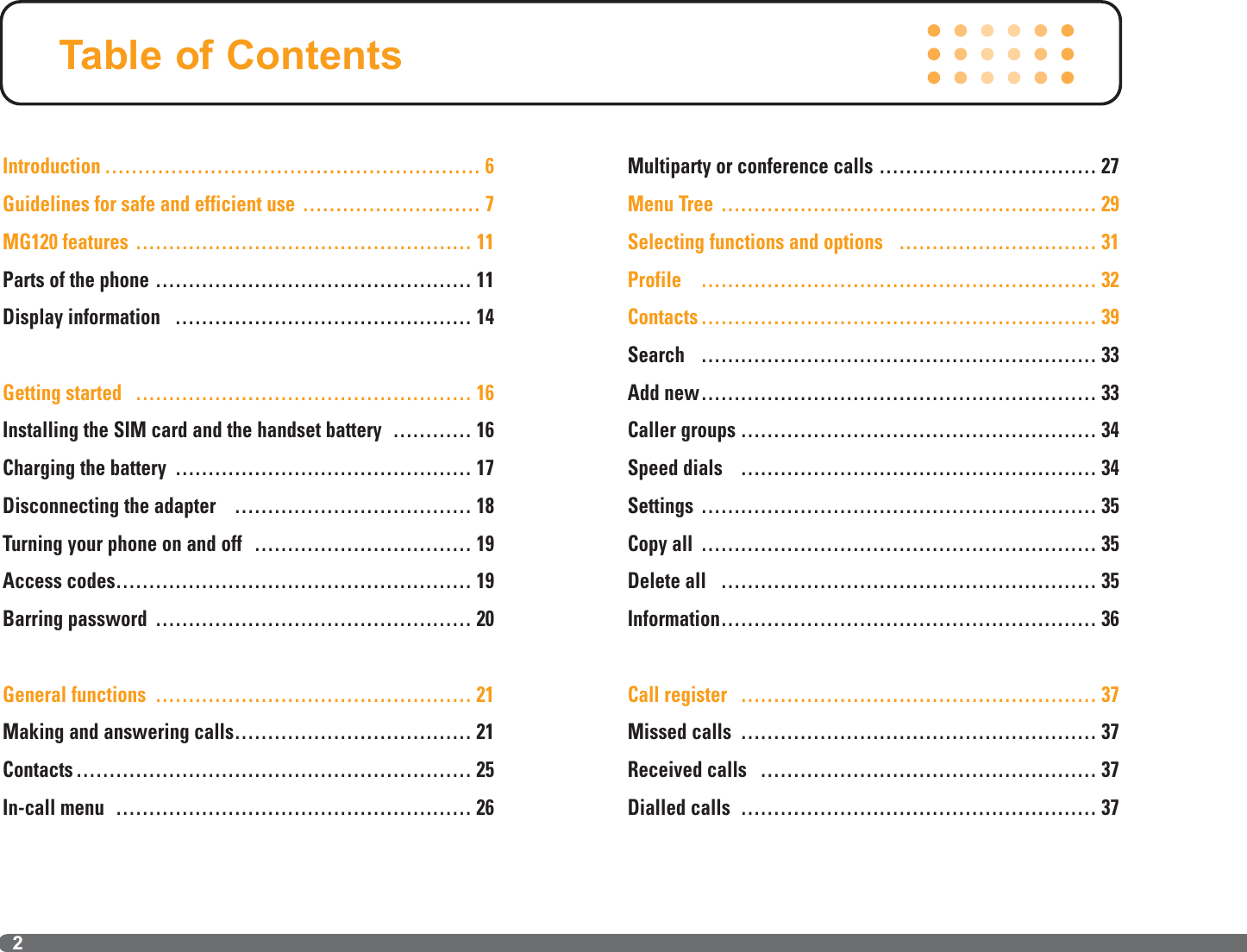
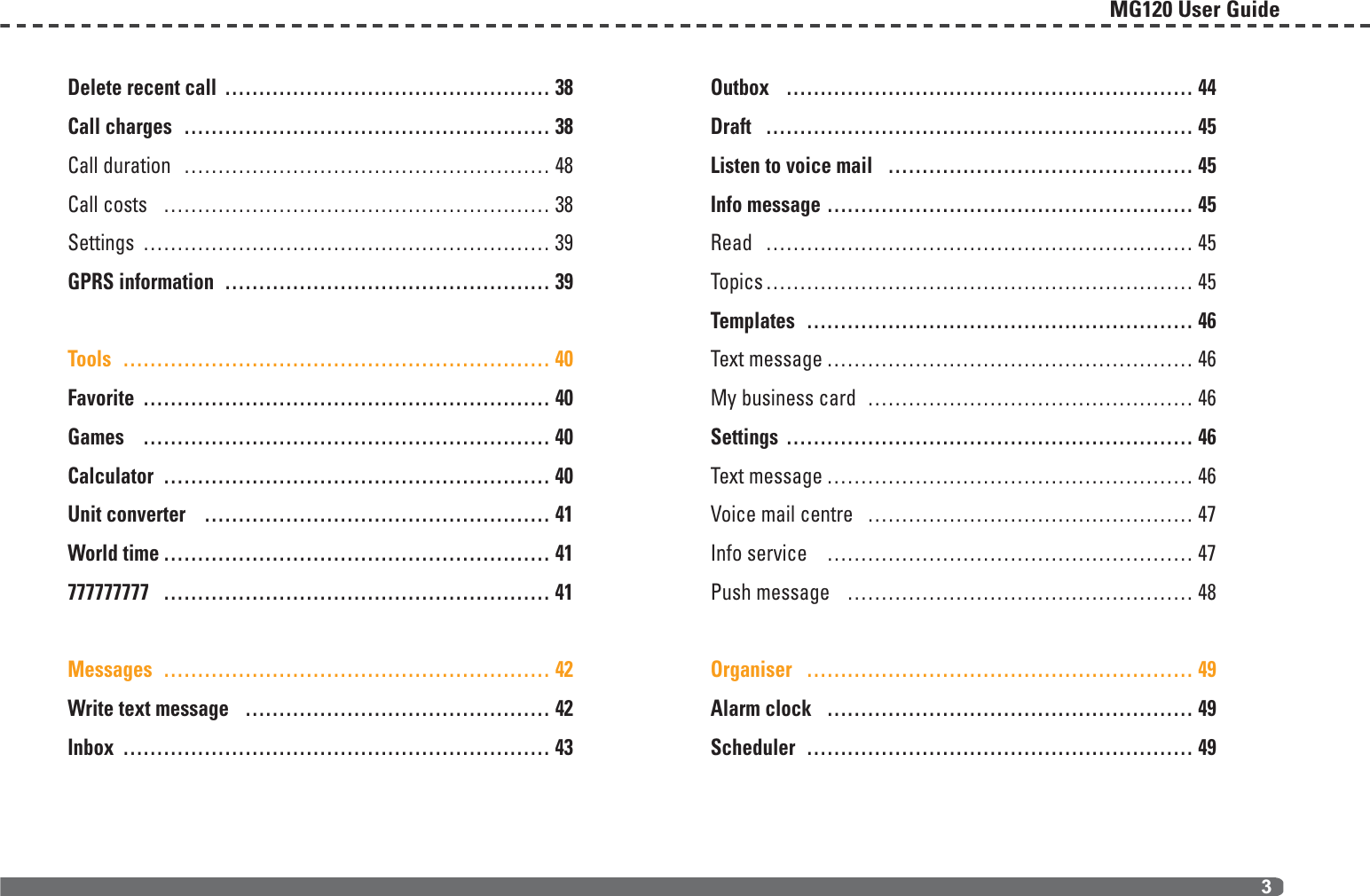
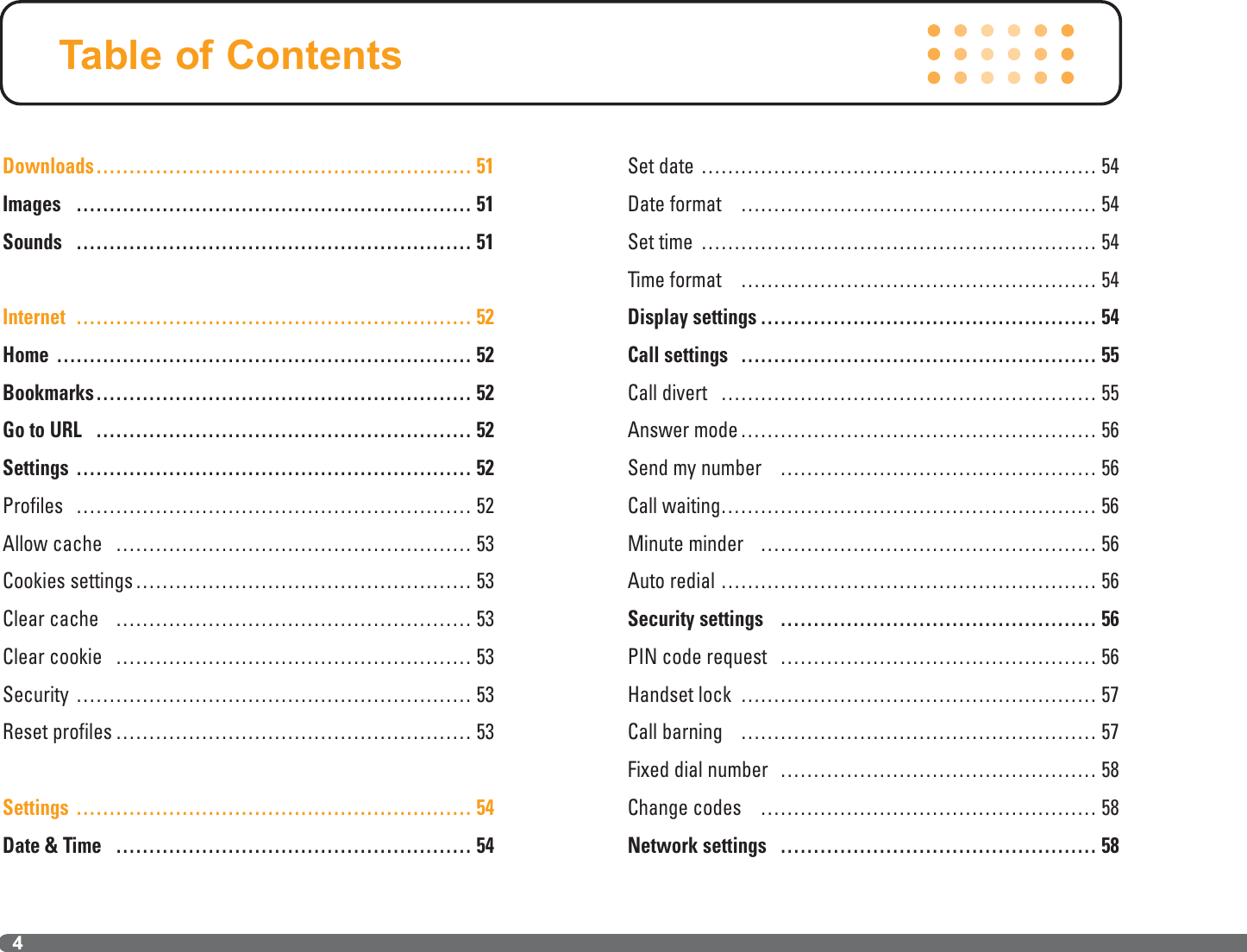
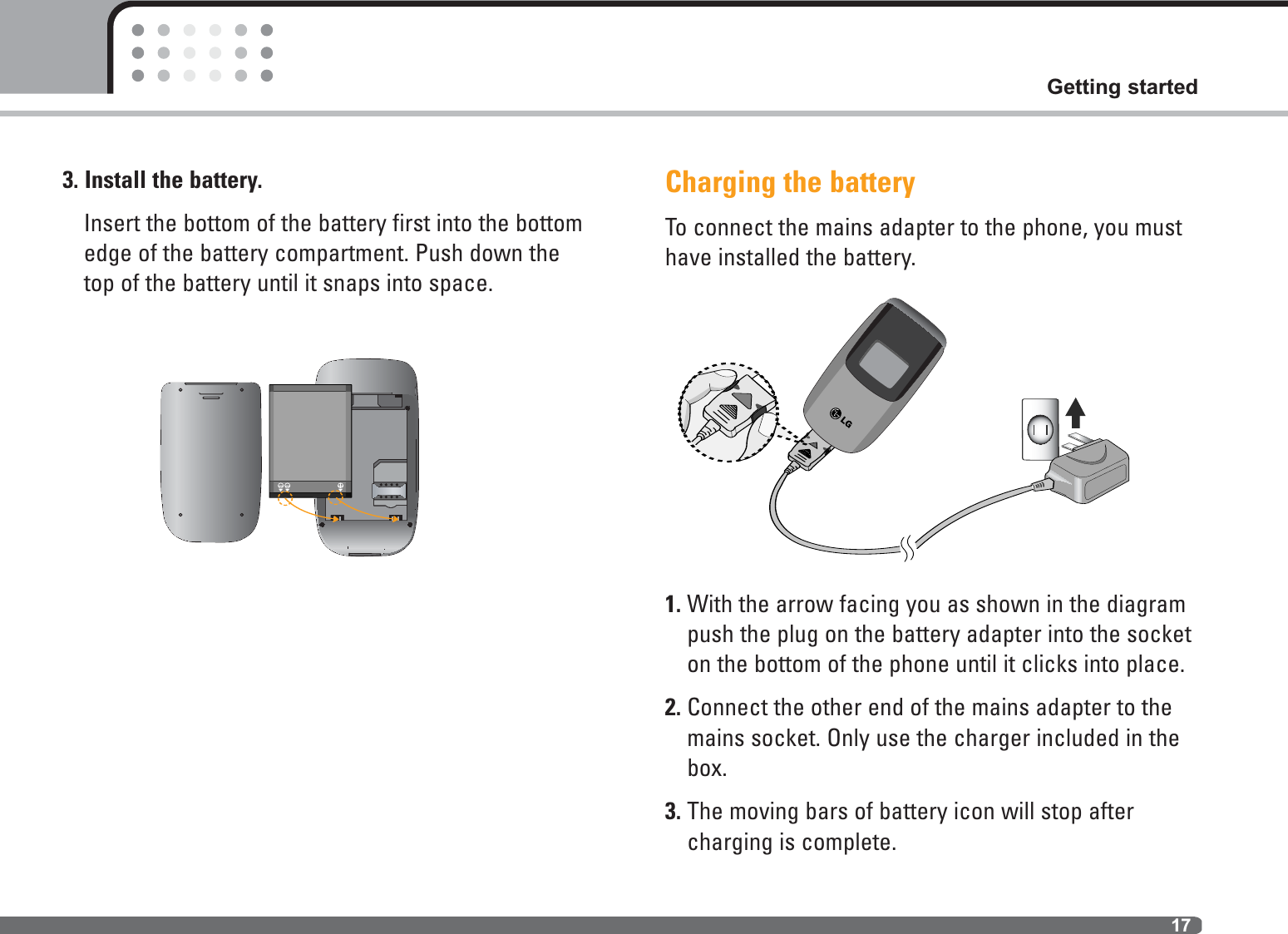
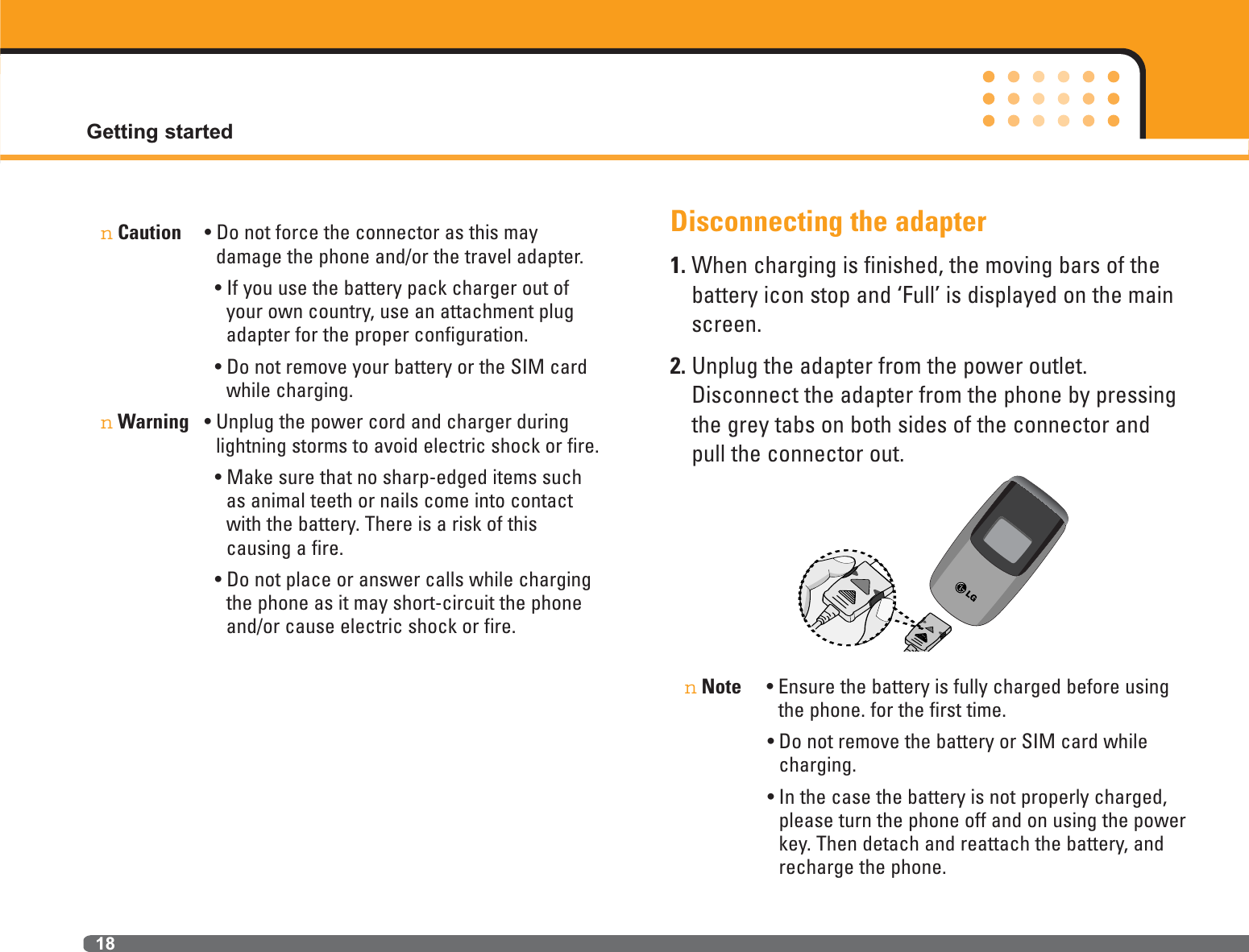
![19Getting startedTurning your phone on and offTurning your phone ON1. Install a battery to the handset and connect thephone to an external power source such as thetravel adapter, cigarette lighter adapter or hands-free car kit. Or install a charged battery packto the handset.2. Press and hold for a few seconds until the LCDscreen is turned on.3. Depending on the status of the PIN code requestsetting you may need to enter your PIN code.Turning your phone OFF1. Press and hold for a few seconds until the LCDscreen is turned off.Access codesYou can use the access codes described in this section to avoid unauthorised use of your phone. Theaccess codes (except PUK and PUK2 codes) can bechanged by using the Change codes feature [Menu 3-4-5]. See page 48.PIN code (4 to 8 digits)The PIN (Personal Identification Number) code protects your SIM card against unauthorised use. ThePIN code is usually supplied with the SIM card. Whenthe PIN code request is set to Enable, your phone willrequest the PIN code every time the phone isswitched on. When the PIN code request is set toDisable, your phone connects to the network directlywithout the PIN code.PIN2 code (4 to 8 digits)The PIN2 code, supplied with some SIM cards, isrequired to access functions such as Fixed dial num-ber. These functions are only available if supported byyour SIM card. Check with your network operator forfurther information.](https://usermanual.wiki/Langchao-LG-Digital-Mobile-Communication/MG120/User-Guide-686253-Page-19.png)
![PUK code (4 to 8 digits)The PUK (PIN Unblocking Key) code is required tounlock a PIN blocked phone. The PUK code may besupplied with the SIM card. If not, contact your network operator for the code. If you lose the code,please contact your network operator.PUK2 code (4 to 8 digits)The PUK2 code, supplied with some SIM cards, isrequired to change a blocked PIN2 code. If you losethe code, please contact your network operator.Security code (4 to 8 digits)The security code protects the unauthorised use ofyour phone. The default security code is set to ‘0000’and the security code is required to delete all phoneentries and to activate the Reset settings menu. Also,the security code is required to enable or disable thephone lock function to prevent unauthorised use of thephone. The security code default setting can be modified from the Security settings menu. Barring passwordThe barring password is required when you use theCall barring [Menu 3-4-3] function. You can obtain the password from your network operator when you subscribe to this function. See page 46 for furtherdetails.Getting started20](https://usermanual.wiki/Langchao-LG-Digital-Mobile-Communication/MG120/User-Guide-686253-Page-20.png)
![21Making and answering callsMaking a call1. Make sure your phone is switched on.2. Enter a phone number, including the area code. ]Press and hold the clear key ( ) to erase theentire number.3. Press the send key ( ) to call the number.4. To end the call, press the end key ( ) or the rightsoft key. Making a call from the call history list1. In standby mode, press the send key ( ), and thelatest incoming, outgoing and missed phone numberswill be displayed.2. Select the desired number by using the up/down navi-gation keys.3. Press to call the number.Making an international call1. Press and hold the key for the international prefix.The ‘+’ character automatically selects the internationalaccess code.2. Enter the country code, area code, and the phone num-ber.3. Press to call the number.Ending a callWhen you have finished your call, press the end ( ) key.Making a call from the address bookYou can save the names and phone numbers dialled regu-larly in the SIM card and/or phone memory. You can dial anumber by simply looking up the desired name in theaddress book and pressing the ( ) key.General functions](https://usermanual.wiki/Langchao-LG-Digital-Mobile-Communication/MG120/User-Guide-686253-Page-21.png)
![22Answering a callWhen you receive a call, the phone rings and the mov-ing circles icon appears on the screen. If the callercan be identified, the caller’s phone number (or name if saved in the phonebook) is displayed.1. To answer an incoming call, open the phone. (WhenFlip open has been set as the answer mode. Seepage 45 [Menu 3-3-2].)nNote If Any key has been set as the answer mode (seepage 45), any key press will answer a call exceptfor the or the right soft key.]You can answer a call while using the addressbook or other menu features.2. To end the call, close the phone or press the key.Signal strengthYou can check the strength of your signal by the signalindicator ( ) on the LCD screen of your phone.Signal strength can vary, particularly inside buildings.Moving near to a window may improve reception.Entering textYou can enter alphanumeric characters by using thephone’s keypad. For example, storing names in thephonebook, writing a message, creating a personalgreeting. The following text input methods are available in thephone.General functions](https://usermanual.wiki/Langchao-LG-Digital-Mobile-Communication/MG120/User-Guide-686253-Page-22.png)
![23General functionsChanging the text input mode1. When you are in a field thatallows characters to be entered,you will notice the text inputmode indicator in the top rightcorner of the LCD screen.2. Change the text input mode bypressing . You can check the current text input mode in the topright corner of the LCD screen.]Using the T9 modeThe T9 predictive text input mode lets you enter wordseasily with a minimum number of key presses. As youpress each key, the phone begins to display the characters that it thinks you are typing based on thebuilt-in dictionary. You can also add new words in thedictionary. As new words are added, the word changes to reflect the most likely candidate from thedictionary.T9 modeThis mode lets you enter words with only one keystroke per letter. Each key on the keypad hasmore than one letter. The T9 mode automaticallycompares your keystrokes with an internal dictionary to determine the correct word, thusrequiring far fewer keystrokes than the traditionalABC mode. This is sometimes known as predictivetext.ABC modeThis mode lets you enter letters by pressing the keylabelled with the required letter once, twice, threeor four times until the letter is displayed.123 mode (Number mode)Type numbers using one keystroke per number. Tochange to 123 mode in a text entry field, pressthe key until 123 mode is displayed.Options Inserttext input mode](https://usermanual.wiki/Langchao-LG-Digital-Mobile-Communication/MG120/User-Guide-686253-Page-23.png)
![General functions241. When you are in the T9 predictive text input mode,start entering a word by pressing keys to. Press one key per letter.- The word changes as letters are typed. Ignorewhat’s on the screen until the word is typed completely.- If the word is still incorrect after typing completely,press the down navigation key once or more tocycle through the other word options.Example:Press to type GoodPress [Down navigation key] totype Home- If the desired word is missing from the wordchoice list, add it using the ABC mode.- You can select the language of the T9 mode. Pressthe left soft key [Option], then select T9 languages.Select the desired language of T9 mode. You canalso turn off the T9 mode by selecting T9 off. Thedefault setting on the phone is T9 enabled mode.2. Enter the whole word before editing or deleting anykeystrokes.3. Complete each word with a space by pressing thekey. To delete letters, press . nNote To exit from the text input mode without saving yourinput, press . The phone goes back to standbymode.]Using the ABC modeUse the to keys to enter your text.1. Press the key labelled with the required letter:- Once for the first letter- Twice for the second letter- And so on2. To insert a space, press the key once. Todelete letters, press the key. Press and holddown the key toclear the whole display.](https://usermanual.wiki/Langchao-LG-Digital-Mobile-Communication/MG120/User-Guide-686253-Page-24.png)
![25General functionsnNote Refer to the table below for more information on thecharacters available using the alphanumeric keys.]Using the 123 (Number) modeThe 123 mode enables you to enter numbers in a textmessage (a telephone number, for example).Press the keys corresponding to the required digitsbefore manually switching back to the appropriate textentry mode.ContactsYou can store phone numbers and their correspondingnames in the memory of your SIM card.In addition, you can store up to 500 numbers andnames in the phone memory.The SIM card and phone are both used in the sameway in the Contacts menu. Characters in the order displayKeyUpper Case. , / ? ! - : ' '' 1 A B C 2 D E F 3 G H I 4 J K L 5M N O 6 P Q R S 7 T U V 8 W X Y Z 9 Space 0Lower Case. , / ? ! - : ' '' 1 a b c 2 d e f 3 g h i 4 j k l 5m n o 6 p q r s 7 t u v 8 w x y z 9Space 0](https://usermanual.wiki/Langchao-LG-Digital-Mobile-Communication/MG120/User-Guide-686253-Page-25.png)
![26In-call menuYour phone provides a number of control functionsthat you can use during a call. To access these functions during a call, press the left soft key[Options].During a callThe menu displayed on the handset screen during acall is different to the default main menu displayedwhen in standby mode, and the options are describedbelow. Making a second callYou can get a number you wish to dial from the phonebook to make a second call. Press the right softkey then select Search. To save the dialled numberinto the phonebook during a call, press the right softkey then select Add new.Switching between two callsTo switch between two calls, press the left soft keythen select Swap or by pressing key.Answering an incoming callTo answer an incoming call when the handset is ringing, simply press the key. The handset is alsoable to warn you of an incoming call while you arealready on a call. A tone sounds in the earpiece, andthe display will show that a second call is waiting.This feature, known as Call waiting, is only available ifyour network supports it. For details of how to activateand deactivate it see Call waiting [Menu 3-3-4] onpage 45.If Call waiting is activated, you can put the first callon hold and answer the second, by pressing orby selecting the left soft key[Answer].Rejecting an incoming callYou can reject an incoming call without answering bysimply pressing the key. During a call, you canreject an incoming call by pressing the right soft key[End] key or by pressing the .General functions](https://usermanual.wiki/Langchao-LG-Digital-Mobile-Communication/MG120/User-Guide-686253-Page-26.png)
![27General functionsAdjusting the volume during a callYou can adjust the volume during a call by pressingthe left/soft nevigationkey.Switching DTMF tones on during a callTo turn DTMF tones on during a call, press the left softkey, and then select DTMF on. DTMF tones can beturned off the same way. DTMF tones allow yourphone to make use of an automated switchboard.Muting the microphoneYou can mute the microphone during a call by pressing the [Menu] key then selecting Mute on. Thehandset can be unmuted by selecting Mute off. Whenthe handset is muted, the caller cannot hear you, butyou can still hear them.Multiparty or conference callsThe multiparty or conference service provides youwith the ability to have a simultaneous conversationwith more than one caller, if your network operatorsupports this feature. A multiparty call can only be setup when you have one active call and one call onhold, both calls having been answered. Once a multiparty call is set up, calls can be added, disconnected or separated (that is, removed from themultiparty call but still connected to you) by the person who set up the multiparty call. These optionsare all available from the In-Call menu. The maximumcallers in a multiparty call are five. Once started, youare in control of the multiparty call, and only you canadd callers to the multiparty call.Making a second callYou can make a second call while currently on a call.Enter the second number and press the key. When the second call is connected, the first call is automatically placed on hold. You can swap betweencalls by pressing the left soft key then selecting Swap.Setting up a conference callPlace one call on hold and while the active call is on,press the left soft key and then select the Conference/Join all.](https://usermanual.wiki/Langchao-LG-Digital-Mobile-Communication/MG120/User-Guide-686253-Page-27.png)
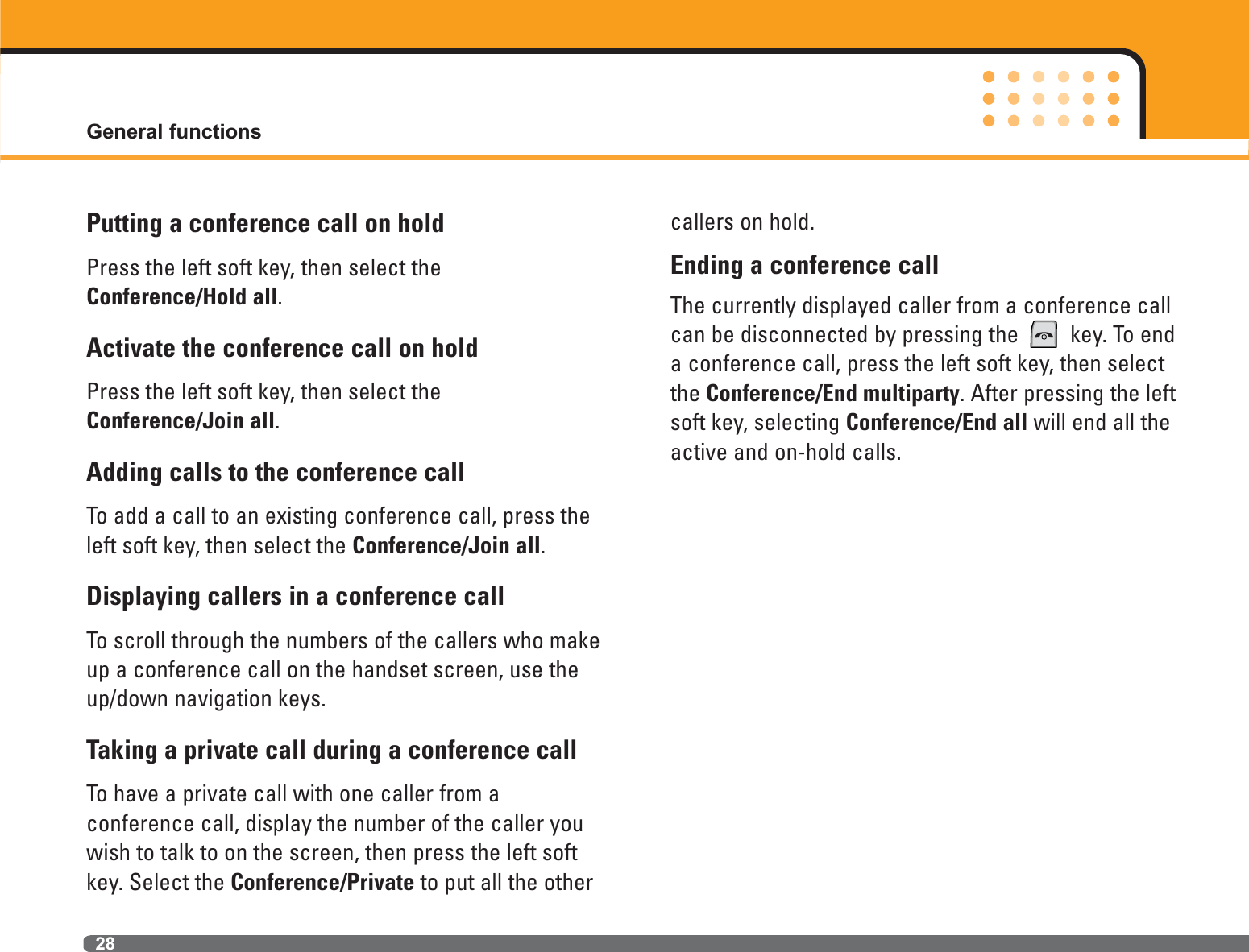
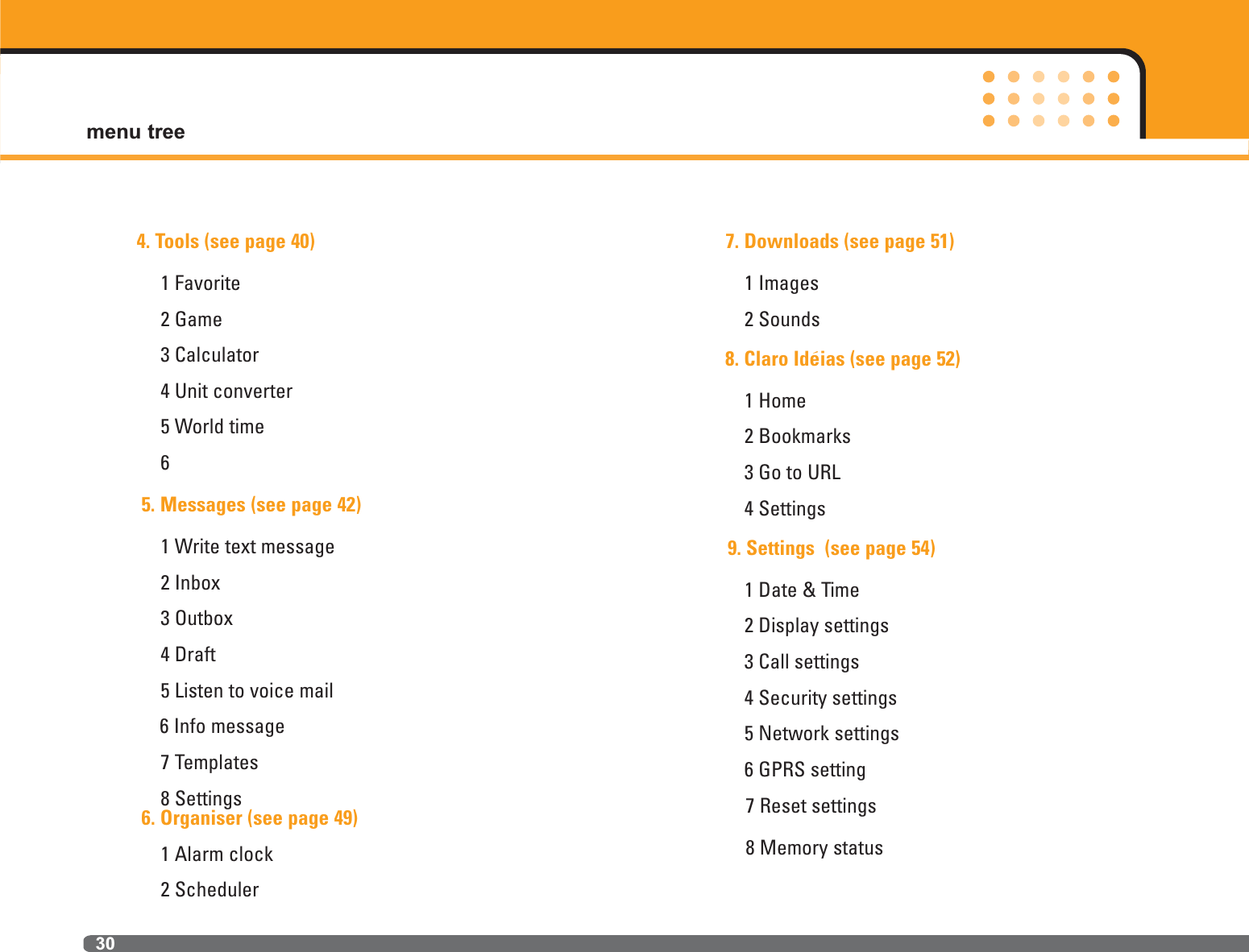
![29The following illustration shows the available menustructure and indicates the:]Number assigned to each menu option.]Page where you can find the feature description.You can go to the desired menu using the left soft key[Menu], navigation keys and the [OK] key. And you canalso take a shortcut by pressing the correspondingnumber key of desired menu after pressing the leftsoft key [Menu].1. Profile (see page 32)1 Silent2 General3 Loud4 Headset 5 Vibrate only2. Contacts (see page 33)1 Search2 Add new3 Caller groups4 Speed dials5 Settings6 Copy all7 Delete all8 Information3. Call register (see page 37)1 Missed calls2 Received calls 3 Dialed calls 4 Delete recent call 5 Call charges 6 GPRS informationMenu Tree](https://usermanual.wiki/Langchao-LG-Digital-Mobile-Communication/MG120/User-Guide-686253-Page-29.png)
![31Selecting functions and optionsYour phone offers a set of functions that allow you tocustomise the phone. These functions are arranged inmenus and sub-menus, accessed via the two soft keysmarked [ ] and [ ]. Each menu and sub-menu lets you view and alter the settings of a particular functionThe roles of the soft keys vary according to the current context or the label on the bottom line of thescreen just above each key indicates its current role.Press the left soft keyto access the available menu.Press the right softkey to access theshotcut menus.Menu Msg](https://usermanual.wiki/Langchao-LG-Digital-Mobile-Communication/MG120/User-Guide-686253-Page-31.png)
![32ProfileIn Profiles, you can adjust and customise the phonetones for different events, environments, or callergroups. There are five preset profiles: Silent, General ,Loud, Headset, and Vibrate only. Each profile can bepersonalised. (Except Vibrate only , Silent menu)Press the Menu key ( ) and select Profile usingnavigation keys.Changing the profile1. A list of profiles is displayed.2. In the Profile list, scroll to the profile you want toactivate and press the left soft key [OK] or OK key.3. Then, select Activate.Customising profiles - PersonaliseScroll to the desired profile in the Profile list. Afterpressing the OK key or the left soft key, selectPersonalise. The profile setting option opens. Set theoption as required.]Call alert type: Set the alert type for incoming calls.]Ring tone: Select the desired ring tone from the list.Scroll through the list using up/down navigationkeys. You can hear the desired tone prior to makinga selection. ]Ring volume: Set the volume of the ringing tone.]Message alert type: Set the alert type for messages.]Message tone: Select the alert tone for messages.]Keypad volume: Set the volume of keypad tone.]Keypad tone: Select the desired keypad tone.]Flip tone: Set the alert tone when opening the flip.]Effect sound volume: Set the volume of effect sound.]Power on/off volume: Set the volume of the ringingtone when switching the phone on/off.Menu 1](https://usermanual.wiki/Langchao-LG-Digital-Mobile-Communication/MG120/User-Guide-686253-Page-32.png)
![Menu 2 Contacts33You can save phone numbers and their correspondingnames in the memory of your phone or SIM card. - Press the left soft key [Menu] in standby mode, thenselect SearchSearch Menu 2-11. Select Search. You are asked to enter a name.2. Enter the start of the name that you wish to find andpress left soft key [Search].nNote You can also scroll through the address book fromthe beginning, by pressing the left soft key [List]directly.3. After finding the desired name, you can make a callto the number by pressing the [send] key. Or pressthe left key [Options] to use the following options.]Edit: Edits the name, number, and the listing group.]Write text message: Use this to write messages.]Copy: Use this to copy the address book entry fromSIM to the phone memory or vice versa.]Delete: Deletes the entry.]Main number: You can select one of the mobile,home or office numbers that you call most often.Once that has been set, that number will be displayed as the main number.Add new Menu 2-2You can add an entry using this function.There are 2 memories: Phone memory and SIM memory. The phone memory capacity is 500 entries.You can enter up to 20 characters in each name in thephone memory. The SIM card memory capacitydepends on the SIM card.1. Scroll to highlight Add new, and press [OK].2. You can add new phonebook entries to SIM memoryor the phone memory. To select the memory, go toDefault memory [Menu 2-7-1]. ]Adding new entries into SIM memoryYou can enter a name and number, and select therequired group. (Depends on the SIM)](https://usermanual.wiki/Langchao-LG-Digital-Mobile-Communication/MG120/User-Guide-686253-Page-33.png)
![34]Adding new entries into the phone memoryYou can enter a name and 3 numbers to the most,and select the required group.Caller groups Menu 2-3You can classify the address book entries with 7groups. Use this feature to assign a ring tone and/or agraphic icon to each group. This enables you to identify callers from each group.1. Select Caller groups. Every group list will be displayed: Family, Friends, Colleagues, VIP, Group1,Group2, and Others.2. Select the group name that you want to manage bypressing the left soft key [OK]. The following submenus will be displayed.]Member list: Displays the member list in the group.]Group ring tone: Use this to select the ring tone tobe used when you receive a voice phone call from a person in the group.]Group icon: Use this to select the graphic icon to bedisplayed when you receive a call from a person inthe group.]Add member: Add a member to the group.]Remove member: Delete a member from the group.]Rename: Assigns a new name to the group.Speed dials Menu 2-4Assign contacts to any of the keys to . Youcan then call that contact by pressing the corresponding number key.1. Scroll to Speed dial, then press [OK].2. To add a number to Speed dials, press the left softkey [OK]. Search the name through the addressbook.3. You can change or delete a speed dial number, bypressing the left soft key [Options].Contacts](https://usermanual.wiki/Langchao-LG-Digital-Mobile-Communication/MG120/User-Guide-686253-Page-34.png)
![35ContactsSettings Menu 2-5Default memoryYou can select the memory for the Address book feature between the SIM and the phone. If you selectVariable, when adding entry, the phone will ask whereto save the number.Search byScroll to highlight Search by, then press [OK].- Variable: The phone will ask how to search.- Name or Number: The phone will search an entry byName or Number.View optionsScroll to highlight View options. Then press [OK].- Name only: Set the address book list by displayingthe name only.- Name & number: Set the address book list by displaying the name and the number.Copy all Menu 2-6You can copy/move entries from the SIM card memoryto the phone memory and vice versa.]SIM to Phone: Use this to copy the entries from theSIM Card to Phone memory.]Phone to SIM: Use this to copy the entries from thePhone memory to the SIM Card.The following options are available.• Keep original: The original dial numbers are kept.• Delete original: The original dial numbers will beerased.Delete all Menu 2-7You can delete all entries in the SIM or phone memory.This function requires the security code. Press toreturn to standby mode.](https://usermanual.wiki/Langchao-LG-Digital-Mobile-Communication/MG120/User-Guide-686253-Page-35.png)
![37You can check the record of missed, received, anddialled calls only if the network supports Calling LineIdentification (CLI) within the service area.The number and name (if available) are displayedtogether with the date and time at which the call wasmade. You can also view call times and costs.Press the Menu key ( ) and select Call registerusing navigation keys.Missed calls Menu 3-1This option lets you view the last 10 unanswered calls.After selecting a phone number, you can make a callto the number by pressing the send key. After pressingthe left soft key [Options], you can also:• View details if available and call it or save it in theaddress book.• Enter a new name for the number and save in theaddress book.• Delete the call from the list.• Send a message to this number.Received calls Menu 3-2This option lets you view the last 10 incoming calls.After selecting a phone number, you can make a callto the number by pressing the send key. After pressingthe left soft key [Options], you can also:• View the number if available and call it or save it inthe address book.• Enter a new name for the number and save in theaddress book.• Delete the call from the list.• Send a message to this number.Dialled calls Menu 3-3This option lets you view the last 20 outgoing calls(called or attempted). After selecting a phone number,you can make a call to the number by pressing thesend key. Using the [Option] key, you can also:• View the number if available and call it or save it inthe address book.Menu 3 Call register](https://usermanual.wiki/Langchao-LG-Digital-Mobile-Communication/MG120/User-Guide-686253-Page-37.png)
![Call register38• Enter a new name for the number and save in theaddress book.• Delete the call from the list.• Send a message to this number.nNote You can delete all the call records from the list usingthe Delete recent calls menu [Menu 1-5].Delete recent call Menu 3-4Use this to delete the missed call list, received call list,or dialled call list. You can also delete all call lists atone time selecting All calls.Call charges Menu 3-5Call duration Menu 3-5-1Use this to view the duration of your incoming andoutgoing calls. You can check each call duration at thebottom of screen while scrolling using the up/downnavigation keys. You can reset the call timer by selecting Reset all. ]Last call: Length of the last call.]All calls: Total length of all calls made or receivedcalls since the timer was last reset.]Received calls: Length of the incoming calls.]Dialled calls: Length of the outgoing calls.]Reset all: You can delete all records of call timer.nNotice The actual time invoiced for calls by your serviceprovider may vary, depending on network features,rounding-off for billing, etc.Call costs Menu 3-5-2This network service allows you to check the last callcost and the total call cost. The call cost is displayedon the bottom of the LCD screen. To reset the callcost, select Reset all. You will be requested to enterthe PIN2 code.nNote The actual cost invoiced for calls by your serviceprovider may vary, depending on network features,rounding-off for billing, taxes, etc.](https://usermanual.wiki/Langchao-LG-Digital-Mobile-Communication/MG120/User-Guide-686253-Page-38.png)
![39Call registerSettings Menu 3-5-3]Set tariff: You can set the currency type and the unitprice. Contact your service providers to obtaincharging unit prices. To select the Currency or 1 Unit in this menu, youneed the PIN2 code.nNote When all units have been used, no calls can bemade except emergency calls. Depending on theSIM card, you need the PIN2 code to set a callcost limit.]Set credit: This network service allows you to limitthe cost of your calls by selected charging units. Ifyou select Read, the number of remaining unit isshown. If you select Change, you can change yourcharge limit.]Auto display: This network service allows you to seeautomatically the cost of your last call. If you selectOn in Auto display menu, you can see the cost of thelast call when the call is released.GPRS information Menu 3-6You can check the amount of data transferred over thenetwork through the GPRS information option. In addition, you can also view how much time you areonline. (GPRS stands for General Packet RadioService.)Call duration Menu 3-6-1You can check the duration of Last call and All calls.You can also reset the call timers by selecting Resetall.Data volume Menu 3-6-2You can check the Sent, Received or All data volumes.You can also reset the counter by selecting Reset all.](https://usermanual.wiki/Langchao-LG-Digital-Mobile-Communication/MG120/User-Guide-686253-Page-39.png)
![Tools Menu 440Favorite Menu 4-1You can add favorite to have quice accesses to 9menus.1. To add new favorite, press the left soft key, then usethe up/down nevigation keys to scroll through the listof menus. Select by pressing the left soft key.2. To view and change a favorite, press the left softkey. The following options are available:]OK: Start the menu.]Change: Use to change the current favorite.]Delete/delete all: Delete the favorites.]Information: Use to show the upper menu of the option.Games Menu 4-2You can enjoy the joyment brought by playing the fancygame of your phone.1. Press the left soft key[OK] to enter the game menu.2. Use the up/down nevigation key to scroll on the menulist, press OK key to select.3. Press the left soft key or cancle key to back or restart.Calculator Menu 4-3Using this feature, you can use the phone as a calculator. The calculator provides the basic arithmetic functions: addition, subtraction, multiplication and division. (You can enter numbers upto the second decimal place)Using the calculator1. Enter the first number using the numeric keys.2. Press the corresponding navigation key to select amathematical function.nNote To erase any mistakes and clear the display, pressthe key.To include a decimal point, press the key.To include a minus sign, press the key.3. To calculate the result, press the left soft key[Result] or OK key.4. After calculation, press the left soft key [Reset] toreturn to the initial state.](https://usermanual.wiki/Langchao-LG-Digital-Mobile-Communication/MG120/User-Guide-686253-Page-40.png)
![41toolsUnit converter Menu 4-4This converts any measurement from one unit toanother.There are 4 types that can be converted into units:Length, Area, Weight and Volume.1. Select one of four unit types by pressing the left softkey [Unit].2. Move to the current unit section by pressing thedown navigation key.3. Select the unit you want to convert using the 4. Move to the Convert unit section by pressing thedown navigation key.5. Select the unit you want to convert to, using theleft/right navigation keys.6. Input numbers using the numeric keys. Conversionis calculated automatically.nNote You can input a decimal number by pressing thekey.World time Menu 4-5You can check the current time of Greenwich MeanTime (GMT) and major cities around the world, usingthe , , , navigation keys.The screen shows the city name, current date andtime.To select the time zone in which you are located, proceed as follows:1. Select the city corresponding to your time zone bypressing the left/right navigation keys one or moretimes. The local date and time are displayed.2. If you want to change the time display in standbymode to the selected time, press the left soft key[Set]. And select Set.nNote The time zone setting of each city in World time menumay be affected by network condition.7777777777 Menu 4-6](https://usermanual.wiki/Langchao-LG-Digital-Mobile-Communication/MG120/User-Guide-686253-Page-41.png)
![Messages Menu 542Press the Menu key ( ) and select Messagesusing navigation keys.Write text message Menu 5-1Your phone receives voice mail notification messagesand Short Message Service(SMS) messages.Voice mail and SMS are network services. Pleasecontact your network operator for more information.When the icon appears, you have receivedvoice mail. When the icon appears, you havereceived a new text message. If the message memoryis full, a message is displayed, the icon changewith and you cannot receive any new messages.Use the Delete option in the Inbox menu to deleteobsolete messages. Once there is space in the message memory, any undelivered SMS messageswill be received (provided sufficient space is available).1. Key in your message. For details on how to entertext, refer to page 25 through 28 (Entering Text).2. After you complete the message, to select therequired option, press the left soft key [Options].The following options are available.]Send: Enter the number or select the number fromthe phonebook or the recent number. You can send amessage up to 6 phone numbers at a time. Press theleft soft key [Options]. The following options will bedisplayed.ÀContactsÁRecent numbers]Save: Allows you to save the message so that it canbe sent later.]Font: Sets the font size and style.]Colour: You can select colour of foreground andbackground.]Alignment: You can set the position of the message -Left, Centre or Right]T9 languages: Select the language for T9 inputmode. You can also deactivate T9 input mode byselecting ‘T9 off ’.](https://usermanual.wiki/Langchao-LG-Digital-Mobile-Communication/MG120/User-Guide-686253-Page-42.png)
![43messagesIcon Icon directiveRead SIM messageUnread SIM messageRead messageUnread message]Exit: If you select this whilst writing a message, youwill be taken back to the message menu. Also thewritten message will not have been saved.3. You can also send attachments with the message bypressing the right soft key [Insert], while you’reentering a message.]Symbol: You can attach special characters.]Picture: You can send and receive text messagesthat contain pictures. Several preset pictures are available in the phone and they can be replaced withnew ones received from other sources.]Sound: If available, you can attach a sound available for a short message.]Text template: You can use text templates alreadyset in the phone.]Contacts: You can add phone numbers in the message.]My business card: You can attach your name card.Inbox Menu 5-2Received text messages and page messages can besearched and the contents can be viewed. Received messages are displayed in date order.You will be alerted when you have received messages.They will be saved in the Inbox. You can identify eachmessage by icons. For details, see the icon descriptionbelow.If the phone has ‘No space for messages’, you canmake space by deleting messages, media and applicationsnNote SIM message refers the message saved in the SIMmemory. If the phone memory is full, new incomingmessages would be saved as SIM messageautomati-cally.](https://usermanual.wiki/Langchao-LG-Digital-Mobile-Communication/MG120/User-Guide-686253-Page-43.png)
![messages44Each received message has the following optionsavailable. Press the left soft key [Options].]View: You can view the received messages.]Reply: Replies to the received message.]Forward: Forwards a received message to otherrecipients.]Return call: Calls the sender’s phone.]Delete:eletes the selected message from the Inbox.]Information: Displays information about the receivedmessage.]Delete all: Deletes all messages in the folder. Outbox Menu 5-3You can view the list and contents of sent messages inthis menu and can also verify if the transmission wassuccessful.The following options are available]View: Shows the selected message.]Forward: Forwards the current message to otherrecipients.]Delete: Deletes the selected message from theOutbox. ]Information: Displays information about the sentmessages.]Delete all: Deletes all messages in the Sent folder.Use this to see sent messages. For each sent message, you can see the delivery status.Icon Icon directiveSentUnsent messageConfirmed Sent message](https://usermanual.wiki/Langchao-LG-Digital-Mobile-Communication/MG120/User-Guide-686253-Page-44.png)
![45messagesDrafts Menu 5-4In this menu, you can see the message list saved asdraft. Scroll through the list using the up/down navigation keys. Each draft has the following options.]View: Views the message saved as a draft.]Edit: Edits the message before sending.]Delete: Deletes the current message.]Information: Check the date, time, type, and file sizeof the message.]Delete all: Deletes all message in draft.Listen to voice mail Menu 5-5This menu provides you with a quick way of accessingyour voice mailbox (if provided by your network).Before using this feature, you must enter the voiceserver number obtained from your network operator. When a new voice message is received, the symbol will be displayed on the screen. Please checkwith your network provider for details of their servicein order to configure the handset correctly.Info message Menu 5-6Info service messages are text messages sent by thenetwork to mobile phone users. They provide generalinformation such as weather reports, traffic news,taxis, pharmacies, and stock prices. Each type ofinformation is associated with a number, which can beobtained from the network operator. When youreceive an info service message, a popup messagewill indicate a new message receipt or the info service message will be displayed directly. In standbymode, the following options are available when viewing info service messages.Read Menu 5-6-1When you have received broadcast messages andselect Read to view the message, it will be displayedon the screen.Topics Menu 5-6-2To create new topics, select Add new. If you alreadyhave topics, you can deactivate, edit, or delete themby using the left soft key [Options].](https://usermanual.wiki/Langchao-LG-Digital-Mobile-Communication/MG120/User-Guide-686253-Page-45.png)
![messages46Templates Menu 5-7There are pre-defined messages in the list. You canview and edit the template messages or create newmessages. Two types of templates are available: Textand Multimedia.Text message Menu 5-7-1• Please call me back.• I’m late. I will be there at...• Where are you now?• I’m on the way.• Top urgent. Please contact.• I love you.The following options are available.]View: Shows the detail of the template. ]Edit: Use this to write a new message or edit theselected template message from the text templatelist.]Write message:Use this to send the selected tem-plate message by SMS.]Add new: Use this to create new template.]Delete/delete all: Deletes the templates.My Business card Menu 5-7-2Allows you to edit and save your own business infor-mation(Included name, phone numbers, Email and fax)in your phone. After creating the business card, thefollowing options are available by pressing the left softkey:]Edit: Use to change the information saved in thebusiness card.]Edit: You can edit the business card and send it as atext message.]Delete: Delete the business card.Settings Menu 5-8Text message Menu 5-8-1](https://usermanual.wiki/Langchao-LG-Digital-Mobile-Communication/MG120/User-Guide-686253-Page-46.png)
![47messages]Message types:Text, Voice, Fax, Nat’l.,paging, X.400, Email, ERMESUsually, the type of message is set to Text. You canconvert your text into alternative formats. Contactyour service provider for the availability of thisfunction.]Validity period: This network service allows you toset how long your text messages will be stored atthe message centre.]Delivery report: If you set to Yes, you can checkwhether your message is sent successfully.]Reply via same service centre: When a message issent, it allows the recipients to reply and charge thecost of the reply to your telephone bill.]SMS centre: If you want to send the text message,you can receive the address of SMS centre throughthis menu. Voice mail centre Menu 5-8-2You can receive the voicemail if this feature is supported by your network service provider. When anew voicemail is arrived, the symbol will be displayedon the screen. Please check with your network service provider for details of their service in order toconfigure the phone accordingly. 1. Hold down key in standby mode.2. You can check the following submenus.]Home: You can listen to voice mails by selectingHome.]Roaming: Even when you are in abroad, you can listen to voice mails if roaming service is supported.Info service Menu 5-8-3]Receive- Yes: If you select this menu, your phone willreceive Info service messages.- No: If you select this menu, your phone will notreceive Info service messages any more.]Alert- Yes: Your phone will beep when you have receivedInfo service message numbers.](https://usermanual.wiki/Langchao-LG-Digital-Mobile-Communication/MG120/User-Guide-686253-Page-47.png)
![messages48- No: Your phone will not beep even though youhave received info service messages.]Languages: You can select the language you want bypressing [On/Off]. Then, the info service messagewill be shown in the language that you selected.Push message Menu 5-8-4You can set the option whether you will receive themessage or not.](https://usermanual.wiki/Langchao-LG-Digital-Mobile-Communication/MG120/User-Guide-686253-Page-48.png)
![Menu 6 Organiser49Press the Menu key ( ) and select Organiser usingnavigation keys.Alarm clock Menu 6-1There are 5 alarm clocks available. Set the alarm toring at a specific time. After selecting an alarm clock using the left soft key[OK]. 1. Alarm on/off: Select On using the left/right navigation key. To deactivate the alaarmfunction,select Off.2. Alarm time: Enter the alarm time using thenumeric keys.3. Repeat: Select the desired one from Once,Mon~Fri, Mon~Sat, and Everyday using the left/rightnavigation key.4. Alarm melody: Select the desired alarm melousing the left/right navigation key.5. Press the left soft key [OK].6. You can edit the alarm clock name. After keying inthe name, press the left soft key [OK].When an alarm function is activated, “ ” is shownin standby mode.When the alarm time is reached, it sounds the alarmmelody.]To turn off the alarm, press the right soft key [Quit].Scheduler Menu 6-2When you enter this menu a Scheduler will be displayed. Top of the screen indicates the sections fordate. Square cursor is used to locate a particular day.The bottom right hand corner on the screen shows aschedule or memo on that day.This function helps toremind you of the schedule and memo. An audiblealarm can be set for a specific note.](https://usermanual.wiki/Langchao-LG-Digital-Mobile-Communication/MG120/User-Guide-686253-Page-49.png)
![organiser50To change the day, month, and year.In the scheduler mode, press left soft key [Options]as follows;]Add new: Allows you to add a new schedule ormemo for the chosen day. Input the subject and thenpress the left soft key [OK].]View: You can refer to a detailed schedule or memo,that is the whole contents of the them configured byyou.]View all: You can refer all of the schedule. ]Delete past: You can delete the past schedule that isno longer required.]Delete all: You can delete all notes.Key DescriptionYearlyMonthlyWeeklyDaily](https://usermanual.wiki/Langchao-LG-Digital-Mobile-Communication/MG120/User-Guide-686253-Page-50.png)
![Claro Ideias Menu 852You can access various WAP(Wireless ApplicationProtocol) services, which are maintained by the WAPservice providers.Check the availibility of WAP services, pricing and tar-iffs with your net work operator and/or the serviceprovider whose service you wish to use. Serviceproviders will also give you instructions on how to usetheir services.Home Menu 8-1Connect to a homepage. The homepage may be thesite which is defined in the activated profile. It will bedefined by Service Provider if you have not defined itin the activated profile.Bookmarks Menu 8-2Your phone may have some pre-installed bookmarksfor sites not affiliated with LG.LG does not warrant orendorse these sites. If you choose to access them,you should take the same precautions, for security orcontent, as you would with any site.Operations in the Bookmarks viewOptions in the bookmark view.]Connect:: Connect to the URL adress.]Add new: Creat new bookmark in current folder.]Edit: Modify the Bookmark.]Delete/delete all: Delete the URL address.Go to URL Menu 8-3You can directly connect to the site you want.You needto enter a specific URL.Settings Menu 8-4Profiles Menu 8-4-1The information or services you have accessed arestored in the cache memory of the phone.Each profile has submenus as follows:]Activate: Set a current profile as a default.]Settings: Edit the various items of the current profile.`](https://usermanual.wiki/Langchao-LG-Digital-Mobile-Communication/MG120/User-Guide-686253-Page-52.png)
![53Claro Ideias]Rename: Revise the name of profile.]Delete: Delete the profile.]Add new: Use to add new profiles.Allow cache Menu 8-4-2If it is set to be On, the information or services youhave accessed are stored in the cache memory of thephone.Allow cookie Menu 8-4-3If set to be On, the cookies would be stored automati-cally.Clear cache Menu 8-4-4Remove all contexts saved in the cache.Clear cookie Menu 8-4-5Remove all cookies saved.Security Menu 8-4-6A list of the available certificates is shown.Reset profiles Menu 8-4-7To reset the setting of profiles.`](https://usermanual.wiki/Langchao-LG-Digital-Mobile-Communication/MG120/User-Guide-686253-Page-53.png)
![Settings Menu 954Press the Menu key ( ) and select Settings usingnavigation keys.Date & Time Menu 9-1This option lets you change the current time and datedisplayed.The following options are available.Set date Menu 9-1-1Use this to enter the day, month and year. You canchange the date format via the Date format menuoption.Date format Menu 9-1-2DD/MM/YYYY (day/month/year)MM/DD/YYYY (month/day/year)YYYY/MM/DD (year/month/day)Set time Menu 9-1-3Use this to enter the current time. You can choose thetime format via the Time format menu option.Time format Menu 9-1-424-hour12-hourDisplay settings Menu 9-2]Wallpaper: Select the wallpaper which will be displayed on the LCD screen in standby mode.]Greeting note: If you select On, you can edit the textwhich will be displayed in standby mode.]Language: You can select the display language.When the language option is set to Automatic, the lan-guage is automatically selected according to the lan-guage of the SIM card used. English will be set if thelanguage on the SIM card is not supported by thephone.]Baclight: Use this to select whether or not the phoneuses the backlight. A small increase in standby/talk time can be achieved by turning thebacklight off.]LCD contrast: Use this to adjust the LCD contrastvalue.](https://usermanual.wiki/Langchao-LG-Digital-Mobile-Communication/MG120/User-Guide-686253-Page-54.png)
![55settings]Information window: You can preview the currentstatus of the selected menu before opening themenu.The status is shown at the bottom of thescreen.]Network name: If set to be on, the network namewill be displayed on the main screen in standbymode.Call settings Menu 9-3To change the settings for call diverting.Call divert Menu 9-3-1When this network service is activated, you can directyour incoming calls to another number, for example, toyour voice mailbox number. For details, contact yournetwork operator. Select one of the divert options, forexample, select If busy to divert voice calls when yournumber is busy or when you reject incoming calls.The following options are available.All voice calls: Diverts all voice calls unconditionally.If busy: Diverts voice calls when the phone is in use.If no reply: Diverts voice calls which you do notanswer.If out of reach: Diverts voice calls when the phone isswitched off or out of coverage.All data calls: Diverts to a number with a PC connection unconditionally.All fax calls: Diverts to a number with a fax connection unconditionally.Cancle all: Cancles all calls divert.Each option has the following menu:]Activate: Activates the corresponding service.- To voice mail centre: Forwards to message centre.- To other number: Input the number for call diverting.- To favourite number: You can check back to lastfive diverted numbers.]Cancel: Cancels the selected call divert.]View status: You can check the status of the service.](https://usermanual.wiki/Langchao-LG-Digital-Mobile-Communication/MG120/User-Guide-686253-Page-55.png)
![settings56Cancel all: Cancels all call divert settings.Answer mode Menu 9-3-2Select the desired mode to answer a call.]Flip open: When the phone rings, you can answer acall simply by opening the flip.]Any key: When the phone rings, you can answer acall by pressing any key except the key and theright soft key ( ).]Send key only: You can answer a call only by pressing the send key.Send my number Menu 9-3-3This network service lets you decide whether yourphone number is displayed (On) or hidden (Off) fromthe person you are calling. Select Set by network toreset the phone to the setting that you have agreedupon with your service provider.Call waiting Menu 9-3-4(Network Service)The network will notify you of a new incoming callwhile you have a call in progress. Select Activate torequest the network to activate call waiting, Cancel torequest the network to deactivate call waiting, orView status, to check if the function is active or not.Minute minder Menu 9-3-5When set to On, the phone will beep every minute during a call to keep you informed of the length of thecall.Auto redial Menu 9-3-6Select On, and your phone will make a maximum offive attempts to connect the call after an unsuccessfulcall attempt.Security settings Menu 9-4Various passwords are used to protect certain features of your phone. Refer to page 23 for the various passwords.PIN code request Menu 9-4-1When the PIN code request feature is enabled, youmust enter your PIN each time you switch the phoneon. Consequently, any person who does not have your](https://usermanual.wiki/Langchao-LG-Digital-Mobile-Communication/MG120/User-Guide-686253-Page-56.png)
![57settingsPIN cannot use your phone without your approval.nNote Before disabling the PIN code request feature, youmust enter your PIN.The following options are available:• Enable: You must enter the PIN each time the phoneis switched on.• Disable The phone connects directly to the networkwhen you switch it on.Handset lock Menu 9-4-2When the Handset lock feature is enabled, the phoneis locked and you must enter the phone passwordeach time the phone is switched on. The password is factory set to 0000. To change the phone password,refer to the Change codes – Security code menuoption [Menu 3-4-5]. Once the correct password hasbeen entered, you can use the phone until you switchit off.The following options are available by pressing the leftsoft key.• On: Enables the handset lock.• Off: Disable the handset lock.• Automaatic: If this option is selected, each time tochange SIM card, the handset function will beenabled automatically, and you will be request toinput the correct security code before using the newcard.Call barring Menu 9-4-3Call barring lets you restrict the making and receivingof calls with your phone. For this function, you needthe barring password, which you can obtain from yourservice provider.The following options are available:]All outgoing: No call can be made.]Outgoing international: International calls cannot bemade.]Outgoing international when roaming: Whenabroad, calls can be made only to numbers within thecurrent country and to your home country, the countrywhere your home network provider is located.]All incoming: No call can be received.](https://usermanual.wiki/Langchao-LG-Digital-Mobile-Communication/MG120/User-Guide-686253-Page-57.png)
![settings58]Incoming when roaming: Calls cannot be receivedwhen you are using your phone outside your homeservice area.]Cancel all: All call barring settings are deactivated;calls can be made and received normally.]Change password: Use this to set and change thecall barring password obtained from your serviceprovider using this option. You must enter the current password before you can specify a new one.Once you have entered a new password, you areasked to confirm it by entering it again.nNote To use Call barring, you must input the network password. When calls are barred, calls may be possible to certain emergency numbers on some networks.Fixed dial number (FDN) Menu 9-4-4(SIM dependent)Use this to restrict your outgoing calls to selectedphone numbers, if this function is supported by yourSIM card. The PIN2 code is required.The following options are available:]Activate: Use this to only call phone numbers savedin the phonebook. You must enter your PIN2 code.]Cancel: Allows you to call any number.]Number list: Use this to view the numbers saved asfixed dial numbers.nNote Not all SIM cards have a PIN2. If your SIM card doesnot, this menu option is not displayed.Change codes Menu 9-4-5The Change codes feature lets you change your current password to a new one. You must enter thecurrent password before you can specify a new one.Use this to change the access codes:Security code,PIN code, PIN2 code. nNote PIN: Personal Identification Number.Network settings Menu 9-5The Network settings feature enables you to indicatewhether the network used when roaming(outside yourhome area) is selected automatically, manually orpreferably.nNote You can select a network other than your home net](https://usermanual.wiki/Langchao-LG-Digital-Mobile-Communication/MG120/User-Guide-686253-Page-58.png)
![59settingswork only if it has a valid roaming agreement withyour home network.Network selection Menu 9-5-1]Automatic: Use this to set the phone to automaticallysearch for and select one of the cellular networksavailable in your area. The phone will default back toAutomatic if it is switched off.]Manual: If you want to select the desired networkmanually from a list of network, you can activate thisfunction. If the connection to the manually selectednetwork is lost, the phone will sound an error toneand ask you to select a network again. The selectednetwork must have a roaming agreement with your home network, that is, theoperator whose SIM card is in your phone. Thephone will let you select another network if thephone fails to access the selected network. If youswitch off the phone, the phone will be reset toAutomatic.]Preferred: You can set a list of preferred networksthe handset should attempt to register with first,before attempting to register to any other networks.This list is created from the handset’s predefined listof known networks.GPRS setting Menu 9-6GPRS(General Packet Radio Service) is a technologythat allows mobile phones to be used for sending andreceiving data over the mobile network. GPRS is adata bearer that enables wireless access to data network such as the Internet.Before you can use GPRS technology.]You need to subscribe to the GPRS service. For availability and subscription to GPRS service,contact your network operator or service provider.]You need to save the GPRS settings for the applications used over GPRS.If you select Switch On and you are in a network thatsupports GPRS, the phone registers to the GPRS network and sending short messages will be done via GPRS. Also, starting an active packet data connection,for example, to send and receive a picture message, is quicker. If you select When needed, the phone will use](https://usermanual.wiki/Langchao-LG-Digital-Mobile-Communication/MG120/User-Guide-686253-Page-59.png)