Lenovo B50 10 Ug En User Manual (English) Guide Laptop (Lenovo) Type 80QR
2015-06-19
User Manual: Lenovo B50-10 Ug En (English) User Guide - Lenovo B50-10 Laptop B50-10 Laptop (Lenovo) - Type 80QR Lenovo B50-10, 80QR
Open the PDF directly: View PDF  .
.
Page Count: 34

Lenovo B50-10
Read the safety notices and important tips in the
included manuals before using your computer.
User Guide
First Edition (May 2015)
© Copyright Lenovo 2015.
LIMITED AND RESTRICTED RIGHTS NOTICE: If data or software is delivered pursuant to a General
Services Administration “GSA” contract, use, reproduction, or disclosure is subject to restrictions set
forth in Contract No. GS-35F-05925.
For details, refer to Guides & Manuals at http://support.lenovo.com.
Regulatory Notice
Before using the product, be sure to read Lenovo Safety and General Information Guide first.
The features described in this guide are common to most models. Some features may not
be available on your computer or your computer may include features that are not
described in this user guide.
Some instructions in this guide may assume that you are using Windows® 7 or Windows 8.1.
If you are using another Windows operating system, some operations may be slightly
different. If you are using other operating systems, some operations may not apply to you.
Notes
•
•
•
The illustrations in this manual may differ from the actual product. Please refer to the
actual product.
•
•
i
Contents
Chapter 1. Getting to know your computer..................................................................................... 1
Top view ......................................................................................................................................................... 1
Left-side view ................................................................................................................................................ 5
Right-side view .............................................................................................................................................. 8
Front view ...................................................................................................................................................... 9
Bottom view ................................................................................................................................................. 11
Chapter 2. Starting to use Windows .............................................................................................. 12
Configuring the operating system for the first time .............................................................................. 12
Power-saving modes .................................................................................................................................. 12
Connecting to a wireless network ............................................................................................................ 14
Help and support ........................................................................................................................................ 15
Operating system interfaces (for the Windows 8.1 operating system) ............................................... 15
The charms (for the Windows 8.1 operating system) ............................................................................ 16
Chapter 3. Lenovo OneKey Recovery System.............................................................................. 18
Chapter 4. Troubleshooting............................................................................................................ 19
Frequently asked questions ....................................................................................................................... 19
Troubleshooting .......................................................................................................................................... 21
Appendix A. CRU instructions ....................................................................................................... 25
Removing the keyboard ............................................................................................................................. 25
Removing the optical drive ....................................................................................................................... 27
Trademarks ...................................................................................................................................... 29
1
Chapter 1. Getting to know your computer
Top view - - - - - - - - - - - - - - - - - - - - - - - - - - - - - - - - - - - - - - - - - - - - - - - - - - - - - - - - - - - - - - - - - - - - - - - - - - - - - - - - - - - - - - - - - - - - - - - - - - - - - - - - - - - - - - - - - - - - - - - - - -
Attention:
•When closing the display panel, be careful not to leave pens or any other objects in between the display
panel and the keyboard. Otherwise, the display panel may be damaged.
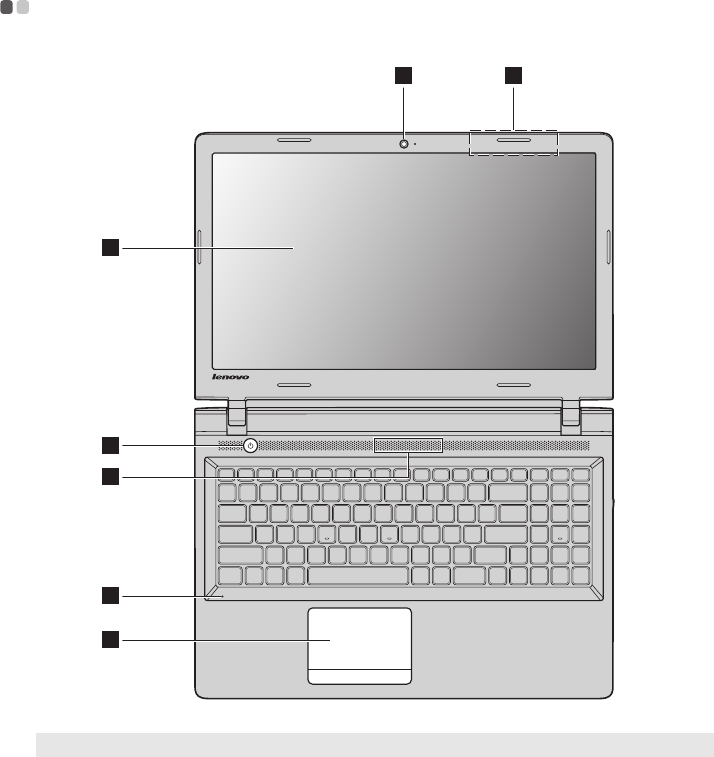
Note: The dashed areas indicate parts that are not visible externally.
1 2
3
4
7
6
5

2
Chapter 1. Getting to know your computer
aIntegrated camera Use the camera for video communication.
bWireless LAN antennas Connect to a wireless LAN adapter to send and receive wireless radio
signals.
cComputer display Provides brilliant visual output.
dPower button Press this button to turn on the computer.
eSpeaker Provides audio output.
fBuilt-in microphone Captures sound which can be used for video conferencing, voice
narration, or audio recording.
gTouchpad The touchpad functions as a conventional mouse.
Tou ch pa d: To move the pointer on the screen, slide your fingertip over
the pad in the direction in which you want the pointer to move.
Touchpad buttons: The functions of the left/right side correspond to
that of the left/right mouse button on a conventional mouse.
Note: You can enable/disable the touchpad by pressing F6 ( ).
Chapter 1. Getting to know your computer
3
Using the keyboard
Numeric keypad
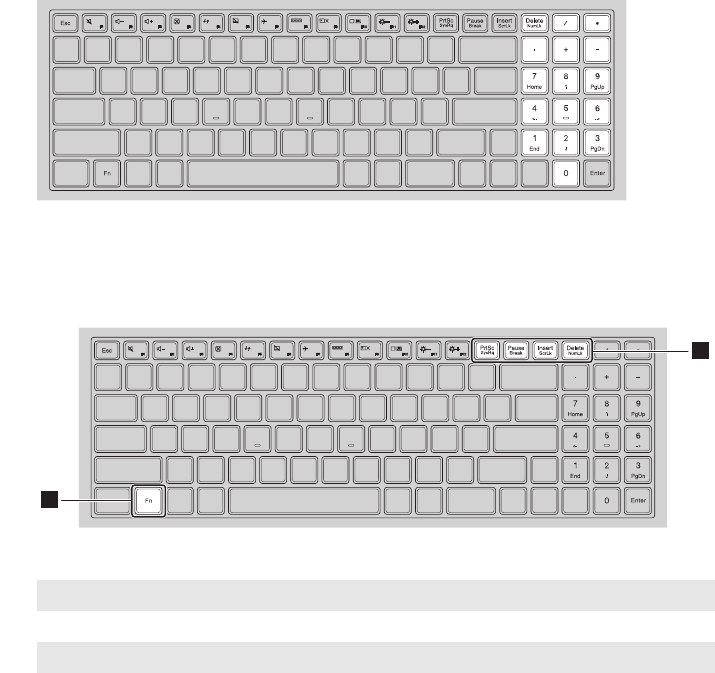
The keyboard has a separate numeric keypad. To enable or disable the numeric keypad,
press Fn + Delete.
Function key combinations
Through the use of the function keys, you can change operational features instantly. To use this
function, press and hold Fn ; then press one of the function keys .
The following describes the features of each function key.
Fn + PrtSc: Activates the system request.
Fn + Pause: Activates the break function.
Fn + Insert: Enables/disables the scroll lock.
Fn + Delete: Enables/disables the numeric keypad.
a
b
1
2
4
Chapter 1. Getting to know your computer
Hotkeys
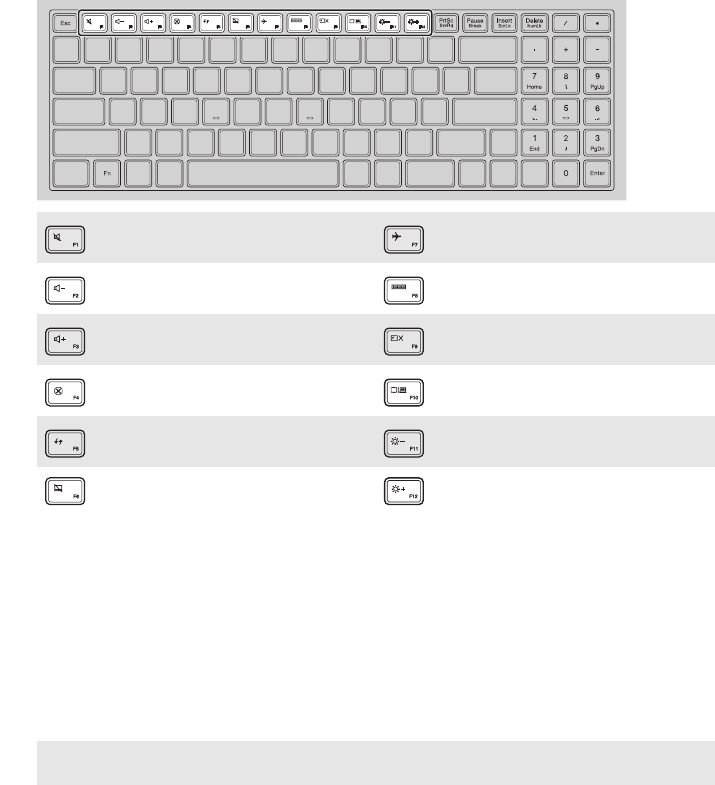
You can access certain system settings quickly by pressing the appropriate hotkeys.
Setting hotkey mode
By default, the hotkey functions are accessible by pressing the appropriate hotkey. However,
you can disable the hotkey mode in the BIOS setup utility.
To disable the hotkey mode:
1Shut down the computer.
2Press the Novo button and then select BIOS Setup.
3In the BIOS setup utility, open the Configuration menu, and change the setting of HotKey
Mode from Enabled to Disabled.
4Open the Exit menu, and select Exit Saving Changes.
:Mutes/unmutes the sound. :Enables/disables Airplane
mode.
: Decreases the volume level. : Displays all currently active
apps.
:Increases the volume level. :Turns on/off the backlight of the
LCD screen.
:Closes the currently active
window. :Toggles the display between the
computer and an external device.
:Refreshes the desktop or the
currently active window. :Decreases the display brightness.
: Enables/disables the touchpad. : Increases the display brightness.
Note: When hotkey mode is disabled, press the Fn key and the appropriate hotkey to access the
corresponding hotkey function.
Chapter 1. Getting to know your computer
5
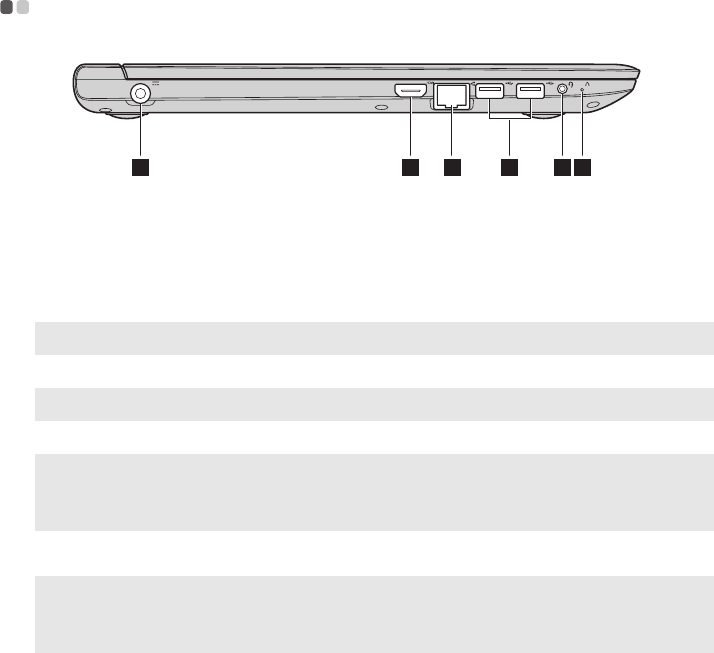
Left-side view - - - - - - - - - - - - - - - - - - - - - - - - - - - - - - - - - - - - - - - - - - - - - - - - - - - - - - - - - - - - - - - - - - - - - - - - - - - - - - - - - - - - - - - - - - - - - - - - - - - - - - - - - - - - - -
aAC power adapter jack Connects to the AC power adapter.
bHDMI port Connects to devices with HDMI input such as a TV or an external
display.
cRJ-45 port Connects the computer to an Ethernet network.
Note: For details, see “Connecting network cables” on page 6.
dUSB port Connects to USB devices.
Note: For details, see “Connecting USB device” on page 7.
eCombo audio jack Connects to headsets.
Notes:
•The combo audio jack does not support conventional microphones.
•The recording function might not be supported if third-party headphones or headsets are connected,
due to different industry standards.
fNovo button When the computer is off, press this button to start the Lenovo OneKey
Recovery System or the BIOS setup utility, or to enter the boot menu.
Notes:
•You can use the tip of an unfolded paper clip (or similar object without a sharp tip) to gently press the
Novo button.
•For details, see “Lenovo OneKey Recovery System” on page 18.
1 32 64 5
6
Chapter 1. Getting to know your computer
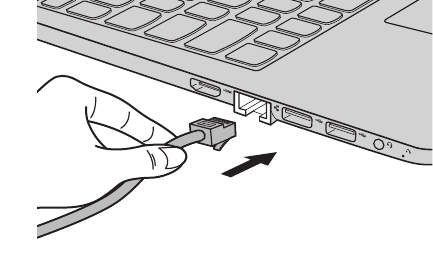
Connecting network cables
Wired connections are a reliable and safe way to connect the computer to the Internet. You can
connect a network cable to your computer.
Software configuration
Consult your Internet Service Provider (ISP) for details on how to configure your computer.
Chapter 1. Getting to know your computer
7
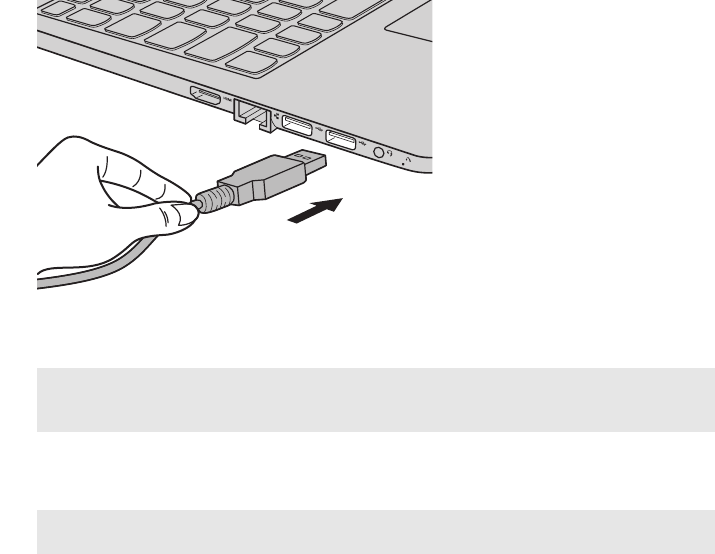
Connecting USB device
Your computer comes with two USB ports compatible with USB devices.
The first time you plug a USB device into a particular USB port on your computer, Windows
automatically installs a driver for that device. After the driver has been installed, you can
disconnect and reconnect the device without performing any additional steps.
Before disconnecting a USB storage device, make sure your computer has finished transferring
data to that device. Click the Safely Remove Hardware and Eject Media icon in the Windows
notification area to remove the device before disconnecting.
Note: Typically, Windows detects a new device after it has been connected, and then installs the driver
automatically. However, some devices may require you to install the driver before connecting. Check
the documentation provided by the device’s manufacturer before connecting the device.
Note: If your USB device uses a power cord, connect the device to a power source before connecting it.
Otherwise, the device may not be recognized.
8
Chapter 1. Getting to know your computer
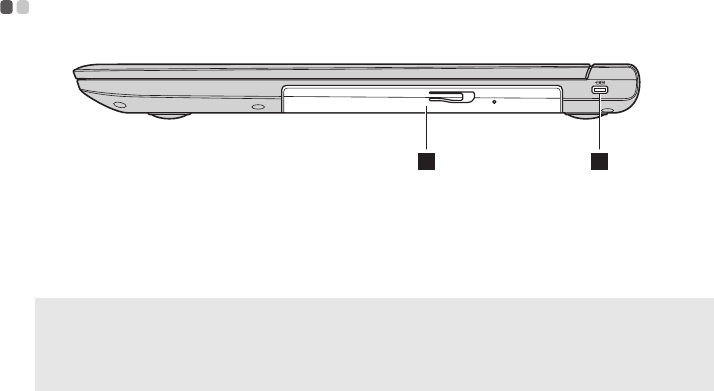
Right-side view - - - - - - - - - - - - - - - - - - - - - - - - - - - - - - - - - - - - - - - - - - - - - - - - - - - - - - - - - - - - - - - - - - - - - - - - - - - - - - - - - - - - - - - - - - - - - - - - - - - - - - - - - -
aKensington lock slot Attach a security lock (not supplied) here to help protect your computer
from theft and unauthorized use. You can attach a security lock to your
computer to help prevent it from being removed without your
permission. For details on installing the security lock, please refer to the
instructions shipped with the security lock that you have purchased.
Notes:
•Before purchasing any security product, verify that it is compatible with this type of security keyhole.
•You are responsible for evaluating, selecting, and implementing the locking devices and security
features. Lenovo offers no comment, judgment, or warranty regarding the function, quality, or
performance of locking devices and security features.
bOptical drive
(on select models)
Reads/burns optical discs.
12
Chapter 1. Getting to know your computer
9
Front view - - - - - - - - - - - - - - - - - - - - - - - - - - - - - - - - - - - - - - - - - - - - - - - - - - - - - - - - - - - - - - - - - - - - - - - - - - - - - - - - - - - - - - - - - - - - - - - - - - - - - - - - - - - - - - - - - - - - - -
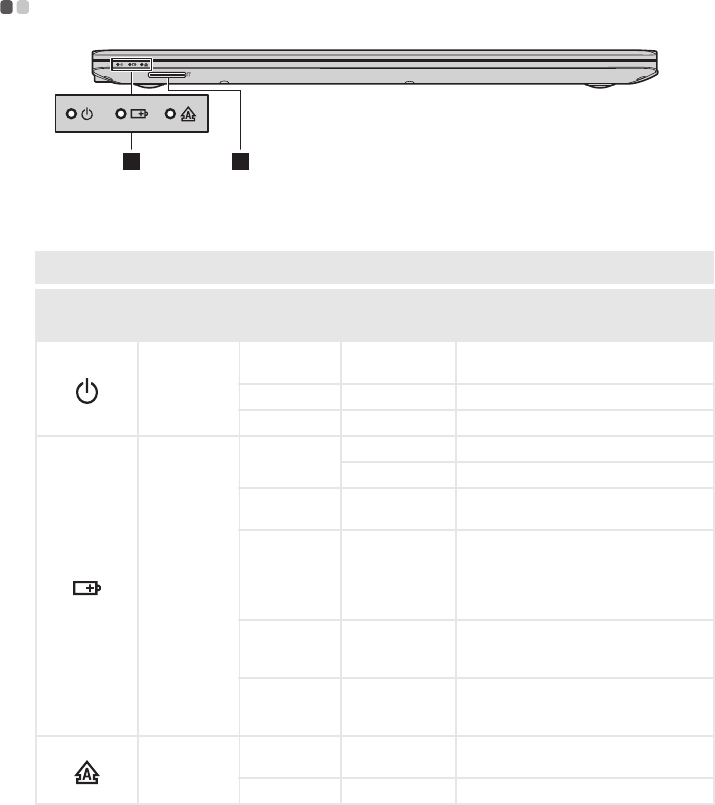
aSystem status indicators
bMemory card slot Accepts memory cards (not supplied).
Note: For details, see “Using memory cards (not supplied)” on page 10.
Symbol Indicator Indicator
status
Charge
status Meaning
Power
On
(solid white) --- The computer is powered on.
Blinking --- The computer is in sleep mode.
Off --- The computer is powered off.
Battery
On
(solid white)
Charging The battery has more than 80% charge.
Discharging The battery has more than 20% charge.
On
(solid amber) Discharging The battery has between 5% and 20%
charge.
Blinking
slowly
(white)
Charging
The battery has between 20% and 80%
charge. When the battery reaches 80%
charge, the light will stop blinking.
However, charging will continue until
the battery is fully charged.
Blinking
slowly
(amber)
Charging
The battery has less than 20% charge.
When the battery charge reaches 20%,
the blinking color will change to white.
Blinking
quickly
(amber)
Charging/
Discharging The battery has less than 5% charge.
Caps lock
On
(solid white) --- Uppercase input mode is enabled. (All
typed letters are uppercase by default.)
Off --- Uppercase input mode is disabled.
12

10
Chapter 1. Getting to know your computer
Using memory cards (not supplied)
Your computer supports the following types of memory cards:
• Secure Digital (SD) card
• Secure Digital High Capacity (SDHC) card
• Secure Digital eXtended Capacity (SDXC) card
• MultiMediaCard (MMC)
Inserting a memory card
Insert the memory card until it touches the bottom of the slot.
Removing a memory card
Gently pull the memory card out of the memory card slot.
Notes:
•Insert only one card in the slot at a time.
•This card reader does not support SDIO devices (e.g., SDIO Bluetooth, etc.).
Note: Before removing the memory card, disable it by using the Windows safely remove hardware and eject
media utility to avoid data corruption.
Chapter 1. Getting to know your computer
11
Bottom view - - - - - - - - - - - - - - - - - - - - - - - - - - - - - - - - - - - - - - - - - - - - - - - - - - - - - - - - - - - - - - - - - - - - - - - - - - - - - - - - - - - - - - - - - - - - - - - - - - - - - - - - - - - - - - - - - -
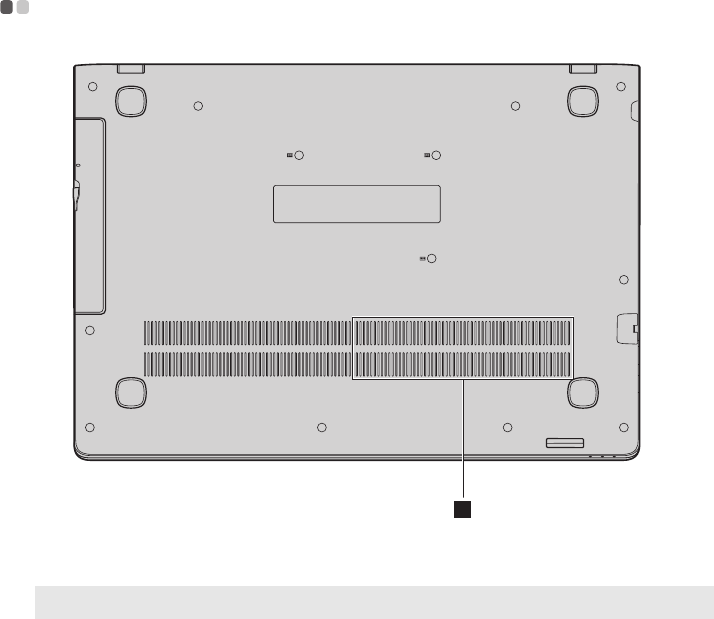
aVentilation slots Dissipate internal heat.
Note: Make sure that the ventilation slots are not blocked or else the computer may overheat.
1
12
Chapter 2. Starting to use Windows
Configuring the operating system for the first time - - - - - - - - - - - - - - - - -
You may need to configure the operating system when it is first used.
The configuration process may include the procedures below:
• Accepting the end user license agreement
• Configuring the Internet connection
• Registering the operating system
• Creating a user account
Power-saving modes - - - - - - - - - - - - - - - - - - - - - - - - - - - - - - - - - - - - - - - - - - - - - - - - - - - - - - - - - - - - - - - - - - - - - - - - - - - - - - - - - - - - - - - - - - - -
When you have finished working with your computer, you can set it to shut down, sleep or
hibernate.
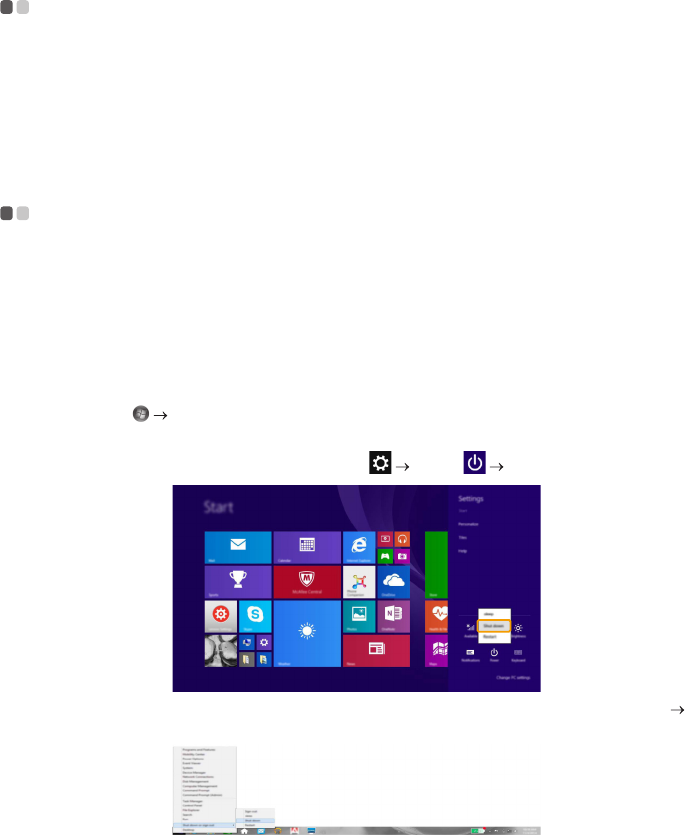
Shutting down the computer
If you are not going to use your computer for a long time, shut it down.
To shut down the computer, do one of the following:
•Windows 7:
Click Start Shut down.
•Windows 8.1:
- Open the charms, and then select Settings Power Shut down.
- Right-click the Start button in the lower-left corner and select Shut down or sign out
Shut down.
Chapter 2. Starting to use Windows
13
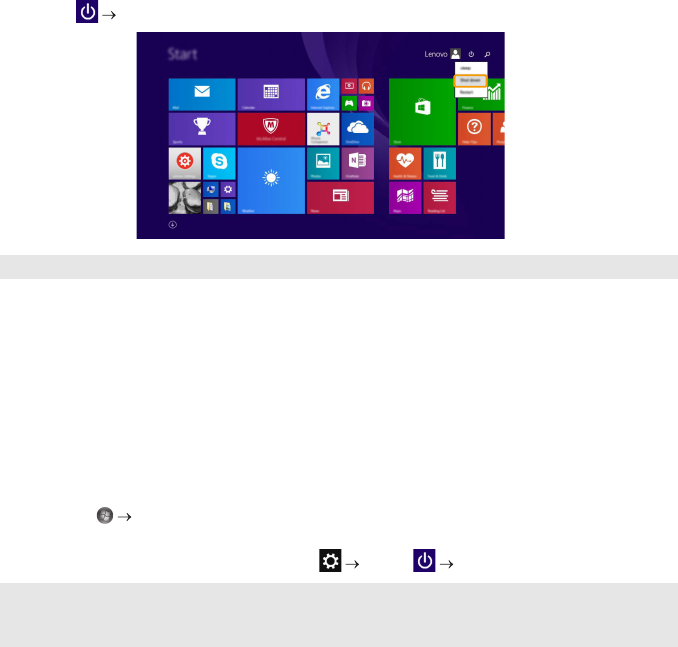
- Select Shut down in the upper-right corner of the Start screen.
Putting your computer to sleep
If you will be away from your computer for only a short time, put the computer to sleep.
When the computer is in sleep mode, you can quickly wake it to resume use, bypassing the
startup process.
To put the computer to sleep, do one of the following:
• Close the display lid.
• Press the Power button.
• Do the proper operations in the operating system.
Windows 7:
Click Start Sleep.
Windows 8.1:
Open the charms, and then select Settings Power Sleep.
To wake the computer, do one of the following:
• Press any key on the keyboard.
• Press the Power button.
Note: The operation depends on the BIOS setup. Please refer to the actual product.
Note: Wait until the power indicator light starts blinking (indicating that the computer is in sleep mode)
before you move your computer. Moving your computer while the hard disk is spinning can damage
the hard disk, causing loss of data.
14
Chapter 2. Starting to use Windows
Connecting to a wireless network - - - - - - - - - - - - - - - - - - - - - - - - - - - - - - - - - - - - - - - - - - - - - - - - - - - - - - - - - - - -
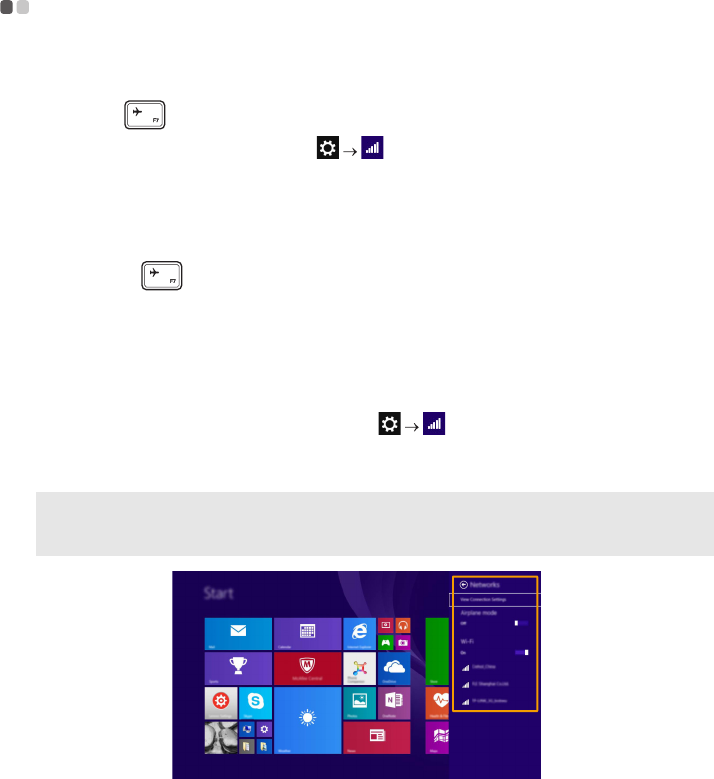
Enabling wireless connection
To enable wireless functions, do one of the following:
• Press F7 ( ) to disable airplane mode.
• Open the charms and select Settings to open the network configuration page. Then
toggle the airplane mode switch to Off. (for the Windows 8.1 operating system)
Connecting to a wireless network
To connect to a wireless network, do the following:
1Press F7 ( ) to turn on the wireless feature.
2View the available wireless networks.
•Windows 7:
Click the wireless network connection status icon in the Windows notification area. A list
of available wireless networks will be displayed.
•Windows 8.1:
Open the charms bar and select Settings . A list of available wireless networks
will be displayed.
3Click a network name in the list, and then click Connect.
Note: Some networks require a network security key or passphrase for connection. To connect to one of
those networks, ask the network administrator or the Internet service provider (ISP) for the security
key or passphrase.
Chapter 2. Starting to use Windows
15
Help and support - - - - - - - - - - - - - - - - - - - - - - - - - - - - - - - - - - - - - - - - - - - - - - - - - - - - - - - - - - - - - - - - - - - - - - - - - - - - - - - - - - - - - - - - - - - - - - - - - - - - -
If you have a problem with the operating system, see the Windows Help and Support file. To
open the Windows Help and Support file, do one of the following:
•Windows 7:
Click Start Help and Support.
•Windows 8.1:
- Select the Settings charm, then select Help.
- Press Windows key + Fn + F1 (depending on your keyboard layout).
You can read the Windows Help and Support file on your computer. You can also get online help
and support by clicking on one of the two links listed under More to explore.
Operating system interfaces (for the Windows 8.1
operating system) - - - - - - - - - - - - - - - - - - - - - - - - - - - - - - - - - - - - - - - - - - - - - - - - - - - - - - - - - - - - - - - - - - - - - - - - - - - - - - - - - - - - - - - - - - - - - - - - - - -
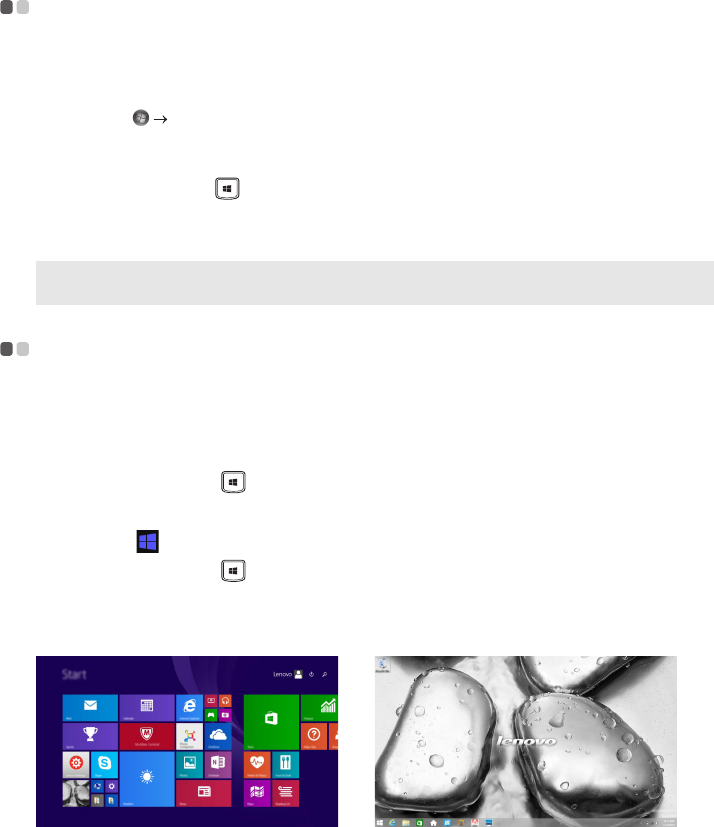
Windows 8.1 comes with two main user interfaces: the Start screen and the Windows desktop.
To switch from the Start screen to the Windows desktop, do one of the following:
• Select the Windows desktop tile on the Start screen.
• Press the Windows key + D.
To switch from the desktop to the Start screen, do one of the following:
• Select Start from the charms bar.
• Press the Windows key .
• Move the cursor to the lower-left corner, and then select the Start button.
Note: Windows 8.1 also provides an app, Help + Tips. You can find it on the Start screen, to learn more
information on new features of Windows 8.1.
Start screen Desktop
16
Chapter 2. Starting to use Windows
The charms (for the Windows 8.1 operating system) - - - - - - - - - - - - - -
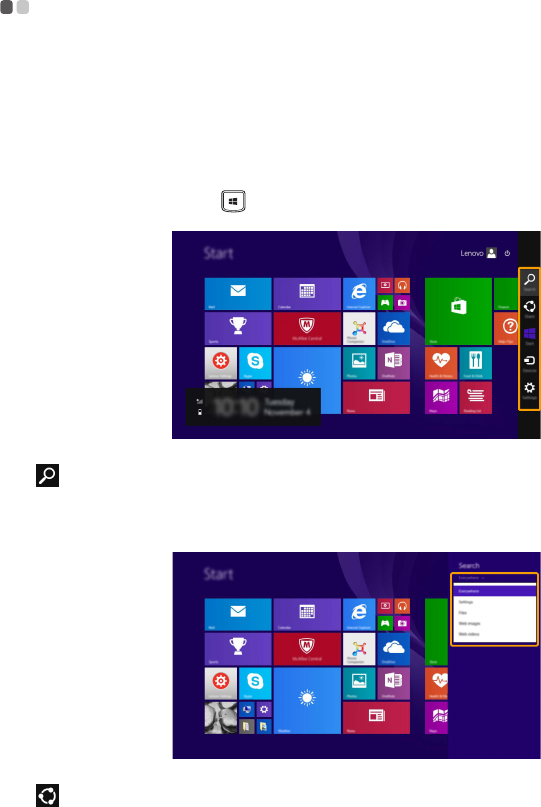
Charms are navigation buttons that let you control your Windows® 8.1 experience. Charms
include: Search, Share, Start, Devices, and Settings. The Charms Bar is the menu that contains
the charms.
The five charms provide new and faster ways to perform many basic tasks, and are always
available regardless of whichever app you are currently in. To display the charms, do one of the
following:
• Move the cursor to the upper-right or lower-right corner until the charms bar is displayed.
• Press the Windows key + C.
Search charm
The Search charm is a powerful new way to find what you are looking for, including settings,
files, Web images, Web videos, etc.
Share charm
The Share charm lets you send links, photos, and more to your friends and social networks
without leaving the app you are in.
Chapter 2. Starting to use Windows
17
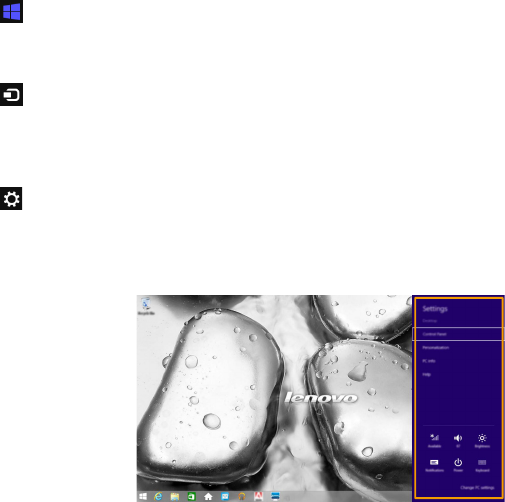
Start charm
The Start charm is a fast way to go to the Start screen.
Devices charm
The Devices charm allows you to connect or send files to any external devices, including the
devices to play, print, and project.
Settings charm
The Settings charm lets you perform basic tasks, such as setting the volume or shutting down
the computer. Also, you can get to the Control Panel through the Settings charm when on the
Desktop screen.

18
Chapter 3. Lenovo OneKey Recovery System
The Lenovo OneKey Recovery System is software designed to back up and restore your
computer. You can use it to restore the system partition to its original status in case of a system
failure. You can also create user backups for easy restoration as required.
Backing up the system partition
You can back up the system partition to an image file. This image file can be used to restore the
system partition. To back up the system partition:
1In Windows, press the Novo button or double-click OneKey Recovery icon to start the
Lenovo OneKey Recovery System.
2Click System Backup.
3Select a back-up location and click Next to start the backup.
Restoring
You can choose to restore the system partition to its original status or to a previously created
back-up point. To restore the system partition:
1In Windows, press the Novo button or double-click OneKey Recovery icon to start the
Lenovo OneKey Recovery System.
2Click System Recovery. The computer will restart to the recovery environment.
3Follow the on-screen instructions to restore the system partition to its original status or to a
previously created back-up point.
If Windows cannot be started, then follow the steps below to start the Lenovo OneKey Recovery
System:
1Shut down the computer.
2Press the Novo button. From Novo Button Menu, select System Recovery and press Enter.
Notes:
•If your computer is preinstalled with a GNU/Linux operating system, OneKey Recovery System is not
available.
•To utilize the features of the OneKey Recovery System, your hard disk already includes a hidden
partition by default to store the system image file and the OneKey Recovery System program files.
This default partition is hidden for security reasons, which explains why the available disk space is less
than the stated capacity.
Notes:
•You can choose a back-up location on the local hard disk drive or an external storage device.
•Remove the removable hard disk drive before starting the Lenovo OneKey Recovery System.
Otherwise, data from the removable hard disk drive might be lost.
•The back-up process may take a while.
•The back-up process is only available when Windows can be started normally.
Notes:
•The recovery process is irreversible. Make sure to back up any data you wish to save on the system
partition before starting the recovery process.
•The recovery process may take a while. So be sure to connect the AC power adapter to your computer
during the recovery process.
•The above instructions should be followed when Windows can be started normally.

19
Chapter 4. Troubleshooting
Frequently asked questions - - - - - - - - - - - - - - - - - - - - - - - - - - - - - - - - - - - - - - - - - - - - - - - - - - - - - - - - - - - - - - - - - - - - - - - - - - -
This section lists frequently asked questions by category.
Finding information
Drivers and preinstalled software
Lenovo OneKey Recovery System
What safety precautions should I follow when using my computer?
The Lenovo Safety and General Information Guide which came with your computer contains safety
precautions for using your computer. Read and follow all the precautions when using your
computer.
Where can I find the hardware specifications for my computer?
You can find the hardware specification for your computer on the printed flyers which came
with your computer.
Where can I find warranty information?
For detailed warranty information on this machine, please visit below website to check out:
support.lenovo.com/warrantystatus.
Where are the installation discs for Lenovo preinstalled software (desktop software)?
Your computer did not come with installation discs for Lenovo preinstalled software. If you
need to reinstall any preinstalled software, you can find the installation program on the
D partition of your hard disk. If you cannot find the installation program there, you can also
download it from the Lenovo consumer support website.
Where can I find drivers for the various hardware devices of my computer?
If your computer is preinstalled with a Windows operating system, Lenovo provides drivers for
all the hardware devices that you need on the D partition of your hard disk. You can also
download the latest device drivers from the Lenovo consumer support website.
Where are the recovery discs?
Your computer did not come with any recovery discs. Use the Lenovo OneKey Recovery System
if you need to restore the system to its original factory status.
What can I do if the back-up process fails?
If you can start the backup but it fails during the back-up process, try the following steps:
1Close all open programs, and then restart the back-up process.
2Check to see if the destination media is damaged. Select another path and then try again.
When do I need to restore the system to its factory status?
Use this feature when the operating system fails to start up. If there is critical data on the system
partition, back it up before starting recovery.
20
Chapter 4. Troubleshooting
BIOS setup utility
Getting help
What is the BIOS setup utility?
The BIOS setup utility is a ROM-based software. It displays basic computer information and
provides options for setting boot devices, security, hardware mode, and other preferences.
How can I start the BIOS setup utility?
To start the BIOS setup utility:
1Shut down the computer.
2Press the Novo button and then select BIOS Setup.
How can I change the boot mode?
There are two boot modes: UEFI and Legacy Support. To change the boot mode, start the BIOS
setup utility and set boot mode to UEFI or Legacy Support on the boot menu.
When do I need to change the boot mode?
The default boot mode for your computer is UEFI mode. If you need to install a legacy operating
system, such as Windows, Linux or Dos, etc. (that is, any operating system before Windows 8)
on your computer, you must change the boot mode to Legacy Support. The legacy operating
system, such as Windows, Linux or Dos, etc. cannot be installed if you don't change the boot
mode.
How can I contact the customer support center?
See “Chapter 3. Getting help and service” in the Lenovo Safety and General Information Guide.
Chapter 4. Troubleshooting
21
Troubleshooting - - - - - - - - - - - - - - - - - - - - - - - - - - - - - - - - - - - - - - - - - - - - - - - - - - - - - - - - - - - - - - - - - - - - - - - - - - - - - - - - - - - - - - - - - - - - - - - - - - - - - - -
Display problems
When I turn on the
computer, nothing appears
on the screen.
•If the screen is blank, make sure that:
- The AC power adapter is connected to the computer, and
plugged into a working electrical outlet.
- The computer power is on. (Press the Power button again
for confirmation.)
•If these items are properly set, and the screen remains blank,
have the computer serviced.
When I turn on the
computer, only a white
cursor appears on a blank
screen.
•Restore backed-up files to your Windows environment or the
entire contents of your hard disk to its original factory
contents using the Lenovo OneKey Recovery System.
If you still see only the cursor on the screen, have the
computer serviced.
The screen goes blank
while the computer is on.
•Your screen saver or power management may be enabled.
Do one of the following to exit from the screen saver or to
resume from sleep mode:
-Touch the touchpad.
- Press any key on the keyboard.
- Press the Power button.
- Press F9 ( ) to confirm whether the backlight of the
LCD screen has been turned off.
BIOS password problems
I forgot my password. •If you forget your user password, ask the system
administrator to clear your user password.
•If you forget your hard disk drive password, a Lenovo
authorized servicer cannot reset your password or recover
data from the hard disk. You must take your computer to a
Lenovo authorized servicer or a marketing representative to
have the hard disk drive replaced. Proof of purchase is
required, and a fee will be charged for parts and service.
•If you forget your administrator password, a Lenovo
authorized servicer cannot reset your password. You must
take your computer to a Lenovo authorized servicer or a
marketing representative to have the system board replaced.
Proof of purchase is required, and a fee will be charged for
parts and service.

22
Chapter 4. Troubleshooting
Sleep problems
The critical low-battery
error message appears,
and the computer
immediately turns off.
•The battery power is getting low. Connect the AC power
adapter to the computer.
The computer enters sleep
mode immediately after
Power-on self-test
(POST).
•Make sure that:
- The battery pack is charged.
- The operating temperature is within the acceptable range.
See “Chapter 2. Use and care Information” in the Lenovo
Safety and General Information Guide.
Note: If the battery pack is charged and the temperature is within range, have the computer serviced.
The computer does not
return from sleep mode,
and the computer does not
work.
•If your computer is in sleep mode, connect the AC power
adapter to the computer, then press any key or the Power
button.
•If the system still does not return from sleep mode, stops
responding, or cannot be turned off, reset the computer.
Unsaved data may be lost. To reset the computer, press and
hold the Power button for four seconds or more. If the
computer is still not reset, remove the AC power adapter.
Display panel problems
The screen is blank. •Do the following:
- If you are using the AC power adapter or the battery pack,
and the battery status indicator is on, press F12 ( ) to
make the screen brighter.
- If the power indicator is blinking, press the Power button to
resume from sleep mode.
- If the problem persists, follow the solution in the next
problem “The screen is unreadable or distorted.”
- Press F9 ( ) to confirm whether the backlight of the
LCD screen has been turned off.
The screen is unreadable
or distorted.
•Make sure that:
- The display device driver is installed correctly.
- The screen resolution and color quality are correctly set.
- The monitor type is correct.
Incorrect characters
appear on the screen.
•Are the operating system or programs installed correctly?
If they are installed and configured correctly, have the
computer serviced.

Chapter 4. Troubleshooting
23
Sound problems
No sound can be heard
from the speaker even
when the volume is turned
up.
•Make sure that:
- The Mute function is off.
- The combo audio jack is not being used.
- Speakers are selected as the playback device.
Battery pack problems
Your computer shuts down
before the battery status
indicator shows empty.
-or-
Your computer operates
after the battery status
indicator shows empty.
•Discharge and recharge the battery pack.
The computer does not
operate with a fully
charged battery pack.
•The surge protector in the battery pack might be active.
Turn off the computer for one minute to reset the protector;
then turn on the computer again.
A hard disk drive problem
The hard disk drive does
not work.
•Make sure that the hard disk drive is included in the Boot
menu in the BIOS setup utility correctly.
OneKey Recovery System problems
Backup cannot be made. •Make sure that you are currently using a Windows operating
system.
•There may not be enough space to store the backed-up data.
You will need to free more hard disk space on your backup's
partition.
Failure to restore system
partition to factory default.
•The system partition (e.g. the partition size or the drive
capacity of C) has been modified.

24
Chapter 4. Troubleshooting
Other problems
Your computer does not
respond.
•To turn off your computer, press and hold the Power button
for four seconds or more. If the computer still does not
respond, remove the AC power adapter.
•Your computer might lock when it enters sleep mode during
a communication operation. Disable the sleep timer when
you are working on the network.
The computer does not
start from a device you
want.
•See the Boot menu of the BIOS setup utility. Make sure that
the BIOS setup utility is set so that the computer starts from
the device you want.
•Also make sure that the device from which the computer
starts is enabled. Make sure that the device is included in the
Boot menu in the BIOS setup utility correctly.
•While turned off, press the Novo button to select the device
you want the computer to start from.
The connected external
device does not work.
•Do not connect or disconnect any external device cables other
than USB while the computer power is on. Otherwise, you
might damage your computer.
•When using high power consumption external devices such
as an external USB optical disk drive, use an external device
power adapter. Otherwise, the device may not be recognized,
or the system may shut down as a result.
25
Appendix A. CRU instructions
Removing the keyboard - - - - - - - - - - - - - - - - - - - - - - - - - - - - - - - - - - - - - - - - - - - - - - - - - - - - - - - - - - - - - - - - - - - - - - - - - - - - - - - - - - - - -
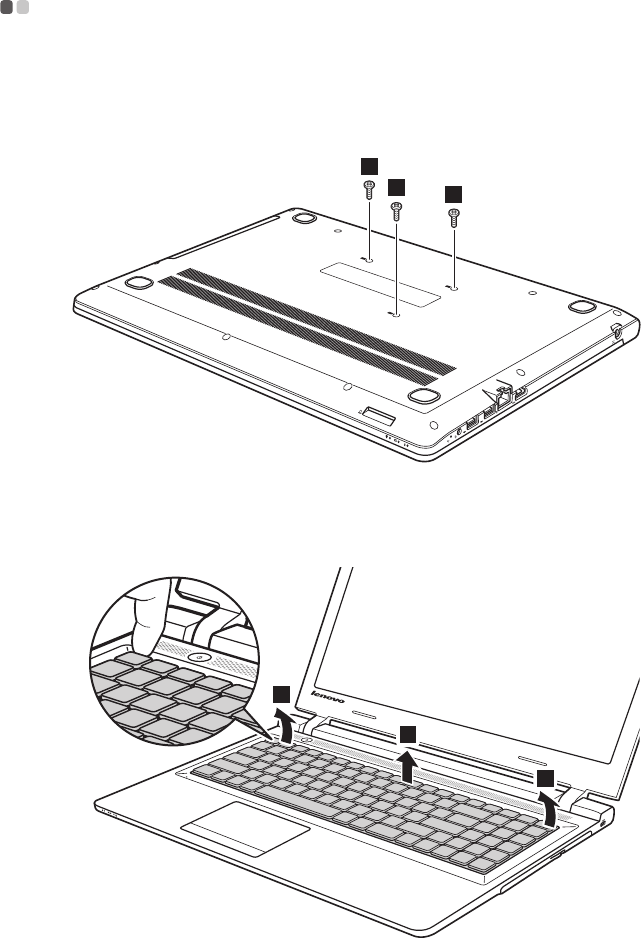
To remove the keyboard, do the following:
1Turn off the computer. Disconnect the AC power adapter and all cables from the computer.
2Close the computer display, and then turn the computer over.
3Remove the screws that secure the keyboard .
4Turn the computer over, and then open the computer display.
5Push the keyboard with the tip of an unfolded paper clip (or similar object without a sharp
tip) through the screw hole on the back cover.
6Loosen the keyboard with fingers , and then lift the keyboard slightly .
a
1
1
1
b
c
3
2
2
26
Appendix A. CRU instructions
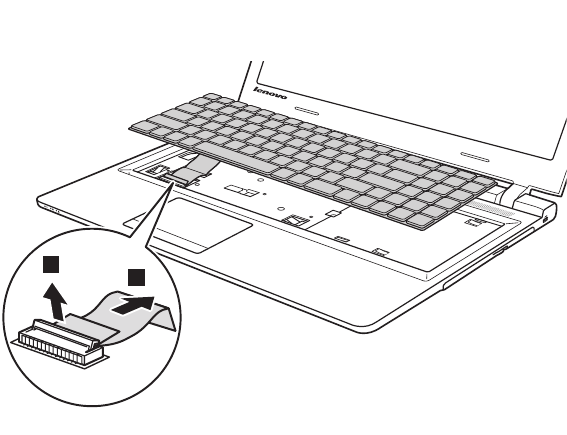
7Disconnect the keyboard connector in the direction shown by arrows and . Then
remove the keyboard.
d e
4
5
Appendix A. CRU instructions
27
Removing the optical drive - - - - - - - - - - - - - - - - - - - - - - - - - - - - - - - - - - - - - - - - - - - - - - - - - - - - - - - - - - - - - - - - - - - - - - - - - - - - - - - - - - -
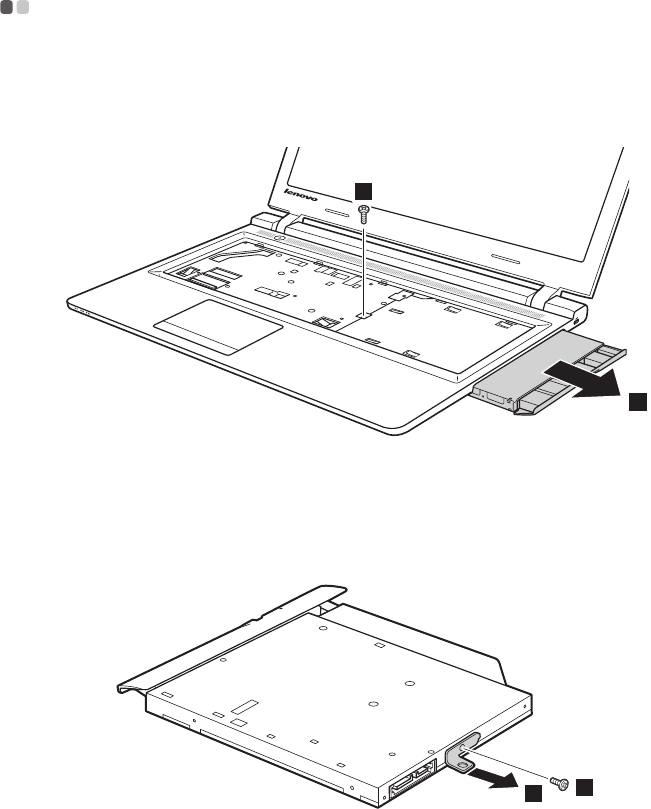
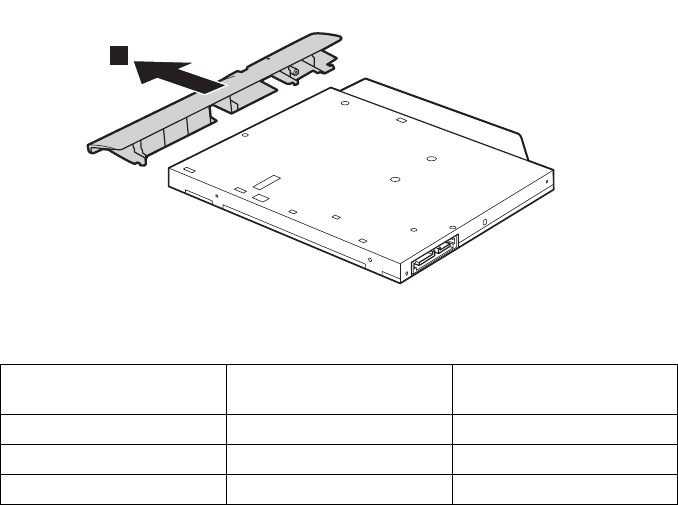
To remove the optical drive, do the following:
1Remove the keyboard. For details, see “Removing the keyboard” on page 25.
2Remove the screw shown in the illustration .
3Gently pull the optical drive out .
4Remove the screw , then remove the optical drive bracket in the direction shown by
arrow .
a
b
2
1
c
d
3
4
28
Appendix A. CRU instructions
5Carefully remove the optical drive bezel in the direction shown by arrow .
The following table provides a list of CRUs (Customer Replaceable Units) for your computer
and informs you of where to find replacement instructions.
Safety, Warranty,
and Setup Guide
User Guide
AC power adapter O
Keyboard O
Optical drive O
e
5
29
Trademarks
The following terms are trademarks or registered trademarks of Lenovo in the United States,
other countries, or both.
Lenovo
OneKey
Microsoft and Windows are trademarks of Microsoft Corporation in the United States, other
countries, or both.
Other company, products, or service names may be trademarks or service marks of others.

en-US
Rev. AA00
©Lenovo China 2015
