Lenovo B5400 M5400 Hmm En 20140314 M5400&B5400&M5400 Touch User Manual Hardware Maintenance B5400, M5400, Laptop (Lenovo) Type 20281
2014-06-06
User Manual: Lenovo B5400 M5400 Hmm En 20140314 Hardware Maintenance Manual - Lenovo B5400, M5400, M5400 Touch M5400 Laptop (Lenovo) - Type 20281
Open the PDF directly: View PDF  .
.
Page Count: 97
- About this manual
- Safety information
- Important service information
- General checkout
- Related service information
- Lenovo B5400/M5400/M5400 Touch
- Specifications
- Status indicators
- Fn key combinations
- FRU replacement notices
- Removing and replacing an FRU
- 1010 Battery pack
- 1020 Base cover
- 1030 Backup battery
- 1040 Optical drive
- 1050 Hard disk drive and solid state disk
- 1060 PCI Express Mini Card for wireless LAN
- 1070 DIMM
- 1080 Keyboard
- 1090 Keyboard bezel
- 1100 USB board and function board
- 1110 System board
- 1120 Fan assembly and heat sink assembly
- 1130 CPU
- 1140 LCD unit
- 1150 LCD front bezel (B5400/M5400)
- 1160 LCD panel, LCD cable, antenna assembly, and hinges (B5400/M5400)
- 1170 LCD module, LCD cable, and hinges (M5400 Touch)
- 1180 Integrated camera
- Locations
- Parts list
- Notices

Lenovo B5400/M5400/
M5400 Touch
Hardware
Maintenance
Manual

Notes:
• Beforeusingthisinformationandtheproductitsupports,besuretoreadthegeneralinformationunder
“Notices”onpage92.
• Thismanualappliestothefollowingmodels:LenovoB5400/M5400/M5400Touch.Theillustrationsused
inthismanualareforLenovoM5400unlessotherwisestated.
First Edition (Jul. 2013)
© Copyright Lenovo 2013. All rights reserved.
LIMITED AND RESTRICTED RIGHTS NOTICE: If data or software is delivered pursuant a General
Services Administration “GSA” contract, use, reproduction, or disclosure is subject to restrictions set
forth in Contract No. GS-35F-05925.
© 2013 Lenovo

iii
Contents
About this manual ....................................... iv
Safety information ........................................ 1
General safety ................................................ 2
Electrical safety .............................................. 3
Safety inspection guide .................................. 5
Handling devices that are sensitive to
electrostatic discharge .................................... 6
Grounding requirements ................................. 6
Safety notices: multilingual translations.......... 7
Laser compliance statement......................... 14
Important service information ................... 16
Strategy for replacing FRUs ......................... 16
Strategy for replacing a hard disk drive ............17
Important notice for replacing a
system board ...................................................17
Important information about replacing
RoHS compliant FRUs ................................. 18
General checkout ...................................... 19
What to do rst ............................................. 20
Power system checkout................................ 21
Checking the AC adapter .................................21
Checking operational charging .........................21
Checking the battery pack ................................22
Related service information ...................... 23
Restoring the factory contents by using
OneKey Recovery ........................................ 23
Restore of factory default .................................23
Passwords .................................................... 25
Power-on password .......................................... 25
Hard-disk password .......................................... 25
Supervisor password ........................................25
Power management ..................................... 26
Screen blank state ............................................ 26
Putting the computer to sleep or shutting
it down ..............................................................26
Putting your computer to sleep ......................... 26
Shutting down the computer ............................. 27
Lenovo B5400/M5400/M5400 Touch .......... 28
Specications ............................................... 28
Status indicators ........................................... 30
Fn key combinations..................................... 31
FRU replacement notices ............................. 32
Screw notices ..................................................32
Removing and replacing an FRU ................. 33
1010 Battery pack .............................................34
1020 Base cover ...............................................35
1030 Backup battery .........................................37
1040 Optical drive .............................................38
1050 Hard disk drive and solid
state disk...........................................................39
1060 PCI Express Mini Card for
wireless LAN .....................................................42
1070 DIMM .......................................................44
1080 Keyboard .................................................45
1090
Keyboard bezel ......................................... 47
1100 USB board and function board................. 51
1110
System board ............................................ 53
1120 Fan assembly and heat
sink assembly ...................................................56
1130 CPU .........................................................58
1140 LCD unit ................................................... 59
1150 LCD front bezel (B5400/M5400) .............. 61
1160 LCD panel, LCD cable, antenna
assembly, and hinges (B5400/M5400) ............. 63
1170 LCD module, LCD cable, and
hinges (M5400 Touch) ......................................66
1180 Integrated camera ....................................68
Locations ...................................................... 69
Front view and right-side view ..........................69
Bottom and Left-side view ...............................71
Parts list ........................................................ 72
Overall ..............................................................73
LCD FRUs ........................................................77
Keyboard ..........................................................81
Miscellaneous parts .......................................... 85
Screws .............................................................. 85
AC adapters ......................................................86
Power cords ......................................................87
Notices......................................................... 92
Trademarks .................................................. 93
iv
About this manual
This manual contains service and reference information for the following
Lenovo product:
Lenovo B5400/M5400/M5400 Touch
Use this manual to troubleshoot problems.
The manual is divided into the following sections:
• The common sections provide general information, guidelines, and safety
information required for servicing computers.
• The product-specic section includes service, reference, and product-specic
parts information.
Important:
ThismanualisintendedonlyfortrainedservicerswhoarefamiliarwithLenovo
products.Usethismanualtotroubleshootproblemseffectively.
BeforeservicingaLenovoproduct,makesuretoreadalltheinformationunder
“Safetyinformation”onpage1and“Importantserviceinformation”onpage16.

1
Safety information
Safety information
This chapter presents the following safety information that you need to
get familiar with before you service a Lenovo B5400/M5400/M5400 Touch
computer:
• “General safety” on page 2
• “Electrical safety” on page 3
• “Safety inspection guide” on page 5
• “Handling devices that are sensitive to electrostatic discharge” on page 6
• “Grounding requirements” on page 6
• “Safety notices: multilingual translations” on page 7
• “Laser compliance statement” on page 14

2
Lenovo B5400/M5400/M5400 Touch Hardware Maintenance Manual
General safety
Follow these rules below to ensure general safety:
• Observe a good housekeeping in the area where the machines are put
during and after the maintenance.
• When lifting any heavy object:
1. Make sure that you can stand safely without slipping.
2. Distribute the weight of the object equally between your feet.
3. Use a slow lifting force. Never move suddenly or twist when you attempt
to lift it.
4. Lift it by standing or pushing up with your leg muscles; this action could
avoid the strain from the muscles in your back. Do not attempt to lift any
object that weighs more than 16 kg (35 lb) or that you think is too heavy
for you.
• Do not perform any action that causes hazards to the customer, or that
makes the machine unsafe.
• Before you start the machine, make sure that other service representatives
and the customer are not in a hazardous position.
• Please remove covers and other parts in a safe place, away from all
personnel, while you are servicing the machine.
• Keep your toolcase away from walk areas so that other people will not trip
over it.
• Do not wear loose clothing that can be trapped in the moving parts of the
machine. Make sure that your sleeves are fastened or rolled up above your
elbows. If your hair is long, fasten it.
• Insert the ends of your necktie or scarf inside clothing or fasten it with the
nonconductive clip, about 8 centimeters (3 inches) from the end.
• Do not wear jewelry, chains, metal-frame eyeglasses, or metal fasteners for
your clothing.
Attention: Metal objects are good electrical conductors.
• Wear safety glasses when you are hammering, drilling, soldering, cutting
wire, attaching springs, using solvents, or working in any other conditions
that may be hazardous to your eyes.
• After service, reinstall all safety shields, guards, labels, and ground wires.
Replace any safety device that is worn or defective.
• Reinstall all covers correctly before returning the machine to the customer.
• Fan louvers on the machine help to prevent the overheating of internal
components. Do not obstruct fan louvers or cover them with labels or
stickers.

3
Safety information
Electrical safety
Observe the following rules when working on electrical equipments.
Important:
Useonlyapprovedtoolsandtestequipments.Somehandtoolshavehandles
coveredwithasoftmaterialthatdoesnotinsulateyouwhenworkingwithlive
electricalcurrents.
Manycustomershaverubberfloormatsneartheirmachinesthatcontainsmall
conductiveberstodecreaseelectrostaticdischarges.Donotusesuchkindofmat
toprotectyourselffromelectricalshock.
• Find the room emergency power-off (EPO) switch, disconnecting switch or
electrical outlet. If an electrical accident occurs, you can then operate the
switch or unplug the power cord quickly.
• Do not work alone under hazardous conditions or near the equipment that
has hazardous voltages.
• Disconnect all power before:
– Performing a mechanical inspection
– Working near power supplies
– Removing or installing main units
• Before you start to work on the machine, unplug the power cord. If you
cannot unplug it, ask the customer to power-off the wall box that supplies
power to the machine, and to lock the wall box in the off position.
• If you need to work on a machine that has exposed electrical circuits,
observe the following precautions:
– Ensure that another person, familiar with the power-off controls, is near
you.
Attention: Another person must be there to switch off the power, if
necessary.
– Use only one hand when working with powered-on electrical equipment;
keep the other hand in your pocket or behind your back.
Attention: An electrical shock can occur only when there is a complete
circuit. By observing the above rule, you may prevent a current from
passing through your body.
– When using testers, set the controls correctly and use the approved
probe leads and accessories for that tester.
– Stand on suitable rubber mats (obtained locally, if necessary) to insulate
you from grounds such as metal oor strips and machine frames.
Observe the special safety precautions when you work with very high voltages;
instructions for these precautions are in the safety sections of maintenance
information. Be extremely careful when you measure the high voltages.
• Regularly inspect and maintain your electrical hand tools for safe operational
condition.
• Do not use worn or broken tools and testers.
• Never assume that power has been disconnected from a circuit. First, check
it to make sure that it has been powered off.

4
Lenovo B5400/M5400/M5400 Touch Hardware Maintenance Manual
• Always look carefully for possible hazards in your work area. Examples of
these hazards are moist oors, nongrounded power extension cables, power
surges, and missing safety grounds.
• Do not touch live electrical circuits with the reflective surface of a plastic
dental mirror. The surface is conductive; such touching can cause personal
injury and machine damage.
• Do not service the following parts with the power on when they are removed
from their normal operating places in a machine:
– Power supply units
– Pumps
– Blowers and fans
– Motor generators
and similar units. (This practice ensures correct grounding of the units.)
• If an electrical accident occurs:
– Caution: do not become a victim yourself.
– Switch off the power.
– Send the victim to get medical aid.

5
Safety information
Safety inspection guide
The purpose of this inspection guide is to assist you in identifying potential
unsafe conditions. As each machine was designed and built, required safety
items were installed to protect users and service personnel from injury. This
guide addresses only those items. You should use good judgment to identify
potential safety hazards according to the attachment of non-Lenovo features or
options not covered by this inspection guide.
If any unsafe conditions are present, you must determine how serious the
apparent hazard could be and whether you can continue without rst correcting
the problem.
Consider these conditions and the safety hazards they present:
• Electrical hazards, especially primary power (primary voltage on the frame
can cause serious or fatal electrical shock)
• Explosive hazards, such as a damaged CRT face or a bulging capacitor
• Mechanical hazards, such as loose or missing hardware
To determine whether there are any potential unsafe conditions, use the
following checklist at the beginning of every service task. Begin the checks with
the power off, and the power cord disconnected.
Checklist:
1. Check exterior covers for damage (loose, broken, or sharp edges).
2. Turn off the computer. Disconnect the power cord.
3. Check the power cord for:
a. A third-wire ground connector in good condition. Use a meter to measure
third-wire ground continuity for 0.1 ohm or less between the external
ground pin and the frame ground.
b. The power cord should be the type specied in the parts list.
c. Insulation must not be frayed or worn.
4. Check for cracked or bulging batteries.
5. Remove the cover.
6. Check for any obvious non-Lenovo alterations. Use good judgment as to the
safety of any non-Lenovo alterations.
7. Check inside the unit for any obvious unsafe conditions, such as metal
filings, contamination, water or other liquids, or signs of fire or smoke
damage.
8. Check for worn, frayed, or pinched cables.
9. Check that the power-supply cover fasteners (screws or rivets) have not
been removed or tampered with.
6
Lenovo B5400/M5400/M5400 Touch Hardware Maintenance Manual
Handling devices that are sensitive to electrostatic discharge
Any computer part containing transistors or integrated circuits (ICs) should be
considered sensitive to electrostatic discharge (ESD). ESD damage can occur
when there is a difference in charge between objects. Protect against ESD
damage by equalizing the charge so that the machine, the part, the work mat,
and the person handling the part are all at the same charge.
Notes:
1. Useproduct-specificESDprocedureswhentheyexceedtherequirements
notedhere.
2. MakesurethattheESDprotectivedevicesyouusehavebeencertied(ISO
9000)asfullyeffective.
When handling ESD-sensitive parts:
• Keep the parts in protective packages until they are inserted into the product.
• Avoid contact with other people.
• Wear a grounded wrist strap against your skin to eliminate static on your
body.
• Prevent the part from touching your clothing. Most clothing is insulative and
retains a charge even when you are wearing a wrist strap.
• Use the black side of a grounded work mat to provide a static-free work
surface. The mat is especially useful when handling ESD-sensitive devices.
• Select a grounding system, such as those listed below, to provide protection
that meets the specic service requirement.
Note:
TheuseofagroundingsystemtoguardagainstESDdamageisdesirablebutnot
necessary.
– Attach the ESD ground clip to any frame ground, ground braid, or green-
wire ground.
– When working on a double-insulated or battery-operated system, use an
ESD common ground or reference point. You can use coax or connector-
outside shells on these systems.
– Use the round ground prong of the ac plug on ac-operated computers.
Grounding requirements
Electrical grounding of the computer is required for operator safety and correct
system function. Proper grounding of the electrical outlet can be veried by a
certied electrician.
7
Safety information
Safety notices: multilingual translations
The safety notices in this section are provided in English, French, German,
Hebrew, Italian, Japanese, and Spanish.
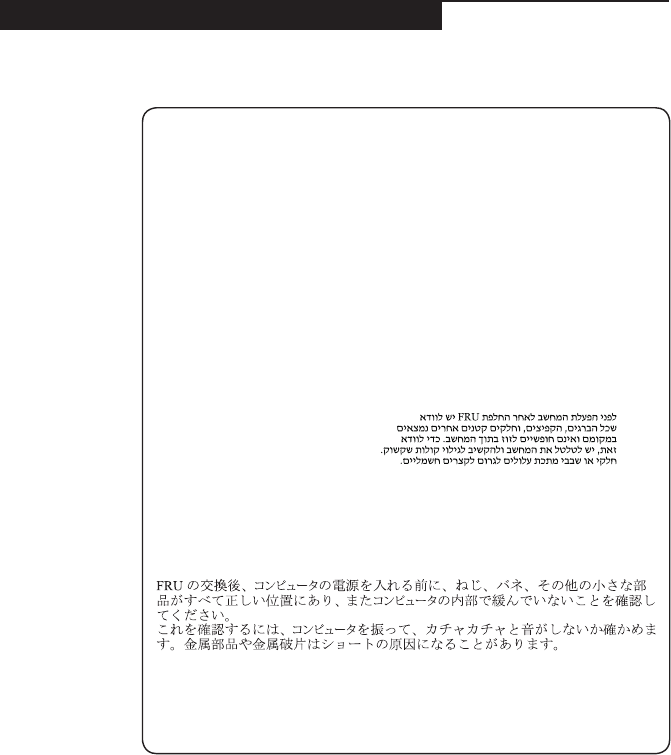
Safety notice 1
BeforethecomputerispoweredonafterFRUreplacement,makesureallscrews,
springs,andothersmallpartsareinplaceandarenotleftlooseinsidethe
computer.Verifythisbyshakingthecomputerandlisteningforrattlingsounds.
Metallicpartsormetalakescancauseelectricalshorts.
Avantderemettrel’ordinateursoustensionaprèsremplacementd’uneunitéen
clientèle,vériezquetouslesressorts,visetautrespiècessontbienenplaceet
bienxées.Pourcefaire,secouezl’unitéetassurez-vousqu’aucunbruitsuspect
neseproduit.Despiècesmétalliquesoudescopeauxdemétalpourraientcauser
uncourt-circuit.
BevornacheinemFRU-AustauschderComputerwiederangeschlossenwird,
mußsichergestelltwerden,daßkeineSchrauben,FedernoderandereKleinteile
fehlenoderimGehäusevergessenwurden.DerComputermußgeschütteltundauf
Klappergeräuschegeprüftwerden.Metallteileoder-splitterkönnenKurzschlüsse
erzeugen.
Primadiaccenderel’elaboratoredopocheéstataeffettuatalasostituzionediuna
FRU,accertarsichetutteleviti,lemolleetuttelealtripartidipiccoledimensioni
sianonellacorrettaposizioneenonsianosparseall’internodell’elaboratore.
Vericareciòscuotendol’elaboratoreeprestandoattenzioneadeventualirumori;
eventualipartiopezzettimetallicipossonoprovocarecortocircuitipericolosi.
AntesdeencenderelsistemadespuesdesustituirunaFRU,compruebeque
todoslostornillos,muellesydemáspiezaspequeñasseencuentranensusitio
ynoseencuentransueltasdentrodelsistema.Compruébeloagitandoelsistema
yescuchandolosposiblesruidosqueprovocarían.Laspiezasmetálicaspueden
causarcortocircuitoseléctricos.
8
Lenovo B5400/M5400/M5400 Touch Hardware Maintenance Manual
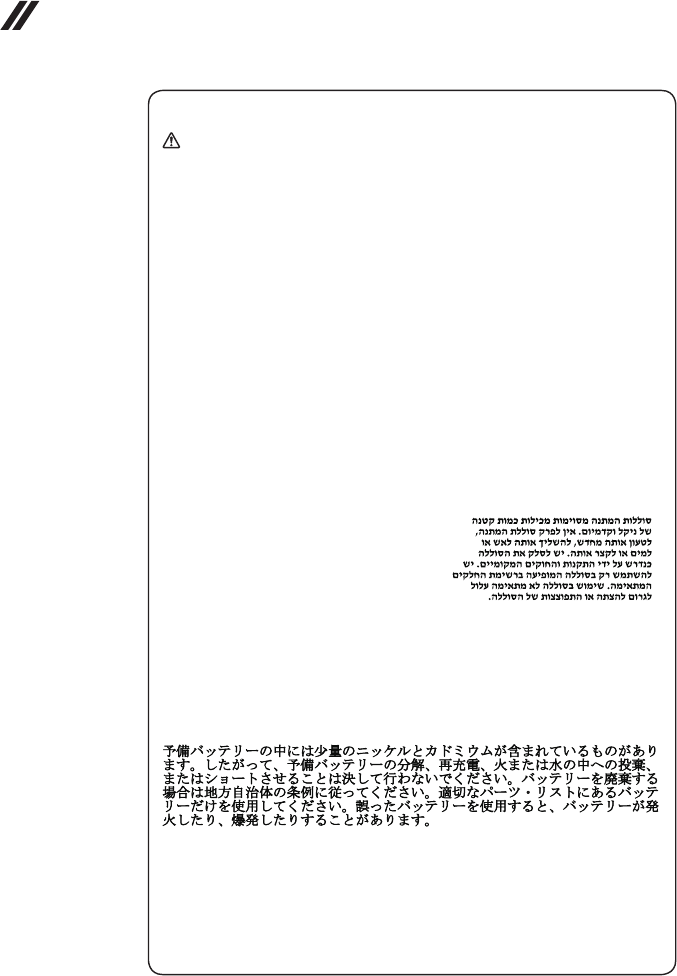
Safety notice 2
DANGER
Somestandbybatteriescontainasmallamountofnickelandcadmium.Donot
disassembleastandbybattery,rechargeit,throwitintofireorwater,orshort-
circuitit.Disposeofthebatteryasrequiredbylocalordinancesorregulations.
Useonlythebatteryintheappropriatepartslisting.Useofanincorrectbatterycan
resultinignitionorexplosionofthebattery.
Certainesbatteriesdesecourscontiennentdunickeletducadmium.Neles
démontezpas,nelesrechargezpas,nelesexposezniaufeuniàl’eau.Ne
lesmettezpasencourt-circuit.Pourlesmettreaurebut,conformez-vousàla
réglementationenvigueur.Lorsquevousremplacezlapiledesauvegardeoucelle
del’horlogetempsréel,veillezàn’utiliserquelesmodèlescitésdanslalistede
piècesdétachéesadéquate.Unebatterieouunepileinappropriéerisquedeprendre
feuoud’exploser.
DieBereitschaftsbatterie,diesichunterdemDiskettenlaufwerkbefindet,
kanngeringeMengenNickelundCadmiumenthalten.Siedarfnichtzerlegt,
wiederaufgeladen,kurzgeschlossen,oderFeueroderWasserausgesetztwerden.
BeiderEntsorgungdieörtlichenBestimmungenfürSondermüllbeachten.Beim
ErsetzenderBereitschafts-oderSystembatterienurBatteriendesTypsverwenden,
derinderErsatzteillisteaufgeführtist.DerEinsatzfalscherBatterienkannzu
EntzündungoderExplosionführen.
Alcunebatteriediriservacontengonounapiccolaquantitàdinichelecadmio.
Nonsmontarle,ricaricarle,gettarlenelfuocoonell’acquanécortocircuitarle.
Smaltirlesecondolanormativainvigore(DPR915/82,successivedisposizionie
disposizionilocali).Quandosisostituiscelabatteriadell’RTC(realtimeclock)o
labatteriadisupporto,utilizzaresoltantoitipiinseritinell’appropriatoCatalogo
parti.L’impiegodiunabatterianonadattapotrebbedeterminarel’incendioo
l’esplosionedellabatteriastessa.
Algunasbateríasdereservacontienenunapequeñacantidaddeníquelycadmio.
Nolasdesmonte,nirecargue,nilasechealfuegooalaguanilascortocircuite.
Deséchelastalcomodisponelanormativalocal.Utilicesólobateríasquese
encuentrenenlalistadepiezas.Lautilizacióndeunabateríanoapropiadapuede
provocarlaigniciónoexplosióndelamisma.
9
Safety information
Safety notice 3
DANGER
Thebatterypackcontainssmallamountsofnickel.Donotdisassembleit,throw
itintoreorwater,orshort-circuitit.Disposeofthebatterypackasrequiredby
localordinancesorregulations.Useonlythebatteryintheappropriatepartslisting
whenreplacingthebatterypack.Useofanincorrectbatterycanresultinignition
orexplosionofthebattery.
Labatteriecontientdunickel.Neladémontezpas,nel’exposezniaufeuniàl’eau.
Nelamettezpasencourt-circuit.Pourlamettreaurebut,conformez-vousàla
réglementationenvigueur.Lorsquevousremplacezlabatterie,veillezàn’utiliser
quelesmodèlescitésdanslalistedepiècesdétachéesadéquate.Eneffet,une
batterieinappropriéerisquedeprendrefeuoud’exploser.
AkkusenthaltengeringeMengenvonNickel.Siedürfennichtzerlegt,
wiederaufgeladen,kurzgeschlossen,oderFeueroderWasserausgesetztwerden.
BeiderEntsorgungdieörtlichenBestimmungenfürSondermüllbeachten.Beim
ErsetzenderBatterienurBatteriendesTypsverwenden,derinderErsatzteilliste
aufgeführtist.DerEinsatzfalscherBatterienkannzuEntzündungoderExplosion
führen.
Labatteriacontienepiccolequantitàdinichel.Nonsmontarla,gettarlanelfuoco
onell’acquanécortocircuitarla.Smaltirlasecondolanormativainvigore(DPR
915/82,successivedisposizioniedisposizionilocali).Quandosisostituiscela
batteria,utilizzaresoltantoitipiinseritinell’appropriatoCatalogoparti.L’impiego
diunabatterianonadattapotrebbedeterminarel’incendiool’esplosionedella
batteriastessa.
Lasbateríascontienenpequeñascantidadesdeníquel.Nolasdesmonte,ni
recargue,nilasechealfuegooalaguanilascortocircuite.Deséchelastalcomo
disponelanormativalocal.Utilicesólobateríasqueseencuentrenenlalistade
piezasalsustituirlabatería.Lautilizacióndeunabateríanoapropiadapuede
provocarlaigniciónoexplosióndelamisma.
10
Lenovo B5400/M5400/M5400 Touch Hardware Maintenance Manual
Safety notice 4
DANGER
Thelithiumbatterycancauseafire,anexplosion,orasevereburn.Donot
rechargeit,removeitspolarizedconnector,disassembleit,heatitabove100°C
(212°F),incinerateit,orexposeitscellcontentstowater.Disposeofthebatteryas
requiredbylocalordinancesorregulations.Useonlythebatteryintheappropriate
partslisting.Useofanincorrectbatterycanresultinignitionorexplosionofthe
battery.
Lapiledesauvegardecontientdulithium.Elleprésentedesrisquesd’incendie,
d’explosionoudebrûluresgraves.Nelarechargezpas,neretirezpasson
connecteurpolariséetneladémontezpas.Nel’exposezpasàunetemperature
supérieureà100°C,nelafaitespasbrûleretn’enexposezpaslecontenuàl’eau.
Mettezlapileaurebutconformémentàlaréglementationenvigueur.Unepile
inappropriéerisquedeprendrefeuoud’exploser.
DieSystembatterieisteineLithiumbatterie.Siekannsichentzünden,explodieren
oderschwereVerbrennungenhervorrufen.BatteriendiesesTypsdürfennicht
aufgeladen,zerlegt,über100Cerhitztoderverbranntwerden.Auchdarfihr
InhaltnichtmitWasserinVerbindunggebrachtoderderzurrichtigenPolung
angebrachteVerbindungssteckerentferntwerden.BeiderEntsorgungdieörtlichen
BestimmungenfürSondermüllbeachten.BeimErsetzenderBatterienurBatterien
desTypsverwenden,derinderErsatzteillisteaufgeführtist.DerEinsatzfalscher
BatterienkannzuEntzündungoderExplosionführen.
Labatteriadisupportoeunabatteriaallitioepuoincendiarsi,esplodereo
procuraregraviustioni.Evitarediricaricarla,smontarneilconnettorepolarizzato,
smontarla,riscaldarlaadunatemperaturasuperioreai100gradicentigradi,
incendiarlaogettarlainacqua.Smaltirlasecondolanormativainvigore(DPR
915/82,successivedisposizioniedisposizionilocali).L’impiegodiunabatteria
nonadattapotrebbedeterminarel’incendiool’esplosionedellabatteriastessa.
Labateríaderepuestoesunabateríadelitioypuedeprovocarincendios,
explosionesoquemadurasgraves.Nolarecargue,niquiteelconectorpolarizado,
niladesmonte,nicalienteporencimadelos100°C(212°F),nilaincinereni
expongaelcontenidodesusceldasalagua.Deséchelatalcomodisponela
normativalocal.
11
Safety information
Safety notice 5
IftheLCDbreaksandtheuidfrominsidetheLCDgetsintoyoureyesoronyour
hands,immediatelywashtheaffectedareaswithwateratleastfor15minutes.
Seekmedicalcareifanysymptomscausedbytheuidarepresentafterwashing.
Silepanneaud’afchageàcristauxliquidessebriseetquevousrecevezdansles
yeuxousurlesmainsunepartieduuide,rincez-lesabondammentpendantau
moinsquinzeminutes.Consultezunmédecinsidessymptômespersistentaprèsle
lavage.
DieLeuchtstoffröhreimLCD-BildschirmenthältQuecksilber.BeiderEntsorgung
dieörtlichenBestimmungenfürSondermüllbeachten.DerLCD-Bildschirm
bestehtausGlasundkannzerbrechen,wennerunsachgemäßbehandeltwird
oderderComputeraufdenBodenfällt.WennderBildschirmbeschädigtistund
diedarinbefindlicheFlüssigkeitinKontaktmitHautundAugengerät,sollten
diebetroffenenStellenmindestens15MinutenmitWasserabgespültundbei
BeschwerdenanschließendeinArztaufgesuchtwerden.
Nelcasochecasol’LCDsidovesserompereedilliquidoinessocontenuto
entrasseincontattocongliocchiolemani,lavareimmediatamenteleparti
interessateconacquacorrenteperalmeno15minuti;poiconsultareunmedicosei
sintomidovesseropermanere.
SilaLCDserompeyeluidodesuinteriorentraencontactoconsusojososus
manos,laveinmediatamentelasáreasafectadasconaguadurante15minutos
comomínimo.Obtengaatenciónmedicasisepresentaalgúnsíntomadeluido
despuesdelavarse.
12
Lenovo B5400/M5400/M5400 Touch Hardware Maintenance Manual
Safety notice 6
DANGER
Toavoidshock,donotremovetheplasticcoverthatprotectsthelowerpartofthe
invertercard.
And’évitertoutrisquedechocélectrique,neretirezpaslecacheenplastique
protégeantlapartieinférieuredelacarted’alimentation.
AusSicherheitsgründendieKunststoffabdeckung,diedenunterenTeilder
Spannungswandlerplatineumgibt,nichtentfernen.
Perevitarescosseelettriche,nonrimuoverelacoperturainplasticacheavvolgela
parteinferioredellaschedainvertitore.
Paraevitardescargas,noquitelacubiertadeplásticoquerodealapartebajadela
tarjetainvertida.
Safety notice 7
DANGER
Thoughthemainbatterieshavelowvoltage,ashortedorgroundedbatterycan
produceenoughcurrenttoburnpersonnelorcombustiblematerials.
Bienquelevoltagedesbatteriesprincipalessoitpeuélevé,lecourt-circuitoula
miseàlamassed’unebatteriepeutproduiresufsammentdecourantpourbrûler
desmatériauxcombustiblesoucauserdesbrûlurescorporellesgraves.
ObwohlHauptbatterieneineniedrigeSpannunghaben,könnensiedochbei
KurzschlußoderErdunggenugStromabgeben,umbrennbareMaterialienzu
entzündenoderVerletzungenbeiPersonenhervorzurufen.
Sebbenelebatteriedialimentazionesianoabassovoltaggio,unabatteriain
cortocircuitooamassapuòfornirecorrentesufficientedabruciaremateriali
combustibilioprovocareustioniaitecnicidimanutenzione.
Aunquelasbateríasprincipalestienenunvoltajebajo,unabateríacortocircuitada
oconcontactoatierrapuedeproducirlacorrientesucientecomoparaquemar
materialcombustibleoprovocarquemadurasenelpersonal.
13
Safety information
Safety notice 8
DANGER
BeforeremovinganyFRU,turnoffthecomputer,unplugallpowercordsfrom
electricaloutlets,removethebatterypack,andthendisconnectanyinterconnecting
cables.
Avantderetireruneunitéremplaçableenclientèle,mettezlesystèmehorstension,
débrancheztouslescordonsd’alimentationdessoclesdeprisedecourant,retirez
labatterieetdéconnecteztouslescordonsd’interface.
DieStromzufuhrmußabgeschaltet,alleStromkabelausderSteckdosegezogen,
derAkkuentferntundalleVerbindungskabelabgenommensein,bevoreineFRU
entferntwird.
PrimadirimuoverequalsiasiFRU,spegnereilsistema,scollegaredalleprese
elettrichetuttiicavidialimentazione,rimuoverelabatteriaepoiscollegareicavi
diinterconnessione.
AntesdequitarunaFRU,apagueelsistema,desenchufetodosloscablesde
lastomasdecorrienteeléctrica,quitelabateríay,acontinuación,desconecte
cualquiercabledeconexiónentredispositivos.
14
Lenovo B5400/M5400/M5400 Touch Hardware Maintenance Manual
Laser compliance statement
Some models of Lenovo computer are equipped from the factory with an
optical storage device such as a CD-ROM drive or a DVD-ROM drive. Such
devices are also sold separately as options. If one of these drives is installed,
it is certied in the U.S. to conform to the requirements of the Department of
Health and Human Services 21 Code of Federal Regulations (DHHS 21 CFR)
Subchapter J for Class 1 laser products. Elsewhere, the drive is certified to
conform to the requirements of the International Electrotechnical Commission
(IEC) 825 and CENELEC EN 60 825 for Class 1 laser products.
If a CD-ROM drive, a DVD-ROM drive, or another laser device is installed, note
the following:
CAUTION
Useofcontrolsoradjustmentsorperformanceofproceduresotherthanthose
speciedhereinmightresultinhazardousradiationexposure.
Ousodecontroles,ajustesoudesempenhodeprocedimentosdiferentesdaqueles
aquiespecicadospoderesultaremperigosaexposiçãoàradiação.
Pourévitertoutrisqued’expositionaurayonlaser,respectezlesconsignesde
réglageetd’utilisationdescommandes,ainsiquelesprocéduresdécrites.
WerdenSteuer-undEinstellelementeandersalshierfestgesetztverwendet,kann
gefährlicheLaserstrahlungauftreten.
L’utilizzodicontrolli,regolazioniol’esecuzionediprocedurediversedaquelle
specicatepossonoprovocarel’esposizionea.
Elusodecontrolesoajustesolaejecucióndeprocedimientosdistintosdelosaquí
especicadospuedeprovocarlaexposiciónaradiacionespeligrosas.
Opening the CD-ROM drive, the DVD-ROM drive, or any other optical storage
device could result in exposure to hazardous laser radiation. There are no
serviceable parts inside those drives. Do not open.
15
Safety information
A CD-ROM drive, a DVD-ROM drive, or any other storage device installed may
contain an embedded Class 3A or Class 3B laser diode. Note the following:
DANGER
Emitsvisibleandinvisiblelaserradiationwhenopen.Donotstareintothebeam,
donotviewdirectlywithopticalinstruments,andavoiddirectexposuretothe
beam.
Radiaçãoporraiolaseraoabrir.Nãoolhefixonofeixedeluz,nãoolhe
diretamentepormeiodeinstrumentosóticoseeviteexposiçãodiretacomofeixe
deluz.
Rayonnementlasersicarterouvert.Évitezdefixerlefaisceau,deleregarder
directementavecdesinstrumentsoptiques,oudevousexposeraurayon.
LaserstrahlungbeigeöffnetemGerät.NichtdirektoderüberoptischeInstrumente
indenLaserstrahlsehenunddenStrahlungsbereichmeiden.
Kinyitáskorlézersugár!Nenézzenbeleseszabadszemmel,seoptikai
eszközökkel.Kerüljeasugárnyalábbalvalóérintkezést!
Aprendol’unitàvengonoemesseradiazionilaser.Nonfissareilfascio,non
guardarlodirettamenteconstrumentiotticieevitarel’esposizionedirettaalfascio.
Radiaciónláseralabrir.Nomirejamenteniexamineconinstrumentalópticoel
hazdeluz.Evitelaexposicióndirectaalhaz.
16
Lenovo B5400/M5400/M5400 Touch Hardware Maintenance Manual
Important service information
This chapter presents the following important service information:
• “Strategy for replacing FRUs” on page 16
– “Strategy for replacing a hard disk drive” on page 17
– “Important notice for replacing a system board” on page 17
• “Important information about replacing RoHS compliant FRUs” on page 18
Important:
BIOSanddevicedriverxesarecustomer-installable.TheBIOSanddevicedrivers
arepostedonthecustomersupportsite:
http://support.lenovo.com.
Strategy for replacing FRUs
Before replacing parts:
Make sure that all software xes, drivers, and BIOS downloads are installed
before replacing any FRUs listed in this manual.
After a system board is replaced, ensure that the latest BIOS is loaded to the
system board before completing the service action.
To download software xes, drivers, and BIOS, follow the steps below:
1. Go to http://support.lenovo.com.
2. Enter the serial number or select a product or use Lenovo smart
downloading.
3. Select the BIOS/Driver/Applications and download.
4. Follow the directions on the screen and install the necessary software.
17
Important service information
Use the following strategy to prevent unnecessary expense for replacing and
servicing FRUs:
• If you are instructed to replace an FRU, but the replacement does not solve
the problem, reinstall the original FRU before you continue.
• Some computers have both a processor board and a system board. If you
are instructed to replace either of them, and replacing one of them does not
solve the problem, reinstall that board, and then replace the other one.
• If an adapter or a device consists of more than one FRU, any of the FRUs
may be the cause of the error. Before replacing the adapter or device,
remove the FRUs one by one to see if the symptoms change. Replace only
the FRU that changed the symptoms.
Attention: The setup configuration on the computer you are servicing may
have been customized. Running Automatic Configuration may alter the
settings. Note the current conguration settings (using the View Conguration
option); then, when service has been completed, verify that those settings
remain in effect.
Strategy for replacing a hard disk drive
Always try to run a low-level format before replacing a hard disk drive. This
will cause all customer data on the hard disk to be lost. Make sure that the
customer has a current backup of the data before performing this action.
Attention: The drive startup sequence in the computer you are servicing may
have been changed. Be extremely careful during write operations such as
copying, saving, or formatting. If you select an incorrect drive, data or programs
can be overwritten.
Important notice for replacing a system board
Some components mounted on a system board are very sensitive. Improper
handling can cause damage to those components, and may cause a system
malfunction.
Attention: When handling a system board:
• Do not drop the system board or apply any excessive force to it.
• Avoid rough handling of any kind.
• Avoid bending the system board and hard pushing to prevent cracking at
each BGA (Ball Grid Array) chipset.

18
Lenovo B5400/M5400/M5400 Touch Hardware Maintenance Manual
Important information about replacing RoHS compliant FRUs
RoHS, The Restriction of Hazardous Substances in Electrical and
Electronic Equipment Directive (2002/95/EC) is a European Union legal
requirement affecting the global electronics industry. RoHS requirements
must be implemented on Lenovo products placed on the market after
June 2006. Products on the market before June 2006 are not required to
have RoHS compliant parts. If the original FRU parts are non-compliant,
replacement parts can also be non-compliant. In all cases if the original
FRU parts are RoHS compliant, the replacement part must also be RoHS
compliant.
Note: RoHS and non-RoHS FRU part numbers with the same t and function
are identied with unique FRU part numbers.
Lenovo plans to transit to RoHS compliance well before the implementation
date and expects its suppliers to be ready to support Lenovo’s requirements
and schedule in the EU. Products sold in 2005 and 2006 will contain some
RoHS compliant FRUs. The following statement pertains to these products and
any product Lenovo produces containing RoHS compliant FRUs.
RoHS compliant FRUs have unique FRU part numbers. Before or after the
RoHS implementation date, failed RoHS compliant parts must always be
replaced with RoHS compliant ones, so only the FRUs identied as compliant
in the system HMM or direct substitutions for those FRUs may be used.
Products marketed before June 2006 Products marketed after June 2006
Current or
original part
Replacement FRU Current or
original part
Replacement FRU
Non-RoHS Can be Non-RoHS
Must be RoHS Must be RoHS
Non-RoHS Can be RoHS
Non-RoHS Can sub to RoHS
RoHS Must be RoHS
Note: A direct substitution is a part with a different FRU part number that is
automatically shipped by the distribution center at the time of the order.

19
General checkout
General checkout
This chapter presents the following information:
• “What to do rst” on page 20
• “Power system checkout” on page 21
Before you go to the checkout, make sure to read the following important notes:
Important notes:
• Onlycertiedtrainedpersonnelcanservicethecomputer.
• BeforereplacinganyFRU,readthe entirepageonremovingandreplacing
FRUs.
• CarefullyremovescrewsforreusewhenreplacingFRUs.
• Beextremelycarefulduringsuchwriteoperationsascopying,saving,or
formatting.Drivesinthecomputerthatyouareservicingsequencemight
havebeenaltered.Ifyouselectanincorrectdrive,dataorprogramsmightbe
overwritten.
• ReplaceanFRUonlywithanotherFRUofthecorrectmodel.Whenyou
replaceanFRU,makesurethatthemachinemodelandtheFRUpartnumberare
correctbyreferringtotheFRUpartslist.
• AnFRUshouldnotbereplacedjustbecauseofasingle,unreproduciblefailure.
Singlefailurescanoccurforavarietyofreasonsthathavenothingtodowitha
hardwaredefect,suchascosmicradiation,electrostaticdischarge,orsoftware
errors.ConsiderreplacinganFRUonlywhenaproblemrecurs.Ifyoususpectthat
anFRUisdefective,cleartheerrorlogsandrunthetestagain.Iftheerrordoes
notrecur,donotreplacetheFRU.
• BecarefulnottoreplaceanondefectiveFRU.

20
Lenovo B5400/M5400/M5400 Touch Hardware Maintenance Manual
What to do rst
When you do return an FRU, you must include the following information in the
parts exchange form or parts return form that you attach to it:
1. Name and phone number of servicer
2. Date of service
3. Date on which the machine failed
4. Date of purchase
5. Procedure index and page number in which the failing FRU was detected
6. Failing FRU name and part number
7. Machine type, model number, and serial number
8. Customer’s name and address
Note for warranty: During the warranty period, the customer may be
responsible for repair costs if the computer damage was caused by misuse,
accident, modification, unsuitable physical or operating environment, or
improper maintenance by the customer.
The following is a list of some common items that are not covered under
warranty and some symptoms that might indicate that the system was
subjected to stress beyond normal use.
Before checking problems with the computer, determine whether the damage is
covered under the warranty by referring to the following list:
The following are not covered under warranty:
• LCD panel cracked from the application of excessive force or from being
dropped
• Scratched (cosmetic) parts
• Distortion, deformation, or discoloration of the cosmetic parts
• Plastic parts, latches, pins, or connectors that have been cracked or broken
by excessive force
• Damage caused by liquid spilled into the system
• Damage caused by the improper insertion of a PC Card or the installation of
an incompatible card
• Improper disk insertion or use of an optical drive
• Diskette drive damage caused by pressure on the diskette drive cover,
foreign material in the drive, or the insertion of a diskette with multiple labels
• Damaged or bent diskette eject button
• Fuses blown by attachment of a nonsupported device
• Forgotten computer password (making the computer unusable)
• Sticky keys caused by spilling a liquid onto the keyboard
• Use of an incorrect AC adapter on laptop products
The following symptoms might indicate damage caused by nonwarranted
activities:
• Missing parts might be a symptom of unauthorized service or modication.
• If the spindle of a hard disk drive becomes noisy, it may have been subjected
to excessive force, or dropped.
21
General checkout
Power system checkout
To verify a symptom, follow the steps below:
1. Turn off the computer.
2. Remove the battery pack.
3. Connect the AC adapter.
4. Make sure that power is supplied when you turn on the computer.
5. Turn off the computer.
6. Disconnect the AC adapter and install the charged battery pack.
7. Make sure that the battery pack supplies power when you turn on the
computer.
If you suspect a power problem, see the appropriate one of the following power
supply checkouts:
• “Checking the AC adapter” on page 21
• “Checking operational charging” on page 21
• “Checking the battery pack” on page 22
Checking the AC adapter
You are here because the computer fails only when the AC adapter is used.
• If the power-on indicator does not turn on, check the power cord of the AC
adapter for correct continuity and installation.
• If the computer does not charge during operation, go to “Checking
operational charging”.
To check the AC adapter, follow the steps below:
1. Unplug the AC adapter cable from the computer.
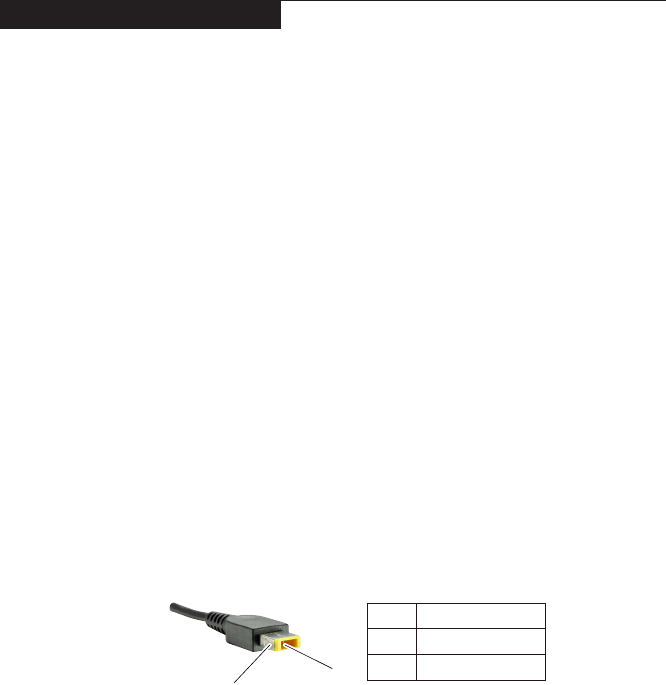
2. Measure the output voltage at the plug of the AC adapter cable. See the
following gure:
9ROWDJH9'&
3LQ
Note: Output voltage for the AC adapter pin No. 2 may differ from the one you
are servicing.
3. If the voltage is not correct, replace the AC adapter.
4. If the voltage is acceptable, do the following:
• Replace the system board.
• If the problem persists, go to “Lenovo B5400/M5400/M5400 Touch” on page 28.
Note: Noise from the AC adapter does not always indicate a defect.
Checking operational charging
To check whether the battery charges properly during operation, use a
discharged battery pack or a battery pack that has less than 50% of the total
power remaining when installed in the computer.

22
Lenovo B5400/M5400/M5400 Touch Hardware Maintenance Manual
Perform operational charging. If the battery status indicator or icon does not
light on, remove the battery pack and let it return to room temperature. Reinstall
the battery pack. If the charge indicator or icon is still off, replace the battery
pack.
If the charge indicator still does not light on, replace the system board. Then
reinstall the battery pack. If it is still not charged, go to the next section.
Checking the battery pack
Battery charging does not start until the Power Meter shows that less than 95%
of the total power remains; under this condition the battery pack can charge to
100% of its capacity. This protects the battery pack from being overcharged or
from having a shortened life.
To check your battery, move your cursor to the Power Meter icon in the icon
tray of the Windows® taskbar and wait for a moment (but do not click it), and the
percentage of battery power remaining is displayed. To get detailed information
about the battery, double-click the Power Meter icon.
Note: If the battery pack becomes hot, it may not be able to be charged.
Remove it from the computer and leave it at room temperature for a while. After
it cools down, reinstall and recharge it.

23
Related service information
Related service information
This chapter presents the following information:
• “Restoring the factory contents by using OneKey Recovery” on page 23
• “Passwords” on page 25
• “Power management” on page 26
Restoring the factory contents by using OneKey Recovery
Restore of factory default
This topic provides information about the recovery programs that are available
for you to recover the computer settings.
• Windows 7: The following recovery programs are available on computers
with a Windows 7 operating system:
– OneKey® Recovery Pro
The OneKey Recovery Pro program enables you to back up all your hard
disk drive contents, including the operating system, data les, software
programs, and personal settings. You can designate where the OneKey
Recovery Pro program stores the backup. After you have backed up the
contents on the hard disk drive, you can restore the complete contents
of the hard disk drive, restore only the desired les, or restore only the
Windows operating system and applications.
– Product Recovery
The Product Recovery program enables you to restore the computer
settings to the factory default settings through recovery media.
Attention: When you use the Product Recovery program to restore the
computer settings, all the data you have stored on the hard disk drive
will be deleted and the computer settings will be restored to the factory
default settings. During the restoring process, you will be given the
option to save one or more les currently on the hard disk drive to other
media before the data is deleted.

24
Lenovo B5400/M5400/M5400 Touch Hardware Maintenance Manual
• Windows 8: The preinstalled Windows recovery program enables you to do
the following:
– Refresh the computer without losing personal les
– Restore the computer to the factory default settings
Attention: When you use the Windows recovery program to restore the
computer settings, all the data you have stored on the hard disk drive
will be deleted and the computer will be restored to the factory default
settings. To avoid data loss, back up your data in advance.
– Congure the advanced startup options
The advanced startup options enable you to do the following:
– Change the startup settings of the Windows operating system
– Restore the Windows operating system from a system image
– Change the startup settings of the Windows operating system
For more information about the recovery solutions, refer to the help information
system of the programs.

25
Related service information
Passwords
As many as three passwords may be needed for any Lenovo computer: the
power-on password (POP), the hard disk password (HDP), and the supervisor
password.
If any of these passwords has been set, a prompt for it appears on the screen
whenever the computer is turned on. The computer does not start until the
password is entered.
Power-on password
A power-on password (POP) protects the system from being powered on by
an unauthorized person. The password must be entered before an operating
system can be booted.
Hard-disk password
There are two hard-disk passwords (HDPs):
+ User HDP - for the user
+ Master HDP - for the system administrator, who can use it to get access to
the hard disk drive even if the user has changed the user HDP
Attention: If the user HDP has been forgotten, check whether a master HDP
has been set. If it has, it can be used for access to the hard disk drive. If
no master HDP is available, neither Lenovo nor Lenovo authorized service
technicians provide any services to reset either the user or the master HDP, or
to recover data from the hard disk drive. The hard disk drive can be replaced
for a scheduled fee.
Supervisor password
A supervisor password protects the system information stored in the BIOS. The
user must enter the supervisor password to get access to the BIOS and change
the system conguration.
Attention: If you forget the password, there is no service procedure to reset
the password. The system board must be replaced for a scheduled fee.

26
Lenovo B5400/M5400/M5400 Touch Hardware Maintenance Manual
Power management
Note: Power management modes are not supported for an APM operating
system.
To reduce power consumption, the computer has two power management
modes: screen blank, sleep (standby).
Screen blank state
If the time set on the “Turn off monitor” timer in the operating system expires,
the LCD backlight turns off. You can also turn off the LCD backlight by
pressing .
To end screen blank state and resume normal operation, press .
Putting the computer to sleep or shutting it down
When you have nished working with your computer, you can put it to sleep or
shut it down.
Putting your computer to sleep
If you will be away from your computer for only a short time, put the computer to
sleep. When the computer is in sleep mode, you can quickly wake it to resume
use, bypassing the startup process. To put the computer to sleep:
• For the Windows 7 operating system:
– Click
Start. Then select Sleep from the Shut down menu options.
– Press
Fn+F1.
• For the Windows 8 operating system:
– Move your cursor to the lower-right corner of the screen to open the
charms bar, then select Settings → Power → Sleep.
– Press
Fn+F1.
Attention: Wait until the power indicator light starts blinking (indicating that
the computer is in sleep mode) before you move your computer. Moving your
computer while the hard disk is spinning can damage the hard disk, causing
loss of data.
To wake the computer, do one of the following:
• Press Fn key on the keyboard.
• Press the power button.

27
Related service information
Shutting down the computer
If you are not going to use your computer for a long time, shut it down.
To shut down your computer:
• For the Windows 7 operating system: Click Start → Shut down.
• For the Windows 8 operating system:
Move your cursor to the lower-right corner of the screen to open the
charms bar, then select Settings → Power → Shut down.

28
Lenovo B5400/M5400/M5400 Touch Hardware Maintenance Manual
Lenovo B5400/M5400/M5400 Touch
This chapter presents the following product-specific service references and
product-specic parts information:
• “Specications” on page 28
• “Status indicators” on page 30
• “Fn key combinations” on page 31
• “FRU replacement notices” on page 32
• “Removing and replacing an FRU” on page 33
• “Locations” on page 69
• “Parts list” on page 72
Specications
The following table lists the specifications of the Lenovo B5400/M5400/
M5400 Touch
Table 1. Specications
Feature Description
Processor To view the processor information of your computer, do either of the
following:
• For the Windows 7 operating system: Click Start, right-click
Computer. Then click Properties.
• For the Windows 8 operating system: From the desktop,
move the cursor to the top-right or bottom-right corner of the
screen to display the charms. Then click Settings PC info.
Display • 15.6", 1366 × 768 pixels
Standard
memory • DDR3L-1600MHz SODIMM x 2 (max 16 GB)
Hard disk drive • 2.5-inch, 7 mm/9.5 mm SATA
• 320 GB / 500 GB / 750 GB / 1TB 5400 rpm
Optical drive • 2.5" External 9.5 mm (on select models)
I/O port • Combo audio jack × 1
• RJ45 × 1
• HDMI port × 1
• USB 2.0 port × 1, USB 3.0 port × 2
• 4 in 1 slot × 1
Audio • 1/8" Combo audio jack
• Integrated Speakers Stereo
• Internal analog Microphone × 1 (B5400)
Ethernet (on the
system board) • 100/1000M
PCI Express
Mini Card slot • 2 slots
Bluetooth
wireless • Combined in combo card

29
Lenovo B5400/M5400/M5400 Touch
Table 1. Specications (continued)
Feature Description
Keyboard • 6Row,LenovoKeyboard
Touchpad • Multi-touchtype
Integrated
camera
• 0.3MPorHD720P(B5400)
• Integrated720P(M5400/M5400Touch)
Battery • 6cell,2.2Ah
ACadapter • 20V,65Wor90W
Pre-installed
operating
system
• Win7orWin8/Win8.1

30
Lenovo B5400/M5400/M5400 Touch Hardware Maintenance Manual
Status indicators
The system status indicators below show the computer status:
Table 2. Status indicators
Indicator Meaning
1
Power and
battery
status
indicator
• Green: The battery has a charge between 20% and 100% and
the computer is powered on.
• Blinking green: The battery has a charge between 20% and
100% and the computer is in sleep or hibernate mode.
• Amber: The battery has a charge of 20% or less and the
computer is powered on.
• Blinking amber: The battery has a charge of 20% or less and the
AC power adapter is connected to the computer.
• Off: The battery is detached or the computer is powered off.
2
Hard disk
drive
indicator
On: the hard disk drive is reading or writing data.

31
Lenovo B5400/M5400/M5400 Touch
Fn key combinations
The following table describes the functions of Fn key combinations.
Table 3. Function key combinations
Fn+Esc:
• On the Windows 7 operating system: Press Fn+Esc
to open the camera and audio settings window. The
camera preview is turned on. Change the camera and
audio settings as desired.
• On the Windows 8 operating system: Press Fn+Esc to
enable or disable the camera.
Fn+F1: Enters sleep mode.
Fn+F2: Turns on/off the backlight of the LCD screen.
Fn+F3: Opens the display device switch interface. Select this
notebook or an external display.
Fn+F5: Enables/Disables wireless devices.
Fn+F6: Enables/Disables the touchpad and touchpad buttons.
Fn+F9: Starts/Pauses playback of Windows Media Player.
Fn+F10: Stops playback of Windows Media Player.
Fn+F11: Skips to the previous track.
Fn+F12: Skips to the next track.
Fn+PrtSc: Activates the system request.
Fn+Insert: Enables/Disables the scroll lock.
Fn+Home: Activates the pause function.
Fn+End: Activates the break function.
Fn+ ↑ / ↓:Increases/Decreases display brightness.
Fn+ → / ←:Increases/Decreases sound volume.
32
Lenovo B5400/M5400/M5400 Touch Hardware Maintenance Manual
FRU replacement notices
This section presents notices related to removing and replacing parts. Read
this section carefully before replacing any FRU.
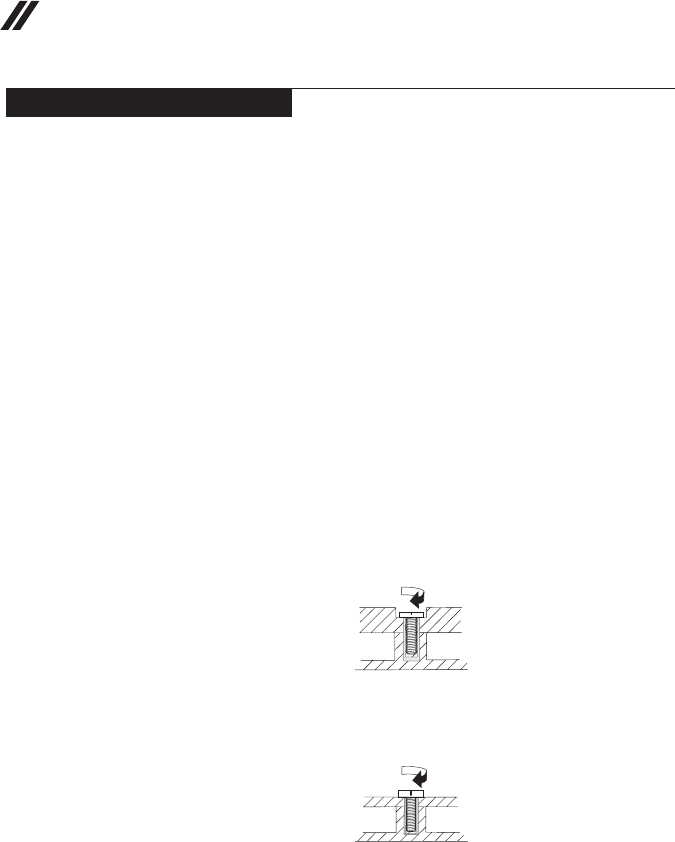
Screw notices
Loose screws can cause a reliability problem. In the Lenovo computer, this
problem is addressed with special nylon-coated screws that have the following
characteristics:
• They maintain tight connections.
• They do not easily come loose, even with shock or vibration.
• They are harder to tighten.
• Each one should be used only once.
Do the following when you service this machine:
• Keep the screw kit in your tool bag.
• Carefully remove screws for reuse when replacing FRUs.
• Use a torque screwdriver if you have one.
Tighten screws as follows:
• Plastic to plastic
Turn an additional 90° after the screw head touches the surface of the
plastic part:
more than 90°
(Cross-section)
• Logic card to plastic
Turn an additional 180° after the screw head touches the surface of the
logic card:
more than 180°
(Cross-section)
• Torque driver
If you have a torque screwdriver , refer to the “Torque” column for each step.
• Make sure that you use the correct screws. If you have a torque screwdriver,
tighten all screws rmly to the torque shown in the table. Carefully remove
screws for reuse when replacing FRUs. Make sure that all screws are
tightened rmly.
• Ensure torque screwdrivers are calibrated correctly following country
specications.
33
Lenovo B5400/M5400/M5400 Touch
Removing and replacing an FRU
This section presents exploded gures with the instructions to indicate how to
remove and replace the FRU. Make sure to observe the following general rules:
1. Do not attempt to service any computer unless you have been trained and
certied. An untrained person runs the risk of damaging parts.
2. Before replacing any FRU, review “FRU replacement notices” on page 32.
3. Begin by removing any FRUs that have to be removed before the failing
FRU. Any of such FRUs are listed at the top of the page. Remove them in
the order in which they are listed.
4. Follow the correct sequence in the steps to remove the FRU, as given in the
gures by the numbers in square callouts.
5. When turning a screw to replace an FRU, turn it in the direction as given by
the arrow in the gure.
6. When removing the FRU, move it in the direction as given by the arrow in
the gure.
7. To put the new FRU in place, reverse the removal procedures and follow
any of the notes that pertain to replacement. For information about
connecting and arranging internal cables, see “Locations” on page 69.
8. When replacing an FRU, use the correct screw as shown in the procedures.
DANGER
BeforeremovinganyFRU,turnoffthecomputer,unplugallpowercordsfrom
electricaloutlets,removethebatterypack,andthendisconnectanyofthe
interconnectingcables.
Attention: After replacing an FRU, do not turn on the computer until you have
made sure that all screws, springs, and other small parts are in place and none
are loose inside the computer. Verify this by shaking the computer gently and
listening for rattling sounds. Metallic parts or metal akes can cause electrical
short circuits.
Attention: The system board is sensitive to, and can be damaged by,
electrostatic discharge. Before touching it, establish personal grounding by
touching a ground point with one hand or using an electrostatic discharge (ESD)
strap (P/N 6405959) to remove potential shock reasons.
34
Lenovo B5400/M5400/M5400 Touch Hardware Maintenance Manual
1010 Battery pack
DANGER
Onlyusethebatteryspeciedinthepartslistforyourcomputer.Anyotherbattery
couldigniteorexplode.
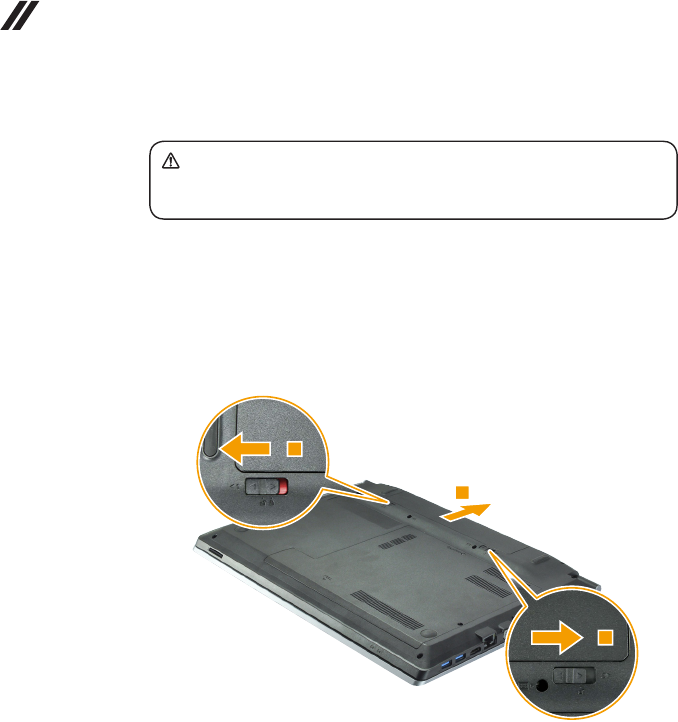
Figure 1. Removal steps of battery pack
Unlock the manual battery latch 1. Holding the spring-loaded battery latch in
the unlocked position 2, remove the battery pack in the direction shown by the
arrow 3.
When installing: Install the battery pack along the slide rails of the slot. Then
make sure that the battery release lever is in the locked position.
35
Lenovo B5400/M5400/M5400 Touch
1020 Base cover
For access, remove this FRU:
• “1010 Battery pack” on page 34
Figure 2. Removal steps of base cover
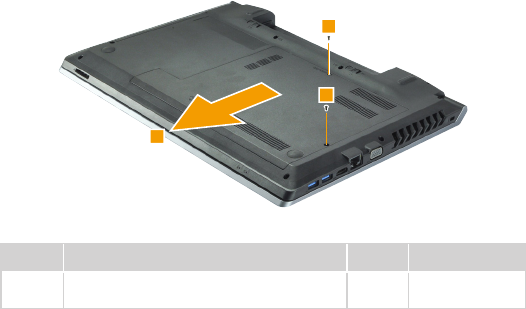
Remove the screws 1. Then remove the base cover 2.
Step Screw (quantity) Color Torque
1M2 × 4 mm, at-head, nylok-coated (2)
Door to BASE
Black 1.85+/-0.15 kgf*cm
36
Lenovo B5400/M5400/M5400 Touch Hardware Maintenance Manual
Note: Applying labels to the base cover
The new base cover FRU is shipped with a kit containing labels of several
kinds. When you replace the base cover, you need to apply the following
labels:
The following labels need to be peeled off from the old base cover and put on
the new base cover.
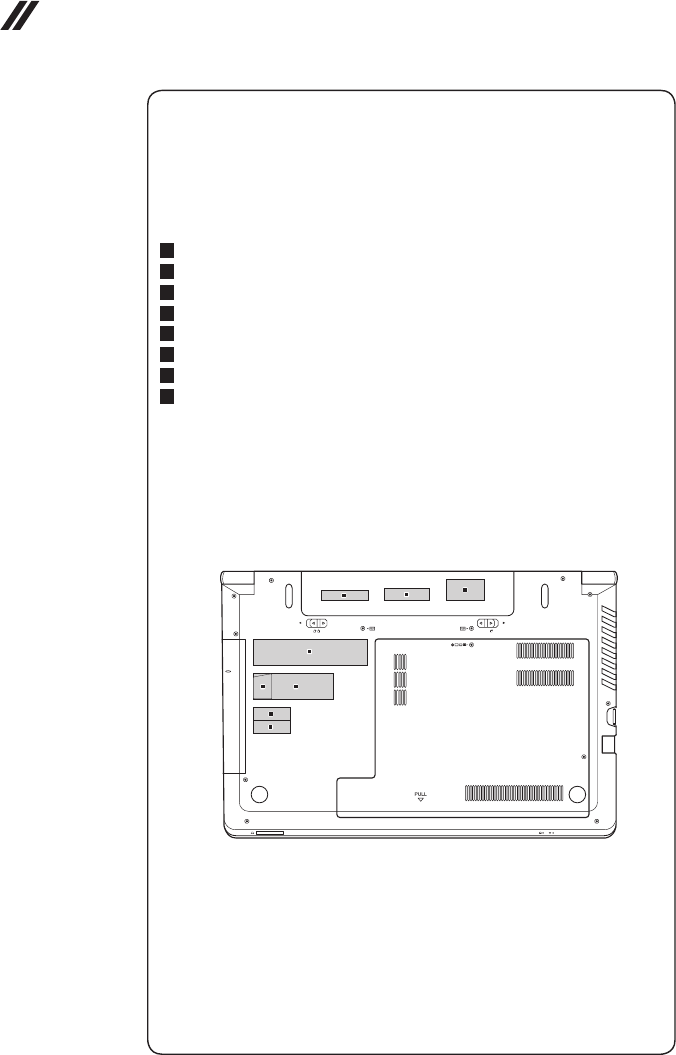
a Barcode label
b KCC label
c Indonesia D side label
d Rating label
e GML label
f COA label
g BT label
h WL label
For some models, you also need to apply one or two FCC labels. Check the
old base cover; if it has one or two FCC labels, nd duplicates of them in the
label kit and apply them to the new base cover.
For the location of each label, refer to the following gure:
12
a
d
ef
h
g
b
c
37
Lenovo B5400/M5400/M5400 Touch
1030 Backup battery
For access, remove these FRUs in order:
• “1010 Battery pack” on page 34
• “1020 Base cover” on page 35
Figure 3. Removal steps of backup battery
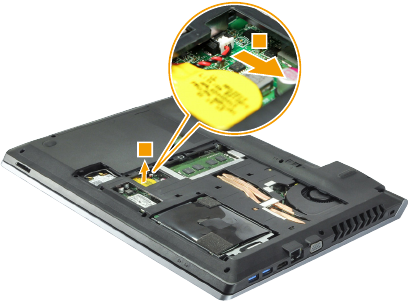
Detach the backup battery connector in the direction shown by arrow 1. Then
remove the backup battery 2.
38
Lenovo B5400/M5400/M5400 Touch Hardware Maintenance Manual
1040 Optical drive
For access, remove these FRUs in order:
• “1010 Battery pack” on page 34
• “1020 Base cover” on page 35
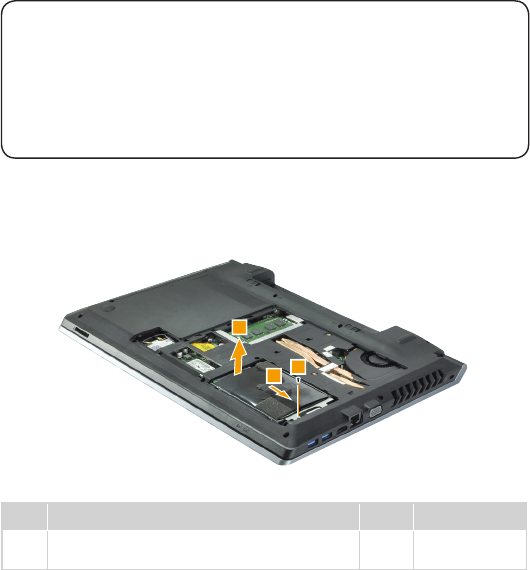
Figure 4. Removal steps of optical drive
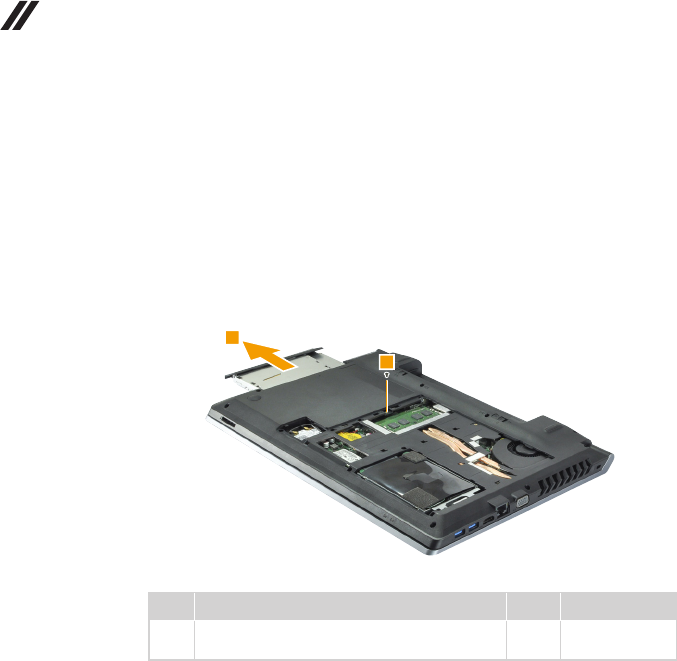
Remove the screw 1. Pull the optical drive out in the direction shown by
arrow 2.
Step Screw (quantity) Color Torque
1M2 × 4 mm, at-head, nylok-coated (1)
ODD BKT to BASE
Black 1.85+/-0.15 kgf*cm
39
Lenovo B5400/M5400/M5400 Touch
1050 Hard disk drive and solid state disk
For access, remove these FRUs in order:
• “1010 Battery pack” on page 34
• “1020 Base cover” on page 35
Attention:
• Donotdropthehard diskdriveorapplyany physicalshocktoit.Thehard
diskdriveissensitivetophysicalshock.Improperhandlingcancausedamageand
permanentlossofdata.
• Beforeremovingthedrive,suggestthecustomertobackupalltheinformationon
itifpossible.
• Neverremovethedrivewhilethesystemisoperatingorinsuspendmode.
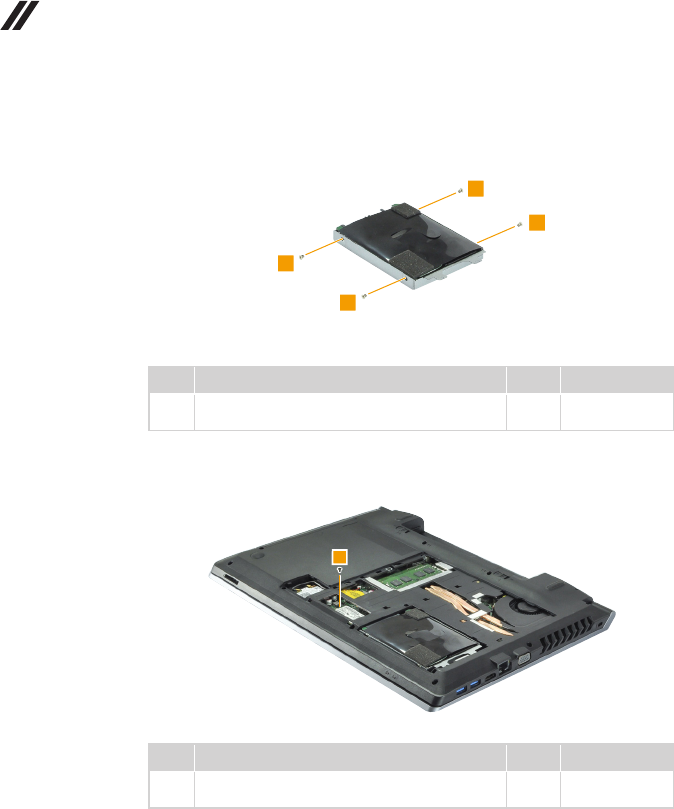
Figure 5. Removal steps of hard disk drive and solid state disk
Remove the screw 1. Detach the HDD connector and then remove the hard
disk drive from the slot in the direction shown by arrows 2 and 3.
Step Screw (quantity) Color Torque
1M2 × 4 mm, at-head, nylok-coated (1)
HDD BKT to BASE
Black 1.85+/-0.15 kgf*cm
When installing: Make sure that the HDD connector is attached rmly.
40
Lenovo B5400/M5400/M5400 Touch Hardware Maintenance Manual
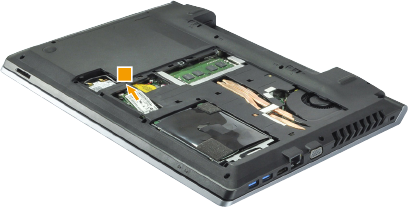
Figure 5. Removal steps of hard disk drive and solid state disk (continued)
Remove the screws 4 and detach the metal frame from the hard disk drive.
Step Screw (quantity) Color Torque
4M3 × 4 mm, at-head, nylok-coated (4)
HDD BRKT to HDD
Sliver 3.0+/-0.3 kgf*cm
Remove the screw 5.
Step Screw (quantity) Color Torque
5M2 × 3 mm, at-head, nylok-coated (1)
SSD to MB
Black 1.85+/-0.15 kgf*cm
41
Lenovo B5400/M5400/M5400 Touch
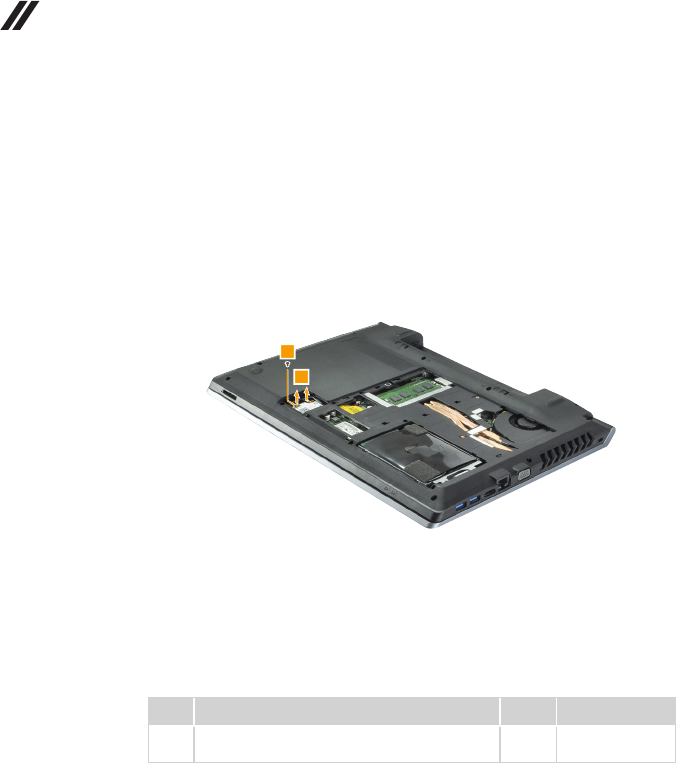
Figure 5. Removal steps of hard disk drive and solid state disk (continued)
Remove the solid state disk from the slot in the direction shown by arrow 6.
42
Lenovo B5400/M5400/M5400 Touch Hardware Maintenance Manual
1060 PCI Express Mini Card for wireless LAN
For access, remove these FRUs in order:
• “1010 Battery pack” on page 34
• “1020 Base cover” on page 35
Figure 6. Removal steps of PCI Express Mini Card for wireless LAN
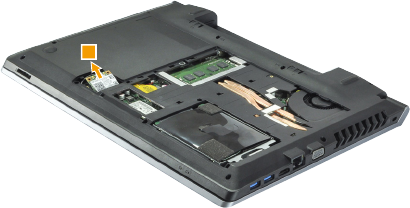
Disconnect the two wireless LAN cables (black, white) 1, and then remove the
screw 2.
In step 1, unplug the jacks by using the removal tool antenna RF connector
(P/N: 08K7159), or pick up the connectors with your ngers and gently unplug
them in the direction shown by the arrows.
Notes: The wireless LAN card has 2 cables in step 1.
The wireless LAN card in some models might have 3 cables in step 1.
Step Screw (quantity) Color Torque
2M2 × 3 mm, at-head, nylok-coated (1)
MINIPCIE to MB
Black 1.85+/-0.15 kgf*cm
43
Lenovo B5400/M5400/M5400 Touch
Figure 6. Removal steps of PCI Express Mini Card for wireless LAN (continued)
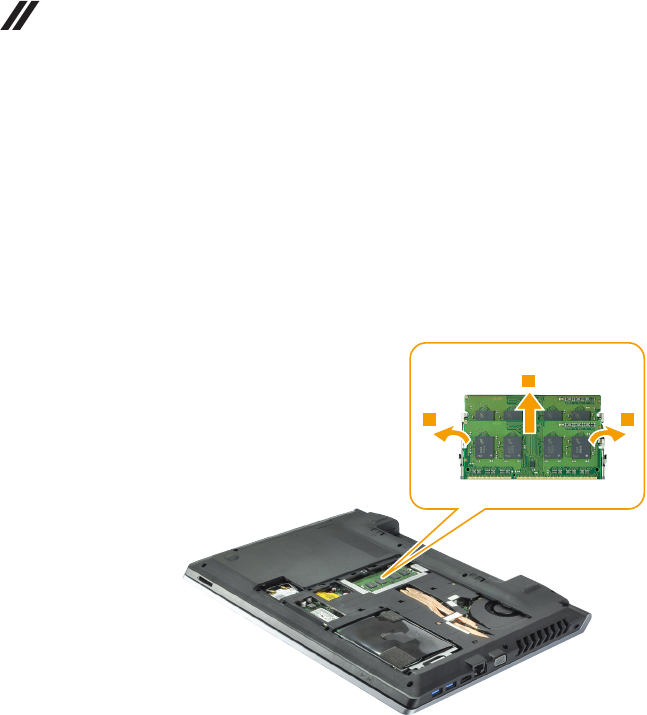
Remove the card in the direction shown by arrow 3.
When installing:
When installing the wireless LAN card, plug the black cable into the jack
labeled AUX and the white cable into the jack labeled MAIN.
44
Lenovo B5400/M5400/M5400 Touch Hardware Maintenance Manual
1070 DIMM
For access, remove these FRUs in order:
• “1010 Battery pack” on page 34
• “1020 Base cover” on page 35
Figure 7. Removal steps of DIMM
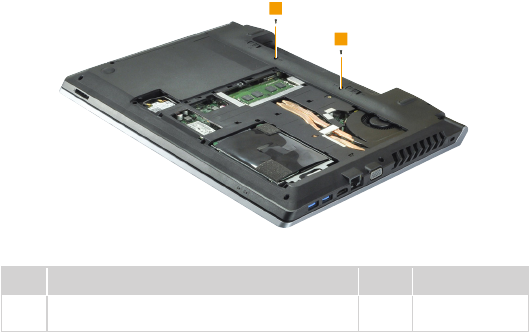
Release the two latches on both edges of the socket at the same time in the
direction shown by arrows 1, and then unplug the DIMM in the direction shown
by arrow 2.
When installing: Insert the notched end of the DIMM into the socket. Push the
DIMM rmly, and pivot it until it snaps into place. Make sure that it is rmly xed
in the slot and is difcult to move.
45
Lenovo B5400/M5400/M5400 Touch
1080 Keyboard
For access, remove these FRUs in order:
• “1010 Battery pack” on page 34
• “1020 Base cover” on page 35
Figure 8. Removal steps of keyboard
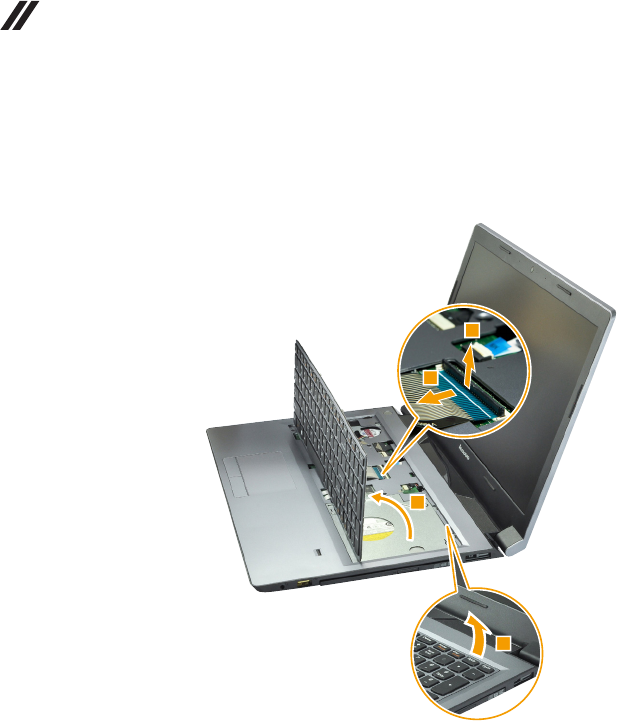
Remove the screws 1.
Step Screw (quantity) Color Torque
1M2 × 4 mm, at-head, nylok-coated (2)
BASE to KB
Black 1.85+/-0.15 kgf*cm
46
Lenovo B5400/M5400/M5400 Touch Hardware Maintenance Manual
Figure 8. Removal steps of keyboard (continued)
Loosen the keyboard with fingers in the direction shown by arrow 2. Lift
the keyboard slightly 3. Detach the connectors in the direction shown by
arrows 4 and 5. Then remove the keyboard.
When installing: Make sure that the FPC connector is attached rmly.
47
Lenovo B5400/M5400/M5400 Touch
1090
Keyboard bezel
For access, remove these FRUs in order:
• “1010 Battery pack” on page 34
• “1020 Base cover” on page 35
• “1040 Optical drive” on page 38
• “1050 Hard disk drive and solid state disk” on page 39
• “1060 PCI Express Mini Card for wireless LAN” on page 42
• “1080 Keyboard” on page 45
Figure 9. Removal steps of keyboard bezel
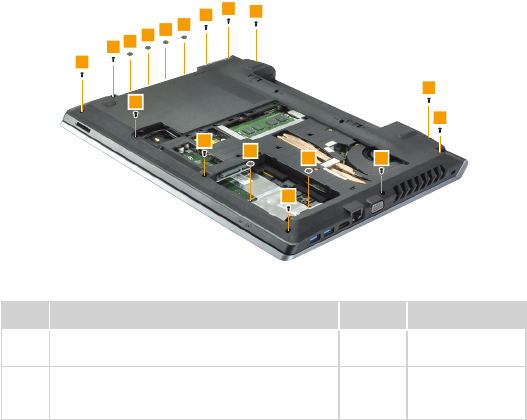
Remove the screws 1 and 2.
Step Screw (quantity) Color Torque
1M2.5 × 5.0 mm, flat-head, nylok-coated (11)
BASE to TOP
Black 3.0+/-0.3 kgf*cm
2M2.0-0.4 × 2 mm, at-head, nylok-coated (6)
BASE TO TOP (ODD Bridge) & BASE TO
TOP (HDD Frame)
Black 1.85+/-0.15 kgf*cm
48
Lenovo B5400/M5400/M5400 Touch Hardware Maintenance Manual
Figure 9. Removal steps of keyboard bezel (continued)
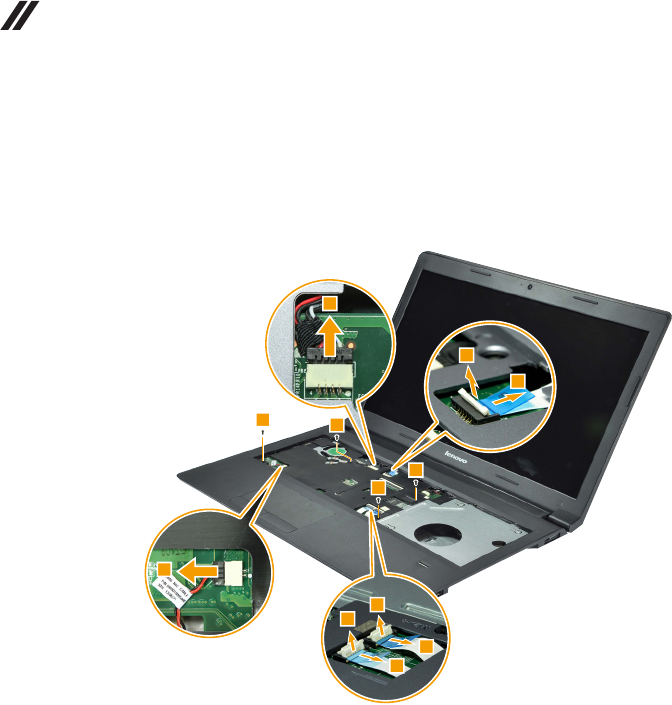
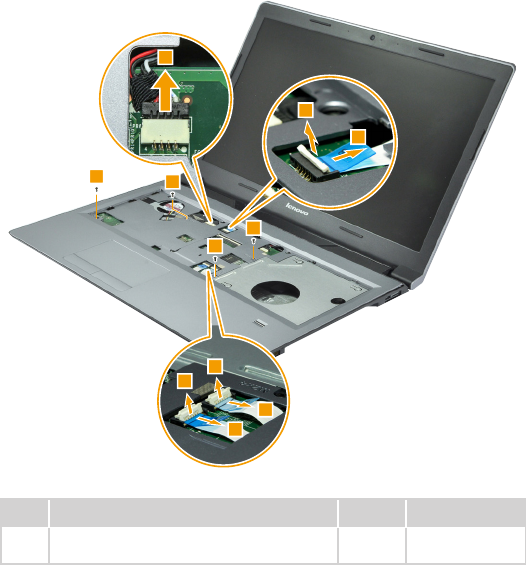
Disconnect the connectors in the directions shown by arrows 3, 4, and 5.
Remove the screws 6.
B5400
49
Lenovo B5400/M5400/M5400 Touch
Figure 9. Removal steps of keyboard bezel (continued)
M5400/M5400 Touch
Step Screw (quantity) Color Torque
6M2 × 4 mm, at-head, nylok-coated (4)
TOP to MB to BASE & TOP to MB
Black 1.85+/-0.15 kgf*cm
50
Lenovo B5400/M5400/M5400 Touch Hardware Maintenance Manual
Figure 9. Removal steps of keyboard bezel (continued)
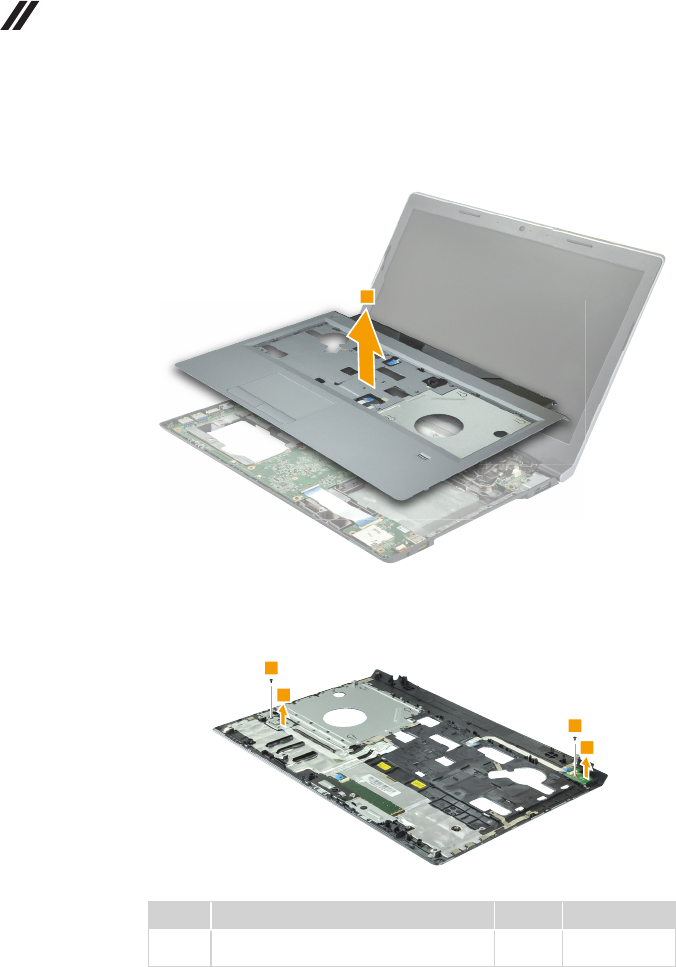
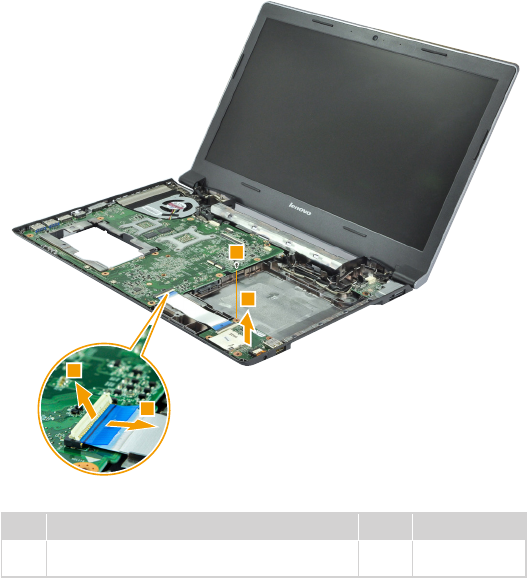
Remove the keyboard bezel in the direction shown by arrow 7.
Remove the screws 8, then remove the finger print module and the power
board in the direction shown by arrows 9.
Step Screw (quantity) Color Torque
8M2 × 3 mm, at-head, nylok-coated (2)
FP BKT to TOP & Power Board to TOP
Black 1.85+/-0.15 kg-cm
51
Lenovo B5400/M5400/M5400 Touch
1100 USB board and function board
For access, remove these FRUs in order:
• “1010 Battery pack” on page 34
• “1020 Base cover” on page 35
• “1040 Optical drive” on page 38
• “1050 Hard disk drive and solid state disk” on page 39
• “1060 PCI Express Mini Card for wireless LAN” on page 42
• “1080 Keyboard” on page 45
• “1090 Keyboard bezel” on page 47
Figure 10. Removal steps of USB board and function board
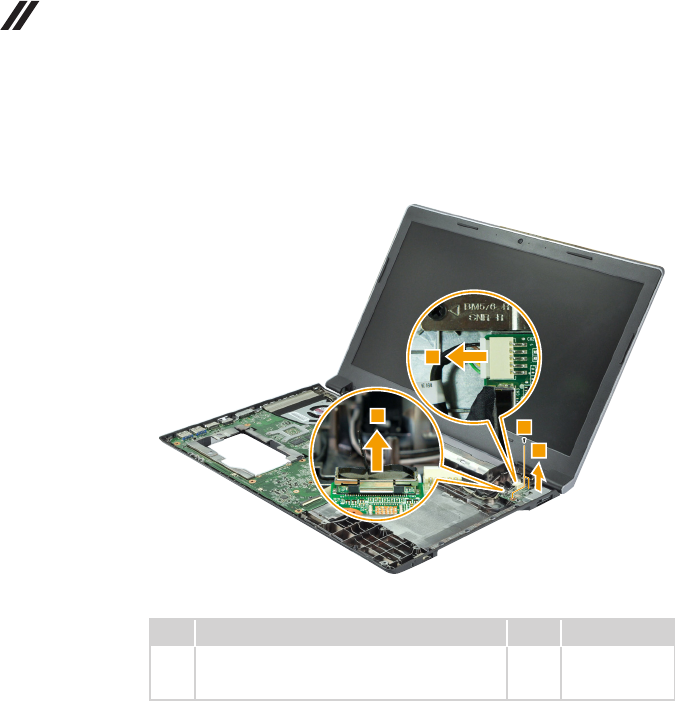
Detach the USB board connector in the direction shown by arrows 1 and 2.
Remove the screw 3, then remove the USB board 4.
Step Screw (quantity) Color Torque
3M2 × 4 mm, at-head, nylok-coated (1)
Audio PCB to BASE
Black 1.85+/-0.15 kgf*cm
52
Lenovo B5400/M5400/M5400 Touch Hardware Maintenance Manual
Figure 10. Removal steps of USB board and function board (continued)
Detach the connectors in the direction shown by arrows 5 and 6. Remove the
screws 7, then remove the function board and docking bracket 8.
Step Screw (quantity) Color Torque
7M2 × 4 mm, at-head, nylok-coated (2)
DCIN PCB to BASE & DCIN BKT to DC IN PCB
to BASE
Black 1.85+/-0.15 kgf*cm

53
Lenovo B5400/M5400/M5400 Touch
1110
System board
Important notices for handling the system board:
Whenhandlingthesystemboard,bearthefollowinginmind.
• Becarefulnottodropthesystemboardonabenchtopthathasahardsurface,
suchasmetal,wood,orcomposite.
• Avoidroughhandlingofanykind.
• Duringthewholeprocess,makesurenottodroporstackthesystemboard.
• Ifyouputasystemboarddown,makesuretoputitonlyonapaddedsurfacesuch
asanESDmatorconductivecorrugatedmaterial.
For access, remove these FRUs in order:
• “1010 Battery pack” on page 34
• “1020 Base cover” on page 35
• “1040 Optical drive” on page 38
• “1050 Hard disk drive and solid state disk” on page 39
• “1060 PCI Express Mini Card for wireless LAN” on page 42
• “1080 Keyboard” on page 45
• “1090 Keyboard bezel” on page 47
• “1100 USB board and function board” on page 51
54
Lenovo B5400/M5400/M5400 Touch Hardware Maintenance Manual
Figure 11. Removal steps of system board (continued)
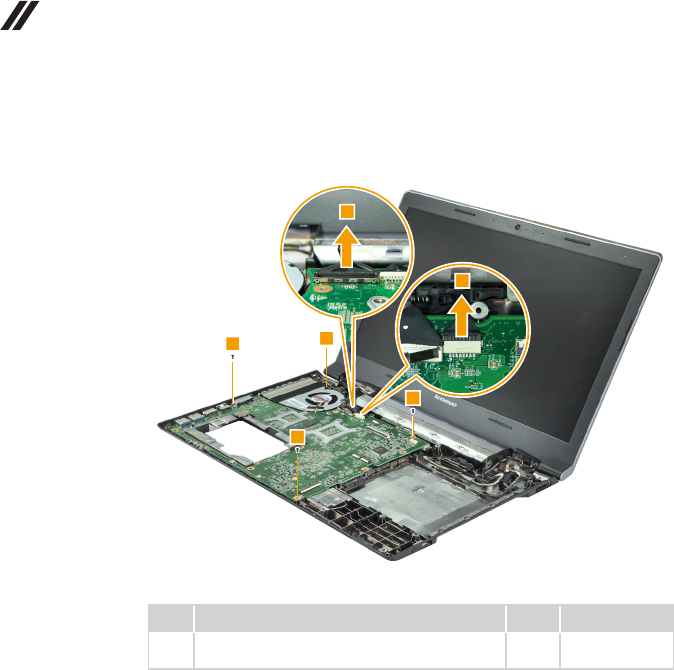
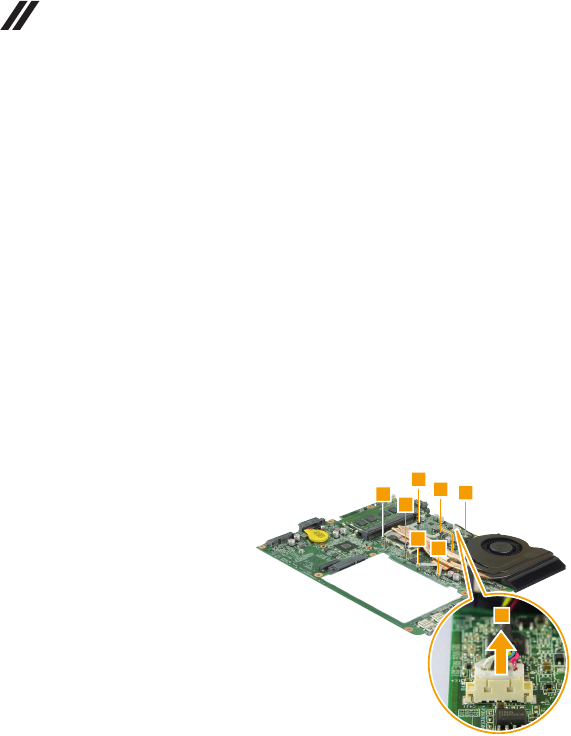
Disconnect the two connectors in the direction shown by arrows 1. Loosen the
screw 2 and remove the screws 3.
Step Screw (quantity) Color Torque
3M2 × 4 mm, at-head, nylok-coated (3)
MB to BASE & CRT BKT to MB to BASE
Black 1.85+/-0.15 kgf*cm
55
Lenovo B5400/M5400/M5400 Touch
Figure 11. Removal steps of system board (continued)
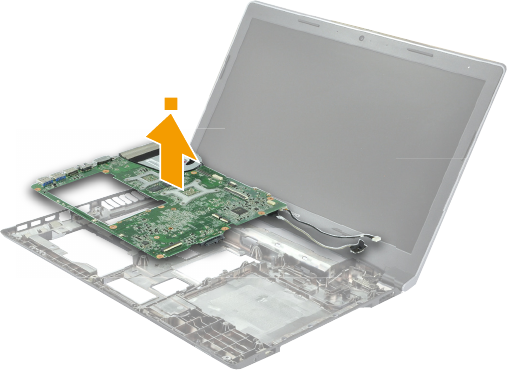
Remove the system board and the VGA port bracket in the direction shown by
arrow 4.
56
Lenovo B5400/M5400/M5400 Touch Hardware Maintenance Manual
1120 Fan assembly and heat sink assembly
For access, remove these FRUs in order:
• “1010 Battery pack” on page 34
• “1020 Base cover” on page 35
• “1040 Optical drive” on page 38
• “1050 Hard disk drive and solid state disk” on page 39
• “1060 PCI Express Mini Card for wireless LAN” on page 42
• “1080 Keyboard” on page 45
• “1090 Keyboard bezel” on page 47
• “1100 USB board and function board” on page 51
• “1110 System board” on page 53
Figure 12. Removal steps of fan assembly and heat sink assembly
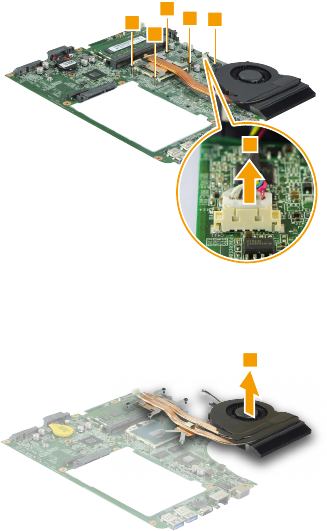
Disconnect the fan connector in the direction shown by arrow 1 and then
loosen the screws 2.
57
Lenovo B5400/M5400/M5400 Touch
Figure 12. Removal steps of fan assembly and heat sink assembly (continued)
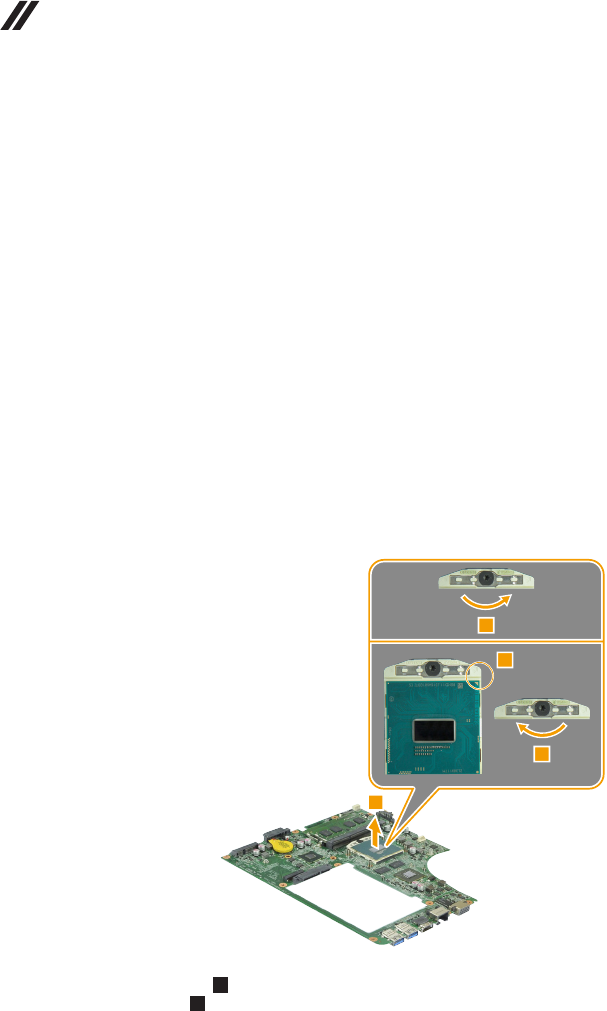
Lift the fan assembly and heat sink assembly in the direction shown by arrow 3.
Be careful not to damage the connector.
Attention: Do not handle the heat sink assembly roughly. Improper handling
can cause distortion or deformation and imperfect contact with components.
58
Lenovo B5400/M5400/M5400 Touch Hardware Maintenance Manual
1130 CPU
For access, remove these FRUs in order:
• “1010 Battery pack” on page 34
• “1020 Base cover” on page 35
• “1040 Optical drive” on page 38
• “1050 Hard disk drive and solid state disk” on page 39
• “1060 PCI Express Mini Card for wireless LAN” on page 42
• “1080 Keyboard” on page 45
• “1090 Keyboard bezel” on page 47
• “1100 USB board and function board” on page 51
• “1110 System board” on page 53
• “1120 Fan assembly and heat sink assembly” on page 56
Attention: CPU is extremely sensitive. When you service the CPU, avoid any
kind of rough handling.
Figure 13. Removal steps of CPU
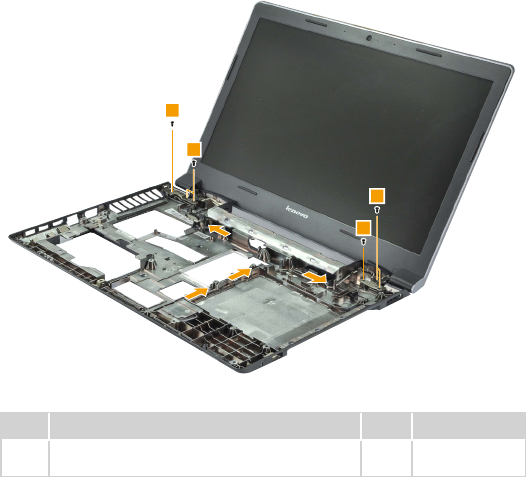
Rotate the head of the screw in the direction shown by arrow 1 to release the
lock, then remove the CPU in the direction shown by arrow 2.
C
D
When installing: Place the CPU on the CPU socket in the direction shown
by arrow a, and then rotate the head of the screw in the direction shown by
arrow b to secure the CPU.
59
Lenovo B5400/M5400/M5400 Touch
1140 LCD unit
For access, remove these FRUs in order:
• “1010 Battery pack” on page 34
• “1020 Base cover” on page 35
• “1030 Backup battery” on page 37
• “1040 Optical drive” on page 38
• “1050 Hard disk drive and solid state disk” on page 39
• “1060 PCI Express Mini Card for wireless LAN” on page 42
• “1080 Keyboard” on page 45
• “1090 Keyboard bezel” on page 47
• “1100 USB board and function board” on page 51
• “1110 System board” on page 53
Figure 14. Removal steps of LCD unit
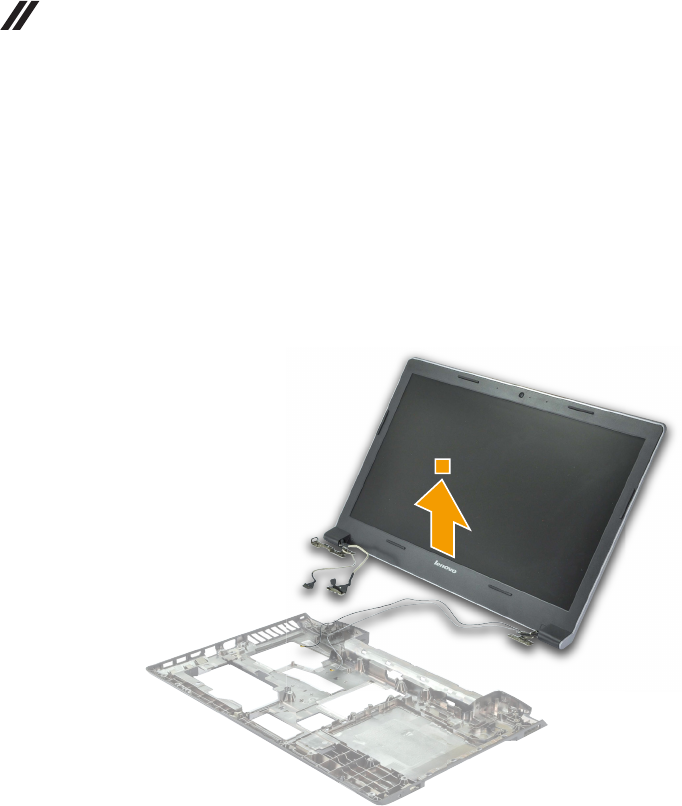
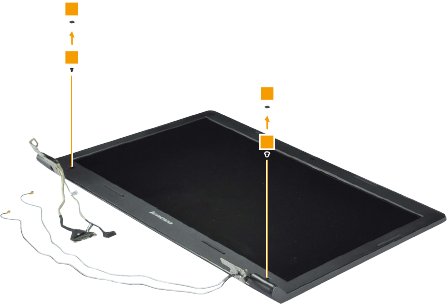
Release the antenna cables from the cable guides and then remove the screws 1.
Step Screw (quantity) Color Torque
1M2.5 × 5 mm, at-head, nylok-coated (6) Hinge
to BASE
Black 4.0+/-0.3 kgf*cm
60
Lenovo B5400/M5400/M5400 Touch Hardware Maintenance Manual
Figure 14. Removal steps of LCD unit (continued)
When installing:
• Route the antenna cables along the cable guides. As you route the cables,
make sure that they are not subjected to any tension. Tension could cause
the cables to be damaged by the cable guides, or a wire to be broken.
• Make sure that the LCD connector is attached firmly and that you do not
pinch the antenna cables when you attach the LCD assembly. Route the
LCD cable along the cable guides.
Remove the LCD unit in the direction shown by arrow 2.
61
Lenovo B5400/M5400/M5400 Touch
1150 LCD front bezel (B5400/M5400)
For access, remove these FRUs in order:
• “1010 Battery pack” on page 34
• “1020 Base cover” on page 35
• “1040 Optical drive” on page 38
• “1050 Hard disk drive and solid state disk” on page 39
• “1060 PCI Express Mini Card for wireless LAN” on page 42
• “1080 Keyboard” on page 45
• “1090 Keyboard bezel” on page 47
• “1100 USB board and function board” on page 51
• “1110 System board” on page 53
• “1140 LCD unit” on page 59
Figure 15. Removal steps of LCD front bezel (B5400/M5400)
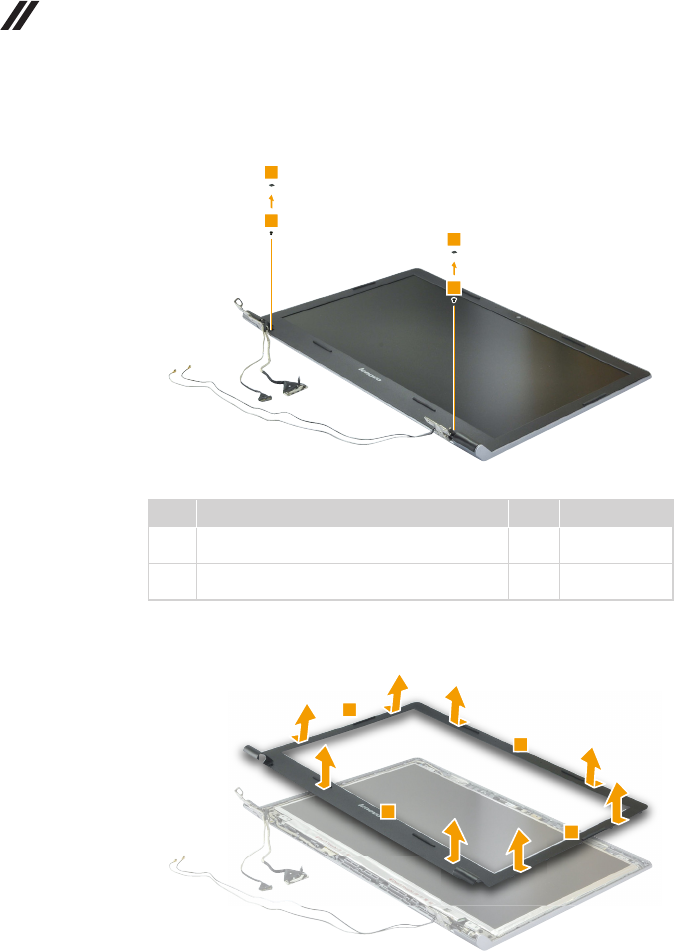
Remove LCD bezel screw pads 1 and the screws 2.
B5400
62
Lenovo B5400/M5400/M5400 Touch Hardware Maintenance Manual
Figure 15. Removal steps of LCD front bezel (B5400/M5400) (continued)
M5400
Step Screw (quantity) Color Torque
2M2.5 × 5 mm, at-head, nylok-coated (2) (B5400)
LCD Bezel to LCD Cover (BM6)
Black 3.0+/-0.3 kgf*cm
2M2.5 × 3 mm, at-head, nylok-coated (2)
(M5400) LCD Bezel to LCD Cover (BM5)
Black 3.0+/-0.3 kgf*cm
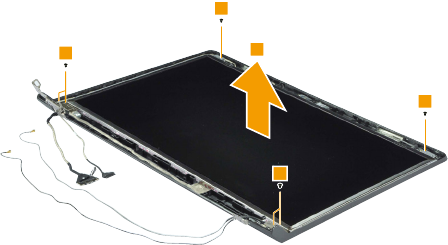
Remove the LCD front bezel in the direction shown by arrows 3.
63
Lenovo B5400/M5400/M5400 Touch
1160 LCD panel, LCD cable, antenna assembly, and hinges
(B5400/M5400)
For access, remove these FRUs in order:
• “1010 Battery pack” on page 34
• “1020 Base cover” on page 35
• “1030 Backup battery” on page 37
• “1040 Optical drive” on page 38
• “1050 Hard disk drive and solid state disk” on page 39
• “1060 PCI Express Mini Card for wireless LAN” on page 42
• “1070 DIMM” on page 44
• “1080 Keyboard” on page 45
• “1090 Keyboard bezel” on page 47
• “1100 USB board and function board” on page 51
• “1110 System board” on page 53
• “1140 LCD unit” on page 59
• “1150 LCD front bezel (B5400/M5400)” on page 61
Figure 16. Removal steps of LCD panel, LCD cable, antenna assembly, and
hinges (B5400/M5400)
Remove the screws 1. Lift the LCD panel in the direction shown by arrow 2.
B5400
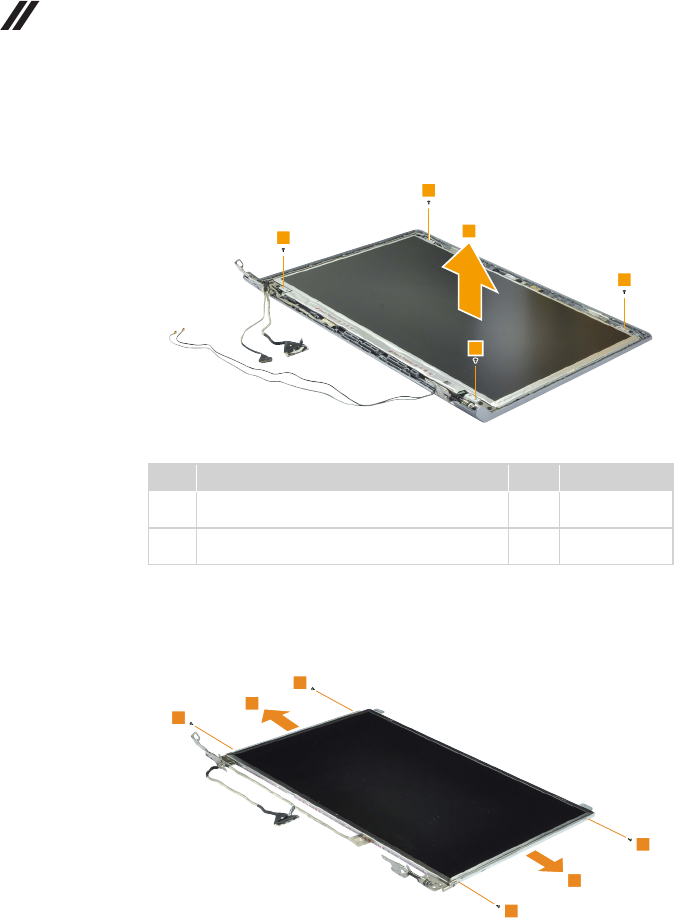
64
Lenovo B5400/M5400/M5400 Touch Hardware Maintenance Manual
Figure 16. Removal steps of LCD panel, LCD cable, antenna assembly, and
hinges (B5400/M5400) (continued)
M5400
Step Screw (quantity) Color Torque
1M2.5 × 3 mm, at-head, nylok-coated (4) (B5400)
Hinge to LCD Cover (for BM6)
Black 4.0+/-0.3 kgf*cm
1M2 × 3 mm, at-head, nylok-coated (4) (M5400)
Panel to LCD Cover (for BM5)
Black 1.85+/-0.15 kgf*cm
Remove the screws 3. Then release the hinges in the direction shown by
arrows 4.
B5400
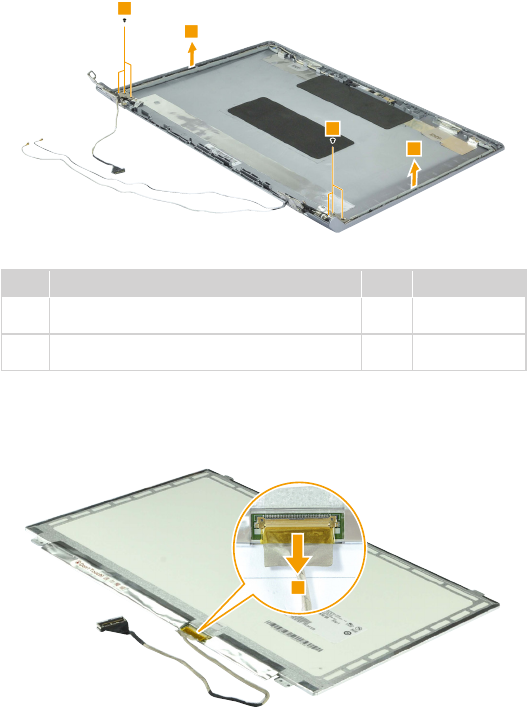
65
Lenovo B5400/M5400/M5400 Touch
Figure 16. Removal steps of LCD panel, LCD cable, antenna assembly, and
hinges (B5400/M5400) (continued)
M5400
Step Screw (quantity) Color Torque
3M2 × 3 mm, at-head, nylok-coated (4) (B5400)
Hinge to Panel (for BM6)
Black 1.85+/-0.15 kgf*cm
3M2.5 × 3 mm, at-head, nylok-coated (6) (M5400)
Hinge to LCD Cover (for BM5)
Black 4.0+/-0.3 kgf*cm
Peel off the adhesive tape and detach the connector in the direction shown by
arrow 5. Then remove the LCD cable.
When installing: Make sure that the metal connector is attached rmly.
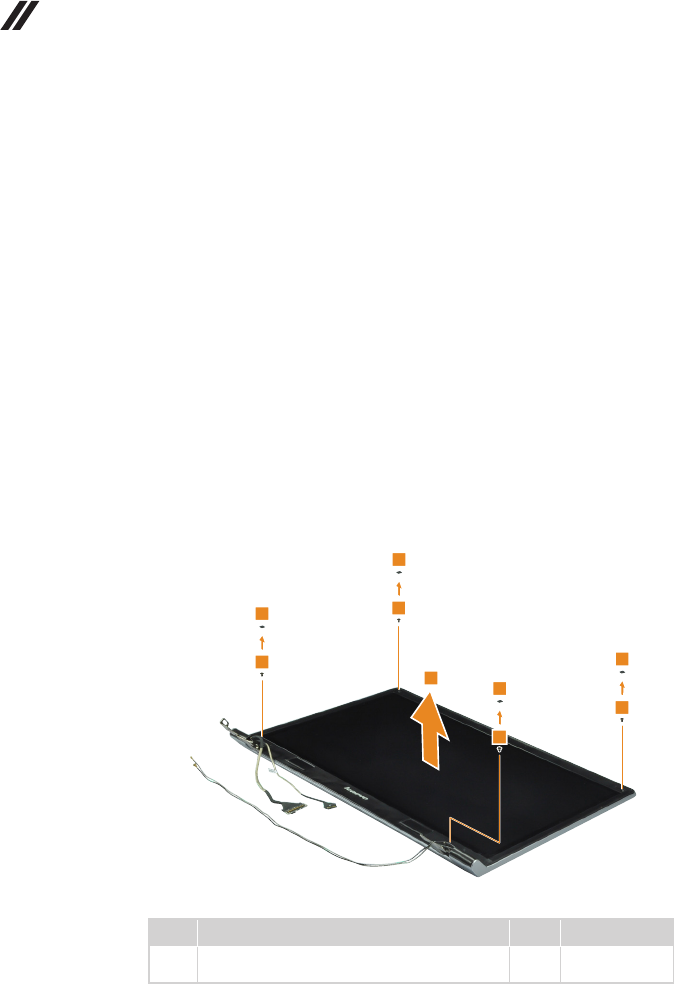
66
Lenovo B5400/M5400/M5400 Touch Hardware Maintenance Manual
1170 LCD module, LCD cable, and hinges (M5400 Touch)
For access, remove these FRUs in order:
• “1010 Battery pack” on page 34
• “1020 Base cover” on page 35
• “1030 Backup battery” on page 37
• “1040 Optical drive” on page 38
• “1050 Hard disk drive and solid state disk” on page 39
• “1060 PCI Express Mini Card for wireless LAN” on page 42
• “1070 DIMM” on page 44
• “1080 Keyboard” on page 45
• “1090 Keyboard bezel” on page 47
• “1100 USB board and function board” on page 51
• “1110 System board” on page 53
• “1140 LCD unit” on page 59
Figure 17. Removal steps of LCD module, LCD cable, and hinges
(M5400 Touch)
Remove LCD bezel screw pads 1 and the screws 2. Then remove the LCD
module 3.
1
2
1
2
1
2
1
2
3
Step Screw (quantity) Color Torque
2M2.5 × 5 mm, at-head, nylok-coated (4)
LCD Module W/LCD Bezel
Black 3.0+/-0.3 kgf*cm
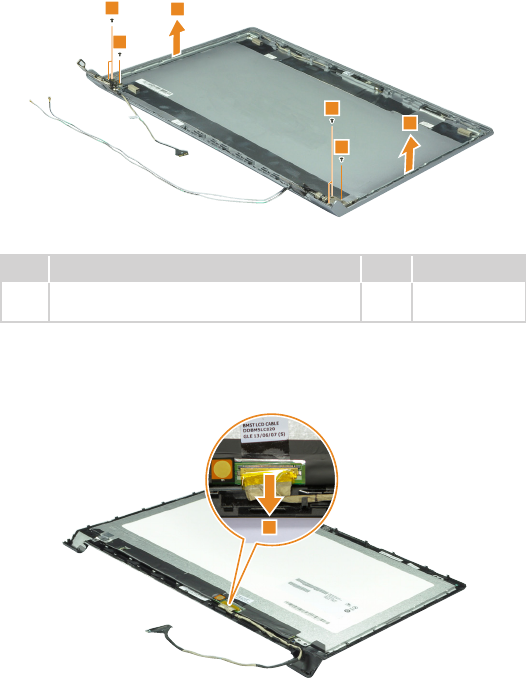
67
Lenovo B5400/M5400/M5400 Touch
Figure 17. Removal steps of LCD module, LCD cable, and hinges
(M5400 Touch)(continued)
Remove the screws 4. Then release the hinges in the direction shown by
arrows 5.
4
4
4
4
5
5
Step Screw (quantity) Color Torque
4M2.5 × 5 mm, at-head, nylok-coated (6)
Hinge to LCD Cover (for BM5)
Black 3.0+/-0.3 kgf*cm
Peel off the adhesive tape and detach the connector in the direction shown by
arrow 6. Then remove the LCD cable.
6
When installing: Make sure that the metal connector is attached rmly.
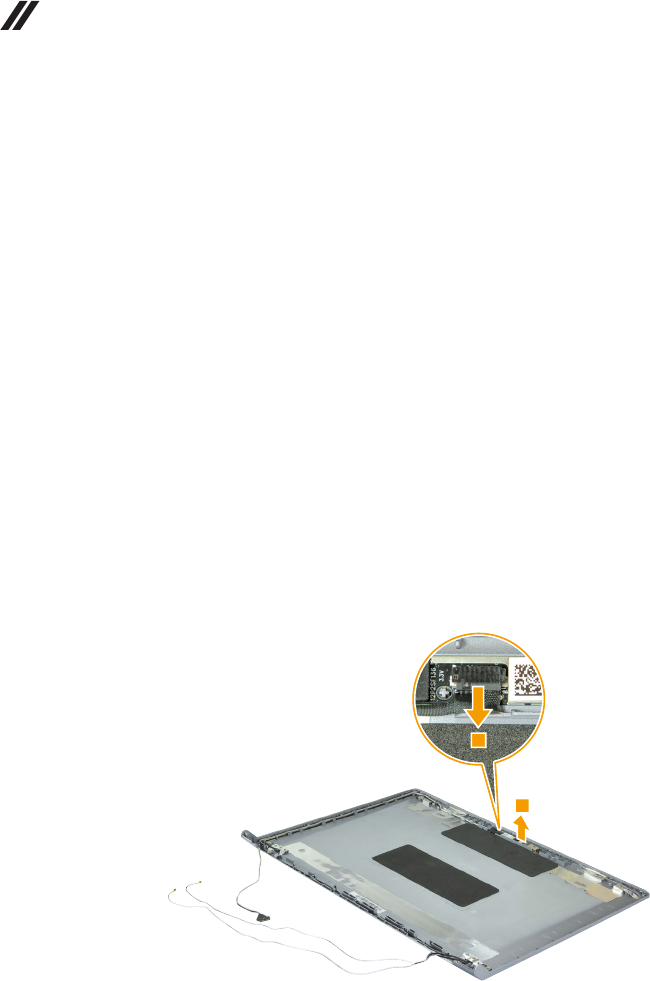
68
Lenovo B5400/M5400/M5400 Touch Hardware Maintenance Manual
1180 Integrated camera
For access, remove these FRUs in order:
• “1010 Battery pack” on page 34
• “1020 Base cover” on page 35
• “1030 Backup battery” on page 37
• “1040 Optical drive” on page 38
• “1050 Hard disk drive and solid state disk” on page 39
• “1060 PCI Express Mini Card for wireless LAN” on page 42
• “1070 DIMM” on page 44
• “1080 Keyboard” on page 45
• “1090 Keyboard bezel” on page 47
• “1100 USB board and function board” on page 51
• “1110 System board” on page 53
• “1140 LCD unit” on page 59
• “1150 LCD front bezel (B5400/M5400)” on page 61
• “1160 LCD panel, LCD cable, antenna assembly, and hinges (B5400/
M5400)” on page 63
• “1170 LCD module, LCD cable, and hinges (M5400 Touch)” on page 66
Figure 18. Removal steps of integrated camera
Note: The integrated camera is stuck on the top center of the LCD cover.
Unplug the integrated camera connector in the direction shown by arrow 1.
Remove the integrated camera from the LCD cover 2.
When installing: Stick the integrated camera to the top center of the LCD
cover and adjust the placement of it to make sure the connector is attached
rmly.
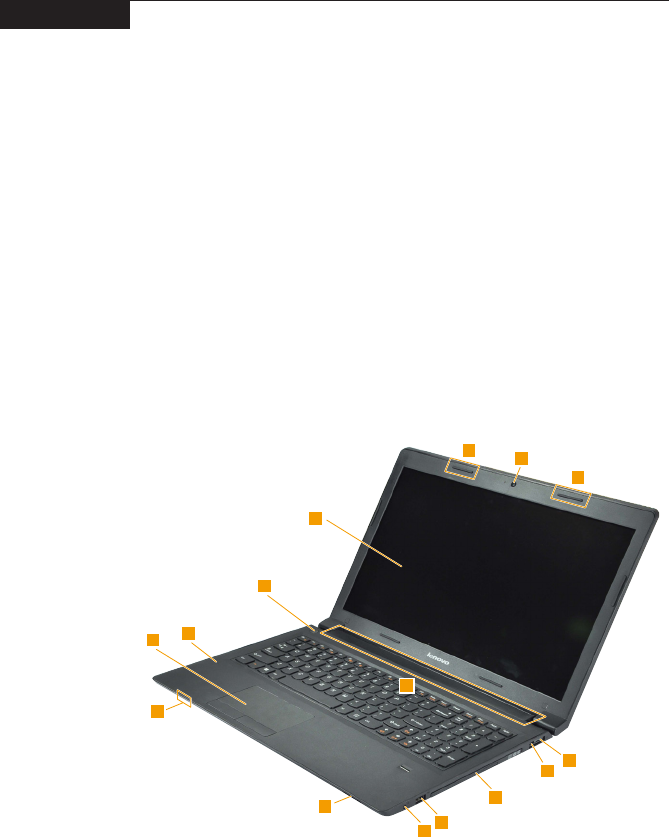
69
Lenovo B5400/M5400/M5400 Touch
Locations
Front view and right-side view
1 Integrated camera
2 Built-in microphone
3 Wireless LAN antennas
4 Computer display
5 Power button
6 Touchpad
7 System status indicators
Note: For the description of each indicator, see “Status indicators” on page 30.
8 Memory card slot
9 Combo audio jack
J USB port
K Optical drive
L AC power adapter jack
M Lenovo OneLink connector
N Speakers
B5400
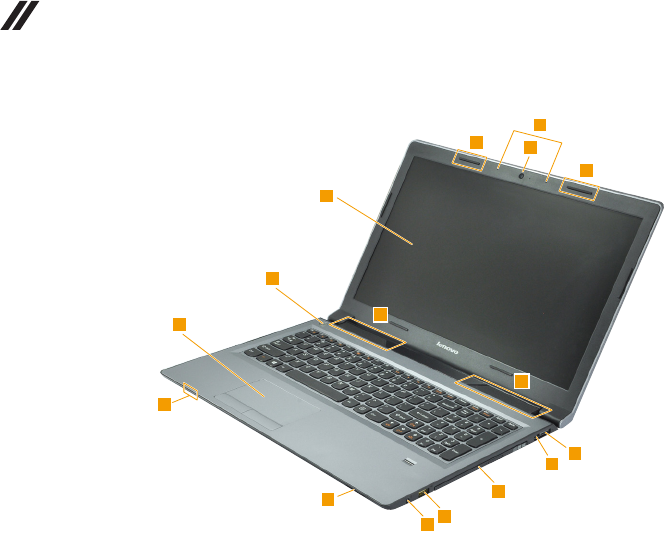
70
Lenovo B5400/M5400/M5400 Touch Hardware Maintenance Manual
M5400
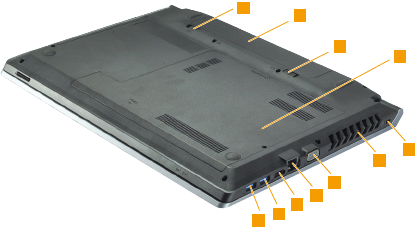
71
Lenovo B5400/M5400/M5400 Touch
Bottom and Left-side view
1 USB port
2 HDMI port
3 RJ-45 port
4 VGA port
5 Fan louvers
6 Kensington lock slot
7 Battery latch - manual
8 Battery pack
9 Battery latch - spring loaded
J Bottom slot cover
72
Lenovo B5400/M5400/M5400 Touch Hardware Maintenance Manual
Parts list
This section presents the following service parts:
• “Overall” on page 73
• “LCD FRUs” on page 77
• “Keyboard” on page 81
• “Miscellaneous parts” on page 85
• “Screws” on page 85
• “AC adapters” on page 86
• “Power cords” on page 87
Notes:
• EachFRUisavailableforalltypesormodels,unlessspecictypesormodels
arespecied.
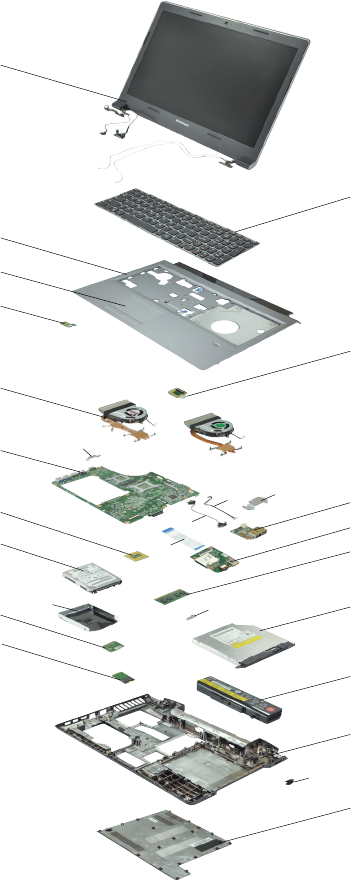
73
Lenovo B5400/M5400/M5400 Touch
Overall
I
J
H
C
E
D
F
G

74
Lenovo B5400/M5400/M5400 Touch Hardware Maintenance Manual
Table 4. Parts list—Overall
No. FRU FRU no. CRU ID.
a-h See “Miscellaneous parts” on page 85.
1 LCD unit (see “LCD FRUs” on page 77.)
2 Keyboard (see “Keyboard” on page 81.)
3 BM5 Upper Case Silver (with FP/TP/POWER cable)
(M5400/M5400 Touch)
90204214 N
3 BM6 Upper Case W/FP (with FP/TP/POWER cable)
(B5400)
90204217 N
3 BM6 Upper Case WO/FP (with FP/TP/POWER cable)
(B5400)
90204218 N
4 BM5 Touch Pad (M5400) 90004626 N
5 BM5 Power Board 90004625 N
6 BM5 Finger Print Module 90004623 N
7 BM5 Thermal Module 37W DIS 90204212 N
7 BM5 Thermal Module 37W UMA 90204213 N
8 BM5 MB UMA HM87 W/SBA (M5400/M5400 Touch) 90004610 N
8 BM5 MB W8P UMA HM87 W/SBA (M5400/
M5400 Touch)
90004611 N
8 BM5 MB W8S UMA HM87 W/SBA (M5400/
M5400 Touch)
90004612 N
8 BM5 MB DIS HM87 GV 2G W/SBA (M5400/
M5400 Touch)
90004613 N
8 BM5 MB W8P DIS HM87 GV 2G W/SBA (M5400/
M5400 Touch)
90004614 N
8 BM5 MB W8S DIS HM87 GV 2G W/SBA (M5400/
M5400 Touch)
90004615 N
8 BM6 MB UMA HM86 WO/SBA (B5400) 90004616 N
8 BM6 MB W8P UMA HM86 WO/SBA (B5400) 90004617 N
8 BM6 MB W8S UMA HM86 WO/SBA (B5400) 90004618 N
8 BM6 MB DIS HM86 GE 1G WO/SBA (B5400) 90004619 N
8 BM6 MB W8P DIS HM86 GE 1G WO/SBA (B5400) 90004620 N
8 BM6 MB W8S DIS HM86 GE 1G WO/SBA (B5400) 90004621 N
9 BM5 Function Board (M5400/M5400 Touch) 90004624 N
9 BM6 Function Board (B5400/M5400) 90004628 N
10 Intel I3-4100M 2.5G 3M C0 2cPGA CPU 102500645 N
10 Intel I5-4200M 2.5G 3M C0 2cPGA CPU 102500644 N
10 Intel i3-4000M 2.4G 3M C0 2cPGA CPU 102500594 N
10 Intel 3550M 2.3G 2M C0 2cPGA CPU 102500646 N
11 BM5 USB Board 90004627 N
12 HDD, HGST, Jaguar B7 (IPG cong) (B5400) 16200405 **
12 HDD, Toshiba, Aquarius-B Slim (B5400) 16200330 **
12 HDD, WD, MN500S (B5400) 16200378 **
12 HDD, Seagate, Yarra (1D) BP (6G) (B5400) 16200384 **
12 HDD, 500GB/5400rpmWD, MN500S 16200379 **
12 HDD, 500GB/5400rpmHGST, Jaguar B7 (IPG cong) 16200404 **
12 HDD, 500GB/5400rpmToshiba, Aquarius-B Slim 16200329 **
12 HDD, 500GB/5400rpmSeagate, Yarra (1D) BP (6G) 16200383 **
12 HDD, 500GB/5400rpmSeagate, M8 BP2 (6G) 16200387 **
12 HDD, 750GB/5400rpmToshiba, Aquarius-B 16200326 **

75
Lenovo B5400/M5400/M5400 Touch
No. FRU FRU no. CRU ID.
12 HDD, 750GB/5400rpmHGST, Jaguar B 16200374 **
12 HDD, 750GB/5400rpmSeagate, M8 BP2 (6G) 16200386 **
12 HDD, 750GB/5400rpmWD, ML500M 16200376 **
12 HDD, 1TB/5400rpmWD, ML500M 16200377 **
12 HDD, 1TB/5400rpmHGST, Jaguar B 16200375 **
12 HDD, 1TB/5400rpmSeagate, M8 BP 2 (6G) 16200385 **
12 HDD, 1TB/5400rpmToshiba, Aquarius-BS 16200325 **
12 HDD, SSHD (8GB) Seagate, ST1000LM014 6G
9.5mm 1T SSHD (9.5MM)
16200389 **
12 HDD, SSHD (8GB) Seagate, ST500LM000 6G 7mm
500G SSHD (7MM)
16200391 **
13 Memory, M471B5773DH0-YK0 2GB DDR3L 1600 11200502 *
13 Memory, HMT425S6AFR6A-PB 2GB DDR3L 1600 11201299 *
13 Memory, RMT3170ED58F8W-1600 DDR3L 1600 11201835 *
13 Memory, MT8KTF25664HZ-1G6M1 2GB DDR3L
1600
11200346 *
13 Memory, M471B5273DH0-YK0 4GB DDR3L 1600 11200503 *
13 Memory, M471B5173QH0-YK0 4GB DDR3L 1600 11202079 *
13 Memory, HMT451S6AFR8A-PB 4GB DDR3L 1600 11201300 *
13 Memory, RMT3170EB68F9W-1600 4GB DDR3L 1600 11201512 *
13 Memory, SM321NQ08ICF 4GB DDR3L 1600 11201834 *
13 Memory, MT8KTF51264HZ-1G6J1 4GB DDR3L 1600 11201342 *
13 Memory, M471B1G73BH0-YK0 8GB DDR3L 1600 11200504 *
13 Memory, Samsung M471B1G73QH0-YK0 8GB
DDR3L 1600
11202080 *
13 Memory, HMT41GS6AFR8A-PB 8GB DDR3L 1600 11201301 *
13 Memory, SM322NW08IAF 8GB DDR3L 1600 11201514 *
13 Memory, MT16KTF1G64HZ-1G6E1 8GB DDR3L
1600
11201304 *
14 WLAN, RTL8188EE MOW M PCIE NB HMC (B5400) 20200218 **
14 WLAN, RTL8188EE MOW M PCIE NB HMC (B5400) 20200441 **
14 WLAN, Cybertan Broadcom BCM4313 1*1 BGN
MOW (B5400)
20200102 **
14 WLAN, BCM43142 20200222 **
14 WLAN, BCM43142 20200336 **
14 WLAN, Ltn RTL8723BE 1×1BGN+BT HMC WLAN 20200439 **
14 WLAN, Cbt RTL8723BE 1×1BGN+BT HMC WLAN 20200440 **
14 WLAN, Intel 7260 2×2AC+BT PCIE HMC WLAN 20200388 **
14 WLAN, Intel 7260BN 2×2BN+BT PCIE HMC WLAN 20200412 **
15 ODD, 9.5mm Tray-in Rambo, HLDS GU70N Slim Tray
DVD Rambo ODD
25205807 *
15 ODD, 9.6mm Tray-in Rambo,HLDS GU90N Slim Tray
DVD Rambo ODD (Async)
25214073 *
15 ODD, 9.8mm Tray-in Rambo,PSN UJ8DB Slim Tray
DVD Rambo ODD
25212030 *
15 ODD, 9.10mm Tray-in Rambo,PLDS DU-8A5SH Slim
Tray DVD Rambo ODD
25205806 *
Table 4. Parts list—Overall (continued)

76
Lenovo B5400/M5400/M5400 Touch Hardware Maintenance Manual
Table 4. Parts list—Overall (continued)
No. FRU FRU no. CRU ID.
16 SSD, 24GB NGFF (tech-ready), LSS-24L6G
(double-sided)
16200338 N
16 SSD, 24GB NGFF (tech-ready), SDSA6MM-024G
(double-sided)
16200337 N
16 SSD, 24GB NGFF (tech-ready), THNSNX024GMNT
(Single-sided)
16200340 N
17 Battery, 6CELL 2.2Ah, Sanyo 2.2Ah 48Wh 6cell
battey
121500047 *
17 Battery, 6CELL 2.2Ah, LG 2.2Ah 48Wh 6cell battey 121500049 *
17 Battery, 6CELL 2.2Ah, SMP 2.2Ah 48Wh 6cell battey 121500050 *
17 Battery, 6CELL2.8Ah (tech ready), LG L11L6F01
3S2P 62Wh Batt C01 Origa
121500052 *
17 Battery, 6CELL2.8Ah (tech ready), SM/S L11M6F01
3S2P 62Wh Batt C01 Origa
121500053 *
18 BM5 Lower Case 90204194 N
19 BM5 HDD Door 90204202 N
— AC adapter (see “AC adapters” on page 86 ).
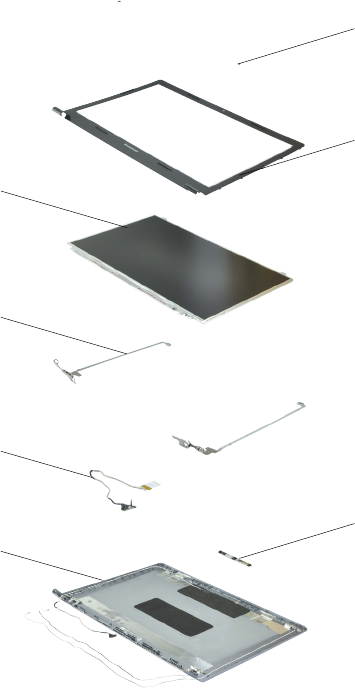
77
Lenovo B5400/M5400/M5400 Touch
LCD FRUs
In Lenovo B5400/M5400/M5400 Touch, the type of LCD is 15.6-inch high
denition (HD).
B5400/M5400
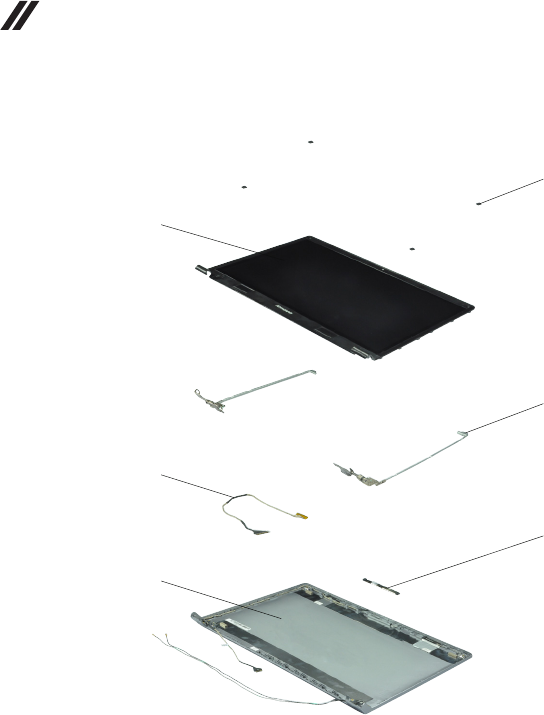
78
Lenovo B5400/M5400/M5400 Touch Hardware Maintenance Manual
M5400 Touch
1
3
5
2
4
6

79
Lenovo B5400/M5400/M5400 Touch
B5400/M5400
Table 5. Parts list—B5400/M5400 LCD FRUs
No. FRU FRU no. CRU ID.
1 BM5 LCD Bezel Screw Pad 90204205
N
2 BM5 LCD Bezel (M5400) 90204204
2 BM6 LCD Bezel W/Camera (B5400) 90204216
315.6" Flat+lvds HD Glossy B156XW04 V5 (M5400) 18200433
315.6" Flat+lvds HD Glossy N156BGE-L41 (M5400) 18200963
315.6" Flat+lvds HD Glossy LP156WH3-TLS1 (M5400) 18200897
315.6" Flat+lvds HD Glossy LTN156AT30-L01 (M5400) 18200896
315.6" Flat+lvds HD AG B156XW04 V6 (M5400) 18200918
315.6" Flat+lvds HD AG LTN156AT30-401 (M5400) 18200914
315.6" Flat+lvds HD AG LP156WH3-TLT1 (M5400) 18200915
315.6" Flat+lvds HD AG N156BGE-L31 (M5400) 18200962
315.6" wedge+lvds HD Glossy B156XTN02.0 (B5400) 18200157
315.6" wedge+lvds HD Glossy N156BGE-L21 (B5400) 18004787
315.6" wedge+lvds HD Glossy LTN156AT32-L01 (B5400) 18200969
315.6" wedge+lvds HD Glossy LP156WH4-TLN2 (B5400) 18200158
315.6" wedge+lvds HD AG B156XTN02.1 (B5400) 18200649
315.6" wedge+lvds HD AG N156BGE-L11 (B5400) 18200651
315.6" wedge+lvds HD AG LTN156AT32-401 (B5400) 18200967
315.6" wedge+lvds HD AG LP156WH4-TLP2 (B5400) 18200968
4 BM5 Hinge Left/Right (M5400) 90204203
4 BM6 Hinge Left/Right (B5400) 90204220
5 BM5 LCD Cable (M5400) 90204195
5 BM6 LCD Cable (B5400) 90204219
6 BM5 Camera Module HD 720P (M5400) 90004622
6 BM6 Camera Module VGA 0.3M (B5400) 90004629
6 BM6 Camera Module HD 720P (B5400) 90004630
7 BM5 LCD Cover Silver (M5400) 90204206
7 BM6 LCD Cover (B5400) 90204215
80
Lenovo B5400/M5400/M5400 Touch Hardware Maintenance Manual
M5400 Touch
Table 7. Parts list—M5400 Touch LCD FRUs
No. FRU FRU no. CRU ID.
1 BM5 LCD Bezel Screw Pad 90204205
N
2 BM5T LCD Module W/LCD Bezel 90400254
3 BM5 Hinge Left/Right 90204203
4 BM5 LCD Cable 90204195
4 BM5T LCD Cable 90204622
5 BM5 Camera Module HD 720P 90004622
6 BM5 LCD Cover Silver 90204206
6 BM5T LCD Cover 90204621

81
Lenovo B5400/M5400/M5400 Touch
Keyboard
Table 8. Parts list—Keyboard
Language P/N CRU ID.
B5400
Chicony
English 25213291
N
U.K. English 25213292
Italian 25213293
Spanish 25213294
Turkish 25213295
Thai 25213296
Portuguese 25213297
Latin 25213298
Canadian English&French 25213299
Korean 25213300
Traditional Chinese 25213301
Russian 25213302
French 25213303
German 25213304
Arabic 25213305
Brazilian 25213306
Japanese 25213307
Dutch 25213308
Greek 25213309
Hebrew 25213310
Hungarian 25213311
Four Nordic countries 25213312
Belgian 25213313
Icelandic 25213314
Slovenian 25213315
Swiss 25213316
International English 25213317
Czechoslovakian 25213318
Bulgarian 25213319
Indian 25213320
Sunrex
English 25213261
U.K. English 25213262
Italian 25213263
Spanish 25213264
Turkish 25213265
Thai 25213266
Portuguese 25213267
Latin 25213268
Canadian English&French 25213269
Korean 25213270
Traditional Chinese 25213271
Russian 25213272
French 25213273
German 25213274
Arabic 25213275

82
Lenovo B5400/M5400/M5400 Touch Hardware Maintenance Manual
Language P/N CRU ID.
B5400
(continued)
Sunrex
(continued)
Brazilian 25213276
N
Japanese 25213277
Dutch 25213278
Greek 25213279
Hebrew 25213280
Hungarian 25213281
Four Nordic countries 25213282
Belgian 25213283
Icelandic 25213284
Slovenian 25213285
Swiss 25213286
International English 25213287
Czechoslovakian 25213288
Bulgarian 25213289
Indian 25213290
Darfon
English 25213231
U.K. English 25213232
Italian 25213233
Spanish 25213234
Turkish 25213235
Thai 25213236
Portuguese 25213237
Latin 25213238
Canadian English&French 25213239
Korean 25213240
Traditional Chinese 25213241
Russian 25213242
French 25213243
German 25213244
Arabic 25213245
Brazilian 25213246
Japanese 25213247
Dutch 25213248
Greek 25213249
Hebrew 25213250
Hungarian 25213251
Four Nordic countries 25213252
Belgian 25213253
Icelandic 25213254
Slovenian 25213255
Swiss 25213256
International English 25213257
Czechoslovakian 25213258
Bulgarian 25213259
Indian 25213260
Table 8. Parts list—Keyboard (continued)

83
Lenovo B5400/M5400/M5400 Touch
Language P/N CRU ID.
M5400/
M5400
Touch
Chicony
English 25213381
N
U.K. English 25213382
Italian 25213383
Spanish 25213384
Turkish 25213385
Thai 25213386
Portuguese 25213387
Latin 25213388
Canadian English&French 25213389
Korean 25213390
Traditional Chinese 25213391
Russian 25213392
French 25213393
German 25213394
Arabic 25213395
Brazilian 25213396
Japanese 25213397
Dutch 25213398
Greek 25213399
Hebrew 25213400
Hungarian 25213401
Four Nordic countries 25213402
Belgian 25213403
Icelandic 25213404
Slovenian 25213405
Swiss 25213406
International English 25213407
Czechoslovakian 25213408
Bulgarian 25213409
Indian 25213410
Sunrex
English 25213351
U.K. English 25213352
Italian 25213353
Spanish 25213354
Turkish 25213355
Thai 25213356
Portuguese 25213357
Latin 25213358
Canadian English&French 25213359
Korean 25213360
Traditional Chinese 25213361
Russian 25213362
French 25213363
German 25213364
Arabic 25213365
Brazilian 25213366
Table 8. Parts list—Keyboard (continued)

84
Lenovo B5400/M5400/M5400 Touch Hardware Maintenance Manual
Language P/N CRU ID.
M5400/
M5400
Touch
(continued)
Sunrex
(continued)
Japanese 25213367
N
Dutch 25213368
Greek 25213369
Hebrew 25213370
Hungarian 25213371
Four Nordic countries 25213372
Belgian 25213373
Icelandic 25213374
Slovenian 25213375
Swiss 25213376
International English 25213377
Czechoslovakian 25213378
Bulgarian 25213379
Indian 25213380
Darfon
English 25213321
U.K. English 25213322
Italian 25213323
Spanish 25213324
Turkish 25213325
Thai 25213326
Portuguese 25213327
Latin 25213328
Canadian English&French 25213329
Korean 25213330
Traditional Chinese 25213331
Russian 25213332
French 25213333
German 25213334
Arabic 25213335
Brazilian 25213336
Japanese 25213337
Dutch 25213338
Greek 25213339
Hebrew 25213340
Hungarian 25213341
Four Nordic countries 25213342
Belgian 25213343
Icelandic 25213344
Slovenian 25213345
Swiss 25213346
International English 25213347
Czechoslovakian 25213348
Bulgarian 25213349
Indian 25213350
Table 8. Parts list—Keyboard (continued)

85
Lenovo B5400/M5400/M5400 Touch
Miscellaneous parts
Table 9. Parts list—Miscellaneous parts
FRU P/N CRU ID.
System miscellaneous parts:
• (
a
) BM5 CRT Bracket
• (
b
) BM5 Docking Bracket
• (
c
) ODD Bracket
• (
d
) BM5 HDD Bracket
• (
e
) BM5 Docking Dummy Rubber Cap
90204198
90204199
90204497
90204201
90204200
N
Cable miscellaneous parts:
• (
f
) BM5 DC-IN Cable
• (
g
) Docking Cable
• (
h
) BM5 USB Board Cable
Note: Italicized letters in parentheses are references to the
exploded view in “Overall” on page 73.
90204221
90204196
90204197
Screws
Table 10. Parts list—screws
FRU P/N CRU ID.
BM5 Screw M2.0*3.0-I (BKAG) (NYLOK) Iron 90204208
N
BM5 Screw M2.0*4-I (BK) (NYLOK) Iron 90204209
BM5 ScrewM2.5*5.0-I (BZN) (NYLONPatch) Iron 90204210
BM5 Screw Base To Top (ODD Bridge) 90204211
LZB Screw M2.5*3.0-I 90204062

86
Lenovo B5400/M5400/M5400 Touch Hardware Maintenance Manual
AC adapters
Table 11. Parts list—AC adapters
FRU P/N CRU ID.
90w AC Adapter (2Pin) 20V Common with Rectangle plug,
Delta ADP-90XD AB
36200285
*
90w AC Adapter (2Pin) 20V Common with Rectangle plug,
Liteon PA-1900-71IF
36200286
90w AC Adapter (2Pin) 20V Common with Rectangle plug,
Chicony Power A090A052L
36200287
90w AC Adapter (3Pin) 20V Common with Rectangle plug,
Delta ADP-90XD BB
36200250
90w AC Adapter (3Pin) 20V Common with Rectangle plug,
Liteon PA-1900-72IF
36200252
90w AC Adapter (3Pin) 20V Common with Rectangle plug,
Chicony Power A090A053L
36200254
65w AC Adapter (2Pin) 20V Common with Rectangle plug,
Delta ADP-65FD AB
36200282
65w AC Adapter (2Pin) 20V Common with Rectangle plug,
Liteon PA-1650-71IF
36200283
65w AC Adapter (2Pin) 20V Common with Rectangle plug,
Chicony Power A065R045L
36200284
65w AC Adapter (3Pin) 20V Common with Rectangle plug,
Delta ADP-65FD BB
36200249
65w AC Adapter (3Pin) 20V Common with Rectangle plug,
Liteon PA-1650-72IF
36200251
65w AC Adapter (3Pin) 20V Common with Rectangle plug,
Chicony Power A065R046L
36200253

87
Lenovo B5400/M5400/M5400 Touch
Power cords
A Lenovo power cord for a specic country or region is usually available only in
that country or region:
Table 12. Parts list—2-pin power cords
Region P/N CRU ID.
CCC
• LINETEK PC205+RVV300/300 0.75/2C+COC03 1m
145500018
*
CCC
• Longwell LSG-21+RVV300/300+LS-72 1m
145500069
UK
• LINETEK LP61L+H03VVH2-F 0.75/2C+ LS7H 1m
145500019
UK
• Longwell LP-61L+H03VVH2-F+ LS-7 1m
145500074
India
• LINETEK LP28+IS:694 0.75/2C+ LS7H 1m
145500020
India
• Longwell LP-77+Longwell-p 2X+LS-7 1m
145500075
US
• LINETEK LP5+SPT-2 #18/2C+ LS7C 1m
145500021
US
• Longwell LP-11+SPT-2+LS-7C/7J 1m
145500073
Denmark, Italy, Europe, Switzerland
• LINETEK LP21+H03VVH2-F 0.75/2C+ LS7 1m
145500022
Denmark, Italy, Europe, Switzerland
• Longwell LP-21+ H03VVH2-F+LS-7 1m
145500081
Australia
• LINETEK LP15A+H03VVH2-F 0.75/2C+ LS7 1m
145500023
Australia
• Longwell LP-15A+LFC-2F+LS-7 1m
145500077
SA
• LINETEK PE364("O")+H03VVH2-F 0.75/2C+ LS7H 1m
145500024
SA
• Longwell LP-39+H03VVH2-F+LS-7 1m
145500080
Korea
• LINETEK LPE03A+H03VVH2-F 0.75/2C+LS7 1m
145500025
Korea
• Longwell LP-57+H03VVH2-F+LS-7KS 1m
145500076
PSE
• LINETEK LP51A+HVCTFK 0.75/2C+LS7J 1m
145500026
PSE
• Longwell LP-51A+VCTFK+LS-7C/7J 1m
145500079
Taiwan
• LINETEK LP51A+VCTFK 0.75/2C+LS7J 1m
145500027
Taiwan
• Longwell LP-70+VCTFK+LS-31 1m
145500078

88
Lenovo B5400/M5400/M5400 Touch Hardware Maintenance Manual
Table 12. Parts list—2-pin power cords (continued)
Region P/N CRU ID.
Brazil
• LINETEK LP25+H03VVH2-F 0.75/2C+LS7H 1m
145500028
*
Brazil
• Longwell LP-18A+H03VVH2-F+LS-18 1m
145500071
Israel
• LINETEK LP45+H03VVH2-F 0.75/2C+LS7H 1m
145500029
Israel
• Longwell LP-55+H03VVH2-F+LS-7 1m
145500072
LA
• LINETEK LP39+H03VVH2-F 0.75/2C+LS7H 1m
145500030
LA
• Longwell LP-16+H03VVH2-F+LS-7 1m
145500070

89
Lenovo B5400/M5400/M5400 Touch
Table 13. Parts list—3-pin power cords
Region P/N CRU ID.
UK
• LINETEK LP-61L+ H03VV-F+ LS15 1m
145000593
*
UK
• Longwell LP-61L+H03VV-F+LS-18 1m
145000561
UK
• VOLEX MP5004+H03VV-F+VAC5S 1m
145000605
UK
• lux 0031+H03VV-F 0.75/3C+0011 1m
145500000
Europe
• LINETEK LP-34+H03VV-F + LS15 1m
145000585
Europe
• Longwell LP-34A+H03VV-F+LS-18 1m
145000553
Europe
• VOLEX M2511+HO3VV-F+VAC5S 1m
145000525
Europe
• lux 0033+H03VV-F 0.75/3C+0011 1m
145500001
US
• LINETEK LP-30B + SPT-2 + LS15 1m
145000594
US
• Longwell LP-30B+SPT-2 18AWG+LS-18 1m
145000562
US
• Volex US15S3+SPT-2 + VAC5S 1m
145000537
US
• lux 0014+SPT-2 60ºC 18/3C+0016 1m
145500002
China
• LINETEK PC323+RVV300/300+LS15 1m
145000600
China
• Longwell LSG-31+RVV300/300+LS-18 1m
145000568
China
• VOLEX GB10S3+RVV 300/500+VAC5S 1m
145000538
China
• lux 0036+RVV 300/300 0.75/3C+0002 1m
145500003
India
• LINETEK PE-361+ H05VV-F+ LS15 1m
145000592
India
• Longwell LP-67+BIS+LS-18 1m
145000560
India
• VOLEX IA6A3+IS694+VAC5S 1m
145000536
India
• lux 0046+IS694 0.75/3C+0011 1m
145500004

90
Lenovo B5400/M5400/M5400 Touch Hardware Maintenance Manual
Region P/N CRU ID.
Japan
• LINETEK LS15+VCTF+LP-54 1m
145000587
*
Japan
• Longwell LP-54+VCTF+LS-18 1m
145000555
Japan
• VOLEX VAC5S+VCTF+M755 1m
145000530
Japan
• lux 0018(E)+VCTF 0.75/3C+0021 1m
145500005
Australia
• LINETEK LS15+H03VV-F+LP-23A 1m
145000589
Australia
• Longwell LP-23A+LFC-3R+LS-18 1m
145000557
Australia
• VOLEX AU10S3+H03VV-F+VAC5S 1m
145000532
Australia
• lux 0038+H03VV-F 0.75/3C+0011 1m
145500006
Taiwan
• LINETEK LS15+VCTF+LP-53 1m
145000588
Taiwan
• Longwell LP-71+VCTF+LS-33 1m
145000556
Taiwan
• VOLEX TW15CS3+VCTF+VAC5S 1m
145000531
Taiwan
• lux 0019+VCTF 0.75/3C+0021 1m
145500007
Korea
• LINETEK LS15+H05VV-F+LP-E04A 1m
145000590
Korea
• Longwell LP-486+KTLH03VV-F+LS-5 1m
145000558
Korea
• VOLEX M2511+KETI IEC+VAC5S 1m
145000533
Korea
• lux 0033+H03VV-F 0.75/3C+0011 1m
145500008
Italy
• LINETEK LS15+H03VV-F+PE-336 1m
145000591
Italy
• Longwell LP-22+H03VV-F+LS-18 1m
145000559
Italy
• VOLEX IT10S3+HO3VV-F+VAC5S 1m
145000535
Italy
• lux 0029+H03VV-F 0.75/3C+0011 1m
145500009
South Africa
• LINETEK LS15+H03VV-F+PE-364 1m
145000586
South Africa
• Longwell LP-39+H03VV-F+LS-18 1m
145000554
Table 13. Parts list—3-pin power cords (continued)

91
Lenovo B5400/M5400/M5400 Touch
Region P/N CRU ID.
South Africa
• VOLEX SA16A+HO3VV-F+VAC5S 1m
145000529
*
South Africa
• lux 0044+H03VV-F 0.75/3C+0011 1m
145500010
Brazil
• LINETEK LS15 H03VV-F LP26A 1m
145000596
Brazil
• Longwell LP-46+H03VV-F+LS-18 1m
145000564
Brazil
• VOLEX CH10S3+H03VV-F+VAC5S 1m
145000527
Brazil
• lux 0034+H03VV-F 0.75/3C+0011 1m
145500011
Israel
• LINETEK LS15+H03VV-F+LP-41 1m
145000595
Israel
• Longwell LP-41+H03VV-F+LS-18 1m
145000563
Israel
• VOLEX SI16S3+H03VV-F+VAC5S 1m
145000526
Israel
• lux 0041+H03VV-F 0.75/3C+0011 1m
145500012
Switzerland
• LINETEK LS15+H03VV-F+LP-37 1m
145000597
Switzerland
• Longwell LP-37+H03VV-F+LS-18 1m
145000565
Switzerland
• VOLEX MP232+H03VV-F+VAC5S 1m
145000524
Switzerland
• lux 0027+H03VV-F 0.75/3C+0011 1m
145500013
Denmark
• LINETEK LS15+H03VV-F+LP-38 1m
145000598
Denmark
• Longwell LP-40+H03VV-F+LS-18 1m
145000566
Denmark
• VOLEX MP233D+H03VV-F+VAC5S 1m
145000534
Denmark
• lux 0048+H03VV-F 0.75/3C+0011 1m
145500014
Argentina
• LINETEK LS15+H03VV-F+LP39 1m
145000599
Argentina
• Longwell LP-24+H03VV-F+LS-18 1m
145000567
Argentina
• VOLEX VA2073+H03VV-F+VAC5S 1m
145000528
Argentina
• lux 0040+H03VV-F 0.75/3C+0011 1m
145500015
Table 13. Parts list—3-pin power cords (continued)

92
Lenovo B5400/M5400/M5400 Touch Hardware Maintenance Manual
Notices
Lenovo may not offer the products, services, or features discussed in this
document in all countries. Consult your local Lenovo representative for
information on the products and services currently available in your area. Any
reference to a Lenovo product, program, or service is not intended to state or
imply that only that Lenovo product, program, or service may be used. Any
functionally equivalent product, program, or service that does not infringe
any Lenovo intellectual property right may be used instead. However, it is the
user’s responsibility to evaluate and verify the operation of any other product,
program, or service.
Lenovo may have patents or pending patent applications covering subject matter
described in this document. The furnishing of this document does not give you
any license to these patents.
LENOVO GROUP LTD. PROVIDES THIS PUBLICATION “AS IS”
WITHOUT WARRANTY OF ANY KIND, EITHER EXPRESS OR IMPLIED,
INCLUDING, BUT NOT LIMITED TO, THE IMPLIED WARRANTIES OF NON-
INFRINGEMENT, MERCHANTABILITY OR FITNESS FOR A PARTICULAR
PURPOSE. Some jurisdictions do not allow disclaimer of express or implied
warranties in certain transactions, therefore, this statement may not apply to you.
This information could include technical inaccuracies or typographical errors.
Changes are periodically made to the information herein; these changes
will be incorporated in new editions of the publication. Lenovo may make
improvements and/or changes in the product(s) and/or the program(s)
described in this publication at any time without notice.
The products described in this document are not intended for use in
implantation or other life support applications where malfunction may result in
injury or death to persons. The information contained in this document does not
affect or change Lenovo product specications or warranties. Nothing in this
document shall operate as an express or implied license or indemnity under the
intellectual property rights of Lenovo or third parties. All information contained
in this document was obtained in specic environments and is presented as an
illustration. The result obtained in other operating environments may vary.
Lenovo may use or distribute any of the information you supply in any way it
believes appropriate without incurring any obligation to you.
Any references in this publication to non-Lenovo Web sites are provided for
convenience only and do not in any manner serve as an endorsement of those
Web sites. The materials at those Web sites are not part of the materials for
this Lenovo product, and use of those Web sites is at your own risk.

93
Notices
Any performance data contained herein was determined in a controlled
environment. Therefore, the result obtained in other operating environments
may vary significantly. Some measurements may have been made on
development-level systems and there is no guarantee that these measurements
will be the same on generally available systems. Furthermore, some
measurements may have been estimated through extrapolation. Actual results
may vary. Users of this document should verify the applicable data for their
specic environment.
Trademarks
The following terms are either registered trademarks or trademarks of Lenovo
in the United States and/or other countries:
Lenovo®
Lenovo logo®
VeriFace®
OneKey Rescue® (OneKey Recovery, OneKey Antivirus)
APS®
Power Express®
Energy Management and ReadyComm®
The following terms are trademarks of Microsoft Corporation in the United
States, other countries, or both:
Windows®
Windows® 7
Windows® 8
The following are trademarks of Intel Corporation or its subsidiaries in the
United States, other countries, or both:
Intel®
Intel® Core™ 2 Duo
The following is a trademark of Advanced Micro Devices, Inc. AMD®
Other company, product, or service names may be the trademarks or service
marks of others.
