Lenovo B590 Hmm En User Manual Hardware Maintenance And Laptop (Lenovo) Type 8601
2013-06-03
User Manual: Lenovo B590 Hmm En Hardware Maintenance and Manual - Lenovo B590 B590 Laptop (Lenovo) - Type 8601
Open the PDF directly: View PDF  .
.
Page Count: 104 [warning: Documents this large are best viewed by clicking the View PDF Link!]
- About this manual
- Chapter 1. Safety information
- Chapter 2. Important service information
- Chapter 3. General checkout
- Chapter 4. Related service information
- Chapter 5. Lenovo B590
- Chapter 6. FRU replacement notices
- Chapter 7. Removing and replacing a FRU
- General guidelines
- 1010 Battery pack
- 1020 Bottom slot cover
- 1030 Optical drive
- 1040 Memory modules
- 1050 Hard disk drive assembly
- 1060 PCI Express Mini Card for wireless LAN
- 1070 mSATA solid state drive
- 1080 Backup battery
- 1090 Keyboard
- 1100 Keyboard bezel
- 1110 LED board
- 1120 Power board and touch pad bracket
- 1130 Microphone assembly
- 1140 I/O board
- 1150 System board assembly and USB board
- 1160 DC-in connector
- 1170 Thermal module
- 1180 CPU
- 1190 LCD unit
- 1210 Speaker assembly and base cover
- 2010 LCD front bezel
- 2020 Camera
- 2030 LCD panel, LCD cable, and hinges
- 2040 Antenna assembly and LCD rear cover
- Chapter 8. Locations
- Chapter 9. Parts list
- Appendix A. Notices

HardwareMaintenanceManual
LenovoB590

Note:Beforeusingthisinformationandtheproductitsupports,besuretoreadthegeneralinformation
underAppendixA“Notices”onpage95.
ThirdEdition(April2013)
©CopyrightLenovo2012.
LIMITEDANDRESTRICTEDRIGHTSNOTICE:IfdataorsoftwareisdeliveredpursuantaGeneralServicesAdministration
“GSA”contract,use,reproduction,ordisclosureissubjecttorestrictionssetforthinContractNo.GS-35F-05925.

Contents
Aboutthismanual...........iii
Chapter1.Safetyinformation......1
Generalsafety................1
Electricalsafety...............2
Safetyinspectionguide............3
Handlingdevicesthataresensitivetoelectrostatic
discharge..................3
Groundingrequirements............4
Safetynotices(multilingualtranslations)......4
Lasercompliancestatement(multilingual
translations)................19
Chapter2.Importantservice
information..............27
StrategyforreplacingFRUs.........27
Strategyforreplacingaharddiskdrive...28
Importantnoticeforreplacingasystem
board................28
ImportantinformationaboutreplacingRoHS
compliantFRUs..............28
Chapter3.Generalcheckout.....29
Whattodorst..............29
Powersystemcheckout...........30
Checkingtheacpoweradapter......30
Checkingoperationalcharging......31
Checkingthebatterypack........31
Chapter4.Relatedservice
information..............33
Recoveringthecomputersettings.......33
Passwords................33
Power-onpassword...........34
Supervisorpassword..........34
Powermanagement............34
Screenblankmode...........34
Sleepmode..............34
Hibernationmode...........35
Chapter5.LenovoB590........37
Specications...............37
Statusindicators..............38
Fnkeycombinations............39
Chapter6.FRUreplacement
notices................41
Screwnotices...............41
Chapter7.Removingandreplacinga
FRU..................43
Generalguidelines.............43
1010Batterypack.............44
1020Bottomslotcover...........44
1030Opticaldrive.............45
1040Memorymodules...........46
1050Harddiskdriveassembly........47
1060PCIExpressMiniCardforwirelessLAN..49
1070mSATAsolidstatedrive.........51
1080Backupbattery............52
1090Keyboard..............53
1100Keyboardbezel............56
1110LEDboard..............58
1120Powerboardandtouchpadbracket....59
1130Microphoneassembly.........60
1140I/Oboard..............61
1150SystemboardassemblyandUSBboard..62
1160DC-inconnector............65
1170Thermalmodule............66
1180CPU................68
1190LCDunit...............69
1210Speakerassemblyandbasecover....71
2010LCDfrontbezel............73
2020Camera...............74
2030LCDpanel,LCDcable,andhinges....75
2040AntennaassemblyandLCDrearcover...77
Chapter8.Locations.........79
Right-sideview..............79
Bottomview...............80
Chapter9.Partslist..........81
Overall..................82
LCDFRUs................85
Keyboard.................87
Miscellaneousparts............89
acpoweradapters.............90
Powercords...............91
AppendixA.Notices..........95
Electronicemissionsnotices.........96
Trademarks................96
©CopyrightLenovo2012i

iiHardwareMaintenanceManual

Aboutthismanual
ThismanualprovidesserviceandreferenceinformationforthefollowingLenovo®products.
MachineMachinetype(MT)
LenovoB5903761,6274,20206,20208
Usethismanualtotroubleshootproblems.
Themanualisdividedintothefollowingsections:
•Thecommonsectionsprovidegeneralinformation,guidelines,andsafetyinformationrequiredfor
servicingcomputers.
•Theproduct-specicsectionincludesservice,reference,andproduct-specicpartsinformation.
Important:
•ThismanualisintendedonlyfortrainedservicetechnicianswhoarefamiliarwithLenovoproducts.Use
thismanualtotroubleshootproblemseffectively.
•BeforeservicingaLenovoproduct,besuretoreadalltheinformationunderChapter1“Safety
information”onpage1andChapter2“Importantserviceinformation”onpage27.
©CopyrightLenovo2012iii

ivHardwareMaintenanceManual

Chapter1.Safetyinformation
Thischapterpresentsfollowingsafetyinformationthatyouneedtobefamiliarwithbeforeyouservicea
LenovoNotebook.
•“Generalsafety”onpage1
•“Electricalsafety”onpage2
•“Safetyinspectionguide”onpage3
•“Handlingdevicesthataresensitivetoelectrostaticdischarge”onpage3
•“Groundingrequirements”onpage4
•“Safetynotices(multilingualtranslations)”onpage4
•“Lasercompliancestatement(multilingualtranslations)”onpage19
Generalsafety
Followtheserulestoensuregeneralsafety:
•Observegoodhousekeepingintheareaofthemachinesduringandaftermaintenance.
•Whenliftinganyheavyobject:
1.Makesurethatyoucanstandsafelywithoutslipping.
2.Distributetheweightoftheobjectequallybetweenyourfeet.
3.Useaslowliftingforce.Nevermovesuddenlyortwistwhenyouattempttolift.
4.Liftbystandingorbypushingupwithyourlegmuscles;thisactionremovesthestrainfromthe
musclesinyourback.Donotattempttoliftanyobjectthatweighsmorethan16kg(35lb)orthatyou
thinkistooheavyforyou.
•Donotperformanyactionthatcauseshazardstothecustomer,orthatmakestheequipmentunsafe.
•Beforeyoustartthemachine,makesurethatotherservicetechniciansandthecustomer'spersonnelare
notinahazardousposition.
•Placeremovedcoversandotherpartsinasafeplace,awayfromallpersonnel,whileyouareservicing
themachine.
•Keepyourtoolcaseawayfromwalkareassothatotherpeoplewillnottripoverit.
•Donotwearlooseclothingthatcanbetrappedinthemovingpartsofamachine.Makesurethatyour
sleevesarefastenedorrolledupaboveyourelbows.Ifyourhairislong,fastenit.
•Inserttheendsofyournecktieorscarfinsideclothingorfastenitwithanonconductiveclip,about8
centimeters(3inches)fromtheend.
•Donotwearjewelry,chains,metal-frameeyeglasses,ormetalfastenersforyourclothing,becausemetal
objectsaregoodelectricalconductors.
•Wearsafetyglasseswhenyouarehammering,drilling,soldering,cuttingwire,attachingsprings,using
solvents,orworkinginanyotherconditionsthatmightbehazardoustoyoureyes.
•Afterservice,reinstallallsafetyshields,guards,labels,andgroundwires.Replaceanysafetydevice
thatiswornordefective.
•Reinstallallcoverscorrectlybeforereturningthemachinetothecustomer.
•Fanlouversonthemachinehelptopreventoverheatingofinternalcomponents.Donotobstructfan
louversorcoverthemwithlabelsorstickers.
©CopyrightLenovo20121

Electricalsafety
Observethefollowingruleswhenworkingonelectricalequipment.
Important:
Useonlyapprovedtoolsandtestequipment.Somehandtoolshavehandlescoveredwithasoftmaterial
thatdoesnotinsulateyouwhenworkingwithliveelectricalcurrents.
Manycustomershave,neartheirequipment,rubberoormatsthatcontainsmallconductivebersto
decreaseelectrostaticdischarges.Donotusethistypeofmattoprotectyourselffromelectricalshock.
•Findtheroomemergencypower-off(EPO)switch,disconnectingswitch,orelectricaloutlet.Ifanelectrical
accidentoccurs,youcanthenoperatetheswitchorunplugthepowercordquickly.
•Donotworkaloneunderhazardousconditionsornearequipmentthathashazardousvoltages.
•Disconnectallpowerbefore:
–Performingamechanicalinspection
–Workingnearpowersupplies
–Removingorinstallingmainunits
•Beforeyoustarttoworkonthemachine,unplugthepowercord.Ifyoucannotunplugit,askthecustomer
topower-offthewallboxthatsuppliespowertothemachine,andtolockthewallboxintheoffposition.
•Ifyouneedtoworkonamachinethathasexposedelectricalcircuits,observethefollowingprecautions:
–Ensurethatanotherperson,familiarwiththepower-offcontrols,isnearyou.
Attention:Anotherpersonmustbetheretoswitchoffthepower,ifnecessary.
–Useonlyonehandwhenworkingwithpowered-onelectricalequipment;keeptheotherhandinyour
pocketorbehindyourback.
Attention:Anelectricalshockcanoccuronlywhenthereisacompletecircuit.Byobservingtheabove
rule,youmaypreventacurrentfrompassingthroughyourbody.
–Whenusingtesters,setthecontrolscorrectlyandusetheapprovedprobeleadsandaccessoriesfor
thattester.
–Standonsuitablerubbermats(obtainedlocally,ifnecessary)toinsulateyoufromgroundssuchas
metaloorstripsandmachineframes.
Observethespecialsafetyprecautionswhenyouworkwithveryhighvoltages;Instructionsforthese
precautionsareinthesafetysectionsofmaintenanceinformation.Useextremecarewhenmeasuring
highvoltages.
•Regularlyinspectandmaintainyourelectricalhandtoolsforsafeoperationalcondition.
•Donotusewornorbrokentoolsandtesters.
•Neverassumethatpowerhasbeendisconnectedfromacircuit.First,checkthatithasbeenpoweredoff.
•Alwayslookcarefullyforpossiblehazardsinyourworkarea.Examplesofthesehazardsaremoistoors,
nongroundedpowerextensioncables,powersurges,andmissingsafetygrounds.
•Donottouchliveelectricalcircuitswiththereectivesurfaceofaplasticdentalmirror.Thesurfaceis
conductive;suchtouchingcancausepersonalinjuryandmachinedamage.
•Donotservicethefollowingpartswiththepoweronwhentheyareremovedfromtheirnormaloperating
placesinamachine:
–Powersupplyunits
–Pumps
–Blowersandfans
–Motorgenerators
–Similarunitstolistedabove
Thispracticeensurescorrectgroundingoftheunits.
•Ifanelectricalaccidentoccurs:
2HardwareMaintenanceManual

–Usecaution;donotbecomeavictimyourself.
–Switchoffpower.
–Sendanotherpersontogetmedicalaid.
Safetyinspectionguide
Thepurposeofthisinspectionguideistoassistyouinidentifyingpotentiallyunsafeconditions.Aseach
machinewasdesignedandbuilt,requiredsafetyitemswereinstalledtoprotectusersandservicetechnicians
frominjury.Thisguideaddressesonlythoseitems.Y oushouldusegoodjudgmenttoidentifypotential
safetyhazardsduetoattachmentofnon-Lenovofeaturesoroptionsnotcoveredbythisinspectionguide.
Ifanyunsafeconditionsarepresent,youmustdeterminehowserioustheapparenthazardcouldbeand
whetheryoucancontinuewithoutrstcorrectingtheproblem.
Considertheseconditionsandthesafetyhazardstheypresent:
•Electricalhazards,especiallyprimarypower(primaryvoltageontheframecancauseseriousorfatal
electricalshock)
•Explosivehazards,suchasadamagedCRTfaceorabulgingcapacitor
•Mechanicalhazards,suchaslooseormissinghardware
Todeterminewhetherthereareanypotentiallyunsafeconditions,usethefollowingchecklistatthebeginning
ofeveryservicetask.Beginthecheckswiththepoweroff,andthepowercorddisconnected.
Checklist:
1.Checkexteriorcoversfordamage(loose,broken,orsharpedges).
2.Poweroffthecomputer.Disconnectthepowercord.
3.Checkthepowercordfor:
a.Athird-wiregroundconnectoringoodcondition.Useametertomeasurethird-wireground
continuityfor0.1ohmorlessbetweentheexternalgroundpinandtheframeground.
b.Thepowercordshouldbethetypespeciedinthepartslist.
c.Insulationmustnotbefrayedorworn.
4.Checkforcrackedorbulgingbatteries.
5.Removethecover.
6.Checkforanyobviousnon-Lenovoalterations.Usegoodjudgmentastothesafetyofanynon-Lenovo
alterations.
7.Checkinsidetheunitforanyobviousunsafeconditions,suchasmetallings,contamination,wateror
otherliquids,orsignsofreorsmokedamage.
8.Checkforworn,frayed,orpinchedcables.
9.Checkthatthepower-supplycoverfasteners(screwsorrivets)havenotbeenremovedortamperedwith.
Handlingdevicesthataresensitivetoelectrostaticdischarge
Anycomputerpartcontainingtransistorsorintegratedcircuits(ICs)shouldbeconsideredsensitiveto
electrostaticdischarge(ESD.)ESDdamagecanoccurwhenthereisadifferenceinchargebetweenobjects.
ProtectagainstESDdamagebyequalizingthechargesothatthemachine,thepart,theworkmat,andthe
personhandlingthepartareallatthesamecharge.
Notes:
1.Useproduct-specicESDprocedureswhentheyexceedtherequirementsnotedhere.
Chapter1.Safetyinformation3
2.MakesurethattheESDprotectivedevicesyouusehavebeencertied(ISO9000)asfullyeffective.
WhenhandlingESD-sensitiveparts:
•Keepthepartsinprotectivepackagesuntiltheyareinsertedintotheproduct.
•Avoidcontactwithotherpeople.
•Wearagroundedwriststrapagainstyourskintoeliminatestaticonyourbody.
•Preventthepartfromtouchingyourclothing.Mostclothingisinsulativeandretainsachargeevenwhen
youarewearingawriststrap.
•Useagroundedworkmattoprovideastatic-freeworksurface.Thematisespeciallyusefulwhen
handlingESD-sensitivedevices.
•Selectagroundingsystem,suchasthoselistedbelow,toprovideprotectionthatmeetsthespecic
servicerequirement.
Note:TheuseofagroundingsystemtoguardagainstESDdamageisdesirablebutnotnecessary.
–AttachtheESDgroundcliptoanyframeground,groundbraid,orgreen-wireground.
–Whenworkingonadouble-insulatedorbattery-operatedsystem,useanESDcommongroundor
referencepoint.Y oucanusecoaxorconnector-outsideshellsonthesesystems.
–Usetheroundgroundprongoftheacplugonac-operatedcomputers.
Groundingrequirements
Electricalgroundingofthecomputerisrequiredforoperatorsafetyandcorrectsystemfunction.Proper
groundingoftheelectricaloutletcanbeveriedbyacertiedelectrician.
Safetynotices(multilingualtranslations)
Thesafetynoticesinthissectionareprovidedinthefollowinglanguages:
•English
•Arabic
•BrazilianPortuguese
•French
•German
•Hebrew
•Japanese
•Korean
•Spanish
•TraditionalChinese
DANGER
DANGER
4HardwareMaintenanceManual
DANGER
DANGER
DANGER
DANGER
DANGER
Chapter1.Safetyinformation5
DANGER
6HardwareMaintenanceManual
Chapter1.Safetyinformation7
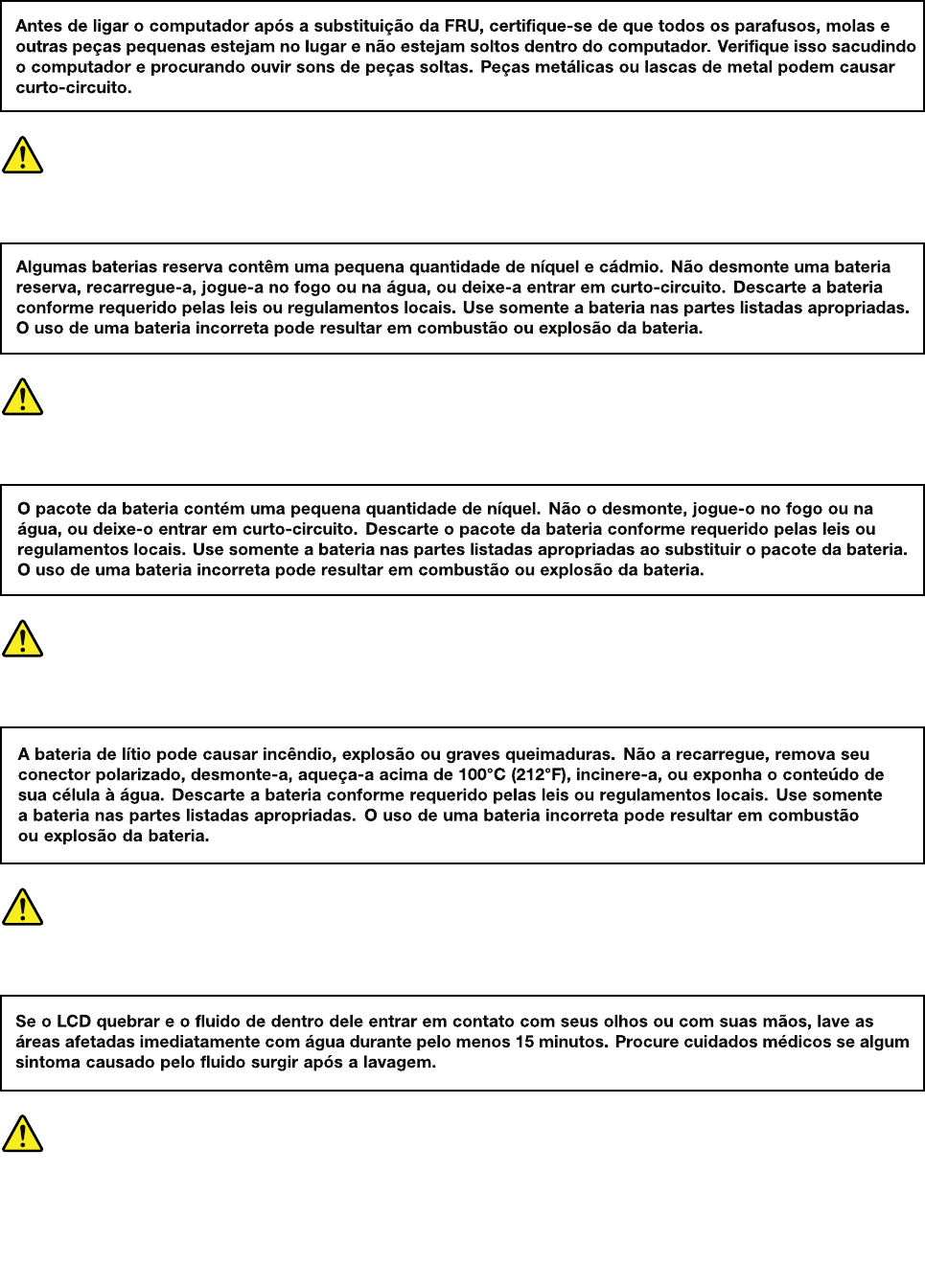
PERIGO
PERIGO
PERIGO
PERIGO
PERIGO
PERIGO
8HardwareMaintenanceManual
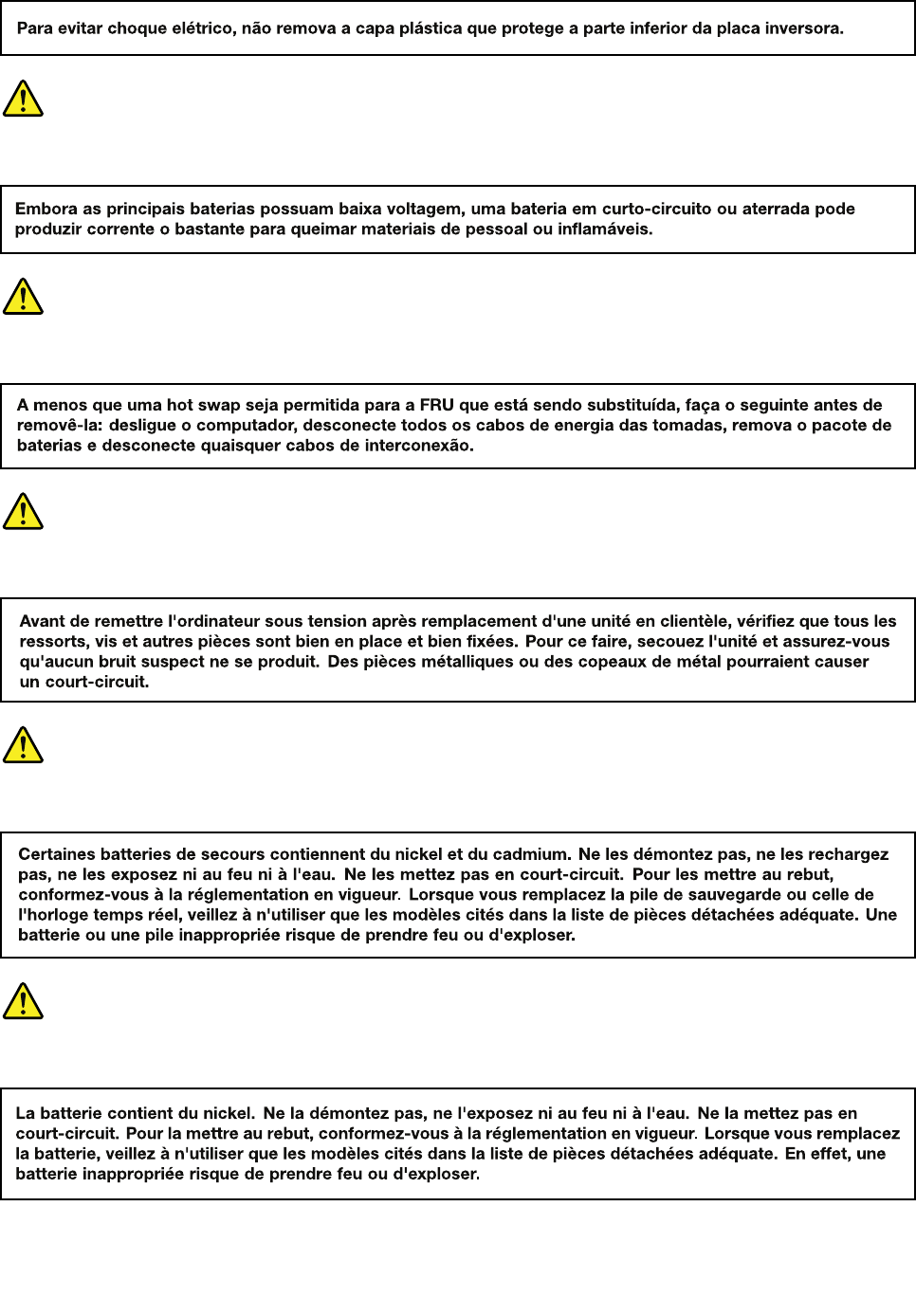
PERIGO
PERIGO
DANGER
DANGER
DANGER
Chapter1.Safetyinformation9
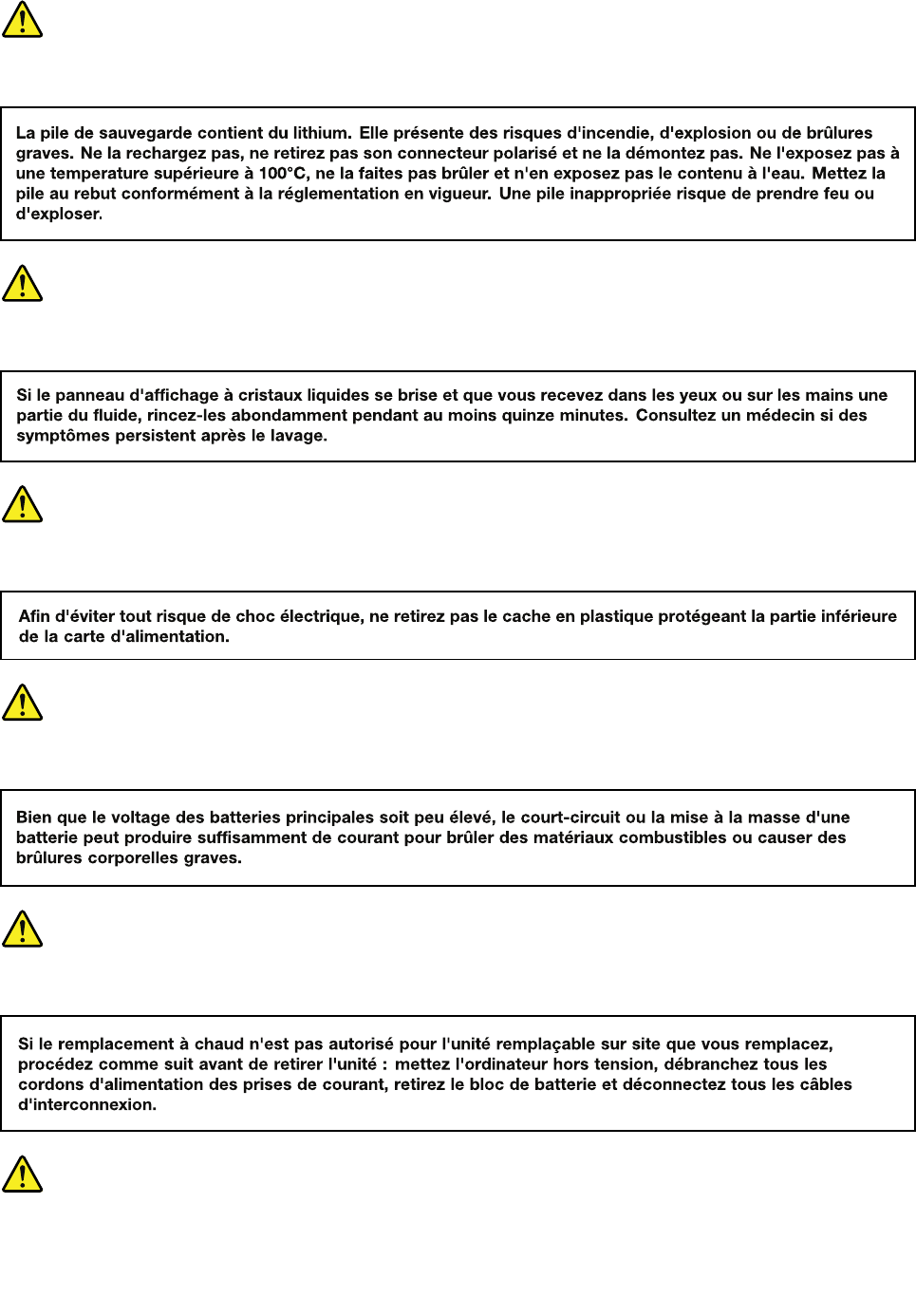
DANGER
DANGER
DANGER
DANGER
DANGER
VORSICHT
10HardwareMaintenanceManual
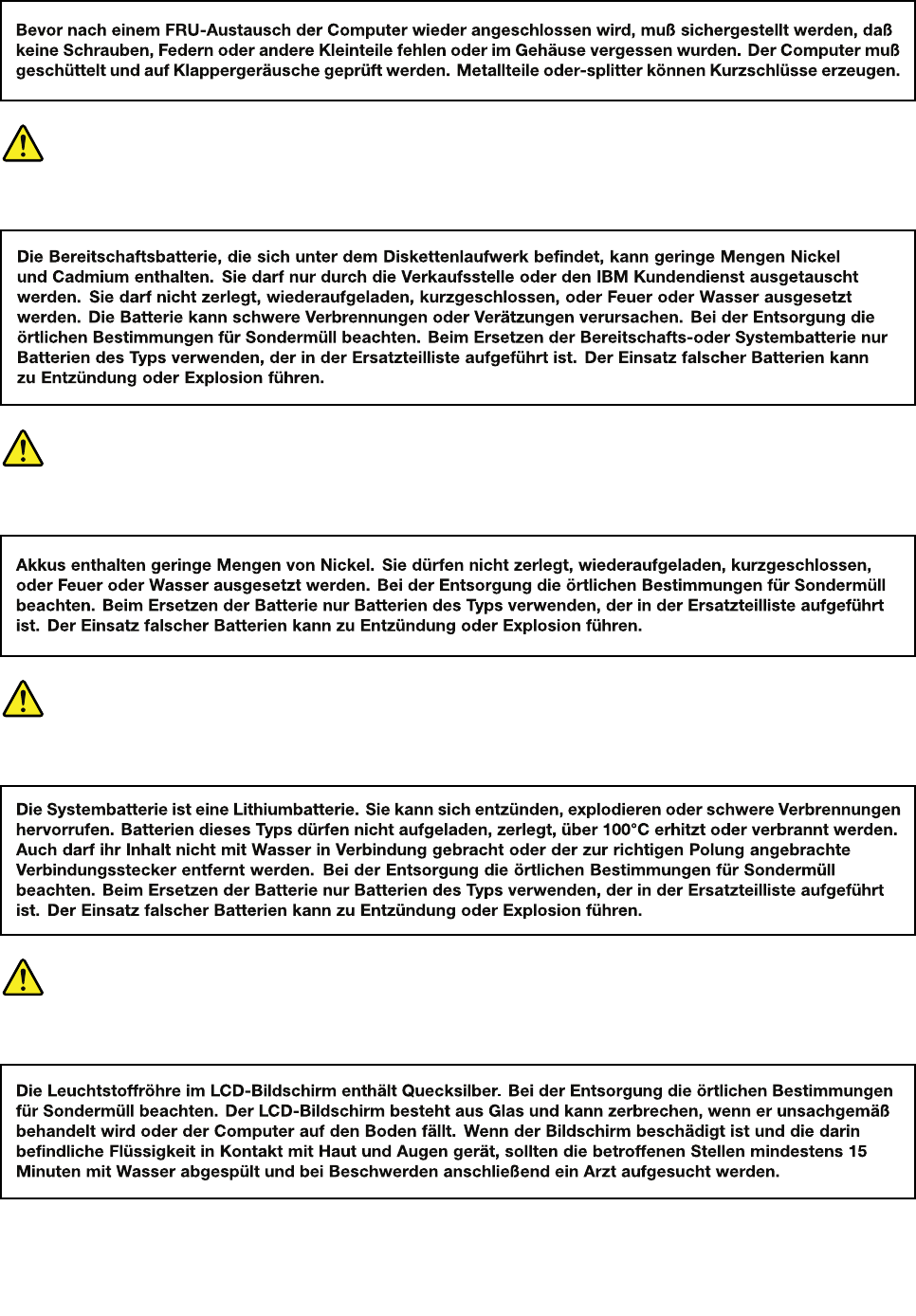
VORSICHT
VORSICHT
VORSICHT
VORSICHT
Chapter1.Safetyinformation11
VORSICHT
VORSICHT
VORSICHT
12HardwareMaintenanceManual
Chapter1.Safetyinformation13
14HardwareMaintenanceManual
Chapter1.Safetyinformation15
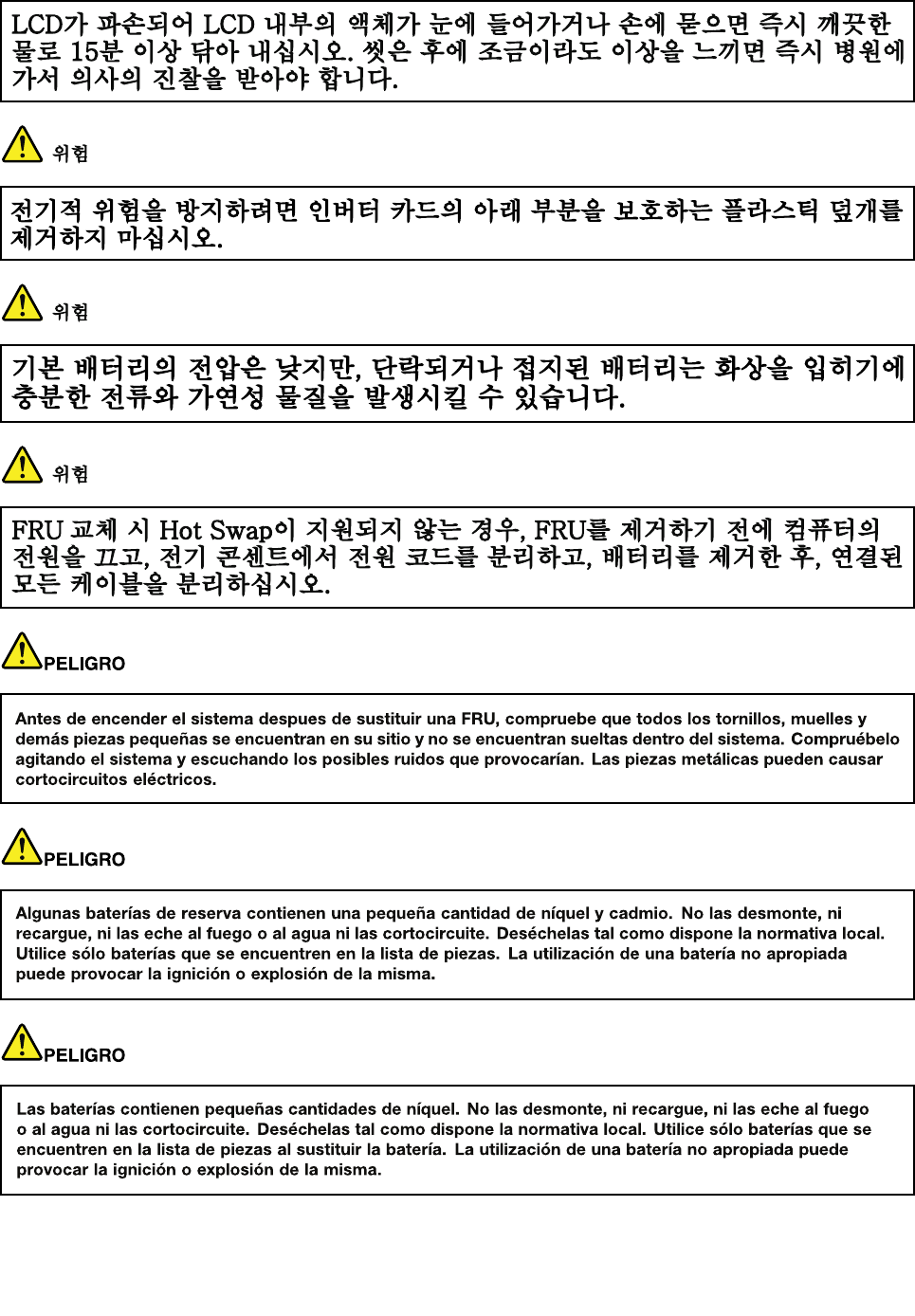
16HardwareMaintenanceManual
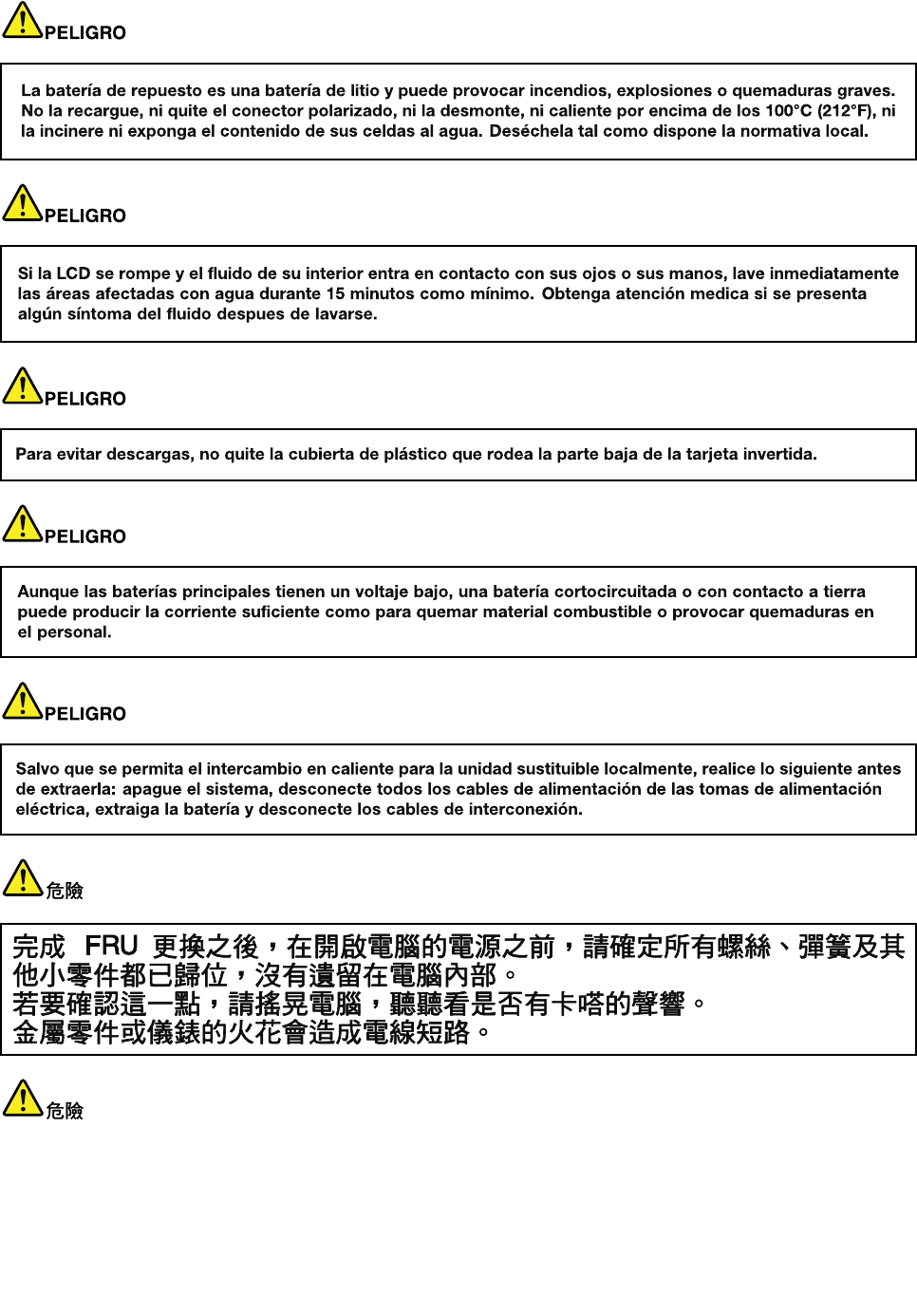
Chapter1.Safetyinformation17
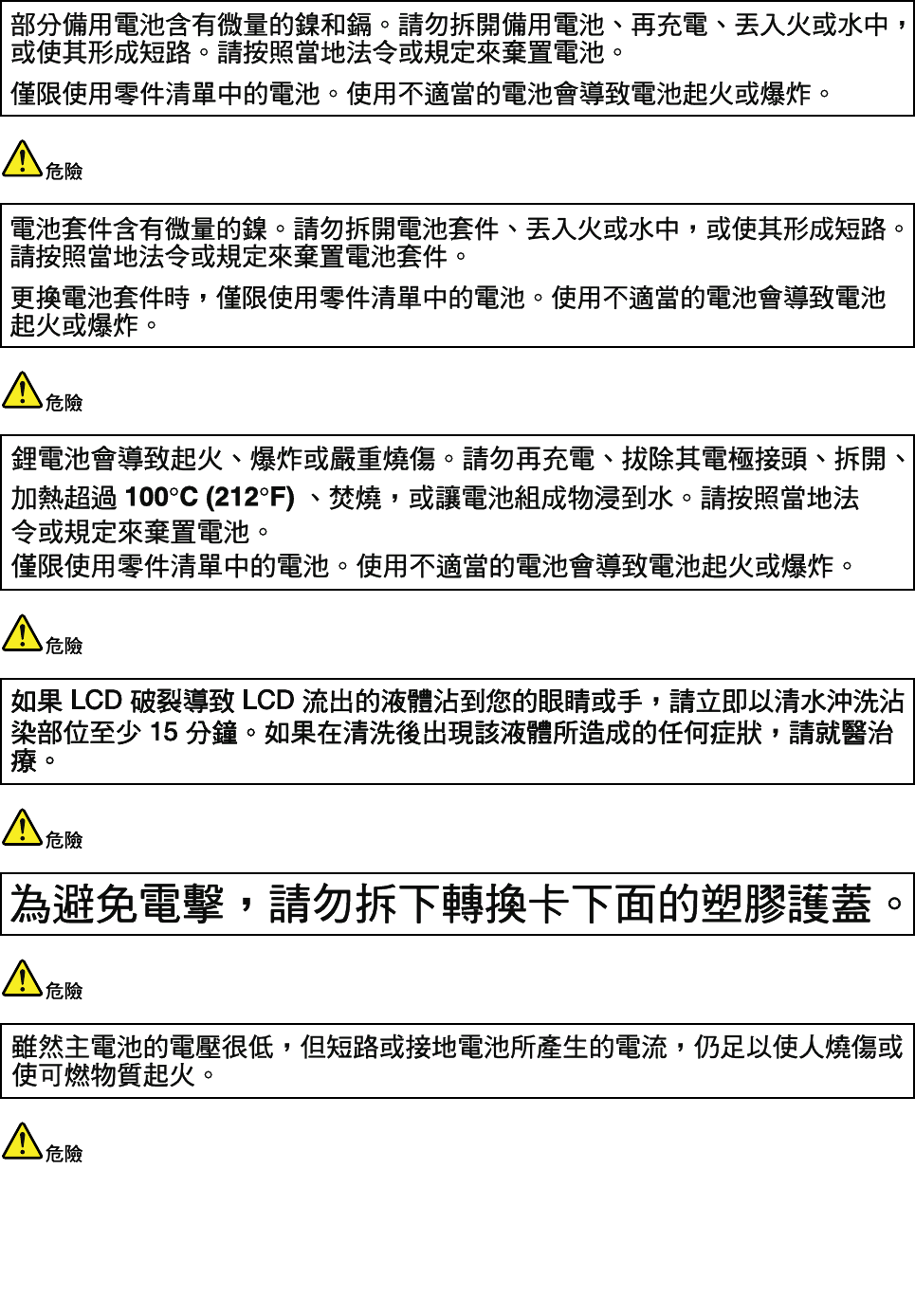
18HardwareMaintenanceManual
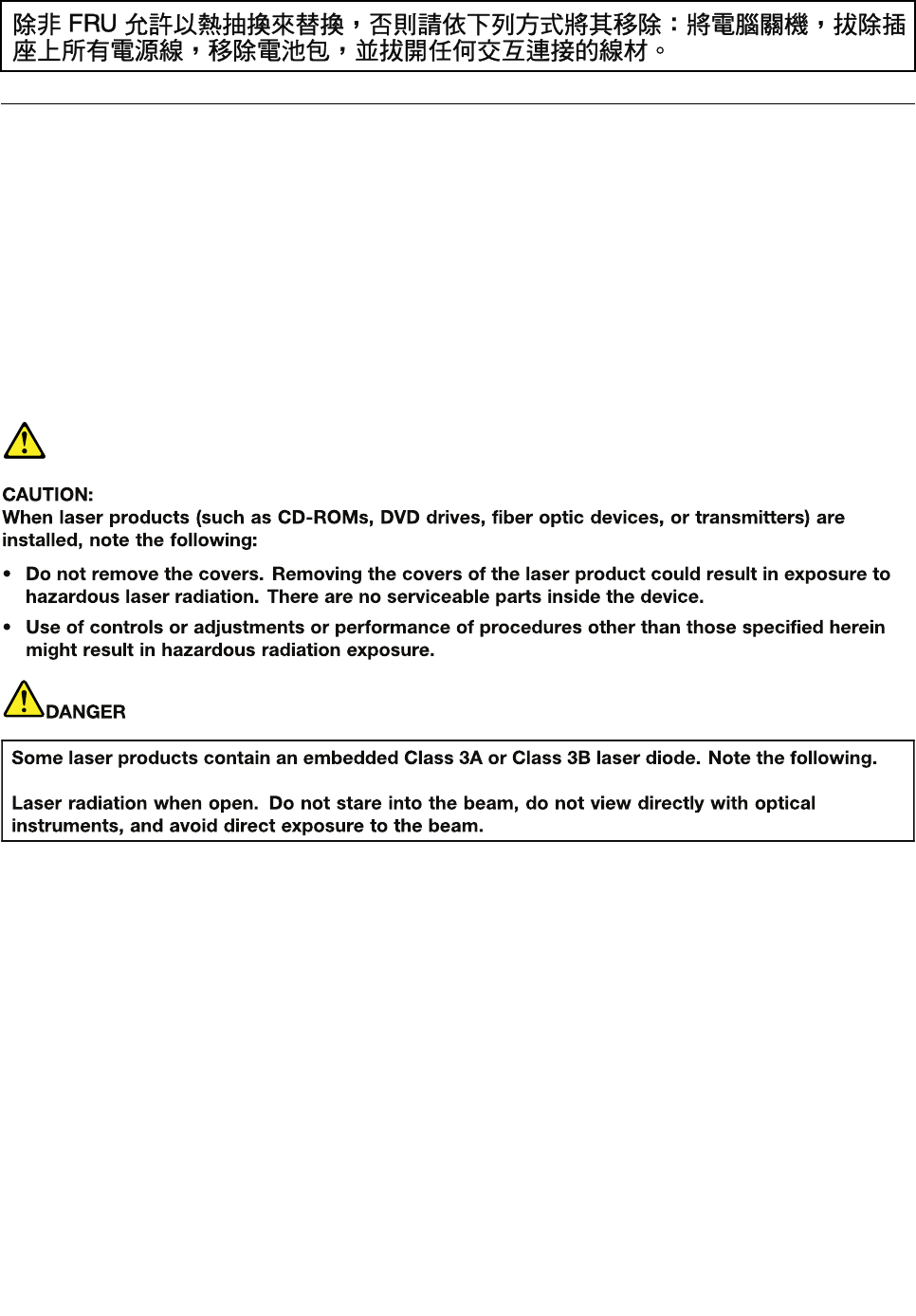
20HardwareMaintenanceManual
Chapter1.Safetyinformation21
22HardwareMaintenanceManual
Chapter1.Safetyinformation23
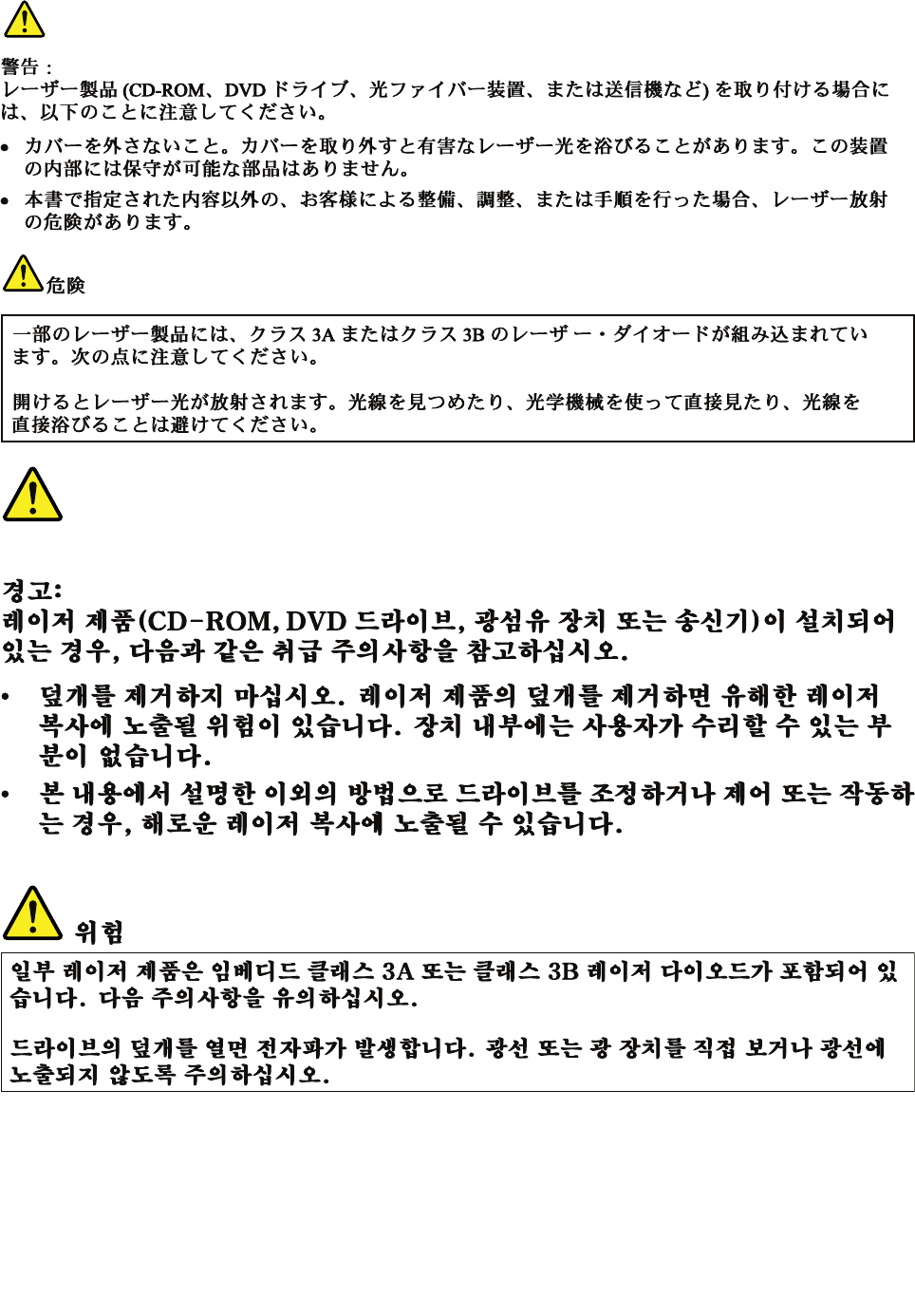
24HardwareMaintenanceManual
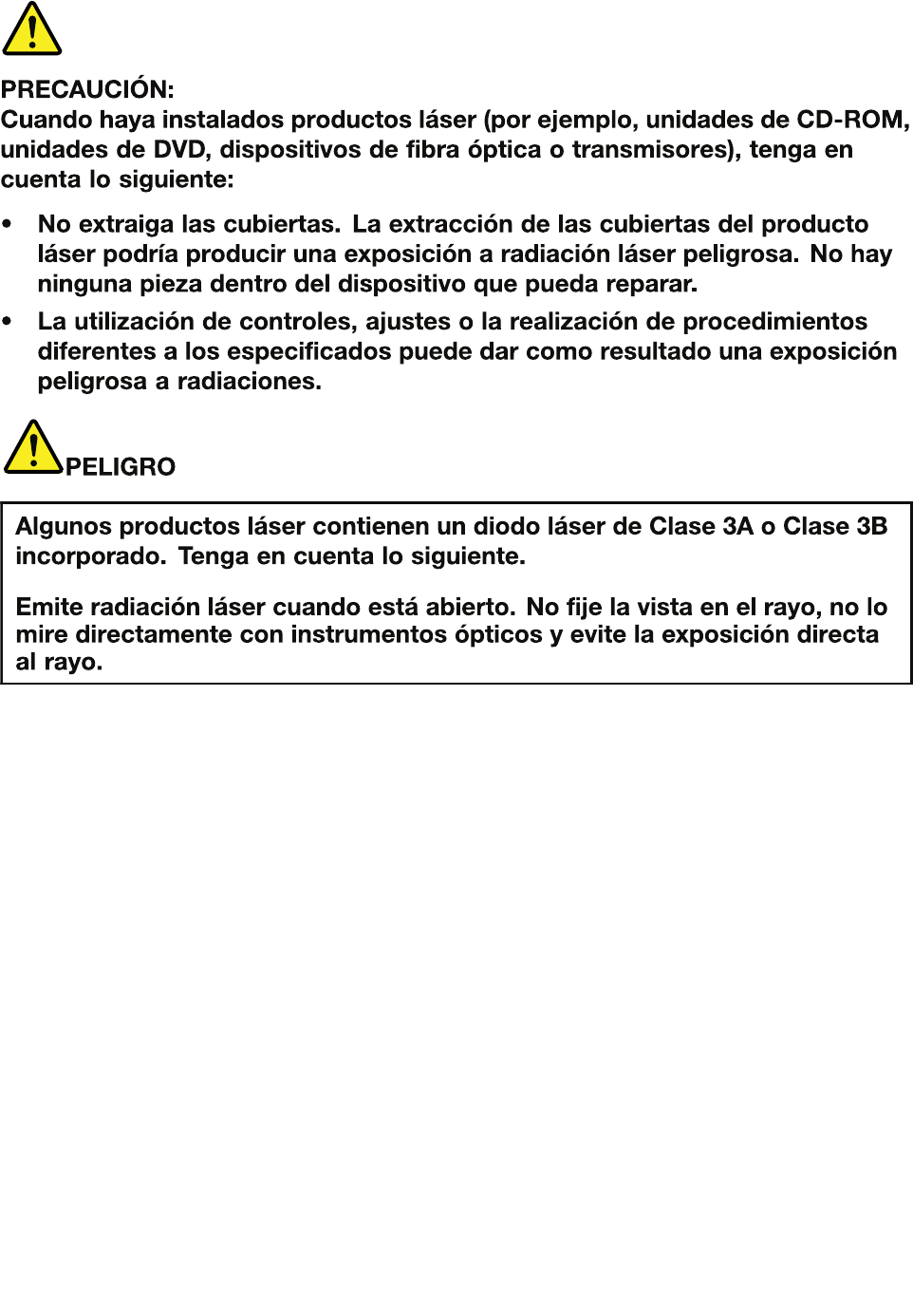
Chapter1.Safetyinformation25
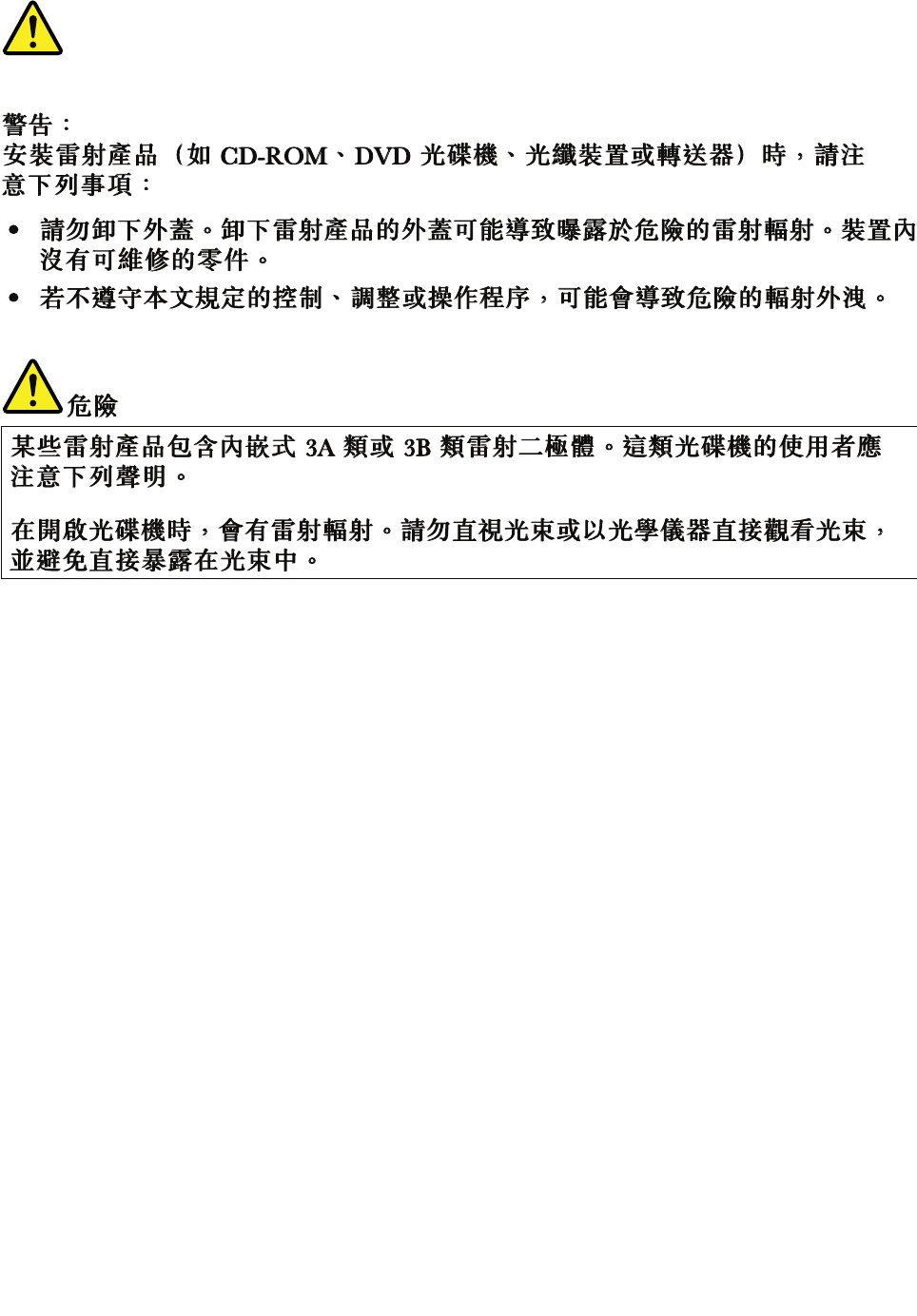
26HardwareMaintenanceManual

Chapter2.Importantserviceinformation
Thischapterpresentsthefollowingimportantserviceinformationthatappliestoallmachinetypessupported
bythismanual:
•“StrategyforreplacingFRUs”onpage27
–“Strategyforreplacingaharddiskdrive”onpage28
–“Importantnoticeforreplacingasystemboard”onpage28
•“ImportantinformationaboutreplacingRoHScompliantFRUs”onpage28
Important:BIOSanddevicedriverxesarecustomer-installable.TheBIOSanddevicedriversareavailable
athttp://www.lenovo.com/support.
StrategyforreplacingFRUs
Beforereplacingparts:
Makesurethatallsoftwarexes,drivers,andBIOSdownloadsareinstalledbeforereplacinganyFRUs
listedinthismanual.
Afterasystemboardisreplaced,ensurethatthelatestBIOSisinstalledtothesystemboardbefore
completingtheserviceaction.
Todownloadsoftwarexes,drivers,andBIOS,dothefollowing:
1.Gotohttp://www.lenovo.com/support.
2.ClickDownloadDrivers&Software.TheWebsiteoffersthreeoptionstobeginyoursearch:
•Searchbyproductnumber
•Searchthroughtheproductauto-detectfunction
•Searchbyproductcategory
3.Followthedirectionsonthescreenandinstallthenecessarysoftware.
4.Restartthecomputer.
Notes:Ifyouneedtoimprovethecomputerperformance,youalsocoulddownloadandinstallthelatest
BIOSutilityfromtheSupportWebsite.
•DonottrytoupdatetheBIOSsettingsforanycomputerunlessyouhavebeentrainedandcertied.An
untrainedpersonrunstheriskofdamagingthecomputer.
•Beforeinstallingthelatestutility,makesurethatthebatteryisfullychargedandanacpoweradapteris
connected.
•Donotturnofforputyourcomputerintosleeporhibernationuntiltheupdatehasbeencompleted.
Otherwise,thesystemboardmightbedamaged.
UsethefollowingstrategytopreventunnecessaryexpenseforreplacingandservicingFRUs:
•IfyouareinstructedtoreplaceaFRUbutthereplacementdoesnotcorrecttheproblem,reinstall
theoriginalFRUbeforeyoucontinue.
•Somecomputershavebothaprocessorboardandasystemboard.Ifyouareinstructedtoreplaceeither
theprocessorboardorthesystemboard,andreplacingoneofthemdoesnotcorrecttheproblem,
reinstallthatboard,andthenreplacetheotherone.
©CopyrightLenovo201227
•IfanadapteroradeviceconsistsofmorethanoneFRU,anyoftheFRUsmaybethecauseoftheerror.
Beforereplacingtheadapterordevice,removetheFRUs,onebyone,toseeifthesymptomschange.
ReplaceonlytheFRUthatchangedthesymptoms.
Strategyforreplacingaharddiskdrive
Alwaystrytorunalow-levelformatbeforereplacingaharddiskdrive(HDD).Thiswillcauseallcustomerdata
ontheharddisktobelost.Besurethatthecustomerhasacurrentbackupofthedatabeforedoingthistask.
Attention:Thedrivestartupsequenceinthecomputeryouareservicingmayhavebeenchanged.Be
extremelycarefulduringwriteoperationssuchascopying,saving,orformatting.Ifyouselectanincorrect
drive,dataorprogramscanbeoverwritten.
Importantnoticeforreplacingasystemboard
Somecomponentsmountedonasystemboardareverysensitive.Improperhandlingofasystemboardcan
causedamagetothosecomponents,andmaycauseasystemmalfunction.
Attention:Whenhandlingasystemboard:
•Donotdropasystemboardorapplyanyexcessiveforcetoit.
•Avoidroughhandlingofanykind.
•AvoidbendingasystemboardandhardpushingtopreventcrackingateachBGA(BallGridArray)chipset.
ImportantinformationaboutreplacingRoHScompliantFRUs
RoHS,TheRestrictionofHazardousSubstancesinElectricalandElectronicEquipmentDirective
(2002/95/EC)isaEuropeanUnionlegalrequirementaffectingtheglobalelectronicsindustry.RoHS
requirementsmustbeimplementedonLenovoproductsplacedonthemarketafterJune2006.Products
onthemarketbeforeJune2006arenotrequiredtohaveRoHScompliantparts.IftheoriginalFRUparts
arenon-compliant,thereplacementpartsalsocanbenon-compliant.Thatis,iftheoriginalFRUpartsare
RoHScompliant,thereplacementpartalsomustbeRoHScompliant.
Note:RoHSandnon-RoHSFRUpartnumberswiththesametandfunctionareidentiedbytheunique
FRUpartnumbers.
LenovoplanstotransittoRoHScompliancebeforetheimplementationdateandexpectsitssupplierstobe
readytomeetLenovo’srequirementsandscheduleintheEuropeanUnion.Productssoldbetween2005
and2006mightcontainsomeRoHScompliantFRUs.Thefollowingstatementpertainstotheproducts
withRoHScompliantFRUs.
RoHScompliantFRUshaveuniqueFRUpartnumbers.BeforeoraftertheRoHSimplementationdate,the
failedRoHScompliantpartsmustbereplacedwithcompliantpartsandonlythefollowingFRUscanbe
used:identiedascompliantintheHardwareMaintenanceManualordirectsubstitutionscanbeused.
•CompliantFRUsidentiedinHardwareMaintenanceManual
•DirectsubstitutionswithdifferentFRUpartnumbersautomaticallyshippedbythedistributioncenterat
thetimeoforder
ForproductsshippedafterJune2006
CurrentororiginalpartReplacementFRU
MustbeRoHSMustbeRoHS
28HardwareMaintenanceManual

Chapter3.Generalcheckout
Thischapterpresentsfollowinginformation:
•“Whattodorst”onpage29
•“Powersystemcheckout”onpage30
Beforeyougotothecheckoutguide,besuretoreadthefollowingimportantnotes.
Importantnotes:
•Onlycertiedtrainedpersonnelshouldservicethecomputer.
•BeforereplacinganyFRU,readtheentirepageonremovingandreplacingFRUs.
•WhenyoureplaceFRUs,itisrecommendedtousenewnylon-coatedscrews.
•Beextremelycarefulduringsuchwriteoperationsascopying,saving,orformatting.Drivesinthecomputer
thatyouareservicingsequencemighthavebeenaltered.Ifyouselectanincorrectdrive,dataorprograms
mightbeoverwritten.
•ReplaceaFRUonlywithanotherFRUofthecorrectmodel.WhenyoureplaceaFRU,makesurethatthemodel
ofthemachineandtheFRUpartnumberarecorrectbyreferringtotheFRUpartslist.
•AFRUshouldnotbereplacedbecauseofasingle,unreproduciblefailure.Singlefailurescanoccurfora
varietyofreasonsthathavenothingtodowithahardwaredefect,suchascosmicradiation,electrostaticdischarge,
orsoftwareerrors.ConsiderreplacingaFRUonlywhenaproblemrecurs.IfyoususpectthataFRUisdefective,
cleartheerrorlogandrunthetestagain.Iftheerrordoesnotrecur,donotreplacetheFRU.
•BecarefulnottoreplaceanondefectiveFRU.
Whattodorst
WhenyoudoreturnaFRU,youmustincludethefollowinginformationinthepartsexchangeformor
partsreturnformthatyouattachtoit:
1.Nameandphonenumberofservicetechnician
2.Dateofservice
3.Dateonwhichthemachinefailed
4.Dateofpurchase
5.ProcedureindexandpagenumberinwhichthefailingFRUwasdetected
6.FailingFRUnameandpartnumber
7.Machinetype,modelnumber,andserialnumber
8.Customer'snameandaddress
Note:Duringthewarrantyperiod,thecustomermayberesponsibleforrepaircostsifthecomputerdamage
wascausedbymisuse,accident,modication,unsuitablephysicaloroperatingenvironment,orimproper
maintenancebythecustomer.Followingisalistofsomecommonitemsthatarenotcoveredunderwarranty
andsomesymptomsthatmightindicatethatthesystemwassubjectedtostressbeyondnormaluse.
Beforecheckingproblemswiththecomputer,determinewhetherthedamageiscoveredunderthewarranty
byreferringtothefollowinglist:
Thefollowingarenotcoveredunderwarranty:
•LCDpanelcrackedfromtheapplicationofexcessiveforceorfrombeingdropped
•Scratched(cosmetic)parts
•Distortion,deformation,ordiscolorationofthecosmeticparts
•Plasticparts,latches,pins,orconnectorsthathavebeencrackedorbrokenbyexcessiveforce
•Damagecausedbyliquidspilledintothesystem
•DamagecausedbytheimproperinsertionofaPCCardortheinstallationofanincompatiblecard
•Improperdiscinsertionoruseofanopticaldrive
©CopyrightLenovo201229
•Diskettedrivedamagecausedbypressureonthediskettedrivecover,foreignmaterialinthedrive,
ortheinsertionofadiskettewithmultiplelabels
•Damagedorbentdisketteejectbutton
•Fusesblownbyattachmentofanonsupporteddevice
•Forgottencomputerpassword(makingthecomputerunusable)
•Stickykeyscausedbyspillingaliquidontothekeyboard
•Useofanincorrectacpoweradapteronlaptopproducts
Thefollowingsymptomsmightindicatedamagecausedbynonwarrantedactivities:
•Missingpartsmightbeasymptomofunauthorizedserviceormodication.
•Ifthespindleofaharddiskdrivebecomesnoisy,itmayhavebeensubjectedtoexcessiveforce,
ordropped.
Powersystemcheckout
Toverifyasymptom,dothefollowing:
1.Turnoffthecomputer.
2.Removethebatterypack.
3.Connecttheacpoweradapter.
4.Checkthatpowerissuppliedwhenyouturnonthecomputer.
5.Turnoffthecomputer.
6.Disconnecttheacpoweradapterandinstallthechargedbatterypack.
7.Checkthatthebatterypacksuppliespowerwhenyouturnonthecomputer.
Ifyoususpectapowerproblem,seetheappropriateoneofthefollowingpowersupplycheckouts:
•“Checkingtheacpoweradapter”onpage30
•“Checkingoperationalcharging”onpage31
•“Checkingthebatterypack”onpage31
Checkingtheacpoweradapter
Youareherebecausethecomputerfailsonlywhentheacpoweradapterisused.
•Ifthepower-onindicatordoesnotturnon,checkthepowercordoftheacpoweradapterforcorrect
continuityandinstallation.
•Ifthecomputerdoesnotchargeduringoperation,goto“Checkingoperationalcharging”onpage31
Tochecktheacpoweradapter,dothefollowing:
1.Unplugtheacpoweradaptercablefromthecomputer.
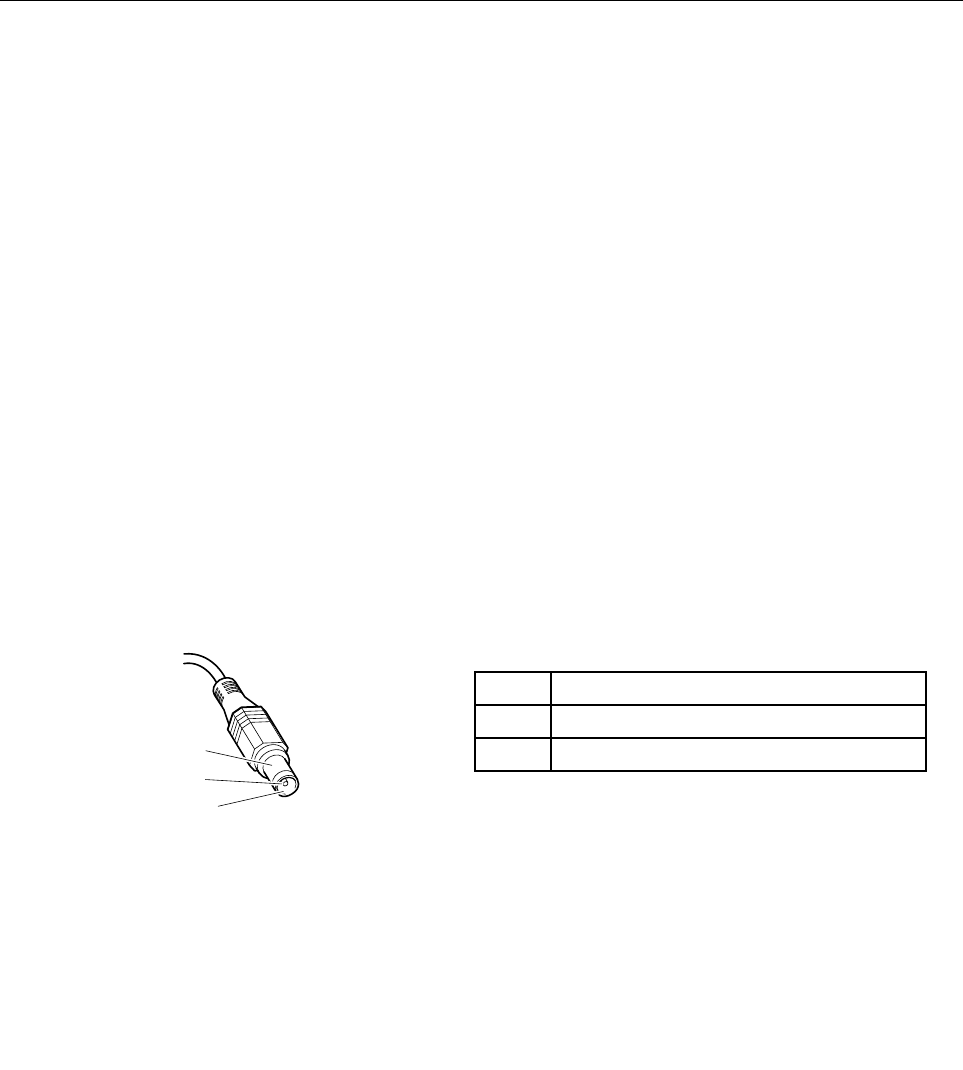
2.Measuretheoutputvoltageattheplugoftheacpoweradaptercable.Seethefollowinggure:
PinVoltage(Vdc)
1+20
20
1
2
3
(20V)
Note:Outputvoltageofpinno.2oftheacpoweradaptermaydifferentfromtheoneyouareservicing.
3.Ifthevoltageisnotcorrect,replacetheacpoweradapter.
4.Ifthevoltageisacceptable,dothefollowing:
•Replacethesystemboard.
•Iftheproblempersists,gotoChapter5“LenovoB590”onpage37.
30HardwareMaintenanceManual
Note:Noisefromtheacpoweradapterdoesnotalwaysindicateadefect.
Checkingoperationalcharging
Tocheckwhetherthebatterychargesproperlyduringoperation,useadischargedbatterypackorabattery
packthathaslessthan50%ofthetotalpowerremainingwheninstalledinthecomputer.
Performoperationalcharging.Ifthebatterystatusindicatororicondoesnotturnon,removethebattery
packandletitreturntoroomtemperature.Reinstallthebatterypack.Ifthechargeindicatororiconstilldoes
notturnon,replacethebatterypack.
Ifthechargeindicatorstilldoesnotturnon,replacethesystemboard.Thenreinstallthebatterypack.Ifitis
stillnotcharged,gotothenextsection.
Checkingthebatterypack
Batterychargingdoesnotstartuntilthepowermetershowsthatlessthan95%ofthetotalpowerremains;
underthisconditionthebatterypackcanchargeto100%ofitscapacity.Thisprotectsthebatterypackfrom
beingoverchargedorfromhavingashortenedlife.
Tocheckyourbattery,dependingontheoperatingsystemyouareusing,dothefollowing:
•Windows7:LaunchthePowerManagerprogramandclicktheBatterytab.
•Windows8:
–PresstherecoverybuttontolaunchtheLenovoSolutionCenterprogram,andthenclickBattery.
–OpentheLenovoSettingsprogram,andthenclickPower.
Note:Ifthebatterypackbecomeshot,itmaynotbeabletobecharged.Removeitfromthecomputerand
leaveitatroomtemperatureforawhile.Afteritcoolsdown,reinstallandrechargeit.
Tocheckthebatterypack,dothefollowing:
1.Poweroffthecomputer.
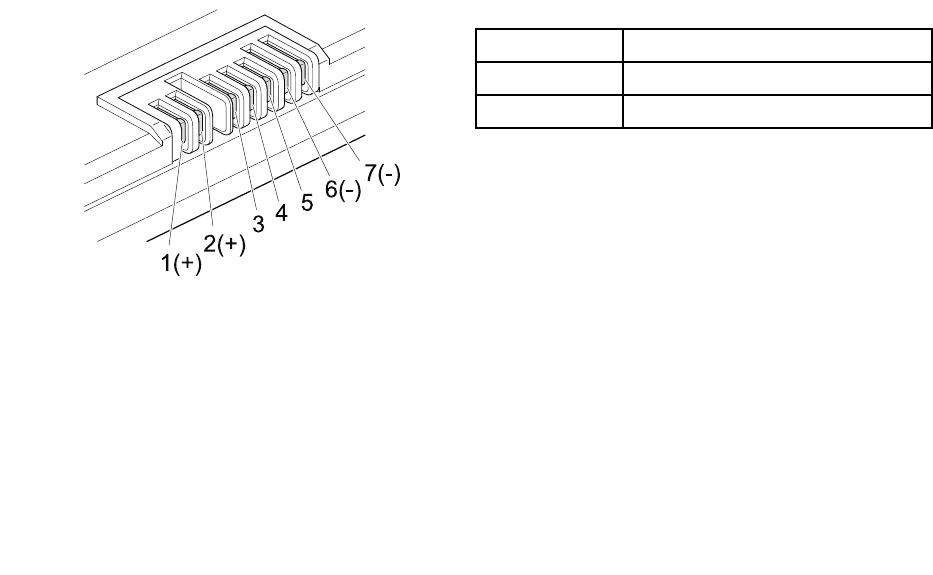
2.Removethebatterypackandmeasurethevoltagebetweenbatteryterminals1(+)and7(-).
TerminalVoltage(Vdc)
1+0to+14
7Ground(-)
1(+) 2(+)
3456(-) 7(-)
3.Ifthevoltageislessthan+11.0Vdc,thebatterypackhasbeendischarged.
Note:Rechargingwilltakeatleast3hours,eveniftheindicatordoesnotturnon.
Ifthevoltageisstilllessthan+11.0Vdcafterrecharging,replacethebattery.
4.Ifthevoltageismorethan+11.0Vdc,measuretheresistancebetweenbatteryterminals5and7.
Theresistancemustbe4to30KΩ.
Iftheresistanceisnotcorrect,replacethebatterypack.Iftheresistanceiscorrect,replacethesystem
board.
Chapter3.Generalcheckout31

32HardwareMaintenanceManual

Chapter4.Relatedserviceinformation
Thischapterpresentsthefollowinginformation:
•“Recoveringthecomputersettings”onpage33
•“Passwords”onpage33
•“Powermanagement”onpage34
Recoveringthecomputersettings
Thistopicprovidesinformationabouttherecoveryprogramsthatareavailableforyoutorecoverthe
computersettings.
•Windows7:ThefollowingrecoveryprogramsareavailableoncomputerswithaWindows7operating
system:
–OneKey®RecoveryPro
TheOneKeyRecoveryProprogramenablesyoutobackupallyourharddiskdrivecontents,including
theoperatingsystem,datales,softwareprograms,andpersonalsettings.Youcandesignatewhere
theOneKeyRecoveryProprogramstoresthebackup.Afteryouhavebackedupthecontentsonthe
harddiskdrive,youcanrestorethecompletecontentsoftheharddiskdrive,restoreonlythedesired
les,orrestoreonlytheWindowsoperatingsystemandapplications.
–ProductRecovery
TheProductRecoveryprogramenablesyoutorestorethecomputersettingstothefactorydefault
settingsthroughrecoverymedia.
Attention:WhenyouusetheProductRecoveryprogramtorestorethecomputersettings,allthedata
youhavestoredontheharddiskdrivewillbedeletedandthecomputersettingswillberestoredtothe
factorydefaultsettings.Duringtherestoringprocess,youwillbegiventheoptiontosaveoneormore
lescurrentlyontheharddiskdrivetoothermediabeforethedataisdeleted.
•Windows8:ThepreinstalledWindowsrecoveryprogramenablesyoutodothefollowing:
–Refreshingthecomputerwithoutlosingpersonalles
–Restoringthecomputertothefactorydefaultsettings
Attention:WhenyouusetheWindowsrecoveryprogramtorestorethecomputersettings,allthedata
youhavestoredontheharddiskdrivewillbedeletedandthecomputerwillberestoredtothefactory
defaultsettings.Toavoiddataloss,backupyourdatainadvance.
–Conguringtheadvancedstartupoptions
Theadvancedstartupoptionsenableyoutodothefollowing:
–ChangingthestartupsettingsoftheWindowsoperatingsystem
–RestoringtheWindowsoperatingsystemfromasystemimage
–Startingupfromanexternaldevice
Formoreinformationabouttherecoverysolutions,refertothehelpinformationsystemoftheprograms.
Passwords
AsmanyastwopasswordsmightbeneededforaLenovonotebookcomputer:thepower-onpassword
andthesupervisorpassword.
©CopyrightLenovo201233

Ifanyofthesepasswordshasbeenset,apromptforitwillbedisplayedonthescreenwheneverthe
computeristurnedon.Thecomputerdoesnotstartuntilthepasswordisentered.
Note:Ifonlyasupervisorpasswordisset,thepasswordpromptwillnotbedisplayedwhentheoperating
systemisstarted.
Power-onpassword
Apower-onpasswordprotectsthesystemfrombeingturnedonbyanunauthorizedperson.Thepassword
mustbeenteredbeforeanoperatingsystemcanbestarted.
Supervisorpassword
AsupervisorpasswordprotectsthesysteminformationstoredintheBIOS.Theusermustenterthe
supervisorpasswordtogetaccesstotheBIOSandchangethesystemconguration.
Attention:Ifyouforgetthepassword,thereisnoserviceproceduretoresetthepassword.Thesystem
boardmustbereplacedforascheduledfee.
Powermanagement
Note:PowermanagementmodesarenotsupportedforAPMoperatingsystem.
Toreducepowerconsumption,thecomputerhasthreepowermanagementmodes:screenblank,sleep,
andhibernation.
Screenblankmode
Inthefollowingcircumstances,thecomputergoesintoscreenblankmode:
•Thetimesetonthe“Turnoffmonitor”timerontheWindows7operatingsystemexpires.
Toendscreenblankmodeandresumenormaloperation,pressanykey.
•Y ouhavepressedFn+F2.
Toendscreenblankmodeandresumenormaloperation,pressFn+F2.
Sleepmode
Whenthecomputerenterssleepmode,thefollowingeventsoccurinadditiontowhatoccursinscreen
blankmode:
•TheLCDispoweredoff.
•Theharddiskdriveispoweredoff.
•TheCPUstops.
Toentersleepmode,pressFn+F1.
Incertaincircumstances,thecomputergoesintosleepmodeautomatically:
•Ifa“suspendtime”hasbeensetonthetimer,andtheuserdoesnotdoanyoperationwiththekeyboard,
theharddiskdrive,theparallelconnector,orthediskettedrivewithinthattime.
•Ifthebatteryindicatorblinksorange,indicatingthatthebatterypowerislow.
Tocausethecomputertoreturnfromsleepmodeandresumetheoperation,dooneofthefollowing:
•PresstheFnkey.
•OpentheLCDcover.
•Turnonthepowerbutton.
34HardwareMaintenanceManual

Also,whenthetimesetontheresumetimerelapses,thecomputerautomaticallyreturnsfromsleepmode
andresumesoperation.
Note:Thecomputerdoesnotacceptanyinputimmediatelyafteritenterssleepmode.Waitafewseconds
beforetakinganyactiontoreenteroperationmode.
Hibernationmode
Inhibernationmode,thefollowingoccurs:
•Thesystemstatus,RAM,VRAM,andsetupdataarestoredontheharddiskdrive.
•Thesystemispoweredoff.
Ifyouhavedenedoneofthefollowingactionsastheeventthatcausesthesystemtogointohibernation
mode,performthataction.
•Closingthelid.
•Pressingthepowerbutton.
Also,thecomputergoesintohibernationmodeautomaticallyineitherofthefollowingconditions:
•Ifa“hibernationtime”hasbeensetonthetimer,andiftheuserdoesnotdoanyoperationwiththe
keyboard,theharddiskdrive,theparallelconnector,orthediskettedrivewithinthattime.
•Ifthetimerconditionsaresatisedinsuspendmode.
Whenthepoweristurnedon,thecomputerreturnsfromhibernationmodeandresumesoperation.The
hibernationleinthebootrecordontheharddiskdriveisread,andsystemstatusisrestoredfromthe
harddiskdrive.
Chapter4.Relatedserviceinformation35

36HardwareMaintenanceManual

Chapter5.LenovoB590
Thischapterpresentsthefollowingproduct-specicservicereferencesandpartsinformation:
•“Specications”onpage37
•“Statusindicators”onpage38
•“Fnkeycombinations”onpage39
Specications
ThistopicliststhephysicalfeaturesfortheLenovoB590models.
Processor
•Windows7:Toviewthesystempropertiesofyourcomputer,clickStart,right-clickComputer;then
clickProperties.
•Windows8:Fromthedesktop,movethecursortothetop-rightorbottom-rightcornerofthescreento
displaythecharms.ThenclickSettings➙PCinfo.
Memory
•Doubledatarate3(DDR3)synchronousdynamicrandomaccessmemory(SDRAM)
Storagedevice
•2.5-inch(7mmheightor9.5mmheight)harddiskdrive
•mSATAsolidstatedrive(onsomemodelsforcacheonly)
Note:IfthecomputerisequippedwithbothaharddiskdriveandanmSATAsolid-statedrive,donotusethe
mSATAsolid-statedriveasabootabledevice.ThemSATAsolid-statedriveisusedfor“cache”functiononly.
Display
•Size:15.6inches(396mm)
•Resolution:
–LCD:1366-by-768
–Externalmonitor:Maximum2048-by-1536
•Camera
Keyboard
•6-rowLenovokeyboard
•Recoverybutton
Interface
•Comboaudiojack(stereoheadphoneorheadset)
•USB2.0connectors
•USB3.0connectors
•RJ45Ethernetconnector
•HDMIconnector
©CopyrightLenovo201237
•Externalmonitorconnector
•4-in-1digitalmediacardreaderslot
Opticaldrive
•12.7mmRamboopticaldrive(onsomemodels)
Wirelessfeatures
•IntegratedwirelessLAN
•IntegratedWiMAX
•100/1000MbpsEthernetcommunication
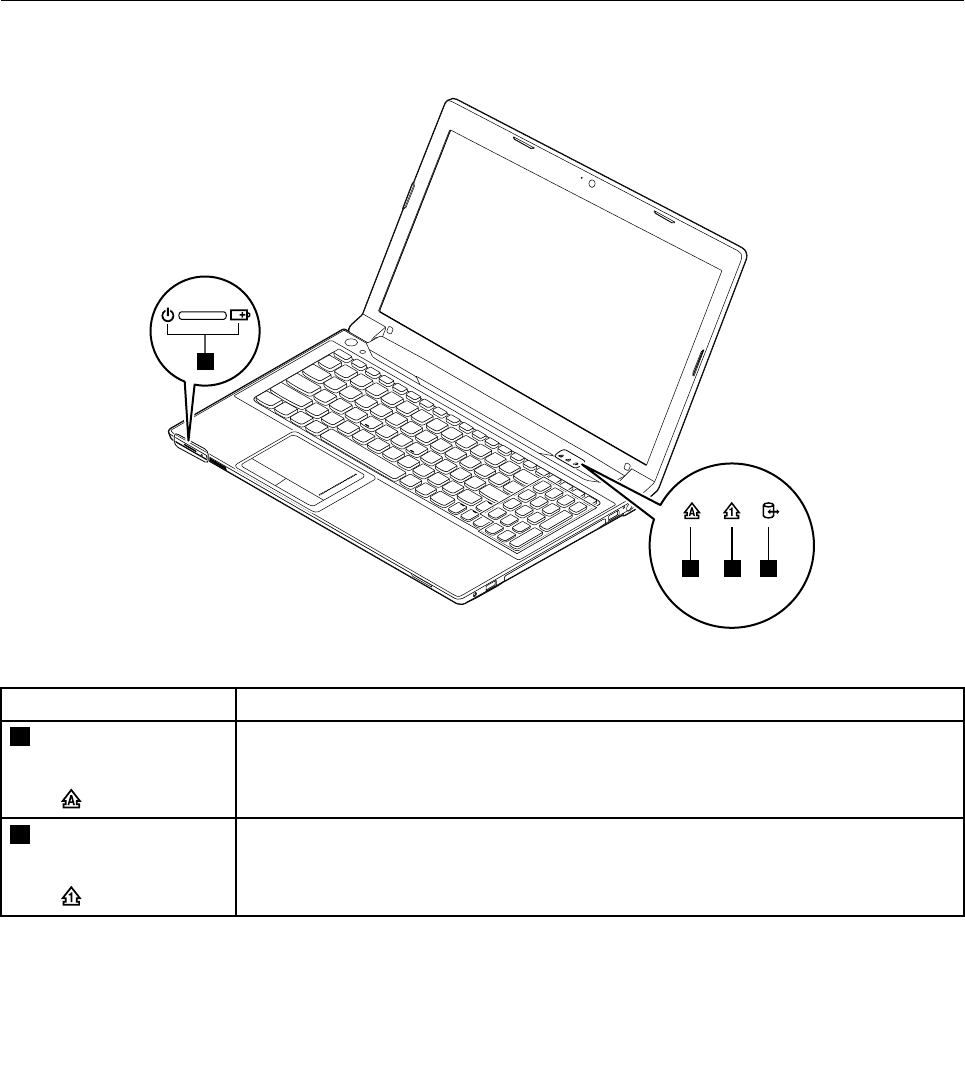
Statusindicators
Thischapterpresentsthesystemstatusindicatorsthatshowthestatusofthecomputer.
4
123
Table1.Statusindicators
IndicatorMeaning
1CapsLockstatus
indicator
White:CapsLockmodeisenabled.Youcantypeallalphabeticcharacters(A-Z)in
uppercasedirectly.ToenableordisableCapsLockmode,presstheCapsLockkey.
2NumericLockstatus
indicator
White:Theseparatenumerickeypadonthekeyboardisenabled.Toenableordisable
thenumerickeypad,presstheNumericLockkey.
38HardwareMaintenanceManual
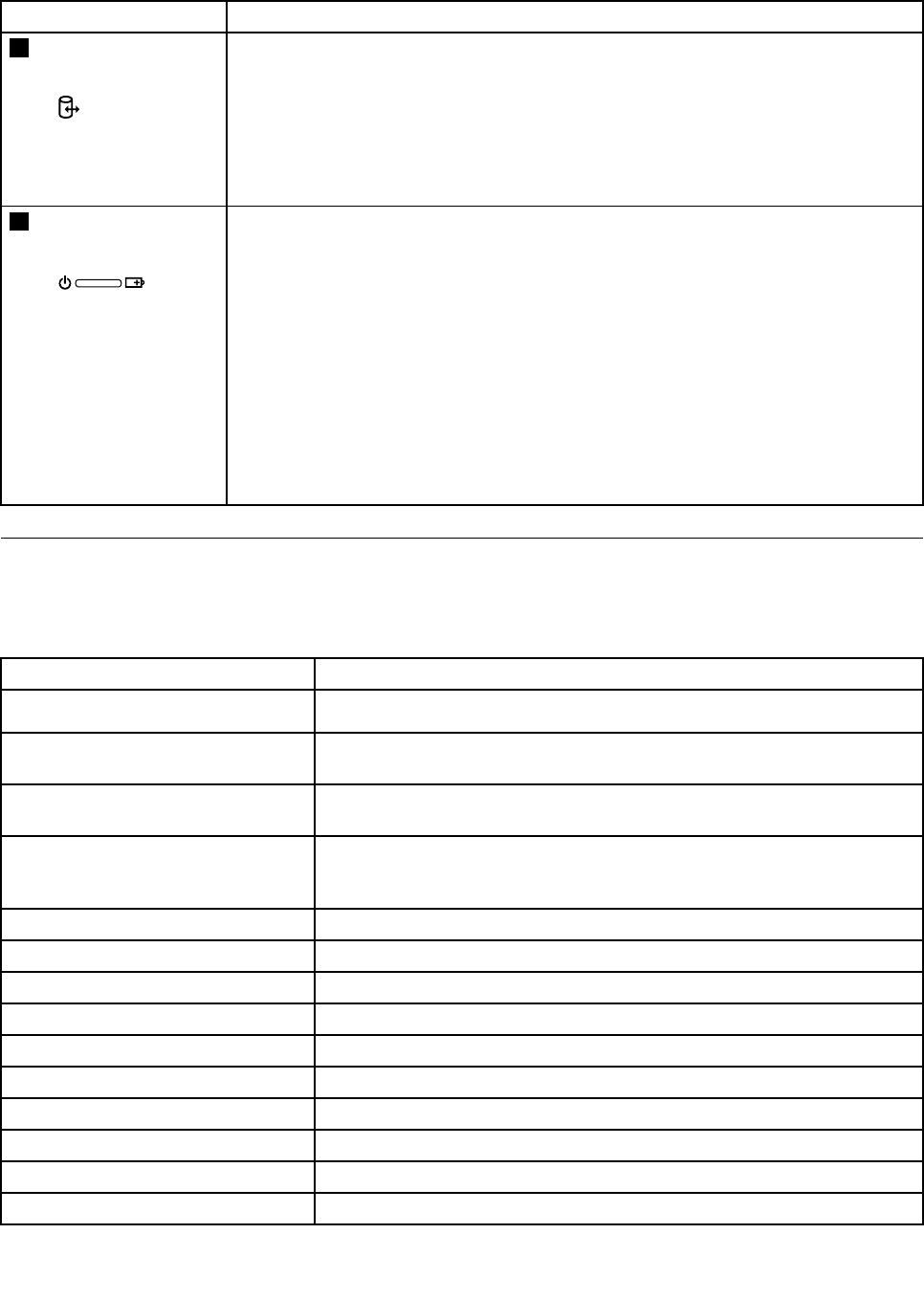
Table1.Statusindicators(continued)
IndicatorMeaning
3Deviceaccess
statusindicator
On:Theharddiskdriveoropticaldriveisreadingorwritingdata.
Attention:
•Whentheindicatorison,donotputthecomputerintosleepmodeorturnoffthe
computer.
•Whentheindicatorison,donotmovethecomputer.Suddenphysicalshockmight
causedriveerrors.
4Powerandbattery
statusindicator
•Solidgreen:Thebatterychargelevelisbetween80%and100%,orthebattery
dischargelevelisbetween20%and100%.
•Slowblinkinggreen:Thebatterychargelevelisbetween20%and80%,and
chargingiscontinuing.Whenthebatterychargelevelreaches80%,thebatterystatus
indicatorstopsblinking,butthechargingmightcontinueuntilthebatteryis100%
charged.
•Slowblinkingorange:Thebatterychargelevelisbetween5%and20%,andthe
chargingiscontinuing.Whenthebatterychargelevelreaches20%,theblinking
colorchangestogreen.
•Orange:Thebatterydischargelevelisbetween5%and20%.
•Fastblinkingorange:Thebatterychargeordischargelevelis5%orless.
•Off:Thebatteryisdetachedorthecomputerispoweredoff.
Fnkeycombinations
ThefollowingtabledescribesthefunctionsofFnkeycombinations.
Table2.Functionkeycombinations
KeycombinationDescription
Fn+EscEnablesordisablesthecamera.
Fn+F1Putsthecomputerintosleepmode.Toresumenormaloperation,press
theFnkeyonly.
Fn+F2Enablesthebacklightfeatureofthecomputerscreen.Todisablethefeature,
pressFn+F2.
Fn+F3Switchesbetweenthecomputerdisplayandanexternalmonitor.
Note:Y oualsocanusetheWindows+Pcombinationtoswitchbetweenthe
computerdisplayandanexternalmonitor.
Fn+F5Enablesordisablesthebuilt-inwirelessnetworkingfeatures.
Fn+F6Enablesordisablesthetouchpad.
Fn+F9Multimediacontrol:Start/Pause
Fn+F10Multimediacontrol:Stop
Fn+F11Multimediacontrol:Skiptotheprevioustrack
Fn+F12Multimediacontrol:Skiptothenexttrack
Fn+InsertHasthesamefunctionastheScrLkkeyonaconventionalkeyboard.
Fn+PrtScHasthesamefunctionastheSysRqkeyonaconventionalkeyboard.
Fn+HomeHasthesamefunctionasthePausekeyonaconventionalkeyboard.
Fn+EndHasthesamefunctionastheBreakkeyonaconventionalkeyboard.
Chapter5.LenovoB59039

Table2.Functionkeycombinations(continued)
KeycombinationDescription
Fn+up/downarrowIncreasesordecreasesthedisplaybrightnesslevel.
Fn+left/rightarrowDecreasesorincreasesthesoundvolume.
40HardwareMaintenanceManual
Chapter6.FRUreplacementnotices
Thischapterpresentsnoticesrelatedtoremovingandreplacingparts.Readthischaptercarefullybefore
replacinganyFRU.
CRUstatementforcustomers:
Youcanresolvesomeproblemswithyourproductwithareplacementpartyoucaninstallyourself,called
a“CustomerReplaceableUnit”or“CRU”.SomeCRUsaredesignatedasself-serviceCRUsandothers
aredesignatedasoptional-serviceCRUs.Installationofself-serviceCRUsisyourresponsibility.For
optional-serviceCRUs,youcaneitherinstalltheCRUyourselforyoucanrequestthataServiceProvider
installtheCRUaccordingtothewarrantyserviceforyourproduct.IfyouintendoninstallingtheCRU,
LenovowillshiptheCRUtoyou.CRUinformationandreplacementinstructionsareshippedwithyour
productandareavailablefromLenovoatanytimeuponrequest.YoucanndalistofCRUsforyour
productinthisHardwareMaintenanceManual.Anelectronicversionofthismanualcanbefoundat
http://www.lenovo.com/UserManuals.Followtheon-screeninstructionstondthemanualforyourproduct.
YoumightberequiredtoreturnthedefectiveCRU.Whenreturnisrequired:(1)returninstructions,aprepaid
shippinglabel,andacontainerwillbeincludedwiththereplacementCRU;and(2)youmightbechargedfor
thereplacementCRUifLenovodoesnotreceivethedefectiveCRUwithinthirty(30)daysofyourreceiptof
thereplacementCRU.SeeyourLenovoLimitedWarrantydocumentationforfulldetails.
Screwnotices
Loosescrewscancauseareliabilityproblem.IntheLenovonotebookcomputer,thisproblemisaddressed
withspecialnylon-coatedscrewsthathavethefollowingcharacteristics:
•Theymaintaintightconnections.
•Theydonoteasilycomeloose,evenwithshockorvibration.
•Theyarehardertotighten.
Dothefollowingwhenyouservicethismachine:
•Keepthescrewkitinyourtoolbag.
•Itisrecommendedtousenewscrews.
•Itrecommendedtouseeachscrewonlyonce.
•Useatorquescrewdriverifyouhaveone.
Tightenscrewsasfollows:
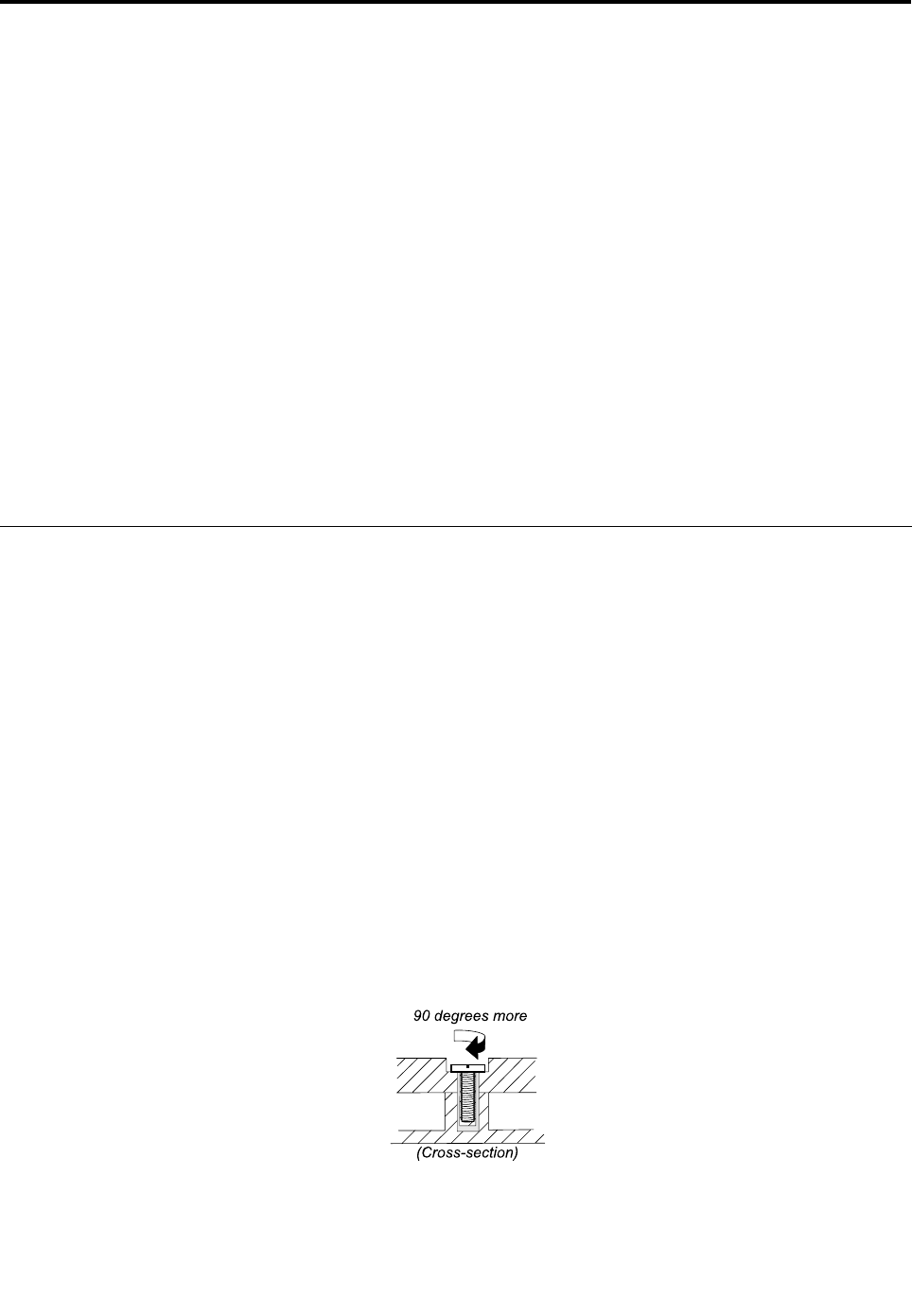
•Plastictoplastic
Turnanadditional90degreesafterthescrewheadtouchesthesurfaceoftheplasticpart:
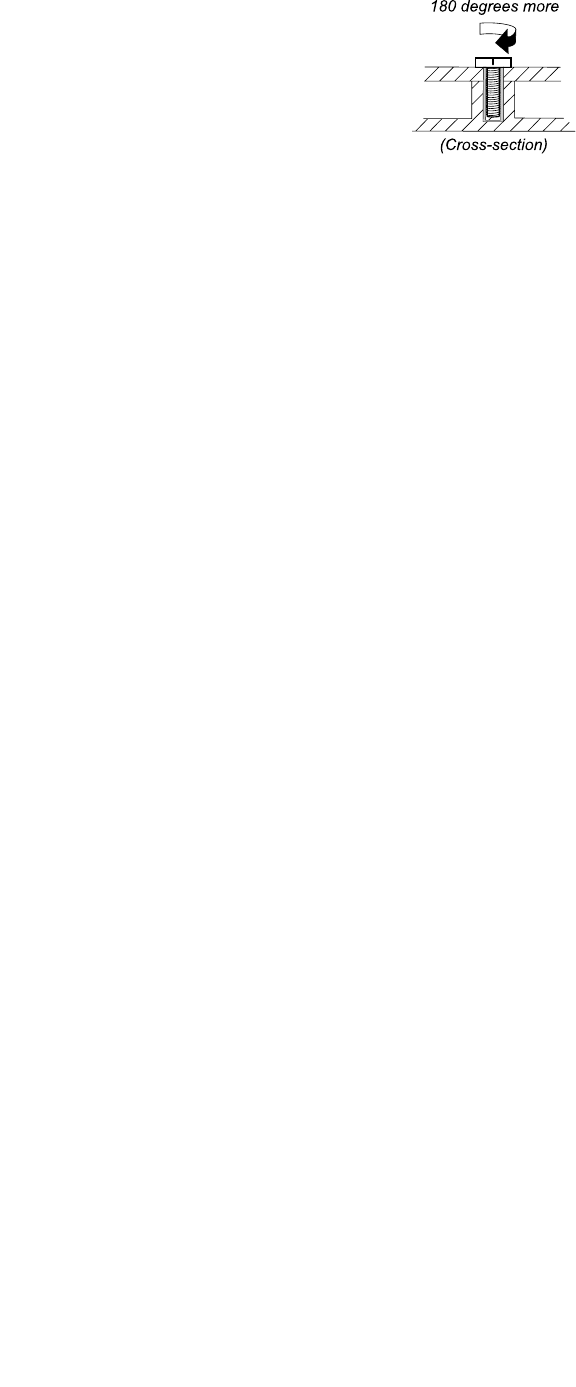
•Logiccardtoplastic
Turnanadditional180degreesafterthescrewheadtouchesthesurfaceofthelogiccard:
©CopyrightLenovo201241
•T orquedriver
Ifyouhaveatorquescrewdriver,refertotheTorquecolumninthescrewinformationtableforeachstep.
•Makesurethatyouusethecorrectscrew.Itisrecommendedtousenewscrewsforreplacements.If
youhaveatorquescrewdriver,tightenallscrewsrmlytothetorquespeciedinthescrewinformation
tableforeachstep.
•Ensuretorquescrewdriversarecalibratedcorrectlyfollowingcountryspecications.
42HardwareMaintenanceManual
Chapter7.RemovingandreplacingaFRU
ThischapterprovidesinstructionsonhowtoremoveorreplaceaFRU.
CRUstatementforcustomers:
Youcanresolvesomeproblemswithyourproductwithareplacementpartyoucaninstallyourself,called
a“CustomerReplaceableUnit”or“CRU”.SomeCRUsaredesignatedasself-serviceCRUsandothers
aredesignatedasoptional-serviceCRUs.Installationofself-serviceCRUsisyourresponsibility.For
optional-serviceCRUs,youcaneitherinstalltheCRUyourselforyoucanrequestthataServiceProvider
installtheCRUaccordingtothewarrantyserviceforyourproduct.IfyouintendoninstallingtheCRU,
LenovowillshiptheCRUtoyou.CRUinformationandreplacementinstructionsareshippedwithyour
productandareavailablefromLenovoatanytimeuponrequest.YoucanndalistofCRUsforyour
productinthisHardwareMaintenanceManual.Anelectronicversionofthismanualcanbefoundat
http://www.lenovo.com/UserManuals.Followtheon-screeninstructionstondthemanualforyourproduct.
YoumightberequiredtoreturnthedefectiveCRU.Whenreturnisrequired:(1)returninstructions,aprepaid
shippinglabel,andacontainerwillbeincludedwiththereplacementCRU;and(2)youmightbechargedfor
thereplacementCRUifLenovodoesnotreceivethedefectiveCRUwithinthirty(30)daysofyourreceiptof
thereplacementCRU.SeeyourLenovoLimitedWarrantydocumentationforfulldetails.
Generalguidelines
ThischapterpresentsdirectionsanddrawingsforuseinremovingandreplacingaFRU.Besuretoobserve
thefollowinggeneralrules:
1.Donottrytoserviceanycomputerunlessyouhavebeentrainedandcertied.Anuntrainedpersonruns
theriskofdamagingparts.
2.BeforereplacinganyFRU,reviewChapter6“FRUreplacementnotices”onpage41.
3.BeginbyremovinganyFRUsthathavetoberemovedbeforereplacingthefailingFRU.SuchFRUsare
listedineachFRUreplacementsection.Removethemintheorderinwhichtheyarelisted.
4.FollowthecorrectsequenceinthestepsforremovingaFRU,asgiveninthedrawingsbythenumbers
insquarecallouts.
5.Whenturningascrew,turnitinthedirectionasgivenbythearrowinthedrawing.
6.WhenremovingaFRU,moveitinthedirectionasgivenbythearrowinthedrawing.
7.ToputthenewFRUinplace,reversetheremovalprocedureandfollowanynotesthatpertainto
replacement.
8.WhenreplacingaFRU,usethecorrectscrew(s)asshownintheprocedures.
DANGER
BeforeremovinganyFRU,turnoffthecomputer,unplugallpowercordsfromelectricaloutlets,
removethebatterypack,andthendisconnectanyinterconnectingcables.
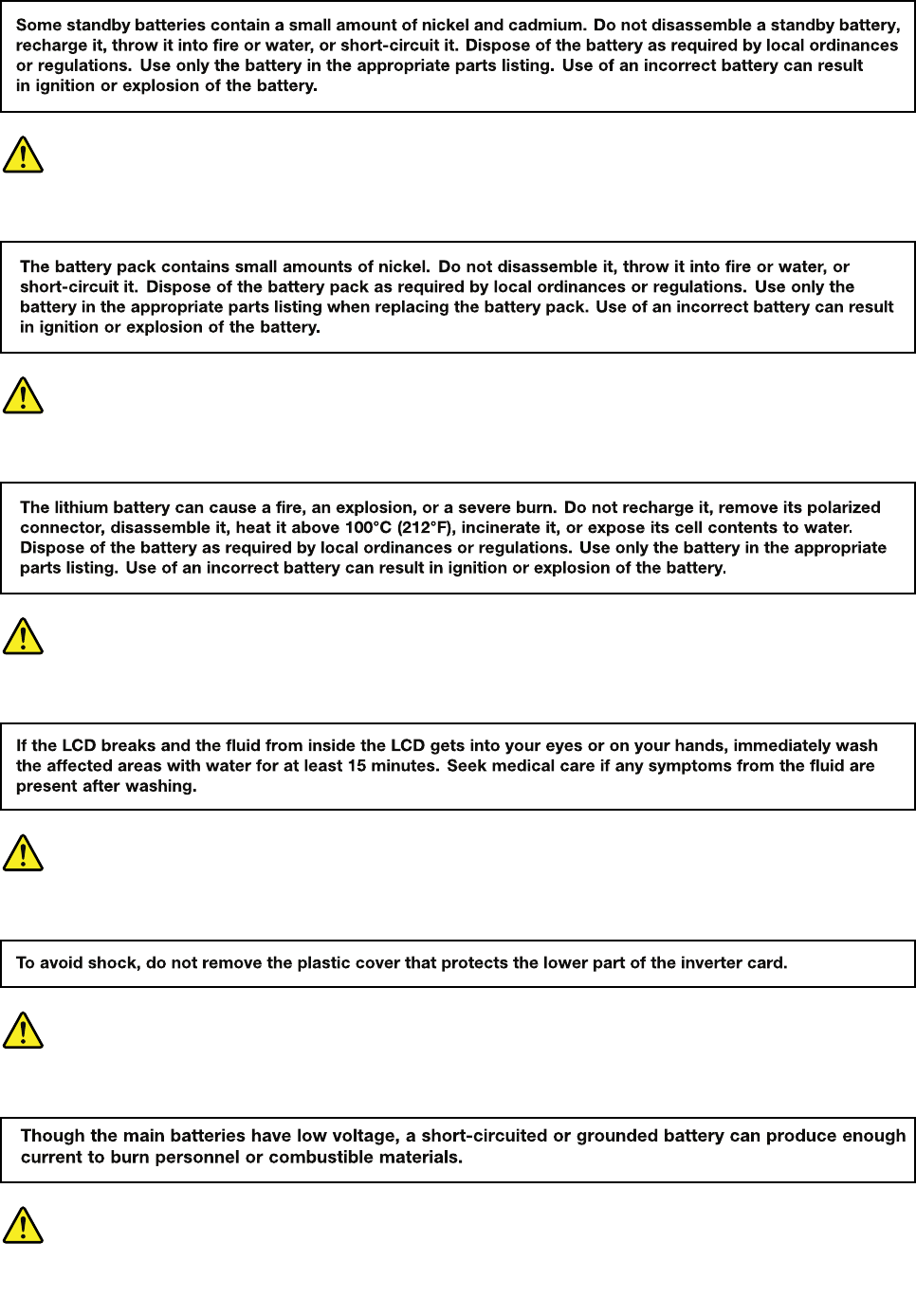
Attention:AfterreplacingaFRU,donotturnonthecomputeruntilyouhavemadesurethatallscrews,
springs,andothersmallpartsareinplaceandnonearelooseinsidethecomputer.Verifythisbyshaking
thecomputergentlyandlisteningforrattlingsounds.Metallicpartsormetalakescancauseelectrical
shortcircuits.
Attention:Thesystemboardissensitiveto,andcanbedamagedby,electrostaticdischarge.Before
touchingit,establishpersonalgroundingbytouchingagroundpointwithonehandorbyusingan
electrostaticdischarge(ESD)strap(P/N6405959).
©CopyrightLenovo201243
1010Batterypack
Removalstepsofbatterypack
DANGER
Useonlythebatteryspeciedinthepartslistforyourcomputer.Anyotherbatterycouldignite
orexplode.
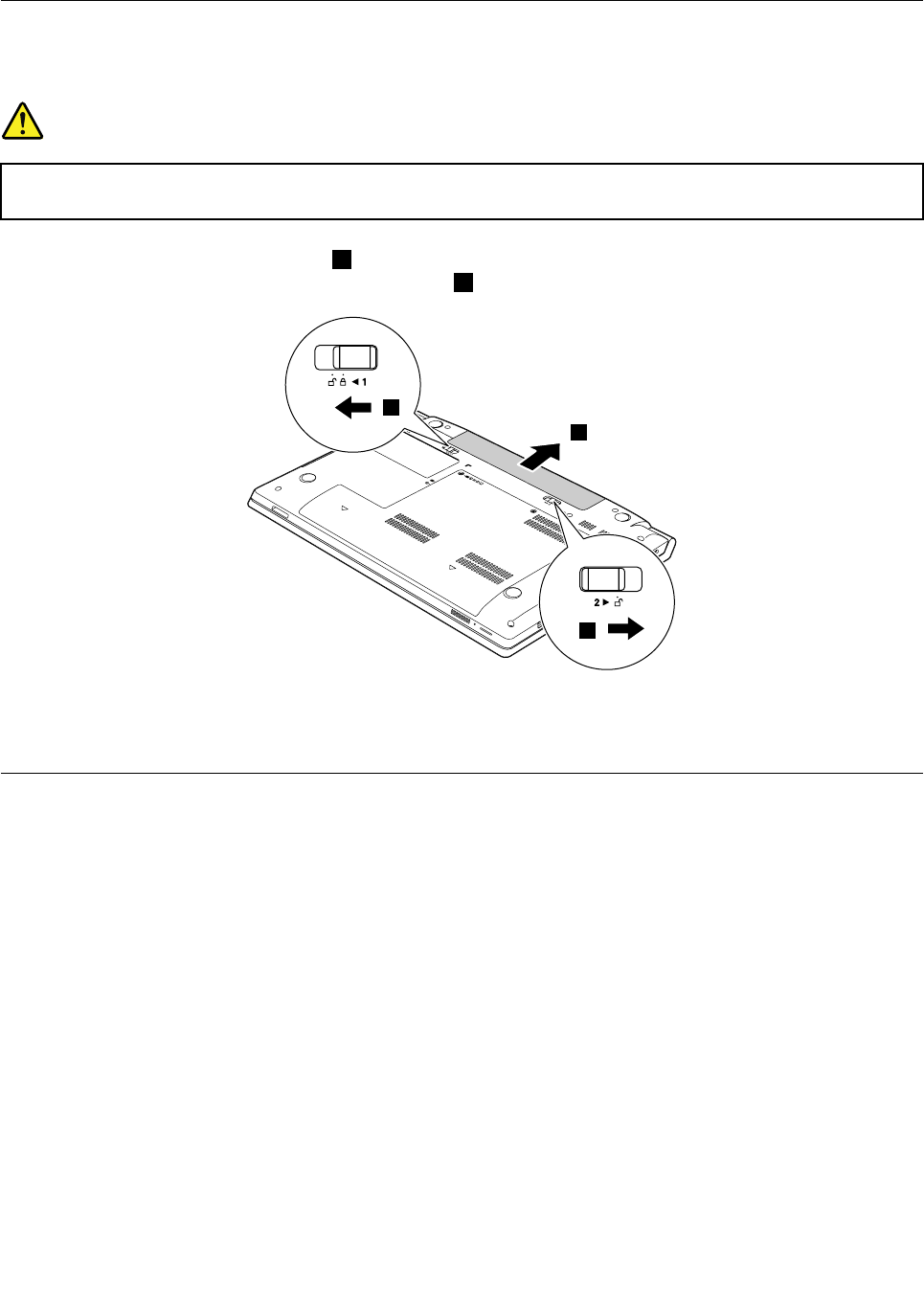
Unlockthespring-loadedbatterylatch1.Holdingthemanualbatterylatchintheunlockedposition,remove
thebatterypackinthedirectionshownbythearrow2.
2
1
2
Wheninstalling:Installthebatterypackintheslot.Makesurethatthebatterylatchesareinthelocked
position.
1020Bottomslotcover
Foraccess,removethisFRU:
•“1010Batterypack”onpage44
44HardwareMaintenanceManual
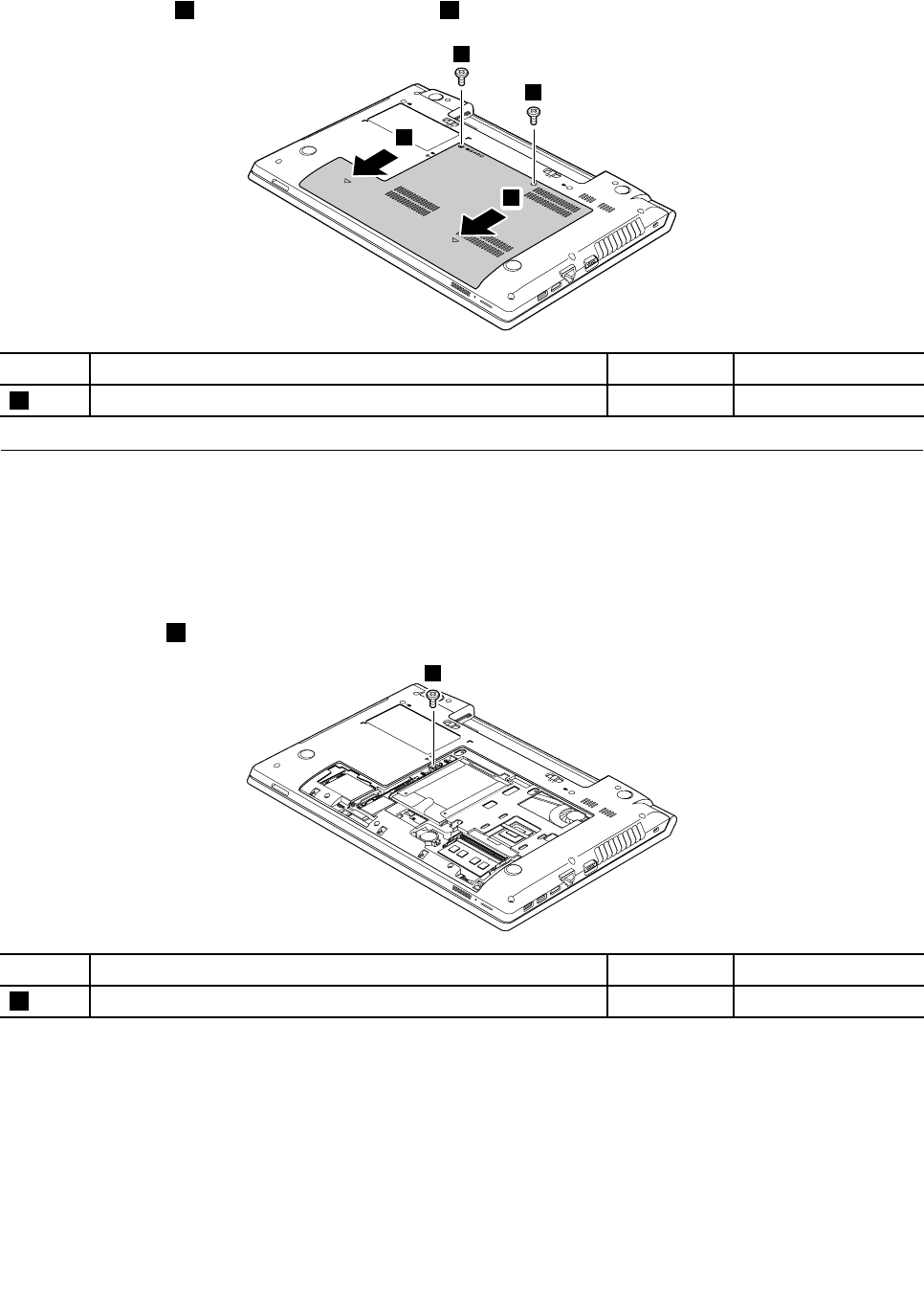
Removalstepsofbottomslotcover
Removethescrews1,andthenremovethecover2.
2
2
1
1
StepScrew(quantity)ColorTorque
1M2×3mm,at-head,nylon-coated(2)Black1.85kgf-cm
1030Opticaldrive
Foraccess,removetheseFRUsinorder:
•“1010Batterypack”onpage44
•“1020Bottomslotcover”onpage44
Removalstepsofopticaldrive
Removethescrew1.
1
StepScrew(quantity)ColorTorque
1M2×3mm,at-head,nylon-coated(1)Black1.85kgf-cm
Chapter7.RemovingandreplacingaFRU45
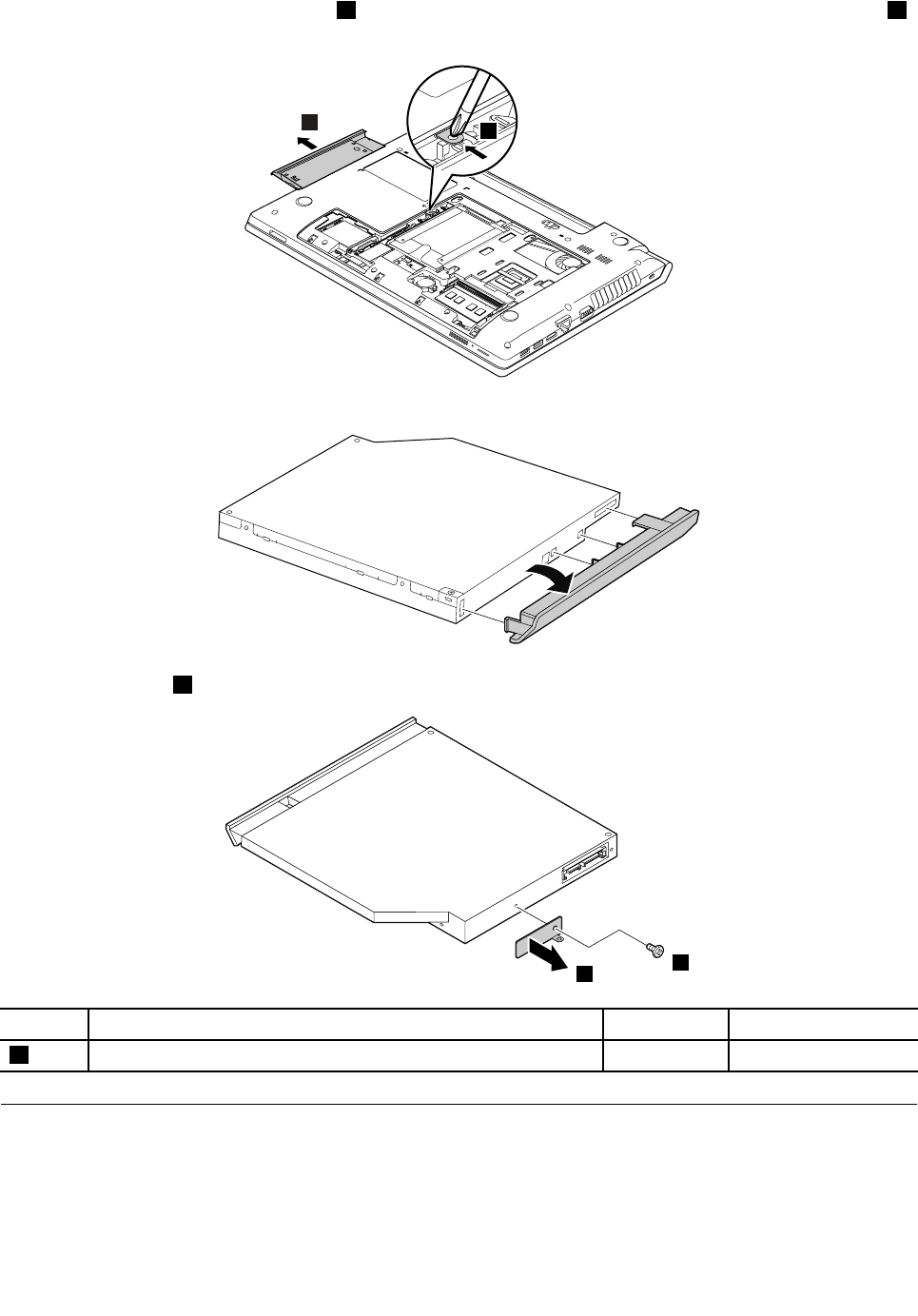
Insertascrewdriverintothescrewhole2andpushtheopticaldriveinthedirectionshownbythearrow3.
Thenremovetheopticaldrive.
32
Removalstepsofopticaldrivebezelandopticaldrivebracket
Removethescrews1andthenremovetheopticaldrivebracket.
1
2
StepScrew(quantity)ColorTorque
1M2×3mm,at-head,nylon-coated(2)Black1.85kgf-cm
1040Memorymodules
Foraccess,removetheseFRUsinorder:
•“1010Batterypack”onpage44
•“1020Bottomslotcover”onpage44
46HardwareMaintenanceManual
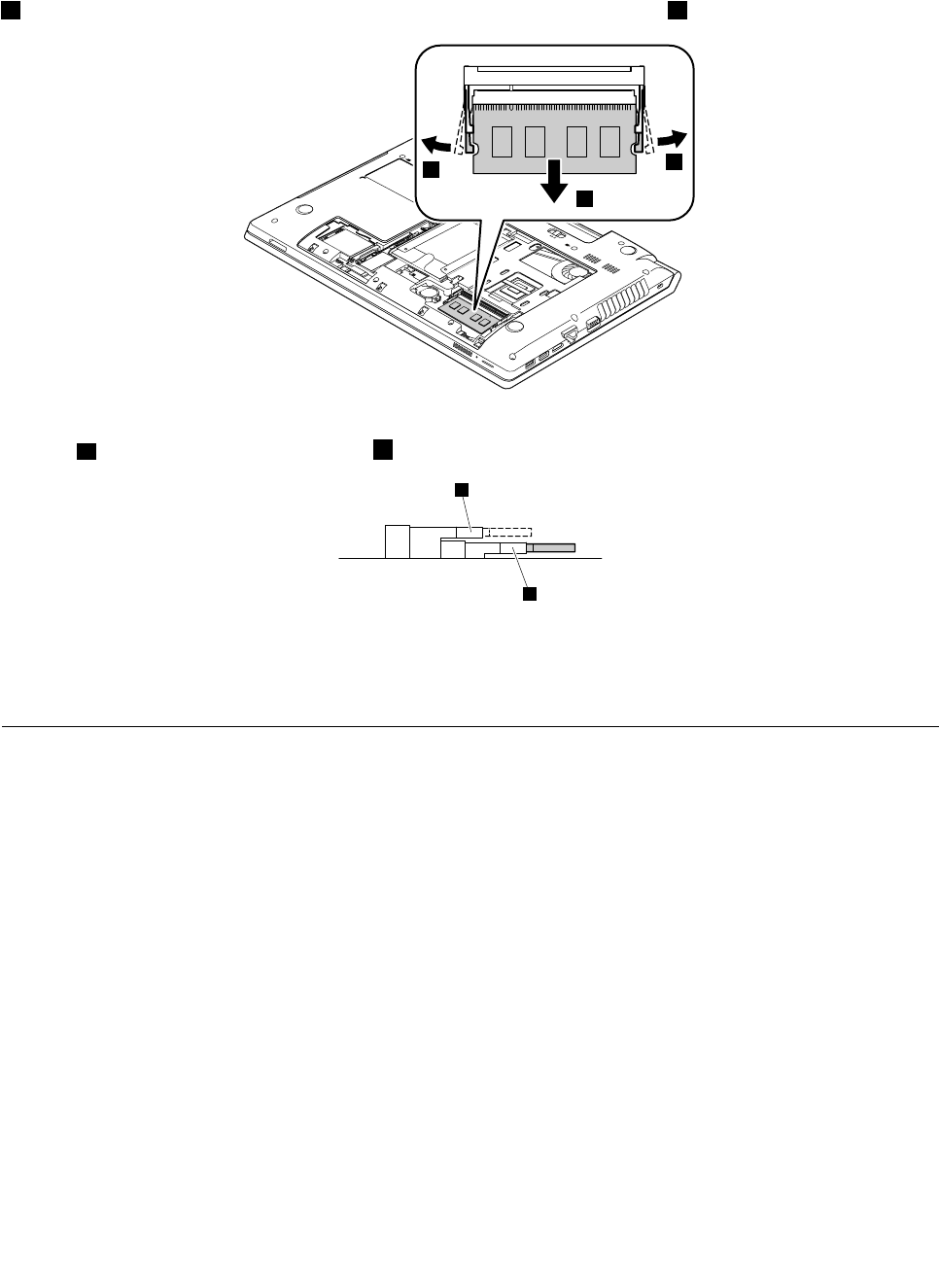
Removalstepsofmemorymodules
Releasethetwolatchesonbothedgesofthesocketatthesametimeinthedirectionshownbythearrows
1,andthenunplugthememorymoduleinthedirectionshownbythearrow2.
1
1
2
Note:Ifonlyonememorymoduleisusedonthecomputeryouareservicing,thecardmustbeinstalledin
SLOT-0(a:lowerslot),butnotinSLOT-1(b:upperslot).
a
b
Wheninstalling:Insertthenotchedendofthememorymoduleintothesocket.Pressthememorymodule
rmly,andpivotituntilitsnapsintoplace.Makesurethatitisrmlyinstalledintheslotanddoesnot
moveeasily.
1050Harddiskdriveassembly
Foraccess,removetheseFRUsinorder:
•“1010Batterypack”onpage44
•“1020Bottomslotcover”onpage44
Attention:
•Donotdropthedriveorapplyanyphysicalshocktoit.Thedriveissensitivetophysicalshock.Improper
handlingcancausedamageandpermanentlossofdata.
•Beforeremovingthedrive,havetheusermakeabackupcopyofalltheinformationonitifpossible.
•Neverremovethedrivewhilethecomputerisoperatingorisinsuspendmode.
Chapter7.RemovingandreplacingaFRU47
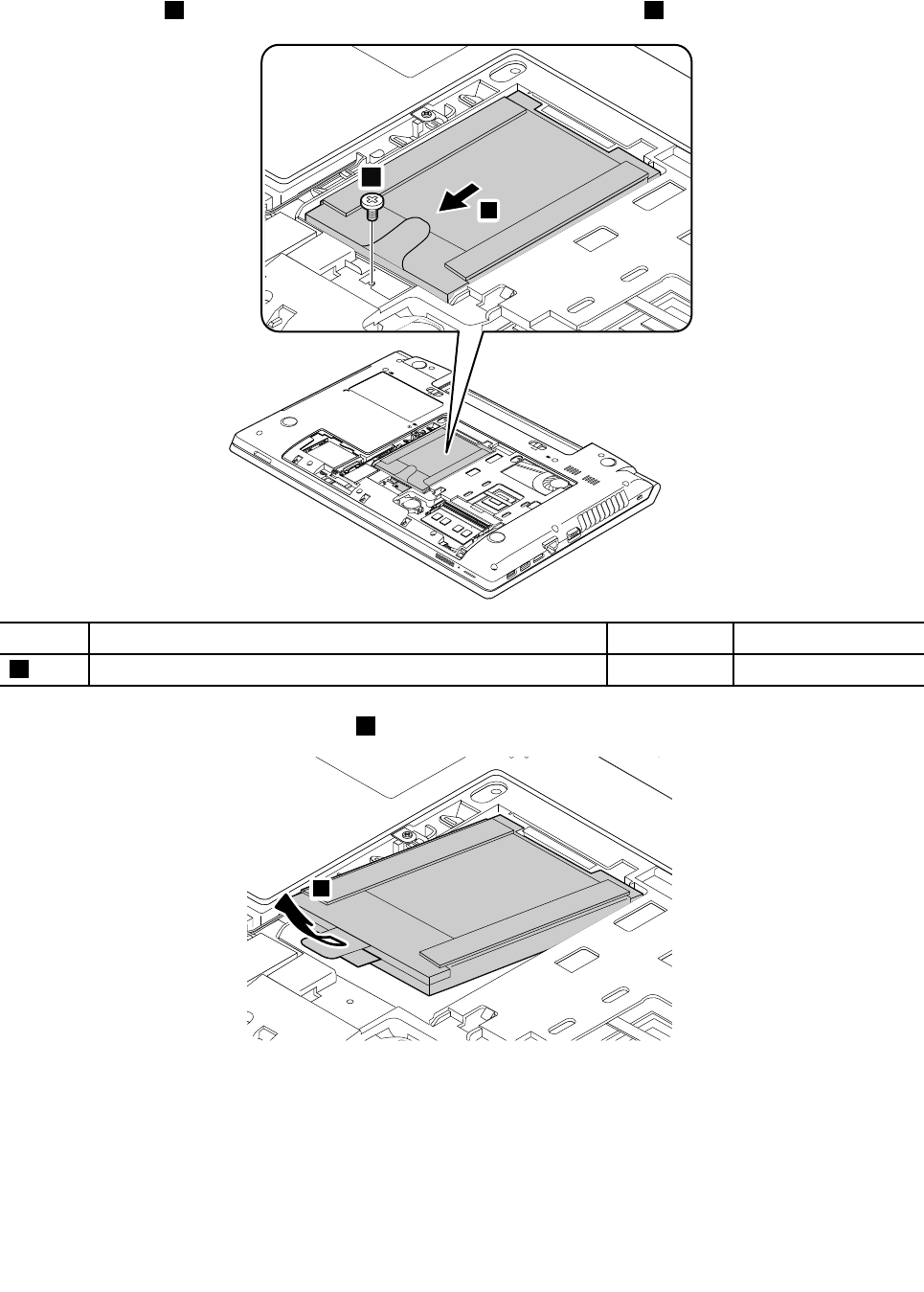
Removalstepsofharddiskdriveassembly
Removethescrew1,thenpullthetabinthedirectionshownbythearrow2.
2
1
StepScrew(quantity)ColorTorque
1M2×3mm,at-head,nylon-coated(1)Black1.85kgf-cm
Removetheharddiskdrivefromtheslot3.
3
Wheninstalling:Ensurethattheharddiskdriveconnectorisattachedrmly.
48HardwareMaintenanceManual
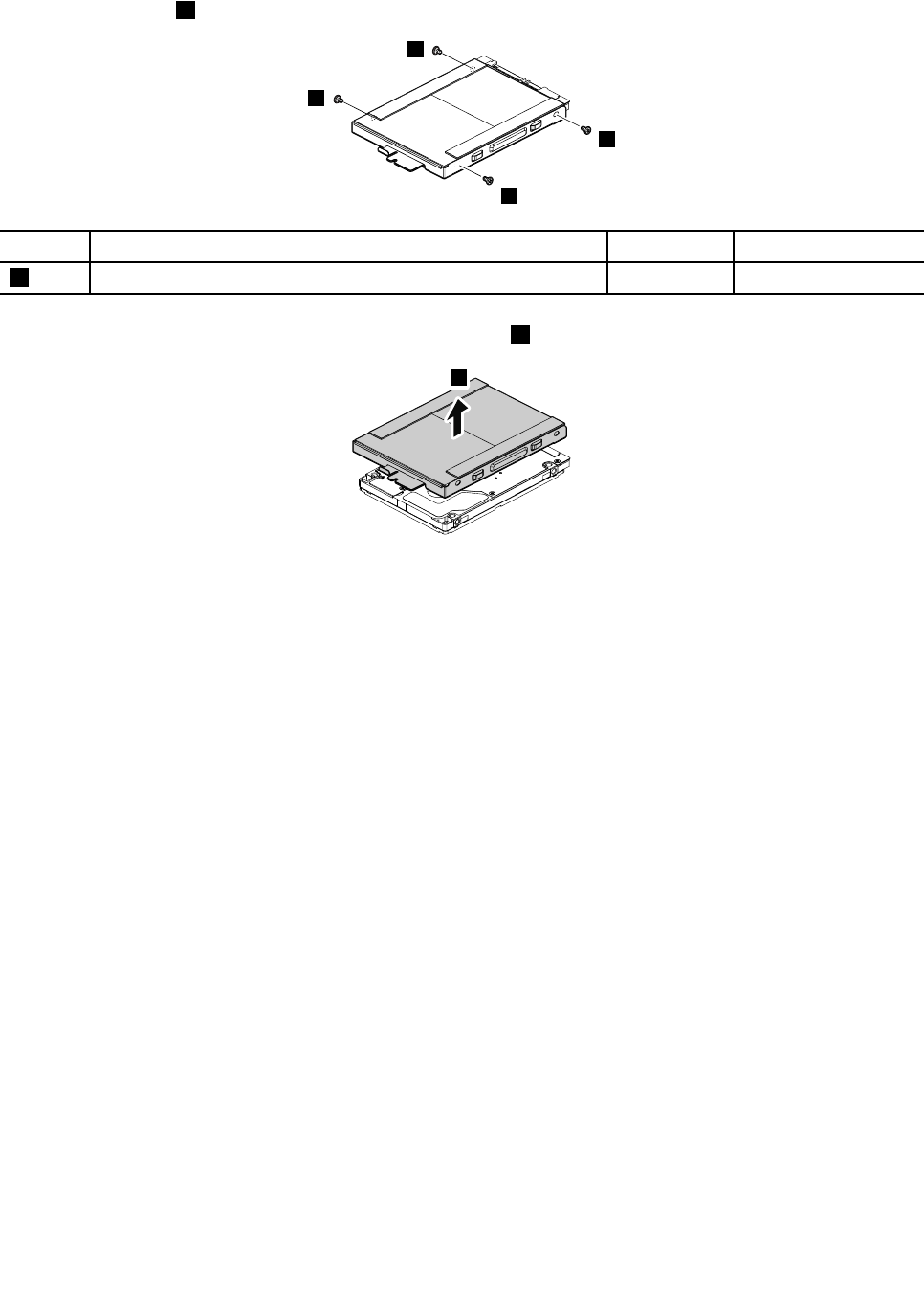
Removalstepsofharddiskdrivebracket
Removethescrews1.
1
1
1
1
StepScrew(quantity)ColorTorque
1M3×4mm,at-head,nylon-coated(4)Silver4kgf-cm
Removetheharddiskdrivebracketasshownbythearrow2.
2
1060PCIExpressMiniCardforwirelessLAN
Foraccess,removetheseFRUsinorder:
•“1010Batterypack”onpage44
•“1020Bottomslotcover”onpage44
Chapter7.RemovingandreplacingaFRU49
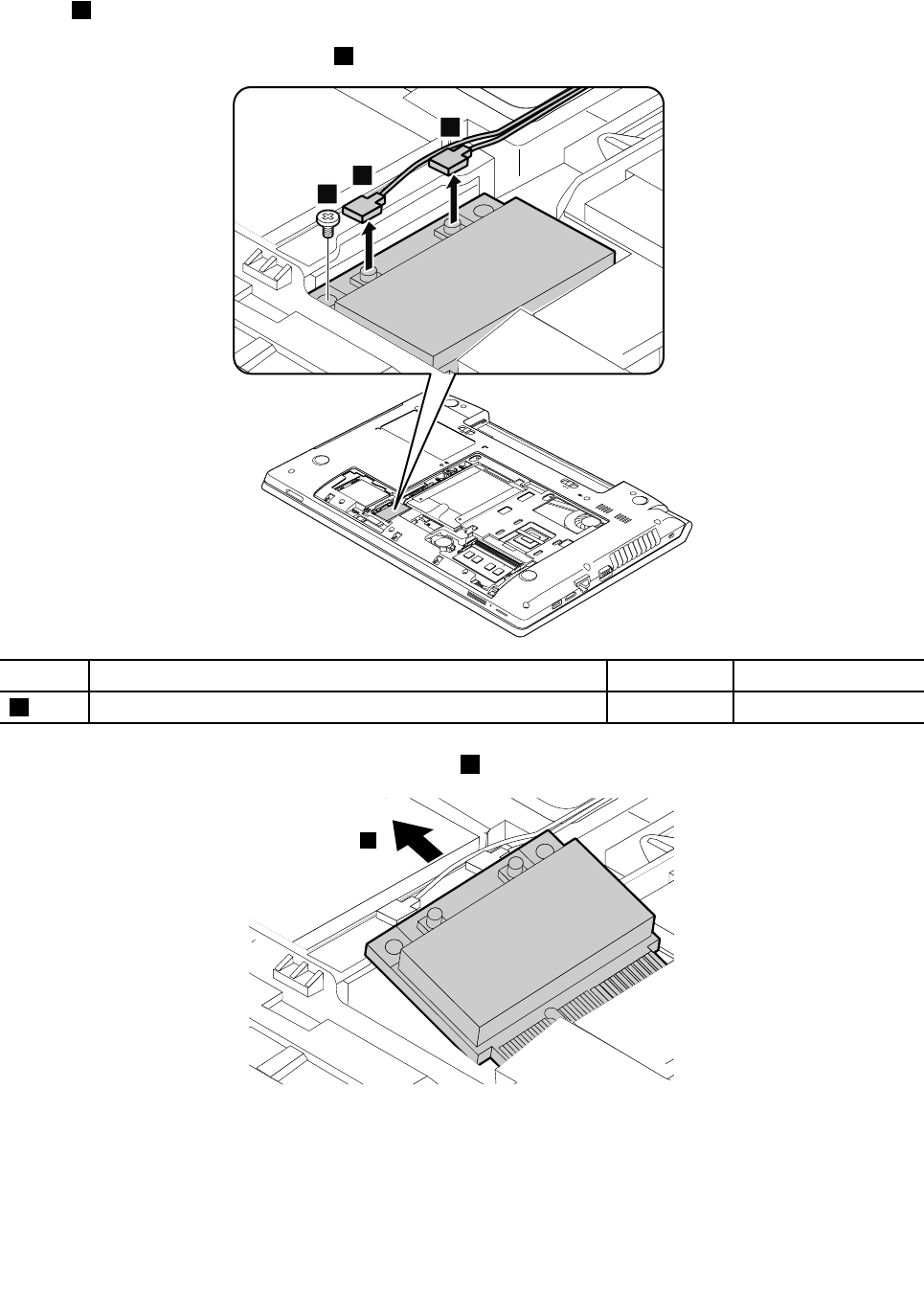
RemovalstepsofPCIExpressMiniCardforwirelessLAN
Insteps1,disconnectthecablesfromthecardusingtheremovaltoolantennaRFconnector(P/N:08K7159)
orpickupthecableswithyourngersandthengentlydisconnectingthecablefromthecardinthedirection
ofthearrows.Thenremovethescrew2.
2
1
1
StepScrew(quantity)ColorTorque
2M2×3mm,at-head,nylon-coated(1)Black1.85kgf-cm
Removethecardinthedirectionshownbythearrow3.
3
Wheninstalling:Plugtheblackcable(MAIN)intothejacklabeledM,andthewhitecable(AUX)intothejack
labeledAonthecard.
50HardwareMaintenanceManual
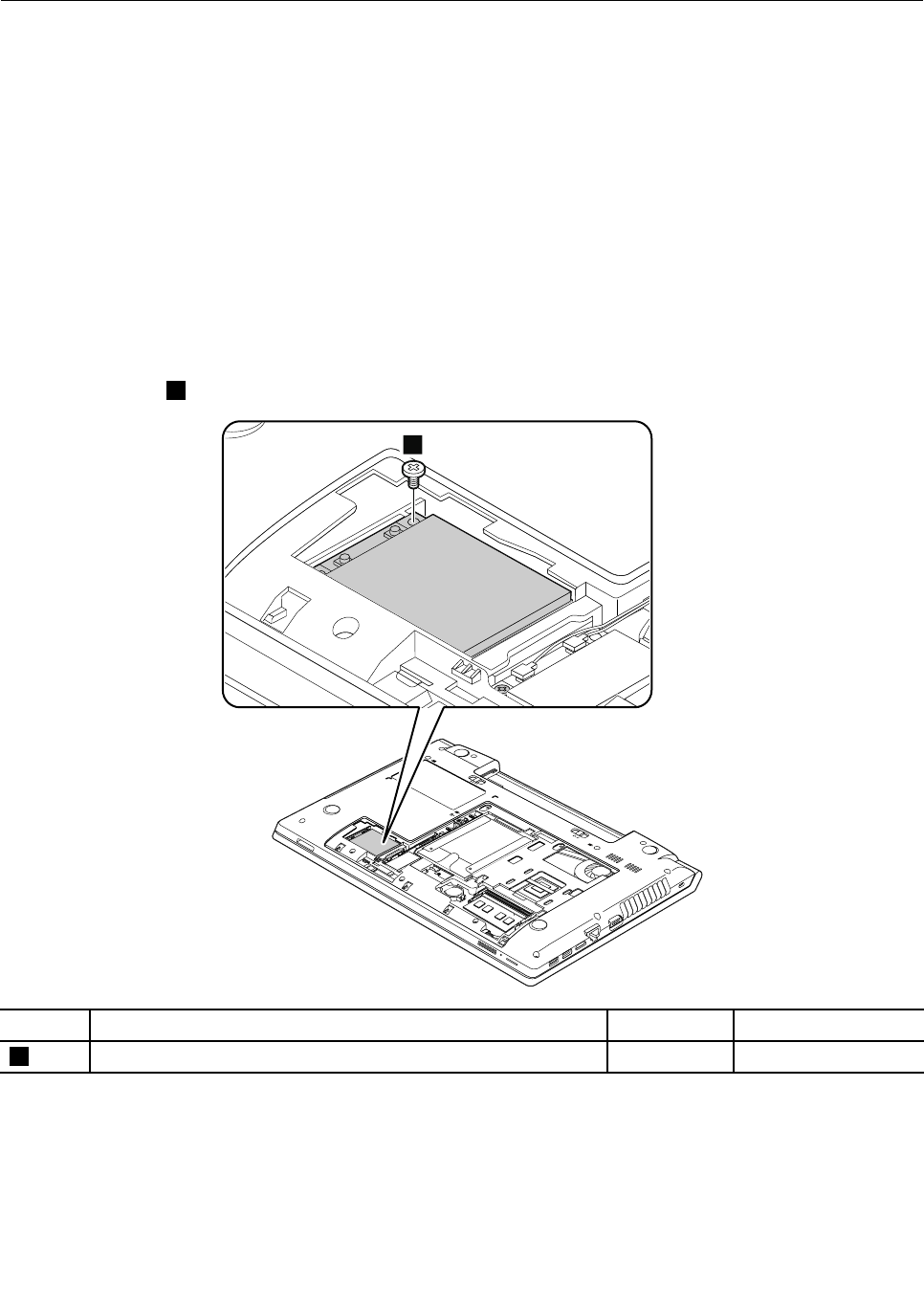
1070mSATAsolidstatedrive
Foraccess,removetheseFRUsinorder:
•“1010Batterypack”onpage44
•“1020Bottomslotcover”onpage44
Attention:
•Donotdropthedriveorapplyanyphysicalshocktoit.Thedriveissensitivetophysicalshock.Improper
handlingcancausedamageandpermanentlossofdata.
•Beforeremovingthedrive,havetheusermakeabackupcopyofalltheinformationonitifpossible.
•Neverremovethedrivewhilethecomputerisoperatingorisinsuspendmode.
RemovalstepsofmSATAsolidstatedrive
Removethescrew1.
1
StepScrew(quantity)ColorTorque
1M2×3mm,at-head,nylon-coated(1)Black1.85kgf-cm
Chapter7.RemovingandreplacingaFRU51
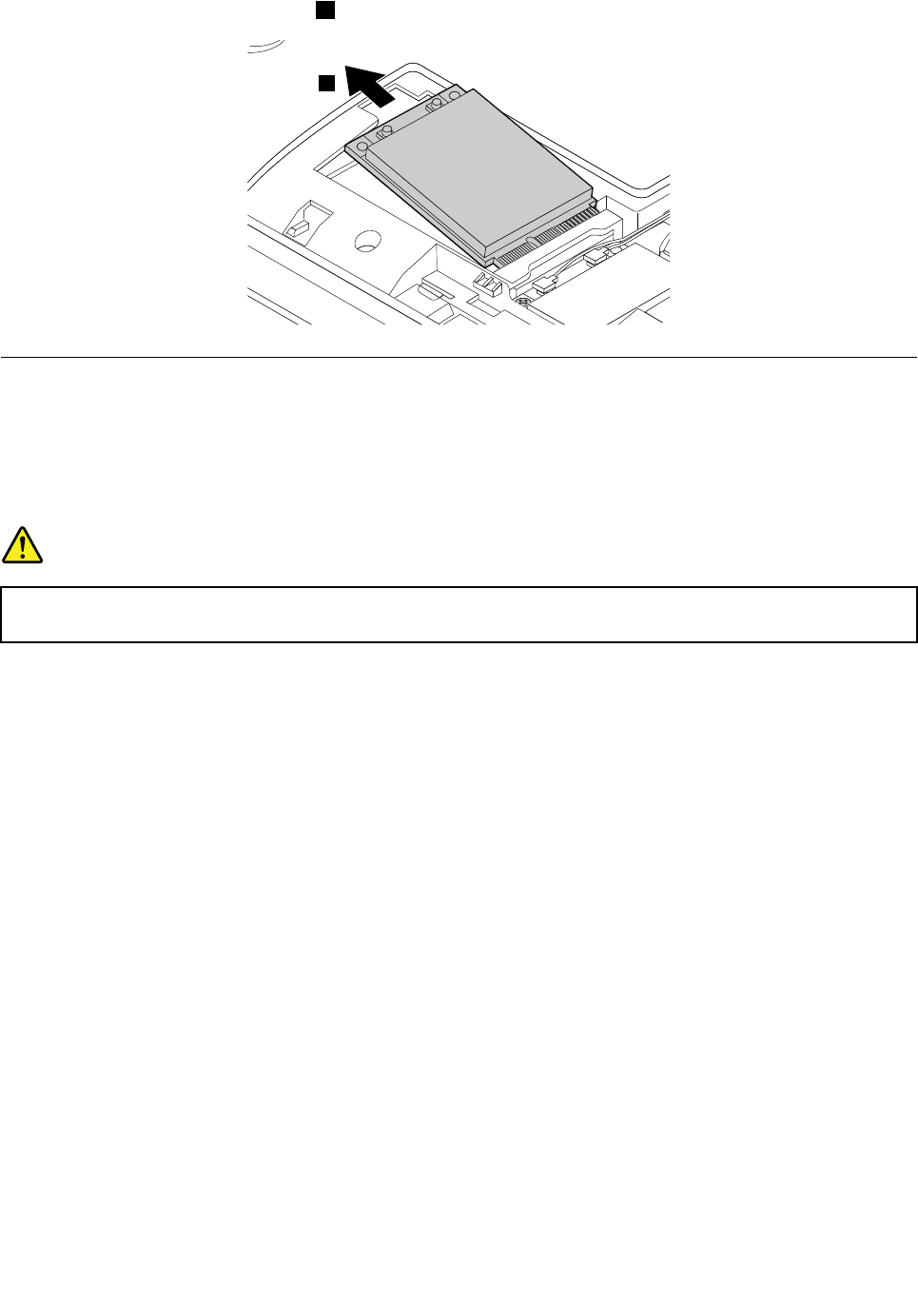
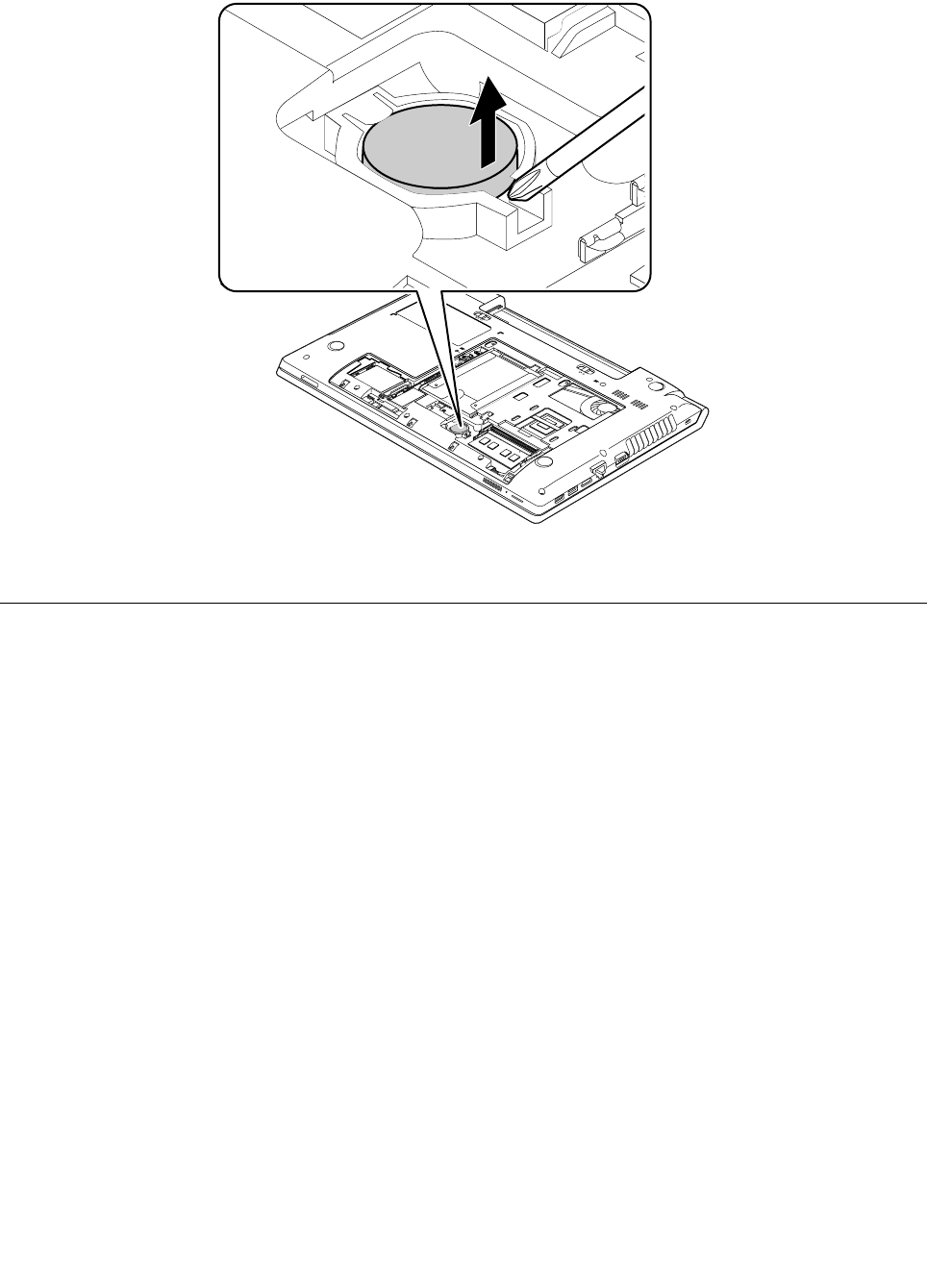
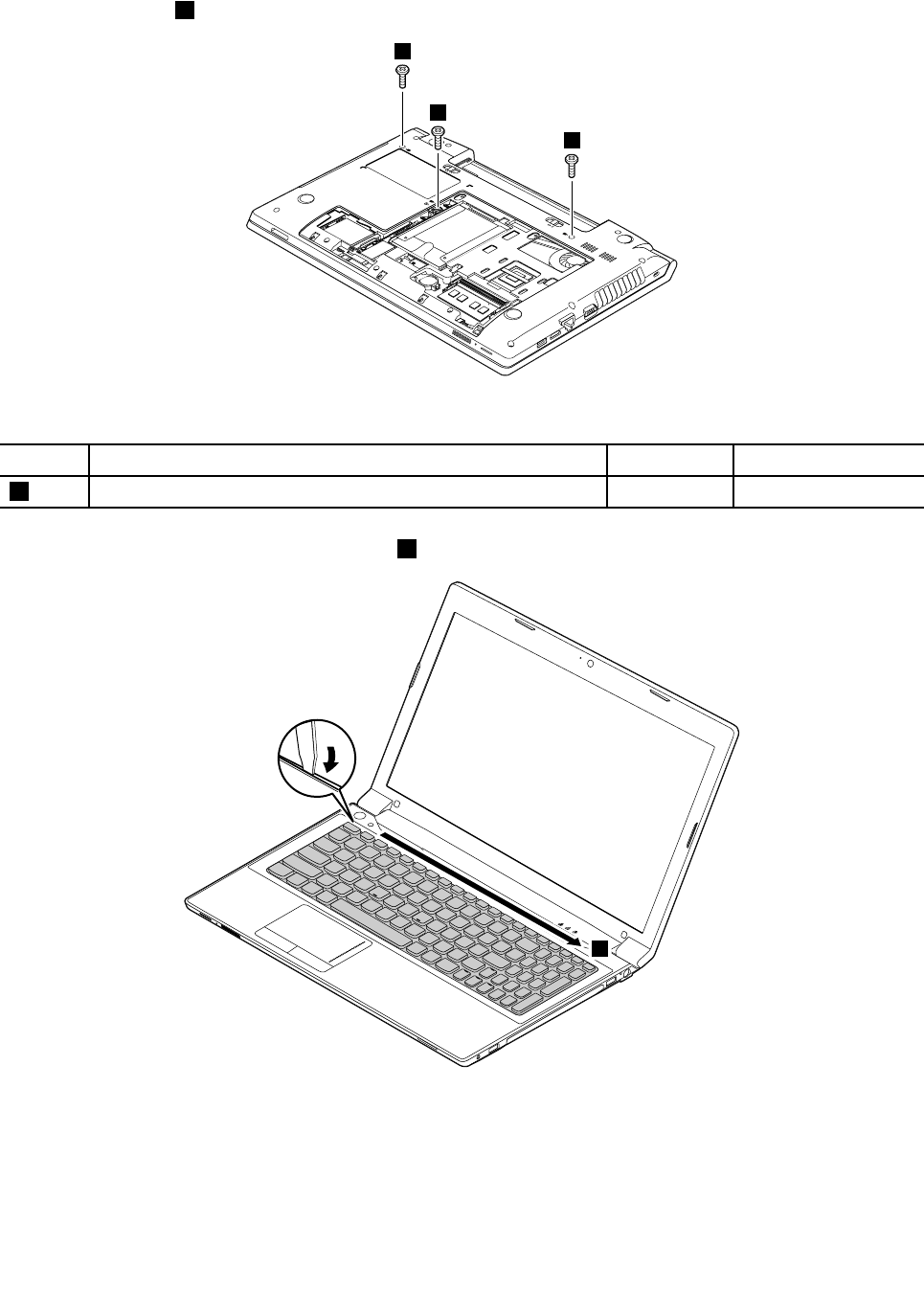
Removalstepsofkeyboard
Removethescrews1.
1
1
1
Wheninstalling:Ensurethatthescrewshavebeenfastenedtosecurethekeyboard.
StepScrew(quantity)ColorTorque
1M2.5×8mm,at-head,nylon-coated(3)Black4.0kgf-cm
Pushhardinthedirectionshownbythearrow2tounlatchthefrontsideofthekeyboard.
2
54HardwareMaintenanceManual
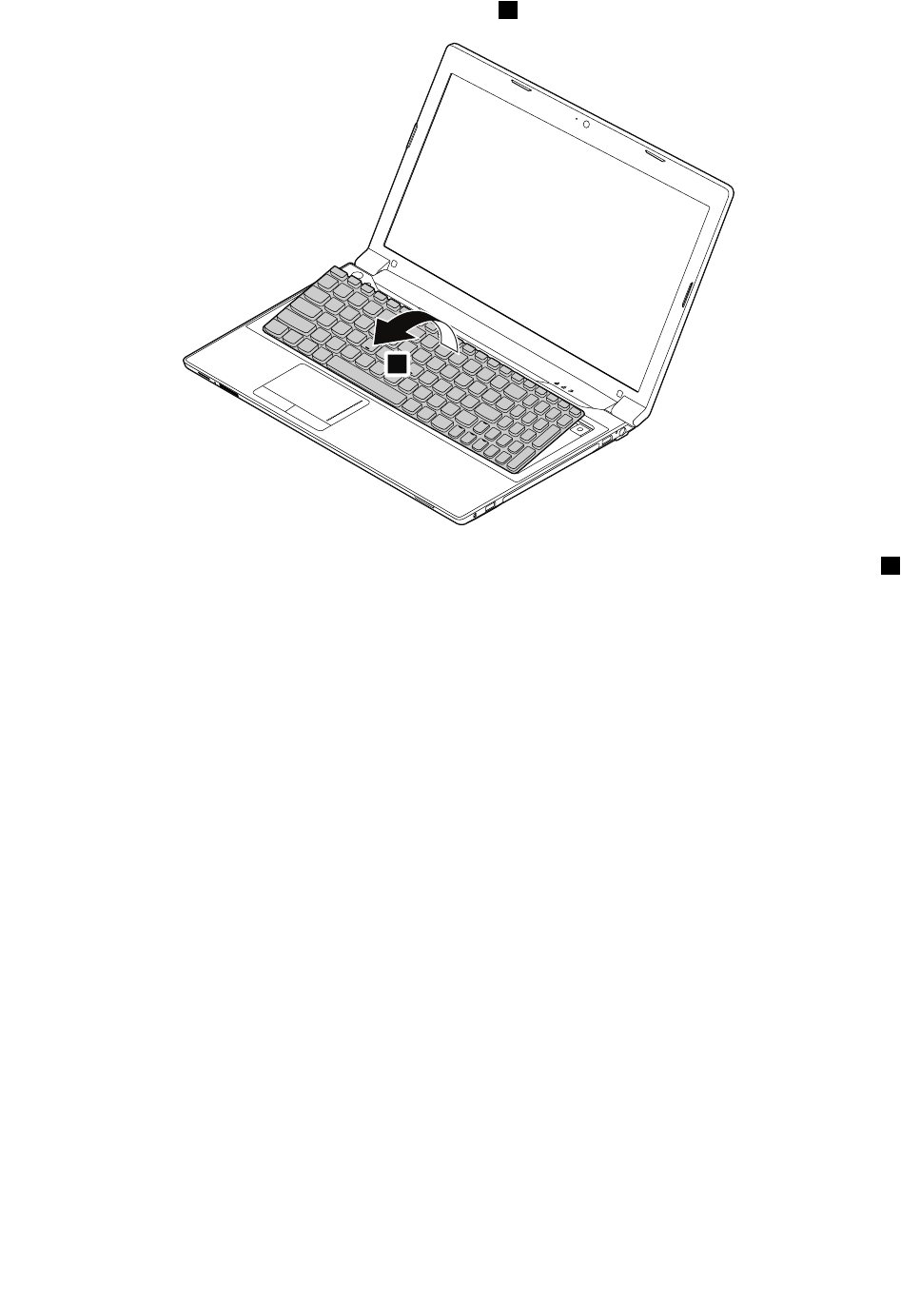
Removethekeyboardinthedirectionshownbythearrow3.
3
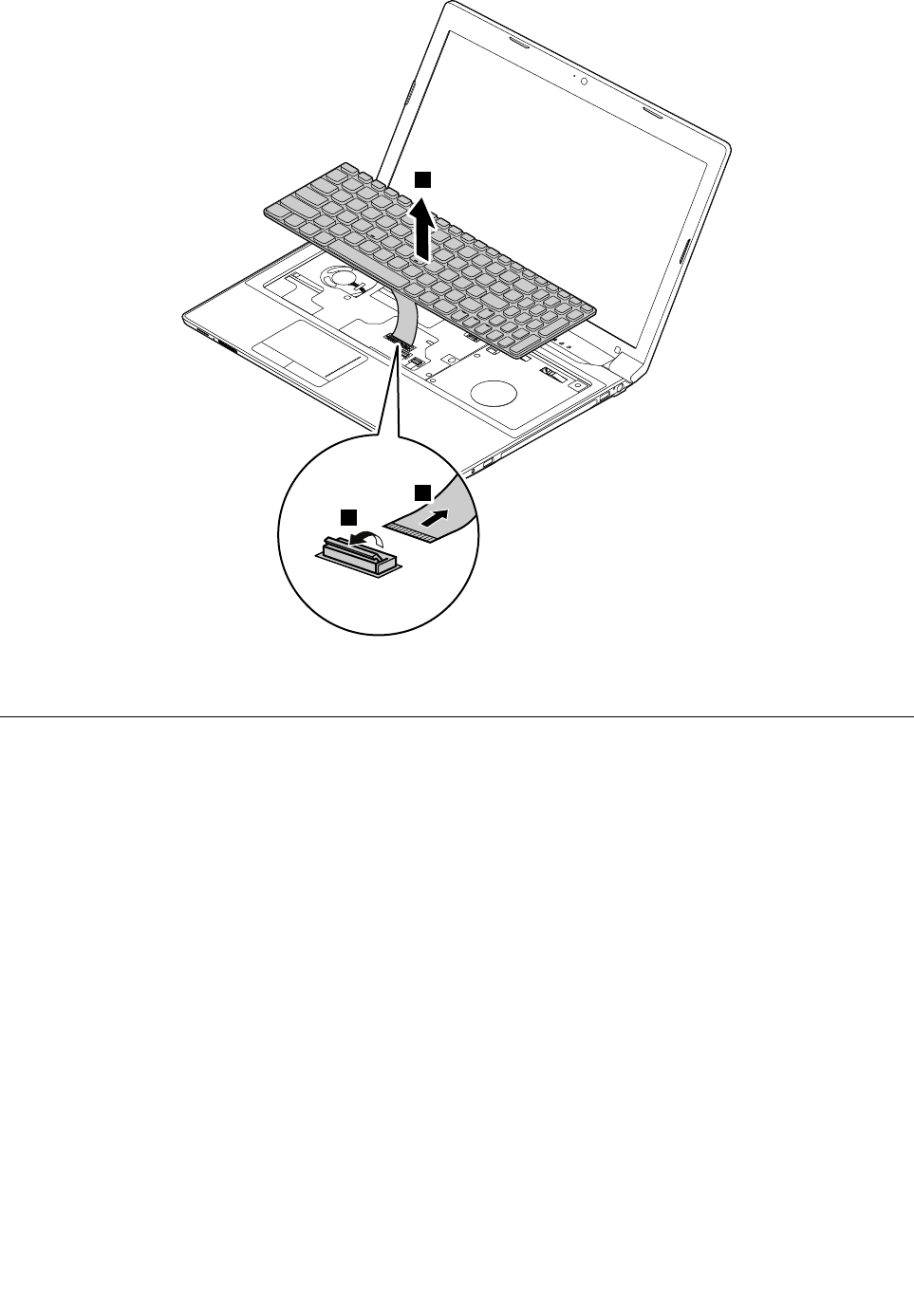
Carefullyliftthekeyboarduntilyoucanseehowit’sconnected.Holdthekeyboardabovethecomputer4,
andthendetachthekeyboardconnector.
Chapter7.RemovingandreplacingaFRU55
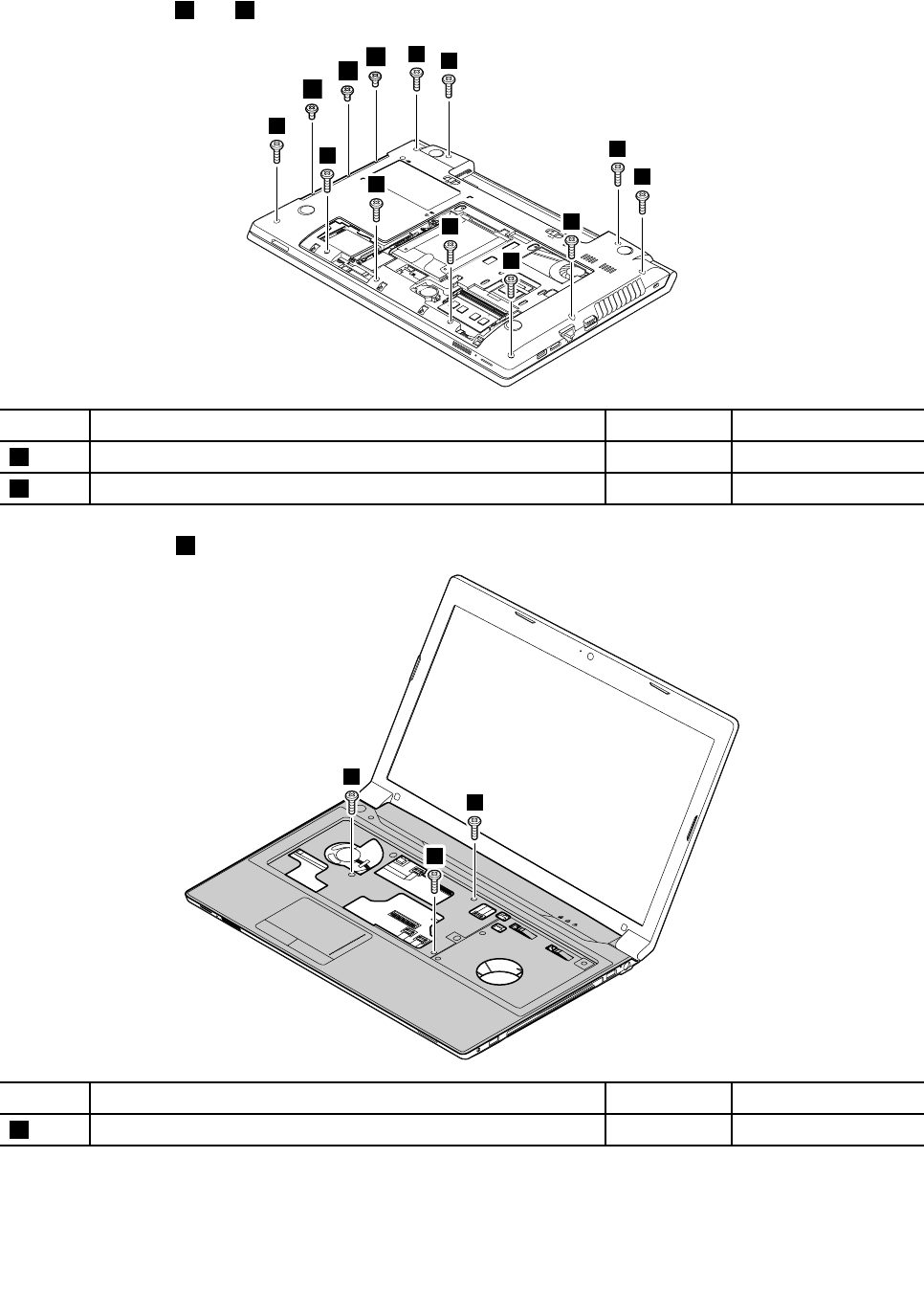
Removalstepsofkeyboardbezel
Removethescrews1and2thatsecurethekeyboardbezel.
1
1
1
1
1
1
1
1
1
1
2
2
2
StepScrew(quantity)ColorTorque
1M2.5×8mm,at-head,nylon-coated(10)Black4.0kgfcm
2M2×3mm,at-head,nylon-coated(3)Black1.85kgf-cm
Removethescrews3.
3
3
3
StepScrew(quantity)ColorTorque
3M2×5mm,at-head,nylon-coated(3)Black1.85kgf-cm
Chapter7.RemovingandreplacingaFRU57
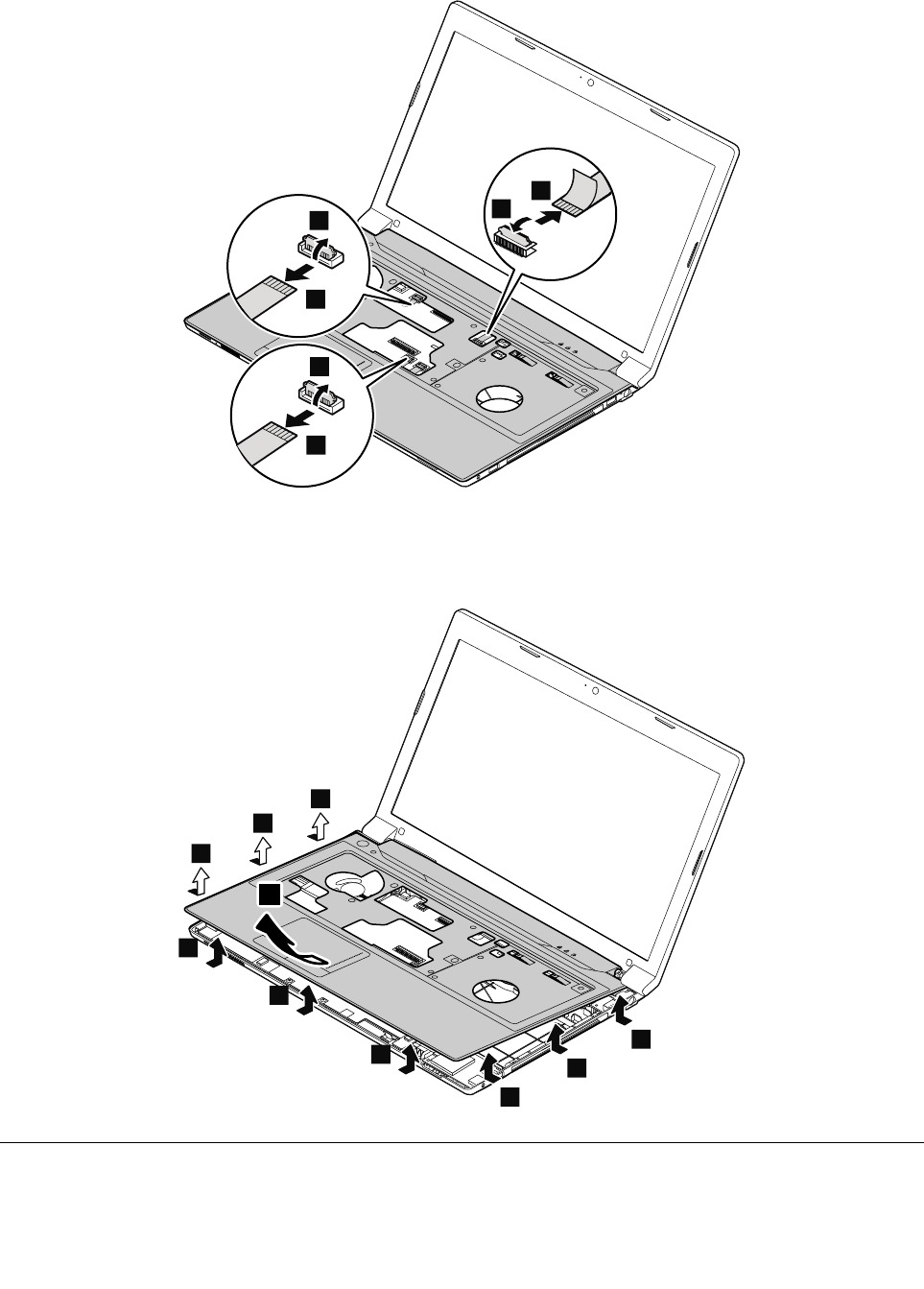
Detachtheconnectors.
7
6
9
8
5
4
Wheninstalling:Ensurethatalltheconnectorsareattachedrmly.
Removethekeyboardbezel.
10
10
10
10
10
10
10
10
10
11
1110LEDboard
Foraccess,removetheseFRUsinorder:
58HardwareMaintenanceManual
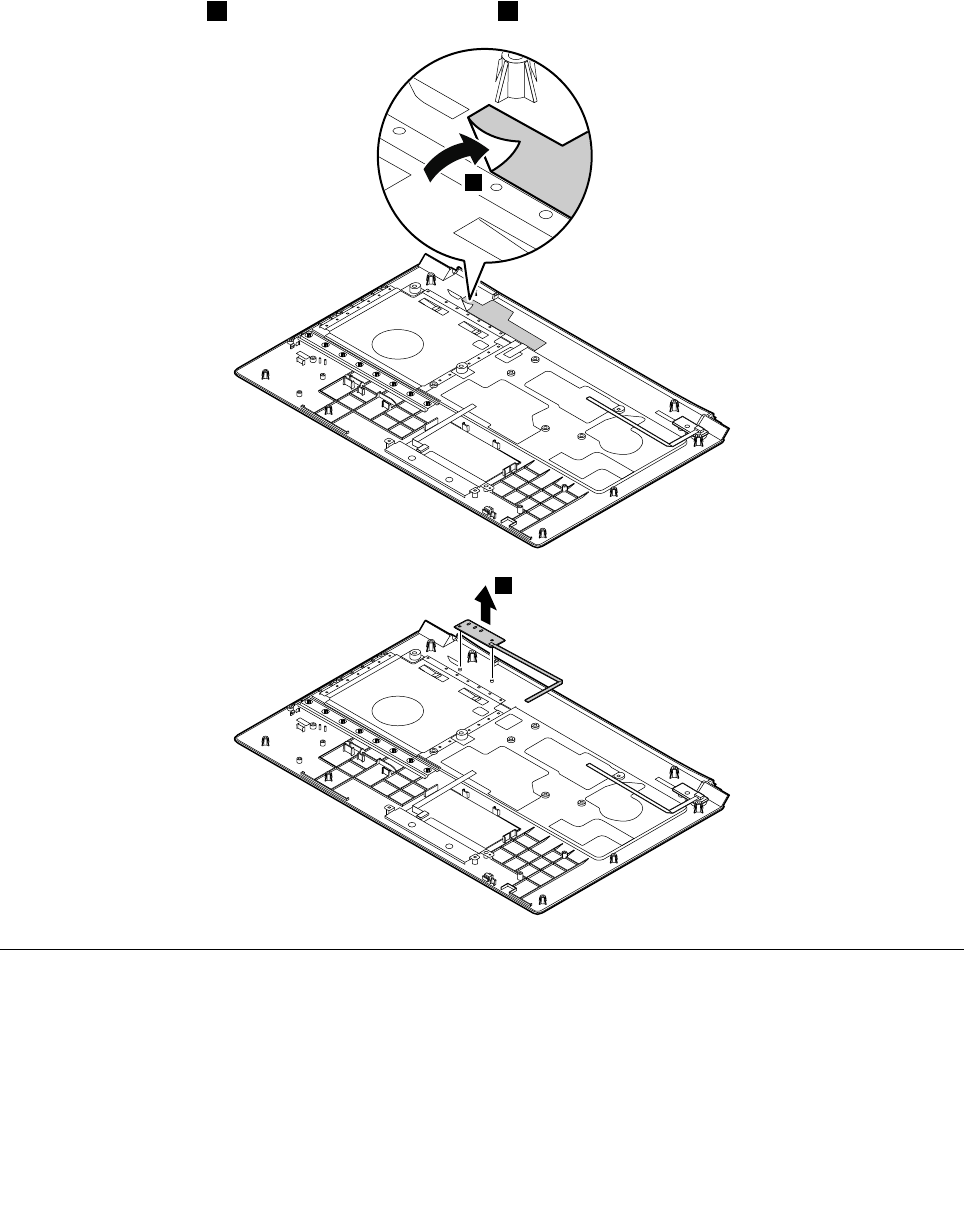
•“1010Batterypack”onpage44
•“1020Bottomslotcover”onpage44
•“1030Opticaldrive”onpage45
•“1090Keyboard”onpage53
•“1100Keyboardbezel”onpage56
RemovalstepsofLEDboard
Peeloffthemylartape1.ThenremovetheLEDboard2.
1
2
1120Powerboardandtouchpadbracket
Foraccess,removetheseFRUsinorder:
•“1010Batterypack”onpage44
•“1020Bottomslotcover”onpage44
•“1030Opticaldrive”onpage45
•“1090Keyboard”onpage53
•“1100Keyboardbezel”onpage56
Chapter7.RemovingandreplacingaFRU59
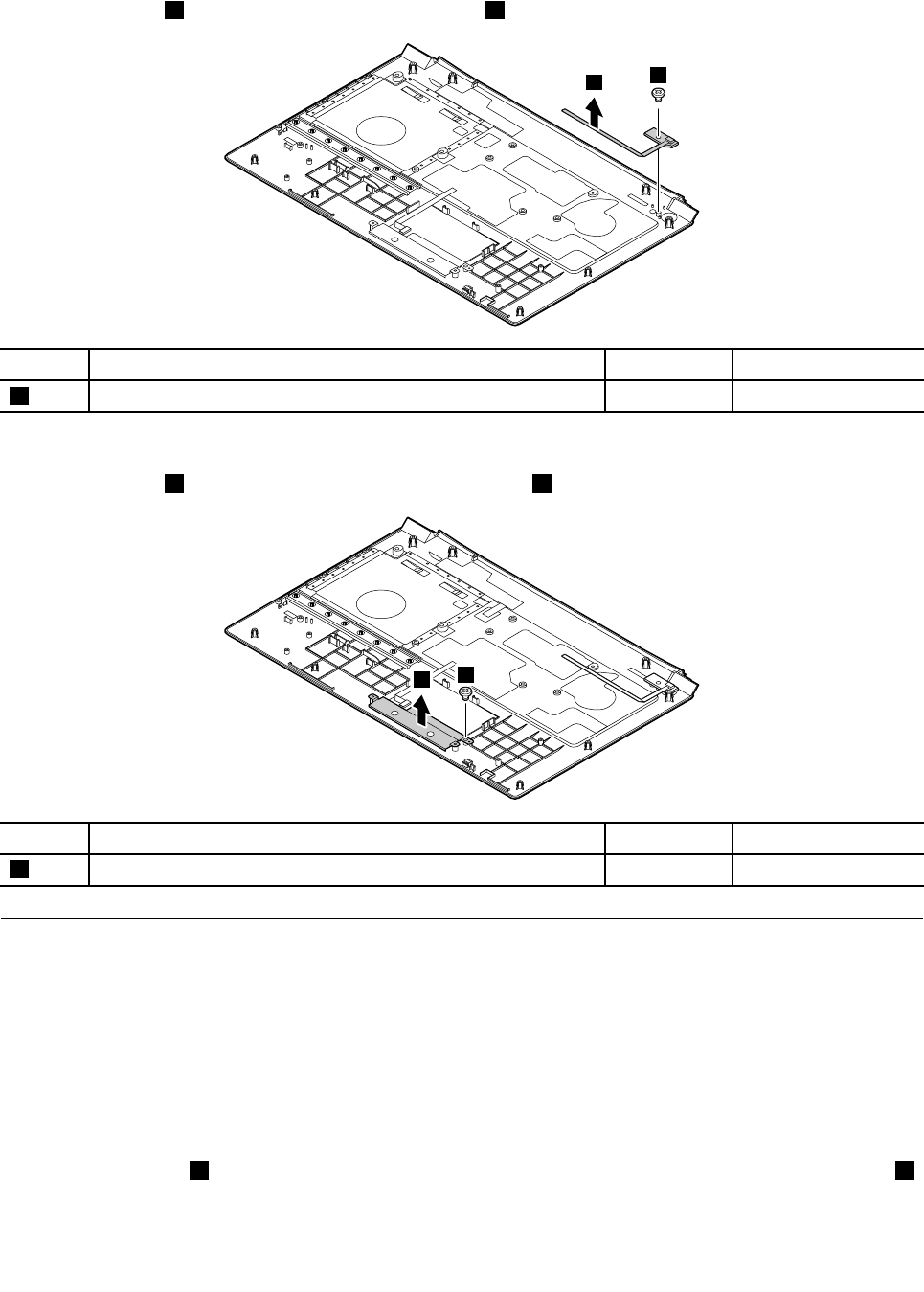
Removalstepsofpowerboard
Removethescrew1andthenremovethepowerboard2.
21
StepScrew(quantity)ColorTorque
1M2×3mm,at-head,nylon-coated(1)Black1.85kgf-cm
Removalstepsoftouchpadbracket
Removethescrew1andthenremovethetouchpadbracket2.
1
2
StepScrew(quantity)ColorTorque
1M2×3mm,at-head,nylon-coated(1)Black1.85kgf-cm
1130Microphoneassembly
Foraccess,removetheseFRUsinorder:
•“1010Batterypack”onpage44
•“1020Bottomslotcover”onpage44
•“1030Opticaldrive”onpage45
•“1090Keyboard”onpage53
•“1100Keyboardbezel”onpage56
Removalstepsofmicrophoneassembly
Detachtheconnector1,andthenremovethemicrophoneassemblyinthedirectionshownbythearrow2.
60HardwareMaintenanceManual
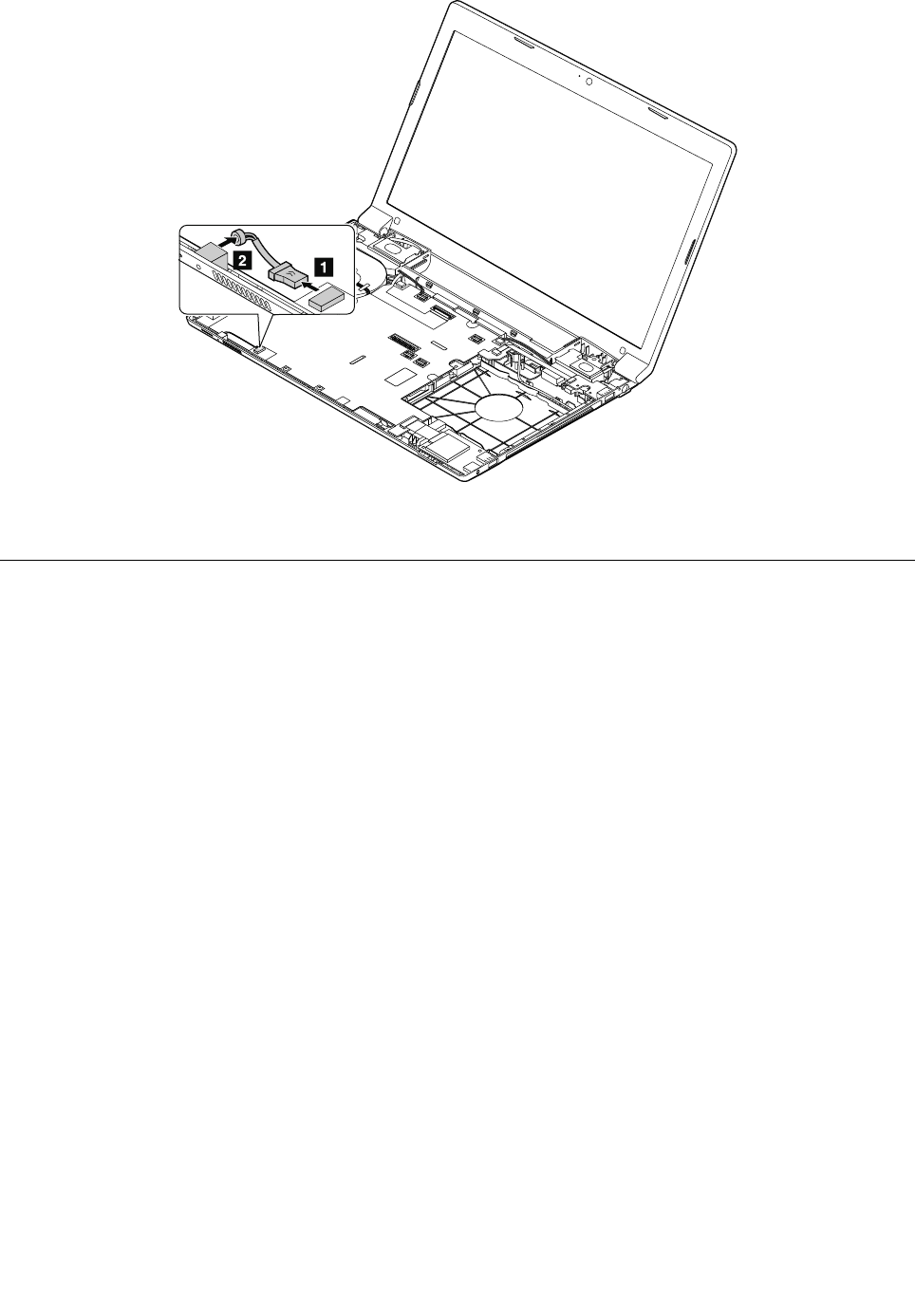
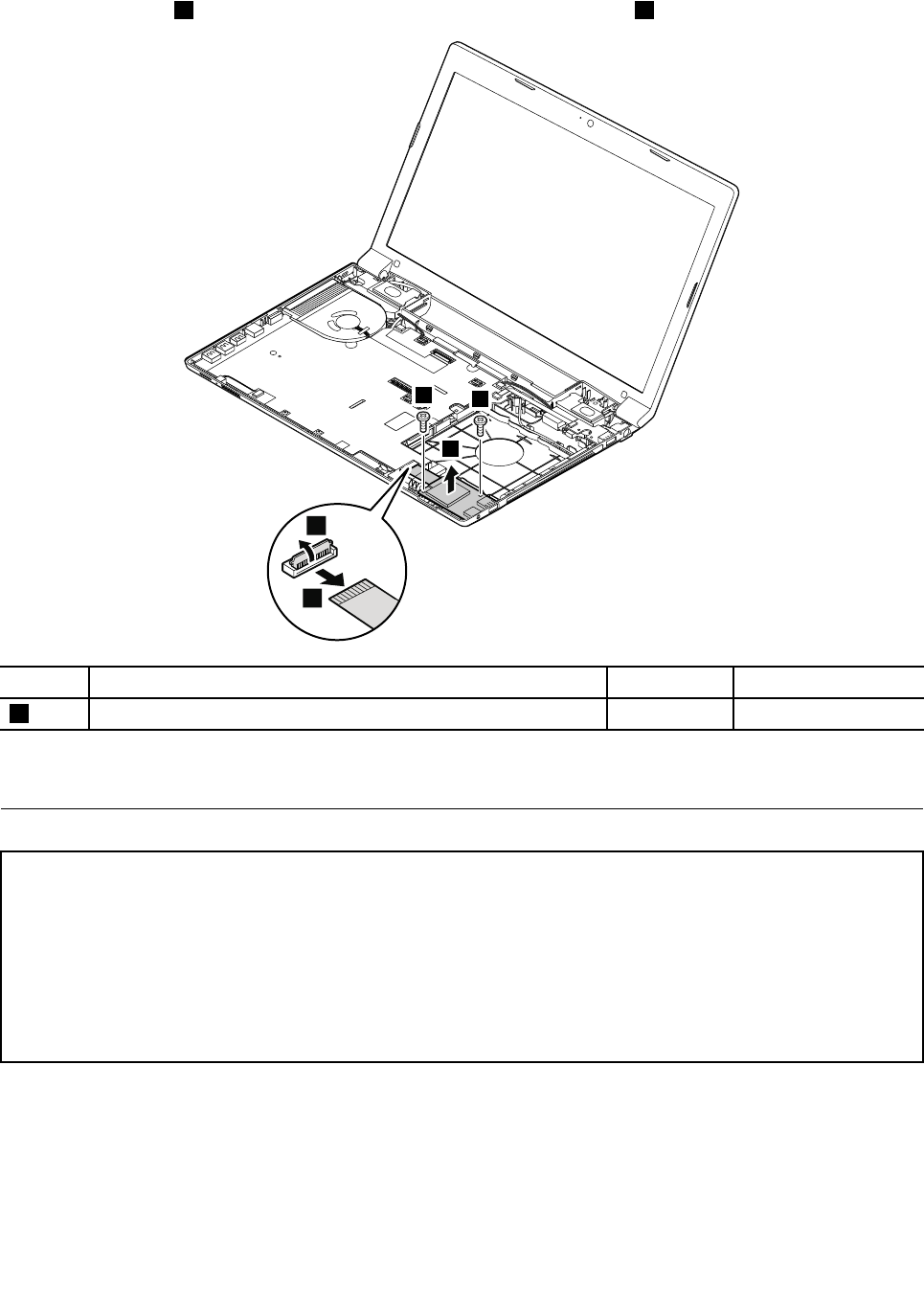
RemovalstepsofI/Oboard
Removethescrews1,andthendetachthecable.RemovetheI/Oboard4.
3
2
11
4
StepScrew(quantity)ColorTorque
1M2×5mm,at-head,nylon-coated(2)Black1.85kgf-cm
Wheninstalling:Ensurethatthecableisattachedrmlytothesystemboard.
1150SystemboardassemblyandUSBboard
Importantnoticesforhandlingthesystemboard:
Whenhandlingthesystemboard,bearthefollowinginmind:
•Becarefulnottodropthesystemboardonabenchtopthathasahardsurface,suchasmetal,wood,orcomposite.
•Avoidroughhandlingofanykind.
•Ateverypointintheprocess,besurenottodroporstackthesystemboard.
•Ifyouputasystemboarddown,besuretoputitonlyonapaddedsurfacesuchasanESDmatoracorrugated
conductivesurface.
62HardwareMaintenanceManual
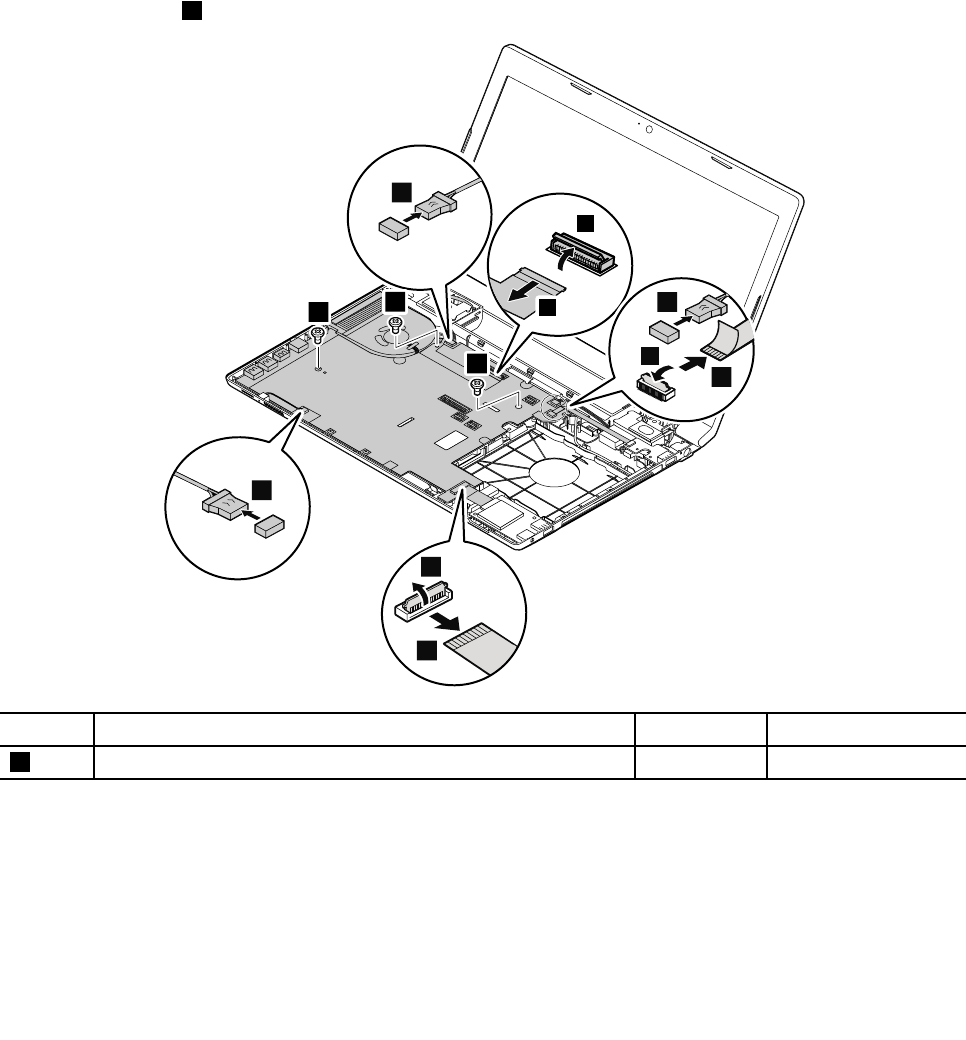
Foraccess,removetheseFRUsinorder:
•“1010Batterypack”onpage44
•“1020Bottomslotcover”onpage44
•“1030Opticaldrive”onpage45
•“1040Memorymodules”onpage46
•“1050Harddiskdriveassembly”onpage47
•“1060PCIExpressMiniCardforwirelessLAN”onpage49
•“1070mSATAsolidstatedrive”onpage51
•“1080Backupbattery”onpage52
•“1090Keyboard”onpage53
•“1100Keyboardbezel”onpage56
•“1130Microphoneassembly”onpage60
Removalstepsofsystemboardassembly
Removethescrews1,andthendetachtheconnectorsasshowninthefollowingillustration.
9
8
10
2
5
7
6
3
4
1
1
1
StepScrew(quantity)ColorTorque
1M2×5mm,at-head,nylon-coated(2)Black1.85kgf-cm
Wheninstalling:Ensurethatalltheconnectorsareattachedrmly.
Chapter7.RemovingandreplacingaFRU63
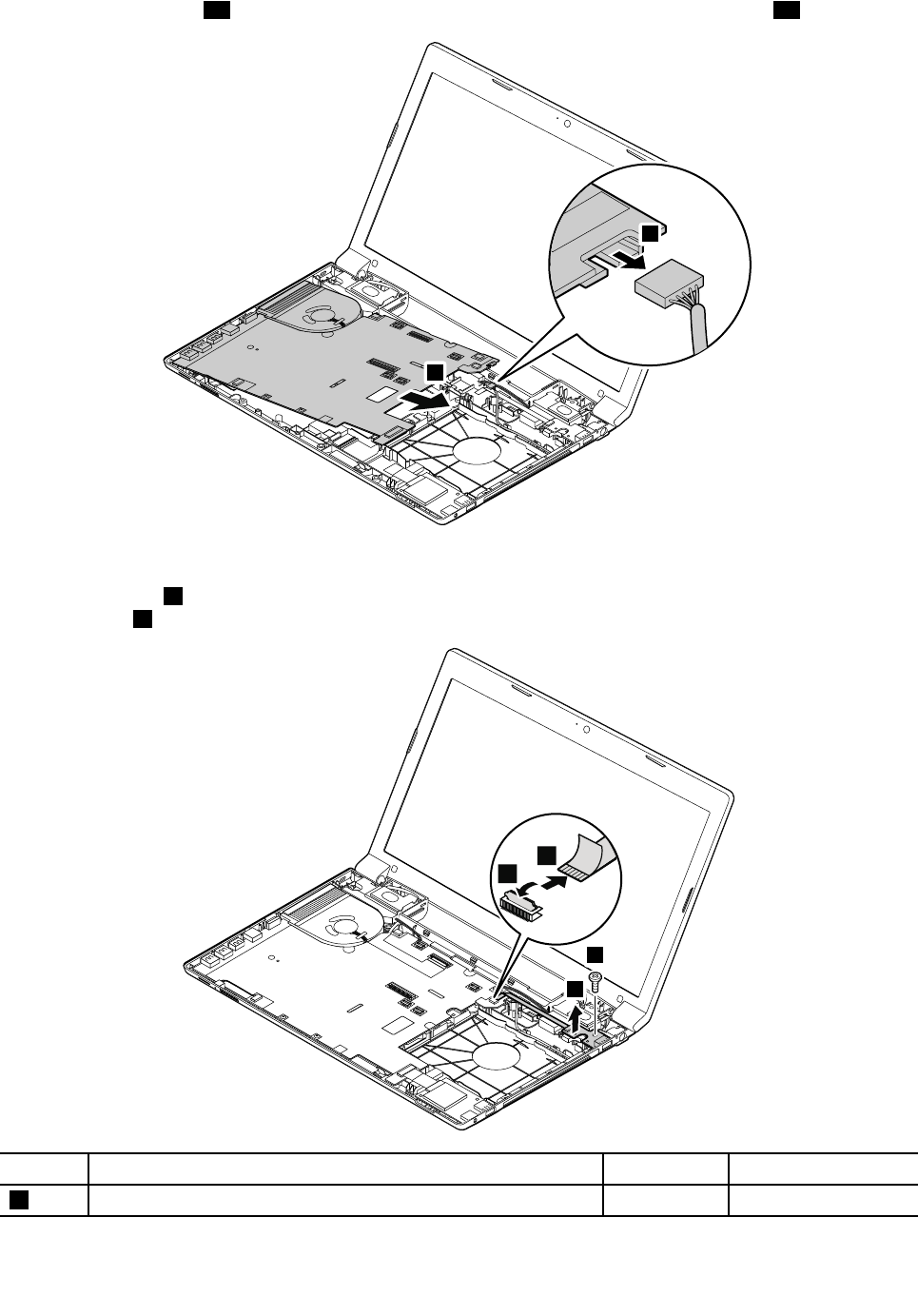
DetachtheDC-incable11.Removethesystemboardinthedirectionshownbythearrow12.
12
11
RemovalstepsofUSBboard
Removethescrew1,andthendetachtheconnectorsasshowninthefollowingillustration.Remove
theUSBboard4.
3
2
1
4
StepScrew(quantity)ColorTorque
1M2×5mm,at-head,nylon-coated(1)Black1.85kgf-cm
Wheninstalling:Ensurethatthecableisattachedrmlytothesystemboard.
64HardwareMaintenanceManual
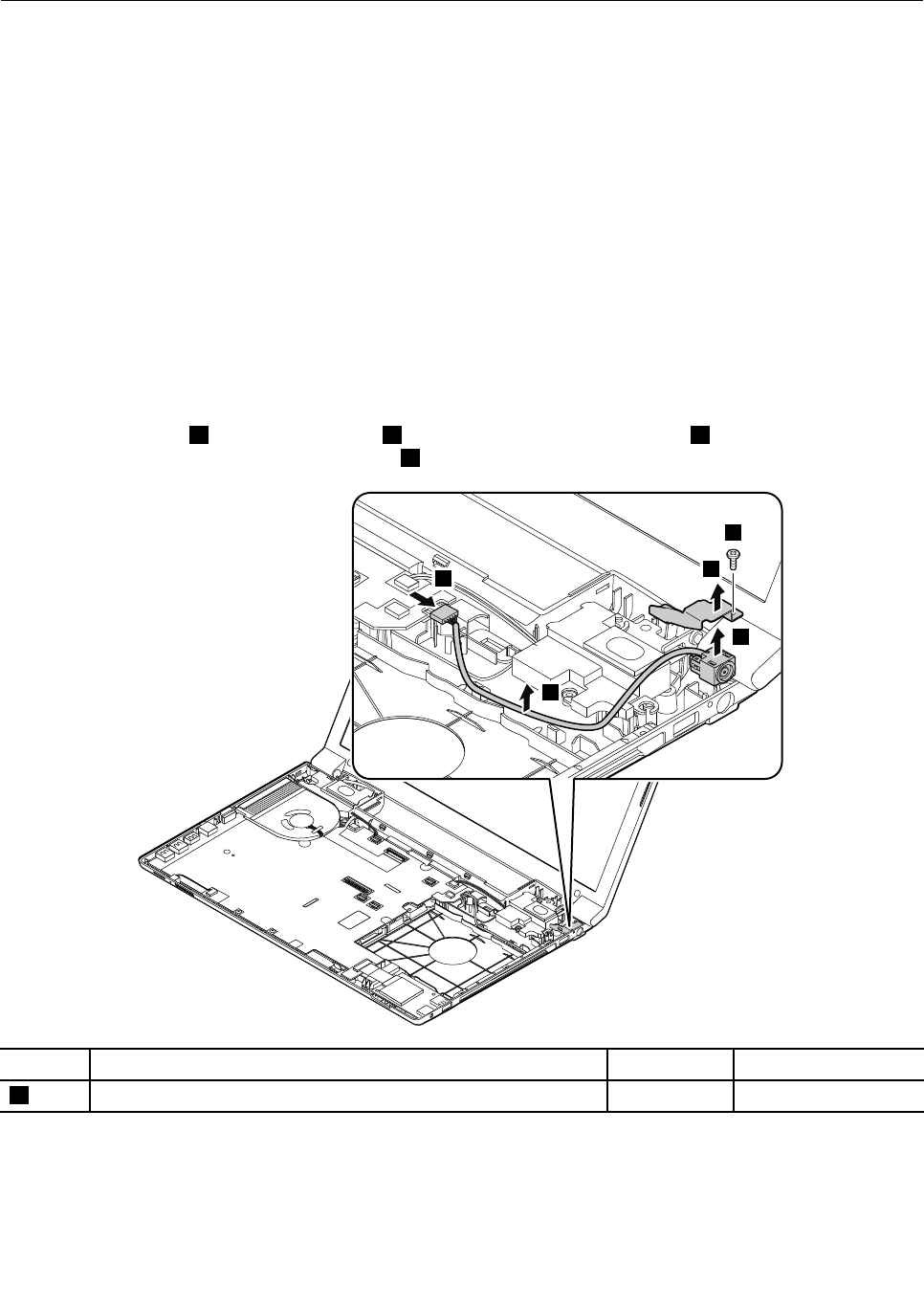
1160DC-inconnector
Foraccess,removetheseFRUsinorder:
•“1010Batterypack”onpage44
•“1020Bottomslotcover”onpage44
•“1030Opticaldrive”onpage45
•“1040Memorymodules”onpage46
•“1050Harddiskdriveassembly”onpage47
•“1060PCIExpressMiniCardforwirelessLAN”onpage49
•“1070mSATAsolidstatedrive”onpage51
•“1080Backupbattery”onpage52
•“1090Keyboard”onpage53
•“1100Keyboardbezel”onpage56
•“1130Microphoneassembly”onpage60
•“1140I/Oboard”onpage61
•“1150SystemboardassemblyandUSBboard”onpage62
RemovalstepsofDC-inconnector
Detachtheconnector1.Removethescrew2andtheDC-inconnectorbracket3.ThenremovetheDC-in
connectorinthedirectionshownbythearrow4.
2
4
4
3
1
StepScrew(quantity)ColorTorque
2M2.5×5mm,at-head,nylon-coated(1)Black4kgf-cm
Wheninstalling:Ensurethatthecableisattachedrmlytothesystemboard.
Chapter7.RemovingandreplacingaFRU65
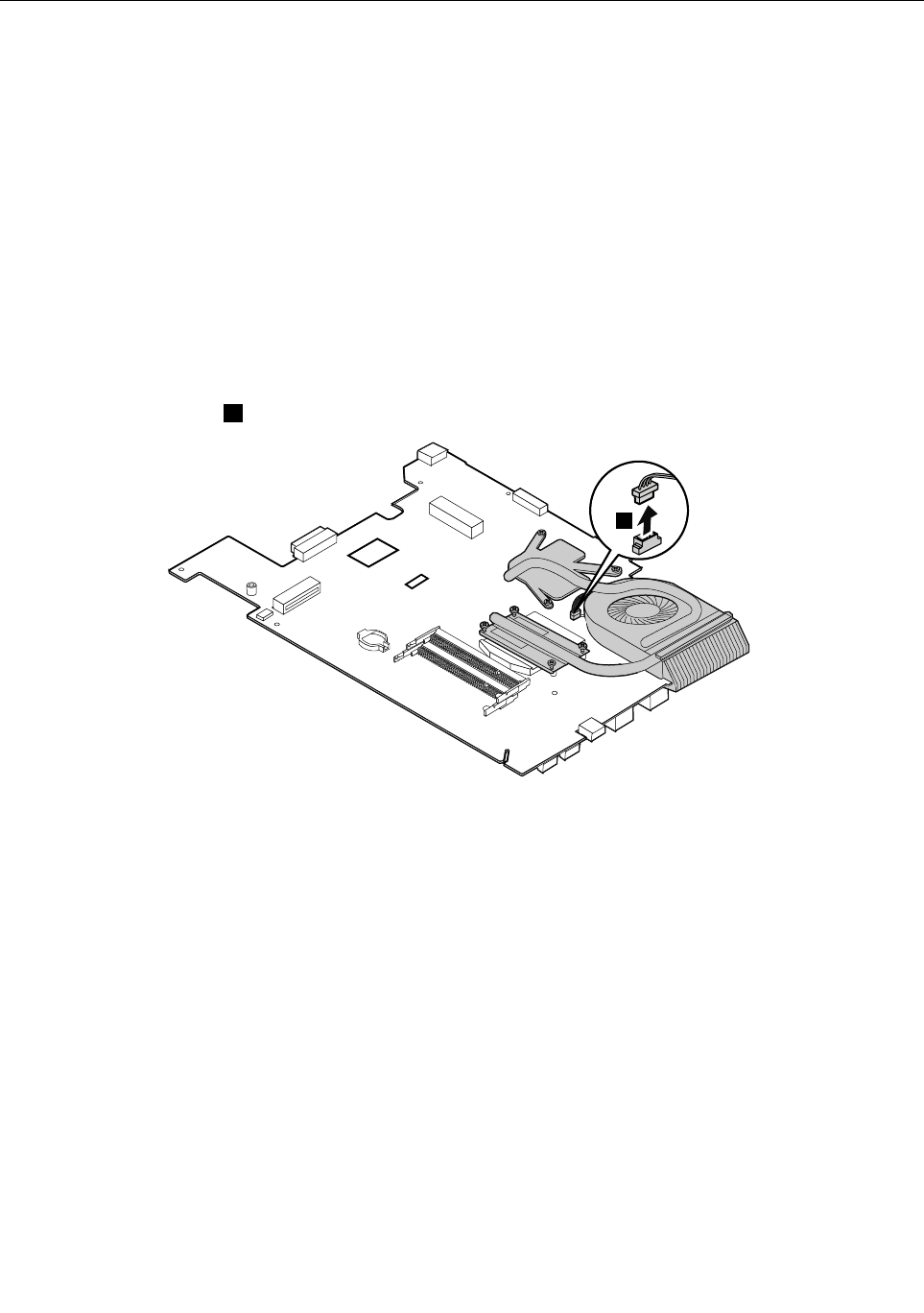
1170Thermalmodule
Foraccess,removetheseFRUsinorder:
•“1010Batterypack”onpage44
•“1020Bottomslotcover”onpage44
•“1030Opticaldrive”onpage45
•“1040Memorymodules”onpage46
•“1050Harddiskdriveassembly”onpage47
•“1060PCIExpressMiniCardforwirelessLAN”onpage49
•“1070mSATAsolidstatedrive”onpage51
•“1080Backupbattery”onpage52
•“1090Keyboard”onpage53
•“1100Keyboardbezel”onpage56
•“1130Microphoneassembly”onpage60
•“1150SystemboardassemblyandUSBboard”onpage62
Removalstepsofthermalmodule
Detachthefanconnector1.
1
Wheninstalling:Ensurethattheconnectorisattachedrmly.
66HardwareMaintenanceManual
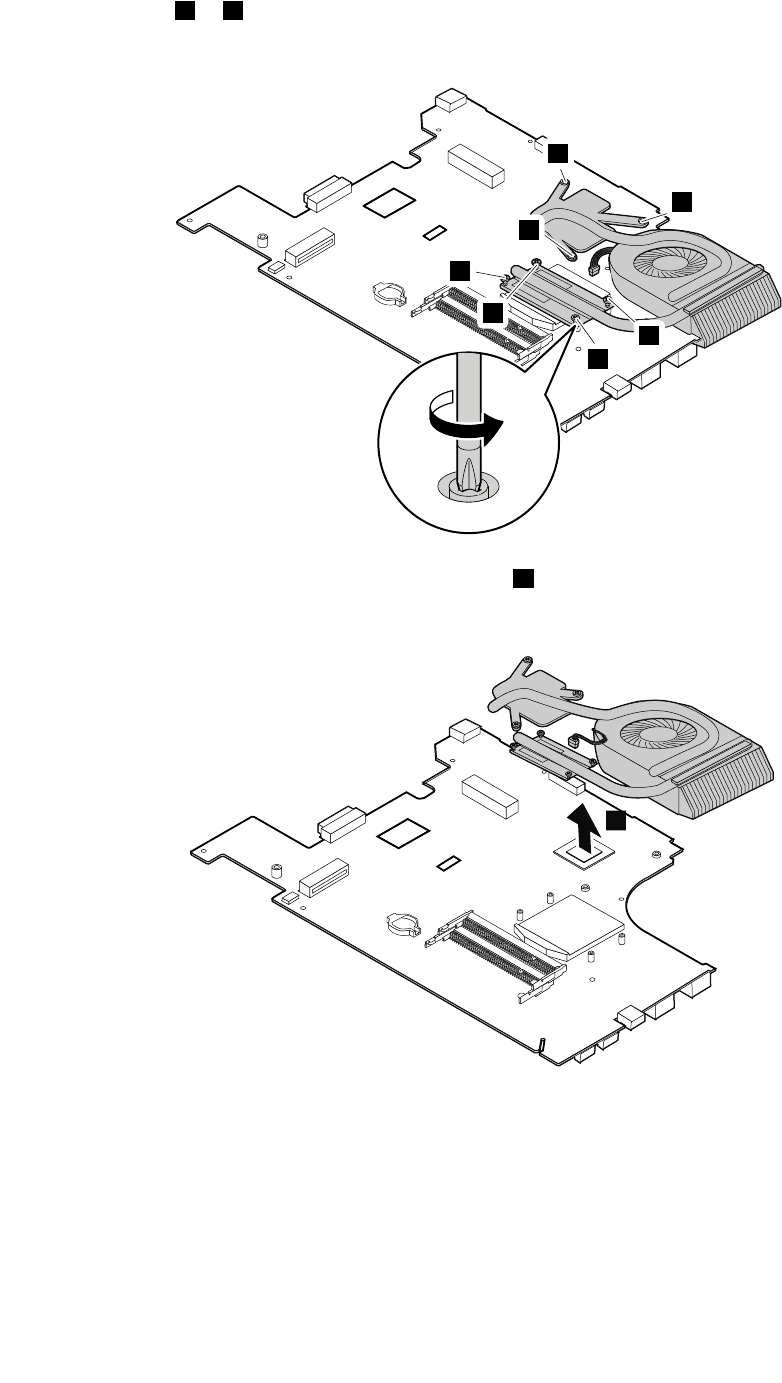
Loosenthescrews2to8.
Note:Differentmodelsmighthavedifferentnumbersofscrews.
2
3
4
5
7
6
8
Liftthefanassemblyinthedirectionshownbythearrow9.
Note:Becarefulnottodamagetheconnector.
9
Chapter7.RemovingandreplacingaFRU67
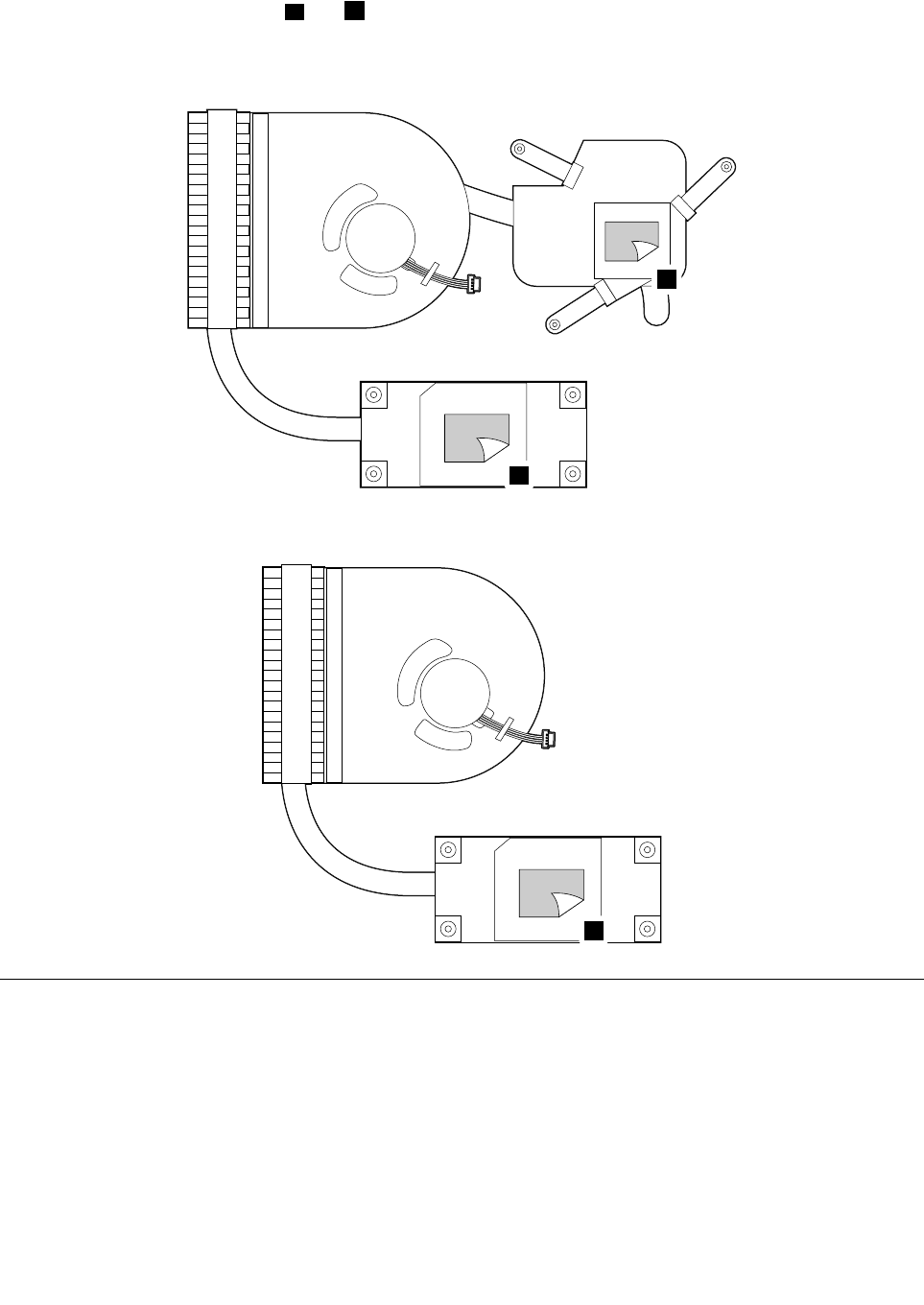
Wheninstalling:Beforeyouattachthethermalmoduletothecomputer,applythermalgrease,atanamount
of0.2grams,onthepartmarkedaandbasshowninthefollowingillustration.Eithertoomuchortooless
applicationofgreasecancauseathermalproblemduetoimperfectcontactwithacomponent.
Formodelswithadiscretethermalmodule
a
b
Formodelswithanintegratedthermalmodule
a
1180CPU
Foraccess,removetheseFRUsinorder:
•“1010Batterypack”onpage44
•“1020Bottomslotcover”onpage44
•“1030Opticaldrive”onpage45
•“1040Memorymodules”onpage46
•“1050Harddiskdriveassembly”onpage47
•“1060PCIExpressMiniCardforwirelessLAN”onpage49
•“1070mSATAsolidstatedrive”onpage51
•“1080Backupbattery”onpage52
68HardwareMaintenanceManual
•“1090Keyboard”onpage53
•“1100Keyboardbezel”onpage56
•“1130Microphoneassembly”onpage60
•“1150SystemboardassemblyandUSBboard”onpage62
•“1170Thermalmodule”onpage66
Attention:TheCPUisextremelysensitive.WhenyouservicetheCPU,avoidanykindofroughhandling.
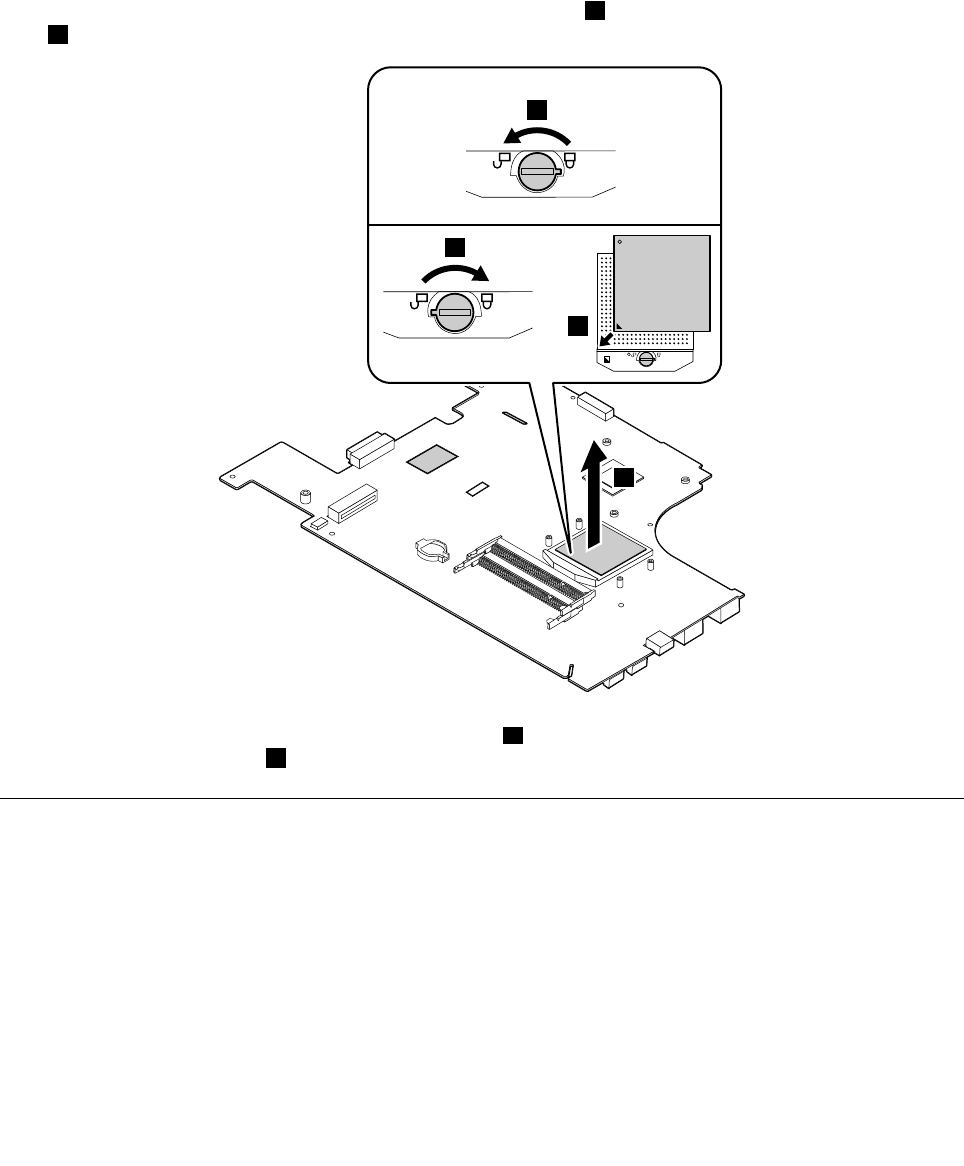
RemovalstepsofCPU
Rotatetheheadofthescrewinthedirectionshownbythearrow1toreleasethelock,thenremovethe
CPU2.
22
a
b
1
Wheninstalling:PlacetheCPUabovetheCPUsocketa,andthenrotatetheheadofthescrewinthe
directionshownbythearrowbtosecuretheCPU.
1190LCDunit
Foraccess,removetheseFRUsinorder:
•“1010Batterypack”onpage44
•“1020Bottomslotcover”onpage44
•“1030Opticaldrive”onpage45
•“1040Memorymodules”onpage46
•“1050Harddiskdriveassembly”onpage47
•“1060PCIExpressMiniCardforwirelessLAN”onpage49
•“1070mSATAsolidstatedrive”onpage51
•“1080Backupbattery”onpage52
•“1090Keyboard”onpage53
Chapter7.RemovingandreplacingaFRU69
•“1100Keyboardbezel”onpage56
•“1130Microphoneassembly”onpage60
•“1140I/Oboard”onpage61
•“1150SystemboardassemblyandUSBboard”onpage62
•“1160DC-inconnector”onpage65
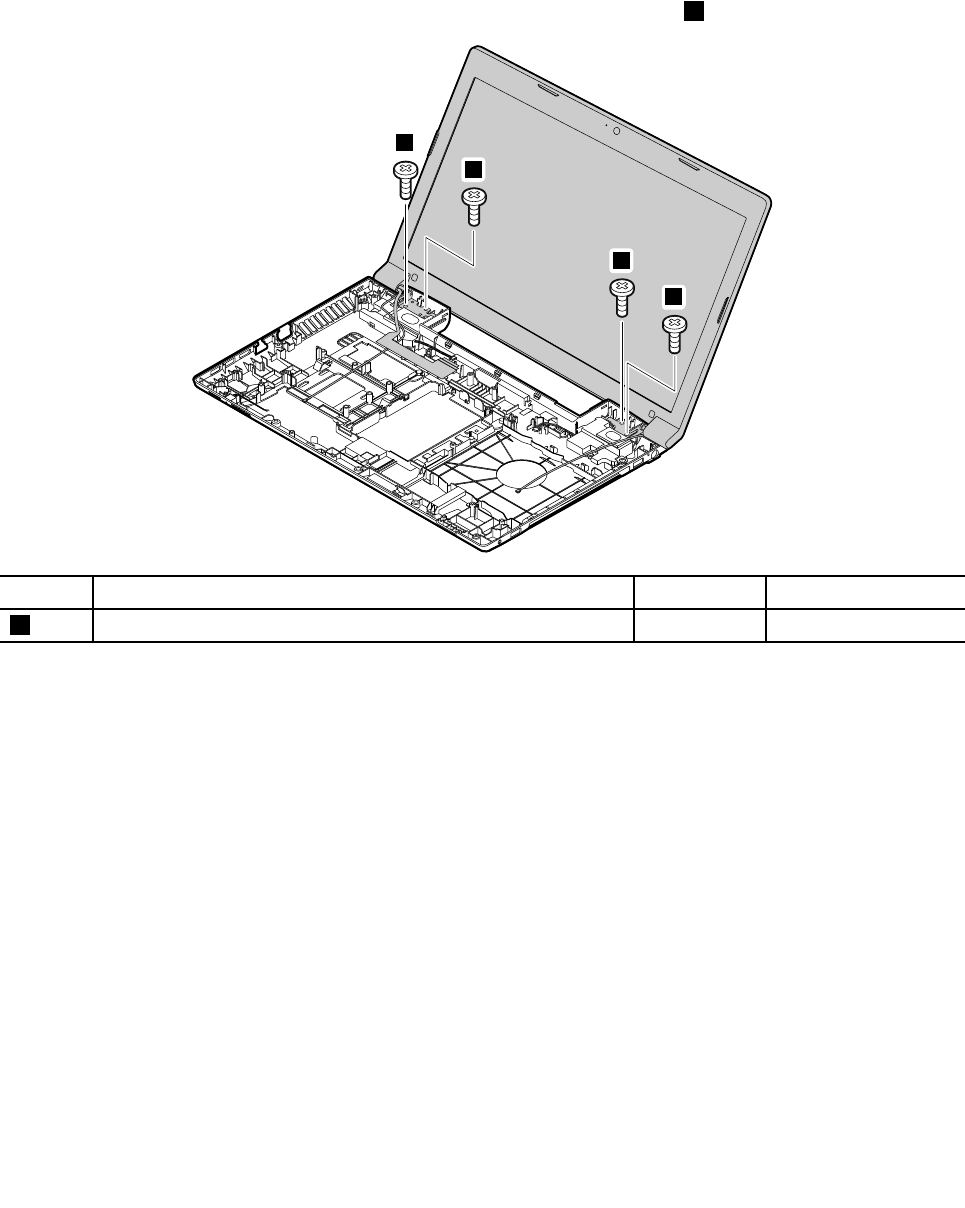
RemovalstepsofLCDunit
Releasetheantennacablesfromthecableguides.Thenremovethescrews1.
1
1
1
1
StepScrew(quantity)ColorTorque
1M2.5×5mm,at-head,nylon-coated(4)Black4kgf-cm
Wheninstalling:
•Routetheantennacablesalongthecableguides.Asyouroutethecables,makesurethattheyare
notsubjectedtoanytension.Tensioncouldcausethecablestobedamagedbythecableguides,
orawiretobebroken.
•EnsurethattheLCDconnectorisattachedrmlyandmakesurethatyoudonotpinchtheantennacables
whenyouattachtheLCDassembly.RoutetheLCDcablealongthecableguides.
70HardwareMaintenanceManual
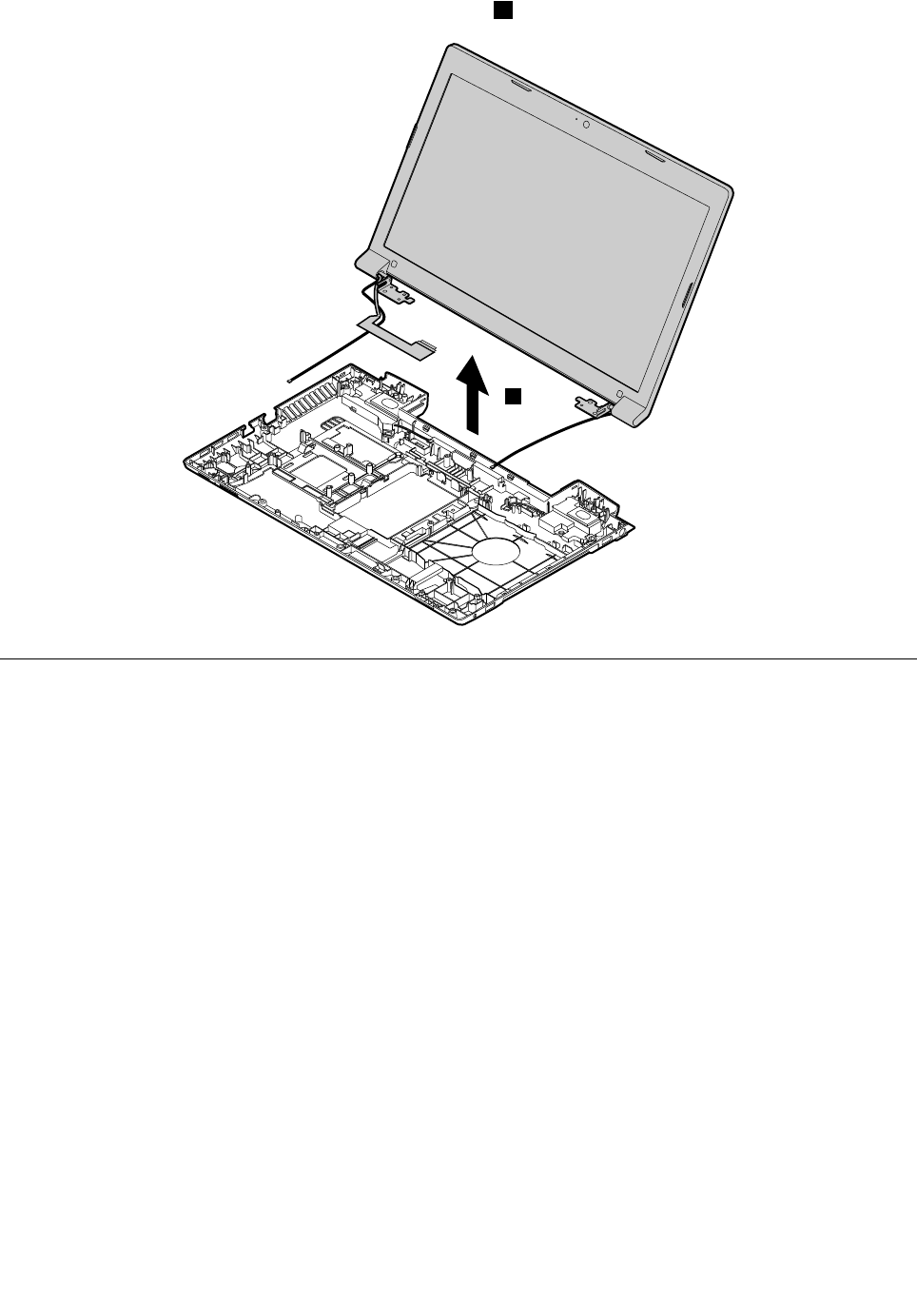
RemovetheLCDunitinthedirectionshownbythearrow2.
2
1210Speakerassemblyandbasecover
Foraccess,removetheseFRUsinorder:
•“1010Batterypack”onpage44
•“1020Bottomslotcover”onpage44
•“1030Opticaldrive”onpage45
•“1040Memorymodules”onpage46
•“1050Harddiskdriveassembly”onpage47
•“1060PCIExpressMiniCardforwirelessLAN”onpage49
•“1070mSATAsolidstatedrive”onpage51
•“1080Backupbattery”onpage52
•“1090Keyboard”onpage53
•“1100Keyboardbezel”onpage56
•“1130Microphoneassembly”onpage60
•“1140I/Oboard”onpage61
•“1150SystemboardassemblyandUSBboard”onpage62
•“1160DC-inconnector”onpage65
•“1190LCDunit”onpage69
Chapter7.RemovingandreplacingaFRU71
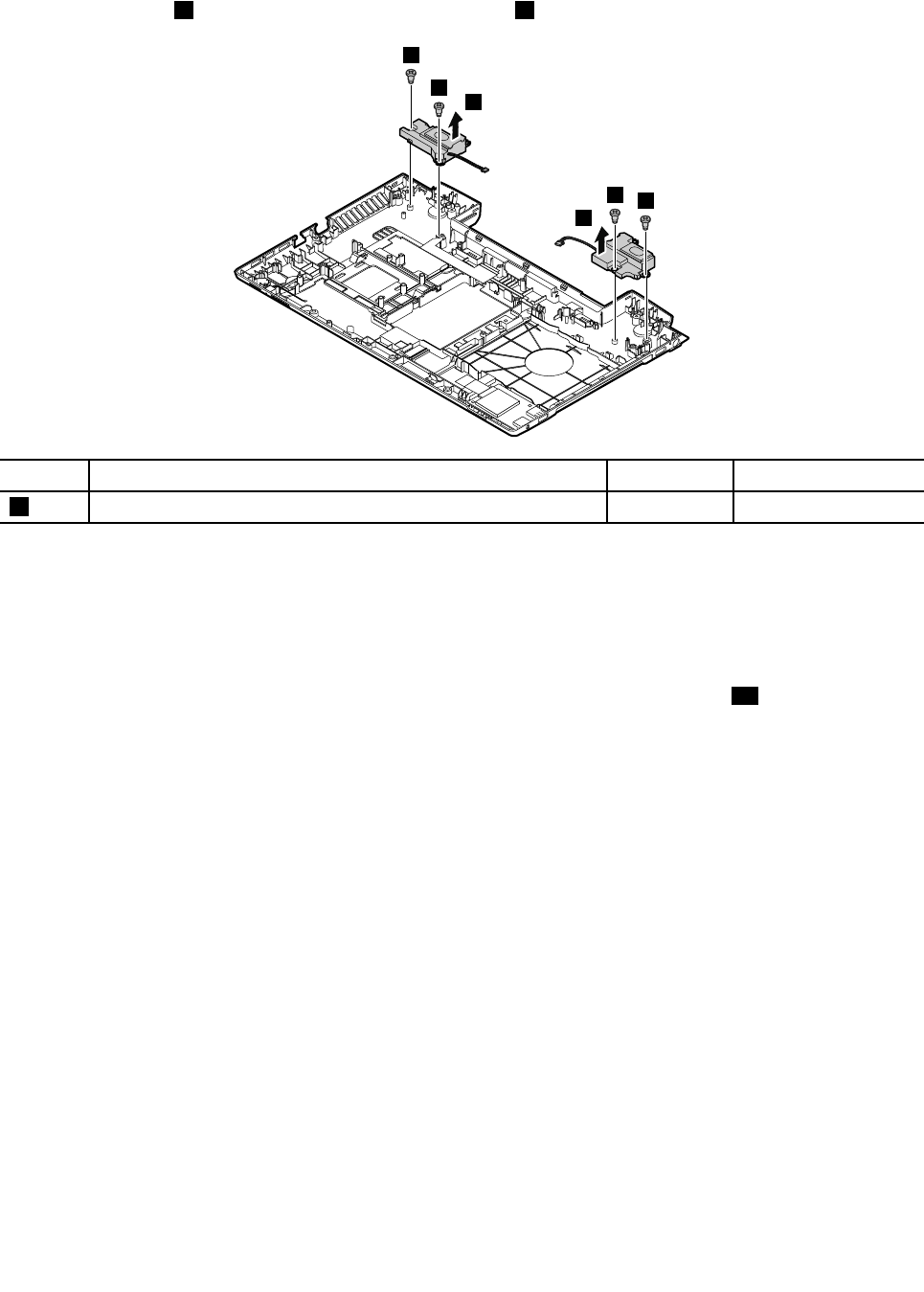
Removalstepsofspeakerassemblyandbasecover
Removethescrews1.Thenremovethespeakerassembly2.
1
1
11
2
2
StepScrew(quantity)ColorTorque
1M2.5×5.7mm,at-head,nylon-coated(4)Black4.0kgf-cm
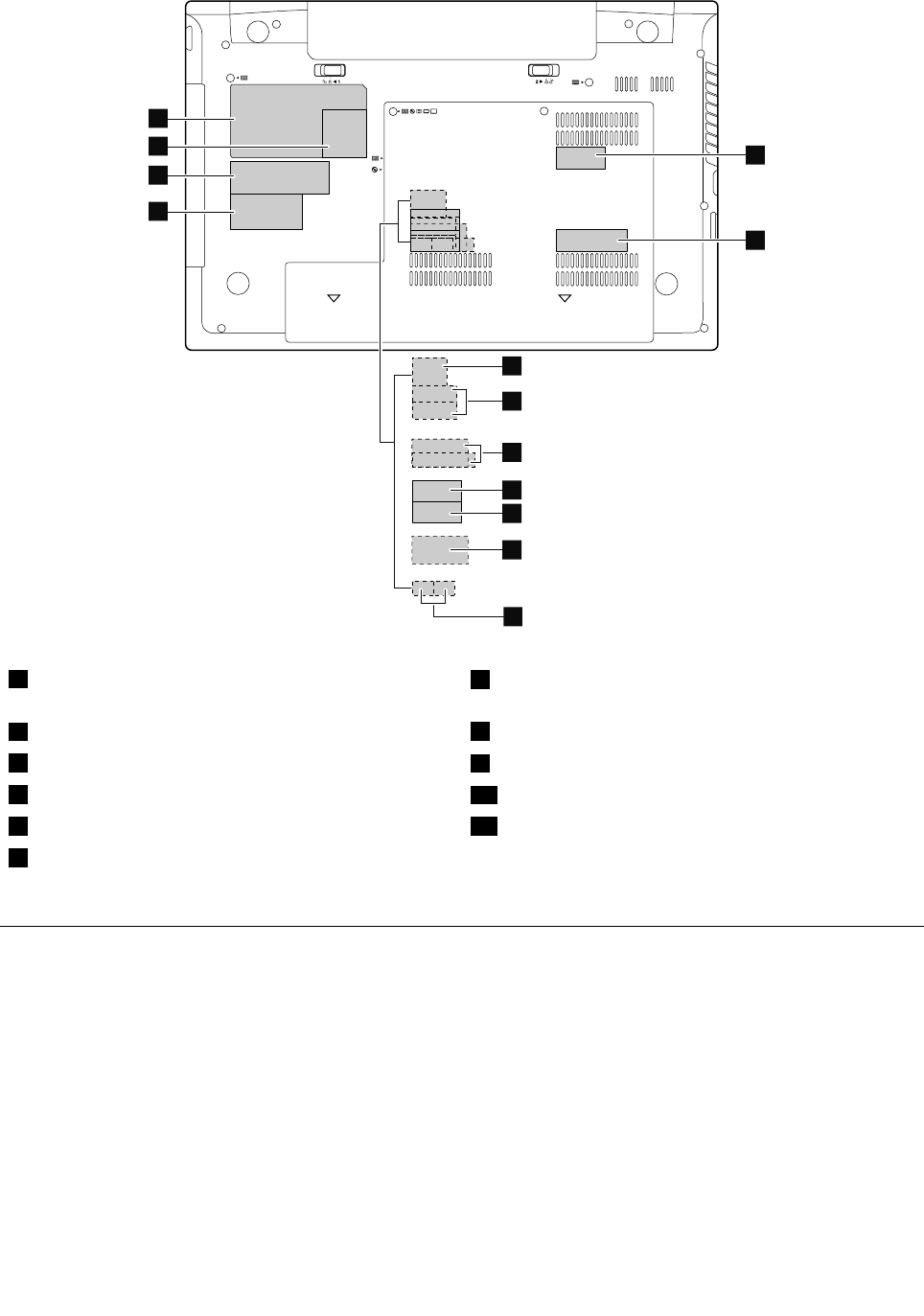
Applyinglabelstothebasecover
Thenewbasecoverisshippedwithakitcontaininglabelsofseveralkinds.Applythoselabelslistedwhen
youreplacethebasecover.Forthelabelswhicharenotshippedwiththenewbasecover,peelthemoff
fromtheoldbasecover,andadherethemtothenewone.
Note:IfyoureplaceapartwiththeWindowsCerticateofAuthentication(COA)label11,returntheoldpart
withthelabelattachedtothecustomer.Otherwise,youcanprovidethecustomerwithaletter,statingthe
originallocationofthelabelonthecomputerandtheinformationonthelabel,suchasthepartnumber,
serialnumber,andproductkey.
Thefollowingillustrationshowsthecorrectlocationofeachlabel.
72HardwareMaintenanceManual
10
11
13
1
2
3
6
7
8
4
9
5
12
1WWANIMEIbarcodelabel7BrazilwirelessLANlabelorwirelessLANlabelfor
UnitedStates/Canada/Taiwan
2Chinalabel,KCClabel,orMAClabel8PPTlabel
3IndonesiaDsidelabel9MalaysiaSIRIMlabel
4IndonesiaWLANandBTlabel10Vodafonelabel
5Israellabel12Ratinglabel
6BrazilBluetoothlabel/BluetoothlabelforUnited
States/Canada/T aiwan
2010LCDfrontbezel
Foraccess,removetheseFRUsinorder:
•“1010Batterypack”onpage44
•“1190LCDunit”onpage69
Chapter7.RemovingandreplacingaFRU73
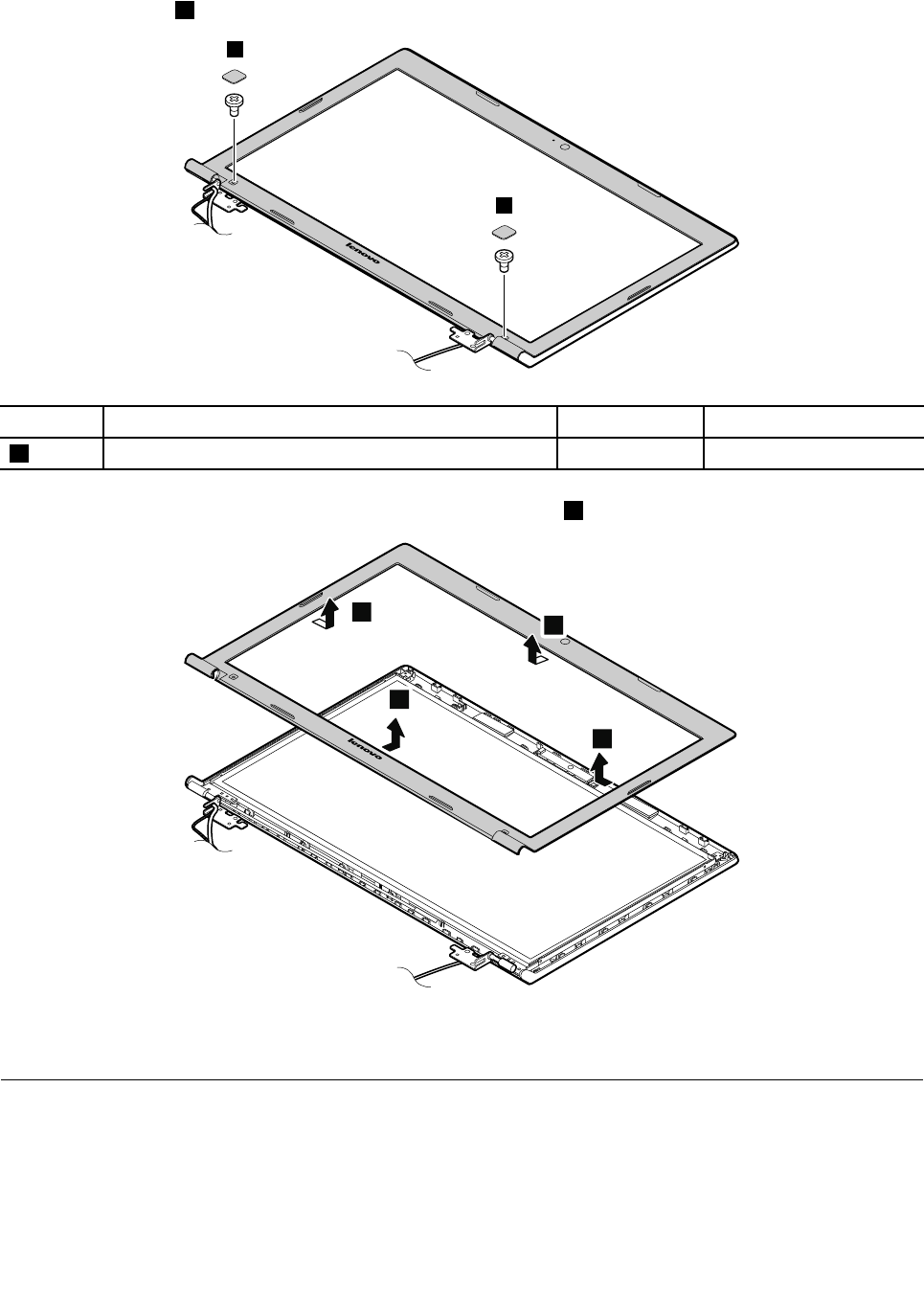
RemovalstepsofLCDfrontbezel
Removethescrews1.
1
1
StepScrew(quantity)ColorTorque
1M2×5mm,at-head,nylon-coated(2)Black1.85kgf-cm
RemovetheLCDfrontbezelinthedirectionshownbythearrows2.
2
2
2
2
Wheninstalling:Makesurethatallthelatchesareattachedrmly.Thensecurethebezelwiththescrews.
2020Camera
Foraccess,removetheseFRUsinorder:
•“1010Batterypack”onpage44
•“1190LCDunit”onpage69
•“2010LCDfrontbezel”onpage73
74HardwareMaintenanceManual
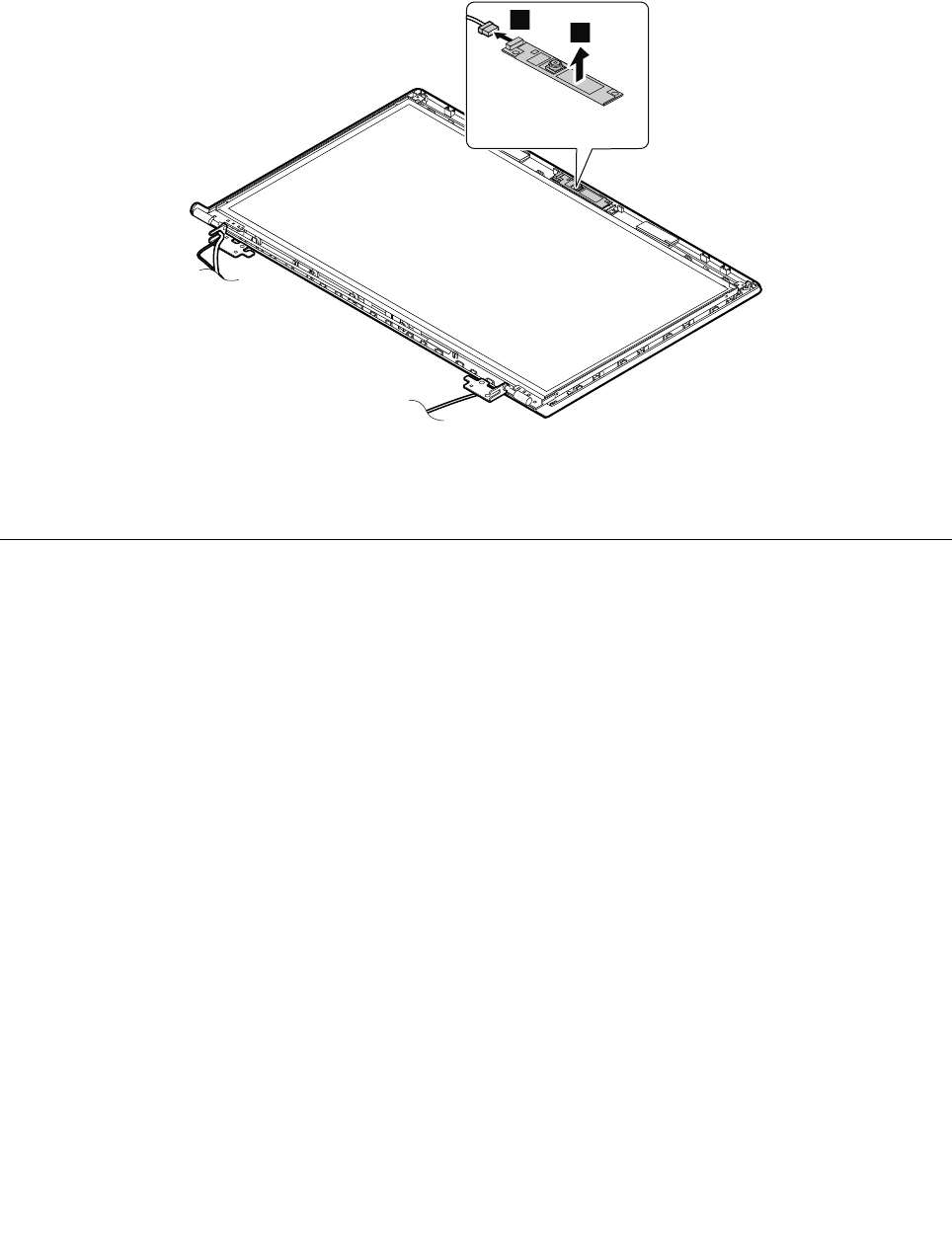
Removalstepsofcamera
RemovethecamerafromtheLCDcoverasshowninthefollowingillustration.
Note:ThecameraisstuckonthetopcenteroftheLCDcover.
1
2
Wheninstalling:StickthecameratothetopcenteroftheLCDcoverandadjusttheplacementtoensure
thattheconnectorisattachedrmly.
2030LCDpanel,LCDcable,andhinges
Foraccess,removetheseFRUsinorder:
•“1010Batterypack”onpage44
•“1190LCDunit”onpage69
•“2010LCDfrontbezel”onpage73
Chapter7.RemovingandreplacingaFRU75
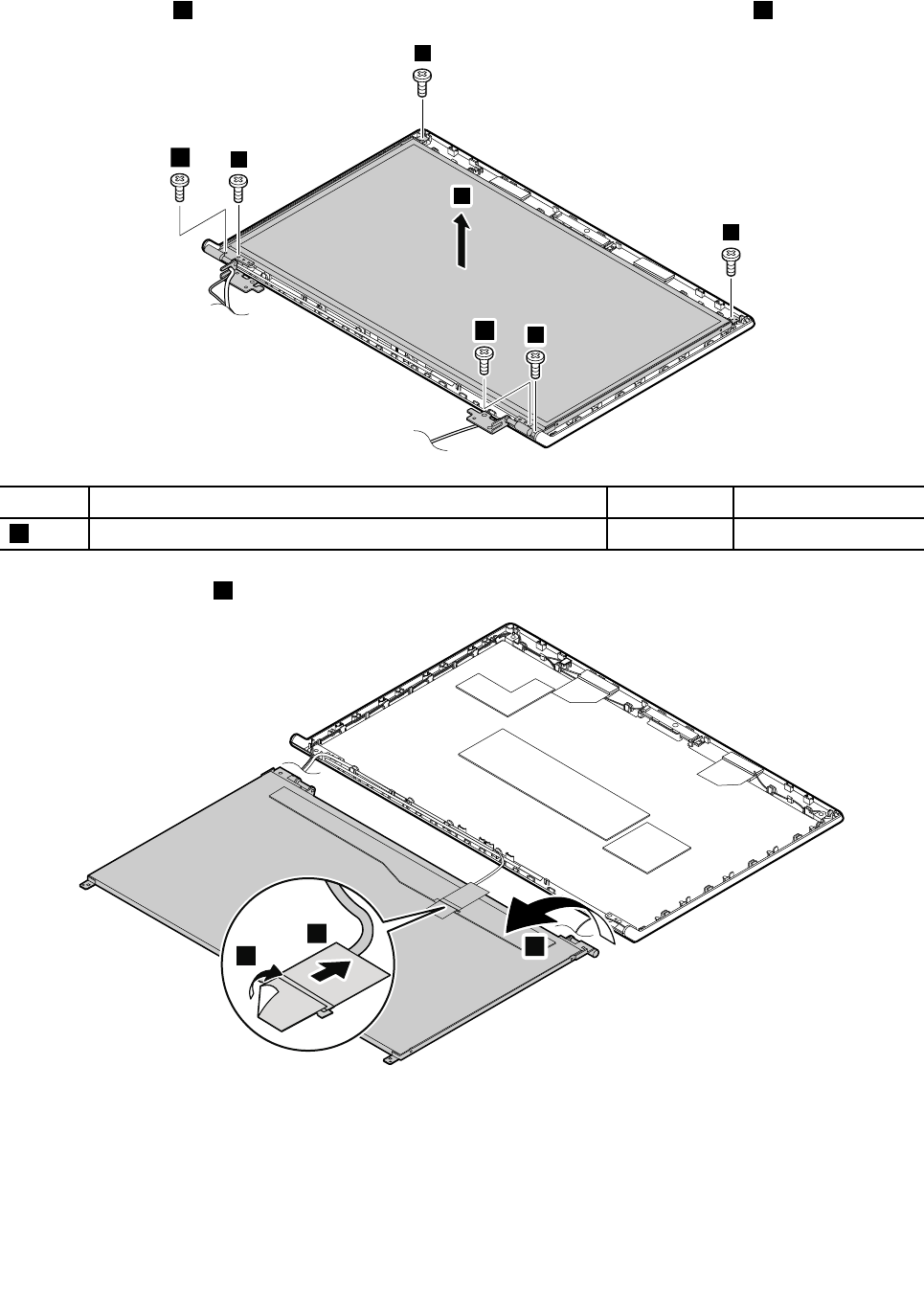
RemovalstepsofLCDpanelandLCDcable
Removethescrews1.ThenremovetheLCDpanelinthedirectionshownbythearrow2.
1
1
1
1
1
1
2
StepScrew(quantity)ColorTorque
1M2×5mm,at-head,nylon-coated(6)Black1.85kgf-cm
TurnovertheLCDpanel3.RemovetheLCDcable.
3
4
5
Wheninstalling:Ensurethatthecableisattachedrmly.
76HardwareMaintenanceManual
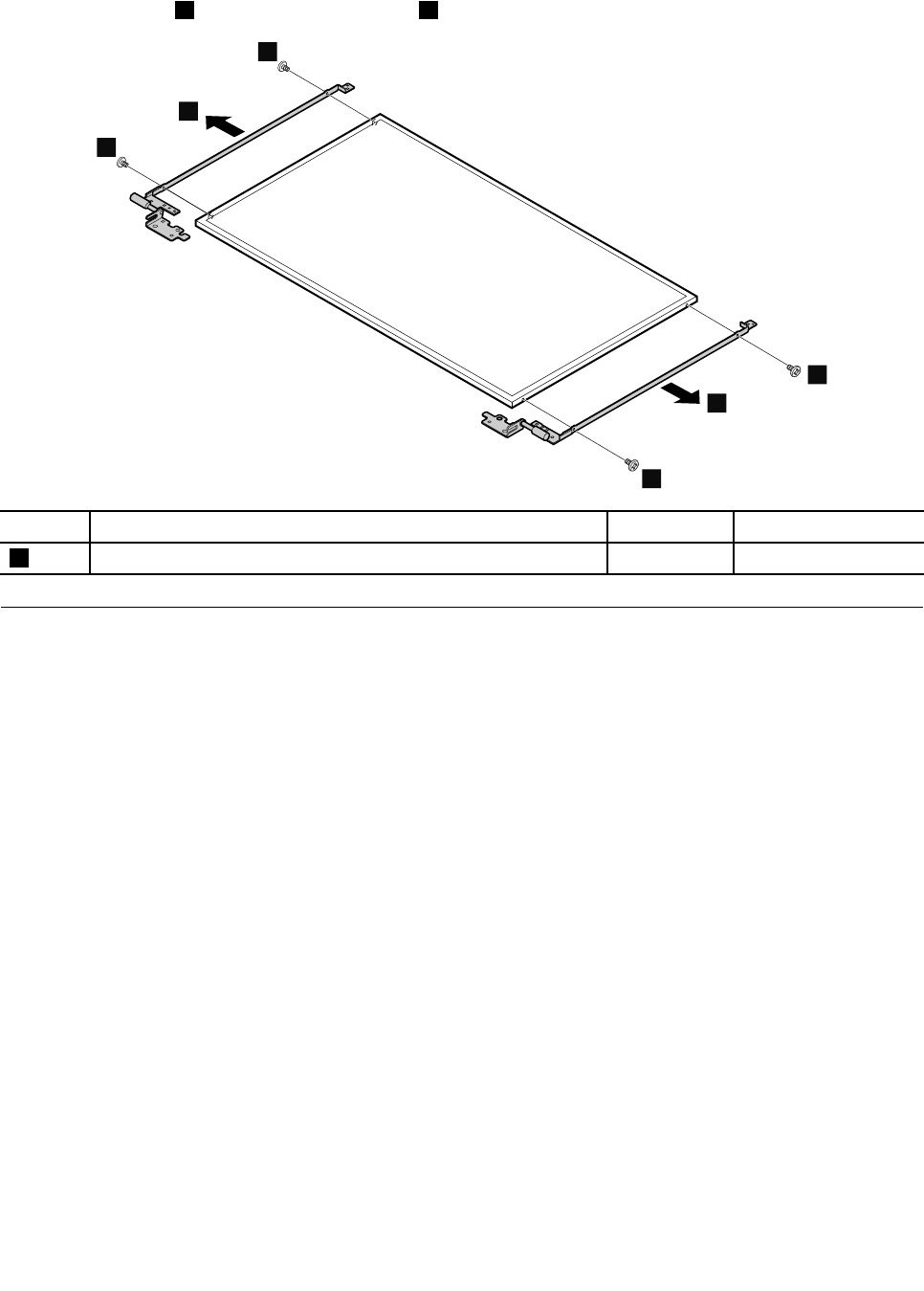
Removalstepsofhinges
Removethescrews1.Thenremovethehinges2.
1
1
2
1
1
2
StepScrew(quantity)ColorTorque
1M2×3mm,at-head,nylon-coated(4)Black1.85kgf-cm
2040AntennaassemblyandLCDrearcover
Foraccess,removetheseFRUsinorder:
•“1010Batterypack”onpage44
•“1190LCDunit”onpage69
•“2010LCDfrontbezel”onpage73
•“2020Camera”onpage74
•“2030LCDpanel,LCDcable,andhinges”onpage75
Chapter7.RemovingandreplacingaFRU77
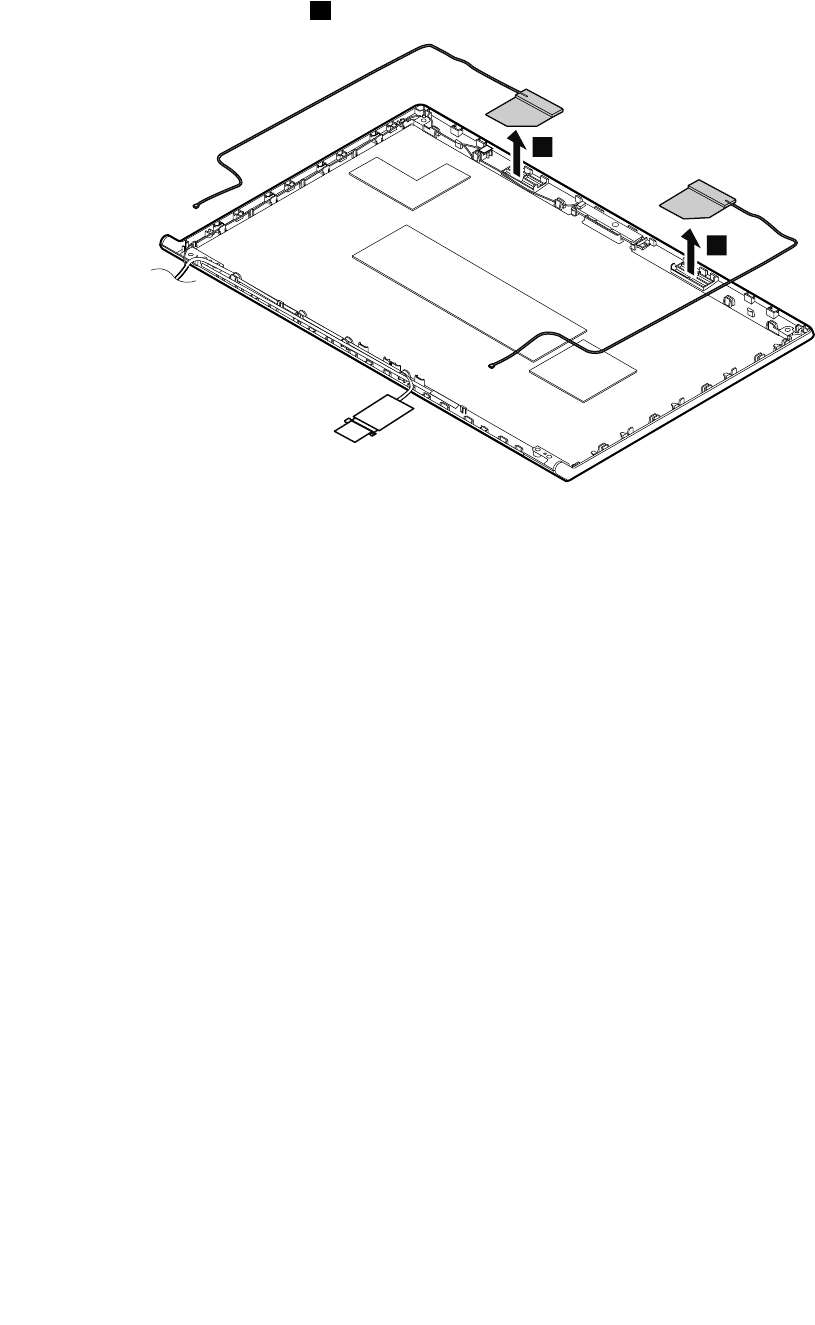
RemovalstepsofantennaassemblyandLCDrearcover
ReleasetheantennacablesfromthecableguidesoftheLCDrearcoverassemblyandfromthehingesin
thedirectionshownbythearrows1.
1
1
Cablerouting:Routetheantennacablesalongthecableguidesandsecuretheantennaboardswith
adhesivetapes.Asyouroutethecables,makesurethattheyarenotsubjectedtoanytension.Tension
couldcausethecablestobedamagedbythecableguides,orawiretobebroken.
78HardwareMaintenanceManual
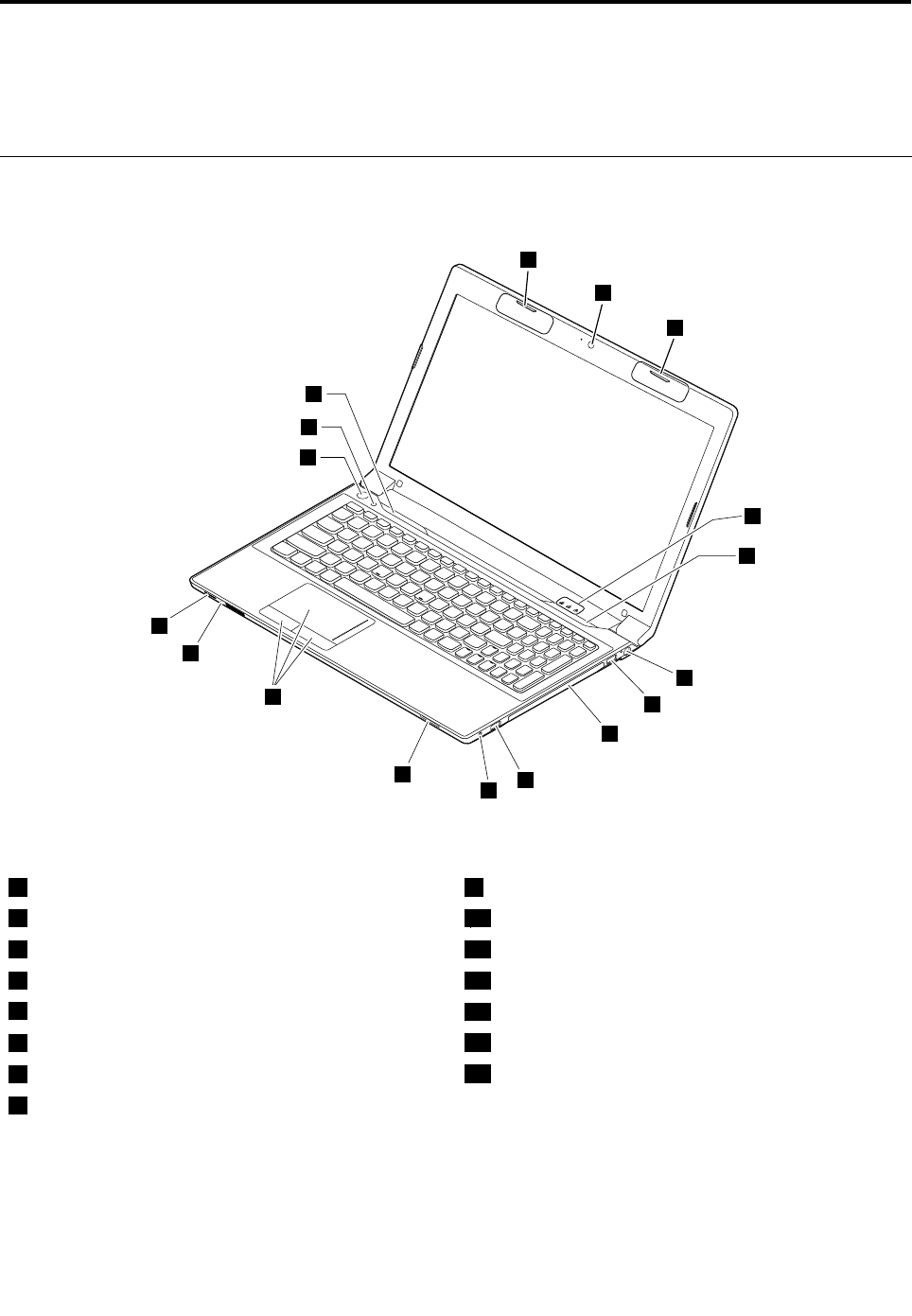
Chapter8.Locations
ThischapterpresentsthelocationsoftheLenovoB590hardwarecomponents.
Right-sideview
2
1
2
3
4
5
6
7
8
9
10
11
12
13
15
14
4
Figure1.LenovoB590right-sideview
1Camera(onsomemodels)9Comboaudiojack
2Wirelessmoduleantennas10Mediacardreaderslot
3Statusindicators111Touchpadandtouchpadbuttons
4Speakers12Microphone
5acpowerconnector13Powerandbatteryindicator1
6USBconnector14Powerbutton
7Opticaldrive15Recoverybutton
8USBconnector
1Forthedescriptionoftheindicators,see“Statusindicators”onpage38.
©CopyrightLenovo201279
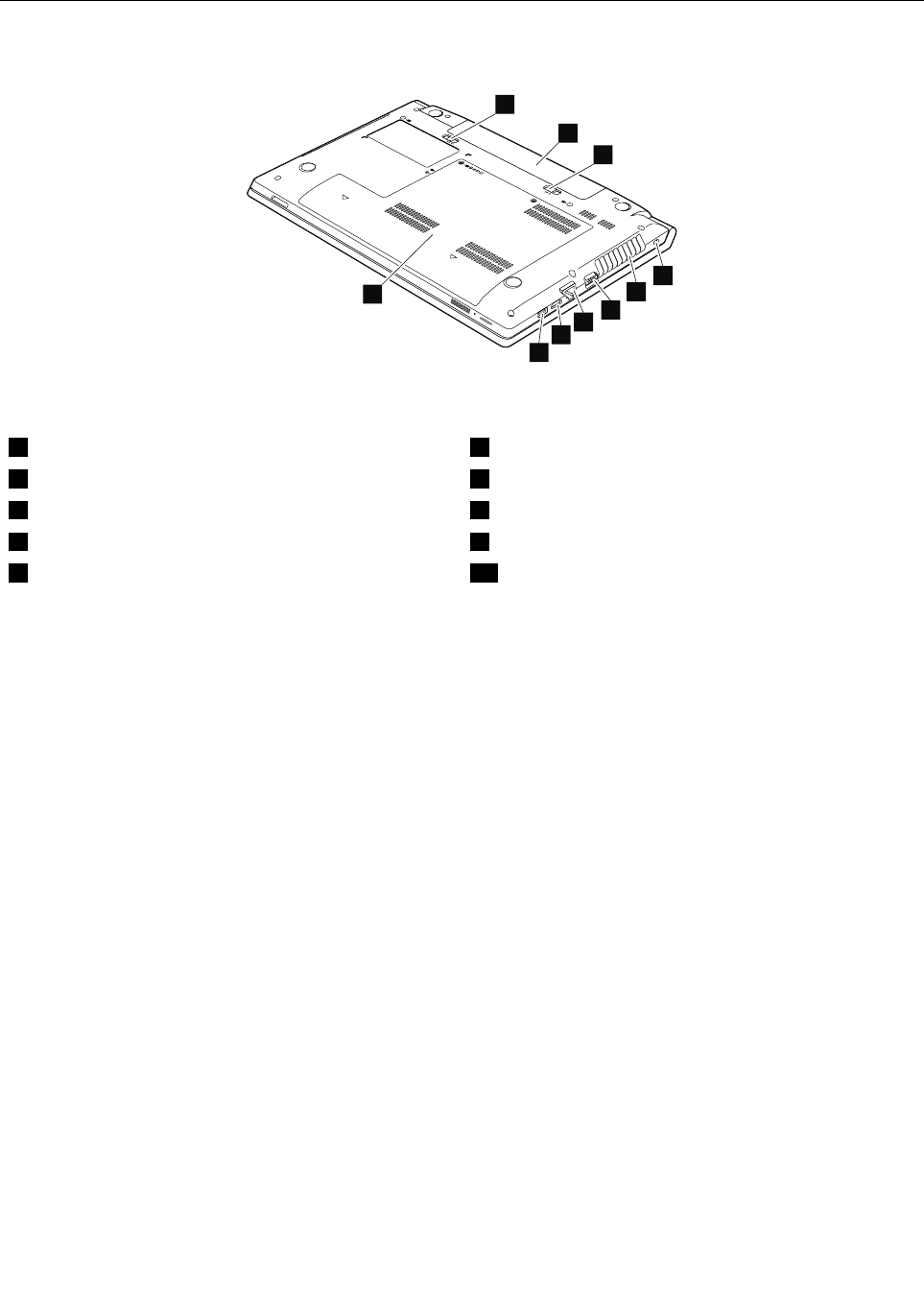
Bottomview
1
2
3
4
5
6
7
8
9
10
Figure2.LenovoB590bottomview
1Batterylock6Monitorconnector
2Batterypack7Ethernetconnector
3Batterylatch8HDMIport
4Securitykeyhole9USB3.0connector
5Fanlouvers10Bottomslotcover1
1Thememorymodules,harddiskdrive,andwirelesscardsarelocatedunderneaththebottomslotcover.
80HardwareMaintenanceManual

Chapter9.Partslist
Thischaptercontainsfollowinglistsoftheserviceparts.
•“Overall”onpage82
•“LCDFRUs”onpage85
•“Keyboard”onpage87
•“Miscellaneousparts”onpage89
•“acpoweradapters”onpage90
•“Powercords”onpage91
Notes:
•EachFRUisavailableforalltypesormodels,unlessotherwisespecied.
•ACRUisidentiedbyasingleasterisk(*)ortwoasterisks(**)intheCRUIDcolumn.AnNintheCRUIDcolumn
meansthatthepartisnotaCRU.Asingleasterisk(*)meansthatthepartisaself-serviceCRU;twoasterisks
(**)meansthatthepartisanoptional-serviceCRU.
CRUstatementforcustomers:
Youcanresolvesomeproblemswithyourproductwithareplacementpartyoucaninstallyourself,calleda
“CustomerReplaceableUnit”or“CRU”.SomeCRUsaredesignatedasself-serviceCRUsandothersare
designatedasoptional-serviceCRUs.Installationofself-serviceCRUsisyourresponsibility.Foroptional-service
CRUs,youcaneitherinstalltheCRUyourselforyoucanrequestthataServiceProviderinstalltheCRUaccording
tothewarrantyserviceforyourproduct.IfyouintendoninstallingtheCRU,LenovowillshiptheCRUtoyou.CRU
informationandreplacementinstructionsareshippedwithyourproductandareavailablefromLenovoatanytime
uponrequest.YoucanndalistofCRUsforyourproductinthisHardwareMaintenanceManual.Anelectronic
versionofthismanualcanbefoundathttp://www.lenovo.com/UserManuals.Followtheon-screeninstructionsto
ndthemanualforyourproduct.YoumightberequiredtoreturnthedefectiveCRU.Whenreturnisrequired:(1)
returninstructions,aprepaidshippinglabel,andacontainerwillbeincludedwiththereplacementCRU;and(2)you
mightbechargedforthereplacementCRUifLenovodoesnotreceivethedefectiveCRUwithinthirty(30)daysof
yourreceiptofthereplacementCRU.SeeyourLenovoLimitedWarrantydocumentationforfulldetails.
LenovocomputerscontainthefollowingtypesofCRUs:
–Self-serviceCRUs:TheseCRUsunplugorareheldbynomorethantwoscrews.Examplesofthesetypes
ofCRUsincludetheacpoweradapter,powercord,battery,andharddiskdrive.Otherself-serviceCRUs
dependingonproductdesignmightincludethememorymodule,wirelesscard,keyboard,andpalmrest
withngerprintreaderandtouchpad.
–Optional-serviceCRUs:TheseCRUsareisolatedpartswithinthecomputerthatareconcealedbyanaccess
panelthatistypicallysecuredbymorethantwoscrews.Oncetheaccesspanelisremoved,thespecic
CRUisvisible.
©CopyrightLenovo201281
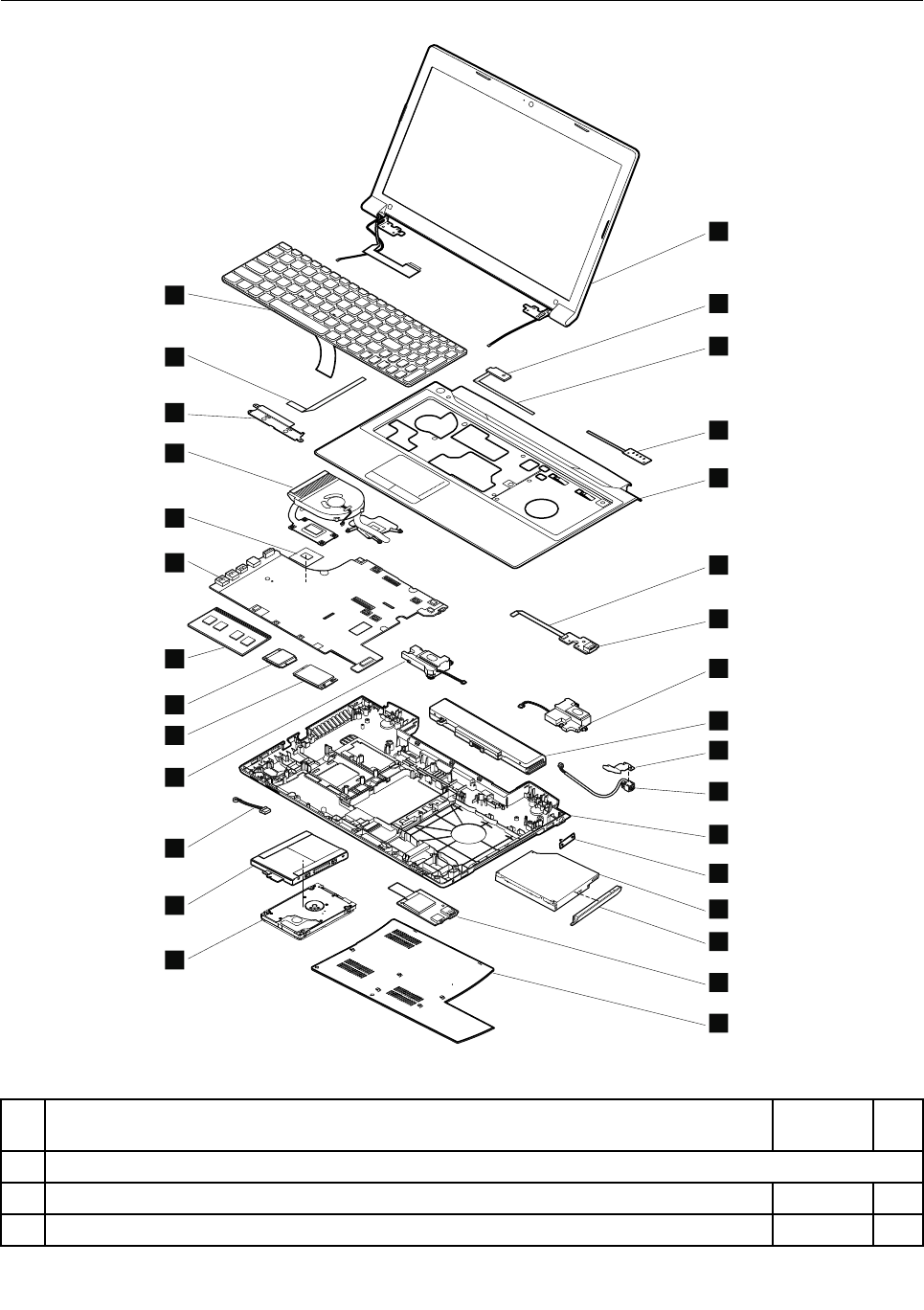

Table3.Partslist—Overall(continued)
No.FRU(Overall)FRUno.CRU
ID
4LB59AUpperCaseWO/FP90201912N
5LB59AUSBBoard90001035N
6LB58SpeakerR90200832N
7Battery,6CELL2.2Ah,48Wh,Sanyo121500047*
7Battery,6CELL2.2Ah,48Wh,Sony121500048*
7Battery,6CELL2.2Ah,48Wh,LG121500049*
7Battery,6CELL2.2Ah,48Wh,SMP121500050*
7Battery,6CELL2.8Ah,L11L6F013S2P62WhBattC01Origa,LG121500052*
7Battery,6CELL2.8Ah,SM/SL11M6F013S2P62WhBattC01Origa,SMP121500053*
8LB58DC-INCable90200811N
9LB58LowerCase90200822N
10ODD,12.7mmT ray-inRambo,PLDS,DS-8A8SH25201487*
10ODD,12.7mmTray-inRambo,SonyOptiarc,AD-7740H25201106*
10ODD,12.7mmT ray-inRambo,TSST,SN-208AB25201108*
10ODD,12.7mmTray-inRambo,HLDS,GT50N25201635*
11LB58IOBoard90000234N
12LB59AMemoryDoor90201905N
13HDD,320GB5400rpm,,MN500SWD3200LPVT-08G33T116200265**
13HDD,320GB5400rpm,ToshibaCapricornBS(H6sp),ToshibaMK3265GSX5400RPM320G16200097**
13HDD,320GB5400rpm,HGSTJaquarB7,HGSTHTS545032A7E3805400PRM7mm320G16200068**
13HDD,320GB5400rpm,SeagateSapta15,SeagateST320L T0205400RPM7MM320G16005211**
13HDD,500GB5400rpm,WDML500M,WD5000BPVT-08A1Y16200118**
13HDD,500GB5400rpm,WDML375M,WD5000BPVT-08HXZ16200090**
13HDD,500GB5400rpm,,MN500SWD5000LPVT-08G33T116200264**
13HDD,500GB5400rpm,ToshibaCapricornBS(H6sp),T oshibaMK5065GSX5400RPM500G16200098**
13HDD,500GB5400rpm,HGSTHTS545050A7E3805400PRM7mm16200067**
13HDD,500GB5400rpm,HTS547550A9E3849.5mmJetB16200006**
13HDD,500GB5400rpm,ST500LM012M816200210**
13HDD,500GB5400rpm,Yarra(1D)ST500LT01216200211**
13HDD,750GB5400rpm,WDML500M,WD7500BPVT-08A1Y16200119**
13HDD,750GB5400rpm,WDML375M,WD7500BPVT-08HXZ16200121**
13HDD,750GB5400rpm,HGSTJaguarB,HTS541075A9E68016200192**
13HDD,750GB5400rpm,ST750LM022M816200209**
13HDD,1TB5400rpm,WDML500M,WD10JPVT-08A1Y16200120**
13HDD,1TB5400rpm,HGSTJaquarB,HTS541010A9E68016200193**
13HDD,1TB5400rpm,ST1000LM02416200208**
Chapter9.Partslist83

Table3.Partslist—Overall(continued)
No.FRU(Overall)FRUno.CRU
ID
13HDD,320GB7200rpm,WDMX320S-1,WD3200BEKT-08PVM16200092**
13HDD,320GB7200rpm,ToshibaCapricornCS(H6sp),TSBMK3261GSY7200PRM9.5mm
320GHDD
16200099**
13HDD,320GB7200rpm,HGSTJaquarC7,HTS725032A7E63016200194**
13HDD,320GB7200rpm,SeagateJulius14K,SeagateST320LT0077200RPM7MM320G16005030**
13HDD,500GB7200rpm,WDMX375M,WD5000BPKT-08PK4T16200124**
13HDD,500GB7200rpm,ToshibaCapricornCS(H6sp),TSBMK5061GSY7200PRM9.5mm
500GHDD
16200100**
13HDD,500GB7200rpm,JaguarC7,HTS725050A7E63016200195**
14LB58Microphone90200829N
15LB58SpeakerL90200833N
16SSD,mSATA16G,Sandisk,U100mSATASDSA5DK-016G16200215N
16MZMPA016HMCD-000L116200255N
17WLAN,Non-Intel1x111bgn+BT4.0Combo,Broadcom4313+2070220200100
20200101
*
17WLAN,Non-Intel2x211abgn+BT4.0Combo,Broadcom43228+2070220200098
20200099
*
17WLAN,Intel2x211bgn+BT4.0Combo,JacksonPeak120200078*
17WLAN,Non-Intel1x111bgn,BroadcomBCM43131*1BGNMOW20200102*
17WLAN,Non-Intel1x111bgn,Realtekbgn1x1HMCWLANStockton20200016*
18MemoryModule,DDRIII16002GB,Samsung,M471B5773DH0-CK0DDR316002GB11200340*
18MemoryModule,DDRIII16002GB,Hynix,HMT325S6CFR8C-PBDDR316002GB11200343*
18MemoryModule,DDRIII16002GB,Micron,MT8KTF25664HZ-1G6M1DDR316002GB11200346*
18MemoryModule,DDRIII16002GB,MemoryModuleaxel,RMT3150ED58E8W-1600DDR3
16002GB
11200392*
18MemoryModule,DDRIII16002GB,Sharetronic(Micron),SM321NH08IAFDDR316002GB11200396*
18MemoryModule,DDRIII16004GB,Samsung,M471B5273DH0-CK0DDR316004GB11200341*
18MemoryModule,DDRIII16004GB,Hynix,HMT351S6CFR8C-PBDDR316004GB11200344*
18MemoryModule,DDRIII16004GB,Micron,MT16KTF51264HZ-1G6M1DDR316004GB11200347*
18MemoryModule,DDRIII16004GB,Ramaxel,RMT3160ED58E9W-1600DDR316004GB11200393*
18MemoryModule,DDRIII16004GB,Sharetronic(Micron),SM322NQ08IAFDDR316004GB11200397*
19LB59AMBW8UMAWO/SBA90001836N
19LB59AMBW8PUMAWO/SBA90001837N
19LB59AMBW8DISN13M-GE11GWO/SBA90001838N
19LB59AMBW8PDISN13M-GE11GWO/SBA90001839N
19LB59BMBW8UMAWO/SBA90001840N
19LB59BMBW8PUMAWO/SBA90001841N
19LB59BMBW8DISN13M-GE11GW/SBA90001842N
19LB59BMBW8PDISN13M-GE11GW/SBA90001843N
84HardwareMaintenanceManual

Table3.Partslist—Overall(continued)
No.FRU(Overall)FRUno.CRU
ID
20CPU,IntelI5-2520M2.5G3M2cJ1PGAprocessor102001067N
20CPU,IntelB8151.6GQ02M2cPGAprocessor102500229N
20CPU,IntelI3-2370M2.4GJ13M2cPGAprocessor102500228N
20CPU,IntelSNBI3-2350M2.3G3MJ1PGAprocessor102500018N
20CPU,IntelSNBI3-2330M2.2G3MJ1PGAprocessor102500017N
20CPU,IntelSNBB9502.1G2MQ0PGAprocessor102500016N
20CPU,IntelSNBB9402.0G2MQ0PGAprocessor102500015N
20CPU,IntelSNBI3-2310M2.1G3M2cJ1PGAprocessor102001065N
20CPU,IntelB9702.3GD22M2cPGAprocessor102500230N
20CPU,IntelSNBB8001.5GQ02M2cPGAprocessor102500101N
20CPU,IntelSNBB9602.2G2M35WPGAprocessor102500133N
20CPU,IntelB8201.7GQ02M2cPGAprocessor102500350N
20CPU,i5-3210MIvyBridgeL-03MB2cPGA2.5GHzSTD35Wprocessor102500301N
20CPU,i3-3110MIvyBridgeL-03MB2cPGA2.3GHzSTD35Wprocessor102500303N
20CPU,IntelB9802.4GQ02M2cPGAProcessor102500362N
20CPU,IntelB8301.8GQ02M2cPGAProcessor102500440N
20CPU,IntelI3-2328M2.2GJ13M2cPGAProcessor102500421N
21LB59AThermalModuleDISW/FAN90201913N
21LB59AThermalModuleUMAW/FAN90201914N
22Keyboard(see“Keyboard”onpage87.)
—acpoweradapter(see“acpoweradapters”onpage90.)
LCDFRUs
InLenovoB590models,thetypeofLCDis15.6-inchhighdenition(HD)TFTLCD(Table4“Partslist-
LCD”onpage86).
Chapter9.Partslist85
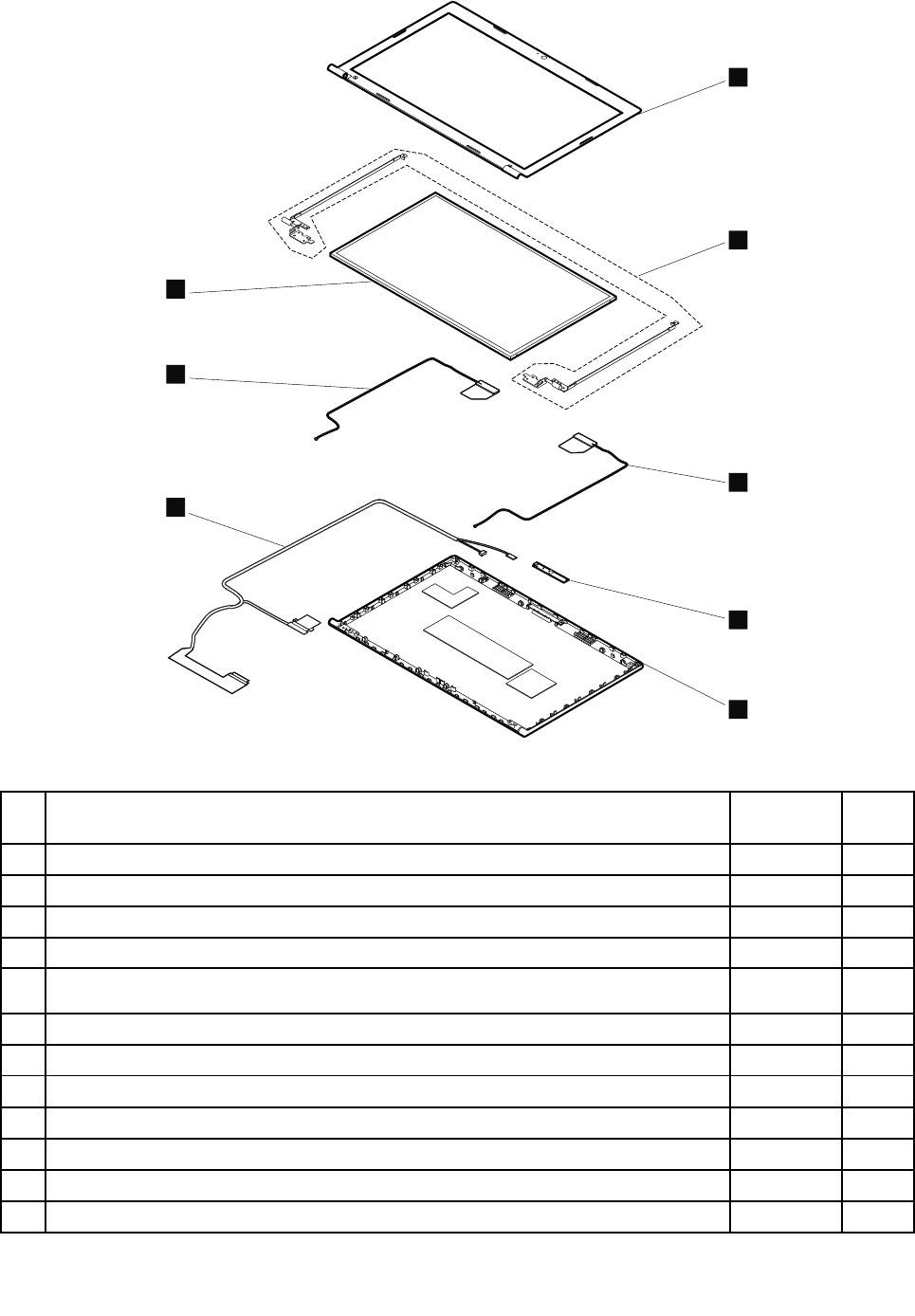
1
2
3
4
5
k
7
6
Table4.Partslist-LCD
No.FRUFRUno.CRU
ID
1LB59ALCDBezelWO/CameraHole90201910N
1LB59ALCDBezelW/CameraHole90201911N
2LB58HingeL+R90200817N
3LB58AntennaR90200826N
4LB58Camera0.3M90000238N
5LB59ALCDCover90201909N
6LB58AntennaL90200825N
7Panel,15.6HDWedgeGlossy,SEC,LTN156AT24-L0118200114N
7Panel,15.6HDWedgeGlossy,LGD,LP156WH4-TLN118200158N
7Panel,15.6HDWedgeGlossy,AUO,B156XTN02.018200157N
7Panel,15.6HDWedgeAnti-Glare,AUO,B156XTN02.118200649N
7Panel,15.6HDWedgeAnti-Glare,SEC,LTN156AT24-40118200650N
86HardwareMaintenanceManual
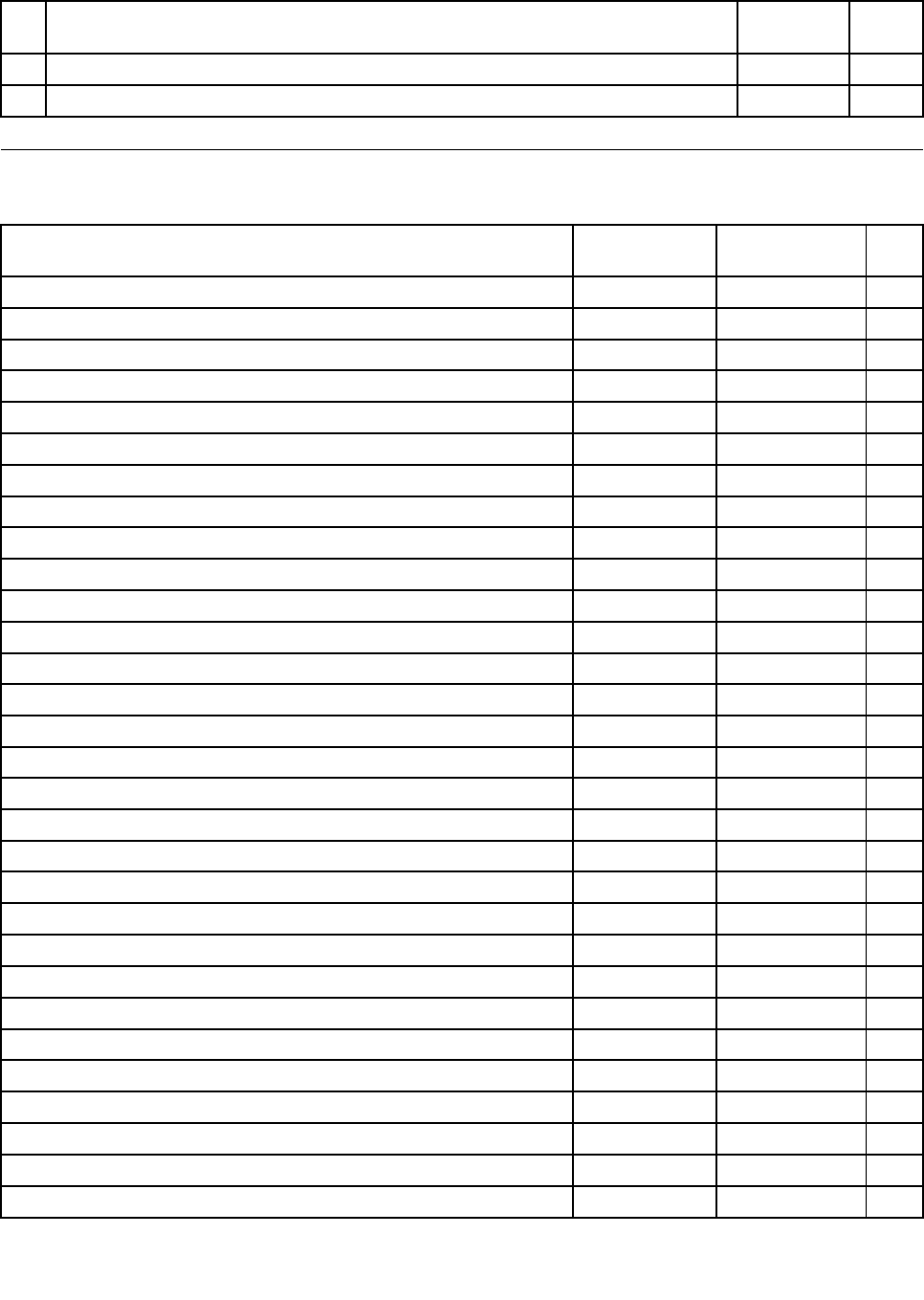
Table4.Partslist-LCD(continued)
No.FRUFRUno.CRU
ID
7Panel,15.6HDWedgeAnti-Glare,CMI,N156BGE-L1118200651N
7Panel,15.6HDWedgeAnti-Glare,LGD,LP156WH4-TLP118200652N
Keyboard
Table5.Partslist-Keyboard(Dafon)
LanguageFRUNO.
(Windows7)
FRUNO.
(Windows8)
CRU
ID
Arabic2520462625209766N
Belgian2520463425209774N
BrazilianPortuguese2520462725209767N
Bulgarian2520464025209780N
French,English2520462025209760N
Czech,Slovak2520463925209779N
C&Nordics2520463325209773N
Dutch2520462925209769N
French2520462425209764N
German2520462525209765N
Greek2520463025209770N
Hebrew2520463125209771N
Hungarian2520463225209772N
Icelandic2520463525209775N
Indian2520464125209781N
Italian2520461425209754N
Japanese2520462825209768N
Korean2520462125209761N
Latin2520461925209759N
Portuguese2520461825209758N
Russian2520462325209763N
Slovenian2520463625209776N
Swiss2520463725209777N
Spanish2520461525209755N
Thai2520461725209757N
TraditionalChinese2520462225209762N
Turkish2520461625209756N
U.K.English2520461325209753N
U.S.English2520461225209752N
U.S.English(International,withaEurosymbol)2520463825209778N
Chapter9.Partslist87
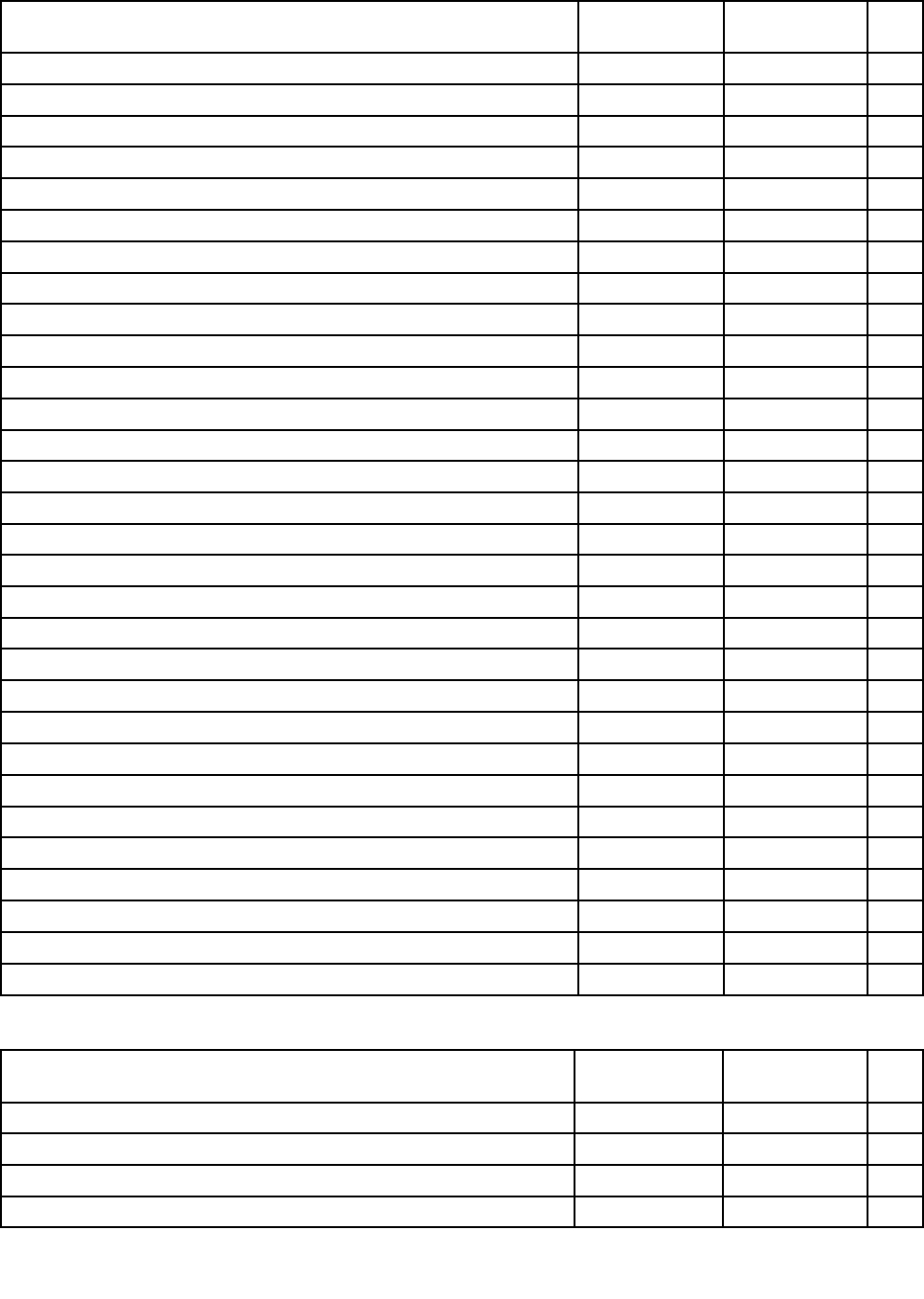
Table6.Partslist-Keyboard(Sunrex)
LanguageFRUNO.
(Windows7)
FRUNO.
(Windows8)
CRU
ID
Arabic2520465625209796N
Belgian2520466425209804N
BrazilianPortuguese2520465725209797N
Bulgarian2520467025209810N
Czech,Slovak2520466925209809N
C&Nordics2520466325209803N
Dutch2520465925209799N
French2520465425209794N
French,English2520465025209790N
German2520465525209795N
Greek2520466025209800N
Hebrew2520466125209801N
Hungarian2520466225209802N
Icelandic2520466525209805N
Indian2520467125209811N
Italian2520464425209784N
Japanese2520465825209798N
Korean2520465125209791N
Latin2520464925209789N
Portuguese2520464825209788N
Russian2520465325209793N
Swiss2520466725209807N
Spanish2520464525209785N
Slovenian2520466625209806N
Thai2520464725209787N
TraditionalChinese2520465225209792N
Turkish2520464625209786N
U.K.English2520464325209783N
U.S.English2520464225209782N
U.S.English(International,withaEurosymbol)2520466825209808N
Table7.Partslist-Keyboard(Chicony)
LanguageFRUNO.
(Windows7)
FRUNO.
(Windows8)
CRU
ID
Arabic2520459725209737N
Belgian2520460425209744N
BrazilianPortuguese2520459825209738N
Bulgarian2520461025209750N
88HardwareMaintenanceManual
Table7.Partslist-Keyboard(Chicony)(continued)
LanguageFRUNO.
(Windows7)
FRUNO.
(Windows8)
CRU
ID
Czech,Slovak2520460925209749N
C&Nordics2520460325209743N
Dutch2520459925209739N
French2520459525209735N
French,English2520459125209731N
German2520459625209736N
Greek2520460025209740N
Hebrew2520460125209741N
Hungarian2520460225209742N
Indian2520461125209751N
Icelandic2520460525209745N
Italian2520458525209725N
Japanese2520458425209724N
Korean2520459225209732N
Latin2520459025209730N
Portuguese2520458925209729N
Russian2520459425209734N
Slovenian2520460625209746N
Swiss2520460725209747N
Spanish2520458625209726N
Thai2520458825209728N
TraditionalChinese2520459325209733N
Turkish2520458725209727N
U.K.English2520458325209723N
U.S.English2520458225209722N
U.S.English(International,withaEurosymbol)2520460825209748N
Miscellaneousparts
Table8.Partslist-Miscellaneousparts
FRUFRUno.CRU
ID
(a)LB58PowerBoardCable90200809N
(b)LB58USBCable90000237N
(c)LB58DC-INBracket90200821N
(d)LA48ODDBracket33.4TD06.00190200518N
(e)LB59AODDBezel90201906N
(f)LA48HDDBracket60.4TE08.00190200520N
Chapter9.Partslist89
Table8.Partslist-Miscellaneousparts(continued)
FRUFRUno.CRU
ID
(g)LB58TPBracket90200820N
(h)LB58TPCable90200813N
LB58MicrophoneRubber90200830N
LB59ALCDBezelScrewPad90201915N
Note:Italicizedlettersinparenthesesarereferencestotheexplodedviewin“Overall”onpage82.
acpoweradapters
Table9.Partslist—2-pin(65W)acpoweradapters
FRUFRUno.CRU
ID
ADP-65FDAA36200289*
PA-1650-71I36200291*
A065R049L36200293*
DeltaADP-65SBA,EPAmodel36200143*
LiteonPA-1650-53I,EPAmodel36200144*
ChiconyPowerA065R028L,EPAmodel36200210*
Table10.Partslist—3-pin(65W)acpoweradapters
FRUFRUno.CRU
ID
DeltaADP-65FDBA36200288*
LiteonPA-1650-72I36200290*
ChiconyPowerA065R050L36200292*
DeltaADP-65SBB,EPAmodel36200033*
LiteonPA-1650-54I,EPAmodel36200034*
ChiconyPowerA065R017L,EPAmodel36200212*
Table11.Partslist—2-pin(90W)acpoweradapters
FRUFRUno.CRU
ID
DeltaADP-90XDAA36200295*
LiteonPA-1900-71I36200297*
ChiconyPowerA090A057L36200299*
DeltaPA-1900-53I,EPAmodel36200147*
LiteonADP-90ZHCA,EPAmodel36200149*
ChiconyPowerHP-A0905A2C1LF,EPAmodel36200150*
90HardwareMaintenanceManual
Table12.Partslist—3-pin(90W)acpoweradapters
FRUFRUno.CRU
ID
DeltaADP-90XDBA,EuPmodel36200294*
LITEONPA-1900-72I,EuPmodel36200296*
ChiconyA090A058L,EuPmodel36200298*
LiteonPA-1900-54I,EPAmodel36200030*
DeltaADP-90ZHDA,EPAmodel36200031*
ChiconyPowerHP-BT090E13LF,EPAmodel36200032*
Powercords
ALenovopowercordforaspeciccountryorregionisusuallyavailableonlyinthatcountryorregion.
Table13.Partslist-3-pinpowercords(Linetek)
CountryorregionFRUno.CRU
ID
Argentina
•LINETEKLS15+H03VV-F+LP391m
145000599*
Australia,NewZealand
•LINETEKLS15+H03VV-F+LP-23A1m
145000589*
Brazil
•LINETEKLS15H03VV-FLP26A1m
145000596*
CE
•LINETEKLP-34+H03VV-F+LS151m
145000585*
China
•LINETEKPC323+RVV300/300+LS151m
145000600*
Denmark
•LINETEKLS15+H03VV-F+LP-381m
145000598*
Indian
•LINETEKPE-361+H05VV-F+LS151m
145000592*
Israel
•LINETEKLS15+H03VV-F+LP-411m
145000595*
Italy
•LINETEKLS15+H03VV-F+PE-3361m
145000591*
Japan
•LINETEKLS15+VCTF+LP-541m
145000587*
Korea
•LINETEKLS15+H05VV-F+LP-E04A1m
145000590*
SouthAfrica
•LINETEKLS15+H03VV-F+PE-3641m
145000586*
Chapter9.Partslist91
Table13.Partslist-3-pinpowercords(Linetek)(continued)
CountryorregionFRUno.CRU
ID
Switzerland
•LINETEKLS15+H03VV-F+LP-371m
145000597*
Taiwan
•LINETEKLS15+VCTF+LP-531m
145000588*
U.K.
•LINETEKLP-61L+H03VV-F+LS151m
145000593*
UL
•LINETEKLP-30B+SPT-2+LS151m
145000594*
Table14.Partslist-3-pinpowercords(Longwell)
CountryorregionFRUno.CRU
ID
Argentina
•LongwellLP-24+H03VV-F+LS-181m
145000567*
Australia,NewZealand
•LongwellLP-23A+LFC-3R+LS-181m
145000557*
Brazil
•LongwellLP-46+H03VV-F+LS-181m
145000564*
CE
•LongwellLP-34A+H03VV-F+LS-181m
145000553*
China
•LongwellLSG-31+RVV300/300+LS-181m
145000568*
Denmark
•LongwellLP-40+H03VV-F+LS-181m
145000566*
Indian
•LongwellLP-67+BIS+LS-181m
145000560*
Israel
•LongwellLP-41+H03VV-F+LS-181m
145000563*
Italy
•LongwellLP-22+H03VV-F+LS-181m
145000559*
Japan
•LongwellLP-54+VCTF+LS-181m
145000555*
Korea
•LongwellLP-486+KTLH03VV-F+LS-51m
145000558*
SouthAfrica
•LongwellLP-39+H03VV-F+LS-181
145000554*
Switzerland
•LongwellLP-37+H03VV-F+LS-181m
145000565*
92HardwareMaintenanceManual
Table14.Partslist-3-pinpowercords(Longwell)(continued)
CountryorregionFRUno.CRU
ID
Taiwan
•LongwellLP-71+VCTF+LS-331m
145000556*
U.K.
•LongwellLP-61L+H03VV-F+LS-181m
145000561*
UL
•LongwellLP-30B+SPT-218AWG+LS-181m
145000562*
Table15.Partslist-3-pinpowercords(Volex)
CountryorregionFRUno.CRU
ID
Argentina
•VOLEXVA2073+H03VV-F+VAC5S1m
145000528*
Australia,NewZealand
•VOLEXAU10S3+H03VV-F+VAC5S1m
145000532*
Brazil
•VOLEXCH10S3+H03VV-F+VAC5S1m
145000527*
CE
•VOLEXM2511+HO3VV-F+VAC5S1m
145000525*
China
•VOLEXGB10S3+RVV300/500+VAC5S1m
145000538*
Denmark
•VOLEXMP233D+H03VV-F+VAC5S1m
145000534*
Indian
•VOLEXIA6A3+IS694+VAC5S1m
145000536*
Israel
•VOLEXSI16S3+H03VV-F+VAC5S1m
145000526*
Italy
•VOLEXIT10S3+HO3VV-F+VAC5S1m
145000535*
Japan
•VOLEXVAC5S+VCTF+M7551m
145000530*
Korea
•VOLEXM2511+KETIIEC+VAC5S1m
145000533*
SouthAfrica
•VOLEXSA16A+HO3VV-F+VAC5S1m
145000529*
Switzerland
•VOLEXMP232+H03VV-F+VAC5S1m
145000524*
Taiwan
•VOLEXTW15CS3+VCTF+VAC5S1m
145000531*
Chapter9.Partslist93
Table15.Partslist-3-pinpowercords(Volex)(continued)
CountryorregionFRUno.CRU
ID
U.K.
•VOLEXMP5004+H03VV-F+VAC5S1m
145000605*
UL
•VolexUS15S3+SPT-2+VAC5S1m
145000537*
Table16.Partslist-2-pinpowercords(Linetek)
CountryorregionFRUno.CRU
ID
Africa
•LINETEKPE364("O")+H03VVH2-F+LS7H1m
145500024*
Argentina
•LINETEKLP40+H03VVH2-F+LS7H1m
145500030*
Australia
•LINETEKLP15A+H03VVH2-F+LS71m
145500023*
Brazil
•LINETEKLP25+H03VVH2-F+LS7H1m
145500028*
CCC
•LINETEKPC205+RVV0.75/2C+COC031m
145500018*
CE
•LINETEKLP21+H03VVH2-F+LS71m
145500022*
India
•LINETEKLP28+IS:6940.75/2C+LS7H1m
145500020*
Israel
•LINETEKLP45+H03VV-F+LS71m
145500029*
Japan
•LINETEKLP51A+HVCTFK0.75/2C+LS7J1m
145500026*
Korea
•LINETEKLPE03A+H03VVH2-F+LS71m
145500025*
Taiwan
•LINETEKLP51A+VCTFK0.75/2C+LS7J1m
145500027*
UL
•LINETEKLP5+SPT-2#18/2C+LS7C1m
145500021*
UK
•LINETEKLP61L+H03VVH2-F+LS7H1m
145500019*
94HardwareMaintenanceManual

AppendixA.Notices
Lenovomaynotoffertheproducts,services,orfeaturesdiscussedinthisdocumentinallcountries.Consult
yourlocalLenovorepresentativeforinformationontheproductsandservicescurrentlyavailableinyour
area.AnyreferencetoaLenovoproduct,program,orserviceisnotintendedtostateorimplythatonlythat
Lenovoproduct,program,orservicemaybeused.Anyfunctionallyequivalentproduct,program,orservice
thatdoesnotinfringeanyLenovointellectualpropertyrightmaybeusedinstead.However,itistheuser's
responsibilitytoevaluateandverifytheoperationofanyotherproduct,program,orservice.
Lenovomayhavepatentsorpendingpatentapplicationscoveringsubjectmatterdescribedinthis
document.Thefurnishingofthisdocumentdoesnotgiveyouanylicensetothesepatents.Y oucansend
licenseinquiries,inwriting,to:
Lenovo(UnitedStates),Inc.
1009ThinkPlace-BuildingOne
Morrisville,NC27560
U.S.A.
Attention:LenovoDirectorofLicensing
LENOVOPROVIDESTHISPUBLICATION“ASIS”WITHOUTWARRANTYOFANYKIND,EITHEREXPRESS
ORIMPLIED,INCLUDING,BUTNOTLIMITEDTO,THEIMPLIEDWARRANTIESOFNON-INFRINGEMENT,
MERCHANTABILITYORFITNESSFORAPARTICULARPURPOSE.Somejurisdictionsdonotallow
disclaimerofexpressorimpliedwarrantiesincertaintransactions,therefore,thisstatementmaynotapply
toyou.
Thisinformationcouldincludetechnicalinaccuraciesortypographicalerrors.Changesareperiodically
madetotheinformationherein;thesechangeswillbeincorporatedinneweditionsofthepublication.
Lenovomaymakeimprovementsand/orchangesintheproduct(s)and/ortheprogram(s)describedinthis
publicationatanytimewithoutnotice.
Theproductsdescribedinthisdocumentarenotintendedforuseinimplantationorotherlifesupport
applicationswheremalfunctionmayresultininjuryordeathtopersons.Theinformationcontainedinthis
documentdoesnotaffectorchangeLenovoproductspecicationsorwarranties.Nothinginthisdocument
shalloperateasanexpressorimpliedlicenseorindemnityundertheintellectualpropertyrightsofLenovo
orthirdparties.Allinformationcontainedinthisdocumentwasobtainedinspecicenvironmentsandis
presentedasanillustration.Theresultobtainedinotheroperatingenvironmentsmayvary.
Lenovomayuseordistributeanyoftheinformationyousupplyinanywayitbelievesappropriatewithout
incurringanyobligationtoyou.
Anyreferencesinthispublicationtonon-LenovoWebsitesareprovidedforconvenienceonlyanddonotin
anymannerserveasanendorsementofthoseWebsites.ThematerialsatthoseWebsitesarenotpartof
thematerialsforthisLenovoproduct,anduseofthoseWebsitesisatyourownrisk.
Anyperformancedatacontainedhereinwasdeterminedinacontrolledenvironment.Therefore,theresult
obtainedinotheroperatingenvironmentsmayvarysignicantly.Somemeasurementsmayhavebeen
madeondevelopment-levelsystemsandthereisnoguaranteethatthesemeasurementswillbethesame
ongenerallyavailablesystems.Furthermore,somemeasurementsmayhavebeenestimatedthrough
extrapolation.Actualresultsmayvary.Usersofthisdocumentshouldverifytheapplicabledatafortheir
specicenvironment.
©CopyrightLenovo201295

Electronicemissionsnotices
ForelectronicemissioninformationonClassBdigitaldevices,refertothecorrespondinginformationin
theUserGuide.
EUcontact:Lenovo,Einsteinova21,85101Bratislava,Slovakia
Trademarks
ThefollowingtermsaretrademarksofLenovointheUnitedStates,othercountriesorboth:
Lenovo
OneKey
WindowsisthetrademarkoftheMicrosoftgroupofcompanies.
IntelisthetrademarkofIntelCorporationoritssubsidiariesintheUnitedStates,othercountries,orboth.
Othercompany,product,orservicenamesmaybethetrademarksorservicemarksofothers.
96HardwareMaintenanceManual

PartNumber:
PrintedinChina
(1P)P/N:
*1P*
