Lenovo E4430 Hmm En 0917 User Manual Hardware Maintenance Laptop (Lenovo)
2013-11-12
User Manual: Lenovo E4430 Hmm En 0917 Hardware Maintenance Manual E4430 Laptop (Lenovo) Lenovo E4430 Notebook
Open the PDF directly: View PDF  .
.
Page Count: 91
- Contents
- About this manual
- Safety information
- Important service information
- General checkout
- Related service information
- Lenovo E4430 and ZhaoYang E4430
- Specifications
- Status indicators
- Fn key combinations
- FRU replacement notices
- Removing and replacing an FRU
- 1010 Battery pack
- 1020 Dummy card
- 1030 Hard disk drive(HDD)/Memory/Mini PCI Express Card slot compartment cover
- 1040 Hard disk drive
- 1050 Optical drive
- 1060 DIMM
- 1070 PCI Express Mini Card for wireless LAN/WAN
- 1080 Keyboard
- 1090 Keyboard bezel
- 1100 System board
- 1110 LCD unit
- 1120 Fan assembly and Heat Sink assembly
- 1130 CPU
- 1140 Base cover, speakers power assembly and USB
- 1150 LCD front bezel
- 1160 LCD panel, LCD cable and hinges
- 1170 Integrated camera
- 1180 Antenna assembly and LCD cover
- Locations
- Parts list
- Notices

Lenovo E4430 and
ZhaoYang E4430
Hardware
Maintenance
Manual

Note:
Before using this information and the product it supports, be sure to read the general information
under “Notices” on page 86.
First Edition (September 2013)
© Copyright Lenovo 2013. All rights reserved.
LENOVO products, data, computer software, and services have been developed exclusively at private
expense and are sold to governmental entities as commercial items as defined by 48 C.F.R. 2.101 with
limited and restricted rights to use, reproduction and disclosure.
LIMITED AND RESTRICTED RIGHTS NOTICE: If products, data, computer software, or services are
delivered pursuant a General Services Administration “GSA” contract, use, reproduction, or disclo-
sure is subject to restrictions set forth in Contract No. GS-35F-05925.
© 2013 Lenovo

iii
About this manual........................................iv
Safety information.........................................1
General safety ...................................................... 2
Electrical safety.................................................... 3
Safety inspection guide ...................................... 5
Handling devices that are sensitive to
electrostatic discharge......................................... 6
Grounding requirements ................................... 6
Safety notices: multilingual translations.......... 7
Laser compliance statement............................. 14
Important service information ...................16
Strategy for replacing FRUs............................. 16
Strategy for replacing a hard disk
drive .............................................................. 17
Important notice for replacing a system
board ............................................................. 17
Important information about replacing RoHS
compliant FRUs ................................................. 18
General checkout ........................................19
What to do first.................................................. 20
Power system checkout.................................... 21
Checking the AC adapter........................... 21
Checking operational charging................. 21
Checking the battery pack ......................... 22
Related service information.......................23
Restoring the factory contents by using
Recovery Disc Set.............................................. 23
Start Recovery Disc (one disc)................... 23
Operating System Recovery Disc (one or
more discs) ................................................... 23
Applications and Drivers Recovery Disc
(one or more discs)...................................... 23
Supplemental Recovery Disc..................... 23
Passwords........................................................... 24
Power-on password.................................... 24
Hard-disk password ................................... 24
Supervisor password.................................. 24
Power management .......................................... 25
Screen blank mode ...................................... 25
Putting the computer into sleep mode or
shutting it down .......................................... 25
Lenovo E4430 and ZhaoYang E4430.........27
Specifications ..................................................... 27
Status indicators ................................................ 29
Fn key combinations......................................... 31
FRU replacement notices.................................. 33
Screw notices................................................33
Removing and replacing an FRU ....................34
1010 Battery pack.........................................35
1020 Dummy card........................................36
1030 Hard disk drive(HDD)/Memory/
Mini PCI Express Card slot compartment
cover ..............................................................37
1040 Hard disk drive...................................38
1050 Optical drive........................................40
1060 DIMM...................................................41
1070 PCI Express Mini Card for wireless
LAN/WAN ..................................................42
1080 Keyboard..............................................44
1090 Keyboard bezel ...................................46
1100 System board.......................................49
1110 LCD unit...............................................52
1120 Fan assembly and Heat Sink
assembly........................................................54
1130 CPU.......................................................56
1140 Base cover, speakers power assembly
and USB.........................................................57
1150 LCD front bezel...................................60
1160 LCD panel, LCD cable and hinges ...62
1170 Integrated camera...............................64
1180 Antenna assembly and LCD cover...65
Locations.............................................................66
Front view.....................................................66
Right-side view ............................................67
Bottom and Left-side view .........................68
Rear view ......................................................69
Parts list...............................................................70
Overall...........................................................71
LCD FRUs.....................................................75
Keyboard.......................................................77
Miscellaneous parts.....................................79
AC adapters..................................................80
Power cords..................................................81
Notices ......................................................... 86
Trademarks.........................................................87
Contents

iv
This manual contains service and reference information for the following
Lenovo product:
Lenovo E4430 and ZhaoYang E4430
Use this manual to troubleshoot problems.
The manual is divided into the following sections:
• The common sections provide general information, guidelines, and safety
information required for servicing computers.
• The product-specific section includes service, reference, and product-specific
parts information.
About this manual
Important:
This manual is intended only for trained servicers who are familiar with
Lenovo products. Use this manual to troubleshoot problems effectively.
Before servicing a Lenovo product, make sure to read all the information
under “Safety information” on page 1 and “Important service information”
on page 16.

Safety information
1
This chapter presents the following safety information that you need to get
familiar with before you service a Lenovo computer:
• “General safety” on page 2
• “Electrical safety” on page 3
• “Safety inspection guide” on page 5
• “Handling devices that are sensitive to electrostatic discharge” on page 6
• “Grounding requirements” on page 6
• “Safety notices: multilingual translations” on page 7
• “Laser compliance statement” on page 14
Safety information

Lenovo E4430 and ZhaoYang E4430 Hardware Maintenance Manual
2
Follow these rules below to ensure general safety:
• Observe a good housekeeping in the area where the machines are put during
and after the maintenance.
• When lifting any heavy object:
1. Make sure that you can stand safely without slipping.
2. Distribute the weight of the object equally between your feet.
3. Use a slow lifting force. Never move suddenly or twist when you attempt
to lift it.
4. Lift it by standing or pushing up with your leg muscles; this action could
avoid the strain from the muscles in your back. Do not attempt to lift any
object that weighs more than 16 kg (35 lb) or that you think is too heavy for
you.
• Do not perform any action that causes hazards to the customer, or that makes
the machine unsafe.
• Before you start the machine, make sure that other service representatives
and the customer are not in a hazardous position.
• Please remove covers and other parts in a safe place, away from all
personnel, while you are servicing the machine.
• Keep your toolcase away from walk areas so that other people will not trip it
over.
• Do not wear loose clothing that can be trapped in the moving parts of the
machine. Make sure that your sleeves are fastened or rolled up above your
elbows. If your hair is long, fasten it.
• Insert the ends of your necktie or scarf inside clothing or fasten it with the
nonconductive clip, about 8 centimeters (3 inches) from the end.
• Do not wear jewelry, chains, metal-frame eyeglasses, or metal fasteners for
your clothing.
Attention: Metal objects are good electrical conductors.
• Wear safety glasses when you are hammering, drilling, soldering, cutting
wire, attaching springs, using solvents, or working in any other conditions
that may be hazardous to your eyes.
• After service, reinstall all safety shields, guards, labels, and ground wires.
Replace any safety device that is worn or defective.
• Reinstall all covers correctly before returning the machine to the customer.
• Fan louvers on the machine help to prevent the overheating of internal
components. Do not obstruct fan louvers or cover them with labels or
stickers.
General safety
Safety information
3
Observe the following rules when working on electrical equipments.
• Find the room emergency power-off (EPO) switch, disconnecting switch, or
electrical outlet. If an electrical accident occurs, you can then operate the
switch or unplug the power cord quickly.
• Do not work alone under hazardous conditions or near the equipment that
has hazardous voltages.
• Disconnect all power before:
– Performing a mechanical inspection
– Working near power supplies
– Removing or installing main units
• Before you start to work on the machine, unplug the power cord. If you
cannot unplug it, ask the customer to power-off the wall box that supplies
power to the machine, and to lock the wall box in the off position.
• If you need to work on a machine that has exposed electrical circuits, observe
the following precautions:
– Ensure that another person, familiar with the power-off controls, is near
you.
Attention: Another person must be there to switch off the power, if
necessary.
– Use only one hand when working with powered-on electrical equipment;
keep the other hand in your pocket or behind your back.
Attention: An electrical shock can occur only when there is a complete
circuit. By observing the above rule, you may prevent a current from
passing through your body.
– When using testers, set the controls correctly and use the approved probe
leads and accessories for that tester.
– Stand on suitable rubber mats (obtained locally, if necessary) to insulate
you from grounds such as metal floor strips and machine frames.
Observe the special safety precautions when you work with very high voltages;
instructions for these precautions are in the safety sections of maintenance
information. Be extremely careful when you measure the high voltages.
• Regularly inspect and maintain your electrical hand tools for safe operational
condition.
• Do not use worn or broken tools and testers.
• Never assume that power has been disconnected from a circuit. First, check it
to make sure that it has been powered off.
Electrical safety
Important:
Use only approved tools and test equipments. Some hand tools have
handles covered with a soft material that does not insulate you when
working with live electrical currents.
Many customers have rubber floor mats near their machines that contain
small conductive fibers to decrease electrostatic discharges. Do not use such
kind of mat to protect yourself from electrical shock.

Lenovo E4430 and ZhaoYang E4430 Hardware Maintenance Manual
4
• Always look carefully for possible hazards in your work area. Examples of
these hazards are moist floors, nongrounded power extension cables, power
surges, and missing safety grounds.
• Do not touch live electrical circuits with the reflective surface of a plastic
dental mirror. The surface is conductive; such touching can cause personal
injury and machine damage.
• Do not service the following parts with the power on when they are removed
from their normal operating places in a machine:
– Power supply units
–Pumps
–Blowers and fans
– Motor generators
and similar units. (This practice ensures correct grounding of the units.)
• If an electrical accident occurs:
– Use caution: do not become a victim yourself.
–Switch off the power.
– Send the victim to get medical aid.

Safety information
5
The purpose of this inspection guide is to assist you in identifying potential
unsafe conditions. As each machine was designed and built, required safety
items were installed to protect users and service personnel from injury. This
guide addresses only those items. You should use good judgment to identify
potential safety hazards due to attachment of non-Lenovo features or options not
covered by this inspection guide.
If any unsafe conditions are present, you must determine how serious the
apparent hazard could be and whether you can continue without first correcting
the problem.
Consider these conditions and the safety hazards they present:
• Electrical hazards, especially primary power (primary voltage on the frame
can cause serious or fatal electrical shock)
• Explosive hazards, such as a damaged CRT face or a bulging capacitor
• Mechanical hazards, such as loose or missing hardware
To determine whether there are any potential unsafe conditions, use the
following checklist at the beginning of every service task. Begin the checks with
the power off, and the power cord disconnected.
Checklist:
1. Check exterior covers for damage (loose, broken, or sharp edges).
2. Turn off the computer. Disconnect the power cord.
3. Check the power cord for:
a. A third-wire ground connector in good condition. Use a meter to measure
third-wire ground continuity for 0.1 ohm or less between the external
ground pin and the frame ground.
b. The power cord should be the type specified in the parts list.
c. Insulation must not be frayed or worn.
4. Check for cracked or bulging batteries.
5. Remove the cover.
6. Check for any obvious non-Lenovo alterations. Use good judgment as to the
safety of any non-Lenovo alterations.
7. Check inside the unit for any obvious unsafe conditions, such as metal filings,
contamination, water or other liquids, or signs of fire or smoke damage.
8. Check for worn, frayed, or pinched cables.
9. Check that the power-supply cover fasteners (screws or rivets) have not been
removed or tampered with.
Safety inspection guide
Lenovo E4430 and ZhaoYang E4430 Hardware Maintenance Manual
6
Any computer part containing transistors or integrated circuits (ICs) should be
considered sensitive to electrostatic discharge (ESD). ESD damage can occur
when there is a difference in charge between objects. Protect against ESD damage
by equalizing the charge so that the machine, the part, the work mat, and the
person handling the part are all at the same charge.
When handling ESD-sensitive parts:
• Keep the parts in protective packages until they are inserted into the product.
• Avoid contact with other people.
• Wear a grounded wrist strap against your skin to eliminate static on your
body.
• Prevent the part from touching your clothing. Most clothing is insulative and
retains a charge even when you are wearing a wrist strap.
• Use the black side of a grounded work mat to provide a static-free work
surface. The mat is especially useful when handling ESD-sensitive devices.
• Select a grounding system, such as those listed below, to provide protection
that meets the specific service requirement.
– Attach the ESD ground clip to any frame ground, ground braid, or green-
wire ground.
– When working on a double-insulated or battery-operated system, use an
ESD common ground or reference point. You can use coax or connector-
outside shells on these systems.
– Use the round ground prong of the ac plug on ac-operated computers.
Electrical grounding of the computer is required for operator safety and correct
system function. Proper grounding of the electrical outlet can be verified by a
certified electrician.
Handling devices that are sensitive to electrostatic discharge
Notes:
1. Use product-specific ESD procedures when they exceed the
requirements noted here.
2. Make sure that the ESD protective devices you use have been certified
(ISO 9000) as fully effective.
Notes:
The use of a grounding system to guard against ESD damage is desirable but
not necessary.
Grounding requirements
Safety information
7
The safety notices in this section are provided in English, French, German,
Hebrew, Italian, Japanese, and Spanish.
Safety notices: multilingual translations
Safety notice 1
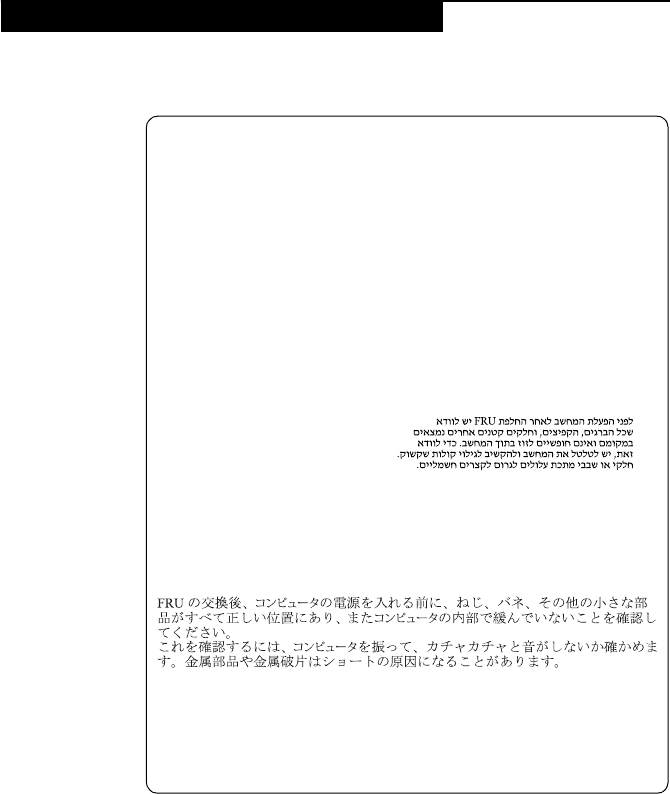
Before the computer is powered on after FRU replacement, make sure all
screws, springs, and other small parts are in place and are not left loose
inside the computer. Verify this by shaking the computer and listening for
rattling sounds. Metallic parts or metal flakes can cause electrical shorts.
Avant de remettre l’ordinateur sous tension après remplacement d’une unité
en clientèle, vérifiez que tous les ressorts, vis et autres pièces sont bien en
place et bien fixées. Pour ce faire, secouez l’unité et assurez-vous qu’aucun
bruit suspect ne se produit. Des pièces métalliques ou des copeaux de métal
pourraient causer un court-circuit.
Bevor nach einem FRU-Austausch der Computer wieder angeschlossen
wird, muß sichergestellt werden, daß keine Schrauben, Federn oder andere
Kleinteile fehlen oder im Gehäuse vergessen wurden. Der Computer muß
geschüttelt und auf Klappergeräusche geprüft werden. Metallteile oder-
splitter können Kurzschlüsse erzeugen.
Prima di accendere l’elaboratore dopo che é stata effettuata la sostituzione di
una FRU, accertarsi che tutte le viti, le molle e tutte le altri parti di piccole
dimensioni siano nella corretta posizione e non siano sparse all’interno
dell’elaboratore. Verificare ciò scuotendo l’elaboratore e prestando
attenzione ad eventuali rumori; eventuali parti o pezzetti metallici possono
provocare cortocircuiti pericolosi.
Antes de encender el sistema despues de sustituir una FRU, compruebe que
todos los tornillos, muelles y demás piezas pequeñas se encuentran en su
sitio y no se encuentran sueltas dentro del sistema. Compruébelo agitando el
sistema y escuchando los posibles ruidos que provocarían. Las piezas
metálicas pueden causar cortocircuitos eléctricos.
Lenovo E4430 and ZhaoYang E4430 Hardware Maintenance Manual
8
Safety notice 2
DANGER
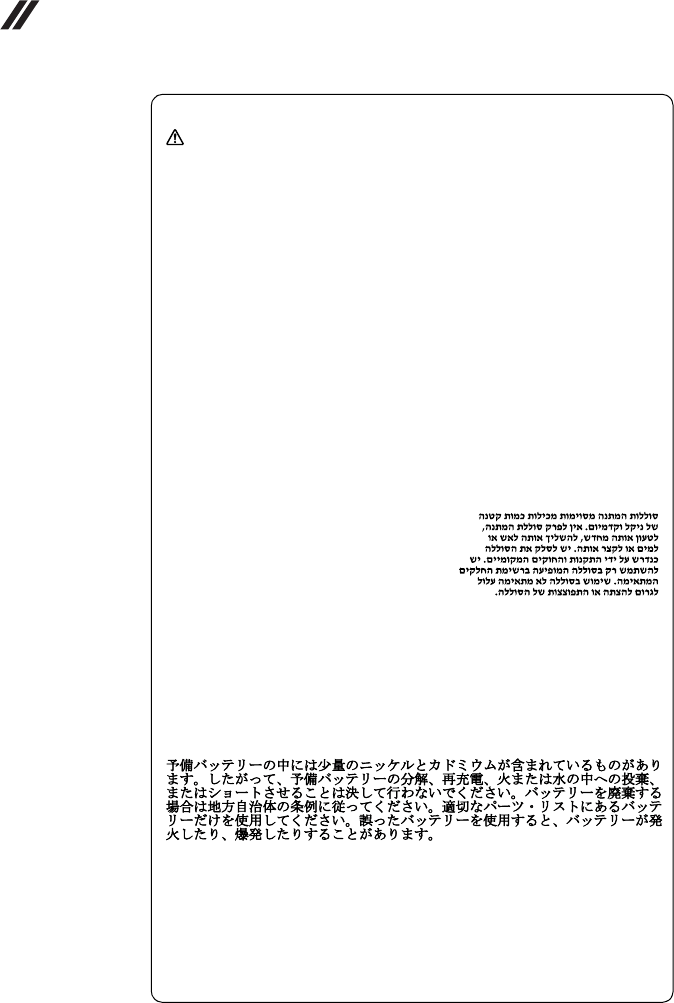
Some standby batteries contain a small amount of nickel and cadmium. Do
not disassemble a standby battery, recharge it, throw it into fire or water, or
short-circuit it. Dispose of the battery as required by local ordinances or
regulations. Use only the battery in the appropriate parts listing. Use of an
incorrect battery can result in ignition or explosion of the battery.
Certaines batteries de secours contiennent du nickel et du cadmium. Ne les
démontez pas, ne les rechargez pas, ne les exposez ni au feu ni à l’eau. Ne
les mettez pas en court-circuit. Pour les mettre au rebut, conformez-vous à
la réglementation en vigueur. Lorsque vous remplacez la pile de sauvegarde
ou celle de l’horloge temps réel, veillez à n’utiliser que les modèles cités dans
la liste de pièces détachées adéquate. Une batterie ou une pile inappropriée
risque de prendre feu ou d’exploser.
Die Bereitschaftsbatterie, die sich unter dem Diskettenlaufwerk befindet,
kann geringe Mengen Nickel und Cadmium enthalten. Sie darf nicht
zerlegt, wiederaufgeladen, kurzgeschlossen, oder Feuer oder Wasser
ausgesetzt werden. Bei der Entsorgung die örtlichen Bestimmungen für
Sondermüll beachten. Beim Ersetzen der Bereitschafts-oder Systembatterie
nur Batterien des Typs verwenden, der in der Ersatzteilliste aufgeführt ist.
Der Einsatz falscher Batterien kann zu Entzündung oder Explosion führen.
Alcune batterie di riserva contengono una piccola quantità di nichel e
cadmio. Non smontarle, ricaricarle, gettarle nel fuoco o nell’acqua né
cortocircuitarle. Smaltirle secondo la normativa in vigore (DPR 915/82,
successive disposizioni e disposizioni locali). Quando si sostituisce la
batteria dell’RTC (real time clock) o la batteria di supporto, utilizzare
soltanto i tipi inseriti nell’appropriato Catalogo parti. L’impiego di una
batteria non adatta potrebbe determinare l’incendio o l’esplosione della
batteria stessa.
Algunas baterías de reserva contienen una pequeña cantidad de níquel y
cadmio. No las desmonte, ni recargue, ni las eche al fuego o al agua ni las
cortocircuite. Deséchelas tal como dispone la normativa local. Utilice sólo
baterías que se encuentren en la lista de piezas. La utilización de una batería
no apropiada puede provocar la ignición o explosión de la misma.
Safety information
9
Safety notice 3
DANGER
The battery pack contains small amounts of nickel. Do not disassemble it,
throw it into fire or water, or short-circuit it. Dispose of the battery pack as
required by local ordinances or regulations. Use only the battery in the
appropriate parts listing when replacing the battery pack. Use of an
incorrect battery can result in ignition or explosion of the battery.
La batterie contient du nickel. Ne la démontez pas, ne l’exposez ni au feu ni
à l’eau. Ne la mettez pas en court-circuit. Pour la mettre au rebut,
conformez-vous à la réglementation en vigueur. Lorsque vous remplacez la
batterie, veillez à n’utiliser que les modèles cités dans la liste de pièces
détachées adéquate. En effet, une batterie inappropriée risque de prendre
feu ou d’exploser.
Akkus enthalten geringe Mengen von Nickel. Sie dürfen nicht zerlegt,
wiederaufgeladen, kurzgeschlossen, oder Feuer oder Wasser ausgesetzt
werden. Bei der Entsorgung die örtlichen Bestimmungen für Sondermüll
beachten. Beim Ersetzen der Batterie nur Batterien des Typs verwenden, der
in der Ersatzteilliste aufgeführt ist. Der Einsatz falscher Batterien kann zu
Entzündung oder Explosion führen.
La batteria contiene piccole quantità di nichel. Non smontarla, gettarla nel
fuoco o nell’acqua né cortocircuitarla. Smaltirla secondo la normativa in
vigore (DPR 915/82, successive disposizioni e disposizioni locali). Quando
si sostituisce la batteria, utilizzare soltanto i tipi inseriti nell’appropriato
Catalogo parti. L’impiego di una batteria non adatta potrebbe determinare
l’incendio o l’esplosione della batteria stessa.
Las baterías contienen pequeñas cantidades de níquel. No las desmonte, ni
recargue, ni las eche al fuego o al agua ni las cortocircuite. Deséchelas tal
como dispone la normativa local. Utilice sólo baterías que se encuentren en
la lista de piezas al sustituir la batería. La utilización de una batería no
apropiada puede provocar la ignición o explosión de la misma.
Lenovo E4430 and ZhaoYang E4430 Hardware Maintenance Manual
10
Safety notice 4
DANGER
The lithium battery can cause a fire, an explosion, or a severe burn. Do not
recharge it, remove its polarized connector, disassemble it, heat it above
100°C (212°F), incinerate it, or expose its cell contents to water. Dispose of
the battery as required by local ordinances or regulations. Use only the
battery in the appropriate parts listing. Use of an incorrect battery can result
in ignition or explosion of the battery.
La pile de sauvegarde contient du lithium. Elle présente des risques
d’incendie, d’explosion ou de brûlures graves. Ne la rechargez pas, ne
retirez pas son connecteur polarisé et ne la démontez pas. Ne l’exposez pas
à une temperature supérieure à 100°C, ne la faites pas brûler et n’en exposez
pas le contenu à l’eau. Mettez la pile au rebut conformément à la
réglementation en vigueur. Une pile inappropriée risque de prendre feu ou
d’exploser.
Die Systembatterie ist eine Lithiumbatterie. Sie kann sich entzünden,
explodieren oder schwere Verbrennungen hervorrufen. Batterien dieses
Typs dürfen nicht aufgeladen, zerlegt, über 100 C erhitzt oder verbrannt
werden. Auch darf ihr Inhalt nicht mit Wasser in Verbindung gebracht oder
der zur richtigen Polung angebrachte Verbindungsstecker entfernt werden.
Bei der Entsorgung die örtlichen Bestimmungen für Sondermüll beachten.
Beim Ersetzen der Batterie nur Batterien des Typs verwenden, der in der
Ersatzteilliste aufgeführt ist. Der Einsatz falscher Batterien kann zu
Entzündung oder Explosion führen.
La batteria di supporto e una batteria al litio e puo incendiarsi, esplodere o
procurare gravi ustioni. Evitare di ricaricarla, smontarne il connettore
polarizzato, smontarla, riscaldarla ad una temperatura superiore ai 100
gradi centigradi, incendiarla o gettarla in acqua. Smaltirla secondo la
normativa in vigore (DPR 915/82, successive disposizioni e disposizioni
locali). L’impiego di una batteria non adatta potrebbe determinare
l’incendio o l’esplosione della batteria stessa.
La batería de repuesto es una batería de litio y puede provocar incendios,
explosiones o quemaduras graves. No la recargue, ni quite el conector
polarizado, ni la desmonte, ni caliente por encima de los 100°C (212°F), ni la
incinere ni exponga el contenido de sus celdas al agua. Deséchela tal como
dispone la normativa local.
Safety information
11
Safety notice 5
If the LCD breaks and the fluid from inside the LCD gets into your eyes or
on your hands, immediately wash the affected areas with water at least for
15 minutes. Seek medical care if any symptoms caused by the fluid are
present after washing.
Si le panneau d’affichage à cristaux liquides se brise et que vous recevez dans
les yeux ou sur les mains une partie du fluide, rincez-les abondamment
pendant au moins quinze minutes. Consultez un médecin si des symptômes
persistent après le lavage.
Die Leuchtstoffröhre im LCD-Bildschirm enthält Quecksilber. Bei der
Entsorgung die örtlichen Bestimmungen für Sondermüll beachten. Der
LCD-Bildschirm besteht aus Glas und kann zerbrechen, wenn er
unsachgemäß behandelt wird oder der Computer auf den Boden fällt. Wenn
der Bildschirm beschädigt ist und die darin befindliche Flüssigkeit in
Kontakt mit Haut und Augen gerät, sollten die betroffenen Stellen
mindestens 15 Minuten mit Wasser abgespült und bei Beschwerden
anschließend ein Arzt aufgesucht werden.
Nel caso che caso l’LCD si dovesse rompere ed il liquido in esso contenuto
entrasse in contatto con gli occhi o le mani, lavare immediatamente le parti
interessate con acqua corrente per almeno 15 minuti; poi consultare un
medico se i sintomi dovessero permanere.
Si la LCD se rompe y el fluido de su interior entra en contacto con sus ojos o
sus manos, lave inmediatamente las áreas afectadas con agua durante
15 minutos como mínimo. Obtenga atención medica si se presenta algún
Lenovo E4430 and ZhaoYang E4430 Hardware Maintenance Manual
12
Safety notice 6
DANGER
To avoid shock, do not remove the plastic cover that protects the lower part
of the inverter card.
Afin d’éviter tout risque de choc électrique, ne retirez pas le cache en
plastique protégeant la partie inférieure de la carte d’alimentation.
Aus Sicherheitsgründen die Kunststoffabdeckung, die den unteren Teil der
Spannungswandlerplatine umgibt, nicht entfernen.
Per evitare scosse elettriche, non rimuovere la copertura in plastica che
avvolge la parte inferiore della scheda invertitore.
Para evitar descargas, no quite la cubierta de plástico que rodea la parte baja
de la tarjeta invertida.
Safety notice 7
DANGER
Though the main batteries have low voltage, a shorted or grounded battery
can produce enough current to burn personnel or combustible materials.
Bien que le voltage des batteries principales soit peu élevé, le court-circuit ou
la mise à la masse d’une batterie peut produire suffisamment de courant
pour brûler des matériaux combustibles ou causer des brûlures corporelles
graves.
Obwohl Hauptbatterien eine niedrige Spannung haben, können sie doch bei
Kurzschluß oder Erdung genug Strom abgeben, um brennbare Materialien
zu entzünden oder Verletzungen bei Personen hervorzurufen.
Sebbene le batterie di alimentazione siano a basso voltaggio, una batteria in
corto circuito o a massa può fornire corrente sufficiente da bruciare materiali
combustibili o provocare ustioni ai tecnici di manutenzione.
Aunque las baterías principales tienen un voltaje bajo, una batería
cortocircuitada o con contacto a tierra puede producir la corriente suficiente
como para quemar material combustible o provocar quemaduras en el
personal.
Safety information
13
Safety notice 8
DANGER
Before removing any FRU, turn off the computer, unplug all power cords
from electrical outlets, remove the battery pack, and then disconnect any
interconnecting cables.
Avant de retirer une unité remplaçable en clientèle, mettez le système hors
tension, débranchez tous les cordons d’alimentation des socles de prise de
courant, retirez la batterie et déconnectez tous les cordons d’interface.
Die Stromzufuhr muß abgeschaltet, alle Stromkabel aus der Steckdose
gezogen, der Akku entfernt und alle Verbindungskabel abgenommen sein,
bevor eine FRU entfernt wird.
Prima di rimuovere qualsiasi FRU, spegnere il sistema, scollegare dalle prese
elettriche tutti i cavi di alimentazione, rimuovere la batteria e poi scollegare
i cavi di interconnessione.
Antes de quitar una FRU, apague el sistema, desenchufe todos los cables de
las tomas de corriente eléctrica, quite la batería y, a continuación, desconecte
cualquier cable de conexión entre dispositivos.
Lenovo E4430 and ZhaoYang E4430 Hardware Maintenance Manual
14
Some models of Lenovo computer are equipped from the factory with an optical
storage device such as a CD-ROM drive or a DVD-ROM drive. Such devices are
also sold separately as options. If one of these drives is installed, it is certified in
the U.S. to conform to the requirements of the Department of Health and Human
Services 21 Code of Federal Regulations (DHHS 21 CFR) Subchapter J for Class
1 laser products. Elsewhere, the drive is certified to conform to the requirements
of the International Electrotechnical Commission (IEC) 825 and CENELEC EN 60
825 for Class 1 laser products.
If a CD-ROM drive, a DVD-ROM drive, or another laser device is installed, note
the following:
Opening the CD-ROM drive, the DVD-ROM drive, or any other optical storage
device could result in exposure to hazardous laser radiation. There are no
serviceable parts inside those drives. Do not open.
Laser compliance statement
CAUTION
Use of controls or adjustments or performance of procedures other than
those specified herein might result in hazardous radiation exposure.
O uso de controles, ajustes ou desempenho de procedimentos diferentes
daqueles aqui especificados pode resultar em perigosa exposição à radiação.
Pour éviter tout risque d’exposition au rayon laser, respectez les consignes
de réglage et d’utilisation des commandes, ainsi que les procédures décrites.
Werden Steuer- und Einstellelemente anders als hier festgesetzt verwendet,
kann gefährliche Laserstrahlung auftreten.
L’utilizzo di controlli, regolazioni o l’esecuzione di procedure diverse da
quelle specificate possono provocare l’esposizione a.
El uso de controles o ajustes o la ejecución de procedimientos distintos de los
aquí especificados puede provocar la exposición a radiaciones peligrosas.
Safety information
15
A CD-ROM drive, a DVD-ROM drive, or any other storage device installed may
contain an embedded Class 3A or Class 3B laser diode. Note the following:
DANGER
Emits visible and invisible laser radiation when open. Do not stare into the
beam, do not view directly with optical instruments, and avoid direct
exposure to the beam.
Radiação por raio laser ao abrir. Não olhe fixo no feixe de luz, não olhe
diretamente por meio de instrumentos óticos e evite exposição direta com o
feixe de luz.
Rayonnement laser si carter ouvert. Évitez de fixer le faisceau, de le regarder
directement avec des instruments optiques, ou de vous exposer au rayon.
Laserstrahlung bei geöffnetem Gerät. Nicht direkt oder über optische
Instrumente in den Laserstrahl sehen und den Strahlungsbereich meiden.
Kinyitáskor lézersugár ! Ne nézzen bele se szabad szemmel, se optikai
eszközökkel. Kerülje a sugárnyalábbal való érintkezést!
Aprendo l’unità vengono emesse radiazioni laser. Non fissare il fascio, non
guardarlo direttamente con strumenti ottici e evitare l’esposizione diretta al
fascio.
Radiación láser al abrir. No mire fijamente ni examine con instrumental
óptico el haz de luz. Evite la exposición directa al haz.
Lenovo E4430 and ZhaoYang E4430 Hardware Maintenance Manual
16
This chapter presents the following important service information:
• “Strategy for replacing FRUs” on page 16
– “Strategy for replacing a hard disk drive” on page 17
– “Important notice for replacing a system board” on page 17
• “Important information about replacing RoHS compliant FRUs” on page 18
Before replacing parts:
Make sure that all software fixes, drivers, and BIOS downloads are installed
before replacing any FRUs listed in this manual.
After a system board is replaced, ensure that the latest BIOS is loaded to the
system board before completing the service action.
To download software fixes, drivers, and BIOS, follow the steps below:
1. Go to http://consumersupport.lenovo.com/.
2. Enter the serial number or select a product or use Lenovo smart
downloading.
3. Select the BIOS/Driver/Applications and download.
4. Follow the directions on the screen and install the necessary software.
Important service information
Important:
BIOS and device driver fixes are customer-installable. The BIOS and device
drivers are posted on the customer support site:
http://consumersupport.lenovo.com/.
Strategy for replacing FRUs
Important service information
17
Use the following strategy to prevent unnecessary expense for replacing and
servicing FRUs:
• If you are instructed to replace an FRU, but the replacement does not solve
the problem, reinstall the original FRU before you continue.
• Some computers have both a processor board and a system board. If you are
instructed to replace either of them, and replacing one of them does not solve
the problem, reinstall that board, and then replace the other one.
• If an adapter or a device consists of more than one FRU, any of the FRUs may
be the cause of the error. Before replacing the adapter or device, remove the
FRUs one by one to see if the symptoms change. Replace only the FRU that
changed the symptoms.
Attention: The setup configuration on the computer you are servicing may have
been customized. Running Automatic Configuration may alter the settings. Note
the current configuration settings (using the View Configuration option); then,
when service has been completed, verify that those settings remain in effect.
Strategy for replacing a hard disk drive
Always try to run a low-level format before replacing a hard disk drive. This will
cause all customer data on the hard disk to be lost. Make sure that the customer
has a current backup of the data before performing this action.
Attention: The drive startup sequence in the computer you are servicing may
have been changed. Be extremely careful during write operations such as
copying, saving, or formatting. If you select an incorrect drive, data or programs
can be overwritten.
Important notice for replacing a system board
Some components mounted on a system board are very sensitive. Improper
handling can cause damage to those components, and may cause a system
malfunction.
Attention: When handling a system board:
• Do not drop the system board or apply any excessive force to it.
• Avoid rough handling of any kind.
• Avoid bending the system board and hard pushing to prevent cracking at
each BGA (Ball Grid Array) chipset.
Lenovo E4430 and ZhaoYang E4430 Hardware Maintenance Manual
18
RoHS, The Restriction of Hazardous Substances in Electrical and
Electronic Equipment Directive (2002/95/EC) is a European Union legal
requirement affecting the global electronics industry. RoHS requirements
must be implemented on Lenovo products placed on the market after June
2006. Products on the market before June 2006 are not required to have
RoHS compliant parts. If the original FRU parts are non-compliant,
replacement parts can also be non-compliant. In all cases if the original
FRU parts are RoHS compliant, the replacement part must also be RoHS
compliant.
Note: RoHS and non-RoHS FRU part numbers with the same fit and function are
identified with unique FRU part numbers.
Lenovo plans to transit to RoHS compliance well before the implementation date
and expects its suppliers to be ready to support Lenovo’s requirements and
schedule in the EU. Products sold in 2005 and 2006 will contain some RoHS
compliant FRUs. The following statement pertains to these products and any
product Lenovo produces containing RoHS compliant FRUs.
RoHS compliant FRUs have unique FRU part numbers. Before or after the RoHS
implementation date, failed RoHS compliant parts must always be replaced with
RoHS compliant ones, so only the FRUs identified as compliant in the system
HMM or direct substitutions for those FRUs may be used.
Note: A direct substitution is a part with a different FRU part number that is
automatically shipped by the distribution center at the time of the order.
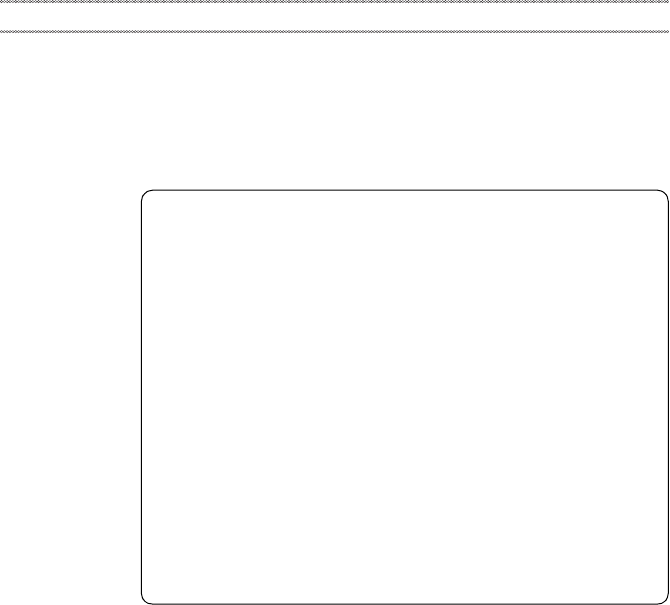
Products marketed before June 2006 Products marketed after June 2006
Current or
original part
Replacement
FRU
Current or
original part
Replacement
FRU
Non-RoHS Can be Non-RoHS
Must be RoHS Must be RoHS
Non-RoHS Can be RoHS
Non-RoHS Can sub to RoHS
RoHS Must be RoHS
Important information about replacing RoHS compliant FRUs
General checkout
19
This chapter presents the following information:
• “What to do first” on page 20
• “Power system checkout” on page 21
Before you go to the checkout, make sure to read the following important notes:
General checkout
Important notes:
•Only certified trained personnel can service the computer.
•Before replacing any FRU, read the entire page on removing and
replacing FRUs.
•When you replace FRUs, use new nylon-coated screws.
•Be extremely careful during such write operations as copying,
saving, or formatting. Drives in the computer that you are servicing
sequence might have been altered. If you select an incorrect drive, data
or programs might be overwritten.
•Replace an FRU only with another FRU of the correct model. When
you replace an FRU, make sure that the machine model and the FRU part
number are correct by referring to the FRU parts list.
•An FRU should not be replaced just because of a single,
unreproducible failure. Single failures can occur for a variety of reasons
that have nothing to do with a hardware defect, such as cosmic radiation,
electrostatic discharge, or software errors. Consider replacing an FRU
only when a problem recurs. If you suspect that an FRU is defective,
clear the error logs and run the test again. If the error does not recur, do
not replace the FRU.
•Be careful not to replace a nondefective FRU.

Lenovo E4430 and ZhaoYang E4430 Hardware Maintenance Manual
20
When you do return an FRU, you must include the following information in the
parts exchange form or parts return form that you attach to it:
1. Name and phone number of servicer
2. Date of service
3. Date on which the machine failed
4. Date of purchase
5. Procedure index and page number in which the failing FRU was detected
6. Failing FRU name and part number
7. Machine type, model number, and serial number
8. Customer’s name and address
Note for warranty: During the warranty period, the customer may be
responsible for repair costs if the computer damage was caused by misuse,
accident, modification, unsuitable physical or operating environment, or
improper maintenance by the customer.
The following is a list of some common items that are not covered under
warranty and some symptoms that might indicate that the system was subjected
to stress beyond normal use.
Before checking problems with the computer, determine whether the damage is
covered under the warranty by referring to the following list:
The following are not covered under warranty:
• LCD panel cracked from the application of excessive force or from being
dropped
• Scratched (cosmetic) parts
• Distortion, deformation, or discoloration of the cosmetic parts
• Plastic parts, latches, pins, or connectors that have been cracked or broken by
excessive force
• Damage caused by liquid spilled into the system
• Damage caused by the improper insertion of a PC Card or the installation of
an incompatible card
• Improper disk insertion or use of an optical drive
• Diskette drive damage caused by pressure on the diskette drive cover, foreign
material in the drive, or the insertion of a diskette with multiple labels
• Damaged or bent diskette eject button
• Fuses blown by attachment of a nonsupported device
• Forgotten computer password (making the computer unusable)
• Sticky keys caused by spilling a liquid onto the keyboard
• Use of an incorrect AC adapter on laptop products
The following symptoms might indicate damage caused by nonwarranted
activities:
• Missing parts might be a symptom of unauthorized service or modification.
• If the spindle of a hard disk drive becomes noisy, it may have been subjected
to excessive force, or dropped.
What to do first
General checkout
21
To verify a symptom, follow the steps below:
1. Turn off the computer.
2. Remove the battery pack.
3. Connect the AC adapter.
4. Make sure that power is supplied when you turn on the computer.
5. Turn off the computer.
6. Disconnect the AC adapter and install the charged battery pack.
7. Make sure that the battery pack supplies power when you turn on the
computer.
If you suspect a power problem, see the appropriate one of the following power
supply checkouts:
• “Checking the AC adapter” on page 21
• “Checking operational charging” on page 21
• “Checking the battery pack” on page 22
Checking the AC adapter
You are here because the computer fails only when the AC adapter is used.
• If the power-on indicator does not turn on, check the power cord of the AC
adapter for correct continuity and installation.
• If the computer does not charge during operation, go to “Checking
operational charging”.
To check the AC adapter, follow the steps below:
1. Unplug the AC adapter cable from the computer.
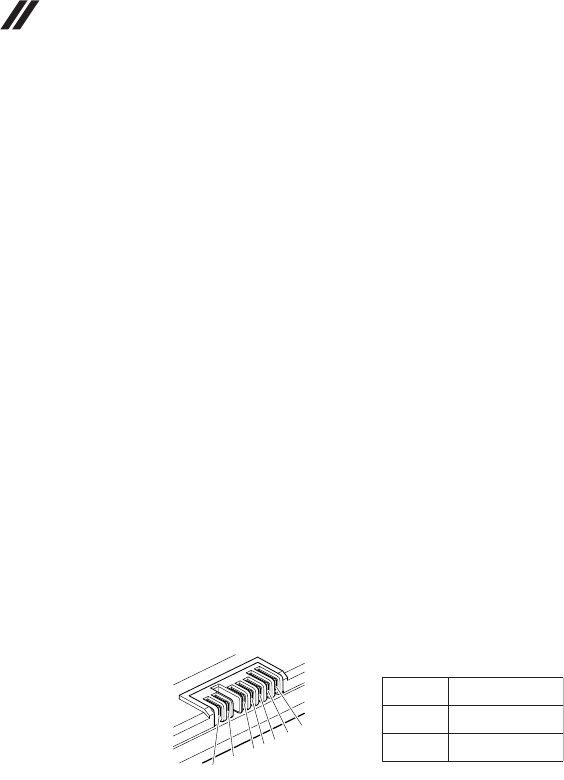
2. Measure the output voltage at the plug of the AC adapter cable. See the
following figure:
Note: Output voltage for the AC adapter pin No. 2 may differ from the one you
are servicing.
3. If the voltage is not correct, replace the AC adapter.
4. If the voltage is acceptable, do the following:
• Replace the system board.
• If the problem persists, go to “Lenovo E4430 and ZhaoYang E4430” on
page 27.
Note: Noise from the AC adapter does not always indicate a defect.
Checking operational charging
To check whether the battery charges properly during operation, use a
discharged battery pack or a battery pack that has less than 50% of the total
power remaining when installed in the computer.
Power system checkout
Voltage (V DC)
+20
0
Pin
1
2
21
Lenovo E4430 and ZhaoYang E4430 Hardware Maintenance Manual
22
Perform operational charging. If the battery status indicator or icon does not
light on, remove the battery pack and let it return to room temperature. Reinstall
the battery pack. If the charge indicator or icon is still off, replace the battery
pack.
If the charge indicator still does not light on, replace the system board. Then
reinstall the battery pack. If it is still not charged, go to the next section.
Checking the battery pack
Battery charging does not start until the Power Meter shows that less than 95%
of the total power remains; under this condition the battery pack can charge to
100% of its capacity. This protects the battery pack from being overcharged or
from having a shortened life.
To check your battery, move your cursor to the Power Meter icon in the icon tray
of the Windows® taskbar and wait for a moment (but do not click it), and the
percentage of battery power remaining is displayed. To get detailed information
about the battery, double-click the Power Meter icon.
Note: If the battery pack becomes hot, it may not be able to be charged. Remove
it from the computer and leave it at room temperature for a while. After it cools
down, reinstall and recharge it.
To check the battery pack, follow the steps below:
1. Turn off the computer.
2. Remove the battery pack and measure the voltage between battery terminals
1 (+) and 7 (-). See the following figure:
3. If the voltage is less than +11.0 V DC, the battery pack has been discharged.
Note: Recharging will be continued for at least 3 hours, even though the
indicator does not light on.
If the voltage is still less than +11.0 V DC after recharging, replace the battery.
4. If the voltage is more than +11.0 V DC, measure the resistance between
battery terminals 5 and 7. The resistance must be 4 to 30 KΩ.
If the resistance is not correct, replace the battery pack. If the resistance is
correct, replace the system board.
1(+)2(+) 3456(-)7(-)
Terminal
1 +0 to +14
7 Ground (-)
Voltage (V DC)

Related service information
23
This chapter presents the following information:
• “Restoring the factory contents by using Recovery Disc Set” on page 23
•“Passwords” on page24
• “Power management” on page 25
When the hard disk drive or solid state drive is replaced because of a failure, no
product recovery program is on the new drive. In this case, you must use the
Recovery Disc Set for the computer. Order the Recovery Disc Set and the drive at
the same time so that you can recover the new drive with the pre-installed
software when they arrive.
The Recovery Disc Set consists of the following set of DVDs to restore the
computer to the original factory configuration.
Start Recovery Disc (one disc)
This disc is used to format the hard disk drive and initiate the recovery process.
Operating System Recovery Disc (one or more discs)
This disc restores the Microsoft Windows operating system.
Applications and Drivers Recovery Disc (one or more discs)
This disc restores the pre-installed applications and drivers on the computer.
Supplemental Recovery Disc
This disc contains additional content, such as software for specific models and
updates to the software that was preloaded on the computer. Not all recovery
disc sets come with a Supplemental Recovery Disc.
To restore the computer to the original factory configuration using the recovery
disc set, do the following:
1. Insert the bootable Start Recovery Disc into the optical drive.
2. Start the computer. When the Lenovo logo comes up, immediately press F12;
on the boot sequence menu, select the optical drive as the first boot-up device.
The computer will boot from the Start Recovery Disc. Follow the on-screen
instructions to begin the recovery process.
3. Read the license. If you agree with the terms, select I accept these terms and
conditions and then click Next.
4. Insert the Operating System Recovery Disc when prompted and click Yes to
begin the operating system recovery process.
5. Insert the Applications and Drivers Recovery Disc when prompted and then
click OK to begin the applications and drivers recovery process.
6. If you have a Supplemental Recovery Disc, insert it when prompted and click
Yes. If you do not have a Supplemental Recovery Disc, click No.
Related service information
Restoring the factory contents by using Recovery Disc Set
Lenovo E4430 and ZhaoYang E4430 Hardware Maintenance Manual
24
7. When all of the data has been copied from the last disc in the set, remove the
disc and restart the computer.
8. When the recovery process is complete, the Welcome to the Microsoft
Windows screen is displayed. Follow the instructions on the screen to
complete the Windows setup.
As many as three passwords may be needed for any Lenovo computer: the
power-on password (POP), the hard disk password (HDP), and the supervisor
password (SVP).
If any of these passwords has been set, a prompt for it appears on the screen
whenever the computer is turned on. The computer does not start until the
password is entered.
Exception: If only an SVP is installed, the password prompt does not appear
when the operating system is booted.
Power-on password
A power-on password (POP) protects the system from being powered on by an
unauthorized person. The password must be entered before an operating system
can be booted.
Hard-disk password
There are two hard-disk passwords (HDPs):
+ User HDP - for the user
+ Master HDP - for the system administrator, who can use it to get access to the
hard disk drive even if the user has changed the user HDP
Attention: If the user HDP has been forgotten, check whether a master HDP has
been set. If it has, it can be used for access to the hard disk drive. If no master
HDP is available, neither Lenovo nor Lenovo authorized service technicians
provide any services to reset either the user or the master HDP, or to recover data
from the hard disk drive. The hard disk drive can be replaced for a scheduled fee.
Supervisor password
A supervisor password (SVP) protects the system information stored in the BIOS
Setup Utility. The user must enter the SVP in order to get access to the BIOS
Setup Utility and change the system configuration.
Attention: If the SVP has been forgotten and cannot be made available to the
servicer, there is no service procedure to reset the password. The system board
must be replaced for a scheduled fee.
Note: The remainder of the recovery process is fully automated and no
action is required by you. The computer will restart into the Windows
desktop several times and you might experience periods when no activity is
apparent on the screen for several minutes at a time. This is normal.
Passwords

Related service information
25
Note: Power management modes are not supported for APM operating system.
To reduce power consumption, the computer has three power management
modes: screen blank, sleep (standby), and hibernation.
Screen blank mode
If the time set on the “Turn off monitor” timer in the operating system expires,
the LCD backlight turns off. You can also turn off the LCD backlight by pressing
Fn+F2.
To end screen blank mode and resume normal operation, press any key.
Putting the computer into sleep mode or shutting it down
To conserve power, put the computer into sleep mode or shut it down when the
computer is not in use.
Putting your computer into sleep mode
If you will be away from your computer for a short time, put the computer into
sleep mode. When the computer is in sleep mode, you can quickly wake it up to
resume use and bypass the startup process.
To put the computer into sleep mode, do either of the following:
• For the Windows 7 operating system:
1. Click Start.
2. Select Sleep from the Shut down menu options.
For the Windows 8 operating system:
1. Move your cursor to the lower-right corner of the screen, and then the
charms is displayed.
2. Click Settings.
3.Select Sleep from the Power menu options.
•Press Fn+F1.
Note: Wait until the power indicator starts blinking (indicating that the
computer is in sleep state) before you move the computer. Moving the computer
while the hard disk drive is spinning can damage the hard disk drive, causing
loss of data.
To wake up the computer, do either of the following:
• Press the power button.
• Press the Fn key on the keyboard.
Power management

Lenovo E4430 and ZhaoYang E4430 Hardware Maintenance Manual
26
Shutting down the computer
If you are not going to use the computer for a day or two, shut it down.
To shut down the computer, do either of the following:
• For the Windows 7 operating system: Click Start → Shut down.
• For the Windows 8 operating system:
1. Move your cursor to the lower-right corner of the screen, and then the
charms is displayed.
2. Click Settings.
3.Select Shut down from the Power menu options.
Lenovo E4430 and ZhaoYang E4430
27
This chapter presents the following product-specific service references and
product-specific parts information:
• “Specifications” on page 27
• “Status indicators” on page 29
• “FRU tests” on page 31
• “Fn key combinations” on page 31
• “FRU replacement notices” on page 33
• “Removing and replacing an FRU” on page 34
•“Locations” on page66
• “Parts list” on page 70
The following table lists the specifications of the Lenovo E4430 and ZhaoYang
E4430:
Table 1. Specifications
Feature Description
Processor • Intel Huron River
Core Chipset • Intel Shark Bay: HM86
Graphic Chipset • Intel Integrated
• nVidia (2GB VRAM) w/Switchable Graphics (Optimus)
- nVidia N14M-GL
Display • 14" LED backlit HD AG (1366x768) Wedge type 5.2mm,
LVDS
Standard
memory
• DDR3L 1600Mhz (2GB, 4GB, 8GB SoDIMM) two
DIMM slots.
Hard disk drive • 320G 7200 RPM HDD (7/9.5mm)
• 500G 5400& 7200 RPM HDD (7/9.5mm)
• 1T 5400 RPM HDD (9.5mm)
Solid-state drive • 32G/64G, (Select models only)
Optical drive • 12.7 mm Rambo optical drive (on some models)
Lenovo E4430 and ZhaoYang E4430
Specifications

Lenovo E4430 and ZhaoYang E4430 Hardware Maintenance Manual
28
Table 1. Specifications (continued)
Feature Description
I/O port • Combo audio jack (stereo headphone or headset)
• One or two USB 2.0 connectors
• Two USB 3.0 connectors
• RJ45 Ethernet connector
•HDMI port
• External monitor connector
• USB3.0 × 2 ; USB2.0 × 2
• 4-in-1 card reader
MODEM slot • N/A
Audio • Combo Microphone & Headphone Jacks
• Integrated Speakers Stereo, 1.5Watts x2ch
• Integrated Analog Microphone
Video • CRT port × 1
•HDMI port × 1
Ethernet (on the
system board) • 10/100/1000 Mbps Ethernet communication
PCI Express Mini
Card slot
• Wimax/WIFI × 1
•SSD × 1
WLAN • non-Intel 1x1 11bgn (HMC)
• non-Intel 1x1 11bgn + BT Combo (HMC)
• Intel 7260BN Wilkins Peak2 2x2 11bgn + BT Combo
(HMC)
• Intel 7260 Wilkins Peak2 2x2 11ac + BT Combo (HMC)
WWAN • N/A
Bluetooth
wireless • BCM92070 BT2.1 EDR, (Select models only)
Keyboard • 6-row Lenovo keyboard
Touch pad • Two clicks with Dome
Finger Print
Reader
Integrated
camera • Integrated 720P or 0.3MP, with LED indicator
Battery • Lithium-ion (Li-ion) battery pack
AC adapter • 65 W/90 W
Pre-installed
operating system
• Windows Win7 Ultimate/Home premium/Home Basic,
32/64bit

Lenovo E4430 and ZhaoYang E4430
29
The system status indicators below show the computer status:
Status indicators
abc

Lenovo E4430 and ZhaoYang E4430 Hardware Maintenance Manual
30
Table 2. Status indicators
1. Power status indicator
•Green: The computer is powered on.
•Blinking: The computer is in sleep mode.
•Off: The computer is powered off.
2. Battery status indicator
•Green: The battery charge level is between 80% and 100%, or the battery
discharge level is between 20% and 100%.
•Slow blinking Green: The battery charge level is between 20% and 80%, and
charging is continuing.When the battery charge level reaches 80%, the battery
status indicator stops blinking, but the charging might continue until the
battery is 100% charged.
•Slow blinking amber: The battery charge level is between 5% and 20%, and
charging is continuing.When the battery charge level reaches 20%, the
blinking color changes to green.
•Amber: The battery discharge level is between 5% and 20%.
•Fast blinking amber: The battery charge or discharge level is 5% or less.
•Off: The battery is detached or the computer is powered off.
3. Device access status indicator
When this indicator is on, the hard disk drive or optical drive is reading or
writing data.
Attention:
• When the indicator is on, do not put the computer into sleep mode or turn off
the computer.
• When the indicator is on, do not move the computer. Sudden physical shock
might cause drive errors.

Lenovo E4430 and ZhaoYang E4430
31
The following table shows the function of each combination of Fn with a function
key.
Table 4. Fn key combinations
The following is a brief introduction to the function key combinations.
Power conservation (Fn + F1)
Puts your computer into sleep mode.
Display backlight feature (Fn + F2)
Enables or disables the display backlight feature.
Switching the display output location (Fn + F3)
Switches between the computer display and an external monitor. The following
options will be displayed:
• PC screen only
• Duplicate
• Extend
• Second screen only
Note: You can also press the Windows key + P combination to switch between
the computer display and an external monitor.
Configuring camera settings (Fn + F4)
• Windows 7: Press Fn + F4 to open the camera and audio settings window.
The camera preview is turned on. Change the camera and audio settings as
desired.
• Windows 8: Press Fn + F4 to enable or disable the camera.
Wireless radio control (Fn + F5)
Enables or disables the built-in wireless networking features.
Muting/Unmuting volume (Fn + F6)
Cuts off or turns on the volume.
Enabling/Disabling built-in microphone (Fn + F7)
Enables or disables the built-in microphone.
Touch pad control (Fn + F8)
Enables or disables the touch pad function.
Multimedia controls
•Fn + F9: Play or Pause
•Fn + F10: Stop
• Fn + F11: Previous track or scene
•Fn + F12: Next track or scene
Volume controls (Fn + left or right arrow)
To adjust the sound volume from your computer, do the following:
•Fn + left arrow: Decreases the sound volume.
•Fn + right arrow: Increases the sound volume.
Adjusting display brightness (Fn + up or down arrow)
To adjust the display brightness, do the following:
•Fn + up arrow: Increases the display brightness.
•Fn + down arrow: Decreases the display brightness.
Fn key combinations

Lenovo E4430 and ZhaoYang E4430 Hardware Maintenance Manual
32
Other functions
•Fn + Insert: Has the same function as the Numeric Lock key on a
conventional keyboard.
•Fn + PrtSc: Has the same function as the SysRq key on a conventional
keyboard.
•Fn + PgUp: Has the same function as the Home key on a conventional
keyboard.
•Fn + PgDn: Has the same function as the End key on a conventional
keyboard.
Lenovo E4430 and ZhaoYang E4430
33
This section presents notices related to removing and replacing parts. Read this
section carefully before replacing any FRU.
Screw notices
Loose screws can cause a reliability problem. In the Lenovo computer, this
problem is addressed with special nylon-coated screws that have the following
characteristics:
• They maintain tight connections.
• They do not easily come loose, even with shock or vibration.
• They are harder to tighten.
• Each one should be used only once.
Do the following when you service this machine:
• Keep the screw kit in your tool bag.
• Always use new screws.
• Use a torque screwdriver if you have one.
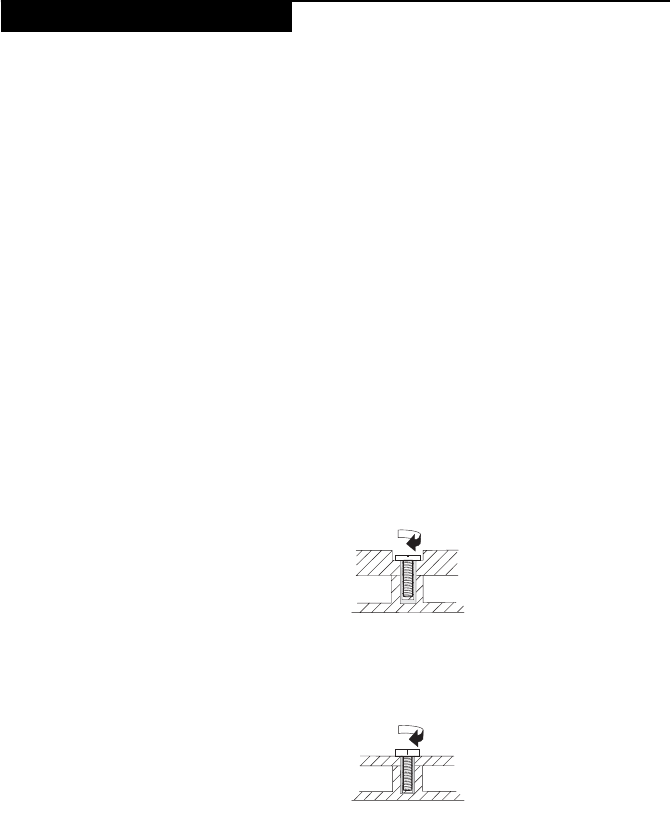
Tighten screws as follows:
•Plastic to plastic
Turn an additional 90° after the screw head touches the surface of the plastic
part:
•Logic card to plastic
Turn an additional 180° after the screw head touches the surface of the logic
card:
•Torque driver
If you have a torque screwdriver , refer to the “Torque” column for each step.
• Make sure that you use the correct screws. If you have a torque screwdriver,
tighten all screws firmly to the torque shown in the table. Never use a screw
that you removed. Use a new one. Make sure that all screws are
tightened firmly.
• Ensure torque screwdrivers are calibrated correctly following country
specifications.
FRU replacement notices
more than 90°
(Cross-section)
more than 180°
(Cross-section)
Lenovo E4430 and ZhaoYang E4430 Hardware Maintenance Manual
34
This section presents exploded figures with the instructions to indicate how to
remove and replace the FRU. Make sure to observe the following general rules:
1. Do not attempt to service any computer unless you have been trained and
certified. An untrained person runs the risk of damaging parts.
2. Before replacing any FRU, review “FRU replacement notices” on page 33.
3. Begin by removing any FRUs that have to be removed before the failing FRU.
Any of such FRUs are listed at the top of the page. Remove them in the order
in which they are listed.
4. Follow the correct sequence in the steps to remove the FRU, as given in the
figures by the numbers in square callouts.
5. When turning a screw to replace an FRU, turn it in the direction as given by
the arrow in the figure.
6. When removing the FRU, move it in the direction as given by the arrow in the
figure.
7. To put the new FRU in place, reverse the removal procedures and follow any
of the notes that pertain to replacement. For information about connecting
and arranging internal cables, see “Locations” on page 66.
8. When replacing an FRU, use the correct screw as shown in the procedures.
Attention: After replacing an FRU, do not turn on the computer until you have
made sure that all screws, springs, and other small parts are in place and none
are loose inside the computer. Verify this by shaking the computer gently and
listening for rattling sounds. Metallic parts or metal flakes can cause electrical
short circuits.
Attention: The system board is sensitive to, and can be damaged by, electrostatic
discharge. Before touching it, establish personal grounding by touching a
ground point with one hand or using an electrostatic discharge (ESD) strap
(P/N 6405959) to remove potential shock reasons.
Removing and replacing an FRU
DANGER
Before removing any FRU, turn off the computer, unplug all power cords
from electrical outlets, remove the battery pack, and then disconnect any of
the interconnecting cables.
Lenovo E4430 and ZhaoYang E4430
35
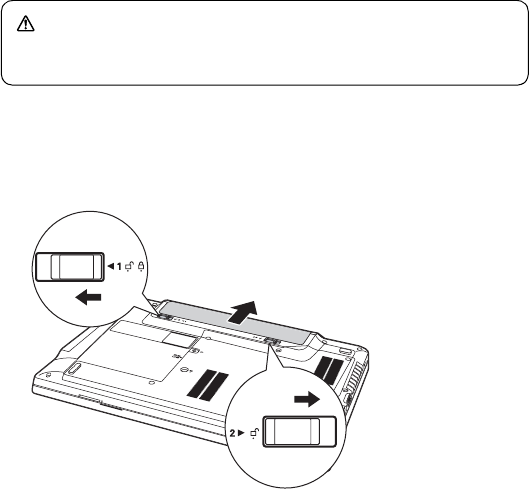
1010 Battery pack
Figure 1. Removal steps of battery pack
Unlock the manual battery latch . Holding the spring-loaded battery latch in
the unlocked position , remove the battery pack in the direction shown by the
arrow .
When installing: Install the battery pack along the slide rails of the slot. Then
make sure that the battery release lever is in the locked position.
DANGER
Only use the battery specified in the parts list for your computer. Any other
battery could ignite or explode.
a
b
c
c
b
a
Lenovo E4430 and ZhaoYang E4430 Hardware Maintenance Manual
36
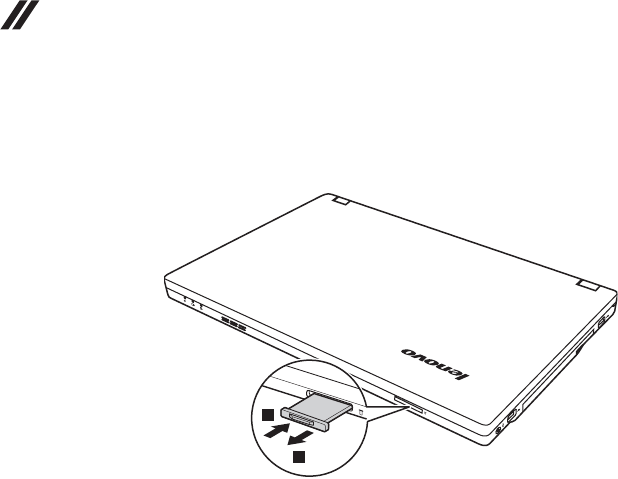
1020 Dummy card
Figure 2. Removal steps of dummy cards
Remove the dummy card in the direction shown by arrows .
a b
1
2
Lenovo E4430 and ZhaoYang E4430
37
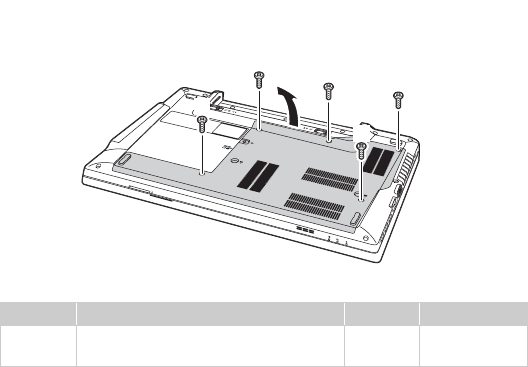
1030 Hard disk drive(HDD)/Memory/Mini PCI Express Card
slot compartment cover
For access, remove this FRU:
• “1010 Battery pack” on page 35
Figure 3. Removal steps of HDD/Memory/Mini PCI Express Card slot/TV Card slot
compartment cover
Loosen the screws that secure the compartment cover. Remove the
compartment cover .
Step Screw (quantity) Color Torque
M2 × 4.7mm, flat-head, nylok-coated
(5)
Black 1.85+/-0.15
kgfcm
a
b
a
a
a
a
a
b
a
Lenovo E4430 and ZhaoYang E4430 Hardware Maintenance Manual
38
1040 Hard disk drive
For access, remove these FRUs in order:
• “1010 Battery pack” on page 35
• “1030 Hard disk drive(HDD)/Memory/Mini PCI Express Card slot
compartment cover” on page 37
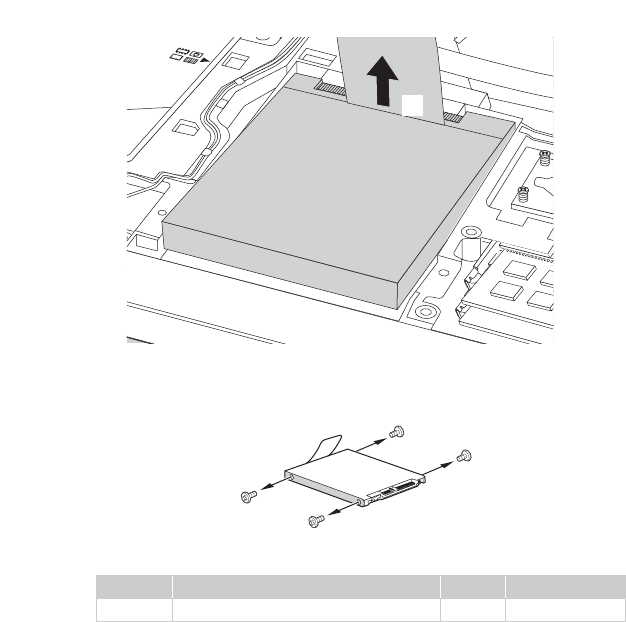
Figure 4. Removal steps of hard disk drive
Gently slide the hard disk drive out in the direction shown by arrow .
Attention:
•Do not drop the hard disk drive or apply any physical shock to it.
The hard disk drive is sensitive to physical shock. Improper handling
can cause damages and permanent loss of data.
• Before removing the drive, suggest the customer to backup all the
information on it if possible.
• Never remove the drive while the system is operating or is in suspend
mode.
a
a
Lenovo E4430 and ZhaoYang E4430
39
Figure 4. Removal steps of hard disk drive (continued)
Remove the hard disk drive by lifting the tab in the direction shown by arrow
.
When installing: Make sure that the HDD connector is attached firmly.
Remove four screws and detach the metal frame from the hard disk drive.
Step Screw (quantity) Color Torque
M3 × 3 mm, flat-head, nylok-coated (4) Black 4.0+/-0.3 kgfcm
b
b
c
c
c
c
c
a
Lenovo E4430 and ZhaoYang E4430 Hardware Maintenance Manual
40
1050 Optical drive
For access, remove this FRU:
• “1010 Battery pack” on page 35
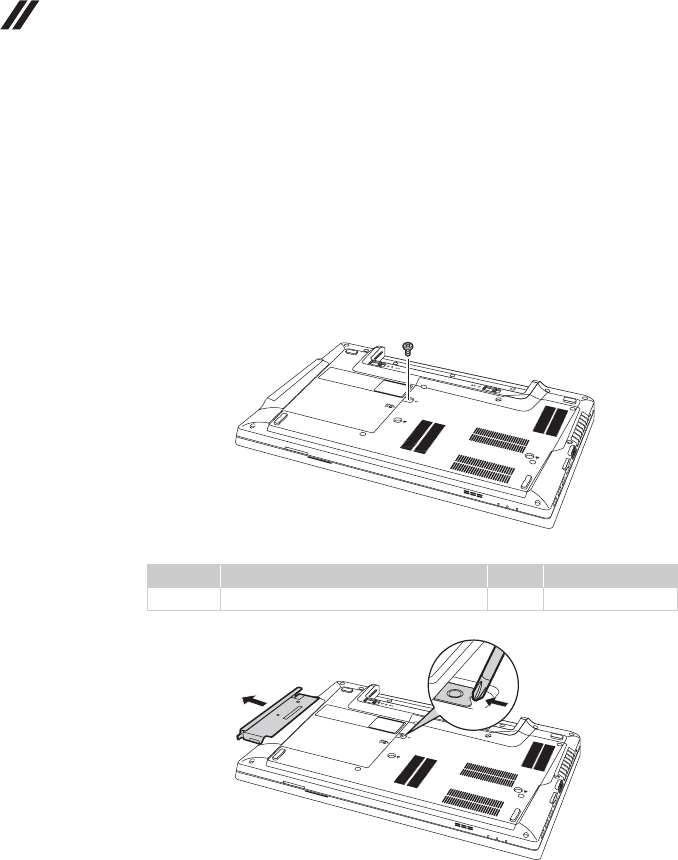
Figure 5. Removal steps of optical drive
Remove the screw , insert a screwdriver into the screw hole and push the
optical drive in the direction shown by arrow . Pull the optical drive out in the
direction shown by arrow .
Step Screw (quantity) Color Torque
M2 × 3 mm, flat-head, nylokcoated (1) Black 1.85+/-0.15 kgfcm
a
b
c
a
a
b
c
Lenovo E4430 and ZhaoYang E4430
41
1060 DIMM
For access, remove these FRUs in order:
• “1010 Battery pack” on page 35
• “1030 Hard disk drive(HDD)/Memory/Mini PCI Express Card slot
compartment cover” on page 37
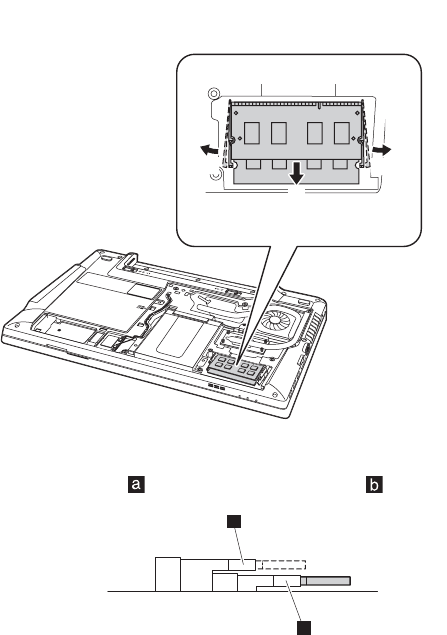
Figure 6. Removal steps of DIMM
Release the two latches on both edges of the socket at the same time in the
direction shown by arrows , and then unplug the DIMM in the direction
shown by arrow .
Note: If only one DIMM is used on the computer you are servicing, the card must
be installed in SLOT-0 ( : lower slot), but not in SLOT-1 ( : upper slot).
z
When installing: Insert the notched end of the DIMM into the socket. Push the
DIMM firmly, and pivot it until it snaps into the place. Make sure that it is firmly
fixed in the slot and difficult to be moved.
a
b
b
a
a
a
b
Lenovo E4430 and ZhaoYang E4430 Hardware Maintenance Manual
42
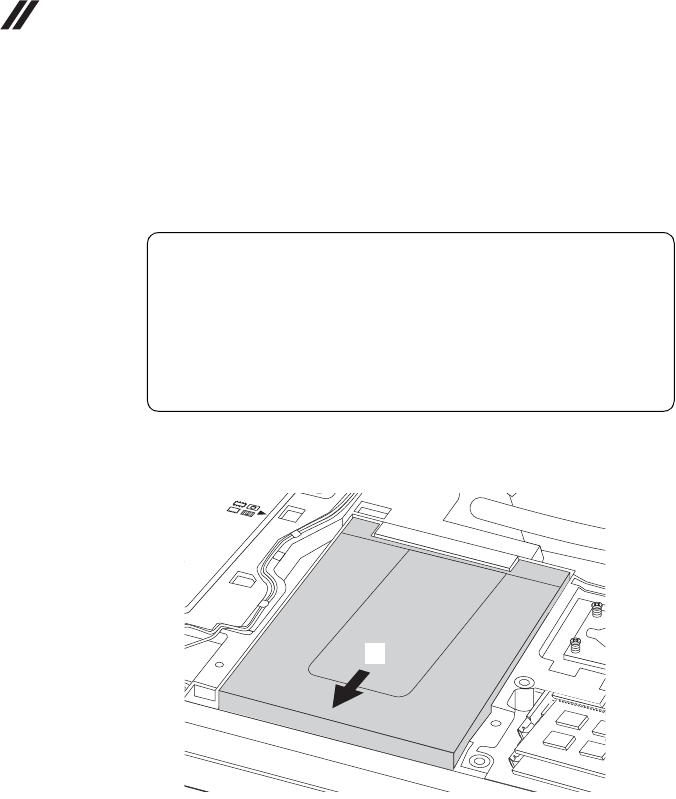
1070 PCI Express Mini Card for wireless LAN/WAN
For access, remove these FRUs in order:
• “1010 Battery pack” on page 35
• “1030 Hard disk drive(HDD)/Memory/Mini PCI Express Card slot
compartment cover” on page 37
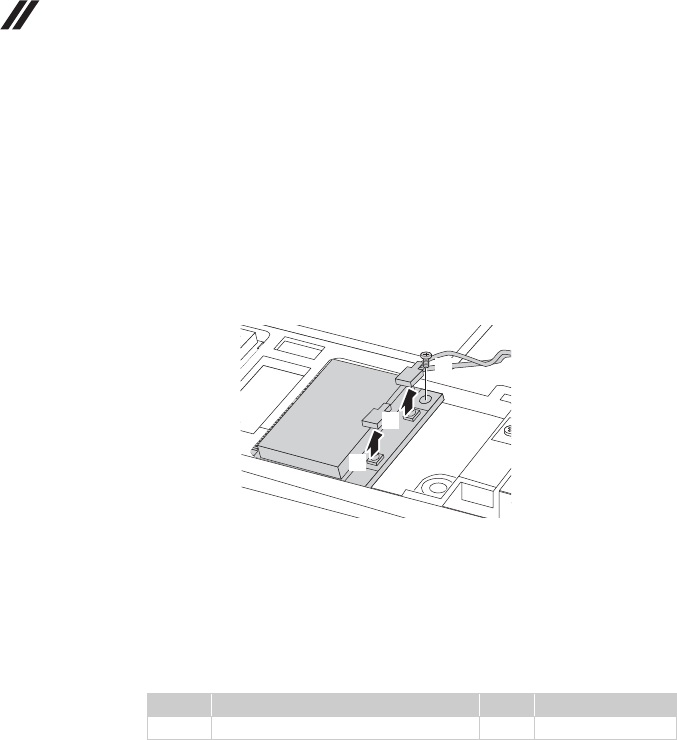
Figure 7. Removal steps of PCI Express Mini Card for wireless LAN/WAN
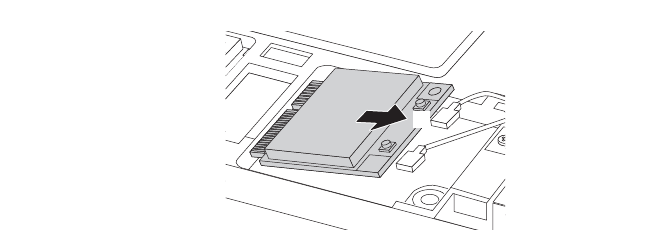
Disconnect the two wireless LAN cables (black, white) , and then remove the
screw .
In step , unplug the jacks by using the removal tool antenna RF connector
(P/N: 08K7159), or pick up the connectors with your fingers and gently unplug
them in the direction shown by arrows.
Notes: wireless LAN card has 2 cables in step .
Wireless LAN card in some models may have 3 cables in step .
Step Screw (quantity) Color Torque
M2 × 3 mm, flat-head, nylok-coated (1) Black 1.85 +/- 0.15 kgfcm
a
b
a
a
b
a
a
a
b
Lenovo E4430 and ZhaoYang E4430
43
Figure 7. Removal steps of PCI Express Mini Card for wireless LAN/WAN (continued)
Remove the card in the direction shown by arrow .
When installing:
• In models with a wireless LAN card that has two antenna connectors, plug
the black cable (1st) (MAIN) into the jack labeled 1, and the white cable (2nd)
(AUX) into jack labeled 2 on the card.
• In models with a wireless LAN card that has three antenna connectors, plug
the black cable (1st) (MAIN) into the jack labeled 1, the grey cable (3rd) into
jack labeled 3, and the white cable (2nd) (AUX) into jack labeled 2 on the
card.
c
c
Lenovo E4430 and ZhaoYang E4430 Hardware Maintenance Manual
44
1080 Keyboard
For access, remove this FRU:
• “1010 Battery pack” on page 35
Figure 8. Removal steps of keyboard
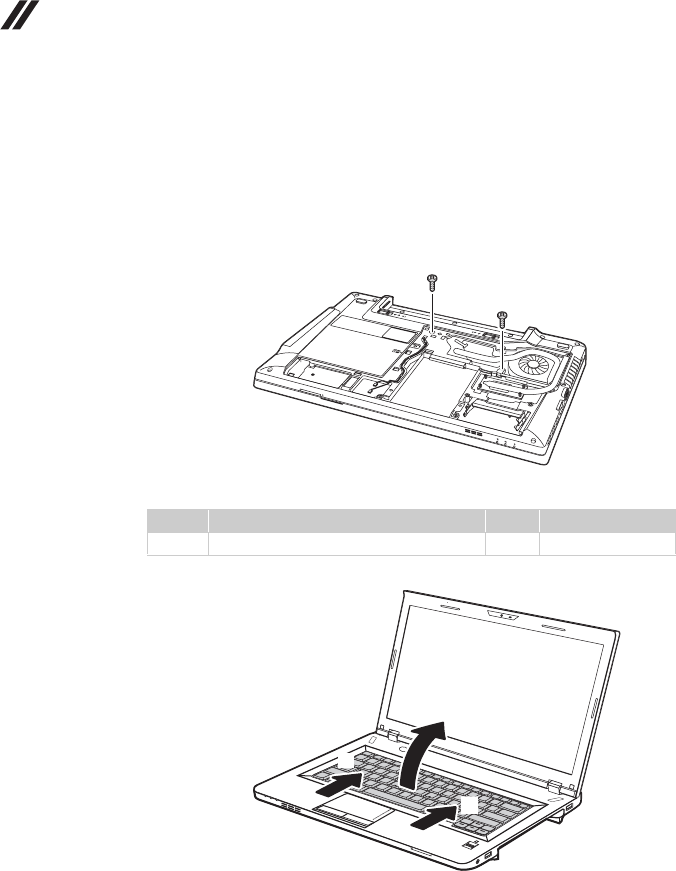
Remove two screws .
Loosen the keyboard with fingers in the direction shown by arrows .
Step Screw (quantity) Color Torque
M2.0 × 6 mm, flat-head, nylokcoated(3) Black 1.85+/-0.15 kgfcm
a
a
a
a
b
b
c
b
Lenovo E4430 and ZhaoYang E4430
45
Figure 8. Removal steps of keyboard (continued)
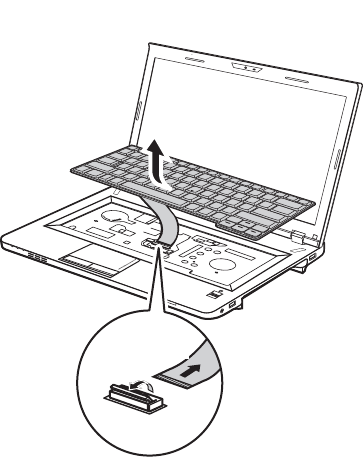
Lift the keyboard a little , and then detach the connector in the direction
shown by arrows .
c
d e
d
e
c
Lenovo E4430 and ZhaoYang E4430 Hardware Maintenance Manual
46
1090 Keyboard bezel
For access, remove these FRUs in order:
• “1010 Battery pack” on page 35
• “1030 Hard disk drive(HDD)/Memory/Mini PCI Express Card slot
compartment cover” on page 37
• “1050 Optical drive” on page 40
• “1080 Keyboard” on page 44
Figure 9. Removal steps of keyboard bezel
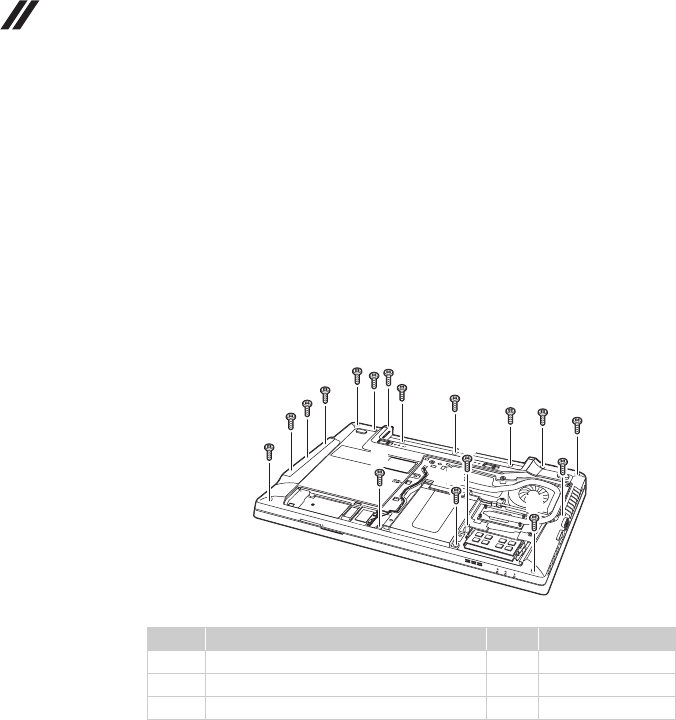
Remove thirteen screws , three screws and three screws on the
bottom.
Step Screw (quantity) Color Torque
M2 × 6 mm, flat-head, nylokcoated (13) Black 1.85+/-0.15 kgfcm
M2 × 2 mm, flat-head, nylok-coated (3) Black 1.85+/-0.15 kgfcm
M2 × 3 mm, flat-head, nylok-coated (3) Black 1.85+/-0.15 kgfcm
ab c
cb
a
aa
a
a
a
bb
c
c
a
a
a
a
a
a
b
c

Lenovo E4430 and ZhaoYang E4430
47
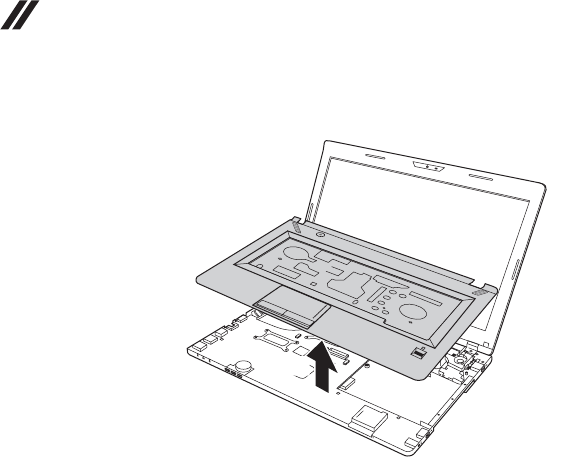
Figure 9. Removal steps of keyboard bezel (continued)
Remove two screws .
Unplug microphone connector in the direction shown by arrow , detach
touch pad connector in the direction shown by arrows , finger print reader
connector in the direction shown by arrows , power board connector in
the direction shown by arrows .
When installing: Make sure that all the FPC connectors and microphone
connectors are attached firmly.
Step Screw (quantity) Color Torque
M2 × 6 mm, flat-head, nylok-coated (2) Black 1.85+/-0.15 kgfcm
d
d
d
d
e
f g
f g
f g
e
g
f
Lenovo E4430 and ZhaoYang E4430 Hardware Maintenance Manual
48
Figure 9. Removal steps of keyboard bezel (continued)
Remove the keyboard bezel in the direction shown by arrow .
h
f
Lenovo E4430 and ZhaoYang E4430
49
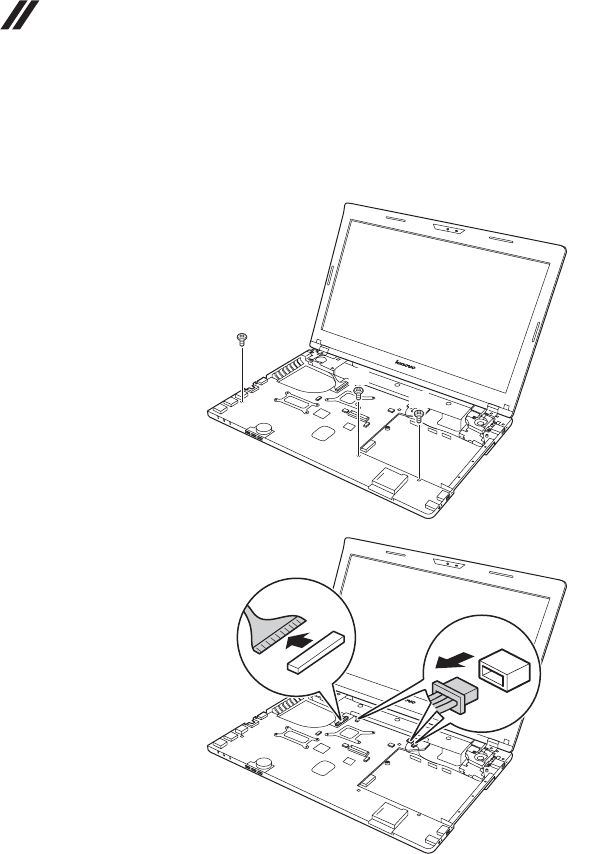
1100 System board
For access, remove these FRUs in order:
• “1010 Battery pack” on page 35
• “1020 Dummy card” on page 36
• “1030 Hard disk drive(HDD)/Memory/Mini PCI Express Card slot
compartment cover” on page 37
• “1040 Hard disk drive” on page 38
• “1050 Optical drive” on page 40
• “1060 DIMM” on page 41
• “1070 PCI Express Mini Card for wireless LAN/WAN” on page 42
• “1080 Keyboard” on page 44
• “1090 Keyboard bezel” on page 46
Important notices for handling the system board:
When handling the system board, bear the following in mind.
• Be careful not to drop the system board on a bench top that has a hard
surface, such as metal, wood, or composite.
• Avoid rough handling of any kind.
• In the whole process, make sure not to drop or stack the system board.
• If you put a system board down, make sure to put it only on a padded
surface such as an ESD mat or conductive corrugated material.
Lenovo E4430 and ZhaoYang E4430 Hardware Maintenance Manual
50
Figure 10. Removal steps of system board
Loosen three screws . Detach LCD connector in the direction shown by arrow
. Unplug speakers connectors in the direction shown by arrow , USB
connector in the direction shown by arrow , power assembly connector on the
bottom side of system board in the direction shown by arrow .
a
cb
b
d
a
a
a
c
b
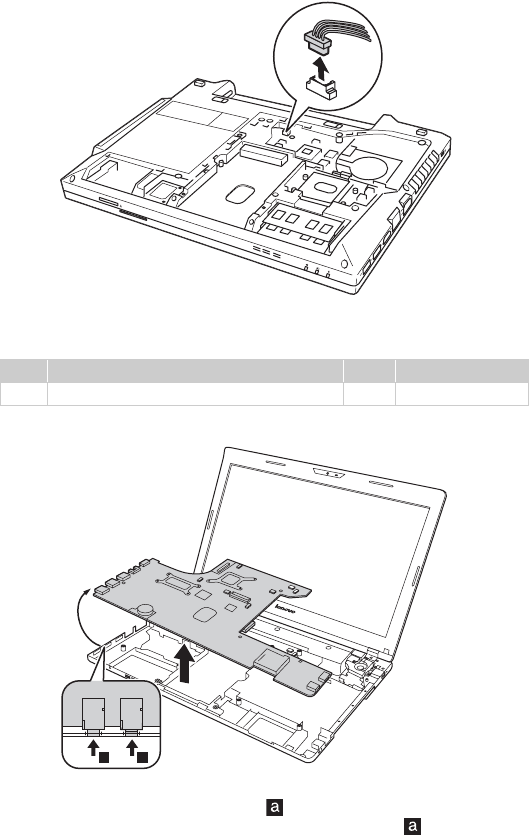
Lenovo E4430 and ZhaoYang E4430
51
Figure 10. Removal steps of system board (continued)
When installing: Make sure that all the connectors are attached firmly.
Remove the system board in the direction shown by arrow .
When installing: When attaching the system board to the base cover, adjust the
placement of the USB ports as shown in , and make sure that both of the USB
jacks are attached to the holes on the base cover as shown in . Improper
placement of the switch or those jacks might cause a damage.
Step Screw (quantity) Color Torque
M2 × 3 mm, flat-head, nylok-coated (3) Black 1.85+/-0.15 kgfcm
d
a
e
e
a a
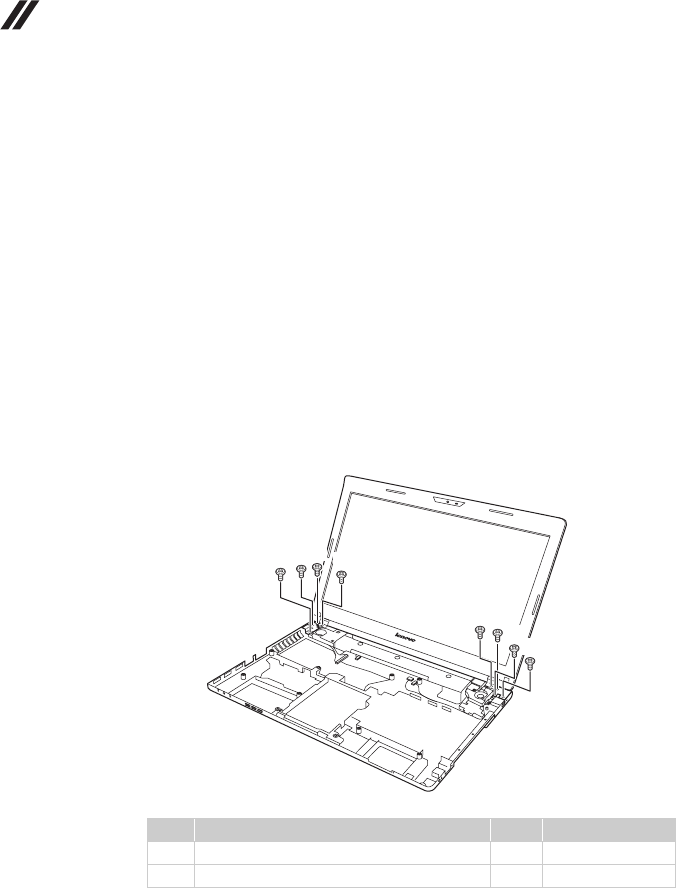
Lenovo E4430 and ZhaoYang E4430 Hardware Maintenance Manual
52
1110 LCD unit
For access, remove these FRUs in order:
• “1010 Battery pack” on page 35
• “1020 Dummy card” on page 36
• “1030 Hard disk drive(HDD)/Memory/Mini PCI Express Card slot
compartment cover” on page 37
• “1040 Hard disk drive” on page 38
• “1050 Optical drive” on page 40
• “1060 DIMM” on page 41
• “1070 PCI Express Mini Card for wireless LAN/WAN” on page 42
• “1080 Keyboard” on page 44
• “1090 Keyboard bezel” on page 46
• “1100 System board” on page 49
Figure 11. Removal steps of LCD unit
Remove six screws and two screws .
When installing:
• Route the antenna cables along the cable guides. As you route the cables,
make sure that they are not subjected to any tension. Tension could cause the
cables to be damaged by the cable guides, or a wire to be broken.
• Make sure that the LCD connector is attached firmly and make sure that you
do not pinch the antenna cables when you attach the LCD assembly. Route
the LCD cable along the cable guides.
Step Screw (quantity) Color Torque
M2.5 × 6 flat-head, nylok-coated (6) Black 4.0+/-0.3 kgfcm
M2 × 3 flat-head, nylok-coated (2) Black 1.85+/-0.15 kgfcm
ba
b
b
a
bba
b
b
a
b
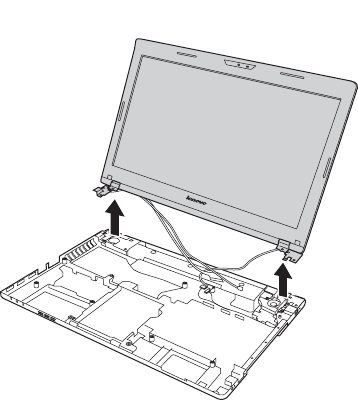
Lenovo E4430 and ZhaoYang E4430
53
Figure 11. Removal steps of LCD unit (continued)
Remove the LCD unit in the direction shown by arrows .
c
c
c
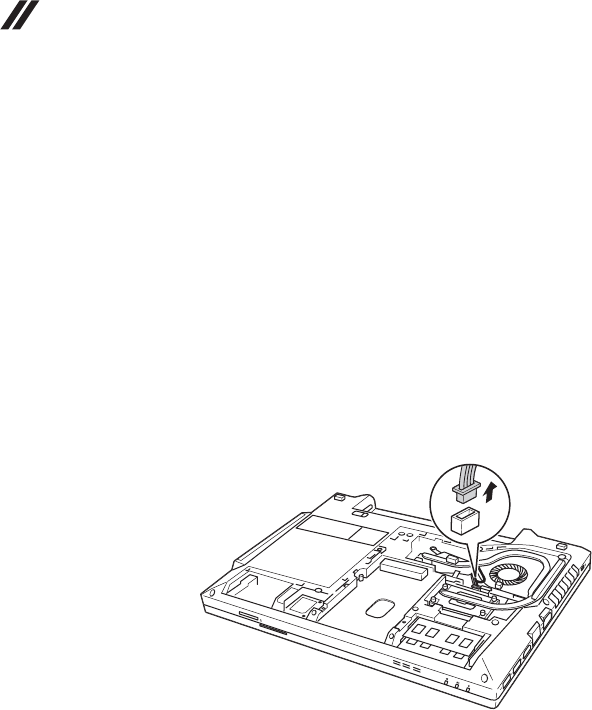
Lenovo E4430 and ZhaoYang E4430 Hardware Maintenance Manual
54
1120 Fan assembly and Heat Sink assembly
For access, remove these FRUs in order:
• “1010 Battery pack” on page 35
• “1020 Dummy card” on page 36
• “1030 Hard disk drive(HDD)/Memory/Mini PCI Express Card slot
compartment cover” on page 37
• “1040 Hard disk drive” on page 38
• “1050 Optical drive” on page 40
• “1060 DIMM” on page 41
• “1070 PCI Express Mini Card for wireless LAN/WAN” on page 42
• “1080 Keyboard” on page 44
• “1090 Keyboard bezel” on page 46
• “1100 System board” on page 49
Figure 12. Removal steps of fan assembly and heat sink assembly
Detach the fan connector in the direction shown by arrow and loosen seven
screws to lift the fan assembly.
a
b
a
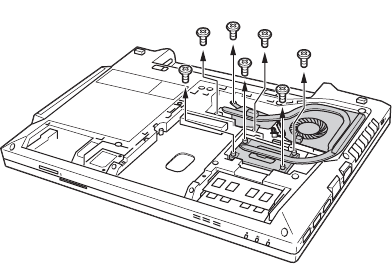
Lenovo E4430 and ZhaoYang E4430
55
Figure 12. Removal steps of fan assembly and heat sink assembly (continued)
b
b
b
b
b
b
b
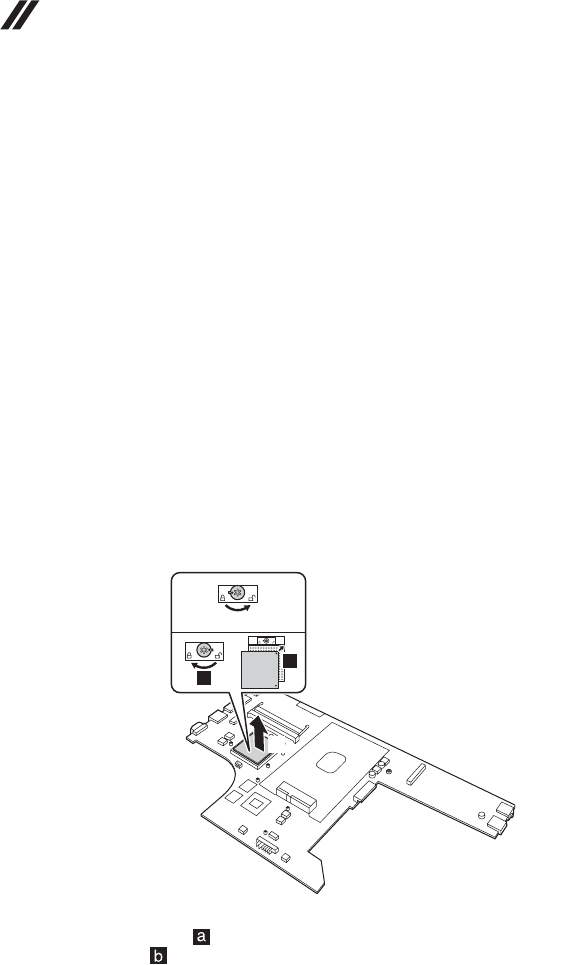
Lenovo E4430 and ZhaoYang E4430 Hardware Maintenance Manual
56
1130 CPU
For access, remove these FRUs in order:
• “1010 Battery pack” on page 35
• “1020 Dummy card” on page 36
• “1030 Hard disk drive(HDD)/Memory/Mini PCI Express Card slot
compartment cover” on page 37
• “1040 Hard disk drive” on page 38
• “1050 Optical drive” on page 40
• “1060 DIMM” on page 41
• “1070 PCI Express Mini Card for wireless LAN/WAN” on page 42
• “1080 Keyboard” on page 44
• “1090 Keyboard bezel” on page 46
• “1100 System board” on page 49
• “1120 Fan assembly and Heat Sink assembly” on page 54
Attention: CPU is extremely sensitive. When you service the CPU, avoid any
kind of rough handling.
Figure 13. Removal steps of CPU
Rotate the head of the screw in the direction shown by arrow to release the
lock, then remove the CPU in the direction shown by arrow .
When installing: Place the CPU on the CPU socket in the direction shown by
arrow , and then rotate the head of the screw in the direction shown by arrow
to secure the CPU.
a
b
a
b
a
b
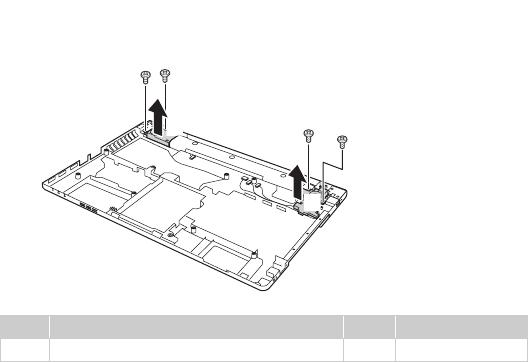
Lenovo E4430 and ZhaoYang E4430
57
1140 Base cover, speakers power assembly and USB
For access, remove these FRUs in order:
• “1010 Battery pack” on page 35
• “1020 Dummy card” on page 36
• “1030 Hard disk drive(HDD)/Memory/Mini PCI Express Card slot
compartment cover” on page 37
• “1040 Hard disk drive” on page 38
• “1050 Optical drive” on page 40
• “1060 DIMM” on page 41
• “1070 PCI Express Mini Card for wireless LAN/WAN” on page 42
• “1080 Keyboard” on page 44
• “1090 Keyboard bezel” on page 46
• “1110 LCD unit” on page 52
• “1100 System board” on page 49
Figure 14. Removal steps of base cover, speakers power assembly and USB
Loosen four screws , and then remove the speakers in the direction shown by
arrows .
Step Screw (quantity) Color Torque
M2.0 × 5 flat-head, nylok-coated (4) Black 1.85+/-0.15kgfcm
a
b
a
aa
a
b
b
a
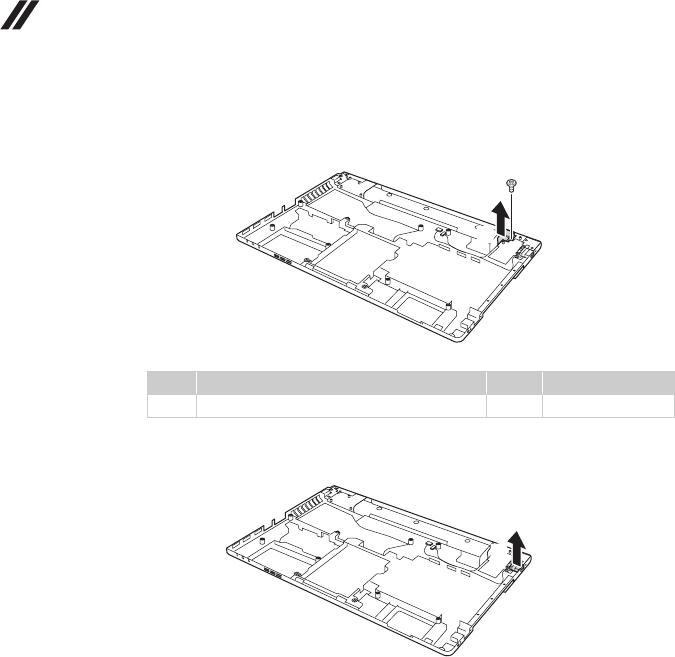
Lenovo E4430 and ZhaoYang E4430 Hardware Maintenance Manual
58
Figure 14. Removal steps of base cover, speakers power assembly and USB (continued)
Loosen the screw . Remove the power assembly in the direction shown by
arrow .
When installing: Make sure that the power connector is attached firmly.
Remove the USB in the direction shown by arrow .
Step Screw (quantity) Color Torque
M2.0 × 3. mm, flat-head, nylok-coated (1) Black 1.85+/-0.15kgfcm
c
d
d
c
c
e
e
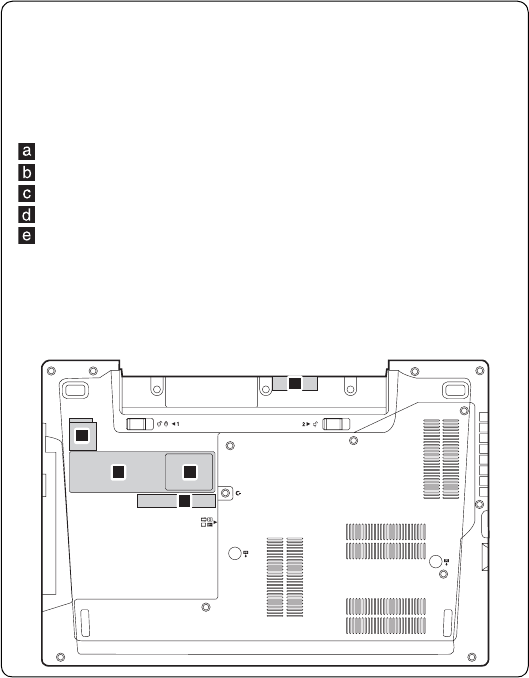
Lenovo E4430 and ZhaoYang E4430
59
Note: Applying labels to the base cover
The new base cover FRU is shipped with a kit containing labels of several
kinds. When you replace the base cover, you need to apply the following
label:
The following labels need to be peeled off from the old base cover, and need
to be put on the new base cover.
GML Label
Rating Label-1
Rating Label-2
Barcode Label
IND D Side Label
For some models, you also need to apply one or two FCC labels. Check the
old base cover; if it has one or two FCC labels, find duplicates of them in the
label kit and apply them to the new base cover.
For the location of each label, refer to the following figure:
a
b
e
c
d
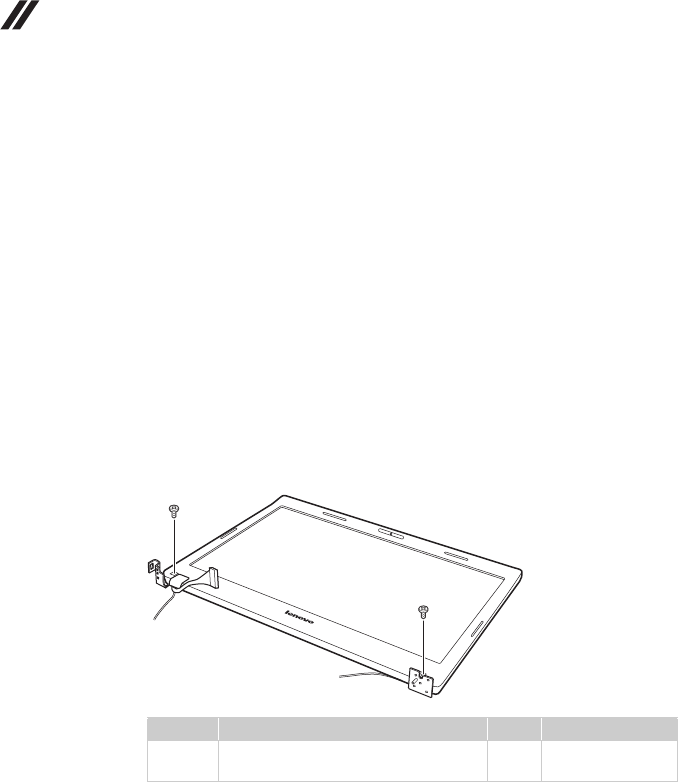
Lenovo E4430 and ZhaoYang E4430 Hardware Maintenance Manual
60
1150 LCD front bezel
For access, remove these FRUs in order:
• “1010 Battery pack” on page 35
• “1020 Dummy card” on page 36
• “1030 Hard disk drive(HDD)/Memory/Mini PCI Express Card slot
compartment cover” on page 37
• “1040 Hard disk drive” on page 38
• “1050 Optical drive” on page 40
• “1060 DIMM” on page 41
• “1070 PCI Express Mini Card for wireless LAN/WAN” on page 42
• “1080 Keyboard” on page 44
• “1090 Keyboard bezel” on page 46
• “1100 System board” on page 49
• “1110 LCD unit” on page 52
Figure 15. Removal steps of LCD front bezel
Remove two screws .
Step Screw (quantity) Color Torque
M2.0 × 6 mm, flat-head, nylokcoated
(2)
Black 1.85+/-0.15 kgfcm
a
a
a
a
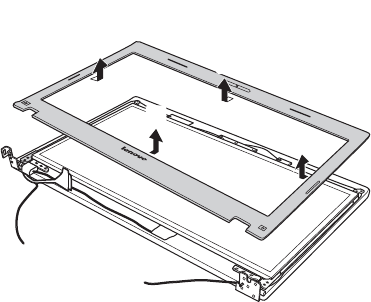
Lenovo E4430 and ZhaoYang E4430
61
Figure 15. Removal steps of LCD front bezel (continued)
Remove the LCD front bezel in the direction shown by arrows .
b
b
b
b
b

Lenovo E4430 and ZhaoYang E4430 Hardware Maintenance Manual
62
1160 LCD panel, LCD cable and hinges
For access, remove these FRUs in order:
• “1010 Battery pack” on page 35
• “1020 Dummy card” on page 36
• “1030 Hard disk drive(HDD)/Memory/Mini PCI Express Card slot
compartment cover” on page 37
• “1040 Hard disk drive” on page 38
• “1050 Optical drive” on page 40
• “1060 DIMM” on page 41
• “1070 PCI Express Mini Card for wireless LAN/WAN” on page 42
• “1080 Keyboard” on page 44
• “1090 Keyboard bezel” on page 46
• “1100 System board” on page 49
• “1110 LCD unit” on page 52
• “1150 LCD front bezel” on page 60
Figure 16. Removal steps of LCD panel, LCD cable and hinges
Remove six screws . Lift the LCD panel in the direction shown by arrows .
When installing: Make sure that the connector is attached firmly.
Step Screw (quantity) Color Torque
M2.0 × 5 mm, flat-head, nylokcoated (6) Black 1.85+0.15 kgfcm
ab
a
a
a
b
b
b
a
a
a
a
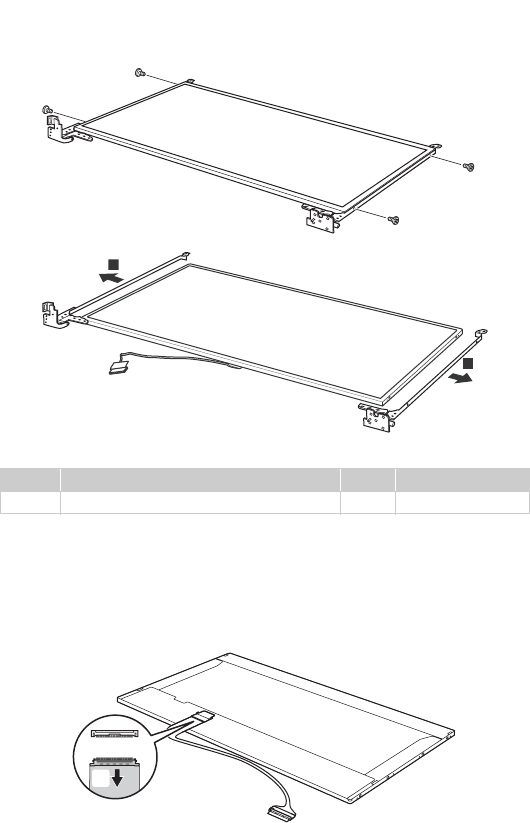
Lenovo E4430 and ZhaoYang E4430
63
Figure 16. Removal steps of LCD panel, LCD cable and hinges (continued)
Remove four screws . Lift the LCD panel with hinges in the direction shown
by arrows .
Note: The LCD cables are attached to the LCD panel by a metal connector.
Peel off the adhesive tape and detach the connector in the direction shown by
arrow .
When installing: Make sure that the metal connector is attached firmly.
Step Screw (quantity) Color Torque
M2.0 × 3 mm, flat-head, nylokcoated (4) Black 1.85+/-0.15 kgfcm
c
d
c
c
c
c
4
4
d
e
e
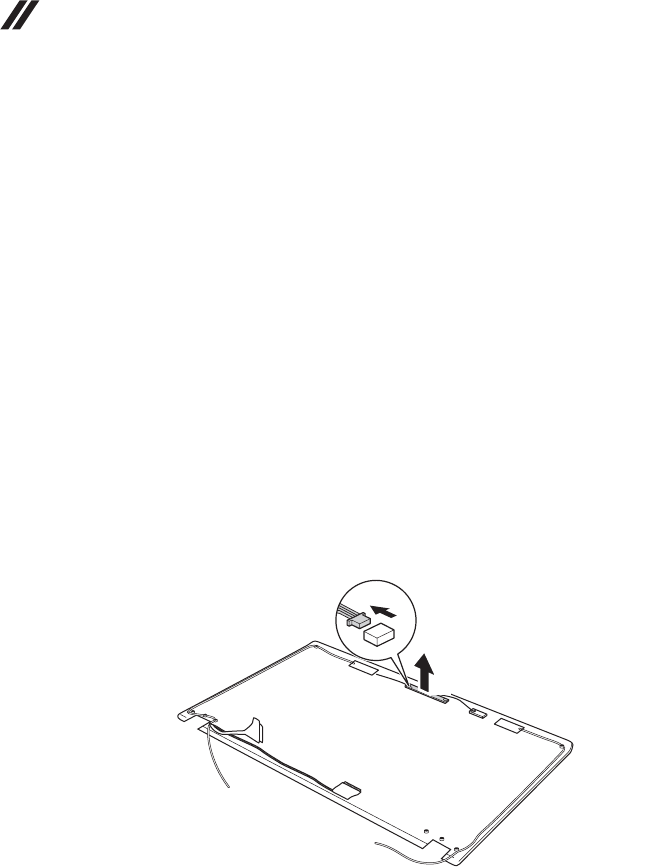
Lenovo E4430 and ZhaoYang E4430 Hardware Maintenance Manual
64
1170 Integrated camera
For access, remove these FRUs in order:
• “1010 Battery pack” on page 35
• “1020 Dummy card” on page 36
• “1030 Hard disk drive(HDD)/Memory/Mini PCI Express Card slot
compartment cover” on page 37
• “1040 Hard disk drive” on page 38
• “1050 Optical drive” on page 40
• “1060 DIMM” on page 41
• “1070 PCI Express Mini Card for wireless LAN/WAN” on page 42
• “1080 Keyboard” on page 44
• “1090 Keyboard bezel” on page 46
• “1100 System board” on page 49
• “1110 LCD unit” on page 52
• “1150 LCD front bezel” on page 60
• “1160 LCD panel, LCD cable and hinges” on page 62
Figure 17. Removal steps of integrated camera
Note: The integrated camera is stuck on the top center of the LCD cover.
Unplug the integrated camera connector in the direction shown by arrow .
Remove the integrated camera from the LCD cover .
When installing: Stick the integrated camera to the top center of the LCD cover
and ajust the placement of it to make sure the connector is attached firmly.
a
b
b
a
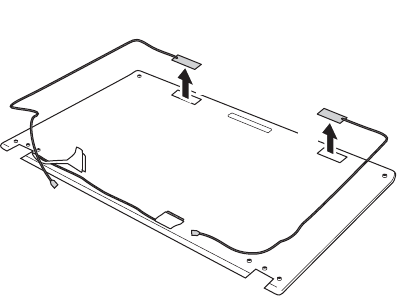
Lenovo E4430 and ZhaoYang E4430
65
1180 Antenna assembly and LCD cover
For access, remove these FRUs in order:
• “1010 Battery pack” on page 35
• “1020 Dummy card” on page 36
• “1030 Hard disk drive(HDD)/Memory/Mini PCI Express Card slot
compartment cover” on page 37
• “1040 Hard disk drive” on page 38
• “1050 Optical drive” on page 40
• “1060 DIMM” on page 41
• “1070 PCI Express Mini Card for wireless LAN/WAN” on page 42
• “1080 Keyboard” on page 44
• “1090 Keyboard bezel” on page 46
• “1100 System board” on page 49
• “1110 LCD unit” on page 52
• “1150 LCD front bezel” on page 60
• “1160 LCD panel, LCD cable and hinges” on page 62
Figure 18. Removal steps of antenna assembly and LCD cover
Peel off the adhesive tapes securing the antenna boards, release the
cables from the cable guide, and then remove the antenna assembly in the
direction shown by arrows .
When installing: Route the antenna cables along the cable guides and secure the
antenna boards with adhesive tapes. As you route the cables, make sure that they
are not subjected to any tension. Tension could cause the cables to be damaged
by the cable guides, or a wire to be broken.
a
a
a
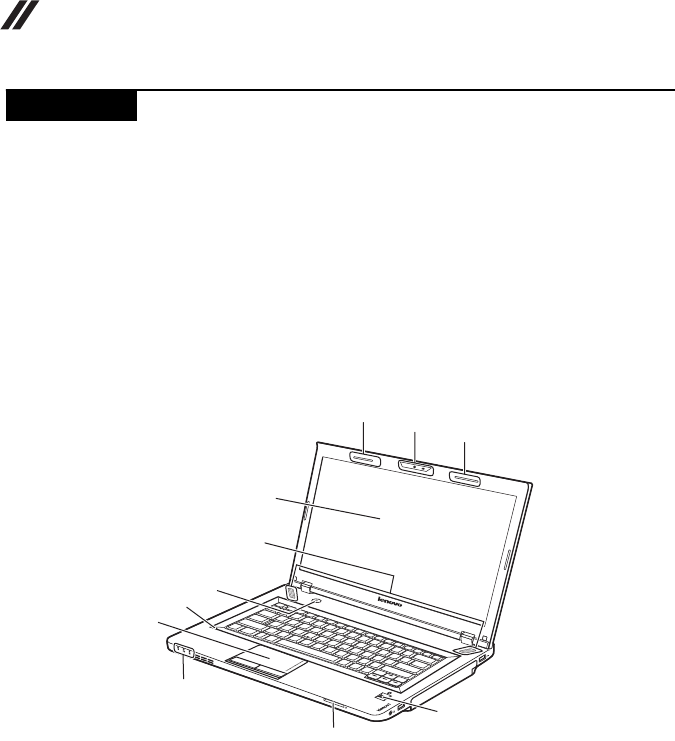
Lenovo E4430 and ZhaoYang E4430 Hardware Maintenance Manual
66
Front view
Integrated camera (on some models)
Wireless module antennas
Computer display
Speakers
Power button
Built-in microphone
Touch pad
Fingerprint reader (on some models)
Status indicators
Media card reader slot
Locations
a
b
c
d
e
f
g
h
i
j
ab
b
c
h
i
j
g
f
d
e
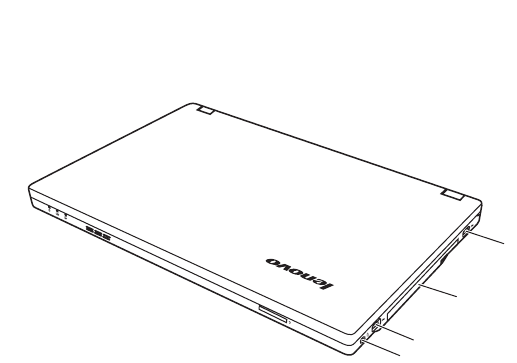
Lenovo E4430 and ZhaoYang E4430
67
Right-side view
Combo audio jack
USB 2.0 connector
Optical drive
USB 2.0 connector (on some models)
a
b
c
d
d
c
b
a
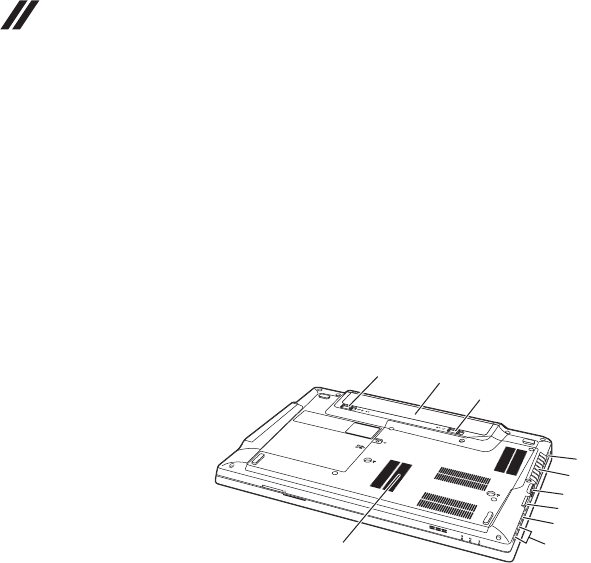
Lenovo E4430 and ZhaoYang E4430 Hardware Maintenance Manual
68
Bottom and Left-side view
Security keyhole
Fan louvers
Monitor connector
Ethernet connector
HDMI port
USB 3.0 connectors
Battery lock
Battery
Battery latch
Bottom slot cover
a
b
c
d
e
f
g
h
i
j
g
a
b
c
d
e
f
i
h
j
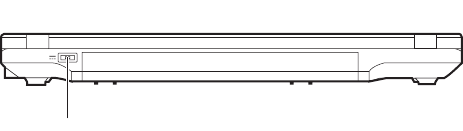
Lenovo E4430 and ZhaoYang E4430
69
Rear view
Power jack
a
a
Lenovo E4430 and ZhaoYang E4430 Hardware Maintenance Manual
70
This section presents the following service parts:
• “Overall” on page 71
• “LCD FRUs” on page 75
• “Keyboard” on page 77
• “Miscellaneous parts” on page 79
• “AC adapters” on page 80
•“Power cords” on page81
Parts list
Notes:
• Each FRU is available for all types or models, unless specific types or
models are specified.
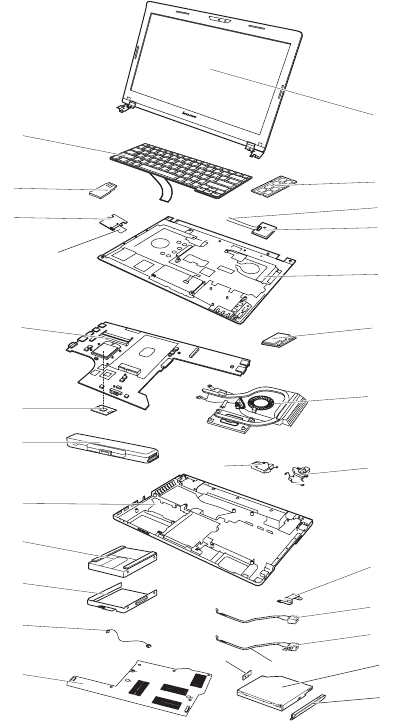
Lenovo E4430 and ZhaoYang E4430
71
Overall
1
10
5
f
6
14 13
17
d
11(12)
3
7
2
8
9
4
a
15
16
b
c
19
18
20
21
eh
g

Lenovo E4430 and ZhaoYang E4430 Hardware Maintenance Manual
72
Table 3. Parts list—Overall
No. FRU FRU no. CRU ID
1 LCD unit (see “LCD FRUs” on page 75.)
2 Keyboard (see “Keyboard” on page 77.)
3 DDR3L 1600 2GB M471B5773DH0-YK0 2GB DDR3L
1600
11200502 N
3 DDR3L 1600 2GB HMT425S6AFR6A-PB 2GB DDR3L
1600
11201299 N
3 DDR3L 1600 2GB MT8KTF25664HZ-1G6M1 2GB
DDR3L 1600
11200346 N
3 DDR3L 1600 4GB M471B5273DH0-YK0 4GB DDR3L
1600
11200503 N
3 DDR3L 1600 4GB HMT451S6AFR8A-PB 4GB DDR3L
1600
11201300 N
3 DDR3L 1600 4GB MT8KTF51264HZ-1G6J1 4GB
DDR3L 1600
11201342 N
3 DDR3L 1600 8GB M471B1G73BH0-YK0 (B/ 4Gb/
35nm)
11200504 N
3 DDR3L 1600 8GB HMT41GS6AFR8A-PB (D/4Gb/
29nm)
11201301 N
3 DDR3L 1600 8GB MT16KTF1G64HZ-1G6E1(V80A/
4Gb/30nm)
11201304 N
4 LK290S Finger Printer Board 90004299 N
5 LE443 Power Board 90005020 N
6 LE443 Upper Case W/TP/TP Button Board 90204455 N
7 LE443 MB UMA 90005021 N
7 LE443 MB W8P UMA 90005022 N
7 LE443 MB W8S UMA 90005023 N
7 LE443 MB DIS N14M-GL 2G 90005024 N
7 LE443 MB W8P DIS N14M-GL 2G 90005025 N
7 LE443 MB W8S DIS N14M-GL 2G 90005026 N
8 Intel I5-4200M 2.5G 3M C0 2cPGA CPU 102500644 N
8 Intel I3-4100M 2.5G 3M C0 2cPGA CPU 102500645 N
8 Intel I3-4000M 2.4G 3M C0 2cPGA CPU 102500594 N
8 Intel 3550M 2.3G 2M C0 2cPGA CPU 102500646 N
8 Intel 2950M 2G 2M C0 2cPGA CPU 102500647 N
8 Intel I5-4300M 2.6G 3M C0 2cPGA CPU 102500648 N
8 Intel I7-4702MQ 2.2G 6M C0 4cPGA CPU 102500541 N
9 Battery, 6cell 2.2Ah SA L11S6Y01 3S2P 48Wh batt C01
Origa
121500047 N
9 Battery, 6cell 2.2Ah LG L11L6Y01 3S2P 48Wh batt C01
Origa
121500049 N
9 Battery, 6cell 2.2Ah SM/S L11M6Y01 3S2P 48Wh batt
C01 Origa
121500050 N
10 WLAN, Realtek RTL8188EE bgn 1x1 HMC WLAN
RTL8188EE WLAN MOW M PCIE NB HMC WLAN
20200218 N
10 WLAN, Realtek RTL8188EE bgn 1x1 HMC WLAN
RTL8188EE MOW M PCIE NB HMC WLAN
20200441 N

Lenovo E4430 and ZhaoYang E4430
73
Table 3. Parts list—Overall (continued)
No. FRU FRU no. CRU ID
10 WLAN, Realtek RTL8723BE 1*1 bgn + BT4.0 HMC
Combo Ltn RTL8723BE 1x1BGN+BT HMC WLAN
20200439 N
10 WLAN, Realtek RTL8723BE 1*1 bgn + BT4.0 HMC
Combo Cbt RTL8723BE 1x1BGN+BT HMC WLAN
20200440 N
10 WLAN, Intel Wilkins Peak 2 7260 2*2 11ac+BT4.0 HMC
Combo Intel 7260 2x2AC+BT PCIE HMC WLAN
20200388 N
10 WLAN, Intel Wilkins Peak 2 7260BN 2*2 11bgn+BT4.0
HMC Combo Intel 7260BN 2x2BN+BT PCIE HMC
WLAN
20200412 N
11 LE443 Thermal Module W/Fan DIS 90204456 N
12 LE443 Thermal Module W/Fan UMA 90204457 N
13 LE443 Speaker Right 90204460 **
14 LE443 Speaker Left 90204459 **
15 LE443 Lower Case 90204451 N
16 Hard disk drive, 500GB/5400rpm WD5000LPVX-
08V0TT2 7mm 5.4K 500G HDD TPG
16200379 N
16 Hard disk drive, 500GB/5400rpm HTS545050A7E660
6G 7mm 5.4K 500G HDD TPG
16200404 N
16 Hard disk drive, 500GB/5400rpm MQ01ABF050 7mm
5.4K 500G HDD TPG
16200329 N
16 Hard disk drive, 500GB/5400rpm ST500LT012 6G 7mm
5.4K 500G HDD
16200383 N
16 Hard disk drive, 500GB/5400rpm ST500LM012 6G
9.5mm 5.4K 500G HDD
16200387 N
16 Hard disk drive, 500GB/5400rpm TSB MQ01ABD050
9.5mm 5.4K 500G HDD TPG
16200327 N
16 Hard disk drive,500G 7200rpm SATA
HTS725050A7E630 6G 7mm 7.2K 500G HDD TPG
16200195 N
16 Hard disk drive,500G 7200rpm TSB MQ01ACF050 6G
7mm 7.2K 500G HDD
16200511 N
16 Hard disk drive,1TB/5400rpm WD10JPVX-08JC3T2 6G
9.5mm 5.4K 1T HDD TPG
16200120 N
16 Hard disk drive,1TB/5400rpm HTS541010A9E660 6G
9.5mm 5.4K 1T HDD TPG
16200375 N
16 Hard disk drive,1TB/5400rpm ST1000LM024 6G 9.5mm
5.4K 1T HDD
16200385 N
16 Hard disk drive,1TB/5400rpmTSB MQ01ABD100
9.5mm 5.4K 1T HDD TPG
16200325 N
16 Hard disk drive, 320G 5400rpm SATA ST320LT012 6G
7mm 5.4K 320G HDD
16200384 N
16 Hard disk drive, 320G 5400rpm HTS545032A7E660 6G
7mm 5.4K 320G HDD
16200405 N
16 Hard disk drive, 320G 5400rpm WD3200LPCX-
24C6HT0 6G 7mm 5.4K 320G HDD
16200551 N
16 Hard disk drive, 500G 5400RPM+8G 7mm ST500LM000
6G 7mm 500G+8G SSHD
16200391 N
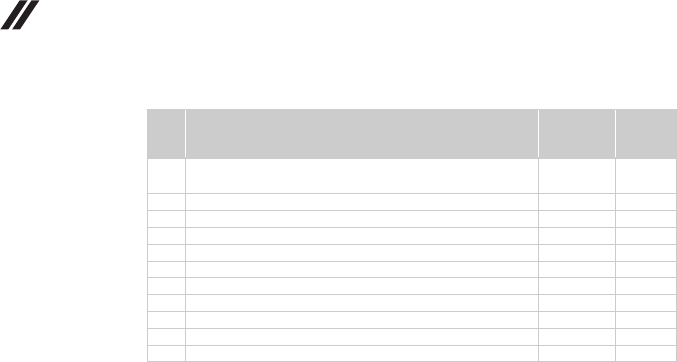
Lenovo E4430 and ZhaoYang E4430 Hardware Maintenance Manual
74
Table 3. Parts list—Overall (continued)
No. FRU FRU no. CRU ID
16 Hard disk drive,1TB 5400RPM+8G 9.5mm
ST1000LM014 6G 9.5mm 1T+8G SSHD
16200389 N
17 LE443 USB Board Cable 90204444 **
18 LLP Microphone 90201081 **
19 LE443 Thermal Door 90204452 N
20 ODD, 9.5mm Tray-in Rambo GT80N 25209015 N
20 ODD, 9.5mm Tray-in Rambo UJ8E1 25213104 **
20 ODD, 9.5mm Tray-in Rambo SN-208DB 25209014 **
20 ODD, 9.5mm Tray-in Rambo DS-8A9SH 25209016 **
21 LSS ODD Bezel 90200861 **
21 LE443 ODD Bezel 90204453 **
LE443 Fingerprint Board Cover 90204572 **
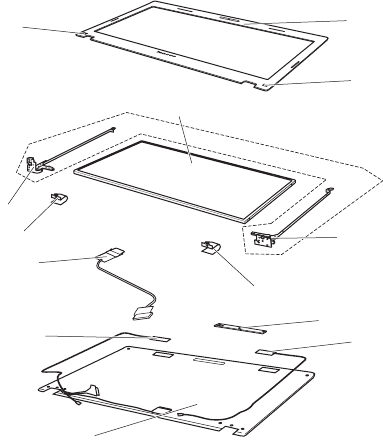
Lenovo E4430 and ZhaoYang E4430
75
LCD FRUs
In Lenovo E4430 and ZhaoYang E4430, there are following types of LCDs.
• “14.0-in. HD TFT” E4430 and ZhaoYang E4430
4
10
7
3
4
10
2
1
2
5
6
9
8

Lenovo E4430 and ZhaoYang E4430 Hardware Maintenance Manual
76
14.0-in. HD TFT (E4430)
Table 4. Parts list—14.0-in. HD TFT
No. FRU FRU no. CRU ID
1 LE443 LCD Bezel W/Camera Hole 90204446 N
1 LE443 LCD Bezel W/O Camera Hole 90204447 N
2 LSS LCD Bezel Screw Pad 90200875 N
3 Panel N140BGE-L13 18201206 N
3 Panel LP140WH4-TLP2 18201525 N
3 Panel LTN140AT26-401/L01 18200247 N
3 Panel HB140WX1-200 18200245 N
4 LSS Hinge L+R 90200867 N
5 LE443 LCD Cable 90204443 N
6 LB48 Camera 0.3M 56.18011.472 90000224 N
6 LA48 Camera1M 56.18011.462/07.962/06.362 90200517 N
7 LSS Antenna L 90200871 N
8 LSS Antenna R 90200872 N
9 LSS LCD Cover 90200866 N
10 LSS Hinge Door L+R 90200863 N

Lenovo E4430 and ZhaoYang E4430
77
Keyboard
Table 5. Parts list—Keyboard
Language P/N CRU ID
E4430 Chicony
English 25213792 **
U.K. English 25213821 **
Italian 25213809 **
Spanish 25213802 **
Turkish 25213820 **
Thai 25213826 **
Portuguese 25213814 **
Latin 25213795 **
Canadian English&French (ACNOR85) 25213793 **
Canadian English&French (058) 85 25213794 **
Turkey-French 25213827 **
Korean 25213824 **
Traditional Chinese 25213825 **
Russian 25213815 **
French 25213803 **
German 25213804 **
Arabic 25213797 **
Brazilian 25213796 **
Japanese 25213823 **
Dutch 25213811 **
Greek 25213805 **
Hebrew 25213806 **
Hungarian 25213807 **
Four Nordic countries 25012035 **
Belgian 25213798 **
Icelandic 25213808 **
Slovenian 25213817 **
Swiss 25213819 **
International English 25213822 **
Czechoslovakian 25214941 **
Bulgarian 25213799 **
Indian 25213828 **
Finland 25213818 **
Danish 25213801 **
Kazakhstan 25213810 **
Norwegian 25213812 **
Poland 25213813 **
Slovakia 25213816 **
Czech 25213800 **

Lenovo E4430 and ZhaoYang E4430 Hardware Maintenance Manual
78
Table 5. Parts list—Keyboard
Language P/N CRU ID
E4430
(continued) Sunrex
English 25213829 **
U.K. English 25213858 **
Italian 25213846 **
Spanish 25213839 **
Turkish 25213857 **
Thai 25213863 **
Portuguese 25213851 **
Latin 25213832 **
Canadian English&French
(ACNOR85)
25213830 **
Korean 25213861 **
Traditional Chinese 25213862 **
Russian 25213852 **
French 25213840 **
German 25213841 **
Arabic 25213834 **
Japanese 25213860 **
Canadian English&French (058)
85
25213831 **
Kazakhstan 25213847 **
Slovakia 25213853 **
Indian 25213865 **
Turkey-French 25213864 **
Poland 25213850 **
Danish 25213838 **
Czech 25213837 **
Brazilian 25213833 **
Dutch 25213848 **
Greek 25213842 **
Hebrew 25213843 **
Hungarian 25213844 **
Norwegian 25213849 **
Belgian 25213835 **
Icelandic 25213845 **
Slovenian 25213854 **
Swiss 25213856 **
International English 25213859 **
Czechoslovakian 25214940 **
Bulgarian 25213836 **
Swedish 25213855 **

Lenovo E4430 and ZhaoYang E4430
79
Miscellaneous parts
Table 6. Parts list—Miscellaneous parts
FRU P/N CRU ID
System miscellaneous parts:
•(a) LE443 Fingerprint Bracket
•(b) LE443 USB Board Bracket
•(c) LE443 HDD Bracket
•(d) LE443 DC-IN Bracket
•(e) LSS ODD Bracket
90204449
90204448
90204454
90204450
90200862
N
Cable miscellaneous parts:
•(f) LSS Power Board Cable
•(g) LE443 Fingerprint Board Cable
•(h) LE443 USB Board Cable
Note: Italicized letters in parentheses are references to the
exploded view in “Overall” on page 71.
90200859
90204445
90204444
N

Lenovo E4430 and ZhaoYang E4430 Hardware Maintenance Manual
80
AC adapters
Table 7. Parts list—3-pin AC adapters
FRU P/N CRU ID
90W, AC Adapter (2Pin) 20V Common with Rectangle plug
ADP-90XD AB
36200285 N
90W, AC Adapter (2Pin) 20V Common with Rectangle plug
PA-1900-71IF
36200286 N
90W, AC Adapter (2Pin) 20V Common with Rectangle plug
A090A052L
36200287 N
90W, AC Adapter (3Pin) 20V Common with Rectangle plug
ADP-90XD BB
36200250 N
90W AC Adapter (3Pin) 20V Common with Rectangle plug
PA-1900-72IF
36200252 N
90W AC Adapter (3Pin) 20V Common with Rectangle plug
A090A053L
36200254 N
65W, AC Adapter (2Pin) 20V Common with Rectangle plug
ADP-65FD AB (WW Part #)
36200282 N
65W, AC Adapter (2Pin) 20V Common with Rectangle plug
PA-1650-71IF (WW Part #)
36200283 N
65W, AC Adapter (2Pin) 20V Common with Rectangle plug
A065R045L
36200284 N
65W, AC Adapter (3Pin) 20V Common with Rectangle plug
ADP-65FD BB (WW Part #)
36200249 N
65W, AC Adapter (3Pin) 20V Common with Rectangle plug
PA-1650-72IF (WW Part #)
36200251 N
65W, AC Adapter (3Pin) 20V Common with Rectangle plug
A065R046L
36200253 N

Lenovo E4430 and ZhaoYang E4430
81
Power cords
A Lenovo power cord for a specific country or region is usually available only in
that country or region:
Table 8. Parts list—3-pin power cords
Region P/N CRU ID
CCC
•SSD YD-118-1+IEC53RVV+SSD-3-2B-1 1m
145000602 *
CCC
•LINETEK PC323+RVV300/300+LS15 1m
145000600 *
Argentina
•LINETEK LS15+H03VV-F+LP39 1m
145000599 *
Denmark
•LINETEK LS15+H03VV-F+LP-38 1m
145000598 *
Switzerland
•LINETEK LS15+H03VV-F+LP-37 1m
145000597 *
Brazil
•LINETEK LS15 H03VV-F LP26A 1m
145000596 *
Israel
•LINETEK LS15+H03VV-F+LP-41 1m
145000595 *
UL
•LINETEK LP-30B + SPT-2 + LS15 1m
145000594 *
UK
•LINETEK LP-61L+ H03VV-F+ LS15 1m
145000593 *
Indian
•LINETEK PE-361+ H05VV-F+ LS15 1m
145000592 *
Italy
•LINETEK LS15+H03VV-F+PE-336 1m
145000591 *
Korea
•LINETEK LS15+H05VV-F+LP-E04A 1m
145000590 *
Australia
•LINETEK LS15+H03VV-F+LP-23A 1m
145000589 *
Taiwan
•LINETEK LS15+VCTF+LP-53 1m
145000588 *
Japan
•LINETEK LS15+VCTF+LP-54 1m
145000587 *
Africa
•LINETEK LS15+H03VV-F+PE-364 1m
145000586 *
CE
•LINETEK LP-34+H03VV-F + LS15 1m
145000585 *
Argentina
•Longwell LP-24+H03VV-F+LS-18 1m
145000567 *
Denmark
•Longwell LP-40+H03VV-F+LS-18 1m
145000566 *
Switzerland
•Longwell LP-37+H03VV-F+LS-18 1m
145000565 *

Lenovo E4430 and ZhaoYang E4430 Hardware Maintenance Manual
82
Table 8. Parts list—3-pin power cords (continued)
Region P/N CRU ID
Brazil
•Longwell LP-46+H03VV-F+LS-18 1m
145000564 *
Israel
•Longwell LP-41+H03VV-F+LS-18 1m
145000563 *
UL
•Longwell LP-30B+SPT-2 18AWG+LS-18 1m
145000562 *
UK
•Longwell LP-61L+H03VV-F+LS-18 1m
145000561 *
Indian
•Longwell LP-67+BIS+LS-18 1m
145000560 *
Italy
•Longwell LP-22+H03VV-F+LS-18 1m
145000559 *
Korea
•Longwell LP-486+KTLH03VV-F+LS-5 1m
145000558 *
Australia
•Longwell LP-23A+LFC-3R+LS-18 1m
145000557 *
Taiwan
•Longwell LP-71+VCTF+LS-33 1m
145000556 *
Japan
•Longwell LP-54+VCTF+LS-18 1m
145000555 *
Africa
•Longwell LP-39+H03VV-F+LS-18 1m
145000554 *
CE
•Longwell LP-34A+H03VV-F+LS-18 1m
145000553 *
CCC
•VOLEX GB10S3+RVV 300/500+VAC5S 1m
145000538 *
Argentina
•VOLEX VA2073+H03VV-F+VAC5S 1m
145000528 *
Denmark
•VOLEX MP233D+H03VV-F+VAC5S 1m
145000534 *
Switzerland
•VOLEX MP232+H03VV-F+VAC5S 1m
145000524 *
Brazil
•VOLEX CH10S3+H03VV-F+VAC5S 1m
145000527 *
Israel
•VOLEX SI16S3+H03VV-F+VAC5S 1m
145000526 *
UL
•Volex US15S3+SPT-2+VAC5S 1m
145000537 *
UK
•VOLEX MP5004+H03VV-F+VAC5S 1m
145000605 *
Indian
•VOLEX IA6A3+IS694+VAC5S 1m
145000536 *
Italy
•VOLEX IT10S3+HO3VV-F+VAC5S 1m
145000535 *

Lenovo E4430 and ZhaoYang E4430
83
Table 8. Parts list—3-pin power cords (continued)
Region P/N CRU ID
Korea
•VOLEX M2511+KETI IEC+VAC5S 1m
145000533 *
Australia
•VOLEX AU10S3+H03VV-F+VAC5S 1m
145000532 *
Taiwan
•VOLEX TW15CS3+VCTF+VAC5S 1m
145000531 *
Japan
•VOLEX VAC5S+VCTF+M755 1m
145000530 *
CE
•VOLEX M2511+HO3VV-F+VAC5S 1m
145000525 *
UK
•lux 0031+H03VV-F 0.75/3C+0011 1m
145500000 *
CE
•lux 0033+H03VV-F 0.75/3C+0011 1m
145500001 *
UL
•lux 0014+SPT-2 60°C 18/3C+0016 1m
145500002 *
CCC
•Longwell LSG-31+RVV300/300+LS-18 1m
145000568 *
CCC
•lux 0036+RVV 300/300 0.75/3C+0002 1m
145500003 *
Indian
•lux 0046+IS694 0.75/3C+0011 1m
145500004 *
Japan
•lux 0018(E)+VCTF 0.75/3C+0021 1m
145500005 *
Australia
•lux 0038+H03VV-F 0.75/3C+0011 1m
145500006 *
Taiwan
•lux 0019+VCTF 0.75/3C+0021 1m
145500007 *
Korea
•lux 0033+H03VV-F 0.75/3C+0011 1m
145500008 *
Italy
•lux 0029+H03VV-F 0.75/3C+0011 1m
145500009 *
Africa
•VOLEX SA16A+HO3VV-F+VAC5S 1m
145000529 *
Africa
•lux 0044+H03VV-F 0.75/3C+0011 1m
145500010 *
Brazail
•lux 0034+H03VV-F 0.75/3C+0011 1m
145500011 *
Israel
•lux 0041+H03VV-F 0.75/3C+0011 1m
145500012 *
Switzerland
•lux 0027+H03VV-F 0.75/3C+0011 1m
145500013 *
Denmark
•lux 0048+H03VV-F 0.75/3C+0011 1m
145500014 *
Argentina
•lux 0040+H03VV-F 0.75/3C+0011 1m
145500015 *

Lenovo E4430 and ZhaoYang E4430 Hardware Maintenance Manual
84
Table 8. Parts list—2-pin power cords
Region P/N CRU ID
CCC
•Linetek LINETEK PC205+RVV300/300 0.75/2C+COC03
1m
145500018 *
CCC
•Longwell LSG-21+RVV300/300+LS-72 1m
145500069 *
UK
•Linetek LINETEK LP61L+H03VVH2-F 0.75/2C+ LS7H
1m
145500019 *
UK
•Longwell LP-61L+H03VVH2-F+ LS-7 1m
145500074 *
Indian
•LINETEK LP28+IS:694 0.75/2C+ LS7H 1m
145500020 *
Indian
•Longwell LP-77+Longwell-p 2X+LS-7 1m
145500075 *
UL
•Linetek LINETEK LP5+SPT-2 #18/2C+ LS7C 1m
145500021 *
UL
•Longwell LP-11+SPT-2+LS-7C/7J 1m
145500073 *
Denmark, Italy, Europe, Switzerland
•LINETEK LP21+H03VVH2-F 0.75/2C+ LS7 1m
145500022 *
Denmark, Italy, Europe, Switzerland
•Longwell LP-21+ H03VVH2-F+LS-7 1m
145500081 *
Australia
•LINETEK LP15A+H03VVH2-F 0.75/2C+ LS7 1m
145500023 *
Australia
•Longwell LP-15A+LFC-2F+LS-7 1m
145500077 *
SA
•LINETEK PE364("O")+H03VVH2-F 0.75/2C+ LS7H 1m
145500024 *
SA
•Longwell LP-39+H03VVH2-F+LS-7 1m
145500080 *
Korea
•LINETEK LPE03A+H03VVH2-F 0.75/2C+LS7 1m
145500025 *
Korea
•Longwell LP-57+H03VVH2-F+LS-7KS 1m
145500076 *
PSE
•LINETEK LP51A+HVCTFK 0.75/2C+LS7J 1m
145500026 *
PSE
•Longwell LP-51A+VCTFK+LS-7C/7J 1m
145500079 *
Taiwan
•LINETEK LP51A+VCTFK 0.75/2C+LS7J 1m
145500027 *
Taiwan
•Longwell LP-70+VCTFK+LS-31 1m
145500078 *
Brazil
•LINETEK LP25+H03VVH2-F 0.75/2C+LS7H 1m
145500028 *
Brazil
•Longwell LP-18A+H03VVH2-F+LS-18 1m
145500071 *

Lenovo E4430 and ZhaoYang E4430
85
Table 8. Parts list—2-pin power cords
Region P/N CRU ID
Israel
• LINETEK LP45+H03VVH2-F 0.75/2C+LS7H 1m
145500029 *
Israel
•Longwell LP-55+H03VVH2-F+LS-7 1m
145500072 *
LA
•LINETEK LP39+H03VVH2-F 0.75/2C+LS7H 1m
145500030 *
LA
•Longwell LP-16+H03VVH2-F+LS-7 1m
145500070 *

Lenovo E4430 and ZhaoYang E4430 Hardware Maintenance Manual
86
Lenovo may not offer the products, services, or features discussed in this
document in all countries. Consult your local Lenovo representative for
information on the products and services currently available in your area. Any
reference to a Lenovo product, program, or service is not intended to state or
imply that only that Lenovo product, program, or service may be used. Any
functionally equivalent product, program, or service that does not infringe any
Lenovo intellectual property right may be used instead. However, it is the user’s
responsibility to evaluate and verify the operation of any other product,
program, or service.
Lenovo may have patents or pending patent applications covering subject
matter described in this document. The furnishing of this document does not
give you any license to these patents.
LENOVO GROUP LTD. PROVIDES THIS PUBLICATION “AS IS” WITHOUT
WARRANTY OF ANY KIND, EITHER EXPRESS OR IMPLIED, INCLUDING,
BUT NOT LIMITED TO, THE IMPLIED WARRANTIES OF NON-
INFRINGEMENT, MERCHANTABILITY OR FITNESS FOR A PARTICULAR
PURPOSE. Some jurisdictions do not allow disclaimer of express or implied
warranties in certain transactions, therefore, this statement may not apply to
you.
This information could include technical inaccuracies or typographical errors.
Changes are periodically made to the information herein; these changes will be
incorporated in new editions of the publication. Lenovo may make
improvements and/or changes in the product(s) and/or the program(s)
described in this publication at any time without notice.
The products described in this document are not intended for use in
implantation or other life support applications where malfunction may result in
injury or death to persons. The information contained in this document does not
affect or change Lenovo product specifications or warranties. Nothing in this
document shall operate as an express or implied license or indemnity under the
intellectual property rights of Lenovo or third parties. All information contained
in this document was obtained in specific environments and is presented as an
illustration. The result obtained in other operating environments may vary.
Lenovo may use or distribute any of the information you supply in any way it
believes appropriate without incurring any obligation to you.
Any references in this publication to non-Lenovo Web sites are provided for
convenience only and do not in any manner serve as an endorsement of those
Web sites. The materials at those Web sites are not part of the materials for this
Lenovo product, and use of those Web sites is at your own risk.
Notices

Notices
87
Any performance data contained herein was determined in a controlled
environment. Therefore, the result obtained in other operating environments
may vary significantly. Some measurements may have been made on
development-level systems and there is no guarantee that these measurements
will be the same on generally available systems. Furthermore, some
measurements may have been estimated through extrapolation. Actual results
may vary. Users of this document should verify the applicable data for their
specific environment.
The following terms are trademarks of Lenovo in the United States, other
countries, or both:
Lenovo
OneKey
Microsoft and Windows are trademarks of the Microsoft Corporation in the
United States and/or other countries.
Other company, products, or service names may be trademarks or service marks
of others.
Trademarks
