Lenovo Flex 5 1470 1570 Hmm 201703 User Manual Hardware Maintenance 1470, 1470(Type 80XA) Laptop (Lenovo) Type 80XA
2017-08-30
User Manual: Lenovo Flex 5-1470 5-1570 Hmm 201703 Hardware Maintenance Manual - Flex 5-1470, Flex 5-1570 Flex 5-1470(Type 80XA) Laptop (Lenovo) - Type 80XA 80XA
Open the PDF directly: View PDF  .
.
Page Count: 82
- About this manual
- Safety information
- Important service information
- General checkout
- Related service information
- Lenovo ideapad FLEX 5-1470/Lenovo ideapad FLEX 5-1570
- Specifications
- Status indicators
- Keyboard function keys
- FRU replacement notices
- Removing and replacing an FRU
- 1010 Base cover
- 1020 Battery pack
- 1030 Solid state disk
- 1040 Hard disk drive
- 1050 PCI Express Mini Card for wireless LAN
- 1060 Speakers
- 1070 DIMM
- 1080 Fan and Heat Sink assembly
- 1090 IO board
- 1100 System board
- 1110 Upper case
- 1120 DC-in cable
- 1130 LCD unit
- 1140 Camera board, sensor board and EDP cable
- 1150 LCD hinges
- 1160 Fingerprint module (on select models)
- Locations
- Parts list
- Notices

Lenovo ideapad
FLEX 5-1470
Lenovo ideapad
FLEX 5-1570
Hardware
Maintenance
Manual

Notes:
• Beforeusingthisinformationandtheproductitsupports,besuretoreadthegeneralinformationunder
“Notices”onpage77.
• Thismanualappliestothefollowingmodels:LenovoideapadFLEX5-1470/LenovoideapadFLEX5-1570.
TheillustrationsusedinthismanualareforLenovoideapadFLEX5-1470unlessotherwisestated.
First Edition (March 2017)
© Copyright Lenovo 2017. All rights reserved.
LIMITED AND RESTRICTED RIGHTS NOTICE: If data or software is delivered pursuant a General
Services Administration “GSA” contract, use, reproduction, or disclosure is subject to restrictions set
forth in Contract No. GS-35F-05925.
© 2017 Lenovo

iii
Contents
About this manual ....................................... iv
Safety information ........................................ 1
General safety ................................................ 2
Electrical safety .............................................. 3
Safety inspection guide .................................. 5
Handling devices that are sensitive to
electrostatic discharge .................................... 6
Grounding requirements ................................. 6
Safety notices: multilingual translations.......... 7
Laser compliance statement......................... 14
Important service information ................... 16
Strategy for replacing FRUs ......................... 16
Strategy for replacing a hard disk drive ............17
Important notice for replacing a system
board ................................................................17
Important information about replacing
RoHS compliant FRUs ................................. 18
General checkout ...................................... 19
What to do rst ............................................. 20
Power system checkout................................ 21
Checking the AC adapter .................................21
Checking operational charging .........................22
Checking the battery pack ................................22
Related service information ...................... 23
Restoring the factory contents by using
OneKey Recovery ........................................ 23
Restore of factory default .................................23
Passwords .................................................... 24
Power-on password .......................................... 24
Hard-disk password .......................................... 24
Supervisor password ........................................24
Power management ..................................... 25
Putting the computer to sleep or shutting
it down ..............................................................25
Putting your computer to sleep ......................... 25
Shutting down the computer ............................. 25
Lenovo ideapad FLEX 5-1470/
Lenovo ideapad FLEX 5-1570 .................... 26
Specications ............................................... 26
Status indicators ........................................... 28
Keyboard function keys ................................ 29
FRU replacement notices ............................. 30
Screw notices ..................................................30
Removing and replacing an FRU ................. 31
1010 Base cover ...............................................32
1020 Battery pack .............................................34
1030 Solid state disk ........................................35
1040 Hard disk drive .........................................36
1050 PCI Express Mini Card for
wireless LAN .....................................................37
1060 Speakers .................................................39
1070 DIMM .......................................................40
1080 Fan and Heat Sink assembly ...................42
1090 IO board ...................................................45
1100 System board ........................................... 47
1110 Upper case .............................................. 49
1120 DC-in cable ..............................................51
1130 LCD unit ................................................... 52
1140 Camera board, sensor board
and EDP cable .................................................. 55
1150 LCD hinges ..............................................59
1160 Fingerprint module (on select models)..... 61
Locations ...................................................... 63
Front and right-side view ..................................63
Bottom and left-side view ................................64
Rear view .........................................................65
Parts list ........................................................ 66
Overall ..............................................................67
LCD FRUs ........................................................73
Miscellaneous parts .......................................... 74
AC adapters ......................................................75
Screws .............................................................. 76
Notices......................................................... 77
Trademarks .................................................. 78
iv
About this manual
This manual contains service and reference information for the following
Lenovo products:
Lenovo ideapad FLEX 5-1470/Lenovo ideapad FLEX 5-1570
Use this manual to troubleshoot problems.
The manual is divided into the following sections:
• The common sections provide general information, guidelines, and safety
information required for servicing computers.
• The product-specic section includes service, reference, and product-specic
parts information.
Important:
ThismanualisintendedonlyfortrainedservicerswhoarefamiliarwithLenovo
products.Usethismanualtotroubleshootproblemseffectively.
BeforeservicingaLenovoproduct,makesuretoreadalltheinformationunder
“Safetyinformation”onpage1and“Importantserviceinformation”onpage16.

1
Safety information
Safety information
This chapter presents the following safety information that you need to get
familiar with before you service a Lenovo ideapad FLEX 5-1470/Lenovo ideapad
FLEX 5-1570 computer:
• “General safety” on page 2
• “Electrical safety” on page 3
• “Safety inspection guide” on page 5
• “Handling devices that are sensitive to electrostatic discharge” on page 6
• “Grounding requirements” on page 6
• “Safety notices: multilingual translations” on page 7
• “Laser compliance statement” on page 14

2
Lenovo ideapad FLEX 5-1470/Lenovo ideapad FLEX 5-1570
Hardware Maintenance Manual
General safety
Follow these rules below to ensure general safety:
• Observe a good housekeeping in the area where the machines are put
during and after the maintenance.
• When lifting any heavy object:
1. Make sure that you can stand safely without slipping.
2. Distribute the weight of the object equally between your feet.
3. Use a slow lifting force. Never move suddenly or twist when you attempt
to lift it.
4. Lift it by standing or pushing up with your leg muscles; this action could
avoid the strain from the muscles in your back. Do not attempt to lift any
object that weighs more than 16 kg (35 lb) or that you think is too heavy
for you.
• Do not perform any action that causes hazards to the customer, or that
makes the machine unsafe.
• Before you start the machine, make sure that other service representatives
and the customer are not in a hazardous position.
• Please remove covers and other parts in a safe place, away from all
personnel, while you are servicing the machine.
• Keep your toolcase away from walk areas so that other people will not trip
over it.
• Do not wear loose clothing that can be trapped in the moving parts of the
machine. Make sure that your sleeves are fastened or rolled up above your
elbows. If your hair is long, fasten it.
• Insert the ends of your necktie or scarf inside clothing or fasten it with the
nonconductive clip, about 8 centimeters (3 inches) from the end.
• Do not wear jewelry, chains, metal-frame eyeglasses, or metal fasteners for
your clothing.
Attention: Metal objects are good electrical conductors.
• Wear safety glasses when you are hammering, drilling, soldering, cutting
wire, attaching springs, using solvents, or working in any other conditions
that may be hazardous to your eyes.
• After service, reinstall all safety shields, guards, labels, and ground wires.
Replace any safety device that is worn or defective.
• Reinstall all covers correctly before returning the machine to the customer.
• Fan louvers on the machine help to prevent the overheating of internal
components. Do not obstruct fan louvers or cover them with labels or
stickers.

3
Safety information
Electrical safety
Observe the following rules when working on electrical equipments.
Important:
Useonlyapprovedtoolsandtestequipments.Somehandtoolshavehandles
coveredwithasoftmaterialthatdoesnotinsulateyouwhenworkingwithlive
electricalcurrents.
Manycustomershaverubberfloormatsneartheirmachinesthatcontainsmall
conductiveberstodecreaseelectrostaticdischarges.Donotusesuchkindofmat
toprotectyourselffromelectricalshock.
• Find the room emergency power-off (EPO) switch, disconnecting switch or
electrical outlet. If an electrical accident occurs, you can then operate the
switch or unplug the power cord quickly.
• Do not work alone under hazardous conditions or near the equipment that
has hazardous voltages.
• Disconnect all power before:
– Performing a mechanical inspection
– Working near power supplies
– Removing or installing main units
• Before you start to work on the machine, unplug the power cord. If you
cannot unplug it, ask the customer to power-off the wall box that supplies
power to the machine, and to lock the wall box in the off position.
• If you need to work on a machine that has exposed electrical circuits,
observe the following precautions:
– Ensure that another person, familiar with the power-off controls, is near
you.
Attention: Another person must be there to switch off the power, if
necessary.
– Use only one hand when working with powered-on electrical equipment;
keep the other hand in your pocket or behind your back.
Attention: An electrical shock can occur only when there is a complete
circuit. By observing the above rule, you may prevent a current from
passing through your body.
– When using testers, set the controls correctly and use the approved
probe leads and accessories for that tester.
– Stand on suitable rubber mats (obtained locally, if necessary) to insulate
you from grounds such as metal oor strips and machine frames.
Observe the special safety precautions when you work with very high voltages;
instructions for these precautions are in the safety sections of maintenance
information. Be extremely careful when you measure the high voltages.
• Regularly inspect and maintain your electrical hand tools for safe operational
condition.
• Do not use worn or broken tools and testers.
• Never assume that power has been disconnected from a circuit. First, check
it to make sure that it has been powered off.

4
Lenovo ideapad FLEX 5-1470/Lenovo ideapad FLEX 5-1570
Hardware Maintenance Manual
• Always look carefully for possible hazards in your work area. Examples of
these hazards are moist oors, nongrounded power extension cables, power
surges, and missing safety grounds.
• Do not touch live electrical circuits with the reflective surface of a plastic
dental mirror. The surface is conductive; such touching can cause personal
injury and machine damage.
• Do not service the following parts with the power on when they are removed
from their normal operating places in a machine:
– Power supply units
– Pumps
– Blowers and fans
– Motor generators
and similar units. (This practice ensures correct grounding of the units.)
• If an electrical accident occurs:
– Caution: do not become a victim yourself.
– Switch off the power.
– Send the victim to get medical aid.

5
Safety information
Safety inspection guide
The purpose of this inspection guide is to assist you in identifying potential
unsafe conditions. As each machine was designed and built, required safety
items were installed to protect users and service personnel from injury. This
guide addresses only those items. You should use good judgment to identify
potential safety hazards according to the attachment of non-Lenovo features or
options not covered by this inspection guide.
If any unsafe conditions are present, you must determine how serious the
apparent hazard could be and whether you can continue without rst correcting
the problem.
Consider these conditions and the safety hazards they present:
• Electrical hazards, especially primary power (primary voltage on the frame
can cause serious or fatal electrical shock)
• Explosive hazards, such as a damaged CRT face or a bulging capacitor
• Mechanical hazards, such as loose or missing hardware
To determine whether there are any potential unsafe conditions, use the
following checklist at the beginning of every service task. Begin the checks with
the power off, and the power cord disconnected.
Checklist:
1. Check exterior covers for damage (loose, broken, or sharp edges).
2. Turn off the computer. Disconnect the power cord.
3. Check the power cord for:
a. A third-wire ground connector in good condition. Use a meter to measure
third-wire ground continuity for 0.1 ohm or less between the external
ground pin and the frame ground.
b. The power cord should be the type specied in the parts list.
c. Insulation must not be frayed or worn.
4. Check for cracked or bulging batteries.
5. Remove the cover.
6. Check for any obvious non-Lenovo alterations. Use good judgment as to the
safety of any non-Lenovo alterations.
7. Check inside the unit for any obvious unsafe conditions, such as metal
filings, contamination, water or other liquids, or signs of fire or smoke
damage.
8. Check for worn, frayed, or pinched cables.
9. Check that the power-supply cover fasteners (screws or rivets) have not
been removed or tampered with.
6
Lenovo ideapad FLEX 5-1470/Lenovo ideapad FLEX 5-1570
Hardware Maintenance Manual
Handling devices that are sensitive to electrostatic discharge
Any computer part containing transistors or integrated circuits (ICs) should be
considered sensitive to electrostatic discharge (ESD). ESD damage can occur
when there is a difference in charge between objects. Protect against ESD
damage by equalizing the charge so that the machine, the part, the work mat,
and the person handling the part are all at the same charge.
Notes:
1. Useproduct-specificESDprocedureswhentheyexceedtherequirements
notedhere.
2. MakesurethattheESDprotectivedevicesyouusehavebeencertied(ISO
9000)asfullyeffective.
When handling ESD-sensitive parts:
• Keep the parts in protective packages until they are inserted into the product.
• Avoid contact with other people.
• Wear a grounded wrist strap against your skin to eliminate static on your
body.
• Prevent the part from touching your clothing. Most clothing is insulative and
retains a charge even when you are wearing a wrist strap.
• Use the black side of a grounded work mat to provide a static-free work
surface. The mat is especially useful when handling ESD-sensitive devices.
• Select a grounding system, such as those listed below, to provide protection
that meets the specic service requirement.
Note:
TheuseofagroundingsystemtoguardagainstESDdamageisdesirablebutnot
necessary.
– Attach the ESD ground clip to any frame ground, ground braid, or green-
wire ground.
– When working on a double-insulated or battery-operated system, use an
ESD common ground or reference point. You can use coax or connector-
outside shells on these systems.
– Use the round ground prong of the ac plug on ac-operated computers.
Grounding requirements
Electrical grounding of the computer is required for operator safety and correct
system function. Proper grounding of the electrical outlet can be veried by a
certied electrician.
7
Safety information
Safety notices: multilingual translations
The safety notices in this section are provided in English, French, German,
Hebrew, Italian, Japanese, and Spanish.
Safety notice 1
BeforethecomputerispoweredonafterFRUreplacement,makesureallscrews,
springs,andothersmallpartsareinplaceandarenotleftlooseinsidethe
computer.Verifythisbyshakingthecomputerandlisteningforrattlingsounds.
Metallicpartsormetalakescancauseelectricalshorts.
Avantderemettrel’ordinateursoustensionaprèsremplacementd’uneunitéen
clientèle,vériezquetouslesressorts,visetautrespiècessontbienenplaceet
bienxées.Pourcefaire,secouezl’unitéetassurez-vousqu’aucunbruitsuspect
neseproduit.Despiècesmétalliquesoudescopeauxdemétalpourraientcauser
uncourt-circuit.
BevornacheinemFRU-AustauschderComputerwiederangeschlossenwird,
mußsichergestelltwerden,daßkeineSchrauben,FedernoderandereKleinteile
fehlenoderimGehäusevergessenwurden.DerComputermußgeschütteltundauf
Klappergeräuschegeprüftwerden.Metallteileoder-splitterkönnenKurzschlüsse
erzeugen.
Primadiaccenderel’elaboratoredopocheéstataeffettuatalasostituzionediuna
FRU,accertarsichetutteleviti,lemolleetuttelealtripartidipiccoledimensioni
sianonellacorrettaposizioneenonsianosparseall’internodell’elaboratore.
Vericareciòscuotendol’elaboratoreeprestandoattenzioneadeventualirumori;
eventualipartiopezzettimetallicipossonoprovocarecortocircuitipericolosi.
AntesdeencenderelsistemadespuesdesustituirunaFRU,compruebeque
todoslostornillos,muellesydemáspiezaspequeñasseencuentranensusitio
ynoseencuentransueltasdentrodelsistema.Compruébeloagitandoelsistema
yescuchandolosposiblesruidosqueprovocarían.Laspiezasmetálicaspueden
causarcortocircuitoseléctricos.
8
Lenovo ideapad FLEX 5-1470/Lenovo ideapad FLEX 5-1570
Hardware Maintenance Manual
Safety notice 2
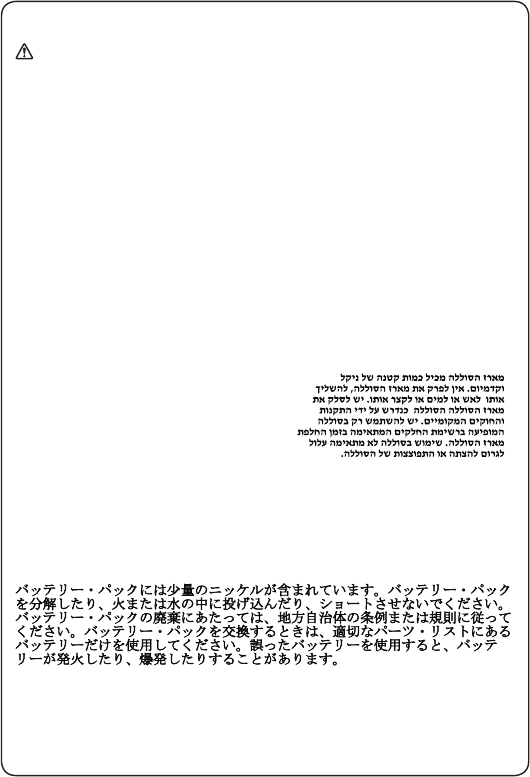
DANGER
Somestandbybatteriescontainasmallamountofnickelandcadmium.Donot
disassembleastandbybattery,rechargeit,throwitintofireorwater,orshort-
circuitit.Disposeofthebatteryasrequiredbylocalordinancesorregulations.
Useonlythebatteryintheappropriatepartslisting.Useofanincorrectbatterycan
resultinignitionorexplosionofthebattery.
Certainesbatteriesdesecourscontiennentdunickeletducadmium.Neles
démontezpas,nelesrechargezpas,nelesexposezniaufeuniàl’eau.Ne
lesmettezpasencourt-circuit.Pourlesmettreaurebut,conformez-vousàla
réglementationenvigueur.Lorsquevousremplacezlapiledesauvegardeoucelle
del’horlogetempsréel,veillezàn’utiliserquelesmodèlescitésdanslalistede
piècesdétachéesadéquate.Unebatterieouunepileinappropriéerisquedeprendre
feuoud’exploser.
DieBereitschaftsbatterie,diesichunterdemDiskettenlaufwerkbefindet,
kanngeringeMengenNickelundCadmiumenthalten.Siedarfnichtzerlegt,
wiederaufgeladen,kurzgeschlossen,oderFeueroderWasserausgesetztwerden.
BeiderEntsorgungdieörtlichenBestimmungenfürSondermüllbeachten.Beim
ErsetzenderBereitschafts-oderSystembatterienurBatteriendesTypsverwenden,
derinderErsatzteillisteaufgeführtist.DerEinsatzfalscherBatterienkannzu
EntzündungoderExplosionführen.
Alcunebatteriediriservacontengonounapiccolaquantitàdinichelecadmio.
Nonsmontarle,ricaricarle,gettarlenelfuocoonell’acquanécortocircuitarle.
Smaltirlesecondolanormativainvigore(DPR915/82,successivedisposizionie
disposizionilocali).Quandosisostituiscelabatteriadell’RTC(realtimeclock)o
labatteriadisupporto,utilizzaresoltantoitipiinseritinell’appropriatoCatalogo
parti.L’impiegodiunabatterianonadattapotrebbedeterminarel’incendioo
l’esplosionedellabatteriastessa.
Algunasbateríasdereservacontienenunapequeñacantidaddeníquelycadmio.
Nolasdesmonte,nirecargue,nilasechealfuegooalaguanilascortocircuite.
Deséchelastalcomodisponelanormativalocal.Utilicesólobateríasquese
encuentrenenlalistadepiezas.Lautilizacióndeunabateríanoapropiadapuede
provocarlaigniciónoexplosióndelamisma.
9
Safety information
Safety notice 3
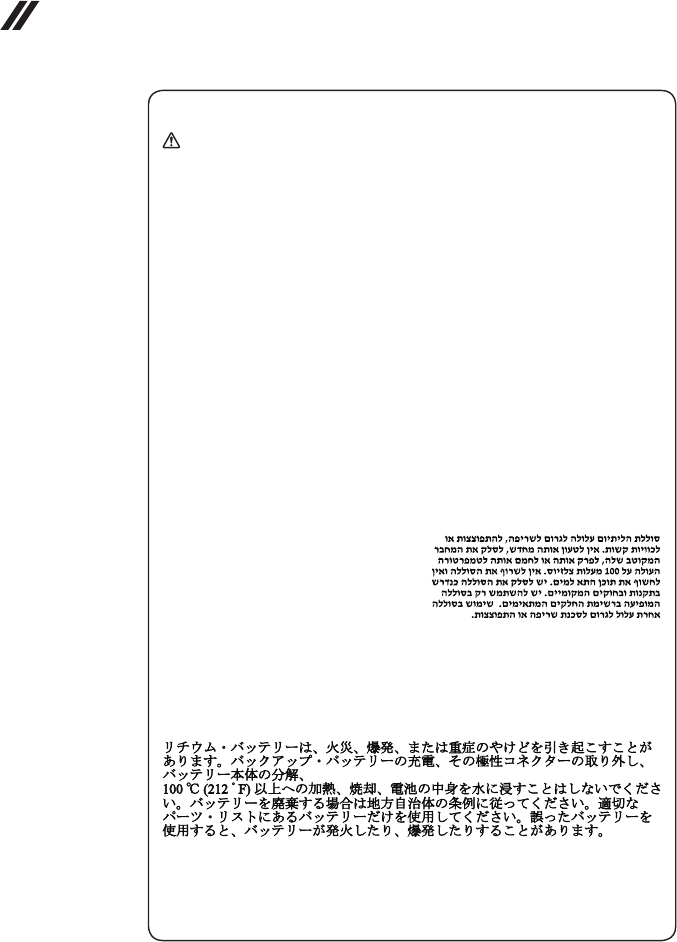
DANGER
Thebatterypackcontainssmallamountsofnickel.Donotdisassembleit,throw
itintoreorwater,orshort-circuitit.Disposeofthebatterypackasrequiredby
localordinancesorregulations.Useonlythebatteryintheappropriatepartslisting
whenreplacingthebatterypack.Useofanincorrectbatterycanresultinignition
orexplosionofthebattery.
Labatteriecontientdunickel.Neladémontezpas,nel’exposezniaufeuniàl’eau.
Nelamettezpasencourt-circuit.Pourlamettreaurebut,conformez-vousàla
réglementationenvigueur.Lorsquevousremplacezlabatterie,veillezàn’utiliser
quelesmodèlescitésdanslalistedepiècesdétachéesadéquate.Eneffet,une
batterieinappropriéerisquedeprendrefeuoud’exploser.
AkkusenthaltengeringeMengenvonNickel.Siedürfennichtzerlegt,
wiederaufgeladen,kurzgeschlossen,oderFeueroderWasserausgesetztwerden.
BeiderEntsorgungdieörtlichenBestimmungenfürSondermüllbeachten.Beim
ErsetzenderBatterienurBatteriendesTypsverwenden,derinderErsatzteilliste
aufgeführtist.DerEinsatzfalscherBatterienkannzuEntzündungoderExplosion
führen.
Labatteriacontienepiccolequantitàdinichel.Nonsmontarla,gettarlanelfuoco
onell’acquanécortocircuitarla.Smaltirlasecondolanormativainvigore(DPR
915/82,successivedisposizioniedisposizionilocali).Quandosisostituiscela
batteria,utilizzaresoltantoitipiinseritinell’appropriatoCatalogoparti.L’impiego
diunabatterianonadattapotrebbedeterminarel’incendiool’esplosionedella
batteriastessa.
Lasbateríascontienenpequeñascantidadesdeníquel.Nolasdesmonte,ni
recargue,nilasechealfuegooalaguanilascortocircuite.Deséchelastalcomo
disponelanormativalocal.Utilicesólobateríasqueseencuentrenenlalistade
piezasalsustituirlabatería.Lautilizacióndeunabateríanoapropiadapuede
provocarlaigniciónoexplosióndelamisma.
10
Lenovo ideapad FLEX 5-1470/Lenovo ideapad FLEX 5-1570
Hardware Maintenance Manual
Safety notice 4
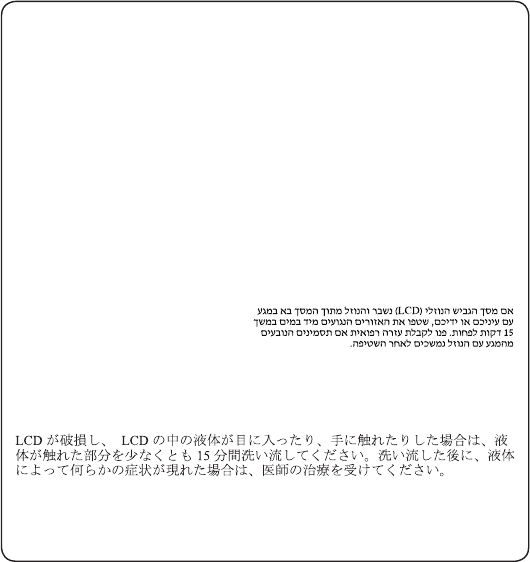
DANGER
Thelithiumbatterycancauseafire,anexplosion,orasevereburn.Donot
rechargeit,removeitspolarizedconnector,disassembleit,heatitabove100°C
(212°F),incinerateit,orexposeitscellcontentstowater.Disposeofthebatteryas
requiredbylocalordinancesorregulations.Useonlythebatteryintheappropriate
partslisting.Useofanincorrectbatterycanresultinignitionorexplosionofthe
battery.
Lapiledesauvegardecontientdulithium.Elleprésentedesrisquesd’incendie,
d’explosionoudebrûluresgraves.Nelarechargezpas,neretirezpasson
connecteurpolariséetneladémontezpas.Nel’exposezpasàunetemperature
supérieureà100°C,nelafaitespasbrûleretn’enexposezpaslecontenuàl’eau.
Mettezlapileaurebutconformémentàlaréglementationenvigueur.Unepile
inappropriéerisquedeprendrefeuoud’exploser.
DieSystembatterieisteineLithiumbatterie.Siekannsichentzünden,explodieren
oderschwereVerbrennungenhervorrufen.BatteriendiesesTypsdürfennicht
aufgeladen,zerlegt,über100Cerhitztoderverbranntwerden.Auchdarfihr
InhaltnichtmitWasserinVerbindunggebrachtoderderzurrichtigenPolung
angebrachteVerbindungssteckerentferntwerden.BeiderEntsorgungdieörtlichen
BestimmungenfürSondermüllbeachten.BeimErsetzenderBatterienurBatterien
desTypsverwenden,derinderErsatzteillisteaufgeführtist.DerEinsatzfalscher
BatterienkannzuEntzündungoderExplosionführen.
Labatteriadisupportoeunabatteriaallitioepuoincendiarsi,esplodereo
procuraregraviustioni.Evitarediricaricarla,smontarneilconnettorepolarizzato,
smontarla,riscaldarlaadunatemperaturasuperioreai100gradicentigradi,
incendiarlaogettarlainacqua.Smaltirlasecondolanormativainvigore(DPR
915/82,successivedisposizioniedisposizionilocali).L’impiegodiunabatteria
nonadattapotrebbedeterminarel’incendiool’esplosionedellabatteriastessa.
Labateríaderepuestoesunabateríadelitioypuedeprovocarincendios,
explosionesoquemadurasgraves.Nolarecargue,niquiteelconectorpolarizado,
niladesmonte,nicalienteporencimadelos100°C(212°F),nilaincinereni
expongaelcontenidodesusceldasalagua.Deséchelatalcomodisponela
normativalocal.
11
Safety information
Safety notice 5
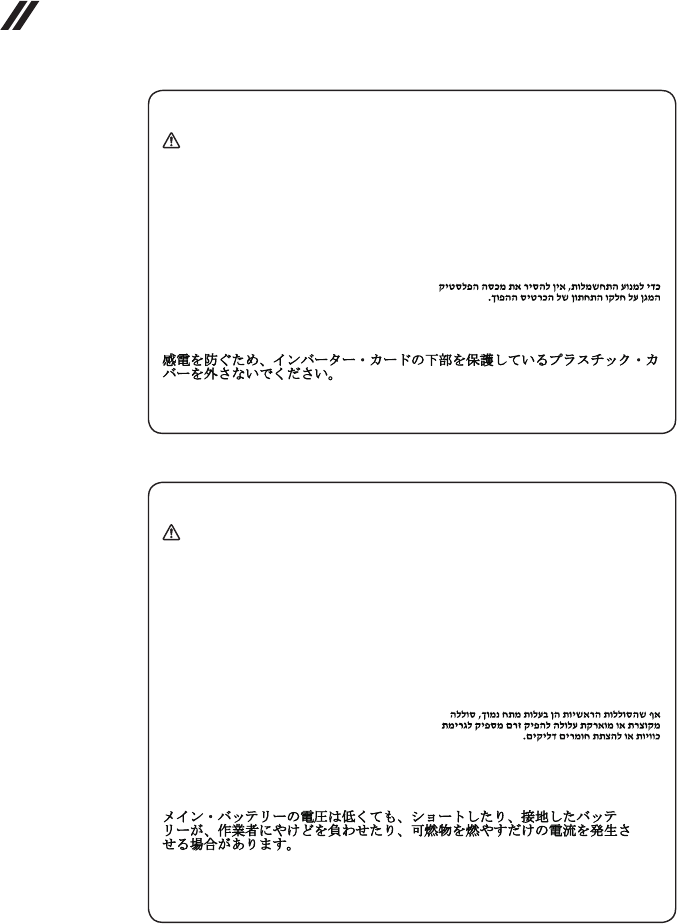
IftheLCDbreaksandtheuidfrominsidetheLCDgetsintoyoureyesoronyour
hands,immediatelywashtheaffectedareaswithwateratleastfor15minutes.
Seekmedicalcareifanysymptomscausedbytheuidarepresentafterwashing.
Silepanneaud’afchageàcristauxliquidessebriseetquevousrecevezdansles
yeuxousurlesmainsunepartieduuide,rincez-lesabondammentpendantau
moinsquinzeminutes.Consultezunmédecinsidessymptômespersistentaprèsle
lavage.
DieLeuchtstoffröhreimLCD-BildschirmenthältQuecksilber.BeiderEntsorgung
dieörtlichenBestimmungenfürSondermüllbeachten.DerLCD-Bildschirm
bestehtausGlasundkannzerbrechen,wennerunsachgemäßbehandeltwird
oderderComputeraufdenBodenfällt.WennderBildschirmbeschädigtistund
diedarinbefindlicheFlüssigkeitinKontaktmitHautundAugengerät,sollten
diebetroffenenStellenmindestens15MinutenmitWasserabgespültundbei
BeschwerdenanschließendeinArztaufgesuchtwerden.
Nelcasochecasol’LCDsidovesserompereedilliquidoinessocontenuto
entrasseincontattocongliocchiolemani,lavareimmediatamenteleparti
interessateconacquacorrenteperalmeno15minuti;poiconsultareunmedicosei
sintomidovesseropermanere.
SilaLCDserompeyeluidodesuinteriorentraencontactoconsusojososus
manos,laveinmediatamentelasáreasafectadasconaguadurante15minutos
comomínimo.Obtengaatenciónmedicasisepresentaalgúnsíntomadeluido
despuesdelavarse.
12
Lenovo ideapad FLEX 5-1470/Lenovo ideapad FLEX 5-1570
Hardware Maintenance Manual
Safety notice 6
DANGER
Toavoidshock,donotremovetheplasticcoverthatprotectsthelowerpartofthe
invertercard.
And’évitertoutrisquedechocélectrique,neretirezpaslecacheenplastique
protégeantlapartieinférieuredelacarted’alimentation.
AusSicherheitsgründendieKunststoffabdeckung,diedenunterenTeilder
Spannungswandlerplatineumgibt,nichtentfernen.
Perevitarescosseelettriche,nonrimuoverelacoperturainplasticacheavvolgela
parteinferioredellaschedainvertitore.
Paraevitardescargas,noquitelacubiertadeplásticoquerodealapartebajadela
tarjetainvertida.
Safety notice 7
DANGER
Thoughthemainbatterieshavelowvoltage,ashortedorgroundedbatterycan
produceenoughcurrenttoburnpersonnelorcombustiblematerials.
Bienquelevoltagedesbatteriesprincipalessoitpeuélevé,lecourt-circuitoula
miseàlamassed’unebatteriepeutproduiresufsammentdecourantpourbrûler
desmatériauxcombustiblesoucauserdesbrûlurescorporellesgraves.
ObwohlHauptbatterieneineniedrigeSpannunghaben,könnensiedochbei
KurzschlußoderErdunggenugStromabgeben,umbrennbareMaterialienzu
entzündenoderVerletzungenbeiPersonenhervorzurufen.
Sebbenelebatteriedialimentazionesianoabassovoltaggio,unabatteriain
cortocircuitooamassapuòfornirecorrentesufficientedabruciaremateriali
combustibilioprovocareustioniaitecnicidimanutenzione.
Aunquelasbateríasprincipalestienenunvoltajebajo,unabateríacortocircuitada
oconcontactoatierrapuedeproducirlacorrientesucientecomoparaquemar
materialcombustibleoprovocarquemadurasenelpersonal.
13
Safety information
Safety notice 8
DANGER
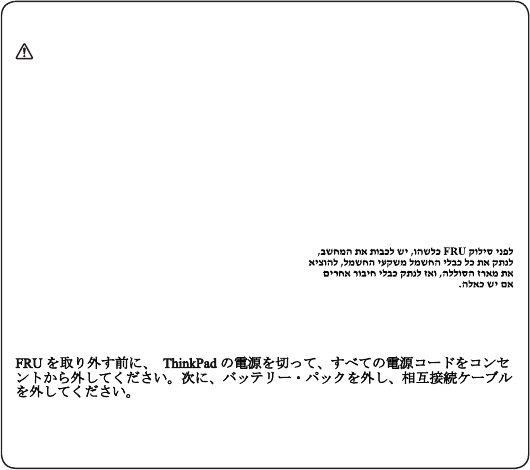
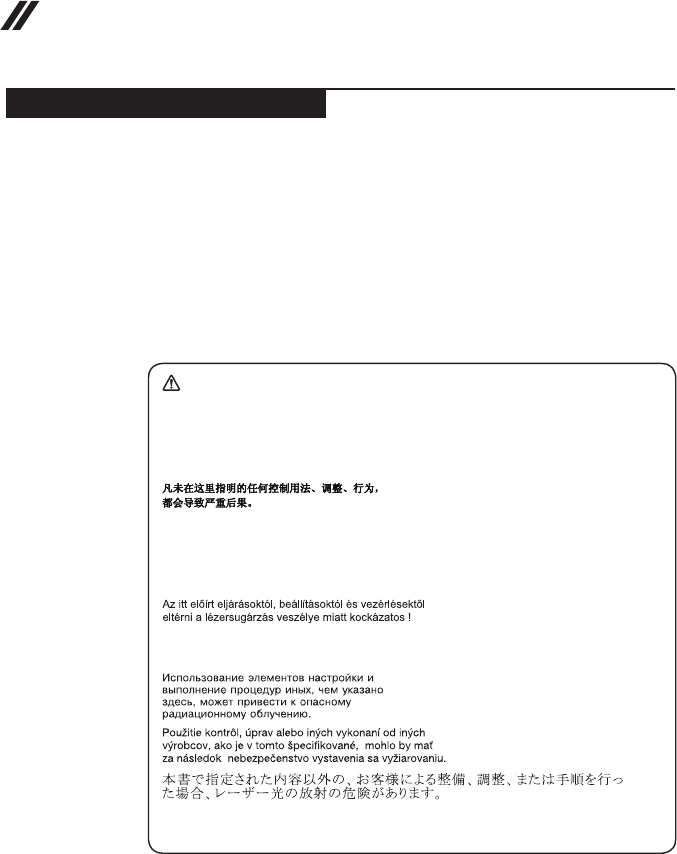
BeforeremovinganyFRU,turnoffthecomputer,unplugallpowercordsfrom
electricaloutlets,removethebatterypack,andthendisconnectanyinterconnecting
cables.
Avantderetireruneunitéremplaçableenclientèle,mettezlesystèmehorstension,
débrancheztouslescordonsd’alimentationdessoclesdeprisedecourant,retirez
labatterieetdéconnecteztouslescordonsd’interface.
DieStromzufuhrmußabgeschaltet,alleStromkabelausderSteckdosegezogen,
derAkkuentferntundalleVerbindungskabelabgenommensein,bevoreineFRU
entferntwird.
PrimadirimuoverequalsiasiFRU,spegnereilsistema,scollegaredalleprese
elettrichetuttiicavidialimentazione,rimuoverelabatteriaepoiscollegareicavi
diinterconnessione.
AntesdequitarunaFRU,apagueelsistema,desenchufetodosloscablesde
lastomasdecorrienteeléctrica,quitelabateríay,acontinuación,desconecte
cualquiercabledeconexiónentredispositivos.
14
Lenovo ideapad FLEX 5-1470/Lenovo ideapad FLEX 5-1570
Hardware Maintenance Manual
Laser compliance statement
Some models of Lenovo computer are equipped from the factory with an
optical storage device such as a CD-ROM drive or a DVD-ROM drive. Such
devices are also sold separately as options. If one of these drives is installed,
it is certied in the U.S. to conform to the requirements of the Department of
Health and Human Services 21 Code of Federal Regulations (DHHS 21 CFR)
Subchapter J for Class 1 laser products. Elsewhere, the drive is certified to
conform to the requirements of the International Electrotechnical Commission
(IEC) 825 and CENELEC EN 60 825 for Class 1 laser products.
If a CD-ROM drive, a DVD-ROM drive, or another laser device is installed, note
the following:
CAUTION
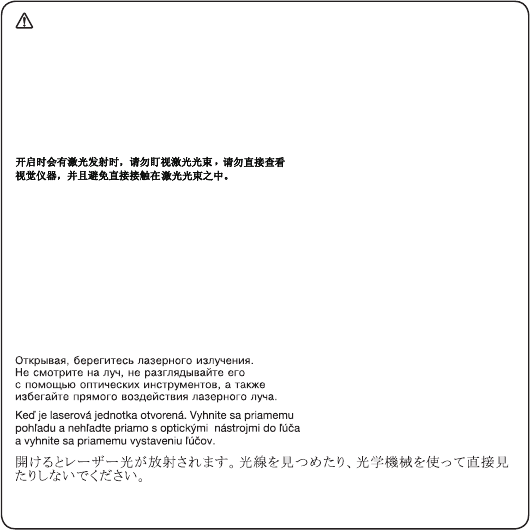
Useofcontrolsoradjustmentsorperformanceofproceduresotherthanthose
speciedhereinmightresultinhazardousradiationexposure.
Ousodecontroles,ajustesoudesempenhodeprocedimentosdiferentesdaqueles
aquiespecicadospoderesultaremperigosaexposiçãoàradiação.
Pourévitertoutrisqued’expositionaurayonlaser,respectezlesconsignesde
réglageetd’utilisationdescommandes,ainsiquelesprocéduresdécrites.
WerdenSteuer-undEinstellelementeandersalshierfestgesetztverwendet,kann
gefährlicheLaserstrahlungauftreten.
L’utilizzodicontrolli,regolazioniol’esecuzionediprocedurediversedaquelle
specicatepossonoprovocarel’esposizionea.
Elusodecontrolesoajustesolaejecucióndeprocedimientosdistintosdelosaquí
especicadospuedeprovocarlaexposiciónaradiacionespeligrosas.
Opening the CD-ROM drive, the DVD-ROM drive, or any other optical storage
device could result in exposure to hazardous laser radiation. There are no
serviceable parts inside those drives. Do not open.
15
Safety information
A CD-ROM drive, a DVD-ROM drive, or any other storage device installed may
contain an embedded Class 3A or Class 3B laser diode. Note the following:
DANGER
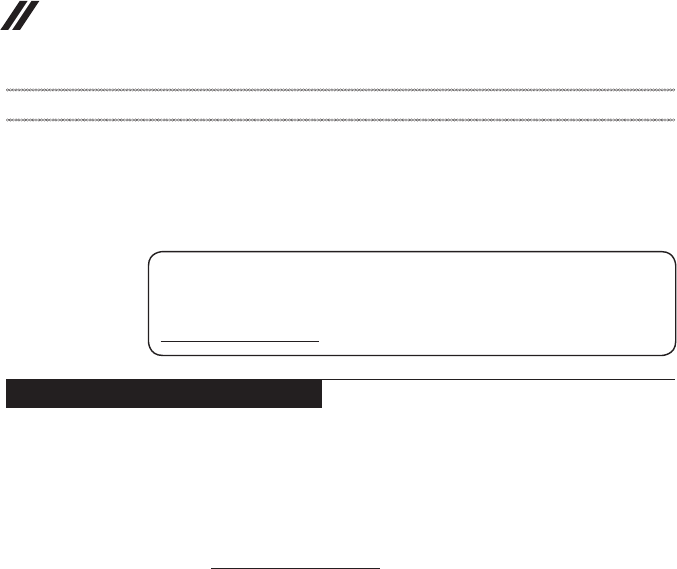
Emitsvisibleandinvisiblelaserradiationwhenopen.Donotstareintothebeam,
donotviewdirectlywithopticalinstruments,andavoiddirectexposuretothe
beam.
Radiaçãoporraiolaseraoabrir.Nãoolhefixonofeixedeluz,nãoolhe
diretamentepormeiodeinstrumentosóticoseeviteexposiçãodiretacomofeixe
deluz.
Rayonnementlasersicarterouvert.Évitezdefixerlefaisceau,deleregarder
directementavecdesinstrumentsoptiques,oudevousexposeraurayon.
LaserstrahlungbeigeöffnetemGerät.NichtdirektoderüberoptischeInstrumente
indenLaserstrahlsehenunddenStrahlungsbereichmeiden.
Kinyitáskorlézersugár!Nenézzenbeleseszabadszemmel,seoptikai
eszközökkel.Kerüljeasugárnyalábbalvalóérintkezést!
Aprendol’unitàvengonoemesseradiazionilaser.Nonfissareilfascio,non
guardarlodirettamenteconstrumentiotticieevitarel’esposizionedirettaalfascio.
Radiaciónláseralabrir.Nomirejamenteniexamineconinstrumentalópticoel
hazdeluz.Evitelaexposicióndirectaalhaz.
16
Lenovo ideapad FLEX 5-1470/Lenovo ideapad FLEX 5-1570
Hardware Maintenance Manual
Important service information
This chapter presents the following important service information:
• “Strategy for replacing FRUs” on page 16
– “Strategy for replacing a hard disk drive” on page 17
– “Important notice for replacing a system board” on page 17
• “Important information about replacing RoHS compliant FRUs” on page 18
Important:
BIOSanddevicedriverxesarecustomer-installable.TheBIOSanddevicedrivers
arepostedonthecustomersupportsite:
http://support.lenovo.com.
Strategy for replacing FRUs
Before replacing parts:
Make sure that all software xes, drivers, and BIOS downloads are installed
before replacing any FRUs listed in this manual.
After a system board is replaced, ensure that the latest BIOS is loaded to the
system board before completing the service action.
To download software xes, drivers, and BIOS, follow the steps below:
1. Go to http://support.lenovo.com.
2. Enter the serial number or select a product or use Lenovo smart
downloading.
3. Select the BIOS/Driver/Applications and download.
4. Follow the directions on the screen and install the necessary software.
17
Important service information
Use the following strategy to prevent unnecessary expense for replacing and
servicing FRUs:
• If you are instructed to replace an FRU, but the replacement does not solve
the problem, reinstall the original FRU before you continue.
• Some computers have both a processor board and a system board. If you
are instructed to replace either of them, and replacing one of them does not
solve the problem, reinstall that board, and then replace the other one.
• If an adapter or a device consists of more than one FRU, any of the FRUs
may be the cause of the error. Before replacing the adapter or device,
remove the FRUs one by one to see if the symptoms change. Replace only
the FRU that changed the symptoms.
Attention: The setup configuration on the computer you are servicing may
have been customized. Running Automatic Configuration may alter the
settings. Note the current conguration settings (using the View Conguration
option); then, when service has been completed, verify that those settings
remain in effect.
Strategy for replacing a hard disk drive
Always try to run a low-level format before replacing a hard disk drive. This
will cause all customer data on the hard disk to be lost. Make sure that the
customer has a current backup of the data before performing this action.
Attention: The drive startup sequence in the computer you are servicing may
have been changed. Be extremely careful during write operations such as
copying, saving, or formatting. If you select an incorrect drive, data or programs
can be overwritten.
Important notice for replacing a system board
Some components mounted on a system board are very sensitive. Improper
handling can cause damage to those components, and may cause a system
malfunction.
Attention: When handling a system board:
• Do not drop the system board or apply any excessive force to it.
• Avoid rough handling of any kind.
• Avoid bending the system board and hard pushing to prevent cracking at
each BGA (Ball Grid Array) chipset.

18
Lenovo ideapad FLEX 5-1470/Lenovo ideapad FLEX 5-1570
Hardware Maintenance Manual
Important information about replacing RoHS compliant FRUs
RoHS, The Restriction of Hazardous Substances in Electrical and
Electronic Equipment Directive (2002/95/EC) is a European Union legal
requirement affecting the global electronics industry. RoHS requirements
must be implemented on Lenovo products placed on the market after
June 2006. Products on the market before June 2006 are not required to
have RoHS compliant parts. If the original FRU parts are non-compliant,
replacement parts can also be non-compliant. In all cases if the original
FRU parts are RoHS compliant, the replacement part must also be RoHS
compliant.
Note: RoHS and non-RoHS FRU part numbers with the same t and function
are identied with unique FRU part numbers.
Lenovo plans to transit to RoHS compliance well before the implementation
date and expects its suppliers to be ready to support Lenovo’s requirements
and schedule in the EU. Products sold in 2005 and 2006 will contain some
RoHS compliant FRUs. The following statement pertains to these products and
any product Lenovo produces containing RoHS compliant FRUs.
RoHS compliant FRUs have unique FRU part numbers. Before or after the
RoHS implementation date, failed RoHS compliant parts must always be
replaced with RoHS compliant ones, so only the FRUs identied as compliant
in the system HMM or direct substitutions for those FRUs may be used.
Products marketed before June 2006 Products marketed after June 2006
Current or
original part
Replacement FRU Current or
original part
Replacement FRU
Non-RoHS Can be Non-RoHS
Must be RoHS Must be RoHS
Non-RoHS Can be RoHS
Non-RoHS Can sub to RoHS
RoHS Must be RoHS
Note: A direct substitution is a part with a different FRU part number that is
automatically shipped by the distribution center at the time of the order.

19
General checkout
General checkout
This chapter presents the following information:
• “What to do rst” on page 20
• “Power system checkout” on page 21
Before you go to the checkout, make sure to read the following important notes:
Important notes:
• Onlycertiedtrainedpersonnelcanservicethecomputer.
• BeforereplacinganyFRU,readthe entirepageonremovingandreplacing
FRUs.
• CarefullyremovescrewsforreusewhenreplacingFRUs.
• Beextremelycarefulduringsuchwriteoperationsascopying,saving,or
formatting.Drivesinthecomputerthatyouareservicingsequencemight
havebeenaltered.Ifyouselectanincorrectdrive,dataorprogramsmightbe
overwritten.
• ReplaceanFRUonlywithanotherFRUofthecorrectmodel.Whenyou
replaceanFRU,makesurethatthemachinemodelandtheFRUpartnumberare
correctbyreferringtotheFRUpartslist.
• AnFRUshouldnotbereplacedjustbecauseofasingle,unreproduciblefailure.
Singlefailurescanoccurforavarietyofreasonsthathavenothingtodowitha
hardwaredefect,suchascosmicradiation,electrostaticdischarge,orsoftware
errors.ConsiderreplacinganFRUonlywhenaproblemrecurs.Ifyoususpectthat
anFRUisdefective,cleartheerrorlogsandrunthetestagain.Iftheerrordoes
notrecur,donotreplacetheFRU.
• BecarefulnottoreplaceanondefectiveFRU.

20
Lenovo ideapad FLEX 5-1470/Lenovo ideapad FLEX 5-1570
Hardware Maintenance Manual
What to do rst
When you do return an FRU, you must include the following information in the
parts exchange form or parts return form that you attach to it:
1. Name and phone number of servicer
2. Date of service
3. Date on which the machine failed
4. Date of purchase
5. Procedure index and page number in which the failing FRU was detected
6. Failing FRU name and part number
7. Machine type, model number, and serial number
8. Customer’s name and address
Note for warranty: During the warranty period, the customer may be
responsible for repair costs if the computer damage was caused by misuse,
accident, modification, unsuitable physical or operating environment, or
improper maintenance by the customer.
The following is a list of some common items that are not covered under
warranty and some symptoms that might indicate that the system was
subjected to stress beyond normal use.
Before checking problems with the computer, determine whether the damage is
covered under the warranty by referring to the following list:
The following are not covered under warranty:
• LCD panel cracked from the application of excessive force or from being
dropped
• Scratched (cosmetic) parts
• Distortion, deformation, or discoloration of the cosmetic parts
• Plastic parts, latches, pins, or connectors that have been cracked or broken
by excessive force
• Damage caused by liquid spilled into the system
• Damage caused by the improper insertion of a PC Card or the installation of
an incompatible card
• Improper disk insertion or use of an optical drive
• Diskette drive damage caused by pressure on the diskette drive cover,
foreign material in the drive, or the insertion of a diskette with multiple labels
• Damaged or bent diskette eject button
• Fuses blown by attachment of a nonsupported device
• Forgotten computer password (making the computer unusable)
• Sticky keys caused by spilling a liquid onto the keyboard
• Use of an incorrect AC adapter on laptop products
The following symptoms might indicate damage caused by nonwarranted
activities:
• Missing parts might be a symptom of unauthorized service or modication.
• If the spindle of a hard disk drive becomes noisy, it may have been subjected
to excessive force, or dropped.
21
General checkout
Power system checkout
To verify a symptom, follow the steps below:
1. Turn off the computer.
2. Connect the AC adapter.
3. Make sure that power is supplied when you turn on the computer.
4. Turn off the computer.
5. Disconnect the AC adapter.
6. Make sure that the battery pack supplies power when you turn on the
computer.
If you suspect a power problem, see the appropriate power supply checkout:
• “Checking the AC adapter” on page 21
• “Checking operational charging” on page 22
Checking the AC adapter
You are here because the computer fails only when the AC adapter is used.
• If the power-on indicator does not turn on, check the power cord of the AC
adapter for correct continuity and installation.
• If the computer does not charge during operation, go to “Checking
operational charging”.
To check the AC adapter, follow the steps below:
1. Unplug the AC adapter cable from the computer.
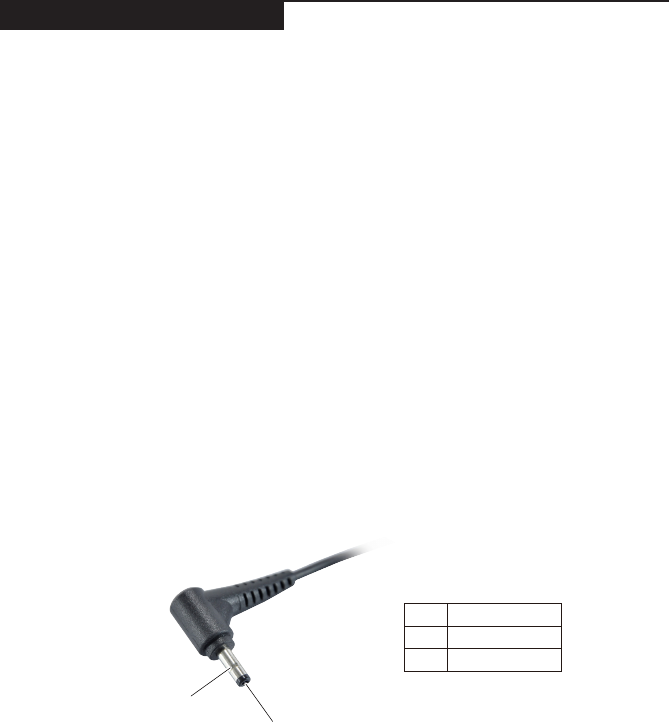
2. Measure the output voltage at the plug of the AC adapter cable. See the
following gure:
1
2
Voltage (V DC)
+20
0
Pin
1
2
Note: Output voltage for the AC adapter pin No. 2 may differ from the one you
are servicing.
3. If the voltage is not correct, replace the AC adapter.
4. If the voltage is acceptable, do the following:
• Replace the system board.
• If the problem persists, go to “Lenovo ideapad FLEX 5-1470/Lenovo ideapad
FLEX 5-1570” on page 26.
Note: Noise from the AC adapter does not always indicate a defect.

22
Lenovo ideapad FLEX 5-1470/Lenovo ideapad FLEX 5-1570
Hardware Maintenance Manual
Checking operational charging
To check whether the battery charges properly during operation, use a
discharged battery pack or a battery pack that has less than 50% of the total
power remaining when installed in the computer.
Perform operational charging. If the battery status indicator or icon is not lit,
remove the battery pack and let it return to room temperature. Reinstall the
battery pack. If the charge indicator or icon is still off, replace the battery pack.
If the charge indicator is still not lit, replace the system board.
Checking the battery pack
Battery charging does not start until the Power Meter shows that less than 95%
of the total power remains; under this condition the battery pack can charge to
100% of its capacity. This protects the battery pack from being overcharged or
from having a shortened life.
To check your battery, move your cursor to the Power Meter icon in the icon
tray of the Windows® taskbar and wait for a moment (but do not click it), and
the
percentage of battery power remaining is displayed. To get detailed information
about the battery, double-click the Power Meter icon.
Note: If the battery pack becomes hot, it may not be able to be charged.
Remove it from the computer and leave it at room temperature for a while. After
it cools down, reinstall and recharge it.
23
Related service information
Related service information
This chapter presents the following information:
• “Restoring the factory contents by using OneKey Recovery” on page 23
• “Passwords” on page 24
• “Power management” on page 25
Restoring the factory contents by using OneKey Recovery
Restore of factory default
The Lenovo ideapad FLEX 5-1470/Lenovo ideapad FLEX 5-1570 computer
comes with pre-installed OneKey Recovery System.In order to save application
files and the initial backed up files of the system, the hard disk in a Lenovo
computer includes a hidden partition when it is shipped. If you need to restore
the system to the point of your rst boot up, just enter the Recovery System.
For details of the Recovery system, see the User Guide for Recovery system.
Note:Thiswilldeleteallthenewdataonthesystempartition(Cdrive),which
isnotrecoverable.Makesuretobackupyourcriticaldatabeforeyouperformthis
action.

24
Lenovo ideapad FLEX 5-1470/Lenovo ideapad FLEX 5-1570
Hardware Maintenance Manual
Passwords
As many as three passwords may be needed for any Lenovo computer: the
power-on password (POP), the hard disk password (HDP), and the supervisor
password.
If any of these passwords has been set, a prompt for it appears on the screen
whenever the computer is turned on. The computer does not start until the
password is entered.
Power-on password
A power-on password (POP) protects the system from being powered on by
an unauthorized person. The password must be entered before an operating
system can be booted.
Hard-disk password
There are two hard-disk passwords (HDPs):
+ User HDP - for the user
+ Master HDP - for the system administrator, who can use it to get access to
the hard disk drive even if the user has changed the user HDP
Attention: If the user HDP has been forgotten, check whether a master HDP
has been set. If it has, it can be used for access to the hard disk drive. If
no master HDP is available, neither Lenovo nor Lenov authorized service
technicians provide any services to reset either the user or the master HDP, or
to recover data from the hard disk drive. The hard disk drive can be replaced
for a scheduled fee.
Supervisor password
A supervisor password protects the system information stored in the BIOS. The
user must enter the supervisor password to get access to the BIOS and change
the system conguration.
Attention: If you forget the password, there is no service procedure to reset
the password. The system board must be replaced for a scheduled fee.

25
Related service information
Power management
Note: Power management modes are not supported for an APM operating
system.
Putting the computer to sleep or shutting it down
When you have nished working with your computer, you can put it to sleep or
shut it down.
Putting your computer to sleep
If you will be away from your computer for only a short time, put the computer to
sleep. When the computer is in sleep mode, you can quickly wake it to resume
use, bypassing the startup process.
To put the computer to sleep, do one of the following:
• Close the display lid.
• Press the Power button.
• Open the start menu, and then select Power → Sleep.
Attention: Wait until the power indicator light starts blinking (indicating that
the computer is in sleep mode) before you move your computer. Moving your
computer while the hard disk is spinning can damage the hard disk, causing
loss of data.
To wake the computer, do one of the following:
• Press any key on the keyboard. (Notebook mode only)
• Press the Power button.
Shutting down the computer
If you are not going to use your computer for a long time, shut it down.
To shut down your computer, do one of the following:
• Open the start menu, and then select Power → Shut down.
• Press and hold or right-click the Start button in the lower-left corner and
select Shut down or sign out → Shut down.
26
Lenovo ideapad FLEX 5-1470/Lenovo ideapad FLEX 5-1570
Hardware Maintenance Manual
Lenovo ideapad FLEX 5-1470/Lenovo ideapad FLEX 5-1570
This chapter presents the following product-specific service references and
product-specic parts information:
• “Specications” on page 26
• “Status indicators” on page 28
• “Keyboard function keys” on page 29
• “FRU replacement notices” on page 30
• “Removing and replacing an FRU” on page 31
• “Locations” on page 63
• “Parts list” on page 66
Specications
The following table lists the specifications of the Lenovo ideapad FLEX
5-1470/Lenovo ideapad FLEX 5-1570:
Table 1. Specications
Feature Description
Processor View the system properties of your computer.
You can do this as follows: Open the Control Panel, and then
select System and Security → System.
Graphic Chipset
Integrated Graphics
• 15 W GT1/GT2
• 28 W GT3
Discreted Graghics:
N16V-GMR1 (FLEX 5-1470)
N16S-GTR (FLEX 5-1570)
Display
• 14.0-inch, 16:9, 1,366 × 768 pixels HD / 1,920 × 1,080 pixels
FHD (Lenovo ideapad FLEX 5-1470)
•
15.6-inch, 16:9, 1,920 × 1,080 pixels FHD / 3,840 × 2,160
pixels UHD (Lenovo ideapad FLEX 5-1570)
Standard memory • DDR4, SODIMM × 1 (max 16 GB)
SSD • 128 GB / 256 GB / 512 GB / Optane memory 16 GB, PCIE
M.2
I/O port USB 3.0 × 2
Combo audio jack × 1
HDMI port × 1
Type-C × 1 (USB 3.0)
Memory card slot (SD/SDHC/SDXC/MMC)
Audio • 1/8" Combo audio jack
• JBL Branded Speaker
• Built-in microphone × 2
Bluetooth wireless • Built-in antenna with wireless card module for all Models
Keyboard • 6 Row, Lenovo Keyboard, Back-light
Touch pad • Multi-touch type
Integrated camera • 720P HD

27
Lenovo ideapad FLEX 5-1470/Lenovo ideapad FLEX 5-1570
Table 1. Specications (continued)
Feature Description
Battery •
2 cells / 3 cells, 35 Wh / 52.5 Wh (Lenovo ideapad FLEX
5-1470)
• 3 cells, 52.5 Wh (Lenovo ideapad FLEX 5-1570)
AC adapter • 20 V DC, 45 W / 65 W (Lenovo ideapad FLEX 5-1470)
• 20 V DC, 65 W (Lenovo ideapad FLEX 5-1570)
Pre-installed
operating system • Win10
28
Lenovo ideapad FLEX 5-1470/Lenovo ideapad FLEX 5-1570
Hardware Maintenance Manual
Status indicators
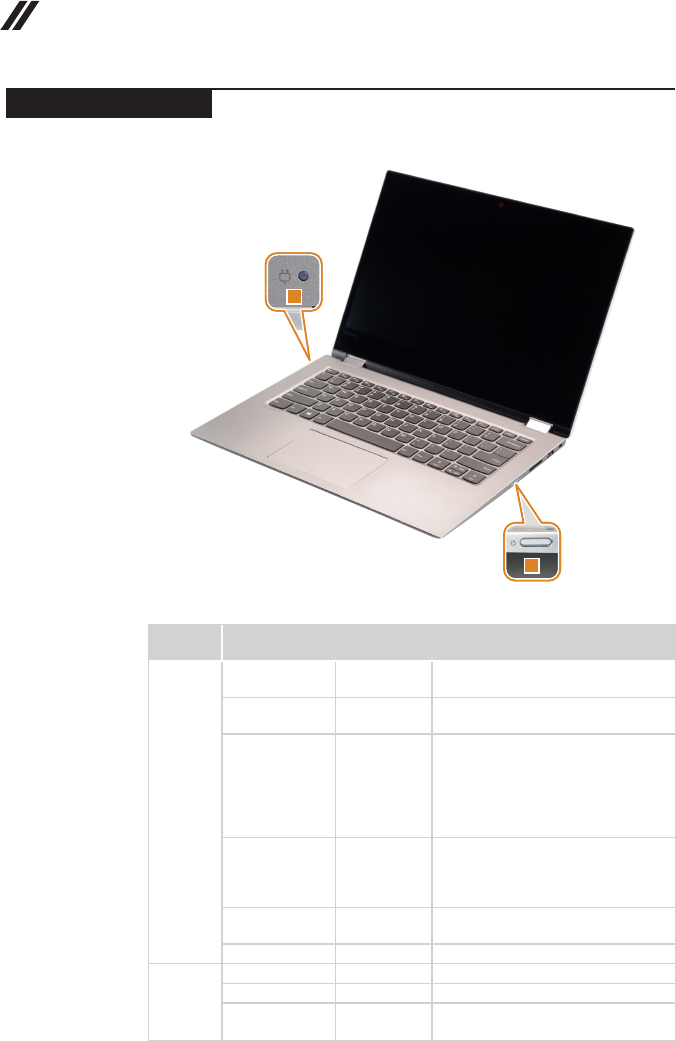
The system status indicators below show the computer status:
1
2
Table 2. Status indicators
Indicator Indicator status Charge
status Meaning
Battery
status
indicator
1
On (solid white) Charging The battery has more than 80%
charge.
On (solid
amber) Discharging The battery has between 5% and
20% charge.
Blinking slowly
(white) Charging
The battery has between 20% and
80% charge. When the battery
reaches 80% charge, the light will
stop blinking. However, charging
will continue until the battery is fully
charged.
Blinking slowly
(amber) Charging
The battery has less than 20%
charge. When the battery charge
reaches 20%, the blinking color will
change to white.
Blinking quickly
(amber) Discharging The battery has less than 5% charge.
Off Discharging The battery has more than 20% charge.
Power
status
indicator
2
On (solid white) --- The computer is powered on.
Blinking --- The computer is in sleep mode.
Off --- The computer is powered off.
29
Lenovo ideapad FLEX 5-1470/Lenovo ideapad FLEX 5-1570
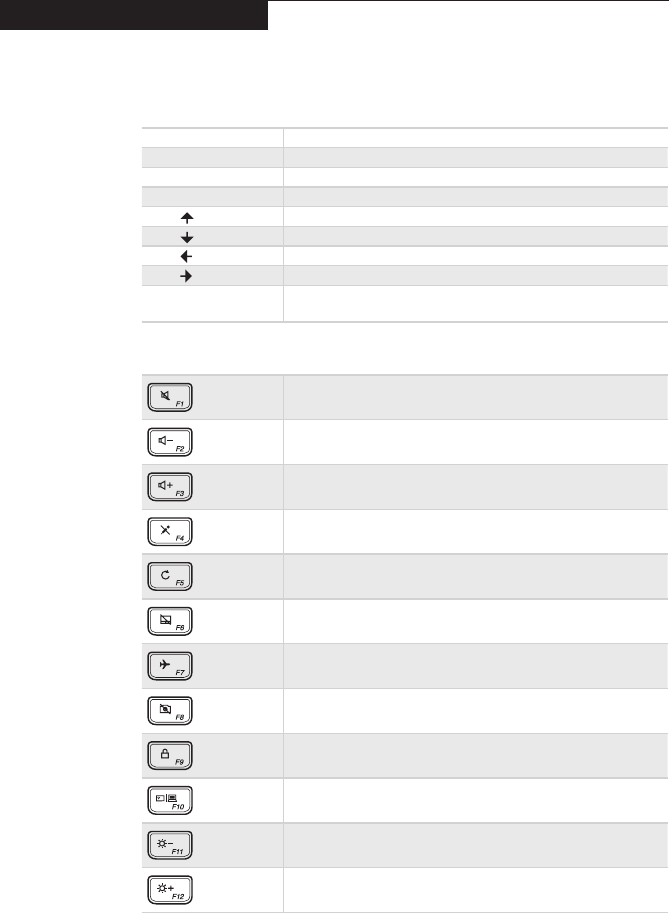
Keyboard function keys
You can access certain system settings quickly by pressing the appropriate
function keys.
Table 3. Fn key combinations
Fn + B: Activates the break function.
Fn + P: Activates the pause function.
Fn + C: Enables/disables the scroll lock.
Fn + S: Activates the system request.
Fn + : Activates the Pgup key function.
Fn + : Activates the Pgdn key function.
Fn + : Activates the home key function.
Fn + : Activates the end key function.
Fn + Space
(on select models): Adjusts the keyboard backlight (off → dim → bright → off).
Table 4. Hotkeys
: Mutes/unmutes the sound.
: Decreases the volume level.
: Increases the volume level.
: Enables/disables the microphone.
: Refreshes the desktop or the currently active window.
: Enables/disables the touchpad.
: Enables/disables Airplane mode.
: Enables/disables the integrated camera.
: Locks the screen.
: Toggles the display between the computer and an external
device.
: Decreases display brightness.
: Increases display brightness.
Note: You can use the Lenovo Setting to enable/disable the hotkey function.
30
Lenovo ideapad FLEX 5-1470/Lenovo ideapad FLEX 5-1570
Hardware Maintenance Manual
FRU replacement notices
This section presents notices related to removing and replacing parts. Read
this section carefully before replacing any FRU.
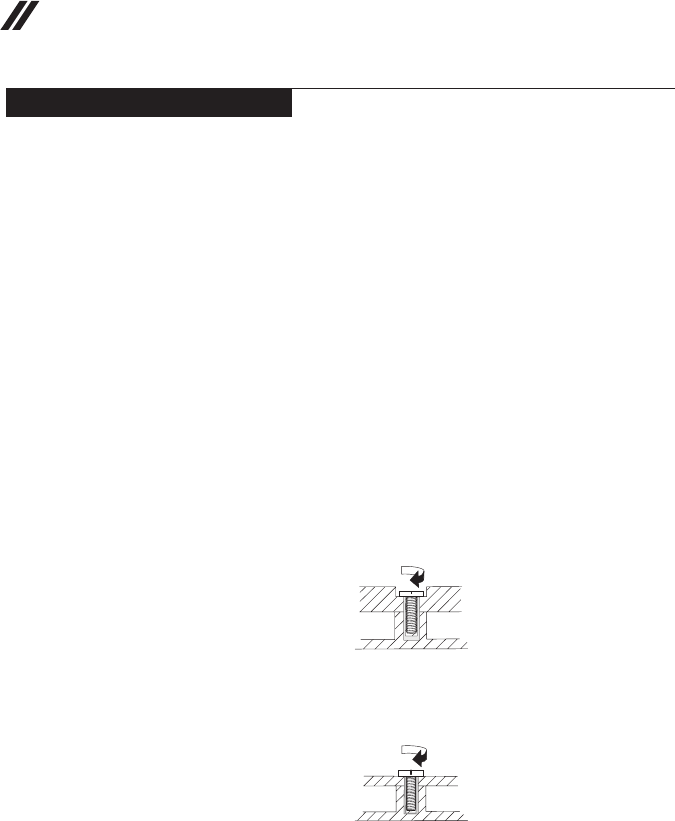
Screw notices
Loose screws can cause a reliability problem. In the Lenovo computer, this
problem is addressed with special nylon-coated screws that have the following
characteristics:
• They maintain tight connections.
• They do not easily come loose, even with shock or vibration.
• They are harder to tighten.
Do the following when you service this machine:
• Keep the screw kit in your tool bag.
• Carefully remove screws for reuse when replacing FRUs.
• Use a torque screwdriver if you have one.
Tighten screws as follows:
• Plastic to plastic
Turn an additional 90° after the screw head touches the surface of the
plastic part:
more than 90°
(Cross-section)
• Logic card to plastic
Turn an additional 180° after the screw head touches the surface of the
logic card:
more than 180°
(Cross-section)
• Torque driver
If you have a torque screwdriver, refer to the “Torque” column for each step.
• Make sure that you use the correct screws. If you have a torque screwdriver,
tighten all screws rmly to the torque shown in the table. Carefully remove
screws for reuse when replacing FRUs. Make sure that all screws are
tightened rmly.
• Ensure torque screwdrivers are calibrated correctly following country
specications.
31
Lenovo ideapad FLEX 5-1470/Lenovo ideapad FLEX 5-1570
Removing and replacing an FRU
This section presents exploded gures with the instructions to indicate how to
remove and replace the FRU. Make sure to observe the following general rules:
1. Do not attempt to service any computer unless you have been trained and
certied. An untrained person runs the risk of damaging parts.
2. Before replacing any FRU, review “FRU replacement notices” on page 30.
3. Begin by removing any FRUs that have to be removed before the failing
FRU. Any of such FRUs are listed at the top of the page. Remove them in
the order in which they are listed.
4. Follow the correct sequence in the steps to remove the FRU, as given in the
gures by the numbers in square callouts.
5. When turning a screw to replace an FRU, turn it in the direction as given by
the arrow in the gure.
6. When removing the FRU, move it in the direction as given by the arrow in
the gure.
7. To put the new FRU in place, reverse the removal procedures and follow
any of the notes that pertain to replacement. For information about
connecting and arranging internal cables, see “Locations” on page 63.
8. When replacing an FRU, use the correct screw as shown in the procedures.
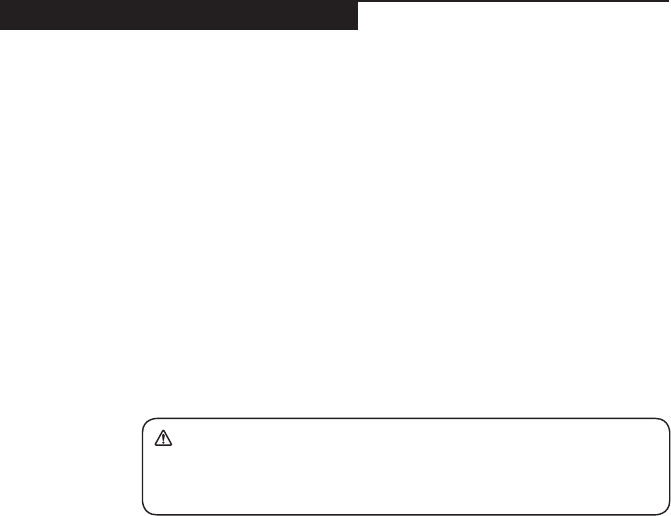
DANGER
BeforeremovinganyFRU,turnoffthecomputer,unplugallpowercordsfrom
electricaloutlets,removethebatterypack,andthendisconnectanyofthe
interconnectingcables.
Attention: After replacing an FRU, do not turn on the computer until you have
made sure that all screws, springs, and other small parts are in place and none
are loose inside the computer. Verify this by shaking the computer gently and
listening for rattling sounds. Metallic parts or metal akes can cause electrical
short circuits.
Attention: The system board is sensitive to, and can be damaged by,
electrostatic discharge. Before touching it, establish personal grounding by
touching a ground point with one hand or using an electrostatic discharge (ESD)
strap (P/N 6405959) to remove potential shock reasons.
Notes:
• This manual applies to the following models: Lenovo ideapad FLEX 5-1470/
Lenovo ideapad FLEX 5-1570.
• The illustrations used in this manual are for Lenovo ideapad FLEX 5-1470
unless otherwise stated.
32
Lenovo ideapad FLEX 5-1470/Lenovo ideapad FLEX 5-1570
Hardware Maintenance Manual
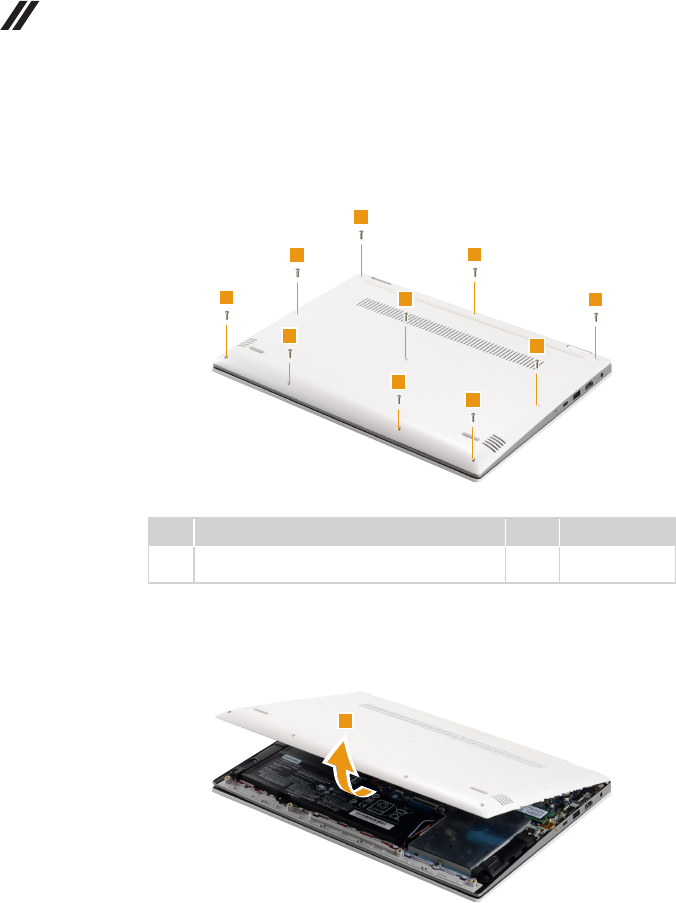
1010 Base cover
Figure 1. Removal steps of base cover
Remove the screws 1.
1
1
1
1
1
1
1
1
1
1
Step Screw (quantity) Color Torque
1M2.0 x 6.0 mm, Phillips-head, nylok-coated (10)
LOW TO UPPER
Black/
Silver
1.0-1.5 kgf*cm
Remove the base cover 2.
2

33
Lenovo ideapad FLEX 5-1470/Lenovo ideapad FLEX 5-1570
Note: Applying labels to the base cover
If you see the following labels on base cover, it needs to be peeled off from
the old base cover, and put on the new base cover.
a OS label
b Indonesia label
c WLAN label
d BT label
e China Ofce label
For some models, you also need to apply one or two FCC labels. Check the
old base cover; if it has one or two FCC labels, nd duplicates of them in the
label kit and apply them to the new base cover.
For the location of each label, refer to the following gure:
34
Lenovo ideapad FLEX 5-1470/Lenovo ideapad FLEX 5-1570
Hardware Maintenance Manual
1020 Battery pack
For access, remove this FRU:
• “1010 Base cover” on page 32
DANGER
Onlyusethebatteryspeciedinthepartslistforyourcomputer.Anyotherbattery
couldigniteorexplode.
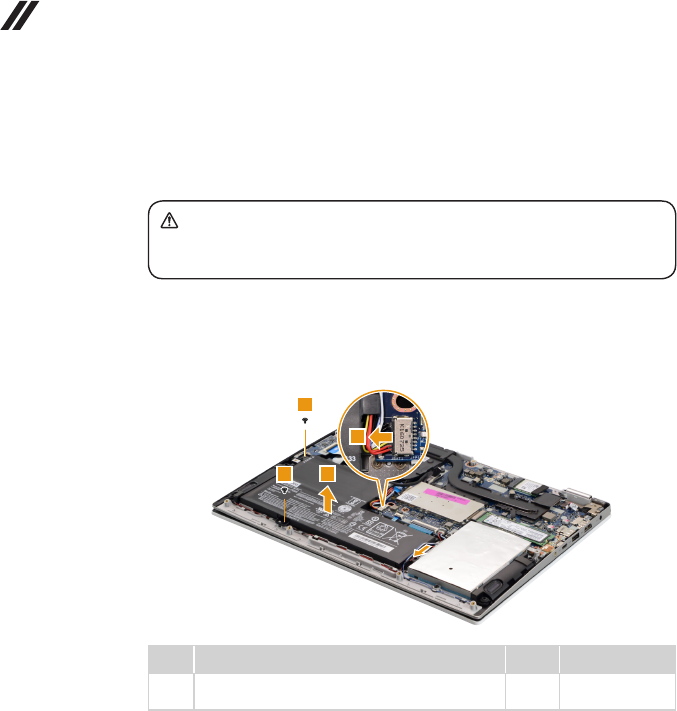
Figure 2. Removal steps of battery pack
Unplug the battery pack connector in the direction shown by arrow 1. Remove
the screws 2. Release the cable from the cable guides, then remove the
battery pack in the direction shown by arrow 3.
2
2
1
3
Step Screw (quantity) Color Torque
2M1.98 x 3.0 mm, Phillips-head, nylok-coated (2)
BATT TO UPPER
Black 1.0-1.5 kgf*cm
When installing: Make sure that the battery connector is attached rmly.
35
Lenovo ideapad FLEX 5-1470/Lenovo ideapad FLEX 5-1570
1030 Solid state disk
For access, remove these FRUs in order:
• “1010 Base cover” on page 32
• “1020 Battery pack” on page 34
Figure 3. Removal steps of solid state disk
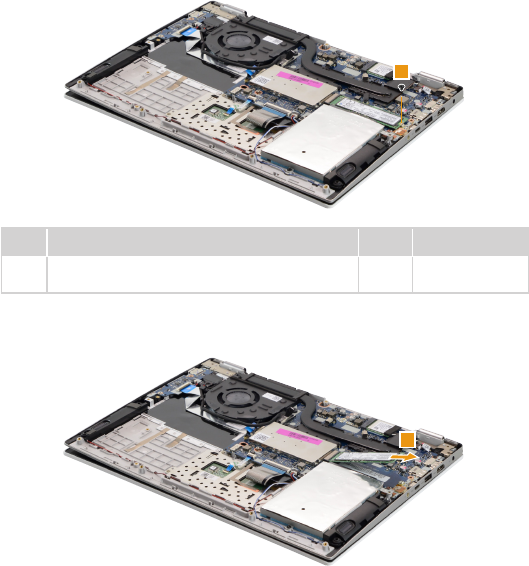
Remove the screw 1.
1
Step Screw (quantity) Color Torque
1M1.98 x 3.0 mm, Phillips-head, nylok-coated (1)
SSD TO MB
Black 1.0-1.5 kgf*cm
Remove the solid state disk in the direction shown by arrow 2.
2
36
Lenovo ideapad FLEX 5-1470/Lenovo ideapad FLEX 5-1570
Hardware Maintenance Manual
1040 Hard disk drive
For access, remove these FRUs in order:
• “1010 Base cover” on page 32
• “1020 Battery pack” on page 34
Attention:
• Donotdroptheharddiskdriveorapplyanyphysicalshocktoit.Thehard
diskdriveissensitivetophysicalshock.Improperhandlingcancausedamage
andpermanentlossofdata.
• Beforeremovingthedrive,suggestthecustomertobackupalltheinformation
onitifpossible.
• Neverremovethedrivewhilethesystemisoperatingorisinsuspendmode.
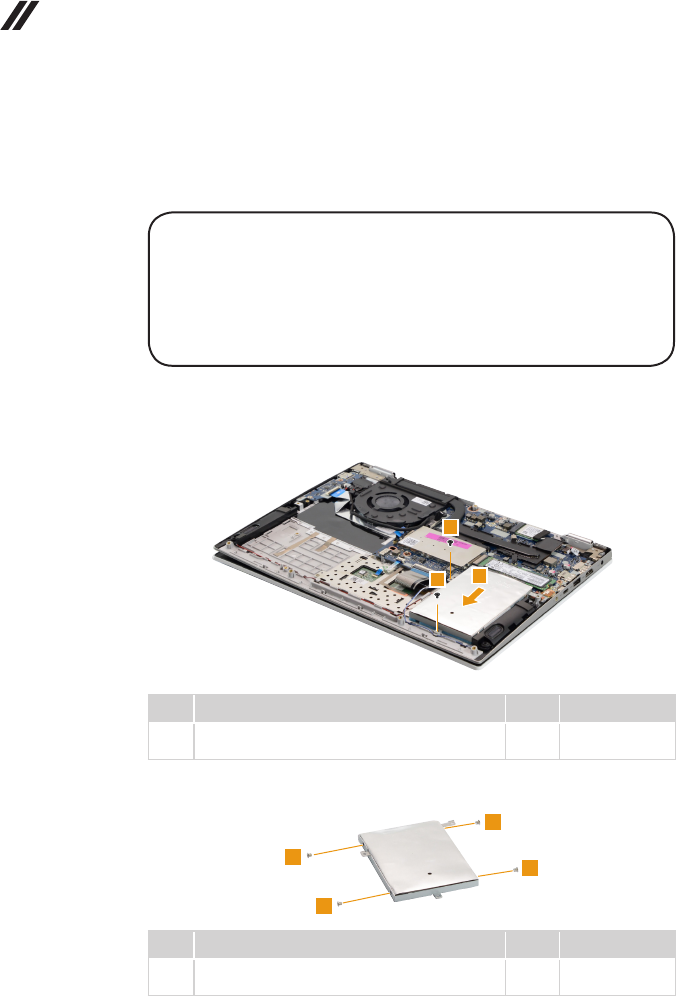
Figure 4. Removal steps of hard disk drive
Remove the screws 1, then remove the hard disk drive in the direction shown
by arrow 2.
1
12
Step Screw (quantity) Color Torque
1M1.98 × 3.0 mm, Phillips head, nylok-coated (2)
HDD BRK TO UPPER
Black
1.0-1.5 kgf*cm
Remove the screws 3, and then take out the metal frame.
3
3
3
3
Step Screw (quantity) Color Torque
3M3 × 3 mm, Phillips head, nylok-coated (4)
HDD BRK TO HDD
Silver
1.5-2.0 kgf*cm
37
Lenovo ideapad FLEX 5-1470/Lenovo ideapad FLEX 5-1570
1050 PCI Express Mini Card for wireless LAN
For access, remove these FRUs in order:
• “1010 Base cover” on page 32
• “1020 Battery pack” on page 34
Important: The preinstalled WLAN module may only be replaced with a Lenovo
approved module in order to comply with FCC and IC regulations. Refer to
“Table 5. Parts list—Overall” on page 68 for Lenovo part numbers for the
approved modules.
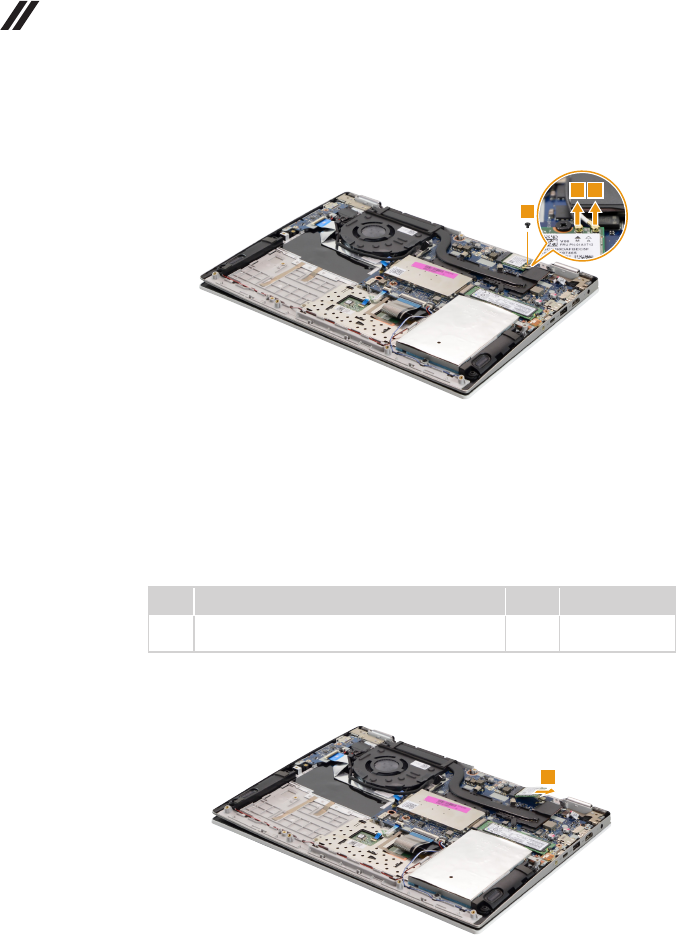
Figure 5. Removal steps of PCI Express Mini Card for wireless LAN
Peel off the sponge on the card 1.
1
38
Lenovo ideapad FLEX 5-1470/Lenovo ideapad FLEX 5-1570
Hardware Maintenance Manual
Figure 5. Removal steps of PCI Express Mini Card for wireless LAN (continued)
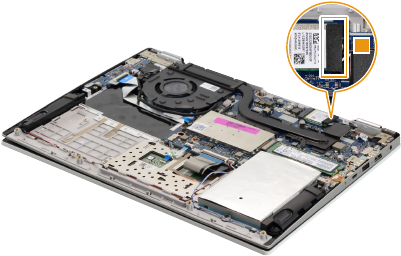
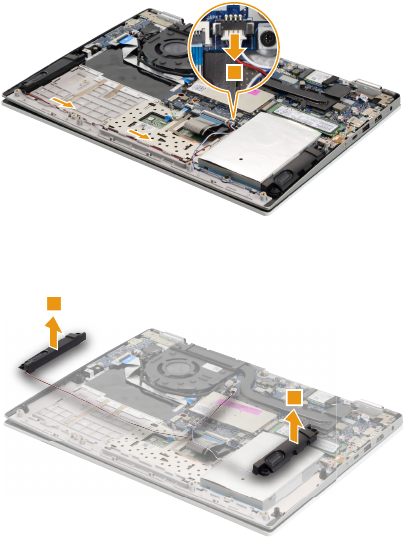
Disconnect the two wireless LAN cables (black, white) 2, and then remove the
screw 3.
22
3
In step 2, unplug the jacks by using the removal tool antenna RF connector
(P/N: 08K7159), or pick up the connectors with your ngers and gently unplug
them in the direction shown by the arrows.
Notes: The wireless LAN card has 2 cables in step 2.
The wireless LAN card in some models might have 3 cables in step 2.
Step Screw (quantity) Color Torque
3M1.98 × 3.0 mm, Phillips-head, nylok-coated (1)
WLAN TO MB
Black 1.0-1.5 kgf*cm
Remove the card in the direction shown by arrow 4.
4
When installing: When installing the wireless LAN card, plug the black cable
into the jack labeled MAIN and the white cable into the jack labeled AUX.
39
Lenovo ideapad FLEX 5-1470/Lenovo ideapad FLEX 5-1570
1060 Speakers
For access, remove these FRUs in order:
• “1010 Base cover” on page 32
• “1020 Battery pack” on page 34
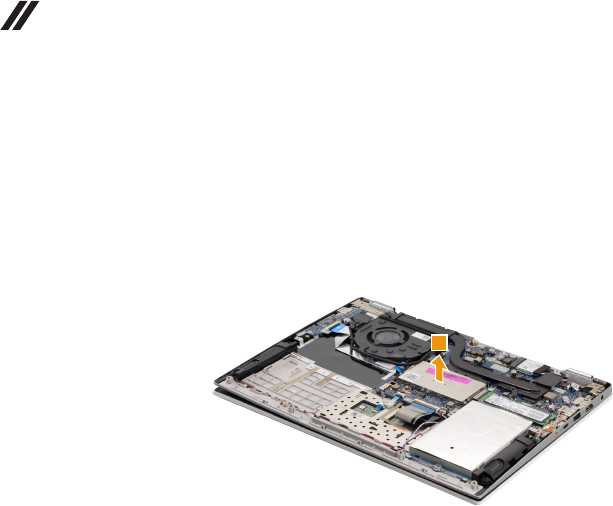
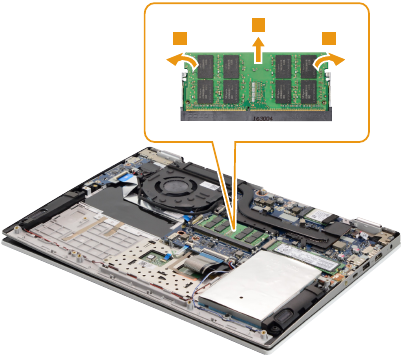
Figure 6. Removal steps of speakers
Unplug the speaker connector in the direction shown by arrow 1. Release
the speaker cable from the cable guides and peel off the tape that secures
the cable.
1
When installing: Make sure that the connector is attached rmly.
Remove the two speakers 2.
2
2
41
Lenovo ideapad FLEX 5-1470/Lenovo ideapad FLEX 5-1570
Figure 7. Removal steps of DIMM (continued)
Release the two latches on both edges of the socket at the same time in the
directions shown by arrows 2, and then unplug the DIMM in the direction shown
by arrow 3.
22
3
When installing: Insert the notched end of the DIMM into the socket. Push the
DIMM rmly, and pivot it until it snaps into place. Make sure that it is rmly xed
in the slot and is difcult to move.
Note: When replacing the memory is completed, you need to restart the
computer after the rst reboot.
42
Lenovo ideapad FLEX 5-1470/Lenovo ideapad FLEX 5-1570
Hardware Maintenance Manual
1080 Fan and Heat Sink assembly
For access, remove these FRUs in order:
• “1010 Base cover” on page 32
• “1020 Battery pack” on page 34
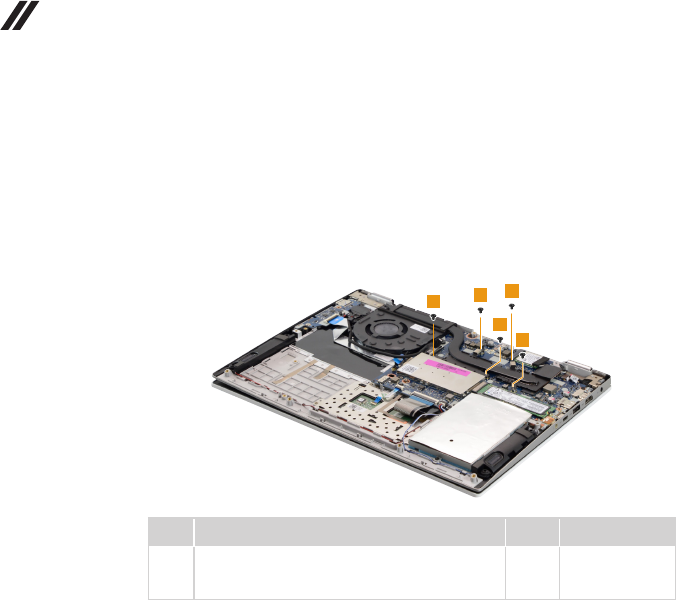
Figure 8. Removal steps of fan and heat sink assembly
Remove the screws 1.
11
1
1
1
Step Screw (quantity) Color Torque
1M1.98 x 3.0 mm, Phillips-head, nylok-coated (5)
THERMAL MODULE TO CPU BRK/THERMAL
MODULE TO GPU BRK (for DIS only)
Black 1.0-1.5 kgf*cm
43
Lenovo ideapad FLEX 5-1470/Lenovo ideapad FLEX 5-1570
Figure 8. Removal steps of fan and heat sink assembly (continued)
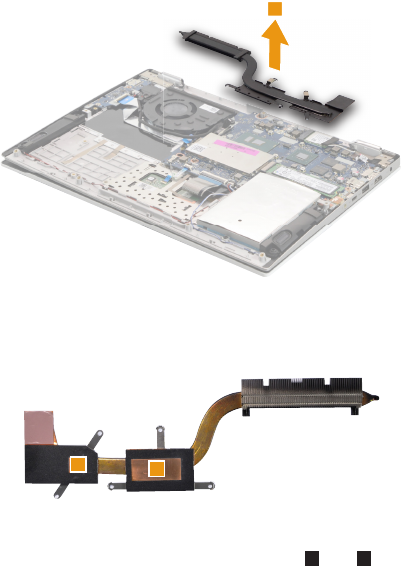
Remove the heat sink module in the direction shown by arrow 2.
2
Attention: Do not handle the heat sink assembly roughly. Improper handling
can cause distortion or deformation and imperfect contact with components.
ab
When installing: Before you attach the fan assembly to the computer, apply
thermal grease, at an amount of 0.2 grams, to parts a and b shown in the
figure above. Either too much or too little grease application can cause a
thermal problem due to imperfect contact with a component.
44
Lenovo ideapad FLEX 5-1470/Lenovo ideapad FLEX 5-1570
Hardware Maintenance Manual
Figure 8. Removal steps of fan and heat sink assembly (continued)
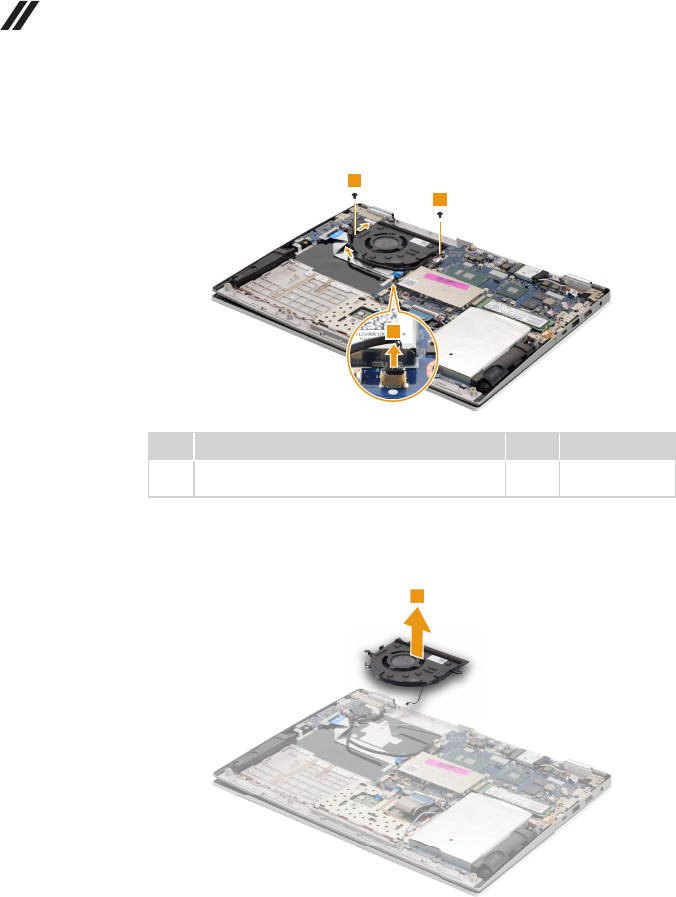
Unplug the fan connector in the direction shown by arrow 3. Remove the
screws 4. Release the LCD cable from the cable guides.
4
4
3
Step Screw (quantity) Color Torque
4M1.98 × 3.0 mm, Phillips head, nylok-coated (2)
FAN TO upper
Black 1.0-1.5 kgf*cm
When installing: Make sure that the connector is attached rmly.
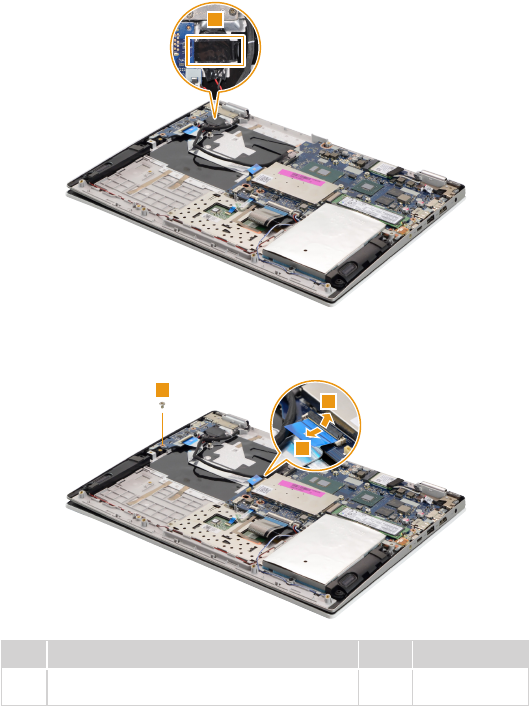
Remove the fan 5.
5
45
Lenovo ideapad FLEX 5-1470/Lenovo ideapad FLEX 5-1570
1090 IO board
For access, remove these FRUs in order:
• “1010 Base cover” on page 32
• “1020 Battery pack” on page 34
• “1080 Fan and Heat Sink assembly” on page 42
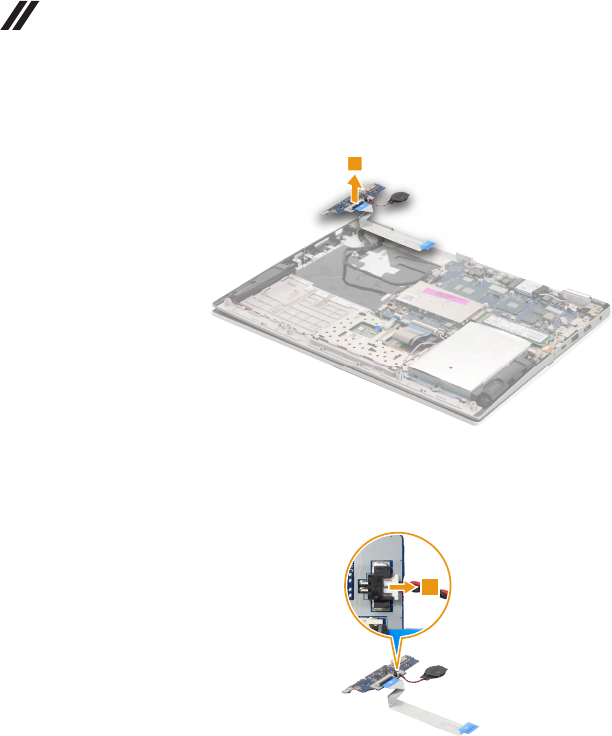
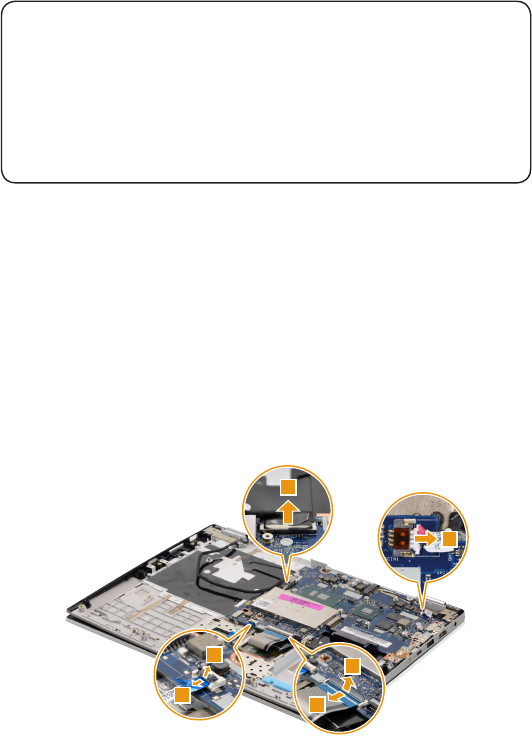
Figure 9. Removal steps of IO board
Peel off the adhesive tape that secures the RTC battery 1.
1
Disconnect the IO board connector in the directions shown by arrows 2 and 3.
Remove the screw 4.
4
2
3
Step Screw (quantity) Color Torque
4M2.0 x 3.5 mm, Phillips-head, nylok-coated (1)
IO BOARD TO UPPER
Silver 1.0-1.5 kgf*cm
46
Lenovo ideapad FLEX 5-1470/Lenovo ideapad FLEX 5-1570
Hardware Maintenance Manual
Figure 9. Removal steps of IO board (continued)
Remove the IO board 5.
5
Unplug the RTC battery connector in the direction shown by arrow 6, then
remove the RTC battery.
6
47
Lenovo ideapad FLEX 5-1470/Lenovo ideapad FLEX 5-1570
1100 System board
Important notices for handling the system board:
Whenhandlingthesystemboard,bearthefollowinginmind.
• Becarefulnottodropthesystemboardonabenchtopthathasahardsurface,
suchasmetal,wood,orcomposite.
• Avoidroughhandlingofanykind.
• Duringthewholeprocess,makesurenottodroporstackthesystemboard.
• Ifyouputasystemboarddown,makesuretoputitonlyonapaddedsurface,such
asanESDmatorconductivecorrugatedmaterial.
For access, remove these FRUs in order:
• “1010 Base cover” on page 32
• “1020 Battery pack” on page 34
• “1030 Solid state disk” on page 35
• “1040 Hard disk drive” on page 36
• “1050 PCI Express Mini Card for wireless LAN” on page 37
• “1060 Speakers” on page 39
• “1080 Fan and Heat Sink assembly” on page 42
• “1090 IO board” on page 45
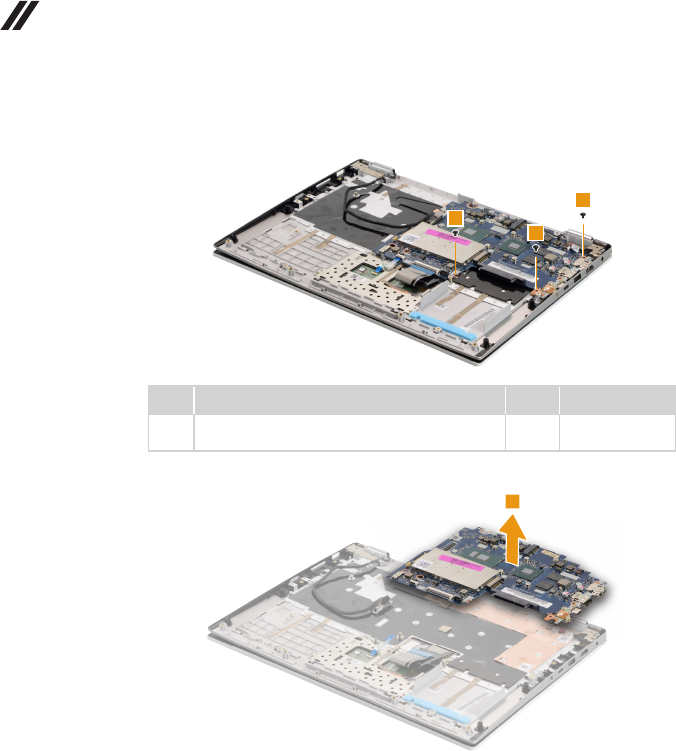
Figure 10. Removal steps of system board (continued)
Detach the connectors in the directions shown by arrows 1, 2, 3 and 4.
1
2
1
2
3
4
When installing: Make sure that the connectors are attached rmly.
48
Lenovo ideapad FLEX 5-1470/Lenovo ideapad FLEX 5-1570
Hardware Maintenance Manual
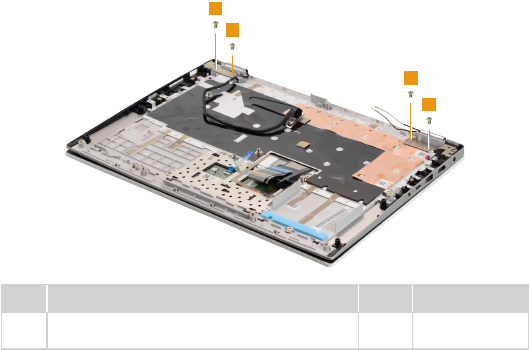
Figure 10. Removal steps of system board (continued)
Remove the screws 5.
5
5
5
Step Screw (quantity) Color Torque
5M1.98 x 3.0 mm, Phillips-head, nylok-coated (3)
MB TO UPPER
Black 1.0-1.5 kgf*cm
Remove the system board 6.
6
49
Lenovo ideapad FLEX 5-1470/Lenovo ideapad FLEX 5-1570
1110 Upper case
For access, remove these FRUs in order:
• “1010 Base cover” on page 32
• “1020 Battery pack” on page 34
• “1030 Solid state disk” on page 35
• “1040 Hard disk drive” on page 36
• “1050 PCI Express Mini Card for wireless LAN” on page 37
• “1060 Speakers” on page 39
• “1080 Fan and Heat Sink assembly” on page 42
• “1090 IO board” on page 45
• “1100 System board” on page 47
Figure 11. Removal steps of upper case
Remove the screws 1.
1
1
1
1
Step Screw (quantity) Color Torque
1M2.5 × 4.0 mm, Phillips-head, nylok-coated (4)
HINGE BRK TO UPPER
Silver 1.5-2.0 kgf*cm
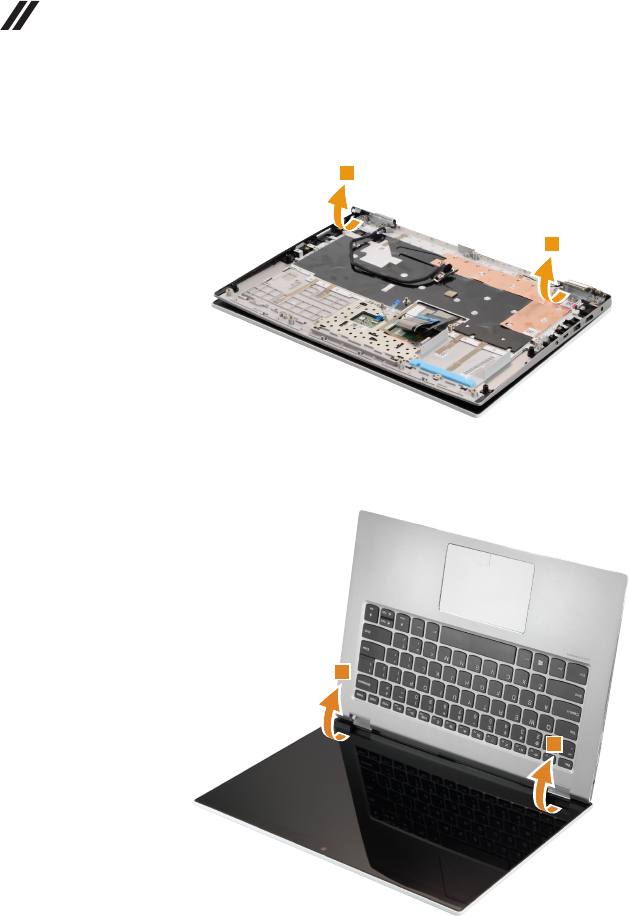
50
Lenovo ideapad FLEX 5-1470/Lenovo ideapad FLEX 5-1570
Hardware Maintenance Manual
Figure 11. Removal steps of upper case (continued)
Open the hinges 2.
2
2
Rotate the upper case in the direction shown by arrows 3. Then remove the
upper case.
3
3
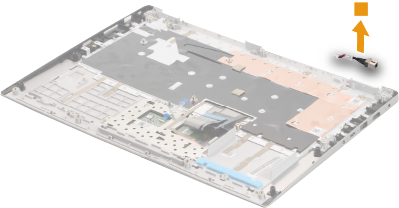
51
Lenovo ideapad FLEX 5-1470/Lenovo ideapad FLEX 5-1570
1120 DC-in cable
For access, remove these FRUs in order:
• “1010 Base cover” on page 32
• “1020 Battery pack” on page 34
• “1030 Solid state disk” on page 35
• “1040 Hard disk drive” on page 36
• “1050 PCI Express Mini Card for wireless LAN” on page 37
• “1060 Speakers” on page 39
• “1080 Fan and Heat Sink assembly” on page 42
• “1090 IO board” on page 45
• “1100 System board” on page 47
• “1110 Upper case” on page 49
Figure 12. Removal steps of DC-in cable
Remove the DC-in cable in the direction shown by arrow 1.
1
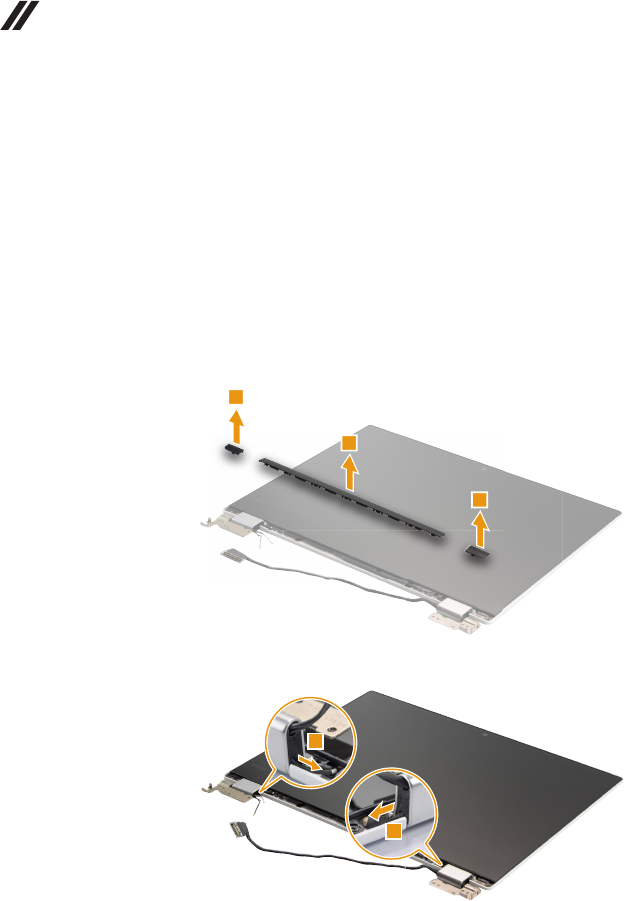
52
Lenovo ideapad FLEX 5-1470/Lenovo ideapad FLEX 5-1570
Hardware Maintenance Manual
1130 LCD unit
For access, remove these FRUs in order:
• “1010 Base cover” on page 32
• “1020 Battery pack” on page 34
• “1030 Solid state disk” on page 35
• “1050 PCI Express Mini Card for wireless LAN” on page 37
• “1060 Speakers” on page 39
• “1080 Fan and Heat Sink assembly” on page 42
• “1100 System board” on page 47
• “1110 Upper case” on page 49
Figure 13. Removal steps of LCD unit
Remove the hinge cover with tweezers 1.
1
1
1
Remove the hinge rubbers 2.
2
2
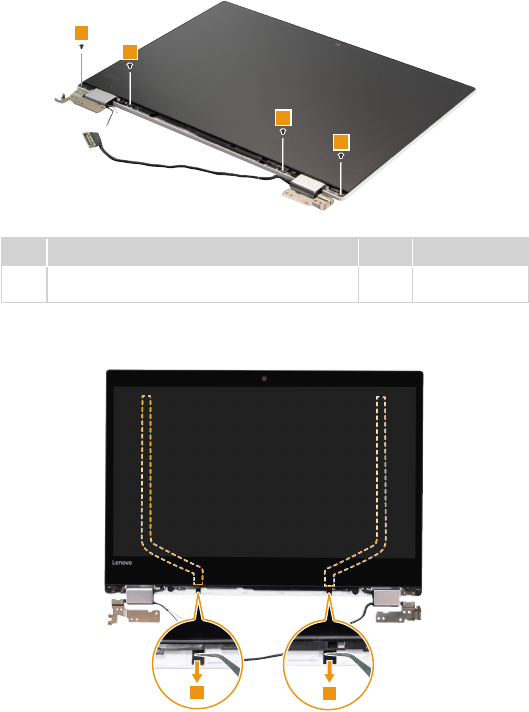
53
Lenovo ideapad FLEX 5-1470/Lenovo ideapad FLEX 5-1570
Figure 13. Removal steps of LCD unit (continued)
Remove the screws 3.
3
3
3
3
Step Screw (quantity) Color Torque
3M2.0 × 2.5 mm, Phillips-head, nylok-coated (4)
LCD BEZELTO COVER
Black 1.0-1.5 kgf*cm
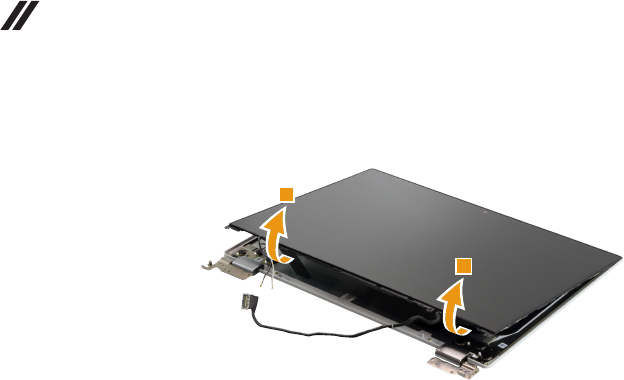
Gently pull out the two pieces of adhesive tape with tweezers in the direction
shown by arrows 4.
44
54
Lenovo ideapad FLEX 5-1470/Lenovo ideapad FLEX 5-1570
Hardware Maintenance Manual
Figure 13. Removal steps of LCD unit (continued)
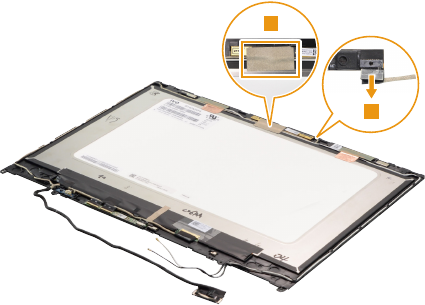
Lift the LCD unit 5.
5
5
55
Lenovo ideapad FLEX 5-1470/Lenovo ideapad FLEX 5-1570
1140 Camera board, sensor board and EDP cable
For access, remove these FRUs in order:
• “1010 Base cover” on page 32
• “1020 Battery pack” on page 34
• “1030 Solid state disk” on page 35
• “1040 Hard disk drive” on page 36
• “1050 PCI Express Mini Card for wireless LAN” on page 37
• “1060 Speakers” on page 39
• “1080 Fan and Heat Sink assembly” on page 42
• “1090 IO board” on page 45
• “1100 System board” on page 47
• “1110 Upper case” on page 49
• “1130 LCD unit” on page 52
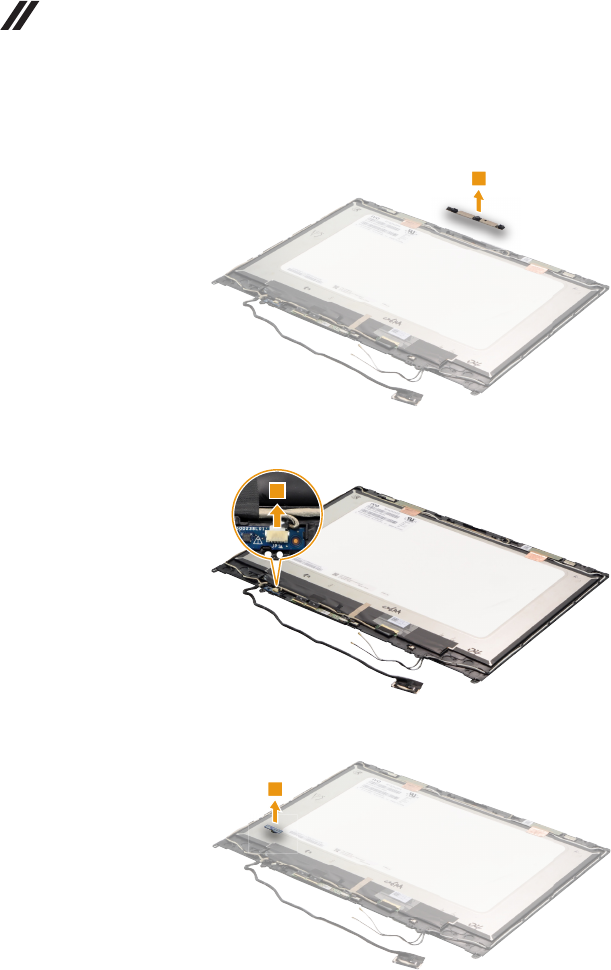
Figure 14. Removal steps of camera board, sensor board and EDP cable
Peel off the tape that secures the camera board 1. Unplug the connector in
the direction shown by arrow 2.
1
2
When installing: Make sure that the connector is attached rmly.
56
Lenovo ideapad FLEX 5-1470/Lenovo ideapad FLEX 5-1570
Hardware Maintenance Manual
Figure 14. Removal steps of camera board, sensor board and EDP cable
(continued)
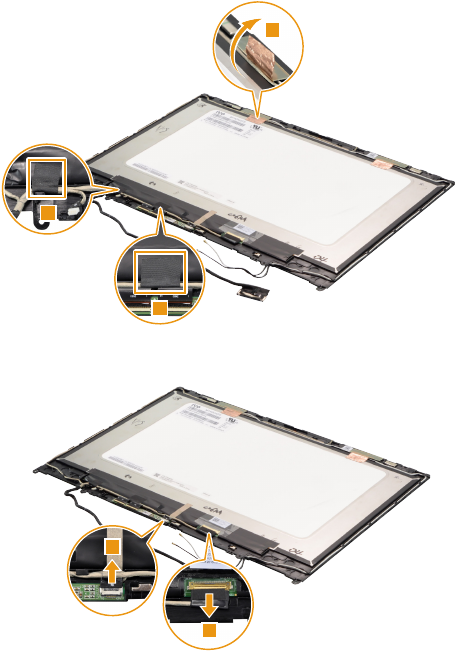
Remove the camera board 3.
3
Unplug the connector in the direction shown by arrow 4.
4
Remove the sensor board 5.
5
57
Lenovo ideapad FLEX 5-1470/Lenovo ideapad FLEX 5-1570
Figure 14. Removal steps of camera board, sensor board and EDP cable
(continued)
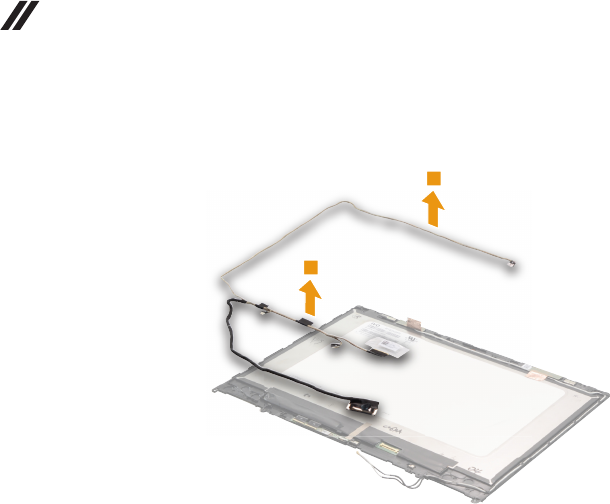
Peel off the tape 6 and 7.
7
6
6
Detach the two connectors in the direction shown by arrows 8.
8
8
58
Lenovo ideapad FLEX 5-1470/Lenovo ideapad FLEX 5-1570
Hardware Maintenance Manual
Figure 14. Removal steps of camera board, sensor board and EDP cable
(continued)
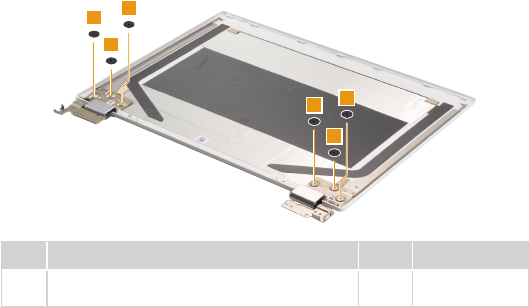
Remove the EDP cable 9.
9
9
59
Lenovo ideapad FLEX 5-1470/Lenovo ideapad FLEX 5-1570
1150 LCD hinges
For access, remove these FRUs in order:
• “1010 Base cover” on page 32
• “1020 Battery pack” on page 34
• “1030 Solid state disk” on page 35
• “1040 Hard disk drive” on page 36
• “1050 PCI Express Mini Card for wireless LAN” on page 37
• “1060 Speakers” on page 39
• “1080 Fan and Heat Sink assembly” on page 42
• “1090 IO board” on page 45
• “1100 System board” on page 47
• “1110 Upper case” on page 49
• “1130 LCD unit” on page 52
• “1140 Camera board, sensor board and EDP cable” on page 55
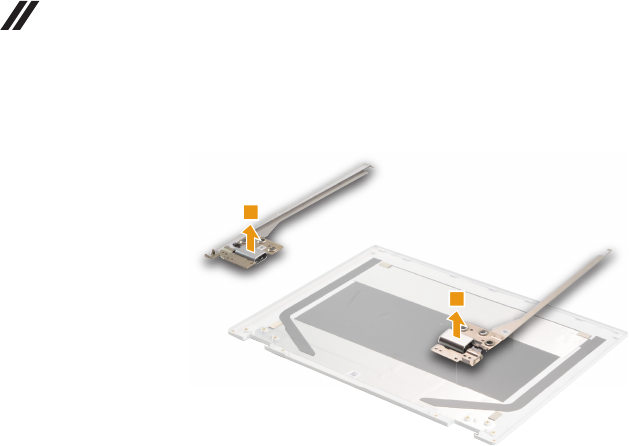
Figure 15. LCD hinges
Remove the screws 1.
1
1
1
1
1
1
Step Screw (quantity) Color Torque
1M2.5 × 2.5 mm, Phillips-head, nylok-coated (6)
HINGE TO LCD COVER
Black 1.5-2.0 kgf*cm
60
Lenovo ideapad FLEX 5-1470/Lenovo ideapad FLEX 5-1570
Hardware Maintenance Manual
Figure 15. Removal steps of LCD hinges (continued)
Then release the hinges in the direction shown by arrows 2.
2
2

61
Lenovo ideapad FLEX 5-1470/Lenovo ideapad FLEX 5-1570
1160 Fingerprint module (on select models)
For access, remove these FRUs in order:
• “1010 Base cover” on page 32
• “1020 Battery pack” on page 34
Figure 16. Removal steps of ngerprint module
Remove the screw 1, then remove the ngerprint bracket 2.
Step Screw (quantity) Color Torque
1M2.0 x 2.5 mm, Phillips-head, nylok-coated (1)
FINGER PINTER TO UPPER
Silver 1.0-1.5 kgf*cm

62
Lenovo ideapad FLEX 5-1470/Lenovo ideapad FLEX 5-1570
Hardware Maintenance Manual
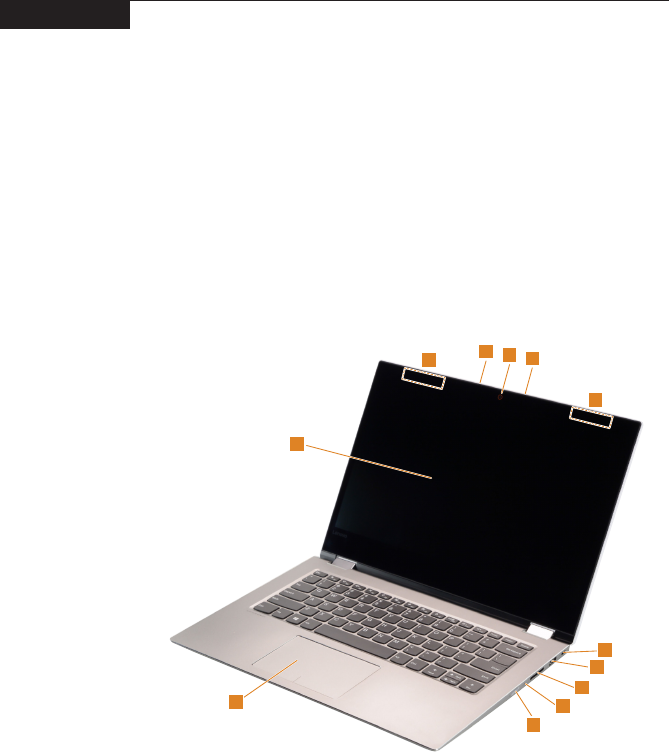
Figure 16. Removal steps of ngerprint module (continued)
Remove the ngerprint board 3.
63
Lenovo ideapad FLEX 5-1470/Lenovo ideapad FLEX 5-1570
Locations
Front and right-side view
a Integrated camera
b Built-in microphone
c Wireless LAN antennas
d Multi-touch screen
e Touchpad
f Kensington mini security slot
g USB 3.0 port
h Memory card slot
9 Novo button
j Power button
Note: For the description of each indicator, see “Status indicators” on page 28.
12
2
3
3
4
5
8
9
10
6
7
64
Lenovo ideapad FLEX 5-1470/Lenovo ideapad FLEX 5-1570
Hardware Maintenance Manual
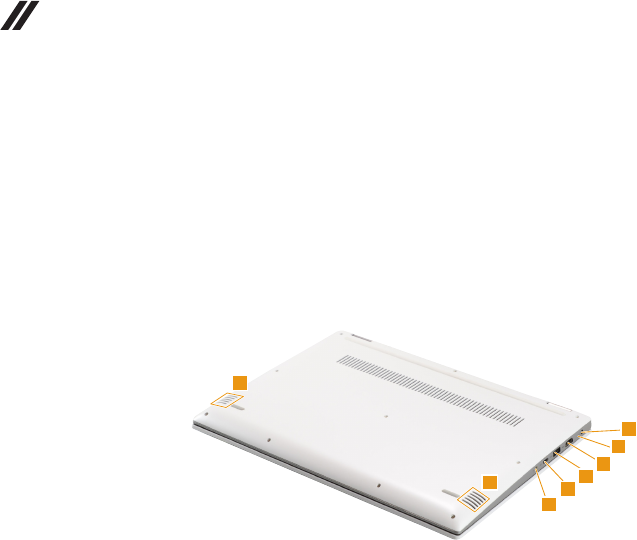
Bottom and left-side view
a Speakers
b AC power adapter jack
c Battery status indicator
Note: For the description of each indicator, see “Status indicators” on page 28.
4 HDMI port
e USB 3.0 port
f Type-C port
g Combo audio jack
1
1
2
3
4
5
6
7
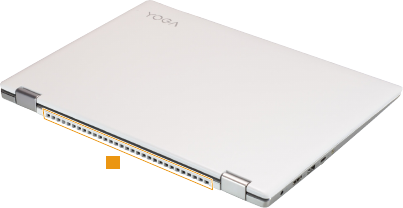
65
Lenovo ideapad FLEX 5-1470/Lenovo ideapad FLEX 5-1570
Rear view
a Ventilation slots
1
66
Lenovo ideapad FLEX 5-1470/Lenovo ideapad FLEX 5-1570
Hardware Maintenance Manual
Parts list
This section presents the following service parts:
• “Overall” on page 67
• “LCD FRUs” on page 73
• “AC adapters” on page 75
• “Screws” on page 76
Notes:
• EachFRUisavailableforalltypesormodels,unlessspecictypesormodels
arespecied.
Attention:
DonotattempttoreplaceanFRUonyourown.IfanFRUisdamaged,contact
aLenovoauthorizedserviceroramarketingrepresentativeforreplacement
orrepair.Onlyqualiedtechnicianscaninspectorrepairthisproduct.
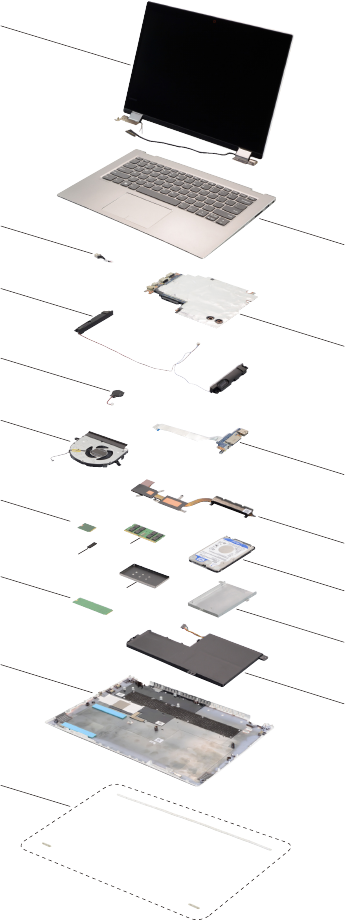
67
Lenovo ideapad FLEX 5-1470/Lenovo ideapad FLEX 5-1570
Overall
1
e
4
5
7
9
10
a
b
12
14
d
2
3
6
8
11
c
13

68
Lenovo ideapad FLEX 5-1470/Lenovo ideapad FLEX 5-1570
Hardware Maintenance Manual
Table 5. Parts list—Overall
No. FRU FRU no. CRU
ID.
Lenovo
ideapad
FLEX 5-
1470
Lenovo
ideapad
FLEX 5-
1570
a-e see “Miscellaneous parts” on page 74.
1 LCD unit (see “LCD FRUs” on page 73.)
2 Upper Case C 80XALNVOBFPNBLW/KBUS 5CB0N67794 N ●
2 Upper Case C 80XA LNVOBFPBLW/KBUS 5CB0N67790 N ●
2 Upper Case C 80XALNVOBFPNBLW/KBSP 5CB0N67799 N ●
2 Upper Case C 80XA LNVOBFPBLW/KBSP 5CB0N67792 N ●
2 Upper CaseC80XALNVOBFPNBLW/KBCF-E 5CB0N67801 N ●
2 Upper Case C80XALNVOBFPBLW/KBCF-E 5CB0N67798 N ●
2 Upper Case C80XALNVOBNFPNBLW/KBUS 5CB0N67797 N ●
2 Upper Case C 80XALNVOBNFPBLW/KBUS 5CB0N67796 N ●
2 Upper Case C80XALNVOBNFPNBLW/KBSP 5CB0N67789 N ●
2 Upper Case C 80XALNVOBNFPBLW/KBSP 5CB0N67795 N ●
2 UpperCaseC80XALNVOBNFPNBLW/KBCF-E 5CB0N67800 N ●
2 Upper CaseC80XALNVOBNFPBLW/KBCF-E 5CB0N67793 N ●
2 Upper Case C 80XA LNVOBFPBLW/KBUSA 5CB0N89971 N ●
2 Upper Case C 80XALNVOBNFPBLW/KBUSA 5CB0N89970 N ●
2 Upper Case C80XB FP W/KB NBL US 5CB0N71295 N ●
2 Upper Case C80XB FP W/KB BL US 5CB0N71336 N ●
2 Upper Case C80XB FPW/KB NBL CF-EN 5CB0N71308 N ●
2 Upper Case C80XB FP W/KB BL CF-EN 5CB0N71305 N ●
2 Upper Case C80XB FP W/KB NBL SPN 5CB0N71297 N ●
2 Upper Case C80XB FP W/KB BL SPN 5CB0N71312 N ●
2 Upper Case C80XB FP W/KB BL USA 5CB0N71262 N ●
2 Upper Case C80XB NFP W/KB NBL US 5CB0N71317 N ●
2 Upper Case C80XB NFP W/KB BL US 5CB0N71281 N ●
2 Upper Case C80XB NFPW/KB NBLCF-EN 5CB0N71324 N ●
2 Upper Case C80XB NFP W/KB BLCF-EN 5CB0N71284 N ●
2 Upper Case C80XB NFP W/KB NBL SPN 5CB0N71296 N ●
2 Upper Case C80XB NFP W/KB BL SPN 5CB0N71342 N ●
2 Upper Case C80XB NFP W/KB BL USA 5CB0N71315 N ●
3 MB C 80X8 NOK 4415U UMA NFPNBL 5B20N67507 N ●
3 MB C 80X8 WIN 4415U UMA NFPNBL 5B20N67710 N ●
3 MB C 80X8 NOK 4415U UMA FP NBL 5B20N67733 N ●
3 MB C 80X8 WIN 4415U UMA FP NBL 5B20N67753 N ●
3 MB C 80X8 NOK 4415U UMA NFP BL 5B20N67548 N ●
3 MB C 80X8 WIN 4415U UMA NFP BL 5B20N67453 N ●
3 MB C 80X8 NOK 4415U UMA FP BL 5B20N67610 N ●
3 MB C 80X8 WIN 4415U UMA FP BL 5B20N67489 N ●
3 MBC80X8NOK4415UN16SGTR2GNFPNBL 5B20N67561 N ●
3 MBC80X8WIN4415UN16SGTR2GNFPNBL 5B20N67697 N ●
3 MB C80X8NOK4415UN16SGTR2GFPNBL 5B20N67582 N ●
3 MB C80X8WIN4415UN16SGTR2GFPNBL 5B20N67413 N ●
3 MB C80X8NOK4415UN16SGTR2GNFPBL 5B20N67731 N ●
3 MB C80X8WIN4415UN16SGTR2GNFPBL 5B20N67668 N ●
3 MB C 80X8NOK4415UN16SGTR2GFPBL 5B20N67627 N ●
3 MB C 80X8WIN4415UN16SGTR2GFPBL 5B20N67369 N ●

69
Lenovo ideapad FLEX 5-1470/Lenovo ideapad FLEX 5-1570
Table 5. Parts list—Overall (continued)
No. FRU FRU no. CRU
ID.
Lenovo
ideapad
FLEX 5-
1470
Lenovo
ideapad
FLEX 5-
1570
3 MB C 80X8 NOKI37100UHUMANFPNBL 5B20N67702 N ●
3 MB C 80X8 WINI37100UHUMANFPNBL 5B20N67680 N ●
3 MB C 80X8 NOK I37100UHUMAFPNBL 5B20N67353 N ●
3 MB C 80X8 WIN I37100UHUMAFPNBL 5B20N67428 N ●
3 MB C 80X8 NOK I37100UHUMANFPBL 5B20N67782 N ●
3 MB C 80X8 WIN I37100UHUMANFPBL 5B20N67758 N ●
3 MB C 80X8 NOK I37100UH UMAFPBL 5B20N67491 N ●
3 MB C 80X8 WIN I37100UH UMAFPBL 5B20N67384 N ●
3 MBC80X8NOKI37100UHN16SGTRNFPNBL 5B20N67338 N ●
3 MBC80X8WINI37100UHN16SGTRNFPNBL 5B20N67656 N ●
3 MBC80X8NOKI37100UHN16SGTRFPNBL 5B20N67705 N ●
3 MBC80X8WINI37100UHN16SGTRFPNBL 5B20N67771 N ●
3 MBC80X8NOKI37100UHN16SGTRNFPBL 5B20N67385 N ●
3 MBC80X8WINI37100UHN16SGTRNFPBL 5B20N67399 N ●
3 MBC80X8NOKI37100UHN16SGTR2GFPBL 5B20N67390 N ●
3 MBC80X8WINI37100UHN16SGTR2GFPBL 5B20N67776 N ●
3 MB C 80X8 NOKI57200UHUMANFPNBL 5B20N67484 N ●
3 MB C 80X8 WINI57200UHUMANFPNBL 5B20N67560 N ●
3 MB C 80X8 NOK I57200UHUMAFPNBL 5B20N67769 N ●
3 MB C 80X8 WIN I57200UHUMAFPNBL 5B20N67747 N ●
3 MB C 80X8 NOK I57200UHUMANFPBL 5B20N67678 N ●
3 MB C 80X8 WIN I57200UHUMANFPBL 5B20N67638 N ●
3 MB C 80X8 NOK I57200UH UMAFPBL 5B20N67317 N ●
3 MB C 80X8 WIN I57200UH UMAFPBL 5B20N67526 N ●
3 MBC80X8NOKI57200UHN16SGTRNFPNBL 5B20N67471 N ●
3 MBC80X8WINI57200UHN16SGTRNFPNBL 5B20N67358 N ●
3 MBC80X8NOKI57200UHN16SGTRFPNBL 5B20N67590 N ●
3 MBC80X8WINI57200UHN16SGTRFPNBL 5B20N67368 N ●
3 MBC80X8NOKI57200UHN16SGTRNFPBL 5B20N67573 N ●
3 MBC80X8WINI57200UHN16SGTRNFPBL 5B20N67566 N ●
3 MBC80X8NOKI57200UHN16SGTR2GFPBL 5B20N67434 N ●
3 MBC80X8WINI57200UHN16SGTR2GFPBL 5B20N67503 N ●
3 MB C 80X8 NOKI77500UHUMANFPNBL 5B20N67578 N ●
3 MB C 80X8 WINI77500UHUMANFPNBL 5B20N67462 N ●
3 MB C 80X8 NOK I77500UHUMAFPNBL 5B20N67565 N ●
3 MB C 80X8 WIN I77500UHUMAFPNBL 5B20N67410 N ●
3 MB C 80X8 NOK I77500UHUMANFPBL 5B20N67666 N ●
3 MB C 80X8 WIN I77500UHUMANFPBL 5B20N67325 N ●
3 MB C 80X8 NOK I77500UH UMAFPBL 5B20N67518 N ●
3 MB C 80X8 WIN I77500UH UMAFPBL 5B20N67700 N ●
3 MBC80X8NOKI77500UHN16SGTRNFPNBL 5B20N67667 N ●
3 MBC80X8WINI77500UHN16SGTRNFPNBL 5B20N67766 N ●
3 MBC80X8NOKI77500UHN16SGTRFPNBL 5B20N67739 N ●
3 MBC80X8WINI77500UHN16SGTRFPNBL 5B20N67361 N ●
3 MBC80X8NOKI77500UHN16SGTRNFPBL 5B20N67429 N ●
3 MBC80X8WINI77500UHN16SGTRNFPBL 5B20N67321 N ●

70
Lenovo ideapad FLEX 5-1470/Lenovo ideapad FLEX 5-1570
Hardware Maintenance Manual
No. FRU FRU no. CRU
ID.
Lenovo
ideapad
FLEX 5-
1470
Lenovo
ideapad
FLEX 5-
1570
3 MBC80X8NOKI77500UHN16SGTR2GFPBL 5B20N67712 N ●
3 MBC80X8WINI77500UHN16SGTR2GFPBL 5B20N67622 N ●
3 MB C 80XB NOK UMA I3 NFP NBL 5B20N71272 N ●
3 MB C 80XB WIN UMA I3 NFP NBL 5B20N71309 N ●
3 MB C 80XB NOK UMA I3 FP NBL 5B20N71339 N ●
3 MB C 80XB WIN UMA I3 FP NBL 5B20N71274 N ●
3 MB C 80XB NOK UMA I3 NFP BL 5B20N71291 N ●
3 MB C 80XB WIN UMA I3 NFP BL 5B20N71328 N ●
3 MB C 80XB NOK UMA I3 FP BL 5B20N71319 N ●
3 MB C 80XB WIN UMA I3 FP BL 5B20N71314 N ●
3 MB C 80XB NOK DIS I3 NFP NBL 5B20N71287 N ●
3 MB C 80XB WIN DIS I3 NFP NBL 5B20N71269 N ●
3 MB C 80XB NOK DIS I3 FP NBL 5B20N71288 N ●
3 MB C 80XB WIN DIS I3 FP NBL 5B20N71341 N ●
3 MB C 80XB NOK DIS I3 NFP BL 5B20N71301 N ●
3 MB C 80XB WIN DIS I3 NFP BL 5B20N71322 N ●
3 MB C 80XB NOK DIS I3 FP BL 5B20N71310 N ●
3 MB C 80XB WIN DIS I3 FP BL 5B20N71306 N ●
3 MB C 80XB NOK UMA I5 NFP NBL 5B20N71270 N ●
3 MB C 80XB WIN UMA I5 NFP NBL 5B20N71311 N ●
3 MB C 80XB NOK UMA I5 FP NBL 5B20N71279 N ●
3 MB C 80XB WIN UMA I5 FP NBL 5B20N71264 N ●
3 MB C 80XB NOK UMA I5 NFP BL 5B20N71344 N ●
3 MB C 80XB WIN UMA I5 NFP BL 5B20N71302 N ●
3 MB C 80XB NOK UMA I5 FP BL 5B20N71325 N ●
3 MB C 80XB WIN UMA I5 FP BL 5B20N71286 N ●
3 MB C 80XB NOK DIS I5 NFP NBL 5B20N71277 N ●
3 MB C 80XB WIN DIS I5 NFP NBL 5B20N71327 N ●
3 MB C 80XB NOK DIS I5 FP NBL 5B20N71266 N ●
3 MB C 80XB WIN DIS I5 FP NBL 5B20N71313 N ●
3 MB C 80XB NOK DIS I5 NFP BL 5B20N71303 N ●
3 MB C 80XB WIN DIS I5 NFP BL 5B20N71276 N ●
3 MB C 80XB NOK DIS I5 FP BL 5B20N71267 N ●
3 MB C 80XB WIN DIS I5 FP BL 5B20N71285 N ●
3 MB C 80XB NOK UMA I7 NFP NBL 5B20N71334 N ●
3 MB C 80XB WIN UMA I7 NFP NBL 5B20N71320 N ●
3 MB C 80XB NOK UMA I7 FP NBL 5B20N71326 N ●
3 MB C 80XB WIN UMA I7 FP NBL 5B20N71282 N ●
3 MB C 80XB NOK UMA I7 NFP BL 5B20N71292 N ●
3 MB C 80XB WIN UMA I7 NFP BL 5B20N71333 N ●
3 MB C 80XB NOK UMA I7 FP BL 5B20N71332 N ●
3 MB C 80XB WIN UMA I7 FP BL 5B20N71338 N ●
3 MB C 80XB NOK DIS I7 NFP NBL 5B20N71343 N ●
3 MB C 80XB WIN DIS I7 NFP NBL 5B20N71263 N ●
3 MB C 80XB NOK DIS I7 FP NBL 5B20N71265 N ●
3 MB C 80XB WIN DIS I7 FP NBL 5B20N71278 N ●
Table 5. Parts list—Overall (continued)

71
Lenovo ideapad FLEX 5-1470/Lenovo ideapad FLEX 5-1570
No. FRU FRU no. CRU
ID.
Lenovo
ideapad
FLEX 5-
1470
Lenovo
ideapad
FLEX 5-
1570
3 MB C 80XB NOK DIS I7 NFP BL 5B20N71345 N ●
3 MB C 80XB WIN DIS I7 NFP BL 5B20N71337 N ●
3 MB C 80XB NOK DIS I7 FP BL 5B20N71280 N ●
3 MB C 80XB WIN DIS I7 FP BL 5B20N71261 N ●
4 Speaker, Yoga520-14 GGEC 1224 Speaker 5SB0M65363 N ●
4 Speaker, Yoga520-14 Veco 1224 Speaker 5SB0M65354 N ●
4Speaker, Yoga520-15 YG 1224 Speaker 5SB0M65357 N ●
5 RTC Battery C 80X8 5B10N67538 N ●
5 RTC Battery C 80XB 5B10N71283 N ●
6 IO Board C 80X8 W/cable 5C50N67487 N ●
6 IO Board C 80XB W/cable 5C50N71273 N ●
7 Fan C 80X8 5F10N67388 N ●
7 Fan C 80XB 5F10N71321 N ●
8 Heatsink C 80X8 UMA 5H40N67528 N ●
8 Heatsink C 80X8 DIS 5H40N67616 N ●
8 Heatsink C 80XB UMA 5H40N71260 N ●
8 Heatsink C 80XB DIS 5H40N71335 N ●
9 WLAN, Intel 8265 2x2AC+BT PCIE M.2 WLAN NV SW10K97453 N ● ●
9WLAN, Ltn NFA344A 2x2AC+BT4.x PCIE M.2 WLAN SW10K97465 N ● ●
9 WLAN, Intel 3165 1x1AC+BT PCIE M.2 WLAN SW10H24486 N ●
9WLAN, Ltn NFA435A 1x1AC+BT4.0 PCIE M.2 WLAN SW10K97461 N ●
9 WLAN, Cbt RTL8821AE 1x1AC+BT4.0 PCIE M.2
WLAN
SW10A11648 N ●
10 RAM, Samsung 4GB DDR4 SODIMM 2400
M471A5244CB0-CRC
SM30M49902 N ● ●
10 RAM, 4GB D4S HMA851S6AFR6N-UH SM30G16505 N ● ●
10 RAM, 4GB D4S RMSA3270MB86H9F-2400 SM30G16507 N ● ●
10 RAM, 4GB D4S MTA4ATF51264HZ-2G3B1 SM30G16506 N ● ●
10 RAM, Samsung 8GB DDR4 SODIMM 2400
M471A1K43CB1-CRC
SM30M49901 N ● ●
10 RAM, 8GB D4S HMA81GS6AFR8N-UH SM30G16509 N ● ●
10 RAM, 8GB D4S RMSA3260MB78HAF-2400 SM30G16511 N ● ●
10 RAM, 8GB D4S MTA8ATF1G64HZ-2G3B1 SM30G16510 N ● ●
10 RAM, Samsung 16GB DDR4 SODIMM 2400
M471A2K43CB1-CRC
SM30M49903 N ● ●
10 RAM, 16GB D4S HMA82GS6AFR8N-UH SM30G16513 N ● ●
10 RAM, SM30G16514 16GB D4S MTA16ATF2G64H-
2G3B1
SM30G16514 N ● ●
11 HDD, ST500LT012 6G 7mm 5.4K 500G HDD 16200383 N ● ●
11 HDD, WD5000LPCX-24VHAT0 7mm 5400rpm 500G
HDD
5H20J35762 N ● ●
11 HDD, MQ01ABF050 6G 7mm 5.4K 500G HDD 5H20L34560 N ● ●
11 HDD, RW1D ST1000LM035 1T HDD 5H20L22184 N ● ●
11 HDD, WD10SPCX-24HWST1 6G 7mm 1T HDD 16200554 N ● ●
12 SSD, PM961 MZVLW128HEGR PCIE 128G SSD 5SD0L73445 N ●
12 SSD, TSB XG4 128G M.2 2280 PCIe SSD 5SD0M56301 N ●
12 SSD, HFS128GD9MND-5510A M.2 128G SSD 5SD0L56327 N ●
Table 5. Parts list—Overall (continued)

72
Lenovo ideapad FLEX 5-1470/Lenovo ideapad FLEX 5-1570
Hardware Maintenance Manual
No. FRU FRU no. CRU
ID.
Lenovo
ideapad
FLEX 5-
1470
Lenovo
ideapad
FLEX 5-
1570
12 SSD, PM961 MZVLW256HEHP PCIE 256G SSD 5SD0L73444 N ● ●
12 SSD, TSB XG4 256G M.2 2280 PCIe SSD 5SD0M56299 N ● ●
12 SSD, HFS256GD9MND-5510A M.2 256G SSD 5SD0L56326 N ● ●
12 SSD, PM961 MZVLW512HMJP PCIE 512G SSD 5SD0L73443 N ● ●
12 SSD, HFS512GD9MND-5510A M.2 512G SSD 5SD0L56325 N ● ●
13 Battery, Alpine SP/A L15M2PB1 7.5V35Wh2cell bty 5B10M50528 N ●
13 Battery, Alpine CP/C L15C2PB17.6V35Wh2cell bty 5B10M50525 N ●
13 Battery, Alpine LG L15L2PB1 7.6V35Wh2cell bty 5B10M50524 N ●
13 Battery, 520S SP/A L15M3PB0 11.25V52.5Wh3cell
bty
5B10M49824 N ● ●
13 Battery, 520S CP/C L15C3PB1 11.4V52.5Wh3cell
bty
5B10M49821 N ● ●
13 Battery, 520S LG L15L3PB0 11.4V52.5Wh3cell bty 5B10M49826 N ● ●
14 Lower Case C 80X8 Onyx Black 5CB0N67363 N ●
14 Lower Case C 80XB Black 5CB0N71268 ●
— AC adapter (see “AC adapters” on page 75).
Table 5. Parts list—Overall (continued)
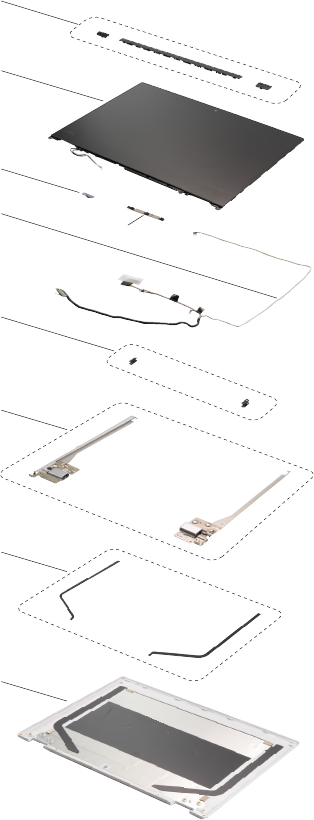
73
Lenovo ideapad FLEX 5-1470/Lenovo ideapad FLEX 5-1570
LCD FRUs
In Lenovo ideapad FLEX 5-1470/Lenovo ideapad FLEX 5-1570, there are
following types of LCDs.
• “14.0-in. HD/FHD LED”
• “15.6-inch. FHD/UHD LED”
1
2
3
6
7
8
9
4
5

74
Lenovo ideapad FLEX 5-1470/Lenovo ideapad FLEX 5-1570
Hardware Maintenance Manual
Table 6. Parts list—LCD FRUs
No. FRU FRU no. CRU
ID.
Lenovo
ideapad
FLEX 5-
1470
Lenovo
ideapad
FLEX 5-
1570
1 Hinge Cover C 80X8 M 5CB0N67749 N ●
1 Hinge Cover C 80X8 L 5CB0N67470 N ●
1 Hinge Cover C 80X8 R 5CB0N67722 N ●
1 Hinge Cover C 80XB M 5CB0N71330 N ●
1 Hinge Cover C 80XB L 5CB0N71329 N ●
1 Hinge Cover C 80XB R 5CB0N71259 N ●
2 LCD Module C 80XA HD 5D10N45603 N ●
2 LCD Module C 80XA FHD 5D10N45602 N ●
3 Sensor Board C 80X8 5C50N67555 N ●
3 Sensor Board C 80XB 5C50N71340 N ●
4 Camera C 80X8 720P 5C20N67564 N ●
4 Camera C 80XB 720P 5C20N71300 N ●
5 EDP Cable C 80X8 5C10N67449 N ●
5 EDP Cable C 80XB FHD 5C10N71316 N ●
5 EDP Cable C 80XB UHD 5C10N71323 N ●
6 Rubber Hinge C 80X8 5R60N67768 N ●
6 Rubber Hinge C 80XB 5R60N71298 N ●
7 Hinge C 80X8 R+L Onyx Black 5H50N67542 N ●
7 Hinge C 80XB R+L 5H50N71290 N ●
8 Removable Tape C 80X8 5T10N67431 N ●
8 Removable Tape C 80XB 5T10N71307 N ●
9 LCD Cover C 80XA BLK W/LNV LOGO 5CB0N67791 N ●
9 LCD Cover C 80XB Black W/LOGO 5CB0N71299 N ●
Miscellaneous parts
Table 7. Parts list—Miscellaneous parts
FRU P/N CRU
ID.
Lenovo
ideapad
FLEX 5-
1470
Lenovo
ideapad
FLEX 5-
1570
System miscellaneous parts:
• (a) WLAN Sponge C 80X8 5T10N67374 N ●
• (a) WLAN Sponge C 80XB 5T10N71318 N ●
• (b) Dimm Emi Shielding C 80X8 5S60N67563 N ●
• (b) Dimm Emi Shielding C 80XB 5S60N71275 N ●
• (c) HDD Bracket C 80X8 5B40N67466 N ●
• (c) HDD Bracket C 80XB 5B40N71271 N ●
• (d) Foot Rubber C 80X8 Onyx Black 5F40N67330 N ●
• (d) Foot Rubber C 80XB 5F40N71289 N ●
Cable miscellaneous parts:
• (e) DC-IN Cable C 80X8 5C10N67714 N ●
• (e) DC-IN Cable C 80XB 5C10N71331 N ●
Note: Italicized letters in parentheses are references to the exploded view in “Overall” on page 67.

75
Lenovo ideapad FLEX 5-1470/Lenovo ideapad FLEX 5-1570
AC adapters
Table 8. Parts list—AC adapters
FRU P/N CRU
ID.
Lenovo
ideapad
FLEX 5-
1470
Lenovo
ideapad
FLEX 5-
1570
Delta ADP-45DW A 20V2.25A COO SA10M42800 * ● ●
Delta ADP-45DW J 20V2.25A COO SA10M42721 * ● ●
Delta ADP-45DW B 20V2.25A COO SA10M42785 * ● ●
Delta ADP-45DW D 20V2.25A COO SA10M42696 * ● ●
Delta ADP-45DW H 20V2.25A COO SA10M42699 * ● ●
Delta ADP-45DW G 20V2.25A COO SA10M42774 * ● ●
Delta ADP-45DW E 20V2.25A COO SA10M42748 * ● ●
Delta ADP-45DW C 20V2.25A COO SA10M42700 * ● ●
Delta ADP-45DW K 20V2.25A COO SA10M42804 * ● ●
Liteon PA-1450-55LN 20V2.25A COO SA10M42711 * ● ●
Liteon PA-1450-55LG 20V2.25A COO SA10M42709 * ● ●
Liteon PA-1450-55LL 20V2.25A COO SA10M42742 * ● ●
Liteon PA-1450-55LK 20V2.25A COO SA10M42530 * ● ●
Liteon PA-1450-55LI 20V2.25A COO SA10M42734 * ● ●
Liteon PA-1450-55LR 20V2.25A COO SA10M42701 * ● ●
Liteon PA-1450-55LS 20V2.25A COO SA10M42736 * ● ●
Liteon PA-1450-55LU 20V2.25A COO SA10M42743 * ● ●
Liteon PA-1450-55LZ 20V2.25A COO SA10M42752 * ● ●
Chicony ADL45WCA 20V2.25A COO SA10M42726 * ● ●
Chicony ADL45WCB 20V2.25A COO SA10M42737 * ● ●
Chicony ADL45WCC 20V2.25A COO SA10M42697 * ● ●
Chicony ADL45WCD 20V2.25A COO SA10M42790 * ● ●
Chicony ADL45WCK 20V2.25A COO SA10M42768 * ● ●
Chicony ADL45WCE 20V2.25A COO SA10M42706 * ● ●
Chicony ADL45WCF 20V2.25A COO SA10M42746 * ● ●
Chicony ADL45WCG 20V2.25A COO SA10M42792 * ● ●
Chicony ADL45WCH 20V2.25A COO SA10M42786 * ● ●
Delta ADLX65CDGC2A 20V3.25A COO SA10M42764 * ● ●
Delta ADLX65CDGG2A 20V3.25A COO SA10M42758 * ● ●
Delta ADLX65CDGU2A 20V3.25A COO SA10M42765 * ● ●
Delta ADLX65CDGK2A 20V3.25A COO SA10M42745 * ● ●
Delta ADLX65CDGI2A 20V3.25A COO SA10M42796 * ● ●
Delta ADLX65CDGR2A 20V3.25A COO SA10M42775 * ● ●
Delta ADLX65CDGA2A 20V3.25A COO SA10M42718 * ● ●
Delta ADLX65CDGE2A 20V3.25A COO SA10M42794 * ● ●
Delta ADLX65CDGB2A 20V3.25A COO SA10M42769 * ● ●
Liteon ADLX65CLGC2A 20V3.25A COO SA10M42791 * ● ●
Liteon ADLX65CLGG2A 20V3.25A COO SA10M42714 * ● ●
Liteon ADLX65CLGU2A 20V3.25A COO SA10M42725 * ● ●
Liteon ADLX65CLGK2A 20V3.25A COO SA10M42531 * ● ●
Liteon ADLX65CLGI2A 20V3.25A COO SA10M42753 * ● ●
Liteon ADLX65CLGR2A 20V3.25A COO SA10M42738 * ● ●
Liteon ADLX65CLGA2A 20V3.25A COO SA10M42793 * ● ●
Liteon ADLX65CLGE2A 20V3.25A COO SA10M42740 * ● ●
Liteon ADLX65CLGB2A 20V3.25A COO SA10M42817 * ● ●

76
Lenovo ideapad FLEX 5-1470/Lenovo ideapad FLEX 5-1570
Hardware Maintenance Manual
FRU P/N CRU
ID.
Lenovo
ideapad
FLEX 5-
1470
Lenovo
ideapad
FLEX 5-
1570
Chicony ADLX65CCGC2A 20V3.25A COO SA10M42805 * ● ●
Chicony ADLX65CCGG2A 20V3.25A COO SA10M42815 * ● ●
Chicony ADLX65CCGU2A 20V3.25A COO SA10M42762 * ● ●
Chicony ADLX65CCGK2A 20V3.25A COO SA10M42735 * ● ●
Chicony ADLX65CCGI2A 20V3.25A COO SA10M42751 * ● ●
Chicony ADLX65CCGR2A 20V3.25A COO SA10M42704 * ● ●
Chicony ADLX65CCGA2A 20V3.25A COO SA10M42766 * ● ●
Chicony ADLX65CCGE2A 20V3.25A COO SA10M42760 * ● ●
Chicony ADLX65CCGB2A 20V3.25A COO SA10M42707 * ● ●
Screws
Table 9. Parts list—Screws
FRU P/N CRU
ID.
Lenovo
ideapad
FLEX 5-
1470
Lenovo
ideapad
FLEX 5-
1570
Screw Pack C 80X8 5S10N67498 N ●
Screw Pack C 80XB 5S10N71293 N ●
Table 5. Parts list—Overall (continued)

77
Notices
Notices
Lenovo may not offer the products, services, or features discussed in this
document in all countries. Consult your local Lenovo representative for
information on the products and services currently available in your area. Any
reference to a Lenovo product, program, or service is not intended to state or
imply that only that Lenovo product, program, or service may be used. Any
functionally equivalent product, program, or service that does not infringe
any Lenovo intellectual property right may be used instead. However, it is the
user’s responsibility to evaluate and verify the operation of any other product,
program, or service.
Lenovo may have patents or pending patent applications covering subject matter
described in this document. The furnishing of this document does not give you
any license to these patents.
LENOVO GROUP LTD. PROVIDES THIS PUBLICATION “AS IS”
WITHOUT WARRANTY OF ANY KIND, EITHER EXPRESS OR IMPLIED,
INCLUDING, BUT NOT LIMITED TO, THE IMPLIED WARRANTIES OF NON-
INFRINGEMENT, MERCHANTABILITY OR FITNESS FOR A PARTICULAR
PURPOSE. Some jurisdictions do not allow disclaimer of express or implied
warranties in certain transactions, therefore, this statement may not apply to you.
This information could include technical inaccuracies or typographical errors.
Changes are periodically made to the information herein; these changes
will be incorporated in new editions of the publication. Lenovo may make
improvements and/or changes in the product(s) and/or the program(s)
described in this publication at any time without notice.
The products described in this document are not intended for use in
implantation or other life support applications where malfunction may result in
injury or death to persons. The information contained in this document does not
affect or change Lenovo product specications or warranties. Nothing in this
document shall operate as an express or implied license or indemnity under the
intellectual property rights of Lenovo or third parties. All information contained
in this document was obtained in specic environments and is presented as an
illustration. The result obtained in other operating environments may vary.
Lenovo may use or distribute any of the information you supply in any way it
believes appropriate without incurring any obligation to you.
Any references in this publication to non-Lenovo Web sites are provided for
convenience only and do not in any manner serve as an endorsement of those
Web sites. The materials at those Web sites are not part of the materials for
this Lenovo product, and use of those Web sites is at your own risk.
Any performance data contained herein was determined in a controlled
environment. Therefore, the result obtained in other operating environments
may vary significantly. Some measurements may have been made on
development-level systems and there is no guarantee that these measurements
will be the same on generally available systems. Furthermore, some
measurements may have been estimated through extrapolation. Actual results
may vary. Users of this document should verify the applicable data for their
specic environment.

78
Lenovo ideapad FLEX 5-1470/Lenovo ideapad FLEX 5-1570
Hardware Maintenance Manual
Trademarks
The following terms are either registered trademarks or trademarks of Lenovo
in the United States and/or other countries:
Lenovo®
Lenovo logo®
OneKey
The following term is trademark of Microsoft Corporation in the United States,
other countries, or both:
Windows®
The following term is trademark of Intel Corporation or its subsidiaries in the
United States, other countries, or both:
Intel®
Other company, product, or service names may be the trademarks or service
marks of others.
