Lenovo B470 B470E Hmm User Manual B470&B470e Hardware Maintenance Laptop (Lenovo)
2012-01-18
User Manual: Lenovo Lenovo B470 B470E Hmm Lenovo B470&B470e Hardware Maintenance Manual B470e Laptop (Lenovo) Lenovo B470e Notebook
Open the PDF directly: View PDF  .
.
Page Count: 92
- About this manual
- Chapter 1. Safety information
- Chapter 2. Important service information
- Chapter 3. General checkout
- Chapter 4. Related service information
- Chapter 5. Lenovo B470 and B470e
- Chapter 6. FRU replacement notices
- Chapter 7. Removing and replacing a FRU
- 1010 Battery pack
- 1020 Dummy card
- 1030 Bottom slot cover
- 1040 Hard disk drive
- 1050 Optical drive
- 1060 Memory modules
- 1070 PCI Express Mini Card for wireless LAN/WAN
- 1080 Keyboard
- 1090 Keyboard bezel
- 1100 System board assembly
- 1110 LCD unit
- 1120 Fan assembly and heat sink assembly
- 1130 CPU
- 1140 Base cover, speakers assembly and bluetooth daughter card
- 1150 LCD front bezel
- 1160 LCD panel, LCD cable, and hinges
- 1170 Integrated camera
- 1180 Antenna assembly and LCD cover
- Chapter 8. Locations
- Chapter 9. Parts list
- Appendix A. Notices

HardwareMaintenanceManual
LenovoB470andB470e

Note:Beforeusingthisinformationandtheproductitsupports,besuretoreadthegeneralinformation
underAppendixA“Notices”onpage83.
SecondEdition(January2012)
©CopyrightLenovo2011,2012.
LIMITEDANDRESTRICTEDRIGHTSNOTICE:Ifproducts,data,computersoftware,andservicesaredeliveredpursuant
aGeneralServicesAdministration“GSA”contract,use,reproduction,ordisclosureissubjecttorestrictionssetforth
inContractNo.GS-35F-05925.

Contents
Aboutthismanual...........iii
Chapter1.Safetyinformation......1
Generalsafety................1
Electricalsafety...............2
Safetyinspectionguide............3
Handlingdevicesthataresensitivetoelectrostatic
discharge..................3
Groundingrequirements............4
Safetynotices(multilingualtranslations)......4
Lasercompliancestatement(multilingual
translations)................19
Chapter2.Importantservice
information..............27
StrategyforreplacingFRUs.........27
Strategyforreplacingaharddiskdrive...27
Importantnoticeforreplacingasystem
board................28
ImportantinformationaboutreplacingRoHS
compliantFRUs..............28
Chapter3.Generalcheckout.....29
Whattodorst..............29
Powersystemcheckout...........30
Checkingtheacpoweradapter......30
Checkingoperationalcharging......31
Checkingthebatterypack........31
Chapter4.Relatedservice
information..............33
RestoringthefactorycontentsbyusingOneKey
Recovery.................33
Passwords................33
Power-onpassword...........33
Supervisorpassword..........34
Powermanagement............34
Screenblankmode...........34
Sleepmode..............34
Hibernationmode...........34
Chapter5.LenovoB470andB470e..37
Specications...............37
Statusindicators..............38
Fnkeycombinations............40
Chapter6.FRUreplacement
notices................41
Screwnotices...............41
Chapter7.Removingandreplacinga
FRU..................43
1010Batterypack.............44
1020Dummycard.............44
1030Bottomslotcover...........45
1040Harddiskdrive............45
1050Opticaldrive.............46
1060Memorymodules...........47
1070PCIExpressMiniCardforwireless
LAN/WAN................48
1080Keyboard..............49
1090Keyboardbezel............51
1100Systemboardassembly.........53
1110LCDunit...............55
1120Fanassemblyandheatsinkassembly...57
1130CPU................59
1140Basecover,speakersassemblyand
bluetoothdaughtercard...........60
1150LCDfrontbezel............62
1160LCDpanel,LCDcable,andhinges....63
1170Integratedcamera...........65
1180AntennaassemblyandLCDcover.....66
Chapter8.Locations.........69
Frontview................69
Right-sideview..............70
Bottomandleft-sideview..........70
Chapter9.Partslist..........71
Overall..................72
LCDFRUs................75
Keyboard.................77
Miscellaneousparts............78
acpoweradapters.............78
Powercords...............78
AppendixA.Notices..........83
Trademarks................84
©CopyrightLenovo2011,2012i

iiHardwareMaintenanceManual

Aboutthismanual
ThismanualcontainsserviceandreferenceinformationforthefollowingLenovo®products.
ProductMachinetype(MT)
LenovoB4704315,20087
LenovoB470e3499,20172
Usethismanualtotroubleshootproblems.
Themanualisdividedintothefollowingsections:
•Thecommonsectionsprovidegeneralinformation,guidelines,andsafetyinformationrequiredfor
servicingcomputers.
•Theproduct-specicsectionincludesservice,reference,andproduct-specicpartsinformation.
Important:
ThismanualisintendedonlyfortrainedservicetechnicianswhoarefamiliarwithLenovoproducts.Use
thismanualtotroubleshootproblemseffectively.
BeforeservicingaLenovoproduct,besuretoreadalltheinformationunderChapter1“Safety
information”onpage1andChapter2“Importantserviceinformation”onpage27.
©CopyrightLenovo2011,2012iii

ivHardwareMaintenanceManual

Chapter1.Safetyinformation
Thischapterpresentsfollowingsafetyinformationthatyouneedtobefamiliarwithbeforeyouservicea
LenovoNotebook.
•“Generalsafety”onpage1
•“Electricalsafety”onpage2
•“Safetyinspectionguide”onpage3
•“Handlingdevicesthataresensitivetoelectrostaticdischarge”onpage3
•“Groundingrequirements”onpage4
•“Safetynotices(multilingualtranslations)”onpage4
•“Lasercompliancestatement(multilingualtranslations)”onpage19
Generalsafety
Followtheserulestoensuregeneralsafety:
•Observegoodhousekeepingintheareaofthemachinesduringandaftermaintenance.
•Whenliftinganyheavyobject:
1.Makesurethatyoucanstandsafelywithoutslipping.
2.Distributetheweightoftheobjectequallybetweenyourfeet.
3.Useaslowliftingforce.Nevermovesuddenlyortwistwhenyouattempttolift.
4.Liftbystandingorbypushingupwithyourlegmuscles;thisactionremovesthestrainfromthe
musclesinyourback.Donotattempttoliftanyobjectthatweighsmorethan16kg(35lb)orthatyou
thinkistooheavyforyou.
•Donotperformanyactionthatcauseshazardstothecustomer,orthatmakestheequipmentunsafe.
•Beforeyoustartthemachine,makesurethatotherservicetechniciansandthecustomer'spersonnelare
notinahazardousposition.
•Placeremovedcoversandotherpartsinasafeplace,awayfromallpersonnel,whileyouareservicing
themachine.
•Keepyourtoolcaseawayfromwalkareassothatotherpeoplewillnottripoverit.
•Donotwearlooseclothingthatcanbetrappedinthemovingpartsofamachine.Makesurethatyour
sleevesarefastenedorrolledupaboveyourelbows.Ifyourhairislong,fastenit.
•Inserttheendsofyournecktieorscarfinsideclothingorfastenitwithanonconductiveclip,about8
centimeters(3inches)fromtheend.
•Donotwearjewelry,chains,metal-frameeyeglasses,ormetalfastenersforyourclothing,becausemetal
objectsaregoodelectricalconductors.
•Wearsafetyglasseswhenyouarehammering,drilling,soldering,cuttingwire,attachingsprings,using
solvents,orworkinginanyotherconditionsthatmightbehazardoustoyoureyes.
•Afterservice,reinstallallsafetyshields,guards,labels,andgroundwires.Replaceanysafetydevice
thatiswornordefective.
•Reinstallallcoverscorrectlybeforereturningthemachinetothecustomer.
•Fanlouversonthemachinehelptopreventoverheatingofinternalcomponents.Donotobstructfan
louversorcoverthemwithlabelsorstickers.
©CopyrightLenovo2011,20121

Electricalsafety
Observethefollowingruleswhenworkingonelectricalequipment.
Important:
Useonlyapprovedtoolsandtestequipment.Somehandtoolshavehandlescoveredwithasoftmaterial
thatdoesnotinsulateyouwhenworkingwithliveelectricalcurrents.
Manycustomershave,neartheirequipment,rubberoormatsthatcontainsmallconductivebersto
decreaseelectrostaticdischarges.Donotusethistypeofmattoprotectyourselffromelectricalshock.
•Findtheroomemergencypower-off(EPO)switch,disconnectingswitch,orelectricaloutlet.Ifanelectrical
accidentoccurs,youcanthenoperatetheswitchorunplugthepowercordquickly.
•Donotworkaloneunderhazardousconditionsornearequipmentthathashazardousvoltages.
•Disconnectallpowerbefore:
–Performingamechanicalinspection
–Workingnearpowersupplies
–Removingorinstallingmainunits
•Beforeyoustarttoworkonthemachine,unplugthepowercord.Ifyoucannotunplugit,askthecustomer
topower-offthewallboxthatsuppliespowertothemachine,andtolockthewallboxintheoffposition.
•Ifyouneedtoworkonamachinethathasexposedelectricalcircuits,observethefollowingprecautions:
–Ensurethatanotherperson,familiarwiththepower-offcontrols,isnearyou.
Attention:Anotherpersonmustbetheretoswitchoffthepower,ifnecessary.
–Useonlyonehandwhenworkingwithpowered-onelectricalequipment;keeptheotherhandinyour
pocketorbehindyourback.
Attention:Anelectricalshockcanoccuronlywhenthereisacompletecircuit.Byobservingtheabove
rule,youmaypreventacurrentfrompassingthroughyourbody.
–Whenusingtesters,setthecontrolscorrectlyandusetheapprovedprobeleadsandaccessoriesfor
thattester.
–Standonsuitablerubbermats(obtainedlocally,ifnecessary)toinsulateyoufromgroundssuchas
metaloorstripsandmachineframes.
Observethespecialsafetyprecautionswhenyouworkwithveryhighvoltages;Instructionsforthese
precautionsareinthesafetysectionsofmaintenanceinformation.Useextremecarewhenmeasuring
highvoltages.
•Regularlyinspectandmaintainyourelectricalhandtoolsforsafeoperationalcondition.
•Donotusewornorbrokentoolsandtesters.
•Neverassumethatpowerhasbeendisconnectedfromacircuit.First,checkthatithasbeenpoweredoff.
•Alwayslookcarefullyforpossiblehazardsinyourworkarea.Examplesofthesehazardsaremoistoors,
nongroundedpowerextensioncables,powersurges,andmissingsafetygrounds.
•Donottouchliveelectricalcircuitswiththereectivesurfaceofaplasticdentalmirror.Thesurfaceis
conductive;suchtouchingcancausepersonalinjuryandmachinedamage.
•Donotservicethefollowingpartswiththepoweronwhentheyareremovedfromtheirnormaloperating
placesinamachine:
–Powersupplyunits
–Pumps
–Blowersandfans
–Motorgenerators
–Similarunitstolistedabove
Thispracticeensurescorrectgroundingoftheunits.
•Ifanelectricalaccidentoccurs:
2HardwareMaintenanceManual

–Usecaution;donotbecomeavictimyourself.
–Switchoffpower.
–Sendanotherpersontogetmedicalaid.
Safetyinspectionguide
Thepurposeofthisinspectionguideistoassistyouinidentifyingpotentiallyunsafeconditions.Aseach
machinewasdesignedandbuilt,requiredsafetyitemswereinstalledtoprotectusersandservicetechnicians
frominjury.Thisguideaddressesonlythoseitems.Youshouldusegoodjudgmenttoidentifypotential
safetyhazardsduetoattachmentofnon-Lenovofeaturesoroptionsnotcoveredbythisinspectionguide.
Ifanyunsafeconditionsarepresent,youmustdeterminehowserioustheapparenthazardcouldbeand
whetheryoucancontinuewithoutrstcorrectingtheproblem.
Considertheseconditionsandthesafetyhazardstheypresent:
•Electricalhazards,especiallyprimarypower(primaryvoltageontheframecancauseseriousorfatal
electricalshock)
•Explosivehazards,suchasadamagedCRTfaceorabulgingcapacitor
•Mechanicalhazards,suchaslooseormissinghardware
Todeterminewhetherthereareanypotentiallyunsafeconditions,usethefollowingchecklistatthebeginning
ofeveryservicetask.Beginthecheckswiththepoweroff,andthepowercorddisconnected.
Checklist:
1.Checkexteriorcoversfordamage(loose,broken,orsharpedges).
2.Poweroffthecomputer.Disconnectthepowercord.
3.Checkthepowercordfor:
a.Athird-wiregroundconnectoringoodcondition.Useametertomeasurethird-wireground
continuityfor0.1ohmorlessbetweentheexternalgroundpinandtheframeground.
b.Thepowercordshouldbethetypespeciedinthepartslist.
c.Insulationmustnotbefrayedorworn.
4.Checkforcrackedorbulgingbatteries.
5.Removethecover.
6.Checkforanyobviousnon-Lenovoalterations.Usegoodjudgmentastothesafetyofanynon-Lenovo
alterations.
7.Checkinsidetheunitforanyobviousunsafeconditions,suchasmetallings,contamination,wateror
otherliquids,orsignsofreorsmokedamage.
8.Checkforworn,frayed,orpinchedcables.
9.Checkthatthepower-supplycoverfasteners(screwsorrivets)havenotbeenremovedortamperedwith.
Handlingdevicesthataresensitivetoelectrostaticdischarge
Anycomputerpartcontainingtransistorsorintegratedcircuits(ICs)shouldbeconsideredsensitiveto
electrostaticdischarge(ESD.)ESDdamagecanoccurwhenthereisadifferenceinchargebetweenobjects.
ProtectagainstESDdamagebyequalizingthechargesothatthemachine,thepart,theworkmat,andthe
personhandlingthepartareallatthesamecharge.
Notes:
1.Useproduct-specicESDprocedureswhentheyexceedtherequirementsnotedhere.
Chapter1.Safetyinformation3
2.MakesurethattheESDprotectivedevicesyouusehavebeencertied(ISO9000)asfullyeffective.
WhenhandlingESD-sensitiveparts:
•Keepthepartsinprotectivepackagesuntiltheyareinsertedintotheproduct.
•Avoidcontactwithotherpeople.
•Wearagroundedwriststrapagainstyourskintoeliminatestaticonyourbody.
•Preventthepartfromtouchingyourclothing.Mostclothingisinsulativeandretainsachargeevenwhen
youarewearingawriststrap.
•Useagroundedworkmattoprovideastatic-freeworksurface.Thematisespeciallyusefulwhen
handlingESD-sensitivedevices.
•Selectagroundingsystem,suchasthoselistedbelow,toprovideprotectionthatmeetsthespecic
servicerequirement.
Note:TheuseofagroundingsystemtoguardagainstESDdamageisdesirablebutnotnecessary.
–AttachtheESDgroundcliptoanyframeground,groundbraid,orgreen-wireground.
–Whenworkingonadouble-insulatedorbattery-operatedsystem,useanESDcommongroundor
referencepoint.Y oucanusecoaxorconnector-outsideshellsonthesesystems.
–Usetheroundgroundprongoftheacplugonac-operatedcomputers.
Groundingrequirements
Electricalgroundingofthecomputerisrequiredforoperatorsafetyandcorrectsystemfunction.Proper
groundingoftheelectricaloutletcanbeveriedbyacertiedelectrician.
Safetynotices(multilingualtranslations)
Thesafetynoticesinthissectionareprovidedinthefollowinglanguages:
•English
•Arabic
•BrazilianPortuguese
•French
•German
•Hebrew
•Japanese
•Korean
•Spanish
•T raditionalChinese
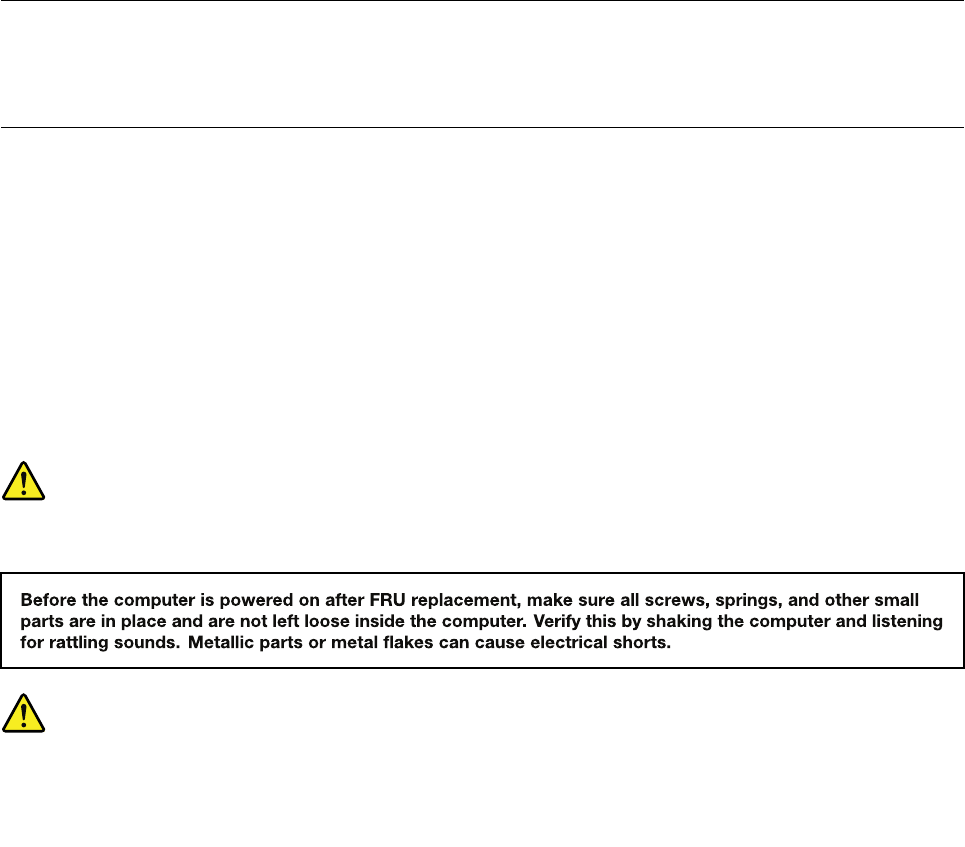
DANGER
DANGER
4HardwareMaintenanceManual
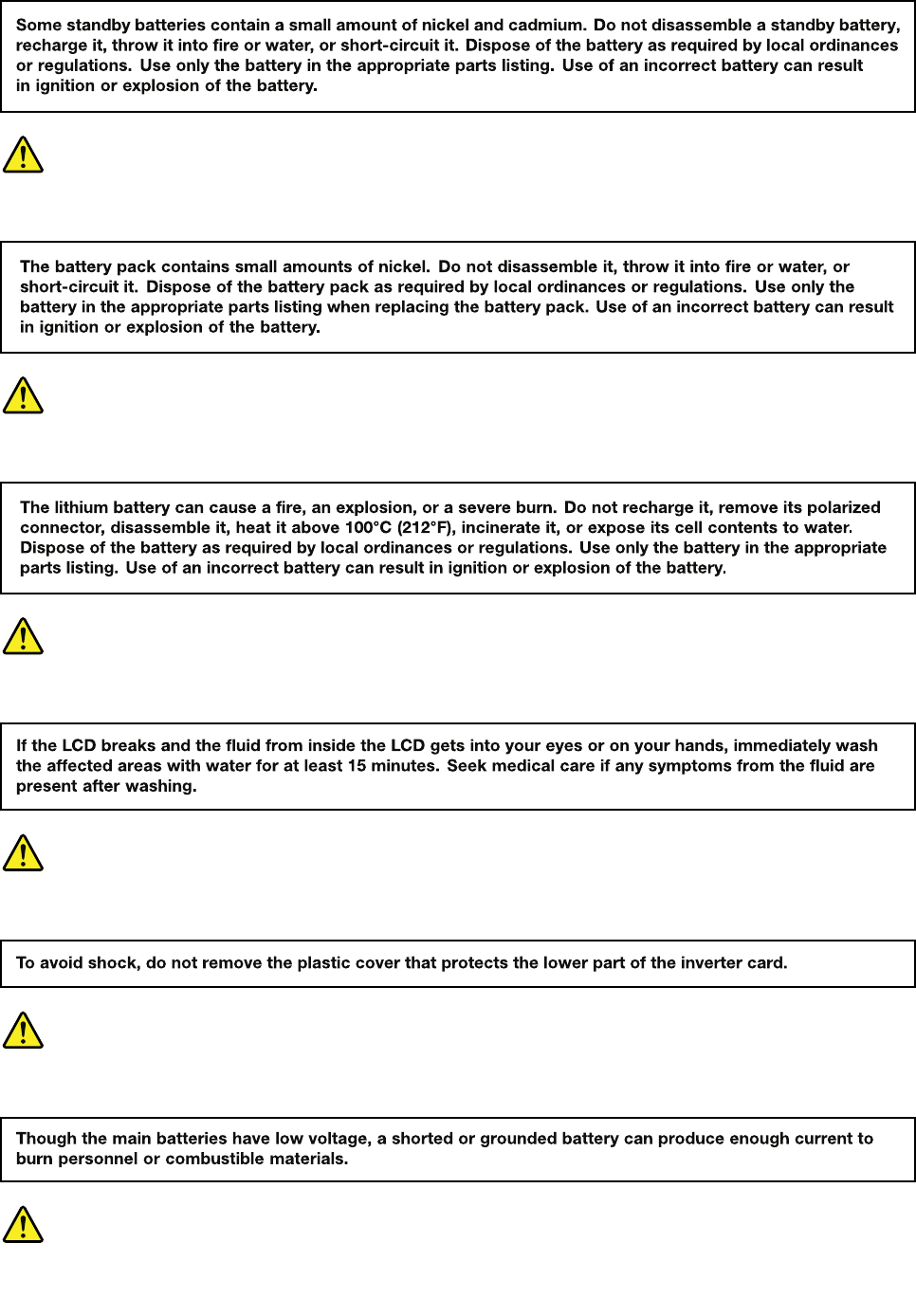
DANGER
DANGER
DANGER
DANGER
DANGER
Chapter1.Safetyinformation5
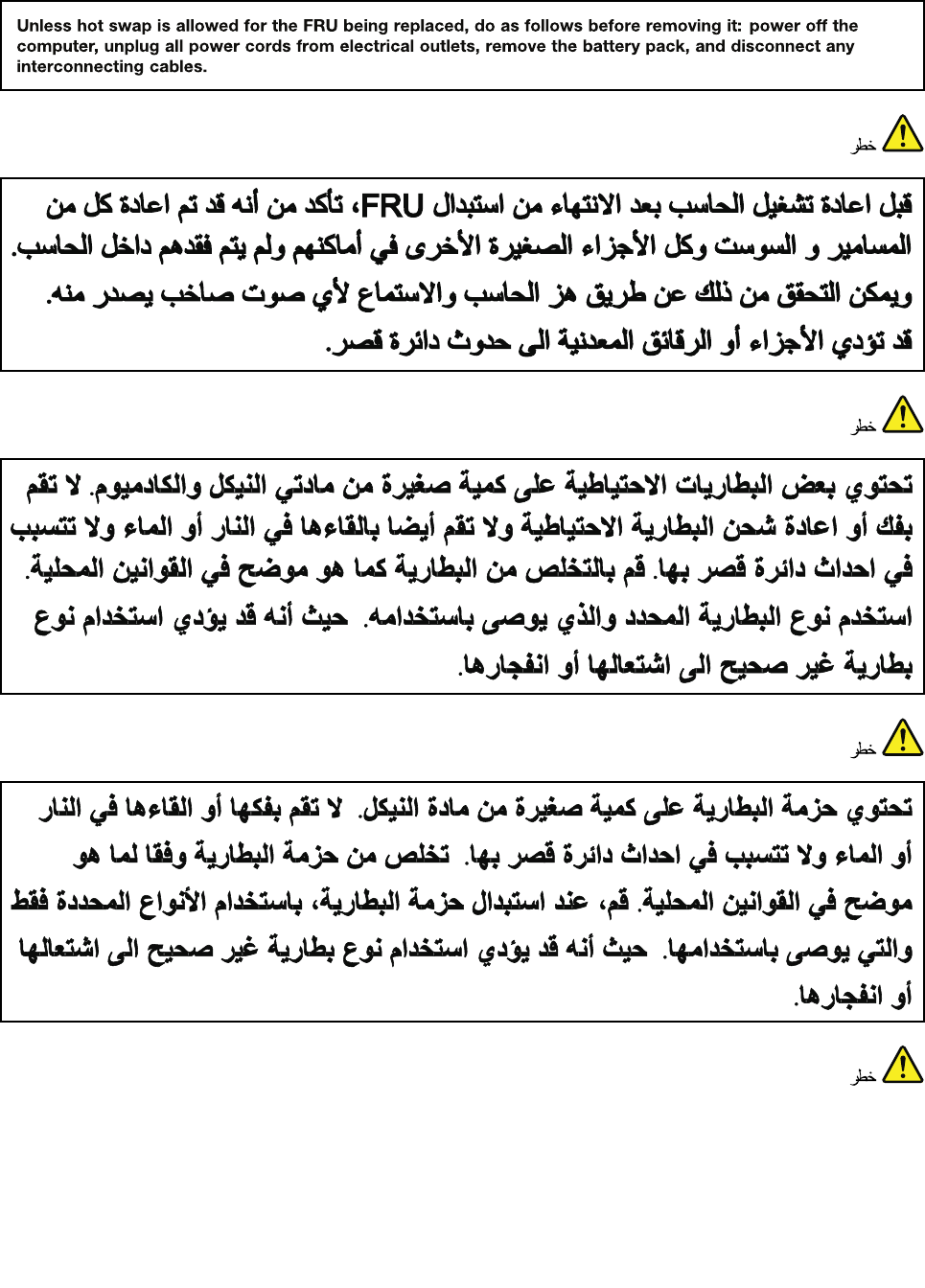
DANGER
6HardwareMaintenanceManual
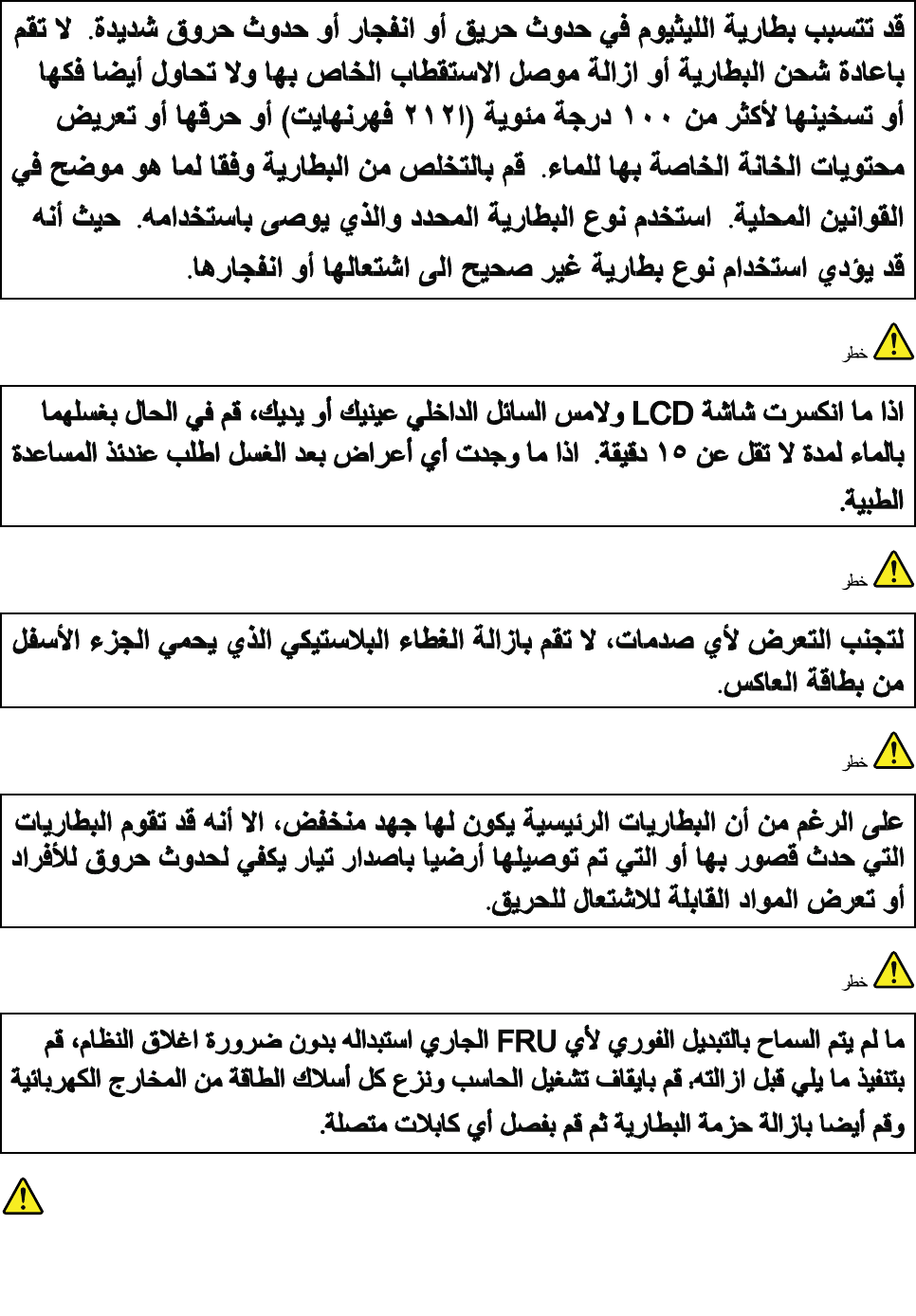
Chapter1.Safetyinformation7
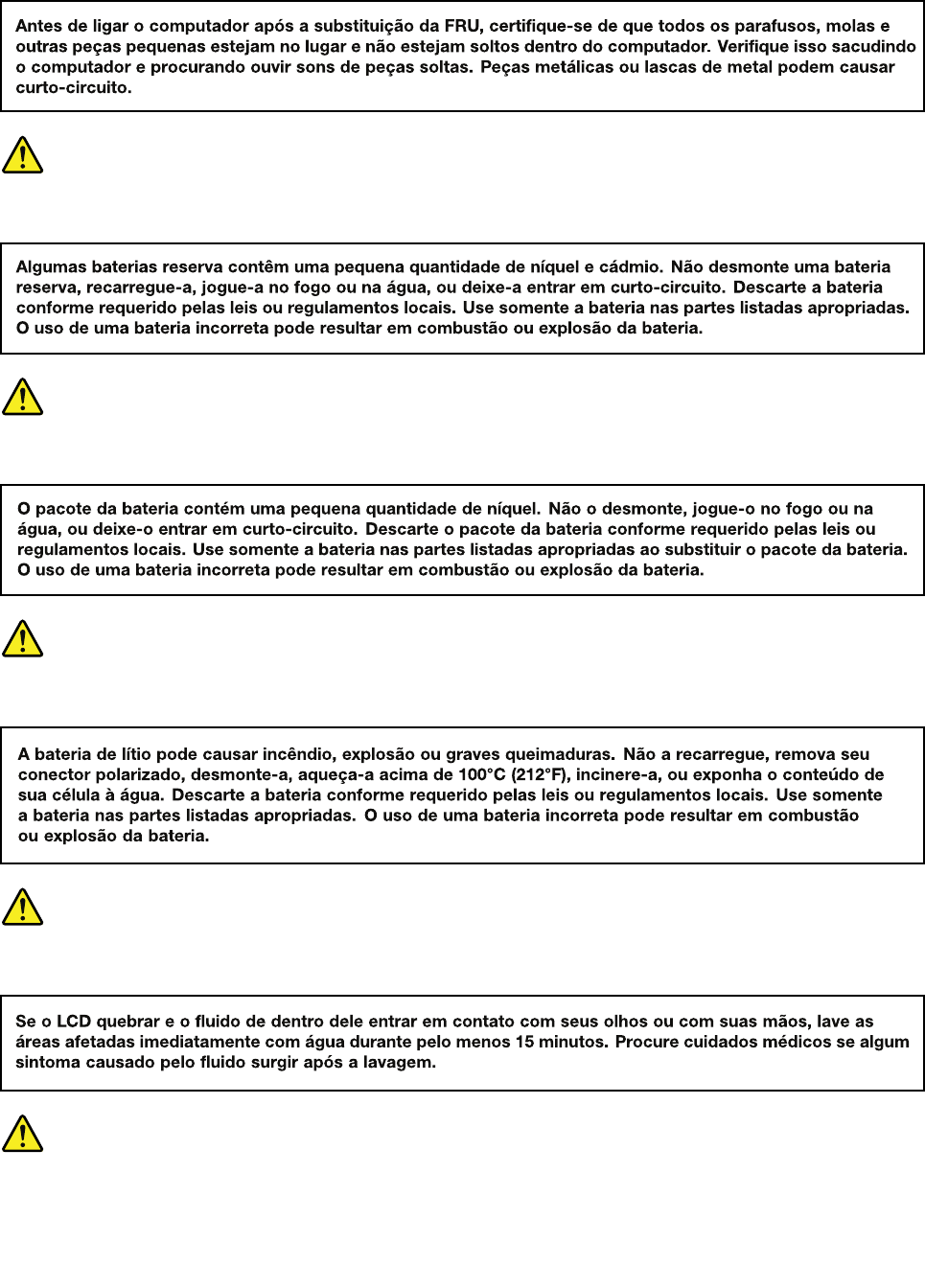
PERIGO
PERIGO
PERIGO
PERIGO
PERIGO
PERIGO
8HardwareMaintenanceManual
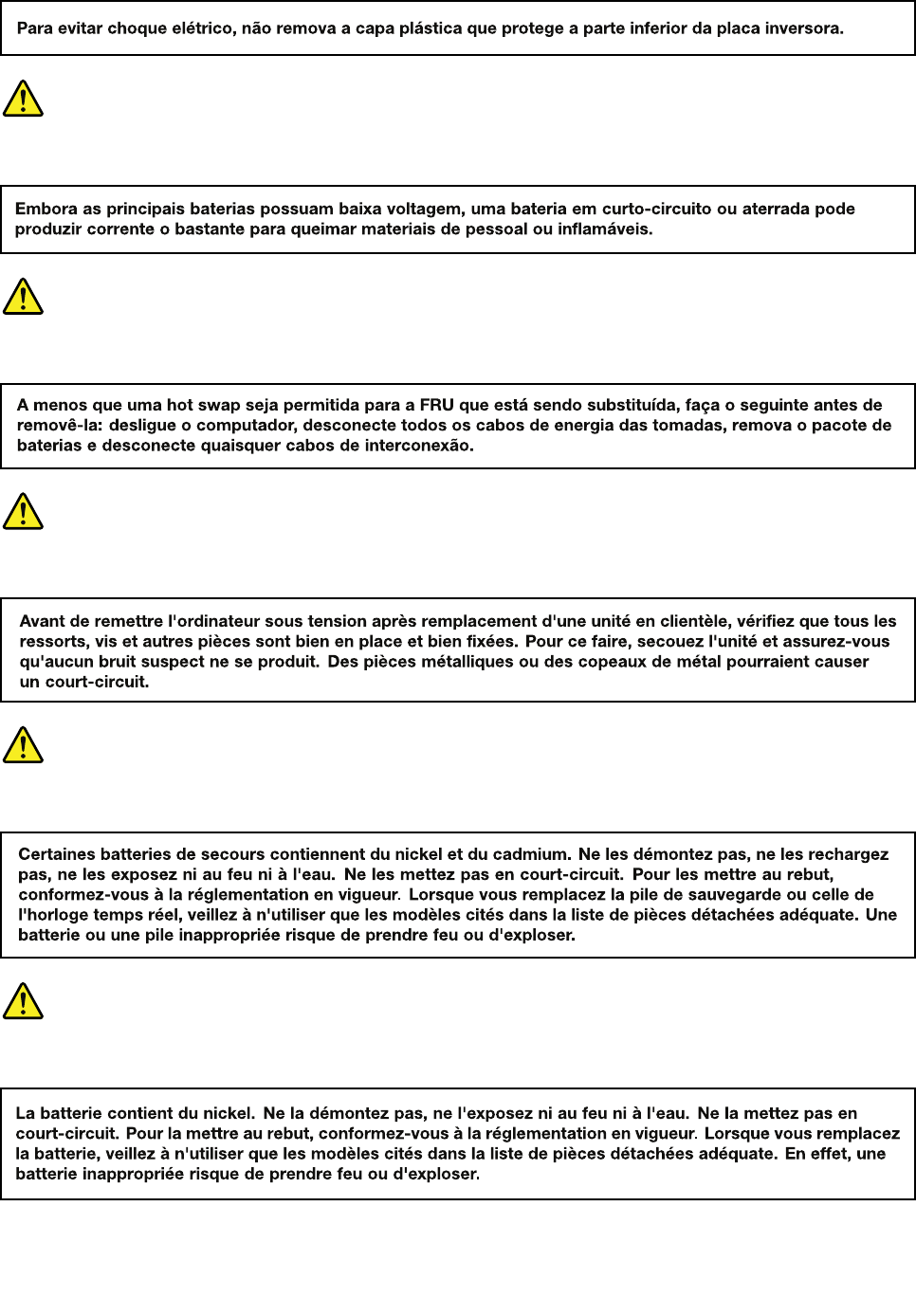
PERIGO
PERIGO
DANGER
DANGER
DANGER
Chapter1.Safetyinformation9
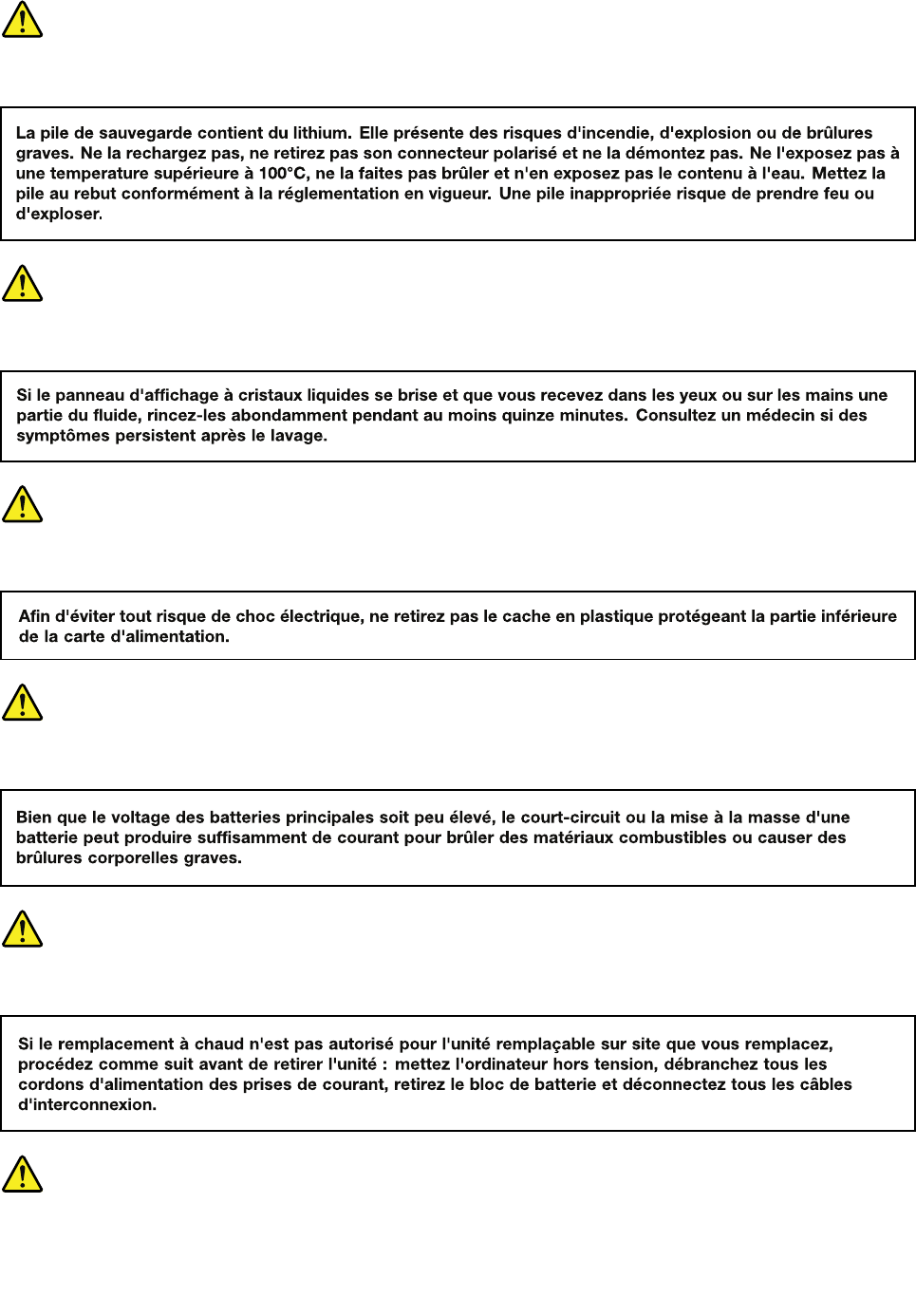
DANGER
DANGER
DANGER
DANGER
DANGER
VORSICHT
10HardwareMaintenanceManual
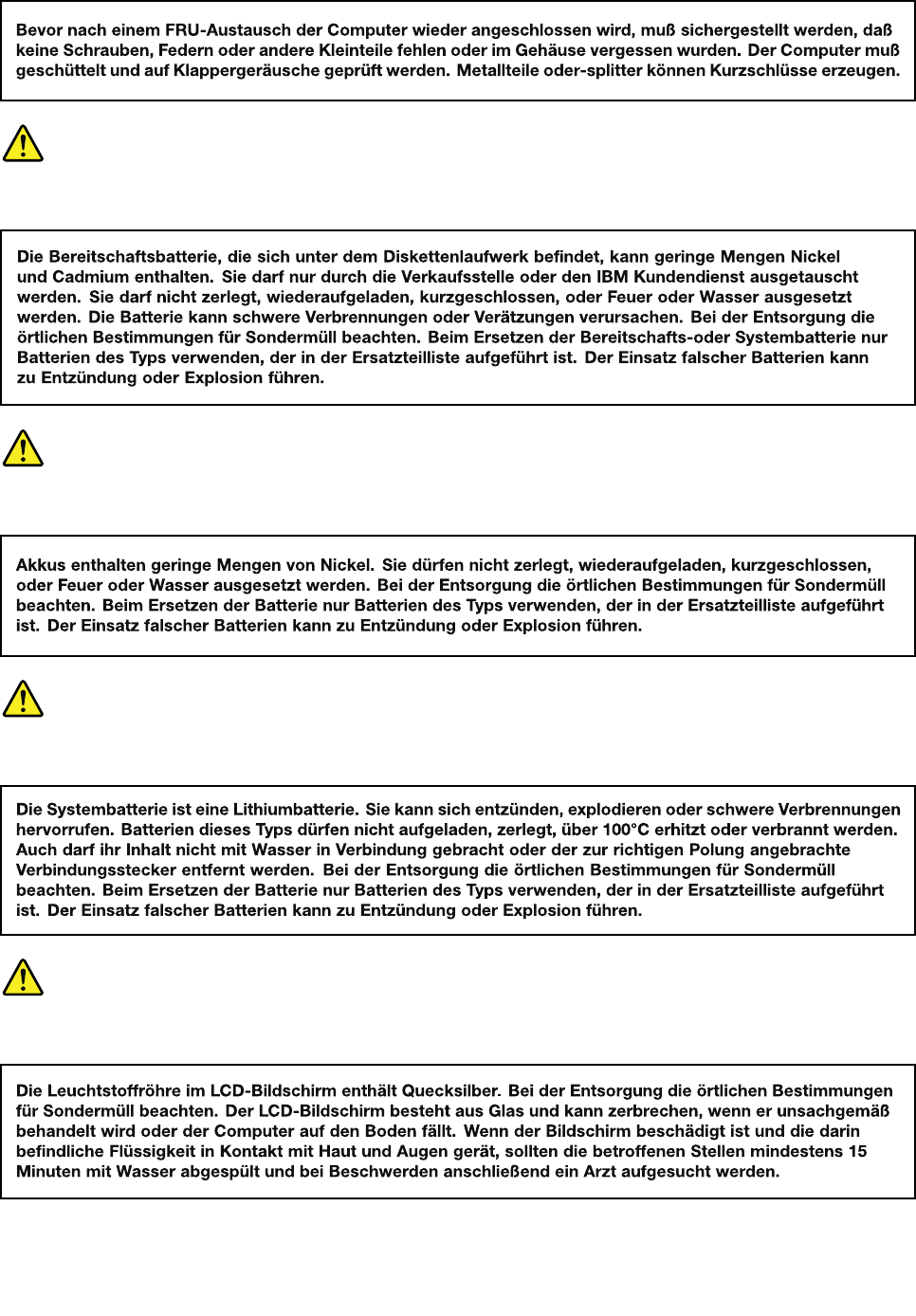
VORSICHT
VORSICHT
VORSICHT
VORSICHT
Chapter1.Safetyinformation11
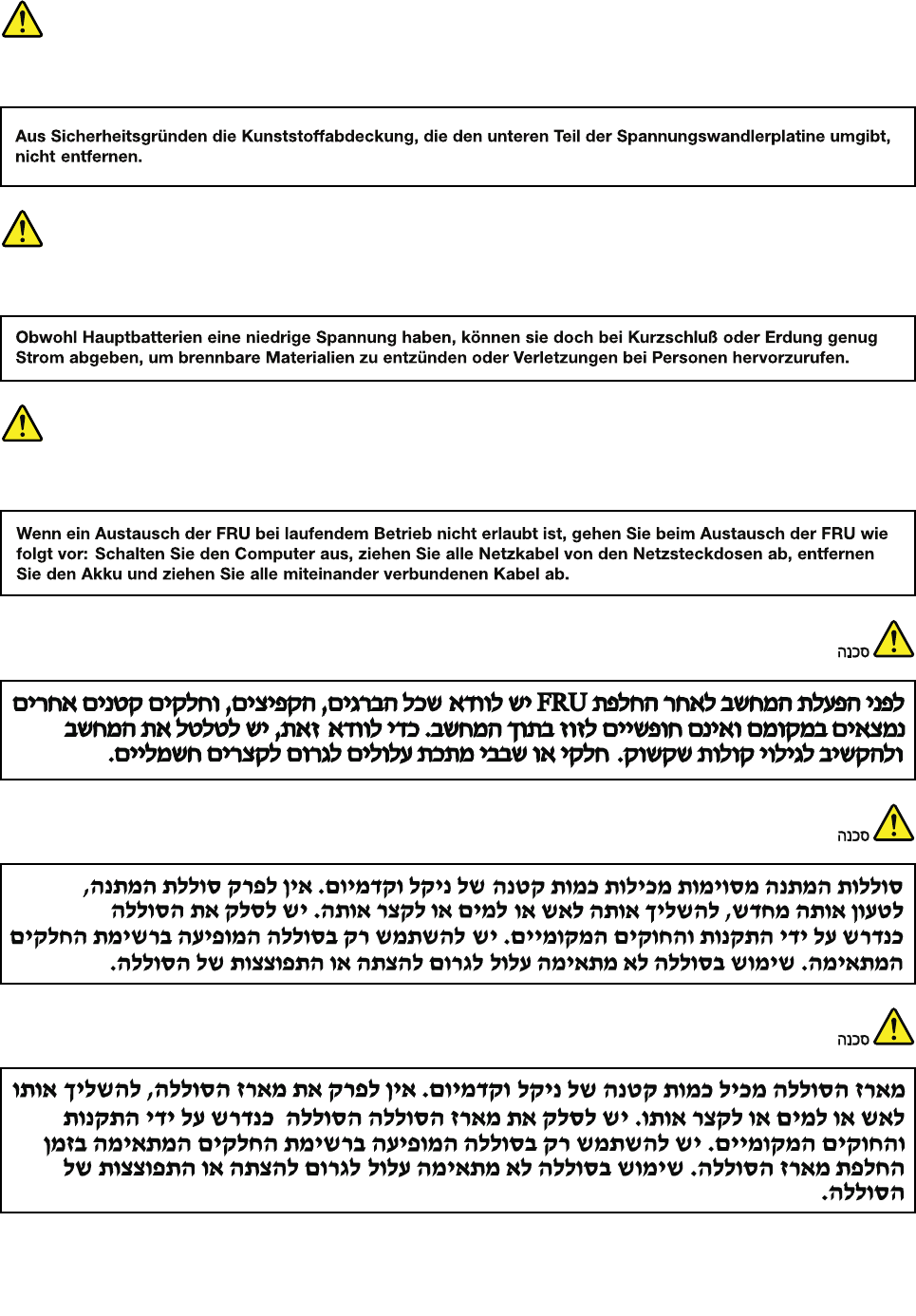
VORSICHT
VORSICHT
VORSICHT
12HardwareMaintenanceManual
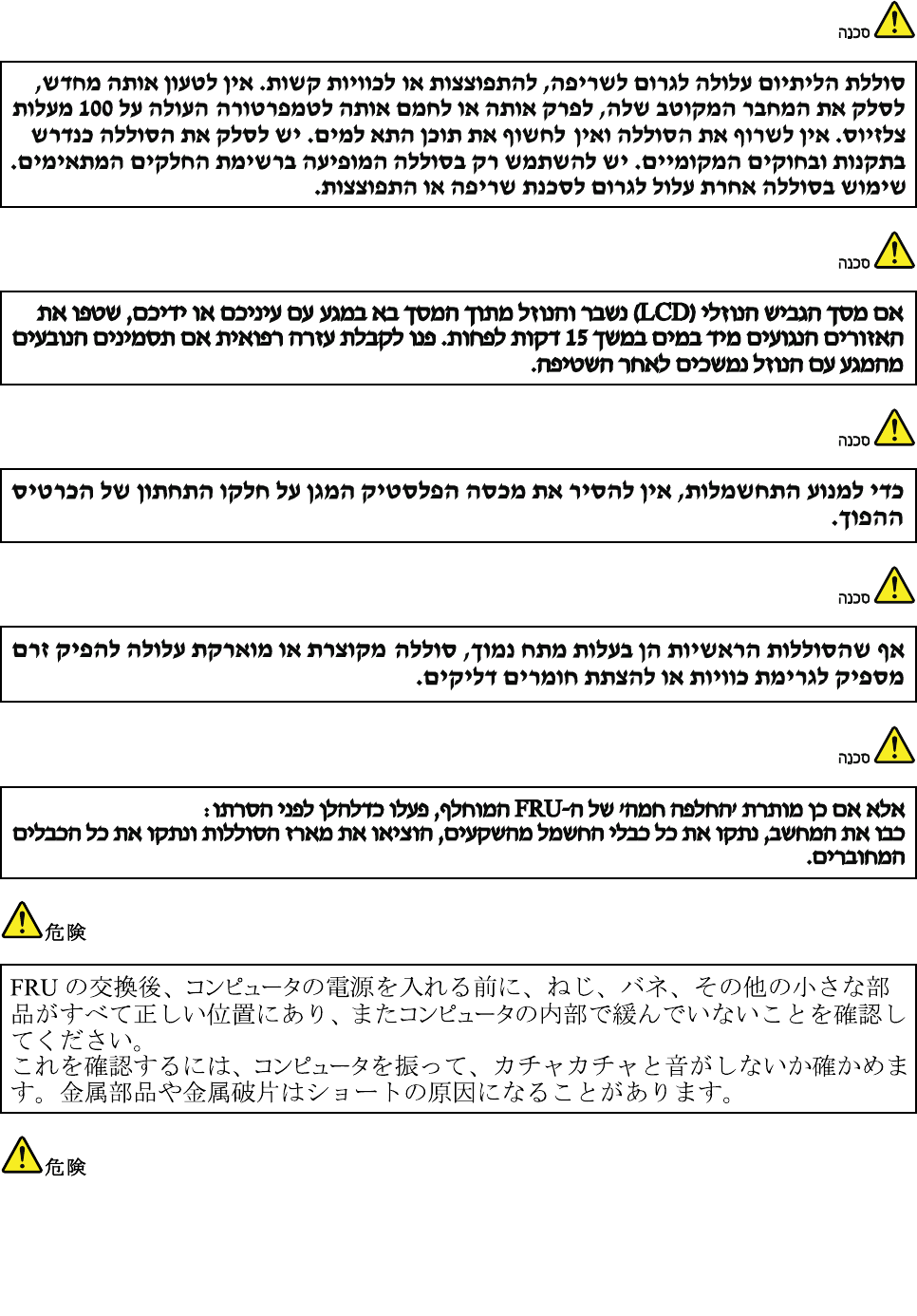
Chapter1.Safetyinformation13
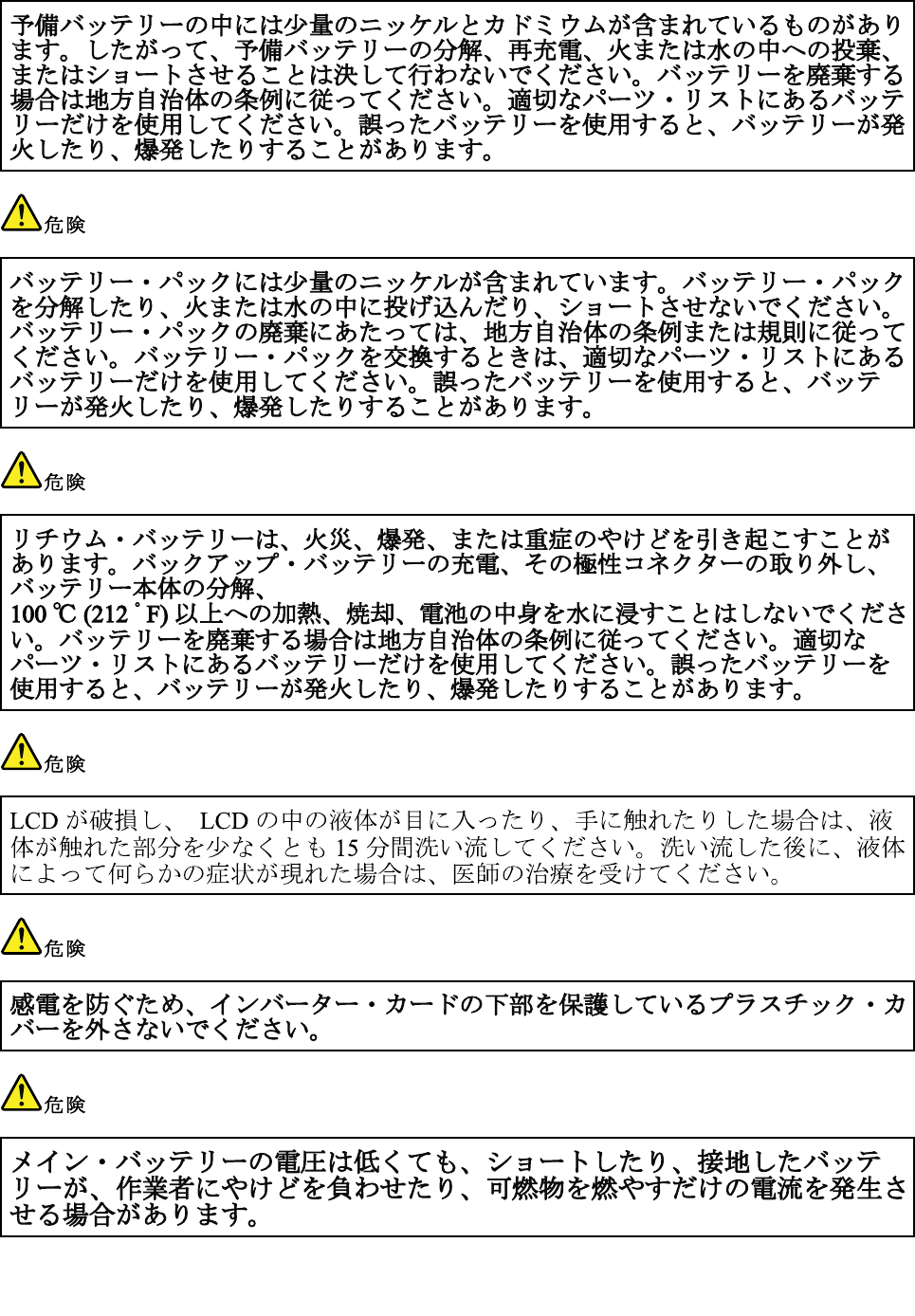
14HardwareMaintenanceManual
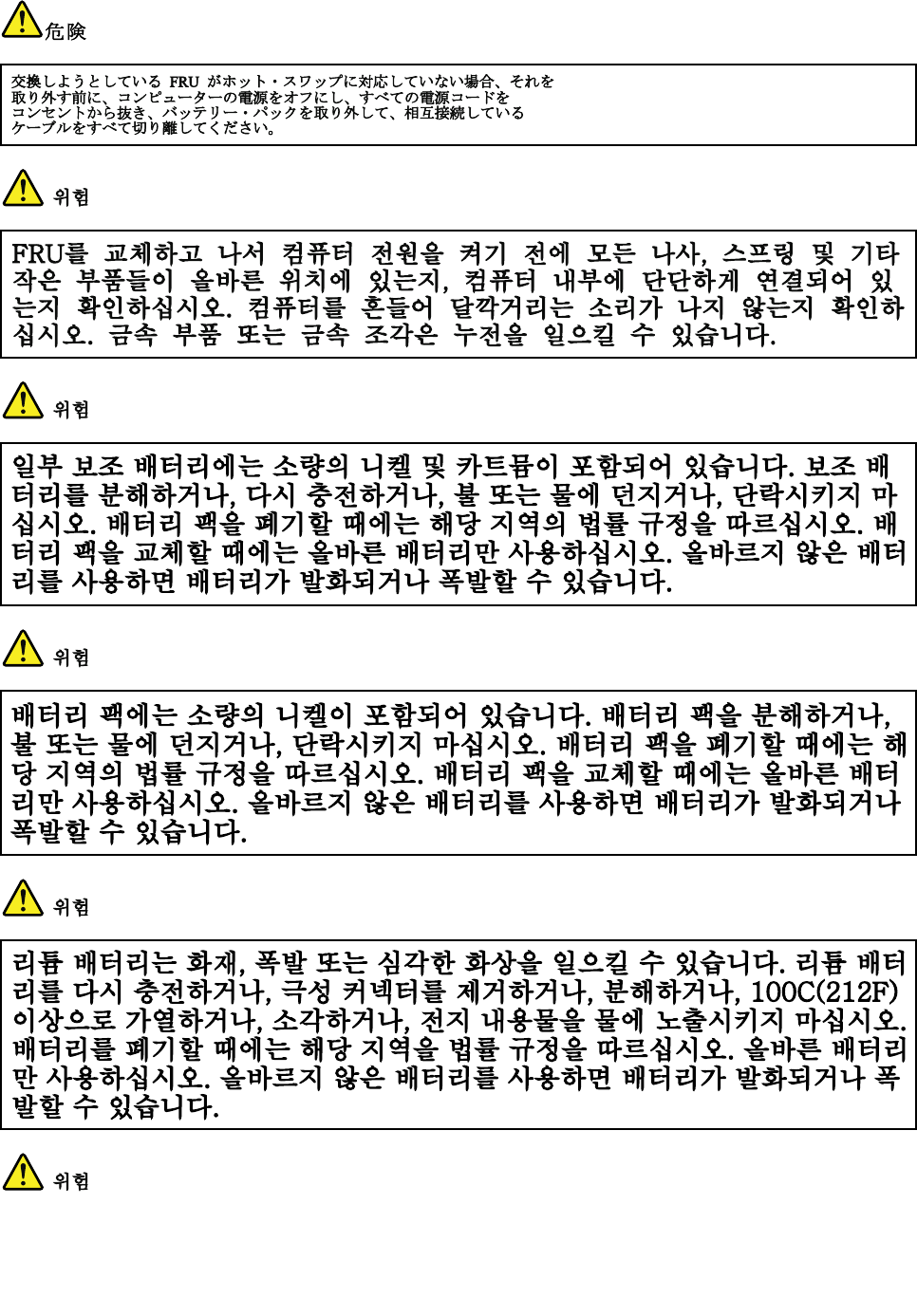
Chapter1.Safetyinformation15
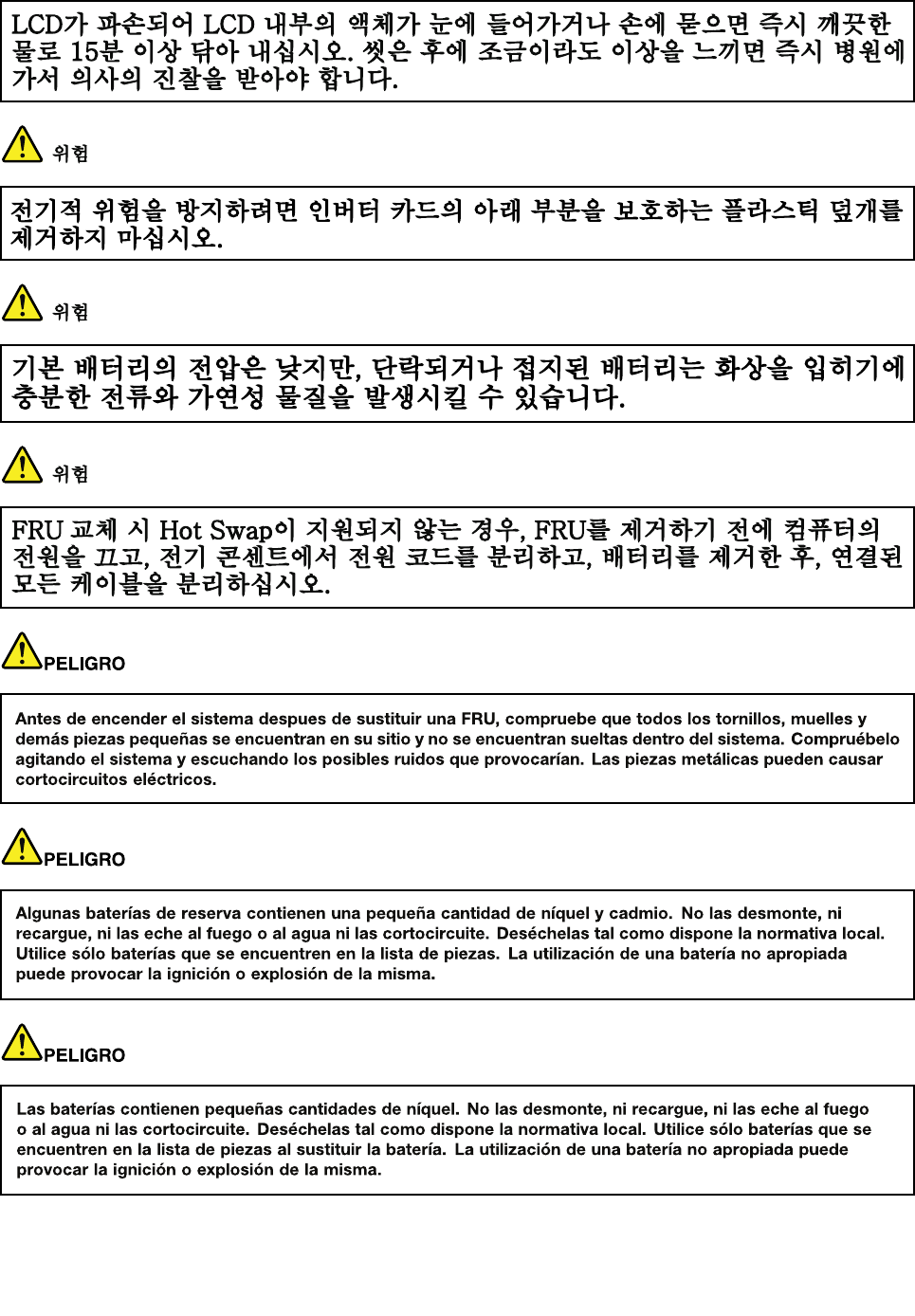
16HardwareMaintenanceManual
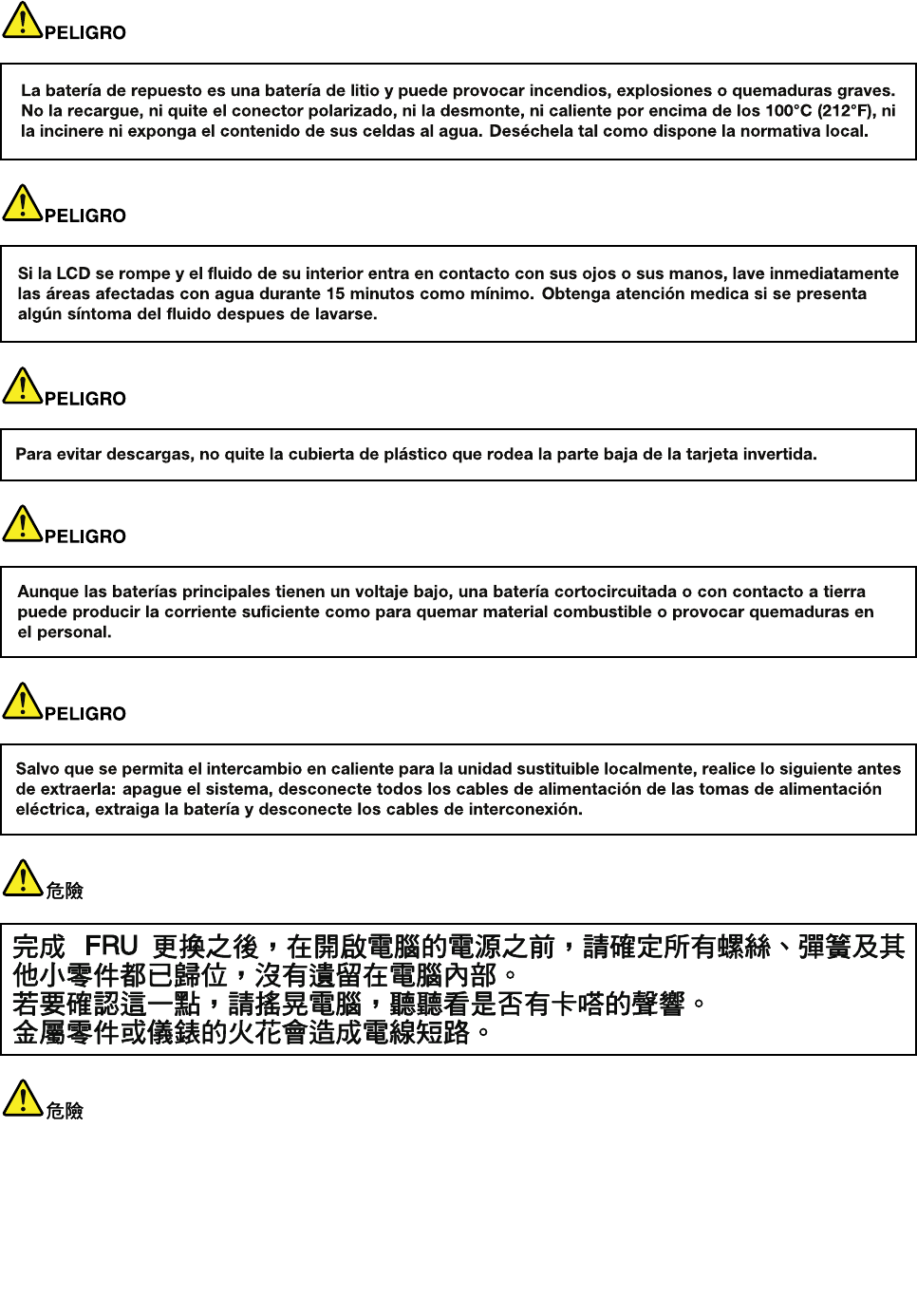
Chapter1.Safetyinformation17
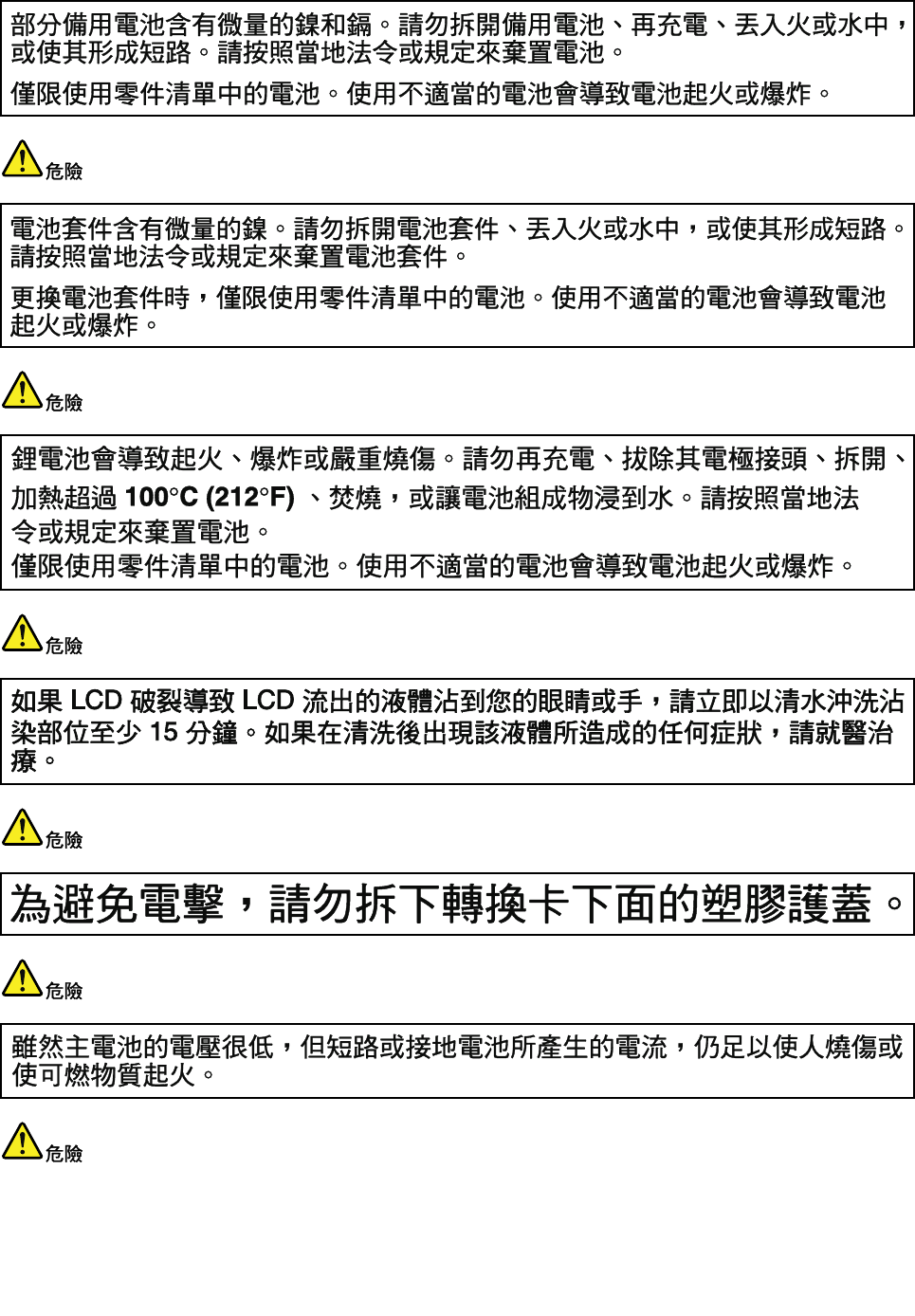
18HardwareMaintenanceManual
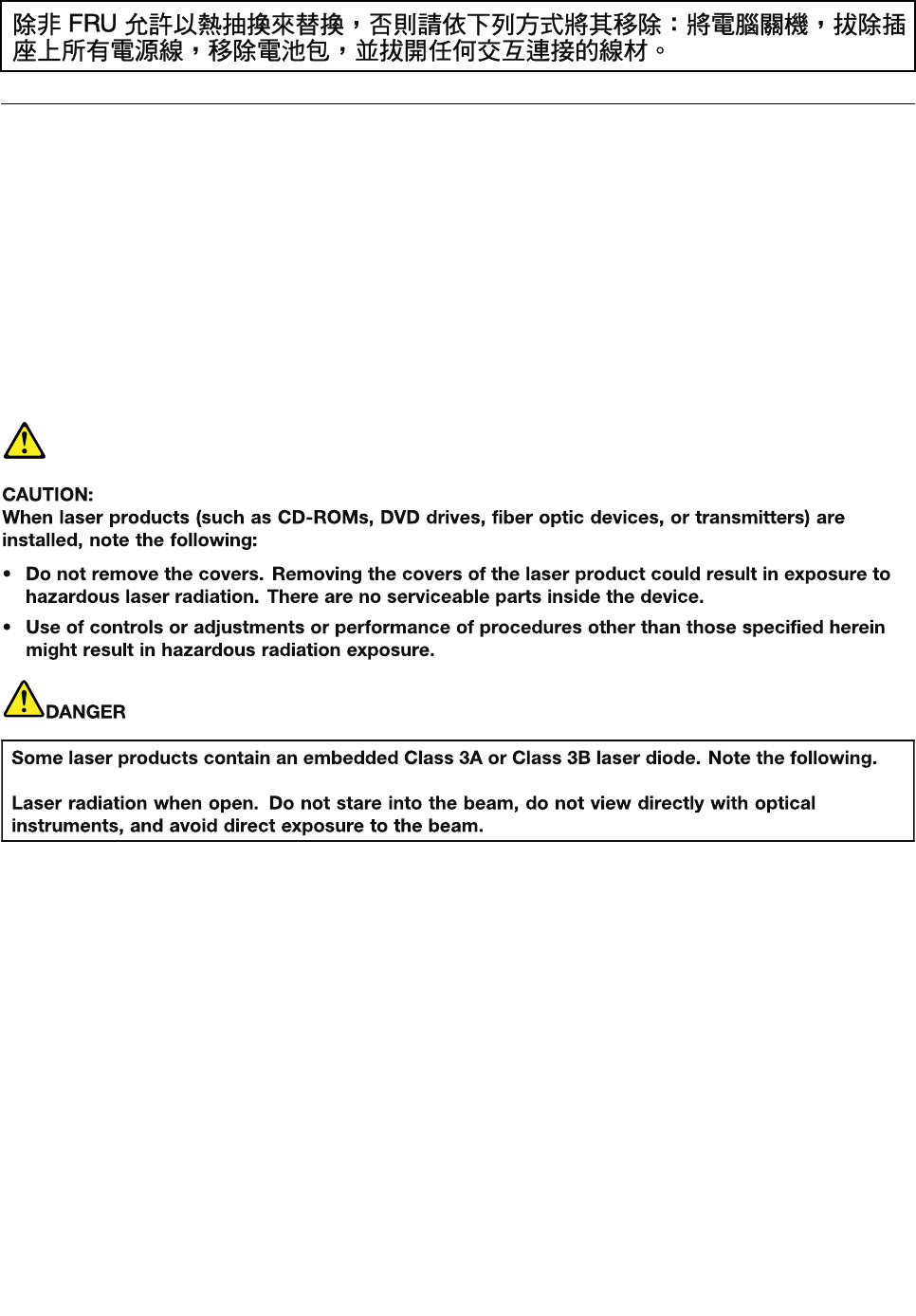
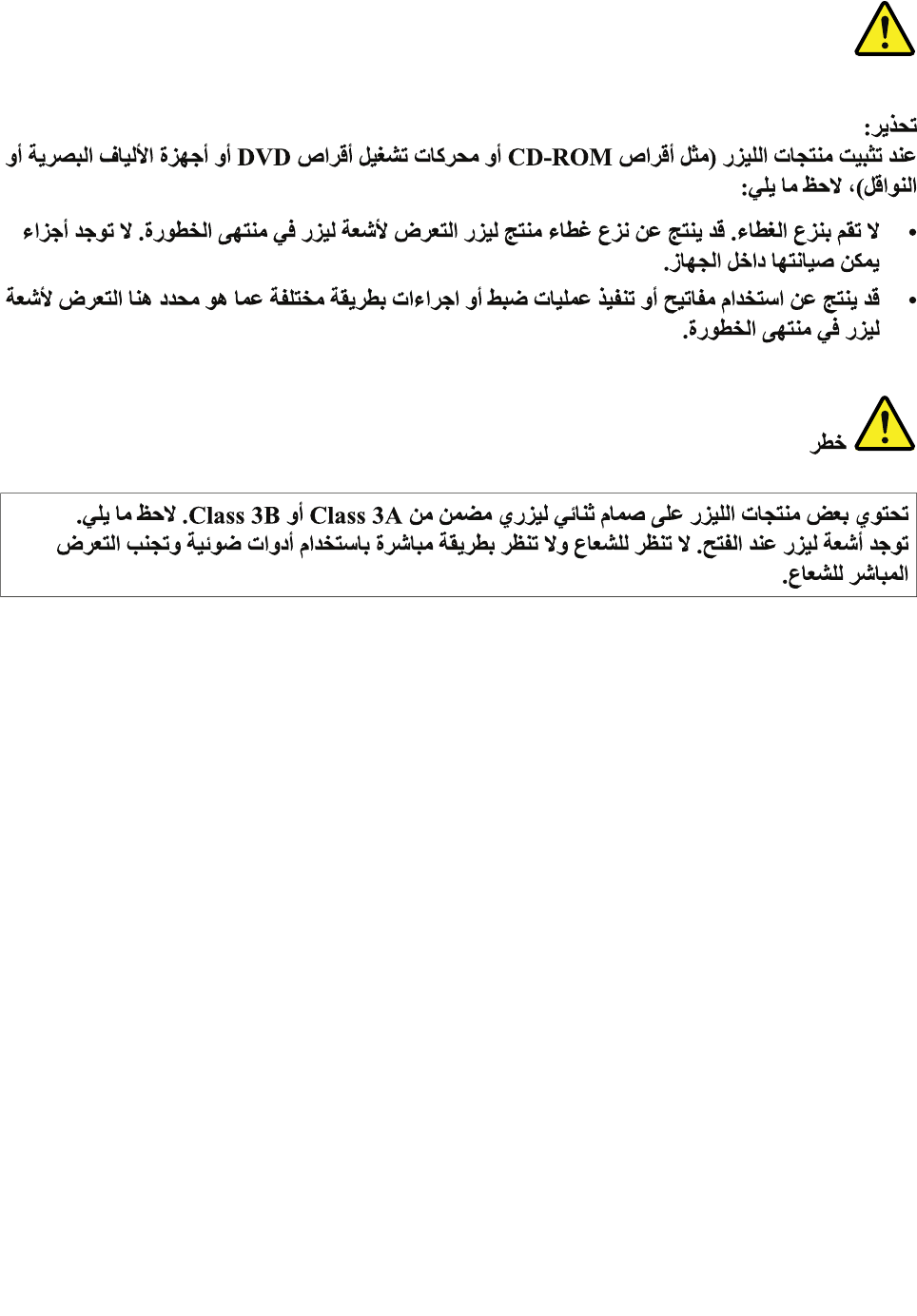
20HardwareMaintenanceManual
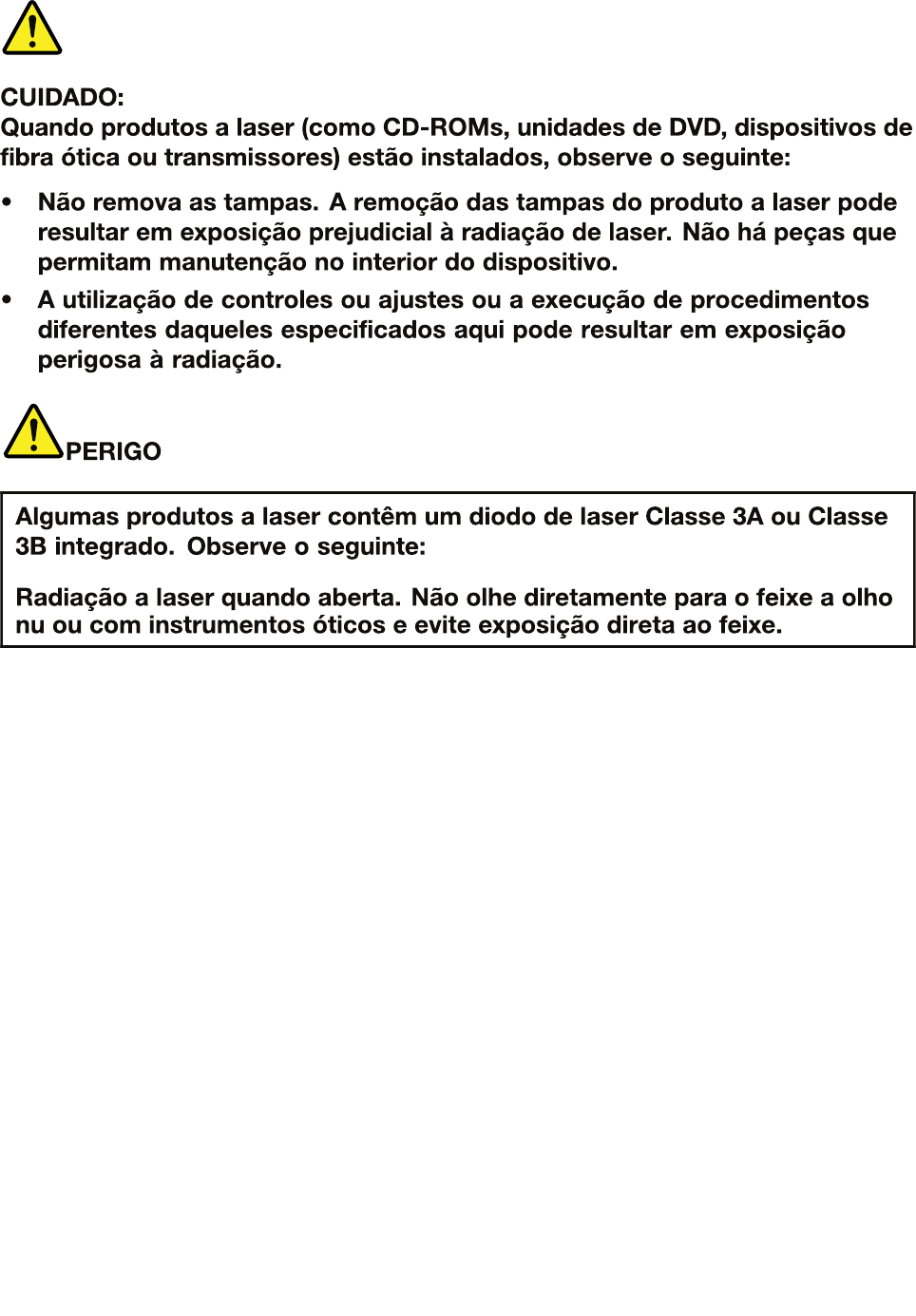
Chapter1.Safetyinformation21
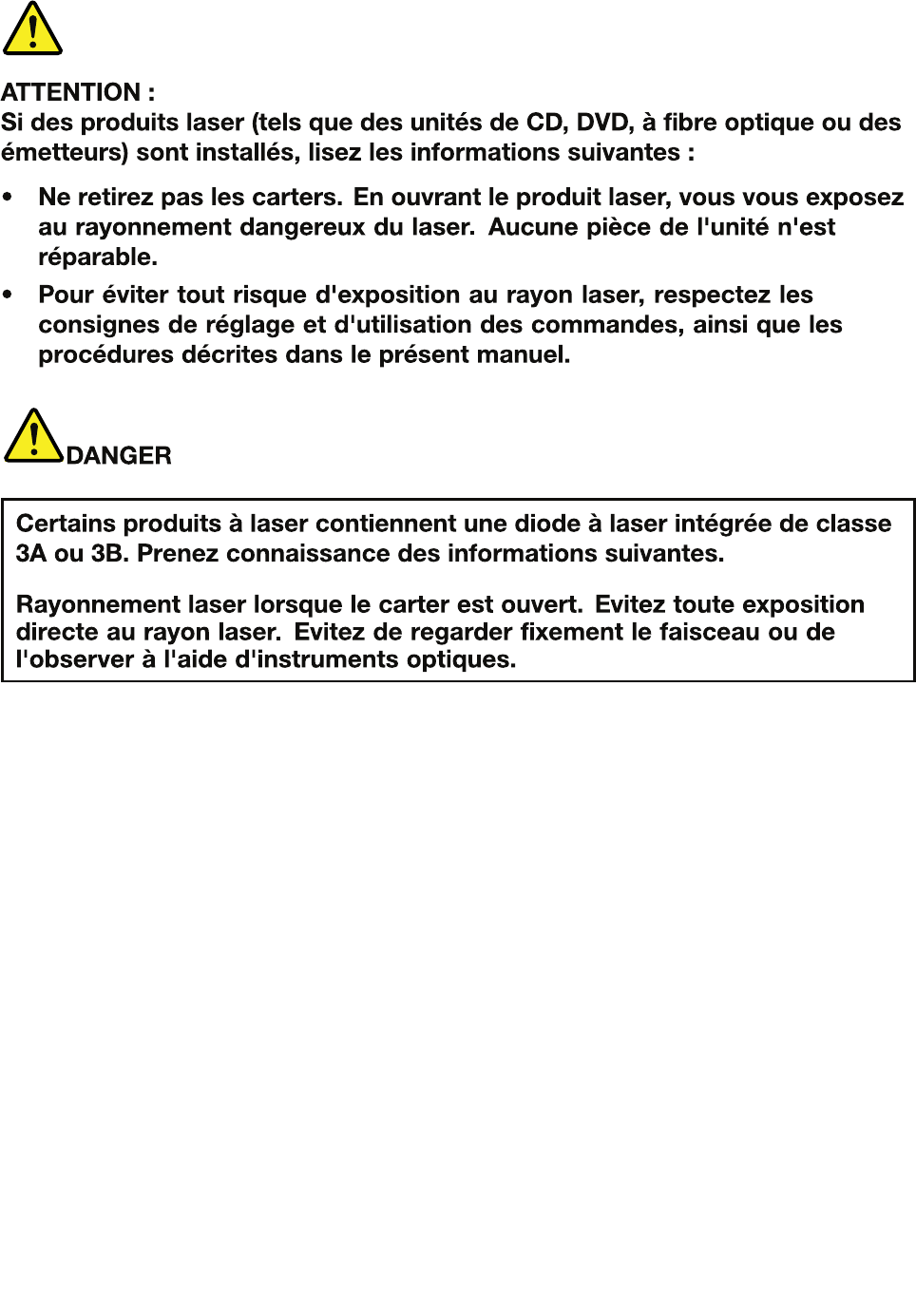
22HardwareMaintenanceManual
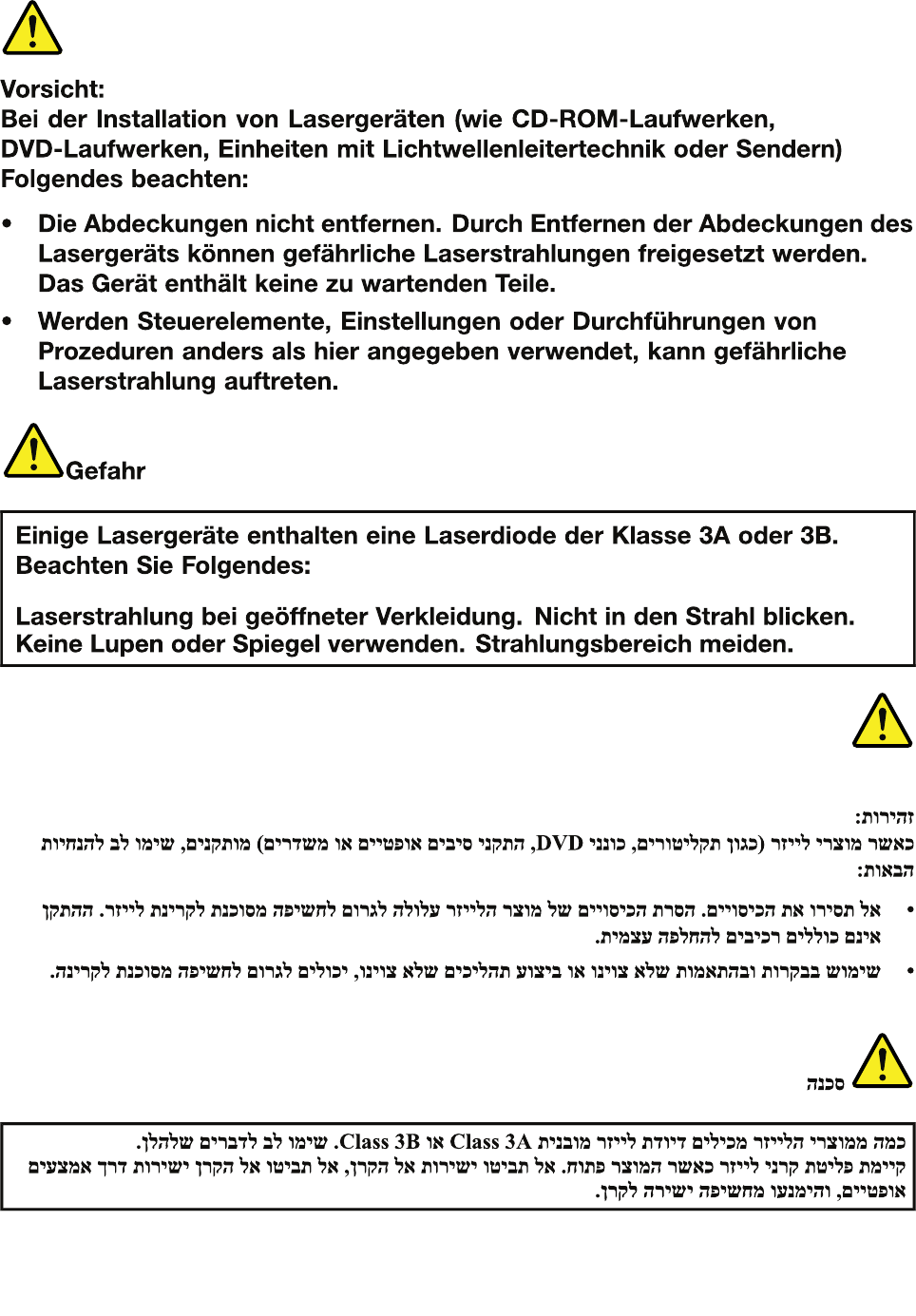
Chapter1.Safetyinformation23
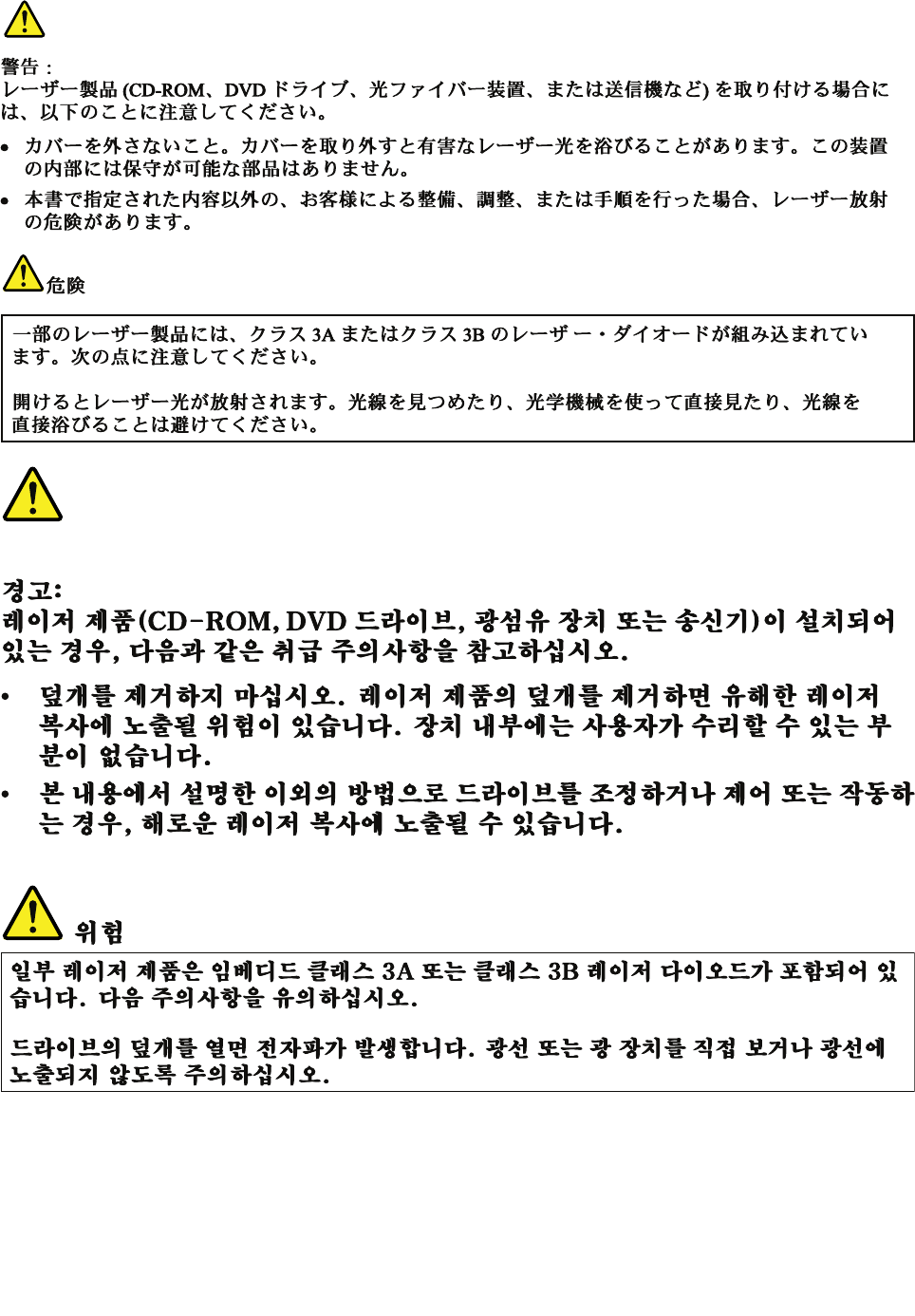
24HardwareMaintenanceManual
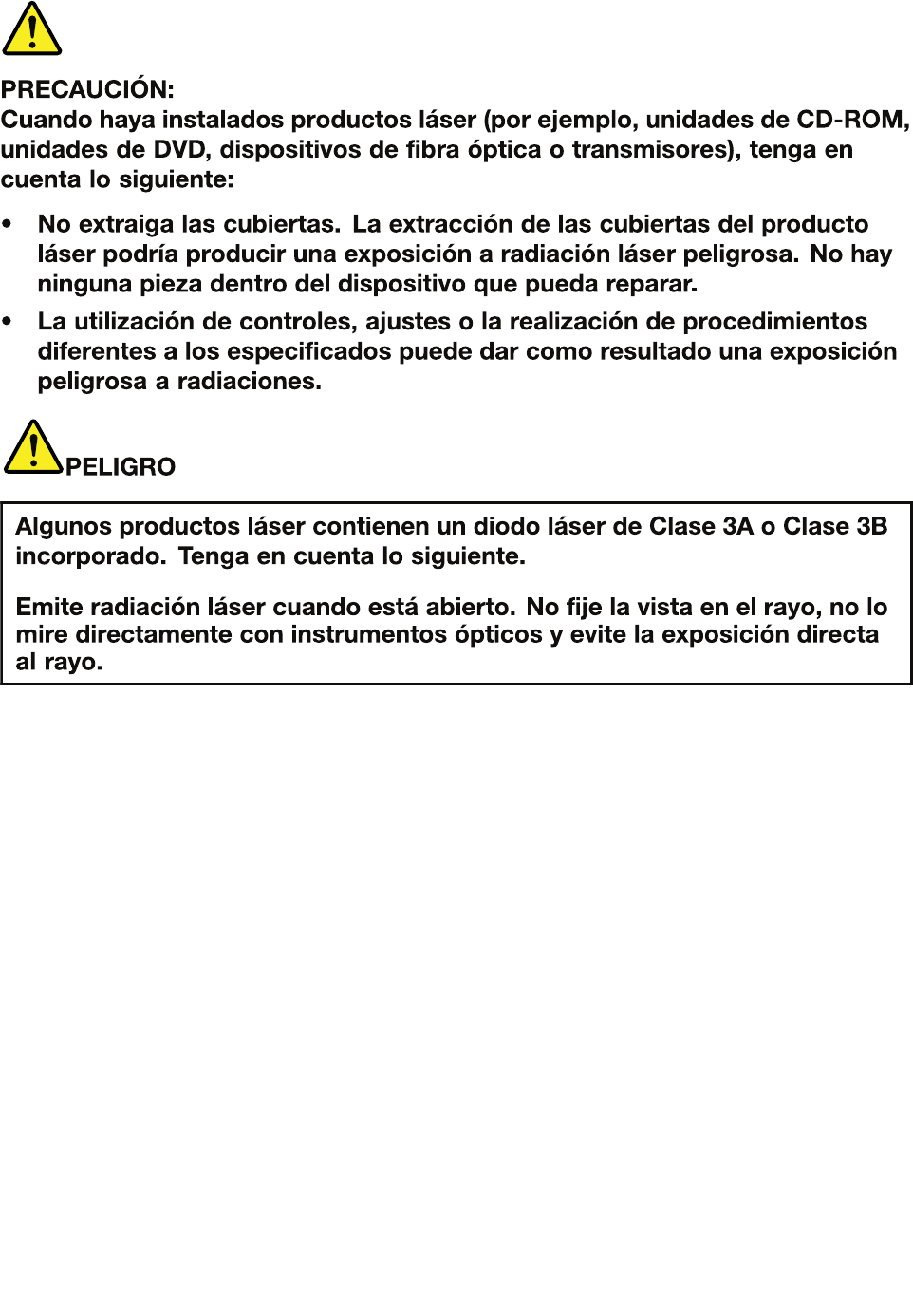
Chapter1.Safetyinformation25
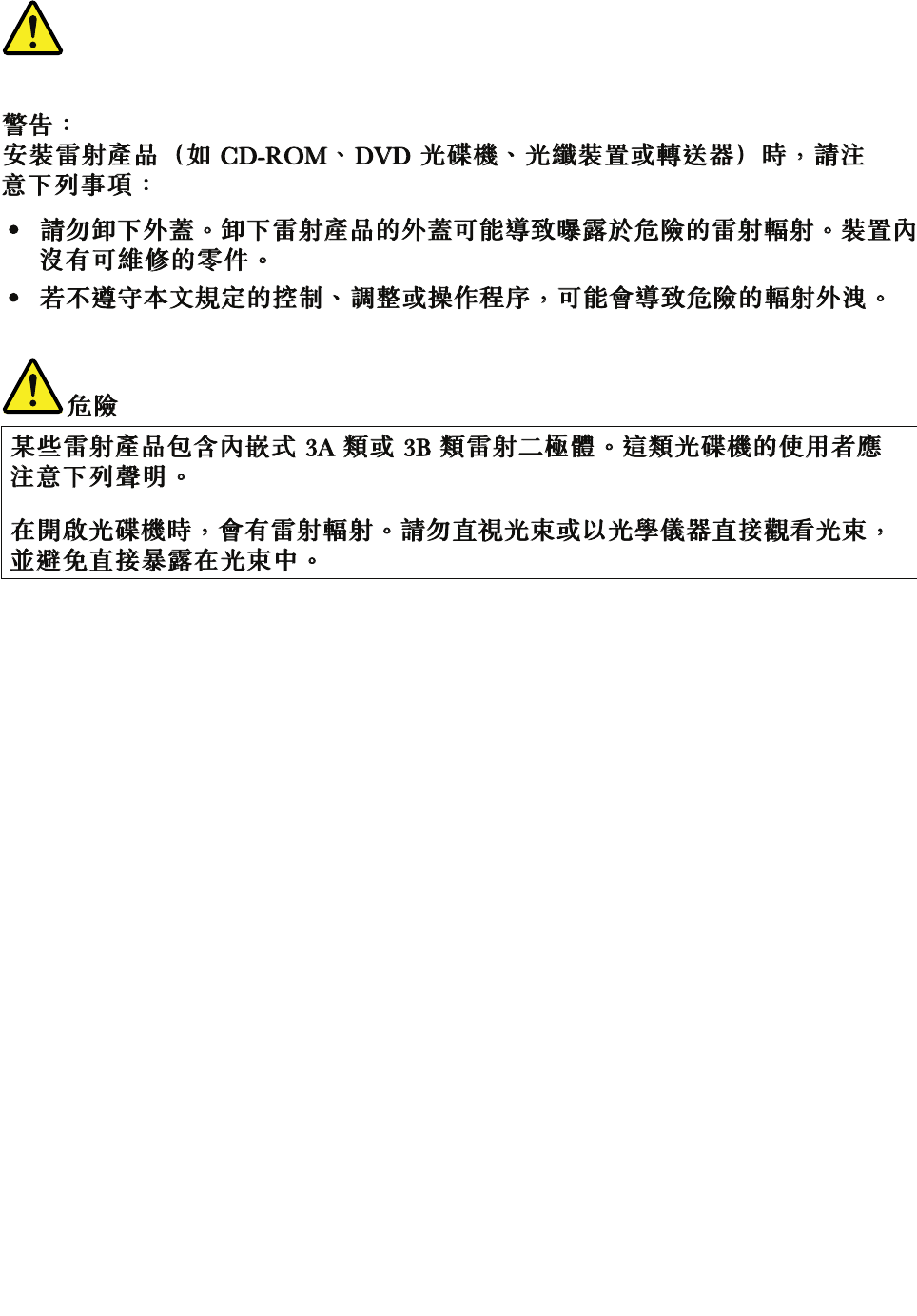
26HardwareMaintenanceManual

Chapter2.Importantserviceinformation
Thischapterpresentsfollowingimportantserviceinformationthatappliestoallmachinetypessupportedby
thismanual:
•“StrategyforreplacingFRUs”onpage27
–“Strategyforreplacingaharddiskdrive”onpage27
–“Importantnoticeforreplacingasystemboard”onpage28
•“ImportantinformationaboutreplacingRoHScompliantFRUs”onpage28
Important:BIOSanddevicedriverxesarecustomer-installable.TheBIOSanddevicedriversareavailable
at
http://consumersupport.lenovo.com/
StrategyforreplacingFRUs
Beforereplacingparts:
Makesurethatallsoftwarexes,drivers,andBIOSdownloadsareinstalledbeforereplacinganyFRUs
listedinthismanual.
Afterasystemboardisreplaced,ensurethatthelatestBIOSisloadedtothesystemboardbefore
completingtheserviceaction.
Todownloadsoftwarexes,drivers,andBIOS,doasfollows:
1.Gotohttp://consumersupport.lenovo.com/.
2.EnteraserialnumberorselectaproductoruseLenovosmartdownloading.
3.SelecttheBIOS/Driver/Applications.
4.Followthedirectionsonthescreenandinstallthenecessarysoftware.
UsethefollowingstrategytopreventunnecessaryexpenseforreplacingandservicingFRUs:
•IfyouareinstructedtoreplaceaFRUbutthereplacementdoesnotcorrecttheproblem,reinstall
theoriginalFRUbeforeyoucontinue.
•Somecomputershavebothaprocessorboardandasystemboard.Ifyouareinstructedtoreplaceeither
theprocessorboardorthesystemboard,andreplacingoneofthemdoesnotcorrecttheproblem,
reinstallthatboard,andthenreplacetheotherone.
•IfanadapteroradeviceconsistsofmorethanoneFRU,anyoftheFRUsmaybethecauseoftheerror.
Beforereplacingtheadapterordevice,removetheFRUs,onebyone,toseeifthesymptomschange.
ReplaceonlytheFRUthatchangedthesymptoms.
Attention:Thesetupcongurationonthecomputeryouareservicingmayhavebeencustomized.Running
AutomaticCongurationmayalterthesettings.Notethecurrentcongurationsettings(usingtheView
Congurationoption);then,whenservicehasbeencompleted,verifythatthosesettingsremainineffect.
Strategyforreplacingaharddiskdrive
Alwaystrytorunalow-levelformatbeforereplacingaharddiskdrive(HDD).Thiswillcauseallcustomerdata
ontheharddisktobelost.Besurethatthecustomerhasacurrentbackupofthedatabeforedoingthistask.
©CopyrightLenovo2011,201227
Attention:Thedrivestartupsequenceinthecomputeryouareservicingmayhavebeenchanged.Be
extremelycarefulduringwriteoperationssuchascopying,saving,orformatting.Ifyouselectanincorrect
drive,dataorprogramscanbeoverwritten.
Importantnoticeforreplacingasystemboard
Somecomponentsmountedonasystemboardareverysensitive.Improperhandlingofasystemboardcan
causedamagetothosecomponents,andmaycauseasystemmalfunction.
Attention:Whenhandlingasystemboard:
•Donotdropasystemboardorapplyanyexcessiveforcetoit.
•Avoidroughhandlingofanykind.
•AvoidbendingasystemboardandhardpushingtopreventcrackingateachBGA(BallGridArray)chipset.
ImportantinformationaboutreplacingRoHScompliantFRUs
RoHS,TheRestrictionofHazardousSubstancesinElectricalandElectronicEquipmentDirective
(2002/95/EC)isaEuropeanUnionlegalrequirementaffectingtheglobalelectronicsindustry.RoHS
requirementsmustbeimplementedonLenovoproductsplacedonthemarketafterJune2006.Products
onthemarketbeforeJune2006arenotrequiredtohaveRoHScompliantparts.IftheoriginalFRUparts
arenon-compliant,thereplacementpartsalsocanbenon-compliant.Thatis,iftheoriginalFRUpartsare
RoHScompliant,thereplacementpartalsomustbeRoHScompliant.
Note:RoHSandnon-RoHSFRUpartnumberswiththesametandfunctionareidentiedbytheunique
FRUpartnumbers.
LenovoplanstotransittoRoHScompliancebeforetheimplementationdateandexpectsitssupplierstobe
readytomeetLenovo’srequirementsandscheduleintheEuropeanUnion.Productssoldbetween2005
and2006mightcontainsomeRoHScompliantFRUs.Thefollowingstatementpertainstotheproducts
withRoHScompliantFRUs.
RoHScompliantFRUshaveuniqueFRUpartnumbers.BeforeoraftertheRoHSimplementationdate,the
failedRoHScompliantpartsmustbereplacedwithcompliantpartsandonlythefollowingFRUscanbe
used:identiedascompliantintheHardwareMaintenanceManualordirectsubstitutionscanbeused.
•CompliantFRUsidentiedinHardwareMaintenanceManual
•DirectsubstitutionswithdifferentFRUpartnumbersautomaticallyshippedbythedistributioncenterat
thetimeoforder
ForproductsshippedafterJune2006
CurrentororiginalpartReplacementFRU
MustbeRoHSMustbeRoHS
28HardwareMaintenanceManual

Chapter3.Generalcheckout
Thischapterpresentsfollowinginformation:
•“Whattodorst”onpage29
•“Powersystemcheckout”onpage30
Beforeyougotothecheckoutguide,besuretoreadthefollowingimportantnotes.
Importantnotes:
•Onlycertiedtrainedpersonnelshouldservicethecomputer.
•BeforereplacinganyFRU,readtheentirepageonremovingandreplacingFRUs.
•WhenyoureplaceFRUs,usenewnylon-coatedscrews.
•Beextremelycarefulduringsuchwriteoperationsascopying,saving,orformatting.Drivesinthecomputer
thatyouareservicingsequencemighthavebeenaltered.Ifyouselectanincorrectdrive,dataorprograms
mightbeoverwritten.
•ReplaceaFRUonlywithanotherFRUofthecorrectmodel.WhenyoureplaceaFRU,makesurethatthemodel
ofthemachineandtheFRUpartnumberarecorrectbyreferringtotheFRUpartslist.
•AFRUshouldnotbereplacedbecauseofasingle,unreproduciblefailure.Singlefailurescanoccurfora
varietyofreasonsthathavenothingtodowithahardwaredefect,suchascosmicradiation,electrostaticdischarge,
orsoftwareerrors.ConsiderreplacingaFRUonlywhenaproblemrecurs.IfyoususpectthataFRUisdefective,
cleartheerrorlogandrunthetestagain.Iftheerrordoesnotrecur,donotreplacetheFRU.
•BecarefulnottoreplaceanondefectiveFRU.
Whattodorst
WhenyoudoreturnaFRU,youmustincludethefollowinginformationinthepartsexchangeformor
partsreturnformthatyouattachtoit:
1.Nameandphonenumberofservicetechnician
2.Dateofservice
3.Dateonwhichthemachinefailed
4.Dateofpurchase
5.ProcedureindexandpagenumberinwhichthefailingFRUwasdetected
6.FailingFRUnameandpartnumber
7.Machinetype,modelnumber,andserialnumber
8.Customer'snameandaddress
Note:Duringthewarrantyperiod,thecustomermayberesponsibleforrepaircostsifthecomputerdamage
wascausedbymisuse,accident,modication,unsuitablephysicaloroperatingenvironment,orimproper
maintenancebythecustomer.Followingisalistofsomecommonitemsthatarenotcoveredunderwarranty
andsomesymptomsthatmightindicatethatthesystemwassubjectedtostressbeyondnormaluse.
Beforecheckingproblemswiththecomputer,determinewhetherthedamageiscoveredunderthewarranty
byreferringtothefollowinglist:
Thefollowingarenotcoveredunderwarranty:
•LCDpanelcrackedfromtheapplicationofexcessiveforceorfrombeingdropped
•Scratched(cosmetic)parts
•Distortion,deformation,ordiscolorationofthecosmeticparts
•Plasticparts,latches,pins,orconnectorsthathavebeencrackedorbrokenbyexcessiveforce
•Damagecausedbyliquidspilledintothesystem
•DamagecausedbytheimproperinsertionofaPCCardortheinstallationofanincompatiblecard
•Improperdiscinsertionoruseofanopticaldrive
©CopyrightLenovo2011,201229
•Diskettedrivedamagecausedbypressureonthediskettedrivecover,foreignmaterialinthedrive,
ortheinsertionofadiskettewithmultiplelabels
•Damagedorbentdisketteejectbutton
•Fusesblownbyattachmentofanonsupporteddevice
•Forgottencomputerpassword(makingthecomputerunusable)
•Stickykeyscausedbyspillingaliquidontothekeyboard
•Useofanincorrectacpoweradapteronlaptopproducts
Thefollowingsymptomsmightindicatedamagecausedbynonwarrantedactivities:
•Missingpartsmightbeasymptomofunauthorizedserviceormodication.
•Ifthespindleofaharddiskdrivebecomesnoisy,itmayhavebeensubjectedtoexcessiveforce,
ordropped.
Powersystemcheckout
Toverifyasymptom,dothefollowing:
1.Turnoffthecomputer.
2.Removethebatterypack.
3.Connecttheacpoweradapter.
4.Checkthatpowerissuppliedwhenyouturnonthecomputer.
5.Turnoffthecomputer.
6.Disconnecttheacpoweradapterandinstallthechargedbatterypack.
7.Checkthatthebatterypacksuppliespowerwhenyouturnonthecomputer.
Ifyoususpectapowerproblem,seetheappropriateoneofthefollowingpowersupplycheckouts:
•“Checkingtheacpoweradapter”onpage30
•“Checkingoperationalcharging”onpage31
•“Checkingthebatterypack”onpage31
Checkingtheacpoweradapter
Youareherebecausethecomputerfailsonlywhentheacpoweradapterisused.
•Ifthepower-onindicatordoesnotturnon,checkthepowercordoftheacpoweradapterforcorrect
continuityandinstallation.
•Ifthecomputerdoesnotchargeduringoperation,goto“Checkingoperationalcharging”onpage31
Tochecktheacpoweradapter,dothefollowing:
1.Unplugtheacpoweradaptercablefromthecomputer.
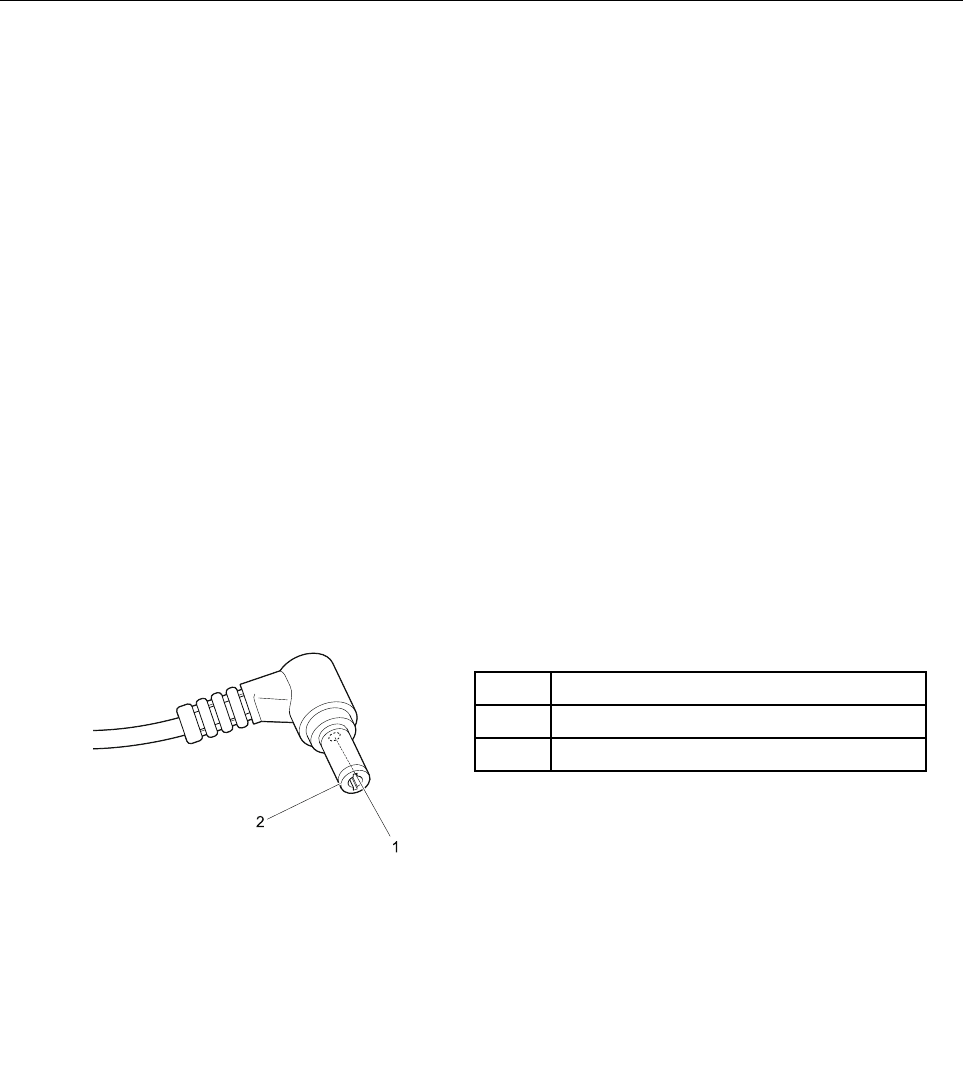
2.Measuretheoutputvoltageattheplugoftheacpoweradaptercable.Seethefollowinggure:
PinVoltage(Vdc)
1+20
20
2
1
Note:Outputvoltageofpinno.2oftheacpoweradaptermaydifferentfromtheoneyouareservicing.
3.Ifthevoltageisnotcorrect,replacetheacpoweradapter.
4.Ifthevoltageisacceptable,dothefollowing:
•Replacethesystemboard.
30HardwareMaintenanceManual
•Iftheproblempersists,gotoChapter5“LenovoB470andB470e”onpage37.
Note:Noisefromtheacpoweradapterdoesnotalwaysindicateadefect.
Checkingoperationalcharging
Tocheckwhetherthebatterychargesproperlyduringoperation,useadischargedbatterypackorabattery
packthathaslessthan50%ofthetotalpowerremainingwheninstalledinthecomputer.
Performoperationalcharging.Ifthebatterystatusindicatororicondoesnotturnon,removethebattery
packandletitreturntoroomtemperature.Reinstallthebatterypack.Ifthechargeindicatororiconstilldoes
notturnon,replacethebatterypack.
Ifthechargeindicatorstilldoesnotturnon,replacethesystemboard.Thenreinstallthebatterypack.Ifitis
stillnotcharged,gotothenextsection.
Checkingthebatterypack
Batterychargingdoesnotstartuntilthepowermetershowsthatlessthan95%ofthetotalpowerremains;
underthisconditionthebatterypackcanchargeto100%ofitscapacity.Thisprotectsthebatterypackfrom
beingoverchargedorfromhavingashortenedlife.
Tocheckyourbattery,moveyourcursortothepowermetericonintheicontrayoftheWindows®taskbar
andwaitforamoment(butdonotclickit),andthepercentageofbatterypowerremainingisdisplayed.To
getdetailedinformationaboutthebattery,double-clickthepowermetericon.
Note:Ifthebatterypackbecomeshot,itmaynotbeabletobecharged.Removeitfromthecomputerand
leaveitatroomtemperatureforawhile.Afteritcoolsdown,reinstallandrechargeit.
Tocheckthebatterypack,dothefollowing:
1.Poweroffthecomputer.
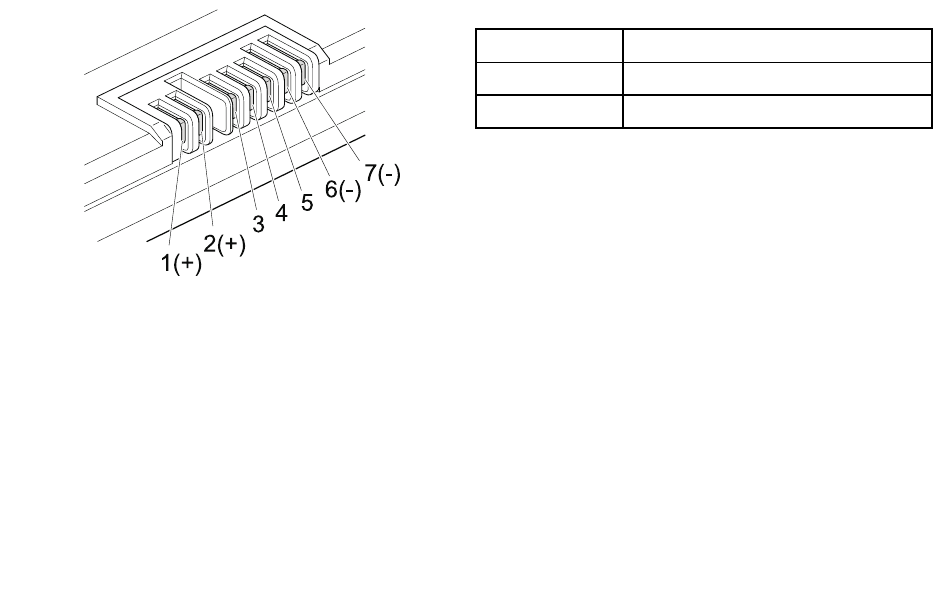
2.Removethebatterypackandmeasurethevoltagebetweenbatteryterminals1(+)and7(-).Seethe
followinggure:
TerminalVoltage(Vdc)
1+0to+14
7Ground(-)
1(+) 2(+)
3456(-) 7(-)
3.Ifthevoltageislessthan+11.0Vdc,thebatterypackhasbeendischarged.
Note:Rechargingwilltakeatleast3hours,eveniftheindicatordoesnotturnon.
Ifthevoltageisstilllessthan+11.0Vdcafterrecharging,replacethebattery.
4.Ifthevoltageismorethan+11.0Vdc,measuretheresistancebetweenbatteryterminals5and7.
Theresistancemustbe4to30KΩ.
Iftheresistanceisnotcorrect,replacethebatterypack.Iftheresistanceiscorrect,replacethesystem
board.
Chapter3.Generalcheckout31

32HardwareMaintenanceManual

Chapter4.Relatedserviceinformation
Thischapterpresentsfollowinginformation:
•“RestoringthefactorycontentsbyusingOneKeyRecovery”onpage33
•“Passwords”onpage33
•“Powermanagement”onpage34
RestoringthefactorycontentsbyusingOneKeyRecovery
Restoreoffactorydefault
TheLenovocomputerscomewithpre-installedOneKeyRescue™System.Inordertosaveapplicationles
andtheinitialbackuplesofthesystem,theharddiskinaLenovocomputerincludesahiddenpartition
whenitisshipped.Ifyouneedtorestorethesystemtothepointofyourrstbootup,justenterLenovo
OneKeyRescueSystemandrunRestoretofactorydefault.Formoreinformation,refertothehelp
informationsystemabouttheprogram.
Note:Thiswilldeleteallthenewdataonthesystempartition(Cdrive),whichisnotrecoverable.Besureto
backupyourcriticaldatabeforeyouperformthisaction.
Usingrecoverydiscs
Whenyoureplaceaharddiskdriveinyourcomputer,youareunabletousethepreinstalledLenovoOneKey
RecoveryandOneKeyRescue.However,youcanusetherecoverydiscsthatstoreyourbackupdatato
restoreyournewharddrivetoapreviousbackupstatus.
Note:YoucancreaterecoverydiscsbyburningthebackupimagetoaCD/DVDasrecoverydiscs.Formore
information,refertothehelpinformationsystemabouttheprogram.
Whenyouusetherecoverydiscstobootyourcomputer,thesystemwillentertheuserinterfaceofsystem
recoveryautomatically.Youwillbepromptedtoinsertthebackupdiscstocompletethewholerecovery
process.
Note:Therecoveryprocessmighttakeupto2hours.
Passwords
AsmanyastwopasswordsmightbeneededforaLenovonotebookcomputer:thepower-onpassword,the
harddiskpassword,andthesupervisorpassword.
Ifanyofthesepasswordshasbeenset,apromptforitwillbedisplayedonthescreenwheneverthe
computeristurnedon.Thecomputerdoesnotstartuntilthepasswordisentered.
Note:Ifonlyasupervisorpasswordisset,thepasswordpromptwillnotbedisplayedwhentheoperating
systemisstarted.
Power-onpassword
Apower-onpassword(POP)protectsthesystemfrombeingpoweredonbyanunauthorizedperson.The
passwordmustbeenteredbeforeanoperatingsystemcanbebooted.
©CopyrightLenovo2011,201233

Supervisorpassword
Asupervisorpassword(SVP)protectsthesysteminformationstoredintheBIOS.Theusermustenterthe
SVPinordertogetaccesstotheBIOSandchangethesystemconguration.
Attention:IftheSVPhasbeenforgottenandcannotbemadeavailabletotheservicetechnician,thereisno
serviceproceduretoresetthepassword.Thesystemboardmustbereplacedforascheduledfee.
Powermanagement
Note:PowermanagementmodesarenotsupportedforAPMoperatingsystem.
Toreducepowerconsumption,thecomputerhasthreepowermanagementmodes:screenblank,sleep,
andhibernation.
Screenblankmode
Ifthetimesetonthe“Turnoffmonitor”timerintheoperatingsystemexpires,theLCDbacklightturnsoff.
YoualsocanturnofftheLCDbacklightbypressingFn+F2.
Toendscreenblankmodeandresumenormaloperation,pressanykey.
Sleepmode
Whenthecomputerenterssleepmode,thefollowingeventsoccurinadditiontowhatoccursinscreen
blankmode:
•TheLCDispoweredoff.
•Theharddiskdriveispoweredoff.
•TheCPUstops.
Toentersleepmode,pressFn+F1.
Incertaincircumstances,thecomputergoesintosleepmodeautomatically:
•Ifa“suspendtime”hasbeensetonthetimer,andtheuserdoesnotdoanyoperationwiththekeyboard,
theharddiskdrive,theparallelconnector,orthediskettedrivewithinthattime.
•Ifthebatteryindicatorblinksorange,indicatingthatthebatterypowerislow.
Tocausethecomputertoreturnfromsleepmodeandresumetheoperation,dooneofthefollowing:
•PresstheFnkey.
•OpentheLCDcover.
•T urnonthepowerbutton.
Also,whenthetimesetontheresumetimerelapses,thecomputerautomaticallyreturnsfromsleepmode
andresumesoperation.
Note:Thecomputerdoesnotacceptanyinputimmediatelyafteritenterssleepmode.Waitafewseconds
beforetakinganyactiontoreenteroperationmode.
Hibernationmode
Inhibernationmode,thefollowingoccurs:
•Thesystemstatus,RAM,VRAM,andsetupdataarestoredontheharddiskdrive.
•Thesystemispoweredoff.
34HardwareMaintenanceManual

Ifyouhavedenedoneofthefollowingactionsastheeventthatcausesthesystemtogointohibernation
mode,performthataction.
•Closingthelid.
•Pressingthepowerbutton.
Also,thecomputergoesintohibernationmodeautomaticallyineitherofthefollowingconditions:
•Ifa“hibernationtime”hasbeensetonthetimer,andiftheuserdoesnotdoanyoperationwiththe
keyboard,theharddiskdrive,theparallelconnector,orthediskettedrivewithinthattime.
•Ifthetimerconditionsaresatisedinsuspendmode.
Whenthepoweristurnedon,thecomputerreturnsfromhibernationmodeandresumesoperation.The
hibernationleinthebootrecordontheharddiskdriveisread,andsystemstatusisrestoredfromthe
harddiskdrive.
Chapter4.Relatedserviceinformation35

36HardwareMaintenanceManual

Chapter5.LenovoB470andB470e
Thischapterpresentsthefollowingproduct-specicservicereferencesandpartsinformation:
•“Specications”onpage37
•“Statusindicators”onpage38
•“Fnkeycombinations”onpage40
Specications
Thistopicpresentsthephysicalspecicationsofthecomputer.
Table1.Specications
FeatureDescription
ProcessorIntelHuronRiverSVPlatform,OnlysupportDC(35W)
•i7-2620M:4M,1333MHzDDR3,GT2,650-1300MHz
GfxTurbo
•i5-2540M:3M,1333MHzDDR3,GT2,650-1150MHz
GfxTurbo
•i5-2520M:3M,1333MHzDDR3,GT2,650-1150MHz
GfxTurbo
CoreChipsetMobileIntelHM65ExpressChipsets
Busarchitecture•1066/1333MHzDDR3SDRAM
•DMI
•FDI
•PCIExpressbus(ForOptimus)
Graphicmemorychip•IntelIntegratedorNVN12M-GS1G/512M(onsome
models)
•IntelIntegratedorNVN13M-GE11G(onsomemodels)
Display16:9,13.3HighglossyattypeHDpanel,1366x768
pixels,220nit
StandardForLenovoB470
•DDR3-1666MHz,SupportDualChannel
•SODIMMsocketx2(max4GBperslot)
ForLenovoB470e
•DDR3-1666MHz
•SODIMMsocket(max4GB)
CMOSRAM256bytes
©CopyrightLenovo2011,201237

Table1.Specications(continued)
FeatureDescription
Harddiskdrive•9.5mmHDD:
–1TB7200rpm&5400rpm
–750GB7200rpm
–500GB7200rpm&5400rpm
–320GB7200rpm&5400rpm
•7mmHDD:
–500GB7200rpm&5400rpm
–320GB7200rpm&5400rpm
I/Oport•Stereoheadphonejack
•Microphonejack
•RJ45x1
•HDMIport(onsomemodels)
•6in1cardreader(SD/SDHC/MMC/MS/MS-pro/xD)
•ForLenovoB470:USB2.0x4(onecombowith
E-SATA)
ForLenovoB470e:USB2.0x3
Audio•1/8"StereoHeadphoneOutputJack
•1/8"MicrophoneInputJack
•Built-instereospeakers
•Built-inmicrophone
VideoCRTportx1,HDMIportx1
Ethernet(onthesystemboard)10/100/1000MEthernet
PCIExpressMiniCardslot•1slotforWLANcard(halfsize)
•1slotforWWANcard(fullsize)(Selectmodelsonly)
BluetoothwirelessBuilt-inantennawithmin-USBinterface(onsomemodels)
Keyboard6-rowLenovoKeyboard
TouchpadMulti-touchtouchpad
FingerprintreaderOnsomemodels
Integratedcamera•ForLenovoB470:2.0Millionpixels,HD(option),xed
focusCMOScamera
•ForLenovoB470e:0.3Millionpixels,xedfocus
CMOScamera
Battery6Cell2200mAH,Li-Ionbattery
acpoweradapter65W/90W(onsomemodels)
Pre-installedoperatingsystem•Windows7Starter/HomeBasic/Premium/Professional
•FreeDOS
Statusindicators
Thischapterpresentsthesystemstatusindicatorsthatshowthestatusofthecomputer.
38HardwareMaintenanceManual
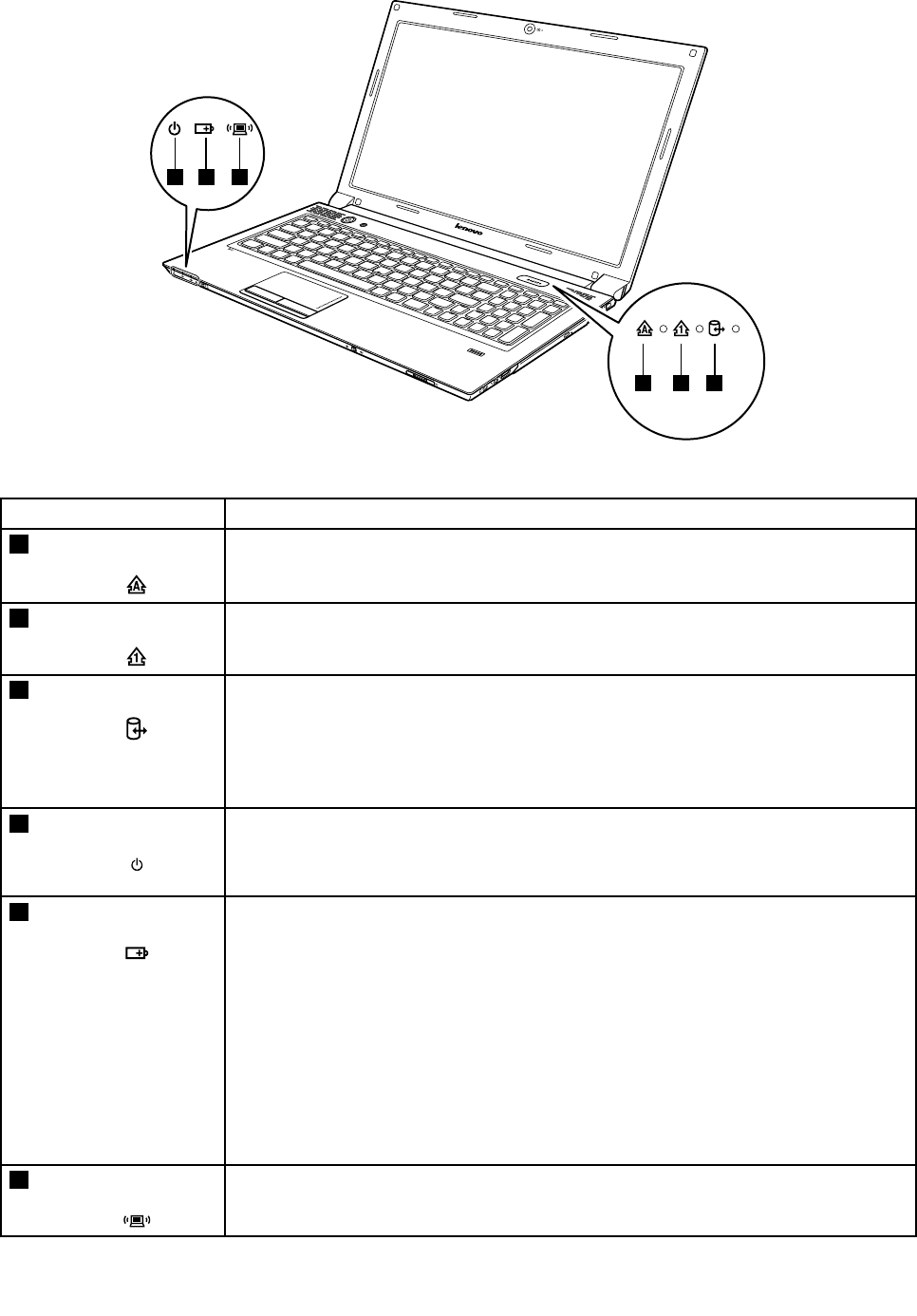
456
123
Table2.Statusindicators
IndicatorMeaning
1CapslockWhite:CapsLockmodeisenabled.Youcanenterallalphabeticcharacters(A-Z)in
uppercasewithoutpressingtheShiftkey.ToenableordisableCapsLockmode,press
thecapslockkey(CapsLk).
2NumericlockWhite:Theseparatenumerickeypadonthekeyboardisenabled.Toenableordisable
thenumerickeypad,pressthenumericlockkey(NmLk).
3DriveinuseWhite:Dataisbeingreadfromorwrittentotheharddiskdrive,ortheopticaldisk
drive.Whenthisindicatorison,donotputthecomputerintosleepmodeorturnoff
thecomputer.
Note:Donotmovethesystemwhilethewhitedrive-in-uselightison.Suddenphysical
shockcouldcausedriveerrors.
4Poweron•White:Systemisenabled.
•Blinkingwhite:Systemisinsleepmode.
•Off:Systemisinhibernatemodeorshutdown.
5Batterystatus•Blinkingorange(500msoff/1son):Theremainingpowerofthebatteryislessthan
5%ofitscapacity.
•Blinkingorange(100msoff/3.2son):Thebatteryisbeingchargedwiththe
remainingpowerbetween5%and20%ofitscapacity.
•Orange:Thecomputerisoperatingonbatterypowerwiththeremainingpower
between5%and20%ofitscapacity.
•Blinkingwhite:Thebatteryisbeingchargedwiththeremainingpowerbetween
20%and80%ofitscapacity.
•Off:Theremainingpowerofthebatteryismorethan80%ofitscapacity,orthe
computerisoperatingonbatterypowerwiththeremainingpowerbetween20%
and80%ofitscapacity.
6Wirelessstatus•White:Anyoneofthewirelessdevicesisenabled.
•Off:Allthewirelessdevicesaredisabled.
Chapter5.LenovoB470andB470e39

Fnkeycombinations
ThefollowingtableshowsthefunctionofeachcombinationofFnwithafunctionkey.
Table3.Functionkeycombinations
KeycombinationDescription
Fn+EscTurnonorturnofftheintegratedcamera.
Fn+F1Putyourcomputerintosleepmode.Toreturntonormaloperation,press
anykey.
Fn+F2Enableordisablethebacklightfeatureofthecomputerscreen.
Fn+F3Switchbetweenthecomputerdisplayandanexternalmonitor.
Fn+F4Congurethecomputerdisplayresolution.
Fn+F5Enableordisablethebuilt-inwirelessnetworkingfeatures.
Fn+F6Enableordisablethetouchpad.
Fn+F8Enableordisablethenumerickeypad.
Fn+F9StartorpauseplaybackofWindowsMediaPlayer.
Fn+F10StopplaybackofWindowsMediaPlayer.
Fn+F11Skiptotheprevioustrack.
Fn+F12Skiptothenexttrack.
Fn+PrtScActivatethesystemrequest.
Fn+HomeActivatethepausefunction.
Fn+EndActivatethebreakfunction.
Fn+PgUpEnableordisablethescrolllockfunction.
Fn+PgDnActivatetheinsertfunction.
Fn+up/downarrowIncreaseordecreasethedisplaybrightnesslevel.
Fn+left/rightarrowIncreaseordecreasethesoundvolume.
40HardwareMaintenanceManual
Chapter6.FRUreplacementnotices
Thischapterpresentsnoticesrelatedtoremovingandreplacingparts.Readthischaptercarefullybefore
replacinganyFRU.
ExternalCRUstatementtocustomers:
Someproblemswithyourproductcanberesolvedwithareplacementpartyoucaninstallyourself,called
a“CustomerReplaceableUnit”or“CRU.”SomeCRUsaredesignatedasSelf-serviceCRUsandothers
aredesignatedasOptional-serviceCRUs.InstallationofSelf-serviceCRUsisyourresponsibility;youmay
requestthatLenovoinstallsanOptional-serviceCRUaccordingtothewarrantyserviceforyourproduct.
WhereyouareinstallingtheCRU,LenovowillshiptheCRUtoyou.CRUinformationandreplacement
instructionsareshippedwithyourproductandareavailablefromLenovoatanytimeuponrequest.Y oumay
ndalistofCRUsinthepublicationsthatshipwithyourproductorathttp://www.lenovo.com/CRUs.You
mayberequiredtoreturnthedefectivepartthatisreplacedbytheCRU.Whenreturnisrequired:(1)return
instructions,aprepaidshippinglabel,andacontainerwillbeincludedwiththereplacementCRU;and(2)you
maybechargedforthereplacementCRUifLenovodoesnotreceivethedefectivepartwithinthirty(30)days
ofyourreceiptofthereplacementCRU.SeeyourLenovoLimitedWarrantydocumentationforfulldetails.
Screwnotices
Loosescrewscancauseareliabilityproblem.IntheLenovonotebookcomputer,thisproblemisaddressed
withspecialnylon-coatedscrewsthathavethefollowingcharacteristics:
•Theymaintaintightconnections.
•Theydonoteasilycomeloose,evenwithshockorvibration.
•Theyarehardertotighten.
•Eachoneshouldbeusedonlyonce.
Dothefollowingwhenyouservicethismachine:
•Keepthescrewkitinyourtoolbag.
•Alwaysusenewscrews.
•Useatorquescrewdriverifyouhaveone.
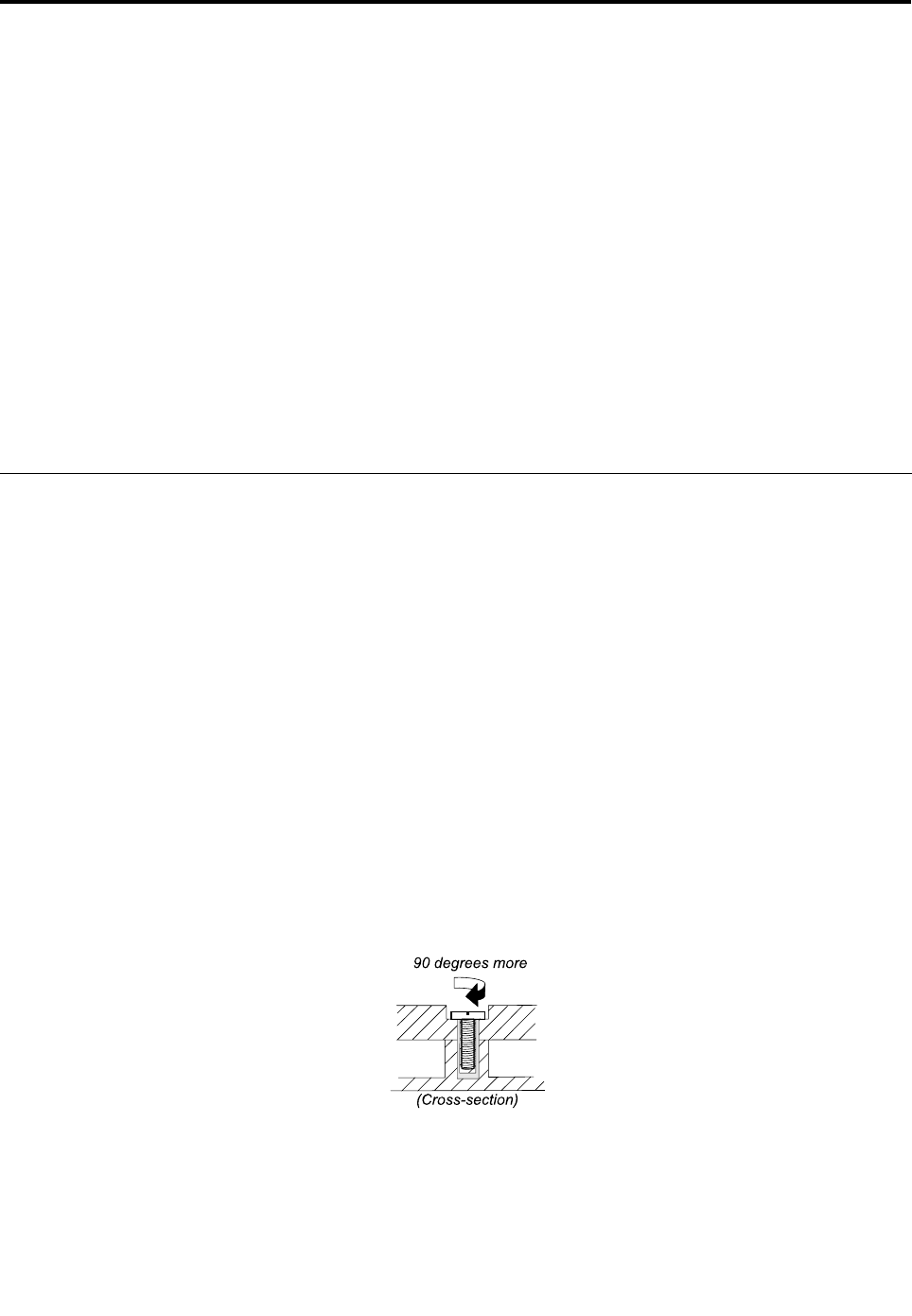
Tightenscrewsasfollows:
•Plastictoplastic
Turnanadditional90degreesafterthescrewheadtouchesthesurfaceoftheplasticpart:
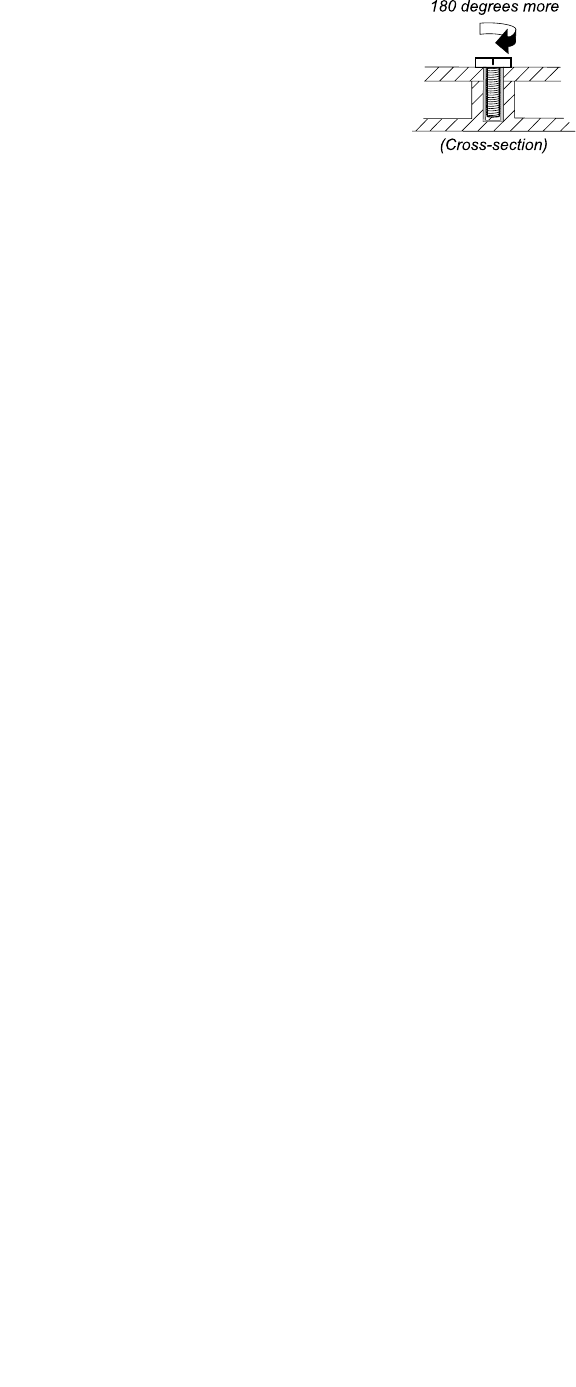
•Logiccardtoplastic
Turnanadditional180degreesafterthescrewheadtouchesthesurfaceofthelogiccard:
©CopyrightLenovo2011,201241
•T orquedriver
Ifyouhaveatorquedriver,refertothe“Torque”columnforeachstep.
•Makesurethatyouusethecorrectscrew.Ifyouhaveatorquescrewdriver,tightenallscrewsrmlytothe
torqueshowninthetable.Neveruseascrewthatyouremoved.Useanewone.Makesurethatall
ofthescrewsaretightenedrmly.
•Ensuretorquescrewdriversarecalibratedcorrectlyfollowingcountryspecications.
42HardwareMaintenanceManual
Chapter7.RemovingandreplacingaFRU
ThischapterpresentsdirectionsanddrawingsforuseinremovingandreplacingaFRU.Besuretoobserve
thefollowinggeneralrules:
1.Donottrytoserviceanycomputerunlessyouhavebeentrainedandcertied.Anuntrainedpersonruns
theriskofdamagingparts.
2.BeforereplacinganyFRU,reviewChapter6“FRUreplacementnotices”onpage41.
3.BeginbyremovinganyFRUsthathavetoberemovedbeforereplacingthefailedFRU.SuchFRUsare
listedineachFRUreplacementsection.Removethemintheorderinwhichtheyarelisted.
4.FollowthecorrectsequenceinthestepsforremovingaFRU,asgiveninthedrawingsbythenumbers
insquarecallouts.
5.WhenturningascrewtoreplaceaFRU,turnitinthedirectionasgivenbythearrowinthedrawing.
6.WhenremovingaFRU,moveitinthedirectionasgivenbythearrowinthedrawing.
7.ToputthenewFRUinplace,reversetheremovalprocedureandfollowanynotesthatpertainto
replacement.Forinformationaboutconnectingandarranginginternalcables,seeChapter8“Locations”
onpage69.
8.WhenreplacingaFRU,usethecorrectscrew(s)asshownintheprocedures.
DANGER
BeforeremovinganyFRU,turnoffthecomputer,unplugallpowercordsfromelectricaloutlets,
removethebatterypack,andthendisconnectanyinterconnectingcables.
Attention:AfterreplacingaFRU,donotturnonthecomputeruntilyouhavemadesurethatallscrews,
springs,andothersmallpartsareinplaceandnonearelooseinsidethecomputer.Verifythisbyshaking
thecomputergentlyandlisteningforrattlingsounds.Metallicpartsormetalakescancauseelectrical
shortcircuits.
Attention:Thesystemboardissensitiveto,andcanbedamagedby,electrostaticdischarge.Before
touchingit,establishpersonalgroundingbytouchingagroundpointwithonehandorbyusingan
electrostaticdischarge(ESD)strap(P/N6405959).
ExternalCRUstatementtocustomers:
Someproblemswithyourproductcanberesolvedwithareplacementpartyoucaninstallyourself,called
a“CustomerReplaceableUnit”or“CRU.”SomeCRUsaredesignatedasSelf-serviceCRUsandothers
aredesignatedasOptional-serviceCRUs.InstallationofSelf-serviceCRUsisyourresponsibility;youmay
requestthatLenovoinstallsanOptional-serviceCRUaccordingtothewarrantyserviceforyourproduct.
WhereyouareinstallingtheCRU,LenovowillshiptheCRUtoyou.CRUinformationandreplacement
instructionsareshippedwithyourproductandareavailablefromLenovoatanytimeuponrequest.Y oumay
ndalistofCRUsinthepublicationsthatshipwithyourproductorathttp://www.lenovo.com/CRUs.You
mayberequiredtoreturnthedefectivepartthatisreplacedbytheCRU.Whenreturnisrequired:(1)return
instructions,aprepaidshippinglabel,andacontainerwillbeincludedwiththereplacementCRU;and(2)you
maybechargedforthereplacementCRUifLenovodoesnotreceivethedefectivepartwithinthirty(30)days
ofyourreceiptofthereplacementCRU.SeeyourLenovoLimitedWarrantydocumentationforfulldetails.
©CopyrightLenovo2011,201243
1010Batterypack
Removalstepsofbatterypack
DANGER
Useonlythebatteryspeciedinthepartslistforyourcomputer.Anyotherbatterycouldignite
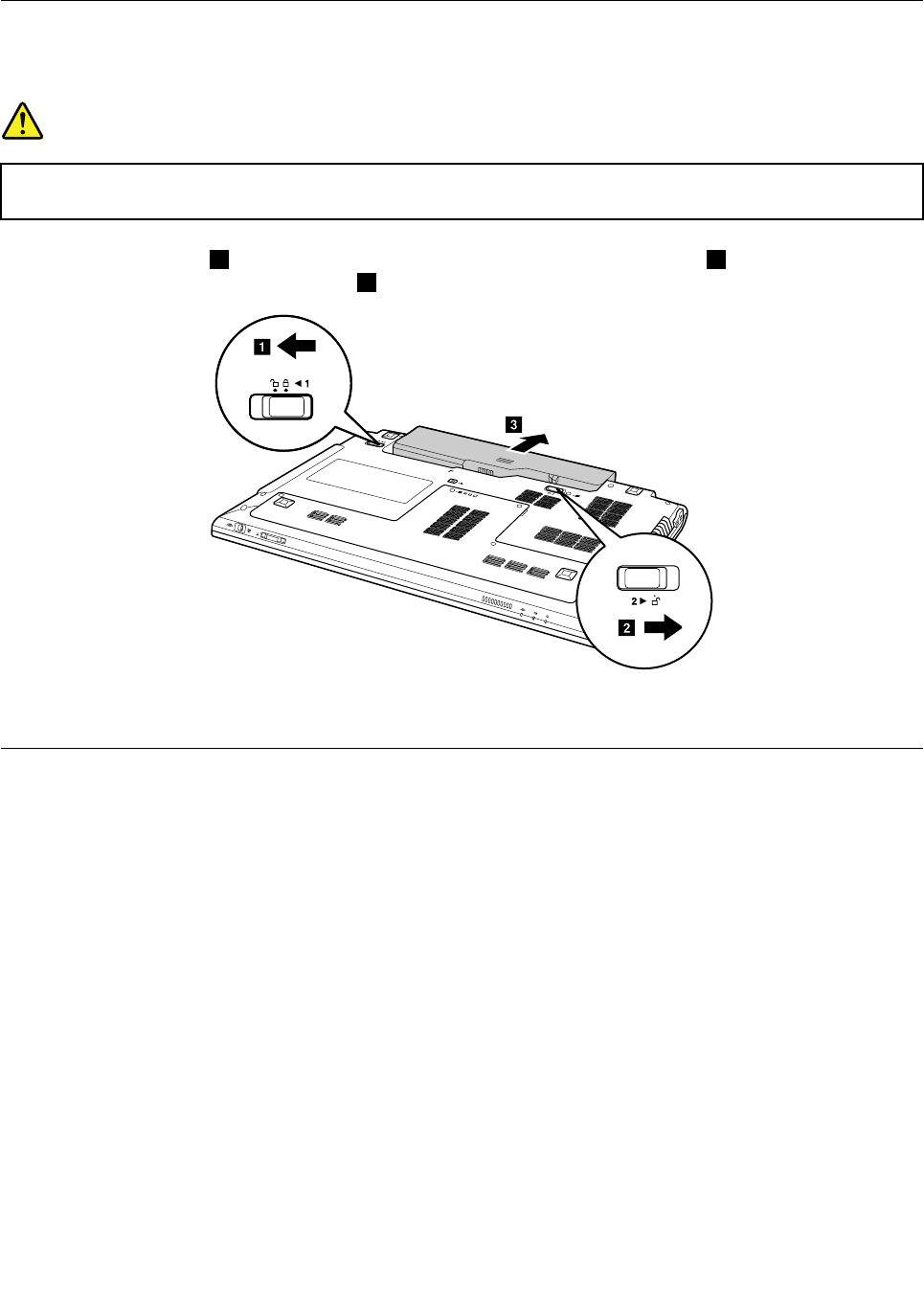
orexplode.
Unlockthebatterylatch1.Holdingthebatterylockleverintheunlockedposition2,removethebattery
packinthedirectionshownbythearrow3.
b
a
c
Wheninstalling:Installthebatterypackintheslot.Makesurethatthebatterylatchisinthelockedposition.
1020Dummycard
Foraccess,removethisFRU:
•“1010Batterypack”onpage44
44HardwareMaintenanceManual
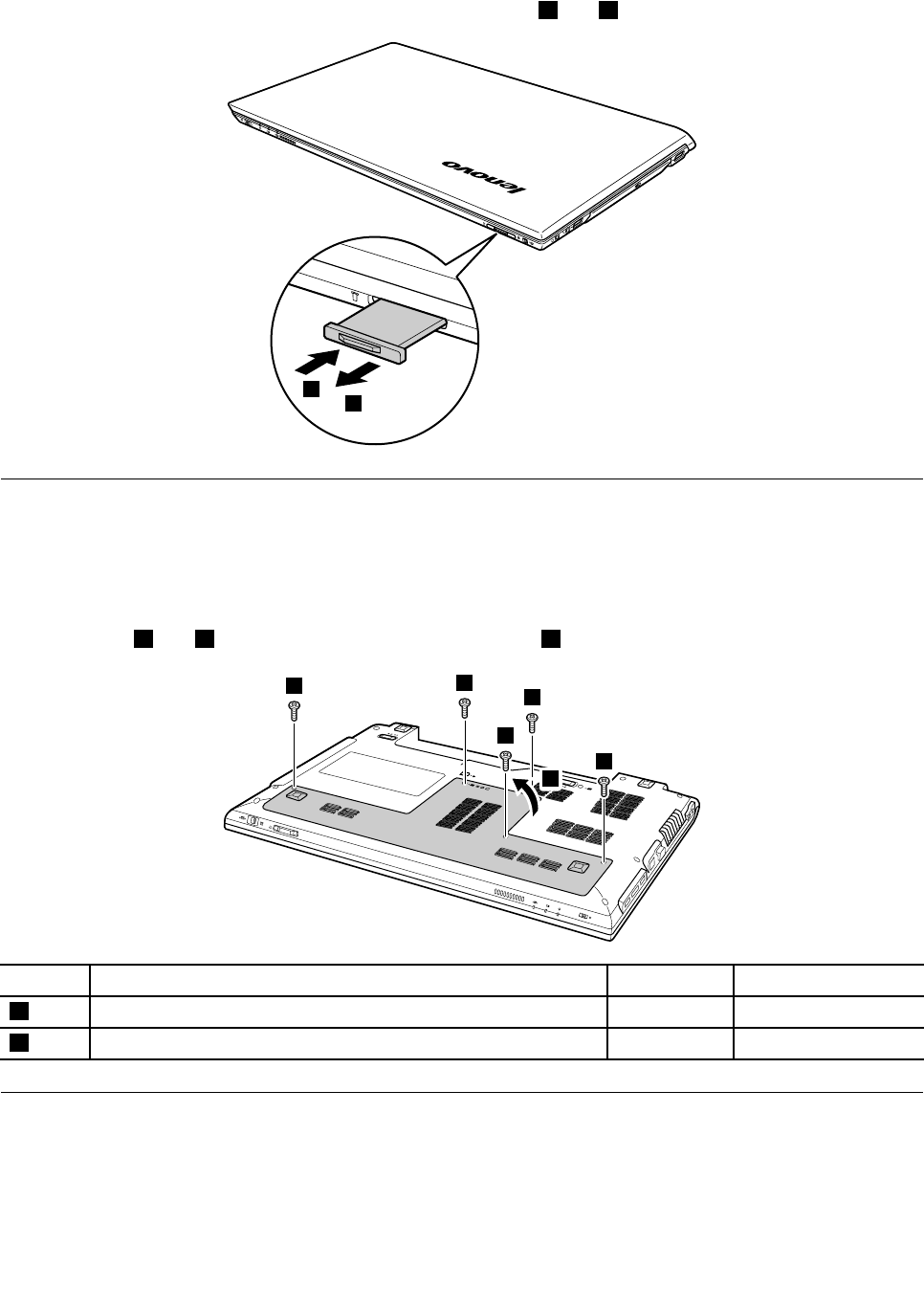
Removalstepsofdummycards
Removethedummycardinthedirectionshownbythearrows1and2.
1
2
1030Bottomslotcover
Foraccess,removethisFRU:
•“1010Batterypack”onpage44
Removalstepsofharddiskdrive,memorymodule,andminiPCIExpressCardslotcompartmentcover
Loosenscrews1and2,thenremovethecompartmentcover3.
12
1
1
1
3
StepScrew(quantity)ColorTorque
1M2×5mm,at-head,nylon-coated(4)Black1.6kgfcm
2M2.5×7mm,at-head,nylon-coated(1)Black3.0kgfcm
1040Harddiskdrive
Foraccess,removetheseFRUsinorder:
•“1010Batterypack”onpage44
•“1030Bottomslotcover”onpage45
Chapter7.RemovingandreplacingaFRU45
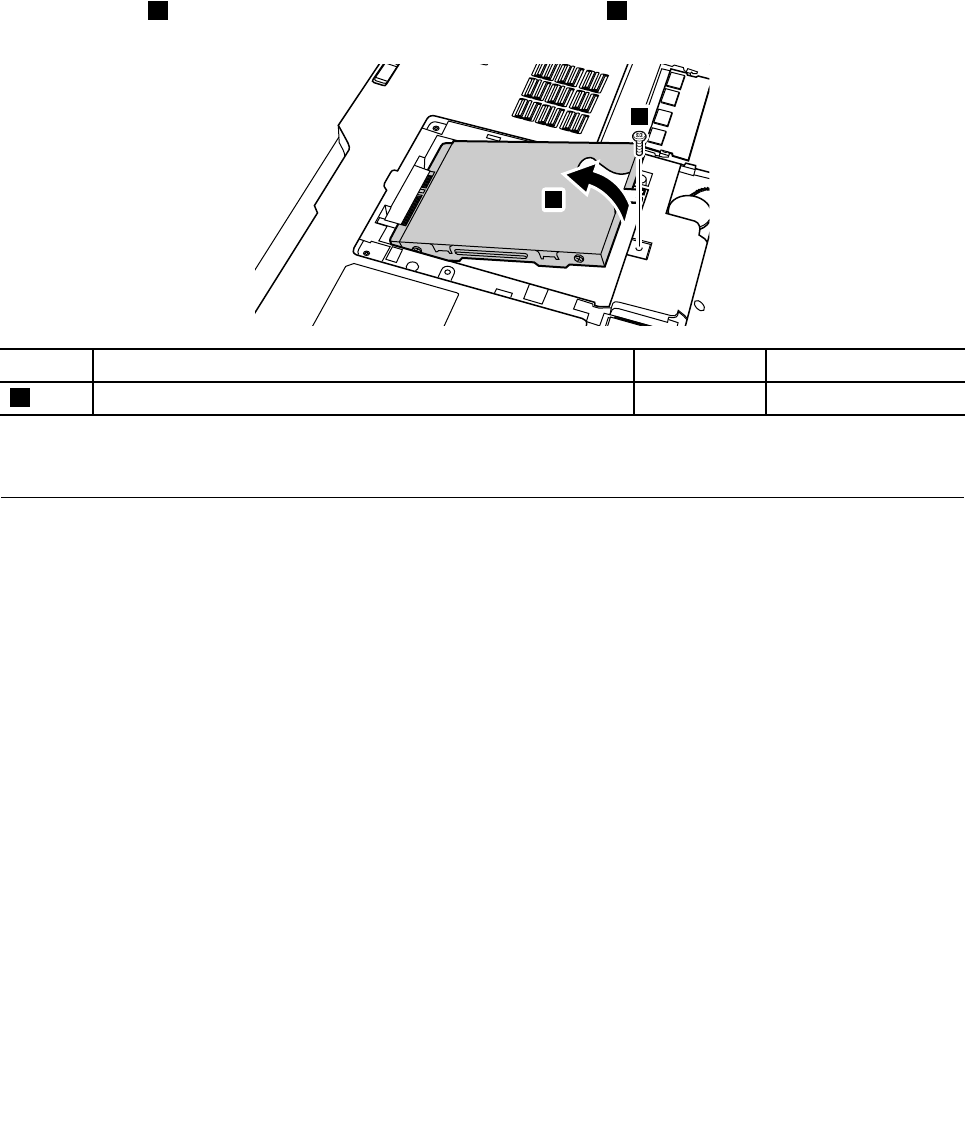
Attention:
•Donotdropthedriveorapplyanyphysicalshocktoit.Thedriveissensitivetophysicalshock.Improper
handlingcancausedamageandpermanentlossofdata.
•Beforeremovingthedrive,havetheusermakeabackupcopyofalltheinformationonitifpossible.
•Neverremovethedrivewhilethecomputerisoperatingorisinsuspendmode.
Removalstepsofharddiskdrive
Removescrews1,pullthetabinthedirectionshownbythearrow2,andthenremovetheharddisk
drivefromtheslot.
2
1
StepScrew(quantity)ColorTorque
1M2×5mm,at-head,nylon-coated(1)Black1.6kgfcm
Wheninstalling:MakesuretheHDDconnectorisattachedrmly.
1050Opticaldrive
Foraccess,removethisFRU:
•“1010Batterypack”onpage44
46HardwareMaintenanceManual
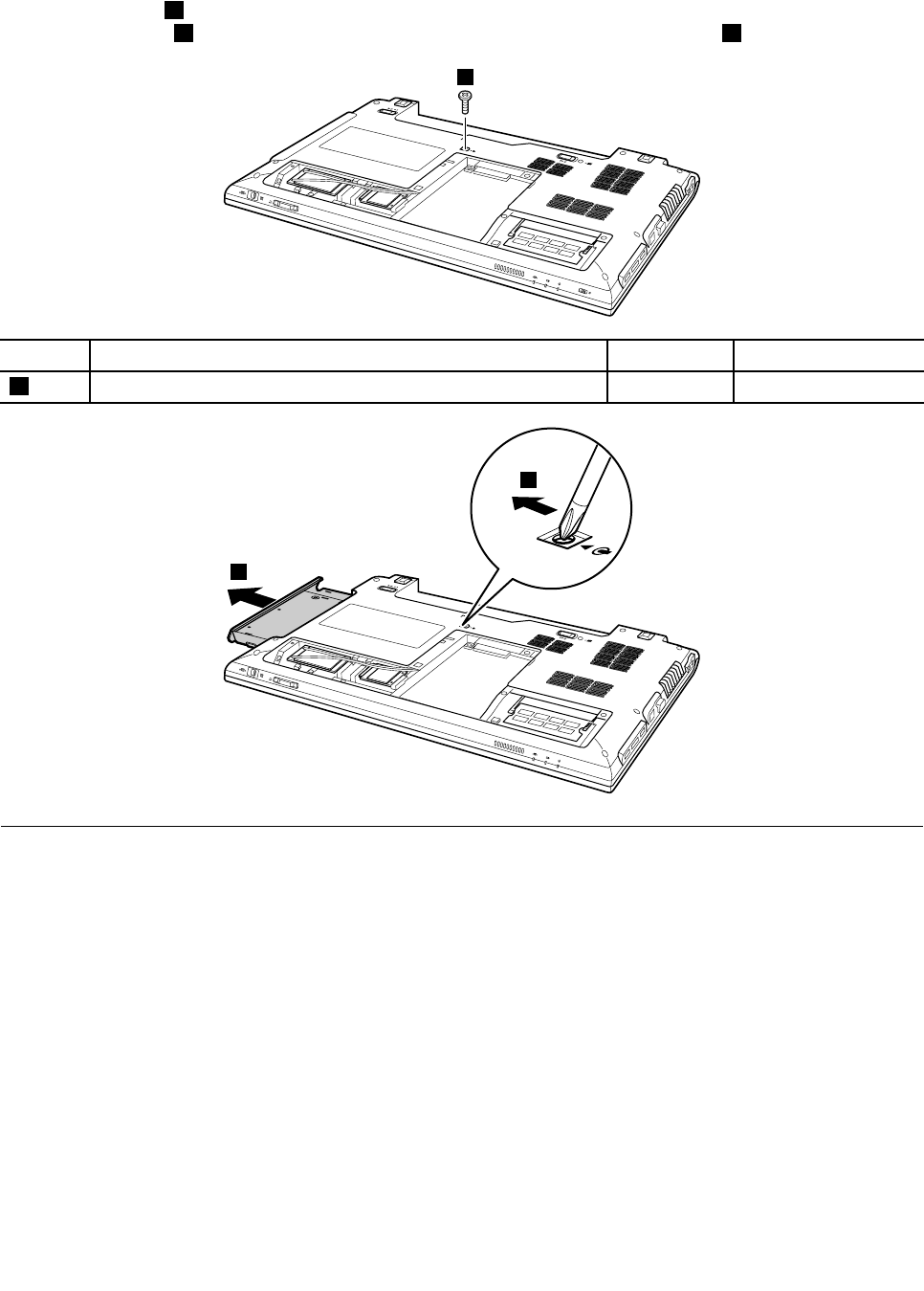
Removalstepsoftheopticaldrive
Removethescrew1,insertascrewdriverintothescrewholeandpushtheopticaldriveinthedirection
shownbythearrow2.Pulltheopticaldriveoutinthedirectionshownbythearrow3.
1
StepScrew(quantity)ColorTorque
1M2×5mm,at-head,nylon-coated(1)Black1.6kgfcm
3
2
1060Memorymodules
Foraccess,removetheseFRUsinorder:
•“1010Batterypack”onpage44
•“1030Bottomslotcover”onpage45
Chapter7.RemovingandreplacingaFRU47
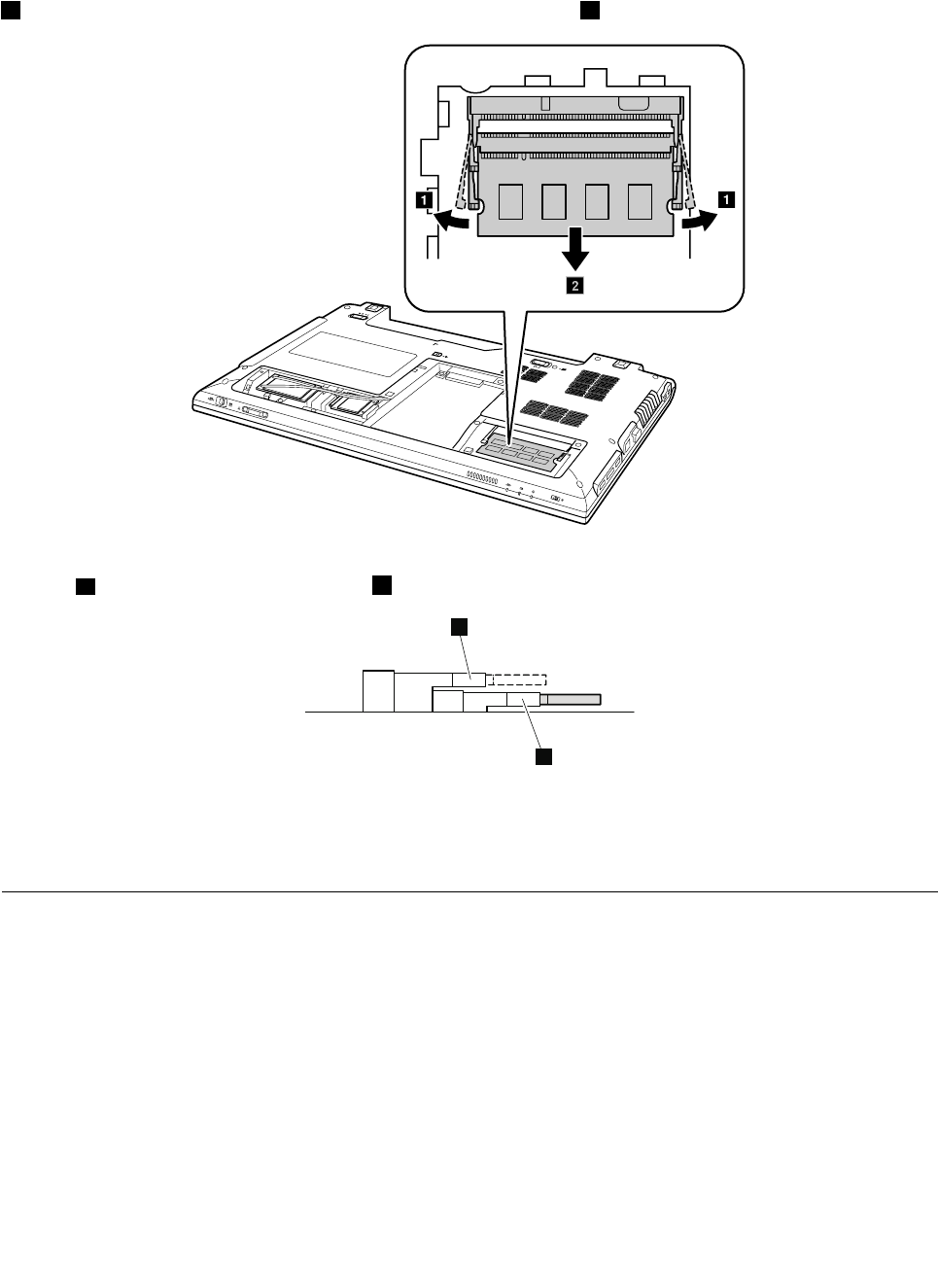
Removalstepsofmemorymodules
Releasethetwolatchesonbothedgesofthesocketatthesametimeinthedirectionshownbythearrows
1,andthenunplugtheDIMMinthedirectionshownbythearrow2.
b
aa
Note:Ifonlyonememorymoduleisusedonthecomputeryouareservicing,thecardmustbeinstalledin
SLOT-0(a:lowerslot),butnotinSLOT-1(b:upperslot).
a
b
Wheninstalling:Insertthenotchedendofthememorymoduleintothesocket.Pressthememorymodule
rmly,andpivotituntilitsnapsintoplace.Makesurethatitisrmlyinstalledintheslotanddoesnot
moveeasily.
1070PCIExpressMiniCardforwirelessLAN/WAN
Foraccess,removetheseFRUsinorder:
•“1010Batterypack”onpage44
•“1030Bottomslotcover”onpage45
48HardwareMaintenanceManual
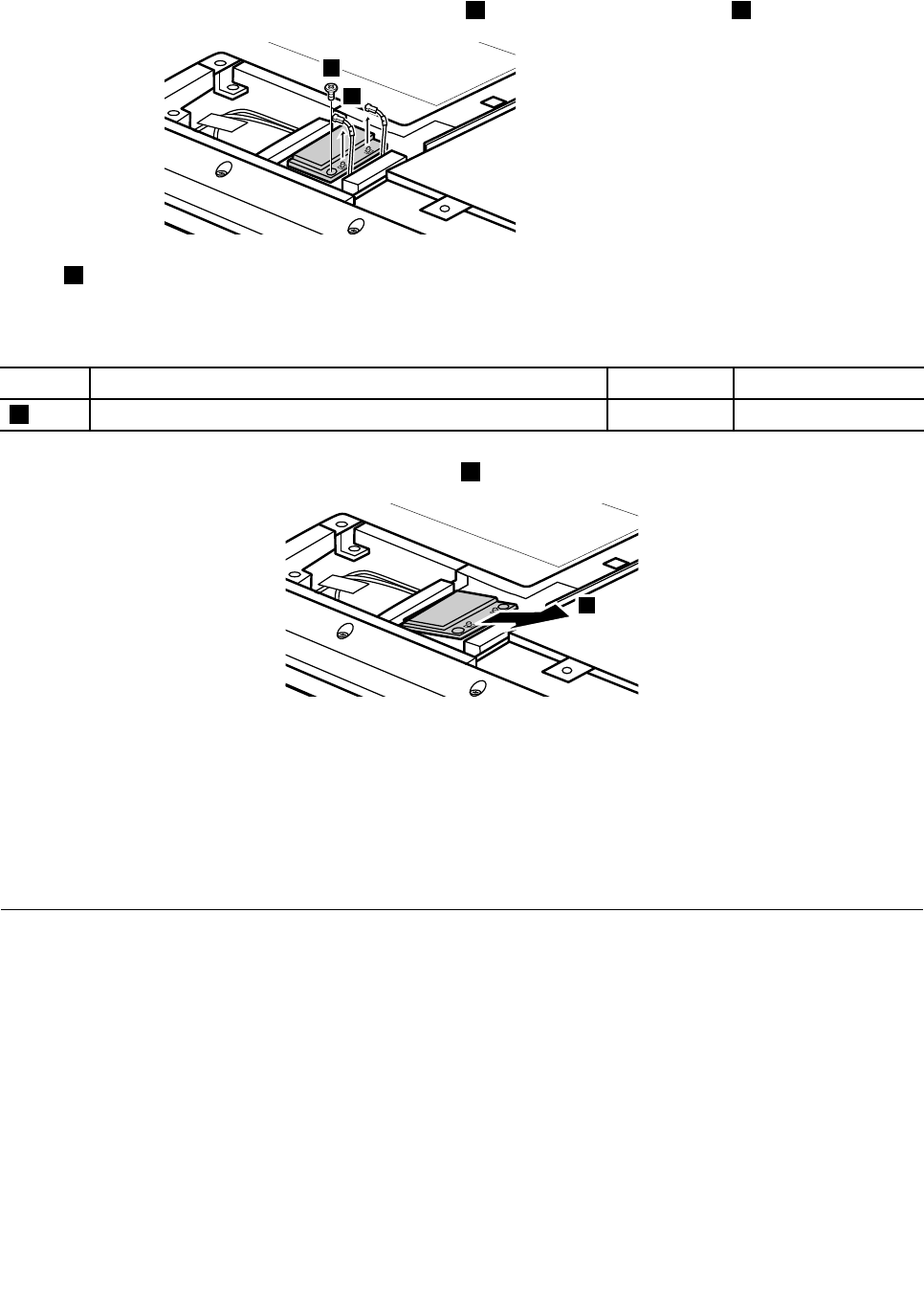
RemovalstepsofPCIExpressMiniCardforwirelessLAN/WAN
DisconnectthetwowirelessLANcables(black,white)1,andthenremovethescrew2.
1
2
Instep1,unplugthejacksbyusingtheremovaltoolantennaRFconnector(P/N:08K7159)orpickthe
connectorswithyourngersandgentlyunplugtheminthedirectionofthearrow.
Note:Somemodelsmighthaveathirdwhiteantennacable.
StepScrew(quantity)ColorTorque
2M2×3mm,at-head,nylon-coated(1)Black1.6kgfcm
Removethecardinthedirectionshownbythearrow3.
3
Wheninstalling:
•InmodelswithawirelessLANcardthathastwoantennaconnectors,plugtheblackcable(1st)(MAIN)
intothejacklabeled1,andthewhitecable(2nd)(AUX)intojacklabeled2onthecard.
•InmodelswithawirelessLANcardthathasthreeantennaconnectors,plugtheblackcable(1st)(MAIN)
intothejacklabeled1,thegreycable(3rd)intojacklabeled3,andthewhitecable(2nd)(AUX)intojack
labeled2onthecard.
1080Keyboard
Foraccess,removetheseFRUsinorder:
•“1010Batterypack”onpage44
Chapter7.RemovingandreplacingaFRU49
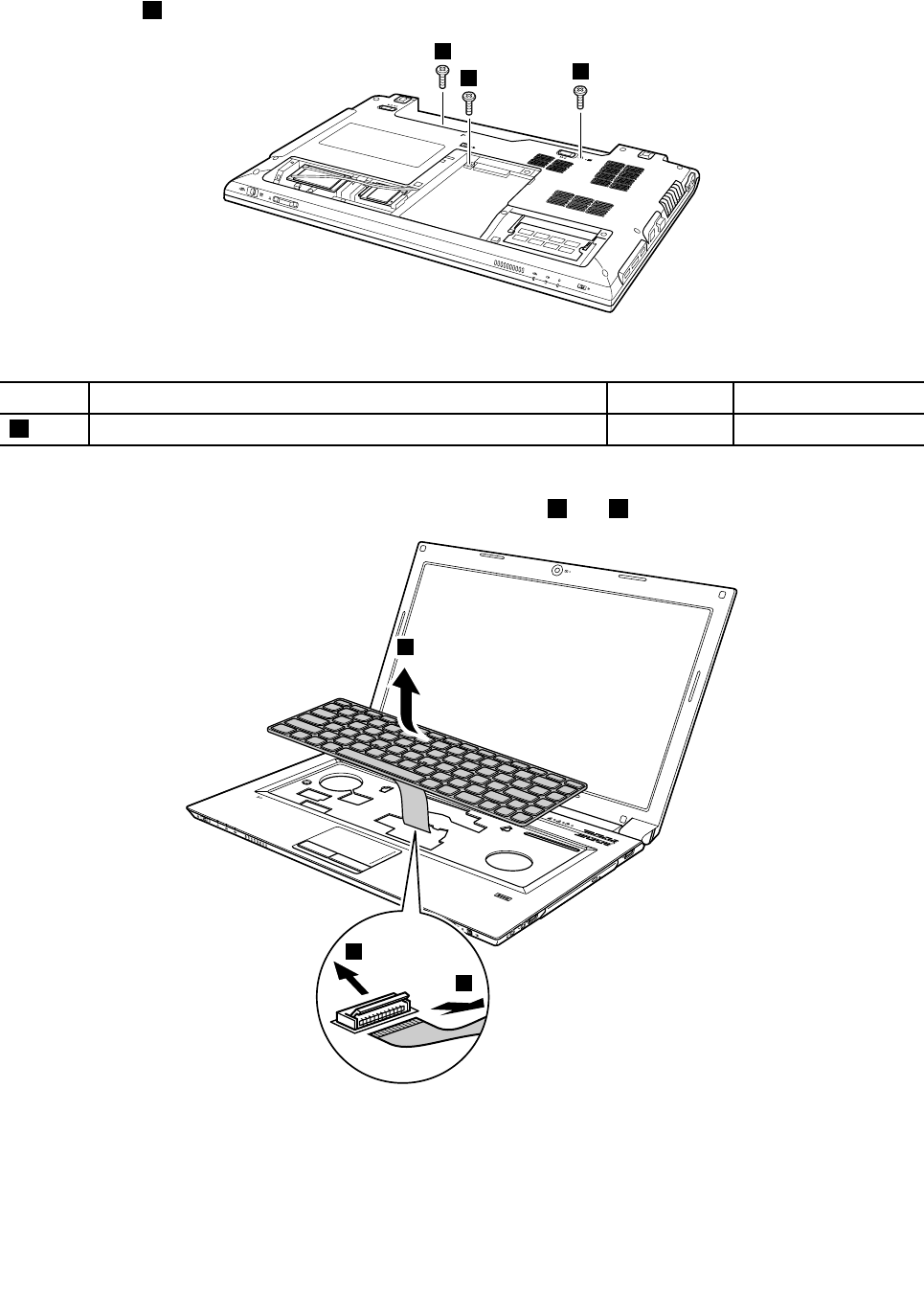
Removalstepsofkeyboard
Removescrews1.
11
1
Wheninstalling:Makesurethescrewshavebeenfastenedtosecuretokeyboard.
StepScrew(quantity)ColorTorque
1M2.5×7mm,at-head,nylon-coated(3)Black3.0kgfcm
Carefullyliftthekeyboarduntilyoucanseehowit’sconnected.Holdthekeyboardabovethecomputer,and
thendetachtheconnectorinthedirectionshownbythearrows4and5.
3
4
5
Wheninstalling:MakesurethattheFPCconnectorisattachedrmly.
50HardwareMaintenanceManual
1090Keyboardbezel
Foraccess,removetheseFRUsinorder:
•“1010Batterypack”onpage44
•“1030Bottomslotcover”onpage45
•“1050Opticaldrive”onpage46
•“1080Keyboard”onpage49
Removalstepsofkeyboardbezel
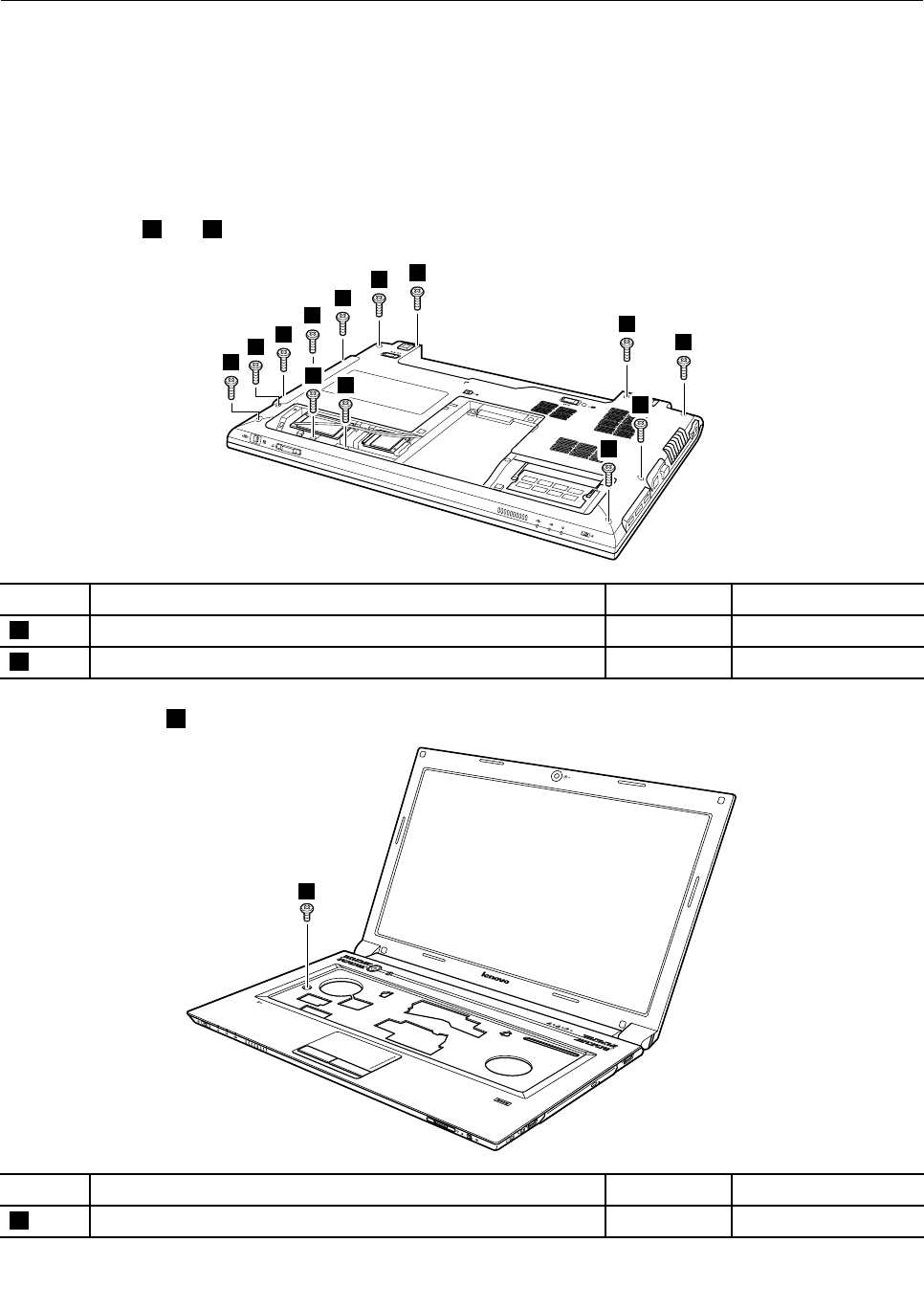
Removescrews1and2thatsecurethekeyboardbezel.
1
11
1
1
1
1
2
1
2
2
1
1
StepScrew(quantity)ColorTorque
1M2.5×7mm,at-head,nylon-coated(10)Black3.0kgfcm
2M2×3mm,at-head,nylon-coated(3)Black1.6kgfcm
Removethescrew3.
3
StepScrew(quantity)ColorTorque
3M2×5mm,at-head,nylon-coated(1)Black1.6kgfcm
Chapter7.RemovingandreplacingaFRU51
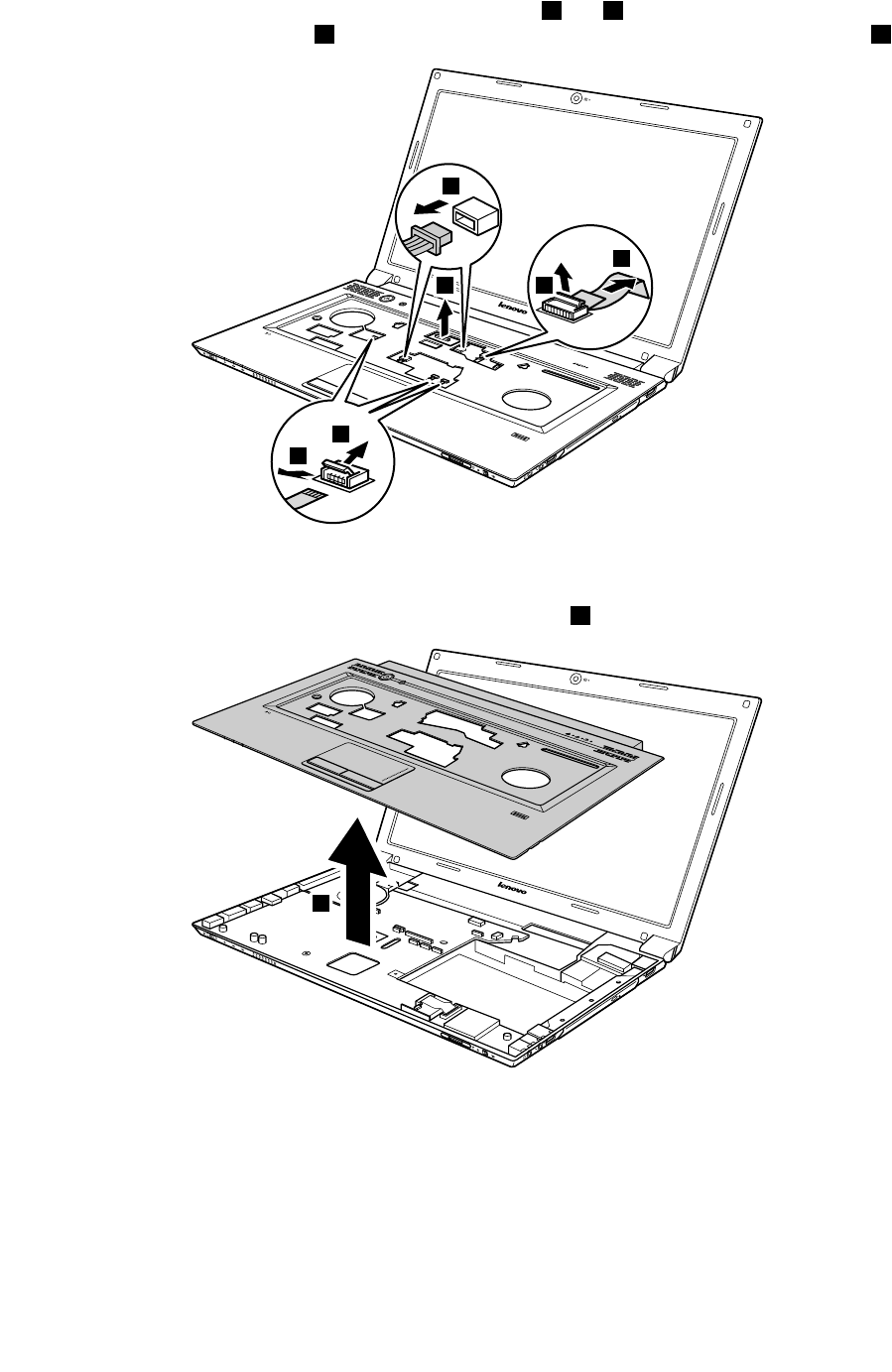
DetachtheFPCconnectorsinthedirectionshownbyarrows4and5.Unplugtwomicrophoneconnectors
inthedirectionshownbythearrow6,andtheLCDconnectorinthedirectionshownbythearrow7.
6
7
5
4
5
4
Wheninstalling:Makesurethattheconnectorsareattachedrmlytothesystemboard.
Removethekeyboardbezelinthedirectionshownbythearrow8.
8
52HardwareMaintenanceManual
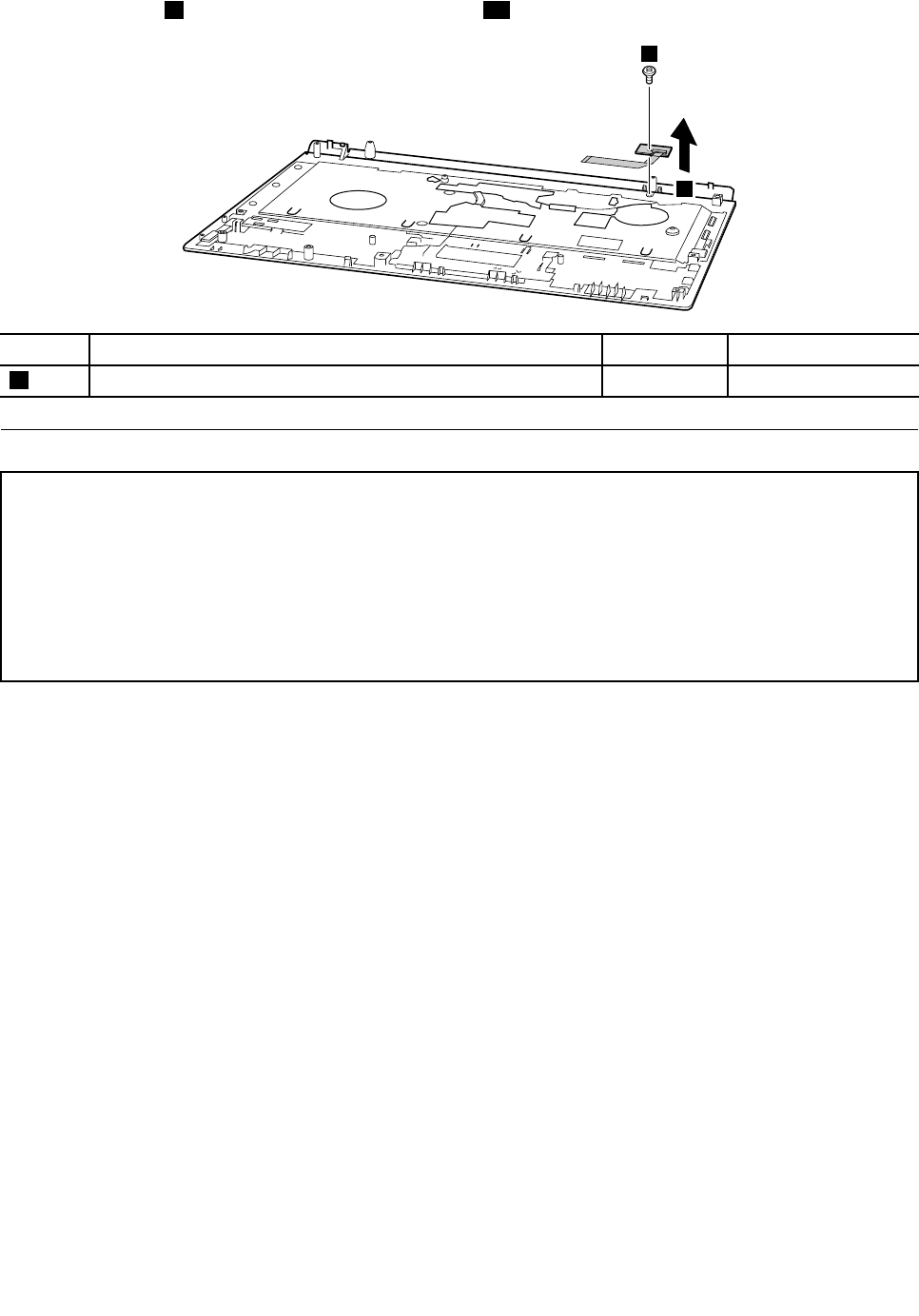
Removethescrew9andthenremovethepowerboard10.
10
9
StepScrew(quantity)ColorTorque
9M2×3mm,at-head,nylon-coated(1)Black1.6kgfcm
1100Systemboardassembly
Importantnoticesforhandlingthesystemboard:
Whenhandlingthesystemboard,bearthefollowinginmind.
•Becarefulnottodropthesystemboardonabenchtopthathasahardsurface,suchasmetal,wood,orcomposite.
•Avoidroughhandlingofanykind.
•Ateverypointintheprocess,besurenottodroporstackthesystemboard.
•Ifyouputasystemboarddown,besuretoputitonlyonapaddedsurfacesuchasanESDmatoracorrugated
conductivesurface.
Foraccess,removetheseFRUsinorder:
•“1010Batterypack”onpage44
•“1020Dummycard”onpage44
•“1030Bottomslotcover”onpage45
•“1040Harddiskdrive”onpage45
•“1050Opticaldrive”onpage46
•“1060Memorymodules”onpage47
•“1070PCIExpressMiniCardforwirelessLAN/WAN”onpage48
•“1080Keyboard”onpage49
•“1090Keyboardbezel”onpage51
Chapter7.RemovingandreplacingaFRU53
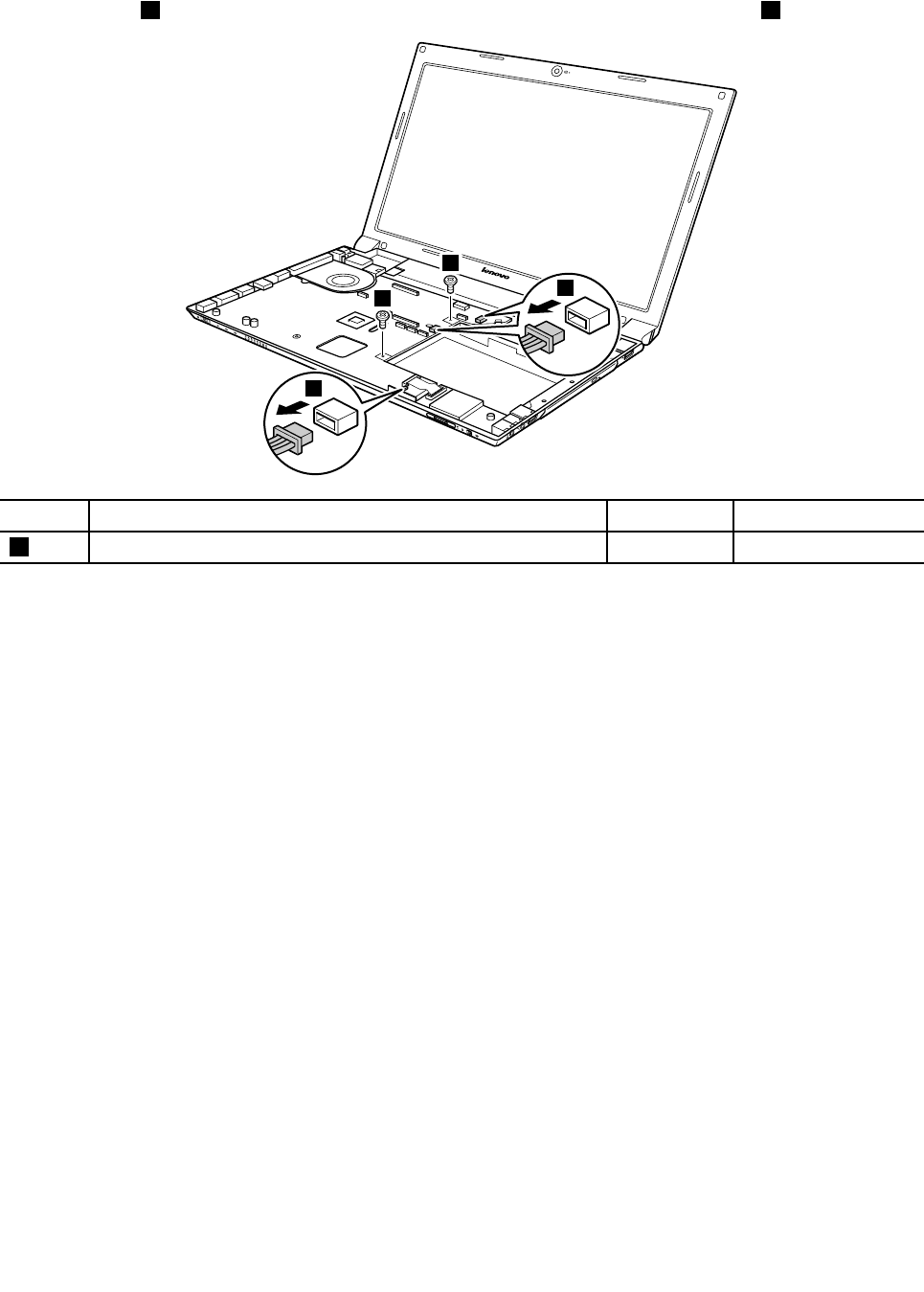
Removalstepsofsystemboard
Removescrews1.Unplugthemicrophoneconnectorsinthedirectionshownbyarrows2.
2
2
1
1
StepScrew(quantity)ColorTorque
1M2×7mm,at-head,nylon-coated(2)Black3.0kgfcm
Wheninstalling:Makesurethatalltheconnectorsareattachedrmly.
54HardwareMaintenanceManual
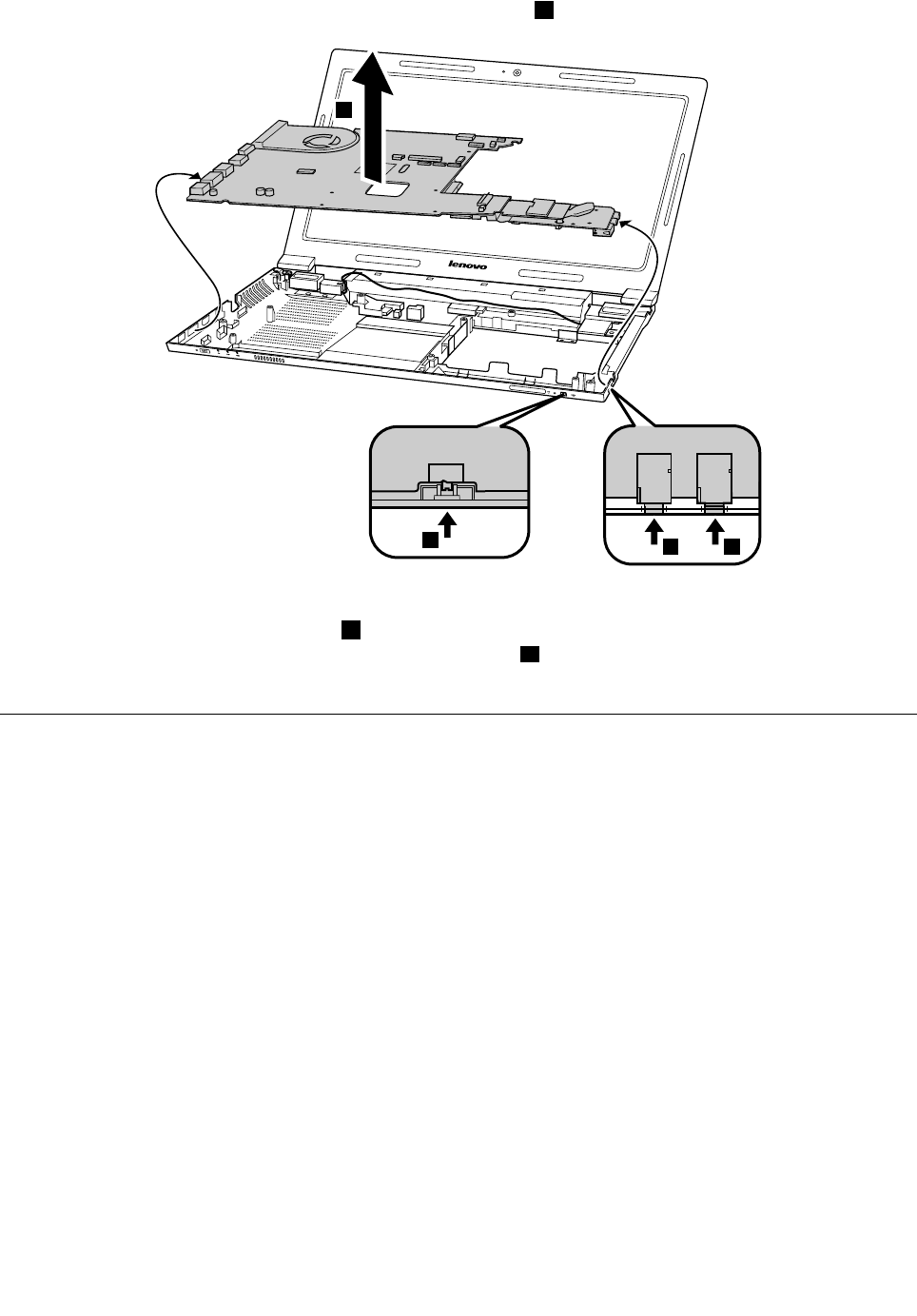
Removethesystemboardinthedirectionshownbythearrow3.
b
3
a a
Wheninstalling:Whenattachingthesystemboardtothebasecover,adjusttheplacementofthewireless
switchandtheGPUswitchasshowninb,andmakesurethatbothoftheaudiojackandthemicrophone
jackareattachedtotheholesonthebasecoverasshownina.Improperplacementofthoseswitchesor
jacksmightcauseadamage.
1110LCDunit
Foraccess,removetheseFRUsinorder:
•“1010Batterypack”onpage44
•“1020Dummycard”onpage44
•“1030Bottomslotcover”onpage45
•“1040Harddiskdrive”onpage45
•“1050Opticaldrive”onpage46
•“1060Memorymodules”onpage47
•“1070PCIExpressMiniCardforwirelessLAN/WAN”onpage48
•“1080Keyboard”onpage49
•“1090Keyboardbezel”onpage51
•“1100Systemboardassembly”onpage53
Chapter7.RemovingandreplacingaFRU55
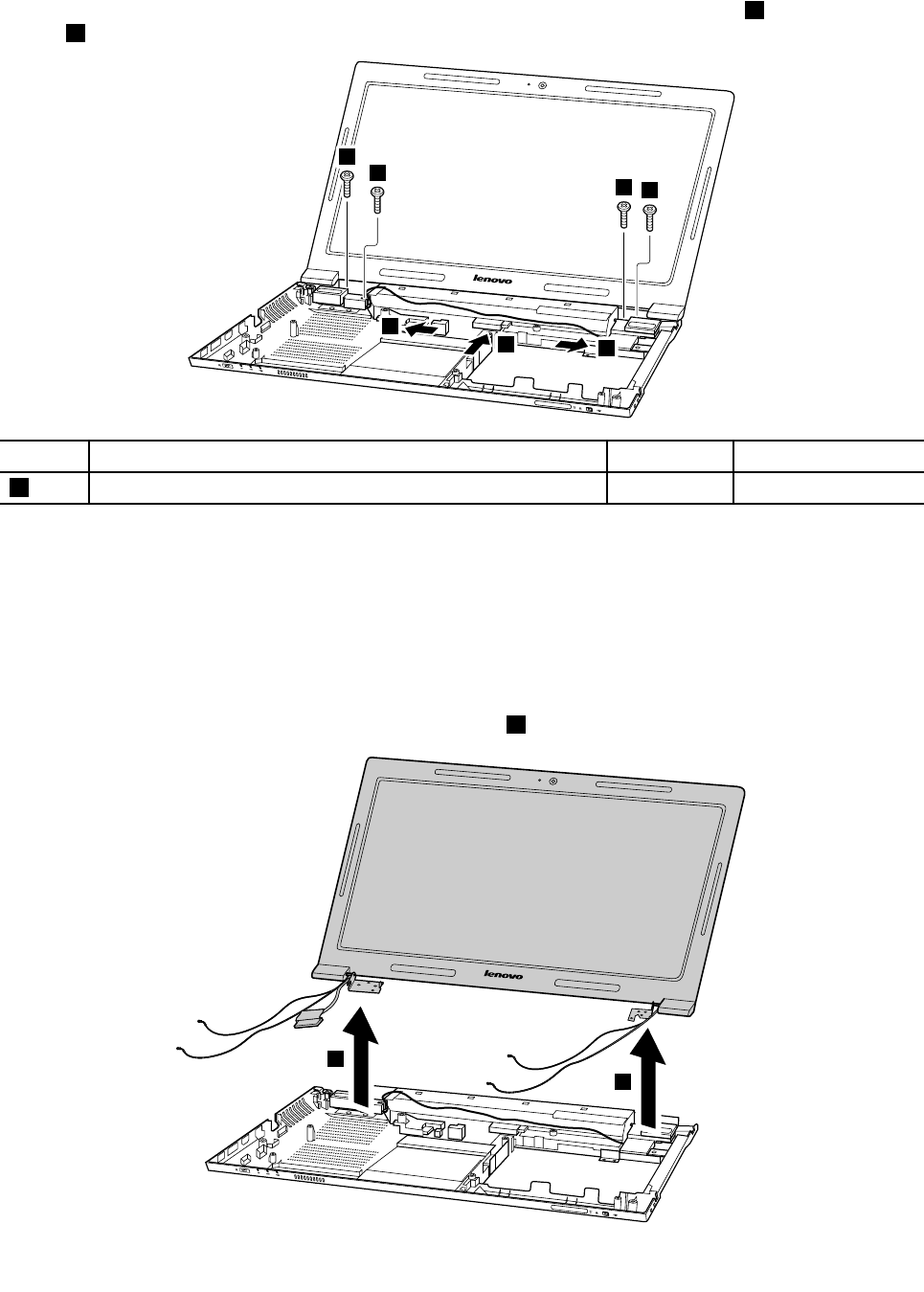
RemovalstepsofLCDunit
Releasetheantennacablesfromthecableguidesinthedirectionshownbythearrows1.Thenremovethe
screws2.
1
1
1
2
22
2
StepScrew(quantity)ColorTorque
2M2×5mm,at-head,nylon-coated(4)Black1.6kgfcm
Wheninstalling:
•Routetheantennacablesalongthecableguides.Asyouroutethecables,makesurethattheyare
notsubjectedtoanytension.Tensioncouldcausethecablestobedamagedbythecableguides,
orawiretobebroken.
•MakesurethattheLCDconnectorisattachedrmlyandmakesurethatyou••donotpinchtheantenna
cableswhenyouattachtheLCDassembly.RoutetheLCDcablealongthecableguides.
RemovetheLCDunitinthedirectionshownbythearrows3.
3
3
56HardwareMaintenanceManual
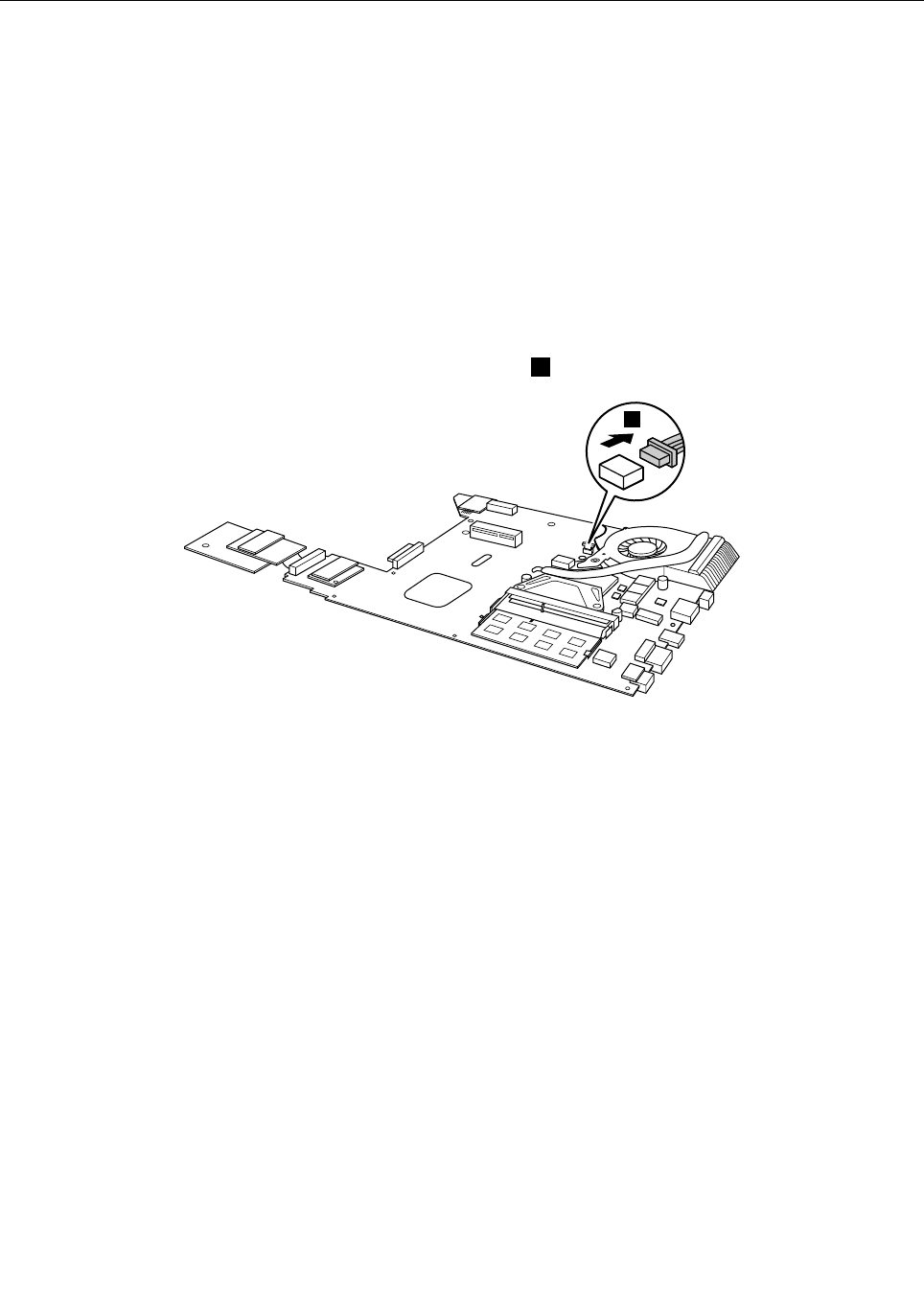
1120Fanassemblyandheatsinkassembly
Foraccess,removetheseFRUsinorder:
•“1010Batterypack”onpage44
•“1020Dummycard”onpage44
•“1030Bottomslotcover”onpage45
•“1040Harddiskdrive”onpage45
•“1050Opticaldrive”onpage46
•“1060Memorymodules”onpage47
•“1070PCIExpressMiniCardforwirelessLAN/WAN”onpage48
•“1080Keyboard”onpage49
•“1090Keyboardbezel”onpage51
•“1100Systemboardassembly”onpage53
Removalstepsoffanassemblyandheatsinkassembly
Detachthefanconnectorinthedirectionshownbythearrow1.
1
Wheninstalling:Makesurethatthefanconnectorisattachedrmlytothesystemboard.
Chapter7.RemovingandreplacingaFRU57
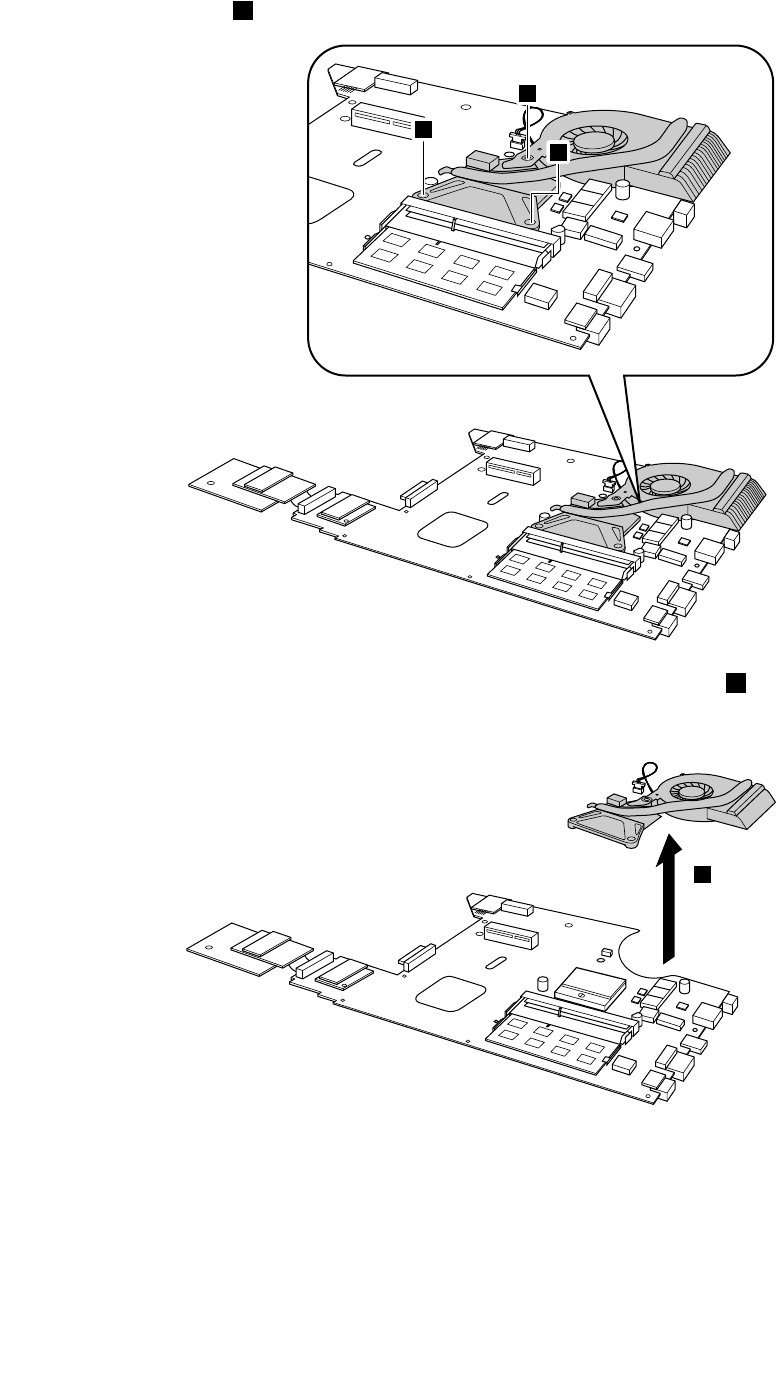
Note:Loosenthescrews2,butdonotremovethem.
2
2
2
Liftthefanassemblyandheatsinkassemblyinthedirectionshownbythearrow3.
Note:Becarefulnottodamagetheconnector.
3
58HardwareMaintenanceManual
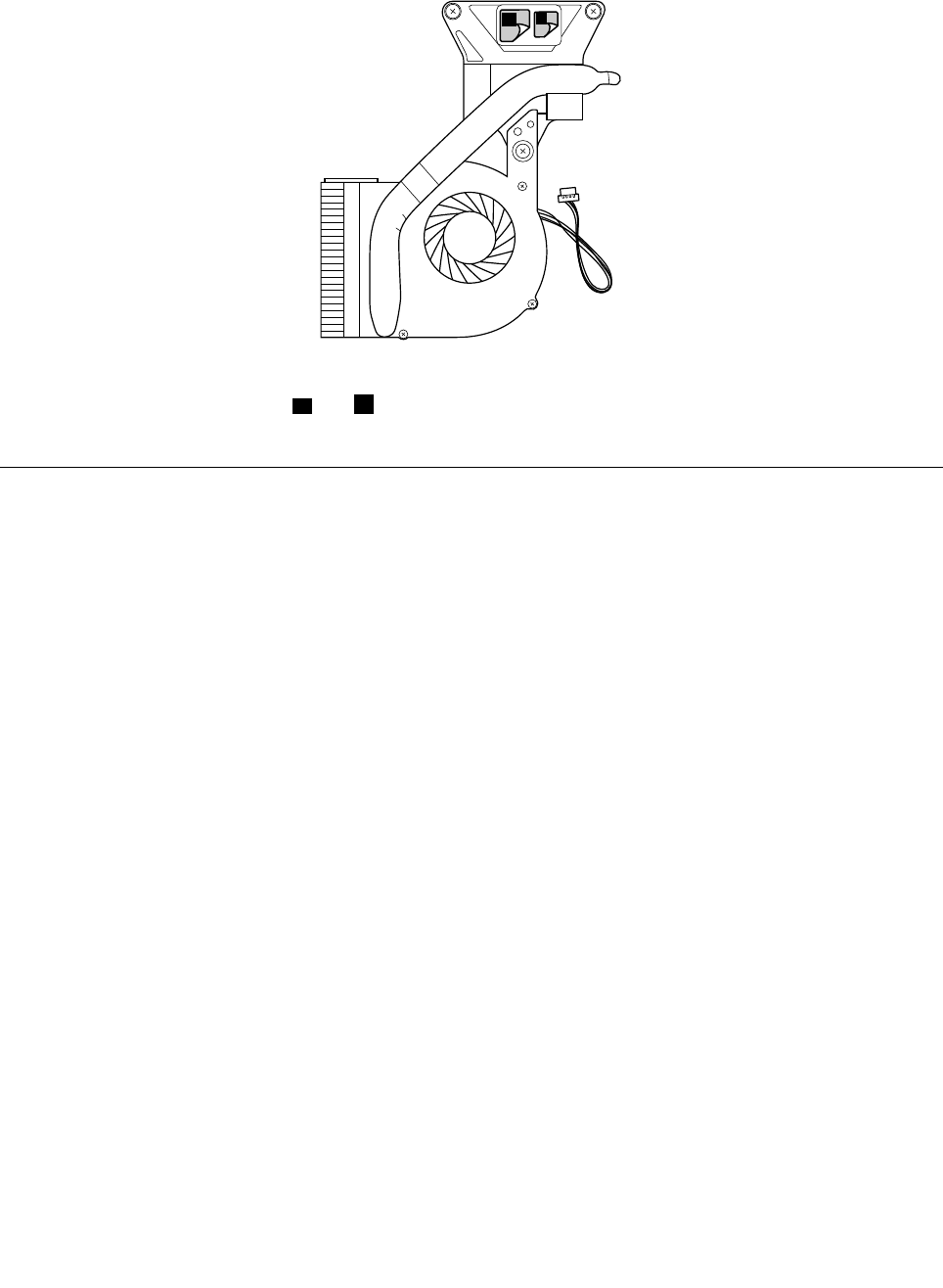
Attention:Donothandletheheatsinkassemblyroughly.Improperhandlingcancausedistortionor
deformationandimperfectcontactwithcomponents.
ab
Wheninstalling:Beforeyouattachthefanassemblytothecomputer,applythermalgrease,atanamount
of0.2grams,onthepartmarkedaandbasshownintheaboveillustration.Eithertoomuchortooless
applicationofgreasecancauseathermalproblemduetoimperfectcontactwithacomponent.
1130CPU
Foraccess,removetheseFRUsinorder:
•“1010Batterypack”onpage44
•“1020Dummycard”onpage44
•“1030Bottomslotcover”onpage45
•“1040Harddiskdrive”onpage45
•“1050Opticaldrive”onpage46
•“1060Memorymodules”onpage47
•“1070PCIExpressMiniCardforwirelessLAN/WAN”onpage48
•“1080Keyboard”onpage49
•“1090Keyboardbezel”onpage51
•“1100Systemboardassembly”onpage53
•“1120Fanassemblyandheatsinkassembly”onpage57
Attention:TheCPUisextremelysensitive.WhenyouservicetheCPU,avoidanykindofroughhandling.
Chapter7.RemovingandreplacingaFRU59
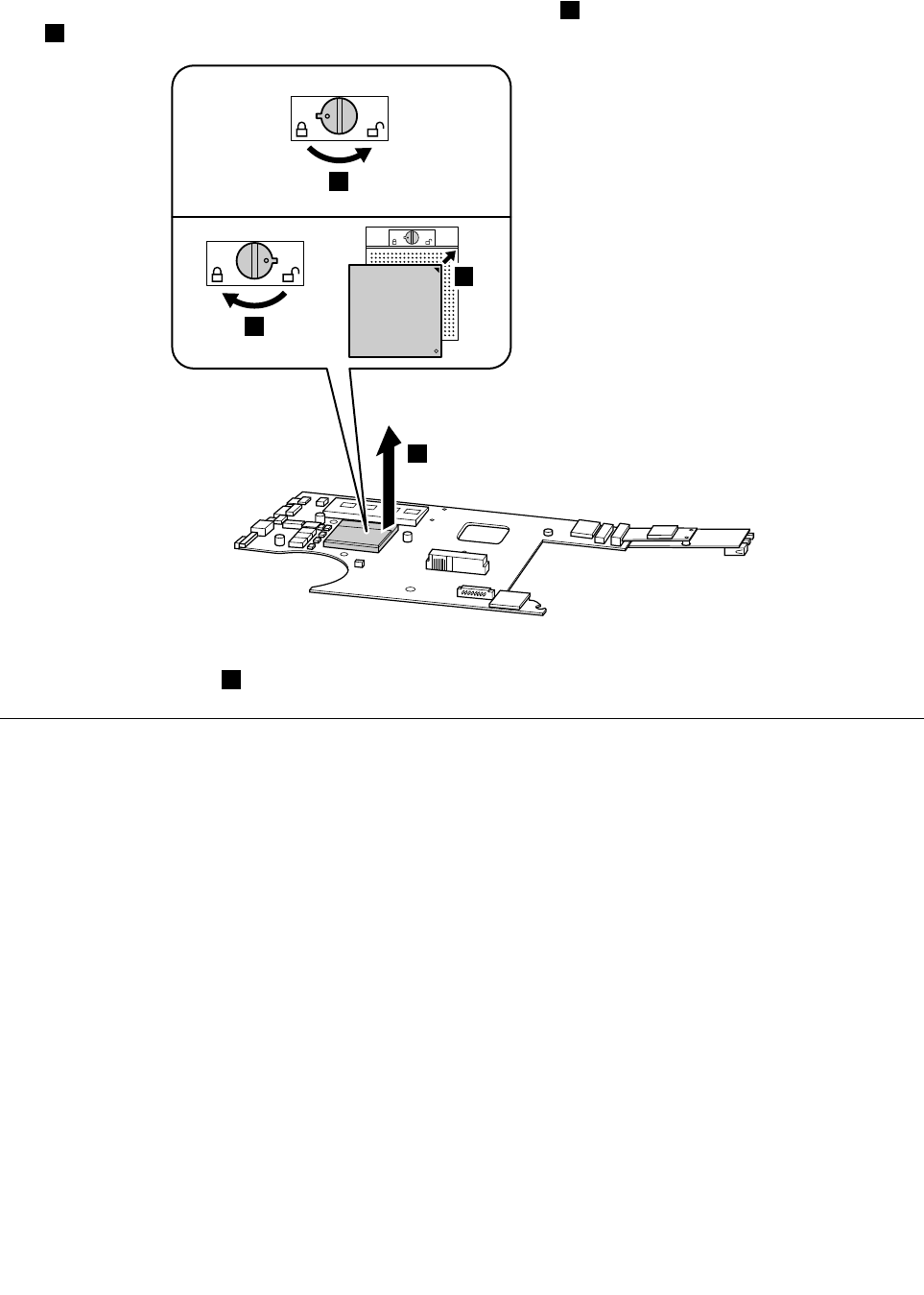
RemovalstepsofCPU
Rotatetheheadofthescrewinthedirectionshownbythearrow1toreleasethelock,thenremovethe
CPU2.
22
a
b
1
Wheninstalling:PlacetheCPUabovetheCPUsocket,andthenrotatetheheadofthescrewinthe
directionshownbyarrowbtosecuretheCPU.
1140Basecover,speakersassemblyandbluetoothdaughtercard
Foraccess,removetheseFRUsinorder:
•“1010Batterypack”onpage44
•“1020Dummycard”onpage44
•“1030Bottomslotcover”onpage45
•“1040Harddiskdrive”onpage45
•“1050Opticaldrive”onpage46
•“1060Memorymodules”onpage47
•“1070PCIExpressMiniCardforwirelessLAN/WAN”onpage48
•“1080Keyboard”onpage49
•“1090Keyboardbezel”onpage51
•“1100Systemboardassembly”onpage53
•“1110LCDunit”onpage55
60HardwareMaintenanceManual
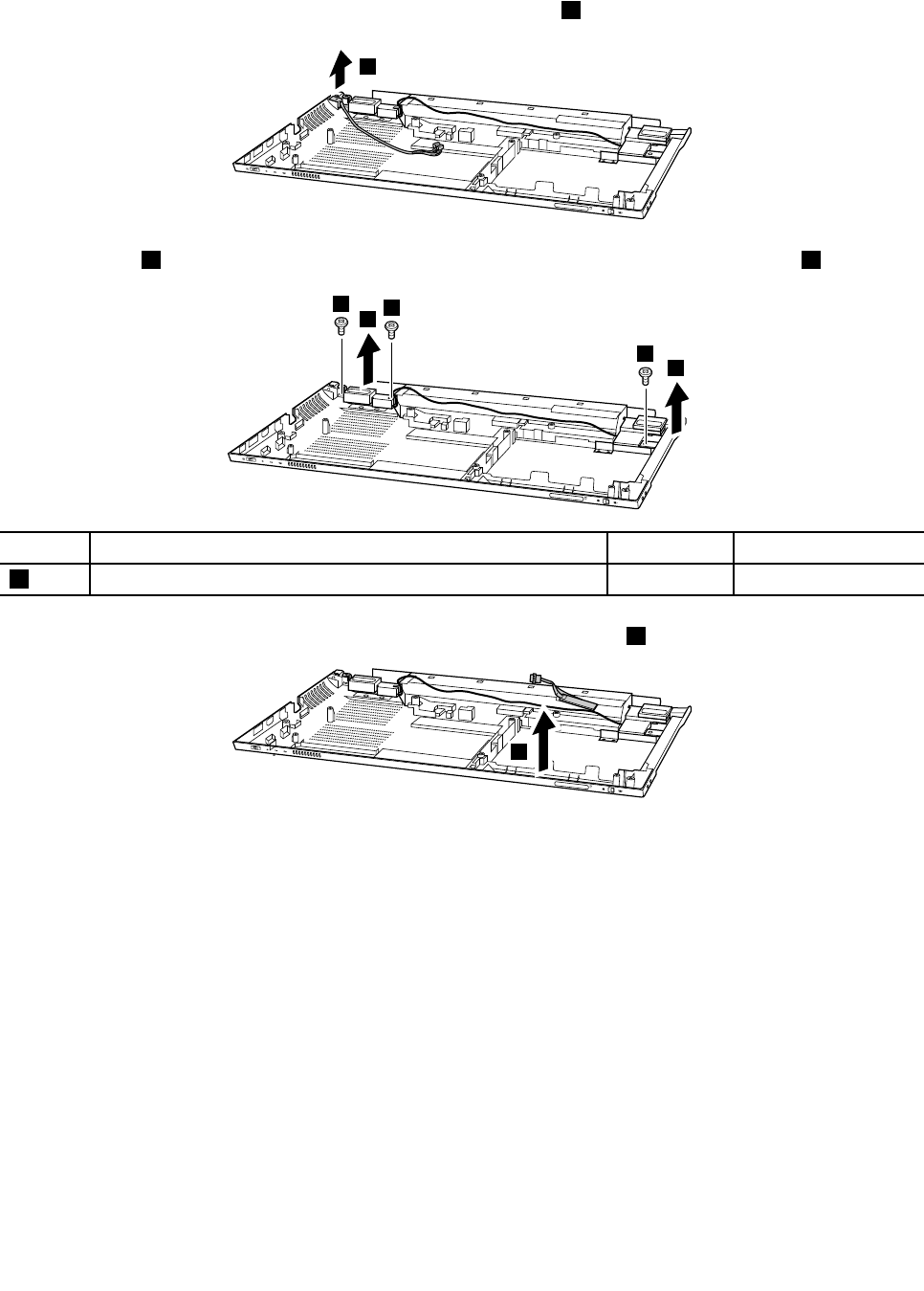
Removalstepsofbasecover,speakersassemblyandbluetoothdaughtercard
Removethepowerassemblyinthedirectionshownbythearrow1.
1
Removescrews2,andthenremovethespeakersassemblyinthedirectionshownbyarrows3.
3
3
22
2
StepScrew(quantity)ColorTorque
2M2×5mm,at-head,nylon-coated(3)Black1.6kgfcm
Removethebluetoothdaughtercardinthedirectionshownbythearrow4.
4
Chapter7.RemovingandreplacingaFRU61
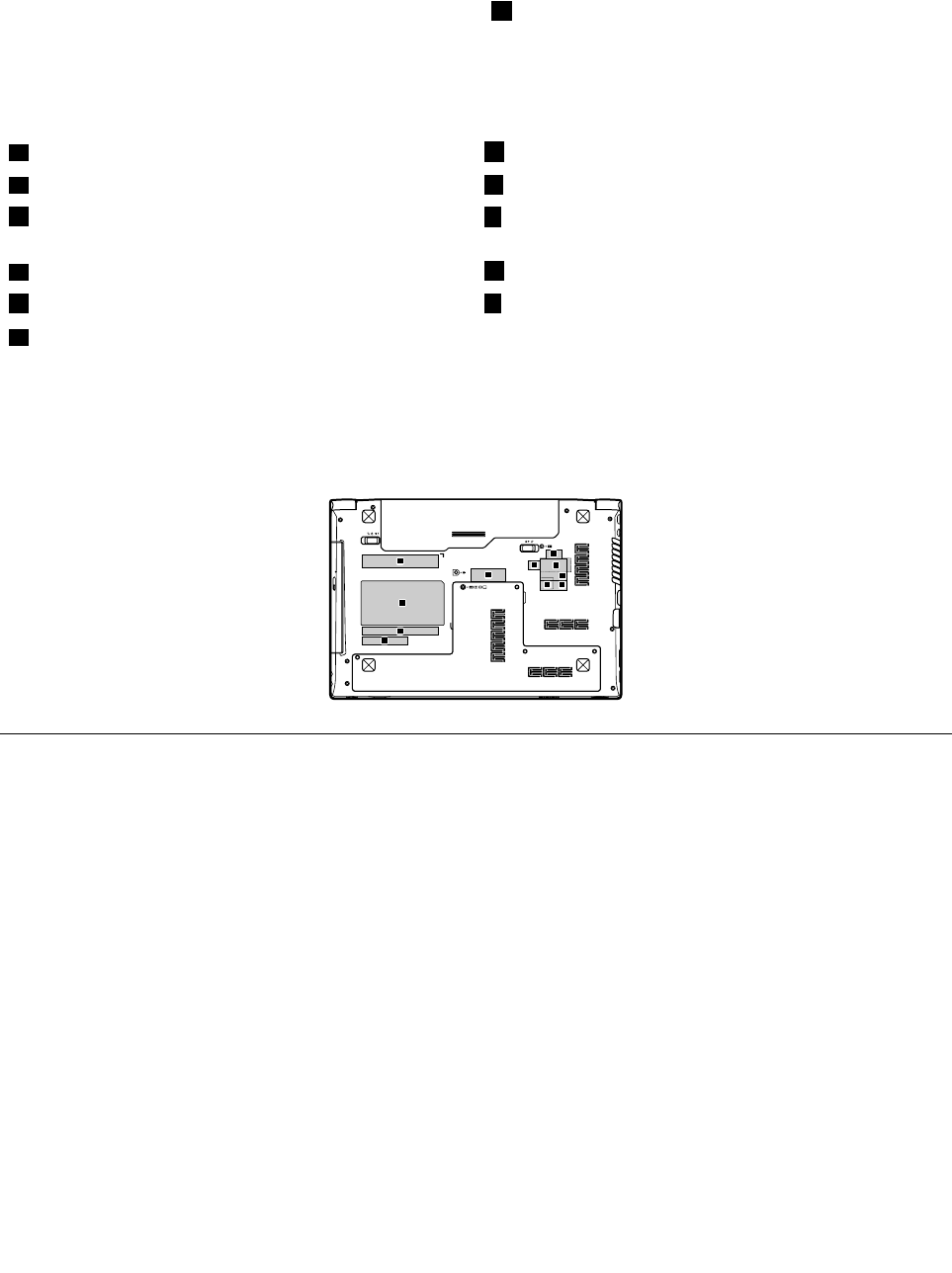
Applyinglabelstothebasecover
ThenewbasecoverFRUisshippedwithakitcontaininglabelsofseveralkinds.
IftheWindowsCerticateofAuthenticationlabel(COA)bisattachedtoapartthatisreplaced,returnthe
oldpartwiththelabelattachedtothecustomer,orprovidealettertothecustomerstatingwhatthelabel
wasoriginallyonthesystemandwhatthelabelpartnumber,serialnumber,andproductkeywere.
Thefollowinglabelsneedtobepeeledofffromtheoldbasecover,andneedtobeputonthenewbasecover.
aPalmrestlabelhMalaysiaSIRIMlabel
cRatinglabelIBrazillabelorBTlabelforUS/CA/TW
dWistronlabeljBrazilLabel(WLAN)orWLANlabelforUS/CA/TWor
IsraellabelforWLAN
ePRC/MTMlabelkIndonesiaDsidelabel
fVODAFONElabellPPTlabel
gIndonesiaWLAN&BTlabel
Forsomemodels,youneedtoapplytwoFCClabels.Checktheoldbasecover;ifithastwoFCClabels,
applybothtothenewbasecover.
Forthelocationofeachlabel,refertothefollowinggure:
b
d
e
i
j
kl
h
f
c
g
1150LCDfrontbezel
Foraccess,removetheseFRUsinorder:
•“1010Batterypack”onpage44
•“1020Dummycard”onpage44
•“1030Bottomslotcover”onpage45
•“1040Harddiskdrive”onpage45
•“1050Opticaldrive”onpage46
•“1060Memorymodules”onpage47
•“1070PCIExpressMiniCardforwirelessLAN/WAN”onpage48
•“1080Keyboard”onpage49
•“1090Keyboardbezel”onpage51
•“1100Systemboardassembly”onpage53
•“1110LCDunit”onpage55
62HardwareMaintenanceManual
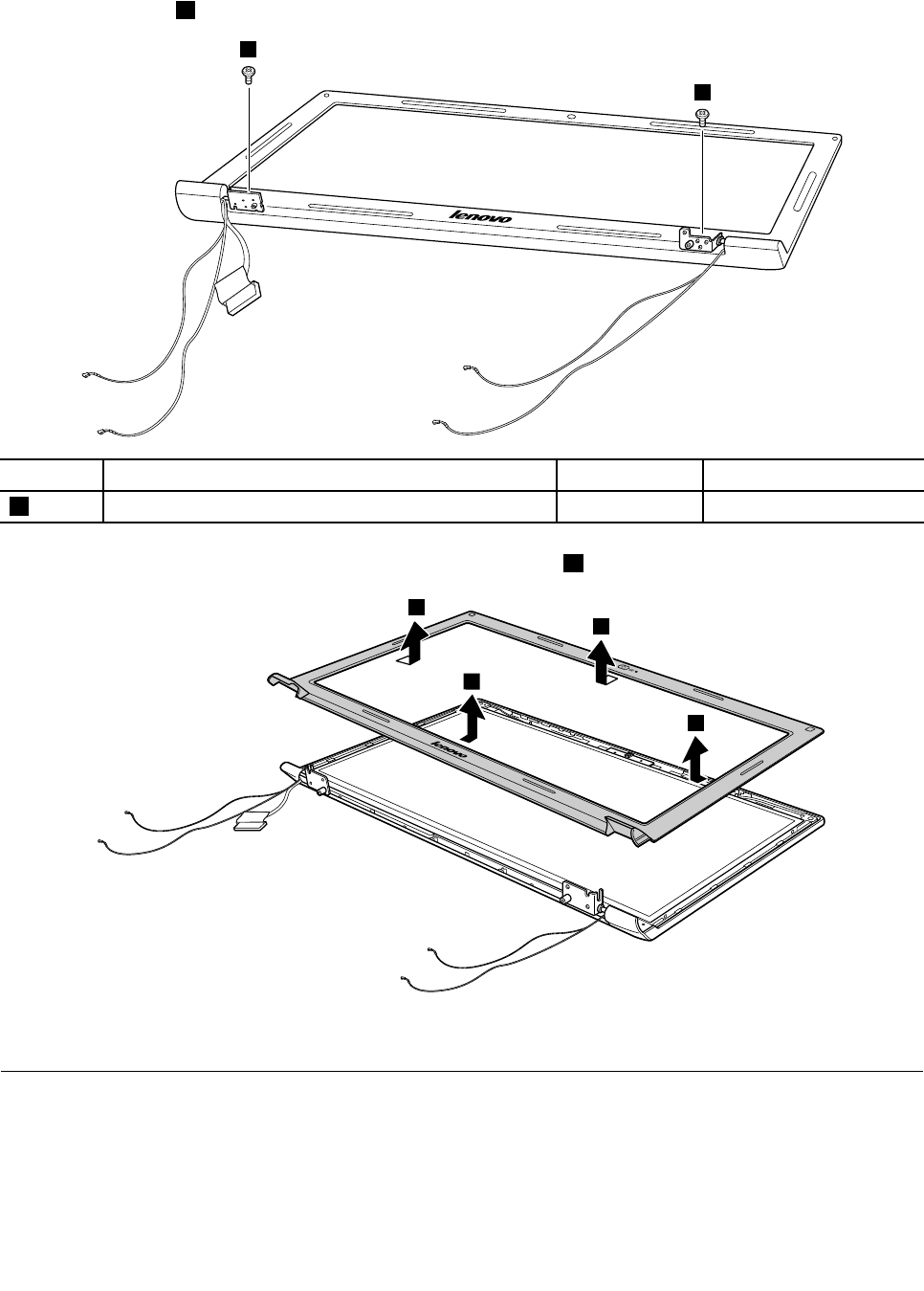
RemovalstepsofLCDbezel
Removethescrews1.
1
1
StepScrew(quantity)ColorTorque
1M2.5×4mm,at-head,nylon-coated(2)Black3.0kgfcm
RemovetheLCDfrontbezelinthedirectionshownbythearrows2.
2
2
2
2
Wheninstalling:Makesurethatallthelatchesareattachedrmly.Thensecurethebezelwiththescrews.
1160LCDpanel,LCDcable,andhinges
Foraccess,removetheseFRUsinorder:
•“1010Batterypack”onpage44
•“1020Dummycard”onpage44
•“1030Bottomslotcover”onpage45
•“1040Harddiskdrive”onpage45
Chapter7.RemovingandreplacingaFRU63
•“1050Opticaldrive”onpage46
•“1060Memorymodules”onpage47
•“1070PCIExpressMiniCardforwirelessLAN/WAN”onpage48
•“1080Keyboard”onpage49
•“1090Keyboardbezel”onpage51
•“1100Systemboardassembly”onpage53
•“1110LCDunit”onpage55
•“1150LCDfrontbezel”onpage62
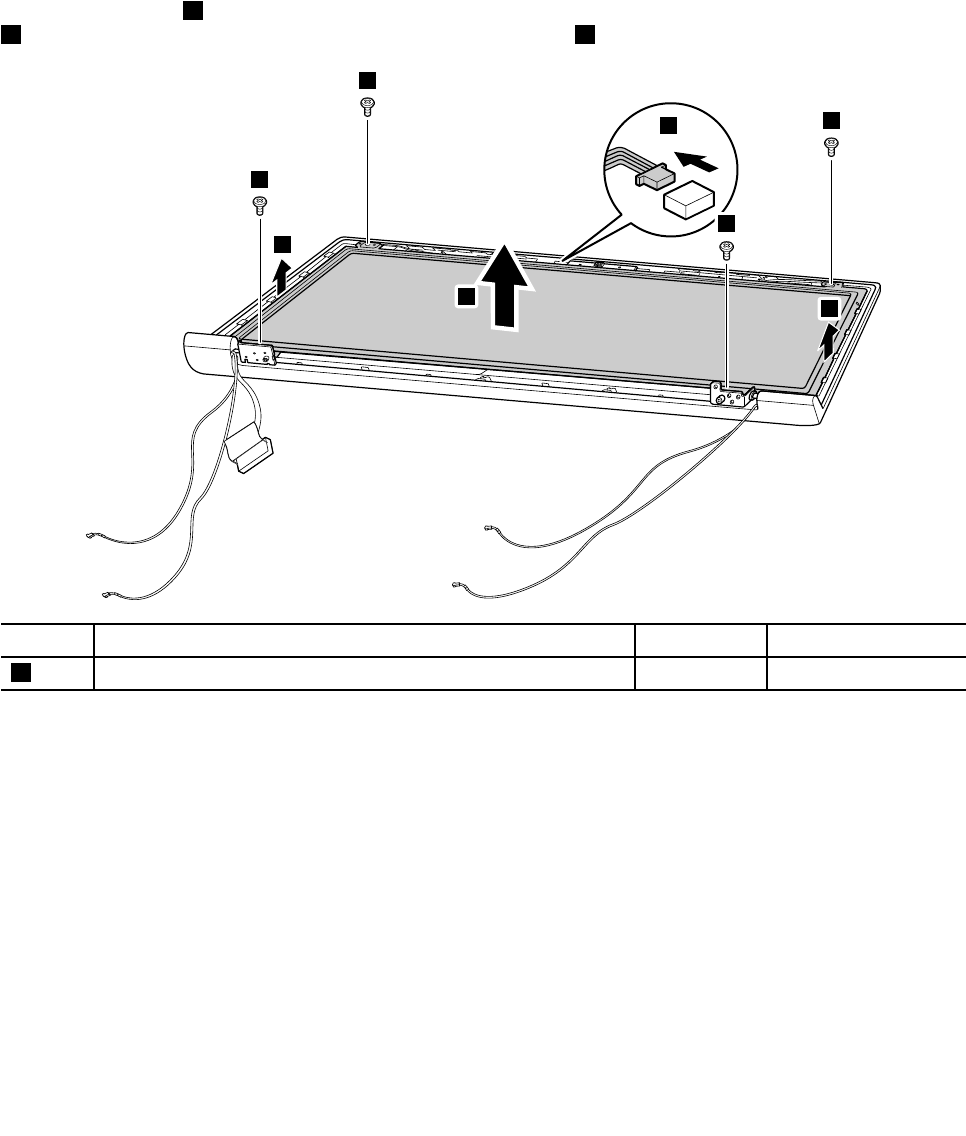
RemovalstepsofLCDpanel,LCDcable,andhinges
Removethescrews1.Disconnecttheintegratedcameraconnectorinthedirectionshownbythearrow
2.ThenlifttheLCDpanelinthedirectionshownbythearrows3.
2
1
1
1
1
3
3
3
StepScrew(quantity)ColorTorque
1M2×3mm,at-head,nylon-coated(6)Black1.6kgfcm
Wheninstalling:Makesurethattheconnectorisattachedrmly.
64HardwareMaintenanceManual
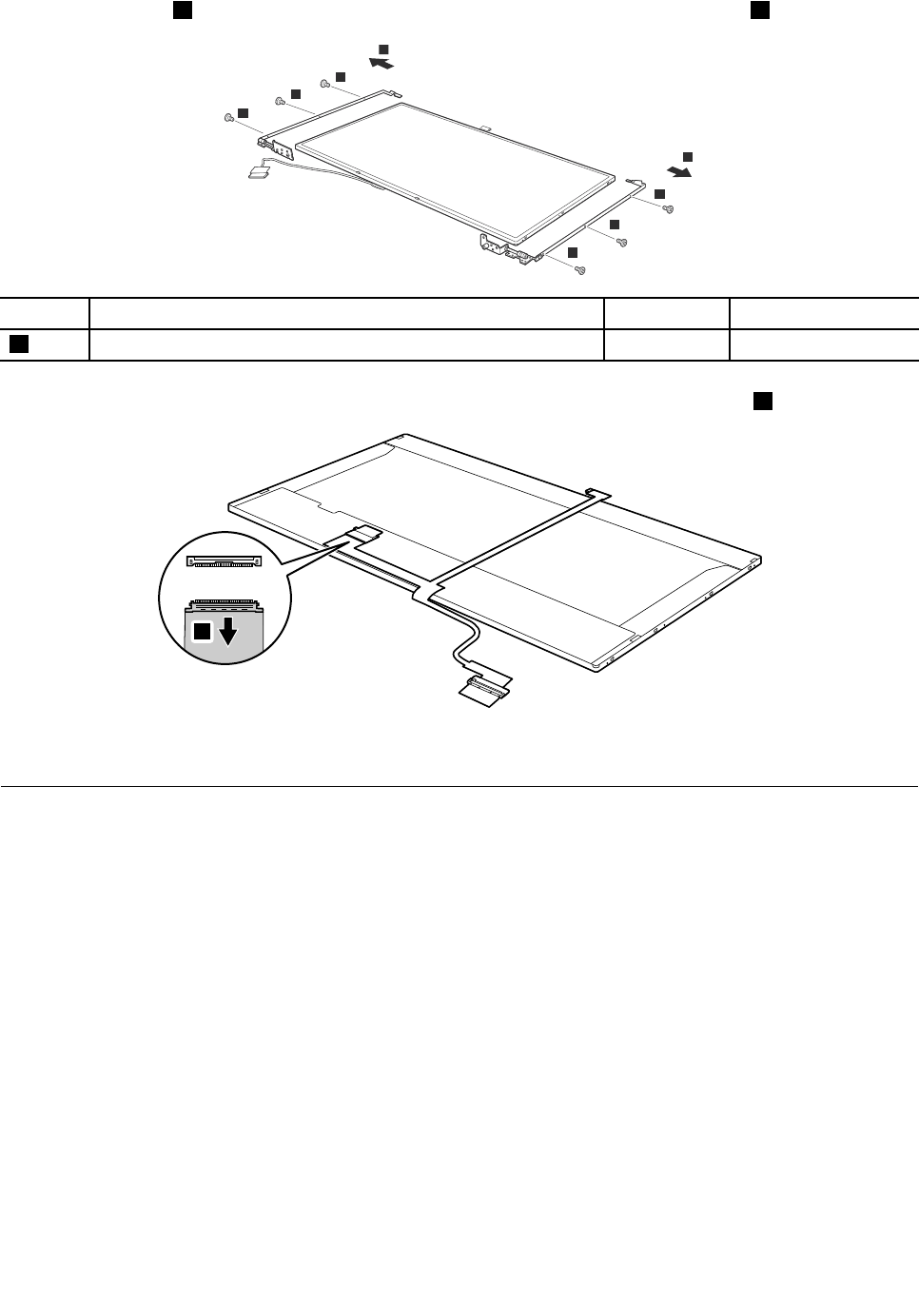
Removethescrews4andthenremovethehingesinthedirectionshownbythearrows5.
4
4
4
4
4
4
5
5
StepScrew(quantity)ColorTorque
4M2×3mm,at-head,nylon-coated(4)Black1.6kgfcm
Peelofftheadhesivetapeanddetachtheconnectorinthedirectionshownbythearrow6.
6
Wheninstalling:Makesurethattheconnectorisattachedrmly.
1170Integratedcamera
Foraccess,removetheseFRUsinorder:
•“1010Batterypack”onpage44
•“1020Dummycard”onpage44
•“1030Bottomslotcover”onpage45
•“1040Harddiskdrive”onpage45
•“1050Opticaldrive”onpage46
•“1060Memorymodules”onpage47
•“1070PCIExpressMiniCardforwirelessLAN/WAN”onpage48
•“1080Keyboard”onpage49
•“1090Keyboardbezel”onpage51
•“1100Systemboardassembly”onpage53
•“1110LCDunit”onpage55
•“1150LCDfrontbezel”onpage62
•“1160LCDpanel,LCDcable,andhinges”onpage63
Chapter7.RemovingandreplacingaFRU65
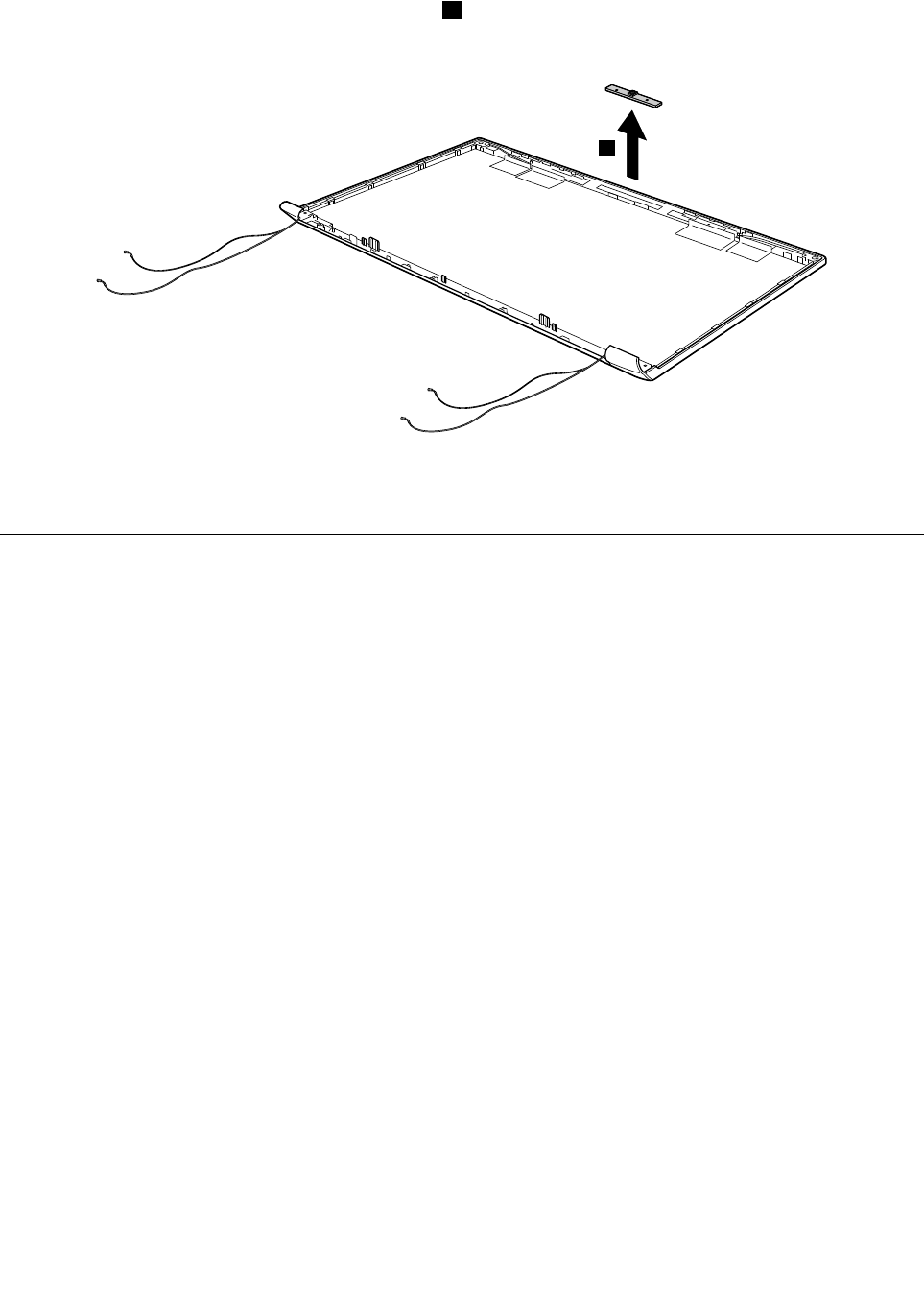
Removalstepsofintegratedcamera
RemovetheintegratedcamerafromtheLCDcover1.
Note:TheintegratedcameraisstuckonthetopcenteroftheLCDcover.
1
Wheninstalling:SticktheintegratedcameratothetopcenteroftheLCDcoverandadjusttheplacementto
makesuretheconnectorisattachedrmly.
1180AntennaassemblyandLCDcover
Foraccess,removetheseFRUsinorder:
•“1010Batterypack”onpage44
•“1020Dummycard”onpage44
•“1030Bottomslotcover”onpage45
•“1040Harddiskdrive”onpage45
•“1050Opticaldrive”onpage46
•“1060Memorymodules”onpage47
•“1070PCIExpressMiniCardforwirelessLAN/WAN”onpage48
•“1080Keyboard”onpage49
•“1090Keyboardbezel”onpage51
•“1100Systemboardassembly”onpage53
•“1110LCDunit”onpage55
•“1150LCDfrontbezel”onpage62
•“1160LCDpanel,LCDcable,andhinges”onpage63
66HardwareMaintenanceManual
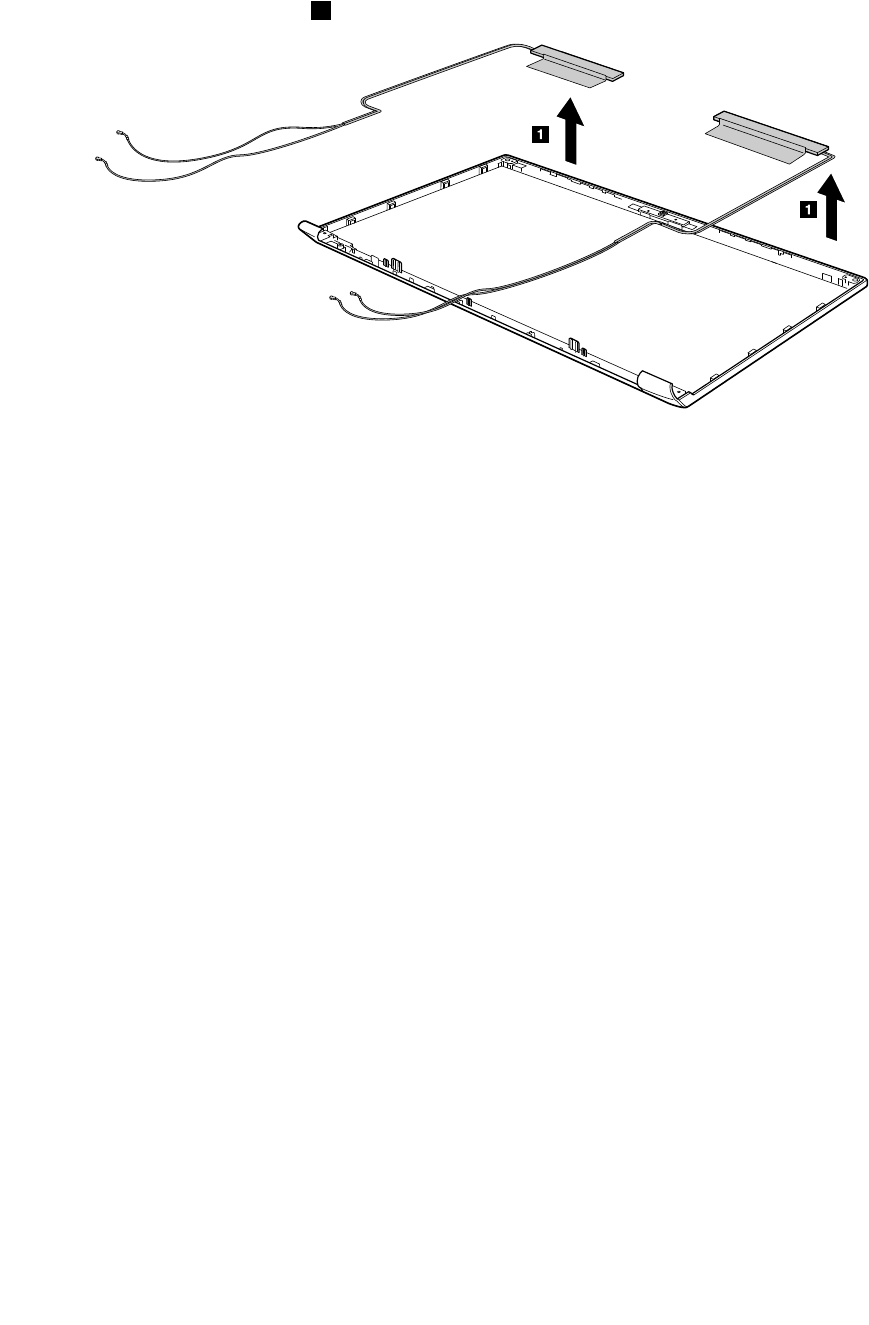
RemovalstepsofantennaassemblyandLCDcover
ReleasetheantennacablesfromthecableguidesoftheLCDrearcoverassemblyandfromthehingesin
thedirectionshownbythearrows1..
Cablerouting:Routetheantennacablesalongthecableguidesandsecuretheantennaboardswith
adhesivetapes.Asyouroutethecables,makesurethattheyarenotsubjectedtoanytension.Tension
couldcausethecablestobedamagedbythecableguides,orawiretobebroken.
Chapter7.RemovingandreplacingaFRU67

68HardwareMaintenanceManual
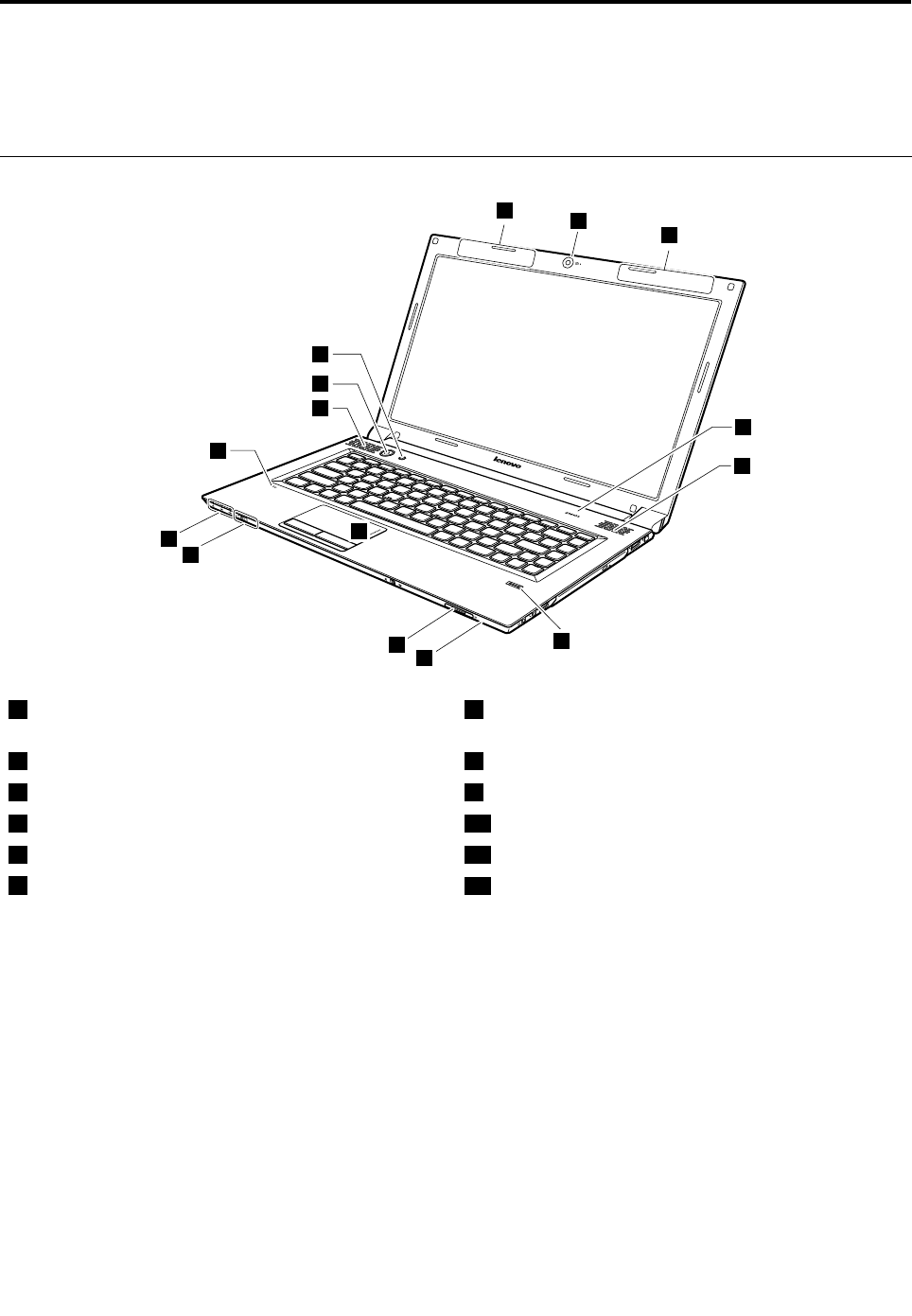
Chapter8.Locations
ThischapterpresentsthelocationsofLenovoB470andB470ehardwarecomponents.
Frontview
5
4
3
6
8
2
2
9
1
8
7
10
11
12
3
1Integratedcamera(onsomemodels)7GraphicsProcessingUnit(GPU)switch(onsome
models)
2Wirelessmoduleantennas(onsomemodels)8Systemstatusindicators1
3Speakers9Touchpad
4Powerbutton10Memorycardslot
5OneKeyRescueSystembutton11Wirelessdeviceswitch(onsomemodels)
6Built-inmicrophone12Fingerprintreader(onsomemodels)
1:Forthedescriptionoftheindicator,see“Statusindicators”onpage38.
©CopyrightLenovo2011,201269
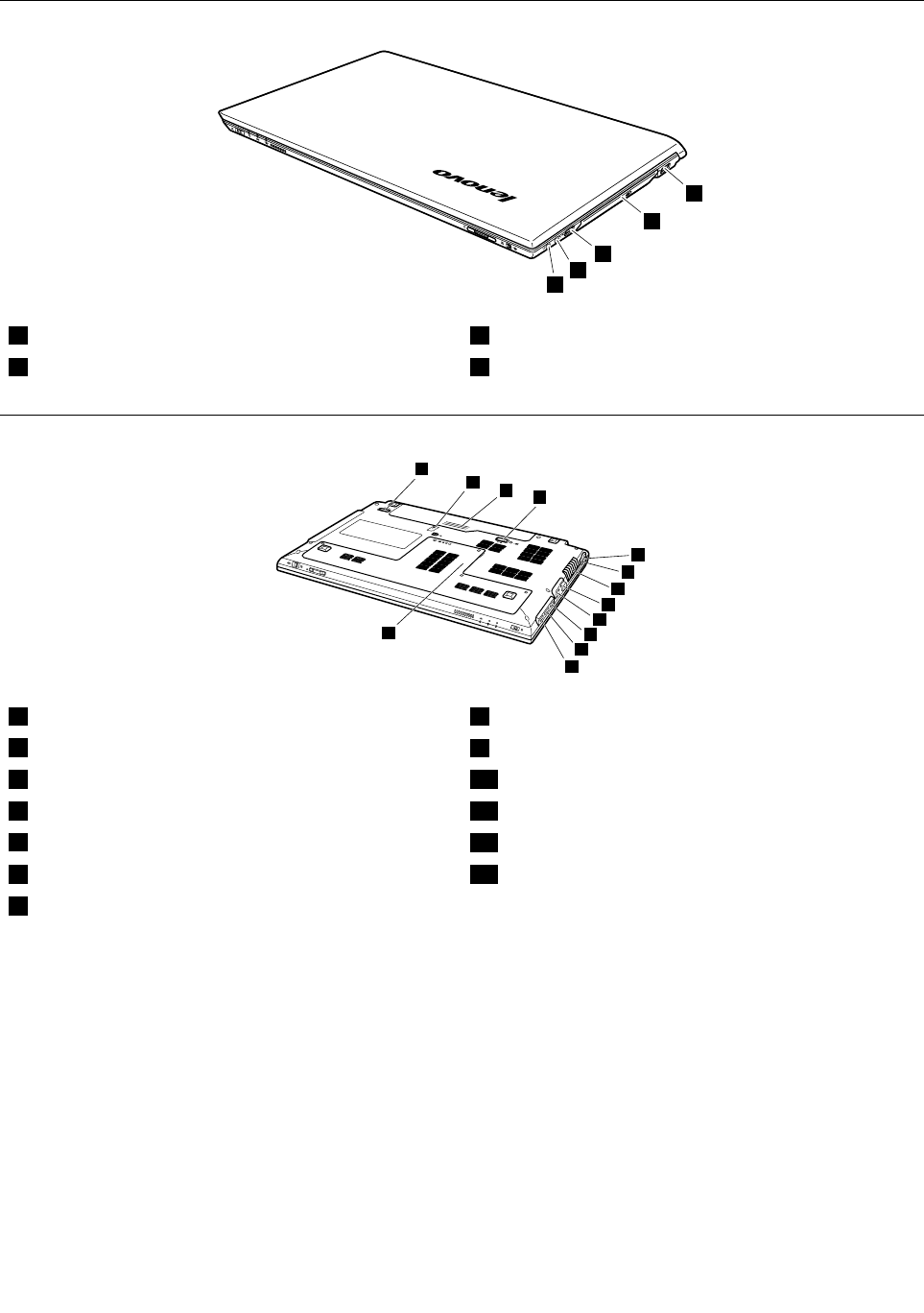
Right-sideview
1
2
3
4
3
1Headphonejack3USBconnectors
2Microphonejack4Opticaldrive(onsomemodels)
Bottomandleft-sideview
9
11
10
12
13
1
2
3
4
7
8
6
5
1Securitykeyhole8USBport
2Powerjack9Batterylatch(springloaded)
3Fanlouvers10Batterypack
4VGAport11Batterylatch(manual)
5RJ-45port12SIMcardslot(onsomemodels)
6HDMIport(onsomemodels)13Bottomslotcover1
7eSATA/USBcomboport(onsomemodels)
1Theharddiskdrive,memorymodule,andMiniPCIExpressCardareplacedunderneath.
70HardwareMaintenanceManual

Chapter9.Partslist
Thischaptercontainsfollowinglistsoftheserviceparts.
•“Overall”onpage72
•“LCDFRUs”onpage75
•“Keyboard”onpage77
•“Miscellaneousparts”onpage78
•“acpoweradapters”onpage78
•“Powercords”onpage78
ExternalCRUstatementtocustomers:
Someproblemswithyourproductcanberesolvedwithareplacementpartyoucaninstallyourself,called
a“CustomerReplaceableUnit”or“CRU.”SomeCRUsaredesignatedasSelf-serviceCRUsandothers
aredesignatedasOptional-serviceCRUs.InstallationofSelf-serviceCRUsisyourresponsibility;youmay
requestthatLenovoinstallsanOptional-serviceCRUaccordingtothewarrantyserviceforyourproduct.
WhereyouareinstallingtheCRU,LenovowillshiptheCRUtoyou.CRUinformationandreplacement
instructionsareshippedwithyourproductandareavailablefromLenovoatanytimeuponrequest.Y oumay
ndalistofCRUsinthepublicationsthatshipwithyourproductorathttp://www.lenovo.com/CRUs.You
mayberequiredtoreturnthedefectivepartthatisreplacedbytheCRU.Whenreturnisrequired:(1)return
instructions,aprepaidshippinglabel,andacontainerwillbeincludedwiththereplacementCRU;and(2)you
maybechargedforthereplacementCRUifLenovodoesnotreceivethedefectivepartwithinthirty(30)days
ofyourreceiptofthereplacementCRU.SeeyourLenovoLimitedWarrantydocumentationforfulldetails.
Note:EachFRUisavailableforalltypesormodels,unlessspecictypesormodelsarespecied.
©CopyrightLenovo2011,201271
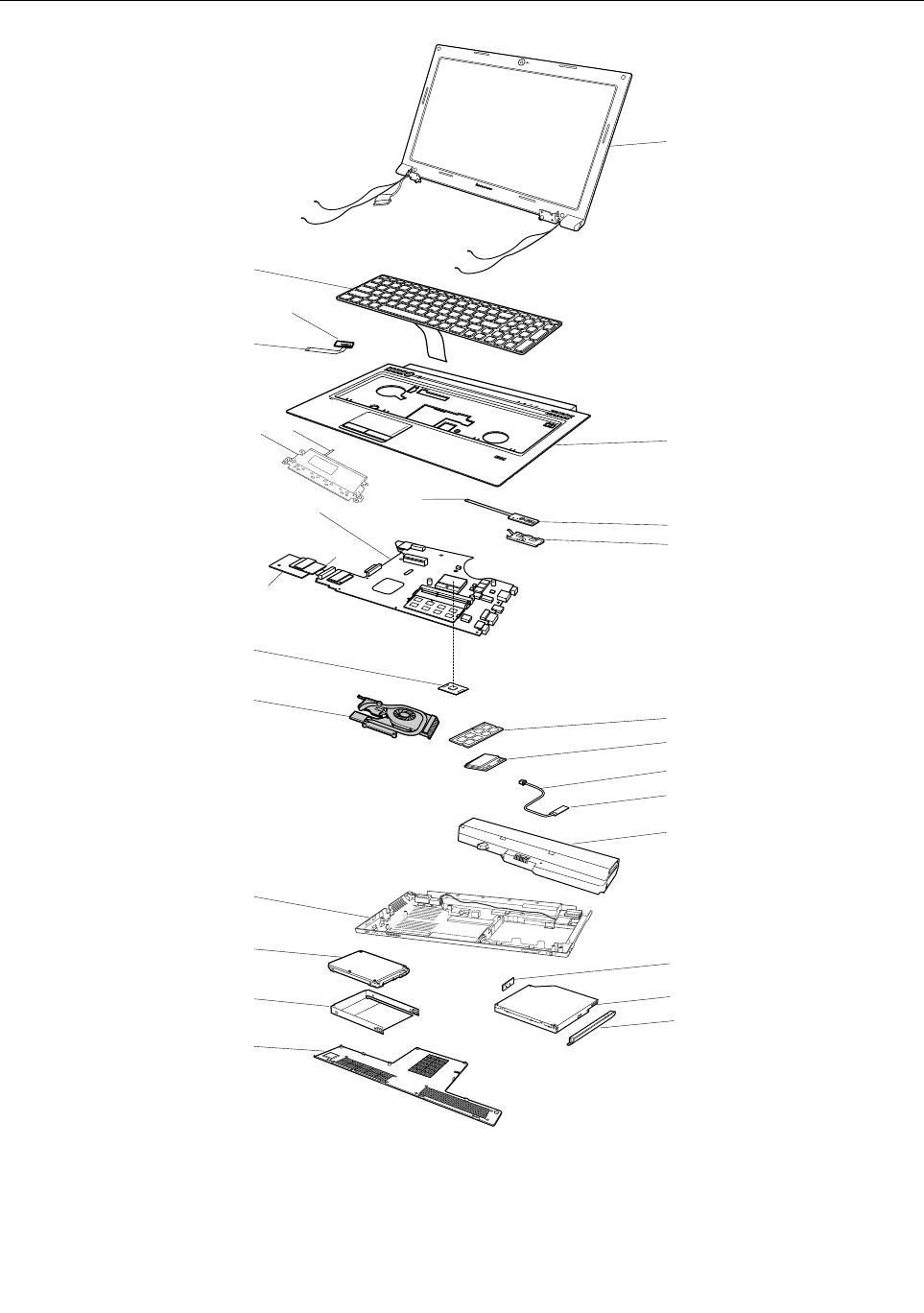
Overall
1
11
h
12
13
16
c
17
7
15
b
18
10
3
5
a
e
df
4
i
6
2
g
8
9
14
72HardwareMaintenanceManual

Table4.Partslist—Overall
No.FRU(Overall)FRUno.
1LCDunit(see“LCDFRUs”onpage75.)
2Keyboard(see“Keyboard”onpage77.)
3LB47UPPERCASEW/TOUCHPAD&MICROPHONE31049008
3LB47LUpperCaseW/MIC/TP6M.4VDCS.00290200220
4LB47POWERBOARD11013303
5LA47FINGERPRINTBOARD31047654
6LB47MBUMAFORDUALCOREW/RTCBATTERY11013304
7LA47SDDUMMYCARD31047672
8IntelI7-2620M2.7G4M2cJ1PGAprocessor102001069
8IntelI5-2540M2.6G3M2cJ1PGAprocessor102001068
8IntelI5-2520M2.5G3M2cJ1PGAprocessor102001067
8IntelI5-2410M2.3G3M2cJ1PGAprocessor102001066
8IntelI3-2310M2.1G3M2cJ1PGAprocessor102001065
8Inteli7-2820QM2.30G8M4cD2PGAprocessor102001055
8IntelI7-2720QM2.20G6M4cD2PGAprocessor102001071
8IntelI7-2630QM2.0G6M4cD2PGAprocessor102001070
8IntelI7-2620M2.7G4M2cJ1PGAprocessor102001069
8IntelI5-2540M2.6G3M2cJ1PGAprocessor102001068
8IntelI5-2520M2.5G3M2cJ1PGAprocessor102001067
8IntelI5-2410M2.3G3M2cJ1PGAprocessor102001066
8IntelI3-2310M2.1G3M2cJ1PGAprocessor102001065
8LB47LMBUMADCW/RTC/HDMI55.4VD01.001G90000066
8LB47LMBDISDCGS-512W/HDMIWO/3G90000067
8LB47LMBDISDCGS-1GW/HDMIWO/3G90000068
8LB47MBUMAFORDCNEWW/3G/BT/HDMI/APS11013521
8LB47MBSG1GW/3G/BT/HDMI/APSB311013565
8LB47MBSG512MW/3G/BT/HDMI/APSB311013566
9LA47HEATSINKUMAW/FAN/PAD60.4KZ09.00131047661
9LA47HEATSINKDISW/FAN/PAD60.4KZ08.00131047662
10DDRIII13331GB,M471B2873FHS-CH9(RevF/1Gb/46nm)11011936
10DDRIII13331GB,RMT1910MD66E7F-1333(V69A/2Gb/50nm)11012427
10DDRIII13331GB,HMT112S6DFR8C-H9N0(RevVega/1Gb/44nm)11012767
10DDRIII13331GB,RMT3010EF48E7W-1333(Rev.F/1Gb/60nm)11012634
10DDRIII13331GB,SY321NG08HBF(Vega/1Gb/44nm)11012810
10DDRIII13332GB,M471B5773CHS-CH9(RevC/2Gb/46nm)11012630
10DDRIII13332GB,EBJ21UE8BFU0-DJ-F(Rev.F/1Gb/60nm)11012608
10DDRIII13332GB,RMT1950MD58E8F-1333(V69A/2Gb/50nm)11012213
10DDRIII13332GB,HMT325S6BFR8C-H9N0(RevVega/2Gb/44nm)11012197
Chapter9.Partslist73

Table4.Partslist—Overall(continued)
No.FRU(Overall)FRUno.
10DDRIII13332GB,RMT3020EF48E8W-1333(RevF/1Gb/60nm)11012633
10DDRIII13332GB,SY321NH08HAF(Vega/2Gb/44nm)11012809
10DDRIII13334GB,M471B5273CH0-CH9(RevC/2Gb/46nm)11011934
10DDRIII13334GB,HMT351S6BFR8C-H9N0(Vega/2Gb/44nm)11012199
10DDRIII13334GB,MT16JSF51264HZ-1G4D1(RevV69A/2Gb/50nm)11012320
11WLANcard,802.11a/g/n&&802.16e,Intel6250NXMOWMPCIENBHMC20002321
11WLANcard,802.11a/g/n&&802.16e,Intel6250GXMOWMPCIENBHMC20002388
11WLANcard,802.11a/g/n&&802.16e,Intel6150NXMOWMPCIENBHMC20002484
11WLANcard,802.11a/g/n&&802.16e,Intel6150GXMOWMPCIENBHMC20002529
11WLANcard,802.11b/g/n1*1,Intel1000NMOWMPCIENBHMC20002329
11WLANcard,802.11b/g/n1*1,CbtBCM4313MOWMPCIENBHMC20002505
11WLANcard,802.11b/g/n1*1,LiteonAR9285HB95BGNMOWNB20002357
11WWANcard,WCDMA/HSDPA7.2M,EricssonF3307R2HSPA900/2100MHzWWAN11012853
11WWANcard,WCDMA/HSDPA7.2M,EricssonF3307R2HSPA850/1900MHzWWAN11012852
11WWANcard,WCDMA/HSDPA7.2M,HuaweiEM770WWCDMA+GPSMiniPCIEWWAN11011800
11WWANcard,WCDMA/HSDPA7.2M,HuaweiEM820HSPA+850/900/1900/2100MHz11012850
11WWANcard,EVDO,HuaweiEM660EVDO+GPSWWANcard11012299
11WWANcard,TD-SCDMA,LeadcoretechTD-SCDMALC5740Mini-Card11012849
12Bluetoothcard,BT2.1+EDR,FcnBCM92070BT2.1EDRFlashUNB20002266
12Bluetoothcard,BT2.1+EDR,USIBCM92070BT2.1EDRFlashUNB20002326
13Batterypack,2200mA6cell,48Wh3S2P ,SanyoL09S6Y023S2P48Whbty(LH)Comm01121001091
13Batterypack,2200mA6cell,48Wh3S2P ,PanaL10P6Y223S2P48WhbtyComm01121001096
13Batterypack,2200mA6cell,48Wh3S2P ,SMP/LGL09M6Y023S2P48Whbty(LH)Comm01121001094
13Batterypack,2200mA6cell,48Wh3S2P ,Celx/SL10C6Y023S2P48Whbty(LH)Comm01121001071
14LA47LowerCaseWO/HDMIW/DcIn&Spk&USBcable31047664
14LA47LowerCaseW/HDMI&DCIN&SPK&USBCABLE31047667
14LB47LLowerCaseW/DCIN/USBCable/SPK90200219
15Harddiskdrive,250G5400rpmSATA,WD2500BPVT-24ZEST05400RPM250G16004852
15Harddiskdrive,250G5400rpmSATA,HitachiHTS545025B9A300250G9NB16004060
15Harddiskdrive,250G5400rpmSATA,SeagateST9250315AS250G9NB16004186
15Harddiskdrive,250G5400rpmSATA,HitachiHTS543225A7A3845400RPM250G16005023
15Harddiskdrive,250G5400rpmSATA,SeagateST250LT0035400RPM7MM250G16005210
15Harddiskdrive,250G5400rpmSATA,ToshibaMK2565GSX5400RPM250G16004641
15Harddiskdrive,320G5400rpmSATA,WD4Ksector320GN5400RPM250G16004853
15Harddiskdrive,320G5400rpmSATA,HitachiHTS545032B9A300320G9NB16004059
15Harddiskdrive,320G5400rpmSATA,HGSTHTS543232A7A3845400RPM7MM320G16005024
15Harddiskdrive,320G5400rpmSATA,SeagateST320LT0205400RPM7MM320G16005211
15Harddiskdrive,320G5400rpmSATA,ToshibaMK3265GSX5400RPM320G16004642
74HardwareMaintenanceManual

Table4.Partslist—Overall(continued)
No.FRU(Overall)FRUno.
15Harddiskdrive,500G5400rpmSATA,SeagateST9500325AS500G9NB16004189
15Harddiskdrive,500G5400rpmSATA,WD5000BPVT-24HXZT15400RPM500G16004846
15Harddiskdrive,500G5400rpmSATA,HitachiHTS545050B9A300500G9NB16004058
15Harddiskdrive,500G5400rpmSATA,ToshibaMK5065GSX5400RPM500G16004643
15Harddiskdrive,640G5400rpmSATA,WD6400BPVT-24HXZT15400RPM640G16004847
15Harddiskdrive,640G5400rpmSATA,ToshibaMK6465GSX5400RPM640G16004644
15Harddiskdrive,640G5400rpmSATA,SeagateST9640320AS5400RPM640G16005046
15Harddiskdrive,750G5400rpmSATA,WD7500BPVT-24HXZT15400RPM750G16004848
15Harddiskdrive,320G7200rpmSATA,HitachiHTS725032A9A3647200RPM320G16004530
15Harddiskdrive,320G7200rpmSATA,SeagateST9320423AS7200RPM320G9NB16004533
15Harddiskdrive,320G7200rpmSATA,HGSTHTS723232A7A3647200RPM7MM320G16005027
15Harddiskdrive,320G7200rpmSATA,SeagateST320L T0077200RPM7MM320G16005030
15Harddiskdrive,320G7200rpmSATA,WDWD3200BEKT7200RPM320G16005212
15Harddiskdrive,500G7200rpmSATA,HitachiHTS725050A9A3647200RPM500G16004531
15Harddiskdrive,500G7200rpmSATA,SeagateST9500420AS7200RPM500G9NB16004532
15Harddiskdrive,500G7200rpmSATA,WD5000BEKT-24KA9T07200RPM500G16004850
16Opticaldrive,12.7mmTrayRambo,PLDSDS-8A5STrayinRambo25011187
16Opticaldrive,12.7mmTrayRambo,OptiarcAD-7710HTrayinRambo25011218
16Opticaldrive,12.7mmTrayRambo,TSSTTS-L633FTrayinRambo25011201
16Opticaldrive,12.7mmTrayRambo,PSNUJ8A0TrayinRambo25011472
16Opticaldrive,12.7mmBDCombo,PLDSDS-6E2STrayinBDRambo25011471
16Opticaldrive,12.7mmBDCombo,HLDSCT30NTrayinBDRambo25011473
16LB47LODDBracket33.4VD04.00190200213
16LB47LODDDummyCard42.4VD06.00190200214
17LA47ODDBEZELTRAYINRAMBO31047659
17LA47ODDBEZELCOMBOBLUERAY31051123
18LA47THERMALDOOR60.4KZ07.00131047670
–acpoweradapter(see“acpoweradapters”onpage78.)
–LB475BTCable31052068
–LA47BLUETOOTHCABLE50.4KZ09.00131047658
–LB47LI/OBoardW/IOCable55.4VD02.001G90200210
LCDFRUs
InLenovoB470andB470emodels,thetypeofLCDis14-inchhighdenition(HD)TFTLCD(Table5“Parts
list-LCD”onpage76).
Chapter9.Partslist75
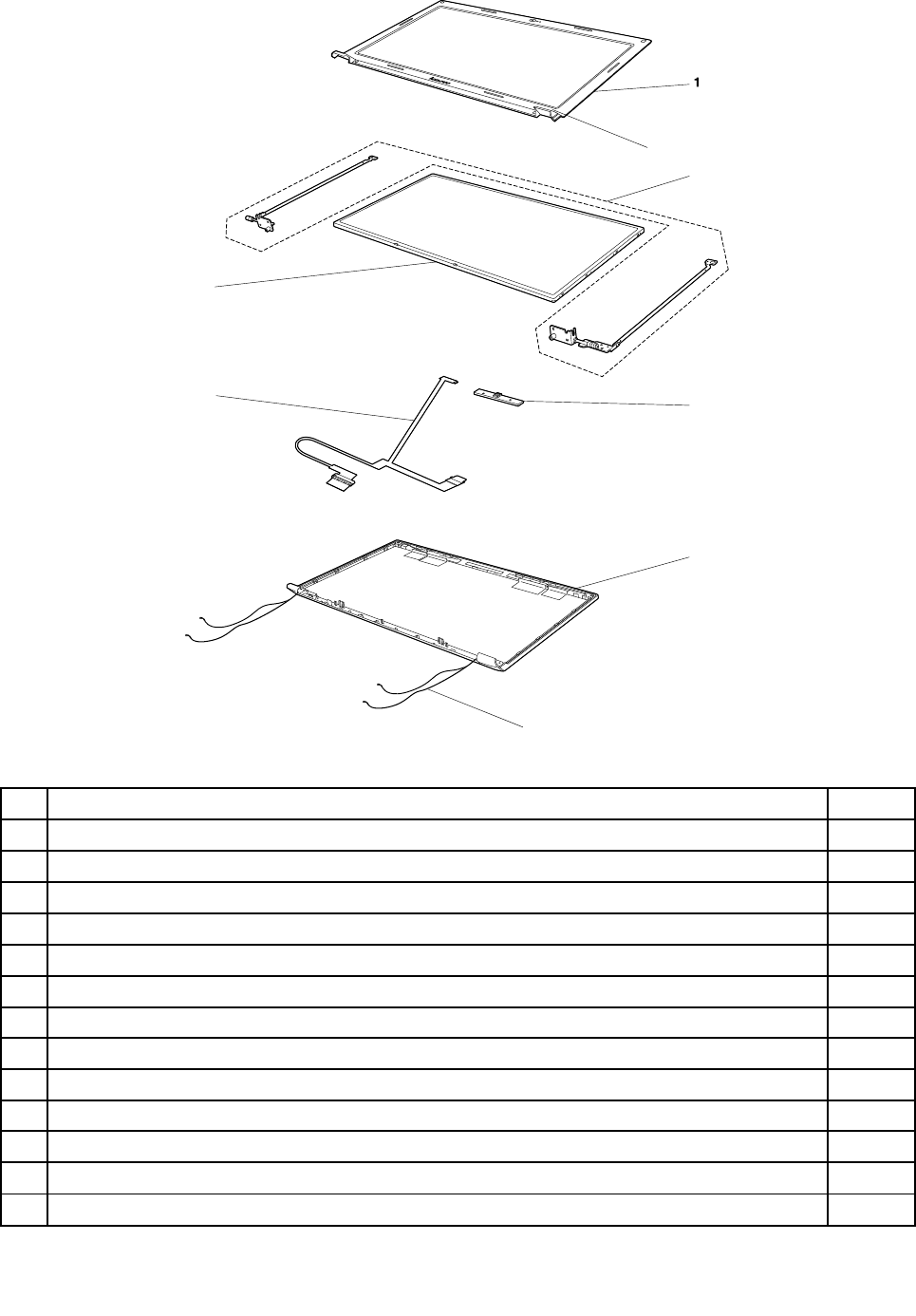
7
2
8
3
4
5
6
Table5.Partslist-LCD
No.FRUFRUno.
1LB47LCDBEZELW/CAMERAHOLE31049003
1LB47LLCDBezelWO/CameraHole90200216
1LB47LLCDBezelW/CameraHole90200217
2LB47LCDBEZELSCREWMYLAR40.4KZ20.00131047646
314.0HDLEDPanel,B140XW01V818004799
314.0HDLEDPanel,N140BGE-L2118004798
314.0HDLEDPanel,LP140WH4-TLA118004797
314.0HDLEDPanel,LTN140AT16-L0118004796
314.0HDLEDPanel,HT140WXB-50118004795
314.0HDLEDPanel,M140NWR2R118004793
4LB47LCDHINGERLEFT31049006
4LB47LCDHINGERRIGHT31049007
4LB47LLCDHingeL&R6K.4VDCS.00190200215
76HardwareMaintenanceManual

Table5.Partslist-LCD(continued)
No.FRUFRUno.
5LB47CAMEARVGACHICONY/LITEON/BISON31049002
5LZ57CAMEAR0.3MVGA10P2SF016BLITEON31049300
5LB47LCamera0.3MVGA10P2SF016LITEON90200212
6LB47LCDCABLE31049000
6LB47LLCDCable50.4VD01.00190200211
7LB47LCDCOVERFORWIMAXW/ANTENNA31049005
7LB47LLCDCoverW/Antenna60.4VD02.00190200218
8LB47LEDBOARDW/CABLE50.4MA02.00131049001
–LB47LLCDMylar40.4VD02.01190200221
Keyboard
Table6.Partslist-Keyboard
LanguageFRUno.
(Dafon)
FRUno.
(Chicony)
FRUno.
(Sunrex)
Arabic250126652501260225012602
Belgian250126742501261025012610
BrazilianPortuguese250126672501260325012603
Bulgarian250126742501261625012616
Czech250126792501261525012615
C&Nordics(Danish/Finnish/Swedish/Norwegian/English)250126732501260925012609
Dutch250126692501260525012605
French250126622501260025012600
French,English250126542501259625012596
German250126632501260125012601
Greek250126702501260625012606
Hebrew250126712501260725012607
Hungarian250126722501260825012608
Icelandic250126752501261125012611
Italian250126432501259025012590
Japanese250126682501260425012604
Korean250126572501259725012597
Latin250126532501259525012595
Portuguese250126512501259425012594
Russian250126602501259925012599
Swiss250126772501261325012613
Slovenian250126762501261225012612
Spanish250126452501259125012591
Thai250126492501259325012593
Chapter9.Partslist77
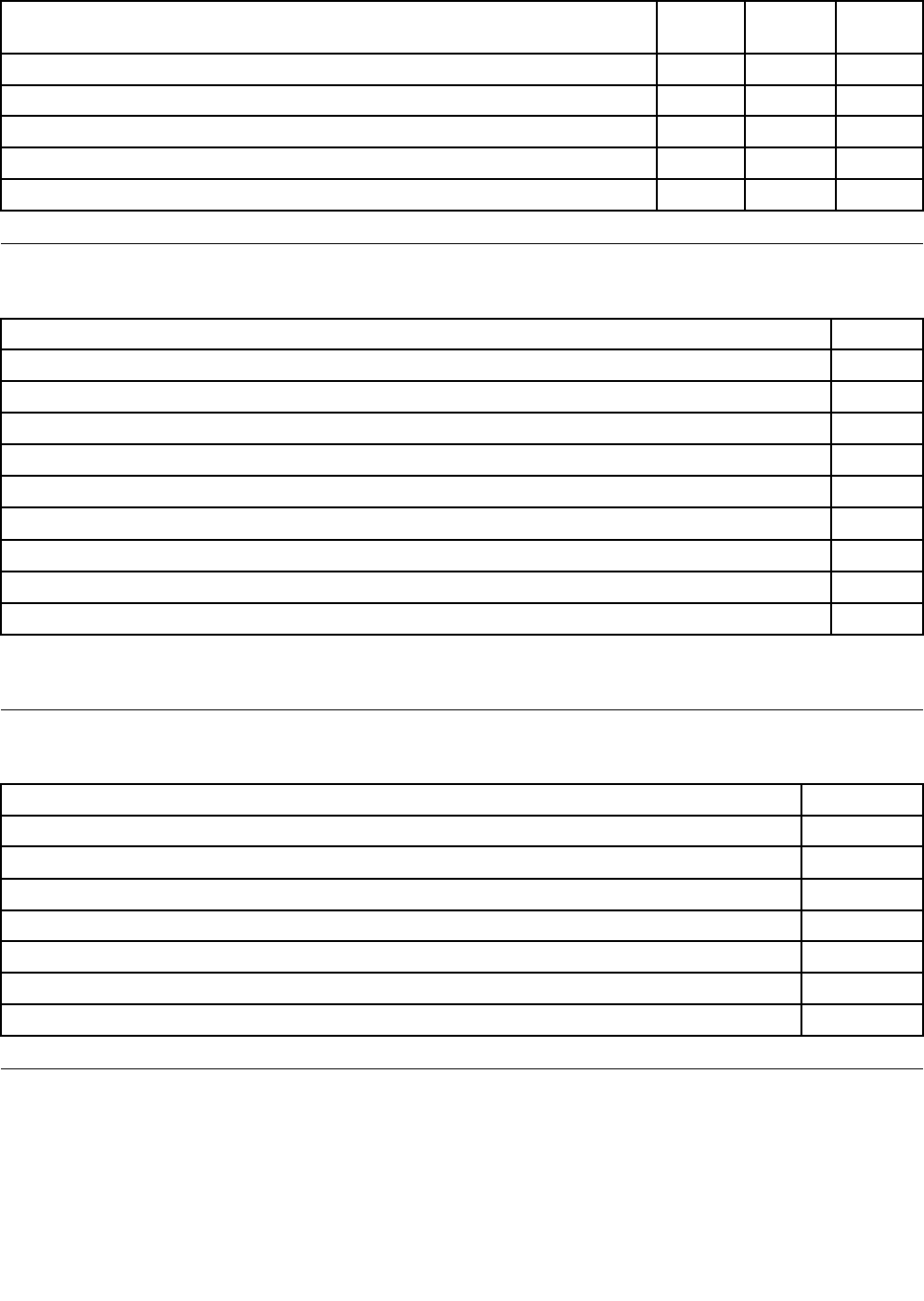
Table6.Partslist-Keyboard(continued)
LanguageFRUno.
(Dafon)
FRUno.
(Chicony)
FRUno.
(Sunrex)
TraditionalChinese250126582501259825012598
Turkish250126482501259225012592
U.K.English250126422501258925012589
U.S.English250126402501258825012588
U.S.English(International,withaEurosymbol)250126782501261425012614
Miscellaneousparts
Table7.Partslist-Miscellaneousparts
FRUFRUno.
(a)LA47FINGERPRINTBRACKET31047655
(b)LA47HDDBRACKET31047671
(c)LA47ODDBRKTBRACKET31047660
(d)LB47TOUCHPADBRACKET(B470)31049004
(e)LA47POWERBOARDCABLE31047653
(f)LA47TOUCHPADCABLE31047648
(g)LB47IOBOARDW/IOCABLE(B470)11013302
(h)LA47BLUETOOTHCABLE31047658
(i)LA47FINGERPRINTFFC50.4KZ04.00131047656
Note:Italicizedlettersinparenthesesarereferencestotheexplodedviewin“Overall”onpage72
acpoweradapters
Table8.Partslist—3-pinacpoweradapters
FRUFRUno.
65W,DeltaADP-65KHBD,20V,3.25Aadapter36001929
65W,LiteonPA-1650-56LCadapter36001651
65W,ChiconyCPA-A065,20V,3.25Aadapter(330PF)36001943
65W,EmersonAA26600L,20V,3.25Aadapter36001870
90W,DeltaADP-90DDBD,20V,4.5Aadapter36001941
90W,LiteonPA-1900-56LC,20V,4.5Aadapter(330PF)36001927
90W,ChiconyCPA-A090,20V,4.5Aadapter(330PF)36001942
Powercords
ALenovopowercordforaspeciccountryorregionisusuallyavailableonlyinthatcountryorregion:
78HardwareMaintenanceManual

Table9.Partslist-3-pinpowercords(Linetek)
CountryorregionFRUno.
Africa
•LS15+H03VV-F+PE-364,1m
145000586
Argentina
•LS15+H03VV-F+LP39,1m
145000599
Australia
•LS15+H03VV-F+LP-23A,1m
145000589
Brazil
•LS15H03VV-FLP26A,1m
145000596
CCC
•PC323+RVV300/300+LS15,1m
145000600
CE
•LP-34+H03VV-F+LS15,1m
145000585
Danmark
•LS15+H03VV-F+LP-38,1m
145000598
Indian
•PE-361+H05VV-F+LS15,1m
145000592
Israel
•LS15+H03VV-F+LP-41,1m
145000595
Italy
•LS15+H03VV-F+PE-336,1m
145000591
Japan
•LS15+VCTF+LP-54,1m
145000587
Korea
•LS15+H05VV-F+LP-E04A,1m
145000590
Switzerland
•LS15+H03VV-F+LP-37,1m
145000597
Taiwan
•LS15+VCTF+LP-53,1m
145000588
U.K.
•LP-61L+H03VV-F+LS15,1m
145000593
UL
•LP-30B+SPT-2+LS15,1m
145000594
Table10.Partslist-3-pinpowercords(Longwell)
CountryorregionFRUno.
Africa
•LP-39+H03VV-F+LS-18,1m
145000554
Argentina
•LP-24+H03VV-F+LS-18,1m
145000567
Chapter9.Partslist79

Table10.Partslist-3-pinpowercords(Longwell)(continued)
CountryorregionFRUno.
Australia
•LP-23A+LFC-3R+LS-18,1m
145000557
Brazil
•LP-46+H03VV-F+LS-18,1m
145000564
CCC
•LSG-31+RVV300/300+LS-18,1m
145000568
CE
•LongwellLP-34A+H03VV-F+LS-18,1m
145000553
Danmark
•LP-40+H03VV-F+LS-18,1m
145000566
Indian
•LP-67+BIS+LS-18,1m
145000560
Israel
•LP-41+H03VV-F+LS-18,1m
145000563
Italy
•LP-22+H03VV-F+LS-18,1m
145000559
Japan
•LP-54+VCTF+LS-18,1m
145000555
Korea
•LP-486+KTLH03VV-F+LS-5,1m
145000558
Switzerland
•LP-37+H03VV-F+LS-18,1m
145000565
Taiwan
•LP-71+VCTF+LS-33,1m
145000556
U.K.
•LP-61L+H03VV-F+LS-18,1m
145000561
UL
•LP-30B+SPT-218AWG+LS-18,1m
145000562
Table11.Partslist-3-pinpowercords(Volex)
CountryorregionFRUno.
Argentina
•LP-24+H03VV-F+LS-18,1m
145000528
Australia
•LP-23A+LFC-3R+LS-18,1m
145000532
Brazil
•LP-46+H03VV-F+LS-18,1m
145000527
80HardwareMaintenanceManual
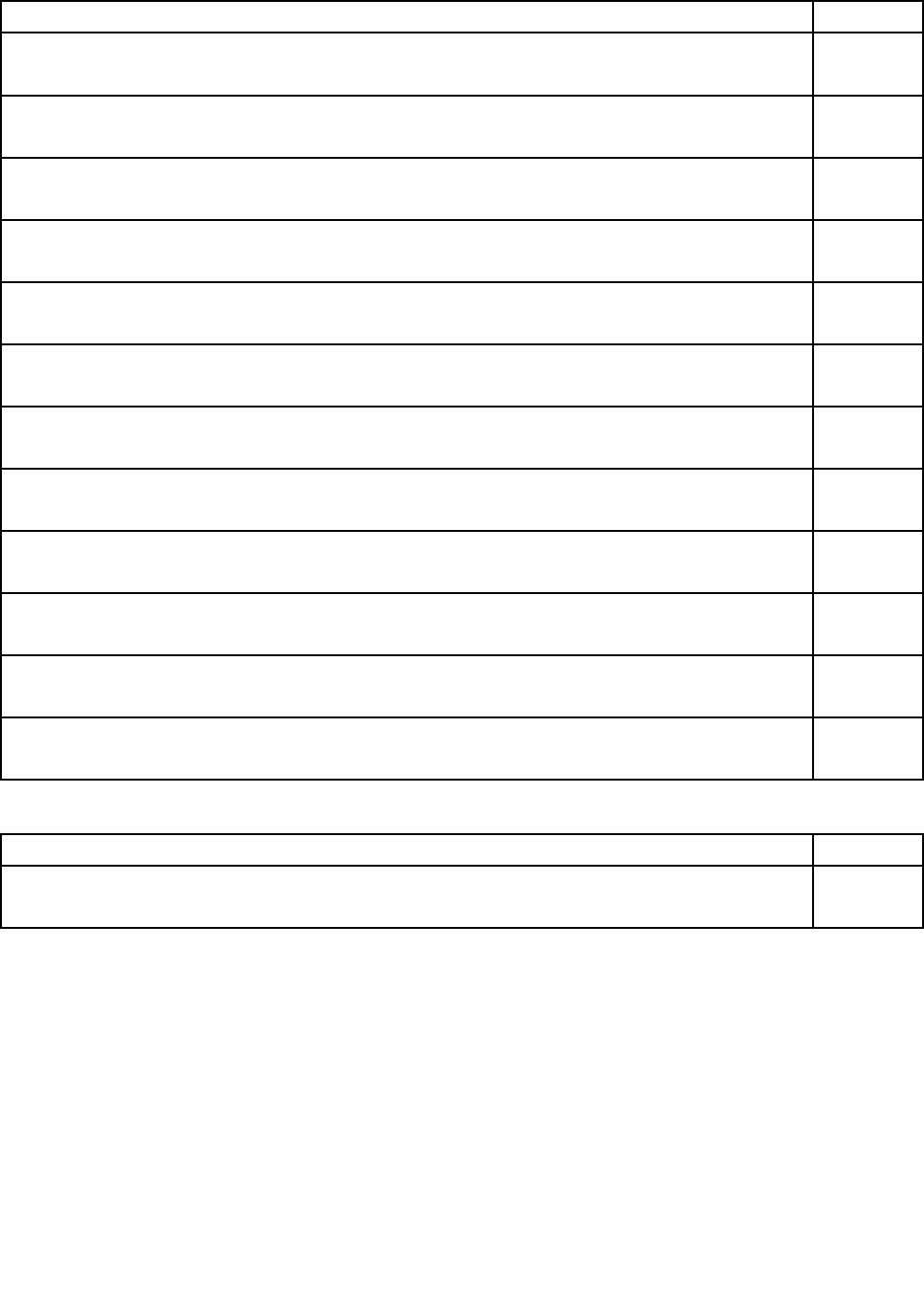
Table11.Partslist-3-pinpowercords(Volex)(continued)
CountryorregionFRUno.
CCC
•LSG-31+RVV300/300+LS-18,1m
145000538
CE
•LP-34A+H03VV-F+LS-18,1m
145000525
Danmark
•LP-40+H03VV-F+LS-18,1m
145000534
Indian
•LP-67+BIS+LS-18,1m
145000536
Israel
•LP-41+H03VV-F+LS-18,1m
145000526
Italy
•LP-22+H03VV-F+LS-18,1m
145000535
Japan
•LP-54+VCTF+LS-18,1m
145000530
Korea
•LP-486+KTLH03VV-F+LS-5,1m
145000533
Switzerland
•LP-37+H03VV-F+LS-18,1m
145000524
Taiwan
•LP-71+VCTF+LS-33,1m
145000531
U.K.
•LP-61L+H03VV-F+LS-18,1m
145000605
UL
•LP-30B+SPT-218AWG+LS-18,1m
145000537
Table12.Partslist-3-pinpowercords(others)
CountryorregionFRUno.
CCC
•SSDYD-118-1+IEC53RVV+SSD-3-2B-1,1m
145000602
Chapter9.Partslist81

82HardwareMaintenanceManual

AppendixA.Notices
Lenovomaynotoffertheproducts,services,orfeaturesdiscussedinthisdocumentinallcountries.Consult
yourlocalLenovorepresentativeforinformationontheproductsandservicescurrentlyavailableinyour
area.AnyreferencetoaLenovoproduct,program,orserviceisnotintendedtostateorimplythatonlythat
Lenovoproduct,program,orservicemaybeused.Anyfunctionallyequivalentproduct,program,orservice
thatdoesnotinfringeanyLenovointellectualpropertyrightmaybeusedinstead.However,itistheuser's
responsibilitytoevaluateandverifytheoperationofanyotherproduct,program,orservice.
Lenovomayhavepatentsorpendingpatentapplicationscoveringsubjectmatterdescribedinthis
document.Thefurnishingofthisdocumentdoesnotgiveyouanylicensetothesepatents.Y oucansend
licenseinquiries,inwriting,to:
Lenovo(UnitedStates),Inc.
1009ThinkPlace-BuildingOne
Morrisville,NC27560
U.S.A.
Attention:LenovoDirectorofLicensing
LENOVOPROVIDESTHISPUBLICATION“ASIS”WITHOUTWARRANTYOFANYKIND,EITHEREXPRESS
ORIMPLIED,INCLUDING,BUTNOTLIMITEDTO,THEIMPLIEDWARRANTIESOFNON-INFRINGEMENT,
MERCHANTABILITYORFITNESSFORAPARTICULARPURPOSE.Somejurisdictionsdonotallow
disclaimerofexpressorimpliedwarrantiesincertaintransactions,therefore,thisstatementmaynotapply
toyou.
Thisinformationcouldincludetechnicalinaccuraciesortypographicalerrors.Changesareperiodically
madetotheinformationherein;thesechangeswillbeincorporatedinneweditionsofthepublication.
Lenovomaymakeimprovementsand/orchangesintheproduct(s)and/ortheprogram(s)describedinthis
publicationatanytimewithoutnotice.
Theproductsdescribedinthisdocumentarenotintendedforuseinimplantationorotherlifesupport
applicationswheremalfunctionmayresultininjuryordeathtopersons.Theinformationcontainedinthis
documentdoesnotaffectorchangeLenovoproductspecicationsorwarranties.Nothinginthisdocument
shalloperateasanexpressorimpliedlicenseorindemnityundertheintellectualpropertyrightsofLenovo
orthirdparties.Allinformationcontainedinthisdocumentwasobtainedinspecicenvironmentsandis
presentedasanillustration.Theresultobtainedinotheroperatingenvironmentsmayvary.
Lenovomayuseordistributeanyoftheinformationyousupplyinanywayitbelievesappropriatewithout
incurringanyobligationtoyou.
Anyreferencesinthispublicationtonon-LenovoWebsitesareprovidedforconvenienceonlyanddonotin
anymannerserveasanendorsementofthoseWebsites.ThematerialsatthoseWebsitesarenotpartof
thematerialsforthisLenovoproduct,anduseofthoseWebsitesisatyourownrisk.
Anyperformancedatacontainedhereinwasdeterminedinacontrolledenvironment.Therefore,theresult
obtainedinotheroperatingenvironmentsmayvarysignicantly.Somemeasurementsmayhavebeen
madeondevelopment-levelsystemsandthereisnoguaranteethatthesemeasurementswillbethesame
ongenerallyavailablesystems.Furthermore,somemeasurementsmayhavebeenestimatedthrough
extrapolation.Actualresultsmayvary.Usersofthisdocumentshouldverifytheapplicabledatafortheir
specicenvironment.
©CopyrightLenovo2011,201283

Trademarks
ThefollowingtermsaretrademarksofLenovointheUnitedStates,othercountriesorboth:
Lenovo
OneKeyRescue
WindowsisatrademarkoftheMicrosoftgroupofcompanies.
IntelisatrademarkofIntelCorporationoritssubsidiariesintheUnitedStates,othercountries,orboth.
Othercompany,product,orservicenamesmaybethetrademarksorservicemarksofothers.
84HardwareMaintenanceManual

PartNumber:
PrintedinChina
(1P)P/N:
**
