Lenovo Ideacentre A300 User Guide V1.0 Manual Idea Centre All In One (ideacentre) Type 10035
2010-02-12
User Manual: Lenovo Lenovo Ideacentre A300 User Guide V1.0 Lenovo IdeaCentre A300 User Guide v1.0 A300 All-in-One (ideacentre) - Type 10035
Open the PDF directly: View PDF  .
.
Page Count: 51
Version 1.0
Machine type: 10035
10036
2009.11
Lenovo
IdeaCentre A3 Series
User Guide
31041269
31041269_A3_UG_FM_EN_V1.0.indd 1 2009.11.20 5:21:10 PM
Important Safety Information
Before using this manual, it is important that you read and understand all of the
related safety information for this product. Refer to the Safety and Warranty Guide
that you received with this product for the latest safety information. Reading and
understanding this safety information reduces the risk of personal injury or damage
to your product.
Danger: Be aware of extremely hazardous or lethal situations.
Attention: Be aware of possible damage to programs, devices, or data.
Note: Pay attention to this important information.
© Copyright Lenovo 2009.
31041269_A3_UG_EN_V1.0.indd 1 2009.11.24 9:16:28 AM

31041269_A3_UG_EN_V1.0.indd 2 2009.11.24 9:16:28 AM

1
Contents
Contents
Important Safety Information
Chapter 1 Using the Computer Hardware .............................. 1
1.1 Front view of the computer ......................................................2
1.2 Rear view of the computer .......................................................3
1.3 Computer stand.......................................................................4
1.4 Connecting your computer ......................................................5
1.5 Important information about using the computer .....................9
1.6 Wireless keyboard and mouse instructions ............................12
1.7 Using the Bluetooth remote control ......................................14
Chapter 2 Using the Rescue System .................................... 27
2.1 OneKey Recovery ..................................................................28
2.2 Driver and Application Installation ..........................................28
2.3 System Setup ........................................................................29
2.4 System Backup .....................................................................30
2.5 System Recovery ..................................................................30
2.6 Create Recovery Disc ............................................................30
Chapter 3 Using the Computer Software ............................. 31
3.1 Power2Go - Burning Discs ...................................................32
3.2 WinDVD ................................................................................33
3.3 McAfee Security Center .........................................................34
3.4 Media Show ..........................................................................35
3.5 Lenovo CamSuite ..................................................................36
Chapter 4 System Maintenance and Recovery .................... 37
4.1 Restoring the System ............................................................38
4.2 Backup and Restore ..............................................................38
31041269_A3_UG_EN_V1.0.indd 1 2009.11.24 9:16:28 AM

2Contents
4.3 Cleaning Up the Disk .............................................................38
4.4 Checking For, and Correcting Disk Errors ..............................39
4.5 Defragmenting the Disk(s) ......................................................39
4.6 Performing Daily Maintenance Tasks ......................................39
Chapter 5 Troubleshooting and Confirming Setup .............. 41
5.1 Troubleshooting Display Problems .........................................42
5.2 Troubleshooting Audio Problems ...........................................43
5.3 Troubleshooting Software Problems.......................................43
5.4 Troubleshooting Problems with Optical Drives and
Hard Disks .............................................................................44
5.5 Special considerations for troubleshooting Windows .............45
31041269_A3_UG_EN_V1.0.indd 2 2009.11.24 9:16:29 AM
1
2
3
4
5
Chapter
This chapter contains the following
topics:
ÿ Computer hardware introduction
ÿ Information on computer connections
Note: The descriptions in this chapter might
vary from your computer, depending on
computer models and configurations.
User Guide 1
Using the Computer Hardware
31041269_A3_UG_EN_V1.0.indd 1 2009.11.24 9:16:30 AM
2User Guide
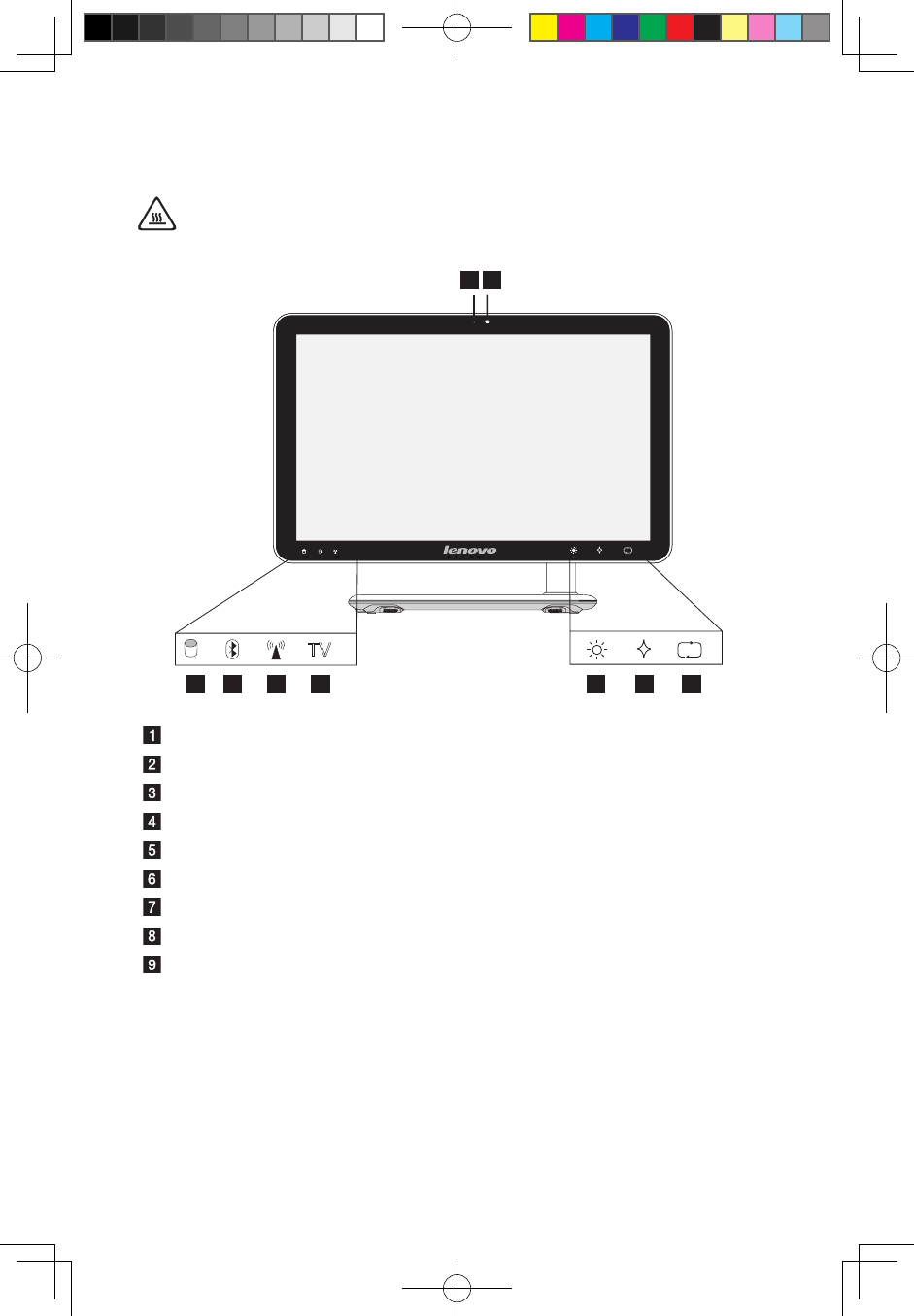
1.1 Front view of the computer
Attention: Be sure not to block any air vents on the computer. Blocked
air vents may cause thermal problems.
TV
TV
12
84 73 5 6 9
Camera
Built-in microphone
Hard Disk Drive Indicator
Bluetooth status indicator
WIFI status indicator
HDMI-IN mode indicator
LCD light adjust button
Novo Vision button
LCD on/off and PC/HDMI-IN switch combo
31041269_A3_UG_EN_V1.0.indd 2 2009.11.24 9:16:32 AM
3
User Guide
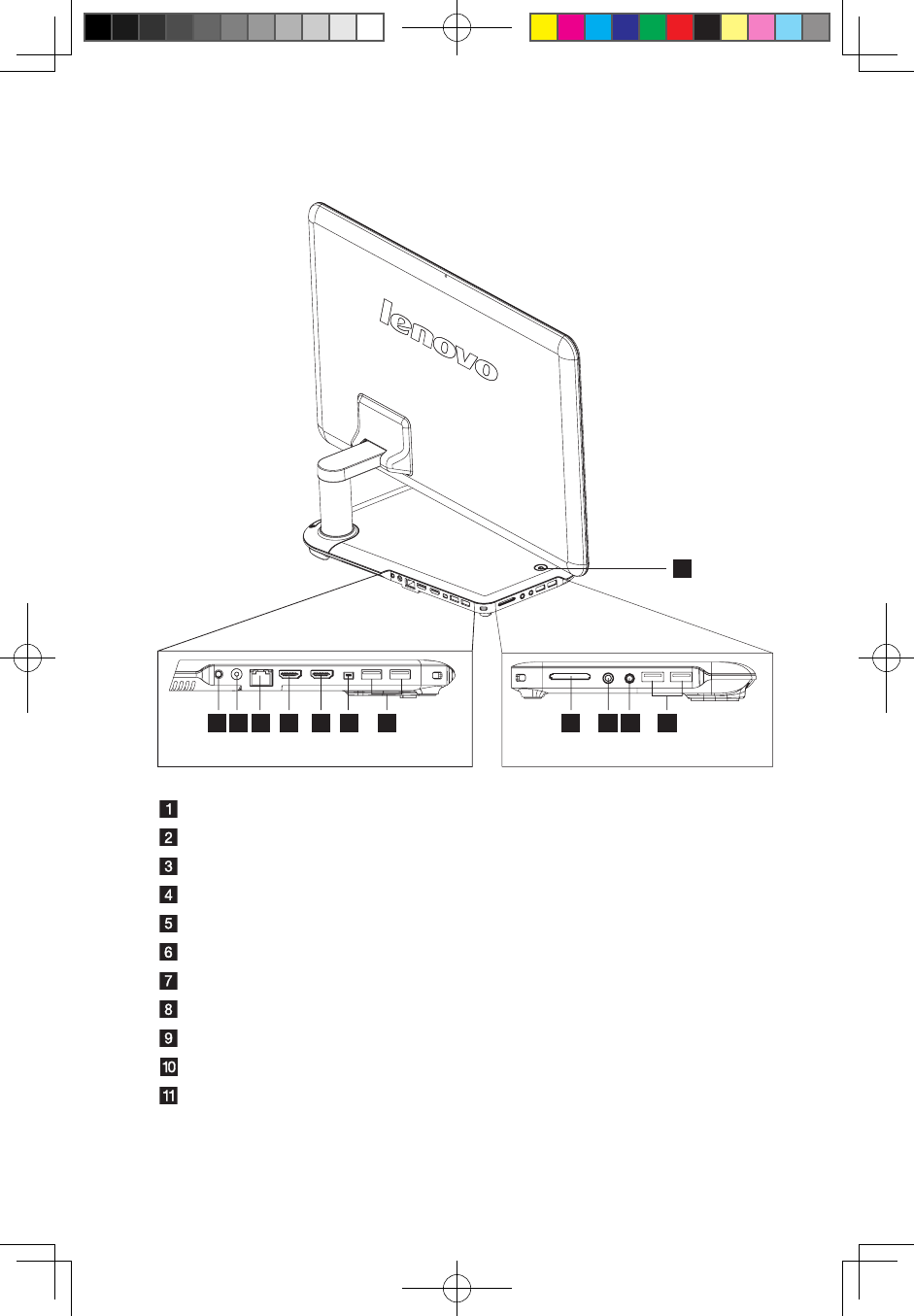
1.2 Rear view of the computer
2 3 4 5 6 8 89 10 117
1
Power button
TV tuner connector (Selected models only)
Power connector
Ethernet connector
HDMI-IN connector (Selected models only)
HDMI-OUT connector (Selected models only)
IEEE 1394 connector (Selected models only)
USB ports (4)
Memory card reader (Selected models only)
Microphone connector
Headphone connector
31041269_A3_UG_EN_V1.0.indd 3 2009.11.24 9:16:33 AM
4User Guide
1
2
1
2
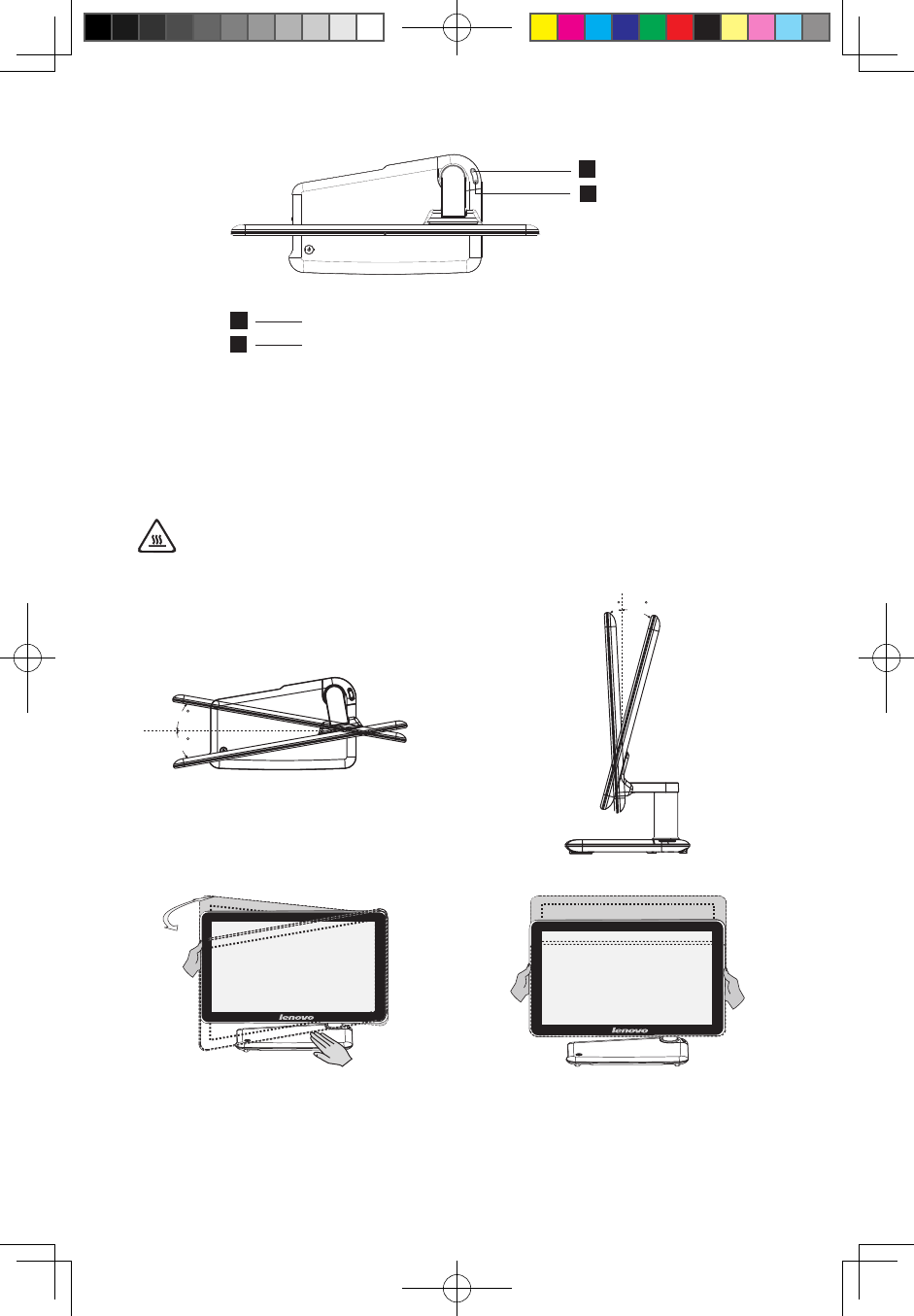
Bluetooth connect button
Mode switch button (Selected models only)
1.3 Computer stand
Adjust the angle for the best viewing experience. It can be rotated from horizontal
or vertical.
The stand provides stability to the computer; it is not a removable part.
Attention: The computer stand must remain installed at all times to
ensure maximum system stability.
10
10
TV
318
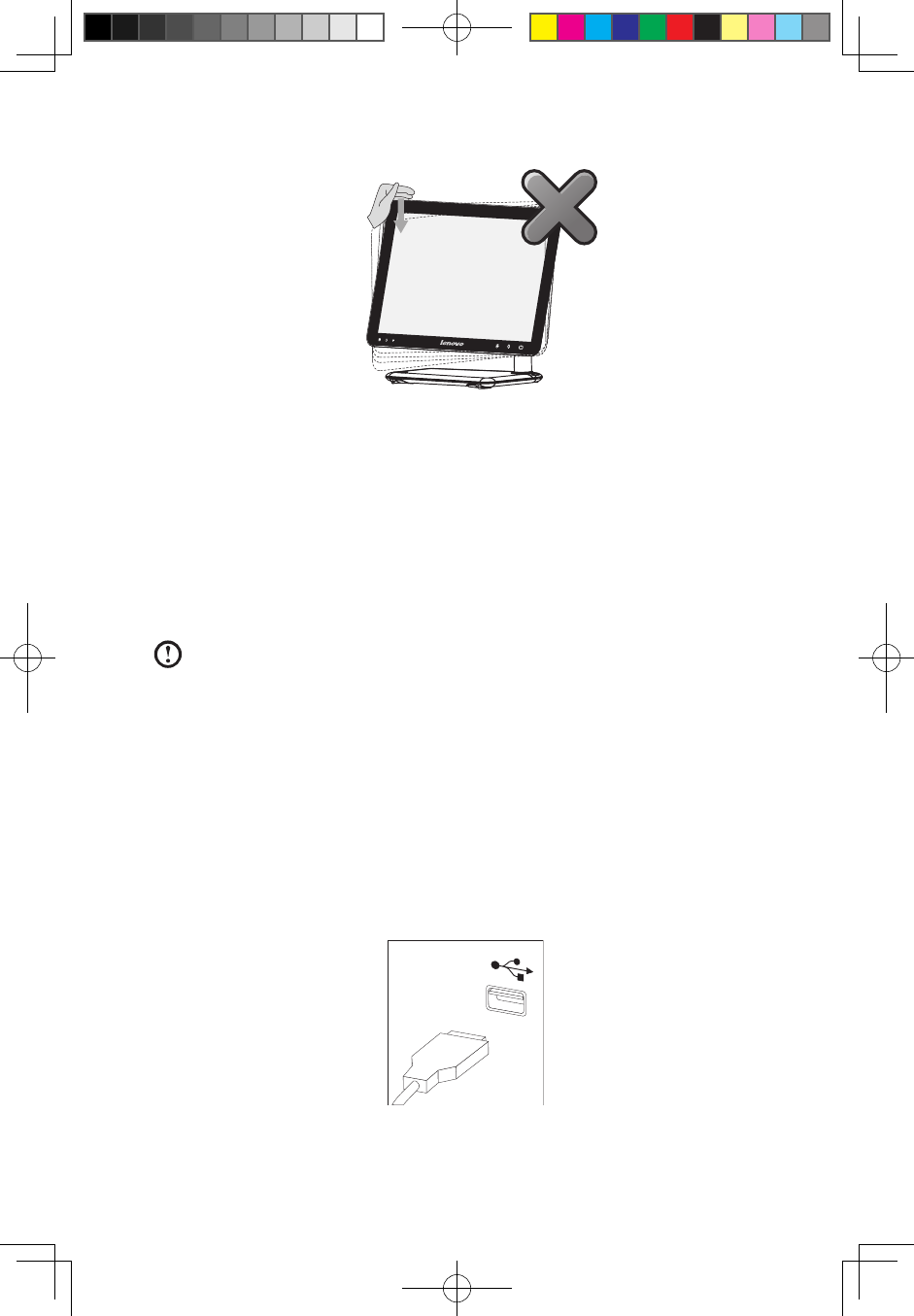
Adjust the panel angle for the best
viewing from the vertical.
Do not only use one hand to adjust the panel
an
g
le to avoid the computer fallin
g
over.
Adjust the panel angle for the best
viewing from the horizontal.
31041269_A3_UG_EN_V1.0.indd 4 2009.11.24 9:16:35 AM
5
User Guide
10
10
TV
318
Adjust the panel angle for the best
viewing from the vertical.
Do not only use one hand to adjust the panel
an
g
le to avoid the computer fallin
g
over.
Adjust the panel angle for the best
viewing from the horizontal.
1.4 Connecting your computer
Use the following information to connect your computer:
• Look for the small connector icons on the back of your computer. Match the
connectors to the icons.
Note: Your computer might not have all of the connectors that are
described in this section.
1.4.1 Check the voltage rating before you connect the
equipment to an electrical outlet to ensure that the
required voltage and frequency match the available
power source.
1.4.2 Connect the keyboard cable to the appropriate keyboard
connector (USB connector).
31041269_A3_UG_EN_V1.0.indd 5 2009.11.24 9:16:36 AM
6User Guide
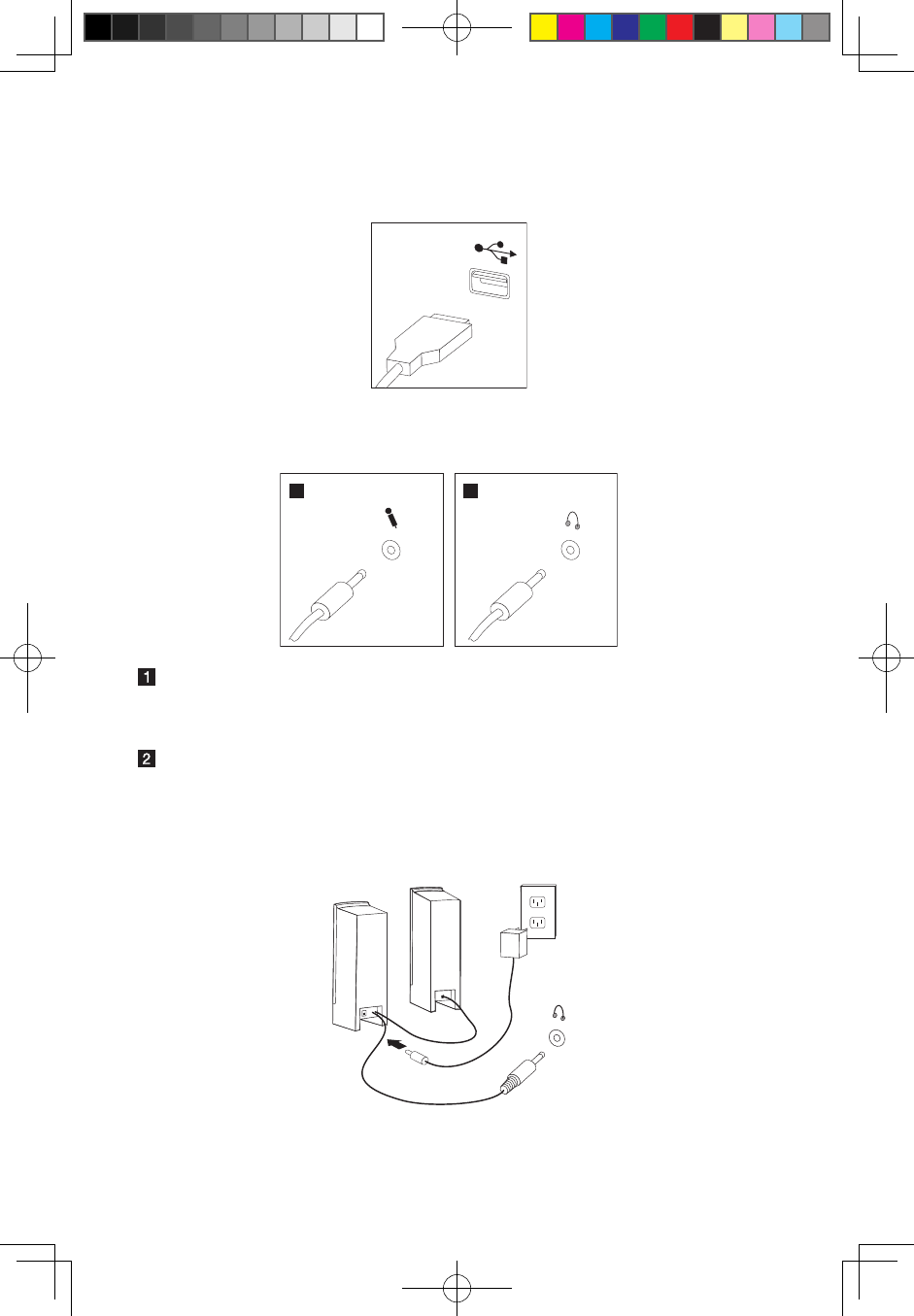
1.4.3 Connect the mouse cable to the appropriate mouse
connector (USB connector).
1.4.4 If you have audio devices, attach them using the
following instructions:
1 2
Microphone Use this connector to attach a microphone (purchased separately)
to your computer when you want to record sound or if you use
speech-recognition software.
Headphone Use this connector to attach headphones (purchased separately)
to your computer when you want to listen to music or other
sounds without disturbing anyone.
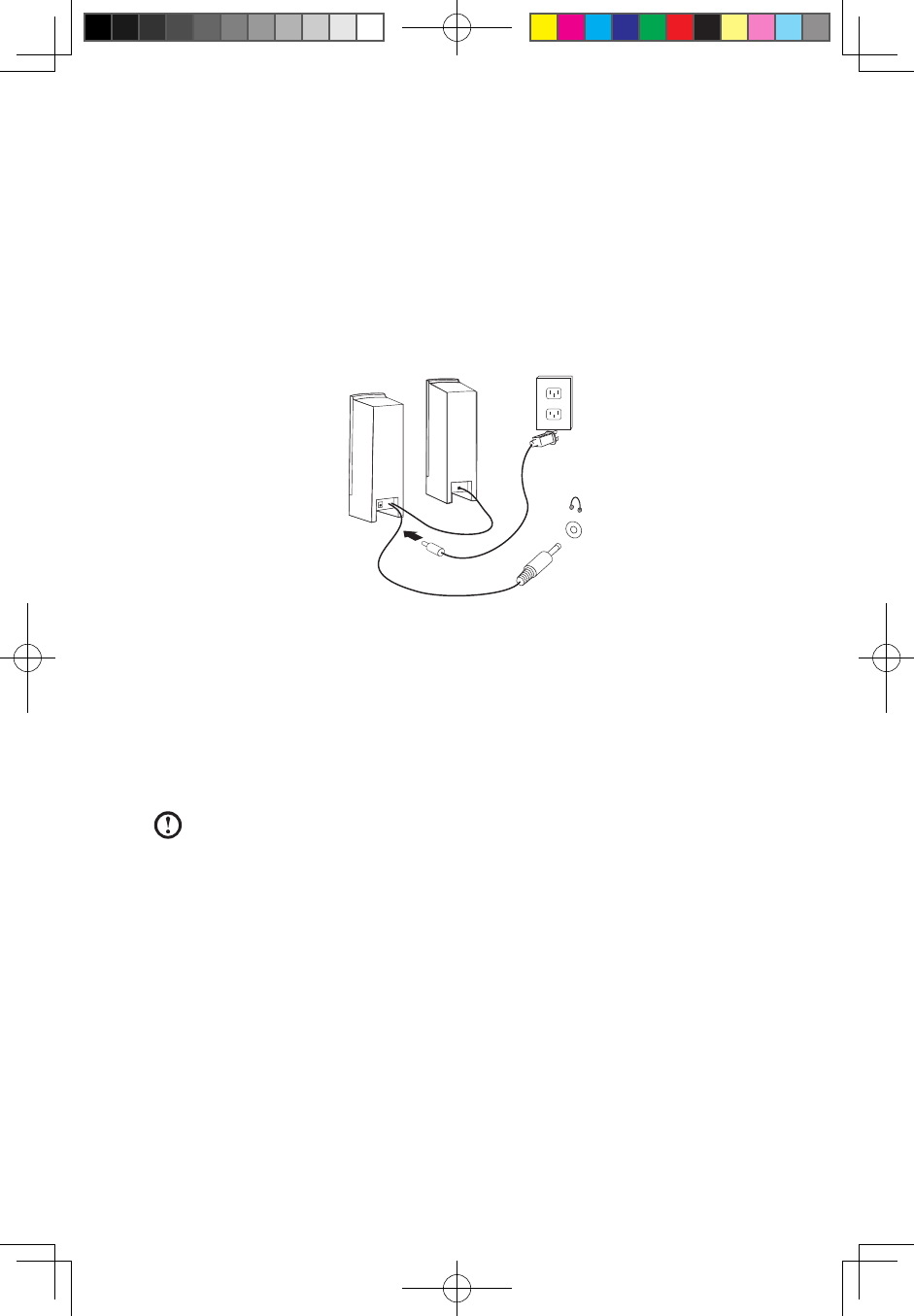
1.4.5 If you have powered speakers with an adapter:
(This picture is only a sketch print, it does not show the actual figure of the speaker)
31041269_A3_UG_EN_V1.0.indd 6 2009.11.24 9:16:38 AM
7
User Guide
a. Connect the cable that runs between the speakers if necessary. On some
speakers, this cable is permanently attached.
b. Connect the adapter cable to the speaker if necessary. On some speakers, this
cable is permanently attached.
c. Connect the speakers to the Headphone port on the computer.
d. Connect the adapter to the power source.
1.4.6 If you have powered speakers without an adapter:
(This picture is only a sketch print, it does not show the actual figure of the speaker)
a. Connect the cable that runs between the speakers if necessary. On some
speakers, this cable is permanently attached.
b. Connect the cable to the speaker if necessary. On some speakers, this cable is
permanently attached.
c. Connect the speakers to the Headphone port on the computer.
d. Connect the plug to the power source.
Note: Some models are not equipped with external speakers.
31041269_A3_UG_EN_V1.0.indd 7 2009.11.24 9:16:38 AM
8User Guide
1.4.7 Connect any additional devices that you have. Your
computer might not have all connectors shown.
1 2 3
USB connector Use this connector to attach a device that requires a
USB connection.
Network adapter
connector
Use this connector to attach the computer to an
ethernet-type local area network
TV-Tuner
connector
Only supported on systems with optional TV tuner card.
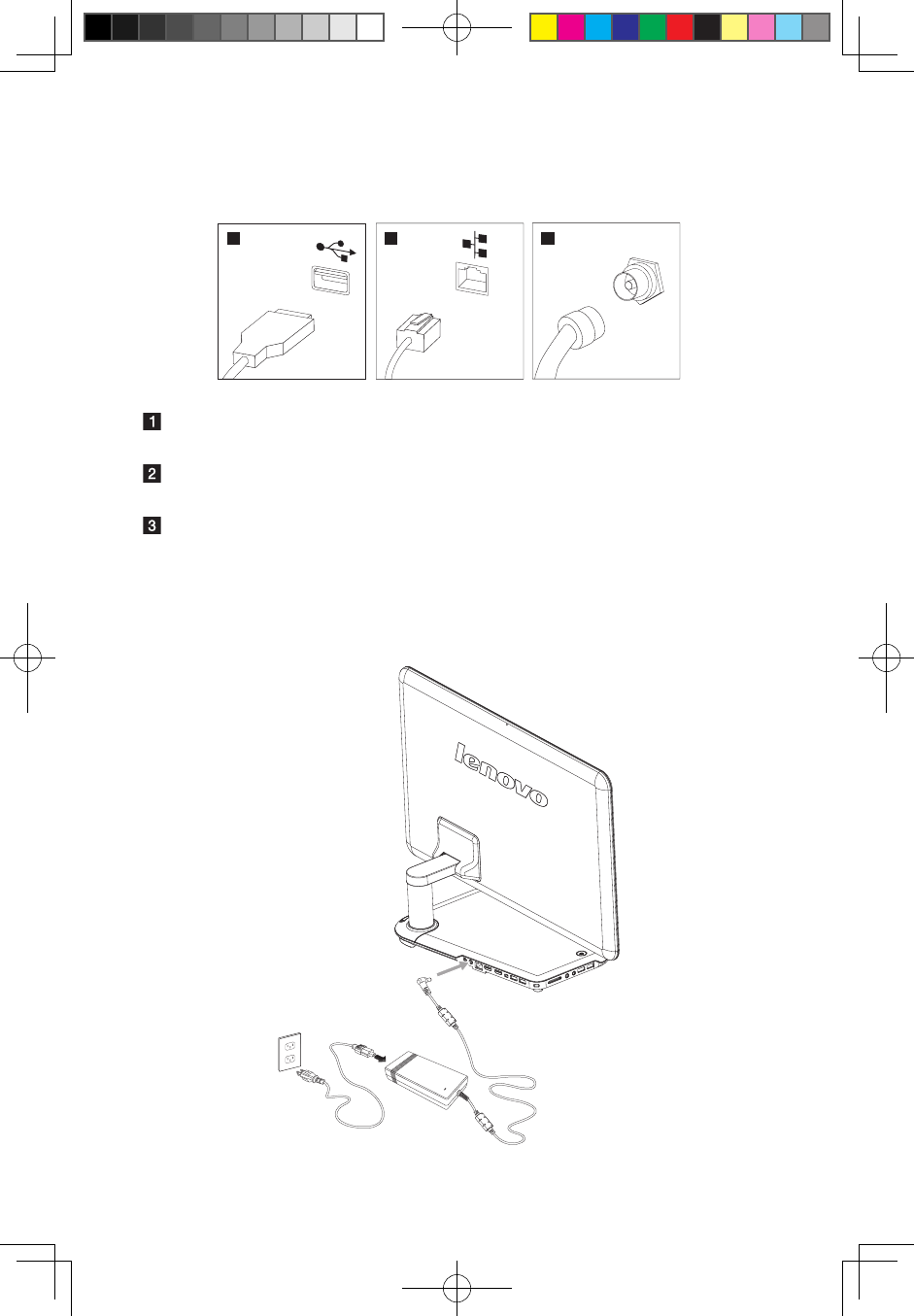
1.4.8 Connect the power cords properly to grounded electrical
outlets.
31041269_A3_UG_EN_V1.0.indd 8 2009.11.24 9:16:40 AM
9
User Guide
1.4.9 Your computer is equipped with a Memory Card Reader
Connector, it is able to read/write data from:
Secure Digital (SD) Memory Card
Mini SD
MultiMedia Card (MMC)
RS-MMC
MS
MS-PRO
MS-Duo
xD-Picture Card
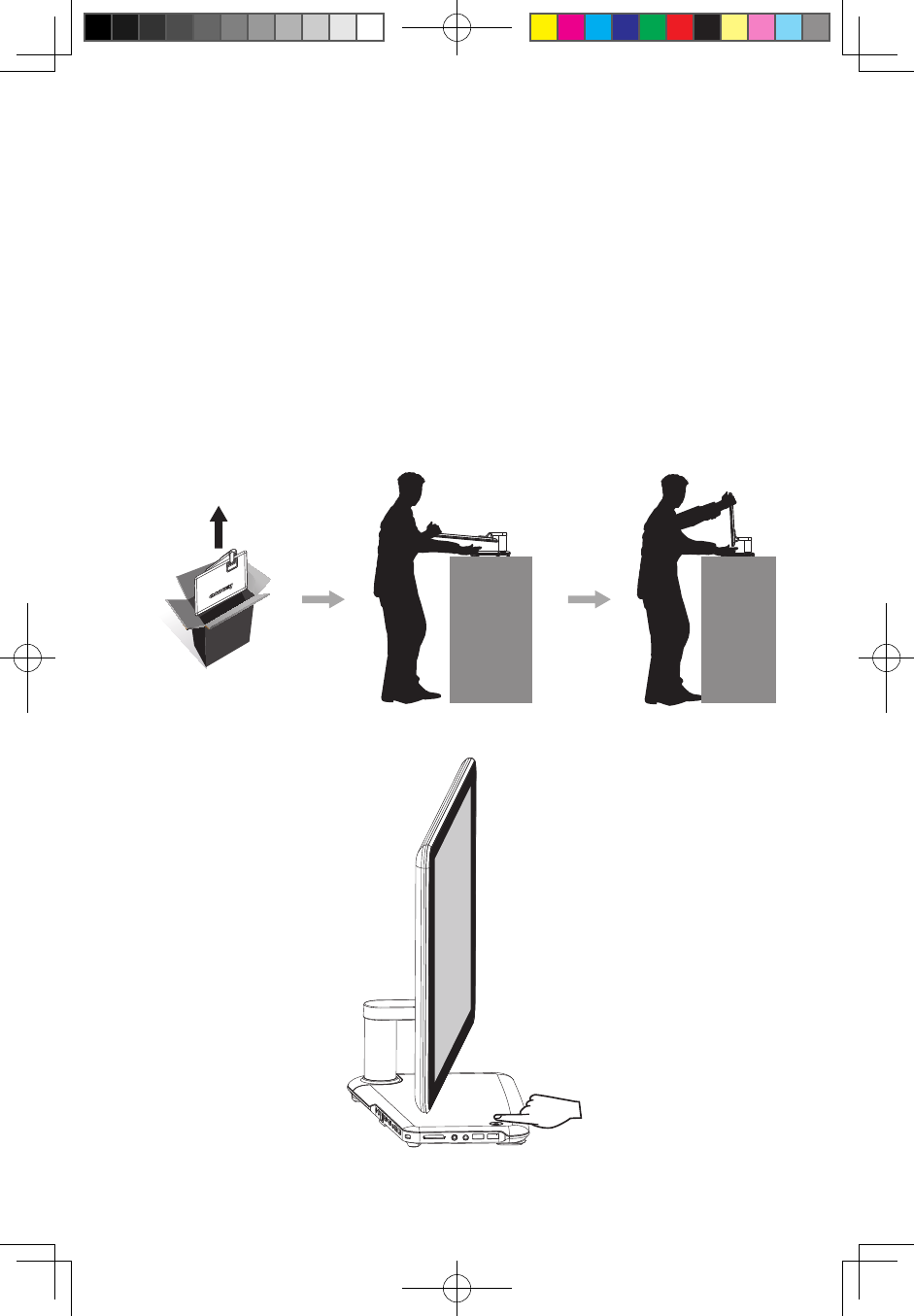
1.5 Important information about using the computer
Press the power button on the top of the base stand to turn the computer on.
31041269_A3_UG_EN_V1.0.indd 9 2009.11.24 9:16:42 AM
10 User Guide
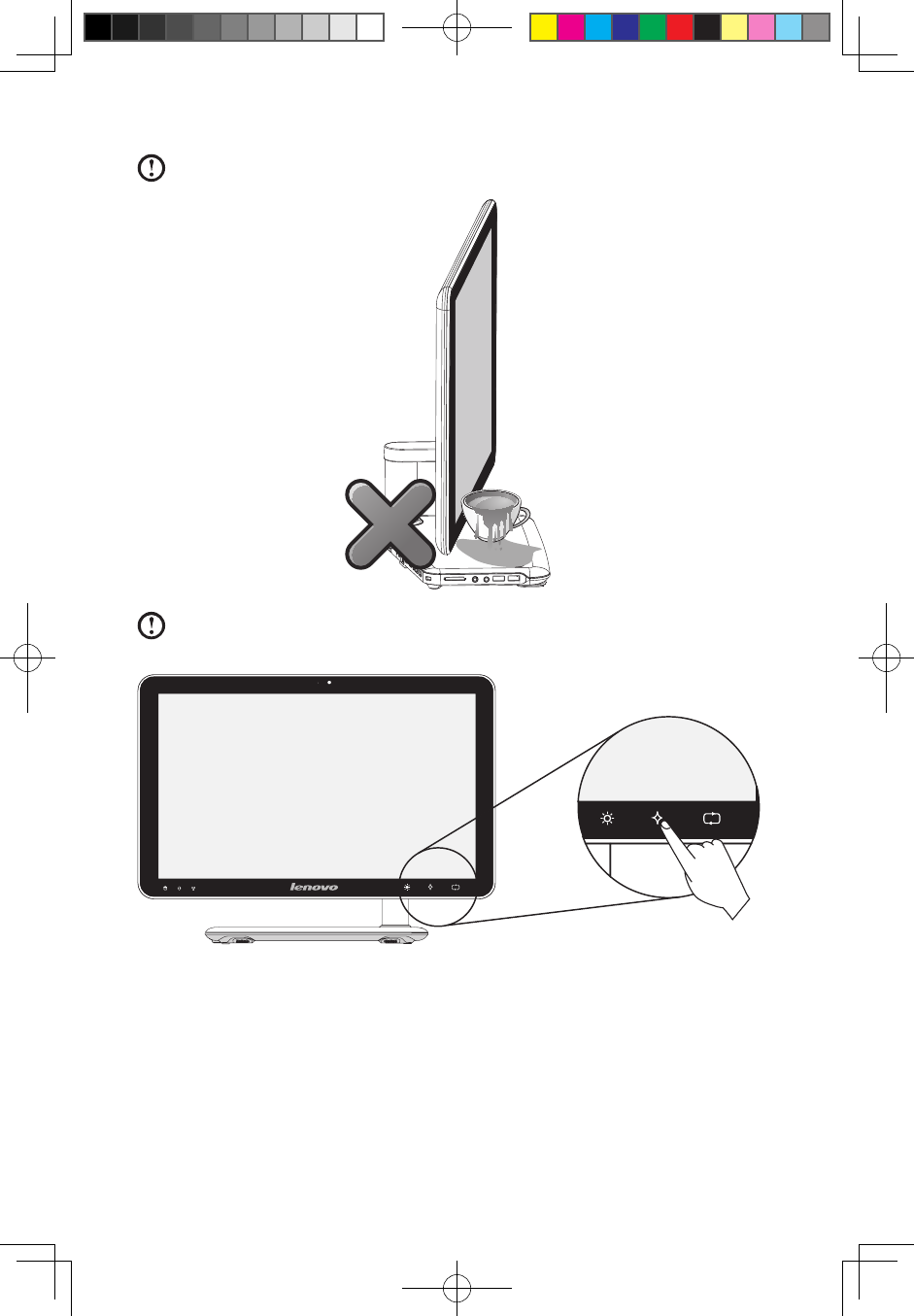
Note: Do not put any fluid container on the base stand.
Note: The buttons at the bottom of the screen are touch buttons. When
you touch these, the indicator lights turn on.
TV
31041269_A3_UG_EN_V1.0.indd 10 2009.11.24 9:16:44 AM
11
User Guide
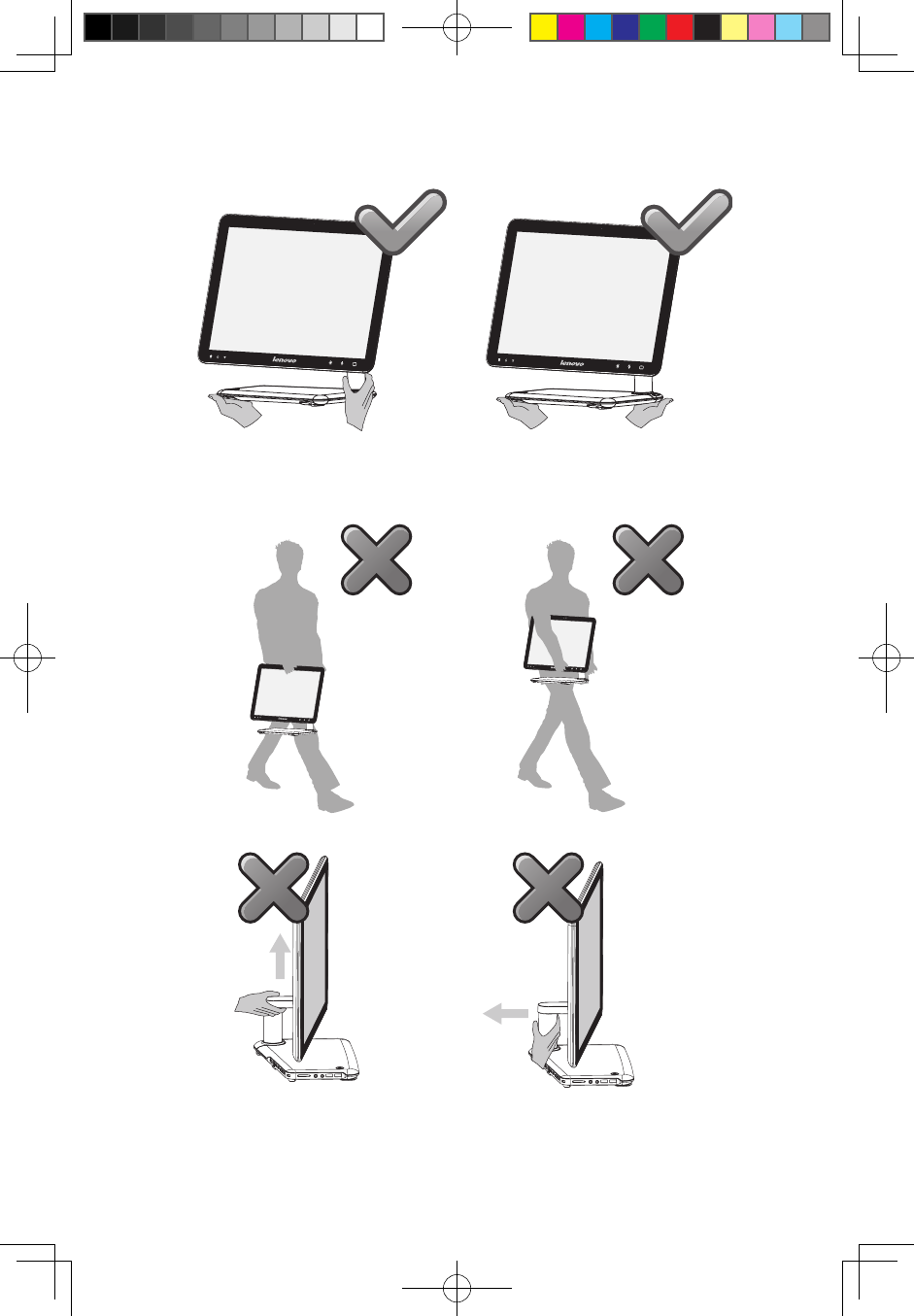
Hold the computer tightly when you carry it.
TV
TV
TV
TV
31041269_A3_UG_EN_V1.0.indd 11 2009.11.24 9:16:45 AM
12 User Guide
1.6 Wireless keyboard and mouse instructions
(Only some models are equipped with wireless keyboard and
mouse)
Before using the wireless keyboard and mouse, carefully read the configuration
instructions in the Quick Reference poster. If you fail to connect the wireless
keyboard and mouse according to the steps shown in the Quick Reference poster,
you may also connect using the instructions below.
Notes:
• Before using the method below, enter the system and prepare a set of
wired keyboard and mouse.
• If you want to install a new set of wireless keyboard and mouse, follow
the steps below.
1. Using the wired keyboard and mouse to enter the system.
2. After installing the batteries into the wireless keyboard and mouse battery
compartments, make sure the power switch on the back of the mouse is in the
ON position (the keyboard does not have a power switch).
3. Press the wireless connect buttons on the right side of the keyboard and the
back of the mouse for over 5 seconds. When the keyboard and mouse wireless
indicator lights blink green, turn the computer on immediately.
Note: If the wireless indicator lights stop blinking, press the connect
buttons on the keyboard and mouse again.
4. To open the Devices and Printers dialog box, go to Windows and click Start
→ Control Panel → Hardware and Sound. Press Add a device to pop-up a
dialog box.
5. Select the Lenovo Bluetooth Mouse and click Next to establish the bluetooth
connection.
6. Select the Lenovo Bluetooth keyboard and click Next. (Press Add a device
icon if the dialog box is closed and press the connect button again.)
7. Enter the pairing code and press the Enter key to complete the bluetooth
connection.
31041269_A3_UG_EN_V1.0.indd 12 2009.11.24 10:54:22 AM
13
User Guide
1
2
3
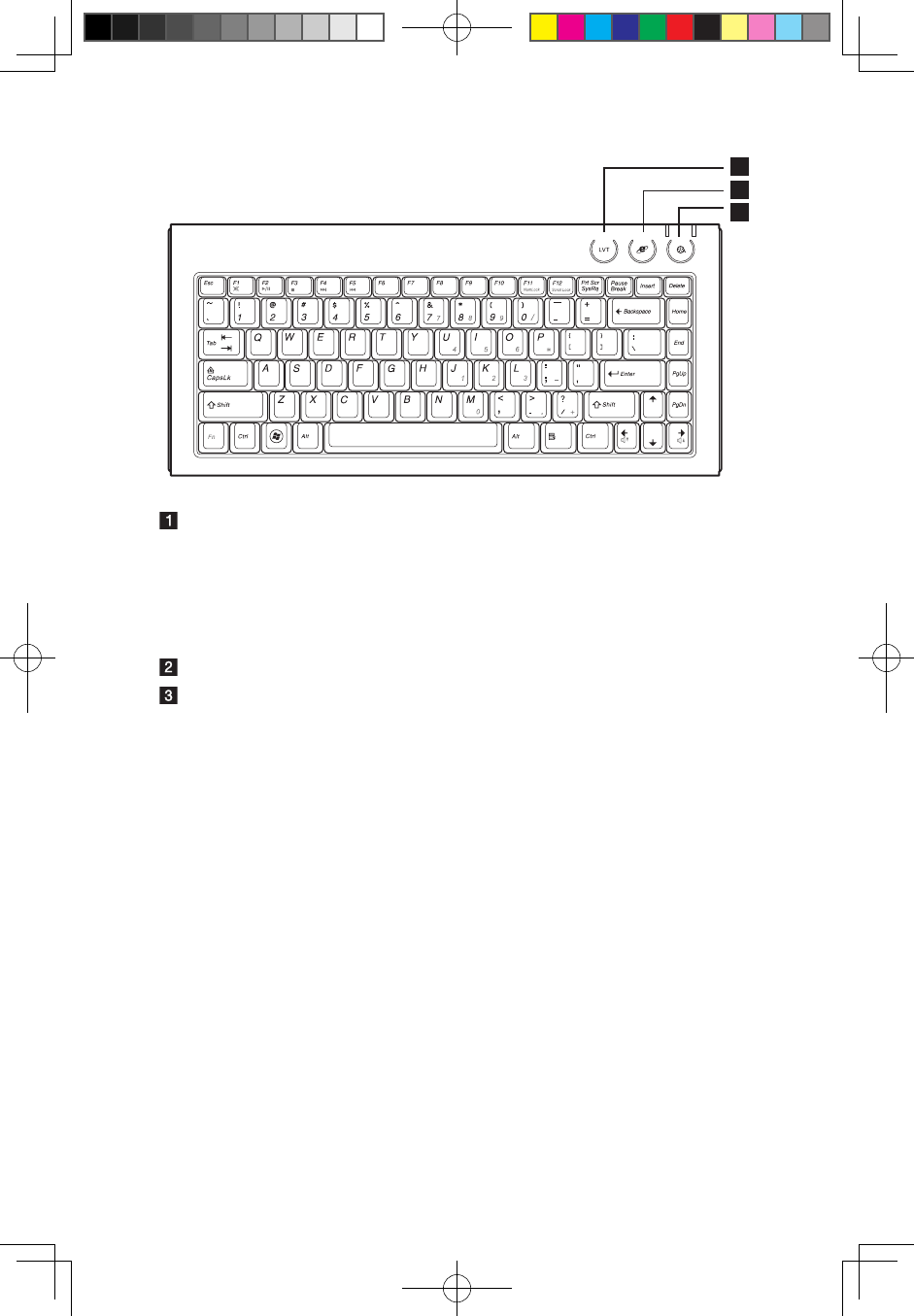
LVT After entering Windows, press this key to launch the
LVT (Lenovo Vantage Technology) program, Lenovo’s
pre-loaded Home PC software. In addition to its own
functions, the LVT program will allow you to start other
Windows compatible software, specially configured to
run on this model of computer.
Internet key Open IE.
Multimedia play key Open the Mediaplay player.
31041269_A3_UG_EN_V1.0.indd 13 2009.11.24 9:16:46 AM
14 User Guide
1.7 Using the Bluetooth remote control
(Only some models are equipped with Bluetooth remote
control.)
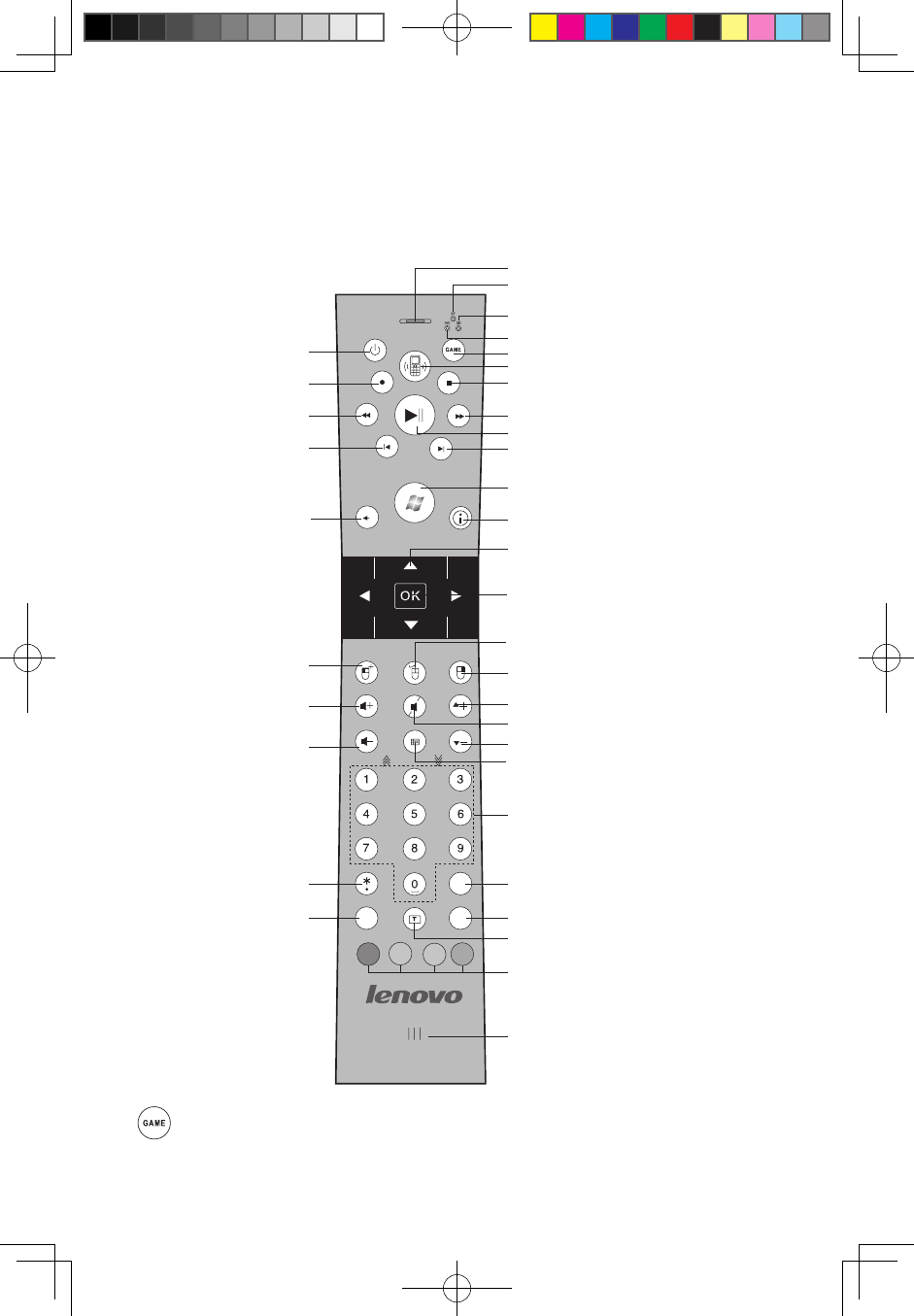
A
X
B
Y
Power
Record
Rewind
Replay
Back
Left air mouse/Game A
Volume up/Game X
Volume down/Game
throttle up
* key
Clear
Headphone
LED indicator of Bluetooth
LED indicator of joystick game
LED indicator of CD game
Game switch
Phone On/Off
Stop
Fast forward
Play or pause
Skip
Windows Media Center Start
More
Direction
OK
Air mouse ON/OFF
Right air mouse/Game B
Channel Up/Game Y
Mute
Channel down/Game throttle down
Guide
Digit/Input sources
# key
Enter
Teletex On/Off (Select models only)
Microphone
ABC DEF
JKLGHI MNO
TUVPQRS WXYZ
ƿ
(Select models only )
— Turn on/off/switch to games
31041269_A3_UG_EN_V1.0.indd 14 2009.11.24 9:16:49 AM
15
User Guide
— Turn on/off the air mouse
— Turn on/off the telephone
— Turn on the Windows Media Center
Notes: When the Games mode and Windows Media Center are both
turned on at the same time, the direction and OK buttons only work for
games and do not work for Windows Media Center. For joystick games,
the Volume Up/Down buttons as well as the Channel Up/Down buttons
function as Game X/Y and Game throttle up/down buttons. You cannot
use them to adjust volume or to switch channels.
1.7.1 Bluetooth configuration
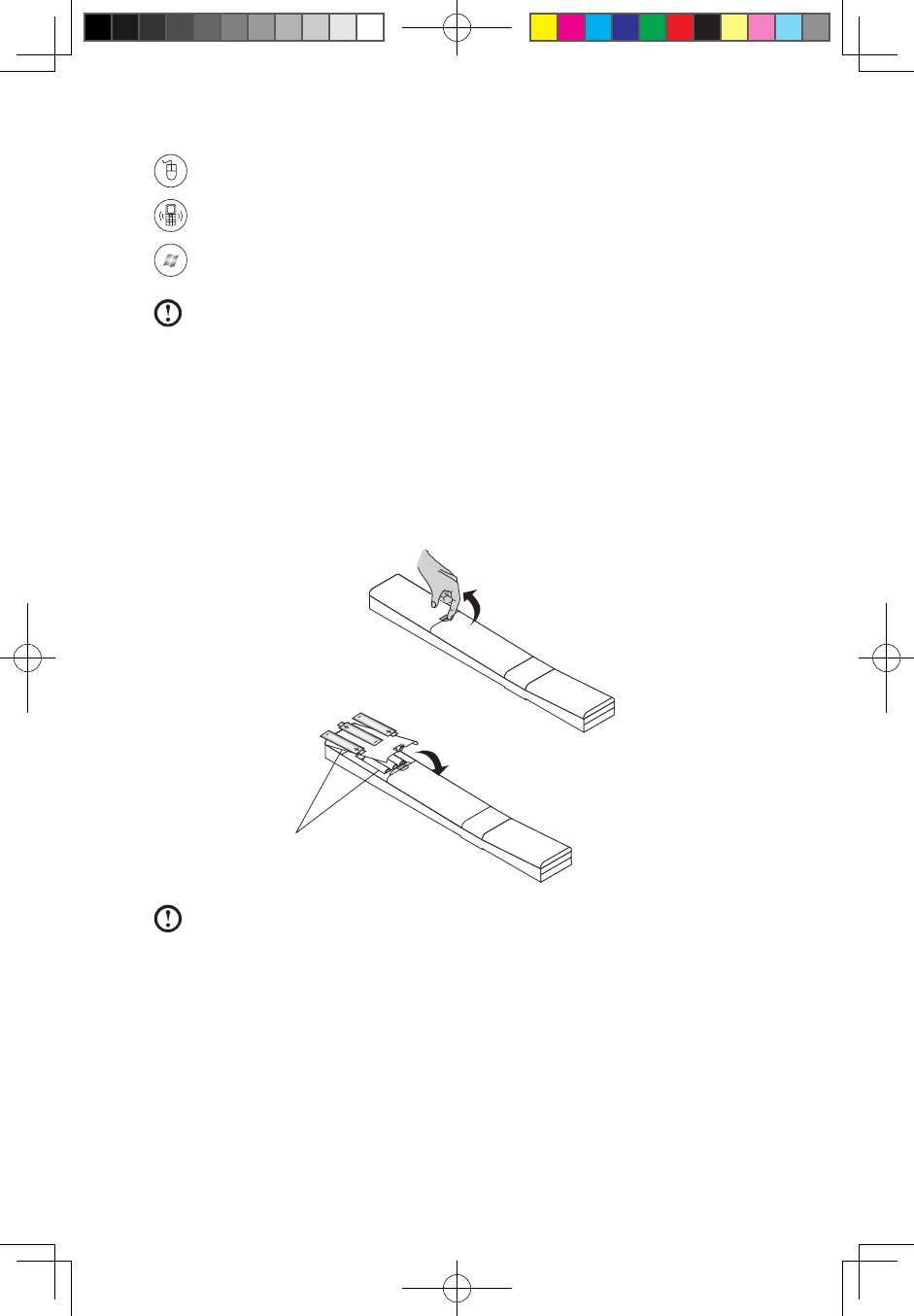
1. Install the batteries as indicated below.
Pull the lid of the battery compartment
on the back of the remote control.
Insert the batteries and close the
lid of the battery compartment.
Make sure the position of the polarities
of the batteries is identical to the image.
Note: Use good batteries and place them correctly in order to avoid
malfunction or possible damage of the remote control.
2. The remote control is now ready to be configured by executing the following
steps below.
3. To open the Devices and Printers dialog box, go to Windows and click Start →
Control Panel → Hardware and Sound.
4. Press Add a device and pop-up a dialog box. The procedure to establish
connection as described in the steps below needs to be finished within 180
seconds. Failing to do so will require you to repeat the steps until the connection
31041269_A3_UG_EN_V1.0.indd 15 2009.11.24 9:16:51 AM
16 User Guide
has been completed successfully.
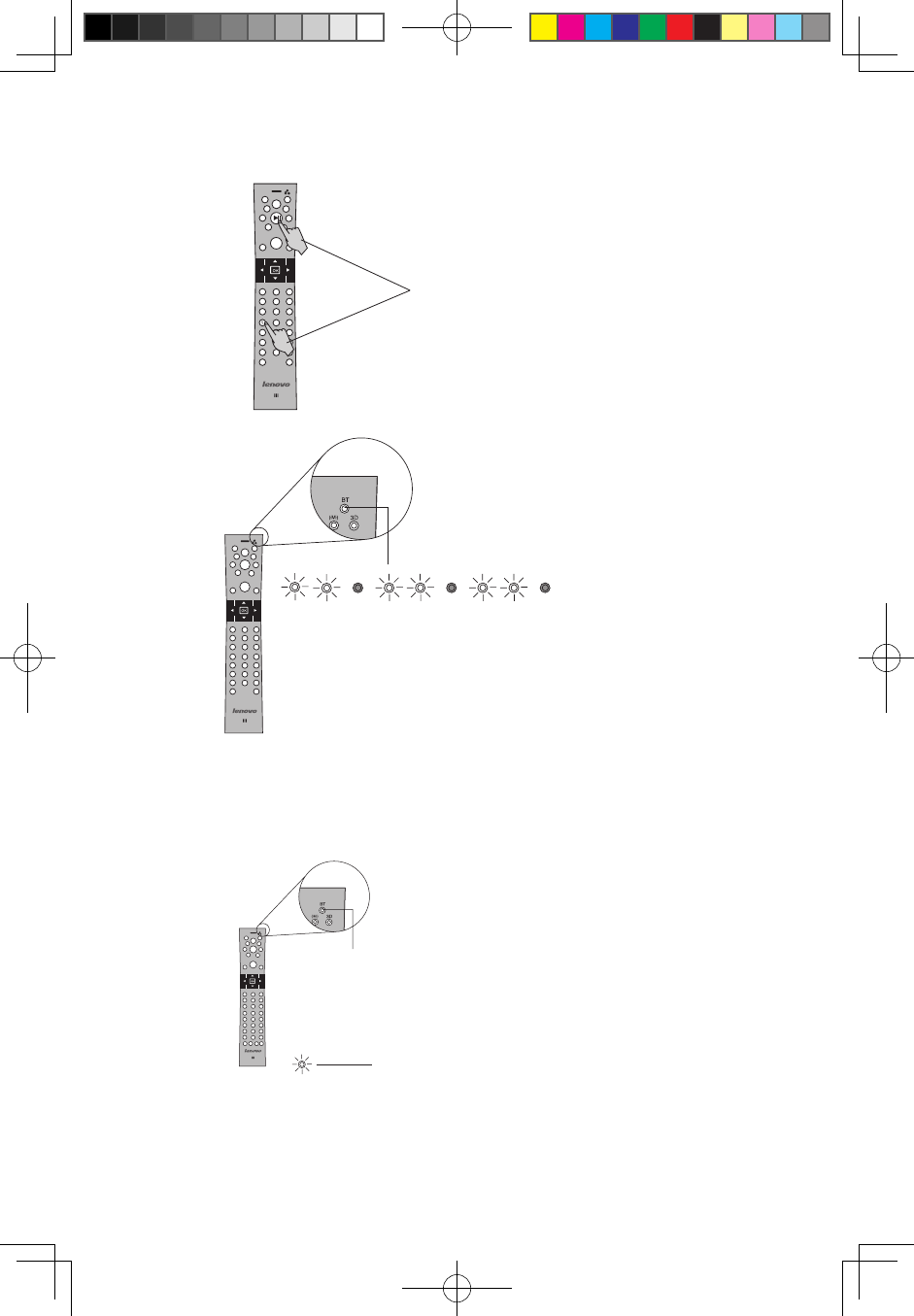
Press Play and digit 1 at
the same time for about
10 seconds.
When the Bluetooth indicator light blinks twice every
second and at the same time the remote control
makes a beep sound, it means that the remote control
is waiting for Bluetooth connection and the steps to
add Bluetooth devices to the OS can be started.
5. Select the Lenovo_RC icon from the Add a device dialog box and click Next.
Select Enter the device’s pairing code and enter the password 0000. Once
the Bluetooth connection has been completed successfully, the Bluetooth
indicator light will turn on and the remote control can now work properly.
Do not press Play and digit 1 again after having
completed successfully the Bluetooth connection.
Doing so will restart the pairing process.
Once the Bluetooth connection has been
completed successfully, the Bluetooth LED
indicator becomes solid and the remote
control can be used.
31041269_A3_UG_EN_V1.0.indd 16 2009.11.24 9:16:53 AM
17
User Guide
Bluetooth audio configuration.
1. In the Add Wireless Device dialog box, right click on Lenovo_RC device and
select Properties in the menu.
2. Check the Headset box under the Services tab in the Properties dialog box.
Click OK.
3. Right-click on Lenovo_RC device and select Control in the menu.
4. Under the Device Operations tab, if the computer is not connected to your
Bluetooth headset (Lenovo_RC), click on Connect to establish the Bluetooth
connection.
1.7.2 To start the games
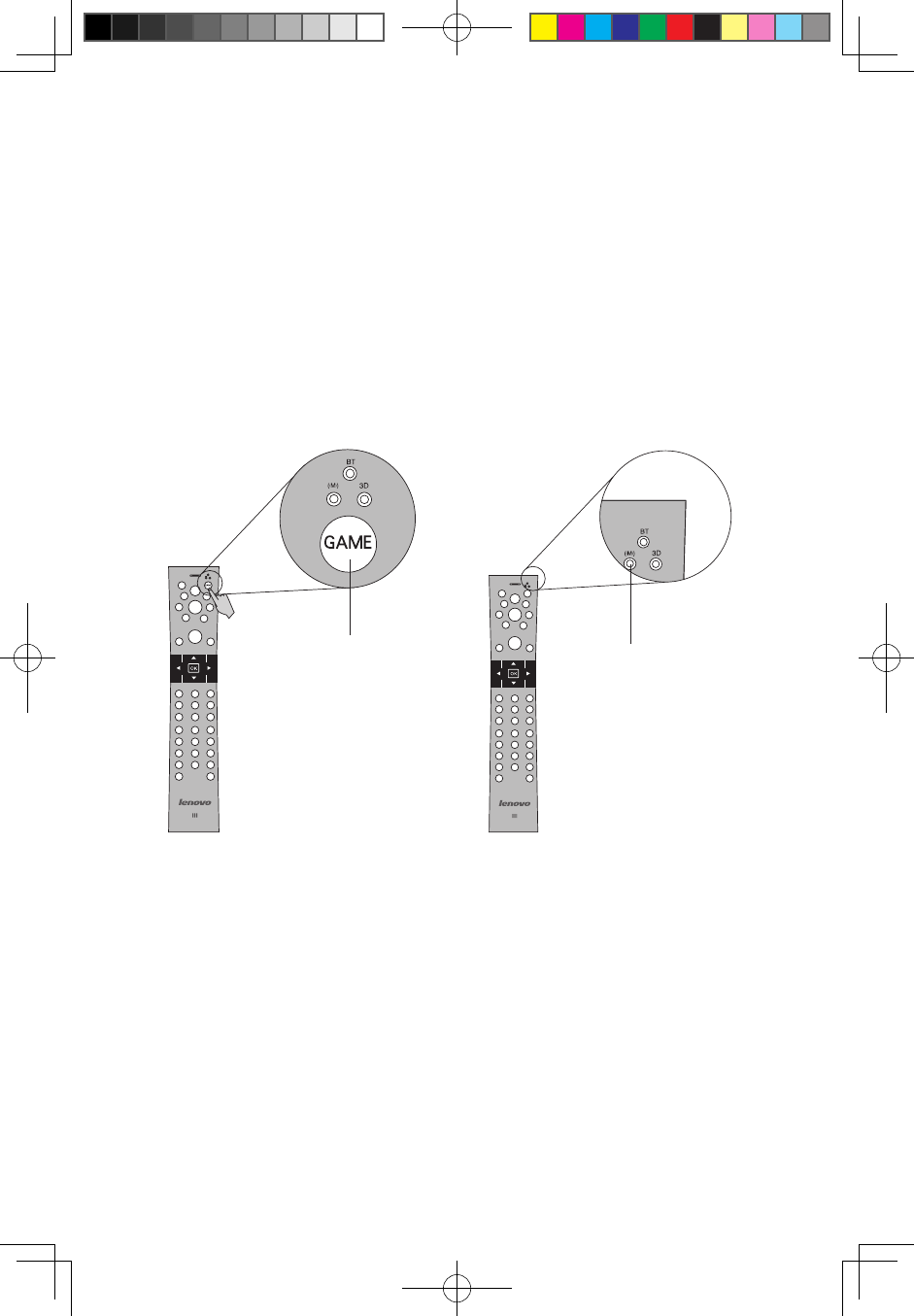
Press the Game button
to switch to the CD
game mode.
When the M indicator
light is on, it means that
the CD game mode has
been switched on.
31041269_A3_UG_EN_V1.0.indd 17 2009.11.24 9:16:54 AM
18 User Guide
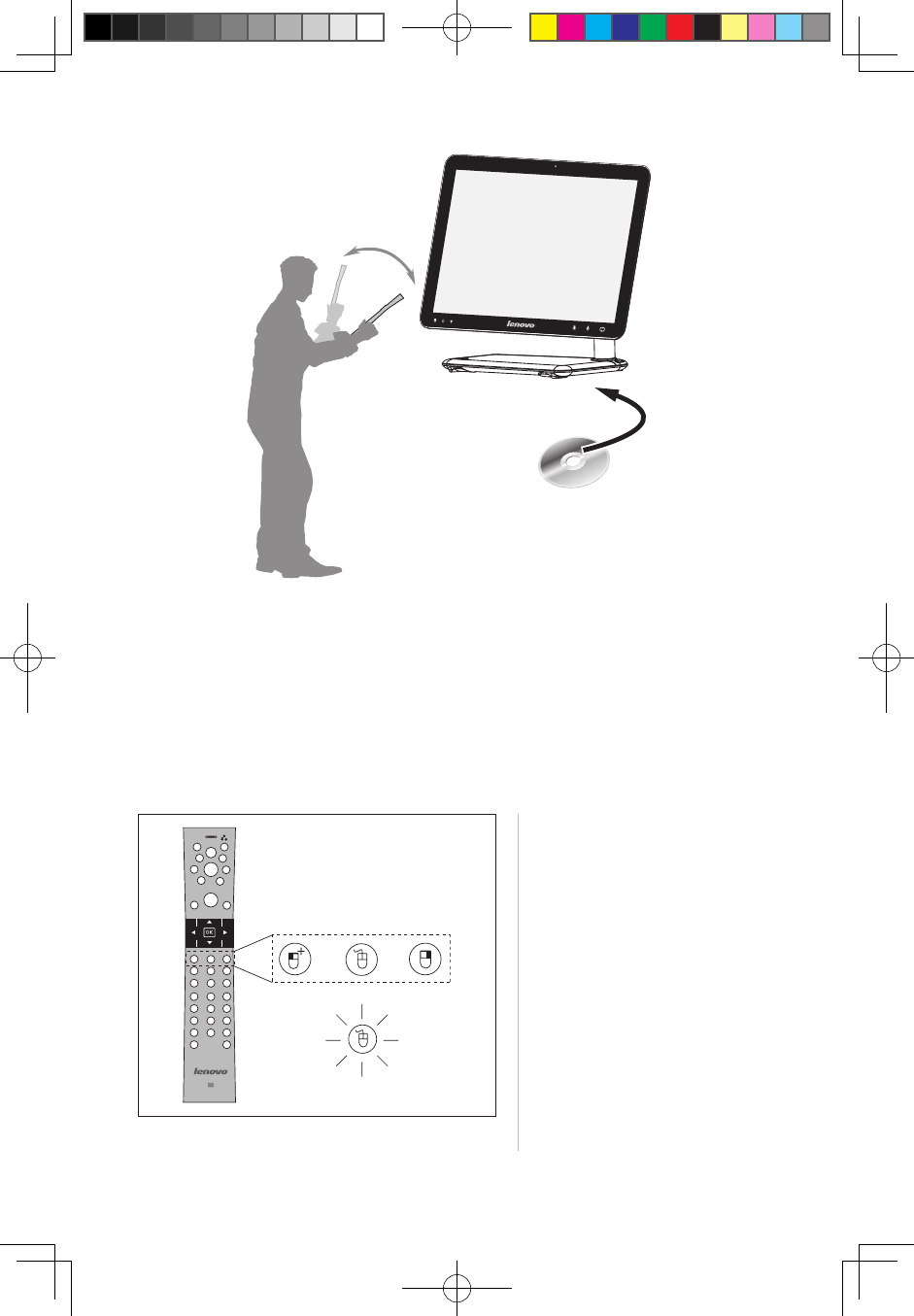
The air mouse buttons are:
Left air mouse button, Air
mouse On/Off button, Right
air mouse button.
When the air mouse On/Off
button is on, it is ready for
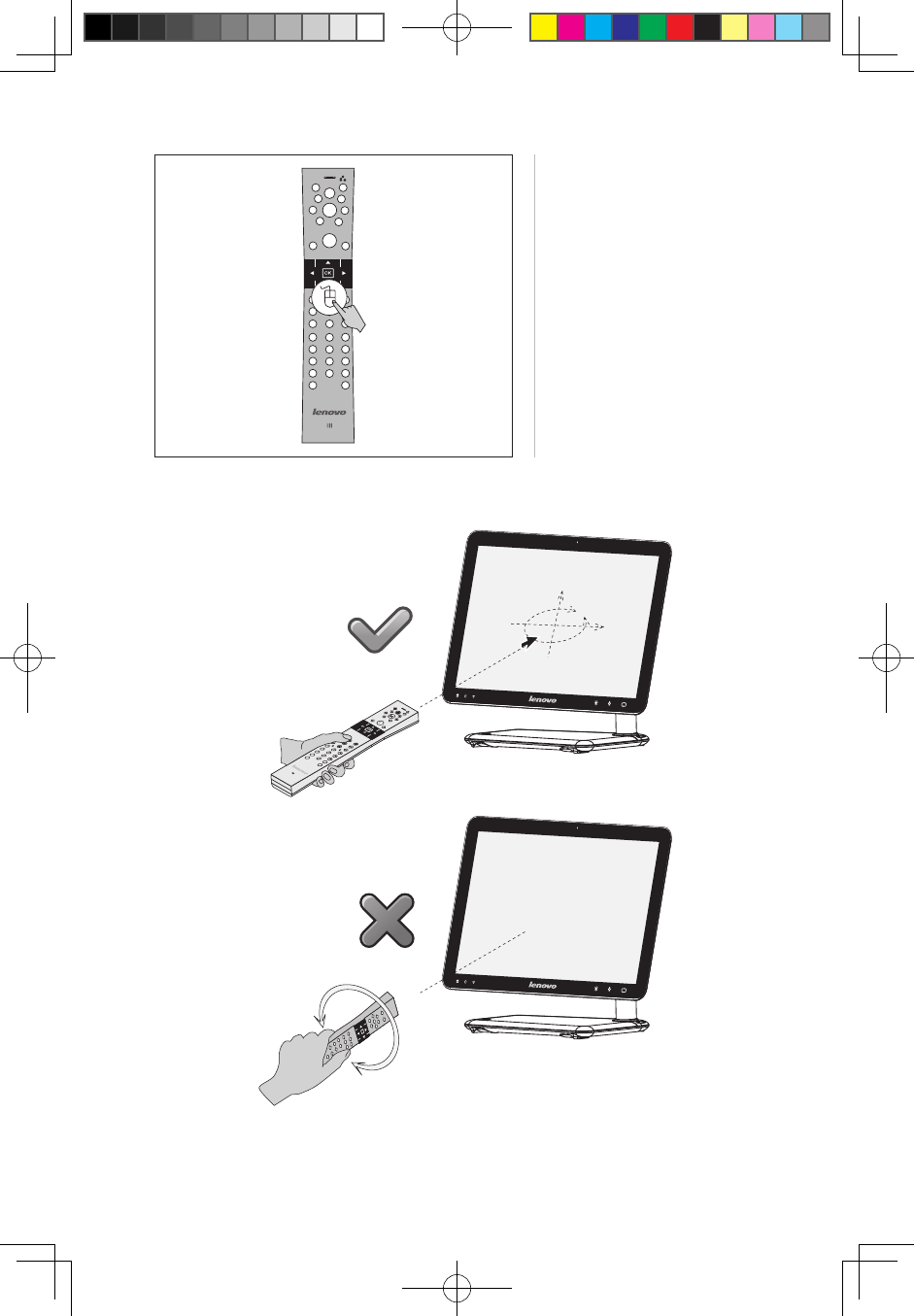
use.
TV
Insert the Game CD in the optical drive and follow the prompts to start the games.
Use the remote control to install and play the games.
For more information about the games, check out Access Help on the Game CD.
1.7.3 Air mouse
In addition to the functions of a normal remote control, the air mouse can also be
used as a regular mouse.
31041269_A3_UG_EN_V1.0.indd 18 2009.11.24 9:16:55 AM
19
User Guide
Press the air mouse On/Off
button to switch between the
air mouse and the remote
control.
Hold the air mouse horizontally.
TV
TV
Do not use the air mouse in a slanted or vertical position. Doing so might result in
31041269_A3_UG_EN_V1.0.indd 19 2009.11.24 9:16:56 AM
20 User Guide
the pointer moving into another direction other than the intended one.
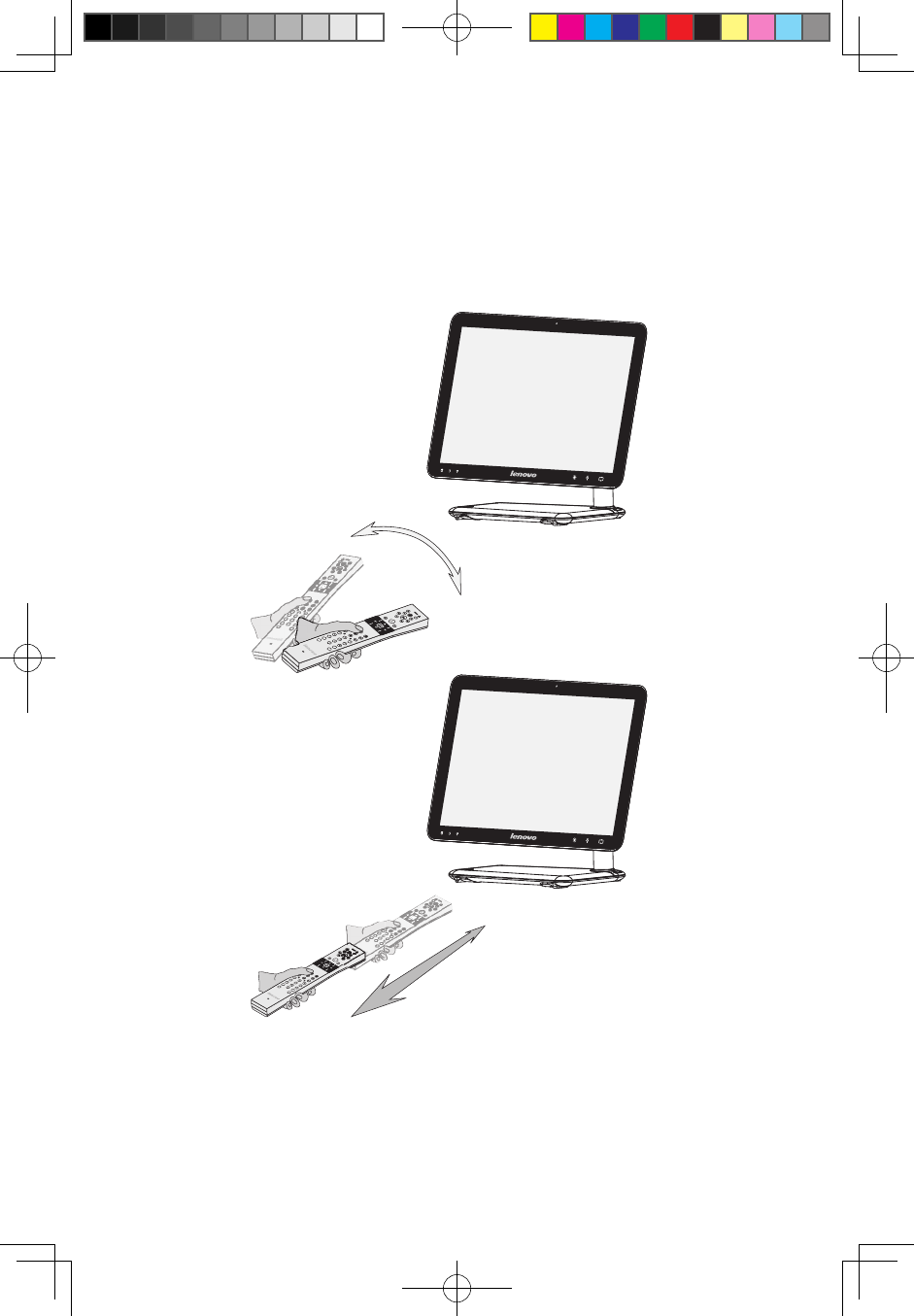
1.7.4 Important information on how to use the remote control
Remove all batteries when you do not use them for a long time to avoid possible
leakage. Use reliable good quality alkaline battteries. You can use the remote
control in the following directions according to your games:
TV
TV
31041269_A3_UG_EN_V1.0.indd 20 2009.11.24 9:17:02 AM
21
User Guide
TV
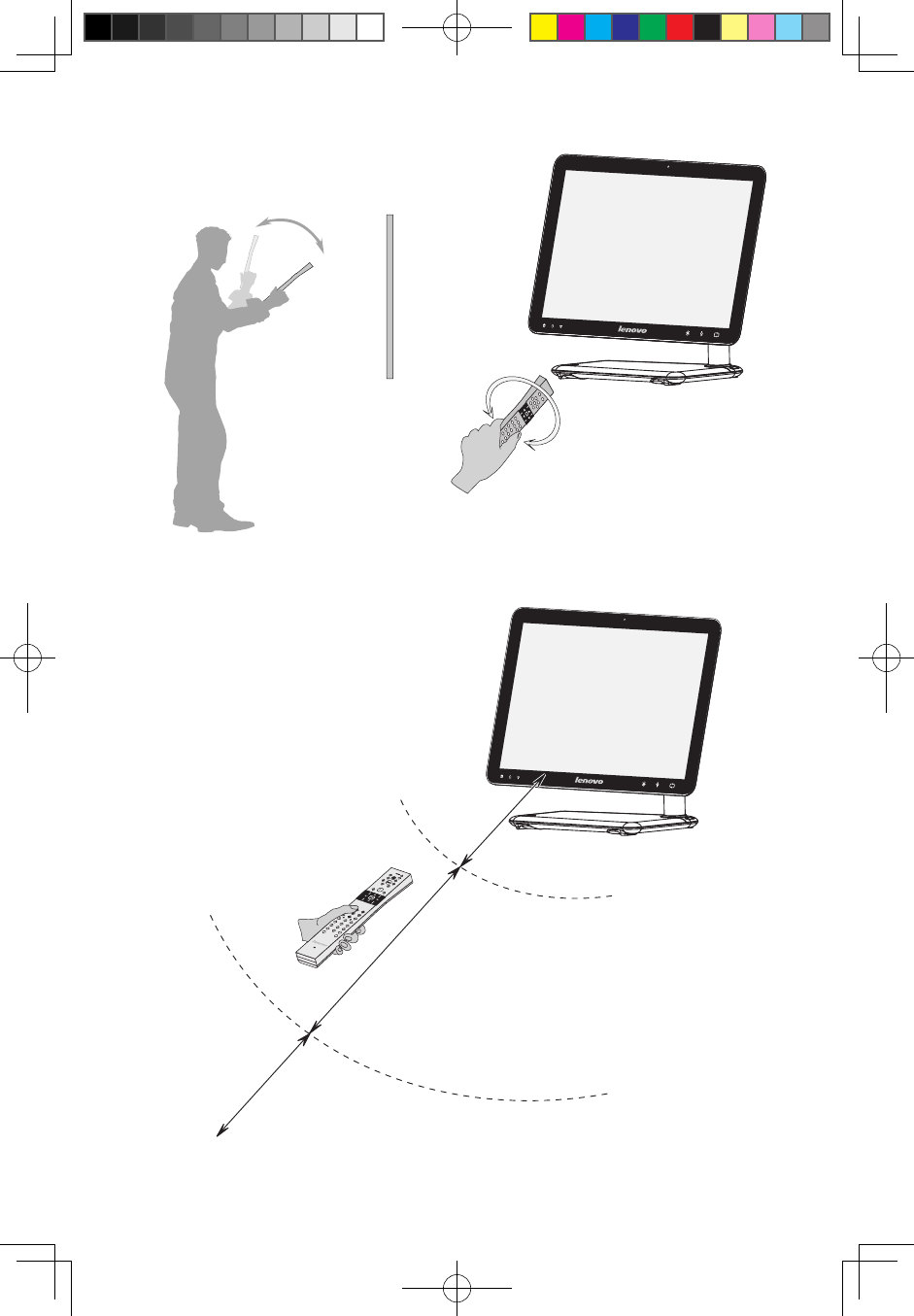
The optimum distance between the remote control and computer is 1-3 meters
(3-10 feet).
TV
Too close to the computer.
0 -1 meter (0 – 3 feet)
Suggested range:
1 - 3 meters (3 -10 feet)
Too far from the computer.
Over 3 meters (over 10 feet)
31041269_A3_UG_EN_V1.0.indd 21 2009.11.24 9:17:06 AM
22 User Guide
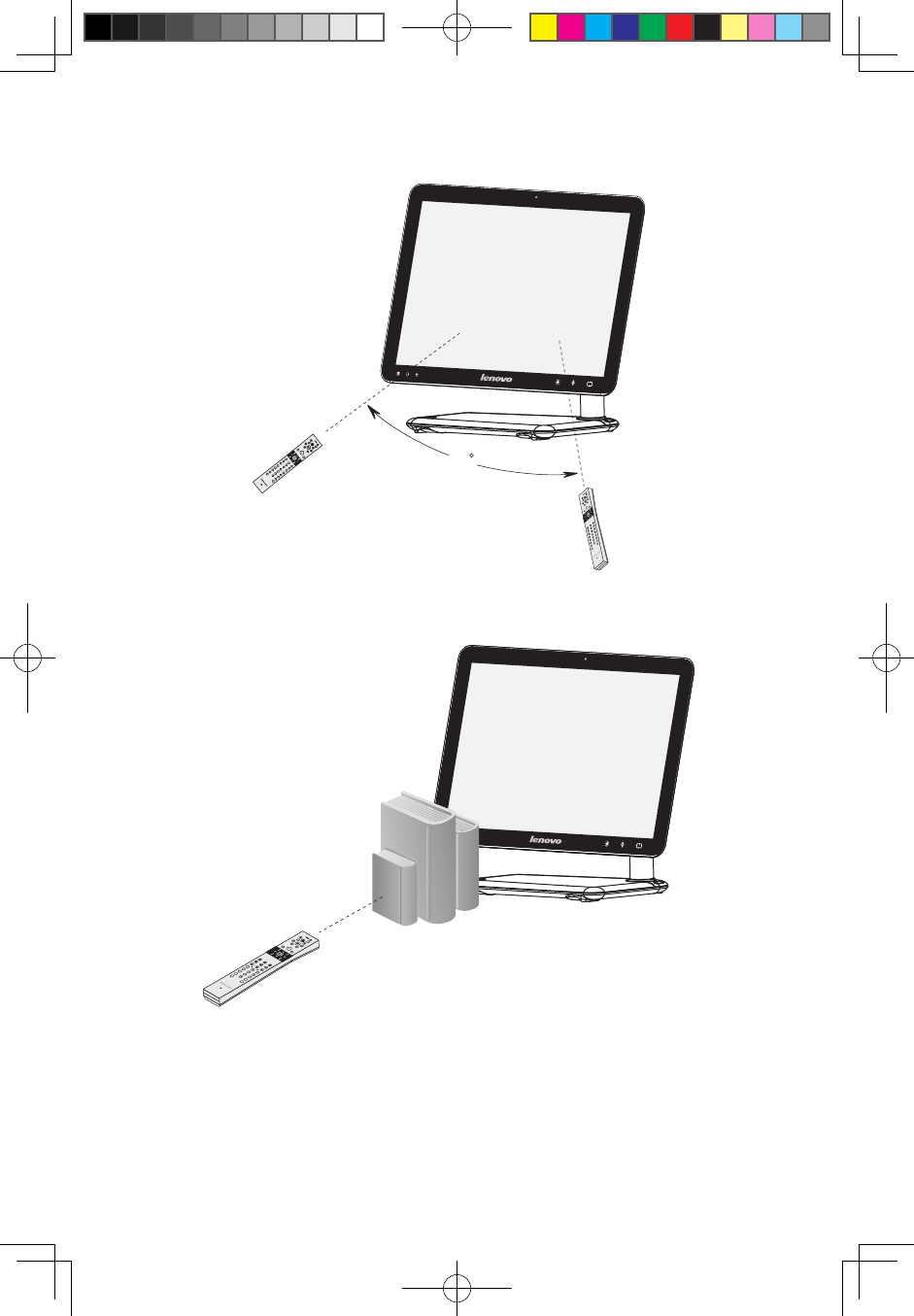
The best angle to use the remote control is within 30°.
TV
30
Make sure there are no physical obstacles between the remote control and the
computer that could block the Bluetooth connection.
TV
@
Note:
Bluetooth LED solid:
Indicates a normal Bluetooth connection to the computer. Otherwise, this indicates
disconnection or that the remote control is in sleep mode.
31041269_A3_UG_EN_V1.0.indd 22 2009.11.24 9:17:11 AM
23
User Guide
M LED solid:
Indicates that the CD game is active and can be manipulated by the remote control.
3D LED solid:
Indicates that the joystick game is active and can be manipulated by the remote
control.
Game switch button:
Used to switch among the 3 different game modes - CD game, joystick game, or
to turn off the game. Press the button once to switch to another mode.
The remote control is the standard MCE remote control for the model configured
with Windows MCE.
The Telephone and Air mouse buttons need to be pressed for more than 1
second to turn these functions on. Additional software needs to be installed in
order to use the telephone.
Note: When using the remote control, make sure the front side faces up.
When in air mouse and game mode, if the remote control does not move or no
button is pressed during 10-20 seconds, the remote control switches to sleep
mode. During sleep mode, the Bluetooth connection remains on and the Bluetooth
LED will be solid. Move the remote control or press any button to switch back to
its previous mode.
When in telephone mode, the remote control will never switch tostandby or sleep
mode.
In any mode other than telephone mode, if there is no operation within 10 minutes
after switching to standby mode, the remote control enters sleep mode. As a
result, the Bluetooth connection between the computer and the remote control will
disconnect and the Bluetooth LED light will turn off.
Press any button to wake up the remote control. However, wait for a moment to
restore the Bluetooth connection. No pairing is needed when it is woken up from
standby mode or sleep mode.
When the computer goes into standby mode (S3), sleep mode (S4) or is turned
off (S5), the remote control will go into sleep mode, disconnecting the Bluetooth
connection. After waking up or restarting the system, you may press any button on
the remote control to renew the Bluetooth connection.
31041269_A3_UG_EN_V1.0.indd 23 2009.11.24 9:17:11 AM

24 User Guide
Use the remote control normally to save battery power. When the remote control
power indicator blinks every three seconds, this means that the battery power is
low and the remote control will turn off automatically after 10 minutes.
When the remote control power indicator blinks 3 times per second during 3
seconds and if in telephone mode there are 3 beeps during 3 seconds, this
indicates that the remote control cannot be used. You need to replace the batteries
to use it again. After replacement of batteries, the indicator light will stop blinking.
In Windows MCE mode:
MCE remote control works normally. Press the related button to turn on the air
mouse, game or wireless telephone function.
In Air Mouse mode:
MCE remote control and air mouse work normally. Press the related button to turn
on the game or wireless telephone function.
In Telephone mode:
MCE remote control and wireless telephone function work normally. Press the
related button to turn on the game or air mouse function.
In Game mode:
The Game function works normally. Press the related button to turn on the air
mouse, MCE remote control or wireless telephone function.
31041269_A3_UG_EN_V1.0.indd 24 2009.11.24 9:17:11 AM
25
User Guide
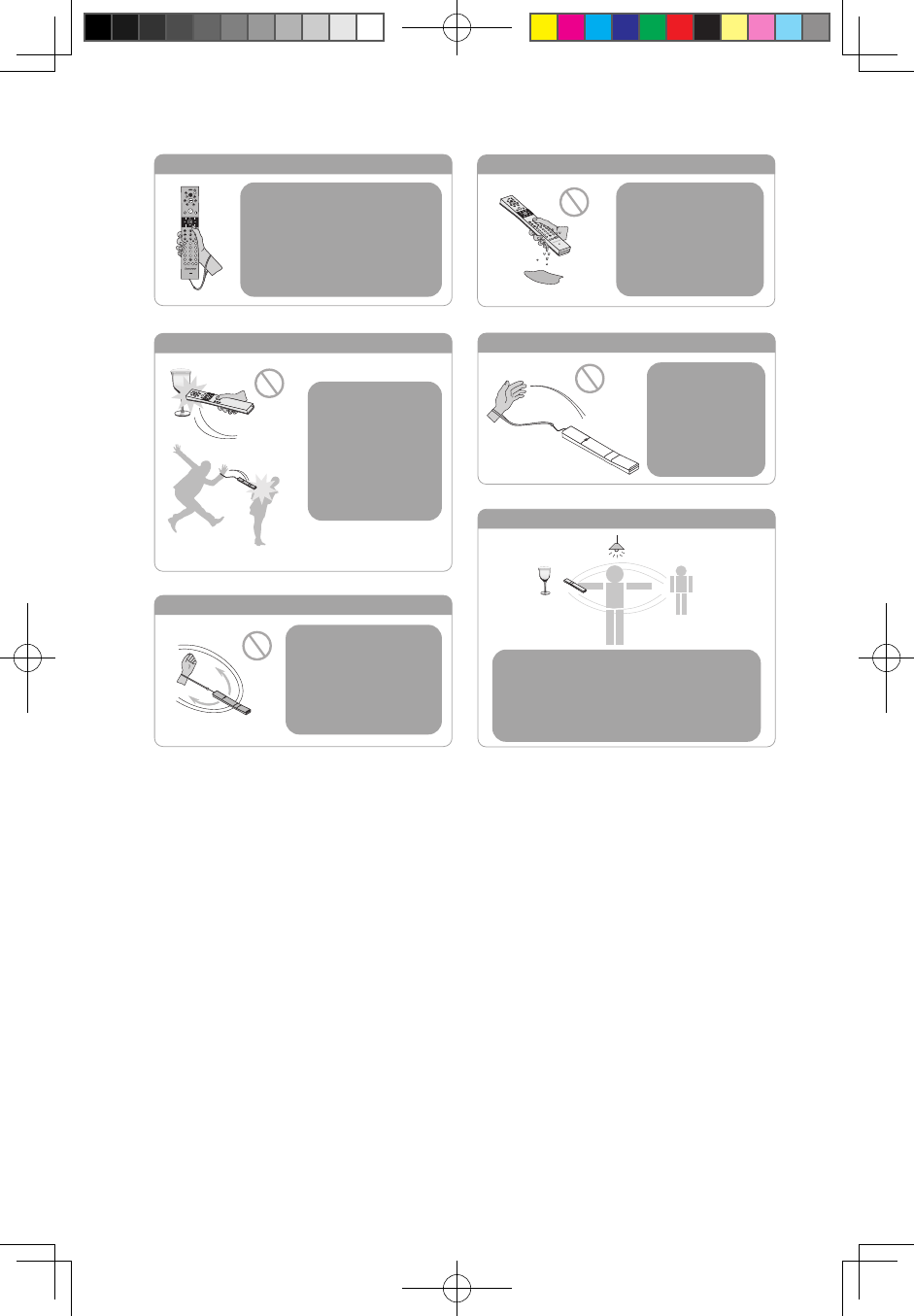
CAUTION
CAUTION
CAUTION
CAUTION
CAUTION
CAUTION
When using the remote
control, make sure the remote
controlʼs wrist strap is adjusted
tightly around your wrist to
avoid hitting people or objects
around you.
Do not use the remote
control when your hand
or the remote is wet.
You might receive an
electrical shock and
damage the remote
control.
Be aware of the
people and the
objects around you
when you use the
remote control.
Do not throw the
remote control at
will to avoid
hitting someone
or damaging
something.
Do not swirl the
remote control by the
wrist strap to avoid
hitting someone or
damaging something.
Keep a safe distance from all the objects
and people within your reach. Pay
attention to the lighting devices over your
head to avoid damaging the remote
control.
31041269_A3_UG_EN_V1.0.indd 25 2009.11.24 9:17:13 AM

26 User Guide
31041269_A3_UG_EN_V1.0.indd 26 2009.11.24 9:17:14 AM
1
2
3
4
5
Chapter
Using the Rescue System
This chapter contains the following
topics:
ÿ OneKey Recovery
ÿ Driver and Application Installation
ÿ System Setup
ÿ System Backup
ÿ System Recovery
ÿ Create Recovery Disc
Attention: Using this program will result in
a loss of data.
• You can recover the C drive of the computer
to the factory default settings or to the
last system backup status using OneKey
Recovery. With this operation, all of the
existing data on drive C will be lost, whereas
the content and format of the other partitions
of the hard disk drive will remain unchanged.
• If you want to install an operating system and
back it up with OneKey Recovery, you must
format the C partition in NTFS format and
install the operating system on the C partition.
Otherwise, the OneKey Recovery system
cannot run.
User Guide 27
31041269_A3_UG_EN_V1.0.indd 27 2009.11.24 9:17:15 AM
28 User Guide
Note about the service partition:
The files and relevant data used by the rescue system are saved in the service
partition. Deleting this partition will make the rescue system unusable. For more
detailed information, see the following instructions:
By selecting Control Panel → Administrative Tools → Computer Management
→ Disk Management, you can see the service partition, which must not be
deleted.
Note: The recovery files and relevant data used by the rescue system are
saved in the service partition. If the service partition is deleted or damaged
by someone other than authorized Lenovo servicers, Lenovo will not be
liable for any losses arising there from in any way.
2.1 OneKey Recovery
OneKey Recovery is an easy-to use application. You can use it to restore your
computer to the system default or a previously backed up state.
Detailed Operation Procedure
1. Turn on the computer. When the Lenovo logo appears, press the F2 key on the
keyboard to start the Rescue System, then you can select OneKey Recovery.
Note: System Recovery will overwrite all of the data on drive C. To prevent
loss of data, be sure to back up relevant data before performing system
recovery.
2. Follow the onscreen instructions to select the backup task you want to restore
from and disk you want to install operation system, and press Next to start
restoration.
3. Please wait during the process of system recovery. Do not interrupt the
operation during the recovery process.
4. After the system is recovered successfully, the software prompts to restart the
computer. Restart the computer and enter the system.
2.2 Driver and Application Installation
The Driver and Application Installation function in the rescue system provides a way
for the user to conveniently re-install all of the Lenovo applications and drivers that
were shipped with your Lenovo hardware.
31041269_A3_UG_EN_V1.0.indd 28 2009.11.24 9:17:15 AM
29
User Guide
Method 1: Automatic Installation
Turn on the computer. When the Lenovo logo appears, press the F2 key on the
keyboard to start the Rescue System, then select Drivers and Application
Installation.
Follow the screen prompts to install the Lenovo Drivers and Application Installation.
Click Install to start installing the Lenovo Drivers and Application Installation.
The system will restart. After the system has restarted, the installation process will
continue until completion.
Method 2: Manual Installation
In the Windows system, Click Start → All Programs → Lenovo → Lenovo
Drivers and Application Installation.
After starting the procedure, install all the drivers and software manually according
to the prompts.
Notes:
1. It is recommended not to install the software which is already on the
computer.
2. Before accessing the operating system, make sure that the Drivers and
Application installation has been installed automatically. After that, the
manual installation function can be used.
2.3 System Setup
System Setup configures the network configuration for the Lenovo Rescue
System to ensure your Rescue System can connect to internet. In addition, System
Setup sets and manages all passwords for the Lenovo Rescue system.
2.3.1 Launch
Turn on the computer. When the Lenovo logo appears, press the F2 key to launch
Rescue System. Then select System Setup.
2.3.2 Network Settings
Depending on the network access mode of the computer, select “ADSL” or “LAN
Connection” in the network connection modes.
1. If you select “ADSL,” input the username and password of the ADSL
connection.
31041269_A3_UG_EN_V1.0.indd 29 2009.11.24 9:17:16 AM

30 User Guide
2. If you select “LAN connection,” configure the IP address and proxy server of the
LAN.
2.3.3 Password Management
Password Management allows you to set the password for Lenovo Rescue
System and manage it.
The default password is blank.
Set a password when you access the Password Management for the first time.
If you don’t want to set a password, access the system directly and operate
accordingly.
2.4 System Backup
Back up your system partition to an image file. In case of a system failure, you can
restore your system from this image file.
In the Windows system, click Start → All Programs → Lenovo → Lenovo
Rescue System.
After starting the procedure, click System Backup to back up your system
partition according to the prompts.
2.5 System Recovery
Reboot your computer into the system recovery environment. You can choose to
restore to a system backup point or the initial state.
2.6 Create Recovery Disc
Create a bootable recovery disc from current system. These recovery discs are
used to boot your computer and will guide you through the entire restoration
process.
In the Windows system, click Start → All Programs → Lenovo → Lenovo
Rescue System.
After starting the procedure, click Create Recovery Disc to create a bootable
recovery disc from current system.
Follow the screen prompts to create recovery discs.
31041269_A3_UG_EN_V1.0.indd 30 2009.11.24 9:17:16 AM
1
2
3
4
5
Chapter
Using the Computer Software
This chapter contains the following
topics:
ÿ Computer software instructions
Note: The interface and function of each
of these features are subject to the actual
software that was shipped with the
computer model that you purchased.
User Guide 31
31041269_A3_UG_EN_V1.0.indd 31 2009.11.24 9:17:17 AM
32 User Guide
3.1 Power2Go - Burning Discs
(This software only can be used on model with a rewritable
optical drive and Blu-ray Burning Disc software is only
equipped on the model with Blu-ray Disc rewritable optical
drive.)
Power2Go is the software for disc burning. It provides various burning tools that
enable you to easily store your files into CDs, DVDs or Blu-ray Discs.
Power2Go can make common data discs, music discs, video/photo discs and
mixed discs and bootable discs. It also supports disc duplication.
You can create a bootable CD, DVD, Blu-ray Disc, which you can use to boot your
computer from your disc drive if your operating system ever fails.
Note: This software does not support the burning of VCD audio.
3.1.1 Launch
1. Choose All Programs → Lenovo → Power2Go → Power2GoExpress from
the Start menu to launch the burner program.
2. The shortcut to launch the burner software is the block icon on the desktop. To
use the burner program, just drag and drop the files to be recorded onto their
appropriate data, music, or video icon.
3.1.2 Starting the burner software
1. Choose All Programs → Lenovo → Power2Go → Power2Go from the Start
menu to launch the burner program.
2. Choose a task for the burner from the task list. Then start the burner to record
files.
3. You can choose the medium to burn from the disc type, and then click the OK
icon to access the burner interface.
4. Select the file to be burned from the select source box, and then click the add
files icon to add your files into the disc compilation column. Click the burn icon
to start burning process.
3.1.3 Disc Utility
The burner also provides utility tools for preparing and processing various CDs and
DVDs, such as the recording of mirror files, erasing of discs, and conversion of audio.
31041269_A3_UG_EN_V1.0.indd 32 2009.11.24 9:17:17 AM
33
User Guide
3.1.4 Help
For more information about the use of Power2Go, click the Help icon.
3.2 WinDVD
(Some models are equipped with WinDVD software and the
WinDVD Blu-ray software is only equipped on the model with
the Blu-ray optical drive.)
With WinDVD, you can play DVDs and VCDs.
To launch the player:
Choose All Programs → InterVideo WinDVD from the Start menu to launch the
player.
Click the “?” icon to obtain more information about WinDVD.
WinDVD Blu-ray Disc (BD) is the software for playing discs. It can play DVD
standard format discs and Blu-ray format discs with the optical drive.
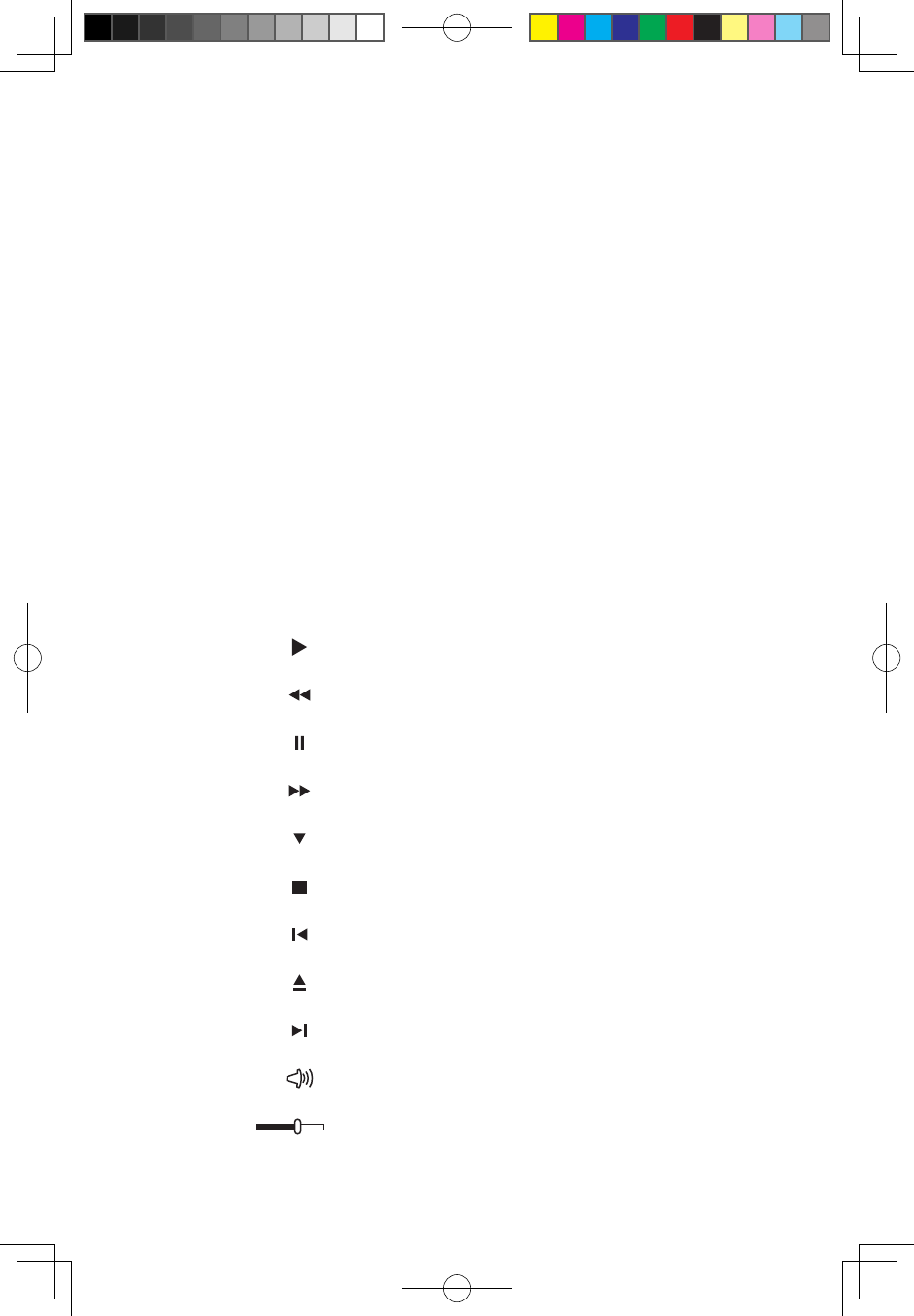
The WinDVD player includes the following basic buttons:
— Play
— Move backwards within the current track
— Pause
— Move forward within the current track
— Track list
— Stop
— Go to the previous track
— Eject
— Go to the next track
— Mute
— Volume
31041269_A3_UG_EN_V1.0.indd 33 2009.11.24 9:17:18 AM
34 User Guide
3.3 McAfee Security Center
McAfee VirusScan Center offers proactive PC security to prevent malicious attacks.
It also provides security against multi-pronged attacks by combining anti-virus,
anti-spyware and firewall technologies.
Note: Connect to the Internet before activation.
3.3.1 Using McAfee Security Center
Choose All Programs → McAfee → McAfee Security Center from the Start
menu to launch the antivirus software.
Or, Double click the McAfee Security Center on the desktop to launch the
antivirus software.
3.3.2 Scanning for Viruses
Click Scan on the Security Center home page. Select a task on the Scan Options
pane, Click Start to launch the scan program. Upon completion, the software will
pop up a system scanning report, which lists all virus files detected, and you can
then quarantine or delete them as required.
3.3.3 Check for updates
Click Update on the Security Center home page to check for updates.
Note: Connect to the Internet before upgrading.
3.3.4 Help and Support
For more information on the operation of Security Center, see product help
Information in the Help option. In the help document, you can learn more about
McAfee Security Center operation and settings.
31041269_A3_UG_EN_V1.0.indd 34 2009.11.24 9:17:18 AM

35
User Guide
3.4 Media Show
MediaShow is a new and innovative way to view and be creative with your media.
MediaShow lets you be as imaginative as you want by performing the following
functions:
• View your photos and videos
• Edit and add effects to your photos and videos
• Create screen savers and slideshows with your photos
• Create stylish and professional looking movies with your videos
• Upload your photos directly to Flickr
• E-mail photos and videos directly from MediaShow to your friends
• Create discs with your photos and video
3.4.1 Photos
You can manage your photos in MediaShow through the different creative
functions. It has various editing functions and the ability to e-mail your photos, or
upload them to Flickr.
3.4.2 Videos
You can manage your videos in MediaShow through the different creative functions.
It has various editing functions and allows you to e-mail your videos.
3.4.3 Create DVD Discs
You can create professional looking DVD discs with themes and menus using your
videos and photos through this function. You also can configure your DVD disc
settings.
31041269_A3_UG_EN_V1.0.indd 35 2009.11.24 9:17:18 AM

36 User Guide
3.5 Lenovo CamSuite
CamSuite is an animated messaging tool featuring customizable emotive facial
animation that gives you much more fun than the conventional video chatting on
instant-messaging applications.
Note: If you have an instant-messaging application installed on your OS,
the video device must be set manually.
Refer to the following steps to quickly start using CamSuite in your
instant-messaging video conference. For more details on how to use each feature
of CamSuite, refer to the Online Help.
3.5.1 Capture mode
In the Capture mode, you may click Snapshot or Record button to capture and
share an image or a video of yourself from your webcam.
3.5.2 Avatar Live
CamSuite enables you to select a customized image and use it as your avatar
during instant-messaging video calls.
3.5.3 Magic Mirror
You can add different expressions to enhance your face by means of Face Morph
technology.
31041269_A3_UG_EN_V1.0.indd 36 2009.11.24 9:17:18 AM
1
2
3
4
5
Chapter
System Maintenance and
Recovery
This chapter contains the following
topics:
ÿ Daily Maintenance and Tools Instructions
User Guide 37
31041269_A3_UG_EN_V1.0.indd 37 2009.11.24 9:17:20 AM

38 User Guide
4.1 Restoring the System
The system can develop problems due to erroneous operation or the installation of
additional software. If software problems develop in the originally installed software,
you can restore the system by using system backup and restoration features.
Note: The existing system settings will change after restoration. Check the
settings of the restored system to ensure they match settings that may be
critical to your needs.
Use the following procedure to restore the software to a known functional level:
1. Click Start → All Programs → Accessories → System Tools → System
Restore.
2. Choose either the recommended restore point, or select a different recovery
time from the pop-up box. Choose the latest date when the system was running
properly.
Click Next to continue.
3. The system will start restoration. When all processes run to completion, the
system displays a message informing you that the restore operation has
completed successfully.
4.2 Backup and Restore
For security purposes, you can back up the system status before you install
additional software, or otherwise modify system settings. To back up the system
status, do the following:
1. Click Start → All Programs → Maintenance → Backup and Restore.
2. Select the location for your backup. Click Next and follow the instructions to
continue.
4.3 Cleaning Up the Disk
Do the following periodically to clean up the disks and possibly enhance your
computer’s performance:
1. Click Start → All Programs → Accessories → System Tools → Disk
Cleanup.
2. Choose the disk you want to clean up.
3. Click the OK button to start the cleanup process.
31041269_A3_UG_EN_V1.0.indd 38 2009.11.24 9:17:20 AM
39
User Guide
4.4 Checking For, and Correcting Disk Errors
To properly maintain your system, you should periodically check for and fix hard
disk errors by doing the following:
1. Right-click the icon for the hard disk drive (HDD) that you want to reorganize,
then select Properties from the pop-up menu.
2. Select the Tools tab, and then click Check Now.
3. Check your inspection items for the disk and click Start.
Note: You cannot start error checking until the computer is restarted and
initialized.
4.5 Defragmenting the Disk(s)
Disk fragments are tiny unused storage areas scattered on the disk. The system
cannot directly reutilize these “blank” spaces and system performance can
decrease as system operations usually cause the number of unused storage gaps
to increase. To defragment your disk storage, do the following:
1. Right-click the icon for the hard disk drive (HDD) that you want to reorganize,
then select Properties from the pop-up menu.
2. Go to the Tools tab from disk Properties and select Defragment Now.
3. Select the time and scheme to be used by the defragging program, then start
the defragmenting program. Depending on the amount of defragmentation on
the hard disk drive, this procedure can take a long time (sometimes more than
one hour).
4.6 Performing Daily Maintenance Tasks
Cleaning the computer components
Because many of the computer components consist of sophisticated integrated
circuit boards, it is very important to periodically clean around the computer
to prevent dust buildup. The cleaning supplies you need in order to clean the
components include: a vacuum cleaner, a soft cotton cloth, clear water (pure water
preferred) and cotton swabs.
Attention: Before you clean your computer, disconnect the computer
from the electrical outlet. Clean your computer with a soft cloth
dampened with water. Do not use liquid or aerosol cleaners, which may
contain flammable substances.
31041269_A3_UG_EN_V1.0.indd 39 2009.11.24 9:17:20 AM

40 User Guide
Note: To avoid damaging the computer or display, do not spray cleaning
solution directly onto the display. Only use products specifically designed
for cleaning displays, and follow the instructions that are included with the
product.
The following are general methods for cleaning the components:
• You can use a soft cloth to remove dust on the surface of the computer, the
monitor, the printer, the speakers and the mouse.
• You can use a vacuum cleaner to clean in otherwise inaccessible corners.
• To clean the keyboard thoroughly, shut down the computer and scrub it gently
with a wet cloth.
• Do not use the keyboard until it is dry.
Do not do any of the following:
• Allow water to enter the computer
• Use a heavily dampened cloth
• Spray water directly onto the surface of the monitor or inside of computer.
Daily attention should be given to LCD monitors. Use a dry cloth daily to brush
dust from the monitor and keyboard. Keep all surfaces clean and free of grease
stains.
31041269_A3_UG_EN_V1.0.indd 40 2009.11.24 9:17:20 AM
1
2
3
4
5
Chapter
Troubleshooting and Confirming
Setup
This chapter contains the following
topics:
ÿ Troubleshooting and Problem Resolution
Note: The description of the TV-Tuner card
in this manual is only used for the machines
which have the TV-Tuner card. It does not
apply to those machines that do not have a
TV-Tuner card.
User Guide 41
31041269_A3_UG_EN_V1.0.indd 41 2009.11.24 9:17:22 AM
42 User Guide
Solving Problems
Follow these tips when you troubleshoot your computer:
• If you added or removed a part before the problem started, review the
installation procedures and ensure that the part is correctly installed.
• If a peripheral device does not work, ensure that the device is properly
connected.
• If an error message appears on the screen, write down the exact message. This
message may help support personnel diagnose and fix the problem(s).
• If an error message occurs in a program, see the program’s documentation.
Note: The procedures in this document were written for the Windows
default view, so they may not apply if you set your Lenovo® computer to
the Windows Classic view.
5.1 Troubleshooting Display Problems
Problem: Blank screen or no image is displayed on the monitor
Troubleshooting and problem resolution:
Check that the LCD screen has been turned on; If not, press the LCD On/Off
button to turn on the LCD.
If still cannot solve the problem, contact to Lenovo Customer Service.
Problem: You need to change display property settings.
Setting display background and icon properties:
1. Right-click the desktop anywhere except over an icon, then select Personalize
from the pop-up menu.
2. From here, select the appropriate options to:
• Change the desktop background
• Select a screen saver
• Select colors and appearance options for icons and characters
• Set resolution and colors by using Display Settings options.
Problem: Ripple on screen
Troubleshooting and problem resolution:
1. Check for devices located less than one meter from the computer such as
31041269_A3_UG_EN_V1.0.indd 42 2009.11.24 9:17:22 AM

43
User Guide
refrigerators, electric fans, electric dryers, UPSs, regulators, fluorescent lamps
or other computers that may be generating magnetic interference.
2. Move any interfering devices away from the computer.
3. If the problem persists, consult with Lenovo Service.
5.2 Troubleshooting Audio Problems
Problem: No sound from integrated speakers
Troubleshooting and problem resolution:
• Adjust the windows volume control — Double-click the speaker icon in the
lower-right corner of your screen. Ensure that the volume is turned up and that
the sound is not muted. Adjust the volume, bass, or treble controls to eliminate
distortion.
• Reinstall the audio driver
• Disconnect headphones from the headphone connector — Sound from the
speakers is automatically disabled when headphones are connected to the
computer’s side-panel headphone connector.
Problem: No sound from headphones
Troubleshooting and problem resolution:
• Check the headphone cable connection — Ensure that the headphone cable is
securely inserted into the headphone connector.
• Adjust the windows volume control — Click or double-click the speaker icon in
the lower-right corner of your screen. Ensure that the volume is turned up and
that the sound is not muted.
5.3 Troubleshooting Software Problems
Problem: You are unable exit a running program normally.
Troubleshooting and problem resolution:
1. Open the Task Manager window by pressing Ctrl, Alt and Delete at the same
time.
2. Select the Application tab, select the problem program, and then click the End
Task button.
31041269_A3_UG_EN_V1.0.indd 43 2009.11.24 9:17:22 AM

44 User Guide
Problem: You need to install or uninstall a program.
Problem resolution:
During installation never abort the install process by powering the system off or
through other drastic means. This can cause system program disorder or even
failure during system initialization.
During the uninstall process, never directly delete the files or folders. This is
harmful to the system, and might cause a system-wide malfunction.
Use the following procedure to properly uninstall programs:
1. Back up all documents and system settings related to the program before
removing it.
2. If the program has its own uninstaller, run it directly to uninstall the program.
3. If the program does not have its own uninstaller, then select Control Panel from
Start menu.
4. From the Control Panel, choose Programs and Functions.
5. Find the applicable program from the Programs and Functions dialog box and
then select Uninstall/Modify.
6. Perform the instructions displayed to uninstall the software.
5.4 Troubleshooting Problems with Optical Drives and
Hard Disks
Problem: The Optical drive is unable to read a CD/DVD.
Troubleshooting and problem resolution:
1. Check to determine if there is an optical drive icon in the resource manager
of the operating system. If not, restart your computer. If there is still no icon,
contact Lenovo Service. Otherwise, continue with the next step of this
procedure.
2. Confirm that the CD/DVD has been properly placed in the drive. If not, reload
the CD or DVD. Otherwise, continue with the next step of this procedure.
3. Check the specifications that came with your computer to confirm that this
optical drive is supposed to be able to read this type of CD or DVD.
4. If the CD/DVD cannot be read, replace it with a known good CD/DVD such as
one that was shipped with the computer.
5. If the known good CD cannot be read, visually check the operating side of the
CD/DVD for defects.
31041269_A3_UG_EN_V1.0.indd 44 2009.11.24 9:17:22 AM

45
User Guide
Problem: The capacity of the hard disk, as indicated by the system, is less than
the nominal capacity.
Troubleshooting and problem resolution: For computers equipped with the
OneKey Recovery feature, the system recovery feature needs to occupy some
hard disk space. This may account for the apparent hard disk capacity deficit.
Further Technical Explanation: The nominal capacity of the hard disk is
expressed in the decimal system, 1000 bytes. But the actual hard disk capacity is
expressed in the binary system as 1024 bytes (For example, the nominal capacity
1G is 1000M, while the actual capacity 1G is 1024M).
The capacity of the hard disk shown in Windows can be calculated according to
the calculations in the following example:
The nominal capacity of the hard disk is 40G, while its actual capacity should
be: 40 x 1000 x 1000 x1000/ (1024 x 1024 x 1024) = 37G.
If the Service partition of 3G - 3 x 1000 x 1000 x 1000/ (1024 x 1024 x 1024)
= 2.79G is subtracted, the capacity of the hard disk shown in the system can
be obtained.
The capacity of the hard disk as calculated using this method may be slightly
different from the actual capacity due to the rounding of totals.
5.5 Special considerations for troubleshooting Windows
Record the following information that may later be useful in troubleshooting system
problems:
1. The serial number of the software. The serial number was shipped with the
computer and was provided separately by the manufacturer. The Help Center is
unable to retrieve this number.
2. The drivers for this computer model only support the Windows 7 system.
3. When you use the Windows Media Center to watch TV, be particularly attentive
to the following:
• In the following two situations, you must re-save a channel list:
a. When you change your TV signal from digital to analog, your saved
channel list for digital TV is deleted. When you want to watch digital TV
again, you must create and save a new channel list.
b. When you change your TV signal from analog to digital, your saved
channel list for analog TV is deleted. When you want to watch analog TV
31041269_A3_UG_EN_V1.0.indd 45 2009.11.24 9:17:23 AM

46 User Guide
again, you must create and save a new channel list.
• Before you can watch teletext programming, you must set the TV tuner input
signal to analog.
31041269_A3_UG_EN_V1.0.indd 46 2009.11.24 9:17:23 AM
