Lenovo L193 Users Manual L171 Flat Panel Monitor User.s Guide
L193 to the manual 77f59042-75ed-4fc5-9213-47c6927b63f4
2015-01-24
: Lenovo Lenovo-L193-Users-Manual-328893 lenovo-l193-users-manual-328893 lenovo pdf
Open the PDF directly: View PDF  .
.
Page Count: 29
- Contents
- Safety information
- Chapter 1. Getting started
- Chapter 2. Adjusting and using your monitor
- Chapter 3. Reference information
- Appendix A. Service and Support
- Appendix B. Notices

L193 Wide Flat Panel Monitor
User's Guide

Product numbers
6920-AS 1
A l l rights reserved.
U.S. GOVERNMENT USERS - RESTRICTED RIGHTS: Our products and/or services are provided with
RESTRICTED RIGHTS. Use, duplication or disclosure by the Government is subject to the GSA ADP Schedule
contract with Lenovo Group Limited, if any, or the standard terms of this commercial license, or if the agency is
unable to accept this Program under these terms, then we provide this Program under the provisions set forth in
Commercial Computer Software-Restricted Rights at FAR 52.227-19, when applicable, or under Rights in
Data-General, FAR 52.227.14 (Alternate III).
First Edition (January 2007)
© Copyright Lenovo 2007.

Contents
Safety
information
.
.
.
.
.
.
.
.
.
.
.
.
.
.
.
.
.
.
.
.
.
.
.
.
.
.
.
.
.
.
iv
Chapter
1.
Getting
started
.
.
.
.
.
.
.
.
.
.
.
.
.
.
.
.
.
.
.
.
.
.
.
.
.
.
. 1-1
Shipping
contents
.
.
.
.
.
.
.
.
.
.
.
.
.
.
.
.
.
.
.
.
.
.
.
.
.
.
.
.
.
.
.
.
. 1-1
Attaching
the
base
and
handling
your
monitor
.
.
.
.
.
.
.
.
.
.
.
.
.
.
.
.
.
.
.
.
.
.
. 1-1
Product
overview
.
.
.
.
.
.
.
.
.
.
.
.
.
.
.
.
.
.
.
.
.
.
.
.
.
.
.
.
.
.
.
.
. 1-2
Adjusting
the
tilt
.
.
.
.
.
.
.
.
.
.
.
.
.
.
.
.
.
.
.
.
.
.
.
.
.
.
.
.
.
. 1-2
Monitor
controls
.
.
.
.
.
.
.
.
.
.
.
.
.
.
.
.
.
.
.
.
.
.
.
.
.
.
.
.
.
.
. 1-2
Setting
up
your
monitor
.
.
.
.
.
.
.
.
.
.
.
.
.
.
.
.
.
.
.
.
.
.
.
.
.
.
.
.
.
.
. 1-3
Connecting
and
turning
on
your
monitor
.
.
.
.
.
.
.
.
.
.
.
.
.
.
.
.
.
.
.
.
.
.
.
. 1-3
Registering
your option
.
.
.
.
.
.
.
.
.
.
.
.
.
.
.
.
.
.
.
.
.
.
.
.
.
.
.
.
.
.
. 1-5
Chapter
2.
Adjusting
and
using
your
monitor
.
.
.
.
.
.
.
.
.
.
.
.
.
.
.
.
.
.
. 2-1
Comfort
and
accessibility
.
.
.
.
.
.
.
.
.
.
.
.
.
.
.
.
.
.
.
.
.
.
.
.
.
.
.
.
.
. 2-1
Arranging
your
work
area
.
.
.
.
.
.
.
.
.
.
.
.
.
.
.
.
.
.
.
.
.
.
.
.
.
.
.
.
. 2-1
Quick
tips
for
healthy
work
habits
.
.
.
.
.
.
.
.
.
.
.
.
.
.
.
.
.
.
.
.
.
.
.
.
.
. 2-2
Accessibility
information
.
.
.
.
.
.
.
.
.
.
.
.
.
.
.
.
.
.
.
.
.
.
.
.
.
.
.
.
.
. 2-2
Adjusting
your
monitor
image
.
.
.
.
.
.
.
.
.
.
.
.
.
.
.
.
.
.
.
.
.
.
.
.
.
.
.
.
. 2-3
Using
the
direct
access
controls
.
.
.
.
.
.
.
.
.
.
.
.
.
.
.
.
.
.
.
.
.
.
.
.
.
.
. 2-3
Using
the
On-Screen
Display
controls
.
.
.
.
.
.
.
.
.
.
.
.
.
.
.
.
.
.
.
.
.
.
. 2-3
Selecting
a
supported
display
mode
.
.
.
.
.
.
.
.
.
.
.
.
.
.
.
.
.
.
.
.
.
.
.
.
.
.
. 2-5
Understanding
power
management
.
.
.
.
.
.
.
.
.
.
.
.
.
.
.
.
.
.
.
.
.
.
.
.
.
.
. 2-6
Caring
for
your
monitor
.
.
.
.
.
.
.
.
.
.
.
.
.
.
.
.
.
.
.
.
.
.
.
.
.
.
.
.
.
.
. 2-7
Detaching
the
monitor
stand
.
.
.
.
.
.
.
.
.
.
.
.
.
.
.
.
.
.
.
.
.
.
.
.
.
.
.
.
. 2-7
Chapter
3.
Reference
information
.
.
.
.
.
.
.
.
.
.
.
.
.
.
.
.
.
.
.
.
.
.
.
. 3-1
Monitor
specifications
.
.
.
.
.
.
.
.
.
.
.
.
.
.
.
.
.
.
.
.
.
.
.
.
.
.
.
.
.
.
. 3-1
Troubleshooting
.
.
.
.
.
.
.
.
.
.
.
.
.
.
.
.
.
.
.
.
.
.
.
.
.
.
.
.
.
.
.
.
.
. 3-2
Manual
image
setup
.
.
.
.
.
.
.
.
.
.
.
.
.
.
.
.
.
.
.
.
.
.
.
.
.
.
.
.
.
.
. 3-3
Manually
installing
the
monitor
driver
.
.
.
.
.
.
.
.
.
.
.
.
.
.
.
.
.
.
.
.
.
.
.
.
. 3-4
Service
information
.
.
.
.
.
.
.
.
.
.
.
.
.
.
.
.
.
.
.
.
.
.
.
.
.
.
.
.
.
.
. 3-6
Appendix
A.
Service
and
Support
.
.
.
.
.
.
.
.
.
.
.
.
.
.
.
.
.
.
.
.
.
.
.
. A-1
Online
technical
support
.
.
.
.
.
.
.
.
.
.
.
.
.
.
.
.
.
.
.
.
.
.
.
.
.
.
.
.
.
. A-1
Telephone
technical
support
.
.
.
.
.
.
.
.
.
.
.
.
.
.
.
.
.
.
.
.
.
.
.
.
.
.
.
.
. A-1
Worldwide
telephone
list
.
.
.
.
.
.
.
.
.
.
.
.
.
.
.
.
.
.
.
.
.
.
.
.
.
.
.
.
. A-1
Appendix
B.
Notices
.
.
.
.
.
.
.
.
.
.
.
.
.
.
.
.
.
.
.
.
.
.
.
.
.
.
.
.
. B-1
Trademarks
.
.
.
.
.
.
.
.
.
.
.
.
.
.
.
.
.
.
.
.
.
.
.
.
.
.
.
.
.
.
.
.
.
.
. B-2
© C opy right L enovo 2007.
iii
. .
. .
Safety information
Before installing this product, read the Safety Information.
Antes de instalar este produto, leia as Informações de Segurança.
Pred instalací tohoto produktu si prectete prírucku bezpecnostních instrukcí.
Læs sikkerhedsforskrifterne, før du installerer dette produkt.
Ennen kuin asennat tämän tuotteen, lue turvaohjeet kohdasta Safety Information.
Avant d’installer ce produit, lisez les consignes de sécurité.
Vor der Installation dieses Produkts die Sicherheitshinweise lesen.
Prima di installare questo prodotto, leggere le Informazioni sulla Sicurezza.
Lees voordat u dit product installeert eerst de veiligheidsvoorschriften.
Les sikkerhetsinformasjonen (Safety Information) før du installerer dette produktet.
Antes de instalar este produto, leia as Informações sobre Segurança.
Antes de instalar este producto lea la información de seguridad.
Läs säkerhetsinformationen innan du installerar den här produkten.
© C opy right L enovo 2007. ii iv
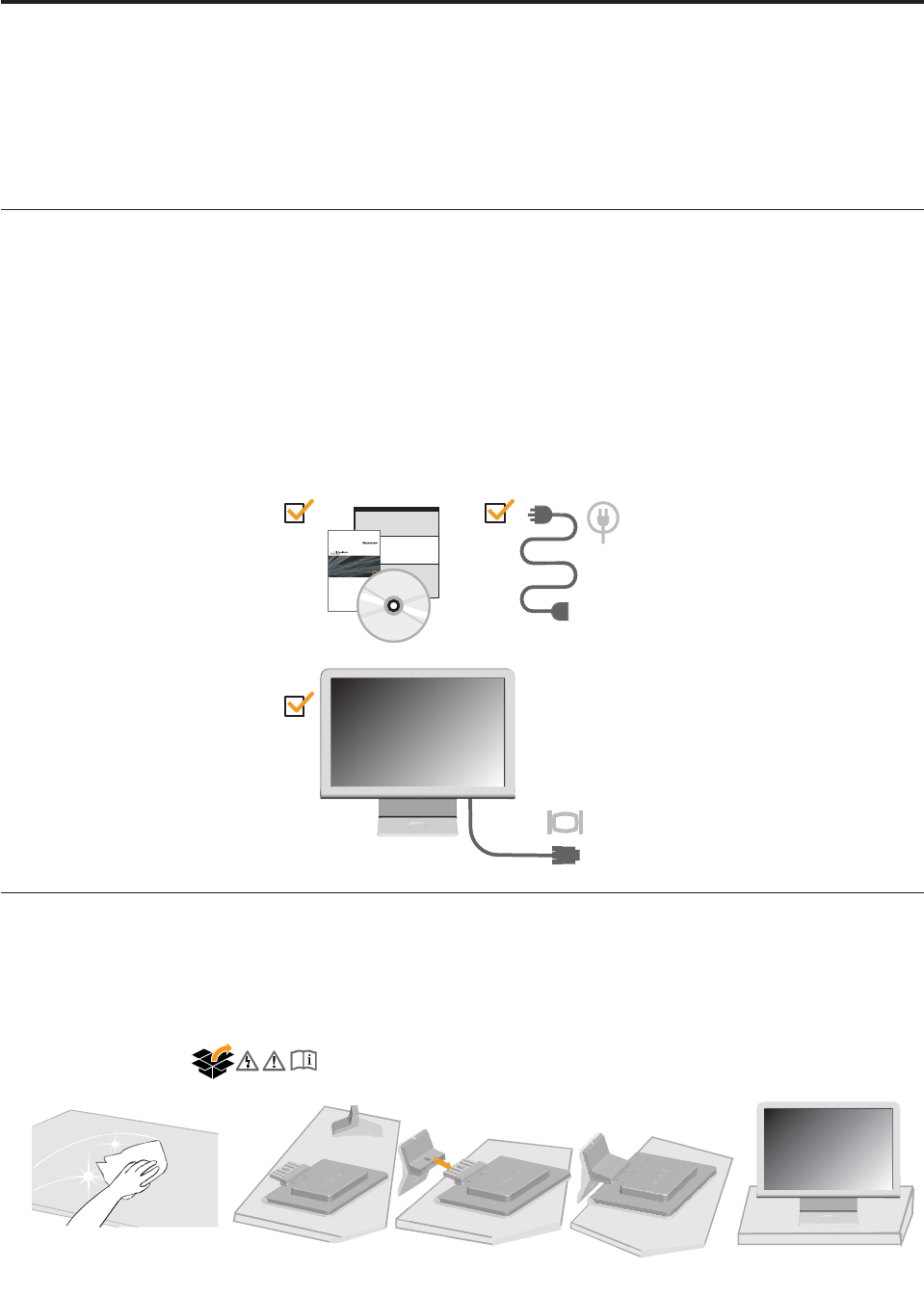
Shipping
contents
The
product
package
includes
the
following
items:
v
Setup
Poster
v
Monitor
Safety,
Troubleshooting,
and
Warranty
Guide
v
Reference
and
Driver
CD
v
Flat
Panel
Monitor
v
Power
Cord
v
Analog
Interface
Cable -
Attached
to
monitor
Attaching
the
base
and
handling
your
monitor
To
set
up
your
monitor,
please
see
the
illustrations
below.
Note:
Do
not
touch
the
monitor
within
the
screen
area.
The
screen
area
is
glass
and
can
be
damaged
by
rough
handling
or
excessive
pressure.
© C opy right L enovo 2007.
1-1
Chapter 1. Getting started
This U ser ’s G uide contains detailed information on your ffffffffffffFFFFF Flat
Panel M onitor. For a quick overview, please see the Setup Poster that was shipped
with your monitor.
1-2 Flat Panel Monitor User ’s Guide
Product overview
This section provides information on adjusting monitor positions and setting user controls.
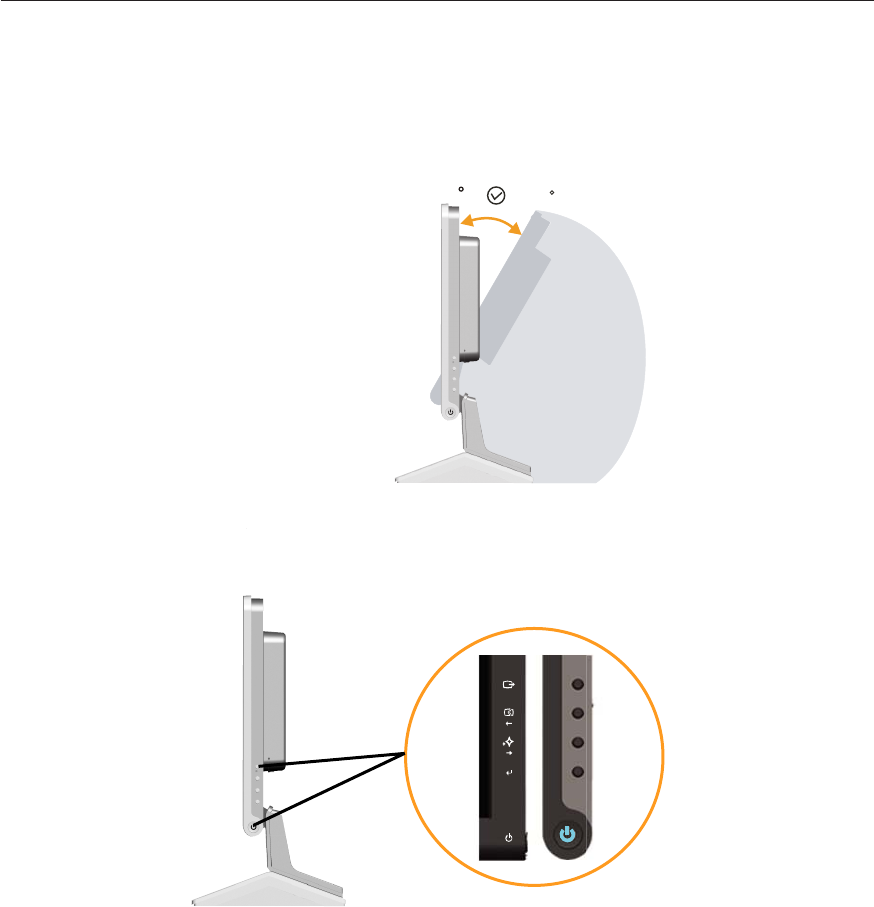
Adjusting the tilt
The illustration below shows the tilt range of the monitor. For more information, see
Monitor controls
The controls on the right side of your monitor enable you to adjust the display.
For information on how to use these controls, please see
“Adjusting your monitor image” on page 2-3.
"Positioning your monitor " on page 2-1.
-5 20
Chapter 1. Getting started 1-3
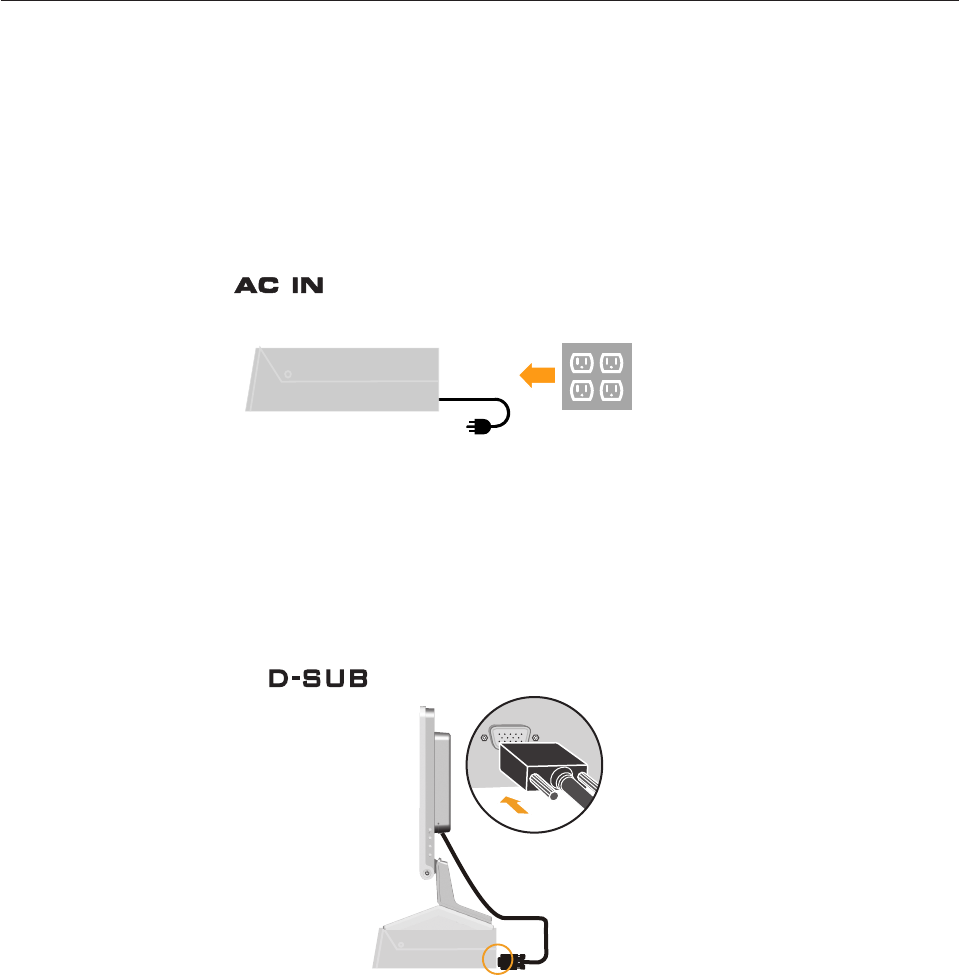
2. Connect the analog signal cable to the video port on the back of the computer.
Note: One end of the signal cable is already pre-attached to your monitor.
Setting
up
your
monitor
Connecting
and
turning
on
your
monitor
Note:
Be
sure
to
read
the
Safety
Information
located
in
the
Monitor
Safety,
Troubleshooting,
and
Warranty
Guide
before
carrying
out
this
procedure.
1.
Power
off
your
computer
and
all
attached
devices,
and
unplug
the
computer
power
cord.
This section provides instructions on setting up your monitor.
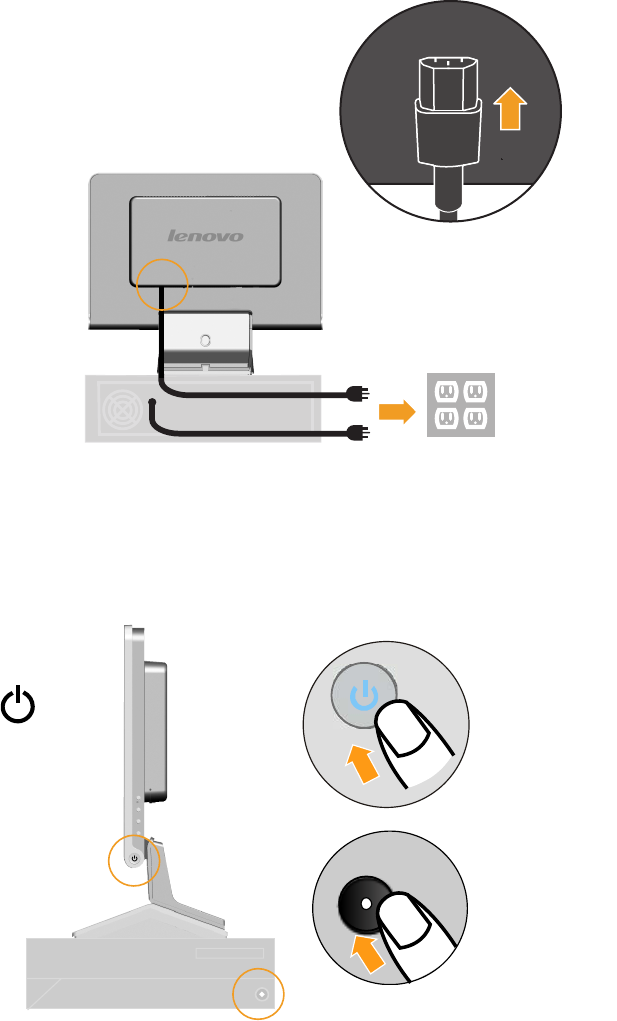
3. Insert the power cord into the monitor, then plug the monitor power cord and
the computer cord into grounded electrical outlets.
4. Power on the monitor and the computer.
1-4 Flat Panel Monitor User ’s Guide
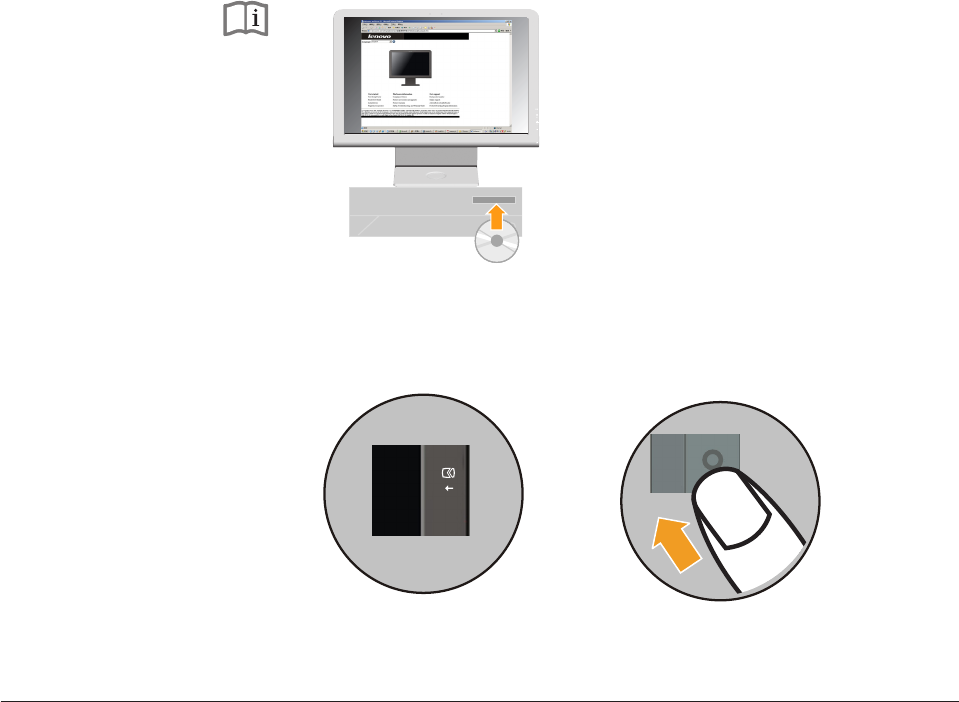
5. To install the monitor driver, insert the Reference and Driver CD, click Install
driver, and follow the on-screen instructions.
6. To optimize your monitor image, press the Automatic Image Setup key.
Automatic image setup requires that the monitor is warmed up for at least 15
minutes. This is not required for normal operation.
Registering your option
Thank you for purchasing this Lenovo
™
product. Please take a few moments to
register your product and provide us with information that will help Lenovo to
better serve you in the future. Your feedback is valuable to us in developing
products and services that are important to you, as well as in developing better
ways to communicate with you. Register your option on the following Web site:
http://www.lenovo.com/register
Lenovo will send you information and updates on your registered product unless
you indicate on the Web site questionnaire that you do not want to receive further
information.
Chapter 1. Getting started 1-5
Note: If automatic image setup does not establish the image that you prefer, you
you can perform a manual image setup. See "Manual image setup" on page 3-3 for more information.

© C opy right L enovo 2007. 2-1
Chapter
2.
Adjusting
and
using
your
monitor
This
section
information
on
adjusting
and
using
your
monitor.
provides
Comfort
and
accessibility
Good
ergonomic
practice
is
important
to
get
the
most
from
your
personal
computer
and
to
avoid
discomfort.
Arrange
your
workplace
and
the
equipment
you
use
to
suit
your
individual
needs
and
the
kind
of
work
that
you
perform.
In
addition,
use
healthy
work
habits
to
maximize
your
performance
and
comfort
while
using
your
computer.
For
more
detailed
information
on
any
of
these
topics,
visit
the
Healthy
Computing
Web
site
at:
http://www.lenovo.com/healthycomputing/
Arranging
your
work
area
Use
a
work
surface
of
appropriate
height
and
space
to
allow
you
to
work
in
comfort.
Organize
your
work
area
to
match
the
way
you
use
materials
and
equipment.
Keep
your
work
area
clean
and
clear
for
the
materials
that
you
typically
use
and
place
the
items
that
you
use
most
frequently,
such
as
the
computer
mouse
or
telephone,
within
the
easiest
reach.
Equipment
layout
and
setup
play
a
large
role
in
your
working
posture.
The
following
topics
describe
how
to
optimize
equipment
setup
to
achieve
and
maintain
good
working
posture.
Positioning
your
monitor
Position
and
adjust
your
computer
monitor
for
comfortable
viewing
by
considering
the
following
items:
v
Viewing
distance:
Optimal
viewing
distances
for
monitors
range
from
approximately
510 mm
to
760 mm
(20
in
to
30
in)
and
can
vary
depending
on
ambient
light
and
time
of
day.
You
can
achieve
different
viewing
distances
by
repositioning
your
monitor
or
by
modifying
your
posture
or
chair
position.
Use
a
viewing
distance
that
is
most
comfortable
for
you.
v
Monitor
height:
Position
the
monitor
so
your
head
and
neck
are
in
a
comfortable
and
neutral
(vertical,
or
upright)
position.
If
your
monitor
does
not
have
height
adjustments,
you
might
have
to
place
books
or
other
sturdy
objects
under
the
base
of
the
monitor
to
achieve
the
desired
height.
A
general
guideline
is
to
position
the
monitor
such
that
the
top
of
the
screen
is
at
or
slightly
below
your
eye-height
when
you
are
comfortably
seated.
However,
be
sure
to
optimize
your
monitor
height
so
the
line
of
site
between
your
eyes
and
the
center
the
monitor
suits
your
preferences
for
visual
distance
and
comfortable
viewing
when
your
eye
muscles
are
in
a
relaxed
state.
v
Tilt:
Adjust
the
tilt
of
your
monitor
to
optimize
the
appearance
of
the
screen
content
and
to
accommodate
your
preferred
head
and
neck
posture.
v
General
location:
Position
your
monitor
to
avoid
glare
or
reflections
on
the
screen
from
overhead
lighting
or
nearby
windows.
The
following
are
some
other
tips
for
comfortable
viewing
of
your
monitor:
2-2 Flat Panel Monitor User ’s Guide
v
Use
adequate
lighting
for
the
type
of
work
you
are
performing.
v
Use
the
monitor
brightness,
contrast,
and
image
adjustment
controls,
if
equipped,
to
optimize
the
image
on
your
screen
to
meet
your
visual
preferences.
v
Keep
your
monitor
screen
clean
so
you
can
focus
on
the
screen’s
contents.
Any
concentrated
and
sustained
visual
activity
can
be
tiring
for
your
eyes.
Be
sure
to
periodically
look
away
from
your
monitor
screen
and
focus
on
a
far
object
to
allow
your
eye
muscles
to
relax.
If
you
have
questions
on
eye
fatigue
or
visual
discomfort,
consult
a
vision
care
specialist
for
advice.
Quick
tips
for
healthy
work
habits
The
following
information
is
a
summary
of
some
important
factors
to
consider
to
help
you
remain
comfortable
and
productive
while
you
use
your
computer.
v
Good
posture
starts
with
equipment
setup:
The
layout
of
your
work
area
and
the
setup
of
your
computer
equipment
have
a
large
effect
on
your
posture
while
using
your
computer.
Be
sure
to
optimize
the
position
and
orientation
of
your
equipment
by
following
the
tips
outlined
in
“Arranging
your
work
area”
on
page
2-1
so
you
can
maintain
a
comfortable
and
productive
posture.
Also,
be
sure
to
use
the
adjustment
capabilities
of
your
computer
components
and
office
furniture
to
best
suit
your
preferences
now
and
as
your
preferences
change
over
time.
v
Minor
changes
in
posture
can
help
avoid
discomfort:
The
longer
you
sit
and
work
with
your
computer,
the
more
important
it
is
to
observe
your
working
posture.
Avoid
assuming
any
one
posture
for
an
extended
period
of
time.
Periodically
make
minor
modifications
in
your
posture
to
help
deter
any
discomforts
that
might
arise.
Make
use
of
any
adjustments
that
your
office
furniture
or
equipment
provide
to
accommodate
changes
in
posture
v
Short,
periodic
breaks
help
ensure
healthy
computing:
Because
computing
is
primarily
a
static
activity,
it
is
particularly
important
to
take
short
breaks
from
your
work.
Periodically,
stand
up
from
your
work
area,
stretch,
walk
for
a
drink
of
water,
or
otherwise
take
a
short
break
from
using
your
computer.
A
short
break
from
work
gives
your
body
a
welcome
change
in
posture
and
helps
to
ensure
you
remain
comfortable
and
productive
while
you
do
work.
Accessibility
information
Lenovo
is
committed
to
providing
greater
access
to
information
and
technology
to
people
with
disabilities.
With
assistive
technologies,
users
can
access
information
in
the
way
most
appropriate
to
their
disability.
For
more
information
about
product
accessibility,
vist:
http://www-03.ibm.com/research/accessibility/requests/accvpat.nsf/lenovo-bidx?OpenForm
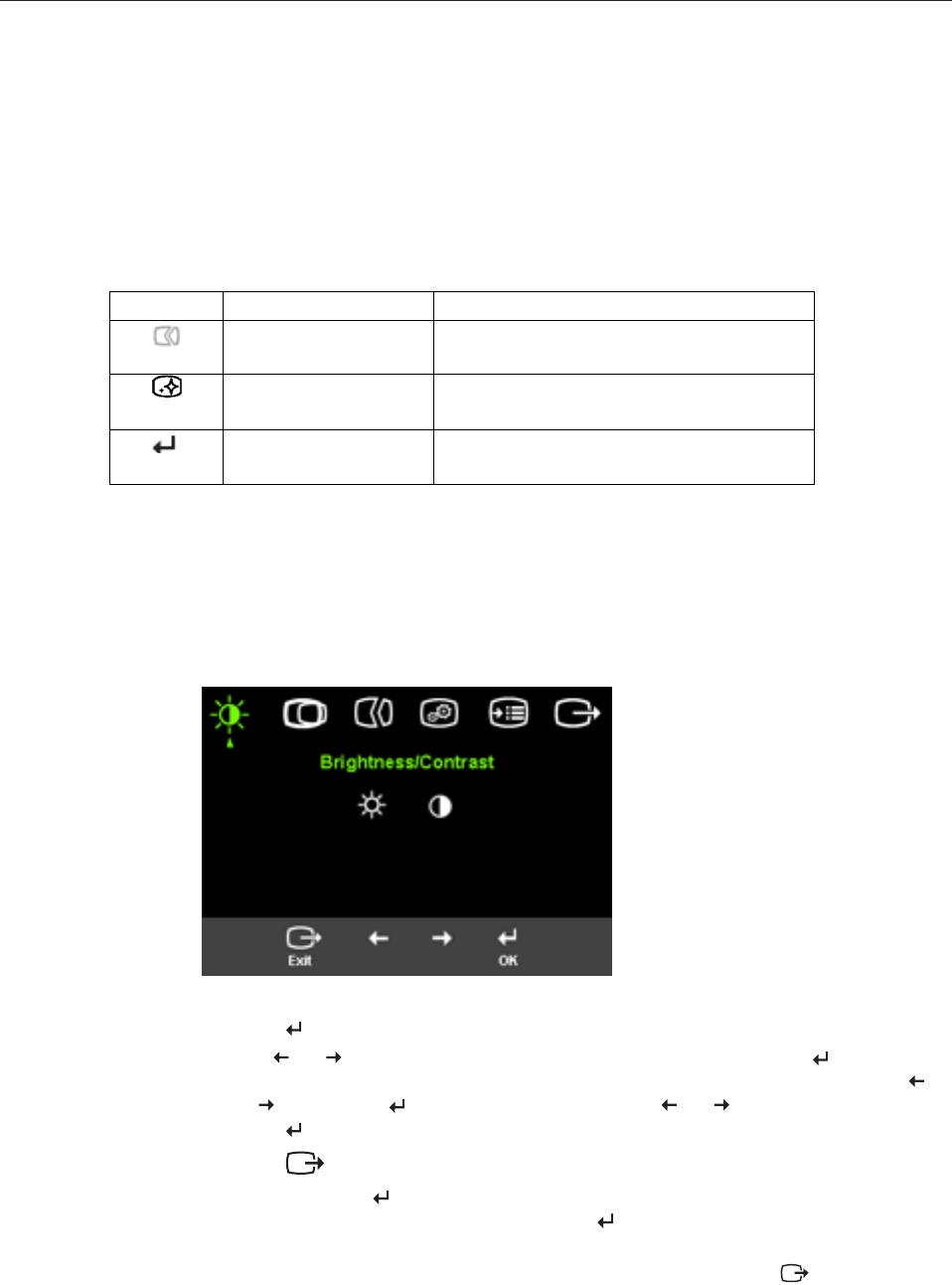
Table
2-1.
Direct
access
controls
To
use
the
controls:
1.
Press
to
open
the
main
OSD
menu.
2.
Use
or
to
move
among
the
icons.
Select
an
icon
and
press
to
access
that
function.
If
there
is
a
sub-menu,
you
can
move
between
options
using
or
,
then
press
to
select
that
function.
Use
or
to
make
adjustments.
Press
to
save.
3.
Press
to
move
backwards
through
the
sub-menus
and
exit
from
the
OSD.
4.
Press
and
hold
for
10
seconds
to
lock
the
OSD.
This
will
prevent
accidental
adjustments
to
the
OSD.
Press
and
hold
for
10
seconds
to
unlock
the
OSD
and
allow
adjustments
to
the
OSD.
Chapter
2.
Adjusting
and
using
your
monitor
2-3
Using
the
On-Screen
Display
controls
The
settings
adjustable
with
the
user
controls
are
viewed
through
the
On-Screen
Display,
as
shown
below.
Adjusting
your
monitor
image
This
section
describes
the
control
features
used
to
adjust
your
monitor
image.
Using
the
direct
access
controls
The
direct
access
controls
can
be
used
when
the
On-
Screen
Display
(OSD)
is
not
displayed.
Note:
The
direct
access
controls
are
blue.
5. Enables DDC/CI by default. Use OSD Exit Key,Press and hold the buttons for
10 seconds to disable / enable DDC/CI function. The words " DDC/CI disable" shows
on the screen.
Icon Control Description
Image Setup Activates automatic image adjustment.
Novo Vision
Menu
Direct access to NOVO Vision.
Lock or unlock the OSD.
2-4 Flat Panel Monitor User ’s Guide
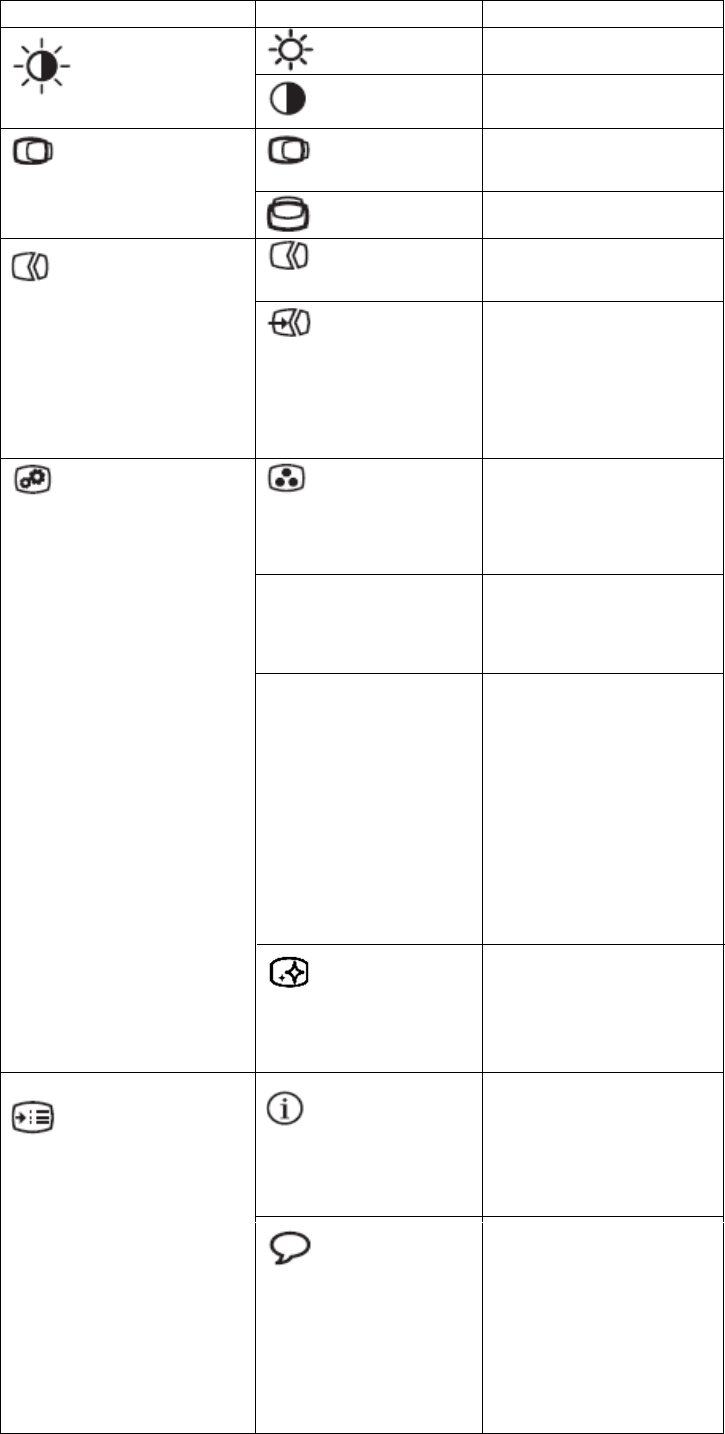
Table 2-2. OSD functions
OSD Icon on Main Menu Submenu Description
Brightness Adjusts overall brightness
Brightness/Contrast
Contrast Adjusts difference between
light and dark areas
Horizontal Position Moves the image left or
right.
Image Position
Vertical Position Moves the image up or
down.
Automatic Automatically optimizes the
image.
Image Setup
Manual Manually optimizes the
image. See "Manual image
setup" on page 3-3.
• Clock
• Phase
• Save
Color Adjusts intensity of red,
green, and blue.
Brightness and Contrast
can't be adjusted in sRGB
mode.
Preset mode • Default
• sRGB
• Reddish
• Bluish
Image Properties
Custom
• Red: Increases or
decreases the saturation
of 'red' in the image.
• Green: Increases or
decreases the saturation
of 'green' in the image.
• Blue: Increases or
decreases the saturation
of 'blue' in the image.
• Save: Saves the custom
color choices.
Information Shows resolution, refresh
rate, and product details.
Note:
This screen does
not allow any changes to
the settings.
Options
Menu Language This section lists the
languages supported by
your monitor.
Note:
The language
chosen only affects the
language of the OSD. It
has no effect on any
software running on the
computer.
Novo Vision: •
Text
•
Internet
•
Video
•
Split Demo
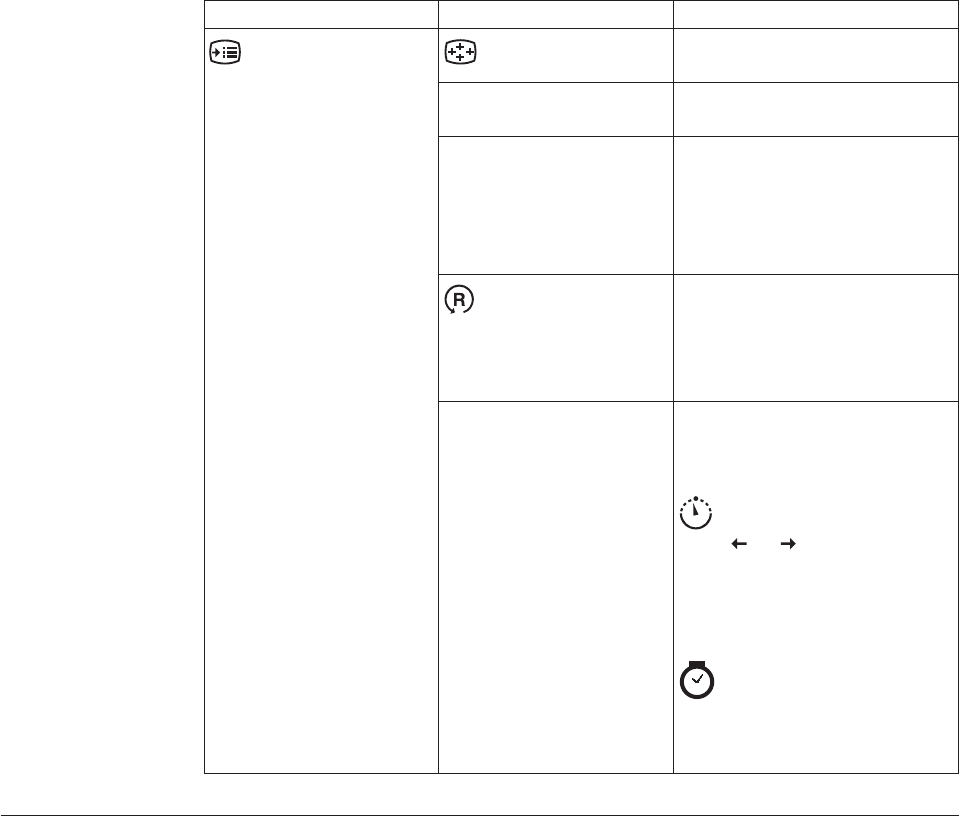
Table 2-2. OSD functions (continued)
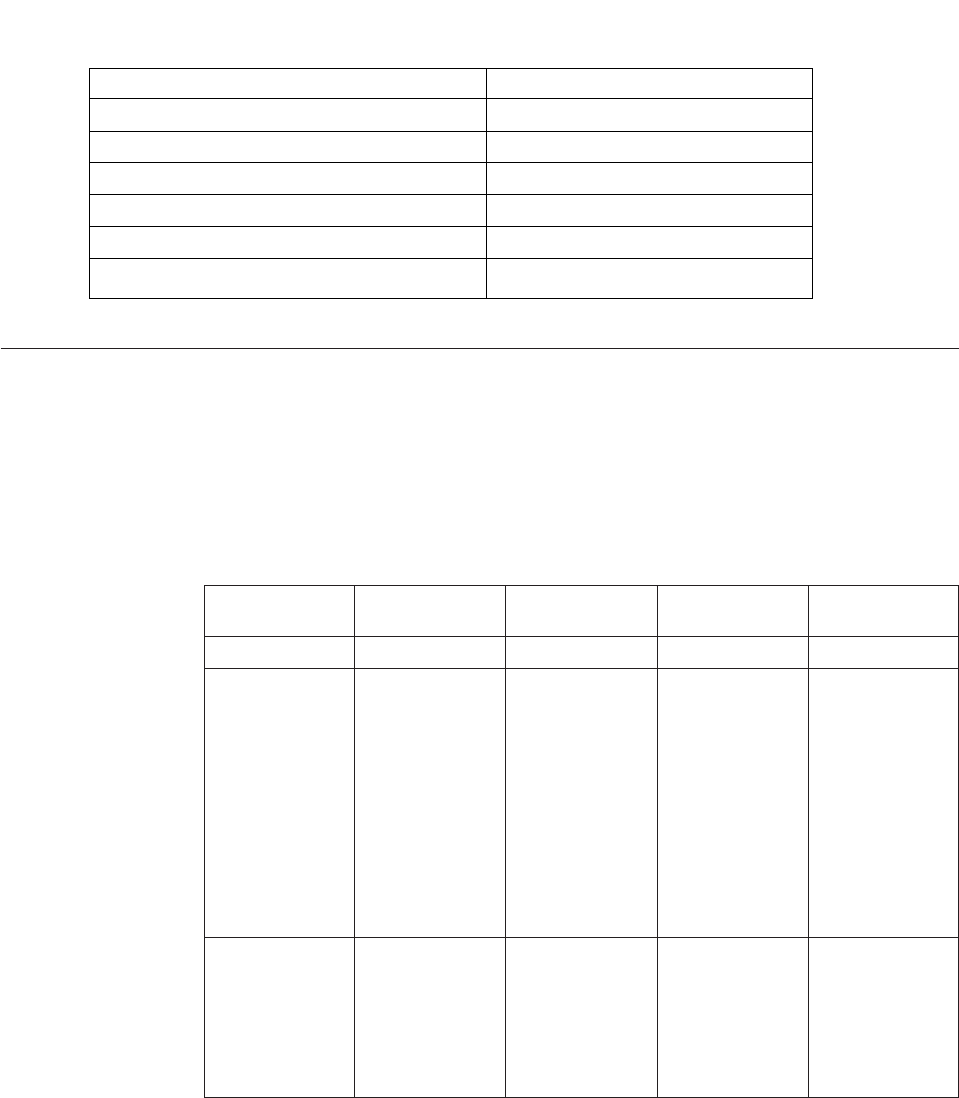
OSD Icon on Main Menu Submenu Description
Options
Menu Position
Menu position adjusts menu
location on the screen.
Default Default returns the menu
position to the default settings.
Custom v Horizontal: Changes the
horizontal position of the OSD.
v Vertical: Changes the vertical
position of the OSD.
v Save
Factory Reset
v Cancel
v Reset
Resets monitor to the original
factory settings.
Accessibility Controls button and menu
settings for accessibility
preferences.
Button repeat rate:
Select
or
to change.
v Off
v Default
v Slow
Menu time out: Sets the
length of time the OSD will
remain active after the last time a
button is pressed.
1440 x 900 @ 60 H z, w
Chapter 2. Adjusting and using your monitor 2-5
Selecting
a
supported
display
mode
The
display
mode
the
monitor
uses
is
controlled
by
the
computer.
Therefore,
refer
to
your
computer
documentation
for
details
on
how
to
change
display
modes.
The
image
size,
position
and
shape
might
change
when
the
display
mode
changes.
This
is
normal
and
the
image
can
be
readjusted
using
automatic
image
setup
and
the
image
controls.
Unlike
cathode - ray
monitors,
which
require
a
high
refresh
rate
to
minimize
flicker,
(LCD)
or
Flat
Panel
technology
is
inherently
flicker-free.
Note:
If
your
system
has
previously
been
used
with
a
CRT
monitor
and
is
currently
configured
to
a
display
mode
outside
the
range
of
this
monitor,
you
may
need
to
re-attach
the
CRT
monitor
temporarily
until
you
have
re-configured
the
system;
preferably
to
tube (CRT)
liquid crystal display
hich is the Native Resolution Display
(NRD) mode.
Understanding power management
Power management is invoked when the computer recognizes that you have not
used your mouse or keyboard for a user-definable period. There are several states
as described in the table below.
For optimal performance, switch off your monitor at the end of each working day,
or whenever you expect to leave it unused for long periods during the day.
Table 2-4. Power indicator
State Power Indicator Screen
Restoring
Operation Compliance
On Steady bblue Normal
Standby/Suspend Steady amber Blank
ENERGY STAR
Off Off Blank
ENERGY STAR
2-6 Flat Panel Monitor User ’s Guide
Press a key or
move the mouse.
There may be a
slight delay
before the image
reappears.
Note: Standby
also occurs if
there is no
image output to
the monitor.
Press a key or
move the mouse.
There may be a
slight delay
before the image
reappears.
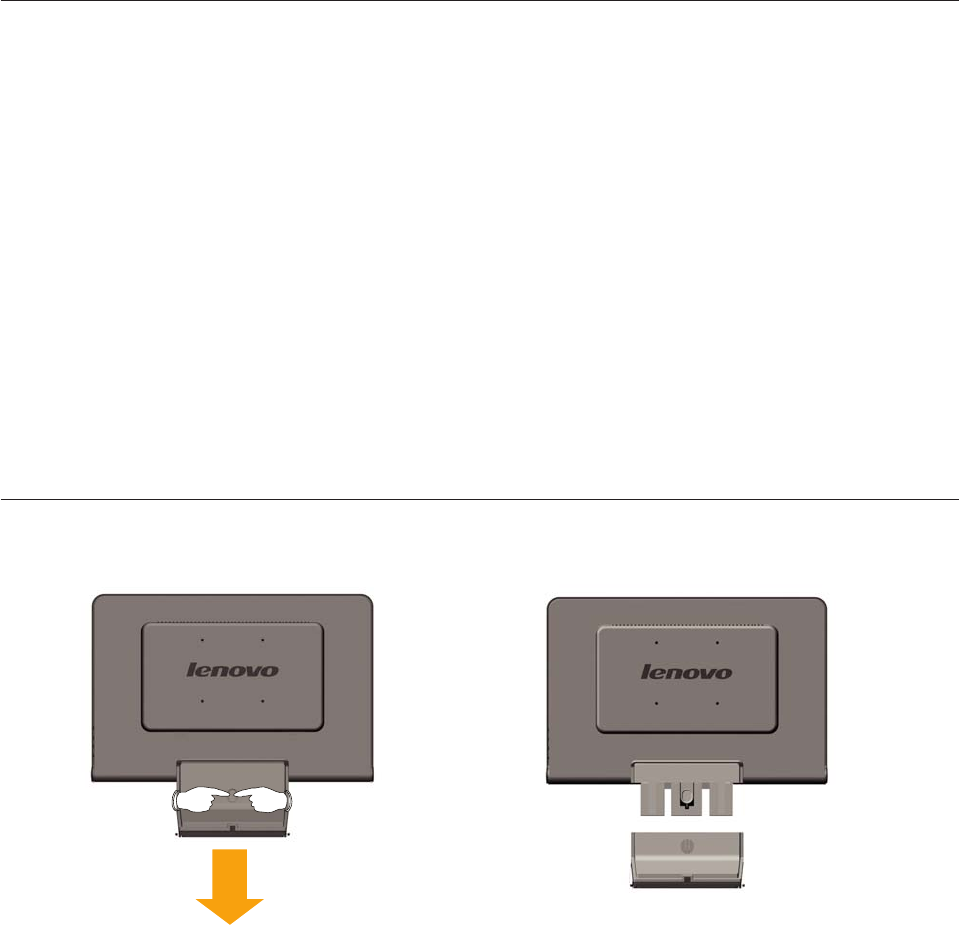
The display modes shown below have been optimized at the factory.
Table 2-3. Factory set display modes
Addressability Refresh rate
640 x 480 60 Hz, 66Hz, 72Hz, 75Hz
720 x 400 70 Hz
800 x 600 60 Hz, 72 Hz, 75 Hz
1024x768 60 Hz, 70 Hz, 75 Hz
1280x1024 60 Hz, 70 Hz, 72Hz, 75Hz, 76Hz
1440 x 900 60 Hz, 75 Hz
Caring for your monitor
Be sure to turn off the power before you perform any maintenance on the monitor.
Do not:
v Apply water or liquid directly to your monitor.
v Use solvents or abrasives.
v Use flammable cleaning materials to clean your monitor or any other electrical
equipment.
v Touch the screen area of your monitor with sharp or abrasive items. This type of
contact may cause permanent damage to your screen.
v Use any cleaner which contains an anti-static solution or similar additives. This
may harm the coating of the screen area.
Do:
v Lightly dampen a soft cloth with water and use this to gently wipe the covers
and the screen.
v Remove grease or finger marks with a damp cloth and a little mild detergent.
Chapter 2. Adjusting and using your monitor 2-7
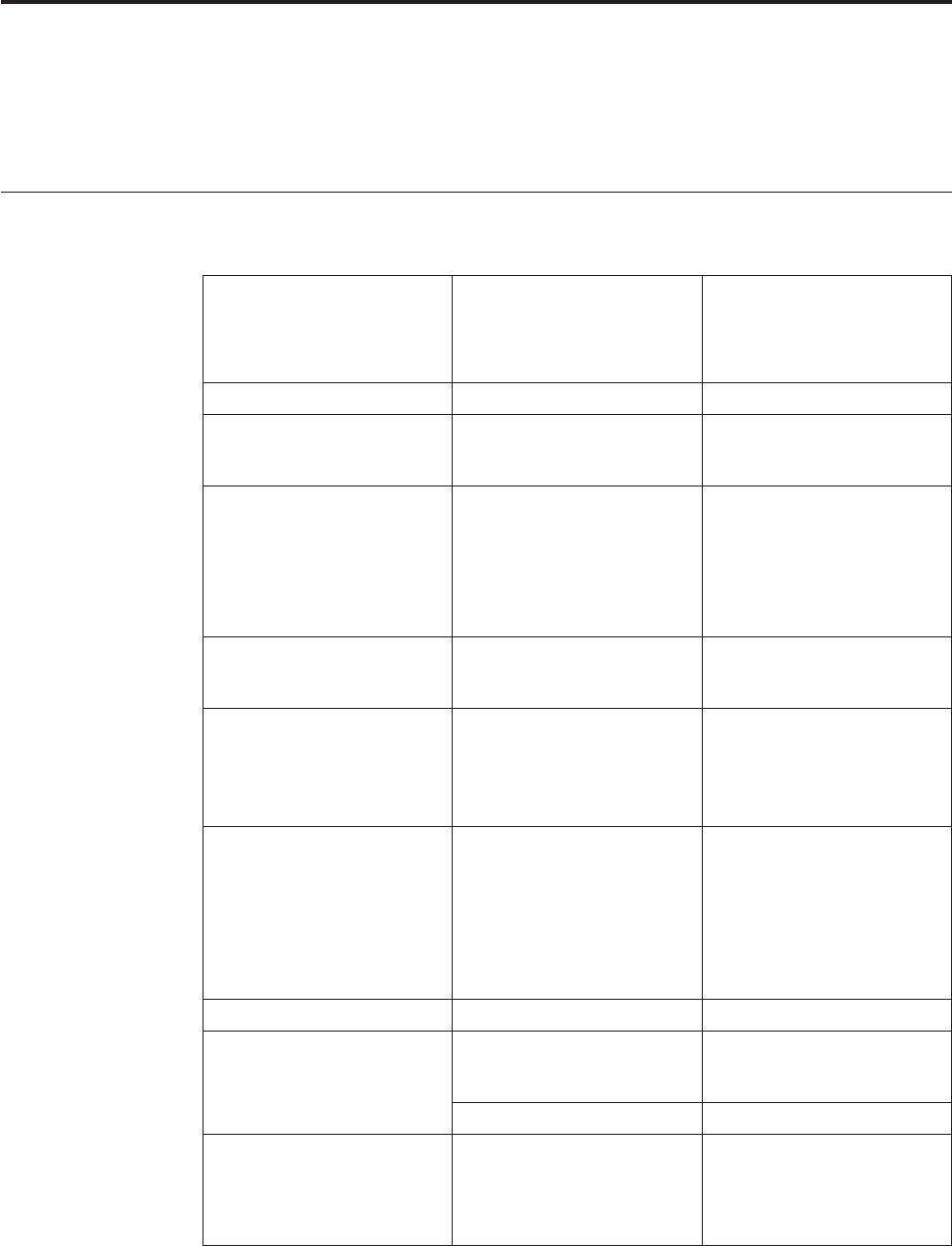
Detaching the monitor stand
Chapter 3. Reference information
This section contains monitor specifications, instructions to manually install the
monitor driver, troubleshooting information, and service information.
Monitor specifications
Table 3-1. Monitor specifications for type-model 66920-xx1
Dimensions Height
Depth
Width
Stand Tilt range
VESA mount Supported 100 mm (3.94 in.)
Radial arm sold separately.
Image Viewable image size
Maximum
height
Maximum width
Pixel pitch
Power input Supply voltage
Max supply current
Power consumption
Note: Power consumption
figures are for the monitor
and the power supply
combined.
Normal operation
Standby/Suspend
Off
< 2 W
< 1 W
Video input
Input signal
Horizontal addressability
Vertical addressability
Clock frequency
Communications VESA DDC CI
Supported Display Modes
(VESA Standard modes
between noted ranges)
Horizontal frequency
Vertical frequency
30 kHz - 81 kHz
60 Hz - 75 Hz
Native Resolution
Temperature Operating
Storage
Shipping
10° to 35° C (5° to 95° F)
-20° to 60° C (-4° to 140° F)
-20° to 60° C (-4° to 140° F)
© C opy right L enovo 2007. 3-1
<
36
W
Analog
Direct
Drive,
75
ohm
0.7
V
1440
pixels
(max)
900
lines
(max)
137
MHz
1440
x
900
60
Hz
-5°/+20°
@
400
mm
(15.75 in.)
198 mm (7.79 in.)
464 mm (18.27 in.)
4
256.5 mm (10.1 in.)
255.15 mm (10.05 in.)
410.4 mm (16.16 in.)
408.24 mm (16.07 in.)
0.285 mm (0.011 in.) (V)
481.4 mm (19.05 in.)
90 - 264 V ac,
60/50 ± 3 Hz 1.5 A
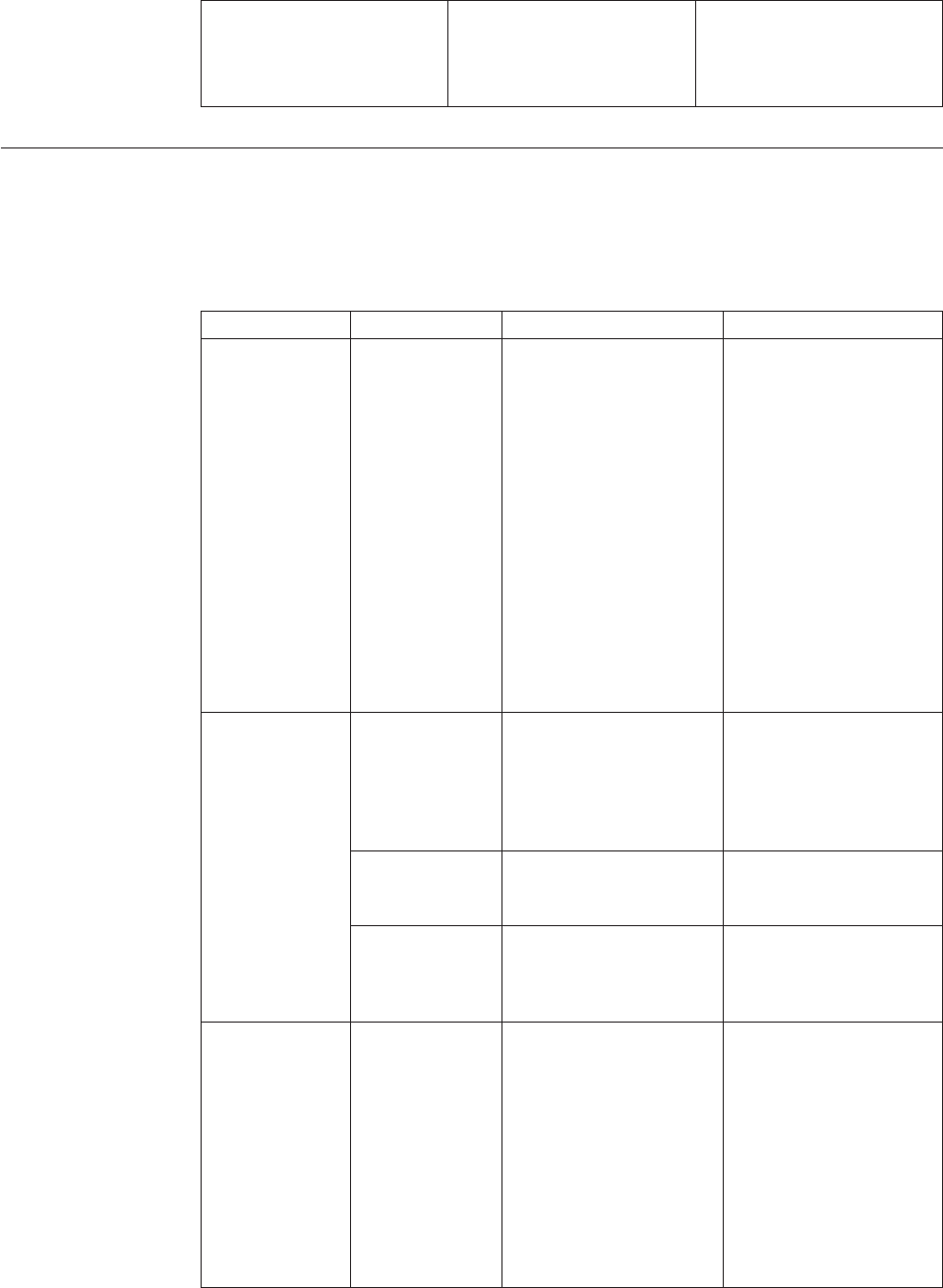
Table 3-1. Monitor specifications for type-model 6920-xx1 (continued)
Humidity Operating
Storage
Shipping
10% to 80%
5% to 95%
5% to 95%
Troubleshooting
If you have a problem setting up or using your monitor, you might be able to
solve it yourself. Before calling your dealer or Lenovo, try the suggested actions
that are appropriate to your problem.
Table 3-2. Troubleshooting
Problem Possible cause Suggested action Reference
The words ″Out
of Range″ are
shown on the
screen, and the
power indicator
is flashing green.
The system is set
to a display
mode which is
not supported by
the monitor.
v If you are replacing an
old monitor, reconnect
it and adjust the
display mode to within
the specified range for
your new monitor.
v If using a Windows
system, restart the
system in safe mode,
then select a supported
display mode for your
computer.
v If these options do not
work, contact the
Customer Support
Center.
“Selecting a supported
display mode” on page
2-5
The image
quality is
unnacceptable.
The video signal
cable is not
connected with
the monitor or
system
completely.
Be sure the signal cable is
firmly plugged into the
system and monitor.
“Connecting and turning
on your monitor” on
page 1-3
The color
settings may be
incorrect.
Select another color
setting from the OSD
menu.
“Adjusting your monitor
image” on page 2-3
The automatic
image setup
function was not
performed.
Perform automatic image
setup.
“Adjusting your monitor
image” on page 2-3
The power
indictator is not
lit and there is
no image.
v The monitor’s
power switch
is not
switched on.
v The power
cord is loose
or
disconnected.
v There is no
power at the
outlet.
v Be sure the power cord
is connected properly.
v Be sure the outlet has
power.
v Power on the monitor.
v Try using another
power cord.
v Try using another
electrical outlet.
“Connecting and turning
on your monitor” on
page 1-3
3-2 Flat Panel Monitor User ’s Guide
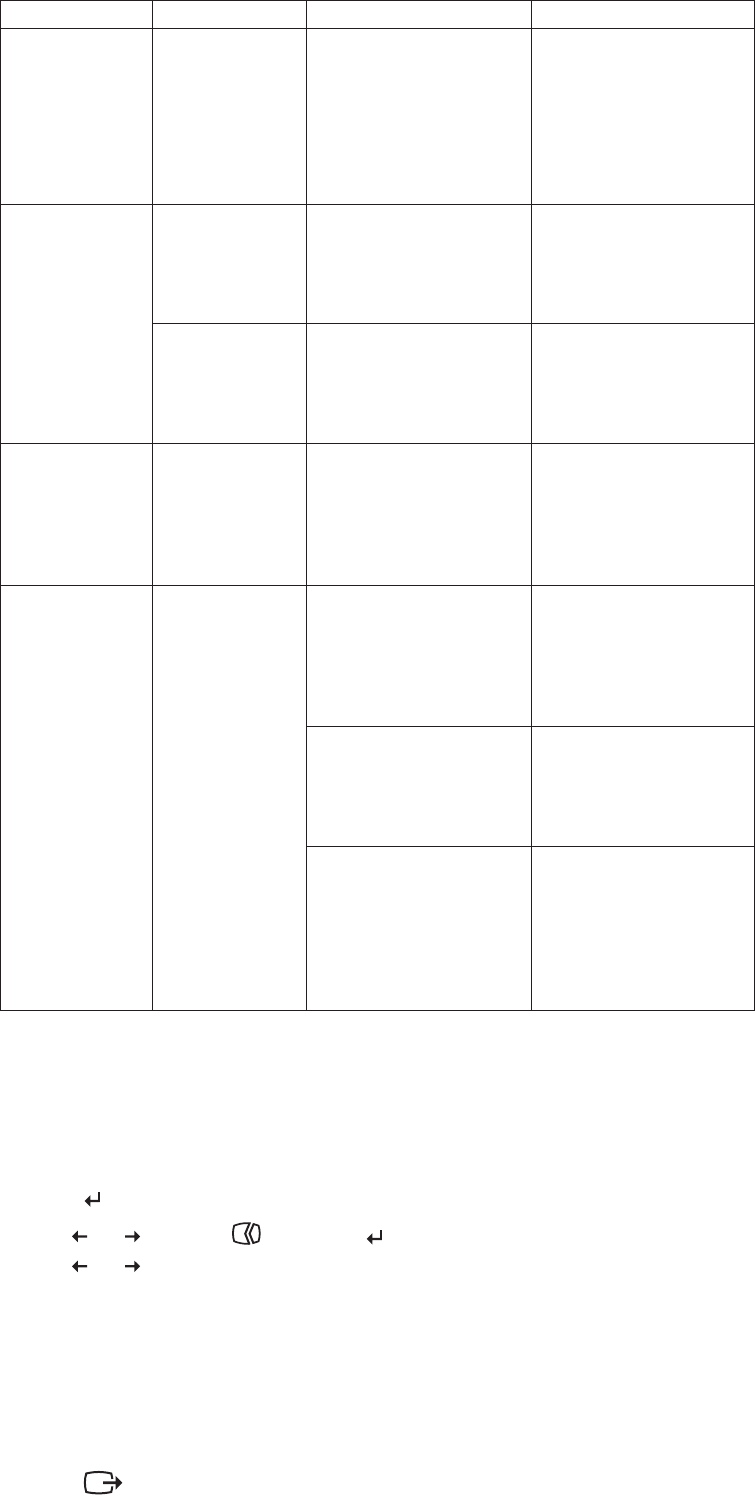
Table 3-2. Troubleshooting (continued)
Problem Possible cause Suggested action Reference
Screen is blank
and power
indicator is
steady amber or
flashing green
v Press any key on the
keyboard or move the
mouse to restore
operation.
v Check the Power
Options settings on
your computer.
“Understanding power
management” on page
2-6
The power
indicator is
green, but there
is no image.
The video signal
cable is loose or
disconnected
from the system
or monitor.
Be sure the video cable is
connected with the
system properly.
“Connecting and turning
on your monitor” on
page 1-3
The monitor
brightness and
contrast are at
the lowest
setting.
Adjust the brightness and
contrast setting on the
OSD menu.
“Adjusting your monitor
image” on page 2-3
One or more of
the pixels appear
discolored.
This is a
characteristic of
the LCD
technology and
is not an LCD
defect.
If there are more than
five pixels missing,
contact the Customer
Support Center.
Appendix A, “Service and
Support” on page A-1
v Fuzzy lines in
text or a
blurry image.
v Horizontal or
vertical lines
through the
image.
“Adjusting your monitor
image” on page 2-3
“Manual image setup”
Perform automatic image
setup. If automatic image
setup does not help,
perform manual image
setup.
“Selecting a supported
display mode” on page
2-5
When working in the
native resolution, you
may find additional
improvements by
adjusting the Dots Per
Inch (DPI) setting on
your system.
See the Advanced section
of your system’s display
properties.
Manual image setup
If automatic image setup does not establish the image that you prefer, perform
manual image setup.
Note: Have your monitor powered on for about 15 minutes, until the monitor
warms up.
1. Press
at the bottom of the monitor to open the OSD menu.
2. Use
or
to select
and press
to access.
3. Use
or
to select Clock and Phase adjustment.
Chapter 3. Reference information 3-3
The monitor is in
Standby/Suspend
mode.
v
Image setup
has not been
optimized.
v Your system
Display
Properties
setting has
not been
optimized.
Adjust
the
resolution
settings
on
your
system
to
match
the
native
resolution
for
this
monitor:
1440
x
900
at
60
Hz.
v Clock (pixel frequency) adjusts the number of pixels scanned by one
horizontal sweep. If the frequency is not correct, the screen shows vertical
stripes and the picture does not have the correct width.
v Phase adjusts the phase of the pixel clock signal. With a wrong phase
adjustment, the picture has horizontal disturbances in light picture.
4. When the image no longer looks distorted, save the Clock and Phase
adjustments.
5. Press to leave the OSD menu.
3-4 Flat Panel Monitor User ’s Guide
Manually installing the monitor driver
Below are steps for manually installing the monitor driver in Microsoft Windows Vista,
Microsoft. Windows XP. and Microsoft Windows 2000 Professional.
Installing the monitor driver in Windows Vista
To install the device driver in Microsoft® Windows Vista, do the following:
Note: You must download files from the Lenovo Monitor CD to use the Plug and Play feature
in Windows Vista.
1. Turn off the computer and all attached devices.
2. Ensure that the monitor is connected correctly.
3. Turn on the monitor and then the system unit. Allow your computer to start the Windows Vista operating
system.
4. Open the Display Properties window by clicking Start, Control Panel and then double-clicking the
Hardware and Sound icon.
5. Click the Personalization icon.
6. Click the Display Settings icon.
7. Click the Advanced Settings button.
8. Click the Monitor tab.
9. Click the Properties button.
10. Click the Driver tab.
11. Open the "Update Driver Software-Generic PnP Monitor" window by clicking on Update Driver and
then click the "Browse my computer for driver sfotware" button.
12. Select “Let me pick from a list of device drivers on my computer” .
13. Click the Have Disk button. Click on the Browse button and navigate to the following directory:
X:\Monitor Drivers\Windows Vista
(where X is the drive letter designator for the CD-ROM drive).
14. Select the "L193 wide .inf" file and click the Open button. Click the OK button.
15. Select L193 wide and click Next. The files will be copied from the CD to your hard disk drive.
16. Close all open windows and remove the CD.
17. Restart the computer.
The system will automatically select the maximum refresh rate and corresponding Color Matching Profiles.
Note: On LCD monitors, unlike CRTs, a faster refresh rate does not improve display quality. Lenovo
recommends using either 1440 x 900 at a refresh rate of 60 Hz, or 640 x 480 at a refresh rate of 60 Hz.
Installing the monitor driver in Windows XP
To use the Plug and Play feature in Windows XP, files should be loaded from the Reference and Driver CD.
Note: This section must be completed before continuing with the Windows XP automatic image setup.
1. Turn off the computer and all attached devices.
2. Ensure that the monitor is connected correctly.
3. Turn on the monitor and then the system unit. Allow the system to boot into Windows XP.
4. Open the Display Properties window by clicking Start →Settings →Control Panel, and then
double-clicking the Display icon.
5. Click the Settings tab.
6. Click the Advanced button.
7. Click the Monitor tab.
8. Click the Properties button.
9. Click the Drivers tab.
10. Open the Hardware Update Wizard window by clicking on Update Driver, and then click Next.
Chapter 3. Reference information 3-5
11. Select Install from a list or Specific location(Advanced), and then click Next.
12. Select “Don't search. I will choose the driver to install” option, and then click Next.
13. Click the Have Disk button. Click on the Browse button and navigate to the following directory:
X:\Monitor Drivers\Windows XP & Windows 2000
(where X is the drive letter designator for the CD-ROM drive).
14. Select the "L193 wide.inf" file and click the Open button. Click on the OK button.
15. Select L193 wide and click Next. The files will be copied from the CD to your hard disk drive.
16. Close all open windows and remove the CD.
17. Restart the system. The system will automatically select the maximum refresh rate and corresponding
Color Matching Profiles.
Note: On LCD monitors, unlike CRTs, a faster refresh rate does not improve display quality. Lenovo
recommends using either 1400 x 900 at a refresh rate of 60 Hz, or 640 x 480 at a refresh rate of 60 Hz.
Installing the monitor driver in Windows 2000
To use the Plug and Play feature in Windows 2000, files should be loaded from the Reference and Driver CD.
Note: This section must be completed before continuing with the Windows 2000 automatic image setup.
1. Turn off the computer and all attached devices.
2. Ensure that the monitor is connected correctly.
3. Turn on the monitor and then the system unit. Allow the system to boot into Windows 2000.
4. Open the Display Properties window by clicking Start →Settings →Control Panel, and then
double-clicking the Display icon.
5. Click the Settings tab.
6. Click the Advanced button.
7. Click the Monitor tab.
8. Click the Properties button.
9. Click the Drivers tab.
10. Open the Upgrade Device Driver Wizard window by clicking on Update Driver, and then click Next.
11. Select Display a list of the known drivers for this device so that I can choose a specific driver, and then
click Next.
12. Click the Have Disk button. Click on the Browse button and navigate to thefollowing directory:
X:\Monitor Drivers\Windows XP & Windows 2000
(where X is the drive letter designator for the CD-ROM drive).
13. Select the "L193 wide.inf" file and click the Open button. Click on the OK button.
14. Select L193 wide and click Next. The files will be copied from the CD to yourhard disk drive.
15. Close all open windows and remove the CD.
16. Restart the system. The system will automatically select the maximum refresh rate and corresponding
Color Matching Profiles.
Note: On LCD monitors, unlike CRTs, a faster refresh rate does not improve display quality. Lenovo
recommends using either 1440 x 900 at a refresh rate of 60 Hz, or 640 x 480 at a refresh rate of 60 Hz.
Getting further help
If you still can’t solve your problem, please contact the Customer Support Center. For more information on
contacting the Customer Support Center, please see Appendix A, “Service and Support,” on page A-1.
Customer
responsibilities
The
warranty
does
not
apply
to
a
product
which
has
been
damaged
due
to
accident,
misuse,
abuse,
improper
installation,
usage
not
in
accordance
with
product
specifications
and
instructions,
natural
or
personal
disaster,
or
unauthorized
alterations,
repairs
or
modifications.
The
following
are
examples
of
misuse
or
abuse
that are not covered by warranty:
v
Images
burned
onto
the
screen
of
a
CRT
monitor.
Burned
image
is
preventable
by
utilizing
a
moving
screen
saver
or
power
management.
v
Physical
damage
to
covers,
bezel,
base
and
cables.
v
Scratches
or
punctures
on
monitor
screens.
3-6
Flat
Panel
Monitor
User ’s
Guide
Service
information
Product
numbers
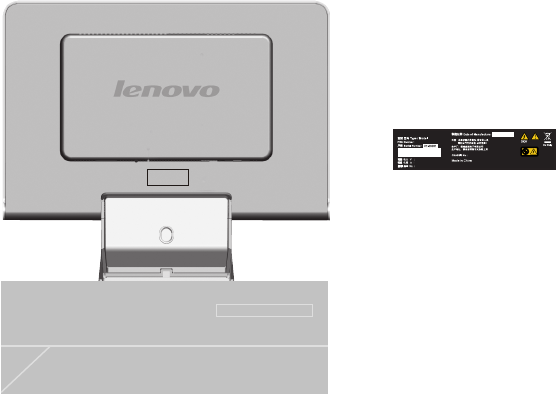
The
product
number
for
your
monitor
is
located
on
the
backback
back
as
shown
below.
cover
6920-AS1
5.1Kg
January 2007
30R5691
Q40G19N-608-*
CBPC6
100-240VAC
1.5A
50/60Hz
打印条码处
L193 Wide TFT Monitor

Service parts
The following parts are for use by Lenovo service, or Lenovo authorized dealers,
to support the customer warranty. Parts are for service use only. The table below
shows information for model 6920-xx1.
Chapter 3. Reference information 3-7
Table 3-3. List of service parts
FRU (FIELD
REPLACEABLE
UNIT) PART
NUMBER
DESCRIPTION MACHINE
TYPE MODEL
(MTM)
COLOR
30R5691 L193 Wide FRU Monitor
Lenovo(TCO99) 6920-AS1 SILVER
GRAY
30R5642 L193 Wide FRU Signal
cable(Analog) 6920-AS1 SILVER
GRAY
30R5692 L193 Wide FRU Stand 6920-AS1 SILVER
GRAY

© C opy right L enovo 2007. A -1
Appendix A. Service and Support
The following information describes the technical support that is available for your product, during the
warranty period or throughout the life of the product. Refer to your Lenovo Statement of Limited Warranty for
a full explanation of Lenovo warranty terms.
Online technical support
Online technical support is available during the life of your product through the Lenovo Support Web site at
http://www.lenovo.com/support.
During the warranty period, assistance for replacement or exchange of defective components is available. In
addition, if your option is installed in a Lenovo computer, you might be entitled to service at your location. Your
technical support representative can help you determine the best alternative.
Telephone technical support
Installation and configuration support through the Customer Support Center will be withdrawn or made
available for a fee, at Lenovo’s discretion, 90 days after the option has been withdrawn from marketing.
Additional support offerings, including step-by-step installation assistance, are available for a nominal fee.
To assist the technical support representative, have available as much of the following information as possible:
• Option name
• Option number
• Proof of purchase
• Computer manufacturer, model, serial number, and manual
• Exact wording of the error message (if any)
• Description of the problem
• Hardware and software configuration information for your system
If possible, be at your computer. Your technical support representative might want to walk you through the
problem during the call.
Phone numbers are subject to change without notice. For the most current phone numbers, go to
http://www.lenovo.com/support/phone and click Support phone list. If the number for your country or
region is not listed, contact your reseller or Lenovo marketing representative.
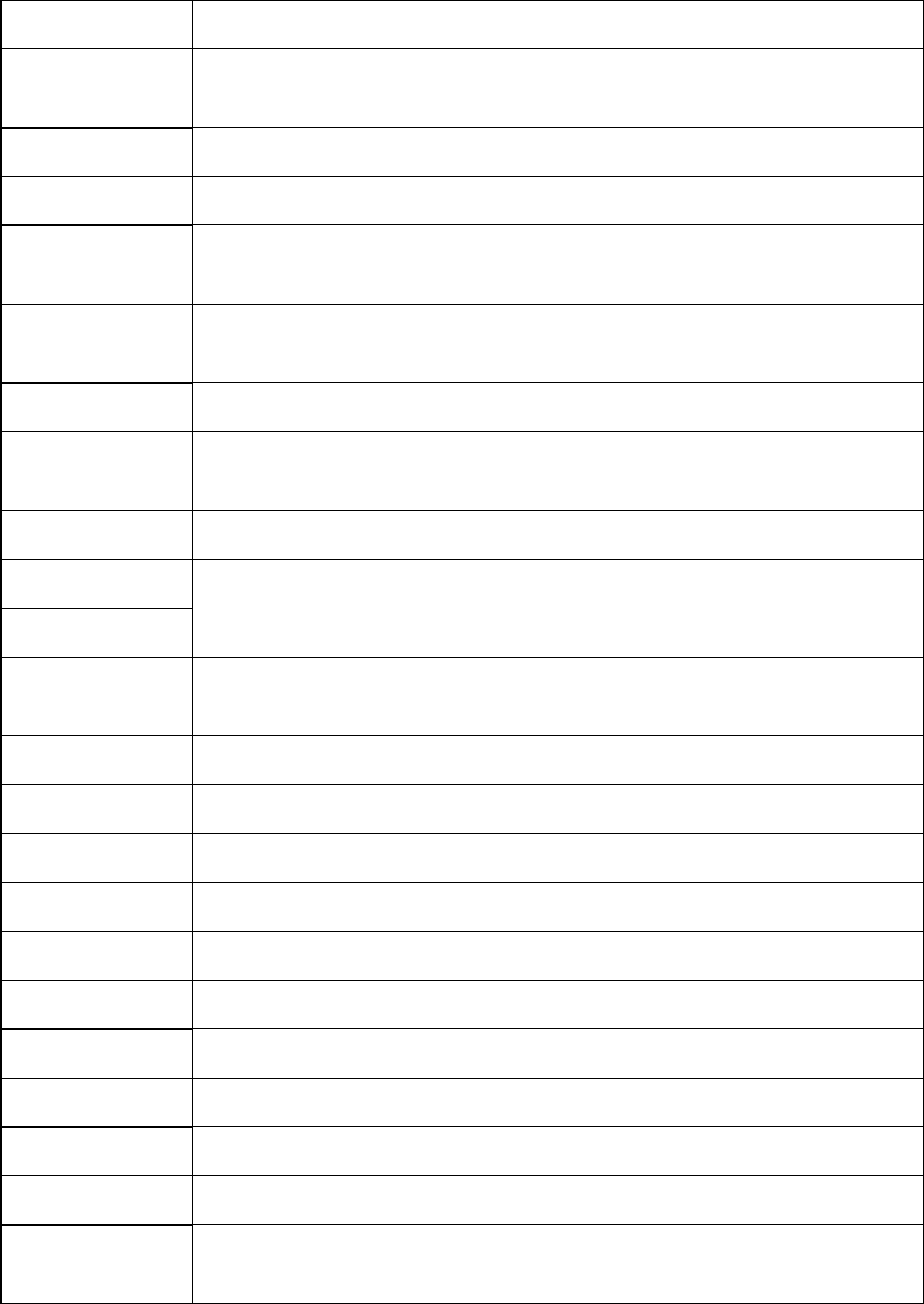
A-2 Flat Panel Monitor User ’s Guide
Country or Region Telephone Number
Africa Africa: +44 (0)1475-555-055 South Africa: +27-11-3028888 and 0800110756 Central Africa:
Contact the nearest Lenovo service provider
Argentina 0800-288-5366 (Spanish)
Australia 131-426 (English)
Austria Up and running support: 01-24592-5901 Warranty service and support: 01-211-454-610
(German)
Belgium Up and running support: 02-210-9820 (Dutch) Up and running support: 02-210-9800 (French)
Warranty service and support: 02-225-3611 (Dutch, French)
Bolivia 0800-0189 (Spanish)
Brazil Sao Paulo region: (11) 3889-8986 Outside Sao Paulo region: 0800-701-4815 (Brazilian
Portuguese)
Canada Toronto: 416-383-3344 Outside Toronto: 1-800-565-3344 (English, French)
Chile Toll Free: 1230-020-1130 (Spanish)
China 800-810-1818 ext 5070 8610 84981188 ext 5070 (Mandarin)
China (Hong Kong
S.A.R.)
Home computer: 852-2825-7799 Commercial computer: 852-8205-0333 ThinkPad and
WorkPad: 852-2825-6580 (Cantonese, English, Mandarin)
Colombia 01-800-952-0466 (Spanish)
Costa Rica 800-011-1029 (Spanish)
Croatia 0800-0426
Cyprus +357-22-841100
Czech Republic +420-2-7213-1316
Denmark Up and running support: 4520-8200 Warranty service and support: 7010-5150 (Danish)
Dominican Republic Toll Free: 1-866-434-2080 (Spanish)
Ecuador 1-800-426911 (Spanish)
El Salvador 800-6264 (Spanish)
Estonia +386-61-1796-699
Finland Up and running support: 09-459-6960 Warranty service and support: +358-800-1-4260
(Finnish)
Appendix A. Service and Support A-3
France Up and running support: 0238-557-450 Warranty service and support (hardware): 0810-631-
213 Warranty service and support (software): 0810-631-020 (French)
Germany Up and running support: 07032-15-49201 Warranty service and support: 01805-25-35-58
(German)
Greece +30-210-680-1700
Guatemala 1800-624-0051 (Spanish)
Honduras Tegucigalpa: 232-4222 San Pedro Sula: 552-2234 (Spanish)
Hungary +36-1-382-5720
India 1800-425-6666 +91-80-2678-8970 (English)
Indonesia 800-140-3555 (English) 62-21-251-2955 (Bahasa, Indonesian)
Ireland Up and running support: 01-815-9202 Warranty service and support: 01-881-1444 (English)
Israel Givat Shmuel Service Center: +972-3-531-3900 Haifa Service Center: +972-4-849-4608 (Hebrew,
English)
Italy Up and running support: 02-7031-6101 Warranty service and support: +39-800-820094 (Italian)
J
a
p
an Toll Free: 0120-20-5550 International: +81-46-266-4716
The above numbers will be answered with a Japanese lan guage voice prompt. For telephone
support in English, please wait for the Japanese voice prompt to end, and an operator will
answer. Please say "English support please," and your call will be transferred to an English
speaking operator.
Computer software: 0120-558-695 Overseas calls: +81-44-200-8666 (Japanese)
Korea 1588-5801 (Korean)
Latvia +386-61-1796-699
Lithuania +386-61-1796-699
Luxembourg +352-298-977-5063 (French)
Malaysia 1800-88-8558 (English, Bahasa, Melayu)
Malta +356-23-4175
Mexico 01-800-123-1632 (Spanish)
Middle East +44 (0)1475-555-055
Netherlands +31-20-514-5770 (Dutch)
A-4 Flat Panel Monitor User ’s Guide
New Zealand 0800-733-222 (English)
Nicaragua 001-800-220-1830 (Spanish)
Norway Up and running support: 6681-1100 Warranty service and support: 8152-1550 (Norwegian)
Panama 001-866-434-2080 (Toll Free) (Spanish)
Peru 0-800-00-966 (Spanish)
Philippines 1800-1888-1426 (English) 63-2-995-8420 (Filipino)
Poland +48-22-878-6999
Portugal +351-21-892-7147 (Portuguese)
Romania +4-021-224-4015
Russian Federa tion +7-495-940-2000 (Russian)
Singapore 1800-3172-888 (English, Bahasa, Melayu)
Slovakia +421-2-4954-1217
Slovenia +386-1-4796-699
Spain 91-714-7983 0901-100-000 (Spanish)
Sri Lanka +94-11-2448-442 (English)
Sweden Up and running support: 08-477-4420 Warranty service and support: 077-117-1040 (Swedish)
Switzerland Up and running support: 058-333-0900 Warranty service and support: 0800-55-54-54 (German,
French, Italian)
Taiwan 886-2-8723-9799 0800-000-700 (Mandarin)
Thailand 1-800-299-229 (Thai)
Turkey 00800-4463-2041 (Turkish)
United King dom Up and running support: 01475-555-055 Warranty support: 08705-500-900 (English)
United States 1-800-426-7378 (English)
Uruguay 000-411-005-6649 (Spanish)
Venezuela 0-800-100-5722 (Spanish)
Vietnam For northern area and Hanoi: 84-4-843-6675 For southern area and Ho Chi Minh City: 84-8-
829-5160 (English, Vietnamese)

Appendix B. Notices
Lenovo may not offer the products, services, or features discussed in this
document in all countries. Consult your local Lenovo representative for
information on the products and services currently available in your area. Any
reference to a Lenovo product, program, or service is not intended to state or
imply that only that Lenovo product, program, or service may be used. Any
functionally equivalent product, program, or service that does not infringe any
Lenovo intellectual property right may be used instead. However, it is the user’s
responsibility to evaluate and verify the operation of any other product, program,
or service.
Lenovo may have patents or pending patent applications covering subject matter
described in this document. The furnishing of this document does not give you
any license to these patents. You can send license inquiries, in writing, to:
Lenovo (United States), Inc.
500 Park Offices Drive, Hwy. 54
Research Triangle Park, NC 27709
U.S.A.
Attention: Lenovo Director of Licensing
LENOVO GROUP LTD. PROVIDES THIS PUBLICATION “AS IS” WITHOUT
WARRANTY OF ANY KIND, EITHER EXPRESS OR IMPLIED, INCLUDING, BUT
NOT LIMITED TO, THE IMPLIED WARRANTIES OF NON-INFRINGEMENT,
MERCHANTABILITY OR FITNESS FOR A PARTICULAR PURPOSE. Some
jurisdictions do not allow disclaimer of express or implied warranties in certain
transactions, therefore, this statement may not apply to you.
This information could include technical inaccuracies or typographical errors.
Changes are periodically made to the information herein; these changes will be
incorporated in new editions of the publication. Lenovo may make improvements
and/or changes in the product(s) and/or the program(s) described in this
publication at any time without notice.
The products described in this document are not intended for use in implantation
or other life support applications where malfunction may result in injury or death
to persons. The information contained in this document does not affect or change
Lenovo product specifications or warranties. Nothing in this document shall
operate as an express or implied license or indemnity under the intellectual
property rights of Lenovo or third parties. All information contained in this
document was obtained in specific environments and is presented as an
illustration. The result obtained in other operating environments may vary.
Lenovo may use or distribute any of the information you supply in any way it
believes appropriate without incurring any obligation to you.
Any references in this publication to non-Lenovo Web sites are provided for
convenience only and do not in any manner serve as an endorsement of those Web
sites. The materials at those Web sites are not part of the materials for this Lenovo
product, and use of those Web sites is at your own risk.
Any performance data contained herein was determined in a controlled
environment. Therefore, the result obtained in other operating environments may
© C opy right L enovo 2007. B -1

vary significantly. Some measurements may have been made on development-level
systems and there is no guarantee that these measurements will be the same on
generally available systems. Furthermore, some measurements may have been
estimated through extrapolation. Actual results may vary. Users of this document
should verify the applicable data for their specific environment.
B-2 Flat Panel Monitor User ’s Guide
Trademarks
The
following
terms
are
trademarks
of
Lenovo
in
the
United
States,
other
countries,
or
both:
Lenovo
ENERGY
STAR
and
the
ENERGY
STAR
logo
are
registered
US
trademarks.
Microsoft
and
Windows
are
trademarks
of
Microsoft
Corporation
in
the
United
States,
other
countries,
or
both.
Other
company,
product,
or
service
names
may
be
trademarks
or
service
marks
of
others.
Lenovo logo
