Lenovo M72E Swsg En Sp40A14501 User Manual (English) Safety And Warranty Guide Desktop (Think Centre) Type 0896
2012-05-24
User Manual: Lenovo M72E Swsg En Sp40A14501 (English) Safety and Warranty Guide M72e Desktop (ThinkCentre) - Type 0896 ThinkCentre M72e, 0896
Open the PDF directly: View PDF  .
.
Page Count: 2
- Unpack
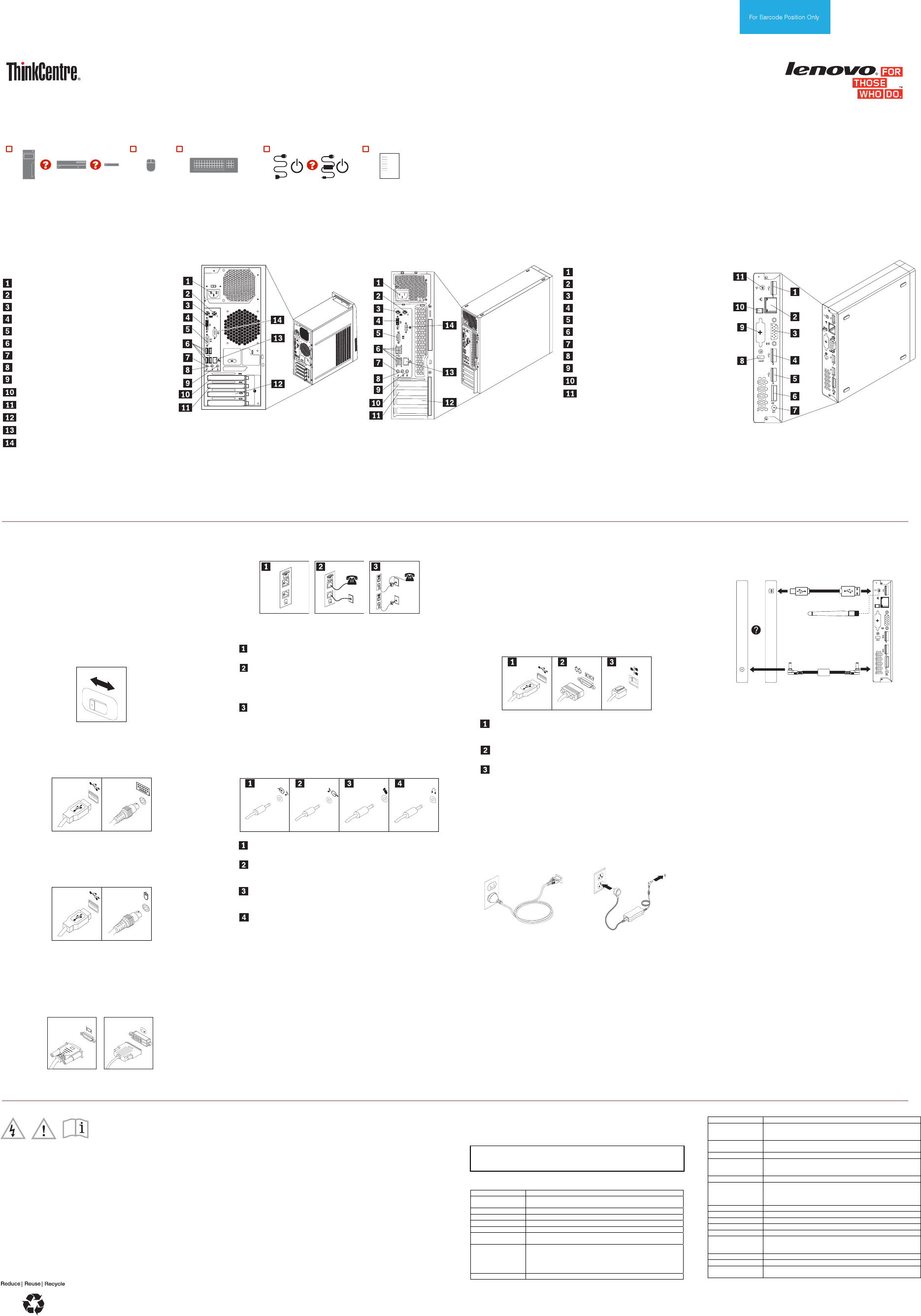
- Connector locations
- Initial setup instructions
- Accessing your user guide
- Read this flyer before using your computer
- Worldwide Lenovo support telephone list
- Lenovo product service information for Taiwan
- Safety information
- Lithium coin cell battery notice
- Warranty information
- Korean Class B compliance statement
- European Union conformity
- Important WEEE information
- Recycling information for China
- Restriction of Hazardous Substances Directive (RoHS)
PN: SP40A14501
Printed in China
Safety, Warranty, and Setup Guide
Brief user notices
ThinkCentre M72e
http://www.lenovo.com/support
Lenovo® electronic manuals... for a greener planet!
Refer to the electronic User Guide for detailed product information:
http://www.lenovo.com/thinkuserguides
Unpack
ThinkCentre® computer Mouse Keyboard Power cord or ac
power adapter Documentation
Note: Recovery discs are not provided. Instead, everything needed for recovering factory-installed files and applications is
provided in the Lenovo_Recovery partition on your hard disk drive. If you decide to remove the Lenovo_Recovery partition, be
sure to create a recovery disc first. For more information, see "Recovery information" in the User Guide. See “Accessing your
User Guide” for instructions on opening the electronic User Guide provided on your computer.
Connector locations
Note: The locations of the connectors, controls, and indicators on your computer might be slightly different from the illustration. For detailed information, refer to your User Guide. See “Accessing your User Guide”.
Tiny desktop, rear view
USB 2.0 connector (USB port 5)
Ethernet connector
VGA monitor connector
USB 2.0 connector (USB port 3)
USB 2.0 connector (USB port 4)
DisplayPort connector
ac power adapter connector
Security-lock slot
Optional port
ac power adapter cable loop
Wi-Fi card module antenna slot
Tiny desktop
Tower and small desktop, rear
view
Power cord connector
PS/2 mouse connector
PS/2 keyboard connector
DVI monitor connector
VGA monitor connector
USB 2.0 connectors (USB ports 3 to 6)
Microphone connector
Audio line-out connector
Audio line-in connector
PCI Express x16 graphics card slot
PCI Express x1 card slot
PCI Express x1 card slot or PCI card slot
Ethernet connector
Serial port
Tower Small desktop
Notes:
1. If you use the optional port for installing a serial port, the serial port and the adjacent VGA
monitor connector might interfere with each other when connecting cables. To avoid the
interference, ensure that you use the serial port convert cable that comes with the computer
when you connect a device to the serial port.
2. The Video Electronics Standards Association (VESA) mount bracket and vertical stand are
optional parts. If your computer comes with the VESA mount bracket installed, ensure that you
remove the VESA mount bracket before you install the vertical stand. For more information,
see "Installing or replacing hardware" in the User Guide.
Initial setup instructions
Note: Depending on the model type, your computer might
not have all of the connectors that are described in this
section.
1. Check the position of the voltage-selection switch on
the rear of the computer. Use a ballpoint pen to slide
the switch, if necessary.
If the voltage supply range is 100–127 V ac, set the
voltage-selection switch to 115 V.
If the voltage supply range is 200–240 V ac, set the
voltage-selection switch to 230 V.
Fourth Edition (August 2013)
© Copyright Lenovo 2012, 2013
LIMITED AND RESTRICTED RIGHTS NOTICE: If data or software is delivered pursuant a General Services Administration “GSA” contract, use, reproduction, or disclosure is subject to
restrictions set forth in Contract No. GS-35F-05925.
115
Voltage-
selection
switch
2. Connect the keyboard cable to the appropriate
keyboard connector.
USB 2.0
connector PS/2
keyboard
connector
3. Connect the mouse cable to the appropriate mouse
connector.
USB 2.0
connector PS/2 mouse
connector
4. Connect the display cable to the appropriate video
connector.
Note: If your computer is installed with a graphics card,
ensure that you use the monitor connector(s) on the
graphics card.
VGA monitor
connector DVI connector
5. If you have a modem, connect the modem using the
following information.
Modem
connectors
Connection
using
RJ-11 outlet
Connection
using other than
RJ-11
This illustration shows the two modem connectors on the back of the
computer.
In the United States and other countries or regions that use the RJ-
11 telephone outlet, attach one end of the telephone cable to the
telephone and the other end to the telephone connector as shown.
Attach one end of the modem cable to the modem connector and
the other end to the telephone outlet as shown.
In countries or regions that do not use RJ-11 telephone outlets, a
splitter or converter is required to attach the cables to the telephone
outlet, as shown at the top of the illustration. You also can use the
splitter or converter without the telephone, as shown at the bottom
of the illustration.
6. If you have audio devices, attach them using the
following instructions.
Audio line-in connector: This connector receives audio signals
from an external audio device, such as a stereo system.
Audio line-out connector: This connector sends audio signals
from the computer to external devices, such as powered stereo
speakers.
Microphone connector: Use this connector to attach a microphone
to your computer to record sound or use speech-recognition
software.
Headphone connector: Use this connector to attach headphones
to your computer to listen to music or other sounds without
disturbing anyone.
7. If you have powered speakers with an ac power
adapter, do the following:
a. Connect the cable that runs between the
speakers, if necessary. On some speakers, this
cable is permanently attached.
b. Connect the ac power adapter cable to the
speakers.
c. Connect the speakers to the audio line-out
connector or the headphone connector on the
computer.
d. Connect the ac power adapter to an ac power
source.
8. If you have unpowered speakers with no ac power
adapter, do the following:
a. Connect the cable that runs between the
speakers, if necessary. On some speakers, this
cable is permanently attached.
b. Connect the speakers to the audio line-out
connector or the headphone connector on the
computer.
9. If you have any additional devices, connect them to
the appropriate connectors. Your computer might not
have all connectors that are shown.
USB 2.0 connector: Use this connector to attach a device that
requires a USB 2.0 connector, such as a keyboard, a mouse, a
scanner, a printer, or a personal digital assistant (PDA).
Serial port: Use this port to attach an external modem, a serial
printer, or other devices that use a 9-pin serial port.
Ethernet connector: Use this connector to attach the computer
to an Ethernet-type local area network or to a cable modem.
Important: To operate the computer within FCC limits when it is
connected to an Ethernet network, use a Category 5 Ethernet
cable.
10. Connect the power cord or the power adapter to
the computer first and then to a properly-grounded
electrical outlet. Ensure that all power cord
connectors are securely and completely plugged into
receptacles.
Power cord for tower and small
desktop computers Power adapter for tiny desktop
computers
11. Press the power switch on the front of the
computer.
12. Follow the on-screen instructions to complete the
setup.
Note: If your computer comes with an external optical
drive, an external hard disk drive, an external battery, or
an I/O box, ensure that you install the cable that connects
your computer and the external device. If your computer
comes with the Wi-Fi feature, ensure that you install the
Wi-Fi antenna stick to your computer.
Accessing your user guide
Your user guide contains detailed information about your
computer. To access your user guide, do the following:
Microsoft® Windows® 8:
From the desktop or the Start screen
1. Move the cursor to the top-right or bottom-right
corner of the screen to display the charms, and
then click Search. If you are using a touch screen,
swipe in from the right edge of the screen to
display the charms, and then tap Search.
2. From the Apps screen, click or tap Help and
Support. The Windows Help and Support window
opens.
3. Click or tap Lenovo User Guide.
From the Start screen
1. Click or tap the Lenovo Support tile. The Lenovo
Support window opens.
2. Click or tap User Guide.
Microsoft Windows 7:
1. From the Windows desktop, click Start and then click
Help and Support. The Help and Support application
opens.
2. Click Lenovo User Guide.
3. In the Lenovo User Guide window, click the link for
your model and the User Guide opens.
Models without preinstalled operating systems and
Virtual Desktop Infrastructure (VDI) clients:
Go to the Lenovo Support Web site to access your User
Guide. See “Downloading publications” for additional
information.
User guides are available in additional languages from
the Lenovo Web site. See “Downloading publications” for
additional information.
Read this flyer before using your computer
This flyer provides critical safety and regulatory information for Lenovo computers
and instructions on how to access electronic versions of the publications developed
for your computer.
Read first — regulatory information
Computer models equipped with wireless communications comply with the radio
frequency and safety standards of any country or region in which it has been
approved for wireless use. In addition, if your product contains a telecom modem, it
complies with the requirements for connection to the telephone network in your
country.
Be sure to read the Regulatory Notice for your country or region before using the
wireless devices contained in your computer. To obtain a PDF version of the
Regulatory Notice, refer to the “Downloading publications” section below.
Downloading publications
Electronic versions of your computer publications are available from the Lenovo
Support Web site. To download the publications for your computer, go to
http://www.lenovo.com/ThinkCentreUserGuides and follow the instructions on the
screen.
Service and Support information
The following information describes the technical support that is available for your
product, during the warranty period or throughout the life of your product. Refer to
the Lenovo Limited Warranty for a full explanation of Lenovo warranty terms. See
“Lenovo Limited Warranty notice” later in this document for details on accessing the
full warranty.
If you purchased Lenovo services, refer to the following terms and conditions for
detailed information:
For Lenovo Warranty Service Upgrades or Extensions, go to:
http://support.lenovo.com/lwsu
For Lenovo Accidental Damage Protection Services, go to:
http://support.lenovo.com/ladps
Online technical support
Online technical support is available during the lifetime of a product at:
http://www.lenovo.com/support
Telephone technical support
You can get help and information from the Customer Support Center by telephone.
Before contacting a Lenovo technical support representative, please have the
following information available: model and serial number, the exact wording of any
error message, and a description of the problem. Your technical support
representative might want to walk you through the problem while you are at your
computer during the call.
Worldwide Lenovo support telephone list
Important: Telephone numbers are subject to change without notice. The most up-
to-date telephone list for the Customer Support Center is always available at:
http://www.lenovo.com/support/phone
If the telephone number for your country or region is not listed, contact your Lenovo
reseller or Lenovo marketing representative.
Country or region Telephone number
Africa
South Africa: 0800110756 (English, Afrikaans)
Central Africa: Contact the nearest Lenovo Business Partner
Algeria +33 6 7348 1739 (French, English)
Argentina 0800-666-0011 (Spanish)
Australia 1800 041 267 (English)
Austria 01-24592-5901 (German)
Bahrain Kanoo IT: 00 973 1771 1722
Bahrain Business Machine LLC: 00 973 1758 4302
Belgium 02-210-9820
+32 (0)2 339 3611 (Warranty service and support)
(Dutch)
02-210-9800
(French)
Bolivia 0800-10-0189 (Spanish)
Country or region Telephone number
Brazil Calls made from within the Sao Paulo region: (11) 3889-8986
Calls made from outside the Sao Paulo region: 0800-701-4815
(Brazilian Portuguese)
Brunei Dial 800-1111, and then dial 866-273-5446
(English, Bahasa Melayu)
Canada 1-800-565-3344 (English, French)
Caribbean
(Bermuda, Jamaica,
Tortola)
1-800 426 7378
(English)
Chile 800-361-213 (Spanish)
China Technical Support Line
800-990-8888
86-10-58851110
(Mandarin)
Colombia 1-800-912-3021 (Spanish)
Costa Rica 0-800-011-1029 (Spanish)
Croatia 0800-0426
Cyprus 80092537 (Greek)
Czech Republic +420-2-7213-1316
Denmark 4520-8200
7010-5150 (Warranty service and support)
(Danish)
Dominican Republic 1-866-434-2080 (Spanish)
Ecuador 1-800-426911 OPCION 4 (Spanish)
Egypt 800-0000-418 (Toll free)
002-02-2594-8500 (Standard charges apply)
Country or region Telephone number
(English, Arabic)
El Salvador 800-6264 (Spanish)
Estonia +372 66 00 800
+372 6776793
Finland 09-459-6960
+358-800-1-4260 (Warranty service and support)
(Finnish)
France 0238-557-450
Hardware: 0810-631-213 (Warranty service and support)
Software: 0810-631-020 (Warranty service and support)
(French)
Germany 01805-00 46 18 (Warranty service and support)
(German)
Greece Contact the nearest Lenovo Business Partner
Guatemala 1800-624-0051 (Spanish)
Honduras Tegucigalpa: 232-4222
San Pedro Sula: 552-2234
(Spanish)
Hong Kong 800-964-173 / (852) 3071-3561
(Cantonese, English, Mandarin)
Hungary +36 1 3825716
+36 1 3825720
(English, Hungarian)
India 1800 3000 THINK 1800 3070 8465 (Reliance)
1800-419-4666 (Tata)
Email: Commercialts@lenovo.com
(English, Hindi)
Indonesia +6221 2992 5823
001-803-606-282 (Local number only)
+603 8315 6859 (DID)
(English, Bahasa Indonesia)
Ireland 01-815-9202
01-881-1444 (Warranty service and support)
(English)
Israel Givat Shmuel Service Center: +972-3-531-3900
Italy 02-7031-6101
+39-800-820094 (Warranty service and support)
(Italian)
Japan 0120-000-817
Jordan Jordan Business Systems: 00 962 6 5000999 Ext 713/127
General Computer & Electronic (GCE): 00 962 6 551 3879
Korea 080-513-0880 (Toll Free)
0234834817 (Standard Charge Apply)
(Korean)
Kuwait Easa Hussain Al Yousifi: 00 965 2244 5280
AM. KHORAFI: 00 965 2200 1100 1127
Khorafi Business Machines (KBM): 00 965 2259 4611
Diyar United Company: 00 965 4378 383
Redington Kuwait: 00 965 2433 3203; 25456250 / 25456251
Latvia +371 7070360
Lebanon Quantech: 00 961 1999 500
Computer Business Machine (CBM): 00 961 1680 180
El Haceb S.A.L: 00 961 1771 300
Lithuania +370 5 278 66 00
Libya +33 6 7348 1739 (French, English)
Luxembourg +352 360 385 222 (French)
Macao 0800-807 / (852) 3071-3559
(Cantonese, English, Mandarin)
Macedonia +389 23090625 (Macedonia)
Malaysia 1800-88-0013 (English, Bahasa Melayu)
Malta +35621445566
Mexico 001-866-434-2080 (Spanish)
Middle East +44 (0)1475-555-055
Morocco +212 5 22 509035
+212 5 22 509017
Netherlands +31 (0)20 513 3939 (Dutch)
New Zealand 0508 770 506 (English)
Nicaragua 001-800-220-1830 (Spanish)
Norway 6681-1100
8152-1550 (Warranty service and support)
(Norwegian)
Oman Khimji Ramdas Computer Communication Systems:
00 968 2469 6255
Overseas Business Machines (OBM):
00 968 2460 1072, 2460 5018
Gulf Business Machines Services (GBMS):
00 968 2455 9831
Pakistan INFO TECH (pvt) Ltd.: 00 924 2111 427 427
International Office Products (pvt) Ltd.:
00 92 212 422 569, 00 92 213 241 2023
Selling Business Systems: 00 92 21 568 9823
Panama 206-6047
001-866-434-2080 (Lenovo Customer Support Center- toll free)
(Spanish)
Paraguay 009-800-52-10026 (Spanish)
Peru 0-800-50-866 OPCION 2 (Spanish)
Philippines 180089086454 (Domestic Toll Free)
180014410719 (International Toll Free)
(Tagalog, English)
Poland +48 22 760 7300 (Polish)
Portugal +351 21 892 7046 (Portuguese)
Qatar Al Mana Computer Services: 00 974 4489 966 (ext. 1992)
Qatar Computer Services W.L.L: 00 974 4441 212
Gulf Business Machines: 00-974 462 1395
Romania +4-021-224-4015
Russia 8-800-555-0317 (Toll free number)
(Russian)
Saudi Arabia 8008445128 (English, Arabic)
Singapore 800 6011 343 (Local number only)
+603 8315 6856 (DID)
(English)
Slovakia +421 2 4974 8888
Slovenia +386-1-200-50-60 (Slovenian)
Spain 0901-100-000 (Spanish)
Sri Lanka +9411 2493547
+9411 2493548
(English)
Sweden 08-477-4420
077-117-1040 (Warranty service and support)
(Swedish)
Switzerland 058-333-0900
0800-55-54-54 (Warranty service and support)
(German, French, Italian)
Taiwan 0800-000-702 (Mandarin)
Thailand 001 800 4415 734 (Thai, English)
Turkey 0212 336 03 66
00800 448 825 165
(Turkish)
Ukraine 0800 502 235
(Ukrainian, Russian, English)
United Arab
Emirates 80004447023
(English, Arabic)
United Kingdom 01475-897-163
08705-500-900 (Standard warranty support)
(English)
United States 1-800-426-7378 (Select “Option #1”)
(English)
Uruguay 000-411-005-6649 (Spanish)
Venezuela 0-800-100-2011 (Spanish)
Vietnam 120-11072 (Toll Free)
+(84) 8 3521 8000 (Standard Charges Apply) (Vietnamese,
English)
Yeman Al Khirbash and Agencies:
00 967 1209 8278
Yemen Business Machines (YBM):
00-967 3 213324
00-967 3 214655
00-967 3 213909
Lenovo product service information for Taiwan
Safety information
This section contains important safety information for Lenovo products. Additional
safety information is provided in the User Guide for your product. See “Accessing
your User Guide” for additional information.
Laser compliance statement
CAUTION:
When laser products (such as CD-ROMs, DVD drives, fiber optic devices, or
transmitters) are installed, note the following:
Do not remove the covers. Removing the covers of the laser product could
result in exposure to hazardous laser radiation. There are no serviceable
parts inside the device.
Use of controls or adjustments or performance of procedures other than
those specified herein might result in hazardous radiation exposure.
DANGER
Some laser products contain an embedded Class 3A or Class 3B laser
diode. Note the following:
Laser radiation when open. Do not stare into the beam, do not view
directly with optical instruments, and avoid direct exposure to the
beam.
Modem safety information
CAUTION:
To reduce the risk of fire, use only No. 26 AWG or larger (for example, No. 24
AWG) telecommunication line cord listed by Underwriters Laboratories (UL) or
certified by the Canadian Standards Association (CSA).
To reduce the risk of fire, electrical shock, or injury when using telephone equipment,
always follow basic safety precautions, such as:
Never install telephone wiring during a lightning storm.
Never install telephone jacks in wet locations unless the jack is specifically
designed for wet locations.
Never touch uninsulated telephone wires or terminals unless the telephone line
has been disconnected at the network interface.
Use caution when installing or modifying telephone lines.
Avoid using a telephone (other than a cordless type) during an electrical storm.
There may be a remote risk of electric shock from lightning.
Do not use the telephone to report a gas leak in the vicinity of the leak.
Plastic bag notice
CAUTION:
Plastic bags can be dangerous. Keep plastic bags away from babies and
children to avoid danger of suffocation.
Lithium coin cell battery notice
DANGER
Danger of explosion if battery is incorrectly replaced.
When replacing the lithium coin cell battery, use only the same type or equivalent
type that is recommended by the manufacturer. The battery contains lithium and can
explode if not properly used, handled, or disposed of.
Do not:
Throw or immerse into water
Heat to more than 100°C (212°F)
Repair or disassemble
Dispose of the battery as required by local ordinances or regulations.
The following statement applies to users in the state of California, U.S.A.
California Perchlorate Information:
Products containing manganese dioxide lithium coin cell batteries may contain
perchlorate.
Perchlorate Material - special handling may apply, See
www.dtsc.ca.gov/hazardouswaste/perchlorate
Polyvinyl Chloride (PVC) cable and cord notice
Warning: Handling the cord on this product or cords associated with accessories
sold with this product will expose you to lead, a chemical known to the State of
California to cause cancer, and birth defects or other reproductive harm. Wash
hands after handling.
Using headphones or earphones
If your computer has both a headphone connector and an audio line-out connector,
always use the headphone connector for headphones (also called a headset) or
earphones.
CAUTION:
Excessive sound pressure from earphones and headphones can cause
hearing loss. Adjustment of the equalizer to maximum increases the earphone
and headphone output voltage and the sound pressure level. Therefore, to
protect your hearing, adjust the equalizer to an appropriate level.
Excessive use of headphones or earphones for a long period of time at high volume
can be dangerous if the output of the headphone or earphone connectors do not
comply with specifications of EN 50332-2. The headphone output connector of your
computer complies with EN 50332-2 Sub clause 7. This specification limits the
computer’s maximum wide band true RMS output voltage to 150 mV. To help
protect against hearing loss, ensure that the headphones or earphones you use also
comply with EN 50332-2 (Clause 7 Limits) or a wide band characteristic voltage of
75 mV. Using headphones that do not comply with EN 50332-2 can be dangerous
due to excessive sound pressure levels.
If your Lenovo computer came with headphones or earphones in the package, as a
set, the combination of the headphones or earphones and the computer already
complies with the specifications of EN 50332-1. If different headphones or
earphones are used, ensure that they comply with EN 50332-1 (Clause 6.5
Limitation Values). Using headphones that do not comply with EN 50332-1 can be
dangerous due to excessive sound pressure levels.
Products with television tuner options installed
The notice below applies to products containing television (TV) tuner devices that
connect to external antennas or to cable/CATV systems, or both, and that are
intended to be installed in North America. Users and installers in other countries
should follow local codes and ordinances when installing appliances that connect to
external antennas and cable/CATV systems. If local codes are not applicable, it is
recommended that users/installers follow guidelines similar to those that follow.
Note to CATV system installer
This reminder is provided to call the CATV system installer’s attention to Article 820-
40 of the National Electrical Code (NEC) that provides guidelines for proper
grounding and, in particular, specifies that the cable ground shall be connected to
the grounding system of the building, as close as possible to the point of cable entry
as practical.
Example of antenna grounding
Figure 3. Proper grounding for the cable
Ground clamp
Antenna lead-in wire
Antenna discharge unit (NEC Section 810-20)
Grounding conductors (NEC Section 810-21)
Power service grounding electrode system (NEC Article 250, Part H)
Ground clamps
Electronic service equipment
The following notice applies to all countries and regions.
DANGER
Outdoor antenna grounding
If an outside antenna or cable system is connected to the
equipment, be sure the antenna or cable system is grounded as to
provide some protection against voltage surges and built-up static
charges.
Lightning
For added protection for this equipment during a lightning storm,
or when it is left unattended and unused for long periods of time,
unplug it from the wall outlet and disconnect the antenna or cable
system. This will prevent damage to the video product due to
lightning and power line surges.
Power lines
An outside antenna system should not be located in the vicinity of
overhead power lines or where it can fall into such power lines or
circuits. When installing an outside antenna system, extreme care
should be taken to keep from touching such power lines or
circuits, as contact with them may be fatal.
Lenovo Limited Warranty notice
This product is covered by the terms of the Lenovo Limited Warranty, version L505-
0010-02 08/2011. Read the Lenovo Limited Warranty (LLW) at
http://www.lenovo.com/warranty/llw_02. You can view the LLW in a number of
languages from this Web site. The LLW also is displayed on your computer during
the initial setup. After the initial setup has completed, you can view the warranty on
your computer by doing the following:
Windows 8:
From the desktop or the Start screen
1. Move the cursor to the top-right or bottom-right corner of the screen to
display the charms, and then click Search. If you are using a touch screen,
swipe in from the right edge of the screen to display the charms, and then
tap Search.
2. From the Apps screen, click or tap Warranty Viewer.
From the Start screen
1. Click or tap the Lenovo Support tile. The Lenovo Support window opens.
2. Click or tap Service & Warranty.
3. Click or tap View Warranty.
Windows 7:
From the Windows desktop, click Start All Programs Lenovo Device
Experience Lenovo Warranty.
If you cannot view the LLW either from the Web site or from your computer, contact
your local Lenovo office or reseller to obtain a printed version of the LLW.
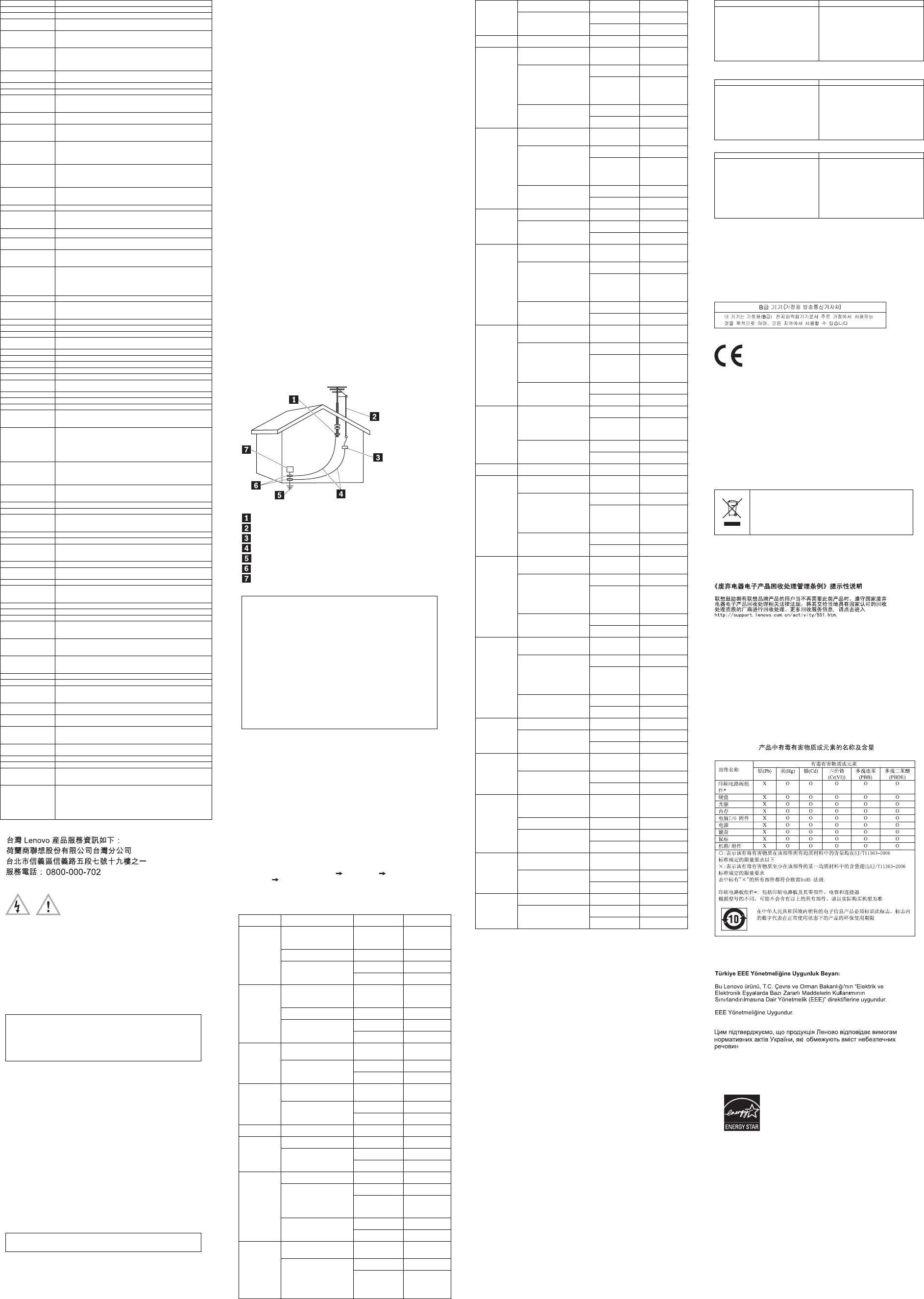
Warranty information
Machine Type
Country or Region of
Purchase Warranty Period
Type of Warranty
Service
United States, Canada, Latin
America (except Brazil),
Europe (except Russia),
Middle East, Africa
Parts and labor – 1
year 1 and 2
Russia Parts and labor – 1
year 1 and 4
Parts and labor – 1
year 1 and 2
0896
Australia, New Zealand,
Japan
Keyboard and
mouse – 1 year 1
United States, Canada, Latin
America (except Brazil),
Europe (except Russia),
Middle East, Africa
Parts and labor – 1
year 1 and 2
Russia Parts and labor - 1
year 1 and 4
Parts and labor - 1
year 1 and 2
0900
Brazil, Australia, New
Zealand, Japan
Keyboard and
mouse - 1 year 1
United States, Canada, Latin
America (except Brazil),
Europe, Middle East, Africa
Parts and labor – 3
years 1 and 2
Parts and labor – 3
years 1 and 2
0958
Australia, New Zealand
Keyboard and
mouse – 1 year 1
United States, Canada, Latin
America (except Brazil),
Europe, Middle East, Africa
Parts and labor – 3
years 1 and 2
Parts and labor – 3
years 1 and 2
0967
Brazil, Australia, New Zealand
Keyboard and
mouse – 1 year 1
1112 Latin America (except Brazil),
Europe, Middle East, Africa Parts and labor - 1
year 1 and 4
Latin America (except Brazil),
Europe, Middle East, Africa Parts and labor - 1
year 1 and 4
Parts and labor - 1
year 1 and 4
1271
Brazil
Keyboard and
mouse - 1 year 1
Europe, Middle East, Africa Parts and labor - 3
years 1 and 2
Parts and labor - 3
years 1 and 2 Singapore, Malaysia,
Thailand, Indonesia,
Philippines, Vietnam, Brunei,
Sri Lanka, Bangladesh, Korea,
Hong Kong S.A.R. of China,
Taiwan
Keyboard and
mouse - 1 year 1
Parts and labor - 3
years 1 and 2
2116
India
Keyboard and
mouse - 3 years 4
United States, Canada, Latin
America (except Brazil),
Europe, Middle East, Africa
Parts and labor - 1
year 1 and 2
Parts and labor - 1
year 1 and 2
3261
Brazil, Australia, New
Zealand, Singapore, Malaysia,
Thailand, Indonesia,
Philippines, Vietnam, Brunei,
Sri Lanka, Bangladesh,
Japan, Korea, China, Hong
Kong S.A.R. of China, Taiwan
Keyboard and
mouse - 1 year 1
Machine Type
Country or Region of
Purchase Warranty Period
Type of Warranty
Service
Parts and labor - 1
year 1 and 2 India
Keyboard and
mouse - 1 year 4
3263 Europe, Middle East, Africa Parts and labor - 3
years 1 and 4
United States, Canada, Latin
America (except Brazil),
Europe, Middle East, Africa
Parts and labor - 3
years 1 and 2
Parts and labor - 3
years 1 and 2 Brazil, Australia, New
Zealand, Singapore, Malaysia,
Thailand, Indonesia,
Philippines, Vietnam, Brunei,
Sri Lanka, Bangladesh,
Japan, Korea, Hong Kong
S.A.R. of China, Taiwan
Keyboard and
mouse - 1 year 1
Parts and labor - 3
years 1 and 2
3264
India
Keyboard and
mouse - 3 years 4
United States, Canada, Latin
America (except Brazil),
Europe, Middle East, Africa
Parts and labor - 3
years 1 and 2
Parts and labor - 3
years 1 and 2 Brazil, Australia, New
Zealand, Singapore, Malaysia,
Thailand, Indonesia,
Philippines, Vietnam, Brunei,
Sri Lanka, Bangladesh,
Japan, Korea, China, Hong
Kong S.A.R. of China, Taiwan
Keyboard and
mouse - 1 year 1
Parts and labor - 3
years 1 and 2
3267
India
Keyboard and
mouse - 3 years 4
United States, Canada,
Western Europe Parts and labor - 4
years 1 and 2
Parts and labor - 4
years 1 and 2
3273
Australia, New Zealand,
Japan
Keyboard and
mouse - 1 year 1
United States, Canada, Latin
America (except Brazil),
Europe, Middle East, Africa
Parts and labor - 1
year 1 and 2
Parts and labor - 1
year 1 and 2 Australia, New Zealand,
Singapore, Malaysia,
Thailand, Indonesia,
Philippines, Vietnam, Brunei,
Sri Lanka, Bangladesh,
Japan, Korea, China, Hong
Kong S.A.R. of China, Taiwan
Keyboard and
mouse - 1 year 1
Parts and labor - 1
year 1 and 2
3498
India
Keyboard and
mouse - 1 year 4
United States, Canada, Latin
America (except Brazil),
Europe, Middle East, Africa
Parts and labor - 1
year 1 and 2
Parts and labor - 1
year 1 and 2 Brazil, Australia, New
Zealand, Singapore, Malaysia,
Thailand, Indonesia,
Philippines, Vietnam, Brunei,
Sri Lanka, Bangladesh,
Japan, Korea, China, Hong
Kong S.A.R. of China, Taiwan
Keyboard and
mouse - 1 year 1
Parts and labor - 1
year 1 and 2
3578
India
Keyboard and
mouse - 1 year 4
Parts - 3 years labor
- 1 year 1 and 2 Australia, New Zealand,
Singapore, Malaysia,
Thailand, Indonesia,
Philippines, Vietnam, Brunei,
Sri Lanka, Bangladesh,
Taiwan
Keyboard and
mouse - 1 year 1
Parts - 3 years labor
- 1 year 1 and 2
3593, 3594
India
Keyboard and
mouse - 3 years 4
3595, 3596 Europe, Middle East, Africa Parts and labor - 3
years 1 and 4
United States, Canada, Latin
America (except Brazil),
Europe, Middle East, Africa
Parts and labor - 3
years 1 and 2
Parts and labor - 3
years 1 and 2 Australia, New Zealand,
Singapore, Malaysia,
Thailand, Indonesia,
Philippines, Vietnam, Brunei,
Sri Lanka, Bangladesh,
Japan, Korea, Hong Kong
S.A.R. of China, Taiwan
Keyboard and
mouse - 1 year 1
Parts and labor - 3
years 1 and 2
3597, 3655
India
Keyboard and
mouse - 3 years 4
United States, Canada, Latin
America (except Brazil),
Europe, Middle East, Africa
Parts and labor - 3
years 1 and 2
Parts and labor - 3
years 1 and 2 Brazil, Australia, New
Zealand, Singapore, Malaysia,
Thailand, Indonesia,
Philippines, Vietnam, Brunei,
Sri Lanka, Bangladesh,
Japan, Korea, Hong Kong
S.A.R. of China, Taiwan
Keyboard and
mouse - 1 year 1
Parts and labor - 3
years 1 and 2
3598, 3660
India
Keyboard and
mouse - 3 years 4
United States, Canada, Latin
America (except Brazil),
Europe, Middle East, Africa
Parts and labor - 3
years 1 and 2
Parts and labor - 3
years 1 and 2 Brazil, Australia, New
Zealand, Singapore, Malaysia,
Thailand, Indonesia,
Philippines, Vietnam, Brunei,
Sri Lanka, Bangladesh,
Japan, Korea, China, Hong
Kong S.A.R. of China, Taiwan
Keyboard and
mouse - 1 year 1
Parts and labor - 3
years 1 and 2
3617, 3629,
3662, 3664
India
Keyboard and
mouse - 3 years 4
United States, Canada,
Western Europe Parts and labor - 4
years 1 and 2
Parts and labor - 4
years 1 and 2
3634, 3654,
3665, 3668
Australia, New Zealand,
Japan
Keyboard and
mouse - 1 year 1
United States, Canada, Latin
America (except Brazil),
Europe, Middle East, Africa
Parts and labor - 3
years 1 and 2
Parts and labor - 3
years 1 and 2
3675, 3676
Australia, New Zealand
Keyboard and
mouse - 1 year 1
United States, Canada, Latin
America (except Brazil),
Europe (except Russia),
Middle East, Africa
Parts and labor - 1
year 1 and 2
Russia Parts and labor - 1
year 1 and 4
Parts and labor - 1
year 1 and 2
3856
Brazil, Australia, New
Zealand, Japan
Keyboard and
mouse - 1 year 1
United States, Canada, Latin
America (except Brazil),
Europe, Middle East, Africa
Parts and labor - 3
years 1 and 2
Parts and labor - 3
years 1 and 2
4004
Brazil, Australia, New Zealand
Keyboard and
mouse - 1 year 1
Latin America (except Brazil),
Europe, Middle East, Africa Parts and labor - 1
year 1 and 4
Parts and labor - 1
year 1 and 4
4156
Brazil
Keyboard and
mouse - 1 year 1
Types of Warranty Service
1. Customer Replaceable Unit (“CRU”) Service
2. On-site Service
3. Courier or Depot Service
4. Customer Carry-In Service
5. Mail-In Service
6. Customer Two-Way Mail-In Service
7. Product Exchange Service
For a full explanation of the types of warranty service, refer to the full warranty. See
“Lenovo Limited Warranty notice” for details on accessing the full warranty.
Suplemento de Garantía para México
Este Suplemento se considera parte integrante de la Garantía Limitada de Lenovo y
será efectivo única y exclusivamente para los productos distribuidos y
comercializados dentro del Territorio de los Estados Unidos Mexicanos. En caso de
conflicto, se aplicarán los términos de este Suplemento.
Todos los programas de software precargados en el equipo sólo tendrán una
garantía de treinta (30) días por defectos de instalación desde la fecha de compra.
Lenovo no es responsable de la información incluida en dichos programas de
software y/o cualquier programa de software adicional instalado por Usted o
instalado después de la compra del producto.
Los servicios no cubiertos por la garantía se argarán al usuario final, previa
obtención de una autorización.
En el caso de que se precise una reparación cubierta por la garantía, por favor,
llame al Centro de soporte al cliente al 001-866-434-2080, donde le dirigirán al
Centro de servicio autorizado más cercano. Si no existiese ningún Centro de
servicio autorizado en su ciudad, población o en un radio de 70 kilómetros de su
ciudad o población, la garantía incluirá cualquier gasto de entrega razonable
relacionado con el transporte del producto a su Centro de servicio autorizado más
cercano. Por favor, llame al Centro de servicio autorizado más cercano para
obtener las aprobaciones necesarias o la información relacionada con el envío del
producto y la dirección de envío.
Para obtener una lista de los Centros de servicio autorizados, por favor, visite:
http://www.lenovo.com/mx/es/servicios
Importado por:
Lenovo México S. de R.L. de C.V.
Av. Santa Fe 505, Piso 15
Col. Cruz Manca
Cuajimalpa, D.F., México
C.P. 05349
Tel. (55) 5000 8500
Customer Replaceable Units
Customer Replaceable Units (CRUs) are parts that can be upgraded or replaced by
the customer. If a CRU is determined to be defective during the warranty period, a
replacement CRU will be provided to the customer. Customers are responsible for
installing the self-service CRUs for this product. Customers also can install optional-
service CRUs, which might require some technical skills or tools, or request that a
technician install the optional-service CRU under the terms of the applicable
warranty service type for your country or region. The following tables list CRUs for
your computer and tell where to find the replacement instructions.
Machine types 0896, 0958, 1112, 2116, 3498, 3593, 3595, 3597, 3617, 3634, 3655,
3662, 3665, and 3675.
Self-service CRUs Optional-service CRUs
Coin cell battery
Keyboard
Memory module
Mouse
Optical drive*
Peripheral Component Interconnect
(PCI) card
Wi-Fi rear antenna*
Front audio and USB assembly
Hard disk drive
Heat sink and fan assembly
Microprocessor
Power supply assembly
Rear fan assembly
Wi-Fi adapter card*
Wi-Fi card module*
Wi-Fi front antenna*
Machine types 0900, 0967, 1271, 3578, 3594, 3596, 3598, 3629, 3654, 3660, 3664,
3668, and 3676.
Self-service CRUs Optional-service CRUs
Coin cell battery
Keyboard
Memory module
Mouse
Optical drive*
Peripheral Component Interconnect
(PCI) card
Wi-Fi rear antenna*
Front audio and USB assembly
Hard disk drive
Heat sink and fan assembly
Microprocessor
Power supply assembly
Front fan assembly
Wi-Fi adapter card*
Wi-Fi card module*
Wi-Fi front antenna*
Machine types 3261, 3263, 3264, 3267, 3273, 3856, 4004, and 4156.
Self-service CRUs Optional-service CRUs
ac power adapter
Coin cell battery
Heat sink
Keyboard
Mouse
Power adapter bracket
Vertical stand
Wi-Fi rear antenna*
External hard disk drive
External optical drive
Internal speaker
Memory module
Microprocessor
Power switch board
System fan
Video Electronics Standards
Association (VESA) mount bracket
Wi-Fi card module*
Note: * denotes optional parts, which are available in some models.
CRU installation instructions are in the User Guide for the respective product. See
“Accessing your User Guide” for additional information.
Electronic emission notices
This device has been tested and found to comply with the limits for a Class B digital
device. The User Guide for this product provides the complete Class B compliance
statements that are applicable for this device. See “Accessing your User Guide” for
additional information.
Korean Class B compliance statement
European Union conformity
Radio and Telecommunications Terminal Equipment
Directive
This product is in compliance with the essential requirements and other relevant
provisions of the Radio and Telecommunications Terminal Equipment Directive,
1999/5/EC. The Declaration of Conformity information is located in the Regulatory
Notice, which you can download from the Lenovo Support Web site. See
“Downloading publications” for additional information.
Recycling and environmental information
Lenovo encourages owners of information technology (IT) equipment to responsibly
recycle their equipment when it is no longer needed. Lenovo offers a variety of
programs and services to assist equipment owners in recycling their IT products.
For information on recycling Lenovo products, go to:
http://www.lenovo.com/recycling
Important WEEE information
Country-specific information is available at:
http://www.lenovo.com/recycling
Recycling information for Japan
Recycling and disposal information for Japan is available at:
http://www.lenovo.com/recycling/japan
Recycling information for China
Additional recycling statements
Additional information about recycling computer components and batteries is in your
User Guide. See “Accessing your User Guide” for details.
Restriction of Hazardous Substances Directive (RoHS)
European Union RoHS
Lenovo products sold in the European Union, on or after 3 January 2013 meet the
requirements of Directive 2011/65/EU on the restriction of the use of certain
hazardous substances in electrical and electronic equipment (“RoHS recast” or
“RoHS 2”).
For more information about Lenovo progress on RoHS, go to:
http://www.lenovo.com/social_responsibility/us/en/RoHS_Communication.pdf
China RoHS
The information in the following table is applicable for products manufactured on or
after March 1, 2007 for sale in the People’s Republic of China.
Turkish RoHS
The Lenovo product meets the requirements of the Republic of Turkey Directive on
the Restriction of the Use of Certain Hazardous Substances in Electrical and
Electronic Equipment (EEE).
Ukraine RoHS
India RoHS
RoHS compliant as per E-Waste (Management & Handling) Rules, 2011.
ENERGY STAR
Select models conform to ENERGY STAR®
requirements. Additional ENERGY STAR information is
in your User Guide. See “Accessing your User Guide”.
Legal notices
Lenovo, For Those Who Do., the Lenovo logo, and ThinkCentre are trademarks of
Lenovo in the United States, other countries, or both.
Microsoft and Windows are trademarks of the Microsoft group of companies.
Other company, product, or service names may be trademarks or service marks of
others.
For additional legal notices, refer to the User Guide for your computer. See
“Accessing your User Guide” for additional information.
