Lenovo T460P Ug En User Manual (English) Guide Think Pad Laptop (Think Pad) Type 20FW
2017-07-13
User Manual: Lenovo T460P Ug En (English) User Guide -ThinkPad T460p T460p Laptop (ThinkPad) - Type 20FW ThinkPad T460p, 20FW
Open the PDF directly: View PDF  .
.
Page Count: 184 [warning: Documents this large are best viewed by clicking the View PDF Link!]
- Important safety information
- Read this first
- Important information about using your computer
- Conditions that require immediate action
- Service and upgrades
- Power cords and power adapters
- Extension cords and related devices
- Plugs and outlets
- Power supply statement
- External devices
- General battery notice
- Notice for removable rechargeable battery
- Notice for built-in rechargeable battery
- Notice for non-rechargeable coin-cell battery
- Heat and product ventilation
- Electrical current safety information
- Liquid crystal display (LCD) notice
- Using headphones or earphones
- Choking hazard notice
- Plastic bag notice
- Glass parts notice
- Chapter 1. Product overview
- Chapter 2. Using your computer
- Chapter 3. Enhancing your computer
- Chapter 4. You and your computer
- Chapter 5. Security
- Chapter 6. Advanced configuration
- Chapter 7. Preventing problems
- Chapter 8. Troubleshooting computer problems
- Diagnosing problems
- Troubleshooting
- Computer stops responding
- Spills on the keyboard
- Error messages
- Errors without messages
- Beep errors
- Memory module problems
- Networking problems
- Problems with the keyboard and other pointing devices
- Problems with the display and multimedia devices
- Fingerprint reader problems
- Battery and power problems
- Problems with drives and other storage devices
- A software problem
- Problems with ports and connectors
- Chapter 9. Recovery overview
- Chapter 10. Replacing devices
- Chapter 11. Getting support
- Appendix A. Supplemental information about the Ubuntu operating system
- Appendix B. Regulatory information
- Location of the UltraConnect wireless antennas
- Wireless related information
- Certification related information
- Export classification notice
- Electronic emission notices
- Federal Communications Commission Declaration of Conformity
- Industry Canada Class B emission compliance statement
- European Union conformity
- German Class B compliance statement
- Japan VCCI Class B compliance statement
- Japan compliance statement for products which connect to the power mains with rated current less than or equal to 20 A per phase
- Japan notice for ac power cord
- Lenovo product service information for Taiwan
- Eurasian compliance mark
- Brazil audio notice
- Appendix C. WEEE and recycling statements
- Appendix D. Restriction of Hazardous Substances (RoHS) Directive
- Appendix E. ENERGY STAR model information
- Appendix F. Trademarks
- Appendix G. Notices

ThinkPadT460pUserGuide

Note:Beforeusingthisinformationandtheproductitsupports,besuretoreadandunderstandthefollowing:
•Safety,Warranty,andSetupGuide
•RegulatoryNotice
•“Importantsafetyinformation”onpageiv
•AppendixG“Notices”onpage163
ThelatestSafety,Warranty,andSetupGuideandtheRegulatoryNoticeareavailableontheLenovo®
SupportWebsiteat:
http://www.lenovo.com/UserGuides
ThirdEdition(June2017)
©CopyrightLenovo2016,2017.
LIMITEDANDRESTRICTEDRIGHTSNOTICE:IfdataorsoftwareisdeliveredpursuanttoaGeneralServices
Administration“GSA”contract,use,reproduction,ordisclosureissubjecttorestrictionssetforthinContractNo.
GS-35F-05925.

Contents
Importantsafetyinformation..........iv
Readthisfirst..............iv
Importantinformationaboutusingyour
computer................iv
Conditionsthatrequireimmediateaction...vi
Serviceandupgrades..........vii
Powercordsandpoweradapters.....viii
Extensioncordsandrelateddevices....viii
Plugsandoutlets.............ix
Powersupplystatement..........ix
Externaldevices.............x
Generalbatterynotice...........x
Noticeforremovablerechargeablebattery...xi
Noticeforbuilt-inrechargeablebattery....xi
Noticefornon-rechargeablecoin-cellbattery..xi
Heatandproductventilation.......xii
Electricalcurrentsafetyinformation....xiii
Liquidcrystaldisplay(LCD)notice.....xiv
Usingheadphonesorearphones......xiv
Chokinghazardnotice..........xiv
Plasticbagnotice............xv
Glasspartsnotice...........xv
Chapter1.Productoverview......1
Locatingcomputercontrols,connectors,and
indicators..................1
Frontview................1
Right-sideview..............3
Left-sideview..............4
Bottomview...............5
Statusindicators.............6
Locatinglabelsthatcontainimportantproduct
information.................7
Machinetypeandmodellabel........8
FCCIDandICCertificationinformation....8
LabelsfortheWindowsoperatingsystems...9
Computerfeatures.............10
Computerspecifications...........11
Operatingenvironment...........11
Lenovoprograms.............12
AccessingLenovoprograms.......12
AnintroductiontoLenovoprograms....12
Chapter2.Usingyourcomputer...15
Registeringyourcomputer..........15
Frequentlyaskedquestions.........15
GettinghelpabouttheWindowsoperating
system..................16
Specialkeys...............17
ThinkPadpointingdevice..........18
TrackPointpointingdevice........19
Trackpad...............20
Trackpadtouchgestures.........21
CustomizingtheThinkPadpointingdevice..21
Replacingthecapofpointingstick.....22
Powermanagement............22
Usingtheacpower...........22
Checkingthebatterystatus........23
Chargingthebattery..........23
Maximizingthebatterylife........23
Managingthebatterypower.......24
Power-savingmodes..........24
Handlingthebattery...........25
Connectingtothenetwork..........26
Ethernetconnections..........26
Wirelessconnections..........26
Usinganexternaldisplay..........29
Connectinganexternaldisplay......30
Choosingadisplaymode........30
Changingdisplaysettings........31
Usingaudiofeatures............31
Usingthecamera.............32
Usingaflashmediacardorasmartcard....32
Insertingaflashmediacardorasmartcard.33
RemovingaflashmediacardoraSmartCard.33
Chapter3.Enhancingyour
computer...............35
FindingThinkPadoptions..........35
ThinkPaddockingstations..........35
Locatingcontrolsandconnectorsonthe
ThinkPaddockingstations........35
AttachingaThinkPaddockingstation....41
DetachingaThinkPaddockingstation...42
Connectingexternaldisplaystoadocking
station................42
Securityfeatures............43
Chapter4.Youandyourcomputer..45
Accessibilityandcomfort..........45
Ergonomicinformation..........45
Comfort...............46
Accessibilityinformation.........46
Travelingwithyourcomputer.........49
Traveltips...............49
Travelaccessories...........49
©CopyrightLenovo2016,2017i

Chapter5.Security..........51
Usingpasswords..............51
Typingpasswords...........51
Power-onpassword...........51
Supervisorpassword..........52
Harddiskpasswords..........53
Harddisksecurity.............56
Settingthesecuritychip...........56
Usingthefingerprintreader..........57
Noticeondeletingdatafromyourstoragedrive..60
Usingfirewalls...............60
Protectingdataagainstviruses........61
Chapter6.Advancedconfiguration..63
Installinganewoperatingsystem.......63
InstallingtheWindows7operatingsystem..63
InstallingtheWindows10operatingsystem.64
Installingdevicedrivers...........65
UsingtheThinkPadSetupprogram......65
Mainmenu..............66
Configmenu..............66
DateandTimemenu..........72
Securitymenu.............72
Startupmenu.............79
Restartmenu.............81
UpdatingtheUEFIBIOS.........81
Usingsystemmanagement..........82
Settingmanagementfeatures.......82
Chapter7.Preventingproblems...85
Generaltipsforpreventingproblems......85
Makingsuredevicedriversarecurrent.....86
Takingcareofyourcomputer.........87
Cleaningthecoverofyourcomputer....88
Chapter8.Troubleshootingcomputer
problems...............91
Diagnosingproblems............91
Troubleshooting..............91
Computerstopsresponding.......91
Spillsonthekeyboard..........92
Errormessages............92
Errorswithoutmessages.........94
Beeperrors..............95
Memorymoduleproblems........95
Networkingproblems..........96
Problemswiththekeyboardandotherpointing
devices................98
Problemswiththedisplayandmultimedia
devices................98
Fingerprintreaderproblems........104
Batteryandpowerproblems.......104
Problemswithdrivesandotherstorage
devices................107
Asoftwareproblem...........109
Problemswithportsandconnectors....109
Chapter9.Recoveryoverview...111
RecoveryoverviewfortheWindows7operating
system..................111
Creatingandusingarecoverymedia....111
Performingbackupandrecovery
operations..............112
UsingtheRescueandRecovery
workspace..............113
Creatingandusingarescuemedium....114
Reinstallingpreinstalledprogramsanddevice
drivers................115
Solvingrecoveryproblems........116
RecoveryoverviewfortheWindows10operating
system..................116
Resettingyourcomputer.........116
Usingadvancedstartupoptions......116
RecoveringyouroperatingsystemifWindows
10failstostart.............117
CreatingandusingarecoveryUSBdrive..117
Chapter10.Replacingdevices...119
Staticelectricityprevention..........119
InstallingorreplacingtheSIMcard.......119
Replacingthebattery............120
Replacingthebottomcover.........122
Replacingthecoin-cellbattery........124
Replacingthekeyboard...........125
Replacingtheinternalstoragedrive......131
ReplacingawirelessWANcard........134
Replacingamemorymodule.........136
Chapter11.Gettingsupport....139
BeforeyoucontactLenovo..........139
Gettinghelpandservice...........139
Usingdiagnosticprograms........140
LenovoSupportWebsite.........140
CallingLenovo.............140
Purchasingadditionalservices........141
AppendixA.Supplemental
informationabouttheUbuntu
operatingsystem..........143
AppendixB.Regulatory
information.............145
LocationoftheUltraConnectwirelessantennas..145
Wirelessrelatedinformation.........145
iiThinkPadT460pUserGuide

Wireless-radiocomplianceinformation...146
Locatingwirelessregulatorynotices....147
Certificationrelatedinformation........147
Exportclassificationnotice..........147
Electronicemissionnotices..........147
FederalCommunicationsCommission
DeclarationofConformity........147
IndustryCanadaClassBemissioncompliance
statement...............148
EuropeanUnionconformity........148
GermanClassBcompliancestatement...148
JapanVCCIClassBcompliancestatement..149
Japancompliancestatementforproducts
whichconnecttothepowermainswith
ratedcurrentlessthanorequalto20Aper
phase................149
Japannoticeforacpowercord......149
Lenovoproductserviceinformationfor
Taiwan................149
Eurasiancompliancemark..........150
Brazilaudionotice.............150
AppendixC.WEEEandrecycling
statements.............151
Generalrecyclinginformation.........151
ImportantWEEEinformation.........151
Japanrecyclingstatements.........152
RecyclinginformationforBrazil........152
BatteryrecyclinginformationfortheEuropean
Union..................153
BatteryrecyclinginformationforTaiwan.....154
BatteryrecyclinginformationfortheUnitedStates
andCanada................154
RecyclinginformationforChina........154
AppendixD.RestrictionofHazardous
Substances(RoHS)Directive....155
AppendixE.ENERGYSTARmodel
information.............159
AppendixF.Trademarks.......161
AppendixG.Notices.........163
©CopyrightLenovo2016,2017iii

Importantsafetyinformation
Note:Readtheimportantsafetyinformationfirst.
Readthisfirst
Thisinformationcanhelpyousafelyuseyournotebookcomputer.Followandretainallinformationincluded
withyourcomputer.Theinformationinthisdocumentdoesnotalterthetermsofyourpurchaseagreement
ortheLimitedWarranty.Formoreinformation,see"WarrantyInformation"intheSafety,Warranty,andSetup
Guidethatcomeswithyourcomputer.
Customersafetyisimportant.Ourproductsaredevelopedtobesafeandeffective.However,personal
computersareelectronicdevices.Powercords,poweradapters,andotherfeaturescancreatepotential
safetyrisksthatcanresultinphysicalinjuryorpropertydamage,especiallyifmisused.Toreducethese
risks,followtheinstructionsincludedwithyourproduct,observeallwarningsontheproductandinthe
operatinginstructions,andreviewtheinformationincludedinthisdocumentcarefully.Bycarefullyfollowing
theinformationcontainedinthisdocumentandprovidedwithyourproduct,youcanhelpprotectyourself
fromhazardsandcreateasafercomputerworkenvironment.
Note:Thisinformationincludesreferencestopoweradaptersandbatteries.Inadditiontonotebook
computers,someproducts(suchasspeakersandmonitors)shipwithexternalpoweradapters.Ifyouhave
suchaproduct,thisinformationappliestoyourproduct.Inaddition,computerproductscontainacoin-sized
internalbatterythatprovidespowertothesystemclockevenwhenthecomputerisunplugged,sothe
batterysafetyinformationappliestoallcomputerproducts.
Importantinformationaboutusingyourcomputer
Ensurethatyoufollowtheimportanttipsgivenheretogetthemostuseandenjoymentoutofyourcomputer.
Failuretodosomightleadtodiscomfortorinjury,orcausethecomputertofail.
Protectyourselffromtheheatthatyourcomputergenerates.
Whenyourcomputeristurnedonorthebatteryischarging,thebase,thepalm
rest,andsomeotherpartsmaybecomehot.Thetemperaturetheyreach
dependsontheamountofsystemactivityandthelevelofchargeinthebattery.
Extendedcontactwithyourbody,eventhroughclothing,couldcause
discomfortorevenaskinburn.
•Avoidkeepingyourhands,yourlap,oranyotherpartofyourbodyin
contactwithahotsectionofthecomputerforanyextendedtime.
•Periodicallytakehandsfromusingthekeyboardbyliftingyourhandsfrom
thepalmrest.
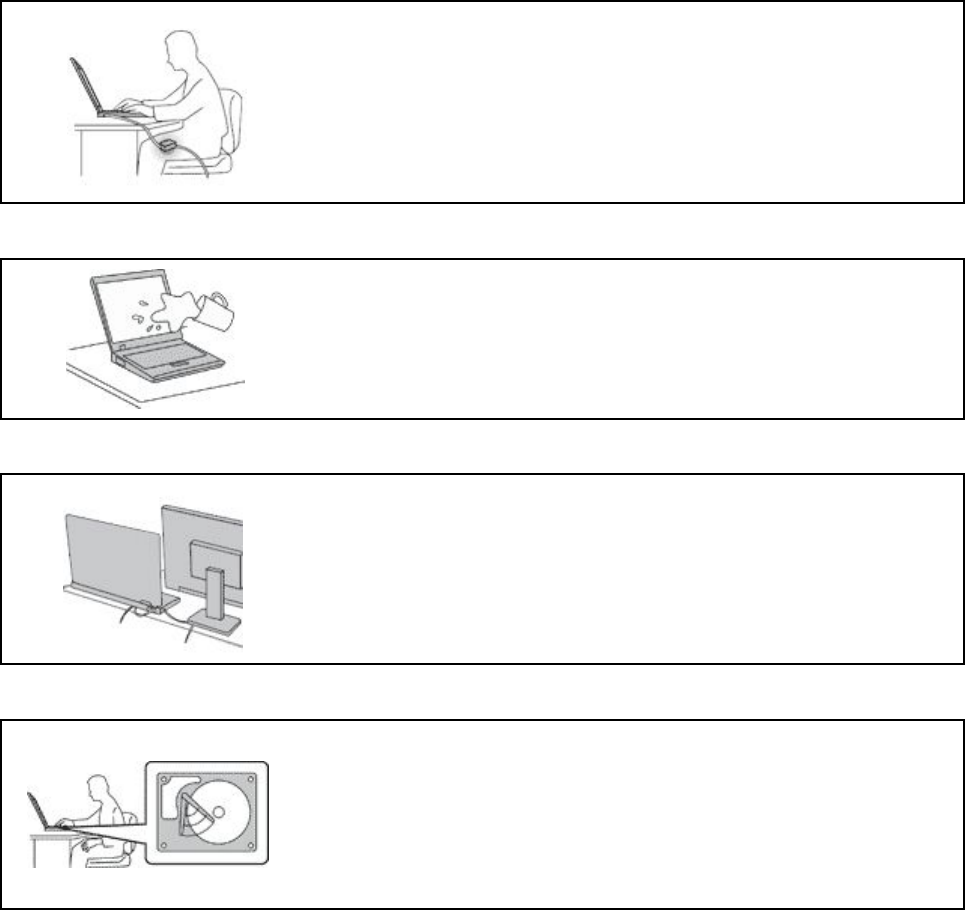
Protectyourselffromtheheatgeneratedbytheacpoweradapter.
Whentheacpoweradapterisconnectedtoanelectricaloutletandyour
computer,itgeneratesheat.
Extendedcontactwithyourbody,eventhroughclothing,maycauseaskin
burn.
•Donotplacetheacpoweradapterincontactwithanypartofyourbody
whileitisinuse.
•Neveruseittowarmyourbody.
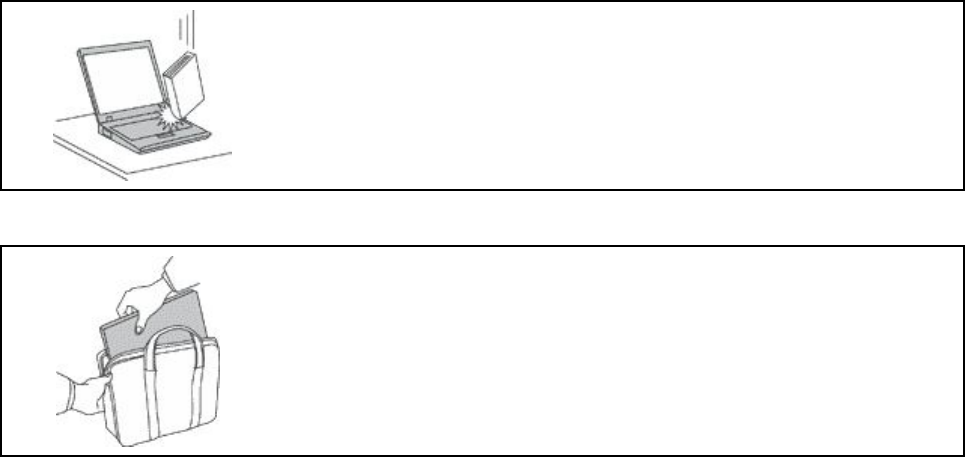
Preventyourcomputerfromgettingwet.
Toavoidspillsandthedangerofelectricalshock,keepliquidsawayfromyour
computer.
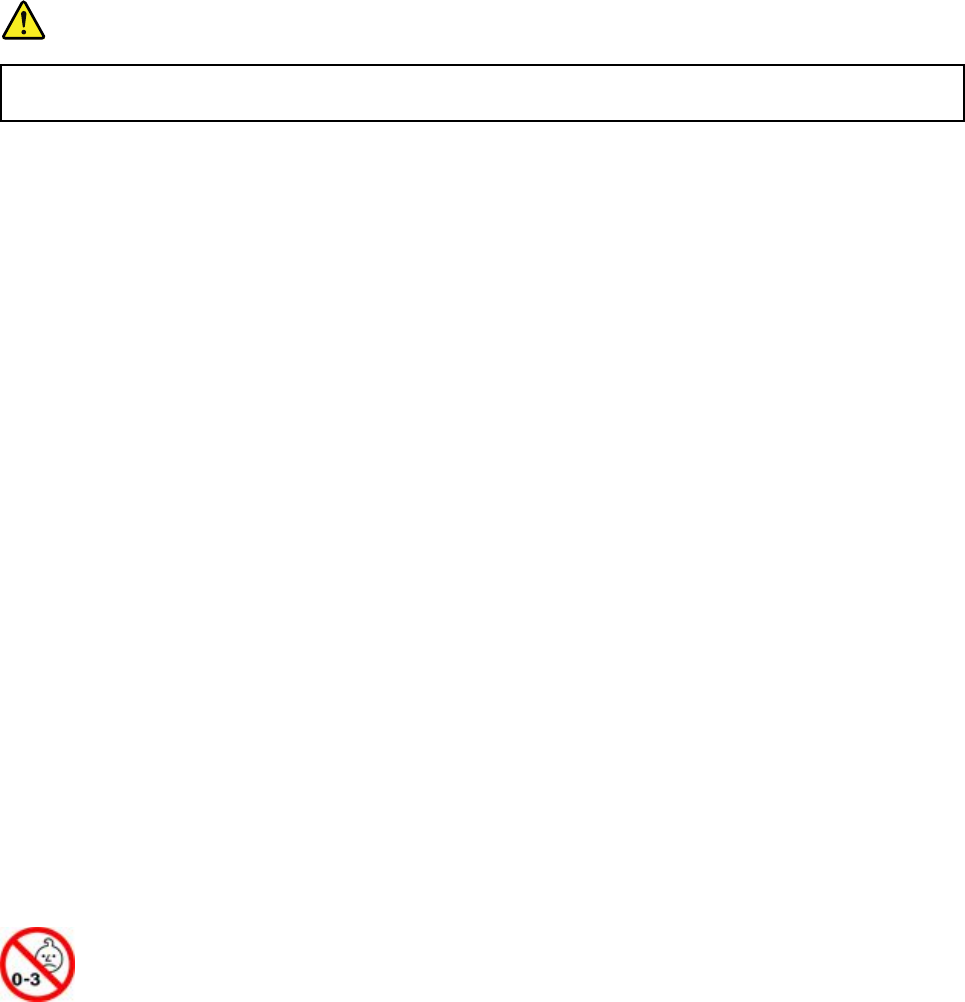
Protectthecablesfrombeingdamaged.
Applyingstrongforcetocablesmaydamageorbreakthem.
Routecommunicationlines,orthecablesofanacpoweradapter,amouse,a
keyboard,aprinter,oranyotherelectronicdevice,sothattheycannotbewalked
on,trippedover,pinchedbyyourcomputerorotherobjects,orinanyway
subjecttotreatmentthatcouldinterferewiththeoperationofyourcomputer.
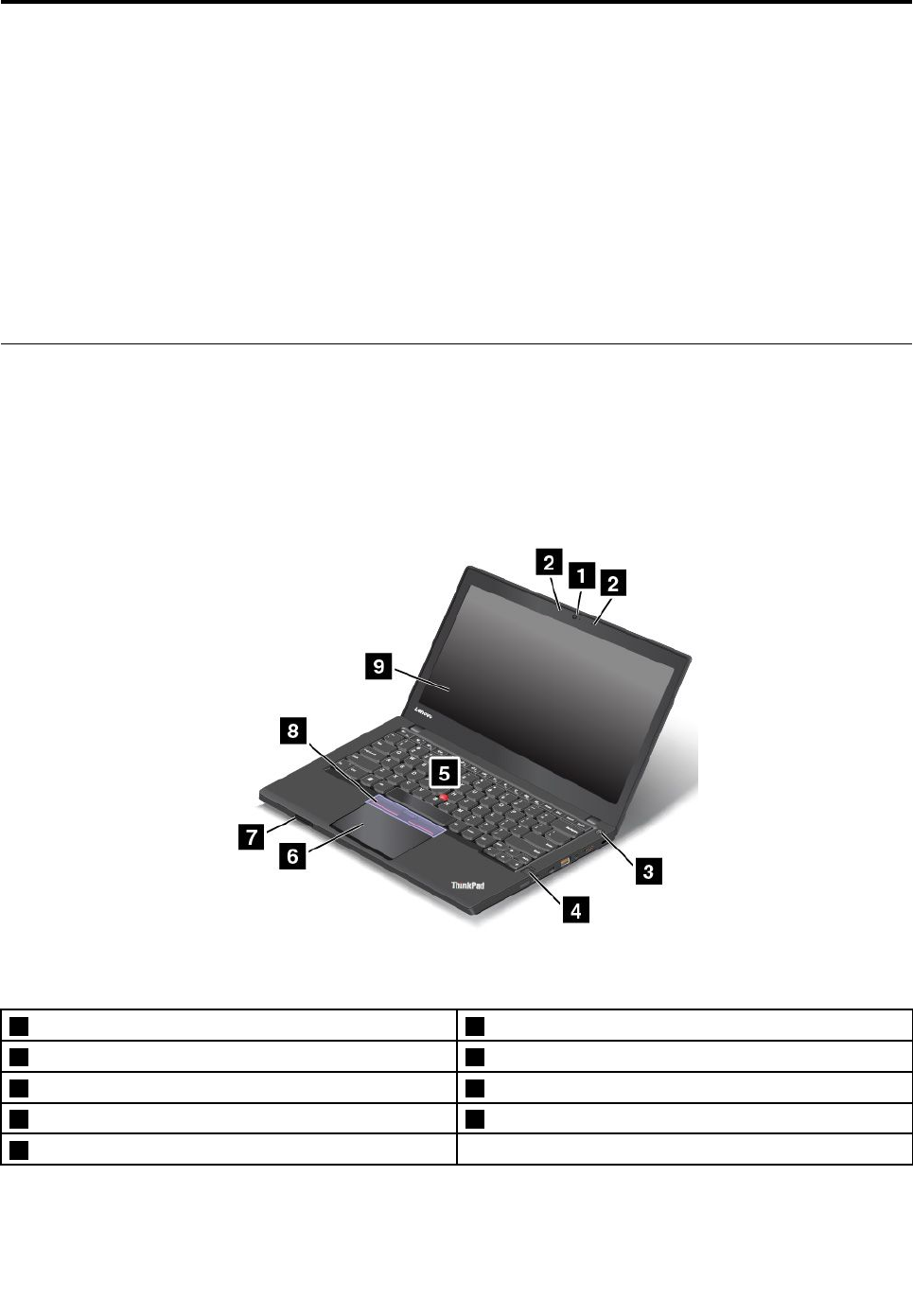
Protectyourcomputeranddatawhenmovingit.
Beforemovingacomputerequippedwithaharddiskdrive,dooneofthe
following:
•Turnitoff.
•Putitinsleepmode.
•Putitinhibernationmode.
Thishelpstopreventdamagetothecomputer,andpossiblelossofdata.
Handleyourcomputergently.
Donotdrop,bump,scratch,twist,hit,vibrate,push,orplaceheavyobjectson
yourcomputer,display,orexternaldevices.
Carryyourcomputercarefully.
•Useaqualitycarryingcasethatprovidesadequatecushioningandprotection.
•Donotpackyourcomputerinatightlypackedsuitcaseorbag.
•Beforeputtingyourcomputerinacarryingcase,makesurethatitisoff,insleep
mode,orinhibernationmode.Donotputacomputerinacarryingcasewhileit
isturnedon.
Conditionsthatrequireimmediateaction
Productscanbecomedamagedduetomisuseorneglect.Someproductdamageisseriousenough
thattheproductshouldnotbeusedagainuntilithasbeeninspectedand,ifnecessary,repairedby
anauthorizedservicer.
Aswithanyelectronicdevice,paycloseattentiontotheproductwhenitisturnedon.Onveryrare
occasions,youmightnoticeanodororseeapuffofsmokeorsparksventfromyourproduct.Oryou
mighthearsoundslikepopping,cracking,orhissing.Theseconditionsmightmerelymeanthatan
internalelectroniccomponenthasfailedinasafeandcontrolledmanner.Or,theymightindicate
apotentialsafetyissue.However,donottakerisksorattempttodiagnosethesituationyourself.
ContacttheCustomerSupportCenterforfurtherguidance.ForalistofServiceandSupportphone
numbers,seethefollowingWebsite:
http://www.lenovo.com/support/phone
Frequentlyinspectyourcomputeranditscomponentsfordamageorwearorsignsofdanger.
Ifyouhaveanyquestionabouttheconditionofacomponent,donotusetheproduct.Contact
theCustomerSupportCenterortheproductmanufacturerforinstructionsonhowtoinspectthe
productandhaveitrepaired,ifnecessary.
Intheunlikelyeventthatyounoticeanyofthefollowingconditions,orifyouhaveanysafety
concernswithyourproduct,stopusingtheproductandunplugitfromthepowersourceand
telecommunicationlinesuntilyoucanspeaktotheCustomerSupportCenterforfurtherguidance.

•Powercords,plugs,poweradapters,extensioncords,surgeprotectors,orpowersuppliesthatare
cracked,broken,ordamaged.
•Signsofoverheating,smoke,sparks,orfire.
•Damagetoabattery(suchascracks,dents,orcreases),dischargefromabattery,orabuildupofforeign
substancesonthebattery.
•Acracking,hissing,orpoppingsound,orstrongodorthatcomesfromtheproduct.
•Signsthatliquidhasbeenspilledoranobjecthasfallenontothecomputerproduct,thepowercord,or
poweradapter.
•Thecomputerproduct,powercord,orpoweradapterhasbeenexposedtowater.
•Theproducthasbeendroppedordamagedinanyway.
•Theproductdoesnotoperatenormallywhenyoufollowtheoperatinginstructions.
Note:Ifyounoticetheseconditionswithaproduct(suchasanextensioncord)thatisnotmanufactured
fororbyLenovo®,stopusingthatproductuntilyoucancontacttheproductmanufacturerforfurther
instructions,oruntilyougetasuitablereplacement.
Serviceandupgrades
DonotattempttoserviceaproductyourselfunlessinstructedtodosobytheCustomerSupportCenteror
yourdocumentation.OnlyuseaServiceProviderwhoisapprovedtorepairyourparticularproduct.
Note:Somecomputerpartscanbeupgradedorreplacedbythecustomer.Upgradestypicallyare
referredtoasoptions.ReplacementpartsapprovedforcustomerinstallationarereferredtoasCustomer
ReplaceableUnits,orCRUs.Lenovoprovidesdocumentationwithinstructionswhenitisappropriatefor
customerstoinstalloptionsorreplaceCRUs.Youmustcloselyfollowallinstructionswheninstallingor
replacingparts.TheOffstateofapowerindicatordoesnotnecessarilymeanthatvoltagelevelsinsidea
productarezero.Beforeyouremovethecoversfromaproductequippedwithapowercord,alwaysmake
surethatthepoweristurnedoffandthattheproductisunpluggedfromanypowersource.Ifyouhave
anyquestionsorconcerns,contacttheCustomerSupportCenter.
Althoughtherearenomovingpartsinyourcomputerafterthepowercordhasbeendisconnected,the
followingwarningsarerequiredforyoursafety.
CAUTION:
Hazardousmovingparts.Keepfingersandotherbodypartsaway.
CAUTION:

Beforeyouopenthecomputercover,turnoffthecomputerandwaitseveralminutesuntilthe
computeriscool.
Powercordsandpoweradapters
DANGER
Useonlythepowercordsandpoweradapterssuppliedbytheproductmanufacturer.
Thepowercordsshallbesafetyapproved.ForGermany,itshallbeH03VV-F,3G,0.75mm2,or
better.Forothercountries,thesuitabletypesshallbeusedaccordingly.
Neverwrapapowercordaroundapoweradapterorotherobject.Doingsocanstressthecordin
waysthatcancausethecordtofray,crack,orcrimp.Thiscanpresentasafetyhazard.
Alwaysroutepowercordssothattheywillnotbewalkedon,trippedover,orpinchedbyobjects.
Protectpowercordsandpoweradaptersfromliquids.Forinstance,donotleaveyourpowercord
orpoweradapternearsinks,tubs,toilets,oronfloorsthatarecleanedwithliquidcleansers.
Liquidscancauseashortcircuit,particularlyifthepowercordorpoweradapterhasbeenstressed
bymisuse.Liquidsalsocancausegradualcorrosionofpowercordterminalsand/ortheconnector
terminalsonapoweradapter,whichcaneventuallyresultinoverheating.
Ensurethatallpowercordconnectorsaresecurelyandcompletelypluggedintoreceptacles.
Donotuseanypoweradapterthatshowscorrosionattheacinputpinsorshowssignsof
overheating(suchasdeformedplastic)attheacinputpinsoranywhereonthepoweradapter.
Donotuseanypowercordswheretheelectricalcontactsoneitherendshowsignsofcorrosionor
overheatingorwherethepowercordappearstohavebeendamagedinanyway.
Topreventpossibleoverheating,donotcoverthepoweradapterwithclothingorotherobjects
whenthepoweradapterispluggedintoanelectricaloutlet.
Extensioncordsandrelateddevices
Ensurethatextensioncords,surgeprotectors,uninterruptiblepowersupplies,andpowerstripsthatyouuse
areratedtohandletheelectricalrequirementsoftheproduct.Neveroverloadthesedevices.Ifpowerstrips
areused,theloadshouldnotexceedthepowerstripinputrating.Consultanelectricianformoreinformation
ifyouhavequestionsaboutpowerloads,powerrequirements,andinputratings.

Plugsandoutlets
DANGER
Ifareceptacle(poweroutlet)thatyouintendtousewithyourcomputerequipmentappearstobe
damagedorcorroded,donotusetheoutletuntilitisreplacedbyaqualifiedelectrician.
Donotbendormodifytheplug.Iftheplugisdamaged,contactthemanufacturertoobtain
areplacement.
Donotshareanelectricaloutletwithotherhomeorcommercialappliancesthatdrawlargeamounts
ofelectricity;otherwise,unstablevoltagemightdamageyourcomputer,data,orattacheddevices.
Someproductsareequippedwithathree-prongedplug.Thisplugfitsonlyintoagrounded
electricaloutlet.Thisisasafetyfeature.Donotdefeatthissafetyfeaturebytryingtoinsertitinto
anon-groundedoutlet.Ifyoucannotinserttheplugintotheoutlet,contactanelectricianforan
approvedoutletadapterortoreplacetheoutletwithonethatenablesthissafetyfeature.Never
overloadanelectricaloutlet.Theoverallsystemloadshouldnotexceed80percentofthebranch
circuitrating.Consultanelectricianformoreinformationifyouhavequestionsaboutpowerloads
andbranchcircuitratings.
Besurethatthepoweroutletyouareusingisproperlywired,easilyaccessible,andlocatedclose
totheequipment.Donotfullyextendpowercordsinawaythatwillstressthecords.
Besurethatthepoweroutletprovidesthecorrectvoltageandcurrentfortheproductyouare
installing.
Carefullyconnectanddisconnecttheequipmentfromtheelectricaloutlet.
Powersupplystatement
DANGER
Neverremovethecoveronapowersupplyoranypartthathasthefollowinglabelattached.

Hazardousvoltage,current,andenergylevelsarepresentinsideanycomponentthathasthislabel
attached.Therearenoserviceablepartsinsidethesecomponents.Ifyoususpectaproblemwith
oneoftheseparts,contactaservicetechnician.
Externaldevices
CAUTION:
DonotconnectordisconnectanyexternaldevicecablesotherthanUniversalSerialBus(USB)and
1394cableswhilethecomputerpowerison;otherwise,youmightdamageyourcomputer.Toavoid
possibledamagetoattacheddevices,waitatleastfivesecondsafterthecomputerisshutdownto
disconnectexternaldevices.
Generalbatterynotice
DANGER
BatteriessuppliedbyLenovoforusewithyourproducthavebeentestedforcompatibilityand
shouldonlybereplacedwithapprovedparts.AbatteryotherthantheonespecifiedbyLenovo,ora
disassembledormodifiedbatteryisnotcoveredbythewarranty.
Batteryabuseormishandlingcancauseoverheat,liquidleakage,oranexplosion.Toavoidpossible
injury,dothefollowing:
•Donotopen,dissemble,orserviceanybattery.
•Donotcrushorpuncturethebattery.
•Donotshort-circuitthebattery,orexposeittowaterorotherliquids.
•Keepthebatteryawayfromchildren.
•Keepthebatteryawayfromfire.
Stopusingthebatteryifitisdamaged,orifyounoticeanydischargeorthebuildupofforeign
materialsonthebatteryleads.
Storetherechargeablebatteriesorproductscontainingtherechargeablebatteriesatroom
temperature,chargedtoapproximately30to50%ofcapacity.Werecommendthatthebatteriesbe
chargedaboutonceperyeartopreventoverdischarge.
Donotputthebatteryintrashthatisdisposedofinlandfills.Whendisposingofthebattery,comply
withlocalordinancesorregulations.

Noticeforremovablerechargeablebattery
DANGER
Onlyrechargethebatterystrictlyaccordingtoinstructionsincludedintheproductdocumentation.
Ifthebatteryisincorrectlyreplaced,thereisdangerofanexplosion.Thebatterycontainsasmall
amountofharmfulsubstances.
Noticeforbuilt-inrechargeablebattery
DANGER
Donotattempttoremoveorreplacethebuilt-inrechargeablebattery.Replacementofthebattery
mustbedonebyaLenovo-authorizedrepairfacilityortechnician.
Onlyrechargethebatterystrictlyaccordingtoinstructionsincludedintheproductdocumentation.
TheLenovo-authorizedrepairfacilitiesortechniciansrecycleLenovobatteriesaccordingtolocal
lawsandregulations.
Noticefornon-rechargeablecoin-cellbattery
DANGER
Ifthecoin-cellbatteryisincorrectlyreplaced,thereisdangerofanexplosion.Thebatterycontains
asmallamountofharmfulsubstance.
Donotheattomorethan100°C(212°F).
ThefollowingstatementappliestousersinthestateofCalifornia,U.S.A.
CaliforniaPerchlorateInformation:
Productscontainingmanganesedioxidelithiumcoin-cellbatteriesmaycontainperchlorate.
PerchlorateMaterial-specialhandlingmayapply,See
http://www.dtsc.ca.gov/hazardouswaste/perchlorate

Heatandproductventilation
DANGER
Computers,acpoweradapters,andmanyaccessoriescangenerateheatwhenturnedonandwhen
batteriesarecharging.Notebookcomputerscangenerateasignificantamountofheatduetotheir
compactsize.Alwaysfollowthesebasicprecautions:
•Whenyourcomputeristurnedonorthebatteryischarging,thebase,thepalmrest,andsome
otherpartsmaybecomehot.Avoidkeepingyourhands,yourlap,oranyotherpartofyour
bodyincontactwithahotsectionofthecomputerforanyextendedlengthoftime.Whenyou
usethekeyboard,avoidkeepingyourpalmsonthepalmrestforaprolongedperiodoftime.
Yourcomputergeneratessomeheatduringnormaloperation.Theamountofheatdependson
theamountofsystemactivityandthebatterychargelevel.Extendedcontactwithyourbody,
eventhroughclothing,couldcausediscomfortorevenaskinburn.Periodicallytakebreaks
fromusingthekeyboardbyliftingyourhandsfromthepalmrest;andbecarefulnottouse
thekeyboardforanyextendedlengthoftime.
•Donotoperateyourcomputerorchargethebatterynearflammablematerialsorinexplosive
environments.
•Ventilationslots,fansand/orheatsinksareprovidedwiththeproductforsafety,comfort,and
reliableoperation.Thesefeaturesmightinadvertentlybecomeblockedbyplacingtheproducton
abed,sofa,carpet,orotherflexiblesurface.Neverblock,cover,ordisablethesefeatures.
•Whentheacpoweradapterisconnectedtoanelectricaloutletandyourcomputer,itgenerates
heat.Donotplacetheadapterincontactwithanypartofyourbodywhileusingit.Neverusethe
acpoweradaptertowarmyourbody.Extendedcontactwithyourbody,eventhroughclothing,
maycauseaskinburn.
Foryoursafety,alwaysfollowthesebasicprecautionswithyourcomputer:
•Keepthecoverclosedwheneverthecomputerispluggedin.
•Regularlyinspecttheoutsideofthecomputerfordustaccumulation.
•Removedustfromventsandanyperforationsinthebezel.Morefrequentcleaningsmightbe
requiredforcomputersindustyorhigh-trafficareas.
•Donotrestrictorblockanyventilationopenings.
•Donotoperateyourcomputerinsidefurniture,asthismightincreasetheriskofoverheating.
•Airflowtemperaturesintothecomputershouldnotexceed35°C(95°F).

Electricalcurrentsafetyinformation
DANGER
Electriccurrentfrompower,telephone,andcommunicationcablesishazardous.
Toavoidashockhazard:
•Donotuseyourcomputerduringalightningstorm.
•Donotconnectordisconnectanycablesorperforminstallation,maintenance,orreconfiguration
ofthisproductduringanelectricalstorm.
•Connectallpowercordstoaproperlywiredandgroundedelectricaloutlet.
•Connecttoproperlywiredoutletsanyequipmentthatwillbeattachedtothisproduct.
•Wheneverpossible,useonehandonlytoconnectordisconnectsignalcables.
•Neverturnonanyequipmentwhenthereisevidenceoffire,water,orstructuraldamage.
•Disconnecttheattachedpowercords,battery,andallthecablesbeforeyouopenthedevice
covers,unlessinstructedotherwiseintheinstallationandconfigurationprocedures.
•Donotuseyourcomputeruntilallinternalpartsenclosuresarefastenedintoplace.Neveruse
thecomputerwheninternalpartsandcircuitsareexposed.
DANGER
Connectanddisconnectcablesasdescribedinthefollowingprocedureswheninstalling,moving,
oropeningcoversonthisproductorattacheddevices.
Toconnect:
1.TurneverythingOFF .
2.First,attachallcablestodevices.
3.Attachsignalcablestoconnectors.
4.Attachpowercordstooutlets.
5.TurndevicesON.
Todisconnect:
1.TurneverythingOFF .
2.First,removepowercordsfromoutlets.
3.Removesignalcablesfromconnectors.
4.Removeallcablesfromdevices.
Thepowercordmustbedisconnectedfromthewalloutletorreceptaclebeforeinstallingallotherelectrical
cablesconnectedtothecomputer.
Thepowercordmaybereconnectedtothewalloutletorreceptacleonlyafterallotherelectricalcables
havebeenconnectedtothecomputer.
DANGER
Duringelectricalstorms,donotperformanyreplacementanddonotconnectthetelephonecable
toordisconnectitfromthetelephoneoutletonthewall.
Liquidcrystaldisplay(LCD)notice
CAUTION:
Theliquidcrystaldisplay(LCD)ismadeofglass,androughhandlingordroppingthecomputercan
causetheLCDtobreak.IftheLCDbreaksandtheinternalfluidgetsintoyoureyesoronyour
hands,immediatelywashtheaffectedareaswithwaterforatleast15minutes;ifanysymptomsare
presentafterwashing,getmedicalcare.
Note:Forproductswithmercury-containingfluorescentlamps(forexample,non-LED),thefluorescentlamp
intheliquidcrystaldisplay(LCD)containsmercury;disposeofaccordingtolocal,state,orfederallaws.
Usingheadphonesorearphones
CAUTION:
Excessivesoundpressurefromearphonesandheadphonescancausehearingloss.Adjustmentof
theequalizertomaximumincreasestheearphoneandheadphoneoutputvoltageandthesound
pressurelevel.Therefore,toprotectyourhearing,adjusttheequalizertoanappropriatelevel.
Excessiveuseofheadphonesorearphonesforalongperiodoftimeathighvolumecanbedangerousifthe
outputoftheheadphoneorearphoneconnectorsdonotcomplywithspecificationsofEN50332-2.The
headphoneoutputconnectorofyourcomputercomplieswithEN50332-2Subclause7.Thisspecification
limitsthecomputer’smaximumwidebandtrueRMSoutputvoltageto150mV.Tohelpprotectagainst
hearingloss,ensurethattheheadphonesorearphonesyouusealsocomplywithEN50332-2(Clause7
limits)forawidebandcharacteristicvoltageof75mV.UsingheadphonesthatdonotcomplywithEN
50332-2canbedangerousduetoexcessivesoundpressurelevels.
IfyourLenovocomputercamewithheadphonesorearphonesinthepackage,asaset,thecombinationof
theheadphonesorearphonesandthecomputeralreadycomplieswiththespecificationsofEN50332-1.
Ifdifferentheadphonesorearphonesareused,ensurethattheycomplywithEN50332-1(Clause6.5
LimitationValues).UsingheadphonesthatdonotcomplywithEN50332-1canbedangerousdueto
excessivesoundpressurelevels.
Chokinghazardnotice
CHOKINGHAZARD–Productcontainssmallparts.
Keepawayfromchildrenunderthreeyears.

Plasticbagnotice
DANGER
Plasticbagscanbedangerous.Keepplasticbagsawayfrombabiesandchildrentoavoiddanger
ofsuffocation.
Glasspartsnotice
CAUTION:
Somepartsofyourproductmaybemadeofglass.Thisglasscouldbreakiftheproductisdropped
onahardsurfaceorreceivesasubstantialimpact.Ifglassbreaks,donottouchorattempttoremove
it.Stopusingyourproductuntiltheglassisreplacedbytrainedservicepersonnel.
Chapter1.Productoverview
Thischaptercontainsthefollowingitems:
•“Locatingcomputercontrols,connectors,andindicators”onpage1
•“Locatinglabelsthatcontainimportantproductinformation”onpage7
•“Computerfeatures”onpage10
•“Computerspecifications”onpage11
•“Operatingenvironment”onpage11
•“Lenovoprograms”onpage12
Locatingcomputercontrols,connectors,andindicators
Thissectionintroducesthecomputerhardwarefeaturestogiveyouthebasicinformationyouneedto
startusingthecomputer.
Frontview
Figure1.Frontview
1Camera(availableonsomemodels)2Microphones(availableonsomemodels)
3Powerbutton4Fingerprintreader
5TrackPoint®pointingstick6Trackpad
7Media-cardslot8TrackPointbuttons
9Screen
©CopyrightLenovo2016,20171

1Camera(availableonsomemodels)
Usethecameratotakepicturesorholdavideoconference.Formoreinformation,see“Usingthecamera”
onpage32.
2Microphones(availableonsomemodels)
Themicrophonescapturesoundandvoicewhenusedwithaprogramcapableofhandlingaudio.
3Powerbutton
Pressthepowerbuttontoturnonthecomputerorputthecomputerintosleepmode.Forinstructionson
howtoturnoffthecomputer,see“Frequentlyaskedquestions”onpage15.
Ifyourcomputeriscompletelyunresponsive,youcanturnoffthecomputerbypressingandholdingthe
powerbuttonforfourormoreseconds.Ifthecomputercannotbeturnedoff,see“Computerstops
responding”onpage91formoreinformation.
Youalsocandefinewhatthepowerbuttondoes.Forexample,bypressingthepowerbutton,youcanturn
offthecomputerorputthecomputerintosleeporhibernationmode.Tochangewhatthepowerbutton
does,dothefollowing:
1.GotoControlPanel,andthenchangetheviewofControlPanelfromCategorytoLargeiconsorSmall
icons.
2.ClickPowerOptions➙Choosewhatthepowerbuttonsdo.
3.Followtheinstructionsonthescreen.
Formoreinformation,see“Lenovoprograms”onpage12.
4Fingerprintreader
Fingerprintauthenticationprovidessimpleandsecureuseraccessbyassociatingyourfingerprintwithyour
passwords.Formoreinformation,see“Usingthefingerprintreader”onpage57.
5TrackPointpointingstick
6Trackpad
8TrackPointbuttons
ThekeyboardcontainstheThinkPad®pointingdevice.Pointing,selecting,anddraggingareallpartof
asingleprocessthatyoucanperformwithoutmovingyourfingersfromatypingposition.Formore
information,see“ThinkPadpointingdevice”onpage18.
7Media-cardslot
Yourcomputerhasamedia-cardslot.Insertyourflashmediacardintothemedia-cardslottoreadthedata
onthecard.Formoreinformation,see“Usingaflashmediacardorasmartcard”onpage32.
9Screen
Yourcomputerhasa(355.6mm)14-inchdisplaywiththethin-filmtransistor(TFT)technology.
2ThinkPadT460pUserGuide
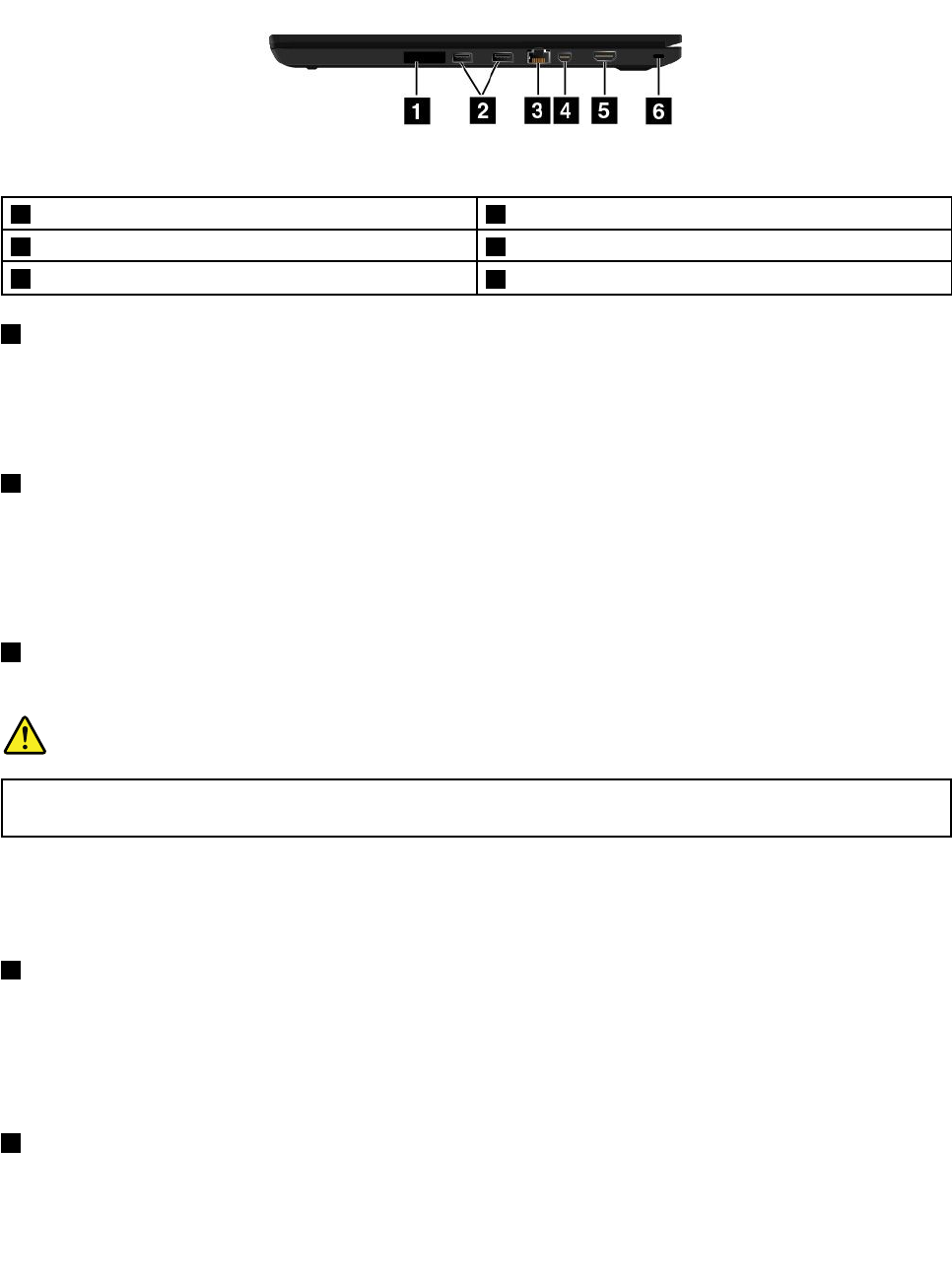
Right-sideview
Figure2.Right-sideview
1SIM-cardslot2USB3.0connectors
3Ethernetconnector4MiniDisplayPort®connector
5HDMI™connector6Security-lockslot
1SIM-cardslot
IfyourcomputersupportsthewirelessWideAreaNetwork(wirelessWAN)feature,aSubscriberIdentification
Module(SIM)cardisrequiredtoestablishwirelessWANconnections.Dependingonthecountryor
regionofdelivery,theSIMcardmightbealreadyinstalledintheSIM-cardslot.Ifnot,youmightneedto
purchaseaSIMcard.
2USB3.0connectors
TheUniversalSerialBus(USB)3.0connectorsareusedforconnectingUSB-compatibledevices,suchasa
USBkeyboard,aUSBmouse,aUSBstoragedevice,oraUSBprinter.
Note:WhenyouattachaUSBcabletotheUSBconnector,ensurethattheUSBmarkisfacingupward.
Otherwisetheconnectormightgetdamaged.
3Ethernetconnector
Connectthecomputertoalocalareanetwork(LAN)withtheEthernetconnector.
DANGER
Toavoidtheriskofelectricalshock,donotconnectthetelephonecabletotheEthernetconnector.
YoucanonlyconnectanEthernetcabletothisconnector.
TheEthernetconnectorhastwoindicatorsthatshowthestatusofthenetworkconnection.Whenthe
greenindicatorison,thecomputerisconnectedtoaLAN.Whentheyellowindicatorblinks,dataisbeing
transmitted.
4MiniDisplayPortconnector
UsetheminiDisplayPortconnectortoconnectyourcomputertoacompatibleprojector,externalmonitor,or
high-definitiontelevision.Thiscompactconnectorenablesplug-and-playsetupandsupportsadaptersthat
canbepluggedintoDigitalVisualInterface(DVI),Videographicsarray(VGA),orHigh-DefinitionMultimedia
Interface(HDMI™)connectors.TheminiDisplayPortconnectorofyourcomputersupportsaudioaswellas
videostreaming.Formoreinformation,see“Usinganexternaldisplay”onpage29.
5HDMIconnector
UsetheHDMIconnectortoconnectyourcomputertoanHDMI-compatibleaudiodeviceorvideomonitor,
suchasahigh-definitiontelevision(HDTV).
Chapter1.Productoverview3
Note:IfyouconnectthecomputertoasupportedThinkPadOneLink+Dock,usetheHDMIconnectoronthe
ThinkPadOneLink+Dock,nottheoneonthecomputer.
6Security-lockslot
Toprotectyourcomputerfromtheft,purchaseasecuritycablelockthatfitsthissecurity-lockslottolock
yourcomputertoastationaryobject.
Note:Youareresponsibleforevaluating,selecting,andimplementingthelockingdeviceandsecurity
feature.Lenovomakesnocomments,judgments,orwarrantiesaboutthefunction,quality,orperformance
ofthelockingdeviceandsecurityfeature.
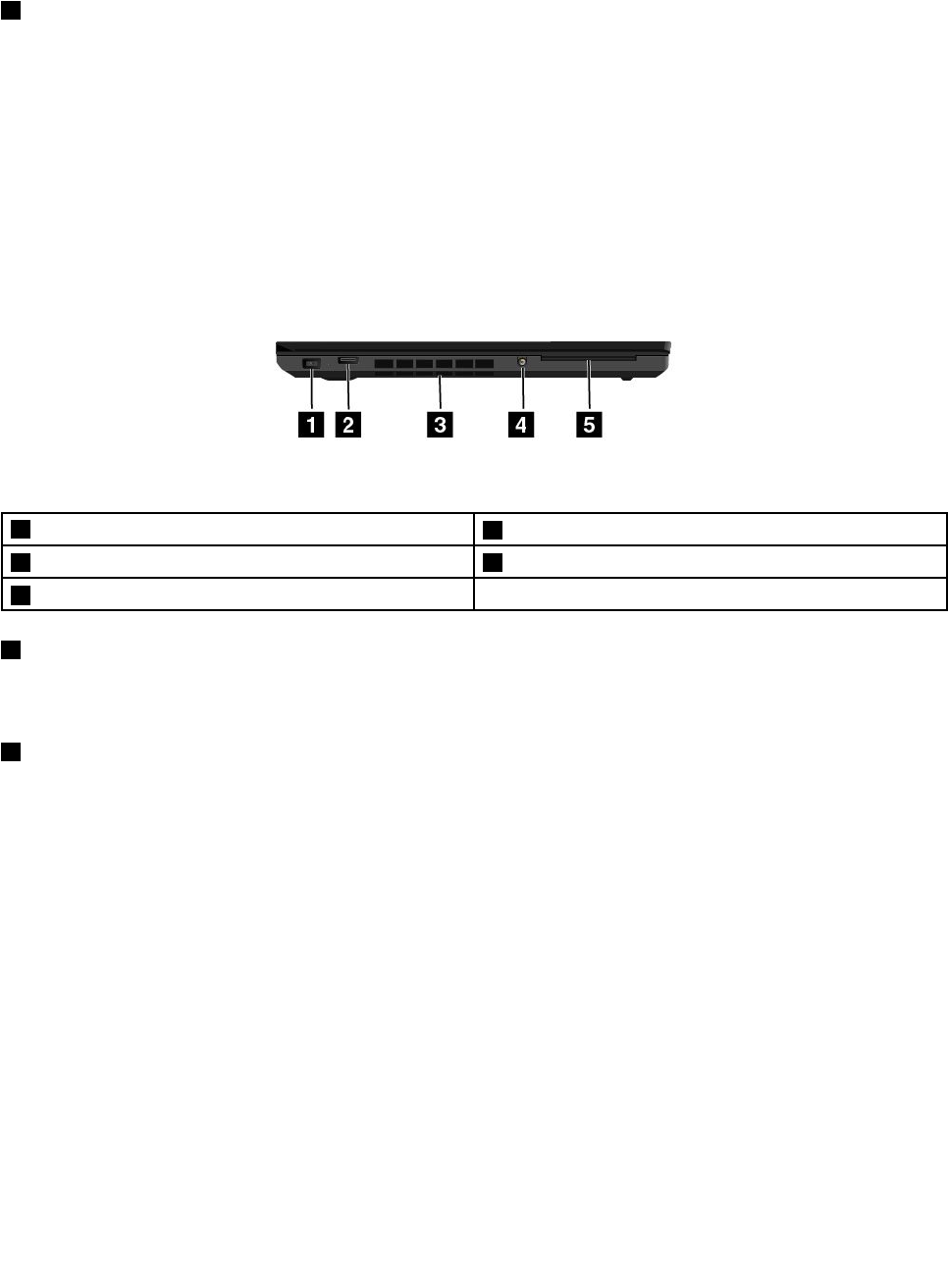
Left-sideview
Figure3.Left-sideview
1acpowerconnector2AlwaysOnUSB3.0connector
3Fanlouvers4Comboaudioconnector
5Smart-cardslot(availableonsomemodels)
1acpowerconnector
Connecttheacpoweradaptertothepowerconnectortoprovideacpowertothecomputerandcharge
thebattery.
2AlwaysOnUSB3.0connector
Bydefault,theAlwaysOnUSBconnectorenablesyoutochargesomemobiledigitaldevicesand
smartphonesinthefollowingsituations:
•Whenyourcomputerisonorinsleepmode
•Whenyourcomputerisinhibernationmodeoristurnedoff,butconnectedtoacpower
Ifyouwanttochargethesedeviceswhenyourcomputerisinhibernationmodeoristurnedoff,andthe
computerisnotconnectedtoacpower,dothefollowing:
•ForWindows®7:StartthePowerManagerprogram,clicktheGlobalPowerSettingstab,andthen
followtheinstructionsonthescreen.
•ForWindows10:StarttheLenovoSettingsprogram,clickPOWER,andthenfollowtheinstructionson
thescreen.
Forinstructionsonhowtostarttheprograms,see“AccessingLenovoprograms”onpage12.
Attention:WhenyouattachaUSBcabletothisconnector,ensurethattheUSBmarkisfacingupward.
Otherwisetheconnectormightgetdamaged.
4ThinkPadT460pUserGuide
3Fanlouvers
Thefanlouversandtheinternalfanenableairtocirculateinthecomputertoensurepropercooling,
especiallythecoolingofthemicroprocessor.
Note:Toensureproperairflow,donotplaceanyobstacleinfrontofthefanlouvers.
4Comboaudioconnector
Connectheadphonesoraheadsetthathasa3.5mm(0.14-inch)4-poleplugtotheaudioconnectorto
listentothesoundfromthecomputer.
Notes:
•Ifyouareusingaheadsetwithafunctionswitch,donotpressthisswitchwhileusingtheheadset.If
youpressit,theheadsetmicrophonewillbedisabled,andtheintegratedmicrophonesonthecomputer
willbeenabledinstead.
•Thecomboaudioconnectordoesnotsupportaconventionalmicrophone.Formoreinformation,see
“Usingaudiofeatures”onpage31.
5Smart-cardslot(availableonsomemodels)
Yourcomputermighthaveasmart-cardslot.Formoreinformation,see“Usingaflashmediacardora
smartcard”onpage32.
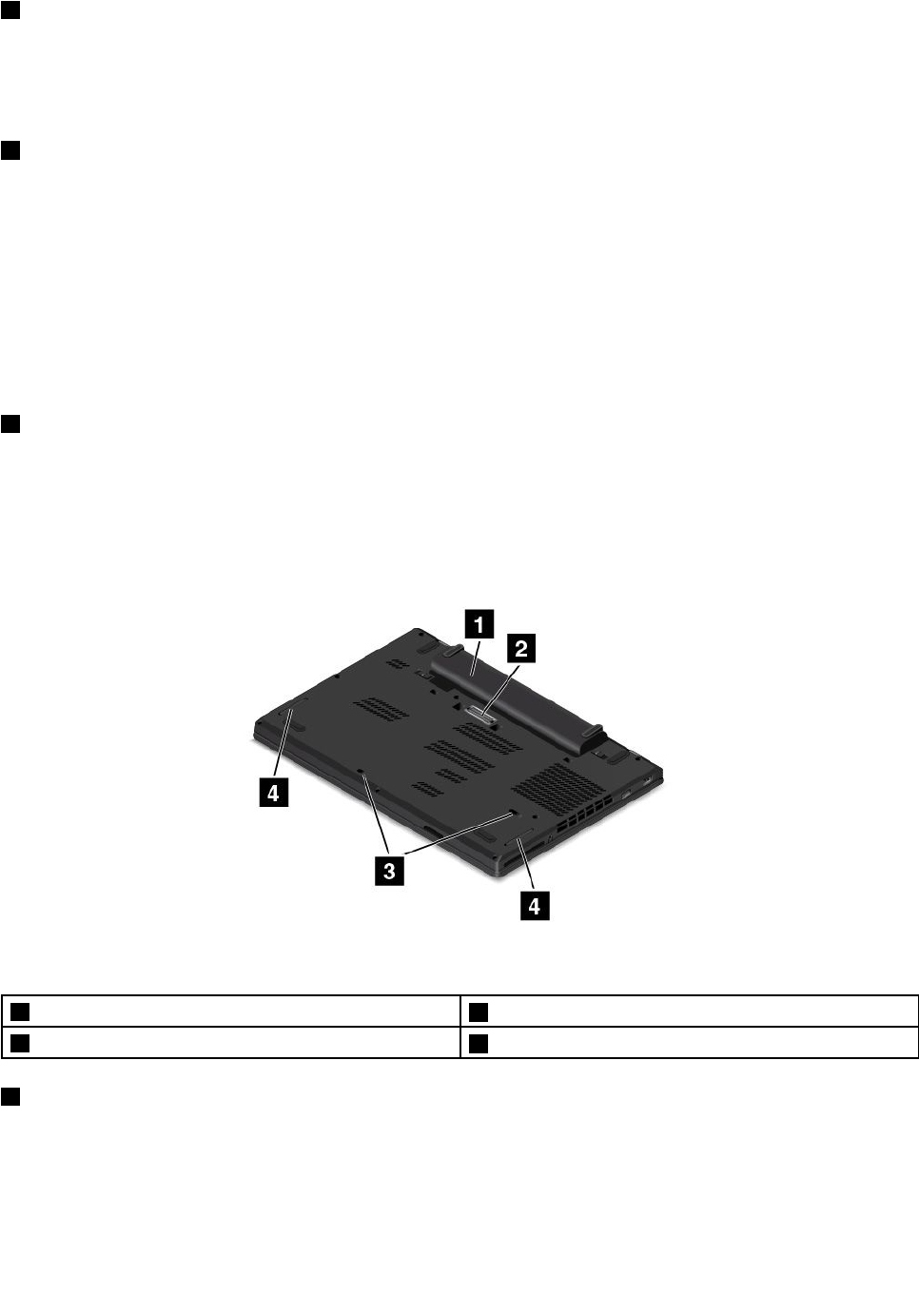
Bottomview
Figure4.Bottomview
1Battery2Dockingstationconnector(availableonsomemodels)
3Keyboarddrainageholes4Speakers
1Battery
Useyourcomputerwithbatterypowerwheneveracpowerisunavailable.
Chapter1.Productoverview5

2Dockingstationconnector(availableonsomemodels)
Youcanusetheconnectortoconnectthecomputertoasupporteddockingstationtoextendthecomputer
capabilitieswhenyouareattheofficeorathome.Formoreinformationaboutthesupporteddocking
stations,see“ThinkPaddockingstations”onpage35.
3Keyboarddrainageholes
Thekeyboarddrainageholescanhelpdrainoutliquidfromyourcomputerifyouaccidentallyspillwateror
drinkoverthekeyboard.
4Speakers
Yourcomputerisequippedwithapairofstereospeakers.
Statusindicators
Thistopichelpsyoulocateandidentifythevariousstatusindicatorsonyourcomputer.
1FnLockindicator
TheFnLockindicatorshowsthestatusofFnLockfunction.Formoreinformation,see“Specialkeys”
onpage17.
2Speaker-muteindicator
Whenthespeaker-muteindicatorison,thespeakersaremuted.
6ThinkPadT460pUserGuide

3Camera-statusindicator
Whenthecamera-statusindicatorison,thecameraisinuse.
47System-statusindicators
TheindicatorintheThinkPadlogoandtheindicatorinthecenterofthepowerbuttonshowthesystem-status
ofthecomputer.
•Blinksforthreetimes:Thecomputerisinitiallyconnectedtopower.
•Solidon:Thecomputerison(innormalmode).
•Off:Thecomputerisofforinhibernationmode.
•Blinksfast:Thecomputerisenteringsleeporhibernationmode.
•Blinksslowly:Thecomputerisinsleepmode.
5Microphone-muteindicator
Whenthemicrophone-muteindicatorison,themicrophonesaremuted.
6CapsLockindicator
WhentheCapsLockindicatorison,allthetypedlettersareuppercase.
8acpowerstatusindicator
Thisindicatorshowstheacpowerchargingstatusofthecomputer.
•Amber:Thecomputerisconnectedtoacpowerandthechargingstatusis1%–80%.
•Green:Thecomputerisconnectedtoacpowerandthechargingstatusis80%–100%.
•Off:Thecomputerisnotconnectedtoacpower.
Locatinglabelsthatcontainimportantproductinformation
Thissectionprovidesinformationtohelpyoulocatethefollowinglabelsthatcontainimportantproduct
information:
•“Machinetypeandmodellabel”onpage8
Chapter1.Productoverview7

•“FCCIDandICCertificationinformation”onpage8
•“LabelsfortheWindowsoperatingsystems”onpage9
Machinetypeandmodellabel
Themachinetypeandmodellabelidentifiesyourcomputer.WhenyoucontactLenovoforhelp,themachine
typeandmodelinformationhelpssupporttechnicianstoidentifyyourcomputerandprovidefasterservice.
Thefollowingillustrationshowsthelocationofthemachinetypeandmodelofyourcomputer.
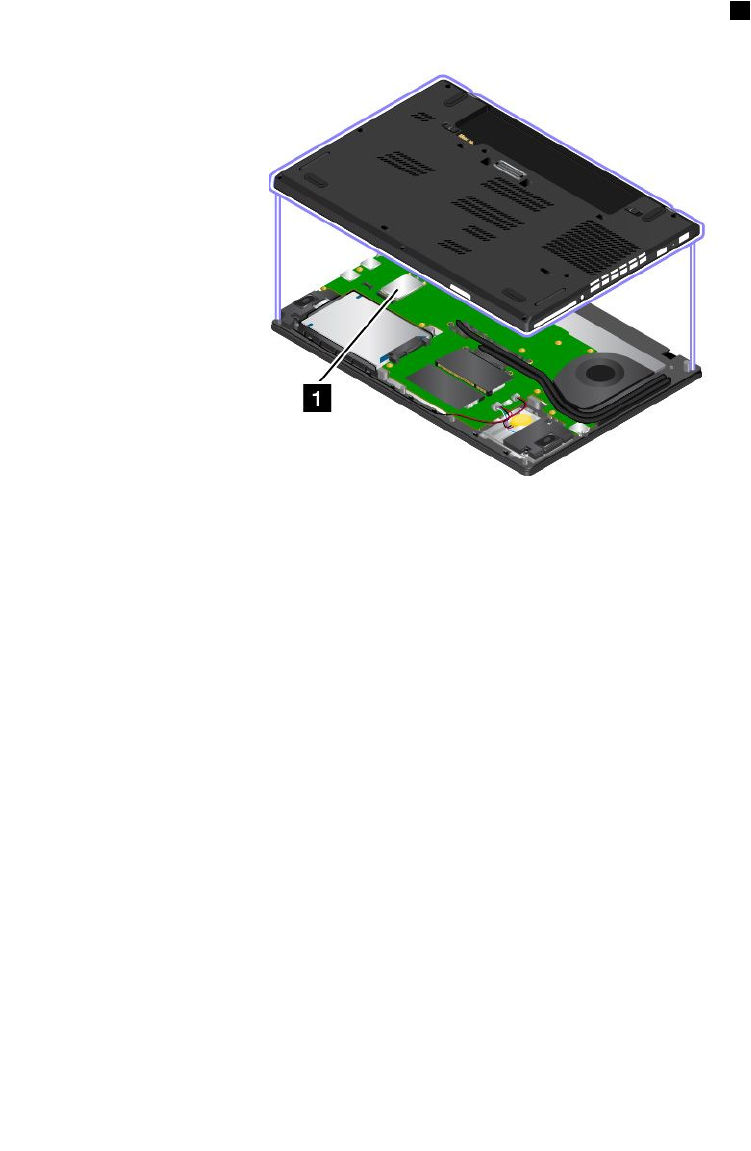
FCCIDandICCertificationinformation
TheFCCandICCertificationinformationisidentifiedbyalabellocatedinthebatteryslotofyourcomputer,
asshowninthefollowingillustration:
8ThinkPadT460pUserGuide
Thecontentofthislabeldiffersdependingonthewirelessmodulesthatcomewithyourcomputer:
•Forapreinstalledwirelessmodule,thislabelidentifiestheactualFCCIDandICcertificationnumberfor
thewirelessmoduleinstalledbyLenovo.
Note:Donotremoveorreplaceapreinstalledwirelessmodulebyyourself.Formodulereplacement,you
mustcontactLenovoservicefirst.Lenovoisnotresponsibleforanydamagecausedbyunauthorized
replacement.
•Forauser-replaceablewirelessWANmodule,thislabeldirectsyoutoconsultthisuserguidefortheactual
FCCIDandICcertificationnumber.
TheFCCIDandICCertificationnumberlabelisaffixedtothewirelessmodule1(availableonsome
models)installedinyourcomputer.
Note:Fortheuser-replaceablewirelessmodule,ensurethatyouuseonlyLenovo-authorizedwireless
modulesforthecomputer.Otherwise,anerrormessagewillbedisplayedandthecomputerwillbeep
whenyouturnonthecomputer.
LabelsfortheWindowsoperatingsystems
Windows7CertificateofAuthenticity:ComputermodelspreinstalledwiththeWindows7operating
systemhaveaCertificateofAuthenticitylabelaffixedtothecomputercoverorinsidethebattery
compartment.TheCertificateofAuthenticityisyourindicationthatthecomputerislicensedforaWindows7
productandispreinstalledwithaWindows7genuineversion.Insomecases,anearlierWindowsversion
mightbepreinstalledunderthetermsoftheWindows7Professionallicensedowngraderights.Printedon
theCertificateofAuthenticityistheWindows7versionforwhichthecomputerislicensedandtheProduct
ID.TheProductIDisimportantincaseyouneedtoreinstalltheWindows7operatingsystemfromasource
otherthanaLenovoproductrecoverydiscset.
Windows10GenuineMicrosoftlabel:Dependingonyourgeographiclocation,thedatewhenyour
computerwasmanufactured,andtheversionofWindows10thatispreinstalled,yourcomputermighthavea
GenuineMicrosoftlabelaffixedtoitscover.Seehttp://www.microsoft.com/en-us/howtotell/Hardware.aspx
forillustrationsofthevarioustypesofGenuineMicrosoftlabels.
•InthePeople’sRepublicofChina,theGenuineMicrosoftlabelisrequiredonallcomputermodels
preinstalledwithanyversionofWindows10.
•Inothercountriesandregions,theGenuineMicrosoftlabelisrequiredonlyoncomputermodelslicensed
forWindows10Pro.
Chapter1.Productoverview9

TheabsenceofaGenuineMicrosoftlabeldoesnotindicatethatthepreinstalledWindowsversionisnot
genuine.FordetailsonhowtotellwhetheryourpreinstalledWindowsproductisgenuine,refertothe
informationprovidedbyMicrosoftathttp://www.microsoft.com/en-us/howtotell/default.aspx.
UnlikeWindows7products,therearenoexternal,visualindicatorsoftheProductIDorWindowsversionfor
whichthecomputerislicensed.Instead,theProductIDisrecordedinthecomputerfirmware.Whenevera
Windows8.1orWindows10productisinstalled,theinstallationprogramchecksthecomputerfirmwarefor
avalid,matchingProductIDtocompletetheactivation.
Insomecases,anearlierWindowsversionmightbepreinstalledunderthetermsoftheWindows8.1
ProorWindows10Prolicensedowngraderights.
Computerfeatures
Thecomputerfeaturesintroducedinthissectioncoveravarietyofmodels.Foryourspecificcomputer
model,somefeaturesmightvaryornotapply.
Toviewthemicroprocessorofyourcomputer,dothefollowing:
•ForWindows7:OpentheStartmenu,right-clickComputer,andthenclickProperties.
•ForWindows10:Doeitherofthefollowing:
–OpentheStartmenuandthenclickSettings.IfSettingsisnotdisplayed,clickAllappstodisplayall
programs,andthenclickSettings➙System➙About.
–Right-clicktheStartbuttonandthenselectSystem.
Memory
•Doubledatarate4(DDR4)lowpower(LP)synchronousdynamicrandomaccessmemory(SDRAM)
Storagedevice
•2.5-inchformfactor,7-mmor9.5-mmheightharddiskdrive(availableonsomemodels)
•2.5-inchformfactor,7-mmheightsolid-statedrive(availableonsomemodels)
•2.5-inchformfactor,7-mmheighthybriddrive(availableonsomemodels)
•M.2solid-statedriveforcachingonly(availableonsomemodels)
Display
•Displayresolution:1920x1080pixelsor1366x768pixels
•ColordisplayusestheThinFilmTransistor(TFT)technology
•Brightnesscontrol
Keyboard
•Six-rowkeyboard
•ThinkPadpointingdevice
•Functionkeys
Interface
•Digital-media-cardreader(4-in-1)
•acpowerconnector
•Comboaudioconnector
10ThinkPadT460pUserGuide

•Dockingstationconnector(availableonsomemodels)
•MiniDisplayPortconnector
•AlwaysOnUSB3.0connector
•RJ45Ethernetconnector
•SIM-cardslot(availableonsomemodels)
•Smart-cardslot(availableonsomemodels)
•USB3.0connectors
Wirelessfeatures
•GlobalPositioningSystem(GPS)satellitereceiver(availableonmodelswithwirelessWAN)
•IntegratedwirelessLAN
•IntegratedBluetooth
•WirelessWAN(availableonsomemodels)
Securityfeatures
•Fingerprintreader
Others
•Camera(availableonsomemodels)
•Microphones(availableonsomemodels)
Computerspecifications
Thissectionliststhephysicalspecificationsforyourcomputer.
Size
•Width:339mm(13.35inches)
•Depth:235mm(9.25inches)
•Height:24.4mm(0.96inch)
Heatoutput(dependingonthemodel)
•45W(154Btu/hr)maximum
•65W(222Btu/hr)maximum
Powersource(acpoweradapter)
•Sine-waveinputat50to60Hz
•Inputratingoftheacpoweradapter:100to240Vac,50to60Hz
Operatingenvironment
Thissectionprovidesinformationabouttheoperatingenvironmentofyourcomputer.
Environment:
•Maximumaltitudewithoutpressurization:3048m(10000ft)
•Temperature
Chapter1.Productoverview11

–Ataltitudesupto2438m(8000ft)
–Operating:5.0°Cto35.0°C(41°Fto95°F)
–Storage:5.0°Cto43.0°C(41°Fto109°F)
–Ataltitudesabove2438m(8000ft)
–Maximumtemperaturewhenoperatingundertheunpressurizedcondition:31.3°C(88°F)
Note:Whenyouchargethebattery,itstemperaturemustbeatleast10°C(50°F).
•Relativehumidity:
–Operating:8%to80%
–Storage:5%to95%
Ifpossible,placeyourcomputerinawell-ventilatedanddryareawithoutdirectexposuretosunshine.
Attention:
•Keepelectricalappliancessuchaselectricfans,radio,airconditioners,andmicrowaveovensaway
fromthecomputer.Thestrongmagneticfieldsgeneratedbytheseappliancescandamagethemonitor
anddataontheharddiskdriveorhybriddrive.
•Donotplaceanybeveragesontopoforbesidethecomputerorotherattacheddevices.Ifliquidisspilled
onorinthecomputeroranattacheddevice,ashortcircuitorotherdamagemightoccur.
•Donoteatorsmokeoveryourkeyboard.Particlesthatfallintoyourkeyboardcancausedamage.
Lenovoprograms
YourcomputercomeswithLenovoprogramstohelpyouworkeasilyandsecurely.
Note:Theavailableprogramsaresubjecttochangewithoutnotice.
TolearnmoreabouttheprogramsandothercomputingsolutionsofferedbyLenovo,goto:
http://www.lenovo.com/support
AccessingLenovoprograms
ToaccessLenovoprogramsonyourcomputer,dothefollowing:
1.ClicktheStartbuttontoopentheStartmenu.Locateaprogrambytheprogramname.
2.IftheprogramisnotdisplayedontheStartmenu,clickAllprograms(Windows7)orAllapps(Windows
10)todisplayallprograms.
3.Ifyoustilldonotfindtheprogramintheprogramlist,searchfortheprograminthesearchbox.
Note:IfyouareusingtheWindows7operatingsystem,someLenovoprogramsarereadytobeinstalled.
Youcannotfindtheseprogramsthroughtheabovemethodsunlessyouhaveinstalledthemfirst.Toinstall
theseLenovoprograms,accesstheLenovoPCExperienceprogram,clickLenovoTools,andthenfollow
theinstructionsonthescreen.
AnintroductiontoLenovoprograms
ThistopicprovidesabriefintroductiontoLenovoprograms.Dependingonyourcomputermodel,someof
theprogramsmightnotbeavailable.
12ThinkPadT460pUserGuide

AccessConnections™
(Windows7)
TheAccessConnectionsprogramisaconnectivityassistantprogramfor
creatingandmanaginglocationprofiles.Eachlocationprofilestoresallthe
networkandInternetconfigurationsettingsneededforconnectingtoanetwork
infrastructurefromaspecificlocationsuchasahomeoranoffice.
Byswitchingbetweenlocationprofilesasyoumoveyourcomputerfromplace
toplace,youcanquicklyandeasilyconnecttoanetworkwithnoneedto
manuallyreconfigureyoursettingsandrestartthecomputereachtime.
ActiveProtectionSystem™
(Windows7andWindows10)
TheActiveProtectionSystemprogramprotectsyourinternalstoragedrive(such
asharddiskdrive)whentheshocksensorinsideyourcomputerdetectsa
conditionthatcoulddamagethedrive,suchassystemtilt,excessivevibration,
orshock.
Theinternalstoragedriveislessvulnerabletodamagewhenitisnotoperating.
Thisisbecausewhentheinternalstoragedriveisnotoperating,thesystem
stopsitfromspinning,andmightalsomovethereadandwriteheadsofthe
drivetoareasthatdonotcontaindata.
Assoonastheshocksensorsensesthattheenvironmentisstableagain
(minimalchangeinsystemtilt,vibration,orshock),itturnsontheinternal
storagedrive.
AutoScrollUtility
(Windows7)
Thisprogramenhancesyourexperiencewithwindowoperation.Thewindow
positionofaforegroundapplicationisautomaticallyadjusted.
CommunicationsUtility
(Windows7)
TheCommunicationsUtilityprogramenablesyoutoconfiguresettingsforthe
integratedcameraandaudiodevices.
FingerprintManagerPro,
LenovoFingerprintManager,or
TouchFingerprintManager
(Windows7)
Ifyourcomputercomeswithafingerprintreader,theFingerprintManagerPro
program,LenovoFingerprintManagerprogram,orTouchFingerprintManager
programenablesyoutoenrollyourfingerprintandassociateitwithyour
passwords.Asaresult,fingerprintauthenticationcanreplaceyourpasswords
andenablesimpleandsecureuseraccess.
HotkeyFeaturesIntegration
(Windows7andWindows10)
HotkeyFeaturesIntegrationisautilitypackagethatenablesyoutoselectand
installutilityprogramsspecificallyforthespecialkeysandbuttonsonyour
computer.Thespecialkeysandbuttonsaredesignedtomeetaccessibilityand
usabilityrequirements.Installingrelatedutilityprogramsenablesfullfunctionality
ofthespecialkeysandbuttons.
LenovoCompanion
(Windows10)
Yourcomputer’sbestfeaturesandcapabilitiesshouldbeeasytoaccessand
understand.WithLenovoCompanion,theyare.
UseCompaniontodothefollowing:
•Optimizeyourcomputerperformance,monitoryourcomputerhealth,and
manageupdates.
•Accessyouruserguide,checkwarrantystatus,andviewaccessories
customizedforyourcomputer.
•Readhow-toarticles,exploreLenovoforums,andstayup-to-dateon
technologynewswitharticlesandblogsfromtrustedsources.
TheCompanionappisfilledwithexclusiveLenovocontenttohelpyoulearn
moreaboutwhatyoucandowithyourLenovocomputer.
LenovoID
(Windows10)
TheLenovoIDprogramenablesyoutocreateandmanageyourLenovoID.With
aLenovoID,youcanconnecttoeverythingLenovothroughasingleaccount.
UseyourLenovoIDforquickandsimpleauthenticationandthenenjoythe
variousservicesprovidedbyLenovo.Suchservicesincludeonlineshopping,
appdownload,personalizeddevicesupport,specialpromotionaloffers,Lenovo
forums,andsoon.
Chapter1.Productoverview13

LenovoPCExperience
(Windows7andWindows10)
TheLenovoPCExperienceprogramhelpsyouworkmoreeasilyandsecurelyby
providingeasyaccesstovariousprograms,suchasActiveProtectionSystem
andLenovoSolutionCenter.
Note:OntheWindows10operatingsystem,thisprogramcannotbefoundfrom
theallprogramlistorsearchbox.Toaccessthisprogram,gotoControlPanel.
ViewControlPanelbyCategory,clickHardwareandSound➙Devicesand
Printers,andthendouble-clickthedevicewithyourcomputername.
LenovoSettings
(Windows10)
TheLenovoSettingsprogramenablesyoutoenhanceyourcomputing
experiencebyturningyourcomputerintoaportablehotspot,configuring
cameraandaudiosettings,optimizingyourpowersettings,andcreatingand
managingmultiplenetworkprofiles.
LenovoSolutionCenter
(Windows7andWindows10)
TheLenovoSolutionCenterprogramenablesyoutotroubleshootandresolve
computerproblems.Itcombinesdiagnostictests,systeminformationcollection,
securitystatus,andsupportinformation,alongwithhintsandtipsforoptimal
systemperformance.
MobileBroadbandConnect
(Windows7andWindows10)
TheMobileBroadbandConnectprogramenablesyoutoconnectthecomputer
tothemobilebroadbandnetworkthroughasupportedwirelessWANcard.
MessageCenterPlus
(Windows7)
TheMessageCenterPlusprogramautomaticallydisplaysmessagestoinform
youaboutimportantnoticesfromLenovo,suchasalertsonsystemupdates
andalertsonconditionsthatrequireyourattention.
PasswordManager
(Windows7)
ThePasswordManagerprogramautomaticallycapturesandfillsin
authenticationinformationforWindowsprogramsandWebsites.
PowerManager
(Windows7)
ThePowerManagerprogramprovidesconvenient,flexible,andcompletepower
managementforthecomputer.Itenablesyoutoadjustyourcomputerpower
settingstoachievethebestbalancebetweenperformanceandpowersaving.
RecoveryMedia
(Windows7andWindows10)
TheRecoveryMediaprogramenablesyoutorestorethecontentsofthehard
diskdrivetothefactorydefaultsettings.
RescueandRecovery®
(Windows7)
TheRescueandRecoveryprogramisaone-buttonrecoveryandrestore
solution.Itincludesasetofself-recoverytoolstohelpyoudiagnosecomputer
problems,gethelp,andrecoverfromsystemcrashes,evenifyoucannotstart
theWindowsoperatingsystem.
SystemUpdate
(Windows7)
TheSystemUpdateprogramenablesyoutokeepthesoftwareonthecomputer
up-to-datebydownloadingandinstallingsoftwarepackages,includingdevice
drivers,UnifiedExtensibleFirmwareInterface(UEFI)basicinput/outputsystem
(BIOS)updates,andotherthird-partyprograms.
WRITEit
(Windows10)
WRITEitgivesyouinstanthandwritinginputwhereveryouneedit.Youcanwrite
directlyinanyappandtextfield,edittextinreal-time,seeyourfullscreen,and
convertyourhandwritingintodigitaltext.
14ThinkPadT460pUserGuide

Chapter2.Usingyourcomputer
Thischapterprovidesinformationonusingsomeofthecomputercomponents.
Thischaptercontainsthefollowingtopics:
•“Registeringyourcomputer”onpage15
•“Frequentlyaskedquestions”onpage15
•“GettinghelpabouttheWindowsoperatingsystem”onpage16
•“Specialkeys”onpage17
•“ThinkPadpointingdevice”onpage18
•“Powermanagement”onpage22
•“Connectingtothenetwork”onpage26
•“Usinganexternaldisplay”onpage29
•“Usingaudiofeatures”onpage31
•“Usingthecamera”onpage32
•“Usingaflashmediacardorasmartcard”onpage32
Registeringyourcomputer
Whenyouregisteryourcomputer,informationisenteredintoadatabase,whichenablesLenovotocontact
youincaseofarecallorothersevereproblem.Inaddition,somelocationsofferextendedprivilegesand
servicestoregisteredusers.
WhenyouregisteryourcomputerwithLenovo,youalsowillreceivethefollowingbenefits:
•QuickerservicewhenyoucallLenovoforhelp
•Automaticnotificationoffreesoftwareandspecialpromotionaloffers
ToregisteryourcomputerwithLenovo,gotohttp://www.lenovo.com/registerandfollowtheinstructionson
thescreentoregisteryourcomputer.
IfyouareusingaWindows7operatingsystem,youalsocanregisteryourcomputerthroughthepreinstalled
LenovoProductRegistrationprogram.Theprogramlaunchesautomaticallyafteryouhaveusedyour
computerforaperiodoftime.Followtheinstructionsonthescreentoregisteryourcomputer.
Frequentlyaskedquestions
Thefollowingareafewtipsthatwillhelpyouoptimizetheuseofyourcomputer.
Toensurethatyoureceivethebestperformancefromyourcomputer,gotothefollowingWebpagetofind
informationsuchasaidsfortroubleshootingandanswerstofrequentlyaskedquestions:
http://www.lenovo.com/support/faq
CanIgetmyuserguideinanotherlanguage?
•Todownloadtheuserguideinanotherlanguage,gotohttp://www.lenovo.com/support.Thenfollow
theinstructionsonthescreen.
©CopyrightLenovo2016,201715

Howtoturnoffmycomputer?
•ForWindows7:OpentheStartmenu,thenclickShutdown.
•ForWindows10:OpentheStartmenu,clickPower,andthenclickShutdown.
HowdoIaccessControlPanel?
•ForWindows7:OpentheStartmenu,thenclickControlPanel.
•ForWindows10:Right-clicktheStartbutton,thenclickControlPanel.
HowdoIusebatterypowermoreeffectivelywhenIamonthego?
•Toconservepower,ortosuspendoperationwithoutexitingprogramsorsavingfiles,see“Power-saving
modes”onpage24.
•Toachievethebestbalancebetweenperformanceandpowersaving,createandapplypowerplans.
See“Managingthebatterypower”onpage24
•Ifyourcomputerwillbeturnedoffforanextendedperiodoftime,youcanpreventbatterypower
fromdrainingbyremovingthebattery.Lookformoreinformationaboutusingthebatteryin“Power
management”onpage22.
HowdoIsecurelydisposeofdatastoredonthestoragedrive?
•StudyChapter5“Security”onpage51tofindouthowyoucanprotectyourcomputerfromtheftand
unauthorizeduse.
•UsethePasswordManagerprogramtoprotectthedatastoredonyourcomputer.Fordetails,seethe
helpinformationsystemoftheprogram.
•Beforeyoudisposeofthedataonthestoragedrive,besuretoread“Noticeondeletingdatafrom
yourstoragedrive”onpage60.
HowdoIgivepresentationsorattachanexternalmonitoroften?
•Ensurethatyoufollowtheprocedureinthetopic“Connectinganexternaldisplay”onpage30.
•WiththeExtenddesktopfunction,youcandisplayoutputonboththecomputerdisplayandanexternal
monitor.
Ihavebeenusingthecomputerforsometimealready,anditisgettingslower.WhatshouldIdo?
•Followthe“Generaltipsforpreventingproblems”onpage85.
•Diagnoseproblemsyourselfbyusingthepreinstalleddiagnosticsoftware.See“Diagnosingproblems”
onpage91.
•CheckforrecoverysolutionsinChapter9“Recoveryoverview”onpage111.
Printthefollowingsectionsandkeepthemwithyourcomputerincaseyouareunabletoaccessthis
onlinehelpwhennecessary.
•“Installinganewoperatingsystem”onpage63
•“Computerstopsresponding”onpage91
•“Powerproblems”onpage105
GettinghelpabouttheWindowsoperatingsystem
TheWindowshelpinformationsystemprovidesyouwithdetailedinformationaboutusingtheWindows
operatingsystemtohelpyougetthemostofyourcomputer.ToaccesstheWindowshelpinformation
system,dooneofthefollowing:
16ThinkPadT460pUserGuide
•ForWindows7:OpentheStartmenu,andthenclickHelpandSupport.
•ForWindows10:OpentheStartmenu,andthenclickGetstarted.Additionally,youcansearchfromthe
taskbartofindhelp,apps,files,settings,andsoon.
Specialkeys
Yourcomputerhasseveralspecialkeystohelpyouworkeasilyandeffectively.
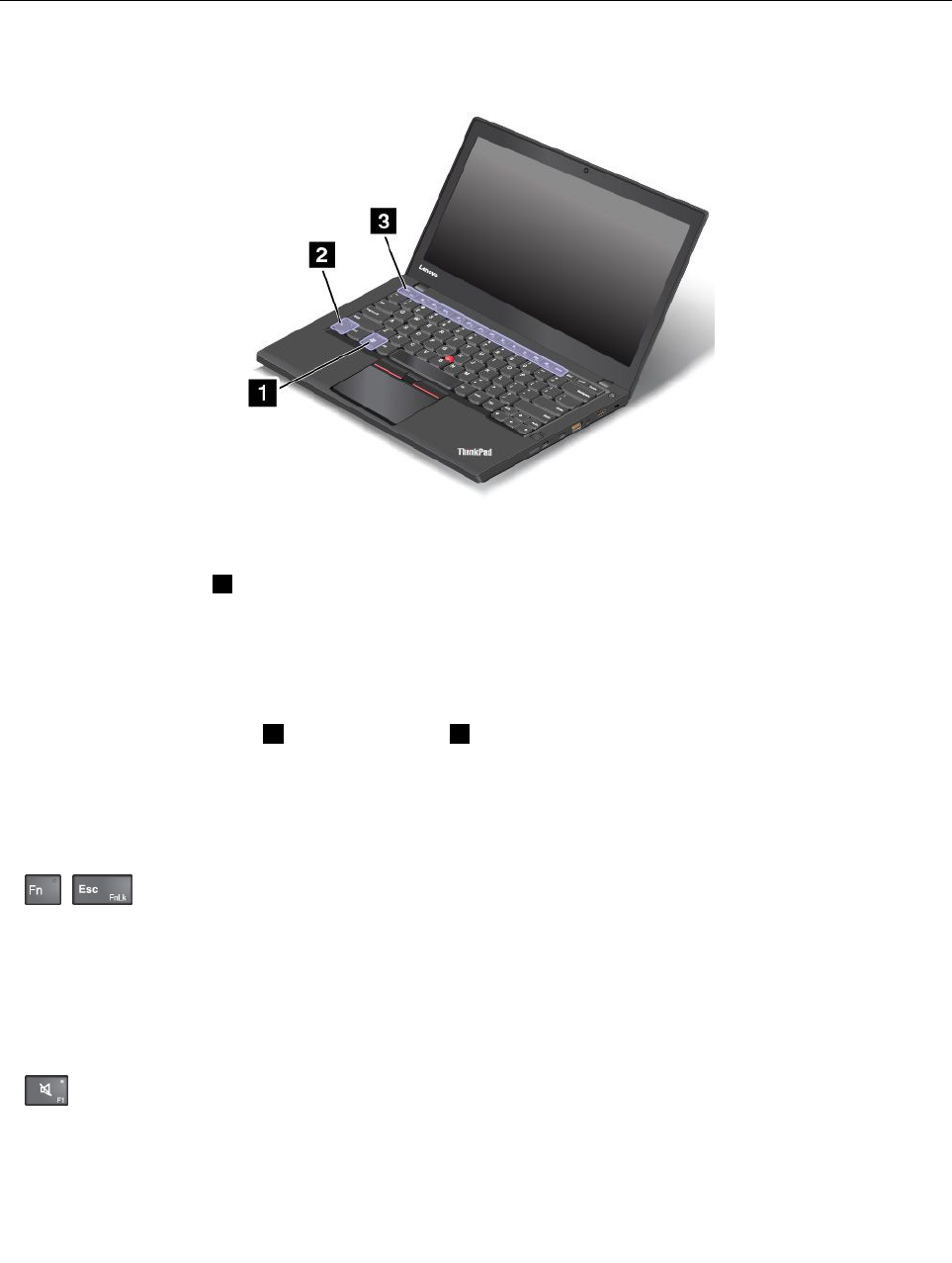
Windowskey
PresstheWindowskey1toopentheStartmenu.
YoualsocanusetheWindowskeytogetherwithanotherkeytoachieveotherfunctions.Formore
information,refertothehelpinformationsystemoftheWindowsoperatingsystem.
Functionkeyandkeycombinations
YoucanconfiguretheFnkey2andfunctionkeys3intheKeyboardPropertieswindowbydoingthe
following:
1.GotoControlPanel,thenchangetheviewofControlPanelfromCategorytoLargeiconsorSmallicons.
2.ClickKeyboard.IntheKeyboardPropertieswindow,clicktheFnandfunctionkeystab.
3.Selecttheoptionsofyourpreference.
•+EnablesordisablestheFnLockfunction.
WhentheFnLockfunctionisenabled:TheFnLockindicatorison.ToinputF1–F12,pressthefunction
keysdirectly.Toinitiatethespecialfunctionprintedasanicononeachkey,presstheFnkeyandthe
correspondingfunctionkey.
WhentheFnLockfunctionisdisabled:TheFnLockindicatorisoff.Toinitiatethespecialfunction
printedasanicononeachkey,pressthefunctionkeysdirectly.ToinputF1–F12,presstheFnkey
andthecorrespondingfunctionkey.
•:Mutesorunmutesthespeakers.Whenthespeakersaremuted,thespeaker-muteindicatorturns
on.
Chapter2.Usingyourcomputer17

Ifyoumutethesoundandturnoffyourcomputer,thesoundwillremainmutedwhenyouturnonyour
computeragain.Toturnonthesound,pressthespeakermutekey,thevolume-downkey,or
volume-upkey.
•:Decreasesthespeakervolume.
•:Increasesthespeakervolume.
•:Mutesorunmutesthemicrophones.Whenthemicrophonesaremuted,themicrophone-mute
indicatorturnson.
•:Darkensthecomputerdisplay.
•:Brightensthecomputerdisplay.
Youcantemporarilychangethecomputerdisplaybrightnessbypressingthetwokeys.Tochangethe
defaultbrightnesslevel,right-clickthebattery-statusiconintheWindowsnotificationarea.Thenclick
Adjustscreenbrightnessandmakechangesasdesired.
•:Manageexternaldisplays.
•:Enablesordisablesthewirelessfeatures.Formoreinformationonthewirelessfeatures,referto
“Wirelessconnections”onpage26.
•:
ForWindows7:OpensControlPanel.
ForWindows10:OpenstheSettingswindow.
•:
ForWindows7:OpensWindowsSearch.
ForWindows10:OpenstheCortana®searchbox.
•:Viewstheprogramsthatyouhaveopened.
•:
ForWindows7:OpensComputer.
ForWindows10:Viewsalltheprograms.
ThinkPadpointingdevice
TheThinkPadpointingdeviceenablesyoutoperformallthefunctionsofatraditionalmouse,suchas
pointing,clicking,andscrolling.WiththeThinkPadpointingdevice,youalsocanperformavarietyoftouch
gestures,suchasrotatingandzoominginorout.
18ThinkPadT460pUserGuide
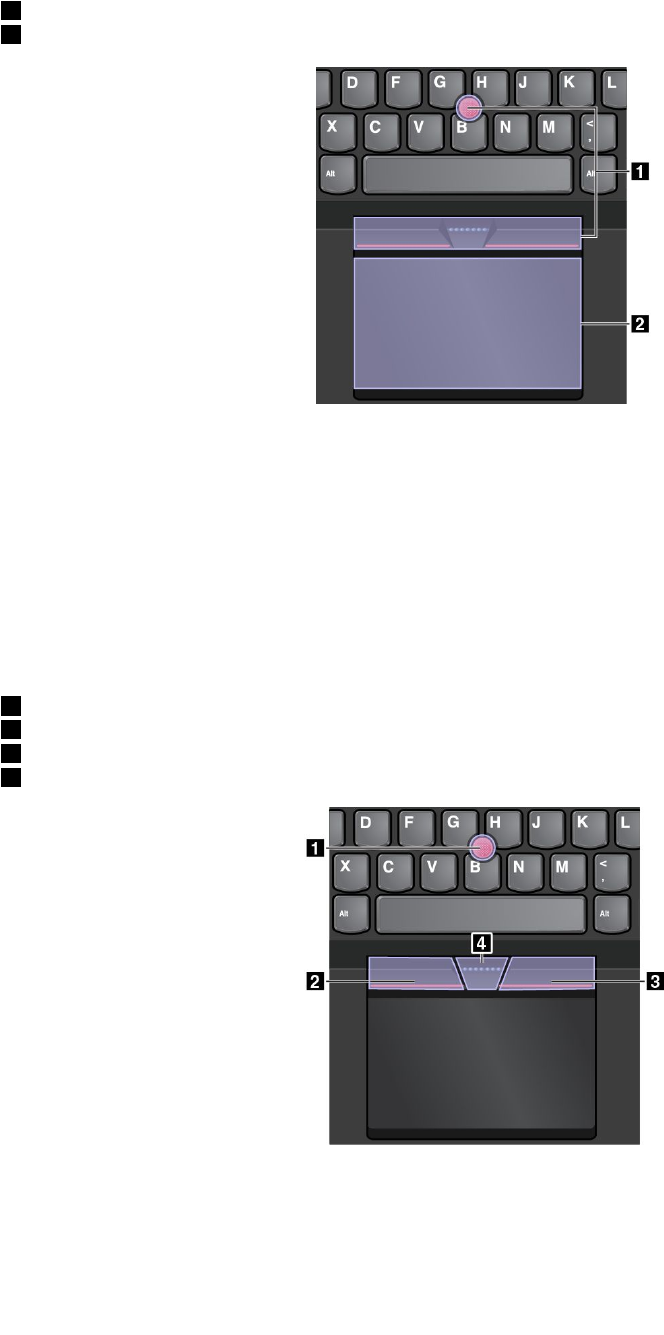
TheThinkPadpointingdeviceconsistsofthefollowingtwodevices:
1TrackPointpointingdevice
2Trackpad
Bydefault,boththeTrackPointpointingdeviceandthetrackpadareactivewiththetouchgesturesenabled.
Tochangethesettings,see“CustomizingtheThinkPadpointingdevice”onpage21.
TrackPointpointingdevice
TheTrackPointpointingdeviceenablesyoutoperformallthefunctionsofatraditionalmouse,suchas
pointing,clicking,andscrolling.
TheTrackPointpointingdeviceconsistsofthefollowingfourcomponents:
1Pointingstick
2Left-clickbutton(primary-clickbutton)
3Right-clickbutton(secondary-clickbutton)
4Scrollbar
TousetheTrackPointpointingdevice,refertothefollowinginstructions:
Note:Placeyourhandsinthetypingpositionanduseyourindexfingerormiddlefingertoapplypressureto
thepointing-sticknonslipcap.Useeitherthumbtopresstheleft-clickbuttonorright-clickbutton.
Chapter2.Usingyourcomputer19
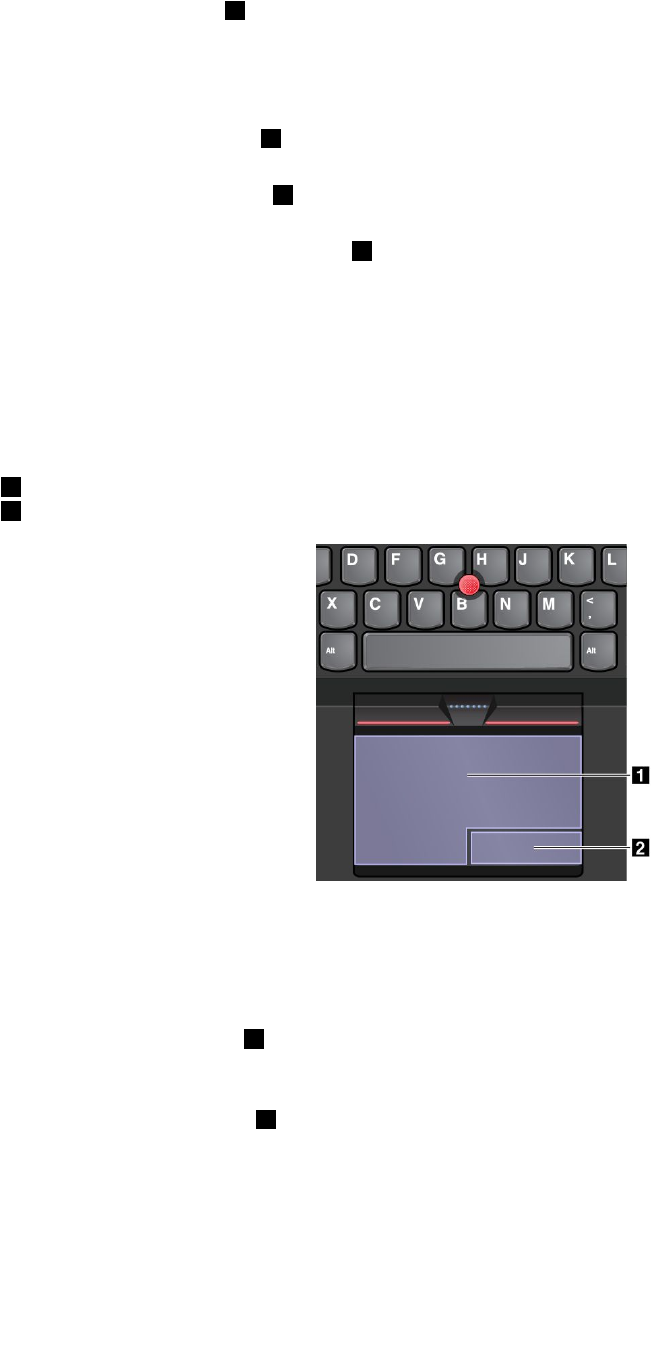
•Point
Usethepointingstick1tomovethepointeronthescreen.Tousethepointingstick,applypressureto
thepointing-sticknonslipcapinanydirectionparalleltothekeyboard.Thepointermovesaccordingly
butthepointingstickitselfdoesnotmove.Thespeedatwhichthepointermovesdependsonthe
amountofpressureyouapplytothepointingstick.
•Left-click
Presstheleft-clickbutton2toselectoropenanitem.
•Right-click
Presstheright-clickbutton3todisplayashortcutmenu.
•Scroll
Pressandholdthedottedscrollbar4whileapplyingpressuretothepointingstickintheverticalor
horizontaldirection.Thenyoucanscrollthroughthedocument,Website,orapps.
Trackpad
Theentiretrackpadissensitivetofingertouchandmovement.Youcanusethetrackpadtoperformallthe
pointing,clicking,andscrollingfunctionsofatraditionalmouse.
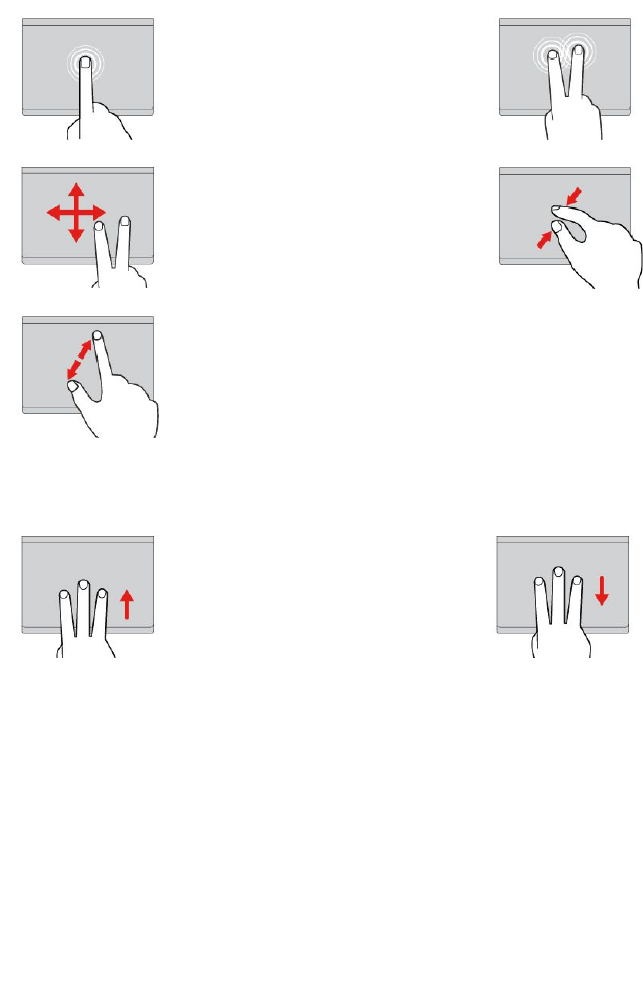
Thetrackpadcanbedividedintotwozones:
1Left-clickzone(primary-clickzone)
2Right-clickzone(secondary-clickzone)
Tousethetrackpad,refertothefollowinginstructions:
•Point
Slideonefingeracrossthesurfaceofthetrackpadtomovethepointeraccordingly.
•Left-click
Presstheleft-clickzone1toselectoropenanitem.
Youalsocantapanywhereonthesurfaceofthetrackpadwithonefingertoperformtheleft-clickaction.
•Right-click
Presstheright-clickzone2todisplayashortcutmenu.
Youalsocantapanywhereonthesurfaceofthetrackpadwithtwofingerstoperformtheright-clickaction.
•Scroll
Puttwofingersonthetrackpadandmovethemintheverticalorhorizontaldirection.Thisactionenables
youtoscrollthroughthedocument,Website,orapps.Ensurethatyoupositionyourtwofingersslightly
apartfromeachother.
20ThinkPadT460pUserGuide
Withthetrackpad,youalsocanperformavarietyoftouchgestures.Forinformationaboutusingthetouch
gestures,see“Trackpadtouchgestures”onpage21.
Trackpadtouchgestures
Theentiretrackpadsurfaceissensitivetofingertouchandmovement.Youcanusethetrackpadtoperform
thesamepointandclickactionsasyouwouldusingatraditionalmouse.Youalsocanusethetrackpad
toperformavarietyoftouchgestures.
Thistopicintroducesthefrequentlyusedtouchgesturessuchastapping,dragging,scrolling,androtating.
Formoregestures,seethehelpinformationsystemoftheThinkPadpointingdevice.
Notes:
•Whenusingtwoormorefingers,ensurethatyoupositionyourfingersslightlyapart.
•SomegesturesarenotavailableifthelastactionwasdonefromtheTrackPointpointingdevice.
•Somegesturesareonlyavailablewhenyouareusingcertainapps.
Tap
Tapanywhereonthetrackpad
withonefingertoselectoropen
anitem.
Two-fingertap
Tapanywhereonthetrackpadwith
twofingerstodisplayashortcut
menu.
Two-fingerscroll
Puttwofingersonthetrackpad
andmovethemintheverticalor
horizontaldirection.Thisaction
enablesyoutoscrollthroughthe
document,Website,orapps.
Two-fingerzoomout
Puttwofingersonthetrackpadand
movethemclosertogethertozoom
out.
Two-fingerzoomin
Puttwofingersonthetrackpad
andmovethemfartherapartto
zoomin.
ThefollowingsectionintroducessometouchgesturesontheWindows10operatingsystem.
Swipethreefingersup
Putthreefingersonthetrackpad
andmovethemuptoopenthe
taskviewtoseeallyouropen
windows.
Swipethreefingersdown
Putthreefingersonthetrackpad
andmovethemdowntoshowthe
desktop.
CustomizingtheThinkPadpointingdevice
YoucancustomizetheThinkPadpointingdevicesoyoucanuseitmorecomfortablyandefficiently.For
example,youcanchoosetoenabletheTrackPointpointingdevice,thetrackpad,orboth.Youalsocan
disableorenablethetouchgestures.
TocustomizetheThinkPadpointingdevice,dothefollowing:
1.GotoControlPanel.
2.ClickHardwareandSound➙Mouse.TheMousePropertieswindowisdisplayed.
Chapter2.Usingyourcomputer21
3.IntheMousePropertieswindow,followtheinstructionsonthescreentocompletethecustomization.
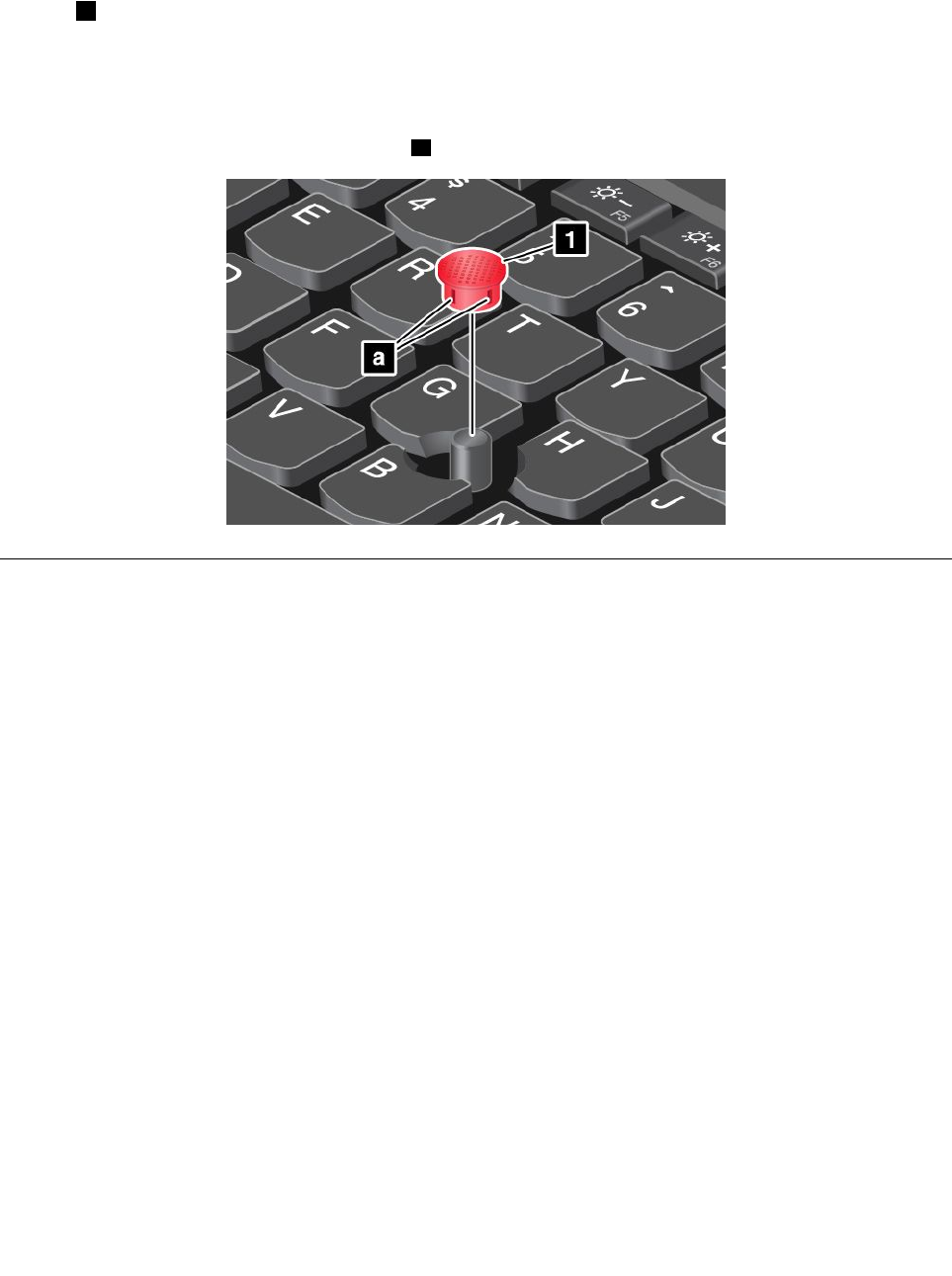
Replacingthecapofpointingstick
Thecap1ontheendofthepointingstickisremovable.Afteryouusethecapforaperiodoftime,you
mightconsiderreplacingthecapwithanewone.
Togetanewcap,contactLenovo.ForinformationaboutcontactingLenovo,seeChapter11“Getting
support”onpage139.
Note:Ensurethatyouuseacapwithgroovesaasshowninthefollowingillustration.
Powermanagement
Whenyouuseyourcomputerawayfromelectricaloutlets,youdependonbatterypowertokeepyour
computerrunning.Differentcomputercomponentsconsumepoweratdifferentrates.Themoreyouusethe
power-intensivecomponents,thefasteryouconsumebatterypower.
SpendmoretimeunpluggedwithThinkPadbatteries.Mobilityhasrevolutionizedbusinessbyenabling
youtotakeyourworkwhereveryougo.WithThinkPadbatteries,youwillbeabletoworklongerwithout
beingtiedtoanelectricaloutlet.
Usingtheacpower
Thepowertorunyourcomputercancomeeitherfromthebatteryorfromacpower.Whileyouuseac
power,thebatterieschargeautomatically.
Yourcomputercomeswithanacpoweradapterandapowercord.
•acpoweradapter:Convertsacpowerfornotebookcomputeruse.
•Powercord:Connectstheacoutletandtheacpoweradapter.
Connectingtoacpower
Toconnectthecomputertoacpower,dothefollowing:
Attention:Usinganimproperpowercordmightcauseseveredamagetoyourcomputer.
Note:Ensurethatyouperformtheactionsintheorderinwhichtheyarelisted.
1.Connectthepowercordtotheacpoweradapter.
22ThinkPadT460pUserGuide

2.Connecttheacpoweradaptertothepowerconnectorofthecomputer.
3.Connectthepowercordintoanelectricaloutlet.
Tipsforusingtheacpoweradapter
•Whentheacpoweradapterisnotinuse,disconnectitfromtheelectricaloutlet.
•Donotbindthepowercordtightlyaroundtheacpoweradaptertransformerpackwhenitisconnectedto
thetransformer.
•Beforeyouchargethebatteries,makesurethattheirtemperatureisatleast10°C(50°F).
•Youcanchargethebatterieswhentheacpoweradapterisconnectedtothecomputer.Youneedto
chargethebatteriesinanyofthefollowingsituations:
–WhenthebatteryiconintheWindowsnotificationareashowsalowpercentageofbatterypower
remaining.
–Whenthebatterieshavenotbeenusedforalongtime
Checkingthebatterystatus
Moveyourpointertothebattery-statusiconintheWindowsnotificationareatocheckthebatterystatus.
Thebattery-statusicondisplaysthepercentageofbatterypowerremainingandhowlongyoucanuse
yourcomputerbeforeyoumustchargethebattery.
Therateatwhichyouusebatterypowerwilldeterminehowlongyoucanusethebatteryofyourcomputer
betweencharges.Becauseeachcomputeruserhasdifferenthabitsandneeds,itisdifficulttopredicthow
longabatterychargewilllast.Therearetwomainfactors:
•Howmuchenergyisstoredinthebatterywhenyoubegintowork.
•Thewayyouuseyourcomputer:
–Howoftenyouaccessthestoragedrive.
–Howbrightyoumakethecomputerdisplay.
–Howoftenyouusethewirelessfeatures.
Chargingthebattery
Itisrecommendedthatyouchargethebatteryorreplaceitwithachargedbatterywhenthebatterypower
remainingislow.Forexample:
•Whenyoufindthatthepercentageofpowerremainingislow.
•Whenthepoweralarmalertsyou
Ifanacoutletisconvenient,plugtheacpoweradapterintoit,andtheninserttheconnectorintothe
computer.Thebatterywillbefullychargedinaboutthreetosixhours.Thechargingtimeisaffectedbythe
batterysizeandthephysicalenvironment.Youcancheckthebatterychargingstatusatanytimethroughthe
battery-statusiconintheWindowsnotificationarea.
Note:Tomaximizethelifeofthebattery,thecomputerdoesnotstartrechargingthebatteryiftheremaining
powerisgreaterthan95%.
Maximizingthebatterylife
Tomaximizethelifeofthebattery,dothefollowing:
•Rechargethebatterycompletelybeforeusingit.Youcanseewhetherthebatteryisfullychargedfromthe
battery-statusiconintheWindowsnotificationarea.
Chapter2.Usingyourcomputer23

•Alwaysusepower-savingmodes,suchassleepmodeandhibernationmode.
Managingthebatterypower
Toachievethebestbalancebetweenperformanceandpowersaving,adjustyourpowerplansettings.
Toadjustpowerplansettings,dothefollowing:
1.GotoControlPanel,thenchangetheviewofControlPanelfromCategorytoLargeiconsorSmallicons.
2.ClickPowerOptions.
3.Followtheinstructionsonthescreen.
Formoreinformation,refertothehelpinformationsystemoftheprogram.
Power-savingmodes
Thereareseveralmodesthatyoucanuseatanytimetoconservepower.Thissectionintroduceseach
modeandgivestipsontheeffectiveuseofbatterypower.
•Screenblankmode(forWindows7only)
Thecomputerdisplayrequiresconsiderablebatterypower.Toturnoffthepowertothedisplayandmake
thecomputerenterscreenblankmode,right-clickthebattery-gaugeiconinthewindowsnotificationarea
andselectPoweroffdisplay.
•Sleepmode
Insleepmode,yourworkissavedtomemory,andthenthestoragedriveandthecomputerdisplayare
turnedoff.Whenyourcomputerwakesup,yourworkisrestoredwithinseconds.
Toputyourcomputerintosleepmode,dothefollowing:
–ForWindows7:OpentheStartmenu,thenclickthearrownexttotheShutdownbutton.Click
Sleepfromthemenudisplayed.
–ForWindows10:OpentheStartmenu,clickPower,andthenclickSleep.
•Hibernationmode
Byusingthismode,youcanturnoffyourcomputercompletelywithoutsavingfilesorexitingany
programsthatarerunning.Whenthecomputerentershibernationmode,allopenprograms,folders,and
filesaresavedtothestoragedevices,andthenthecomputerturnsoff.
Toputthecomputerintohibernationmode,dothefollowing:
–ForWindows7:OpentheStartmenu,thenclickthearrownexttotheShutdownbutton.Click
Hibernatefromthemenudisplayed.
–ForWindows10:Definewhatthepowerbuttondoesfirst,thenpressthepowerbuttontoputthe
computerintohibernationmode.Formoreinformation,see“Frontview”onpage1.
Ifyouputyourcomputerintohibernationmodewiththewake-upfunctiondisabled,thecomputerdoes
notconsumeanypower.Thewake-upfunctionisdisabledbydefault.Ifyouputyourcomputerinto
hibernationmodewiththewake-upfunctionenabled,thecomputerconsumesasmallamountofpower.
Toenablethewake-upfunction,dothefollowing:
1.GotoControlPanelandclickSystemandSecurity.
2.ClickAdministrativeTools.
3.ClickT askScheduler.Ifyouarepromptedforanadministratorpasswordorconfirmation,typethe
passwordorprovideconfirmation.
4.Fromtheleftpane,selectthetaskfolderforwhichyouwanttoenablethewake-upfunction.The
scheduledtasksaredisplayed.
5.Clickascheduledtask,andthenclicktheConditionstab.
24ThinkPadT460pUserGuide

6.UnderPower,selectthecheckboxforWakethecomputertorunthistask.
•Wirelessoff
Whenyouarenotusingthewirelessfeatures,suchasBluetoothorwirelessLAN,turnthemoff.Thishelps
conservepower.Toturnoffthewirelessfeatures,pressthewireless-radioscontrolkey.
Handlingthebattery
ThissystemsupportsonlybatteriesspeciallydesignedforthisspecificsystemandmanufacturedbyLenovo
oranauthorizedbuilder.Thesystemdoesnotsupportunauthorizedbatteriesorbatteriesdesignedforother
systems.Ifanunauthorizedbatteryorabatterydesignedforanothersystemisinstalled,thesystemwill
notcharge.
Attention:Lenovohasnoresponsibilityfortheperformanceorsafetyofunauthorizedbatteries,and
providesnowarrantiesforfailuresordamagearisingoutoftheiruse.
Note:Ifanunauthorizedbatteryisinstalled,thefollowingmessagewillbedisplayed:“Thebatteryinstalled
isnotsupportedbythissystemandwillnotcharge.PleasereplacethebatterywiththecorrectLenovo
batteryforthissystem.”
DANGER
Donotattempttodisassembleormodifythebattery.
Attemptingtodosocancauseanexplosion,orliquidleakagefromthebattery.
AbatteryotherthantheonespecifiedbyLenovo,oradisassembledormodifiedbatteryisnot
coveredbythewarranty.
DANGER
Iftherechargeablebatteryisincorrectlyreplaced,thereisdangerofanexplosion.Thebattery
containsasmallamountofharmfulsubstances.Toavoidpossibleinjury:
•ReplaceonlywithabatteryofthetyperecommendedbyLenovo.
•Keepthebatteryawayfromfire.
•Donotexposeittoexcessiveheat.
•Donotexposeittowaterorrain.
•Donotshort-circuitit.
•Storeitinacooldryplace.
•Keepitawayfromchildren.
Thebatteryisaconsumablesupply.Ifyourbatterybeginstodischargetooquickly,replacethebattery
withanewoneofthetyperecommendedbyLenovo.Formoreinformationaboutreplacingthebattery,
contactyourCustomerSupportCenter.
Chapter2.Usingyourcomputer25

DANGER
Donotdrop,crush,puncturethebattery,ormakeitsubjecttostrongforces.Batteryabuseor
mishandlingcancausethebatterytooverheat,whichcancausegassesorflameto“vent”fromthe
batteryorcoin-cellbattery.Ifyourbatteryisdamaged,orifyounoticeanydischargefromyour
batteryorthebuildupofforeignmaterialsonthebatteryleads,stopusingthebatteryandobtaina
replacementfromthebatterymanufacturer.
DANGER
Onlyrechargethebatterystrictlyaccordingtoinstructionsincludedintheproductdocumentation.
DANGER
Donotputthebatteryintrashthatisdisposedofinlandfills.Whendisposingofthebattery,comply
withlocalordinancesorregulationsandyourcompany'ssafetystandards.
DANGER
Thereisadangerofanexplosionifthecoin-cellbatteryisincorrectlyplaced.Thelithiumbattery
containslithiumandcanexplodeifitisnotproperlyhandled,ordisposedof.Replaceonlywitha
batteryofthesametype.Toavoidpossibleinjuryordeath,donot:(1)throworimmerseintowater,
(2)allowittoheattomorethan100°C(212°F),or(3)attempttorepairordisassembleit.Disposeof
itasrequiredbylocalordinancesorregulationsandyourcompany'ssafetystandards.
Connectingtothenetwork
YourcomputerhasoneormorenetworkcardsthatenableyoutoconnectyourcomputertotheInternet
andothernetworkconnections.
Ethernetconnections
Youcanconnectyourcomputertoalocalnetworkorabroadbandconnectionbyusingthebuilt-inEthernet
featureofthecomputer.
DANGER
YourcomputerhasanEthernetconnector.T oavoidtheriskofelectricalshock,donotconnect
thetelephonecabletotheEthernetconnector.
Wirelessconnections
Wirelessconnectionisthetransferofdatawithouttheuseofcablesbutbymeansofradiowavesonly.
IntheAirplanemode,allwirelessfeaturesaredisabled.TodisabletheAirplanemodeontheWindows10
operatingsystem,opentheStartmenuandthenclickSettings.IfSettingsisnotdisplayed,clickAllapps
todisplayallprograms,andthenclickSettings➙Network&Internet➙Airplanemode,andthenslidethe
controlforAirplanemodetotheleft.
26ThinkPadT460pUserGuide

Dependingonthewirelessdevicesinstalledonyourcomputer,youmightbeabletousethefollowing
wirelessnetworks:
•WirelessLANconnection
•WirelessWANconnection
•Bluetoothconnection
UsingthewirelessLANconnection
Awirelesslocalareanetwork(LAN)coversarelativelysmallgeographicarea,suchasanofficebuildingora
house.Devicesbasedonthe802.11standardscanconnecttothistypeofnetwork.
Yourcomputercomeswithabuilt-inwirelessnetworkcardandaconfigurationutilitytohelpyouestablish
wirelessconnectionsandmonitortheconnectionstatus.Thisenablesyoutostayconnectedtoyournetwork
whileyouareattheoffice,inameetingroom,orathome,withnoneedforawiredconnection.
Toestablishawireless-LANconnection,dothefollowing:
1.Clickthewireless-network-connection-statusiconintheWindowsnotificationarea.Alistofavailable
wirelessnetworksisdisplayed.
2.Double-clickanetworktoconnecttoit.Providerequiredinformationifneeded.
Thecomputerautomaticallyconnectstoanavailablewirelessnetworkwhenthelocationchanges.Formore
information,refertotheWindowshelpinformationsystem.
TipsforusingthewirelessLANfeature
Toachievethebestconnection,usethefollowingguidelines:
•PlaceyourcomputersothatthereareasfewobstaclesaspossiblebetweenthewirelessLANaccess
pointandthecomputer.
•Openyourcomputerlidtoanangleofslightlymorethan90degrees.
•Ifyouusethewirelessfeature(the802.11standards)ofyourcomputersimultaneouslywithaBluetooth
option,thedatatransmissionspeedcanbedelayedandtheperformanceofthewirelessfeaturecanbe
degraded.
Checkingthewireless-LANconnectionstatus
Youcancheckthewireless-LANconnectionstatusthroughthewireless-network-connection-statusiconin
theWindowsnotificationarea.Themorebarsencompassed,thebetterthesignalis.
FortheWindows7operatingsystem,youalsocanchecktheAccessConnectionsgauge,theAccess
Connectionsstatusicon,ortheAccessConnectionswirelessstatusiconintheWindowsnotificationarea.
AccessConnectionsgauge:
•Powertothewirelessradioisoffornosignal.
•Powertothewirelessradioison.Thesignalstrengthofthewirelessconnectionispoor.To
improvesignalstrength,moveyourcomputerclosertothewirelessaccesspoint.
•Powertothewirelessradioison.Thesignalstrengthofthewirelessconnection
ismarginal.
•Powertothewirelessradioison.Thesignalstrengthofthewirelessconnection
isexcellent.
Chapter2.Usingyourcomputer27

AccessConnectionsstatusicon:
•Nolocationprofileisactiveornoneexists.
•Currentlocationprofileisdisconnected.
•Currentlocationprofileisconnected.
AccessConnectionswirelessstatusicon
•Powertothewirelessradioisoff.
•Powertothewirelessradioison.Noassociation.
•Powertothewirelessradioison.Nosignal.
•Powertothewirelessradioison.Thesignalstrengthofthewirelessconnectionisexcellent.
•Powertothewirelessradioison.Thesignalstrengthofthewirelessconnectionismarginal.
•Powertothewirelessradioison.Thesignalstrengthofthewirelessconnectionispoor.Toimprove
signalstrength,moveyourcomputerclosertothewirelessaccesspoint.
UsingthewirelessWANconnection
WirelessWideAreaNetwork(wirelessWAN)whichusescellularnetworksfordatatransmission,enables
youtoestablishwirelessconnectionsoverremotepublicorprivatenetworks.Theseconnectionscanbe
maintainedoveralargegeographicalarea,suchasacityoranentirecountry,byuseofmultipleantenna
sitesorsatellitesystemsmaintainedbywirelessserviceproviders.
SomeThinkPadnotebookcomputerscomewithabuilt-inwirelessWANcardintegratedwithsomewireless
WANtechnologies,suchas1xEV-DO,HSPA,3G,GPRS,orLTE.Byusingthebuilt-inwirelessWANcardand
theconfigurationutilitythatcomeswithyourcomputer,youcanestablishwirelessWANconnectionsand
monitortheconnectionstatus.
Note:ThewirelessWANserviceisprovidedbyauthorizedserviceprovidersinsomecountries.
TipsforusingthewirelessWANfeature
Toachievethebestconnection,usethefollowingguidelines:
•Keepyourcomputerawayfromyourbody.
•Placeyourcomputeronaflatsurfaceandopenyourcomputerlidtoanangleofslightlymorethan
90degrees.
•Placeyourcomputerawayfromconcreteorbrickwallsthatmightdampencellularsignals.
•Bestreceptionwillbeavailablenearwindowsandotherlocationswherecellularphonereceptionisthe
strongest.
CheckingthewirelessWANconnectionstatus
YoucancheckthewirelessWANconnectionstatusthroughthewirelessnetworkconnectionstatusiconin
theWindowsnotificationarea.Themorebarsencompassed,thebetterthesignalis.
FortheWindows7operatingsystem,youalsocanchecktheAccessConnectionsgauge,theAccess
Connectionsstatusicon,ortheAccessConnectionswirelessstatusiconintheWindowsnotificationarea.
AccessConnectionsgaugestatus:
•Nosignal
•Weaksignal
28ThinkPadT460pUserGuide

•Mediumsignal
•Strongsignal
AccessConnectionsiconstatus:
•Nolocationprofileisactiveornoneexists.
•Currentlocationprofileisdisconnected.
•Currentlocationprofileisconnected.
Wirelessstatusiconstatus:
•PowertotheWANradioisoff
•Noassociation
•Nosignal
•Weaksignal
•Mediumsignal
•Strongsignal
UsingtheBluetoothconnection
Bluetoothcanconnectdevicesashortdistancefromoneanother,andiscommonlyusedforconnecting
peripheraldevicestoacomputer,transferringdatabetweenhand-helddevicesandapersonalcomputer,or
remotelycontrollingandcommunicatingwithdevicessuchasmobilephones.
Dependingonthemodel,yourcomputermightsupporttheBluetoothfeature.Totransferdatathrough
theBluetoothfeature,dothefollowing:
Note:Ifyouusethewirelessfeature(the802.11standards)ofyourcomputersimultaneouslywitha
Bluetoothoption,thedatatransmissionspeedcanbedelayedandtheperformanceofthewirelessfeature
canbedegraded.
1.EnsurethattheBluetoothfeatureisenabled.
•ForWindows7:Pressthewireless-radioscontrolkeyandturnontheBluetoothfeature.
•ForWindows10:Dooneofthefollowing:
–OpentheStartmenuandthenclickSettings.IfSettingsisnotdisplayed,clickAllappstodisplay
allprograms,andthenclickSettings➙Devices➙Bluetooth.TurnontheBluetoothfeature.
–OpentheStartmenuandclickSettings➙Network&Internet➙Airplanemode.Turnon
theBluetoothfeature.
2.Right-clickthedatathatyouwanttosend.
3.SelectSendT o➙BluetoothDevices.
4.SelectaBluetoothdevice,andthenfollowtheinstructionsonthescreen.
Formoreinformation,refertotheWindowshelpinformationsystemandtheBluetoothhelpinformation
system.
Usinganexternaldisplay
Youcanuseanexternaldisplaysuchasaprojectororamonitortogivepresentationsortoexpandyour
workspace.Thistopicintroduceshowtoconnectanexternaldisplay,choosedisplaymodes,andchange
displaysettings.
Chapter2.Usingyourcomputer29

Yourcomputersupportsthefollowingvideoresolution,providedthattheexternalmonitoralsosupportsthat
resolution.
•Upto1920x1200,withanexternaldisplayconnectedtotheVGAconnector
•Upto3840x2160,withanexternaldisplayconnectedtotheminiDisplayPortconnector
Formoreinformationabouttheexternaldisplay,refertothemanualsprovidedwithit.
Connectinganexternaldisplay
Youcanuseeitherawireddisplayorawirelessdisplay.Thewireddisplaycanbeconnectedtothemini
DisplayPortconnectororVGAconnectorbyacable.ThewirelessdisplaycanbeaddedthroughtheWi-Dior
Miracastfunction.
•Connectingawireddisplay
Note:Whenyouconnectanexternalmonitor,avideointerfacecablewithaferritecoreisrequired.
1.Connecttheexternaldisplaytoanappropriatevideoconnectoronyourcomputer,suchasthe
VGAconnectororminiDisplayPortconnector.
2.Connecttheexternaldisplaytoanelectricaloutlet.
3.Turnontheexternaldisplay.
Ifyourcomputercannotdetecttheexternaldisplay,dothefollowing:
–ForWindows7
Right-clickonthedesktop,thenclickScreenresolution➙Detect.
–ForWindows10
Right-clickonthedesktop,thenclickDisplaysettings➙Detect.
•Connectingawirelessdisplay
Note:Touseawirelessdisplay,ensurethatbothyourcomputerandtheexternaldisplaysupportthe
Wi-DiorMiracastfeature.
–ForWindows7
OpentheStartmenuandclickDevicesandPrinters➙Addadevice
–ForWindows10
Dooneofthefollowing:
–OpentheStartmenuandthenclickSettings.IfSettingsisnotdisplayed,clickAllappstodisplay
allprograms,andthenclickSettings➙Devices➙Connecteddevices➙Addadevice.
–ClicktheactioncentericonintheWindowsnotificationarea.ClickConnect.Selectthedesired
wirelessdisplayandfollowtheinstructionsonthescreen.
Formoreinformation,seethehelpinformationsystemsoftheLenovoQuickDisplayprogram.
Choosingadisplaymode
Youcandisplayyourdesktopandappsonthecomputerdisplay,theexternaldisplay,orboth.Tochoose
howtodisplaythevideooutput,pressthedisplay-modeswitchingkeyandthenselectadisplay
modeyouprefer.
Therearefourdisplaymodes:
•Disconnect:Displaysthevideooutputonlyonyourcomputerscreen.
30ThinkPadT460pUserGuide

Note:Dependingonthesituation,youmightseeDisconnect,PCscreenonly,Computeronly,or
Disconnectprojector.
•Duplicate:Displaysthesamevideooutputonbothyourcomputerscreenandanexternaldisplay.
•Extend:Extendsthevideooutputfromyourcomputerdisplaytoanexternaldisplay.Youcandragand
moveitemsbetweenthetwodisplays.
•Projectoronly:Showsthevideooutputonlyonanexternaldisplay.
Note:Dependingonthesituation,youmightseeProjectoronlyorSecondscreenonly.
Note:IfyoushowDOSorprogramsusingDirectDraworDirect3D®infull-screenmode,onlythemain
displayshowsthevideooutput.
Changingdisplaysettings
Youcanchangethesettingsforboththecomputerdisplayandtheexternaldisplay.Forexample,you
candefinewhichoneisthemaindisplayandwhichoneisthesecondarydisplay.Youalsocanchange
theresolutionandorientation.
Tochangedisplaysettings,dothefollowing:
1.Right-clickonthedesktopandselectScreenResolutionorDisplaysettings.
2.Selectthedisplaythatyouwanttoconfigure.
3.Changedisplaysettingsasyouwant.
Note:Ifyousetahigherresolutionforthecomputerdisplaythantheexternaldisplay,onlypartofthescreen
canbeshownontheexternaldisplay.
Usingaudiofeatures
Yourcomputerisequippedwiththefollowingitems:
•Speakers
•Microphones
•Comboaudioconnector,3.5mm(0.14inch)indiameter
Yourcomputeralsohasanaudiochipthatenablesyoutoenjoyvariousmultimediaaudiofeatures,such
asthefollowing:
•CompliantwithIntel®HighDefinitionAudio
•PlaybackofMusicalInstrumentDigitalInterface(MIDI)andMovingPictureExpertsGroupAudioLayer-3
(MP3)files
•Recordingandplaybackofpulse-codemodulation(PCM)andWaveformAudioFileFormat(WAV)files
•Recordingfromvarioussoundsources,suchasaheadsetattached
Thefollowingtableshowswhichfunctionsoftheaudiodevicesattachedtotheconnectoronyourcomputer.
Table1.Audiofeaturelist
ConnectorHeadsetwitha3.5–mm,
4-poleplug
ConventionalheadphoneConventionalmicrophone
ComboaudioconnectorHeadphoneand
microphonefunctions
supported
Headphonefunction
supported
Notsupported
Chapter2.Usingyourcomputer31

Configuringforsoundrecording
Toconfigurethemicrophoneforoptimalsoundrecording,usetheRealtekHDAudioManagerprogram.To
starttheprogram,gotoControlPanelandclickHardwareandSound➙RealtekHDAudioManager.
Usingthecamera
Ifyourcomputerhasanintegratedcamera,youcanusethecameratopreviewyourvideoimageand
takeasnapshotofyourcurrentimage.
Tostartthecameraandconfigurethecamerasettings,dothefollowing:
•ForWindows7:OpentheCommunicationsUtilityprogram.
•ForWindows10:OpentheStartmenu,andclickCamerafromtheallappslist.
Whenthecameraisstarted,thegreencamera-in-useindicatorturnson.
Youalsocanusetheintegratedcamerawithotherprogramsthatprovidefeaturessuchasphotographing,
videocapturing,andvideoconferencing.Tousethecamerawithotherprograms,openoneoftheprograms
andstartthephotographing,videocapturing,orvideoconferencingfunction.Then,thecamerastarts
automaticallyandthegreencamera-in-useindicatorturnson.Formoreinformationaboutusingthecamera
withaprogram,refertothehelpinformationsystemoftheprogram.
Configuringcamerasettings
Youcanconfigurethecamerasettingstomeetyourneeds,suchasadjustingthequalityofthevideooutput.
Toconfigurethecamerasettings,dothefollowing:
•ForWindows7:StarttheCommunicationsUtilityprogramandconfigurethecamerasettingsasdesired.
•ForWindows10:Dooneofthefollowing:
–OpentheCameraapp,clickthesettingsiconintheupper-rightcorner.Followtheinstructionsonthe
screentoconfigurethecamerasettingsasdesired.
–ClickLenovoSettingsfromtheStartmenu.ThenclickCamera.Followtheinstructionsonthe
screentoconfigurethecamerasettingsasdesired.
Usingaflashmediacardorasmartcard
Dependingonthemodel,yourcomputermighthaveasmartcardoramediacardreaderslot.
Ifyourcomputerhasamediacardreaderslot,itsupportsthefollowingcards:
•MultiMediaCard(MMC)
•SecureDigitaleXtended-Capacity(SDXC)card
•SecureDigital(SD)card
•SecureDigitalHigh-Capacity(SDHC)card
Note:Yourcomputerdoesnotsupportthecontentprotectionforrecordablemedia(CPRM)feature
fortheSDcard.
Thesmartcardreaderonyourcomputeronlysupportsthesmartcardofthefollowingspecifications:
32ThinkPadT460pUserGuide
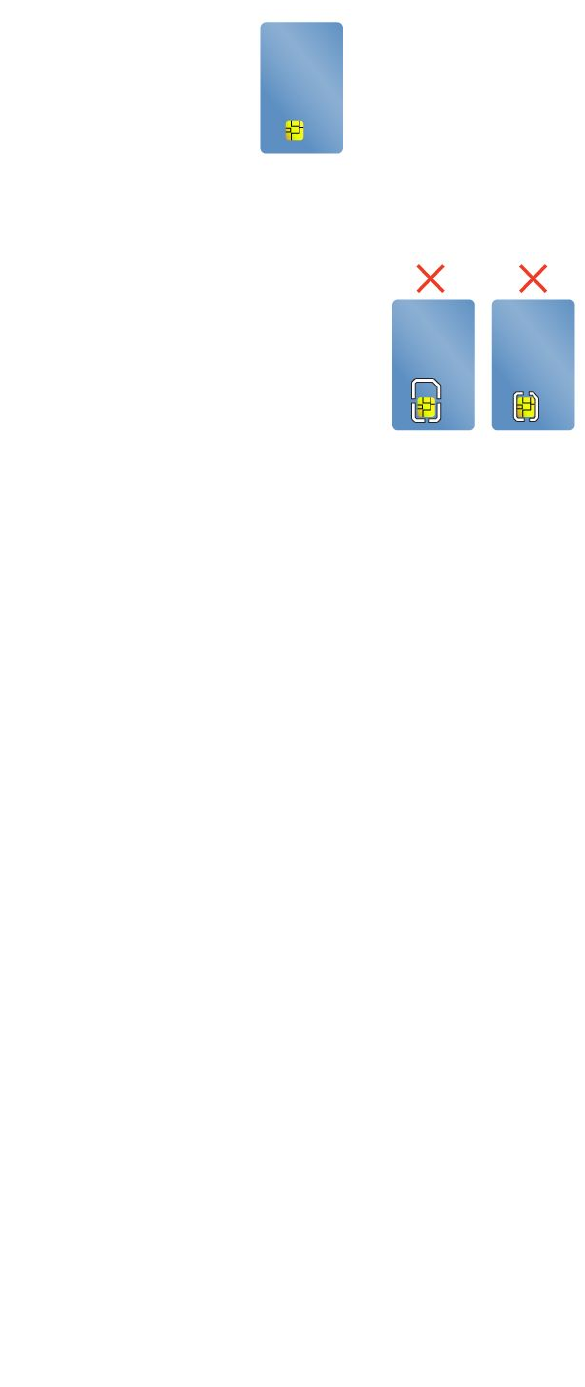
•Length:85.60mm(3.37inches)
•Width:53.98mm(2.13inches)
•Thickness:0.76mm(0.03inch)
Donotinsertsmartcardswithslitsintoyourcomputer.Otherwise,thesmartcardreadermightgetdamaged.
Attention:Whiletransferringdatatoorfromaflashmediacard,orasmartcard,donotputyourcomputer
intosleeporhibernationmodebeforethedatatransferiscompleted;otherwise,yourdatacouldget
damaged.
Insertingaflashmediacardorasmartcard
Attention:Beforeyoustartinstallingacard,touchametaltableoragroundedmetalobject.Thisaction
reducesanystaticelectricityfromyourbody.Thestaticelectricitycoulddamagethecard.
Toinsertacard,dothefollowing:
1.Locatetheappropriatetypeofslotforyourcard.See“Locatingcomputercontrols,connectors,and
indicators”onpage1.
2.Makesurethatthecardiscorrectlyoriented:
•Fortheflashmediacard:Themetalcontactsarefacingdownandpointingtowardthecardslot.
•Forthesmartcard:Themetalcontactsarefacingupwardandpointingtowardthecardslot.
3.Pressthecardfirmlyintothecardslot.
Iftheplug-and-playfeatureisnotenabled,dothefollowing:
1.GotoControlPanel.
2.ClickHardwareandSound.
3.ClickDeviceManager.Ifyouarepromptedforanadministratorpasswordorconfirmation,typethe
passwordorprovideconfirmation.
4.FromtheActionmenu,selectAddlegacyhardware.TheAddHardwareWizardstarts.
5.Followtheinstructionsonthescreen.
RemovingaflashmediacardoraSmartCard
Attention:
•Stopalltheactivitiesinvolvingacardbeforeremovingit.Otherwise,dataonthecardmightbedamaged
orlost.
•Donotremoveacardwhilethecomputerisinsleepmodeorhibernationmode.Otherwise,thesystem
mightnotrespondwhenyoutrytoresumeoperation.
Chapter2.Usingyourcomputer33

Toremoveacard,dothefollowing:
1.ClickthetriangulariconintheWindowsnotificationareatoshowhiddenicons.
2.Selecttheitemyouwanttoremovetostopthecard.
3.Pressthecardtoejectitfromyourcomputer.
4.Removethecardandstoreitsafelyforfutureuse.
Note:IfyoudonotremovethecardfromyourcomputerafteryouejectthecardfromtheWindowsoperating
system,thecardcannolongerbeaccessed.Toaccessthecard,youmustremoveitandthenre-insertit.
34ThinkPadT460pUserGuide

Chapter3.Enhancingyourcomputer
Thischapterprovidesinstructionsonhowtousehardwaredevicestoexpandyourcomputercapabilities.
•“FindingThinkPadoptions”onpage35
•“ThinkPaddockingstations”onpage35
FindingThinkPadoptions
Ifyouwanttoexpandthecapabilitiesofyourcomputer,Lenovohasanumberofhardwareaccessories
andupgradestomeetyourneeds.Optionsincludememorymodules,storagedevices,networkcards,port
replicators,batteries,poweradapters,printers,scanners,keyboards,mice,andmore.
YoucanshopatLenovo24hoursaday,7daysaweekdirectlyovertheWorldWideWeb.Allyouneedisan
Internetconnectionandacreditcard.
ToshopatLenovo,goto:
http://www.lenovo.com/accessories/services/index.html
ThinkPaddockingstations
Youcanattachyourcomputertoasupporteddockingstationtoexpandworkingcapability.Dependingon
themodel,yourcomputermightsupportthefollowingdockingstations:
•ThinkPadBasicDock
•ThinkPadProDock
•ThinkPadUltraDock
CAUTION:
Whenthecomputerisattachedtoadockingstation,neverpickuptheassemblybytakingholdofthe
computeralone.Alwaysholdthewholeassembly.
LocatingcontrolsandconnectorsontheThinkPaddockingstations
ThissectionintroducesthelocationsofcontrolsandconnectorsontheThinkPaddockingstations.
©CopyrightLenovo2016,201735
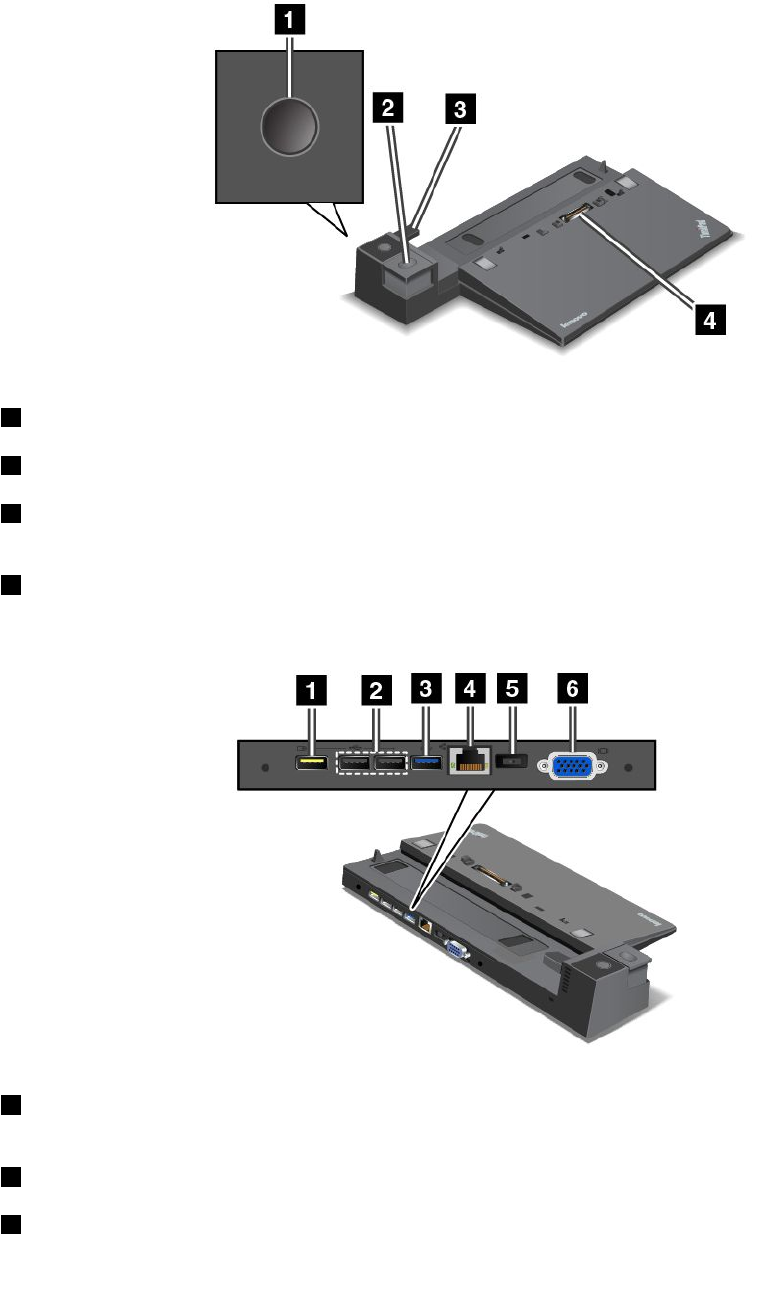
ThinkPadBasicDock
Frontview
1Powerbutton:Pressthepowerbuttontoturnonorturnoffthecomputer.
2Ejectbutton:Presstheejectbuttontoreleasethecomputerfromthedockingstation.
3Slidingadjuster:Usetheslidingadjusterasaguidetoalignthedockingstationconnectoronyour
computerwhenyouattachthedockingstation.
4Dockingstationconnector:Usedtoattachyourcomputer.
Rearview
1AlwaysOnUSBconnector:UsedtoconnectdevicesthatarecompatiblewithUSB2.0orchargesome
mobiledigitaldevicesandsmartphoneswhenyourcomputerisinsleeporhibernationmode.
2USB2.0connectors:UsedtoconnectdevicesthatarecompatiblewithUSB2.0.
3USB3.0connector:UsedtoconnectdevicesthatarecompatiblewithUSB3.0.
36ThinkPadT460pUserGuide
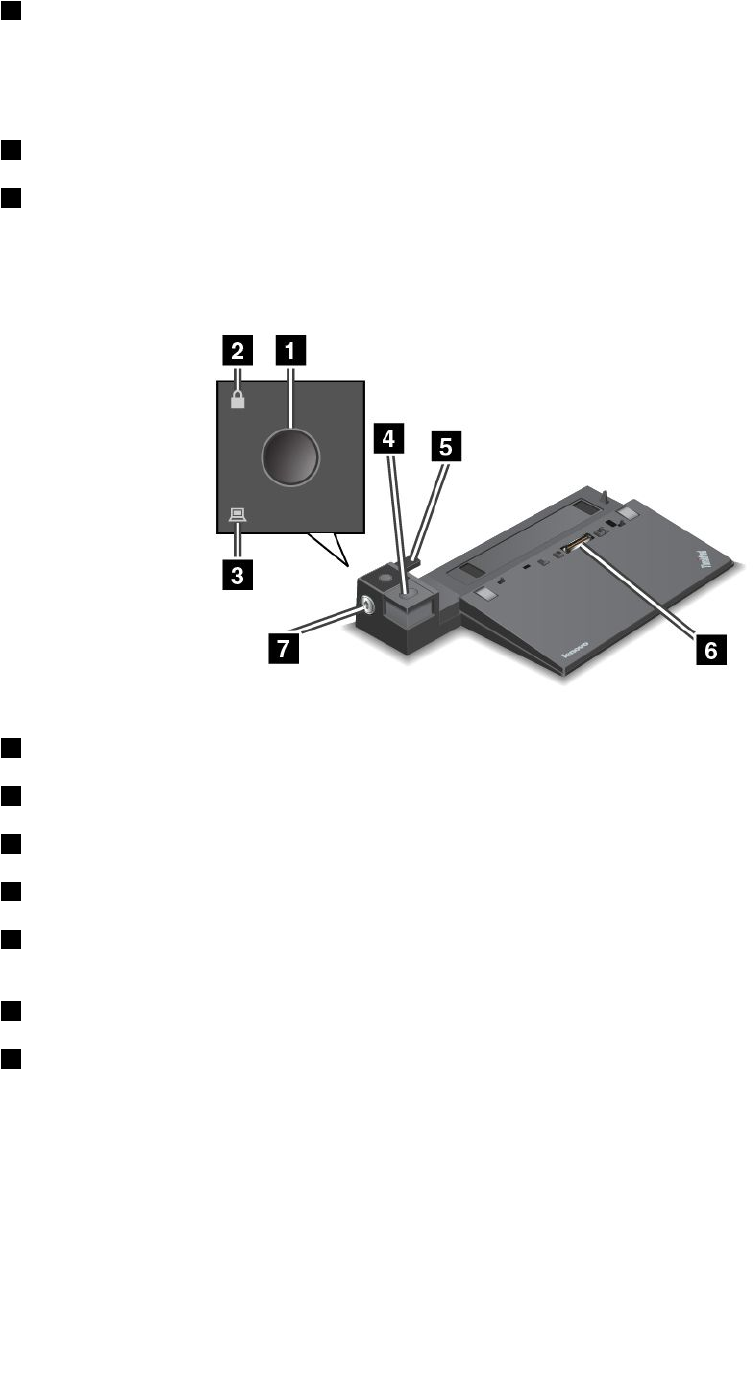
4Ethernetconnector:UsedtoconnectthedockingstationtoanEthernetLAN.
Note:IfyouneedtouseanEthernetconnectororanexternalmonitorconnectorwhenyourcomputeris
attachedtoadockingstation,usetheEthernetconnectorortheexternalmonitorconnectoronthedocking
station,insteadoftheoneonthecomputer.
5acpowerconnector:Usedtoconnecttheacpoweradapter.
6VGAconnector:UsedtoconnectthecomputertoaVGA-compatiblevideodevice,suchasaVGA
monitor.
ThinkPadProDock
Frontview
1Powerbutton:Pressthepowerbuttontoturnonorturnoffthecomputer.
2Keylockindicator:Thisindicatorturnsonwhenthesystemlockkeyisinthelockedposition.
3Dockingstatusindicator:Thisindicatorturnsonwhenyourcomputerisdocked.
4Ejectbutton:Presstheejectbuttontoreleasethecomputerfromthedockingstation.
5Slidingadjuster:Usetheslidingadjusterasaguidetoalignthedockingstationconnectoronyour
computerwhenyouattachthedockingstation.
6Dockingstationconnector:Usedtoattachyourcomputer.
7Systemlock:Usethesystemlockkeytolocktheejectbutton.Whenthesystemlockkeyisinthelocked
position,theejectbuttonofthedockingstationislocked;youcannotattachorremoveyourcomputer.
Chapter3.Enhancingyourcomputer37
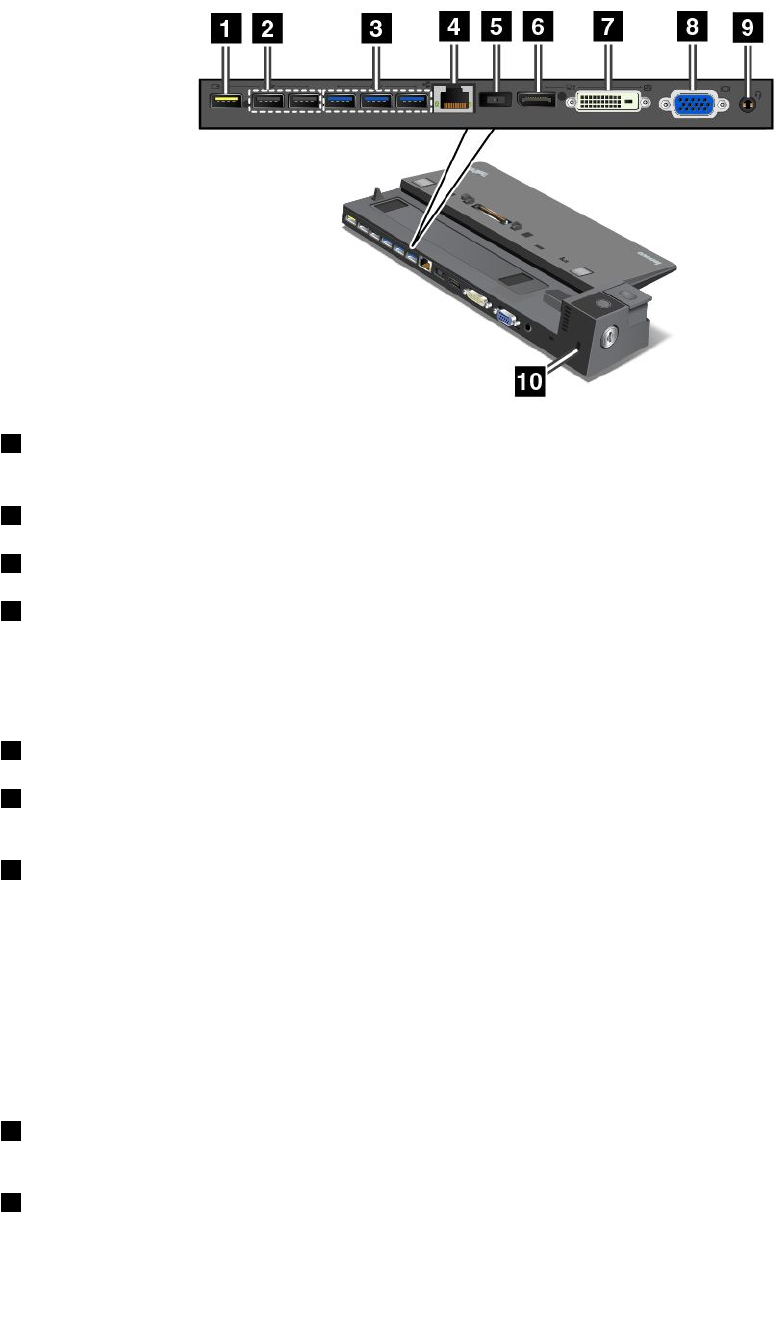
Rearview
1AlwaysOnUSBconnector:UsedtoconnectdevicesthatarecompatiblewithUSB2.0orchargesome
mobiledigitaldevicesandsmartphoneswhenyourcomputerisinsleeporhibernationmode.
2USB2.0connectors:UsedtoconnectdevicesthatarecompatiblewithUSB2.0.
3USB3.0connectors:UsedtoconnectdevicesthatarecompatiblewithUSB3.0.
4Ethernetconnector:UsedtoconnectthedockingstationtoanEthernetLAN.
Note:IfyouneedtouseanEthernetconnectororanexternalmonitorconnectorwhenyourcomputeris
attachedtoadockingstation,usetheEthernetconnectorortheexternalmonitorconnectoronthedocking
station,insteadoftheoneonthecomputer.
5acpowerconnector:Usedtoconnecttheacpoweradapter.
6DisplayPort®connector:Usedtoattachahigh-performancemonitor,adirect-drivemonitor,orother
devicesthatuseaDisplayPortconnector.
7DVIconnector:UsedtoconnectamonitorthatsupportsDigitalVisualInterface(DVI)connection.
Note:TheDVIconnectorprovidesadigitalinterfaceonly.Thisconnectorcanonlybeusedwithacomputer
thatsupportsDVIconnection.
ToconnectaDVImonitor,dothefollowing:
1.Turnoffthecomputer.
2.ConnecttheDVImonitortotheDVIconnector.Thenconnectthemonitortoanelectricaloutlet.
3.TurnontheDVImonitorandthenthecomputer.
8VGAconnector:UsedtoconnectthecomputertoaVGA-compatiblevideodevice,suchasaVGA
monitor.
9Audioconnector:Usedtoconnectheadphonesoraheadsetthathasa3.5-mm(0.14-inch),4-poleplug
totheaudioconnectortolistentothesoundfromthecomputer.
38ThinkPadT460pUserGuide
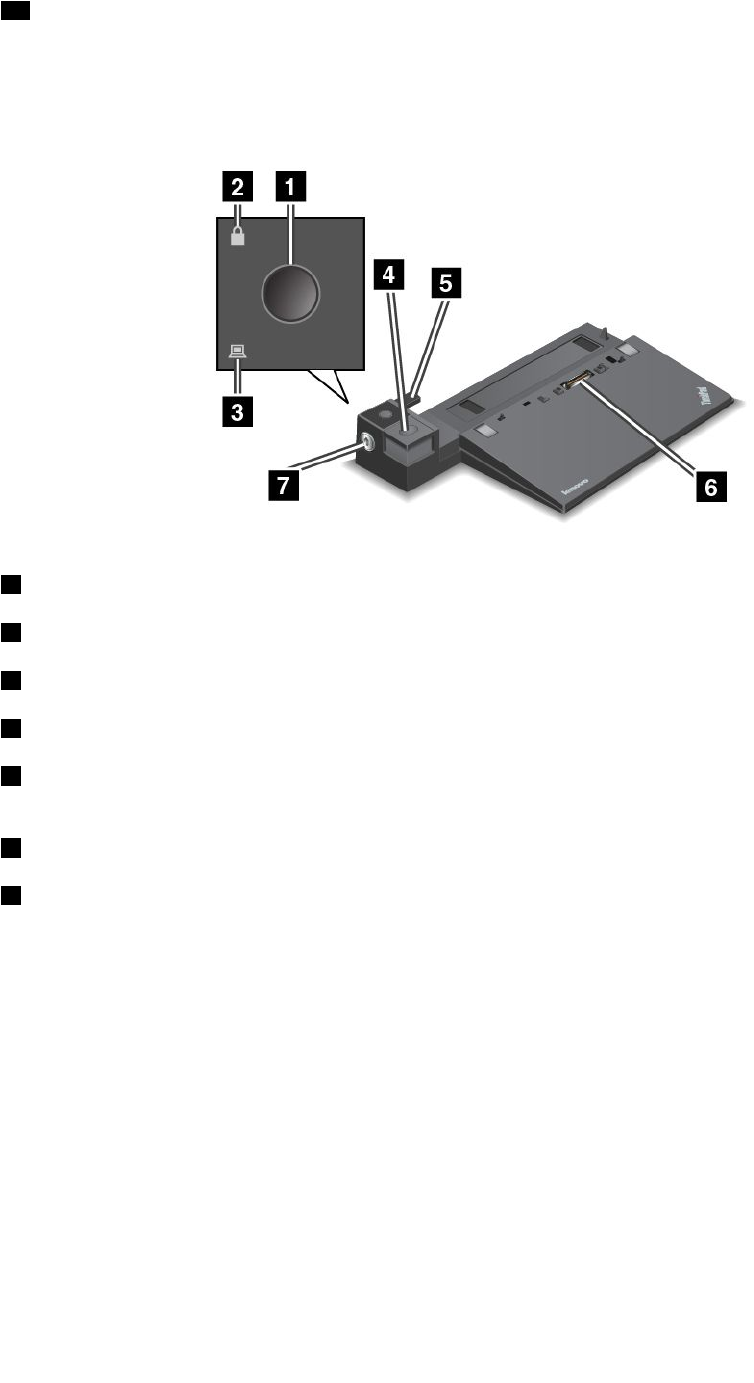
10Security-lockslot:Toprotectyourdockingstationfromtheft,youcanuseasecuritycablelock,such
asaKensington-stylecablelock,thatfitsthissecurity-lockslottolockyourdockingstationtoadesk,
table,orothernon-permanentfixture.
ThinkPadUltraDock
Frontview
1Powerbutton:Pressthepowerbuttontoturnonorturnoffthecomputer.
2Keylockindicator:Thisindicatorturnsonwhenthesystemlockkeyisinthelockedposition.
3Dockingstatusindicator:Thisindicatorturnsonwhenyourcomputerisdocked.
4Ejectbutton:Presstheejectbuttontoreleasethecomputerfromthedockingstation.
5Slidingadjuster:Usetheslidingadjusterasaguidetoalignthedockingstationconnectoronyour
computerwhenyouattachthedockingstation.
6Dockingstationconnector:Usedtoattachyourcomputer.
7Systemlock:Usethesystemlockkeytolocktheejectbutton.Whenthesystemlockkeyisinthelocked
position,theejectbuttonofthedockingstationislocked;youcannotattachorremoveyourcomputer.
Chapter3.Enhancingyourcomputer39
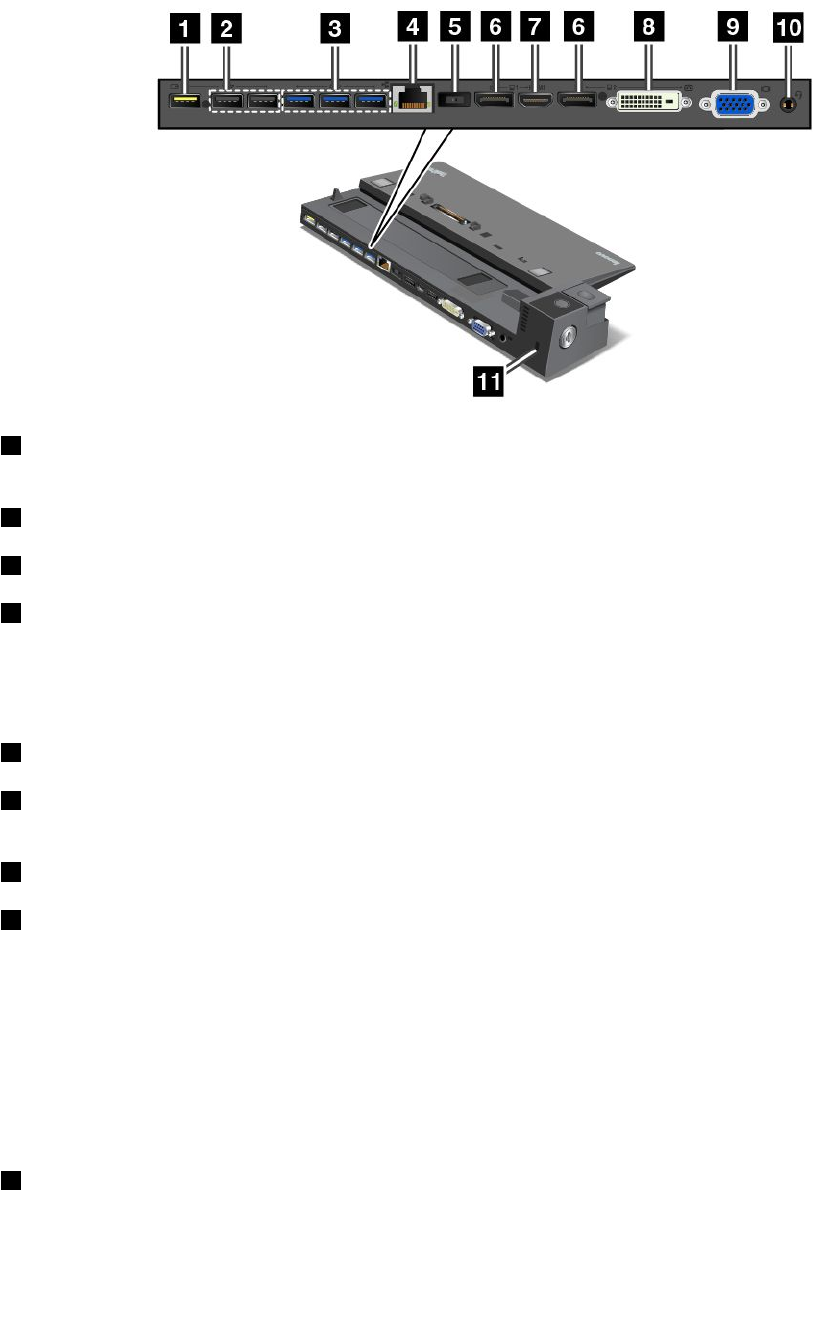
Rearview
1AlwaysOnUSBconnector:UsedtoconnectdevicesthatarecompatiblewithUSB2.0orchargesome
mobiledigitaldevicesandsmartphoneswhenyourcomputerisinsleeporhibernationmode.
2USB2.0connectors:UsedtoconnectdevicesthatarecompatiblewithUSB2.0.
3USB3.0connectors:UsedtoconnectdevicesthatarecompatiblewithUSB3.0.
4Ethernetconnector:UsedtoconnectthedockingstationtoanEthernetLAN.
Note:IfyouneedtouseanEthernetconnectororanexternalmonitorconnectorwhenyourcomputeris
attachedtoadockingstation,usetheEthernetconnectorortheexternalmonitorconnectoronthedocking
station,insteadoftheoneonthecomputer.
5acpowerconnector:Usedtoconnecttheacpoweradapter.
6DisplayPortconnectors:Usedtoattachahigh-performancemonitor,adirect-drivemonitor,orother
devicesthatuseaDisplayPortconnector.
7HDMIconnector:Usedtoconnectahigh-definitiontelevision.
8DVIconnector:UsedtoconnectamonitorthatsupportsDigitalVisualInterface(DVI)connection.
Note:TheDVIconnectorprovidesadigitalinterfaceonly.Thisconnectorcanonlybeusedwithacomputer
thatsupportsDVIconnection.
ToconnectaDVImonitor,dothefollowing:
1.Turnoffthecomputer.
2.ConnecttheDVImonitortotheDVIconnector.Thenconnectthemonitortoanelectricaloutlet.
3.TurnontheDVImonitorandthenthecomputer.
9VGAconnector:UsedtoconnectthecomputertoaVGA-compatiblevideodevice,suchasaVGA
monitor.
40ThinkPadT460pUserGuide
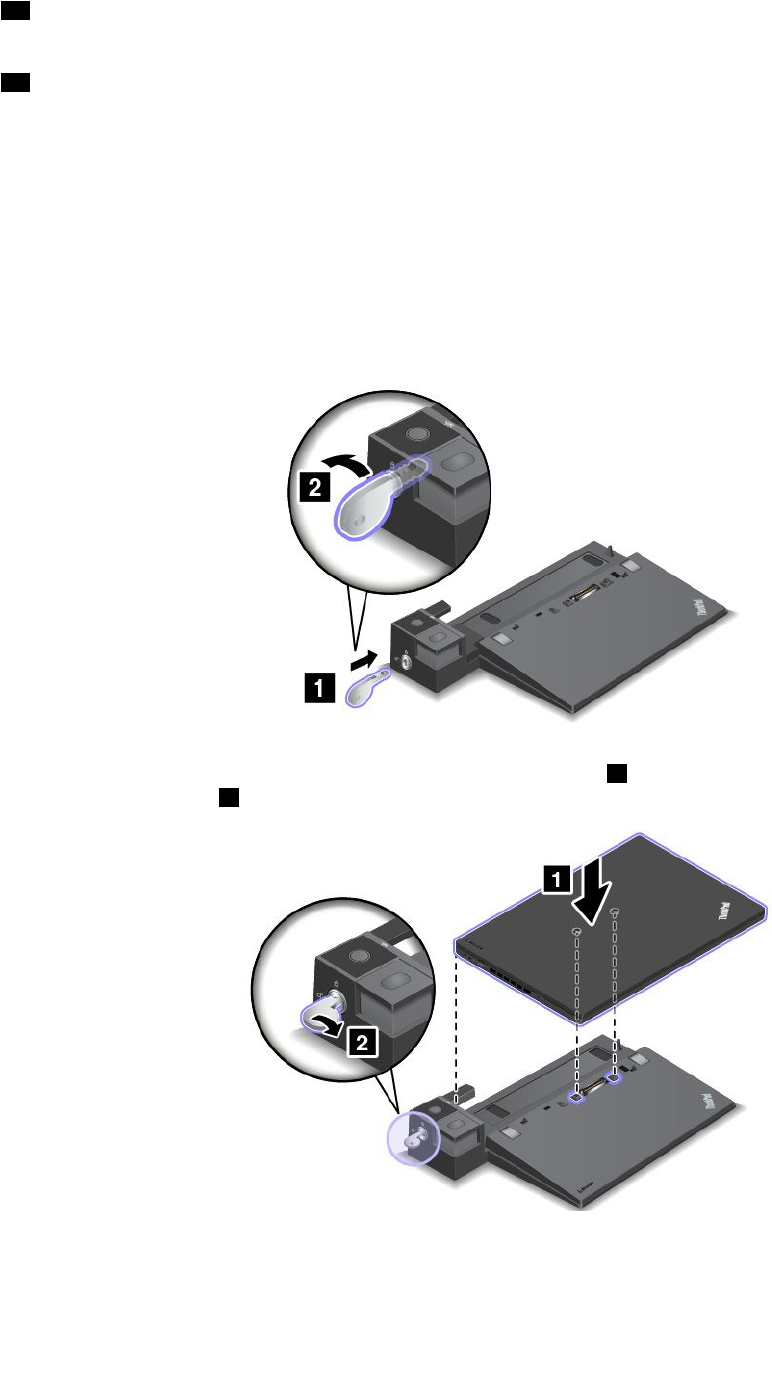
10Audioconnector:Usedtoconnectheadphonesoraheadsetthathasa3.5-mm(0.14-inch),4-pole
plugtotheaudioconnectortolistentothesoundfromthecomputer.
11Security-lockslot:Toprotectyourdockingstationfromtheft,youcanuseasecuritycablelock,such
asaKensington-stylecablelock,thatfitsthissecurity-lockslottolockyourdockingstationtoadesk,
table,orothernon-permanentfixture.
AttachingaThinkPaddockingstation
ToattachyourcomputertoasupportedThinkPaddockingstation,dothefollowing:
Note:TheThinkPadBasicDockdoesnothavethesystemlock.
1.Disconnectallcablesanddevicesfromthecomputer.
2.Ensurethatthesystemlockkeyisturnedtotheunlockedposition(horizontal).
3.Alignthetop-leftcornerofthecomputerwiththepositionmarkofthedockingstation.Attachyour
computertothedockingstationverticallyuntilyouhearaclick1.Thenturnthesystemlockkeyto
thelockedposition2.
4.Checkthedockingstatusindicator.Ifthedockingstatusindicatorisnotturnedon,itindicatesthatyour
computerisnotcorrectlyattachedtothedockingstation.Checktheacpoweradapterofthedocking
station,ordisconnectandreattachtheacpoweradapter.
Chapter3.Enhancingyourcomputer41
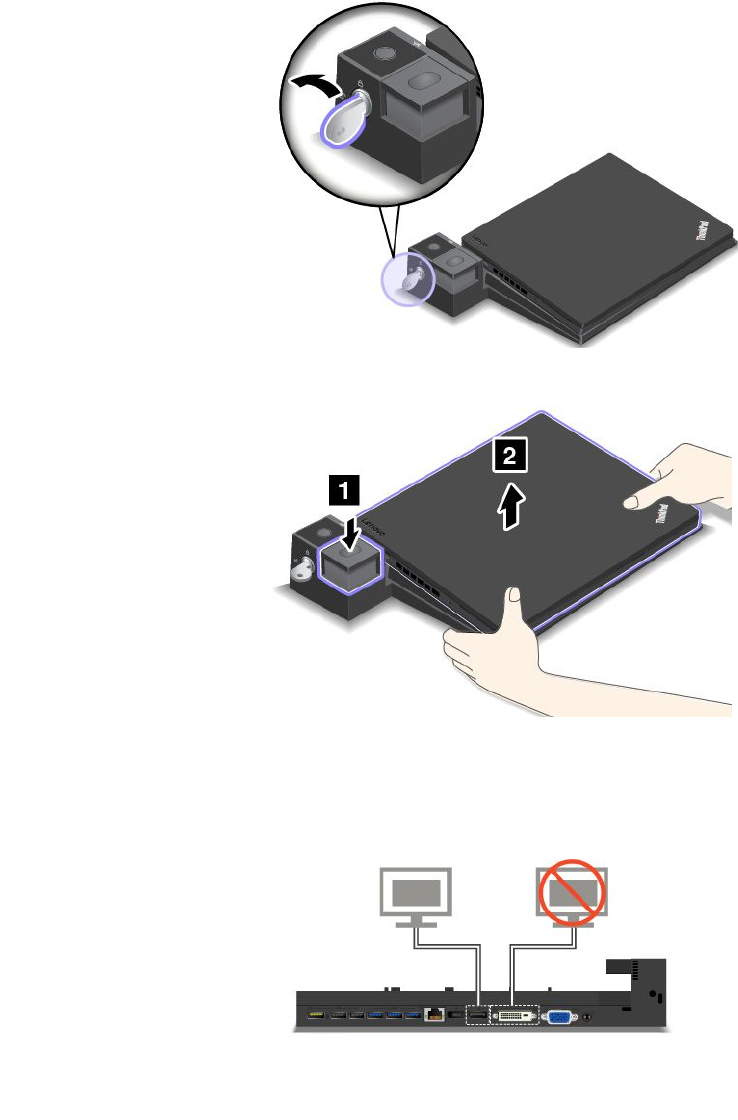
Note:Thecomputerwillbeinbatterymodeifyouattachittoadockingstationthatisnotconnectedto
acpower.
DetachingaThinkPaddockingstation
TodetachyourcomputerfromaThinkPaddockingstation,dothefollowing:
Note:TheThinkPadBasicDockdoesnothavethesystemlock.
1.Disconnectallcablesanddevicesfromthecomputer.
2.Ensurethatthesystemlockkeyisturnedtotheunlockedposition(horizontal).
3.Presstheejectbuttonuntilthecomputermovesup.Then,graspbothsidesofthecomputertoremoveit.
Connectingexternaldisplaystoadockingstation
FortheThinkPadProDock,ifyouconnecttwoexternaldisplaystotheDisplayPortconnectorandtheDVI
connector,theDVIconnectorisinactive.
42ThinkPadT460pUserGuide

FortheThinkPadUltraDock,ifyouconnecttwoexternaldisplaystotheDisplayPortconnectorandtheDVI
connector,theDVIconnectorisinactive.
FortheThinkPadUltraDock,ifyouconnecttwoexternaldisplaystotheDisplayPortconnectorandthe
HDMIconnector,theHDMIconnectorisinactive.
Securityfeatures
Thesystemlockkeyhastwopositionsasshowninthedrawing.
Thesecurityfeatureisdifferentwhenthekeyisindifferentpositions:
•Whenthekeyisinposition1,theejectbuttonofthedockingstationislocked,andyoucannotremove
yourcomputer.Thekeylockindicatorisonwhentheejectbuttonislocked.Thesecuritycableislocked.
•Whenthekeyisinposition2,theejectbuttonofthedockingstationisunlocked,andyoucanremoveyour
computer.Thekeylockindicatorisoffwhentheejectbuttonisunlocked.Thesecuritycableislocked.
Chapter3.Enhancingyourcomputer43

44ThinkPadT460pUserGuide
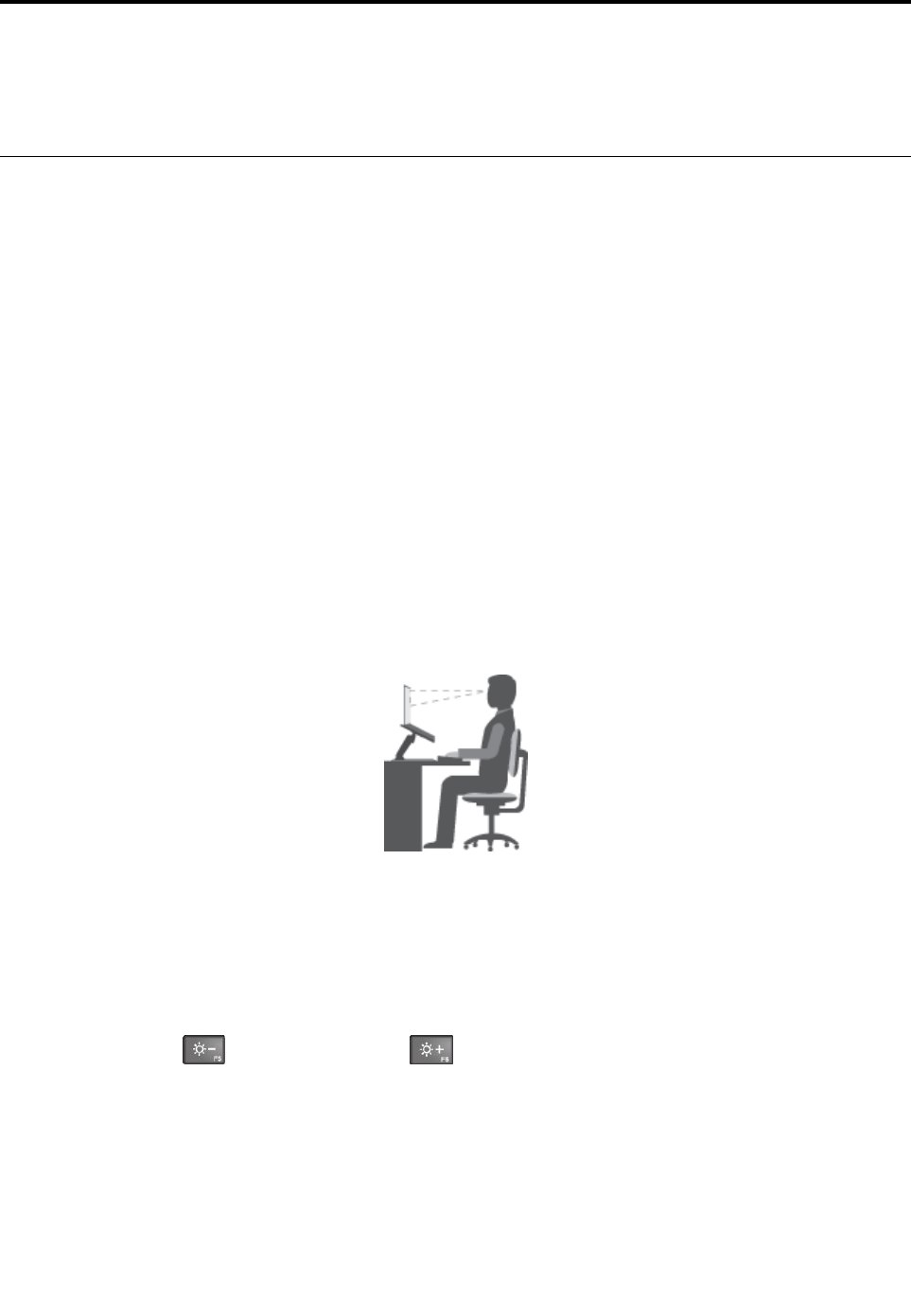
Chapter4.Youandyourcomputer
Thischapterprovidesinformationaboutaccessibility,comfort,andtravellingwithyourcomputer.
Accessibilityandcomfort
Goodergonomicpracticeisimportanttogetthemostfromyourpersonalcomputerandtoavoiddiscomfort.
Arrangeyourworkplaceandtheequipmentyouusetosuityourindividualneedsandthekindofwork
thatyouperform.Inaddition,usehealthyworkhabitstomaximizeyourperformanceandcomfortwhile
usingyourcomputer.
Thefollowingtopicsprovideinformationaboutarrangingyourworkarea,settingupyourcomputer
equipment,andestablishinghealthyworkhabits.
Lenovoiscommittedtoprovidingthelatestinformationandtechnologytoourcustomerswithdisabilities.
Refertotheaccessibilityinformationthatoutlinesoureffortsinthisarea.See“Accessibilityinformation”
onpage46.
Ergonomicinformation
Workinginthevirtualofficemightmeanadaptingtofrequentchangesinyourenvironment.Forexample,
adaptingtothesurroundinglightsources,properseating,andtheplacementofyourcomputerhardware,
canhelpyouimproveyourperformanceandachievegreatercomfort.
Thisexampleshowssomeoneinaconventionalsetting.Evenwhennotinsuchasetting,youcanfollow
manyofthesetips.Developgoodhabits,andtheywillserveyouwell.
Generalposture:Makeminormodificationsinyourworkingposturetodetertheonsetofdiscomfort
causedbylongperiodsofworkinginthesameposition.Frequent,shortbreaksfromyourworkalsohelp
topreventminordiscomfortassociatedwithyourworkingposture.
Display:Positionthedisplaytomaintainacomfortableviewingdistanceof510-760mm(20-30inches).
Avoidglareorreflectionsonthedisplayfromoverheadlightingoroutsidesourcesoflight.Keepthe
displayscreencleanandsetthebrightnesstolevelsthatenableyoutoseethescreenclearly.Pressthe
brightness-downkeyorbrightness-upkeytoadjustdisplaybrightness.
Headposition:Keepyourheadandneckinacomfortableandneutral(vertical,orupright)position.
Chair:Useachairthatgivesyougoodbacksupportandseatheightadjustment.Usechairadjustmentsto
bestsuityourdesiredposture.
©CopyrightLenovo2016,201745

Armandhandposition:Ifavailable,usechairarmrestsoranareaonyourworkingsurfacetoprovide
weightsupportforyourarms.Keepyourforearms,wrists,andhandsinarelaxedandneutral(horizontal)
position.Typewithasofttouchwithoutpoundingthekeys.
Legposition:Keepyourthighsparalleltothefloorandyourfeetflatonthefloororonafootrest.
Whatifyouaretraveling?
Itmightnotbepossibletoobservethebestergonomicpracticeswhenyouareusingyourcomputer
whileonthemoveorinacasualsetting.Regardlessofthesetting,trytoobserveasmanyofthetipsas
possible.Sittingproperlyandusingadequatelighting,forexample,willhelpyoumaintaindesirablelevels
ofcomfortandperformance.
Questionsaboutvision?
ThevisualdisplayscreensofThinkPadnotebookcomputersaredesignedtomeetthehigheststandards
andtoprovideyouwithclear,crispimagesandlarge,brightdisplaysthatareeasytosee,yeteasyonthe
eyes.Ofcourse,anyconcentratedandsustainedvisualactivitycanbetiring.Ifyouhavequestionsoneye
fatigueorvisualdiscomfort,consultavision-carespecialistforadvice.
Comfort
Observethefollowingguidelinestoachievegreatercomfortandimproveperformance.
Activesittingandrestbreaks:Thelongeryousitandworkwithyourcomputer,themoreimportantitisto
observeyourworkingposture.Follow“Ergonomicinformation”onpage45andpractice“activesitting”to
avoiddiscomfortassociatedwithyourworkingpostures.Makingminorvoluntaryposturalchangesand
takingshortfrequentworkbreaksarethekeyingredientsforhealthycomputing.Yourcomputerislightand
mobile;youcaneasilyrepositionyourworkingsurfacetoaccommodatemanyposturemodifications.
Workareasetupoptions:Familiarizeyourselfwithallofyourofficefurnituresothatyouknowhowtoadjust
yourworksurface,seat,andotherworktoolstoaccommodateyourpreferencesforcomfort.Ifyourwork
areaisnotinanofficesetting,besuretotakespecialnoteofemployingactivesittingandtakingworkbreaks.
ManyThinkPadproductsolutionsareavailabletohelpyoumodifyandexpandyourcomputertobestsuit
yourneeds.Youcanfindsomeoftheseoptionsathttp://www.lenovo.com/accessories/services/index.html.
Exploreyouroptionsfordockingsolutionsandexternalproductsthatprovidetheadjustabilityandfeatures
thatyouwant.
Accessibilityinformation
Lenovoiscommittedtoprovidinguserswhohavehearing,vision,andmobilitylimitationswithgreater
accesstoinformationandtechnology.Thissectionprovidesinformationaboutthewaystheseuserscanget
themostoutoftheircomputerexperience.Youalsocangetthemostup-to-dateaccessibilityinformation
fromthefollowingWebsite:
http://www.lenovo.com/accessibility
Keyboardshortcuts
Thefollowingtablecontainskeyboardshortcutsthatcanhelpmakeyourcomputereasiertouse.
Note:Dependingonyourkeyboard,someofthefollowingkeyboardshortcutsmightnotbeavailable.
KeyboardshortcutFunction
Windowslogokey+UOpenEaseofAccessCenter
RightShiftforeightsecondsTurnonorturnoffFilterKeys
46ThinkPadT460pUserGuide

KeyboardshortcutFunction
ShiftfivetimesTurnonorturnoffStickyKeys
NumLockforfivesecondsTurnonorturnoffToggleKeys
LeftAlt+LeftShift+NumLockTurnonorturnoffMouseKeys
LeftAlt+LeftShift+PrtScn(orPrtSc)TurnonorturnoffHighContrast
Formoreinformation,gotohttp://windows.microsoft.com/,andthenperformasearchusinganyofthe
followingkeywords:keyboardshortcuts,keycombinations,shortcutkeys.
EaseofAccessCenter
EaseofAccessCenterontheWindowsoperatingsystemenablesuserstoconfiguretheircomputersto
suittheirphysicalandcognitiveneeds.
TouseEaseofAccessCenter,dothefollowing:
1.GotoControlPanel,andensurethatyouviewControlPanelusingCategory.
2.ClickEaseofAccess➙EaseofAccessCenter.
3.Choosetheappropriatetoolbyfollowingtheinstructionsonthescreen.
EaseofAccessCentermainlyincludesthefollowingtools:
•Magnifier
Magnifierisausefulutilitythatenlargestheentirescreenorpartofthescreensothatyoucansee
theitemsbetter.
•Narrator
Narratorisascreenreaderthatreadswhatisdisplayedonthescreenaloudanddescribeseventssuchas
errormessages.
•On-ScreenKeyboard
Ifyouprefertotypeorenterdataintoyourcomputerusingamouse,joystick,orotherpointingdevice
insteadofaphysicalkeyboard,youcanuseOn-ScreenKeyboard.On-ScreenKeyboarddisplaysavisual
keyboardwithallthestandardkeys.Youcanselectkeysusingthemouseoranotherpointingdevice,or
youcantaptoselectthekeysifyourcomputersupportsmulti-touchscreen.
•HighContrast
HighContrastisafeaturethatheightensthecolorcontrastofsometextandimagesonyourscreen.Asa
result,thoseitemsaremoredistinctandeasiertoidentify.
•Personalizedkeyboard
Adjustkeyboardsettingstomakeyourkeyboardeasiertouse.Forexample,youcanuseyourkeyboard
tocontrolthepointerandmakethekeyboardeasiertotypecertainkeycombinations.
•Personalizedmouse
Adjustmousesettingstomakeyourmouseeasiertouse.Forexample,youcanchangethepointer
appearanceandmakeyourmouseeasiertomanagewindows.
SpeechRecognition
SpeechRecognitionenablesyoutocontrolyourcomputerbyvoice.
Usingonlyyourvoice,youcanstartprograms,openmenus,clickobjectsonthescreen,dictatetextinto
documents,andwriteandsende-mails.Everythingyoudowiththekeyboardandmousecanbedonewith
onlyyourvoice.
Chapter4.Youandyourcomputer47

TouseSpeechRecognition,dothefollowing:
1.GotoControlPanel,andensurethatyouviewControlPanelusingCategory.
2.ClickEaseofAccess➙SpeechRecognition.
3.Followtheinstructionsonthescreen.
Screen-readertechnologies
Screen-readertechnologiesareprimarilyfocusedonsoftwareprograminterfaces,helpinformationsystems,
andvariousonlinedocuments.Foradditionalinformationaboutscreenreaders,seethefollowing:
•UsingPDFswithscreenreaders:
http://www.adobe.com/accessibility.html?promoid=DJGVE
•UsingtheJAWSscreenreader:
http://www.freedomscientific.com/jaws-hq.asp
•UsingtheNVDAscreenreader:
http://www.nvaccess.org/
Screenresolution
Youcanmakethetextandimagesonyourscreeneasiertoreadbyadjustingthescreenresolutionofyour
computer.
Toadjustthescreenresolution,dothefollowing:
1.Right-clickanemptyareaofthedesktopandselectScreenresolution.
2.Followtheinstructionsonthescreen.
Note:Settingaresolutiontoolowmightpreventsomeitemsfromfittingonthescreen.
Customizableitemsize
Youcanmaketheitemsonyourscreeneasiertoreadbychangingtheitemsize.
•Tochangetheitemsizetemporarily,usetheMagnifiertoolinEaseofAccessCenter.See“Easeof
AccessCenter”onpage47.
•Tochangetheitemsizepermanently,dothefollowing:
–Changethesizeofalltheitemsonyourscreen.
1.GotoControlPanel,andensurethatyouviewControlPanelusingCategory.
2.ClickAppearanceandPersonalization➙Display.
3.Changetheitemsizebyfollowingtheinstructionsonthescreen.
4.ClickApply.Thischangewilltakeeffectthenexttimeyoulogintotheoperatingsystem.
–ChangethesizeoftheitemsonaWebpage.
PressandholdCtrl,andthenpresstheplus-signkey(+)toenlargeortheminus-signkey(-)to
reducethetextsize.
–Changethesizeoftheitemsonthedesktoporawindow.
Note:Thisfunctionmightnotworkonsomewindows.
Ifyourmousehasawheel,pressandholdCtrl,andthenscrollthewheeltochangetheitemsize.
Industry-standardconnectors
Yourcomputerprovidesindustry-standardconnectorsthatenableyoutoconnectassistivedevices.
48ThinkPadT460pUserGuide

Formoreinformationaboutthelocationandfunctionoftheconnectors,see“Locatingcomputercontrols,
connectors,andindicators”onpage1.
Documentationinaccessibleformats
Lenovoprovideselectronicdocumentationinaccessibleformats,suchasproperlytaggedPDFfilesor
HyperTextMarkupLanguage(HTML)files.Lenovoelectronicdocumentationisdevelopedtoensure
thatvisuallyimpaireduserscanreadthedocumentationthroughascreenreader.Eachimageinthe
documentationalsoincludesadequatealternativetextsothatvisuallyimpaireduserscanunderstandthe
imagewhentheyuseascreenreader.
Travelingwithyourcomputer
Thistopicprovidesinformationtohelpyouworkwithyourcomputerwhenyouaretravelling.
Traveltips
Usethefollowingtraveltipstotravelmoreconfidentlyandefficientlywithyourcomputer.
•Althoughitissafetoallowyourcomputertogothroughthex-raymachinesatairportsecuritystations,it
isimportanttokeepyoureyesonthecomputeratalltimestopreventtheft.
•Considerbringinganelectricaladapterforuseinanairplaneorautomobile.
•Ifyoucarryanacpoweradapter,detachtheaccordfromittoavoiddamagingthecord.
Traveltipsonairplanes
Ifyoucarryyourcomputerintoanairplane,takenoteofthefollowingtips:
•Ifyouintendtouseyourcomputerorwirelessservices(suchasInternetandBluetooth),checkwiththe
airlineforrestrictionsandavailabilityofservicesbeforeboardingtheairplane.Iftherearerestrictions
ontheuseofcomputerswithwirelessfeaturesontheairplane,youmustabidebythoserestrictions.If
necessary,enabletheAirplanemodebeforeboarding.IntheAirplanemode,allwirelessfeaturesare
disabled.ToenabletheAirplanemode,dothefollowing:
–ForWindows10:OpentheStartmenuandthenclickSettings.IfSettingsisnotdisplayed,clickAll
appstodisplayallprograms,andthenclickSettings➙Network&Internet➙Airplanemode,and
thenslidethecontrolfortheAirplanemodetotheright.
•Becarefulabouttheseatinfrontofyouonairplanes.Angleyourcomputerdisplaysothatitdoesnotget
caughtwhenthepersoninfrontofyouleansback.
•Whentakingoff,remembertoturnoffyourcomputerorputitintohibernationmode.
Travelaccessories
Thefollowingisachecklistofitemstoconsiderpackingwhenyouaregoingtotravel:
•ThinkPadacpoweradapter
•Externalmouse,ifyouareaccustomedtousingone
•Ethernetcable
•Extrabattery,charged
•Aqualitycarryingcasethatprovidesadequatecushionandprotection
•Externalstoragedevice
Ifyouaretravelingtoanothercountry,youmightwanttoconsideranacpoweradapterforthecountryto
whichyouaretravelling.
Chapter4.Youandyourcomputer49

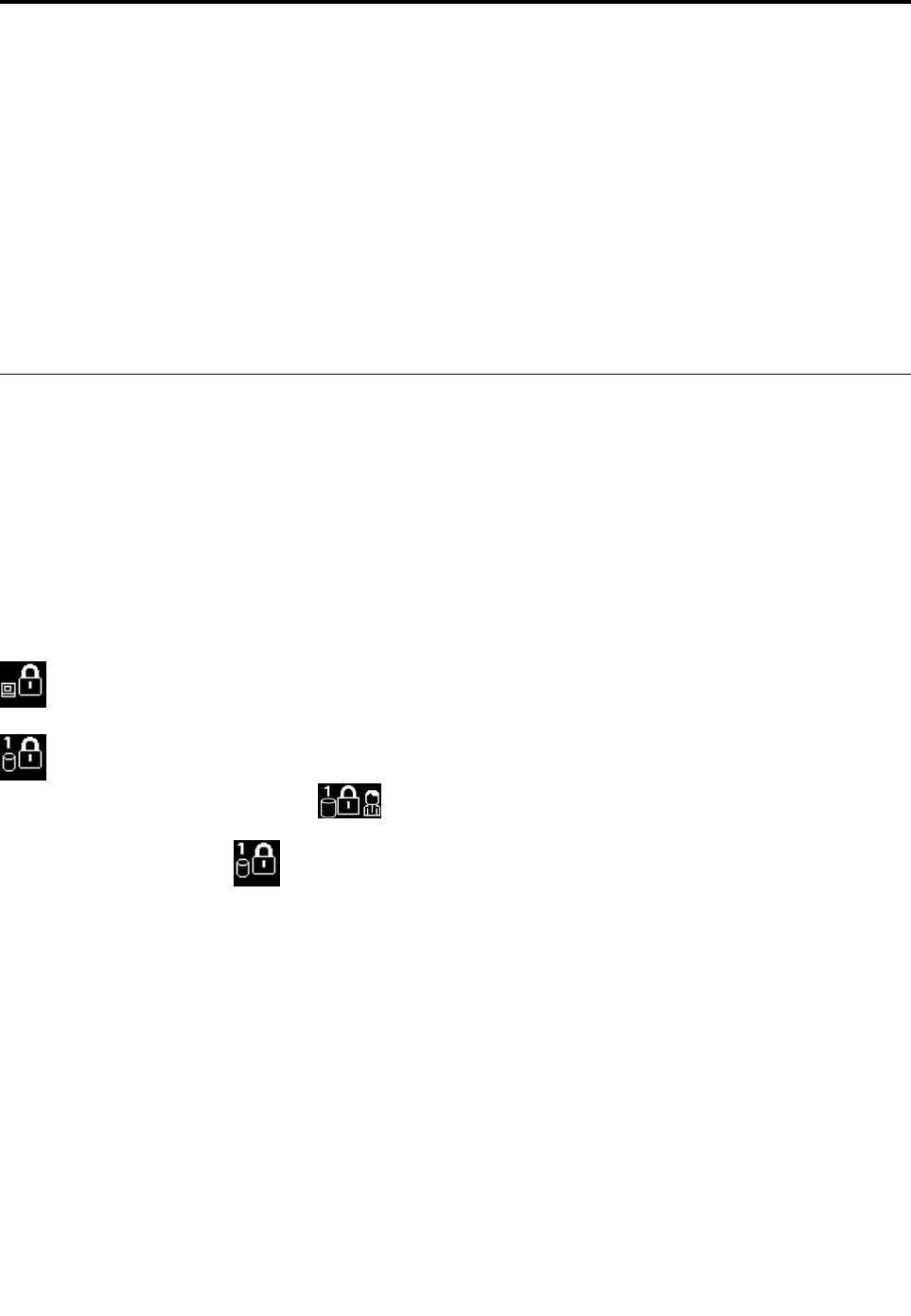
Chapter5.Security
Thischapterprovidesinformationabouthowtoprotectyourcomputerfromtheftandunauthorizeduse.
•“Usingpasswords”onpage51
•“Harddisksecurity”onpage56
•“Settingthesecuritychip”onpage56
•“Usingthefingerprintreader”onpage57
•“Noticeondeletingdatafromyourstoragedrive”onpage60
•“Usingfirewalls”onpage60
•“Protectingdataagainstviruses”onpage61
Usingpasswords
Youcanhelppreventyourcomputerfromunauthorizedusebyusingpasswords.Onceyousetapassword,
apromptisdisplayedonthescreeneachtimeyouturnonthecomputer.Enteryourpasswordattheprompt.
Youcannotusethecomputerunlessyoutypethecorrectpassword.
Ifyouhavesetapower-onpassword,asupervisorpassword,oraharddiskpassword,itunlocks
automaticallywhenthecomputerresumesfromsleepmode.
Note:IfaWindowspasswordhasbeenset,youwillbepromptedtoenterit.
Typingpasswords
Whenthisiconisdisplayed,typeapower-onpasswordorasupervisorpassword.
Whenthisiconisdisplayed,typeauserharddiskpassword.Totypeamasterharddiskpassword,
pressF1.Whentheiconchangesto,typethemasterharddiskpassword
Note:Toreturntotheicon,pressF1again.
Power-onpassword
Youcansetapower-onpasswordtohelpprotectyourcomputeragainstunauthorizedaccess.
Ifyousetapower-onpassword,thepasswordpromptisdisplayedonthescreenwheneveryouturnonthe
computer.Youmustenterthecorrectpasswordtostartusingthecomputer.
Setting,changing,orremovingapower-onpassword
Beforeyoustart,printtheseinstructions.
Toset,change,orremoveapower-onpassword,dothefollowing:
1.Restartyourcomputer.Whenthelogoscreenisdisplayed,pressF1tostarttheThinkPadSetup
program.
2.SelectSecurity➙Password➙Power-onPasswordbyusingthedirectionalkeys.
©CopyrightLenovo2016,201751

3.Dependingonyourneed,dooneofthefollowing:
•Tosetapassword,dothefollowing:
a.IntheEnterNewPasswordfield,typeadesiredpasswordandpressEnter.
b.IntheConfirmNewPasswordfield,retypethepasswordandpressEnter.
•Tochangeapassword,dothefollowing:
a.IntheEnterCurrentPasswordfield,typethecurrentpower-onpasswordandpressEnter.
b.IntheEnterNewPasswordfield,typethenewpower-onpasswordandpressEnter;thenretype
thepasswordintheConfirmNewPasswordfieldandPressEnter.
•Toremoveapassword,dothefollowing:
a.IntheEnterCurrentPasswordfield,typethecurrentpower-onpasswordandpressEnter.
b.LeavetheEnterNewPasswordandConfirmNewPasswordfieldsblank.PressEntertwice.
4.ASetupNoticewindowisdisplayed.PressEntertocontinue.
5.PressF10.ASetupConfirmationwindowisdisplayed.SelectYestosavetheconfigurationchanges
andexit.
Note:Youmightwanttorecordyourpasswordandstoreitinasafeplace.Otherwise,ifyouforgetthe
password,youhavetotakeyourcomputertoaLenovoreselleroramarketingrepresentativetohave
thepasswordcanceled.
Supervisorpassword
ThesupervisorpasswordprotectsthesysteminformationstoredintheThinkPadSetupprogram.Itprovides
thefollowingsecurityfeatures:
•Ifonlyasupervisorpasswordisset,apasswordpromptisdisplayedwhenyoutrytostarttheThinkPad
Setupprogram.Unauthorizeduserscannotchangemostofthesystemconfigurationoptionsinthe
ThinkPadSetupprogramwithoutthepassword.
•Thesystemadministratorcanusethesupervisorpasswordtoaccessacomputereveniftheuserofthat
computerhassetapower-onpassword.Thesupervisorpasswordoverridesthepower-onpassword.
•Ifbothasupervisorpasswordandapower-onpasswordareset,youcandothefollowingonlyifyou
havethesupervisorpassword:
–Changingordeletingthepower-onpassword
–Changingordeletingthesupervisorpassword
–Changingdateandtime
–Specifyingtheminimumlengthforpower-onpasswordandharddiskpassword
–Changingthesettingforthesecuritychip
–Erasingthefingerprintdata
–Enablingordisablingthefollowingfeatures:
–WakeonLANandFlashoverLAN
–LockUEFIBIOSSettings
–Passwordatunattendedboot
–BootDeviceListF12Option
–BootOrderLock
–FlashBIOSUpdatingbyEnd-Users
–Internalnetworkdevice
52ThinkPadT460pUserGuide

–Internalwirelessdevice
–InternalBluetoothdevice
–InternalNetworkOptionROM
–InternalwirelessWANdevice
–Securitymode
–Fingerprintreaderpriority
Notes:
•ThesystemadministratorcansetthesamesupervisorpasswordonmanyThinkPadnotebookcomputers
tomakeadministrationeasier.
•WhenLockUEFIBIOSSettingsoptionisenabled,allBIOSsettingscannotbechanged.Tochange
thesettings,asupervisorpasswordisrequired.
Setting,changing,orremovingasupervisorpassword
Beforeyoustart,printtheseinstructions.
Onlyasystemadministratorcanset,change,orremoveasupervisorpassword.Toset,change,orremovea
supervisorpassword,dothefollowing:
1.Restartyourcomputer.Whenthelogoscreenisdisplayed,pressF1tostarttheThinkPadSetup
program.
2.SelectSecurity➙Password➙SupervisorPasswordbyusingthedirectionalkeys.
3.Dependingonyourneeds,dooneofthefollowing:
•Tosetapassword,dothefollowing:
a.IntheEnterNewPasswordfield,typeadesiredpasswordandpressEnter.
b.IntheConfirmNewPasswordfield,retypethepasswordandpressEnter.
•Tochangeapassword,dothefollowing:
a.IntheEnterCurrentPasswordfield,typethecurrentsupervisorpasswordandpressEnter.
b.IntheEnterNewPasswordfield,typethenewsupervisorpasswordandpressEnter;thenretype
thepasswordintheConfirmNewPasswordfieldandpressEnter.
•Toremoveapassword,dothefollowing:
a.IntheEnterCurrentPasswordfield,typethecurrentsupervisorpasswordandpressEnter.
b.LeavetheEnterNewPasswordandConfirmNewPasswordfieldsblank.PressEntertwice.
4.ASetupNoticewindowisdisplayed.PressEntertocontinue.
5.PressF10.ASetupConfirmationwindowisdisplayed.SelectYestosavetheconfigurationchanges
andexit.
Note:Youmightwanttorecordyourpasswordandstoreitinasafeplace.Thenexttimeyouopenthe
ThinkPadSetupprogram,youwillbepromptedtotypeyoursupervisorpasswordtoproceed.Ifyouforget
yoursupervisorpassword,Lenovocannotresetyourpassword.YoumusttakeyourcomputertoaLenovo
reselleroraLenovomarketingrepresentativetohavethesystemboardreplaced.Proofofpurchaseis
required,andafeewillbechargedforpartsandservice.
Harddiskpasswords
Thefollowingtwotypesofharddiskpasswordscanhelpprotecttheinformationstoredontheharddiskdrive:
•Userharddiskpassword
Chapter5.Security53

Ifauserharddiskpasswordhasbeenset,butnomasterharddiskpasswordhasbeen,theusermust
entertheuserharddiskpasswordtoaccessfilesandapplicationsontheharddiskdrive.
•Masterharddiskpassword
Themasterharddiskpasswordalsorequiresauserharddiskpassword.Themasterharddiskpassword
isusuallysetandusedbyasystemadministrator.Itenablestheadministratortoaccessanyharddisk
driveinasystemlikeamasterkey.Theadministratorsetsthemasterpassword;thenassignsauser
passwordforeachcomputerinthenetwork.Theusercanthenchangetheuserpasswordasdesired,but
theadministratorstillcangetaccessbyusingthemasterpassword.
Whenamasterharddiskpasswordisset,onlytheadministratorcanremovetheuserharddiskpassword.
Note:Youcannotsetharddiskpasswordforthefollowingdevices:
•TrustedComputingGroup(TCG)Opal-compliantstoragedrives(IfaTCGOpalmanagementprogramis
installedandactivatedonyourcomputer.)
•eDrivestoragedevices(IftheWindows8.1operatingsystemisinstalledonyourcomputer.)
Settingaharddiskpassword
Beforeyoustart,printtheseinstructions.
Tosetaharddiskpassword,dothefollowing:
1.Restartyourcomputer.Whenthelogoscreenisdisplayed,pressF1tostarttheThinkPadSetup
program.
2.SelectSecurity➙Password➙Harddisk1Passwordbyusingthedirectionalkeys.
3.Apasswordwindowisdisplayed.YouarepromptedtoselectUserorUser+Master.SelectUserif
youwanttosetonlyoneharddiskpassword.SelectUser+Masterifyouwanttosetauserharddisk
passwordandamasterharddiskpassword,forexampleifyouareanadministratororasupervisor.
•IfyouselectUser,dothefollowing:
a.Whenawindowfortypingthenewpasswordopens,typeyournewpasswordintheEnterNew
PasswordfieldandpressEnter.
b.IntheConfirmNewPasswordfield,retypethepasswordyoujustenteredandpressEnter.
•IfyouselectUser+Master,dothefollowing:
a.First,setauserharddiskpassword.Whenamessagewindowpromptsyoutosettheuserhard
diskpassword,pressEntertocontinue.TypeyournewuserharddiskpasswordintheEnter
NewPasswordfieldandpressEnter.RetypethepasswordintheConfirmNewPassword
fieldandpressEnter.
b.Then,setamasterharddiskpassword.Whenamessagewindowpromptsyoutosetthemaster
harddiskpassword.PressEntertocontinue.Typeyournewmasterharddiskpasswordinthe
EnterNewPasswordfieldandpressEnter.RetypethepasswordintheConfirmNewPassword
fieldandpressEnter.
4.ASetupNoticewindowisdisplayed.PressEntertocontinue.
5.PressF10.ASetupConfirmationwindowisdisplayed.SelectYestosavetheconfigurationchanges
andexit.
Thenexttimeyouturnonyourcomputer,typetheuserormasterharddiskpasswordtostartyourcomputer
andaccesstheoperatingsystem.
Changingorremovingaharddiskpassword
Tochangeorremovetheharddiskpassword,dothefollowing:
•IfyouareinUser+Masterharddiskmode,youcanselecteitherUserHDPorMasterHDPtochange
thepassword,dependingonyourneeds.
54ThinkPadT460pUserGuide

–IfyouselectUserHDPmode,followthefollowingstepstochangetheuserharddiskpassword:
1.TypethecurrentuserharddiskpasswordintheEnterCurrentPasswordfieldandpressEnter.
2.TypethenewpasswordintheEnterNewPasswordfieldandpressEnter;thenretypethe
passwordintheConfirmNewPasswordfieldandpressEnter.
3.ASetupNoticewindowisdisplayed.PressEnteragaintocontinue.Theuserharddiskpassword
ischanged.
Note:TheharddiskpasswordcannotberemovedinUserHDPmode.
–IfyouselectMasterHDPmode,followthefollowingstepstochangethemasterharddiskpassword:
1.TypethecurrentmasterharddiskpasswordintheEnterCurrentPasswordfieldandpressEnter.
2.TypethenewmasterharddiskpasswordintheEnterNewPasswordfieldandpressEnter;then
retypethenewpasswordyoujustenteredintheConfirmNewPasswordfieldandpressEnter.
3.ASetupNoticewindowisdisplayed.PressEntertocontinue.Themasterharddiskpasswordis
changed.
Note:IfyouleavetheEnterNewPasswordandConfirmNewPasswordfieldsblankandpressEnter
twice,boththeuserandmasterharddiskpasswordsareremoved.
•IfyouareinUserharddiskmode,followthefollowingstepstochangetheuserharddiskpassword:
1.Followsteps1through7in“Settingaharddiskpassword”onpage54,typingyourpasswordtoget
accesstotheThinkPadSetupprogram.
2.TypethecurrentuserharddiskpasswordintheEnterCurrentPasswordfieldandpressEnter.
3.TypethenewpasswordintheEnterNewPasswordfieldandpressEnter;thenretypethenew
passwordintheConfirmNewPasswordfieldandpressEnter.
4.ASetupNoticewindowisdisplayed.PressEnteragaintocontinue.Theuserharddiskpasswordis
changed.
Note:IfyouleavetheEnterNewPasswordandConfirmNewPasswordfieldsblankandpressEnter
twice,theuserharddiskpasswordisremoved.
Tipsonusingtheharddiskpasswords
•YoucansettheminimumlengthofaharddiskpasswordthroughtheSecuritymenu.
•Ifyousetaharddiskpasswordofoversevencharacters,theharddiskdrivecanbeusedonlywitha
computerthatcanrecognizeaharddiskpasswordofoversevencharacters.Ifyoutheninstallthe
harddiskdriveinacomputerthatcannotrecognizeaharddiskpasswordthatcontainsmorethan
sevencharacters,youcannotaccessthedrive.
•Recordyourpasswordandstoreitinasafeplace.Ifyouforgettheuserharddiskpassword,orbothuser
andmasterharddiskpasswords,Lenovocannotresetyourpasswordsorrecoverdatafromtheharddisk
drive.YoumusttakeyourcomputertoaLenovoreselleroramarketingrepresentativetohavethehard
diskdrivereplaced.Proofofpurchaseisrequired,andafeewillbechargedforpartsandservice.
Notes:TheeDrivestoragedrivesorTrustedComputingGroup(TCG)Opal-compliantstoragedrivesprovide
self-encryptioncapabilitiestosecureyourdata.
•IfaTCGOpal-compliantstoragedriveandaTCGOpalmanagementsoftwareprogramareinstalled,and
theTCGOpalmanagementsoftwareprogramisactivated,theharddiskpasswordisnotavailable.
•IfaneDrivestoragedriveisinstalledinyourcomputer,andyourcomputerispreinstalledwiththe
Windows8.1orWindows10operatingsystem,theharddiskpasswordisnotavailable.
Chapter5.Security55

Harddisksecurity
Toprotectpasswordsfromunauthorizedsecurityattacks,refertothefollowingtipstomaximizesecurity:
•Setapower-onpasswordaswellasaharddiskpasswordforyourinternalstoragedrive.Refertothe
proceduresin“Power-onpassword”onpage51and“Harddiskpasswords”onpage53.Forsecurity,
alongerpasswordisrecommended.
•ToprovidereliablesecurityfortheUEFIBIOS,usethesecuritychipandasecurityapplicationwitha
TrustedPlatformModulemanagementfeature.Referto“Settingthesecuritychip”onpage56.
•IfaDiskEncryptionharddiskdriveandEncryptionsolid-statedriveisinstalledinyourcomputer,besure
toprotectthecontentsofyourcomputermemoryfromunauthorizedaccessbyuseofdriveencryption
software,suchasMicrosoftWindowsBitLocker®DriveEncryption,whichissupportedintheUltimateand
EnterpriseeditionsoftheWindows7operatingsystemandProfessionalandEnterpriseeditionsofthe
Windows8.1operatingsystem.Referto“UsingWindowsBitLockerDriveEncryption”onpage56.
•Beforeyoudisposeof,sell,orhandoveryourcomputer,deletethedatastoredonit.Formoreinformation,
referto“Noticeondeletingdatafromyourstoragedrive”onpage60.
TheharddiskdrivebuiltintoyourcomputercanbeprotectedbyUEFIBIOS.
UsingWindowsBitLockerDriveEncryption
Tohelpprotectyourcomputeragainstunauthorizedaccess,usethedriveencryptionsoftware,suchas
WindowsBitLockerDriveEncryption.
WindowsBitLockerDriveEncryptionisanintegralsecurityfeatureofsomeeditionsoftheWindows
operatingsystem.Itcanhelpyouprotecttheoperatingsystemanddatastoredonyourcomputer,even
ifyourcomputerislostorstolen.BitLockerworksbyencryptingalluserandsystemfiles,includingthe
swapandhibernationfiles.
BitLockerusesaTrustedPlatformModuletoprovideenhancedprotectionforyourdataandtoensureearly
bootcomponentintegrity.AcompatibleTPMisdefinedasaV1.2TPM.
TochecktheBitLockerstatus,gotoControlPanel,andclickSystemandSecurity➙BitLockerDrive
Encryption.
FormoreinformationaboutWindowsBitLockerDriveEncryption,seethehelpinformationsystemofthe
Windowsoperatingsystem,orsearchfor“MicrosoftWindowsBitLockerDriveEncryptionStep-by-Step
Guide”ontheMicrosoftWebsite.
DiskEncryptionharddiskdriveandEncryptionsolid-statedrive
SomemodelscontaintheDiskEncryptionharddiskdriveorEncryptionsolid-statedrive.Thisfeaturehelps
toprotectyourcomputeragainstsecurityattacksonmedia,NANDflash,ordevicecontrollersbyuseofa
hardwareencryptionchip.Fortheefficientuseoftheencryptionfeature,setaharddiskpasswordforthe
internalstoragedevice.
Settingthesecuritychip
Strictsecurityrequirementsareimposedonnetworkclientcomputersthattransferconfidentialinformation
electronically.Dependingontheoptionsyouordered,yourcomputermighthaveanembeddedsecurity
chip,acryptographicmicroprocessor.Withthesecuritychip,youcandothefollowing:
•Protectyourdataandsystem
•Strengthenaccesscontrols
56ThinkPadT460pUserGuide

•Securecommunications
Beforeyoustart,printtheseinstructions.
TosetanitemontheSecurityChipsubmenu,dothefollowing:
1.Turnoffyourcomputer.Waitforaboutfiveseconds,andthenturnonyourcomputeragain.
2.Whenthelogoscreenisdisplayed,pressF1tostarttheThinkPadSetupprogram.
3.SelectSecurity➙SecurityChipbyusingthedirectionalkeys.
4.PressEnter.TheSecurityChipsubmenuopens.
5.Movetoanitemyouwanttosetbyusingthedirectionalkeys.Whentheitemishighlighted,pressEnter.
6.Setotheritemsthatyouwanttoset.
7.PressF10.ASetupConfirmationwindowisdisplayed.SelectYestosavetheconfigurationchanges
andexit.
Notes:
•EnsurethatthesupervisorpasswordhasbeensetinThinkPadSetup.Otherwiseanyonecanchangethe
settingsforthesecuritychip.
•Ifthesecuritychipisinactiveordisabled,theClearSecurityChipoptionwillnotbedisplayed.
•Whenyouclearthesecuritychip,turnoffyourcomputerandthenturnitonagainafteryousetthe
securitychiptoActive.Otherwise,theClearSecurityChipoptionisnotdisplayed.
Usingthefingerprintreader
Fingerprintauthenticationcanreplaceyourpasswords,suchastheWindowspassword,power-on
password,andharddiskpassword.Inthisway,youcanlogintoyourcomputersimplyandsecurely.
Toenablefingerprintauthentication,enrollyourfingerprintsfirst.Duringtheenrollment,thefingerprintsare
associatedwiththeWindowspasswordautomatically.Toassociateyourfingerprintswithyourpower-on
passwordandharddiskpassword,manuallycreateaconnection.
Enrollingyourfingerprints
Itisrecommendedthatyouenrollmorethanonefingerprintincaseofanyinjuriestoyourfingers.To
enrollyourfingerprints,dothefollowing:
•ForWindows7
1.Startthefingerprintprogram.Forinstructionsonhowtostartthefingerprintprogram,see“Lenovo
programs”onpage12.
2.EntertheWindowspasswordasrequired.
3.Followtheinstructionsonthescreentofinishtheenrollment.
Formoreinformationabouthowtousethefingerprintreader,refertothehelpsystemofthefingerprint
program.
•ForWindows10
1.OpentheStartmenuandthenclickSettings.IfSettingsisnotdisplayed,clickAllappstodisplayall
programs,andthenclickSettings➙Accounts➙Sign-inoptions.
2.Followtheinstructionsonthescreentofinishtheenrollment.
Chapter5.Security57
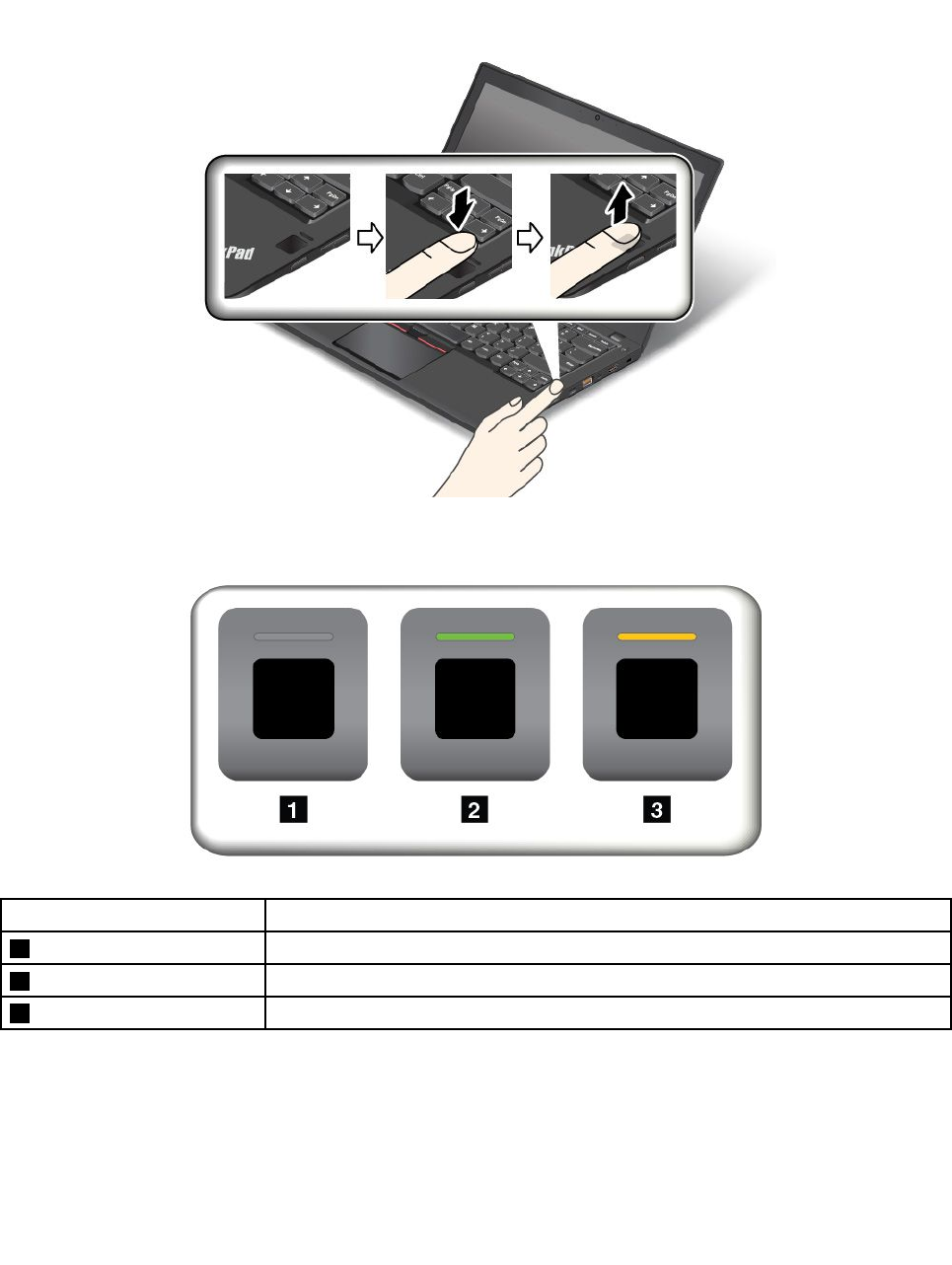
Scanningyourfinger
Toscanyourfinger,tapthefingerprintreaderwiththetopjointofyourfingerandholdyourfingertherefor
oneortwosecondswithalittlepressure.Thenliftthefingertocompleteonescan.
Behaviorofthefingerprintreaderindicator
IndicatorbehaviorDescription
1OffThefingerprintreaderisnotreadyfortapping.
2SolidgreenThefingerprintreaderisreadyfortapping.
3Amber,blinkingThefingerprintcannotbeauthenticated.
Associatingyourfingerprintswithyourpower-onpasswordandharddiskpassword
Toassociateyourfingerprintswithyourpower-onpasswordandharddiskpassword,dothefollowing:
1.Turnoffandthenturnonthecomputer.
2.Whenprompted,scanyourfingeronthefingerprintreader.
58ThinkPadT460pUserGuide

3.Enteryourpower-onpassword,harddiskpassword,orbothasrequired.Theconnectioniscreated.
Whenyoustartthecomputeragain,youcanuseyourfingerprintstologintothecomputerwithnoneedto
enteryourWindowspassword,power-onpassword,andharddiskpassword.
Attention:Ifyoualwaysuseyourfingerprinttologintothecomputer,youmightforgetyourpasswords.
Writedownyourpasswords,andkeeptheminasafeplace.Ifyouforgetyourpower-onpassword,
youmusttakeyourcomputertoaLenovoauthorizedserviceroramarketingrepresentativetohavethe
passwordcanceled.Ifyouforgetyourharddiskpassword,Lenovocannotresetyourpasswordorrecover
datafromthestoragedrive.YoumusttakeyourcomputertoaLenovoauthorizedserviceroramarketing
representativetohavethestoragedrivereplaced.Proofofpurchaseisrequired,andafeewillbecharged
forpartsandservice.
Settingthefingerprintreader
Youcansetthefingerprintreaderinthefingerprintprogramifavailable.Youalsocanchangethefollowing
settingsintheThinkPadSetupprogram:
•PredesktopAuthentication:Enablesordisablesfingerprintauthenticationbeforetheoperatingsystem
isloaded.
•ReaderPriority:Definesthepriorityforthefingerprintreadersifanexternalfingerprintreaderisattached.
•SecurityMode:Specifiesthesettingsofthesecuritymode.
•PasswordAuthentication:Enablesordisablesthepasswordauthentication.
Note:ThisitemisdisplayedonlyifHighsecuritymodeisenabled.
•ResetFingerprintData:Selectthisitemtoeraseallofthefingerprintdatastoredineithertheinternal
orexternalfingerprintreader.
TochangethesettingsintheThinkPadSetupprogram,see“UsingtheThinkPadSetupprogram”onpage65.
Maintainingthefingerprintreader
Thefollowingactionscoulddamagethefingerprintreaderorcauseitnottoworkproperly:
•Scratchingthesurfaceofthereaderwithahard,pointedobject
•Scrapingthesurfaceofthereaderwithyourfingernailoranythinghard
•Usingortouchingthereaderwithadirtyfinger
Ifyounoticeanyofthefollowingconditions,gentlycleanthesurfaceofthereaderwithadry,soft,lint-free
cloth:
•Thesurfaceofthereaderisdirtyorstained.
•Thesurfaceofthereaderiswet.
•Thereaderoftenfailstoenrollorauthenticateyourfingerprint.
Ifyourfingerhasanyofthefollowingconditions,youmightnotbeabletoregisterorauthenticateit:
•Yourfingeriswrinkled.
•Yourfingerisrough,dry,orinjured.
•Yourfingerisstainedwithdirt,mud,oroil.
•Thesurfaceofyourfingerisdifferentfromtheonewhenyouenrolledyourfingerprint.
•Yourfingeriswet.
•Yourfingerthatyouarecurrentlyusinghasnotbeenenrolledbefore.
Chapter5.Security59

Toimprovethesituation,trythefollowing:
•Cleanorwipeyourhandstoremoveanyexcessdirtormoisturefromthefingers.
•Enrollanduseadifferentfingerforauthentication.
Noticeondeletingdatafromyourstoragedrive
Someofthedatastoredonthestoragedrivemightbesensitive.Handingyourcomputerovertosomeone
elsewithoutdeletingtheloadedsoftware,suchasoperatingsystemsandapplicationsoftware,mighteven
violatelicenseagreements.Besuretodeletedatastoredonthestoragedrivebeforeyoudisposeof,sell,
orhandoveryourcomputer.
Youcanusethefollowingmethodstodeletedatafromthestoragedrive:
•MovethedatatotheRecycleBin,andthenemptytheRecycleBin.
•Deletethedata.
•Formatyourstoragedrive,usingthesoftwareforinitializingit.
•UsetherecoveryprogramprovidedbyLenovotobringthestoragedrivebacktothefactorydefault
settings.
Theseoperations,however,onlychangethefilelocationofthedata;theydonotdeletethedataitself.In
otherwords,thedataretrievalprocessingisdisabledunderanoperatingsystemsuchasWindows.The
dataisstillthere,eventhoughitseemstobelost.Thus,itissometimespossibletoreadthedatabyuseof
specialsoftwarefordatarecovery.Thereisariskthatpeopleofbadfaithmightreadandmisusethecritical
dataonthestoragedriveforunexpectedpurposes.
Topreventleakageofdata,itisimportantthatyoudeleteallthedatafromthestoragedrivewhenyou
disposeof,sell,orhandoveryourcomputer.Youcandestroythedataphysicallybysmashingthestorage
drivewithahammer,ormagneticallybymeansofstrongmagneticpower,thusmakingthedataunreadable.
Butitisrecommendedthatyouusethesoftware(payware)orservice(payservice)developedforthat
purpose.Theprocessmighttakeseveralhours.
Fordisposingofdataonthesolid-statedrive,LenovoprovidestheDriveEraseUtilityforResettingthe
CryptographicKeyandErasingtheSolidStateDrivetool.Fordisposingofdataontheharddiskdriveor
hybriddrive,LenovoprovidestheSecureDataDisposal™tool.Gotohttp://www.lenovo.com/supportto
downloadthesetools.
IfanEncryptionsolid-statedriveoraDiskEncryptionharddiskdriveoraDiskEncryptionhybriddriveis
supportedandinstalledinyourcomputer,youcanlogicallydisposeofallthedataonthedriveinashort
timebyerasingthecryptographickey.Thedataencryptedwiththeoldkeyisnotphysicallyerasedbut
remainsonthedrive;however,itcannotbedecryptedwithouttheoldkey.Thisfeatureisalsoavailablewith
theDriveEraseUtilityforResettingtheCryptographicKeyandErasingtheSolidStateDrivetool.
Usingfirewalls
Ifyoursystemispreinstalledwithafirewallprogram,itprotectsagainstcomputerInternetsecuritythreats,
unauthorizedaccess,intrusions,andInternetattacks.Italsoprotectsyourprivacy.
Formoreinformationabouthowtousethefirewallprogram,refertothehelpinformationsystemthat
comeswiththeprogram.
60ThinkPadT460pUserGuide

Protectingdataagainstviruses
Yourcomputerispreinstalledwithanantivirusprogramsoyoucandetectandeliminateviruses.The
antivirusprogramisdesignedtohelpyoudetectandeliminateviruses.
Lenovoprovidesafullversionofantivirussoftwareonyourcomputerwithafree30-daysubscription.After
30days,youmustrenewthelicensetocontinuereceivingtheantivirussoftwareupdates.
Formoreinformationabouthowtouseyourantivirussoftware,refertothehelpinformationsystemof
yourantivirussoftware.
Chapter5.Security61

62ThinkPadT460pUserGuide

Chapter6.Advancedconfiguration
Thischapterprovidesthefollowinginformationtohelpyouconfigurethecomputer:
•“Installinganewoperatingsystem”onpage63
•“Installingdevicedrivers”onpage65
•“UsingtheThinkPadSetupprogram”onpage65
Installinganewoperatingsystem
Insomesituations,youmightneedtoinstallanewoperatingsystem.Thistopicprovidesinstructionson
howtoinstallanewoperatingsystem.
InstallingtheWindows7operatingsystem
Beforeyoustart,printtheseinstructions.
Attention:
•Theprocessofinstallinganewoperatingsystemdeletesallthedataonyourstoragedrive,includingthe
datathatwerestoredinahiddenfolder.
•IfyourcomputerisequippedwithbothaharddiskdriveandanM.2solid-statedrive,donotusethe
M.2solid-statedriveasabootabledevice.TheM.2solid-statedriveisusedfor“cache”functionandto
supporttheIntelRapidStartTechnology.
ToinstalltheWindows7operatingsystem,dothefollowing:
1.EnsurethatyousetthesecuritychiptoTPM1.2.Formoreinformation,see“Settingthesecurity
chip”onpage56.
2.CopyallthesubdirectoriesandfilesintheC:\SWTOOLSdirectorytoaremovablestoragedevice.
•ThesupplementfilesfortheWindows7operatingsystemareintheC:\SWTOOLS\OSFIXESdirectory.
•ThedevicedriversareintheC:\SWTOOLS\DRIVERSdirectory.
•ThepreinstalledprogramsareintheC:\SWTOOLS\APPSdirectory.
3.StarttheThinkPadSetupprogram.See“UsingtheThinkPadSetupprogram”onpage65.
4.SelectStartup➙BoottodisplaytheBootPriorityOrdersubmenu.
5.Selectthedrivethatcontainstheoperatingsysteminstallationprogram,forexample,USBHDD.
ThenpressEsc.
6.SelectStartup➙UEFI/LegacyBoot.Thendooneofthefollowing:
•ToinstalltheWindows7(32-bit)operatingsystem,selectLegacyOnlyorBoth.
•ToinstalltheWindows7(64-bit)operatingsysteminLegacymode,selectLegacyOnly.
•ToinstalltheWindows7(64-bit)operatingsysteminUEFImode,selectUEFIOnly.
Note:Forcomputerswithanon-volatilememory(NVM)Expressdrive,youcaninstalltheWindows
7operatingsystemontothedriveonlyinUEFImode.Inthiscase,ensurethatyoualwaysselect
UEFIOnly.
7.PresstheF10keytoexittheThinkPadSetupprogram.
8.InserttheWindows7operatingsysteminstallationDVDintotheopticaldrive,andrestartthecomputer.
©CopyrightLenovo2016,201763

Notes:
•IfyouarestartingtheinstallationDVDimagefromanexternalUSBdeviceorifyourcomputerhasan
NVMExpressdriveinstalled,doadditionalconfigurationsbeforeyoustart.Formoreinformation,go
to:http://www.lenovo.com/support/installwin7viausb3.
•IfanNVMExpressdriveisinstalled,additionaldriversalsoarerequired.Formoreinformation,goto
https://support.microsoft.com/en-us/kb/2990941.
9.RestoretheC:\SWTOOLSdirectorythatyoubackedupbeforeinstallingtheWindows7operatingsystem.
10.Installthedevicedrivers.See“Installingdevicedrivers”onpage65.
11.InstalltheWindows7fixmodules.YoucanfindtheWindows7fixmodulesintheC:\SWTOOLS\OSFIXES\
directory.Formoreinformation,gototheMicrosoftKnowledgeBasehomepageat:
http://support.microsoft.com/
12.Installtheregistrypatches,forexampletheEnablingWakeonLANfromStandbyforENERGYSTAR
patch.Todownloadandinstalltheregistrypatches,gototheLenovoSupportWebsiteat:
http://www.lenovo.com/support
Note:Afterinstallingtheoperatingsystem,donotchangetheinitialUEFI/LegacyBootsettinginthe
ThinkPadSetupprogram.Otherwisetheoperatingsystemwillnotstartcorrectly.
WhenyouinstalltheWindows7operatingsystem,youmightneedoneofthefollowingcountryorregion
codes:
CountryorregionCodeCountryorregionCode
ChinaSCNetherlandsNL
DenmarkDKNorwayNO
FinlandFISpainSP
FranceFRSwedenSV
GermanyGRTaiwanandHongKongTC
ItalyITUnitedStatesUS
JapanJP
InstallingtheWindows10operatingsystem
Beforeyoustart,printtheseinstructions.
Attention:Theprocessofinstallinganewoperatingsystemdeletesallthedataonyourinternalstorage
drive,includingthedatathatwerestoredinahiddenfolder.
ToinstalltheWindows10operatingsystem,dothefollowing:
1.EnsurethatyousetthesecuritychiptoTPM2.0.Formoreinformation,see“Settingthesecurity
chip”onpage56.
2.Connectthedrivethatcontainstheoperatingsysteminstallationprogramtothecomputer.
3.StarttheThinkPadSetupprogram.See“UsingtheThinkPadSetupprogram”onpage65.
4.SelectStartup➙BoottodisplaytheBootPriorityOrdersubmenu.
5.Selectthedrivethatcontainstheoperatingsysteminstallationprogram,forexample,USBHDD.
ThenpressEsc.
6.SelectRestartandensurethatOSOptimizedDefaultsisenabled.ThenpressF10tosavethesettings
andexittheThinkPadSetupprogram.
64ThinkPadT460pUserGuide

7.Followtheon-screeninstructionstoinstallthedevicedriversandnecessaryprograms.See“Installing
devicedrivers”onpage65.
8.Afterinstallingthedevicedrivers,applyWindowsUpdatetogetthelatestmodules,forexamplethe
securitypatches.
9.Dependingonyourpreference,installLenovoprograms.ForinformationaboutLenovoprograms,
see“Lenovoprograms”onpage12.
Note:Afterinstallingtheoperatingsystem,donotchangetheinitialUEFI/LegacyBootsettinginthe
ThinkPadSetupprogram.Otherwise,theoperatingsystemwillnotstartcorrectly.
WhenyouinstalltheWindows10operatingsystem,youmightneedoneofthefollowingcountryorregion
codes:
CountryorregionCodeCountryorregionCode
ChinaSCNetherlandsNL
DenmarkDKNorwayNO
FinlandFISpainSP
FranceFRSwedenSV
GermanyGRTaiwanandHongKongTC
ItalyITUnitedStatesUS
JapanJP
Installingdevicedrivers
Devicedriveristheprogramthatoperatesaparticularhardwaredeviceofthecomputer.Ifadevicedoes
notperformwelloryouinstallanewdevice,youneedtoinstallorupdatethecorrespondingdevicedriver.
Forexample,ifyouusetheWindows7operatingsystem,tousetheUSB3.0connector,youneedto
downloadandinstalltheUSB3.0driver.
Todownloadthelatestdevicedrivers,dothefollowing:
1.Gotohttp://www.lenovo.com/ThinkPadDrivers.
2.Selectyourproductnametoviewallthedevicedriversforyourcomputer.
3.Selectthedevicedriversyouthatyouneed,andfollowtheinstructionsonthescreen.
Attention:DonotdownloadthedevicedriversfromtheWindowsUpdateWeb.Alwaysdownloadthedevice
driversfrom:
http://www.lenovo.com/ThinkPadDrivers
IfyouusetheWindows7operatingsystem,youalsocanfindthedevicedriversintheC:\SWTOOLS\DRIVERS
directoryonyourstoragedrive.Formoreinformation,see“Reinstallingpreinstalledprogramsanddevice
drivers”onpage115.
UsingtheThinkPadSetupprogram
TheThinkPadSetupprogramenablesyoutoselectvarioussetupconfigurationsforyourcomputerthrough
configuringtheBIOS.
ToconfiguretheBIOSofyourcomputer,dothefollowing:
1.Turnonthecomputer.Whenthelogoscreenisdisplayed,pressF1.TheThinkPadSetupprogramstarts.
Chapter6.Advancedconfiguration65

Note:Ifyouarerequiredtoenterthesupervisorpassword,enterthecorrectpassword.Youalsocan
pressEntertoskipthepasswordpromptandstarttheThinkPadSetupprogram.Ifyoudonotenterthe
password,youcannotchangetheconfigurationsthatareprotectedbythesupervisorpassword.For
moreinformation,referto“Usingpasswords”onpage51.
2.Usethecursorkeystoselectatab;orusethecursorkeystolocateanitemandpressEntertoselectit.
Thenasubmenuisdisplayed.
Note:Somemenuitemsaredisplayedonlyifthecomputersupportsthecorrespondingfeatures.
3.Setthevalueofanitembydoingoneofthefollowing:
•PresstheF6keytochangetoahighervalue.
•PresstheF5keytochangetoalowervalue.
Note:Defaultvaluesareinboldface.
4.Tochangeotherconfigurations,presstheEsckeytoexitthesubmenuandreturntotheparentmenu.
5.Whenyoucompletetheconfiguration,presstheF10keytosaveandexit.Youalsocanselectthe
RestarttabintheThinkPadSetupmenu,andrestartyourcomputerwithoneoftheprovidedoptions.
Note:YoucanpresstheF9keytorestoretothedefaultsettings.
Mainmenu
WhenyouentertheThinkPadSetupprogram,youwillfirstseetheMainmenuasfollows:
•UEFIBIOSVersion
•UEFIBIOSDate(Year-Month-Day)
•EmbeddedControllerVersion
•MEFirmwareVersion
•MachineTypeModel
•System-unitserialnumber
•Systemboardserialnumber
•AssetTag
•CPUType
•CPUSpeed
•Installedmemory
•UUID
•MACaddress(InternalLAN)
•PreinstalledOSLicense
•UEFISecureBoot
•OA3ID
•OA2
Configmenu
Tochangetheconfigurationofyourcomputer,selecttheConfigtabfromtheThinkPadSetupmenu.
ThefollowingtableliststheConfigmenuitems.Defaultvaluesareinboldface.Themenuitemsmight
changewithoutnotice.Dependingonthemodel,thedefaultvaluemightvary.
Attention:Thedefaultconfigurationsarealreadyoptimizedforyou.Improperchangeoftheconfigurations
mightcauseunexpectedresults.
66ThinkPadT460pUserGuide

Table2.Configmenuitems
MenuitemSubmenuitemSelectionComments
WakeOnLAN•Disabled
•ACOnly
•ACandBattery
Enablethecomputerto
poweronwhentheEthernet
controllerreceivesamagic
packet(aspecialnetwork
message).
IfyouselectACOnly,Wake
onLANisenabledonly
whentheacpoweradapter
isattached.
IfyouselectACand
Battery,WakeonLANis
enabledwithanypower
sources.
Notes:
•Themagicpackettype
WakeonLANrequires
acpower.
•TheWakeonLAN
functiondoesnot
workwhenaharddisk
passwordisset.
EthernetLANOptionROM
(forLegacyOnlyboot
modeorBothwithLegacy
first)
•Disabled
•Enabled
LoadstheEthernetLAN
OptionROMtoenable
startupfromanintegrated
networkdevice.
UEFIIPv4NetworkStack
(forUEFIOnlybootmode
orBothwithUEFIfirst)
•Disabled
•Enabled
EnableordisableInternet
ProtocolVersion4(IPv4)
networkstackfortheUEFI
environment.
UEFIIPv6NetworkStack
(forUEFIOnlybootmode
orBothwithUEFIfirst)
•Disabled
•Enabled
EnableordisableInternet
ProtocolVersion6(IPv6)
networkstackforUEFI
environment.
Network
UEFIPXEBootPriority
(forBothwithUEFIfirst
bootmode,andIPv6
andIPv4stacksareboth
enabled.)
•IPv6First
•IPv4First
Selectnetworkstack
priorityforUEFIPXEboot.
Chapter6.Advancedconfiguration67

Table2.Configmenuitems(continued)
MenuitemSubmenuitemSelectionComments
USBUEFIBIOSSupport•Disabled
•Enabled
Enablesordisablesboot
supportforUSBstorage
devices.
AlwaysOnUSB•Disabled
•Enabled
IfyouselectDisabled,
theexternalUSBdevices
cannotbechargedthrough
USBconnectors.
USB
ChargeinBatteryMode(If
AlwaysOnUSBisenabled)
•Disabled
•Enabled
IfyouselectEnabled,the
AlwaysOnUSBconnector
enablesyoutochargesome
mobiledigitaldevicesand
smartphoneswhenthe
computerispoweredoffor
inhibernationmodeonthe
conditionthattheacpower
adapterisconnected.
TrackPoint•Disabled
•Enabled
IfyouselectEnable,
thebuilt-inTrackPointis
enabled.
IfyouselectDisable,
thebuilt-inTrackPointis
disabled
Trackpad•Disabled
•Enabled
IfyouselectEnable,the
built-inTrackpadisenabled.
IfyouselectDisable,the
built-inTrackpadisdisabled
FnandCtrlKeyswap•Disabled
•Enabled
EnableexchangesofFn
andCtrlkeyactionatthe
bottom-leftofthekeyboard.
Disabled:FnkeyandCtrl
keybehaviorisasprinted
onthekeyboard.
Enabled:Fnkeyworksas
Ctrlkey.Ctrlkeyworksas
Fnkey.
FnStickykey•Disabled
•Enabled
Whentheoptionisenabled,
youcanpresstheFnkey
tokeepitinapressed
condition;thenpressthe
desiredfunctionkey.The
actionisequivalentto
pressingtherequiredkey
simultaneouslywiththeFn
key.Whenyoupressthe
Fnkeytwice,thestateis
lockeduntilyoupressthe
Fnkeyagain.
Keyboard/Mouse
68ThinkPadT460pUserGuide

Table2.Configmenuitems(continued)
MenuitemSubmenuitemSelectionComments
F1–F12asprimaryfunction•Disabled
•Enabled
EnabletheF1-F12function
orthespecialfunction
printedasanicononeach
keyastheprimaryfunction.
Enabled:Executesthe
F1-F12function.
Disabled:Executesthe
specialfunction.
Totemporarilyswitchthe
abovetwooptions,press
Fn+EsctoenableFnLock.
TheFnLockindicatorison
whenFnLockisenabled.
BootDisplayDevice•ThinkPadLCD
•DisplayPort
•HDMI
•Displayondock
Selectthedisplaydevice
thatistobeactivatedat
boottime.Thisselection
iseffectiveforboottime,
passwordprompt,and
ThinkPadSetup.
SharedDisplayPriority•HDMI
•Displayondock
Selecttheprioritybetween
shareddisplayoutputs.
HDMIandDockdisplays
shareasingledisplay
output.Thisoptionchooses
whichoneisprioritized.
TotalGraphicsMemory•256MB
•512MB
Allocatetotalmemory
whichIntelinternalgraphics
deviceshares.
Ifyouselect512MB,the
maximumusablememory
mightbereducedonthe
32-bitoperatingsystem.
Dislay
BootTimeExtension•Disabled
•1second
•2seconds
•3seconds
•5seconds
•10seconds
Thisoptiondefinesthe
amountoftimetoextend
thebootprocess,in
seconds.
Thesystemcannotdetect
someexternalmonitors
duringbootbecausethey
needafewsecondstobe
ready.Trythisoptionifthe
monitorbeinguseddoes
notdisplaythebootscreen.
Chapter6.Advancedconfiguration69

Table2.Configmenuitems(continued)
MenuitemSubmenuitemSelectionComments
Intel(R)SpeedStep®
technology
•Disabled
•Enabled
ModeforAC
•MaximizePerformance
•BatteryOptimized
ModeforBattery
•MaximizePerformance
•BatteryOptimized
SelectthemodeofIntel
SpeedSteptechnologyat
runtime.
•Maximum
Performance:Always
highestspeed
•BatteryOptimized:
Alwayslowestspeed
•Disabled:Noruntime
support,lowestspeed
AdaptiveThermal
Management
SchemeforAC
•MaximizePerformance
•Balanced
SchemeforBattery
•MaximizePerformance
•Balanced
Selectathermal
managementscheme
touse.
MaximizePerformance:
Reducemicroprocessor
throttling.
Balanced:Balance
sound,temperature,and
performance.
Note:Eachschemeaffects
fansound,temperature,
andperformance.
CPUPowerManagement•Disabled
•Enabled
Enableordisablethe
power-savingfeaturethat
stopsthemicroprocessor
clockautomaticallywhen
therearenocomputer
activities.Normally,itisnot
necessarytochangethe
setting.
Power
PowerOnwithACAttach•Disabled
•Enabled
Enableordisablethe
featurethatpowersonthe
systemwhentheacpower
adapterisattached.
IfyouselectEnabled,the
systemispoweredonwhen
theacpoweradapteris
attached.Ifthesystemisin
hibernatestate,thesystem
resumesnormaloperation.
IfyouselectDisabled,the
systemisnotpoweredon
norresumedwhentheac
poweradapterisattached.
70ThinkPadT460pUserGuide

Table2.Configmenuitems(continued)
MenuitemSubmenuitemSelectionComments
PasswordBeep•Disabled
•Enabled
Enablethisoptiontohave
abeepsoundwhenthe
systemiswaitingfora
power-on,harddisk,or
supervisorpassword.
Differentbeepswillsound
whentheenteredpassword
matchesordoesnotmatch
theconfiguredpassword.
BeepandAlarm
KeyboardBeep•Disabled
•Enabled
Enablethisoptionto
haveabeepsound
whenunmanageablekey
combinationarepressed.
IntelAMTControl•Disabled
•Enabled
•PermanentlyDisabled
IfyouselectEnabled,
IntelActiveManagement
Technology(AMT)is
configuredandadditional
setupitemsareprovidedin
ManagementEngineBIOS
Extension(MEBx)Setup.
IfyouselectPermanently
Disabled,youwillneverbe
abletoenableitagain.Be
cautiouswhenyouwantto
usethisoption.
Note:Youcanenterthe
MEBxSetupmenuby
pressingtheCtrl+Pkey
combinationintheStartup
InterruptMenuwindow.To
displaytheStartupInterrupt
Menuwindow,pressthe
blackbuttonorEnter
keyduringthepower-on
self-test(POST).
CIRATimeout0-255
Note:Thedefaultvalueis
60seconds.
Setthetimeoutoptionfor
CIRAconnectiontobe
established.Selectable
secondvaluesarefrom1to
254.
Ifyouselect0,use60
secondsasthedefault
timeoutvalue.
Ifyouselect255,the
waitingtimeforestablishing
aconnectionisunlimited.
Intel(R)AMT
ConsoleType•PCANSI
•VT100
•VT100+
•VT-UTF8
Selecttheconsoletypefor
AMT.
Note:Thisconsoletype
shouldmatchtheIntelAMT
remoteconsole.
Chapter6.Advancedconfiguration71

DateandTimemenu
Tochangethedateortimeofyourcomputer,selecttheDate/TimetabfromtheThinkPadSetupmenu.
Thendothefollowing:
1.UsethecursorkeystoselectSystemDateorSystemTime.
2.Typeadateortime.
Securitymenu
Tochangethesecuritysettingsofyourcomputer,selecttheSecuritytabfromtheThinkPadSetupmenu.
ThefollowingtableliststheSecuritymenuitems.Defaultvaluesareinboldface.Themenuitemsmight
changewithoutnotice.Dependingonthemodel,thedefaultvaluemightvary.
Attention:Thedefaultconfigurationsarealreadyoptimizedforyou.Improperchangeoftheconfigurations
mightcauseunexpectedresults.
Table3.Securitymenuitems
MenuitemSubmenuitemSelectionComments
SupervisorPassword•Disabled
•Enabled
Referto“Supervisor
password”onpage52.
LockUEFIBIOSSettings•Disabled
•Enabled
Enableordisablethe
functionthatprotects
itemsinThinkPadSetup
frombeingchangedbya
userwhodoesnothave
thesupervisorpassword.
Bydefault,thisissetto
Disabled.Ifyousetthe
supervisorpasswordand
enablethisfunction,no
onebutyoucanchange
itemsintheThinkPadSetup
program.
PasswordatUnattended
boot
•Disabled
•Enabled
Ifyouselectandenable
Passwordatunattended
boot,apasswordprompt
isdisplayedwhenthe
computeristurnedon,
fromeitherapower-off
stateorhibernationstate.
IfyouselectDisabled,
nopasswordpromptis
displayed;thecomputer
goesaheadandloads
theoperatingsystem.
Topreventunauthorized
access,settheuser
authenticationonthe
operatingsystem.
PasswordatRestart•Disabled
•Enabled
Ifyouselectandenable
Passwordatrestart,
apasswordpromptis
displayedwhenyourestart
thecomputer.Ifyouselect
Disabled,nopassword
promptisdisplayed;the
Password
72ThinkPadT460pUserGuide

Table3.Securitymenuitems(continued)
MenuitemSubmenuitemSelectionComments
computergoesaheadand
loadstheoperatingsystem.
Topreventunauthorized
access,settheuser
authenticationonthe
operatingsystem.
PasswordatBootDevice
List
•Disabled
•Enabled
Ifthesecuritypassword
isset,thisoptionisused
tospecifywhetherthe
Securitypasswordmustbe
enteredtodisplaytheF12
bootdevicelist.
SelectEnabledtoprompt
forthesecuritypassword.
SelectDisabledtoproceed
withoutanyuseraction
required.
PasswordCountExceeded
Error
•Disabled
•Enabled
SelectEnabledtoshow
thePOST0199errorand
promptfortheSecurity
password.
SelectDisabledtohide
thePOST0199errorand
proceedwithoutanyuser
actionrequired.
SetMinimumLength•Disabled
•Passwordlengthoptions
Specifyaminimumlength
forthepower-onpassword
andharddiskpassword.
Bydefault,thisissetto
Disabled.Ifyousetthe
supervisorpasswordand
specifyaminimumlength
forpasswords,noonebut
youcanchangethelength.
Power-OnPassword•Disabled
•Enabled
Referto“Power-on
password”onpage51.
HardDisk1Password•Disabled
•Enabled
Referto“Harddisk
passwords”onpage
53.
Chapter6.Advancedconfiguration73

Table3.Securitymenuitems(continued)
MenuitemSubmenuitemSelectionComments
PredesktopAuthentication•Disabled
•Enabled
Enableordisablefingerprint
authenticationbeforethe
operatingsystemisloaded.
ReaderPriority•External➙Internal
•InternalOnly
IfExternal➙Internal
isselected,anexternal
fingerprintreaderisused
ifattached.Otherwise,an
internalfingerprintreader
isused.IfInternalOnly
isselected,aninternal
fingerprintreaderisused.
SecurityMode•Normal
•High
Iffingerprintauthentication
fails,youstillcanstart
thecomputerbyentering
apassword.Ifyouhave
selectedNormal,entera
power-onpasswordora
supervisorpassword;ifyou
haveselectedHigh,entera
supervisorpassword.
PasswordAuthentication•Disabled
•Enabled
Enableordisablepassword
authentication.Thisitem
isdisplayedonlyifyou
haveselectedHighforthe
SecurityModeoption.
Fingerprint
ResetFingerprintData•EnterThisoptionisusedtoerase
allfingerprintdatastored
inthefingerprintreader
andresetsettingstothe
factorystate.Asaresult,
anypower-onsecurity
featurespreviouslyenabled
willnotbeabletoworkuntil
theyarere-enabledinthe
fingerprintsoftware.
SecurityChipSelection•DiscreteTPM
•IntelPTT
IfyouselectDiscreteTPM,
youcanuseadiscreteTPM
chipwithTPM1.2mode.
IfyouselectIntelPTT,
youcanuseIntelPlatform
Trustedtechnology(PTT)
withTPM2.0mode.
IfyouchangefromIntel
PTTtoDiscreteTPM,a
messagepopsupthatall
encryptionkeyswillbe
clearedinthesecuritychip.
Ifyouwanttocontinue,
selectYes.
IfyouchangefromDiscrete
TPMtoIntelPTT,a
messagepopsupthatall
encryptionkeyswillbe
SecurityChip
74ThinkPadT460pUserGuide

Table3.Securitymenuitems(continued)
MenuitemSubmenuitemSelectionComments
clearedinthesecuritychip.
IntelAMTandIntelTXTare
disabledwhenthesecurity
chipissettoIntelPTT.
Ifyouwanttocontinue,
selectYes.
Note:IntelPTTcanbe
usedwiththeWindows8or
lateroperatingsystem.
SecurityChip•Active
•Inactive
•Disabled
IfyouselectActive,the
securitychipisfunctional.
IfyouselectInactive,the
SecurityChipoptionis
visible,butthesecurity
chipisnotfunctional.If
youselectDisabled,the
SecurityChipoptionis
hiddenandthesecurity
chipisnotfunctional.
SecurityChip•Enabled
•Disabled
Thisoptionisdisplayedif
SecurityChipSelectionis
IntelPTT.
•Enable:Securitychipis
functional.
•Disabled:Securitychip
ishiddenandisnot
functional.
ClearSecurityChip•EnterCleartheencryptionkey.
Note:Thisitemisdisplayed
onlyifyouhaveselected
ActivefortheSecurity
Chipoption.
IntelTXTFeature•Disabled
•Enabled
Enableordisablethe
IntelTrustedExecution
Technology.
Note:Thisitemisdisplayed
onlyifyouhaveselected
ActivefortheSecurity
Chipoption.
PhysicalPresencefor
Provisioning
•Disabled
•Enabled
Enableordisablethe
confirmationmessage
whenyouchangethe
settingsofthesecurity
chip.
PhysicalPresenceforClear•Disabled
•Enabled
Enableordisablethe
confirmationmessage
whenyouclearthesecurity
chip.
Chapter6.Advancedconfiguration75

Table3.Securitymenuitems(continued)
MenuitemSubmenuitemSelectionComments
FlashBIOSUpdatingby
End-Users
•Disabled
•Enabled
IfyouselectEnabled,
alluserscanupdatethe
UEFIBIOS.Ifyouselect
Disabled,onlytheperson
whoknowsthesupervisor
passwordcanupdatethe
UEFIBIOS.
UEFIBIOSUpdateOption
SecureRollBackPrevention•Disabled
•Enabled
IfyouselectDisabled,you
canflashtheolderversion
UEFIBIOS.
MemoryProtectionExecutionPrevention•Disabled
•Enabled
Somecomputerviruses
andwormscausememory
bufferstooverflowby
runningcodewhereonly
dataisallowed.Ifthe
DataExecutionPrevention
featurecanbeusedwith
youroperatingsystem,then
byselectingEnabledyou
canprotectyourcomputer
againstattacksbysuch
virusesandworms.Ifafter
choosingEnabledyoufind
thataprogramdoesnotrun
correctly,selectDisabled
andresetthesetting.
IntelVirtualization
Technology
•Disabled
•Enabled
IfyouselectEnabled,a
VirtualMachineMonitor
(VMM)canutilizethe
additionalhardware
capabilitiesprovidedby
VirtualizationTechnology.
Virtualization
IntelVT-dFeature•Disabled
•Enabled
IntelVT-disIntel
VirtualizationTechnology
forDirectedI/O.When
enabled,aVMMcanutilize
theplatforminfrastructure
forI/Ovirtualization.
EthernetLAN•Disabled
•Enabled
IfyouselectEnabled,you
canusetheEthernetLAN
device.
WirelessLAN•Disabled
•Enabled
IfyouselectEnabled,
youcanusewirelessLAN
devices.
WirelessWAN•Disabled
•Enabled
IfyouselectEnabled,you
canusethewirelessWAN
device.
Bluetooth•Disabled
•Enabled
IfyouselectEnabled,you
canuseBluetoothdevices.
USBPort•Disabled
•Enabled
IfyouselectEnabled,you
canuseUSBconnectors.
I/OPortAccess
76ThinkPadT460pUserGuide

Table3.Securitymenuitems(continued)
MenuitemSubmenuitemSelectionComments
MemoryCardSlot•Disabled
•Enabled
IfyouselectEnabled,you
canusethememorycard
slots.
SmartCardSlot•Disabled
•Enabled
IfyouselectEnabled,you
canusethesmartcardslot.
IntegratedCamera•Disabled
•Enabled
IfyouselectEnabled,you
canusetheintegrated
camera.
Microphone•Disabled
•Enabled
IfyouselectEnabled,you
canusethemicrophones
(internal,external,or
line-in).
FingerprintReader•Disabled
•Enabled
IfyouselectEnabled,you
canusethefingerprint
reader.
BottomCoverTamper
Detection
•Disabled
•Enabled
•Enable:Enablesthe
tamperdetection
•Disabled:Disablesthe
tamperdetection
Ifthetamperdetection
isenabled,asupervisor
passwordisrequiredto
bootthesystem.
BottomCoverTamper
Detectionwillnottake
effectunlessthesupervisor
passwordisenabled.
InternalDeviceAccess
InternalStorageTamper
Detection
•Disabled
•Enabled
IfyouselectEnable,
removinganyinternal
storagedevicewhenyour
computerisinsleepmode
willbedetected.Ifyou
removetheinternalstorage
devicewhilethecomputer
isinsleepmode,the
computerwillshutdown
whenyouwakeitup,and
anyunsaveddatawillbe
lost.
Chapter6.Advancedconfiguration77

Table3.Securitymenuitems(continued)
MenuitemSubmenuitemSelectionComments
Anti-TheftComputraceModule
Activation
•Disabled
•Enabled
•PermanentlyDisabled
EnableordisabletheUEFI
BIOSinterfacetoactivate
thecomputracemodule.
Computraceisanoptional
monitoringservicefrom
AbsoluteSoftware.
Note:Ifyousetthe
Computracemodule
activationtoPermanently
Disabled,youwillbe
unabletoenablethis
settingagain.
SecureBoot•Disabled
•Enabled
Enableordisablethe
UEFISecureBootfeature.
SelectEnabletoprevent
unauthorizedoperating
systemsfromrunningat
boottime.SelectDisabled
toallowanyoperating
systemstorunatboottime.
Note:ToenableSecure
Boot,youneedtosetthe
startupsettingasUEFI
OnlyandsetCSMSupport
asNo.
PlatformMode•SetupMode
•UserMode
Specifythesystem
operatingmode.
SecureBootMode•StandardMode
•CustomMode
Specifythesystem
operatingmode.
ResettoSetupMode•Yes
•No
Thisoptionisusedtoclear
thecurrentplatformkey
andputthesysteminto
SetupMode.Youcan
installyourownplatform
keyandcustomizethe
SecureBootsignature
databasesinSetupMode.
SecureBootmodewillbe
settoCustomMode.
RestoreFactorykeys•Yes
•No
Thisoptionisusedto
restoreallkeysand
certificatesinSecure
Bootdatabasestofactory
defaults.Anycustomized
SecureBootsettings
willbeerased,andthe
defaultplatformkeywillbe
re-establishedalongwith
theoriginalsignature
databasesincluding
certificatefortheWindows
SecureBoot
78ThinkPadT460pUserGuide

Table3.Securitymenuitems(continued)
MenuitemSubmenuitemSelectionComments
8.1andWindows10
operatingsystem.
ClearAllSecureBootKeys•Yes
•No
Thisoptionisusedtoclear
allkeysandcertificatesin
SecureBootdatabases.
Youcaninstallyourown
keysandcertificatesafter
selectingthisoption.
Intel(R)SGXControl•Disabled
•Enabled
•SoftwareControlled
Thisoptionenablesor
disablesIntel(R)Software
GuardExtension(SGX)
function.SelectDisabled
todisableSGX.Select
EnabletoenableSGX.
IfyouselectSoftware
Controlled,theSoftware
GuardExtensionwillbe
controlledbytheoperating
system.
Intel(R)SGX
OwnerEPOCHChange•Yes
•No
ThisoptionchangesOwner
Epochtoanewrandom
value.
DeviceGuardDeviceGuard•Disabled
•Enabled
Thisoptionisusedto
supportMicrosoftDevice
Guard.
Whenthisoptionis
enabled,IntelVirtualization
Technology,IntelVT-d
Feature,SecureBoot,and
OSOptimizedDefaults
areautomaticallyenabled.
Bootorderisnotselectable.
Thecomputeronlystarts
fromtheinternalstorage
drive.
Tocompletethe
configurationofDevice
Guard,youhavetoseta
supervisorpassword.
Whenthisoptionis
disabled,thesetupoptions
areconfigurableand
youcanchooseany
bootoptionstostartthe
computer.
Startupmenu
Tochangethestartupsettingsofyourcomputer,selecttheStartuptabfromtheThinkPadSetupmenu.
Attention:
Chapter6.Advancedconfiguration79

•Afteryouchangethestartupsequence,ensurethatyouselectacorrectdeviceduringacopy,asave,ora
formatoperation.Otherwiseyourdatamightbeerasedoroverwritten.
•IfyouareusingtheBitLockerdriveencryption,donotchangethestartupsequence.BitLockerdrive
encryptionlocksthecomputerfromstartingoncedetectsthechangeofstartupsequence.
Tochangethestartupsequencetemporarilysothatthecomputerstartsfromadesireddrive,dothefollowing:
1.Restartthecomputer.Whenthelogoscreenisdisplayed,presstheF12key.
2.Selectthedevicethatyouwantthecomputertostartfrom.
Note:TheBootmenuwillbedisplayedifthecomputercannotstartfromanydevicesortheoperating
systemcannotbefound.
ThefollowingtableliststheStartupmenuitems.Defaultvaluesareinboldface.Themenuitemsmight
changewithoutnotice.Dependingonthemodel,thedefaultvaluemightvary.
Note:Someitemsaredisplayedonthemenuonlyifthecomputersupportsthecorrespondingfeatures.
Table4.Startupmenuitems
MenuitemSelectionComments
BootSelectthebootdevicewhenyou
pressthepowerbuttontoturnonthe
computer.
NetworkBootSelectthebootdevicewhenthe
computerwakesfromLAN.IfWake
OnLANisenabled,anetwork
administratorcanturnonallofthe
computersinaLANremotelybyuse
ofnetworkmanagementsoftware.
UEFI/LegacyBoot•Both
•UEFIOnly
•LegacyOnly
UEFI/LegacyBootPriority
•UEFIFirst
•LegacyFirst
CSMSupport(forUEFIOnly)
•No
•Y es
Selectsystembootcapability.
•Both:Selectpriorityofboot
optionsbetweenUEFIandLegacy.
•UEFIOnly:Thecomputerwillstart
fromtheUEFI-enabledoperating
system.
•LegacyOnly:Thecomputerwill
bootfromanyoperatingsystem
otherthantheUEFI-enabledone.
Note:IfyouselectUEFIOnly,the
computercannotstartfromthe
bootabledevicesthatdonothavethe
UEFI-enabledoperatingsystem.
CompatibilitySupportModule(CSM)
isrequiredforstartingthelegacy
operatingsystem.IfyouselectUEFI
Only,CSMSupportisselectable.
ForBothorLegacyOnlymode,CSM
Supportisnotselectable.
80ThinkPadT460pUserGuide

Table4.Startupmenuitems(continued)
MenuitemSelectionComments
BootMode•Quick
•Diagnostics
ScreenduringthePOST:
•Quick:Thelogoscreenis
displayed.
•Diagnostics:Testmessagesare
displayed.
Note:YoucanalsoenterDiagnostic
modebypressingEscduringPOST.
OptionKeyDisplay•Disabled
•Enabled
IfyouselectDisabled,thenthe
message“Tointerruptnormalstartup,
pressEnter”isnotdisplayedduring
thePOST.
BootDeviceListF12Option•Disabled
•Enabled
IfyouselectEnabled,theF12key
isrecognizedandtheBootMenu
windowisdisplayed.
BootOrderLock•Disabled
•Enabled
IfyouselectDisabled,yourcomputer
willbootusingthedefaultpriority.If
youselectEnabled,yourcomputer
willbootusingthepriorityyouhave
customized.
Restartmenu
ToexittheThinkPadSetupprogramandrestartthecomputer,selectRestartfromtheThinkPadSetupmenu.
Thefollowingsubmenuitemsaredisplayed:
•ExitSavingChanges:Savethechangesandrestartthecomputer.
•ExitDiscardingChanges:Discardthechangesandrestartthecomputer.
•LoadSetupDefaults:Restoretothefactorydefaultsettings.
Note:EnableOSOptimizedDefaultstomeettheWindows8.1orWindows10certificationrequirements.
Whenyouchangethissetting,someothersettingsarechangedautomatically,suchasCSMSupport,
UEFI/LegacyBoot,SecureBoot,andSecureRollBackPrevention.
•DiscardChanges:Discardthechanges.
•SaveChanges:Savethechanges.
UpdatingtheUEFIBIOS
TheUEFIBIOSisthefirstprogramthatthecomputerrunswhenthecomputeristurnedon.TheUEFIBIOS
initializesthehardwarecomponents,andloadstheoperatingsystemandotherprograms.
YoucanupdatetheUEFIBIOSbystartingyourcomputerfromaflashupdateopticaldiscoraflashupdate
programrunningintheWindowsenvironment.Whenyouinstallanewprogram,adevicedriver,orhardware,
youmightbeinformedtoupdatetheUEFIBIOS.
ForinstructionsonhowtoupdatetheUEFIBIOS,goto:
http://www.lenovo.com/ThinkPadDrivers
Chapter6.Advancedconfiguration81

Usingsystemmanagement
Thistopicisprimarilyintendedforthenetworkadministrators.
Yourcomputerisdesignedformanageability,sothatyoucanredirectmoreresourcestobettermeet
yourbusinessobjectives.
Thismanageability,knownasTotalCostofOwnership(TCO),enablesyoutoremotelyoperateclient
computersinthesamewayasyouoperateyourowncomputer,suchasturningonaclientcomputer,
formattingaharddiskdrive,andinstallingaprogram.
Oncethecomputerisconfiguredandoperational,youcanmanageitbyusingthesoftwareandthe
manageabilityfeaturesthatarealreadyintegratedintotheclientcomputerandthenetwork.
DesktopManagementInterface
TheUEFIBIOSofyourcomputersupportsaninterfacecalledSystemManagementBIOS(SMBIOS)
ReferenceSpecification,version2.6.1.SMBIOSprovidesinformationaboutthehardwarecomponentsof
yourcomputer.ItistheresponsibilityoftheUEFIBIOStoprovideinformationaboutitselfandthedeviceson
thesystemboard.ThisspecificationdocumentsthestandardsforgettingaccesstothisBIOSinformation.
PrebooteXecutionEnvironment
ThePrebooteXecutionEnvironment(PXE)technologymakesthecomputermoremanageablebyenabling
thecomputertostartfromaserver.YourcomputersupportsthepersonalcomputerfunctionsthatPXE
requires.Forexample,withtheappropriateLANcard,yourcomputercanbestartedfromthePXEserver.
Note:TheRemoteInitialProgramLoad(RIPLorRPL)functioncannotbeusedwithyourcomputer.
WakeonLAN
ThenetworkadministratorcanturnonacomputerfromamanagementconsolebyusingtheWakeon
LANfeature.
WhentheWakeonLANfeatureisenabled,manyoperations,suchasdatatransfer,softwareupdates,and
FlashupdatesoftheUEFIBIOS,canbedoneremotelywithoutremoteattendance.Theupdatingprocess
canperformafternormalworkinghoursandonweekends,sothattheusersarenotinterruptedduringwork,
andtheLANtrafficiskepttoaminimum.Itsavestimeandincreasesproductivity.
Note:IfthecomputeristurnedonthroughWakeonLAN,thecomputerstartsfollowtheNetworkBoot
sequence.
AssetIDEEPROM
TheAssetIDElectricallyErasableProgrammableRead-OnlyMemory(EEPROM)containsinformationabout
thecomputerconfigurationandtheserialnumbersofthekeycomponents.Italsoincludesanumberof
blankfieldswhereyoucanrecordinformationabouttheendusersinyournetwork.
Settingmanagementfeatures
Toenableanetworkadministratortoremotelycontrolyourcomputer,setthefollowingsystem-management
featuresintheThinkPadSetupprogram:
•WakeonLAN
•NetworkBootsequence
•Flashupdate
82ThinkPadT460pUserGuide

Note:Ifasupervisorpasswordhasbeenset,youwillberequiredtoenterthesupervisorpasswordwhen
youstarttheThinkPadSetupprogram.
EnablingordisablingtheWakeonLANfeature
WhentheWakeonLANfeatureisenabledandthecomputerisconnectedtoaLAN,thenetworkadministrator
canstartthecomputerremotelyfromamanagementconsole,usingaremotenetwork-managementprogram.
ToenableordisabletheWakeonLANfeature,dothefollowing:
1.StarttheThinkPadSetupprogram.See“UsingtheThinkPadSetupprogram”onpage65.
2.SelectConfig➙Network.TheNetworksubmenuisdisplayed.
3.SelectacorrespondingoptionfortheWakeonLANfeature.
4.PresstheF10keytosaveandexit.
DefiningaNetworkBootsequence
WhenthecomputerwakesonLAN,thecomputerbootsfromthedeviceasspecifiedontheNetworkBoot
menu,andthenfollowthebootorderlistontheBootmenu.
TodefineaNetworkBootsequence,dothefollowing:
1.StarttheThinkPadSetupprogram.See“UsingtheThinkPadSetupprogram”onpage65.
2.SelectStartup➙NetworkBoot.Thebootdevicelistisdisplayed.
3.Selectabootdevicetomakeitasthetopbootpriority.
4.PresstheF10keytosaveandexit.
Note:YoucanpresstheF9keytorestoretothefactorydefaultsettings.
Checkingtherequirementsforflashupdates
Anetworkadministratorcanupdatetheprogramsonyourcomputerfromamanagementconsole,ifthe
followingrequirementsaremet:
•ThecomputermustbestartedoverLAN.
•ThecomputermustbeengagedinthePrebooteXecutionEnvironment(PXE).
•Anetwork-managementprogrammustbeinstalledonthecomputerofthenetworkadministrator.
Chapter6.Advancedconfiguration83

84ThinkPadT460pUserGuide

Chapter7.Preventingproblems
AnimportantpartofowningaThinkPadnotebookcomputerismaintenance.Withpropercare,youcan
avoidcommonproblems.Thechapterprovidesinformationthatcanhelpyoukeepyourcomputerrunning
smoothly.
•“Generaltipsforpreventingproblems”onpage85
•“Makingsuredevicedriversarecurrent”onpage86
•“Takingcareofyourcomputer”onpage87
Generaltipsforpreventingproblems
•IfyourcomputerisequippedwithbothaharddiskdriveandanM.2solid-statedrive,youarenot
recommendedtousetheM.2solid-statedriveasabootabledevice.TheM.2solid-statedriveisdesigned
anddevelopedforthe“cache”functionpurposeonly.IfyouusetheM.2solid-statedriveasabootable
device,itsreliabilityisnotguaranteed.
•Checkthecapacityofyourharddiskdriveorhybriddrivefromtimetotime.Iftheharddiskdriveorhybrid
drivegetstoofull,theWindowsoperatingsystemwillslowdownandmightproduceerrors.
Tochecktheharddiskdriveorhybriddrivecapacity,dothefollowing:
–ForWindows7:ClickStart➙Computer.
–Windows10:OpentheFileExplorerandclickThisPC.
•Emptyyourrecyclebinonaregularbasis.
•Usediskdefragmenttoolregularlyonyourharddiskdriveorhybriddrivetoimprovedataseekand
readtimes.
•Tofreeupdiskspace,uninstallunusedapplicationprograms.
Note:Youalsomightwanttolookforprogramduplicationoroverlappingversions.
•CleanoutyourInbox,Sent,andTrashfoldersfromyoure-mailclientprogram.
•Backupyourdataatleastonceaweek.Ifcriticaldataispresent,itisagoodideatoperformadaily
backupoperation.Lenovohasmanybackupoptionsavailableforyourcomputer.Rewritableoptical
drivesareavailableformostmachinesandareeasilyinstalled.
•Schedulesystemrestoreoperationstotakeasystemsnapshotperiodically.Formoreinformationabout
systemrestore,seeChapter9“Recoveryoverview”onpage111.
•UpdatedevicedriversandtheUEFIBIOSwhenneeded.
•Profileyourmachineathttp://www.lenovo.com/supporttokeepuptodatewithcurrentdriversand
revisions.
•Keepuptodatefordevicedriversonothernon-Lenovohardware.Youmightwanttoreadthedevice
driverinformationreleasenotespriortoupdatingforcompatibilityorknownissues.
•Keepalogbook.Entriesmightincludemajorhardwareorsoftwarechanges,driverupdates,minorissues
youhaveexperienced,andhowyouresolvedtheminorissues.
•Ifyoueverneedtorunarecoveryonyourcomputertoreturnthepreinstalledcontentsontothemachine,
thefollowingtipsmighthelpalongtheway:
–Removeallexternaldevicessuchastheprinter,keyboard,andsoon.
–Makesurethatyourbatteryischargedandyourcomputerhastheacpowerconnected.
–AccessThinkPadSetupandloadthedefaultsettings.
©CopyrightLenovo2016,201785

–Restartthecomputerandstarttherecoveryoperation.
–Ifyourcomputerusesdiscsastherecoverymedia,donotremovethediscfromthedriveuntil
promptedtodoso.
•Forsuspectedharddiskdriveorhybriddriveissues,referto“Diagnosingproblems”onpage91andruna
diagnostictestforthedrivebeforeyoucalltheCustomerSupportCenter.Ifyourcomputerdoesnot
startup,downloadthefilestocreateabootableself-testmediumfromhttp://www.lenovo.com/hddtest.
Runthetestandrecordanymessagesorerrorcodes.Ifthetestreturnsanyfailingerrorcodesor
messages,calltheCustomerSupportCenterwiththecodesormessagesandthecomputerinfrontof
you.Atechnicianwillassistyoufurther.
•Ifrequired,youcanfindthecontactinformationabouttheCustomerSupportCenterforyourcountry
orregionathttp://www.lenovo.com/support/phone.WhencallingtheCustomerSupportCenter,make
surethatyouhaveyourmachinemodeltype,serialnumber,andthecomputerinfrontofyou.Also,ifthe
computerisproducingerrorcodes,itishelpfultohavetheerrorscreenonorthemessageswrittendown.
Makingsuredevicedriversarecurrent
Devicedriversareprogramsthatcontaininstructionsfortheoperatingsystemabouthowtooperateor
“drive”acertainpieceofhardware.Eachhardwarecomponentonyourcomputerhasitsownspecificdriver.
Ifyouaddanewcomponent,theoperatingsystemneedstobeinstructedonhowtooperatethatpiece
ofhardware.Afteryouinstallthedriver,theoperatingsystemcanrecognizethehardwarecomponent
andunderstandhowtouseit.
Note:Becausedriversareprograms,likeanyotherfileonyourcomputer,theyaresusceptibletocorruption
andmightnotperformcorrectlyifcorruptionoccurs.
Itisnotalwaysnecessarytodownloadthelatestdrivers.However,youshoulddownloadthelatestdriver
foracomponentifyounoticepoorperformancefromthatcomponentorifyouaddedanewcomponent.
Thismighteliminatethedriverasthepotentialcauseofaproblem.
GettingthelatestdriversfromtheWebsite
YoucandownloadandinstallupdateddevicedriversfromtheLenovoWebsitebydoingthefollowing:
1.Gotohttp://www.lenovo.com/ThinkPadDrivers.
2.Selecttheentryforyourcomputerandthenfollowtheinstructionsonthescreentodownloadand
installnecessarysoftware.
GettingthelatestdriversusingSystemUpdate
TheSystemUpdateprogramhelpsyoukeepthesoftwareonyourcomputerup-to-date.Updatepackages
arestoredonLenovoserversandcanbedownloadedfromtheLenovoSupportWebsite.Updatepackages
cancontainapplications,devicedrivers,UEFIBIOSflashes,orsoftwareupdates.WhentheSystemUpdate
programconnectstotheLenovoSupportWebsite,theSystemUpdateprogramautomaticallyrecognizes
themachinetypeandmodelofyourcomputer,theinstalledoperatingsystem,andthelanguageofthe
operatingsystemtodeterminewhatupdatesareavailableforyourcomputer.TheSystemUpdateprogram
thendisplaysalistofupdatepackagesandcategorizeseachupdateascritical,recommended,oroptionalto
helpyouunderstandtheimportance.Youhavecompletecontrolofwhichupdatestodownloadandinstall.
Afteryouselecttheupdatepackagesyouwant,theSystemUpdateprogramautomaticallydownloadsand
installstheupdateswithoutanyfurtherinterventionfromyou.
TheSystemUpdateprogramispreinstalledonyourcomputerandisreadytorun.Theonlyprerequisiteis
anactiveInternetconnection.Youcanstarttheprogrammanually,oryoucanusetheschedulefeature
toenabletheprogramtosearchforupdatesautomaticallyatspecifiedintervals.Youalsocanpredefine
scheduledupdatestosearchbyseverity(criticalupdates,criticalandrecommendedupdates,orallupdates)
sothelistyouchoosefromcontainsonlythoseupdatetypesthatareofinteresttoyou.
86ThinkPadT460pUserGuide

FormoreinformationabouthowtousetheSystemUpdateprogram,refertothehelpinformationsystem
oftheprogram.
Takingcareofyourcomputer
Althoughyourcomputerisdesignedtofunctionreliablyinnormalworkenvironments,youneedtouse
commonsenseinhandlingit.Byfollowingtheimportanttipsinthistopic,youwillgetthemostuseand
enjoymentoutofyourcomputer.
Becarefulaboutwhereandhowyouwork
•Storepackingmaterialssafelyoutofthereachofchildrentopreventtheriskofsuffocationfromplastic
bags.
•Keepyourcomputerawayfrommagnets,activatedcellularphones,electricalappliances,orspeakers
(morethan13cmor5inches).
•Avoidsubjectingyourcomputertoextremetemperatures(below5°C/41°Forabove35°C/95°F).
•Someappliances,suchascertainportabledesktopfansorairpurifiers,canproducenegativeions.Ifa
computerisclosetosuchanappliance,andisexposedforanextendedtimetoaircontainingnegative
ions,itmightbecomeelectrostaticallycharged.Suchachargemightbedischargedthroughyourhands
whenyoutouchthekeyboardorotherpartsofthecomputer,orthroughconnectorsonI/Odevices
connectedtoit.Eventhoughthiskindofelectrostaticdischarge(ESD)istheoppositeofadischargefrom
yourbodyorclothingtothecomputer,itposesthesameriskofacomputermalfunction.
Yourcomputerisdesignedandmanufacturedtominimizeanyeffectsofelectrostaticcharge.Anelectrostatic
chargeaboveacertainlimit,however,canincreasetheriskofESD.Therefore,whenusingthecomputer
closetoanappliancethatcanproducenegativeions,givespecialattentiontothefollowing:
•Avoiddirectlyexposingyourcomputertotheairfromanappliancethatcanproducenegativeions.
•Keepyourcomputerandperipheralsasfaraspossiblefromsuchanappliance.
•Whereverpossible,groundyourcomputertofacilitatesafeelectrostaticdischarge.
Note:Notallsuchappliancescauseasignificantelectrostaticcharge.
Begentlewithyourcomputer
•Avoidplacinganyobjects(includingpaper)betweenthedisplayandthekeyboardorthepalmrest.
•Yourcomputerdisplayisdesignedtobeopenedandusedatanangleslightlygreaterthan90degrees.
Donotopenthedisplaybeyond180degrees,asthismightdamagethecomputerhinge.
•Donotturnyourcomputeroverwhiletheacpoweradapterispluggedin.Thiscouldbreaktheadapter
plug.
Carryyourcomputerproperly
•Beforemovingyourcomputer,besuretoremoveanymedia,turnoffattacheddevices,anddisconnect
cordsandcables.
•Whenpickingupyouropencomputer,holditbythebottom.Donotpickuporholdyourcomputerby
thedisplay.
Handlestoragemediaanddrivesproperly
•Ifyourcomputercomeswithanopticaldrive,donottouchthesurfaceofadiscorthelensonthetray.
•WaituntilyouheartheCDorDVDclickintothecenterpivotofthedrivebeforeclosingthetray.
•Wheninstallingthestoragedriveoropticaldrive,followtheinstructionsshippedwithyourhardware,and
applypressureonlywhereneededonthedevice.
Chapter7.Preventingproblems87

•Afteryoureplacetheprimarystoragedrive,reattachthecoverofthedriveslot.
•Whenreplacingthestoragedrive,reattachthecoverofthedriveslot.
•Storeyourexternalandremovablestoragedriveoropticaldrivesintheappropriatecontainersor
packagingwhentheyarenotbeingused.
•Beforeyouinstallanyofthefollowingdevices,touchametaltableoragroundedmetalobject.Thisaction
reducesanystaticelectricityfromyourbody.Thestaticelectricitycoulddamagethedevice.
•Whiletransferringdatatoorfromaflashmediacard,suchasanSDcard,donotputyourcomputerin
sleeporhibernationmodebeforethedatatransferiscomplete.Todosomightcausedamagetoyour
data.
Takingcarewhensettingpasswords
•Rememberyourpasswords.Ifyouforgetasupervisororharddiskpassword,Lenovowillnotresetit,
andyoumighthavetoreplaceyoursystemboardorstoragedrive.
Takingcareofthefingerprintreader
Thefollowingactionscoulddamagethefingerprintreaderorcauseitnottoworkproperly:
•Scratchingthesurfaceofthefingerprintreaderwithahard,pointedobject.
•Scrapingthesurfaceofthefingerprintreaderwithyourfingernailoranythinghard.
•Usingortouchingthefingerprintreaderwithadirtyfinger.
Ifyounoticeanyofthefollowingconditions,gentlycleanthesurfaceofthefingerprintreaderwithadry,
soft,lint-freecloth:
•Thesurfaceofthefingerprintreaderisdirtyorstained.
•Thesurfaceofthefingerprintreaderiswet.
•Thefingerprintreaderoftenfailstoenrollorauthenticateyourfingerprint.
Registeringyourcomputer
•RegisteryourThinkPadcomputerwithLenovoathttp://www.lenovo.com/register.Formoreinformation,
see“Registeringyourcomputer”onpage15.
Besurenottomodifyyourcomputer
•OnlyanauthorizedThinkPadrepairtechnicianshoulddisassembleandrepairyourcomputer.
•Donotmodifyortapethelatchestokeepthedisplayopenorclosed.
Cleaningthecoverofyourcomputer
Occasionallycleanyourcomputerbydoingthefollowing:
1.Prepareamixtureofagentlekitchen-usedetergent.Thedetergentmustnotcontainabrasivepowderor
strongchemicalssuchasacidoralkaline.Usefivepartswatertoonepartdetergent.
2.Absorbthediluteddetergentintoasponge.
3.Squeezeexcessliquidfromthesponge.
4.Wipethecoverwiththesponge,usingacircularmotionandtakingcarenottoletanyexcessliquiddrip.
5.Wipethesurfacetoremovethedetergent.
6.Rinsethespongewithcleanrunningwater.
7.Wipethecoverwiththecleansponge.
8.Wipethesurfaceagainwithadry,soft,lint-freecloth.
88ThinkPadT460pUserGuide

9.Waitforthesurfacetodrycompletelyandremoveanyfibersfromthecloth.
Cleaningyourcomputerkeyboard
Tocleanthecomputerkeyboard,dothefollowing:
1.Applysomeisopropylrubbingalcoholtoasoft,dust-freecloth.
Note:Avoidsprayingcleanerdirectlyontothekeyboard.
2.Wipeeachkeytopsurfacewiththecloth.Wipethekeysonebyone;ifyouwipeseveralkeysatatime,
theclothmighthookontoanadjacentkeyandpossiblydamageit.Makesurethatnoliquiddripsonto
orbetweenthekeys.
3.Allowtodry.
4.Toremoveanycrumbsordustfrombeneaththekeys,youcanuseacamerablowerwithabrush
orcoolairfromahairdryer.
Cleaningyourcomputerdisplay
Tocleanthecomputerdisplay,dothefollowing:
1.Gentlywipethedisplaywithadry,softlint-freecloth.Ifyouseeascratchlikemarkonyourdisplay,it
mightbeastaintransferredfromthekeyboardortheTrackPointpointingstickwhenthecoverwas
pressedfromtheoutside.
2.Wipeordustthestaingentlywithasoft,drycloth.
3.Ifthestainremains,moistenasoft,lint-freeclothwithwaterora50-50mixtureofisopropylalcoholand
waterthatdoesnotcontainimpurities.
Note:Avoidsprayingcleanerdirectlyontothekeyboard.
4.Wringoutasmuchoftheliquidasyoucan.
5.Wipethedisplayagain;donotletanyliquiddripintothecomputer.
6.Besuretodrythedisplaybeforeclosingit.
Chapter7.Preventingproblems89

90ThinkPadT460pUserGuide

Chapter8.Troubleshootingcomputerproblems
Thischapterprovidesinformationonwhattodoifyouexperienceaproblemwithyourcomputer.
•“Diagnosingproblems”onpage91
•“Troubleshooting”onpage91
Diagnosingproblems
Ifyouexperienceproblemswithyourcomputer,usetheLenovoSolutionCenterprogramasastarting
pointforsolvingthem.
TheLenovoSolutionCenterprogramenablesyoutotroubleshootandresolvecomputerproblems.It
combinesdiagnostictests,systeminformationcollection,securitystatus,andsupportinformation,along
withhintsandtipsforoptimalsystemperformance.
Notes:
•TheLenovoSolutionCenterprogramalsoisavailablefordownloadedat:
http://www.lenovo.com/diags
•IfyouareusingotherWindowsoperatingsystemratherthanWindows7orWindows10,youcanfindthe
latestinformationaboutdiagnosticsforyourcomputerat:
http://www.lenovo.com/diagnose
Whenyouaresettingupyourcomputer,theLenovoSolutionCenterprogrampromptsyoutocreaterecovery
media.Youcanusetherecoverymediatorestoretheharddiskdriveorhybriddrivetothefactorydefault
state.Formoreinformation,see“Creatingandusingarecoverymedia”onpage111.
ToruntheLenovoSolutionCenterprogram,see“AccessingLenovoprograms”onpage12.
Foradditionalinformation,refertotheLenovoSolutionCenterhelpsystem.
Note:IfyouareunabletoisolateandrepairtheproblemyourselfafterrunningLenovoSolutionCenter
program,saveandprintthelogfilescreatedbytheprogram.Youwillneedthelogfileswhenyouspeaktoa
Lenovotechnicalsupportrepresentative.
Troubleshooting
Ifyourcomputerhasanerror,ittypicallydisplaysamessageoranerrorcode,ormakesabeepwhen
youturniton.Whenyouexperienceaproblem,refertothecorrespondingsectionsinthistopictotryto
solvetheproblembyyourself.
Computerstopsresponding
Printtheseinstructionsnowandkeepitwithyourcomputerforreferencelater.
Ifyourcomputeriscompletelyunresponsive(youcannotusetheThinkPadpointingdeviceorthekeyboard),
dothefollowing:
1.Pressandholdthepowerbuttononyourcomputeruntilthecomputerturnsoff.Afterthecomputeris
turnedoff,restartbypressingthepowerbutton.Ifthecomputerdoesnotturnon,continuewithstep2.
Note:Donotremovethebatteryandtheacpoweradaptertoresetthecomputer.
©CopyrightLenovo2016,201791

2.Whilethecomputeristurnedoff,removeallpowersourcesfromthecomputer(batteryandtheacpower
adapter).Holddownthepowerbuttonfor10seconds.Plugintheacpoweradapterwhilekeepingthe
batteryoutofthecomputer.Ifthecomputerdoesnotturnbackon,continuewithstep3.
Note:OncethecomputerstartsupandenterstheWindowsenvironment,usethepropershutdown
proceduretoturnthecomputeroff.Oncethecomputerisoff,reattachthebatteryandrestartthe
computer.Ifthecomputerdoesnotstartwiththebatteryreattached,removethebatteryandagain
startwithstep2.Ifthecomputerstartswithacpowerbutdoesnotstartwhenthebatteryisattached,
calltheCustomerSupportCenterforsupport.
3.Whilethecomputerisoff,removeallsourcesofpower(batteryandtheacpoweradapter).Removeall
externaldevicesthatareattachedtoyourcomputer(keyboard,mouse,printer,scanner,andsoon).
Repeatstep2.Ifstep2isunsuccessful,continuewithstep4.
Note:Thefollowingstepsinvolveremovingstaticsensitivecomponentsfromyourcomputer.Makesure
thatyouareproperlygroundedandremoveallsourcesofpowerattachedtothecomputer.Ifyouare
uncomfortableorunsureaboutremovingcomponents,calltheCustomerSupportCenterforassistance.
4.Whilethecomputerisoff,removeallsourcesofpowerandexternalhardware.Removeanynon-original
memorymoduleaddedtoyourcomputer.Afterremovingtheextramemorymoduleandreinstallingthe
originalmemorymodule,repeatstep2.Ifthecomputerstilldoesnotturnon,consulttheusermanual
forothercustomer-replaceablecomponentsthatareattachedtoyourcomputer.
Ifthecomputerstilldoesnotstartup,calltheCustomerSupportCenterandaCustomerSupportSpecialist
willassistyou.
Spillsonthekeyboard
Withamobilecomputer,thereareincreasedchancesofspillingliquidsonthekeyboard.Becausemost
liquidsconductelectricity,liquidspilledonthekeyboardcouldcreatenumerousshortcircuits,potentially
causingirreparabledamagetoyourcomputer.
Ifyouspillsomethingonyourcomputer:
Attention:Besurethatnoliquidcreatesashortcircuitbetweenyouandtheacpoweradapter(ifinuse).
Althoughyoumightlosesomedataorworkbyturningoffthecomputerimmediately,leavingthecomputer
onmightmakeyourcomputerunusable.
1.Carefullyunplugtheacpoweradapterimmediately.
2.Turnoffthecomputerimmediately.Ifthecomputerdoesnotturnoff,removethebattery.Themore
quicklyyoustopthecurrentfrompassingthroughthecomputerthemorelikelyyouwillreducedamage
fromshortcircuits.
3.Waituntilyouarecertainthatalltheliquidisdrybeforeturningonyourcomputer.
Note:Ifyouwanttoreplaceyourkeyboard,youcanpurchaseanewone.
Errormessages
•Message:0177:BadSVPdata,stopPOSTtask.
Solution:ChecksumofthesupervisorpasswordintheEEPROMisnotcorrect.Thesystemboard
shouldbereplaced.Havethecomputerserviced.
•Message:0183:BadCRCofSecuritySettingsinEFIVariable.EnterThinkPadSetup.
Solution:ChecksumoftheSecuritysettingsintheEFIVariableisnotcorrect.EnterThinkPadSetup
tochecksecuritysettings,PressF10andthenpressEntertorestartthesystem.Ifyoustillhavea
problem,havethecomputerserviced.
92ThinkPadT460pUserGuide

•Message:0187:EAIAdataaccesserror.
Solution:TheaccesstoEEPROMisfailed.Havethecomputerserviced.
•Message:0188:InvalidRFIDSerializationInformationArea.
Solution:TheEEPROMchecksumisnotcorrect(block#0and1).Thesystemboardshouldbereplaced,
andtheboxserialnumberneedstobereinstalled.Havethecomputerserviced.
•Message:0189:InvalidRFIDconfigurationinformationarea.
Solution:TheEEPROMchecksumisnotcorrect(block#4and5).Thesystemboardshouldbereplaced,
andtheUUIDneedstobereinstalled.Havethecomputerserviced.
•Message:0190:Criticallow-batteryerror.
Solution:Thecomputerturnsoff,becausethebatteryislow.Connecttheacpoweradaptertothe
computerandchargethebattery,orreplacethebatterywithafullychargedone.
•Message:0191:SystemSecurity-Invalidremotechangerequested.
Solution:Thesystemconfigurationchangehasfailed.Confirmtheoperationandtryagain.Toclearthe
error,entertheThinkPadSetupprogram.
•Message:0199:SystemSecurity-Securitypasswordretrycountexceeded.
Solution:Thismessageisdisplayedifyouenterawrongsupervisorpasswordmorethanthreetimes.
Confirmthesupervisorpasswordandtryagain.Tocleartheerror,entertheThinkPadSetupprogram.
•Message:1802:Unauthorizednetworkcardispluggedin-Poweroffandremovethenetworkcard.
•Solution:Thewirelessnetworkcardisnotsupportedonthiscomputer.Removeit.
•Message:1820:Morethanoneexternalfingerprintreadersareattached.
•Solution:Poweroffandremoveallbutthereaderthatyousetupwithinyourmainoperatingsystem.
•Message:2000:ThinkVantageActiveProtectionsensordiagnosticsfailed.
Solution:ThinkVantageActiveProtectionsensorisnotworkingcorrectly.Havethecomputerserviced.
•Message:2100:DetectionerroronHDD0(MainHDD).
Solution:Theharddiskdriveisnotworking.Havetheharddiskdriveserviced.
•Message:2101:DetectionerroronHDD1(UltrabayHDD)).
Solution:Theharddiskdriveisnotworking.Havetheharddiskdriveserviced.
•Message:2102:DetectionerroronHDD2(MiniSATA).
Solution:TheMiniSATAdeviceisnotworking.HavetheMiniSATAdeviceserviced.
•Message:2110:ReaderroronHDD0(MainHDD).
Solution:Theharddiskdriveisnotworking.Havetheharddiskdriveserviced.
•Message:2111:ReaderroronHDD1(UltrabayHDD)
Solution:Theharddiskdriveisnotworking.Havetheharddiskdriveserviced.
•Message:2112:ReaderroronHDD2(MiniSATA)
Solution:TheMiniSATAdeviceisnotworking.HavetheMiniSATAdeviceserviced.
Chapter8.Troubleshootingcomputerproblems93

•Message:2200:MachineTypeandSerialNumberareinvalid.
Solution:MachineTypeandSerialNumberareinvalid.Havethecomputerserviced.
•Message:2201:MachineUUIDisinvalid.
Solution:MachineUUIDisinvalid.Havethecomputerserviced.
•Message:Fanerror
Solution:Coolingfanhasfailed.Shutdownthecomputerimmediatelyandhavethecomputerserviced.
•Message:Thermalsensingerror
Solution:Thethermalsensorisnotfunctioningcorrectly.Shutdownthecomputerimmediatelyand
havethecomputerserviced.
•Message:ThissystemdoesnotsupportbatteriesthatarenotgenuineLenovo-madeorauthorized.The
systemwillcontinuetoboot,butmaynotchargeunauthorizedbatteries.PresstheESCkeytocontinue.
Attention:Lenovohasnoresponsibilityfortheperformanceorsafetyofunauthorizedbatteries,and
providesnowarrantiesforfailuresordamagearisingoutoftheiruse.
Solution:ReplacethebatterywiththecorrectLenovobatteryforthiscomputer.Ifyoustillseethesame
errormessage,contactLenovoservicetohavethecomputerserviced.
•Message:Thebatteryinstalledisnotsupportedbythissystemandwillnotcharge.Pleasereplacethe
batterywiththecorrectLenovobatteryforthissystem.PresstheESCkeytocontinue.
Solution:ReplacethebatterywiththecorrectLenovobatteryforthiscomputer.Ifyoustillseethesame
errormessage,contactLenovoservicetohavethecomputerserviced.
Errorswithoutmessages
•Problem:MyscreenkeepsblankingwhenIdonotwantitto.
Solution:
–IfyourcomputerispreinstalledwiththeWindows7operatingsystem,youcandisableanysystem
timers,suchastheLCDturn-offtimerortheblanktimerbydoingthefollowing:
1.StartPowerManager.
2.ClickthePowerplantab,andthenselectMaximumPerformancefromthepredefinedpower
plans.
–IfyourcomputerispreinstalledwiththeWindows8.1operatingsystem,doingthefollowing:
1.Gothedesktopandclickthebattery-statusiconinthewindowsnotificationarea.
2.ClickMorepoweroptions➙Showadditionalplans➙Highperformance.
•Problem:WhenIturnonthecomputer,nothingisdisplayedonthescreenandthecomputerdoesnot
beepwhilestartingup.
Note:Ifyouarenotsurewhetheryouheardanybeeps,turnoffthecomputerbypressingandholdingthe
powerbuttonforfoursecondsormore.Thenturnonthecomputerandlistenagain.
Solution:Ensurethat:
–Thebatteryisinstalledcorrectly.
–Theacpoweradapterisconnectedtothecomputerandthepowercordispluggedintoaworking
electricaloutlet.
–Thecomputeristurnedon.(Pressthepowerbuttonagainforconfirmation.)
–Thebrightnesslevelofthescreenisappropriatelyset.
94ThinkPadT460pUserGuide

Ifapower-onpasswordisset,pressanykeytodisplaythepromptforthepower-onpasswordand
thentypethecorrectpasswordandpressEnter.
Iftheseitemsarecorrectlyset,andthescreenremainsblank,havethecomputerserviced.
•Problem:WhenIturnonthecomputer,onlyawhitecursorisdisplayedonablankscreen.
Solution:Ifyouhavemodifiedapartitiononyourharddiskdrivebyusingpartitionsoftware,information
aboutthatpartition,orthemasterbootrecordmighthavebeendestroyed.
1.Turnoffthecomputer,andthenturnitonagain.
2.Ifyoustillseeonlythecursoronthescreen,dothefollowing:
–Ifyouhaveusedthepartitionsoftware,examinethepartitionontheharddiskdrivebyusingthe
software,andrecoverthepartitionifrequired.
–Usetherecoverysolutionstorestorethesystemtothefactorydefaultstate.
Iftheproblempersists,havethecomputerserviced.
•Problem:Myscreengoesblankwhilethecomputerison.
Solution:Yourscreensaverorpowermanagementmighthavebeenenabled.Doeitherofthefollowing:
–TouchtheTrackPointpointingdeviceortheThinkPadtrackpad,orpressakeytoexitthescreensaver.
–Pressthepowerbuttontoresumethecomputerfromsleeporhibernationmode.
Beeperrors
Table5.Beeperrors
BeepsSolution
Oneshortbeep,pause,threeshortbeeps,pause,three
moreshortbeeps,pause,andoneshortbeep(1-3-3-1
beeps)
Memoryproblem.Shutdownthecomputerimmediately
andhavethecomputerserviced.
OnelongandtwoshortbeepsVideoproblem.Shutdownthecomputerimmediatelyand
havethecomputerserviced.
Threeshortbeeps,pause,oneshortbeep,pause,one
shortbeep,pause,andthreemoreshortbeeps(3-1-1-3
beeps)
PCIresourceproblem.Shutdownthecomputer
immediatelyandhavethecomputerserviced.
FourcyclesoffourshortbeepsTCG*-compliantfunctionality-relatedproblem(mightbe
theTPMinitializationfailure).Shutdownthecomputer
immediatelyandhavethecomputerserviced.
*TCGistheabbreviationforTrustedComputingGroup.
FiveshortbeepsSystemboardproblem.Shutdownthecomputer
immediatelyandhavethecomputerserviced.
Fiveshortbeeps,pause,fivemoreshortbeeps,and
pause
TCG-compliantfunctionality-relatedproblem(might
betheBIOScodevalidationfailure).Shutdownthe
computerimmediatelyandhavethecomputerserviced.
Memorymoduleproblems
Printtheseinstructionsnowandkeepitwithyourcomputerforreferencelater.
Ifyourmemorymoduleisnotoperatingproperly,checkthefollowingitems:
1.Verifythatthememorymoduleisinstalledandseatedcorrectlyinyourcomputer.
Chapter8.Troubleshootingcomputerproblems95

Itmightbenecessarytoremovealladdedmemorymodulestotestthecomputerwithonlythe
factory-installedmemorymodules,andthenreinstallthememorymoduleoneatatimetoensure
aproperconnection.
2.Checkforerrormessagesduringstartup.
Followtheappropriatecorrectiveactionsforpower-onself-test(POST)errormessages.
3.VerifythatthelatestUEFIBIOSforyourmodelhasbeeninstalled.
4.Verifythepropermemoryconfigurationandcompatibilityincludingthemaximummemorysizeandthe
memoryspeed.
5.Rundiagnosticprograms.See“Diagnosingproblems”onpage91.
Networkingproblems
Thefollowingarethemostcommonnetworkingproblems:
Ethernetproblems
•Problem:Yourcomputercannotconnecttothenetwork.
Solution:Makesurethat:
–Thecableisinstalledcorrectly.
ThenetworkcablemustbesecurelyconnectedbothtotheEthernetconnectorofyourcomputerand
totheRJ45connectorofthehub.Themaximumallowabledistancefromthecomputertohubis
100meters.Ifthecableisconnectedandthedistanceiswithinacceptablelimitsbuttheproblem
persists,tryadifferentcable.
–Youareusingthecorrectdevicedriver.Toinstallthecorrectdriver,dothefollowing:
1.GotoControlPanelandclickHardwareandSound➙DeviceManager.Ifyouarepromptedfor
anadministratorpasswordorconfirmation,typethepasswordorprovideconfirmation.
2.Iftheexclamationmark!isdisplayednexttotheadapternameunderNetworkadapters,you
mightnotbeusingthecorrectdriverorthedrivermighthavebeendisabled.Toupdatethedriver,
right-clickthehighlightedadapter.
3.ClickUpdateDriverSoftware,andthenfollowtheinstructionsonthescreen.
–Theswitchportandtheadapterhavethesameduplexsetting.
Ifyouconfiguredtheadapterforfullduplex,makesurethattheswitchportalsoisconfiguredforfull
duplex.Settingwrongduplexmodecandegradeperformance,causedataloss,orresultinlost
connections.
–Youhaveinstalledallnetworkingsoftwarethatisnecessaryforyournetworkenvironment.
CheckwithyourLANadministratorforthenecessarynetworkingsoftware.
•Problem:Theadapterstopsworkingfornoapparentreason.
Solution:Thenetworkdriverfilesmightbecorruptormissing.Updatethedriverbyreferringtotheabove
solutionfortheproceduretomakesurethatthecorrectdevicedriverisinstalled.
•Problem:IfyourcomputerisaGigabitEthernetmodelandyouuseaspeedof1000Mbps,the
connectionfailsorerrorsoccur.
Solution:
–UseCategory5wiringandmakesurethatthenetworkcableissecurelyconnected.
–Connecttoa1000BASE-Thub/switch(not1000BASE-X).
•Problem:TheWakeOnLANfeatureisnotworking.
96ThinkPadT460pUserGuide

Solution:EnsurethatWakeOnLANisenabledinThinkPadSetup.Ifitis,checkwithyourLAN
administratorforthenecessarysettings.
•Problem:MycomputerisaGigabitEthernetmodel,itcannotconnecttothenetworkat1000Mbps.
Instead,itconnectsat100Mbps.
Solution:
–Tryanothercable.
–Makesurethatthelinkpartnerissettoauto-negotiate.
–Makesurethattheswitchis802.3ab-compliant(gigabitovercopper).
AwirelessLANproblem
Problem:Icannotconnecttothenetworkusingthebuilt-inwirelessnetworkcard.
Solution:Makesurethat:
•TheAirplanemodeisoff.
•YourwirelessLANdriveristhelatestversion.
•Yourcomputeriswithinrangeofawirelessaccesspoint.
•Thewirelessradioisenabled.
Note:IfyouareusingtheWindows7operatingsystem,clickShowhiddeniconsontheWindows
notificationarea.TheAccessConnectionsiconisdisplayed.Formoreinformationabouttheicon,referto
theAccessConnectionshelpinformationsystem.
FortheWindows7operatingsystem,checktheNetworkName(SSID)andyourencryptioninformation.Use
theAccessConnectionsprogramtoverifythiscase-sensitiveinformation.
AwirelessWANproblem
Problem:AmessageisdisplayedindicatingthatanunauthorizedWANcardisinstalled.
Solution:TheWANcardisnotsupportedonthiscomputer.RemovetheWANcard.
Note:SomemodelsdonothaveawirelessWANcard.
Bluetoothproblems
Note:CheckyourconnectionanytimeandmakesurethatnootherBluetooth-enableddeviceissearchingfor
thedevicetowhichyouwanttoconnect.SimultaneoussearchingisnotallowedintheBluetoothconnection.
•Problem:SounddoesnotcomefromtheBluetoothheadset/headphonebutcomesfromthelocal
speakereventhoughtheBluetoothheadset/headphoneisconnectedusingaHeadsetprofileorAVprofile.
Solution:Dothefollowing:
1.Exittheapplicationthatusesthesounddevice(forexample,WindowsMediaPlayer).
2.GotoControlPanelandclickHardwareandSound➙Sound➙Playback.
3.IfyouareusingaHeadsetprofile,selectBluetoothHands-freeAudioandclicktheSetDefault
button.IfyouareusinganAVprofile,selectStereoAudioandclicktheSetDefaultbutton.
4.ClickOKtoclosetheSoundwindow.
•Problem:PIMitemssentfromtheWindows7operatingsystemscannotbereceivedcorrectlyintothe
addressbookofanyotherBluetooth-enableddevice.
Chapter8.Troubleshootingcomputerproblems97

Solution:TheWindows7operatingsystemsendsPIMitemsinXMLformat,butmostBluetooth-enabled
deviceshandlePIMitemsinvCardformat.IfanotherBluetooth-enableddevicecanreceiveafilethrough
Bluetooth,aPIMitemsentfromtheWindows7mightbesavedasafilewiththeextension.contact.
Problemswiththekeyboardandotherpointingdevices
Thefollowingarethemostcommonproblemswithkeyboardsandotherpointingdevices.
ThinkPadpointingdeviceproblems
•Problem:Thepointerdriftswhenthecomputeristurnedonorafteritresumesnormaloperation.
Solution:ThepointermightdriftwhenyouarenotusingtheTrackPointpointingdeviceduringnormal
operation.ThisisanormalcharacteristicoftheTrackPointpointingdeviceandisnotadefect.Pointer
driftingmightoccurforseveralsecondsunderthefollowingconditions:
–Whenthecomputeristurnedon
–Whenthecomputerresumesnormaloperation
–WhentheTrackPointpointingdeviceiskeptpressedforalongtime
–Whenthetemperaturechanges
•Problem:TheTrackPointpointingdeviceorThinkPadtrackpaddoesnotwork.
Solution:EnsurethattheTrackPointpointingdeviceorThinkPadtrackpadisenabledintheThinkPad
pointingdevicesettingwindow.
Keyboardproblems
•Problem:Allorsomekeysonthekeyboarddonotwork.
Solution:Ifanexternalnumerickeypadisconnected:
1.Turnoffthecomputer.
2.Removetheexternalnumerickeypad.
3.Turnonthecomputerandtryusingthekeyboardagain.
Ifthekeyboardproblemisresolved,carefullyreconnecttheexternalnumerickeypadandtheexternal
keyboard.Makesurethatyouhaveseatedtheconnectorscorrectly.
Iftheproblempersists,makesurethatthecorrectdevicedriverisinstalledbydoingthefollowing:
1.GotoControlPanel.ChangetheviewofControlPanelfromCategorytoLargeiconsorSmallicons.
2.ClickKeyboard.
3.SelecttheHardwaretab.IntheDevicePropertiespane,makesurethatyouseethismessage:
DeviceStatus:Thisdeviceisworkingproperly.
Ifkeysonthekeyboardstilldonotwork,havethecomputerserviced.
•Problem:Anumberisdisplayedwhenyoutypealetter.
Solution:Thenumericlockfunctionison.Todisableit,pressFn+NumLock.
•Problem:Allorsomekeysontheexternalnumerickeypaddonotwork.
Solution:Makesurethattheexternalnumerickeypadiscorrectlyconnectedtothecomputer.
Problemswiththedisplayandmultimediadevices
Thistopicincludesthemostcommonproblemswithdisplaysandmultimediadevices,includingthe
computerdisplay,theexternalmonitor,audiodevices,andtheopticaldrive.
98ThinkPadT460pUserGuide

Computerscreenproblems
•Problem:Thescreenisblank.
Solution:Dothefollowing:
–Pressthedisplay-modeswitchingkeytobringuptheimage.
–Ifyouareusingtheacpoweradapter,orusingthebatteryandthebatterygaugeshowsthatthebattery
isnotdepleted,pressthebrightness-upkeytomakethescreenbrighter.
–Ifyourcomputerisinsleepmode,pressFntoresumefromthesleepmode.
–Iftheproblempersists,followthesolutionforthefollowingproblem.
•Problem:Thescreenisunreadableordistorted.
Solution:Makesurethat:
–Thedisplaydevicedriverisinstalledcorrectly.
–Thescreenresolutionandcolorqualityarecorrectlyset.
–Themonitortypeiscorrect.
Tocheckthesesettings,dothefollowing:
1.Connecttheexternalmonitortoyourcomputer,andthenconnectthemonitortoanelectricaloutlet.
2.Turnontheexternalmonitor.
3.Right-clickonthedesktop,anddooneofthefollowing:
–ForWindows7:ClickScreenresolution.
–ForWindows10:ClickDisplaysettings,showthedisplayedwindowinfullscreen,andthen
clickAdvanceddisplaysettings.
Note:Ifyourcomputercannotdetecttheexternalmonitor,clicktheDetectbutton.
4.SelecttheexternalmonitorandsetResolution.
5.Dooneofthefollowing:
–ForWindows7:ClickAdvancedsettings.
–ForWindows10:ClickDisplayadapterproperties.
6.ClicktheMonitortab.Checkthemonitorinformationtomakesurethatthemonitortypeiscorrect.
Ifthemonitortypeiscorrect,clickOKtoclosethewindow;otherwiseproceedwiththefollowingsteps.
1.Ifmorethantwomonitortypesaredisplayed,selectGenericPnPMonitororGenericNon-PnP
Monitor.
2.ClickProperties.Ifyouarepromptedforanadministratorpasswordorconfirmation,typethe
passwordorprovideconfirmation.
3.ClicktheDrivertab.
4.ClickUpdateDriver.
5.ClickBrowsemycomputerfordriversoftware,andthenclickLetmepickfromalistofdevice
driversonmycomputer.
6.CleartheShowcompatiblehardwarecheckbox.
7.Selectthecorrectmanufacturerandmodelfortheexternalmonitor.Ifyoucannotfindyourmonitor
onthelist,stoptheinstallationofthisdriverandusethedrivershippedwithyourmonitor.
8.Afterupdatingthedriver,clickClose.
9.FortheWindows7operatingsystem,tochangethecolorsettings,right-clickonthedesktop,and
clickScreenresolution.ClickAdvancedsettings,selecttheMonitortab,thensetColors.
Chapter8.Troubleshootingcomputerproblems99

10.ClickOK.
•Problem:Incorrectcharactersaredisplayedonthescreen.
Solution:Didyouinstalltheoperatingsystemorprogramcorrectly?Iftheyareinstalledandconfigured
correctly,havethecomputerserviced.
•Problem:Thescreenstaysonevenafteryouturnoffyourcomputer.
Solution:Pressandholdthepowerbuttonforfoursecondsormoretoturnoffyourcomputer;then
turnitonagain.
•Problem:Missing,discolored,orbrightdotsappearonthescreeneverytimeyouturnonyourcomputer.
Solution:ThisisanintrinsiccharacteristicoftheTFTtechnology.Yourcomputerdisplaycontains
multiplethin-filmtransistors(TFTs).Asmallnumberofmissing,discolored,orbrightdotsonthescreen
mightexistallthetime.
Externalmonitorproblems
•Problem:Theexternalmonitorisblank.
Solution:Tobringuptheimage,pressthedisplay-modeswitchingkeyandselectthedesired
monitor.Iftheproblempersists,dothefollowing:
1.Connecttheexternalmonitortoanothercomputertomakesurethatitworks.
2.Reconnecttheexternalmonitortoyourcomputer.
3.Refertothemanualshippedwiththeexternalmonitortochecktheresolutionsandrefreshratesthat
aresupported.
–Iftheexternalmonitorsupportsthesameresolutionasthecomputerdisplayorahigherresolution,
viewoutputontheexternalmonitororonboththeexternalmonitorandthecomputerdisplay.
–Iftheexternalmonitorsupportsalowerresolutionthanthecomputerdisplay,viewoutputonthe
externalmonitoronly.(Ifyouviewoutputonboththecomputerdisplayandtheexternalmonitor,
theexternalmonitorscreenwillbeblankordistorted.)
•Problem:Youcannotsetahigherresolutionthanthepresentoneonyourexternalmonitor.
Solution:Makesurethatthemonitorinformationiscorrect.Dothefollowing:
1.Connecttheexternaldisplaytothemonitorconnector,andthenconnectthemonitortoanelectrical
outlet.
2.Turnontheexternaldisplayandthecomputer.
3.Right-clickonthedesktop,anddooneofthefollowing:
–ForWindows7:ClickScreenresolution.
–ForWindows10:ClickDisplaysettings,showthedisplayedwindowinfullscreen,andthen
clickAdvanceddisplaysettings.
Note:Ifyourcomputercannotdetecttheexternalmonitor,clicktheDetectbutton.
4.Clicktheiconforthedesiredmonitor(theMonitor-2iconisfortheexternalmonitor).
5.Dooneofthefollowing:
–ForWindows7:ClickAdvancedsettings.
–ForWindows10:ClickDisplayadapterproperties.
6.ClicktheAdaptertab.
7.Makesurethatthecorrectdevicedrivernameisshownintheadapterinformationwindow.
100ThinkPadT460pUserGuide

Note:Thedevicedrivernamedependsonthevideochipthathasbeeninstalledonyourcomputer.
8.ClickOK.
Iftheinformationisincorrect,reinstallthedevicedriver.
–Checkthemonitortypeand,ifnecessary,updatethedriverbydoingthefollowing:
1.Connecttheexternalmonitortothemonitorconnector,andthenconnectthemonitortoan
electricaloutlet.
2.Turnontheexternalmonitorandthecomputer.
3.Right-clickonthedesktop,anddooneofthefollowing:
–ForWindows7:ClickScreenresolution.
–ForWindows10:ClickDisplaysettings,showthedisplayedwindowinfullscreen,andthen
clickAdvanceddisplaysettings.
Note:Ifyourcomputercannotdetecttheexternalmonitor,clicktheDetectbutton.
4.Clicktheiconforthedesiredmonitor(theMonitor-2iconisfortheexternalmonitor).
5.Dooneofthefollowing:
–ForWindows7:ClickAdvancedsettings.
–ForWindows10:ClickDisplayadapterproperties.
6.ClicktheMonitortab.Checkthemonitorinformationwindowtomakesurethatthemonitortype
iscorrect.Ifitis,clickOKtoclosethewindow;otherwisedothefollowing.
7.Ifmorethanonemonitortypeisdisplayed,selectGenericPnPMonitororGenericNon-PnP
Monitor.
8.ClickProperties.Ifyouarepromptedforanadministratorpasswordorconfirmation,typethe
passwordorprovideconfirmation.
9.ClicktheDrivertab.
10.ClickUpdateDriver.
11.ClickBrowsemycomputerfordriversoftware,andthenclickLetmepickfromalistof
devicedriversonmycomputer.
12.CleartheShowcompatiblehardwarecheckbox.
13.Selectyourmonitormanufacturerandmodel.
14.Afterupdatingthedriver,clickClose.
15.SetResolution.
Note:Tochangethecolorsettings,selecttheMonitortab,thensetColors.
16.ClickOK.
•Problem:Thescreenisunreadableordistorted.
Solution:Ensurethat:
–Themonitorinformationiscorrectandtheappropriatemonitortypeisselected.Refertothesolution
totheaboveproblem.
–Makesurethatanappropriaterefreshrateisselectedbydoingthefollowing:
1.Connecttheexternalmonitortothemonitorconnector,andthenconnectthemonitortoan
electricaloutlet.
2.Turnontheexternalmonitorandthecomputer.
3.Right-clickonthedesktop,anddooneofthefollowing:
Chapter8.Troubleshootingcomputerproblems101

–ForWindows7:ClickScreenresolution.
–ForWindows10:ClickDisplaysettings,showthedisplayedwindowinfullscreen,andthen
clickAdvanceddisplaysettings.
Note:Ifyourcomputercannotdetecttheexternalmonitor,clicktheDetectbutton.
4.Clicktheiconforthedesiredmonitor(theMonitor-2iconisfortheexternalmonitor).
5.Dooneofthefollowing:
–ForWindows7:ClickAdvancedsettings.
–ForWindows10:ClickDisplayadapterproperties.
6.ClicktheMonitortab.
7.Selectthecorrectscreenrefreshrate.
•Problem:Wrongcharactersaredisplayedonthescreen.
Solution:Didyoufollowthecorrectprocedurewheninstallingtheoperatingsystemorprogram?Ifyou
did,havetheexternalmonitorserviced.
•Problem:TheExtenddesktopfunctiondoesnotwork.
Solution:EnabletheExtenddesktopfunctionbydoingthefollowing:
1.Connecttheexternalmonitortothemonitorconnector,andthenconnectthemonitortoanelectrical
outlet.
2.Turnontheexternalmonitorandthecomputer.
3.Right-clickonthedesktop,anddooneofthefollowing:
–ForWindows7:ClickScreenresolution.
–ForWindows10:ClickDisplaysettings,showthedisplayedwindowinfullscreen,andthen
clickAdvanceddisplaysettings.
Note:Ifyourcomputercannotdetecttheexternalmonitor,clicktheDetectbutton.
4.ClicktheMonitor-2icon.
5.SelectExtendthesedisplaysformultipledisplays.
6.ClicktheMonitor-1icon(fortheprimarydisplay,thecomputerdisplay).
7.Settheresolutionfortheprimarydisplay.
8.ClicktheMonitor-2icon(fortheexternalmonitor).
9.Setthescreenresolutionforthesecondarydisplay.
10.Settherelativepositionofeachmonitorbydraggingitsicon.Youcansetthemonitorsinanyrelative
position,buttheiconsmusttoucheachother.
11.ClickOKtoapplythechanges.
Notes:Tochangethecolorsettings,right-clickonthedesktopanddothefollowing:
–ForWindows7:ClickScreenresolution.ClickAdvancedsettings,selecttheMonitortab,
thensetColors.
–ForWindows10:dothefollowing:
a.ClickDisplaysettings
b.Showthedisplayedwindowinfullscreen,andthenclickAdvanceddisplaysettings.
c.ClickColorcalibration.Thenfollowtheinstructionsonthescreentochangethecolorsettings.
102ThinkPadT460pUserGuide

•Problem:IfyouusetheExtenddesktopfunction,youcannotsetahigherresolutionorhigherrefresh
rateonthesecondarydisplay.
Solution:Changetheresolutionandthecolordepthtolowersettingsfortheprimarydisplay.Refer
tothesolutiontotheaboveproblem.
•Problem:Displayswitchingdoesnotwork.
Solution:IfyouusetheExtenddesktopfunction,disableit,andchangethedisplayoutputlocation.If
aDVDmovieoravideoclipisplaying,stoptheplayback,closetheprogram,andthenchangethe
displayoutputlocation.
•Problem:Thescreenpositionontheexternalmonitorisincorrectwhenthatmonitorissetforahigh
resolution.
Solution:Sometimes,whenyouuseahighresolutionsuchas1600x1200,theimageisshiftedtoleftor
rightonthescreen.Tocorrectthis,firstmakesurethatyourexternalmonitorsupportsthedisplaymode
(theresolutionandtherefreshrate)thatyouhaveset.Ifitdoesnot,setadisplaymodethatthemonitor
supports.Ifitdoessupportthedisplaymodeyouhaveset,gotothesetupmenuforthemonitoritself
andadjustthesettingsthere.Usuallytheexternalmonitorhasbuttonsforaccesstothesetupmenu.For
details,seethedocumentationthatcomeswiththemonitor.
Audioproblems
•Problem:WaveorMIDIsounddoesnotplaycorrectly.
Solution:Makesurethatthebuilt-inaudiodeviceisconfiguredcorrectly.
1.GotoControlPanel.
2.ClickHardwareandSound.
3.ClickDeviceManager.Ifyouarepromptedforanadministratorpasswordorconfirmation,typethe
passwordorprovideconfirmation.
4.Double-clickSound,videoandgamecontrollers.
5.Makesurethatthefollowingdeviceisenabledandconfiguredcorrectly:
–ConexantCX20672SmartAudioHD
•Problem:Recordingsmadeusingthemicrophoneinputarenotloudenough.
Solution:MakesurethattheMicrophoneBoostfunctionisturnedonandsetbydoingthefollowing:
1.GotoControlPanel.
2.ClickHardwareandSound.
3.ClickSound.
4.ClicktheRecordingtabintheSoundwindow.
5.SelectMicrophone,andclickthePropertiesbutton.
6.ClicktheLevelstab,andmovetheMicrophoneBoostsliderupwards.
7.ClickOK.
Note:Fordetailsaboutcontrollingvolume,refertoyourWindowsonlinehelp.
•Problem:Avolumeorbalanceslidercannotbemoved.
Solution:Theslidermightbegrayedout.Thismeansthatitspositionisfixedbythehardwareand
cannotbechanged.
•Problem:Thevolumeslidersdonotstayinplacewhensomeaudioprogramsareused.
Chapter8.Troubleshootingcomputerproblems103

Solution:Itisnormalforthesliderstochangepositionwhencertainsoundapplicationsareused.The
applicationsareawareofthesettingsintheVolumeMixerwindowandareallowedtochangethesettings
themselves.AnexampleistheWindowsMediaPlayer.Usuallytheprogramhasslidersavailableto
controlthesoundfromwithintheprogram.
•Problem:Thebalanceslidercannotcompletelymuteonechannel.
Solution:Thecontrolisdesignedtocompensateforminordifferencesinbalanceanddoesnot
completelymuteeitherchannel.
•Problem:ThereisnovolumecontrolforMIDIsoundintheVolumeMixerwindow.
Solution:Usethehardwarevolumecontrol.Thisisbecausethebuilt-insynthesizersoftwaredoes
notsupportthecontrol.
•Problem:ThesoundcannotbeturnedoffevenifyousettheMastervolumecontrolatminimum.
Solution:YoustillcanhearsomesoundeventhoughyouhavesettheMastervolumecontrolatminimum.
Toturnoffthesoundcompletely,gototheMastervolumecontrolandselectMutespeakers.
•Problem:Whenyouconnectheadphonestoyourcomputerwhileplayingsound,aspeakerdoesnot
producesound.
Solution:Oncetheheadphoneisattached,thestreamingisautomaticallyredirectedtoit.Ifyouwant
tolistentosoundfromthespeakersagain,besuretosetthosespeakersasthedefaultdevice.The
procedureisasfollows:
1.GotoControlPanel,andthenchangetheviewofControlPanelfromCategorytoLargeiconsor
Smallicons.
2.ClicktheSmartAudioicon.TheSmartAudiowindowopens.
3.Lookattheplaybackdevices.Ifyouhaveattachedheadphones,theheadphoneswillbe
automaticallysetasthedefaultdevice,andtheiconforthatheadphoneswillbechecked.
4.Tosetadifferentdeviceasthedefault,double-clicktheiconforthosespeakers.Thaticonwill
nowhaveacheckmark.
5.PlayanysoundbyuseofamusicprogramsuchasWindowsMediaPlayer.Makesurethatsound
comesfromthespeakers.
Fordetails,refertothehelpinformationsystemforSmartAudio.
Fingerprintreaderproblems
•Problem:Thesurfaceofthereaderisdirty,stained,orwet.
Solution:Gentlycleanthesurfaceofthereaderwithadry,soft,lint-freecloth.
•Problem:Thereaderoftenfailstoenrollorauthenticateyourfingerprint.
Solution:Ifthesurfaceofthereaderisdirty,stained,orwet,gentlycleanthesurfaceofthereader
withadry,soft,lint-freecloth.
Fortipsonhowtomaintainthefingerprintreader,referto“Usingthefingerprintreader”onpage57.
Batteryandpowerproblems
Thistopiccontainsinstructionsontroubleshootingbatteryandpowerproblems.
Batteryproblems
•Problem:Thebatterycannotbefullychargedinthestandardchargetimewhenthecomputerispowered
off.
104ThinkPadT460pUserGuide

Solution:Thebatterymightbeover-discharged.Dothefollowing:
1.Turnoffthecomputer.
2.Connecttheacpoweradaptertothecomputerandletitcharge.
Ifaquickchargerisavailable,useittochargetheover-dischargedbattery.
Ifthebatterycannotbefullychargedin24hours,useanewbattery.
•Problem:Yourcomputershutsdownbeforethebattery-statusiconintheWindowsnotificationarea
showsempty,oryourcomputeroperatesafterthebattery-statusiconintheWindowsnotificationarea
showsempty.
Solution:Dischargeandrechargethebattery.
•Problem:Theoperatingtimeforafullychargedbatteryisshort.
Solution:Dischargeandrechargethebattery.Ifyourbatteryoperatingtimeisstillshort,useanewbattery.
•Problem:Thecomputerdoesnotoperatewithafullychargedbattery.
Solution:Thesurgeprotectorinthebatterymightbeactive.Turnoffthecomputerforoneminutetoreset
theprotector;thenturnonthecomputeragain.
•Problem:Thebatterycannotbecharged.
Solution:Youcannotchargethebatterywhenitistoohot.Ifthebatteryfeelshot,removeitfromthe
computerandallowittocooltoroomtemperature.Afteritcools,reinstallitandrechargethebattery.Ifit
stillcannotbecharged,haveitserviced.
Anacpoweradapterproblem
Problem:Theacpoweradapterisconnectedtothecomputerandtheworkingelectricaloutlet,butthe
poweradapter(powerplug)iconisnotdisplayedintheWindowsnotificationarea.
Solution:Dothefollowing:
1.Makesurethattheconnectionoftheacpoweradapteriscorrect.Forinstructionsonconnectingtheac
poweradapter,seeSafety,Warranty,andSetupGuidethatcomeswithyourcomputer.
2.Iftheconnectionoftheacpoweradapteriscorrect,turnoffthecomputer,thendisconnecttheacpower
adapterandremovethemainbattery.
3.Reinstallthebatteryandreconnecttheacpoweradapter,thenturnonthecomputer.
4.IfthepoweradaptericonstillisnotdisplayedintheWindowsnotificationareaandthesystem-status
indicatordoesnotblinkthreetimeswhenanacpowersourceisconnected,havetheacpoweradapter
andyourcomputerserviced.
Note:IfyouareusingtheWindows7operatingsystem,todisplaythepoweradapter(powerplug)icon,click
ShowhiddeniconsintheWindowsnotificationarea.
Powerproblems
Printtheseinstructionsnowandkeepitwithyourcomputerforreferencelater.
Ifyourcomputerisgettingnopoweratall,checkthefollowingitems:
1.Verifythepowerbutton.Referto“Statusindicators”onpage6.
2.Checkallpowerconnections.Removeanypowerstripsandsurgeprotectorstoconnecttheacpower
adapterdirectlytotheacpoweroutlet.
3.Inspecttheacpoweradapter.Checkforanyphysicaldamage,andmakesurethatthepowercableis
firmlyattachedtotheadapterbrickandthecomputer.
Chapter8.Troubleshootingcomputerproblems105

4.Verifytheacpowersourceisworkingbyattachinganotherdevicetotheoutlet.
5.Removealldevicesandthentestforsystempowerwithminimaldevicesattached.
a.Disconnecttheacpoweradapterandallcablesfromthecomputer.
b.Closethecomputerdisplayandturnthecomputerover.
c.Removethebattery.Referto“Replacingthebattery”onpage120.
d.Removethememorymodule.Referto“Replacingamemorymodule”onpage136.
e.Removetheharddiskdriveorhybriddrive.Referto“Replacingtheinternalstoragedrive”on
page131.
f.Waitfor30seconds,andthenreinstallthememorymoduleandtheknowngoodbatteryortheac
poweradaptertotestthecomputerwithminimaldevicesattachedfirst.
g.Reinstalleachdeviceoneatatimethatyouhaveremovedintheearliersteps.
Ifyourcomputerdoesnotrunonbatterypower,checkthefollowingitems:
1.Removeandreseatthebatterytomakesurethatitisproperlyconnected.Referto“Replacingthe
battery”onpage120.
2.Swapbatterieswithanothersimilarmodel,ifavailable.
IfanothersimilarThinkPadmodelisavailable,thenverifythatthebatteryworksintheothercomputer
andthatthebatteryfortheothermodelworksinthiscomputer.
Apowerbuttonproblem
Problem:Thesystemdoesnotrespond,andyoucannotturnoffthecomputer.
Solution:Turnoffthecomputerbypressingandholdingthepowerbuttonfor4secondsormore.Ifthe
systemisstillnotreset,removetheacpoweradapterandthebattery.
Bootproblems
Printtheseinstructionsnowandkeepthemwithyourcomputerforreferencelater.
Ifyoureceiveanerrormessagebeforetheoperatingsystemloads,followtheappropriatecorrectiveactions
forPOSTerrormessages.
Ifyoureceiveanerrormessagewhiletheoperatingsystemisloadingthedesktopconfigurationafterthe
POSTiscompleted,checkthefollowingitems:
1.GototheLenovoSupportWebsiteathttp://www.lenovo.com/supportandsearchfortheerrormessage.
2.GototheMicrosoftKnowledgeBasehomepageathttp://support.microsoft.com/andsearchforthe
errormessage.
Sleepandhibernationproblems
•Problem:Thecomputerenterssleepmodeunexpectedly.
Solution:Ifthemicroprocessoroverheats,thecomputerautomaticallyenterssleepmodetoallowthe
computertocoolandtoprotectthemicroprocessorandotherinternalcomponents.Checkthesettings
forsleepmode.
•Problem:Thecomputerenterssleepmode(thesystem-statusindicatorblinksslowlyimmediatelyafter
thepower-onself-test.
Solution:Makesurethat:
–Thebatteryischarged.
106ThinkPadT460pUserGuide

–Theoperatingtemperatureiswithintheacceptablerange.Referto“Operatingenvironment”onpage
11.
Ifthebatteryischargedandthetemperatureiswithinrange,havethecomputerserviced.
•Problem:Acriticallow-batteryerroroccurs,andthecomputerimmediatelyturnsoff.
Solution:Thebatterypowerisgettinglow.Connecttheacpoweradaptertothecomputerandplugit
intoanelectricaloutlet,orreplacethebatterywithachargedone.
•Problem:ThecomputerdisplayremainsblankafteryoupressFntoreturnfromsleepmode.
Solution:Checkwhetheranexternalmonitorwasdisconnectedorturnedoffwhilethecomputerwasin
sleepmode.Ifyoudisconnectedorturnedofftheexternalmonitor,connectitorturnitonbeforeresuming
thecomputerfromthesleepmode.Whenresumingthecomputerfromthesleepmodewithoutattaching
theexternalmonitororturningiton,andthecomputerdisplayremainsblank,pressthedisplay-mode
switchingkeytobringupthecomputerdisplay.
•Problem:Thecomputerdoesnotreturnfromsleepmode,orthesystem-statusindicatorblinksslowly
andthecomputerdoesnotwork.
Solution:Ifthesystemdoesnotreturnfromsleepmode,itmighthaveenteredsleeporhibernationmode
automaticallybecausethebatteryisdepleted.Checkthesystem-statusindicator.
–Ifthesystem-statusindicatorblinksslowly,yourcomputerisinsleepmode.Connecttheacpower
adaptertothecomputer;thenpressFn.
–Ifthesystem-statusindicatorisoff,yourcomputerisinpower-offstateorhibernationmode.Connect
theacpoweradaptertothecomputer;thenpressthepowerbuttontoresumeoperation.
Ifthesystemstilldoesnotreturnfromsleepmode,yoursystemmightstoprespondingandyoumightnot
beabletoturnoffthecomputer.Inthiscase,youneedtoresetthecomputer.Ifyouhavenotsavedyour
data,itmightbelost.Toresetthecomputer,pressandholdthepowerbuttonfor4secondsormore.If
thesystemisstillnotreset,removetheacpoweradapterandthebattery.
•Problem:Yourcomputerdoesnotentersleeporhibernationmode.
Solution:Checkwhetheranyoptionhasbeenselectedtodisableyourcomputerfromenteringsleep
orhibernationmode.
Ifyourcomputertriestoentersleepmodebuttherequestisrejected,thedeviceattachedtotheUSB
connectormighthavebeendisabled.Ifthisoccurs,doahot-unplug-and-plugoperationfortheUSB
device.
•Problem:Thebatterydischargesslightlywhilethecomputerisinhibernationmode.
Solution:Ifthewakeupfunctionisenabled,thecomputerconsumesasmallamountofpower.Thisisnot
adefect.Fordetails,referto“Power-savingmodes”onpage24.
Problemswithdrivesandotherstoragedevices
Thissectionincludesstoragedriveproblems,andopticaldriveproblems.
Harddiskdriveorhybriddriveproblems
•Problem:Theharddiskdriveorhybriddrivemakesarattlingnoiseintermittently.
Solution:Therattlingnoisemightbeheard:
–Whentheharddiskdriveorhybriddrivebeginsorfinishesgettingaccesstodata.
–Whenyoucarrytheharddiskdriveorhybriddrive.
–Whenyoucarryyourcomputer.
Chapter8.Troubleshootingcomputerproblems107

Thisisanormalcharacteristicofaharddiskdriveorhybriddriveandisnotadefect.
•Problem:Theharddiskdriveorhybriddrivedoesnotwork.
Solution:OntheStartupmenuofThinkPadSetup,makesurethattheharddiskdriveorhybriddriveis
ontheBootpriorityorderlist.IfitisontheExcludedfrombootorderlist,itisdisabled.Selecttheentry
foritonthelistandpresstheShift+1key.ThismovestheentrytotheBootpriorityorderlist.
•Problem:Aftersettingaharddiskpasswordontheharddiskdriveorhybriddriveofthecomputer,you
movedthedrivetoanothercomputer.Nowyoucannotunlocktheharddiskpassword.
Solution:Yourcomputersupportsanenhancedpasswordalgorithm.Computersolderthanyoursmight
notsupportsuchasecurityfunction.
Asolid-statedriveproblem
Problem:WhenyoucompressfilesorfoldersbyuseofthedatacompressionfunctioninWindows,and
thendecompressthem,theprocessofwritingtoorreadingfromthefilesorfoldersisslow.
Solution:ApplythediskdefragmentationtoolinWindowsforfasteraccesstothedata.
Opticaldriveproblems
•Problem:Theopticaldrive,suchasaCD,DVD,orCD-RWdrive,doesnotwork.
Solution:MakesurethatthecomputeristurnedonandaCD,DVD,orCD-RWisproperlyloadedonthe
centerpivotofthedrive.(Youshouldhearaclick.)
Makesurethatthedriveconnectorisfirmlyconnectedtothecomputer.Ifyouuseanoptionthathasabay
forinstallingthedrive,makesurethattheoptionisfirmlyconnectedtothecomputerandworksproperly.
Makesurethatthedrivetrayisfirmlyclosed.
Makesurethatthedevicedriversarecorrectlyinstalled.
•Problem:YouhearanoisefromthedrivewhentheCD,DVD,orCD-RWdiscisspinning.
Solution:Ifthediscisnotcorrectlyloadedonthecenterpivotofthedrive,itmightrubagainstthedrive
coverandmakeanoise.Makesurethatthediscisloadedcorrectlyinthedrive.
•Problem:Thetraydoesnotopenevenifyoupresstheejectbutton.
Solution:Whenyourcomputerisnotturnedon,pressingtheejectbuttondoesnotcausethedrivetray
toopen.Makesurethatthecomputeristurnedonandthatthedriveconnectorisfirmlyconnected
tothecomputer.
Ifthetraystilldoesnotopen,makesurethatthecomputerisrunning,andinserttheendofastraightened
paperclipintotheemergencyejecthole.Thetraywillopen.
•Problem:Anopticalmedium,suchasaCD,DVD,orCD-RWdisccannotberead.
Solution:MakesurethattheCD,DVD,orCD-RWdiscisnotdirty.Ifitis,cleanitwithacleanerkit.
TestanotherCD,DVD,orCD-RWdisc.Ifthecomputercanreadtheotherdisc,thefirstdiscmightbe
defective.
Makesurethatthediscisloadedonthecenterpivotofthedrivewiththelabelsideup.(Youshould
hearaclick.)
Makesurethatthediscisinoneofthefollowingformats:
–MusicCD
–CD-ROMorCD-ROMXA
–MultisessionphotoCD
108ThinkPadT460pUserGuide

–VideoCD
–DVD-ROM(DVD-video)
•Problem:ThecomputercannotplayaCD,orthesoundqualityisnotgood.
Solution:Ensurethatthediscmeetsthestandardsforyourcountry.Usually,adiscthatmeetsthelocal
standardsismarkedwithaCDlogoonthelabel.Ifyouuseadiscthatdoesnotmeetthesestandards,we
cannotguaranteethatitwillplay,orthat,ifitdoesplay,thesoundqualitywillbegood.
•Problem:TheHDDVDtabintheWinDVD8programisdimmedandIcannotuseit.
Solution:YourcomputerdoesnotsupportanHDDVDdrive.
Asoftwareproblem
Problem:Aapplicationdoesnotruncorrectly.
Solution:Makesurethattheproblemisnotbeingcausedbytheapplication.
Checkthatyourcomputerhastheminimumrequiredmemorytoruntheapplication.Refertothemanuals
suppliedwiththeapplication.
Checkthefollowing:
•Theapplicationisdesignedtooperatewithyouroperatingsystem.
•Otherapplicationsruncorrectlyonyourcomputer.
•Thenecessarydevicedriversareinstalled.
•Theapplicationworkswhenitisrunonsomeothercomputer.
Ifanerrormessageisdisplayedwhileyouareusingtheapplication,refertothemanualssuppliedwiththe
application.
Iftheapplicationstilldoesnotruncorrectly,contactyourplaceofpurchaseoraservicerepresentative
forhelp.
Problemswithportsandconnectors
Thefollowingarethemostcommonproblemswithportsandconnectors.
AUSBproblem
Problem:AdeviceconnectedtotheUSBconnectordoesnotwork.
Solution:OpentheDeviceManagerwindow.MakesurethattheUSBdevicesetupiscorrect,andthatthe
assignmentofcomputerresourceandtheinstallationofthedevicedriverarecorrect.ToopentheDevice
Managerwindow,gotoControlPanelandclickHardwareandSound➙DeviceManager.Ifyouare
promptedforanadministratorpasswordorconfirmation,typethepasswordorprovideconfirmation.
Adockproblem
Problem:Thecomputerdoesnotstartwhenyoutrytoturniton,anddoesnotrespondwhenyoutryto
resumeoperation.
Solution:Makesurethat:
•Theacpoweradapterisconnectedtothedockingstation.
•Thecomputerissecurelyattachedtothedockingstation.
Chapter8.Troubleshootingcomputerproblems109

110ThinkPadT460pUserGuide

Chapter9.Recoveryoverview
ThischapterprovidesinformationabouttherecoverysolutionsprovidedbyLenovo.
•“RecoveryoverviewfortheWindows7operatingsystem”onpage111
•“RecoveryoverviewfortheWindows10operatingsystem”onpage116
RecoveryoverviewfortheWindows7operatingsystem
ThissectionprovidesinformationabouttherecoverysolutionsprovidedbyLenovoontheWindows7
operatingsystem.
Notes:
•Thereareavarietyofmethodstochoosefromwhenconsideringhowtorecoverintheeventofasoftware-
orhardware-relatedproblem.Somemethodsvarydependingonthetypeofyouroperatingsystem.
•Theproductontherecoverymediamightbeusedonlyforthefollowingpurposes:
–Restoretheproductpreinstalledonyourcomputer
–Reinstalltheproduct
–ModifytheproductusingtheAdditionalFiles
Topreventpotentialperformancerisksorunexpectedbehaviorthatmightbecausedbythenewharddisk
drivetechnology,itisrecommendedthatyouuseoneofthefollowingsoftwareprogramsforbackup:
•RescueandRecovery4.52orlater
•SymantecNortonGhostversion15orlater
TostarttheSymantecNortonGhostprogram,dothefollowing:
1.ClickStart➙Run.TheRunwindowopens.
2.Typecmdinthefield.ThenclickOK.
3.Typeghost-align=1mbandpressEnter.
•AcronisTrueImage2010orlater
•ParagonBackup&Recovery10Suitorlater,ParagonBackup&Recovery10Homeorlater
Creatingandusingarecoverymedia
Youcanuserecoverymediatorestoretheharddiskdriveorhybriddrivetothefactorydefaultsettings.
Recoverymediaareusefulifyoutransferthecomputertoanotherarea,sellthecomputer,recyclethe
computer,orputthecomputerinanoperationalstateafterallothermethodsofrecoveryhavefailed.Asa
precautionarymeasure,itisimportanttocreaterecoverymediaasearlyaspossible.
Note:Therecoveryoperationsyoucanperformusingrecoverymediavarydependingontheoperating
systemfromwhichtherecoverymediawerecreated.Therecoverymediamightcontainabootmedium
andadatamedium.YourMicrosoftWindowslicensepermitsyoutocreateonlyonedatamedium,soitis
importantthatyoustoretherecoverymediainasafeplaceafteryouhavemadethem.
Creatingrecoverymedia
Thissectionprovidesinstructionsonhowtocreaterecoverymedia.
Note:YoucancreaterecoverymediausingdiscsorexternalUSBstoragedevices.
©CopyrightLenovo2016,2017111

Tocreaterecoverymedia,clickStart➙AllPrograms➙LenovoPCExperience➙LenovoTools➙
FactoryRecoveryDisks.Then,followtheinstructionsonthescreen.
Usingrecoverymedia
Thissectionprovidesinstructionsonhowtouserecoverymediaondifferentoperatingsystems.
•Youcanuserecoverymediatorestorethecomputertothefactorydefaultsettingsonly.Youcanuse
recoverymediatoputthecomputerinanoperationalstateafterallothermethodsofrecoveryhavefailed.
Attention:Whenyouuserecoverymediatorestorethecomputertothefactorydefaultsettings,allthe
filescurrentlyontheharddiskdriveorhybriddrivewillbedeletedandreplacedbythefactorydefault
settings.
Touserecoverymedia,dothefollowing:
1.Dependingonthetypeofyourrecoverymedia,connectthebootmedium(memorykeyorotherUSB
storagedevice)tothecomputer,orinsertthebootdiscintotheopticaldrive.
2.RepeatedlypressandreleasetheF12keywhenturningonthecomputer.WhentheBootMenu
windowopens,releasetheF12key.
3.SelectthedesiredstartupdeviceandpressEnter.Therestoreprocessbegins.
4.Followtheinstructionsonthescreentocompletetheoperation.
Notes:
1.Afterrestoringyourcomputertothefactorydefaultsettings,youmighthavetoreinstalldevicedrivers
forsomedevices.See“Reinstallingpreinstalledprogramsanddevicedrivers”onpage115.
2.SomecomputerscomewithMicrosoftOfficeorMicrosoftWorkspreinstalled.Ifyouneedtorecover
orreinstallyourMicrosoftOfficeorMicrosoftWorksprograms,youmustusetheMicrosoftOfficeCD
orMicrosoftWorksCD.ThesediscsareprovidedonlywithcomputerspreinstalledwithMicrosoft
OfficeorMicrosoftWorks.
Performingbackupandrecoveryoperations
TheRescueandRecoveryprogramenablesyoutobackupallyourharddiskdriveorhybriddrivecontents
includingtheoperatingsystem,datafiles,softwareprograms,andpersonalsettings.Youcandesignate
wheretheRescueandRecoveryprogramstoresthebackup:
•Inaprotectedareaofyourharddiskdriveorhybriddrive
•Onthesecondaryharddiskdriveorhybriddriveifasecondaryharddiskdriveorhybriddriveisinstalled
inyourcomputer
•OnanattachedexternalUSBharddiskdriveorhybriddrive
•Onanetworkdrive
•Onrecordablediscs(arecordableopticaldriveisrequiredforthisoption)
Afteryouhavebackedupthecontentsontheharddiskdriveorhybriddrive,youcanrestorethecomplete
contentsoftheharddiskdriveorhybriddrive,restoreonlytheselectedfiles,orrestoreonlytheWindows
operatingsystemandapplications.
Performingabackupoperation
ThissectionprovidesinstructionsonhowtoperformabackupoperationusingtheRescueandRecovery
program.
1.FromtheWindowsdesktop,clickStart➙AllPrograms➙LenovoPCExperience➙LenovoTools➙
EnhancedBackupandRestore.TheRescueandRecoveryprogramopens.
2.IntheRescueandRecoverymainwindow,clicktheLaunchadvancedRescueandRecoveryarrow.
112ThinkPadT460pUserGuide

3.ClickBackupyourharddriveandselectbackupoperationoptions.Then,followtheinstructionson
thescreentocompletethebackupoperation.
Performingarecoveryoperation
ThissectionprovidesinstructionsonhowtoperformarecoveryoperationusingtheRescueandRecovery
program.
1.FromtheWindowsdesktop,clickStart➙AllPrograms➙LenovoPCExperience➙LenovoTools➙
EnhancedBackupandRestore.TheRescueandRecoveryprogramopens.
2.IntheRescueandRecoveryprogrammainwindow,clicktheLaunchadvancedRescueandRecovery
arrow.
3.ClicktheRestoreyoursystemfromabackupicon.
4.Followtheinstructionsonthescreentocompletetherecoveryoperation.
FormoreinformationaboutperformingarecoveryoperationfromtheRescueandRecoveryworkspace,see
“UsingtheRescueandRecoveryworkspace”onpage113.
UsingtheRescueandRecoveryworkspace
TheRescueandRecoveryworkspaceresidesinaprotected,hiddenareaofyourharddiskdriveorhybrid
drivethatoperatesindependentlyfromtheWindowsoperatingsystem.Thisenablesyoutoperformrecovery
operationsevenifyoucannotstarttheWindowsoperatingsystem.Youcanperformthefollowingrecovery
operationsfromtheRescueandRecoveryworkspace:
•Rescuefilesfromyourharddiskdriveorhybriddriveorfromabackup
TheRescueandRecoveryworkspaceenablesyoutolocatefilesonyourharddiskdriveorhybriddrive
andtransferthemtoanetworkdriveorotherrecordablemedia,suchasaUSBdeviceoradisc.This
solutionisavailableevenifyoudidnotbackupyourfilesorifchangesweremadetothefilessinceyour
lastbackupoperation.YoualsocanrescueindividualfilesfromaRescueandRecoverybackuplocated
onyourlocalharddiskdriveorhybriddrive,aUSBdevice,oranetworkdrive.
•RestoreyourharddiskdriveorhybriddrivefromaRescueandRecoverybackup
IfyouhavebackedupyourharddiskdriveorhybriddriveusingtheRescueandRecoveryprogram,you
canrestoretheharddiskdriveorhybriddrivefromaRescueandRecoverybackup,evenifyoucannot
starttheWindowsoperatingsystem.
•Restoreyourharddiskdriveorhybriddrivetothefactorydefaultsettings
TheRescueandRecoveryworkspaceenablesyoutorestorethecompletecontentsofyourharddisk
driveorhybriddrivetothefactorydefaultsettings.Ifyouhavemultiplepartitionsonyourharddiskdrive
orhybriddrive,youhavetheoptiontorestorethefactorydefaultsettingstotheC:partitionandleave
theotherpartitionsintact.BecausetheRescueandRecoveryworkspaceoperatesindependentlyfrom
theWindowsoperatingsystem,youcanrestorethefactorydefaultsettingsevenifyoucannotstartthe
Windowsoperatingsystem.
Attention:IfyourestoretheharddiskdriveorhybriddrivefromaRescueandRecoverybackuporrestore
theharddiskdriveorhybriddrivetothefactorydefaultsettings,allfilesontheprimaryharddiskdriveor
hybriddrivepartition(usuallydriveC:)willbedeletedintherecoveryprocess.Ifpossible,makecopiesof
importantfiles.IfyouareunabletostarttheWindowsoperatingsystem,youcanusetherescuefilesfeature
oftheRescueandRecoveryworkspacetocopyfilesfromyourharddiskdriveorhybriddrivetoothermedia.
TostarttheRescueandRecoveryworkspace,dothefollowing:
1.Makesurethatthecomputeristurnedoff.
2.RepeatedlypressandreleasetheF11keywhenturningonthecomputer.Whenyouhearbeepsor
seealogoscreen,releasetheF11key.
Chapter9.Recoveryoverview113

3.IfyouhavesetaRescueandRecoverypassword,typeyourpasswordwhenprompted.TheRescue
andRecoveryworkspaceopensafterashortdelay.
Note:IftheRescueandRecoveryworkspacefailstoopen,see“Solvingrecoveryproblems”on
page116.
4.Dooneofthefollowing:
•Torescuefilesfromyourharddiskdriveorhybriddrivefromabackup,clickRescuefilesand
followtheinstructionsonthescreen.
•TorestoreyourharddiskdriveorhybriddrivefromaRescueandRecoverybackuportorestore
yourharddiskdriveorhybriddrivetothefactorydefaultsettings,clickRestoreyoursystemand
followtheinstructionsonthescreen.
FormoreinformationaboutthefeaturesoftheRescueandRecoveryworkspace,clickHelp.
Notes:
1.Afterrestoringyourharddiskdriveorhybriddrivetothefactorydefaultsettings,youmighthaveto
reinstalldevicedriversforsomedevices.See“Reinstallingpreinstalledprogramsanddevicedrivers”on
page115.
2.SomecomputerscomewithMicrosoftOfficeorMicrosoftWorkspreinstalled.Ifyouneedtorecover
orreinstallyourMicrosoftOfficeorMicrosoftWorksprograms,youmustusetheMicrosoftOfficeCD
orMicrosoftWorksCD.ThesediscsareprovidedonlywithcomputerspreinstalledwithMicrosoft
OfficeorMicrosoftWorks.
Creatingandusingarescuemedium
Witharescuemedium,suchasadiscoraUSBharddiskdrive,youcanrecoverthecomputerfromfailures
thatpreventyoufromgainingaccesstotheRescueandRecoveryworkspaceonyourharddiskdriveor
hybriddrive.
Notes:
1.Therecoveryoperationsyoucanperformusingarescuemediumvarydependingontheoperating
system.
2.Therescuedisccanbestartedinalltypesofopticaldrives.
Creatingarescuemedium
Thissectionprovidesinstructionsonhowtocreatearescuemedium.
1.FromtheWindowsdesktop,clickStart➙AllPrograms➙LenovoPCExperience➙LenovoTools➙
EnhancedBackupandRestore.TheRescueandRecoveryprogramopens.
2.IntheRescueandRecoverymainwindow,clicktheLaunchadvancedRescueandRecoveryarrow.
3.ClicktheCreateRescueMediaicon.TheCreateRescueandRecoveryMediawindowopens.
4.IntheRescueMediaarea,selectthetypeoftherescuemediumyouwanttocreate.Youcancreatea
rescuemediumusingadisc,aUSBharddiskdrive,orasecondaryinternalharddiskdriveorhybrid
drive.
5.ClickOKandfollowtheinstructionsonthescreentocreatearescuemedium.
Usingarescuemedium
Thissectionprovidesinstructionsonhowtousetherescuemediumyouhavecreated.
•Ifyouhavecreatedarescuemediumusingadisc,usethefollowinginstructionstousetherescuemedium:
1.Turnoffyourcomputer.
114ThinkPadT460pUserGuide

2.RepeatedlypressandreleasetheF12keywhenturningonthecomputer.WhentheBootMenu
windowopens,releasetheF12key.
3.IntheBootMenuwindow,selectthedesiredopticaldriveasthefirstbootdevice.Then,insertthe
rescuediscintotheopticaldriveandpressEnter.Therescuemediumstarts.
•IfyouhavecreatedarescuemediumusingaUSBharddiskdrive,usethefollowinginstructionsto
usetherescuemedium:
1.AttachtheUSBharddiskdrivetooneoftheUSBconnectorsonyourcomputer.
2.RepeatedlypressandreleasetheF12keywhenturningonthecomputer.WhentheBootMenu
windowopens,releasetheF12key.
3.IntheBootMenuwindow,selecttheUSBharddiskdriveasthefirstbootdeviceandpressEnter.
Therescuemediumstarts.
Whentherescuemediumstarts,theRescueandRecoveryworkspaceopens.Thehelpinformationfor
eachfeatureisavailablefromtheRescueandRecoveryworkspace.Followtheinstructionstocomplete
therecoveryprocess.
Reinstallingpreinstalledprogramsanddevicedrivers
Yourcomputerhasprovisionsthatenableyoutoreinstallselectedfactory-installedprogramsanddevice
drivers.
Reinstallingpreinstalledprograms
Toreinstallsomepreinstalledapplicationprograms,dothefollowing:
1.Turnonyourcomputer.
2.GototheC:\SWTOOLSdirectory.
3.OpentheAPPSfolder.Thefoldercontainsseveralsubfoldersnamedforthevariouspreinstalled
applications.
4.Openthesubfolderfortheapplicationyouwanttoreinstall.
5.Double-clickSetup,andthenfollowtheon-screenstepstoreinstalltheapplication.
Reinstallingpreinstalleddevicedrivers
Attention:Whenyoureinstalldevicedrivers,youarechangingthecurrentconfigurationofyourcomputer.
Reinstalldevicedriversonlywhenitisnecessarytocorrectaproblemwithyourcomputer.
Toreinstalladevicedriverforafactory-installeddevice,dothefollowing:
1.Turnonyourcomputer.
2.GototheC:\SWTOOLSdirectory.
3.OpentheDRIVERSfolder.Thefoldercontainsseveralsubfoldersnamedforthevariousdevices
installedinyourcomputer(forexample,AUDIOandVIDEO).
4.Openthesubfolderforthedevice.
5.Reinstallthedevicedriverbyoneofthefollowingmethods:
•Inthesubfolderforthedevice,lookforatextfile(afilewiththeextension.txt).Thetextfilecontains
informationonhowtoreinstallthatdevicedriver.
•Ifthesubfolderforthedevicecontainsafileofsetupinformation(afilewiththeextension.inf),you
canusetheAddNewHardwareprogram(intheWindowsControlPanel)toreinstallthedevicedriver.
Notalldevicedriverscanbereinstalledbyuseofthisprogram.IntheAddNewHardwareprogram,
whenpromptedforthedevicedriveryouwanttoinstall,clickHaveDiskandBrowse.Thenselect
thedevicedriverfilefromthedevicesubfolder.
Chapter9.Recoveryoverview115

•Inthesubfolderforthedevice,lookfortheexecutablefile(afilewiththeextension.exe).Double-click
thefile,andfollowtheinstructionsonthescreen.
Attention:Ifyouneedupdateddevicedriversforyourcomputer,donotdownloadthemfromtheWindows
UpdateWebsite.ObtainthemfromLenovo.Formoreinformation,see“Makingsuredevicedriversare
current”onpage86.
Solvingrecoveryproblems
IfyouareunabletoaccesstheRescueandRecoveryworkspaceortheWindowsenvironment,doone
ofthefollowing:
•UsearescuemediumtostarttheRescueandRecoveryworkspace.See“Creatingandusingarescue
medium”onpage114.
•Userecoverymediaifallothermethodsofrecoveryhavefailedandyouneedtorestoretheharddiskdrive
orhybriddrivetothefactorydefaultsettings.See“Creatingandusingarecoverymedia”onpage111.
Note:IfyouareunabletoaccesstheRescueandRecoveryworkspaceortheWindowsenvironmentfrom
arescuemediumorrecoverymedia,youmightnothavetherescuedevice(aninternalharddiskdriveor
hybriddrive,adisc,aUSBharddiskdrive,orotherexternaldevices)setasthefirstbootdeviceinthe
startupdevicesequence.Youmustfirstmakesurethatyourrescuedeviceissetasthefirstbootdevicein
thestartupdevicesequenceintheThinkPadSetupprogram.Fordetailedinformationonhowtotemporarily
orpermanentlychangethestartupdevicesequence,see“Startupmenu”onpage79.
Itisimportanttocreatearescuemediumandasetofrecoverymediaasearlyaspossibleandstorethem
inasafeplaceforfutureuse.
RecoveryoverviewfortheWindows10operatingsystem
TheWindowsrecoveryprogramsenableyoutoresetyourcomputeroruseadvancedstartupoptions.
ItisrecommendedthatyoucreatearecoveryUSBdriveasearlyaspossible.StoretherecoveryUSBdrive
asabackuporreplacementfortheWindowsrecoveryprograms.
Formoreinformation,see“CreatingandusingarecoveryUSBdrive”onpage117.
Resettingyourcomputer
Ifyourcomputerdoesnotperformwell,youmightconsiderresettingyourcomputer.Intheresettingprocess,
youcanchoosetokeepyourfilesorremovethem,andthenreinstalltheWindowsoperatingsystem.
Toresetyourcomputer,dothefollowing:
Note:Thegraphicaluserinterface(GUI)itemsoftheoperatingsystemmightchangewithoutnotice.
1.OpentheStartmenuandthenclickSettings.IfSettingsisnotdisplayed,clickAllappstodisplayall
programs,andthenclickSettings➙Update&security➙Recovery.
2.IntheResetthisPCsection,clickGetstarted.
3.Followtheinstructionsonthescreentoresetyourcomputer.
Usingadvancedstartupoptions
Withadvancedstartupoptions,youcanchangethefirmwaresettingsofthecomputer,changethestartup
settingsoftheWindowsoperatingsystem,startthecomputerfromanexternaldevice,orrestorethe
Windowsoperatingsystemfromasystemimage.
116ThinkPadT460pUserGuide

Touseadvancedstartupoptions,dothefollowing:
Note:TheGUIitemsoftheoperatingsystemmightchangewithoutnotice.
1.OpentheStartmenuandthenclickSettings.IfSettingsisnotdisplayed,clickAllappstodisplayall
programs,andthenclickSettings➙Update&security➙Recovery.
2.IntheAdvancedstartupsection,clickRestartnow➙Troubleshoot➙Advancedoptions.
3.Selectadesiredstartupoption,thenfollowtheinstructionsonthescreen.
RecoveringyouroperatingsystemifWindows10failstostart
TheWindowsrecoveryenvironmentonyourcomputeriscapableofoperatingindependentlyfromthe
Windows10operatingsystem.Thisenablesyoutorecoverorrepairtheoperatingsystemevenifthe
Windows10operatingsystemfailstostart.
Aftertwoconsecutivefailedbootattempts,theWindowsrecoveryenvironmentstartsautomatically.Then
youcanchooserepairandrecoveryoptionsbyfollowingtheinstructionsonthescreen.
Note:Ensurethatyourcomputerisconnectedtoacpowerduringtherecoveryprocess.
CreatingandusingarecoveryUSBdrive
YoucancreatearecoveryUSBdriveasabackupfortheWindowsrecoveryprograms.Withtherecovery
USBdrive,youcantroubleshootandfixtheproblemsevenifthepreinstalledWindowsrecoveryprograms
aredamaged.
CreatingarecoveryUSBdrive
TheUSBdrivethatyouusetocreatetherecoveryUSBdrivemustbeatleast16GBofstorage.Theactual
USBcapacitythatisrequireddependsonthesizeoftherecoveryimage.
Attention:ThecreationprocessdeletesanythingstoredontheUSBdrive.Toavoiddataloss,makea
backupcopyofallthedatathatyouwanttokeep.
TocreatearecoveryUSBdrive,dothefollowing:
Note:Ensurethatyourcomputerisconnectedtoacpowerduringthefollowingprocess.
1.ConnectaproperUSBdrive(atleast16GBofstorage).
2.Typerecoveryinthesearchboxonthetaskbar.ThenclickCreatearecoverydrive.
3.ClickYesintheUserAccountControlwindowtoallowtheRecoveryMediaCreatorprogramtostart.
4.IntheRecoveryDrivewindow,followtheon-screeninstructionstocreatearecoveryUSBdrive.
UsingtherecoveryUSBdrive
Ifyoucannotstartyourcomputer,refertothecorrespondinginformationinthetopic“Troubleshooting”on
page91totrytosolvetheproblembyyourself.Ifyoustillcannotstartyourcomputer,usetherecovery
USBdrivetorecoveryourcomputer.
TousearecoveryUSBdrive,dothefollowing:
Note:Ensurethatyourcomputerisconnectedtoacpower.
1.ConnecttherecoveryUSBdrivetothecomputer.
2.Turnonorrestartthecomputer.BeforetheWindowsoperatingsystemstarts,repeatedlypresstheF12
key.TheBootMenuwindowopens.
3.SelecttherecoveryUSBdriveasthebootdevice.
Chapter9.Recoveryoverview117

4.Selectapreferredkeyboardlayout.
5.ClickTroubleshoottodisplaytheoptionalrecoverysolutions.
6.Selectacorrespondingrecoverysolutionaccordingtoyoursituation.Thenfollowtheinstructionson
thescreentocompletetheprocess.
118ThinkPadT460pUserGuide

Chapter10.Replacingdevices
Thischapterprovidesinstructionsonhowtoinstallorreplacehardwareforyourcomputer.
•“Staticelectricityprevention”onpage119
•“InstallingorreplacingtheSIMcard”onpage119
•“Replacingthebattery”onpage120
•“Replacingthebottomcover”onpage122
•“Replacingthecoin-cellbattery”onpage124
•“Replacingthekeyboard”onpage125
•“Replacingtheinternalstoragedrive”onpage131
•“ReplacingawirelessWANcard”onpage134
•“Replacingamemorymodule”onpage136
Staticelectricityprevention
Staticelectricity,althoughharmlesstoyou,canseriouslydamagecomputercomponentsandoptions.
Improperhandlingofstatic-sensitivepartscancausedamagetothepart.Whenyouunpackanoptionor
aCRU,donotopenthestatic-protectivepackagethatcontainsthepartuntiltheinstructionsdirectyou
toinstallthepart.
WhenyouhandleoptionsorCRUs,orperformanyworkinsidethecomputer,takethefollowingprecautions
toavoidstatic-electricitydamage:
•Limityourmovement.Movementcancausestaticelectricitytobuilduparoundyou.
•Alwayshandlecomponentscarefully.Handleadapters,memorymodules,andothercircuitboardsbythe
edges.Nevertouchexposedcircuitry.
•Preventothersfromtouchingcomponents.
•Whenyouinstallastatic-sensitiveoptionorCRU,touchthestatic-protectivepackagethatcontainsthe
parttoametalexpansion-slotcoverorotherunpaintedmetalsurfaceonthecomputerforatleasttwo
seconds.Thisreducesstaticelectricityinthepackageandyourbody.
•Whenpossible,removethestatic-sensitivepartfromthestatic-protectivepackageandinstallthepart
withoutsettingitdown.Whenthisisnotpossible,placethestatic-protectivepackageonasmooth,
levelsurfaceandplacethepartonthepackage.
•Donotplacethepartonthecomputercoverorothermetalsurface.
InstallingorreplacingtheSIMcard
Beforeyoustart,printtheseinstructions.Readtheimportantsafetyinformationfirst.See“Important
safetyinformation”onpageiv.
ASIMcardisasmallplasticcardwithIntegratedCircuit(IC)chipmountedononesideofthecard.
IfyourcomputersupportswirelessWANconnections,yourcomputermightrequireaSIMcardtoestablish
wirelessWANconnections.Dependingonthecountryorregionofdelivery,aSIMcardmightbeinstalledin
yourcomputerorshippedwithyourcomputer.Ifnot,youmightneedtopurchaseaSIMcard.
©CopyrightLenovo2016,2017119
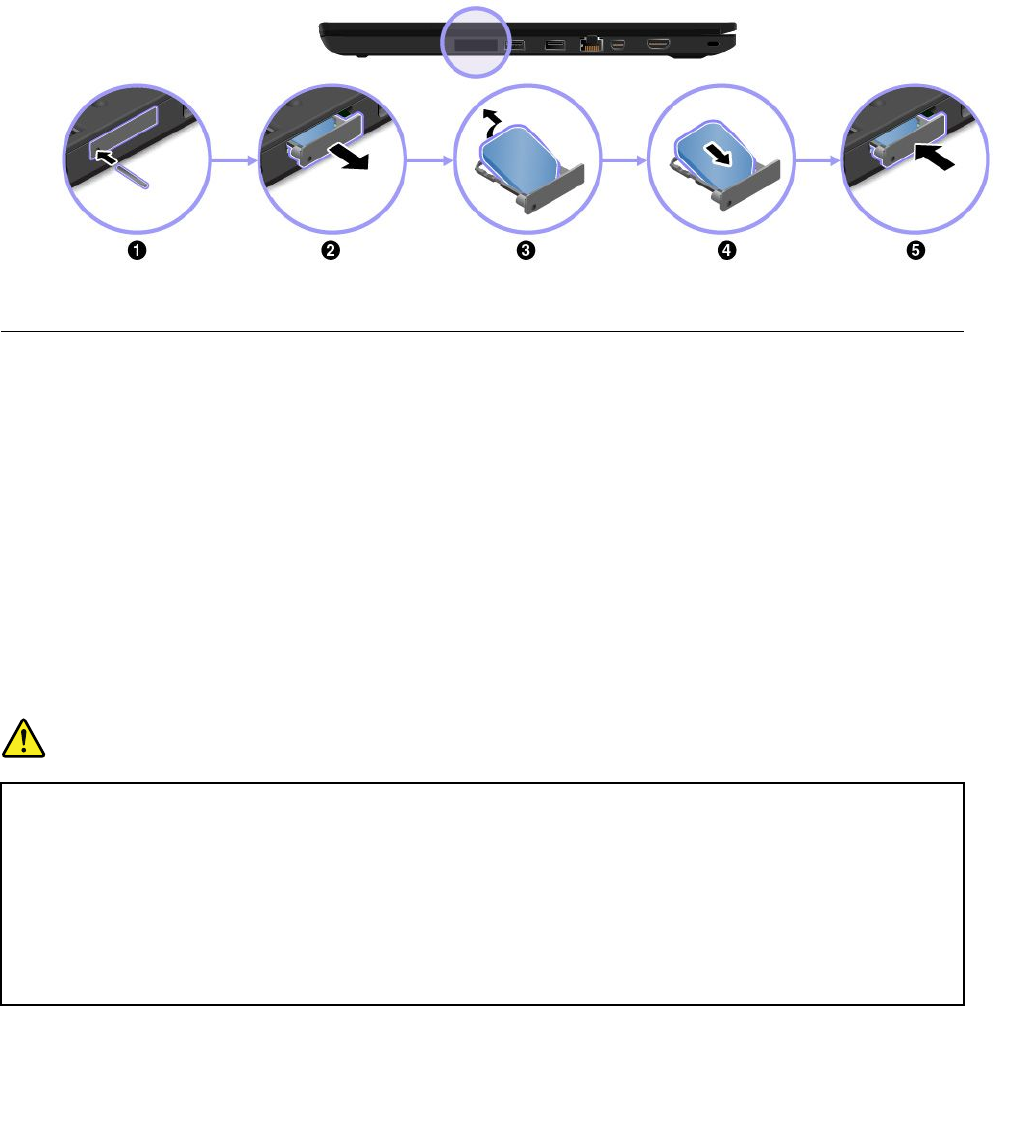
ToinstallorreplacetheSIMcard,dothefollowing:
1.Turnoffthecomputerorputthecomputerintohibernationmode.Thendisconnecttheacpower
adapterandallcablesfromthecomputer.
2.LocatetheSIM-cardtrayattherightsideofthecomputer.
3.InsertastraightenedpaperclipintotheholeintheSIM-cardtraytoejectthetray.Then,slidethe
SIM-cardtrayandtaketheSIMcardoutofthetray.
4.InstallanewSIMcardintothetray.EnsurethatthenewSIMcardisseatedincorrectorientation.
Theninsertthetrayintothecomputer.
5.Reconnecttheacpoweradapterandallcables.
Replacingthebattery
Beforeyoustart,printtheseinstructions.Readtheimportantsafetyinformationfirst.See“Important
safetyinformation”onpageiv.
ThissystemsupportsonlybatteriesspeciallydesignedforthisspecificsystemandmanufacturedbyLenovo
oranauthorizedbuilder.Thesystemdoesnotsupportunauthorizedbatteriesorbatteriesdesignedforother
systems.Ifanunauthorizedbatteryorabatterydesignedforanothersystemisinstalled,thesystemwill
notcharge.
Attention:Lenovohasnoresponsibilityfortheperformanceorsafetyofunauthorizedbatteries,and
providesnowarrantiesforfailuresordamagearisingoutoftheiruse.
Note:Ifanunauthorizedbatteryisinstalled,thefollowingmessagewillbedisplayed:“Thebatteryinstalled
isnotsupportedbythissystemandwillnotcharge.PleasereplacethebatterywiththecorrectLenovo
batteryforthissystem.”
DANGER
Iftherechargeablebatteryisincorrectlyreplaced,thereisdangerofanexplosion.Thebattery
containsasmallamountofharmfulsubstances.Toavoidpossibleinjury:
•ReplaceonlywithabatteryofthetyperecommendedbyLenovo.
•Keepthebatteryawayfromfire.
•Donotexposeittoexcessiveheat.
•Donotexposeittowaterorrain.
•Donotshort-circuitit.
120ThinkPadT460pUserGuide

•Donotdrop,crush,orpuncturethebattery,ormakeitsubjecttostrongforces.Batteryabuse
ormishandlingcancausethebatterytooverheat,whichcancausegassesorflameto“vent”
fromthebatteryorcoin-cellbattery.
Toreplacethebattery,dothefollowing:
1.Turnoffthecomputer.Thendisconnecttheacpoweradapterandallcablesfromthecomputer.
2.Closethecomputerdisplay,andturnthecomputerover.
3.Slidethebatterylatch1totheunlockedposition,anddetachthebattery2fromthebasecover
ontheleft.
4.Slidetheotherbatterylatch1totheunlockedposition,anddetachthebattery2fromthebase
coverontheright.
Chapter10.Replacingdevices121
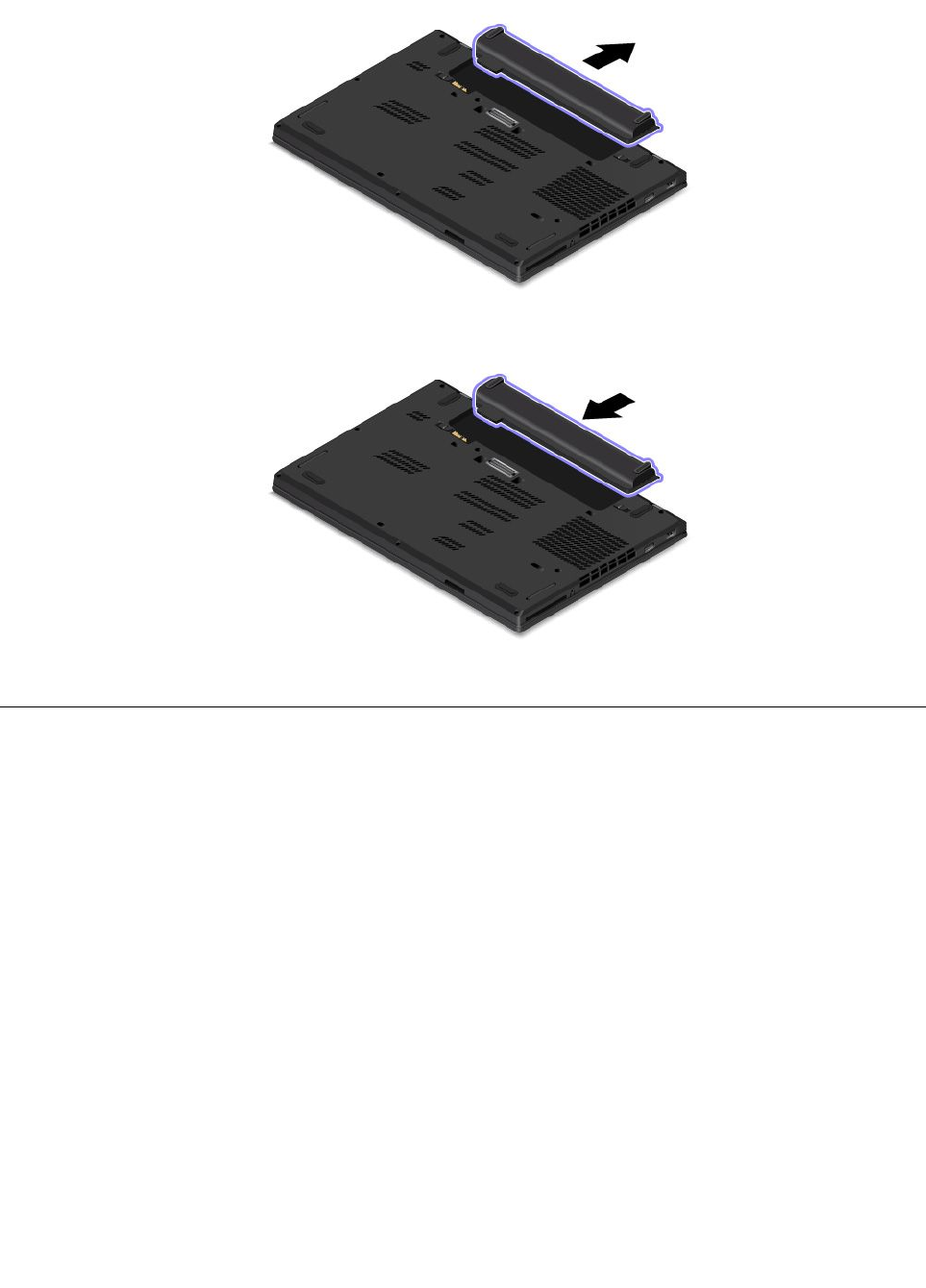
5.Removethebattery.
6.Insertanewbatteryuntilitclicksintoplace.Ensurethatthebatterylatchesareinthelockedpositions.
7.Turnthecomputeroveragain.Connecttheacpoweradapterandallcables.
Replacingthebottomcover
Beforeyoustart,printtheseinstructions.Readtheimportantsafetyinformationfirst.See“Important
safetyinformation”onpageiv.
Note:Dependingonthemodel,yourcomputermightlookslightlydifferentfromtheillustrationsinthistopic.
Toreplacethebottomcover,dothefollowing:
1.Turnoffthecomputer.Thendisconnecttheacpoweradapterandallcablesfromthecomputer.
2.Removethebattery.See“Replacingthebattery”onpage120.
122ThinkPadT460pUserGuide
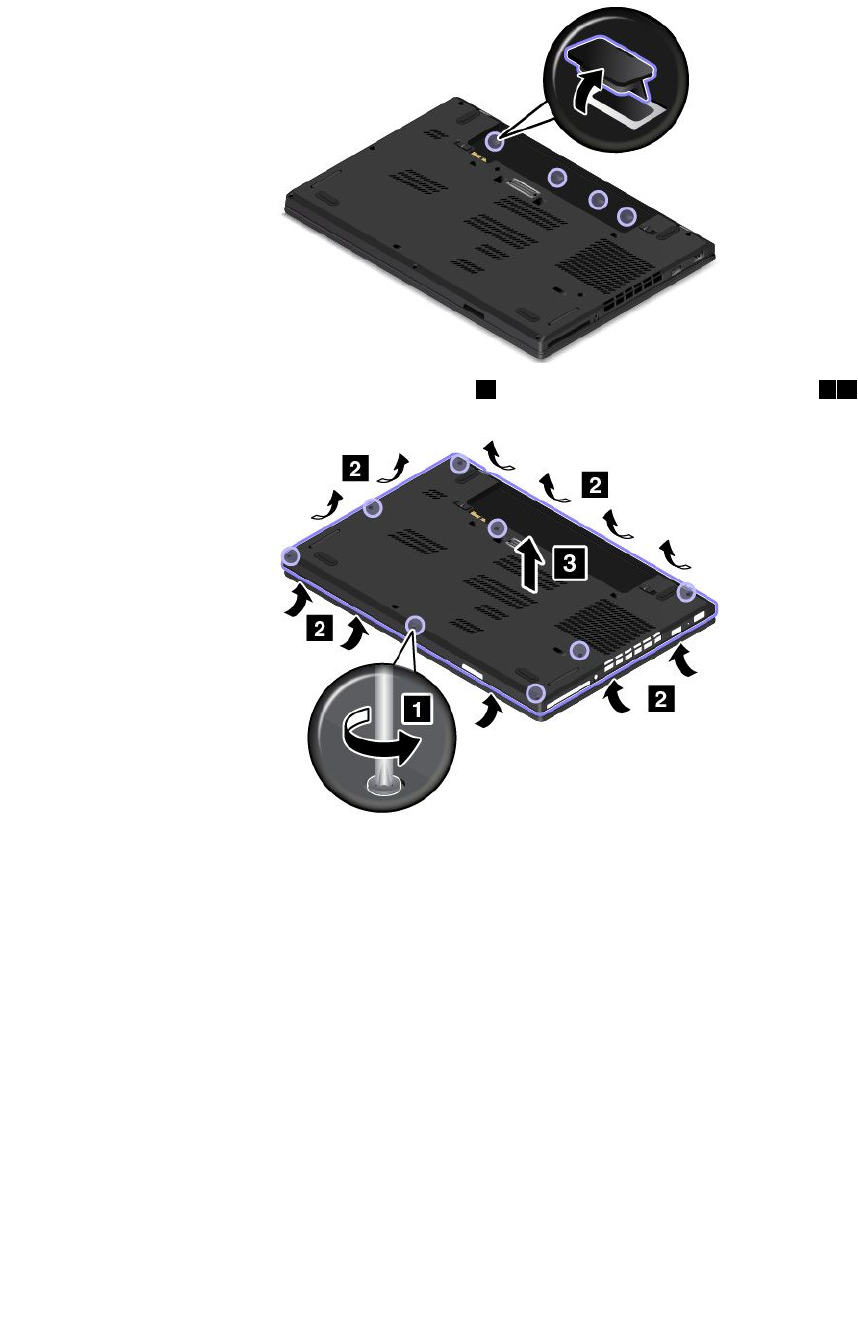
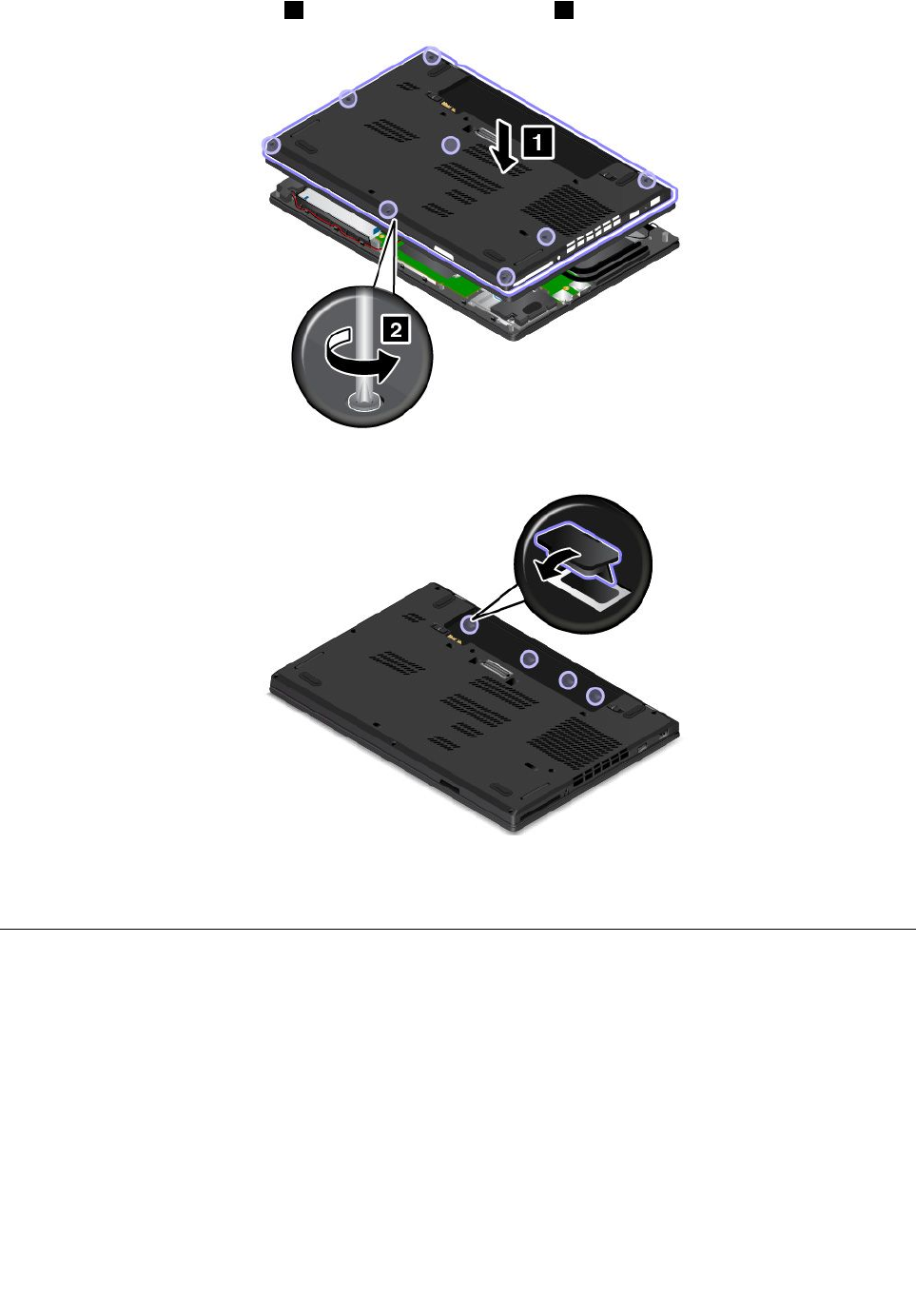
5.Installthenewbottomcover1,andthentightenthescrews2.
6.Reinstalltherubbercaps.
7.Reinstallthebattery.See“Replacingthebattery”onpage120.
8.Turnthecomputeroveragain.Connecttheacpoweradapterandallcables.
Replacingthecoin-cellbattery
Beforeyoustart,printtheseinstructions.Readtheimportantsafetyinformationfirst.See“Important
safetyinformation”onpageiv.
Toreplacethecoin-cellbattery,dothefollowing:
1.Turnoffthecomputer.Thendisconnecttheacpoweradapterandallcablesfromthecomputer.
2.Closethecomputerdisplayandturnthecomputerover.
3.Removethebattery.See“Replacingthebattery”onpage120.
4.Removethebottomcover.See“Replacingthebottomcover”onpage122.
124ThinkPadT460pUserGuide
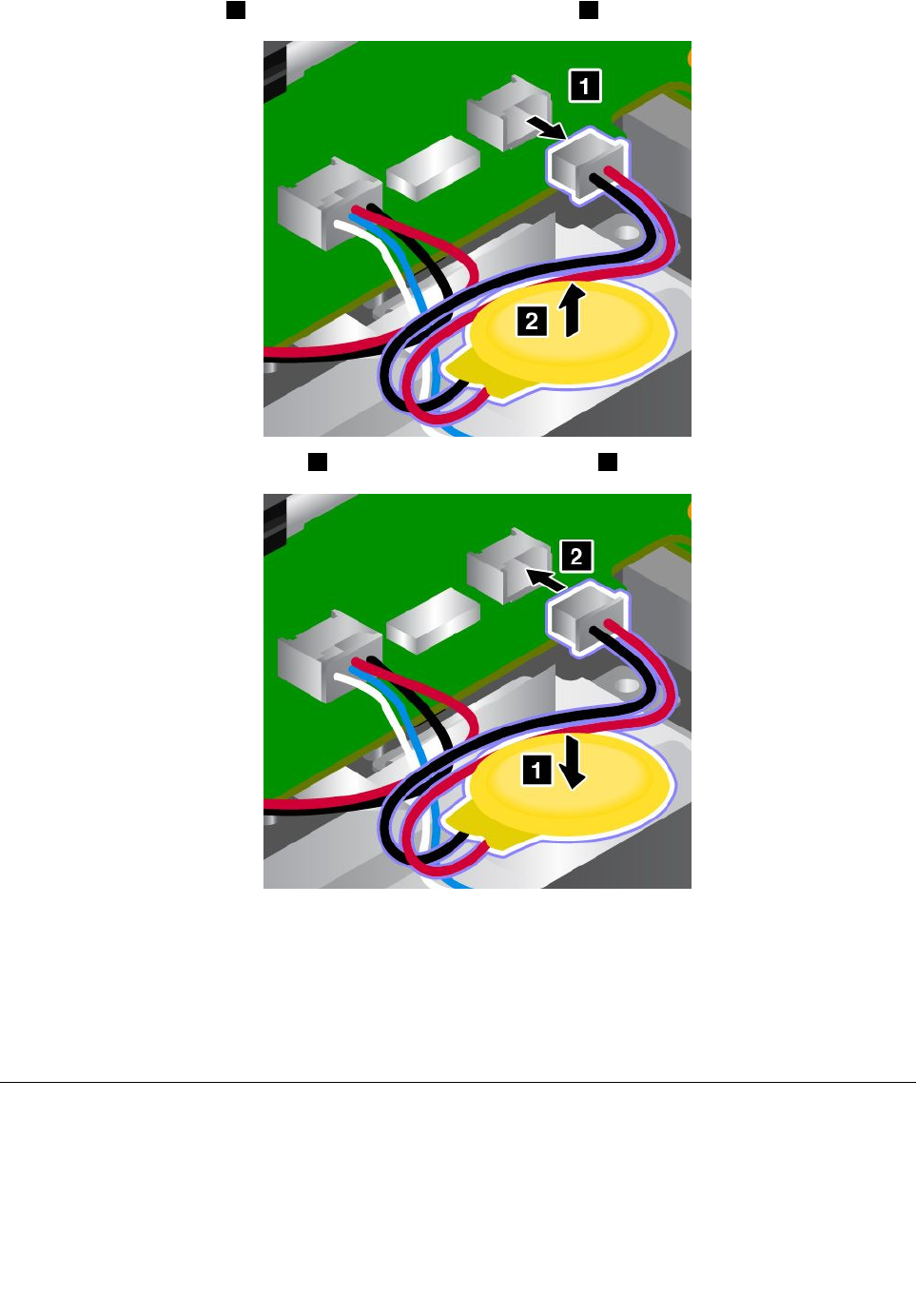
5.Detachtheconnector1,andthenremovethecoin-cellbattery2.
6.Installthenewcoin-cellbattery1,andthenattachtheconnector2.
7.Reinstallthebottomcover.See“Replacingthebottomcover”onpage122.
8.Reinstallthebattery.See“Replacingthebattery”onpage120.
9.Turnthecomputeroveragain.Connecttheacpoweradapterandallcables.
Afteryoureplacethecoin-cellbattery,resetthesystemdateandtimeintheThinkPadSetupprogram.
See“DateandTimemenu”onpage72.
Replacingthekeyboard
Beforeyoustart,printtheseinstructions.Readtheimportantsafetyinformationfirst.See“Important
safetyinformation”onpageiv.
Toremovethekeyboard,dothefollowing:
1.Turnoffthecomputer.Thendisconnecttheacpoweradapterandallcablesfromthecomputer.
Chapter10.Replacingdevices125
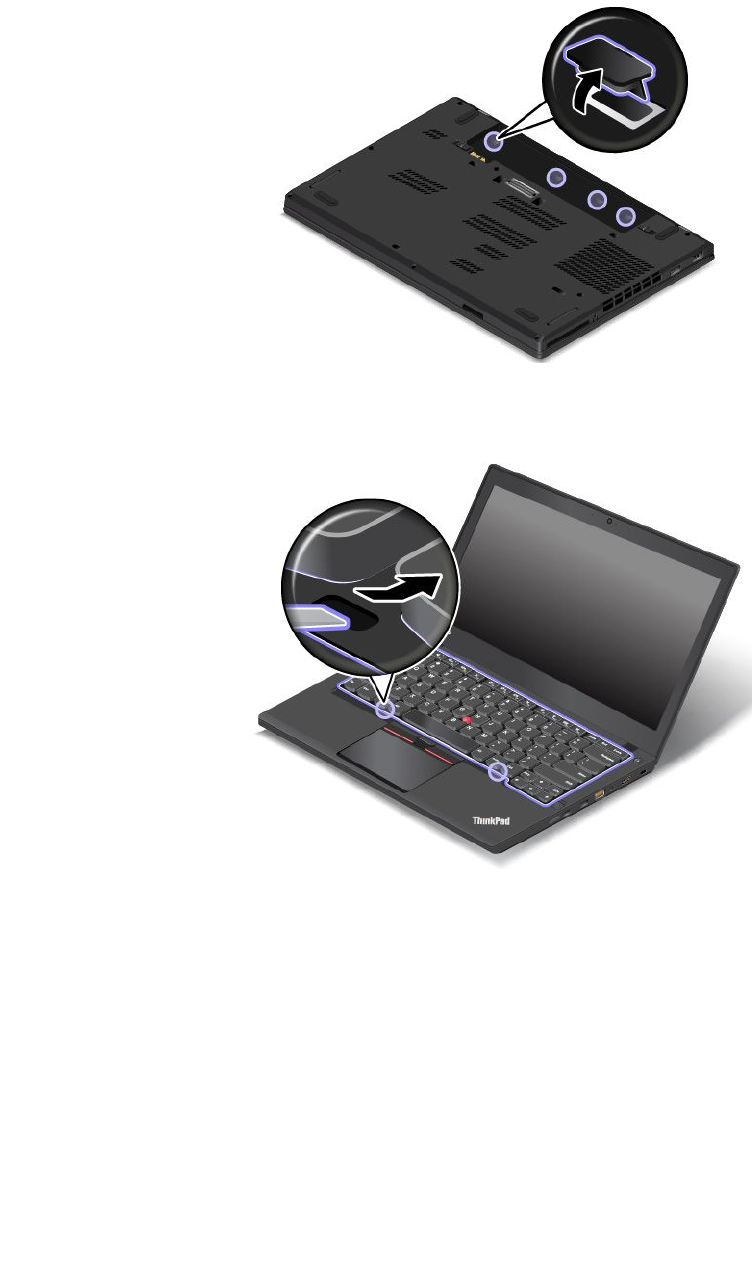
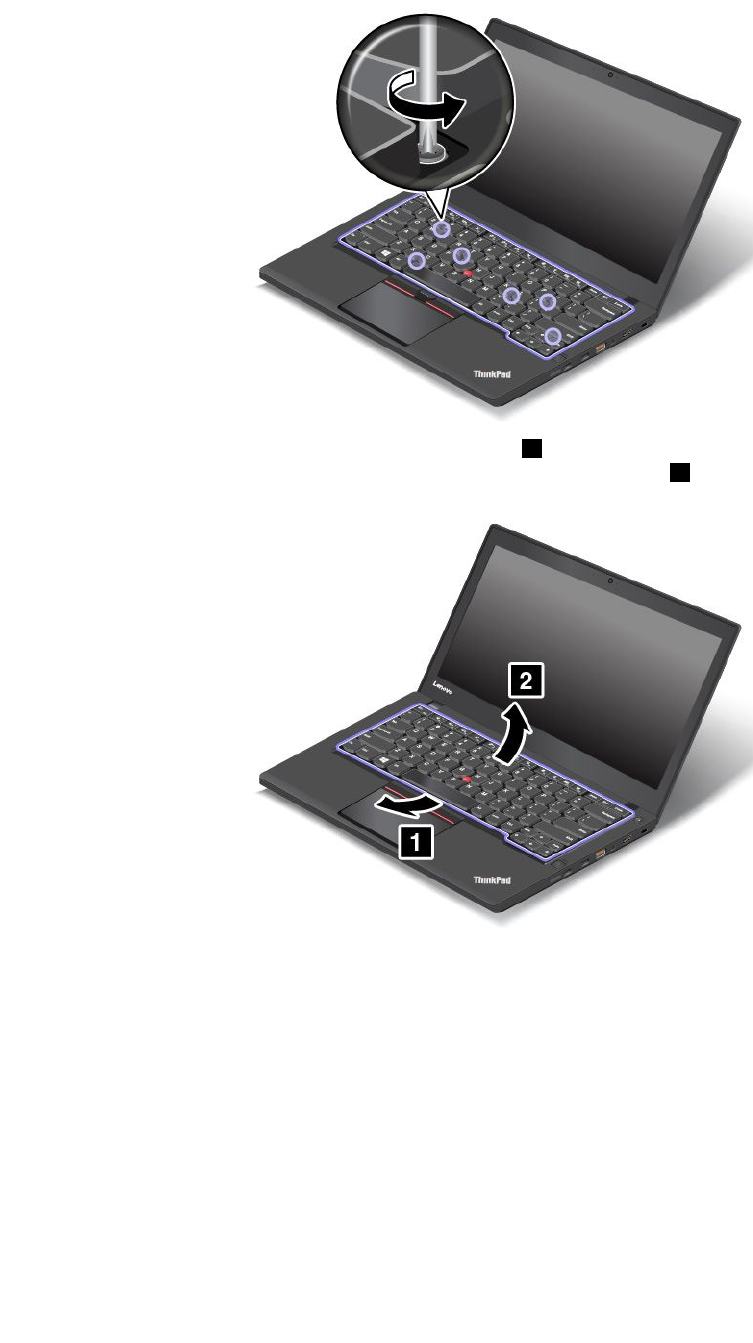
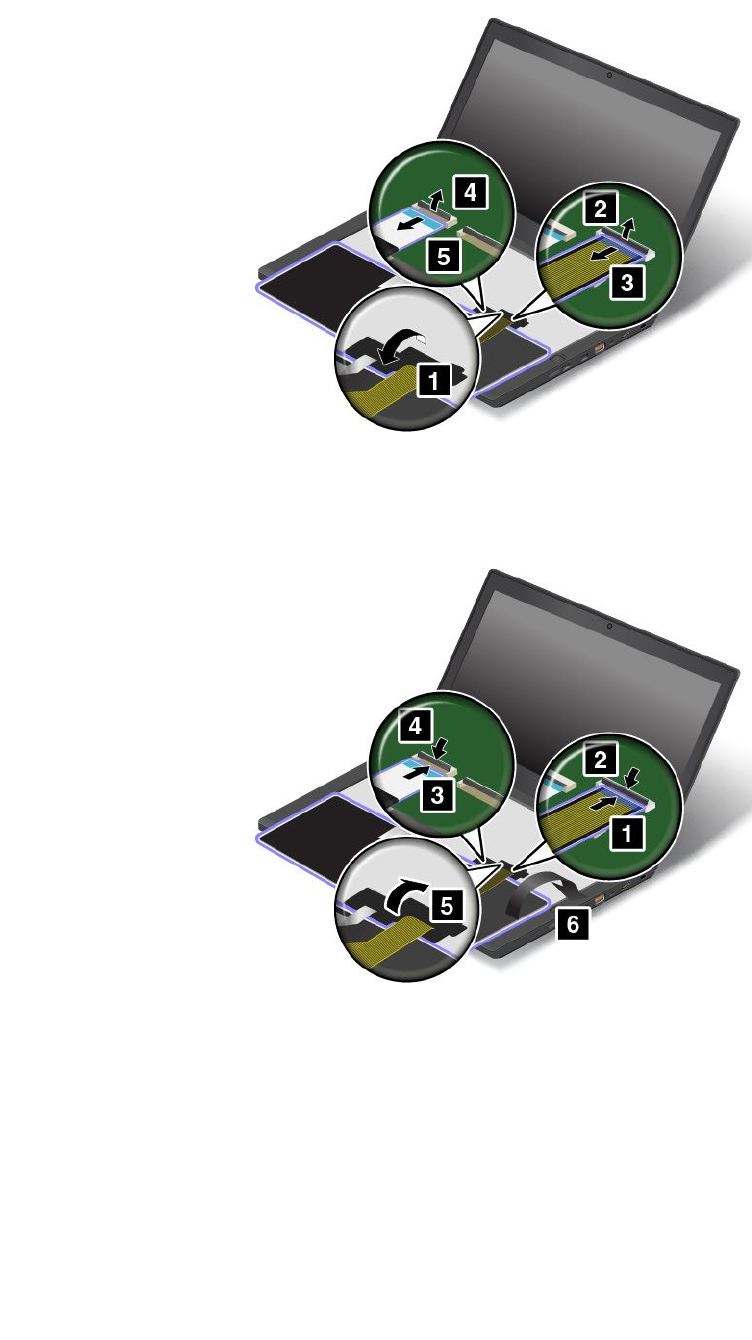
8.Putthekeyboardonthepalmrestanddetachtheconnectors.Thenremovethekeyboard.
Toinstallthenewkeyboard,dothefollowing:
1.Attachtheconnectors,andthenturnoverthekeyboard.
128ThinkPadT460pUserGuide
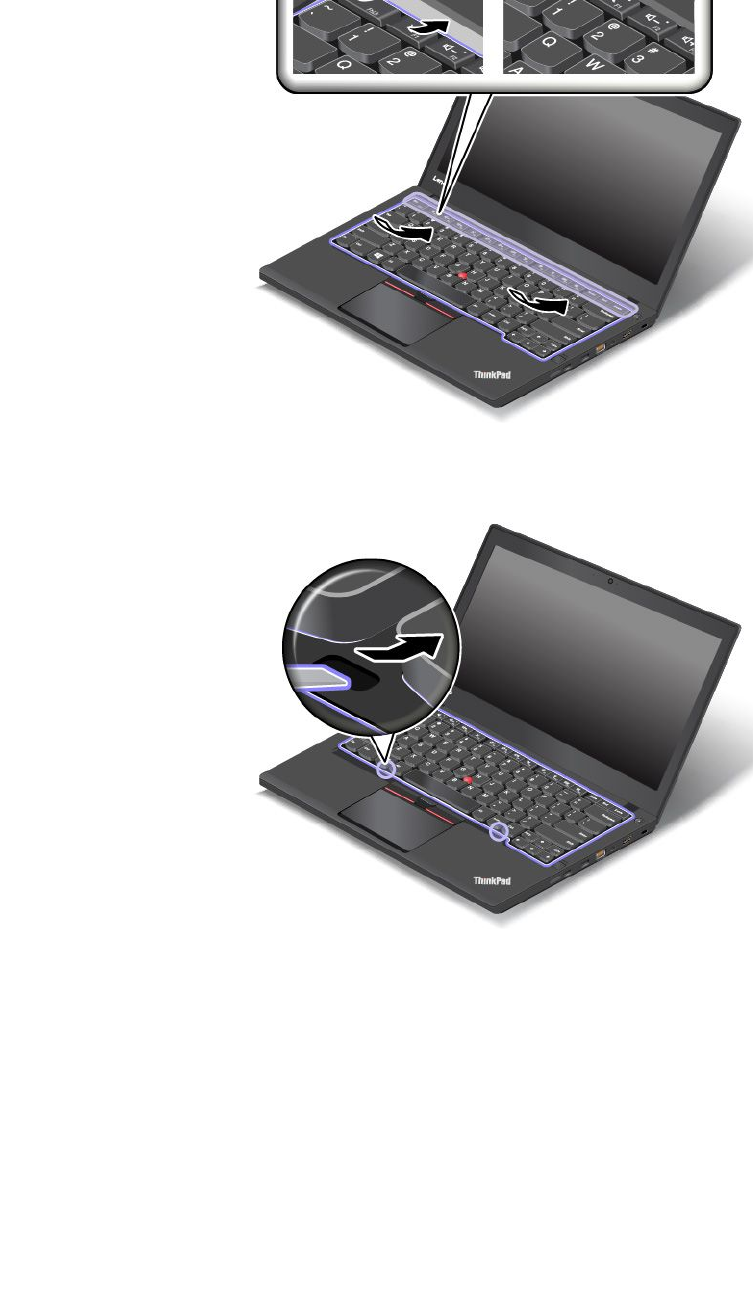
2.Insertthekeyboardintothekeyboardbezelasshown.Ensurethatthefrontedgeofthekeyboard(the
edgethatisclosetothedisplay)isundertheframeofthekeyboardbezel.
3.Ensurethatthescrewheadsareexposedcompletely.Otherwise,revealthescrewheadsbyslidingthe
keyboardframeforwardwiththeflat-headscrewdriver.
Chapter10.Replacingdevices129
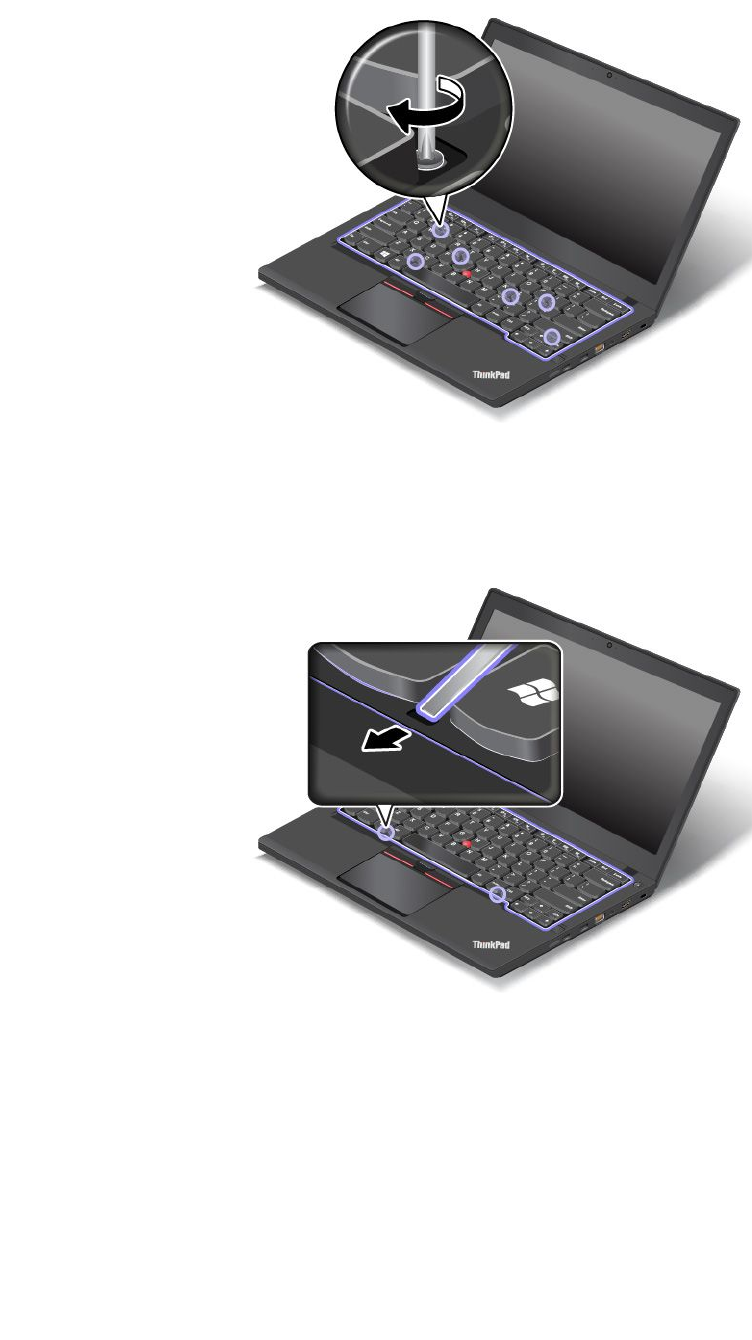
4.Tightenthescrewswiththecross-headscrewdrivertosecurethekeyboardinplace.
5.Slidethekeyboardframebackwardby2.5mm(0.1inch)withtheflat-headscrewdrivertohidethe
latchesofthekeyboardframeunderthekeyboardbezel.
Note:Donotpressandholdthekeyswhileslidingthekeyboardframe,otherwisethekeyboardframe
cannotbemoved.
130ThinkPadT460pUserGuide
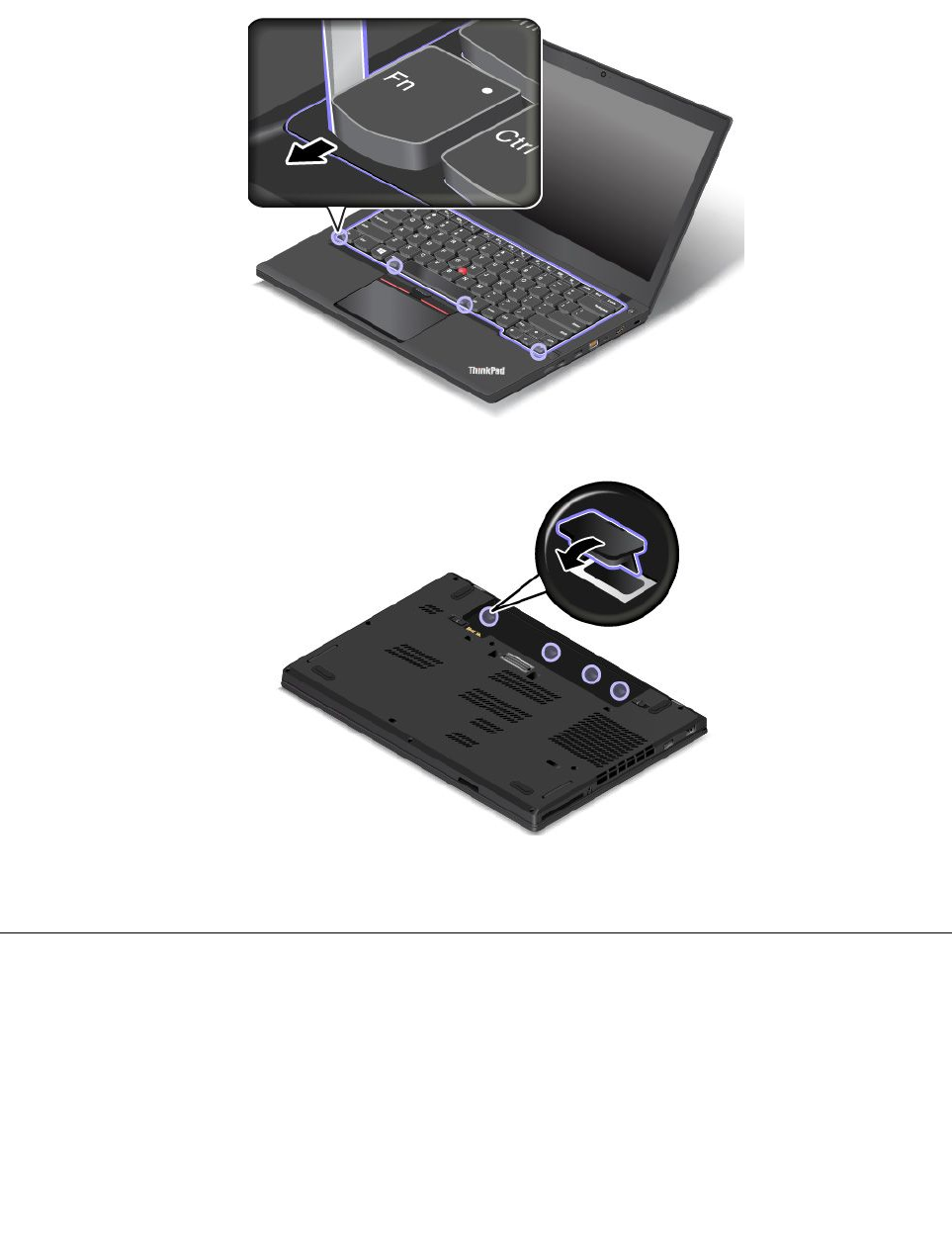
6.Inserttheflat-headscrewdriverintothesidesofthekeyboardasshowntopushthekeyboardframe
backward.Ensurethatthereisnogapbetweenthekeyboardframeandkeyboardbezel.
Note:Donotpressandholdthekeyswhileslidingthekeyboardframe,otherwisethekeyboardframe
cannotbemoved.
7.Reinstalltherubbercaps.
8.Reinstallthebattery.See“Replacingthebattery”onpage120.
9.Turnthecomputeroveragain.Connecttheacpoweradapterandallcables.
Replacingtheinternalstoragedrive
Beforeyoustart,printtheseinstructions.Readtheimportantsafetyinformationfirst.See“Important
safetyinformation”onpageiv.
Attention:Theinternalstoragedrive(suchasaharddiskdrive,solid-statedrive,orhybriddrive)isvery
sensitive.Incorrecthandlingcancausedamageandpermanentlossofdata.Observethefollowing
guidelines:
Chapter10.Replacingdevices131
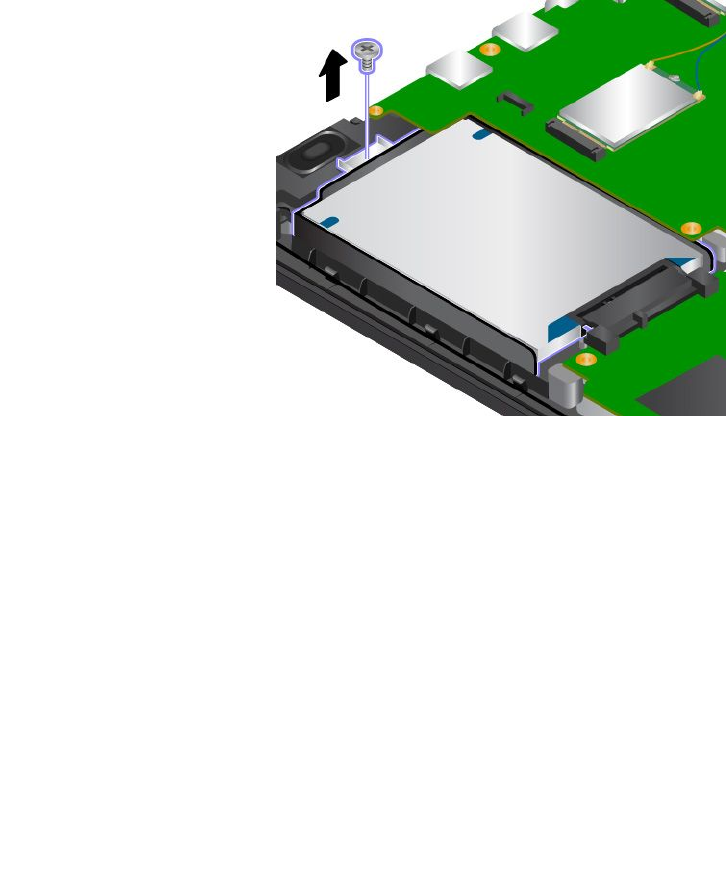
•Replacethestoragedriveonlyifyouupgradeitorhaveitrepaired.Theconnectorsandslotofthestorage
drivearenotdesignedforfrequentchangesordriveswapping.
•Donotdropthedriveorsubjectittophysicalshocks.Putthedriveonamaterial,suchassoftcloth,that
absorbsanyphysicalshocks.
•Donotapplypressuretothecoverofthedrive.
•Donottouchtheconnector.
•Beforeremovingthestoragedrive,makeabackupcopyofalltheinformationonitandthenturnoffthe
computer.
•Neverremovethedrivewhilethecomputerisoperating,insleepmode,orinhibernationmode.
Toreplacethestoragedrive,dothefollowing:
1.Turnoffthecomputer.Thendisconnecttheacpoweradapterandallcablesfromthecomputer.
2.Closethecomputerdisplayandturnthecomputerover.
3.Removethebattery.See“Replacingthebattery”onpage120.
4.Removethebottomcover.See“Replacingthebottomcover”onpage122.
5.Removethescrewthatsecuresthestoragedrive.
132ThinkPadT460pUserGuide
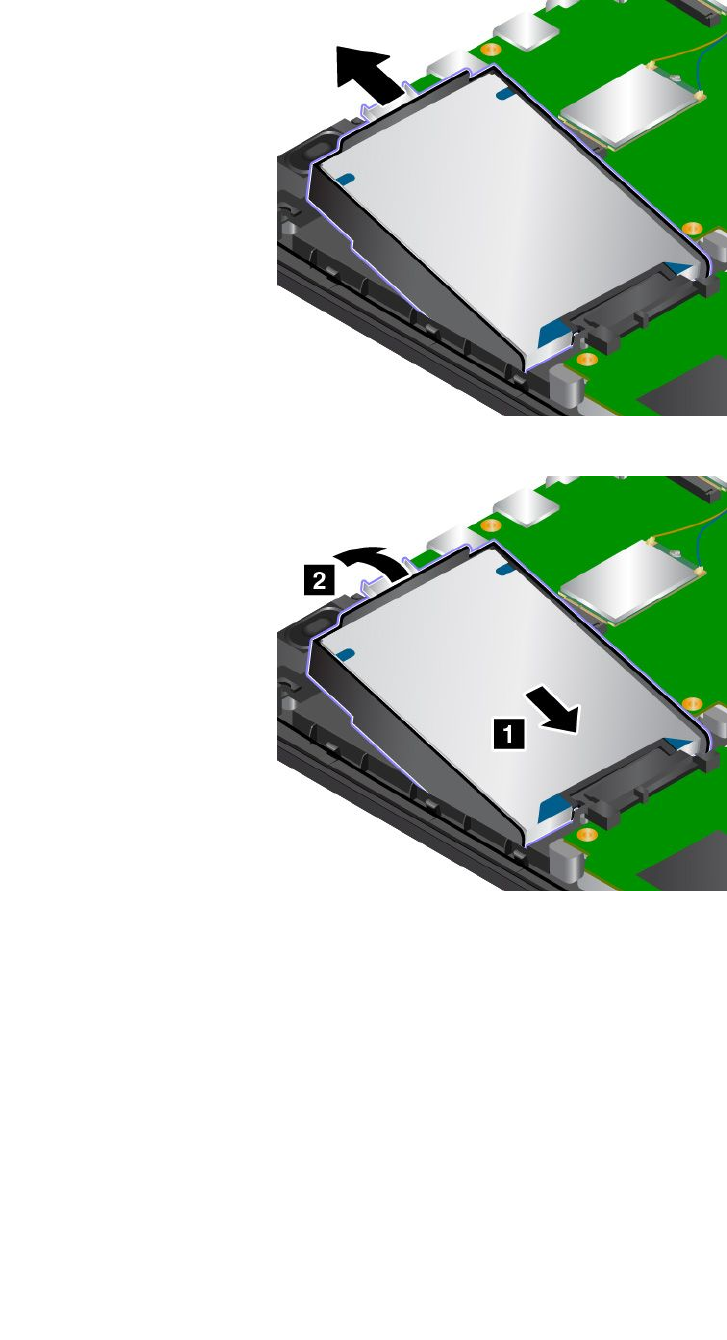
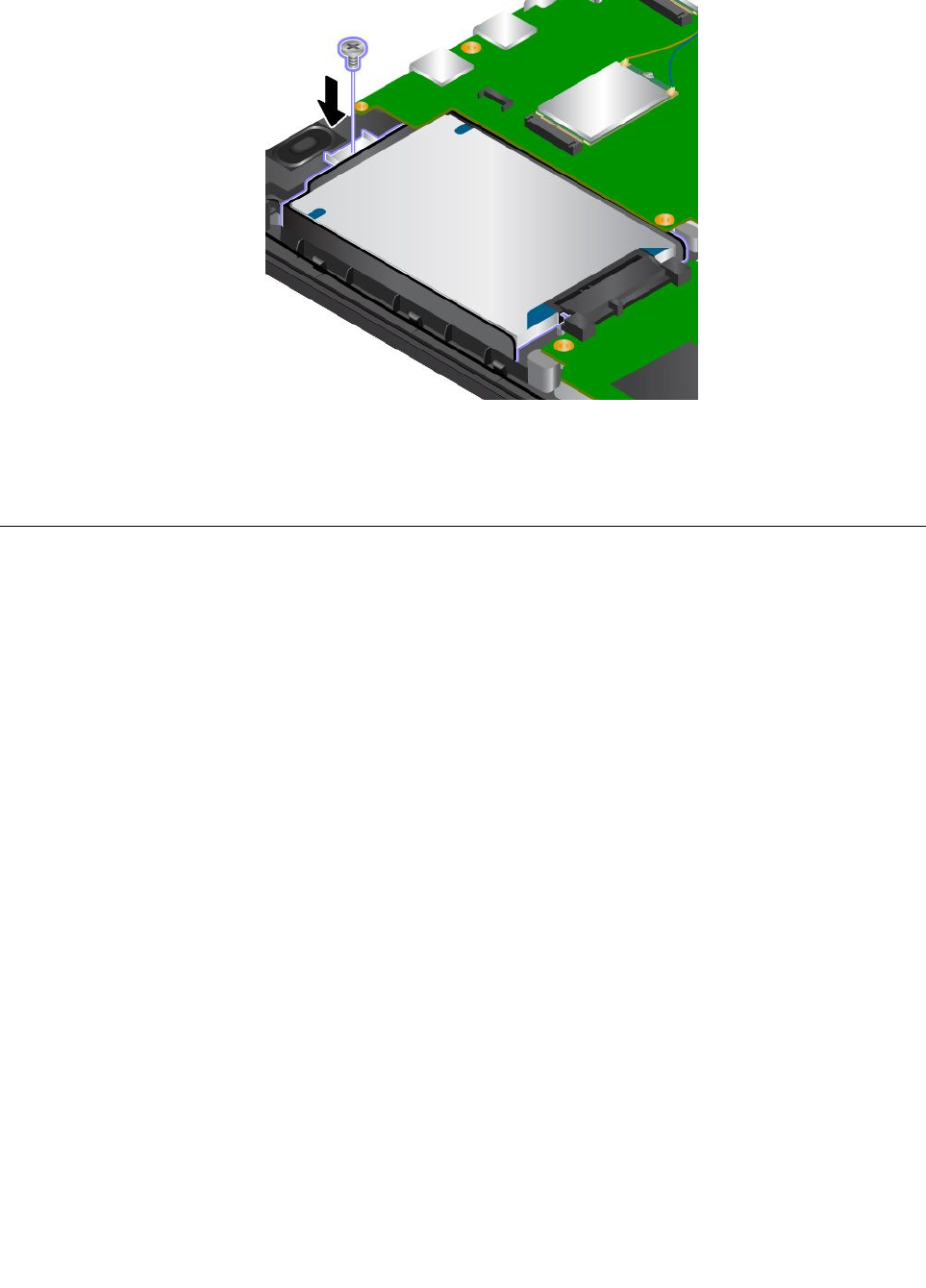
8.Installthescrewtosecurethestoragedrive.
9.Reinstallthebottomcover.See“Replacingthebottomcover”onpage122.
10.Reinstallthebattery.See“Replacingthebattery”onpage120.
11.Turnthecomputeroveragain.Connecttheacpoweradapterandallcables.
ReplacingawirelessWANcard
Beforeyoustart,printtheseinstructions.Readtheimportantsafetyinformationfirst.See“Important
safetyinformation”onpageiv.
Note:Thisinformationisonlyfortheuser-installablemodules.
Attention:BeforeyoustartinstallingawirelessWANcard,touchametaltableoragroundedmetalobject.
Thisactionreducesanystaticelectricityfromyourbody.Staticelectricitycoulddamagethecard.
ToreplacethewirelessWANcard,dothefollowing:
1.Turnoffthecomputer.Thendisconnecttheacpoweradapterandallcablesfromthecomputer.
2.Closethecomputerdisplayandturnthecomputerover.
3.Removethebattery.See“Replacingthebattery”onpage120.
4.Removethebottomcover.See“Replacingthebottomcover”onpage122.
134ThinkPadT460pUserGuide
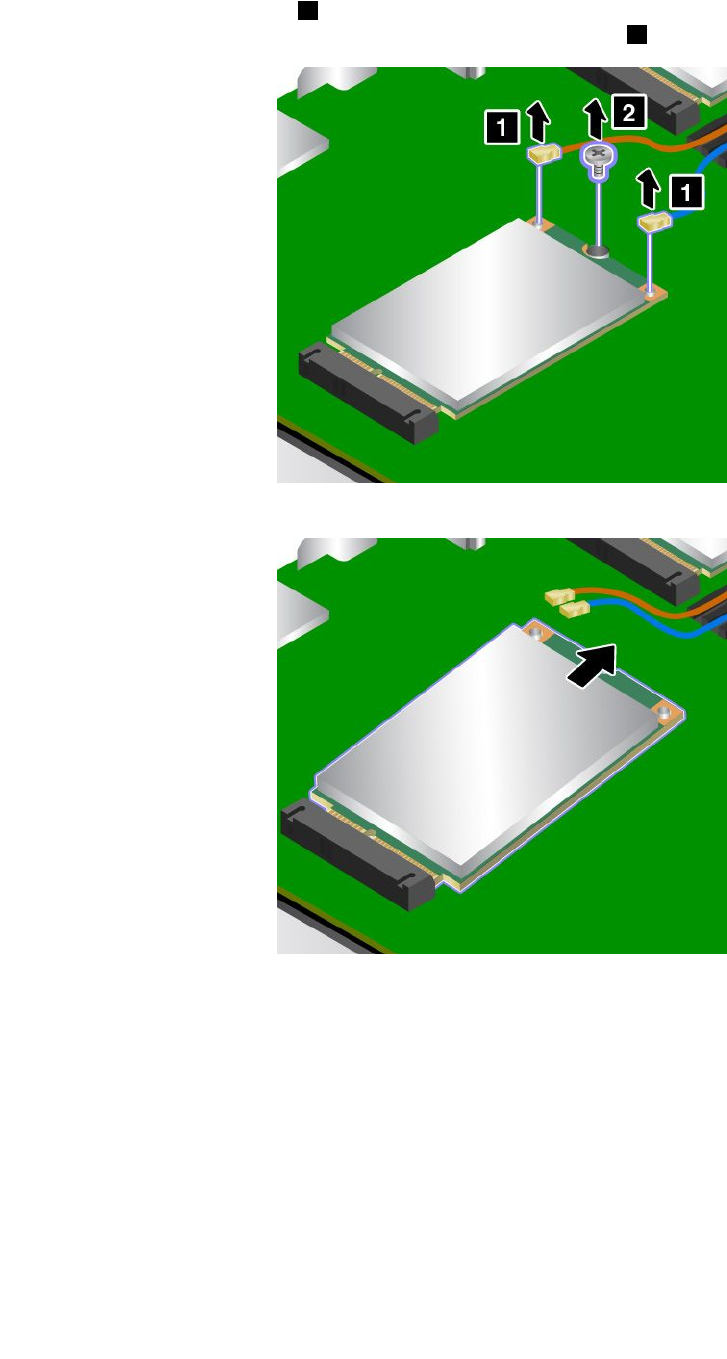
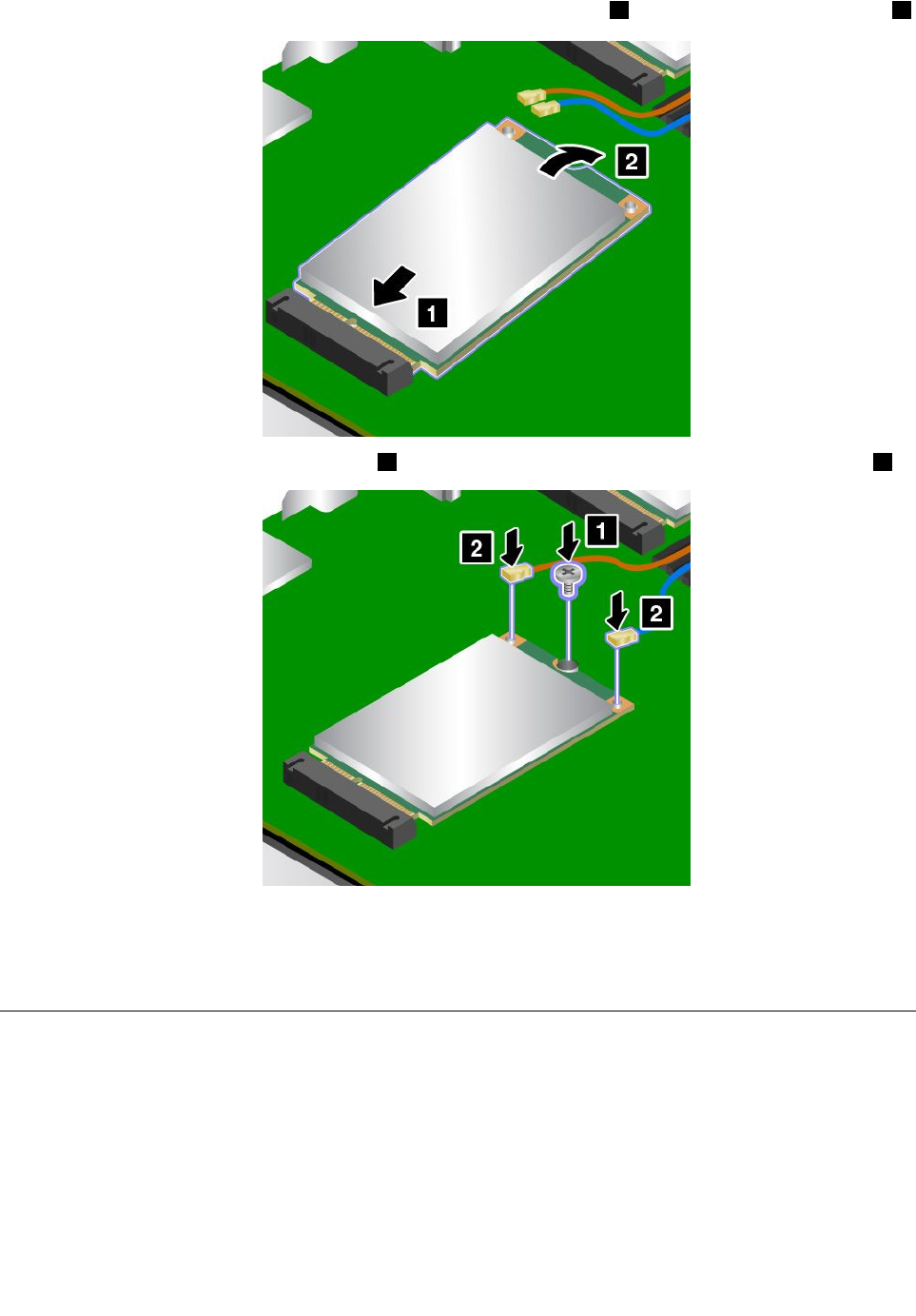
7.Insertthecontactedgeofthenewcardtothecorrespondingsocket1.Pivotthenewcarddownward2.
8.Installthescrewtosecurethenewcard1.Connecttheantennacablestothenewcardasshown2.
9.Reinstallthebottomcover.See“Replacingthebottomcover”onpage122.
10.Reinstallthebattery.See“Replacingthebattery”onpage120.
11.Turnthecomputeroveragain.Connecttheacpoweradapterandallcables.
Replacingamemorymodule
Beforeyoustart,printtheseinstructionsandread“Importantsafetyinformation”onpageiv.
Increasingmemorycapacityisaneffectivewaytomakeprogramsrunfaster.
Note:Theoperatingspeedofamemorymodulehasdependencyonthesystemconfiguration.Insome
conditions,thememorymoduleinyourcomputermightnotbeabletooperateatthemaximumspeed.
Attention:Beforeyoustartinstallingamemorymodule,touchametaltableoragroundedmetalobject.This
actionreducesanystaticelectricityfromyourbody.Staticelectricitycoulddamagethememorymodule.
136ThinkPadT460pUserGuide
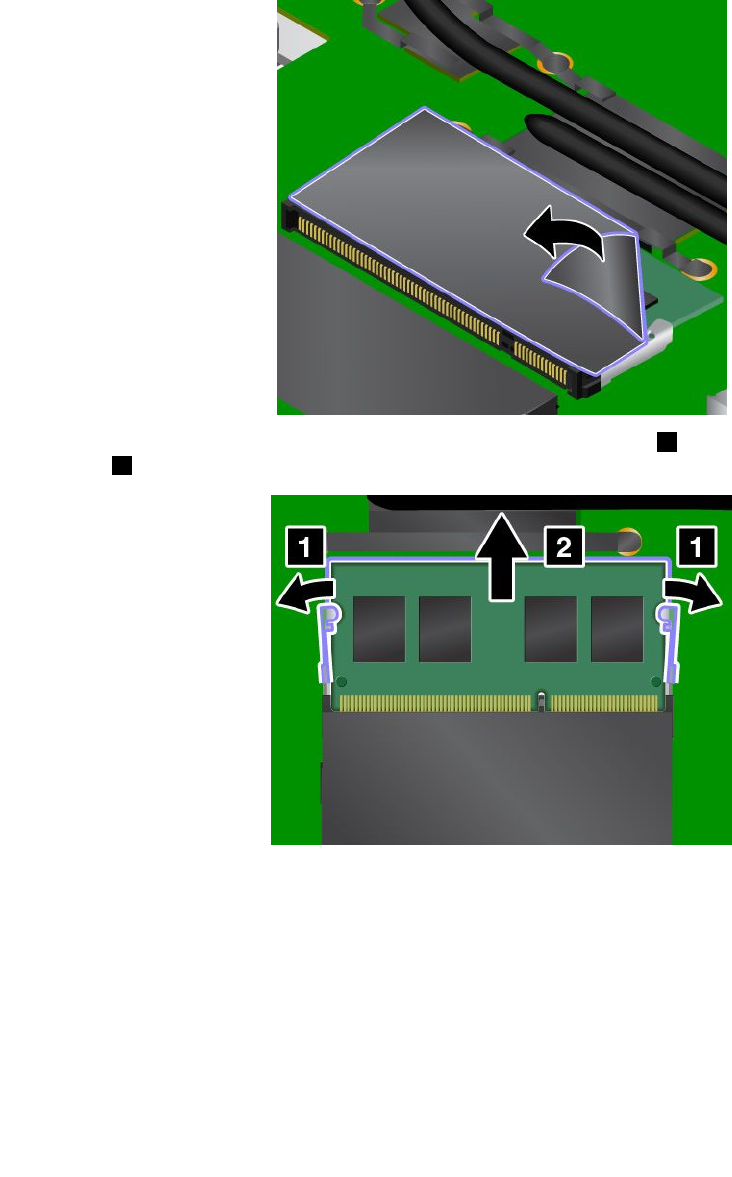
Toreplaceamemorymodule,dothefollowing:
1.Turnoffthecomputer.Thendisconnecttheacpoweradapterandallcablesfromthecomputer.
2.Closethecomputerdisplayandturnitover.
3.Removethebattery.See“Replacingthebattery”onpage120.
4.Removethebottomcover.See“Replacingthebottomcover”onpage122.
5.Openthefilmandholditwhenyouarereplacingthememorymodule.
6.Openthelatchesonbothsidesofthememoryslotatthesametime1.Thenremovethememory
module2.
Chapter10.Replacingdevices137
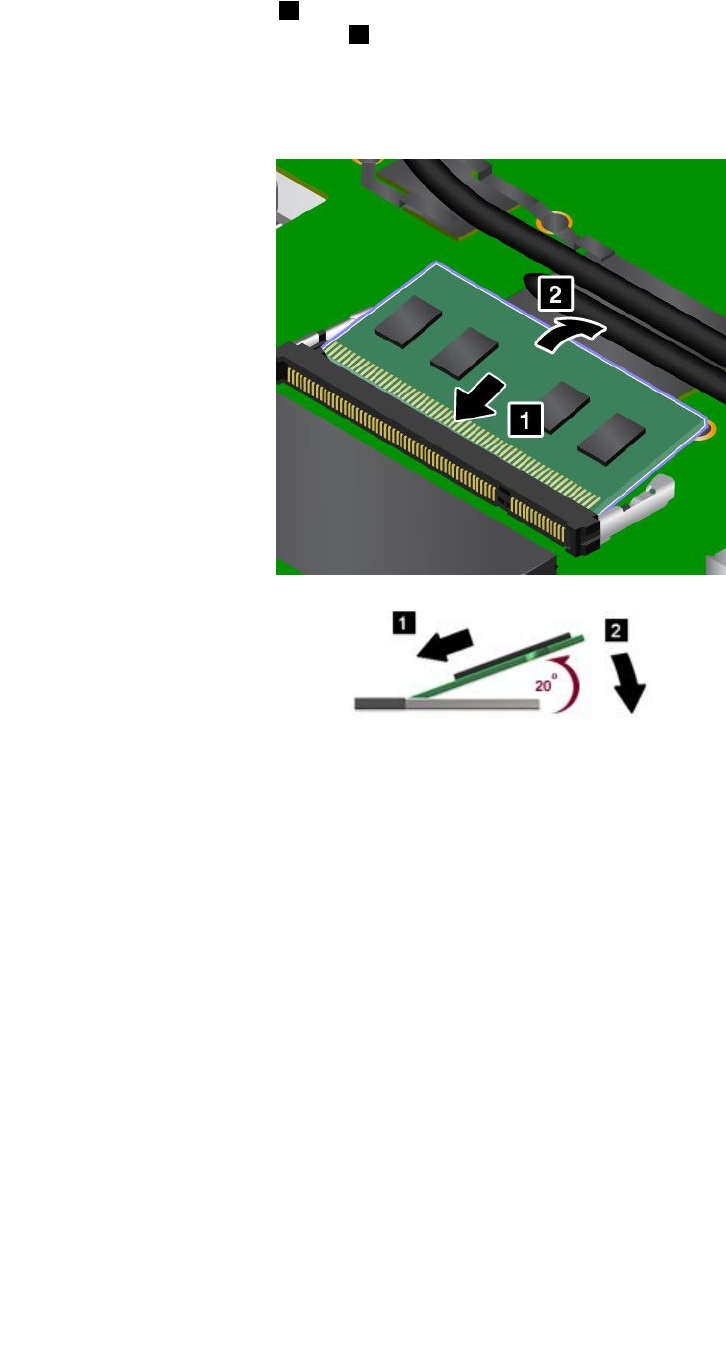
7.Placethenotchedendofthenewmemorymoduletowardthecontactedgesideofthememoryslot.
Insertthememorymodule1intotheslotatanangleofabout20degrees.Pivotthememorymodule
downwarduntilitsnapsintoplace2.Ensurethatthememorymoduleisfirmlyinstalledintheslotand
cannotbemovedeasily.Thenreleasethehandholdingthefilm.
Attention:Donottouchthecontactedgeofthememorymodule.Otherwisethememorymodule
mightgetdamaged.
8.Reinstallthebottomcover.See“Replacingthebottomcover”onpage122.
9.Reinstallthebattery.See“Replacingthebattery”onpage120.
10.Turnthecomputeroveragain.Connecttheacpoweradapterandallcables.
138ThinkPadT460pUserGuide

Chapter11.Gettingsupport
ThischapterprovidesinformationaboutgettinghelpandsupportfromLenovo.
•“BeforeyoucontactLenovo”onpage139
•“Gettinghelpandservice”onpage139
•“Purchasingadditionalservices”onpage141
BeforeyoucontactLenovo
Often,youcansolveyourcomputerproblemsbyreferringtotheinformationintheexplanationsoferror
codes,runningdiagnosticprograms,orbyconsultingtheLenovoWebsite.
Registeringyourcomputer
RegisteryourcomputerwithLenovo.Formoreinformation,see“Registeringyourcomputer”onpage15.
Downloadingsystemupdates
Downloadingupdatedsoftwaremightresolveproblemsyouexperiencewithyourcomputer.
Todownloadupdatedsoftware,gotothefollowingWebsiteandfollowtheinstructionsonthescreen:
http://www.lenovo.com/support
Recordinginformation
BeforeyoutalktoaLenovorepresentative,recordthefollowingimportantinformationaboutyourcomputer.
Recordingproblemsymptomsanddetails
Collecttheanswerstothequestionsbelowbeforeyoucallforhelp.Then,youwillbeabletogethelp
asquicklyaspossible.
•Whatistheproblem?Isitcontinuousorintermittent?
•Isthereanerrormessage?Whatistheerrorcode,ifany?
•Whatoperatingsystemareyouusing?Whichversion?
•Whichsoftwareprogramswererunningatthetimeoftheproblem?
•Cantheproblembereproduced?Ifso,how?
Recordingsysteminformation
Theserialnumberlabelisonthebottomofyourcomputer.Recordthemachinetypeandtheserialnumber.
•WhatisthenameofyourLenovoproduct?
•Whatisthemachinetype?
•Whatistheserialnumber?
Gettinghelpandservice
Ifyouneedhelp,service,technicalassistance,orjustwantmoreinformationaboutLenovoproducts,you
willfindawidevarietyofsourcesavailablefromLenovotoassistyou.Thissectioncontainsinformation
aboutwheretogoforadditionalinformationaboutLenovoandourproducts,whattodoifyouexperiencea
problemwithyourcomputer,andwhomtocallforserviceshoulditbenecessary.
©CopyrightLenovo2016,2017139

Informationaboutyourcomputerandpreinstalledsoftware,ifany,isavailableinthedocumentationthat
comeswithyourcomputer.Thedocumentationincludesprintedbooks,onlinebooks,readmefiles,andhelp
files.Inaddition,informationaboutLenovoproductsisavailableontheWorldWideWeb.
MicrosoftServicePacksarethelatestsoftwaresourceforWindowsproductupdates.Theyareavailable
throughWebdownload(connectionchargesmightapply)orthroughdisc.Formorespecificinformationand
links,gotohttp://www.microsoft.com.Lenovoofferstechnicalassistancewithinstallationof,orquestions
relatedto,ServicePacksforyourLenovo-preinstalledMicrosoftWindowsproduct.Forinformation,contact
theCustomerSupportCenter.
Usingdiagnosticprograms
Manycomputerproblemscanbesolvedwithoutoutsideassistance.Ifyouexperienceaproblemwithyour
computer,thefirstplacetostartisthetroubleshootinginformationinyourcomputerdocumentation.Ifyou
suspectasoftwareproblem,seethedocumentation,includingreadmefilesandhelpinformationsystems,
thatcomeswiththeoperatingsystemorapplicationprogram.
ThinkPadnotebookcomputerscomewithasetofdiagnosticprogramsthatyoucanusetohelpyouidentify
hardwareproblems.See“Diagnosingproblems”onpage91forinstructionsonhowtousethediagnostic
programs.
Thetroubleshootinginformationorthediagnosticprogramsmighttellyouthatyouneedadditionalor
updateddevicedriversorothersoftware.Youcangetthelatesttechnicalinformationanddownloaddevice
driversandupdatesfromtheLenovoWebsiteathttp://www.lenovo.com/support.
LenovoSupportWebsite
TechnicalsupportinformationisavailableontheLenovoSupportWebsiteat:
http://www.lenovo.com/support
ThisWebsiteisupdatedwiththelatestsupportinformationsuchasthefollowing:
•Driversandsoftware
•Diagnosticsolutions
•Productandservicewarranty
•Productandpartsdetails
•Userguidesandmanuals
•Knowledgebaseandfrequentlyaskedquestions
CallingLenovo
Ifyouhavetriedtocorrecttheproblemyourselfandstillneedhelp,duringthewarrantyperiod,youcan
gethelpandinformationbytelephonethroughtheCustomerSupportCenter.Thefollowingservicesare
availableduringthewarrantyperiod:
•Problemdetermination-Trainedpersonnelareavailabletoassistyouwithdeterminingifyouhavea
hardwareproblemanddecidingwhatactionisnecessarytofixtheproblem.
•Lenovohardwarerepair-IftheproblemisdeterminedtobecausedbyLenovohardwareunderwarranty,
trainedservicepersonnelareavailabletoprovidetheapplicablelevelofservice.
•Engineeringchangemanagement-Occasionally,theremightbechangesthatarerequiredafteraproduct
hasbeensold.Lenovooryourreseller,ifauthorizedbyLenovo,willmakeselectedEngineeringChanges
(ECs)thatapplytoyourhardwareavailable.
Thefollowingitemsarenotcovered:
140ThinkPadT460pUserGuide

•ReplacementoruseofpartsnotmanufacturedfororbyLenovoornonwarrantedparts
•Identificationofsoftwareproblemsources
•ConfigurationofUEFIBIOSaspartofaninstallationorupgrade
•Changes,modifications,orupgradestodevicedrivers
•Installationandmaintenanceofnetworkoperatingsystems(NOS)
•Installationandmaintenanceofapplicationprograms
ForthetermsandconditionsoftheLenovoLimitedWarrantythatappliestoyourLenovohardwareproduct,
see“Warrantyinformation”intheSafety,Warranty,andSetupGuidethatcomeswithyourcomputer.
Ifpossible,benearyourcomputerwhenyoumakeyourcallincasethetechnicalassistancerepresentative
needstohelpyouresolveacomputerproblem.Ensurethatyouhavedownloadedthemostcurrentdrivers
andsystemupdates,rundiagnostics,andrecordedinformationbeforeyoucall.Whencallingfortechnical
assistance,havethefollowinginformationavailable:
•Machinetypeandmodel
•Serialnumbersofyourcomputer,monitor,andothercomponents,oryourproofofpurchase
•Descriptionoftheproblem
•Exactwordingofanyerrormessages
•Hardwareandsoftwareconfigurationinformationforyoursystem
Telephonenumbers
ForalistoftheLenovoSupportphonenumbersforyourcountryorregion,goto
http://www.lenovo.com/support/phoneorrefertotheSafety,Warranty,andSetupGuidethatcomeswith
yourcomputer.
Note:Phonenumbersaresubjecttochangewithoutnotice.Thelatestphonenumbersareavailableat
http://www.lenovo.com/support/phone.Ifthenumberforyourcountryorregionisnotprovided,contact
yourLenovoresellerorLenovomarketingrepresentative.
Purchasingadditionalservices
Duringandafterthewarrantyperiod,youcanpurchaseadditionalservices,suchassupportforLenovo
andnon-Lenovohardware,operatingsystems,andapplicationprograms;networksetupandconfiguration
services;upgradedorextendedhardwarerepairservices;andcustominstallationsservices.Service
availabilityandservicenamemightvarybycountry.
Formoreinformationabouttheseservices,goto:
http://www.lenovo.com/accessories/services/index.html
Chapter11.Gettingsupport141

142ThinkPadT460pUserGuide

AppendixA.SupplementalinformationabouttheUbuntu
operatingsystem
Inlimitedcountriesorregions,Lenovoofferscustomersanoptiontoordercomputerswiththepreinstalled
Ubuntu®operatingsystem.
IftheUbuntuoperatingsystemisavailableonyourcomputer,readthefollowinginformationbeforeyouuse
thecomputer.IgnoreanyinformationrelatedtoWindows-basedprograms,utilities,andLenovopreinstalled
applicationsinthisdocumentation.
AccessingtheLenovoLimitedWarranty
ThisproductiscoveredbythetermsoftheLenovoLimitedWarranty(LLW),versionL505-0010-0208/2011.
YoucanviewtheLLWinanumberoflanguagesfromthefollowingWebsite.ReadtheLenovoLimited
Warrantyat:
http://www.lenovo.com/warranty/llw_02
TheLLWalsoispreinstalledonthecomputer.ToaccesstheLLW,gotothefollowingdirectory:
/usr/share/doc/lenovo-doc
IfyoucannotviewtheLLWeitherfromtheWebsiteorfromyourcomputer,contactyourlocalLenovooffice
orresellertoobtainaprintedversionoftheLLW.
AccessingtheUbuntuhelpsystem
TheUbuntuhelpsystemprovidesinformationabouthowtousetheUbuntuoperatingsystem.Toaccessthe
helpsystemfromtheUnity,moveyourpointertotheLaunchbar,andthenclicktheHelpicon.Ifyoucannot
findtheHelpiconfromtheLaunchbar,clicktheSearchicon,andtypeHelptosearchit.
TolearnmoreabouttheUbuntuoperatingsystem,goto:
https://www.ubuntu.com
Gettingsupportinformation
Ifyouneedhelp,service,technicalassistance,ormoreinformationabouttheUbuntuoperatingsystemor
otherapplications,contacttheprovideroftheUbuntuoperatingsystemortheprovideroftheapplication.
Ifyouneedtheserviceandsupportforhardwarecomponentsshippedwithyourcomputer,contact
Lenovo.FormoreinformationabouthowtocontactLenovo,refertotheUserGuideandSafety,Warranty,
andSetupGuide.
ToaccessthelatestUserGuideandSafety,Warranty,andSetupGuide,goto:
http://www.lenovo.com/support
©CopyrightLenovo2016,2017143

144ThinkPadT460pUserGuide
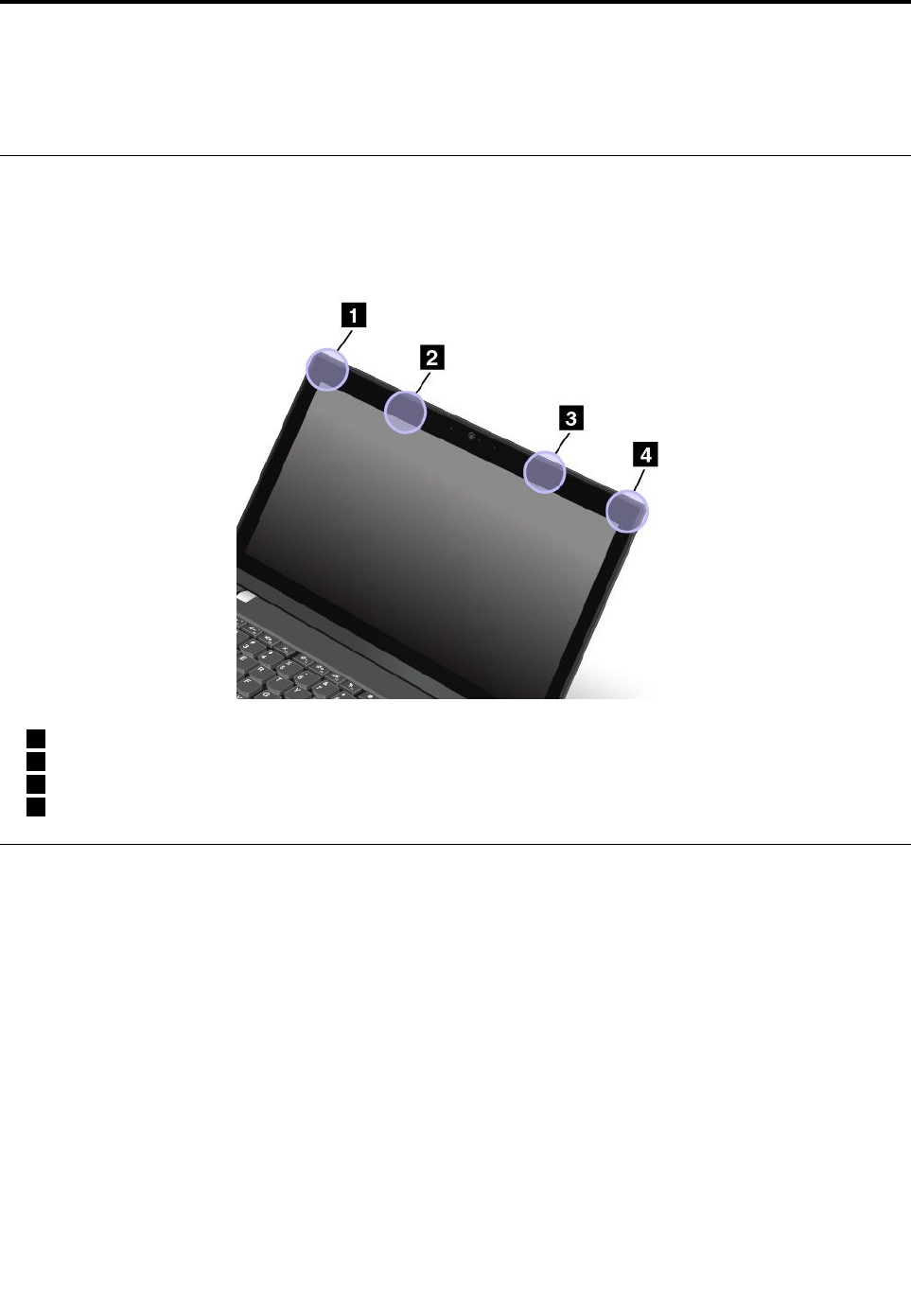
AppendixB.Regulatoryinformation
ThischapterprovidesregulatoryandcomplianceinformationaboutLenovoproducts.
LocationoftheUltraConnectwirelessantennas
ThinkPadnotebookcomputersfeatureanintegratedUltraConnect™wirelessantennasystembuiltintothe
displayforoptimalreception,enablingwirelesscommunicationwhereveryouare.
Antennalocation
1WirelessLANantenna(auxiliary)
2WirelessWANantenna(auxiliary)
3WirelessWANantenna(main)
4WirelessLANantenna(main)
Wirelessrelatedinformation
Wirelessinteroperability
WirelessLANCardisdesignedtobeinteroperablewithanywirelessLANproductthatisbasedonDirect
SequenceSpreadSpectrum(DSSS),ComplementaryCodeKeying(CCK),and/orOrthogonalFrequency
DivisionMultiplexing(OFDM)radiotechnology,andiscompliantto:
•The802.11b/gStandard,802.11a/b/g,802.11nor802.11aconWirelessLANs,asdefinedandapproved
bytheInstituteofElectricalandElectronicsEngineers.
•TheWirelessFidelity(WiFi)certificationasdefinedbytheWi-FiAlliance.
ABluetoothdeviceisdesignedtobeinteroperablewithanyBluetoothproductsthatarecompliantto
BluetoothSpecification4.0asdefinedbytheBluetoothSIG.
Note:DependingontheBluetoothcardandtheoperatingsystemyouuse,someprofilesmightnot
beavailable.
•AudioGateway
©CopyrightLenovo2016,2017145

•AV
•BasicImage
•Dial-upNetworking
•FileTransfer
•GenericAccess
•ServiceDiscovery
•SerialPort
•LANAccessusingPPP
•PersonalAreaNetwork
•GenericObjectExchange
•GenericObjectPush
•Synchronization
•Headset
•Printer
•HumanInterfaceDevices(Keyboard/Mouse)
•Handsfree
•PBAP(fortheWindows7andWindowsVistaoperatingsystemsonly)
•VDP-SyncProfile(fortheWindows7andWindowsVistaoperatingsystemsonly)
Usageenvironmentandyourhealth
Thiscomputercontainsintegratedwirelesscardsthatoperatewithintheguidelinesidentifiedbyradio
frequency(RF)safetystandardsandrecommendations;therefore,Lenovobelievesthisproductissafefor
usebyconsumers.Thesestandardsandrecommendationsreflecttheconsensusoftheworldwidescientific
community,andresultfromdeliberationsofpanelsandcommitteesofscientists,whocontinuallyreviewand
interprettheextensiveresearchliterature.
Insomesituationsorenvironments,theuseofwirelessdevicesmightberestrictedbytheproprietorofa
buildingorresponsiblerepresentativesofanorganization.Forexample,thesesituationsandareasmight
includethefollowing:
•Onboardofairplanes,inhospitalsornearpetrolstations,blastingareas(withelectro-explosivedevices),
medicalimplantsorbody-wornelectronicmedicaldevices,suchaspacemakers
•Inanyotherenvironmentwheretheriskofinterferencetootherdevicesorservicesisperceivedor
identifiedasharmful
Ifyouareuncertainofthepolicythatappliestotheuseofwirelessdevicesinaspecificarea(suchasan
airportorhospital),youareencouragedtoaskforauthorizationtouseawirelessdevicepriortoturning
onthecomputer.
Wireless-radiocomplianceinformation
Computermodelsequippedwithwirelesscommunicationscomplywiththeradiofrequencyandsafety
standardsofanycountryorregioninwhichithasbeenapprovedforwirelessuse.
Brazilwireless-radiocomplianceinformation
Esteequipamentooperaemcarátersecundário,istoé,nãotemdireitoaproteçãocontrainterferência
prejudicial,mesmodeestaçõesdomesmotipo,enãopodecausarinterferênciaasistemasoperandoem
caráterprimário.
146ThinkPadT460pUserGuide

Thisequipmentisasecondarytypedevice,thatis,itisnotprotectedagainstharmfulinterference,even
iftheinterferenceiscausedbyadeviceofthesametype,anditalsocannotcauseanyinterferenceto
primarytypedevices.
Mexicowireless-radiocomplianceinformation
Advertencia:EnMexicolaoperacióndeesteequipoestásujetaalassiguientesdoscondiciones:(1)es
posiblequeesteequipoodispositivonocauseinterferenciaperjudicialy(2)esteequipoodispositivodebe
aceptarcualquierinterferencia,incluyendolaquepuedacausarsuoperaciónnodeseada.
Locatingwirelessregulatorynotices
Formoreinformationaboutthewirelessregulatorynotices,refertotheRegulatoryNoticeshippedwithyour
computer.
IfyourcomputerisshippedwithouttheRegulatoryNotice,youcanfinditontheWebsiteat:
http://www.lenovo.com/ThinkPadUserGuides
Certificationrelatedinformation
Thefollowingtablecontainsinformationoftheproductname,complianceID,andmachinetypes.
ProductnameComplianceIDMachinetypes
ThinkPadT460pTP00077A20FWand20FX
Exportclassificationnotice
ThisproductissubjecttotheUnitedStatesExportAdministrationRegulations(EAR)andhasanExport
ClassificationControlNumber(ECCN)of5A992.c.Itcanbere-exportedexcepttoanyoftheembargoed
countriesintheEARE1countrylist.
Electronicemissionnotices
FederalCommunicationsCommissionDeclarationofConformity
ThefollowinginformationreferstotheThinkPadT460p,machinetype20FWand20FX.
ThisequipmenthasbeentestedandfoundtocomplywiththelimitsforaClassBdigitaldevice,pursuant
toPart15oftheFCCRules.Theselimitsaredesignedtoprovidereasonableprotectionagainstharmful
interferenceinaresidentialinstallation.Thisequipmentgenerates,uses,andcanradiateradiofrequency
energyand,ifnotinstalledandusedinaccordancewiththeinstructions,maycauseharmfulinterference
toradiocommunications.However,thereisnoguaranteethatinterferencewillnotoccurinaparticular
installation.Ifthisequipmentdoescauseharmfulinterferencetoradioortelevisionreception,whichcanbe
determinedbyturningtheequipmentoffandon,theuserisencouragedtotrytocorrecttheinterferenceby
oneormoreofthefollowingmeasures:
•Reorientorrelocatethereceivingantenna.
•Increasetheseparationbetweentheequipmentandreceiver.
•Connecttheequipmentintoanoutletonacircuitdifferentfromthattowhichthereceiverisconnected.
•Consultanauthorizeddealerorservicerepresentativeforhelp.
Lenovoisnotresponsibleforanyradioortelevisioninterferencecausedbyusingotherthanspecifiedor
recommendedcablesandconnectorsorbyunauthorizedchangesormodificationstothisequipment.
Unauthorizedchangesormodificationscouldvoidtheuser'sauthoritytooperatetheequipment.
AppendixB.Regulatoryinformation147

ThisdevicecomplieswithPart15oftheFCCRules.Operationissubjecttothefollowingtwoconditions:(1)
thisdevicemaynotcauseharmfulinterference,and(2)thisdevicemustacceptanyinterferencereceived,
includinginterferencethatmaycauseundesiredoperation.
ResponsibleParty:
Lenovo(UnitedStates)Incorporated
1009ThinkPlace-BuildingOne
Morrisville,NC27560
PhoneNumber:919-294-5900
IndustryCanadaClassBemissioncompliancestatement
CANICES-3(B)/NMB-3(B)
EuropeanUnionconformity
EUContact:Lenovo,Einsteinova21,85101Bratislava,Slovakia
Modelswithoutaradiodevice:ThisproductisinconformitywiththeprotectionrequirementsofEU
CouncilEMCDirective2014/30/EUontheapproximationofthelawsoftheMemberStatesrelatingto
electromagneticcompatibility.
Modelswitharadiodevice:Thisproductisinconformitywithalltherequirementsandessentialnormsthat
applytoEUCouncilR&TTEDirective1999/5/EC(untilJune12,2017)andCouncilRadioEquipmentDirective
2014/53/EU(fromJune13,2017)ontheapproximationofthelawsoftheMemberStatesrelatingtoradio
equipment.ThefulltextofthesystemEUdeclarationofconformityandtheEUwirelessmoduledeclarations
areavailableatthefollowingInternetaddresses:
•Fornotebookcomputers:http://www.lenovo.com/social_responsibility/us/en/eu_doc_notebooks/
•Fortablets:http://www.lenovo.com/social_responsibility/us/en/eu_doc_tablets/
Lenovocannotacceptresponsibilityforanyfailuretosatisfytheprotectionrequirementsresultingfrom
anon-recommendedmodificationoftheproduct,includingtheinstallationofoptioncardsfromother
manufacturers.ThisproducthasbeentestedandfoundtocomplywiththelimitsforClassBequipment
accordingtoEuropeanStandardsharmonizedintheDirectivesincompliance.ThelimitsforClassB
equipmentwerederivedfortypicalresidentialenvironmentstoprovidereasonableprotectionagainst
interferencewithlicensedcommunicationdevices.
GermanClassBcompliancestatement
DeutschsprachigerEUHinweis:
HinweisfürGerätederKlasseBEU-RichtliniezurElektromagnetischenVerträglichkeit
DiesesProduktentsprichtdenSchutzanforderungenderEU-Richtlinie2014/30/EUzurAngleichungder
RechtsvorschriftenüberdieelektromagnetischeVerträglichkeitindenEU-Mitgliedsstaatenundhältdie
GrenzwertederKlasseBderNormgemäßRichtlinie.
148ThinkPadT460pUserGuide
Umdiesessicherzustellen,sinddieGerätewieindenHandbüchernbeschriebenzuinstallierenundzu
betreiben.DesWeiterendürfenauchnurvonderLenovoempfohleneKabelangeschlossenwerden.
LenovoübernimmtkeineVerantwortungfürdieEinhaltungderSchutzanforderungen,wenndasProdukt
ohneZustimmungderLenovoverändertbzw.wennErweiterungskomponentenvonFremdherstellernohne
EmpfehlungderLenovogesteckt/eingebautwerden.
Deutschland:
EinhaltungdesGesetzesüberdieelektromagnetischeVerträglichkeitvonBetriebsmitteln
DiesesProduktentsprichtdem„GesetzüberdieelektromagnetischeVerträglichkeitvonBetriebsmitteln“
EMVG(früher„GesetzüberdieelektromagnetischeVerträglichkeitvonGeräten“).DiesistdieUmsetzungder
EMVEU-Richtlinie2014/30/EUinderBundesrepublikDeutschland.
ZulassungsbescheinigunglautdemDeutschenGesetzüberdieelektromagnetischeVerträglichkeit
vonBetriebsmitteln,EMVGvom20.Juli2007(früherGesetzüberdieelektromagnetische
VerträglichkeitvonGeräten),bzw.derEMVEURichtlinie2014/30/EU,fürGerätederKlasseB.
DiesesGerätistberechtigt,inÜbereinstimmungmitdemDeutschenEMVGdasEG-Konformitätszeichen
-CE-zuführen.VerantwortlichfürdieKonformitätserklärungnachParagraf5desEMVGistdieLenovo
(Deutschland)GmbH,Meitnerstr.9,D-70563Stuttgart.
InformationeninHinsichtEMVGParagraf4Abs.(1)4:
DasGeräterfülltdieSchutzanforderungennachEN55024undEN55032KlasseB.
JapanVCCIClassBcompliancestatement
Japancompliancestatementforproductswhichconnecttothepower
mainswithratedcurrentlessthanorequalto20Aperphase
Japannoticeforacpowercord
Theacpowercordshippedwithyourproductcanbeusedonlyforthisspecificproduct.Donotusetheac
powercordforotherdevices.
LenovoproductserviceinformationforTaiwan
AppendixB.Regulatoryinformation149

Eurasiancompliancemark
Brazilaudionotice
Ouvirsonscommaisde85decibéisporlongosperíodospodeprovocardanosaosistemaauditivo.
150ThinkPadT460pUserGuide

AppendixC.WEEEandrecyclingstatements
ThischapterprovidesenvironmentalinformationaboutLenovoproducts.
Generalrecyclinginformation
Lenovoencouragesownersofinformationtechnology(IT)equipmenttoresponsiblyrecycletheirequipment
whenitisnolongerneeded.Lenovooffersavarietyofprogramsandservicestoassistequipmentownersin
recyclingtheirITproducts.ForinformationaboutrecyclingLenovoproducts,goto:
http://www.lenovo.com/recycling
Thelatestenvironmentalinformationaboutourproductsisavailableat:
http://www.lenovo.com/ecodeclaration
ImportantWEEEinformation
TheWEEEmarkingonLenovoproductsappliestocountrieswithWEEEande-wasteregulations(for
example,theEuropeanWEEEDirective,IndiaE-WasteManagementRules).Appliancesarelabeledin
accordancewithlocalregulationsconcerningwasteelectricalandelectronicequipment(WEEE).These
regulationsdeterminetheframeworkforthereturnandrecyclingofusedappliancesasapplicablewithin
eachgeography.Thislabelisappliedtovariousproductstoindicatethattheproductisnottobethrown
away,butratherputintheestablishedcollectionsystemsforreclaimingtheseendoflifeproducts.
Usersofelectricalandelectronicequipment(EEE)withtheWEEEmarkingmustnotdisposeofendoflife
EEEasunsortedmunicipalwaste,butusethecollectionframeworkavailabletothemforthereturn,recycle,
andrecoveryofWEEEandtominimizeanypotentialeffectsofEEEontheenvironmentandhumanhealth
duetothepresenceofhazardoussubstances.Lenovoelectricalandelectronicequipment(EEE)maycontain
partsandcomponents,whichatend-of-lifemightqualifyashazardouswaste.
EEEandwasteelectricalandelectronicequipment(WEEE)canbedeliveredfreeofchargetotheplaceof
saleoranydistributorthatsellselectricalandelectronicequipmentofthesamenatureandfunctionas
theusedEEEorWEEE.
ForadditionalWEEEinformation,goto:
http://www.lenovo.com/recycling
WEEEinformationforHungary
Lenovo,asaproducer,bearsthecostincurredinconnectionwiththefulfillmentofLenovo’sobligations
underHungaryLawNo.197/2014(VIII.1.)subsections(1)-(5)ofsection12.
©CopyrightLenovo2016,2017151

Japanrecyclingstatements
CollectingandrecyclingadisusedLenovocomputerormonitor
IfyouareacompanyemployeeandneedtodisposeofaLenovocomputerormonitorthatistheproperty
ofthecompany,youmustdosoinaccordancewiththeLawforPromotionofEffectiveUtilizationof
Resources.Computersandmonitorsarecategorizedasindustrialwasteandshouldbeproperlydisposed
ofbyanindustrialwastedisposalcontractorcertifiedbyalocalgovernment.InaccordancewiththeLaw
forPromotionofEffectiveUtilizationofResources,LenovoJapanprovides,throughitsPCCollectingand
RecyclingServices,forthecollecting,reuse,andrecyclingofdisusedcomputersandmonitors.Fordetails,
visittheLenovoWebsiteat:
http://www.lenovo.com/recycling/japan
PursuanttotheLawforPromotionofEffectiveUtilizationofResources,thecollectingandrecyclingof
home-usedcomputersandmonitorsbythemanufacturerwasbegunonOctober1,2003.Thisserviceis
providedfreeofchargeforhome-usedcomputerssoldafterOctober1,2003.Fordetails,goto:
http://www.lenovo.com/recycling/japan
DisposingofLenovocomputercomponents
SomeLenovocomputerproductssoldinJapanmayhavecomponentsthatcontainheavymetalsorother
environmentalsensitivesubstances.Toproperlydisposeofdisusedcomponents,suchasaprintedcircuit
boardordrive,usethemethodsdescribedaboveforcollectingandrecyclingadisusedcomputerormonitor.
DisposingofdisusedlithiumbatteriesfromLenovocomputers
Abutton-shapedlithiumbatteryisinstalledinsideyourLenovocomputertoprovidepowertothecomputer
clockwhilethecomputerisoffordisconnectedfromthemainpowersource.Ifyouneedtoreplaceitwitha
newone,contactyourplaceofpurchaseorcontactLenovoforservice.Ifyouneedtodisposeofadisused
lithiumbattery,insulateitwithvinyltape,contactyourplaceofpurchaseoranindustrial-waste-disposal
operator,andfollowtheirinstructions.
Disposalofalithiumbatterymustcomplywithlocalordinancesandregulations.
DisposingofadisusedbatteryfromLenovonotebookcomputers
YourLenovonotebookcomputerhasalithiumionbatteryoranickelmetalhydridebattery.Ifyouare
acompanyemployeewhousesaLenovonotebookcomputerandneedtodisposeofabattery,contact
theproperpersoninLenovosales,service,ormarketing,andfollowthatperson'sinstructions.Youalso
canrefertotheinstructionsat:
https://www.lenovo.com/jp/ja/environment/recycle/battery/
IfyouuseaLenovonotebookcomputerathomeandneedtodisposeofabattery,youmustcomplywith
localordinancesandregulations.Youalsocanrefertotheinstructionsat:
https://www.lenovo.com/jp/ja/environment/recycle/battery/
RecyclinginformationforBrazil
DeclaraçõesdeReciclagemnoBrasil
DescartedeumProdutoLenovoForadeUso
152ThinkPadT460pUserGuide

Equipamentoselétricoseeletrônicosnãodevemserdescartadosemlixocomum,masenviadosàpontosde
coleta,autorizadospelofabricantedoprodutoparaquesejamencaminhadoseprocessadosporempresas
especializadasnomanuseioderesíduosindustriais,devidamentecertificadaspelosorgãosambientais,de
acordocomalegislaçãolocal.
ALenovopossuiumcanalespecíficoparaauxiliá-lonodescartedessesprodutos.Casovocêpossua
umprodutoLenovoemsituaçãodedescarte,ligueparaonossoSACouencaminheume-mailpara:
reciclar@lenovo.com,informandoomodelo,númerodesérieecidade,afimdeenviarmosasinstruções
paraocorretodescartedoseuprodutoLenovo.
BatteryrecyclinginformationfortheEuropeanUnion
Notice:ThismarkappliesonlytocountrieswithintheEuropeanUnion(EU).
BatteriesorpackagingforbatteriesarelabeledinaccordancewithEuropeanDirective2006/66/EC
concerningbatteriesandaccumulatorsandwastebatteriesandaccumulators.TheDirectivedeterminesthe
frameworkforthereturnandrecyclingofusedbatteriesandaccumulatorsasapplicablethroughoutthe
EuropeanUnion.Thislabelisappliedtovariousbatteriestoindicatethatthebatteryisnottobethrown
away,butratherreclaimeduponendoflifeperthisDirective.
InaccordancewiththeEuropeanDirective2006/66/EC,batteriesandaccumulatorsarelabeledtoindicate
thattheyaretobecollectedseparatelyandrecycledatendoflife.Thelabelonthebatterymayalso
includeachemicalsymbolforthemetalconcernedinthebattery(Pbforlead,Hgformercury,andCdfor
cadmium).Usersofbatteriesandaccumulatorsmustnotdisposeofbatteriesandaccumulatorsasunsorted
municipalwaste,butusethecollectionframeworkavailabletocustomersforthereturn,recycling,and
treatmentofbatteriesandaccumulators.Customerparticipationisimportanttominimizeanypotential
effectsofbatteriesandaccumulatorsontheenvironmentandhumanhealthduetothepotentialpresenceof
hazardoussubstances.
Beforeplacingelectricalandelectronicequipment(EEE)inthewastecollectionstreamorinwastecollection
facilities,theenduserofequipmentcontainingbatteriesand/oraccumulatorsmustremovethosebatteries
andaccumulatorsforseparatecollection.
DisposingoflithiumbatteriesandbatterypacksfromLenovoproducts
Acoin-celltypelithiumbatterymightbeinstalledinsideyourLenovoproduct.Youcanfinddetailsaboutthe
batteryintheproductdocumentation.Ifthebatteryneedstobereplaced,contactyourplaceofpurchaseor
contactLenovoforservice.Ifyouneedtodisposeofalithiumbattery,insulateitwithvinyltape,contact
yourplaceofpurchaseorawaste-disposaloperator,andfollowtheirinstructions.
DisposingofbatterypacksfromLenovoproducts
YourLenovodevicemightcontainalithium-ionbatterypackoranickelmetalhydridebatterypack.Youcan
finddetailsonthebatterypackintheproductdocumentation.Ifyouneedtodisposeofabatterypack,
insulateitwithvinyltape,contactLenovosales,service,oryourplaceofpurchase,orawaste-disposal
AppendixC.WEEEandrecyclingstatements153

operator,andfollowtheirinstructions.Youalsocanrefertotheinstructionsprovidedintheuserguide
foryourproduct.
Forpropercollectionandtreatment,goto:
http://www.lenovo.com/lenovo/environment
BatteryrecyclinginformationforTaiwan
BatteryrecyclinginformationfortheUnitedStatesandCanada
RecyclinginformationforChina
154ThinkPadT460pUserGuide

AppendixD.RestrictionofHazardousSubstances(RoHS)
Directive
ThelatestenvironmentalinformationaboutLenovoproductsisavailableat:
http://www.lenovo.com/ecodeclaration
EuropeanUnionRoHS
ThisLenovoproduct,withincludedparts(cables,cords,andsoon)meetstherequirementsofDirective
2011/65/EUontherestrictionoftheuseofcertainhazardoussubstancesinelectricalandelectronic
equipment("RoHSrecast"or"RoHS2").
FormoreinformationaboutLenovoworldwidecomplianceonRoHS,goto:
https://www.lenovo.com/social_responsibility/us/en/RoHS_Communication.pdf
TurkishRoHS
TheLenovoproductmeetstherequirementsoftheRepublicofTurkeyDirectiveontheRestrictionoftheUse
ofCertainHazardousSubstancesinWasteElectricalandElectronicEquipment(WEEE).
UkraineRoHS
IndiaRoHS
RoHScompliantasperE-Waste(Management)Rules.
ChinaRoHS
TheinformationinthefollowingtableisapplicableforproductsmanufacturedonorafterJanuary1,2015for
saleinthePeople’sRepublicofChina.
©CopyrightLenovo2016,2017155
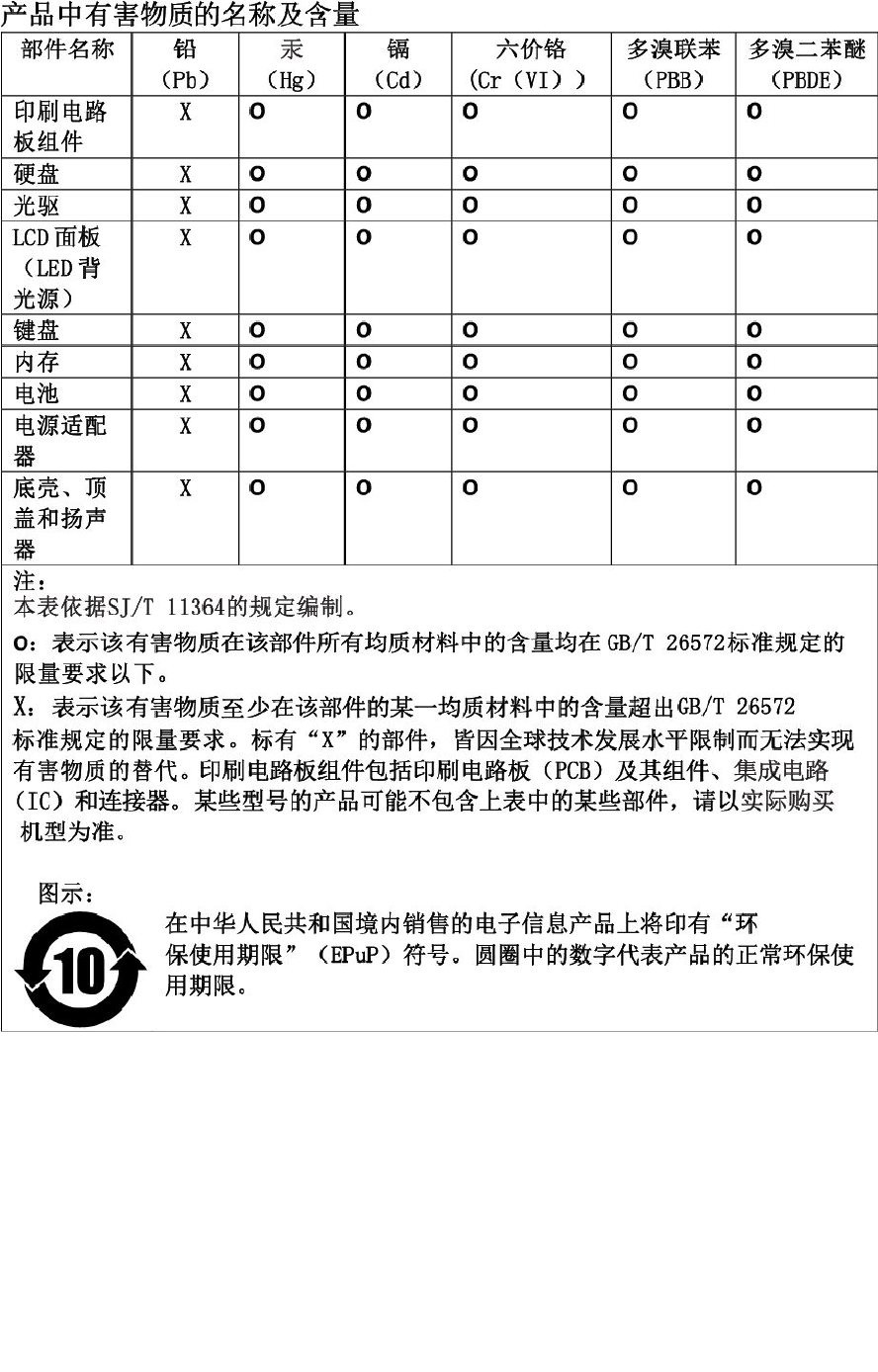
156ThinkPadT460pUserGuide
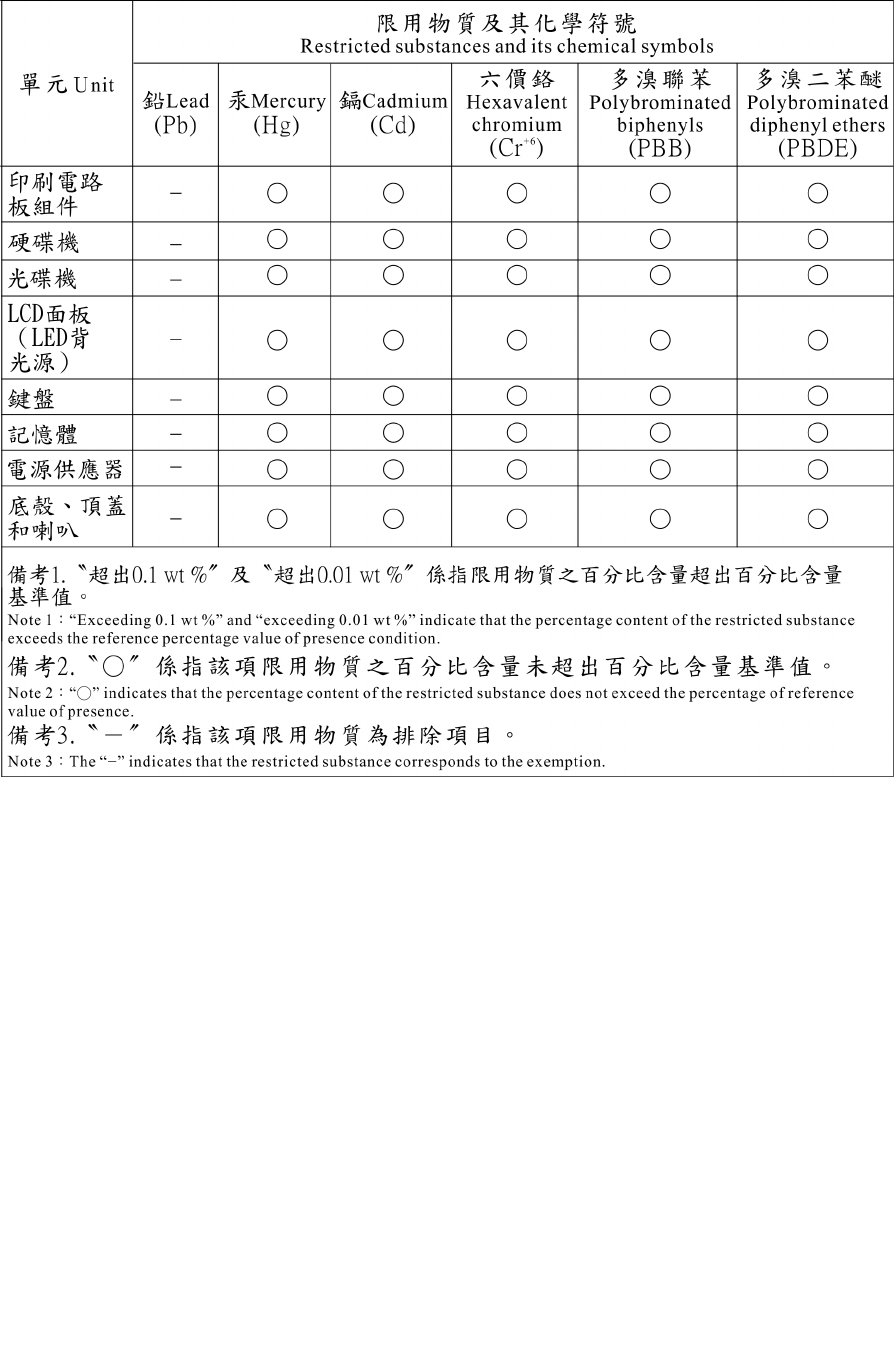

158ThinkPadT460pUserGuide

AppendixE.ENERGYSTARmodelinformation
ENERGYSTAR®isajointprogramoftheU.S.EnvironmentalProtectionAgencyandtheU.S.Department
ofEnergyaimedatsavingmoneyandprotectingtheenvironmentthroughenergyefficientproductsand
practices.
LenovoisproudtoofferourcustomersproductswiththeENERGYSTARqualifieddesignation.Youmight
findanENERGYSTARmarkaffixedonthecomputerordisplayedonthepowersettingsinterface.Lenovo
computersofthefollowingmachinetypes,ifcarryanENERGYSTARmark,havebeendesignedandtested
toconformtotheENERGYSTARprogramrequirementsforcomputers.
20FWand20FX
ByusingENERGYSTARqualifiedproductsandtakingadvantageofthepower-managementfeatures
ofthecomputer,youcanhelpreducetheconsumptionofelectricity.Reducedelectricalconsumption
cancontributetopotentialfinancialsavings,acleanerenvironment,andthereductionofgreenhousegas
emissions.
FormoreinformationaboutENERGYSTAR,goto:
https://www.energystar.gov
Lenovoencouragesyoutomakeefficientuseofenergyanintegralpartofyourday-to-dayoperations.To
helpinthisendeavor,Lenovohaspresetthefollowingpower-managementfeaturestotakeeffectwhenthe
computerhasbeeninactiveforaspecifiedlengthoftime:
Powerplan:Default(whenpluggedintoacpower)
•Turnoffthedisplay:After10minutes
•Putthecomputertosleep:After30minutes
Toawakenthecomputerfromsleepmode,presstheFnkeyonyourkeyboard.Formoreinformationabout
thesesettings,seetheWindowshelpinformationonthecomputer.
TheWakeonLANfunctionisenabledwhenyourLenovocomputerisshippedfromthefactory,andthe
settingremainsvalidevenwhenthecomputerisinsleepmode.IfyoudonotneedtohaveWakeonLAN
enabledwhilethecomputerisinsleepmode,youcanreducethepowerconsumptionandprolongthetime
insleepmode,bydisablingthesettingofWakeonLANforsleepmode.
TodisablethesettingofWakeonLANforsleepmode,dothefollowing:
1.GotoControlPanelandclickHardwareandSound➙DeviceManager.
2.IntheDeviceManagerwindow,expandNetworkadapters.
3.Right-clickyournetworkadapterdevice,andclickProperties.
4.ClickthePowerManagementtab.
©CopyrightLenovo2016,2017159

5.CleartheAllowthisdevicetowakethecomputercheckbox.
6.ClickOK.
160ThinkPadT460pUserGuide

AppendixF.Trademarks
ThefollowingtermsaretrademarksofLenovointheUnitedStates,othercountries,orboth:
Lenovo
AccessConnections
ActiveProtectionSystem
SecureDataDisposal
ThinkPad
ThinkPadlogo
TrackPoint
UltraConnect
IntelandIntelSpeedSteparetrademarksofIntelCorporationoritssubsidiariesintheU.S.and/orother
countries.
Microsoft,Windows,Direct3D,BitLocker,andCortanaaretrademarksoftheMicrosoftgroupofcompanies.
MiniDisplayPort(mDP)andDisplayPortareTrademarksoftheVideoElectronicsStandardsAssociation.
ThetermsHDMIandHDMIHigh-DefinitionMultimediaInterfacearetrademarksorregisteredtrademarksof
HDMILicensingLLCintheUnitedStatesandothercountries.
Othercompany,product,andservicenamesmaybetrademarksorservicemarksofothers.
©CopyrightLenovo2016,2017161

162ThinkPadT460pUserGuide

AppendixG.Notices
Lenovomaynotoffertheproducts,services,orfeaturesdiscussedinthisdocumentinallcountries.Consult
yourlocalLenovorepresentativeforinformationontheproductsandservicescurrentlyavailableinyour
area.AnyreferencetoaLenovoproduct,program,orserviceisnotintendedtostateorimplythatonlythat
Lenovoproduct,program,orservicemaybeused.Anyfunctionallyequivalentproduct,program,orservice
thatdoesnotinfringeanyLenovointellectualpropertyrightmaybeusedinstead.However,itistheuser's
responsibilitytoevaluateandverifytheoperationofanyotherproduct,program,orservice.
Lenovomayhavepatentsorpendingpatentprogramscoveringsubjectmatterdescribedinthisdocument.
Thefurnishingofthisdocumentdoesnotgiveyouanylicensetothesepatents.Youcansendlicense
inquiries,inwriting,to:
Lenovo(UnitedStates),Inc.
1009ThinkPlace-BuildingOne
Morrisville,NC27560
U.S.A.
Attention:LenovoDirectorofLicensing
LENOVOPROVIDESTHISPUBLICATION“ASIS”WITHOUTWARRANTYOFANYKIND,EITHEREXPRESS
ORIMPLIED,INCLUDING,BUTNOTLIMITEDTO,THEIMPLIEDWARRANTIESOFNON-INFRINGEMENT,
MERCHANTABILITYORFITNESSFORAPARTICULARPURPOSE.Somejurisdictionsdonotallow
disclaimerofexpressorimpliedwarrantiesincertaintransactions,therefore,thisstatementmaynotapply
toyou.
Thisinformationcouldincludetechnicalinaccuraciesortypographicalerrors.Changesareperiodically
madetotheinformationherein;thesechangeswillbeincorporatedinneweditionsofthepublication.
Lenovomaymakeimprovementsand/orchangesintheproduct(s)and/ortheapplication(s)describedinthis
publicationatanytimewithoutnotice.
Theproductsdescribedinthisdocumentarenotintendedforuseinimplantationorotherlifesupport
applicationswheremalfunctionmayresultininjuryordeathtopersons.Theinformationcontainedinthis
documentdoesnotaffectorchangeLenovoproductspecificationsorwarranties.Nothinginthisdocument
shalloperateasanexpressorimpliedlicenseorindemnityundertheintellectualpropertyrightsofLenovo
orthirdparties.Allinformationcontainedinthisdocumentwasobtainedinspecificenvironmentsandis
presentedasanillustration.Theresultobtainedinotheroperatingenvironmentsmayvary.
Lenovomayuseordistributeanyoftheinformationyousupplyinanywayitbelievesappropriatewithout
incurringanyobligationtoyou.
Anyreferencesinthispublicationtonon-LenovoWebsitesareprovidedforconvenienceonlyanddonotin
anymannerserveasanendorsementofthoseWebsites.ThematerialsatthoseWebsitesarenotpartof
thematerialsforthisLenovoproduct,anduseofthoseWebsitesisatyourownrisk.
Anyperformancedatacontainedhereinwasdeterminedinacontrolledenvironment.Therefore,theresult
obtainedinotheroperatingenvironmentsmayvarysignificantly.Somemeasurementsmayhavebeen
madeondevelopment-levelsystemsandthereisnoguaranteethatthesemeasurementswillbethesame
ongenerallyavailablesystems.Furthermore,somemeasurementsmayhavebeenestimatedthrough
extrapolation.Actualresultsmayvary.Usersofthisdocumentshouldverifytheapplicabledatafortheir
specificenvironment.
©CopyrightLenovo2016,2017163

ThisdocumentiscopyrightedbyLenovoandisnotcoveredbyanyopensourcelicense,includingany
Linuxagreement(s)whichmayaccompanysoftwareincludedwiththisproduct.Lenovomayupdatethis
documentatanytimewithoutnotice.
Toobtainthemostup-to-datedocumentationforyourcomputer,goto:
http://www.lenovo.com/support
164ThinkPadT460pUserGuide

