Lexus 2016 RX 350 Navigation Manual OM48E92U
User Manual: Lexus 2016 Lexus RX 350 Navigation Manual 2016 Lexus RX 350 Owners Manual Transmission | Owner's Manual Pdf
Open the PDF directly: View PDF  .
.
Page Count: 402 [warning: Documents this large are best viewed by clicking the View PDF Link!]
- 2016 RX350/450h Navigation Owners Manual (OM48E92U)
- TABLE OF CONTENTS
- 1. QUICK GUIDE
- 2. BASIC FUNCTION
- 3. NAVIGATION SYSTEM
- 4. AUDIO/VISUAL SYSTEM
- 1. BASIC OPERATION
- 2. RADIO OPERATION
- 3. MEDIA OPERATION
- 4. AUDIO/VISUAL REMOTE CONTROLS
- 5. SETUP
- 6. TIPS FOR OPERATING THE AUDIO/VISUAL SYSTEM
- 7. REAR SEAT ENTERTAINMENT SYSTEM FEATURES
- 8. REAR SEAT ENTERTAINMENT SYSTEM OPERATION
- 9. SETUP FOR REAR SEAT ENTERTAINMENT SYSTEM
- 10. TIPS FOR OPERATING REAR SEAT ENTERTAINMENT SYSTEM
- 5. VOICE COMMAND SYSTEM
- 6. INFORMATION
- 7. PERIPHERAL MONITORING SYSTEM*
- 1. PANORAMIC VIEW MONITOR
- 1. PANORAMIC VIEW MONITOR
- 2. CHECKING AROUND THE VEHICLE
- 3. CHECKING THE FRONT AND AROUND THE VEHICLE
- 4. CHECKING THE SIDES OF THE VEHICLE
- 5. CHECKING THE REAR AND AROUND THE VEHICLE
- 6. WHEN FOLDING THE OUTSIDE REAR VIEW MIRRORS
- 7. MAGNIFYING FUNCTION
- 8. PANORAMIC VIEW MONITOR PRECAUTIONS
- 9. THINGS YOU SHOULD KNOW
- 1. PANORAMIC VIEW MONITOR
- 8. PHONE
- 9. LEXUS ENFORM
- 10. 12.3-INCH DISPLAY*
- INDEX
11
RX_Navi_U
1QUICK GUIDE 9
2BASIC FUNCTION 29
3NAVIGATION SYSTEM 73
4AUDIO/VISUAL SYSTEM 141
5VOICE COMMAND SYSTEM 249
6INFORMATION 265
7PERIPHERAL MONITORING SYSTEM 269
8PHONE 305
9LEXUS ENFORM 345
10 12.3-INCH DISPLAY 373
INDEX 381
About the following equipment, see the “Owner’s Manual”.
Air conditioning
Fuel consumption
Energy monitor (RX450h)
Vehicle customization settings
Lexus parking assist monitor
Intuitive parking assist
2
RX_Navi_U
This manual explains the operation of the system. Please read this manual carefully to
ensure proper use. Keep this manual in your vehicle at all times.
The screen shots in this document and the actual screens of the system differ depend-
ing on whether the functions and/or a contract existed and the map data available at
the time of producing this document.
In some situations when changing between screens, it may take longer than normal for
the screen to change, the screen may be blank momentarily or noise may be displayed.
Please be aware that the content of this manual may be different from the system in
some cases, such as when the system’s software is updated.
The Navigation System is one of the most technologically advanced vehicle accesso-
ries ever developed. The system receives satellite signals from the Global Positioning
System (GPS) operated by the U.S. Department of Defense. Using these signals and
other vehicle sensors, the system indicates your present position and assists in locating
a desired destination.
The navigation system is designed to select efficient routes from your present starting
location to your destination. The system is also designed to direct you to a destination
that is unfamiliar to you in an efficient manner. The system uses DENSO maps. The cal-
culated routes may not be the shortest nor the least traffic congested. Your own per-
sonal local knowledge or “short cut” may at times be faster than the calculated routes.
The navigation system’s database includes Point of Interest categories to allow you to
easily select destinations such as restaurants and hotels. If a destination is not in the da-
tabase, you can enter the street address or a major intersection close to it and the sys-
tem will guide you there.
The system will provide both a visual map and audio instructions. The audio instructions
will announce the distance remaining and the direction to turn in when approaching an
intersection. These voice instructions will help you keep your eyes on the road and are
timed to provide enough time to allow you to maneuver, change lanes or slow down.
Please be aware that all current vehicle navigation systems have certain limitations that
may affect their ability to perform properly. The accuracy of the vehicle’s position de-
pends on satellite conditions, road configuration, vehicle condition or other circum-
stances. For more information on the limitations of the system, refer to page 136.
NAVIGATION SYSTEM OWNER’S MANUAL
NAVIGATION SYSTEM
Introduction
3
RX_Navi_U
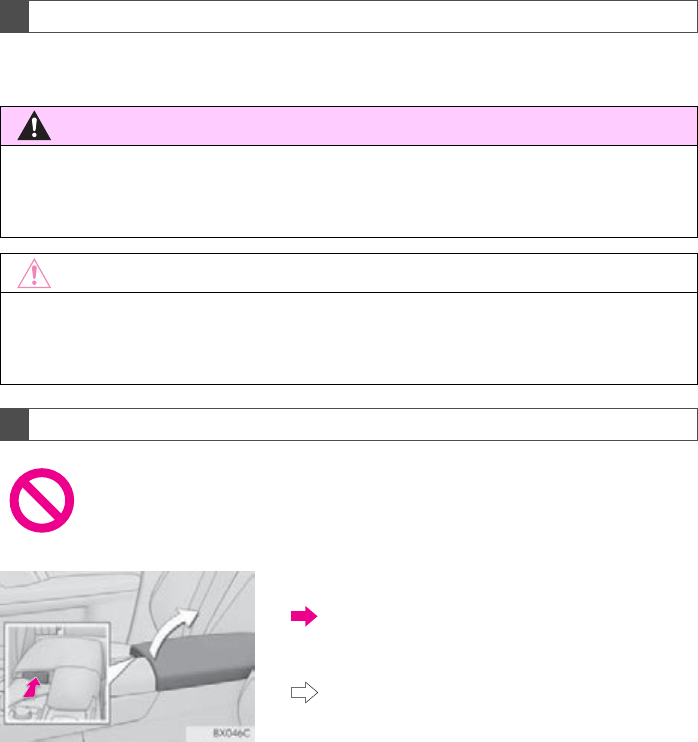
For safety reasons, this manual indicates items requiring particular attention with the
following marks.
IMPORTANT INFORMATION ABOUT THIS MANUAL
WARNING
●This is a warning against anything which may cause injury to people if the warning is
ignored. You are informed about what you must or must not do in order to reduce the risk of
injury to yourself and others.
NOTICE
●This is a warning against anything which may cause damage to the vehicle or its equipment
if the warning is ignored. You are informed about what you must or must not do in order to
avoid or reduce the risk of damage to your vehicle and its equipment.
SYMBOLS USED IN ILLUSTRATIONS
Safety symbol
The symbol of a circle with a slash through it means “Do not”, “Do not do
this” or “Do not let this happen”.
Arrows indicating operations
Indicates the action (pressing, turning, etc.)
used to operate switches and other devic-
es.
Indicates the outcome of an operation (e.g.
a lid opens).
4
RX_Navi_U
■INFORMATION FOR HYBRID VEHICLES IS WRITTEN IN BRACKETS
NEXT TO THE INFORMATION FOR GASOLINE VEHICLES
Different writing styles for gasoline and hybrid vehicles
Example
When the engine*1 <power>*2 switch is turned to ACCESSORY or IGNITION
ON*1 <ON>*2 mode, the initial screen will be displayed and the system will begin
operating.
*1: Vehicles with gasoline engine
*2: Vehicles with hybrid system
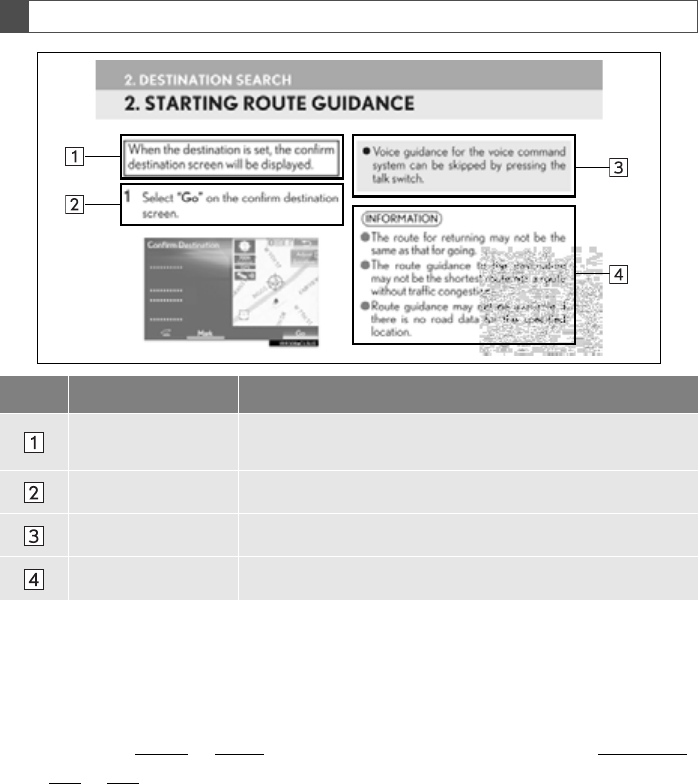
HOW TO READ THIS MANUAL
No. Name Description
Operational
Outlines An outline of the operation is explained.
Main Operations The steps of an operation are explained.
Related Operations A main operation’s supplementary operations are described.
Information Useful information for the user is described.

5
RX_Navi_U
To use this system in the safest possible
manner, follow all the safety tips shown be-
low.
This system is intended to assist in reaching
the destination and, if used properly, can do
so. The driver is solely responsible for the
safe operation of your vehicle and the safety
of your passengers.
Do not use any feature of this system to the
extent it becomes a distraction and pre-
vents safe driving. The first priority while
driving should always be the safe operation
of the vehicle. While driving, be sure to ob-
serve all traffic regulations.
Prior to the actual use of this system, learn
how to use it and become thoroughly famil-
iar with it. Read the entire manual to make
sure you understand the system. Do not al-
low other people to use this system until
they have read and understood the instruc-
tions in this manual.
For your safety, some functions may be-
come inoperable when driving. Unavailable
screen buttons are dimmed. Only when the
vehicle is not moving, can the destination
and route selection be done.
While driving, listen to the voice instructions
as much as possible and glance at the
screen briefly and only when it is safe. How-
ever, do not totally rely on voice guidance.
Use it just for reference. If the system can-
not determine the current position correct-
ly, there is a possibility of incorrect, late, or
non-voice guidance.
The data in the system may occasionally be
incomplete. Road conditions, including
driving restrictions (no left turns, street clo-
sures, etc.) frequently change. Therefore,
before following any instructions from the
system, look to see whether the instruction
can be done safely and legally.
This system cannot warn about such things
as the safety of an area, condition of streets,
and availability of emergency services. If un-
sure about the safety of an area, do not drive
into it. Under no circumstances is this sys-
tem a substitute for the driver’s personal
judgement.
Use this system only in locations where it is
legal to do so. Some states/provinces may
have laws prohibiting the use of video and
navigation screens next to the driver.
SAFETY INSTRUCTION
WARNING
●For safety, the driver should not operate
the navigation system while he/she is
driving. Insufficient attention to the road
and traffic may cause an accident.
●While driving, be sure to obey the traffic
regulations and maintain awareness of
the road conditions. If a traffic sign on the
road has been changed, route guidance
may not have the updated information
such as the direction of a one way street.
TABLE OF CONTENTS
6
RX_Navi_U
1. BASIC FUNCTION......................................... 10
Remote Touch........................................................... 10
“Menu” SCREEN .................................................... 12
HOME SCREEN .................................................... 16
2. QUICK REFERENCE................................... 18
“Setup” SCREEN.....................................................18
“Information” SCREEN........................................20
3. NAVIGATION OPERATION .................. 22
REGISTERING HOME......................................22
REGISTERING PRESET
DESTINATIONS................................................23
OPERATION FLOW:
GUIDING THE ROUTE.................................24
SETTING HOME AS
THE DESTINATION ........................................25
4. FUNCTION INDEX...................................... 26
FUNCTION INDEX............................................26
1. BASIC INFORMATION
BEFORE OPERATION............................30
INITIAL SCREEN ..................................................30
HOW TO USE THE Remote Touch .............32
HOME SCREEN OPERATION....................34
ENTERING LETTERS AND
NUMBERS/LIST SCREEN
OPERATION.......................................................36
SCREEN ADJUSTMENT..................................39
LINKING MULTI-INFORMATION
DISPLAY AND
NAVIGATION SYSTEM................................ 41
2. Bluetooth® SETTINGS................................. 42
REGISTERING/CONNECTING
Bluetooth® DEVICE.........................................42
SETTING Bluetooth® DETAILS .....................48
3. OTHER SETTINGS ....................................... 59
GENERAL SETTINGS.......................................59
VOICE SETTINGS............................................... 66
VEHICLE SETTINGS..........................................68
1. BASIC OPERATION..................................... 74
QUICK REFERENCE..........................................74
MAP SCREEN OPERATION.........................77
MAP SCREEN INFORMATION..................83
TRAFFIC INFORMATION..............................88
2. DESTINATION SEARCH............................ 91
DESTINATION SEARCH
OPERATION ........................................................91
STARTING ROUTE GUIDANCE ............. 103
3. ROUTE GUIDANCE.................................108
ROUTE GUIDANCE SCREEN..................108
TYPICAL VOICE GUIDANCE
PROMPTS.............................................................115
EDITING ROUTE.................................................116
4. MEMORY POINTS.................................... 120
MEMORY POINTS SETTINGS.................. 120
5. SETUP.............................................................. 130
DETAILED NAVIGATION
SETTINGS........................................................... 130
TRAFFIC SETTINGS..........................................134
6. TIPS FOR THE NAVIGATION
SYSTEM ........................................................136
GPS (GLOBAL POSITIONING
SYSTEM) ..............................................................136
MAP DATABASE VERSION AND
COVERED AREA ...........................................139
1QUICK GUIDE
2BASIC FUNCTION
3NAVIGATION SYSTEM
1
2
3
4
5
6
7
10
7
RX_Navi_U
8
9
1. BASIC OPERATION...................................144
QUICK REFERENCE .......................................144
SOME BASICS.....................................................146
2. RADIO OPERATION................................155
AM/FM RADIO
.............................................................. 155
XM Satellite Radio ...............................................165
INTERNET RADIO...............................................171
3. MEDIA OPERATION ................................ 172
CD............................................................................... 172
DVD............................................................................ 175
USB MEMORY....................................................180
iPod.............................................................................184
Bluetooth® AUDIO........................................... 188
AUX ...........................................................................193
4. AUDIO/VISUAL REMOTE
CONTROLS ............................................... 197
STEERING SWITCHES....................................197
5. SETUP ............................................................ 200
AUDIO SETTINGS...........................................200
6. TIPS FOR OPERATING
THE AUDIO/VISUAL SYSTEM .........205
OPERATING INFORMATION................. 205
7. REAR SEAT ENTERTAINMENT
SYSTEM FEATURES ............................... 217
REAR SEAT ENTERTAINMENT
SYSTEM FEATURES...................................... 217
SOME BASICS.....................................................219
8. REAR SEAT ENTERTAINMENT
SYSTEM OPERATION..........................224
AM/FM/SAT RADIO.......................................224
CD .............................................................................225
DVD..........................................................................228
USB MEMORY...................................................234
iPod............................................................................ 237
Bluetooth® AUDIO...........................................240
EXTERNAL DEVICES ....................................243
9. SETUP FOR REAR SEAT
ENTERTAINMENT SYSTEM...............244
REAR SEAT ENTERTAINMENT
SYSTEM SETTINGS .....................................244
10. TIPS FOR OPERATING
REAR SEAT ENTERTAINMENT
SYSTEM.......................................................246
OPERATING INFORMATION .................246
1. VOICE COMMAND SYSTEM
OPERATION.............................................250
VOICE COMMAND SYSTEM..................250
CASUAL SPEECH
RECOGNIZATION ..................................... 257
COMMAND LIST .............................................258
2. MOBILE ASSISTANT
OPERATION.............................................263
MOBILE ASSISTANT......................................263
1. INFORMATION DISPLAY ......................266
RECEIVING DOPPLER
WEATHER INFORMATION...................266
DATA SERVICES SETTINGS......................268
4AUDIO/VISUAL SYSTEM
5VOICE COMMAND SYSTEM
6INFORMATION

TABLE OF CONTENTS
8
RX_Navi_U
1. PANORAMIC VIEW MONITOR ......... 270
PANORAMIC VIEW MONITOR.............270
CHECKING AROUND
THE VEHICLE..................................................275
CHECKING THE FRONT AND
AROUND THE VEHICLE.......................... 276
CHECKING THE SIDES
OF THE VEHICLE..........................................279
CHECKING THE REAR AND
AROUND THE VEHICLE...........................281
WHEN FOLDING THE OUTSIDE
REAR VIEW MIRRORS.............................. 288
MAGNIFYING FUNCTION.......................290
PANORAMIC VIEW MONITOR
PRECAUTIONS............................................... 291
THINGS YOU SHOULD KNOW ............302
1. PHONE OPERATION
(HANDS-FREE SYSTEM FOR
CELLULAR PHONES) ..........................306
QUICK REFERENCE..................................... 306
SOME BASICS....................................................307
CALLING ON THE Bluetooth®
PHONE ..................................................................311
RECEIVING ON THE Bluetooth®
PHONE ................................................................ 317
TALKING ON THE Bluetooth®
PHONE ................................................................318
Bluetooth® PHONE MESSAGE
FUNCTION........................................................ 321
2. SETUP............................................................. 326
PHONE SETTINGS..........................................326
3. WHAT TO DO IF... .....................................338
TROUBLESHOOTING................................. 338
1. LEXUS ENFORM-OVERVIEW............. 346
FUNCTIONAL OVERVIEW....................... 346
TYPE A: FUNCTION ACHIEVED BY
USING A CELLULAR PHONE..............348
TYPE B: FUNCTION ACHIEVED BY
USING DCM AND
THE NAVIGATION SYSTEM.................352
TYPE C: FUNCTION ACHIEVED BY
USING DCM....................................................355
2. LEXUS ENFORM OPERATION.......... 356
LEXUS Enform Remote...................................356
Lexus Enform Service Connect.................... 357
LEXUS App Suite...............................................358
LEXUS Enform Destinations .........................364
Lexus Insider..........................................................368
3. SETUP...............................................................371
LEXUS App Suite SETTINGS........................371
1. 12.3-INCH DISPLAY
OPERATION ............................................ 374
12.3-INCH DISPLAY-OVERVIEW.......... 374
USING “Side Display” ...................................... 376
ALPHABETICAL INDEX............................. 382
7PERIPHERAL MONITORING
SYSTEM
8PHONE
9LEXUS ENFORM
10 12.3-INCH DISPLAY
INDEX

1
1
2
3
4
5
6
7
8
10
9
RX_Navi_U
9
1. Remote Touch............................................... 10
2. “Menu” SCREEN......................................... 12
STATUS DISPLAY...................................................... 14
3. HOME SCREEN ......................................... 16
1. “Setup” SCREEN ......................................... 18
2. “Information” SCREEN............................. 20
1. REGISTERING HOME............................ 22
2. REGISTERING PRESET
DESTINATIONS...................................... 23
3. OPERATION FLOW:
GUIDING THE ROUTE........................ 24
4. SETTING HOME AS
THE DESTINATION............................... 25
1. FUNCTION INDEX.................................. 26
1BASIC FUNCTION
2QUICK REFERENCE
3NAVIGATION OPERATION
4FUNCTION INDEX
QUICK GUIDE
10
RX_Navi_U
1. BASIC FUNCTION
1. Remote Touch
*1: With 8-inch display
*2: With 12.3-inch display
*1
*2
1. BASIC FUNCTION
11
RX_Navi_U
QUICK GUIDE
1
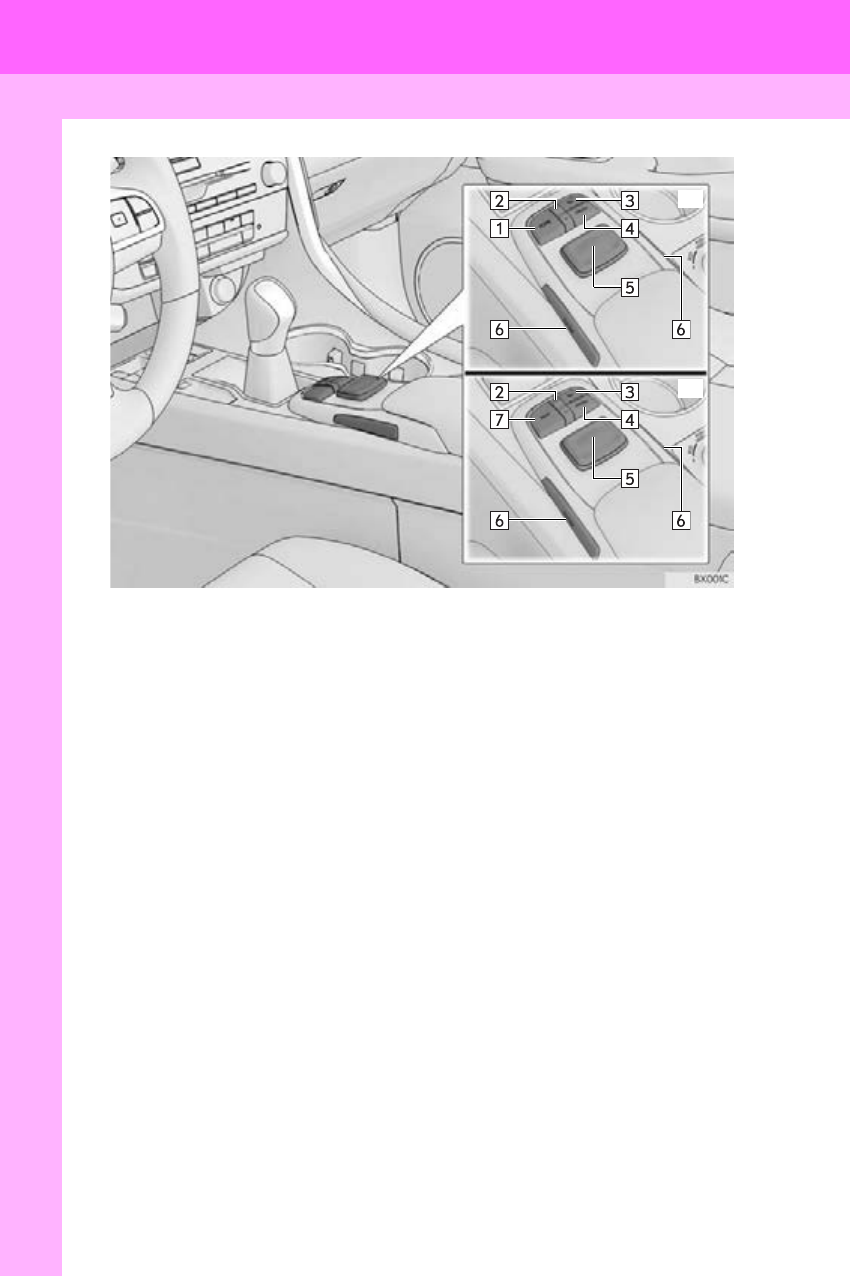
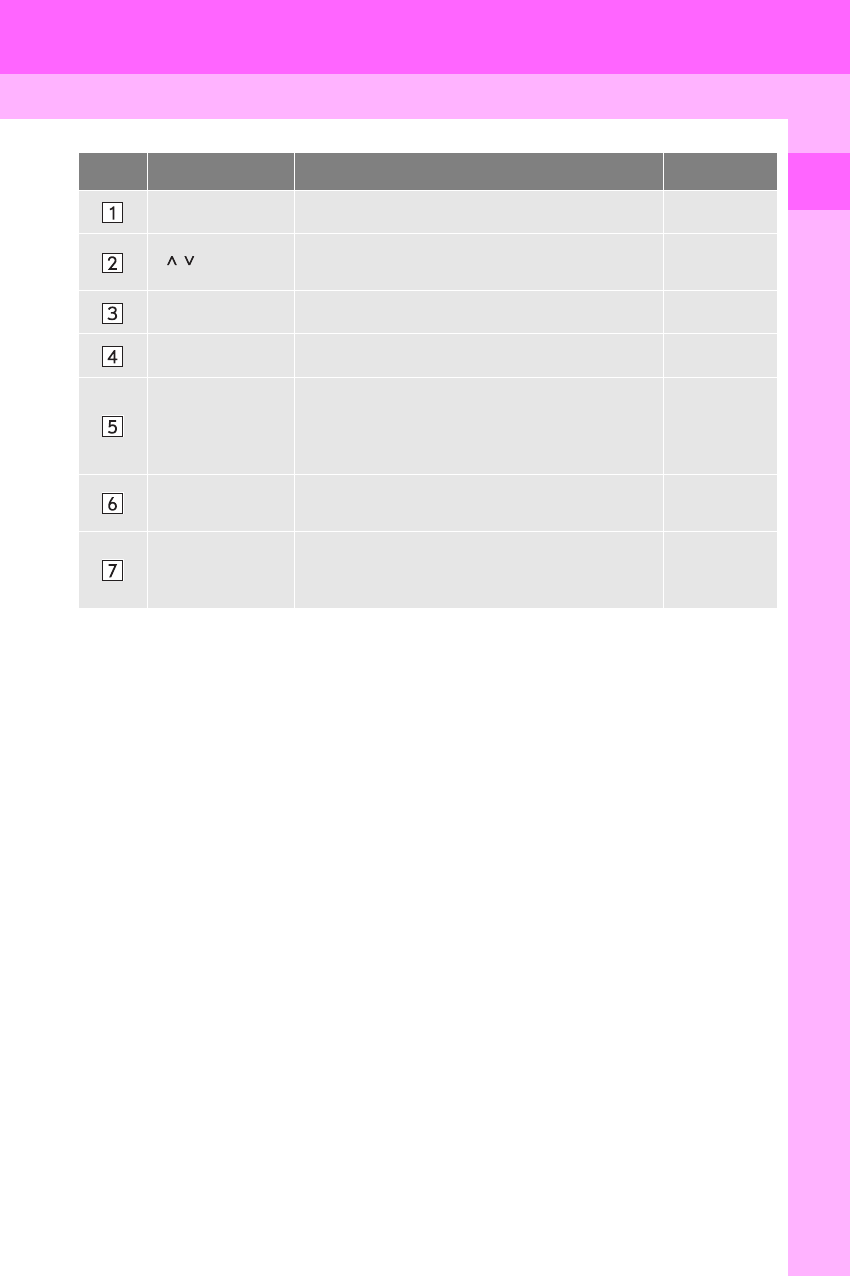
No. Name Function Page
“HOME” button Press to display the home screen. 16
“ · ” button Press to scroll the list screen and to change the
scale of the map. 32, 37, 78
Back button Press to display the previous screen. 32
“MENU” button Press to display the “Menu” screen. 12
Remote Touch
knob
Move in the desired direction to select a function,
letter and screen button.
Press to enter the selected function, letter or
screen button.
32
“ENTER” button Press to enter the selected function, letter or
screen button. 32
“MAP” button
Press to display the current position, cancel the
screen scroll, start guidance, and repeat a voice
guidance.
74, 77
12
1. BASIC FUNCTION
RX_Navi_U
2. “Menu” SCREEN
With 8-inch display
With 12.3-inch display
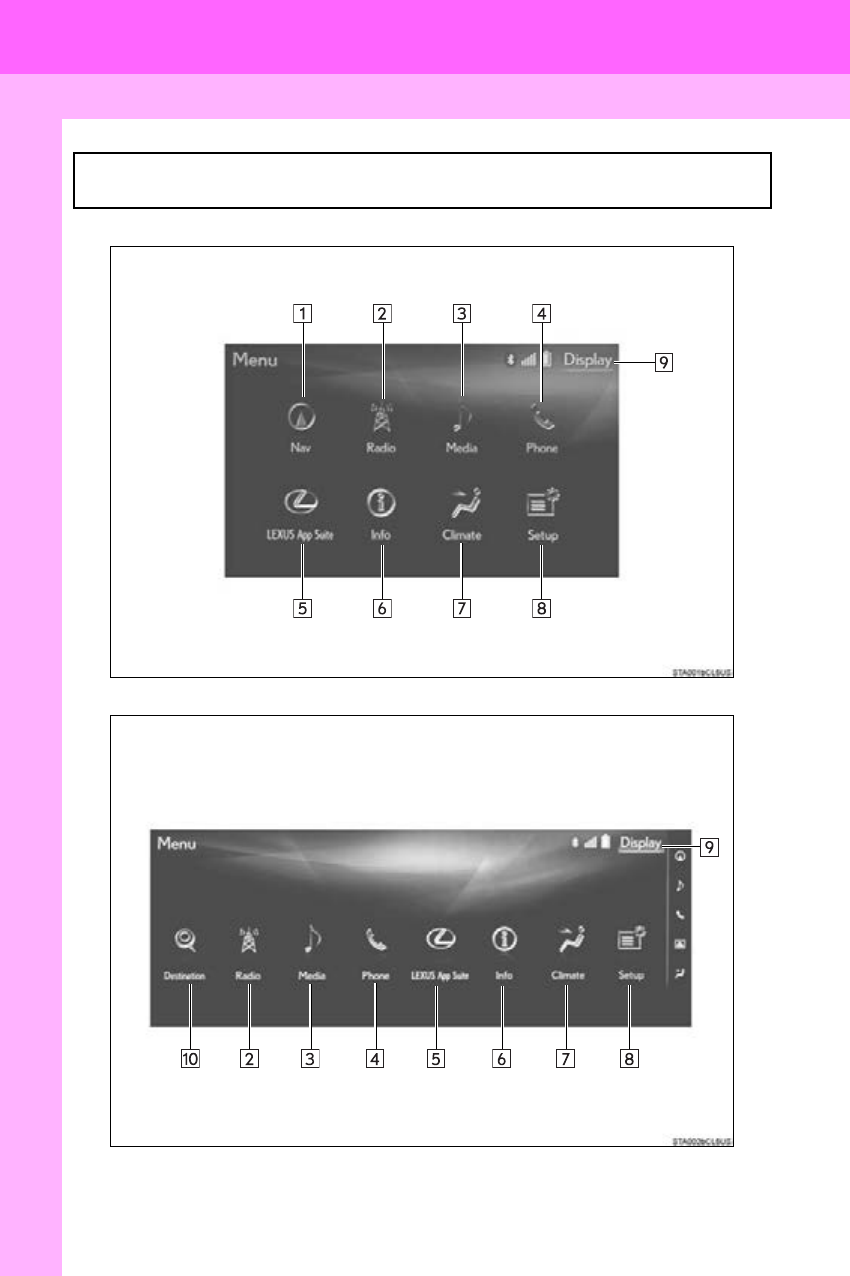
The “Menu” screen can be reached by the following methods:
Press the “MENU” button on the Remote Touch.
1. BASIC FUNCTION
13
RX_Navi_U
QUICK GUIDE
1
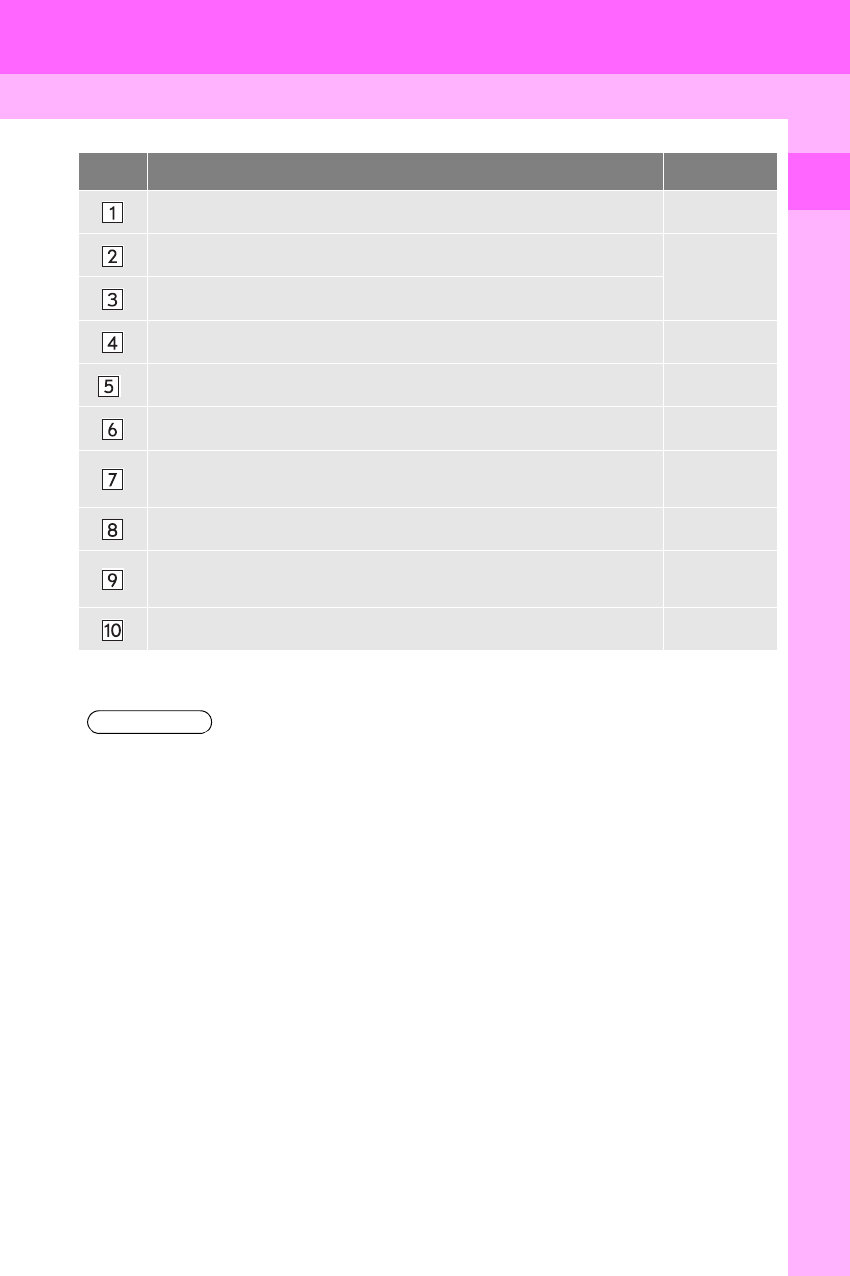
No. Function Page
Select to display the map screen. 74
Select to display the radio control screen.
144
Select to display the media control screen.
Select to display the hands-free operation screen. 306
*Select to display the “LEXUS App Suite” screen. 358
Select to display the “Information” screen. 20
Select to display the air conditioning control screen. “Owner’s
Manual”
Select to display the “Setup” screen. 18
Select to adjust the contrast and brightness of the screens, turn the
screen off, etc. 39
Select to display the “Destination” screen. 91
*: This function is not made available on some models.
INFORMATION
●With 12.3-inch display: When the split-screen display is selected, the “Menu” screen will be
displayed on the “Main Display”. (P. 374 )
14
1. BASIC FUNCTION
RX_Navi_U
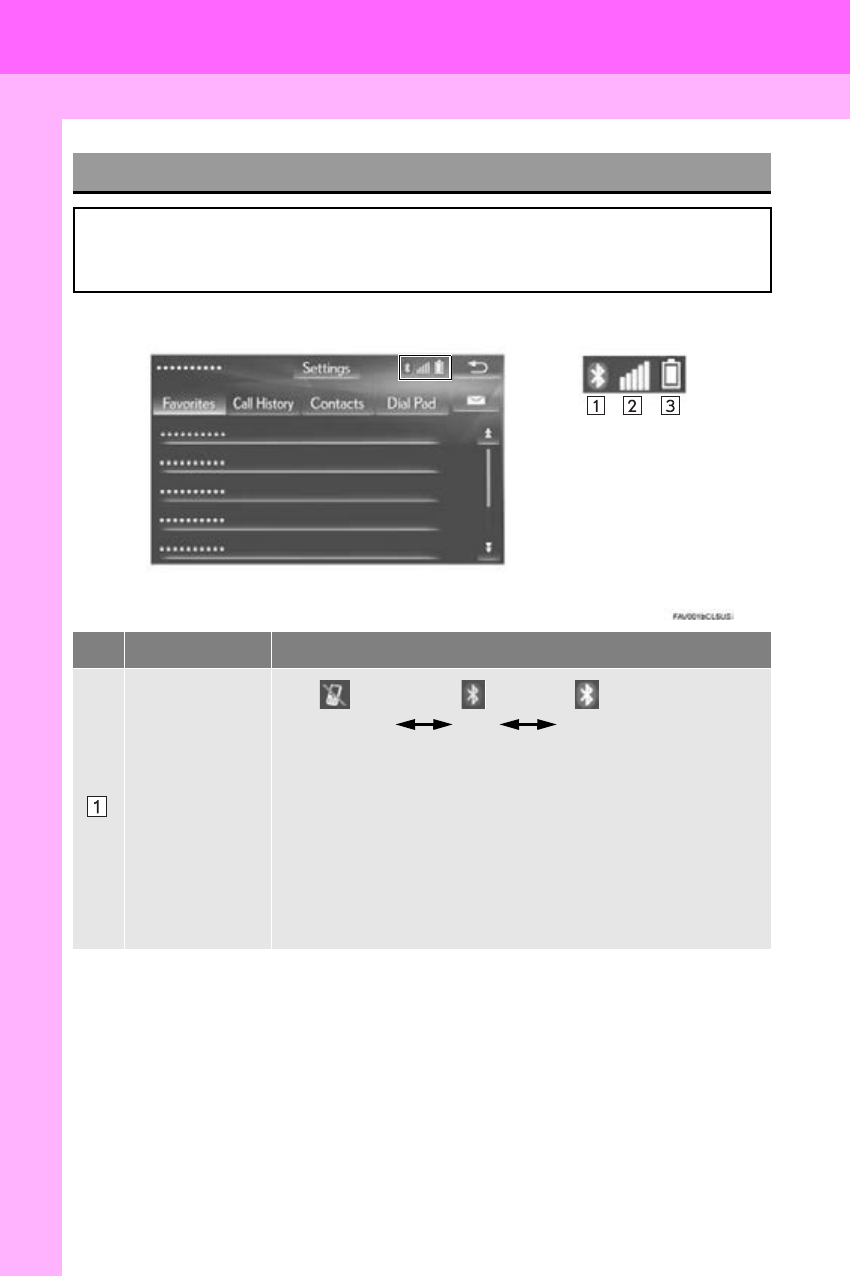
STATUS DISPLAY
The condition of the Bluetooth® connection, as well as the level of reception and the
amount of cellular phone battery charge left, are displayed on the status bar. This status
bar is shown on all modes.
No. Indicators Conditions
The condition of
the Bluetooth®
connection
(Gray) (Blue)
No connection Poor Good
An antenna for the Bluetooth® connection is built into the instru-
ment panel. The condition of the Bluetooth® connection may
deteriorate and the system may not function when a Bluetooth®
phone is used in the following conditions and/or places:
The cellular phone is obstructed by certain objects (such as when
it is behind the seat or in the glove box or console box).
The cellular phone is touching or is covered with metal materials.
Leave the Bluetooth® phone in a place where the condition of the
Bluetooth® connection is good.
1. BASIC FUNCTION
15
RX_Navi_U
QUICK GUIDE
1
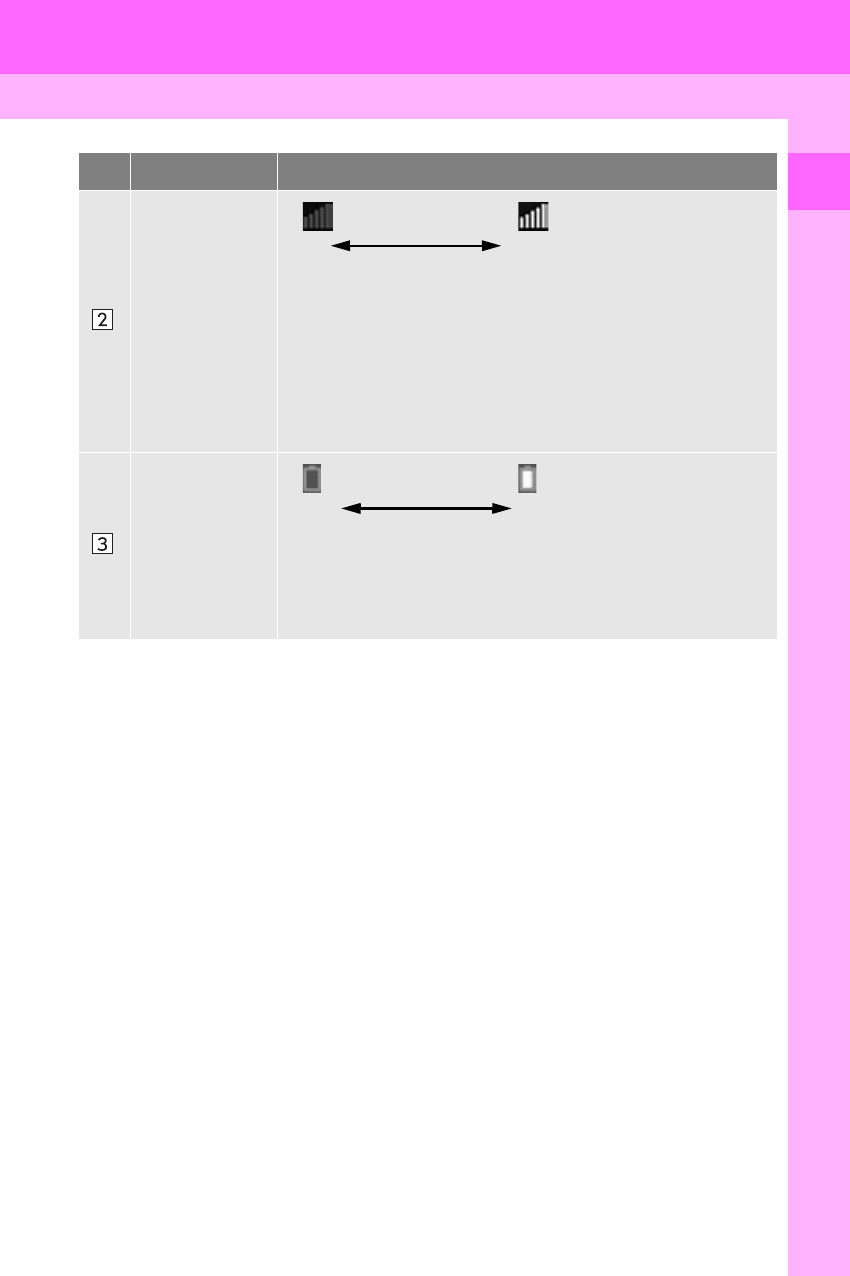
The level of re-
ception
Poor Excellent
The level of reception does not always correspond with the level
displayed on the cellular phone. The level of reception may not be
displayed depending on the phone you have.
When the cellular phone is out of the service area or in a place
inaccessible by radio waves, “No Service” is displayed.
“Rm” is displayed when receiving in a roaming area. While roam-
ing, display “Rm” top-left on the icon.
The receiving area may not be displayed depending on the type of
phone you have.
The amount of
battery charge
left
Empty Full
The amount displayed does not always correspond with the
amount displayed on the Bluetooth® device.
The amount of battery charge left may not be displayed depending
on the type of the Bluetooth® device connected.
This system does not have a charging function.
No. Indicators Conditions
16
1. BASIC FUNCTION
RX_Navi_U
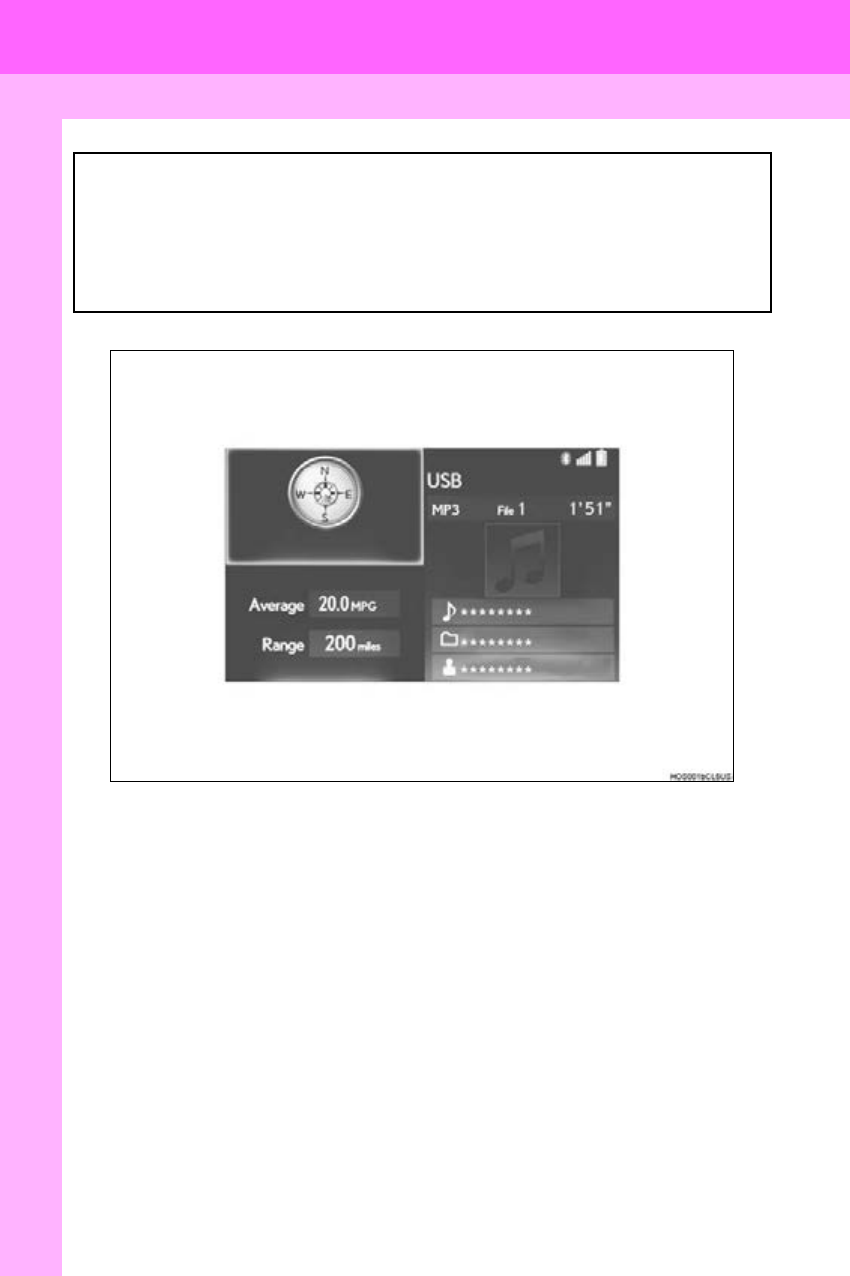
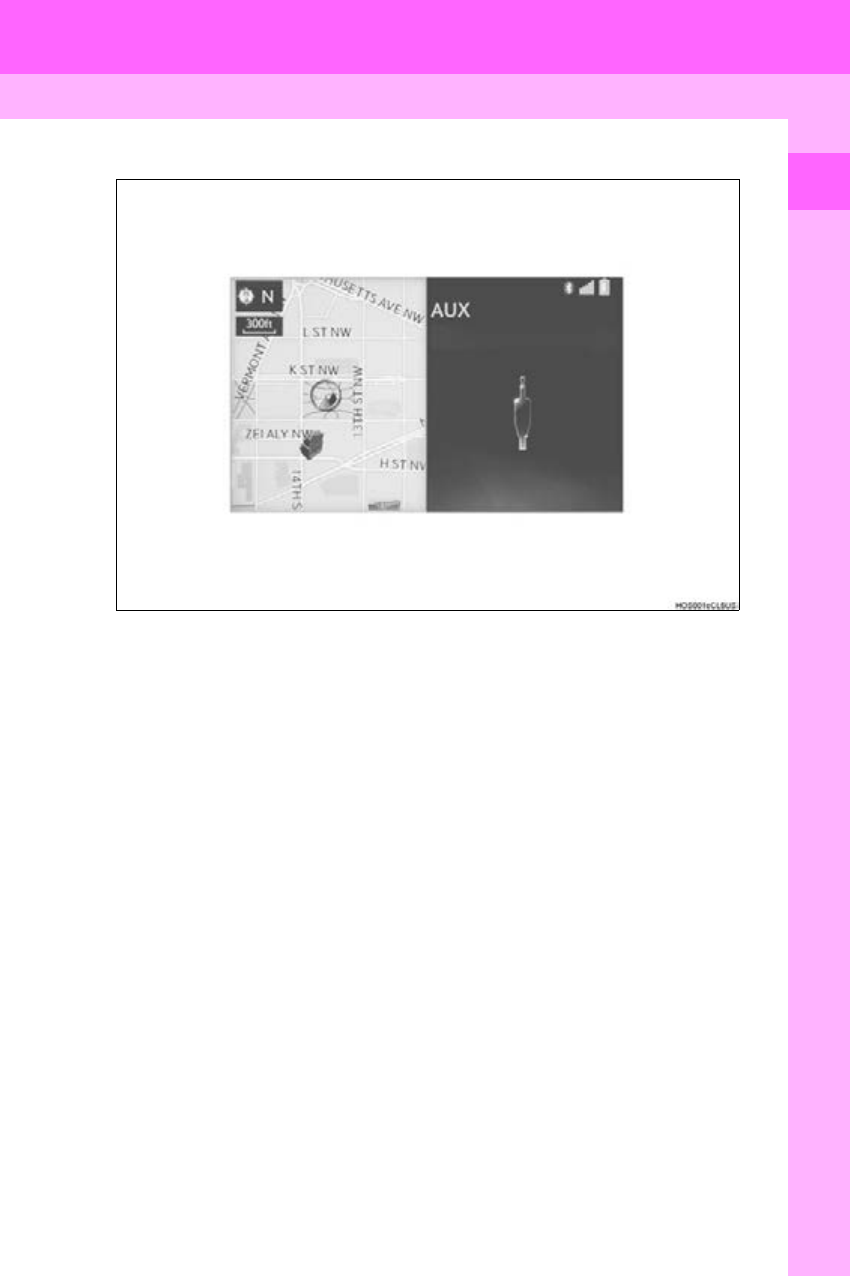
3. HOME SCREEN*
Three-way split screen
The home screen can be reached by the following methods:
Press the “HOME” button on the Remote Touch.
The home screen can display multiple information screens, such as the navigation sys-
tem screen, audio system screen and fuel consumption screen, simultaneously. When
a screen is selected, the selected screen is switched to a full screen display.
For details about setting the home screen: P. 34
*: With 8-inch display
1. BASIC FUNCTION
17
RX_Navi_U
QUICK GUIDE
1
Two-way split screen
18
2. QUICK REFERENCE
RX_Navi_U
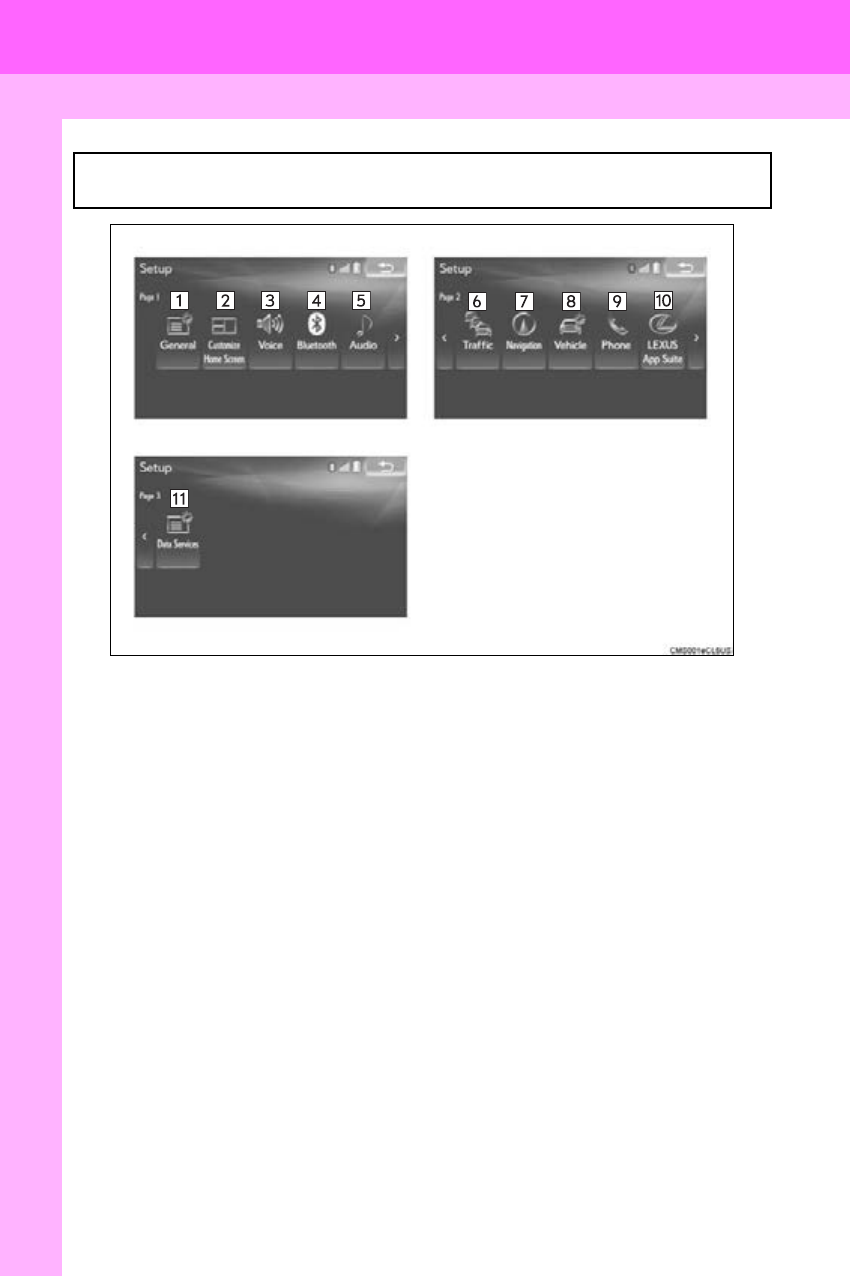
1. “Setup” SCREEN
The “Setup” screen can be reached by the following methods:
Press the “MENU” button on the Remote Touch, then select “Setup”.
2. QUICK REFERENCE
2. QUICK REFERENCE
19
RX_Navi_U
QUICK GUIDE
1
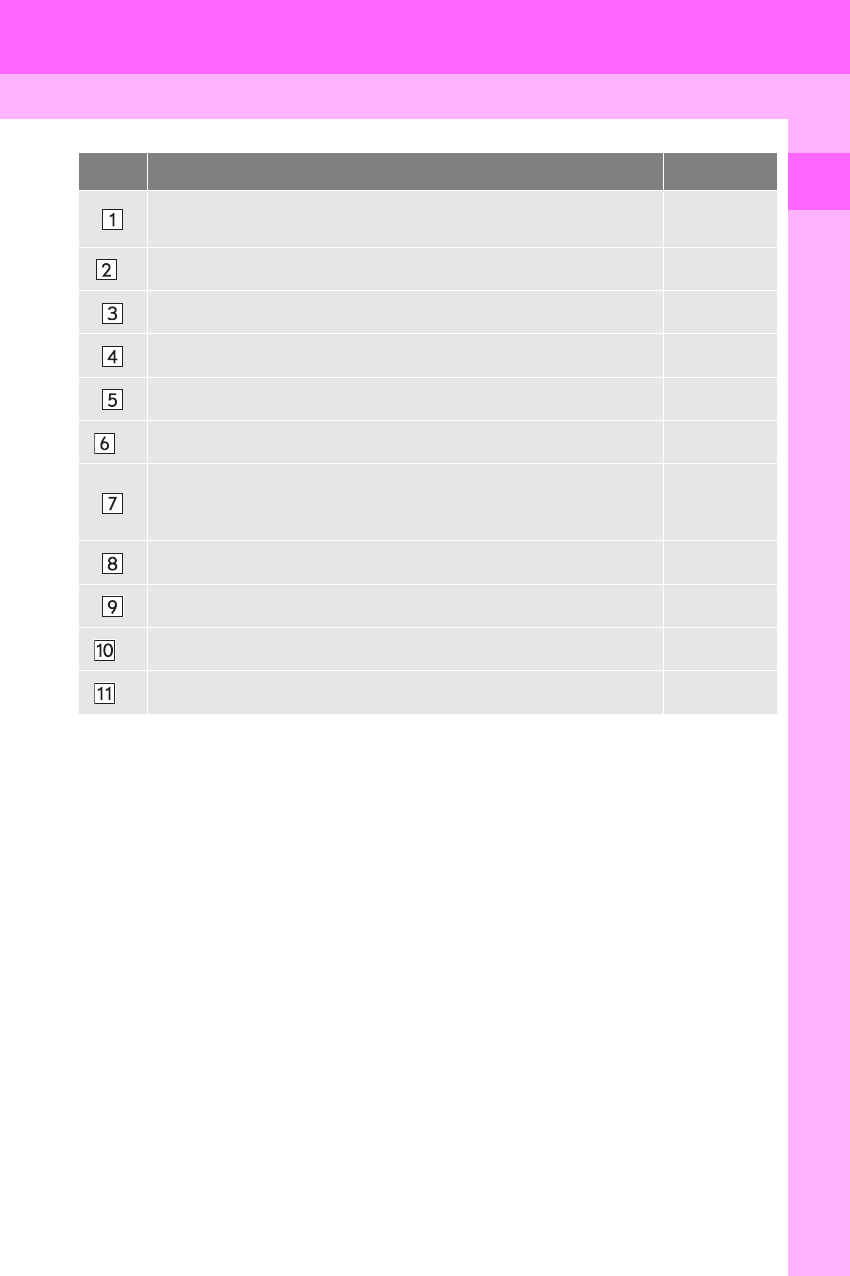
No. Function Page
Select to change the selected language, operation sound, automatic
screen change settings, etc. 59
*1Select to change the display items/area and the home screen layout. 34
Select to set the voice guidance settings. 66
Select to set Bluetooth® phones and Bluetooth® audio devices. 48
Select to set radio and external media settings. 200
*2Select to set traffic information. 134
Select to set memory points (home, preset destinations, address book
entries, areas to avoid), navigation details or to delete previous destina-
tions.
120, 130
Select to set vehicle information such as maintenance information. 68
Select to set the phone sound, contacts, message settings, etc. 326
*2Select to set LEXUS App Suite settings. 371
*2Select to set data services settings. 268
*1: With 8-inch display
*2: This function is not made available on some models.
20
2. QUICK REFERENCE
RX_Navi_U
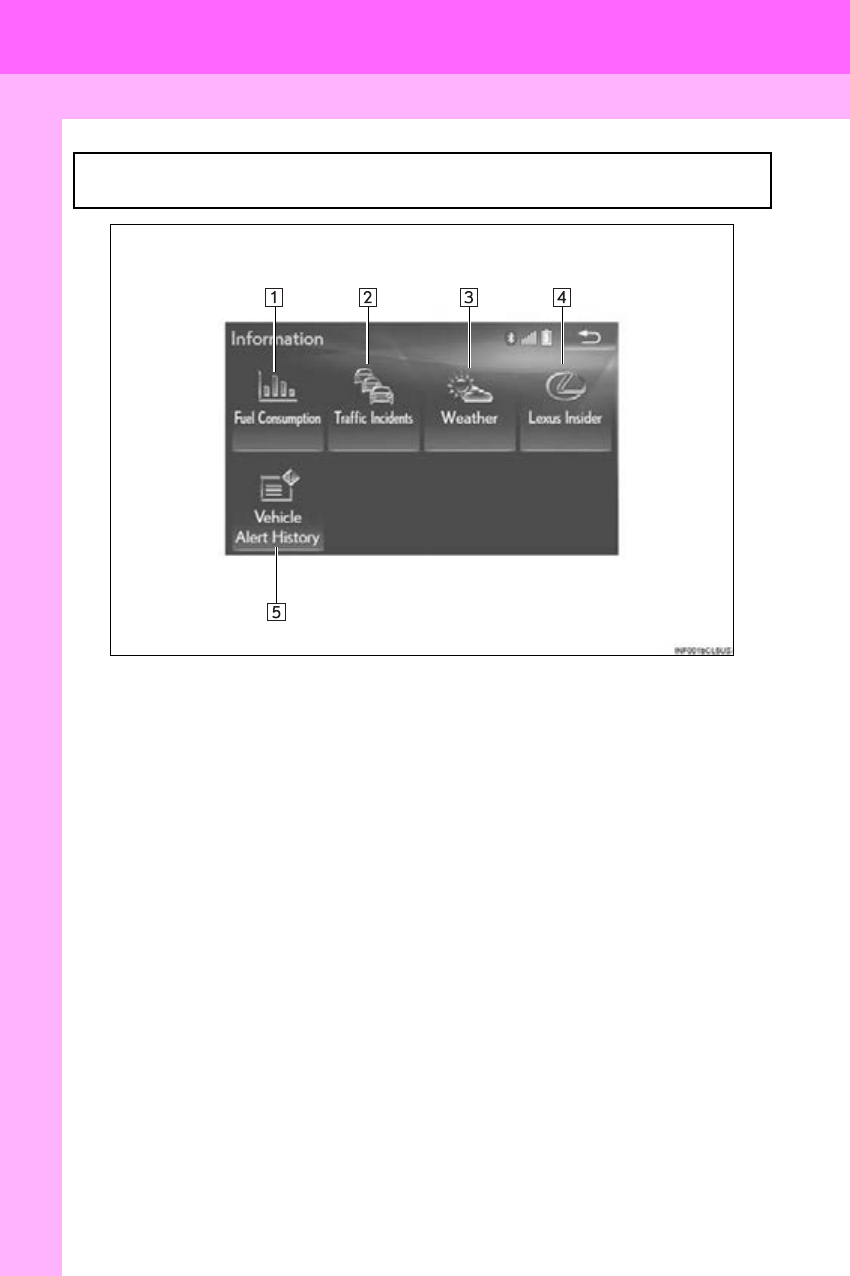
2. “Information” SCREEN
The “Information” screen can be reached by the following methods:
Press the “MENU” button on the Remote Touch, then select “Info”.

2. QUICK REFERENCE
21
RX_Navi_U
QUICK GUIDE
1
No. Function Page
Select to display the energy monitor or fuel consumption screen. “Owner’s
Manual”
*Select to display traffic information. 88
*Select to display weather information. 266
*Select to display the “LEXUS Insider” screen. 368
*Select to display the vehicle alert history.
*: This function is not made available on some models.
22
3. NAVIGATION OPERATION
RX_Navi_U
1. REGISTERING HOME
With 8-inch display
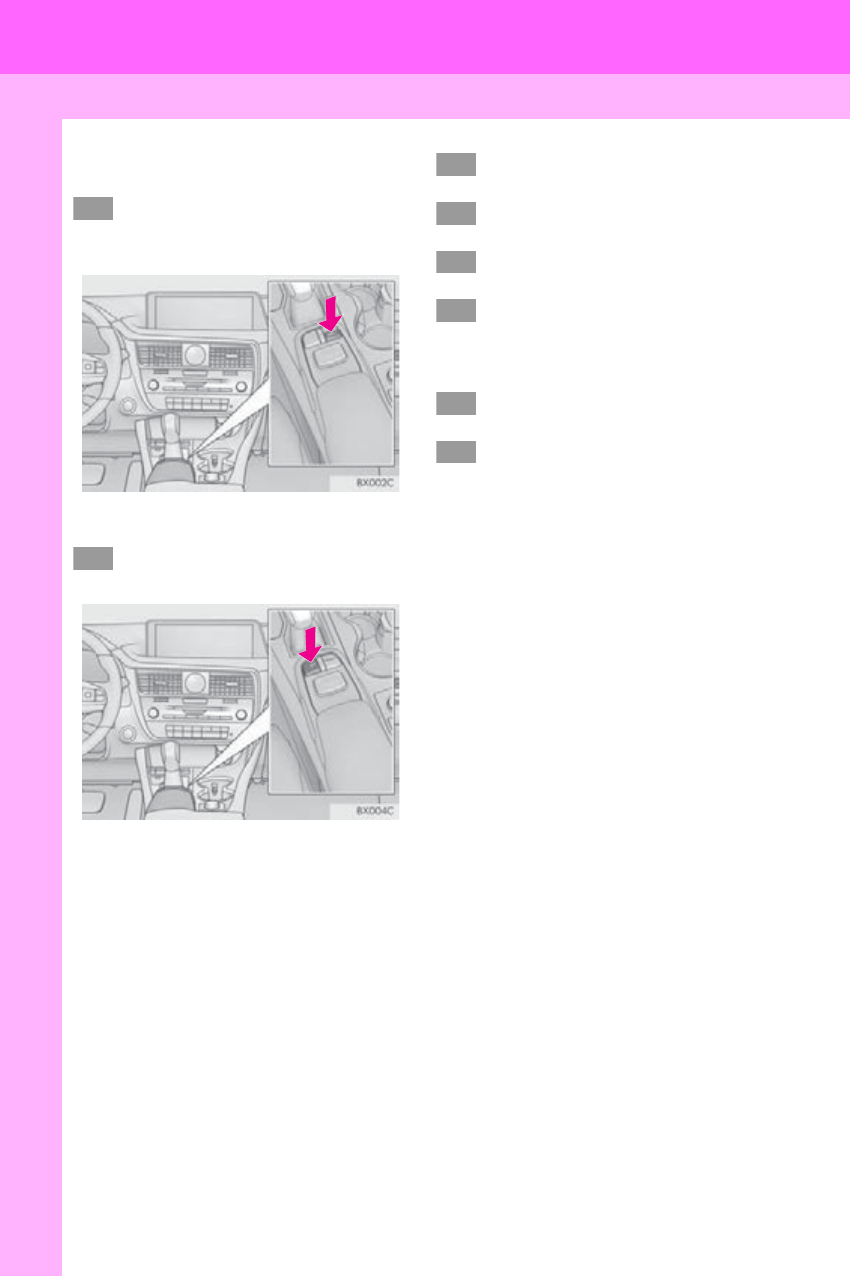
Press the “MENU” button on the
Remote Touch, then select “Nav” on
the “Menu” screen.
With 12.3-inch display
Press the “MAP” button on the
Remote Touch.
Select “Dest.”.
Select “Go Home”.
Select “Yes”.
There are different kinds of meth-
ods to search for your home.
(P. 91)
Select “Enter”.
Select “OK”.
Registration of home is complete.
Registering home in a different way
P. 121
Editing the name, location, phone num-
ber and icon
P. 121
Setting home as the destination
P. 93
1
1
2
3
4
5
6
7
3. NAVIGATION OPERATION
23
3. NAVIGATION OPERATION
RX_Navi_U
QUICK GUIDE
1
2. REGISTERING PRESET DESTINATIONS
With 8-inch display
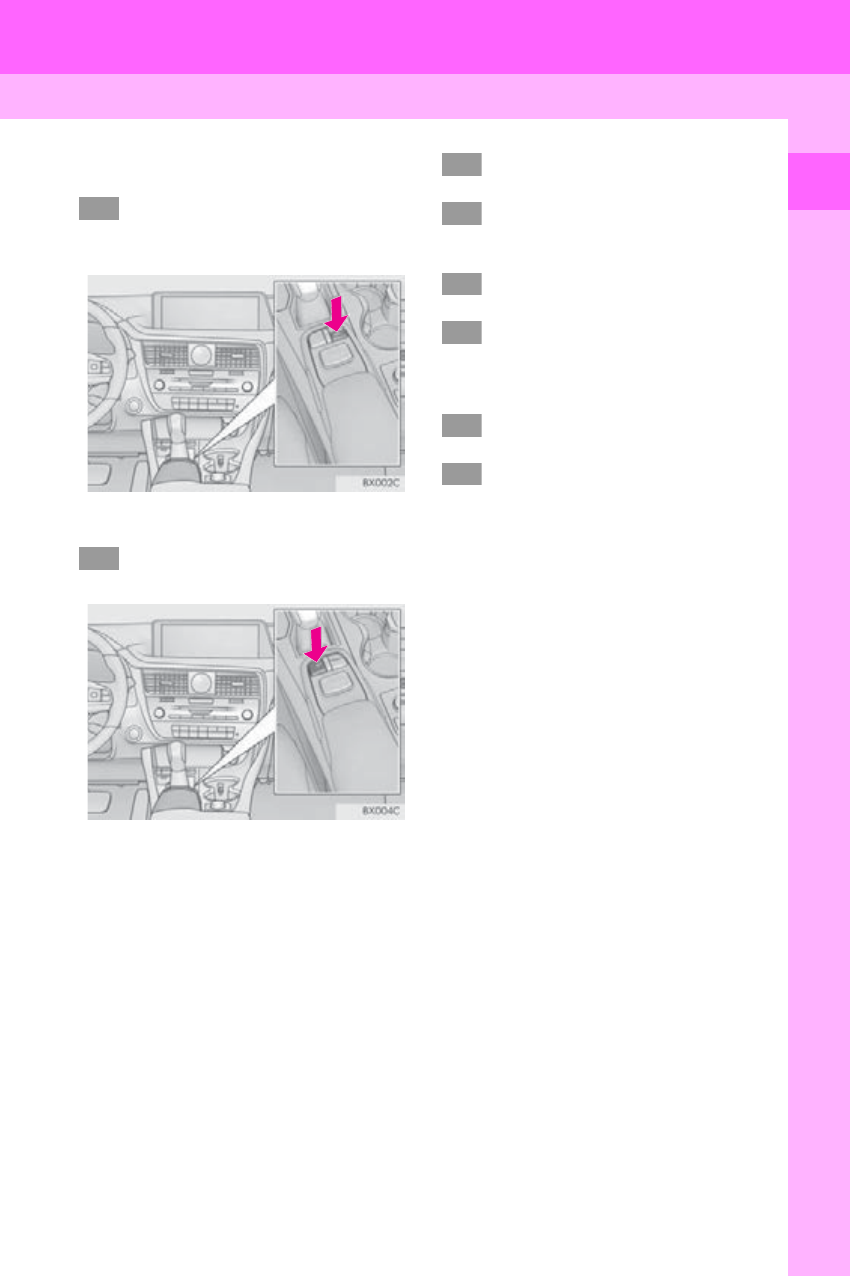
Press the “MENU” button on the
Remote Touch, then select “Nav” on
the “Menu” screen.
With 12.3-inch display
Press the “MAP” button on the
Remote Touch.
Select “Dest.”.
Select one of the preset destination
buttons.
Select “Yes”.
There are different kinds of meth-
ods to search for a destination.
(P. 9 1)
Select “Enter”.
Select “OK”.
Registration of preset destinations is com-
plete.
Registering preset destinations in a dif-
ferent way
P. 122
Editing the name, location, phone num-
ber and icon
P. 123
Setting preset destinations as the desti-
nation
P. 93
1
1
2
3
4
5
6
7
24
3. NAVIGATION OPERATION
RX_Navi_U
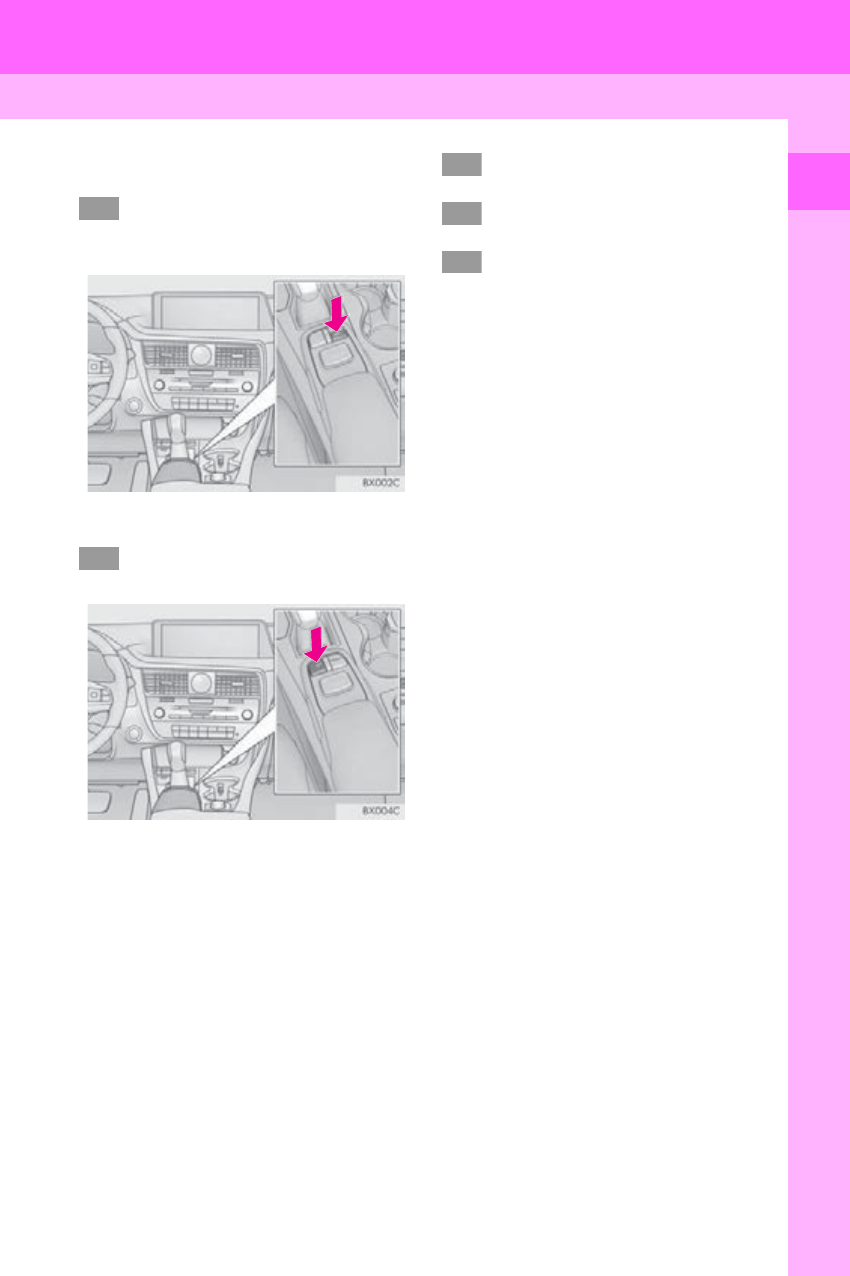
3. OPERATION FLOW: GUIDING THE ROUTE
With 8-inch display
Press the “MENU” button on the
Remote Touch, then select “Nav” on
the “Menu” screen.
With 12.3-inch display
Press the “MAP” button on the
Remote Touch.
Select “Dest.”.
There are different kinds of meth-
ods to search for a destination.
(P. 91)
Select “Go”.
Select “OK”.
Selecting routes other than the one recom-
mended (P. 104)
Guidance to the destination is displayed
on the screen and can be heard via voice
guidance.
1
1
2
3
4
5
25
3. NAVIGATION OPERATION
RX_Navi_U
QUICK GUIDE
1
4. SETTING HOME AS THE DESTINATION
With 8-inch display
Press the “MENU” button on the
Remote Touch, then select “Nav” on
the “Menu” screen.
With 12.3-inch display
Press the “MAP” button on the
Remote Touch.
Select “Dest.”.
Select “Go Home”.
Select “OK”.
Selecting routes other than the one recom-
mended (P. 104)
Guidance to the destination is displayed
on the screen and can be heard via voice
guidance.
1
1
2
3
4

26
RX_Navi_U
4. FUNCTION INDEX
1. FUNCTION INDEX
Map
Route guidance
Displaying maps Page
Viewing the map screen 74
Displaying the current position 77
Viewing the current position vicinity map 81
Changing the scale 78
Changing the map orientation 79
Displaying map Information 83
Displaying the estimated travel/arrival time to the destination 109
Selecting the map mode 80
Displaying traffic information 88
Searching for destinations Page
Searching for the destination 91
Changing the search area 93
Before starting or during route guidance Page
Starting route guidance 103
Editing the route 116
Viewing the entire route map 110
Adjusting route guidance volume 66
Deleting the destination 117
Address book Page
Registering address book entries 124
Marking icons on the map 125

4. FUNCTION INDEX
27
RX_Navi_U
QUICK GUIDE
1
Useful functions
Information Page
Displaying vehicle maintenance 69
Hands-free system (for cellular phone) Page
Registering/connecting a Bluetooth® phone 42
Making a call on a Bluetooth® phone 311
Receiving a call on the Bluetooth® phone 317
Voice command system Page
Operating the system with your voice 250
Peripheral monitoring system Page
Viewing around the vehicle 270
28
RX_Navi_U

2
29
RX_Navi_U
2
3
4
5
6
7
8
9
1
10
1. INITIAL SCREEN ....................................... 30
2. HOW TO USE THE Remote Touch...... 32
3. HOME SCREEN OPERATION........... 34
4. ENTERING LETTERS AND
NUMBERS/LIST SCREEN
OPERATION............................................ 36
ENTERING LETTERS AND NUMBERS........ 36
LIST SCREEN............................................................... 37
5. SCREEN ADJUSTMENT ........................ 39
6. LINKING MULTI-INFORMATION
DISPLAY AND NAVIGATION
SYSTEM....................................................... 41
1. REGISTERING/CONNECTING
Bluetooth® DEVICE............................... 42
REGISTERING A Bluetooth® PHONE
FOR THE FIRST TIME .......................................... 42
REGISTERING A Bluetooth® AUDIO
PLAYER FOR THE FIRST TIME ...................... 44
PROFILES ...................................................................... 46
2. SETTING Bluetooth® DETAILS ............ 48
“Bluetooth* Setup” SCREEN................................ 48
REGISTERING A Bluetooth® DEVICE .......... 49
DELETING A Bluetooth® DEVICE.................... 51
CONNECTING A Bluetooth® DEVICE ........ 51
EDITING THE Bluetooth® DEVICE
INFORMATION.................................................... 53
“System Settings” SCREEN................................... 55
1. GENERAL SETTINGS.............................. 59
GENERAL SETTINGS SCREEN ...................... 59
2. VOICE SETTINGS..................................... 66
VOICE SETTINGS SCREEN............................... 66
3. VEHICLE SETTINGS ................................ 68
MAINTENANCE...................................................... 69
1BASIC INFORMATION BEFORE
OPERATION
2Bluetooth® SETTINGS
3OTHER SETTINGS
BASIC FUNCTION
*: Bluetooth is a registered trademark of Bluetooth SIG, Inc.
30
RX_Navi_U
1. BASIC INFORMATION BEFORE OPERATION
1. INITIAL SCREEN
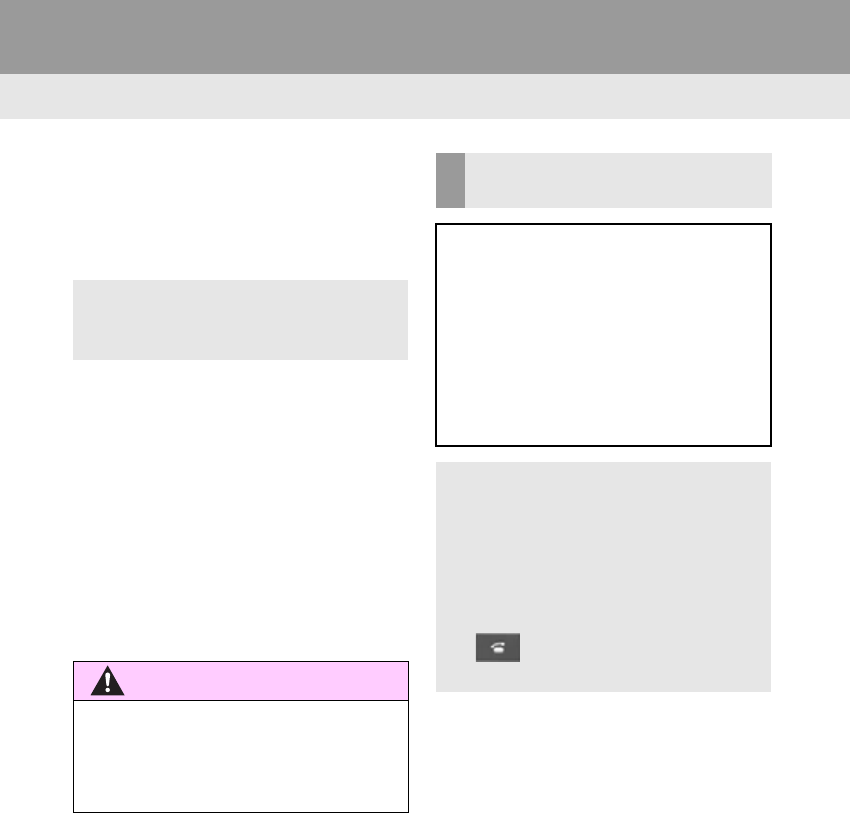
1When the engine <power> switch is
turned to ACCESSORY or IGNITION
ON <ON> mode, the initial screen will
be displayed and the system will begin
operating.
-After a few seconds, the “CAUTION”
screen will be displayed.
-With 8-inch display: After about 5 sec-
onds, the “CAUTION” screen automati-
cally switches to the home screen. (Select
“Continue” or press the “HOME” button
on the Remote Touch to display the home
screen.)
-With 12.3-inch display: Waiting about 5
seconds or selecting “Continue” switches
to the last displayed screen. (Press any but-
ton on the Remote Touch, the function’s
corresponding screen will be displayed.)
-Images shown on the initial screen can be
changed to suit individual preferences.
(P. 62 )
WARNING
●When the vehicle is stopped with the
engine running <the hybrid system oper-
ating>, always apply the parking brake for
safety.
MAINTENANCE
INFORMATION
This system reminds users when to re-
place certain parts or components and
shows dealer information (if registered)
on the screen.
When the vehicle reaches a previously
set driving distance or date specified for
a scheduled maintenance check, the
“Maintenance Reminder” screen will be
displayed when the system is turned on.
-This screen goes off if the screen is not
operated for several seconds.
-To prevent this screen from being dis-
played again, select “Do Not Display
This Message Again”.
-To register maintenance information:
P. 69
-If is selected, the registered phone
number can be called.
31
1. BASIC INFORMATION BEFORE OPERATION
BASIC FUNCTION
RX_Navi_U
2
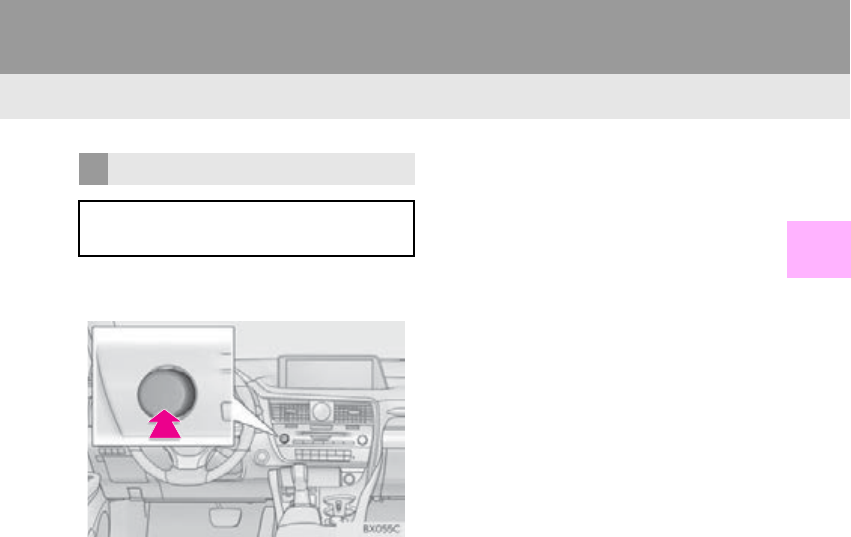
1Press and hold the “PWR•VOL” knob
for 3 seconds or more.
RESTARTING THE SYSTEM
When system response is extremely
slow, the system can be restarted.
32
1. BASIC INFORMATION BEFORE OPERATION
RX_Navi_U
2. HOW TO USE THE Remote Touch
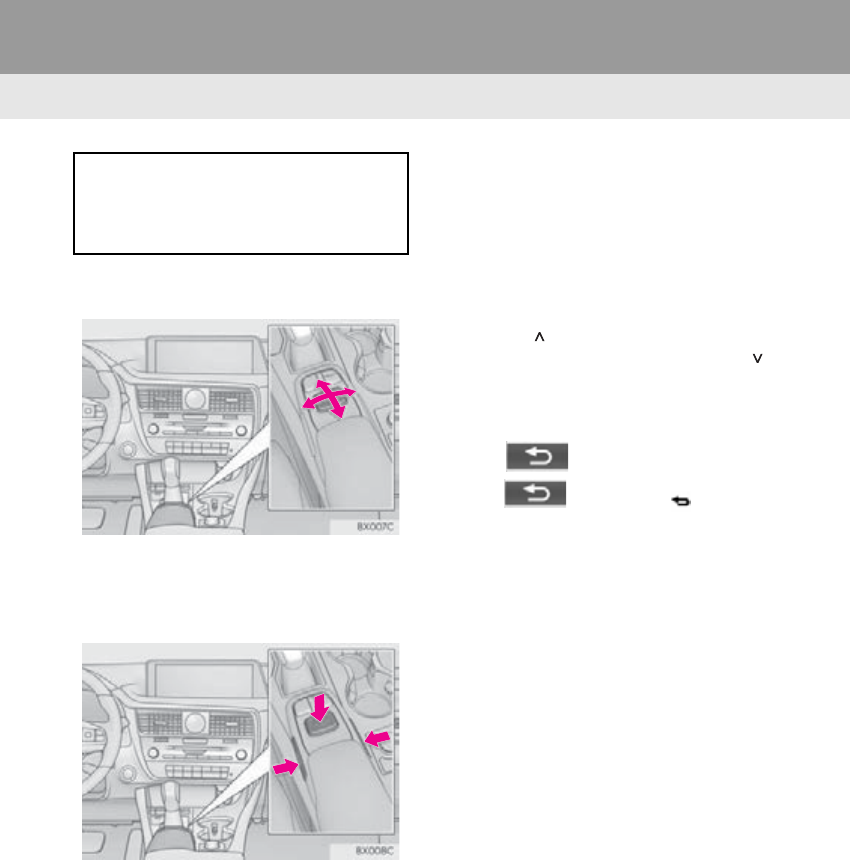
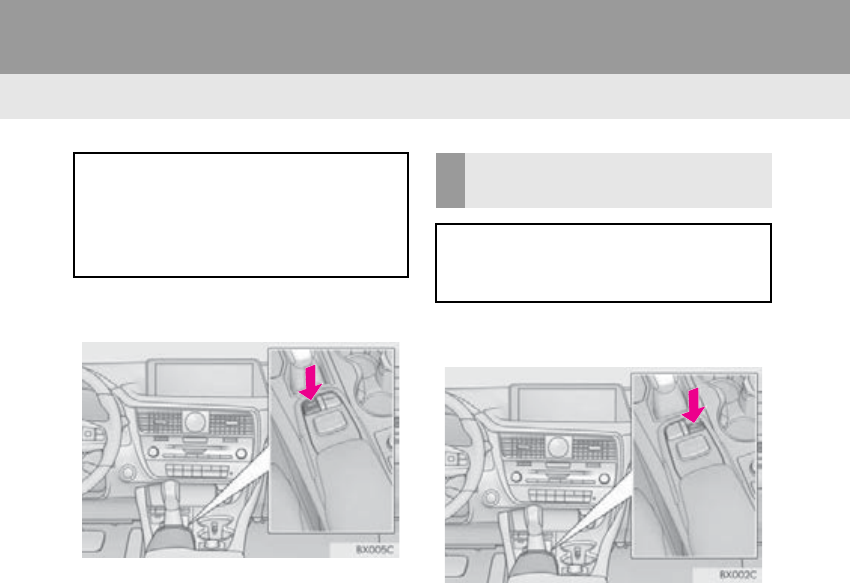
1Use the Remote Touch knob to select
the desired button on the screen.
2To select a screen button, press the
Remote Touch knob or an “ENTER”
button. Once a button has been
selected, the screen will change.
-When the pointer moves close to a button,
it will be automatically pulled onto that but-
ton. The strength of this pull can be
adjusted. (P. 59)
-The pointer will disappear from the screen
if it is not moved for 6 seconds. Operation
of the Remote Touch knob will cause the
pointer to reappear.
-Press the “ ” button on the Remote Touch
to zoom in on the map screen and the “ ”
button to zoom out. These buttons can also
be used to scroll up and down on list
screens.
-When is displayed on the screen,
select or press the button on
the Remote Touch to return to the previous
screen.
-Press the “MENU” button on the Remote
Touch to display the “Menu” screen.
(P. 12 )
-With 8-inch display: The home screen can
be displayed by pressing the “HOME” but-
ton on the Remote Touch. (P. 16)
-With 12.3-inch display: The map screen can
be displayed by pressing the “MAP” button
on the Remote Touch. (P. 77)
This system can be operated by the
Remote Touch when the engine
<power> switch is in ACCESSORY or
IGNITION ON <ON> mode.
33
1. BASIC INFORMATION BEFORE OPERATION
BASIC FUNCTION
RX_Navi_U
2
WARNING
●Do not allow fingers, fingernails or hair to
become caught in the Remote Touch as
this may cause an injury.
●Be careful when touching the Remote
Touch in extreme temperatures as it may
become very hot or cold due to the tem-
perature inside the vehicle.
NOTICE
●Do not allow the Remote Touch to come
into contact with food, liquid, stickers or lit
cigarettes as doing so may cause it to
change color, emit a strange odor or stop
functioning.
●Do not subject the Remote Touch to
excessive pressure or strong impact as
the knob may bend or break off.
●Do not allow coins, contact lenses or
other such items to become caught in the
Remote Touch as this may cause it to stop
functioning.
●Items of clothing may rip if they become
caught on the Remote Touch knob.
●If your hand or any object is on the
Remote Touch knob when the engine
<power> switch is in ACCESSORY
mode, the Remote Touch knob may not
operate properly.
INFORMATION
●Under extremely cold conditions, the
Remote Touch knob may react slowly.
34
1. BASIC INFORMATION BEFORE OPERATION
RX_Navi_U
3. HOME SCREEN OPERATION*
1Press the “HOME” button on the
Remote Touch.
2Check that the home screen is dis-
played.
-When a screen is selected, the selected
screen will change to a full screen display.
1Press the “MENU” button on the
Remote Touch.
2Select “Setup”.
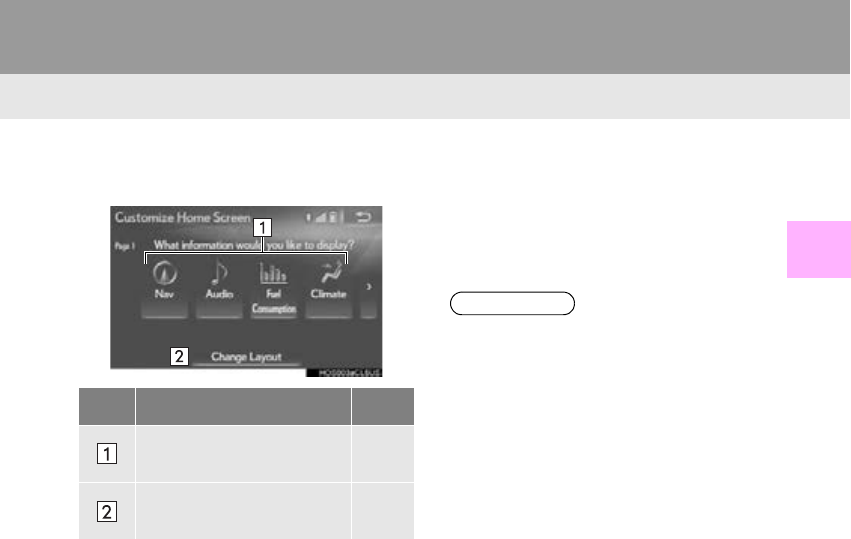
3Select “Customize Home Screen”.
The home screen can display multiple
information screens, such as the naviga-
tion system screen, audio system screen
and fuel consumption screen, simulta-
neously.
*: With 8-inch display
CUSTOMIZING THE HOME
SCREEN
The display items/area on the home
screen and the home screen layout can
be changed.
35
1. BASIC INFORMATION BEFORE OPERATION
BASIC FUNCTION
RX_Navi_U
2
4Check that “Customize Home Screen”
is displayed.
■CHANGING THE DISPLAY
ITEMS/AREA
1Select the desired item.
2Select the desired area.
■CHANGING THE HOME SCREEN
LAYOUT
1Select “Change Layout”.
2Select the desired screen layout.
No. Function Page
Select to change the dis-
play items/area. 35
Select to change the home
screen layout. 35
INFORMATION
●When the selected item is already being
displayed and another area is selected for
that item, the item that it is replacing will
be displayed in the original item’s loca-
tion.
36
1. BASIC INFORMATION BEFORE OPERATION
RX_Navi_U
4. ENTERING LETTERS AND NUMBERS/LIST SCREEN OPERATION
-On certain letter entry screens, letters can
be entered in upper or lower case.
: Select to enter in lower case.
: Select to enter in upper case.
When searching by an address, name,
etc., or entering data, letters and num-
bers can be entered via the screen.
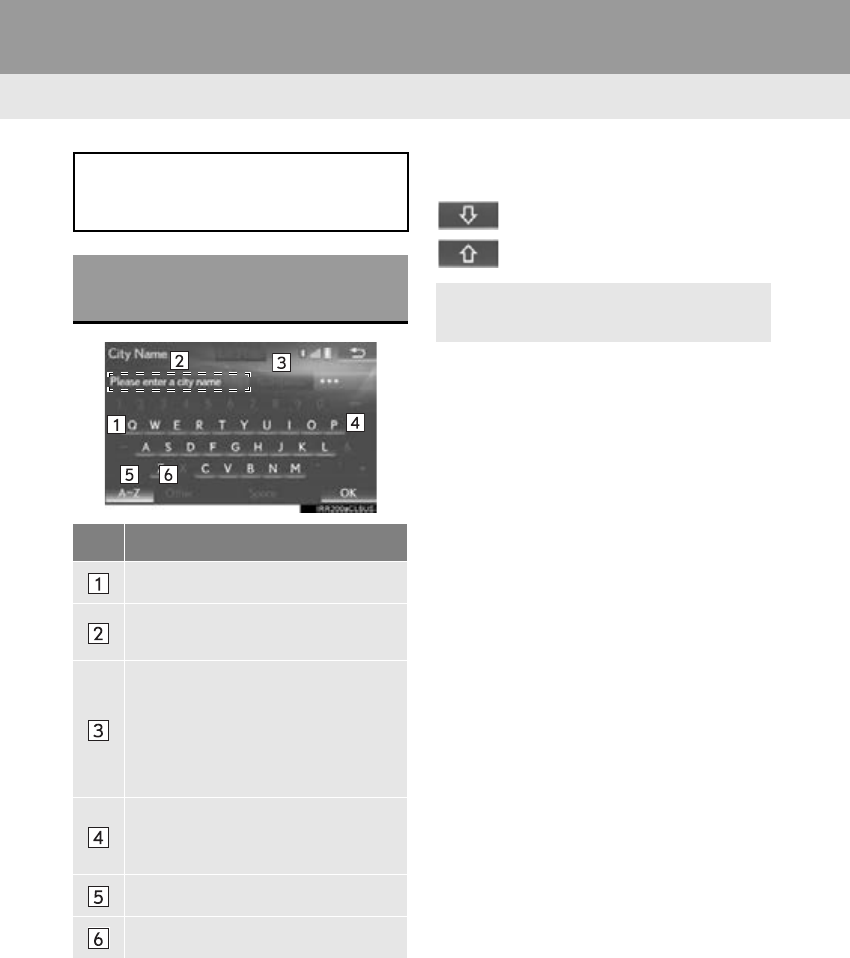
ENTERING LETTERS AND
NUMBERS
No. Function
Select to enter desired characters.
Text field. Entered character(s) will
be displayed.
During character entry, when there is
only one available option for the next
character(s), the next character(s)
will be displayed in gray text in the
text field automatically. Gray text is
entered by selecting this button.
Select to erase one character. Select
and hold to continue erasing charac-
ters.
Select to display the alphabet keys.
Select to display other symbols.
-Keyboard layout can be changed.
(P. 59 )
37
1. BASIC INFORMATION BEFORE OPERATION
BASIC FUNCTION
RX_Navi_U
2
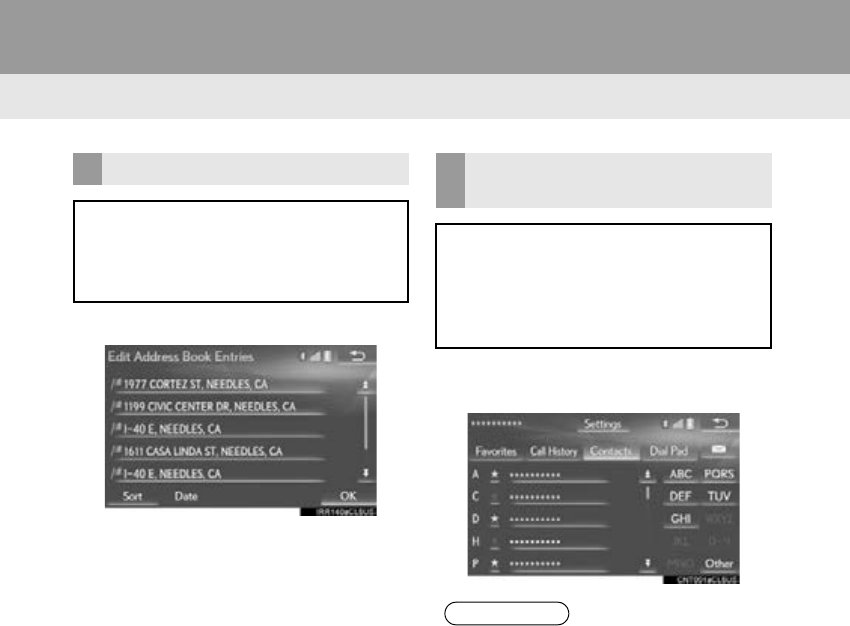
■SELECTING ALL ITEMS
1Select “Select All”.
“Unselect All”: Unselect all items in the list.
LIST SCREEN
LIST SCREEN OPERATION
The list screen may be displayed after
entering characters. When a list is dis-
played, use the appropriate screen but-
ton to scroll through the list.
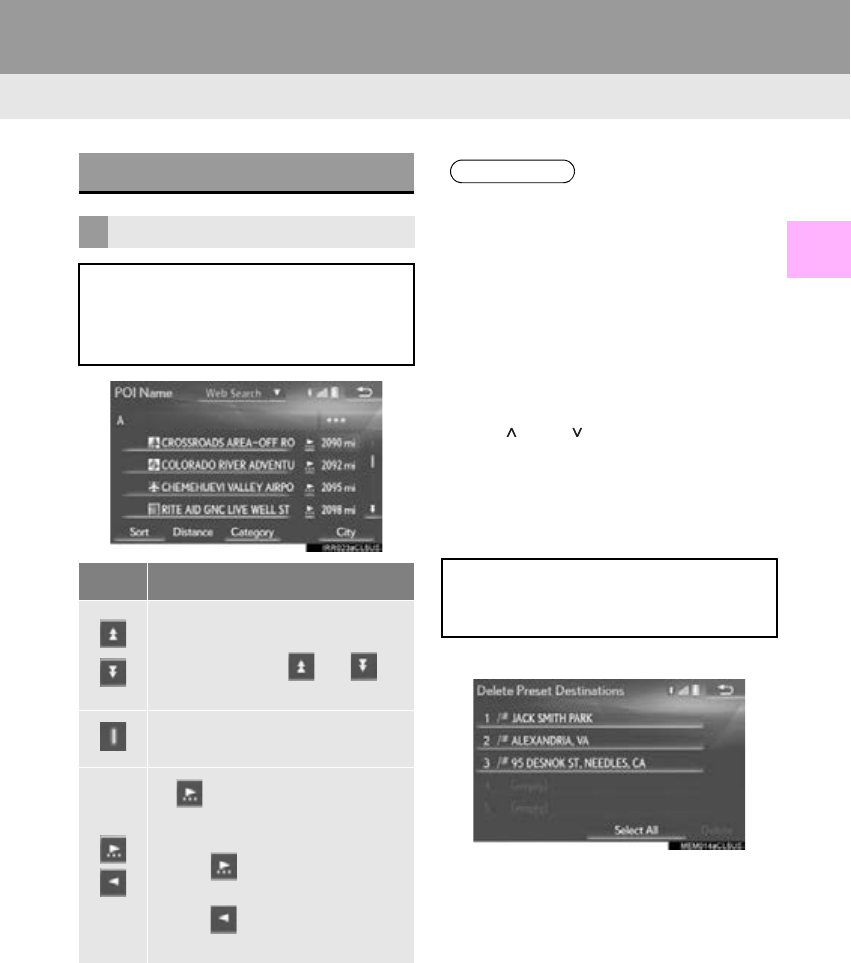
Icon Function
Select to skip to the next or previ-
ous page.
Select and hold or to
scroll through the displayed list.
This indicates the displayed
screen’s position.
If appears to the right of an
item name, the complete name is
too long to display.
Select to scroll to the end of
the name.
Select to move to the begin-
ning of the name.
INFORMATION
●Matching items from the database are
listed even if the entered address or name
is incomplete.
●The list will be displayed automatically if
the maximum number of characters is
entered or matching items can be dis-
played on a single list screen.
●The number of matching items is shown
on the right side of the screen. If the num-
ber of matching items is more than 999,
the system displays “” on the screen.
●The “” and “” buttons on the Remote
Touch can be used to scroll up and down
on list screens.
Some lists contain “Select All”. If
“Select All” is selected, it is possible to
select all items.
38
1. BASIC INFORMATION BEFORE OPERATION
RX_Navi_U
1Select “Sort”.
2Select the desired sorting criteria.
1Select the desired character jump but-
tons.
SORTING
The order of a list displayed on the
screen can be sorted in the order of dis-
tance from the current location, date,
category, etc.
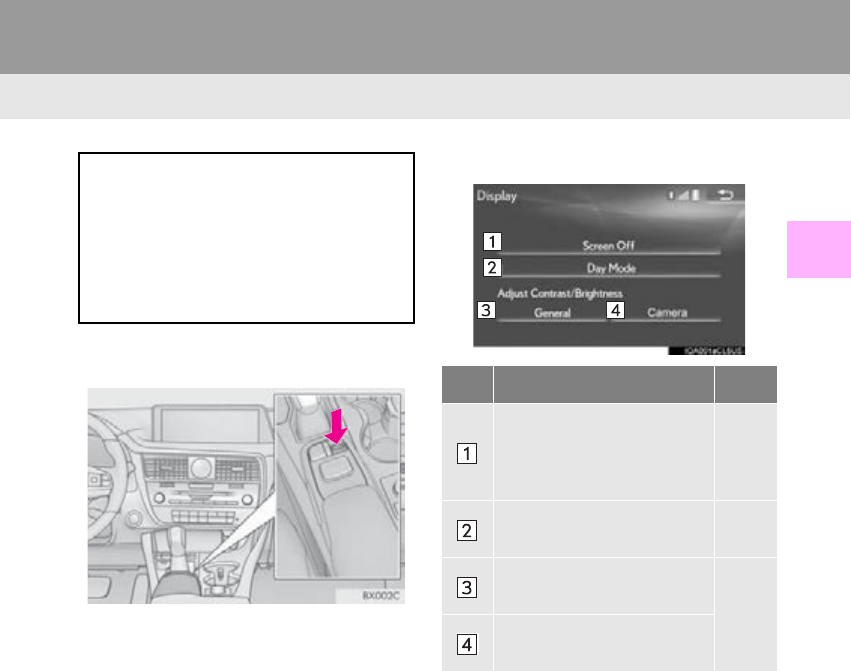
CHARACTER JUMP BUTTONS
IN LISTS
Some lists contain character screen but-
tons, “A B C ” , “DEF” etc., which allow a
direct jump to list entries that begin with
the same letter as the character screen
button.
INFORMATION
●Every time the same character screen
button is selected, the list starting with the
subsequent character is displayed.
39
1. BASIC INFORMATION BEFORE OPERATION
RX_Navi_U
BASIC FUNCTION
2
5. SCREEN ADJUSTMENT
1Press the “MENU” button on the
Remote Touch.
2Select “Display”.
3Select the items to be set.
The contrast and brightness of the
screen display and the image of the
camera display can be adjusted. The
screen can also be turned off, and/or
changed to either day or night mode.
(For information regarding audio/visual
screen adjustment: P. 153)
No. Function Page
Select to turn the screen off.
To turn it on, press any but-
ton on the audio panel or on
the Remote Touch.
Select to turn day mode
on/off. 40
Select to adjust the screen
display.
40
Select to adjust the camera
display.
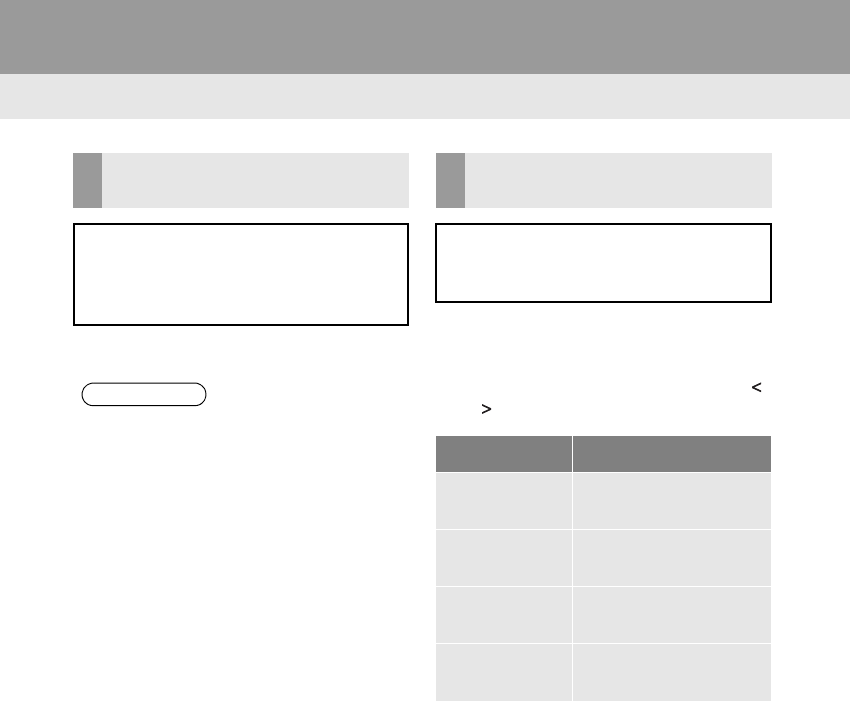
40
1. BASIC INFORMATION BEFORE OPERATION
RX_Navi_U
1Select “Day Mode”.
1Select “General” or “Camera”.
2Select the desired item.
-“Display (General)” screen only: Select “”
or “” to select the desired display.
CHANGING BETWEEN DAY
AND NIGHT MODE
Depending on the position of the head-
light switch, the screen changes to day
or night mode. This feature is available
when the headlight is switched on.
INFORMATION
●If the screen is set to day mode with the
headlight switch turned on, this condition
is memorized even with the engine
<hybrid system> turned off.
ADJUSTING THE CONTRAST/
BRIGHTNESS
The contrast and brightness of the
screen can be adjusted according to the
brightness of your surroundings.
Screen button Function
“Contrast” “+” Select to strengthen the
contrast of the screen.
“Contrast” “-” Select to weaken the
contrast of the screen.
“Brightness” “+” Select to brighten the
screen.
“Brightness” “-” Select to darken the
screen.

41
1. BASIC INFORMATION BEFORE OPERATION
RX_Navi_U
BASIC FUNCTION
2
6. LINKING MULTI-INFORMATION DISPLAY AND NAVIGATION SYSTEM
The following functions of the navigation system are linked with the multi-information
display in the instrument cluster:
• Navigation
•Audio
•Phone
etc.
These functions can be operated using multi-information display control switches on
the steering wheel. For details, refer to “Owner’s Manual”.
42
RX_Navi_U
2. Bluetooth® SETTINGS
1. REGISTERING/CONNECTING Bluetooth
®
DEVICE
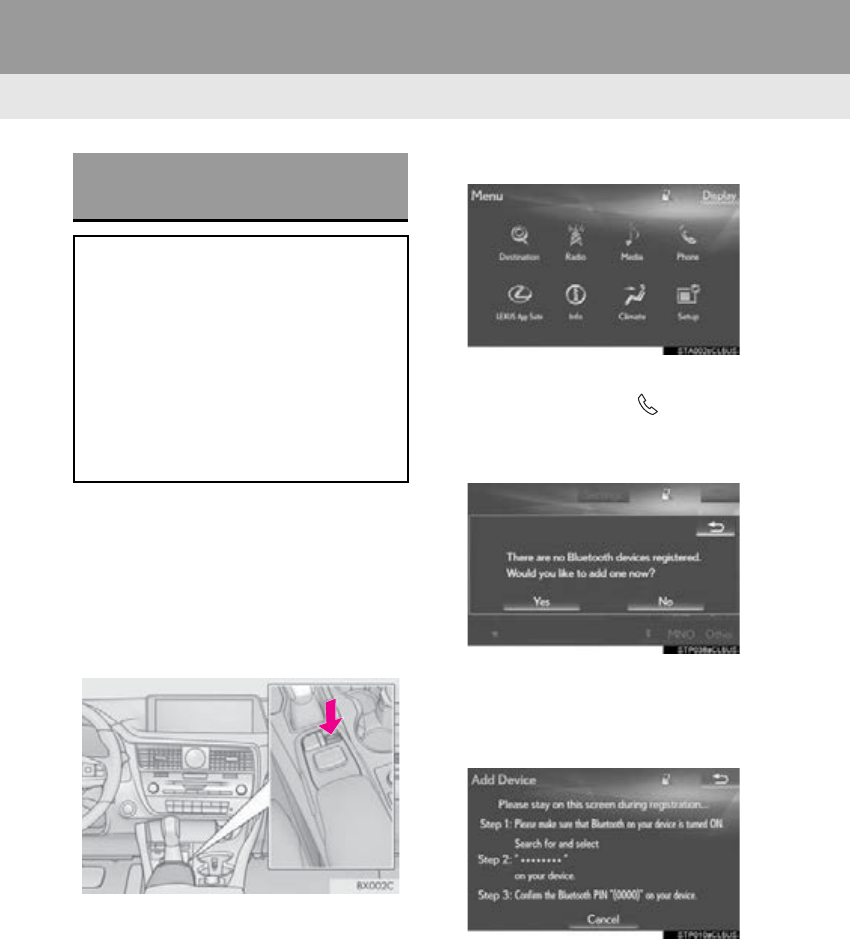
1Turn the Bluetooth® connection setting
of your cellular phone on.
-This function is not available when
Bluetooth® connection setting of your cel-
lular phone is set to off.
2Press the “MENU” button on the
Remote Touch.
3Select “Phone”.
-Operations up to this point can also be per-
formed by pressing the switch on the
steering wheel.
4Select “Yes” to register a phone.
5When this screen is displayed, search
for the device name displayed on this
screen on the screen of your
Bluetooth® device.
-For details about operating the Bluetooth®
device, see the manual that comes with it.
-To cancel the registration, select “Cancel”.
REGISTERING A Bluetooth®
PHONE FOR THE FIRST TIME
To use the hands-free system, it is neces-
sary to register a Bluetooth® phone with
the system.
Once the phone has been registered, it
is possible to use the hands-free system.
This operation cannot be performed
while driving.
For details about registering a
Bluetooth® device: P. 49
43
2. Bluetooth® SETTINGS
RX_Navi_U
BASIC FUNCTION
2
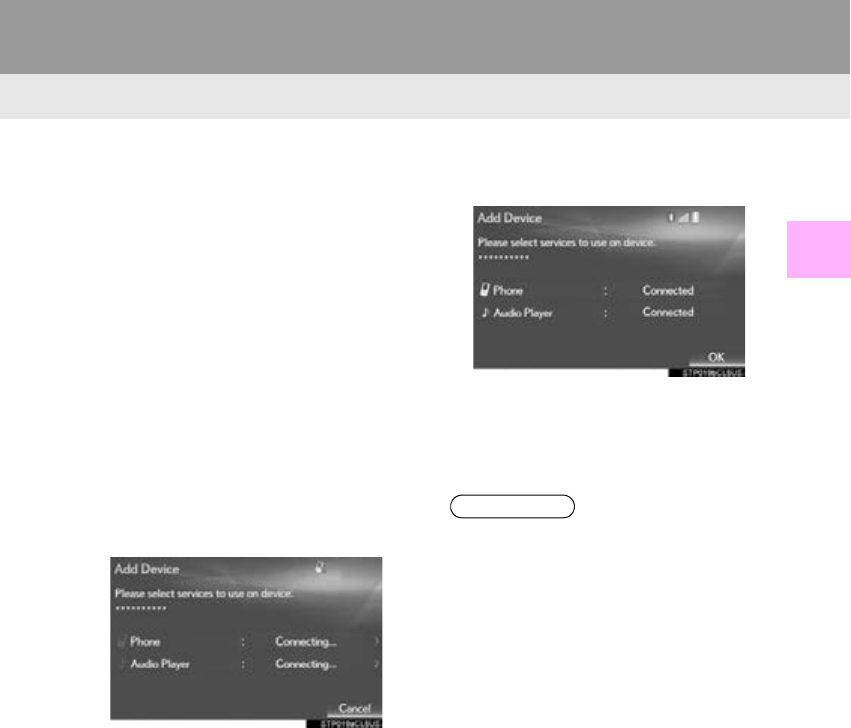
6Register the Bluetooth® device using
your Bluetooth® device.
-A PIN code is not required for SSP (Secure
Simple Pairing) compatible Bluetooth®
devices. Depending on the type of
Bluetooth® device being connected, a
message confirming registration may be
displayed on the Bluetooth® device’s
screen. Respond and operate the
Bluetooth® device according to the
confirmation message.
7Check that the following screen is dis-
played, indicating pairing was success-
ful (a Bluetooth® link has been
established but registration is not yet
complete).
-The system waits for connection requests
coming from the registered device.
-At this stage, the Bluetooth® functions are
not yet available.
-To cancel the registration, select “Cancel”.
8Check that “Connected” is displayed
and registration is complete.
-If displayed, select “OK” to complete the
registration process.
-If an error message is displayed, follow the
guidance on the screen to try again.
INFORMATION
●If a cellular phone does not operate prop-
erly after being connected, turn the cellu-
lar phone off and on and then connect it
again.
44
2. Bluetooth® SETTINGS
RX_Navi_U
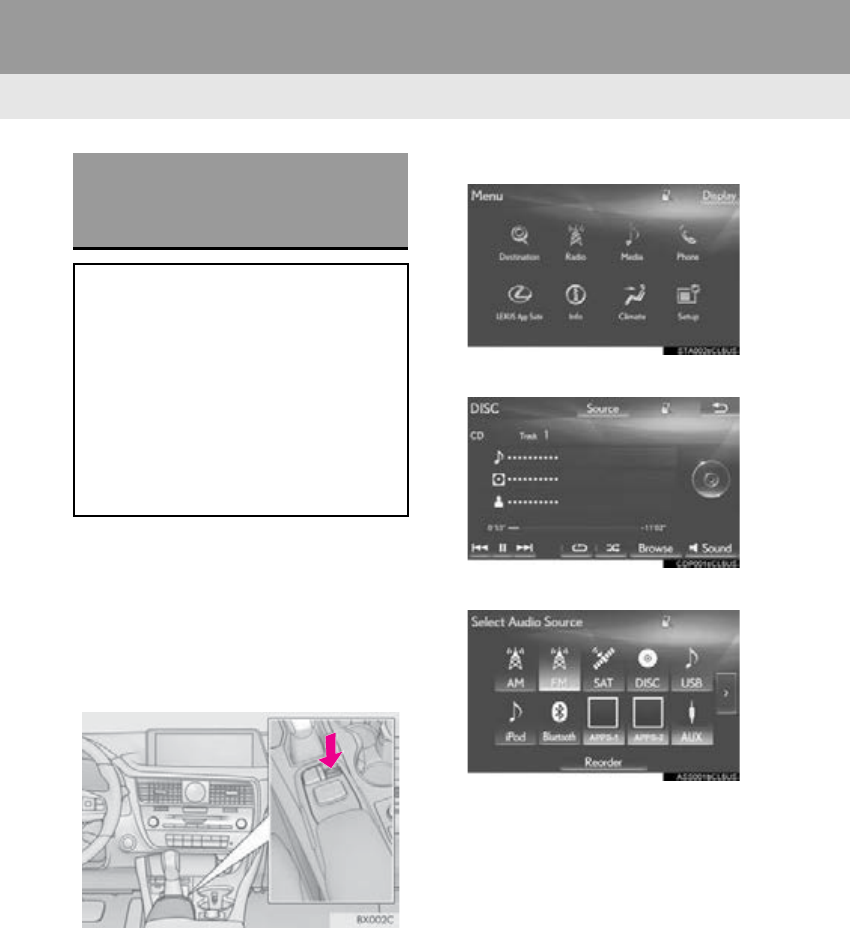
1Turn the Bluetooth® connection setting
of your audio player on.
-This function is not available when the
Bluetooth® connection setting of your
audio player is set to off.
2Press the “MENU” button on the
Remote Touch.
3Select “Radio” or “Media”.
4Select “Source”.
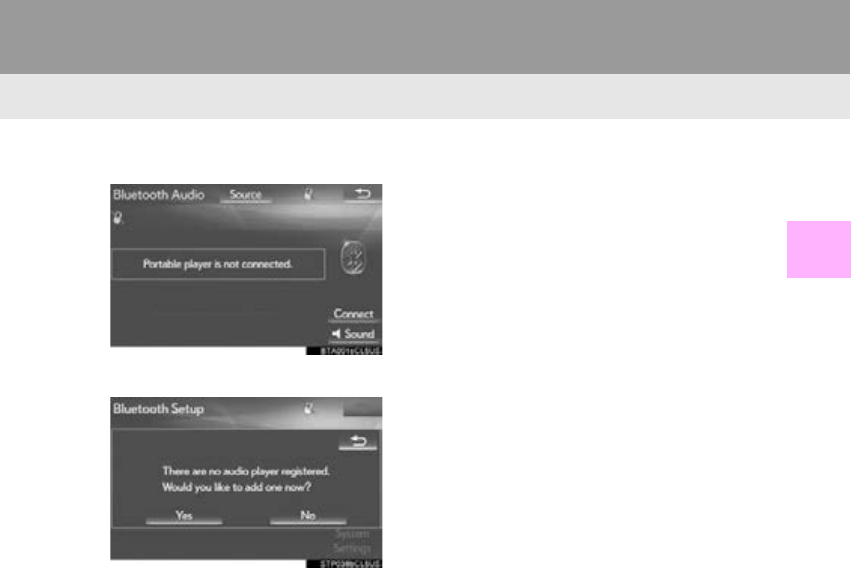
5Select “Bluetooth*”.
*: Bluetooth is a registered trademark of
Bluetooth SIG, Inc.
REGISTERING A Bluetooth®
AUDIO PLAYER FOR THE
FIRST TIME
To use the Bluetooth® Audio, it is nec-
essary to register an audio player with
the system.
Once the player has been registered, it
is possible to use the Bluetooth® Audio.
This operation cannot be performed
while driving.
For details about registering a
Bluetooth® device: P. 49
46
2. Bluetooth® SETTINGS
RX_Navi_U
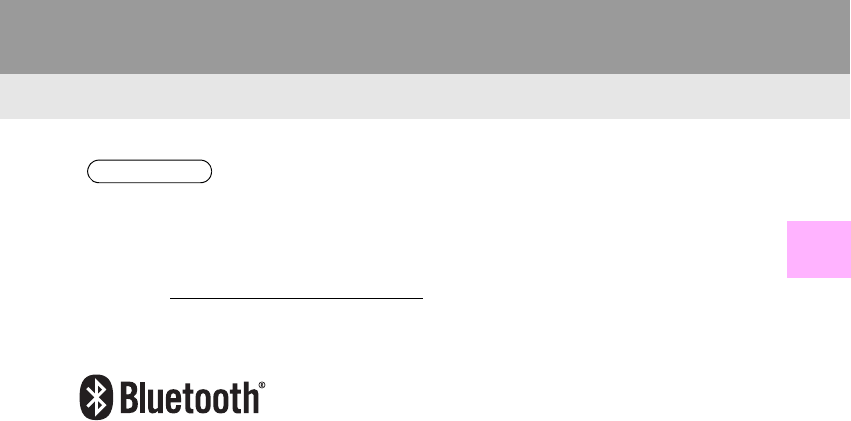
PROFILES
This system supports the following services.
Bluetooth®
Device Spec. Function Require-
ments
Recom-
menda-
tions
Bluetooth®
Phone/
Bluetooth®
Audio
Player
Bluetooth® Specification
Registering a
Bluetooth® de-
vice
Ver. 2.0 Ve r.3. 0
+EDR
Bluetooth®
Device Profile Function Require-
ments
Recom-
menda-
tions
Bluetooth®
Phone
HFP (Hands-Free Profile) Hands-free
system Ver. 1.0 Ver. 1.6
OPP (Object Push Profile)
Transferring the
contacts
Ver.1.1 Ve r.1 .2
PBAP (Phone Book Access
Profile) Ver. 1.0 Ver. 1.1
MAP (Message Access Profile) Bluetooth®
phone message Ver. 1.0
SPP (Serial Port Profile) “LEXUS App
Suite” function Ver. 1.2
Bluetooth®
Audio
Player
A2DP (Advanced Audio Distri-
bution Profile) Bluetooth® au-
dio system
Ver. 1.0 Ver. 1.3
AVRCP (Audio/Video Remote
Control Profile) Ver. 1.0 Ver. 1. 5
47
2. Bluetooth® SETTINGS
RX_Navi_U
BASIC FUNCTION
2
Bluetooth is a registered trademark of Bluetooth SIG, Inc.
INFORMATION
●If your cellular phone does not support HFP, registering the Bluetooth® phone or using
OPP, PBAP, MAP or SPP profiles individually will not be possible.
●If the connected Bluetooth® device version is older than recommended or incompatible,
the Bluetooth® device function may not work properly.
●Refer to http://www.lexus.com/MobileLink to find approved Bluetooth® phones for this
system.
48
2. Bluetooth® SETTINGS
RX_Navi_U
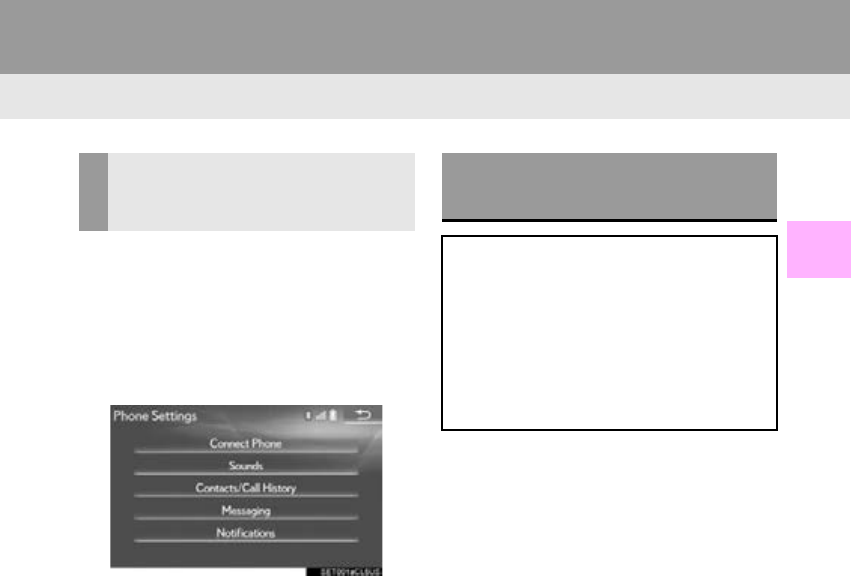
2. SETTING Bluetooth® DETAILS
1Press the “MENU” button on the
Remote Touch.
2Select “Setup”.
3Select “Bluetooth*”.
4Select the desired item to be set.
*: Bluetooth is a registered trademark of
Bluetooth SIG, Inc.
“Bluetooth* Setup” SCREEN
Function Page
Registering a Bluetooth® device 49
Deleting a Bluetooth® device 51
Connecting a Bluetooth® device 51
Editing the Bluetooth® device in-
formation 53
Bluetooth® system settings 55
49
2. Bluetooth® SETTINGS
RX_Navi_U
BASIC FUNCTION
2
1Press the “MENU” button on the
Remote Touch.
2Select “Setup”.
3Select “Phone”.
4Select “Connect Phone”.
1Display the “Bluetooth* Setup” screen.
(P. 48)
2Select “A d d ” .
When another Bluetooth® device is con-
nected
-To disconnect the Bluetooth® device,
select “Yes”.
When 5 Bluetooth® devices have al-
ready been registered
-A registered device needs to be replaced.
Select “Yes”, and select the device to be
replaced.
*: Bluetooth is a registered trademark of
Bluetooth SIG, Inc.
DISPLAYING THE “Bluetooth*
Setup” SCREEN IN A
DIFFERENT WAY
REGISTERING A Bluetooth®
DEVICE
Up to 5 Bluetooth® devices can be reg-
istered.
Bluetooth® compatible phones (HFP)
and audio players (AVP) can be regis-
tered simultaneously.
This operation cannot be performed
while driving.
50
2. Bluetooth® SETTINGS
RX_Navi_U
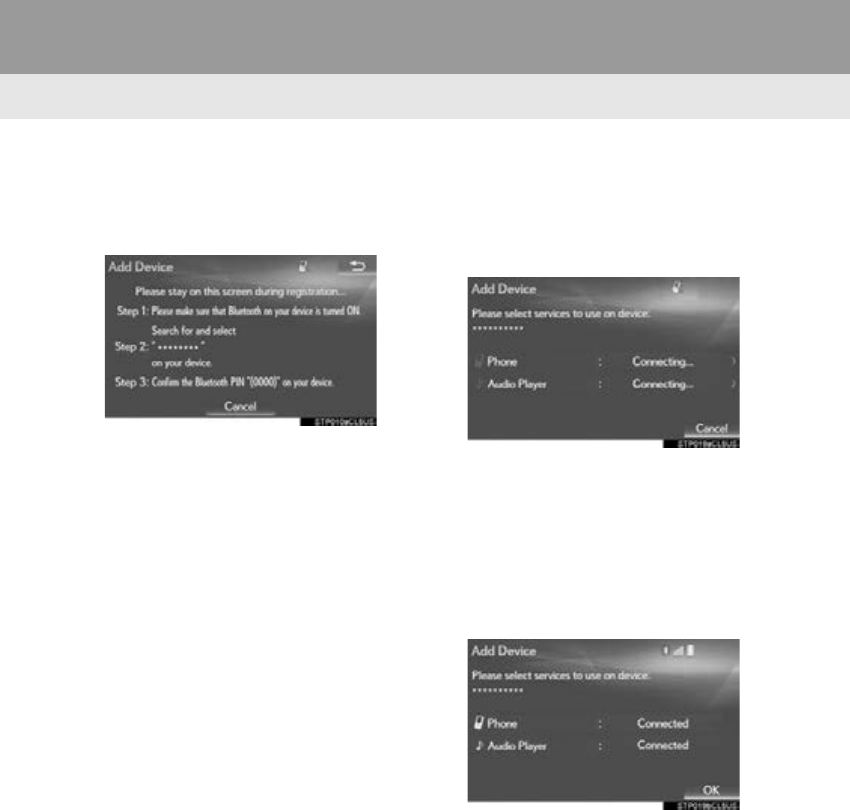
3When this screen is displayed, search
for the device name displayed on this
screen on the screen of your
Bluetooth® device.
-For details about operating the Bluetooth®
device, see the manual that comes with it.
-To cancel the registration, select “Cancel”.
4Register the Bluetooth® device using
your Bluetooth® device.
-A PIN code is not required for SSP (Secure
Simple Pairing) compatible Bluetooth®
devices. Depending on the type of
Bluetooth® device being connected, a
message confirming registration may be
displayed on the Bluetooth® device’s
screen. Respond and operate the
Bluetooth® device according to the confir-
mation message.
5Check that the following screen is dis-
played, indicating pairing was success-
ful (a Bluetooth® link has been
established but registration is not yet
complete).
-The system waits for connection requests
coming from the registered device.
-At this stage, the Bluetooth® functions are
not yet available.
-To cancel the registration, select “Cancel”.
6Check that “Connected” is displayed
and registration is complete.
-If displayed, select “OK” to complete the
registration process.
-If an error message is displayed, follow the
guidance on the screen to try again.
51
2. Bluetooth® SETTINGS
RX_Navi_U
BASIC FUNCTION
2
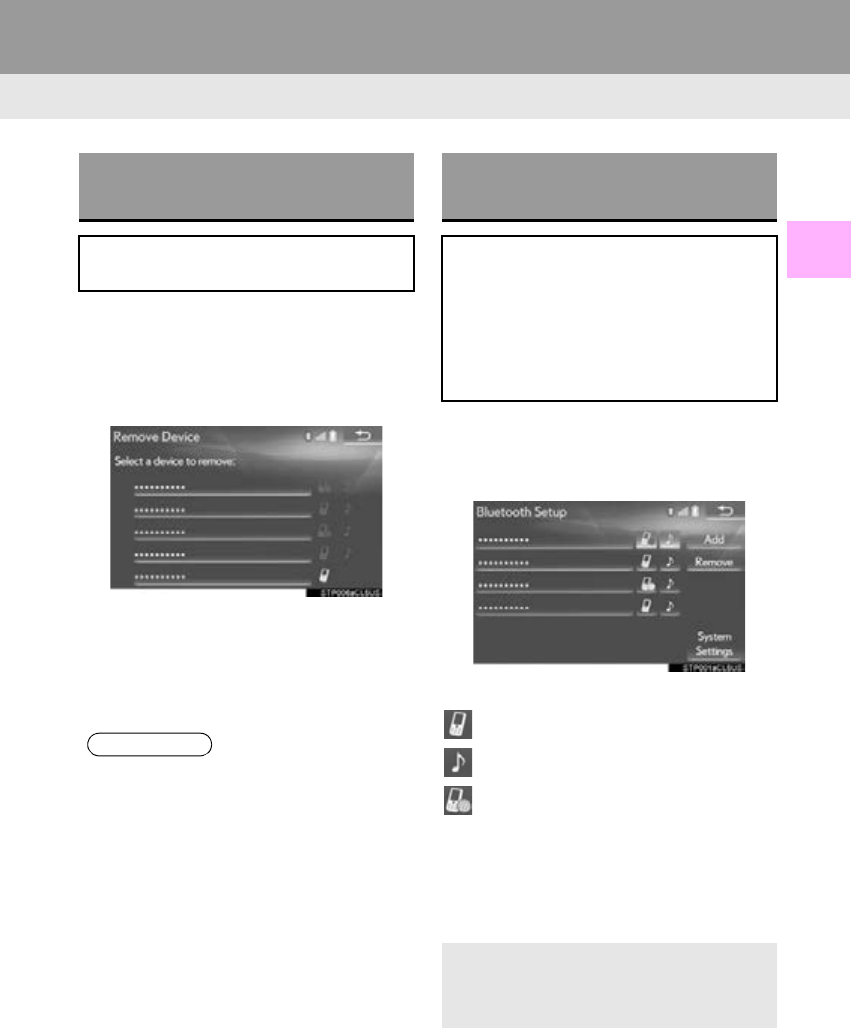
1Display the “Bluetooth* Setup” screen.
(P. 48)
2Select “Remove”.
3Select the desired device.
4Select “Yes” when the confirmation
screen appears.
5Check that a confirmation screen is dis-
played when the operation is complete.
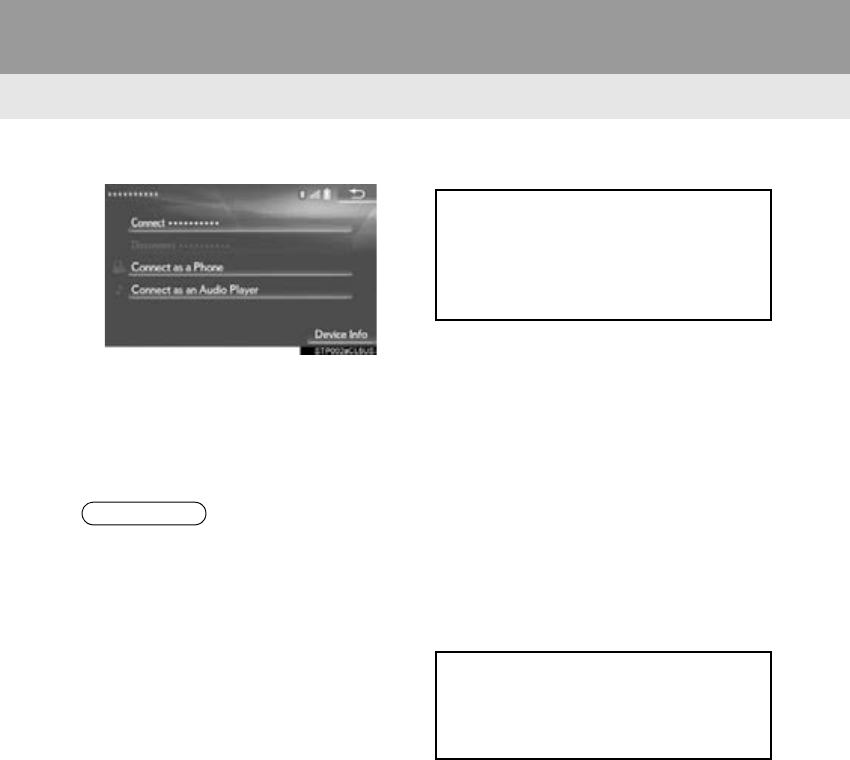
1Display the “Bluetooth* Setup” screen.
(P. 48)
2Select the device to be connected.
-Supported profile icons will be displayed.
: Phone
: Audio player
: Phone/“LEXUS App Suite” service
-The profile icon for a currently connected
device will be displayed in color.
-Selecting a profile icon which is not cur-
rently connected will switch the connection
to the function.
*: Bluetooth is a registered trademark of
Bluetooth SIG, Inc.
DELETING A Bluetooth®
DEVICE
This operation cannot be performed
while driving.
INFORMATION
●When deleting a Bluetooth® phone, the
contact data will be deleted at the same
time.
CONNECTING A Bluetooth®
DEVICE
Up to 5 Bluetooth® devices (Phones
(HFP) and audio players (AVP)) can be
registered.
If more than 1 Bluetooth® device has
been registered, select which device to
connect to.
-If the desired Bluetooth® device is not on
the list, select “A d d ” to register the
device. (P. 49 )
52
2. Bluetooth® SETTINGS
RX_Navi_U
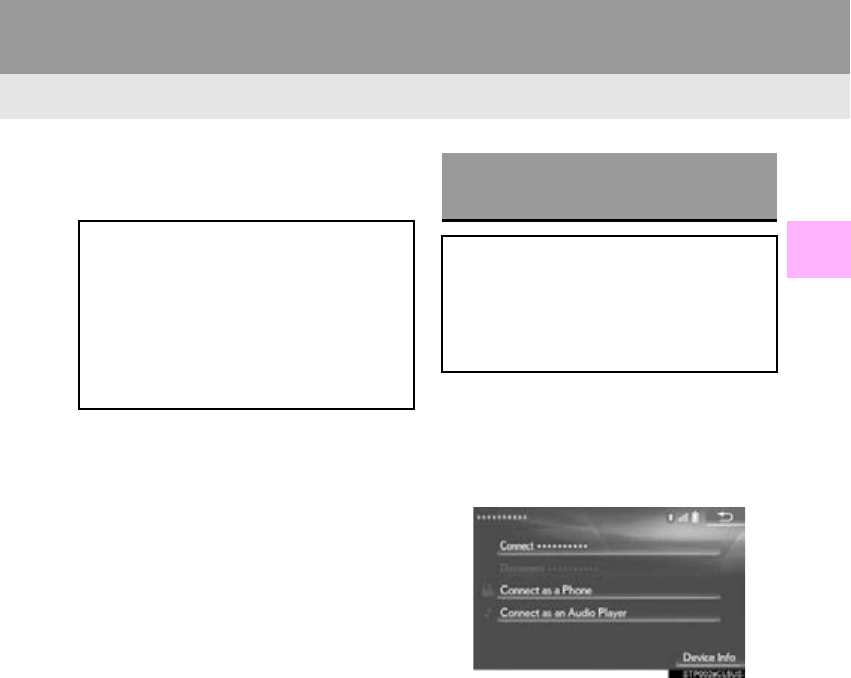
3Select the desired connection.
4Check that a confirmation screen is dis-
played when the connection is com-
plete.
-If an error message is displayed, follow the
guidance on the screen to try again.
■AUTO CONNECTION MODE
-When the engine <power> switch is in
ACCESSORY or IGNITION ON <ON>
mode, the system searches for a nearby
registered device.
-The system will connect with the registered
device that was last connected, if it is
nearby. When automatic connection prior-
ity is set to on and there is more than one
registered Bluetooth® phone available, the
system will automatically connect to the
Bluetooth® phone with the highest priority.
(P. 56)
■CONNECTING MANUALLY
1Press the “MENU” button on the
Remote Touch.
2Select “Setup”.
3Select “Bluetooth*”.
4Follow the steps in “CONNECTING A
Bluetooth® DEVICE” from “STEP 2”.
(P. 51)
*: Bluetooth is a registered trademark of
Bluetooth SIG, Inc.
INFORMATION
●It may take time if the device connection
is carried out during Bluetooth® audio
playback.
●Depending on the type of Bluetooth®
device being connected, it may be neces-
sary to perform additional steps on the
device.
●When disconnecting a Bluetooth®
device, it is recommended to disconnect
using the system.
To turn auto connection mode on, set
“Bluetooth* Power” to on. (P. 56)
Leave the Bluetooth® device in a loca-
tion where the connection can be estab-
lished.
When the auto connection has failed or
“Bluetooth* Power” is turned off, it is
necessary to connect Bluetooth® man-
ually.
53
2. Bluetooth® SETTINGS
RX_Navi_U
BASIC FUNCTION
2
■RECONNECTING THE Bluetooth®
PHONE
1Display the “Bluetooth* Setup” screen.
(P. 48)
2Select the desired device to be edited.
3Select “Device Info”.
*: Bluetooth is a registered trademark of
Bluetooth SIG, Inc.
If a Bluetooth® phone is disconnected
due to poor reception from the
Bluetooth® network when the engine
<power> switch is in ACCESSORY or
IGNITION ON <ON> mode, the sys-
tem automatically reconnects the
Bluetooth® phone.
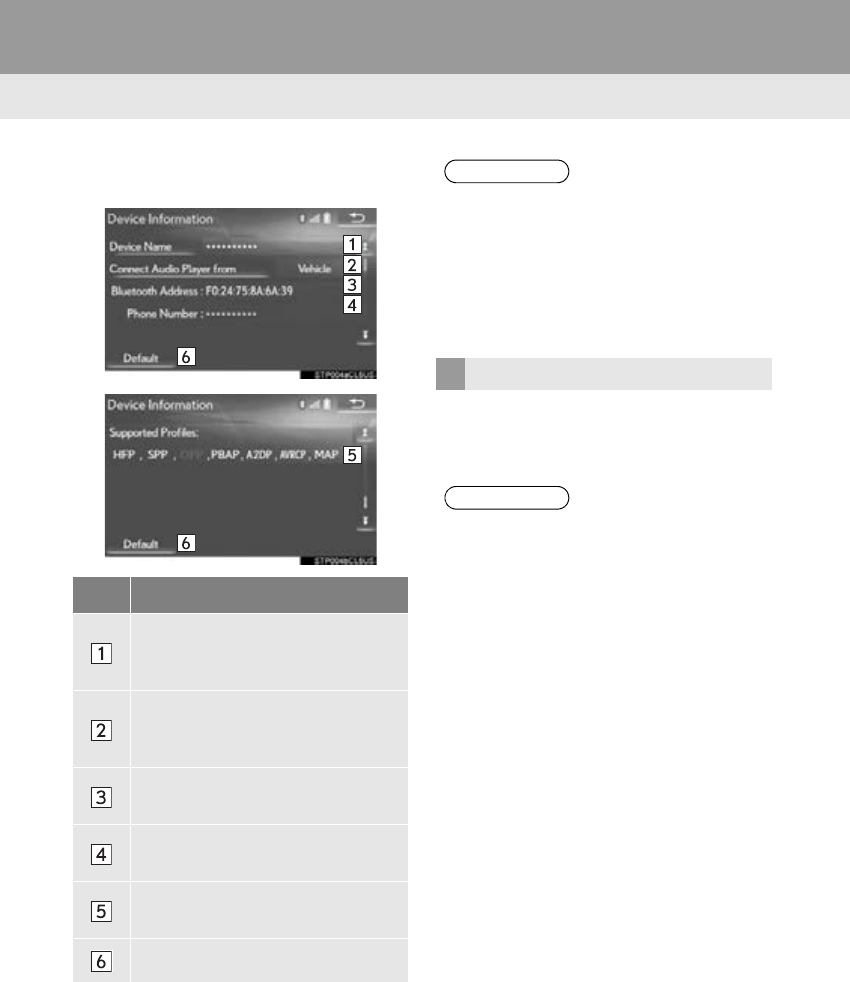
EDITING THE Bluetooth®
DEVICE INFORMATION
The Bluetooth® device’s information
can be displayed on the screen. The dis-
played information can be edited.
This operation cannot be performed
while driving.
54
2. Bluetooth® SETTINGS
RX_Navi_U
4Confirm and change the Bluetooth®
device information.
1Select “Device Name”.
2Enter the name and select “OK”.
No. Information
The name of the Bluetooth® device.
Can be changed to a desired name.
(P. 54)
Select to set the Bluetooth® audio
player connection method.
(P. 55)
Device address is unique to the de-
vice and cannot be changed.
Phone number of the Bluetooth®
phone.
Compatibility profile of the
Bluetooth® device.
Select to reset all setup items.
INFORMATION
●If 2 Bluetooth® devices have been regis-
tered with the same device name, the
devices can be distinguished referring to
the device’s address.
●Depending on the type of phone, some
information may not be displayed.
CHANGING A DEVICE NAME
INFORMATION
●Even if the device name is changed, the
name registered in your Bluetooth®
device does not change.
55
2. Bluetooth® SETTINGS
RX_Navi_U
BASIC FUNCTION
2
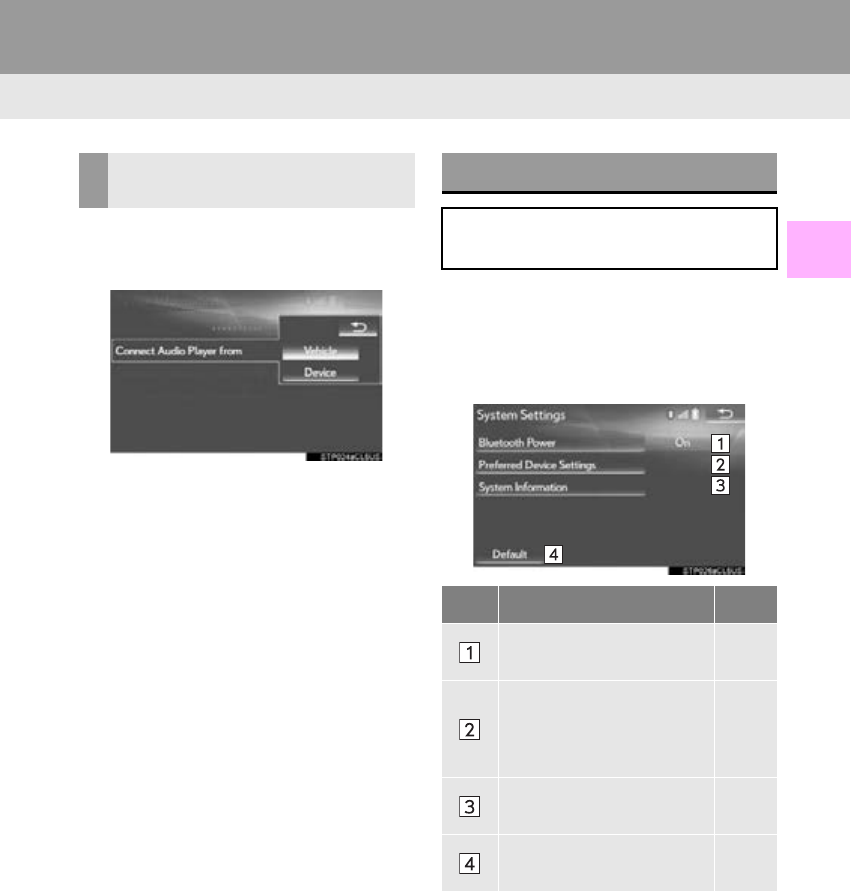
1Select “Connect Audio Player from”.
2Select the desired connection method.
“Vehicle”: Select to connect the audio sys-
tem to the audio player.
“Device”: Select to connect the audio play-
er to the audio system.
-Depending on the audio player, the “Vehi-
cle” or “Device” connection method may
be best. As such, refer to the manual that
comes with the audio player.
1Display the “Bluetooth* Setup” screen.
(P. 48)
2Select “System Settings”.
3Select the desired item to be set.
*: Bluetooth is a registered trademark of
Bluetooth SIG, Inc.
SETTING AUDIO PLAYER
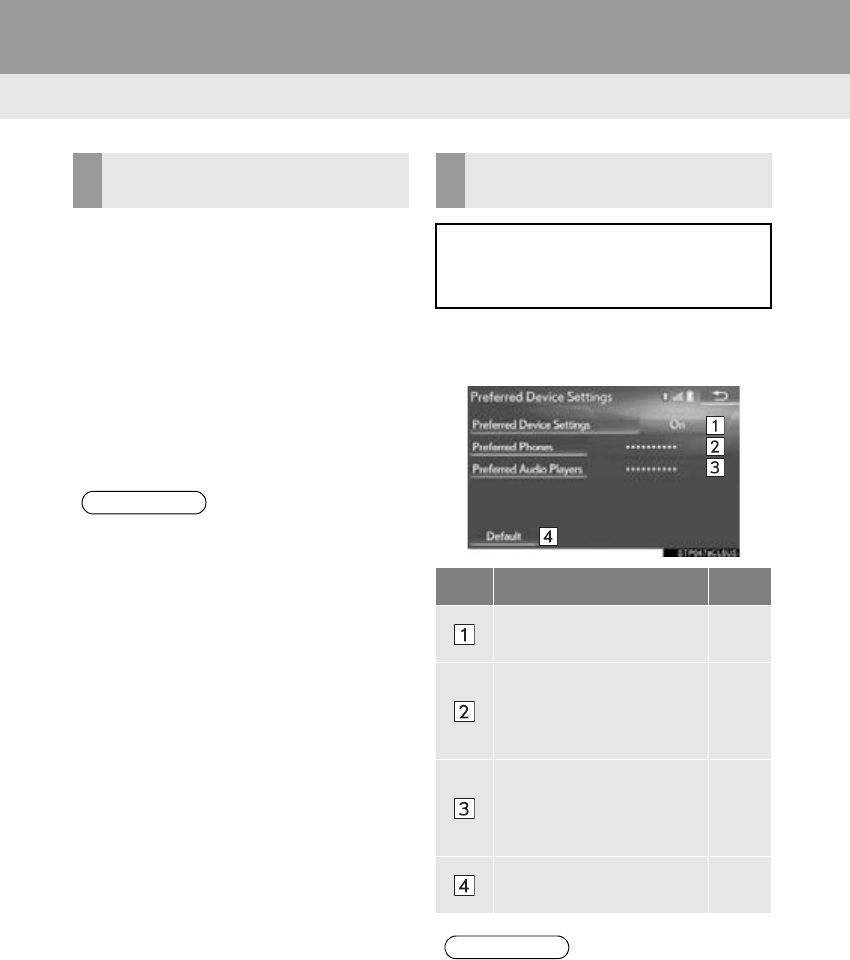
CONNECTION METHOD “System Settings” SCREEN
The Bluetooth® settings can be con-
firmed and changed.
No. Function Page
Select to set Bluetooth®
connection on/off. 56
Select to change the auto-
matic connection priority of
the registered Bluetooth®
devices.
56
Select to edit the system in-
formation. 57
Select to reset all setup
items.
56
2. Bluetooth® SETTINGS
RX_Navi_U
1Select “Bluetooth* Power”.
When “Bluetooth* Power” is on:
The Bluetooth® device is automatically
connected when the engine <power> switch
is in ACCESSORY or IGNITION ON
<ON> mode.
When “Bluetooth* Power” is off:
The Bluetooth® device is disconnected,
and the system will not connect to it next
time.
*: Bluetooth is a registered trademark of
Bluetooth SIG, Inc.
1Select “Preferred Device Settings”.
2Select the desired item to be set.
CHANGING “Bluetooth*
Power”
INFORMATION
●While driving, the auto connection state
can be changed from off to on, but can-
not be changed from on to off.
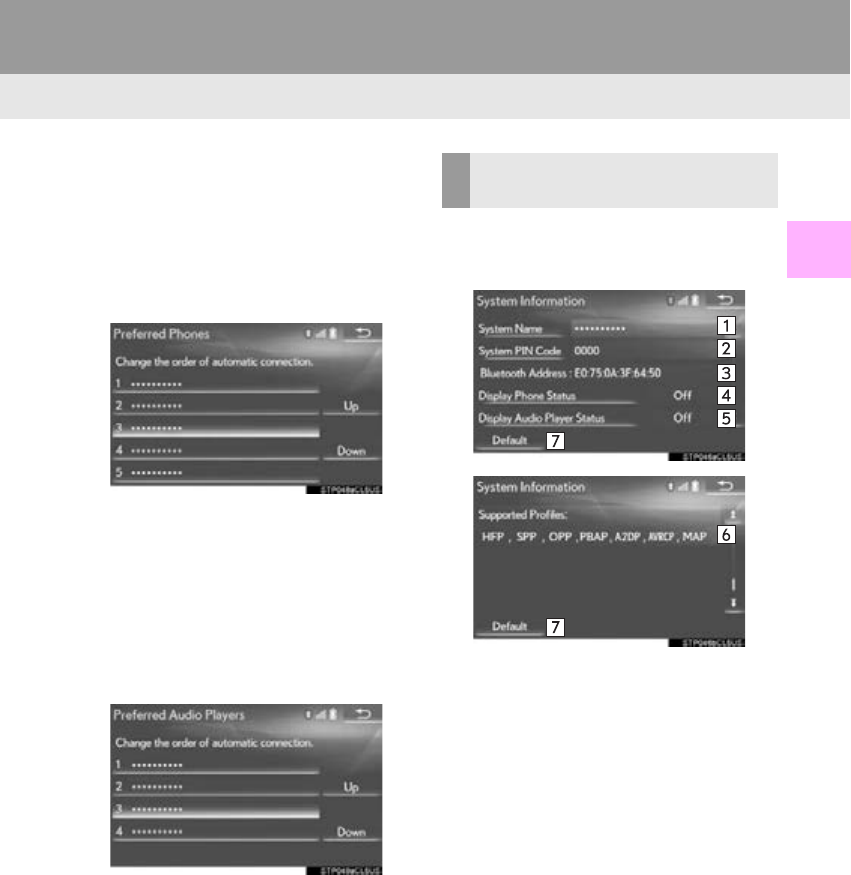
SETTING AUTOMATIC
CONNECTION PRIORITY
The automatic connection priority of the
registered Bluetooth® devices can be
changed.
No. Function Page
Select to set automatic
connection priority on/off.
Select to change the auto-
matic connection priority of
the registered Bluetooth®
phones.
57
Select to change the auto-
matic connection priority of
the registered Bluetooth®
audio players.
57
Select to reset all setup
items.
INFORMATION
●A newly registered Bluetooth® device
will automatically be given the highest
automatic connection priority.
57
2. Bluetooth® SETTINGS
RX_Navi_U
BASIC FUNCTION
2
■CHANGING PHONE AUTOMAT-
IC CONNECTION PRIORITY
1Select “Preferred Phones”.
2Select the desired Bluetooth® device
and select “Up” or “Down” to change
the preferred order.
■CHANGING AUDIO PLAYER AU-
TOMATIC CONNECTION PRIOR-
ITY
1Select “Preferred Audio Players”.
2Select the desired Bluetooth® device
and select “Up” or “Down” to change
the preferred order.
1Select “System Information”.
2Select the desired item to be set.
EDITING THE SYSTEM
INFORMATION
58
2. Bluetooth® SETTINGS
RX_Navi_U
■EDITING THE SYSTEM NAME
1Select “System Name”.
2Enter a name and select “OK”.
■EDITING THE PIN CODE
1Select “System PIN Code”.
2Enter a PIN code and select “OK”.
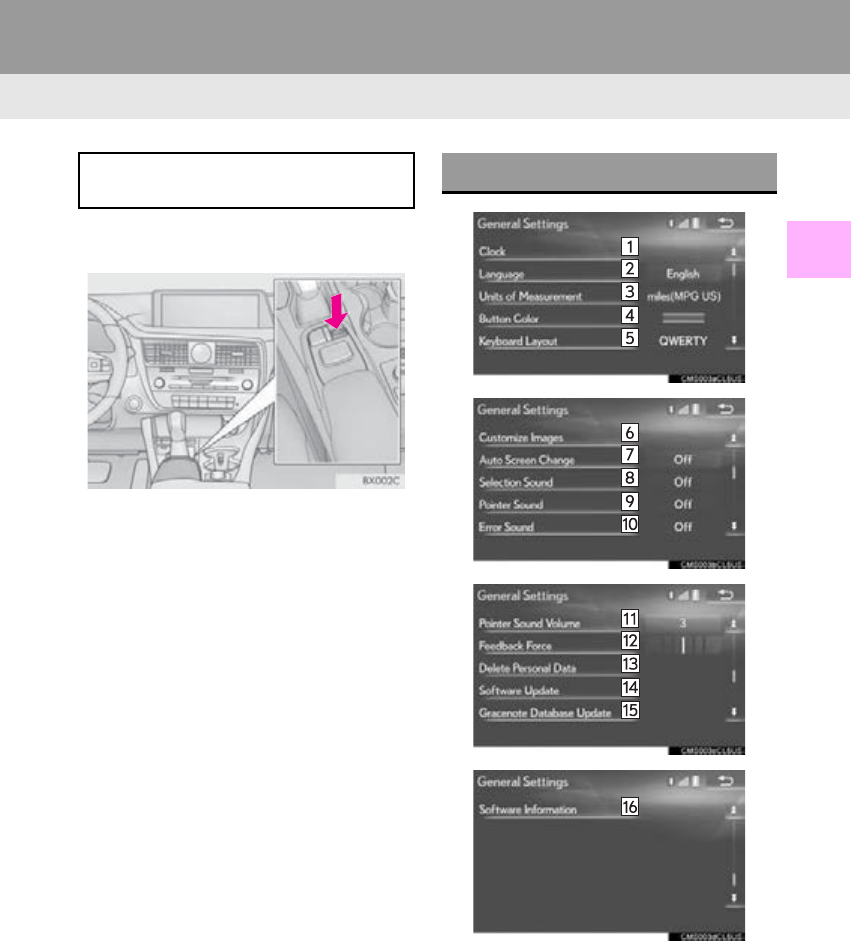
No. Information Page
Displays system name. Can
be changed to a desired
name.
58
PIN code used when the
Bluetooth® device was
registered. Can be
changed to a desired code.
58
Device address is unique to
the device and cannot be
changed.
Select to set the phone con-
nection status display on/
off.
Select to set the connection
status display of the audio
player on/off.
Compatibility profile of the
system
Select to reset all setup
items.
59
RX_Navi_U
BASIC FUNCTION
2
3. OTHER SETTINGS
1. GENERAL SETTINGS
1Press the “MENU” button on the
Remote Touch.
2Select “Setup”.
3Select “General”.
4Select the items to be set.
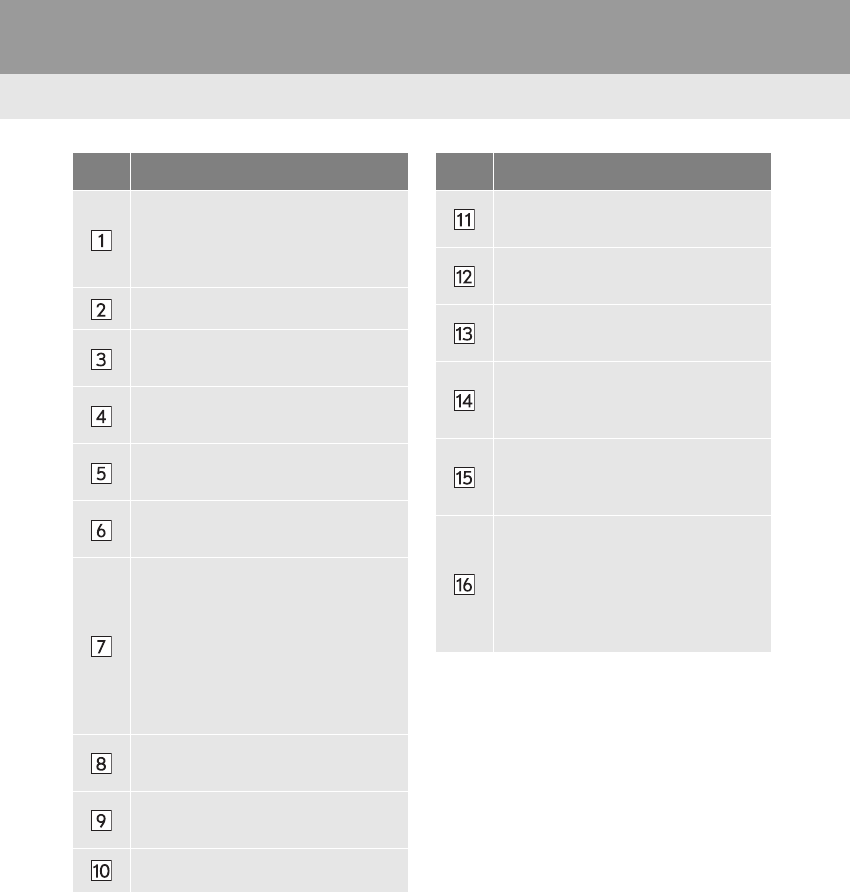
Settings are available for automatic
screen change, operation sounds, etc. GENERAL SETTINGS SCREEN
60
3. OTHER SETTINGS
RX_Navi_U
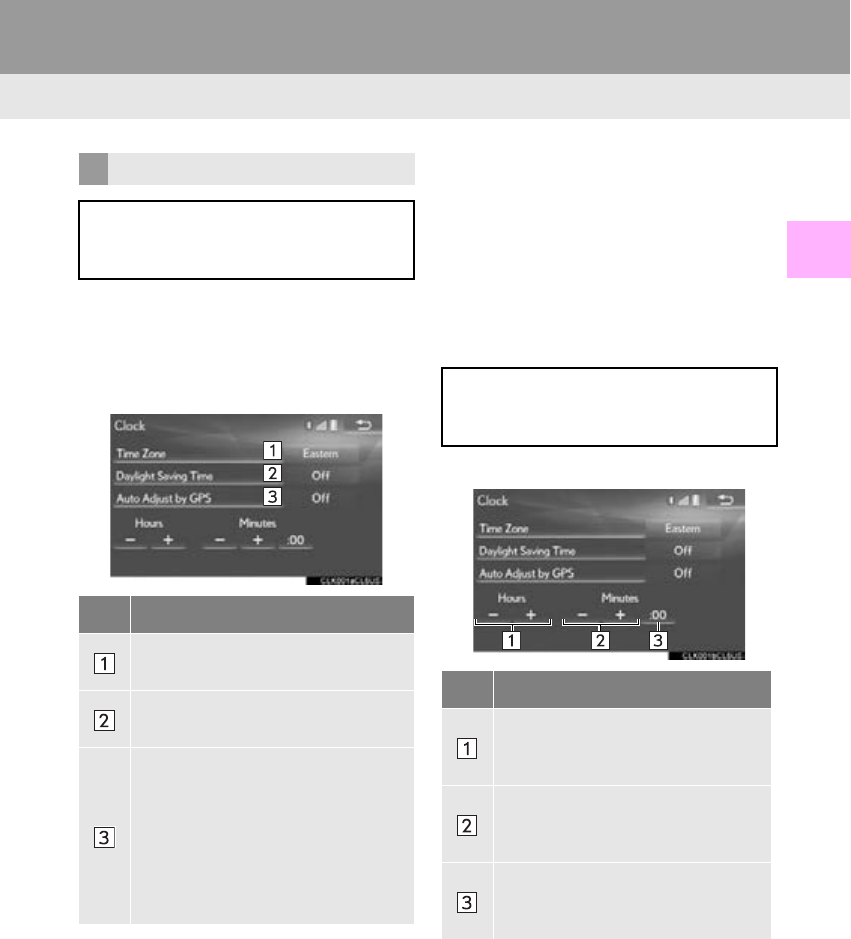
No. Function
Select to change the time zone, set
the daylight saving time on/off and
set the automatic adjustment of the
clock on/off. (P. 61)
Select to change the language.
Select to change the unit of measure
for distance/fuel consumption.
Select to change the screen button
color.
Select to change the keyboard lay-
out.
Select to customize the startup/
screen off images. (P. 62)
Select to set automatic screen
changes from the audio/air condi-
tioning control screen to the previ-
ous screen to on/off. When set to on,
the screen will automatically return
to the previous screen from the au-
dio/air conditioning control screen
after 20 seconds.
Select to set the selection sounds
on/off.
Select to set the pointer sounds on/
off.
Select to set the error sounds on/off.
Select to adjust the pointer sound
volume.
Select to adjust the strength of the
pull from the buttons to the pointer.
Select to delete personal data.
(P. 64)
Select to update software versions.
For details, contact your Lexus deal-
er.
Select to update “Gracenote” data-
base versions. For details, contact
your Lexus dealer.
Select to display the software infor-
mation. Notices related to third party
software used in this product are en-
listed. (This includes instructions for
obtaining such software, where ap-
plicable.)
No. Function
61
3. OTHER SETTINGS
RX_Navi_U
BASIC FUNCTION
2
1Display the “General Settings” screen.
(P. 59)
2Select “Clock”.
3Select the items to be set.
■SETTING THE TIME ZONE
1Select “Time Zone”.
2Select the desired time zone.
-If “Other” is selected, the zone can be
adjusted manually. Select “+” or “-” to
adjust the time zone.
■MANUAL CLOCK SETTING
1Select the desired item.
CLOCK SETTINGS
Used for changing the time zone and
setting of daylight saving time and auto-
matic time adjustment on/off.
No. Function
Select to change the time zone.
(P. 61)
Select to set daylight saving time on/
off.
Select to set automatic adjustment of
the clock by GPS on/off. When set to
on, the system will automatically ad-
just the clock to the current position’s
time zone when the vehicle moves to
a different time zone. When set to off,
the clock can be manually adjusted.
(P. 61)
When “A u t o A d j u s t b y G P S ” is turned
“Off”, the clock can be manually adjust-
ed.
No. Function
Select “+” to set the time forward
one hour and “-” to set the time back
one hour.
Select “+” to set the time forward
one minute and “-” to set the time
back one minute.
Select to round to the nearest hour.
e.g. 1:00 to 1:29 1:00
1:30 to 1:59 2:00
62
3. OTHER SETTINGS
RX_Navi_U
1Display the “General Settings” screen.
(P. 59)
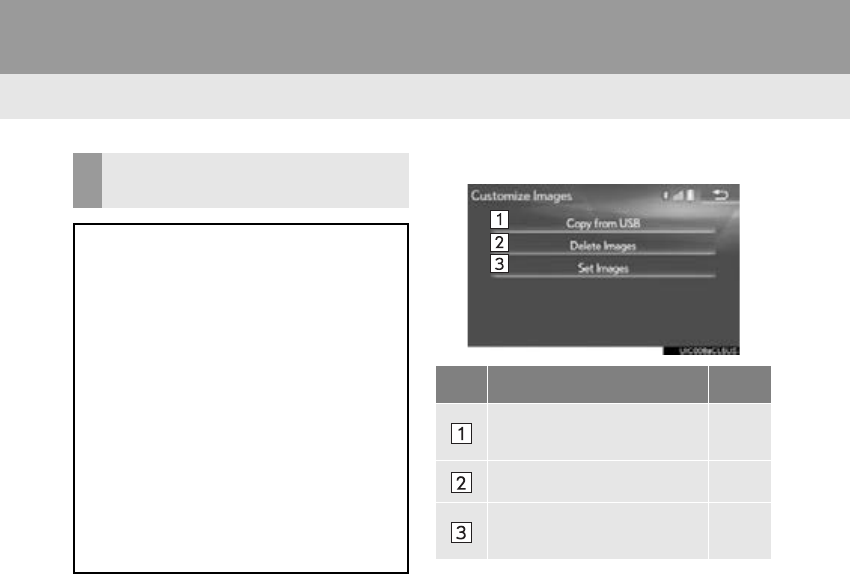
2Select “Customize Images”.
3Select the items to be set.
CUSTOMIZING THE STARTUP
AND SCREEN OFF IMAGES
An image can be copied from a USB
memory and used as the startup and
screen off Images.
With 12.3-inch display: The built-in mov-
ie can also be set as the startup image.
When the engine <power> switch is
turned to ACCESSORY or IGNITION
ON <ON> mode, the initial screen (star-
tup image) will be displayed. (P. 30)
When “Screen Off” on the “Display”
screen is selected, the screen is turned
off and the desired screen off image that
is set is displayed. (To turn the screen off:
P. 39)
No. Function Page
Select to copy images from
a USB memory. 63
Select to delete images. 64
Select to set an image as the
startup or screen off image. 64
63
3. OTHER SETTINGS
RX_Navi_U
BASIC FUNCTION
2
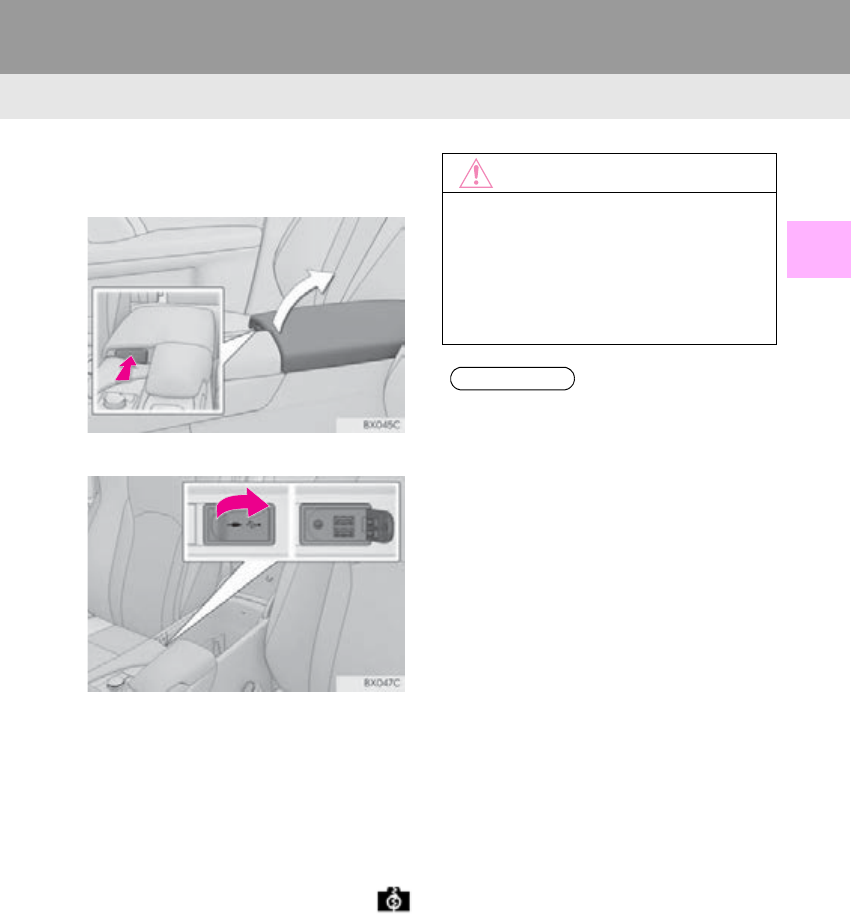
■TRANSFERRING IMAGES
1 Press the knob.
2Open the cover and connect a device.
-Turn on the power of the USB memory if it
is not turned on.
3Select “Copy from USB”.
4Select the desired images from the list
and then select “Copy”.
-The selected image is displayed on the
right side of the screen. If the selected
image file is broken or incompatible,
will be displayed.
-The remaining number of image files that
can be transferred is displayed at the bot-
tom of the screen.
5Select “Yes” when the confirmation
screen appears.
NOTICE
●Depending on the size and shape of the
device that is connected to the system,
the console box may not close fully. In this
case, do not forcibly close the console
box as this may damage the device or the
terminal, etc.
INFORMATION
●When saving image files to a USB mem-
ory to be transferred to the system, save
the images in a folder named “Image” (I-
m-a-g-e, case sensitive). If a different
folder name is used, the system will not
recognize the image files.
●The compatible file extensions are JPG
and JPEG.
●An image's file name, including file exten-
sion, can be up to 32 characters.
●Image files of 10 MB or less can be trans-
ferred.
●Up to 10 images can be transferred to the
system.
●Files with non-ASCII filenames can not
be transferred.
64
3. OTHER SETTINGS
RX_Navi_U
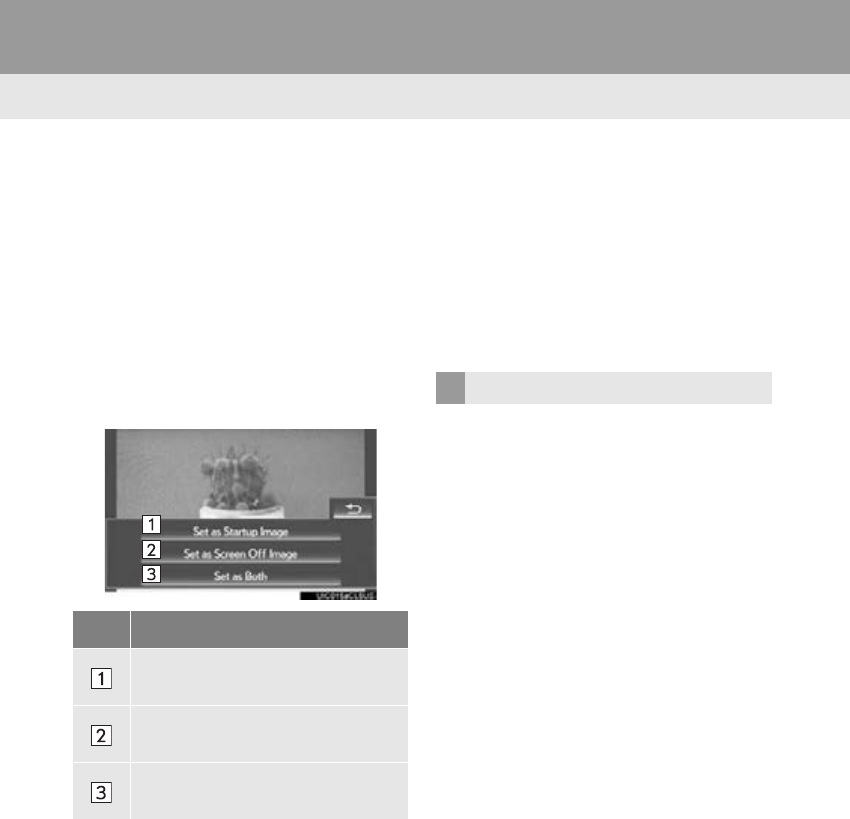
■SETTING THE STARTUP AND
SCREEN OFF IMAGES
1Select “Set Images”.
With 8-inch display
2Select the desired image.
With 12.3-inch display
2Select the “Movies” or “Images” tab
and select the desired movie or image.
3Select the desired items to be set.
■DELETING TRANSFERRED IMAG-
ES
1Select “Delete Images”.
2Select the images to be deleted and se-
lect “Delete”.
3Select “Yes” when the confirmation
screen appears.
1Display the “General Settings” screen.
(P. 59)
2Select “Delete Personal Data”.
3Select “Delete”.
4Select “Yes” when the confirmation
screen appears.
No. Function
Select to set an image as the startup
image.
Select to set an image as the screen
off image.
Select to set an image as both the
startup and screen off image.
DELETING PERSONAL DATA
65
3. OTHER SETTINGS
RX_Navi_U
BASIC FUNCTION
2
-Registered or changed personal settings
will be deleted or returned to their default
conditions.
For example:
•General settings
• Navigation settings
• Audio settings
•Phone settings
•Lexus Enform settings
NOTICE
●Make sure the map microSD card is
inserted when deleting personal data.
The personal data cannot be deleted
when the map microSD card is removed.
To delete the data, after inserting the map
microSD card, turn the engine <power>
switch to ACCESSORY or IGNITION
ON <ON> mode.
66
3. OTHER SETTINGS
RX_Navi_U
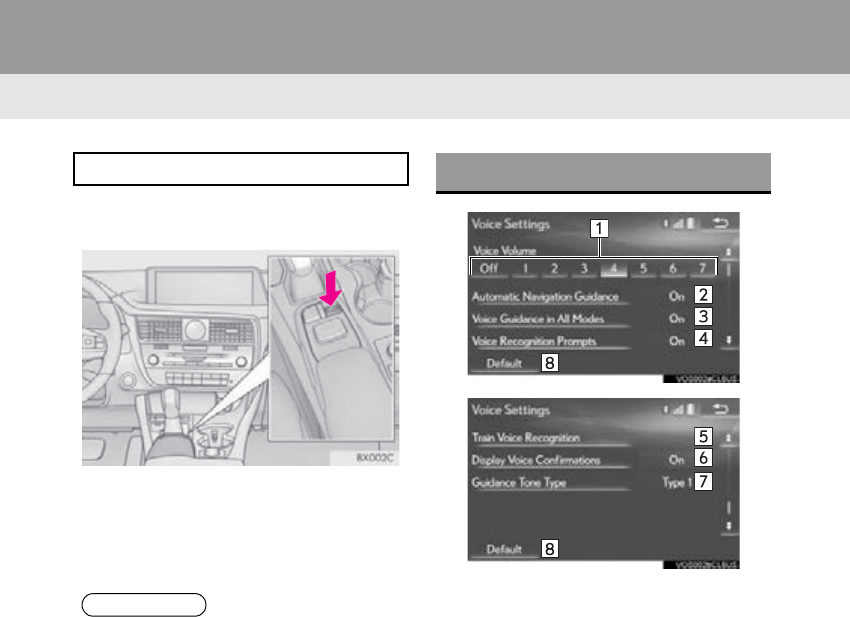
2. VOICE SETTINGS
1Press the “MENU” button on the
Remote Touch.
2Select “Setup”.
3Select “Voice”.
4Select the items to be set.
Voice guidance etc. can be set.
INFORMATION
●“Voice Settings” screen can also be dis-
played from the voice recognition top
screen. (P. 253 )
VOICE SETTINGS SCREEN
67
3. OTHER SETTINGS
RX_Navi_U
BASIC FUNCTION
2
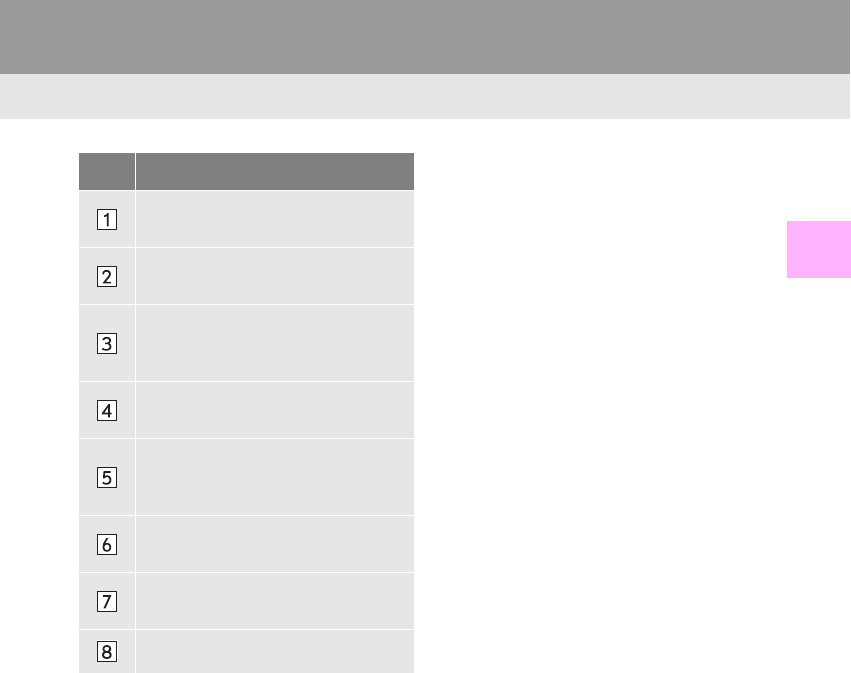
No. Function
Select to adjust the volume of voice
guidance.
Select to set the voice guidance dur-
ing route guidance on/off.
Select to set the voice guidance dur-
ing audio/visual and/or air condi-
tioning system use on/off.
Select to set the voice recognition
prompts on/off.
Select to train voice recognition.
The voice command system adapt
the user accent.
Select to set the voice confirmation
display on/off.
Select to set the beep sound of navi-
gation guidance.
Select to reset all setup items.
68
3. OTHER SETTINGS
RX_Navi_U
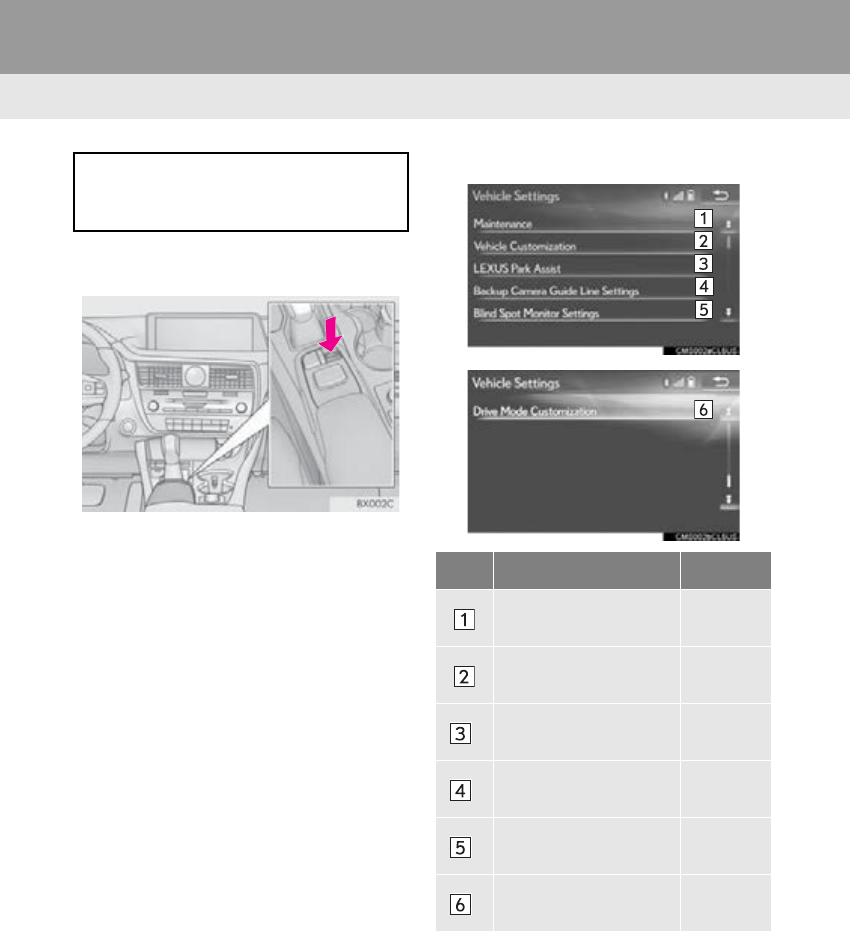
3. VEHICLE SETTINGS
1Press the “MENU” button on the
Remote Touch.
2Select “Setup”.
3Select “Vehicle”.
4Select the items to be set.
Settings are available for maintenance,
vehicle customization, intuitive parking
assist-sensor, etc.
No. Function Page
Select to set mainte-
nance. 69
Select to set vehicle
customization.
“Owner’s
Manual”
*Select to set intuitive
parking assist-sensor.
“Owner’s
Manual”
*Select to set back cam-
era guide line.
“Owner’s
Manual”
*Select to set blind spot
monitor.
“Owner’s
Manual”
*Select to set driving
mode.
“Owner’s
Manual”
*: If equipped
69
3. OTHER SETTINGS
RX_Navi_U
BASIC FUNCTION
2
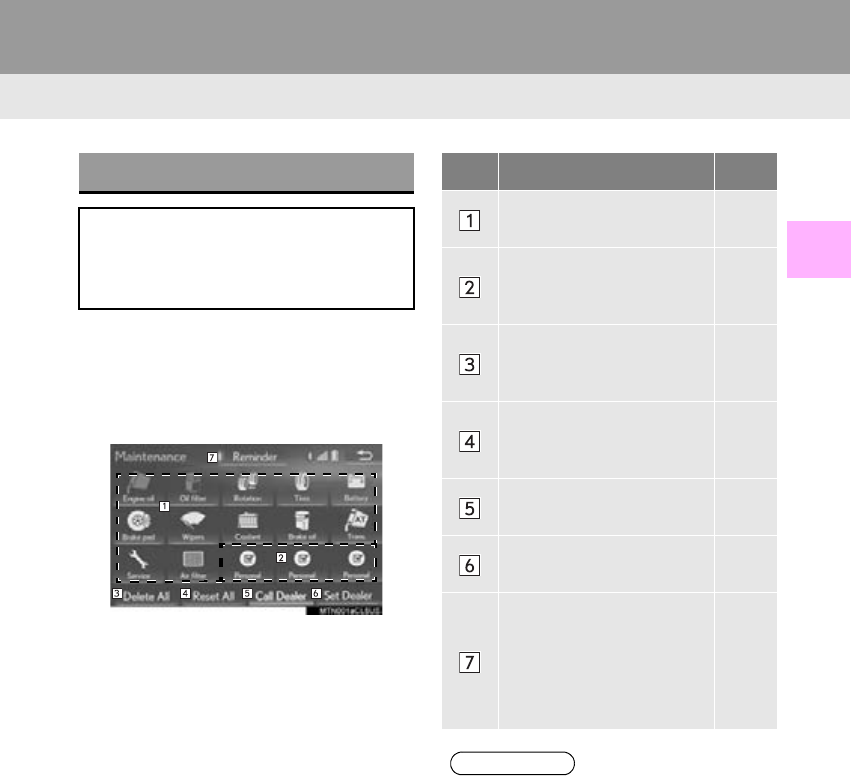
1Display the “Vehicle Settings” screen.
(P. 68)
2Select “Maintenance”.
3Select the desired item.
MAINTENANCE
When the system is turned on, the
“Maintenance Reminder” screen dis-
plays when it is time to replace a part or
certain components. (P. 30)
No. Function Page
Select to set the condition
of parts or components. 70
Select to add new informa-
tion items separately from
provided ones.
Select to cancel all condi-
tions which have been en-
tered.
Select to reset the items
which have expired condi-
tions.
Select to call the registered
dealer.
Select to register/edit deal-
er information. 70
When set to on, the indica-
tor will illuminate. The sys-
tem is set to give
maintenance information
with the “Maintenance Re-
minder” screen.
30
INFORMATION
●When the vehicle needs to be serviced,
the screen button color will change to
orange.
70
3. OTHER SETTINGS
RX_Navi_U
1Select the desired part or component
screen button.
2Set the conditions.
3Select “OK” after entering the condi-
tions.
1Select “Set Dealer”.
2Select the desired item to search for the
location. (P. 91)
-The editing dealer screen appears after
setting the location.
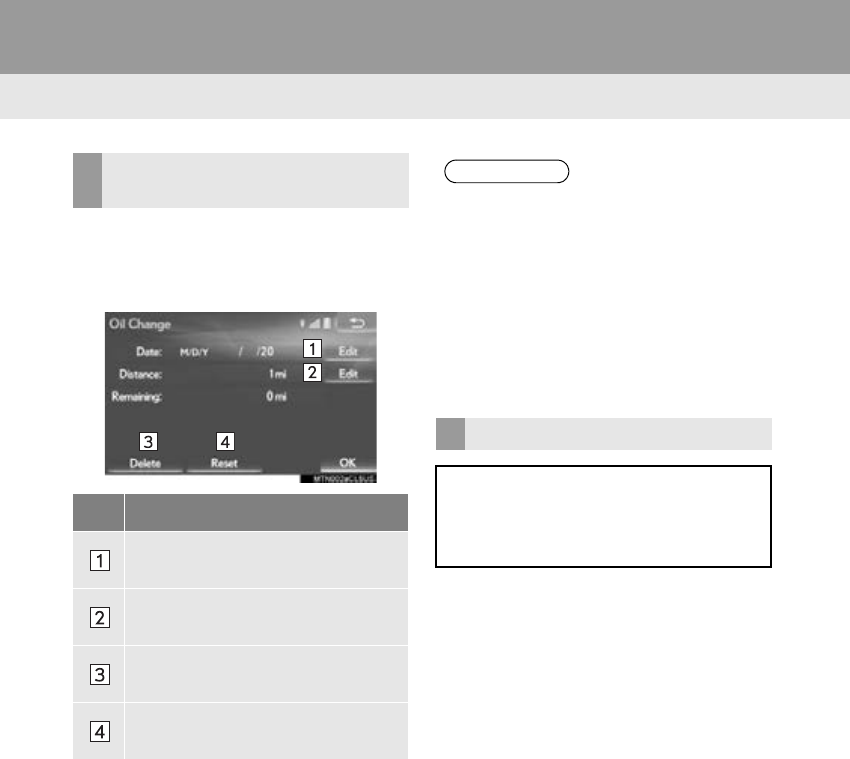
MAINTENANCE
INFORMATION SETTING
No. Function
Select to enter the next maintenance
date.
Select to enter the driving distance
until the next maintenance check.
Select to cancel the conditions which
have been entered.
Select to reset the conditions which
have expired.
INFORMATION
●For scheduled maintenance information,
refer to “Warranty and Services Guide/
Owner’s Manual Supplement/Scheduled
Maintenance”.
●Depending on driving or road conditions,
the actual date and distance that mainte-
nance should be performed may differ
from the stored date and distance in the
system.
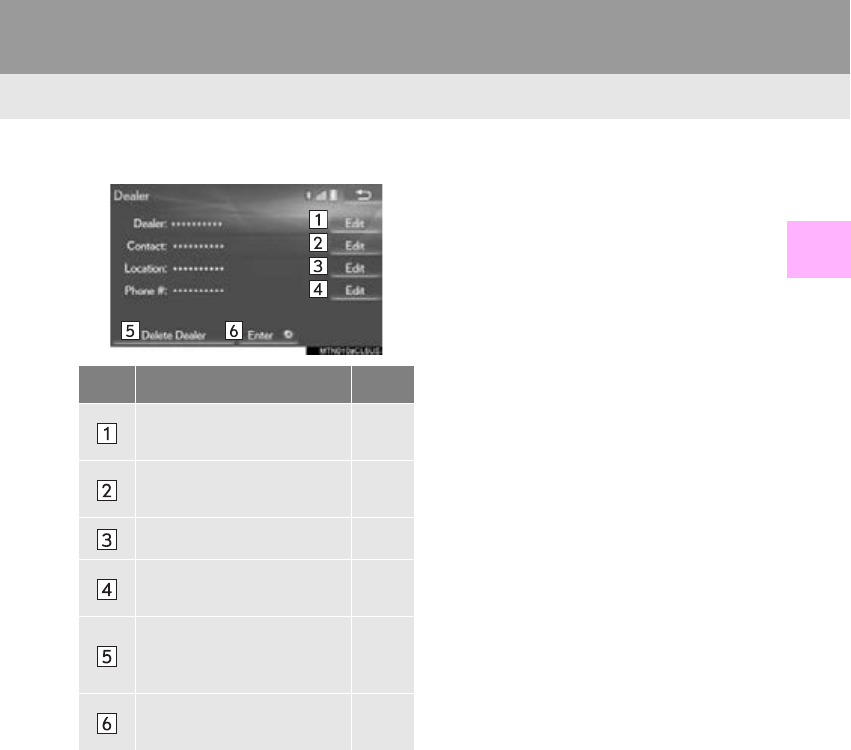
DEALER SETTING
Dealer information can be registered in
the system. With dealer information reg-
istered, route guidance to the dealer is
available.
71
3. OTHER SETTINGS
RX_Navi_U
BASIC FUNCTION
2
3Select the items to be edited. ■EDITING DEALER OR CONTACT
NAME
1Select “Edit” next to “Dealer” or
“Contact”.
2Enter the name and select “OK”.
■EDITING THE LOCATION
1Select “Edit” next to “Location”.
2Scroll the map to the desired point (P.
82) and select “OK”.
■EDITING PHONE NUMBER
1Select “Edit” next to “Phone #”.
2 Enter the phone number and select
“OK”.
No. Function Page
Select to enter the name of
a dealer. 71
Select to enter the name of
a dealer member. 71
Select to set the location. 71
Select to enter the phone
number. 71
Select to delete the dealer
information displayed on
the screen.
Select to set the displayed
dealer as a destination. 103

72
RX_Navi_U
1. QUICK REFERENCE............................... 74
MAP SCREEN............................................................. 74
NAVIGATION OPTIONS SCREEN .............. 76
2. MAP SCREEN OPERATION................ 77
CURRENT POSITION DISPLAY...................... 77
MAP SCALE ................................................................ 78
ORIENTATION OF THE MAP........................... 79
SWITCHING THE MAP MODE....................... 80
SCREEN SCROLL OPERATION...................... 81
ADJUSTING LOCATION
IN SMALL INCREMENTS................................. 82
3. MAP SCREEN INFORMATION......... 83
DISPLAYING MAP INFORMATION ........... 83
DISPLAYING INFORMATION ABOUT
THE ICON WHERE
THE CURSOR IS SET ......................................... 86
STANDARD MAP ICONS ................................... 87
4. TRAFFIC INFORMATION .................... 88
DISPLAYING TRAFFIC
INFORMATION ON THE MAP................... 89
1. DESTINATION SEARCH
OPERATION ............................................. 91
SELECTING SEARCH AREA............................. 93
SETTING HOME AS DESTINATION............. 93
SETTING PRESET DESTINATIONS
AS DESTINATION................................................ 93
SEARCHING BY ADDRESS............................... 94
SEARCHING BY
POINT OF INTEREST......................................... 95
DESTINATION SEARCH BY
DESTINATION ASSIST ...................................... 99
SEARCHING FROM PREVIOUS
DESTINATIONS..................................................... 99
SEARCHING BY ADDRESS BOOK.............. 99
SEARCHING BY EMERGENCY.................. 100
SEARCHING BY INTERSECTION
AND FREEWAY.................................................. 100
SEARCHING BY MAP......................................... 102
SEARCHING BY COORDINATES.............. 102
2. STARTING ROUTE
GUIDANCE ........................................... 103
CONFIRM DESTINATION SCREEN........... 104
ENTIRE ROUTE MAP SCREEN...................... 104
1BASIC OPERATION 2DESTINATION SEARCH
3
NAVIGATION SYSTEM

3
73
RX_Navi_U
2
3
4
5
6
7
8
9
1
10
1. ROUTE GUIDANCE SCREEN.......... 108
SCREEN FOR ROUTE GUIDANCE........... 108
ROUTE OVERVIEW .............................................. 110
DURING FREEWAY DRIVING.......................... 111
WHEN APPROACHING
INTERSECTION.................................................... 113
TURN LIST SCREEN............................................... 113
TURN-BY-TURN ARROW SCREEN............ 114
2. TYPICAL VOICE GUIDANCE
PROMPTS ................................................ 115
3. EDITING ROUTE....................................... 116
ADDING DESTINATIONS ................................. 116
REORDERING DESTINATIONS..................... 116
DELETING DESTINATIONS .............................. 117
SETTING ROUTE PREFERENCES.................. 117
SELECTING ROUTE TYPE ................................. 117
DETOUR SETTING ................................................. 118
STARTING FROM ADJACENT ROAD....... 119
1. MEMORY POINTS SETTINGS.......... 120
SETTING UP HOME ............................................... 121
SETTING UP PRESET DESTINATIONS...... 122
SETTING UP ADDRESS BOOK ..................... 124
SETTING UP AREAS TO AVOID .................. 127
DELETING PREVIOUS
DESTINATIONS................................................... 129
1. DETAILED NAVIGATION
SETTINGS................................................ 130
SCREENS FOR NAVIGATION
SETTINGS................................................................ 130
2. TRAFFIC SETTINGS ............................... 134
SCREEN FOR TRAFFIC SETTINGS.............. 134
1. GPS (GLOBAL POSITIONING
SYSTEM) .................................................. 136
LIMITATIONS OF THE NAVIGATION
SYSTEM .................................................................... 136
2. MAP DATABASE VERSION AND
COVERED AREA................................. 139
MAP INFORMATION .......................................... 139
ABOUT THE MAP DATA ................................... 139
3ROUTE GUIDANCE
4MEMORY POINTS
5SETUP
6TIPS FOR THE NAVIGATION
SYSTEM
NAVIGATION SYSTEM
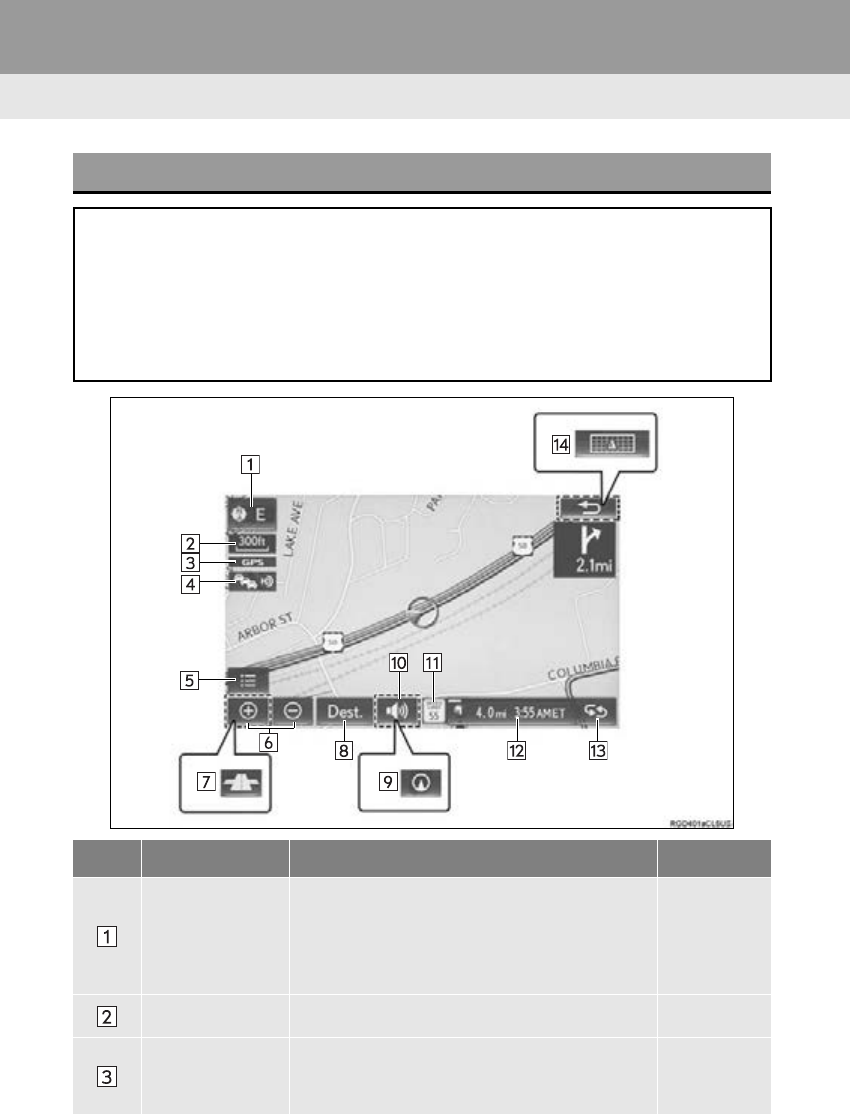
74
RX_Navi_U
1. BASIC OPERATION
1. QUICK REFERENCE
MAP SCREEN
The map screen can be reached by the following methods:
With 8-inch display
Press the “MENU” button on the Remote Touch, then select “Nav” on the “Menu”
screen.
With 12.3-inch display
Press the “MAP” button on the Remote Touch.
No. Name Function Page
2D north up, 2D
heading up or 3D
heading up sym-
bol
Indicates whether the map orientation is set to
north-up or heading-up. The letter(s) beside this
symbol indicate the vehicle’s heading direction
(e.g. N for north). In 3D map, only a heading-up
view is available.
79
Scale indicator This figure indicates the map scale. 78
“GPS” mark
(Global Position-
ing System)
Shows that the vehicle is receiving signals from
the GPS. 136
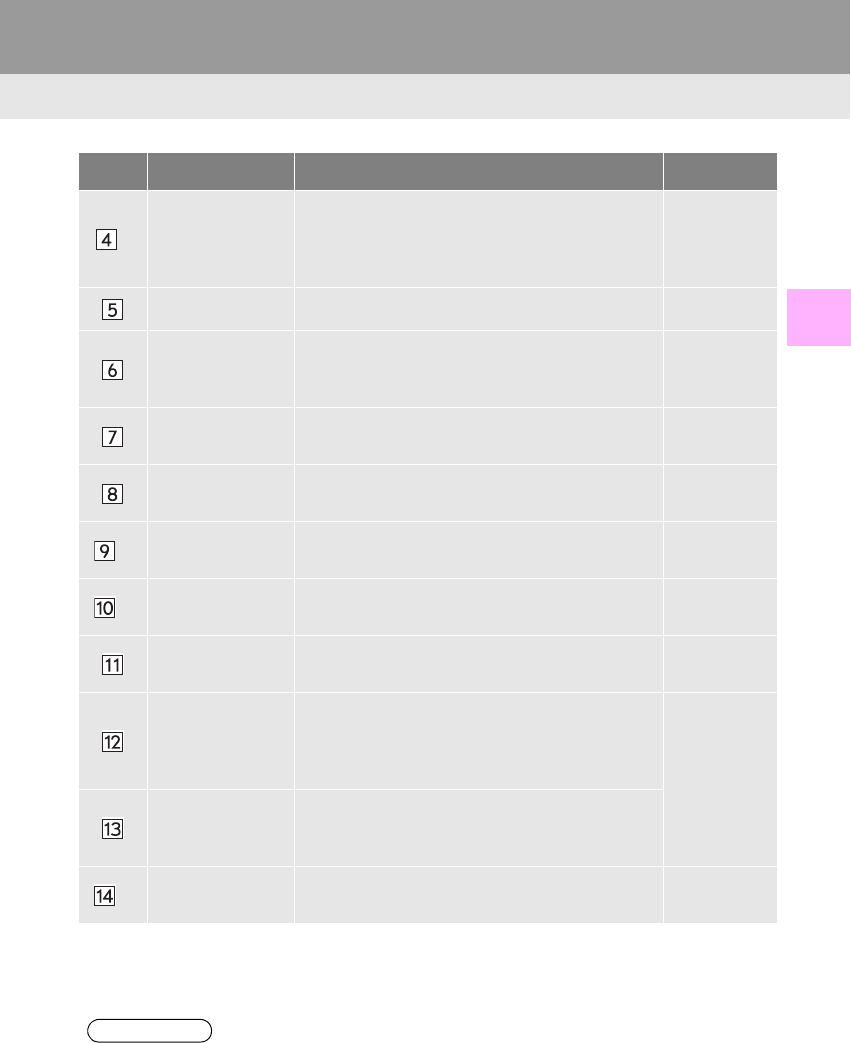
75
1. BASIC OPERATION
RX_Navi_U
NAVIGATION SYSTEM
3
*1Traffic indicator
Shows that traffic information is received. Select
to start voice guidance for traffic information.
When traffic information is received via HD Radio
broadcast, HD mark is displayed on the right.
88
Options button Select to display the “Navigation Options” screen. 76
Zoom in/out but-
ton
Select to magnify or reduce the map scale. When
either button is selected, the map scale indicator
bar appears at the bottom of the screen.
78
Footprint map
button Select to display the footprint map screen. 78
Destination but-
ton Select to display the “Destination” screen. 91
*2Current position
button
Select to display the address of the current posi-
tion on the map screen.
*2Voice guidance
button Select to repeat voice guidance. 115
Speed limit icon Indicates the speed limit on the current road. The
display of the speed limit icon can be set to on/off. 83
Route informa-
tion bar
Displays the current street name, or the distance
with the estimated travel time/arrival time to the
destination. The route information bar fills from
left to right as the vehicle progresses on the route. 109
Route informa-
tion button
Select to change the display between the current
street name and the distance with the estimated
travel/arrival time.
*3Screen change
button
Select to change the map screen to full screen dis-
play.
*1: This function is not made available on some models.
*2: With 8-inch display
*3: With 12.3-inch display
INFORMATION
●Certain screen buttons on the map screen will disappear several seconds after the Remote
Touch has been operated. This setting can be changed so that all the screen buttons will
always be displayed.(P. 130)
●With 12.3-inch display: Press the “MAP” button on the Remote Touch to display the
address of the current position on the map screen or repeat voice guidance.
No. Name Function Page
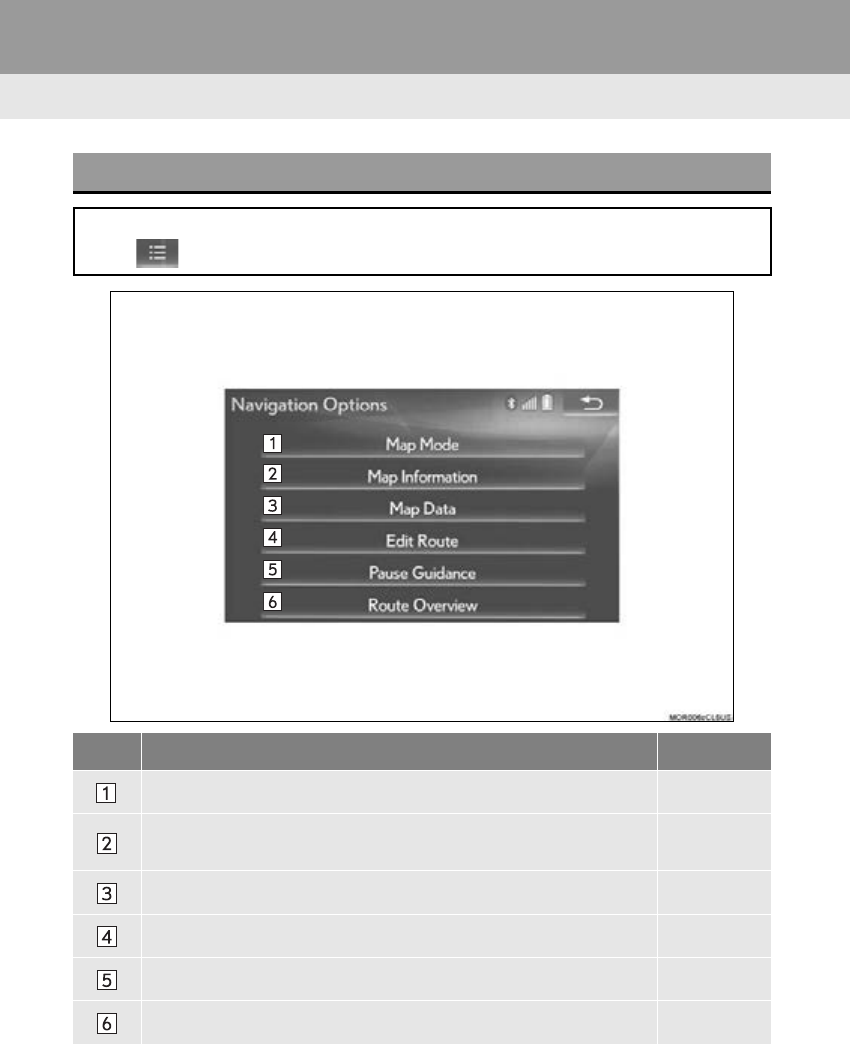
76
1. BASIC OPERATION
RX_Navi_U
NAVIGATION OPTIONS SCREEN
The navigation options screen can be reached by the following methods:
Select on the map screen. (P. 74)
No. Function Page
Select to display the desired map configuration. 80
Select to set display of the map information such as POI icons, route
trace, speed limit, etc. 83
Select to display the map version and coverage area. 139
Select to edit the set route. 116
Select to pause or resume route guidance.
Select to display the overview of the entire route. 110
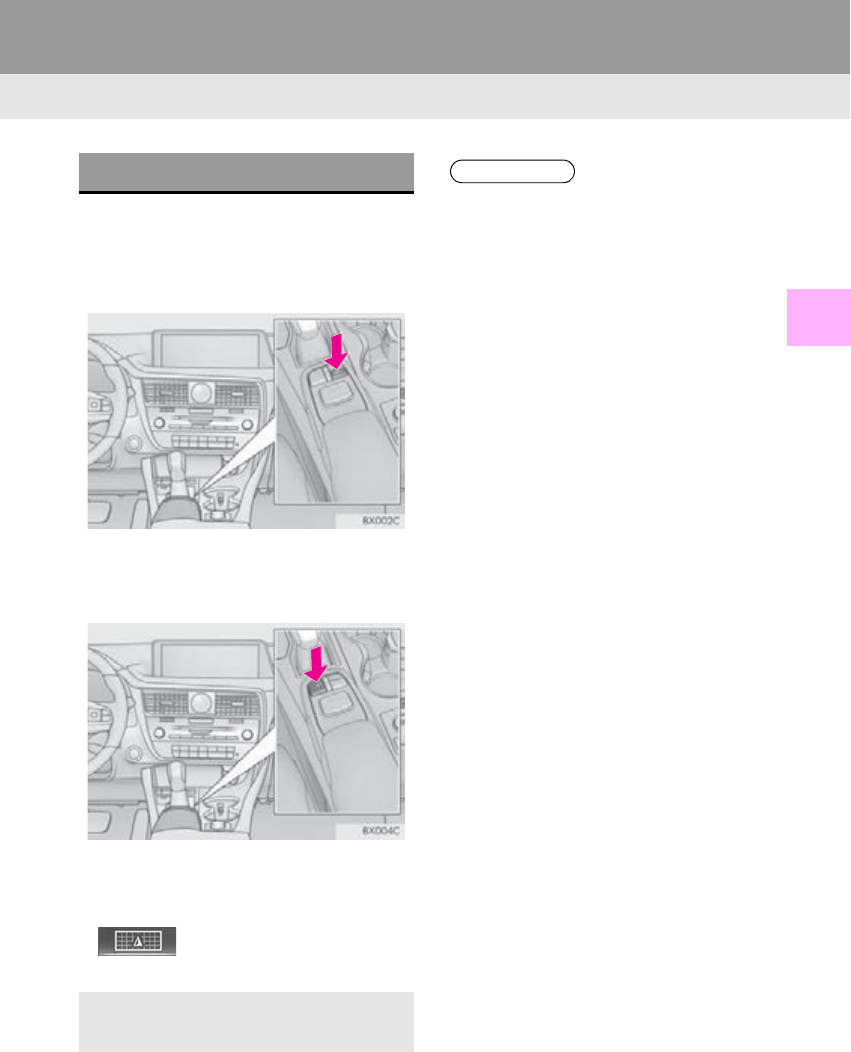
77
1. BASIC OPERATION
RX_Navi_U
NAVIGATION SYSTEM
3
2. MAP SCREEN OPERATION
With 8-inch display
1Press the “MENU” button on the
Remote Touch, then select “Nav” on the
“Menu” screen.
With 12.3-inch display
1Press the “MAP” button on the Remote
Touch.
2Check that the current position map is
displayed.
-With 12.3-inch display: Selecting
will change the map screen to
full screen display.
CURRENT POSITION DISPLAY
-To correct the current position manu-
ally:P. 1 33
INFORMATION
●While driving, the current position mark
is fixed on the screen and the map moves.
●The current position is automatically set
as the vehicle receives signals from the
GPS (Global Positioning System). If the
current position is not correct, it is auto-
matically corrected after the vehicle
receives signals from the GPS.
●After the 12-volt battery disconnection,
or on a new vehicle, the current position
may not be correct. As soon as the sys-
tem receives signals from the GPS, the
correct current position is displayed.
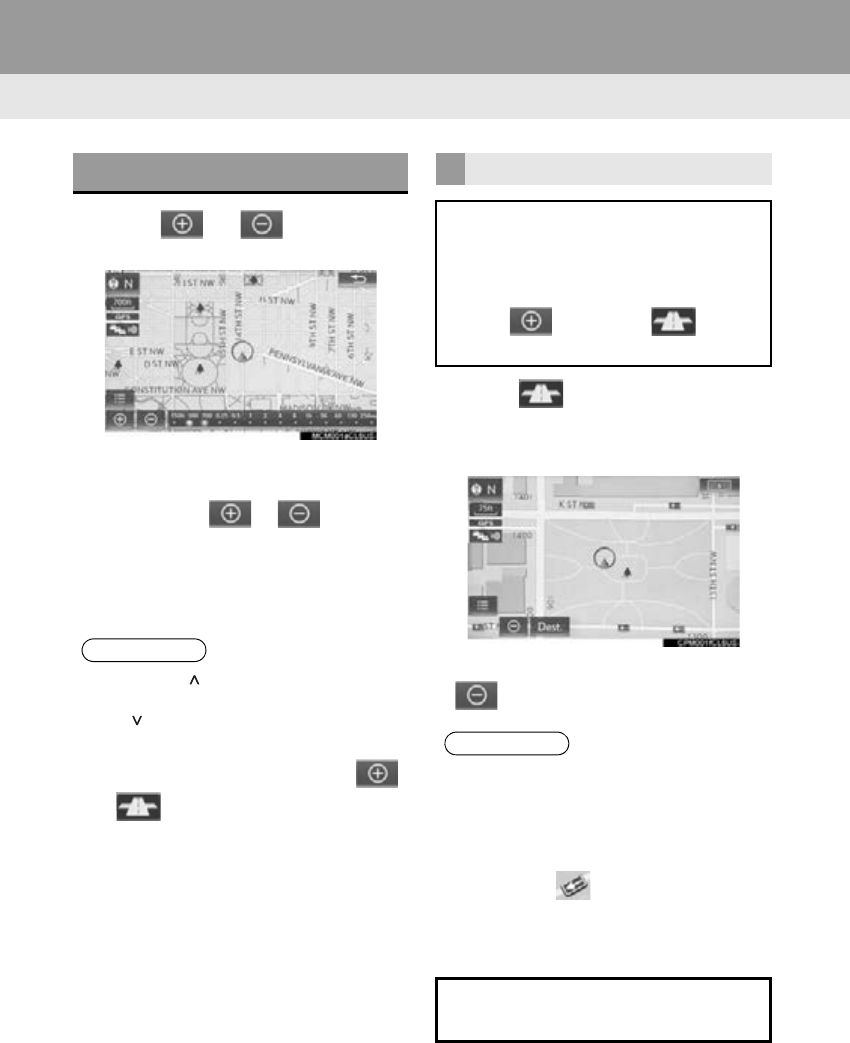
78
1. BASIC OPERATION
RX_Navi_U
1Select or to change the
scale of the map screen.
-The scale indicator bar appears at the bot-
tom of the screen.
-Select and hold or to continue
changing the scale of the map screen.
-The scale of the map screen can also be
changed by selecting the scale bar directly.
This function is not available while driving.
1Select on the map screen.
2Check that the footprint map is dis-
played.
-To return to the normal map display, select
.
MAP SCALE
INFORMATION
●Press the “” button on the Remote
Touch to zoom in on the map screen and
the “” button to zoom out.
●In areas where the footprint map is avail-
able the map scale changes from
to when at the minimum range.
FOOTPRINT MAP
For areas covered by the footprint map
(some major cities), a footprint map on a
scale of 75 ft. (25 m) can be selected.
When the map is scaled down to 150 ft.
(50 m), changes to and can
be selected to display the footprint map.
INFORMATION
●If the map or the current position is
moved to the area which is not covered
by the footprint map, the screen scale
automatically changes to 150 ft. (50 m).
●On the footprint map, a one way street is
displayed by .
●Scrolling on the footprint map is not avail-
able while driving.
Building footprints in the database were
created and provided by HERE.
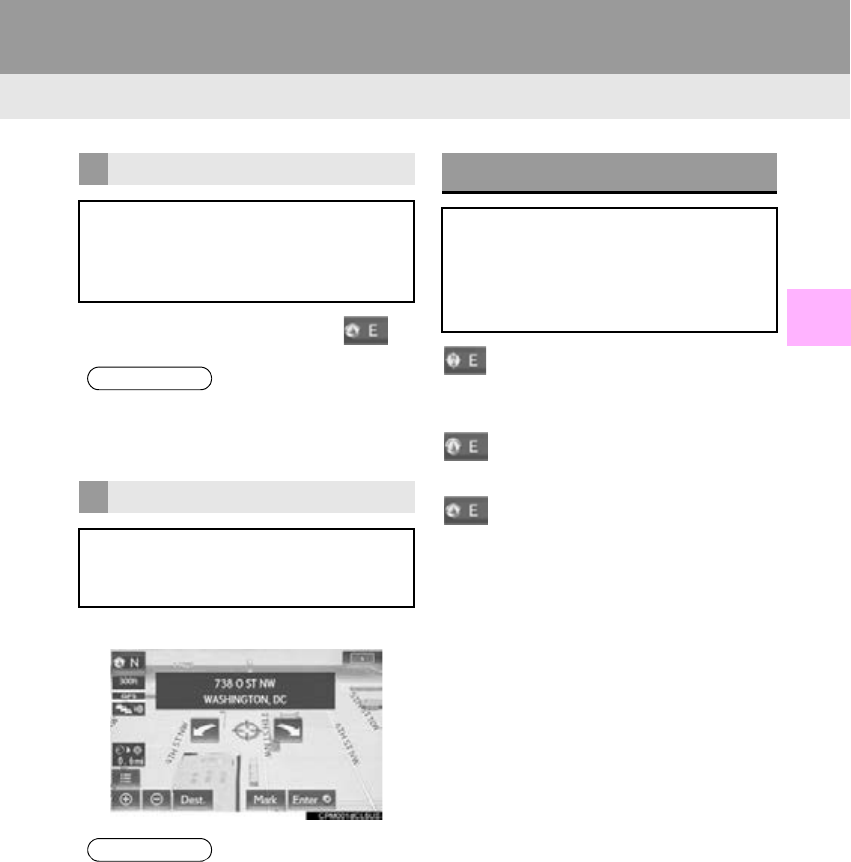
79
1. BASIC OPERATION
RX_Navi_U
NAVIGATION SYSTEM
3
-To display the normal map, select .
1Select an arrow to rotate.
: North-up symbol
Regardless of the direction of vehicle travel,
north is always up.
: Heading-up symbol
The direction of vehicle travel is always up.
: 3D Heading-up symbol
The direction of vehicle travel is always up.
-The letter(s) beside this symbol indicate the
vehicle’s heading direction (e.g. N for
north).
3D CITY MODEL MAP
A 3D city model map can be displayed
for some areas in major cities when the
map scale is 700 ft. (200 m) or less on
the 3D map screen.
INFORMATION
●The 3D city model map can be set the
display on/off. (P. 130)
ROTATING 3D MAP
3D map and 3D city model map can be
rotated when arrows appear around the
cursor while scrolling.
INFORMATION
●The viewing angle of the 3D map can be
changed. (P. 1 3 2 )
ORIENTATION OF THE MAP
The orientation of the map can be
changed between 2D north-up, 2D
heading-up and 3D heading-up by se-
lecting the orientation symbol displayed
at the top left of the screen.
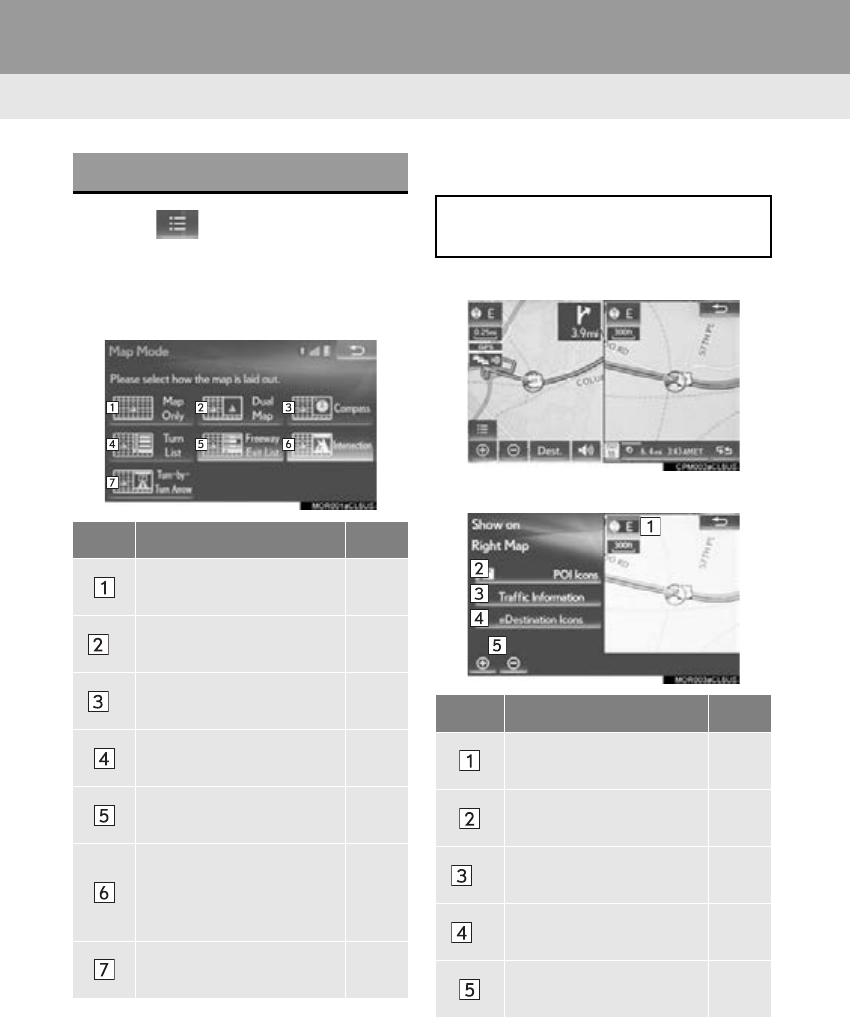
80
1. BASIC OPERATION
RX_Navi_U
1Select on the map screen.
(P. 74)
2Select “Map Mode”.
3Select the desired configuration button.
-Depending on the conditions, certain
screen configuration buttons cannot be
selected.
■DUAL MAP*1
1Select any point on the right side map.
2Select the desired item.
-When set to on, the indicator will illuminate.
SWITCHING THE MAP MODE
No. Function Page
Select to display the single
map screen.
*1Select to display the dual
map screen. 80
*1Select to display the com-
pass mode screen. 81
Select to display the turn
list screen. 113
Select to display the free-
way exit list screen. 111
Select to display the inter-
section guidance screen
or the guidance screen on
the freeway.
113
Select to display the turn-
by-turn arrow screen. 114
The map on the left is the main map.
The right side map can be edited.
No. Function Page
Select to change the ori-
entation of the map. 79
Select to display POI
icons. 83
*2Select to show traffic in-
formation. 88
*2Select to display eDesti-
nation icons. 365
Select to change the map
scale. 78
*1: With 8-inch display
*2: This function is not made available on some models.
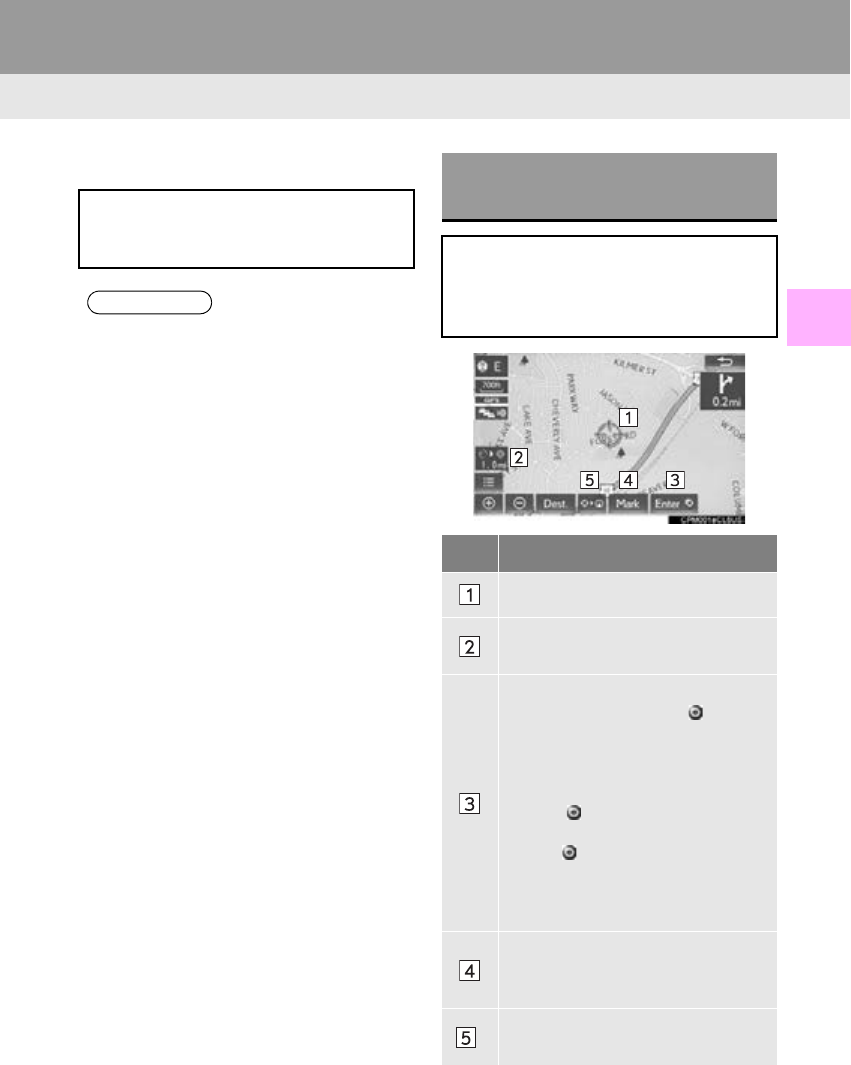
81
1. BASIC OPERATION
RX_Navi_U
NAVIGATION SYSTEM
3
■COMPASS*
Information about the destination, cur-
rent position and a compass is displayed
on the screen.
INFORMATION
●The destination mark is displayed in the
direction of the destination. When driv-
ing, refer to the longitude and latitude
coordinates, and the compass, to make
sure that the vehicle is headed in the
direction of the destination.
●When the vehicle travels out of the cover-
age area, the guidance screen changes to
the whole compass mode screen.
*: With 8-inch display
SCREEN SCROLL
OPERATION
Use the scroll feature to move the de-
sired point to the center of the screen for
looking at a point on the map that is dif-
ferent from the current position.
No. Information/Function
Cursor mark
Distance from the current position to
the cursor mark
Select to set as a destination.
When selecting “Go to ” on the
following map screen, the navigation
system performs a search for the
route. (P. 103)
If a destination has already been set,
“Go to ” and “A d d t o R o u t e ” will
be displayed.
“Go to ”: Select to delete the exist-
ing destination(s) and set a new one.
“Add to Route”: Select to add a des-
tination.
Select to register as a memory point.
To change the icon, name, etc.:
P. 124
*Select to return to the current posi-
tion.
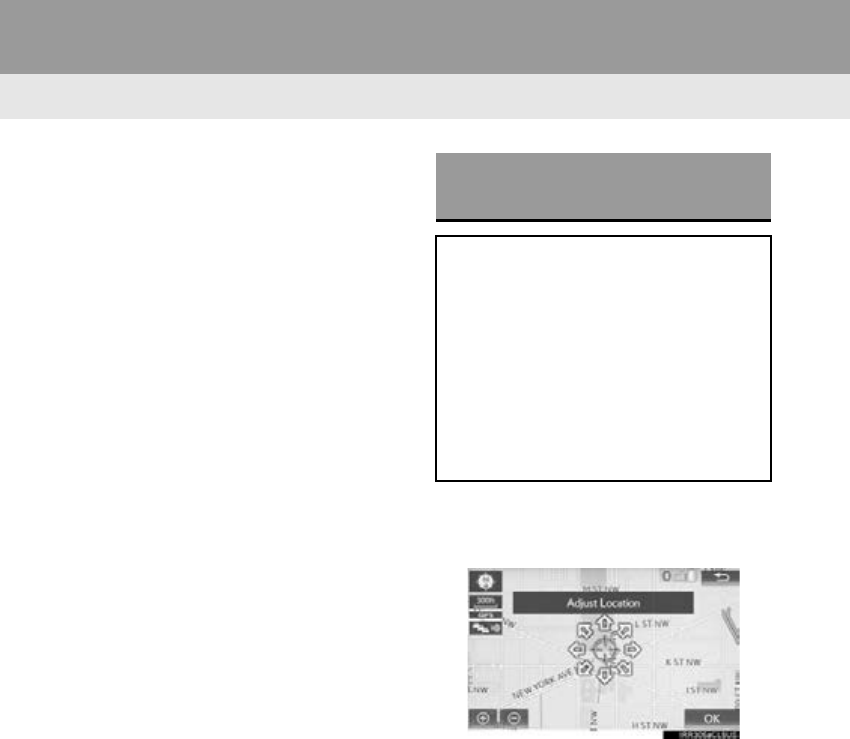
82
1. BASIC OPERATION
RX_Navi_U
-To scroll over the map screen, place the
cursor mark in the desired position and
then press and hold the Remote Touch
knob. The map will continue scrolling in that
direction until the knob is released.
-With 12.3-inch display: Press the “MAP”
button on the Remote Touch to return to
the current position.
1Select one of the 8 directional arrows to
move the cursor to the desired point
and then select “OK”.
ADJUSTING LOCATION IN
SMALL INCREMENTS
The cursor location can be adjusted in
small increments when “A d j u s t L o c a -
tion” is selected on the setting map
screen.
Also, when changing the location of
memory points on the editing screen
(P. 126) and adjusting the current po-
sition mark manually on the “Calibration”
screen (P. 133), 8 directional arrows
may appear for this purpose.
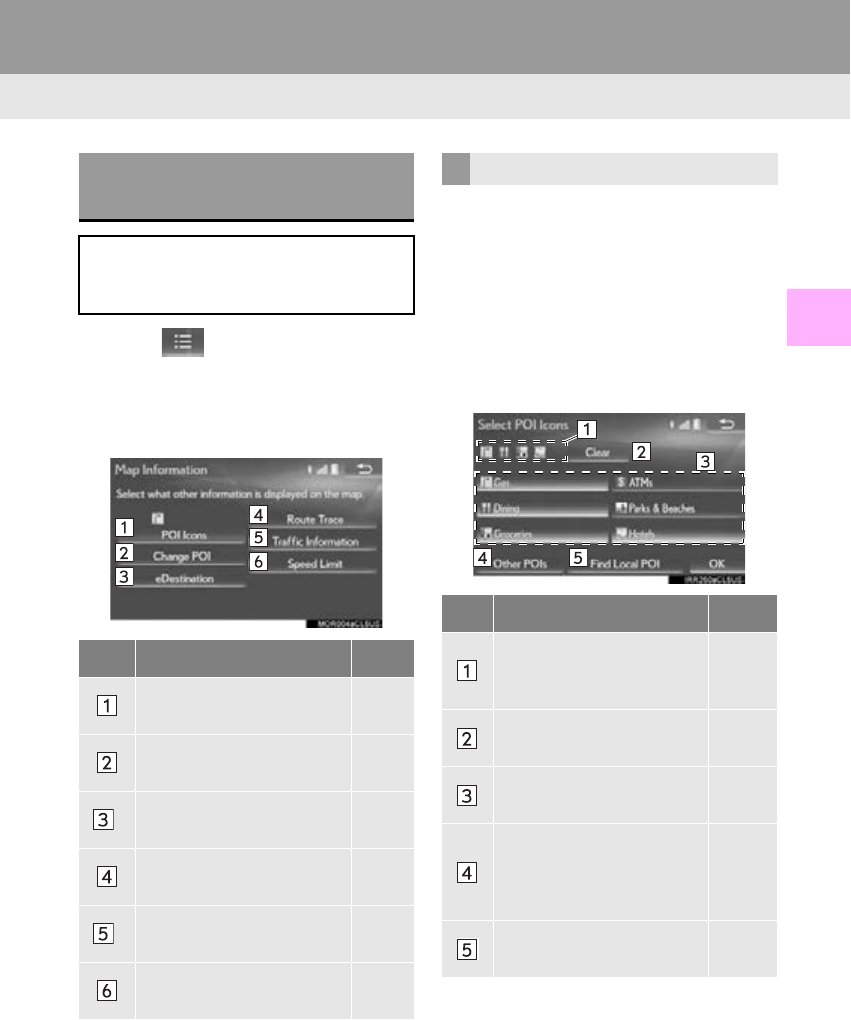
83
1. BASIC OPERATION
RX_Navi_U
NAVIGATION SYSTEM
3
3. MAP SCREEN INFORMATION
1Select on the map screen.
(P. 74)
2Select “Map Information”.
3Select the desired items to be displayed.
-When set to on, the indicator will illuminate.
1Display the “Map Information” screen.
(P. 83)
2Select “Select POI”.
-When the POI icons to be displayed on the
map screen have already been set,
“Change POI” is displayed.
3Select the desired POI category and se-
lect “OK”.
DISPLAYING MAP
INFORMATION
Information such as POI icons, route
trace, speed limit, etc. can be displayed
on the map screen.
No. Function Page
Select to display the select-
ed POI icons.
Select to select or change
POI icons. 83
*Select to display eDestina-
tion icons. 365
Select to display route
trace. 85
*Select to display traffic in-
formation. 88
Select to display speed limit
icon.
*: This function is not made available on
some models.
SELECTING THE POI ICONS
No. Information/Function Page
Displays up to 5 selected
POI icons on the map
screen.
Select to cancel the select-
ed POI icons.
Displays up to 6 POI icons
as favorite POI categories 131
Select to display other POI
categories if the desired
POIs cannot be found on
the screen.
84
Select to search for the
nearest POIs. 84
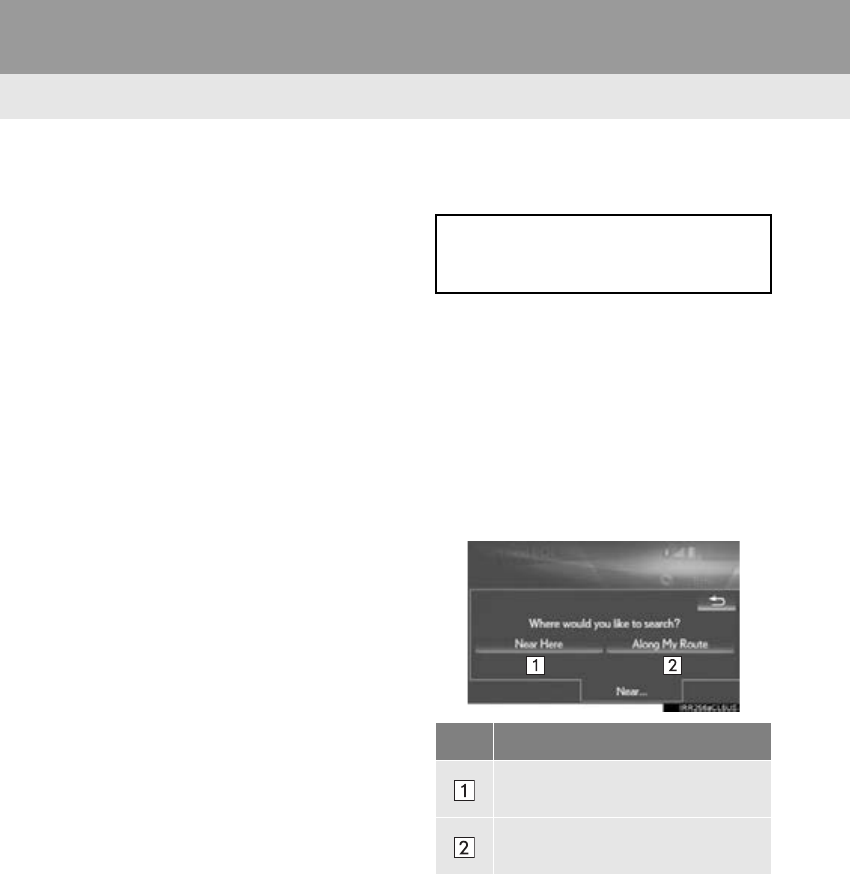
84
1. BASIC OPERATION
RX_Navi_U
■SELECTING OTHER POI ICONS
TO BE DISPLAYED
1Select “Other POIs”.
2Select the desired POI categories and
select “OK”.
“List All Categories”: Select to display all
POI categories. To add more POI catego-
ries, select “More”.
■DISPLAYING THE LOCAL POI
LIST
1Select “Find Local POI”.
2Select the desired POI.
“Near...”: Select to search for POIs near the
current position or along the route.
3Check that the selected POI is dis-
played on the map screen.
When “Near...” is selected
1Select the desired item.
POIs that are within 20 miles (32 km) of
the current position will be listed from
among the selected categories.
No. Function
Select to search for POIs near the
current position.
Select to search for POIs along the
route.
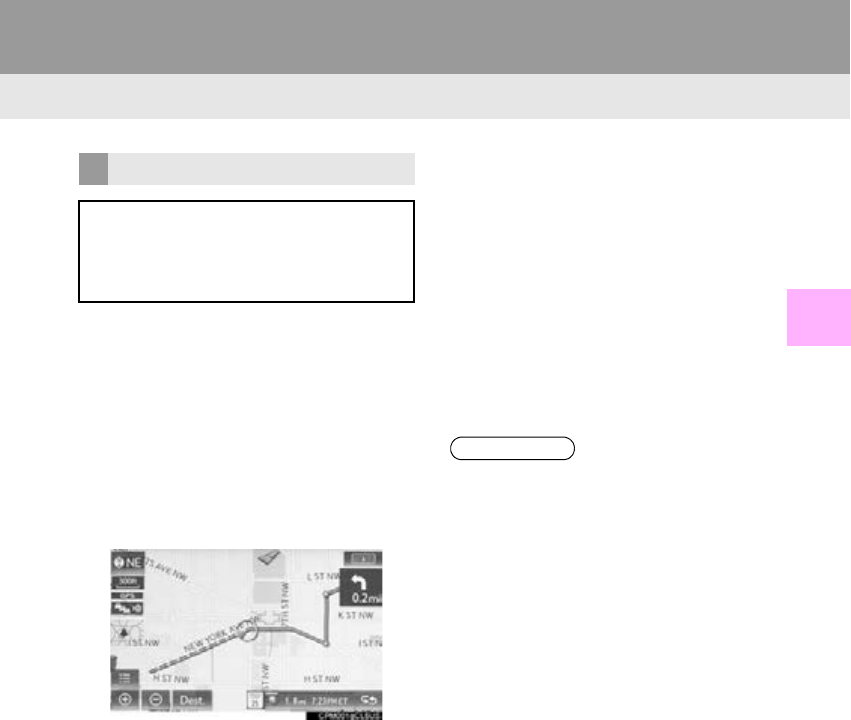
85
1. BASIC OPERATION
RX_Navi_U
NAVIGATION SYSTEM
3
■START RECORDING THE ROUTE
TRACE
1Display the “Map Information” screen.
(P. 83)
2Select “Route Trace”.
-The “Route Trace” indicator illuminates and
the route trace starts.
3Check that the traveled line is displayed.
■STOP RECORDING THE ROUTE
TRACE
1Display the “Map Information” screen.
(P. 83)
2Select “Route Trace” again.
3A confirmation screen will be displayed.
“Yes”: Select to keep the recorded
route trace.
“No”: Select to erase the recorded
route trace.
ROUTE TRACE
The traveled route can be stored and re-
traced on the map screen. This feature is
available when the map scale is 30 miles
(50 km) or less.
INFORMATION
●The traveled route can be stored up to
124 miles (200 km).
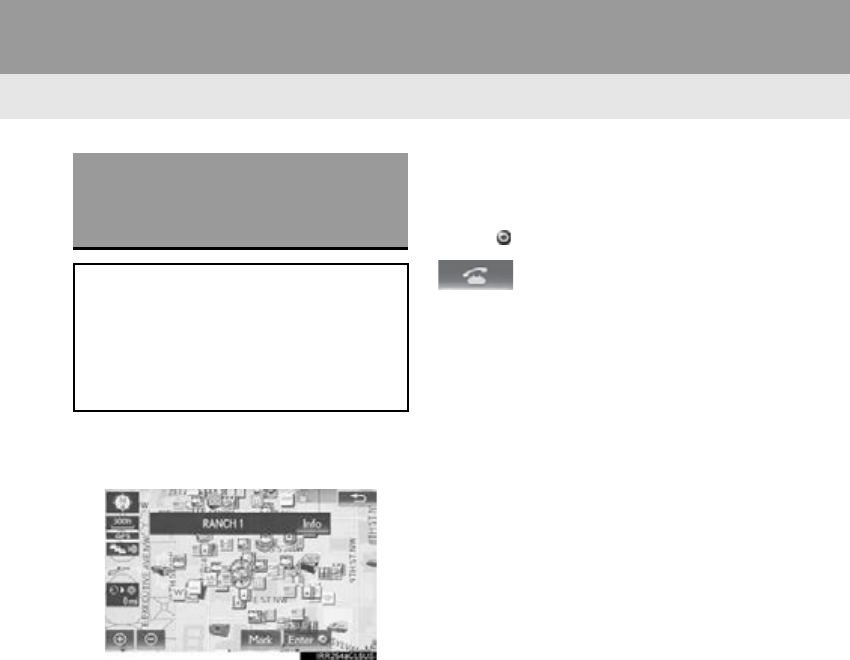
86
1. BASIC OPERATION
RX_Navi_U
1Place the cursor over an icon.
2Select “Info”.
“Mark”: Select to register as a memory
point. To change the icon, name, etc.:
P. 124
“Enter ”: Select to set as a destination.
: Select to call the registered
number.
“Delete”: Select to delete destination or
memory point.
“Edit”: Select to display the edit memory
point screen.
“Detail”: Select to display detailed infor-
mation.
DISPLAYING INFORMATION
ABOUT THE ICON WHERE
THE CURSOR IS SET
When the cursor is placed over an icon
on the map screen, the name bar is dis-
played on the upper part of the screen. If
“Info” appears on the right side of the
name bar, detailed information can be
displayed.
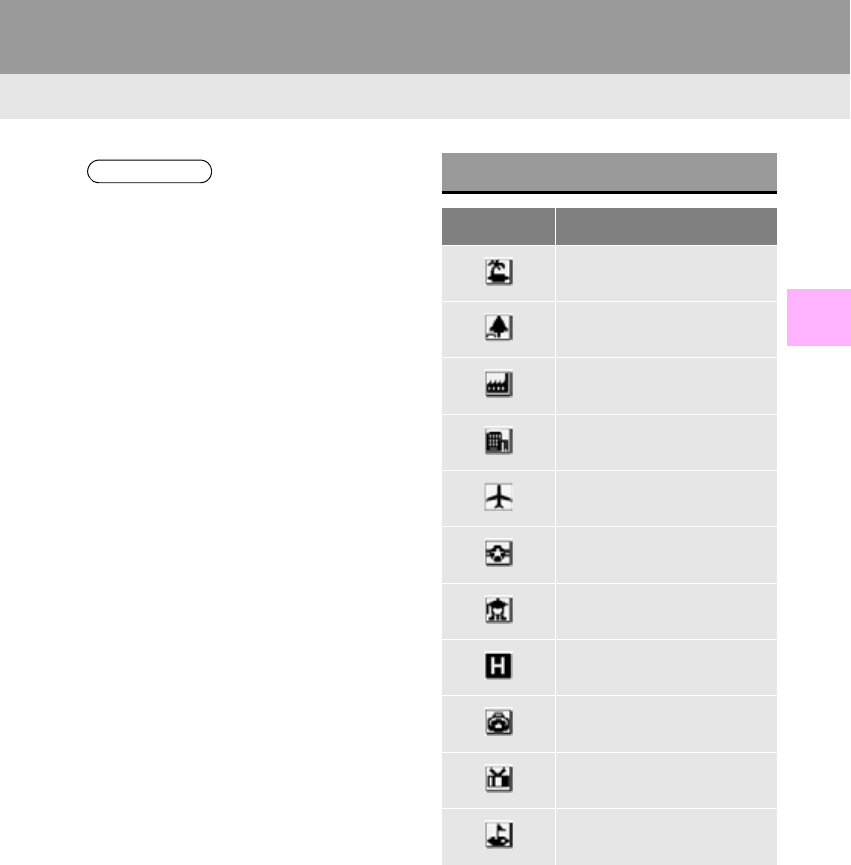
87
1. BASIC OPERATION
RX_Navi_U
NAVIGATION SYSTEM
3
INFORMATION
●Even when traffic information is not cur-
rently being received, traffic information
and “Info” will be displayed for a while
after traffic information has been
received.
●In some situations, calls to a POI may
automatically change to an international
call or may not be possible as a domestic
call.
STANDARD MAP ICONS
Icon Name
Island
Park
Industry
Business facility
Airport
Military
University
Hospital
Stadium
Shopping mall
Golf
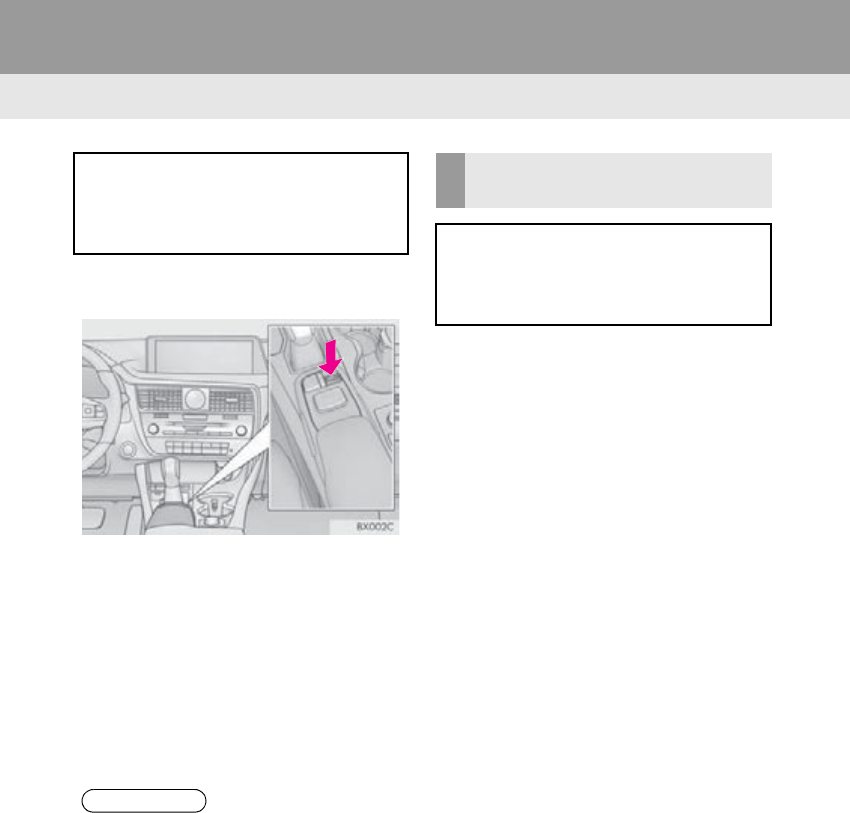
88
1. BASIC OPERATION
RX_Navi_U
4. TRAFFIC INFORMATION*
1Press the “MENU” button on the
Remote Touch.
2Select “Info”.
3Select “Traffic Incidents”.
4Select the desired item.
“Traffic Event List”: Select to display a list
of current traffic information. (P. 88)
“Predictive Traffic Map”: Select to display
a map with predictive traffic data.
(P. 89)
1Display the “Traffic” screen. (P. 88)
2Select “Traffic Event List”.
3Select the desired traffic information.
“On Current Road”: Select to display traffic
information for the current road.
“On Current Route”: Select to display traf-
fic information for the set route.
-When set to on, the indicator will illuminate.
4Check that the traffic information is dis-
played.
“Detail”: Select to display detailed traffic in-
formation.
Traffic data can be received via HD Ra-
dio broadcast or LEXUS App Suite to
display traffic information on the map
screen.
INFORMATION
●If a large amount of information is being
received, it may take longer than normal
for the information to be displayed on the
screen
DISPLAYING TRAFFIC
INFORMATION
A list of current traffic information can
be displayed along with information on
the location and the distance of the inci-
dent.
*: This function is not made available on some models.
89
1. BASIC OPERATION
RX_Navi_U
NAVIGATION SYSTEM
3
1Display the “Traffic” screen. (P. 88)
2Select “Predictive Traffic Map”.
3Scroll the map to the desired point and
set the time of predictive traffic informa-
tion.
-The time of the predictive traffic informa-
tion can be displayed in 15-minute steps up
to +45 minutes.
“+”: Moves the time forward 15 minutes.
“-”: Moves the time back 15 minutes.
1Select on the map screen.
(P. 74)
2Select “Map Information”.
3Select “Traffic Information”.
-When set to on, the indicator will illuminate.
4Check that the traffic information is dis-
played.
DISPLAYING PREDICTIVE
TRAFFIC MAP
A map with predictive traffic data can be
displayed.
DISPLAYING TRAFFIC
INFORMATION ON THE MAP
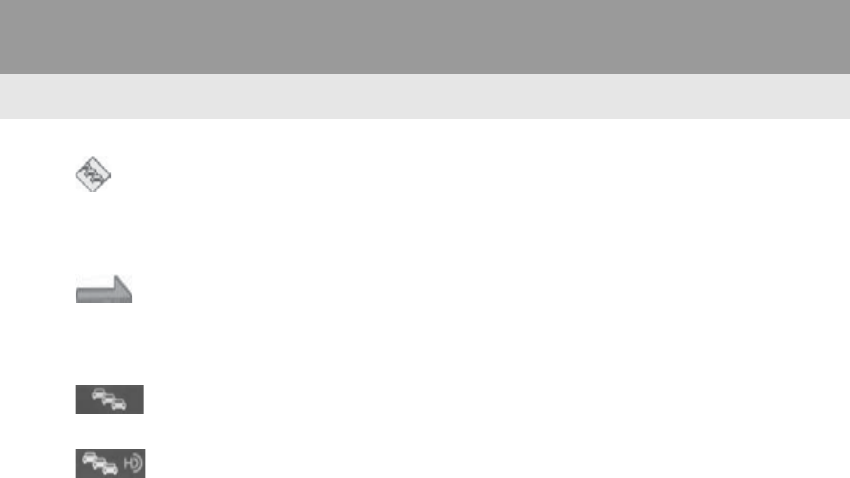
90
1. BASIC OPERATION
RX_Navi_U
: The icons show traffic incident, road
repair, traffic obstacles, etc. Select to dis-
play traffic information and start voice
guidance for the traffic information.
: The color of the arrow changes
depending on the traffic information re-
ceived.
-The indicator is displayed as follows:
: Traffic information has been re-
ceived.
: Traffic information has been re-
ceived via HD Radio broadcast.
No icon: Traffic information has not been
received.
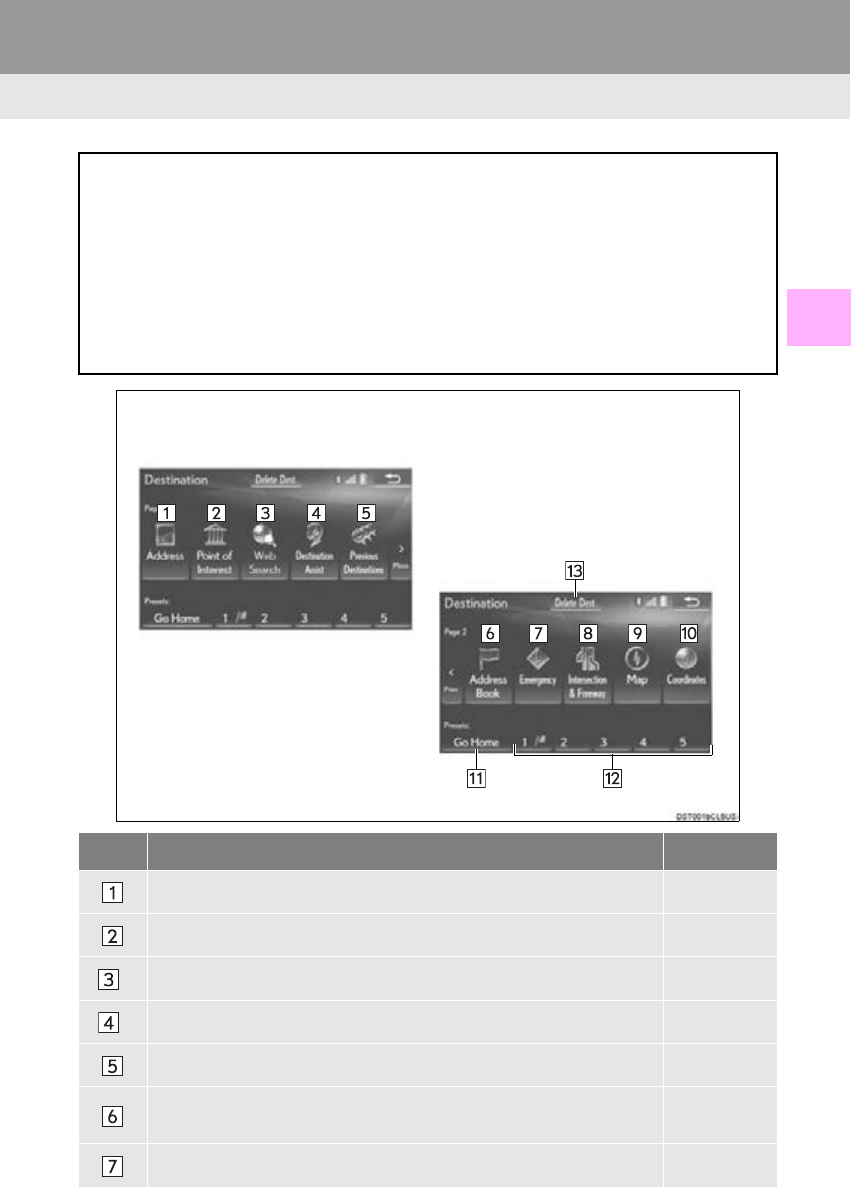
91
RX_Navi_U
NAVIGATION SYSTEM
3
2. DESTINATION SEARCH
1. DESTINATION SEARCH OPERATION
The “Destination” screen can be reached by the following methods:
With 8-inch display
Select “Dest.” on the map screen. (P. 74)
With 12.3-inch display
-From the map screen
Select “Dest.”on the map screen. (P. 74)
-From the “Menu” screen
Select “Destination” on the “Menu” screen. (P. 12)
No. Function Page
Select to search for a destination by address. 94
Select to search for a destination by point of interest. 95
*Select to search for a destination by online database. 362
*Select to search for a destination via the Lexus response center. 364
Select to search for a destination from previously set destinations. 99
Select to search for a destination from a registered entry in “Address
Book”. 99
Select to search for a destination from emergency service points. 100
92
2. DESTINATION SEARCH
RX_Navi_U
Select to search for a destination by intersection or freeway entrance/
exit. 100
Select to search for a destination by the last displayed map. 102
Select to search for a destination by coordinates. 102
Select to set a destination by home. 93
Select to set a destination from preset destinations. 93
Select to delete set destinations. 117
*: This function is not made available on some models.
No. Function Page
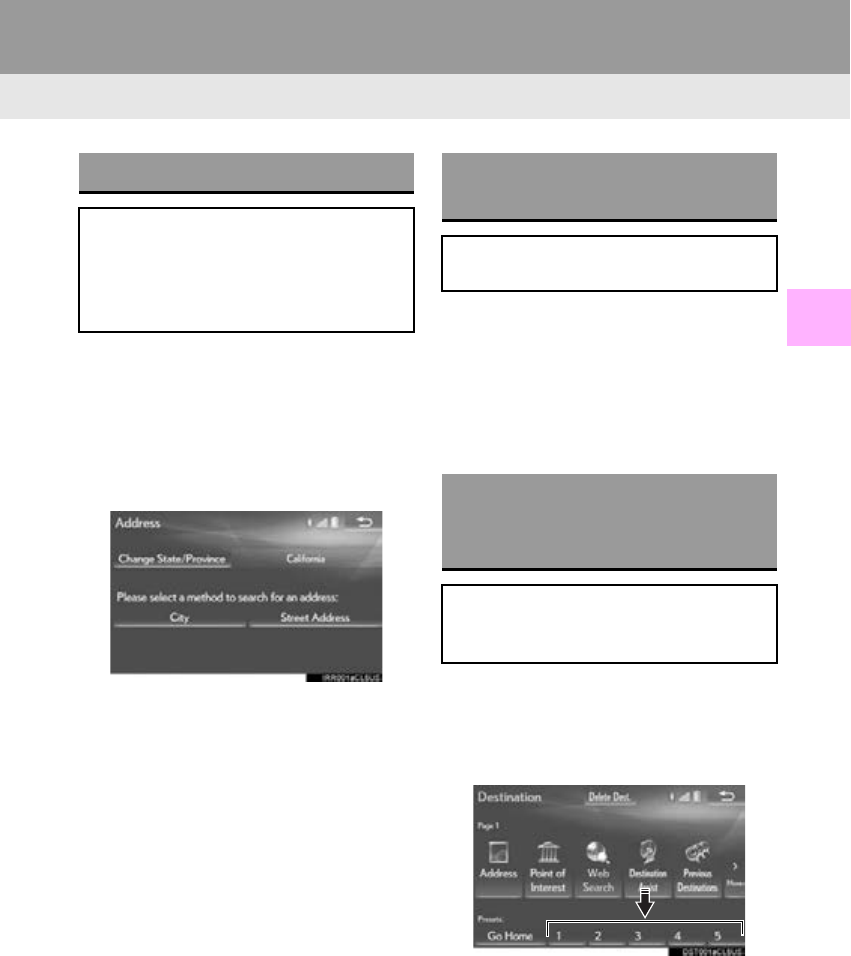
93
2. DESTINATION SEARCH
RX_Navi_U
NAVIGATION SYSTEM
3
1Display the “Destination” screen.
(P. 91)
2Select “A d d r e s s ” , “Point of Interest” or
“Intersection & Freeway”.
3Select “Select State/Province” or
“Change State/Province”.
-If a state (province) has not been selected
yet, “Select State/Province” is displayed.
4Select the desired state (province).
-To change countries, select the “United
States”, “Canada” or “Mexico” tab.
-For map database information and updates:
P. 139
1Display the “Destination” screen.
(P. 91)
2Select “Go Home”.
-The navigation system performs a search
for the route and the entire route map is
displayed. (P. 1 0 4 )
1Display the “Destination” screen.
(P. 91)
2Select any of the preset destination but-
tons (1-5).
-The navigation system performs a search
for the route and the entire route map is
displayed. (P. 1 0 4 )
SELECTING SEARCH AREA
The selected state (province) can be
changed to set a destination from a
different state (province) by using
“Address”, “Point of Interest” or
“Intersection & Freeway”.
SETTING HOME AS
DESTINATION
To use this function, it is necessary to
register a home address. (P. 121)
SETTING PRESET
DESTINATIONS AS
DESTINATION
To use this function, it is necessary to
register preset destinations to the preset
screen buttons (1-5). (P. 122)
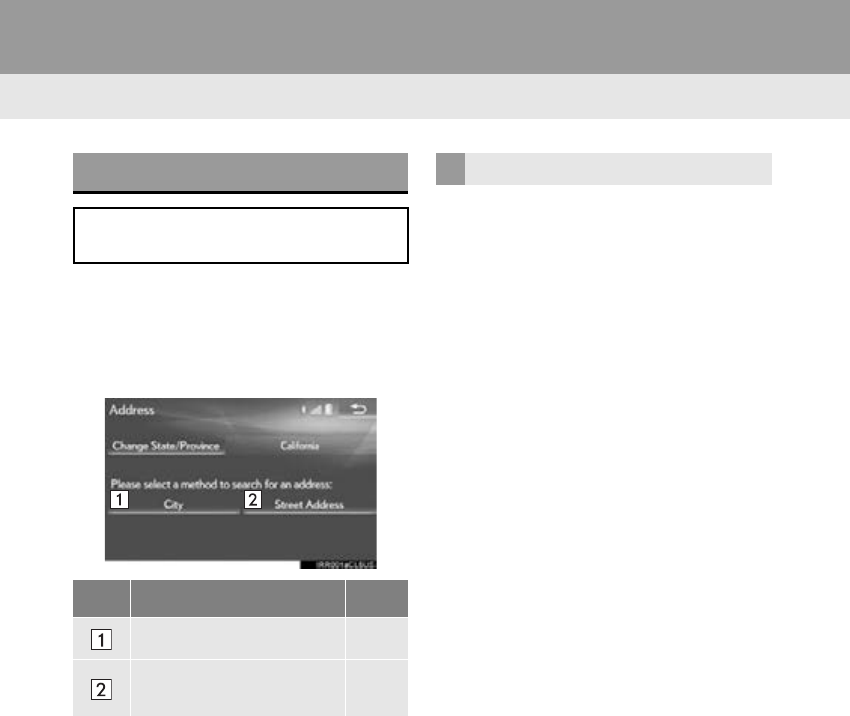
94
2. DESTINATION SEARCH
RX_Navi_U
1Display the “Destination” screen.
(P. 91)
2Select “Address”.
3Select the desired search method.
1Select “City”.
2Enter a city name and select “OK”.
“Last 5 Cities”: Select the city name from
the list of the last 5 cities.
3Select the desired city name.
4Enter a street name and select “OK”.
5Select the desired street name.
6Enter a house number and select “OK”.
-If the same address exists, the address list
screen will be displayed. Select the desired
address.
SEARCHING BY ADDRESS
There are 2 methods to search for a des-
tination by address.
No. Function Page
Select to search by city. 94
Select to search by street
address. 95
SEARCHING BY CITY
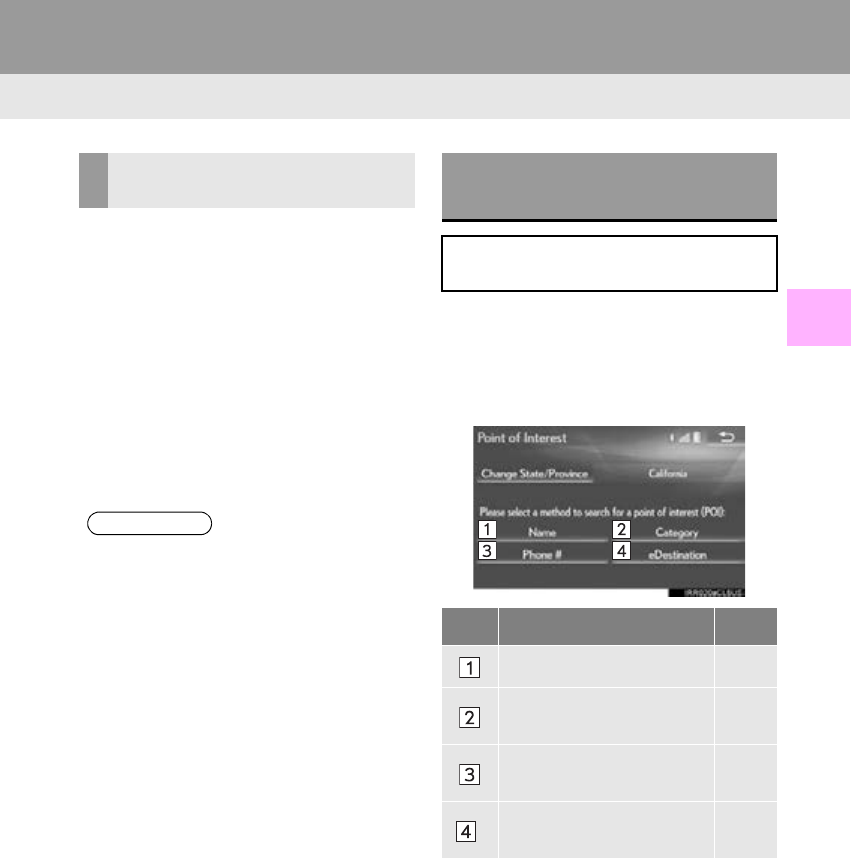
95
2. DESTINATION SEARCH
RX_Navi_U
NAVIGATION SYSTEM
3
1Select “Street Address”.
2Enter a house number and select “OK”.
3Enter a street name and select “OK”.
4Select the desired street name.
5Enter a city name and select “OK”.
6Select the desired city name.
-If the same address exists, the address list
screen will be displayed. Select the desired
address.
1Display the “Destination” screen.
(P. 91)
2Select “Point of Interest”.
3Select the desired search method.
SEARCHING BY STREET
ADDRESS
INFORMATION
●A street name can be searched using
only the body part of its name.
For example: S WESTERN AVE
• A search can be performed by entering
“S WESTERN AVE”, “WESTERN AVE”
or “WESTERN”.
SEARCHING BY POINT OF
INTEREST
There are 4 methods to search for a des-
tination by Points of Interest.
No. Function Page
Select to search by name. 96
Select to search by catego-
ry. 97
Select to search by phone
number. 98
*Select to search by eDesti-
nation. 367
*: This function is not made available on
some models.
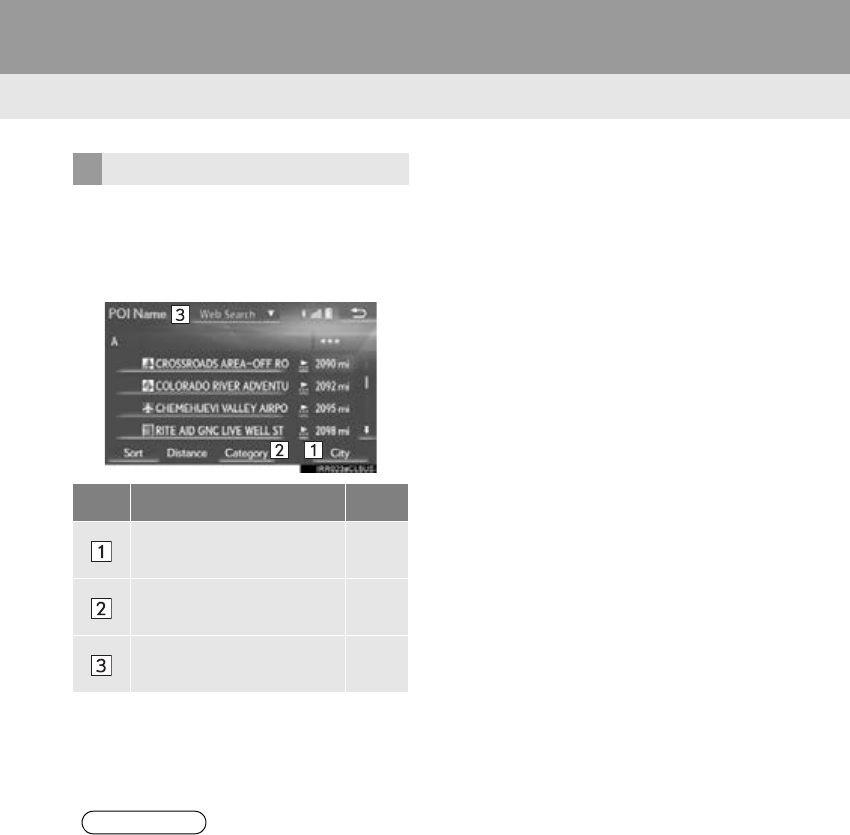
96
2. DESTINATION SEARCH
RX_Navi_U
1Select “Name”.
2Enter a POI name and select “OK”.
3Select the desired POI.
-When entering the name of a specific POI,
and there are 2 or more sites with the same
name, the list screen will be displayed.
Select the desired POI.
■SELECTING A CITY TO SEARCH
1Select “City”.
2Enter a city name and select “OK”.
“Any City”: Select to cancel the city setting.
3Select the desired city name.
4Select the desired POI.
■SELECTING FROM THE CATEGO-
RIES
1Select “Category”.
2Select the desired category.
-If there is more than 1 detailed item of the
selected category, the detailed list will be
displayed.
“List All Categories”: Select to display all
POI categories.
3Select the desired POI.
SEARCHING BY NAME
No. Function Page
Select to search for POI in
the desired city. 96
Select to search for POI
from the category list. 96
Select to search for POI us-
ing online database. 97
INFORMATION
●To search for a facility name using multi-
ple search words, put a space between
each word.
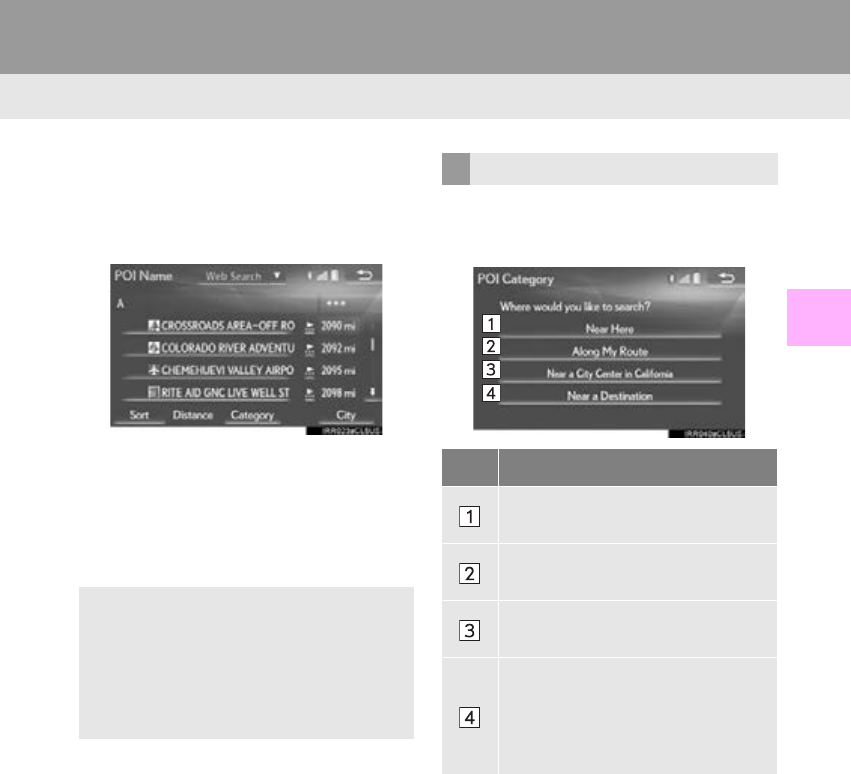
97
2. DESTINATION SEARCH
RX_Navi_U
NAVIGATION SYSTEM
3
■SEARCHING FOR POI USING
WEB SEARCH*
1Select “” next to “Web Search” to se-
lect a search engine.
2Select the desired search engine icon.
-The selected search engine icon will be dis-
played on the top center of the POI list
screen.
3Select the search engine icon.
1Select “Category”.
2Select the desired search point.
-Accessing to a search engine
For the procedure on how to conduct a
search via a search engine, go to “SET-
TING A DESTINATION USING
LEXUS App Suite” (P. 362), and fol-
low the steps from 3 onward.
SEARCHING BY CATEGORY
No. Function
Select to set the search point from
near the current position.
Select to search for POIs along the
set route.
Select to set the search point from
near a city center. (P. 98)
Select to set the search point from
near a destination. When more than
1 destination has been set, a list will
be displayed on the screen. Select
the item to be set.
*: This function is not made available on some models.
98
2. DESTINATION SEARCH
RX_Navi_U
3Select the desired POI category.
-If there is more than 1 detailed item of the
selected category, the detailed list will be
displayed.
“List All Categories”: Select to display all
POI categories.
“Favorite POI Categories”: Select to use
the 6 POIs that have been previously
set.(P. 131)
4Select the desired POI.
“Web Search”: Select to search for POI us-
ing online database. (P. 97)
When “Near a City Center in XX*” is se-
lected
1Select “Near a City Center in XX”.
2Enter a city name and select “OK”.
“Last 5 Cities”: Select the city name from
the list of the last 5 cities.
3Select the desired city name.
4Select “OK” when the city center map
screen is displayed.
5Follow the steps from 3 onward in
“SEARCHING BY CATEGORY”.
(P. 97)
*: XX represents the selected search area
name.
1Select “Phone #”.
2Enter a phone number and select “OK”.
-If there is more than 1 site with the same
number, the list screen will be displayed.
INFORMATION
●The names of POIs located within
approximately 200 miles (320 km) from
the selected search point can be dis-
played.
INFORMATION
●If the navigation system has never been
used, selecting the city name from “Last 5
Cities” will not be available.
SEARCHING BY PHONE
NUMBER
INFORMATION
●If there is no match for the entered phone
number, a list of identical numbers with
different area codes will be displayed.
99
2. DESTINATION SEARCH
RX_Navi_U
NAVIGATION SYSTEM
3
1Display the “Destination” screen.
(P. 91)
2Select “Previous Destinations”.
3Select the desired destination.
“Previous Start Point”: Select to display the
start point map of the previous guided
route.
“Delete”: Select to delete the previous des-
tination. (P. 129)
1Display the “Destination” screen.
(P. 91)
2Select “Address Book”.
3Select the desired address book entry.
“Options”: Select to register or edit address
book entries. (P. 125)
DESTINATION SEARCH BY
DESTINATION ASSIST*
The destination can be searched by call-
ing an operator of Destination Assist.
You can request either a specific busi-
ness, address, or ask for help locating
your desired destination. (P. 364)
SEARCHING FROM
PREVIOUS DESTINATIONS
INFORMATION
●The previous start point and up to 100
previously set destinations are displayed
on the screen.
SEARCHING BY ADDRESS
BOOK
To use this function, it is necessary to
register an address book entry.
(P. 124)
*: This function is not made available on some models.
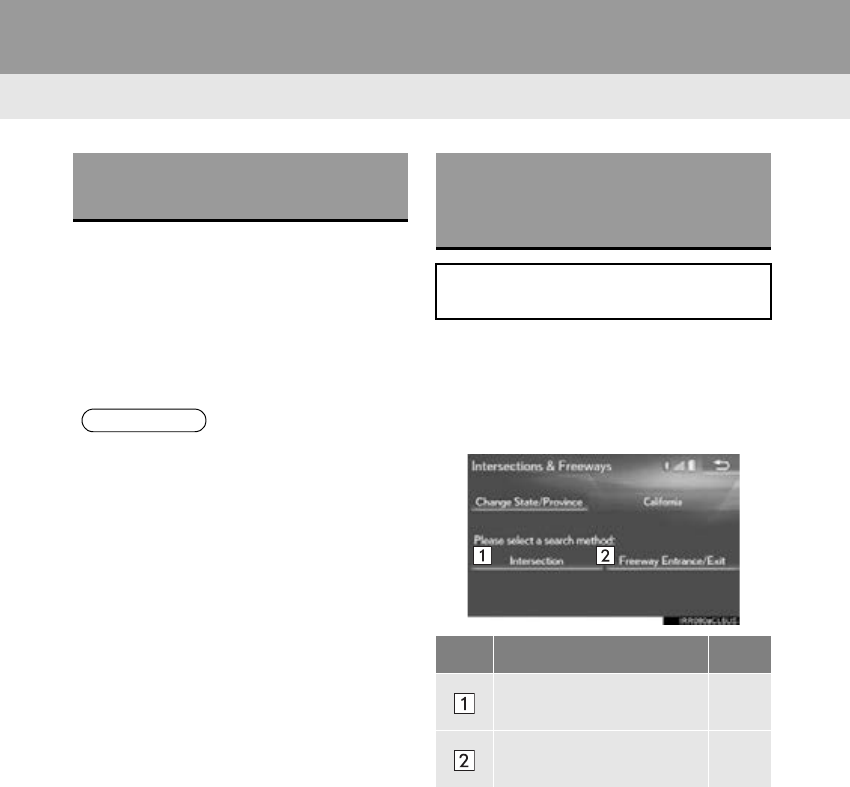
100
2. DESTINATION SEARCH
RX_Navi_U
1Display the “Destination” screen.
(P. 91)
2Select “Emergency”.
3Select the desired emergency category.
4Select the desired destination.
1Display the “Destination” screen.
(P. 91)
2Select “Intersection & Freeway”.
3Select the desired method.
SEARCHING BY
EMERGENCY
INFORMATION
●The navigation system does not guide in
areas where route guidance is unavail-
able. (P. 137)
SEARCHING BY
INTERSECTION AND
FREEWAY
There are 2 methods to search for a des-
tination by Intersection & Freeway.
No. Function Page
Select to search by inter-
section. 101
Select to search by freeway
entrance/exit. 101
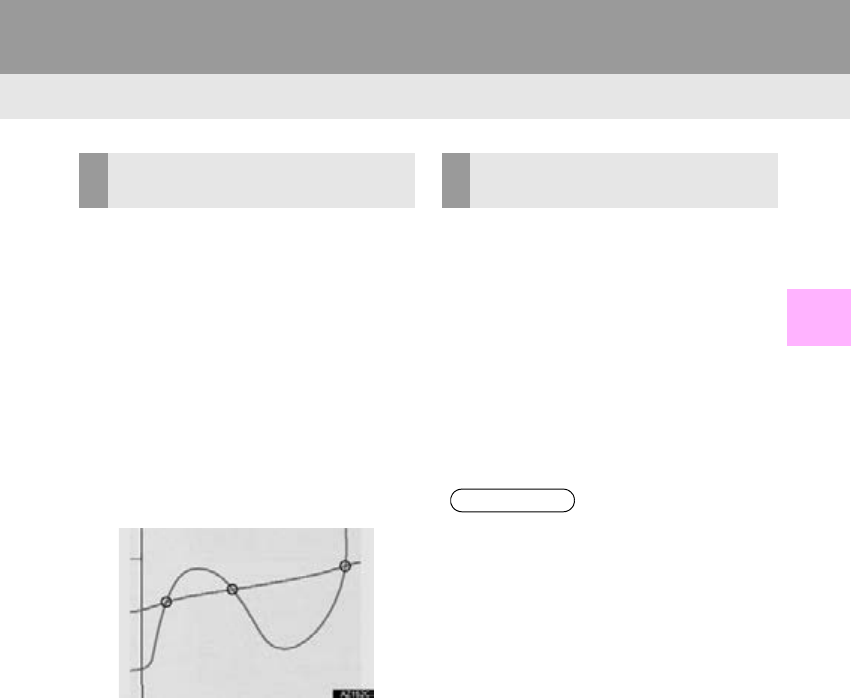
101
2. DESTINATION SEARCH
RX_Navi_U
NAVIGATION SYSTEM
3
1Select “Intersection”.
2Enter the name of the first intersecting
street which is located near the destina-
tion and select “OK”.
3Select the desired street name.
4Enter the name of the second intersect-
ing street and select “OK”.
5Select the desired street name.
-If the 2 streets cross at more than 1 inter-
section in a city, the list of intersections will
be displayed.
1Select “Freeway Entrance / Exit”.
2Enter a freeway name and select “OK”.
3Select the desired freeway.
4Select “Entrance” or “Exit”.
5Enter a freeway entrance or exit name
and select “OK”.
6Select the desired entrance or exit
name.
SEARCHING BY
INTERSECTION
SEARCHING BY FREEWAY
ENTRANCE/EXIT
INFORMATION
●Be sure to use the complete name of the
freeway or highway, including the hyphen,
when entering the destination. Freeways
and interstates use an “I” (I-405). US
highways use the state designation before
the number (CA-118).
102
2. DESTINATION SEARCH
RX_Navi_U
1Display the “Destination” screen.
(P. 91)
2Select “Map”.
3Scroll the map to the desired point and
select “Go to ”.
“A d j u s t L o c a t i o n ” : Select to adjust the posi-
tion in smaller increments. (P. 82)
-If a destination has already been set, “Go to
” and “Add to Route” will be displayed.
“Go to ”: Select to delete the existing des-
tination(s) and set a new one.
“Add to Route”: Select to add a destination.
-The navigation system performs a search
for the route and the entire route map is
displayed. (P. 1 0 4 )
1Display the “Destination” screen.
(P. 91)
2Select “Coordinates”.
3Enter the latitude and longitude and se-
lect “OK”.
SEARCHING BY MAP
By selecting “Map” the last displayed lo-
cation is displayed again on the map
screen. You can search for a destination
from this map.
SEARCHING BY
COORDINATES
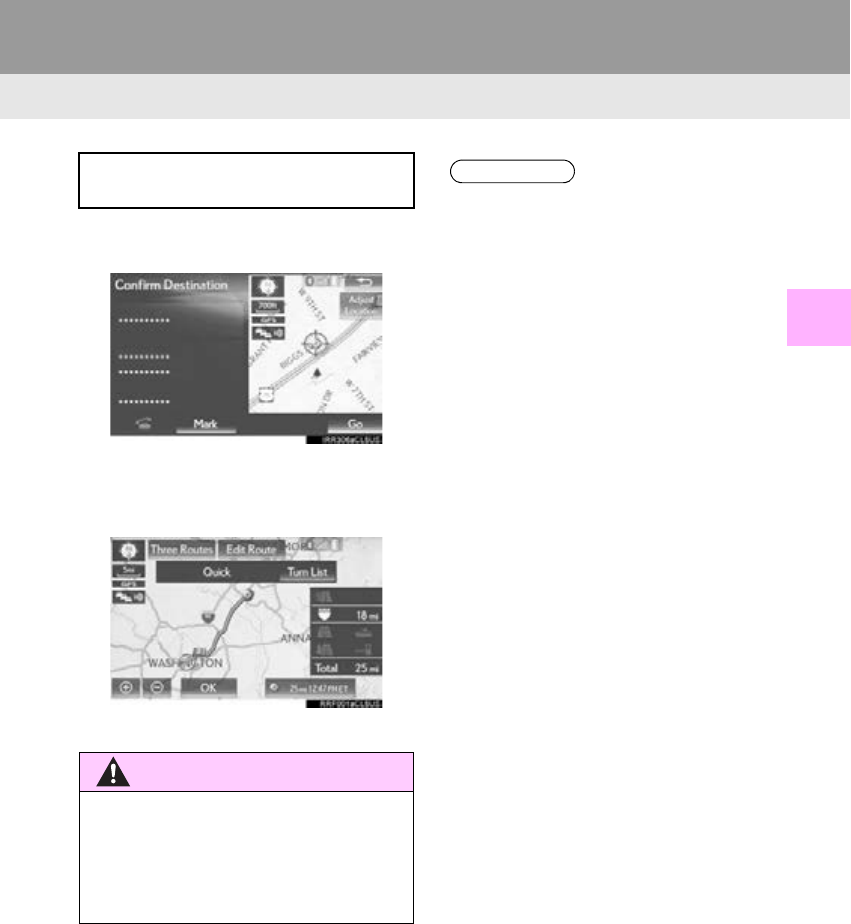
103
2. DESTINATION SEARCH
RX_Navi_U
NAVIGATION SYSTEM
3
2. STARTING ROUTE GUIDANCE
1Select “Go” on the confirm destination
screen.
-For details about this screen: P. 1 0 4
2Select “OK” on the entire route map
screen.
-For details about this screen: P. 1 0 4
When the destination is set, the confirm
destination screen will be displayed.
WARNING
●Be sure to obey traffic regulations and
keep road conditions in mind while driv-
ing. If a traffic sign on the road has been
changed, the route guidance may not
indicate such changed information.
INFORMATION
●The route for returning may not be the
same as that for going.
●The route guidance to the destination
may not be the shortest route or a route
without traffic congestion.
●Route guidance may not be available if
there is no road data for the specified
location.
●When setting the destination on a map
with a scale more than 0.5 mile (800 m),
the map scale changes to 0.5 mile (800
m) automatically. If this occurs, set the
destination again.
●If a destination that is not located on a
road is set, the vehicle will be guided to
the point on a road nearest to the destina-
tion. The road nearest to the selected
point is set as the destination.
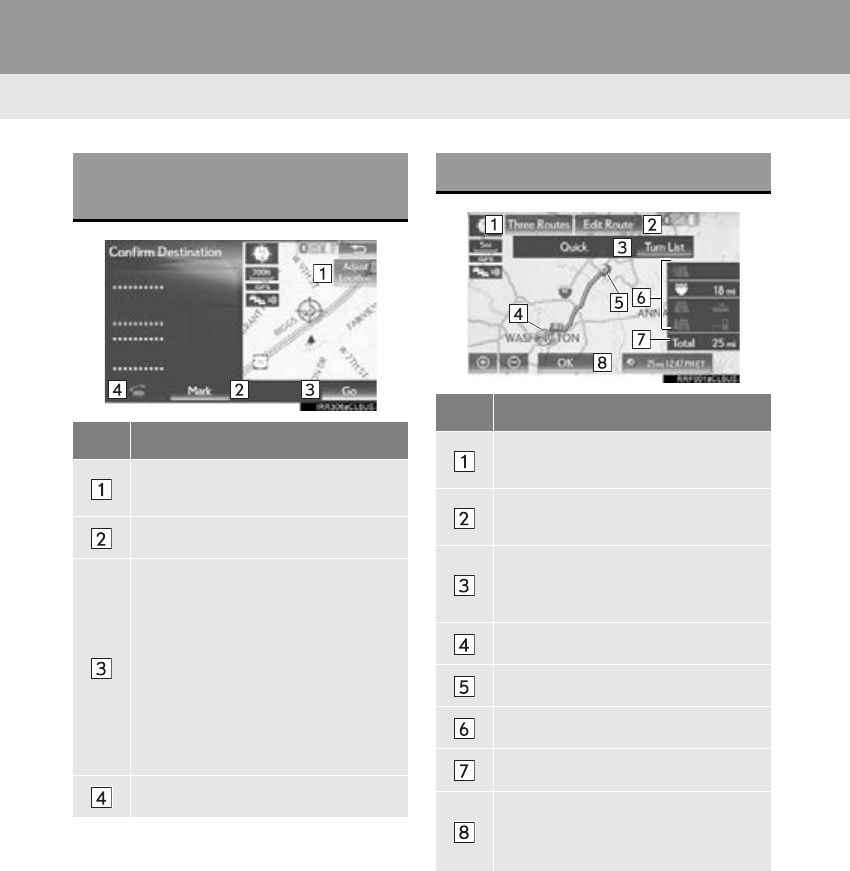
104
2. DESTINATION SEARCH
RX_Navi_U
CONFIRM DESTINATION
SCREEN
No. Function
Select to adjust the position in small-
er increments. (P. 82)
Select to register as a memory point.
Select to search for the route.
(P. 103)
If a destination has already been set,
“Go Directly” and “A d d t o R o u t e ”
will be displayed.
“Go Directly”: Select to delete the
existing destination(s) and set a new
one.
“Add to Route”: Select to add a des-
tination.
Select to call the registered number.
ENTIRE ROUTE MAP SCREEN
No. Information/Function
Select the desired route from 3 pos-
sible routes. (P. 105)
Select to change the route.
(P. 107)
Select to display a list of the turns re-
quired to reach the destination.
(P. 106)
Current position
Destination point
Type of route and its distance
Distance of the entire route
Select to start guidance.
Select and hold to start demo
mode. (P. 105 )
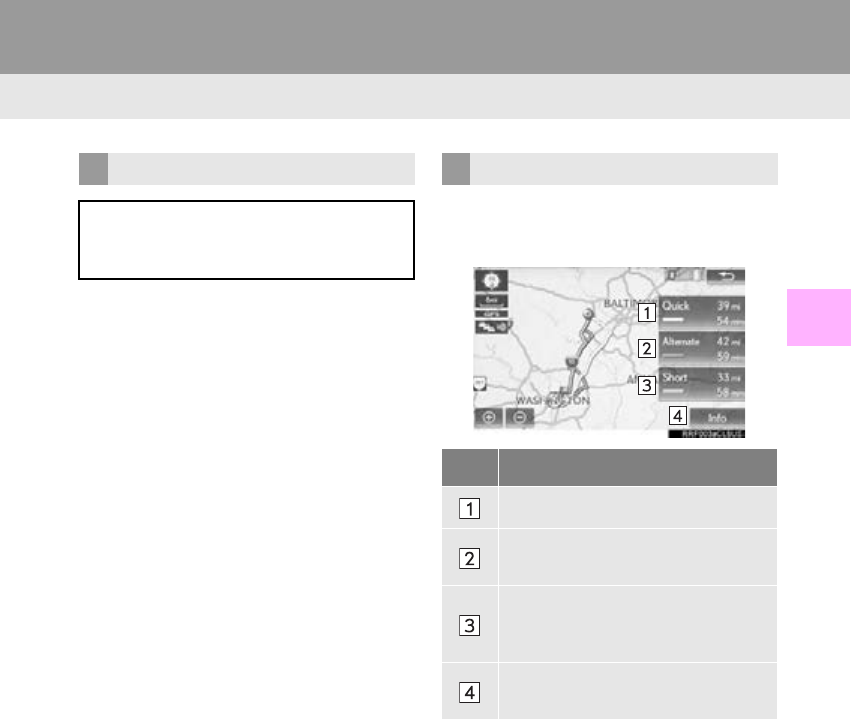
105
2. DESTINATION SEARCH
RX_Navi_U
NAVIGATION SYSTEM
3
1Select and hold “OK” on the entire
route map screen until a beep sounds.
-During demo mode, “Demo” is displayed
on the map screen.
-To end demo mode:
• With 8-inch display: Press the “HOME”
button on the Remote Touch.
• With 12.3-inch display: Press the “MAP”
button on the Remote Touch.
1Select “Three Routes”.
2Select the desired route.
STARTING DEMO MODE
Before starting the route guidance, the
demonstration of the route guidance
can be viewed.
3 ROUTES SELECTION
No. Function
Select to display the quickest route.
Select to display the alternative
route.
Select to display the route that is the
shortest distance to the set destina-
tion.
Select to display the information
about the 3 routes. (P. 106)
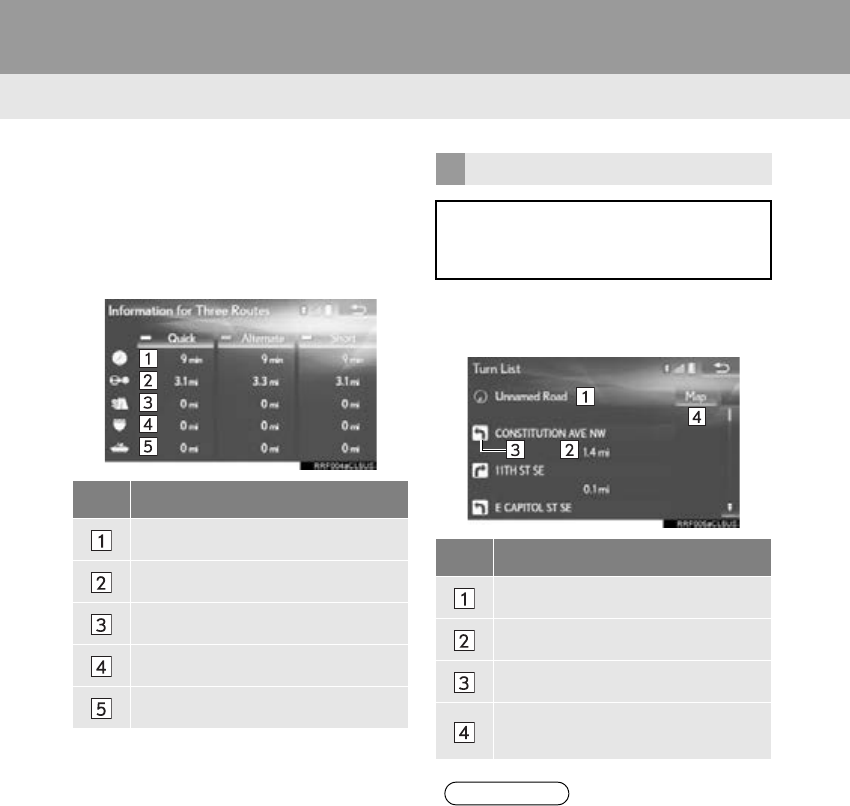
106
2. DESTINATION SEARCH
RX_Navi_U
■DISPLAYING 3 ROUTES INFOR-
MATION
1Select “Info”.
2Check that the “Information for Three
Routes” screen is displayed. 1Select “Turn List”.
2Check that the turn list is displayed.
No. Information
Time necessary for the entire trip
Distance of the entire trip
Distance of the toll road
Distance of the freeway
Distance of the ferry trip
DISPLAYING TURN LIST
A list of turn information from the cur-
rent position to the destination can be
displayed.
No. Information
Current position
Distance to the next turn
Turn direction at the intersection
Select to display the map of the se-
lected point.
INFORMATION
●However, not all road names on the route
may appear on the list. If a road changes
its name without requiring a turn (such as
on a street that runs through 2 or more
cities), the name change will not appear
on the list. The street names will be dis-
played in order from the starting point,
along with the distance to the next turn.
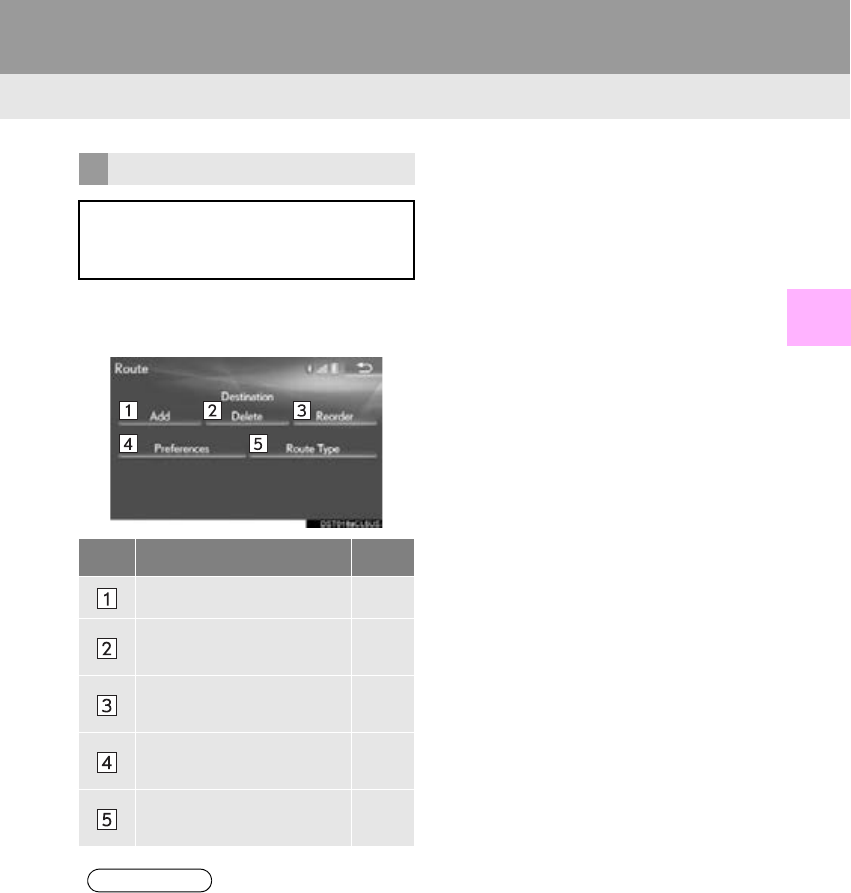
107
2. DESTINATION SEARCH
RX_Navi_U
NAVIGATION SYSTEM
3
1Select “Edit Route”.
2Select the desired item.
EDITING ROUTE
Destinations can be added, reordered
or deleted, and conditions for the route
to the destination can be changed.
No. Function Page
Select to add destinations. 116
Select to delete destina-
tions. 117
Select to reorder destina-
tions. 116
Select to set route prefer-
ences. 117
Select to change route
type. 117
INFORMATION
●Even if the “Freeways” indicator is
dimmed, the route cannot avoid including
a freeway in some cases. (P. 117)
●If the calculated route includes a trip by
ferry, the route guidance shows a sea
route. After traveling by ferry, the current
position may be incorrect. Upon recep-
tion of GPS signals, it is automatically
corrected.
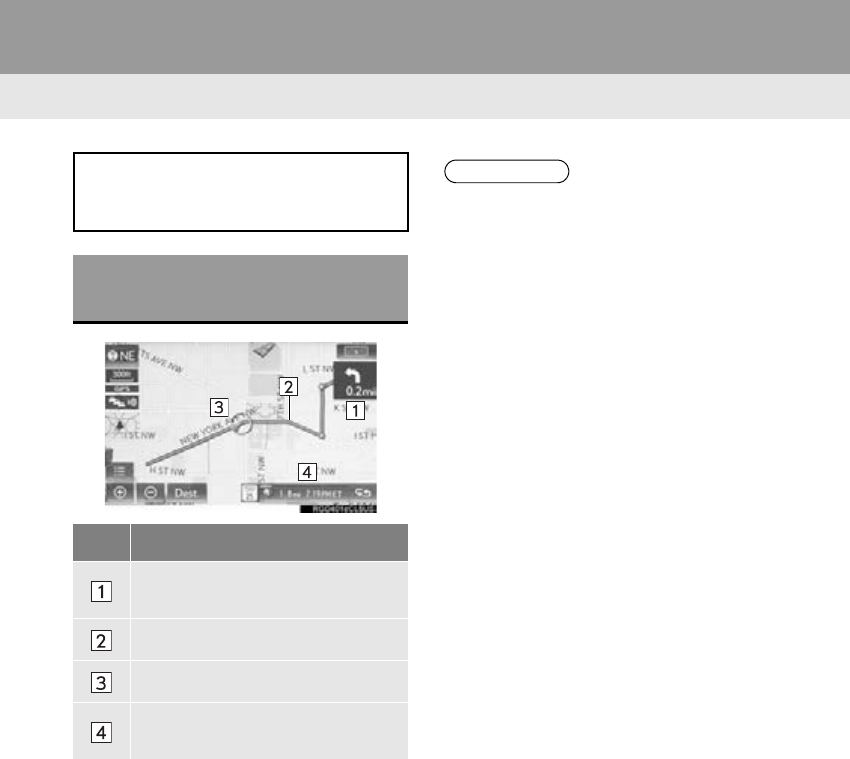
108
RX_Navi_U
3. ROUTE GUIDANCE
1. ROUTE GUIDANCE SCREEN
During the route guidance, various
types of guidance screens can be dis-
played depending on conditions.
SCREEN FOR ROUTE
GUIDANCE
No. Information
Distance to the next turn and an ar-
row indicating the turning direction
Guidance route
Current position
Current street name or route infor-
mation
INFORMATION
●If the vehicle goes off the guidance route,
the route is searched again.
●For some areas, the roads have not been
completely digitized in our database. For
this reason, the route guidance may
select a road that should not be traveled
on.
●When arriving at the set destination the
destination name will be displayed on the
upper part of the screen.
●When the head-up display is set to on,
turn-by-turn guidance arrows will be dis-
played on the windshield.
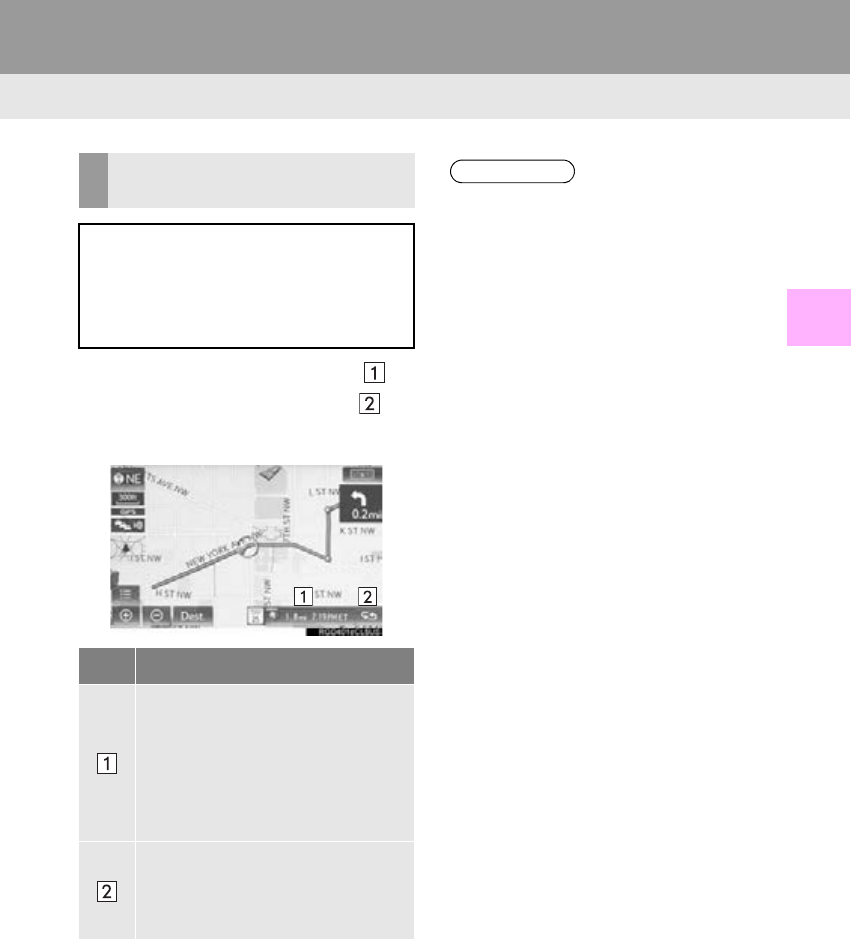
109
3. ROUTE GUIDANCE
RX_Navi_U
NAVIGATION SYSTEM
3
1Select the route information bar ( ) or
the route information button ( ) to
change the display of the route informa-
tion bar.
CHANGING ROUTE
INFORMATION BAR
When the vehicle is on the guidance
route, the route information bar displays
the current street name or the distance
with the estimated travel/arrival time to
the destination.
No. Information
Select to change the display be-
tween the estimated travel time and
the estimated arrival time.
“Arrival Time”: Select to display the
estimated arrival time.
“Time to Dest.”: Select to display the
estimated travel time.
Select to change the display be-
tween the current street name and
the distance with the estimated trav-
el/arrival time.
INFORMATION
●When the vehicle is on the guidance
route, the distance measured along the
route is displayed. Travel time and arrival
time are calculated based on the average
speed for the specified speed limit.
●When the vehicle gets off the guidance
route, the arrow facing the destination is
displayed instead of the estimated travel/
arrival time.
●The route information bar fills from left to
right as the vehicle progresses on the
route.
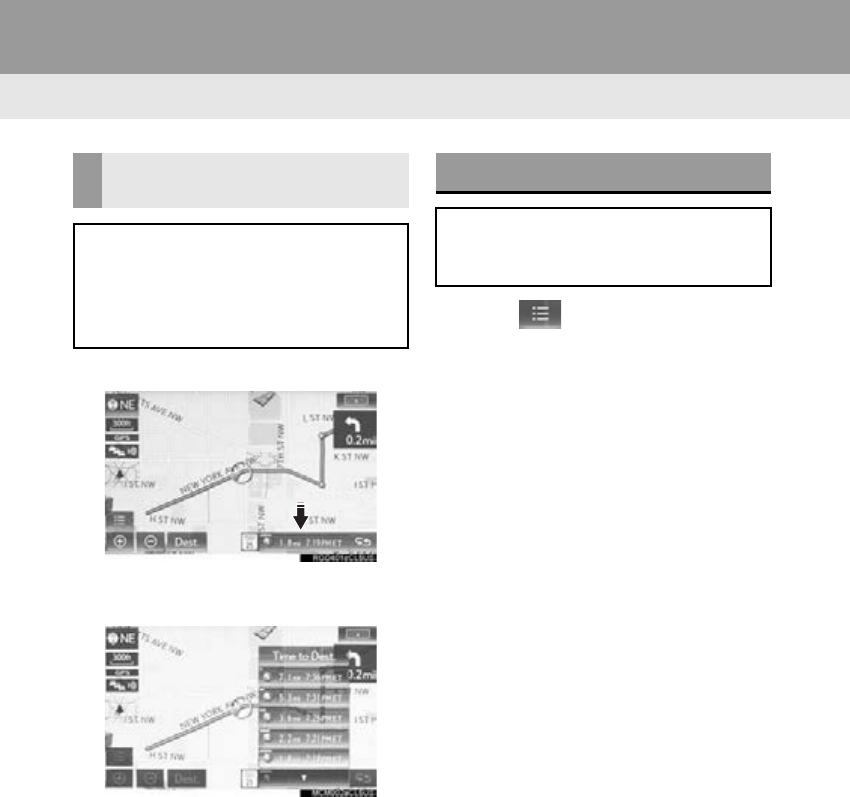
110
3. ROUTE GUIDANCE
RX_Navi_U
1Select the route information bar.
2Check that the list of the distance and
time is displayed.
-By selecting one of the number buttons, the
desired route information is displayed.
1Select on the map screen.
(P. 74)
2Select “Route Overview”.
3Check that the entire route map is dis-
played.
-For details about this screen: P. 10 4
DISTANCE AND TRAVEL/
ARRIVAL TIME
When driving on the guidance route
with more than 1 destination set, a list of
the distance with estimated travel/arriv-
al time from the current position to each
destination is displayed.
ROUTE OVERVIEW
The entire route from the current posi-
tion to the destination can be displayed
during the route guidance.
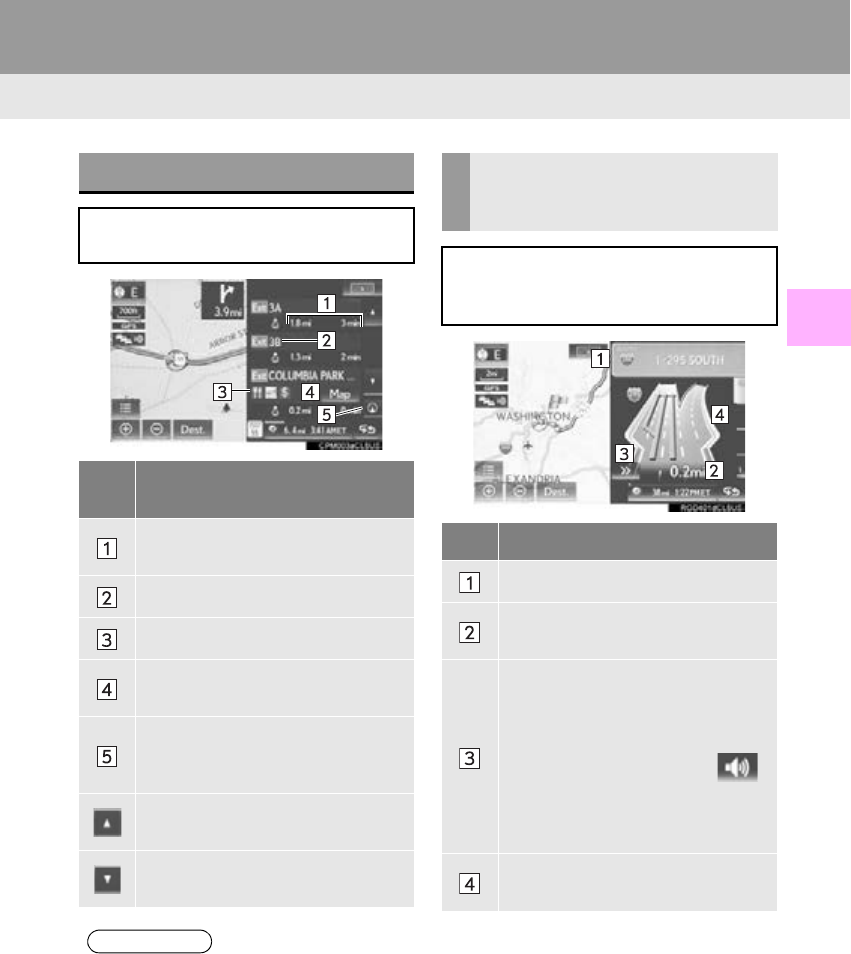
111
3. ROUTE GUIDANCE
RX_Navi_U
NAVIGATION SYSTEM
3
DURING FREEWAY DRIVING
During freeway driving, the freeway in-
formation screen will be displayed.
No./
Icon
Information/Function
Distance and time from the current
position to the road traffic facilities.
Name of the road traffic facilities.
POIs that are close to a freeway exit
Select to display the selected map of
the exit vicinity.
Select to display the nearest road
traffic facilities from the current posi-
tion.
Select to scroll to farther road traffic
facilities.
Select to scroll to closer road traffic
facilities.
INFORMATION
●With 12.3-inch display: When the map
screen is set to full screen display, the
freeway information screen will be dis-
played on the “Side Display”.
WHEN APPROACHING
FREEWAY EXIT OR
JUNCTION
When the vehicle approaches an exit or
junction, the freeway guidance screen
will be displayed.
No. Information/Function
Next exit or junction name
Distance from the current position to
the exit or junction
Select to hide the freeway guidance
screen.
To return to the freeway guidance
screen:
With 8-inch display: Select .
With 12.3-inch display: Press the
“MAP” button on the Remote
Touch .
Remaining distance bar to the guid-
ance point
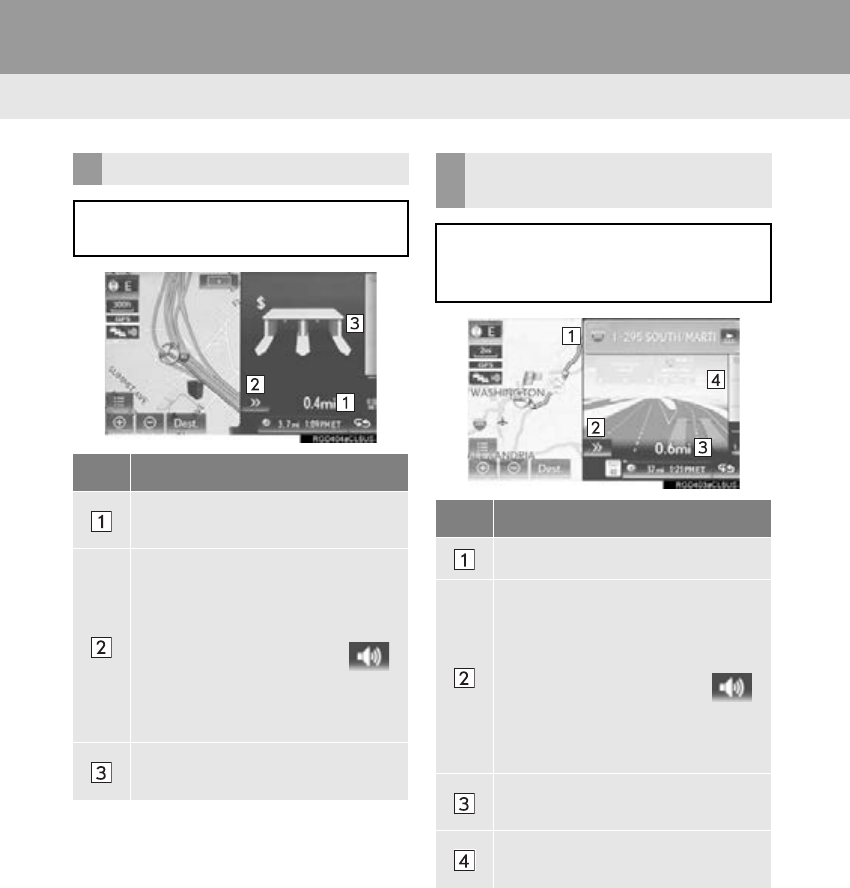
112
3. ROUTE GUIDANCE
RX_Navi_U
TOLLGATE GUIDANCE
When the vehicle approaches a tollgate,
the tollgate view will be displayed.
No. Information/Function
Distance from the current position to
the tollgate
Select to hide the tollgate guidance
screen.
To return to the tollgate guidance
screen:
With 8-inch display: Select .
With 12.3-inch display: Press the
“MAP” button on the Remote
Touch .
Remaining distance bar to the guid-
ance point
REAL FREEWAY JUNCTION
VIEW
When the vehicle approaches a junc-
tion, the junction view with signage will
be displayed.
No. Information/Function
Next junction or street name
Select to hide the real freeway junc-
tion view.
To return to the real freeway junction
view:
With 8-inch display: Select .
With 12.3-inch display: Press the
“MAP” button on the Remote
To u c h .
Distance from the current position to
the next junction
Remaining distance bar to the guid-
ance point
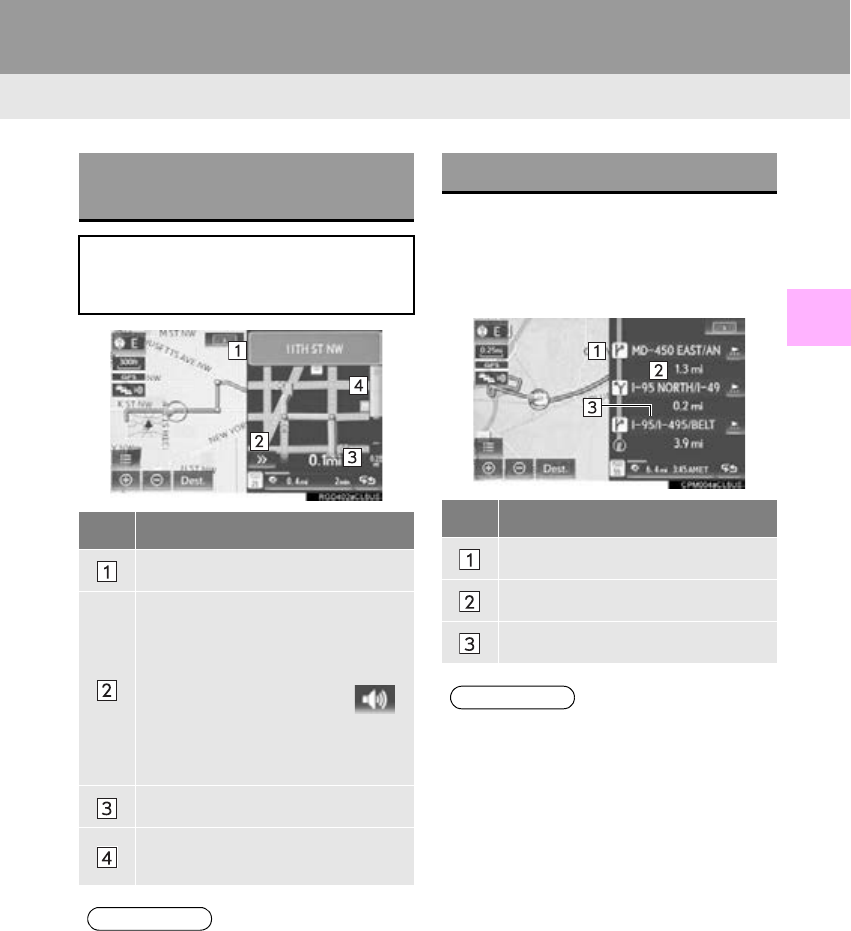
113
3. ROUTE GUIDANCE
RX_Navi_U
NAVIGATION SYSTEM
3
1Select “Turn List” on the “Map Mode”
screen. (P. 80)
2Check that the turn list screen is dis-
played.
WHEN APPROACHING
INTERSECTION
When the vehicle approaches an inter-
section, the intersection guidance
screen will be displayed.
No. Information/Function
Next street name
Select to hide the intersection guid-
ance screen.
To return to the intersection guid-
ance screen:
With 8-inch display: Select .
With 12.3-inch display: Press the
“MAP” button on the Remote
To u c h .
Distance to the intersection
Remaining distance bar to the guid-
ance point
INFORMATION
●With 12.3-inch display: When the map
screen is set to full screen display, the
intersection guidance screen will be dis-
played on the “Side Display”.
TURN LIST SCREEN
No. Information
Turn direction
Distance between turns
Next street or destination name
INFORMATION
●With 12.3-inch display: When the map
screen is set to full screen display, the turn
list screen will be displayed on the “Side
Display”.
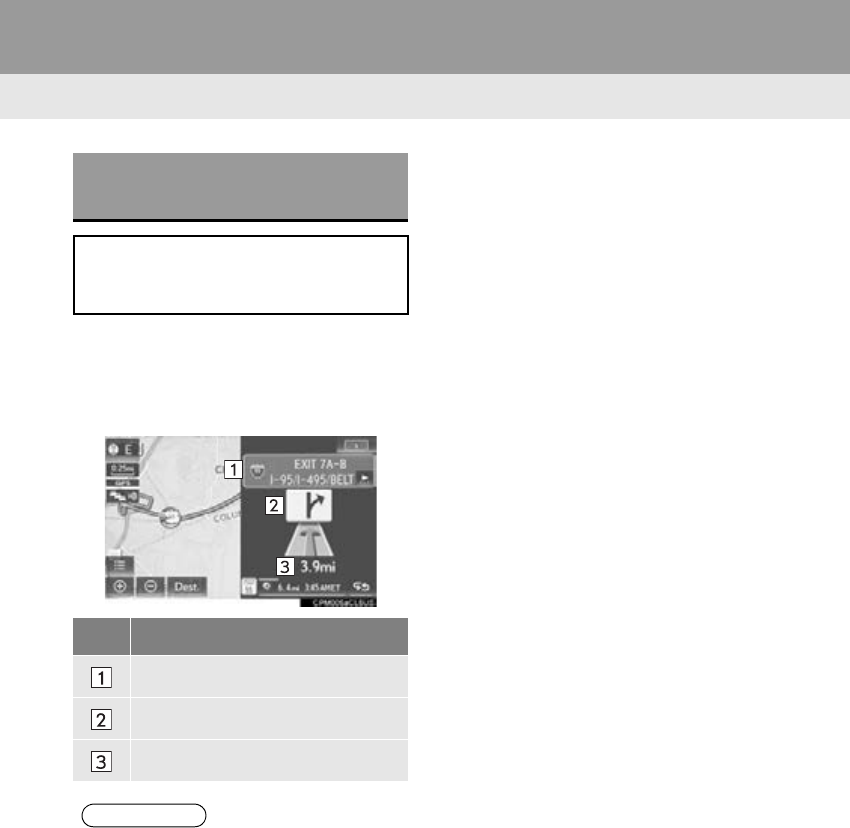
114
3. ROUTE GUIDANCE
RX_Navi_U
1Select “Turn-by-Turn Arrow” on the
“Map Mode” screen. (P. 80)
2Check that the turn-by-turn arrow
screen is displayed.
TURN-BY-TURN ARROW
SCREEN
On this screen, information about the
next turn on the guidance route can be
displayed.
No. Information
Exit number or street name
Turn direction
Distance to the next turn
INFORMATION
●With 12.3-inch display: When the map
screen is set to full screen display, the
turn-by-turn arrow screen will be dis-
played on the “Side Display”.
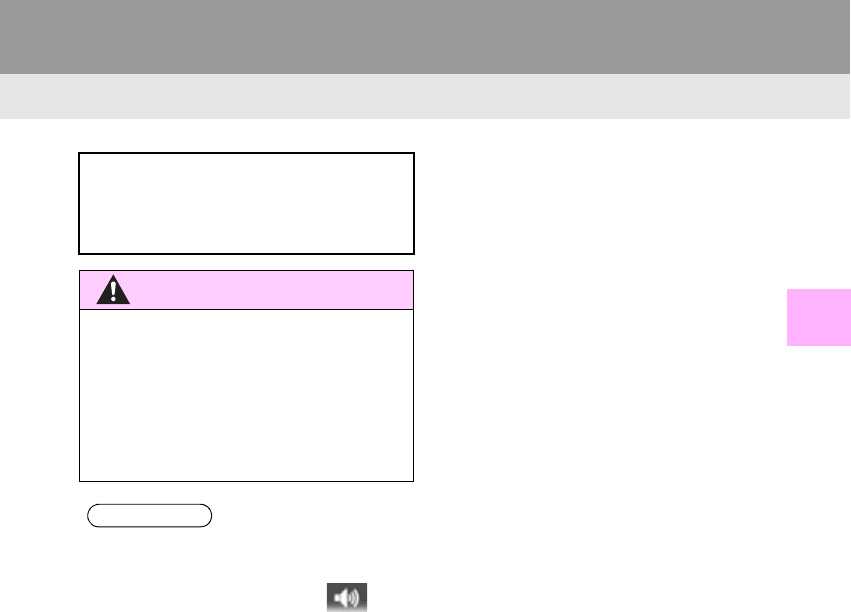
115
3. ROUTE GUIDANCE
RX_Navi_U
NAVIGATION SYSTEM
3
2. TYPICAL VOICE GUIDANCE PROMPTS
As the vehicle approaches an intersec-
tion, or point, where maneuvering the
vehicle is necessary, the system’s voice
guidance will provide various messages.
WARNING
●Be sure to obey the traffic regulations and
keep the road condition in mind espe-
cially when you are driving on IPD roads
(roads that are not completely digitized in
our database). The route guidance may
not have the updated information such as
the direction of a one way street.
INFORMATION
●To hear a voice guidance command again
if it cannot be heard:
• With 8-inch display: Select on
the map screen.
• With 12.3-inch display: Press the
“MAP” button on the Remote Touch.
●To adjust the voice guidance volume:
P. 66
●Voice guidance may be made early or
late.
●If the system cannot determine the cur-
rent position correctly, you may not hear
voice guidance or may not see the mag-
nified intersection on the screen.
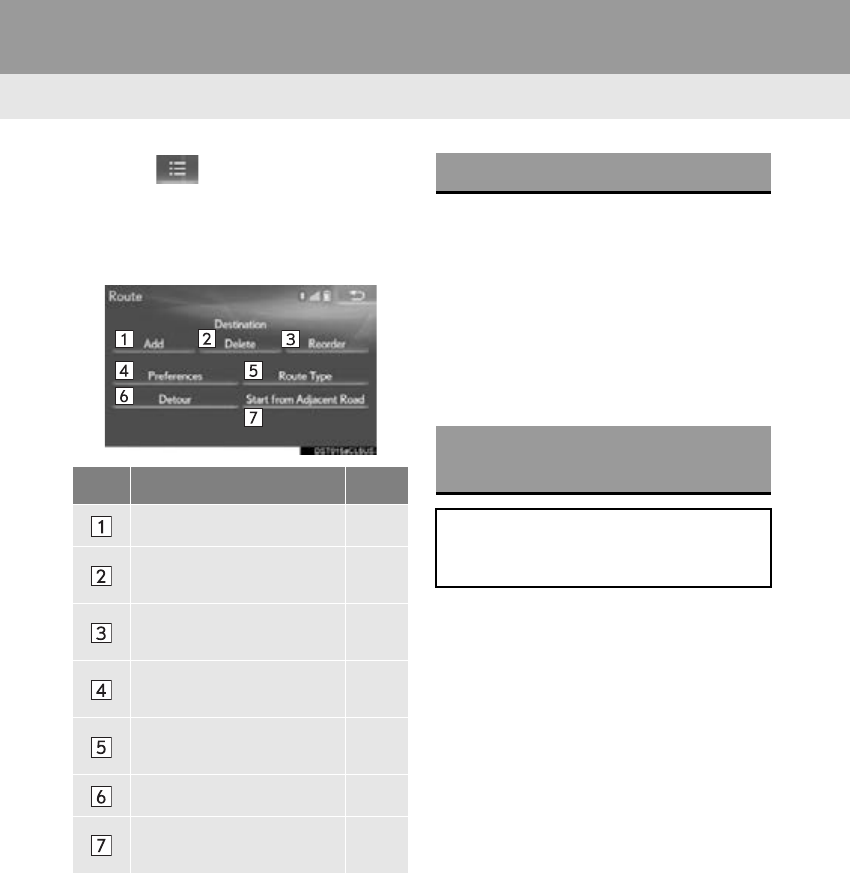
116
3. ROUTE GUIDANCE
RX_Navi_U
3. EDITING ROUTE
1Select on the map screen.
(P. 74)
2Select “Edit Route”.
3Select the item to be set.
4Check that the entire route map is dis-
played. (P. 104)
1Display the “Route” screen. (P. 116)
2Select “A d d ” .
3Search for an additional destination in
the same way as a destination search.
(P. 91)
4Select “Add Destination Here” to insert
the new destination into the route.
1Display the “Route” screen. (P. 116)
2Select “Reorder”.
3Select the desired destination and se-
lect “Move Up” or “Move Down” to
change the arrival order. Then select
“OK”.
No. Function Page
Select to add destinations. 116
Select to delete destina-
tions. 117
Select to reorder destina-
tions. 116
Select to set route prefer-
ences. 117
Select to change route
type. 117
Select to set detours. 118
Select to start from adja-
cent road. 119
ADDING DESTINATIONS
REORDERING
DESTINATIONS
When more than 1 destination has been
set, the arrival order of the destinations
can be changed.
117
3. ROUTE GUIDANCE
RX_Navi_U
NAVIGATION SYSTEM
3
1Display the “Route” screen. (P. 116)
2Select “Delete”.
3Select “Yes” when the confirmation
screen appears.
-When more than 1 destination has been set,
a list will be displayed on the screen. Select
the item(s) to be deleted.
“Delete All”: Select to delete all destina-
tions on the list.
-If more than 1 destination has been set, the
system will recalculate the route(s) to the
set destination(s) as necessary.
1Display the “Route” screen. (P. 116)
2Select “Preferences”.
3Select the desired route preferences
and select “OK”.
-When set to on, the indicator will illuminate.
1Display the “Route” screen. (P. 116)
2Select “Route Type”.
3Select the desired route type and select
“OK”.
-During driving, the route guidance starts
after selecting the desired route type.
4The entire route from the starting point
to the destination is displayed.
-For details about this screen: P. 1 0 4
DELETING DESTINATIONS SETTING ROUTE
PREFERENCES
The conditions to determine the route
can be selected from various choices
such as freeways, toll roads, ferries, etc.
SELECTING ROUTE TYPE
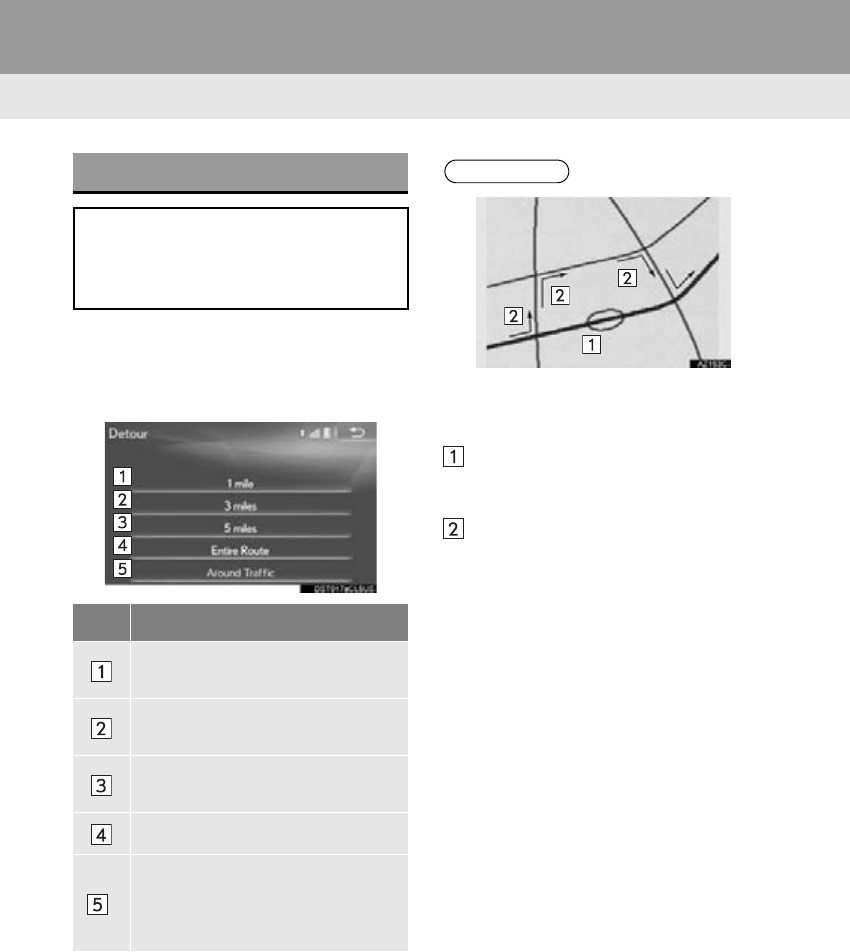
118
3. ROUTE GUIDANCE
RX_Navi_U
1Display the “Route” screen. (P. 116)
2Select “Detour”.
3Select the desired detour distance.
DETOUR SETTING
During the route guidance, the route
can be changed to detour around a sec-
tion of the route where a delay is caused
by road repairs, an accident, etc.
No.
Function
Select to detour within 1 mile of the
current position.
Select to detour within 3 miles of the
current position.
Select to detour within 5 miles of the
current position.
Select to detour on the entire route.
*
Select to make the system search for
the route based on traffic congestion
information received from traffic in-
formation. (P. 88)
*: This function is not made available on
some models.
INFORMATION
●This picture shows an example of how the
system would guide around a delay
caused by a traffic jam.
This position indicates the location of a
traffic jam caused by road repairs, an ac-
cident, etc.
This route indicates the detour suggest-
ed by the system.
●When the vehicle is on a freeway, the
detour distance selections are 5, 15 and
25 miles (or 5, 15 and 25 km if units are
in km).
●The system may not be able to calculate a
detour route depending on the selected
distance and surrounding road condi-
tions.
119
3. ROUTE GUIDANCE
RX_Navi_U
NAVIGATION SYSTEM
3
1Display the “Route” screen. (P. 116)
2Select “Start from Adjacent Road”.
STARTING FROM ADJACENT
ROAD
When a freeway and a surface road run
in parallel, the system may show the
guidance route going on the freeway
while driving on the surface road, or vice
versa.
If this happens, you can instantly choose
the adjacent road for the route guid-
ance.
INFORMATION
●When there is no adjacent road, this
screen button will not be displayed.
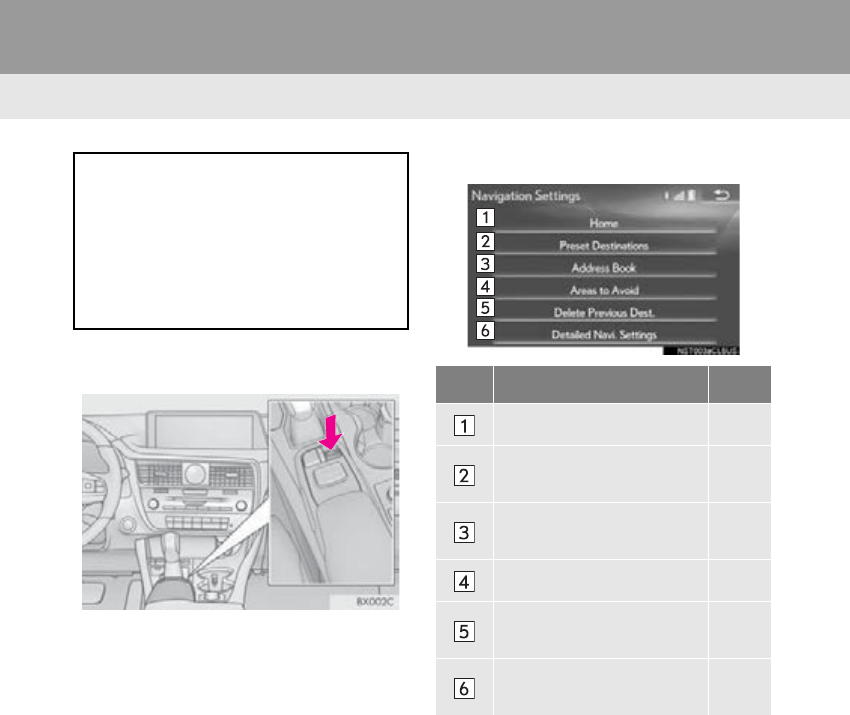
120
RX_Navi_U
4. MEMORY POINTS
1. MEMORY POINTS SETTINGS
1Press the “MENU” button on the
Remote Touch.
2Select “Setup”.
3Select “Navigation”.
4Select the desired item to be set.
Home, preset destinations, address
book entries, areas to avoid can be set
as memory points. The registered points
can be used as the destinations.
(P. 91)
Registered areas to avoid, will be avoid-
ed when the system searches for a route.
No. Function Page
Select to set home. 121
Select to set preset destina-
tions. 122
Select to set the address
book. 124
Select to set areas to avoid. 127
Select to delete previous
destinations. 129
Select to set detailed navi-
gation settings. 130
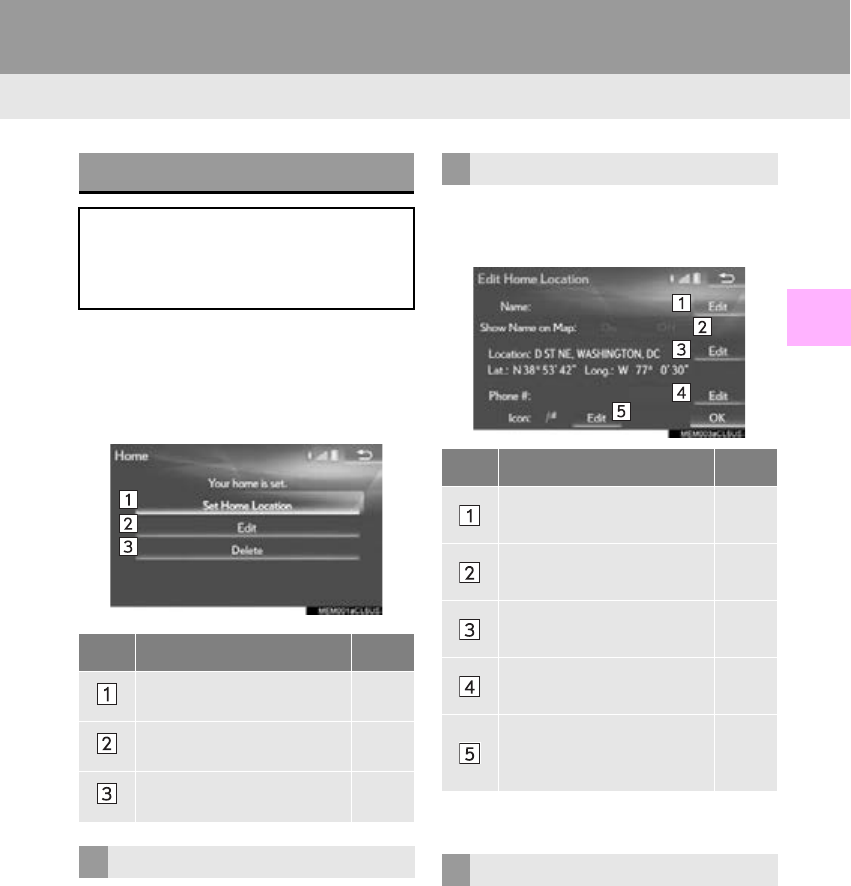
121
4. MEMORY POINTS
RX_Navi_U
NAVIGATION SYSTEM
3
1Display the “Navigation Settings”
screen. (P. 120)
2Select “Home”.
3Select the desired item to be set.
1Select “Set Home Location”.
2Select the desired item to search for the
location. (P. 91)
3Select “OK” when the editing home
screen appears.
1Select “Edit”.
2Select the desired item to be edited.
3Select “OK”.
1Select “Delete”.
2Select “Yes” when the confirmation
screen appears.
SETTING UP HOME
If home has been registered, that infor-
mation can be recalled by selecting “Go
Home” on the “Destination” screen.
(P. 93)
No. Function Page
Select to register home. 121
Select to edit home. 121
Select to delete home. 121
REGISTERING HOME
EDITING HOME
No. Function Page
Select to edit the home
name. 126
Select to set display of the
home name on/off.
Select to edit location infor-
mation. 126
Select to edit the phone
number. 126
Select to change the icon to
be displayed on the map
screen.
125
DELETING HOME
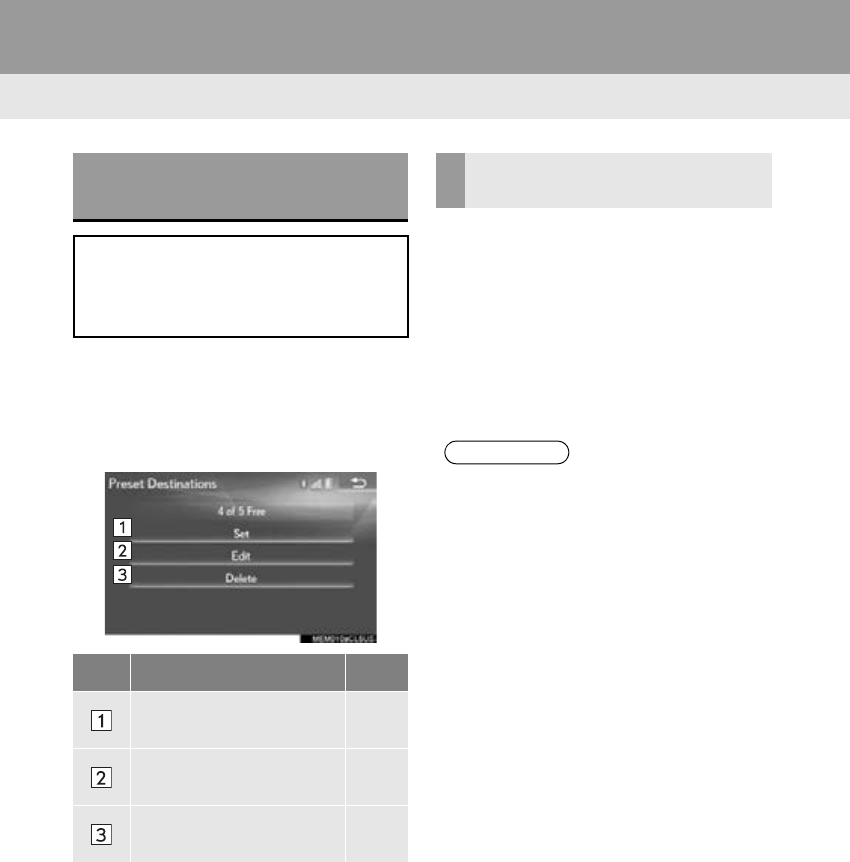
122
4. MEMORY POINTS
RX_Navi_U
1Display the “Navigation Settings”
screen. (P. 120)
2Select “Preset Destinations”.
3Select the desired item.
1Select “Set”.
2Select the desired item to search for the
location. (P. 91)
3Select a position for this preset destina-
tion.
4Select “OK” when the editing preset
destination screen appears. (P. 123)
SETTING UP PRESET
DESTINATIONS
If a preset destination has been regis-
tered, that information can be recalled
by using preset destinations on the
“Destination” screen. (P. 93)
No. Function Page
Select to register a preset
destination. 122
Select to edit a preset desti-
nation. 123
Select to delete a preset
destination. 123
REGISTERING PRESET
DESTINATIONS
INFORMATION
●Up to 5 preset destinations can be regis-
tered.
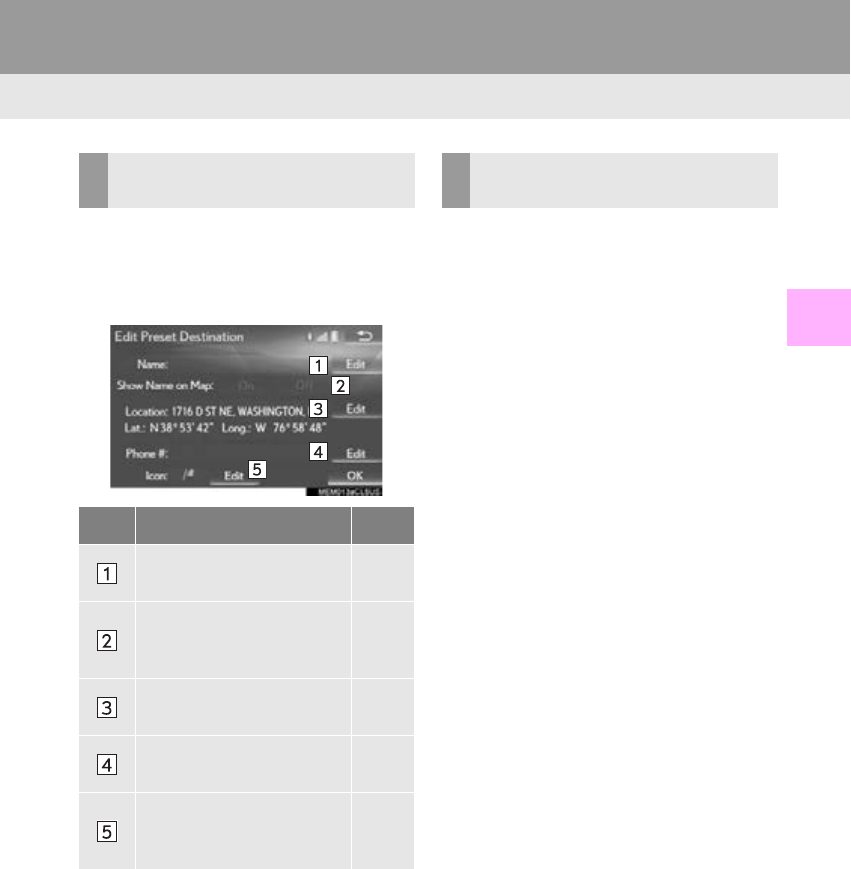
123
4. MEMORY POINTS
RX_Navi_U
NAVIGATION SYSTEM
3
1Select “Edit”.
2Select the desired preset destination.
3Select the item to be edited.
4Select “OK”.
1Select “Delete”.
2Select the preset destination to be de-
leted and select “Delete”.
3Select “Yes” when the confirmation
screen appears.
EDITING PRESET
DESTINATIONS
No. Function Page
Select to edit the preset
destination name. 126
Select to set display of the
preset destination name
on/off.
Select to edit location infor-
mation. 126
Select to edit the phone
number. 126
Select to change the icon to
be displayed on the map
screen.
125
DELETING PRESET
DESTINATIONS
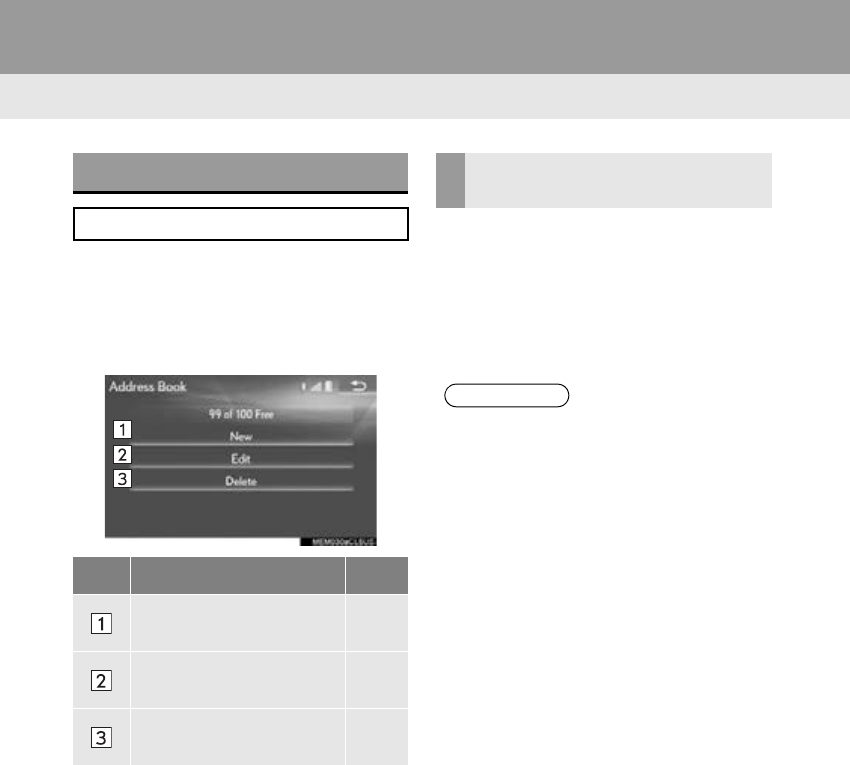
124
4. MEMORY POINTS
RX_Navi_U
1Display the “Navigation Settings”
screen. (P. 120)
2Select “Address Book”.
3Select the desired item.
1Select “New”.
2Select the desired item to search for the
location. (P. 91)
3Select “OK” when the editing address
book entry screen appears. (P. 125)
SETTING UP ADDRESS BOOK
Points on the map can be registered.
No. Function Page
Select to register address
book entries. 124
Select to edit address book
entries. 125
Select to delete address
book entries. 126
REGISTERING ADDRESS
BOOK ENTRIES
INFORMATION
●Up to 100 address book entries can be
registered.
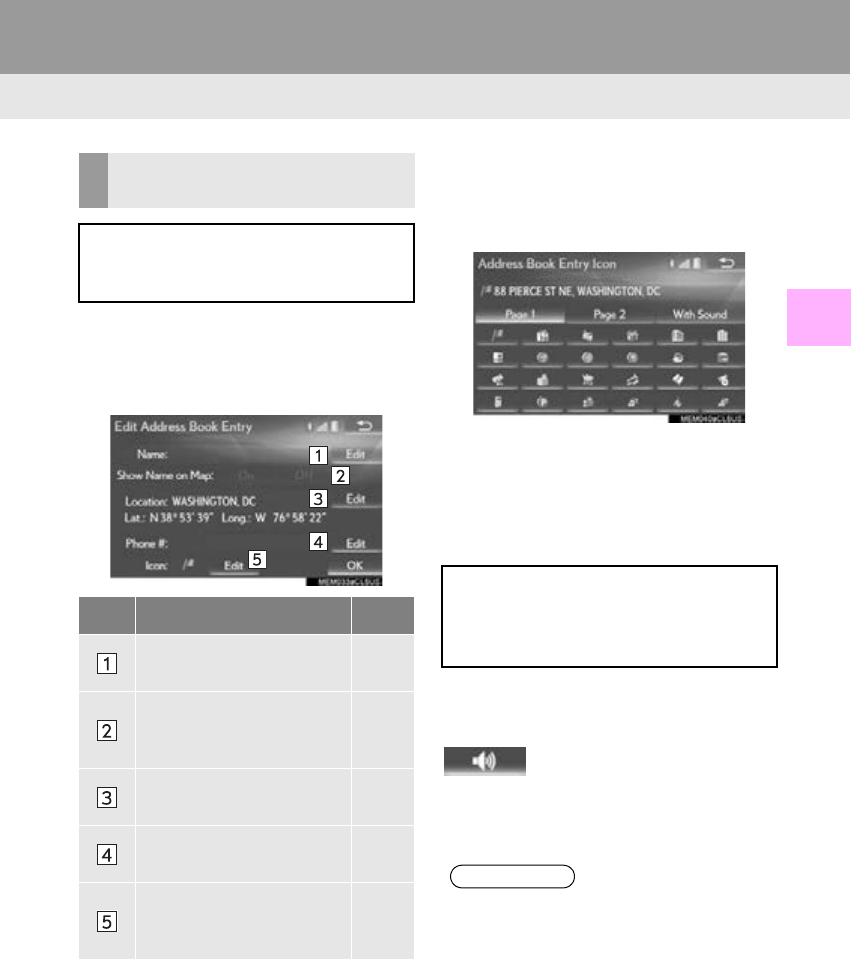
125
4. MEMORY POINTS
RX_Navi_U
NAVIGATION SYSTEM
3
1Select “Edit”.
2Select the desired address book entry.
3Select the item to be edited.
4Select “OK”.
■CHANGING THE ICON
1Select “Edit” next to the “Icon”.
2Select the desired icon.
-Change pages by selecting the “Page 1”,
“Page 2” or “With Sound” tab.
“With Sound”: Select the memory points
with a sound
When the “With Sound” tab is selected
1Select the “With Sound” tab.
2Select the desired sound icon.
: Select to play the sound.
-When “Bell (with Direction)” is selected,
select an arrow to adjust the direction and
select “OK”.
EDITING ADDRESS BOOK
ENTRIES
The icon, name, location and/or phone
number of a registered address book
entry can be edited.
No. Function Page
Select to edit the address
book entry name. 126
Select to set display of the
address book entry name
on/off.
Select to edit location infor-
mation. 126
Select to edit the phone
number. 126
Select to change the icon to
be displayed on the map
screen.
125
A sound for some address book entries
can be set. When the vehicle approach-
es the location of the address book en-
try, the selected sound will be heard.
INFORMATION
●The bell sounds only when the vehicle
approaches this point in the direction that
has been set.

126
4. MEMORY POINTS
RX_Navi_U
■CHANGING THE NAME
1Select “Edit” next to “Name”.
2Enter a name and select “OK”.
■CHANGING THE LOCATION
1Select “Edit” next to “Location”.
2Scroll the map to the desired point (P.
82) and select “OK”.
■CHANGING PHONE NUMBER
1Select “Edit” next to “Phone #”.
2Enter the phone number and select
“OK”.
1Select “Delete”.
2Select the item to be deleted and select
“Delete”.
3Select “Yes” when the confirmation
screen appears.
DELETING ADDRESS BOOK
ENTRIES
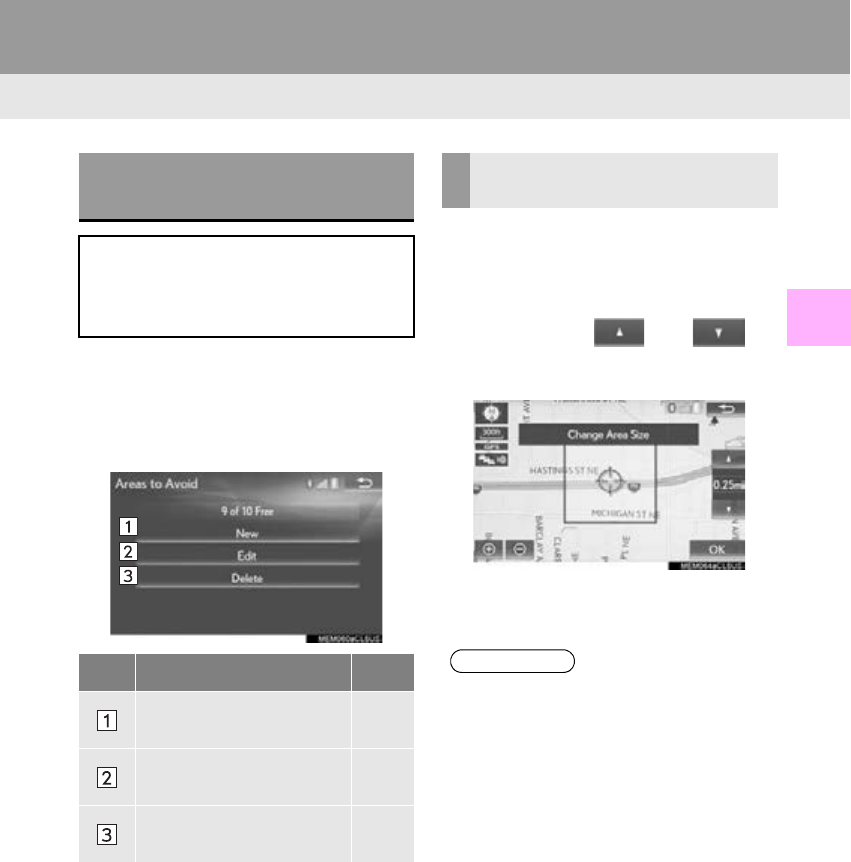
127
4. MEMORY POINTS
RX_Navi_U
NAVIGATION SYSTEM
3
1Display the “Navigation Settings”
screen. (P. 120)
2Select “A r e a s t o Av o i d ” .
3Select the desired item.
1Select “New”.
2Select the desired item to search for the
location. (P. 91)
3Select either or to
change the size of the area to be avoid-
ed and select “OK”.
4Select “OK” when the editing area to
avoid screen appears.
SETTING UP AREAS TO
AVOID
Areas to be avoided because of traffic
jams, construction work or other rea-
sons can be registered as “Areas to
Avoid”.
No. Function Page
Select to register areas to
avoid. 127
Select to edit areas to
avoid. 128
Select to delete areas to
avoid. 128
REGISTERING AREAS TO
AVOID
INFORMATION
●If a destination is entered in the area to
avoid or the route calculation cannot be
made without running through the area to
avoid, a route passing through the area to
be avoided may be shown.
●Up to 10 locations can be registered as
points/areas to avoid.
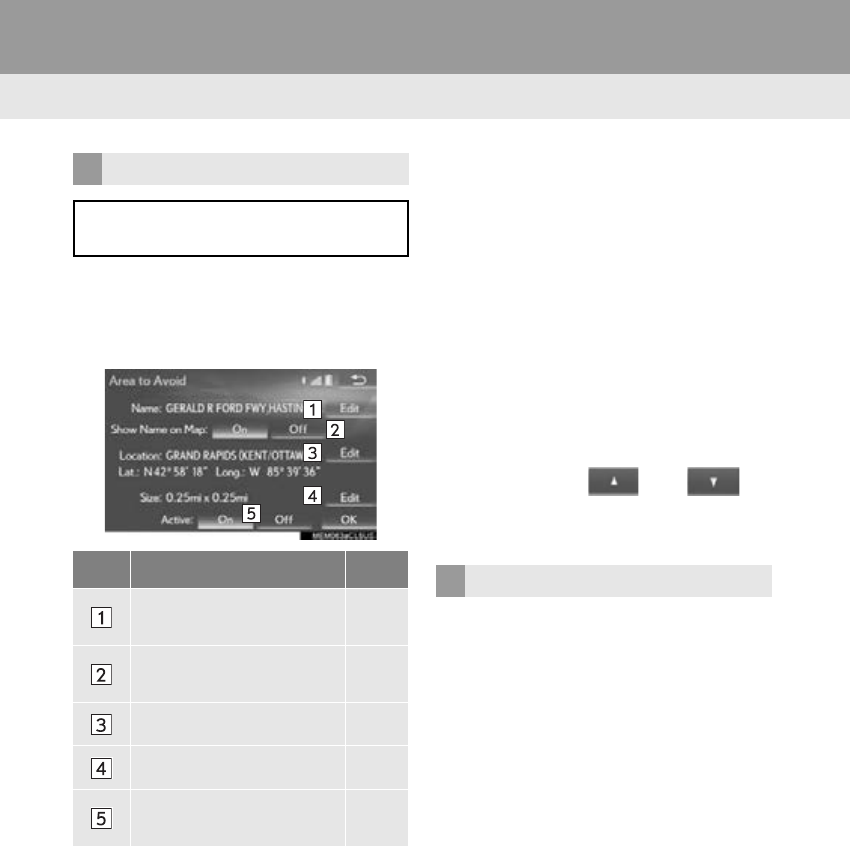
128
4. MEMORY POINTS
RX_Navi_U
1Select “Edit”.
2Select the area and select “OK”.
3Select the item to be edited.
4Select “OK”.
■CHANGING THE NAME
1Select “Edit” next to “Name”.
2Enter a name and select “OK”.
■CHANGING THE LOCATION
1Select “Edit” next to “Location”.
2Scroll the map to the desired point (P.
82) and select “OK”.
■CHANGING THE AREA SIZE
1Select “Edit” next to “Size”.
2Select either or to
change the size of the area to be avoid-
ed and select “OK”.
1Select “Delete”.
2Select the area to be deleted and select
“Delete”.
3Select “Yes” when the confirmation
screen appears.
EDITING AREAS TO AVOID
The name, location and/or area size of a
registered area can be edited.
No. Function Page
Select to edit the name of
the area to avoid. 128
Select to set display of the
area to avoid name on/off.
Select to edit area location. 128
Select to edit area size. 128
Select to set the area to
avoid function on/off.
DELETING AREAS TO AVOID

129
4. MEMORY POINTS
RX_Navi_U
NAVIGATION SYSTEM
3
1Display the “Navigation Settings”
screen. (P. 120)
2Select “Delete Previous Dest.”.
3Select the previous destination to be de-
leted and select “Delete”.
4Select “Yes” when the confirmation
screen appears.
DELETING PREVIOUS
DESTINATIONS
Previous destinations can be deleted.
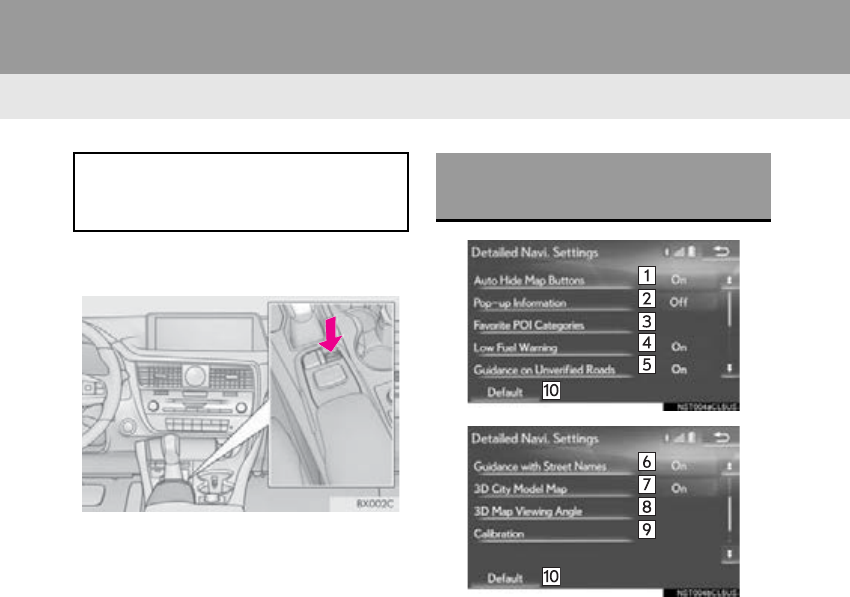
130
RX_Navi_U
5. SETUP
1. DETAILED NAVIGATION SETTINGS
1Press the “MENU” button on the
Remote Touch.
2Select “Setup”.
3Select “Navigation”.
4Select “Detailed Navi. Settings”.
5Select the items to be set.
Settings are available for pop-up infor-
mation, favorite POI categories, low fuel
warning, etc.
SCREENS FOR NAVIGATION
SETTINGS
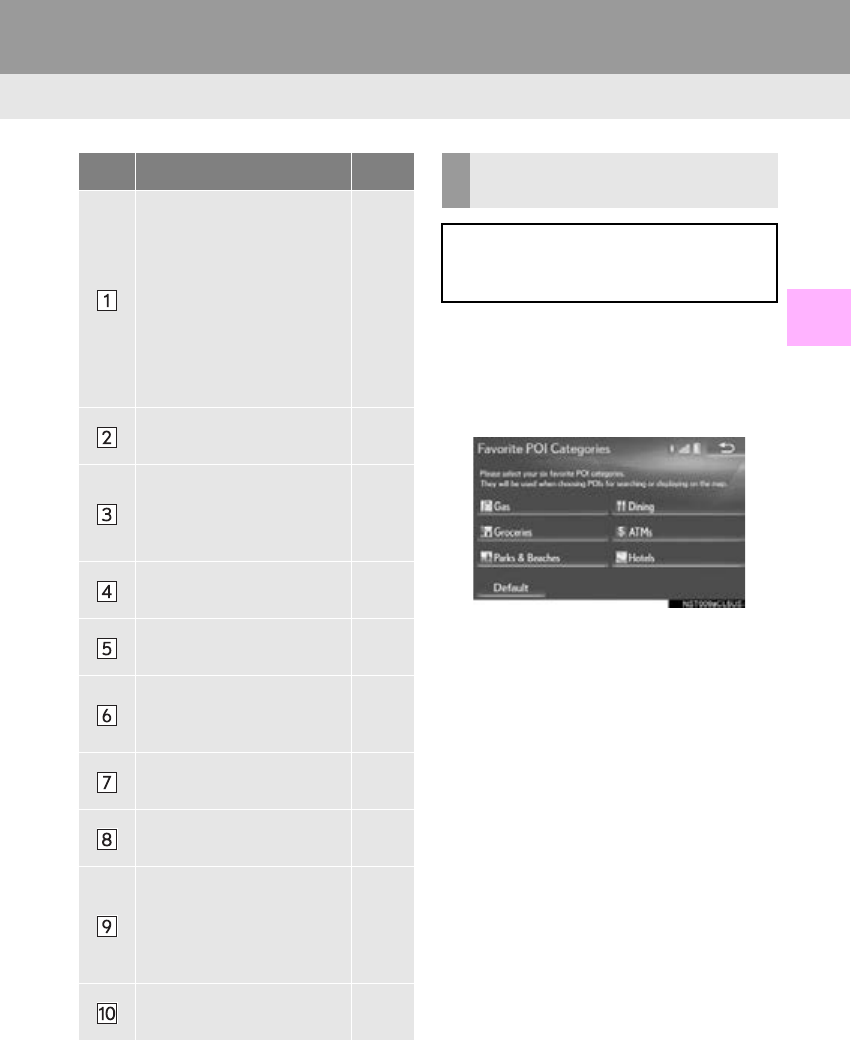
131
5. SETUP
RX_Navi_U
NAVIGATION SYSTEM
3
1Display the “Detailed Navi. Settings”
screen. (P. 130)
2Select “Favorite POI Categories”.
3Select the category to be changed.
“Default”: Select to set the default catego-
ries.
4Select the desired POI category.
“List All Categories”: Select to display all
POI categories.
5Select the desired POI icon.
No. Function Page
Select to set the automatic
screen button hiding func-
tion on/off. When set to on,
certain screen buttons on
the map screen will disap-
pear several seconds after
the Remote Touch has
been operated. When set
to off, all the screen buttons
will always be displayed.
Select to set display of pop-
up information on/off.
Select to set favorite POI
categories that are used for
POI selection to display on
the map screen.
131
Select to set display of low
fuel warning on/off. 132
Select to set IPD road guid-
ance on/off.
Select to set the voice guid-
ance for the next street
name on/off.
Select to set display of the
3D city model map on/off.
Select to change the view-
ing angle of the 3D map. 132
Select to adjust the current
position mark manually or
to adjust miscalculation of
the distance caused by tire
replacement.
133
Select to reset all setup
items.
FAVORITE POI CATEGORIES
(SELECT POI ICONS)
Up to 6 POI icons, which are used for
selecting POIs on the map screen, can
be selected as favorites.
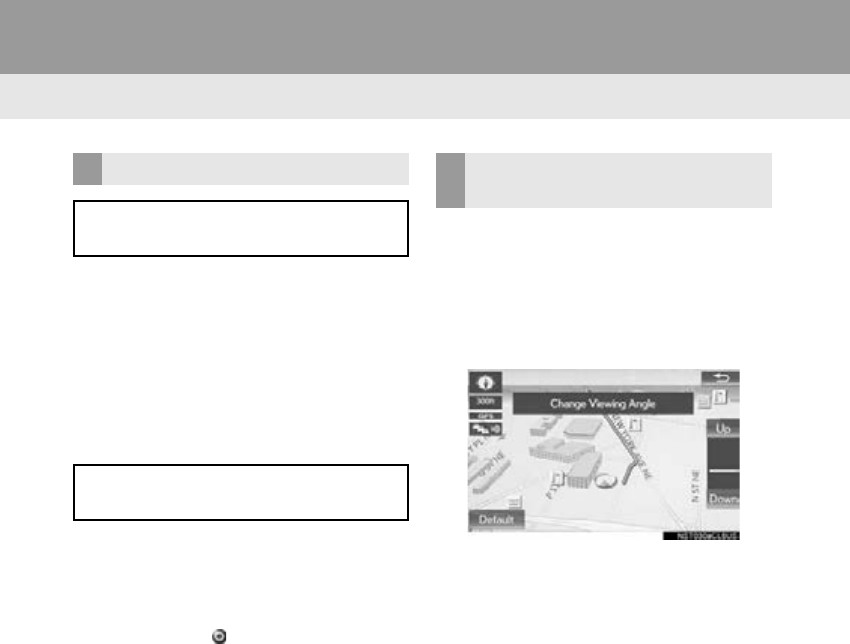
132
5. SETUP
RX_Navi_U
1Display the “Detailed Navi. Settings”
screen. (P. 130)
2Select “Low Fuel Warning”.
3Select “On” or “Off”.
■SEARCHING GAS STATION IN
LOW FUEL WARNING
1Select “Yes” when the low fuel warning
appears.
2Select the desired nearby gas station.
3Select “Enter ” to set as a destination.
“Info”: Select to display gas station informa-
tion. (P. 86)
1Display the “Detailed Navi. Settings”
screen. (P. 1 3 0 )
2Select “3D Map Viewing Angle”.
3Select “Up” or “Down” to change the
viewing angle.
“Default”: Select to set the initial angle.
LOW FUEL WARNING
When the fuel level is low, a warning
message will pop up on the screen.
A nearby gas station can be selected as
a destination.
CHANGING VIEWING
ANGLE OF 3D MAP
133
5. SETUP
RX_Navi_U
NAVIGATION SYSTEM
3
1Display the “Detailed Navi. Settings”
screen. (P. 130)
2Select “Calibration”.
3Select the desired item.
■POSITION/DIRECTION CALI-
BRATION
1Select “Position / Direction”.
2Scroll the map to the desired point (P.
82) and select “OK”.
3Select an arrow to adjust the direction of
the current position mark and select
“OK”.
■TIRE CHANGE CALIBRATION
1Select “Tire Change”.
-The message appears and the quick dis-
tance calibration starts automatically.
CURRENT POSITION/TIRE
CHANGE CALIBRATION
The current position mark can be adjust-
ed manually. Miscalculation of the dis-
tance caused by tire replacement can
also be adjusted.
-For additional information on the accu-
racy of a current position: P. 136
When driving, the current position mark
will be automatically corrected by GPS
signals. If GPS reception is poor due to
location, the current position mark can
be adjusted manually.
The tire change calibration function will
be used when replacing the tires. This
function will adjust miscalculation
caused by the circumference difference
between the old and new tires.
INFORMATION
●If this procedure is not performed when
the tires are replaced, the current posi-
tion mark may be incorrectly displayed.
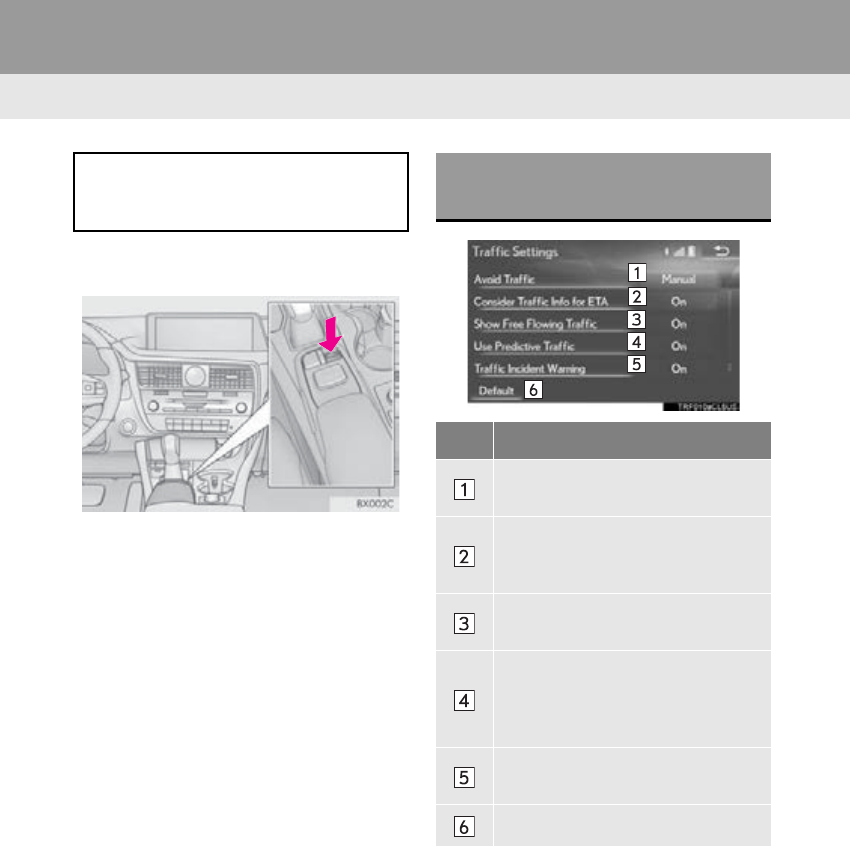
134
5. SETUP
RX_Navi_U
2. TRAFFIC SETTINGS*
1Press the “MENU” button on the
Remote Touch.
2Select “Setup”.
3Select “Traffic”.
4Select the items to be set.
Traffic information such as traffic con-
gestion or traffic incident warnings can
be made available.
*: This function is not made available on some models.
SCREEN FOR TRAFFIC
SETTINGS
No. Function
Select to set the avoid traffic function
auto/manual. (P. 135)
Select to set the usage of traffic infor-
mation for the estimated arrival time
on/off.
Select to set the display of an arrow
of free flowing traffic on/off.
Select to set to on/off whether to
consider the predictive traffic infor-
mation (P. 89) with estimated ar-
rival time and detoured route search.
Select to set traffic incident voice
warning on/off.
Select to reset all setup items.
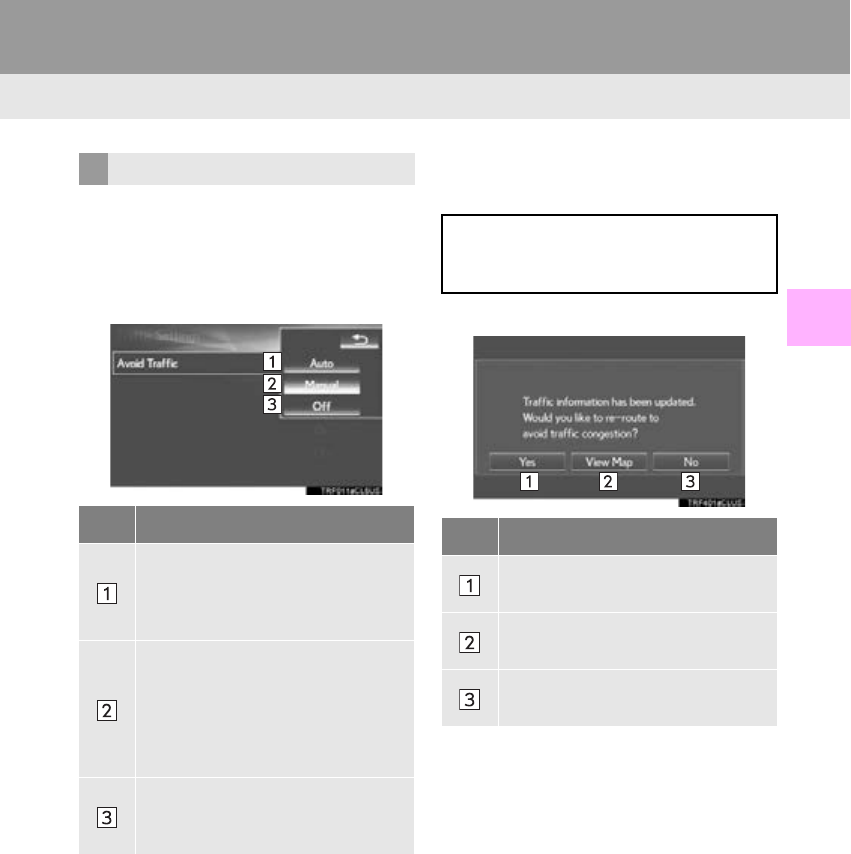
135
5. SETUP
RX_Navi_U
NAVIGATION SYSTEM
3
1Display the “Traffic Settings” screen.
(P. 134)
2Select “Av o i d Tr a f f i c ” .
3Select the desired item.
■CHANGING THE ROUTE MANU-
ALLY
1Select the desired item.
AUTO AVOID TRAFFIC
No. Function
Select to automatically change
routes when congestion information
of the guidance route has been re-
ceived.
Select to select manually whether or
not to change routes when conges-
tion information of the guidance
route has been received. In this
mode, a screen will appear to ask if
you wish to reroute.
Select to not reroute when conges-
tion information for the guidance
route has been received.
When the navigation system calculates
a new route, the following screen will be
displayed.
No. Function
Select to start route guidance using
the new route.
Select to confirm the new route and
current route on the map.
Select to continue the current route
guidance.
136
RX_Navi_U
6. TIPS FOR THE NAVIGATION SYSTEM
1. GPS (GLOBAL POSITIONING SYSTEM)
The Global Positioning System (GPS) de-
veloped and operated by the U.S. Depart-
ment of Defense provides an accurate
current position, normally using 4 or more
satellites, and in some case 3 satellites. The
GPS system has a certain level of inaccura-
cy. While the navigation system compen-
sates for this most of the time, occasional
positioning errors of up to 300 ft. (100 m)
can and should be expected. Generally, po-
sition errors will be corrected within a few
seconds.
When the vehicle is receiving signals from
satellites, the “GPS” mark appears at the
top left of the screen.
The GPS signal may be physically obstruct-
ed, leading to inaccurate vehicle position on
the map screen. Tunnels, tall buildings,
trucks, or even the placement of objects on
the instrument panel may obstruct the GPS
signals.
The GPS satellites may not send signals due
to repairs or improvements being made to
them.
Even when the navigation system is receiv-
ing clear GPS signals, the vehicle position
may not be shown accurately or inappropri-
ate route guidance may occur in some cas-
es.
LIMITATIONS OF THE
NAVIGATION SYSTEM
This navigation system calculates the
current position using satellite signals,
various vehicle signals, map data, etc.
However, an accurate position may not
be shown depending on satellite condi-
tions, road configuration, vehicle condi-
tion or other circumstances.
NOTICE
●The installation of window tinting may
obstruct the GPS signals. Most window
tinting contains some metallic content
that will interfere with GPS signal recep-
tion of the antenna in the instrument
panel. We advise against the use of win-
dow tinting on vehicles equipped with
navigation systems.

137
6. TIPS FOR THE NAVIGATION SYSTEM
RX_Navi_U
NAVIGATION SYSTEM
3
-Accurate current position may not be
shown in the following cases:
• When driving on a small angled Y-shaped
road.
• When driving on a winding road.
• When driving on a slippery road such as
in sand, gravel, snow, etc.
• When driving on a long straight road.
• When freeway and surface streets run in
parallel.
• After moving by ferry or vehicle carrier.
• When a long route is searched during
high speed driving.
• When driving without setting the current
position calibration correctly.
• After repeating a change of direction by
going forward and backward, or turning
on a turntable in a parking lot.
• When leaving a covered parking lot or
parking garage.
• When a roof carrier is installed.
• When driving with tire chains installed.
• When the tires are worn.
• After replacing a tire or tires.
• When using tires that are smaller or
larger than the factory specifications.
• When the tire pressure in any of the 4
tires is not correct.
-Inappropriate route guidance may occur in
the following cases:
• When turning at an intersection off the
designated route guidance.
• If you set more than 1 destination but skip
any of them, auto reroute will display a
route returning to the destination on the
previous route.
• When turning at an intersection for which
there is no route guidance.
• When passing through an intersection for
which there is no route guidance.
• During auto reroute, the route guidance
may not be available for the next turn to
the right or left.
• During high speed driving, it may take a
long time for auto reroute to operate. In
auto reroute, a detour route may be
shown.
• After auto reroute, the route may not be
changed.
• If an unnecessary U-turn is shown or
announced.
• If a location has multiple names and the
system announces 1 or more of them.
• When a route cannot be searched.
• If the route to your destination includes
gravel, unpaved roads or alleys, the route
guidance may not be shown.
• Your destination point might be shown on
the opposite side of the street.
• When a portion of the route has regula-
tions prohibiting the entry of the vehicle
that vary by time, season or other reasons.
• The road and map data stored in the navi-
gation system may not be complete or
may not be the latest version.
-If the vehicle cannot receive GPS signals,
the current position can be adjusted
manually. For information on setting the
current position calibration: P. 133
-After replacing a tire: P. 1 33

138
6. TIPS FOR THE NAVIGATION SYSTEM
RX_Navi_U
INFORMATION
●This navigation system uses tire turning
data and is designed to work with factory-
specified tires for the vehicle. Installing
tires that are larger or smaller than the
originally equipped diameter may cause
inaccurate display of the current position.
The tire pressure also affects the diame-
ter of the tires, so make sure that the tire
pressure of all 4 tires is correct.
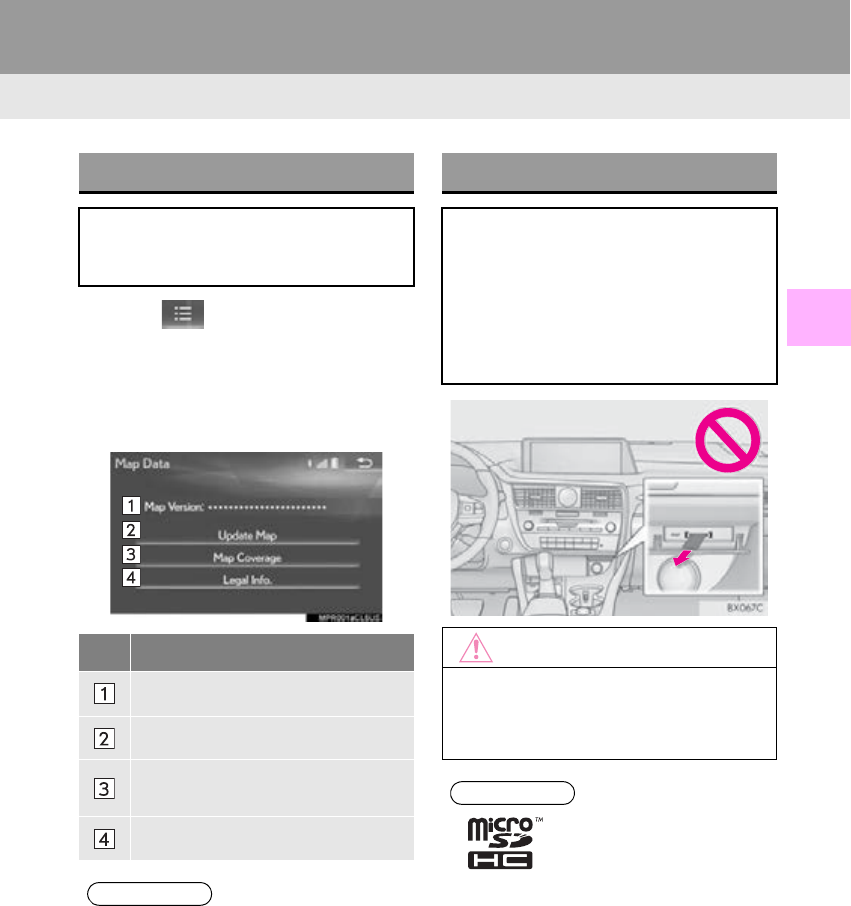
139
6. TIPS FOR THE NAVIGATION SYSTEM
RX_Navi_U
NAVIGATION SYSTEM
3
2. MAP DATABASE VERSION AND COVERED AREA
1Select on the map screen.
(P. 74)
2Select “Map Data”.
3Check that the map data screen is dis-
played.
MAP INFORMATION
Coverage areas and legal information
can be displayed and map data can be
updated.
No. Function
Map version
Select to update map.
Select to display map coverage ar-
eas.
Select to display legal information.
INFORMATION
●Map data updates are available for a fee.
Contact your Lexus dealer for further
information.
ABOUT THE MAP DATA
Map data for the navigation system is
contained in a microSD card that is in-
serted in the microSD card slot located
at the bottom of the audio control panel.
Do not eject the microSD card, as doing
so may deactivate the navigation sys-
tem.
NOTICE
●Do not edit or delete the map data on the
microSD card, as doing so may deacti-
vate the navigation system.
INFORMATION
●microSDHC Logo is a trademark of SD-
3C,LLC.

140
6. TIPS FOR THE NAVIGATION SYSTEM
RX_Navi_U

4
141
RX_Navi_U
2
4
3
5
6
7
8
9
1
10
1. QUICK REFERENCE ............................ 144
2. SOME BASICS ......................................... 146
TURNING THE SYSTEM ON
AND OFF ................................................................. 146
SELECTING AN AUDIO SOURCE ............. 147
DISC SLOT.................................................................. 148
USB/AUX PORT ..................................................... 149
“Sound Settings” SCREEN ................................... 150
AUDIO SCREEN ADJUSTMENT................... 152
VOICE COMMAND SYSTEM........................ 154
1. AM/FM RADIO
................................................. 155
OVERVIEW................................................................ 155
PRESET BUTTON SCREEN ............................. 158
SELECTING A STATION FROM
THE LIST.................................................................... 159
CACHING A RADIO PROGRAM ............... 159
RADIO BROADCAST DATA SYSTEM ....... 161
USING HD Radio™ TECHNOLOGY.......... 162
AVAILABLE HD Radio™
TECHNOLOGY.................................................. 162
TROUBLESHOOTING GUIDE ...................... 164
2. XM Satellite Radio.................................... 165
OVERVIEW................................................................ 165
HOW TO SUBSCRIBE TO AN XM
Satellite Radio.......................................................... 167
DISPLAYING THE RADIO ID .......................... 169
SELECTING A CHANNEL FROM
THE LIST.................................................................... 169
IF THE SATELLITE RADIO TUNER
MALFUNCTIONS .............................................. 170
3. INTERNET RADIO.................................... 171
LISTENING TO INTERNET RADIO................ 171
1BASIC OPERATION 2RADIO OPERATION
AUDIO/VISUAL SYSTEM

142
RX_Navi_U
1. CD .................................................................. 172
OVERVIEW................................................................ 172
2. DVD ............................................................... 175
OVERVIEW................................................................ 175
DVD OPTIONS........................................................ 178
3. USB MEMORY ........................................ 180
OVERVIEW................................................................ 180
4. iPod................................................................ 184
OVERVIEW................................................................ 184
iPod AUDIO ............................................................... 187
iPod VIDEO ................................................................ 187
5. Bluetooth® AUDIO................................. 188
OVERVIEW................................................................ 188
CONNECTING A Bluetooth®
DEVICE..................................................................... 192
LISTENING TO Bluetooth® AUDIO............. 192
6. AUX............................................................... 193
OVERVIEW................................................................ 193
EXTERNAL OPTIONS......................................... 196
1. STEERING SWITCHES.......................... 197
1. AUDIO SETTINGS ................................ 200
AUDIO SETTINGS SCREEN.......................... 200
1. OPERATING INFORMATION ........ 205
RADIO......................................................................... 205
DVD PLAYER AND DISC ................................ 206
iPod.................................................................................... 211
FILE INFORMATION............................................ 212
TERMS........................................................................... 214
ERROR MESSAGES.............................................. 216
1. REAR SEAT ENTERTAINMENT
SYSTEM FEATURES............................ 217
QUICK REFERENCE............................................ 217
2. SOME BASICS.......................................... 219
USING THE REMOTE CONTROLLER ...... 219
TURNING ON/OFF THE REAR
ENTERTAINMENT SYSTEM....................... 220
CONNECTING A DEVICE TO REAR A/V
INPUT PORT.......................................................... 221
SELECTING THE SOUND MODE ............... 221
SELECTING THE SOURCE ............................. 222
OPERATING REAR SEAT
ENTERTAINMENT SYSTEM FROM
THE FRONT SEATS........................................... 223
3MEDIA OPERATION
4AUDIO/VISUAL REMOTE
CONTROLS
5SETUP
6TIPS FOR OPERATING THE
AUDIO/VISUAL SYSTEM
7REAR SEAT ENTERTAINMENT
SYSTEM FEATURES
143
RX_Navi_U
2
4
3
5
6
7
8
9
1
10
1. AM/FM/SAT RADIO ............................ 224
OVERVIEW............................................................... 224
2. CD................................................................. 225
OVERVIEW............................................................... 225
3. DVD.............................................................. 228
OVERVIEW.............................................................. 228
DVD VIDEO OPTIONS..................................... 230
4. USB MEMORY........................................ 234
OVERVIEW............................................................... 234
5. iPod............................................................... 237
OVERVIEW............................................................... 237
iPod AUDIO ............................................................. 239
6. Bluetooth® AUDIO................................ 240
OVERVIEW.............................................................. 240
Bluetooth® AUDIO................................................ 242
7. EXTERNAL DEVICES........................... 243
OVERVIEW............................................................... 243
1.
REAR SEAT ENTERTAINMENT
SYSTEM SETTINGS................................ 244
DISPLAYING THE SETTING SCREEN...... 244
1. OPERATING INFORMATION......... 246
CAUTION SCREEN............................................ 246
WHEN APPEARS
ON THE SCREEN ............................................. 246
THE REMOTE CONTROLLER...................... 246
HEADPHONES....................................................... 247
VOLUME.................................................................... 247
A/V INPUT PORT ................................................. 248
COPYRIGHTS AND TRADEMARKS........ 248
8REAR SEAT ENTERTAINMENT
SYSTEM OPERATION 9SETUP FOR REAR SEAT
ENTERTAINMENT SYSTEM
10
TIPS FOR OPERATING REAR
SEAT ENTERTAINMENT
SYSTEM
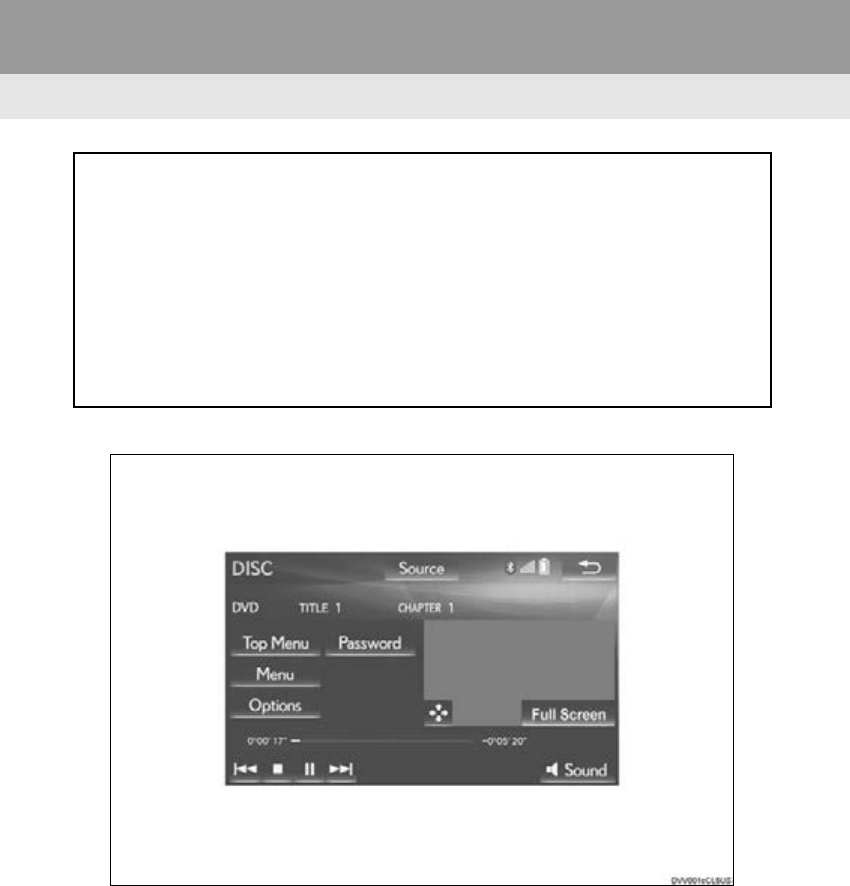
144
RX_Navi_U
1. BASIC OPERATION
1. QUICK REFERENCE
■CONTROL SCREEN
The audio control screen can be reached by the following methods:
Using the instrument panel
Press the “RADIO” or “MEDIA” button.
From the “Menu” screen
Press the “MENU” button on the Remote Touch, then select “Radio” or “Media”.
The audio functions can also be displayed and operated on the “Side Display”.
(P. 377)
Some audio functions can also be operated from the rear seat.
(P. 217)
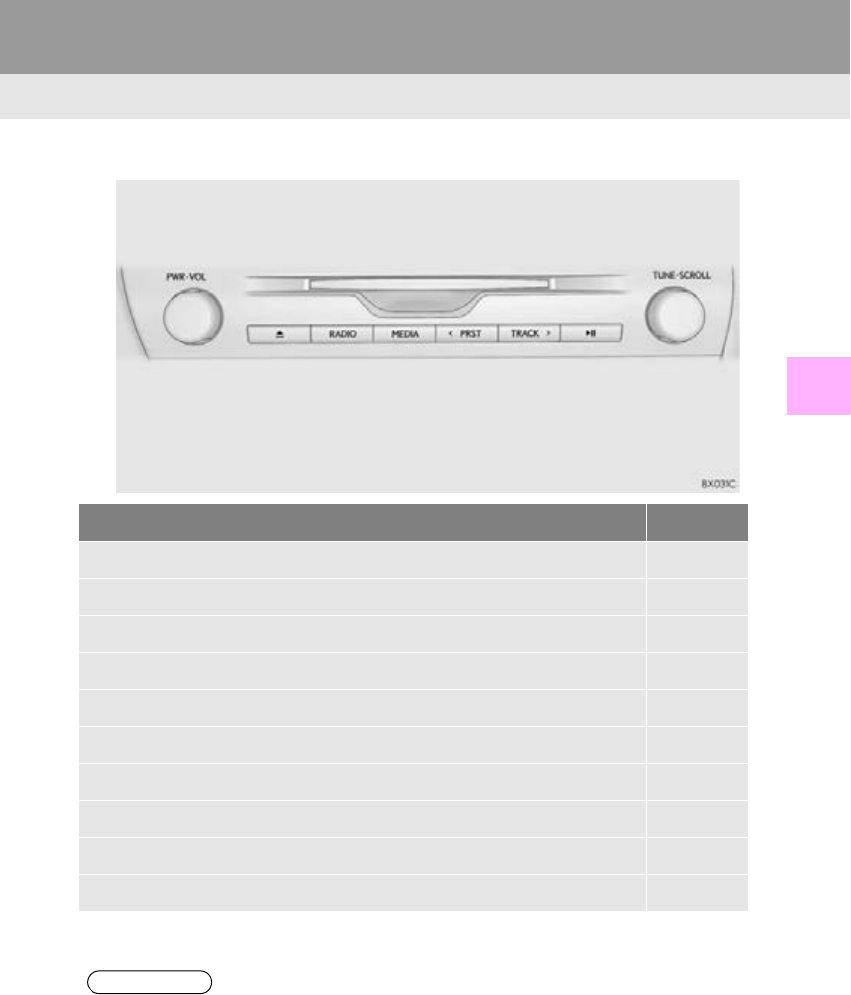
145
1. BASIC OPERATION
RX_Navi_U
AUDIO/VISUAL SYSTEM
4
■CONTROL PANEL
Function Page
Using the radio 155
Playing an audio CD or MP3/WMA/AAC disc 172
Playing a DVD 175
Playing a USB memory 180
Playing an iPod®184
Playing a Bluetooth® device 188
Using the AUX port 193
Using the steering wheel audio switches 197
Audio system settings 200
Using the rear seat entertainment system* 217
*: If equipped
INFORMATION
●The display and button positions will differ depending on the type of the system.
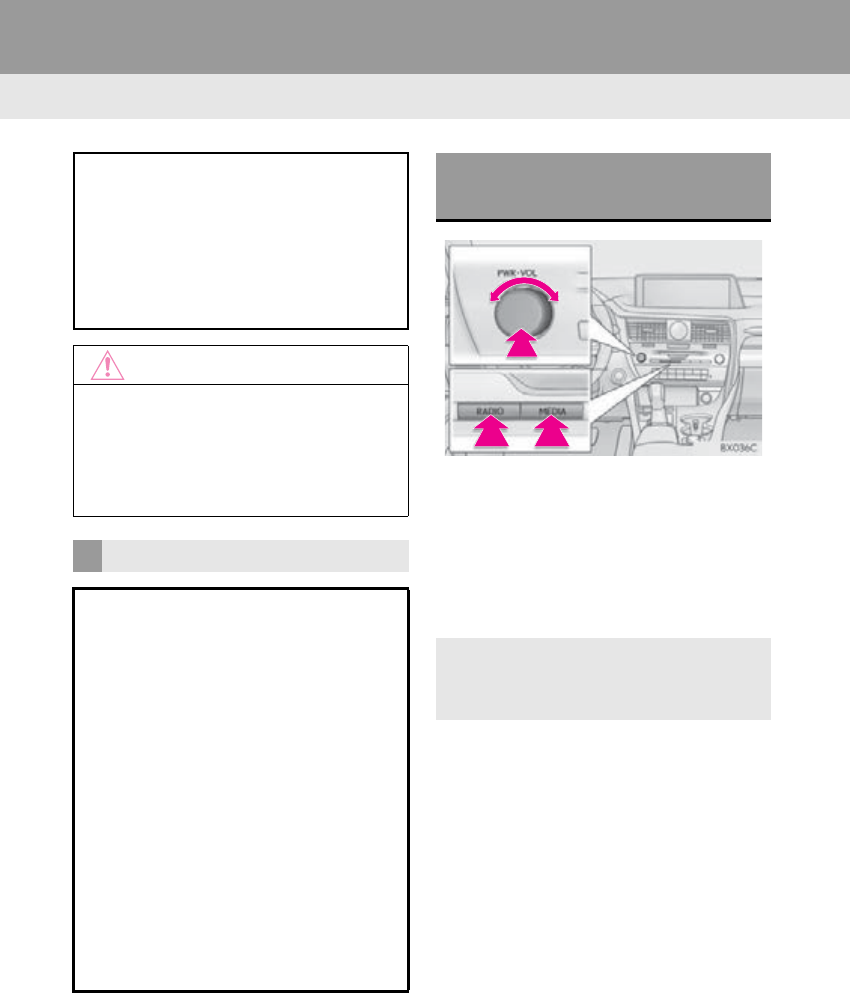
146
1. BASIC OPERATION
RX_Navi_U
2. SOME BASICS
“PWR·VOL” knob: Press to turn the audio/
visual system on and off. The system turns
on in the last mode used. Turn this knob to
adjust the volume.
“RADIO”, “MEDIA” button: Press to dis-
play screen buttons for the audio/visual sys-
tem.
This section describes some of the basic
features of the audio/visual system.
Some information may not pertain to
your system.
Your audio/visual system works when
the engine <power> switch is in ACCES-
SORY or IGNITION ON <ON> mode.
NOTICE
●To prevent the 12-volt battery from being
discharged, do not leave the audio/visual
system on longer than necessary when
the engine is not running <the hybrid sys-
tem is not operating>.
CERTIFICATION
CAUTION:
-For vehicles sold in U.S.A.:
Part 15 of the FCC Rules
FCC WARNING: Changes or modifica-
tions not expressly approved by the party
responsible for compliance could void
the user’s authority to operate the equip-
ment.
-Laser products
• USE OF CONTROL OR ADJUST-
MENT OR PERFORMANCE OF
PROCEDURES OTHER THAN
THOSE SPECIFIED HEREIN MAY
RESULT IN HAZARDOUS RADIA-
TION EXPOSURE.
• THE USE OF OPTICAL INSTRU-
MENTS WITH THIS PRODUCT WILL
INCREASE EYE HAZARD.
TURNING THE SYSTEM ON
AND OFF
-A function that enables automatic return
to the previous screen from the audio/
visual screen can be selected. (P. 59)
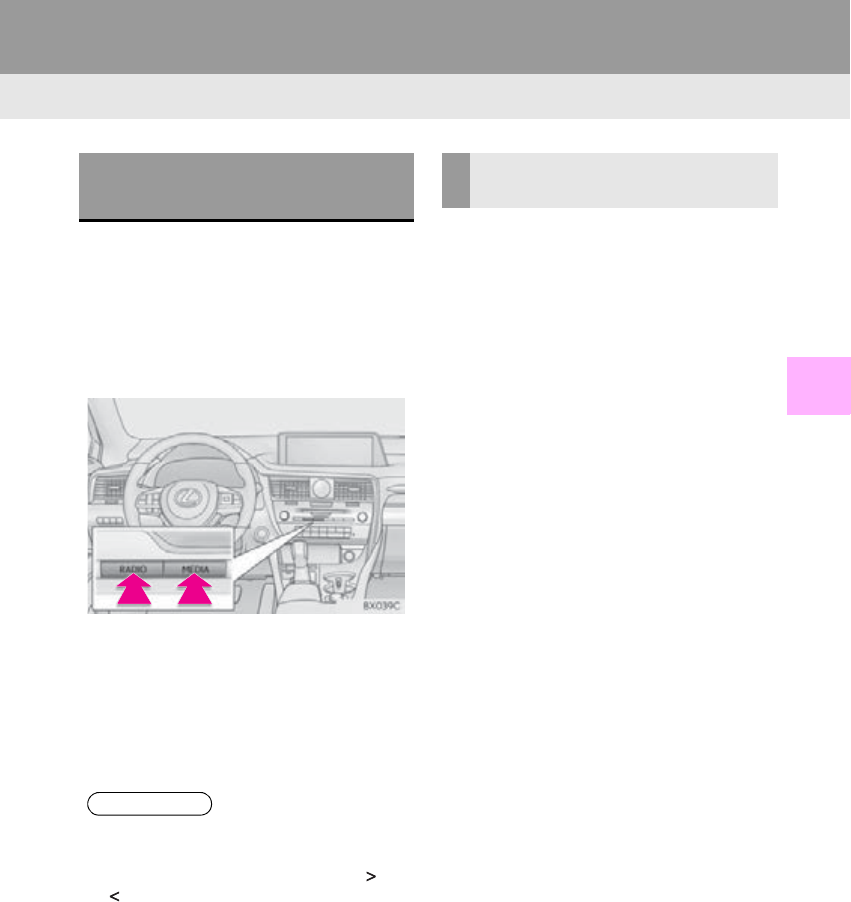
147
1. BASIC OPERATION
RX_Navi_U
AUDIO/VISUAL SYSTEM
4
1Display the audio control screen.
(P. 144)
Using the instrument panel
2Each time the “RADIO” or “MEDIA”
button is pressed, the audio source
changes.
“RADIO” button: To change radio modes.
“MEDIA” button: To change media modes.
From the audio source selection screen
2Select “Source”.
3Select the desired source.
1Display the audio control screen.
(P. 144)
2Select “Source”.
3Select “Reorder”.
4Select the desired audio source then
“<<” or “>>” to reorder.
SELECTING AN AUDIO
SOURCE
INFORMATION
●Dimmed screen buttons cannot be oper-
ated.
●When there are two pages, select “ ” or
“ ” to change the page.
●When “Rear” is selected, the rear seat
entertainment system can be operated
from the front seats. (P. 223)
REORDERING THE AUDIO
SOURCE
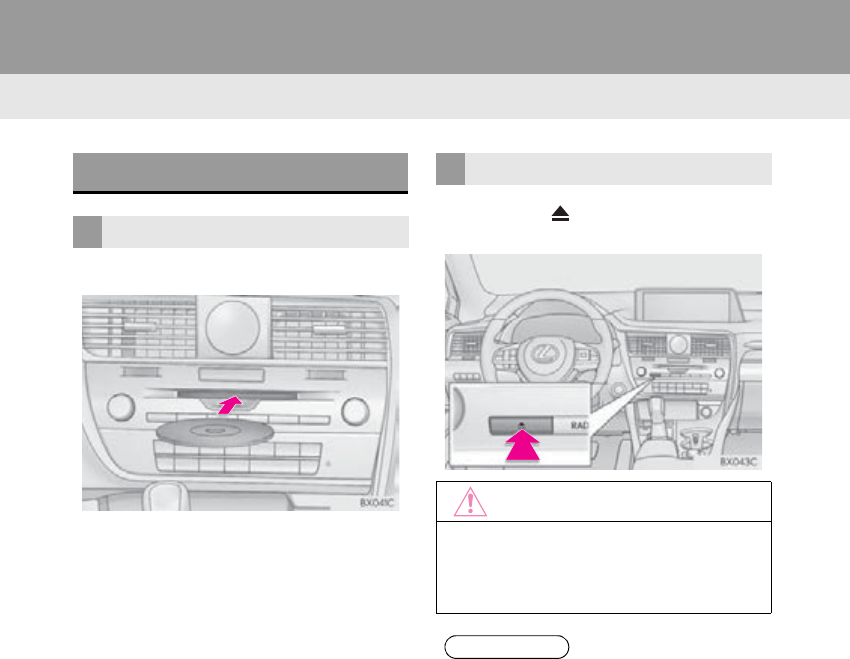
148
1. BASIC OPERATION
RX_Navi_U
1Insert a disc into the disc slot.
-After insertion, the disc is automatically
loaded.
1Press the button and remove the
disc.
DISC SLOT
INSERTING A DISC
EJECTING A DISC
NOTICE
●Never try to disassemble or oil any part of
the DVD player. Do not insert anything
other than a disc into the slot.
INFORMATION
●The player is intended for use with 4.7 in.
(12 cm) discs only.
●When inserting a disc, gently insert the
disc with the label facing up.
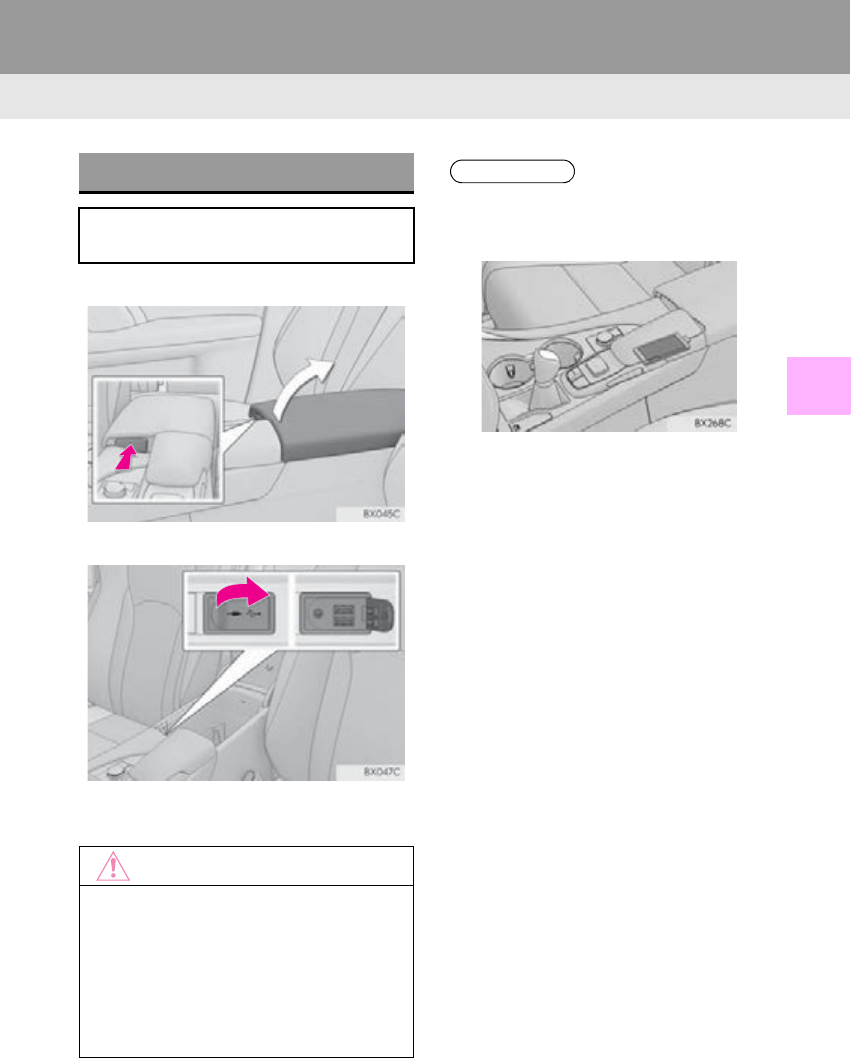
149
1. BASIC OPERATION
RX_Navi_U
AUDIO/VISUAL SYSTEM
4
1Press the knob.
2Open the cover and connect a device.
-Turn on the power of the device if it is not
turned on.
USB/AUX PORT
There are 2 USB ports and an AUX port
in the console box.
NOTICE
●Depending on the size and shape of the
device that is connected to the system,
the console box/auxiliary box may not
close fully. In this case, do not forcibly
close the console box/auxiliary box as
this may damage the device or the termi-
nal, etc.
INFORMATION
●There is clearance between the lid and
console box to allow the cable routed to
outside the console box.
●If 2 devices are connected to the USB
ports, depending on the devices, both
may not be able to be recognized by the
system at the same time.
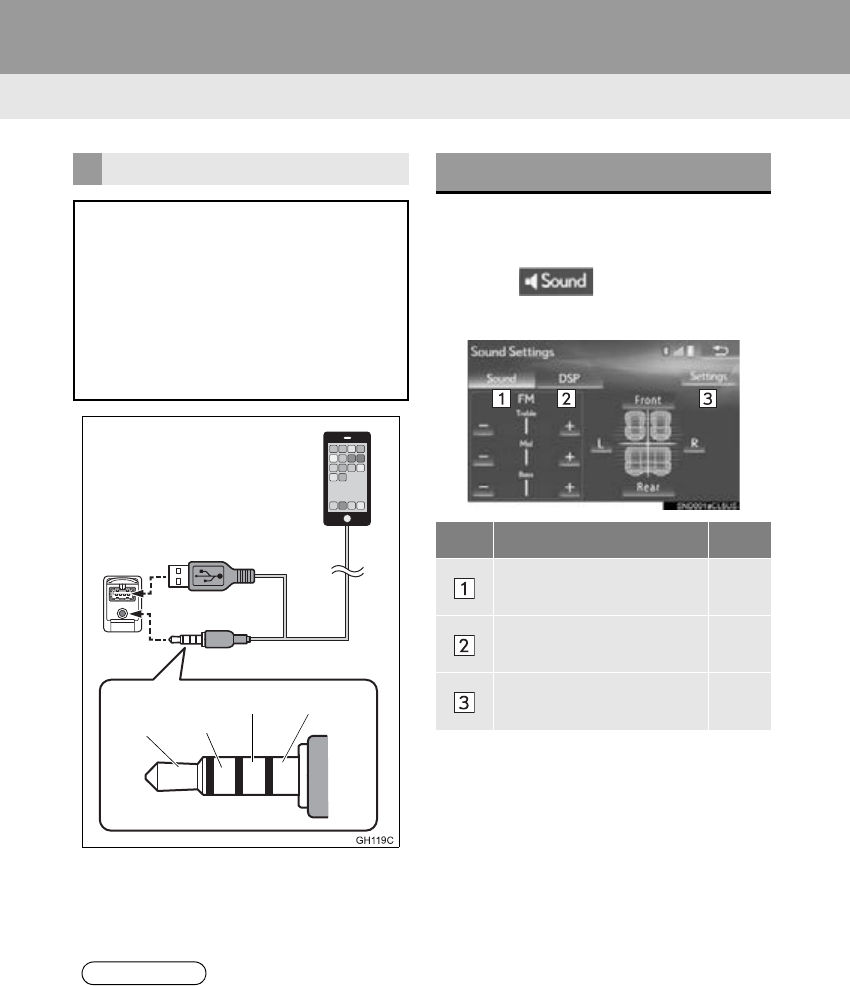
150
1. BASIC OPERATION
RX_Navi_U
-When using an iPod video, a cable that has
a 4-pole AUX plug and a USB connector is
necessary. Connect the plug and connec-
tor to the AUX and USB ports.
1Display the audio control screen.
(P. 144).
2Select .
3Select the desired tab to be set.
USING A 4-POLE AUX CABLE
To view a video on an iPod video or Ex-
ternal video, it is necessary to use a 4-
pole AUX cable to connect the portable
audio device.
When connecting a portable audio de-
vice to the AUX port, use a 4-pole AUX
cable with a plug that matches the exact
layout shown in the illustration.
INFORMATION
●If a 4-pole AUX cable with a different lay-
out is used, audio and/or video may not
be output properly.
Connected device
(portable audio
device, etc.)
Left
audio
Right
audio
Ground Video
“Sound Settings” SCREEN
No. Information Page
Select to set the tone and
balance. 151
Select to set the DSP con-
trol. 152
Select to change audio set-
tings. 200
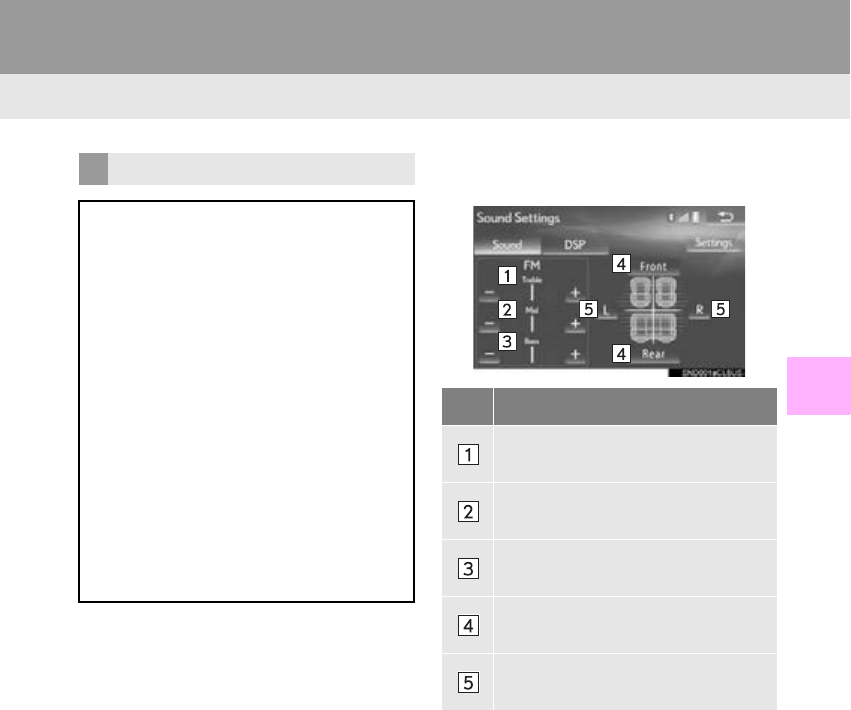
151
1. BASIC OPERATION
RX_Navi_U
AUDIO/VISUAL SYSTEM
4
1Select the “Sound” tab and select the
desired item to be set.
TONE AND BALANCE
TONE:
How good an audio program sounds is
largely determined by the mix of the tre-
ble, mid and bass levels. In fact, different
kinds of music and vocal programs usu-
ally sound better with different mixes of
treble, mid and bass.
BALANCE:
A good balance of the left and right ste-
reo channels and of the front and rear
sound levels is also important.
Keep in mind that when listening to a ste-
reo recording or broadcast, changing
the right/left balance will increase the
volume of 1 group of sounds while de-
creasing the volume of another.
No. Function
Select “+” or “-” to adjust high-
pitched tones.
Select “+” or “-” to adjust mid-pitched
tones.
Select “+” or “-” to adjust low-pitched
tones.
Select to adjust the sound balance
between the front and rear speakers.
Select to adjust the sound balance
between the left and right speakers.
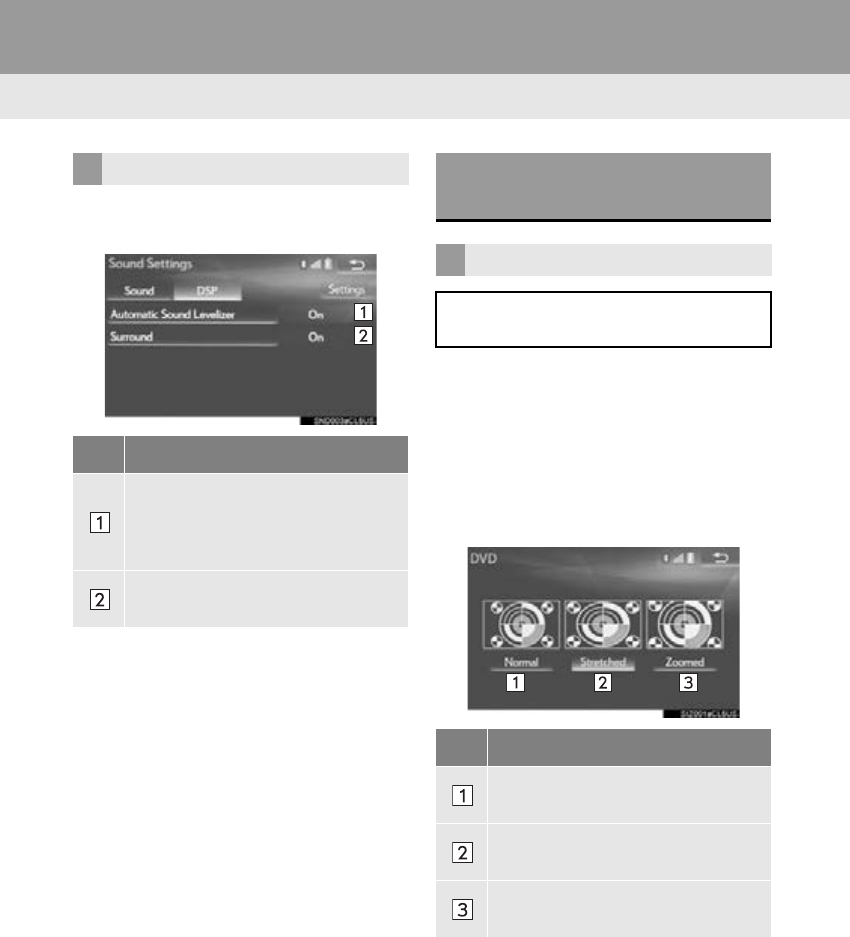
152
1. BASIC OPERATION
RX_Navi_U
1Select the “DSP” tab and select the de-
sired item to be set.
DVD video/iPod video/External video
1Display the audio control screen.
(P. 144)
2Select “Options”.
3Select “Wide”.
4Select the desired item to be adjusted.
DSP CONTROL
No. Function
The system adjusts to the optimum
volume and tone quality according to
vehicle speed to compensate for in-
creased vehicle noise.
This function can create a feeling of
presence.
AUDIO SCREEN
ADJUSTMENT
SCREEN SIZE SETTINGS
The screen size can be selected for each
type of media.
No. Function
Select to display a 4 : 3 screen, with
either side in black.
Select to enlarge the image horizon-
tally and vertically to full screen.
Select to enlarge the image by the
same ratio horizontally and vertically.
153
1. BASIC OPERATION
RX_Navi_U
AUDIO/VISUAL SYSTEM
4
DVD video/iPod video/External video
1Display the audio control screen.
(P. 144)
2Select “Options”.
3Select “Display”.
4Select the desired item to be adjusted.
CONTRAST, BRIGHTNESS,
COLOR AND TONE
ADJUSTMENT
The brightness, contrast, color and tone
of the screen can be adjusted.
Screen button Function
“Color” “R” Select to strengthen the
red color of the screen.
“Color” “G”
Select to strengthen the
green color of the
screen.
“Tone” “+” Select to strengthen the
tone of the screen.
“Tone” “-” Select to weaken the
tone of the screen.
“Contrast” “+” Select to strengthen the
contrast of the screen.
“Contrast” “-” Select to weaken the
contrast of the screen.
“Brightness” “+” Select to brighten the
screen.
“Brightness” “-” Select to darken the
screen.
INFORMATION
●Depending on the audio source, some
functions may not be available.
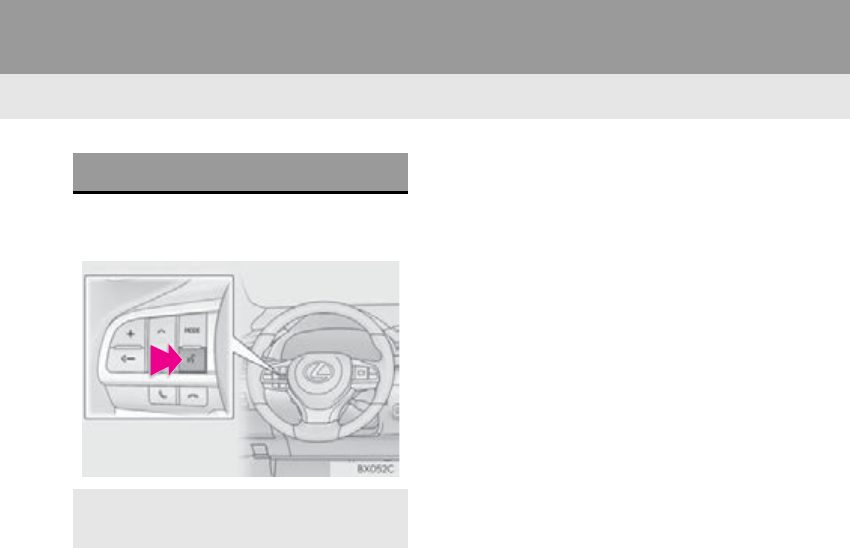
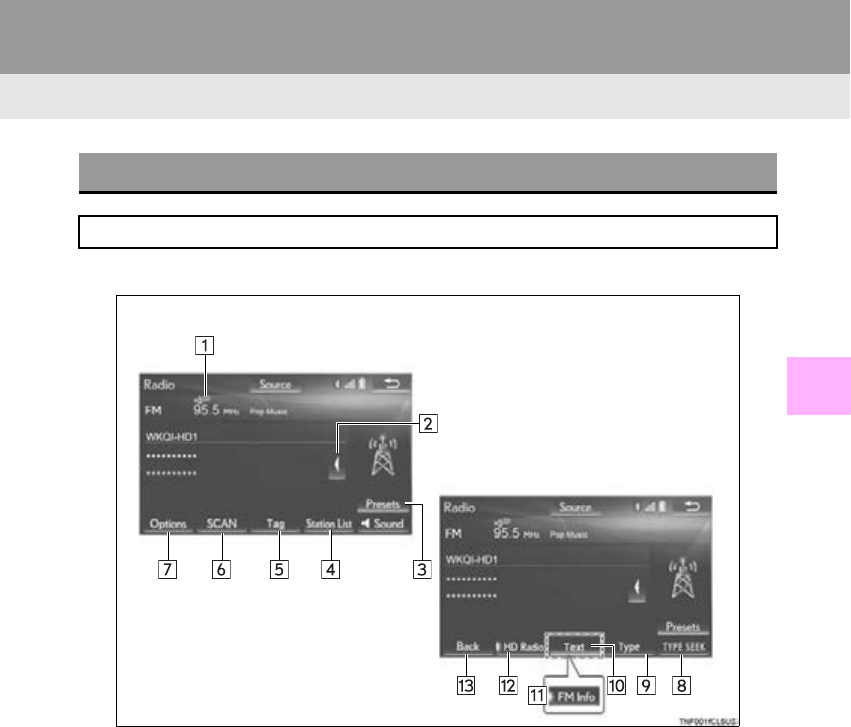
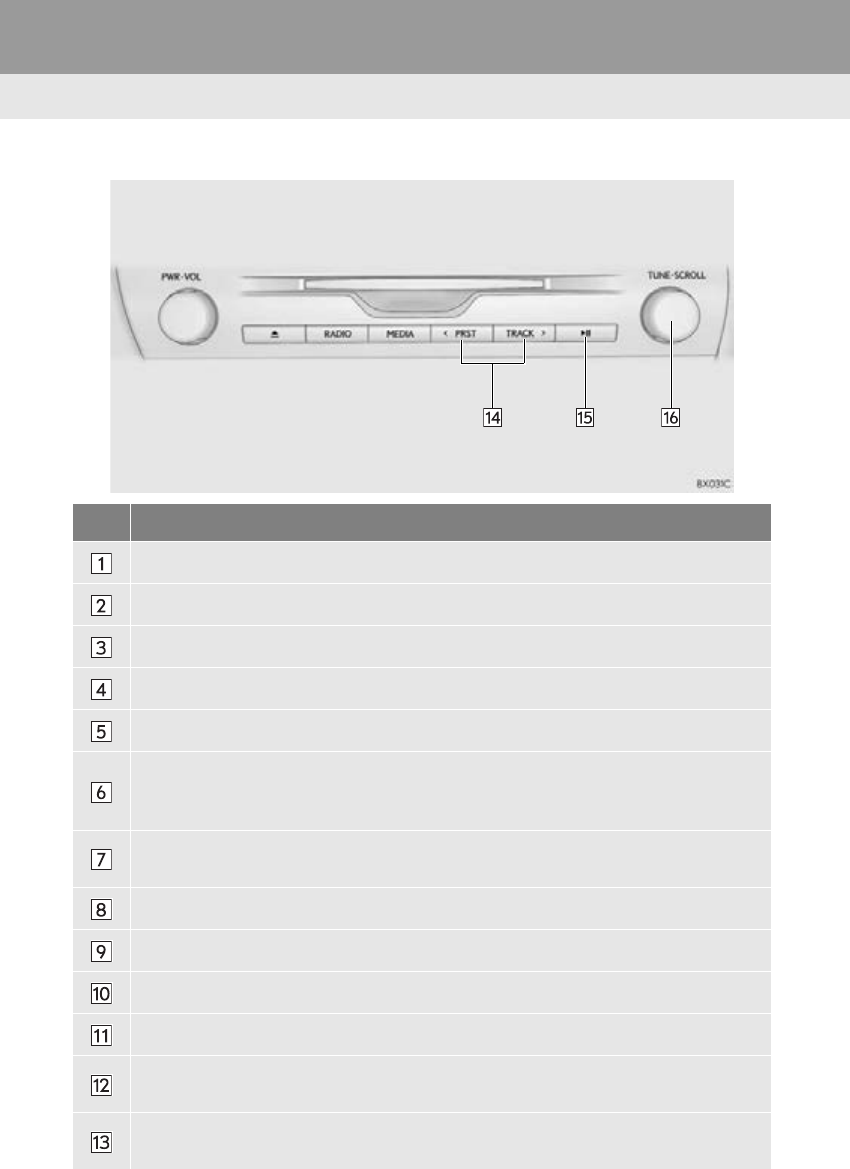
156
2. RADIO OPERATION
RX_Navi_U
■CONTROL PANEL
No. Function
Select to display HD) multicast channels available. (P. 162)
Select to display the cache radio operation buttons. (P. 159)
Select to display the radio preset buttons. (P. 158)
Select to display a list of receivable stations. (P. 159)
Select to store artist and song title information. (P. 163)
Select to scan for receivable stations.
When a program type is selected: Select to scan for receivable stations of the selected
program type/channel category.
Select to change the screen buttons (at the bottom of the screen) to the optional screen
buttons.
Select to seek a receivable station of the selected category.
Select to display the “Type List” screen. (P. 161)
Select to display text messages.
Analog FM only: Select to display RBDS text messages. (P. 161)
Select to turn HD Radio mode on/off.
When the “HD Radio” indicator is off, the station list shows only analog broadcasts.
Select to change the screen buttons (at the bottom of the screen) back to the standard
screen buttons.
157
2. RADIO OPERATION
RX_Navi_U
AUDIO/VISUAL SYSTEM
4
Press to select a preset station.
Press and hold to seek for a station.
Cache radio only: Press to turn mute on/off.
Turn to step up/down frequencies.
Turn to move up/down the list.
INFORMATION
●The radio automatically changes to stereo reception when a stereo broadcast is received.
No. Function
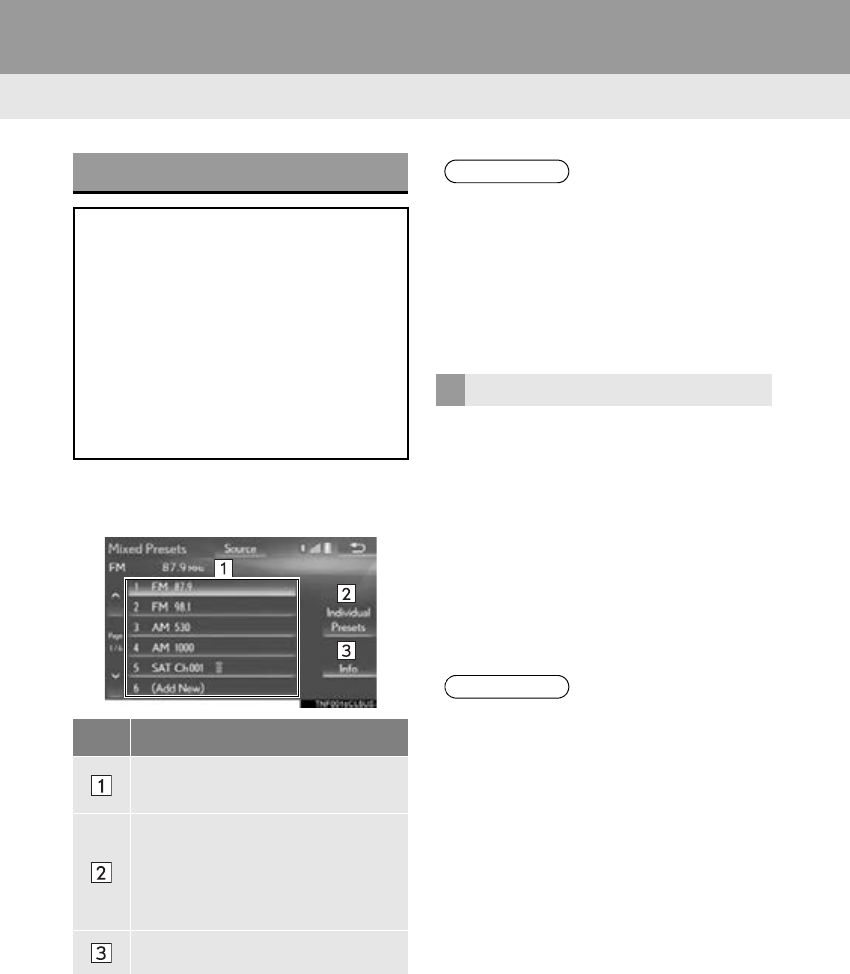
158
2. RADIO OPERATION
RX_Navi_U
1Select “Presets”.
2Select the desired item.
1Tune in the desired station.
2Select “Presets”.
3Select “add new”.
-To change the preset station to a different
one, select and hold the preset station.
4Select “Yes” on the confirmation screen.
5Select “OK” after setting the new preset
station.
PRESET BUTTON SCREEN
Two preset button screens are available:
the “Mixed Presets” screen and “Individ-
ual Presets” screen.
On the “Mixed Presets” screen, preset
stations for all radio modes (AM, FM
and XM Satellite Radio modes) are dis-
played together.
On the “Individual Presets” screen, only
preset stations for the current radio
mode are displayed.
No. Function
Select to tune in to the desired pre-
set station/channel.
Select to change to the “Individual
Presets” screen. (On the “Individual
Presets” screen, select “Mixed Pre-
sets” to change to the “Mixed Pre-
sets” screen.
Select to display the control screen.
INFORMATION
●On the “Mixed Presets” screen, up to 36
stations (6 stations per page x 6 pages)
can be set as presets.
On the “Individual Presets” screen, up to
another 12 AM stations, 12 FM stations,
and 12 XM Satellite Radio stations can be
set as presets. (Maximum 72 stations)
PRESETTING A STATION
INFORMATION
●The number of preset radio stations dis-
played on the screen can be changed.
(P. 20 1)
159
2. RADIO OPERATION
RX_Navi_U
AUDIO/VISUAL SYSTEM
4
1Select “Station List”.
2FM radio only: Select the desired pro-
gram type.
3Select the desired station.
“Info”: Select to display the control screen.
■REFRESHING THE STATION LIST
1Select “Refresh” on the “Station List”
screen and the following screen will be
displayed.
“Cancel Refresh”: Select to cancel the re-
fresh.
“Source”: Select to change to another au-
dio source while refreshing.
1Select on the right side of the screen.
SELECTING A STATION FROM
THE LIST
INFORMATION
●The audio system sound is muted during
refresh operation.
●In some situations, it may take some time
to update the station list.
CACHING A RADIO
PROGRAM
A radio program can be cached and
played back in a time-shifted manner.
PLAYING BACK THE CACHE
MANUALLY
The broadcast cached in the program
cache can be played back manually.
160
2. RADIO OPERATION
RX_Navi_U
2Select the desired cache radio opera-
tion button.
No. Function
Select: Skips backward 2 minutes
Select and hold: Fast rewinds contin-
uously
Returns to the live radio broadcast
Pauses the playback (To restart, se-
lect )
Select: Skips forward 2 minutes
Select and hold: Fast forwards con-
tinuously
Hides the cache operation buttons
Red vertical bar: Shows what portion
of the cached broadcast is currently
playing
Light blue bar: Shows time in which
cache writing is in progress
AUTOMATIC PLAYBACK OF
THE CACHE
If the radio broadcast is interrupted by
another audio output, such as an
incoming phone call, the system will
automatically cache the interrupted
portion and perform time-shift playback
when the interruption ends. To manually
operate the cache operation: (P. 159)
INFORMATION
●The system can store up to 10 minutes.
Cached data will be erased when the
radio mode or station is changed or when
the audio system is turned off.
●If noise or silence occurs during the cach-
ing process, cache writing will continue,
with the noise or silence recorded as is. In
this case, the cached broadcast will con-
tain the noise or silence when played
back.
161
2. RADIO OPERATION
RX_Navi_U
AUDIO/VISUAL SYSTEM
4
1Select “Options”.
2Select “Type”.
3Select to select a program type/channel
category.
-Once a program type has been set, “TYPE
SEEK” will appear on the screen.
-The program list is in the following order:
•“Classical”
•“Country”
• “EasyLis” (Easy Listening)
• “Inform” (Information)
• “Jazz”
•“News”
•“Oldies”
•“Other”
•“Pop Music”
•“Religion”
•“Rock”
• “R&B” (Rhythm and Blues)
• “Sports”
• “Talk”
• “Traffic” (Not available when “HD Radio”
indicator is off.)
• “Alert” (Emergency Alert)
4Select “TYPE SEEK” and the system
will start to seek for stations in the rele-
vant program type/channel category.
RADIO BROADCAST DATA
SYSTEM
This audio system is equipped with Ra-
dio Broadcast Data Systems (RBDS).
RBDS mode allows text messages to be
received from radio stations that utilize
RBDS transmitters.
When RBDS is on, the radio can
— only select stations of a particular pro-
gram type,
— display messages from radio stations,
— search for a stronger signal station.
RBDS features are available only when
listening to an FM station that
broadcasts RBDS information and the
“FM Info” indicator is on.
SELECTING A DESIRED
PROGRAM TYPE
INFORMATION
●If no relevant program can be found, “no
type” will appear on the screen.
162
2. RADIO OPERATION
RX_Navi_U
1Select the “HD)” logo.
2Select the desired channel.
-Tu r n i n g t h e “TUNE·SCROLL” knob can
also select the desired multicast channel.
USING HD Radio™
TECHNOLOGY
HD Radio™ Technology is the digital
evolution of analog AM/FM radio. Your
radio product has a special receiver
which allows it to receive digital broad-
casts (where available) in addition to the
analog broadcasts it already receives.
Digital broadcasts have better sound
quality than analog broadcasts as digital
broadcasts provide free, crystal clear
audio with no static or distortion. For
more information, and a guide to avail-
able radio stations and programming,
refer to www.hdradio.com.
HD Radio features included in Lexus
radios:
-Digital Sound HD Radio broadcasts
deliver crystal-clear, digital audio quality
to listeners.
-HD2/HD3 Channels FM stations can
provide additional digital only audio pro-
gramming with expanded content and
format choices on HD2/HD3 channels.
-PSD Program Service Data (PSD)
gives you on-screen information such as
artist name and song title.
-iTunes Tagging Listeners can tag
(store) songs they like for later review and
purchase through iTunes.
-Artist Experience Images related to
the broadcast are displayed on the radio
screen, such as album cover art and sta-
tion logos.
HD Radio Technology manufactured
under license from iBiquity Digital
Corporation. U.S. and Foreign Patents.
HD Radio™ and the HD, HD Radio, and
“Arc” logos are proprietary trademarks
of iBiquity Digital Corp.
AVAILABLE HD Radio™
TECHNOLOGY
MULTICAST
On the FM radio frequency most digital
stations have “multiple” or supplemental
programs on one FM station.
163
2. RADIO OPERATION
RX_Navi_U
AUDIO/VISUAL SYSTEM
4
1Select “Tag” to bookmark the music in-
formation.
2Connect an iPod. (P. 149)
-Turn on the power of the iPod if it is not
turned on.
-Once an iPod is connected, the music tag
moves from the radio into the iPod.
-When the iPod is connected to iTunes, the
“tagged” information of the songs which
were tagged while listening to the radio can
be viewed. Then a user may decide to pur-
chase the song or CD/Album which had
been listened to on their radio.
PRESERVING A MUSIC
INFORMATION
Tag information in the music broadcast-
ing is preserved in the system and trans-
mits to an iPod.
INFORMATION
●The tag information can not be preserved
while scanning or caching the radio sta-
tion.
●If tagging the music information fails,
“Saving the HD Radio tag failed.” will be
displayed on the screen. If this occurs, tag
the information again.
●HD Radio™ stations can be preset.
●An orange “HD)” logo indicator will be
displayed on the screen when in digital.
The “HD)” logo will first appear in a gray
color indicating the station is indeed (an
analog and) a digital station. Once the
digital signal is acquired, the logo will
change to a bright orange color.
●The song title, artist name and music
genre will appear on the screen when
available by the radio station. In addition,
radios stations may send album cover
pictures when available.
●As a user works through the analog radio
stations, (where applicable) the radio
receiver will automatically tune from an
analog signal to a digital signal within 5
seconds.
164
2. RADIO OPERATION
RX_Navi_U
TROUBLESHOOTING GUIDE
Experience Cause Action
Mismatch of time align-
ment- a user may hear a
short period of program-
ming replayed or an echo,
stutter or skip.
The radio stations analog
and digital volume is not
properly aligned or the sta-
tion is in ballgame mode.
None, radio broadcast issue. A
user can contact the radio station.
Sound fades, blending in
and out.
Radio is shifting between
analog and digital audio.
Reception issue, may clear-up as
the vehicle continues to be driven.
Turning the indicator of the “HD
Radio” button off can force radio in
an analog audio.
Audio mute condition
when an HD2/HD3 multi-
cast channel had been play-
ing.
The radio does not have ac-
cess to digital signals at the
moment.
This is normal behavior, wait until
the digital signal returns. If out of
the coverage area, seek a new sta-
tion.
Audio mute delay when se-
lecting an HD2/HD3 mul-
ticast channel preset.
The digital multicast con-
tent is not available until HD
Radio™ broadcast can be
decoded and make the au-
dio available. This takes up
to 7 seconds.
This is normal behavior, wait for the
audio to become available.
Text information does not
match the present song au-
dio.
Data service issue by the
radio broadcaster.
Broadcaster should be notified.
Complete the form;
www.ibiquity.com/automotive/
report_radio_station_experiences.
No text information shown
for the present selected fre-
quency.
Data service issue by the
radio broadcaster.
Broadcaster should be notified.
Complete the form;
www.ibiquity.com/automotive/
report_radio_station_experiences.
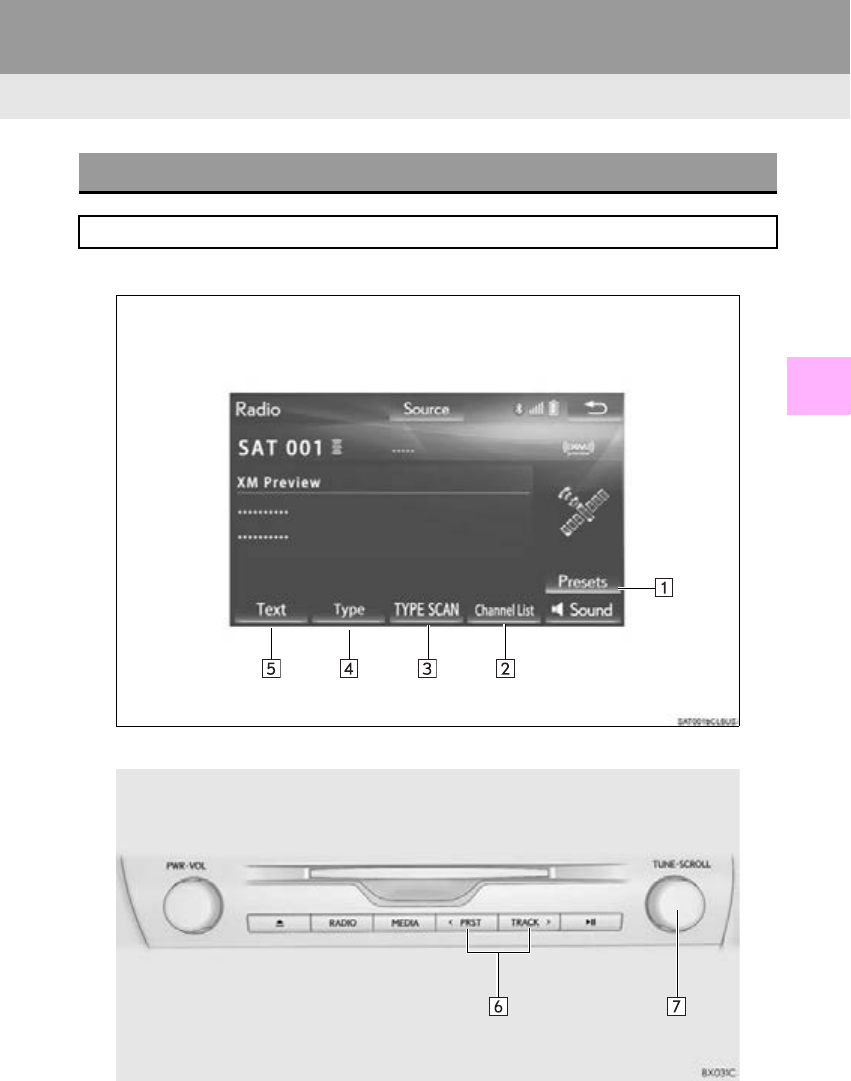
166
2. RADIO OPERATION
RX_Navi_U
No. Function
Select to display the radio preset buttons. (P. 158)
Select to display a receivable channel list. (P. 169)
Select to scan for receivable channels of the selected program type/channel category.
Select to display the “Type List” screen. (P. 161)
Select to display text messages.
Press to select a preset channel.
Press and hold to seek for a channel.
Turn to step up/down channels.
Turn to move up/down the list.
167
2. RADIO OPERATION
RX_Navi_U
AUDIO/VISUAL SYSTEM
4
HOW TO SUBSCRIBE TO AN
XM Satellite Radio
To listen to a satellite radio broadcast in
the vehicle, a subscription to the XM
Satellite Radio service is necessary.
An XM Satellite Radio is a tuner de-
signed exclusively to receive broadcasts
provided under a separate subscription.
Availability is limited to the 48 contigu-
ous U.S. states and some Canadian
provinces.
HOW TO SUBSCRIBE
It is necessary to enter into a separate
service agreement with XM Satellite
Radio in order to receive satellite broad-
cast programming in the vehicle. Addi-
tional activation and service
subscription fees apply that are not in-
cluded in the purchase price of the vehi-
cle and digital satellite tuner.
-For complete information on subscrip-
tion rates and terms, or to subscribe to
XM Satellite Radio:
U.S.A.
Refer to www.siriusxm.com or call
1-877-447-0011.
Canada
Refer to www.siriusxm.ca or call
1-877-438-9677.
NOTICE
●XM Radio Services Legal Disclaimers
and Warnings
•Fees and Taxes Subscription fee,
taxes, one time activation fee, and other
fees may apply. Subscription fee is con-
sumer only. All fees and programming
subject to change.
Subscriptions subject to Customer
Agreement available at
www.siriusxm.com (U.S.A.) or
www.siriusxm.ca (Canada) XM service
only available in the 48 contiguous
United States and Canada.
Explicit Language Notice Channels
with frequent explicit language are indi-
cated with an “XL” preceding the chan-
nel name. Channel blocking is available
for XM Satellite Radio receivers by
notifying XM at;
U.S.A. Customers:
Visit www.siriusxm.com or calling
1-877-447-0011
Canadian Customers:
Visit www.siriusxm.ca or calling
1-877-438-9677
●It is prohibited to copy, decompile, disas-
semble, reverse engineer, hack, manipu-
late, or otherwise make available any
technology or software incorporated in
receivers compatible with the XM Satel-
lite Radio System or that support the XM
website, the Online Service or any of its
content. Furthermore, the AMBE® voice
compression software included in this
product is protected by intellectual prop-
erty rights including patent rights, copy-
rights, and trade secrets of Digital Voice
Systems, Inc.
●Note: this applies to XM receivers only
and not XM Ready devices.
168
2. RADIO OPERATION
RX_Navi_U
INFORMATION
●XM Radio Services Descriptions
• Radio and Entertainment
XM offers more than 170 satellite radio
channels of commercial-free music and
premier sports, news, talk, and enter-
tainment. XM is broadcast via satellites
to millions of listeners across the conti-
nental United States. XM subscribers
listen to XM on satellite radio receivers
for the car, home, and portable use.
More information about XM is available
online at www.siriusxm.com (U.S.A.) or
www.siriusxm.ca (Canada).
●XM Radio Services Subscription
Instructions
• For XM Services requiring a
subscription (such as XM Radio), the
following paragraph shall be included.
Required XM Radio monthly
subscriptions sold separately after trial
period. Subscription fee is consumer
only. All fees and programming subject
to change. Subscriptions are subject to
the Customer Agreement available at
www.siriusxm.com (U.S.A.) or
www.siriusxm.ca (Canada) XM service
only available in the 48 contiguous
United States and 10 Canadian
provinces. 2011 Sirius XM Radio Inc.
Sirius, XM and all related marks and
logos are trademarks of Sirius XM
Radio Inc. All other marks, channel
names and logos are the property of
their respective owners.
For more information, program
schedules, and to subscribe or extend
subscription after complimentary trial
period; more information is available at:
U.S.A. Customers:
Visit www.siriusxm.com or call
1-877-447-0011
Canadian Customers:
Visit www.siriusxm.ca or call
1-877-438-9677
INFORMATION
●XM Satellite Radio is solely responsible
for the quality, availability and content of
the satellite radio services provided,
which are subject to the terms and condi-
tions of the XM Satellite Radio customer
service agreement.
●Customers should have their radio ID
ready; the radio ID can be found by tun-
ing to “Ch 000” on the radio. For details,
see “DISPLAYING THE RADIO ID”
below.
●All fees and programming are the
responsibility of XM Satellite Radio and
are subject to change.
SATELLITE TUNER
TECHNOLOGY NOTICE
Lexus’s satellite radio tuners are award-
ed Type Approval Certificates from XM
Satellite Radio Inc. as proof of compati-
bility with the services offered by XM
Satellite Radio.
INFORMATION
●Satellite tuner
The tuner supports only Audio Services
(Music and Talk) and the accompanying
Text I n f or m at i o n o f X M ® Satellite Radio.

169
2. RADIO OPERATION
RX_Navi_U
AUDIO/VISUAL SYSTEM
4
-If “Ch 000” is selected using the
“TUNE·SCROLL” knob, the ID code,
which is 8 alphanumeric characters, will be
displayed. If another channel is selected,
the ID code will no longer be displayed.
The channel (000) alternates between dis-
playing the radio ID and the specific radio
code.
1Select “Channel List”.
2Select the desired channel category.
3Select the desired channel.
“Info”: Select to display the control screen.
DISPLAYING THE RADIO ID
Each XM tuner is identified with a
unique radio ID. The radio ID is required
when activating an XM service or when
reporting a problem.
SELECTING A CHANNEL
FROM THE LIST
170
2. RADIO OPERATION
RX_Navi_U
IF THE SATELLITE RADIO TUNER MALFUNCTIONS
When problems occur with the XM tuner, a message will appear on the screen. Refer-
ring to the table below to identify the problem, take the suggested corrective action.
Message Explanation
“Ck Antenna”
The XM antenna is not connected. Check whether the XM antenna
cable is attached securely.
A short circuit occurs in the antenna or the surrounding antenna ca-
ble. See a Lexus certified dealer for assistance.
“Ch Unauth”
You have not subscribed to XM Satellite Radio. The radio is being
updated with the latest encryption code. Contact XM Satellite Radio
for subscription information. When a contract is canceled, you can
choose “Ch 000” and all free-to-air channels.
The premium channel you selected is not authorized. Wait for about
2 seconds until the radio returns to the previous channel or “Ch 001”.
If it does not change automatically, select another channel. To listen
to the premium channel, contact XM Satellite Radio.
“No Signal” The XM signal is too weak at the current location. Wait until your ve-
hicle reaches a location with a stronger signal.
“Loading...” The unit is acquiring audio or program information. Wait until the unit
has received the information.
“Ch Off Air” The channel you selected is not broadcasting any programming. Se-
lect another channel.
----- There is no song/program title or artist name/feature associated with
the channel at that time. No action is required.
“Ch Unavail”
The channel you selected is no longer available. Wait for about 2 sec-
onds until the radio returns to the previous channel or “Ch 001”. If it
does not change automatically, select another channel.
INFORMATION
●Contact the XM Listener Care Center at 1-877-447-0011 (U.S.A.) or 1-877-438-9677
(Canada).
171
2. RADIO OPERATION
RX_Navi_U
AUDIO/VISUAL SYSTEM
4
3. INTERNET RADIO
1Display the audio source selection
screen. (P. 147)
2Select the desired application screen
button.
-The internet radio application screen is dis-
played.
-Perform operations according to the dis-
played application screen.
-For the instrument panel operation method
and the Remote Touch operation method:
P. 147
-By pressing the “RADIO” button, the
“Audio” screen can be returned to.
LISTENING TO INTERNET
RADIO
One of LEXUS App Suite’s features is
the ability to listen to internet radio. In or-
der to use this service, a compatible
phone and the system needs to be set
up. For details: P. 358
INFORMATION
●Other applications can be activated
while listening to internet radio.
●An iPhone cannot be connected via
Bluetooth® and USB connection at the
same time. However, it is possible to
recharge an iPhone while using applica-
tions by connecting via USB. The system
uses the connection method that was
used last. Therefore, if connected via
USB after Bluetooth® connection, it is
necessary to reconnect the iPhone via
Bluetooth®.
●Some parts of applications can be
adjusted using the switches on the steer-
ing wheel.
●For additional information, refer to
http://www.lexus.com/enform/ or call
1-800-255-3987.
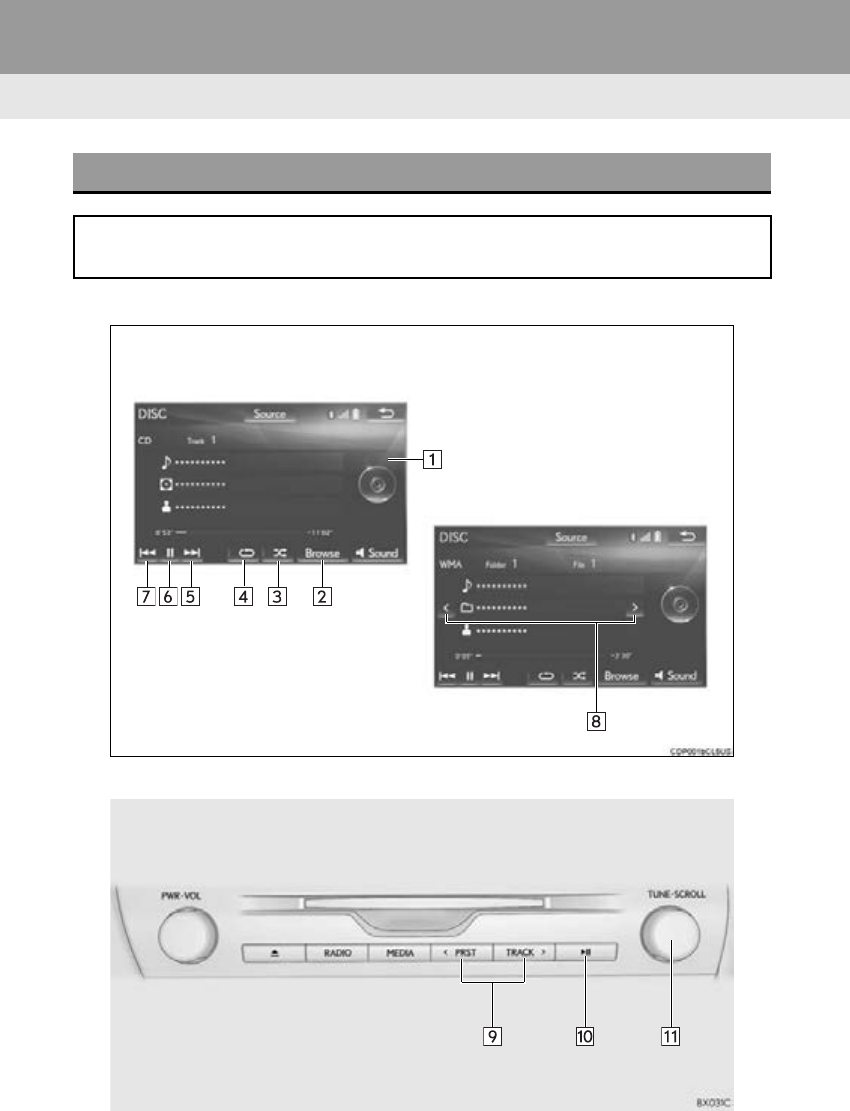
173
3. MEDIA OPERATION
RX_Navi_U
AUDIO/VISUAL SYSTEM
4
No. Function
Displays cover art
Select to display a track/file list.
Audio CD: Select to display a track list.
MP3/WMA/AAC disc: Select to display a folder list. To return to the top screen, select
“Now Playing” on the list screen.
Select to set random playback. (P. 174)
Select to set repeat playback. (P. 174)
Select to select a track/file.
Select and hold to fast forward.
Select to play/pause.
Select to select a track/file.
Select and hold to rewind.
Select to select a folder.
Press to select a track/file.
Press and hold to fast forward/rewind.
Press to play/pause.
Turn to select a track/file.
Turn to move up/down the list.
INFORMATION
●If a disc contains CD-DA files and MP3/WMA/AAC files, only the CD-DA files can be
played back.
●If a CD-TEXT disc is inserted, the title of the disc and track will be displayed. Up to 32 char-
acters can be displayed.
174
3. MEDIA OPERATION
RX_Navi_U
1Select .
-Each time is selected, the mode
changes as follows:
Audio CD
•track repeat off
MP3/WMA/AAC disc
• file repeat folder repeat off*1
• file repeat off*2
*1: When random playback is off
*2: When random playback is on
1Select .
-Each time is selected, the mode
changes as follows:
Audio CD
• random (1 disc random) off
MP3/WMA/AAC disc
• random (1 folder random)
folder random (1 disc random) off
REPEATING
The track/file or folder currently being
listened to can be repeated.
RANDOM ORDER
Tracks/files or folders can be automati-
cally and randomly selected.
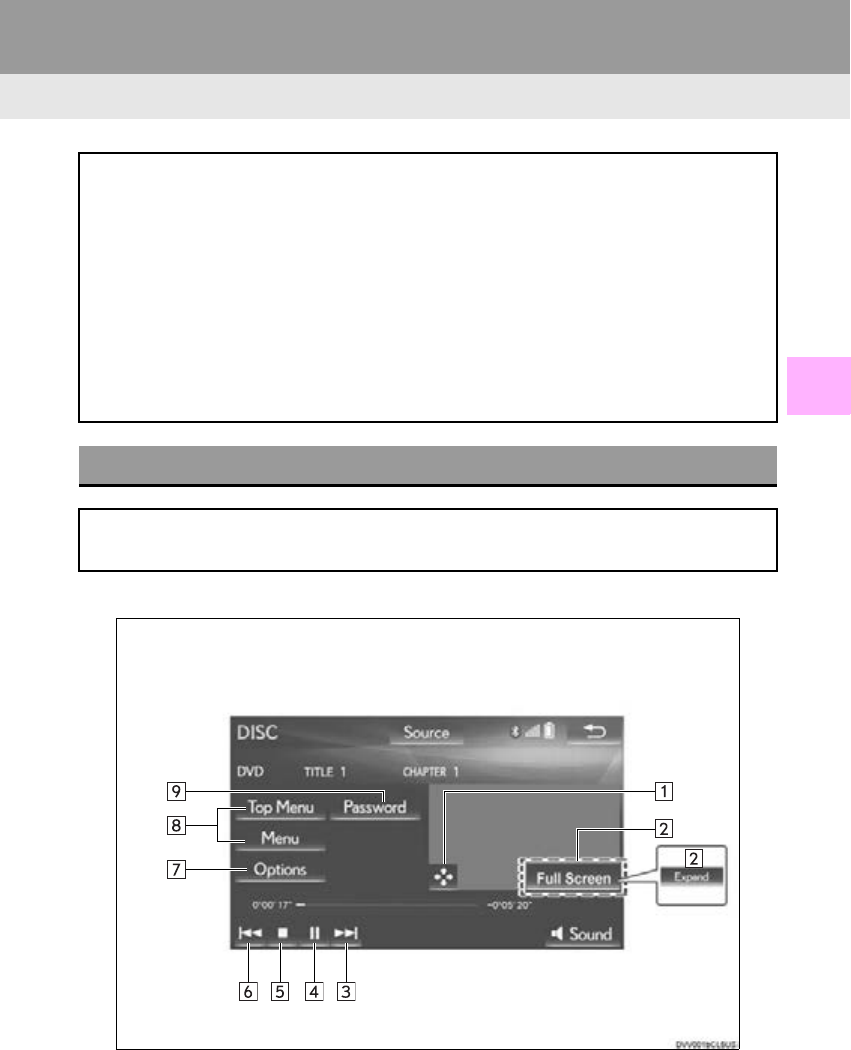
175
3. MEDIA OPERATION
RX_Navi_U
AUDIO/VISUAL SYSTEM
4
2. DVD
■CONTROL SCREEN
*: With 12.3-inch display
For safety reasons, the DVD video discs can only be viewed when the following con-
ditions are met:
(a) The vehicle is completely stopped.
(b) The engine <power> switch is in ACCESSORY or IGNITION ON <ON> mode.
(c) The parking brake is applied.
While driving in DVD video mode, only the DVD’s audio can be heard.
The playback condition of some DVD discs may be determined by the DVD software
producer. This DVD player plays a disc as the software producer intended. As such,
some functions may not work properly. Be sure to read the instruction manual that
comes with the individual DVD disc. (P. 206)
OVERVIEW
The DVD operation screen can be reached by the following methods: P. 147
Inserting a disc (P. 148)
*
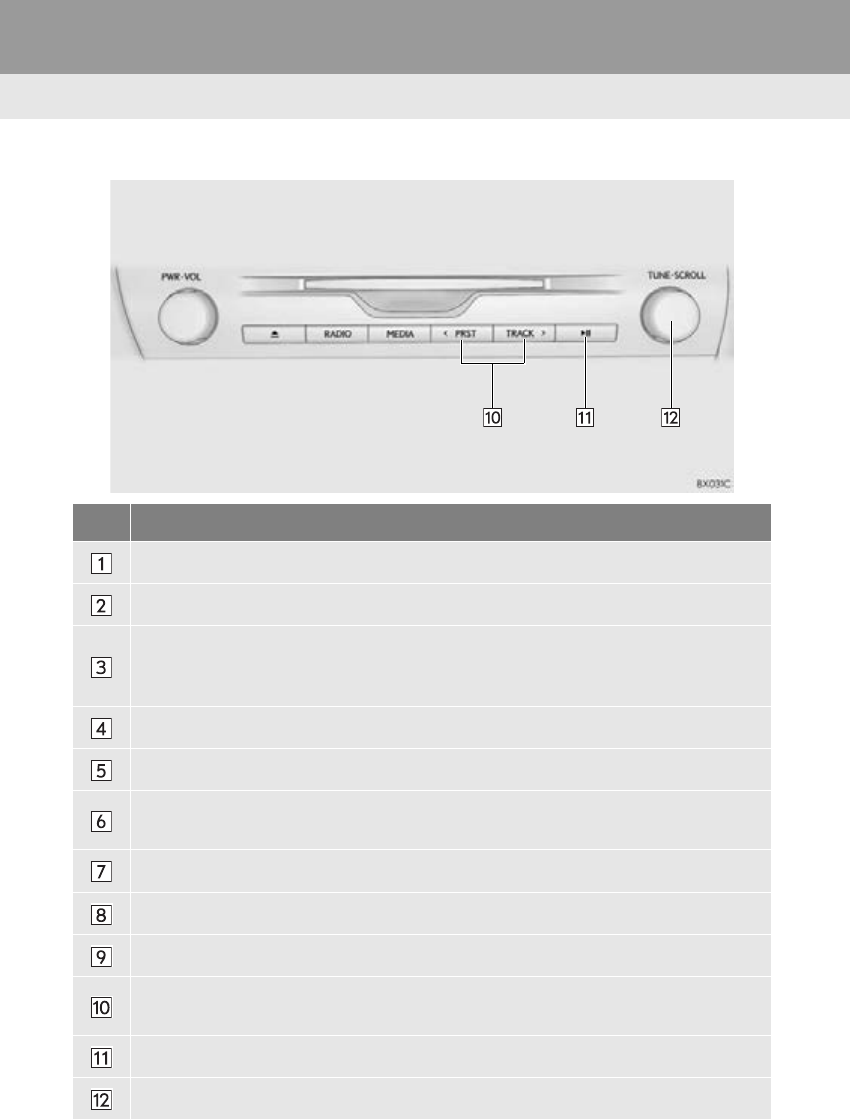
176
3. MEDIA OPERATION
RX_Navi_U
■CONTROL PANEL
No. Function
Select to display the menu control key.
Select to display full screen video.
Select to select a chapter.
During playback: Select and hold to fast forward.
During a pause: Select and hold to slow forward.
Select to play/pause.
Select to stop the video screen.
Select to select a chapter.
Select and hold to rewind.
Select to display the option screen. (P. 178)
Select to display the menu screen.
Select to display the password input screen.
Press to select a chapter.
Press and hold to fast forward/rewind.
Press to play/pause.
Turn to select a chapter.
177
3. MEDIA OPERATION
RX_Navi_U
AUDIO/VISUAL SYSTEM
4
WARNING
●Conversational speech on some DVDs is recorded at a low volume to emphasize the
impact of sound effects. If you adjust the volume assuming that the conversations represent
the maximum volume level that the DVD will play, you may be startled by louder sound
effects or when you change to a different audio source. The louder sounds may have a sig-
nificant impact on the human body or pose a driving hazard. Keep this in mind when you
adjust the volume.
INFORMATION
●According to the DVD disc, some menu items can be selected directly. (For details, see the
manual that comes with the DVD disc provided separately.)
●If appears on the screen when a control is selected, the operation relevant to the control
is not permitted.
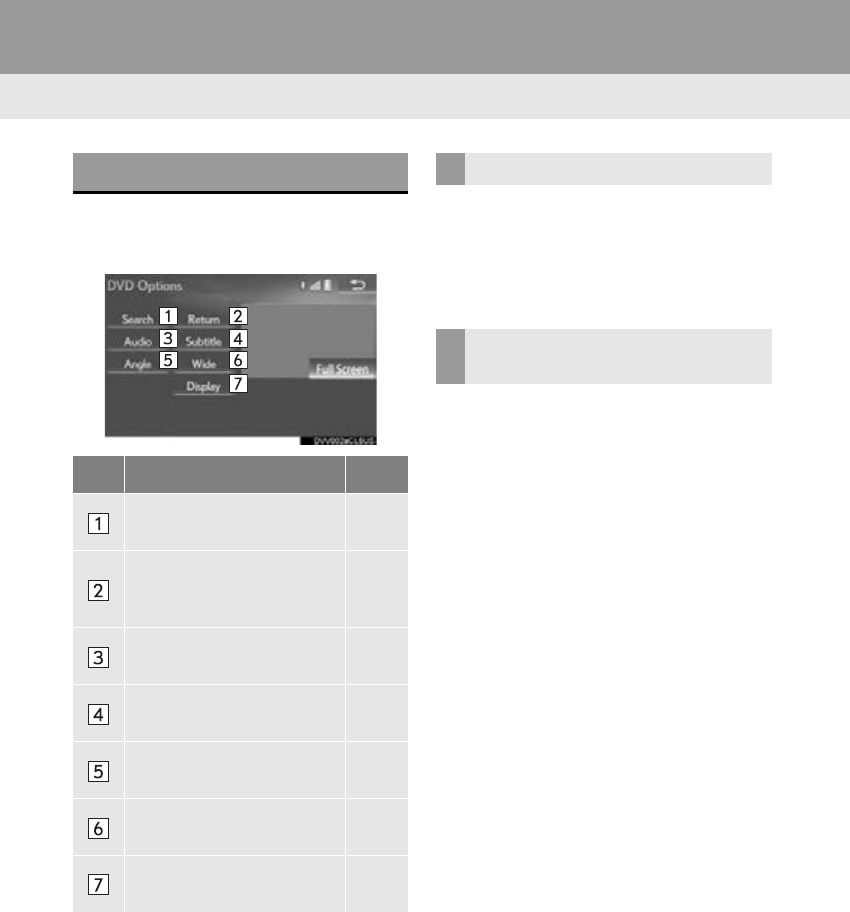
178
3. MEDIA OPERATION
RX_Navi_U
1Select “Options”.
2The following screen is displayed.
1Select “Search”.
2Enter the title number and select “OK”.
-The player starts playing video for that title
number.
1Select “A u d i o ” .
2Each time “Change” is selected, the au-
dio language is changed.
-The languages available are restricted to
those available on the DVD disc.
DVD OPTIONS
No. Function Page
Select to display the title
search screen. 178
Select to display the prede-
termined scene on the
screen and start playing.
Select to display the audio
selection screen. 178
Select to display the subtitle
selection screen. 179
Select to display the angle
selection screen. 179
Select to change the screen
size. 152
Select to display the image
quality adjustment screen. 153
SEARCHING BY TITLE
CHANGING THE AUDIO
LANGUAGE
179
3. MEDIA OPERATION
RX_Navi_U
AUDIO/VISUAL SYSTEM
4
1Select “Subtitle”.
2Each time “Change” is selected, the lan-
guage the subtitles are displayed in is
changed.
-The languages available are restricted to
those available on the DVD disc.
-When “Hide” is selected, the subtitles can
be hidden.
1Select “Angle”.
2Each time “Change” is selected, the an-
gle is changed.
-The angles available are restricted to those
available on the DVD disc.
CHANGING THE SUBTITLE
LANGUAGE
CHANGING THE ANGLE
The angle can be selected for discs that
are multi-angle compatible when the an-
gle mark appears on the screen.
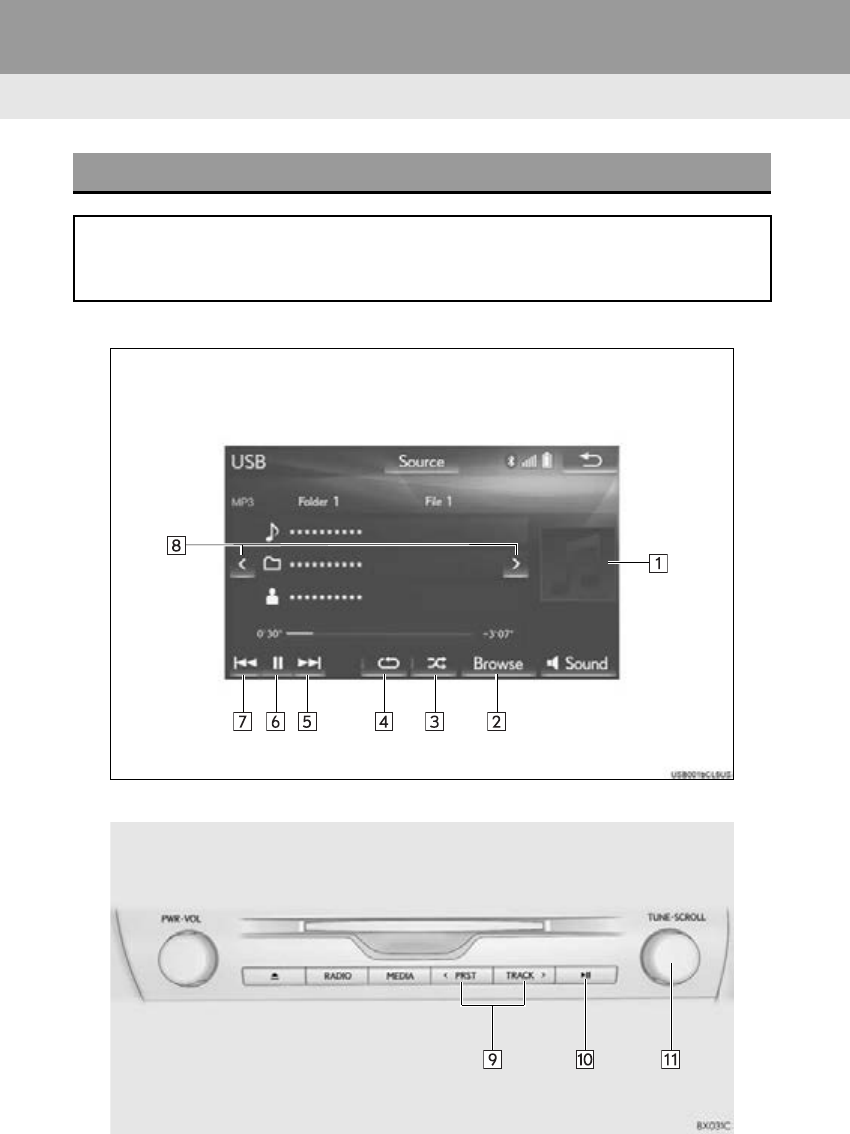
181
3. MEDIA OPERATION
RX_Navi_U
AUDIO/VISUAL SYSTEM
4
No. Function
Displays cover art
Select to display a file/track list.
To return to the top screen, select “Now Playing” on the list screen.
Select to display the play mode selection screen.
To return to the top screen, select “Now Playing” on the list screen.
Select to set random playback. (P. 183)
Select to set repeat playback. (P. 183)
Select to select a file/track.
Select and hold to fast forward.
Select to play/pause.
Select to select a file/track.
Select and hold to rewind.
Select to select a folder/album.
Press to select a file/track.
Press and hold to fast forward/rewind.
Press to play/pause.
Turn to select a file/track.
Turn to move up/down the list.
182
3. MEDIA OPERATION
RX_Navi_U
WARNING
●Do not operate the player’s controls or connect the USB memory while driving.
NOTICE
●Depending on the size and shape of the USB memory that is connected to the system, the
console box may not close fully. In this case, do not forcibly close the console box as this
may damage the USB memory or the terminal, etc.
●Do not leave your portable player in the car. In particular, high temperatures inside the vehi-
cle may damage the portable player.
●Do not push down on or apply unnecessary pressure to the portable player while it is con-
nected as this may damage the portable player or its terminal.
●Do not insert foreign objects into the port as this may damage the portable player or its ter-
minal.
INFORMATION
●If tag information exists, the file/folder names will be changed to track/album names.
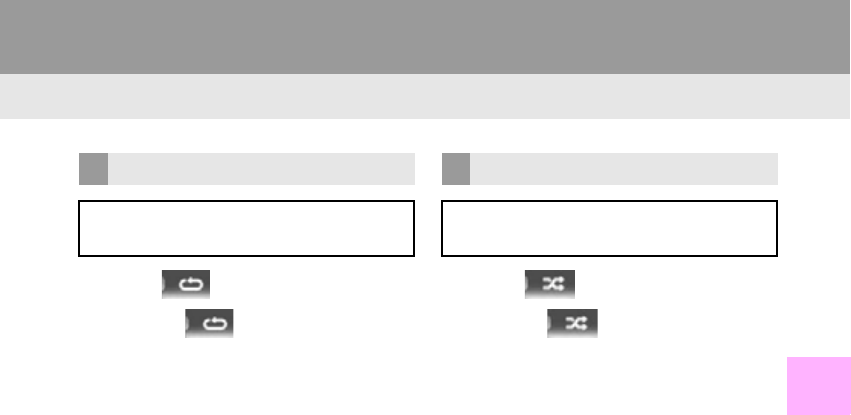
183
3. MEDIA OPERATION
RX_Navi_U
AUDIO/VISUAL SYSTEM
4
1Select .
-Each time is selected, the mode
changes as follows:
When random playback is off
•file/track repeat folder/album
repeat off
When random playback is on
•file/track repeat off
1Select .
-Each time is selected, the mode
changes as follows:
• random (1 folder/album random)
folder/album random (all folder/album
random) off
REPEATING
The file/track or folder/album currently
being listened to can be repeated.
RANDOM ORDER
Files/tracks or folders/albums can be
automatically and randomly selected.
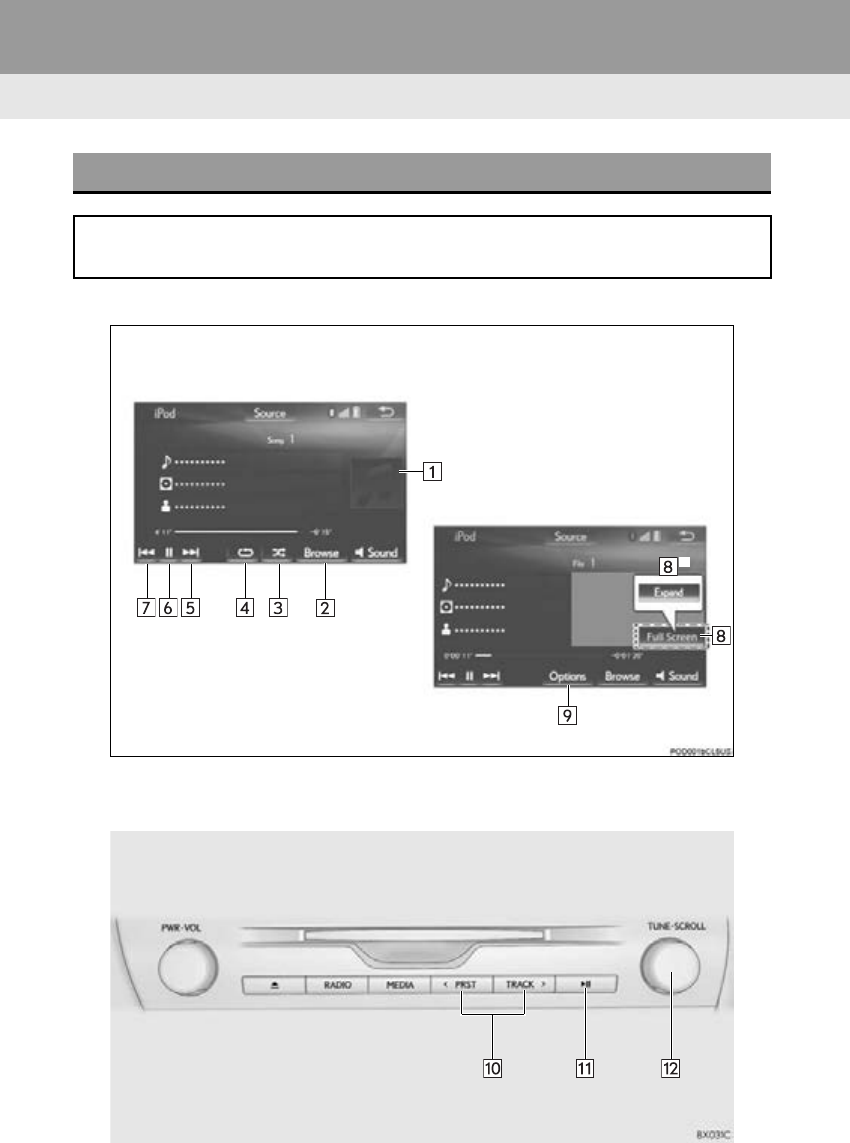
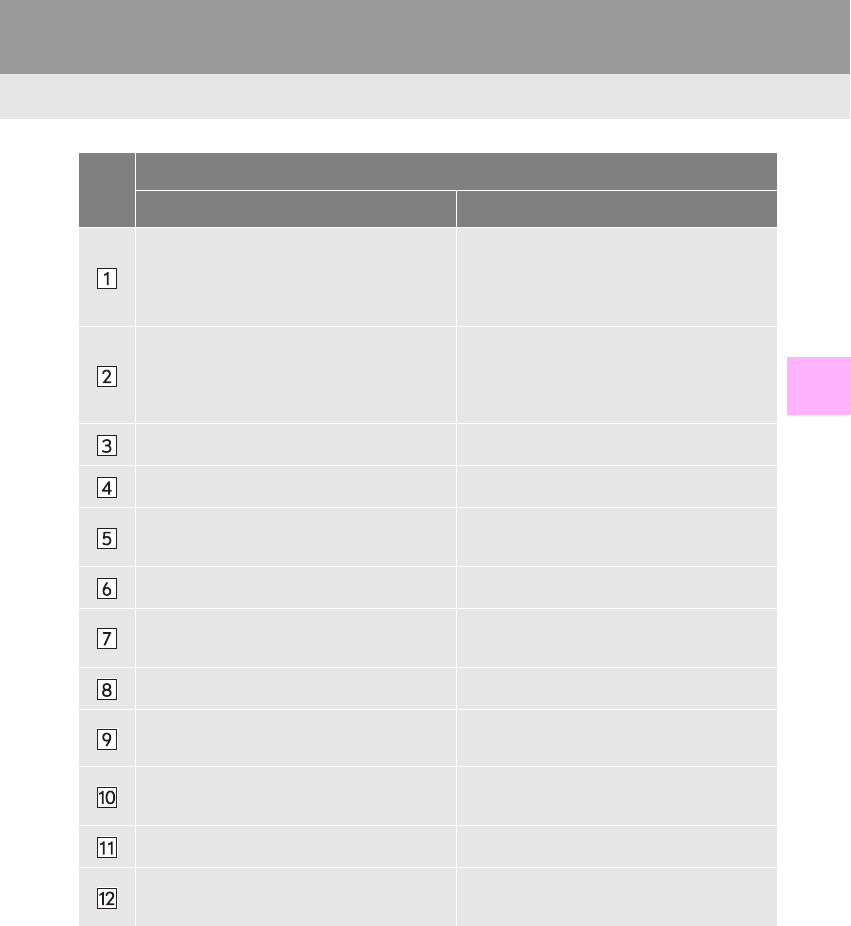
185
3. MEDIA OPERATION
RX_Navi_U
AUDIO/VISUAL SYSTEM
4
No.
Function
Audio Video
Displays cover art
Select to display a track list.
To return to the top screen, select “Now
Playing” on the list screen.
Select to display the play mode selection
screen.
To return to the top screen, select “Now
Playing” on the list screen.
Select to display the play mode selection
screen.
To return to the top screen, select “Now
Playing” on the list screen.
Select to set random playback. (P. 187)
Select to set repeat playback. (P. 187)
Select to select a track.
Select and hold to fast forward.
Select to select a file.
Select and hold to fast forward.
Select to play/pause. Select to play/pause.
Select to select a track.
Select and hold to rewind.
Select to select a file.
Select and hold to rewind.
Select to display full screen video.
Select to display the option screen.
(P. 187)
Press to select a track.
Press and hold to fast forward/rewind.
Press to select a file.
Press and hold to fast forward/rewind.
Press to play/pause. Press to play/pause.
Turn to select a track.
Turn to move up/down the list.
Turn to select a file.
Turn to move up/down the list.
186
3. MEDIA OPERATION
RX_Navi_U
WARNING
●Do not operate the player’s controls or connect the iPod while driving.
NOTICE
●Depending on the size and shape of the iPod that is connected to the system, the console
box may not close fully. In this case, do not forcibly close the console box as this may dam-
age the iPod or the terminal, etc.
●Do not leave your portable player in the car. In particular, high temperatures inside the vehi-
cle may damage the portable player.
●Do not push down on or apply unnecessary pressure to the portable player while it is con-
nected as this may damage the portable player or its terminal.
●Do not insert foreign objects into the port as this may damage the portable player or its ter-
minal.
INFORMATION
●The system can only output the sound while driving.
●When an iPod is connected using a genuine iPod cable, the iPod starts charging its battery.
●Depending on the iPod, the video sound may not be able to be heard.
●Depending on the iPod and the songs in the iPod, iPod cover art may be displayed. This
function can be changed to “On” or “Off”. (P. 201) It may take time to display iPod cover
art, and the iPod may not be operated while the cover art display is in process.
●When an iPod is connected and the audio source is changed to iPod mode, the iPod will
resume playing from the same point it was last used.
●Depending on the iPod that is connected to the system, certain functions may not be avail-
able.
●For viewing videos from an iPod, it is necessary to set “Video Sound Input” to “A/V”.
(P. 201)
●If an iPhone is connected via Bluetooth® and USB at the same time, system operation may
become unstable. For known phone compatibility information, refer to
http://www.lexus.com/enform/.
●The system may not function properly if a conversion adapter is used to connect a device.
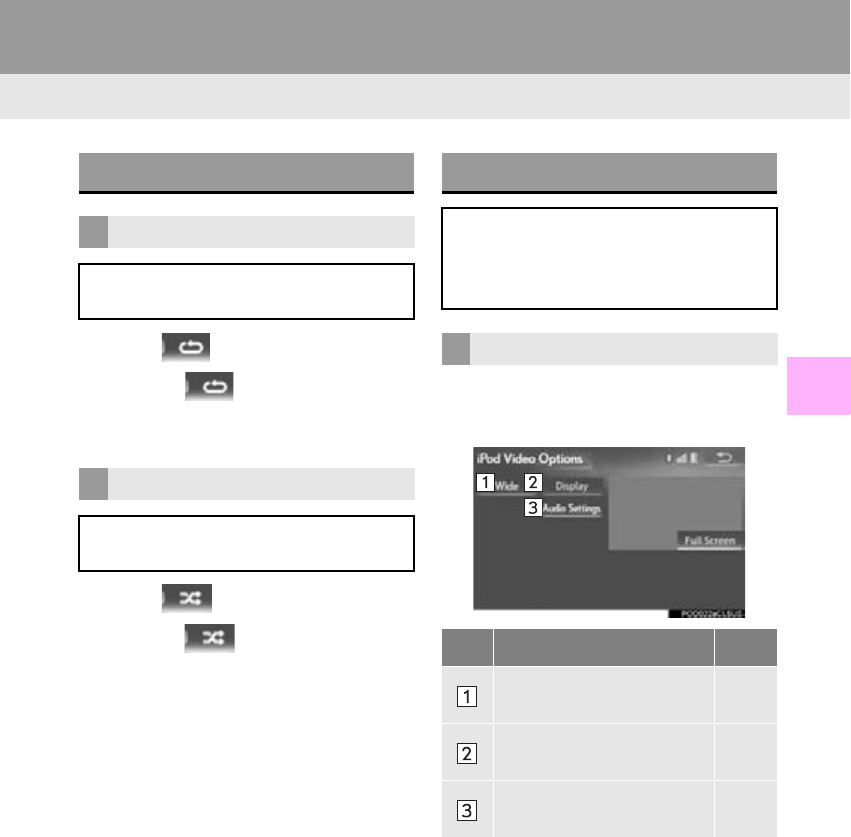
187
3. MEDIA OPERATION
RX_Navi_U
AUDIO/VISUAL SYSTEM
4
1Select .
-Each time is selected, the mode
changes as follows:
• track repeat off
1Select .
-Each time is selected, the mode
changes as follows:
•track shuffle album shuffle off
1Select “Options”.
2Select the desired settings to change.
iPod AUDIO
REPEATING
The track currently being listened to can
be repeated.
RANDOM ORDER
Tracks or albums can be automatically
and randomly selected.
iPod VIDEO
To change to iPod video mode, select
“Browse” on the iPod audio screen, then
select the “Videos” tab and select the
desired video file.
iPod VIDEO OPTIONS
No. Function Page
Select to change the screen
size. 152
Select to display the image
quality adjustment screen. 153
Select to change audio set-
tings. 200
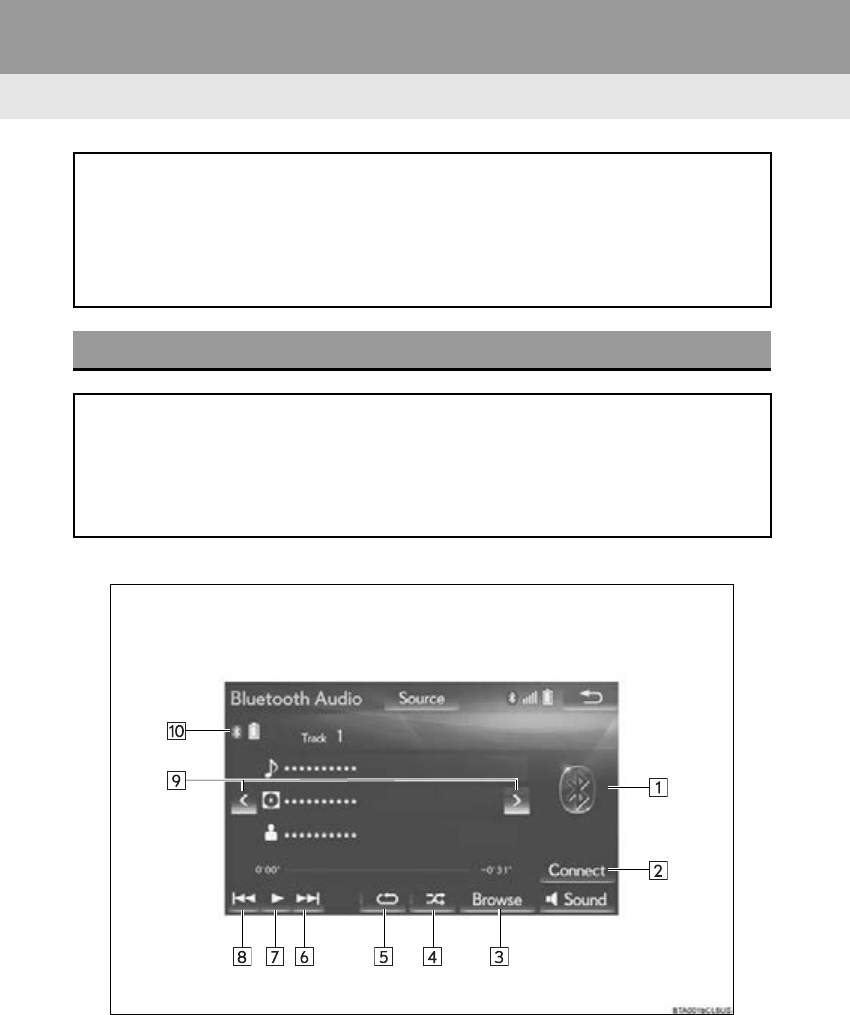
188
3. MEDIA OPERATION
RX_Navi_U
5. Bluetooth® AUDIO
■CONTROL SCREEN
The Bluetooth® audio system enables users to enjoy listening to music that is played
on a portable player on the vehicle speakers via wireless communication.
This audio system supports Bluetooth®, a wireless data system capable of playing por-
table audio music without cables. If your device does not support Bluetooth®, the
Bluetooth® audio system will not function.
OVERVIEW
The Bluetooth® audio operation screen can be reached by the following methods:
P. 147
Depending on the type of portable player connected, some functions may not be avail-
able and/or the screen may look differently than shown in this manual.
Connecting a Bluetooth® audio device (P. 192)
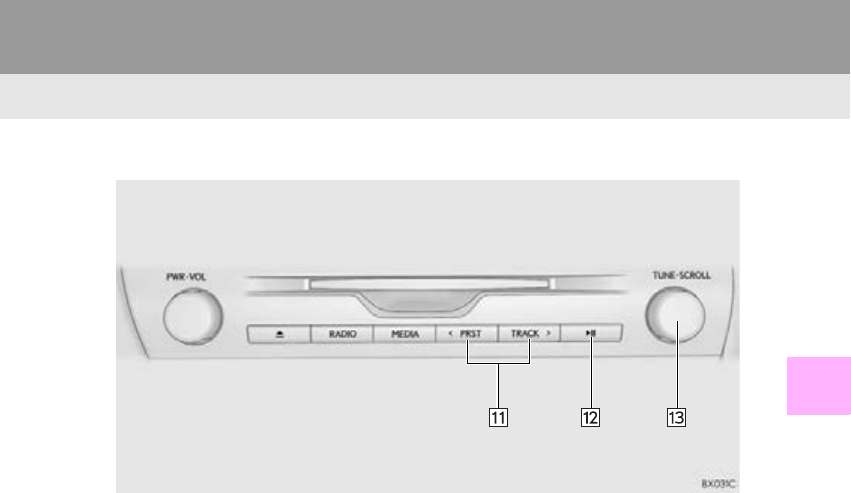
189
3. MEDIA OPERATION
RX_Navi_U
AUDIO/VISUAL SYSTEM
4
■CONTROL PANEL
190
3. MEDIA OPERATION
RX_Navi_U
No. Function
Displays cover art
Select to display a track list.
To return to the top screen, select “Now Playing” on the list screen.
Select to display the portable device connection screen. (P. 192)
Select to display the playlist screen.
To return to the top screen, select “Now Playing” on the list screen.
Select to set random playback. (P. 192)
Select to set repeat playback. (P. 192)
Select to select a track.
Select and hold to fast forward.
Select to play/pause.
Select to select a track.
Select and hold to rewind.
Select to select an album.
Displays Bluetooth® device condition
Press to select a track.
Press and hold to fast forward/rewind.
Press to play/pause.
Turn to select a track.
Turn to move up/down the list.
191
3. MEDIA OPERATION
RX_Navi_U
AUDIO/VISUAL SYSTEM
4
WARNING
●Do not operate the player’s controls or connect to the Bluetooth® audio system while driv-
ing.
●Your audio unit is fitted with Bluetooth® antennas. People with implantable cardiac pace-
makers, cardiac resynchronization therapy-pacemakers or implantable cardioverter
defibrillators should maintain a reasonable distance between themselves and the
Bluetooth® antennas. The radio waves may affect the operation of such devices.
●Before using Bluetooth® devices, users of any electrical medical device other than implant-
able cardiac pacemakers, cardiac resynchronization therapy-pacemakers or implantable
cardioverter defibrillators should consult the manufacturer of the device for information
about its operation under the influence of radio waves. Radio waves could have unexpected
effects on the operation of such medical devices.
NOTICE
●Do not leave your portable player in the vehicle. In particular, high temperatures inside the
vehicle may damage the portable player.
INFORMATION
●Depending on the Bluetooth® device that is connected to the system, the music may start
playing when selecting while it is paused. Conversely, the music may pause when
selecting while it is playing.
●In the following conditions, the system may not function:
•The Bluetooth
® device is turned off.
•The Bluetooth
® device is not connected.
•The Bluetooth
® device has a low battery.
●It may take time to connect the phone when Bluetooth® audio is being played.
●For operating the portable player, see the instruction manual that comes with it.
●If the Bluetooth® device is disconnected due to poor reception from the Bluetooth® net-
work when the engine <power> switch is in ACCESSORY or IGNITION ON <ON> mode,
the system automatically reconnects the portable player.
●If the Bluetooth® device is disconnected on purpose, such as it was turned off, this does not
happen. Reconnect the portable player manually.
●Bluetooth® device information is registered when the Bluetooth® device is connected to
the Bluetooth® audio system. When selling or disposing of the vehicle, remove the
Bluetooth® audio information from the system. (P. 64)
●In some situations, sound output via the Bluetooth® audio system may be out of sync with
the connected device or output intermittently.
192
3. MEDIA OPERATION
RX_Navi_U
Registering an additional device
1Select “Connect” on the Bluetooth®
audio control screen.
2For more information: P. 49
Selecting a registered device
1Select “Connect” on the Bluetooth®
audio control screen.
2For more information: P. 51
1Select .
-Each time is selected, the mode
changes as follows:
•track repeat album repeat off
1Select .
-Each time is selected, the mode
changes as follows:
•album random all track random off
CONNECTING A Bluetooth®
DEVICE
To use the Bluetooth® audio system, it is
necessary to register a Bluetooth® de-
vice with the system.
LISTENING TO Bluetooth®
AUDIO
REPEATING
The track or album currently being lis-
tened to can be repeated.
RANDOM ORDER
Tracks or albums can be automatically
and randomly selected.
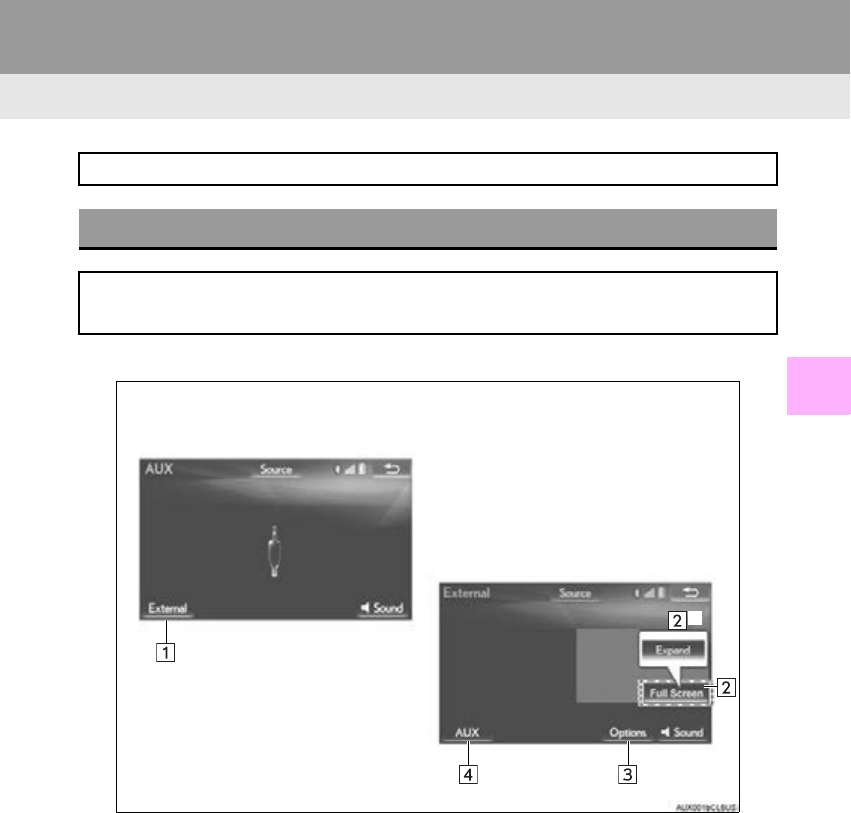
193
3. MEDIA OPERATION
RX_Navi_U
AUDIO/VISUAL SYSTEM
4
6. AUX
■CONTROL SCREEN
*: With 12.3-inch display
While driving, video will not be displayed. Only sound will be output.
OVERVIEW
The AUX operation screen can be reached by the following methods: P. 147
Connecting a device to the AUX port (P. 149)
When “External” is selected
*
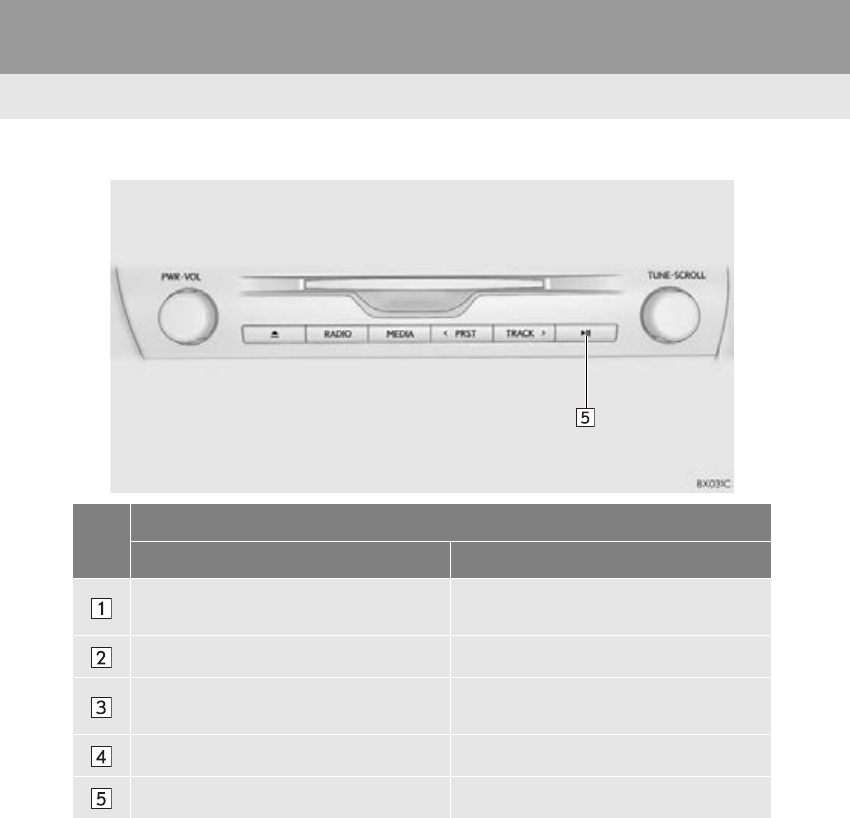
195
3. MEDIA OPERATION
RX_Navi_U
AUDIO/VISUAL SYSTEM
4
WARNING
●Do not connect portable audio device or operate the controls while driving.
NOTICE
●Depending on the size and shape of the portable audio device that is connected to the sys-
tem, the console box may not close fully. In this case, do not forcibly close the console box as
this may damage the portable audio device or the terminal, etc.
●Do not leave portable audio device in the vehicle. The temperature inside the vehicle may
become high, resulting in damage to the player.
●Do not push down on or apply unnecessary pressure to the portable audio device while it is
connected as this may damage the portable audio device or its terminal.
●Do not insert foreign objects into the port as this may damage the portable audio device or
its terminal.
INFORMATION
●When connecting an external device that does not output an image, select “A U X ” . If
“External” is selected, an all-black (blank) screen will be displayed.
●If the source is changed between AUX and External while the system is operating, sound
may not be output momentarily.
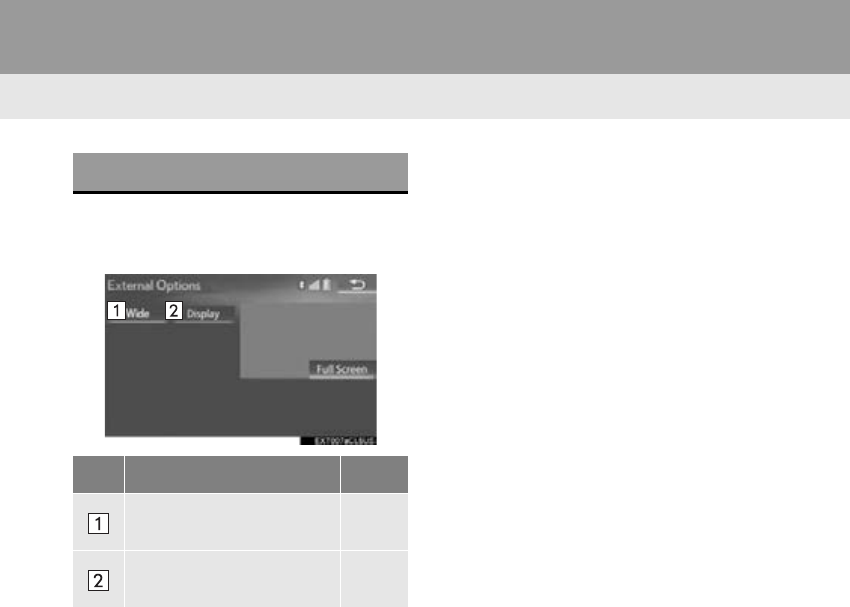
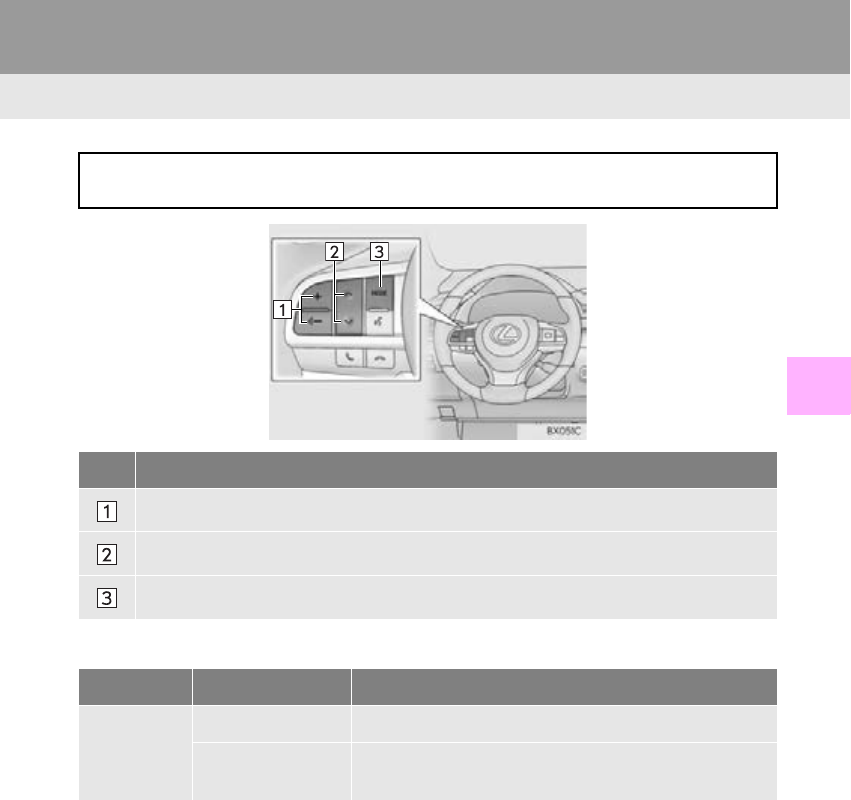
197
RX_Navi_U
AUDIO/VISUAL SYSTEM
4
4. AUDIO/VISUAL REMOTE CONTROLS
1. STEERING SWITCHES
Volume control switch
Some parts of the audio/visual system can be adjusted using the switches on the steer-
ing wheel.
No. Switch
Volume control switch
“” switch
“MODE” switch
Mode Operation Function
All
Press Volume up/down
Press and hold
(0.8 sec. or more) Volume up/down continuously

198
4. AUDIO/VISUAL REMOTE CONTROLS
RX_Navi_U
“” switch
Mode Operation Function
AM, FM
Press Preset station up/down
Press and hold
(0.8 sec. or more)
Seek up/down continuously while the switch is being
pressed
SAT
Press Preset channel up/down
Press and hold
(0.8 sec. or more) Type seek up/down
Press and hold
(1.5 sec. or more) Fast up/down
CD
Press Track up/down
Press and hold
(0.8 sec. or more) Fast forward/rewind
MP3/
WMA/AAC
disc
Press File up/down
Press and hold
(0.8 sec. or more) Fast forward/rewind
DVD
Press Chapter up/down
Press and hold
(0.8 sec. or more) Fast forward/rewind
USB
Press File/Track up/down
Press and hold
(0.8 sec. or more) Fast forward/rewind
iPod
Press Track/File up/down
Press and hold
(0.8 sec. or more) Fast forward/rewind
Bluetooth®
audio
Press Track up/down
Press and hold
(0.8 sec. or more) Fast forward/rewind
199
4. AUDIO/VISUAL REMOTE CONTROLS
RX_Navi_U
AUDIO/VISUAL SYSTEM
4
“MODE” switch
Mode Operation Function
AM, FM,
SAT, AUX
Press Change audio modes
Press and hold
(0.8 sec. or more) Mute
CD, MP3/
WMA/AAC
disc, DVD,
USB, iPod,
Bluetooth®
audio, APPS
Press Change audio modes
Press and hold
(0.8 sec. or more) Pause
INFORMATION
●In the APPS mode, some operation may be done on the screen depend on the selected
APPS.
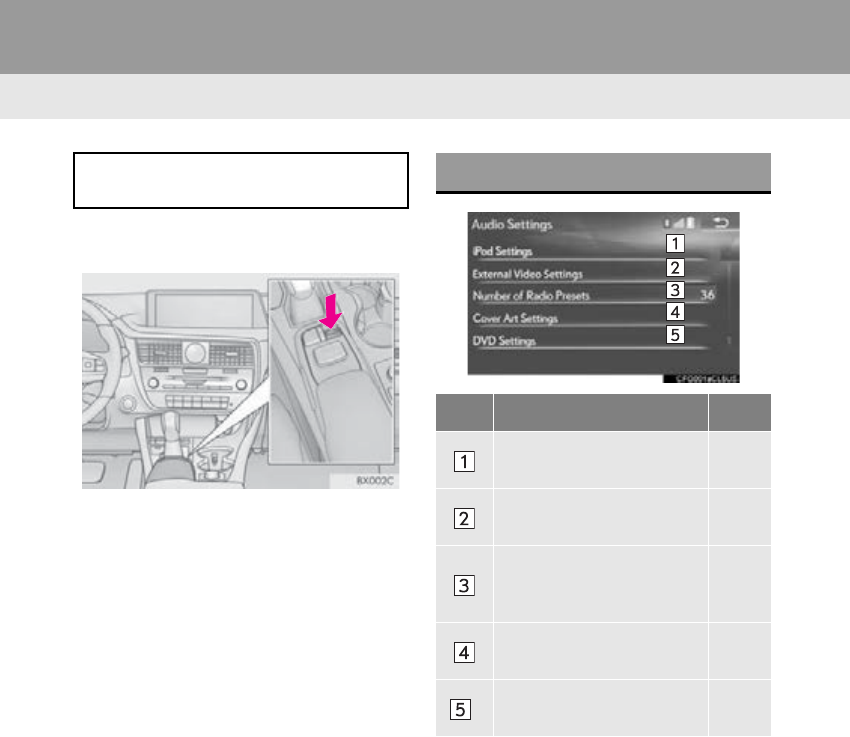
200
RX_Navi_U
5. SETUP
1. AUDIO SETTINGS
1Press the “MENU” button on the
Remote Touch.
2Select “Setup”.
3Select “A u d i o ” .
4Select the desired item to be set.
Detailed audio settings can be pro-
grammed. AUDIO SETTINGS SCREEN
No. Function Page
Select to set the iPod audio
signal input settings. 201
Select to set the video sig-
nal format settings. 201
Select to change the num-
ber of preset radio stations
displayed on the screen.
201
Select to set detailed cover
art settings. 201
*Select to set detailed DVD
settings. 202
*: Only in DVD video mode
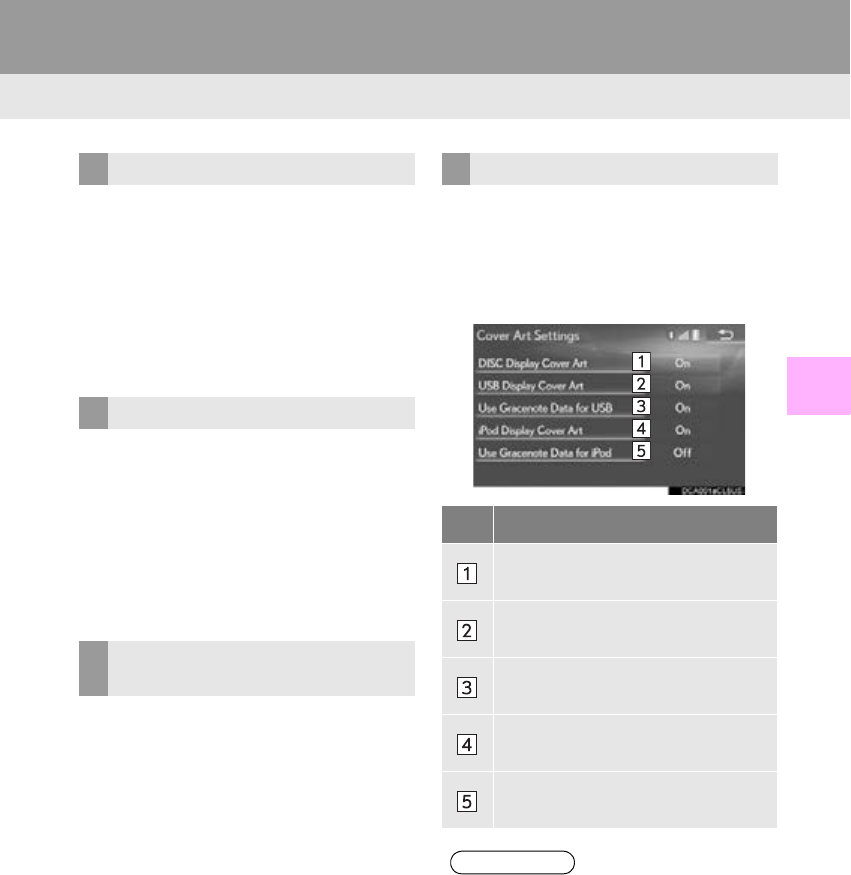
201
5. SETUP
RX_Navi_U
AUDIO/VISUAL SYSTEM
4
1Display the audio setting screen.
(P. 200)
2Select “iPod Settings”.
3Select “Video Sound Input”.
4Select a screen button for the desired
setting.
1Display the audio setting screen.
(P. 200)
2Select “External Video Settings”.
3Select “Video Signal Switch”.
4Select a screen button for the desired
setting.
1Display the audio setting screen.
(P. 200)
2Select “Number of Radio Presets”.
3Select the button with the desired num-
ber to be displayed.
-“Default”: Select to default the settings.
1Display the audio setting screen.
(P. 200)
2Select “Cover Art Settings”.
3Select the desired button to be set.
iPod SETTINGS
EXTERNAL VIDEO SETTINGS
SETTING THE NUMBER OF
RADIO PRESETS
COVER ART SETTINGS
No. Function
Select on/off to set the cover art dis-
play in DISC mode.
Select on/off to set the cover art dis-
play in USB mode.
Select on/off to set the priority of the
Gracenote database in USB mode.
Select on/off to set the cover art dis-
play in iPod mode.
Select on/off to set the priority of the
Gracenote database in iPod mode.
INFORMATION
●Images from the Gracenote database
displayed on the screen may be different
from the actual cover art.
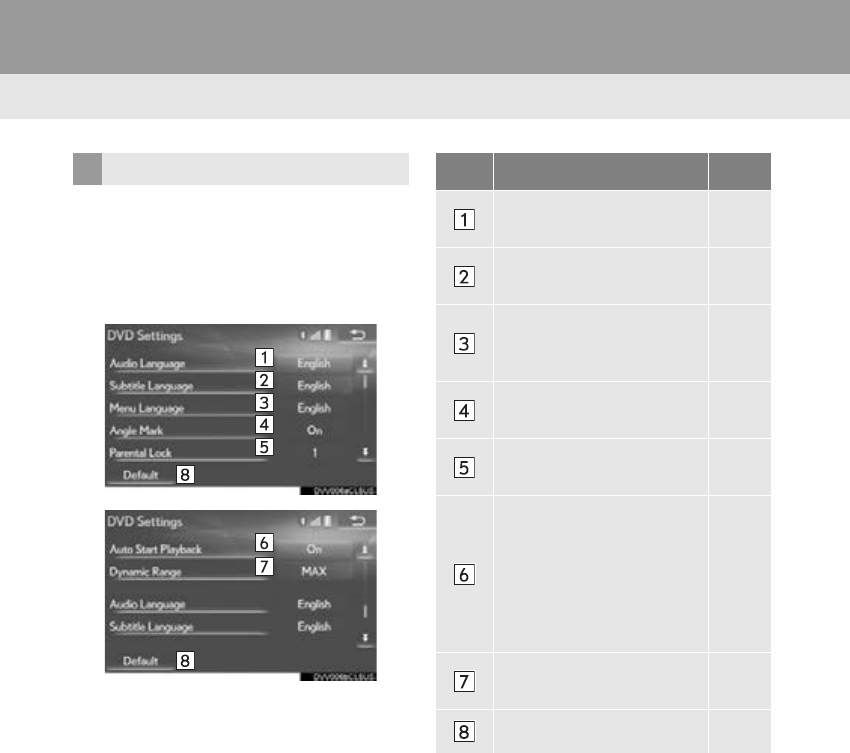
202
5. SETUP
RX_Navi_U
1Display the audio setting screen.
(P. 200)
2Select “DVD Settings”.
3Select the items to be set.
DVD SETTINGS No. Function Page
Select to change the audio
language. 203
Select to change the subti-
tle language. 203
Select to change the lan-
guage of the DVD video
menu.
203
Select to set the angle mark
on/off.
Select to set the parental
lock. 203
Select to set the auto start
playback on/off.
Discs that are inserted
while the vehicle is in mo-
tion will automatically start
playing. Certain discs may
not play.
Select to set a dynamic
range. 203
Select to initialize all menus.

203
5. SETUP
RX_Navi_U
AUDIO/VISUAL SYSTEM
4
■AUDIO LANGUAGE
1Select “Audio Language”.
2Select the desired language to be
heard.
-If the desired language to be heard cannot
be found on this screen, select “Other” and
enter a language code. (P. 2 0 4 )
■SUBTITLE LANGUAGE
1Select “Subtitle Language”.
2Select the desired language to be read.
-If the desired language to be read cannot
be found on this screen, select “Other” and
enter a language code. (P. 2 0 4 )
■MENU LANGUAGE
1Select “Menu Language”.
2Select the desired language to be read.
-If the desired language to be read cannot
be found on this screen, select “Other” and
enter a language code. (P. 2 0 4 )
■PARENTAL LOCK
1Select “Parental Lock”.
2Enter the 4-digit personal code.
3Select a parental level (1-8).
■SOUND DYNAMIC RANGE
1Select “Dynamic Range”.
2Select “MAX”, “STD” or “MIN”.
The difference between the lowest vol-
ume and the highest volume can be ad-
justed.

204
5. SETUP
RX_Navi_U
LANGUAGE CODES LIST
Code Language Code Language Code Language Code Language
0514 English 0515 Esperanto 1214 Lingala 1913 Samoan
1001 Japanese 0520 Estonian 1215 Laotian 1914 Shona
0618 French 0521 Basque 1220 Lithuanian 1915 Somali
0405 German 0601 Persian 1222 Latvian, Lettish 1917 Albanian
0920 Italian 0609 Finnish 1307 Malagasy 1918 Serbian
0519 Spanish 0610 Fiji 1309 Maori 1919 Siswati
2608 Chinese 0615 Faroese 1311 Macedonian 1920 Sesotho
1412 Dutch 0625 Frisian 1312 Malayalam 1921 Sundanese
1620 Portuguese 0701 Irish 1314 Mongolian 1923 Swahili
1922 Swedish 0704 Scottish-Gaelic 1315 Moldavian 2001 Tamil
1821 Russian 0712 Galician 1318 Marathi 2005 Telugu
1115 Korean 0714 Guarani 1319 Malay 2007 Tajik
0512 Greek 0721 Gujarati 1320 Maltese 2008 Thai
0101 Afar 0801 Hausa 1325 Burmese 2009 Tigrinya
0102 Abkhazian 0809 Hindi 1401 Nauru 2011 Turkmen
0106 Afrikaans 0818 Croatian 1405 Nepali 2012 Tagalog
0113 Amharic 0821 Hungarian 1415 Norwegian 2014 Setswana
0118 Arabic 0825 Armenian 1503 Occitan 2015 Tongan
0119 Assamese 0901 Interlingua 1513 (Afan) Oromo 2018 Turkish
0125 Aymara 0905 Interlingue 1518 Oriya 2019 Tsonga
0126 Azerbaijani 0911 Inupiak 1601 Punjabi 2020 Tatar
0201 Bashkir 0914 Indonesian 1612 Polish 2023 Twi
0205 Byelorussian 0919 Icelandic 1619 Pashto, Pushto 2111 Ukrainian
0207 Bulgarian 0923 Hebrew 1721 Quechua 2118 Urdu
0208 Bihari 1009 Yiddish 1813 Rhaeto-Romance 2126 Uzbek
0209 Bislama 1023 Javanese 1814 Kirundi 2209 Vietnamese
0214 Bengali, Bangla 1101 Georgian 1815 Romanian 2215 Volapük
0215 Tibetan 1111 Kazakh 1823 Kinyarwanda 2315 Wolof
0218 Breton 1112 Greenlandic 1901 Sanskrit 2408 Xhosa
0301 Catalan 1113 Cambodian 1904 Sindhi 2515 Yoruba
0315 Corsican 1114 Kannada 1907 Sango 2621 Zulu
0319 Czech 1119 Kashmiri 1908 Serbo-Croatian
0325 Welsh 1121 Kurdish 1909 Sinhalese
0401 Danish 1125 Kirghiz 1911 Slovak
0426 Bhutani 1201 Latin 1912 Slovenian
205
RX_Navi_U
AUDIO/VISUAL SYSTEM
4
6. TIPS FOR OPERATING THE AUDIO/VISUAL SYSTEM
1. OPERATING INFORMATION
Fading and drifting stations: Generally, the
effective range of FM is about 25 miles (40
km). Once outside this range, you may no-
tice fading and drifting, which increase with
the distance from the radio transmitter.
They are often accompanied by distortion.
Multi-path: FM signals are reflective, mak-
ing it possible for 2 signals to reach the vehi-
cle’s antenna at the same time. If this
happens, the signals will cancel each other
out, causing a momentary flutter or loss of
reception.
Static and fluttering: These occur when sig-
nals are blocked by buildings, trees or other
large objects. Increasing the bass level may
reduce static and fluttering.
Station swapping: If the FM signal being lis-
tened to is interrupted or weakened, and
there is another strong station nearby on
the FM band, the radio may tune in the sec-
ond station until the original signal can be
picked up again.
NOTICE
●To avoid damage to the audio/visual sys-
tem:
• Be careful not to spill beverages over
the audio/visual system.
• Do not put anything other than an
appropriate disc into the disc slot.
INFORMATION
●The use of a cellular phone inside or near
the vehicle may cause a noise from the
speakers of the audio/visual system which
you are listening to. However, this does
not indicate a malfunction.
RADIO
Usually, a problem with radio reception
does not mean there is a problem with
the radio — it is just the normal result of
conditions outside the vehicle.
For example, nearby buildings and ter-
rain can interfere with FM reception.
Power lines or phone wires can interfere
with AM signals. And of course, radio
signals have a limited range. The farther
the vehicle is from a station, the weaker
its signal will be. In addition, reception
conditions change constantly as the ve-
hicle moves.
Here, some common reception prob-
lems that probably do not indicate a
problem with the radio are described.
FM
206
6. TIPS FOR OPERATING THE AUDIO/VISUAL SYSTEM
RX_Navi_U
Fading: AM broadcasts are reflected by the
upper atmosphere — especially at night.
These reflected signals can interfere with
those received directly from the radio sta-
tion, causing the radio station to sound al-
ternately strong and weak.
Station interference: When a reflected sig-
nal and a signal received directly from a ra-
dio station are very nearly the same
frequency, they can interfere with each oth-
er, making it difficult to hear the broadcast.
Static: AM is easily affected by external
sources of electrical noise, such as high ten-
sion power lines, lightening or electrical
motors. This results in static.
-Cargo loaded on the roof luggage carrier,
especially metal objects, may adversely
affect the reception of XM Satellite Radio.
-Alternation or modifications carried out
without appropriate authorization may
invalidate the user’s right to operate the
equipment.
-This DVD player is intended for use with
4.7 in. (12 cm). discs only.
-Extremely high temperatures can keep the
DVD player from working. On hot days,
use the air conditioning system to cool the
inside of the vehicle before using the player.
-Bumpy roads or other vibrations may make
the DVD player skip.
-If moisture gets into the DVD player, the
discs may not be able to be played. Remove
the discs from the player and wait until it
dries.
AM
XM
DVD PLAYER AND DISC
WARNING
●The DVD player uses an invisible laser
beam which could cause hazardous radi-
ation exposure if directed outside the
unit. Be sure to operate the player cor-
rectly.
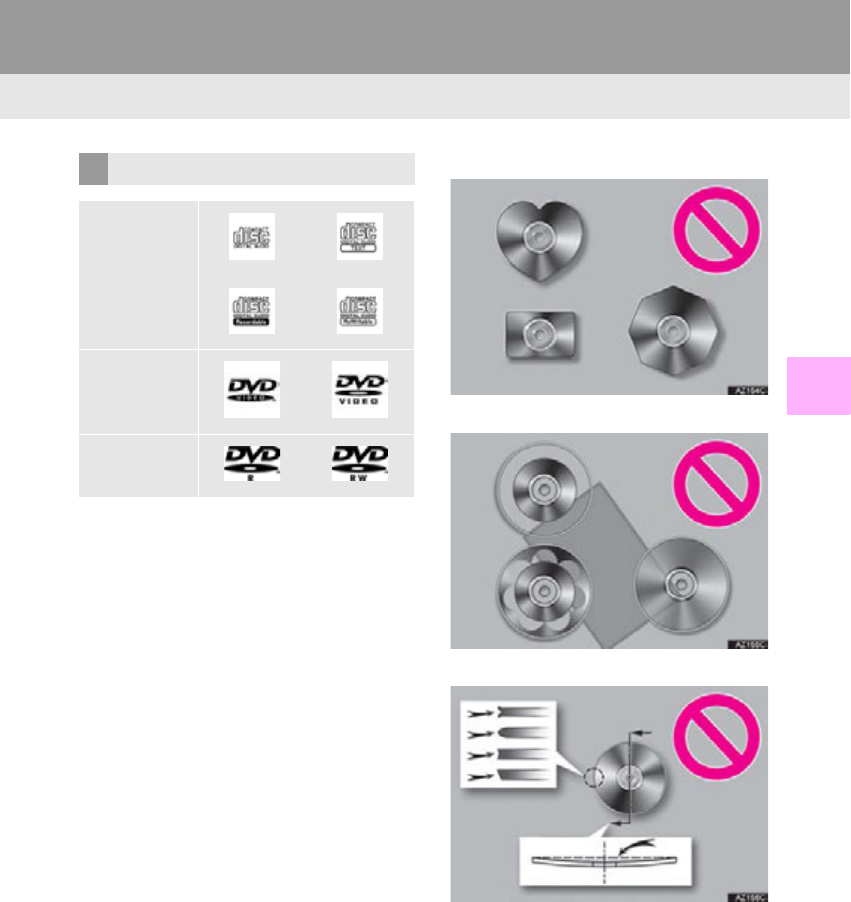
207
6. TIPS FOR OPERATING THE AUDIO/VISUAL SYSTEM
RX_Navi_U
AUDIO/VISUAL SYSTEM
4
-Use only discs marked as shown above.
The following products may not be playable
on your player:
•SACD
•dts CD
• Copy-protected CD
•DVD-Audio
•Video CD
•DVD-RAM
Special shaped discs
Transparent/translucent discs
Low quality discs
DVD PLAYER
Audio CDs
DVD video
discs
DVD-R/RW
discs
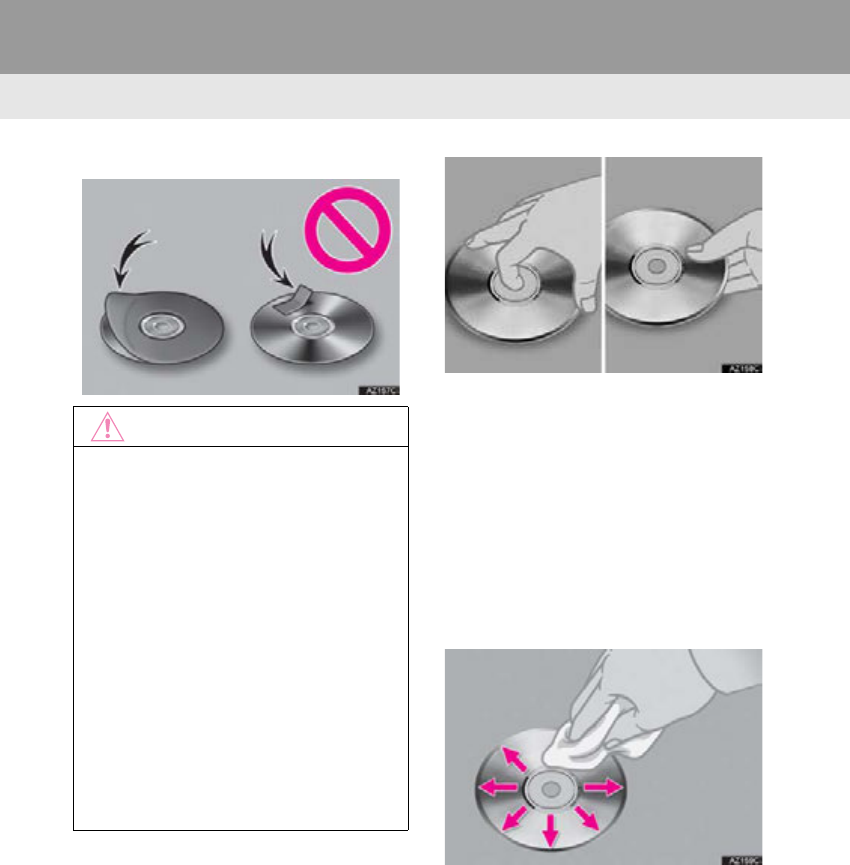
208
6. TIPS FOR OPERATING THE AUDIO/VISUAL SYSTEM
RX_Navi_U
Labeled discs
-Handle discs carefully, especially when
inserting them. Hold them on the edge and
do not bend them. Avoid getting finger-
prints on them, particularly on the shiny
side.
-Dirt, scratches, warping, pin holes or other
disc damage could cause the player to skip
or to repeat a section of a track. (To see a
pin hole, hold the disc up to the light.)
-Remove discs from the players when not in
use. Store them in their plastic cases away
from moisture, heat and direct sunlight.
To c l e a n a d i s c : Wipe it with a soft, lint-free
cloth that has been dampened with water.
Wipe in a straight line from the center to the
edge of the disc (not in circles). Dry it with
another soft, lint-free cloth. Do not use a
conventional record cleaner or anti-static
device.
NOTICE
●Do not use special shaped, transparent/
translucent, low quality or labeled discs
such as those shown in the illustrations.
The use of such discs may damage the
player, or it may be impossible to eject the
disc.
●This system is not designed for use of
Dual Discs. Do not use Dual Discs
because they may cause damage to the
player.
●Do not use discs with a protection ring.
The use of such discs may damage the
player, or it may be impossible to eject the
disc.
●Do not use printable discs. The use of
such discs may damage the player, or it
may be impossible to eject the disc.
Correct Wrong
209
6. TIPS FOR OPERATING THE AUDIO/VISUAL SYSTEM
RX_Navi_U
AUDIO/VISUAL SYSTEM
4
-CD-R/CD-RW discs that have not been
subject to the “finalizing process” (a pro-
cess that allows discs to be played on a
conventional CD player) cannot be played.
-It may not be possible to play CD-R/CD-RW
discs recorded on a music CD recorder or a
personal computer because of disc charac-
teristics, scratches or dirt on the disc, or dirt,
condensation, etc. on the lens of the unit.
-It may not be possible to play discs
recorded on a personal computer depend-
ing on the application settings and the envi-
ronment. Record with the correct format.
(For details, contact the appropriate appli-
cation manufacturers of the applications.)
-CD-R/CD-RW discs may be damaged by
direct exposure to sunlight, high tempera-
tures or other storage conditions. The unit
may be unable to play some damaged
discs.
-If you insert a CD-RW disc into the player,
playback will begin more slowly than with a
conventional CD or CD-R disc.
-Recordings on CD-R/CD-RW cannot be
played using the DDCD (Double Density
CD) system.
Region codes: Some DVD video discs have
the following region code indicating which
countries the DVD video disc can be played
in on this DVD player. If you attempt to play
an inappropriate DVD video disc on this
player, error message appears on the
screen. Even if the DVD video disc does not
have a region code, there are cases when it
cannot be used.
CD-R/RW AND DVD-R/RW
DISCS
DVD VIDEO DISCS
This DVD player conforms to NTSC/
PAL color TV formats. DVD video discs
conforming to another format such as
SECAM cannot be used.
Code Country
ALL All countries
1North America
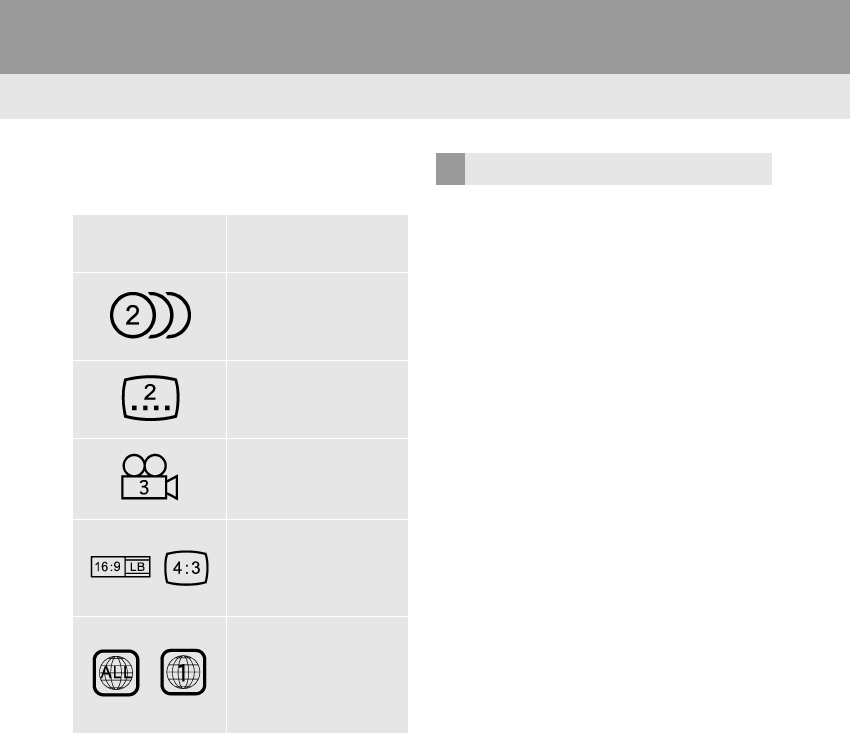
210
6. TIPS FOR OPERATING THE AUDIO/VISUAL SYSTEM
RX_Navi_U
■MARKS SHOWN ON DVD VIDEO
DISCS
DVD video discs: Digital Versatile Disc that
holds video. DVD video discs have adopted
“MPEG2”, one of the world standards of
digital compression technologies. The pic-
ture data is compressed by 1/40 on aver-
age and stored. Variable rate encoded
technology in which the volume of data as-
signed to the picture is changed depending
on the picture format has also been adopt-
ed. Audio data is stored using PCM and
Dolby Digital, which enables higher quality
of sound. Furthermore, multi-angle and
multi-language features will also help users
enjoy the more advanced technology of
DVD video.
Viewer restrictions: This feature limits what
can be viewed in conformity with a level of
restrictions of the country. The level of re-
strictions varies depending on the DVD vid-
eo disc. Some DVD video discs cannot be
played at all, or violent scenes are skipped
or replaced with other scenes.
• Level 1: DVD video discs for children can
be played.
• Level 2 - 7: DVD video discs for children
and G-rated movie can be played.
• Level 8: All types of the DVD video discs
can be played.
NTSC/PAL Indicates NTSC/PAL
format of color TV.
Indicates the number
of audio tracks.
Indicates the number
of language subtitles.
Indicates the number
of angles.
Indicates the screen to
be selected.
Wide screen: 16:9
Standard: 4:3
Indicates a region
code by which this vid-
eo disc can be played.
“ALL”: in all countries
Number: region code
DVD VIDEO DISC GLOSSARY
211
6. TIPS FOR OPERATING THE AUDIO/VISUAL SYSTEM
RX_Navi_U
AUDIO/VISUAL SYSTEM
4
Multi-angle feature: The same scene can
be enjoyed from different angles.
Multi-language feature: The subtitle and
audio language can be selected.
Region codes: The region codes are pro-
vided on DVD players and DVD discs. If the
DVD video disc does not have the same re-
gion code as the DVD player, you cannot
play the disc on the DVD player. For region
codes: (P. 209)
Audio: This DVD player can play linear
PCM, Dolby Digital and MPEG audio for-
mat DVDs. Other decoded types cannot be
played.
Title and chapter: Video and audio pro-
grams stored in DVD video discs are divid-
ed into parts by title and chapter.
Title: The largest unit of the video and audio
programs stored on DVD video discs. Usu-
ally, one movie, one album, or one audio
program is assigned as a title.
Chapter: A unit smaller than that of title. A
title comprises of several chapters.
-“Made for iPod”, “Made for iPhone”, and
“Made for iPad” mean that an electronic
accessory has been designed to connect
specifically to iPod, iPhone, or iPad, respec-
tively, and has been certified by the devel-
oper to meet Apple performance
standards.
-Apple is not responsible for the operation
of this device or its compliance with safety
and regulatory standards. Please note that
the use of this accessory with iPod, iPhone,
or iPad may affect wireless performance.
-iPad, iPhone, iPod, iPod classic, iPod nano,
and iPod touch are trademarks of Apple
Inc., registered in the U.S. and other coun-
tries. Lightning is a trademark of Apple Inc.
-The Lightning connector works with
iPhone 5s, iPhone 5c, iPhone 5, iPod touch
(5th generation), and iPod nano (7th gen-
eration).
-The 30-pin connector works with iPhone
4S, iPhone 4, iPhone 3GS, iPhone 3G,
iPhone, iPod touch (1st through 4th genera-
tion), iPod classic, and iPod nano (1st
through 6th generation).
-USB works with iPhone 5s, iPhone 5c,
iPhone 5, iPhone 4S, iPhone 4, iPhone
3GS, iPhone 3G, iPhone, iPod touch (1st
through 5th generation), iPod classic, and
iPod nano (1st through 7th generation).
-Bluetooth® technology works with iPhone
5s, iPhone 5c, iPhone 5, iPhone 4S, iPhone
4, iPhone 3GS, iPhone 3G, iPhone, and
iPod touch (2nd through 5th generation).
-Manufactured under license from Dolby
Laboratories. Dolby and the double-D
symbol are trademarks of Dolby
Laboratories.
iPod
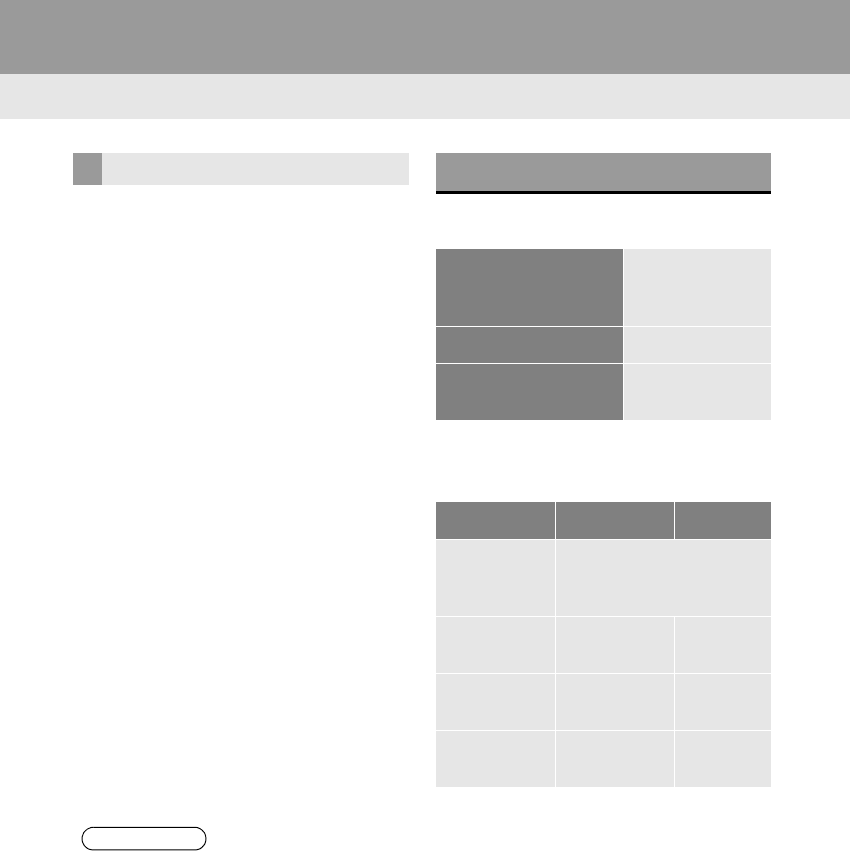
212
6. TIPS FOR OPERATING THE AUDIO/VISUAL SYSTEM
RX_Navi_U
The following iPod®, iPod nano®, iPod
classic®, iPod touch® and iPhone® devic-
es can be used with this system.
Made for
• iPod touch (5th generation)*
• iPod touch (4th generation)
•iPod touch (3rd generation)
•iPod touch (2nd generation)
• iPod touch (1st generation)
•iPod classic
•iPod with video
• iPod nano (7th generation)*
• iPod nano (6th generation)
• iPod nano (5th generation)
• iPod nano (4th generation)
• iPod nano (3rd generation)
• iPod nano (2nd generation)
• iPod nano (1st generation)
•iPhone 5s*
•iPhone 5c*
•iPhone 5*
•iPhone 4S
•iPhone 4
•iPhone 3GS
•iPhone 3G
•iPhone
*: iPod video not supported
■COMPATIBLE USB DEVICES
■COMPATIBLE COMPRESSED
FILES
COMPATIBLE MODELS
INFORMATION
●Depending on differences between mod-
els or software versions etc., some mod-
els might be incompatible with this
system.
FILE INFORMATION
USB communication
formats
USB 2.0 HS
(480 Mbps) and
FS (12 Mbps)
File formats FAT 16/32
Correspondence class Mass storage
class
Item USB/iPod DISC
Compatible
file format
(audio)
MP3/WMA/AAC
Folders in the
device
Maximum
3000
Maximum
192
Files in the
device
Maximum
9999
Maximum
255
Files per
folder
Maximum
255

213
6. TIPS FOR OPERATING THE AUDIO/VISUAL SYSTEM
RX_Navi_U
AUDIO/VISUAL SYSTEM
4
■CORRESPONDING SAMPLING
FREQUENCY
■CORRESPONDING BIT RATES*1
■COMPATIBLE CHANNEL MODES
-MP3 (MPEG Audio Layer 3), WMA
(Windows Media Audio) and AAC
(Advanced Audio Coding) are audio com-
pression standards.
-This system can play MP3/WMA/AAC
files on CD-R/CD-RW/DVD-R/DVD-RW
discs and USB memory.
-This system can play disc recordings com-
patible with ISO 9660 level 1 and level 2
and with the Romeo and Joliet file system
and UDF (2.01 or lower).
-When naming an MP3/WMA/AAC file,
add an appropriate file extension (.mp3/
.wma/.m4a ).
-This system plays back files with .mp3/
.wma/.m4a file extensions as MP3/WMA/
AAC files respectively. To prevent noise
and playback errors, use the appropriate
file extension.
-This system can play only the first session/
border when using multi session/border
compatible discs.
-MP3 files are compatible with the ID3 Tag
Ver. 1.0, Ver. 1.1, Ver. 2.2 and Ver. 2.3 for-
mats. This system cannot display disc title,
track title and artist name in other formats.
-WMA/AAC files can contain a WMA/
AAC tag that is used in the same way as an
ID3 tag. WMA/AAC tags carry informa-
tion such as track title and artist name.
-The emphasis function is available only
when playing MP3 files.
-This system can play back AAC files
encoded by iTunes.
File type Frequency
(kHz)
MP3 files:
MPEG 1 LAYER 3 32/44.1/48
MP3 files:
MPEG 2 LSF LAYER 3 16/22.05/24
WMA files:
Ver. 7, 8, 9* (9.1/9.2) 32/44.1/48
AAC files:
MPEG4/AAC-LC
11.025/12/16/
22.05/24/32/
44.1/48
*: Only compatible with Windows Media
Audio Standard
File type Bit rate (kbps)
MP3 files:
MPEG 1 LAYER 3 32 - 320
MP3 files:
MPEG 2 LSF LAYER 3 8 - 160
WMA files: Ver. 7, 8 CBR 48 - 192
WMA files:
Ver. 9*2 (9.1/9.2) CBR 48 - 320
AAC files:
MPEG4/AAC-LC 8 - 320
*1: Variable Bit Rate (VBR) compatible
*2: Only compatible with Windows Media
Audio Standard
File type Channel mode
MP3 files Stereo, joint stereo, dual
channel and monaural
WMA files 2ch
AAC files 1ch, 2ch (Dual channel is not
supported)
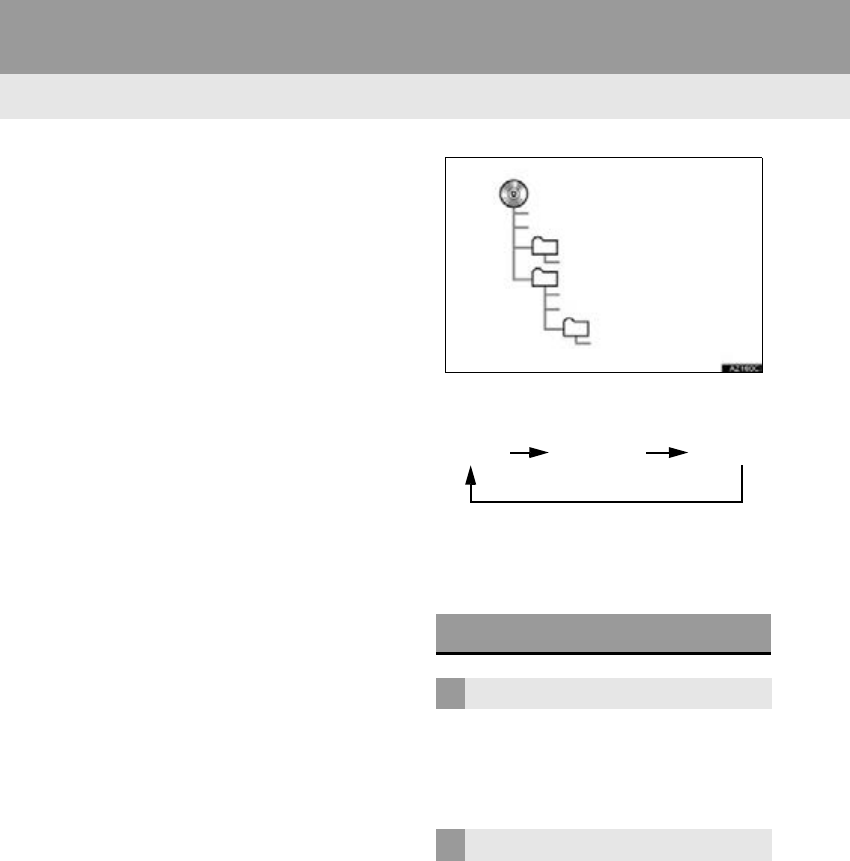
214
6. TIPS FOR OPERATING THE AUDIO/VISUAL SYSTEM
RX_Navi_U
-The sound quality of MP3/WMA files gen-
erally improves with higher bit rates. In
order to achieve a reasonable level of
sound quality, discs recorded with a bit rate
of at least 128 kbps are recommended.
-m3u playlists are not compatible with the
audio player.
-MP3i (MP3 interactive) and MP3PRO
formats are not compatible with the audio
player.
-The player is compatible with VBR (Vari-
able Bit Rate).
-When playing back files recorded as VBR
(Variable Bit Rate) files, the play time will
not be correctly displayed if the fast for-
ward or reverse operations are used.
-It is not possible to check folders that do not
include MP3/WMA/AAC files.
-MP3/WMA/AAC files in folders up to 8
levels deep can be played. However, the
start of playback may be delayed when
using discs containing numerous levels of
folders. For this reason, we recommend
creating discs with no more than 2 levels of
folders.
-The play order of the compact disc with the
structure shown above is as follows:
-The order changes depending on the per-
sonal computer and MP3/WMA/AAC
encoding software you use.
-This is a general term that describes the pro-
cess of writing data on-demand to CD-R,
etc., in the same way that data is written to
floppy or hard discs.
-This is a method of embedding track-
related information in an MP3 file. This
embedded information can include the
track number, track title, the artist’s name,
the album title, the music genre, the year of
production, comments, cover art and other
data. The contents can be freely edited
using software with ID3 tag editing func-
tions. Although the tags are restricted to a
number of characters, the information can
be viewed when the track is played back.
TERMS
PACKET WRITE
ID3 TAG
001.mp3
002.wma
Folder 1
003.mp3
Folder 2
004.mp3
005.wma
Folder 3
006.m4a
001.mp3 002.wma . . . 006.m4a

215
6. TIPS FOR OPERATING THE AUDIO/VISUAL SYSTEM
RX_Navi_U
AUDIO/VISUAL SYSTEM
4
-WMA files can contain a WMA tag that is
used in the same way as an ID3 tag. WMA
tags carry information such as track title
and artist name.
-This is the international standard for the for-
matting of CD-ROM folders and files. For
the ISO 9660 format, there are 2 levels of
regulations.
-Level 1: The file name is in 8.3 format (8
character file names, with a 3 character file
extension. File names must be composed of
one-byte capital letters and numbers. The
“_” symbol may also be included.)
-Level 2: The file name can have up to 31
characters (including the separation mark
“.” and file extension). Each folder must
contain fewer than 8 hierarchies.
-Playlists created using “WINAMP” soft-
ware have a playlist file extension (.m3u).
-MP3 is an audio compression standard
determined by a working group (MPEG) of
the ISO (International Standard Organiza-
tion). MP3 compresses audio data to about
1/10 the size of that on conventional discs.
-WMA (Windows Media Audio) is an audio
compression format developed by
Microsoft®. It compresses files into a size
smaller than that of MP3 files. The decod-
ing formats for WMA files are Ver. 7, 8 and
9.
-AAC is short for Advanced Audio Coding
and refers to an audio compression tech-
nology standard used with MPEG2 and
MPEG4.
WMA TAG
ISO 9660 FORMAT
m3u
MP3
WMA
AAC
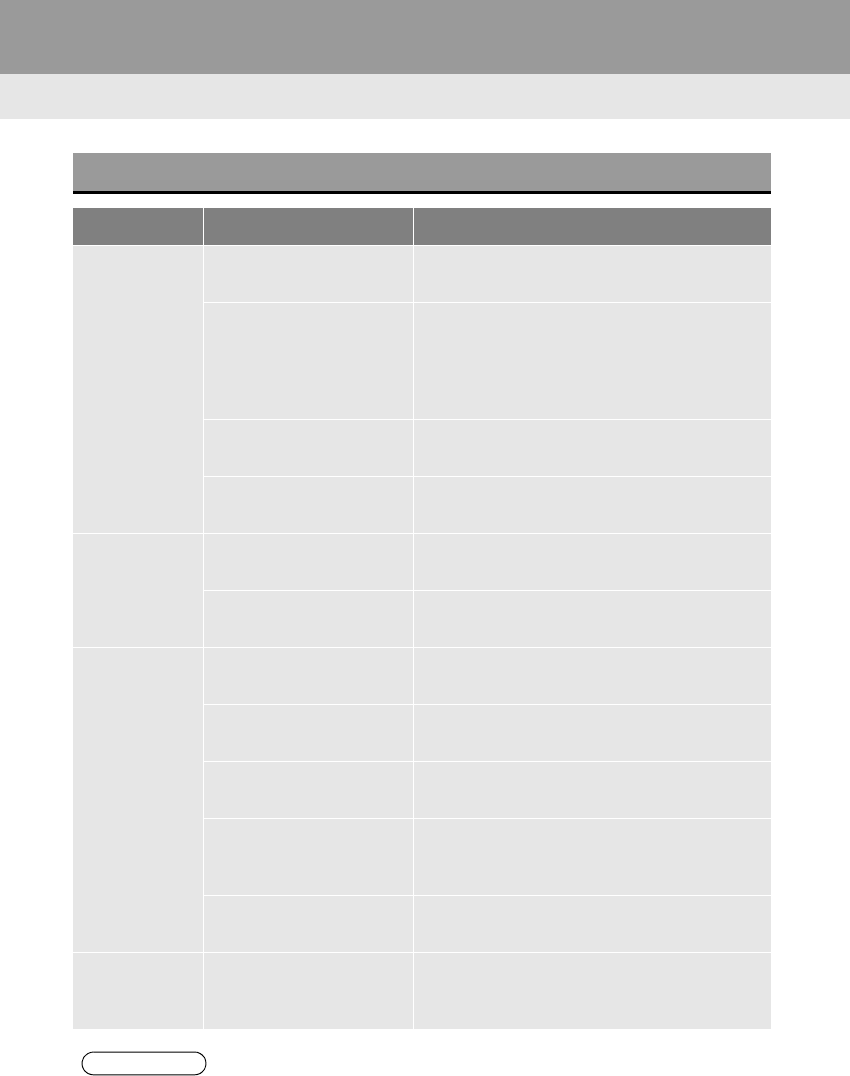
216
6. TIPS FOR OPERATING THE AUDIO/VISUAL SYSTEM
RX_Navi_U
ERROR MESSAGES
Mode Message Explanation
CD/DVD
“No disc found.” It indicates that there is no disc in the DVD play-
er.
“Check disc”
It indicates that the disc is dirty, damaged, or it
was inserted upside down. Clean the disc or in-
sert it correctly.
It indicates a disc which is not playable is insert-
ed.
“DISC Error” There is a trouble inside the system.
Eject the disc.
“Region Code Error” It indicates that the DVD region code is not set
properly.
USB
“USB Error” This indicates a problem in the USB memory or
its connection.
“No music files found.” This indicates that no MP3/WMA/AAC files
are included in the USB memory.
iPod
“iPod Error.” This indicates a problem in the iPod or its con-
nection.
“No music files found.” This indicates that there is no music data in the
iPod.
“No video files found.” This indicates that no video files are included in
the iPod.
“Please check the iPod
firmware version.”
This indicates that the software version is not
compatible. Perform the iPod firmware updates
and try again.
“iPod authorization failed.” This indicates that it failed to authorize the iPod.
Please check your iPod.
Bluetooth®
Audio
“Music tracks not support-
ed. Please check your por-
table player.”
This indicates a problem in the Bluetooth® de-
vice.
INFORMATION
●If the malfunction is not rectified: Take your vehicle to your Lexus dealer.
217
RX_Navi_U
AUDIO/VISUAL SYSTEM
4
7. REAR SEAT ENTERTAINMENT SYSTEM FEATURES
1. REAR SEAT ENTERTAINMENT SYSTEM FEATURES*
QUICK REFERENCE
The rear seat entertainment system is designed for the rear passengers to enjoy au-
dio/visual system. When audio/visual equipment is connected to the A/V input port,
rear passengers can enjoy different audio sources on each display.
The system can be used when the engine <power> switch is in ACCESSORY or IG-
NITION ON <ON> mode.
FUNCTION INDEX
Operation Page
Using the remote controller 219
Turning on/off the rear entertainment system 220
Connecting a device to rear A/V input port 221
Selecting the sound mode 221
Selecting the source 222
Operating rear seat entertainment system from the front seats 223
Rear seat entertainment system operation 224
Rear seat entertainment system settings 244
Tips for operating rear seat entertainment system 246
*: If equipped
218
7. REAR SEAT ENTERTAINMENT SYSTEM FEATURES
RX_Navi_U
OVERVIEW
No. Name
Front audio/visual system
Display
Headphone volume control dials and headphone jacks
A/V input port (HDMI port)
Remote controller
219
7. REAR SEAT ENTERTAINMENT SYSTEM FEATURES
RX_Navi_U
AUDIO/VISUAL SYSTEM
4
2. SOME BASICS
USING THE REMOTE
CONTROLLER
The rear seat entertainment system can
be operated with the remote controller.
The system cannot be operated by
touching the switches on the screen di-
rectly.
Before using the remote controller (for
new vehicle owners): P. 246
No. Function
Press to turn on/off the rear seat en-
tertainment system.
Slide to select which screen of the
rear seat entertainment system to
operate.
“L”: Left-side
“R”: Right-side
Press to turn the screen on/off.
(P. 220)
Press to change the “DISC” mode.
(P. 222)
Press to input the selected control
icon.
Press to display the setting screen.
(P. 244)
Press to adjust the volume. This func-
tion is only available when sound is
being output from the speakers.
(P. 222)
Press to change the “Rear-HDMI”
mode.
Press to select a control icon.
Press to display the audio/visual
source selection screen. (P. 222)
220
7. REAR SEAT ENTERTAINMENT SYSTEM FEATURES
RX_Navi_U
1Press the , “DISC”, “INPUT” or
“SOURCE” button.
-To turn off the system, press the button
again.
1Press the button.
-To turn off the display, press the but-
ton again.
TURNING ON/OFF THE REAR
ENTERTAINMENT SYSTEM
INFORMATION
●Turning on/off operations can be per-
formed from the front seat. (P. 223)
TURNING ON/OFF THE
DISPLAY
INFORMATION
●When a display is turned off, sound for
that side will also be turned off.
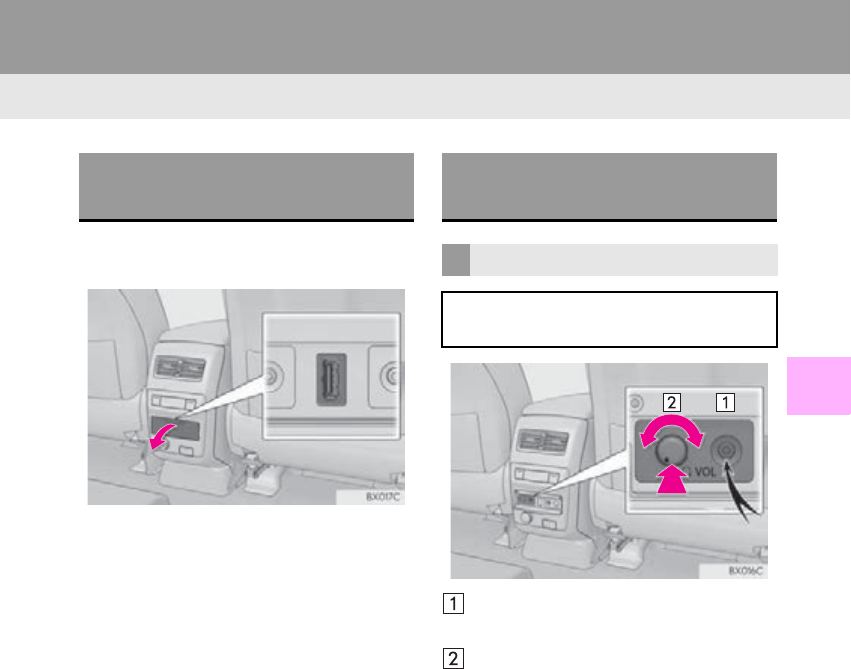
221
7. REAR SEAT ENTERTAINMENT SYSTEM FEATURES
RX_Navi_U
AUDIO/VISUAL SYSTEM
4
1Open the cover and connect audio/vi-
sual equipment to the A/V input port.
Headphones jack
-Connect a pair of headphones to the jack.
Volume knob
-Press and then turn clockwise/counter-
clockwise to increase/decrease the vol-
ume.
CONNECTING A DEVICE TO
REAR A/V INPUT PORT
SELECTING THE SOUND
MODE
HEADPHONE MODE
To listen to the rear seat entertainment
system, use headphones.
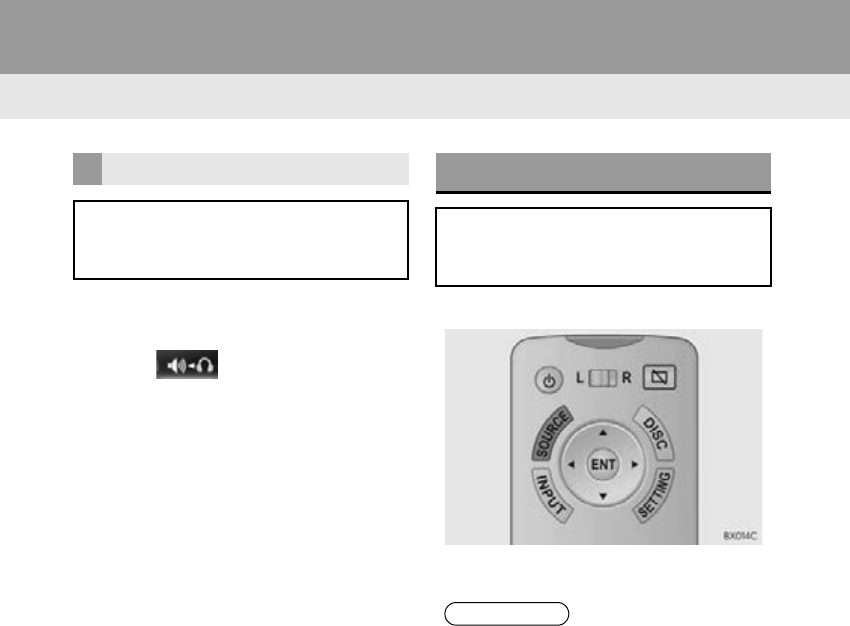
222
7. REAR SEAT ENTERTAINMENT SYSTEM FEATURES
RX_Navi_U
1Display the audio control screen.
(P. 222)
2Select .
-The speaker volume is adjusted using the
remote controller. (P. 219)
1Press the “SOURCE” button.
2Select the desired source.
SPEAKER MODE
Sound from the rear seat entertainment
system can be output through the
speakers.
SELECTING THE SOURCE
The front and rear audio/visual source
can be controlled from the rear seat en-
tertainment system.
INFORMATION
●The page indicators above the source
icons can be selected to change the
source icon page.
●If the cursor is on the rightmost source
icon, pressing the will change the
source icon page.
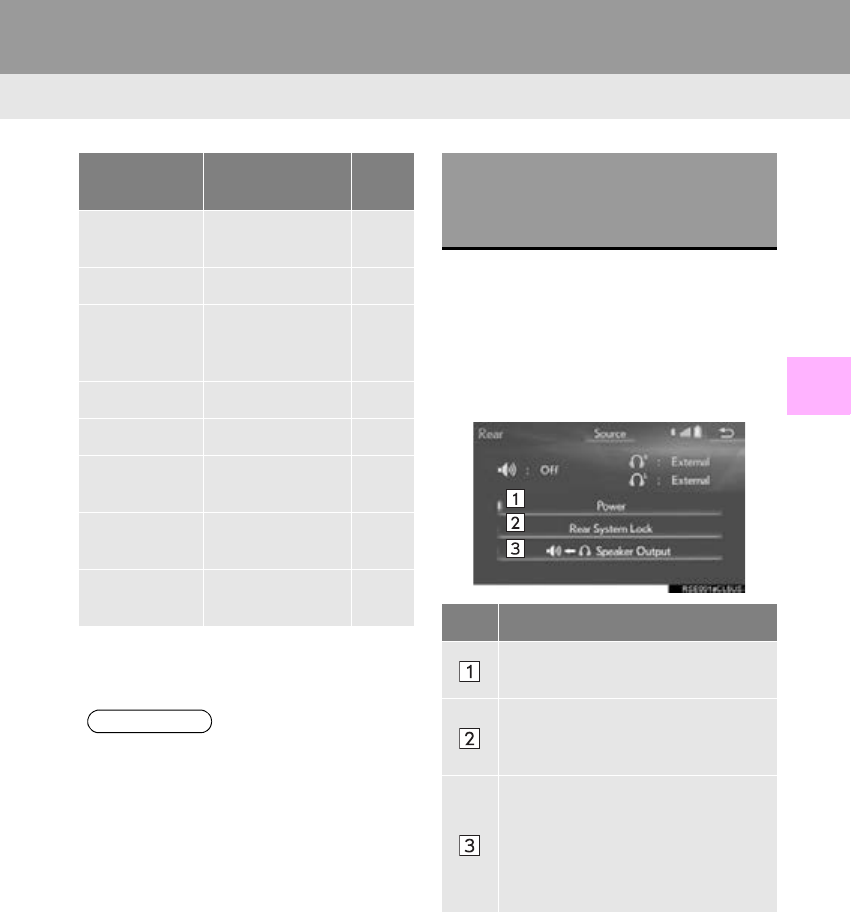
223
7. REAR SEAT ENTERTAINMENT SYSTEM FEATURES
RX_Navi_U
AUDIO/VISUAL SYSTEM
4
1Display the audio control screen.
(P. 147)
2Select “Source”.
3Select “Rear”.
4Select the desired button.
Audio/visual
source Button Page
AM/FM/SAT “A M ” , “FM”,
“SAT” 224
Internet radio “Apps”
Audio CD
MP3/WMA/
AAC disc
“DISC” 225
DVD “DISC” 228
USB audio “USB” 234
iPod audio/
video “iPod” 237
Bluetooth®
audio “Bluetooth*” 240
AUX, Exter-
nal, HDMI
“External”,
“Rear-HDMI” 243
*: Bluetooth is a registered trademark of
Bluetooth SIG, Inc.
INFORMATION
●If the selected source is currently being
received or played on the front audio/
visual system, the same content will be
output by the rear seat entertainment sys-
tem.
OPERATING REAR SEAT
ENTERTAINMENT SYSTEM
FROM THE FRONT SEATS
No. Function
Select to turn the rear seat entertain-
ment system on/off.
Select to lock the system so passen-
gers in the rear seats cannot operate
the rear seat entertainment system.
Select to output sound from rear
seat entertainment system over the
speakers in the vehicle. Select
“Right” or “Left” to select for which
screen sound will be output.
(P. 222)
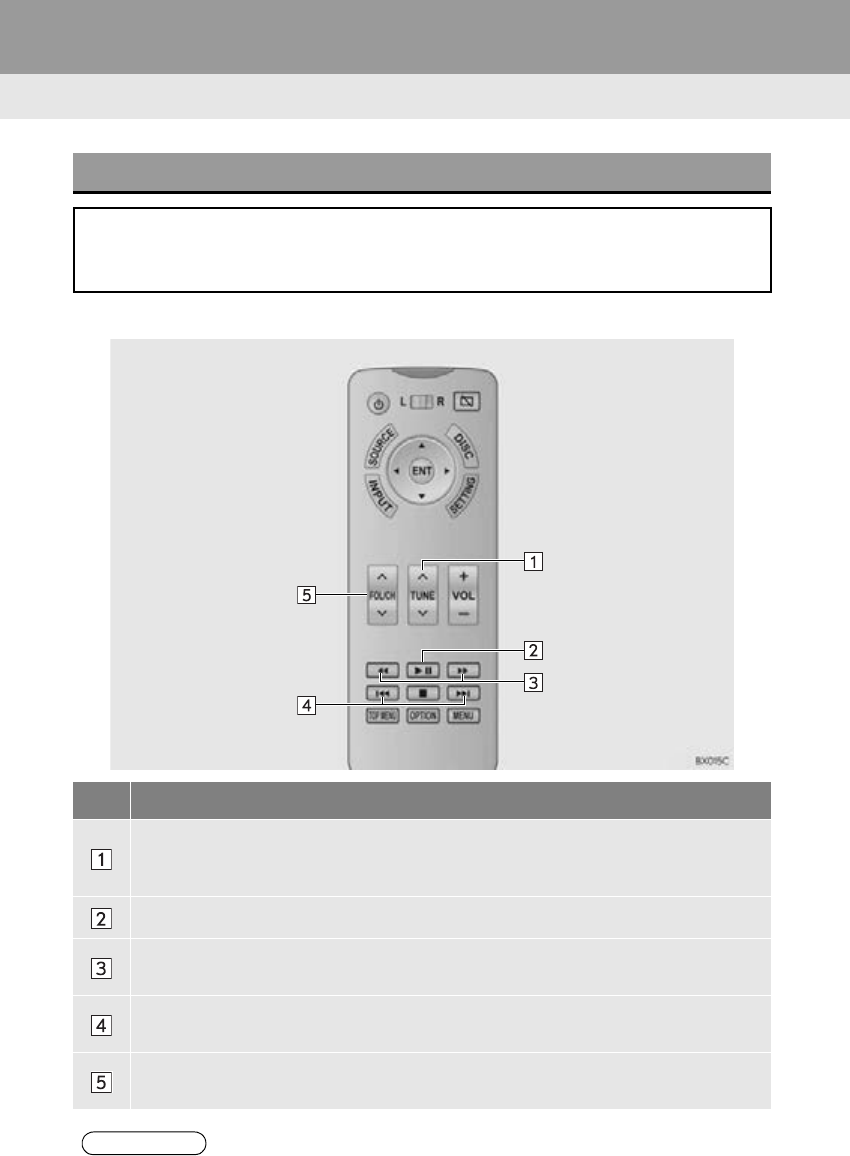
224
RX_Navi_U
8. REAR SEAT ENTERTAINMENT SYSTEM OPERATION
1. AM/FM/SAT RADIO
■REMOTE CONTROLLER
OVERVIEW
The radio operation screen can be reached by the following method:
Press the “SOURCE” button, and select “A M ” , “FM” or “SAT” (The XM Satellite ra-
dio).
No. Function
AM/FM Radio: Press to adjust the frequency.
SAT Radio: Press to select a channel.
Press and hold until you hear a beep to seek for receivable stations/channels.
Cache radio only: Press to play/pause.
Cache radio only: Press to skip forward/rewind 2 minutes.
Cache radio only: Press and hold to fast forward/rewind continuously.
Press to select a preset station/channel.
Press and hold until you hear a beep to seek for receivable stations/channels.
AM/FM Radio: Press to select a preset station/channel.
SAT Radio: Press to select a program type/channel category.
INFORMATION
●To return to the live radio broadcast, select “Live”.
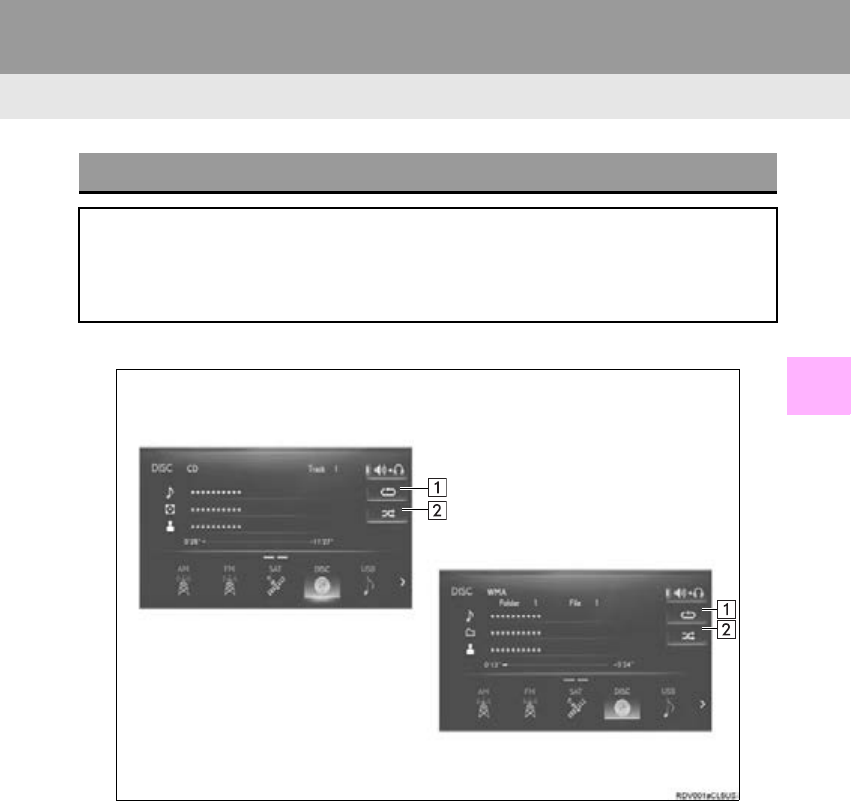
225
8. REAR SEAT ENTERTAINMENT SYSTEM OPERATION
RX_Navi_U
AUDIO/VISUAL SYSTEM
4
2. CD
■CONTROL SCREEN
OVERVIEW
Audio CD and MP3/WMA/AAC discs can be played on this system.
The disc operation screen can be reached by the following methods:
Press the “SOURCE” button, and select “DISC”.
Inserting a disc (P. 148)
Audio CD
MP3/WMA/AAC disc
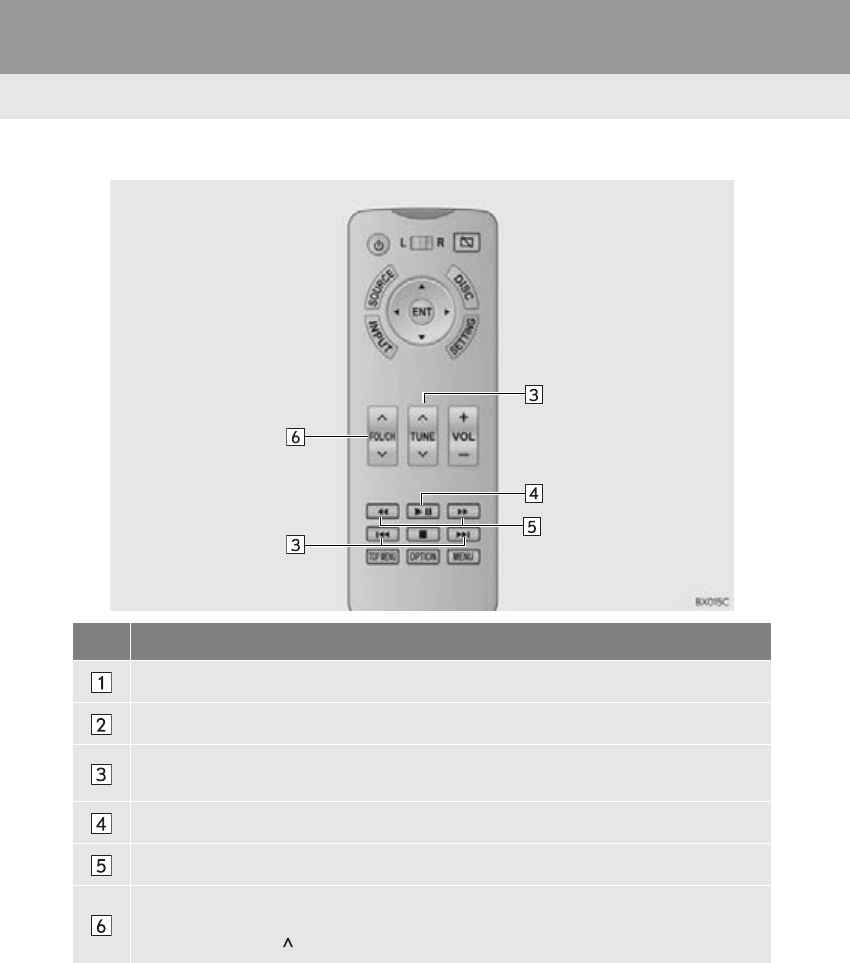
226
8. REAR SEAT ENTERTAINMENT SYSTEM OPERATION
RX_Navi_U
■REMOTE CONTROLLER
No. Function
Select to set repeat playback. (P. 227)
Select to set random playback. (P. 227)
Press to select a track/file.
Press and hold to fast forward/rewind.
Press to play/pause.
Press and hold to fast forward/rewind.
MP3/WMA/AAC disc:
Press to select a folder.
Press and hold the “” button to select the top file stored in the top folder in the disc.
227
8. REAR SEAT ENTERTAINMENT SYSTEM OPERATION
RX_Navi_U
AUDIO/VISUAL SYSTEM
4
1Select .
-Each time is selected, the mode
changes as follows:
Audio CD
• track repeat off
MP3/WMA/AAC disc
•file repeat folder repeat off*1
•file repeat off*2
*1: When random playback is off
*2: When random playback is on
1Select .
-Each time is selected, the mode
changes as follows:
Audio CD
• random (1 disc random) off
MP3/WMA/AAC disc
• random (1 folder random)
folder random (1 disc random) off
REPEATING
The track/file or folder currently being
listened to can be repeated.
RANDOM ORDER
Tracks/files or folders can be automati-
cally and randomly selected.
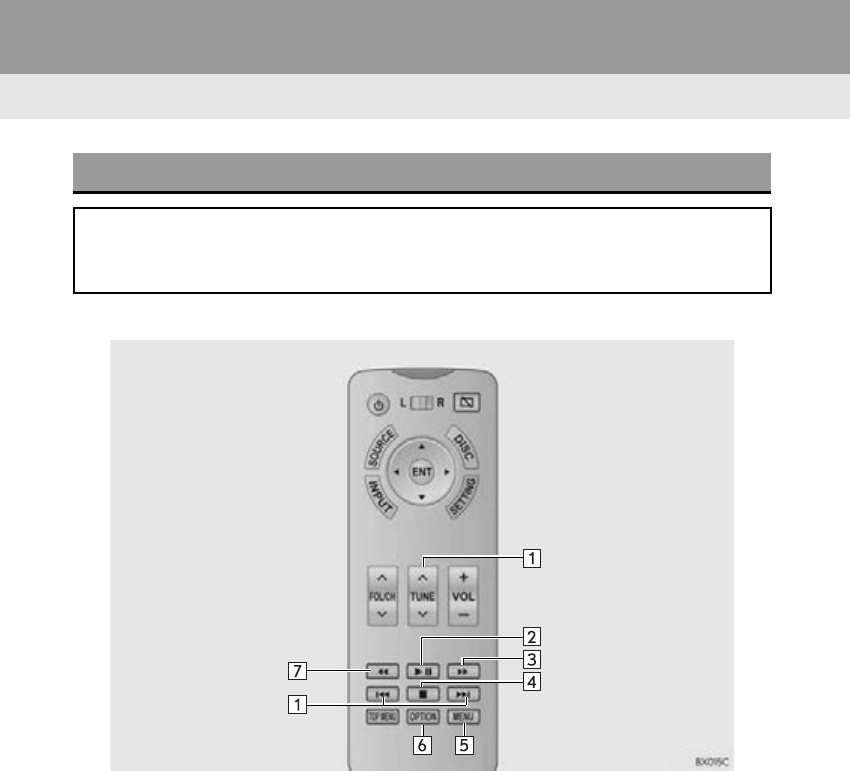
229
8. REAR SEAT ENTERTAINMENT SYSTEM OPERATION
RX_Navi_U
AUDIO/VISUAL SYSTEM
4
No. Function
Press to select a chapter.
Press and hold to fast forward/rewind.
Press to play/pause.
During playback: Press and hold to fast forward.
During a pause: Press and hold to slow forward.
Press to stop.
Press to display the menu screen.
Press to display the option screen. (P. 230)
Press and hold to fast rewind.
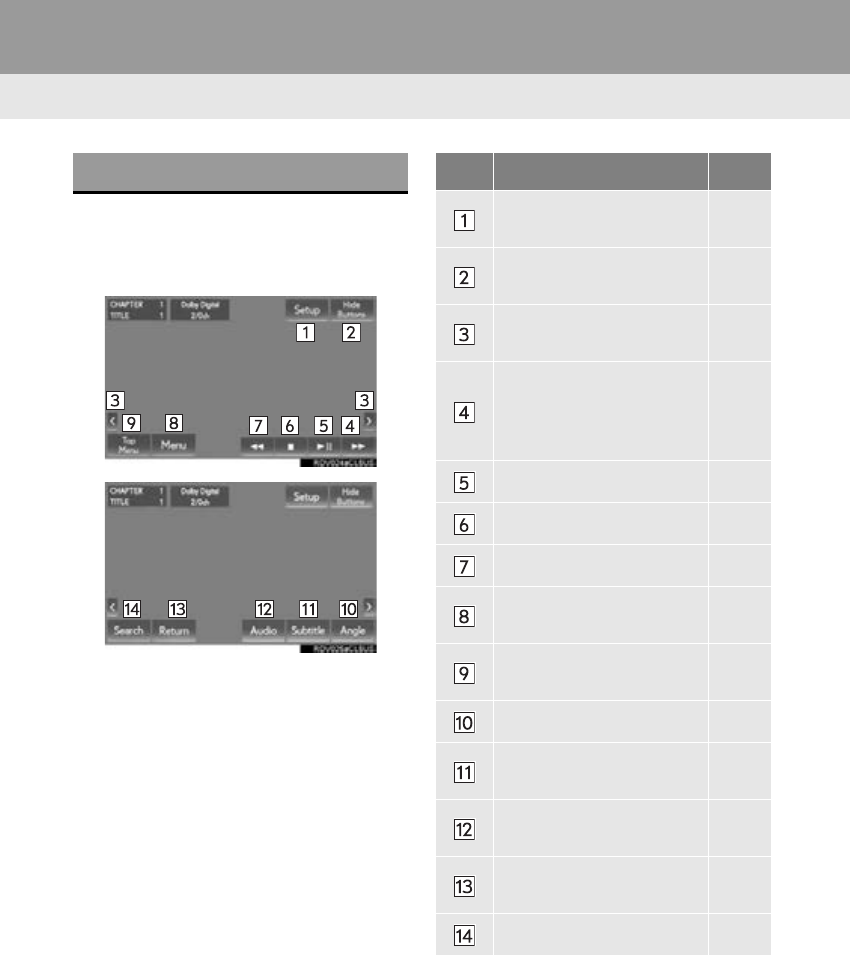
230
8. REAR SEAT ENTERTAINMENT SYSTEM OPERATION
RX_Navi_U
1Press the “OPTION” button.
2Check that the following screen is dis-
played.
DVD VIDEO OPTIONS No. Function Page
Select to display the initial
setup screen. 231
Select to turn off the option
screen.
Select to display the next or
previous page.
During playback: Select
and hold to fast forward.
During a pause: Select
and hold to slow forward.
Select to play/pause.
Select to stop.
Select and hold to rewind.
Select to display the menu
screen.
Select to display the top
menu screen.
Select to change the angle. 233
Select to change the subti-
tle language. 233
Select to change the audio
language. 233
Select to return to a prede-
termined scene.
Select to search for a title. 233
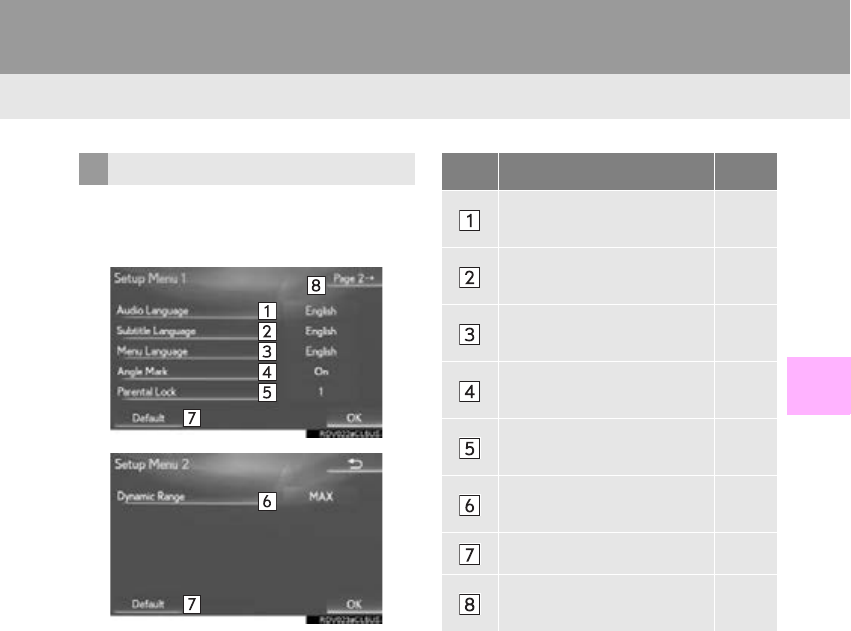
231
8. REAR SEAT ENTERTAINMENT SYSTEM OPERATION
RX_Navi_U
AUDIO/VISUAL SYSTEM
4
1Select “Setup”.
2Select the items to be set.
3Select “OK”.
INITIAL SETUP No. Function Page
Select to change the initial
audio language. 232
Select to change the initial
subtitle language. 232
Select to change the initial
language of the disc menu. 232
Select to set the angle mark
on/off.
Select to set the parental
lock. 232
Select to set a dynamic
range. 232
Select to initialize all menus.
Select to display the second
page.

232
8. REAR SEAT ENTERTAINMENT SYSTEM OPERATION
RX_Navi_U
■AUDIO LANGUAGE
1Select “Audio Language”.
2Select the desired language to be
heard.
-If the desired language to be heard cannot
be found on this screen, select “Other” and
enter a language code. (P. 2 0 4 )
■SUBTITLE LANGUAGE
1Select “Subtitle Language”.
2Select the desired language to be read.
-If the desired language to be read cannot
be found on this screen, select “Other” and
enter a language code. (P. 2 0 4 )
■MENU LANGUAGE
1Select “Menu Language”.
2Select the desired language to be read.
-If the desired language to be read cannot
be found on this screen, select “Other” and
enter a language code. (P. 2 0 4 )
■PARENTAL LOCK
1Select “Parental Lock”.
2Enter the 4-digit personal code.
3Select a parental level (1-8).
■DYNAMIC RANGE
1Select “Dynamic Range”.
2Each time “Dynamic Range” is select-
ed, the setting changes in the following
order:
“MAX”: Maximum dynamic range
“STD”: Standard dynamic range
“MIN”: Minimum dynamic range
The difference between the lowest and
highest sound volumes can be adjusted.
233
8. REAR SEAT ENTERTAINMENT SYSTEM OPERATION
RX_Navi_U
AUDIO/VISUAL SYSTEM
4
1Select “Angle”.
2Each time “Angle” is selected, the angle
is changed.
-The angles available are restricted to those
available on the DVD disc.
1Select “Subtitle”.
2Each time “Subtitle” is selected, anoth-
er language available on the disc is se-
lected.
-The languages available are restricted to
those available on the DVD disc.
-When “Hide” is selected, the subtitles can
be hidden.
1Select “A u d i o ” .
2Each time “A u d i o ” is selected, another
language available on the disc is select-
ed.
-The languages available are restricted to
those available on the DVD disc.
1Select “Search”.
2Enter the title number or chapter num-
ber, and select “OK”.
-The player starts playing video for that title
or chapter number.
CHANGING THE ANGLE
The angle can be selected for discs that
are multi-angle compatible.
CHANGING THE SUBTITLE
LANGUAGE
The subtitle language can be changed
for discs with multiple subtitle languag-
es.
CHANGING THE AUDIO
LANGUAGE
The audio language can be changed for
discs with multiple audio languages.
SEARCHING FOR A TITLE OR
CHAPTER
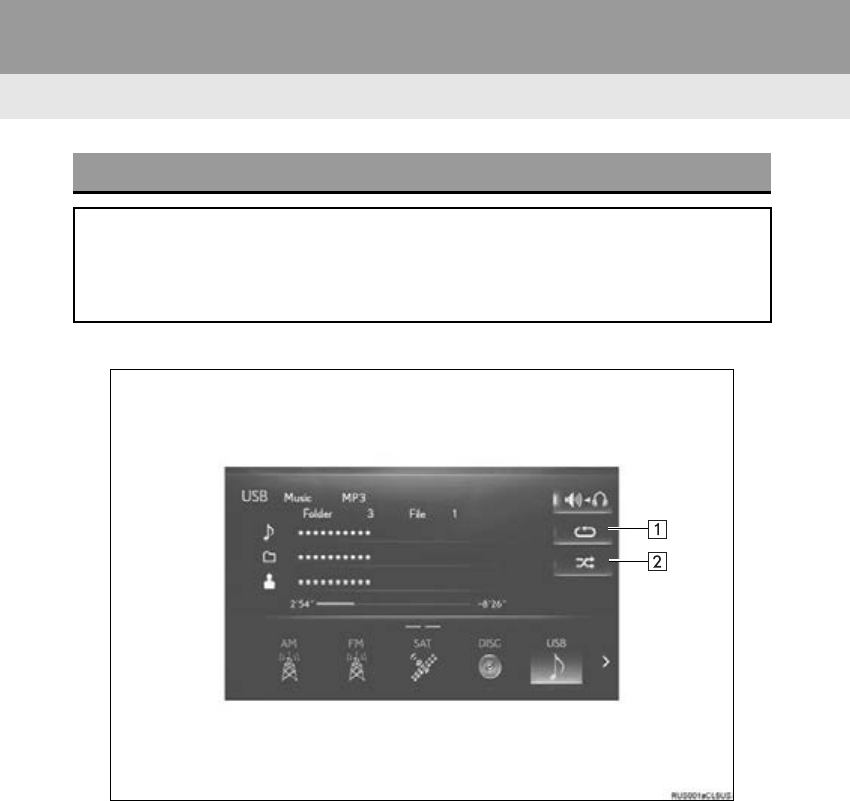
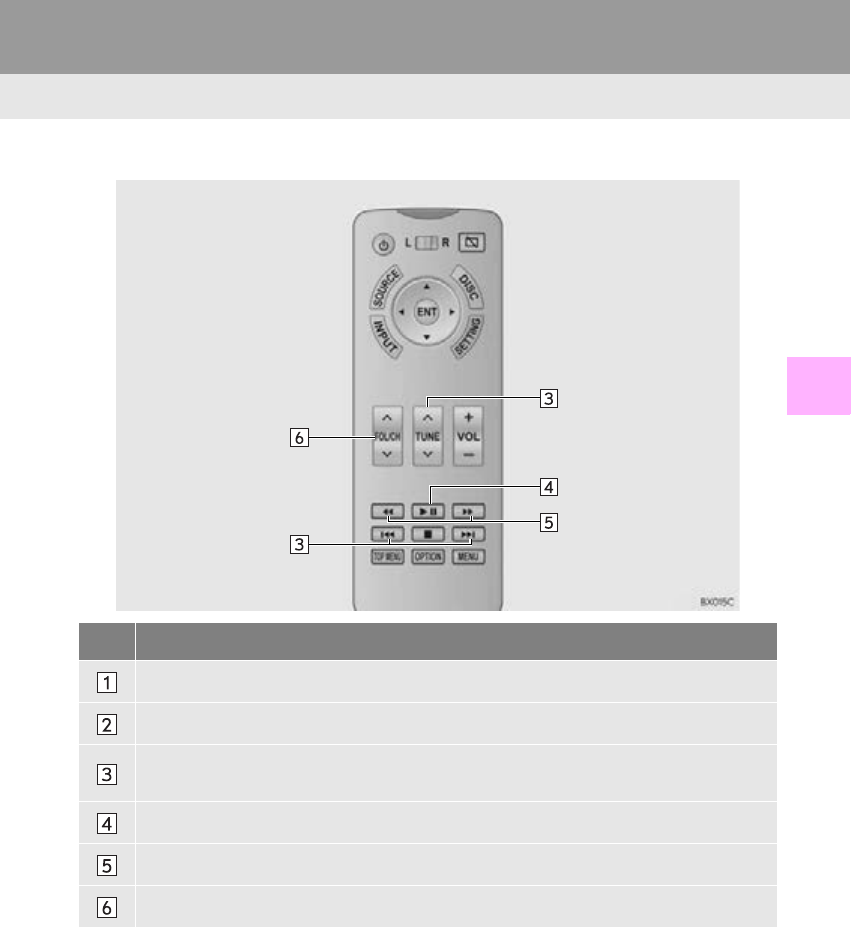
235
8. REAR SEAT ENTERTAINMENT SYSTEM OPERATION
RX_Navi_U
AUDIO/VISUAL SYSTEM
4
■REMOTE CONTROLLER
No. Function
Select to set repeat playback. (P. 236)
Select to set random playback. (P. 236)
Press to select a file/track.
Press and hold to fast forward/rewind.
Press to play/pause.
Press and hold to fast forward/rewind.
Press to select a folder/album.
236
8. REAR SEAT ENTERTAINMENT SYSTEM OPERATION
RX_Navi_U
1Select .
-Each time is selected, the mode
changes as follows:
When random playback is off
• file/track repeat folder/album repeat
off
When random playback is on
• file/track repeat off
1Select .
-Each time is selected, the mode
changes as follows:
• random (1 folder/album random)
folder/album random (all folder/album
random) off
REPEATING
The file/track or folder/album currently
being listened to can be repeated.
RANDOM ORDER
Files/tracks or folders/albums can be
automatically and randomly selected.
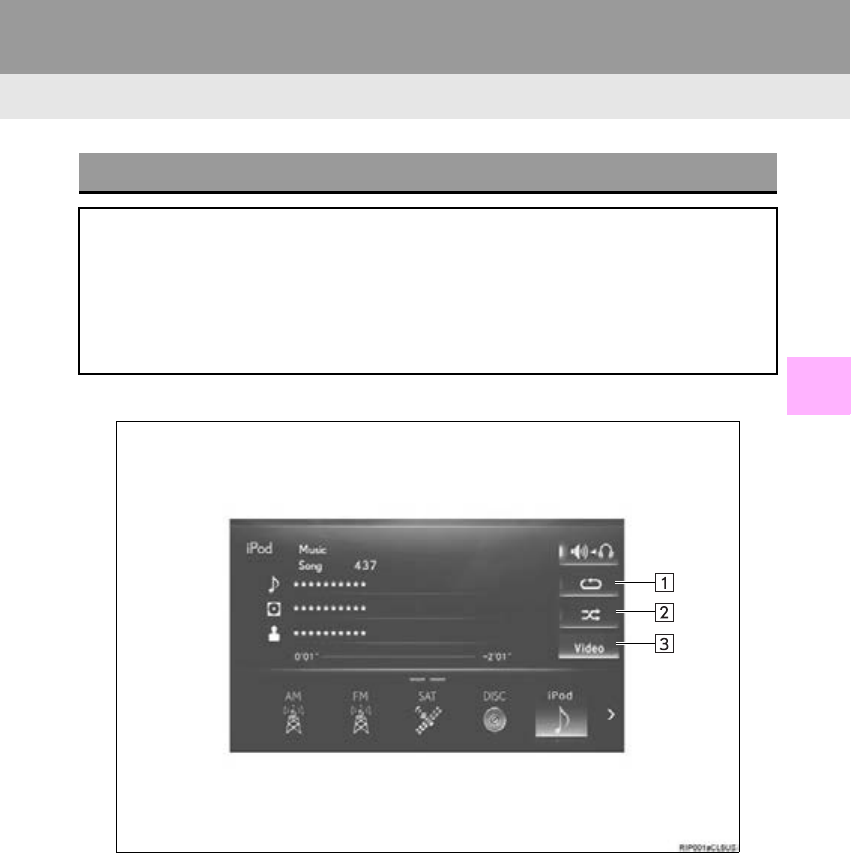
237
8. REAR SEAT ENTERTAINMENT SYSTEM OPERATION
RX_Navi_U
AUDIO/VISUAL SYSTEM
4
5. iPod
■CONTROL SCREEN
OVERVIEW
iPod audio and iPod video can be played on this system.
For viewing videos from an iPod, it is necessary to set the front audio/visual system’s
“Video Sound Input” to “A / V ” . (P. 201)
The iPod operation screen can be reached by the following methods:
Press the “SOURCE” button, and select “iPod”.
Connecting an iPod (P. 149)
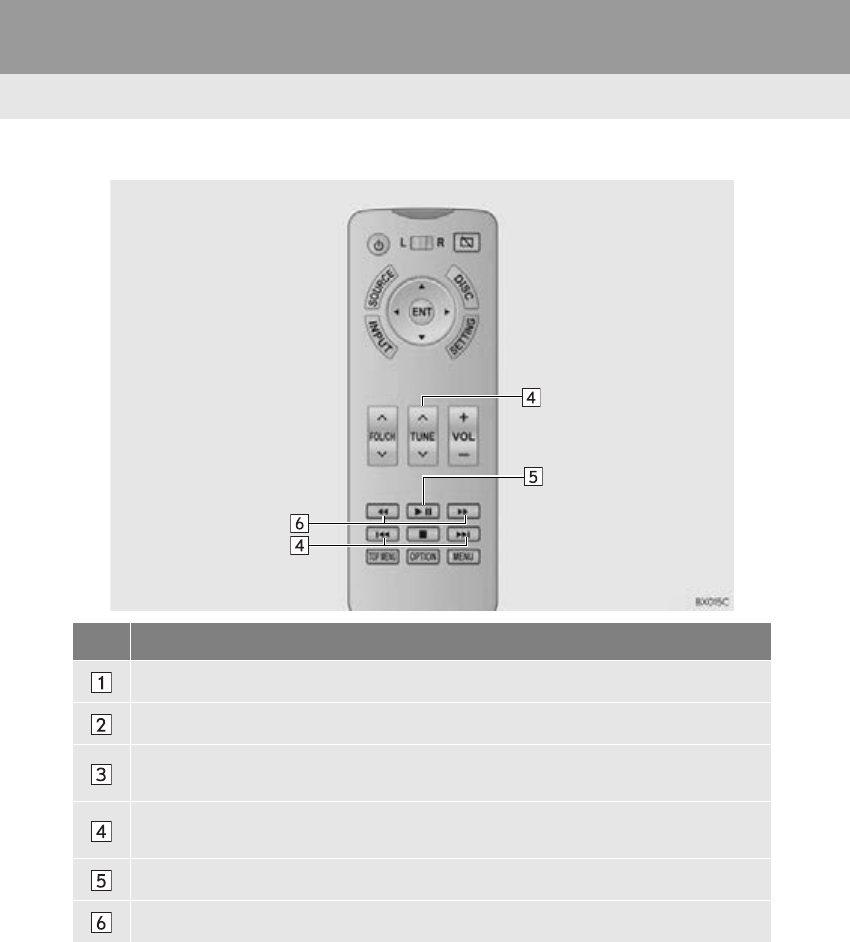
238
8. REAR SEAT ENTERTAINMENT SYSTEM OPERATION
RX_Navi_U
■REMOTE CONTROLLER
No. Function
Select to set repeat playback. (P. 239)
Select to set random playback. (P. 239)
Select to display the video screen.
To return to the audio screen, press the “SOURCE” button and select “Music”.
Press to select a track/file.
Press and hold to fast forward/rewind.
Press to play/pause.
Press and hold to fast forward/rewind.
239
8. REAR SEAT ENTERTAINMENT SYSTEM OPERATION
RX_Navi_U
AUDIO/VISUAL SYSTEM
4
1Select .
-Each time is selected, the mode
changes as follows:
• track repeat off
1Select .
-Each time is selected, the mode
changes as follows:
•track shuffle album shuffle off
iPod AUDIO
REPEATING
The track currently being listened to can
be repeated.
RANDOM ORDER
Tracks or albums can be automatically
and randomly selected.
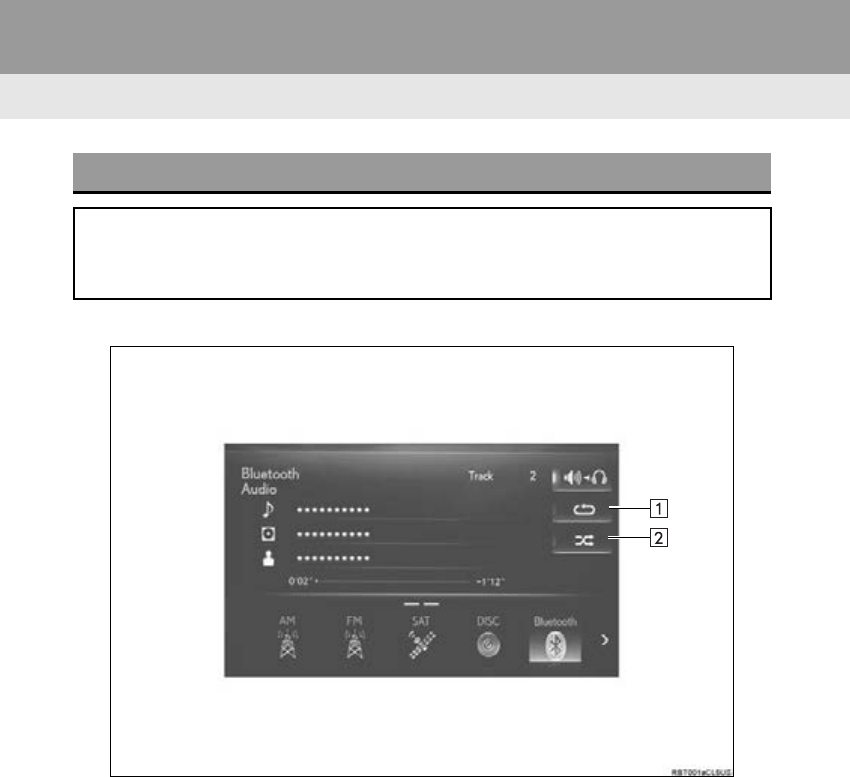
240
8. REAR SEAT ENTERTAINMENT SYSTEM OPERATION
RX_Navi_U
6. Bluetooth® AUDIO
■CONTROL SCREEN
OVERVIEW
The Bluetooth® audio operation screen can be reached by the following method:
Press the “SOURCE” button and select “Bluetooth*”.
Connecting a Bluetooth® audio device (P. 192)
*: Bluetooth is a registered trademark of Bluetooth SIG, Inc.
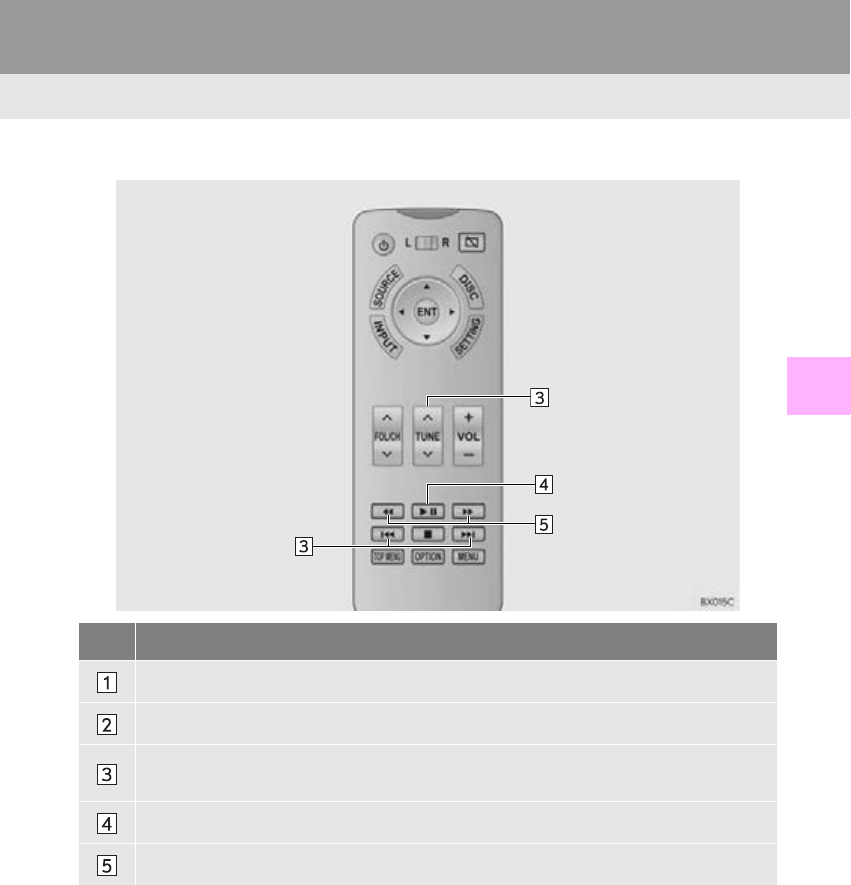
241
8. REAR SEAT ENTERTAINMENT SYSTEM OPERATION
RX_Navi_U
AUDIO/VISUAL SYSTEM
4
■REMOTE CONTROLLER
No. Function
Select to set repeat playback. (P. 242)
Select to set random playback. (P. 242)
Press to select a track.
Press and hold to fast forward/rewind.
Press to play/pause.
Press and hold to fast forward/rewind.
242
8. REAR SEAT ENTERTAINMENT SYSTEM OPERATION
RX_Navi_U
1Select .
-Each time is selected, the mode
changes as follows:
•track repeat album repeat off
1Select .
-Each time is selected, the mode
changes as follows:
•album random all track random off
Bluetooth® AUDIO
REPEATING
The track or album currently being lis-
tened to can be repeated.
RANDOM ORDER
Tracks or albums can be automatically
and randomly selected.
243
8. REAR SEAT ENTERTAINMENT SYSTEM OPERATION
RX_Navi_U
AUDIO/VISUAL SYSTEM
4
7. EXTERNAL DEVICES
OVERVIEW
The rear seat entertainment system plays videos and sound when audio/visual equip-
ment is connected to the A/V input port.
The external devices operation screen can be reached by the following methods:
Press the “SOURCE” button, and select “External” or “Rear-HDMI”.
Connecting a external device (P. 149, 221)
INFORMATION
●In rear external device mode, different sound/visual modes can be enjoyed for the left and
right screens when “Speaker Output” is off. (P. 222)
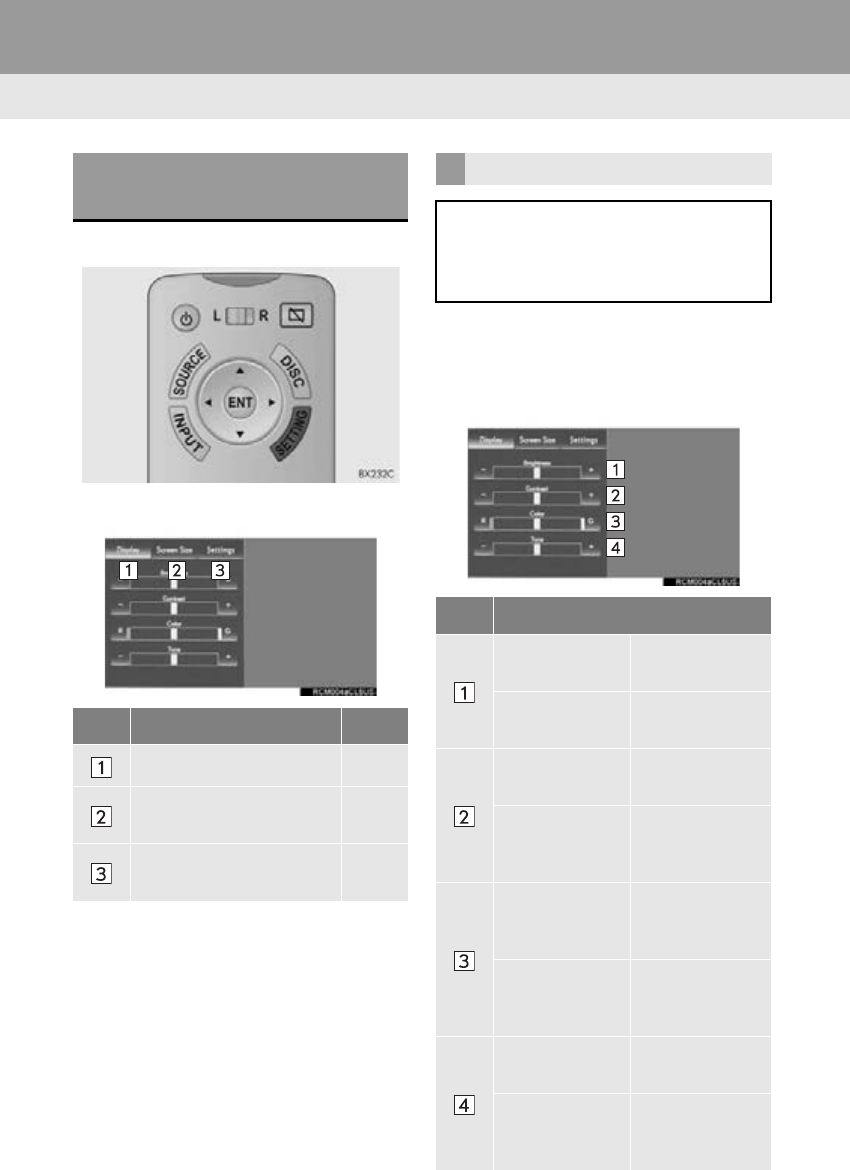
244
RX_Navi_U
9. SETUP FOR REAR SEAT ENTERTAINMENT SYSTEM
1. REAR SEAT ENTERTAINMENT SYSTEM SETTINGS
1Press the “SETTING” button.
2Select the tab to be set.
1Display the settings screen. (P. 244)
2Select the “Display” tab.
3Select the item to be set.
DISPLAYING THE SETTING
SCREEN
No. Function Page
Select to adjust the screen. 244
Select to change the
screen size. 245
Select to display the setup
screen. 245
ADJUSTING THE SCREEN
The screen image quality, such as the
brightness and contrast levels, can be
adjusted. Adjustable items depend on
the selected input source.
No. Function
“Brightness” “-” Select to darken
the screen.
“Brightness” “+” Select to bright-
en the screen.
“Contrast” “-” Select to weak-
en the contrast.
“Contrast” “+”
Select to
strengthen the
contrast.
“Color” “R”
Select to
strengthen the
red color.
“Color” “G”
Select to
strengthen the
green color.
“Tone” “-” Select to weak-
en the tone.
“Tone” “+”
Select to
Strengthen the
tone.
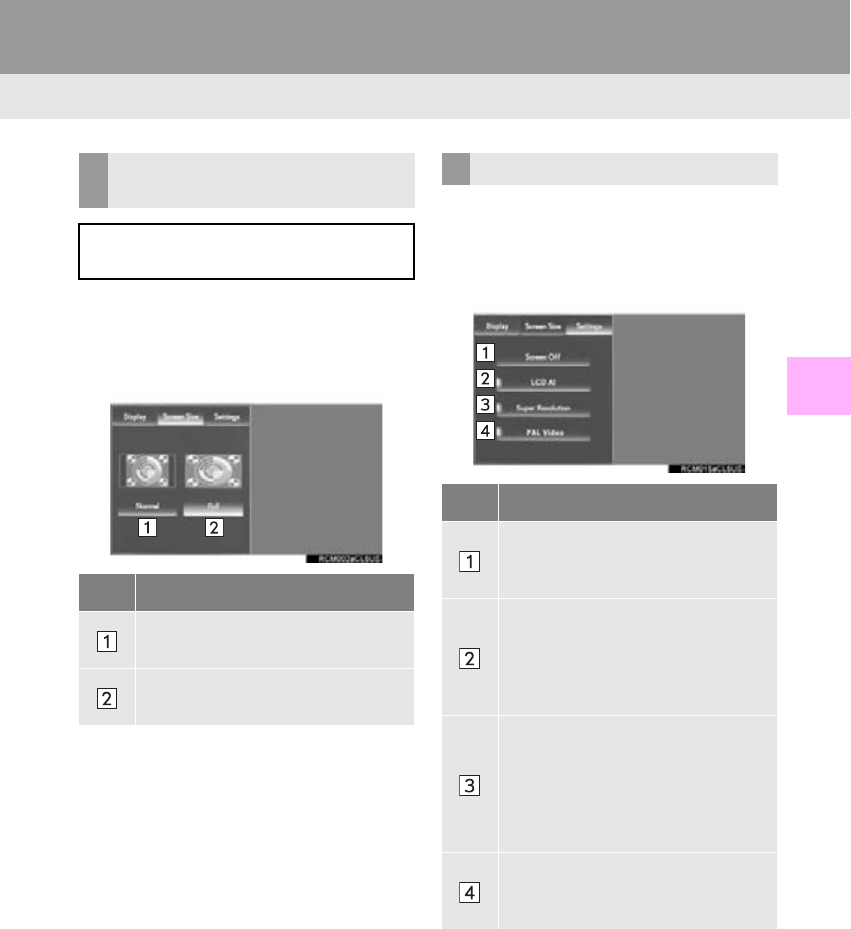
245
9. SETUP FOR REAR SEAT ENTERTAINMENT SYSTEM
RX_Navi_U
AUDIO/VISUAL SYSTEM
4
1Display the settings screen. (P. 244)
2Select the “Screen Size” tab.
3Select the desired screen size.
1Display the settings screen. (P. 244)
2Select the “Settings” tab.
3Select the item to be set.
CHANGING THE SCREEN
SIZE
The screen size can be changed for
each input mode individually.
No. Function
Select to display the screen at the
original ratio.
Select to widen the 4:3 aspect
screen horizontally to fill the screen.
“Settings” SCREEN
No. Function
Select to turn the display off. To turn
it on, press the “DISC”, “SETTING”,
“SOURCE” or “INPUT” button.
Select to turn on/off the “LCD AI”.
The “LCD AI” automatically deter-
mines the tone of the video image
and sets the contrast to an optimum
level, displaying a sharp image.
Select to turn the “Super Resolu-
tion” function on/off.
When turned on, the “Super Resolu-
tion” function enhances image quali-
ty to deliver a feeling of a higher
resolution image.
Select to switch between NTSC/
PAL input format. (PAL: indicator
on, NTSC: indicator off)
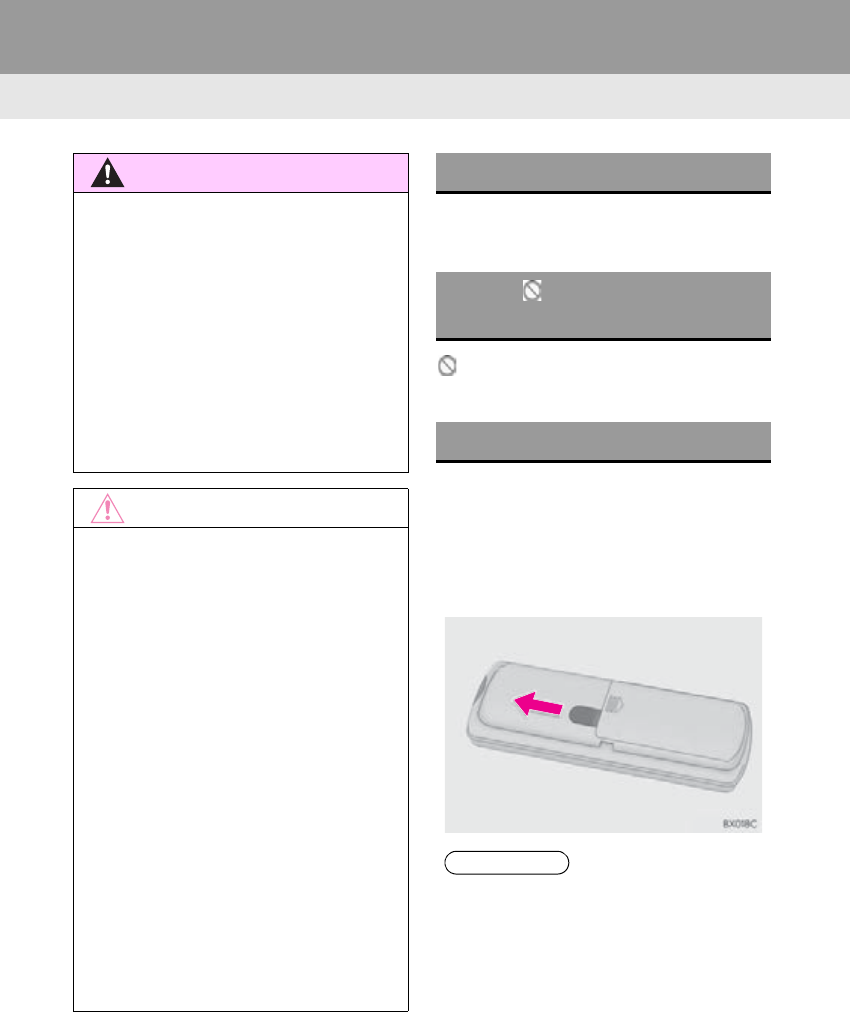
246
RX_Navi_U
10. TIPS FOR OPERATING REAR SEAT ENTERTAINMENT SYSTEM
1. OPERATING INFORMATION
A caution screen appears for a few seconds
when the rear display turns on.
indicates that the selected icon cannot
be used at this time.
■BEFORE USING THE REMOTE
CONTROLLER (FOR NEW VEHI-
CLE OWNERS)
1Remove the insulating sheet before us-
ing the remote controller.
WARNING
●To prevent accidents and electric shock:
Do not disassemble or modify the remote
controller.
●When the remote controller is not used:
Stow the remote controller. Injuries may
result in the event of an accident or sud-
den braking.
●Removed battery and other parts: These
parts are small and if swallowed by a child
they can cause choking. Keep away from
children. Failure to do so could result in
death or serious injury.
NOTICE
●Cleaning the display: Wipe the display
with a dry soft cloth. If the screen is wiped
with a rough cloth, the surface of the
screen may be scratched.
●To prevent damage to the remote con-
troller:
• Keep the remote controller away from
direct sunlight, heat and high humidity.
• Do not drop or strike the remote con-
troller against hard objects.
• Do not sit on or place heavy objects on
the remote controller.
●For normal operation after replacing the
battery: Observe the following precau-
tions to prevent accidents.
• Always work with dry hands. Moisture
may cause the battery to rust.
• Do not touch or move any other com-
ponents inside the remote controller.
• Do not bend either of the battery termi-
nals.
CAUTION SCREEN
WHEN APPEARS ON THE
SCREEN
THE REMOTE CONTROLLER
INFORMATION
●An insulating sheet is set to prevent the
batteries from being depleted.
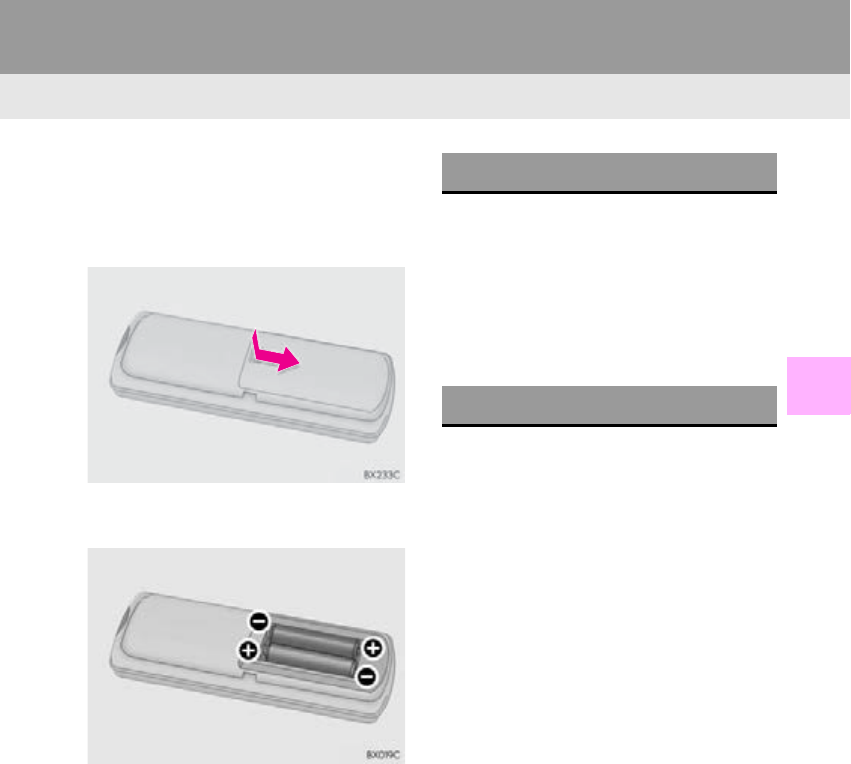
247
10. TIPS FOR OPERATING REAR SEAT ENTERTAINMENT SYSTEM
RX_Navi_U
AUDIO/VISUAL SYSTEM
4
■WHEN THE REMOTE CONTROL-
LER BATTERIES ARE FULLY DE-
PLETED
1Remove the cover.
2Remove the depleted batteries and in-
stall new batteries.
■IF THE REMOTE CONTROLLER
BATTERIES ARE DISCHARGED
The following symptoms may occur.
-The remote controller will not function
properly.
-The operational range is reduced.
■USE TWO AA BATTERIES
-Batteries can be purchased at Lexus dealer,
electric appliance shop, or camera stores.
-Replace only with the same or equivalent
type recommended by Lexus dealer.
-Dispose of used batteries according to the
local laws.
Infrared wireless headphones can also be
used. However, with some headphones
generally available in the market, it may be
difficult to catch signals properly. Lexus rec-
ommends the use of Lexus genuine wireless
headphones.
Contact your Lexus dealer.
-Adjust the volume when you connect the
headphone to the jack. Loud sounds may
have a significant impact on the human
body.
-Conversational speech on some DVDs is
recorded at a low volume to emphasize the
impact of sound effects. If you adjust the
volume assuming that the conversations
represent the maximum volume level that
the DVD will play, you may be startled by
louder sound effects or when you change
to a different audio source. Be sure to
adjust the volume with this in mind.
HEADPHONES
VOLUME
248
10. TIPS FOR OPERATING REAR SEAT ENTERTAINMENT SYSTEM
RX_Navi_U
The volume can be adjusted using the vehi-
cle’s audio controls. All other operations
must be made on the audio/visual equip-
ment itself.
For details about operation of audio/visual
equipment, refer to the manufacturer’s in-
structions.
The terms HDMI and HDMI High-Defini-
tion Multimedia Interface, and the HDMI
Logo are trademarks or registered trade-
marks of HDMI Licensing, LLC in the Unit-
ed States and other countries.
A/V INPUT PORT
OPERATING AUDIO/VISUAL
EQUIPMENT CONNECTED
TO THE SYSTEM
NOTICE
●When the A/V input port is not in use:
Keep the A/V input port cover closed.
Inserting anything other than an appro-
priate plug may cause electrical failure or
a short circuit.
INFORMATION
●HDMI compatible format
• Compatible video signal:
480p, 576p,VGA
• Compatible sound signal:
LPCM 2ch
COPYRIGHTS AND
TRADEMARKS

5
249
RX_Navi_U
2
5
4
3
6
7
8
9
1
10
1. VOICE COMMAND SYSTEM......... 250
USING THE VOICE COMMAND
SYSTEM .................................................................. 250
VOICE COMMAND SYSTEM
OPERATION ......................................................... 251
2. CASUAL
SPEECH RECOGNIZATION ........ 257
3. COMMAND LIST................................... 258
1. MOBILE ASSISTANT ............................ 253
1VOICE COMMAND SYSTEM
OPERATION
2MOBILE ASSISTANT
OPERATION
VOICE COMMAND SYSTEM
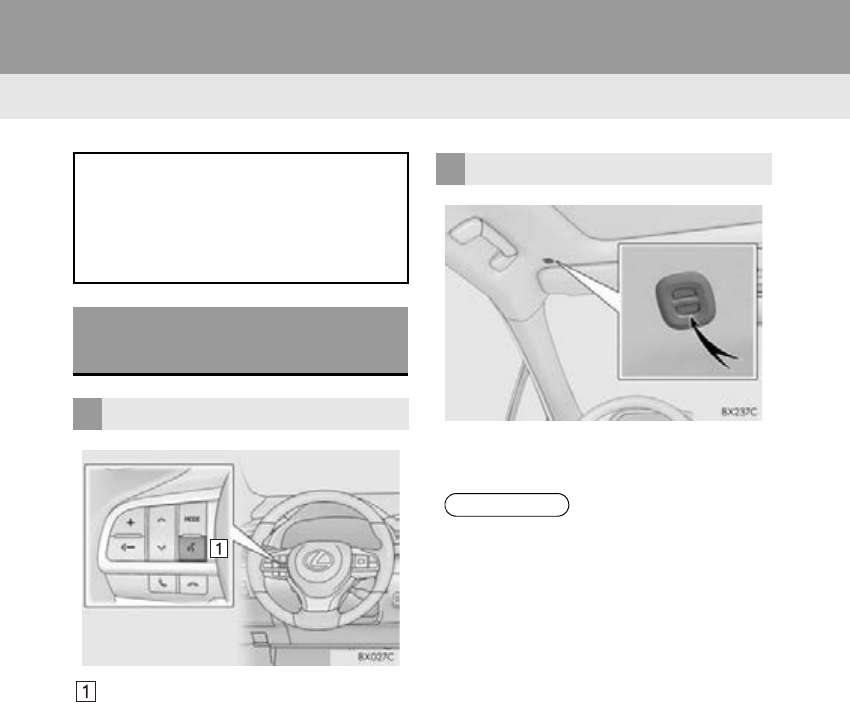
250
RX_Navi_U
1. VOICE COMMAND SYSTEM OPERATION
1. VOICE COMMAND SYSTEM
Talk switch
-Press the talk switch to start the voice com-
mand system.
-To cancel voice recognition, press and hold
the talk switch.
-It is unnecessary to speak directly into the
microphone when giving a command.
The voice command system enables the
audio/visual, hands-free systems, etc. to
be operated using voice commands.
Refer to the command list for samples of
voice commands. (P. 258)
USING THE VOICE
COMMAND SYSTEM
STEERING SWITCH
MICROPHONE
INFORMATION
●Wait for the confirmation beep before
speaking a command.
●Voice commands may not be recognized
if:
• Spoken too quickly.
• Spoken at a low or high volume.
• The roof or windows are open.
• Passengers are talking while voice com-
mands are spoken.
• The air conditioning speed is set high.
• The air conditioning vents are turned
towards the microphone.
●In the following conditions, the system
may not recognize the command prop-
erly and using voice commands may not
be possible:
• The command is incorrect or unclear.
Note that certain words, accents or
speech patterns may be difficult for the
system to recognize.
• There is excessive background noise,
such as wind noise.
●This system may not operate immediately
after the engine <power> switch is turned
to ACCESSORY or IGNITION ON
<ON> mode.
251
1. VOICE COMMAND SYSTEM OPERATION
VOICE COMMAND SYSTEM
RX_Navi_U
5
1Press the talk switch.
-If the shortcut menu screen is displayed,
say “Main menu” or select “Main menu” to
display the main menu screen.
2Say the desired category name.
-All shortcut commands can be recognized
on this screens.
-To display the shortcut menu screen, say
“Shortcut menu” or select “Shortcut
menu”.
3Say or select the desired command on
the screen.
1Press the talk switch.
-If the main menu screen is displayed, say
“Shortcut menu” or select “Shortcut menu”
to display the shortcut menu screen.
2Say the tab selection command or se-
lect the desired tab.
-All commands, including those which are
not displayed on the screen, can be recog-
nized.
-Commands related to each function are
displayed on the screen of each function
tab. Some commonly used commands are
displayed on the shortcut tab screen. Say
“More Hints” to display more commonly
used commands.
-To display th e m a i n menu screen, say “Main
menu” or select “Main menu”.
VOICE COMMAND SYSTEM
OPERATION
The voice command system is operated
by speaking commands corresponding
to each function. Commands can be
confirmed on the screen. The voice
command system can be operated from
either the main menu screen or shortcut
menu screen.
OPERATION FROM THE
MAIN MENU
-Saying “Help” or selecting “?” prompts
voice guidance to offer examples of
commands and operation methods.
OPERATION FROM THE
SHORTCUTS
-Voice guidance for the voice command
system can be skipped by pressing the
talk switch.
-Saying “Help” prompts voice guidance to
offer examples of commands and opera-
tion methods.
252
1. VOICE COMMAND SYSTEM OPERATION
RX_Navi_U
3Say the desired command.
-Registered POIs, registered names in the
contacts list etc., can be said in the place of
the “<>” next to the commands. (P. 258)
For example: Say “Find nearby dining”,
“Call John Smith” etc.
-If a desired outcome is not shown, or if no
selections are available, perform one of the
following to return to the previous screen:
•Say “Go back”.
• Select “Go Back”.
-To cancel voice recognition, select ,
or press and hold the talk switch.
INFORMATION
●If the system does not respond or the
confirmation screen does not disappear,
press the talk switch and try again.
●If a voice command cannot be recog-
nized, follow the voice guidance and say
the voice command again.
●If a voice command cannot be recog-
nized 5 times consecutively, voice recog-
nition will be canceled.
Press the talk switch to restart the voice
command system.
●“Display Voice Confirmations” can be set
on/off on the “Voice Settings” screen.
(P. 66)
●When “Display Voice Confirmations” is
set to on, voice recognition prompts will
be displayed for some voice commands
when recognized. If the recognized com-
mand is correct, say “Yes” or select “Yes”.
(Saying “No” or selecting “No” will dis-
play the previous screen.)
●When “Display Voice Confirmations” is
set to off, voice recognition prompts will
only be displayed for important voice
commands.
●If “Display Voice Confirmations” is set to
on and commands are generally recog-
nized correctly, a confirmation screen
may be displayed asking if you would
wish to set “Display Voice Confirmations”
to off. To set to off, say “Yes” or select
“Yes”.
●“Voice Recognition Prompts” can be set
to on or off on the “Voice Settings”
screen. (P. 66)
●Voice guidance can be canceled by set-
ting voice prompts to off. Use this setting
when it is desirable to say a command
immediately after pressing the talk switch
and hearing a beep.
●With 12.3-inch display: The “Side Dis-
play” cannot be operated during voice
recognition.

253
1. VOICE COMMAND SYSTEM OPERATION
VOICE COMMAND SYSTEM
RX_Navi_U
5
■DISPLAYING THE “Voice Settings”
SCREENS
1 Select .
-The “Voice Settings” screen will be dis-
played. (P. 66)
1Press the “MENU” button on the
Remote Touch.
2Select “Setup”.
3Select “Voice”.
4Select “Train Voice Recognition”.
-The user will be asked to say sample
phrases. This will help the voice command
system adapt to the user’s accent.
1Press the talk switch.
2Say “Launch <application name>”.
-LEXUS App Suite application screen is dis-
played.
1Press the talk switch.
2Say “Enter an address”.
3Say “<house number, street name, city
name, State>” in succession.
-As voice commands spoken in French are
only available for addresses in Quebec,
Canada, it is not necessary to say “<State>”
in French.
INCREASING THE VOICE
RECOGNITION
PERFORMANCE
VOICE COMMAND
EXAMPLE: LAUNCH LEXUS
App Suite APPLICATION
VOICE COMMAND
EXAMPLE: PERFORMING A
DESTINATION SEARCH BY
ADDRESS (ENGLISH AND
FRENCH ONLY)
254
1. VOICE COMMAND SYSTEM OPERATION
RX_Navi_U
-A confirmation screen will be displayed
showing the recognition results. If multiple
matching items are found, a selection
screen will be displayed. Say “<number>” or
select the number.
-Some areas cannot be recognized by the
voice recognition system.
-If voice commands cannot be recognized
repeatedly, a confirmation screen may be
displayed asking if you would wish to call a
“Destination Assist” operator for help. (P.
364) To call an operator, say “Yes” or select
“Yes”. (Saying “No” or selecting “No” will
display the previous screen.)
4 If the recognized address is correct, say
“Yes” or select “Yes”.
-To correct the city name, street name, or
house number, say “Change city”, “Change
street”, or “Change house number”. (Saying
“No” or “Go Back”, or selecting “No” or
“Go Back” will display the previous
screen.)
5Say “Go directly” or select “Go Direct-
ly”.
-After this, follow the voice guidance and
search for a destination route by voice
command operation.
-For information regarding the state/
province setting to perform a destination
search by address: P. 93
INFORMATION
●The voice command recognition is
designed to recognize the main body of
the official street name.
For example: if the official street name is
“East Main Street”, the voice command
recognition will recognize “Main”.
●Say the desired number, cardinal direc-
tion etc. in the place of the “<>”.
For example: Say “West 555”.
●Inputting the house number can be
skipped.
●Even if the state set using voice recogni-
tion is different from the set state in the
“Address” screen (which was set when a
destination was set manually), the set
state in the “Address” screen will not
change. (P. 94)
●The house number voice recognition
conditions are outlined below:
• Numerals: 10 digits or less
• Numerals and cardinal direction or a
hyphen and numerals: A total of 9 dig-
its or less (Do not say “and”.)
• Cardinal direction or a hyphen and
numerals: A total of 9 digits or less
(Do not say “and”.)
• Numerals are recognized as single
digits only.
• The cardinal direction and hyphens
are only recognized once.
• The following cardinal directions can
be recognized: North, East, West and
South.
255
1. VOICE COMMAND SYSTEM OPERATION
VOICE COMMAND SYSTEM
RX_Navi_U
5
1Press the talk switch.
2Say “Play song <name>”.
-A confirmation screen will be displayed
showing the recognition results. If multiple
matching items are found, a selection
screen will be displayed. Say “<number>” or
select the number.
-The system starts playing music and the
song lists are displayed.
1Press the talk switch.
2Say “Call <contacts> <phone types>”.
-A confirmation screen will be displayed
showing the recognition results. If multiple
matching items are found, a selection
screen will be displayed. Say “<number>” or
select the number.
VOICE COMMAND
EXAMPLE: SEARCH FOR A
SONG
INFORMATION
●The Gracenote database is only compati-
ble with the USB or iPod mode.
●The list screens can be operated by
selecting using the Remote Touch as well
as by recognizing the voice commands.
●A USB memory or iPod must be con-
nected to enable track searching and
playback. (P. 180, 184)
●When a USB memory or iPod is con-
nected, recognition data is created so
tracks can be searched using voice com-
mands.
●Recognition data is updated under the
following conditions:
• When the USB memory or iPod data
has changed.
• When the voice recognition language is
changed. (P. 59)
●While the recognition data is being cre-
ated or being updated, a track search
cannot be performed using a voice com-
mand.
●When the “Music” tab is disappeared on
the shortcut menu screen, it is not possi-
ble to search for a track using a voice
command.
VOICE COMMAND
EXAMPLE: CALL NAME
INFORMATION
●In the same manner as it is displayed on
the screen, “Call <contacts> <phone
types>”, after saying “Call a contact” say
the name, or the name and type of phone,
of a contact.
For example: “Call a contact”, “John
Smith” or “Call a contact”, “Mary Davis”,
“Mobile”
●There are 4 types of phones: Home,
Mobile, Office and Other.
●Short or abbreviated names in the con-
tacts list may not be recognized. Change
names in the contacts list to full names.
●Sometimes a voice recognition result
confirmation screen will be displayed.
After confirming the result, say “Yes” or
“No”.
●When the system recognizes multiple
names from the contacts list, a name can-
didate list will be displayed on the screen.
If the desired name is not displayed on the
top of the screen, say or select the num-
ber of the name from the candidate list to
select a name from the candidate list.
●When a contact has multiple phone num-
bers registered in the contacts list, a can-
didate list will be displayed. If the desired
phone number is not displayed on the top
of the screen, say or select the number of
the desired phone number from the can-
didate list to select a phone number from
the candidate list.
256
1. VOICE COMMAND SYSTEM OPERATION
RX_Navi_U
1Press the talk switch.
2Say the phone number.
-In the same manner as it is displayed on the
screen, “Dial <number>”, after saying “Dial
a number” say the phone number.
-Say the phone number one digit at a time.
For example, if the phone number is
2345678:
Say “two three four five six seven eight”
3Say “Call” or press the switch on
the steering wheel.
-When the confirmation screen appears,
say “Yes” or select “Yes” or press the
switch on the steering wheel.
VOICE COMMAND
EXAMPLE: DIAL NUMBER
-When the system recognizes multiple
phone numbers, a phone number candi-
date list will be displayed on the screen.
Pressing the switch on the steering
wheel makes a call to the top entry on the
list. If the desired phone number is not
displayed on the top of the screen, say
the number of the desired phone number
from the candidate list to select a phone
number from the candidate list.
257
1. VOICE COMMAND SYSTEM OPERATION
RX_Navi_U
VOICE COMMAND SYSTEM
5
2. CASUAL SPEECH RECOGNIZATION
Due to natural language speech recog-
nition technology, this system enables
recognition of a command when spoken
naturally. However, the system cannot
recognize every variation of each com-
mand. In some situations, it is possible to
omit the command for the procedure
and directly state the desired operation.
Not all voice commands are displayed in
the short cut menu.
INFORMATION
●If the command cannot be recognized
completely, the command input screen
will be displayed. (Search results will be
shown based on the part of the command
that was recognized.)
EXPRESSION EXAMPLES FOR
EACH FUNCTION
Command Expression examples
“Go Home” Navigate to my house.
Take me home.
“Enter an
Address”
I need a route to a street
address.
Give me a street.
“Find
<POI category>”
Search for a <Restau-
rants> around here.
I need a route to a near-
by <Restaurants>.
“Call <name>
<type>”
Get me <Robert
Brown>.
Contact the <Robert
Brown> phone of
<Work>.
“Dial <number>”
Can you get me
<3334445555>.
Ring <3334445555>.
“Play Artist
<name>”
Play the artist <name>.
I want to hear the band
<name>.
“Play Album
<name>”
Switch to the album
<name>.
258
1. VOICE COMMAND SYSTEM OPERATION
RX_Navi_U
3. COMMAND LIST
-Frequently used commands are listed in the following tables.
-For devices that are not installed in the vehicle, the related commands will not be dis-
played in the screen. Also, according to conditions, other commands may not be dis-
played in the screen.
-The functions available may vary according to the system installed.
Basic
Apps
When the voice recognition language is set to English.
Recognizable voice commands and their actions are shown below.
-Voice recognition language can be changed. (P. 59)
Command Action
“Help” Prompts voice guidance to offer examples of commands
or operation methods
“Go Back” Returns to the previous screen
“Go to <tab>” Displays the command list of the selected tab
“More Hints” Displays more commonly used commands
“Cancel” Cancels the voice command system
Command Action
“Launch <apps>” Activates the LEXUS App Suite application
259
1. VOICE COMMAND SYSTEM OPERATION
VOICE COMMAND SYSTEM
RX_Navi_U
5
Navi
Phone
Command Action
“Find <POI category>” Displays a list of <POI category*1> near the current posi-
tion*2
“Enter an Address” Enables setting a destination by saying the address
“Go Home” Displays the route to home
“Pause Guidance” Stops the route guidance
“Resume Guidance” Resumes the route guidance
“Show <POI> icons” Displays the specified POI icons
“Delete Destination” Deletes the destination
“Previous Destination” Displays previous destinations
*1: For example; “Gas stations”, “Restaurants”, etc.
*2: Depending on the search results, a POI list may be provided by a relevant POI appli-
cation of the LEXUS App suite. (P. 358)
Command Action
“Redial” Places a call to the phone number of the latest outgoing
call
“Call Back” Places a call to the phone number of latest incoming call
“Show Recent Calls” Displays the call history screen
“Dial <phone number>” Places a call to the said phone number
“Call <contacts> <phonetypes>” Place a call to the said phone type of the contact from the
phone book
260
1. VOICE COMMAND SYSTEM OPERATION
RX_Navi_U
Radio
Command Action
“Tune to <frequency> AM” Changes the radio to the specified AM frequency
“Tune to <frequency> FM” Changes the radio to the specified FM frequency
“Play <genre> station” Changes the radio to an FM station of the specified genre
“Tune to FM <frequency>
HD <number>” Changes the radio to the specified HD radio station
“Tune to preset <number>” Changes the radio to the specified preset radio station
“Tune to <name>” Changes the radio to the satellite radio channel with the
specified name
“Tune to channel <number>” Changes the radio to the specified satellite radio channel
number
“Play <genre> satellite station” Changes the radio to a satellite radio channel of the spec-
ified genre
“AM Radio” Selects AM radio mode
“FM Radio” Selects FM radio mode
“Sirius XM” Selects satellite radio mode
261
1. VOICE COMMAND SYSTEM OPERATION
VOICE COMMAND SYSTEM
RX_Navi_U
5
Audio
Info
Command Action
“Play Playlist <name>” Plays tracks from the selected playlist
“Play Artist <name>” Plays tracks from the selected artist
“Play Song <name>” Plays the selected track
“Play Album <name>” Plays tracks from the selected album
“Turn Music On” Turns the audio system on
“Turn Music Off” Turns the audio system off
“Disc” Selects the selected disc mode
“USB” Selects USB audio mode
“iPod” Selects iPod audio mode
“Bluetooth* Audio” Selects Bluetooth® audio mode
“External” Selects VTR mode
“Auxiliary” Selects AUX audio mode
*: Bluetooth is a registered trademark of Bluetooth SIG, Inc.
Command Action
“Destination Assist” Connects the system to the Lexus response center
“Show Forecast” Displays weather information
“Show Traffic” Displays traffic information
“Lexus Insider” Displays the Lexus insider list
262
1. VOICE COMMAND SYSTEM OPERATION
RX_Navi_U
Climate
Command Action
“Turn Climate Control On” Turns air conditioning system on
“Turn Climate Control Off” Turns air conditioning system off
“Warmer” Increases the temperature of the air conditioning system
“Cooler” Decreases the temperature of the air conditioning system
“<#> degrees” Changes the set temperature of the air conditioning sys-
tem to <#> degrees*
*: Only within the possible temperature range of the air conditioning system
INFORMATION
●Commands relating to operation of the audio/visual and air conditioning systems can only
be performed when the audio and air conditioning systems are turned on.
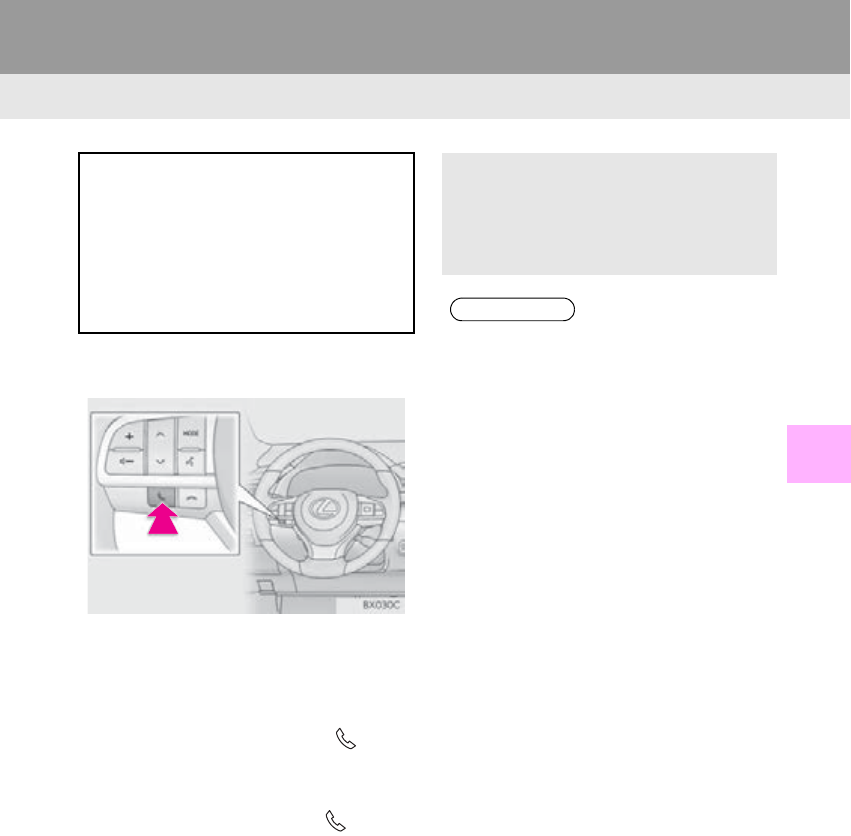
263
RX_Navi_U
VOICE COMMAND SYSTEM
5
2. MOBILE ASSISTANT OPERATION
1. MOBILE ASSISTANT
1Press and hold this switch until you hear
the beeps.
2The Mobile Assistant can be used only
when the “Mobile Assistant” screen is
displayed.
-To cancel the Mobile Assistant, select
“Cancel”, or press and hold the on the
steering wheel.
-To restart the Mobile Assistant for addi-
tional commands, press the on the
steering wheel.
• Mobile Assistant can only be restarted
after the system responds to a voice com-
mand.
• After some phone and music commands,
the Mobile Assistant feature will automat-
ically end to complete the requested
action.
The Mobile Assistant feature will
activate Apple’s Siri® Eyes Free mode
via the steering wheel switches. To
operate the Mobile Assistant, a
compatible cellular phone must be
registered and connected to this system
via Bluetooth®. (P.42.)
-The volume of the Mobile Assistant can
be adjusted using the “PWR·VOL” knob
or steering wheel volume control
switches. The Mobile Assistant and
phone call volumes are synchronized.
INFORMATION
●The available features and functions may
vary based on the iOS version installed
on the connected device.
●Some Siri features are limited in Eyes
Free mode. If you attempt to use an
unavailable function, Siri will inform you
that the function is not available.
●If Siri is not enabled on the cellular phone
connected via Bluetooth®, an error mes-
sage will be displayed on the screen.
●While a phone call is active, the Mobile
Assistant cannot be used.
●If using the navigation feature of the cellu-
lar phone, ensure the active audio source
is Bluetooth® audio or iPod in order to
hear turn by turn direction prompts.
264
2. MOBILE ASSISTANT OPERATION
RX_Navi_U
MICROPHONE
It is not necessary to speak directly into
the microphone when using the Mobile
Assistant. (Microphone location:
P.250.)
INFORMATION
●Wait for the listening beeps before using
the Mobile Assistant.
●The Mobile Assistant may not recognize
commands in the following situations:
• Spoken too quickly.
• Spoken at a low or high volume.
• The roof or windows are open.
• Passengers are talking while the Mobile
Assistant is being used.
• The air conditioning speed is set high.
• The air conditioning vents are turned
toward the microphone.

6
265
RX_Navi_U
2
6
4
5
3
7
8
9
1
10
1. RECEIVING DOPPLER
WEATHER INFORMATION........... 266
DISPLAYING DOPPLER WEATHER
INFORMATION................................................. 266
2. DATA SERVICES SETTINGS............. 268
SETTING DOWNLOAD METHODS ........ 268
1INFORMATION DISPLAY
INFORMATION*
*: This function is not made available on some models.
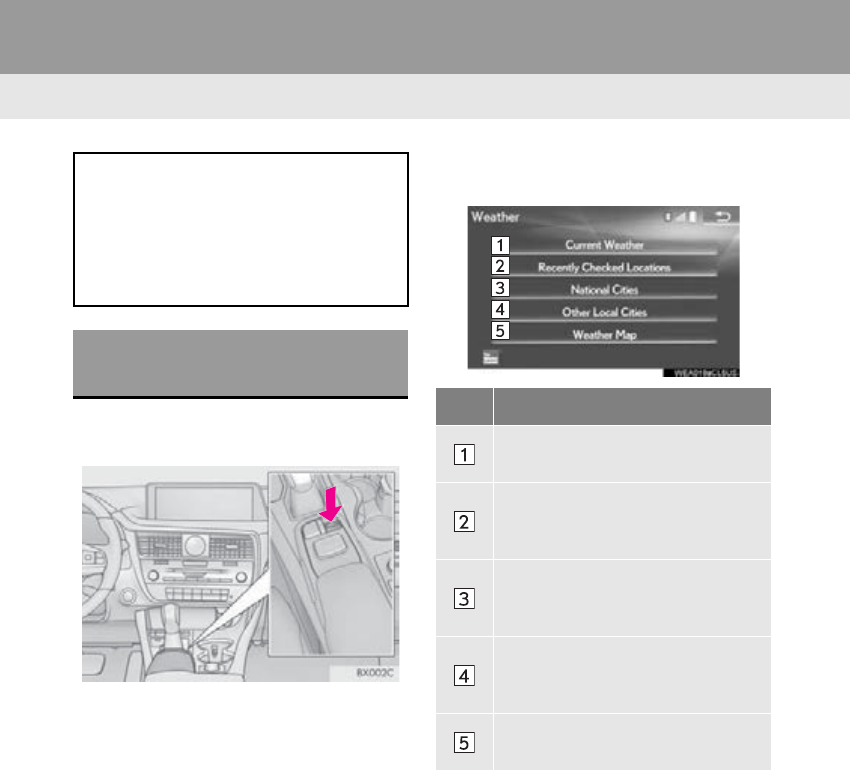
266
RX_Navi_U
1. INFORMATION DISPLAY
1. RECEIVING DOPPLER WEATHER INFORMATION
1Press the “MENU” button on the
Remote Touch.
2Select “Info”.
3Select “Weather”.
4Check that the “Weather” screen is dis-
played.
Doppler weather radar information can
be received via HD Radio broadcast or
by the LEXUS App Suite application on
a Bluetooth® phone. For details about
the LEXUS App Suite application:
P. 351
DISPLAYING DOPPLER
WEATHER INFORMATION
No. Function
Select to display the weather of the
current location. (P. 267)
Select to display the weather of a de-
sired location in the recently
checked locations list.
Select to display the weather of a de-
sired location in the national cities
list.
Select to display the weather of a de-
sired location in the other local cities
list.
Select to display Doppler weather
radar information over the map.

INFORMATION
267
1. INFORMATION DISPLAY
RX_Navi_U
6
1Display the “Weather” screen.
(P. 266)
2Select “Current Weather”.
3Select the desired tab to be displayed.
-When the “3 Day” tab is selected: When a
specific day is selected, weather informa-
tion for that day will be displayed.
DISPLAYING THE WEATHER
OF THE CURRENT LOCATION
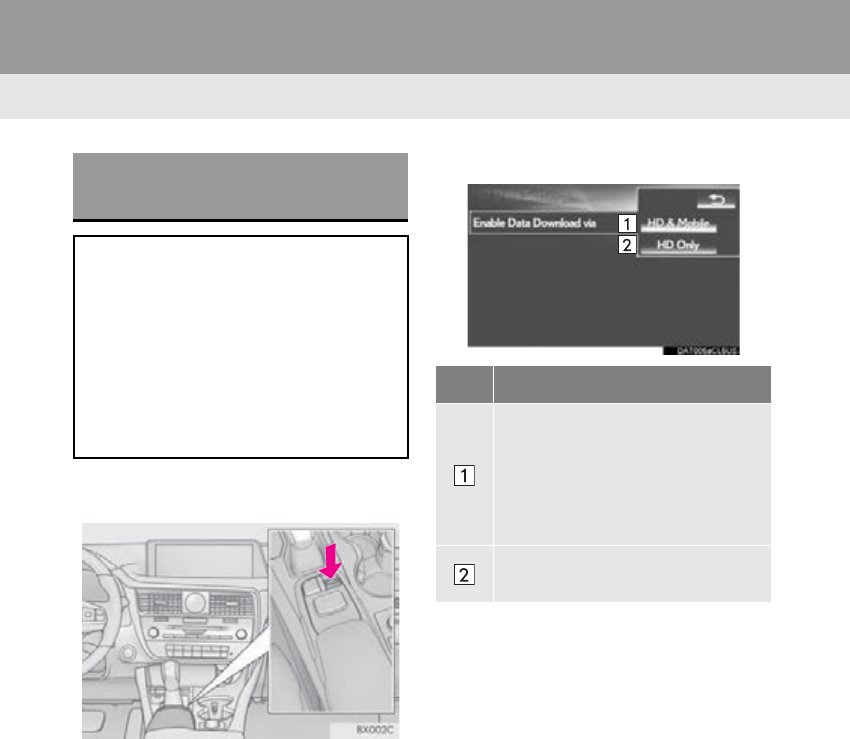
268
1. INFORMATION DISPLAY
RX_Navi_U
2. DATA SERVICES SETTINGS
1Press the “MENU” button on the
Remote Touch.
2Select “Setup”.
3Select “Data Services”.
4Select the desired item to be set.
SETTING DOWNLOAD
METHODS
Data service information, which is com-
prised of traffic information and weather
information, can be received via HD Ra-
dio broadcast and by the LEXUS App
Suite application on a Bluetooth®
phone. The receiving method can be set
to both or only via HD Radio broadcast.
For details about the LEXUS App Suite
application: P. 351
No. Function
Select to receive data service infor-
mation via both HD Radio broadcast
and the LEXUS App Suite applica-
tion on a Bluetooth® phone. When
both methods are available, HD Ra-
dio broadcast will be selected.
Select to receive data only via HD
Radio broadcast.

7
269
RX_Navi_U
2
7
4
5
6
3
8
9
1
10
1. PANORAMIC VIEW
MONITOR ............................................. 270
DRIVING PRECAUTIONS ............................... 270
CAMERA SWITCH................................................ 271
DISPLAY ...................................................................... 271
HOW TO SWITCH THE DISPLAY............... 274
2. CHECKING AROUND THE
VEHICLE................................................. 275
SCREEN DISPLAY ................................................ 275
3. CHECKING THE FRONT AND
AROUND THE VEHICLE................. 276
SCREEN DISPLAY ................................................ 276
4. CHECKING THE SIDES OF THE
VEHICLE................................................. 279
SCREEN DISPLAY ................................................ 279
5. CHECKING THE REAR AND
AROUND THE VEHICLE.................. 281
SCREEN DISPLAY ................................................. 281
GUIDE LINES DISPLAYED ON THE
SCREEN ................................................................. 283
PARKING .................................................................. 286
6. WHEN FOLDING THE OUTSIDE
REAR VIEW MIRRORS..................... 288
SCREEN DISPLAY ............................................... 288
7. MAGNIFYING FUNCTION .............. 290
MAGNIFYING THE DISPLAY....................... 290
8. PANORAMIC VIEW MONITOR
PRECAUTIONS.................................... 291
AREA DISPLAYED ON SCREEN.................. 291
THE CAMERA ........................................................ 294
DIFFERENCES BETWEEN THE SCREEN
AND THE ACTUAL ROAD ......................... 295
DISTORTION OF THREE-
DIMENSIONAL OBJECTS ON THE
SCREEN ................................................................. 298
WHEN APPROACHING
THREE-DIMENSIONAL OBJECTS......... 299
MAGNIFYING FUNCTION............................. 301
9. THINGS YOU SHOULD
KNOW......................................................302
IF YOU NOTICE ANY SYMPTOMS.......... 302
PRODUCT LICENSE .......................................... 303
1PANORAMIC VIEW MONITOR
PERIPHERAL MONITORING SYSTEM*
*: If equipped
270
RX_Navi_U
1. PANORAMIC VIEW MONITOR
1. PANORAMIC VIEW MONITOR
Panoramic view monitor assists the driv-
er in viewing the surroundings, when op-
erating at low speeds, by combining the
front, side and rear cameras and display-
ing a vehicle overhead image on the
screen.
When you press the camera switch or
shift the shift lever to the “R” position
while the engine <power> switch is in IG-
NITION ON <ON> mode, the pan-
oramic view monitor operates.
The monitor displays various views of
the position and surroundings of the ve-
hicle.
INFORMATION
●The screen illustrations used in this text
are intended as examples, and may differ
from the image that is actually displayed
on the screen.
DRIVING PRECAUTIONS
The panoramic view monitor is a supple-
mental device intended to assist the
driver when checking around the vehi-
cle. When using, be sure to visually
check all around the vehicle both direct-
ly and using the mirrors before proceed-
ing. If you do not, you may hit another
vehicle or possibly cause an accident.
Pay attention to the following precau-
tions when using the panoramic view
monitor.
WARNING
●Never depend on the panoramic view
monitor entirely. The image and the posi-
tion of the guide lines displayed on the
screen may differ from the actual state.
Use caution just as you would when driv-
ing any other vehicle.
●Always make sure to check all around the
vehicle with your own eyes when driving.
●Never drive while looking only at the
screen as the image on the screen is dif-
ferent from actual conditions. If you are
driving while looking only at the screen,
you may hit a person or an object, result-
ing in an accident. When driving, be sure
to check the vehicle's surroundings with
your own eyes and the vehicle's mirrors.
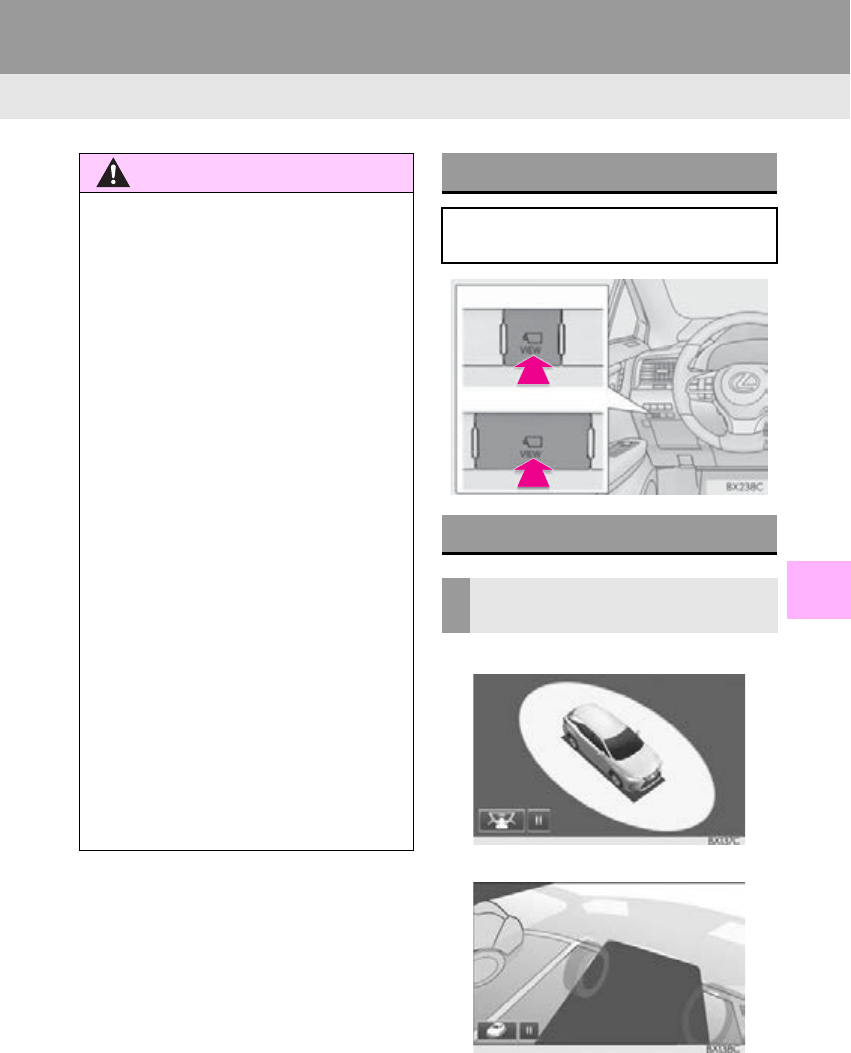
271
1. PANORAMIC VIEW MONITOR
PERIPHERAL MONITORING SYSTEM
RX_Navi_U
7
Moving view
See-through view
WARNING
●Depending on the circumstances of the
vehicle (number of passengers, amount
of luggage, etc.), the position of the guide
lines displayed on the screen may
change. Be sure to check visually around
the vehicle before proceeding.
●Do not use the panoramic view monitor
system in the following cases:
• On icy or slick road surfaces, or in snow
• When using tire chains
• When the back door is not closed com-
pletely
• On roads that are not flat or straight,
such as curves or slopes
●In low temperatures, the screen may
darken or the image may become faint.
The image could distort when the vehicle
is moving, or you may become unable to
see the image on the screen. Be sure to
visually check all around the vehicle both
directly and using the mirrors before pro-
ceeding.
●If the tire sizes are changed, the position
of the guide lines displayed on the screen
may change.
●The camera uses a special lens. The dis-
tances between objects and pedestrians
that appear in the image displayed on the
screen will differ from the actual dis-
tances. (P. 295 )
CAMERA SWITCH
The camera switch is located as shown
in the illustration.
DISPLAY
CHECKING AROUND THE
VEHICLE
Type A
Type B
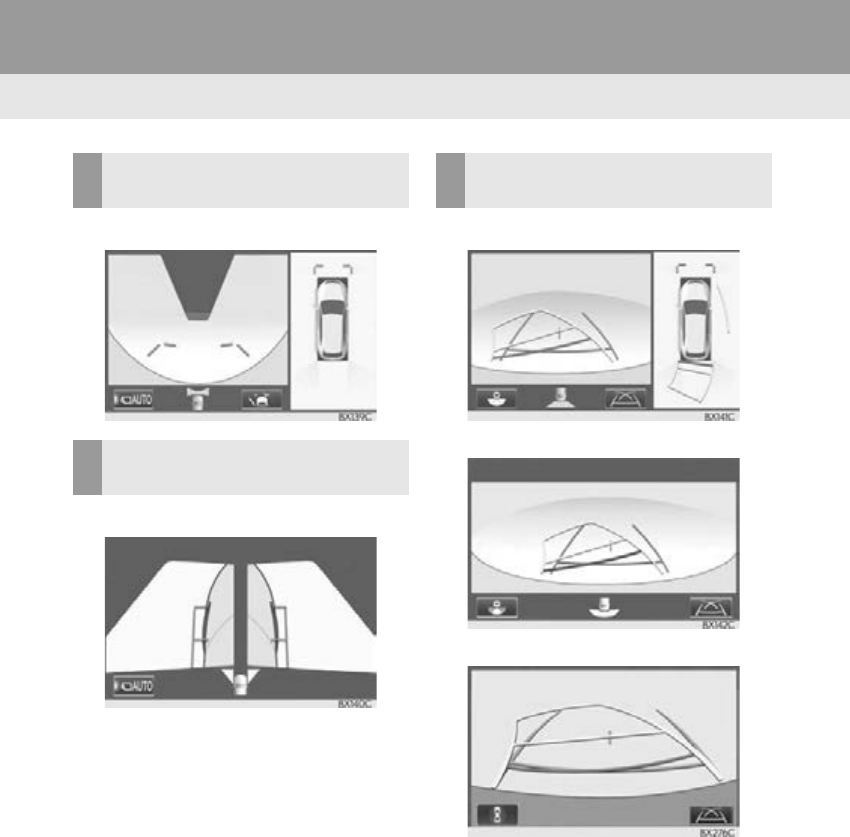
272
1. PANORAMIC VIEW MONITOR
RX_Navi_U
Wide front view & panoramic view
Side views
Rear view & panoramic view
Wide rear view
Rear view
CHECKING THE FRONT AND
AROUND THE VEHICLE
CHECKING THE SIDES OF
THE VEHICLE
CHECKING THE REAR AND
AROUND THE VEHICLE
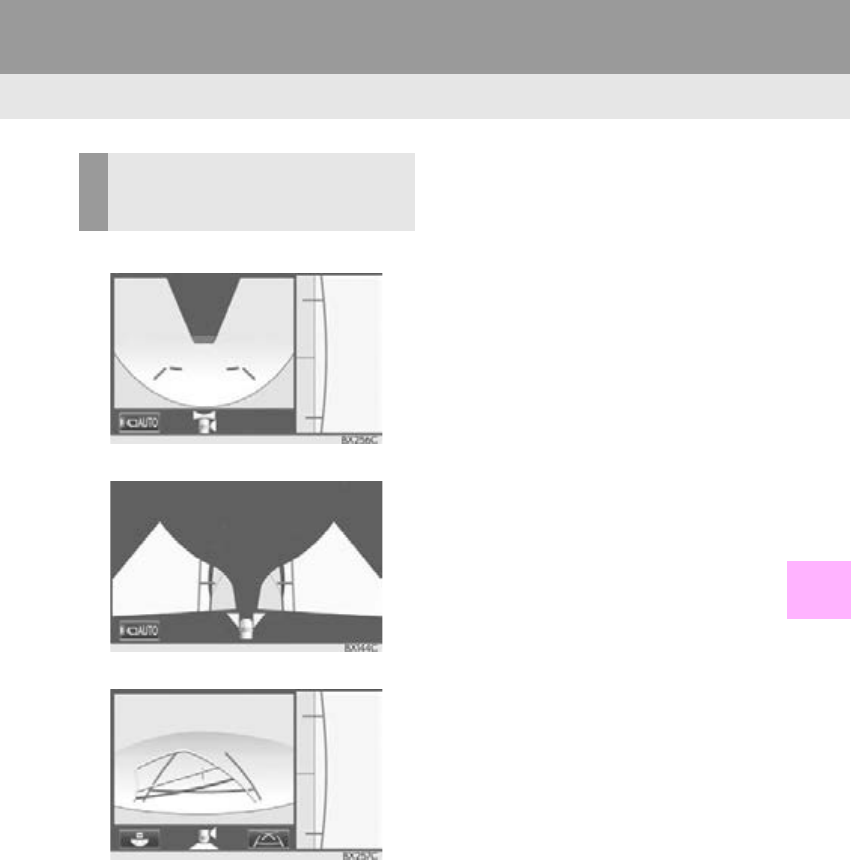
273
1. PANORAMIC VIEW MONITOR
PERIPHERAL MONITORING SYSTEM
RX_Navi_U
7
Wide front view & side view
Side views
Rear view & side view
WHEN FOLDING THE
OUTSIDE REAR VIEW
MIRRORS
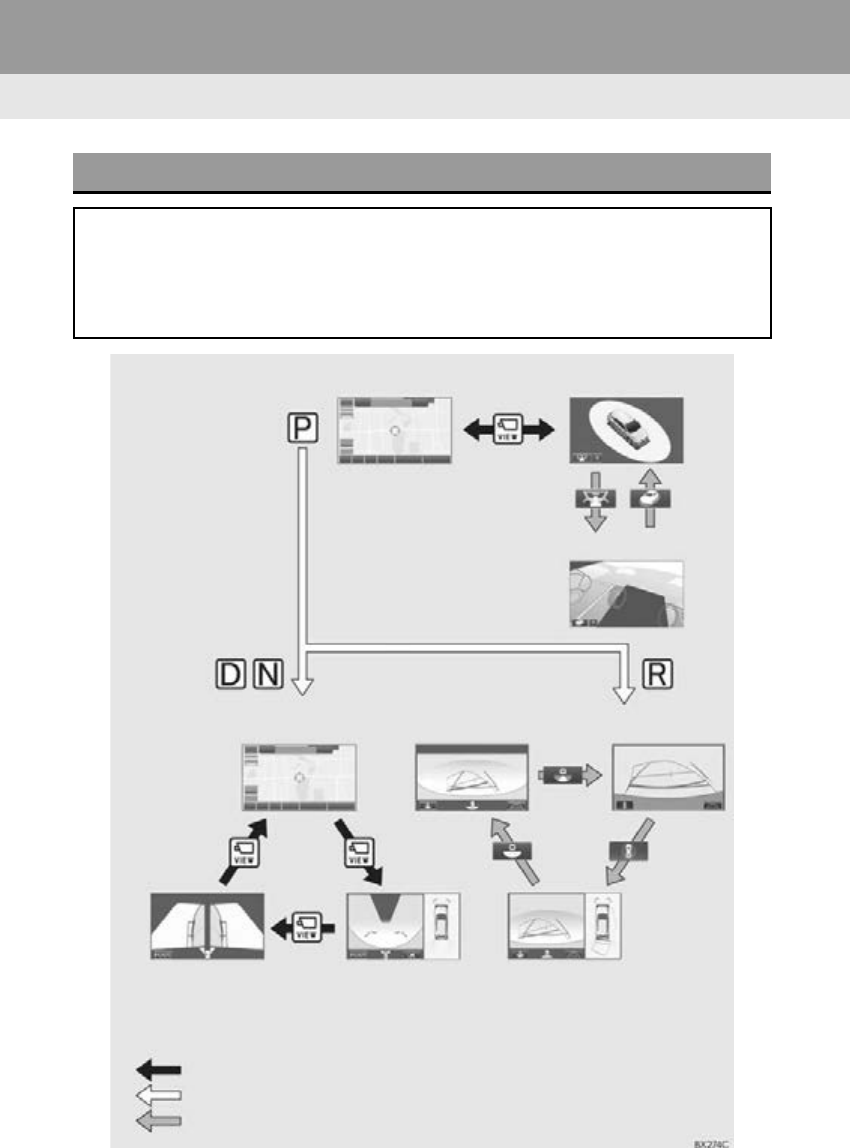
274
1. PANORAMIC VIEW MONITOR
RX_Navi_U
HOW TO SWITCH THE DISPLAY
When you press the camera switch or shift the shift lever to the “R” position while the
engine <power> switch is in IGNITION ON <ON> mode, the panoramic view monitor
operates.
The monitor displays various views of the position of the vehicle. (The following is an
example)
Map screen,
audio screen, etc. Moving view
Rear view
Side views Wide front view &
panoramic view
Rear view &
panoramic view
Map screen,
audio screen, etc.
Pressing the camera switch
Shifting the shift lever
Selecting the display mode switching button
See-through view
Wide rear view
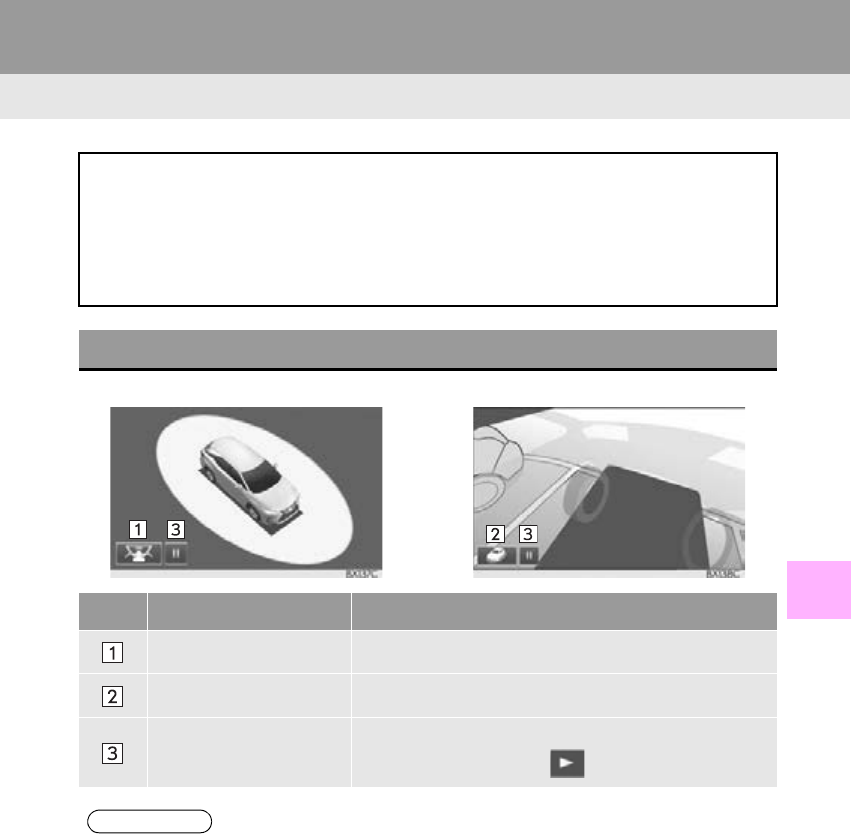
275
1. PANORAMIC VIEW MONITOR
RX_Navi_U
PERIPHERAL MONITORING SYSTEM
7
2. CHECKING AROUND THE VEHICLE
Moving view See-through view
The moving view screen and the see-through view screen provide support when
checking the areas of around the vehicle while parking. Displays an image of the vicin-
ity of the vehicle combined from the 4 cameras. After rotating 360° while projecting
the vicinity of the vehicle, a direct overhead image is displayed.
To display the moving view/see-through view screen, press the camera switch when
the shift lever is in the “P” position and the intuitive parking assist is enabled.
SCREEN DISPLAY
No. Display Function
See-through view switch Select to change to the see-through view screen.
Moving view switch Select to change to the moving view screen.
Rotation pause switch Select to pause the rotation of the screen.
To resume rotation, select .
INFORMATION
●Pressing the camera switch again changes the screen back to the previously displayed
screen, such as the navigation screen.
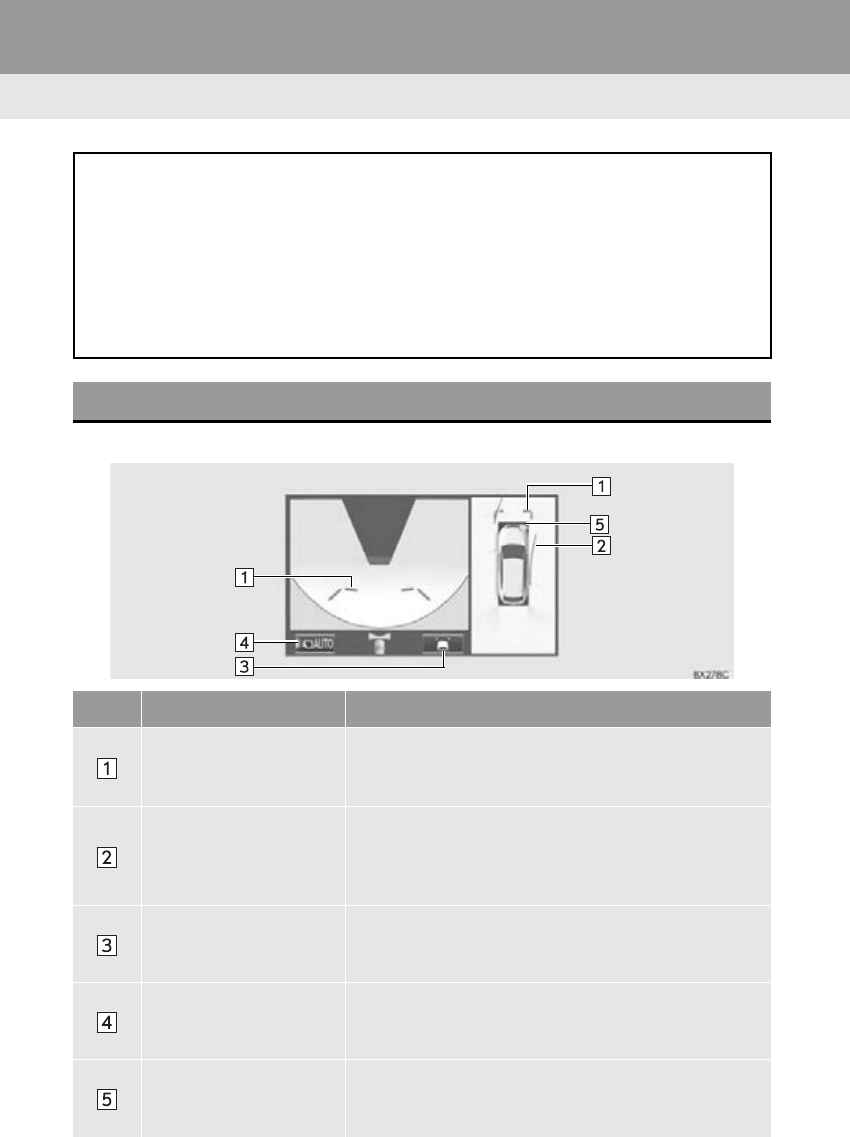
276
1. PANORAMIC VIEW MONITOR
RX_Navi_U
3. CHECKING THE FRONT AND AROUND THE VEHICLE
Wide front view & panoramic view
The wide front view & panoramic view screen provides support when checking the ar-
eas in front of the vehicle and around the vehicle when taking-off at T-intersections or
other intersections with poor visibility.
To display the screen, press the camera switch when the shift lever is in the “N” or “D”
(“M”/“S”) position and the vehicle is moving at approximately 7 mph (12 km/h) or less.
With 12.3-inch display: This screen will be displayed if the intuitive parking assist de-
tects an object in front of your vehicle when the vehicle is moving at approximately 6
mph (10 km/h) or less (intuitive parking assist linked display).
SCREEN DISPLAY
No. Display Function
Distance guide lines
Shows distance in front of the vehicle.
Display points approximately 3 ft. (1 m) from the edge of
the bumper.
Estimated course lines
Shows an estimated course when the steering wheel is
turned.
This line will be displayed when the steering wheel is
turned more than 90° from the center.
Guide line switching but-
ton
Select to change the guide line mode between the dis-
tance guide line mode and the estimated course line
mode. (P. 278)
Automatic display button
Select to turn automatic display mode on/off. The indica-
tor on the button illuminates during automatic display
mode. (P. 278)
Intuitive parking assist
When a sensor detects an obstacle, the direction of and
the approximate distance to the obstacle are displayed
and the buzzer sounds.

277
1. PANORAMIC VIEW MONITOR
PERIPHERAL MONITORING SYSTEM
RX_Navi_U
7
INFORMATION
●Pressing the camera switch changes the screen to the side views screen.
●With 12.3-inch display: The intuitive parking assist linked display will disappear when the
vehicle is stopped or if the intuitive parking assist no longer detects the object.
●With 12.3-inch display: The intuitive parking assist linked display will not be displayed if the
intuitive parking assist display setting is set to off. (For details, refer to “Owner’s Manual”.)
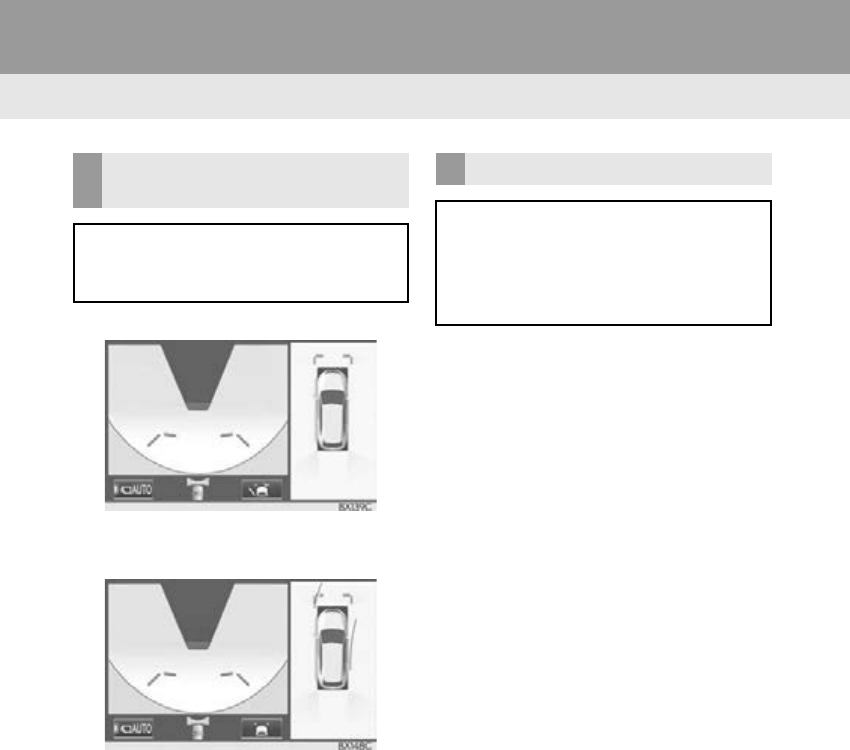
278
1. PANORAMIC VIEW MONITOR
RX_Navi_U
Distance guide line
-Only the distance guide lines are displayed.
Estimated course line
-Estimated course lines will be added to the
distance guide lines.
In automatic mode, the monitor will auto-
matically display images in the following sit-
uations:
• When the shift lever is shifted to “N” or
“D” (“M”/“S”) position.
• When vehicle speed is reduced to
approximately 6 mph (10 km/h) or less.
SWITCHING THE GUIDE LINE
MODE
Each time the guide line switching but-
ton is selected, the mode will change as
follows:
AUTOMATIC DISPLAY MODE
In addition to screen switching by oper-
ating the camera switch, automatic dis-
play mode is available. In this mode, the
screen is switched automatically in re-
sponse to vehicle speed.
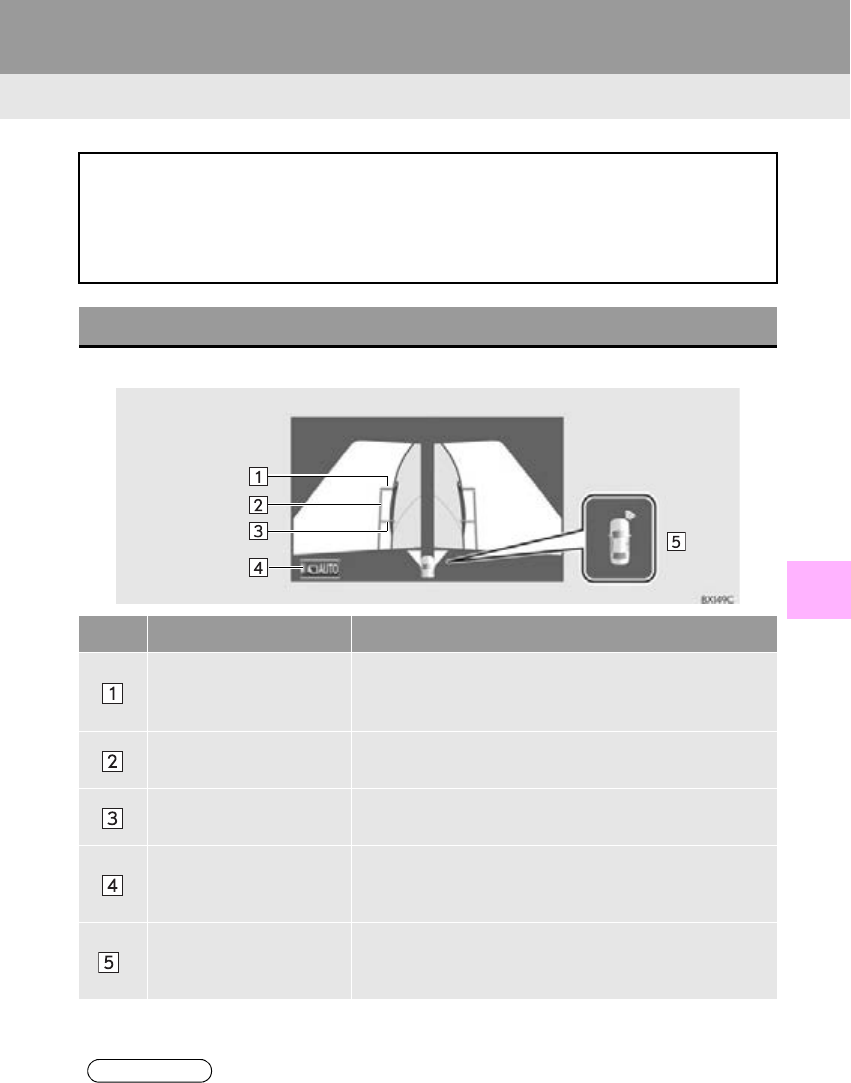
279
1. PANORAMIC VIEW MONITOR
RX_Navi_U
PERIPHERAL MONITORING SYSTEM
7
4. CHECKING THE SIDES OF THE VEHICLE
Side views
The side views screen provides support when checking the areas on both sides of the
vehicle, for example when pulling over or passing an oncoming vehicle on a narrow
road.
To display the screen, press the camera switch when the shift lever is in the “N” or “D”
(“M”/“S”) position with the vehicle moving approximately 7 mph (12 km/h) or less.
SCREEN DISPLAY
No. Display Function
Distance guide lines
Show distance in front of the vehicle.
Display points approximately 1.5 ft. (0.5 m) from the
edge of the bumper.
Vehicle width guide lines Shows guide lines of the vehicle’s width including the out-
side rear view mirrors.
Front tire guide lines Shows guide lines of where the front tire touches the
ground.
Automatic display button
Select to turn automatic display mode on/off. The indica-
tor on the button illuminates during automatic display
mode. (P. 280)
*Intuitive parking assist
When a sensor detects an obstacle, the direction of and
the approximate distance to the obstacle are displayed
and the buzzer sounds.
*: With 8-inch display
INFORMATION
●Pressing the camera switch changes the screen to previously displayed screen, such as the
navigation screen.
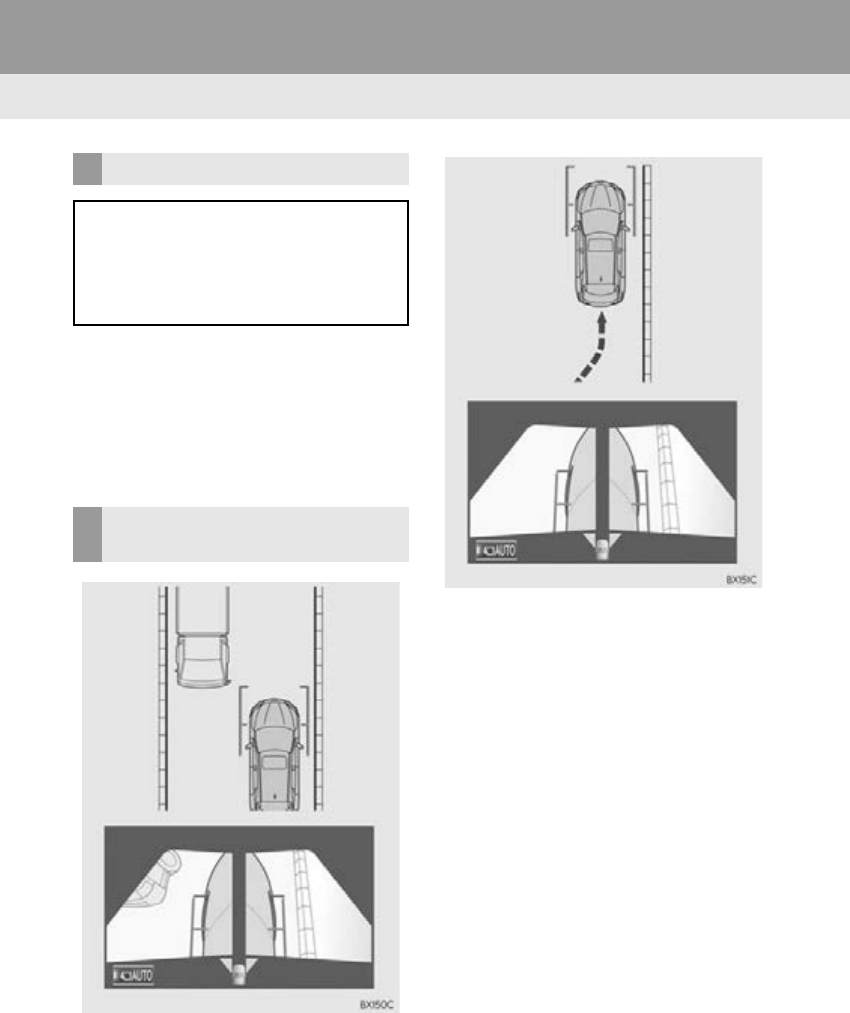
280
1. PANORAMIC VIEW MONITOR
RX_Navi_U
In automatic mode, the monitor will auto-
matically display images in the following sit-
uations:
• When the shift lever is shifted to “N” or
“D” (“M”/“S”) position.
• When vehicle speed is reduced to
approximately 6 mph (10 km/h) or less.
-Check the positions and distance between
the vehicle width guide line and a target
object such as the obstacle or curb of the
road.
-Pull over to the curb as shown in the illustra-
tion above, taking care not to let the vehicle
width guide line overlap the target object.
-Ensure that the vehicle width line is parallel
to the target object enables parking along-
side the target object.
AUTOMATIC DISPLAY MODE
In addition to screen switching by oper-
ating the camera switch, automatic dis-
play mode is available. In this mode, the
screen is switched automatically in re-
sponse to vehicle speed.
USING THE VEHICLE WIDTH
GUIDE LINE
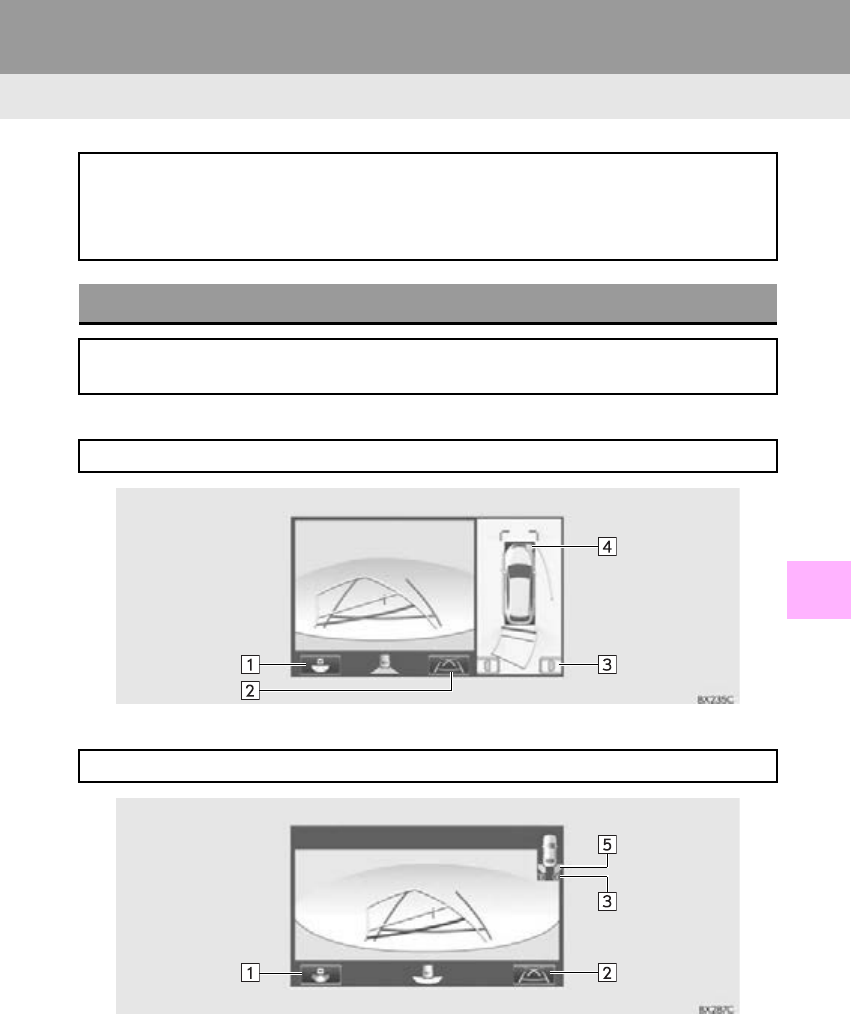
281
1. PANORAMIC VIEW MONITOR
RX_Navi_U
PERIPHERAL MONITORING SYSTEM
7
5. CHECKING THE REAR AND AROUND THE VEHICLE
Rear view & panoramic view
Wide rear view
The rear view & panoramic view/wide rear view/rear view screen provide support
when checking the areas of behind the vehicle and around the vehicle while backing
up, for example while parking.
The screen will be displayed when the shift lever is in the “R” position.
SCREEN DISPLAY
Each time the display mode switching button is selected, the mode will change as fol-
lows:
Displays the rear view and overhead view of the vehicle at same time.
Displays a near 180° image from the rear view camera.
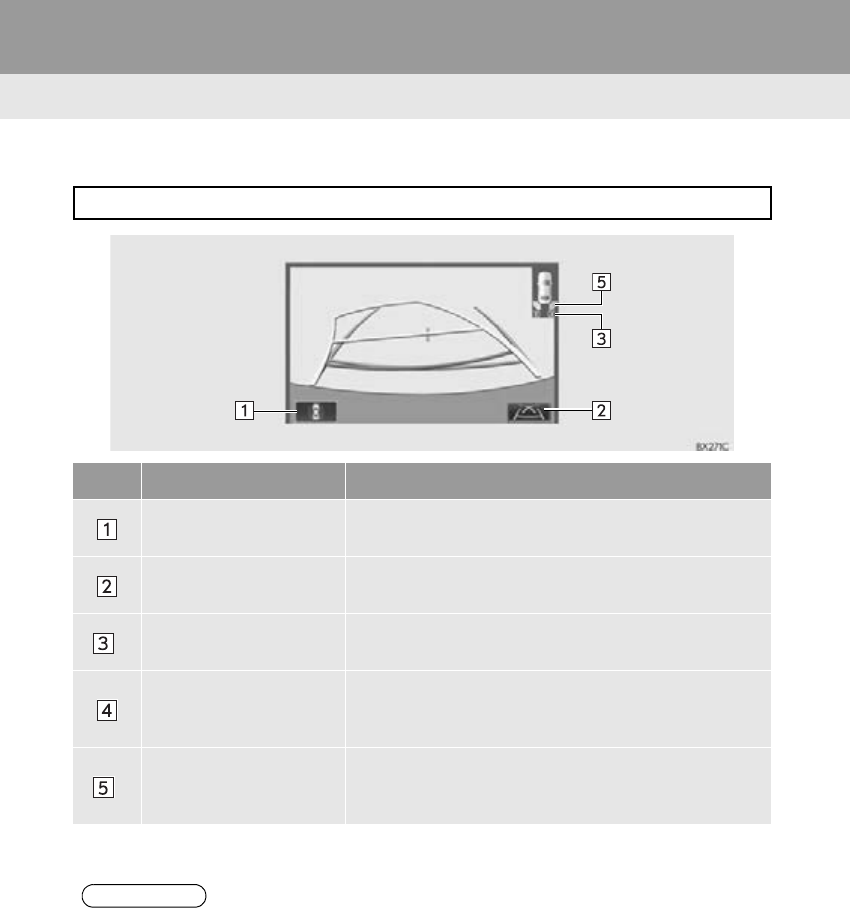
282
1. PANORAMIC VIEW MONITOR
RX_Navi_U
Rear view
Displays the rear view.
No. Display Function
Display mode switching
button Select to switch the display mode.
Guide line switching but-
ton Select to switch the guide line mode. (P. 283)
*Rear Cross Traffic Alert When a sensor detects an obstacle, the direction of obsta-
cle is displayed and the buzzer sounds.
Intuitive parking assist
When a sensor detects an obstacle, the direction of and
the approximate distance to the obstacle are displayed
and the buzzer sounds.
*Intuitive parking assist
When a sensor detects an obstacle, the direction of and
the approximate distance to the obstacle are displayed
and the buzzer sounds.
*: With 8-inch display
INFORMATION
●The monitor is cancelled when the shift lever is shifted into any position other than the “R”
position.
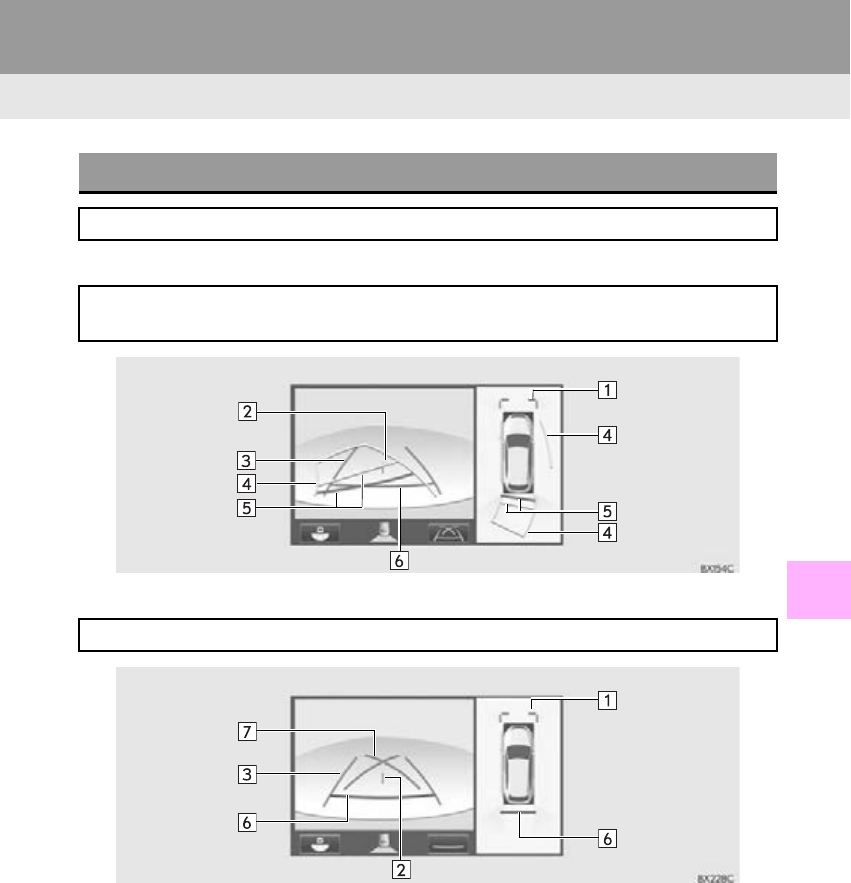
283
1. PANORAMIC VIEW MONITOR
PERIPHERAL MONITORING SYSTEM
RX_Navi_U
7
Estimated course line
Parking assist guide line
GUIDE LINES DISPLAYED ON THE SCREEN
Each time the guide line switching button is selected, the mode will change as follows:
Estimated course lines are displayed which move in accordance with the operation of
the steering wheel.
The steering wheel return points (parking assist guide lines) are displayed.
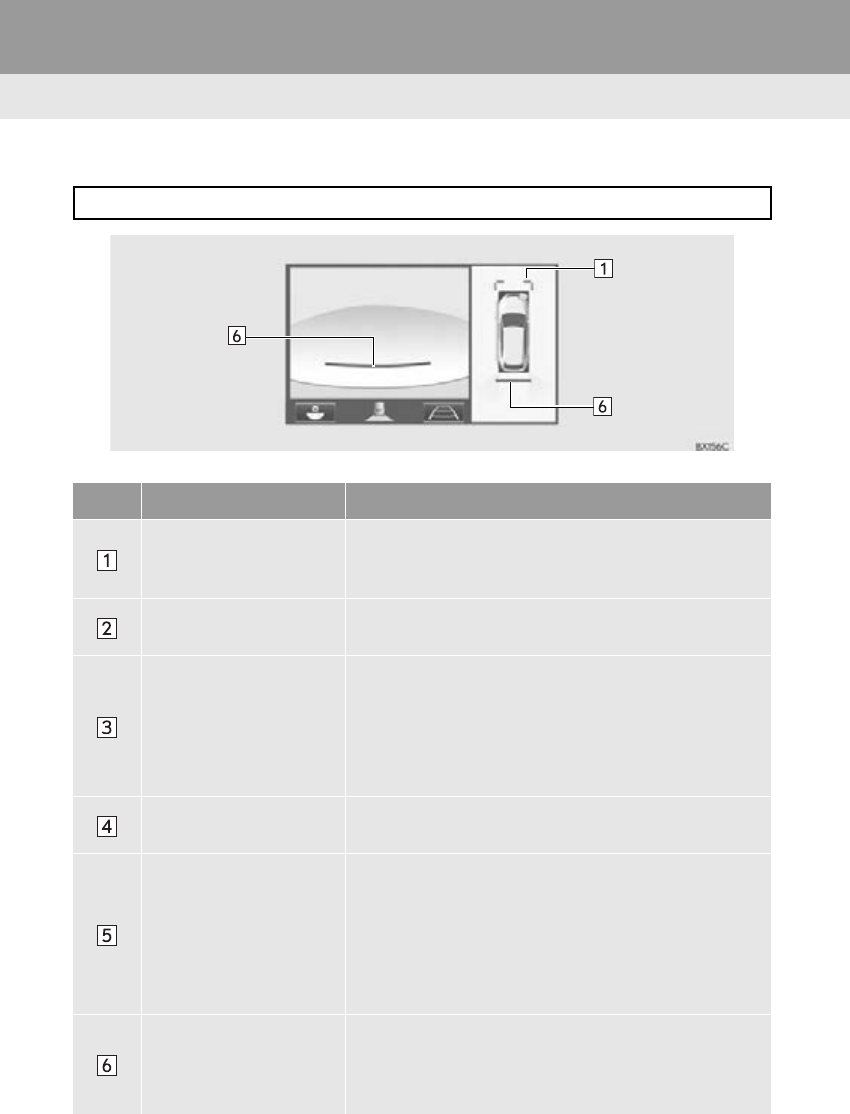
284
1. PANORAMIC VIEW MONITOR
RX_Navi_U
Distance guide line
Only distance guide line is displayed.
No. Display Function
Distance guide lines
Shows distance in front of the vehicle.
Display points approximately 3 ft. (1 m) from the edge of
the bumper.
Vehicle center guide line The line indicates the estimated vehicle center on the
ground.
Vehicle width guide lines
Displays a guide path when the vehicle is being backed
straight up.
The displayed width is wider than the actual vehicle
width.
These guide lines align with the estimated course lines
when the vehicle is going straight ahead.
Estimated course lines Shows an estimated course when the steering wheel is
turned.
Distance guide lines
Shows the distance behind the vehicle when the steering
wheel is turned.
The guide lines move in conjunction with the estimated
course lines.
The guide lines display points approximately 1.5 ft. (0.5 m)
(red) and approximately 3 ft. (1 m) (yellow) from the cen-
ter of the edge of the bumper.
Distance guide line
Shows the distance behind the vehicle.
Displays a point approximately 1.5 ft. (0.5 m) (red*)
from the edge of the bumper.
*: In estimated course line mode, the line will turn blue.
285
1. PANORAMIC VIEW MONITOR
PERIPHERAL MONITORING SYSTEM
RX_Navi_U
7
Parking assist guide lines
Shows the path of the smallest turn possible behind the ve-
hicle.
Shows the approximate position of the steering wheel
when parking.
WARNING
● Depending on the circumstances of the vehicle (number of passengers, amount of luggage,
etc.), the position of the guide lines displayed on the screen may change. Be sure to check
visually around the vehicle before proceeding.
●If the steering wheel is straight and the vehicle width guide lines and the estimated course
lines are not in alignment, have the vehicle inspected by your Lexus dealer.
●Do not use the system if the display is incorrect due to an uneven (hilly) road or a non-
straight (curvy) road.
No. Display Function
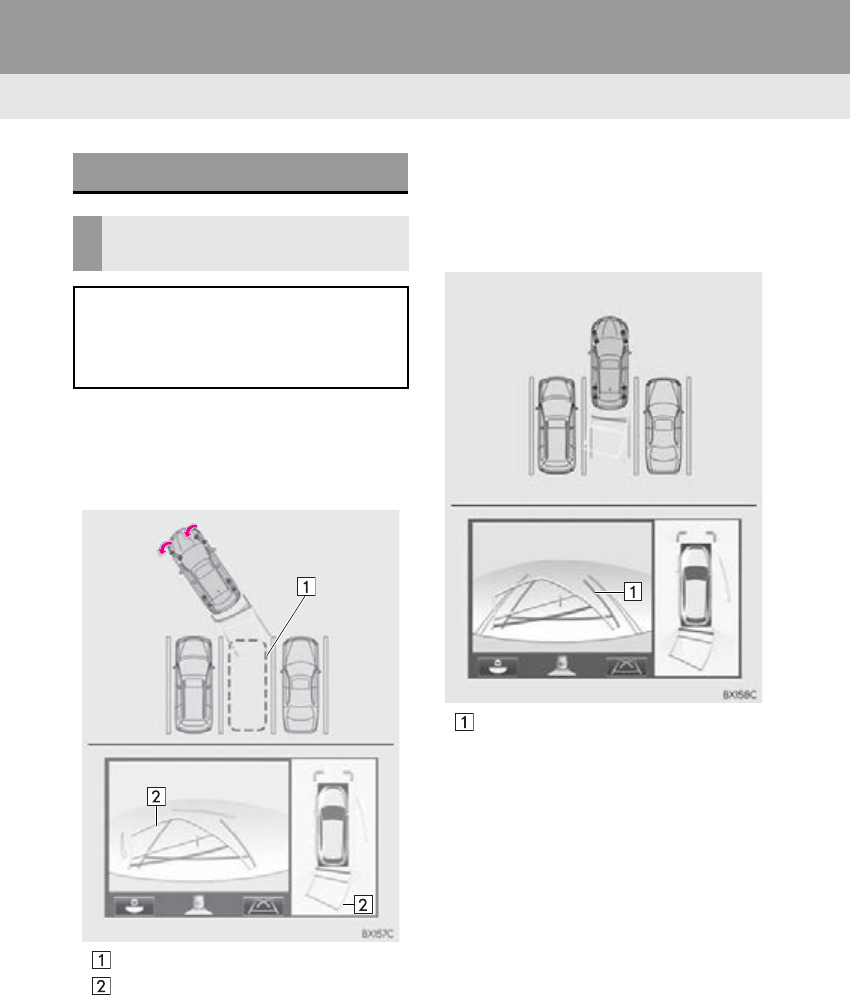
286
1. PANORAMIC VIEW MONITOR
RX_Navi_U
1Shift the shift lever to the “R” position.
2Turn the steering wheel so that the esti-
mated course lines are within the park-
ing space, and back up slowly.
Parking space
Estimated course lines
3When the rear position of the vehicle
has entered the parking space, turn the
steering wheel so that the vehicle width
guide lines are within the left and right
dividing lines of the parking space.
Vehicle width guide line
4Once the vehicle width guide lines and
the parking space lines are parallel,
straighten the steering wheel and back
up slowly until the vehicle has complete-
ly entered the parking space.
5Stop the vehicle in an appropriate place,
and finish parking.
PARKING
USING THE ESTIMATED
COURSE LINE
When parking in a space which is in the
reverse direction to the space described
in the procedure below, the steering di-
rections will be reversed.
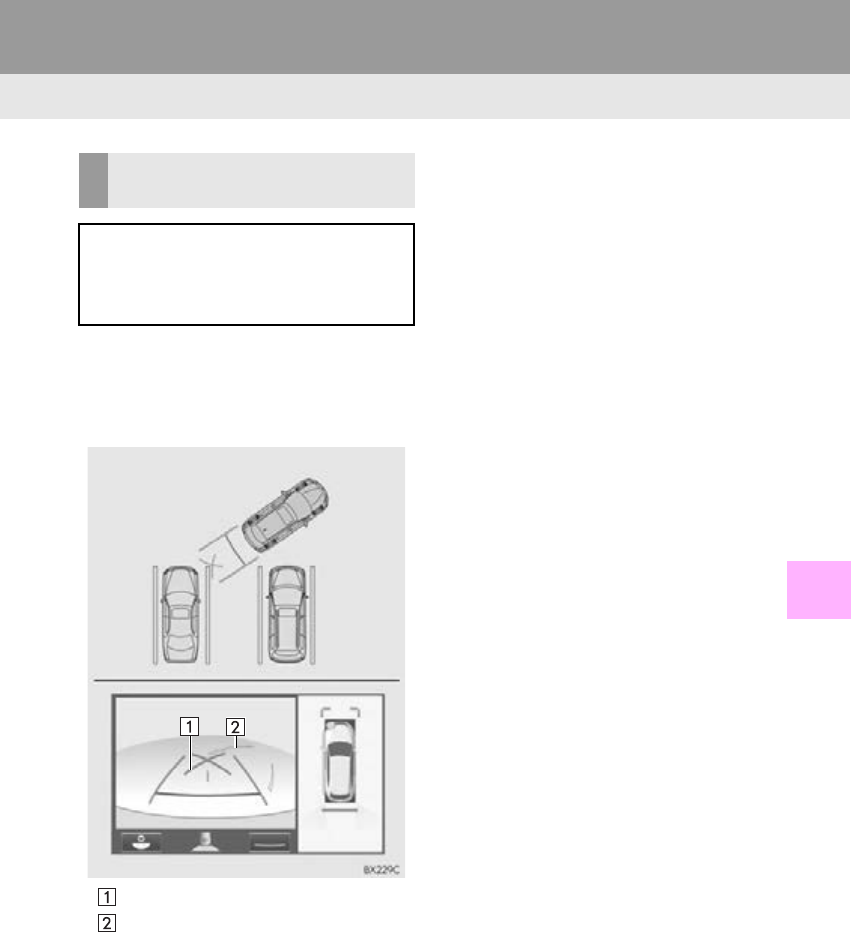
287
1. PANORAMIC VIEW MONITOR
PERIPHERAL MONITORING SYSTEM
RX_Navi_U
7
1Shift the shift lever to the “R” position.
2Back up until the parking assist guide
line meets the edge of the left-hand di-
viding line of the parking space.
Parking assist guide line
Parking space dividing line
3Turn the steering wheel all the way to
the right, and back up slowly.
4Once the vehicle is parallel with the
parking space, straighten the steering
wheel and back up slowly until the vehi-
cle has completely entered the parking
space.
5Stop the vehicle in an appropriate place,
and finish parking.
USING PARKING ASSIST
GUIDE LINE
When parking in a space which is in the
reverse direction to the space described
in the procedure below, the steering di-
rections will be reversed.
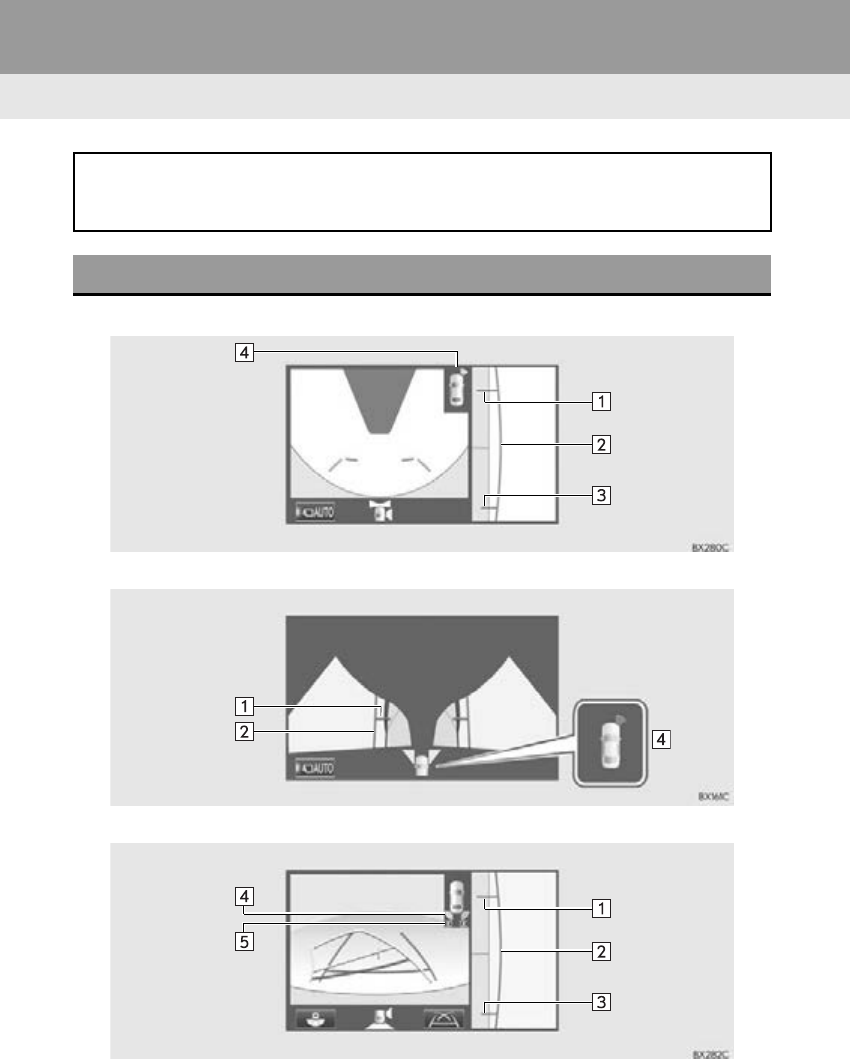
288
1. PANORAMIC VIEW MONITOR
RX_Navi_U
6. WHEN FOLDING THE OUTSIDE REAR VIEW MIRRORS
Wide front view & side view
Side views
Rear view & side view
Even when outside rear view mirrors are stored, the monitor can display various imag-
es of the vicinity of the vehicle and assist the operation in the confirming safe conditions
in a narrow places, parking, etc.
SCREEN DISPLAY
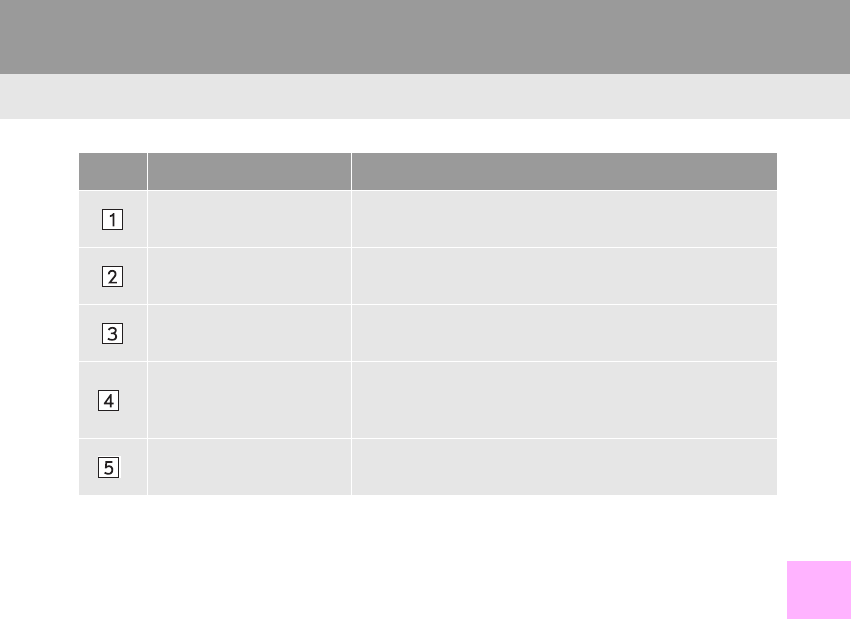
289
1. PANORAMIC VIEW MONITOR
PERIPHERAL MONITORING SYSTEM
RX_Navi_U
7
No. Display Function
Front tire guide line Shows guide lines of where the front tire touches the
ground.
Vehicle width guide line Shows guide lines of the vehicle’s width including the fold-
ed outside rear view mirrors.
Rear tire guide line Shows guide lines of where the rear tire touches the
ground.
*Intuitive parking assist
When a sensor detects an obstacle, the direction of and
the approximate distance to the obstacle are displayed
and the buzzer sounds.
*Rear Cross Traffic Alert When a sensor detects an obstacle, the direction of obsta-
cle is displayed and the buzzer sounds.
*: With 8-inch display
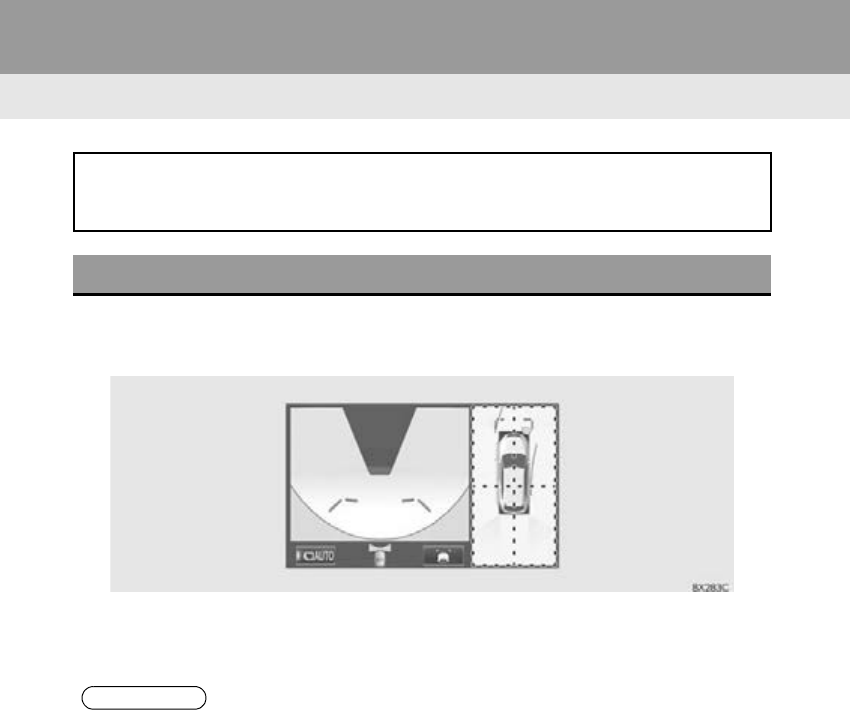
290
1. PANORAMIC VIEW MONITOR
RX_Navi_U
7. MAGNIFYING FUNCTION
1Turn the intuitive parking assist on.
2Touch the area on the panoramic view display you wish to magnify.
-Touching one of the 4 areas within the dotted lines will magnify that area. (Dotted lines
are not displayed on the actual display.)
-To return to the normal view, touch the panoramic view display again.
If displayed objects are too small to see clearly when the wide front view & panoramic
view or the rear view & panoramic view is displayed, the area around any of the 4 cor-
ners of the vehicle can be magnified.
MAGNIFYING THE DISPLAY
INFORMATION
●The magnifying function is enabled when all of the following conditions are met:
• The wide front view & panoramic view or the rear view & panoramic view is displayed.
• The vehicle speed is below approximately 7 mph (12 km/h).
• The intuitive parking assist is on.
●In the following situations, the magnified display will be canceled automatically:
• The vehicle speed is approximately 7 mph (12 km/h) or higher.
• The intuitive parking assist is turned off.
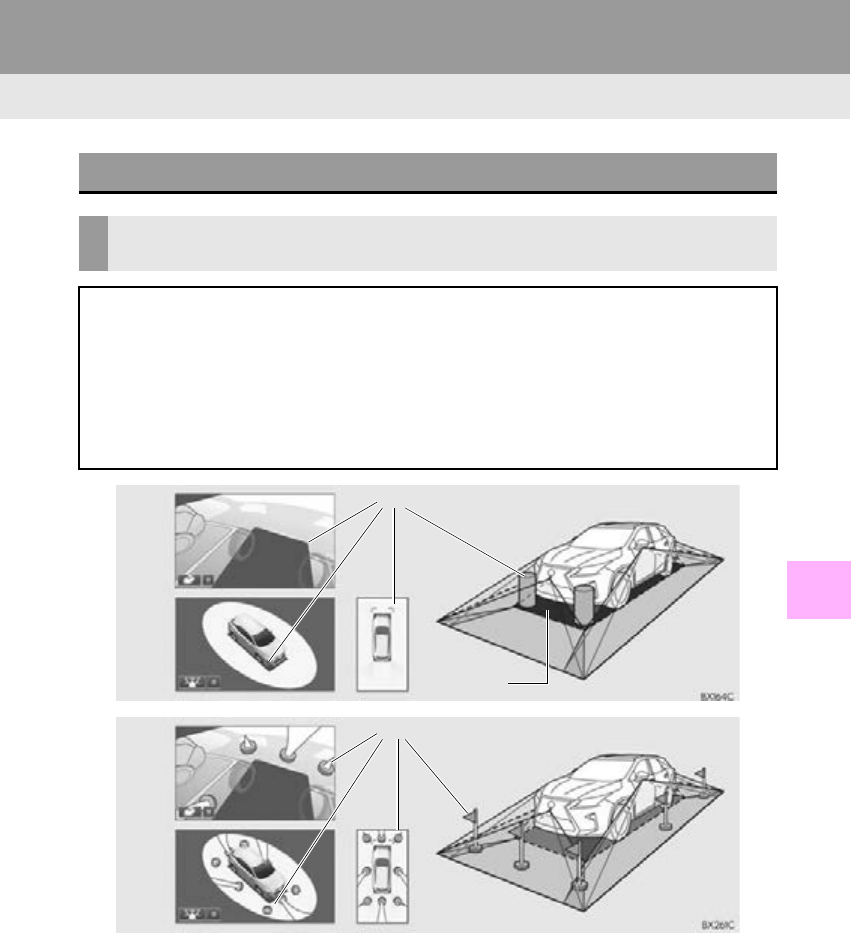
291
1. PANORAMIC VIEW MONITOR
RX_Navi_U
PERIPHERAL MONITORING SYSTEM
7
8. PANORAMIC VIEW MONITOR PRECAUTIONS
*1: Objects located in the shaded areas will not be displayed on the screen.
*2: Parts of objects which extend above a certain height cannot be displayed on the screen.
AREA DISPLAYED ON SCREEN
AREA OF IMAGE OF PANORAMIC VIEW/MOVING VIEW/SEE-
THROUGH VIEW
The panoramic view monitor displays an image of the surrounding view of the vehicle.
Since the panoramic view/moving view/see-through view processes and displays im-
ages based on flat road surfaces, it cannot depict the position of three-dimension ob-
jects (such as vehicle bumpers, etc.) that are in positions higher than the surface of the
road. Even if there is room between the bumpers of the vehicles and it seems not likely
to collide in the image, in reality, the both vehicles are on a collision course.
Check the safety of the surroundings directly.
Blind spot
Capture range
*1
Capture range
*2
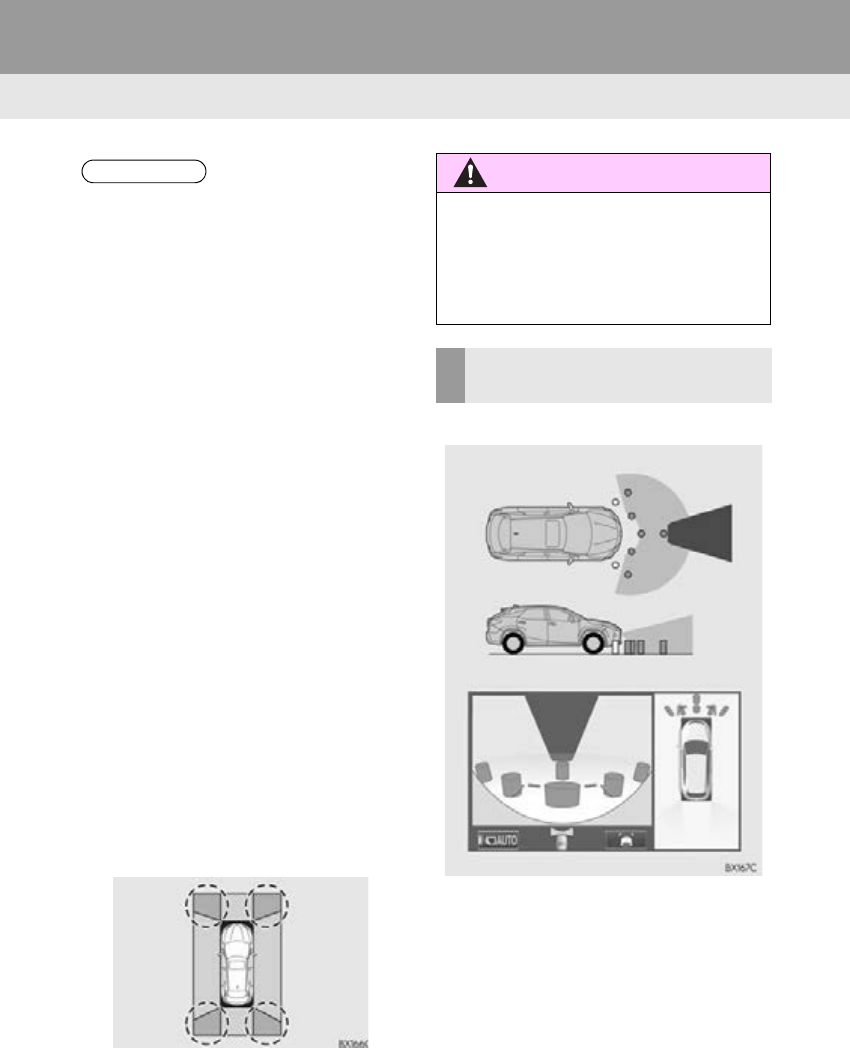
292
1. PANORAMIC VIEW MONITOR
RX_Navi_U
Wide front view
INFORMATION
●As the images obtained from four cam-
eras are processed and displayed on the
standard of a flat road surface; the pan-
oramic view/moving view/see-through
view may be displayed as follows.
• Objects may look collapsed; thinner or
bigger than usual.
• An object with a higher position than
the road surface may look farther away
than it actually is or may not appear at
all.
• Object with height seem to appear
from the another part of the combined
image.
●Variations in the brightness of the image
may appear for every camera.
●The displayed image may be shifted by
inclination of the vehicle body, change in
vehicle height, etc., depending on the
number of passengers, amount of lug-
gage, etc.
●If the front doors or back door are not
completely closed; neither the image nor
the guide lines are displayed.
●The position relations of the vehicle icon
and the road surface or obstacle may dif-
fer from the actual positions.
●The black areas of the vicinity of the vehi-
cle icon are areas that are not captured
by the camera.
●Images like the following are combined,
thus some areas may be difficult to view.
WARNING
●When the intuitive parking assist display
is red, be sure to check directly and do
not proceed any further. An unexpected
accident may occur, such as a vehicle col-
lision.
AREA OF THE IMAGE
CAPTURED BY THE CAMERA
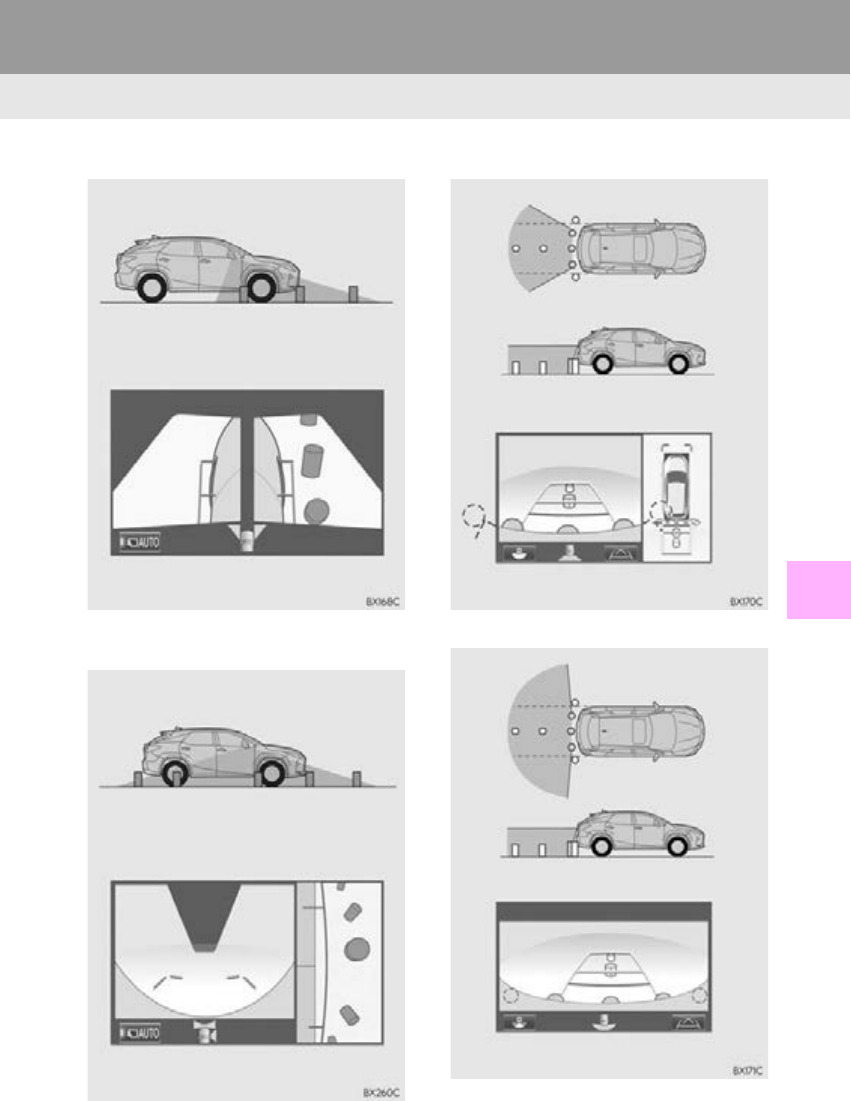
293
1. PANORAMIC VIEW MONITOR
PERIPHERAL MONITORING SYSTEM
RX_Navi_U
7
Side views
Side view (when folding the outside rear
view mirrors)
Rear view
Wide rear view
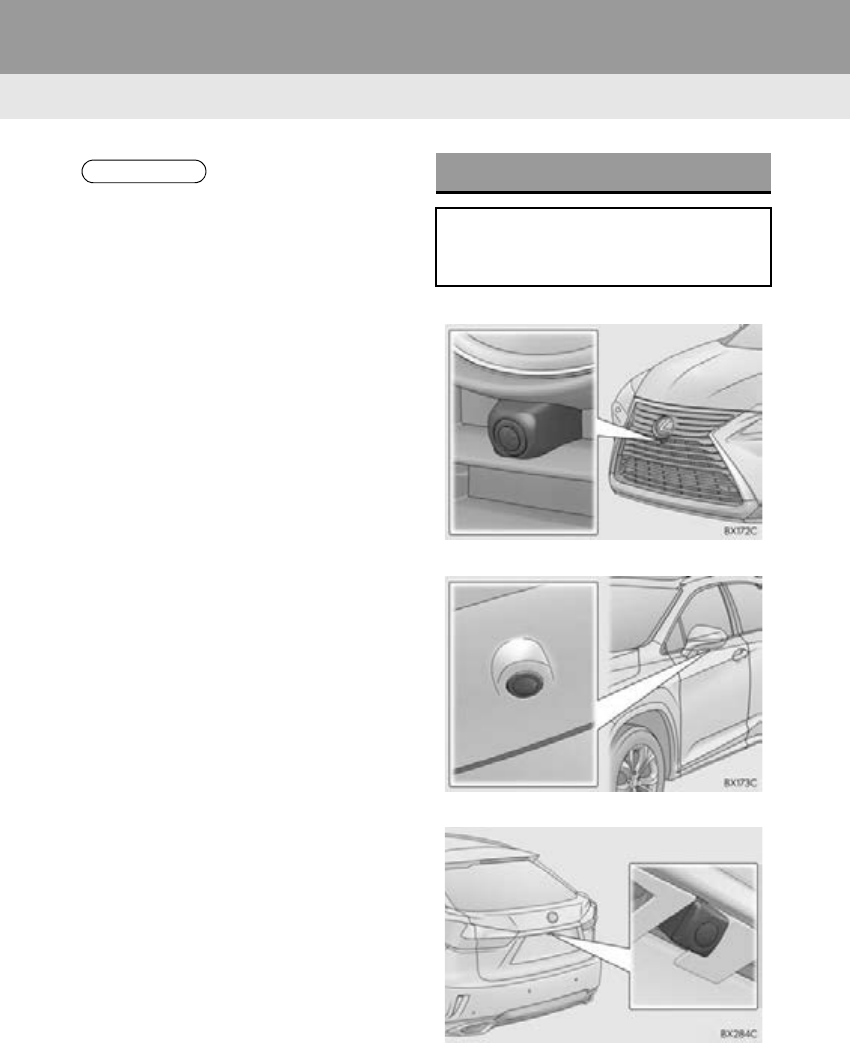
294
1. PANORAMIC VIEW MONITOR
RX_Navi_U
Front camera
Side cameras
Rear camera
INFORMATION
●Black masking is done for distance detec-
tion differences to the front of the vehicle.
●The area covered by the camera is lim-
ited. Objects which are close to either
corner of the bumper or under the
bumper cannot be seen on the screen.
●The area displayed on the screen may
vary depending on vehicle orientation or
road conditions.
●The camera uses a special lens. The dis-
tance in the image displayed on the
screen will differ from the actual distance.
THE CAMERA
The cameras for the panoramic view
monitor are located as shown in the illus-
tration.
295
1. PANORAMIC VIEW MONITOR
PERIPHERAL MONITORING SYSTEM
RX_Navi_U
7
-The distance guide lines and the vehicle
width guide lines may not actually be paral-
lel with the dividing lines of the parking
space, even when they appear to be so. Be
sure to check visually.
-The distances between the vehicle width
guide lines and the left and right dividing
lines of the parking space may not be equal,
even when they appear to be so. Be sure to
check visually.
-The distance guide lines give a distance
guide for flat road surfaces. In any of the
following situations, there is a margin of
error between the guide lines on the screen
and the actual distance/course on the road.
USING THE CAMERA
If dirt or foreign matter (such as water
droplets, snow, mud etc.) is adhering to
the camera, it cannot transmit a clear im-
age. In this case, flush it with a large
quantity of water and wipe the camera
lens clean with a soft and wet cloth.
NOTICE
●The panoramic view monitor may not
operate properly in the following cases.
• If the camera is hit, the position and
mounting angle of the camera may
change.
• As the camera has a water proof con-
struction, do not detach, disassemble or
modify it. This may cause incorrect
operation.
• When cleaning the camera lens, flush
the camera with a large quantity of
water and wipe it with a soft and wet
cloth. Strongly rubbing the camera lens
may cause the camera lens to be
scratched and unable to transmit a clear
image.
• Do not allow an organic solvent, car
wax, window cleaner or a glass coating
to adhere to the camera. If this happens,
wipe it off as soon as possible.
• If the temperature changes rapidly, such
as when hot water is poured on the
vehicle in cold weather, the system may
not operate normally.
• When washing the vehicle, do not apply
intensive bursts of water to the camera
or camera area. Doing so may result in
the camera malfunctioning.
●Do not expose the camera to strong
impacts as this could cause a malfunction.
If this happens, have the vehicle
inspected by your Lexus dealer as soon
as possible.
DIFFERENCES BETWEEN THE
SCREEN AND THE ACTUAL
ROAD
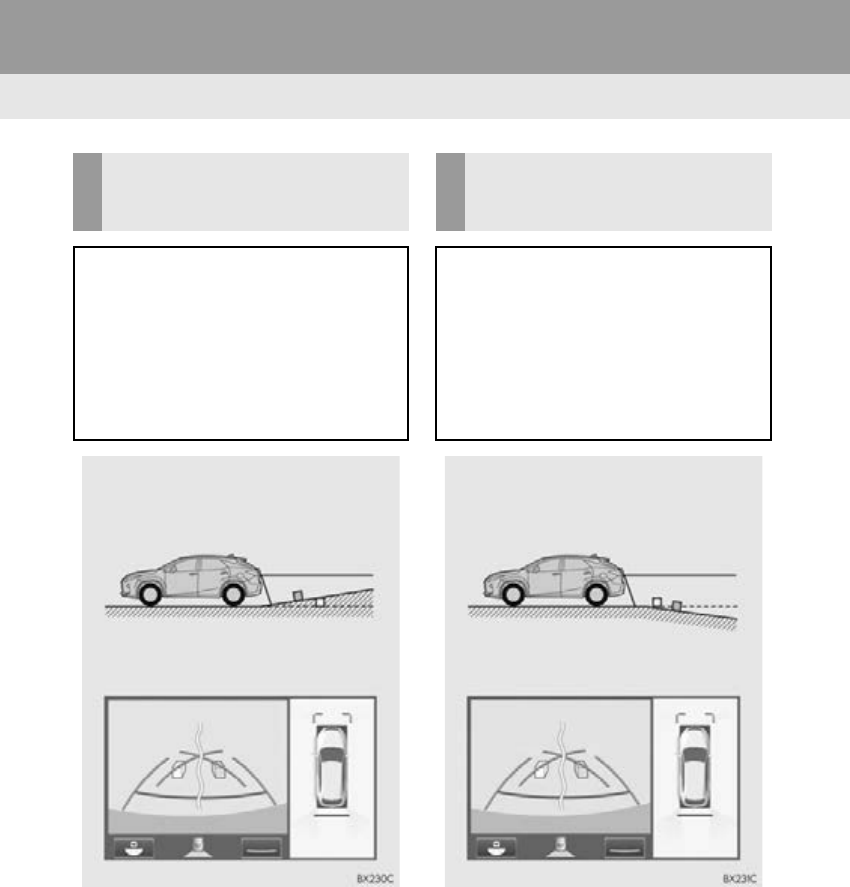
296
1. PANORAMIC VIEW MONITOR
RX_Navi_U
WHEN THE GROUND BEHIND
THE VEHICLE SLOPES UP
SHARPLY
The distance guide lines will appear to
be closer to the vehicle than the actual
distance. Because of this, objects will ap-
pear to be farther away than they actual-
ly are. In the same way, there will be a
margin of error between the guidelines
and the actual distance/course on the
road.
WHEN THE GROUND BEHIND
THE VEHICLE SLOPES DOWN
SHARPLY
The distance guide lines will appear to
be farther from the vehicle than the ac-
tual distance. Because of this, objects
will appear to be closer than they actual-
ly are. In the same way, there will be a
margin of error between the guidelines
and the actual distance/course on the
road.
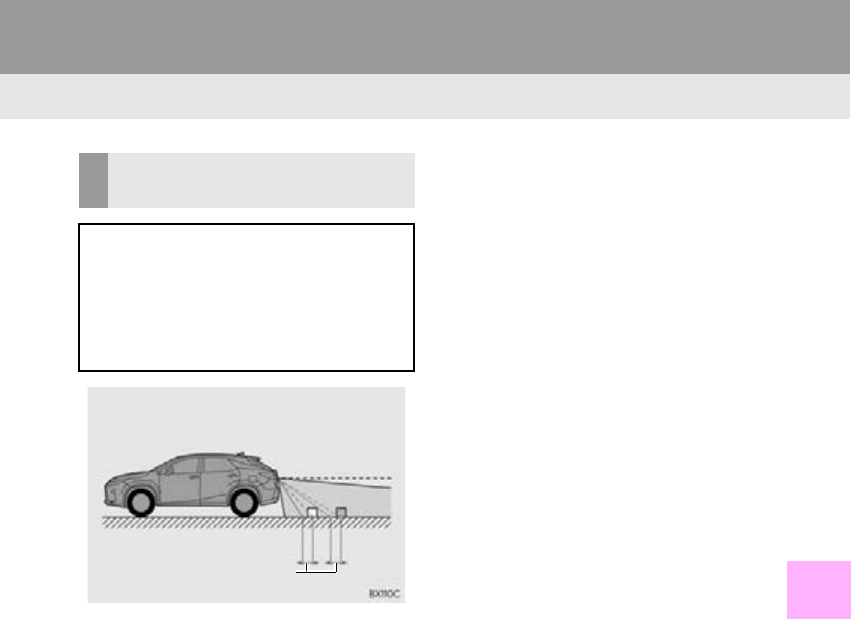
297
1. PANORAMIC VIEW MONITOR
PERIPHERAL MONITORING SYSTEM
RX_Navi_U
7
WHEN ANY PART OF THE
VEHICLE SAGS
When any part of the vehicle sags due to
the number of passengers or the distri-
bution of the load, there is a margin of er-
ror between the guide lines on the
screen and the actual distance/course
on the road.
A margin of error
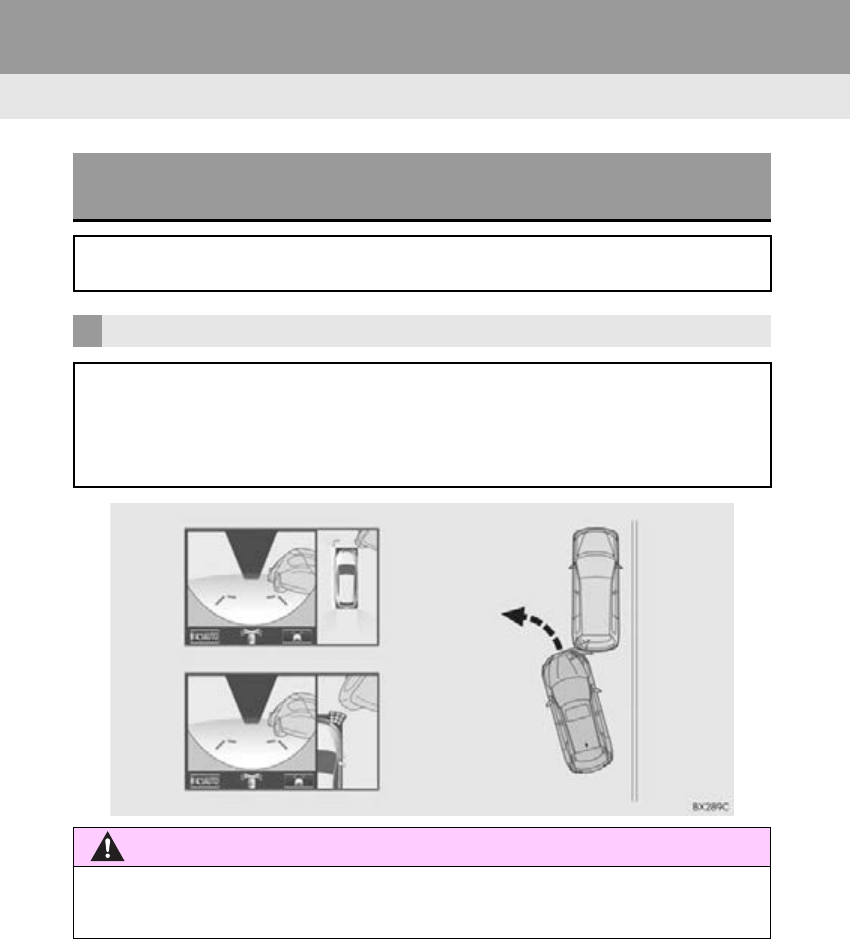
298
1. PANORAMIC VIEW MONITOR
RX_Navi_U
DISTORTION OF THREE-DIMENSIONAL OBJECTS ON THE
SCREEN
When there are three-dimensional objects (such as vehicle bumpers, etc.) nearby in
positions higher than the surface of the road, take extra care when using the following.
PANORAMIC VIEW DISPLAY (INCLUDING MAGNIFIED DISPLAY)
Since the panoramic view processes and displays images based on flat road surfaces,
it cannot depict the position of three-dimension objects (such as vehicle bumpers, etc.)
that are in positions higher than the surface of the road. Even if there is room between
the bumpers of the vehicles and it seems not likely to collide in the image, in reality, the
both vehicles are on a collision course.
WARNING
●When the intuitive parking assist display is red, be sure to check directly and do not proceed
any further. An unexpected accident may occur, such as a vehicle collision.
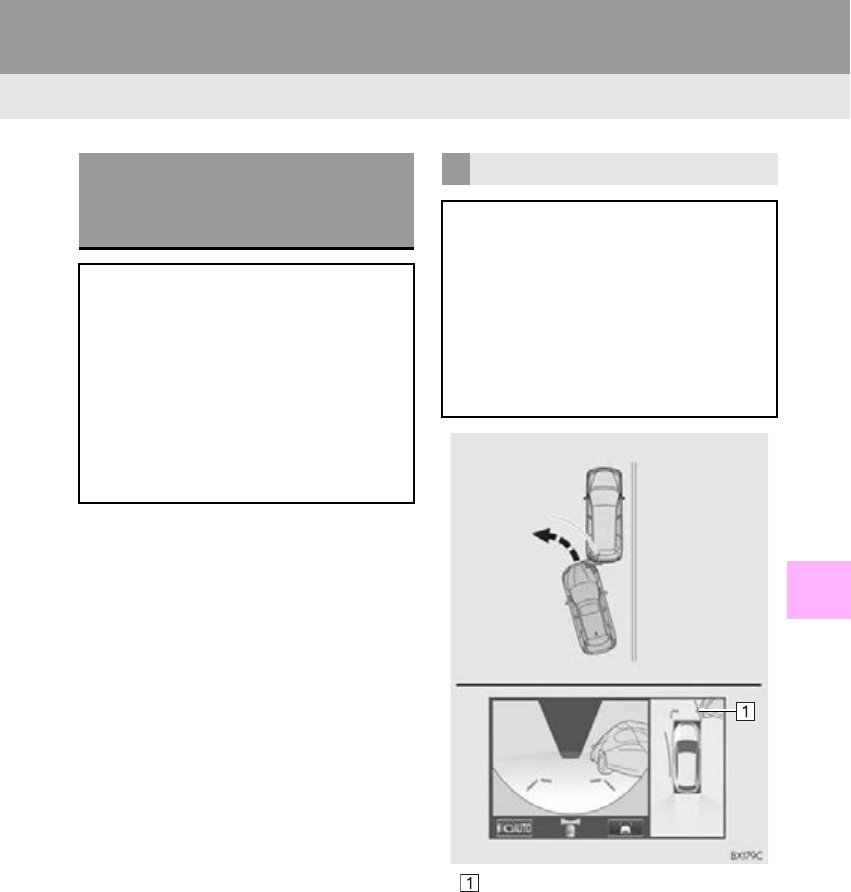
299
1. PANORAMIC VIEW MONITOR
PERIPHERAL MONITORING SYSTEM
RX_Navi_U
7
Estimated course line
WHEN APPROACHING
THREE-DIMENSIONAL
OBJECTS
The estimated course lines target flat
surfaced objects (such as the road). It is
not possible to determine the position of
three-dimensional objects (such as vehi-
cles) using the estimated course lines
and distance guide lines. When ap-
proaching a three-dimensional object
that extends outward (such as the flat-
bed of a truck), be careful of the follow-
ing.
ESTIMATED COURSE LINES
Since the estimated course line is dis-
played for a flat road surface, it can not
depict the position of three-dimentional
objects (such as vehicle bumpers, etc.)
that are in positions higher than the sur-
face of the road. Even if the bumpers of
the vehicle is on the outside of the esti-
mated course line in the image, in reality,
the vehicles are on a collision course.
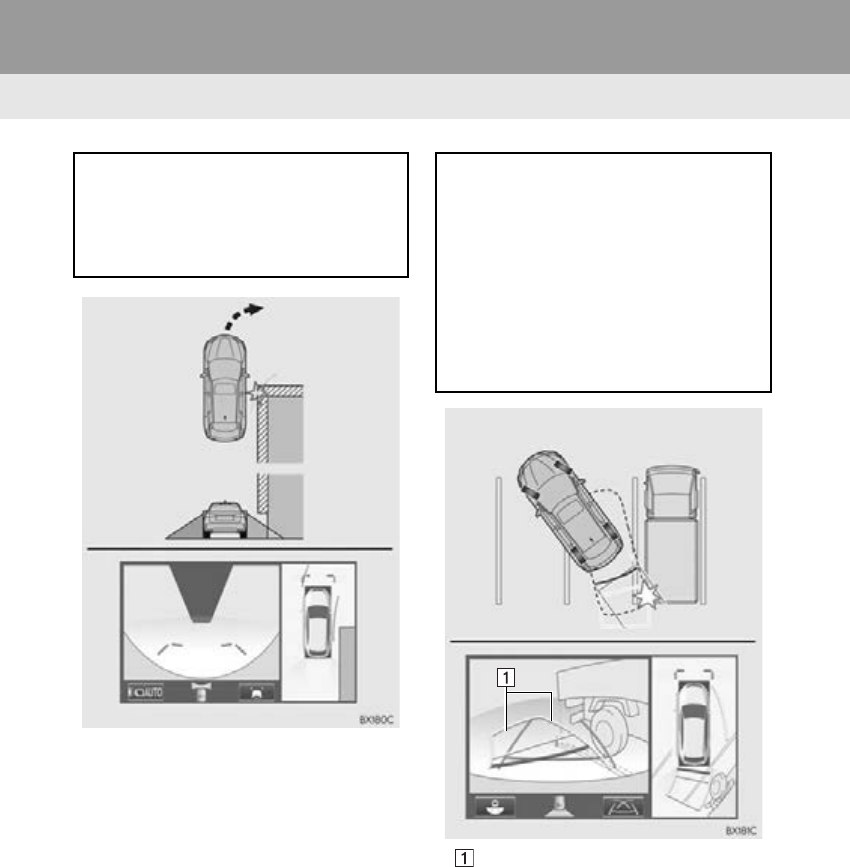
300
1. PANORAMIC VIEW MONITOR
RX_Navi_U
Estimated course lines
Three-dimentional objects (such as the
overhang of a wall or loading platform of
a truck) in high positions may not be pro-
jected on the screen. Check the safety of
the surroundings directly.
Visually check the surroundings and the
area behind the vehicle. In the case
shown below, the truck appears to be
outside of the estimated course lines and
the vehicle does not look as if it hits the
truck. However, the rear body of the
truck may actually cross over the esti-
mated course lines. In reality if you back
up as guided by the estimated course
lines, the vehicle may hit the truck.
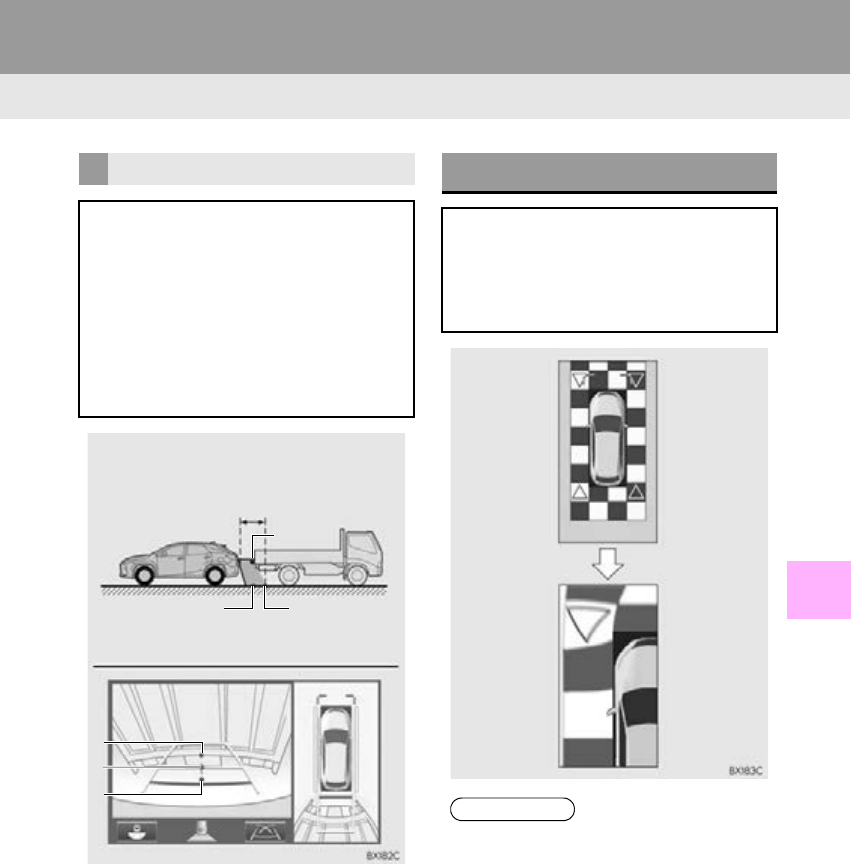
301
1. PANORAMIC VIEW MONITOR
PERIPHERAL MONITORING SYSTEM
RX_Navi_U
7
DISTANCE GUIDE LINES
Visually check the surroundings and the
area behind the vehicle. On the screen,
it appears that a truck is parking at point
B. However, in reality if you back up to
point A, you will hit the truck. On the
screen, it appears that A is closest and C
is farthest away. However, in reality, the
distance to A and C is the same, and B is
farther than A and C.
Positions of A, B and C
C
AB
B
A
C
MAGNIFYING FUNCTION
When the panoramic view is magnified,
walls and lines on the road on the magni-
fied panoramic view display may look
more distorted than those on the normal
panoramic view display.
INFORMATION
●When the panoramic view is magnified,
guide lines will not be displayed.

302
1. PANORAMIC VIEW MONITOR
RX_Navi_U
9. THINGS YOU SHOULD KNOW
If you notice any of the following symptoms, refer to the likely cause and the solution,
and re-check.
If the symptom is not resolved by the solution, have the vehicle inspected by your Lexus
dealer.
IF YOU NOTICE ANY SYMPTOMS
Symptom Likely cause Solution
The image is difficult to see The vehicle is in a dark area
The temperature around
the lens is either high or low
The outside temperature is
low
There are water droplets on
the camera
It is raining or humid
Foreign matter (mud etc.) is
adhering to the camera
Sunlight or headlights are
shining directly into the
camera
The vehicle is under fluo-
rescent lights, sodium lights,
mercury lights etc.
Back up while visually check-
ing the vehicle’s surroundings.
(Use the monitor again once
conditions have been im-
proved.)
The procedure for adjusting
the picture quality of the pan-
oramic view monitor is the
same as the procedure for ad-
justing the navigation screen.
(P. 39)
The image is blurry Dirt or foreign matter (such as
water droplets, snow, mud
etc.) is adhering to the cam-
era.
Flush the camera with a large
quantity of water and wipe the
camera lens clean with a soft
and wet cloth.
The image is out of alignment The camera or surrounding
area has received a strong im-
pact.
Have the vehicle inspected by
your Lexus dealer.
The guide lines are very far
out of alignment
The camera position is out of
alignment.
Have the vehicle inspected by
your Lexus dealer.
The vehicle is tilted. (There
is a heavy load on the vehi-
cle, tire pressure is low due
to a tire puncture, etc.)
The vehicle is used on an
incline.
If this happens due to these
causes, it does not indicate a
malfunction.
Back up while visually check-
ing the vehicle’s surroundings.
The estimated course lines
move even though the steer-
ing wheel is straight
There is a malfunction in the
signals being output by the
steering sensor.
Have the vehicle inspected by
your Lexus dealer.
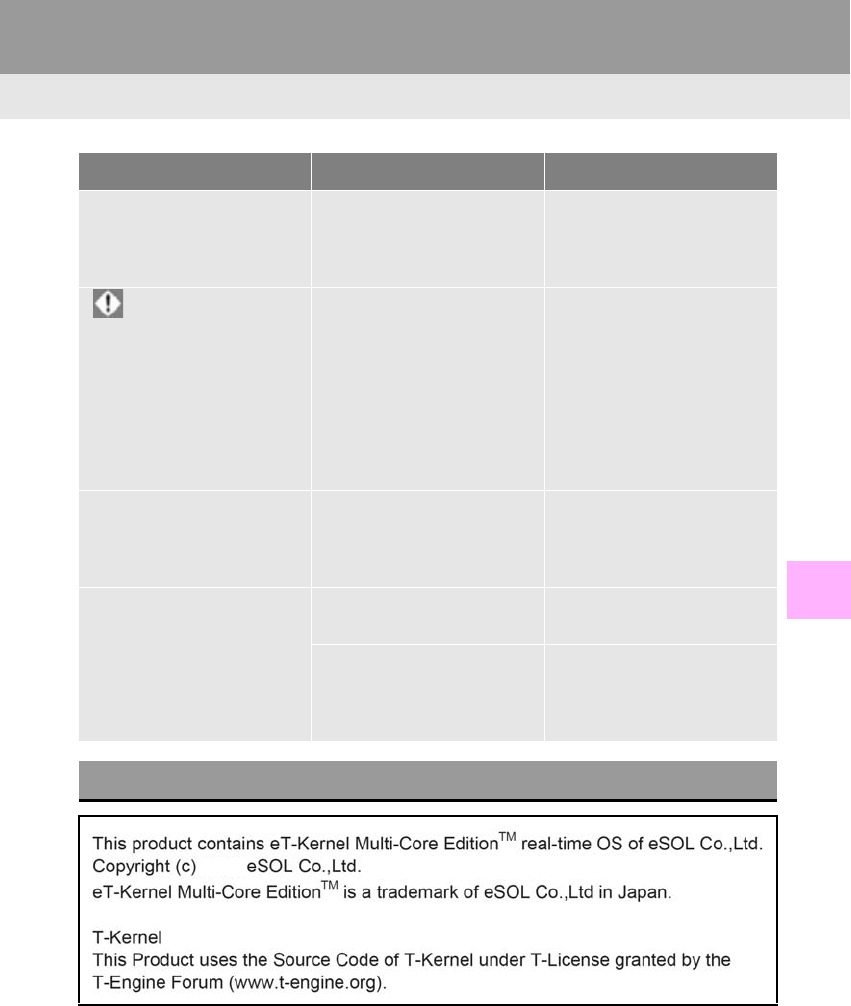
303
1. PANORAMIC VIEW MONITOR
PERIPHERAL MONITORING SYSTEM
RX_Navi_U
7
Guide lines are not displayed The back door is open. Close the back door.
If this does not resolve the
symptom, have the vehicle in-
spected by your Lexus dealer.
is displayed The steering wheel has been
moved while the 12-volt bat-
tery was being reinstalled.
12-volt battery power is low.
The steering sensor has
been reinstalled.
There is a malfunction in the
signals being output by the
steering sensor.
Stop the vehicle, and turn the
steering wheel as far as it will
go to the left and right.
If this does not resolve the
symptom, have the vehicle in-
spected by your Lexus dealer.
The panoramic view display
cannot be magnified
The intuitive parking assist
may be malfunctioning or
dirty.
Follow the correction proce-
dures for malfunctions of the
intuitive parking assist. (Refer
to “Owner’s Manual”)
The moving view or see-
through view cannot be dis-
played.
The intuitive parking assist is
set to off.
Turn the intuitive parking as-
sist on.
The intuitive parking assist
may be malfunctioning or
dirty.
Follow the correction proce-
dures for malfunctions of the
intuitive parking assist. (Refer
to “Owner’s Manual”)
PRODUCT LICENSE
Symptom Likely cause Solution
2015

304
1. PANORAMIC VIEW MONITOR
RX_Navi_U

8
305
RX_Navi_U
2
8
4
5
6
7
3
9
1
10
1. QUICK REFERENCE ........................... 306
2. SOME BASICS ........................................ 307
REGISTERING/CONNECTING A
Bluetooth® PHONE.......................................... 308
USING THE PHONE SWITCH/
MICROPHONE ................................................. 308
VOICE COMMAND SYSTEM...................... 309
ABOUT THE CONTACTS IN THE
CONTACT LIST ................................................... 310
WHEN SELLING OR DISPOSING OF
THE VEHICLE ....................................................... 310
3. CALLING ON THE Bluetooth®
PHONE...................................................... 311
BY FAVORITES LIST ............................................. 312
BY CALL HISTORY ............................................... 312
BY CONTACTS LIST ............................................ 313
BY DIAL PAD ............................................................ 315
BY OFF HOOK SWITCH ................................... 316
4. RECEIVING ON THE Bluetooth®
PHONE..................................................... 317
INCOMING CALLS.............................................. 317
5. TALKING ON THE Bluetooth®
PHONE..................................................... 318
INCOMING CALL WAITING....................... 320
6. Bluetooth® PHONE MESSAGE
FUNCTION............................................. 321
RECEIVING A MESSAGE ............................... 322
CHECKING MESSAGES................................. 323
REPLYING TO A MESSAGE
(QUICK REPLY)................................................. 324
CALLING THE MESSAGE SENDER ......... 325
1. PHONE SETTINGS................................ 326
“Sounds” SCREEN .................................................. 327
“Contacts/Call History” SCREEN .................. 328
“Messaging” SCREEN.......................................... 335
“Notifications” SCREEN ...................................... 336
1. TROUBLESHOOTING........................ 338
1
PHONE OPERATION (HANDS-
FREE SYSTEM FOR CELLULAR
PHONES)
2SETUP
3WHAT TO DO IF...
PHONE
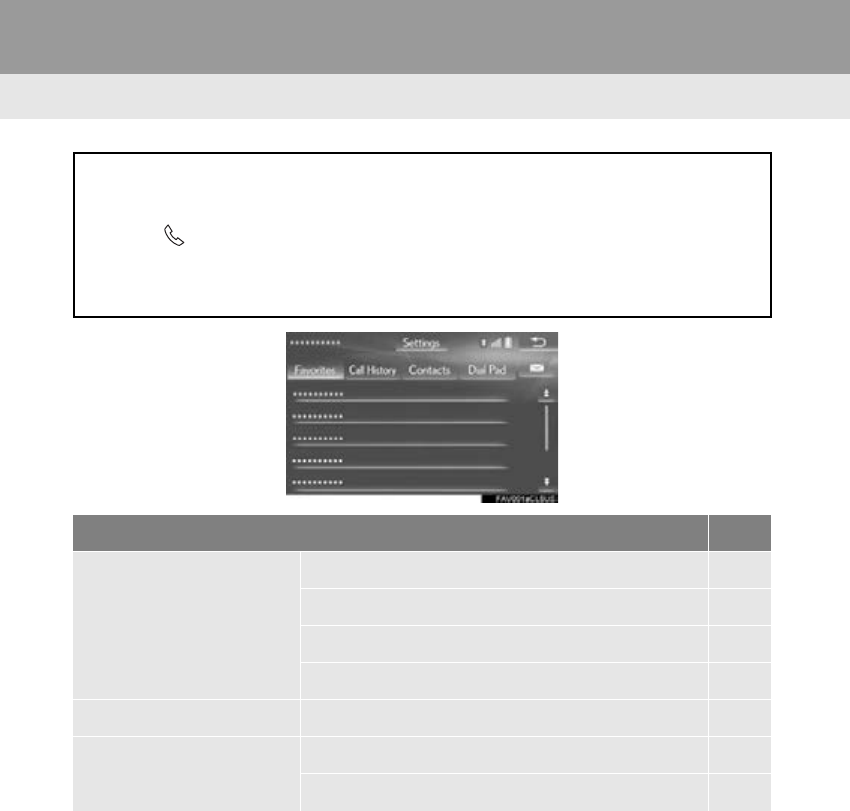
306
RX_Navi_U
1. PHONE OPERATION (HANDS-FREE SYSTEM FOR CELLULAR PHONES)
1. QUICK REFERENCE
The phone top screen can be reached by the following methods:
Using the steering wheel.
Press the switch on the steering wheel.
From the “Menu” screen
Press the “MENU” button on the Remote Touch, then select “Phone”.
Function Page
Phone operation
Registering/connecting Bluetooth® device 42
Calling on the Bluetooth® phone 311
Receiving on the Bluetooth® phone 317
Talking on the Bluetooth® phone 318
Message function Using the Bluetooth® phone message function 321
Setting up a phone
Phone settings 326
Bluetooth® settings 48
307
1. PHONE OPERATION (HANDS-FREE SYSTEM FOR CELLULAR PHONES)
RX_Navi_U
PHONE
8
2. SOME BASICS
The hands-free system enables calls to
be made and received without having to
take your hands off the steering wheel.
This system supports Bluetooth®.
Bluetooth® is a wireless data system
that enables cellular phones to be used
without being connected by a cable or
placed in a cradle.
The operating procedure of the phone is
explained here.
WARNING
●While driving, do not use a cellular phone
or connect the Bluetooth® phone.
●Your audio unit is fitted with Bluetooth®
antennas. People with implantable car-
diac pacemakers, cardiac resynchroniza-
tion therapy-pacemakers or implantable
cardioverter defibrillators should main-
tain a reasonable distance between
themselves and the Bluetooth® antennas.
The radio waves may affect the operation
of such devices.
●Before using Bluetooth® devices, users
of any electrical medical device other
than implantable cardiac pacemakers,
cardiac resynchronization therapy-pace-
makers or implantable cardioverter
defibrillators should consult the manufac-
turer of the device for information about
its operation under the influence of radio
waves. Radio waves could have unex-
pected effects on the operation of such
medical devices.
NOTICE
●Do not leave your cellular phone in the
vehicle. The temperature inside may rise
to a level that could damage the phone.
INFORMATION
●If your cellular phone does not support
Bluetooth®, this system cannot function.
●In the following conditions, the system
may not function:
• The cellular phone is turned off.
• The current position is outside the com-
munication area.
• The cellular phone is not connected.
• The cellular phone has a low battery.
●When using Bluetooth® audio and
hands-free system at the same time, the
following problems may occur:
• The Bluetooth® connection may be cut.
•Noise may be heard on the Bluetooth®
audio playback.
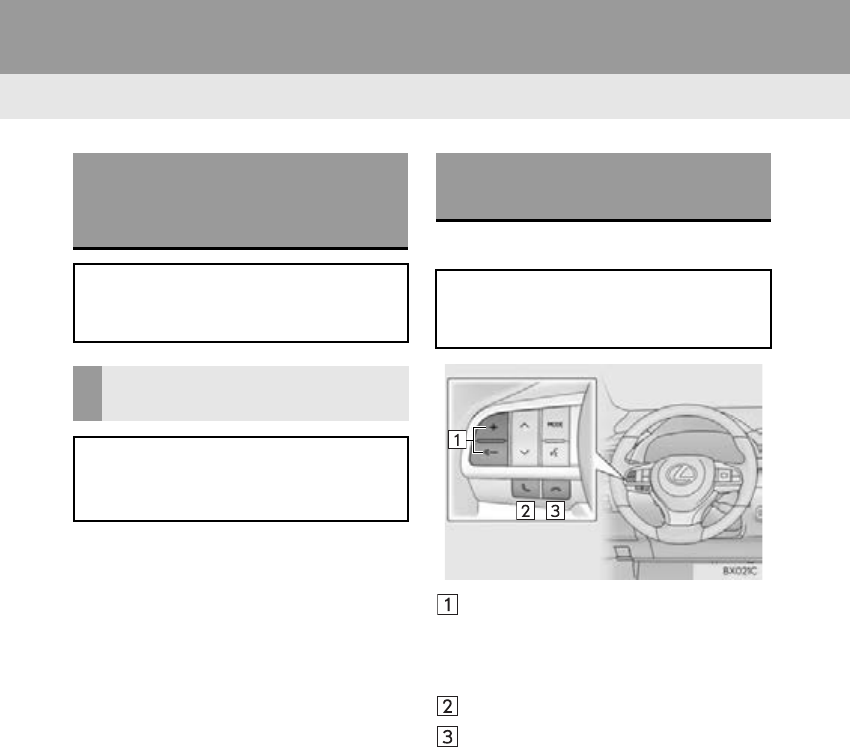
308
1. PHONE OPERATION (HANDS-FREE SYSTEM FOR CELLULAR PHONES)
RX_Navi_U
Steering switch
Volume control switch
-Press the “+” switch to increase the volume.
-Press the “-” switch to decrease the vol-
ume.
Off hook switch
On hook switch
REGISTERING/
CONNECTING A Bluetooth®
PHONE
To use the hands-free system for cellular
phones, it is necessary to register a cel-
lular phone with the system. (P. 42)
Bluetooth® PHONE
CONDITION DISPLAY
The condition of the Bluetooth® phone
appears on the upper right side of the
screen. (P. 14)
USING THE PHONE SWITCH/
MICROPHONE
By pressing the phone switch, a call can
be received or ended without taking
your hands off the steering wheel.
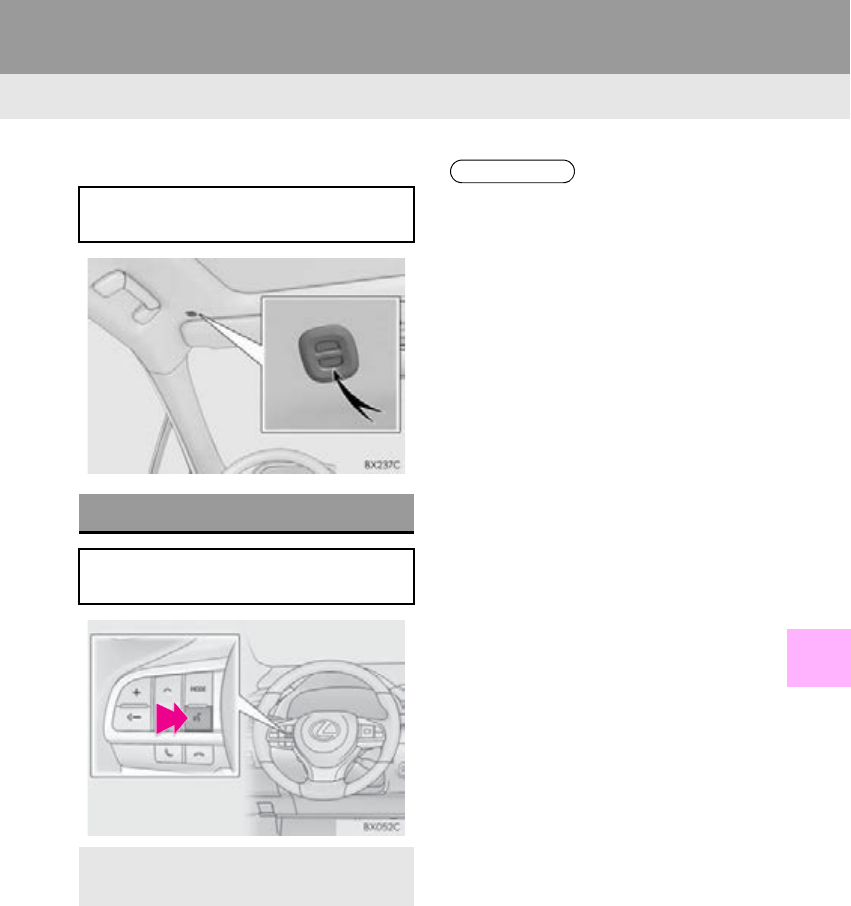
309
1. PHONE OPERATION (HANDS-FREE SYSTEM FOR CELLULAR PHONES)
PHONE
RX_Navi_U
8
Microphone
The microphone is used when talking on
the phone.
VOICE COMMAND SYSTEM
Press this switch to operate the voice
command system.
-The voice command system and its list of
commands can be operated. (P. 2 5 0 )
INFORMATION
●The other party’s voice will be heard from
the front speakers. The audio/visual sys-
tem will be muted during phone calls or
when hands-free voice commands are
used.
●Talk alternately with the other party on
the phone. If both parties speak at the
same time, the other party may not hear
what has been said. (This is not a malfunc-
tion.)
●Keep call volume down. Otherwise, the
other party’s voice may be audible out-
side the vehicle and voice echo may
increase. When talking on the phone,
speak clearly towards the microphone.
●The other party may not hear you clearly
when:
• Driving on an unpaved road. (Making
excessive traffic noise.)
• Driving at high speeds.
• The roof or windows are open.
• The air conditioning vents are pointed
towards the microphone.
• The sound of the air conditioning fan is
loud.
•There is a negative effect on sound
quality due to the phone and/or network
being used.
310
1. PHONE OPERATION (HANDS-FREE SYSTEM FOR CELLULAR PHONES)
RX_Navi_U
-The following data is stored for every regis-
tered phone. When another phone is con-
nected, the following registered data
cannot be read:
• Contact data
•Call history data
•Favorites data
• Image data
• All phone settings
• Message settings
-The following data in the system can be ini-
tialized:
• Contact data
• Call history data
•Favorites data
•Image data
• All phone settings
• Message settings
ABOUT THE CONTACTS IN
THE CONTACT LIST
INFORMATION
●When a phone’s registration is deleted,
the above-mentioned data is also
deleted.
WHEN SELLING OR
DISPOSING OF THE VEHICLE
A lot of personal data is registered when
the hands-free system is used. When
selling or disposing of the vehicle, initial-
ize the data. (P. 64)
INFORMATION
●Once initialized, the data and settings will
be erased. Pay much attention when ini-
tializing the data.
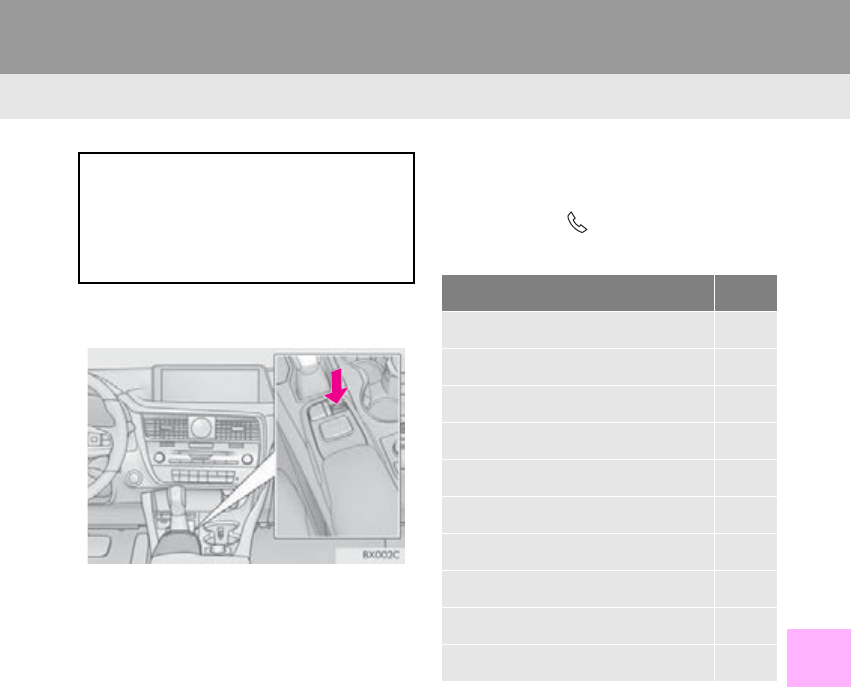
311
1. PHONE OPERATION (HANDS-FREE SYSTEM FOR CELLULAR PHONES)
RX_Navi_U
PHONE
8
3. CALLING ON THE Bluetooth® PHONE
1Press the “MENU” button on the
Remote Touch.
2Select “Phone”.
3Select the desired tab to call from.
-The phone top screen can be displayed by
pressing the switch on the steering
wheel.
After a Bluetooth® phone has been reg-
istered, a call can be made using the
hands-free system. There are several
methods by which a call can be made, as
described below.
How to make a call list Page
By favorites list 312
By call history 312
By contacts list*1313
By dial pad*1315
By e-mail/SMS/MMS 325
By POI call 86
By off hook switch 316
By LEXUS App Suite 363
By voice command system 255
By quick dial*2378
*1: The operation cannot be performed while
driving.
*2: With 12.3-inch display
312
1. PHONE OPERATION (HANDS-FREE SYSTEM FOR CELLULAR PHONES)
RX_Navi_U
1Display the phone top screen.
(P. 311)
2Select the “Favorites” tab and select the
desired contact.
3Select the desired number.
4Check that the “Call” screen is dis-
played.
1Display the phone top screen.
(P. 311)
2Select the “Call History” tab and select
or the desired contact.
-The icons of call type are displayed.
: Missed call
: Incoming call
: Outgoing call
When is selected
3Check that the “Call” screen is dis-
played.
When the desired contact is selected
3Select the desired number.
4Check that the “Call” screen is dis-
played.
BY FAVORITES LIST
Calls can be made using registered con-
tacts which can be selected from a con-
tact list. (P. 333)
BY CALL HISTORY
Up to 30 of the latest call history items
(missed, incoming and outgoing) can be
selected from the “Call History” tab.
313
1. PHONE OPERATION (HANDS-FREE SYSTEM FOR CELLULAR PHONES)
PHONE
RX_Navi_U
8
1Display the phone top screen.
(P. 311)
2Select the “Contacts” tab and select the
desired contact.
3Select the desired number.
4Check that the “Call” screen is dis-
played.
INFORMATION
●When making a call to the same number
continuously, only the most recent call is
listed in call history.
●When a phone number registered in the
contact list is received, the name is dis-
played.
●Number-withheld calls are also memo-
rized in the system.
●International phone calls may not be
made depending on the type of cellular
phone you have.
●The list should group together consecu-
tive entries with the same phone number
and same call type. For example, two calls
from John’s mobile would be displayed as
follows: John (2)
●By pressing the switch on the steer-
ing wheel, a call to the latest history item
can be made.
BY CONTACTS LIST
Calls can be made by using contact data
which is transferred from a registered
cellular phone. (P. 314)
Up to 2500 contacts (maximum of 4
phone numbers and e-mail addresses
per contact) can be registered in the
contact list.
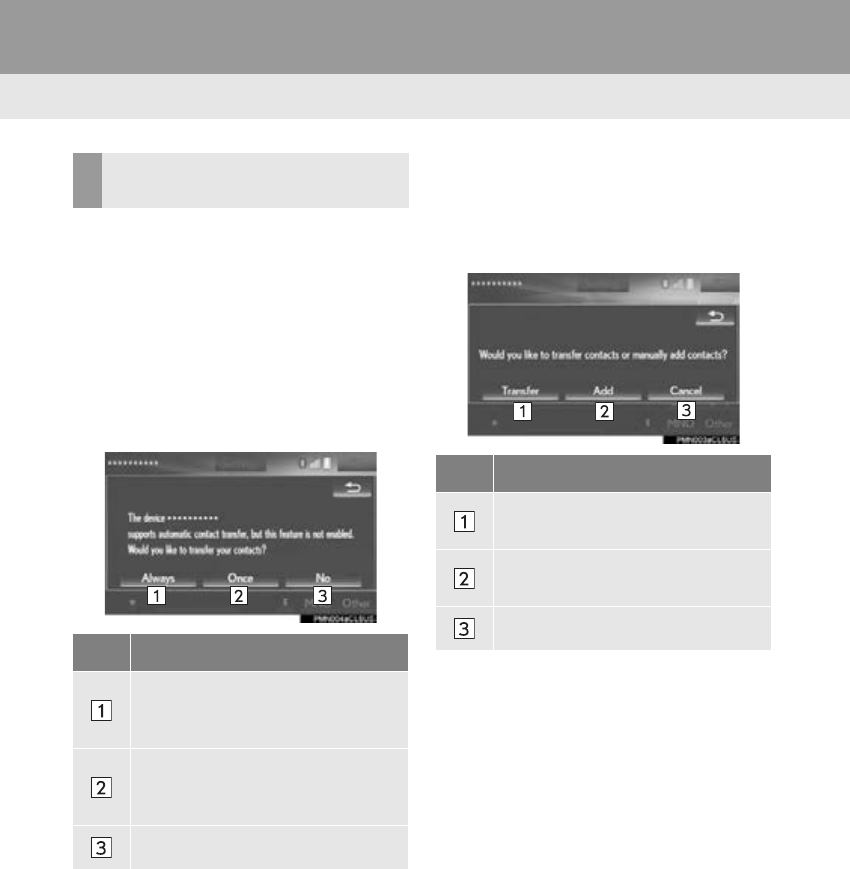
314
1. PHONE OPERATION (HANDS-FREE SYSTEM FOR CELLULAR PHONES)
RX_Navi_U
■FOR PBAP COMPATIBLE
Bluetooth® PHONES
When “Automatic Transfer” is set to on
(P. 328)
-Contacts are transferred automatically.
When “Automatic Transfer” is set to off
(P. 328)
1Select the desired item.
2Check that a confirmation screen is dis-
played when the operation is complete.
■FOR PBAP INCOMPATIBLE BUT
OPP COMPATIBLE Bluetooth®
PHONES
1Select the desired item.
WHEN THE CONTACT IS
EMPTY
No. Function
Select to always transfer all the con-
tacts from a connected cellular
phone automatically.
Select to transfer all the contacts
from a connected cellular phone
only once.
Select to cancel transferring.
No. Function
Select to transfer the contacts from
the connected cellular phone.
Select to add a new contact manual-
ly.
Select to cancel transferring.
315
1. PHONE OPERATION (HANDS-FREE SYSTEM FOR CELLULAR PHONES)
PHONE
RX_Navi_U
8
When “Transfer” is selected
2Follow the steps in “When the contact
is not registered” from “STEP 2”.
(P. 330)
When “Add” is selected
2Follow the steps in “REGISTERING A
NEW CONTACT TO THE CON-
TACTS LIST” from “STEP 2”.
(P. 332)
1Display the phone top screen.
(P. 311)
2Select the “Dial Pad” tab and enter the
phone number.
3Select or press the switch on
the steering wheel.
4Check that the “Call” screen is dis-
played.
INFORMATION
●If your cellular phone is neither PBAP nor
OPP compatible, the contacts cannot be
transferred.
●Depending on the type of Bluetooth®
phone:
• It may be necessary to perform addi-
tional steps on the phone when transfer-
ring contact data.
• The registered image in the contact list
may not transfer depending on the type
of Bluetooth® phone connected.
BY DIAL PAD
INFORMATION
●Depending on the type of Bluetooth®
phone being connected, it may be neces-
sary to perform additional steps on the
phone.
316
1. PHONE OPERATION (HANDS-FREE SYSTEM FOR CELLULAR PHONES)
RX_Navi_U
1Press the switch on the steering
wheel to display the phone top screen.
2Press the switch on the steering
wheel to display the “Call History”
screen.
3Press the switch on the steering
wheel to call the latest history item.
4Check that the “Call” screen is dis-
played.
BY OFF HOOK SWITCH
Calls can be made using the latest call
history item.
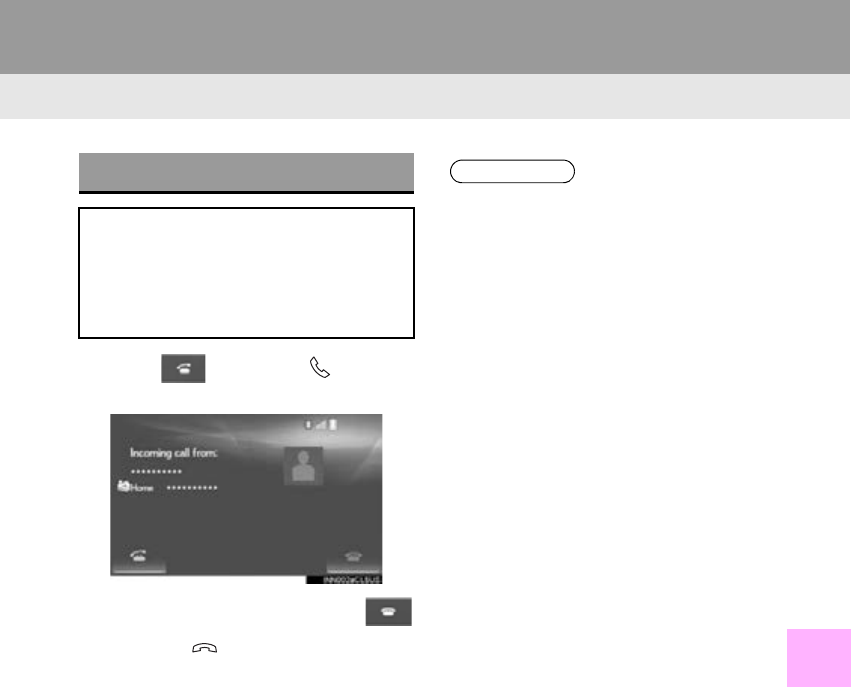
317
1. PHONE OPERATION (HANDS-FREE SYSTEM FOR CELLULAR PHONES)
RX_Navi_U
PHONE
8
4. RECEIVING ON THE Bluetooth® PHONE
1Select or press the switch on
the steering wheel to talk on the phone.
To refuse to receive the call: Select
or press the switch on the steering
wheel.
To adjust the volume of a received call:
Turn the “PWR·VOL” knob, or use the vol-
ume control switch on the steering wheel.
INCOMING CALLS
When a call is received, this screen is
displayed with a sound.
With 12.3-inch display: This screen can
also be displayed on the “Side Display”.
(P. 375 )
INFORMATION
●During international phone calls, the
other party’s name or number may not be
displayed correctly depending on the
type of cellular phone you have.
●The ringtone that has been set in the
“Sounds” screen sounds when there is an
incoming call. Depending on the type of
Bluetooth® phone, both the system and
Bluetooth® phone may sound
simultaneously when there is an incoming
call. (P. 327)
●The incoming call display mode can be
set. (P. 33 6 )
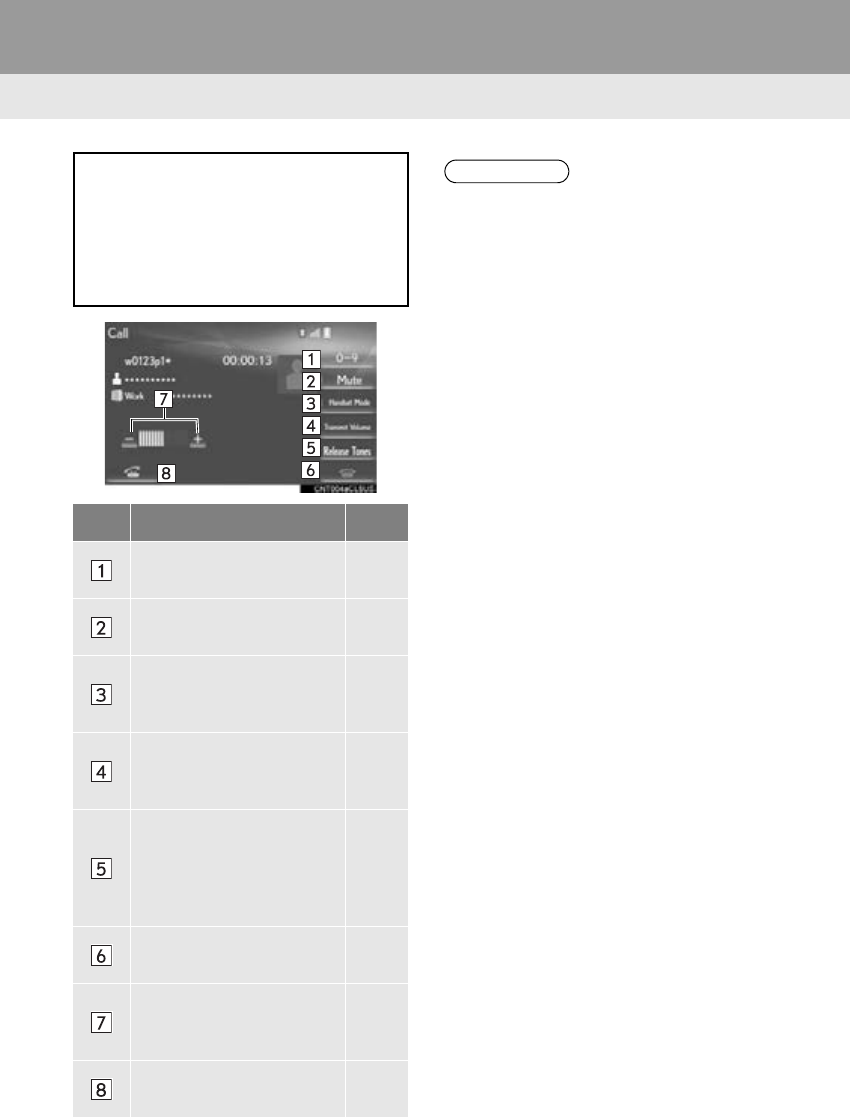
318
1. PHONE OPERATION (HANDS-FREE SYSTEM FOR CELLULAR PHONES)
RX_Navi_U
5. TALKING ON THE Bluetooth® PHONE
While talking on the phone, this screen is
displayed. The operations outlined be-
low can be performed on this screen.
With 12.3-inch display: This screen can
also be displayed on the “Side Display”.
(P. 375 )
No. Function Page
Select to display the dial
pad to send tones. 319
Select to mute your voice to
the other party.
Select to change handset
modes between hands-free
and cellular phone.
Select to adjust your voice
volume that the other party
hears from their speaker.
320
Select to send tones. This
button only appears when a
number that contains a (w)
is dialed in hands-free
mode.
319
Select to hang up the
phone.
Select “+” or “-” to adjust
the volume of the other par-
ty’s voice.
Select to start talking with
the other party. 320
INFORMATION
●When cellular phone call is changed to
hands-free call, the hands-free screen will
be displayed and its functions can be
operated on the screen.
●Changing between cellular phone call
and hands-free call can be performed by
operating the cellular phone directly.
●Transferring methods and operations will
be different depending on the type of cel-
lular phone you have.
●For the operation of the cellular phone,
see the manual that comes with it.
●With 12.3-inch display: This screen can
be displayed on the “Main Display” or
“Side Display”. (P. 336)
319
1. PHONE OPERATION (HANDS-FREE SYSTEM FOR CELLULAR PHONES)
PHONE
RX_Navi_U
8
■BY DIAL PAD
1Select “0-9”.
2Enter the desired number.
■BY SELECTING “Release Tones”
1Select “Release Tones”.
SENDING TONES
This operation cannot be performed
while driving.
“Release Tones” appear when a contin-
uous tone signal(s) containing a (w) is
registered in the contact list.
INFORMATION
●A continuous tone signal is a character
string that consists of numbers and the
characters p or w. (e.g.
056133w0123p#1)
●When the “p” pause tone is used, the tone
data up until the next pause tone will be
automatically sent after 2 seconds have
elapsed. When the “w” pause tone is
used, the tone data up until the next
pause tone will be automatically sent
after a user operation is performed.
●Release tones can be used when auto-
mated operation of a phone based ser-
vice such as an answering machine or
bank phone service is desired. A phone
number with continuous tone signals can
be registered in the contact list.
●Tone data after a “w” pause tone can be
operated on voice command during a
call.
320
1. PHONE OPERATION (HANDS-FREE SYSTEM FOR CELLULAR PHONES)
RX_Navi_U
1Select “Transmit Volume”.
2Select the desired level for the transmit
volume.
“Default”: Select to reset the transmit vol-
ume.
3Select “OK”.
1Select or press the switch on
the steering wheel to start talking with
the other party.
To refuse to receive the call: Select
or press the switch on the steering
wheel.
-Each time is selected or the
switch on the steering wheel is pressed
during an interrupted call, the party who is
on hold will be switched.
TRANSMIT VOLUME SETTING
INFORMATION
●The sound quality of the voice heard from
the other party’s speaker may be nega-
tively impacted.
●“Transmit Volume” is dimmed when mute
is on.
INCOMING CALL WAITING
When a call is interrupted by a third par-
ty while talking, the incoming screen is
displayed.
With 12.3-inch display: The incoming
screen can also be displayed on the
“Side Display”. (P. 375 )
INFORMATION
●This function may not be available
depending on the type of cellular phone.
●With 12.3-inch display: This screen can
be displayed on the “Main Display” or
“Side Display”. (P. 336)
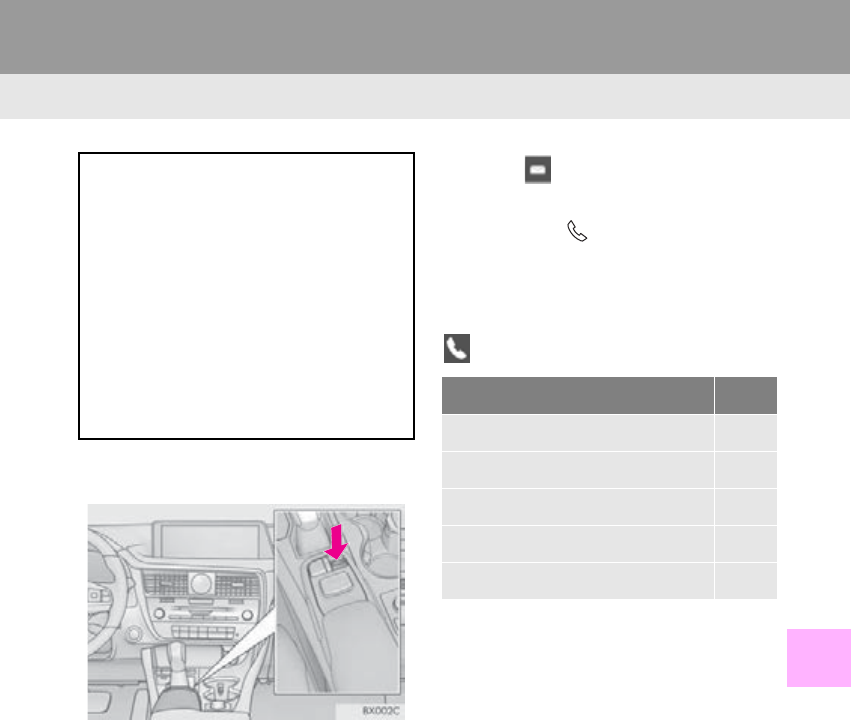
321
1. PHONE OPERATION (HANDS-FREE SYSTEM FOR CELLULAR PHONES)
RX_Navi_U
PHONE
8
6. Bluetooth® PHONE MESSAGE FUNCTION
1Press the “MENU” button on the
Remote Touch.
2Select “Phone”.
3Select .
-The phone top screen can be displayed by
pressing the switch on the steering
wheel.
4Check that the message inbox screen is
displayed.
: Select to change to phone mode.
Received messages can be forwarded
from the connected Bluetooth® phone,
enabling checking and replying using
the system.
Depending on the type of Bluetooth®
phone connected, received messages
may not be transferred to the message
inbox.
If the phone does not support the mes-
sage function, this function cannot be
used.
Function Page
Receiving a message 322
Checking messages 323
Replying to a message (quick reply) 324
Calling the message sender 325
Message settings 335
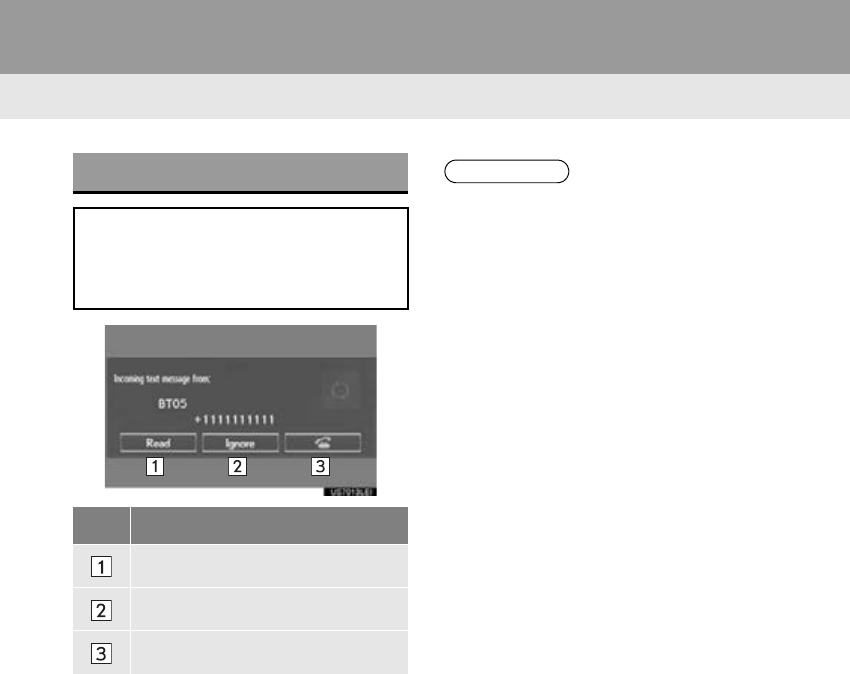
322
1. PHONE OPERATION (HANDS-FREE SYSTEM FOR CELLULAR PHONES)
RX_Navi_U
RECEIVING A MESSAGE
When an e-mail/SMS/MMS is re-
ceived, the incoming message screen
pops up with sound and is ready to be
operated on the screen.
No. Function
Select to check the message.
Select to not open the message.
Select to call the message sender.
INFORMATION
●Depending on the cellular phone used for
receiving messages, or its registration
status with the system, some information
may not be displayed.
●The pop up screen is separately available
for incoming e-mail and SMS/MMS mes-
sages under the following conditions:
E-mail:
• “E-mail Notification Popup” is set to on.
(P. 336)
SMS/MMS:
• “SMS/MMS Notification Popup” is set
to on. (P. 336 )
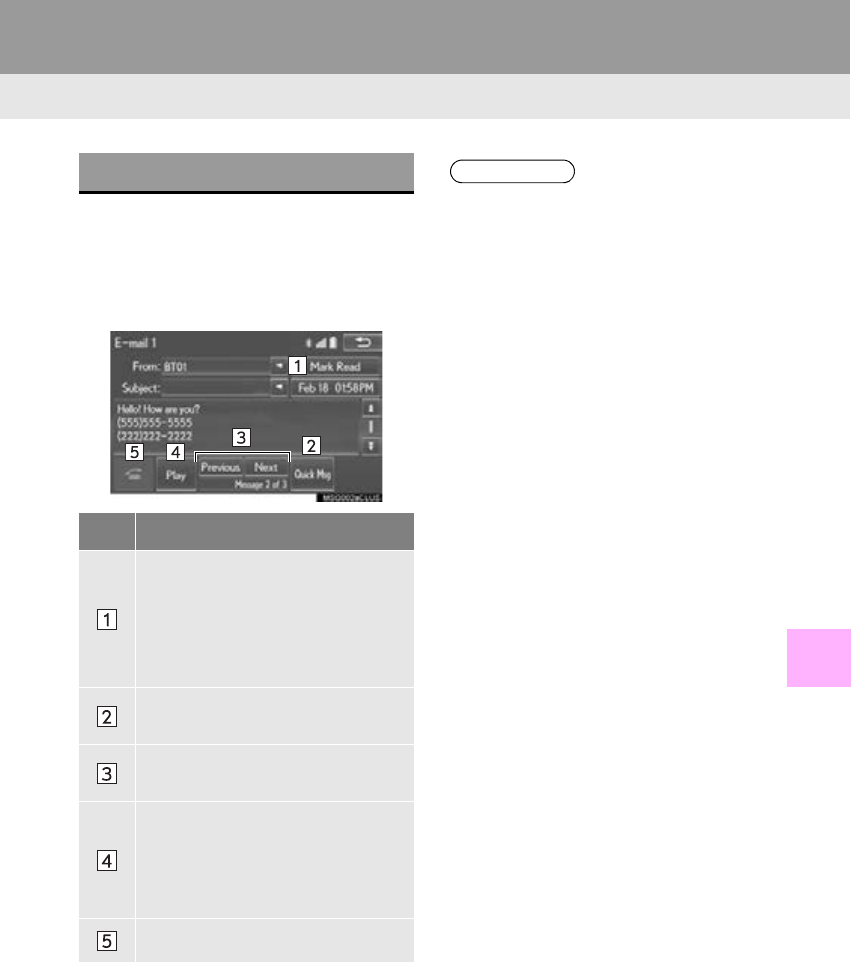
323
1. PHONE OPERATION (HANDS-FREE SYSTEM FOR CELLULAR PHONES)
PHONE
RX_Navi_U
8
1Display the message inbox screen.
(P. 321)
2Select the desired message from the list.
3Check that the message is displayed.
CHECKING MESSAGES
No. Function
Select “Mark Unread” or “Mark
Read” to mark e-mail unread or read
on the message inbox screen.
This function is available when “Up-
date Message Read Status on
Phone” is set to on. (P. 335)
Select to reply the message.
(P. 324)
Select to display the previous or next
message.
Select to have messages read out.
To cancel this function, select “Stop”.
When “Automatic Message Read-
out” is set to on, messages will be au-
tomatically read out. (P. 335)
Select to make a call to the sender.
INFORMATION
●Depending on the type of Bluetooth®
phone being connected, it may be
necessary to perform additional steps on
the phone.
●Messages are displayed in the
appropriate connected Bluetooth®
phone’s registered mail address folder.
Select the tab of the desired folder to be
displayed.
●Only received messages on the
connected Bluetooth® phone can be
displayed.
●The text of the message is not displayed
while driving.
●Tu r n t h e “PWR·VOL” knob, or use the
volume control switch on the steering
wheel to adjust the message read out
volume.
324
1. PHONE OPERATION (HANDS-FREE SYSTEM FOR CELLULAR PHONES)
RX_Navi_U
1Display the message inbox screen.
(P. 321)
2Select the desired message from the list.
3Select “Quick Msg”.
4Select the desired message.
5Select “Send”.
“Cancel”: Select to cancel sending the
message.
-While the message is being sent, a sending
message screen is displayed.
6Check that a confirmation screen is dis-
played when the operation is complete.
-If an error message is displayed, follow the
guidance on the screen to try again.
■EDITING QUICK REPLY MESSAG-
ES
1Select “Quick Msg”.
2Select corresponding to the de-
sired message to edit.
3Select “OK” when editing is completed.
REPLYING TO A MESSAGE
(QUICK REPLY)
15 messages have already been stored.
This operation cannot be performed
while driving.
INFORMATION
●To reset the edited quick reply messages,
select “Default”.
●“Quick Message 1” (“I am driving and
will arrive in approximately [ETA]
minutes.”):
This message cannot be edited and will
automatically fill in [ETA] with the
navigation calculated estimated time of
arrival on the confirm message screen.
If there are waypoints set, [ETA] to the
next waypoint will be shown.
If there is no route currently set in the
navigation system, “Quick Message 1”
cannot be selected.
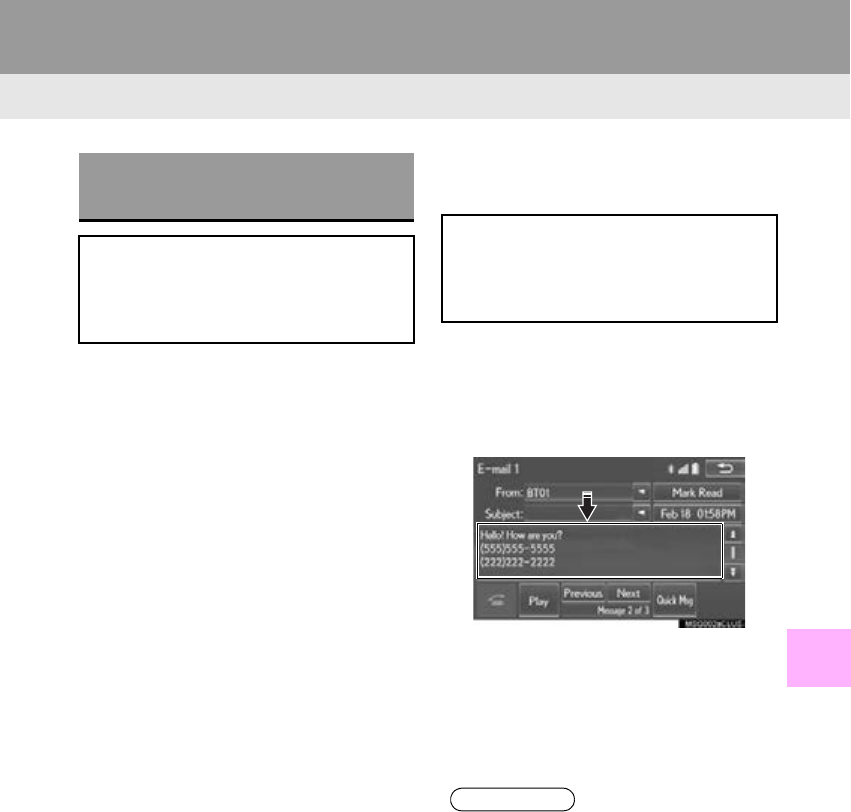
325
1. PHONE OPERATION (HANDS-FREE SYSTEM FOR CELLULAR PHONES)
PHONE
RX_Navi_U
8
■CALLING FROM E-MAIL/SMS/
MMS MESSAGE DISPLAY
1Display the message inbox screen.
(P. 321)
2Select the desired message.
3Select “Call”.
-If there are 2 or more phone numbers,
select the desired number.
4Check that the “Call” screen is dis-
played.
■CALLING FROM A NUMBER
WITHIN A MESSAGE
1Display the message inbox screen.
(P. 321)
2Select the desired message.
3Select the text area.
4Select the desired number.
-Identified phone numbers contained in the
message are displayed.
5Check that the “Call” screen is dis-
played.
■CALLING FROM THE INCOMING
MESSAGE SCREEN
P. 322
CALLING THE MESSAGE
SENDER
Calls can be made to an e-mail/SMS/
MMS message sender’s phone number.
This operation can be performed while
driving.
Calls can be made to a number identi-
fied in a message’s text area.
This operation cannot be performed
while driving.
INFORMATION
●A series of numbers may be recognized
as a phone number. Additionally, some
phone numbers may not be recognized,
such as those for other countries.
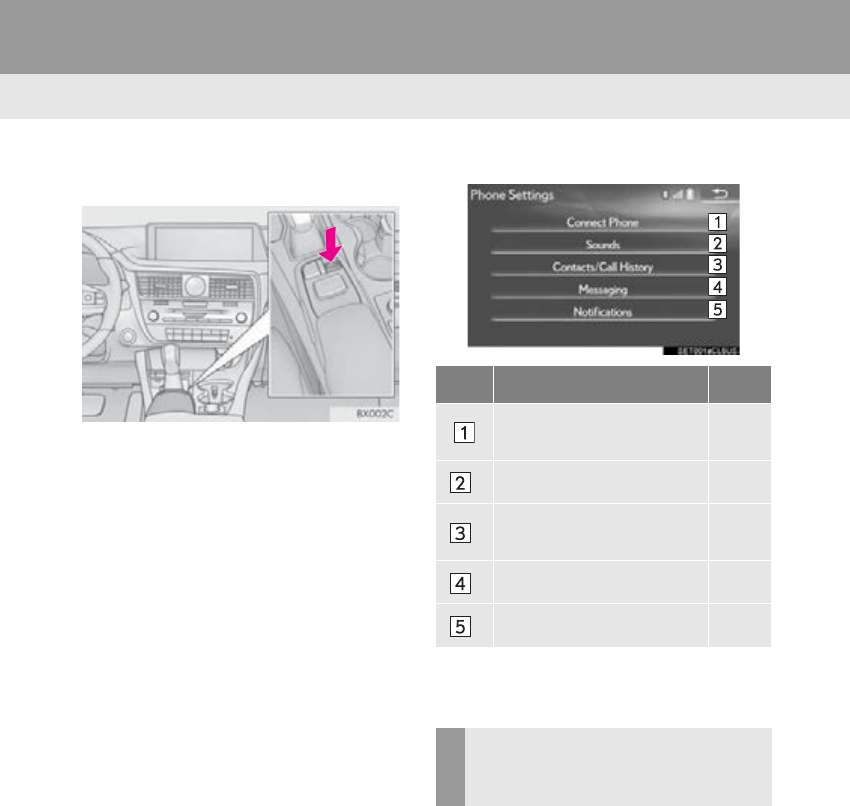
326
RX_Navi_U
2. SETUP
1. PHONE SETTINGS
1Press the “MENU” button on the
Remote Touch.
2Select “Setup”.
3Select “Phone”.
4Select the item to be set.
1Display the phone top screen.
(P. 311)
2Select “Settings”.
No. Information Page
Registering/connecting a
phone 48
*Sound settings 327
*Contact/call history set-
tings 328
*Message settings 335
*Notification settings 336
*: This operation cannot be performed while
driving.
DISPLAYING THE PHONE
SETTINGS SCREEN IN A
DIFFERENT WAY
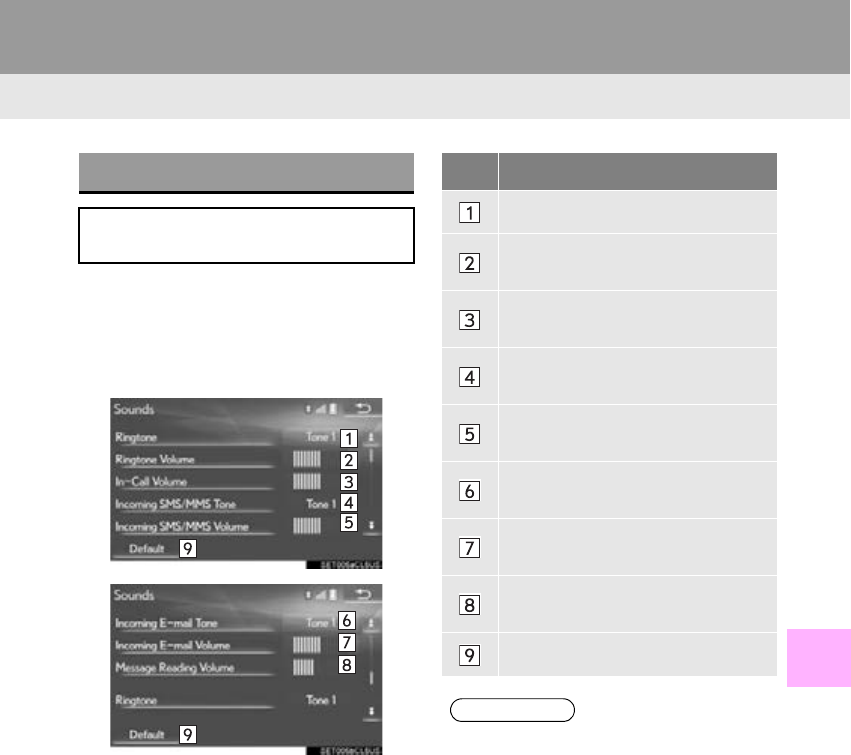
327
2. SETUP
RX_Navi_U
PHONE
8
1Display the “Phone Settings” screen.
(P. 326)
2Select “Sounds”.
3 Select the desired item to be set.
“Sounds” SCREEN
The call and ringtone volume can be ad-
justed. A ringtone can be selected.
No. Function
Select to set the desired ringtone.
Select “-” or “+” to adjust the ring-
tone volume.
Select “-” or “+” to adjust the default
volume of the other party’s voice.
Select to set the desired incoming
SMS/MMS tone.
Select “-” or “+” to adjust the incom-
ing SMS/MMS tone volume.
Select to set the desired incoming e-
mail tone.
Select “-” or “+” to adjust the incom-
ing e-mail tone volume.
Select “-” or “+” to adjust the mes-
sage readout volume.
Select to reset all setup items.
INFORMATION
●Depending on the type of phone, certain
functions may not be available.
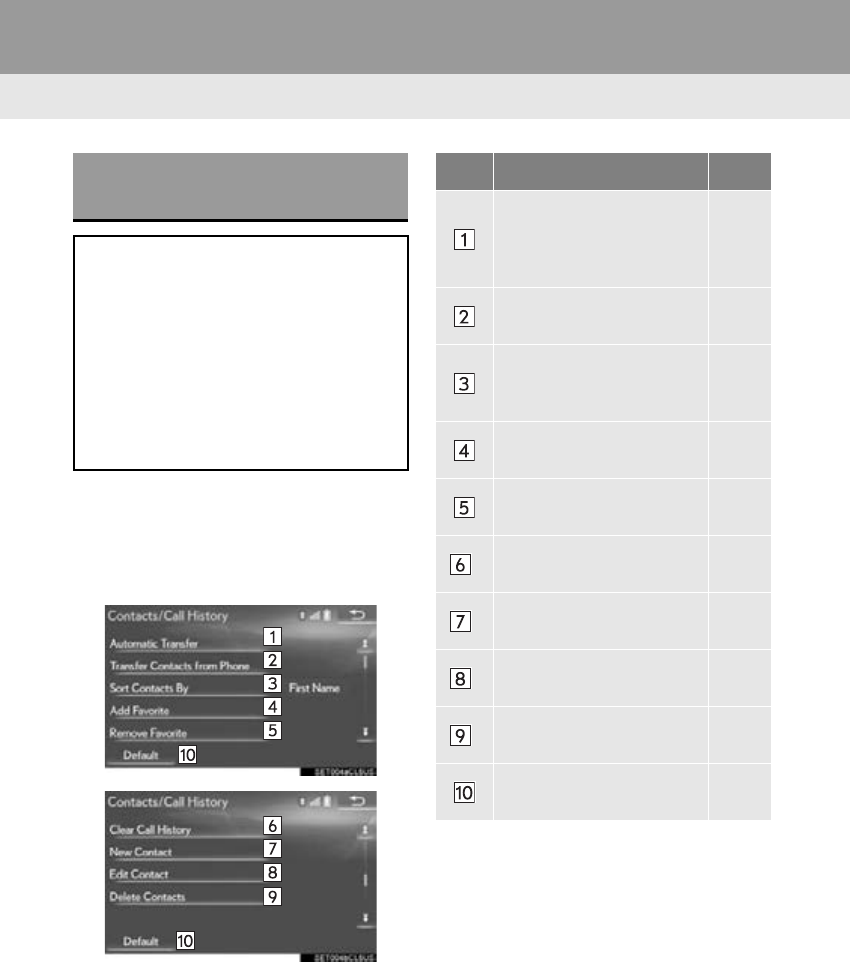
328
2. SETUP
RX_Navi_U
1Display the “Phone Settings” screen.
(P. 326)
2Select “Contacts/Call History”.
3Select the desired item to be set.
“Contacts/Call History”
SCREEN
The contact can be transferred from a
Bluetooth® phone to the system. If your
cellular phone is neither PBAP nor OPP
compatible, the contacts cannot be
transferred.
The contact also can be added, edited
and deleted.
The call history can be deleted and con-
tact and favorites can be changed.
No. Function Page
For PBAP compatible
Bluetooth® phones: Select
to change the contact/his-
tory transfer settings.
329
Select to update contacts
from the connected phone. 330
Select to sort contacts by
the first name or last name
field.
Select to add contacts to
the favorites list. 333
Select to delete contacts
from the favorites list. 334
*Select to clear contacts
from the call history.
*Select to add new contacts
to the contact list. 332
*Select to edit contacts in
the contact list. 332
*Select to delete contacts
from the contact list. 333
Select to reset all setup
items.
*: For PBAP compatible Bluetooth®
phones, this function is available when
“Automatic Transfer” is set to off.
(P. 328)
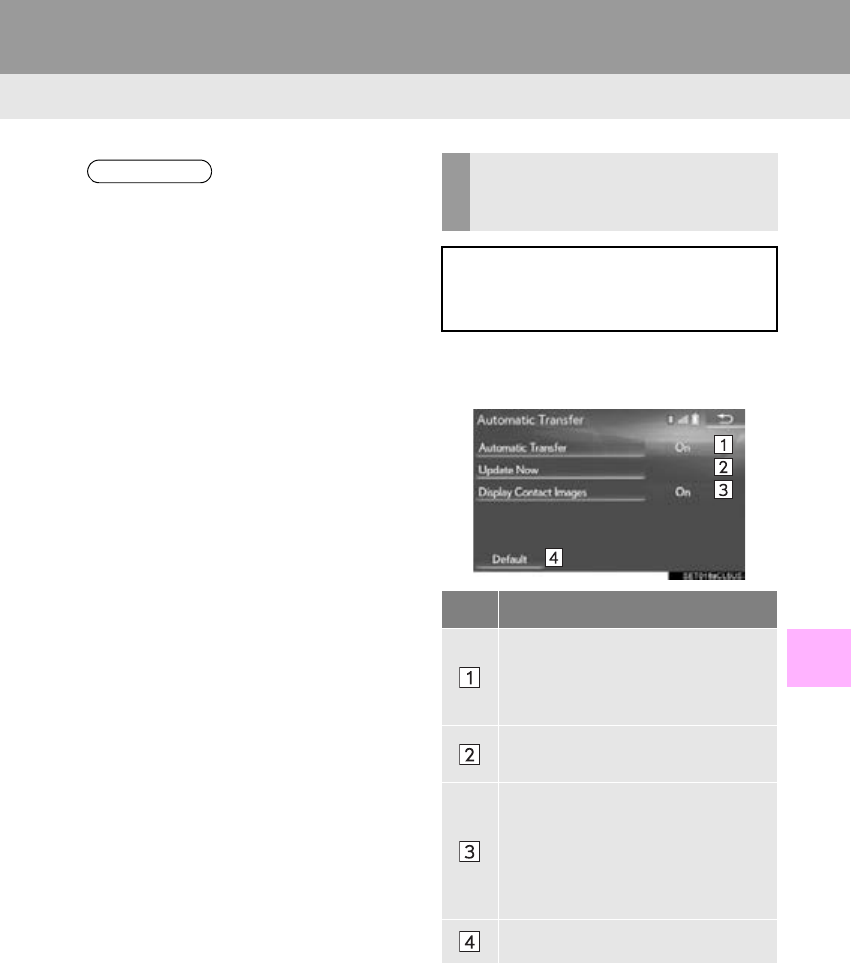
329
2. SETUP
RX_Navi_U
PHONE
8
1Select “Automatic Transfer”.
2Select the desired item to be set.
INFORMATION
●Depending on the type of phone, certain
functions may not be available.
●Contact data is managed independently
for every registered phone. When one
phone is connected, another phone’s reg-
istered data cannot be read.
SETTING AUTOMATIC
CONTACT/HISTORY
TRANSFER
The automatic contact/history function
is available for PBAP compatible
Bluetooth® phones only.
No. Function
Select to set automatic contact/his-
tory transfer on/off. When set to on,
the phone’s contact data and history
are automatically transferred.
Select to update contacts from the
connected phone. (P. 330)
Select to set the transferred contact
image display on/off.
With 12.3-inch display: The contact
image cannot be displayed on the
“Side Display” when a call is re-
ceived.
Select to reset all setup items.

330
2. SETUP
RX_Navi_U
■UPDATING CONTACTS FROM
PHONE
1Select “Update Now”.
-Contacts are transferred automatically.
2Check that a confirmation screen is dis-
played when the operation is complete.
-This operation may be unnecessary
depending on the type of cellular phone.
-Depending on the type of cellular phone,
OBEX authentication may be required
when transferring contact data. Enter
“1234” into the Bluetooth® phone.
-If another Bluetooth® device is connected
when transferring contact data, depending
on the phone, the connected Bluetooth®
device may need to be disconnected.
-Depending on the type of Bluetooth®
phone being connected, it may be neces-
sary to perform additional steps on the
phone.
When the contact is not registered
1Select “Transfer Contacts from
Phone”.
2Transfer the contact data to the system
using a Bluetooth® phone.
-This operation may be unnecessary
depending on the type of cellular phone.
-Depending on the type of cellular phone,
OBEX authentication may be required
when transferring contact data. Enter
“1234” into the Bluetooth® phone.
-To cancel this function, select “Cancel”.
3Check that a confirmation screen is dis-
played when the operation is complete.
TRANSFER CONTACTS FROM
PHONE

331
2. SETUP
RX_Navi_U
PHONE
8
When the contact is registered
1Select “Transfer Contacts from
Phone”.
2Select “Replace Contacts” or “A d d
Contact”.
“Replace Contacts”: Select to transfer the
contact from the connected cellular phone
and replace the current one.
“Add Contact”: Select to transfer the de-
sired contact data from the connected cel-
lular phone to add to the current one.
3Transfer the contact data to the system
using a Bluetooth® phone.
-This operation may be unnecessary
depending on the type of cellular phone.
-Depending on the type of cellular phone,
OBEX authentication may be required
when transferring contact data. Enter
“1234” into the Bluetooth® phone.
-To cancel this function, select “Cancel”.
4Check that a confirmation screen is dis-
played when the operation is complete.
■UPDATING THE CONTACTS
(FROM THE “Call History”
SCREEN)*
1Display the phone top screen.
(P. 311)
2Select the “Call History” tab and select
a contact not yet registered in the con-
tact list.
3Select “Update Contact”.
4Select the desired contact.
5Select a phone type for the phone num-
ber.
*: For PBAP compatible Bluetooth® phones,
this function is available when “Automatic
Transfer” is set to off.
(P. 328)
332
2. SETUP
RX_Navi_U
1Select “New Contact”.
2Enter the name and select “OK”.
3Enter the phone number and select
“OK”.
4Select the phone type for the phone
number.
5To add another number to this contact,
select “Yes”.
■REGISTERING A NEW CONTACT
IN A DIFFERENT WAY (FROM THE
“Call History” SCREEN)
1Display the phone top screen.
(P. 311)
2Select the “Call History” tab and select
a contact not yet registered in the con-
tact list.
3Select “Add to Contacts”.
4Follow the steps in “REGISTERING A
NEW CONTACT TO THE CON-
TACTS LIST” from “STEP 2”. (P.
332)
1Select “Edit Contact”.
2Select the desired contact.
3Select the desired name or number.
For editing the name
4Follow the steps in “REGISTERING A
NEW CONTACT TO THE CON-
TACTS LIST” from “STEP 2”. (P.
332)
For editing the number
4Follow the steps in “REGISTERING A
NEW CONTACT TO THE CON-
TACTS LIST” from “STEP 3”. (P.
332)
■EDITING THE CONTACT IN A DIF-
FERENT WAY (FROM THE “Con-
tact Details” SCREEN)
1Display the phone top screen.
(P. 311)
2Select the “Contacts”, “Call History” or
“Favorites” tab and select the desired
contact.
3Select “Edit Contact”.
“E-mail Addresses”: Select to display all
registered e-mail addresses for the contact.
4Follow the steps in “EDITING THE
CONTACT DATA” from “STEP 3”.
(P. 332)
REGISTERING A NEW
CONTACT TO THE
CONTACTS LIST
New contact data can be registered.
Up to 4 numbers per person can be reg-
istered.
EDITING THE CONTACT
DATA
333
2. SETUP
RX_Navi_U
PHONE
8
1Select “Delete Contacts”.
2Select the desired contact and select
“Delete”.
3Select “Yes” when the confirmation
screen appears.
■DELETING THE CONTACT IN A
DIFFERENT WAY (FROM THE
“Contact Details” SCREEN)
1Display the phone top screen.
(P. 311)
2Select the “Contacts”, “Call History” or
“Favorites” tab and select the desired
contact.
3Select “Delete Contact”.
4Select “Yes” when the confirmation
screen appears.
■REGISTERING THE CONTACTS
IN THE FAVORITES LIST
1Select “Add Favorite”.
2Select the desired contact to add to the
favorites list.
-Dimmed contacts are already stored as a
favorite.
3Check that a confirmation screen is dis-
played when the operation is complete.
When 15 contacts have already been
registered to the favorites list
1When 15 contacts have already been
registered to the favorites list, a regis-
tered contact needs to be replaced.
Select “Yes” when the confirmation
screen appears to replace a contact.
2Select the contact to be replaced.
3Check that a confirmation screen is dis-
played when the operation is complete.
DELETING THE CONTACT
DATA
INFORMATION
●Multiple data can be selected and
deleted at the same time.
INFORMATION
●When a Bluetooth® phone is deleted, the
contact data will be deleted at the same
time.
FAVORITES LIST SETTING
Up to 15 contacts (maximum of 4 num-
bers per contact) can be registered in
the favorites list.
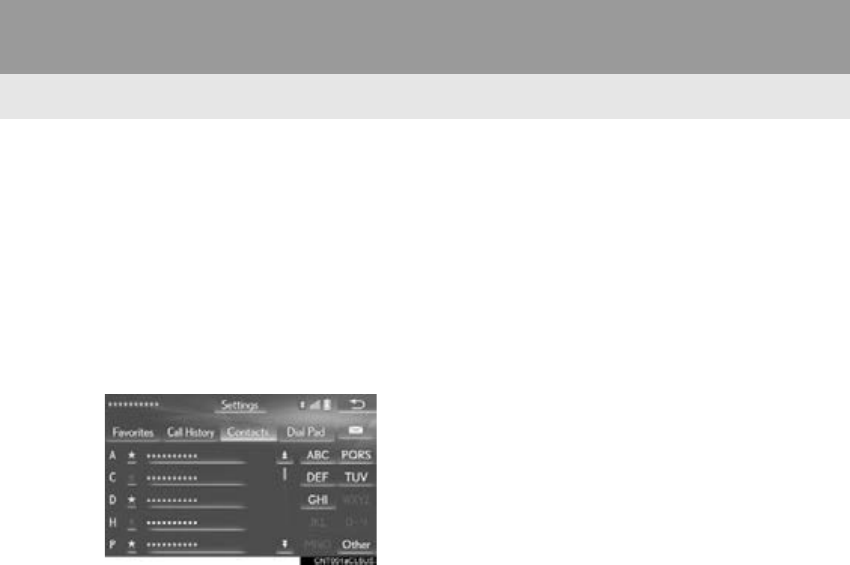
334
2. SETUP
RX_Navi_U
Registering contacts in the favorites list in
a different way (from the “Contacts”
screen)
1Display the phone top screen.
(P. 311)
2Select the “Contacts” tab.
3Select (grey) at the beginning of the
desired contact list name to be regis-
tered in the favorites list.
-When selected, (grey) is changed to
(yellow), and the contact is registered in
the favorites list.
Registering contacts in the favorites list in
a different way (from the “Contact De-
tails” screen)
1Display the phone top screen.
(P. 311)
2Select the “Contacts” or “Call History”
tab and select the desired contact.
3Select “Add Favorite”.
4Check that a confirmation screen is dis-
played when the operation is complete.
■DELETING THE CONTACTS IN
THE FAVORITES LIST
1Select “Remove Favorite”.
2Select the desired contacts and select
“Remove”.
3Select “Yes” when the confirmation
screen appears.
4Check that a confirmation screen is dis-
played when the operation is complete.
Deleting contacts in the favorites list in a
different way (from the “Contacts”
screen)
1Display the phone top screen.
(P. 311)
2Select the “Contacts” tab.
3Select (yellow) at the beginning of the
contact list name to be deleted from the
favorites list.
-When selected, (yellow) is changed to
(grey), and the data is deleted from the
list.
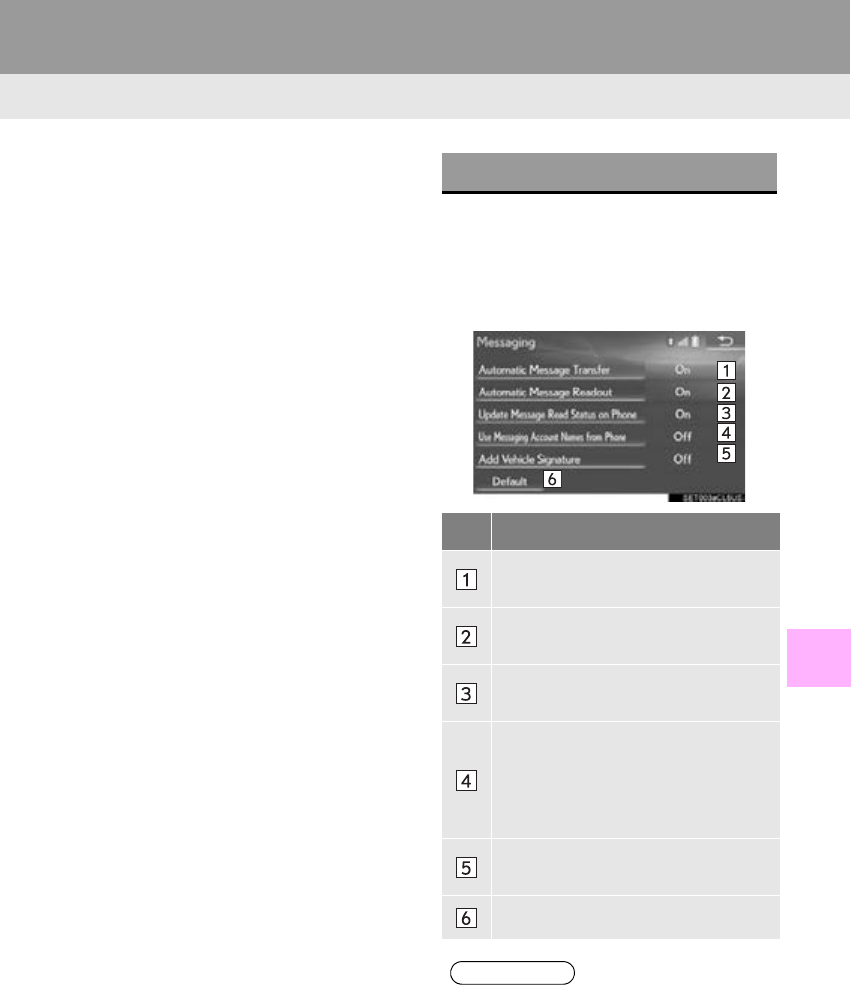
335
2. SETUP
RX_Navi_U
PHONE
8
Deleting contacts in the favorites list in a
different way (from the “Contact Details”
screen)
1Display the phone top screen.
(P. 311)
2Select the “Contacts”, “Call History” or
“Favorites” tab and select the desired
contact to delete.
3Select “Remove Favorite”.
4Select “Yes” when the confirmation
screen appears.
5Check that a confirmation screen is dis-
played when the operation is complete.
1Display the “Phone Settings” screen.
(P. 326)
2Select “Messaging”.
3Select the desired item to be set.
“Messaging” SCREEN
No.
Function
Select to set automatic message
transfer on/off.
Select to set automatic message read-
out on/off.
Select to set updating message read
status on phone on/off.
Select to set display of messaging ac-
count names on the inbox tab on/off.
When set to on, messaging account
names used on the cellular phone will
be displayed.
Select to set adding the vehicle signa-
ture to outgoing messages on/off.
Select to reset all setup items.
INFORMATION
●Depending on the phone, these functions
may not be available.
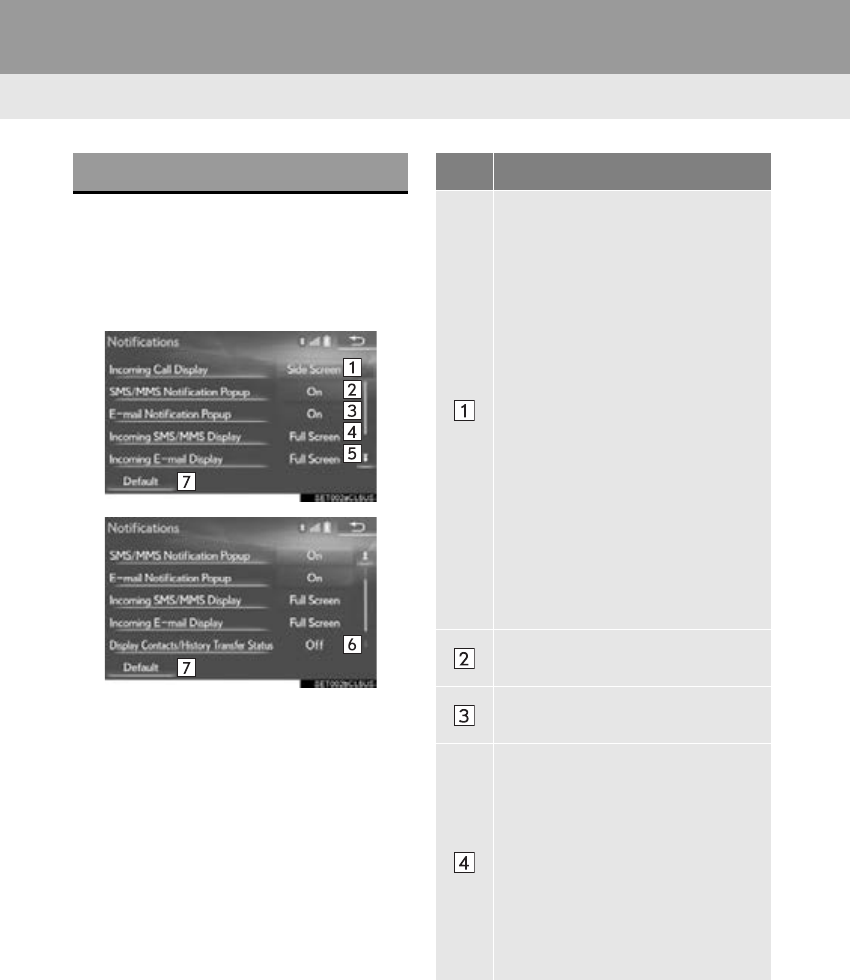
336
2. SETUP
RX_Navi_U
1Display the “Phone Settings” screen.
(P. 326)
2Select “Notifications”.
3Select the desired item to be set.
“Notifications” SCREEN No. Function
With 8-inch display: Select to
change the incoming call display.
“Full Screen”: When a call is re-
ceived, the hands-free screen is dis-
played and can be operated on the
screen.
“Drop-Down”: A message is dis-
played on the upper side of the
screen and can only be operated via
the steering wheel switches.
With 12.3-inch display: Select to
change where the screen is dis-
played between the “Main Dis-
play” and “Side Display”.
“Main Screen”: Select to display and
operate the screen on the “Main Dis-
play”.
“Side Screen”: Select to display and
operate the screen on the “Side Dis-
play”. For details of the screen:
P. 379
Select to set the SMS/MMS notifica-
tion popup on/off.
Select to set the e-mail notification
popup on/off.
Select to change the incoming SMS/
MMS display.
“Full Screen”: When an SMS/MMS
message is received, the incoming
SMS/MMS display screen is dis-
played and can be operated on the
screen.
“Drop-Down”: When an SMS/
MMS message is received, a mes-
sage is displayed on the upper side
of the screen.
337
2. SETUP
RX_Navi_U
PHONE
8
Select to change the incoming e-
mail display.
“Full Screen”: When an e-mail is re-
ceived, the incoming e-mail display
screen is the displayed and can be
operated on the screen.
“Drop-Down”: When an e-mail is re-
ceived, a message is displayed on
the upper side of the screen.
Select to set display of the contact/
history transfer completion message
on/off.
Select to reset all setup items.
INFORMATION
●Depending on the phone, these functions
may not be available.
No. Function
338
RX_Navi_U
3. WHAT TO DO IF...
1. TROUBLESHOOTING
When using the hands-free system with a Bluetooth® device
If there is a problem with the hands-free system or a Bluetooth® device, first check the
table below.
Symptom Likely cause Solution
Page
Cellular
phone
This
system
The hands-free sys-
tem or Bluetooth®
device does not
work.
The connected de-
vice may not be a
compatible
Bluetooth® cellular
phone.
For a list of specific
devices which
operation has been
confirmed on this
system, check with
your Lexus dealer or
the following
website:
http://
www.lexus.com/
MobileLink
The Bluetooth® ver-
sion of the connected
cellular phone may
be older than the
specified version.
Use a cellular phone
with Bluetooth® ver-
sion 2.0 or higher
(recommended: Ver.
3.0 +EDR or higher).
46

339
3. WHAT TO DO IF...
RX_Navi_U
PHONE
8
When registering/connecting a cellular phone
Symptom Likely cause Solution
Page
Cellular
phone
This
system
A cellular phone can-
not be registered.
An incorrect pass-
code was entered on
the cellular phone.
Enter the correct
passcode on the cel-
lular phone.
The registration op-
eration has not been
completed on the
cellular phone side.
Complete the regis-
tration operation on
the cellular phone
(approve registration
on the phone).
Old registration in-
formation remains on
either this system or
the cellular phone.
Delete the existing
registration informa-
tion from both this
system and the cellu-
lar phone, then regis-
ter the cellular phone
you wish to connect
to this system.
51
A Bluetooth® con-
nection cannot be
made.
Another Bluetooth®
device is already
connected.
Manually connect
the cellular phone
you wish to use to this
system.
51
Bluetooth® function
is not enabled on the
cellular phone.
Enable the
Bluetooth® function
on the cellular phone.
Automatic
Bluetooth® connec-
tion on this system is
set to off.
Set automatic
Bluetooth® connec-
tion on this system to
on when the engine
<power> switch is in
ACCESSORY or
IGNITION ON
<ON> mode.
56
Preferred device set-
tings function on this
system is set to on.
Set preferred device
settings function on
this system to off.
56
Set the desired cellu-
lar phone to the high-
est automatic
connection priority.
56
340
3. WHAT TO DO IF...
RX_Navi_U
When making/receiving a call
“Unable to dial.
Please check your
phone.” message is
displayed.
Bluetooth® function
is not enabled on the
cellular phone.
Enable the
Bluetooth® function
on the cellular phone.
Old registration in-
formation remains on
either this system or
the cellular phone.
Delete the existing
registration informa-
tion from both this
system and the cellu-
lar phone, then regis-
ter the cellular phone
you wish to connect
to this system.
51
Symptom Likely cause Solution
Page
Cellular
phone
This
system
A call cannot be
made/received.
Your vehicle is in a
“No Service” area.
Move to where “No
Service” no longer
appears on the dis-
play.
Symptom Likely cause Solution
Page
Cellular
phone
This
system
341
3. WHAT TO DO IF...
RX_Navi_U
PHONE
8
When using the phonebook
Symptom Likely cause Solution
Page
Cellular
phone
This
system
Phonebook data
cannot be trans-
ferred manually/au-
tomatically.
The profile version of
the connected cellu-
lar phone may not be
compatible with
transferring phone-
book data.
For a list of specific
devices which
operation has been
confirmed on this
system, check with
your Lexus dealer or
the following
website:
http://
www.lexus.com/
MobileLink
Automatic contact
transfer function on
this system is set to
off.
Set automatic con-
tact transfer function
on this system to on.
328
Passcode has not
been entered on the
cellular phone.
Enter the passcode
on the cellular phone
if requested (default
passcode: 1234).
Transfer operation
on the cellular phone
has not completed.
Complete transfer
operation on the cel-
lular phone (approve
transfer operation on
the phone).
Phonebook data
cannot be edited.
Automatic contact
transfer function on
this system is set to
on.
Set automatic con-
tact transfer function
on this system to off.
328

342
3. WHAT TO DO IF...
RX_Navi_U
When using the Bluetooth® message function
In other situations
Symptom Likely cause Solution
Page
Cellular
phone
This
system
Messages cannot be
viewed.
Message transfer is
not enabled on the
cellular phone.
Enable message
transfer on the cellu-
lar phone (approve
message transfer on
the phone).
Automatic transfer
function on this sys-
tem is set to off.
Set automatic trans-
fer function on this
system to on.
335
New message notifi-
cations are not dis-
played.
Notification of SMS/
MMS/E-mail recep-
tion on this system is
set to off.
Set notification of
SMS/MMS/E-mail
reception on this sys-
tem to on.
336
Automatic message
transfer function is
not enabled on the
cellular phone.
Enable automatic
transfer function on
the cellular phone.
Symptom Likely cause Solution
Page
Cellular
phone
This
system
The Bluetooth® con-
nection status is dis-
played at the top of
the screen each time
the engine <power>
switch is in ACCES-
SORY or IGNI-
TION ON <ON>
mode.
Connection confir-
mation display on this
system is set to on.
To turn off the dis-
play, set connection
confirmation display
on this system to off.
55

343
3. WHAT TO DO IF...
RX_Navi_U
PHONE
8
: For details, refer to the owner’s manual that came with the cellular phone.
Even though all con-
ceivable measures
have been taken, the
symptom status does
not change.
The cellular phone is
not close enough to
this system.
Bring the cellular
phone closer to this
system.
Radio interference
has occurred.
Turn off Wi-Fi® de-
vices or other devic-
es that may emit
radio waves.
The cellular phone is
the most likely cause
of the symptom.
Turn the cellular
phone off, remove
and reinstall the bat-
tery pack, and then
restart the cellular
phone.
Enable the cellular
phone’s Bluetooth®
connection.
Disable the Wi-Fi®
connection of the
cellular phone.
Stop the cellular
phone’s security soft-
ware and close all ap-
plications.
Before using an ap-
plication installed on
the cellular phone,
carefully check its
source and how its
operation might af-
fect this system.
Symptom Likely cause Solution
Page
Cellular
phone
This
system

344
3. WHAT TO DO IF...
RX_Navi_U
9
345
RX_Navi_U
2
9
4
5
6
7
8
3
1
10
1. FUNCTIONAL OVERVIEW............... 346
LEXUS Enform Remote........................................ 347
LEXUS Enform Service Connect ..................... 347
2. TYPE A: FUNCTION
ACHIEVED BY USING A
CELLULAR PHONE........................... 348
BEFORE USING THE FUNCTION ............. 350
PREPARATION BEFORE USING
LEXUS App Suite.................................................. 351
3. TYPE B: FUNCTION ACHIEVED
BY USING DCM AND THE
NAVIGATION SYSTEM................... 352
BEFORE USING THE FUNCTION ............. 353
4. TYPE C: FUNCTION ACHIEVED
BY USING DCM .................................. 355
1. LEXUS Enform Remote......................... 356
2. LEXUS Enform Service Connect ....... 357
3. LEXUS App Suite..................................... 358
USING LEXUS App Suite.................................. 358
LINKING LEXUS App Suite AND
NAVIGATION SYSTEM LOCAL
FUNCTION .......................................................... 362
ENTERING KEYWORD
OPERATION ....................................................... 363
4. LEXUS Enform Destinations................ 364
Destination Assist .................................................... 364
eDestination............................................................... 365
5. Lexus Insider .............................................. 368
NEW MESSAGE NOTIFICATION.............. 368
VIEWING AND PLAYING RECEIVED
Lexus Insider MESSAGES.............................. 368
1. LEXUS App Suite SETTINGS............... 371
SCREEN FOR LEXUS App Suite
SETTINGS................................................................ 371
1LEXUS ENFORM-OVERVIEW 2LEXUS ENFORM OPERATION
3SETUP
LEXUS ENFORM
LEXUS Enform connected services consists of five products:
LEXUS Enform Safety Connect
LEXUS Enform Service Connect
LEXUS Enform Remote
LEXUS Enform Destinations
LEXUS Enform App Suite
For availability and to learn more, visit http://www.lexus.com/enform/.
346
RX_Navi_U
1. LEXUS ENFORM-OVERVIEW
1. FUNCTIONAL OVERVIEW
-The functions included in Lexus Enform are classified into the following three types.
Type A: Function achieved by using a cellular phone
Type B: Function achieved by using an embedded cellular device in the vehicle
(DCM: Data Communication Module) and the navigation system
Type C: Function achieved by using DCM
-Each function is available in the following areas:
• LEXUS App Suite is available in the contiguous United States, Washington D.C. and
Alaska.
• LEXUS Enform Destinations is available in the contiguous United States, Washington
D.C. and limited areas of Alaska for vehicles that contain the appropriate map data.
• Lexus Insider is available in the contiguous United States, Washington D.C. and
Alaska.
• LEXUS Enform Safety Connect features include:
Automatic Collision Notification, Emergency Assistance, Stolen Vehicle Location
(available in the contiguous United States, Washington D.C., Hawaii, Alaska, and
Canada) and Enhanced Roadside Assistance (available in the contiguous United
States, Washington D.C., Alaska, and Canada).
Lexus Enform is a service that includes Safety Connect, Service Connect, Remote,
Destinations, Insider and App Suite.
Function Type
LEXUS App Suite Type A
LEXUS Enform Destinations
(Destination Assist, eDestination) Type B
Lexus Insider Type B
LEXUS Enform Safety Connect Type C
INFORMATION
●Availability of functions of the Lexus Enform service is dependent on network reception
level.
347
1. LEXUS ENFORM-OVERVIEW
LEXUS ENFORM
RX_Navi_U
9
-Function of the LEXUS Enform Remote is achieved by using an embedded cellular
device in the vehicle (DCM: Data Communication Module).
-Lexus Enform Remote is available in the contiguous United States, Washington D.C.
and Alaska.
-The Lexus Enform Service Connect is achieved by using a Data Communication Mod-
ule (DCM) built into the vehicle.
-Lexus Enform Service Connect is available in the contiguous United States,
Washington D.C., Hawaii, Alaska, and Canada.
LEXUS Enform Remote
LEXUS Enform Remote is a cellular phone application that lets you view and remotely
control certain aspects of your vehicle.
For details about the functions and services of this application, refer to http://
www.lexus.com/enform/.
LEXUS Enform Service Connect
Lexus Enform Service Connect uses embedded telematics hardware to collect and
transmit vehicle data that allows Lexus to provide:
-Vehicle Health Report (VHR)
(Safety Recalls, Service Campaigns, Current Vehicle Alerts, Required Mainte-
nance, and Vehicle Condition Status)
-Maintenance Notifications
-Vehicle Alert Notifications
For details about this service and how to register, refer to
http://www.lexus.com/enform/.
348
1. LEXUS ENFORM-OVERVIEW
RX_Navi_U
2. TYPE A: FUNCTION ACHIEVED BY USING A CELLULAR PHONE
Of the functions included with Lexus Enform, the App Suite relies on the use of a cel-
lular phone.
App Suite enables applicable apps installed on a cellular phone to be displayed on and
operated from the navigation screen via a Bluetooth®. A few settings must be per-
formed before App Suite can be used. (P. 351)
349
1. LEXUS ENFORM-OVERVIEW
LEXUS ENFORM
RX_Navi_U
9
*: For known compatible phones, refer to http://www.lexus.com/MobileLink.
No. Name Function
Content provider Provides contents to the navigation system via a cellular phone.
Application server Provides applications to the navigation system via a cellular
phone.
Cellular phone*
Using the App Suite, communication is relayed between the
navigation system, application server and contents provider.
The cellular phone cannot be operated while communicating.
Applications Display usable content from the content providers on the screen
using the data connection of the connected cellular phone.
Navigation system
Content received, via a cellular phone, from content provider
servers is displayed on the navigation screen. The navigation
system is equipped with an application player to run applica-
tions.
350
1. LEXUS ENFORM-OVERVIEW
RX_Navi_U
-User registration is required to start using
the App Suite function. (P. 351 )
-App Suite does not require an activation
fee or monthly recurring fees.
-Services requiring a separate contract can
also be used.*
*: For details, refer to
http://www.lexus.com/enform/ or call
1-800-255-3987.
-LEXUS App Suite is available in the contig-
uous United States, Washington D.C. and
Alaska.
-The following personal data can be deleted
and returned to their default settings:
• Downloaded contents
• Radio stations that were listened to
•Input history
BEFORE USING THE
FUNCTION
SUBSCRIPTION
AVAILABILITY OF FUNCTION
INFORMATION
●Data usage fees may apply while using
App Suite function. Confirm data usage
fees before using this function.
●The required operations to activate appli-
cations and connect a cellular phone to
the navigation system, and the registra-
tion steps for the App Suite are explained
in this section. For details regarding oper-
ation of the App Suite and the applica-
tions, refer to
http://www.lexus.com/enform/.
●Availability of functions of the Lexus
Enform service is dependent on network
reception level.
INITIALIZING PERSONAL
DATA
The personal data used in applications
can be reset. (P. 64)
INFORMATION
●Once initialized, data will be erased. Pay
close attention when initializing data.
351
1. LEXUS ENFORM-OVERVIEW
LEXUS ENFORM
RX_Navi_U
9
Perform the settings in the following order.
In order to use App Suite, the following
must first be performed:
-User registration with the service
(P. 351)
-Download the App Suite application onto
your cellular phone, and login to the appli-
cation. (P. 351 )
-Register the cellular phone, on which the
App Suite application was installed, with
the navigation system. (P. 351)
-Register a Bluetooth® phone with the
hands-free system. (P. 42 )
Perform user registration at http://
www.lexus.com/enform/ or register within
the App Suite application after you down-
load it onto your cellular phone.
1Download the App Suite application to
your cellular phone.
2Run the App Suite application on your
cellular phone.
3Enter the information required into the
App Suite application. Login to the ap-
plication.
PREPARATION BEFORE
USING LEXUS App Suite
SETTINGS REQUIRED TO USE
LEXUS App Suite
1User registration
2Download the App Suite application to
your cellular phone.
3Register the cellular phone with the
navigation system.
USER REGISTRATION
REGISTERING THE LEXUS App
Suite APPLICATION
INFORMATION
●Applications can only be used when the
App Suite application has been down-
loaded to your cellular phone and the
application is running.
●App Suite operational procedures can
also be confirmed by visiting
http://www.lexus.com/enform/.
●In order to use applications, it is neces-
sary to run the App Suite application on
your cellular phone.
●If an iPhone is connected via Bluetooth®
and USB at the same time, system opera-
tion may become unstable. For known
phone compatibility information, refer to
http://www.lexus.com/enform/.
●If a App Suite application is used while
iPod audio/video is being played back,
system operation may become unstable.
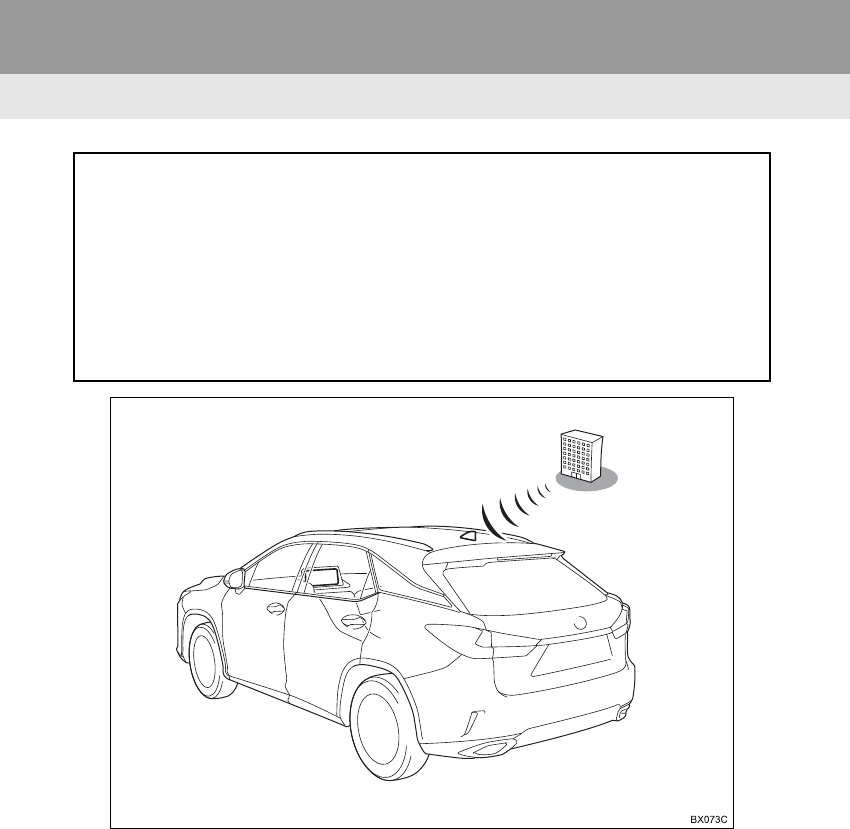
352
1. LEXUS ENFORM-OVERVIEW
RX_Navi_U
3. TYPE B: FUNCTION ACHIEVED BY USING DCM AND THE NAVIGATION SYSTEM
The functionality of Lexus Enform Safety Connect, Lexus Enform Destinations, and
Lexus Insider is made possible through the shared work of the DCM and the naviga-
tion system.
These are subscription-based telematics services that use Global Positioning System
(GPS) data and embedded cellular technology to provide safety and security as well
as convenience features.
These services are available by subscription on select, telematics hardware-equipped
vehicles and supported by Lexus’ designated response center, which operates 24
hours a day, 7 days a week.
353
1. LEXUS ENFORM-OVERVIEW
LEXUS ENFORM
RX_Navi_U
9
-After you have signed the Telematics Sub-
scription Service Agreement and are
enrolled, you can begin receiving services.
A variety of subscription terms are avail-
able. Contact your Lexus dealer, or call 1-
800-25-LEXUS (1-800-255-3987), for
further subscription details. (P. 364)
-Destinations is available in the contiguous
United States, Washington D.C. and limited
areas of Alaska for vehicles that contain the
appropriate map data.
-Lexus Insider is available in the contiguous
United States, Washington D.C. and
Alaska.
-Enrollment in Lexus Enform Safety Con-
nect (via your dealership) is required to
activate all functions.
BEFORE USING THE
FUNCTION
SUBSCRIPTION
AVAILABILITY OF
FUNCTION(S)
ACTIVATION OF
FUNCTION(S)
-Certification for Lexus Enform Safety
Connect
FCC WARNING
This equipment complies with FCC
radiation exposure limits set forth for an
uncontrolled environment and meets
the FCC radio frequency (RF)
Exposure Guidelines in Supplement C
to OET65.
This equipment should be installed and
operated keeping the radiator at least
20cm or more away from person’s
body (excluding extremities: hands,
wrists, feet and ankles).
FCC ID: O6Y-CDMRF101
FCC ID: XOECDMRF101B
FCC ID: N7NGTM2

354
1. LEXUS ENFORM-OVERVIEW
RX_Navi_U
INFORMATION
●Exposure to radio frequency signals:
The Lexus Enform system installed in
your vehicle includes a low power radio
transmitter and receiver. The system
receives and also sends out radio fre-
quency (RF) signals.
●In August 1996, the Federal Communi-
cations Commission (FCC) adopted RF
exposure guidelines with safety levels for
mobile wireless phones. Those guidelines
are consistent with the safety standards
previously set by both U.S. and interna-
tional standards bodies.
• ANSI (American National Standards
Institute) C95.1 [1992]
• NCRP (National Council on Radiation
Protection and Measurement) Report
86 [1986]
• ICNIRP (International Commission on
Non-Ionizing Radiation Protection)
[1996]
●These standards are based on compre-
hensive and periodic evaluations of the
relevant scientific literature. Over 120
scientists, engineers, and physicians from
universities, government health agen-
cies, and industry reviewed the available
body of research to develop the ANSI
Standard (C95.1).
●The design of Lexus Enform system com-
plies with the FCC guidelines in addition
to those standards.
INFORMATION
●Contact with the Lexus response center
is dependent upon the telematics device
being in operative condition, cellular con-
nection availability, navigation map data,
and GPS satellite signal reception, which
can limit the ability to reach the response
center or receive support. Enrollment
and Telematics Subscription Service
Agreement required. A variety of sub-
scription terms are available; charges
vary by subscription term selected.
●The Lexus response center offers sup-
port in multiple languages.
●Select Lexus Enform Safety Connect-
subscribed vehicles are capable of com-
municating vehicle information. Please
see the terms and conditions for addi-
tional details.
Owners who do not wish to have their
vehicle transmit this information can opt
out at the time of enrollment or by calling
1-800-255-3987 and following the
prompts for Lexus Enform Safety Con-
nect.
●For further details about the service, con-
tact your Lexus dealer.
●Lexus Enform functions are not subject to
section 255 of the Telecommunications
Act and the system is not TTY compati-
ble.
355
1. LEXUS ENFORM-OVERVIEW
RX_Navi_U
LEXUS ENFORM
9
4. TYPE C: FUNCTION ACHIEVED BY USING DCM
The functionality of Lexus Enform Safety Connect is made possible by the use of a
DCM.
For details, refer to “Owner’s Manual”.
356
RX_Navi_U
2. LEXUS ENFORM OPERATION
1. LEXUS Enform Remote
-After you sign the Telematics Subscription Service Agreement (see the LEXUS Enform
Safety Connect section in “Owner’s Manual”), download the LEXUS Enform Remote
app from your cellular phone’s app store, and register within the app (or enroll and com-
plete registration at the dealer), you can begin using these services.
-A variety of subscription terms are available. Contact your Lexus dealer, or call 1-800-
25-LEXUS (1-800-255-3987) for further subscription details.
-Lexus Enform Remote is available in the contiguous United States, Washington D.C.,
and Alaska.
For details about the functions and services provided by this app, refer to
http://www.lexus.com/enform/.
SUBSCRIPTION
AVAILABILITY OF FUNCTION
INFORMATION
●Lexus Enform Remote should only be used by authorized users.
●Laws in some communities may require that the vehicle be within view of the user when
operating Lexus Enform Remote.
In some states, use of Lexus Enform Remote may violate state or local laws. Before using
Lexus Enform Remote, check your state and local laws.
●Any malfunction of the Lexus should be repaired by your Lexus dealer.
●Lexus Enform Remote is designed to work at temperatures above -22 F (-30 C). This
specification is related to the Lexus Enform Remote operation, but is dependent on the
vehicle’s operating temperature range which may be different.
●Content is subject to change without notice.
●Some features of the Lexus Enform Remote may not be available on some models.
●Additional information can be found at www.lexus.com/enform/.
357
2. LEXUS ENFORM OPERATION
RX_Navi_U
LEXUS ENFORM
9
2. LEXUS Enform Service Connect
-Lexus Enform Service Connect is available in the contiguous United States,
Washington D.C., Hawaii, Alaska, and Canada.
For details about this service and how to register, refer to
http://www.lexus.com/enform/.
AVAILABILITY OF FUNCTION
INFORMATION
●Availability of functions of the Lexus Enform Service Connect is dependent on network
reception level.
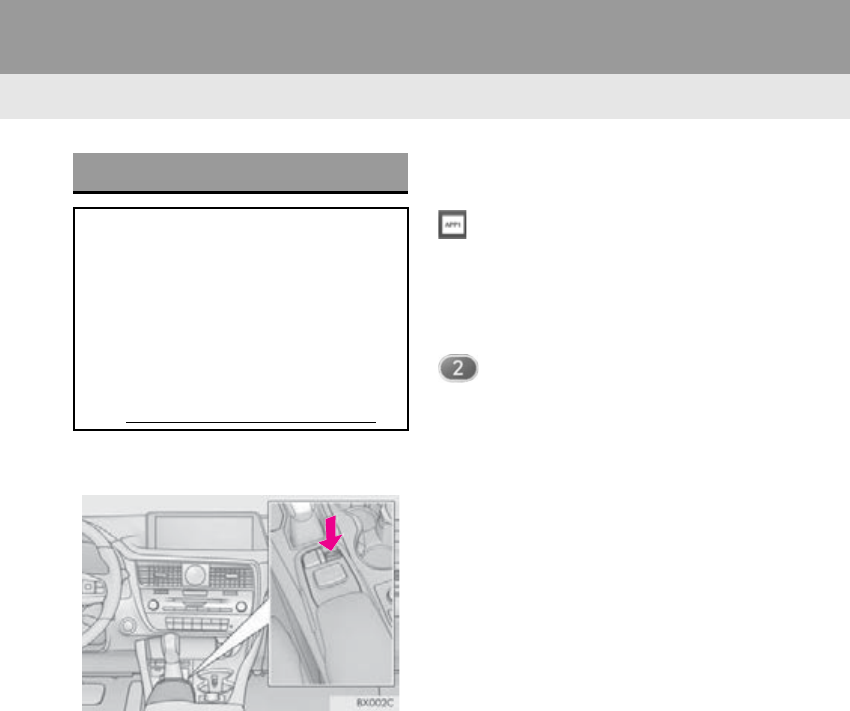
358
2. LEXUS ENFORM OPERATION
RX_Navi_U
3. LEXUS App Suite
1Press the “MENU” button on the
Remote Touch.
2Select “LEXUS App Suite”.
3Select the desired application screen
button.
: Select to activate an application.
“Update”: Select to update the applica-
tions. (P. 359)
“Reorder”: Select to change the order of
the applications. (P. 360)
: Displays the number of new notifi-
cations for the application
USING LEXUS App Suite
App Suite is a function that enables ap-
plicable apps installed on a cellular
phone to be displayed on and operated
from the navigation screen. Before App
Suite can be used, a few settings need to
be performed. (P. 351)
For details about the functions and ser-
vices provided by each application, re-
fer to http://www.lexus.com/enform/.
359
2. LEXUS ENFORM OPERATION
RX_Navi_U
LEXUS ENFORM
9
■DOWNLOADING UPDATE
1Select “Update” on the “LEXUS App
Suite” screen. (P. 358)
2Check that downloading starts.
“Download in Background”: Select to op-
erate other functions while downloading.
“Cancel”: Select to cancel updating.
3Check that downloading is complete.
“Later”: Select to install later. When this
screen button is selected, the screen will
return to the last displayed screen. To in-
stall the update data: P. 360
“See Detail”: Select to display detailed in-
formation on the update data.
“Install”: Select to install the update data.
Follow the steps “INSTALLING THE UP-
DATE DATA” from “STEP 2”.(P. 360)
UPDATING AN APPLICATION
When App Suite is activated, an applica-
tion may need to be updated. By updat-
ing the application, it can be kept to the
latest version. To update an application,
it is necessary to download update data
and install it.
If an update is available, “Update” can
be selected.
360
2. LEXUS ENFORM OPERATION
RX_Navi_U
■INSTALLING THE UPDATE DATA
1Select “Install” on the “LEXUS App
Suite” screen. (P. 358)
2Select “Continue”.
“Later”: Select to postpone the installation
of the update data and go back to the previ-
ous screen.
3Check that installing is started.
“Install in Background”: Select to operate
other function while installing.
4Select “OK” after the installing is com-
plete.
1Display the “LEXUS App Suite” screen.
(P. 358)
2Select “Reorder”.
3Select the desired application to be
moved.
4Select “<<” or “>>” to move the applica-
tion, and select “OK”.
After the downloading is complete,
“Update” will be changed to “Install”.
INFORMATION
●The App Suite function cannot be oper-
ated while installing.
REORDERING THE
APPLICATIONS
Order of the applications can be
changed.
361
2. LEXUS ENFORM OPERATION
RX_Navi_U
LEXUS ENFORM
9
IF A MESSAGE APPEARS ON THE SCREEN
When problems occur with starting the application player, a message will appear on
the screen. Referring to the table below, identify the problem and take the suggested
corrective action.
Message Display conditions Corrective action
“This feature is unavailable
during an emergency call.”
Safety Connect is being im-
plemented.
After the Safety Connect call
is finished, perform the opera-
tion again.
“This feature is unavailable
while transferring contacts.”
Contacts are being trans-
ferred manually from the
phonebook.
When the transfer of contacts
is complete, perform the op-
eration again.
“Unable to connect to a
Bluetooth* phone. For trou-
bleshooting assistance,
please visit the Lexus website
or contact your dealer.”
The cellular phone cannot be
connected.
Refer to http://
www.lexus.com/enform/ to
confirm if the phone is com-
patible or not.
“This feature is unavailable
during a handsfree call.”
A hands-free call is in
progress.
After the hands-free call is fin-
ished, perform the operation.
“To use the services, an active
application needs to be run-
ning on your phone. For more
information, please visit
lexus.com.”
The LEXUS App Suite appli-
cation cannot be connected
to Bluetooth® SPP.
Refer to http://
www.lexus.com/enform/ to
confirm if the phone is
Bluetooth® SPP compatible
or not, and then activate the
App Suite application.
“Communication error.
Please try again.”
Communication was discon-
nected.
After a few moments, retry the
operation.
*: Bluetooth is a registered trademark of Bluetooth SIG, Inc.
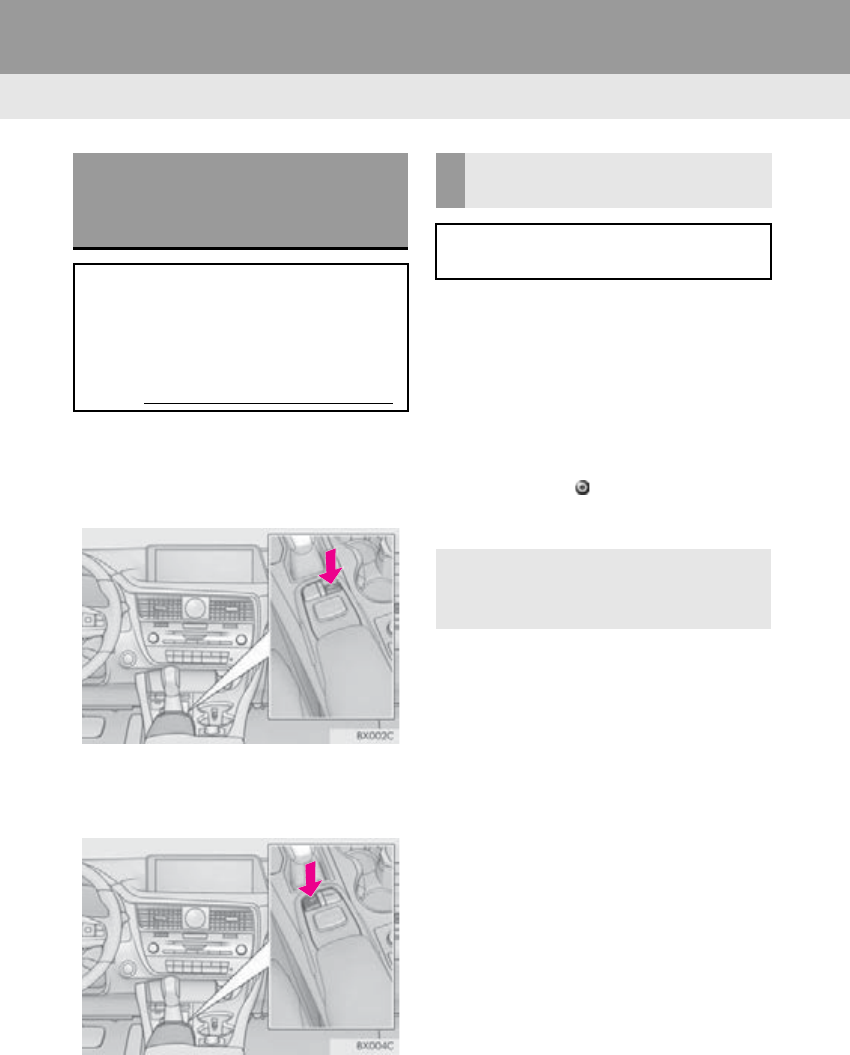
362
2. LEXUS ENFORM OPERATION
RX_Navi_U
With 8-inch display
1Press the “MENU” button on the
Remote Touch, then select “Nav” on the
“Menu” screen.
With 12.3-inch display
1Press the “MAP” button on the Remote
Touch.
2Select “Dest.”.
3Select “Web Search”.
4Check that the “Web Search” screen is
displayed.
1Display the “Web Search” screen.
(P. 362)
2Select the desired application screen
button to perform search.
3Enter a search term, and select “Go”.
4Select “Map”.
5Select “Go to ”.
6Select “OK” to start guidance.
LINKING LEXUS App Suite
AND NAVIGATION SYSTEM
LOCAL FUNCTION
The setting a destination and making a
hands-free call functions of the naviga-
tion system can be performed via App
Suite. For details about the functions and
services provided by each application,
refer to http://www.lexus.com/enform/.
SETTING A DESTINATION
USING LEXUS App Suite
Locations that were searched for using
the App Suite can be set as a destination.
-For the operation of the route guidance
screen and the function of each screen
button: P. 1 0 4
363
2. LEXUS ENFORM OPERATION
RX_Navi_U
LEXUS ENFORM
9
1Display the “Web Search” screen.
(P. 362)
2Select the desired application screen
button to perform search.
3Enter a search term, and select “Go”.
4Select “Call”.
5Select “Yes”.
“Cancel”: Select to cancel making a phone
call.
6Check that the “Call” screen is dis-
played.
1Display the “LEXUS App Suite” screen.
(P. 358)
2Select the desired application screen
button.
3Select the character entering space.
4Enter a search term, and then select
“OK”.
5Entering characters will be reflected on
the character entering space.
1Display the “LEXUS App Suite” screen.
(P. 358)
2Select the desired application screen
button.
3Press the talk switch. (P. 250)
4Say the desired keyword.
-Completion of the keyword will be
detected automatically.
5Search results will be displayed on the
screen.
MAKING A PHONE CALL
USING LEXUS App Suite
Phone calls can be made to locations
which were searched for using App
Suite.
-For phone operation and the function of
each screen button: P. 318
ENTERING KEYWORD
OPERATION
A keyword can be entered to an appli-
cation by the software keyboard or
voice recognition function. For details
about the functions and services provid-
ed by each application, refer to
http://www.lexus.com/enform/.
-The keyboard layout can be changed.
(P. 59)
ENTERING A KEYWORD
USING THE SOFTWARE
KEYBOARD
-For details on operating the keyboard:
P. 3 6
ENTERING A KEYWORD
USING THE VOICE
RECOGNITION FUNCTION
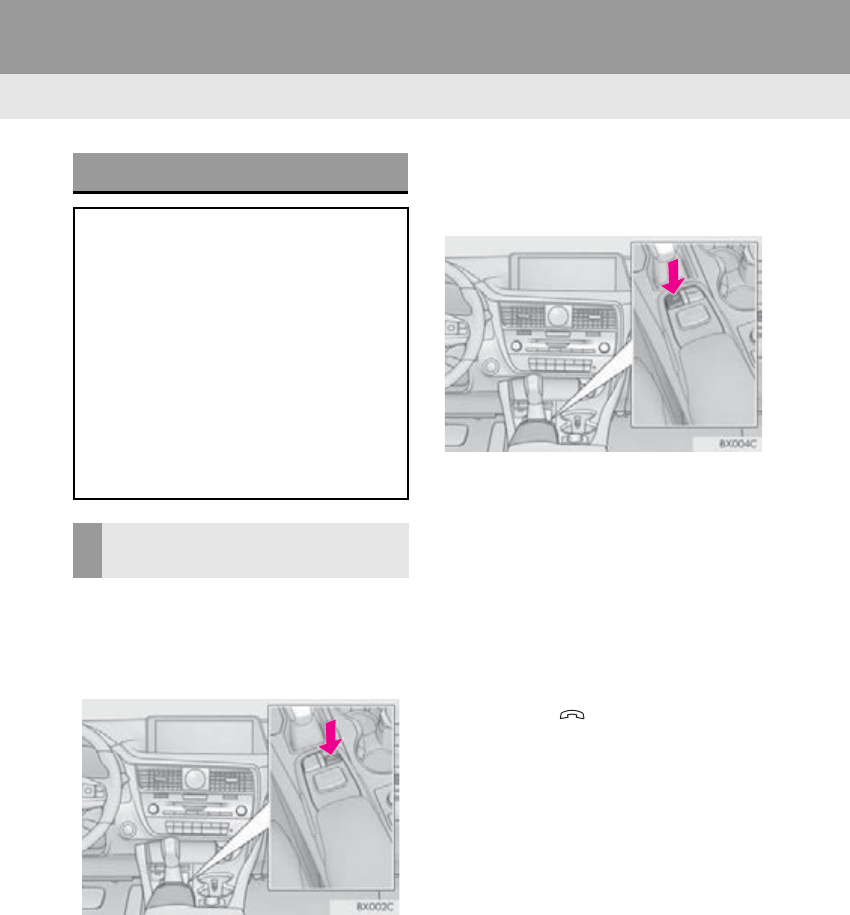
364
2. LEXUS ENFORM OPERATION
RX_Navi_U
4. LEXUS Enform Destinations
With 8-inch display
1Press the “MENU” button on the
Remote Touch, then select “Nav” on the
“Menu” screen.
With 12.3-inch display
1Press the “MAP” button on the Remote
Touch.
2Select “Dest.”.
3Select “Destination Assist”.
4When an agent comes on the line, tell
the agent the address, business name,
or the type of POI or service.
-To adjust the call volume, select “-” or “+”,
or use the volume switch on the steering
wheel during the call.
-To hang up the phone, select “Disconnect”
or press the switch on the steering
wheel.
Destination Assist
Destinations provide you with live assis-
tance for finding destinations via the
Lexus response center. You can request
either a specific business, address, or
ask for help locating your desired desti-
nation by category, such as restaurants,
gas stations, shopping centers or other
Points of Interest (POI).
After you tell the agent your choice of
destination, its coordinates are sent
wirelessly to your vehicle’s navigation
system.
MAKE A CALL WITH
Destination Assist
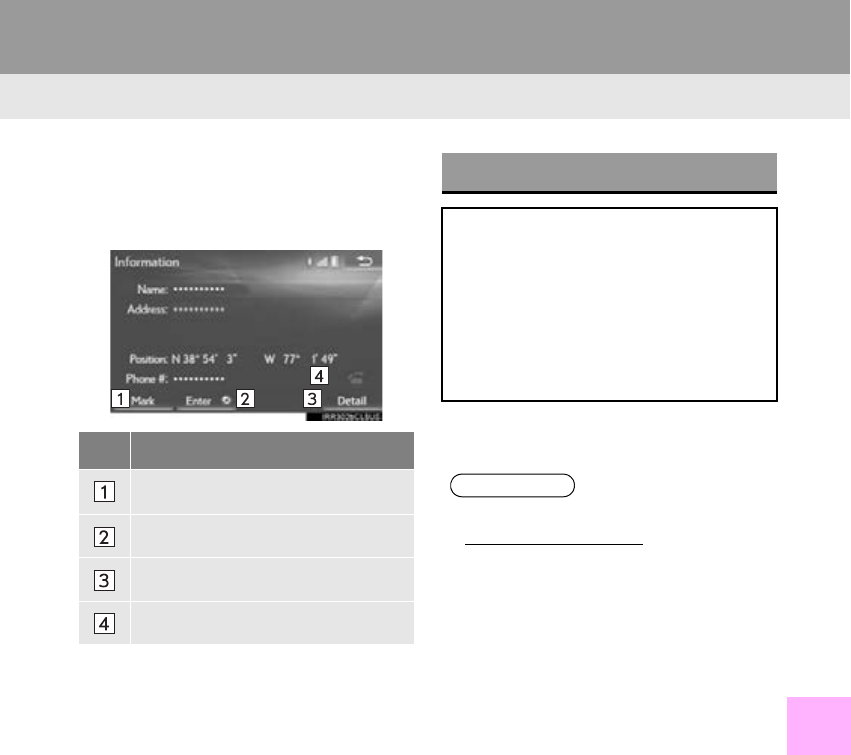
365
2. LEXUS ENFORM OPERATION
RX_Navi_U
LEXUS ENFORM
9
5After the agent helps you determine
your location of choice, this screen is
displayed. Select the screen button of
the desired action.
-Locations can be organized into up to 20
personalized folders.
No. Function
Select to register as a memory point.
Select to set as a destination.
Select to display detailed information.
Select to call the registered number.
eDestination
With the eDestination feature, you can
go online, and via the Lexus.com own-
er’s Web site, select and organize desti-
nations of your choice and then
wirelessly send them to your vehicle’s
navigation system. Up to 200 locations
can be stored online and accessed or
updated at any time.
INFORMATION
●You must first go online at
www.lexus.com/drivers/ to view the
Owners site where you will need to regis-
ter and log in. After this, personalized
folders that contain the locations to be
sent to your vehicle can be created. (See
Lexus Enform Guide for more informa-
tion.)
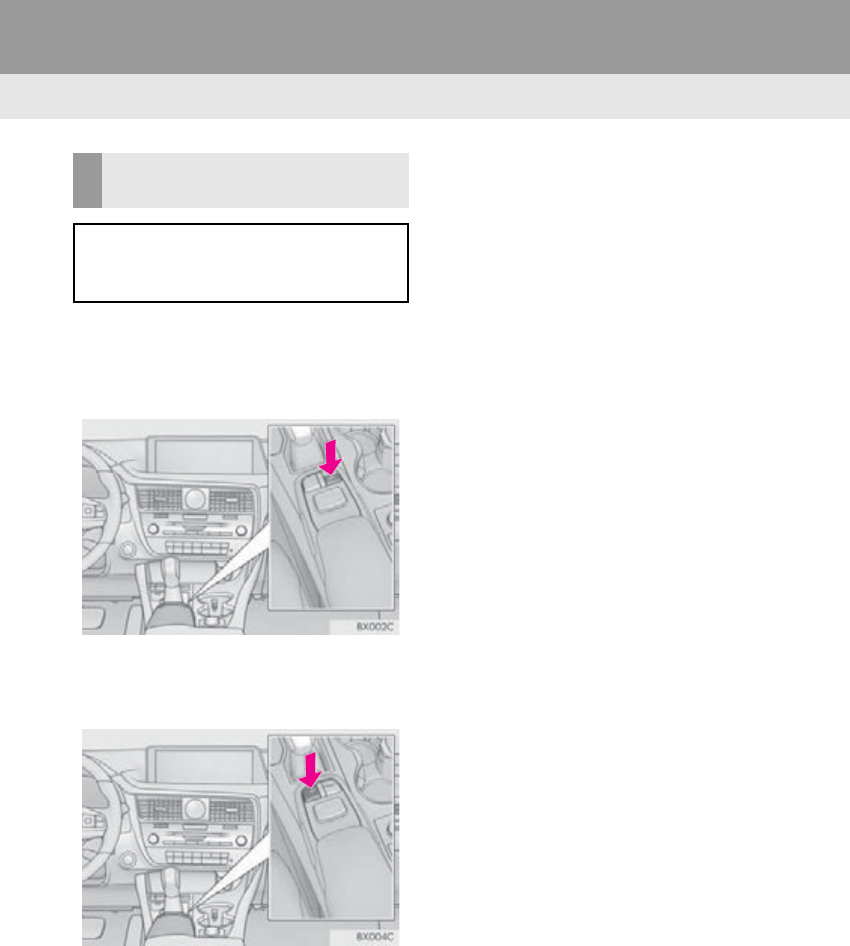
366
2. LEXUS ENFORM OPERATION
RX_Navi_U
With 8-inch display
1Press the “MENU” button on the
Remote Touch, then select “Nav” on the
“Menu” screen.
With 12.3-inch display
1Press the “MAP” button on the Remote
Touch.
2Select “Dest.”.
3Select “Point of Interest”.
4Select “eDestination”.
5Select “Download”.
6Select “Yes” when the confirmation
screen appears.
7Check that downloading starts.
-The most recent Destinations data will be
loaded to the navigation system.
DOWNLOADING
eDestinations
After updating eDestination folders on-
line, it is necessary to download the up-
dated data to the vehicle.
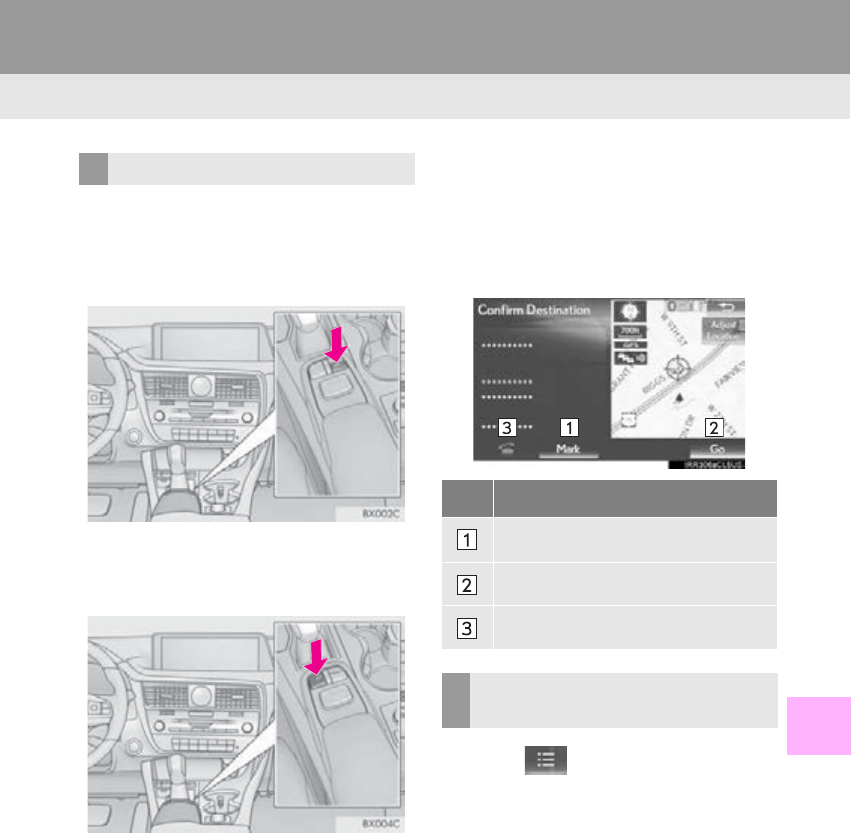
367
2. LEXUS ENFORM OPERATION
RX_Navi_U
LEXUS ENFORM
9
With 8-inch display
1Press the “MENU” button on the
Remote Touch, then select “Nav” on the
“Menu” screen.
With 12.3-inch display
1Press the “MAP” button on the Remote
Touch.
2Select “Dest.”.
3Select “Point of Interest”.
4Select “eDestination”.
5Select the desired eDestination catego-
ry.
6Select the desired location.
7Select the screen button of the desired
action.
1Select on the map screen.
(P. 74)
2Select “Map Information”.
3Select “eDestination”.
SEARCHING eDestinations
No. Function
Select to register as a memory point.
Select to set as a destination.
Select to call the registered number.
DISPLAYING eDestination
ICONS
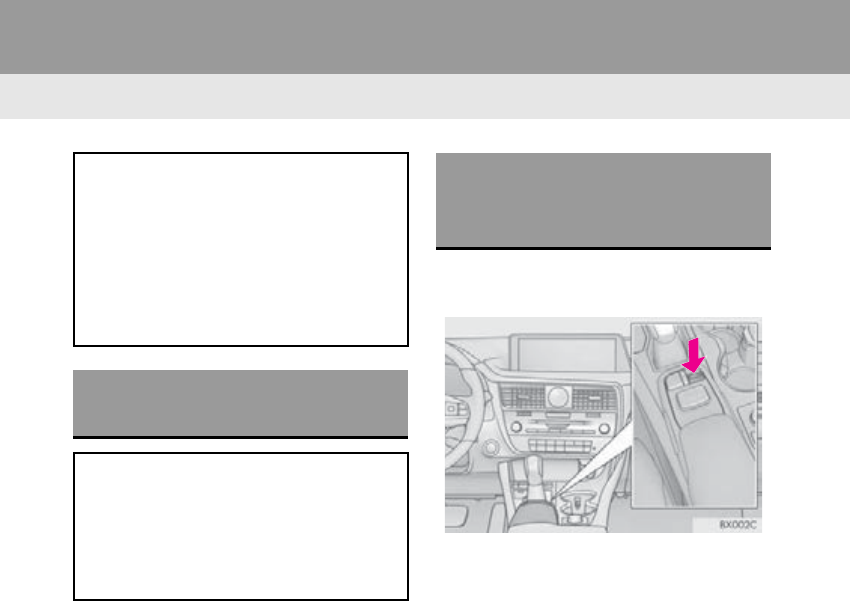
368
2. LEXUS ENFORM OPERATION
RX_Navi_U
5. Lexus Insider
1When the new message notification ap-
pears, any of the following options can
be selected.
“Listen Now”: Select to play newly re-
ceived Lexus Insider article(s).
“Listen Later”: Select to close the notifica-
tion screen without playing articles. The
notification screen will be displayed again
when the engine <power> switch is turned
to ACCESSORY or IGNITION ON
<ON> mode.
1Press the “MENU” button on the
Remote Touch.
2Select “Info”.
3Select “Lexus Insider”.
4Select the desired article title.
“Read All”: Select to listen to all stored
Lexus Insider broadcasts.
-To disrupt the audio read of Lexus Insider,
press the “MODE” switch on the steering
wheel, or press the “RADIO” or “MEDIA”
button on the audio system.
Lexus Insider is an optional function that
can send audio messages, or articles, to
participating owners’ vehicles via the
navigation system. Potential Lexus
Insider subjects might include, for exam-
ple, Lexus vehicle technology tips, up-
dates on regional Lexus events, or audio
excerpts from Lexus Magazine articles.
NEW MESSAGE
NOTIFICATION
When the vehicle is first powered on and
a new Lexus Insider article is available, a
notification will appear on the navigation
screen.The notice will appear for only
approximately 6 seconds unless one of
the options listed is selected.
VIEWING AND PLAYING
RECEIVED Lexus Insider
MESSAGES
369
2. LEXUS ENFORM OPERATION
RX_Navi_U
LEXUS ENFORM
9
1Display the “LEXUS Insider” screen.
(P. 368)
2Select the desired article.
3Select “Next” or “Previous” to listen to
another article.
-The “ ” or “ ” switch on the steering wheel
can be used to move to the previous or next
article.
-To stop listening to the broadcast, select
“Stop” or press the “PWR·VOL” knob of
the audio system.
MESSAGE ICONS
Icons appear at the left of the Lexus
Insider story titles and indicate the fol-
lowing.
Icon Article
Unread article
Previously read article
Unread article with
downloadable Point of
Interest (POI)
Previously read article
with downloadable Point
of Interest (POI)
LISTENING TO ANOTHER
ARTICLE
370
2. LEXUS ENFORM OPERATION
RX_Navi_U
1Display the “LEXUS Insider” screen.
(P. 368)
2Select the desired article.
3Select “Enter ”.
-If a POI is contained, “Enter ” can be
selected to download a POI to the naviga-
tion system.
4Select “Go” to set the POI as a destina-
tion with route directions.
1Display the “LEXUS Insider” screen.
(P. 368)
2Select “Delete”.
3Select the item to be deleted and select
“Delete”.
4Select “Yes” when the confirmation
screen appears.
DOWNLOADING A POI
Some Lexus Insider articles will contain
a downloadable POI relevant to the
content.
DELETING Lexus Insider
ARTICLE
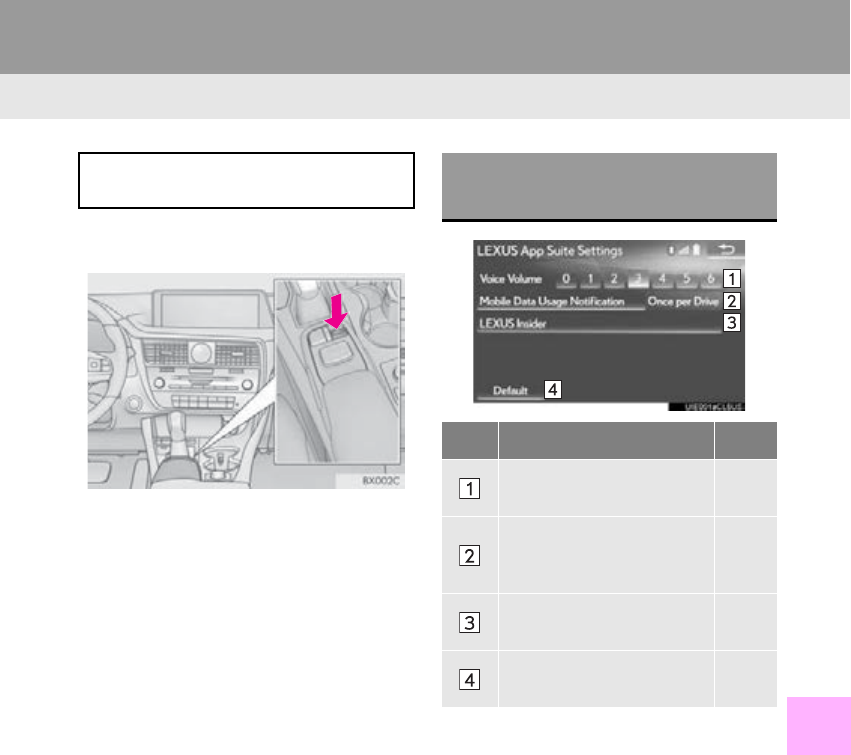
371
RX_Navi_U
LEXUS ENFORM
9
3. SETUP
1. LEXUS App Suite SETTINGS
1Press the “MENU” button on the
Remote Touch.
2Select “Setup”.
3Select “LEXUS App Suite”.
4Select the items to be set.
The settings of App Suite can be
changed. SCREEN FOR LEXUS App Suite
SETTINGS
No. Information Page
Select to set the voice guid-
ance volume.
Select to set the pop up re-
minder for cellular phone
data usage.
372
Select to set Lexus Insider
settings. 372
Select to reset all setup
items.
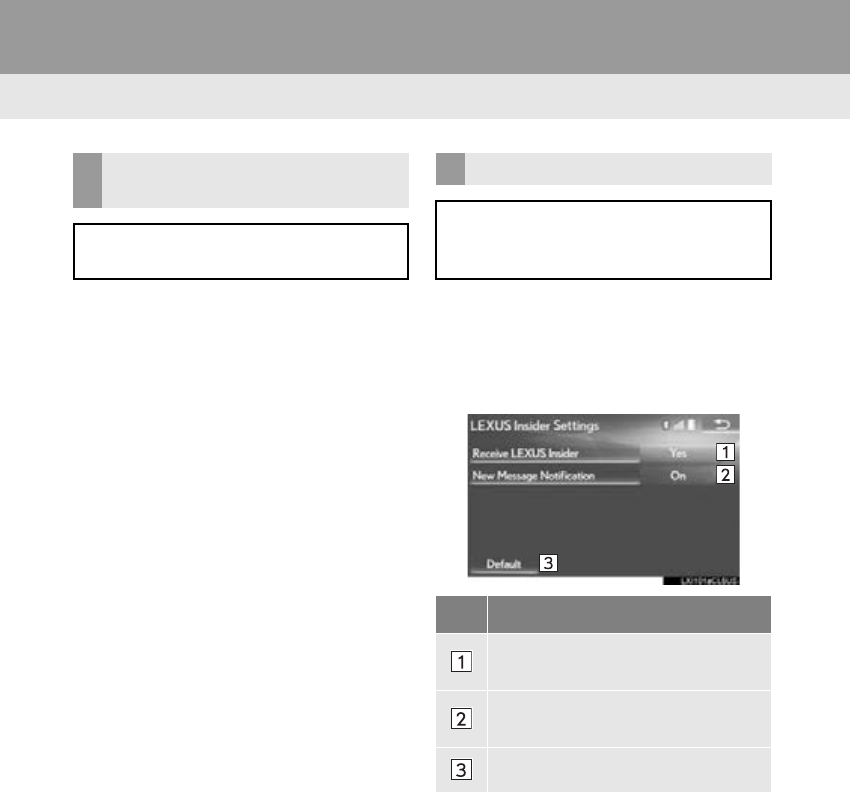
372
3. SETUP
RX_Navi_U
1Display the “LEXUS App Suite Set-
tings” screen. (P. 371)
2Select “Mobile Data Usage Notifica-
tion”.
3Check the desired function to be oper-
ated.
1Display the “LEXUS App Suite Set-
tings” screen. (P. 371)
2Select “LEXUS Insider”.
3Select the items to be set.
PHONE DATA PLAN POP-UP
SETTINGS
The phone data plan pop-up can be set
when a paid application is downloaded.
Lexus Insider SETTINGS
Lexus Insider settings, notification, and
opt in or out of article receipt can be
changed.
No. Function
Select to set the receiving of Lexus In-
sider articles yes/no.
Select to set the new message notifi-
cation on/off.
Select to reset all setup items.

10
373
1
2
3
4
5
6
7
8
9
10
RX_Navi_U
1. 12.3-INCH DISPLAY-
OVERVIEW ........................................... 374
FULL SCREEN DISPLAY ................................... 374
SPLIT-SCREEN DISPLAY .................................. 374
2. USING “Side Display” ............................ 376
BASIC SCREENS ................................................... 376
INTERRUPTION SCREENS ............................ 378
112.3-INCH DISPLAY
OPERATION
12.3-INCH DISPLAY*
*: If equipped.
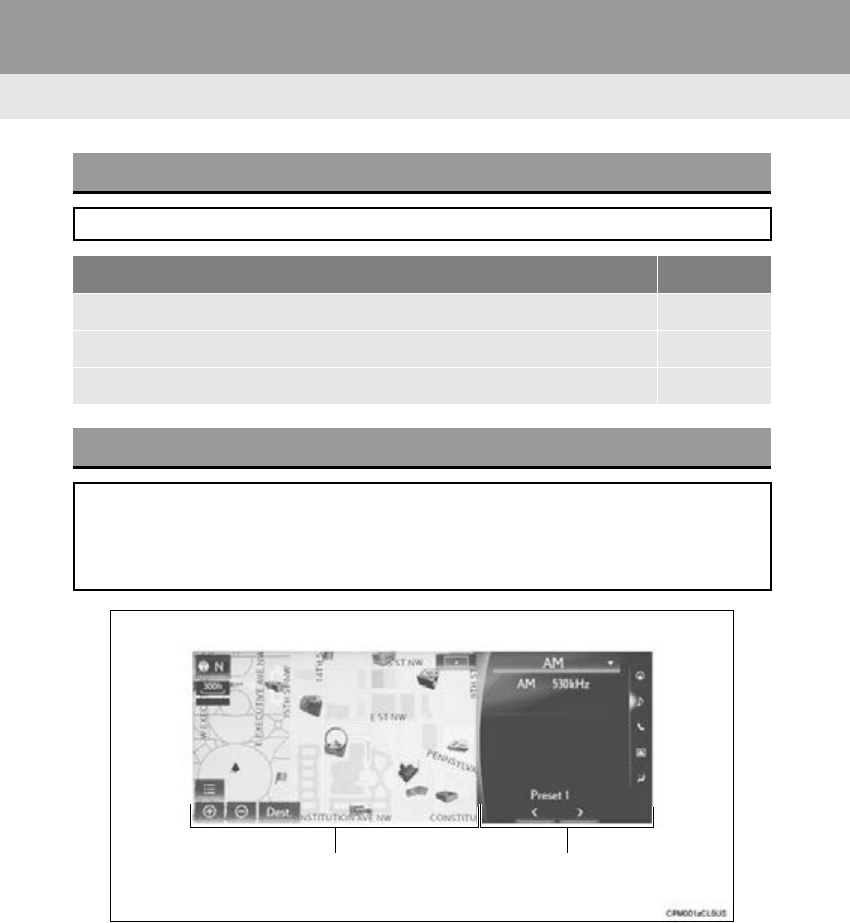
374
RX_Navi_U
1. 12.3-INCH DISPLAY OPERATION
1. 12.3-INCH DISPLAY-OVERVIEW
FULL SCREEN DISPLAY
The following functions can be displayed full screen:
Function Page
Initial screen 30
“Menu” screen 12
Map screen 74
SPLIT-SCREEN DISPLAY
Different information can be displayed on the left and right of the screen. For example,
audio screen can be displayed and operated while the map screen is being displayed.
The large screen on the left of the display is called the “Main Display”, and the small
screen to the right is called the “Side Display”.
“Main Display” “Side Display”
375
1. 12.3-INCH DISPLAY OPERATION
12.3-INCH DISPLAY
10
RX_Navi_U
Basic screens
Interrupt screens
When selecting the “Main Display”
1Move the Remote Touch knob to the
left.
When selecting the “Side Display”
1Move the Remote Touch knob to the
right.
“Main Display”
For details about the functions and oper-
ation of the “Main Display”, refer to the
respective section.
“Side Display”
The following functions can be displayed
and operated on the “Side Display”.
Function Page
Navigation system 376
Audio 377
Phone 378
Vehicle information “Owner’s
Manual”
Air conditioning “Owner’s
Manual”
Function Page
Intuitive parking assist “Owner’s
Manual”
Phone 379
Destination Assist 364
Driving mode “Owner’s
Manual”
OPERATING
CHARACTERISTICS OF THE
SPLIT-SCREEN DISPLAY
When the split-screen is displayed, it is
necessary to select the screen you wish
to operate (“Main Display” or “Side Dis-
play”).
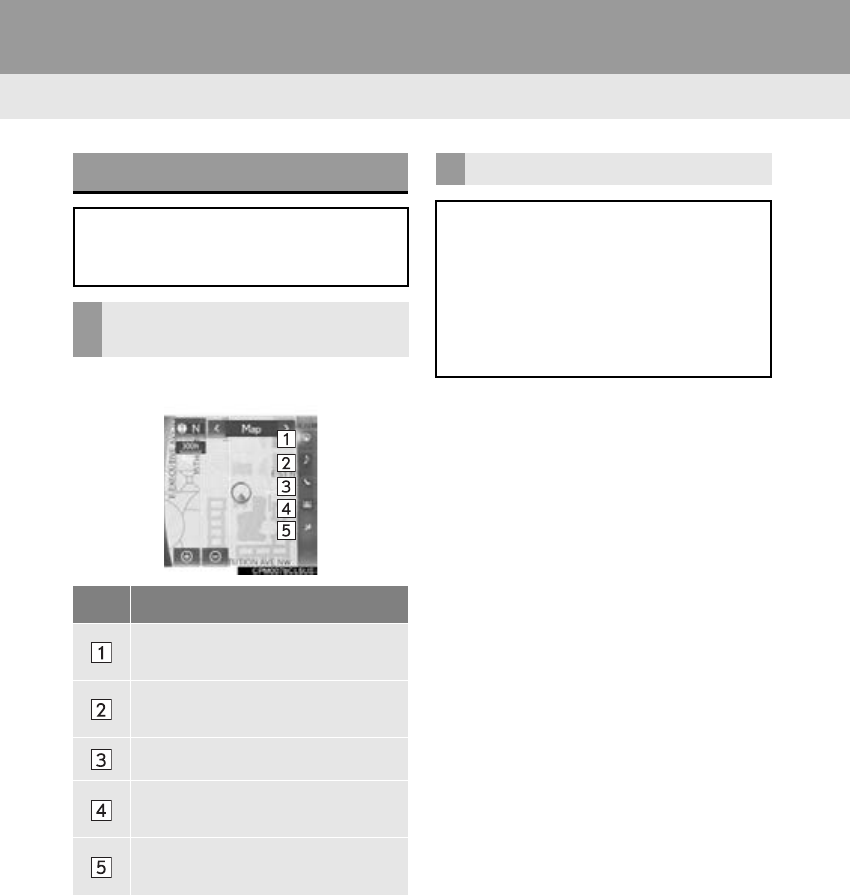
376
1. 12.3-INCH DISPLAY OPERATION
RX_Navi_U
2. USING “Side Display”
1Select the desired button.
BASIC SCREENS
To change the screen displayed on the
“Side Display”, use the screen buttons
on the right side of the display.
SWITCHING THE BASIC
SCREEN
No. Function
Select to display the navigation
screen.
Select to display the audio control
screen.
Select to display the phone screen.
Select to display the vehicle informa-
tion screen.
Select to display the air conditioning
control screen.
NAVIGATION SYSTEM
A map or a compass with information
about the current position can be dis-
played.
The orientation can be changed be-
tween 2D north-up, 2D heading-up and
3D heading-up by selecting the orienta-
tion symbol.(P.79)
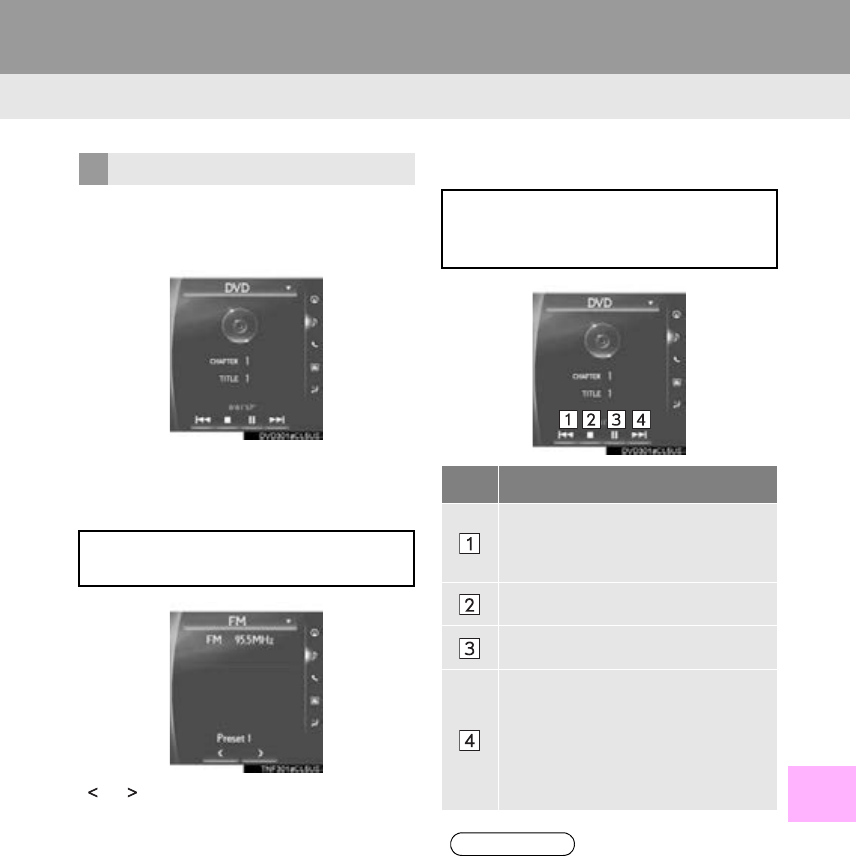
377
1. 12.3-INCH DISPLAY OPERATION
12.3-INCH DISPLAY
10
RX_Navi_U
■SELECTING AN AUDIO SOURCE
1 Select “”.
2Select the desired source.
■RADIO OPERATION
“”, “”: Select to tune in to the desired
preset station/channel.
■MEDIA OPERATION
AUDIO/VIDEO SYSTEM
On the “Side Display”, preset stations
can be selected.
Operations such as selecting a chapter,
file or track are carried out on the
screen.
No. Function
Select to select a chapter/track/
file.
Select and hold to rewind.
Select to stop the video screen.
Select to play/pause.
Select to select a chapter/track/
file.
During playback: Select and hold
to fast forward.
During a pause: Select and hold to
slow forward.
INFORMATION
●Depending on the audio source, some
functions may not be available.
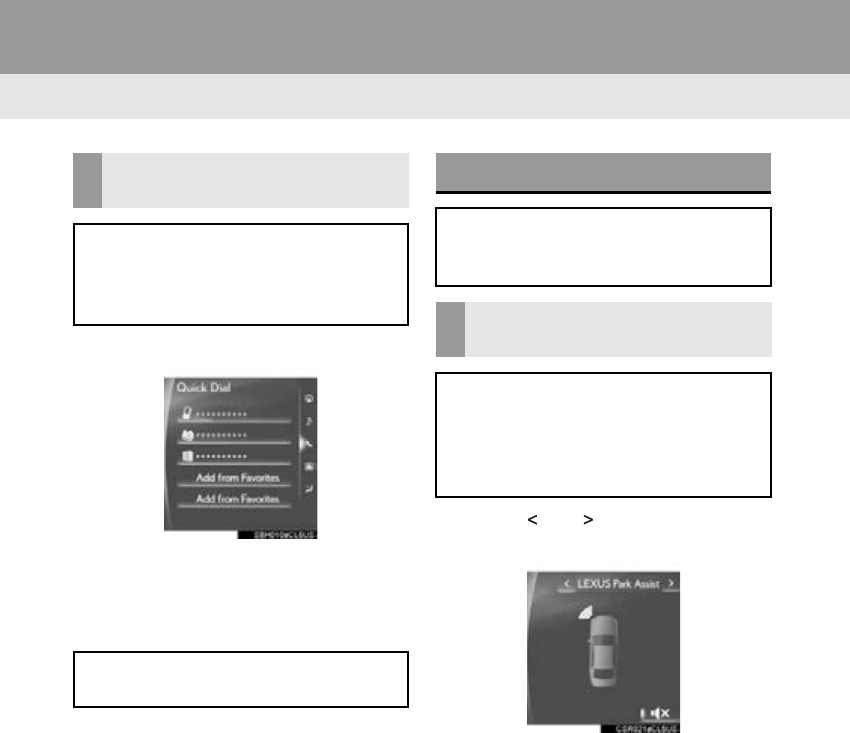
378
1. 12.3-INCH DISPLAY OPERATION
RX_Navi_U
1Select the desired contact.
2Check that the “Call” screen is dis-
played.
■REGISTERING A NEW CONTACT
1Select “Add From Favorites”.
2Select the desired contact.
3Select the desired number.
■DELETING THE CONTACT
1Select and hold the screen button to
change the contact.
2Select “Yes” when the confirmation
screen appears.
1Select “ ” or “ ” to select the desired
display.
HANDS-FREE SYSTEM (FOR
CELLULAR PHONE)
When hands-free mode is selected, it is
possible to make call on the “Side Dis-
play” if the desired contact is registered
on the 5 displayed buttons.
A contact can be selected from the fa-
vorites list. (P.333)
INTERRUPTION SCREENS
Intuitive parking assist screen, phone
screen, etc. are displayed automatically
in accordance with conditions.
SWITCHING THE
INTERRUPTION SCREEN
When multiple interruption screens
have been opened, the hidden screens
can be brought forward and displayed
once again. (The driving mode screen
cannot be displayed again.)
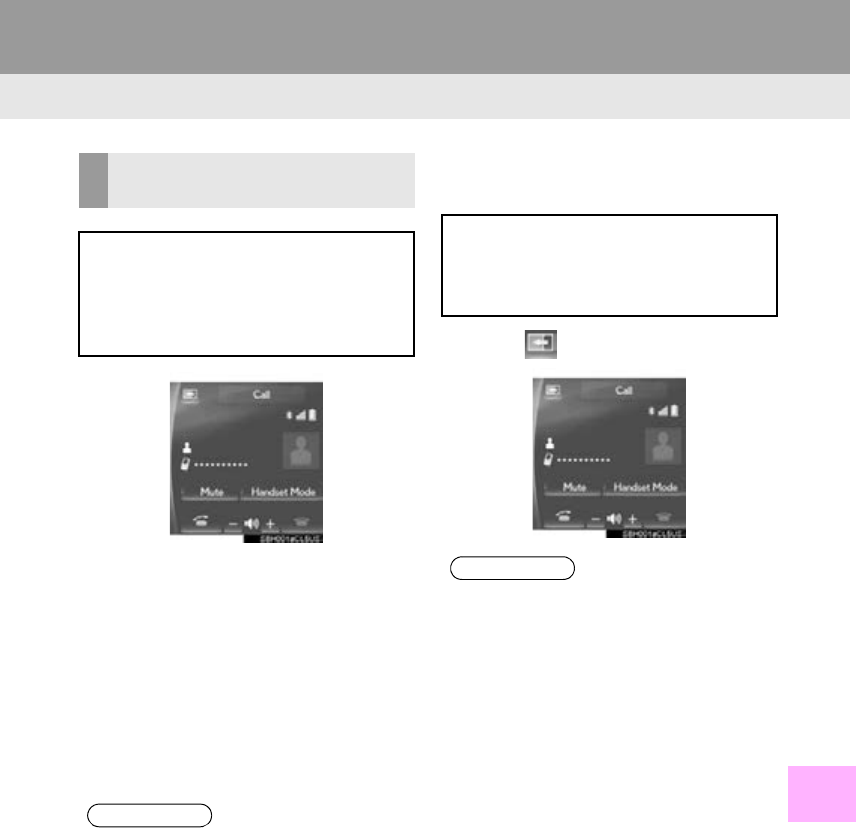
379
1. 12.3-INCH DISPLAY OPERATION
12.3-INCH DISPLAY
10
RX_Navi_U
Calling on the Bluetooth® phone
P.311
Incoming calls
P.317
Incoming call waiting
P.320
Talking on the Bluetooth® phone
P.318
■DISPLAYING ON THE “Main Dis-
play”
1Select .
HANDS-FREE SYSTEM
(FOR CELLULAR PHONE)
The following functions can also be dis-
played and operated on the “Side Dis-
play”.
For details about these functions, refer
to the respective section.
INFORMATION
●If “Side Display” is selected for any of the
functions above and the function is acti-
vated, the status bar will be displayed on
the “Side Display”. For details about the
status bar: P.1 4
The screen can be displayed on the
“Main Display” when carrying out an op-
eration that cannot be conducted on the
“Side Display”.
INFORMATION
●Operation is still possible using the steer-
ing phone switch even if the phone
screen is hidden behind another interrup-
tion screen. If the operation is conducted
using a steering switch, the phone screen
will automatically be brought to the front.
For details on operating the steering
phone switch and the “Main Display”:
P.306

380
1. 12.3-INCH DISPLAY OPERATION
RX_Navi_U

381
RX_Navi_U
2
4
5
6
7
8
9
1
3
10
INDEX

382
ALPHABETICAL INDEX
RX_Navi_U
Numerics
12.3-inch display ..................................................... 374
Full screen display............................................. 374
Split-screen display........................................... 374
A
AAC........................................................... 172, 212, 214
Adding destinations................................................. 116
“Address”...................................................................... 94
“Address Book”................................................ 99, 124
Adjacent road............................................................ 119
AM................................................................................. 155
Angle ............................................................................ 132
Applications.................................................. 346, 358
Area to avoid............................................................. 127
Arrival time................................................................ 108
Audio ............................................................................ 144
Audio screen adjustment................................ 152
Basic operation ................................................... 146
Disc slot .................................................................. 148
Selecting an audio source............................... 147
“Sound Settings” screen .................................. 150
System on/off....................................................... 146
USB/AUX port................................................... 149
Voice command system.................................. 154
Audio settings ......................................................... 200
Auto avoid traffic ..................................................... 135
Auto hide map buttons................................................130
AUX................................................................................... 193
Control screen/panel....................................... 193
External options .................................................. 196
AUX port.......................................................... 149, 193
B
Bluetooth®.................................................................. 42
Profiles...................................................................... 46
Registering a Bluetooth® audio player ...... 44
Registering a Bluetooth® phone................... 42
Bluetooth® audio.................................................... 188
Connecting........................................................... 192
Control screen/panel ...................................... 188
Listening................................................................. 192
Bluetooth® phone................................................. 306
Basic operation.................................................. 307
Phone switch/microphone .......................... 308
Phonebook ........................................................... 310
Selling or disposing of the vehicle............... 310
Voice command system................................ 309
Bluetooth® settings ................................................. 48
Bluetooth® setup screen.................................. 48
Connecting a Bluetooth® device.................. 51
Deleting a Bluetooth® device......................... 51
Detailed Bluetooth® settings.......................... 55
Editing the Bluetooth®
device information.......................................... 53
Registering a Bluetooth® device.................. 49

383
RX_Navi_U
C
Caching a radio program.................................... 159
Calibration.................................................................. 133
Call history.................................................................. 312
Calling on the Bluetooth® phone...................... 311
Call history............................................................. 312
Dial pad.................................................................. 315
Favorites lists......................................................... 312
Off hook switch ................................................... 316
Phonebook............................................................ 313
Camera display ......................................................... 39
Casual speech recognization........................... 257
CD.................................................................................. 172
Control screen/panel....................................... 172
Clock setting................................................................. 61
Command list .......................................................... 258
Compass ...................................................................... 80
Connecting a Bluetooth® device........................ 51
Contacts .......................................................... 313, 328
“Coordinates”........................................................... 102
Current position......................................................... 77
D
Data services settings.......................................... 268
Day mode ..................................................................... 39
DCM................................................................ 352, 355
Dealer setting.............................................................. 70
Deleting destinations ............................................... 117
Deleting personal data............................................ 64
Deleting previous destinations .......................... 129
Destination Assist.......................................... 99, 364
Destination search operation................................ 91
“Address”................................................................. 94
“Address Book”..................................................... 99
“Coordinates”...................................................... 102
“Destination Assist” ............................................. 99
“Emergency” ........................................................ 100
Home......................................................................... 93
“Intersection & Freeway” ................................ 100
“Map”....................................................................... 102
“Point of Interest”.................................................. 95
Preset destinations............................................... 93
“Previous Destinations” ..................................... 99
Search area............................................................. 93
Detailed navigation settings................................ 130
Detour........................................................................... 118
Dial pad........................................................................ 315
Disc slot ....................................................................... 148
Doppler weather .................................................... 266
DSP ............................................................................... 152
Dual map...................................................................... 80
DVD.............................................................................. 175
Control screen/panel....................................... 175
DVD options ........................................................ 178
DVD player and disc............................................ 206

384
ALPHABETICAL INDEX
RX_Navi_U
E
e-mail............................................................................ 321
eDestination............................................................. 365
Downloading...................................................... 366
Icons........................................................................ 367
Searching.............................................................. 367
Editing route ............................................................... 116
Adding destinations............................................ 116
Adjacent road....................................................... 119
Deleting destinations .......................................... 117
Detour...................................................................... 118
Reordering destinations ................................... 116
Route preference ................................................. 117
Route type ............................................................... 117
“Emergency” ............................................................ 100
F
Favorites lists............................................................. 312
File (audio) ................................................................. 212
FM ................................................................................. 155
Foot print map ............................................................ 78
Freeway.......................................................................... 111
Function index............................................................ 26
G
General settings........................................................ 59
GPS (Global Positioning System) ................... 136
Guiding the route .................................. 24, 108, 115
H
Heading-up ................................................................. 79
Home ............................................................ 25, 93, 121
Home screen ....................................................... 16, 34

385
RX_Navi_U
I
Icon information ........................................................ 86
Incoming call waiting............................................ 320
Incoming calls............................................................ 317
“Information” screen................................................ 20
Initial screen ................................................................ 30
Internet radio .............................................................. 171
Intersection.................................................................. 113
“Intersection & Freeway”..................................... 100
iPod....................................................................... 184, 211
Control screen/panel...................................... 184
Music........................................................................ 187
Video........................................................................ 187
K
Keyboard...................................................................... 36
L
LEXUS App Suite....................................... 351, 358
Entering keyword............................................. 363
Using...................................................................... 358
Web search ......................................................... 362
LEXUS App Suite settings.................................. 371
LEXUS Enform ....................................................... 346
Before using the function.............................. 350
LEXUS App Suite.............................................. 351
LEXUS Enform Destinations ............................ 364
LEXUS Enform Remote.......................... 347, 356
LEXUS Enform Service Connect........ 347, 357
Lexus Insider............................................................ 368
Viewing and playing........................................ 368
Linking multi-information display and
navigation system.................................................. 41
List screen..................................................................... 37
Low fuel warning...................................................... 132

386
ALPHABETICAL INDEX
RX_Navi_U
M
Maintenance................................................................ 69
“Map”............................................................................ 102
Map database ........................................................... 139
microSD card....................................................... 139
Map icons ..................................................................... 87
Map screen.......................................................... 74, 77
Adjusting location ............................................... 82
Current position.................................................... 77
Map mode.............................................................. 80
Map scale................................................................. 78
Orientation.............................................................. 79
Scrolling the map................................................... 81
Map screen information ........................................ 83
Icon information................................................... 86
Map icons ................................................................ 87
Route trace............................................................. 85
MEDIA button........................................................... 147
Memory point................................................... 99, 124
Memory points settings........................................ 120
“Address Book” .................................................. 124
Area to avoid ........................................................ 127
Deleting previous destinations..................... 129
Home ........................................................................ 121
“Preset Destinations”........................................ 122
“Menu” screen.............................................................. 12
Status display ........................................................... 14
Message...................................................................... 321
Calling the message sender......................... 325
Checking.............................................................. 323
Receiving.............................................................. 322
Replying ................................................................ 324
Microphone.............................................................. 250
microSD card ........................................................... 139
MMS............................................................................. 321
Mobile Assistant......................................................263
MP3........................................................... 172, 212, 214

387
RX_Navi_U
N
Navigation .................................................................... 74
Navigation options.................................................... 76
North-up....................................................................... 79
O
Off hook switch ........................................................ 316
Online search.................................................. 95, 362
Operating information ........................................ 205
DVD player and disc....................................... 206
Error messages.................................................... 216
File (audio)............................................................. 212
iPod............................................................................ 211
Radio...................................................................... 205
Terms ....................................................................... 214
P
Panoramic view monitor ......................................270
Camera switch ..................................................... 271
How to switch the display ...............................274
Panoramic view monitor precautions.........291
Things you should know ................................. 302
Phonebook....................................................... 310, 313
Phone switch/microphone................................ 308
Phone settings ......................................................... 326
“Contacts/Call History”................................ 328
“Messaging”........................................................ 335
“Notifications”.................................................... 336
“Sounds”................................................................ 327
POI category ............................................ 83, 95, 131
“Point of Interest”....................................................... 95
Predictive traffic data.............................................. 89
Preset destinations.................................................... 93
“Previous Destinations” .......................................... 99
Profiles ........................................................................... 46
PRST·TRACK button............................................. 144
PWR·VOL knob............................................... 31, 146

388
ALPHABETICAL INDEX
RX_Navi_U
R
Radio
............................................................................
155, 205
Caching a radio program ............................... 159
Control screen/panel....................................... 155
Preset button screen..........................................158
Presetting a station ............................................ 158
Radio broadcast data system......................... 161
Selecting a station from the list ..................... 159
Troubleshooting guide..................................... 164
Using HD Radio™ technology..................... 162
RADIO button.......................................................... 147
Radio ID....................................................................... 169
Rear seat entertainment system........................ 217
Receiving on the Bluetooth® phone............... 317
Incoming calls ...................................................... 317
Registering home ............................................. 22, 121
Registering preset destinations................. 23, 122
Remote Touch ..................................................... 10, 32
Reordering destinations ........................................ 116
Restarting the system................................................ 31
Road preference.............................................. 107, 117
Route guidance ........................................................ 103
Route guidance screen........................................ 108
Arrow screen........................................................ 114
Freeway..................................................................... 111
Intersection ............................................................ 113
Route overview .................................................... 110
Turn list screen...................................................... 113
Route information bar ............................................ 110
Route overview ......................................................... 110
Route preferences .................................................... 117
Route trace.................................................................. 85
Route type .................................................................... 117
S
Safety Connect ....................................................... 355
Scale ............................................................................... 78
Screen adjustment.................................................... 39
Camera display..................................................... 39
Screen change button...................................... 74, 77
Screen off ..................................................................... 39
Screen off image ....................................................... 62
Screen size................................................................. 152
Scrolling the map ....................................................... 81
Search area ................................................................. 93
Search engine................................................. 95, 362
Sending tones........................................................... 318
“Setup” screen............................................................. 18
Side display............................................................... 376
Basic screens ...................................................... 376
Interruption screens......................................... 378
Single map................................................................... 80
SMS .............................................................................. 321
“Sound Settings” screen....................................... 150
Startup image ............................................................. 62
Status display ................................................................ 14
Steering switches ......................................... 197, 250

389
RX_Navi_U
T
Talking on the Bluetooth® phone.................... 318
Incoming call waiting....................................... 320
Time zone....................................................................... 61
Traffic information .................................................... 88
Show traffic event information ....................... 88
Show traffic information.................................... 89
Traffic settings ........................................................... 134
Auto avoid traffic................................................ 135
Transmit volume...................................................... 318
Travel time ................................................................. 108
TUNE·SCROLL knob........................................... 144
Turn list....................................................... 80, 106, 113
Turn list screen........................................................... 113
U
USB memory............................................................ 180
Control screen/panel...................................... 180
USB/AUX port ........................................................ 149
V
“Vehicle”....................................................................... 68
Dealer setting......................................................... 70
Maintenance .......................................................... 69
Voice command system......................... 250, 309
Casual speech recognization ...................... 257
Command list..................................................... 258
Operation.............................................................. 251
Steering switches ............................................. 250
Voice guidance prompts....................................... 115
Voice settings.............................................................. 66
W
Weather ..................................................................... 266
Web search .............................................................. 362
WMA ........................................................ 172, 212, 214
X
XM Satellite Radio.................................................. 165
Control screen/panel....................................... 165
How to subscribe to an
XM Satellite Radio........................................ 167
If the satellite radio tuner malfunctions...... 170
Radio ID.................................................................. 169
Selecting a channel from the list .................. 169
390
RX_Navi_U
Map database information and updates
This system uses the maps of DENSO.
391
RX_Navi_U
392
RX_Navi_U
393
RX_Navi_U

394
RX_Navi_U
395
RX_Navi_U
396
RX_Navi_U
397
RX_Navi_U
398
RX_Navi_U

399
RX_Navi_U
U.S.A.
Canada
*: Bluetooth is a registered trademark of Bluetooth SIG, Inc.
-FCC ID : AJDK086
-This device complies with part 15 of the FCC Rules. Operation is subject to the following
two conditions: (1) This device may not cause harmful interference, and (2) this device must
accept any interference received, including interference that may cause undesired
operation.
-FCC WARNING: Changes or modifications not expressly approved by the party
responsible for compliance could void the user’s authority to operate the equipment.
-Co-location: This transmitter must not be co-located or operated in conjunction with any
other antenna or transmitter.
-IC : 775E-K086
-This device complies with Industry Canada licence-exempt RSS standard(s). Operation is
subject to the following two conditions: (1) this device may not cause interference, and (2)
this device must accept any interference, including interference that may cause undesired
operation of the device.
Le présent appareil est conforme aux CNR d'Industrie Canada applicables aux appareils
radio exempts de licence. L'exploitation est autorisée aux deux conditions suivantes : (1)
l'appareil ne doit pas produire de brouillage, et (2) l'utilisateur de l'appareil doit accepter
tout brouillage radioélectrique subi, même si le brouillage est susceptible d'en
compromettre le fonctionnement.
-The Bluetooth* antenna cannot be removed (or replaced) by user.
L’antenne Bluetooth* ne peut pas être supprimé (ou remplacé) par l’utilisateur.
Certification
400
RX_Navi_U
-Gracenote, the Gracenote logo and logotype, “Powered by Gracenote”, MusicID, Playlist
Plus and MediaVOCS are either registered trademarks or trademarks of Gracenote, Inc.
in the United States and/or other countries
401
RX_Navi_U
402
RX_Navi_U
For U.S. owners
