Lg 32Lg5700 Aek Owner S Manual SAC30033628en_1_rev03
Lg-60Pg3000-Owner-S-Manual lg-60pg3000-owner-s-manual
2014-07-06
: Lg Lg-32Lg5700-Aek-Owner-S-Manual lg-32lg5700-aek-owner-s-manual lg pdf
Open the PDF directly: View PDF  .
.
Page Count: 118 [warning: Documents this large are best viewed by clicking the View PDF Link!]
- ACCESSORIES
- CONTENTS
- PREPARATION
- FRONT PANEL CONTROLS
- BACK PANEL INFORMATION
- STAND INSTALLATION
- STAND INSTALLATION
- DETACHING STAND
- PLEASE SET IT UP CAREFULLY SO THE PRODUCT DOES NOTFALL OVER.
- BACK COVER FOR WIRE ARRANGEMENT
- POSITIONING YOUR DISPLAY
- LOCATION
- KENSINGTON SECURITY SYSTEM
- DESKTOP PEDESTAL INSTALLATION
- WALL MOUNT: HORIZONTAL INSTALLATION
- ANTENNA CONNECTION
- EXTERNAL EQUIPMENT SETUP
- WATCHING TV / PROGRAMME CONTROL
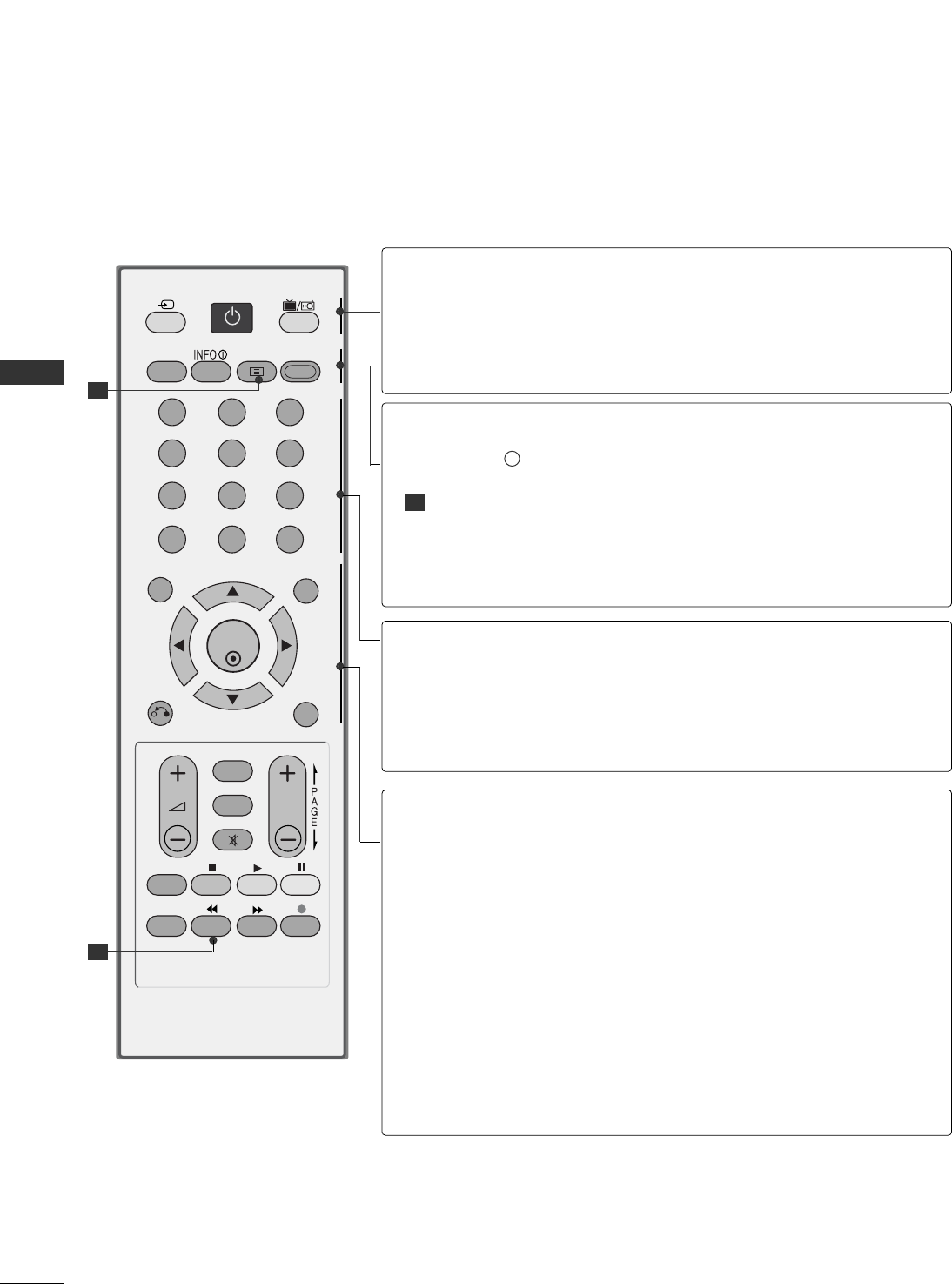
- REMOTE CONTROL KEY FUNCTIONS
- TURNING ON THE TV
- PROGRAMME SELECTION
- VOLUME ADJUSTMENT
- ON SCREEN MENUS SELECTION AND ADJUSTMENT
- AUTO PROGRAMME TUNING
- MANUAL PROGRAMME TUNING
- PROGRAMME EDIT
- BOOSTER
- SOFTWARE UPDATE
- DIAGNOSTICS
- CI [COMMON INTERFACE] INFORMATION
- SELECTING THE PROGRAMME TABLE
- SIMPLINK
- INPUT LABEL
- AV MODE
- EPG (ELECTRONIC PROGRAMME GUIDE)(IN DIGITAL MODE)
- PICTURE CONTROL
- SOUND & LANGUAGE CONTROL
- TIME SETTING
- PARENTAL CONTROL / RATINGS
- TELETEXT
- DIGITAL TELETEXT
- APPENDIX
Please read this manual carefully before operating
your TV.
Retain it for future reference.
Record model number and serial number of the TV.
Refer to the label on the back cover and quote this
information.
To your dealer when requiring service.
This feature is not available for all models.
(Except for 19/22LS4D*)
LCD TV
OWNER’S MANUAL
LCD TV MODELS
1199LLSS44DD**
2222LLSS44DD**
3322LLGG2200****
3377LLGG2200****
4422LLGG2200****
1199LLGG3300****
2222LLGG3300****
2266LLGG3300****
3322LLGG3300****
3377LLGG3300****
4422LLGG3300****
3322LLGG55******
3377LLGG5500****
4422LLGG5500****
4477LLGG5500****
5522LLGG5500****
PLASMA TV MODELS
4422PPGG1100****
5500PPGG1100****
4422PPGG2200****
5500PPGG2200****
4422PPGG3300****
5500PPGG3300****
6600PPGG3300****
Trade Mark of the DVB Digital Video
Broadcasting Project (1991 to 1996)
ENGLISH
PLASMA TV
IIDD NNuummbbeerr((ss))::5499: 22LS4D-ZD 5507: 19LS4D-ZD
5107: 42PG1000-ZA 5106: 50PG1000-ZA
5568: 42PG2000-ZA 5569: 50PG2000-ZA
5109: 42PG3000-ZA 5108: 50PG3000-ZA
5498: 60PG3000-ZA 5629: 32LG2000-ZA
5630: 37LG2000-ZA 5631: 42LG2000-ZA
5088: 19LG3000-ZA 5090: 22LG3000-ZA
5080: 26LG3000-ZA 5089: 32LG3000-ZA
5087: 37LG3000-ZA 5086: 42LG3000-ZA
5085: 32LG5000-ZA 5084: 37LG5000-ZA
5083: 42LG5000-ZA 5082: 47LG5000-ZA
5081: 52LG5000-ZA 5385: 52LG5010-ZD
5386: 47LG5010-ZD 5387: 42LG5010-ZD
5388: 37LG5010-ZD 5389: 32LG5010-ZD
5390: 52LG5020-ZB 5391: 47LG5020-ZB
5392: 42LG5020-ZB 5393: 37LG5020-ZB
5394: 32LG5020-ZB 5395: 52LG5030-ZE
5396: 47LG5030-ZE 5397: 42LG5030-ZE
5398: 37LG5030-ZE 5399: 32LG5030-ZE
5671: 32LG5700-ZF 5721: 26LG3050-ZA
5820: 19LG3050-ZA 5818: 22LG3050-ZA
5879: 19LG3060-ZB 5880: 22LG3060-ZB
5878: 32LG5600-ZB

1
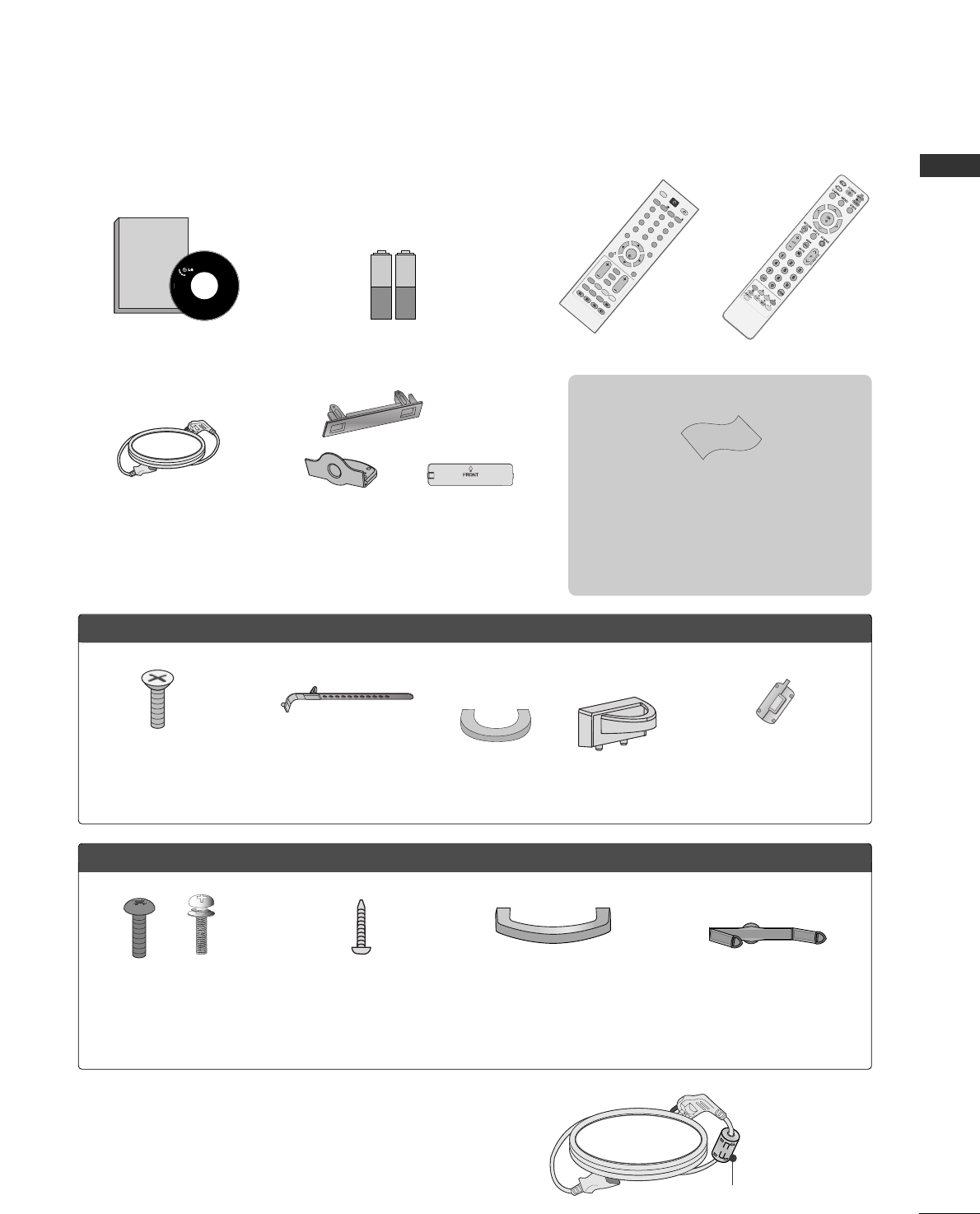
ACCESSORIES
ACCESSORIES
Ensure that the following accessories are included with your TV. If an accessory is missing, please contact the
dealer where you purchased the TV.
■
Image shown may differ from your TV.
Owner’s Manual Batteries Remote Control
or
Power Cord
Owner's
Manual
Owner's manual
OK
MENU
AV MODE
GUIDE
RATIO
123
456
789
0
Q.VIEW
LIST
TVINPUT
D/A
POWER
VOLPR
INDEX
SLEEP
HOLD
REVEAL
SUBTITLE
UPDATE
I/II
MUTE
TEXT
RETURN
EXIT
FAV
TIME
INFO
i
TV/RADIO
*
?
RATIO
PPLLAASSMMAA TTVV mmooddeellss
Protection Cover
(Except for 19/22LS4D*)
Polishing Cloth
Polishing cloth for use on the screen.
Lightly wipe any stains or fingerprints on the surface
of the TV with the polishing cloth.
Do not use excessive force. This may cause scratching
or discolouration.
Bolts for stand assembly
(Refer to p.11)
(Only 42PG10*
*
, 42PG20*
*
,
42PG30*
*
)
x 4
Cable management clip
(Only 19/22LS4D*)
Cable management clip
(Only 19/22LG30**)
LLCCDD TTVV mmooddeellss
Bolts for stand assembly
(Refer to p.10)
(Only 32/37/42LG5***,
32/37/42LG20**,
26/32/37/42LG30**)
1-screw for stand fixing
(Refer to p.5)
(Only 32/42LG20**,
26/32/42LG30**,
32/42LG5***)
x 4 x 4
This feature is not available for all models.
Cable Holder
(42PG10**, 42PG20**,
42PG30**: 1EA, 50PG10**,
50PG20**, 50/60PG30**: 2EA)
Cable management clip
(Only
42/50PG10**)
(Only 42/50PG20**,
42/50/60PG30**)
or
Ferrite Core
(This feature is not available
for all models.)
Ferrite core can be used to reduce the electromagnetic
wave when connecting the power cord.
The closer the location of the ferrite core to the power
plug, the better it is.
Use of ferrite core (This feature is not available for all models.)
Install the power plug closely.

2
CONTENTS
CONTENTS
ACCESSORIES
. . . . . . . . . . . . . . . . . . . . . . . . . . . . . . . . . . . . . . . . . . . . .
1
PREPARATION
Front Panel Controls . . . . . . . . . . . . . . . . . . . . . . . . 4
Back Panel Information . . . . . . . . . . . . . . . . . . . . . . 7
Stand Installation . . . . . . . . . . . . . . . . . . . . . . . . . . . 10
Detaching Stand . . . . . . . . . . . . . . . . . . . . . . . . . . . 13
Please set it up carefully so the product
does not fall over . . . . . . . . . . . . . . . . . . . . . . . . . . 14
Back Cover for Wire Arrangement . . . . . . . . . . . . . 15
Positioning Your Display . . . . . . . . . . . . . . . . . . . . . 18
Location . . . . . . . . . . . . . . . . . . . . . . . . . . . . . . . . . . 18
Kensington Security System . . . . . . . . . . . . . . . . . . 18
Desktop Pedestal Installation . . . . . . . . . . . . . . . . . 19
Wall Mount: Horizontal Installation . . . . . . . . . . . . 19
Antenna Connection . . . . . . . . . . . . . . . . . . . . . . . . 20
EXTERNAL EQUIPMENT SETUP
HD Receiver Setup . . . . . . . . . . . . . . . . . . . . . . . . 21
Digital Audio out Setup . . . . . . . . . . . . . . . . . . . . . 22
DVD Setup . . . . . . . . . . . . . . . . . . . . . . . . . . . . . . . . 23
VCR Setup . . . . . . . . . . . . . . . . . . . . . . . . . . . . . . . . 25
Other A/V Source Setup . . . . . . . . . . . . . . . . . . . . 27
Insertion of CI Module . . . . . . . . . . . . . . . . . . . . . . 28
PC Setup . . . . . . . . . . . . . . . . . . . . . . . . . . . . . . . . . 28
- Screen Setup for PC Mode . . . . . . . . . . . . . . . 32
WATCHING TV / PROGRAMME CONTROL
Remote Control Key Functions . . . . . . . . . . . . . . . . 36
Turning on the TV . . . . . . . . . . . . . . . . . . . . . . . . . . 42
Programme Selection . . . . . . . . . . . . . . . . . . . . . . . 42
Volume Adjustment . . . . . . . . . . . . . . . . . . . . . . . . . 42
On-Screen Menus Selection and Adjustment . . . . 43
Auto Programme Tuning . . . . . . . . . . . . . . . . . . . . . 44
Manual Programme Tuning (In Digital Mode) . . . . 45
Manual Programme Tuning (In Analogue Mode) . . 46
Programme Edit . . . . . . . . . . . . . . . . . . . . . . . . . . . . 48
Booster . . . . . . . . . . . . . . . . . . . . . . . . . . . . . . . . . . 51
Software Update . . . . . . . . . . . . . . . . . . . . . . . . . . . 52
Diagnostics . . . . . . . . . . . . . . . . . . . . . . . . . . . . . . . 53
CI Information . . . . . . . . . . . . . . . . . . . . . . . . . . . . . 54
Selecting the Programme Table . . . . . . . . . . . . . . . 55
SIMPLINK . . . . . . . . . . . . . . . . . . . . . . . . . . . . . . . . 56
Input Label . . . . . . . . . . . . . . . . . . . . . . . . . . . . . . . 58
AV Mode . . . . . . . . . . . . . . . . . . . . . . . . . . . . . . . . . 59
EPG (ELECTRONIC PROGRAMME
GUIDE) (IN DIGITAL MODE)
Switch On/ Off EPG . . . . . . . . . . . . . . . . . . . . . . . . 60
Select Programme . . . . . . . . . . . . . . . . . . . . . . . . . . 60
Button Function in NOW/NEXT Guide Mode . . . . . 61
Button Function in 8 Day Guide Mode . . . . . . . . . . 61
Button Function in Date Change Mode . . . . . . . . . . 61
Button Function in Extended Description Box . . . . . 62
Button Function in Record/Remind Setting Mode . . 62
Button Function in Schedule List Mode . . . . . . . . . . 62
PICTURE CONTROL
Picture Size (Aspect Ratio) Control . . . . . . . . . . . . 63
Preset Picture Settings
- Picture Mode-Preset . . . . . . . . . . . . . . . . . . . . 65
-
Auto Colour Tone Control (Warm/Medium/Cool)
. . . . 66
Manual Picture Adjustment
- Picture Mode-User option . . . . . . . . . . . . . . . . 67
- Picture Mode-Expert Control . . . . . . . . . . . . 68
Picture Improvement Technology . . . . . . . . . . . . . . . . . 69
Advanced - Film Mode . . . . . . . . . . . . . . . . . . . . . . 70
Advanced - Black(Darkness) Level . . . . . . . . . . . . . 71
Eye Care . . . . . . . . . . . . . . . . . . . . . . . . . . . . . . . . . 72
Picture Reset . . . . . . . . . . . . . . . . . . . . . . . . . . . . . . 73
Image Sticking Minimization (ISM) Method . . . . 74
Power Saving Picture Mode . . . . . . . . . . . . . . . . . . 75

3
CONTENTS
SOUND & LANGUAGE CONTROL
Auto Volume Leveler . . . . . . . . . . . . . . . . . . . . . . . . 76
Preset Sound Settings - Sound Mode . . . . . . . . . . 77
Sound Setting Adjustment - User Mode . . . . . . . . . . 78
Balance . . . . . . . . . . . . . . . . . . . . . . . . . . . . . . . . . . . 79
TV Speakers On/ Off Setup . . . . . . . . . . . . . . . . . 80
Selecting Digital Audio Out . . . . . . . . . . . . . . . . . . 81
Audio Reset . . . . . . . . . . . . . . . . . . . . . . . . . . . . . . . 82
I/II
-
Stereo/Dual Reception (In Analogue Mode Only)
. . . . 83
-
NICAM Reception (In Analogue Mode Only) . . . . . . .
84
- Speaker Sound Output Selection . . . . . . . . . . 84
On-Screen Menu Language/Country Selection
. . . . . . . . 85
Language selection (In Digital Mode only) . . . . . . 86
TIME SETTING
Clock Setup . . . . . . . . . . . . . . . . . . . . . . . . . . . . . . . 87
Auto On/ Off Timer Setting . . . . . . . . . . . . . . . . . . 88
Auto Shut-off Setting . . . . . . . . . . . . . . . . . . . . . . . 89
Time Zone Setup . . . . . . . . . . . . . . . . . . . . . . . . . . 90
Sleep Timer Setting . . . . . . . . . . . . . . . . . . . . . . . . . 90
PARENTAL CONTROL / RATINGS
Set Password & Lock System . . . . . . . . . . . . . . . . . 91
Block Programme . . . . . . . . . . . . . . . . . . . . . . . . . . . 92
Parental Control . . . . . . . . . . . . . . . . . . . . . . . . . . . 93
Key Lock . . . . . . . . . . . . . . . . . . . . . . . . . . . . . . . . . 94
TELETEXT
Switch On/ Off . . . . . . . . . . . . . . . . . . . . . . . . . . . . 95
SIMPLE Text . . . . . . . . . . . . . . . . . . . . . . . . . . . . . . . 95
TOP Text . . . . . . . . . . . . . . . . . . . . . . . . . . . . . . . . . 95
FASTEXT . . . . . . . . . . . . . . . . . . . . . . . . . . . . . . . . . 96
Special Teletext Functions . . . . . . . . . . . . . . . . . . . . 96
DIGITAL TELETEXT
Teletext within Digital Service . . . . . . . . . . . . . . . 97
Teletext in Digital Service . . . . . . . . . . . . . . . . . . 97
APPENDIX
Initializing (Reset to original factory setting) . . . . 98
Troubleshooting . . . . . . . . . . . . . . . . . . . . . . . . . . . 99
Maintenance . . . . . . . . . . . . . . . . . . . . . . . . . . . . . . 101
Product Specifications . . . . . . . . . . . . . . . . . . . . . 102
Programming the Remote Control . . . . . . . . . . . . 105
IR Codes . . . . . . . . . . . . . . . . . . . . . . . . . . . . . . . . 107
External Control Device Setup . . . . . . . . . . . . . . 109
4
PREPARATION
PREPARATION
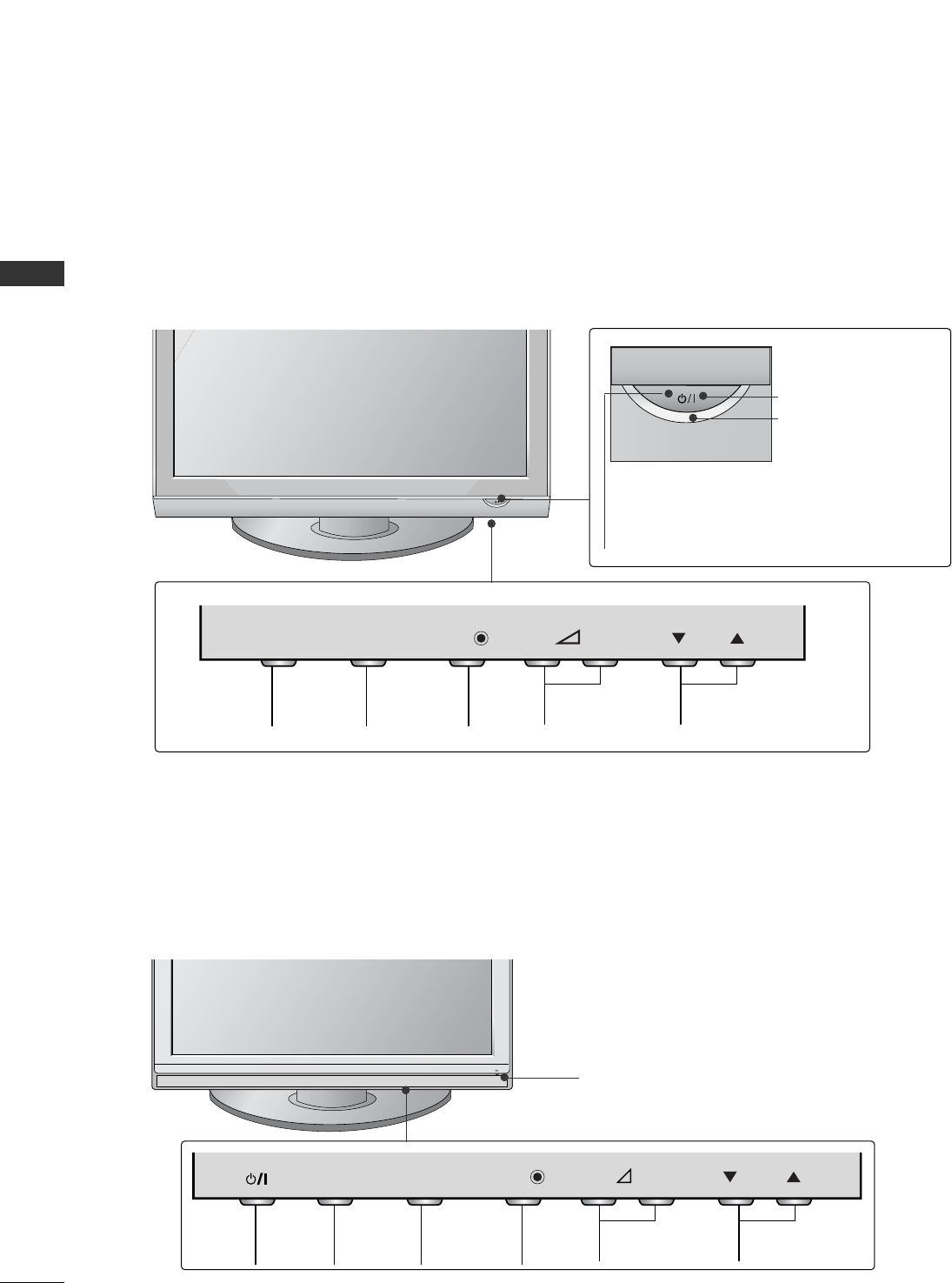
FRONT PANEL CONTROLS
■
Image shown may differ from your TV.
■
If your TV has a protection film attached, remove the film and then wipe the TV with a polishing cloth.
PLASMA TV Models : 42/50PG20**, 42/50/60PG30**
PLASMA TV Models : 42/50PG10**
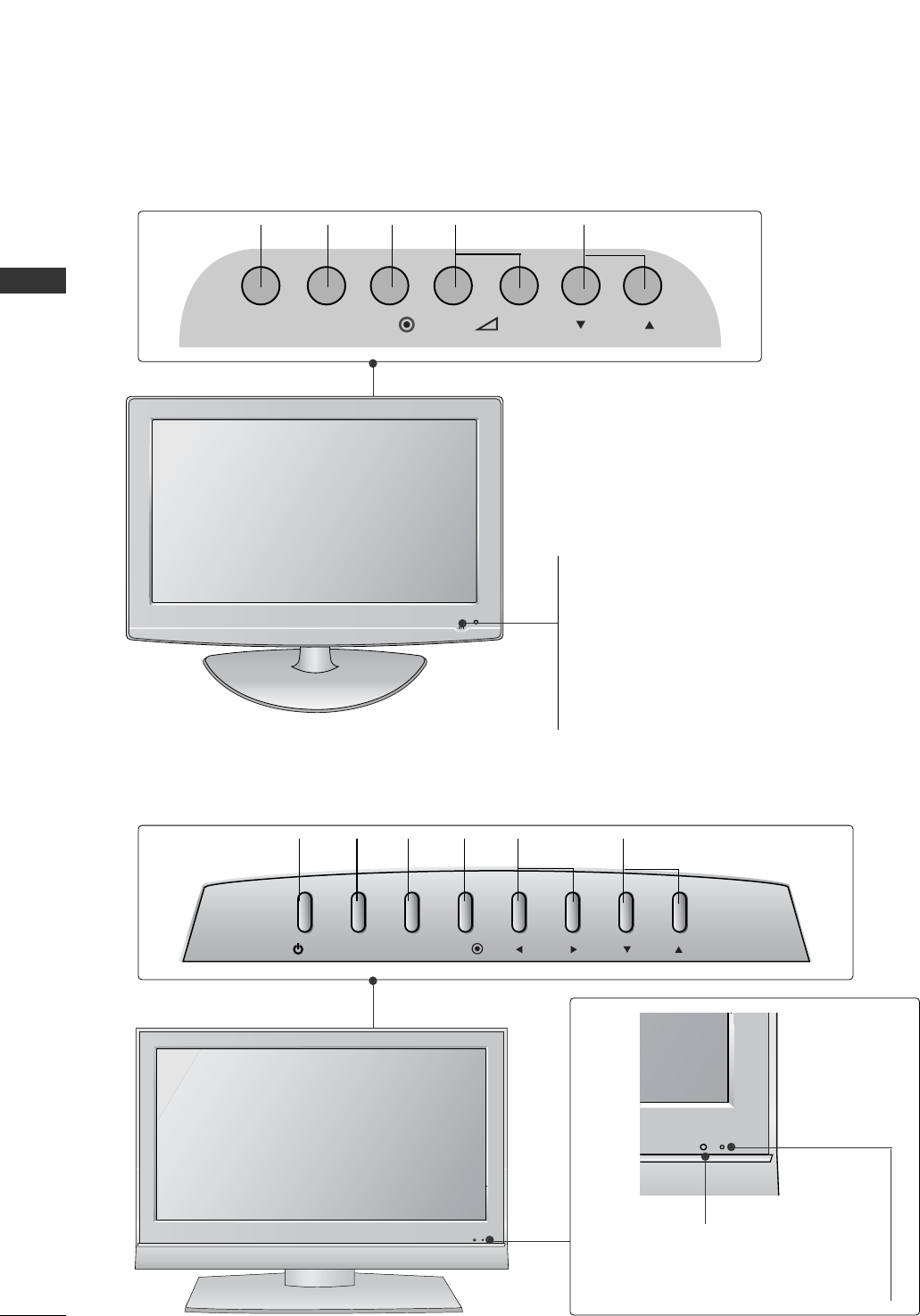
PROGRAMMEVOLUMEMENU OKINPUT
P
-+
OK
MENU
INPUT
P
-+
OK
MENU
INPUT
Remote Control Sensor
POWER
Power/Standby Indicator
• illuminates red in standby mode.
• illuminates green when the TV is
switched on.
P
- +
OK
MENU
INPUT
MENU OK INPUT POWER
P
-+
OK
MENU
INPUT
VOLUME PROGRAMME
Remote Control Sensor
Power/Standby Indicator
• illuminates red in standby mode.
• illuminates green when the TV is switched on.
P
- +
OK
MENU
INPUT
5
PREPARATION
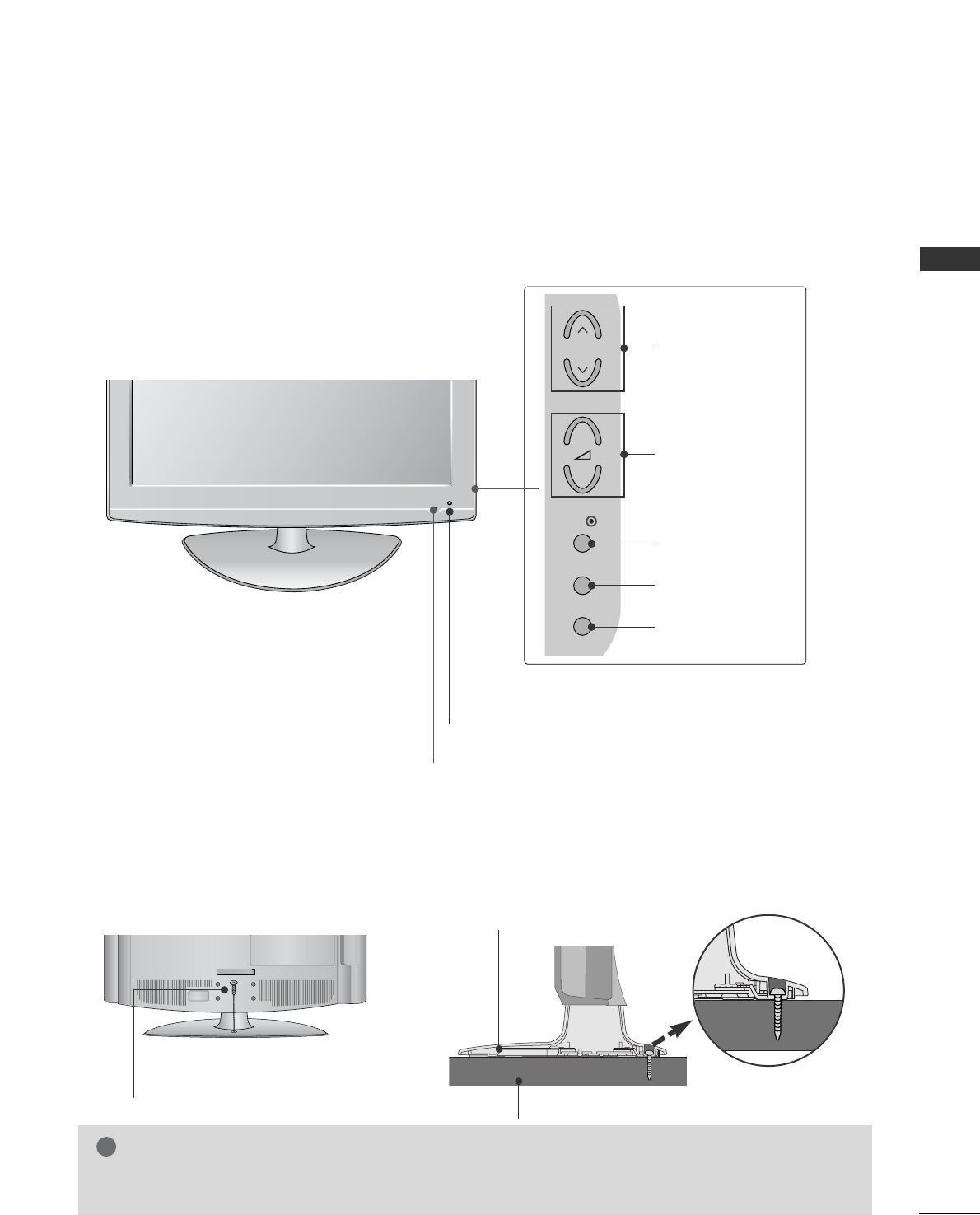
LCD TV Models :
32/37/42LG20**, 26/32/37/42LG30**, 32/37/42/47/52LG5***
Intelligent Sensor
Adjusts picture according to the surrounding
conditions. (32/37/42/47/52LG5*** only)
POWER
Remote Control Sensor
Power/Standby Indicator
• illuminates red in standby mode.
• illuminates blue when the TV is switched on.
Note: You can adjust PPoowweerr IInnddiiccaattoorrin
the OPTION menu.
P
MENU
INPUT
OK
+
-
PROGRAMME
VOLUME
OK
MENU
INPUT
Attaching the TV to a desk (Only 32/42LG20**, 26/32/42LG30**, 32/42LG5***)
WARNING
!
GG To prevent TV from falling over, the TV should be securely attached to the floor/wall per installation
instructions. Tipping, shaking, or rocking the machine may cause injury.
The TV must be attached to desk so it cannot be pulled in a forward/backward direction, potentially causing
injury or damaging the product. Use only an attached screw.
1-Screw
(provided as parts of the product)
Desk
Stand
INPUT MENU P-+OK
PROGRAMMEVOLUME
MENU OK
INPUT
INPUT MENU VOL PR
/I OK
PROGRAMMEVOLUME
MENU OK
INPUT
POWER
6
PREPARATION
PREPARATION
Remote Control Sensor
Power/Standby Indicator
• illuminates red in standby mode.
• illuminates green when the TV is switched on.
LCD TV Models : 19/22LS4D*
LCD TV Models : 19/22LG30**
POWER
Remote Control Sensor
Power/Standby Indicator
• illuminates red in standby mode.
• illuminates blue when the TV is switched on.
Note: You can adjust PPoowweerr IInnddiiccaattoorrin the OPTION
menu.
7
PREPARATION
BACK PANEL INFORMATION
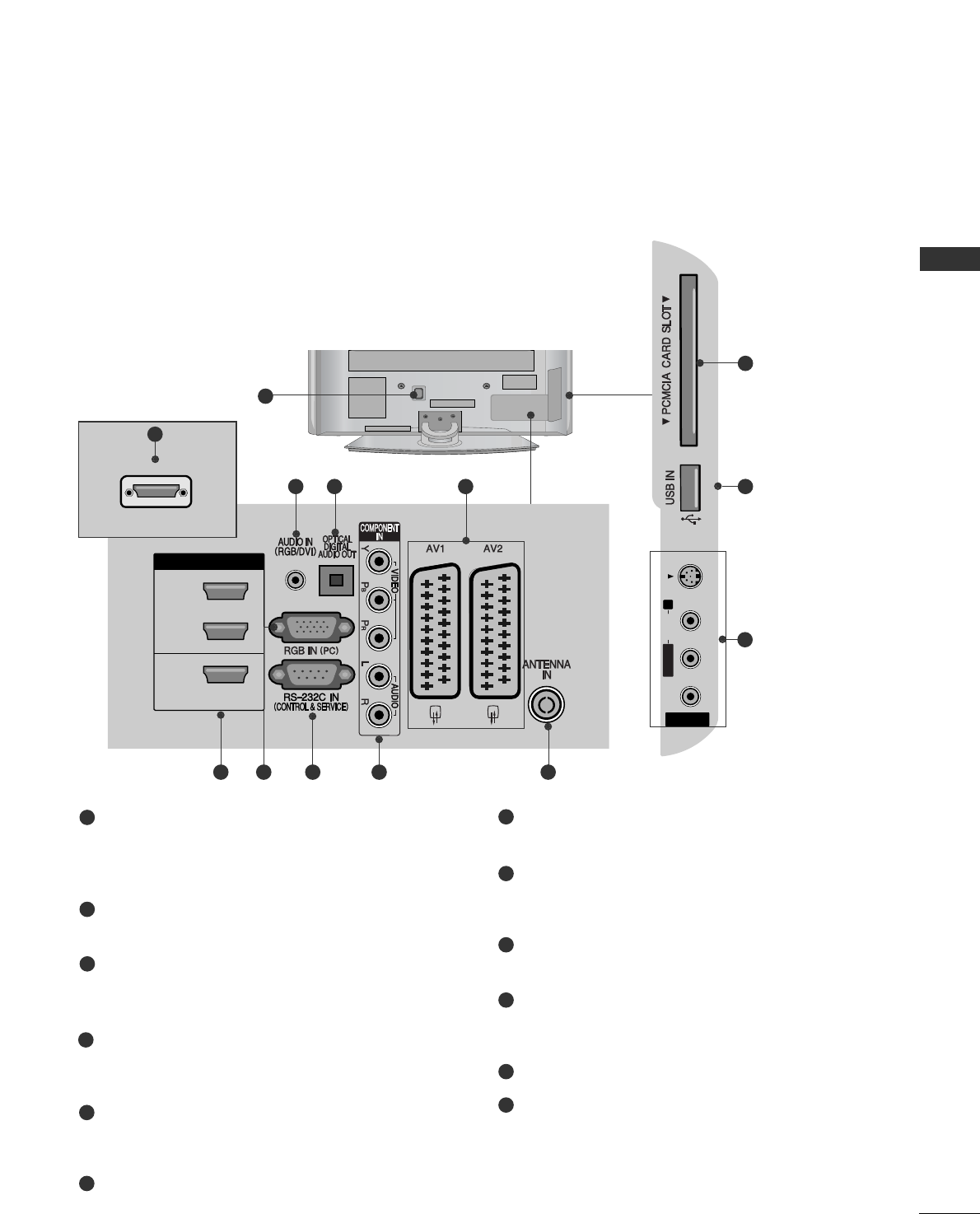
A
Image shown may differ from your TV.
PLASMA TV Models :
42/50PG10**, 42/50PG20**, 42/50/60PG30**
Power Cord Socket
This TV operates on an AC power. The voltage is
indicated on the Specifications page. Never
attempt to operate the TV on DC power.
RGB/DVI Audio Input
Connect the audio from a PC or DTV.
OPTICAL DIGITAL AUDIO OUT
Connect digital audio from various types of equipment.
Note: In standby mode, these ports do not work.
Euro Scart Socket (AV1/AV2)
Connect scart socket input or output from an
external device to these jacks.
HDMI Input
Connect a HDMI signal to HDMI IN. Or DVI (VIDEO)
signal to HDMI/DVI port with DVI to HDMI cable.
RGB Input
Connect the output from a PC.
RS-232C IN (CONTROL & SERVICE) PORT
Connect to the RS-232C port on a PC.
Component Input
Connect a component video/audio device to
these jacks.
Antenna Input
Connect RF antenna to this jack.
PCMCIA (Personal Computer Memory Card
International Association) Card Slot
(This feature is not available in all countries.)
SERVICE ONLY PORT
Audio/Video Input (Except for 42/50PG10**)
Connect audio/video output from an external
device to these jacks.
S-Video Input (Except for 42/50PG10**)
Connect S-Video out from an S-VIDEO device.
1
2
3
4
5
6
7
8
9
10
11
12
AV IN 3
L/MONO
R
AUDIO
VIDEO
S-VIDEO
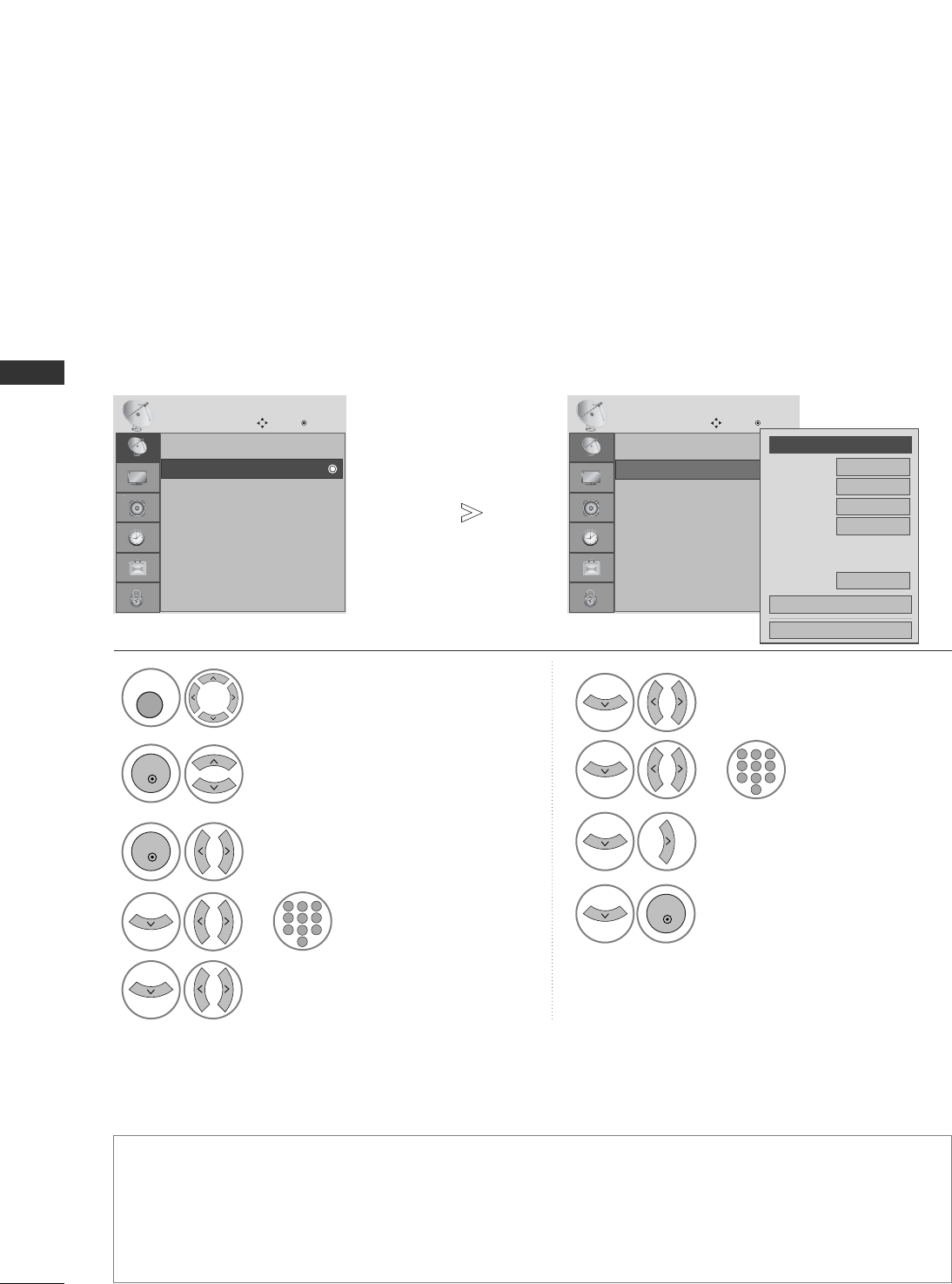
1
HDMI IN
HDMI/DVI IN
3
2
1
AV IN 3
L/MONO
R
AUDIO
VIDEO
S-VIDEO
SERVICE ONLY
AV IN 3
L/MONO
R
AUDIO
AUDIO
VIDEO
VIDEO
S-VIDEO
10
11
24
3
95 6 7 8
HDMI/DVI IN
AV IN 3
L/MONO
R
AUDIO
VIDEO
S-VIDEO
5
Only 42/50PG10**
12
8
PREPARATION
PREPARATION
RGB IN
(PC)
OPTICAL
DIGITAL
AUDIO OUT
AV 1 AV 2
ANTENNA IN
RS-232C IN
(CONTROL & SERVICE)
AUDIO IN
(RGB/DVI)
HDMI/DVI IN
2
1(DVI)
COMPONENT
IN
VIDEO AUDIO
AV IN 3
H/P
L/ MONO
R
AUDIO
HDMI IN 3 PCMCIS CARD SLOT
VIDEO
S-VIDEO
USB IN
SERVICE ONLY
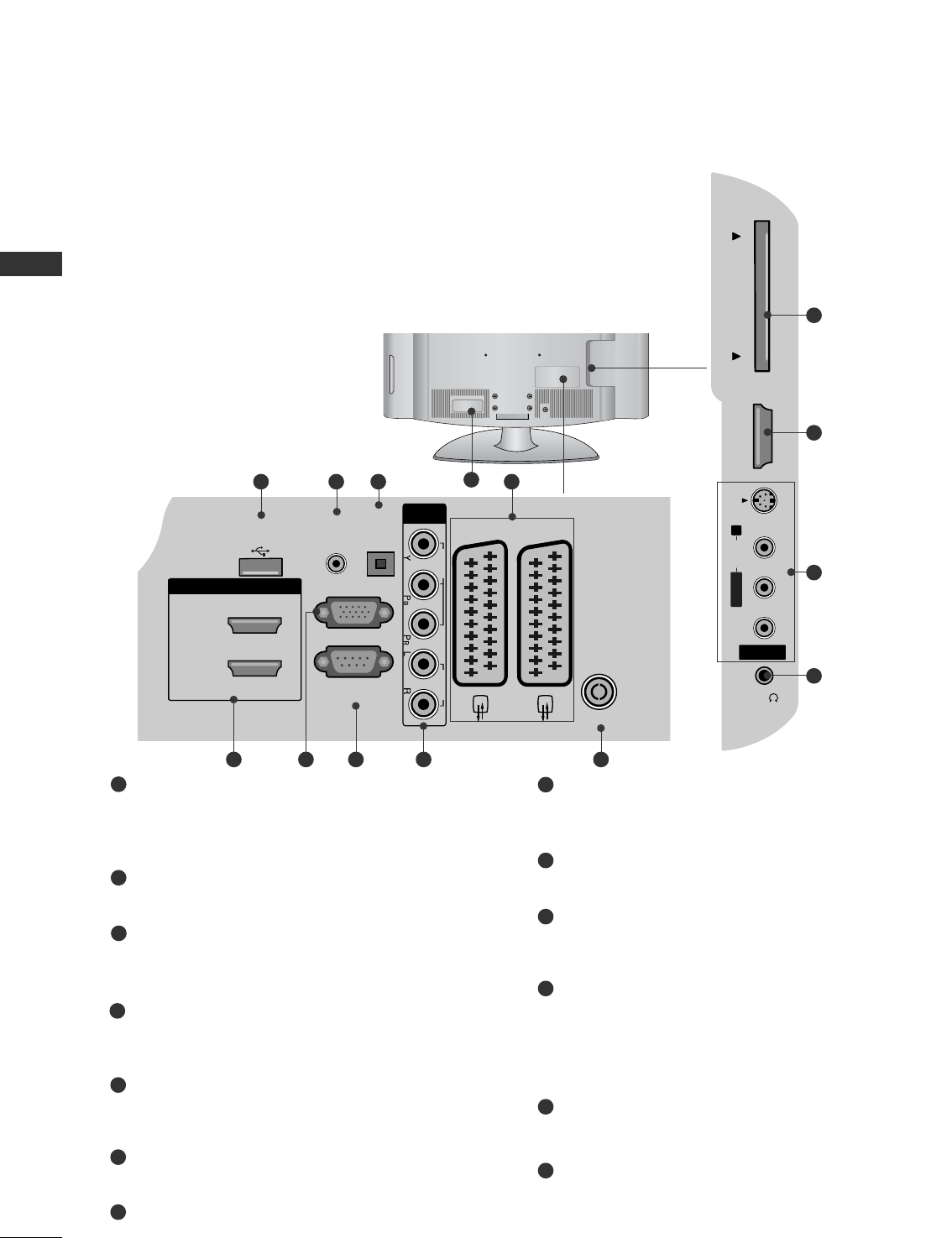
LCD TV Models:
32/37/42LG20**, 19/22/26/32/37/42LG30**,
32/37/42/47/52LG5***
Power Cord Socket
This TV operates on an AC power. The voltage is
indicated on the Specifications page. Never
attempt to operate the TV on DC power.
RGB/DVI Audio Input
Connect the audio from a PC or DTV.
DIGITAL AUDIO OUT OPTICAL
Connect digital audio from various types of equipment.
Note: In standby mode, these ports do not work.
Euro Scart Socket (AV1/AV2)
Connect scart socket input or output from an
external device to these jacks.
HDMI Input
Connect a HDMI signal to HDMI IN. Or DVI (VIDEO)
signal to HDMI/DVI port with DVI to HDMI cable.
RGB Input
Connect the output from a PC.
RS-232C IN (CONTROL & SERVICE) PORT
Connect to the RS-232C port on a PC.
Component Input
Connect a component video/audio device to
these jacks.
Antenna Input
Connect RF antenna to this jack.
PCMCIA (Personal Computer Memory Card
International Association) Card Slot
(This feature is not available in all countries.)
Audio/Video Input
Connect audio/video output from an external
device to these jacks.
S-Video Input (Except for 32/37/42LG20**)
Connect S-Video out from an S-VIDEO device.
Headphone Socket (Except for 32/37/42LG20**)
Connect the headphone plug to this socket.
SERVICE ONLY PORT
1
2
3
4
5
6
7
8
9
10
11
12
13
2
13 43
AV IN 3
H/P
L/MONO
R
AUDIO
AUDIO
HDMI IN 3
HDMI IN 3
PCMCIA CARD SLOT
PCMCIA CARD SLOT
VIDEO
VIDEO
S-VIDEO
95 6 7 8
10
5
11
12
1
Except for
32/37/42LG20**
9
PREPARATION
AUDIO IN
(RGB/DVI)
Y
PB
PR
LR
VIDEO
COMPONENT IN
AUDIO
EJECT PCMCIA
CARD SLOT
RS-232C IN
(CONTROL & SERVICE)
SERVICE
ONLY
RGB (PC) IN
HDMI/DVI IN
AV 1 AV 2
ANTENNA IN
5
32 4
7 8 10
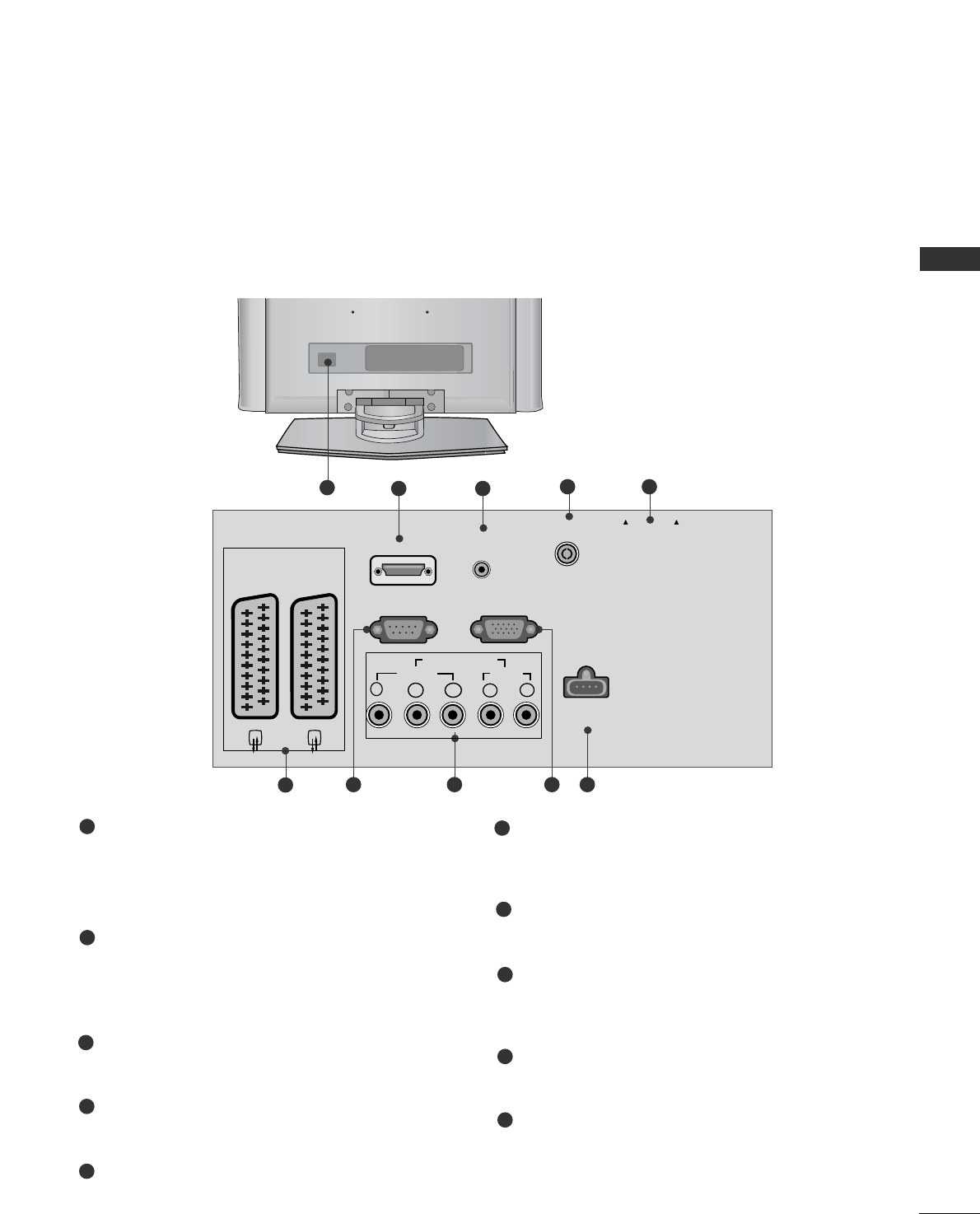
Power Cord Socket
This TV operates on an AC power. The voltage is
indicated on the Specifications page. Never
attempt to operate the TV on DC power.
HDMI Input
Connect a HDMI signal to HDMI IN.
Or DVI(VIDEO)signal to HDMI/DVI port with DVI
to HDMI cable.
RGB/DVI Audio Input
Connect the audio from a PC or DTV.
Antenna Input
Connect RF antenna to this jack.
PCMCIA (Personal Computer Memory Card
International Association) Card Slot
(This feature is not available in all countries.)
Euro Scart Socket (AV1/AV2)
Connect scart socket input or output from an
external device to these jacks.
RS-232C IN (CONTROL & SERVICE) PORT
Connect to the RS-232C port on a PC.
Component Input
Connect a component video/audio device to
these jacks.
RGB Input
Connect the output from a PC.
SERVICE ONLY PORT
1
2
3
4
5
6
7
8
9
10
6
1
9
LCD TV Models : 19/22LS4D*
10
PREPARATION
PREPARATION
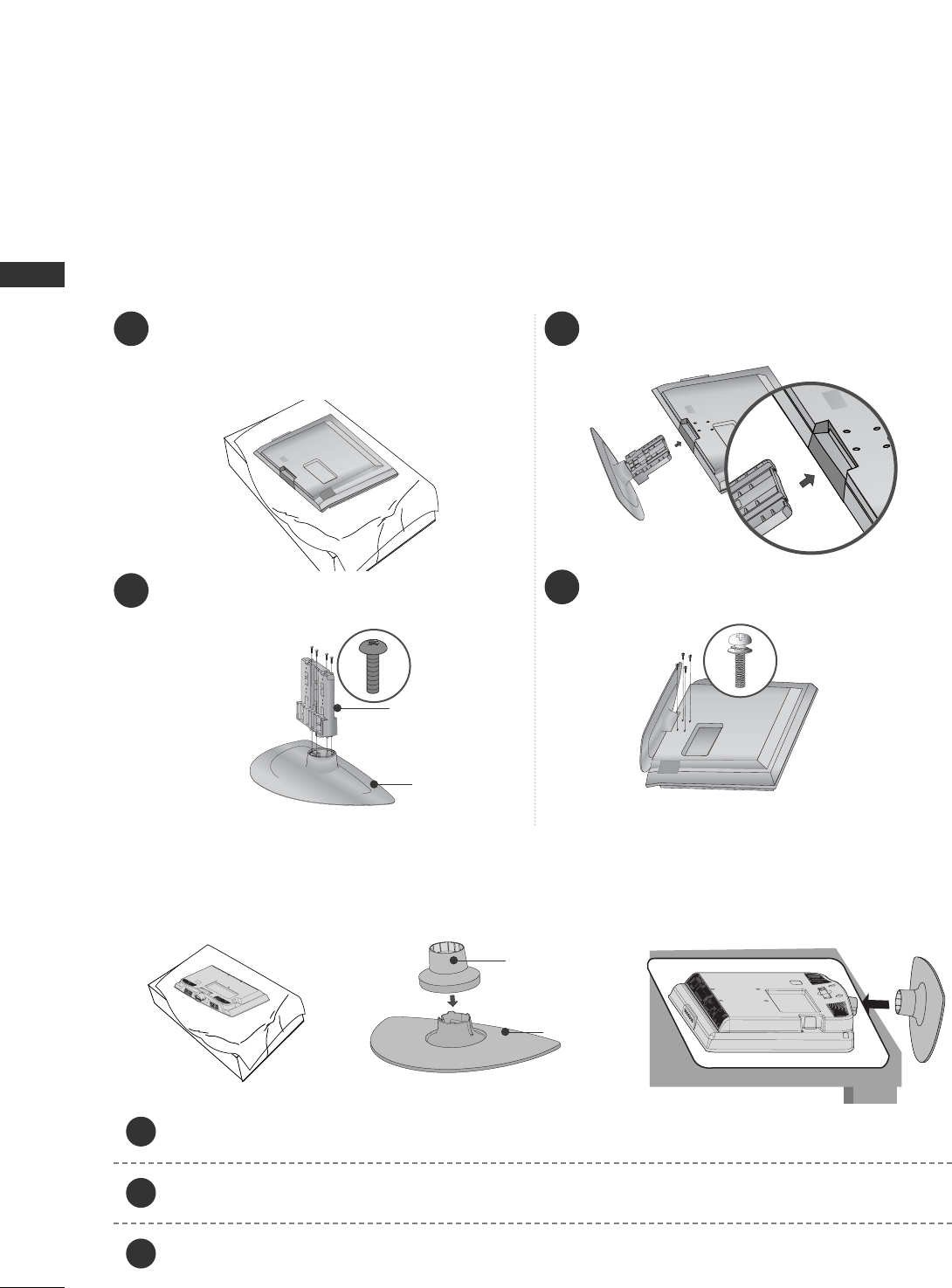
1 3
4
Carefully place the TV screen side down on a
cushioned surface to protect the screen from
damage.
2Assemble the parts of the SSttaanndd BBooddyywith
the CCoovveerr BBaasseeof the TV.
Assemble the TV as shown.
Fix the 4 bolts securely using the holes in the
back of the TV.
Stand Body
Cover Base
STAND INSTALLATION
(LCD TV Models:
32/37/42LG20**, 26/32/37/42LG30**, 32/37/42LG5***
)
A
When assembling the desk type stand, check whether the bolt is fully tightened. (If not tightened fully, the
product can tilt forward after the product installation.) If you tighten the bolt with excessive force, the bolt
can deviate from abrasion of the tightening part of the bolt.
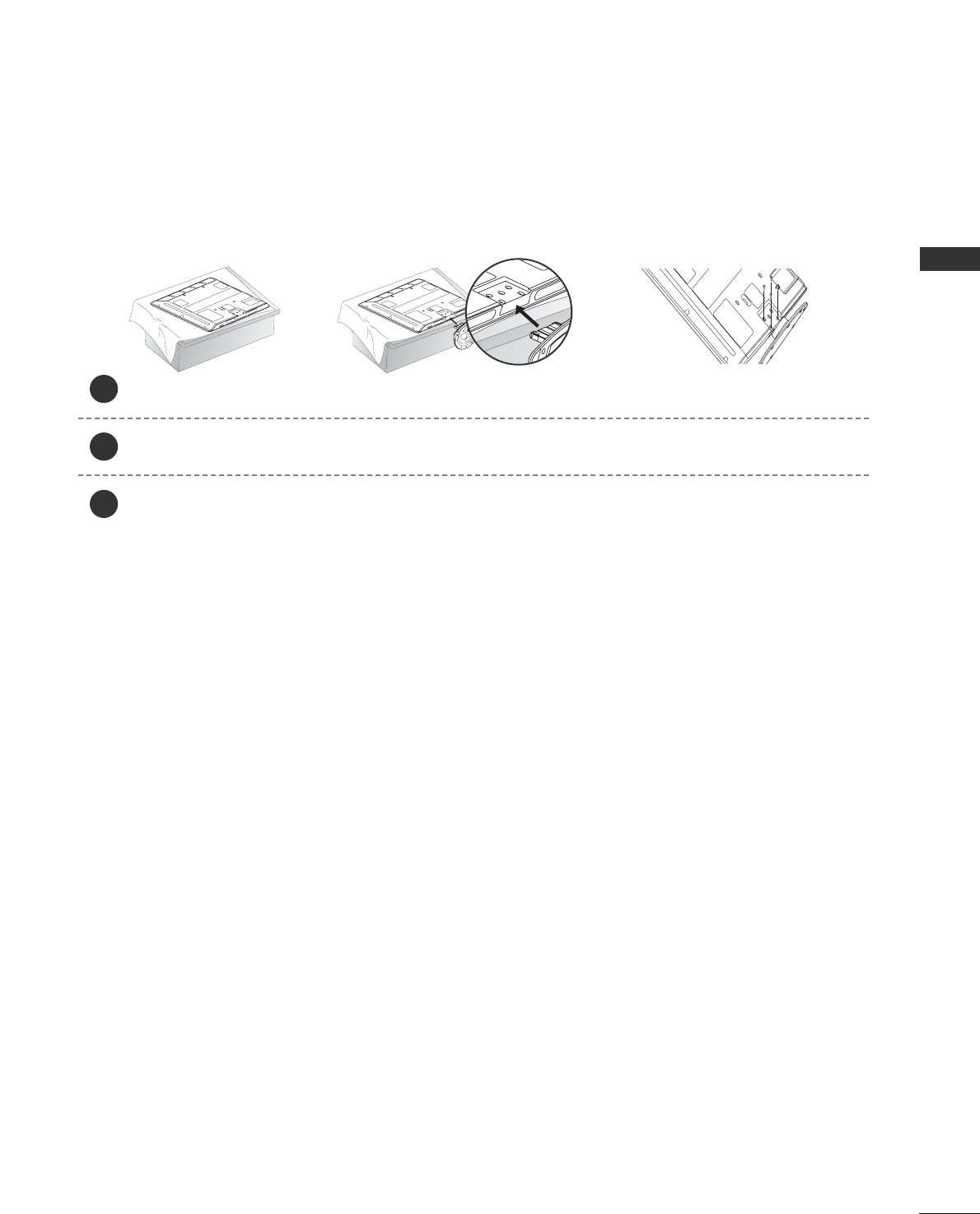
(Only 19/22LG30**)
Carefully place the TV screen side down on a cushioned surface to protect the screen from damage.
Assemble the parts of the SSTTAANNDD BBOODDYYwith CCOOVVEERR BBAASSEEof the TV. Insert the SSTTAANNDD BBOODDYYinto a
CCOOVVEERR BBAASSEEuntil clicking sound.
Assemble the TV as shown.
1
2
3
Stand Body
Cover Base
11
PREPARATION
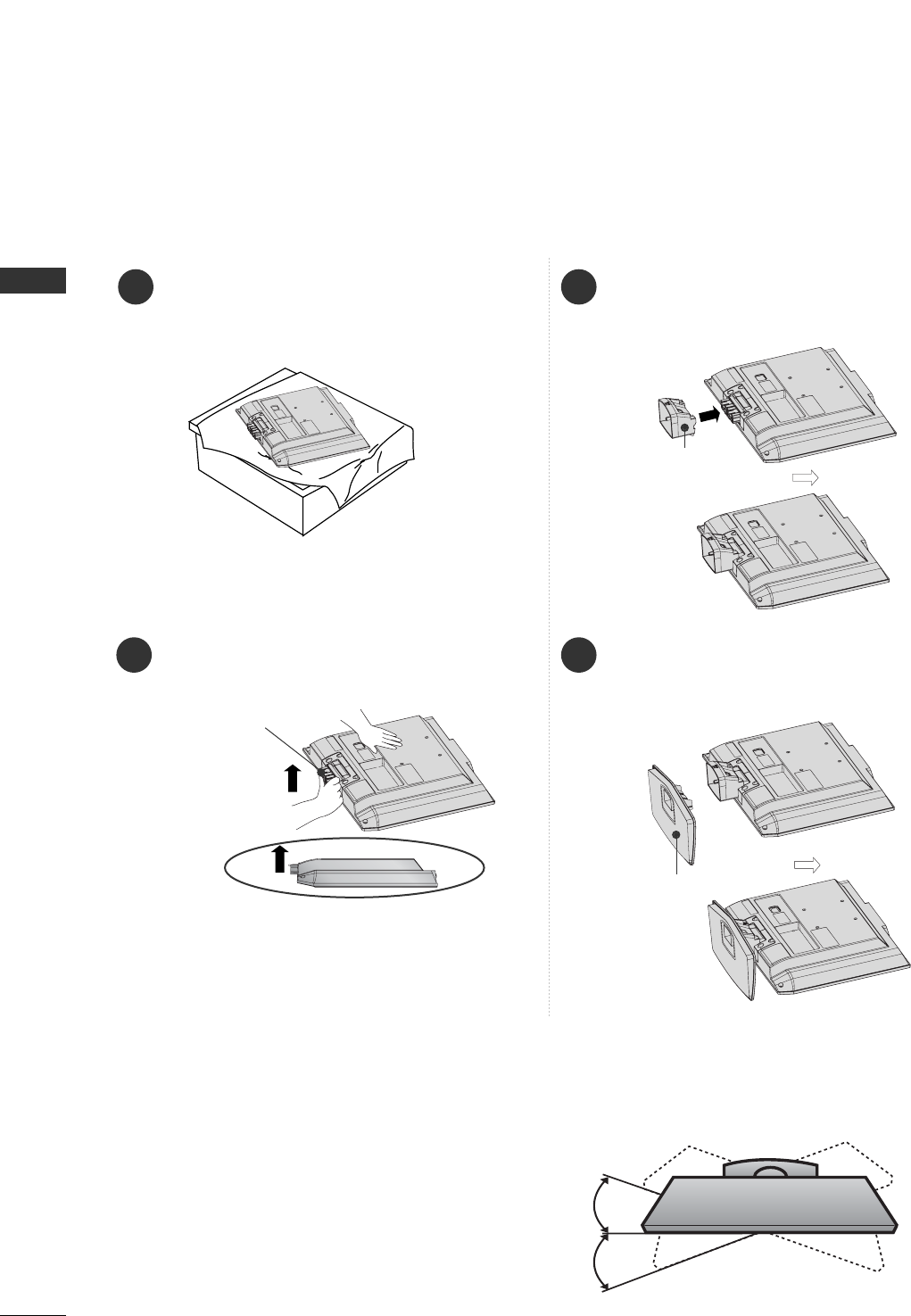
Carefully place the TV screen side down on a cushioned surface to protect the screen from damage.
Assemble the TV as shown.
Fix the 4 bolts securely using the holes in the back of the TV.
(Only
42PG10**, 42PG20**, 42PG30**
)
1
2
3
12
PREPARATION
PREPARATION
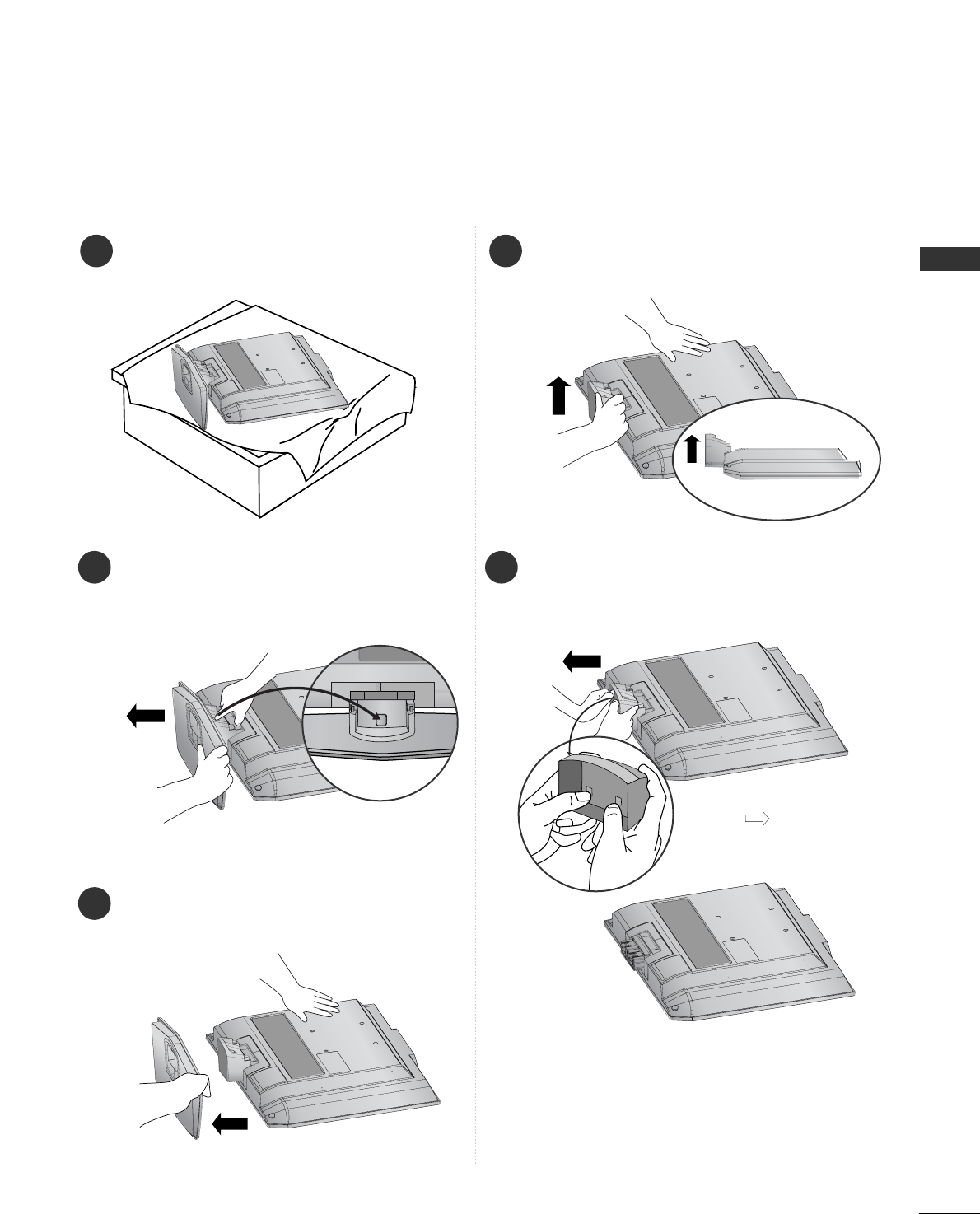
STAND INSTALLATION (Only 19/22LS4D*)
■
Image shown may differ from your TV.
1
2
3
4
Carefully place the TV screen side down on a
cushioned surface to protect the screen from
damage.
Hold the HHiinnggee BBooddyyand bend it upward.
Hinge Body
Insert the SSttaanndd BBooddyyinto the TV until clicking
sound.
Assemble the parts of the SSttaanndd BBooddyywith
the
CCoovveerr BBaasseeof the TV.
Cover Base
Stand Body
Swivel Stand
(Except for 19/22LS4D*, 50PG10**)
After installing the TV, you can adjust the TV manually
to the left or right direction by 20 degrees to suit your
viewing position.
13
PREPARATION
DETACHING STAND (Only 19/22LS4D*)
1
2
3
Place the tv with its front facing downward on a
cushion or soft cloth.
Pull
the
CCoovveerr BBaasseebackward during pressing
a button on the SSttaanndd BBooddyy.
Hold
the
CCoovveerr BBaasseeand pull with shake it
backward to separate from the SSttaanndd BBooddyy.
4Hold the SSttaanndd BBooddyyand bend it upward.
5Pull stand body to separate from the TV during
pressing 2 latches.
■
Image shown may differ from your TV.
14
PREPARATION
PREPARATION
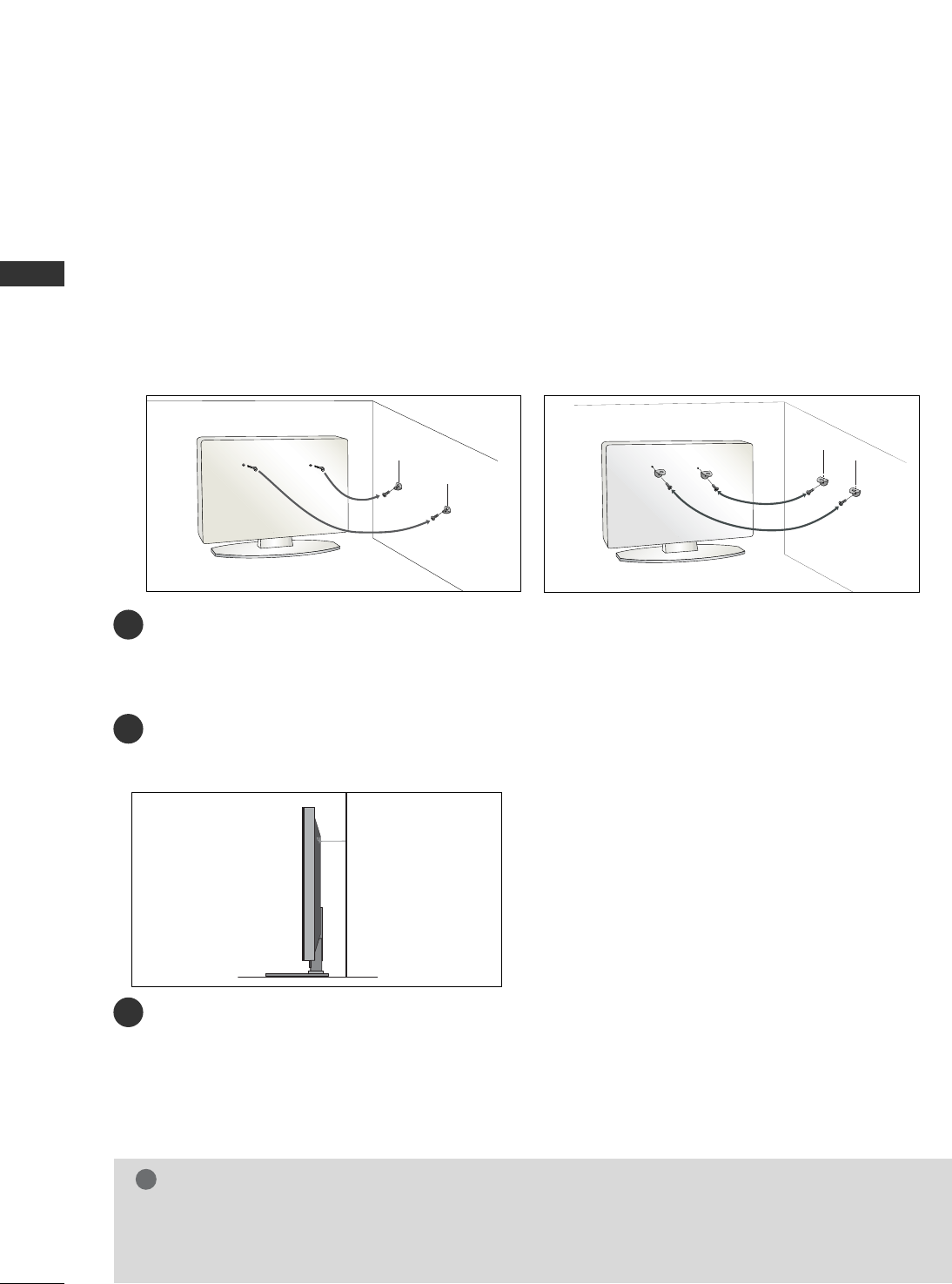
PLEASE SET IT UP CAREFULLY SO THE PRODUCT DOES NOT
FALL OVER.
■You should purchase necessary components to fix the TV to the wall on the market.
■Position the TV close to the wall to avoid the possibility of it falling when pushed.
■The instructions shown below are a safer way to set up the TV, which is to fix it to the wall, avoiding the
possibility of it falling forwards if pulled. This will prevent the TV from falling forward and causing injury. This
will also prevent the TV from damage. Ensure that children do not climb or hang from the TV.
NOTE
!
G When moving the TV undo the cords first.
G Use a platform or cabinet strong and large enough to support the size and weight of the TV.
G To use the TV safely make sure that the height of the bracket on the wall and on the TV is the same.
3
1
2
Use the eye-bolts or TV brackets/bolts to fix the TV to the wall as shown in the picture.
(If your TV has bolts in the eyebolts, loosen these bolts.)
* Insert the eye-bolts or TV brackets/bolts and tighten them securely in the upper holes.
Secure the wall brackets with the bolts on the wall. Match the height of the bracket that is mounted on the
wall.
3Use a sturdy rope to tie the TV. It is safer to tie the rope so it becomes horizontal between the wall and the
TV.
2
1
2
1
15
PREPARATION
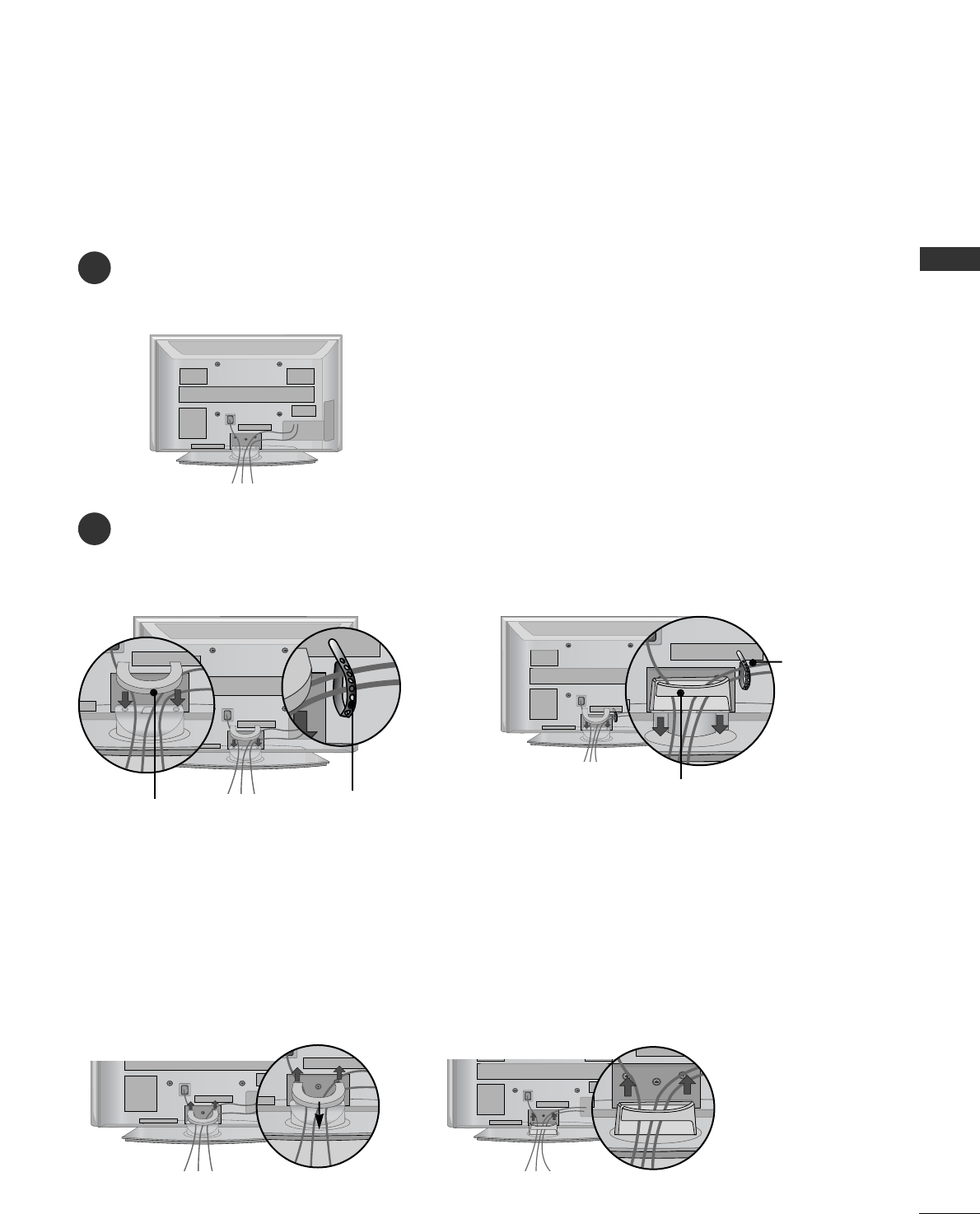
BACK COVER FOR WIRE ARRANGEMENT
PLASMA TV Models
Connect the cables as necessary.
To connect additional equipment, see the EExxtteerrnnaall EEqquuiippmmeenntt SSeettuuppsection.
1
Install the CCAABBLLEE MMAANNAAGGEEMMEENNTT CCLLIIPPas shown.
If your TV has the CABLE HOLDER, install it as shown and bundle the cables.
2
CABLE MANAGEMENT CLIP
Hold the CCAABBLLEE MMAANNAAGGEEMMEENNTT CCLLIIPPwith both hands and pull it upward.
* For the 42PG10** model, press the center of the CABLE MANAGEMENT CLIP and then lift up it.
How to remove the cable management clip
(Only
42/50PG10**
) (Only
42/50PG20**
,
42/50/60PG30**
)
(Only
42/50PG10**
) (Only
42/50PG20**
,
42/50/60PG30**
)
CABLE MANAGEMENT CLIP
CABLE HOLDER
CABLE HOLDER
16
PREPARATION
PREPARATION
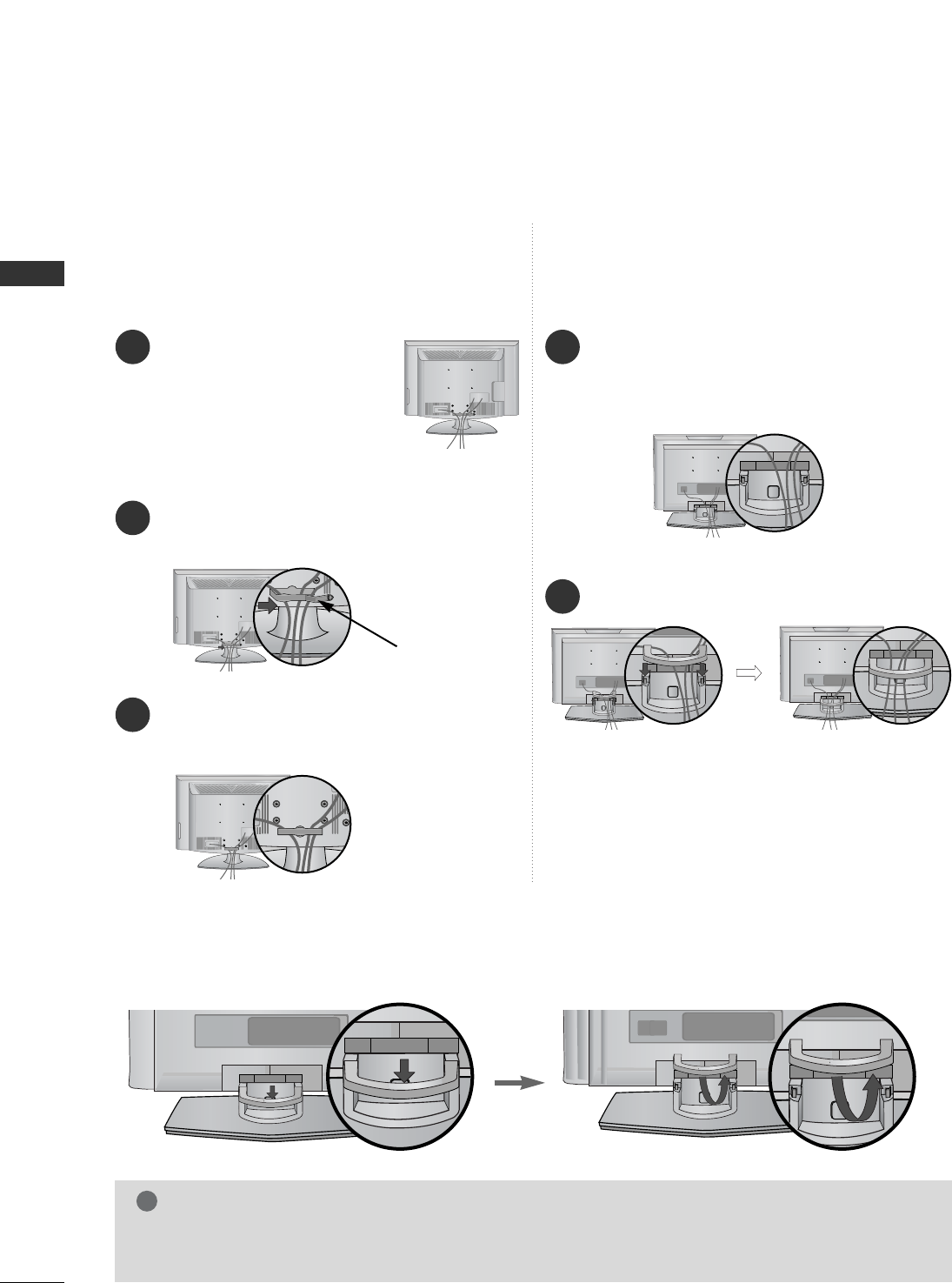
LCD TV Models:
32/37/42LG20**, 26/32/37/
42LG30**, 32/37/42/47/52LG5***
Connect the cables as neces-
sary.
To connect additional equip-
ment, see the External
Equipment Setup section of
the manual.
1
Open the CCAABBLLEE MMAANNAAGGEEMMEENNTT CCLLIIPPas
shown and manage the cables.
2
CABLE MANAGEMENT CLIP
Fit the CCAABBLLEE MMAANNAAGGEEMMEENNTT CCLLIIPPas
shown.
3
Connect the cables as necessary.
To connect additional equipment, see the
External Equipment Setup section.
1
Install the CABLE MANAGEMENT CLIP as shown.
2
First, press the cable management. Hold the CCAABBLLEE MMAANNAAGGEEMMEENNTT CCLLIIPPwith both hands and pull it upward.
NOTE
!
GGDo not use the CABLE MANAGEMENT CLIP to lift the TV.
- If the TV is dropped, you may be injured or the TV may be damaged.
How to remove the cable management clip (LCD TV Models : 19/22LS4D*)
LCD TV Models : 19/22LS4D*
17
PREPARATION
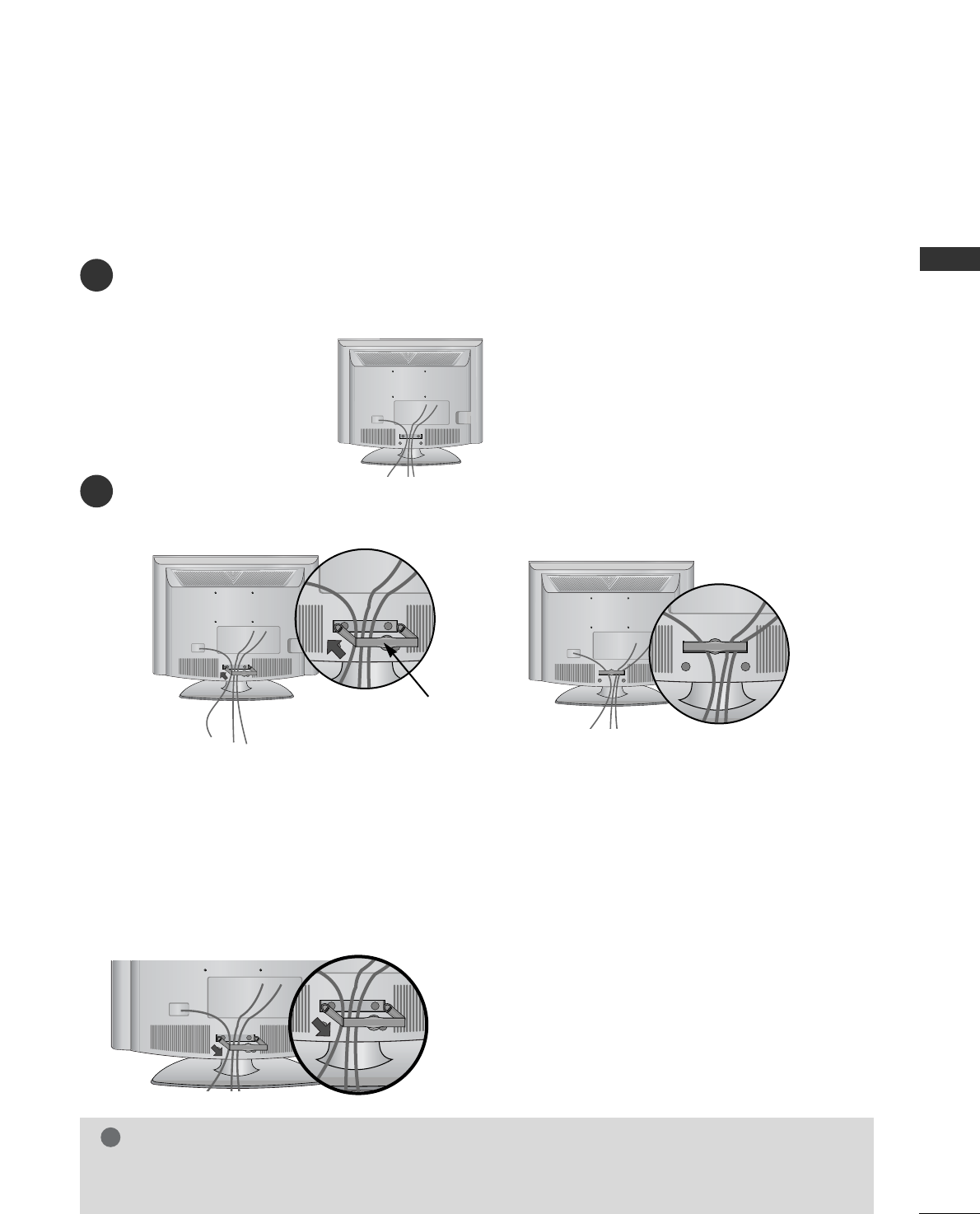
LCD TV Models : 19/22LG30**
Connect the cables as necessary.
To connect additional equipment, see the External Equipment Setup section of the manual.
1
Install the CABLE MANAGEMENT CLIP as shown.
2
CABLE MANAGEMENT CLIP
NOTE
!
GGDo not use the CABLE MANAGEMENT CLIP to lift the TV.
- If the TV is dropped, you may be injured or the TV may be damaged.
How to remove the cable management clip
GGHold the CABLE MANAGEMENT CLIP with both hands and pull it backward.
18
PREPARATION
PREPARATION
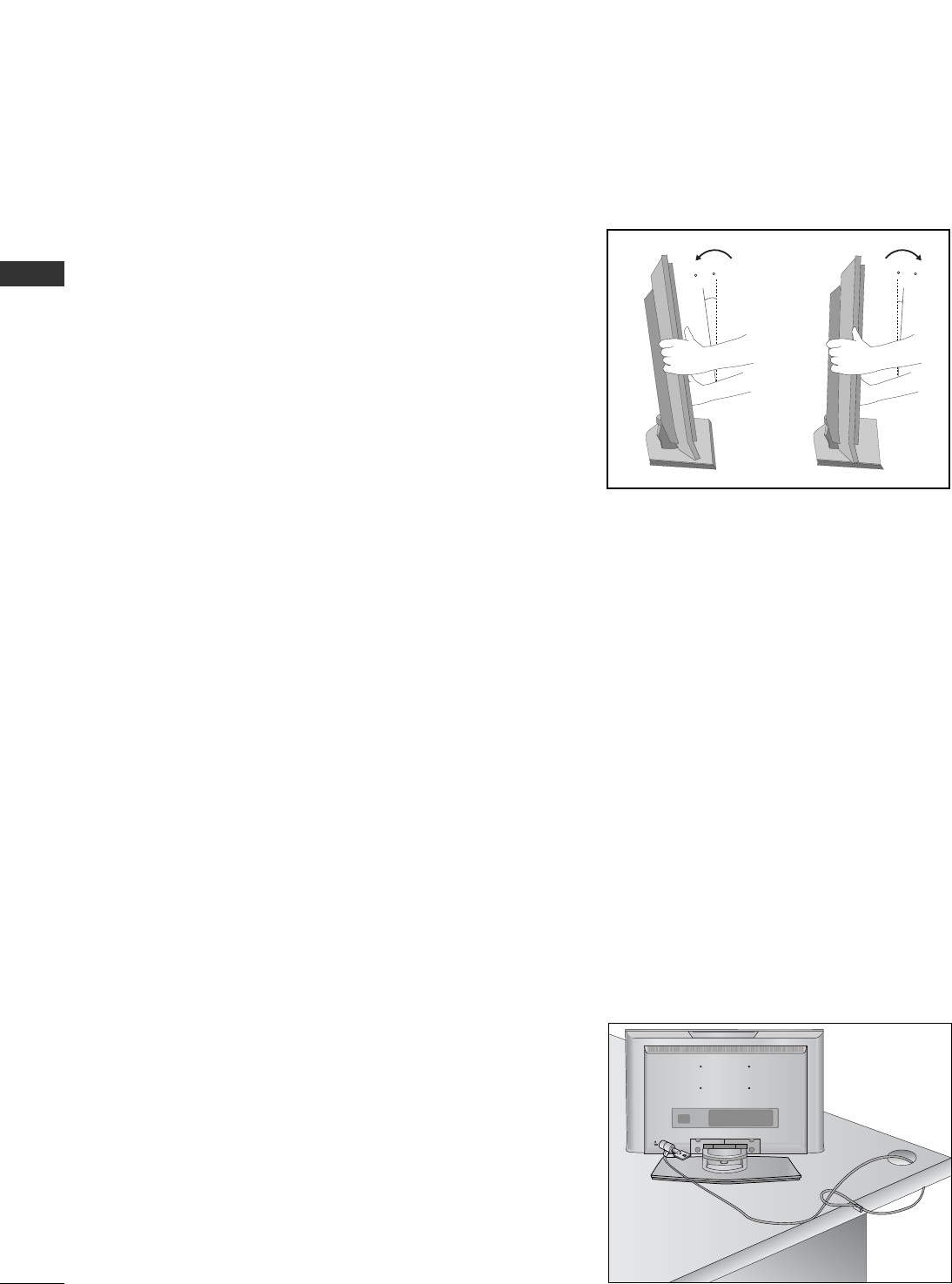
POSITIONING YOUR DISPLAY (Only 19/22LG30**, 19/22LS4D*)
■Image shown may differ from your TV.
■Adjust the position of the panel in various ways for
maximum comfort.
• Tilt range
10~12
3
0
LOCATION (Only 19/22LG30**, 19/22LS4D*)
Position your TV so that no bright light or sunlight falls directly onto the screen. Care should be taken not to
expose the tv to any unnecessary vibration, moisture, dust or heat. Also ensure that the TV is placed in a position
to allow a free flow of air. Do not cover the ventilation openings on the back cover.
If you intend to mount the TV to a wall, attach VESA standard mounting interface (optional parts) to the back of
the TV.
When you install the TV to use the wall mounting bracket (optional parts), fix it carefully so as not to drop.
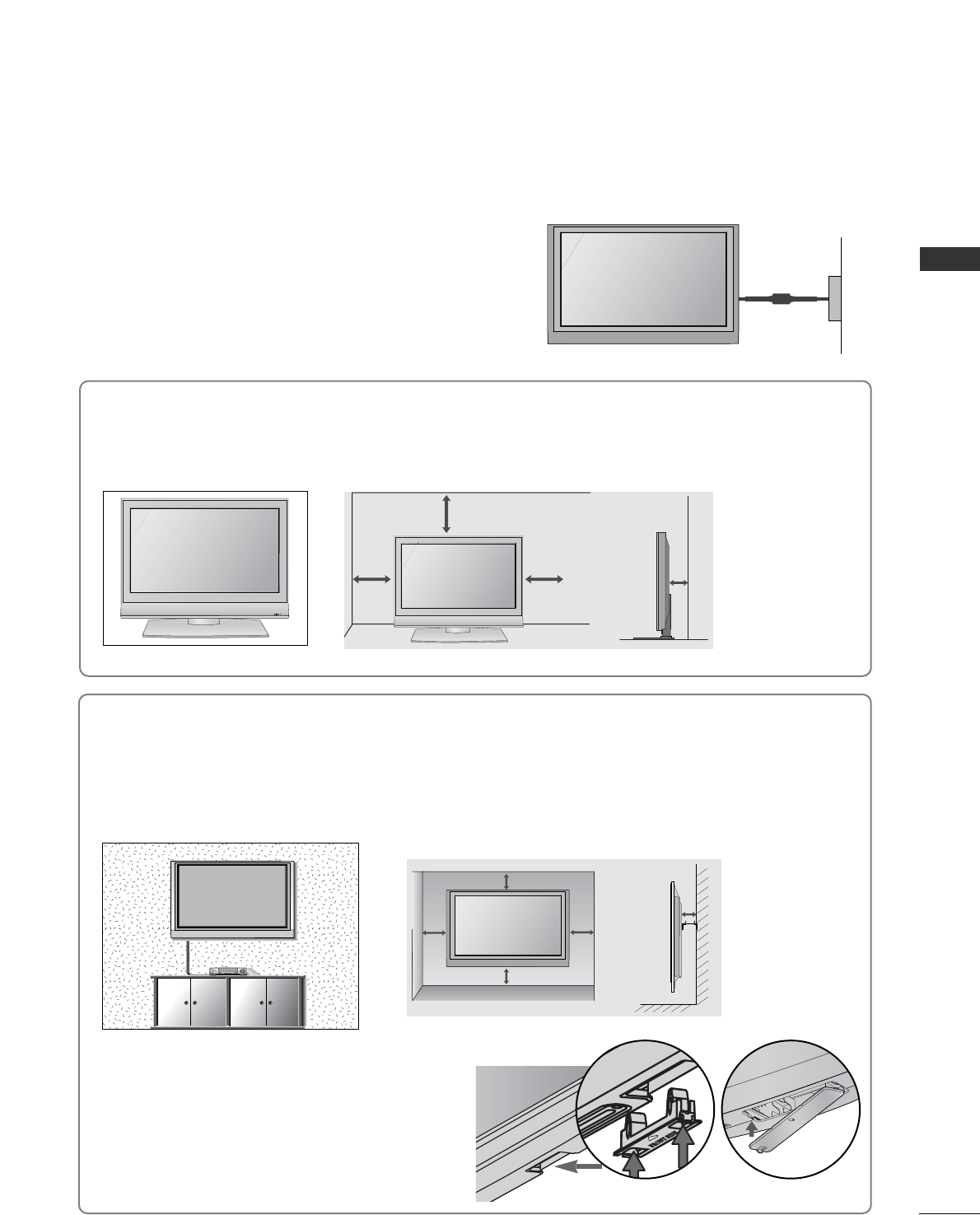
KENSINGTON SECURITY SYSTEM
(Only 19/22LG30**, 19/22LS4D*)
The TV is equipped with a Kensington Security System connector on the back panel. Connect the Kensington
Security System cable as shown below.
For the detailed installation and use of the Kensington Security System, refer to the user’s guide provided with
the Kensington Security System.
For further information, contact http://www.kensington.com, the internet homepage of the Kensington
company. Kensington sells security systems for expensive electronic equipment such as notebook PCs and LCD
projectors.
NOTE
- The Kensington Security System is an optional accessory.
NOTES
a. If the TV feels cold to the touch, there may be a small “flicker”
when when it is turned on.
This is normal, there is nothing wrong with TV.
b. Some minute dot defects may be visible on the screen, appear-
ing as tiny red, green, or blue spots. However, they have no
adverse effect on the monitor's performance.
c. Avoid touching the LCD screen or holding your finger(s)
against it for long periods of time.
Doing so may produce some temporary distortion effects on
the screen.
19
PREPARATION
DESKTOP PEDESTAL INSTALLATION
R
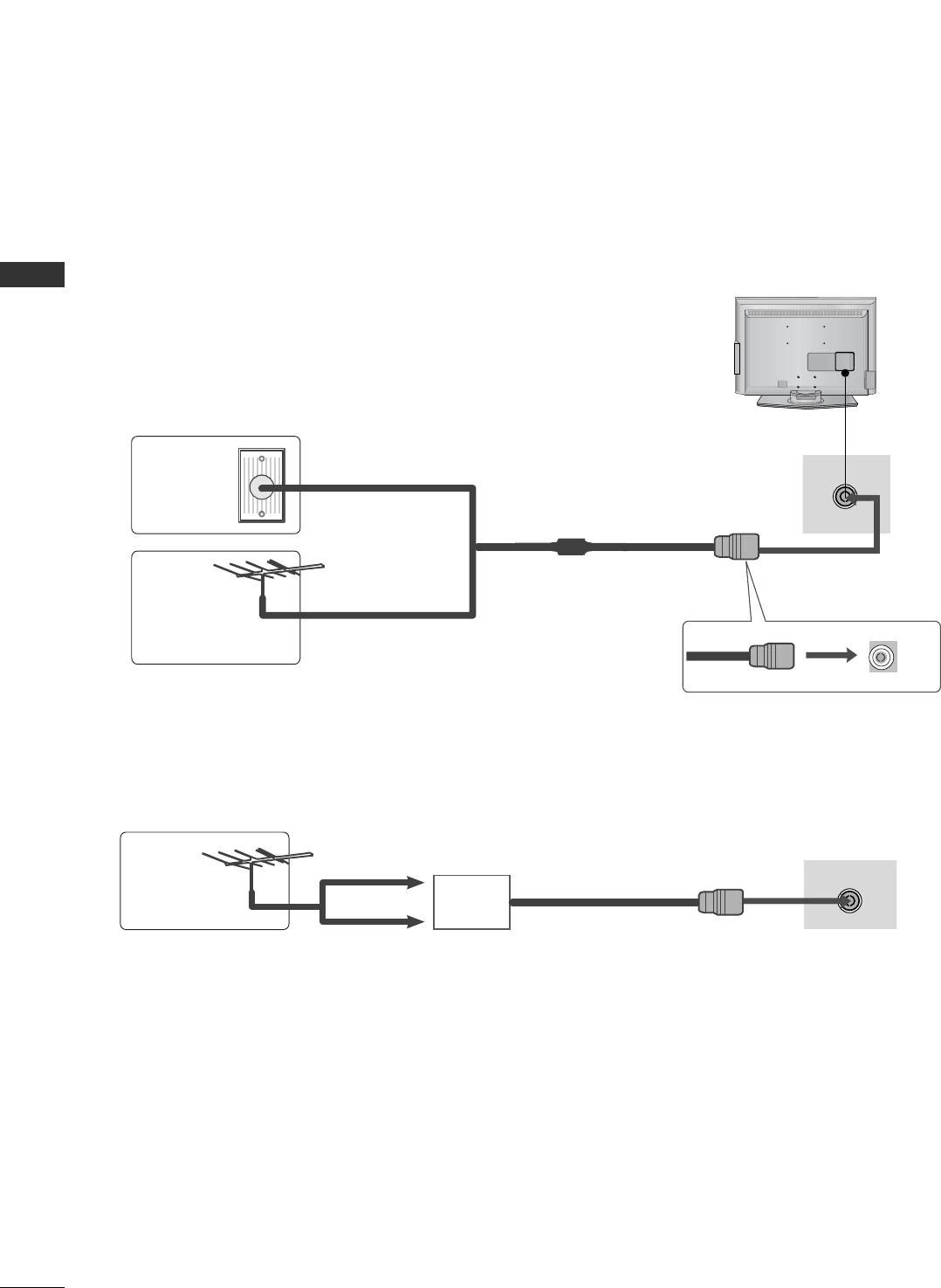
For adequate ventilation allow a clearance of 4” (10cm) all around the TV.
EARTHING
Ensure that you connect the earth wire to prevent possible
electric shock. If grounding methods are not possible, have a
qualified electrician install a separate circuit breaker.
Do not try to earth the TV by connecting it to telephone
wires, lightening rods or gas pipes.
Power Supply
Circuit
breaker
■The TV can be installed in various ways such as on a wall, or on a desktop etc.
■The TV is designed to be mounted horizontally.
4 inches
4 inches 4 inches 4 inches
WALL MOUNT: HORIZONTAL INSTALLATION
For adequate ventilation allow a clearance of 4” (10cm) all around the TV. We recommend that you
use a wall mounting bracket of LG brand when mounting the TV to a wall.
4 inches
4 inches
4 inches 4 inches
4 inches
When installing the wall-mounted unit, use the
protection cover for desk-type stand installation.
Insert the PPRROOTTEECCTTIIOONN CCOOVVEERRinto the TV
until clicking sound.
Not using the desk-type stand
(Except for 19/22LS4D*)
■
Image shown may differ from your TV.
< PLASMA TV > < LCD TV >
20
PREPARATION
PREPARATION
AV 1 AV 2
ANTENNA IN
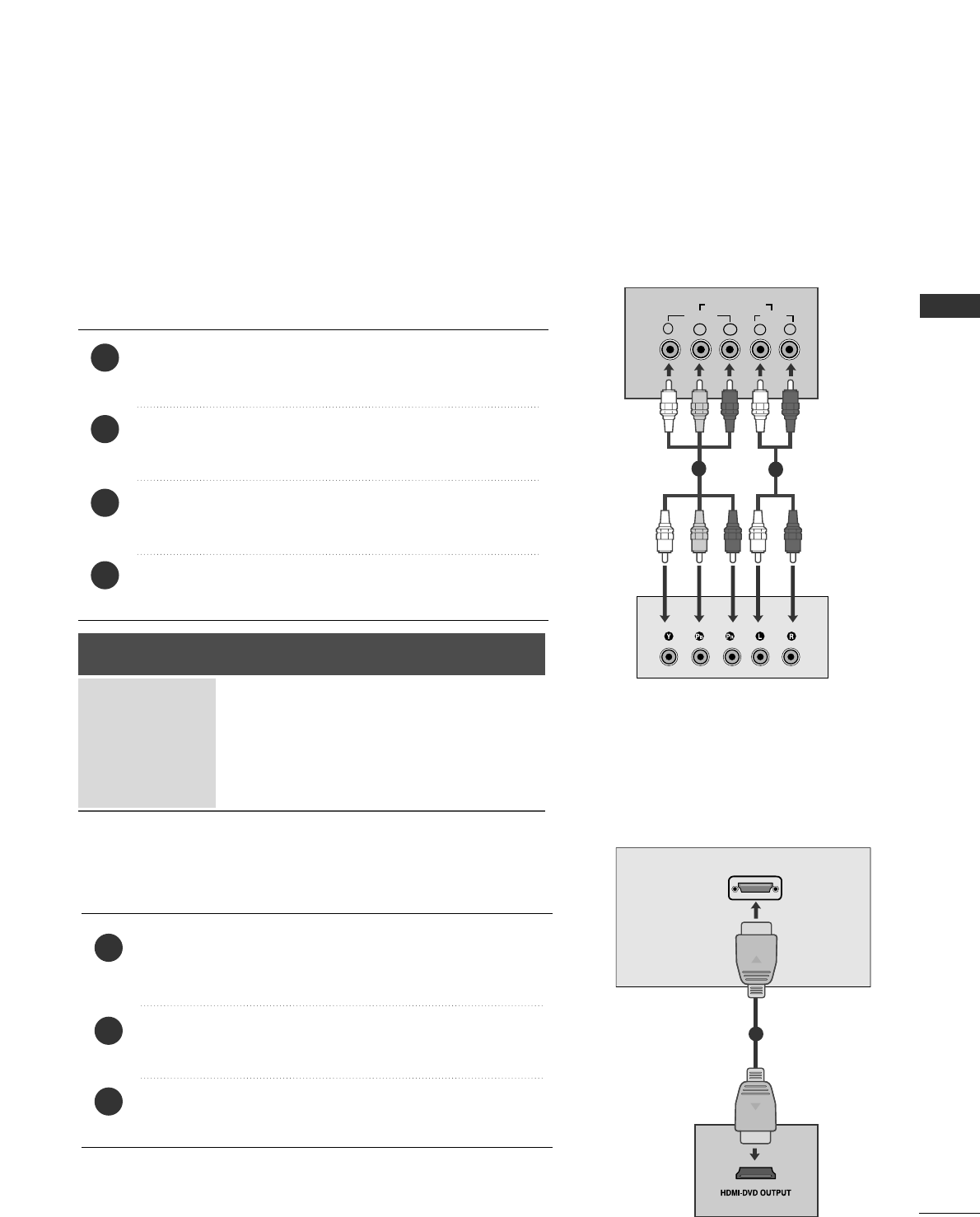
■For optimum picture quality, adjust antenna direction.
■An antenna cable and converter are not supplied.
■To prevent damage do not connect to the mains outlet until all connections are made between the devices.
Multi-family Dwellings/Apartments
(Connect to wall antenna socket)
Single-family Dwellings /Houses
(Connect to wall jack for outdoor antenna)
Outdoor
Antenna
(VHF, UHF)
Wall
Antenna
Socket
RF Coaxial Wire (75 ohm)
ANTENNA CONNECTION
Antenna
UHF
Signal
Amplifier
VHF
■In poor signal areas, to achieve better picture quality it may be necessary to install a signal amplifier to the
antenna as shown above.
■If signal needs to be split for two TVs, use an antenna signal splitter for connection.
AV IN 3
L/ MONO
R
AUDIO
VIDEO
S-VIDEO
HDMI IN
12
VARIABLE
AUDIO OUT
RGB IN
COMPONENT IN
AUDIO
VIDEO
AV 1 AV 2
ANTENNA
IN
AV 1 AV 2
ANTENNA IN
21
EXTERNAL EQIPMENT SETUP
EXTERNAL EQUIPMENT SETUP
Connect the video outputs (Y, PB, PR)of the digital set
top box to the CCOOMMPPOONNEENNTT IINN VVIIDDEEOOjacks on the TV.
Connect the audio output of the digital set-top box to
the CCOOMMPPOONNEENNTT IINN AAUUDDIIOOjacks on the TV.
Turn on the digital set-top box.
(Refer to the owner’s manual for the digital set-top box.)
Select CCoommppoonneennttinput source using the IINNPPUUTTbutton
on the remote control.
2
3
4
1
HD RECEIVER SETUP
■To avoid damaging any equipment, never plug in any power cords until you have finished connecting all equipment.
■This section on EXTERNAL EQUIPMENT SETUP mainly uses diagrams for the 22LS4D*models.
Connecting with a component cable
Y
P
B
PR
LR
VIDEO
COMPONENT IN
AUDIO
12
Signal
480i/576i
480p/576p
720p/1080i
108 0 p
Component
Yes
Yes
Yes
Yes
(50/60Hz)
HDMI
No
Yes
Yes
Yes
Connecting a set-top box with an HDMI cable
Connect the HDMI output of the digital set-top box to the
HHDDMMII//DDVVII IINN,HHDDMMII//DDVVII IINN 11,HHDDMMII IINN 22or
HHDDMMII IINN 33 jack on the TV.
Turn on the digital set-top box.
(Refer to the owner’s manual for the digital set-top box.)
Select HDMI/DVI, HDMI1, HDMI2 or HDMI3 input source
using the IINNPPUUTTbutton on the remote control.
2
3
1
HDMI/DVI IN
1
■This TV can receive Digital RF/Cable signals without an external digital set-top box. However, if you do receive
Digital signals from a digital set-top box or other digital external device, refer to the diagram as shown below.
22
EXTERNAL EQIPMENT SETUP
EXTERNAL EQUIPMENT SETUP
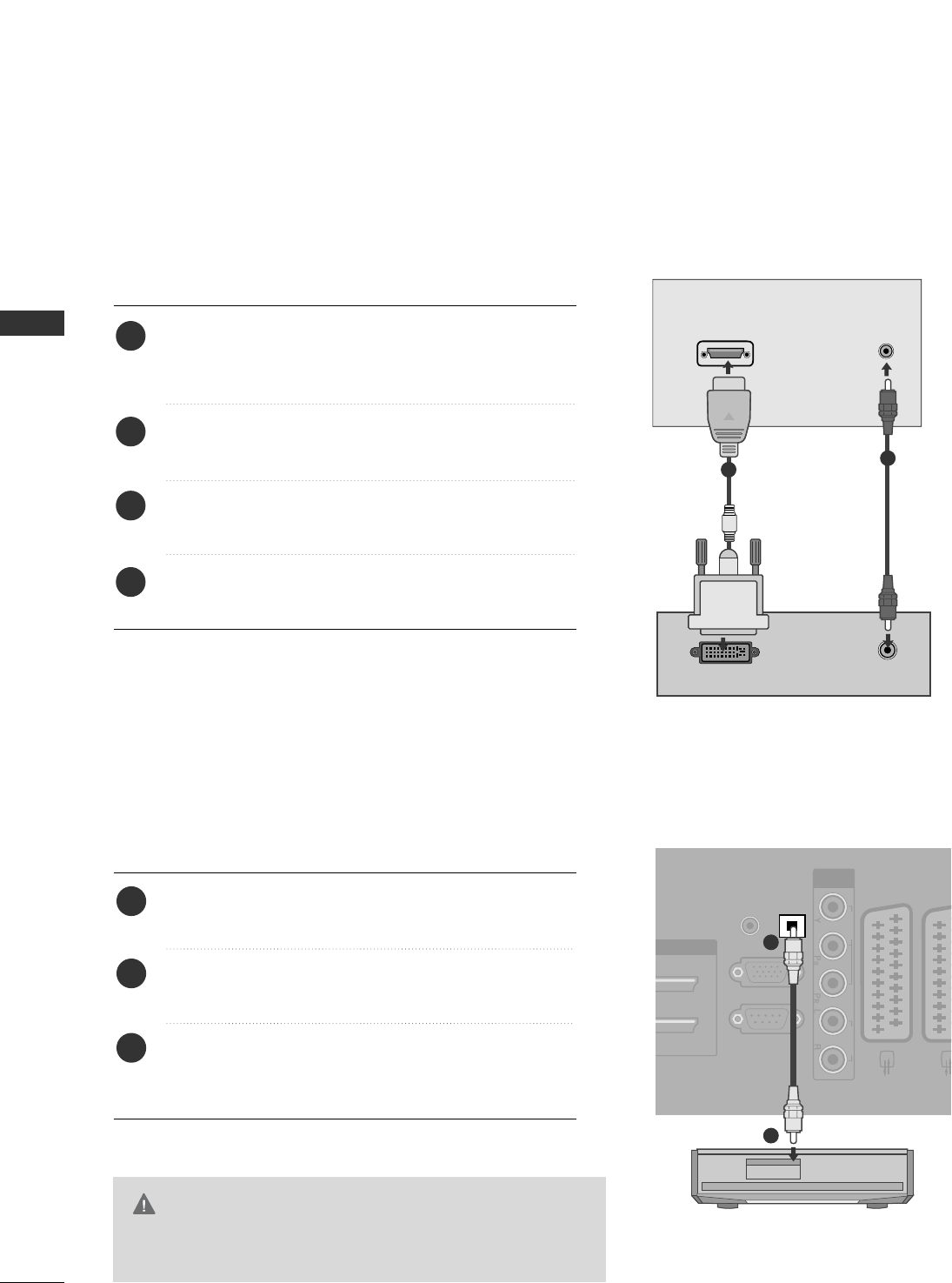
Connect the digital set-top box to HHDDMMII//DDVVII IINN,
HHDDMMII//DDVVII IINN 11((DDVVII))or HHDDMMII//DDVVII IINN 11 jack on
the TV.
Connect the audio output of the digital set-top box to
the AAUUDDIIOO IINN ((RRGGBB//DDVVII)) jack on the TV.
Turn on the digital set-top box. (Refer to the owner’s
manual for the digital set-top box.)
Select HDMI/DVI or HDMI 1 input source using the
IINNPPUUTTbutton on the remote control.
2
3
4
1
Connecting with a HDMI to DVI cable
DVI-PC OUTPUT AUDIO
HDMI/DVI IN
AUDIO IN
(RGB/DVI)
12
DIGITAL AUDIO OUT SETUP
(Except for 19/22LS4D*)
- Sending the TV’s audio signal to external audio equipment via
the Digital Audio Output (Optical) port.
GDo not look into the optical output port. Looking at the
laser beam may damage your vision.
CAUTION
RGB IN
(PC)
OPTICAL
DIGITAL
AUDIO OUT
AV 1 AV
RS-232C IN
(CONTROL & SERVICE)
AUDIO IN
(RGB/DVI)
DVI IN
COMPONENT
IN
VIDEO AUDIO
Connect one end of an optical cable to the TV Digital
Audio (Optical)Output port.
Connect the other end of the optical cable to the
digital audio (optical)input on the audio equipment.
Set the “ TV Speaker option - Off ” in the AUDIO
menu. (G pp..8800) Refer to the external audio equipment
instruction manual for operation.
2
3
1
1
2
23
EXTERNAL EQIPMENT SETUP
DVD SETUP
When connecting with a component cable
AV 1 AV 2
Y
P
B
P
R
LR
VIDEO
COMPONENT IN
AUDIO
Component Input ports
To achieve better picture quality, connect a DVD player to
the component input ports as shown below.
Component ports on the TV
YP
BPR
Video output ports
on DVD player
Y
Y
Y
Y
PB
B-Y
Cb
Pb
PR
R-Y
Cr
Pr
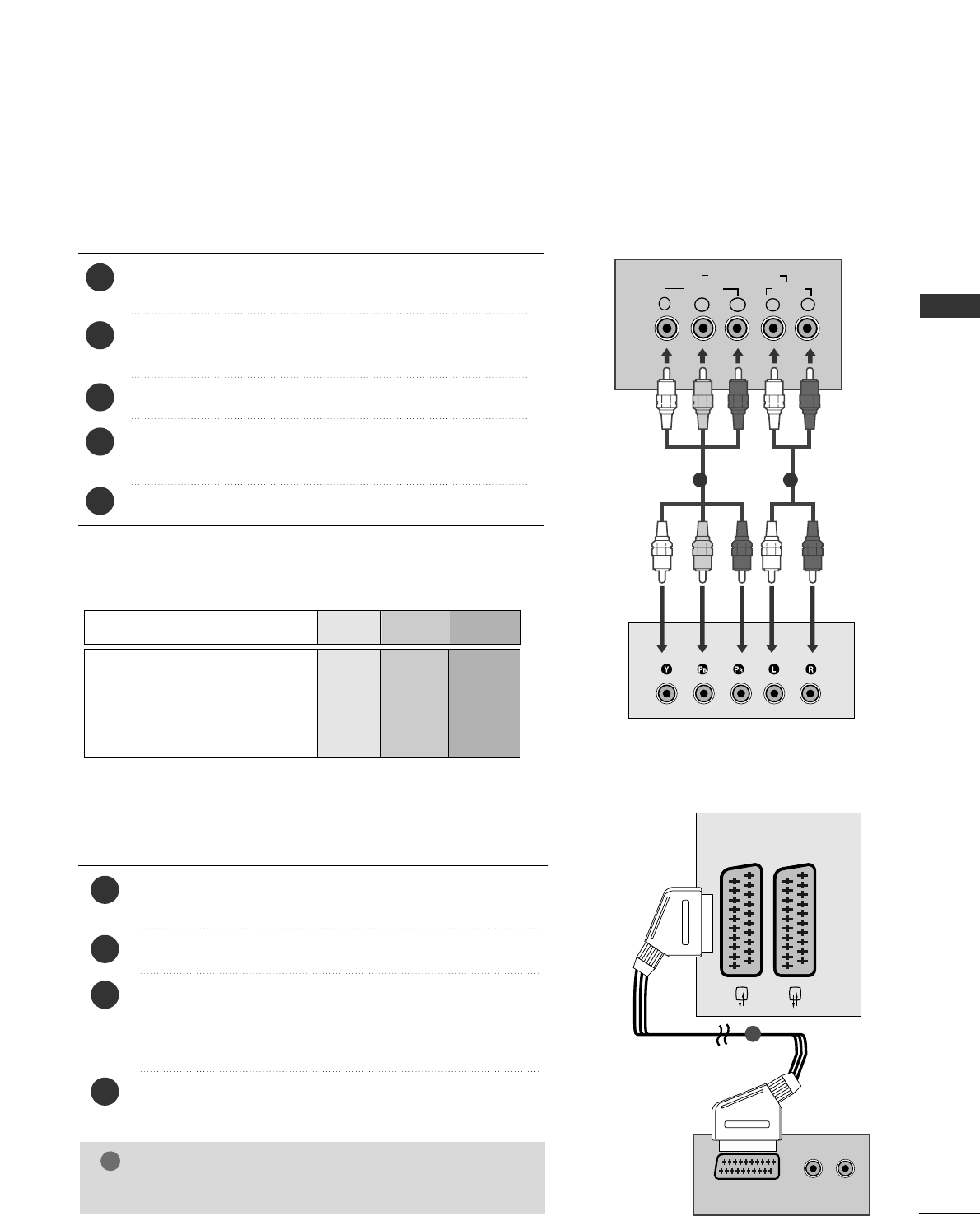
Connect the video outputs (Y, PB, PR)of the DVD to the
CCOOMMPPOONNEENNTT IINN VVIIDDEEOOjacks on the TV.
Connect the audio outputs of the DVD to the
CCOOMMPPOONNEENNTT IINN AAUUDDIIOOjacks on the TV.
Turn on the DVD player, insert a DVD.
Select CCoommppoonneennttinput source using the IINNPPUUTTbutton
on the remote control.
Refer to the DVD player's manual for operating instructions.
2
3
4
5
1
1 2
(R) AUDIO (L)
AUDIO/
VIDEO
AV 1 AV 2
Connecting with a Euro Scart cable
Connect the Euro scart socket of the DVD to the AAVV11
Euro scart socket on the TV.
Turn on the DVD player, insert a DVD.
Select AAVV11input source using the IINNPPUUTTbutton on the
remote control.
If connected to AAVV22Euro scart socket, select AAVV22input
source.
Refer to the DVD player's manual for operating instructions.
2
3
4
1
1
NOTE
!
GGAny Euro scart cable used must be signal shielded.
24
EXTERNAL EQIPMENT SETUP
EXTERNAL EQUIPMENT SETUP
HDMI/DVI IN
AV 1 AV 2
Connecting the HDMI cable
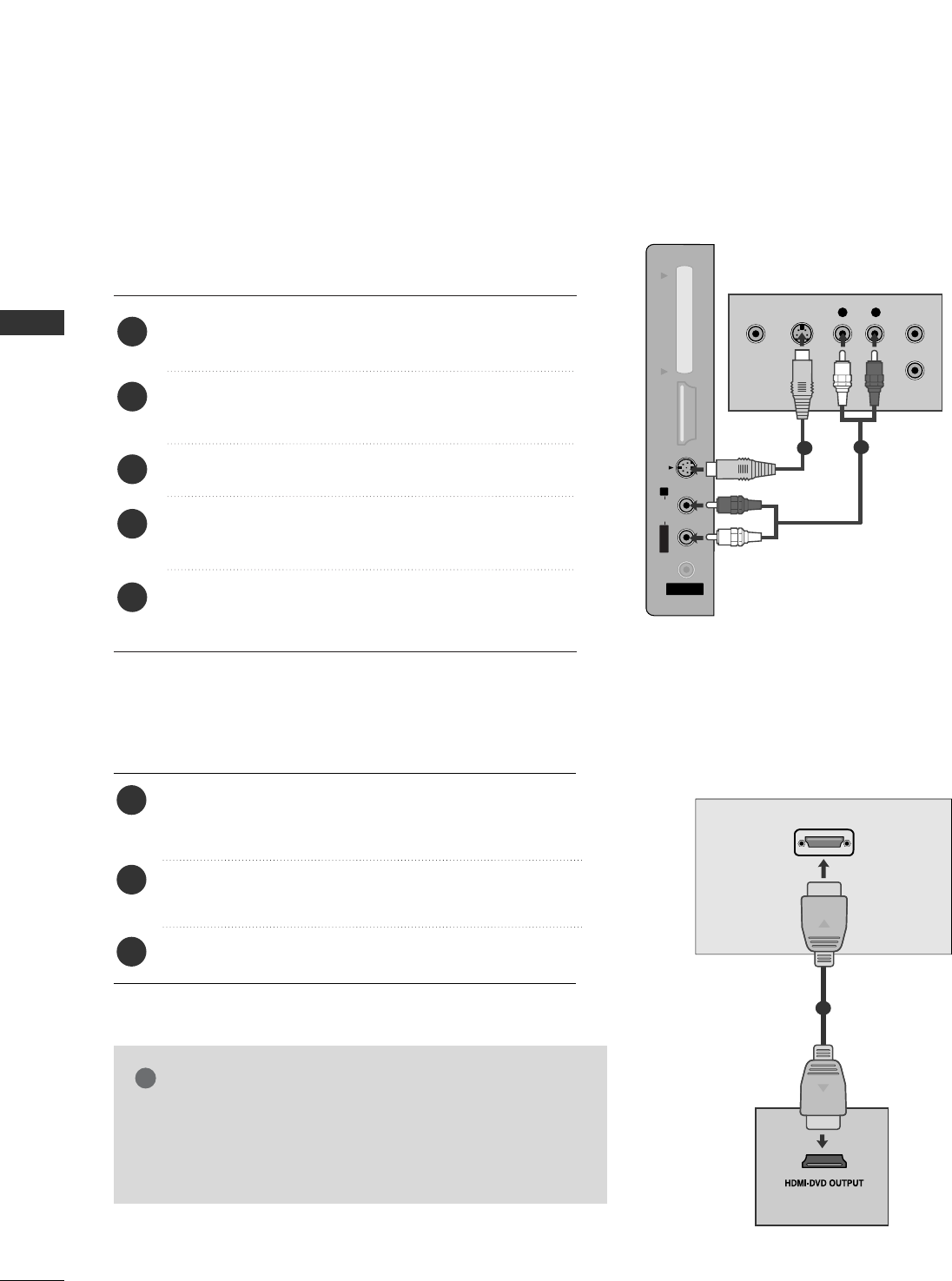
Connect the HDMI output of the DVD to the
HHDDMMII//DDVVII IINN,HHDDMMII//DDVVII IINN 11,HHDDMMII IINN 22or
HHDDMMII IINN 33 jack on the TV.
Select HDMI/DVI, HHDDMMII11, HHDDMMII22or HHDDMMII33input
source using the IINNPPUUTTbutton on the remote control.
Refer to the DVD player's manual for operating instructions.
2
3
1
1
GGThe TV can receive video and audio signals simultaneously
when using a HDMI cable.
GGIf the DVD does not support Auto HDMI, you must set the
output resolution appropriately.
NOTE
!
Connecting with a S-Video cable
(Except for 19/22LS4D*, 32/37/42LG20**, 42/50PG10**)
AV IN 3
L/MONO
R
AUDIOAUDIO
HDMI IN 3HDMI IN 3 PCMCIA CARD SLOT PCMCIA CARD SLOT
VIDEOVIDEO
S-VIDEO
L R
S-VIDEOVIDEO
OUTPUT
SWITCH
ANT IN
ANT OUT
Connect the S-VIDEO output of the DVD to the
SS--VVIIDDEEOOinput on the TV.
Connect the audio outputs of the DVD to the AAUUDDIIOO
input jacks on the TV.
Turn on the DVD player, insert a DVD.
Select AV 3 input source using the INPUT button on
the remote control.
Refer to the DVD player's manual for operating
instructions.
2
3
4
5
1
12
25
EXTERNAL EQIPMENT SETUP
VCR SETUP
■To avoid picture noise (interference), allow adequate distance between the VCR and TV.
■If 4:3 picture format is used for an extended period the fixed images on the sides of the screen may remain
visible.
OUTPUT
SWITCH
ANT IN
R
S-VIDEO VIDEO
ANT OUT L
ANTENNA IN
AV 1 AV 2
Wall Jack
Antenna
1
2
When connecting with a RF Cable
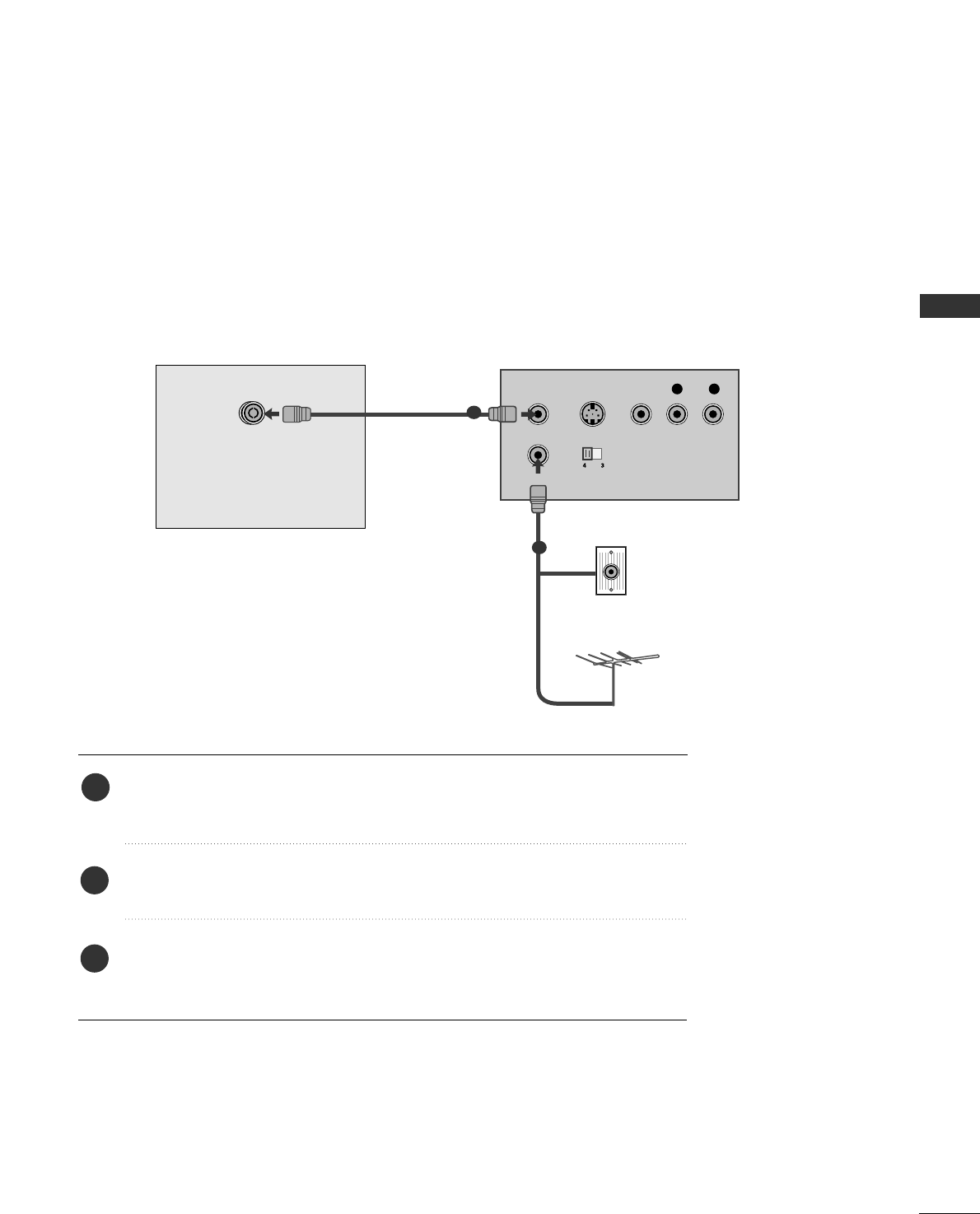
Connect the AANNTT OOUUTTsocket of the VCR to the AANNTTEENNNNAA IINNsocket on the
TV.
Connect the antenna cable to the AANNTT IINNsocket of the VCR.
Press the PLAY button on the VCR and match the appropriate channel between
the TV and VCR for viewing.
1
2
3
26
EXTERNAL EQIPMENT SETUP
EXTERNAL EQUIPMENT SETUP
(R) AUDIO (L)
AUDIO/
VIDEO
AV 1 AV 2
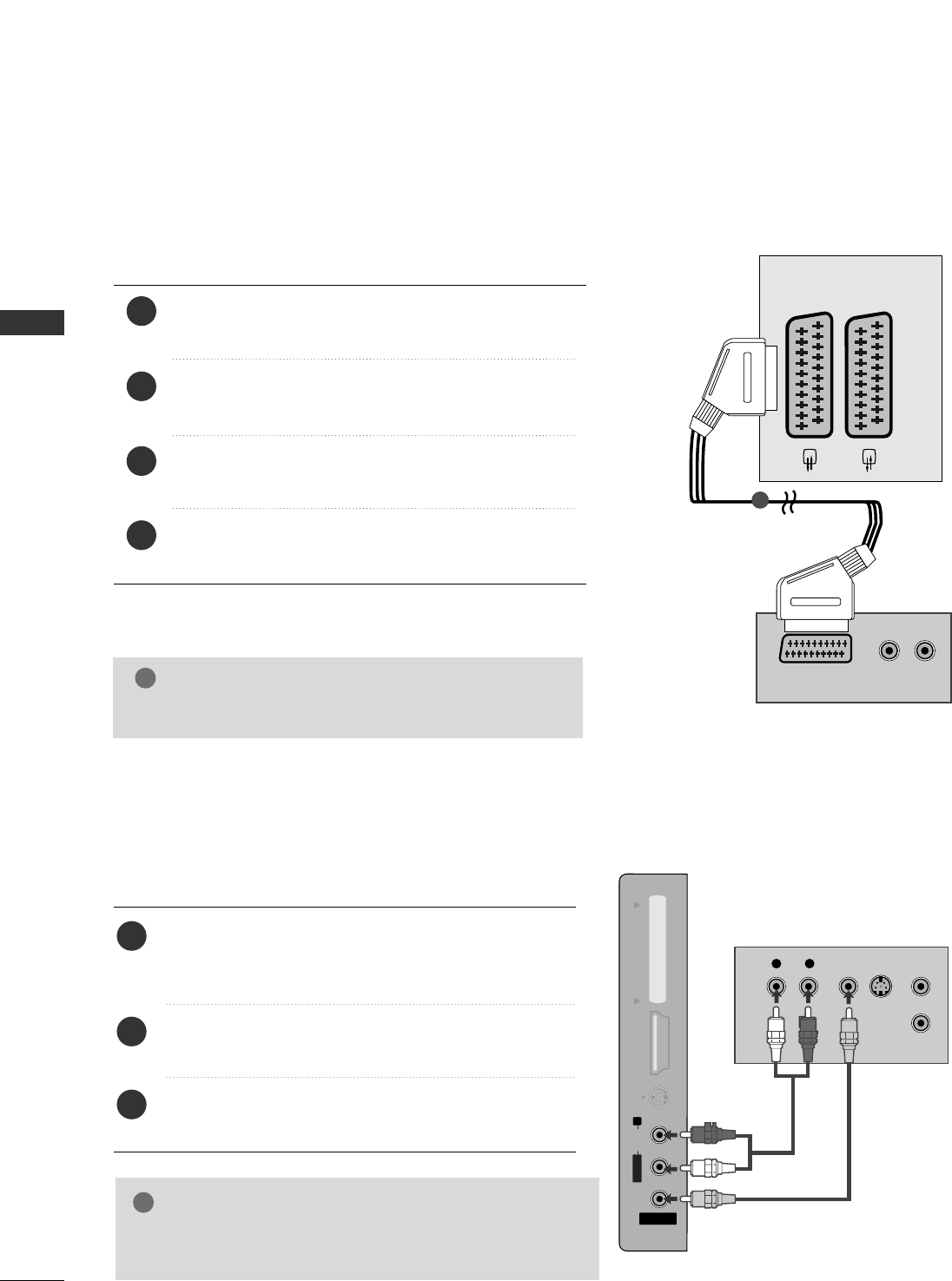
Connecting with a Euro Scart cable
Connect the Euro scart socket of the VCR to the AAVV11
Euro scart socket on the TV.
Insert a video tape into the VCR and press PLAY on
the VCR. (Refer to the VCR owner’s manual.)
Select AAVV11input source using the IINNPPUUTTbutton on
the remote control.
If connected to AAVV22 Euro scart socket, select AAVV22
input source.
2
3
4
1
1
NOTE
!
GGAny Euro scart cable used must be signal shielded.
Connecting with a RCA cable
(Except for 19/22LS4D*, 42/50PG10**)
AV IN 3
L/MONO
R
AUDIO
HDMI IN 3 PCMCIA CARD SLOT
VIDEO
S-VIDEO
AV IN 3
L/MONO
R
AUDIOAUDIO
HDMI IN 3HDMI IN 3 PCMCIA CARD SLOT PCMCIA CARD SLOT
VIDEOVIDEO
S-VIDEO
LRS-VIDEO
VIDEO
OUTPUT
SWITCH
ANT IN
ANT OUT
Connect the AAUUDDIIOO/VVIIDDEEOOjacks between TV and
VCR. Match the jack colours (Video = yellow, Audio Left
= white, and Audio Right = red)
Insert a video tape into the VCR and press PLAY on
the VCR. (Refer to the VCR owner’s manual.)
Select AV 3 input source using the IINNPPUUTTbutton on
the remote control.
1
2
3
GGIf you have a mono VCR, connect the audio cable from the
VCR to the AAUUDDIIOO LL//MMOONNOOjack of the TV.
NOTE
!
27
EXTERNAL EQIPMENT SETUP
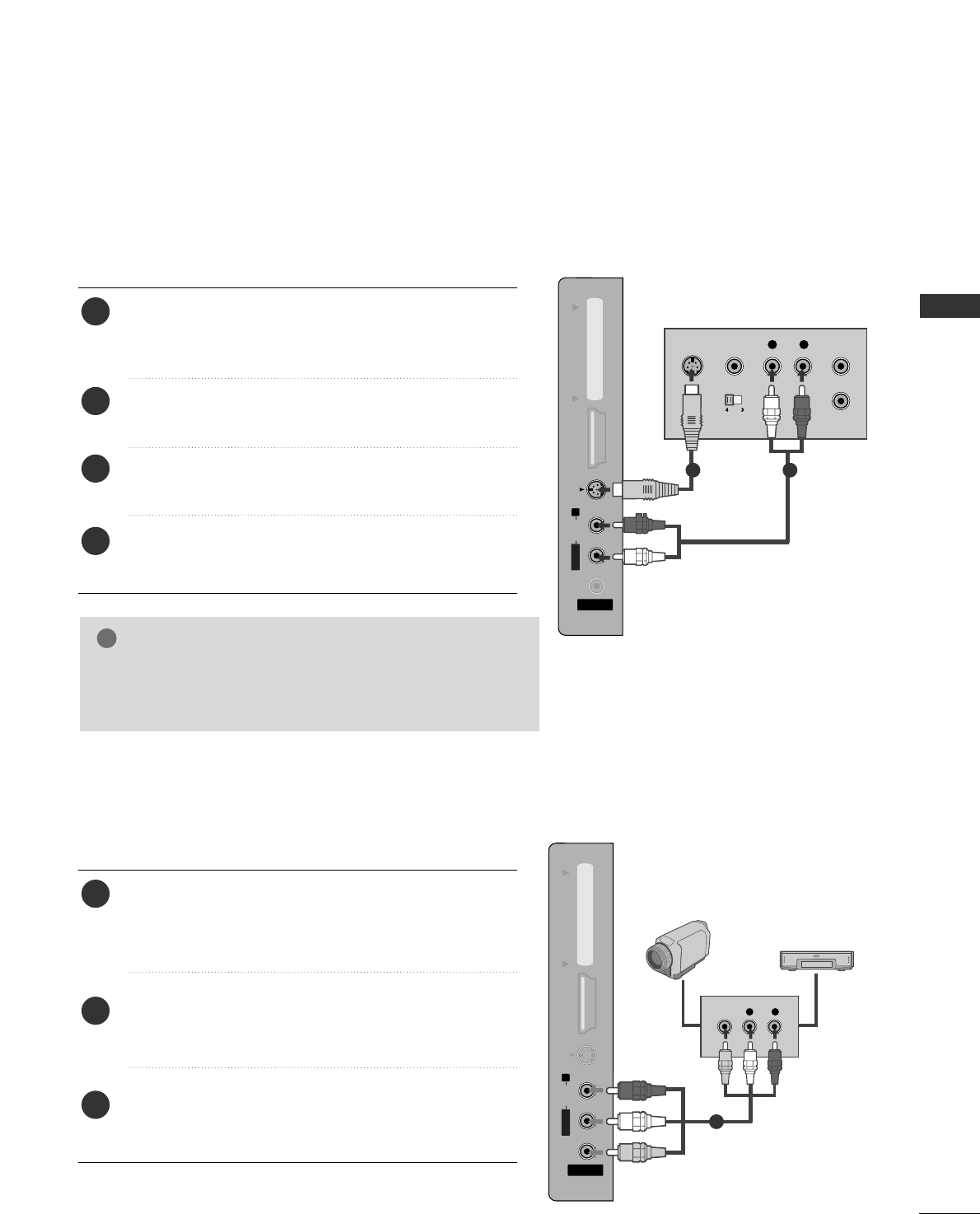
GGIf both S-VIDEO and VIDEO sockets have been connected
to the S-VHS VCR simultaneously, only the S-VIDEO can
be received.
NOTE
!
AV IN 3
L/MONO
R
AUDIOAUDIO
HDMI IN 3HDMI IN 3 PCMCIA CARD SLOT PCMCIA CARD SLOT
VIDEOVIDEO
S-VIDEO
AV IN 3
L/MONO
R
AUDIO
HDMI IN 3 PCMCIA CARD SLOT
VIDEO
S-VIDEO
LR
S-VIDEO VIDEO
OUTPUT
SWITCH
ANT IN
ANT OUT
Connect the S-VIDEO output of the VCR to the S -
VIDEO input on the TV. The picture quality is improved;
compared to normal composite (RCA cable) input.
Connect the audio outputs of the VCR to the AUDIO
input jacks on the TV.
Insert a video tape into the VCR and press PLAY on the
VCR. (Refer to the VCR owner’s manual.)
Select AV 3 input source using the IINNPPUUTTbutton on the
remote control.
2
3
4
1
1 2
AV IN 3
L/MONO
R
AUDIOAUDIO
HDMI IN 3HDMI IN 3 PCMCIA CARD SLOT PCMCIA CARD SLOT
VIDEOVIDEO
S-VIDEO
L R
VIDEO
Connect the AAUUDDIIOO/VVIIDDEEOOjacks between TV and
external equipment. Match the jack colours
. (Video =
yellow, Audio Left = white, and Audio Right = red)
Select AV 3 input source using the IINNPPUUTTbutton on
the remote control.
Operate the corresponding external equipment.
Refer to external equipment operating guide.
2
3
1
1
Camcorder
Video Game Set
Connecting with a S-Video cable
(Except for 19/22LS4D*, 32/37/42LG20**, 42/50PG10**)
OTHER A/V SOURCE SETUP
(Except for 19/22LS4D*, 42/50PG10**)
28
EXTERNAL EQIPMENT SETUP
EXTERNAL EQUIPMENT SETUP
PC SETUP
This TV provides Plug and Play capability, meaning that the PC adjusts automatically to the TV's settings.
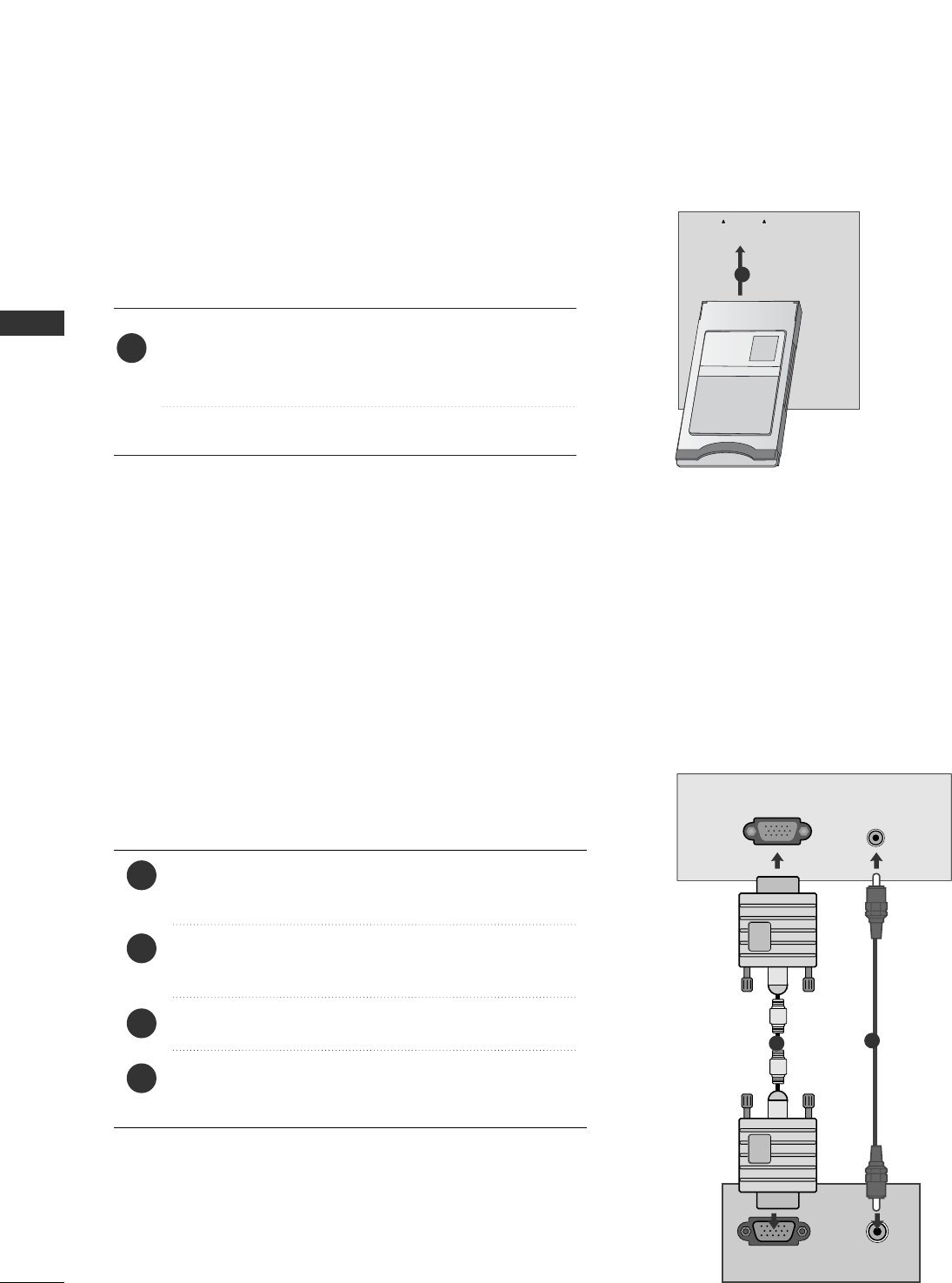
Connecting with a D-sub 15 pin cable
RGB OUTPUT AUDIO
AUDIO IN
(RGB/DVI)
RGB (PC) IN
12
4
Connect the RGB output of the PC to the RRGGBB IINN
((PPCC)) jack on the TV.
Connect the PC audio output to the AAUUDDIIOO IINN
((RRGGBB//DDVVII))jack on the TV.
Turn on the PC and the TV
Select RRGGBBinput source using the INPUT button on
the remote control.
2
3
1
Insert the CI Module to PPCCMMCCIIAA(Personal Computer
Memory Card International Association) CCAARRDD SSLLOOTT
of TV as shown.
For further information, see p.54.
1
INSERTION OF CI MODULE
PCMCIA
CARD SLOT
TVTV
-- TToo vviieeww tthhee eennccrryypptteedd ((ppaayy)) sseerrvviicceess iinn ddiiggiittaall TTVV
mmooddee..
-- TThhiiss ffeeaattuurree iiss nnoott aavvaaiillaabbllee iinn aallll ccoouunnttrriieess..
1
29
EXTERNAL EQIPMENT SETUP
NOTE
!
G
To enjoy vivid picture and sound, connect a PC to
the TV.
G
Avoid keeping a fixed image on the TV’s screen for
prolonged periods of time. The fixed image may
become permanently imprinted on the screen; use
a screen saver when possible.
G
Connect the PC to the RGB (PC) or HDMI IN (or
HDMI/DVI IN) port of the TV; change the
resolution.
G
There may be interference relating to resolution,
vertical pattern, contrast or brightness in PC
mode. Change the PC mode to another resolution
or change the refresh rate to another rate or
adjust the brightness and contrast on the menu
until the picture is clear. If the refresh rate of the
PC graphic card can not be changed, change the
PC graphic card or consult the manufacturer of
the PC graphic card.
G
The synchronization input waveform for
Horizontal and Vertical frequencies are separate.
G
Connect the signal cable from the monitor output
port of the PC to the RGB (PC) port of the TV or
the signal cable from the HDMI output port of the
PC to the HDMI IN (or HDMI/DVI IN) port on the
TV.
G
Connect the audio cable from the PC to the Audio
input on the TV. (Audio cables are not included
with the TV).
G
If using a sound card, adjust PC sound as required.
G
This TV uses a VESA Plug and Play Solution. The
TV provides EDID data to the PC system with a
DDC protocol. The PC adjusts automatically when
using this TV.
G
DDC protocol is preset for RGB (Analog RGB),
HDMI (Digital RGB) mode.
G
If required, adjust the settings for Plug and Play
functionality.
G
If the graphic card on the PC does not output
analogue and digital RGB simultaneously, connect
only one of either RGB or HDMI IN (or HDMI/DVI
IN) to display the PC output on the TV.
G
If the graphic card on the PC does output
analogue and digital RGB simultaneously, switch
the TV to either RGB or HDMI; (the other mode is
set to Plug and Play automatically by the TV.)
G
DOS mode may not work depending on the video
card if you use a HDMI to DVI cable.
G
If you use too long an RGB-PC cable, there may be
interference on the screen. We recommend using
under 5m of cable. This provides the best picture
quality.
DVI-PC OUTPUT AUDIO
HDMI/DVI IN
AUDIO IN
(RGB/DVI)
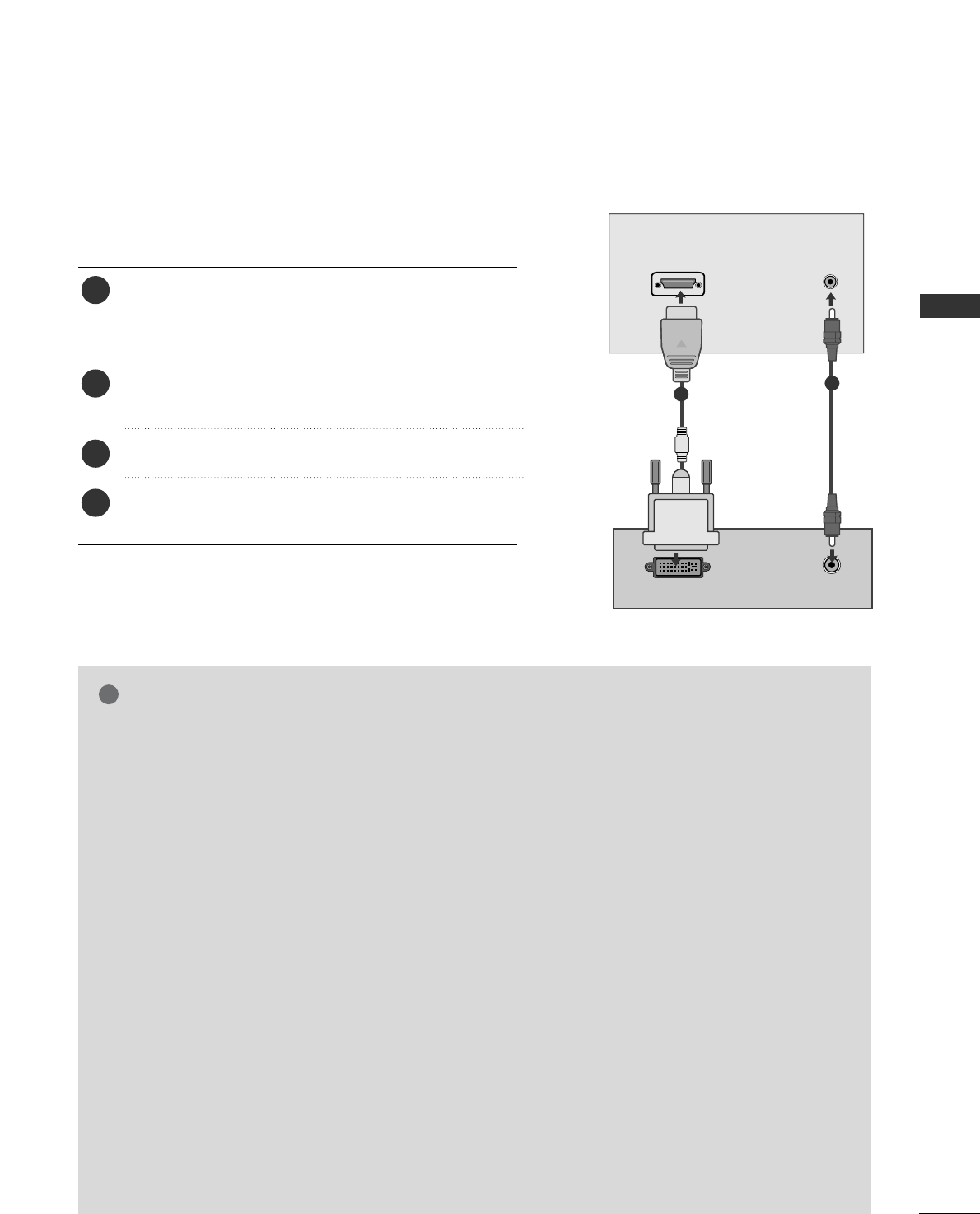
Connecting with a HDMI to DVI cable
Connect the DVI output of the PC to the HHDDMMII//DDVVII IINN,
HHDDMMII//DDVVII IINN 11((DDVVII))or HHDDMMII//DDVVII IINN 11 jack on
the TV.
Connect the PC audio output to the AAUUDDIIOO IINN
((RRGGBB//DDVVII))jack on the TV.
Turn on the PC and the TV.
Select HDMI/DVI or HDMI 1 input source using the
IINNPPUUTTbutton on the remote control.
2
3
4
1
12
30
EXTERNAL EQIPMENT SETUP
70.08
59.94
75.00
60.31
75.00
74.55
60.00
70.00
75.029
59.87
59.8
59.6
60.0
59.90
59.948
59.94
Resolution
640x480
800x600
832x624
720x400
1024x768
Horizontal
Frequency(kHz) Vertical
Frequency(Hz)
1280x768
1360x768
1366x768
1280x1024
1440x900
1400x1050
1680x1050
Only 19LS4D*
Only 22LS4D*
EXTERNAL EQUIPMENT SETUP
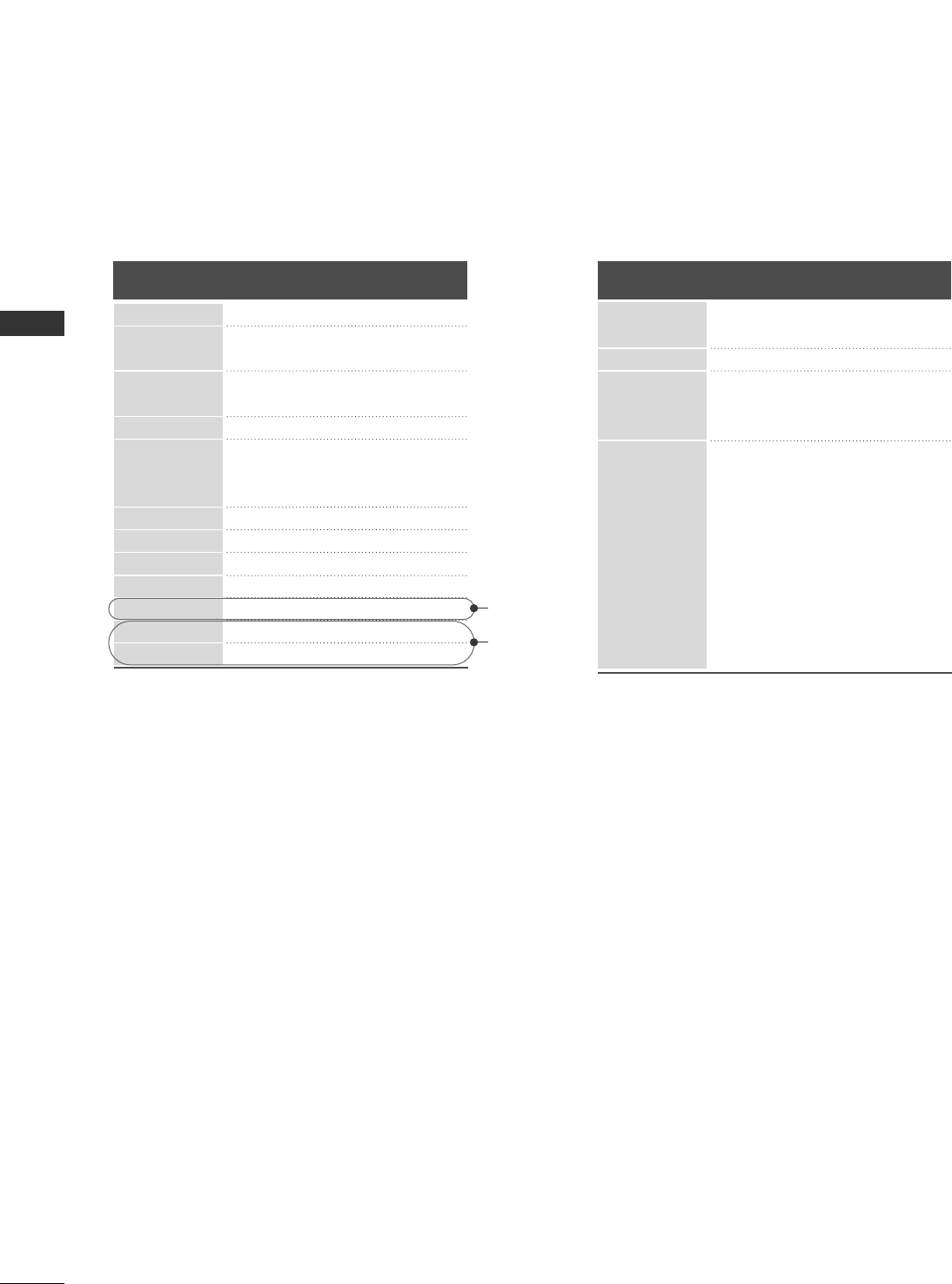
Supported Display Resolution (Only 19/22LS4D*)
RGB[PC], HDMI[PC] mode HDMI[DTV] mode
59.94
60
50
50
59.94
60
59.94
60
50.00
23.97
24
29.976
30.00
50
59.94
60
31.469
31.5
31.25
37.500
44.96
45
33.72
33.75
28.125
26.97
27
33.716
33.75
56.250
67.43
67.5
Resolution
720x480
720x576
1920x1080
1280x720
Horizontal
Frequency(kHz) Vertical
Frequency(Hz)
31.468
31.469
37.684
37.879
46.875
49.725
48.363
56.470
60.123
47.78
47.72
47.56
63.595
55.5
64.744
65.16
31
EXTERNAL EQIPMENT SETUP
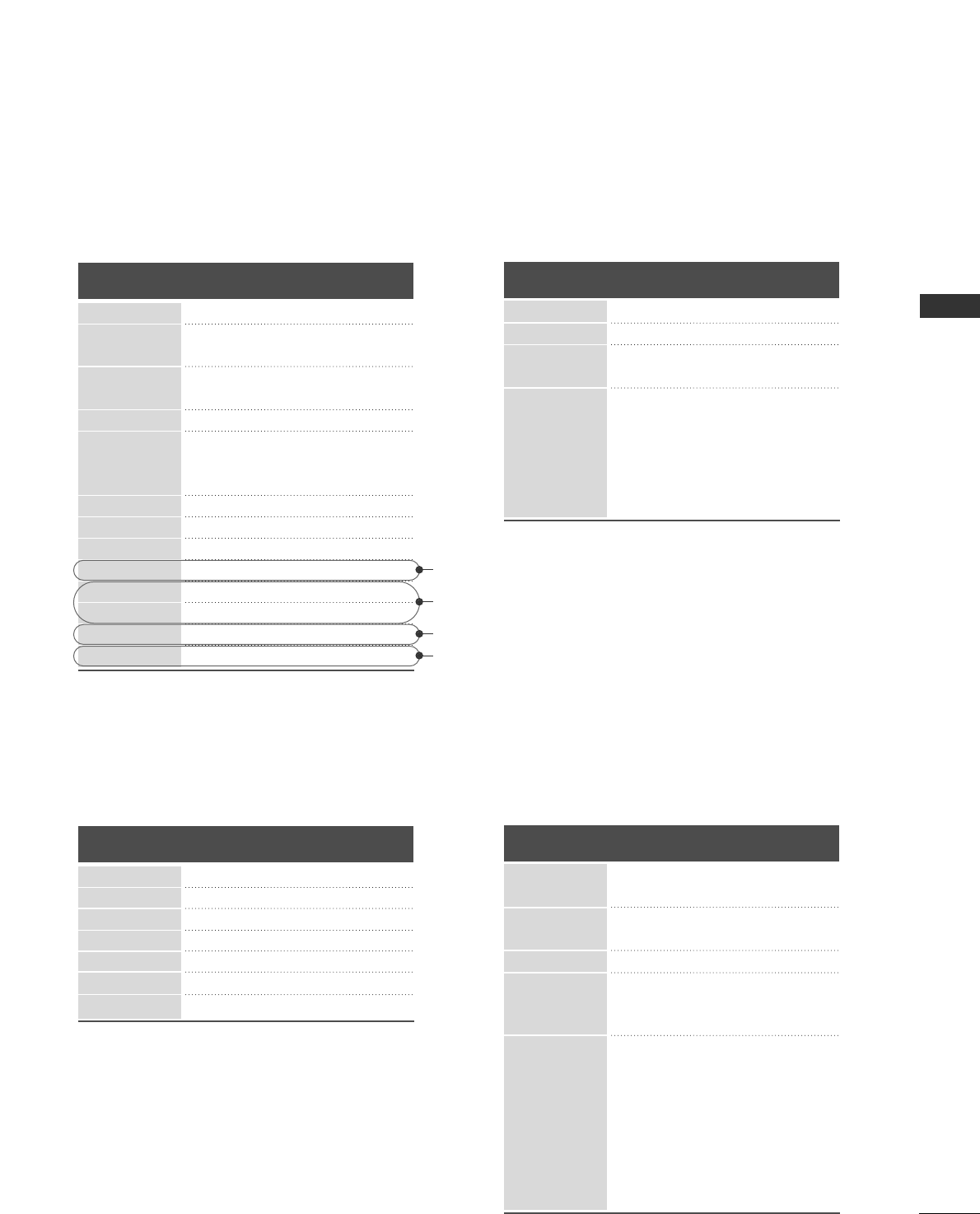
Supported Display Resolution
(Only 19/22/26/32/37/42LG30**, 32/37/42LG20**, 32/37/42/47/52LG5***)
70.08
59.94
75.00
60.31
75.00
74.55
60.00
70.00
75.029
59.87
59.8
59.6
59.90
59.948
59.94
60.0
59.988
RGB[PC], HDMI[PC] mode
31.468
31.469
37.684
37.879
46.875
49.725
48.363
56.470
60.123
47.78
47.72
47.56
55.5
64.744
65.16
63.595
66.647
Resolution
640x480
800x600
832x624
720x400
1024x768
Horizontal
Frequency(kHz) Vertical
Frequency(Hz)
1280x768
1360x768
1366x768
1440x900
1400x1050
1680x1050
1280x1024
1920x1080
HDMI[DTV] mode
59.94 / 60
50
50
59.94 / 60
59.94 / 60
50.00
23.97 / 24
26.976 / 30.00
50
59.94 / 60
31.469 / 31.5
31.25
37.500
44.96 / 45
33.72 / 33.75
28.125
26.97 / 27
33.716 / 33.75
56.250
67.43 / 67.5
Resolution
720x480
720x576
1280x720
1920x1080
Horizontal
Frequency(kHz) Vertical
Frequency(Hz)
Supported Display Resolution (Only 42/50PG10**, 42/50PG20**, 42/50/60PG30**)
70.08
59.94
60.31
60.00
59.87
59.80
59.988
RGB[PC], HDMI[PC] mode
31.468
31.469
37.879
48.363
47.78
47.72
66.647
Resolution Horizontal
Frequency(kHz) Vertical
Frequency(Hz)
HDMI[DTV] mode
59.94
60.00
59.94
60.00
50.00
50.00
59.94
60.00
50.00
59.94
60.00
24.00
30
50.00
59.94
60
31.469
31.469
31.47
31.50
31.25
37.50
44.96
45.00
28.125
33.72
33.75
27.000
33.75
56.25
67.433
67.50
Resolution
640x480
720x480
720x576
1280x720
1920x1080
Horizontal
Frequency(kHz) Vertical
Frequency(Hz)
640x480
800x600
720x400
1024x768
1280x768
1360x768
1920x1080
Only 19LG30**
Only 19LG30**, 37/42/47/52LG5***
Only 37/42/47/52LG5***
Only 22LG30**
32
EXTERNAL EQIPMENT SETUP
EXTERNAL EQUIPMENT SETUP
Screen Setup for PC mode
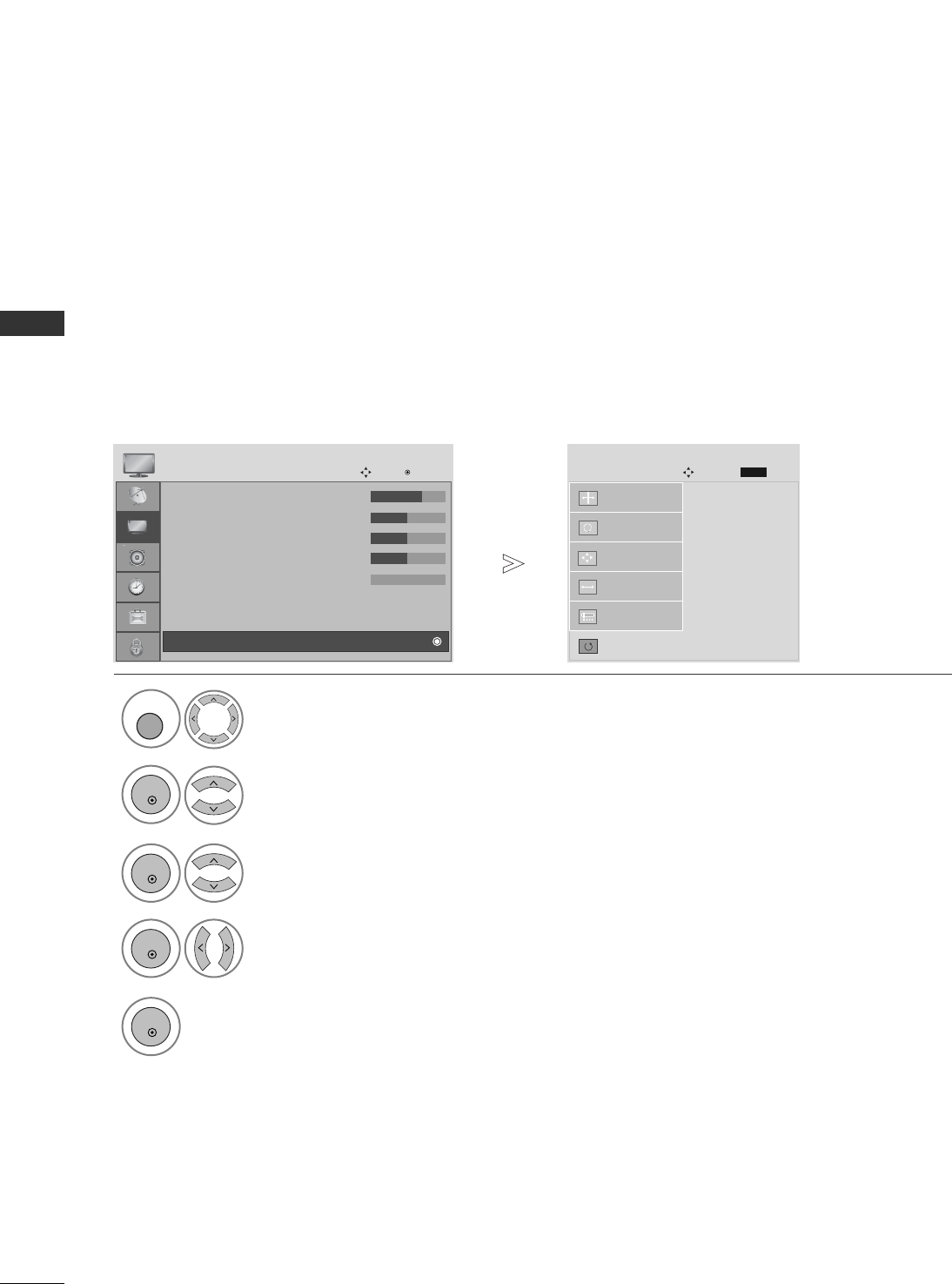
Returns to the default settings Position, Size and Phase at the factory.
This function works in the following mode : RGB[PC].
Screen Reset
1Select PICTURE.
2Select SCREEN.
3Select Reset.
5Run Reset.
• Contrast : 70
• Brightness : 50
• Sharpness : 50
• Colour : 50
• Tint : 0
• Advanced Control
• Picture Reset
PICTURE
Move OK
D
Screen
To S et
Auto Config.
SCREEN
Move Prev.
RETURN
Resolution
Position
Size
Phase
Reset
G
MENU
OK
OK
OK
4Select Yes .
OK
• Press the MENU button to return to normal TV viewing.
• Press the RETURN button to move to the previous menu screen.
33
EXTERNAL EQIPMENT SETUP
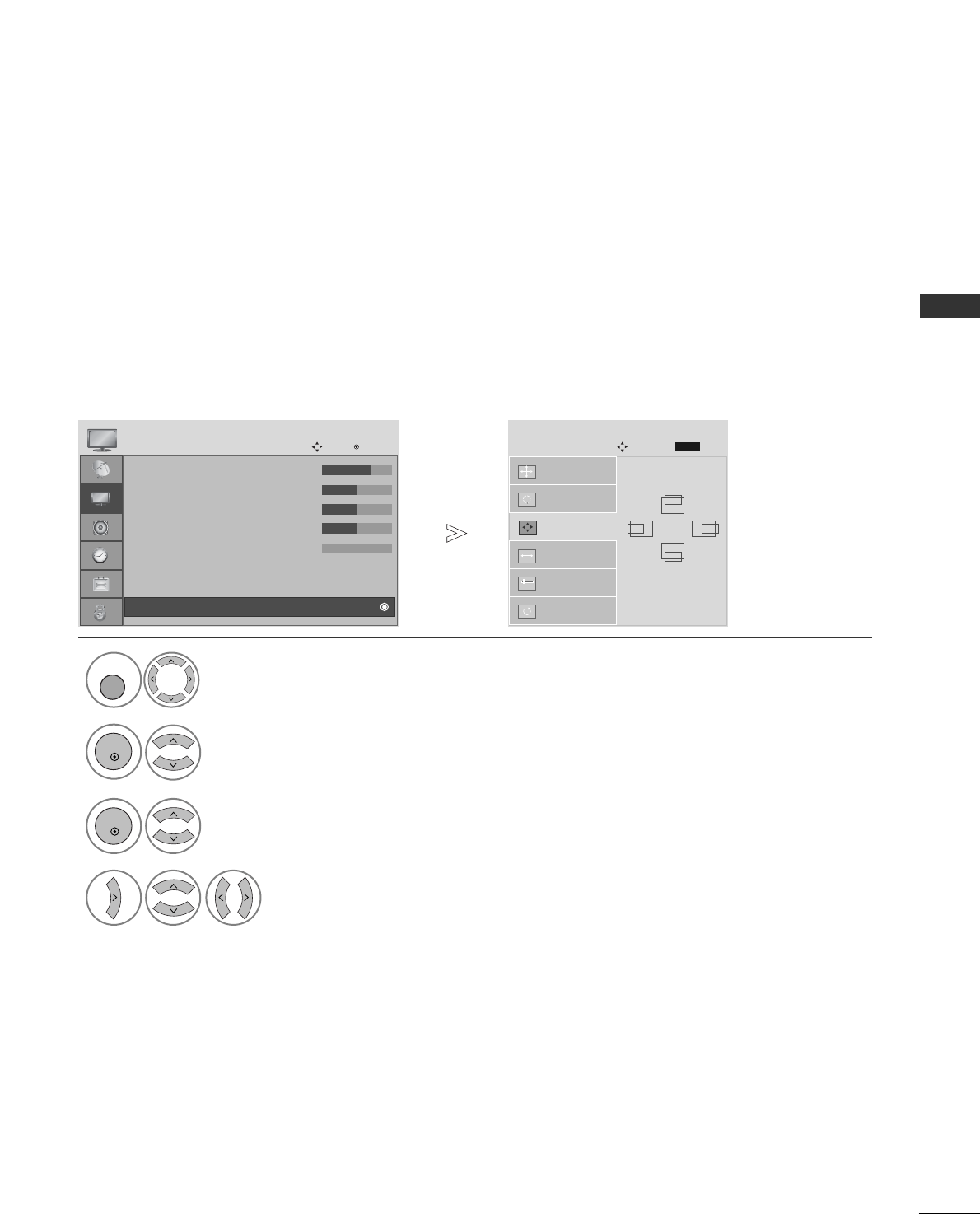
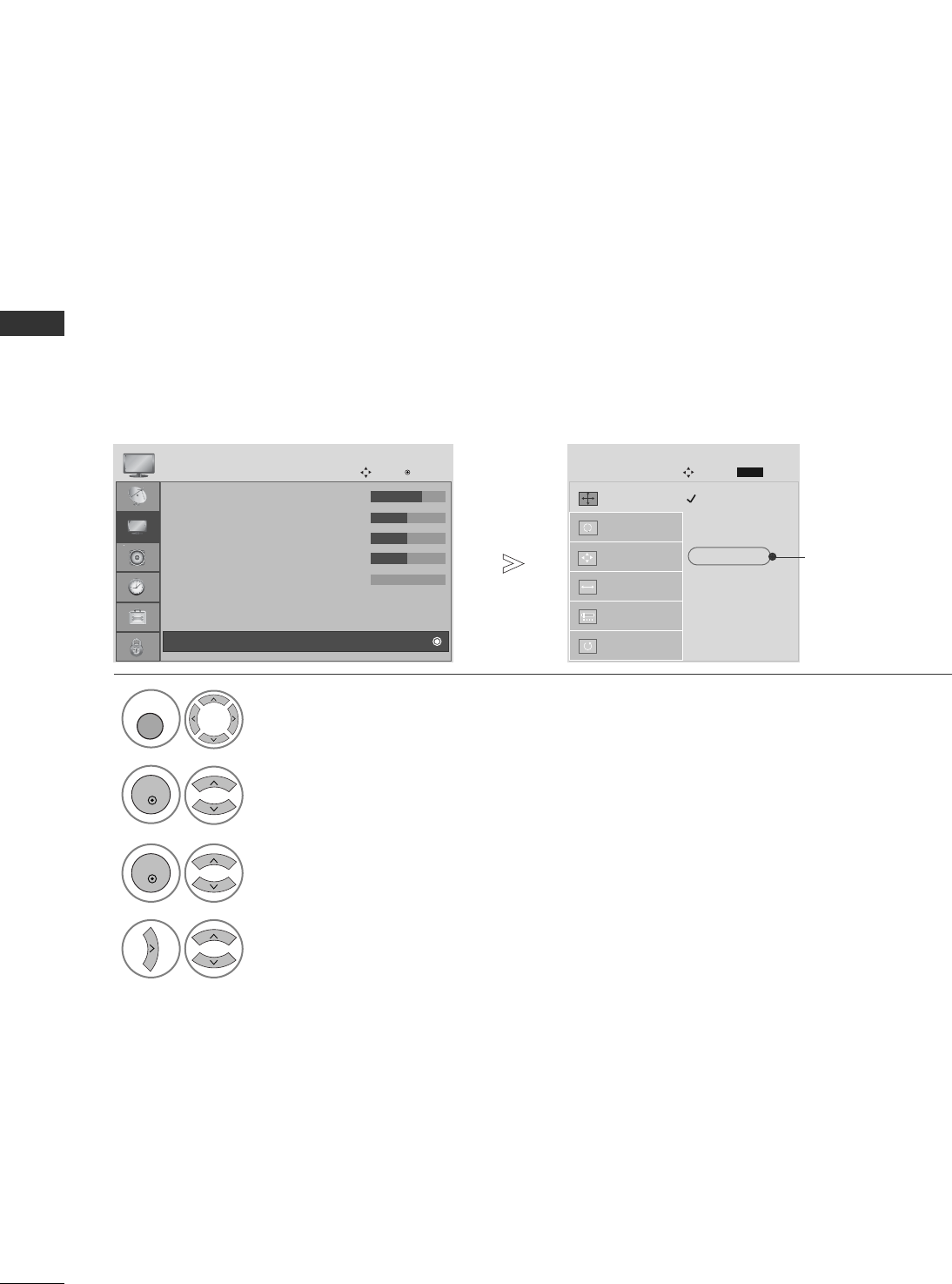
If the picture is not clear after auto adjustment and especially if characters are still trembling, adjust the
picture phase manually.
This function works in the following mode : RGB[PC].
Adjustment for screen Position, Size, Phase
1Select PICTURE.
2Select SCREEN.
3Select Position, Size or Phase.
4
Make appropriate adjustments.
• Contrast : 70
• Brightness : 50
• Sharpness : 50
• Colour : 50
• Tint : 0
• Advanced Control
• Picture Reset
PICTURE
Move OK
D
Screen
Auto Config.
SCREEN
Move
Resolution
Position
G
Size
Phase
Reset
GF
D
E
MENU
OK
OK
Prev.
RETURN
• Press the MENU button to return to normal TV viewing.
• Press the RETURN button to move to the previous menu screen.
34
EXTERNAL EQIPMENT SETUP
EXTERNAL EQUIPMENT SETUP
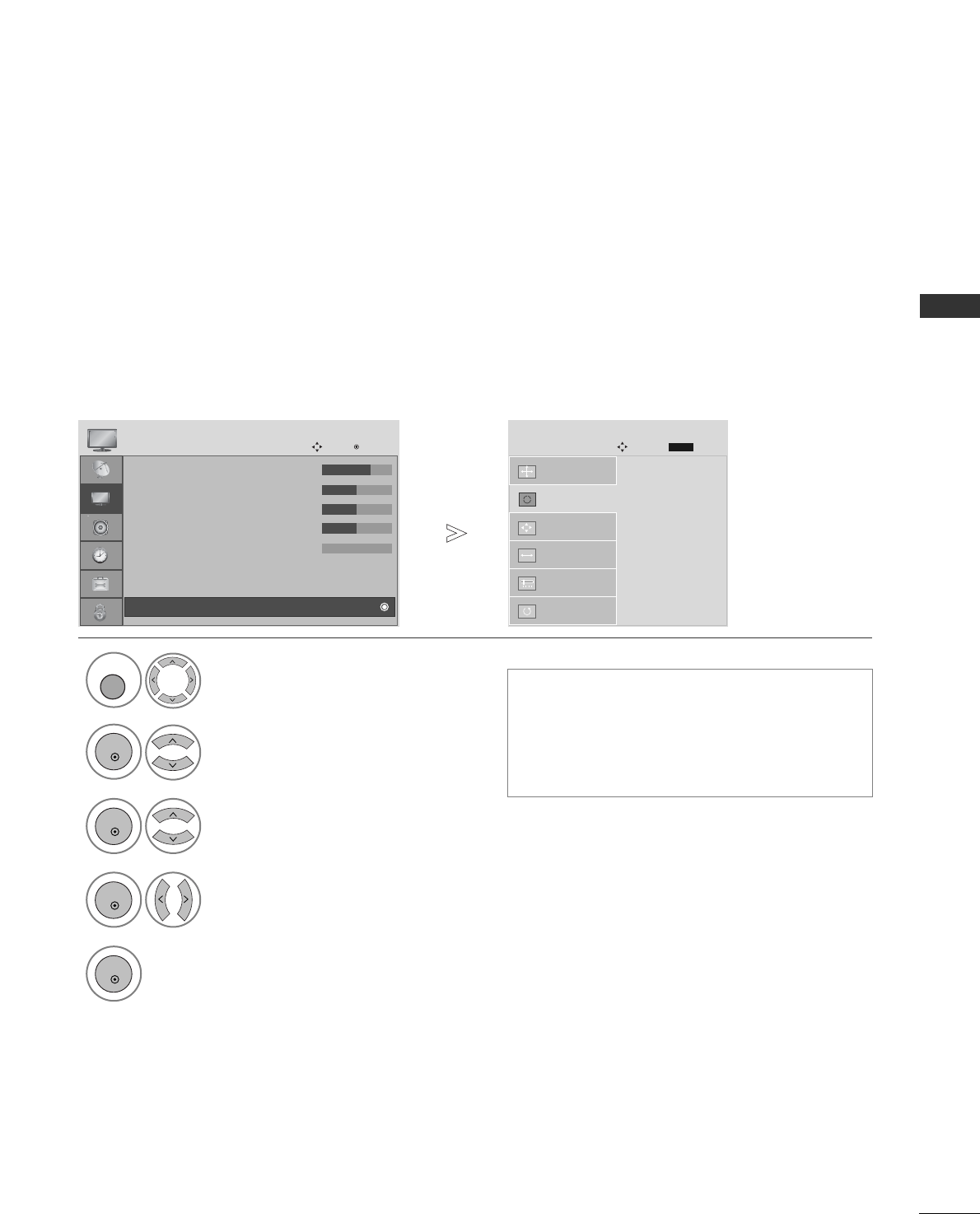
To view a normal picture, match the resolution of RGB mode and selection of PC mode.
This function works in the following mode: RGB[PC] mode.
Selecting Resolution
1Select PICTURE.
2Select SCREEN.
3Select Resolution.
4Select the desired resolution.
• Contrast : 70
• Brightness : 50
• Sharpness : 50
• Colour : 50
• Tint : 0
• Advanced Control
• Picture Reset
PICTURE
Move OK
D
Screen
1024 x 768
128 0 x 768
136 0 x 768
136 6 x 76 8
Auto Config.
SCREEN
Move
Resolution
G
Position
Size
Phase
Reset
MENU
OK
OK
• Press the MENU button to return to normal TV viewing.
• Press the RETURN button to move to the previous menu screen.
Prev.
RETURN
Except for PLASMA TV
35
EXTERNAL EQIPMENT SETUP
1
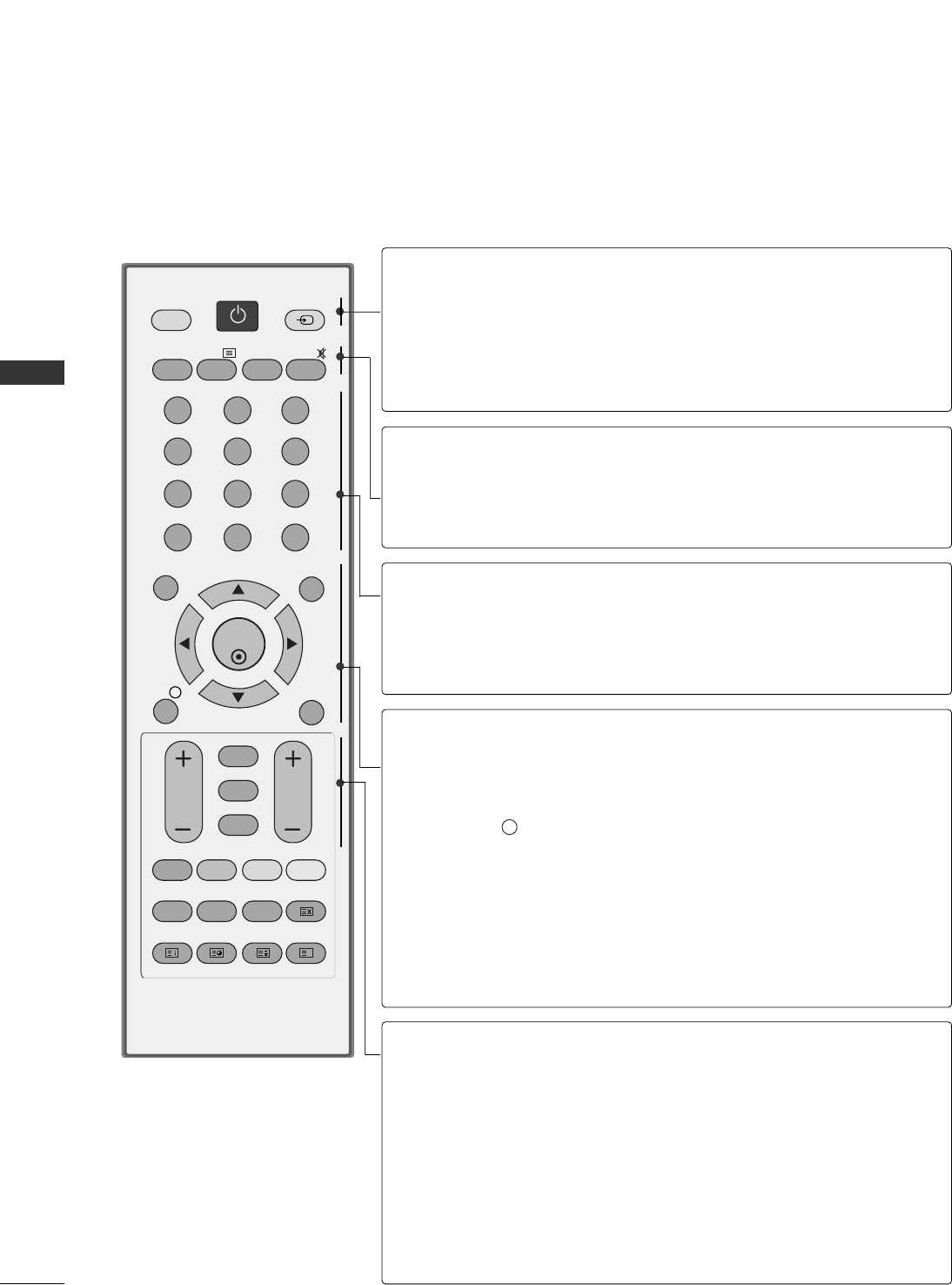
Automatically adjusts picture position and minimizes image instability. After adjustment, if the image is still
not correct, your TV is functioning properly but needs further adjustment.
AAuuttoo ccoonnffiigguurree
This function is for automatic adjustment of the screen position, clock, and phase The displayed image will
be unstable for a few seconds while the auto configuration is in progress.
Auto Configure (RGB [PC] mode only)
• Press the MENU button to return to normal TV viewing.
• Press the RETURN button to move to the previous menu screen.
•If the position of the image is still not correct,
try Auto adjustment again.
•If picture needs to be adjusted again after Auto
adjustment in RGB (PC), you can adjust the
PPoossiittiioonn, SSiizzee or PPhhaassee.
Select PICTURE.
2Select SCREEN.
3Select Auto Config..
• Contrast : 70
• Brightness : 50
• Sharpness : 50
• Colour : 50
• Tint : 0
• Advanced Control
• Picture Reset
PICTURE
Move OK
D
Screen
To S et
Auto Config.
G
SCREEN
Move
Resolution
Position
Size
Phase
Reset
MENU
OK
OK
Prev.
RETURN
5Run Auto Config..
OK
4Select Yes .
OK
36
WATCHING TV / PROGRAMME CONTROL
WATCHING TV / PROGRAMME CONTROL
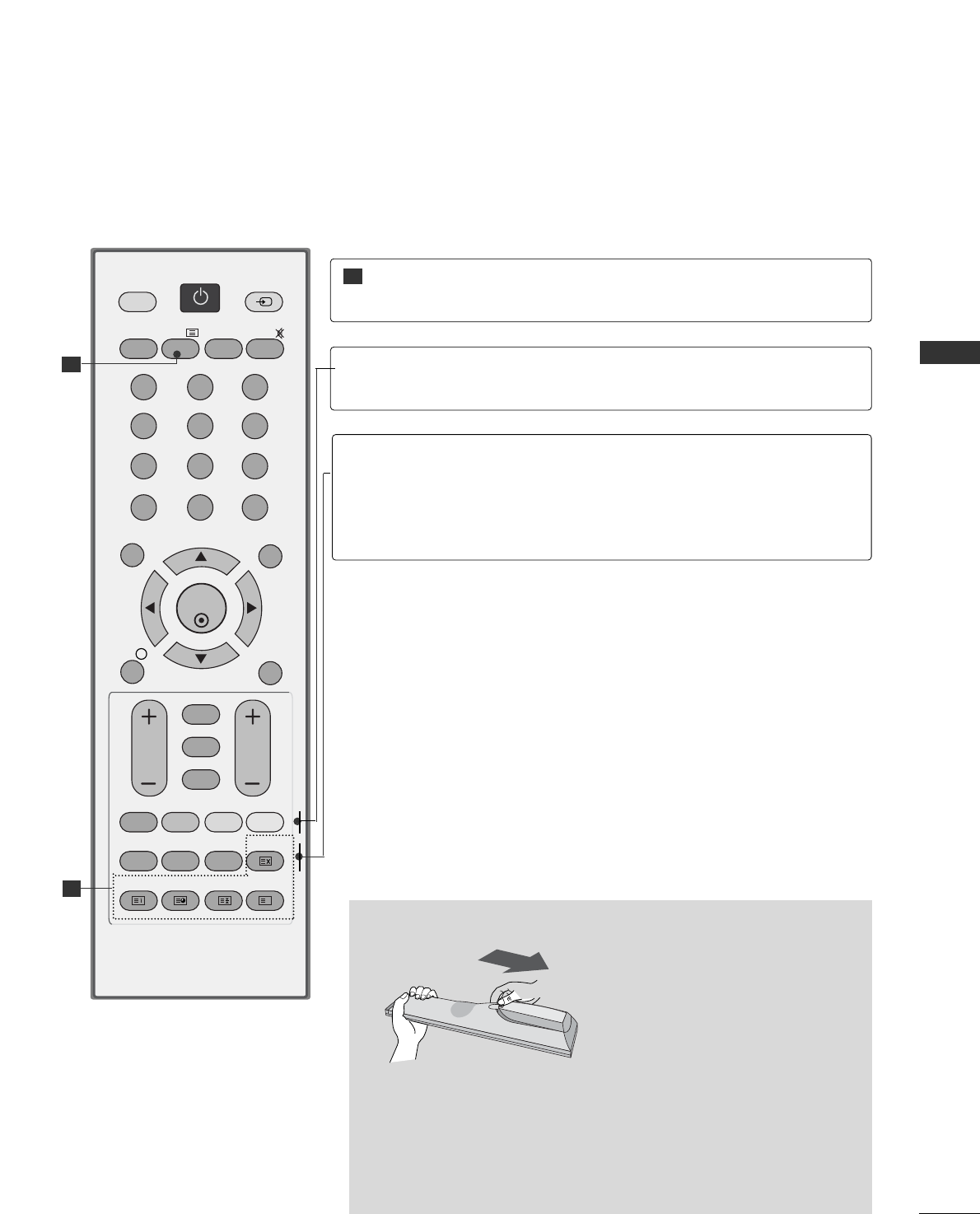
REMOTE CONTROL KEY FUNCTIONS (Only 19/22LS4D*)
When using the remote control, aim it at the remote control sensor on the TV.
OK
MENU
AV MODE
GUIDE
RATIO
123
456
789
0
Q.VIEW
LIST
TV INPUT
D/A
POWER
VOL PR
INDEX
SLEEP
HOLD
REVEAL
SUBTITLE
UPDATE
I/II
MUTE
TEXT
RETURN
EXIT
FAV
TIME
INFO
i
TV/RADIO
*
?
POWER
D/A INPUT
INPUT
Switches the TV on from standby or off to standby.
Selects digital or analogue mode.
Switches the TV on from standby.
External input mode rotate in regular sequence.
Switches the TV on from standby.
TV/RADIO
I/II
MUTE
Selects Radio or TV channel in digital mode.
Selects the sound output.
Switches the sound on or off.
0~9 number
button
LIST
Q.VIEW
Selects a programme.
Selects numbered items in a menu.
Displays the programme table.
Returns to the previously viewed programme.
MENU
AV MODE
INFO i
GUIDE
THUMBSTICK
(Up/Down/Left
Right)
OK
Selects a menu.
It helps you select and set images and sounds when con-
necting AV devices.
Shows the present screen information.
Shows programme schedule.
Allows you to navigate the on-screen menus and adjust
the system settings to your preference.
Accepts your selection or displays the current mode.
VOLUME UP
/DOWN
RETURN(EXIT)
*
FAV
Programme
UP/DOWN
Adjusts the volume.
Allows the user to move back one step in an interactive
application, EPG or other user interaction function.
No function
Displays the selected favourite programme.
Selects a programme.
37
WATCHING TV / PROGRAMME CONTROL
Installing Batteries
■
Open the battery compartment cover on the back and install the
batteries matching correct polarity (+with +,-with -).
■
Install two 1.5V AAA batteries. Do not mix old or used batteries
with new ones.
■
Close cover.
OK
MENU
AV MODE
GUIDE
RATIO
123
456
789
0
Q.VIEW
LIST
TV INPUT
D/A
POWER
VOL PR
INDEX
SLEEP
HOLD
REVEAL
SUBTITLE
UPDATE
I/II
MUTE
TEXT
RETURN
EXIT
FAV
TIME
INFO
i
TV/RADIO
*
?
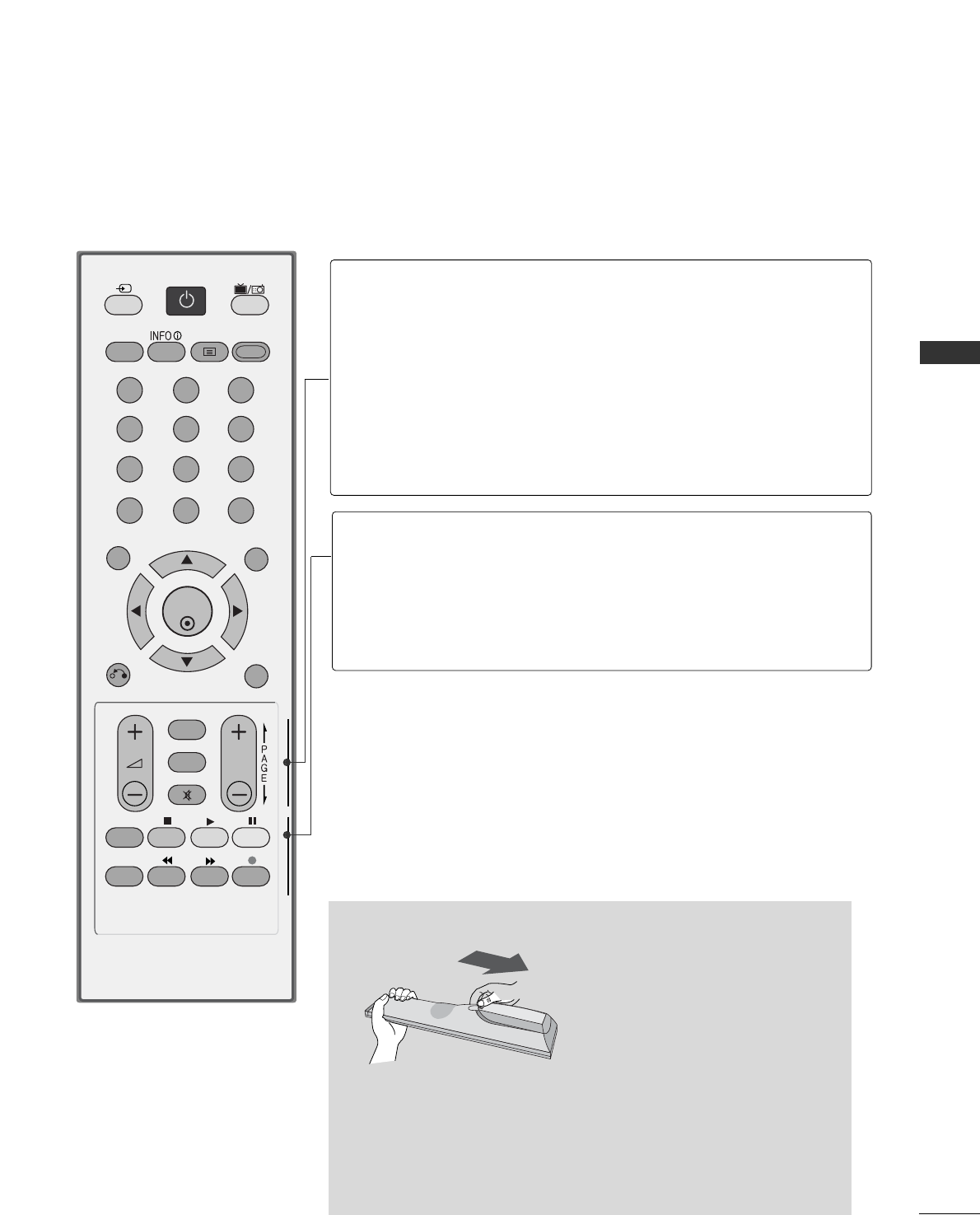
Coloured
buttons
These buttons are used for teletext (on TTEELLEETTEEXXTT
models only) or PPrrooggrraammmmee eeddiitt.
TELETEXT
BUTTONS
These buttons are used for teletext.
For further details, see the ‘Teletext’ section.
1
1
1
RATIO
SLEEP
SUBTITLE
Selects your desired picture format.
Sets the sleep timer.
Recalls your preferred subtitle in digital mode.
38
WATCHING TV / PROGRAMME CONTROL
WATCHING TV / PROGRAMME CONTROL
OK
RETURN
EXIT
Q.MENUMENU
RATIO
123
456
789
0
Q.VIEW
LIST
INPUT
TV/RAD
POWER
P
TEXT
AV MODE
FAV
MARK
MUTE
*
GUIDE
T.OPT
SUBTITLE
*
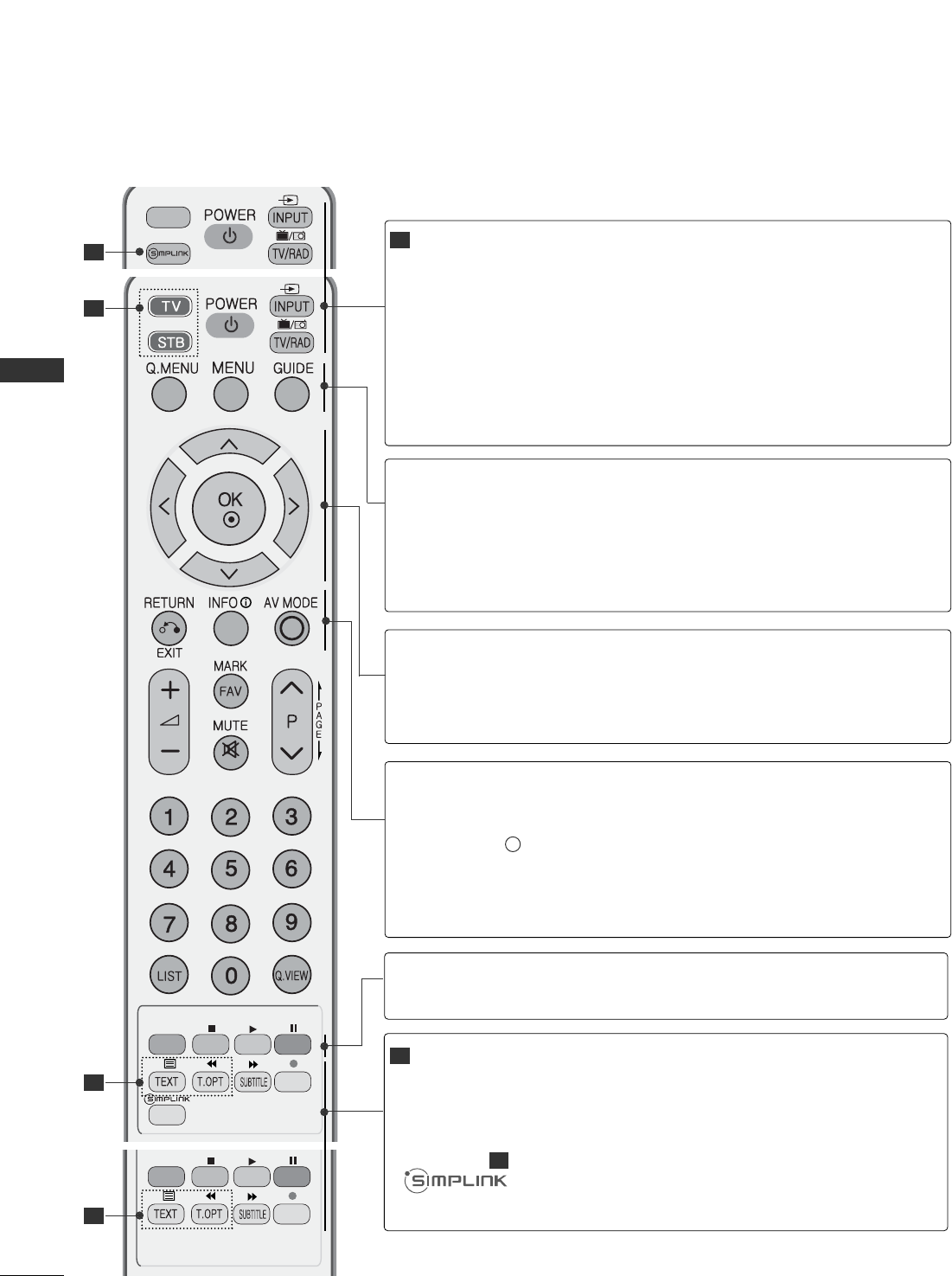
POWER
INPUT
TV/RAD
Switches the TV on from standby or off to standby.
External input mode rotate in regular sequence.
Switches the TV on from standby.
Selects Radio or TV channel in digital mode.
GUIDE
INFO i
TELETEXT
BUTTONS
AV MODE
Shows programme schedule.
Shows the present screen information.
These buttons are used for teletext.
For further details, see the ‘Teletext’ section.
It helps you select and set images and sounds when
connecting AV devices.
0~9 number
button
LIST
Q.VIEW
Selects a programme.
Selects numbered items in a menu.
Displays the programme table.
Returns to the previously viewed programme.
MENU
Q.MENU
THUMBSTICK
(Up/Down/Left
Right)
OK
RETURN(EXIT)
RATIO
Selects a menu.
Clears all on-screen displays and returns to TV viewing
from any menu.
Select the desired quick menu source.
Allows you to navigate the on-screen menus and adjust
the system settings to your preference.
Accepts your selection or displays the current mode.
Allows the user to move back one step in an interactive
application, EPG or other user interaction function.
Selects your desired picture format.
1
1
1
(Only 42/50PG10**)
39
WATCHING TV / PROGRAMME CONTROL
Installing Batteries
■
Open the battery compartment cover on the back and install the
batteries matching correct polarity (+with +,-with -).
■
Install two 1.5V AAA batteries. Do not mix old or used batteries
with new ones.
■
Close cover.
OK
RETURN
EXIT
Q.MENUMENU
RATIO
123
456
789
0
Q.VIEW
LIST
INPUT
TV/RAD
POWER
P
TEXT
AV MODE
FAV
MARK
MUTE
*
GUIDE
T.OPT
SUBTITLE
*
VOLUME UP
/DOWN
FAV
*
MUTE
Programme
UP/DOWN
Adjusts the volume.
Displays the selected favourite programme.
No function
Switches the sound on or off.
Selects a programme.
Coloured
buttons
SUBTITLE
SIMPLINK
control buttons
These buttons are used for teletext (on TTEELLEETTEEXXTTmod-
els only) or PPrrooggrraammmmee eeddiitt.
Recalls your preferred subtitle in digital mode.
Controls simplink.
40
WATCHING TV / PROGRAMME CONTROL
WATCHING TV / PROGRAMME CONTROL
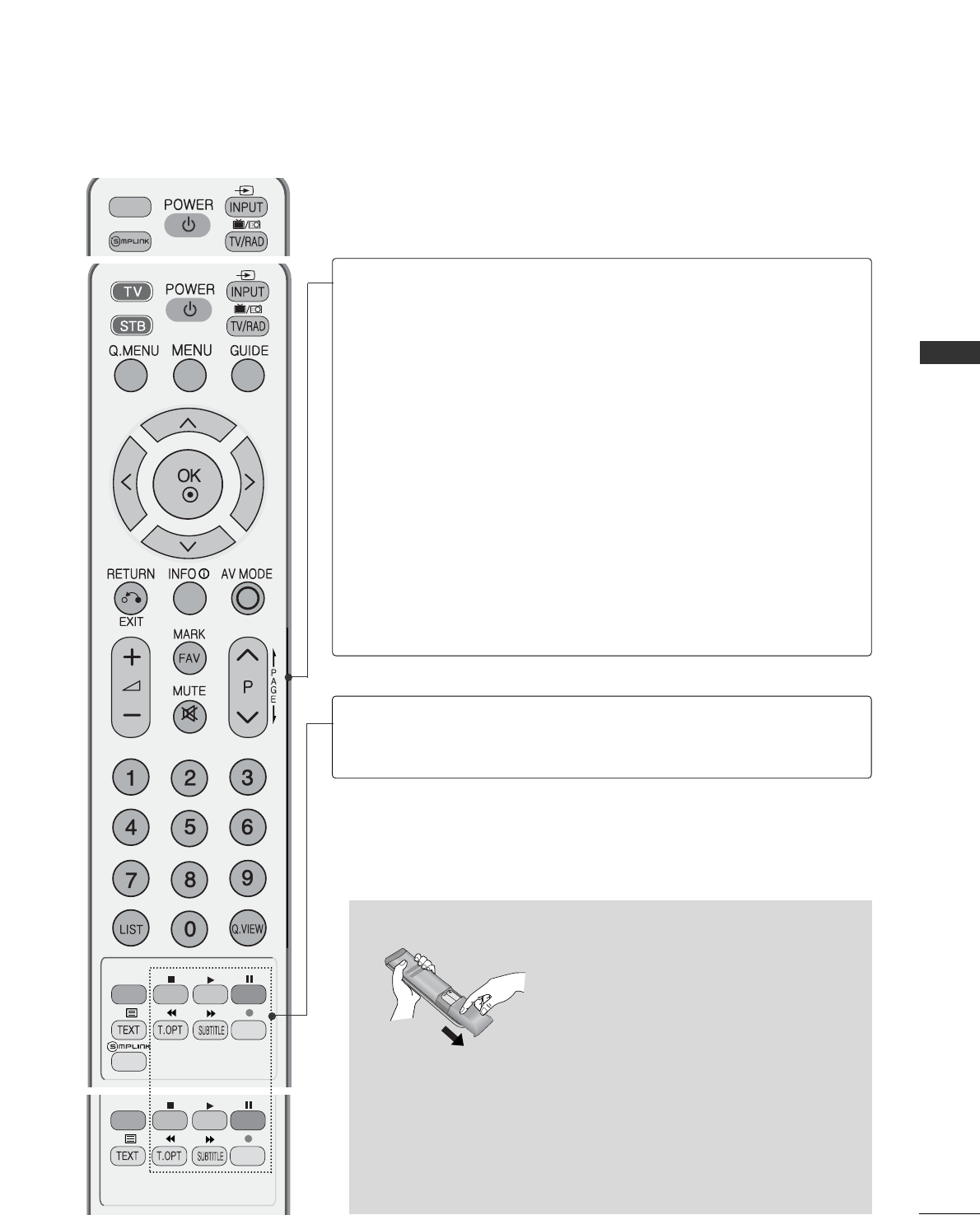
RATIO
MODE
POWER
INPUT
TV/RAD
RATIO
Selects the remote operating modes.
Switches the TV on from standby or off to standby.
External input mode rotate in regular sequence.
Switches the TV on from standby.
Selects Radio, TV, DTV channel.
Selects your desired picture format.
Q. MENU
MENU
GUIDE
Select the desired quick menu source.
Selects a menu.
Clears all on-screen displays and returns to TV viewing
from any menu.
Shows programme schedule.
THUMBSTICK
(Up/Down/Left
Right)
OK
Allows you to navigate the on-screen menus and adjust
the system settings to your preference.
Accepts your selection or displays the current mode.
RETURN(EXIT)
INFO i
AV MODE
Allows the user to move back one step in an interactive
application, EPG or other user interaction function.
Shows the present screen information.
It helps you select and set images and sounds when
connecting AV devices.
Coloured
buttons
These buttons are used for teletext (on TTEELLEETTEEXXTT
models only) , PPrrooggrraammmmee eeddiitt.
TELETEXT
BUTTONS
SUBTITLE
These buttons are used for teletext.
For further details, see the ‘Teletext’ section.
Recalls your preferred subtitle in digital mode.
See a list of AV devices connected to TV.
When you toggle this button, the Simplink menu appears
at the screen.
1
31
2
3
2
2
(Except for 19/22LS4D*, 42/50PG10**)
41
WATCHING TV / PROGRAMME CONTROL
RATIO
VOLUME UP
/DOWN
FAV
MUTE
Programme
UP/DOWN
PAGE
UP/DOWN
0~9 number
button
LIST
Q.VIEW
Adjusts the volume.
Displays the selected favourite programme.
Switches the sound on or off.
Selects a programme.
Move from one full set of screen information to the next
one.
Selects a programme.
Selects numbered items in a menu.
Displays the programme table.
Returns to the previously viewed programme.
Installing Batteries
■
Open the battery compartment cover on the back and install the
batteries matching correct polarity (+with +,-with -).
■
Install two 1.5V AAA batteries. Do not mix old or used batteries
with new ones.
■
Close cover.
SIMPLINK
control buttons
Controls simplink.
42
WATCHING TV / PROGRAMME CONTROL
WATCHING TV / PROGRAMME CONTROL
Firstly, connect the power cord correctly.
At this stage, the TV switches to standby mode.
In standby mode to turn TV on, press the rr/ I, INPUT or P (or PR D E) button on the TV or
press the POWER, INPUT, D/A, P (or (PR + - or P + -)) or NUMBER button on the remote control
and the TV will switch on.
2
1
TURNING ON THE TV
Initializing setup
Note:
a. It will automatically disappear after approx. 40 seconds unless a button is pressed.
b. Press the RETURN button to change the current OSD to the previous OSD.
c. For those countries without confirmed DTV broadcasting standards, some DTV features might not
work, depending on the DTV broadcasting environment.
d. "Home” mode is the optimal setting for home environments, and is the TV's default mode.
e. "In Store" mode is the optimal setting for store environments.“ If a user modifies image quality data,
“In Store” mode initializes the product to the image quality set by us after a certain period of time.
f. The mode (Home, In Store) can be changed by executing Factory Reset in the OPTION menu.
If the OSD (On Screen Display) is displayed on the screen after turning on the TV, you can adjust the
Language, Select Mode, Country, Time Zone, Auto programme tuning.
- When your TV is turned on, you will be able to use its features.
PROGRAMME SELECTION
Press the P (or (PR + - or P + -)) or NUMBER buttons to select a programme number.
1
VOLUME ADJUSTMENT
Press the VOL ++--(or + -) button to adjust the volume.
If you wish to switch the sound off, press the MUTE button.
You can cancel this function by pressing the MUTE, VOL ++--(or + -), or I/II button.
1
43
WATCHING TV / PROGRAMME CONTROL
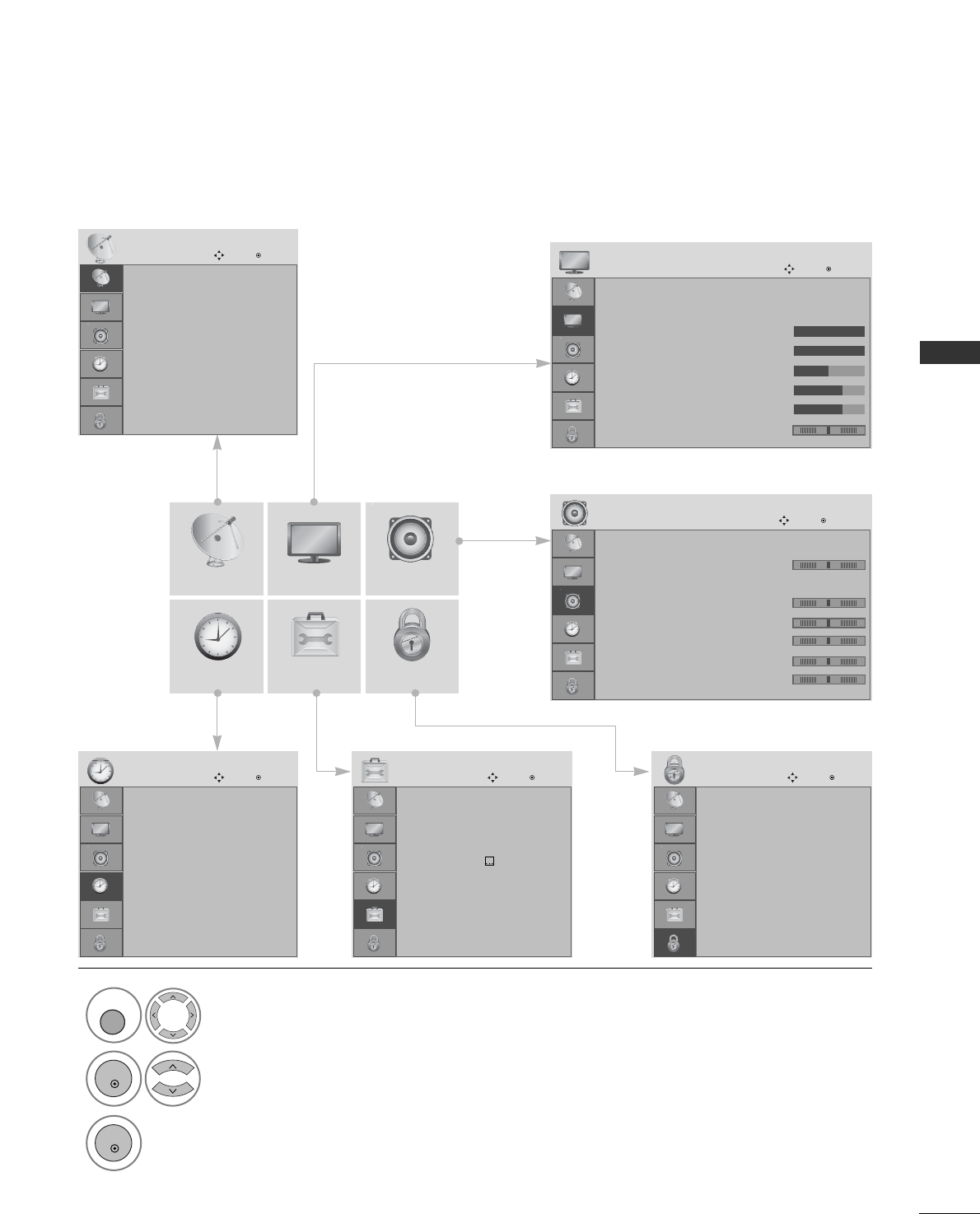
ON SCREEN MENUS SELECTION AND ADJUSTMENT
Your TV's OSD (On Screen Display)may differ slightly from what is shown in this manual.
SETUP AUDIO
TIME OPTION LOCK
PICTURE
Auto tuning
Manual tuning
Programme Edit
Booster : On
Software Update : Off
Diagnostics
CI Information
SETUP
Move OK
Aspect Ratio : 16:9
Picture Mode : Vivid
• Backlight 100
• Contrast 100
• Brightness 50
• Sharpness 70
• Colour 70
• Tint 0
PICTURE
Move OK
E
Auto Volume : Off
Balance 0
Sound Mode : Standard
• 120Hz 0
• 200Hz 0
• 500Hz 0
• 1.2KHz 0
• 3KHz 0
AUDIO
Move OK
E
Clock
Off Time : Off
On Time : Off
Sleep Timer : Off
Auto Sleep : Off
Time Zone : Canary GMT
TIME
Move OK
Lock System : Off
Set Password
Block Programme
Parental Guidance : Off
LOCK
Move OK
Menu Language : English
Audio Language : English
Subtitle Language : English
Hard of Hearing() Off
Country :UK
Input Label
SIMPLINK : On
Key Lock : Off
OPTION
Move OK
E
1Display each menu.
2Select a menu item.
3Move to the pop up menu.
LR
-+
-+
-+
-+
-+
RG
MENU
OK
OK
• Press the MENU button to return to normal TV viewing.
• Press the RETURN button to move to the previous menu screen.
44
WATCHING TV / PROGRAMME CONTROL
WATCHING TV / PROGRAMME CONTROL
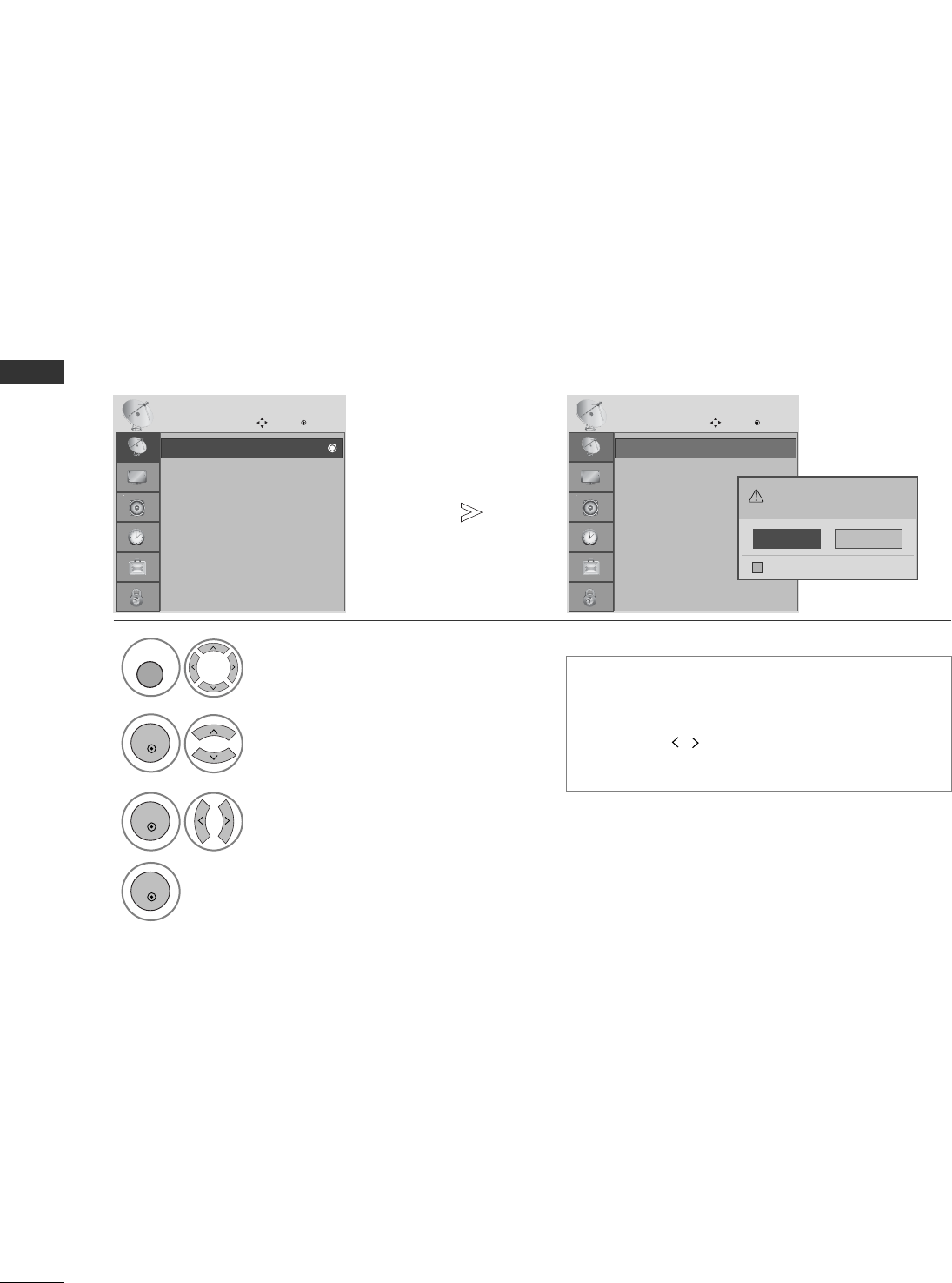
Use this to automatically find and store all available programmes.
When you start auto programming in digital mode, all previously stored service information will be deleted.
AUTO PROGRAMME TUNING
• Use NUMBER buttons to input a 4-digit
password in Lock System ‘On’.
• If you wish to keep on auto tuning select YES
using the button. Then, press the OK
button. Otherwise select NO.
Select SETUP.
2Select Auto Tuning.
3Select Yes .
4Run Auto tuning.
SETUP
Move OK
Auto tuning
Manual tuning
Programme Edit
Booster : On
Software Update : Off
Diagnostics
CI Information
Auto tuning
SETUP
Move OK
Auto tuning
Manual tuning
Programme Edit
Booster : On
Software Update : Off
Diagnostics
CI Information
Auto tuning
All service-information will be updated.
Continue?
SECAM L Search
Yes No
1
MENU
OK
OK
OK
• Press the MENU button to return to normal TV viewing.
• Press the RETURN button to move to the previous menu screen.
45
WATCHING TV / PROGRAMME CONTROL
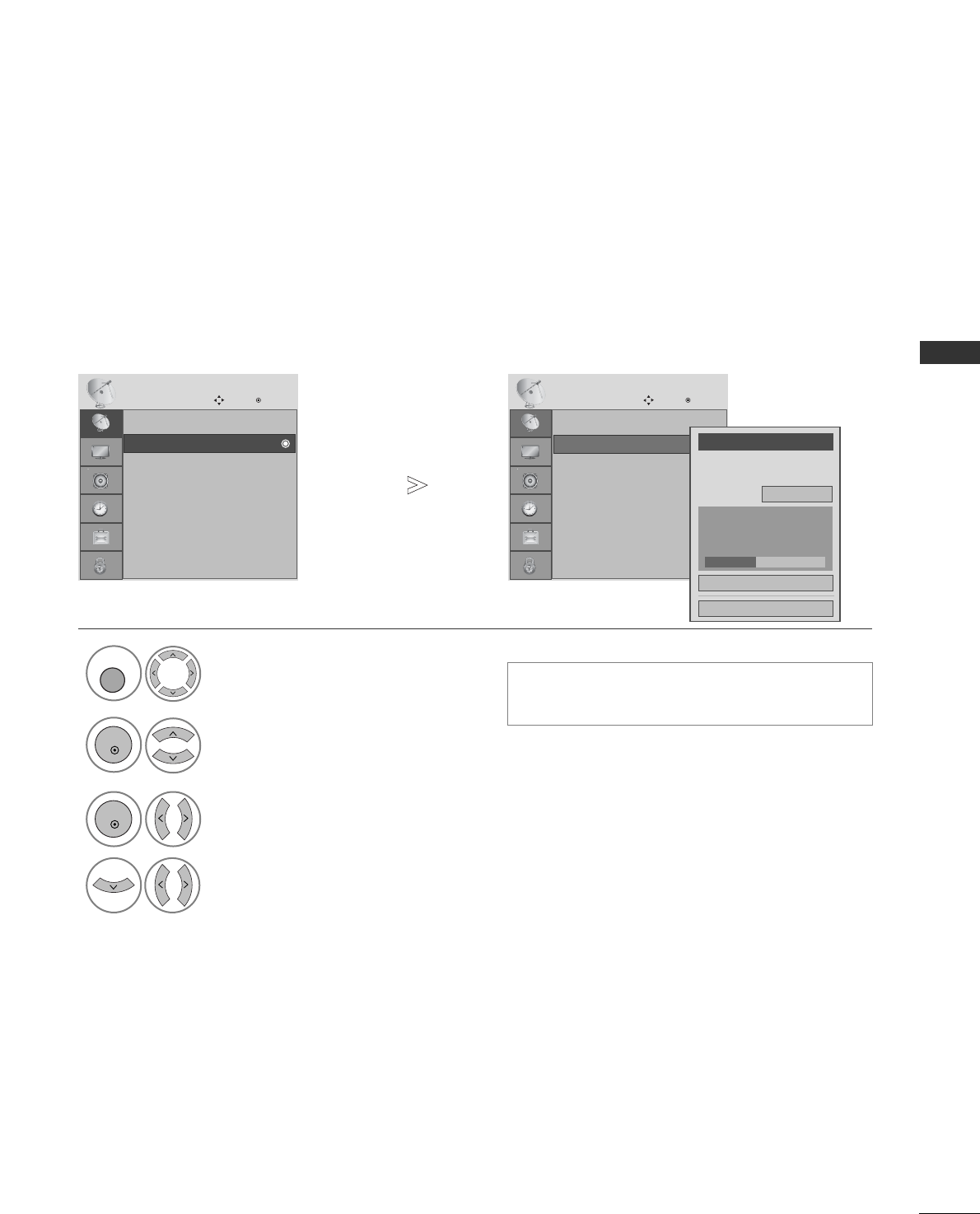
Manual Tuning lets you manually add a programme to your programme list.
MANUAL PROGRAMME TUNING (IN DIGITAL MODE)
•Use NUMBER buttons to input a 4-digit
password in Lock System ‘On’.
Select SETUP.
2Select Manual Tuning.
3Select DTV.
4Select the desired channel number.
SETUP
Move OK
Auto tuning
Manual tuning
Programme Edit
Booster : On
Software Update : Off
Diagnostics
CI Information
Manual tuning
SETUP
Move OK
Auto tuning
Manual tuning
Programme Edit
Booster : On
Software Update : Off
Diagnostics
CI Information
Manual tuning
Your receiver will add this
channel to your channel list.
UHF CH.
Bad Normal Good
FF
DTV
GG
30
ADD
Close
1
MENU
OK
OK
• Press the MENU button to return to normal TV viewing.
• Press the RETURN button to move to the previous menu screen.
46
WATCHING TV / PROGRAMME CONTROL
WATCHING TV / PROGRAMME CONTROL
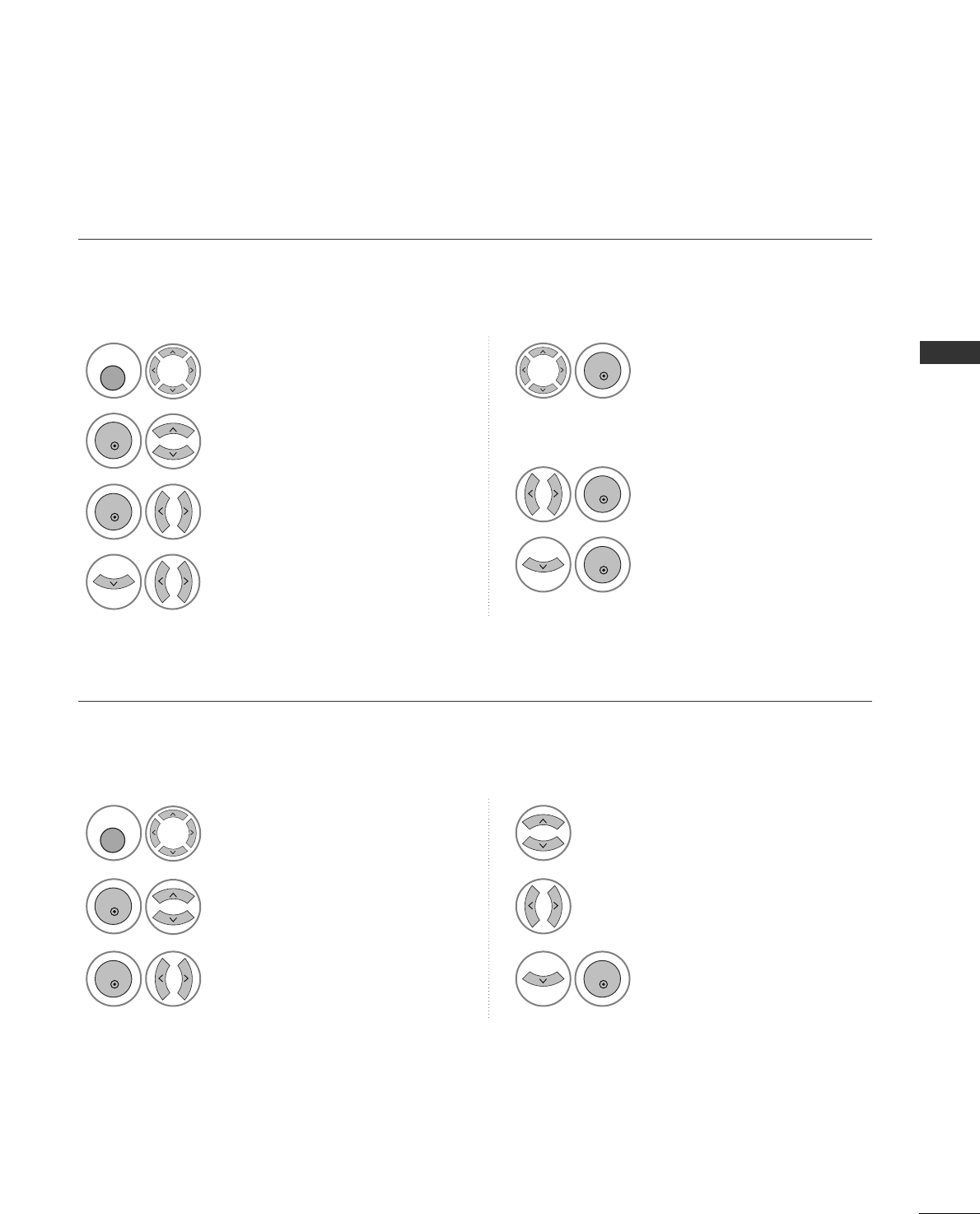
Manual Tuning lets you manually tune and arrange the stations in whatever order you desire.
MANUAL PROGRAMME TUNING (IN ANALOGUE MODE)
•Use NUMBER buttons to input a 4-digit password in Lock System ‘On’.
•L: SECAM L/L’ (France)
BG : PAL B/G, SECAM B/G (Europe / East Europe / Asia / New Zealand / M.East / Africa / Australia)
I: PAL I/II (U.K. / Ireland / Hong Kong / South Africa)
DK : PAL D/K, SECAM D/K (East Europe / China / Africa / CIS)
•To store another channel, repeat steps 4 to 9.
Select SETUP.
2Select Manual Tuning.
3Select TV.
4
Select the desired pro-
gramme number on.
5Select a TV system.
6Select V/UHF or Cable.
8Commence searching.
9Select Store.
or
7Select the desired
channel number.
or
SETUP
Move OK
Auto tuning
Manual tuning
Programme Edit
Booster : On
Software Update : Off
Diagnostics
CI Information
Manual tuning
SETUP
Move OK
Auto tuning
Manual tuning
Programme Edit
Booster : On
Software Update : Off
Diagnostics
CI Information
Manual tuning Storage
FF
TV
GG
2007
System BG
Band V/UHF
Channel
Fine
FF GG
FF GG
Search
0
Name C 02
Store
Close
1
123
456
78
0
9
MENU
OK
OK
OK
123
456
78
0
9
• Press the MENU button to return to normal TV viewing.
• Press the RETURN button to move to the previous menu screen.
47
WATCHING TV / PROGRAMME CONTROL
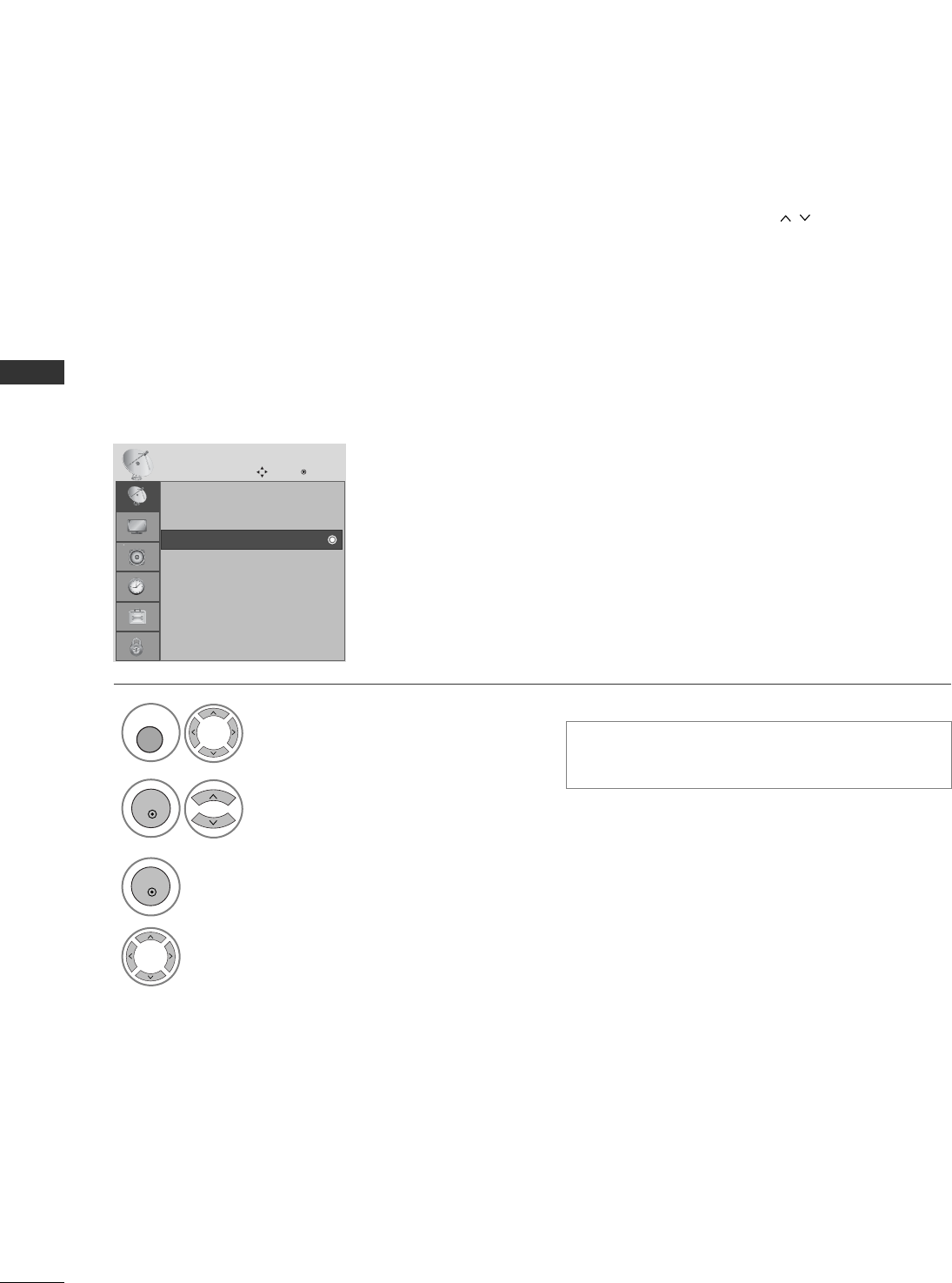
Normally fine tuning is only necessary if reception is poor.
AFine Tuning
3Select TV.
4
Select Fine.
5Fine tune for the best picture and
sound.
6Select Store.
You can assign a station name with five characters to each programme number.
AAssigning a station name
Select SETUP.
2Select Manual Tuning.
3Select TV.
4
Select Name.
5Select the position and make
your choice of the second char-
acter, and so on.
You can use an the alphabet AA
to ZZ, the number 00to 99, +/ -,
and blank.
6Select Close.
7Select Store.
1
Select SETUP.
2Select Manual Tuning.
1
MENU
OK
OK
OK
OK
OK
MENU
OK
OK OK
• Press the MENU button to return to normal TV viewing.
• Press the RETURN button to move to the previous menu screen.
48
WATCHING TV / PROGRAMME CONTROL
WATCHING TV / PROGRAMME CONTROL
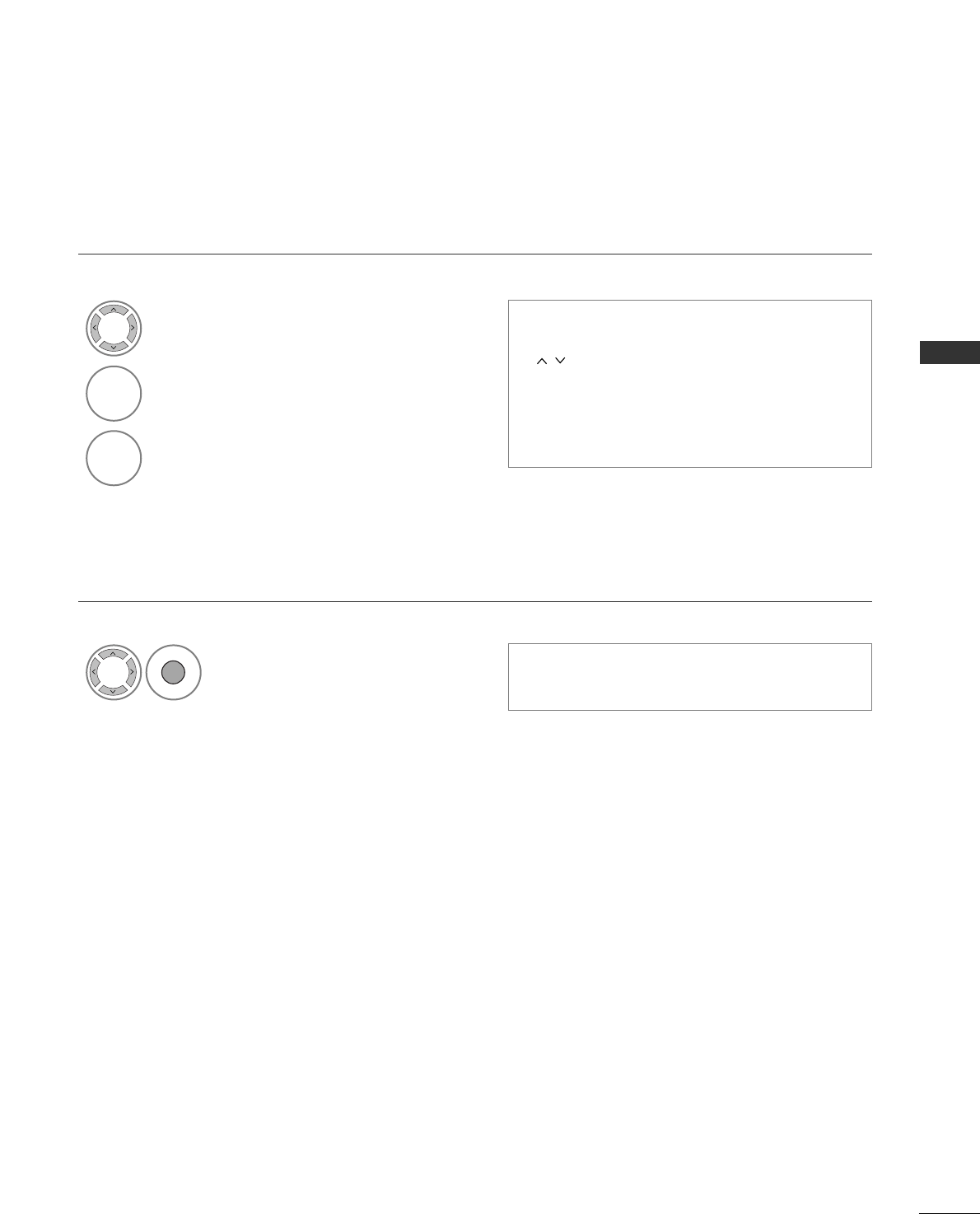
When a programme number is skipped, it means that you will be unable to select it using P (or PR + / -) but-
ton during TV viewing.
If you wish to select the skipped programme, directly enter the programme number with the NUMBER buttons or
select it in the Programme edit menu
This function enables you to skip the stored programmes.
In some countries it is possible to move a programme number by using the YELLOW button only.
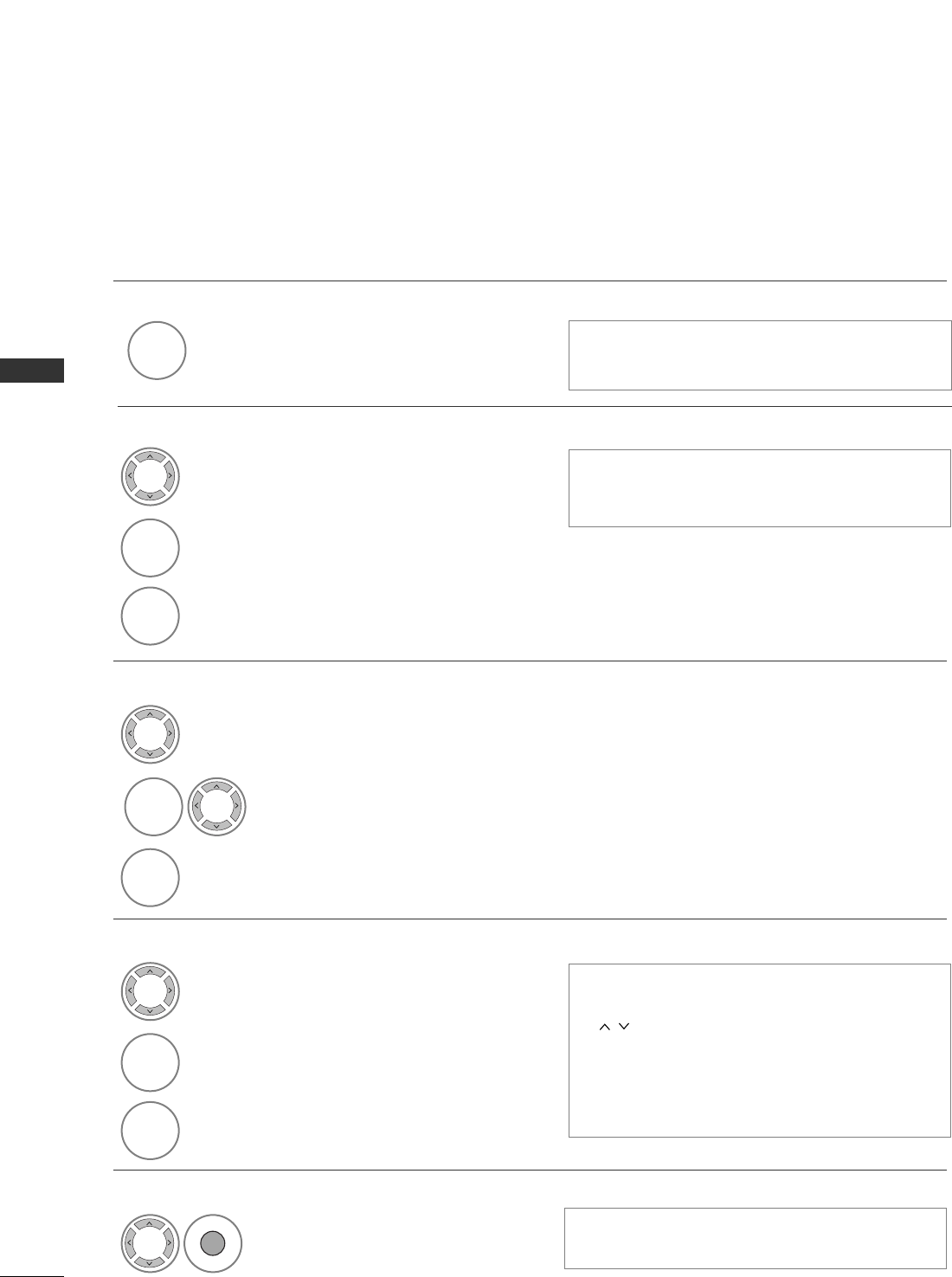
PROGRAMME EDIT
• Use NUMBER buttons to input a 4-digit
password in Lock System ‘On’.
Select SETUP.
2Select Programme Edit.
3Enter the Programme Edit.
4Select a programme to be stored or skipped.
SETUP
Move OK
Auto tuning
Manual tuning
Programme Edit
Booster : On
Software Update : Off
Diagnostics
CI Information
Programme Edit
1
MENU
OK
OK
• Press the MENU button to return to normal TV viewing.
• Press the RETURN button to move to the previous menu screen.
49
WATCHING TV / PROGRAMME CONTROL
ASkipping a programme number
Select a programme number to be skipped.
2
BLUE
BLUE Turn the skipped programme number to blue.
3
BLUE
BLUE Release the skipped programme.
1• When a programme number is skipped it means
that you will be unable to select it using the P
(or PR + / -) button during normal TV
viewing.
• If you wish to select a skipped programme, directly
enter the programme number with the NUMBER
buttons or select it in the programme edit or EPG.
ASelecting favourite programme
Select your favourite pro-
gramme number.
1• It will automatically include the selected
programme into your favourite programme list.
FAV
(IN DTV/RADIO MODE)
50
WATCHING TV / PROGRAMME CONTROL
WATCHING TV / PROGRAMME CONTROL
This function enables you to delete or skip the stored programmes.
You can also move some channels to other programme numbers.
AAuto Sort
Start Auto Sort.
1
GREEN
GREEN
• After activating Auto Sort once, you can no longer
edit programmes.
ASelecting a Favourite Programme
Select your favourite programme number. • The selected programme will be added to the
favourite programme list.
IN TV MODE
ADeleting a programme
Select a programme number to be deleted.
2
RED
RED Turn the deleted programme number to red.
3
RED
RED Release the deleted programme.
1
ASkipping a programme number
Select a programme number to be skipped.
2
BLUE
BLUE Turn the skipped programme number to blue.
3
BLUE
BLUE Release the skipped programme.
• The selected programme is deleted, all the fol-
lowing programmes are shifted up one
AMoving a programme
Select a programme number to be moved.
Turn the moved programme number to YELLOW.
3
YELL
YELLO
OW
W
Release the moved programme.
• When a programme number is skipped it means
that you will be unable to select it using the P
(or PR + / -) button during normal TV
viewing.
• If you wish to select a skipped programme, directly
enter the programme number with the NUMBER but-
tons or select it in the programme edit or EPG.
2
YELL
YELLO
OW
W
1
1
1
FAV
51
WATCHING TV / PROGRAMME CONTROL
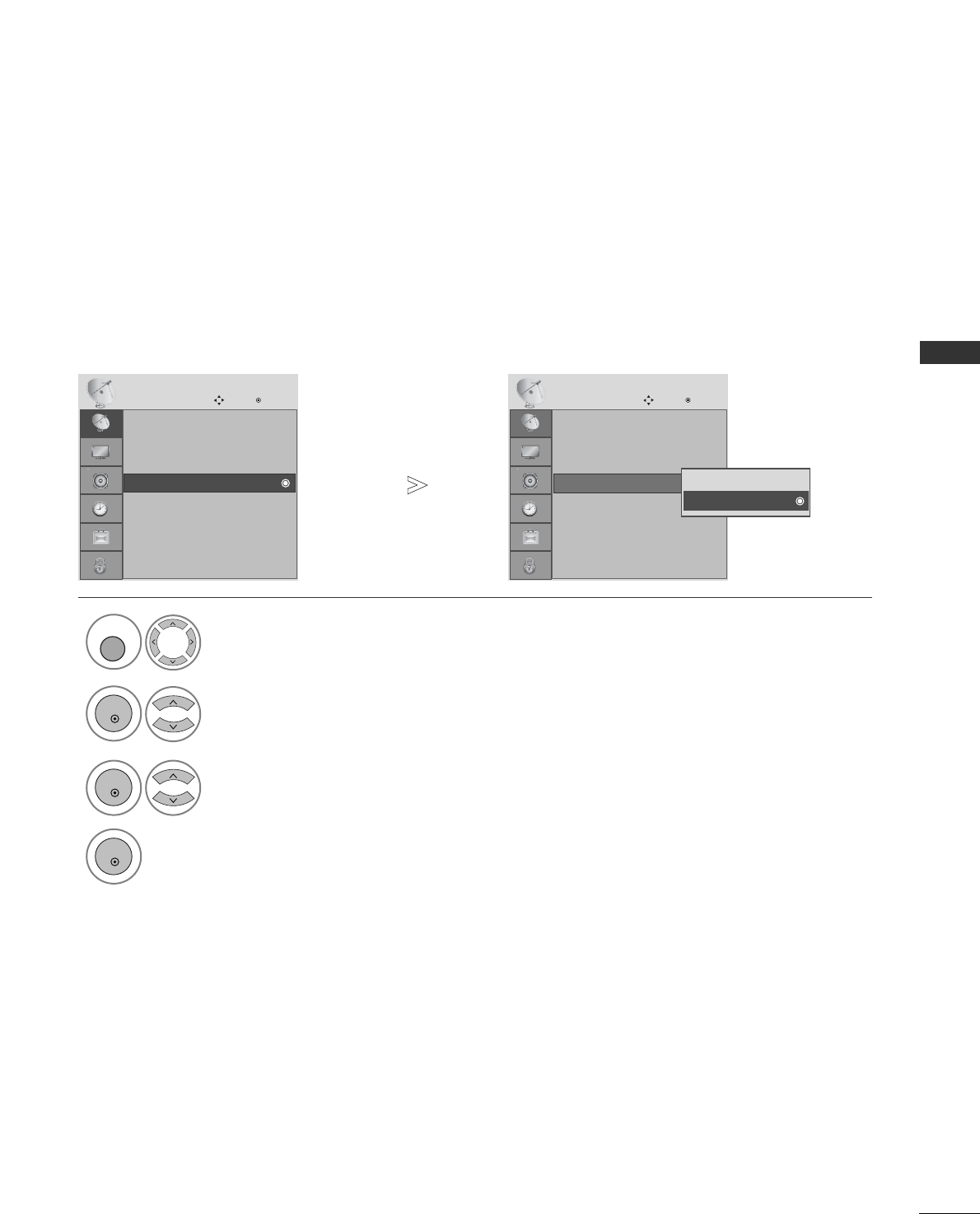
If reception is poor, select
Booster
to
On
.
When the signal is strong, select “
Off
”.
BOOSTER (IN DIGITAL MODE ONLY)
Select SETUP.
2Select Booster.
3Select On or Off.
4Save.
SETUP
Move OK
Auto tuning
Manual tuning
Programme Edit
Booster : On
Software Update : Off
Diagnostics
CI Information
Booster : On
SETUP
Move OK
Auto tuning
Manual tuning
Programme Edit
Booster : On
Software Update : Off
Diagnostics
CI Information
Booster : On
1
Off
On
On
MENU
OK
OK
OK
• Press the MENU button to return to normal TV viewing.
• Press the RETURN button to move to the previous menu screen.
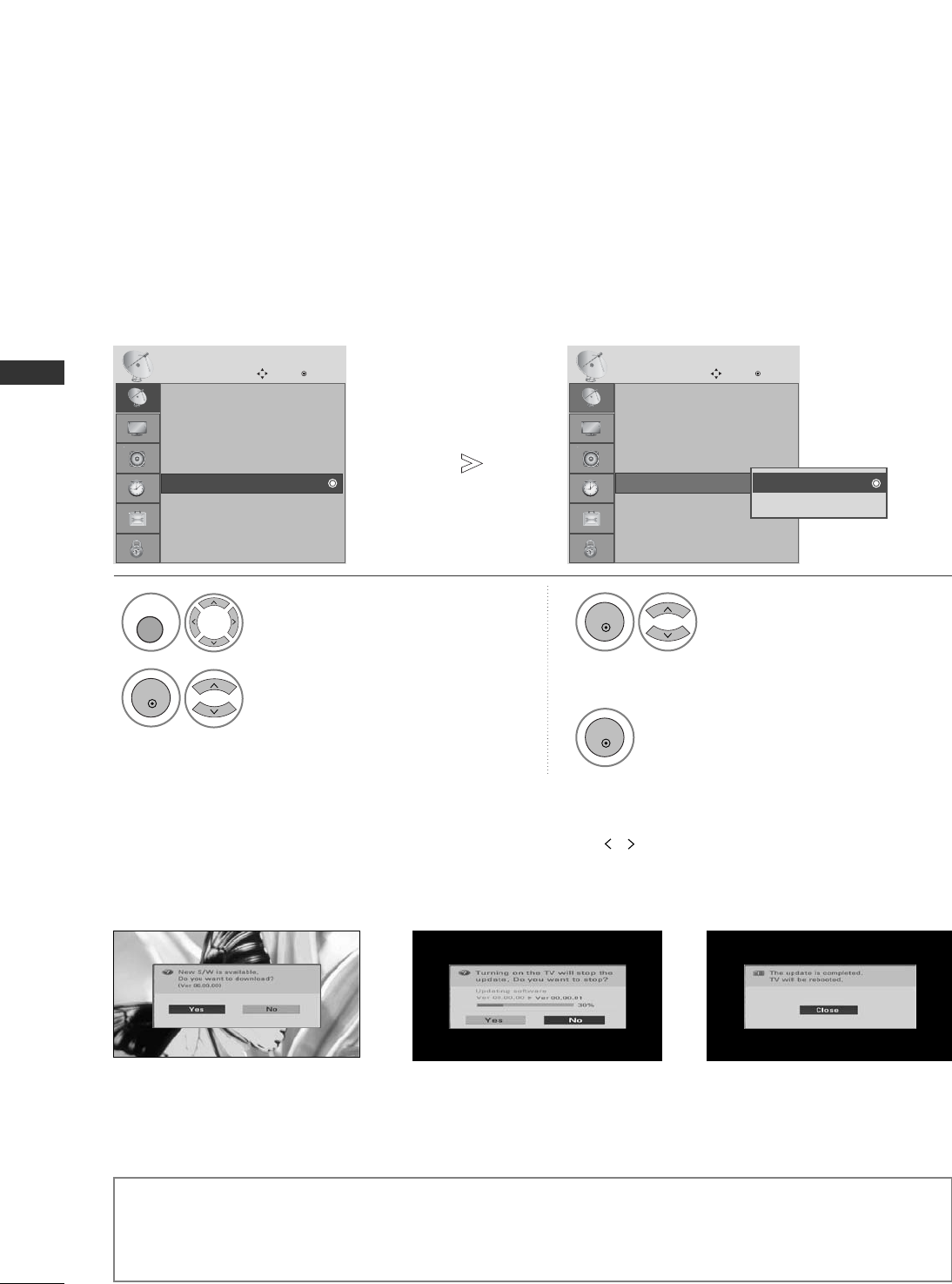
52
WATCHING TV / PROGRAMME CONTROL
WATCHING TV / PROGRAMME CONTROL
Software Update means software can be downloaded through the digital terrestrial broadcasting system.
SOFTWARE UPDATE
* When setting “Software Update”
- During Progress of a Software Update, please note the following:
• Power to the TV must not be interrupted.
• The TV must not be switched off.
• The antenna must not be disconnected.
• After Software Update, you can confirm the updated software version in Diagnostics menu.
Select SETUP.
2Select Software Update.
3Select On or Off.
• If you select On, a user
confirm message box will be
displayed to notify that new
software is found.
4Save.
SETUP
Move OK
Auto tuning
Manual tuning
Programme Edit
Booster : On
Software Update : Off
Diagnostics
CI Information
Software Update : Off
SETUP
Move OK
Auto tuning
Manual tuning
Programme Edit
Booster : On
Software Update : Off
Diagnostics
CI Information
Software Update : Off
1
Off
On
Off
MENU
OK
OK
OK
Occasionally, a transmission of
updated digital software informa-
tion will result in the following
menu on the TV screen.
Select the YYEESSusing the
button and you will see the fol-
lowing picture.
After the Software Update is
complete, the System restarts.
When the Software Update
menu is "OOffff", the message to
change it to "OOnn" appears.
When the power is turned off, downloading
starts.
When the power is turned on while updat-
ing, the progress status is displayed.
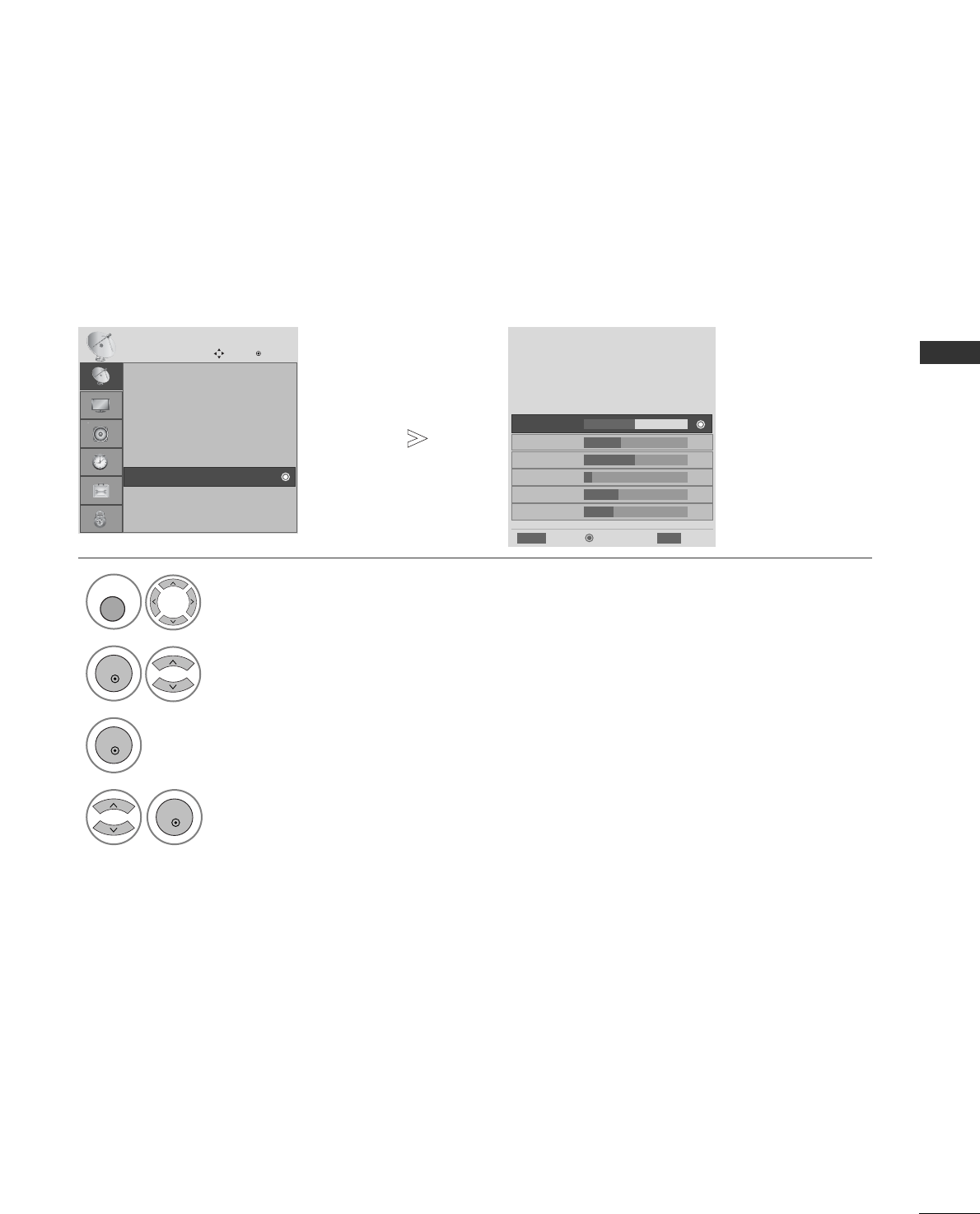
53
WATCHING TV / PROGRAMME CONTROL
This function enables you to view information on the Manufacturer, Model/Type, Serial Number and Software
Version.
This displays the information and signal strength of the tuned MUX.
This displays the signal information and service name of the selected MUX.
DIAGNOSTICS (IN DIGITAL MODE ONLY)
Select SETUP.
2Select Diagnostics.
4Display the information of Channel.
3Display Manufacturer, Model/Type, Serial Number and Software Version.
SETUP
Move OK
Auto tuning
Manual tuning
Programme Edit
Booster : On
Software Update : Off
Diagnostics
CI Information
Diagnostics
1
Engineering Diagnostics
Manufacturer : LG Electronics Inc.
Model/Type : 22LS4D
Serial No. : 708KGKG00019
Software Version : V1.18.1
Popup
CH 34
CH 36
CH 38
CH 54
CH 60
Prev.
RETURN
Exit
MENU
CH 30
E
D
MENU
OK
OK
OK
• Press the MENU button to return to normal TV viewing.
• Press the RETURN button to move to the previous menu screen.
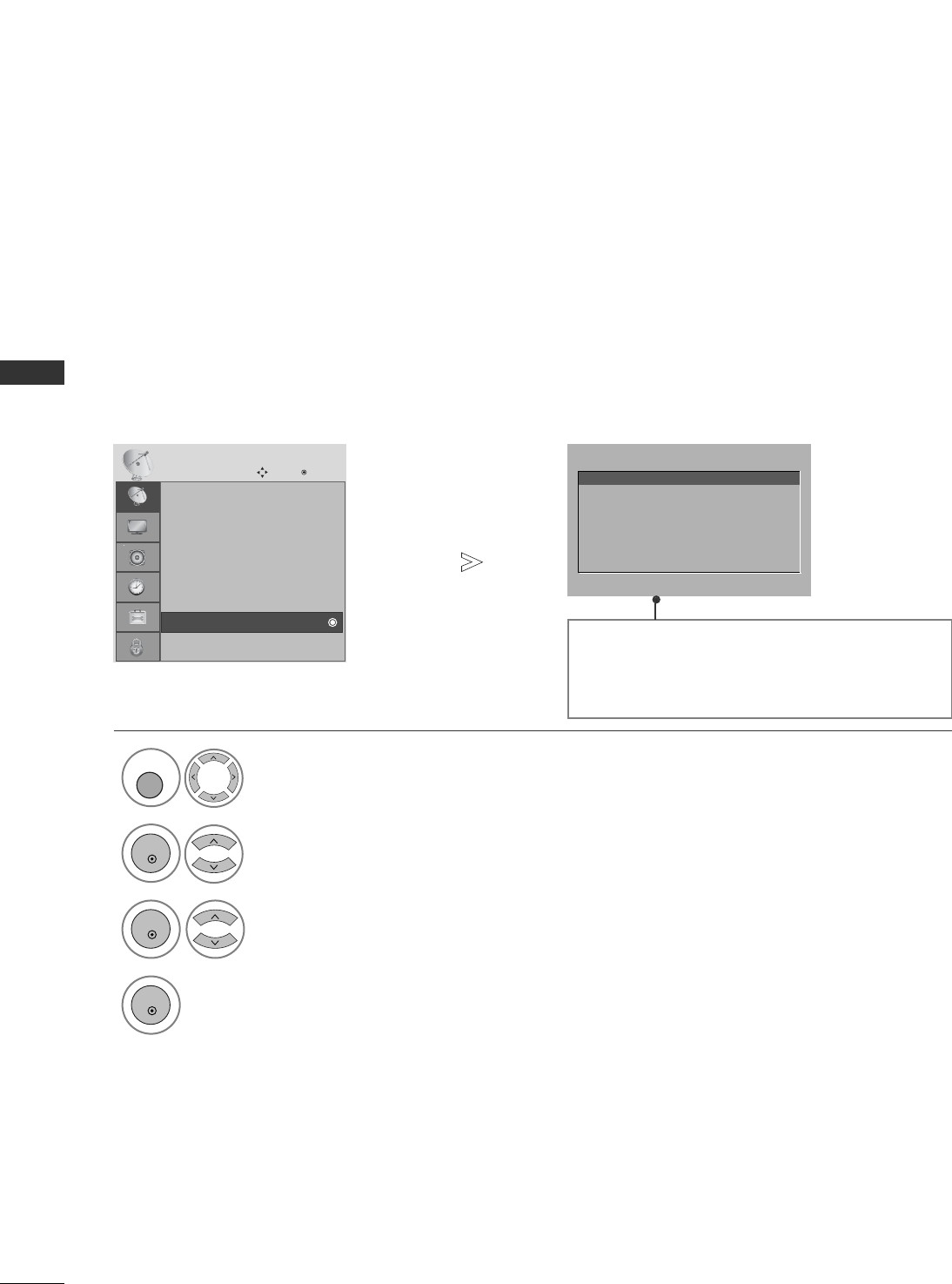
54
WATCHING TV / PROGRAMME CONTROL
WATCHING TV / PROGRAMME CONTROL
This function enables you to watch some encrypted services (pay services). If you remove the CI Module, you
cannot watch pay services.
When the module is inserted into the CI slot, you can access the module menu.
To purchase a module and smart card, contact your dealer. Do not repeatedly insert or remove a CAM module
from the TV. This may cause a malfunction. When the TV is turned on after inserting a CI Module, you may not
have any sound output.
This may be incompatible with the CI module and smart card.
CI (Common Interface) functions may not be possible depending upon the country broadcasting circumstances.
• This OSD is only for illustration and the menu options
and screen format will vary according to the Digital pay
services provider.
• It is possible for you to change CI (Common Interface)
menu screen and service by consulting your dealer.
Viaccess Module
Select the item
Consultations
Authorizations
Module information
CI [COMMON INTERFACE] INFORMATION
Select SETUP.
2Select CI Information.
4Save.
3Select the desired item: Module information, smart card
information, language, or software download etc.
SETUP
Move OK
Auto tuning
Manual tuning
Programme Edit
Booster : On
Software Update : Off
Diagnostics
CI Information
CI Information
1
MENU
OK
OK
OK
• Press the MENU button to return to normal TV viewing.
• Press the RETURN button to move to the previous menu screen.
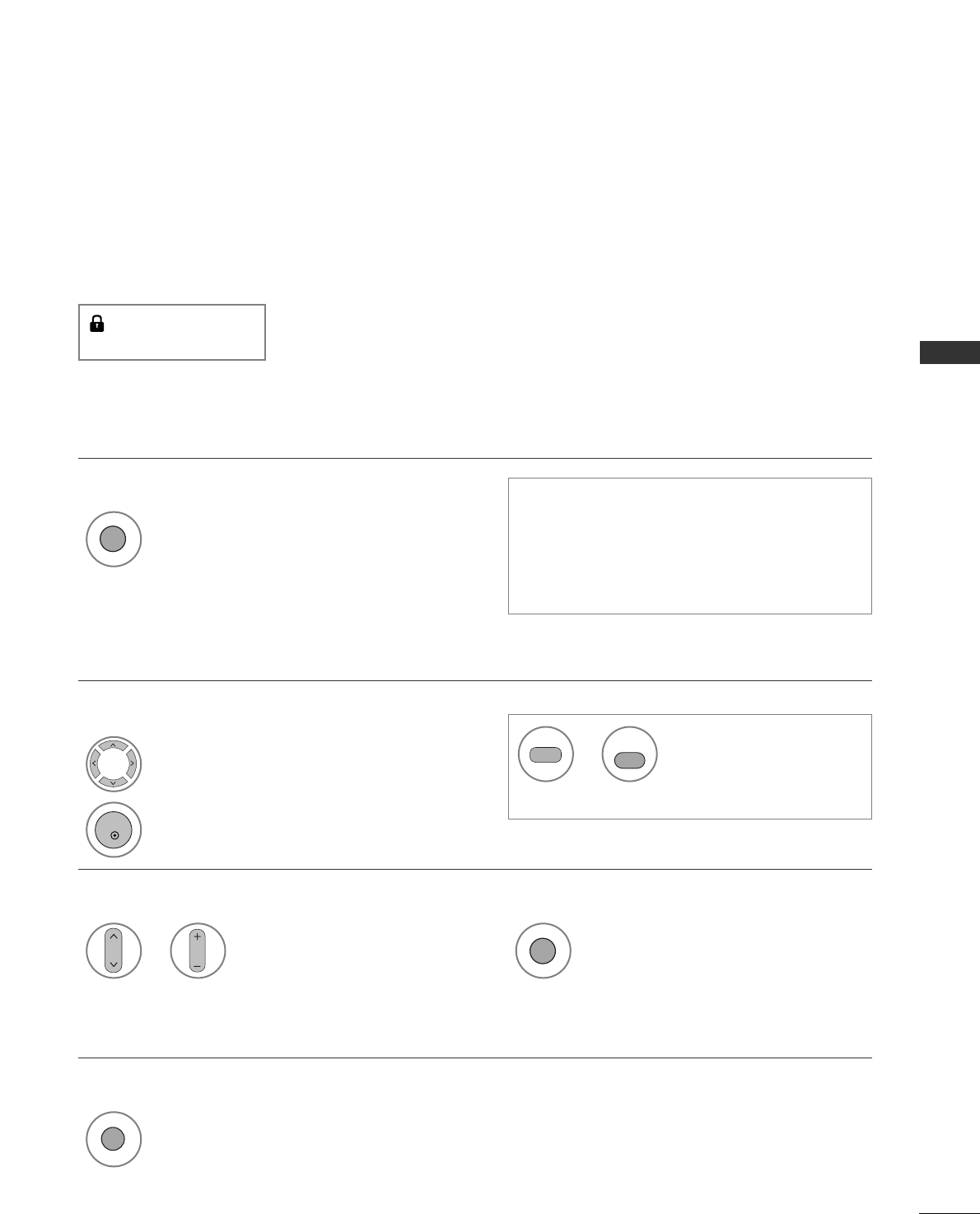
55
WATCHING TV / PROGRAMME CONTROL
You can check which programmes are stored in the memory by displaying the programme table.
SELECTING THE PROGRAMME TABLE
Displayed when the
Locked Programme.
display the PROGRAMME LIST.
1Select a programme.
2
Switch to the chosen programme number.
1
ADisplaying programme LIST
ASelecting a programme in the programme list
•You may find some blue programmes. These
have been set up to be skipped by auto
programming or in the programme edit mode.
•Some programmes with the channel number
shown in the programme LIST indicate there is
no station name assigned.
1Turns the pages.
or 2Return to normal TV viewing.
APaging through a programme list
1
Display the Favourite Programme table.
A
Displaying the favourite programme table
LIST
P
P
FAV
OK
LIST
From the programme you
are currently watching, the
mode will change from TV
to DTV to Radio.
or
TV/RAD
TV/RADIO
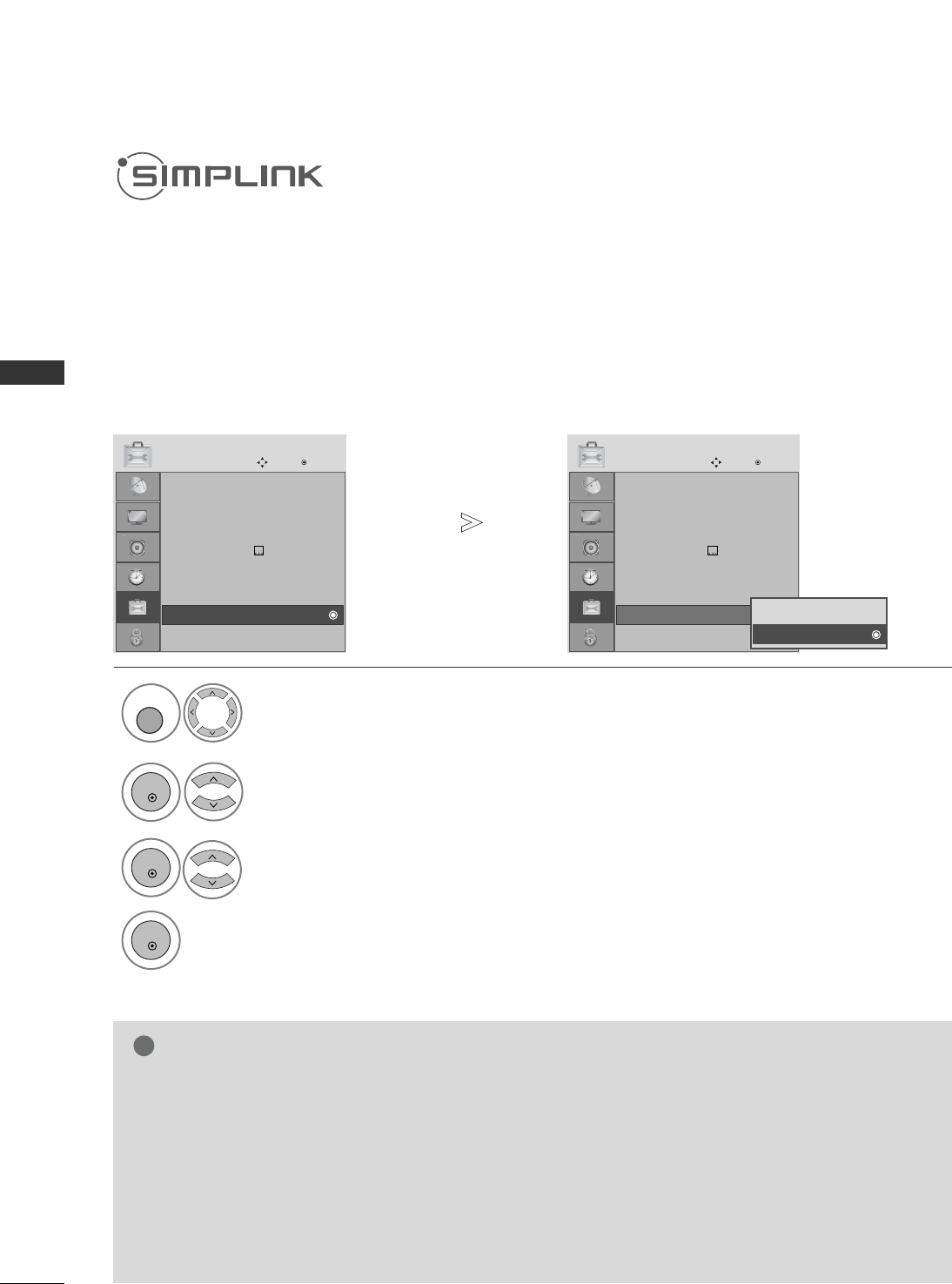
56
WATCHING TV / PROGRAMME CONTROL
WATCHING TV / PROGRAMME CONTROL
2
(Except for 19/22LS4D*, 42/50PG10**)
This function operates only with devices with the SIMPLINK logo.
Please check the SIMPLINK logo.
This TV might not function properly when using it with other products with HDMI-CEC function.
This allows you to control and play other AV devices connected to the display through HDMI cable without
additional cables and settings.
If you do not want SIMPLINK menu, select “OOffff”.
SIMPLINK function is not supported by HDMI IN 3 input.
Select OPTION.
Select SIMPLINK.
3Select On or Off.
4Save.
1
Menu Language : English
Audio Language : English
Subtitle Language : English
Hard of Hearing() Off
Country :UK
Input Label
SIMPLINK : On
Key Lock : Off
OPTION
Move OK
E
SIMPLINK : On
Menu Language : English
Audio Language : English
Subtitle Language : English
Hard of Hearing() Off
Country :UK
Input Label
SIMPLINK : On
Key Lock : Off
OPTION
Move OK
E
SIMPLINK : On
Off
On
On
MENU
OK
OK
OK
• Press the MENU button to return to normal TV viewing.
• Press the RETURN button to move to the previous menu screen.
NOTE
!
GGConnect the HDMI/DVI IN or HDMI IN terminal of the TV to the rear terminal (HDMI terminal) of the
SIMPLINK device with the HDMI cable.
GGAfter connecting the HDMI terminal for the home theatre with the SIMPLINK function using the above
method, connect the DIGITAL AUDIO OUT terminal on the back of the TV to the DIGITAL AUDIO IN ter-
minal on the back of the SIMPLINK device with the OPTICAL cable.
GGWhen operating an external device with SIMPLINK, press the TV button from the MODE buttons on the
remote control.
GGWhen you switch the Input source using the INPUT button on the remote control, you can stop the opera-
tion of a device controlled by SIMPLINK
GGWhen you select or operate a media device with home theater function, the speaker automatically switches
to home theater speaker (HT speaker).
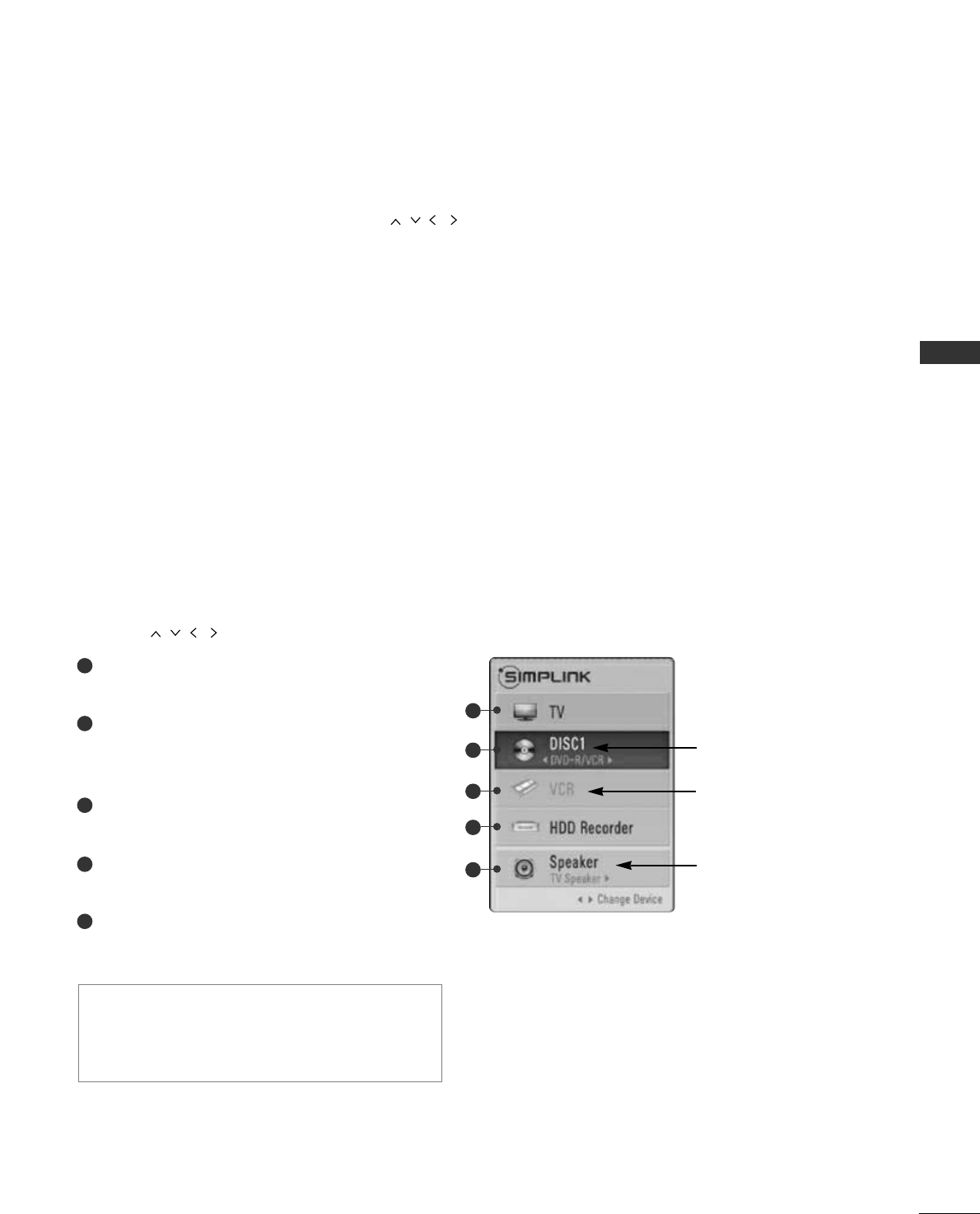
57
WATCHING TV / PROGRAMME CONTROL
DDiisscc ppllaayybbaacckk
Control connected AV devices by pressing the
,
OK,
G
,
A
, ll ll
,
FF
and
GG
buttons.
(The Ô button does
not provide such functions.)
DDiirreecctt PPllaayy
After connecting AV devices to the TV, you can directly control the devices and play media without additional settings.
SSeelleecctt AAVV ddeevviiccee
Enables you to select one of the AV devices connected to the TV and operate it.
PPoowweerr ooffff aallll ddeevviicceess
When you switch off the TV, all connected devices are turned off.
SSwwiittcchh aauuddiioo--oouutt
Offers an easy way to switch audio-out.
SSyynncc PPoowweerr oonn
When you play the connected AV device, TV will automatically turn on.
**
A device, which is connected to the TV through a HDMI cable but does not support SIMPLINK, does not provide this
function.
SIMPLINK Functions
Selected Device
When no device is connect-
ed (displayed in gray)
When a device is connected
(displayed in bright colour)
1
2
3
4
5
SIMPLINK Menu
Press the button and then OK button to select the desired SIMPLINK source.
TTVV vviieewwiinngg ::Switch to the previous TV programme
regardless of the current mode.
DDIISSCC ppllaayybbaacckk ::Select and play connected discs.
When multiple discs are available, the titles of discs are
conveniently displayed at the bottom of the screen.
VVCCRR ppllaayybbaacckk :: Play and control the connected
VCR.
HHDDDD RReeccoorrddiinnggss ppllaayybbaacckk :: Play and control
recordings stored in HDD.
AAuuddiioo OOuutt ttoo HHoommee t
thheeaatteerr//AAuuddiioo OOuutt ttoo TTVV::
Select Home theater or TV speaker for Audio Out.
1
2
3
4
5
•Home theater: Only one supported at once
•DVD, Recorder: Up to three supported at
once
•VCR: Only one supported at once
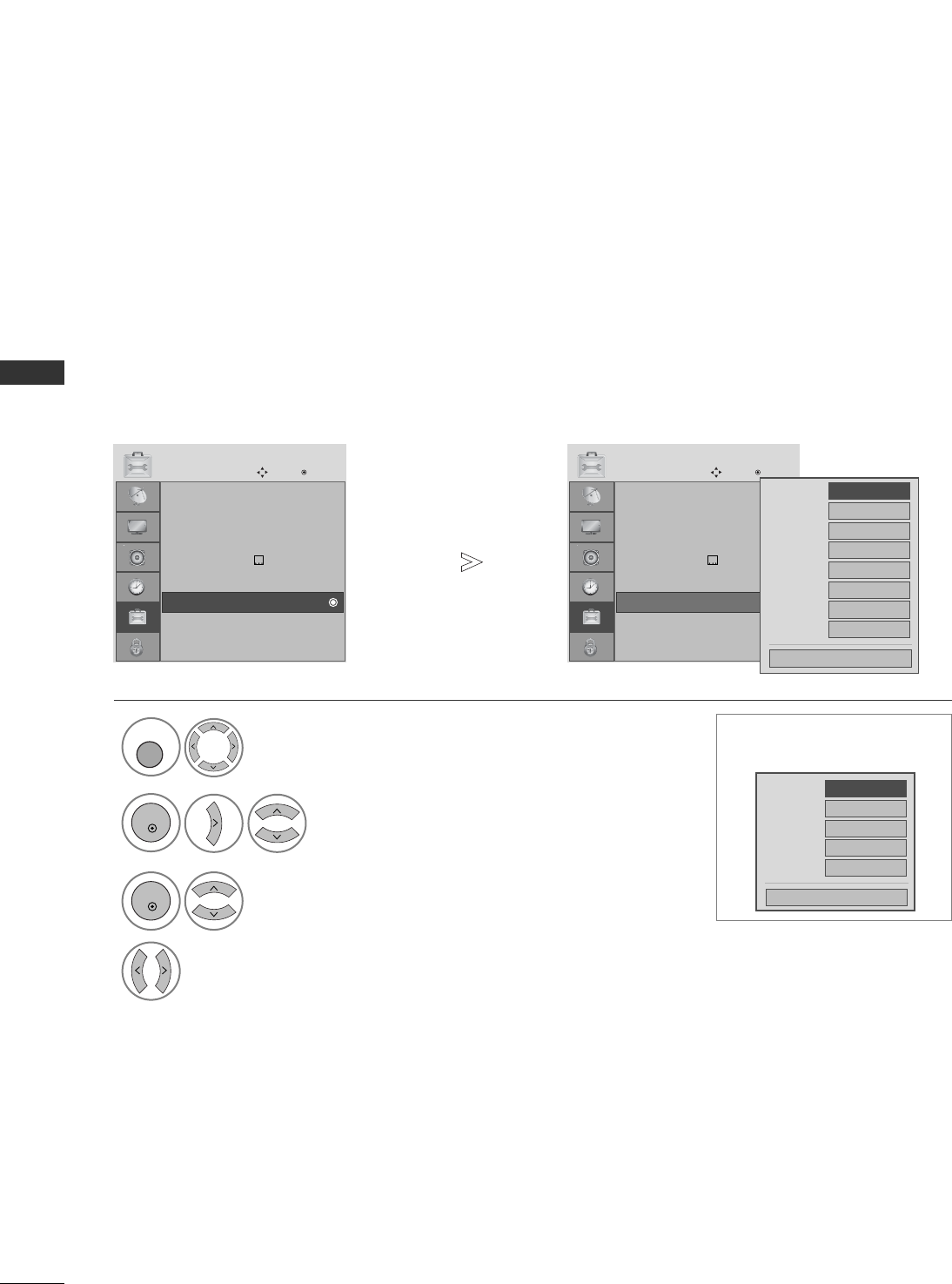
58
WATCHING TV / PROGRAMME CONTROL
Menu Language : English
Audio Language : English
Subtitle Language : English
Hard of Hearing() Off
Country :UK
Input Label
SIMPLINK : On
Key Lock : Off
OPTION
Move OK
E
Input Label
Menu Language : English
Audio Language : English
Subtitle Language : English
Hard of Hearing() Off
Country :UK
Input Label
SIMPLINK : On
Key Lock : Off
OPTION
Move OK
E
Input Label
WATCHING TV / PROGRAMME CONTROL
Selects a label for each input source.
INPUT LABEL
Select OPTION.
2Select Input Label.
3Select the source.
4
Select the label.
RGB
HDMI1
HDMI2
HDMI3
AV1
AV2
AV3
Component
Close
1
MENU
OK
OK
• Press the MENU button to return to normal TV viewing.
• Press the RETURN button to move to the previous menu screen.
• For 19/22LS4D*,
42/50PG10** only
HDMI
AV1
AV2
Component
RGB
Close
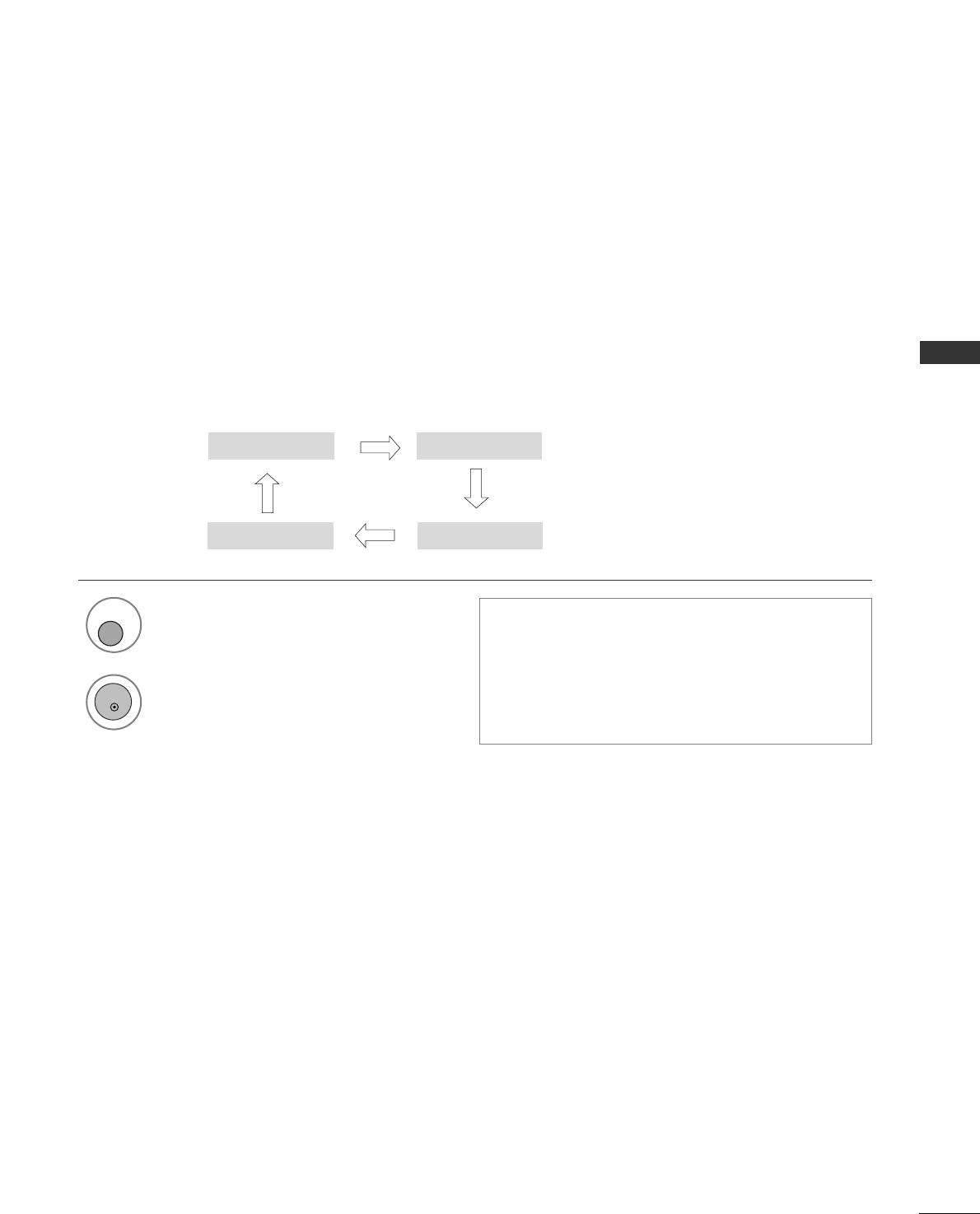
59
WATCHING TV / PROGRAMME CONTROL
AV MODE
You can select the optimal images and sounds when connecting AV devices to external input.
1
AV MODE
2
• If you select Cinema Mode in AV mode, Cinema
mode will be selected both for Picture Mode and
Sound Mode in PICTURE menu and AUDIO menu
respectively.
• If you select “Off” in AV mode, the picture and
image which you initially set will be selected.
Off Cinema
Game Sport
Select the desired source.
OK
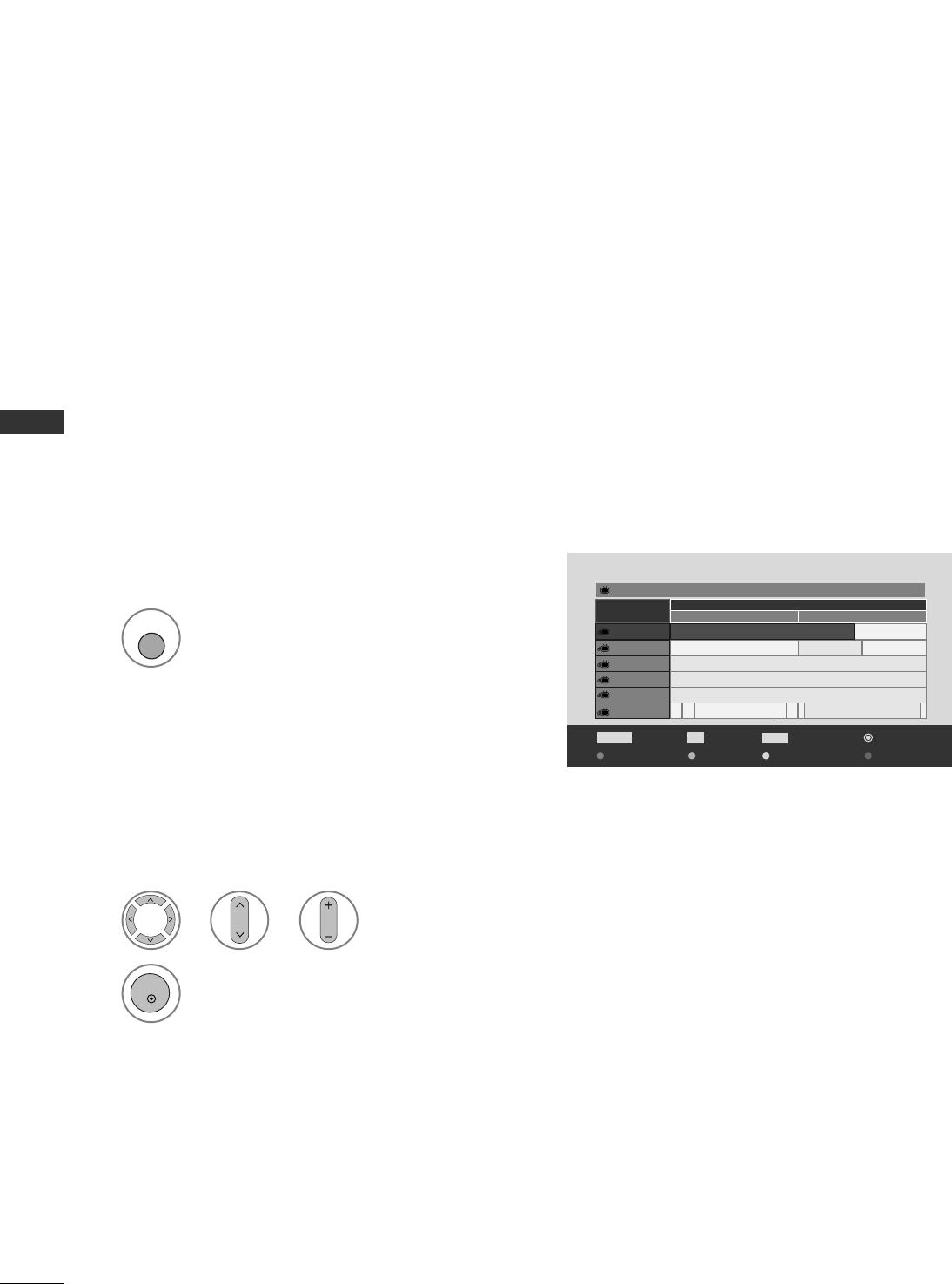
60
EPG (ELECTRONIC PROGRAMME GUIDE)
EPG (ELECTRONIC PROGRAMME GUIDE)
(IN DIGITAL MODE)
This system has an Electronic Programme Guide (EPG) to help your navigation through all the possible viewing
options.
The EPG supplies information such as programme listings, start and end times for all available services. In
addition, detailed information about the programme is often available in the EPG (the availability and amount of
these programme details will vary, depending on the particular broadcaster).
This function can be used only when the EPG information is broadcasted by broadcasting companies.
The EPG displays the programme description for next 8 days.
Switch on or off EPG.
1
Programme Guide
1 YLE TV1 06 Mar. 2006 15:09
ALL 06 Mar.
14:00 15:00
1 YLE TV1
Kungskonsumente
2 YLE TV2 No Information
No InformationTV2: Farmen
4 TV.. No Information
No Information
No Information
... ... ... ... Tänään otsikoissa
No Information
5 YLE FST
6 CNN
8 YLE24
Radio Pr. Change
E
D
TV/RAD
Favourite
FAV
Mode Date Manual Timer Schedule List
Inforrmation
INFO
Switch on/off EPG
Select desired programme.
1
Display the selected programme.
2
Select a programme
or
No Information
GUIDE
P
or
P
OK
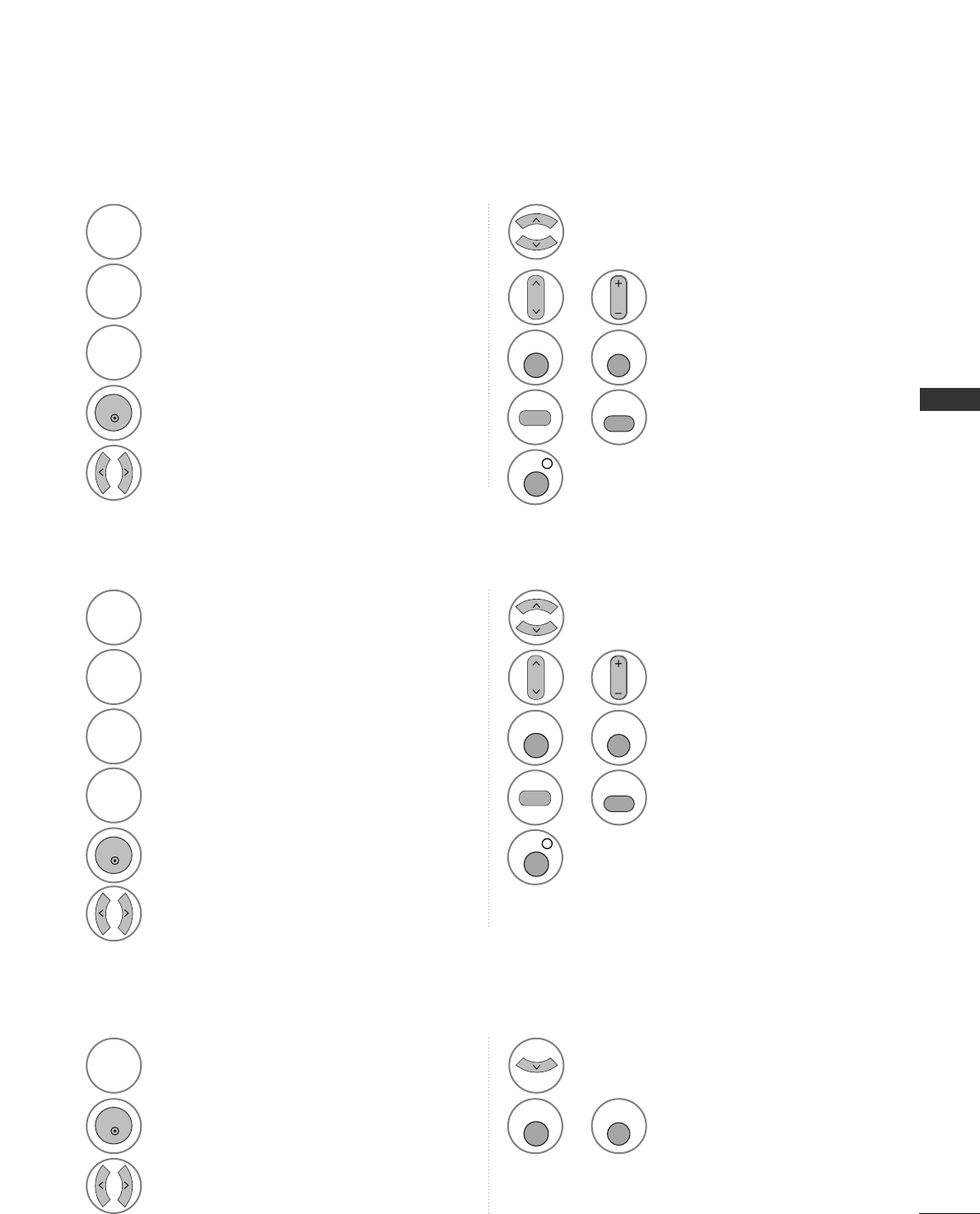
61
EPG (ELECTRONIC PROGRAMME GUIDE)
Button Function in 8 Day Guide Mode
Button Function in Date Change Mode
Change EPG mode.
RED
RED
Change to the selected programme. Select TV or RADIO Programme.
The detail information on or off.
Select NOW or NEXT Programme.
Select the Broadcast Programme.
Enter Timer Record/Remind setting
mode.
YELL
YELLO
OW
W
Enter Timer Record/Remind list mode.
BLUE
BLUE
Button Function in NOW/NEXT Guide Mode
Page Up/Down.
Switch off EPG.
or
Change EPG mode.
RED
RED
Enter Timer Record/Remind list mode.
BLUE
BLUE
Enter Date setting mode.
GREEN
GREEN
Switch off Date setting mode.
GREEN
GREEN
Change to the selected programme.
Change to the selected date.
Select NOW or NEXT Programme.
Select a date.
Select the Broadcast Programme.
Switch off Date setting mode.
Enter Timer Record/Remind setting
mode.
YELL
YELLO
OW
W
OK
GUIDE
INFO
i
EXIT
or
TV/RAD
TV/RADIO
or
P
P
P
Select TV or RADIO Programme.
The detail information on or off.
Page Up/Down.
Switch off EPG.
or
GUIDE
INFO
i
EXIT
Switch off EPG.
or
GUIDE
EXIT
or
TV/RAD
TV/RADIO
or
P
P
P
OK
OK
62
EPG (ELECTRONIC PROGRAMME GUIDE)
EPG (ELECTRONIC PROGRAMME GUIDE)
(IN DIGITAL MODE)
Button Function in Extended Description Box
- This function is available only when recording equipment that use pin8 recording signalling has been connect-
ed to the DTV-OUT terminal, using a SCART cable.
- Two hours after the TV is switched on by the Remind function it will automatically switch back to standby
mode unless a button has been pressed.
Button Function in Record/Remind Setting Mode
Button Function in Schedule List Mode
Text Up/Down.
Function setting.
Select Schedule list.
Enter Timer Record/Remind setting
mode.
YELL
YELLO
OW
W
Change to Guide or Timer list mode.
YELL
YELLO
OW
W
Add new Manual Timer setting mode.
YELL
YELLO
OW
W
Save Timer Record/Remind.
Select Type, Service, Date or Start/End
time.
Enter Schedule list editing mode.
GREEN
GREEN
Delete the selected item.
RED
RED
Change to Guide mode.
BLUE
BLUE
Switch off EPG.
or
GUIDE
EXIT
The detail information on or off.
INFO
i
OK
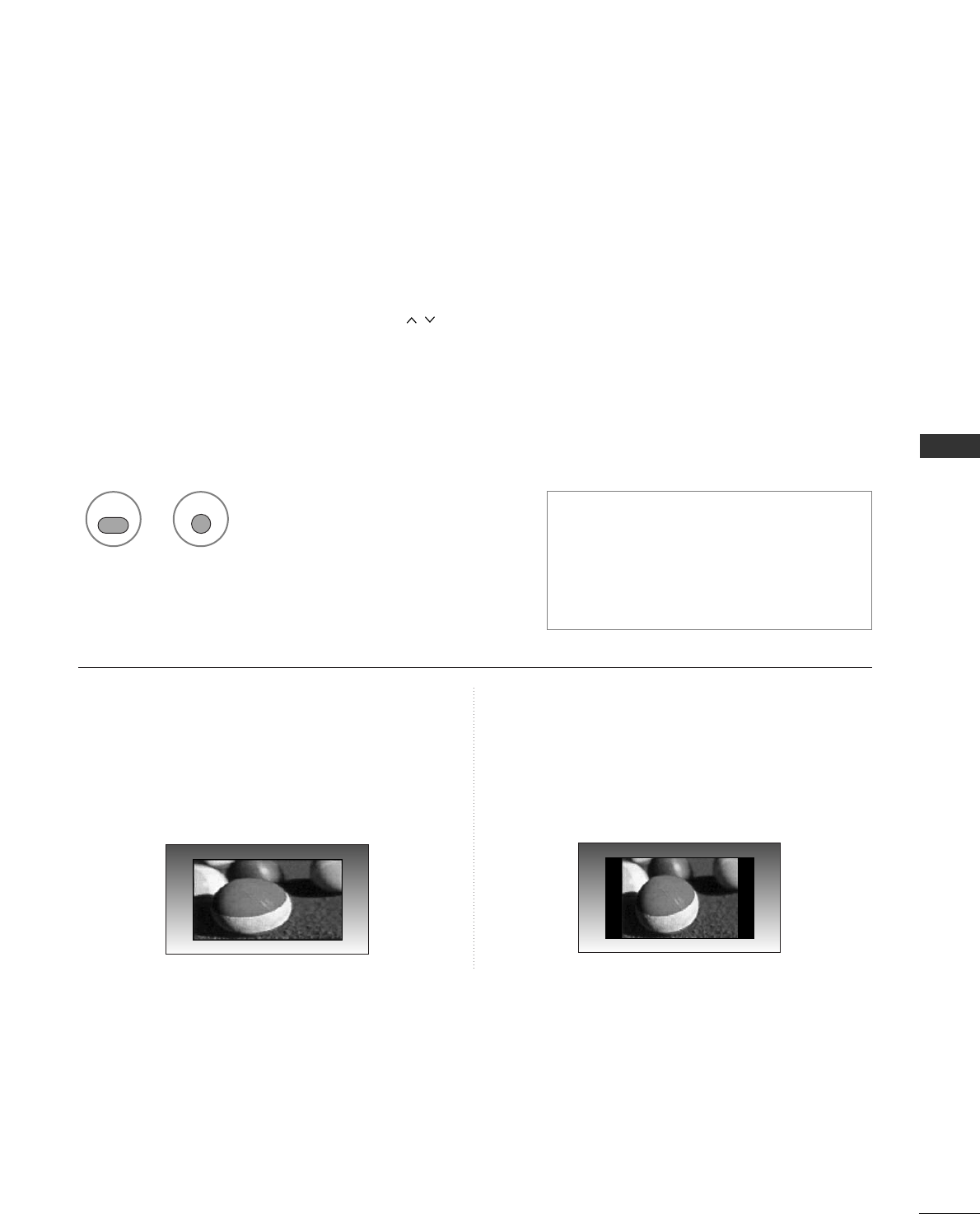
63
PICTURE CONTROL
PICTURE CONTROL
You can watch the screen in various picture formats; 16:9, Just Scan, Original, 4:3, 14:9 and Zoom1/2.
If a fixed image is displayed on the screen for a long time, that fixed image may become imprinted on the
screen and remain visible.
You can adjust the enlarge proportion using button.
This function works in the following signal.
PICTURE SIZE (ASPECT RATIO) CONTROL
• 1166::99
The following selection will allow you to
adjust the picture horizontally, in linear
proportion, to fill the entire screen(useful for
viewing 4:3 formatted DVDs).
• 44::33
The following selection will allow you to view
a picture with an original 4:3 aspect ration,
grey bars will appear on both the left and
right of the screen.
Select the desired picture format. • You can also adjust AAssppeecctt RRaattiiooin the
PICTURE or Q.MENU menu.
• For Zoom Setting, select 1144::99, ZZoooomm11
and ZZoooomm22in Ratio Menu. After
completing Zoom Setting, the display goes
back to Q.MENU.
or
Q. MENU
RATIO
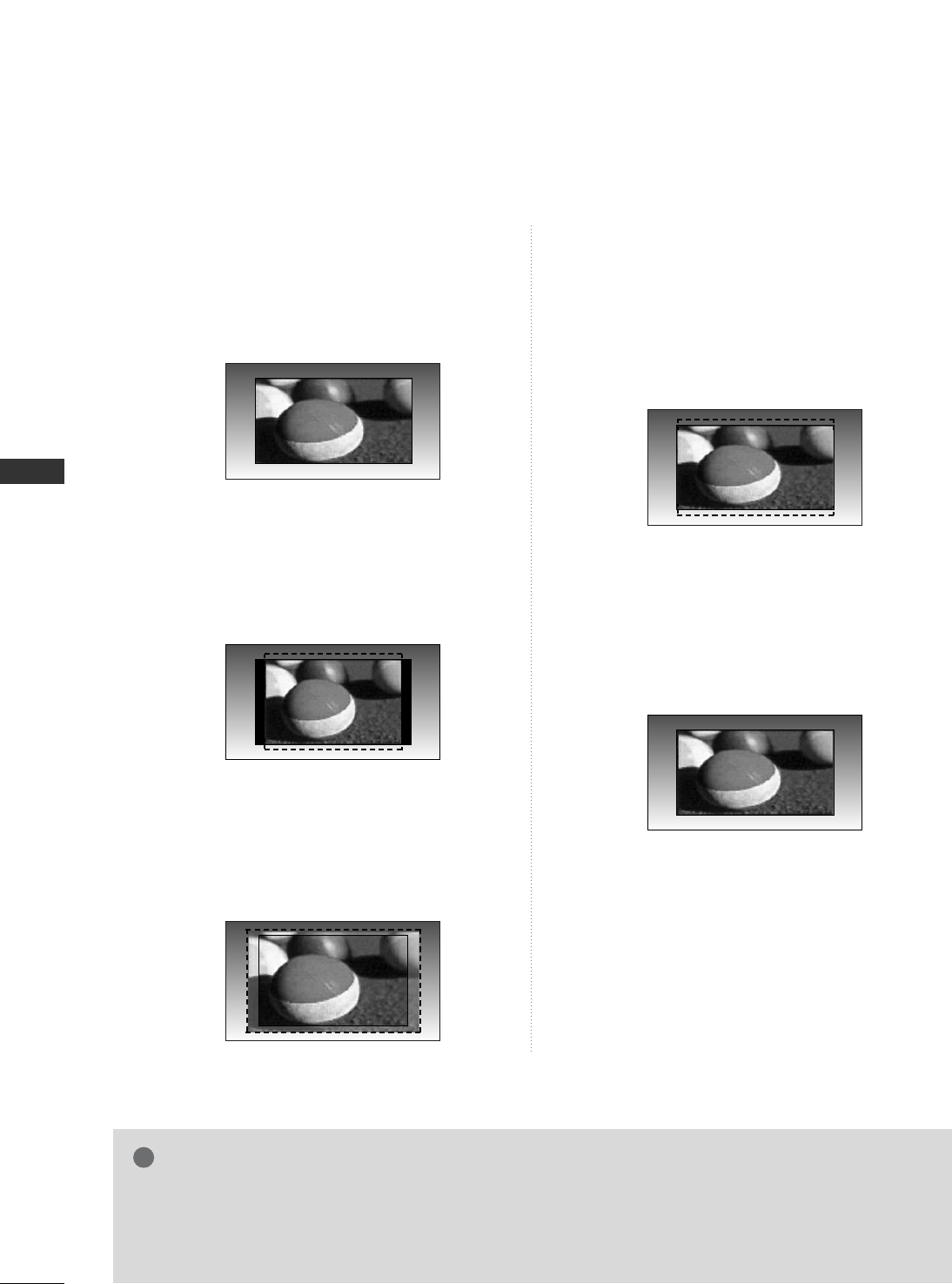
64
PICTURE CONTROL
PICTURE CONTROL
• OOrriiggiinnaall
When your TV receives a wide screen signal it
will automatically change to the picture
format broadcast.
• 1144::99
You can view a picture format of 14:9 or a
general TV programme in the 14:9 mode. The
14:9 screen is viewed in the same way as in
4:3, but is magnified to the left and right.
• ZZoooomm11
The following selection will allow you to view
the picture without any alteration, while filling
the entire screen. However, the top and
bottom of the picture will be cropped.
• ZZoooomm22
Choose Zoom 2 when you wish the picture to
be altered, both horizontally extended and
vertically cropped. The picture adopting a
compromise between alteration and screen
coverage.
• JJuusstt SSccaann
Following Selection will lead to you view the
picture of best quality without loss of original
picture in high resolution image.
Note: If there are interference in original pic-
ture, you can view interference at the edge.
NOTE
!
GG You can only select 16:9 (Wide), 4:3, 14:9, Zoom 1/2 in Component (under 720p) mode.
GG You can only select 4:3, 16:9 (Wide) in RGB/HDMI[PC] mode only.
G In HDMI/Component (over 720p) mode, Just Scan is available.
G You can only select Original in UK digital teletext (MHEG-5).
Original
Just Scan
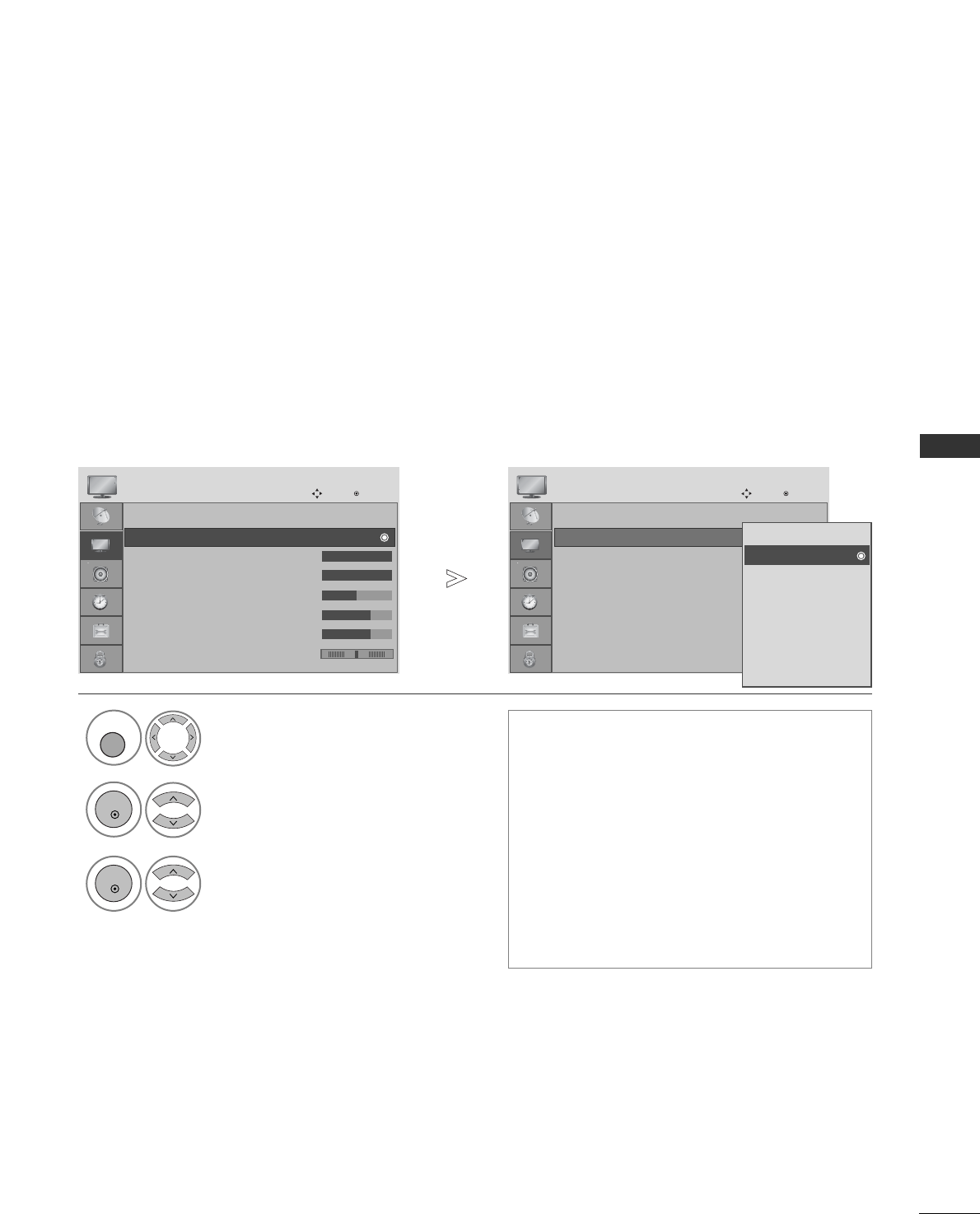
65
PICTURE CONTROL
PRESET PICTURE SETTINGS
Picture Mode-Preset
Select PICTURE.
2Select Picture Mode.
3
Select desired picture value.
1
Aspect Ratio : 16:9
Picture Mode : Vivid
• Backlight 100
• Contrast 100
• Brightness 50
• Sharpness 70
• Colour 70
• Tint 0
PICTURE
Move OK
E
Picture Mode : Vivid
Aspect Ratio : 16:9
Picture Mode : Vivid
• Backlight 100
• Contrast 100
• Brightness 50
• Sharpness 70
• Colour 70
• Tint 0
PICTURE
Move OK
E
Picture Mode : Vivid Intelligent Sensor
Vivid
Standard
Cinema
Sport
Game
Expert1
Expert2
Vivid
• Picture Mode adjusts the TV for the best pic-
ture appearance. Select the preset value in the
Picture Mode menu based on the programme
category.
• When the Intelligent sensor function is on, the
most suitable picture is automatically adjusted
according to the surrounding conditions.
(32/37/42/47/52LG5*** only)
• You can also adjust PPiiccttuurree MMooddeein the QQ..
MMeennuu.
• IInntteelllliiggeenntt SSeennssoorr : Adjusts picture accord-
ing to the surrounding conditions.
(32/37/42/47/52LG5*** only)
MENU
OK
OK
GIt is possible to use Intelligent Sensor in 32/37/42/47/52LG5*** models only.
GIn PLASMA TV models, Backlight will not be displayed.
• Press the MENU button to return to normal TV viewing.
• Press the RETURN button to move to the previous menu screen.
RG
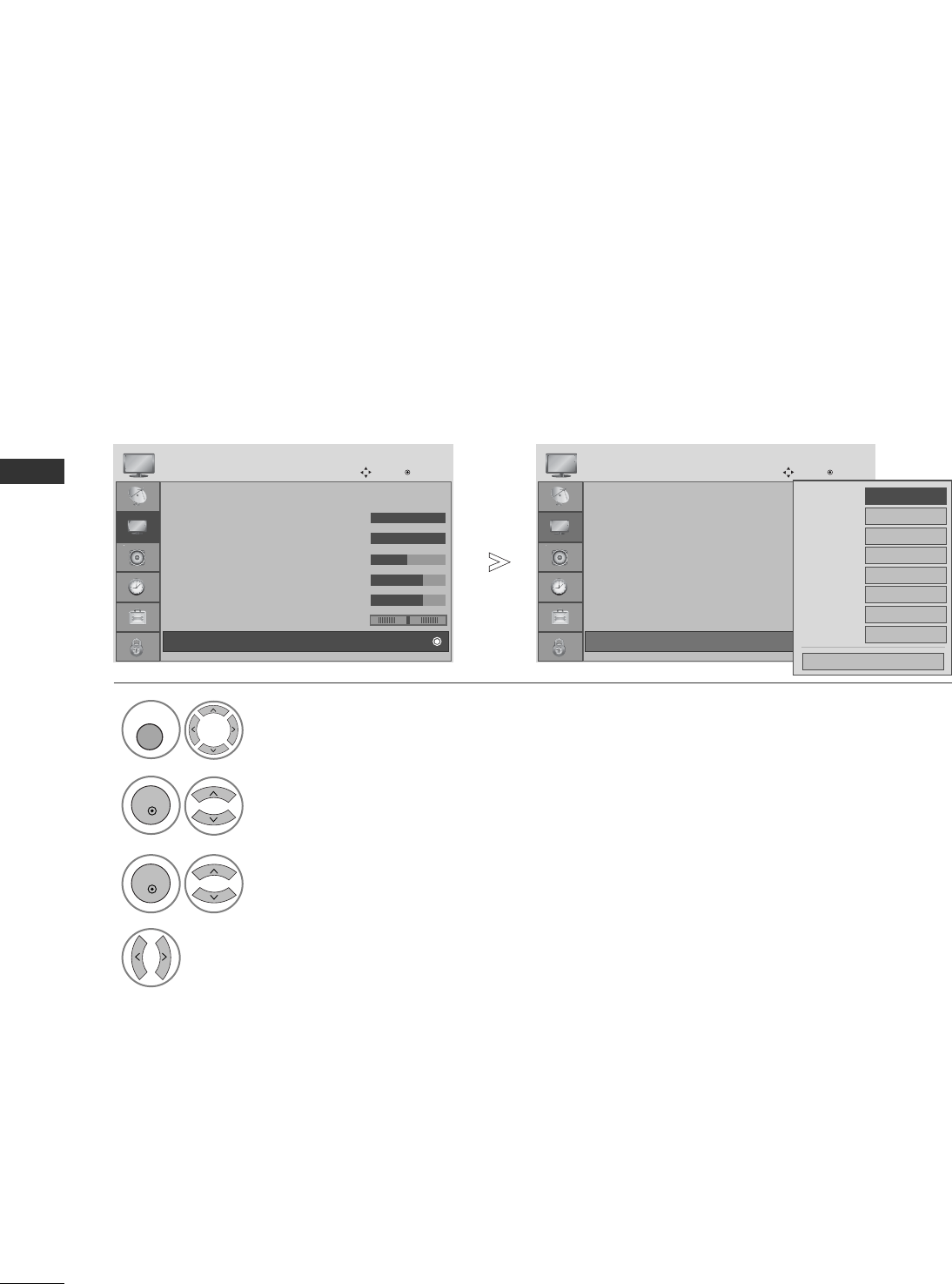
66
PICTURE CONTROL
PICTURE CONTROL
Picture Mode : Vivid
• Backlight 100
• Contrast 100
• Brightness 50
• Sharpness 70
• Colour 70
• Tint 0
• Advanced Control
PICTURE
Move OK
E
D
• Advanced Control
Choose one of three automatic colour adjustments. Set to warm to enhance hotter colours such as red, or set to
cool to see less intense colours with more blue.
Auto Colour Tone Control (Warm/Medium/Cool)
Select PICTURE.
2Select Advanced Control.
3Select Colour Temperature.
4Select either Cool, Medium or Warm.
1
Picture Mode : Vivid
• Backlight 100
• Contrast 100
• Brightness 50
• Sharpness 70
• Colour 70
• Tint 0
• Advanced Control
PICTURE
Move OK
E
D
• Advanced Control
Colour Temperature
FF
Cool
GG
Fresh Contrast
High
Fresh Colour
High
Noise Reduction
Medium
Gamma Medium
Film Mode Off
Black Level High
Eye Care Off
Close
MENU
OK
OK
• Press the MENU button to return to normal TV viewing.
• Press the RETURN button to move to the previous menu screen.
RG
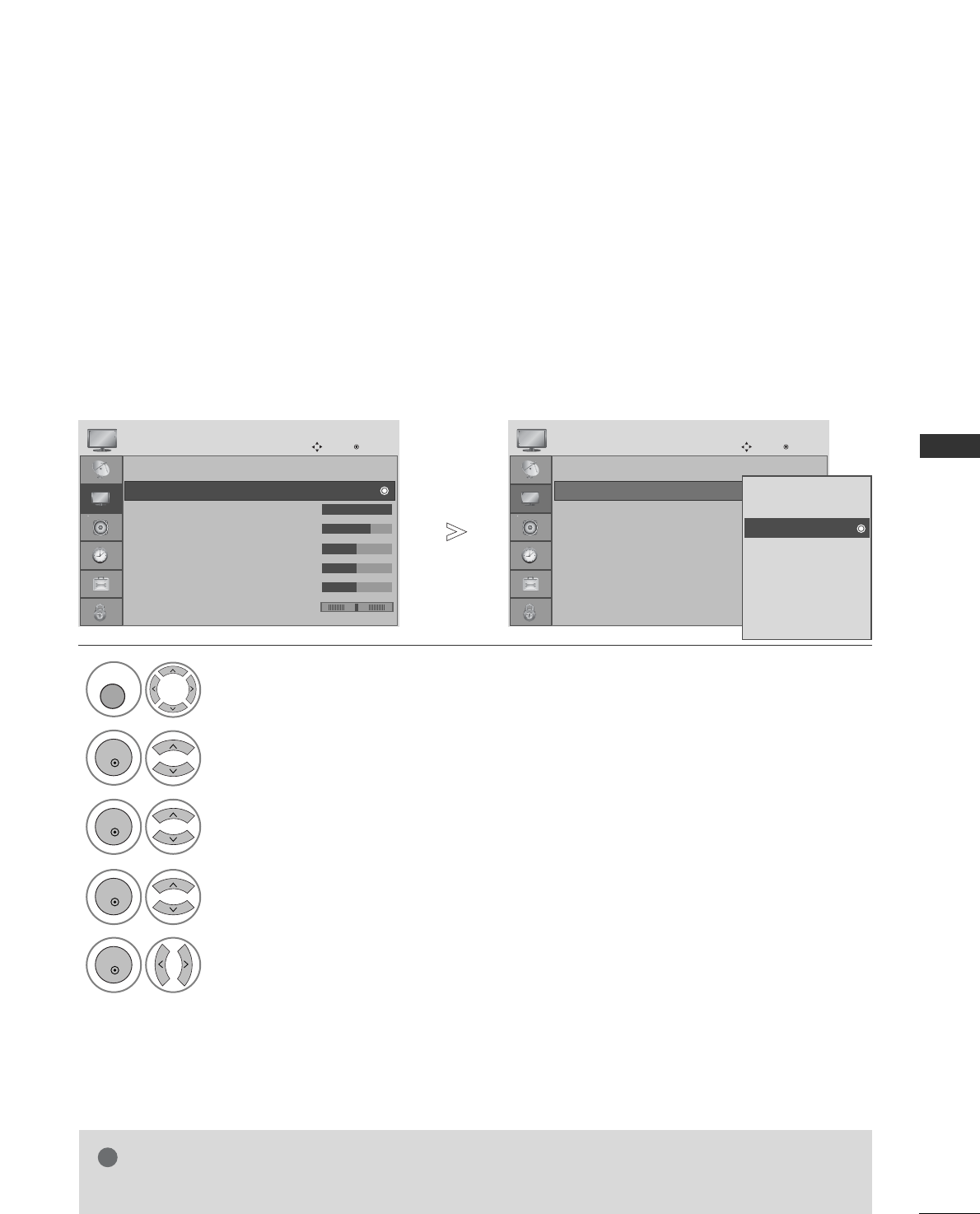
67
PICTURE CONTROL
MANUAL PICTURE ADJUSTMENT
Picture Mode-User option
NOTE
!
GG You can not adjust colour, sharpness and tint in the RGB-PC mode.
Select PICTURE.
2Select Picture Mode.
4
Select Backlight (LCD TV Only), Contrast, Brightness, Sharpness, Clolour or
Tint.
5
Make appropriate adjustments.
1
Aspect Ratio : 16:9
Picture Mode : Vivid
• Backlight 100
• Contrast 70
• Brightness 50
• Sharpness 50
• Colour 50
• Tint 0
PICTURE
Move OK
E
Picture Mode : Standard (User)
Aspect Ratio : 16:9
Picture Mode : Vivid
• Backlight 100
• Contrast 70
• Brightness 50
• Sharpness 50
• Colour 50
• Tint 0
PICTURE
Move OK
E
Picture Mode : Standard (User) Intelligent Sensor
Vivid
Standard
Cinema
Sport
Game
Expert1
Expert2
Standard (User)
3
Select desired picture value.
MENU
OK
OK
OK
OK
GIt is possible to use Intelligent Sensor in 32/37/42/47/52LG5*** models only.
GIn PLASMA TV models, Backlight will not be displayed.
• Press the MENU button to return to normal TV viewing.
• Press the RETURN button to move to the previous menu screen.
RG
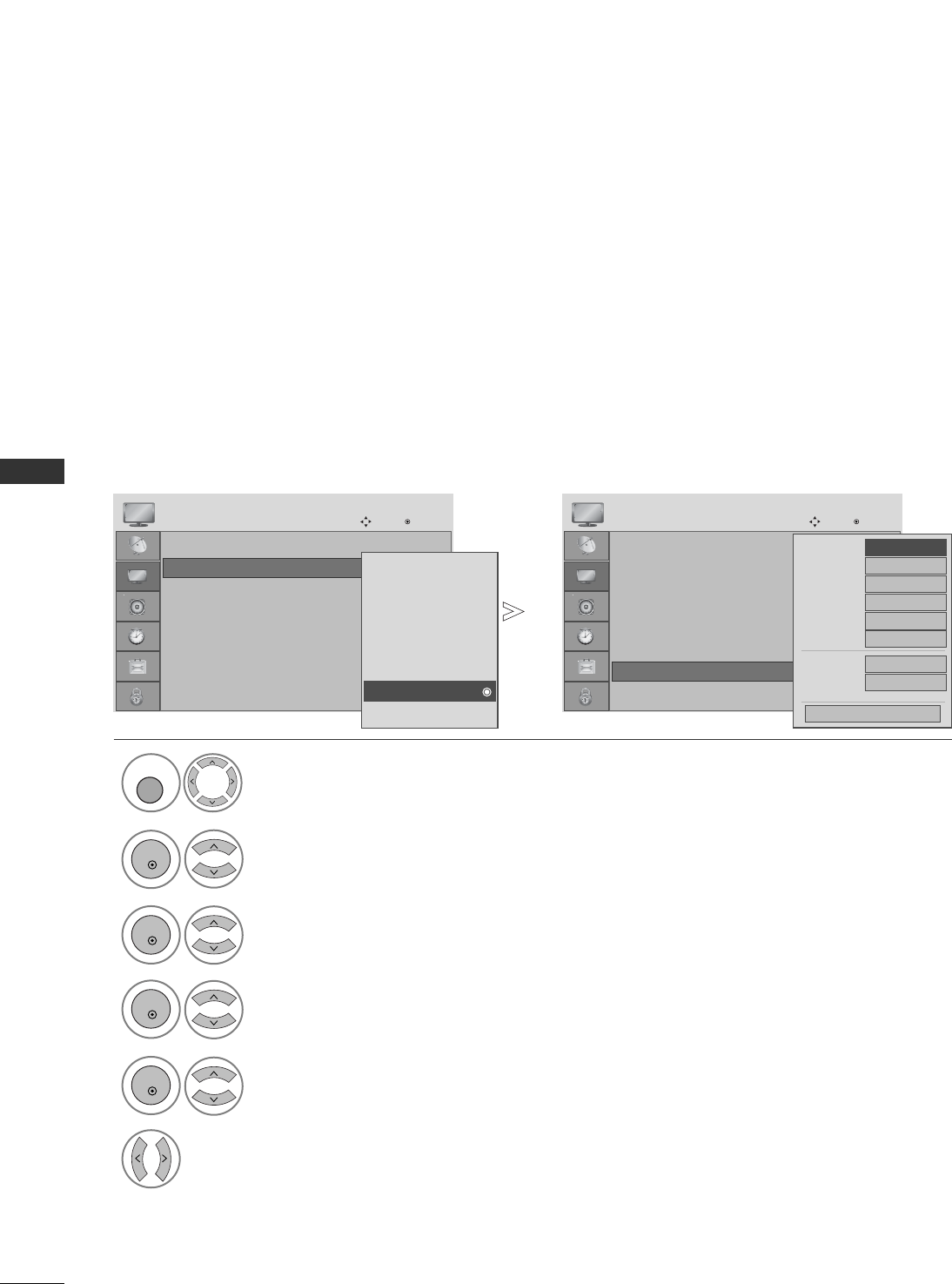
68
PICTURE CONTROL
PICTURE CONTROL
Aspect Ratio : 16:9
Picture Mode : Vivid
• Backlight 100
• Contrast 100
• Brightness 50
• Sharpness 70
• Colour 70
• Tint 0
PICTURE
Move OK
E
Picture Mode : Expert1
• Backlight 100
• Contrast 70
• Brightness 50
• Sharpness 50
• Colour 50
• Tint 0
• Expert Control
• Picture Reset
PICTURE
Move OK
D
• Expert Control
Intelligent Sensor
Vivid
Standard
Cinema
Sport
Game
Expert1
Expert2
Expert1
4
Select your desired Source.
Picture Mode-Expert Control
Select PICTURE.
Select Picture Mode.
4
Select Expert Control.
5
Make appropriate adjustments.
3
Select Expert1 or Expert2.
FF
Off
GG
Fresh Contrast
Noise Reduction
Off
Gamma
Medium
Black Level
High
Film Mode
On
Colour Standard
SD
White Balance
Warm
•
Red Contrast
0
Close
D
By segmenting categories, Expert1 and Expert2 provide more categories which users can set as they see fit,
offering the optimal picture quality for users.
1
2
MENU
OK
OK
OK
OK
• Press the MENU button to return to normal TV viewing.
• Press the RETURN button to move to the previous menu screen.
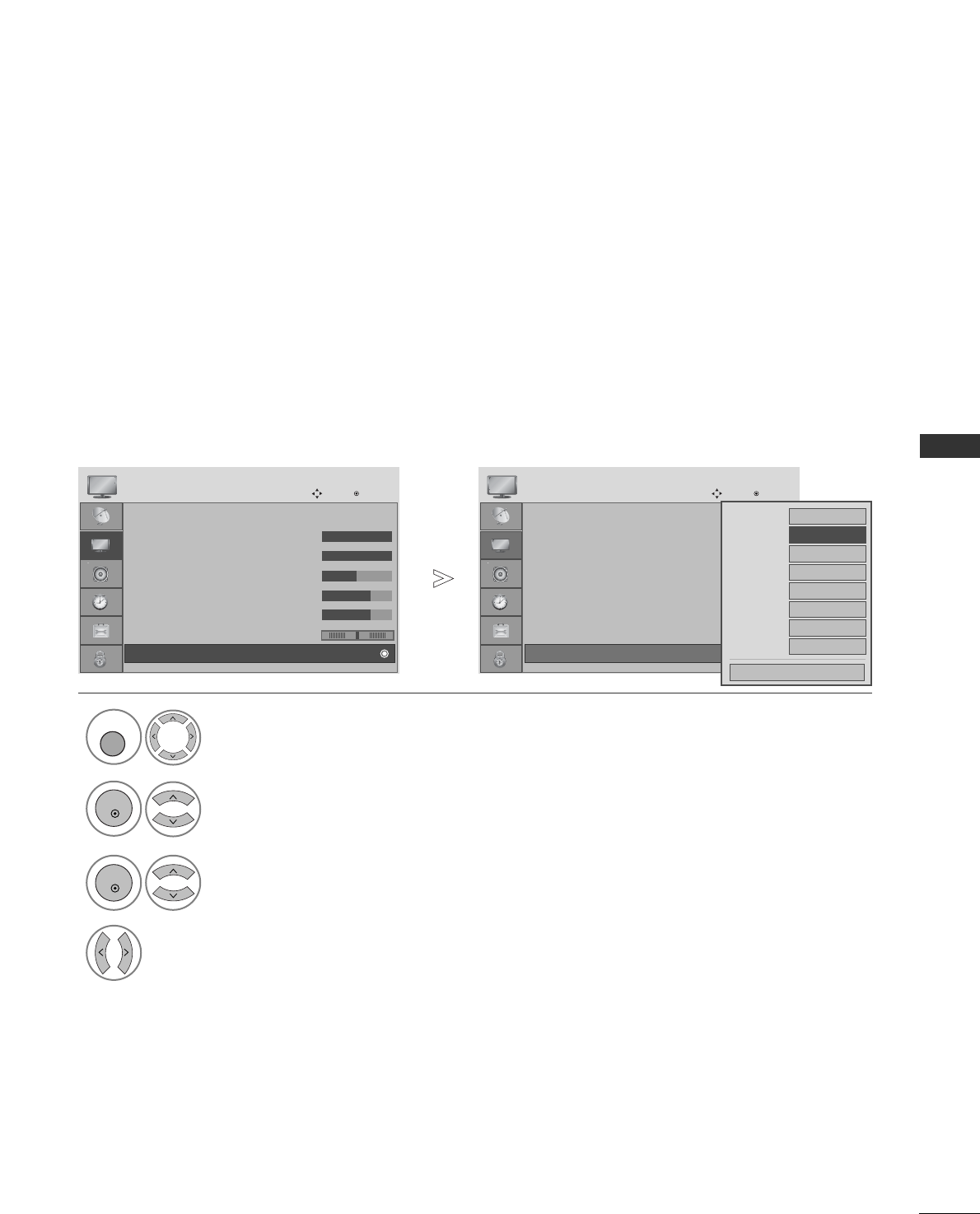
69
PICTURE CONTROL
Picture Mode : Vivid
• Backlight 100
• Contrast 100
• Brightness 50
• Sharpness 70
• Colour 70
• Tint 0
• Advanced Control
PICTURE
Move OK
E
D
• Advanced Control
Fresh Contrast
Optimizes the contrast automatically according to the brightness of the reflection.
Fresh Colour
Adjusts the colour of the reflection automatically to reproduce as close as possible natural colours.
Noise Reduction
Removes interference up to the point where it does not damage the original picture.
Gamma
High gamma values display whitish images and low gamma values display high contrast images.
PICTURE IMPROVEMENT TECHNOLOGY
Select PICTURE.
2Select Advanced Control.
3Select Fresh Contrast,Fresh Colour, Noise Reduction or Gamma.
4Select your desired Source.
1
Picture Mode : Vivid
• Backlight 100
• Contrast 100
• Brightness 50
• Sharpness 70
• Colour 70
• Tint 0
• Advanced Control
PICTURE
Move OK
E
D
• Advanced Control
MENU
OK
OK
Colour Temperature
Cool
Fresh Contrast
FF
High
GG
Fresh Colour
High
Noise Reduction
Medium
Gamma Medium
Film Mode Off
Black Level High
Eye Care Off
Close
• Press the MENU button to return to normal TV viewing.
• Press the RETURN button to move to the previous menu screen.
RG
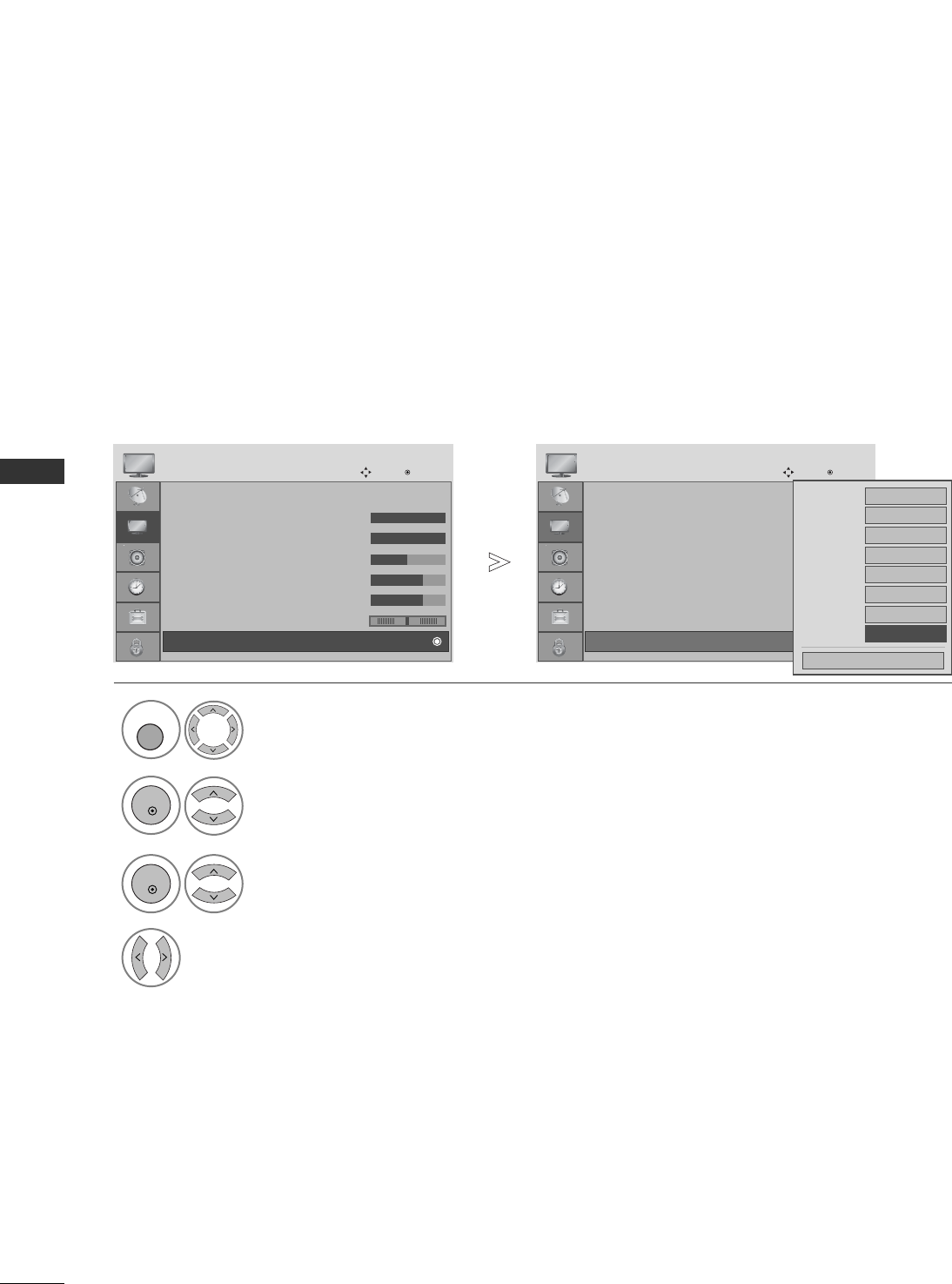
70
PICTURE CONTROL
PICTURE CONTROL
Picture Mode : Vivid
• Backlight 100
• Contrast 100
• Brightness 50
• Sharpness 70
• Colour 70
• Tint 0
• Advanced Control
PICTURE
Move OK
E
D
• Advanced Control
Select PICTURE.
2Select Advanced Control.
3Select Film Mode.
4Select On or Off.
1
Picture Mode : Vivid
• Backlight 100
• Contrast 100
• Brightness 50
• Sharpness 70
• Colour 70
• Tint 0
• Advanced Control
PICTURE
Move OK
E
D
• Advanced Control
ADVANCED - FILM MODE
To set the TV up for the best picture quality for viewing films.
This feature operates only in TV, AV and Component 480i/576i/1080i mode.
MENU
OK
OK
Colour Temperature
Cool
Fresh Contrast
High
Fresh Colour
High
Noise Reduction
Medium
Gamma Medium
Film Mode
FF
Off
GG
Black Level High
Eye Care Off
Close
• Press the MENU button to return to normal TV viewing.
• Press the RETURN button to move to the previous menu screen.
RG
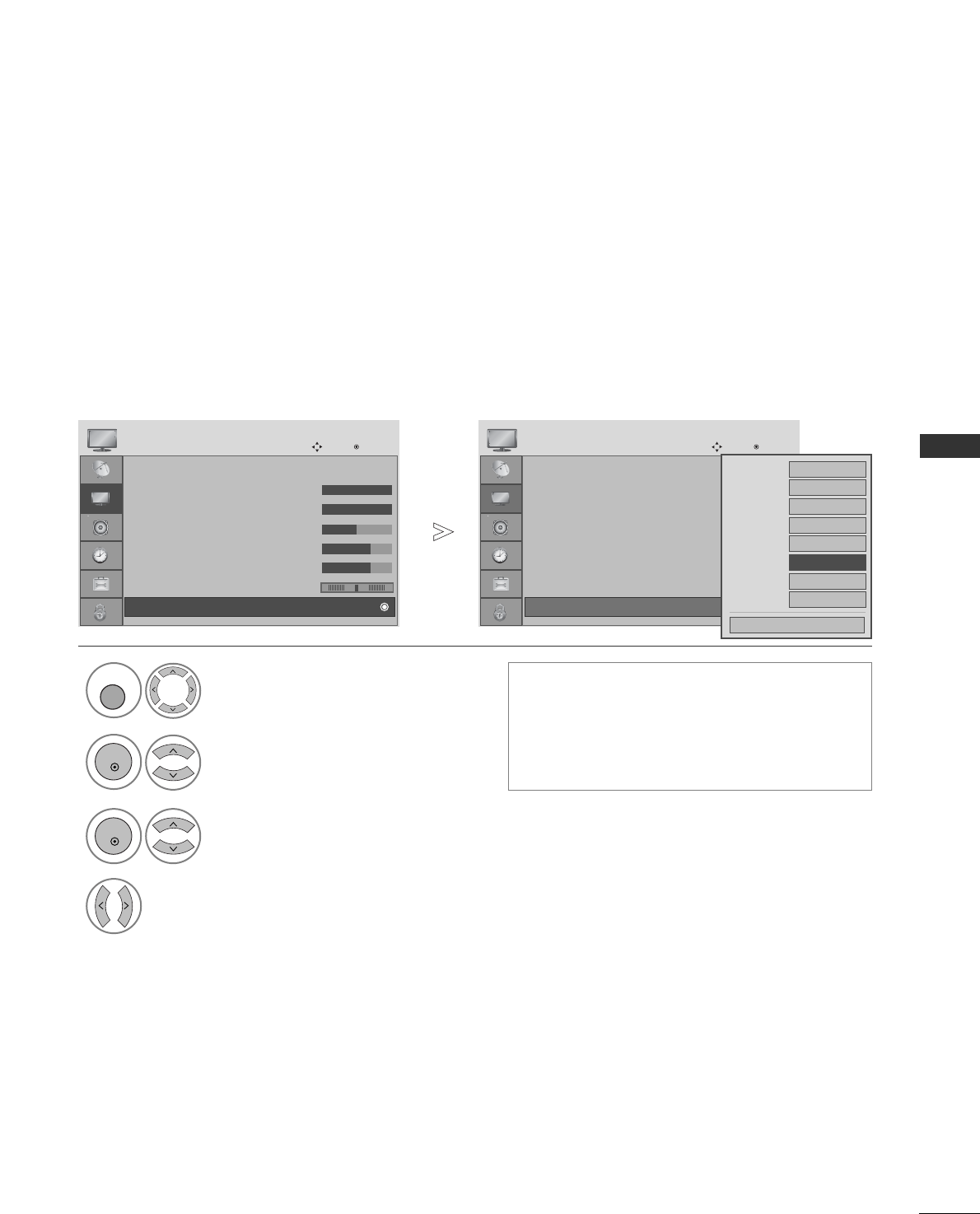
71
PICTURE CONTROL
ADVANCED - BLACK(DARKNESS) LEVEL
When you view a film this function adjusts the TV to best picture quality.
This function works in the following mode: AV (NTSC-M), HDMI or Component.
Picture Mode : Vivid
• Backlight 100
• Contrast 100
• Brightness 50
• Sharpness 70
• Colour 70
• Tint 0
• Advanced Control
PICTURE
Move OK
E
D
• Advanced Control
Select PICTURE.
2Select Advanced Control.
3Select Black Level.
4Select Low or High.
1
Picture Mode : Vivid
• Backlight 100
• Contrast 100
• Brightness 50
• Sharpness 70
• Colour 70
• Tint 0
• Advanced Control
PICTURE
Move OK
E
D
• Advanced Control
• LLooww
::
The reflection of the screen gets darker.
• HHiigghh
::
The reflection of the screen gets
brighter.
• AAuuttoo: Realizing the black level of the screen
and set it to High or Low automatically.
MENU
OK
OK
Colour Temperature
Cool
Fresh Contrast
High
Fresh Colour
High
Noise Reduction
Medium
Gamma Medium
Film Mode Off
Black Level
FF
High
GG
Eye Care Off
Close
• Press the MENU button to return to normal TV viewing.
• Press the RETURN button to move to the previous menu screen.
RG
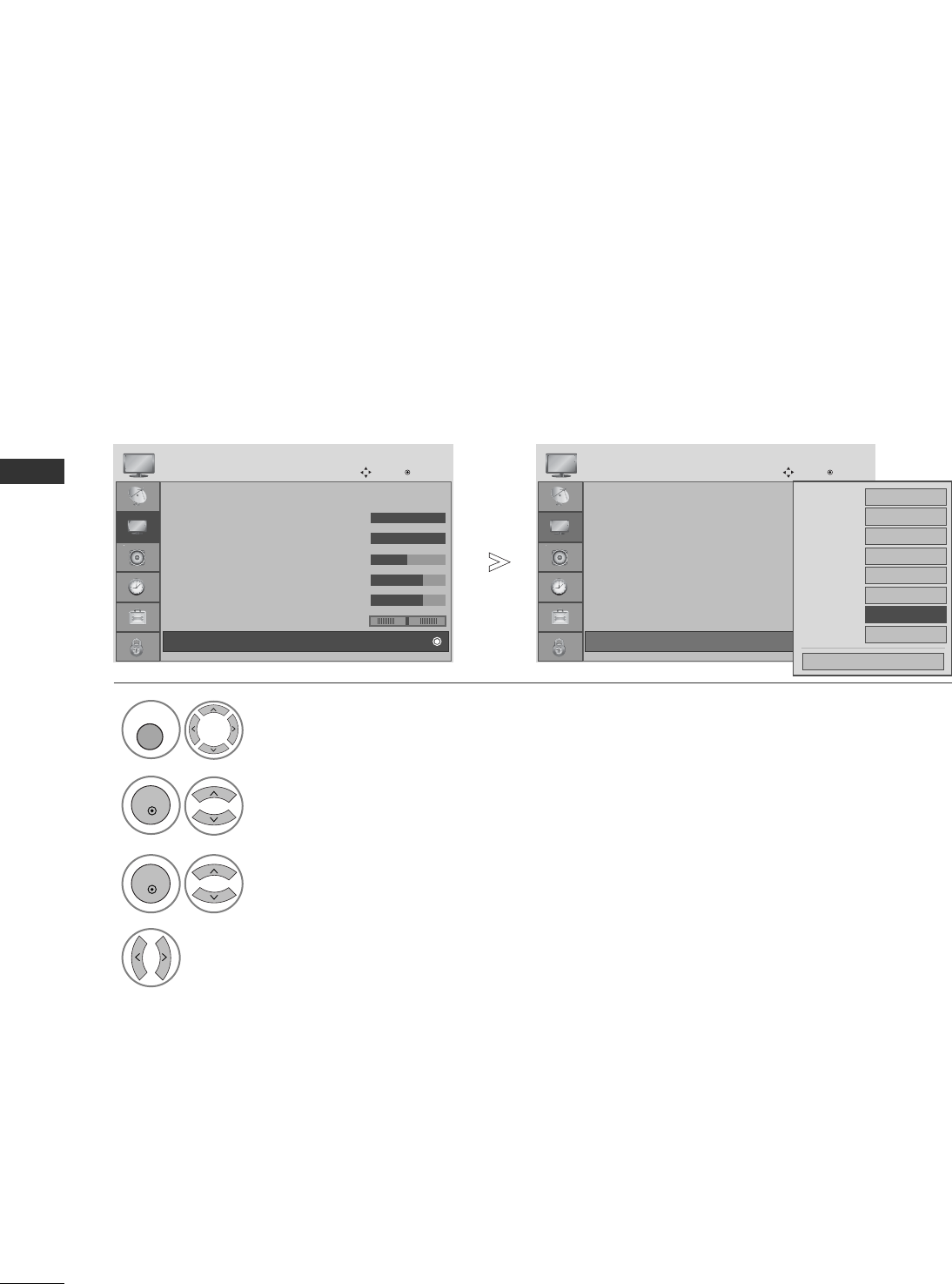
72
PICTURE CONTROL
PICTURE CONTROL
EYE CARE (LCD TV ONLY)
It helps you adjust brightness when the screen is too bright to prevent dazzling.
Picture Mode : Vivid
• Backlight 100
• Contrast 100
• Brightness 50
• Sharpness 70
• Colour 70
• Tint 0
• Advanced Control
PICTURE
Move OK
E
D
• Advanced Control
Select PICTURE.
2Select Advanced Control.
3Select Eye Care.
4Select On or Off.
1
Picture Mode : Vivid
• Backlight 100
• Contrast 100
• Brightness 50
• Sharpness 70
• Colour 70
• Tint 0
• Advanced Control
PICTURE
Move OK
E
D
• Advanced Control
MENU
OK
OK
Colour Temperature
Cool
Fresh Contrast
High
Fresh Colour
High
Noise Reduction
Medium
Gamma Medium
Film Mode Off
Black Level High
Eye Care
FF
Off
GG
Close
• Press the MENU button to return to normal TV viewing.
• Press the RETURN button to move to the previous menu screen.
RG
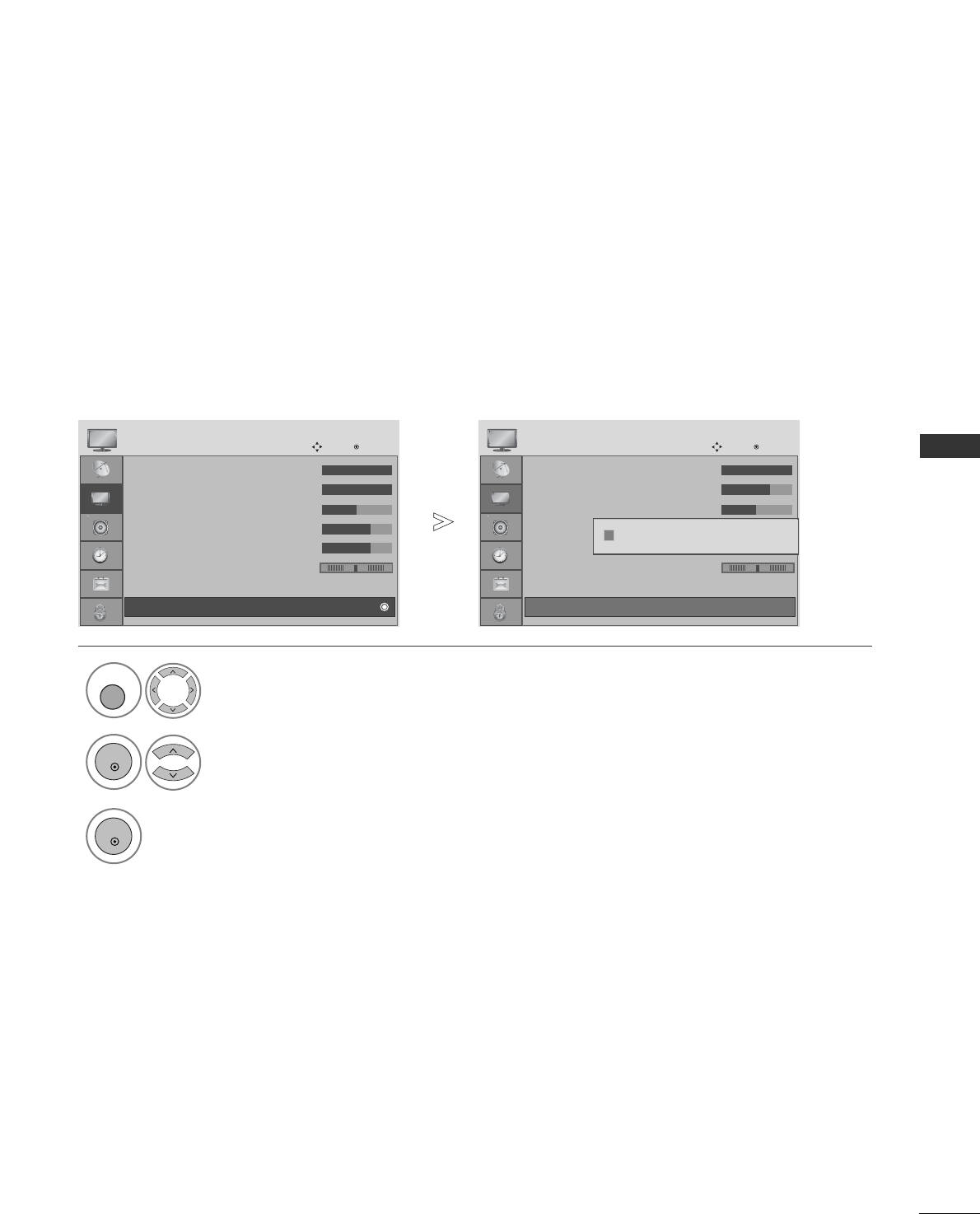
73
PICTURE CONTROL
PICTURE RESET
Settings of the selected picture modes return to the default factory settings.
Select PICTURE.
2Select Picture Reset.
3
Initialize the adjusted value.
1
• Backlight 100
• Contrast 100
• Brightness 50
• Sharpness 70
• Colour 70
• Tint 0
• Advanced Control
PICTURE
Move OK
D
• Picture Reset
• Backlight 100
• Contrast 100
• Brightness 50
• Sharpness 70
• Colour 70
• Tint 0
• Advanced Control
PICTURE
Move OK
D
• Picture Reset
Resetting video configuration...
ii
MENU
OK
OK
• Press the MENU button to return to normal TV viewing.
• Press the RETURN button to move to the previous menu screen.
RG RG
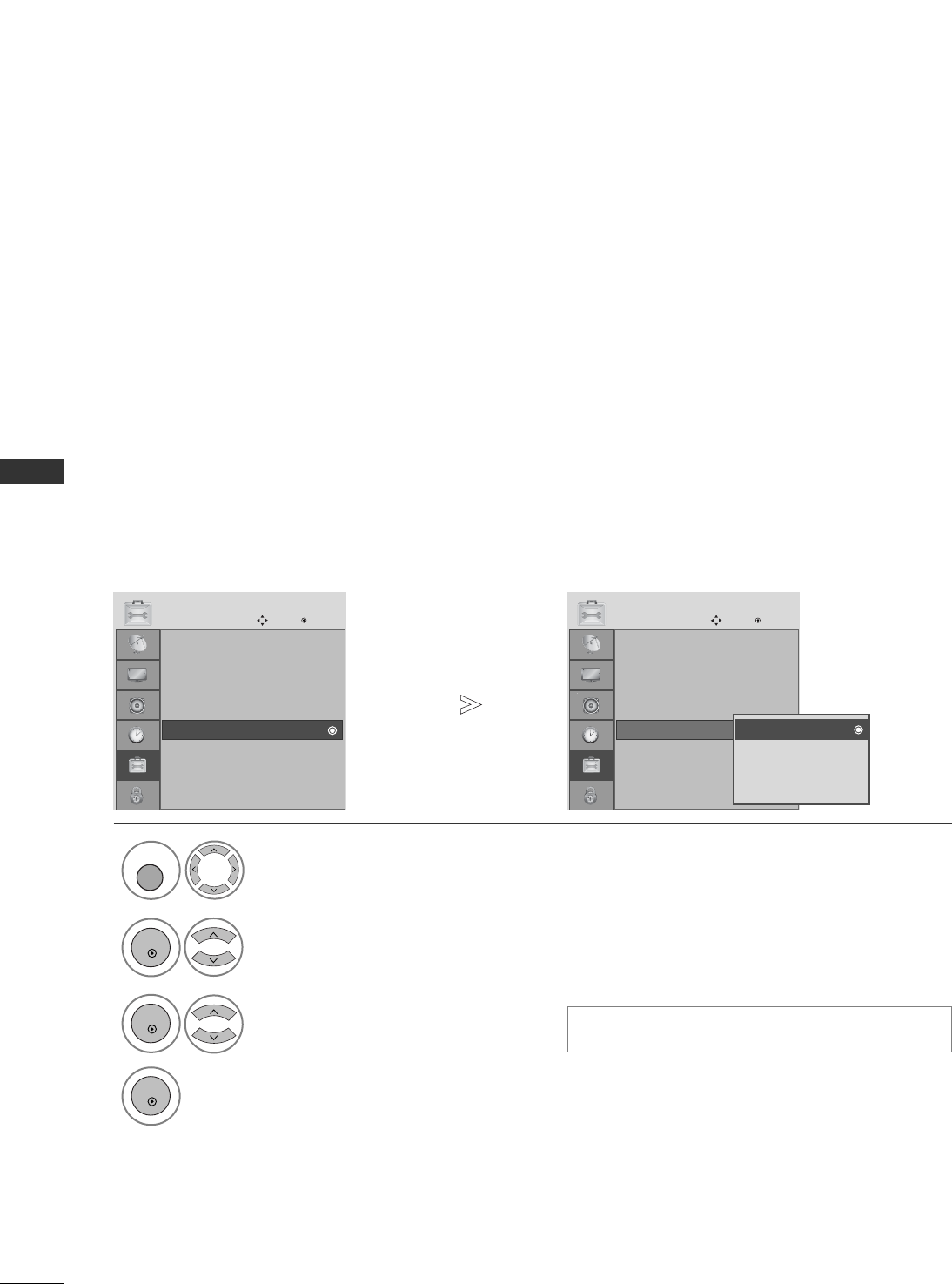
74
PICTURE CONTROL
PICTURE CONTROL
IMAGE STICKING MINIMIZATION (ISM) METHOD
(PLASMA TV ONLY)
A frozen or still picture from a PC/Video game displayed on the screen for prolonged periods will result in a
ghost image remaining even when you change the image. Avoid allowing a fixed image to remain on the screen
for prolonged periods.
White wash
White wash removes permanent images from the screen.
Note: An excessive permanent image may be impossible to clear entirely with White Wash.
Orbiter
Orbiter may help prevent ghost images. However, it is best not to allow any fixed image to remain on the screen.
To avoid a permanent image on the screen, the screen will move every 2 minutes.
Inversion
This function inverts the panel colour of the screen. The panel colour is automatically inverted every 30 minutes.
Select OPTION.
Select ISM Method.
3Select Normal, Orbiter,
Inversion or White wash.
4Save.
1
2
Input Label
SIMPLINK : On
Key Lock : Off
Set ID
ISM Method
Power Saving : Level 0
Factory Reset
OPTION
Move OK
D
ISM Method
Input Label
SIMPLINK : On
Key Lock : Off
Set ID
ISM Method
Power Saving : Level 0
Factory Reset
OPTION
Move OK
D
ISM Method Normal
Orbiter
Inversion
White wash
Normal
MENU
OK
OK
OK
• Press the MENU button to return to normal TV viewing.
• Press the RETURN button to move to the previous menu screen.
• If you do not need this function, set NNoorrmmaall..
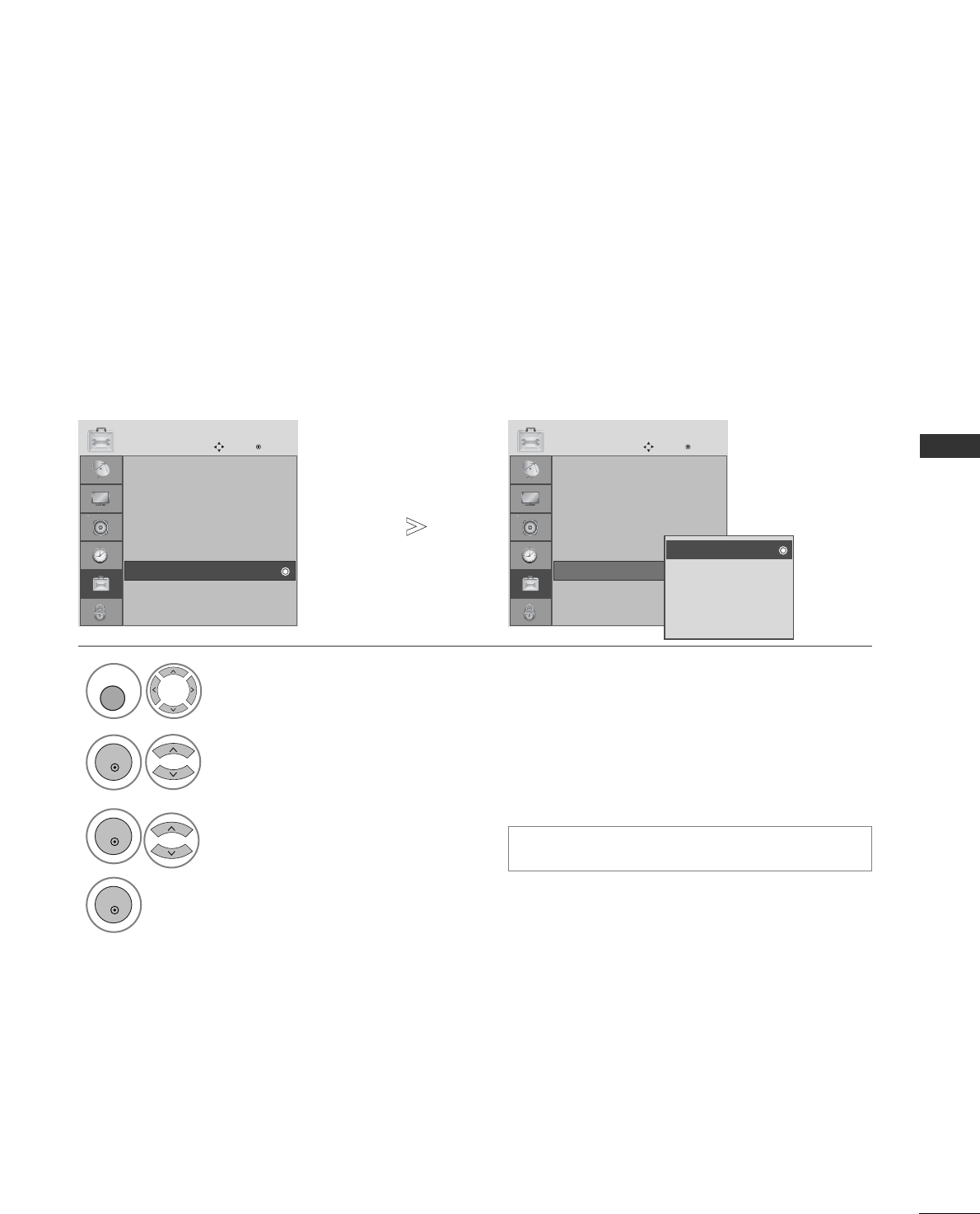
75
PICTURE CONTROL
POWER SAVING PICTURE MODE (PLASMA TV ONLY)
This function allows you to reduce the power consumption of the TV.
Select OPTION.
Select Power Saving.
3Select Level 0, Level 1, Level 2, Level
3 or Level 4.
4Save.
1
2
• Level 0 is the brightest.
Input Label
SIMPLINK : On
Key Lock : Off
Set ID
ISM Method
Power Saving : Level 0
Factory Reset
OPTION
Move OK
D
Power Saving
Input Label
SIMPLINK : On
Key Lock : Off
Set ID
ISM Method
Power Saving : Level 0
Factory Reset
OPTION
Move OK
D
Power Saving
Level 0
Level 1
Level 2
Level 3
Level 4
Level 0
MENU
OK
OK
OK
• Press the MENU button to return to normal TV viewing.
• Press the RETURN button to move to the previous menu screen.
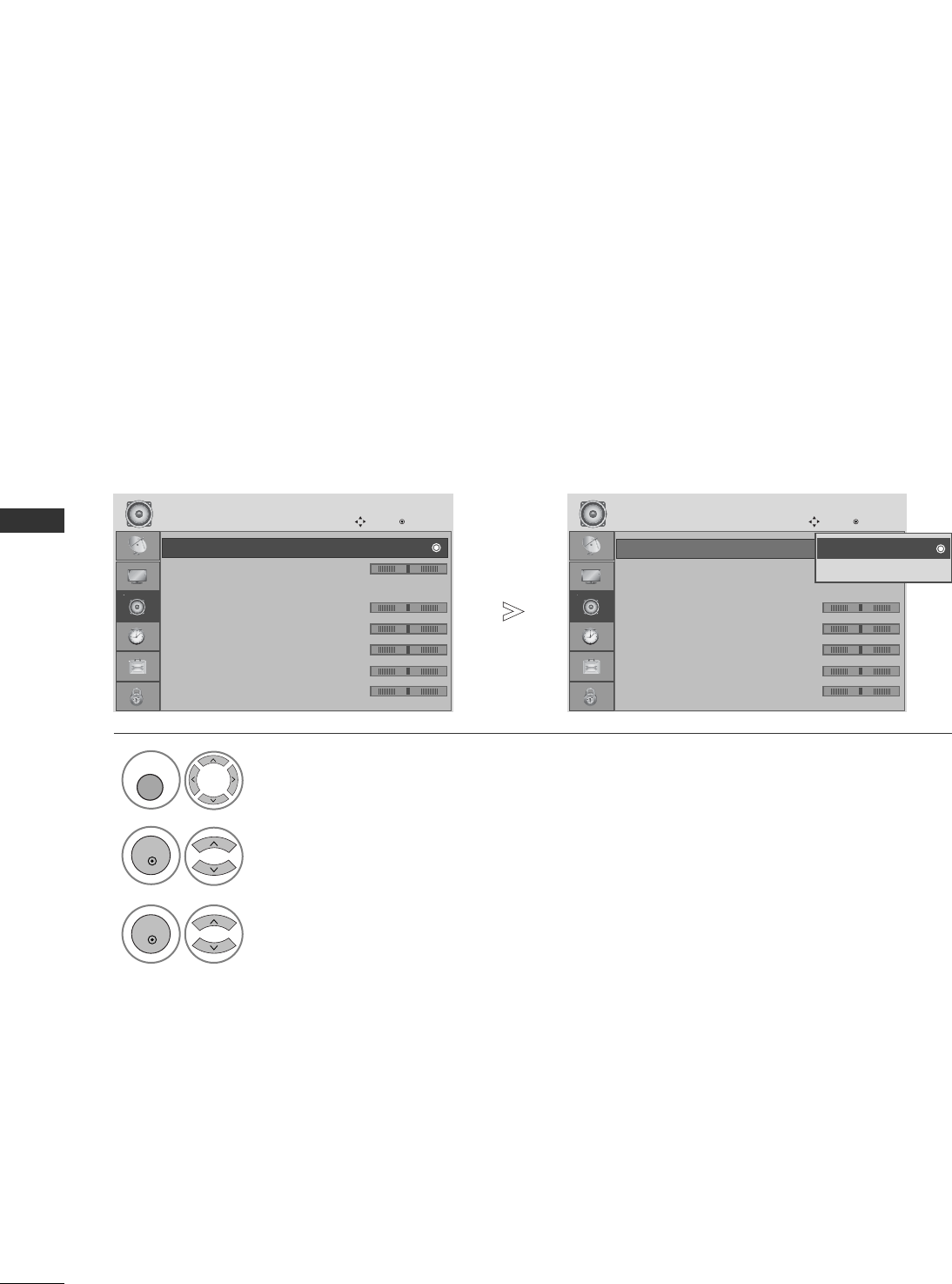
76
SOUND & LANGUAGE CONTROL
SOUND & LANGUAGE CONTROL
Auto Volume : Off
Balance 0
Sound Mode : Standard
• 120Hz 0
• 200Hz 0
• 500Hz 0
• 1.2KHz 0
• 3KHz 0
AUDIO
Move OK
E
Auto Volume : Off
LR
-+
-+
-+
-+
-+
Auto Volume : Off
Balance 0
Sound Mode : Standard
• 120Hz 0
• 200Hz 0
• 500Hz 0
• 1.2KHz 0
• 3KHz 0
AUDIO
Move OK
E
Auto Volume : Off
LR
AVL automatically remains on the same level of volume if you change programmes.
GIn 19/22LS4D*Models, TV Speaker will not be displayed.
AUTO VOLUME LEVELER
Select AUDIO.
2Select Auto Volume.
3
Select On or Off.
1
Off
On
Off
MENU
OK
OK
• Press the MENU button to return to normal TV viewing.
• Press the RETURN button to move to the previous menu screen.
-+
-+
-+
-+
-+
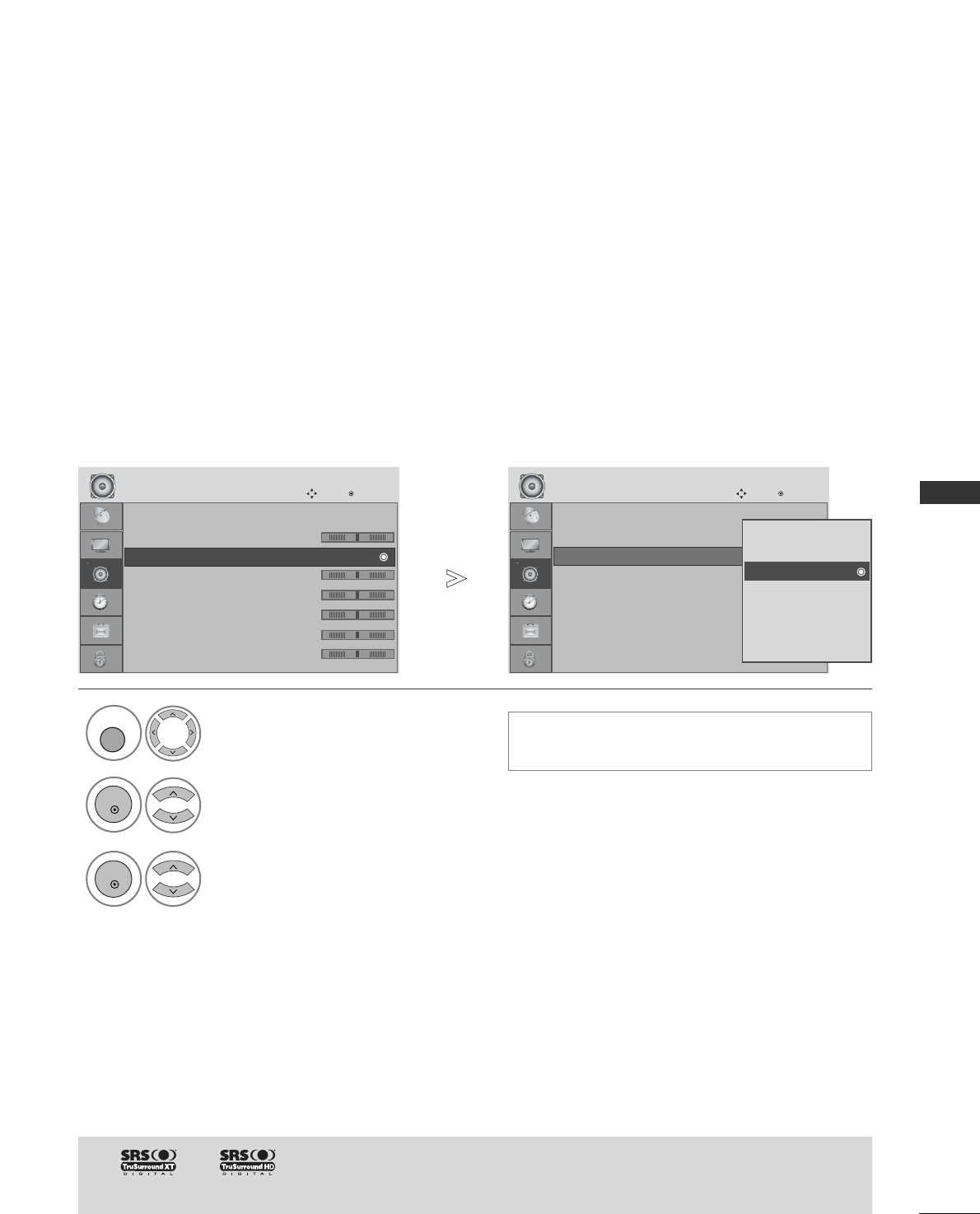
77
SOUND & LANGUAGE CONTROL
Auto Volume : Off
Balance 0
Sound Mode : Standard
• 120Hz 0
• 200Hz 0
• 500Hz 0
• 1.2KHz 0
• 3KHz 0
AUDIO
Move OK
E
Sound Mode : Standard
LR
Auto Volume : Off
Balance 0
Sound Mode : Standard
• 120Hz 0
• 200Hz 0
• 500Hz 0
• 1.2KHz 0
• 3KHz 0
AUDIO
Move OK
E
Sound Mode : Standard
LR
PRESET SOUND SETTINGS-SOUND MODE
You can select your preferred sound setting; SRS TruSurround XT or (SRS TruSurround HD
(32/37/42/47/52LG5010 Only)), Clear Voice, Standard, Music, Cinema, Sport or Game and you can also
adjust the frequency of the equalizer.
Sound Mode lets you enjoy the best sound without any Special adjustment as the TV sets the appropriate sound
options based on the programme content.
SRS TruSurround XT or (SRS TruSurround HD (32/37/42/47/52LG5010 Only)), Clear Voice, Standard,
Music, Cinema, Sport and Game are preset for optimum sound quality at the factory.
Select AUDIO.
2Select Sound Mode.
3Select SRS TruSurround XT or (SRS TruSurround HD
(32/37/42/47/52LG5010 Only)), Clear Voice, Standard, Music,
Cinema, Sport or Game.
1
SRS TruSurround XT
Clear Voice
Standard
Music
Cinema
Sport
Game
Standard
MENU
OK
OK
• Press the MENU button to return to normal TV viewing.
• Press the RETURN button to move to the previous menu screen.
GGand are a trademark of SRS Labs, Inc.
GGTruSurround XT and TruSurround HD technology is incorporated under license from SRS Labs, Inc.
•If you select CClleeaarr VVooiiccee,
SSRRSS TTrruuSSuurrrroouunndd XXTTfeature will not work.
-+
-+
-+
-+
-+
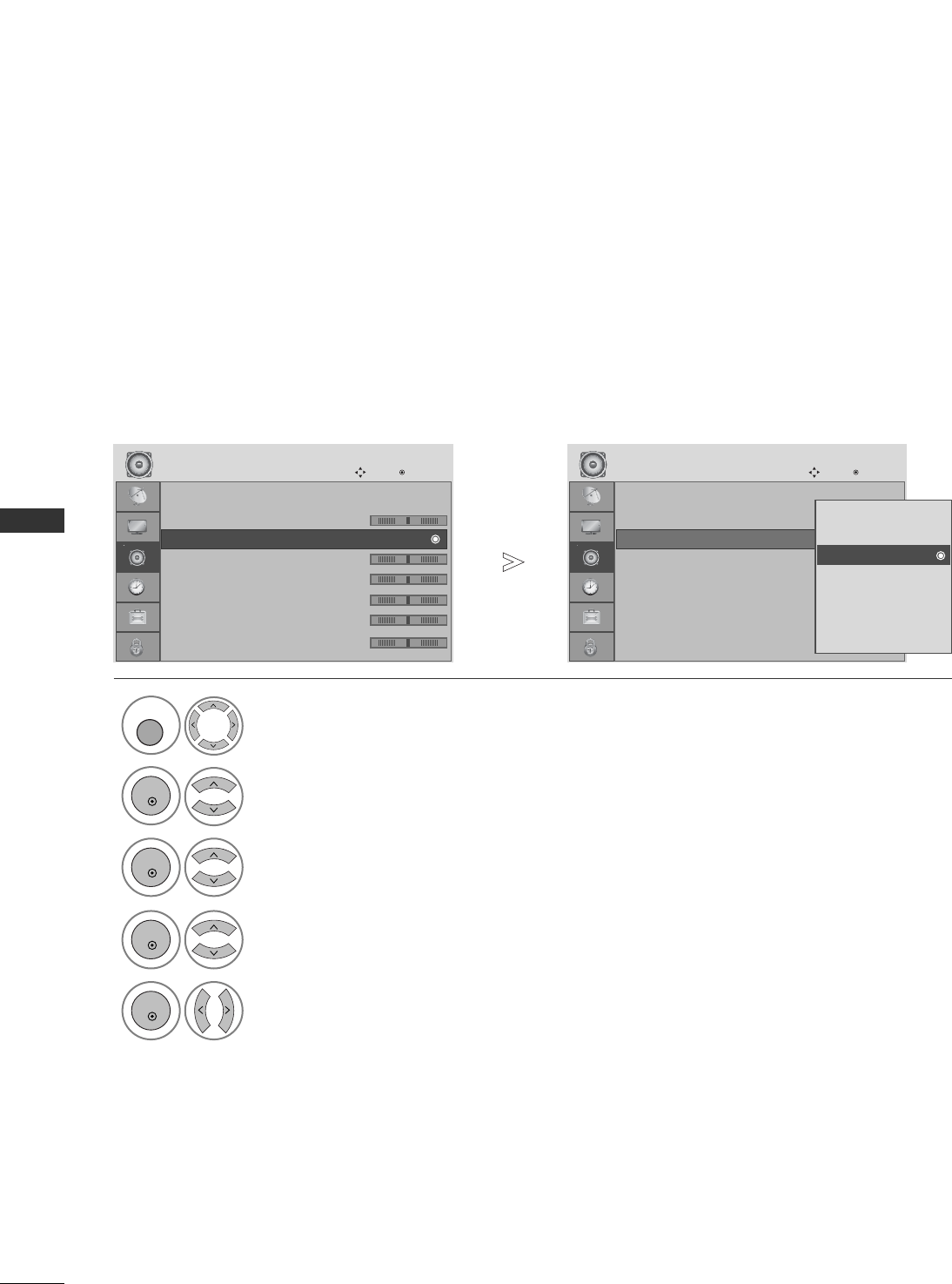
• Press the MENU button to return to normal TV viewing.
• Press the RETURN button to move to the previous menu screen.
78
SOUND & LANGUAGE CONTROL
SOUND & LANGUAGE CONTROL
SOUND SETTING ADJUSTMENT -USER MODE
Adjusting the audio equalizer.
Select AUDIO.
2Select Sound Mode.
3Select SRS TruSurround XT or (SRS TruSurround HD (32/37/42/47/52LG5010
Only)), Clear Voice, Standard, Music, Cinema, Sport or Game.
Set the desired sound level.
1
4
Select a frequency band.
MENU
OK
OK
OK
5
OK
Auto Volume : Off
Balance 0
Sound Mode : Standard (User)
• 120Hz 0
• 200Hz 0
• 500Hz 0
• 1.2KHz 0
• 3KHz 0
AUDIO
Move OK
E
Sound Mode : Standard (User)
LR
-+
-+
-+
-+
-+
Auto Volume : Off
Balance 0
Sound Mode : Standard (User)
• 120Hz 0
• 200Hz 0
• 500Hz 0
• 1.2KHz 0
• 3KHz 0
AUDIO
Move OK
E
Sound Mode : Standard (User)
LR
SRS TruSurround XT
Clear Voice
Standard
Music
Cinema
Sport
Game
Standard (User)
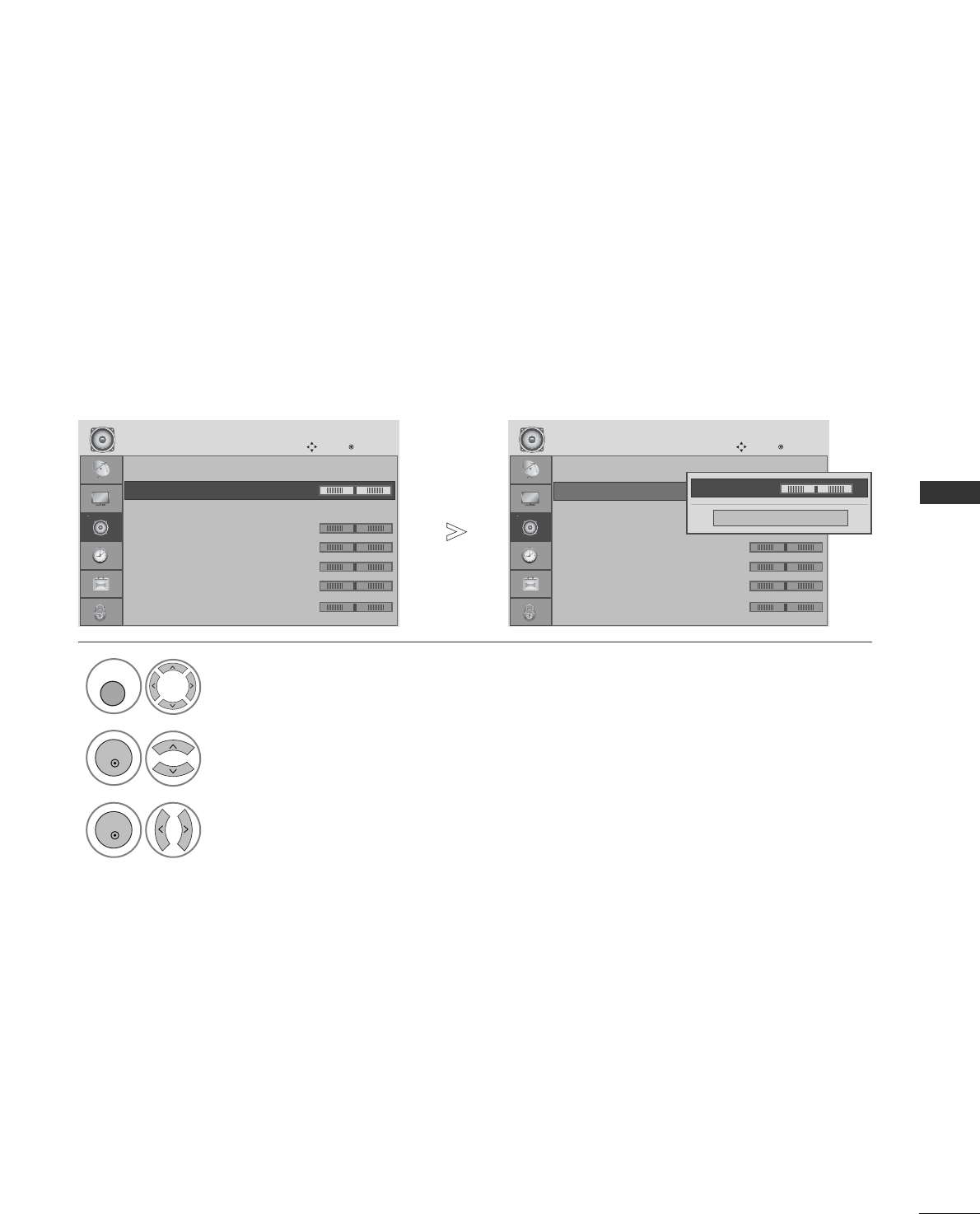
79
SOUND & LANGUAGE CONTROL
Auto Volume : Off
Balance 0
Sound Mode : Standard
• 120Hz 0
• 200Hz 0
• 500Hz 0
• 1.2KHz 0
• 3KHz 0
AUDIO
Move OK
E
Balance 0
Auto Volume : Off
Balance 0
Sound Mode : Standard
• 120Hz 0
• 200Hz 0
• 500Hz 0
• 1.2KHz 0
• 3KHz 0
AUDIO
Move OK
E
Balance 0
You can adjust the sound balance of the speakers to preferred levels.
BALANCE
Select AUDIO.
2Select Balance.
1
3
Make desired adjustment.
Close
• Balance 0 LR
FFGG
MENU
OK
OK
LR
• Press the MENU button to return to normal TV viewing.
• Press the RETURN button to move to the previous menu screen.
-+
-+
-+
-+
-+
-+
-+
-+
-+
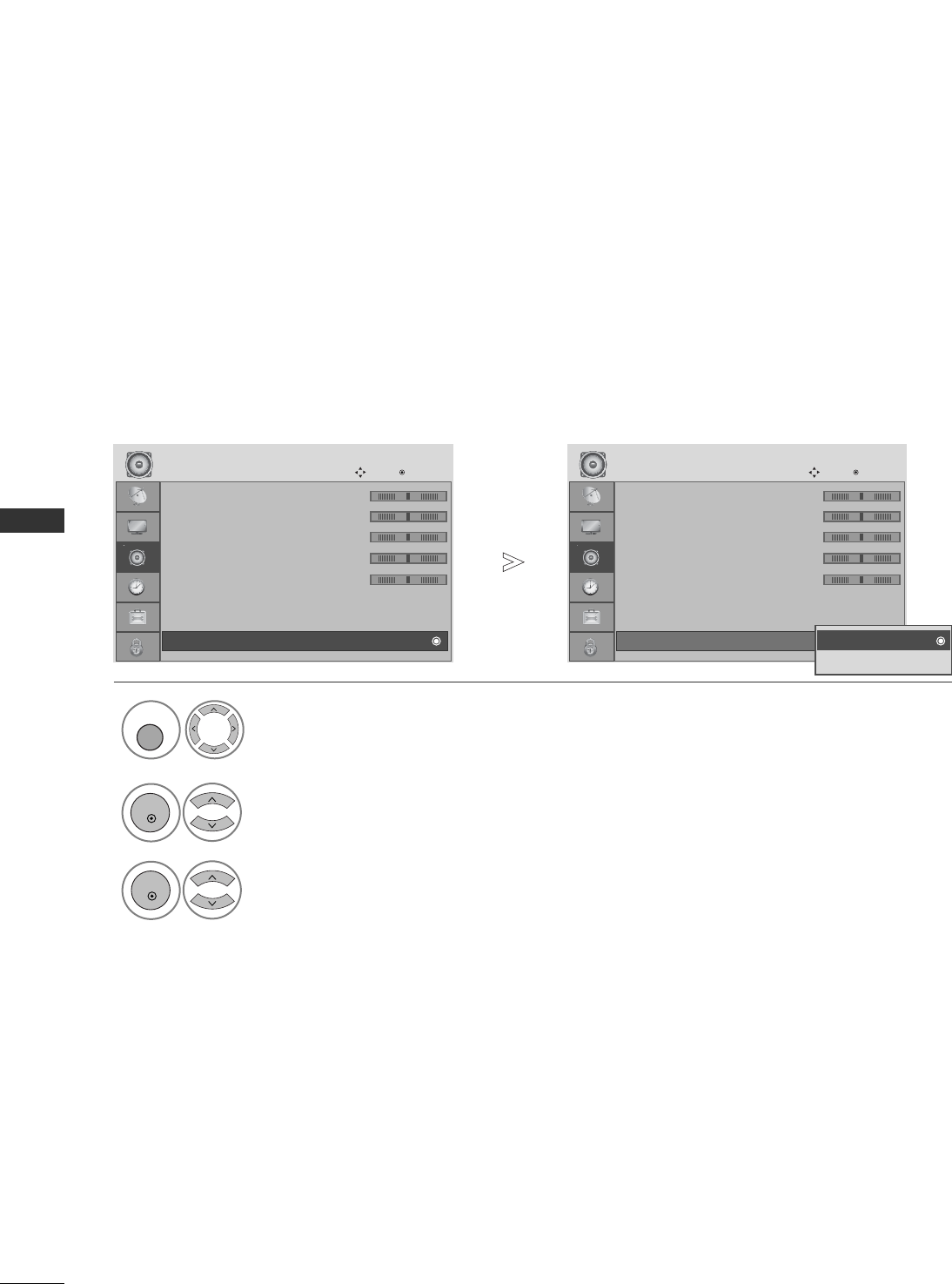
80
SOUND & LANGUAGE CONTROL
SOUND & LANGUAGE CONTROL
TV SPEAKERS ON/ OFF SETUP
(Except for 19/22LS4D*)
You can adjust the internal speaker status.
In AV, COMPONENT, RGB and HDMI1 with HDMI to DVI cable, the TV speaker can be operational even when
there is no video signal.
If you wish to use an external Hi-Fi system, turn off the TV internal speakers.
Select AUDIO.
Select TV Speaker.
3
Select On or Off.
1
2
• 500Hz 0
• 1.2KHz 0
• 3KHz 0
• 7.5KHz 0
• 12KHz 0
• Reset
Digital Audio Out
: PCM
TV Speaker : Off
AUDIO
Move OK
D
TV Speaker : Off
• 500Hz 0
• 1.2KHz 0
• 3KHz 0
• 7.5KHz 0
• 12KHz 0
• Reset
Digital Audio Out
: PCM
TV Speaker : Off
AUDIO
Move OK
D
TV Speaker : Off Off
On
Off
MENU
OK
OK
• Press the MENU button to return to normal TV viewing.
• Press the RETURN button to move to the previous menu screen.
-+
-+
-+
-+
-+
-+
-+
-+
-+
-+
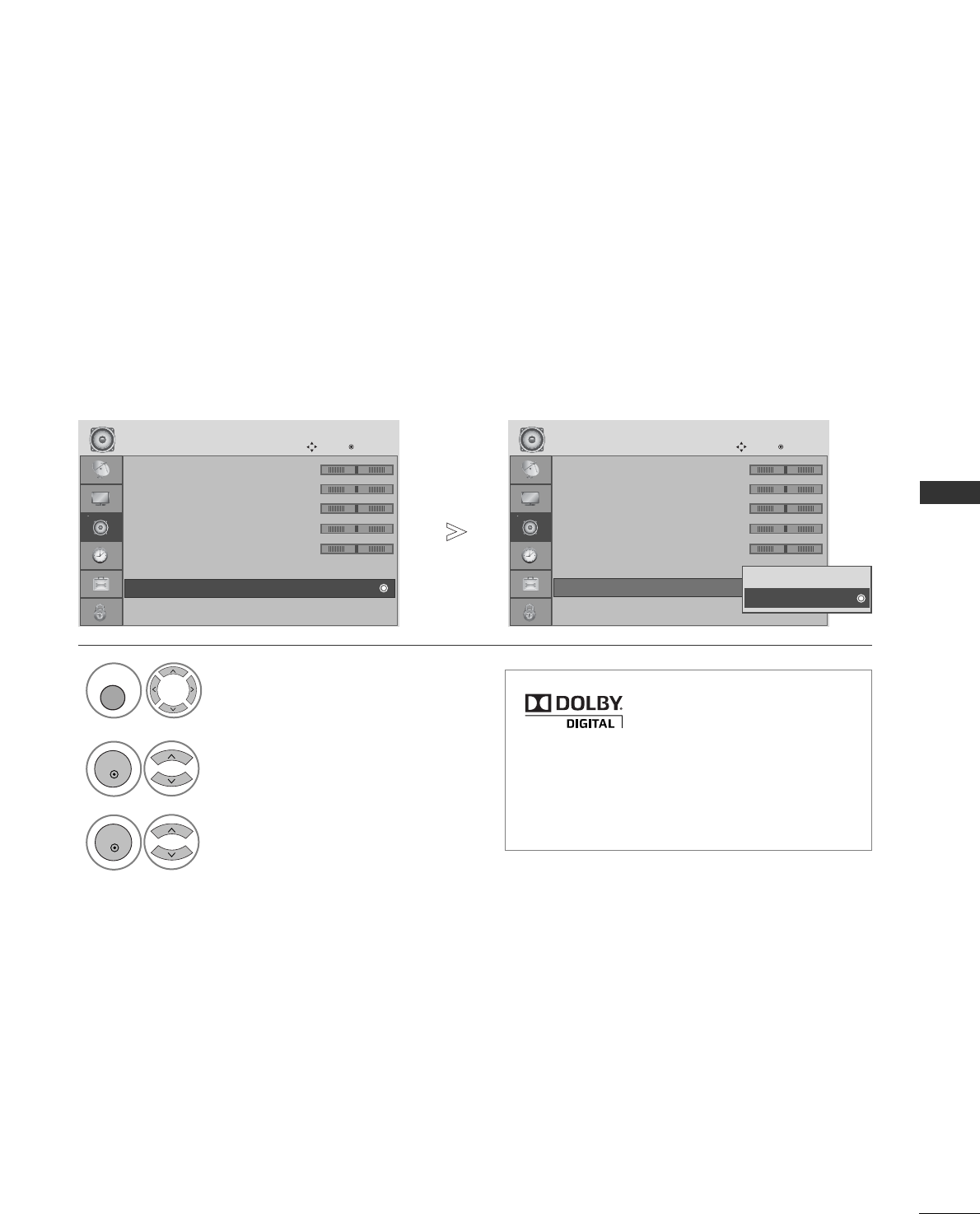
81
SOUND & LANGUAGE CONTROL
SELECTING DIGITAL AUDIO OUT
(Except for 19/22LS4D*)
This function allows you to select your preferred Digital Audio Output.
The TV can only output DOLBY Digital if a channel is broadcast with Dolby Digital audio.
When Dolby digital is available, selecting Dolby Digital in the Digital Audio Out menu will set SPDIF output to
Dolby Digital
If Dolby Digital is selected in the digital audio out menu when dolby digital is not available, SPDIF output will be
PCM.
Even if both Dolby Digital and Audio language have been set in a channel which broadcast Dolby Digital Audio,
only Dolby Digital will be played.
Select AUDIO.
Select DDiiggiittaall AAuuddiioo OOuutt.
3Select DDoollbbyy DDiiggiittaallor
PPCCMM.
1
2
• 500Hz 0
• 1.2KHz 0
• 3KHz 0
• 7.5KHz 0
• 12KHz 0
• Reset
Digital Audio Out
: PCM
TV Speaker : Off
AUDIO
Move OK
D
Digital Audio Out
: PCM
• 500Hz 0
• 1.2KHz 0
• 3KHz 0
• 7.5KHz 0
• 12KHz 0
• Reset
Digital Audio Out
: PCM
TV Speaker : Off
AUDIO
Move OK
D
Digital Audio Out
: PCM Dolby Digital
PCM
PCM
MENU
OK
OK
• Press the MENU button to return to normal TV viewing.
• Press the RETURN button to move to the previous menu screen.
Manufactured under license from
Dolby Laboratories. “
Dolby
“and
the double-D symbol are trade-
marks of Dolby Laboratories.
• There is a possibility that when HDMI mode,
some DVD players do not make SPDIF sound.
At that time, set the output of the digital
audio of the DVD player to PCM.
-+
-+
-+
-+
-+
-+
-+
-+
-+
-+
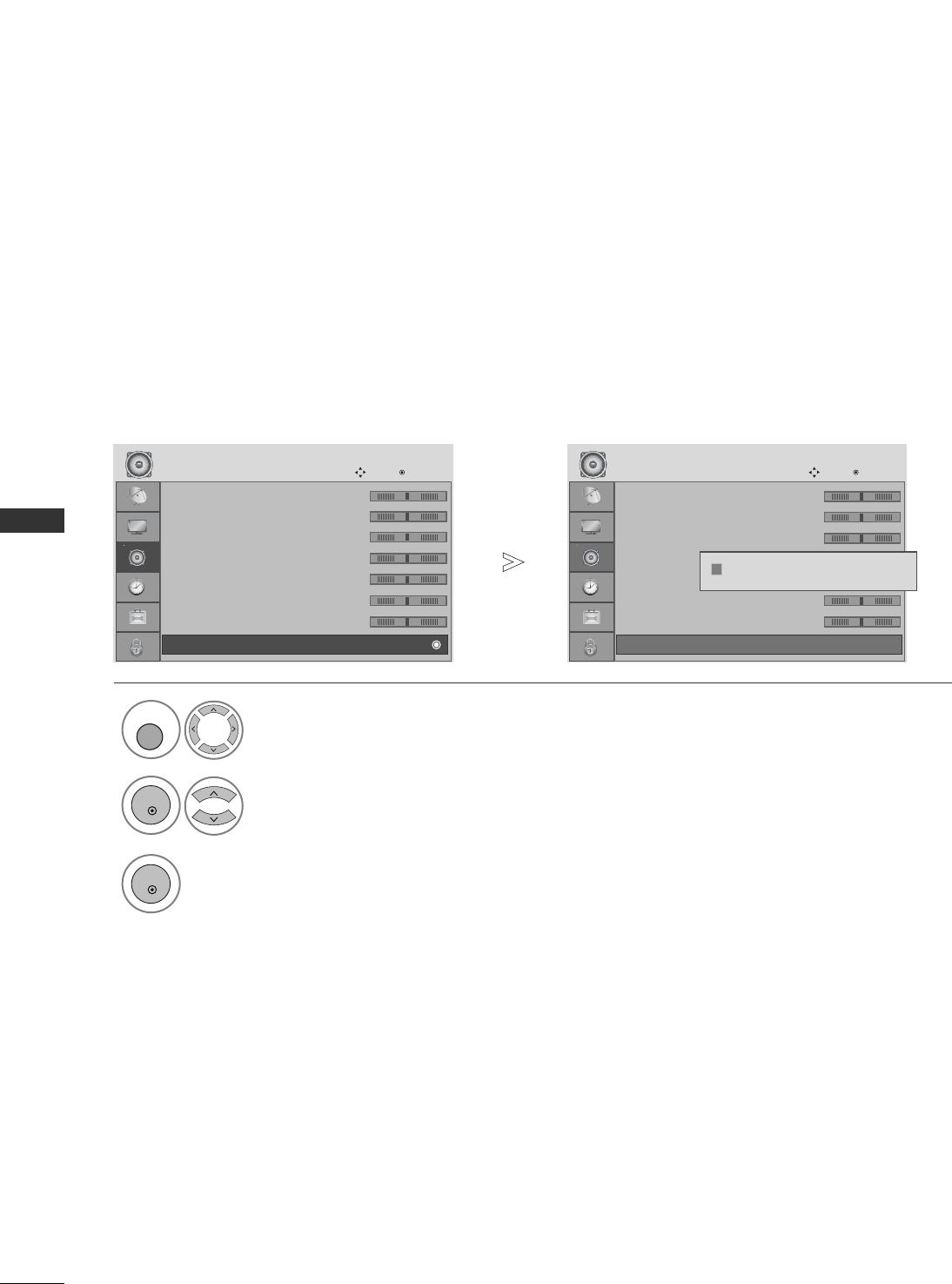
82
SOUND & LANGUAGE CONTROL
SOUND & LANGUAGE CONTROL
• 120Hz 0
• 200Hz 0
• 500Hz 0
• 1.2KHz 0
• 3KHz 0
• 7.5KHz 0
• 12KHz 0
• Reset
AUDIO
Move OK
D
• Reset
• 120Hz 0
• 200Hz 0
• 500Hz 0
• 1.2KHz 0
• 3KHz 0
• 7.5KHz 0
• 12KHz 0
• Reset
AUDIO
Move OK
D
• Reset
AUDIO RESET
Settings of the selected Sound Mode return to the default factory settings.
Select AUDIO.
2Select Reset.
3
Initialize the adjusted value.
1
Resetting sound mode configuration...
ii
MENU
OK
OK
• Press the MENU button to return to normal TV viewing.
• Press the RETURN button to move to the previous menu screen.
-+
-+
-+
-+
-+
-+
-+
-+
-+
-+
-+
-+
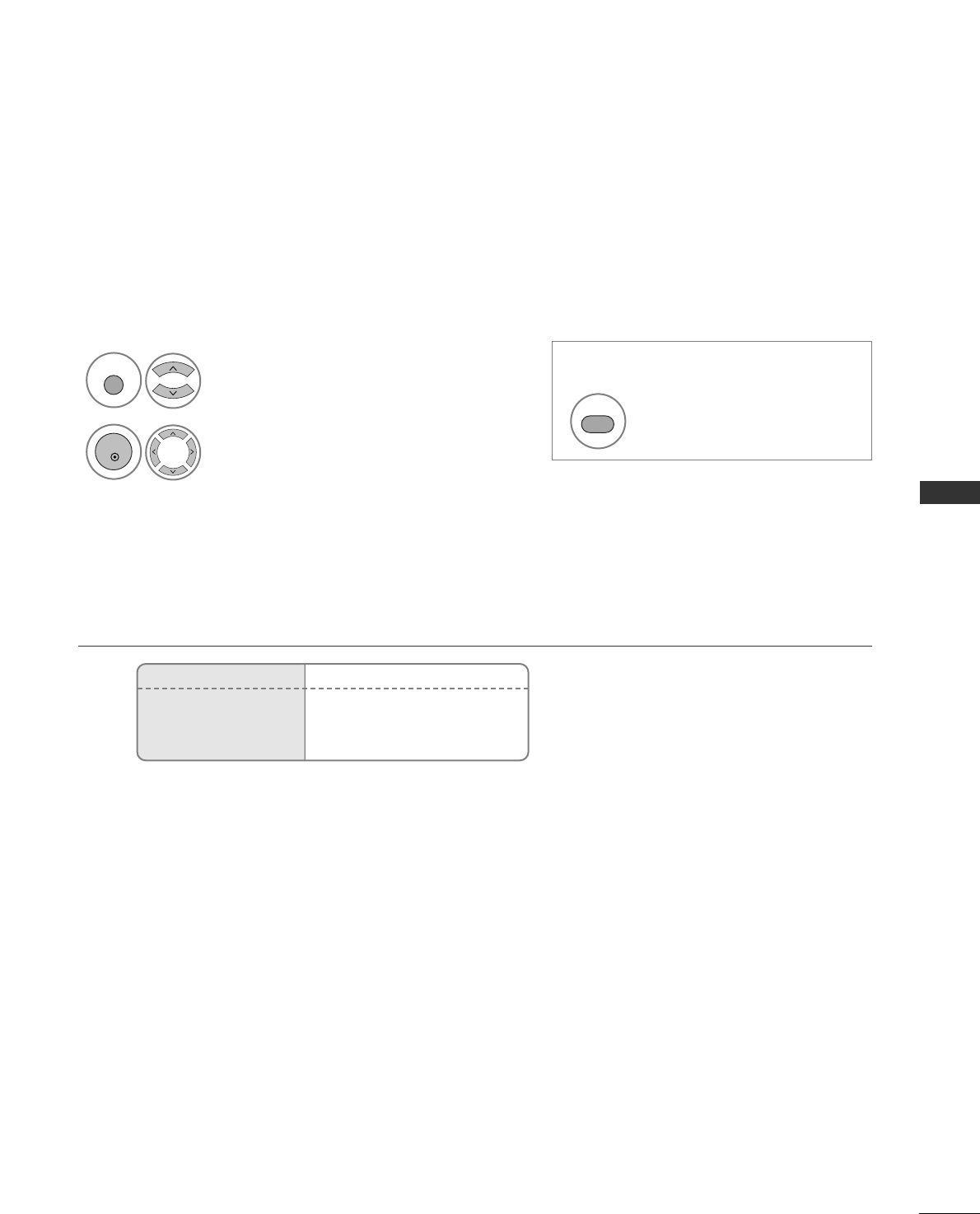
83
SOUND & LANGUAGE CONTROL
I/II
AAMMoonnoo ssoouunndd sseelleeccttiioonn
If the stereo signal is weak in stereo reception, you can switch to mono. In mono reception, the clarity of
sound is improved.
AALLaanngguuaaggee sseelleeccttiioonn ffoorr dduuaall llaanngguuaaggee bbrrooaaddccaasstt
If a programme can be received in two languages (dual language), you can switch to DUAL I, DUAL II or DUAL
I+II.
DUAL I Sends the primary broadcast language to the loudspeakers.
DUAL II Sends the secondary broadcast language to the loudspeakers.
DUAL I+II Sends a separate language to each loudspeaker.
Broadcast
Mono
Stereo
Dual
On Screen Display
MONO
STEREO
DDUUAALL II,, DDUUAALL IIII,, DDUUAALL II++IIII
Stereo/Dual Reception (In Analogue Mode Only)
When a programme is selected, the sound information for the station appears after the programme number
and station name disappear.
Select AUDIO.
2Select the sound output.
1
Q. MENU
OK
• For 19/22LS4D*only
Select the sound output.
I/II

84
SOUND & LANGUAGE CONTROL
SOUND & LANGUAGE CONTROL
NICAM Reception (In Analogue Mode Only)
When NICAM mono is received, you can select NNIICCAAMM MMOONNOOor FFMM MMOONNOO.
When NICAM stereo is received, you can select NNIICCAAMM SSTTEERREEOOor FFMM MMOONNOO.
If the stereo signal is weak, switch to FFMM mmoonnoo.
When NICAM dual is received, you can select NNIICCAAMM DDUUAALL II, NNIICCAAMM DDUUAALL IIIIor
NNIICCAAMM DDU
UAALL II++IIIIor FFMM MMOONNOO.
If the TV is equipped with a receiver for NICAM reception, high quality NICAM (Near Instantaneous
Companding Audio Multiplex) digital sound can be received.
Sound output can be selected according to the type of broadcast received.
Speaker Sound Output Selection
In AV, Component, RGB and HDMI mode, you can select output sound for the left and right
loudspeakers.
Select the sound output.
L+R: Audio signal from audio L input is sent to the left loudspeaker and audio signal from
audio R input is sent to the right loudspeaker.
L+L: Audio signal from audio L input is sent to left and right loudspeakers.
R+R: Audio signal from audio R input is sent to left and right loudspeakers.
1
2
3
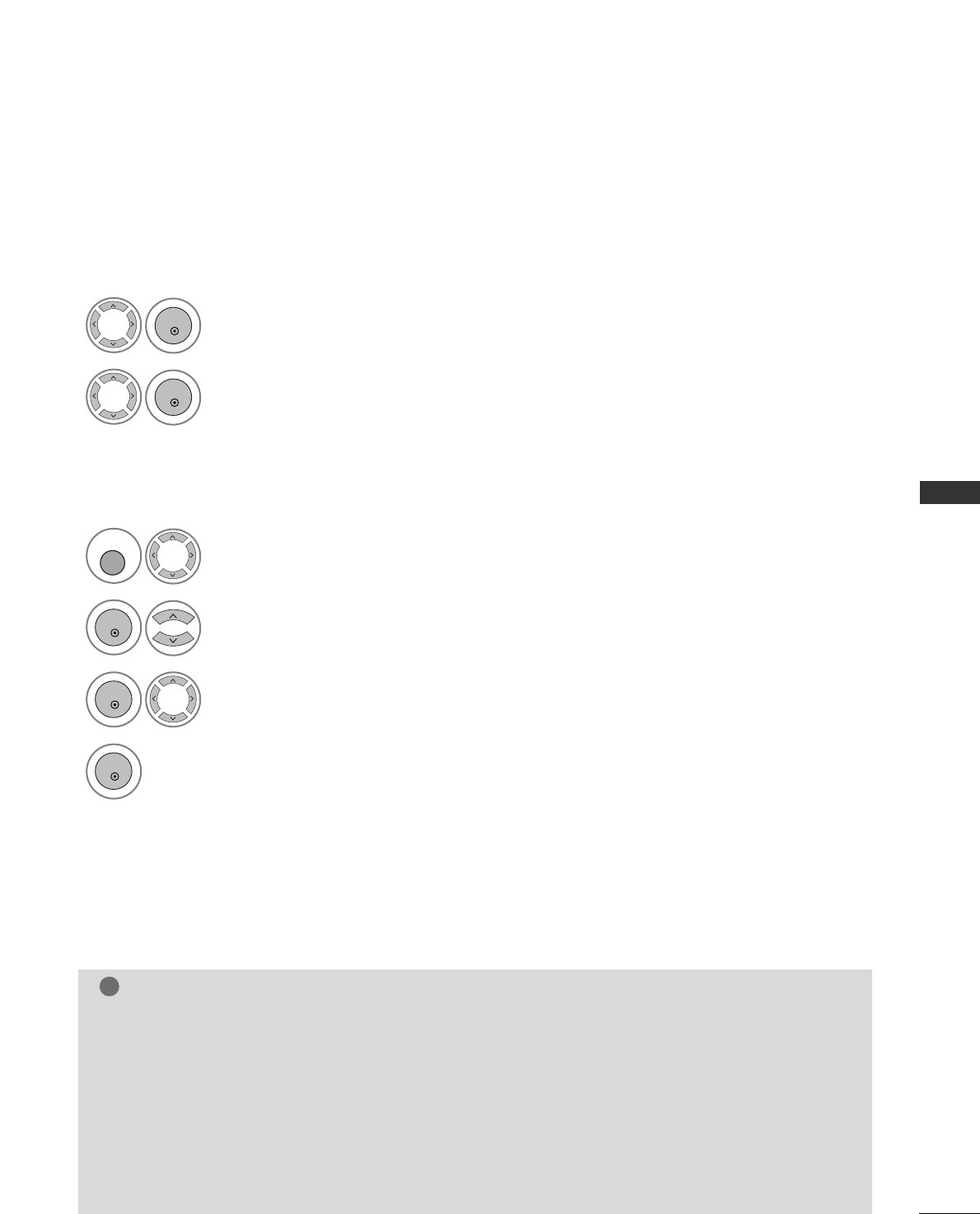
85
SOUND & LANGUAGE CONTROL
ON-SCREEN MENU LANGUAGE /
COUNTRY SELECTION
The installation guide menu appears on the TV screen when it is switched on for the first time.
** IIff yyoouu wwaanntt ttoo cchhaannggee LLaanngguuaaggee// CCoouunnttrryy sseelleeccttiioonn
NOTE
!
GGIf you do not finish the set-up Installation Guide by pressing RETURN or if you time out on the OSD (On
Screen Display) the installation menu will continuously appear until the set up is completed whenever the
TV is switched on
GGIf you select the wrong local country, teletext may not appear correctly on the screen and some problems
may occur during teletext operation.
GGThe CI (Common Interface) function may not be applied based on country broadcasting circumstances.
GGDTV mode control buttons may not function based on country broadcasting circumstances.
GGIn country that Digital broadcasting regulation isn’t fixed, some DTV function may not work depending
on digital broadcasting circumstances.
GGThe Country Setting “UK” should only be activated UK.
Select your desired language.
2Select your country.
1
Select OPTION.
2Select Menu Language or Country.
1
3
Select your desired language or country.
4
Save.
OK
OK
MENU
OK
OK
OK
• Press the MENU button to return to normal TV viewing.
• Press the RETURN button to move to the previous menu screen.
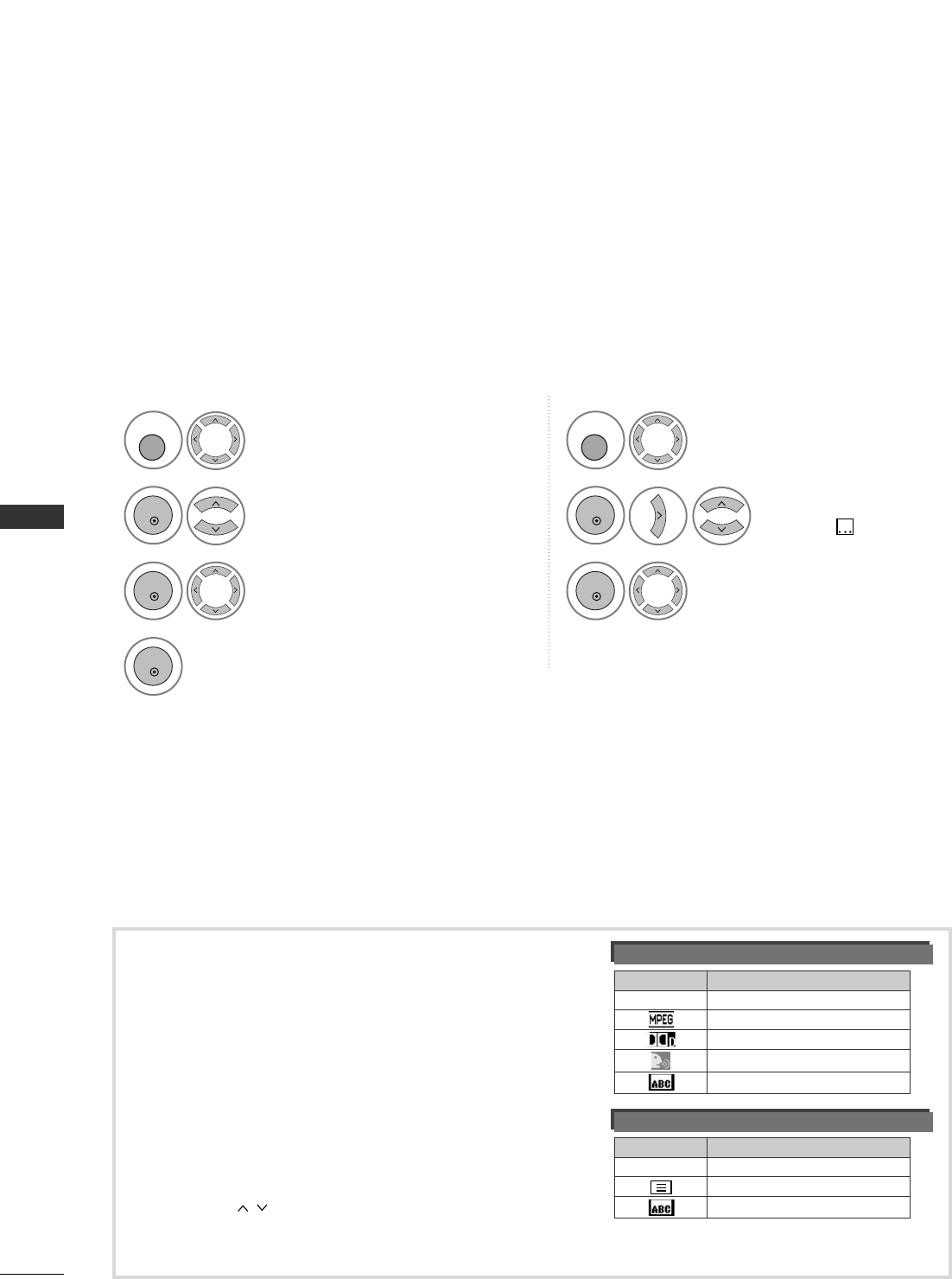
86
SOUND & LANGUAGE CONTROL
SOUND & LANGUAGE CONTROL
The Audio function allows selection of a preferred language.
If audio data in a selected language is not broadcast, the default language audio will be played.
Use the Subtitle function when two or more subtitle languages are broadcast. If subtitle data in a selected
language is not broadcast, the default language subtitle will be displayed.
When the languages you selected as the primary for Audio Language and Subtitle Language are not support-
ed, you can select language in secondary category.
LANGUAGE SELECTION (IN DIGITAL MODE ONLY)
< Audio Language Selection >
GGWhen two or more audio languages are broadcast, you can
select the audio language.
- The audio/subtitles can be displayed in a simpler form with 1 to 3 characters broadcast by the service provider.
- When you select supplementary Audio (Audio for “Visual/Hearing Impaired”) the TV may output a part of the Main audio.
Audio Language OSD Information
Status
Not Available
MPEG Audio
Dolby Digital Audio
Audio for “Visual Impaired”
Audio for “Hearing Impaired”
Display
N.A
< Subtitle Language Selection >
GGWhen two or more subtitle languages are broadcast, you
can select the subtitle language with the SUBTITLE button
on the remote control.
GGPress the button to select a subtitle language.
Subtitle Language OSD Information
Status
Not Available
Teletext Subtitle
Subtitle for “Hard of Hearing”
Display
N.A
Select OPTION.
2Select Audio Language, Subtitle
Language.
1
3Select your desired language.
4
Save.
MENU
OK
OK
OK
Select OPTION.
2Select
Hard of
Hearing( )
.
1
3Select On or Off.
MENU
OK
OK
• Press the RETURN button to move to the previous menu screen.
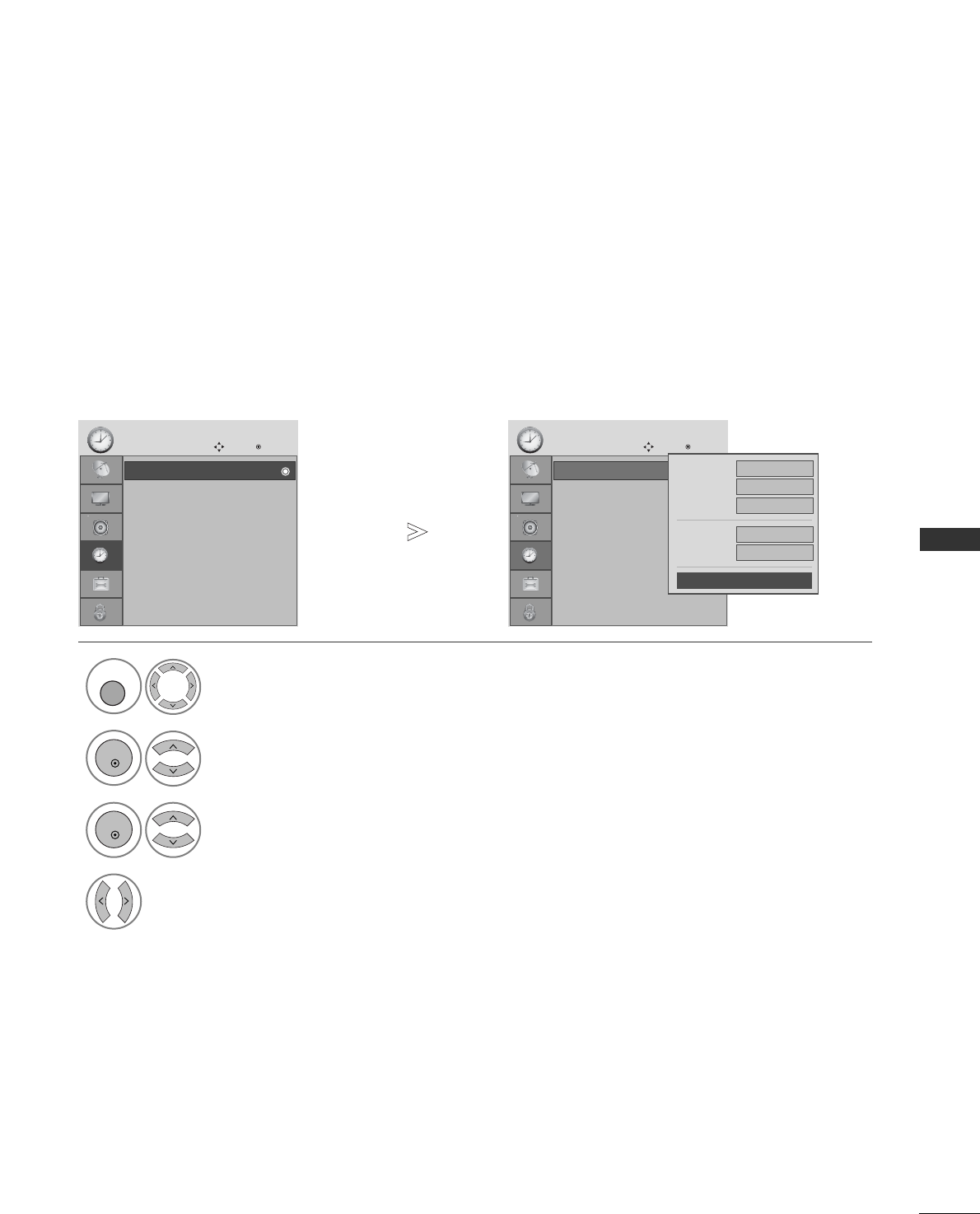
87
TIME SETTING
TIME SETTING
Clock
Off Time : Off
On Time : Off
Sleep Timer : Off
Auto Sleep : Off
Time Zone : Canary GMT
TIME
Move OK
Clock
The clock is set automatically when receiving a digital signal. (You can set the clock manually only if the TV has no
DTV signal.)
You must set the time correctly before using on/off timer function.
CLOCK SETUP
Select TIME.
2Select Clock.
1
3Select either the year, date, or time
option.
4Set the year, date, and time options.
Clock
Off Time : Off
On Time : Off
Sleep Timer : Off
Auto Sleep : Off
Time Zone : Canary GMT
TIME
Move OK
Clock
Date 06
Month Mar.
Year 2007
Hour 04
Minute 45
Close
MENU
OK
OK
• Press the MENU button to return to normal TV viewing.
• Press the RETURN button to move to the previous menu screen.
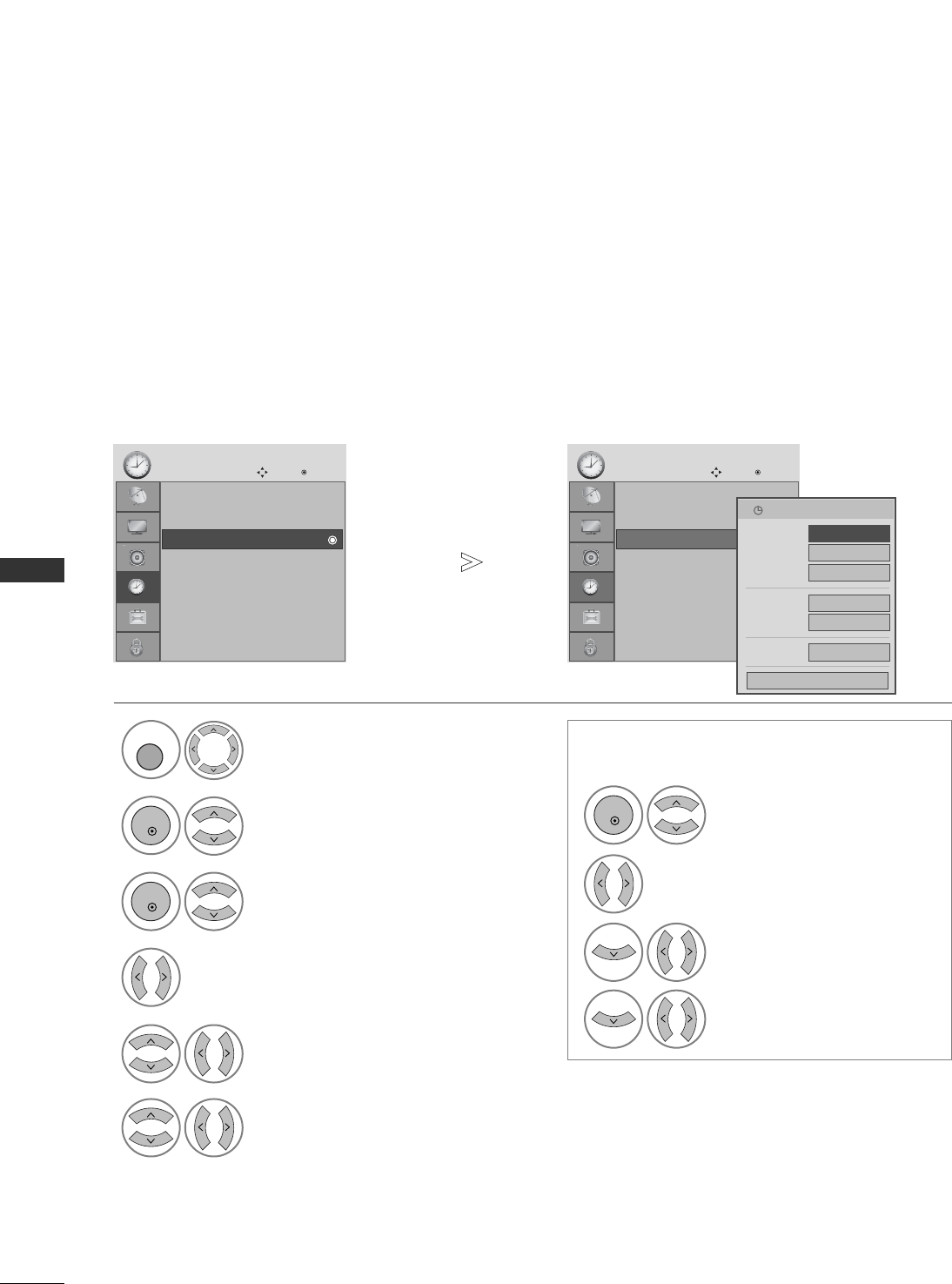
88
TIME SETTING
TIME SETTING
The Off time function automatically switches the TV to standby at a preset time.
Two hours after the TV is switched on by the on time function it will automatically switch back to standby mode
unless a button has been pressed.
The Off time function overrides the On timer function if both are set to the same time.
The TV must be in standby mode for the On timer to work.
AUTO ON/OFF TIMER SETTING
Clock
Off Time : Off
On Time : Off
Sleep Timer : Off
Auto Sleep : Off
Time Zone : Canary GMT
TIME
Move OK
On Time Off
Select TIME.
2Select Off time or On time.
1
3Select Repeat.
5Set the hour.
6Set the minutes.
4Select Off, Once, Daily, Mon ~Fri, Mon
~Sat, Sat ~Sun or Sun.
Clock
Off Time : Off
On Time : Off
Sleep Timer : Off
Auto Sleep : Off
Time Zone : Canary GMT
TIME
Move OK
On Time : Off Repeat
FF
Off
GG
Hour 04
Minute 45
Mode DTV
Programme 800
Volume 30
Close
• To cancel On/Off Time function, select Off.
• For On Time function only
1Select Mode.
2Select TV, DTV or Radio.
3Set the programme.
4Adjust volume level at
switch-on.
MENU
OK
OK
OK
• Press the MENU button to return to normal TV viewing.
• Press the RETURN button to move to the previous menu screen.
1/Mar. 2007 16:09
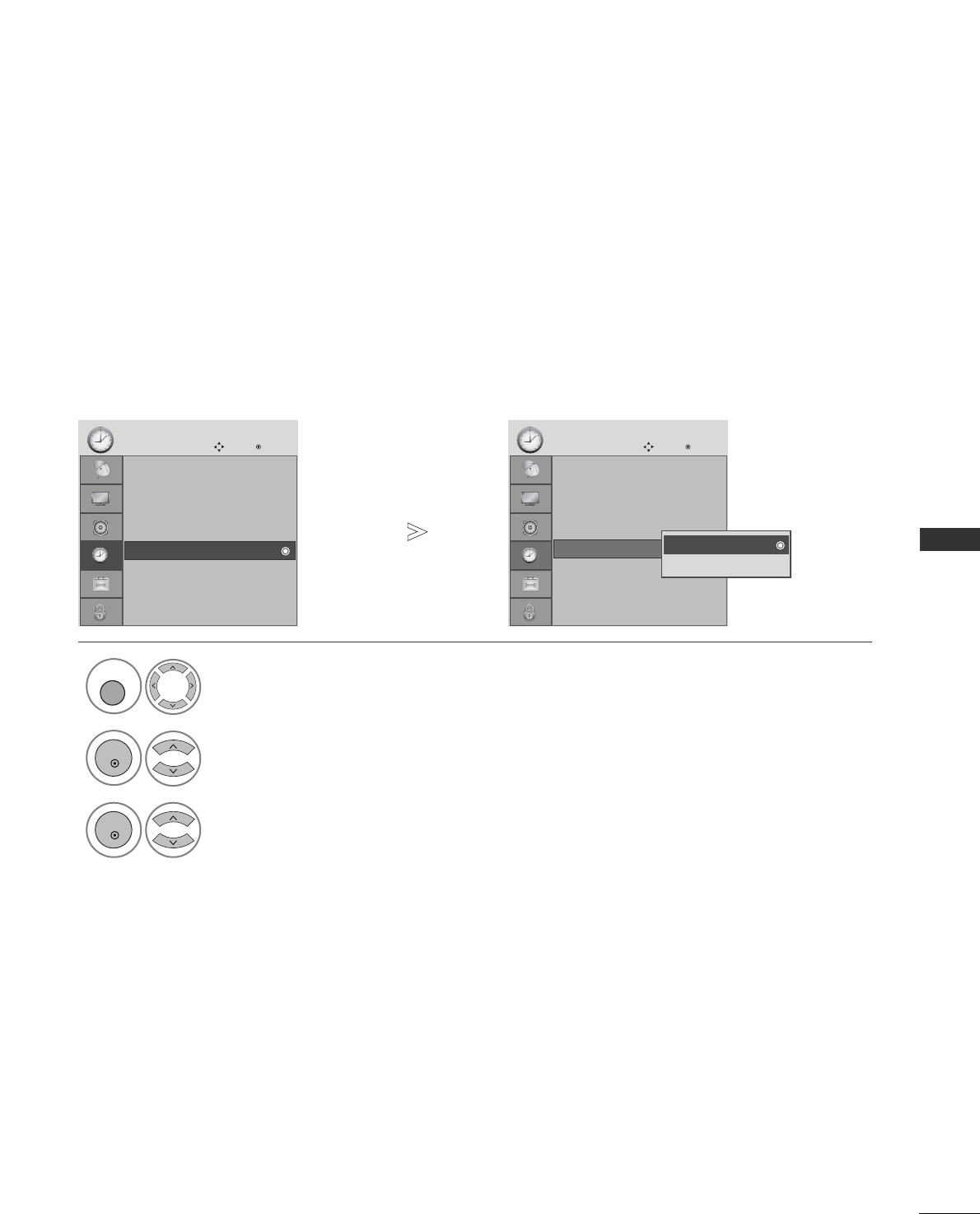
89
TIME SETTING
If the TV is switched on and there is no input signal, it will switch off automatically after 10 minutes.
AUTO SHUT-OFF SETTING
Clock
Off Time : Off
On Time : Off
Sleep Timer : Off
Auto Sleep : Off
Time Zone : Canary GMT
TIME
Move OK
Auto Sleep : Off
Select TIME.
2Select Auto Sleep.
1
3
Select Off or On.
Clock
Off Time : Off
On Time : Off
Sleep Timer : Off
Auto Sleep : Off
Time Zone : Canary GMT
TIME
Move OK
Auto Sleep : Off Off
On
Off
MENU
OK
OK
• Press the MENU button to return to normal TV viewing.
• Press the RETURN button to move to the previous menu screen.
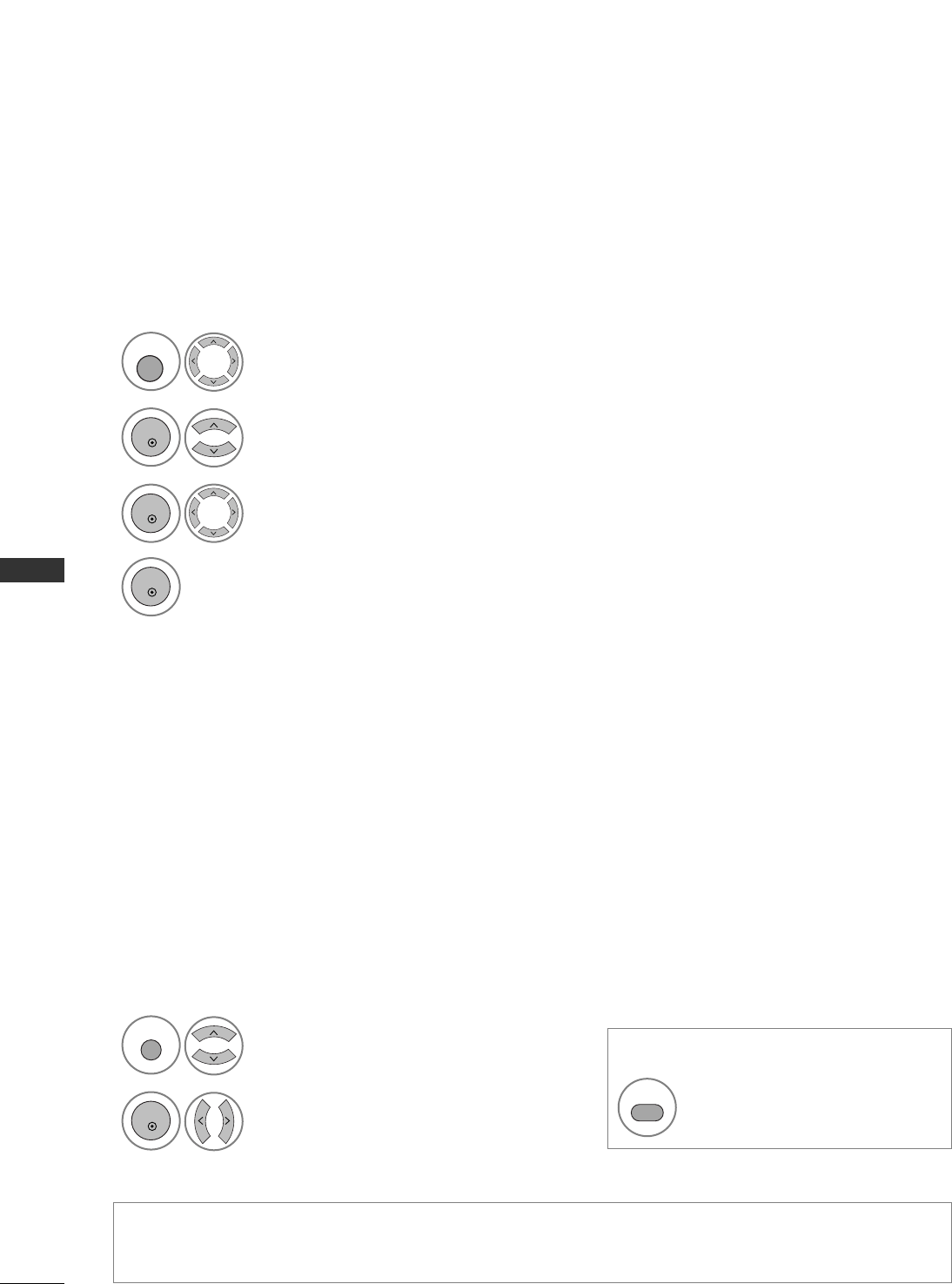
90
TIME SETTING
TIME SETTING
You do not have to remember to switch the TV off before you go to sleep.
The sleep timer automatically switches the TV to standby after the preset time has elapsed.
SLEEP TIMER SETTING
When you select a Time Zone city, the TV time is set by the time offset information based on Time Zone and
GMT (Greenwich Mean Time) which is received with the broadcast signal and the time is set automatically by a
digital signal.
TIME ZONE SETUP
Select TIME.
2Select Time Zone.
1
3
Select your viewing area time zone.
4
Confirm it.
Select the number of minutes.
• When you switch the TV off, the preset sleep time is cancelled.
• You can also adjust Sleep Timer in the TIME menu.
MENU
OK
OK
OK
2
1
Q. MENU
OK
SLEEP
Select SSlleeeepp TTiimmeerr.
Select OOffff, 1100, 2200, 3300, 6600,
9900, 112200, 118800or 224400 MMiinn...
• For 19/22LS4D*only
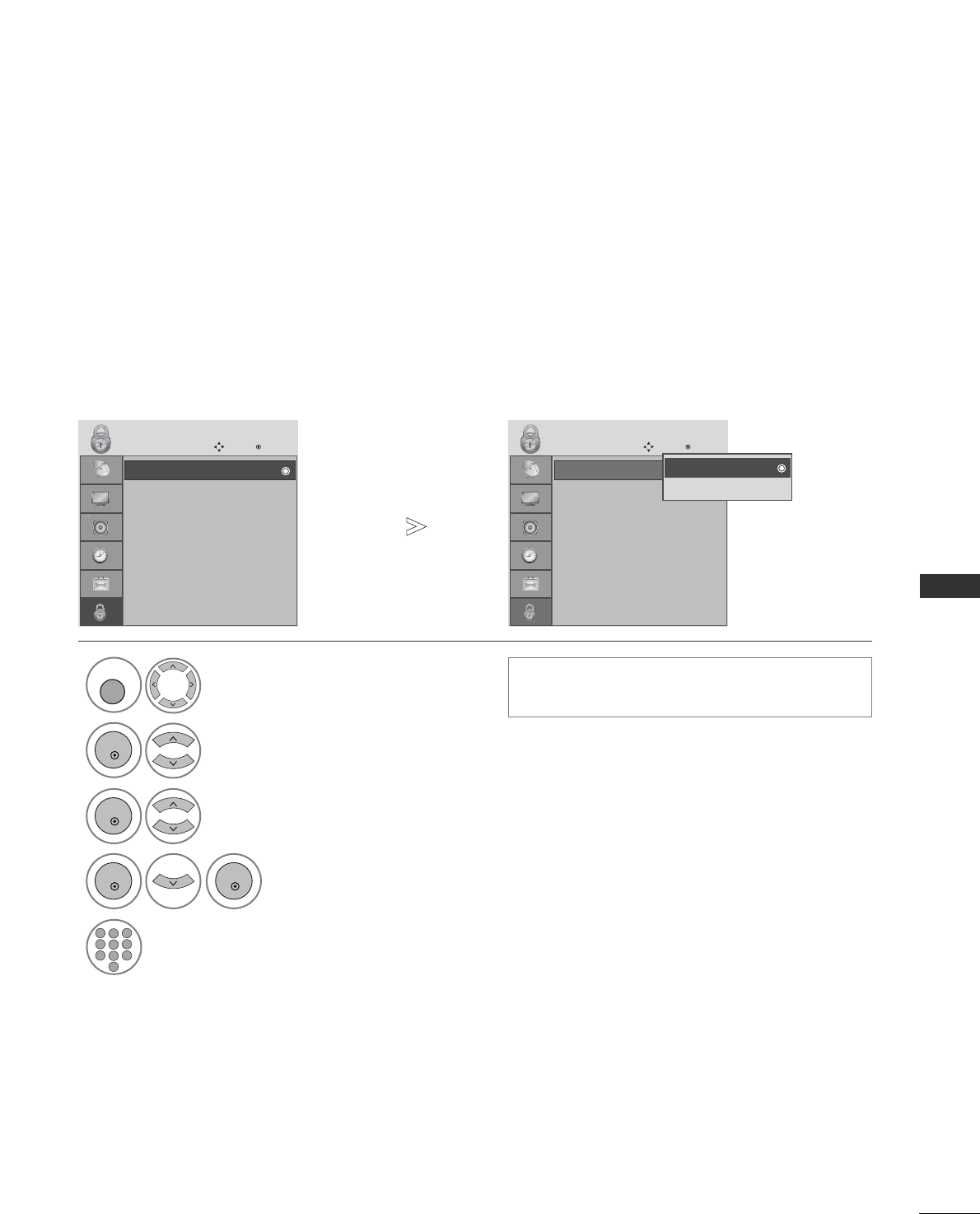
91
PARENTAL CONTROL / RATINGS
PARENTAL CONTROL / RATINGS
SET PASSWORD & LOCK SYSTEM
Enter the password, press ‘0’, ‘0’, ‘0’, ‘0’ on the remote control handset.
Select LOCK.
2Select Lock System.
3Select On.
4Set the password.
5Input a 4-digit password.
Be sure to remember this number!
Re-enter new password for confirm.
1• If you forget your password, press ‘7’, ‘7’, ‘7’, ‘7’
on the remote control handset.
Lock System : Off
Set Password
Block Programme
Parental Guidance : Off
LOCK
Move OK
Lock System : Off Lock System : Off
Set Password
Block Programme
Parental Guidance : Off
LOCK
Move OK
Lock System : Off Off
On
Off
MENU
OK
OK
OK OK
123
456
78
0
9
• Press the MENU button to return to normal TV viewing.
• Press the RETURN button to move to the previous menu screen.
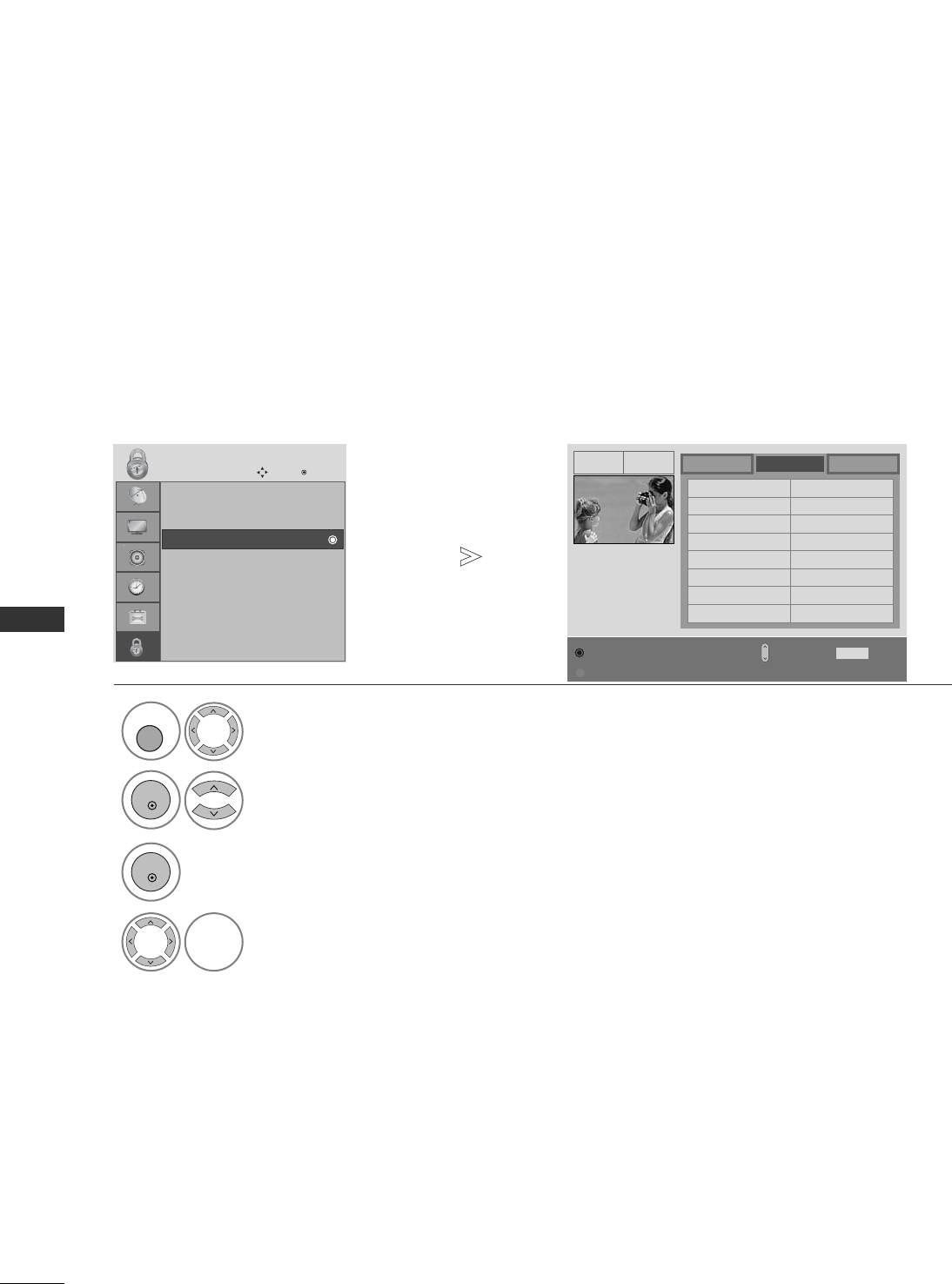
92
PARENTAL CONTROL / RATINGS
PARENTAL CONTROL / RATINGS
BLOCK PROGRAMME
Blocks any programmes that you do not want to watch or that you do not want your children to watch.
It is available to use this function in Lock System “On”.
Select LOCK.
2Select Block Programme.
1
Lock System : Off
Set Password
Block Programme
Parental Guidance : Off
LOCK
Move OK
Block Programme
YLE TV11TV DTV Radio
1 YLE TV1 2 YLE TV2
4 TV4 Stockholm
5 YLE FST
6 CNN 8 YLE24
9 YLE Teema 14 TV4 Film
24 TV4 Fakta 50 TV400
24 TV4 Fakta 84 Kanal Lokal
24 TV4 Fakta 86 Info/3sat
87 Doku/Kika 88 TVE 1
E
D
3Enter the Block Programme.
4
Select a programme to be locked.
MENU
OK
OK
Pr. Change PreviousNavigation
RETURN
Block/Unlock
D
F G
E
Page Change
P
P
• Press the MENU button to return to normal TV viewing.
• Press the RETURN button to move to the previous menu screen.
GREEN
GREEN
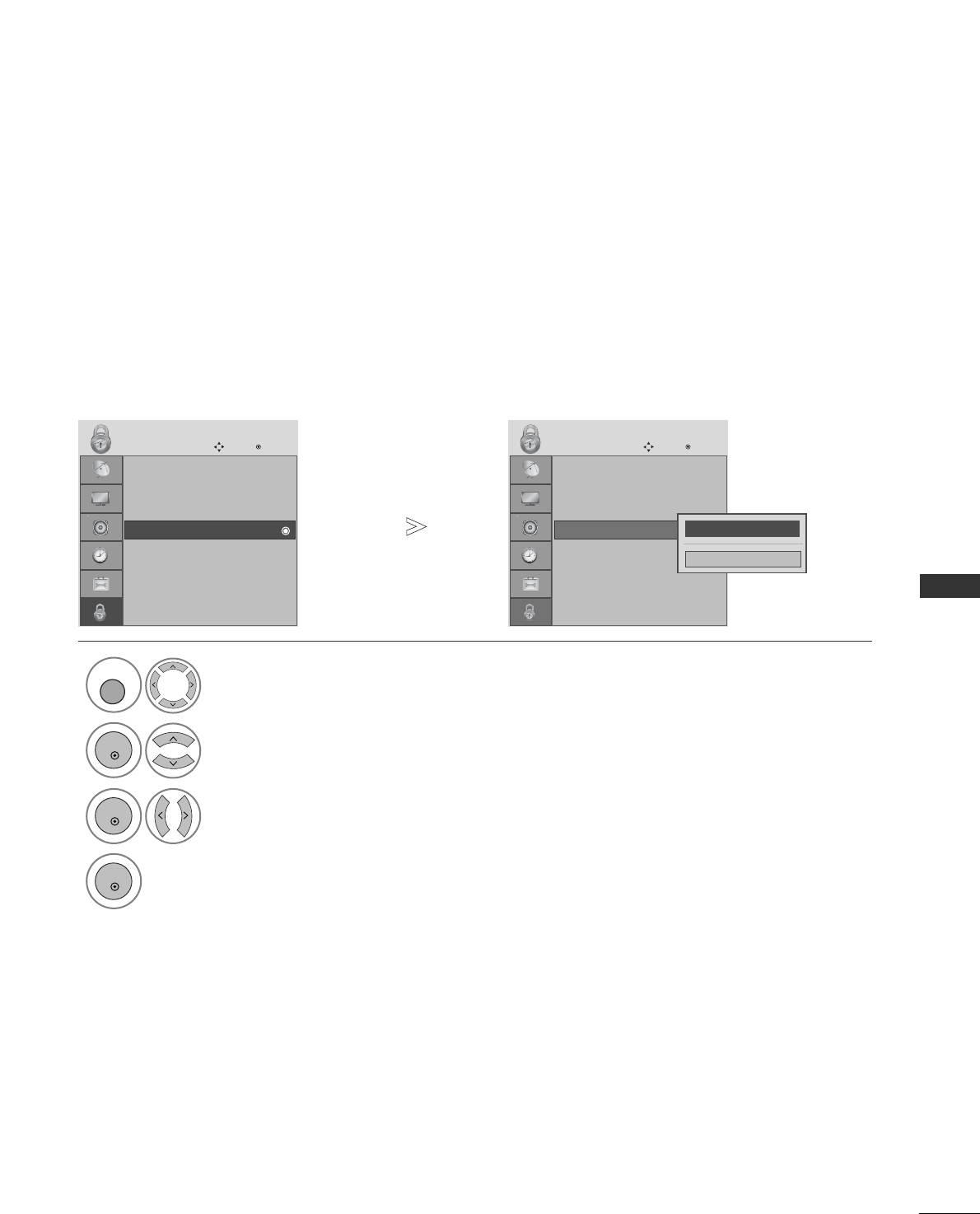
93
PARENTAL CONTROL / RATINGS
This function operates according to information from the broadcasting station. Therefore if the signal has
incorrect information, this function does not operate.
A password is required to gain access to this menu.
This TV is programmed to remember which option it was last set to even if you switch the TV off.
Prevents children from watching certain adult’s TV programmes, according to the ratings limit set.
PARENTAL CONTROL (IN DIGITAL MODE ONLY)
Select LOCK.
2Select Parental Guidance.
3Make appropriate adjustments.
4Save.
1
Lock System : Off
Set Password
Block Programme
Parental Guidance : Off
LOCK
Move OK
Parental Guidance
: Off
Lock System : Off
Set Password
Block Programme
Parental Guidance : Off
LOCK
Move OK
Parental Guidance
: Off
FF
Off
GG
Close
MENU
OK
OK
OK
• Press the MENU button to return to normal TV viewing.
• Press the RETURN button to move to the previous menu screen.
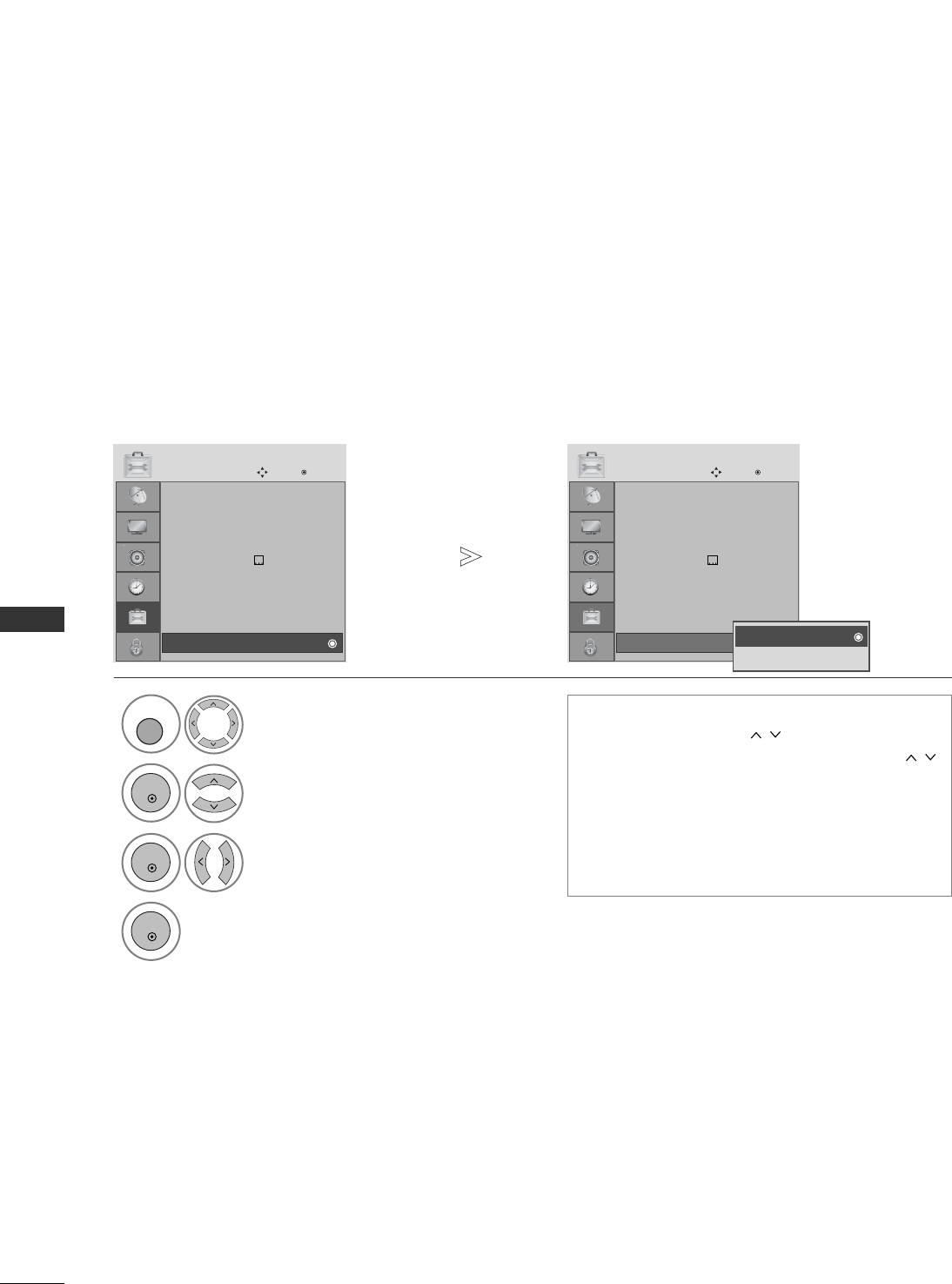
94
PARENTAL CONTROL / RATINGS
PARENTAL CONTROL / RATINGS
The TV can be set so that the remote control is required to control it. This feature can be used to prevent
unauthorized viewing.
KEY LOCK
Select OPTION.
2Select Key Lock.
3Select On or Off.
4Save.
1
Menu Language : English
Audio Language : English
Subtitle Language : English
Hard of Hearing() Off
Country :UK
Input Label
SIMPLINK : On
Key Lock : Off
OPTION
Move OK
E
Key Lock : Off
Menu Language : English
Audio Language : English
Subtitle Language : English
Hard of Hearing() Off
Country :UK
Input Label
SIMPLINK : On
Key Lock : Off
OPTION
Move OK
E
Key Lock : Off Off
On
Off
• In Key Lock ‘On’, if the TV is turned off, press
the r/ I, INPUT, P (or PR DE
) button
on the TV or POWER, INPUT, D/A TV, P
(or (PR + - or P + -)) or NUMBER buttons on
the remote control.
• With the Key Lock On, the display ‘ Key Lock
On ’ appears on the screen if any button on the
front panel is pressed while viewing the TV.
MENU
OK
OK
OK
• Press the MENU button to return to normal TV viewing.
• Press the RETURN button to move to the previous menu screen.

95
TELETEXT
TELETEXT
TOP TEXT
The user guide displays four fields-red, green, yellow and blue at the bottom of the screen. The yellow field
denotes the next group and the blue field indicates the next block.
AA
Block / group / page selection
With the blue button you can progress from block to block.
Use the yellow button to proceed to the next group with automatic overflow to the next block.
With the green button you can proceed to the next existing page with automatic overflow to the next group.
Alternatively the P (or PR +) button can be used.
The red button returns to the previous selection. Alternatively the P (or PR -) button can be used.
AA
Direct page selection
As with SIMPLE teletext mode, you can select a page by entering it as a three digit number using the NUMBER
buttons in TOP mode.
44
1
2
3
TThhiiss ffeeaattuurree iiss nnoott aavvaaiillaabbllee iinn aallll ccoouunnttrriieess..
Press the TTEEXXTTbutton to switch to teletext. The initial page or last page viewed appears on the screen.
Two page numbers, TV station name, date and time are displayed on the screen headline. The first page number
indicates your selection, while the second shows the current page displayed.
Press the TTEEXXTTbutton to switch off teletext. The previous mode reappears.
SWITCH ON/OFF
AA
Page selection
Enter the desired page number as a three digit number with the NUMBER buttons. If during selection you
press a wrong number, you must complete the three digit number and then re-enter the correct page number.
The P (or (PR + - or P + -)) button can be used to select the preceding or following page.
SIMPLE TEXT
1
2
Teletext is a free service broadcast by most TV stations which gives up-to-the-minute information on news,
weather, television programmes, share prices and many other topics.
The teletext decoder of this TV can support the SIMPLE, TOP and FASTEXT systems. SIMPLE (standard
teletext) consists of a number of pages which are selected by directly entering the corresponding page
number. TOP and FASTEXT are more modern methods allowing quick and easy selection of teletext
information.
96
TELETEXT
TELETEXT
SPECIAL TELETEXT FUNCTIONS
FASTEXT
The teletext pages are colour coded along the bottom of the screen and are selected by pressing the
corresponding coloured button.
AAPage selection
Press the TT..OOPPTT button and then use button to select menu. Display the index page.
(In 19/22LS4D*, press the button to select the index menu.)
You can select the pages which are colour coded along the bottom line with corresponding coloured buttons.
AS with SIMPLE teletext mode, you can select a page by entering its three digit page number with the
NUMBER buttons in FASTEXT mode.
The P (or (PR + - or P + -)) button can be used to select the preceding or following page.
i
i
44
1
2
3
■Press the TT.. OOPPTTbutton and then use button to select the TTeexxtt OOppttiioonnmenu.
AARREEVVEEAALL
Select this menu to display concealed information, such as solutions to riddles or puzzles.
AAUUPPDDAATTEE
Displays the TV picture on the screen while waiting for a new teletext page. The display will appear at the top left
hand corner of the screen. When the updated page is available then display will change to the page number. Select
this menu again to view the updated teletext page.
AATTIIMMEE
When viewing a TV programme, Select this menu to display the time at the top right hand corner of the screen.
In the teletext mode, press this button to select a sub page number. The sub page number is displayed at the bot-
tom of the screen. To hold or change the sub page, press the RED/GREEN, or NUMBER buttons.
AAHHOOLLDD
Stops the automatic page change which will occur if a teletext page consists of 2 or more sub pages. The num-
ber of sub pages and the sub page displayed is, usually, shown on the screen below the time. When this menu is
selected the stop symbol is displayed at the top left-hand corner of the screen and the automatic page change
is inactive.
?
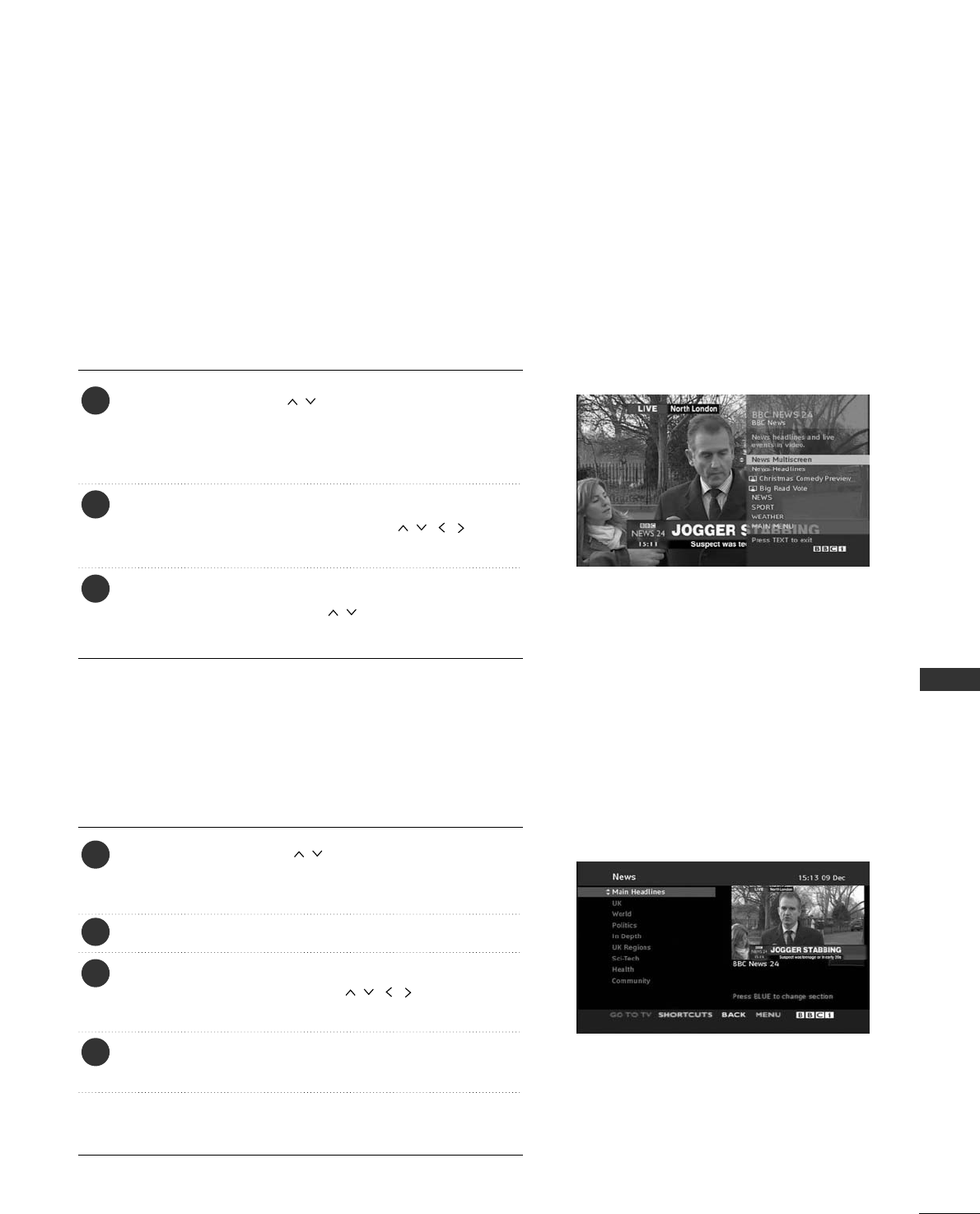
97
DIGITAL TELETEXT
DIGITAL TELETEXT
Press the numeric or P (or (PR + - or P + -)) button
to select a digital service which broadcasts digital teletext.
To know which are digital teletext services, refer to the
EPG service list.
Follow the indications on digital teletext and move onto the
next step by pressing TEXT, OK, , RED,
GREEN, YELLOW, BLUE or NUMBER buttons and etc..
To change digital teletext service, select a different
service by the numeric or P (or (PR + - or P + -))
button.
Press the numeric or P (or (PR + - or P + -)) but-
ton to select a certain service which broadcasts digital
teletext.
Press the TEXT or coloured button to switch on teletext.
Follow the indications on digital teletext and move onto
the next step by pressing OK, , RED, GREEN,
YELLOW, BLUE or NUMBER buttons and so on.
Press the TEXT or colour button to switch off digital
teletext and return to TV viewing.
Some services may allow you to access text services by
pressing the RED button.
*This function works in UK only.
The TV gives you access to digital teletext which is greatly improved in various aspects such as text, graphics etc.
This digital teletext can access special digital teletext services and specific services which broadcast digital teletext.
You should select off in the subtitle language menu to display teletext by pressing the SUBTITLE button.
TELETEXT WITHIN DIGITAL SERVICE
TELETEXT IN DIGITAL SERVICE
1
2
3
1
2
3
4
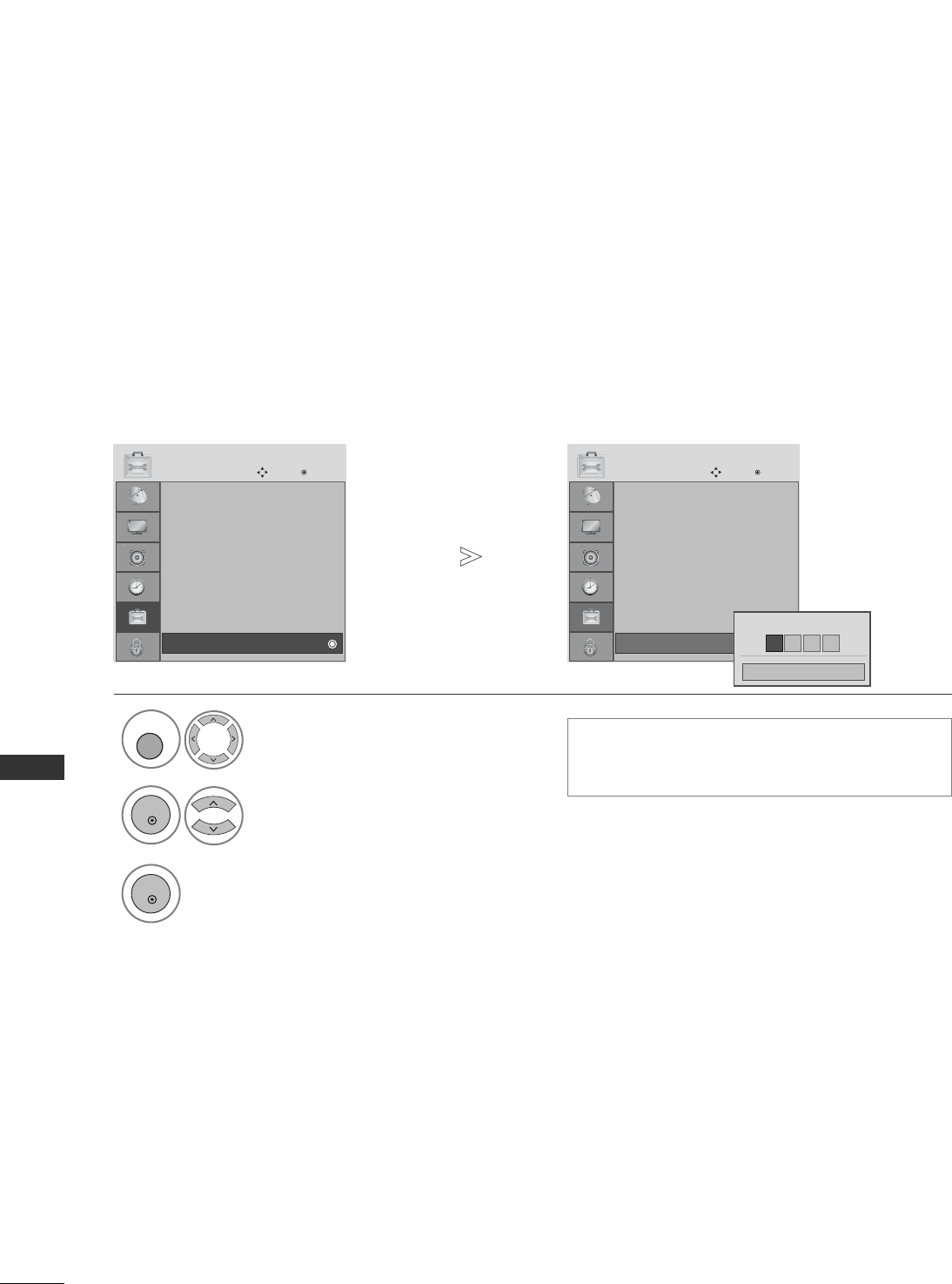
98
APPENDIX
APPENDIX
Country :UK
Input Label
SIMPLINK : On
Key Lock : Off
Set ID
ISM Method : Normal
Power Saving : Level 0
Factory Reset
OPTION
Move OK
D
Factor y Reset
This function operates in current mode.
To initialize the adjusted value.
When the Lock System menu is “On”, the message to enter the password appears.
Initializing
(Reset to original factory settings)
1Select OPTION.
2Select Factory Reset.
3
Country :UK
Input Label
SIMPLINK : On
Key Lock : Off
Set ID
ISM Method : Normal
Power Saving : Level 0
Factory Reset
OPTION
Move OK
D
Factor y Reset
Enter Password
** * *
Cancel
• In Lock System “On”, if you forget your
password, press ‘7’, ‘7’, ‘7’, ‘7’ on the remote
control handset.
MENU
OK
OK
• Press the MENU button to return to normal TV viewing.
• Press the RETURN button to move to the previous menu screen.
99
APPENDIX
No picture &No sound
No or poor colour
or poor picture
Poor reception on
some channels
Lines or streaks
in pictures
No picture
when connecting HDMI
Horizontal/vertical bars
or picture shaking
Picture appears slowly
after switching on
ACheck whether the TV is switched on.
ATry another channel. The problem may be with the broadcast.
AIs the power cord inserted correctly into the mains?
ACheck your antenna direction and/or location.
ATest the mains outlet by plugging another TV into the same outlet.
AThis is normal, the image is muted during the TV startup process. Please contact
your service centre, if the picture has not appeared after five minutes.
AAdjust Colour in menu option.
AAllow a sufficient distance between the TV and the VCR.
ATry another channel. The problem may be with the broadcast.
AAre the video cables installed properly?
AActivate any function to restore the brightness of the picture.
ACheck for local interference such as an electrical appliance or power tool.
AStation or cable channel experiencing problems, tune to another station.
AStation signal is weak, reposition the antenna to receive weaker stations.
ACheck for sources of possible interference.
ACheck antenna (Change the position of the antenna).
ACheck HDMI cable over version 1.3.
If the HDMI cables don’t support HDMI version 1.3, it can cause flickers or no
screen display. In this case use the latest cables that support HDMI version 1.3.
TROUBLESHOOTING
TThhee TTVV ddooeess nnoott ooppeerraattee pprrooppeerrllyy..
The remote control
does not work
Power is suddenly
turned off
ACheck to see if there is any object between the TV and the remote control causing
an obstruction. Ensure you are pointing the remote control directly at the TV.
AEnsure that the batteries are installed with correct polarity (+ to +, - to -).
AEnsure that the correct remote operating mode is set: TV, VCR etc.
AInstall new batteries.
AIs the sleep timer set?
ACheck the power control settings. Has the Power supply been interrupted.
AIs Auto sleep activated on this station?
TThhee vviiddeeoo ffuunnccttiioonn ddooeess nnoott wwoorrkk..
100
APPENDIX
APPENDIX
TThhee aauuddiioo ffuunnccttiioonn ddooeess nnoott wwoorrkk..
TThheerree iiss aa pprroobblleemm iinn PPCC mmooddee.. ((OOnnllyy PPCC mmooddee aapppplliieedd))
APress the VOLUME button.
ASound muted? Press MUTE button.
ATry another channel. The problem may be with the broadcast.
AAre the audio cables installed properly?
AAdjust Balance in menu option.
AA change in ambient humidity or temperature may result in an unusual noise
when the TV is switched on or off and does not indicate a fault with the TV.
ACheck HDMI cable over version 1.3.
ACheck USB cable over version 2.0.
Picture OK & No sound
Unusual sound from
inside the TV
No sound when
connecting HDMI or
USB
No output from one
of the speakers
AAdjust resolution, horizontal frequency or vertical frequency.
ACheck the input source.
AUse Auto configure or adjust clock, phase or H/V position. (Option)
ACheck the signal cable.
AReinstall the PC video card.
The signal is out of range
(Invalid format)
Screen colour is unstable
or single colour
Vertical bar or stripe on
background &
Horizontal Noise &
Incorrect position
*This feature is not available for all models.
101
APPENDIX
MAINTENANCE
Early malfunctions can be prevented. Careful and regular cleaning can prolong the life of your new TV.
Caution: Be sure to switch the power off and unplug the power cord before you begin any cleaning.
Cleaning the Screen
A good way to keep the dust off your screen for a while is to wet a soft cloth in a mixture of lukewarm water
and a little fabric softener or dish washing detergent. Wring the cloth until it is almost dry, and then use it
to wipe the screen.
Ensure there is no excess water on the screen. Allow any water or dampness to evaporate before switching on.
Cleaning the Cabinet
ATo remove dirt or dust, wipe the cabinet with a soft, dry, lint-free cloth.
ADo not to use a wet cloth.
Extended Absence
GIf you expect to leave your TV dormant for prolonged periods (such as a holiday), unplug the power
cord to protect against possible damage from lightning or power surges.
CAUTION
2
1
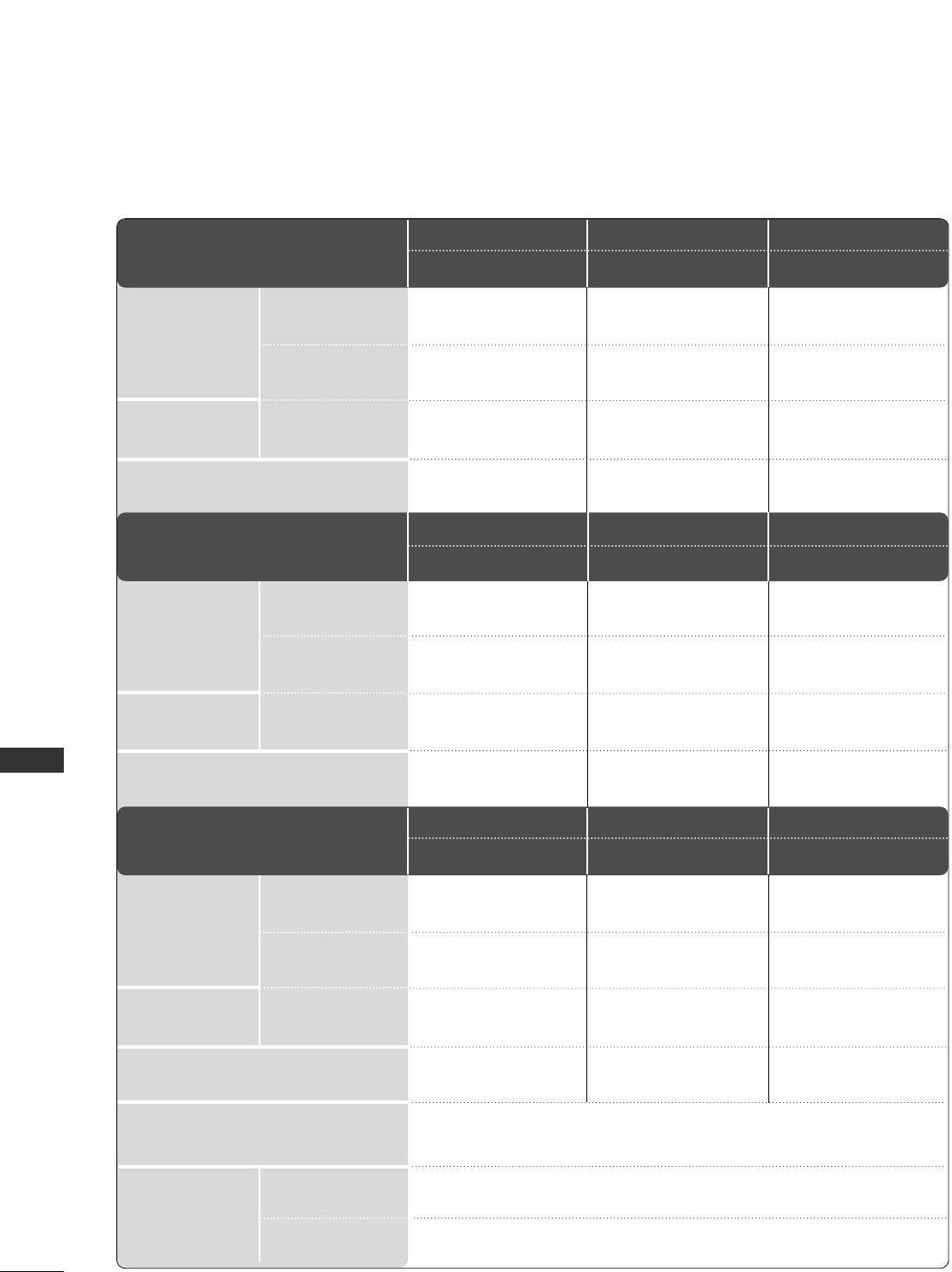
102
APPENDIX
APPENDIX
PRODUCT SPECIFICATIONS
■The specifications shown above may be changed without prior notice for quality improvement.
MODELS
Dimensions
(Width x Height x Depth)
Weight
Operating Temperature
Operating Humidity
Storage Temperature
Storage Humidity
Environment condition
Power requirement
Power Consumption
Television System
Programme Coverage
External Antenna Impedance
PAL/SECAM B/G/D/K, PAL I/II, SECAM L/L’
VHF: E2 ~E12, UHF: E21 ~E69, CATV: S1 ~S20, HYPER: S21 ~S47
75 Ω
0 ~40°C / 32 ~ 104°F
Less than 80%
-20 ~60°C / -4 ~ 140°F
Less than 85%
with stand
without stand
with stand
without stand
1040.0 x 729.0 x 308.0 mm
41.0 x 28.7 x 12.2 inches
1040.0 x 677.0 x 84.0 mm
41.0 x 26.7 x 3.3 inches
26.6 kg / 58.7 lbs
24.6 kg / 54.3 lbs
AC100-240V~50/60Hz 3.1A
310 W
1224.7 x 849.0 x 364.0 mm
48.3 x 33.5 x 14.4 inches
1224.7 x 790.0 x 83.6 mm
48.3 x 31.1 x 3.3 inches
41.5 kg / 91.5 lbs
38.1 kg / 84.0 lbs
AC100-240V~50/60Hz 4.2A
420W
1039.5 x 726.0 x 307.6 mm
41.0 x 28.6 x 12.1 inches
1039.5 x 673.7 x 84.0 mm
41.0 x 26.6 x 3.3 inches
28.0 kg / 61.8 lbs
25.0 kg / 55.1 lbs
AC100-240V~50/60Hz 3.1A
310 W
42PG10**
42PG1000-ZA
50PG10**
50PG1000-ZA
42PG30**
42PG3000-ZA
MODELS
Dimensions
(Width x Height x Depth)
Weight
Power requirement
Power Consumption
with stand
without stand
with stand
without stand
1468 x 1009.1 x 413.9 mm
57.8 x 39.7 x 16.3 inches
1468 x 949.5 x 88.5 mm
57.8 x 37.4 x 3.5 inches
80.6 kg / 177.7 lbs
72.6 kg / 160.1 lbs
AC100-240V~50/60Hz 5.6A
560W
456.8x 396.6x 172.0 mm
18.0 x 15.6 x 6.8 inches
456.8 x 368.5 x 70.5 mm
18.0 x 14.5 x 2.8 inches
5.1 kg / 11.3 lbs
4.6 kg / 10.2 lbs
AC100-240V~50/60Hz 0.8A
50W
525.4 x 441.7x 187.4 mm
20.7 x 17.4 x 7.3 inches
525.4 x 413x 68.6 mm
20.7 x 16.3 x 2.7 inches
6.1 kg / 13.5 lbs
5.7 kg / 12.6 lbs
AC100-240V~50/60Hz 1.0A
60W
60PG30**
60PG3000-ZA
19LS4D*
19LS4D-ZD
22LS4D*
22LS4D-ZD
MODELS
Dimensions
(Width x Height x Depth)
Weight
Power requirement
Power Consumption
with stand
without stand
with stand
without stand
1224.7 x 849 x 364 mm
48.2 x 33.4x 14.3inches
1224.7 x 790 x 86 mm
48.2x 31.1 x 3.4 inches
41.8 kg / 92.2 lbs
37.8kg / 83.3lbs
AC100-240V~50/60Hz 4.2A
420W
1232.0 x 850.0 x 363.6 mm
48.5 x 33.5 x 14.4 inches
1232.0 x 793.0 x 84.0 mm
48.5 x 31.2 x 3.3 inches
42.3 kg / 93.3 lbs
38.3 kg / 84.5 lbs
AC100-240V~50/60Hz 4.2A
420W
1040 x 731.3 x 308 mm
40.9x 28.7 x 12.1 inches
1040 x 677 x 86 mm
40.9 x 26.6 x 3.4 inches
27.3 kg / 60.1 lbs
24.4 kg / 53.8 lbs
AC100-240V~50/60Hz 3.1A
310 W
50PG30**
50PG3000-ZA
42PG20**
42PG2000-ZA
50PG20**
50PG2000-ZA
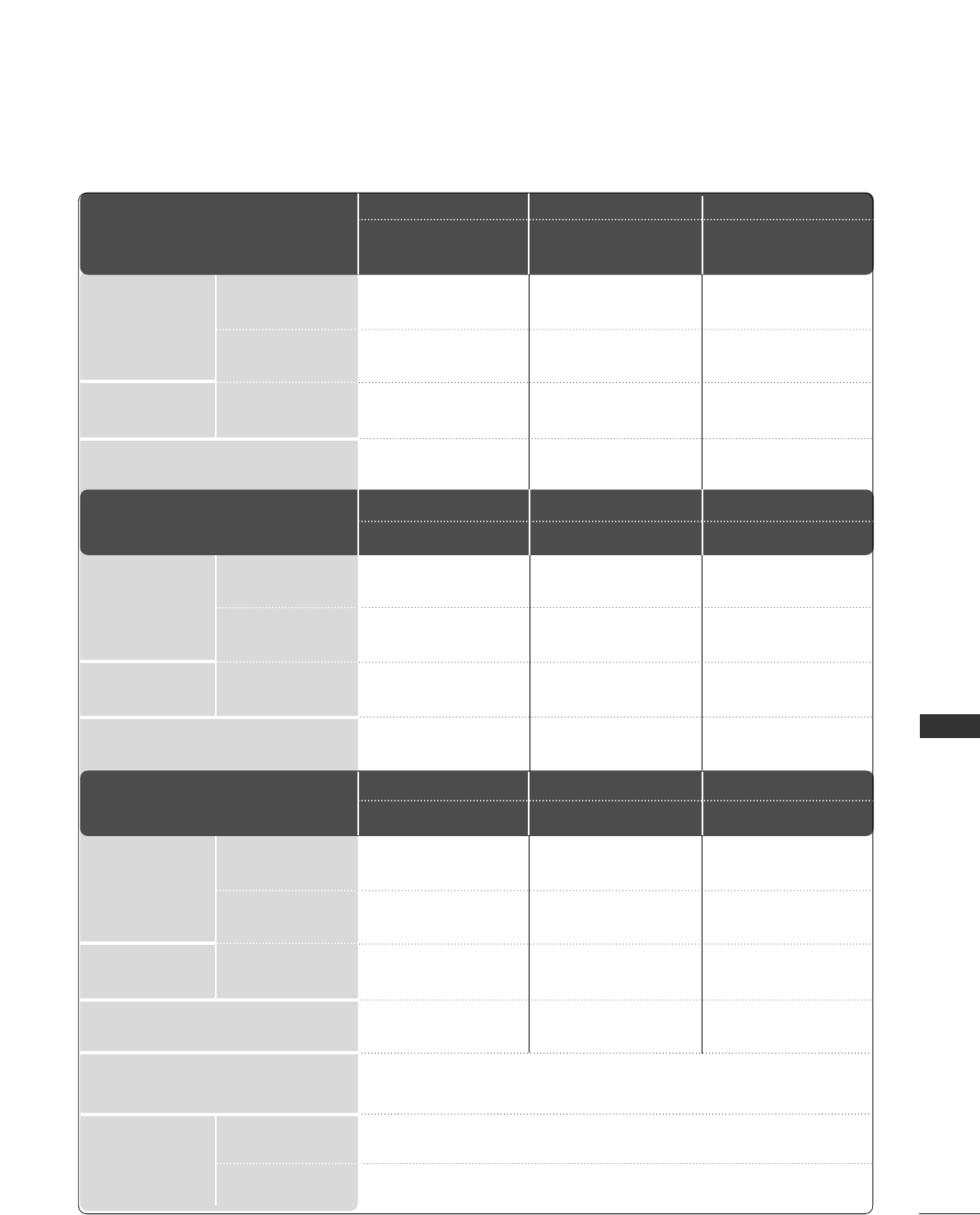
103
APPENDIX
■The specifications shown above may be changed without prior notice for quality improvement.
Operating Temperature
Operating Humidity
Storage Temperature
Storage Humidity
Environment condition
Television System
Programme Coverage
External Antenna Impedance
PAL/SECAM B/G/D/K, PAL I/II, SECAM L/L’
VHF: E2 ~E12, UHF: E21 ~E69, CATV: S1 ~S20, HYPER: S21 ~S47
75 Ω
0 ~40°C / 32 ~ 104°F
Less than 80%
-20 ~60°C / -4 ~ 140°F
Less than 85%
MODELS
Dimensions
(Width x Height x Depth)
Weight
Power requirement
Power Consumption
with stand
without stand
with stand
without stand
458.8 x 391.0 x 189.2 mm
18.1 x 15.4 x 7.5 inches
458.8 x 344.5 x 69.0 mm
18.1 x 13.6 x 2.7 inches
5.02 kg / 11.1 lbs
4.76 kg / 10.5 lbs
AC100-240V~50/60Hz 0.8A
50W
522.2 x 431.5 x 189.0 mm
20.6 x 17.0 x 7.5 inches
522.2 x 384.2 x 69.0 mm
20.6 x 15.2 x 2.7 inches
5.6 kg / 12.4 lbs
5.34 kg / 11.8 lbs
AC100-240V~50/60Hz 0.9A
55W
663.3 x 508.2 x 227.3 mm
26.1 x 20.1 x 9.0 inches
663.3 x 449.8 x 80.0 mm
26.1 x 17.8 x 3.2 inches
10.1 kg / 22.3 lbs
8.6 kg / 19.0 lbs
AC100-240V~50/60Hz 1.2A
120 W
19 LG 30 **
19LG3000-ZA
19LG3050-ZA
19LG3060-ZB
22LG30**
22LG3000-ZA
22LG3050-ZA
22LG3060-ZB
26LG30**
26LG3000-ZA
26LG3050-ZA
MODELS
Dimensions
(Width x Height x Depth)
Weight
Power requirement
Power Consumption
with stand
without stand
with stand
without stand
801.8 x 604.2 x 227.3 mm
31.6 x 23.8 x 9.0 inches
801.8 x 544.1 x 79.0 mm
31.6 x 21.5 x 3.2 inches
13.4 kg / 29.6 lbs
11.9 kg / 26.3 lbs
AC100-240V~50/60Hz 1.5A
150 W
919.6 x 682.3 x 293.8 mm
36.2 x 26.9 x 11.6 inches
919.6 x 610.3 x 89.0 mm
36.2 x 24.0 x 3.5 inches
18.8 kg / 41.5 lbs
16.2 kg / 35.7 lbs
AC100-240V~50/60Hz 1.8A
18 0 W
1032.8 x 742.3 x 293.8 mm
40.7 x 29.3 x 11.6 inches
1032.8 x 670.1 x 92.0 mm
40.7 x 26.4 x 3.7 inches
23.6 kg / 52.1 lbs
21.0 kg / 46.3 lbs
AC100-240V~50/60Hz 2.3A
230W
32LG20**
32LG2000-ZA
37LG20**
37LG2000-ZA
42LG20**
42LG2000-ZA
MODELS
Dimensions
(Width x Height x Depth)
Weight
Power requirement
Power Consumption
with stand
without stand
with stand
without stand
1032.8 x 742.3 x 293.8 mm
40.7 x 29.3 x 11.6 inches
1032.8 x 670.1 x 92.0 mm
40.7 x 26.4 x 3.7 inches
23.6 kg / 52.1 lbs
21.0 kg / 46.3 lbs
AC100-240V~50/60Hz 2.3A
230W
801.8 x 604.2 x 227.3 mm
31.6 x 23.8 x 9.0 inches
801.8 x 544.1 x 79.0 mm
31.6 x 21.5 x 3.2 inches
13.4 kg / 29.6 lbs
11.9 kg / 26.3 lbs
AC100-240V~50/60Hz 1.5A
150 W
919.6 x 682.3 x 293.8 mm
36.2 x 26.9 x 11.6 inches
919.6 x 610.3 x 89.0 mm
36.2 x 24.0 x 3.5 inches
18.8 kg / 41.5 lbs
16.2 kg / 35.7 lbs
AC100-240V~50/60Hz 1.8A
18 0 W
32LG30**
32LG3000-ZA
37LG30 **
37LG3000-ZA
42LG30**
42LG3000-ZA
104
APPENDIX
APPENDIX
■The specifications shown above may be changed without prior notice for quality improvement.
MODELS
Dimensions
(Width x Height x Depth)
Weight
Operating Temperature
Operating Humidity
Storage Temperature
Storage Humidity
Environment condition
Power requirement
Power Consumption
Television System
Programme Coverage
External Antenna Impedance
PAL/SECAM B/G/D/K, PAL I/II, SECAM L/L’
VHF: E2 ~E12, UHF: E21 ~E69, CATV: S1 ~S20, HYPER: S21 ~S47
75 Ω
0 ~40°C / 32 ~ 104°F
Less than 80%
-20 ~60°C / -4 ~ 140°F
Less than 85%
with stand
without stand
with stand
without stand
813.8 x 598.8 x 231.9 mm
32.1 x 23.6 x 9.2 inches
813.8 x 540.4 x 95.5 mm
32.1 x 21.3 x 3.8 inches
14.1 kg / 31.1 lbs
12.6 kg / 27.8 lbs
AC100-240V~50/60Hz 1.5A
1.8A (32LG5600)
150 W
180W (32LG5600)
813.8 x 599.3 x 294.0 mm
32.1 x 23.6 x 11.6 inches
813.8 x 540.4 x 95.5 mm
32.1 x 21.3 x 3.8 inches
14.1 kg / 31.1 lbs
12.6 kg / 27.8 lbs
AC100-240V~50/60Hz 1.8A
18 0 W
936.4 x 685.4 x 293.4 mm
36.9 x 27.0 x 11.6 inches
936.4 x 612.8 x 88.0 mm
36.9 x 24.2 x 3.5 inches
18.3 kg / 40.4 lbs
15.6 kg / 34.4 lbs
AC100-240V~50/60Hz 1.8A
18 0 W
1156.2 x 813.1 x 342.9 mm
45.6 x 32.0 x 13.5 inches
1156.2 x 739.2 x 103.0 mm
45.6 x 29.1 x 4.1 inches
29.2 kg / 64.4 lbs
24.6 kg / 54.3 lbs
AC100-240V~50/60Hz 3.0A
300W
1032.0 x 894.8 x 293.8 mm
40.7 x 35.3 x 11.6 inches
1032.0 x 662.3 x 89.0 mm
40.7 x 26.1 x 3.5 inches
26.2 kg / 57.8 lbs
23.5 kg / 51.8 lbs
AC100-240V~50/60Hz 2.3A
230W
1291.7 x 892.17 x 342.9 mm
50.9 x 35.2 x 13.5 inches
1291.7 x 817.0 x 115.3 mm
50.9 x 32.2 x 4.6 inches
39.5 kg / 87.1 lbs
34.9 kg / 77.0 lbs
AC100-240V~50/60Hz 3.3A
330W
32LG5***
32LG5000-ZA
32LG5010-ZD
32LG5020-ZB
32LG5030-ZE
32LG5600-ZB
37LG50 **
37LG5000-ZA
37LG5010-ZD
37LG5020-ZB
37LG5030-ZE
42LG50**
42LG5000-ZA
42LG5010-ZD
42LG5020-ZB
42LG5030-ZE
MODELS
Dimensions
(Width x Height x Depth)
Weight
Power requirement
Power Consumption
with stand
without stand
with stand
without stand
32LG5***
32LG5700-ZF
47LG50**
47LG5000-ZA
47LG5010-ZD
47LG5020-ZB
47LG5030-ZE
52LG50**
52LG5000-ZA
52LG5010-ZD
52LG5020-ZB
52LG5030-ZE

105
APPENDIX
PROGRAMMING THE REMOTE CONTROL
(Only 19/22/26/32/37/42LG30**, 32/37/42LG20**, 32/37/42/47/52LG5***)
Programming a code into a remote mode
Testing your remote control.
To find out whether your remote control can operate other components without programming, turn on a
component such as a STB and press the corresponding mode button (such as a SSTTBB) on the remote con-
trol, while pointing at the component. Test the POWER and P buttons to see if the component
responds correctly. If the component does not operate correctly, the remote control requires programming
to operate the device.
Switch on the component to be programmed, then press the corresponding mode button (such as SSTTBB)
on the remote control. The remote control button of the desired device is illumintated.
Press the MENU and MUTE buttons simultaneously, the remote control is ready to be programmed with
the code.
Enter a code number using the number buttons on the remote control. Programming code numbers for the
corresponding component can be found on the following pages. If the code is correct, the device will turn
off.
Press the MMEENNUUbutton to store the code.
Test the remote control functions to see if the component responds correctly. If not, repeat from step 2.
The remote control is a multi brand or universal remote. It can be programmed. to operate most remote
controlled devices from other manufacturers.
Note that the remote control may not control all models from other brands.
1
2
3
4
5
6
106
APPENDIX
APPENDIX
Brand Codes Brand Codes Brand Codes
HDSTB
ALPHASTAR DSR 123
AMPLICA 050
BIRDVIEW 051 126 129
CHANNEL MASTER 013 014 015 018
036 055
CHAPARRAL 008 009 012 077
CITOH 054
CURTIS MATHES 050 145
DRAKE 005 006 007 010
011 052 112 116
141
DX ANTENNA 024 046 056 076
ECHOSTAR 038 040 057 058
093 094 095 096
097 098 099 100
122
ELECTRO HOME 089
EUROPLUS 114
FUJITSU 017 021 022 027
133 134
GENERAL INSTRUMENT
003 004 016 029
031 059 101
HITACHI 139 140
HOUSTON TRACKER
033 037 039 051
057 104
HUGHES 068
JANIEL 060 147
JERROLD 061
KATHREIN 108
LEGEND 057
LG 001
LUTRON 132
LUXOR 062 144
MACOM 010 059 063 064
065
MEMOREX 057
NEXTWAVE 028 124 125
NORSAT 069 070
PACE SKY SATELLITE
143
PANASONIC 060 142
PANSAT 121
PERSONAL CABLE 117
PHILIPS 071
PICO 105
PRESIDENT 019 102
PRIMESTAR 030 110 111
PROSAT 072
RCA 066 106
REALISTIC 043 074
SAMSUNG 123
SATELLITE SERVICE CO
028 035 047 057
085
SCIENTIFIC ATLANTA
032 138
SONY 103
STARCAST 041
SUPER GUIDE 020 124 125
TEECOM 023 026 075 087
088 090 107 130
137
TOSHIBA 002 127
UNIDEN 016 025 042 043
044 045 048 049
078 079 080 086
10 135 136
VIEWSTAR 115
WINEGARD 128 146
ZENITH 081 082 083 084
091 120
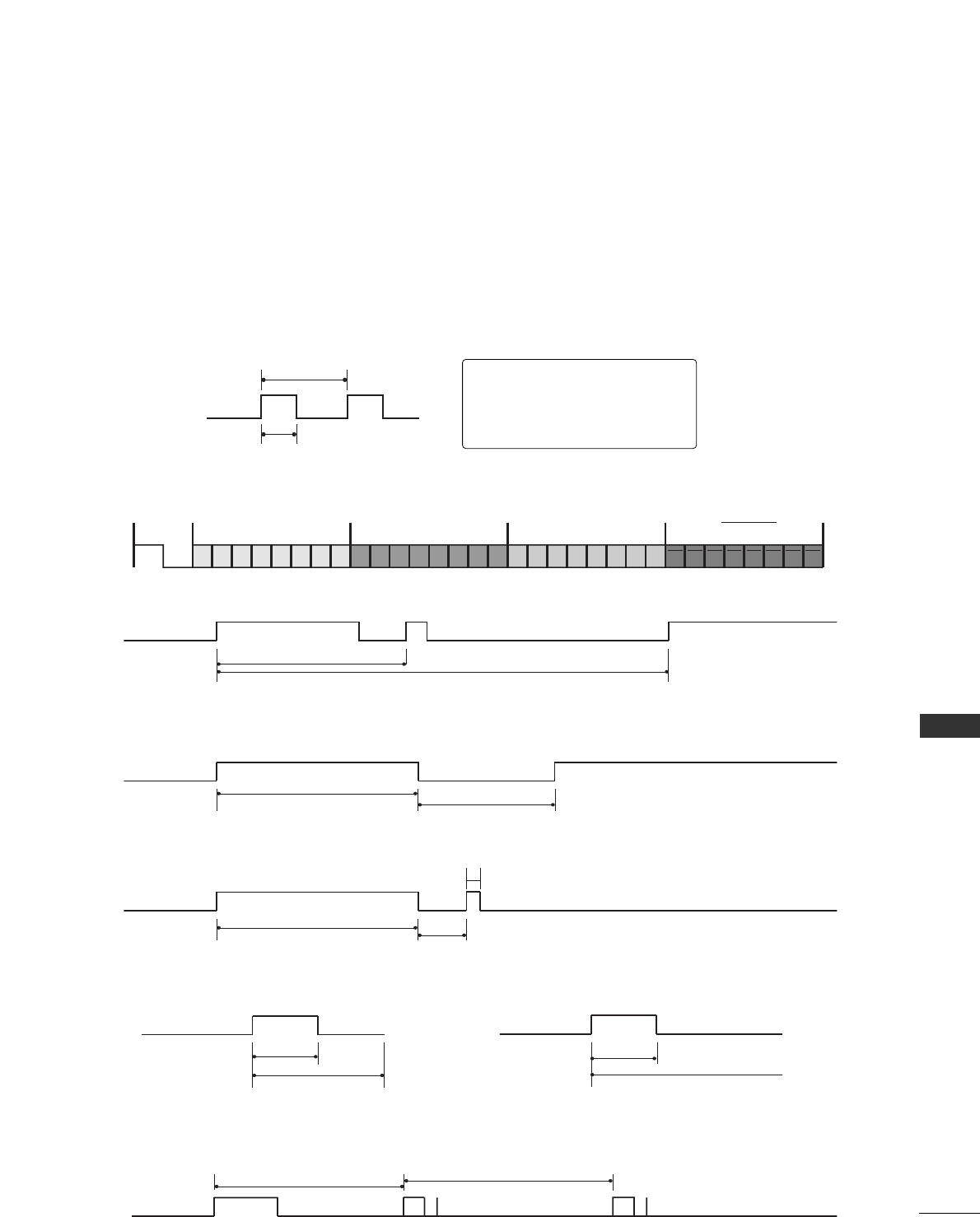
107
APPENDIX
IR CODES
A
Configuration of frame
1st frame
Repeat frame
A
Lead code
A
Repeat code
ABBiitt ddeessccrriippttiioonn
AFFrraammee iinntteerrvvaall:: TTff
The waveform is transmitted as long as a key is depressed.
C0 C1 C2 C3 C4 C5 C6 C7 C0 C1 C2 C3 C4 C5 C6 C7 D0 D1 D2 D3 D4 D5 D6 D7 D0 D1 D2 D3 D4 D5 D6 D7
Lead code Low custom code High custom code Data code Data code
Repeat code Tf
4.5 ms
9 ms
2.25 ms
9 ms
0.55 ms
0.56 ms
1.12 ms
0.56 ms
2.24 ms
Tf Tf
Tf=108ms @455KHz
Bit ”0” Bit ”1”
1. How to Connect
AConnect your wired remote control to the Remote Control port on the TV.
2. Remote Control IR Codes
A
Output waveform
Single pulse, modulated with 37.917KHz signal at 455KHz
T1
Tc
Carrier frequency
FCAR = 1/TC = fOSC/12
Duty ratio = T1/TC = 1/3
108
APPENDIX
APPENDIX
CCooddee ((HHeexxaa))FFuunnccttiioonnNNoottee
POWER
INPUT
TV/RADIO
Q.MENU
MENU
GUIDE
Left ( or F)
Right ( or G)
Up ( or D)
Down ( or E)
OK( )
RETURN
INFO i
AV MODE
VOL ++ ((or ++)
VOL -- ((or --)
P (or (PR + or P +))
P (or (PR - or P -))
FAV
MUTE
Number Key 0~9
LIST
Q.VIEW
RED Key
GREEN Key
YELLOW Key
BLUE Key
TEXT
T.Option
SUBTITLE
Ô(Record)
SIMPLINK
RATIO
I/II
SLEEP
TIME
REVEAL
TV D/A
UPDATE
HOLD
INDEX
R/C BUTTON (POWER ON/OFF)
R/C BUTTON
R/C BUTTON
R/C BUTTON
R/C BUTTON
R/C BUTTON
R/C BUTTON
R/C BUTTON
R/C BUTTON
R/C BUTTON
R/C BUTTON
R/C BUTTON
R/C BUTTON
R/C BUTTON
R/C BUTTON
R/C BUTTON
R/C BUTTON
R/C BUTTON
R/C BUTTON
R/C BUTTON
R/C BUTTON
R/C BUTTON
R/C BUTTON
R/C BUTTON
R/C BUTTON
R/C BUTTON
R/C BUTTON
R/C BUTTON
R/C BUTTON
R/C BUTTON
R/C BUTTON
R/C BUTTON
R/C BUTTON
R/C BUTTON
R/C BUTTON
R/C BUTTON
R/C BUTTON
R/C BUTTON
R/C BUTTON
R/C BUTTON
R/C BUTTON
08
0B
F0
45
43
AB
07
06
40
41
44
28
AA
30
02
03
00
01
1E
09
10 ~19
53
1A
72
71
63
61
20
21
39
BD
7E
79
0A
0E
26
2A
50
62
65
70
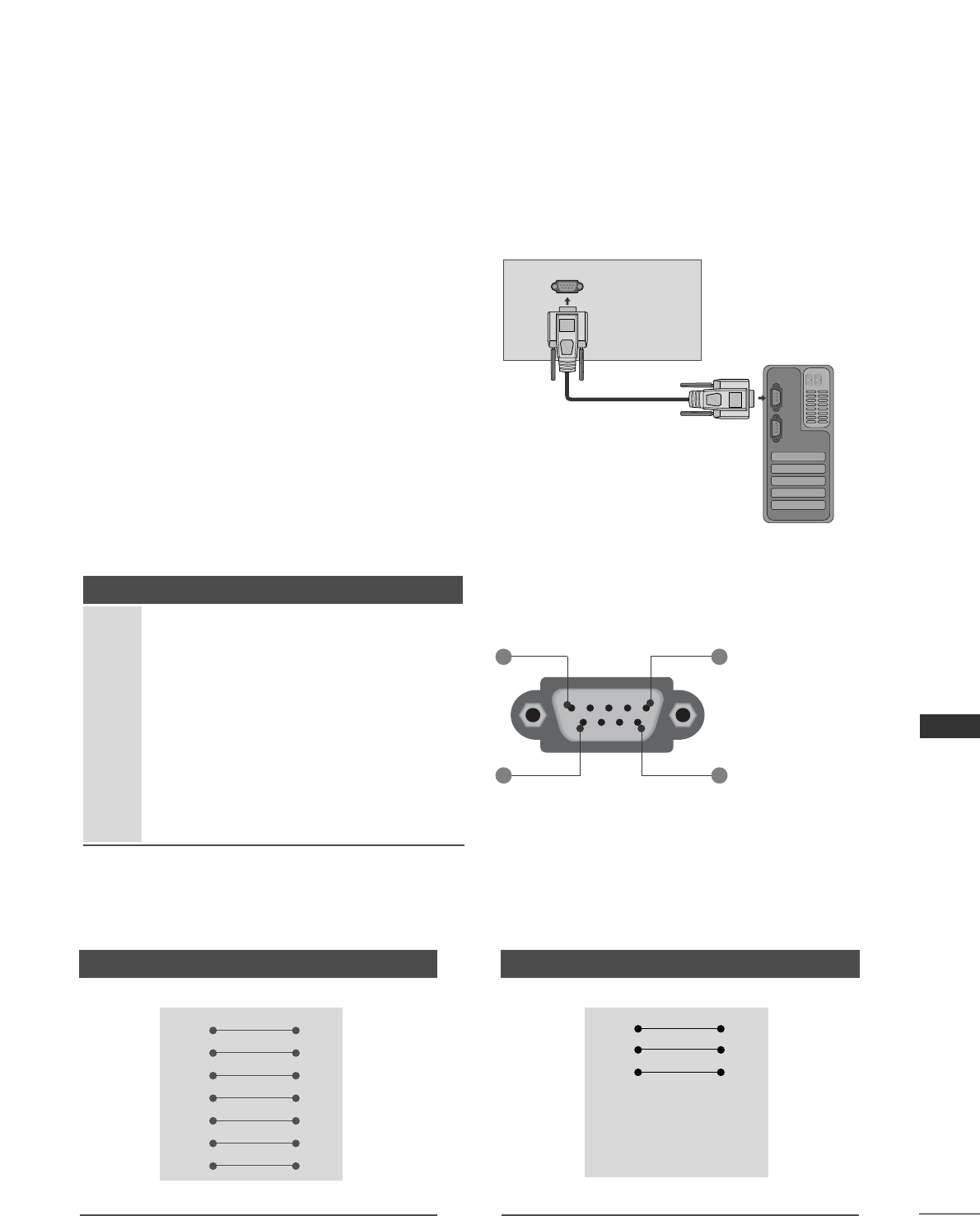
109
APPENDIX
EXTERNAL CONTROL DEVICE SETUP
RS-232C Setup
Connect the RS-232C (serial port) input jack to an
external control device (such as a computer or an
A/V control system) to control the TV’s functions
externally.
Connect the serial port of the control device to the
RS-232C jack on the TV back panel.
Note: RS-232C connection cables are not supplied
with the TV.
Type of Connector; D-Sub 9-Pin Male
No. Pin Name
1 No connection
2 RXD (Receive data)
3 TXD (Transmit data)
4 DTR (DTE side ready)
5 GND
6 DSR (DCE side ready)
7 RTS (Ready to send)
8 CTS (Clear to send)
9 No Connection
RS-232C IN
(CONTROL & SERVICE)
1 5
6 9
RS-232C Configurations
7-Wire Configurations (Standard RS-232C cable)
PC TV
RXD 2 3 TXD
TXD 3 2 RXD
GND 5 5 GND
DTR 4 6 DSR
DSR 6 4 DTR
RTS 7 8 CTS
CTS 8 7 RTS
D-Sub 9 D-Sub 9
3-Wire Configurations(Not standard)
PC TV
RXD 2 3 TXD
TXD 3 2 RXD
GND 5 5 GND
DTR 4 6 DTR
DSR 6 4 DSR
RTS 7 7 RTS
CTS 8 8 CTS
D-Sub 9 D-Sub 9
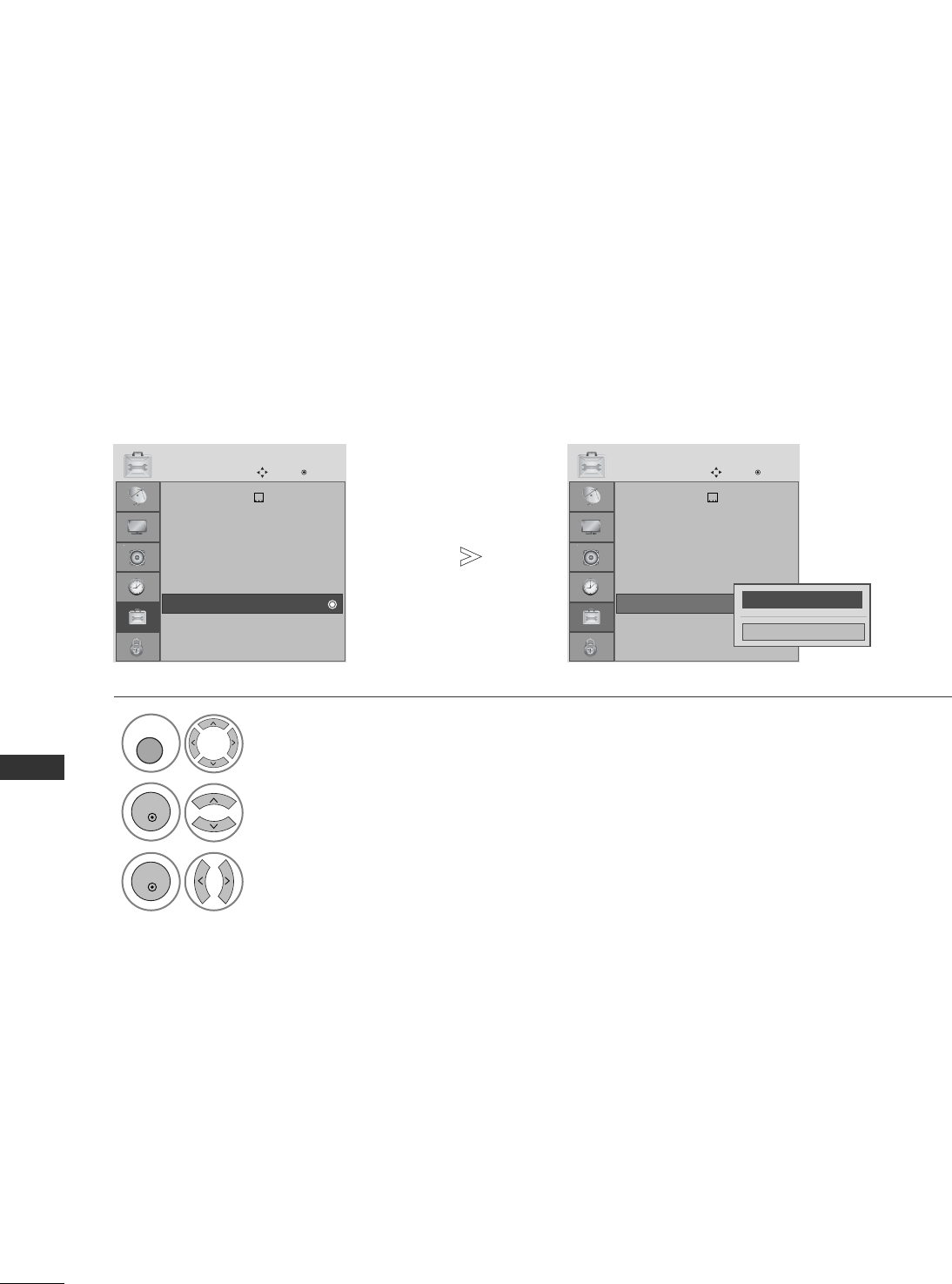
110
APPENDIX
APPENDIX
Use this function to specify a set ID number.
Refer to ‘Real Data Mapping’. G pp..111144
Set ID
Select OPTION.
2Select Set ID.
3adjust SSeett IIDDto choose the desired TV ID number.
The adjustment range of SET ID is 1~99.
1
Hard of Hearing()
Country :UK
Input Label
SIMPLINK : On
Key Lock : Off
Set ID
Power Indicator
Factory Reset
OPTION
Move OK
D
Set ID
Hard of Hearing()
Country :UK
Input Label
SIMPLINK : On
Key Lock : Off
Set ID
Power Indicator
Factory Reset
OPTION
Move OK
D
Set ID
FF
1
GG
Close
MENU
OK
OK
• Press the RETURN button to move to the previous menu screen.

111
APPENDIX
01. Power k a 00 ~01
02. Aspect Ratio k c Refer to p. 112
03. Screen Mute k d 00 ~01
04. Volume Mute k e 00 ~01
05. Volume Control k f 00 ~64
06. Contrast k g 00 ~64
07. Brightness k h 00 ~64
08. Colour k i 00 ~64
09. Tint k j 00 ~64
10. Sharpness k k 00 ~64
11. OSD Select k l 00 ~01
12.
Remote control lock mode
k m 00 ~01
13. Balance k t 00 ~64
14.
Colour Temperature
k u 00 ~02
15. Abnormal Status k z 00 ~09
16.
ISM Method
j p Refer to p. 114
17. Power Saving j q 00 ~04
18. Auto Configure j u 01
19. Equalize j v Refer to p. 114
20.
Tune Command
m a Refer to p. 114
21.
Channel Add/Skip
m b 00 ~01
22. Key m c Key Code
23. Control Back Light m g 00 ~64
24. Input select (Main) x b Refer to p. 115
Communication Parameters
ABaud rate : 9600 bps (UART)
AData length : 8 bits
AParity : None
AStop bit : 1 bit
ACommunication code : ASCII code
AUse a crossed (reverse) cable.
Transmission
* [Command 1] : First command to control the TV.
(j, k, m or x)
* [Command 2] : Second command to control the TV.
* [Set ID] : You can adjust the set ID to choose
desired monitor ID number in option
menu. Adjustment range is 1 ~99.
When selecting Set ID ‘0’, every
connected set is controlled.
Set ID is indicated as decimal (1~99)
on menu and as Hexa decimal
(0x0~0x63) on transmission/
receiving protocol.
* [DATA] : To transmit command data.
Transmit ‘FF’ data to read status of
command.
* [Cr] : Carriage Return
ASCII code ‘0x0D’
* [ ] : ASCII code ‘space (0x20)’
[Command1][Command2][ ][Set ID][ ][Data][Cr]
OK Acknowledgement
* The TV transmits ACK (acknowledgement) based on
this format when receiving normal data. At this time, if
the data is data read mode, it indicates present status
data. If the data is data write mode, it returns the data
of the PC computer.
[Command2][ ][Set ID][ ][OK][Data][x]
Error Acknowledgement
* The TV transmits ACK (acknowledgement) based on
this format when receiving abnormal data from
nonviable functions or communication errors.
[Command2][ ][Set ID][ ][NG][Data][x]
Transmission / Receiving ProtocolCommand Reference List
*When setting the 15 ~24, a menu does not appear on screen.
COMMAND
1
COMMAND
2
DATA
(Hexadecimal)

112
APPENDIX
APPENDIX
0088.. CCoolloouurr ((CCoommmmaanndd:: kk ii))
GTo adjust the screen colour.
You can also adjust colour in the PICTURE menu.
Transmission
Data Min : 00 ~Max : 64
* Refer to ‘Real data mapping 1’. See page 114.
[k][i][ ][Set ID][ ][Data][Cr]
Ack
[i][ ][Set ID][ ][OK/NG][Data][x]
0044.. VVoolluummee MMuuttee ((CCoommmmaanndd:: kk ee))
GTo control volume mute on/off.
You can also adjust mute using the MUTE button on
remote control.
Transmission
Data 00 : Volume mute on (Volume off)
01 : Volume mute off (Volume on)
[k][e][ ][Set ID][ ][Data][Cr]
Ack
[e][ ][Set ID][ ][OK/NG][Data][x]
0022.. AAssppeecctt RRaattiioo ((CCoommmmaanndd:: kk cc)) ((MMaaiinn PPiiccttuurree SSiizzee))
GTo adjust the screen format. (Main picture format)
You can also adjust the screen format using the
AAssppeecctt RRaattiiooin the Q.MENU. or PICTURE menu.
Transmission
Data 01 : Normal screen (4:3)
02 : Wide screen (16:9)
04 : Zoom1
05 : Zoom2
06 : Original
07 : 14:9
09 : Just Scan
[k][c][ ][Set ID][ ][Data][Cr]
Ack
* Using the PC input, you select either 16:9 or 4:3
screen aspect ratio.
* In HDMI/Component (over 720p) mode, Just Scan is
available.
* You can only select Original in UK digital teletext
(MHEG-5).
[c][ ][Set ID][ ][OK/NG][Data][x]
0055.. VVoolluummee CCoonnttrrooll ((CCoommmmaanndd:: kk ff))
GTo adjust volume.
You can also adjust volume with the VOLUME buttons
on remote control.
Transmission
Data Min : 00 ~Max : 64
* Refer to ‘Real data mapping 1’. See page 114.
[k][f][ ][Set ID][ ][Data][Cr]
Ack
[f][ ][Set ID][ ][OK/NG][Data][x]
0066.. CCoonnttrraasstt ((CCoommmmaanndd:: kk gg))
GTo adjust screen contrast.
You can also adjust contrast in the PICTURE menu.
Transmission
Data Min : 00 ~Max : 64
* Refer to ‘Real data mapping 1’. See page 114.
[k][g][ ][Set ID][ ][Data][Cr]
Ack
[g][ ][Set ID][ ][OK/NG][Data][x]
0077.. BBrriigghhttnneessss ((CCoommmmaanndd:: kk hh))
GTo adjust screen brightness.
You can also adjust brightness in the PICTURE menu.
Transmission
Data Min : 00 ~Max : 64
* Refer to ‘Real data mapping 1’. See page 114.
[k][h][ ][Set ID][ ][Data][Cr]
Ack
[h][ ][Set ID][ ][OK/NG][Data][x]
0011.. PPoowweerr ((CCoommmmaanndd:: kk aa))
GTo control Power On/Off of the TV.
Transmission
Data 00 : Power Off 01 : Power On
[k][a][ ][Set ID][ ][Data][Cr]
Ack
[a][ ][Set ID][ ][OK/NG][Data][x]
GTo show Power On/Off.
Transmission
[k][a][ ][Set ID][ ][FF][Cr]
Ack
* Similarly, if other functions transmit ‘0xFF’ data based
on this format, Acknowledgement data feed back pre-
sents status about each function.
* OK Ack. ,Error Ack. and other message maybe display
on the screen when TV is power On.
[a][ ][Set ID][ ][OK/NG][Data][x]
0033.. SSccrreeeenn MMuuttee ((CCoommmmaanndd:: kk dd))
GTo select screen mute on/off.
Transmission
Data 00 : Screen mute off (Picture on)
01 : Screen mute on (Picture off)
[k][d][ ][Set ID][ ][Data][Cr]
Ack
[d][ ][Set ID][ ][OK/NG][Data][x]

113
APPENDIX
1122.. RReemmoottee ccoonnttrrooll lloocckk mmooddee((CCoommmmaanndd:: kk mm))
GTo lock the front panel controls on the monitor and
remote control.
Transmission
[k][m][ ][Set ID][ ][Data][Cr]
Ack
Data 00 : Lock off 01 : Lock on
* If you are not using the remote control, use this mode.
When main power is on/off, external control lock is
released.
[m][ ][Set ID][ ][OK/NG][Data][x]
1111.. OOSSDD SSeelleecctt ((CCoommmmaanndd:: kk ll))
GTo select OSD (On Screen Display) on/off when
controlling remotely.
Transmission
[k][l][ ][Set ID][ ][Data][Cr]
Ack
Data 00 : OSD off 01 : OSD on
[l][ ][Set ID][ ][OK/NG][Data][x]
0099.. TTiinntt ((CCoommmmaanndd:: kk jj))
GTo adjust the screen tint.
You can also adjust tint in the PICTURE menu.
Transmission
Data Red : 00 ~Green : 64
* Refer to ‘Real data mapping 1’. See page 114.
[k][j][ ][Set ID][ ][Data][Cr]
Ack
[j][ ][Set ID][ ][OK/NG][Data][x]
GTo adjust the screen sharpness.
You can also adjust sharpness in the PICTURE menu.
Transmission
1100.. SShhaarrppnneessss ((CCoommmmaanndd:: kk kk))
Data Min : 00 ~Max : 64
* Refer to ‘Real data mapping 1’. See page 114.
[k][k][ ][Set ID][ ][Data][Cr]
Ack
[k][ ][Set ID][ ][OK/NG][Data][x]
1133.. BBaallaannccee ((CCoommmmaanndd:: kk tt))
GTo adjust balance.
You can also adjust balance in the AUDIO menu.
Transmission
Data Min : 00 ~Max : 64
* Refer to ‘Real data mapping 1’. See page 114.
[k][t][ ][Set ID][ ][Data][Cr]
Ack
[t][ ][Set ID][ ][OK/NG][Data][x]
1144.. CCoolloouurr TTeemmppeerraattuurree ((CCoommmmaanndd:: kk uu))
GTo adjust colour temperature. You can also adjust
Colour Temperature in the PICTURE menu.
Transmission
Data 00: Medium 01: Cool 02: Warm
[k][u][ ][Set ID][ ][Data][Cr]
Ack
[u][ ][Set ID][ ][OK/NG][Data][x]
1155.. AAbbnnoorrmmaall SSttaattee ((CCoommmmaanndd:: kk zz))
GTo recognize an abnormal state.
Transmission
Data FF : Read
Data 00: Normal (Power on and signal exist)
01: No signal (Power on)
02: Turn the monitor off by remote control
03: Turn the monitor off by sleep time function
04: Turn the monitor off by RS-232C function
05: 5V down
06: AC down
07: Turn the monitor off by Fan Alarm function
08: Turn the monitor off by Off time function
09: Turn the monitor off by Auto sleep function
a: Turn the monitor off by AV Board detect
* This function is “read only”.
[k][z][ ][Set ID][ ][FF][ ][Cr]
Ack
[z][ ][Set ID][ ][OK/NG][Data][x]
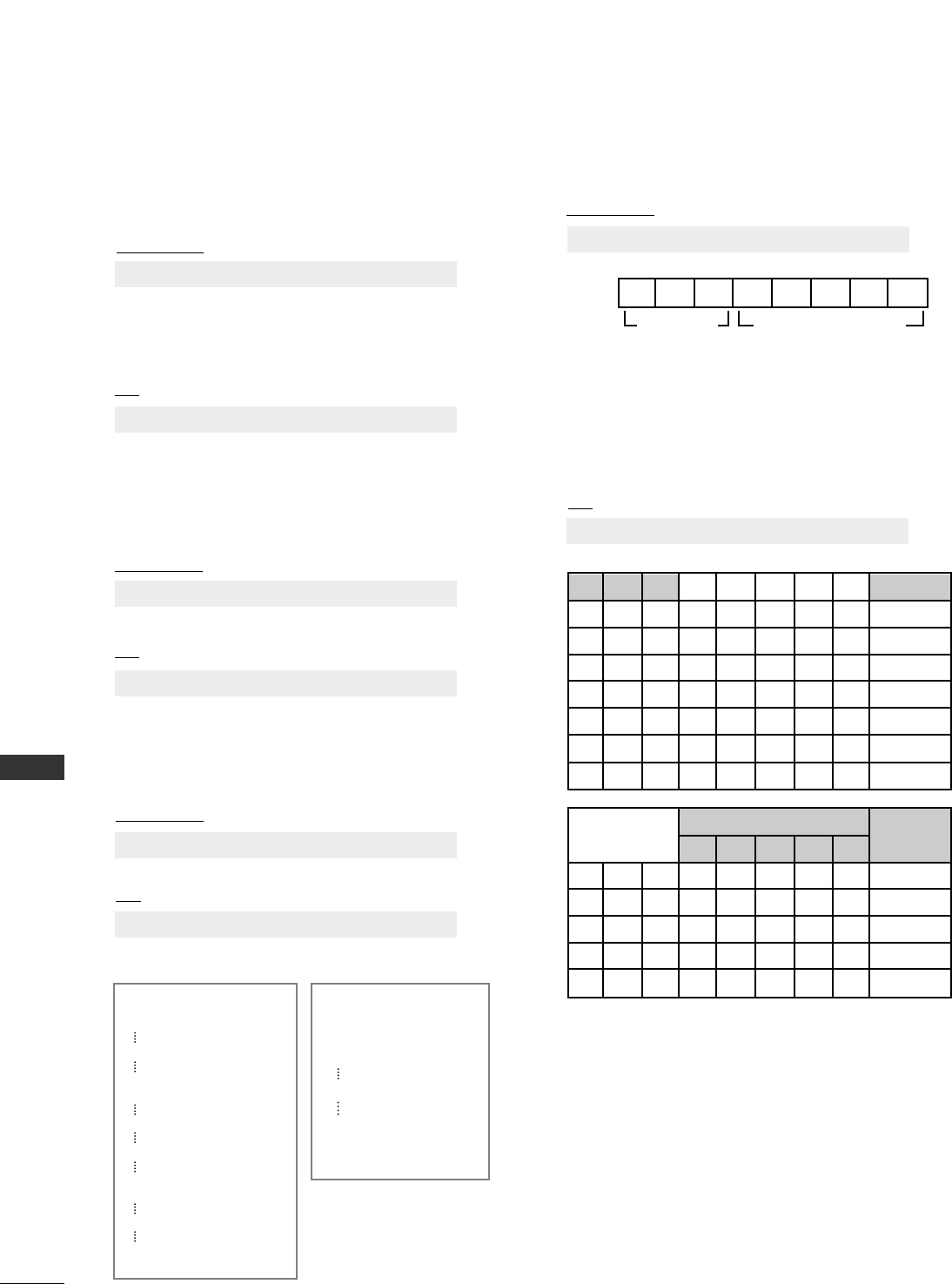
114
APPENDIX
APPENDIX
** RReeaall ddaattaa mmaappppiinngg 11
00 : Step 0
A : Step 10 (Set ID 10)
F : Step 15 (Set ID 15)
10 : Step 16 (Set ID 16)
64 : Step 100
6E : Step 110
73 : Step 115
74 : Step 116
C7: Step 199
FE : Step 254
FF : Step 255
** RReeaall ddaattaa mmaappppiinngg 22
00 :-40
01 : -39
02 :-38
28 : 0
4E : +38
4F : +39
50 : +40
1188.. AAuuttoo CCoonnffiigguurree ((CCoommmmaanndd:: jj uu))
GTo adjust picture position and minimize image shaking
automatically. It works only in RGB (PC) mode.
Transmission
Data 01: To set
[j][u][ ][Set ID][ ][Data][Cr]
Ack
[u][ ][Set ID][ ][OK/NG][Data][x]
Ack
* Euqalize command expression
[v][ ][Set ID][ ][OK/NG][Data][x]
1199.. EEqquuaalliizzee ((CCoommmmaanndd :: jj vv))
GTo adjust equalize.
Transmission
Data :
Frequency : 0 120Hz
1 200Hz
2 500Hz
3 1.2kHz
4 3kHz
5 7.5kHz
6 12kHz
Step (Frequency data):
Refer to ‘Real data mapping 3’. See page 115.
Ex) If you wish to set frequency 500Hz and -20 value on
menu OSD, refer to ‘Real data mapping 3’ and then
find Step value for -20.
010 (500Hz) 00011(Step 3) => 01000011 => 43
(Hexadecimal) : [j][v][ ][Set ID][ ][43][Cr]
* 3 bits of Frequency and 5 bits of Step makes 8 bits (1
byte). Change 8 bits to Hexadecimal code.
MSB LSB
0
[j][v][ ][Set ID][ ][Data][Cr]
0 0 0 0 0 0 0
Frequency Step
1166.. IISSMM MMeetthhoodd ((PPllaassmmaa TTVV oonnllyy))
((CCoommmmaanndd:: jjpp))
GTo control the ISM method. You can also adjust ISM
Method in OPTION menu.
Transmission
[j][p][ ][Set ID][ ][Data][Cr]
Ack
[p][ ][Set ID][ ][OK/NG][Data][x]
Data 01: Inversion
02: Orbiter
04: White wash
08: Normal
1177.. PPoowweerr SSaavviinngg ((PPllaassmmaa TTVV oonnllyy))
((CCoommmmaanndd:: jj qq))
GTo reduce the power consumption of the TV. You can also
adjust Low Power in OPTION menu.
Transmission
Data Min :00 ~ Max :04 (*transmit by hexadecimal code)
[j][q][ ][Set ID][ ][Data][Cr]
Ack
[q][ ][Set ID][ ][OK/NG][Data][x]
001
000
76543210
Frequency
120Hz
200Hz
500Hz
1.2KHz
3KHz
7.5KHz
12KHz
010
011
100
101
110
76543210
00000
01111
.. .. .. .. ..
.. .. .. .. ..
11111
OSD
Value
Step
-24
..
0
..
24
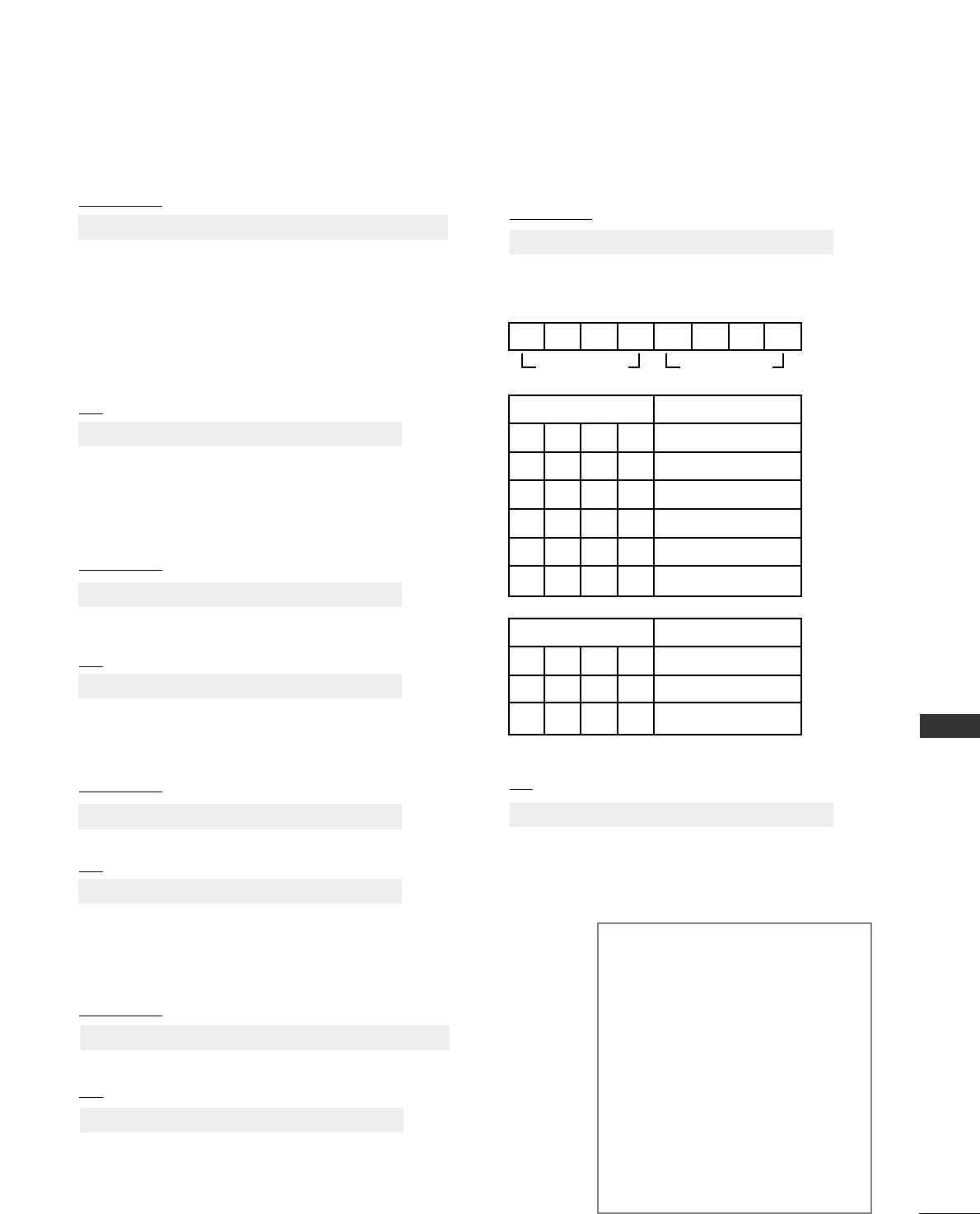
115
APPENDIX
2244.. IInnppuutt sseelleecctt ((CCoommmmaanndd:: xx bb))
((MMaaiinn PPiiccttuurree IInnppuutt))
GTo select input source for main picture.
Transmission
Data Structure
MSB LSB
0
[x][b][ ][Set ID][ ][Data][Cr]
Ack
[b][ ][Set ID][ ][OK/NG][Data][x]
0 0 0 0 0 0 0
External Input Data
0 0 0 1 Analogue
0000 DTV
0010 AV
0 1 0 0 Component
0110 RGB
1 0 0 1 HDMI
External Input Input Number
Input Number Data
0 0 0 0 Input1
0 0 1 0 Input3
0 0 0 1 Input2
2222.. KKeeyy ((CCoommmmaanndd :: mm cc))
GTo send IR remote key code.
Transmission
Data Key code - Refer to page 108.
[m][c][ ][Set ID][ ][Data][Cr]
Ack
[c][ ][Set ID][ ][OK/NG][Data][x]
2233.. CCoonnttrrooll BBaacckk LLiigghhtt ((LLCCDD TTVV oonnllyy))
((CCoommmmaanndd:: mm gg))
GTo Cont rol t he back light.
Transmission
Data : Min: 00 ~Max: 64 (*transmit by hexadecimal code)
[m][g][ ][Set ID][ ][Data][Cr]
Ack
[g][ ][Set ID][ ][OK/NG][Data][x]
2200.. TTuunnee CCoommmmaanndd ((CCoommmmaanndd:: mm aa))
GSelect channel to following physical number.
Transmission
Data 00 : High channel data
Data 01 : Low channel data
ex. No. 47 -> 00 2F (2FH)
No. 394 -> 01 88 (188H),
DTV No. 0 -> Don’t care
Data 02 : 0x00 : ATV, 0x10 : DTV, 0x20 : Radio
Channel data range
Analogue - Min: 00 ~Max: 63 (0~99)
Digital - Min: 00 ~Max: 3E7 (0~999)
[m][a][ ][Set ID][ ][Data0][ ][Data1][ ][Data2][Cr]
Ack
[a][ ][Set ID][ ][OK/NG][Data][x]
Data Min: 00 ~Max: 7DH
2211.. CChhaannnneell AAdddd//SSkkiipp ((CCoommmmaanndd:: mm bb))
GTo set skip status for the current Programme.
Transmission
Data 00 : Skip
01 : Add
[m][b][ ][Set ID][ ][Data][Cr]
Ack
[b][ ][Set ID][ ][OK/NG][Data][x]
SStteepp:: OOSSDD
00 : -24
01 : -23
02 : -21
03 : -20
04 : -18
05 : -16
06 : -15
07 : -13
08 : -12
09 : -10
10 : -8
11 : -7
12 : -5
13 : -4
14 : -2
15 : 0
SStteepp:: OOSSDD
16 : 1
17 : 3
18 : 4
19 : 6
20 : 7
21 : 9
22 : 10
23 : 12
24 : 13
25 : 15
26 : 16
27 : 18
28 : 19
29 : 21
30 : 22
31 : 24
** RReeaall ddaattaa mmaappppiinngg 33 ((EEqquuaalliizzee))