Libre Wireless Technologies LS6-N22S Wireless Audio Module User Manual Copyright 2014 by Libre Wireless Technologies

Libre Wireless Technologies Inc. Wireless Audio Module Copyright 2014 by Libre Wireless Technologies

User manual

Libre Wireless Technologies © 2016  Libre Confidential                User Guide Module : LS6  Rev: 6.0
    LS6 User Guide Libre Wireless Technologies                           User Guide: LS6, Ver. 6.0                                              Page 2 of 81 Libre Confidential Libre Wireless Technologies Private Limited librewireless.com Copyright © 2016 Libre Wireless Technologies. All rights reserved.  Circuit diagrams and other information relating to Libre Wireless Technologies products are included as a means of illustrating typical applications. Consequently, complete information sufficient for construction purposes is not necessarily given. Although the information has been checked and is believed to be accurate, no responsibility is assumed for inaccuracies. Libre Wireless Technologies reserves the right to make changes to specifications and product descriptions at any time without notice. Contact your local Libre Wireless Technologies sales office to obtain the  latest specifications  before placing  your product order. The  provision of  this information does not convey to the purchaser of the described semiconductor devices any licenses under any patent rights or other intellectual property rights of Libre Wireless Technologies or others. All sales are expressly conditional on your agreement to the terms and conditions of the most recently dated version of Libre Wireless Technologies standard Terms of Sale Agreement dated before the date of your order (the "Terms of Sale Agreement"). The product may contain design defects or errors known as anomalies which may cause the product's functions to deviate from published specifications. Anomaly sheets are available upon request. Libre Wireless Technologies products are not designed, intended, authorized or warranted for use in any life support or other application where product failure could cause or contribute to personal injury or severe property damage. Any and all such uses without prior written approval of an Officer of Libre Wireless Technologies and further testing and/or modification will be fully at the risk of the customer. Copies of this document or other Libre Wireless Technologies literature, as well as the Terms of Sale Agreement, may be obtained by visiting Libre Wireless Technologies website.  LIBRE  WIRELESS  TECHNOLOGIES  DISCLAIMS  AND  EXCLUDES  ANY  AND  ALL  WARRANTIES,  INCLUDING WITHOUT  LIMITATION  ANY  AND  ALL  IMPLIED  WARRANTIES  OF  MERCHANTABILITY,  FITNESS  FOR  A PARTICULAR  PURPOSE,  TITLE,  AND  AGAINST  INFRINGEMENT  AND  THE  LIKE,  AND  ANY  AND  ALL WARRANTIES ARISING FROM ANY COURSE OF DEALING OR USAGE OF TRADE. IN NO EVENT SHALL LIBRE WIRELESS TECHNOLOGIES BE LIABLE FOR ANY DIRECT, INCIDENTAL, INDIRECT, SPECIAL, PUNITIVE, OR CONSEQUENTIAL  DAMAGES;  OR  FOR  LOST  DATA,  PROFITS,  SAVINGS  OR  REVENUES  OF  ANY  KIND; REGARDLESS OF THE FORM OF ACTION, WHETHER BASED ON CONTRACT; TORT; NEGLIGENCE OF LIBRE WIRELESS  TECHNOLOGIES    OR  OTHERS;  STRICT  LIABILITY;  BREACH  OF  WARRANTY;  OR  OTHERWISE; WHETHER OR NOT ANY REMEDY OF BUYER IS HELD TO HAVE FAILED OF ITS ESSENTIAL PURPOSE, AND WHETHER OR NOT LIBRE WIRELESS TECHNOLOGIES  HAS BEEN ADVISED OF THE POSSIBILITY OF SUCH DAMAGES
    LS6 User Guide Libre Wireless Technologies                           User Guide: LS6, Ver. 6.0                                              Page 3 of 81 Libre Confidential Table of Contents 1. Introduction ................................................................................................................................. 9 1.1. User Guide Insight ............................................................................................................................. 9 2. Libre Wireless Technologies’ EVK ...................................................................................... 10 2.1. LS6 EVK Setup .................................................................................................................................. 11 3. Firmware Update ..................................................................................................................... 12 3.1. Single-Image Update and Application Update ..................................................................... 13 3.1.1. Network Method ......................................................................................................................... 14 3.1.2. SD-Card / USB Method ............................................................................................................. 16 3.1.3. Internet Method .......................................................................................................................... 17 3.2. BSL Update ........................................................................................................................................ 20 3.2.1. TFTP Method ................................................................................................................................ 21 3.3. U-Boot Update .................................................................................................................................. 23 3.3.1. TFTP Method ................................................................................................................................ 23 4. Configuring Non-Volatile-Item ............................................................................................ 26 5. Key Button Functionality ....................................................................................................... 28 5.1. Setup Button (WAC / SAC / DDMS) ......................................................................................... 28 5.2. LED Status .......................................................................................................................................... 28 6. Network Configuration ........................................................................................................... 29 6.1. Wireless Network Setup Using WAC and SAC ..................................................................... 29 6.1.1. Wireless Network Setup Using WAC .................................................................................. 29 6.1.2. Wireless Network Setup Using SAC (Speaker Android Configuration) Method 30 6.1.3. WAC / SAC Trigger Behaviour in DDMS Mode and Non-DDMS Mode ................... 35 6.2. Wireless Network Setup Using Webserver ........................................................................... 38 6.2.1. Webpage Method........................................................................................................................ 38 6.2.2. LS-Configure Method ................................................................................................................ 40 6.2.3. Manual Configuration Method .............................................................................................. 41 6.3. Wireless Network Setup Using WPS Push-Button Method ............................................ 42
    LS6 User Guide Libre Wireless Technologies                           User Guide: LS6, Ver. 6.0                                              Page 4 of 81 Libre Confidential 6.3.1. WPS Trigger from Command Line ....................................................................................... 42 6.3.2. WPS Trigger from LUCI ............................................................................................................ 43 6.3.3. WPS Trigger from Key Button ............................................................................................... 43 6.4. I-Device Wi-Fi Settings Sharing ................................................................................................. 43 6.5. Know the IP of LS-Modules ......................................................................................................... 44 7. Features ....................................................................................................................................... 46 7.1. Libre APP for Android ................................................................................................................... 46 7.2. DDMS ................................................................................................................................................... 46 7.3. Software Security ............................................................................................................................ 47 7.4. Source Switching ............................................................................................................................. 47 7.5. Failsafe Mechanism ........................................................................................................................ 48 7.6. Autosense of Audio CODEC ......................................................................................................... 48 7.7. AUX-In Support ................................................................................................................................ 48 7.8. Airplay® .............................................................................................................................................. 48 7.8.1. Password for Airplay Playback ............................................................................................. 49 7.9. DLNA ® / DMR .................................................................................................................................. 52 7.10. Miracast .............................................................................................................................................. 53 7.11. SD-Card Playback ............................................................................................................................ 55 7.12. i-Device playback over USB ........................................................................................................ 55 7.13. Favourites .......................................................................................................................................... 56 7.14. USB Playback .................................................................................................................................... 58 7.15. TCP / IP Tunneling ......................................................................................................................... 58 7.16. Wi-Fi Scan Result ............................................................................................................................ 58 7.17. Device Name Configuration ........................................................................................................ 58 7.18. Switch between Wired and wireless modes ......................................................................... 60 7.18.1. Switching to Wired Mode ........................................................................................................ 60 7.18.2. Switching to Wireless Mode ................................................................................................... 61 7.19. Pair / Share credentials ................................................................................................................ 62 7.20. Multiple SSID .................................................................................................................................... 63
    LS6 User Guide Libre Wireless Technologies                           User Guide: LS6, Ver. 6.0                                              Page 5 of 81 Libre Confidential 7.21. Zone Volume. .................................................................................................................................... 63 7.22. Music Services .................................................................................................................................. 63 7.22.1. vTuner ............................................................................................................................................ 63 7.22.2. TuneIn............................................................................................................................................. 65 7.22.3. Melon .............................................................................................................................................. 68 7.22.4. QQ Music ........................................................................................................................................ 68 7.22.5. Spotify ............................................................................................................................................. 71 7.22.6. Deezer ............................................................................................................................................. 74 7.22.7. Tidal ................................................................................................................................................. 76 7.23. Telnet ................................................................................................................................................... 79 8. Appendix ..................................................................................................................................... 80 8.1. Federal Communication Commission Interference Statement ..................................... 80
    LS6 User Guide Libre Wireless Technologies                           User Guide: LS6, Ver. 6.0                                              Page 6 of 81 Libre Confidential Table of Figures Figure 2-1: LS6 EVK (v2.0) Peripherals ....................................................................................... 10 Figure 2-2: LS6 EVK (v3.0) Peripherals ....................................................................................... 11 Figure 3.2.1-1: Firmware Upgrade Method Selection ............................................................ 14 Figure 3.2.1-2: Firmware Update Webpage ............................................................................... 15 Figure 3.2.1-3: Firmware Update Confirmation webpage .................................................... 15 Figure 3.2.1-4: Firmware Update Progress Page ..................................................................... 15 Figure 3.2.1-5: Firmware Update Status ..................................................................................... 16 Figure 3.2.2-1: Firmware Upgrade Method Selection ............................................................ 17 Figure 4.29-1: Sample XML Format ............................................................................................... 18 Figure 3.3.1-1: BSL Update Terminal Warning Message Prompt ....................................... 22 Figure 3.3.1-2: BSL Default IP Address ........................................................................................ 22 Figure 3.4.1-1:  U-Boot Update Terminal Warning Message Prompt ................................ 24 Figure 3.4.1-2: U-Boot Default IP address .................................................................................. 24 Figure 6.1.1-1: WAC Speaker Listed.............................................................................................. 29 Figure 6.1.2-1: Libre App .................................................................................................................. 30 Figure 6.2.1-1: Network Status ....................................................................................................... 38 Figure 6.2.1-2: Network Configuration ........................................................................................ 39 Figure 6.2.1-3: Network Configuration using Static IP ........................................................... 40 Figure 6.2.2-1: Network  Status in Webpage.............................................................................. 41 Figure 6.2.3-1: Configure Network Manually ............................................................................ 42 Figure 6.4.1-1: Wi-Fi settings sharing .......................................................................................... 43 Figure 7.2-1: DDMS Setup in webpage ......................................................................................... 47 Figure 7.7-1: AirPlay Stream ........................................................................................................... 49 Figure 7.7.1-1: Password for Airplay ........................................................................................... 50 Figure 7.7.1-2: Enter Password for Streaming .......................................................................... 51 Figure 7.7.1-3: Disable Airplay Password .................................................................................. 52 Figure 7.8-1: Media Player Stream Menu.................................................................................... 53 Figure 7.8-2: Media Streaming Options ....................................................................................... 53
    LS6 User Guide Libre Wireless Technologies                           User Guide: LS6, Ver. 6.0                                              Page 7 of 81 Libre Confidential Figure 7.9-1: Miracast Enabled Speaker ..................................................................................... 54 Figure 7.16-1: Device Name Section ............................................................................................. 59 Figure 7.17.1-1: Switch to Wired Mode ....................................................................................... 61 Figure 7.17.2-1: Switch to Wi-Fi Mode ......................................................................................... 62 Figure 7.18.1-1: vTuner Browse Screen ...................................................................................... 64 Figure 7.18.1-2: Now Playing Screen for vTuner ..................................................................... 65 Figure 7.18.2-1: TuneIn Browse Screen ...................................................................................... 66 Figure 7.18.2-2: Now Playing Screen for TuneIn ..................................................................... 67 Figure 7.18.4-1: QQ Music APP ....................................................................................................... 69 Figure 7.18.4-1: Login Screen ......................................................................................................... 70 Figure 7.18.4-2: Device Selection Option .................................................................................... 70 Figure 7.18.4-3: Device List ............................................................................................................. 71 Figure 7.18.5-1: Spotify APP ............................................................................................................ 72 Figure 7.18.5-1: Spotify Login Screen .......................................................................................... 73 Figure 7.18.5-2: Device Selection .................................................................................................. 73 Figure 7.18.5-3: Device List ............................................................................................................. 74 Figure 7.18.6-1: Deezer Browse Screen ...................................................................................... 75 Figure 7.18.6-2: Now Playing Screen for Deezer ...................................................................... 76 Figure 7.18.7-1: Tidal Browse Screen .......................................................................................... 77 Figure 7.18.7-2: Now Playing Screen for Tidal .......................................................................... 78
    LS6 User Guide Libre Wireless Technologies                           User Guide: LS6, Ver. 6.0                                              Page 8 of 81 Libre Confidential Document Revision History Revision Date Description of change 5.2 May 15, 2016 Updated Section 4 “Configuring Non-Volatile Items”. Updated Section 7.21.7 “Tidal” 5.3 June 2, 2016 Updated Section 2, Section 4, and Section 5 5.4 June 29, 2016 Updated section 6.2.1 “Webpage Method” 5.5 June 30, 2016 Added Section 7.22 “Telnet” 5.6 July 13, 2016 Updated Section 6.2.1 “Webpage Method” 5.7 July 28, 2016 Added section 7.5 “Failsafe Mechanism” 5.8 August 5, 2016 Updated section 3.1.3 5.9 December 2, 2016 Added FCC information, Section 8.1 6.0 December 14, 2016 Updated Section 3.1.3 “Internet Method” and Added section 6.5
    LS6 User Guide Libre Wireless Technologies                           User Guide: LS6, Ver. 6.0                                              Page 9 of 81 Libre Confidential 1. Introduction Libre Wireless provides evaluation kits (EVK) for users to gain familiarity with our products and expedite their own design and development. User can connect to LS6 module through RS232 UART, SD-Card, USB, or wireless interface to configure the module, manage the on board device on the module, and perform functional test.  1.1. User Guide Insight This document provides information on the procedures to be followed while using LibreSync for various purpose such as  Firmware update  Configuring NV-item  Key Button Functionality  Network Configuration  Streaming Airplay® / DLNA® / DMR  Libre APP  DDMS  Source Switching  SD-Card Playback  Aux-In Support  Miracast  TCP / IP Tunneling  Device Name Configuration  Music Services (Spotify Connect, QQ Music, Vtuner, TuneIn, Melon, Deezer)
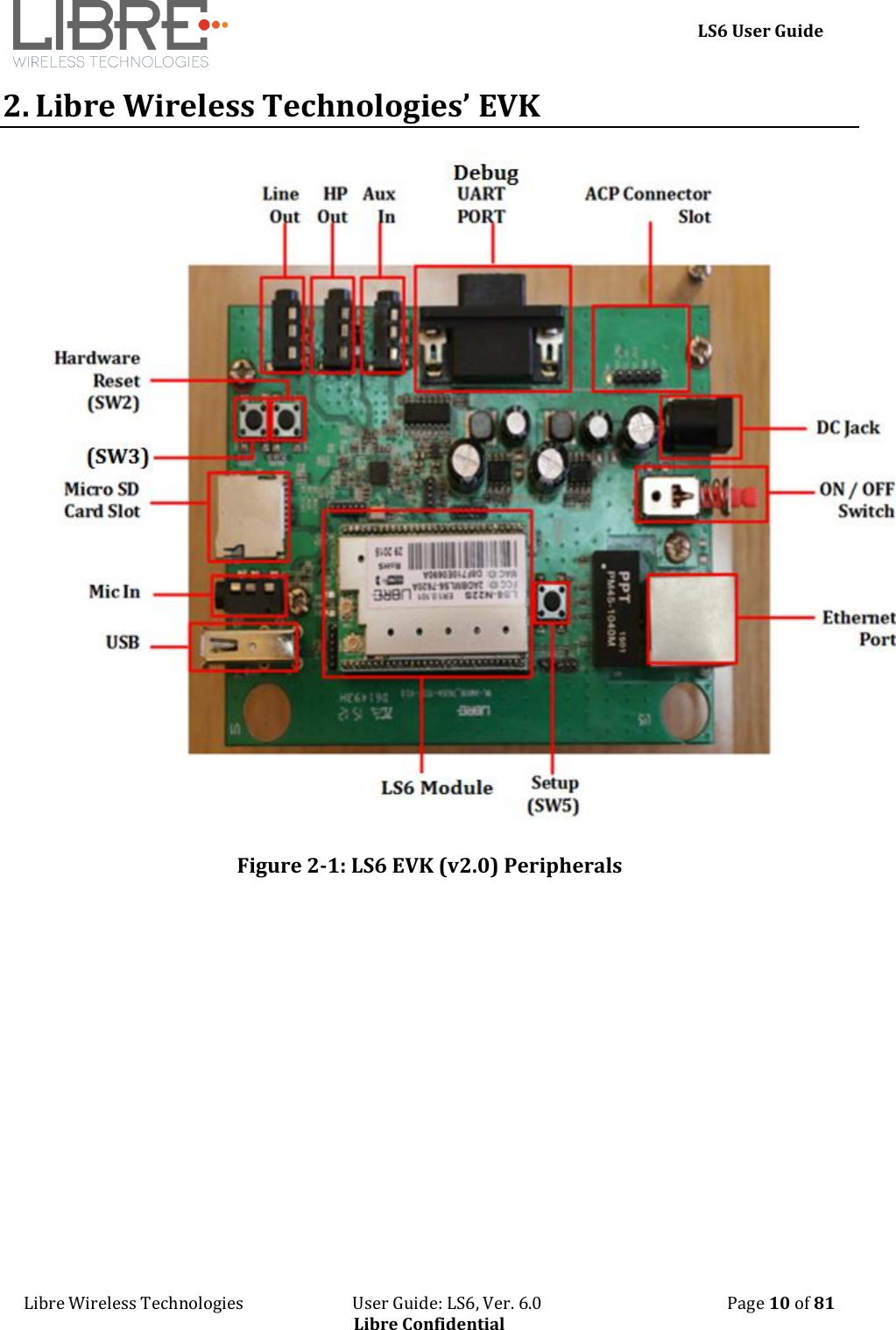
    LS6 User Guide Libre Wireless Technologies                           User Guide: LS6, Ver. 6.0                                              Page 10 of 81 Libre Confidential 2. Libre Wireless Technologies’ EVK  Figure 2-1: LS6 EVK (v2.0) Peripherals
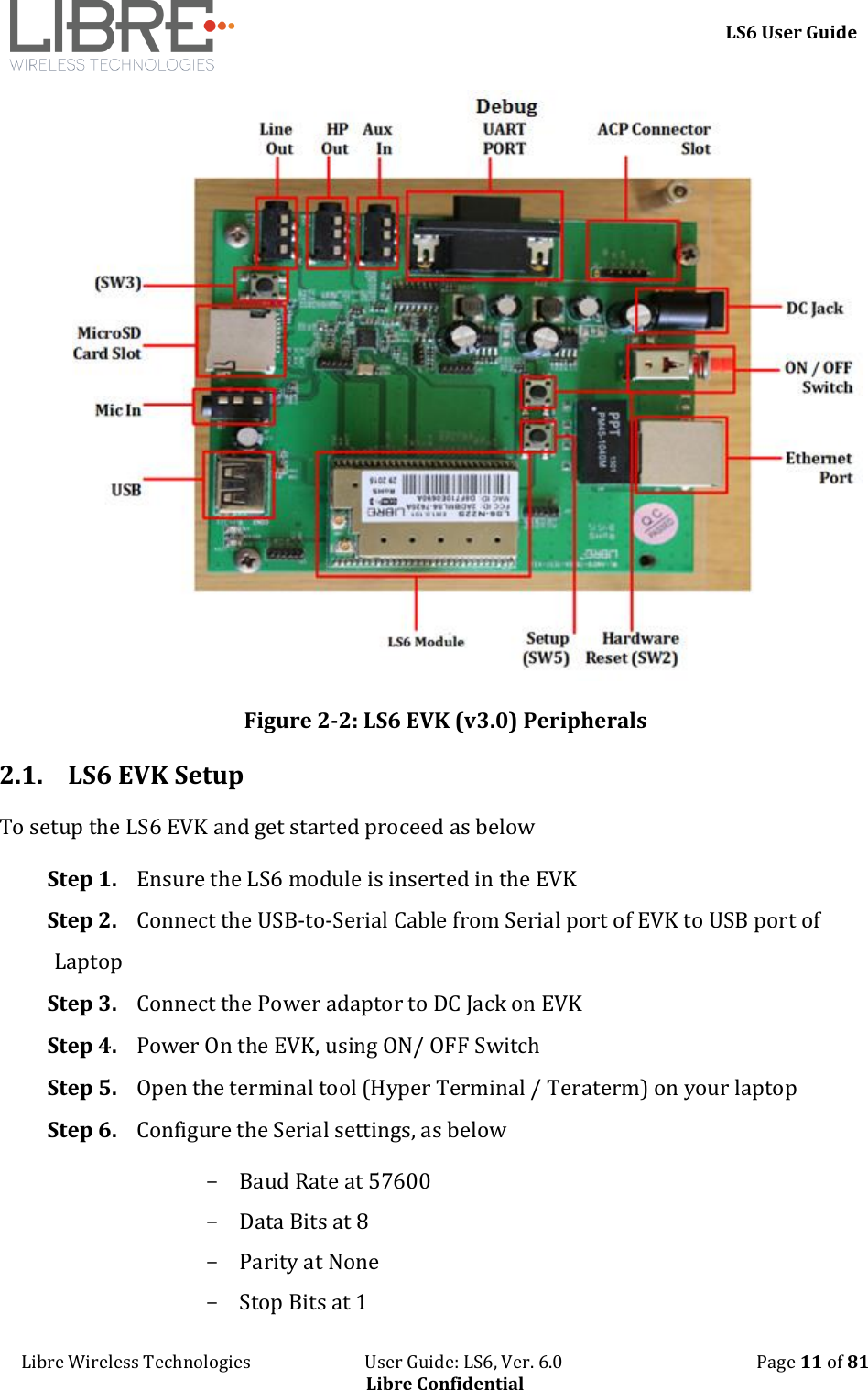
    LS6 User Guide Libre Wireless Technologies                           User Guide: LS6, Ver. 6.0                                              Page 11 of 81 Libre Confidential  Figure 2-2: LS6 EVK (v3.0) Peripherals 2.1. LS6 EVK Setup To setup the LS6 EVK and get started proceed as below Step 1. Ensure the LS6 module is inserted in the EVK Step 2. Connect the USB-to-Serial Cable from Serial port of EVK to USB port of Laptop Step 3. Connect the Power adaptor to DC Jack on EVK Step 4. Power On the EVK, using ON/ OFF Switch Step 5. Open the terminal tool (Hyper Terminal / Teraterm) on your laptop Step 6. Configure the Serial settings, as below            - Baud Rate at 57600 - Data Bits at 8  - Parity at None  - Stop Bits at 1
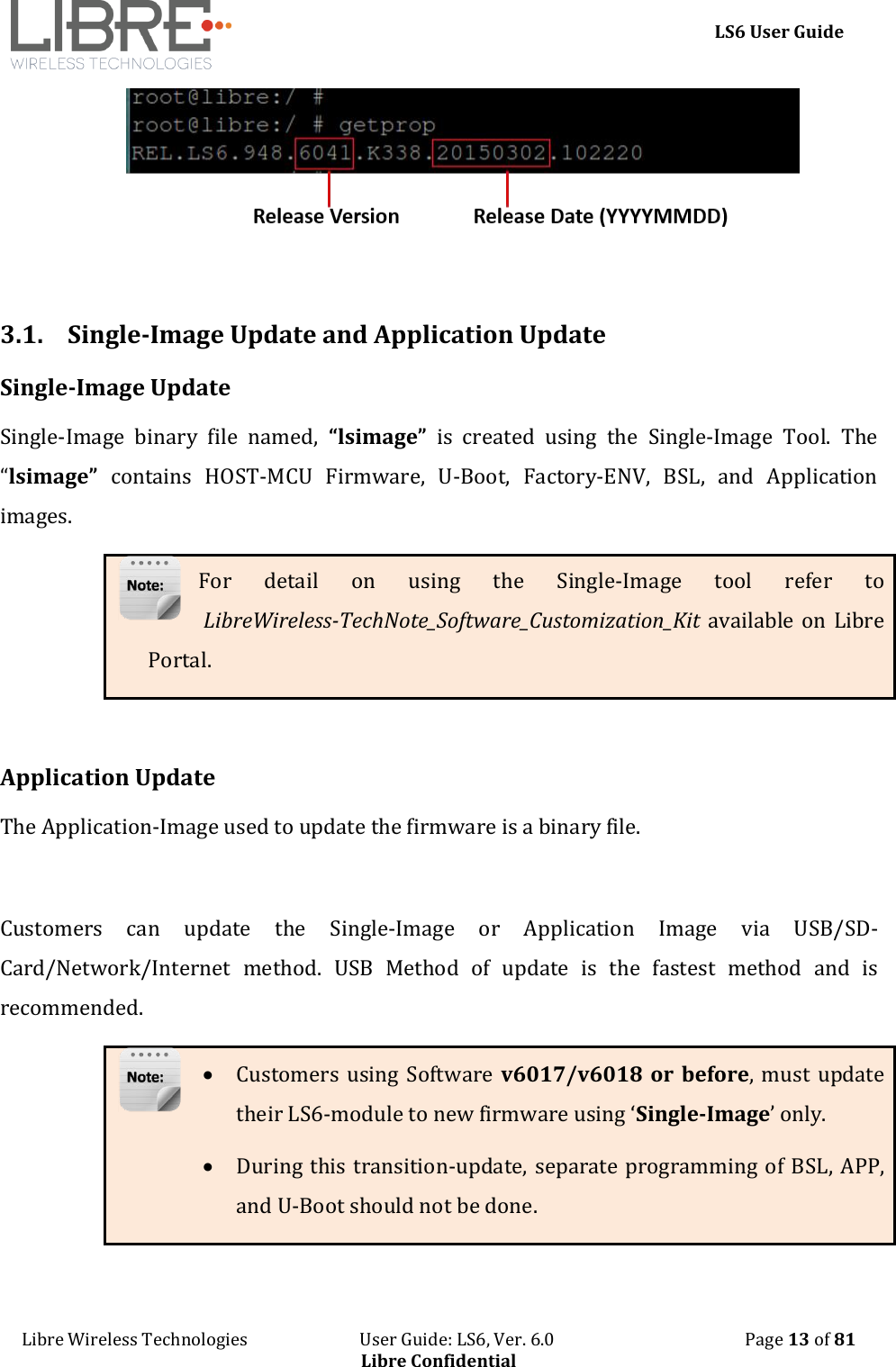
    LS6 User Guide Libre Wireless Technologies                           User Guide: LS6, Ver. 6.0                                              Page 12 of 81 Libre Confidential 3. Firmware Update The  Firmware  Update  process,  facilitates  update  of  U-Boot,  BSL,  and  Application  images individually, or all of them together (Single-Image) to the LS-Module.  LSx Platform supports following Sources of Firmware-Image and Interfaces to trigger the upgrade activity:  Image Source: USB, SD-Card, Network or Internet  Trigger  Interfaces:  Shell-Command/Host  MCU(via  LUCI),  Libre  App,  or Webpage For more details on How to trigger Firmware Upgrade via LUCI, refer to “Light Weight Universal Control Interface Technical Note”  The support for Shell-Command interface to initiate Firmware Upgrade is supported only from LS6 version v6041 and onwards.  For  Customers  using  firmware  version  6076 or  before,  it  is mandatory to do factory reset by issuing command #SetFacDefault in the terminal, after upgrading the firmware v6077 and later.  Make sure devices with firmware version 6076 and before is not present in the same network as that of devices with Firmware version 6079 and later.    While  using  the  latest  Libre  APP  (Android  v1p25,  iOS  v1p3  or  later), released along  with  firmware  version  6079,  Do  not use Libre APP  that supports firmware version 6077 or before.  To know the firmware version and Release date, execute the following command “#getprop” in the shell:
    LS6 User Guide Libre Wireless Technologies                           User Guide: LS6, Ver. 6.0                                              Page 13 of 81 Libre Confidential   3.1. Single-Image Update and Application Update Single-Image Update Single-Image  binary  file  named,  “lsimage”  is  created  using  the  Single-Image  Tool.  The “lsimage”  contains  HOST-MCU  Firmware,  U-Boot,  Factory-ENV,  BSL,  and  Application images. For  detail  on  using  the  Single-Image  tool  refer  to  LibreWireless-TechNote_Software_Customization_Kit available  on Libre Portal.   Application Update The Application-Image used to update the firmware is a binary file.   Customers  can  update  the  Single-Image  or  Application  Image  via  USB/SD-Card/Network/Internet  method.  USB  Method  of  update  is  the  fastest  method  and  is recommended.   Customers using Software v6017/v6018  or before, must update their LS6-module to new firmware using ‘Single-Image’ only.  During this transition-update, separate programming of BSL, APP, and U-Boot should not be done.
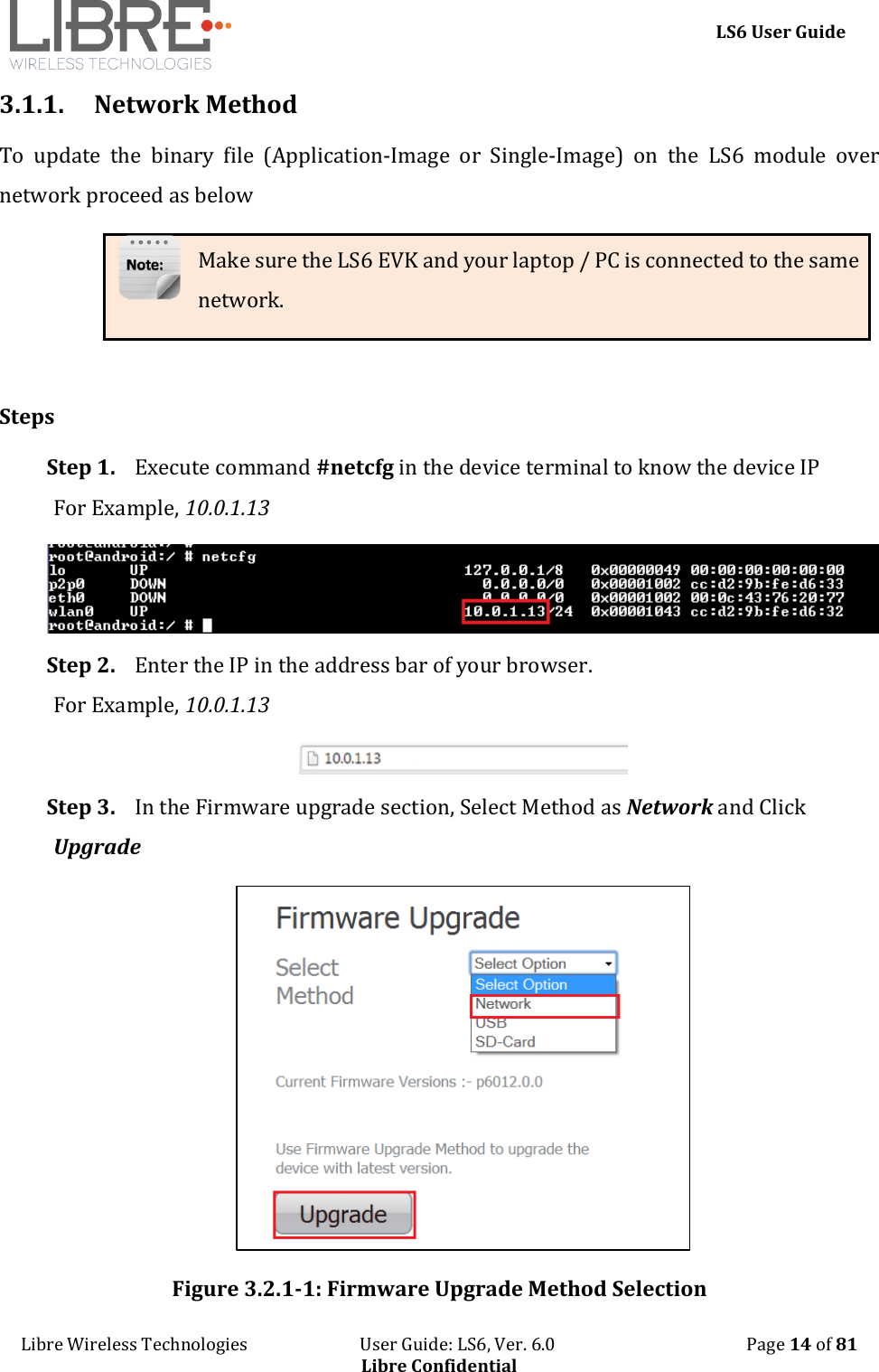
    LS6 User Guide Libre Wireless Technologies                           User Guide: LS6, Ver. 6.0                                              Page 14 of 81 Libre Confidential 3.1.1. Network Method To  update  the  binary  file  (Application-Image  or  Single-Image)  on  the  LS6  module  over network proceed as below Make sure the LS6 EVK and your laptop / PC is connected to the same network.  Steps Step 1. Execute command #netcfg in the device terminal to know the device IP For Example, 10.0.1.13  Step 2. Enter the IP in the address bar of your browser. For Example, 10.0.1.13  Step 3. In the Firmware upgrade section, Select Method as Network and Click Upgrade  Figure 3.2.1-1: Firmware Upgrade Method Selection
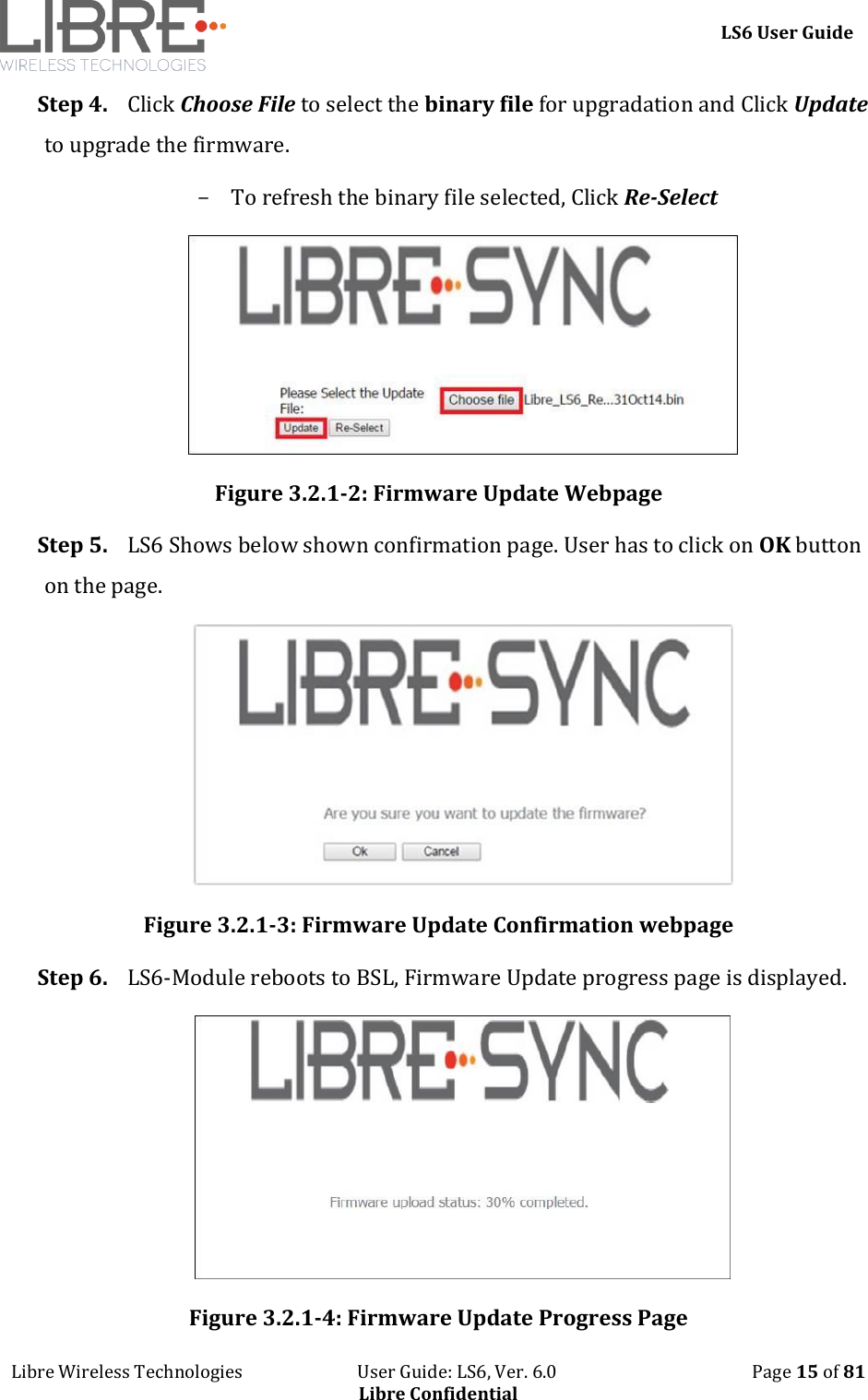
    LS6 User Guide Libre Wireless Technologies                           User Guide: LS6, Ver. 6.0                                              Page 15 of 81 Libre Confidential Step 4. Click Choose File to select the binary file for upgradation and Click Update to upgrade the firmware. - To refresh the binary file selected, Click Re-Select  Figure 3.2.1-2: Firmware Update Webpage Step 5. LS6 Shows below shown confirmation page. User has to click on OK button on the page.  Figure 3.2.1-3: Firmware Update Confirmation webpage Step 6. LS6-Module reboots to BSL, Firmware Update progress page is displayed.  Figure 3.2.1-4: Firmware Update Progress Page
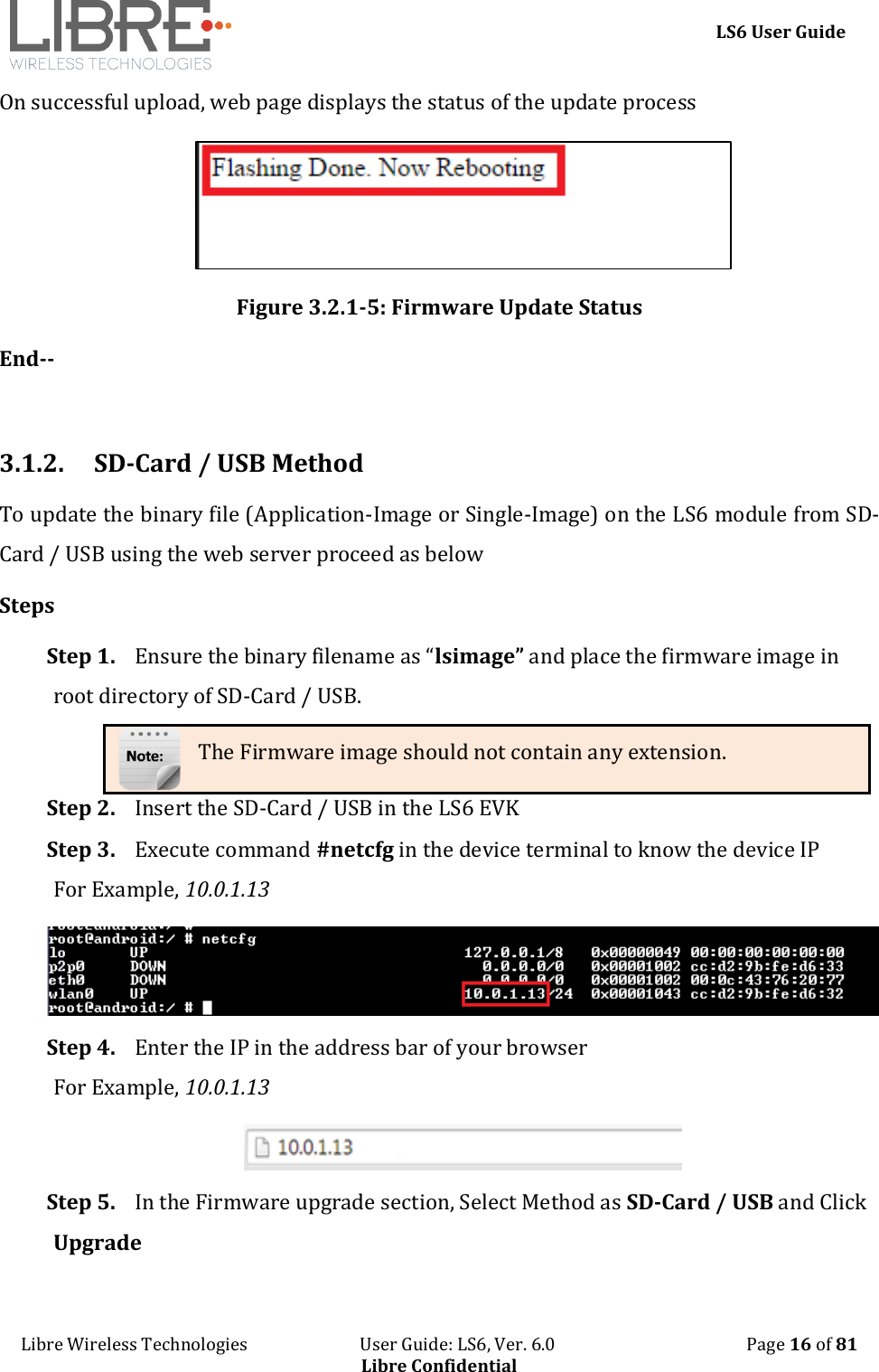
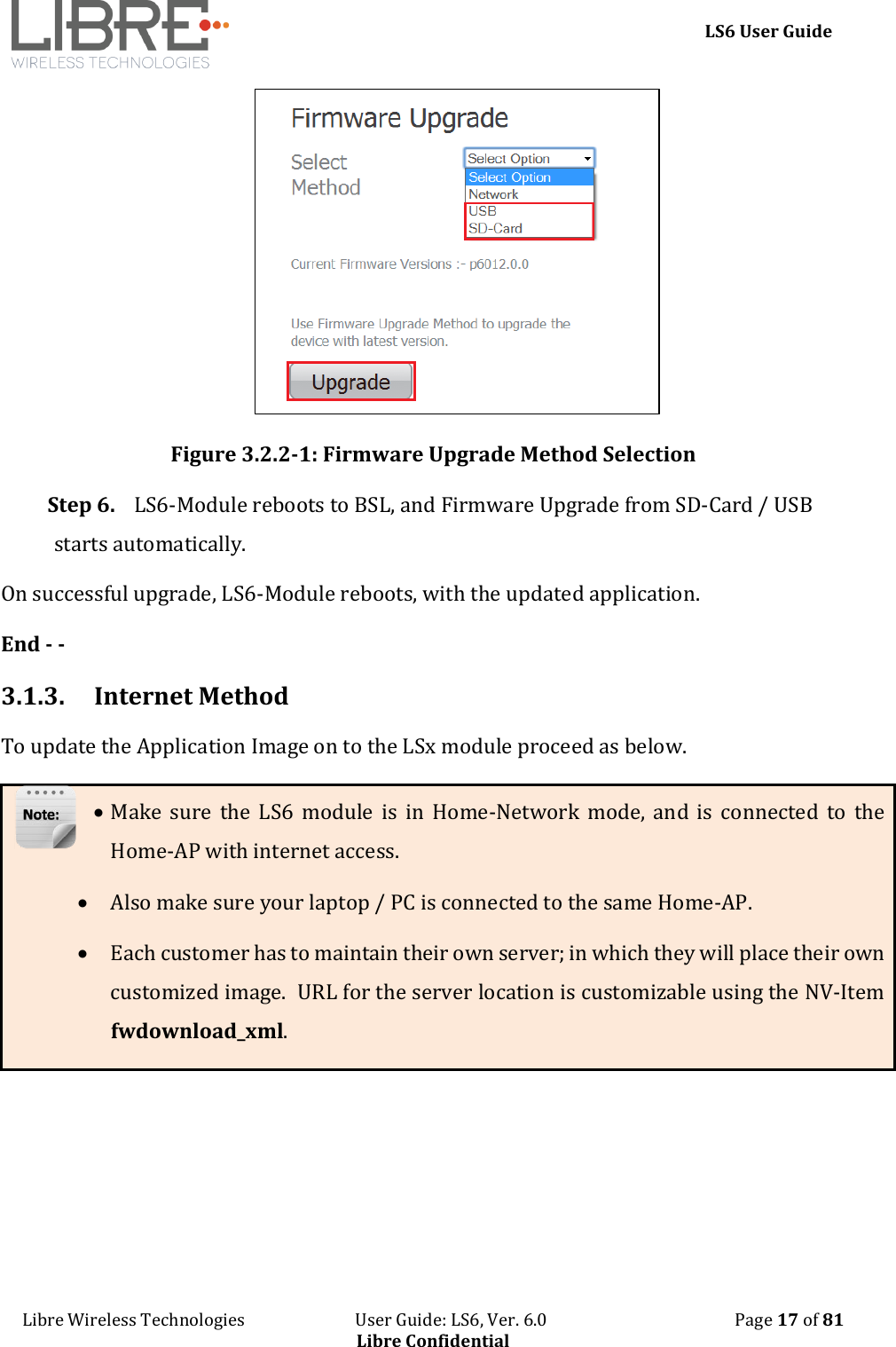
    LS6 User Guide Libre Wireless Technologies                           User Guide: LS6, Ver. 6.0                                              Page 16 of 81 Libre Confidential On successful upload, web page displays the status of the update process  Figure 3.2.1-5: Firmware Update Status End--  3.1.2. SD-Card / USB Method To update the binary file (Application-Image or Single-Image) on the LS6 module from SD-Card / USB using the web server proceed as below Steps Step 1. Ensure the binary filename as “lsimage” and place the firmware image in root directory of SD-Card / USB. The Firmware image should not contain any extension. Step 2. Insert the SD-Card / USB in the LS6 EVK Step 3. Execute command #netcfg in the device terminal to know the device IP For Example, 10.0.1.13  Step 4. Enter the IP in the address bar of your browser For Example, 10.0.1.13  Step 5. In the Firmware upgrade section, Select Method as SD-Card / USB and Click Upgrade
    LS6 User Guide Libre Wireless Technologies                           User Guide: LS6, Ver. 6.0                                              Page 17 of 81 Libre Confidential  Figure 3.2.2-1: Firmware Upgrade Method Selection Step 6. LS6-Module reboots to BSL, and Firmware Upgrade from SD-Card / USB starts automatically. On successful upgrade, LS6-Module reboots, with the updated application. End - - 3.1.3. Internet Method To update the Application Image on to the LSx module proceed as below.  Make  sure  the  LS6  module  is  in  Home-Network  mode,  and  is  connected  to  the Home-AP with internet access.   Also make sure your laptop / PC is connected to the same Home-AP.  Each customer has to maintain their own server; in which they will place their own customized image.  URL for the server location is customizable using the NV-Item fwdownload_xml.
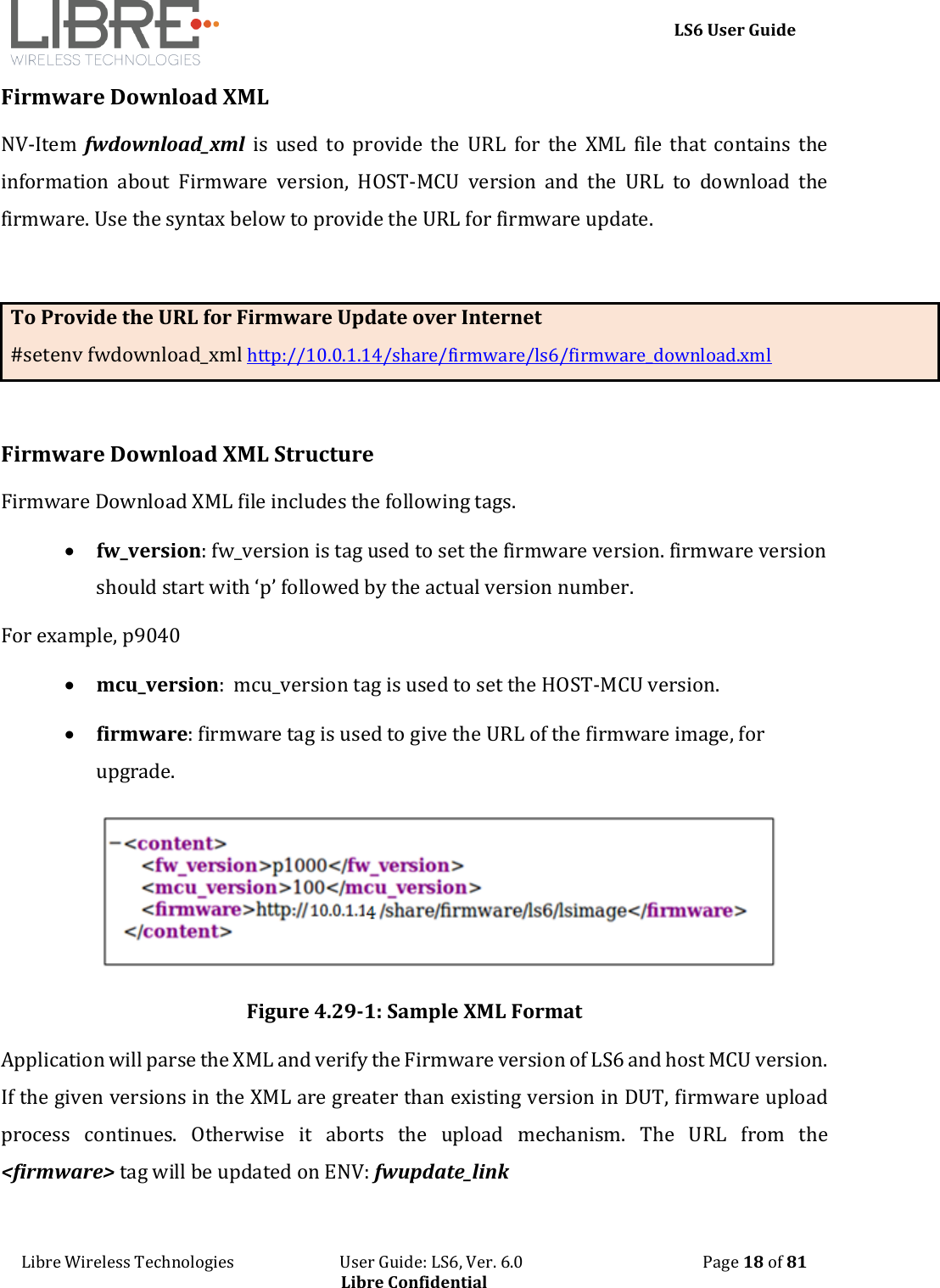
    LS6 User Guide Libre Wireless Technologies                           User Guide: LS6, Ver. 6.0                                              Page 18 of 81 Libre Confidential Firmware Download XML NV-Item  fwdownload_xml  is  used  to  provide  the  URL  for  the  XML  file  that  contains  the information  about  Firmware  version,  HOST-MCU  version  and  the  URL  to  download  the firmware. Use the syntax below to provide the URL for firmware update.   To Provide the URL for Firmware Update over Internet #setenv fwdownload_xml http://10.0.1.14/share/firmware/ls6/firmware_download.xml   Firmware Download XML Structure Firmware Download XML file includes the following tags.  fw_version: fw_version is tag used to set the firmware version. firmware version should start with ‘p’ followed by the actual version number.  For example, p9040  mcu_version:  mcu_version tag is used to set the HOST-MCU version.  firmware: firmware tag is used to give the URL of the firmware image, for upgrade.  Figure 4.29-1: Sample XML Format Application will parse the XML and verify the Firmware version of LS6 and host MCU version. If the given versions in the XML are greater than existing version in DUT, firmware upload process  continues.  Otherwise  it  aborts  the  upload  mechanism.  The  URL  from  the <firmware> tag will be updated on ENV: fwupdate_link
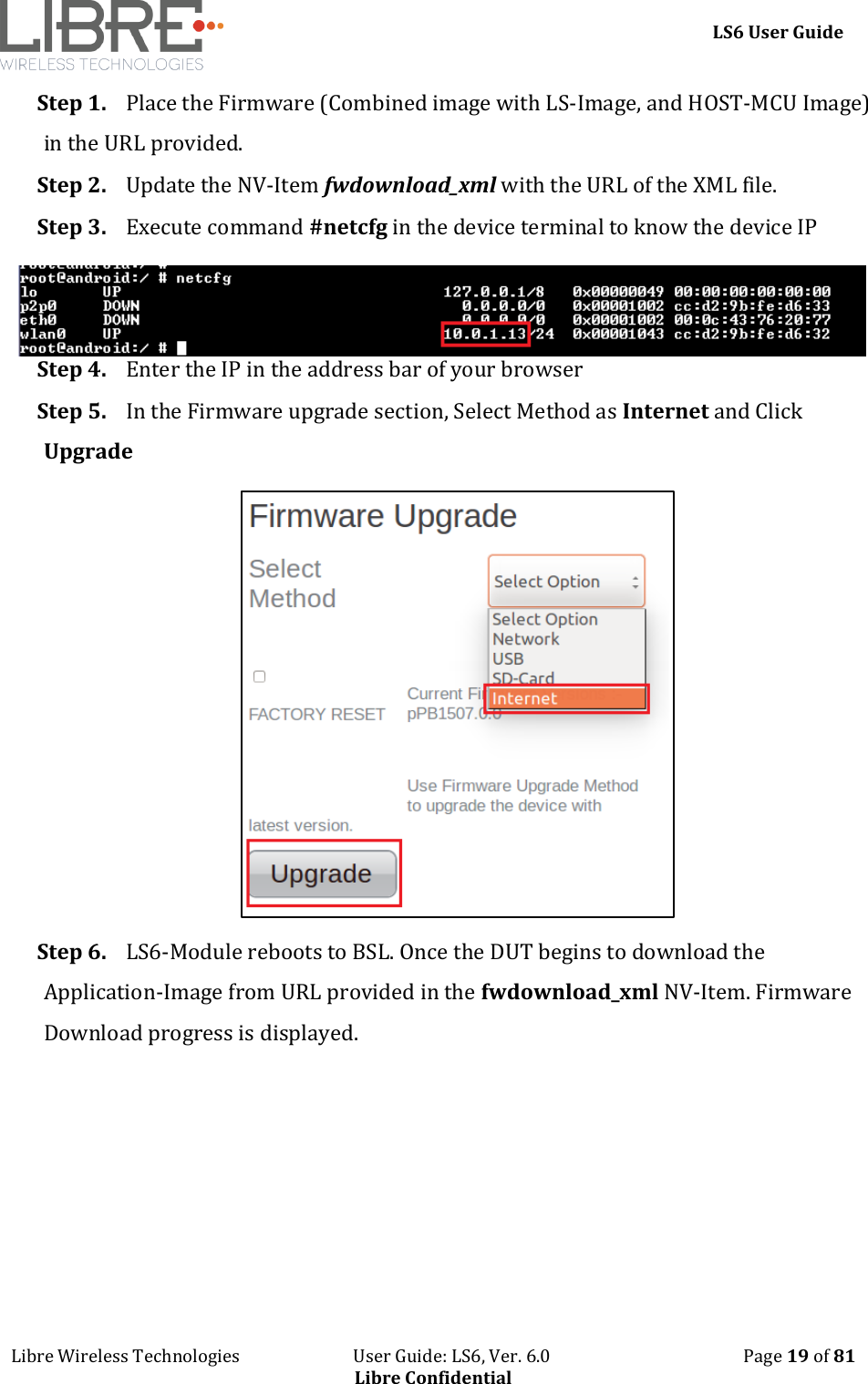
    LS6 User Guide Libre Wireless Technologies                           User Guide: LS6, Ver. 6.0                                              Page 19 of 81 Libre Confidential Step 1. Place the Firmware (Combined image with LS-Image, and HOST-MCU Image) in the URL provided.  Step 2. Update the NV-Item fwdownload_xml with the URL of the XML file.  Step 3. Execute command #netcfg in the device terminal to know the device IP Step 4. Enter the IP in the address bar of your browser Step 5. In the Firmware upgrade section, Select Method as Internet and Click Upgrade  Step 6. LS6-Module reboots to BSL. Once the DUT begins to download the Application-Image from URL provided in the fwdownload_xml NV-Item. Firmware Download progress is displayed.
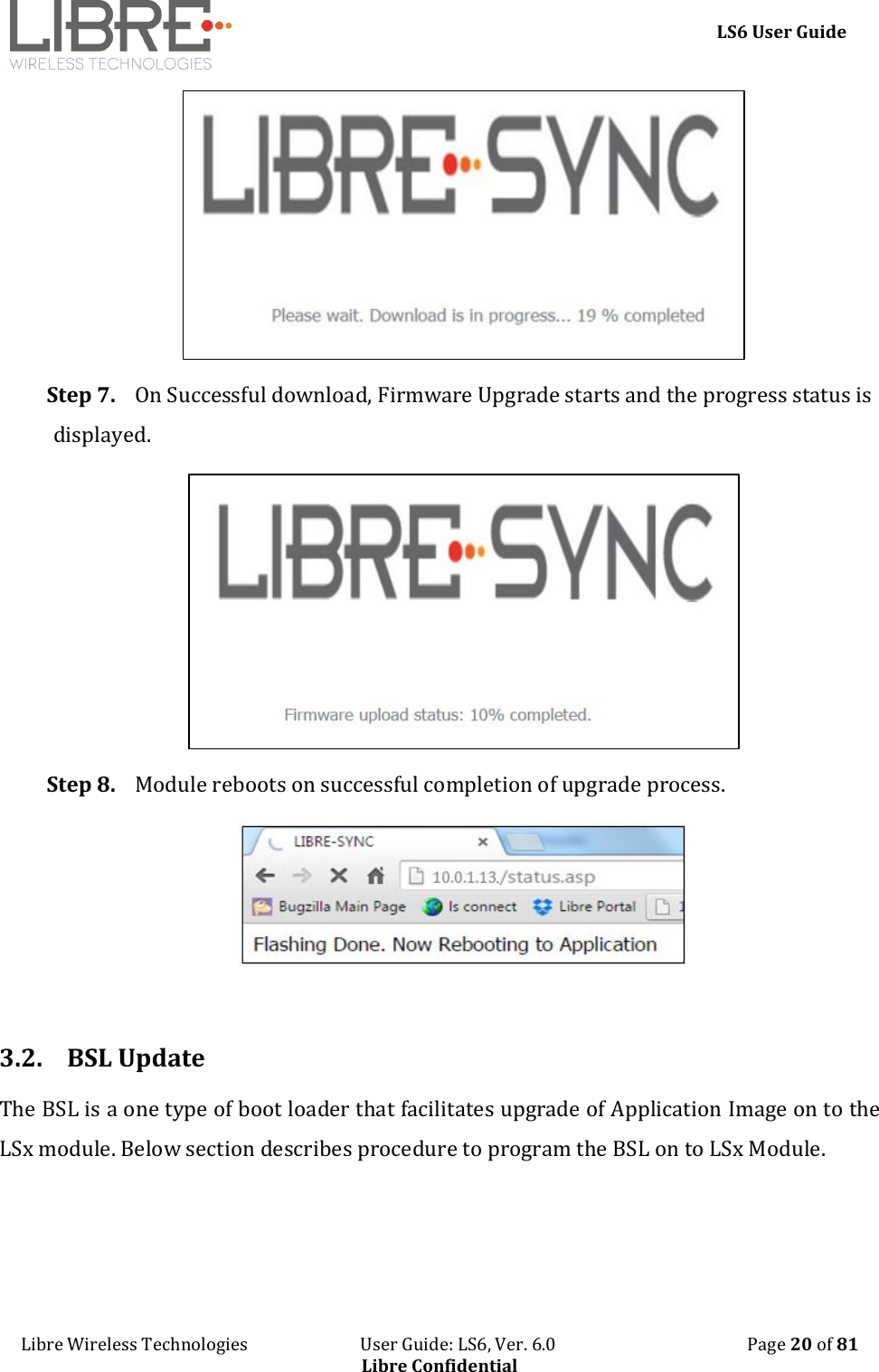
    LS6 User Guide Libre Wireless Technologies                           User Guide: LS6, Ver. 6.0                                              Page 20 of 81 Libre Confidential  Step 7. On Successful download, Firmware Upgrade starts and the progress status is displayed.  Step 8. Module reboots on successful completion of upgrade process.   3.2. BSL Update The BSL is a one type of boot loader that facilitates upgrade of Application Image on to the LSx module. Below section describes procedure to program the BSL on to LSx Module.
    LS6 User Guide Libre Wireless Technologies                           User Guide: LS6, Ver. 6.0                                              Page 21 of 81 Libre Confidential 3.2.1. TFTP Method To update the BSL for LS6 module using TFTP proceed as below Step 1. Install TFTP server in Win 7 laptop / PC You can download the TFTP server from web Step 2. Store Image.bin file, in the same folder as TFTP is placed Disable the firewall in windows laptop / PC.  Firewall will block the file from being loaded. Step 3. Connect the PC and module with Ethernet cable Step 4. Set Static IP 10.10.10.3 for the Laptop/PC go to Control Panel > Network Configuration > Local Area Connection > Properties > TCP/IPv4 > Properties Step 5. Power on the board and connect serial cable from Serial port of EVK to the USB port of PC Step 6. Open serial port terminal (57600-8-N-1) to access system Shell  Step 7. Start TFTP server in laptop / PC Step 8. Restart the module by issuing the command #reboot in terminal                        or  Restart the module using the Reset button in EVK Step 9. In the U-Boot options, select Option a in the terminal within 1 second Step 10. Answer 'Y' or 'N' for the warning message prompted to proceed with the update
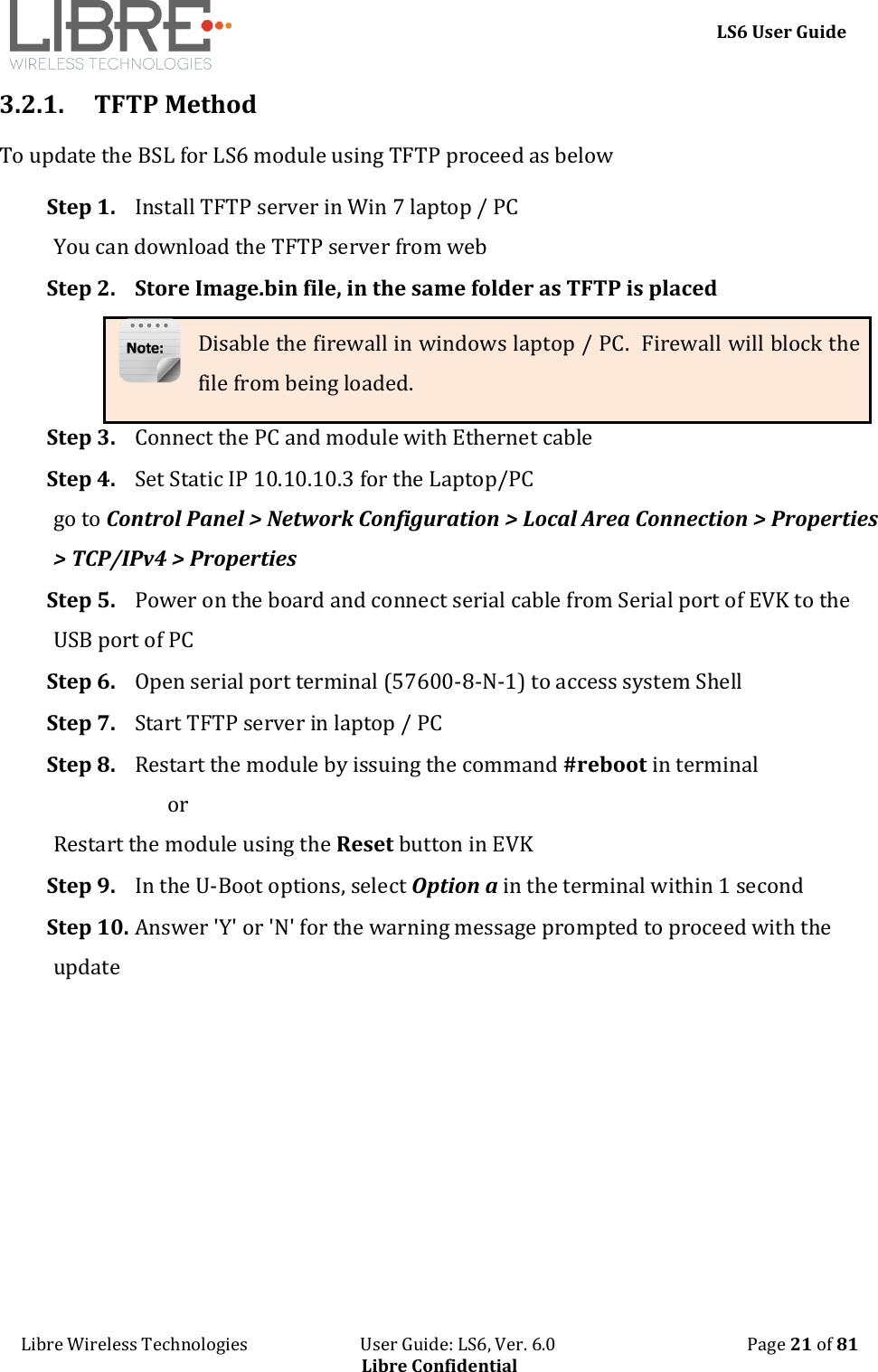
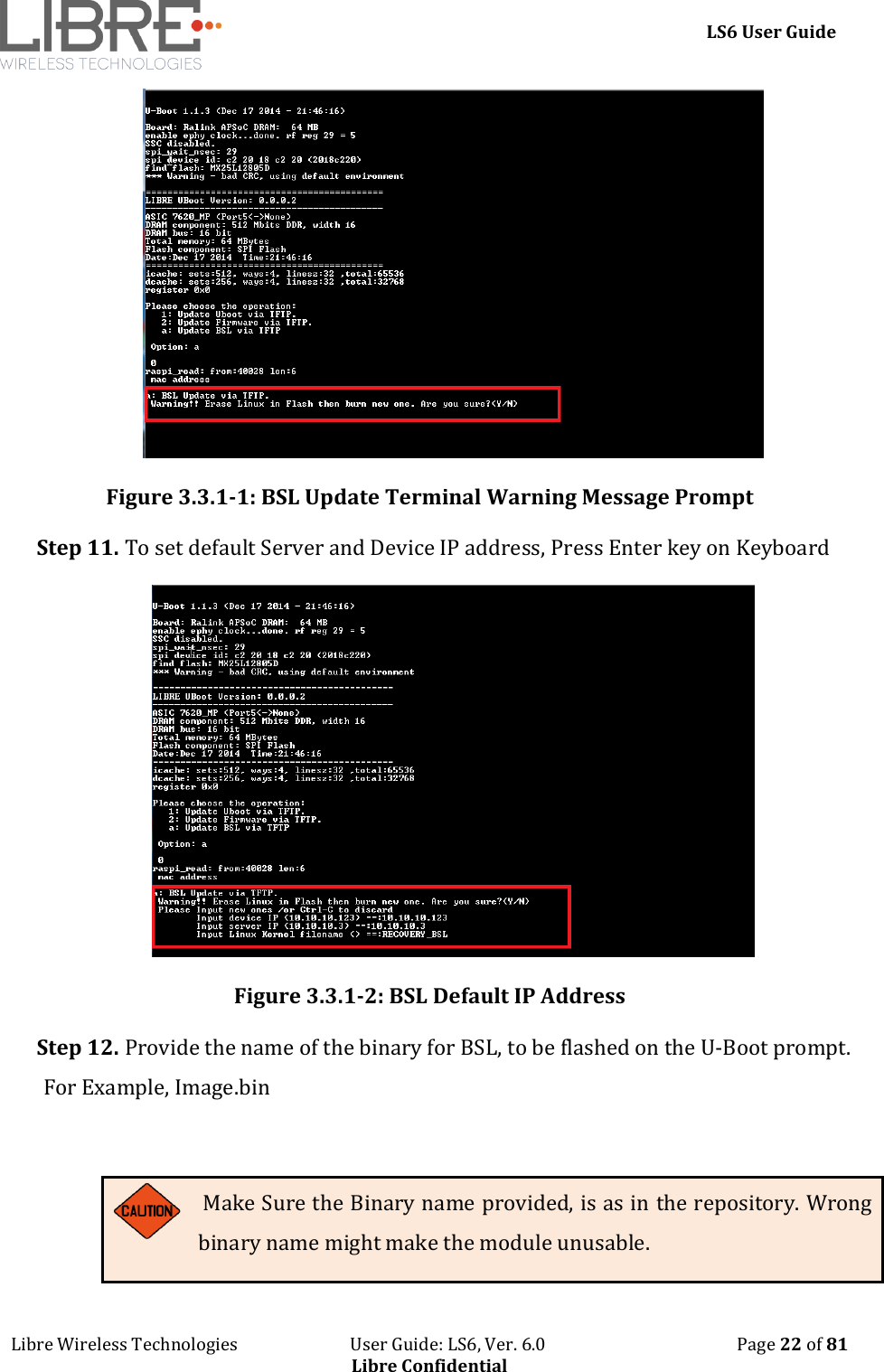
    LS6 User Guide Libre Wireless Technologies                           User Guide: LS6, Ver. 6.0                                              Page 22 of 81 Libre Confidential  Figure 3.3.1-1: BSL Update Terminal Warning Message Prompt Step 11. To set default Server and Device IP address, Press Enter key on Keyboard  Figure 3.3.1-2: BSL Default IP Address Step 12. Provide the name of the binary for BSL, to be flashed on the U-Boot prompt. For Example, Image.bin   Make Sure the Binary name provided, is as in the repository. Wrong binary name might make the module unusable.
    LS6 User Guide Libre Wireless Technologies                           User Guide: LS6, Ver. 6.0                                              Page 23 of 81 Libre Confidential End--  3.3. U-Boot Update 3.3.1. TFTP Method To update the U-Boot for LS6 module using TFTP proceed as below Step 1. Install TFTP server in Win 7 laptop / PC You can download the TFTP server from web Step 2. Store Image.bin file, in the same folder as TFTP is placed Disable the firewall in windows laptop / PC.  Firewall will block the file from being loaded. Step 3. Connect the PC and module with Ethernet cable Step 4. Set Static IP 10.10.10.3 for the Laptop/PC go to Control Panel > Network Configuration > Local Area Connection > Properties > TCP/IPv4 > Properties  Step 5. Power on the board and connect the EVK to the USB port of PC Step 6. Open serial port terminal (57600-8-N-1) to access system Shell  Step 7. Start TFTP server in laptop / PC Step 8. Restart the module by issuing the command #reboot in terminal                        or  Restart the module using the Reset button in EVK Step 9. In the U-Boot options, select option 1 in the terminal within 1 second Step 10. Answer 'Y' or 'N' for the warning message prompted to proceed with the update
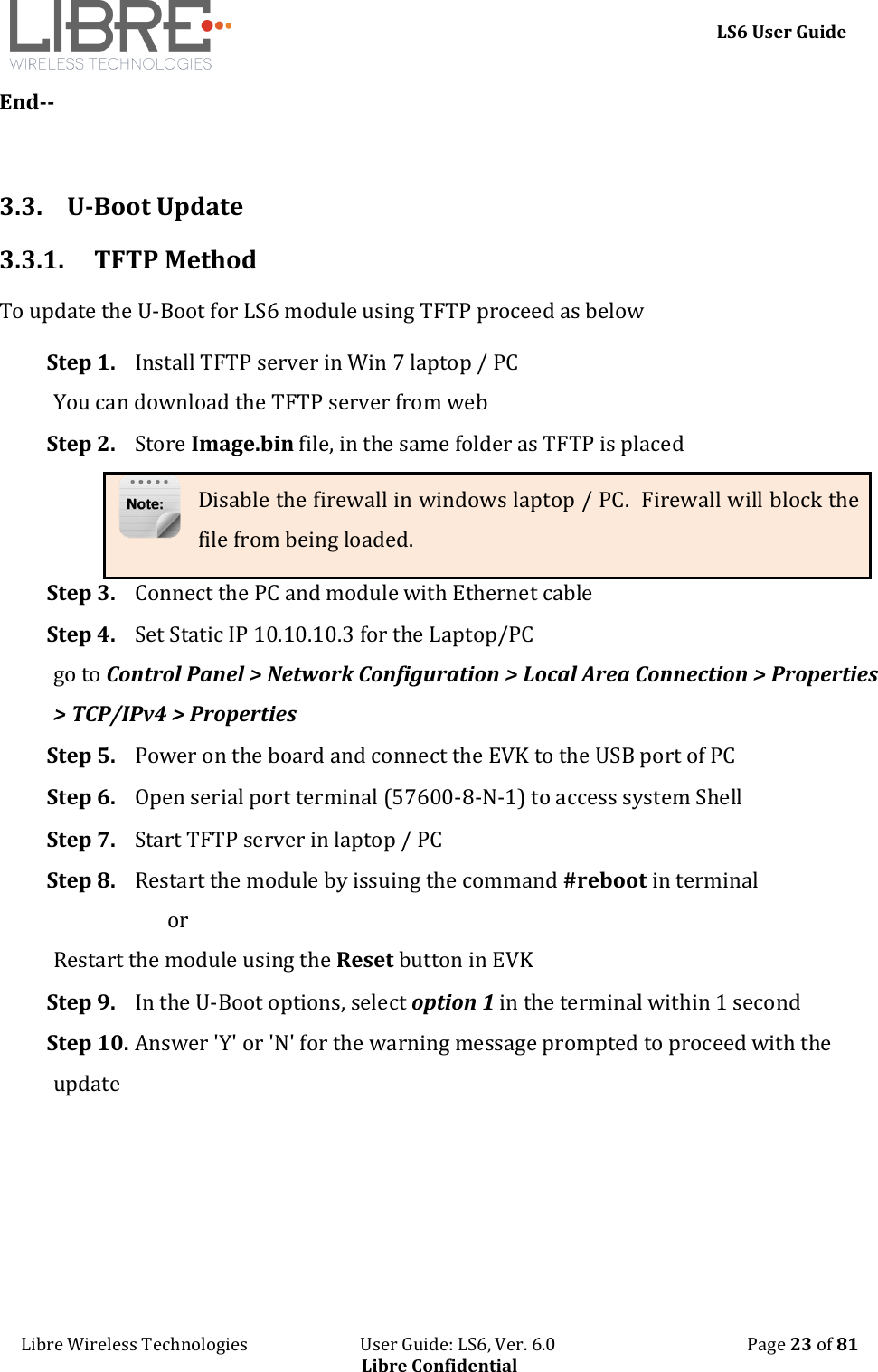
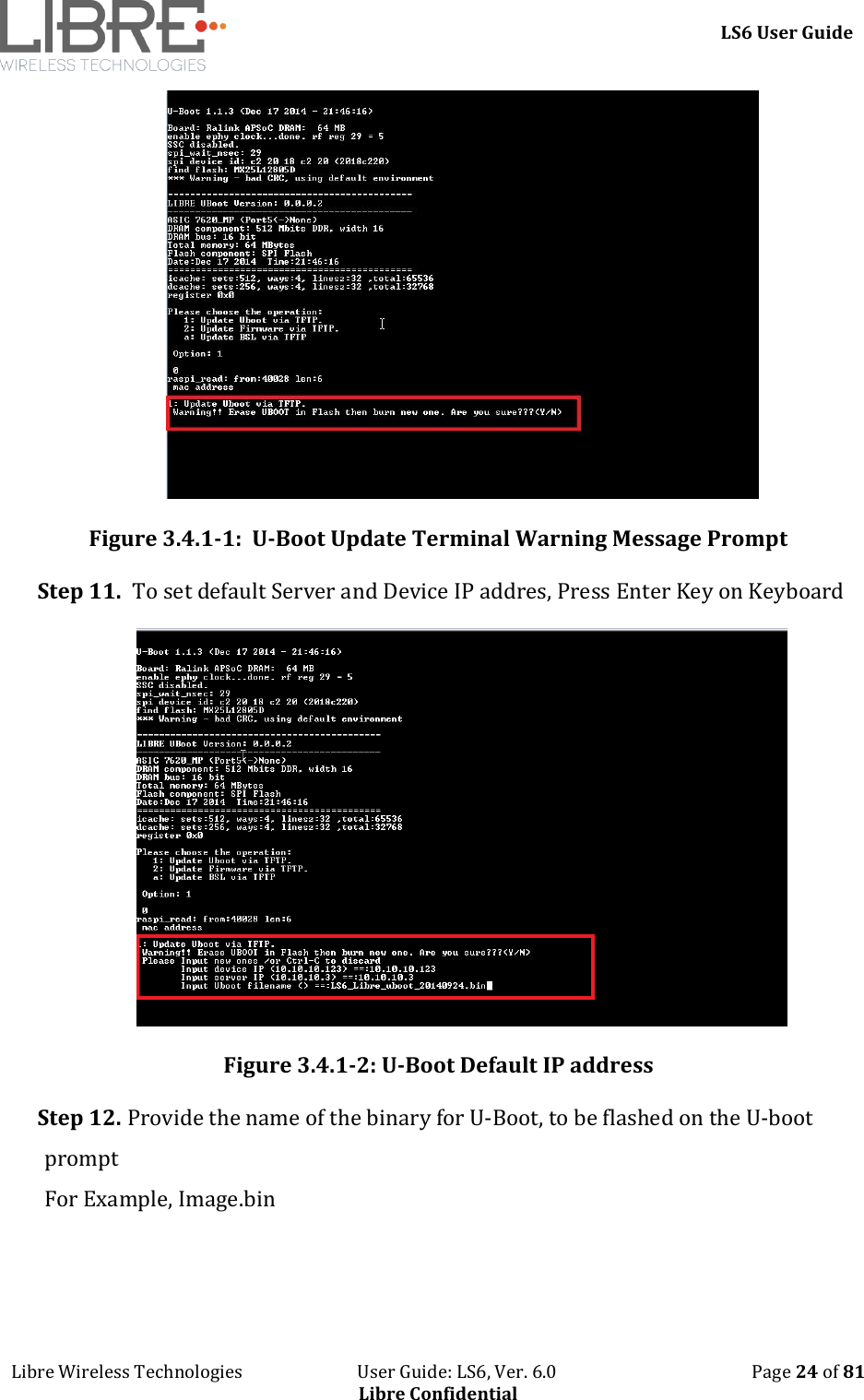
    LS6 User Guide Libre Wireless Technologies                           User Guide: LS6, Ver. 6.0                                              Page 24 of 81 Libre Confidential  Figure 3.4.1-1:  U-Boot Update Terminal Warning Message Prompt Step 11.  To set default Server and Device IP addres, Press Enter Key on Keyboard  Figure 3.4.1-2: U-Boot Default IP address Step 12. Provide the name of the binary for U-Boot, to be flashed on the U-boot prompt For Example, Image.bin
    LS6 User Guide Libre Wireless Technologies                           User Guide: LS6, Ver. 6.0                                              Page 25 of 81 Libre Confidential  Make Sure the Binary name provided, is as in the repository. Wrong binary name might make the module unusable. End--
    LS6 User Guide Libre Wireless Technologies                           User Guide: LS6, Ver. 6.0                                              Page 26 of 81 Libre Confidential 4. Configuring Non-Volatile-Item   The latest LS-Images (v6023 and onwards) supports NV-Item from application only and is accessible from Application Shell prompt. NV-item in U-Boot is not supported anymore.  To  configure  all  the  NV-Item  values  at  one  shot  as  per  customer choice, customers can use the envitem.xml file. This xml file is used to generate a final Golden-Image for production.  Non-Volatile (NV) item in LibreSync can be configured through command line or by editing the env-item.xml file, shared by Libre.  To configure the NV-Item, type the below command in the command line and Reboot the LS-Module to apply the changes. Command Syntax #setenv <NV_item_name> <<value>> #reboot   There  should  be  space  between  setenv  and  <NV_item_name>  and  between  the <NV_item_name> and  <<value>> .  To know the value of the NV-Item set, type the below command in the command line. Command Syntax #getenv <NV_item_name>  To reset all the NV-Items to factory default values, type the below command in the command line. Command Syntax #SetFacDefault
    LS6 User Guide Libre Wireless Technologies                           User Guide: LS6, Ver. 6.0                                              Page 27 of 81 Libre Confidential To know all the NV-items values, type the below command in the command line. Command Syntax #GetAllENV  Example To configure NV-item hostpresent #setenv hostpresent 1 #reboot To Know the value of the NV-Item hostpresent. #getenv hostpresent  For detailed information on Configuring the NV-Items refer to  “LibreWirelessTechNote – Non-Volatile_Items_in_LibreSync” available in Libre Portal.
    LS6 User Guide Libre Wireless Technologies                           User Guide: LS6, Ver. 6.0                                              Page 28 of 81 Libre Confidential 5. Key Button Functionality 5.1. Setup Button (WAC / SAC / DDMS)  The Setup (SW5) button in LS-EVK is configured to trigger WAC / SAC after the LS module boots up as below.  Press and Hold the setup button on the LS EVK for 3 seconds, to come out of the DDMS mode. - LS EVK connects to the AP or the SSID configured earlier. - To connect the LS EVK to different AP or SSID, Press and Hold the setup button on the LS EVK for 3 seconds again, to trigger SAC / WAC. - If the LS EVK was not configured to any AP, Press and Hold of setup button triggers SAC / WAC. - This state is stored in non-volatile memory and even after boot-up, the state is retained. For more information on DDMS Stand-Alone mode and Home-Network mode refer to DDMS Usability guide (Android / iOS) available in LibreSync Document Portal.   5.2. LED Status LED D18, in the LS6 EVK is used to identify the DDMS Connection Status.  Blinking LED indicates LS6 EVK is in transition to DDMS and connection is not set.  Solid LED indicates LS6 EVK is in DDMS mode and is configured as one of the DDMS-Node (Speaker-Master or Speaker-Station).
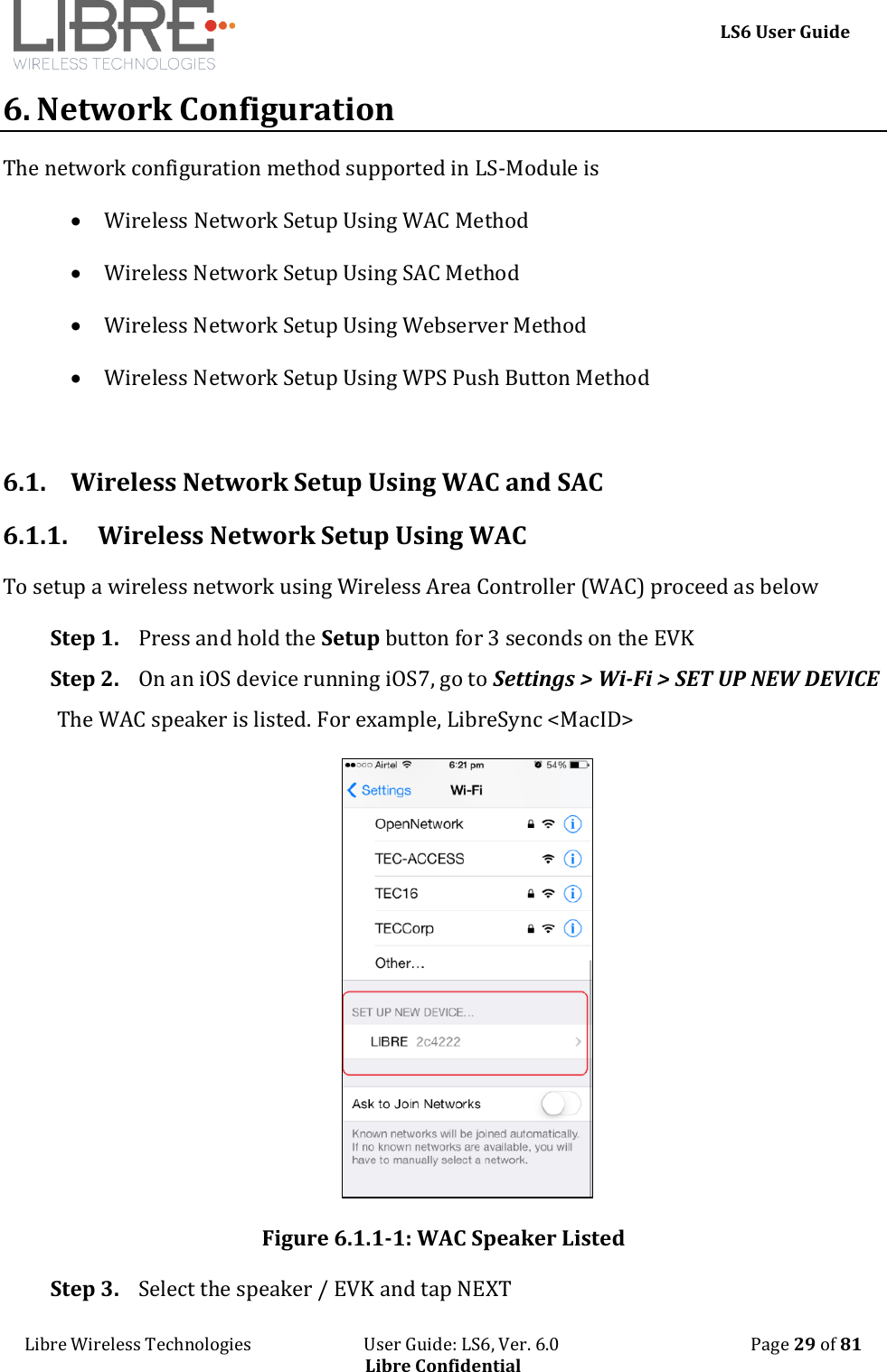
    LS6 User Guide Libre Wireless Technologies                           User Guide: LS6, Ver. 6.0                                              Page 29 of 81 Libre Confidential 6. Network Configuration The network configuration method supported in LS-Module is   Wireless Network Setup Using WAC Method  Wireless Network Setup Using SAC Method   Wireless Network Setup Using Webserver Method  Wireless Network Setup Using WPS Push Button Method   6.1. Wireless Network Setup Using WAC and SAC 6.1.1. Wireless Network Setup Using WAC To setup a wireless network using Wireless Area Controller (WAC) proceed as below Step 1. Press and hold the Setup button for 3 seconds on the EVK  Step 2. On an iOS device running iOS7, go to Settings > Wi-Fi > SET UP NEW DEVICE The WAC speaker is listed. For example, LibreSync <MacID>  Figure 6.1.1-1: WAC Speaker Listed Step 3. Select the speaker / EVK and tap NEXT
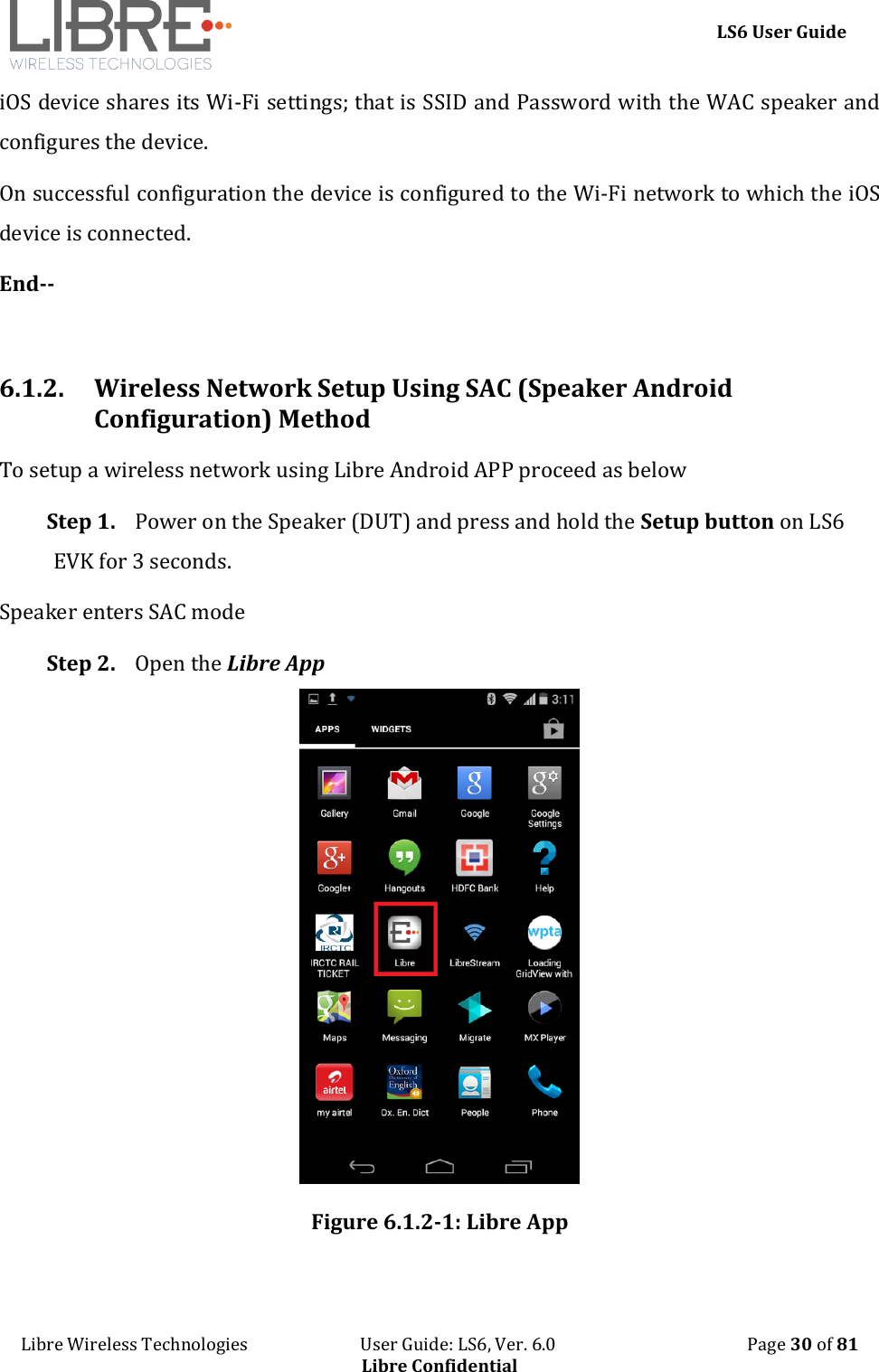
    LS6 User Guide Libre Wireless Technologies                           User Guide: LS6, Ver. 6.0                                              Page 30 of 81 Libre Confidential iOS device shares its Wi-Fi settings; that is SSID and Password with the WAC speaker and configures the device. On successful configuration the device is configured to the Wi-Fi network to which the iOS device is connected. End--  6.1.2. Wireless Network Setup Using SAC (Speaker Android Configuration) Method To setup a wireless network using Libre Android APP proceed as below Step 1. Power on the Speaker (DUT) and press and hold the Setup button on LS6 EVK for 3 seconds. Speaker enters SAC mode Step 2. Open the Libre App  Figure 6.1.2-1: Libre App
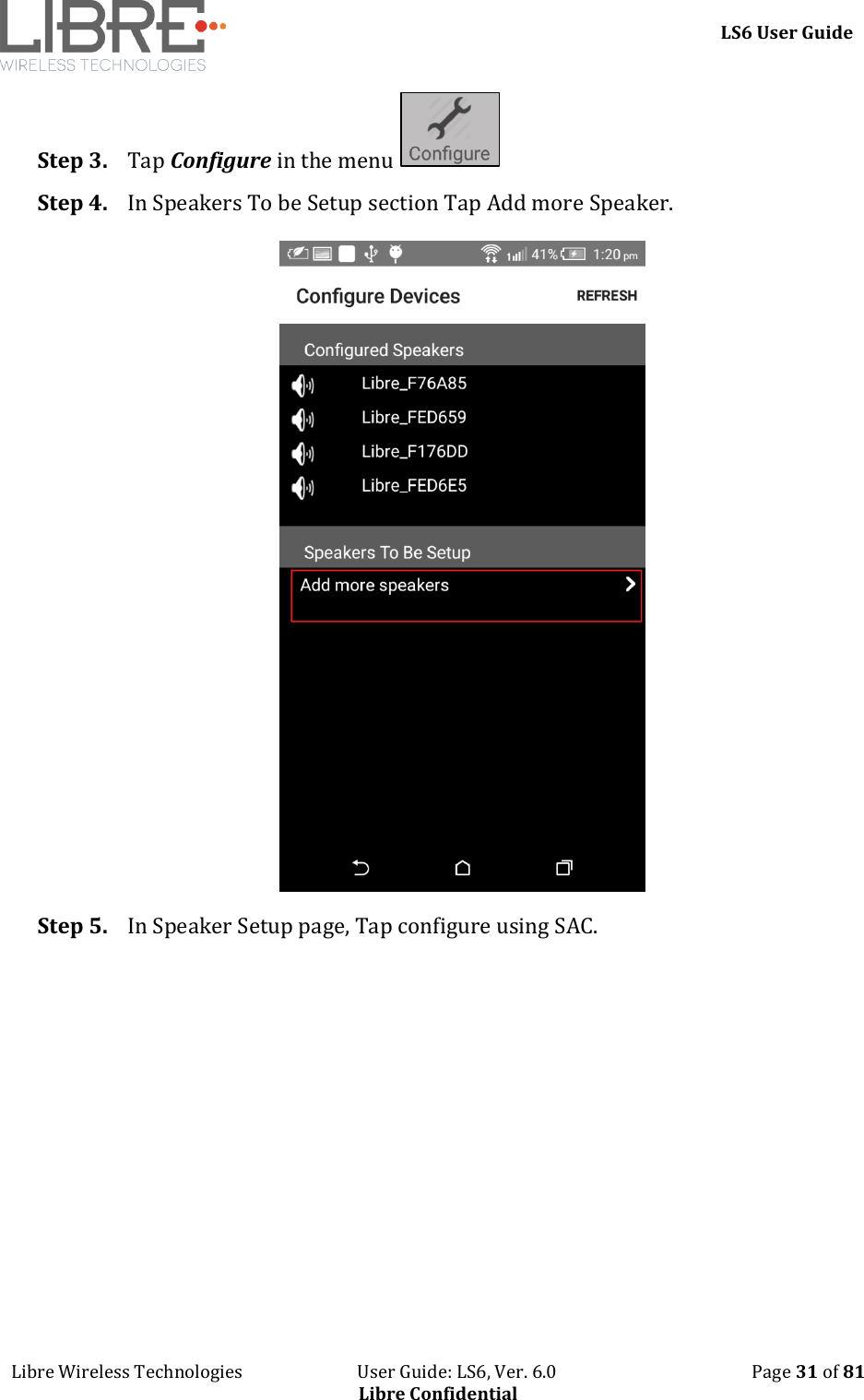
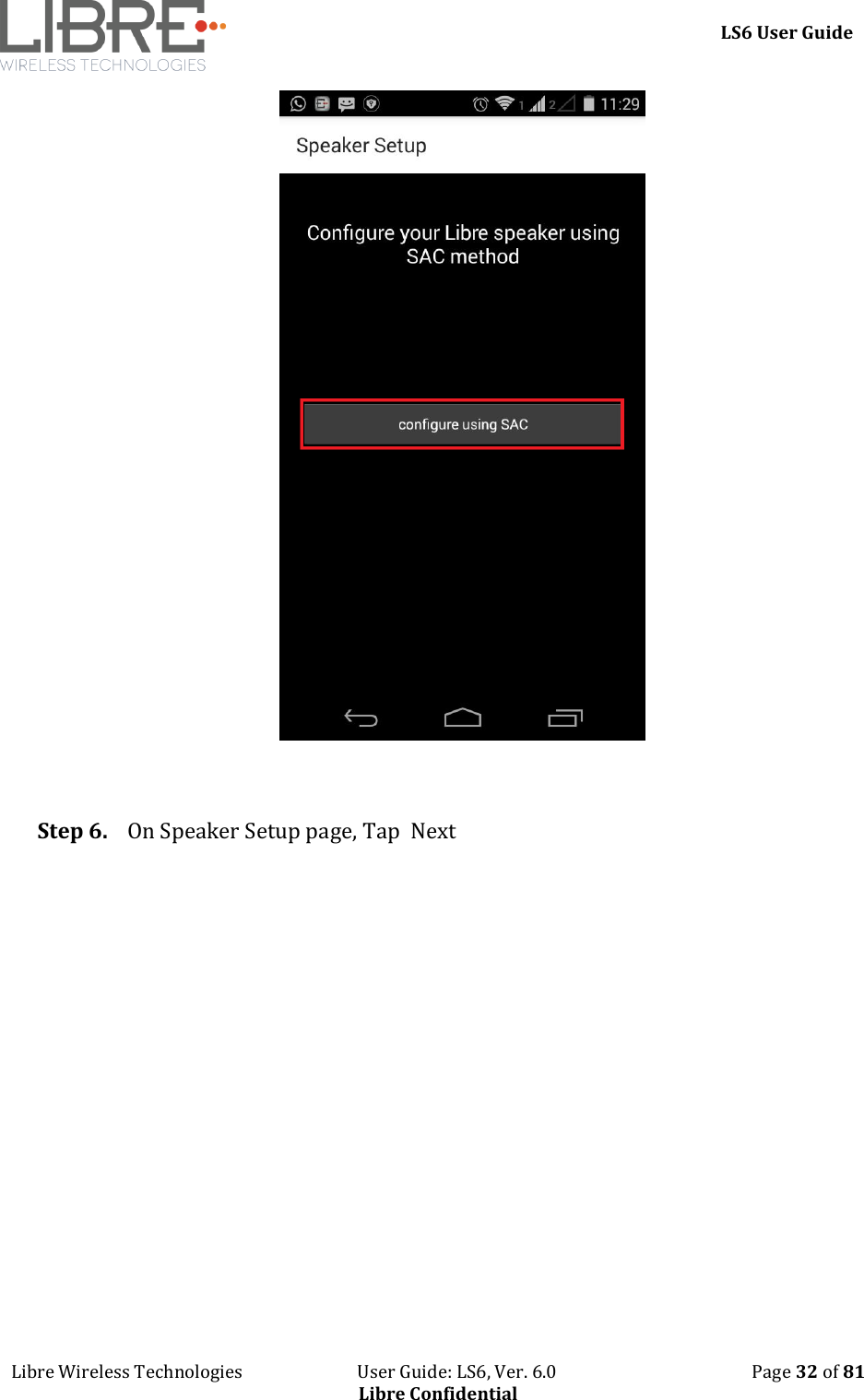
    LS6 User Guide Libre Wireless Technologies                           User Guide: LS6, Ver. 6.0                                              Page 31 of 81 Libre Confidential Step 3. Tap Configure in the menu   Step 4. In Speakers To be Setup section Tap Add more Speaker.  Step 5. In Speaker Setup page, Tap configure using SAC.
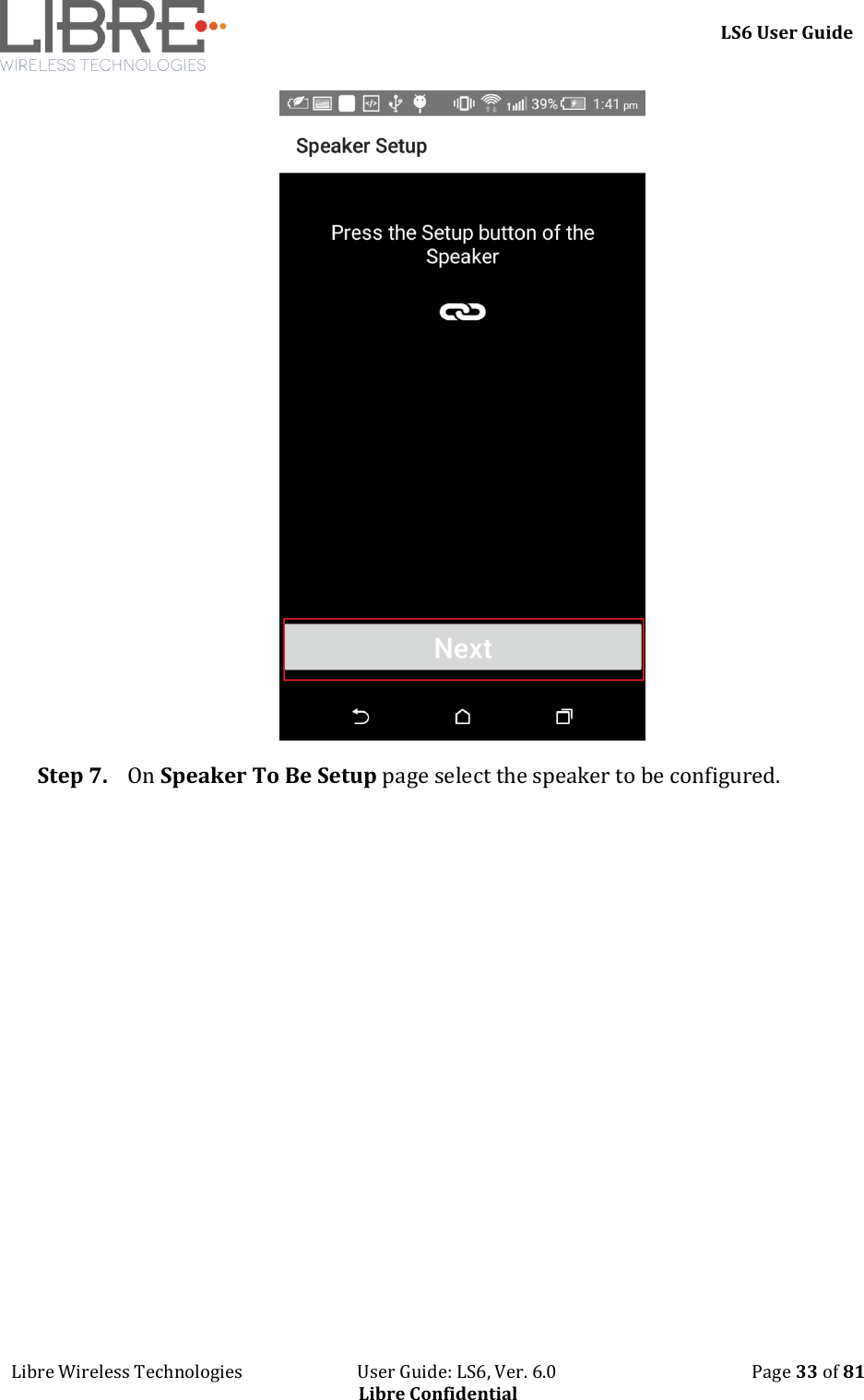
    LS6 User Guide Libre Wireless Technologies                           User Guide: LS6, Ver. 6.0                                              Page 32 of 81 Libre Confidential   Step 6. On Speaker Setup page, Tap  Next
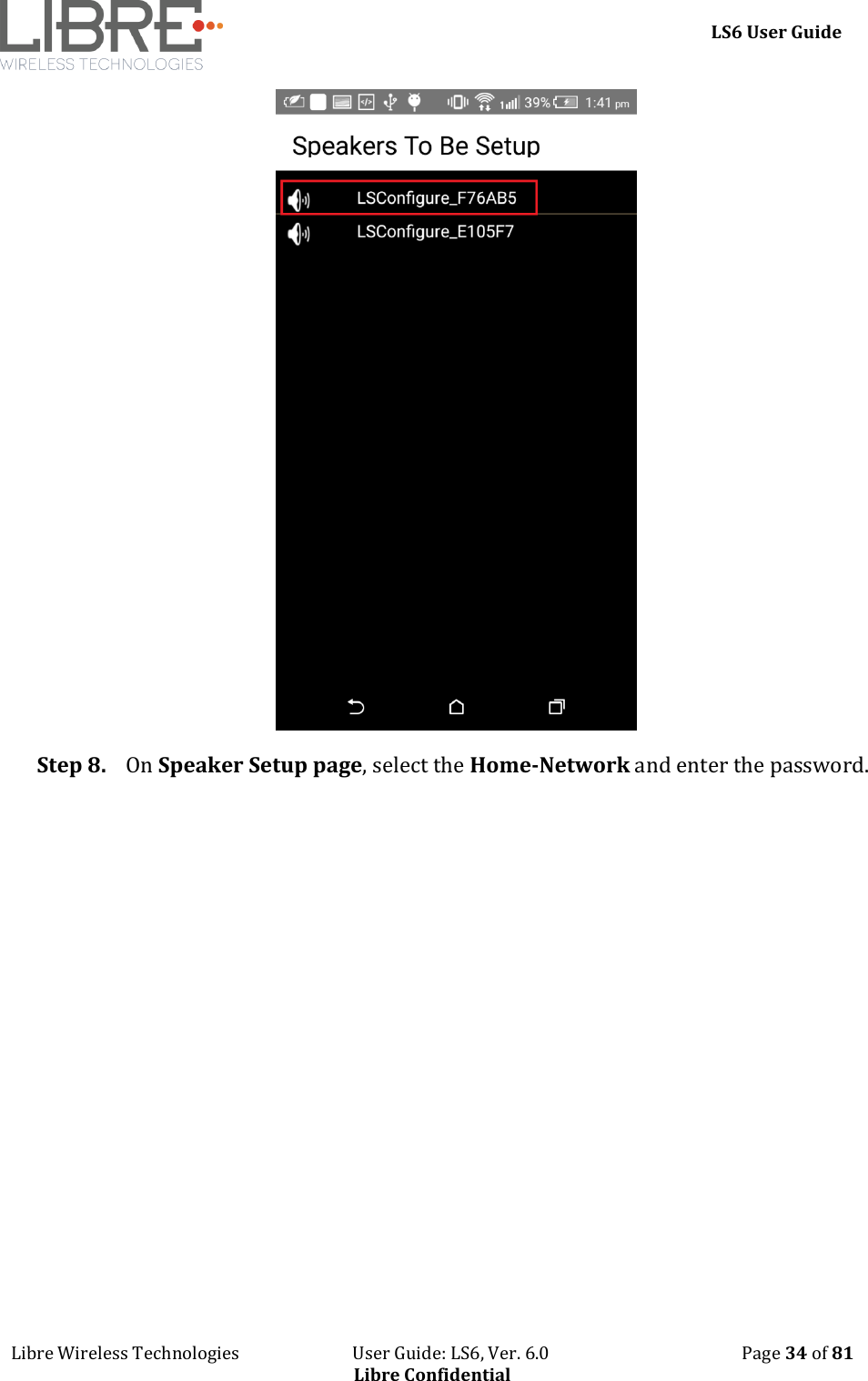
    LS6 User Guide Libre Wireless Technologies                           User Guide: LS6, Ver. 6.0                                              Page 33 of 81 Libre Confidential  Step 7. On Speaker To Be Setup page select the speaker to be configured.
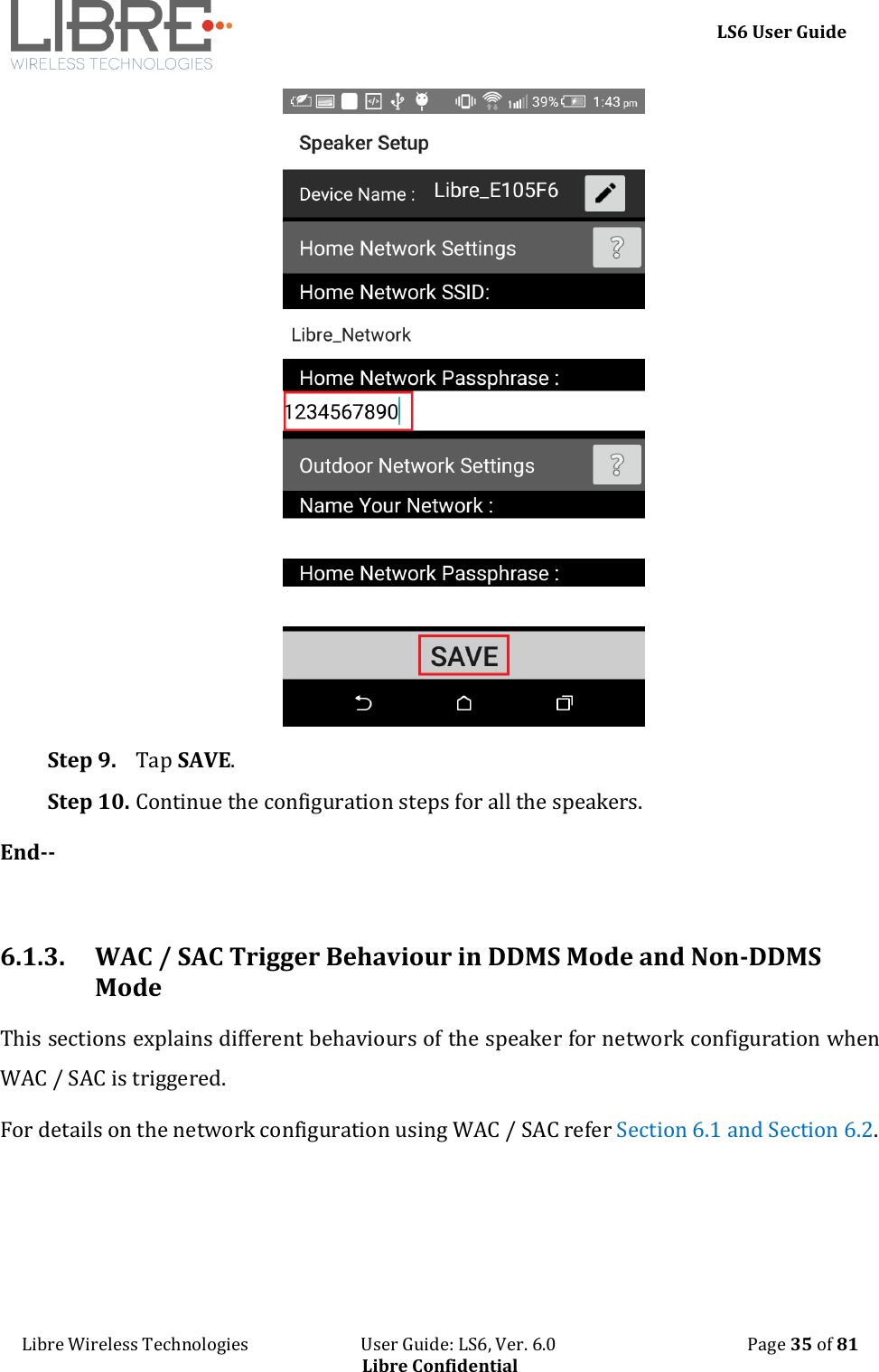
    LS6 User Guide Libre Wireless Technologies                           User Guide: LS6, Ver. 6.0                                              Page 34 of 81 Libre Confidential  Step 8. On Speaker Setup page, select the Home-Network and enter the password.
    LS6 User Guide Libre Wireless Technologies                           User Guide: LS6, Ver. 6.0                                              Page 35 of 81 Libre Confidential  Step 9. Tap SAVE.  Step 10. Continue the configuration steps for all the speakers. End--  6.1.3. WAC / SAC Trigger Behaviour in DDMS Mode and Non-DDMS Mode This sections explains different behaviours of the speaker for network configuration when WAC / SAC is triggered.  For details on the network configuration using WAC / SAC refer Section 6.1 and Section 6.2.
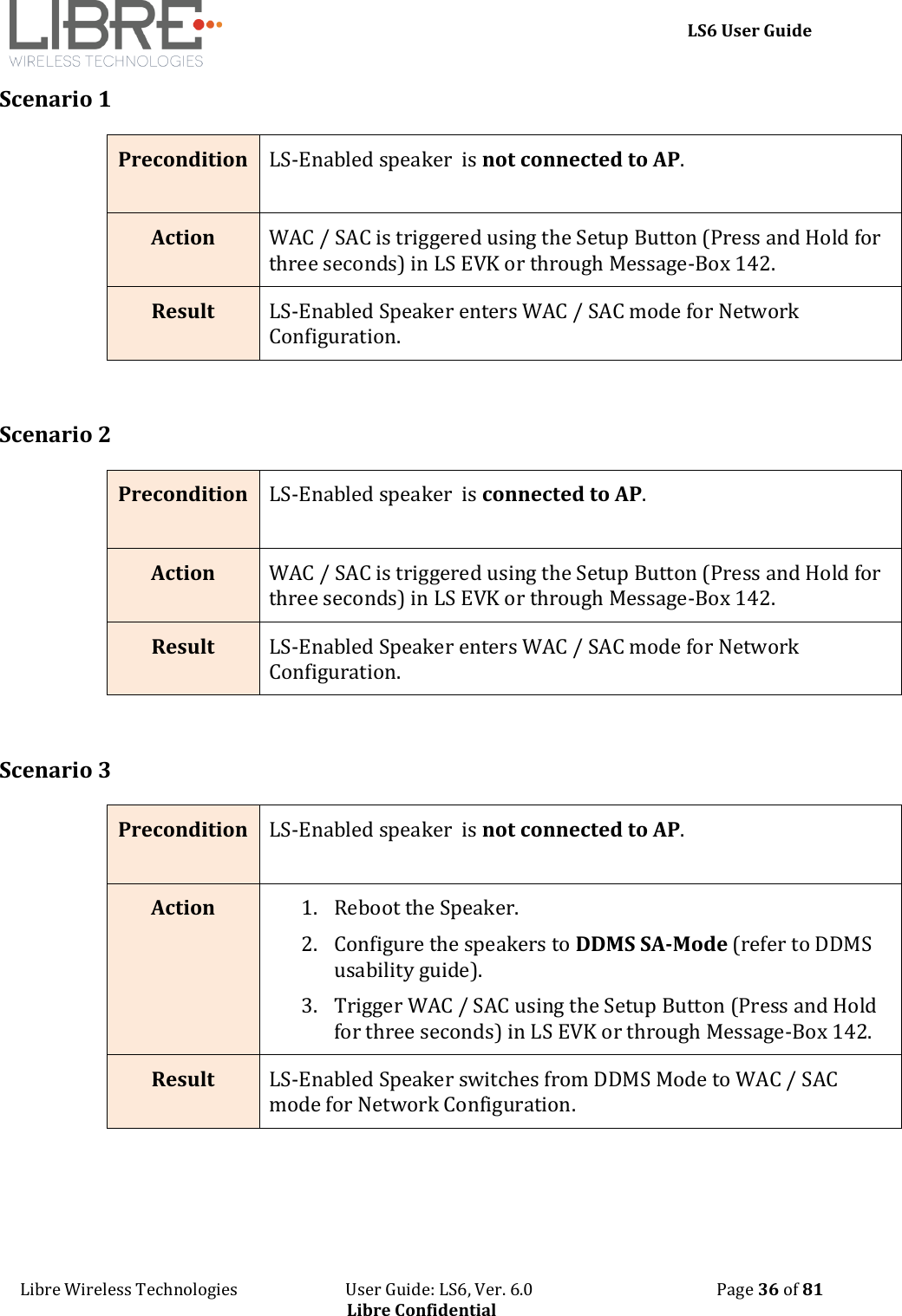
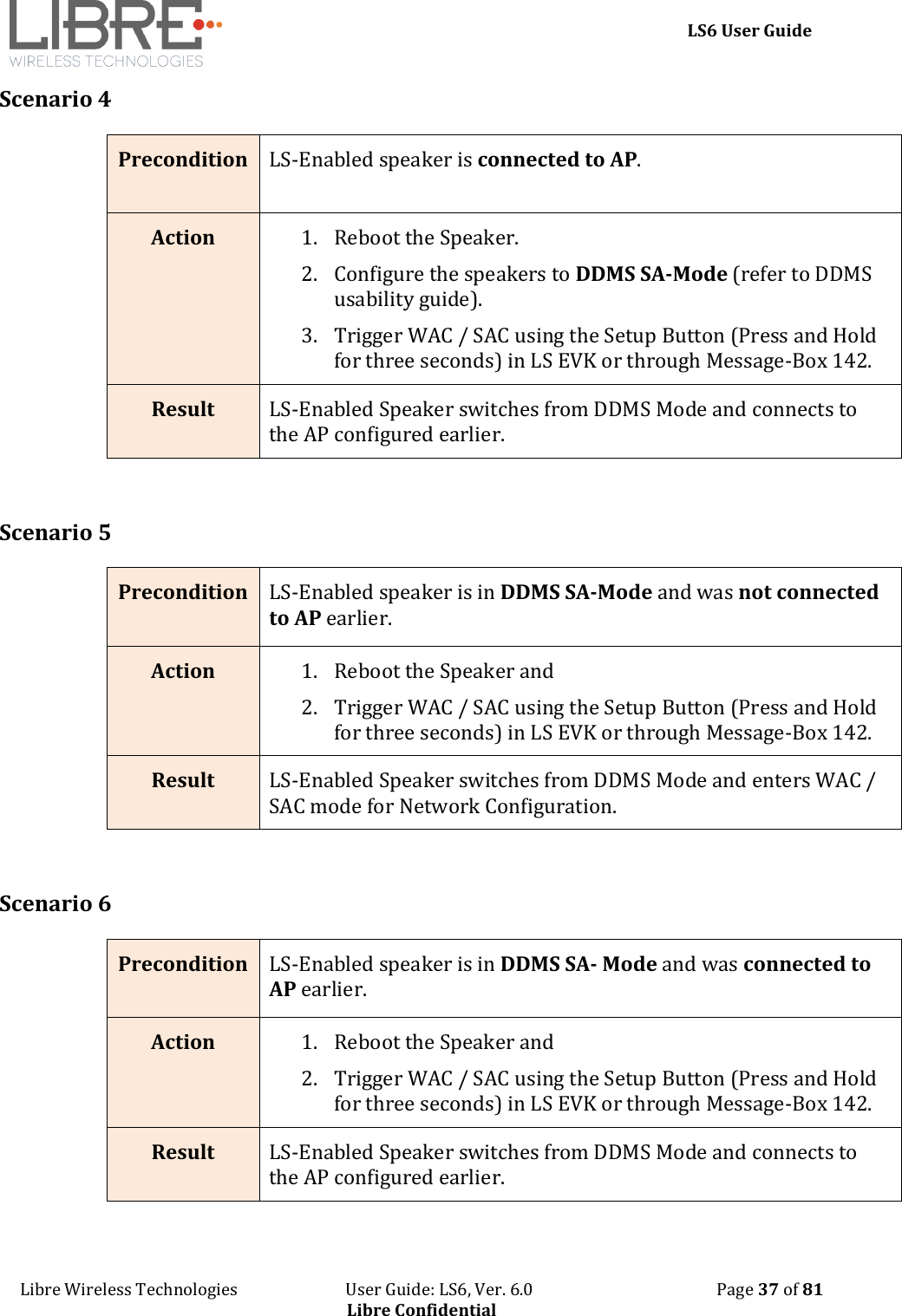
    LS6 User Guide Libre Wireless Technologies                           User Guide: LS6, Ver. 6.0                                              Page 36 of 81 Libre Confidential Scenario 1 Precondition  LS-Enabled speaker  is not connected to AP. Action WAC / SAC is triggered using the Setup Button (Press and Hold for three seconds) in LS EVK or through Message-Box 142. Result LS-Enabled Speaker enters WAC / SAC mode for Network Configuration.  Scenario 2 Precondition  LS-Enabled speaker  is connected to AP. Action WAC / SAC is triggered using the Setup Button (Press and Hold for three seconds) in LS EVK or through Message-Box 142. Result LS-Enabled Speaker enters WAC / SAC mode for Network Configuration.  Scenario 3 Precondition  LS-Enabled speaker  is not connected to AP. Action 1. Reboot the Speaker.  2. Configure the speakers to DDMS SA-Mode (refer to DDMS usability guide). 3. Trigger WAC / SAC using the Setup Button (Press and Hold for three seconds) in LS EVK or through Message-Box 142. Result LS-Enabled Speaker switches from DDMS Mode to WAC / SAC mode for Network Configuration.
    LS6 User Guide Libre Wireless Technologies                           User Guide: LS6, Ver. 6.0                                              Page 37 of 81 Libre Confidential Scenario 4 Precondition  LS-Enabled speaker is connected to AP. Action 1. Reboot the Speaker.  2. Configure the speakers to DDMS SA-Mode (refer to DDMS usability guide). 3. Trigger WAC / SAC using the Setup Button (Press and Hold for three seconds) in LS EVK or through Message-Box 142. Result LS-Enabled Speaker switches from DDMS Mode and connects to the AP configured earlier.  Scenario 5 Precondition  LS-Enabled speaker is in DDMS SA-Mode and was not connected to AP earlier. Action 1. Reboot the Speaker and  2. Trigger WAC / SAC using the Setup Button (Press and Hold for three seconds) in LS EVK or through Message-Box 142. Result LS-Enabled Speaker switches from DDMS Mode and enters WAC / SAC mode for Network Configuration.  Scenario 6 Precondition  LS-Enabled speaker is in DDMS SA- Mode and was connected to AP earlier. Action 1. Reboot the Speaker and  2. Trigger WAC / SAC using the Setup Button (Press and Hold for three seconds) in LS EVK or through Message-Box 142. Result LS-Enabled Speaker switches from DDMS Mode and connects to the AP configured earlier.
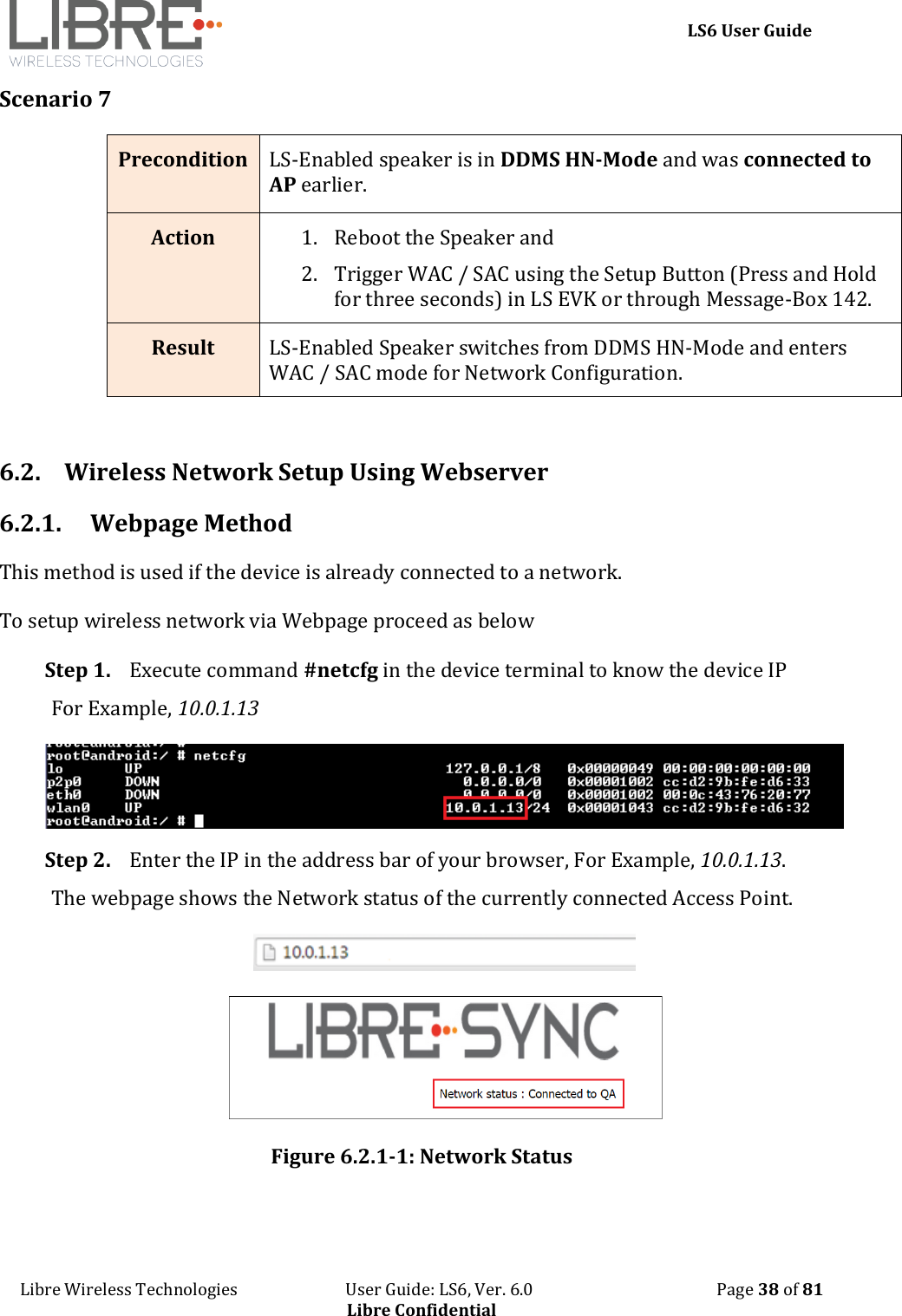
    LS6 User Guide Libre Wireless Technologies                           User Guide: LS6, Ver. 6.0                                              Page 38 of 81 Libre Confidential Scenario 7 Precondition  LS-Enabled speaker is in DDMS HN-Mode and was connected to AP earlier. Action 1. Reboot the Speaker and  2. Trigger WAC / SAC using the Setup Button (Press and Hold for three seconds) in LS EVK or through Message-Box 142. Result LS-Enabled Speaker switches from DDMS HN-Mode and enters WAC / SAC mode for Network Configuration.  6.2. Wireless Network Setup Using Webserver 6.2.1. Webpage Method  This method is used if the device is already connected to a network. To setup wireless network via Webpage proceed as below Step 1. Execute command #netcfg in the device terminal to know the device IP For Example, 10.0.1.13  Step 2. Enter the IP in the address bar of your browser, For Example, 10.0.1.13. The webpage shows the Network status of the currently connected Access Point.   Figure 6.2.1-1: Network Status
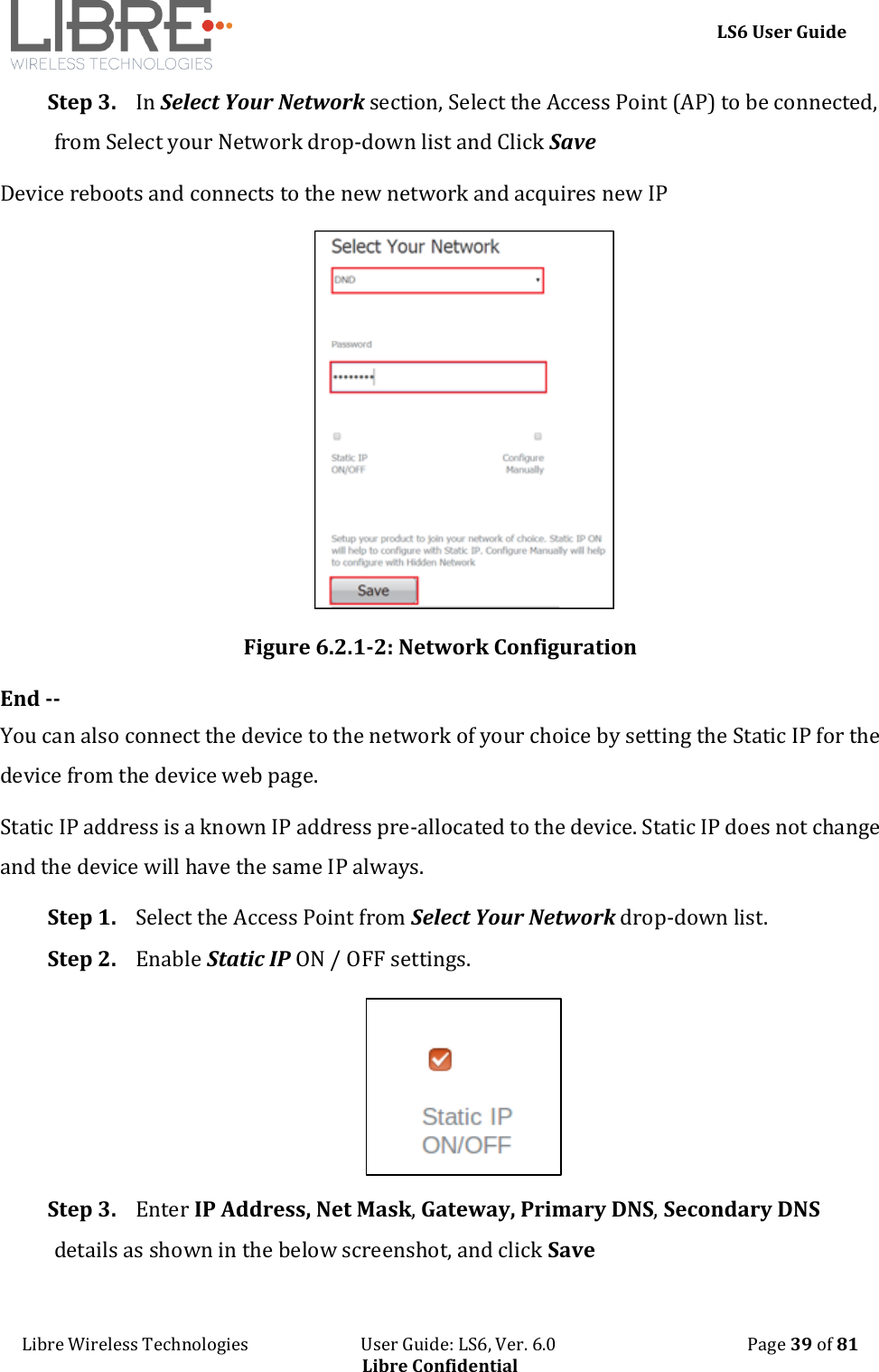
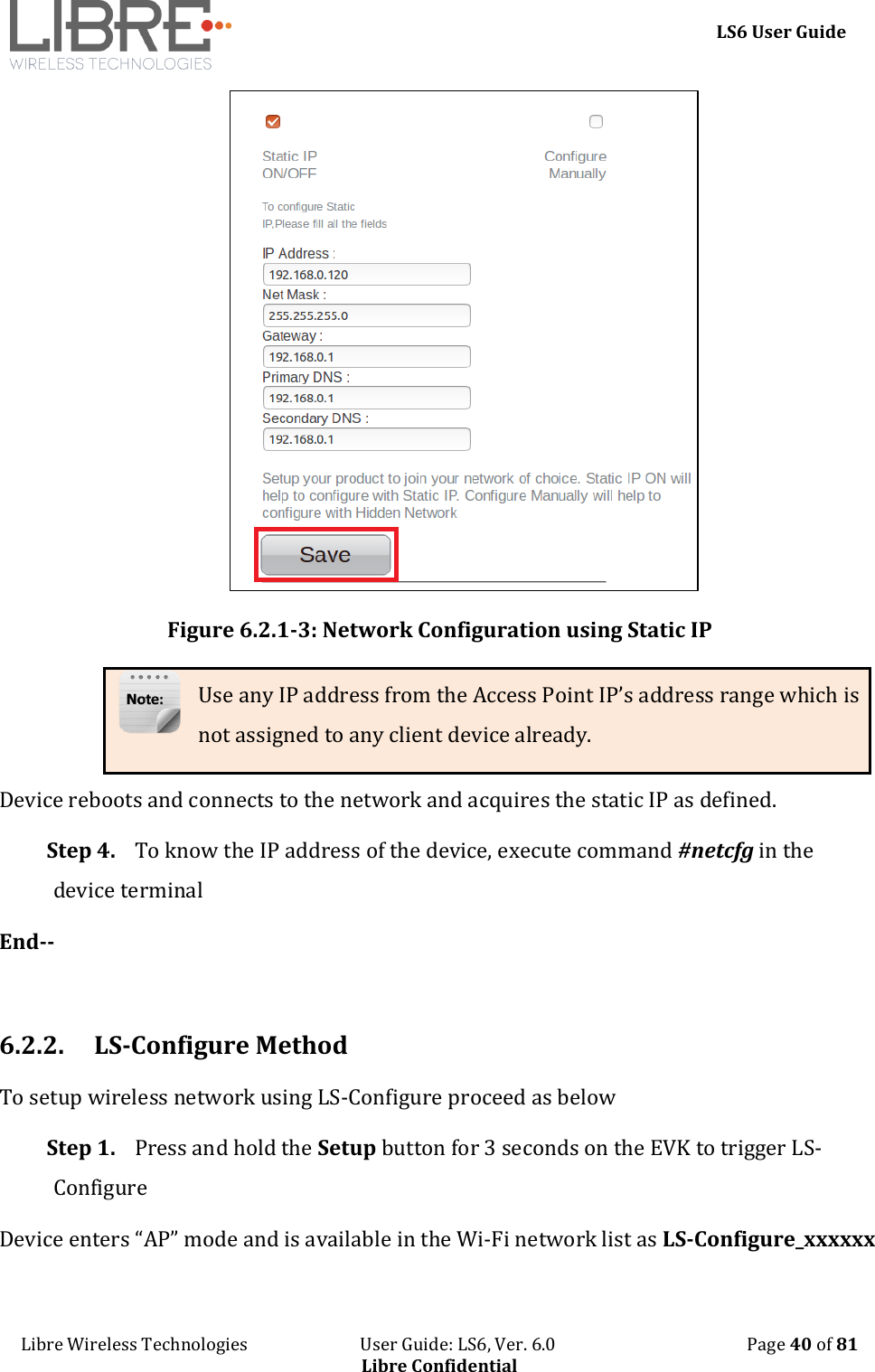
    LS6 User Guide Libre Wireless Technologies                           User Guide: LS6, Ver. 6.0                                              Page 39 of 81 Libre Confidential Step 3. In Select Your Network section, Select the Access Point (AP) to be connected, from Select your Network drop-down list and Click Save Device reboots and connects to the new network and acquires new IP  Figure 6.2.1-2: Network Configuration End -- You can also connect the device to the network of your choice by setting the Static IP for the device from the device web page. Static IP address is a known IP address pre-allocated to the device. Static IP does not change and the device will have the same IP always.  Step 1. Select the Access Point from Select Your Network drop-down list.  Step 2. Enable Static IP ON / OFF settings.  Step 3. Enter IP Address, Net Mask, Gateway, Primary DNS, Secondary DNS details as shown in the below screenshot, and click Save
    LS6 User Guide Libre Wireless Technologies                           User Guide: LS6, Ver. 6.0                                              Page 40 of 81 Libre Confidential  Figure 6.2.1-3: Network Configuration using Static IP Use any IP address from the Access Point IP’s address range which is not assigned to any client device already. Device reboots and connects to the network and acquires the static IP as defined. Step 4. To know the IP address of the device, execute command #netcfg in the device terminal End--  6.2.2. LS-Configure Method To setup wireless network using LS-Configure proceed as below Step 1. Press and hold the Setup button for 3 seconds on the EVK to trigger LS-Configure Device enters “AP” mode and is available in the Wi-Fi network list as LS-Configure_xxxxxx
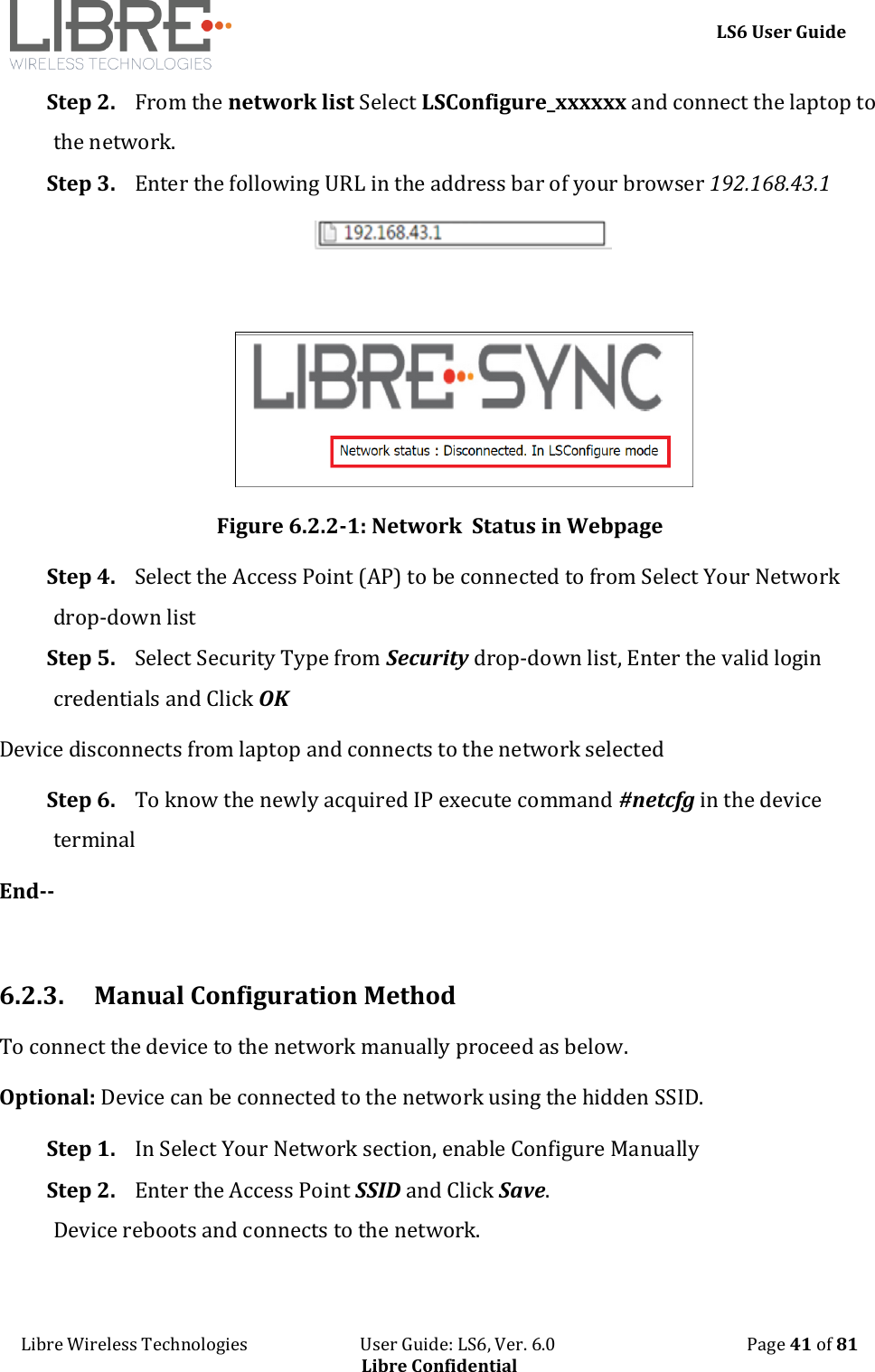
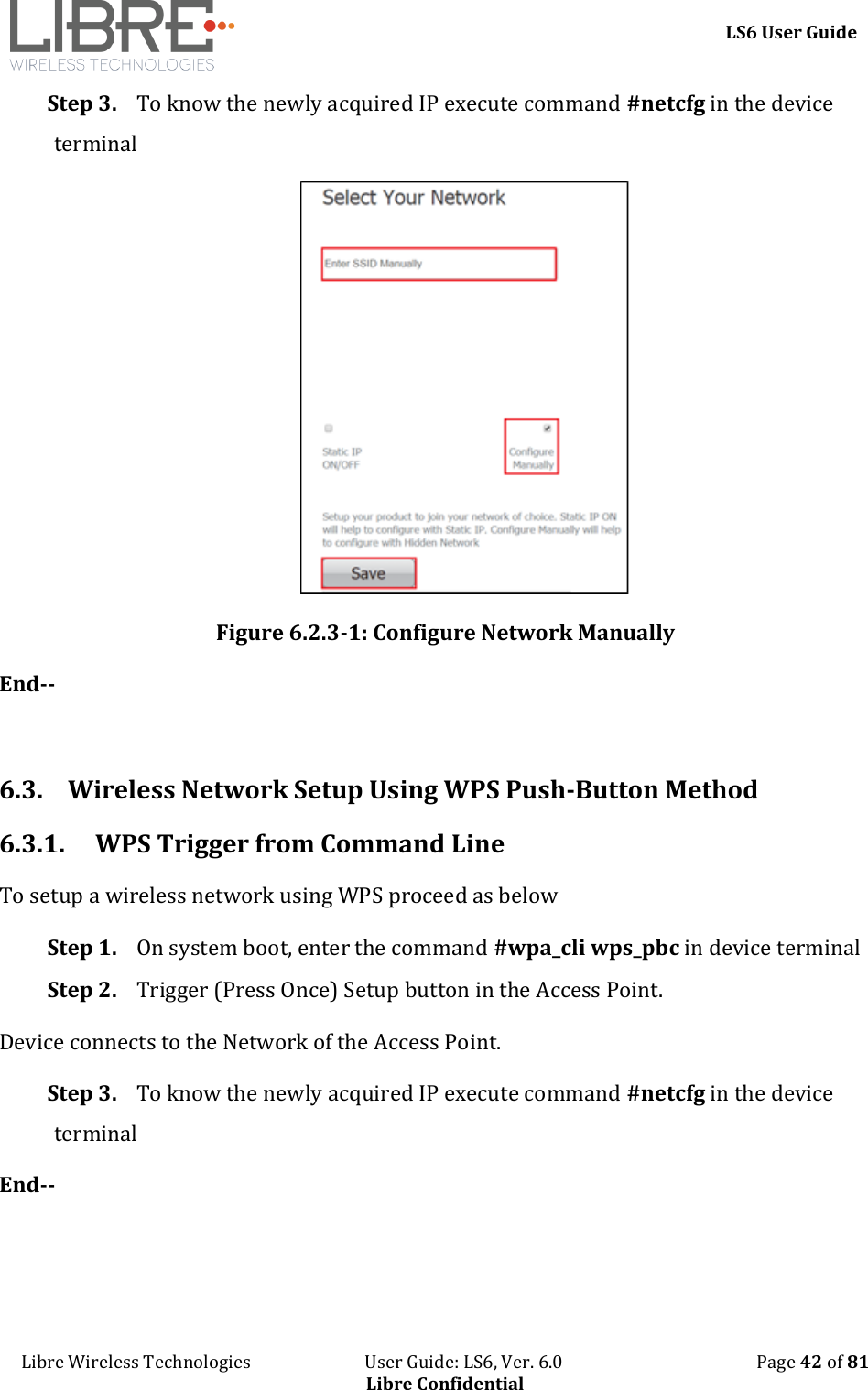
    LS6 User Guide Libre Wireless Technologies                           User Guide: LS6, Ver. 6.0                                              Page 41 of 81 Libre Confidential Step 2. From the network list Select LSConfigure_xxxxxx and connect the laptop to the network. Step 3. Enter the following URL in the address bar of your browser 192.168.43.1        Figure 6.2.2-1: Network  Status in Webpage Step 4. Select the Access Point (AP) to be connected to from Select Your Network drop-down list Step 5. Select Security Type from Security drop-down list, Enter the valid login credentials and Click OK Device disconnects from laptop and connects to the network selected Step 6. To know the newly acquired IP execute command #netcfg in the device terminal End--  6.2.3. Manual Configuration Method To connect the device to the network manually proceed as below.  Optional: Device can be connected to the network using the hidden SSID. Step 1. In Select Your Network section, enable Configure Manually  Step 2. Enter the Access Point SSID and Click Save. Device reboots and connects to the network.
    LS6 User Guide Libre Wireless Technologies                           User Guide: LS6, Ver. 6.0                                              Page 42 of 81 Libre Confidential Step 3. To know the newly acquired IP execute command #netcfg in the device terminal  Figure 6.2.3-1: Configure Network Manually End--  6.3. Wireless Network Setup Using WPS Push-Button Method 6.3.1. WPS Trigger from Command Line  To setup a wireless network using WPS proceed as below Step 1. On system boot, enter the command #wpa_cli wps_pbc in device terminal Step 2. Trigger (Press Once) Setup button in the Access Point. Device connects to the Network of the Access Point. Step 3. To know the newly acquired IP execute command #netcfg in the device terminal End--
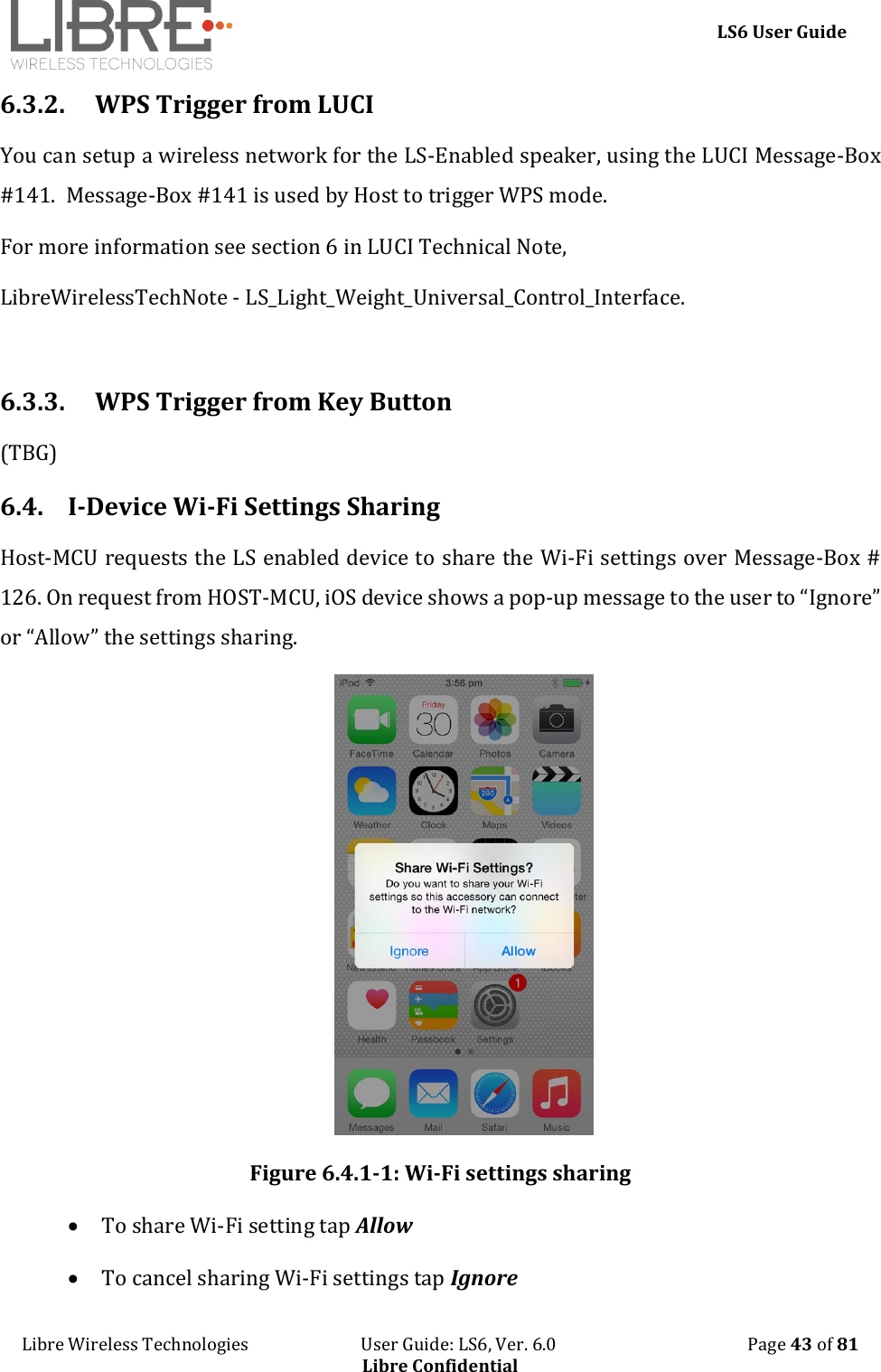
    LS6 User Guide Libre Wireless Technologies                           User Guide: LS6, Ver. 6.0                                              Page 43 of 81 Libre Confidential 6.3.2. WPS Trigger from LUCI You can setup a wireless network for the LS-Enabled speaker, using the LUCI Message-Box #141.  Message-Box #141 is used by Host to trigger WPS mode. For more information see section 6 in LUCI Technical Note,  LibreWirelessTechNote - LS_Light_Weight_Universal_Control_Interface.  6.3.3. WPS Trigger from Key Button (TBG) 6.4. I-Device Wi-Fi Settings Sharing Host-MCU requests the LS enabled device to share the Wi-Fi settings over Message-Box # 126. On request from HOST-MCU, iOS device shows a pop-up message to the user to “Ignore” or “Allow” the settings sharing.  Figure 6.4.1-1: Wi-Fi settings sharing  To share Wi-Fi setting tap Allow  To cancel sharing Wi-Fi settings tap Ignore
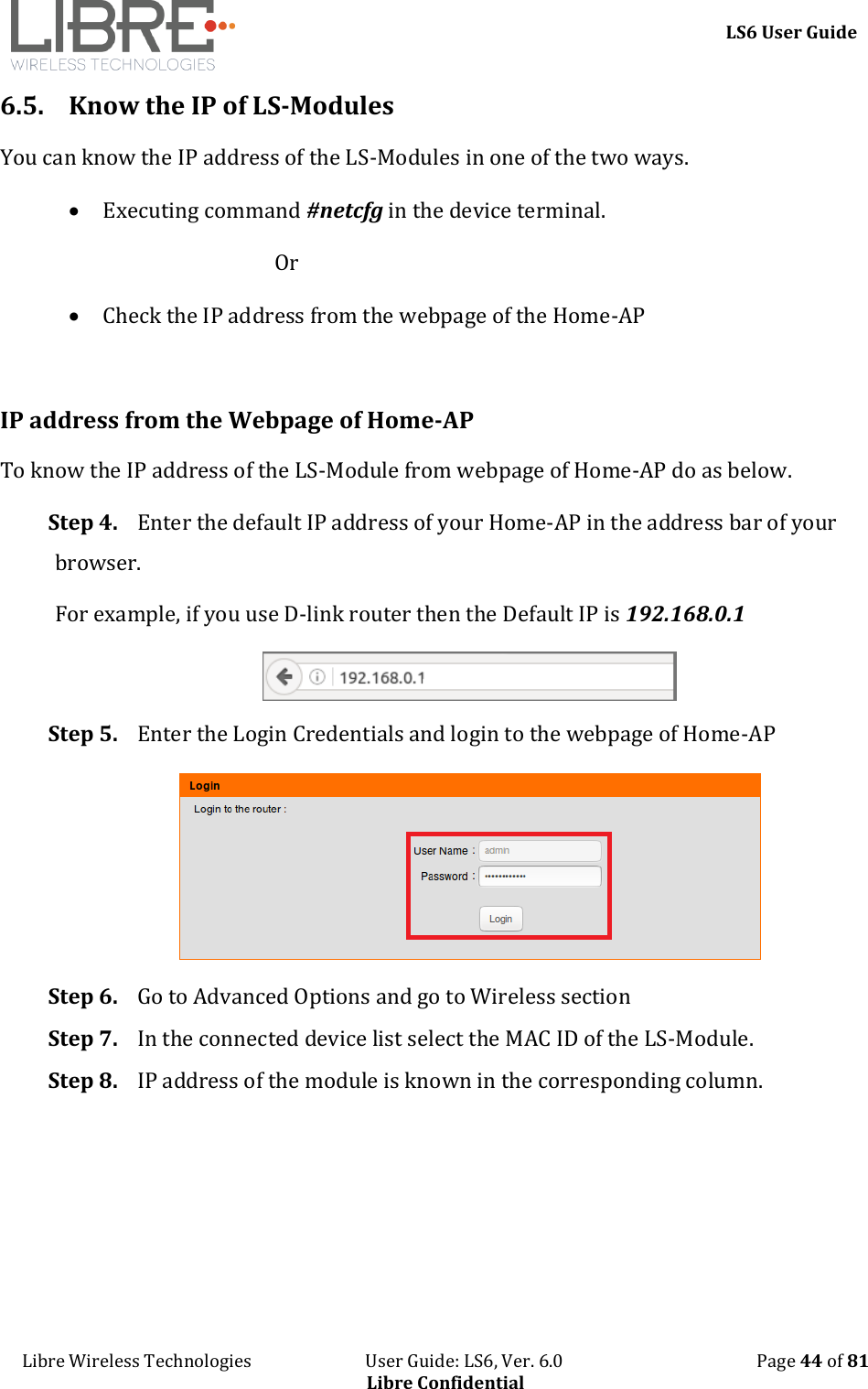
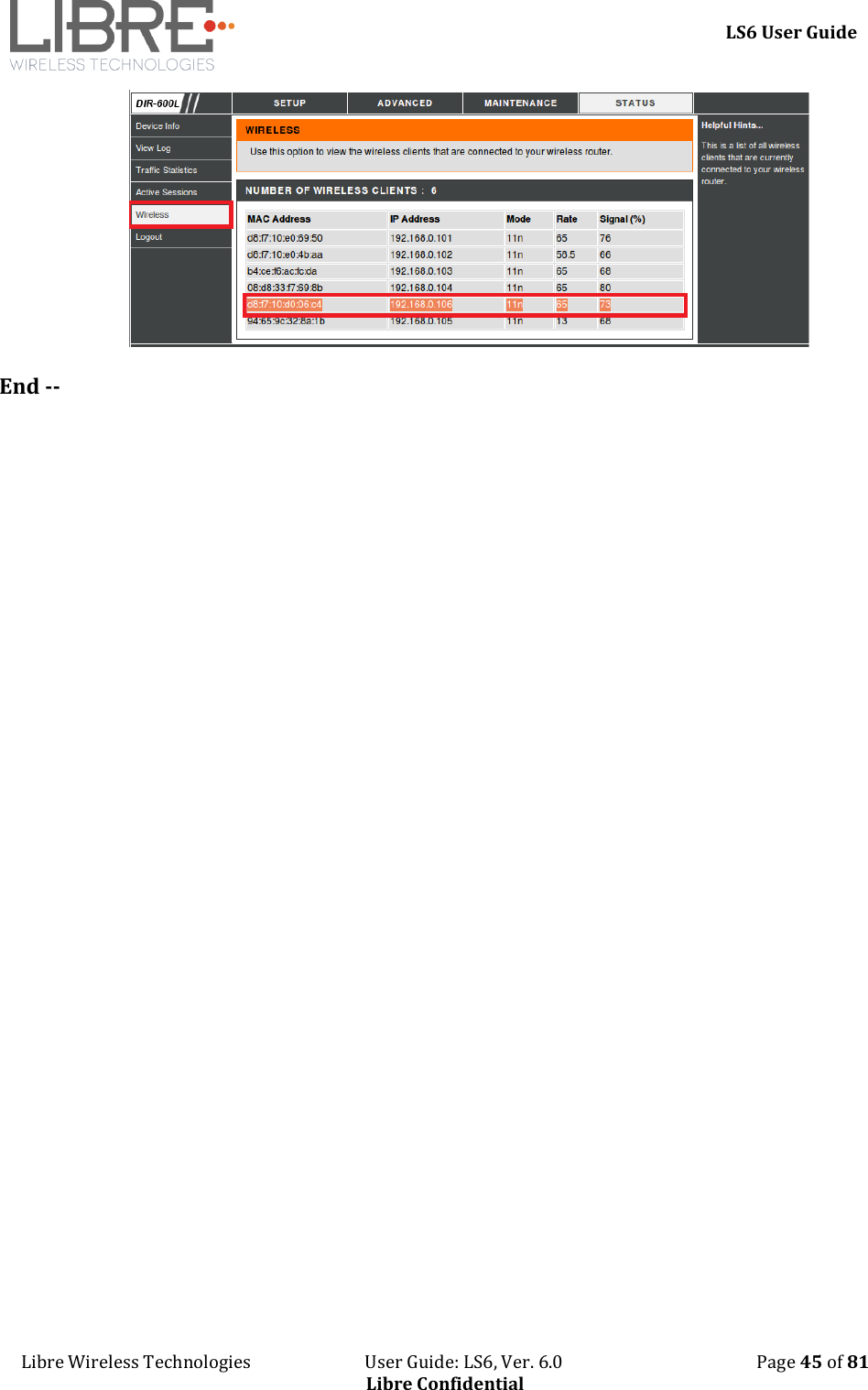
    LS6 User Guide Libre Wireless Technologies                           User Guide: LS6, Ver. 6.0                                              Page 44 of 81 Libre Confidential 6.5. Know the IP of LS-Modules  You can know the IP address of the LS-Modules in one of the two ways.  Executing command #netcfg in the device terminal.  Or   Check the IP address from the webpage of the Home-AP  IP address from the Webpage of Home-AP To know the IP address of the LS-Module from webpage of Home-AP do as below. Step 4. Enter the default IP address of your Home-AP in the address bar of your browser.  For example, if you use D-link router then the Default IP is 192.168.0.1  Step 5. Enter the Login Credentials and login to the webpage of Home-AP  Step 6. Go to Advanced Options and go to Wireless section Step 7. In the connected device list select the MAC ID of the LS-Module.  Step 8. IP address of the module is known in the corresponding column.
    LS6 User Guide Libre Wireless Technologies                           User Guide: LS6, Ver. 6.0                                              Page 45 of 81 Libre Confidential  End --
    LS6 User Guide Libre Wireless Technologies                           User Guide: LS6, Ver. 6.0                                              Page 46 of 81 Libre Confidential 7. Features 7.1. Libre APP for Android LUCI enables user to remotely, control the LibreSync LS6 enabled product using the Libre Application for android. The application can be used to browse DLNA-DMS in the network, SD Card connected to device and other online radio stations such as vTuner and TuneIn , and stream music using the DMP feature supported by LS6. For more information on using Libre APP refer   LibreWireless-Usability_Guide_Dynamic_Direct_Multi-Node_Streaming  7.2. DDMS A Wireless Dynamic Direct Multi-Node Streaming (DDMS) Zone is a group of nodes, (DDMS enabled speakers) chosen dynamically by an end user to synchronously play audio from a given content source.  This group of speakers can play music from any Audio Source synchronously without any delay between the nodes. Each group can consists of two or more nodes.   DDMS Group is created in two mode   Home-Network Mode – A state in which DDMS-Nodes creates a Sound-Scene, by connecting to the Access-Point (AP) in the Home-Network. The Audio Source (smartphone) streaming the audio should be connected to the same AP.  Stand-Alone Mode - A state in which DDMS-Nodes creates a Sound-Scene, by connecting to the Master using the SSID of Sound-Scene in SA-Mode. In this state there is no Access-Point (AP) or home infrastructure present.  The Audio Source (smartphone) streaming the audio should be connected to the same SSID of the Sound-Scene in SA-Mode.
    LS6 User Guide Libre Wireless Technologies                           User Guide: LS6, Ver. 6.0                                              Page 47 of 81 Libre Confidential Ls-Enabled device reboots, every time when it is switched from HN-Mode to SA-Mode and vice-versa  For information on setting up devices for DDMS, and Using Libre App refer to  LibreWireless-Usability_Guide_Dynamic_Direct_Multi-Node_Streaming The device webpage provides interface to update DDMS SSID and password.  Figure 7.2-1: DDMS Setup in webpage 7.3. Software Security LibreSync  software  is  secured  using  Crypto  IC.  Crypto  IC  is  embedded  either  in  the  LS6 module or the ACP. Crypto IC authenticates and allows only the valid LS6 software to boot on the LS6 modules.  7.4. Source Switching LibreSync enables user to switch the playback sources without any hitches. User can choose to stream music either from AirPlay or UPnP server and the music streams on the selected device from the source. For example, A LS Device streaming AirPlay, starts streaming music from DLNA / DMR when, the user selects music from Win 7 -Media Player to be played on the device.
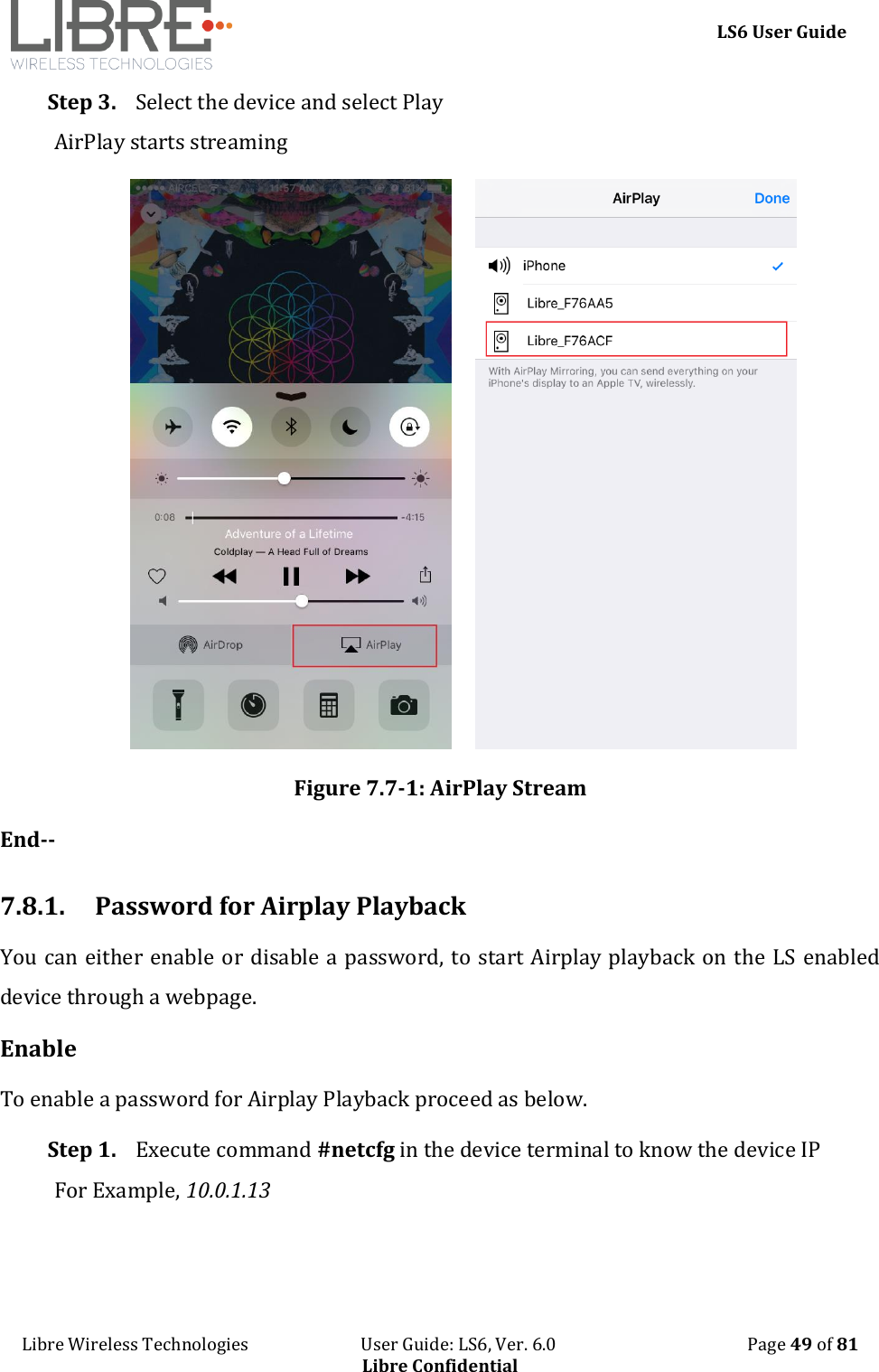
    LS6 User Guide Libre Wireless Technologies                           User Guide: LS6, Ver. 6.0                                              Page 48 of 81 Libre Confidential 7.5. Failsafe Mechanism Failsafe Mechanism safeguards the modules from being corrupted or unusable, in case of power failure or reset during the firmware upgrade. For  more  information  on  Failsafe  Mechanism  see  LibreWirelessTechNote_Failsafe-Firmware_Upgrade, available in Libre Portal.  7.6. Autosense of Audio CODEC The  new  LS  Firmware  will  automatically  detect  the  presence  of  Audio  CODEC  in  the firmware.   If LS-SoC detects Wolfson CODEC (WN8904) on LS-I2C bus, then LS-Module takes care of controlling the Audio CODEC and is applicable to LS6 EVK.   If Wolfson CODEC is not detected, LS-SoC does not control the Audio CODEC. Host MCU must take care of handling AUDIO DAC / CODEC.  7.7. AUX-In Support Users can connect Audio Source to AUX-In jack of EVK and select the source from Libre-APP. 7.8. Airplay® After the speaker or device is configured to the network, it is discovered by the iOS device and iTunes, and is available for AirPlay streaming. To stream AirPlay proceed as below Step 1. Open the Control Centre or Music App on iOS device                                                        Or                  Open iTunes installed on any machine Step 2. Tap the AirPlay icon AirPlay enabled LibreSync device is listed
    LS6 User Guide Libre Wireless Technologies                           User Guide: LS6, Ver. 6.0                                              Page 49 of 81 Libre Confidential Step 3. Select the device and select Play AirPlay starts streaming          Figure 7.7-1: AirPlay Stream End--  7.8.1. Password for Airplay Playback You can either enable or disable a password, to start Airplay playback on the LS enabled device through a webpage. Enable To enable a password for Airplay Playback proceed as below. Step 1. Execute command #netcfg in the device terminal to know the device IP For Example, 10.0.1.13
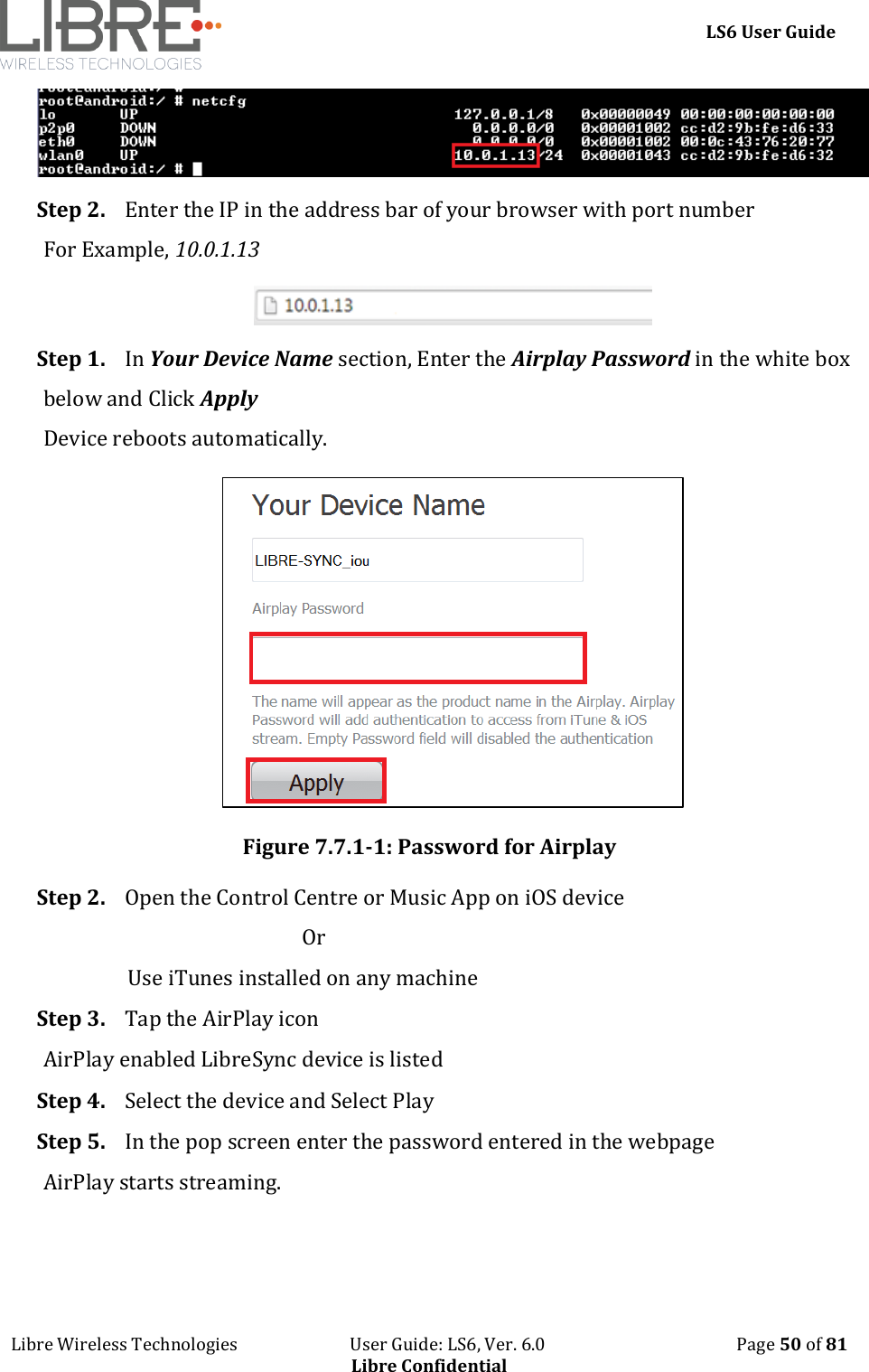
    LS6 User Guide Libre Wireless Technologies                           User Guide: LS6, Ver. 6.0                                              Page 50 of 81 Libre Confidential  Step 2. Enter the IP in the address bar of your browser with port number For Example, 10.0.1.13  Step 1. In Your Device Name section, Enter the Airplay Password in the white box below and Click Apply Device reboots automatically.  Figure 7.7.1-1: Password for Airplay Step 2. Open the Control Centre or Music App on iOS device                                                     Or                  Use iTunes installed on any machine Step 3. Tap the AirPlay icon AirPlay enabled LibreSync device is listed Step 4. Select the device and Select Play Step 5. In the pop screen enter the password entered in the webpage AirPlay starts streaming.
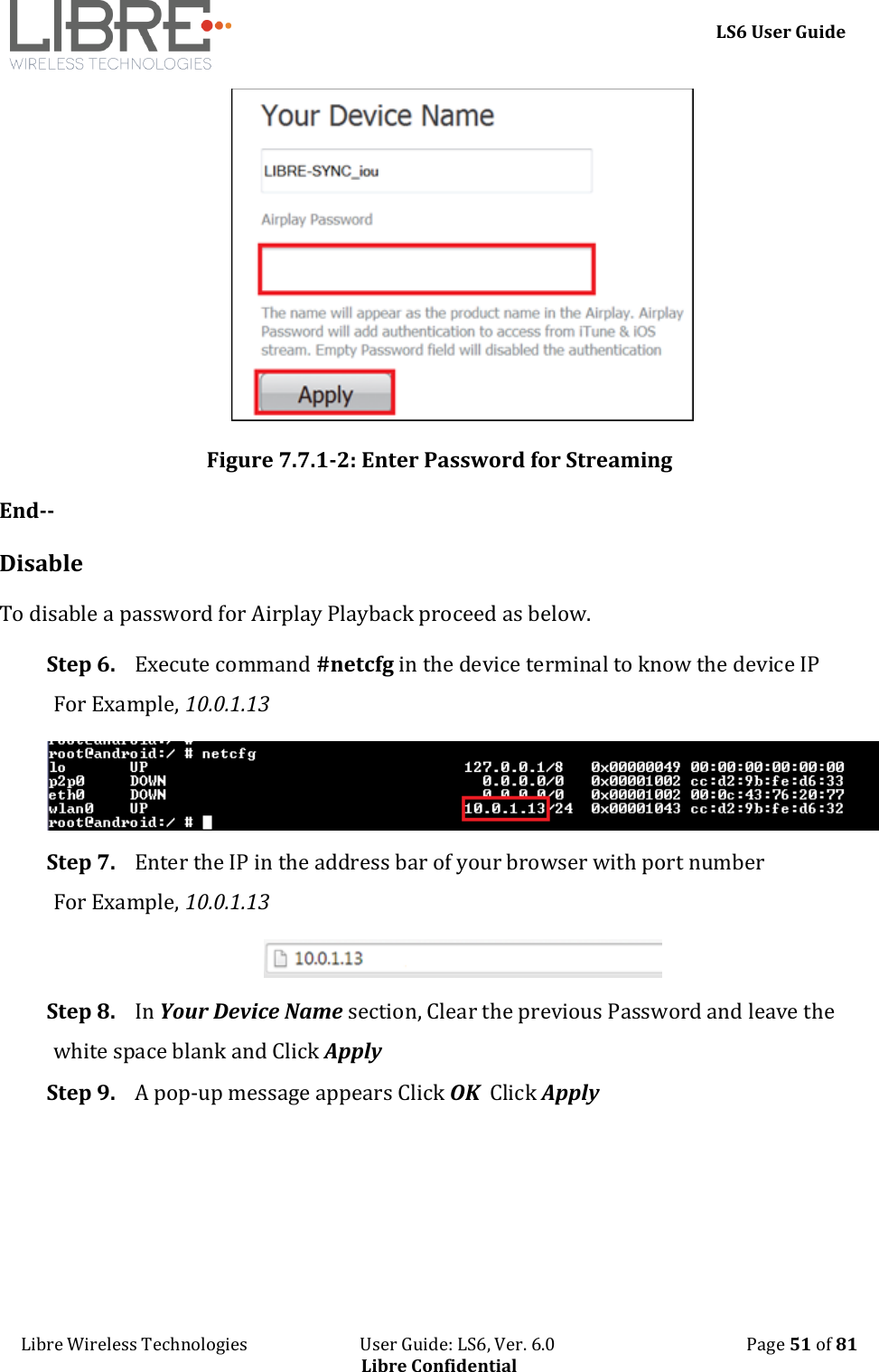
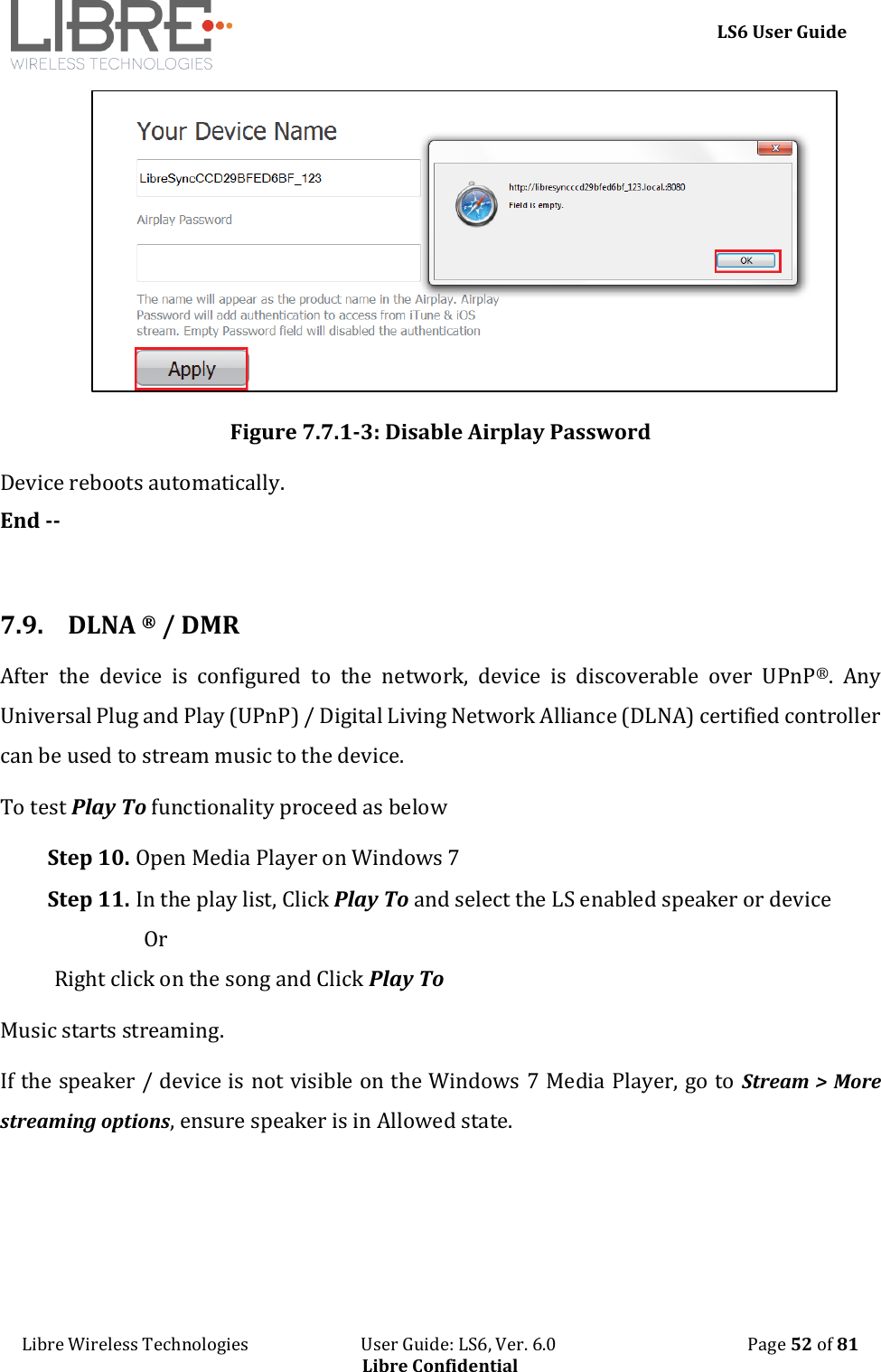
    LS6 User Guide Libre Wireless Technologies                           User Guide: LS6, Ver. 6.0                                              Page 51 of 81 Libre Confidential  Figure 7.7.1-2: Enter Password for Streaming End-- Disable To disable a password for Airplay Playback proceed as below. Step 6. Execute command #netcfg in the device terminal to know the device IP For Example, 10.0.1.13  Step 7. Enter the IP in the address bar of your browser with port number For Example, 10.0.1.13  Step 8. In Your Device Name section, Clear the previous Password and leave the white space blank and Click Apply Step 9. A pop-up message appears Click OK  Click Apply
    LS6 User Guide Libre Wireless Technologies                           User Guide: LS6, Ver. 6.0                                              Page 52 of 81 Libre Confidential  Figure 7.7.1-3: Disable Airplay Password Device reboots automatically. End --  7.9. DLNA ® / DMR After  the  device  is  configured  to  the  network,  device  is  discoverable  over  UPnP®.  Any Universal Plug and Play (UPnP) / Digital Living Network Alliance (DLNA) certified controller can be used to stream music to the device. To test Play To functionality proceed as below Step 10. Open Media Player on Windows 7 Step 11. In the play list, Click Play To and select the LS enabled speaker or device                   Or  Right click on the song and Click Play To Music starts streaming. If the speaker / device is not visible on the Windows 7 Media Player, go to Stream > More streaming options, ensure speaker is in Allowed state.
    LS6 User Guide Libre Wireless Technologies                           User Guide: LS6, Ver. 6.0                                              Page 53 of 81 Libre Confidential  Figure 7.8-1: Media Player Stream Menu  Figure 7.8-2: Media Streaming Options  Digital Media Renderer (DMR) functionality can be verified using any app  on  the  Android /  iOS  devices  as  well.  For  example,  the  native audio player on Samsung Galaxy devices can be used.  End--  7.10. Miracast  Miracast also known as Wi-Fi display, is the feature used to mirror the mobile (video and audio) to the Miracast sink device. It uses wifi-P2P technology for communication.  Miracast on Libre platform doesn't support Video, but Miracast devices (source) by design streams both Video and audio to the Libre speaker. To start Miracast on an android phone, that supports Miracast proceed as below.
    LS6 User Guide Libre Wireless Technologies                           User Guide: LS6, Ver. 6.0                                              Page 54 of 81 Libre Confidential Step 1. Send the type 2 Command in Message-Box 113 over LUCI For more information see Message 113 in file LibreWirelessTechNote - LS_Light_Weight_Universal_Control_Interface Step 2. Start the local audio playback on an Miracast enabled Android Phone For Example, Nexus 5 Step 3. Go to the Miracast screen, on the Android Phone For Example, In Nexus 5 phone go to Settings > Display > Cast screen Miracast enabled speaker is listed. For example, LibreCast  Figure 7.9-1: Miracast Enabled Speaker
    LS6 User Guide Libre Wireless Technologies                           User Guide: LS6, Ver. 6.0                                              Page 55 of 81 Libre Confidential Step 4. Tap the Speaker from the list Speaker connects to the Miracast and streams the music from the current playlist  Step 5. Close the Miracast Screen End-- For  details  on  scenarios  of  Miracast  Mode  Switching  with  other  Different  Modes   (WAC/DDMS),  and  Miracast  Source  Switching  with  other  Different  Sources,  refer  to “LibreWirelessTechNote-Miracast_Mode_and_Source_Conversion” document available in Libre Portal.  7.11.  SD-Card Playback LS supports Audio Playback from SD-Card. User can select the content source from SD-Card to stream music on a LS-Enabled speaker. The  seek  operation  support  for  SD-Card  Playback  is  available  from  Mid-January,  2015 Release (LS6-v6027) and Onwards.  7.12.  i-Device playback over USB LS supports audio playback from i-Devices over USB. User can select the content source from an iOS device to stream music on LS-Enabled speaker. Apple devices which support iAP2 protocol (Apple devices with lightning connector except iPod nano 7g) can be connected to LS device and playback can be done.  When Host-MCU is Not-Present (in LS-EVK) If the NV-Item hostpresent is set to '0' , connect the apple device and press PLAY icon on the UI of the apple device to start the playback.  To Disable NV-Item hostpresent #setenv hostpresent 0
    LS6 User Guide Libre Wireless Technologies                           User Guide: LS6, Ver. 6.0                                              Page 56 of 81 Libre Confidential When Host-MCU is Present (in Customer Product) If the NV-Item hostpresent is set to '1' ,   To Enable NV-Item hostpresent #setenv hostpresent 1  To start playback from Apple Device following sequence is to be followed. Step 1. LS sends the new source to the Host MCU over Message-Box# 10 Step 2. Host MCU may send a command to LS (Command Type: GET) over Message-Box#50 (Current Source – with value 16 that is Apple Device) to get to know the current playback source, if any. Step 3. Host MCU takes a decision whether it has to allow/disallow the new Audio Source. Step 4. Send a confirmation on Message-Box#11 with data field set to 1/0 for Allowed/Not-allowed respectively.  Apple Device Connection Status  When Apple device is connected Message-Box # 38 is updated with the value '2'  When it is disconnected Message-Box # 39 is updated with the value '2'.  For more information refer to LUCI document  LibreWirelessTechNote - LS_Light_Weight_Universal_Control_Interface  7.13. Favourites Favourites in LibreSync allows you to save your favourite songs and radio stations in Music-Services (Listed below) for easy access.
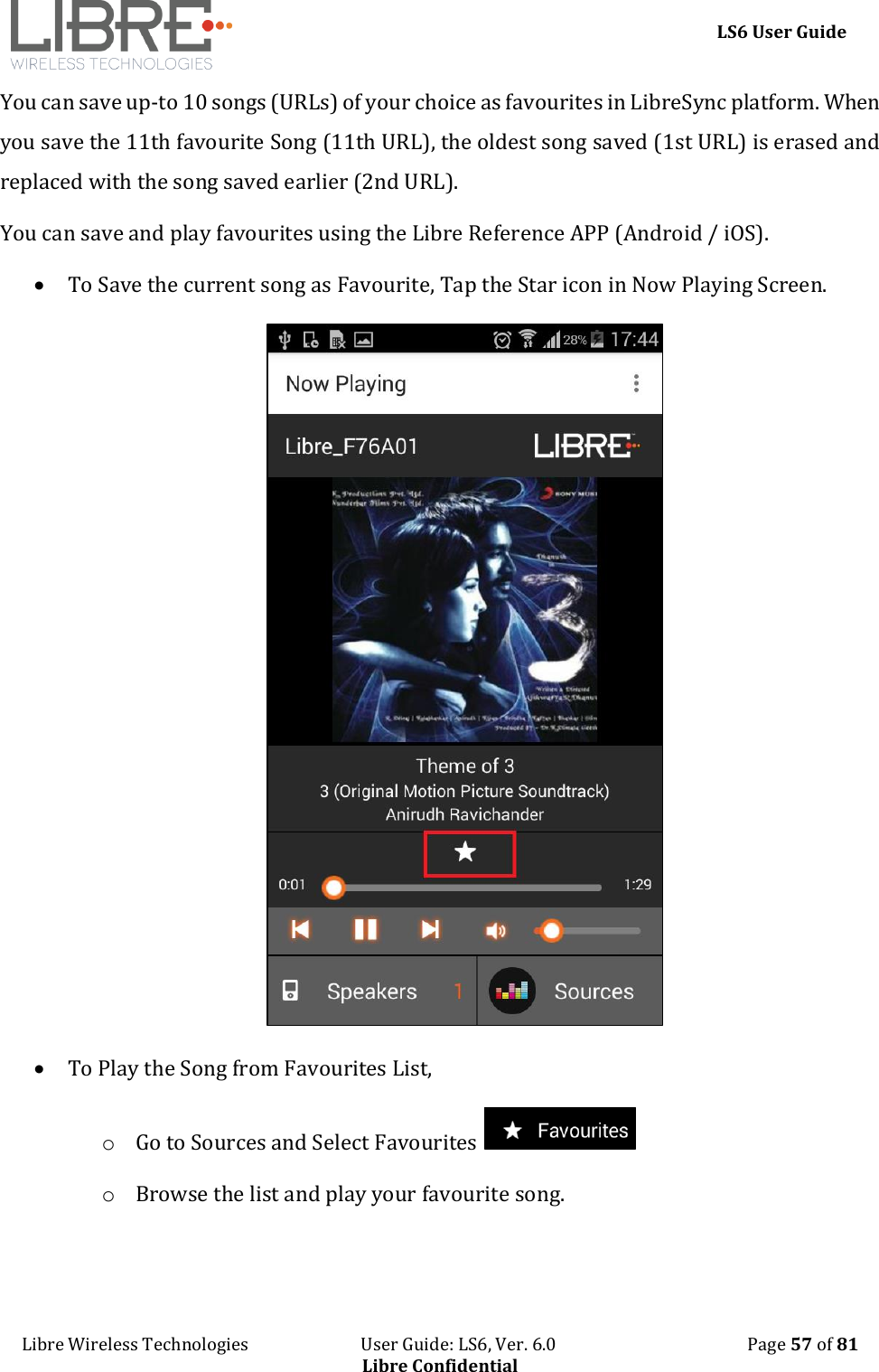
    LS6 User Guide Libre Wireless Technologies                           User Guide: LS6, Ver. 6.0                                              Page 57 of 81 Libre Confidential You can save up-to 10 songs (URLs) of your choice as favourites in LibreSync platform. When you save the 11th favourite Song (11th URL), the oldest song saved (1st URL) is erased and replaced with the song saved earlier (2nd URL). You can save and play favourites using the Libre Reference APP (Android / iOS).   To Save the current song as Favourite, Tap the Star icon in Now Playing Screen.   To Play the Song from Favourites List, o Go to Sources and Select Favourites   o Browse the list and play your favourite song.
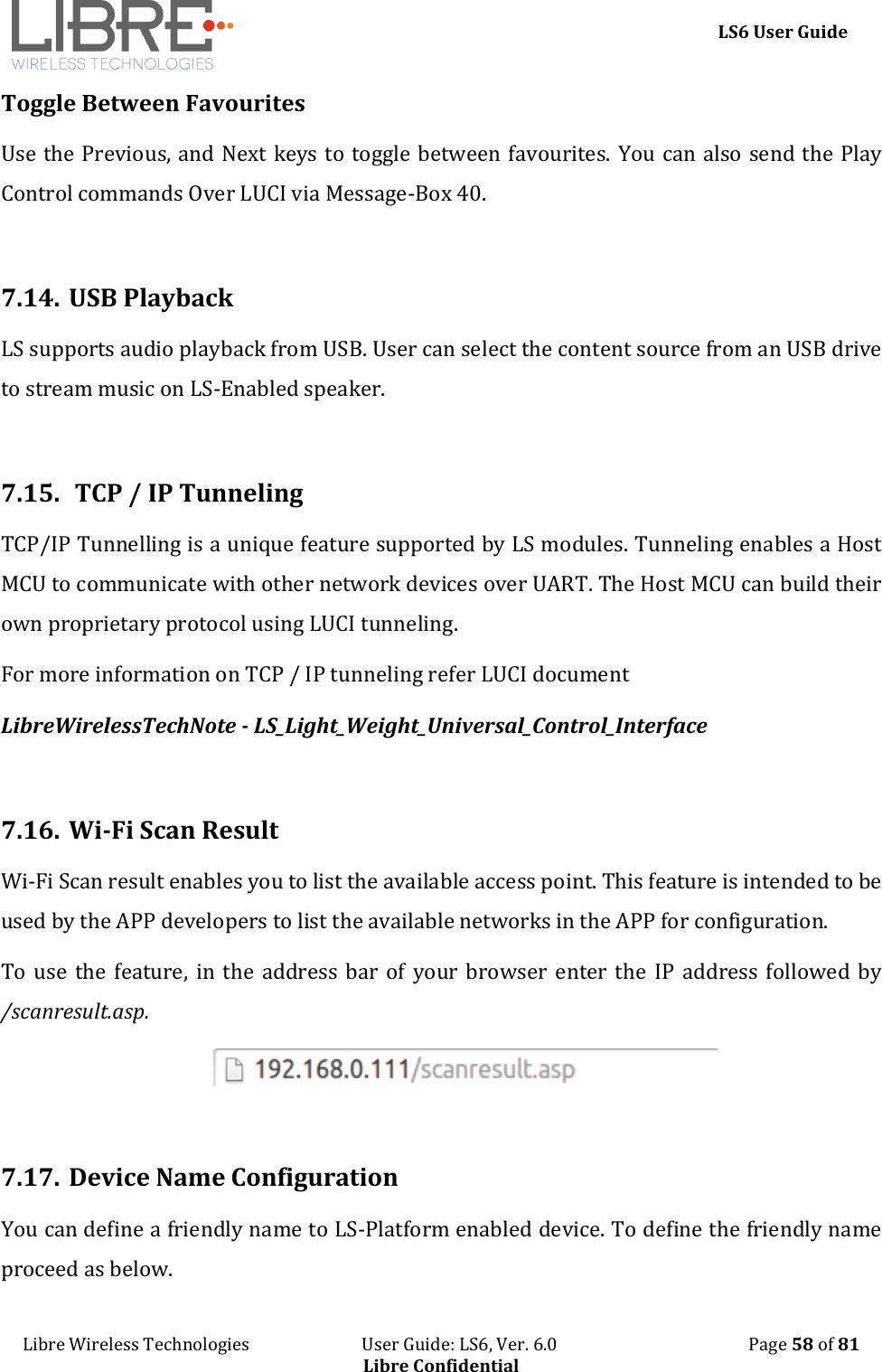
    LS6 User Guide Libre Wireless Technologies                           User Guide: LS6, Ver. 6.0                                              Page 58 of 81 Libre Confidential Toggle Between Favourites  Use the Previous, and Next keys to toggle between favourites. You can also send the Play Control commands Over LUCI via Message-Box 40.   7.14. USB Playback LS supports audio playback from USB. User can select the content source from an USB drive to stream music on LS-Enabled speaker.  7.15.  TCP / IP Tunneling  TCP/IP Tunnelling is a unique feature supported by LS modules. Tunneling enables a Host MCU to communicate with other network devices over UART. The Host MCU can build their own proprietary protocol using LUCI tunneling. For more information on TCP / IP tunneling refer LUCI document  LibreWirelessTechNote - LS_Light_Weight_Universal_Control_Interface  7.16. Wi-Fi Scan Result Wi-Fi Scan result enables you to list the available access point. This feature is intended to be used by the APP developers to list the available networks in the APP for configuration.  To use  the  feature,  in  the address bar  of  your browser  enter the  IP  address  followed by /scanresult.asp.   7.17. Device Name Configuration You can define a friendly name to LS-Platform enabled device. To define the friendly name proceed as below.
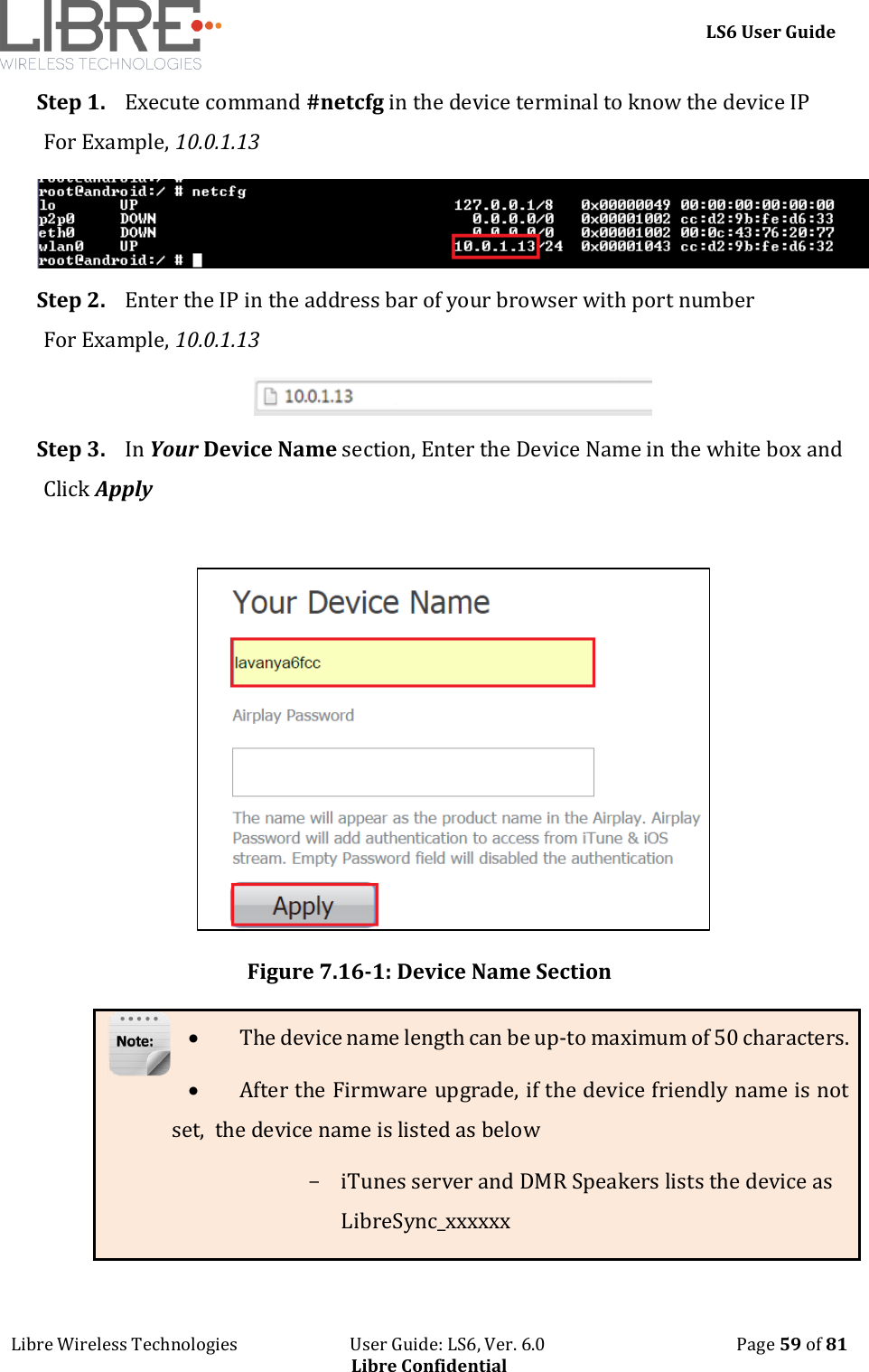
    LS6 User Guide Libre Wireless Technologies                           User Guide: LS6, Ver. 6.0                                              Page 59 of 81 Libre Confidential Step 1. Execute command #netcfg in the device terminal to know the device IP For Example, 10.0.1.13  Step 2. Enter the IP in the address bar of your browser with port number For Example, 10.0.1.13  Step 3. In Your Device Name section, Enter the Device Name in the white box and Click Apply    Figure 7.16-1: Device Name Section  The device name length can be up-to maximum of 50 characters.  After the Firmware upgrade, if the device friendly name is not set,  the device name is listed as below - iTunes server and DMR Speakers lists the device as LibreSync_xxxxxx
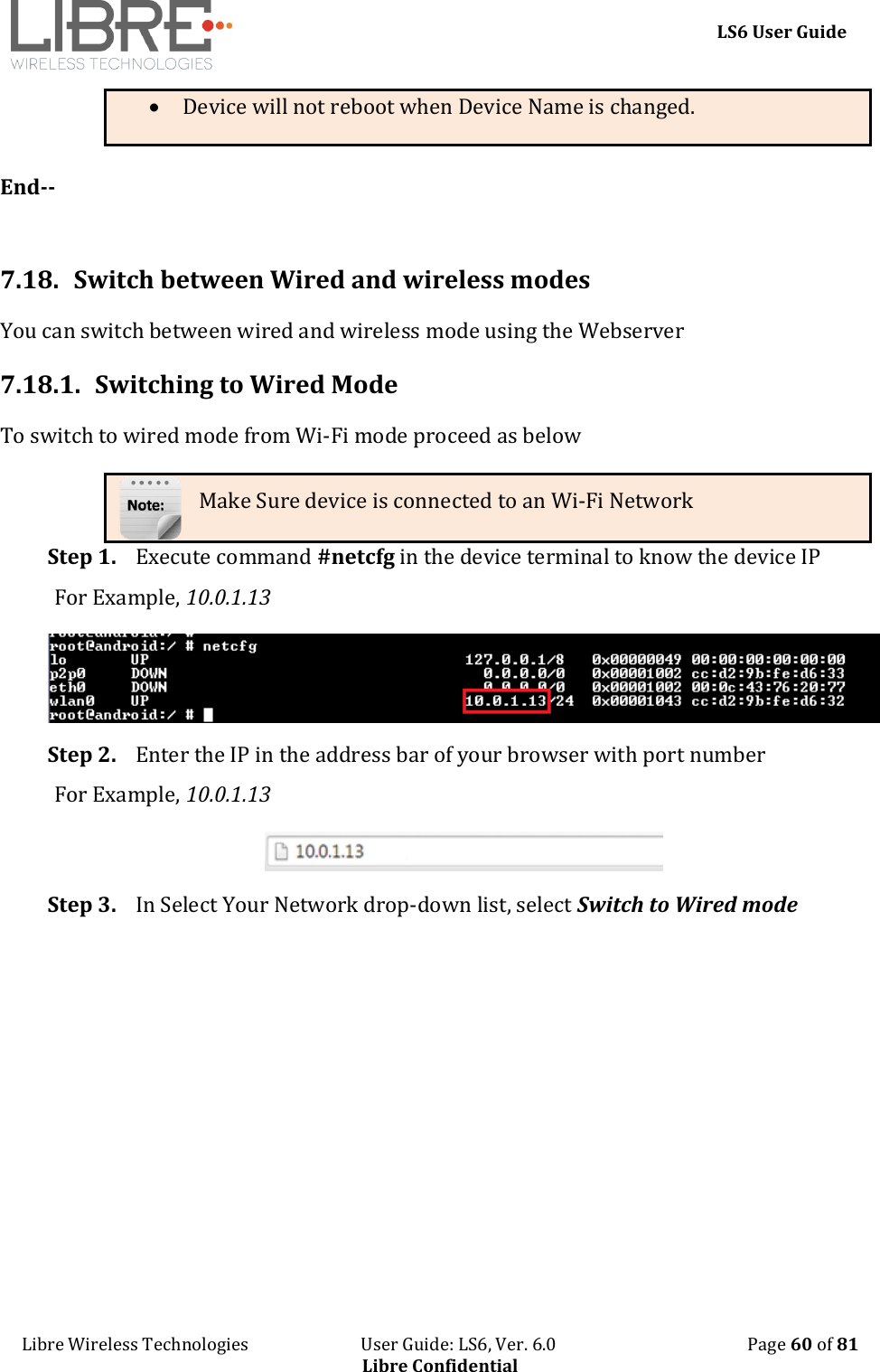
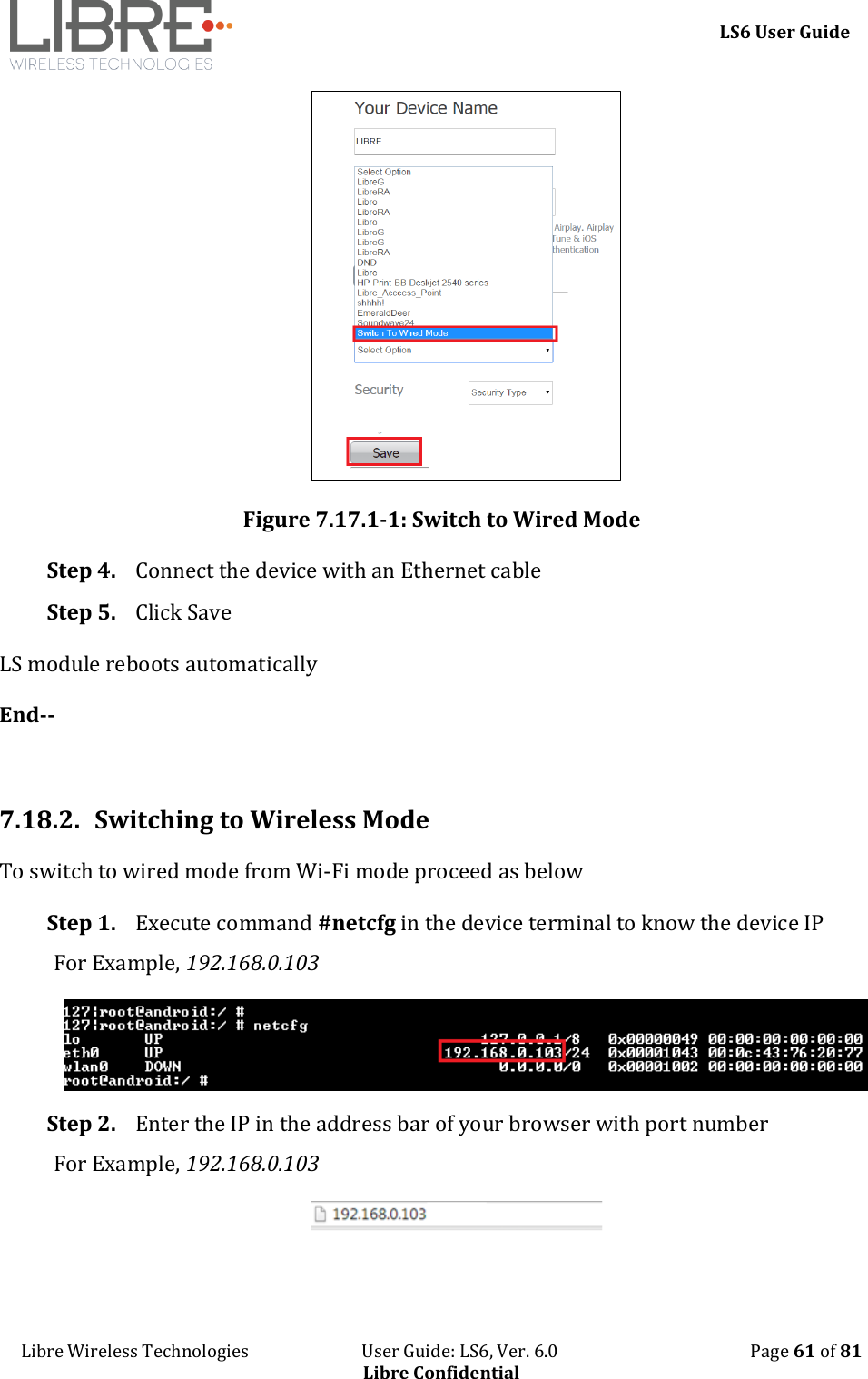
    LS6 User Guide Libre Wireless Technologies                           User Guide: LS6, Ver. 6.0                                              Page 60 of 81 Libre Confidential  Device will not reboot when Device Name is changed.  End--   7.18.  Switch between Wired and wireless modes  You can switch between wired and wireless mode using the Webserver 7.18.1. Switching to Wired Mode To switch to wired mode from Wi-Fi mode proceed as below Make Sure device is connected to an Wi-Fi Network Step 1. Execute command #netcfg in the device terminal to know the device IP For Example, 10.0.1.13  Step 2. Enter the IP in the address bar of your browser with port number For Example, 10.0.1.13  Step 3. In Select Your Network drop-down list, select Switch to Wired mode
    LS6 User Guide Libre Wireless Technologies                           User Guide: LS6, Ver. 6.0                                              Page 61 of 81 Libre Confidential  Figure 7.17.1-1: Switch to Wired Mode Step 4. Connect the device with an Ethernet cable Step 5. Click Save LS module reboots automatically End--  7.18.2. Switching to Wireless Mode To switch to wired mode from Wi-Fi mode proceed as below Step 1. Execute command #netcfg in the device terminal to know the device IP For Example, 192.168.0.103  Step 2. Enter the IP in the address bar of your browser with port number For Example, 192.168.0.103
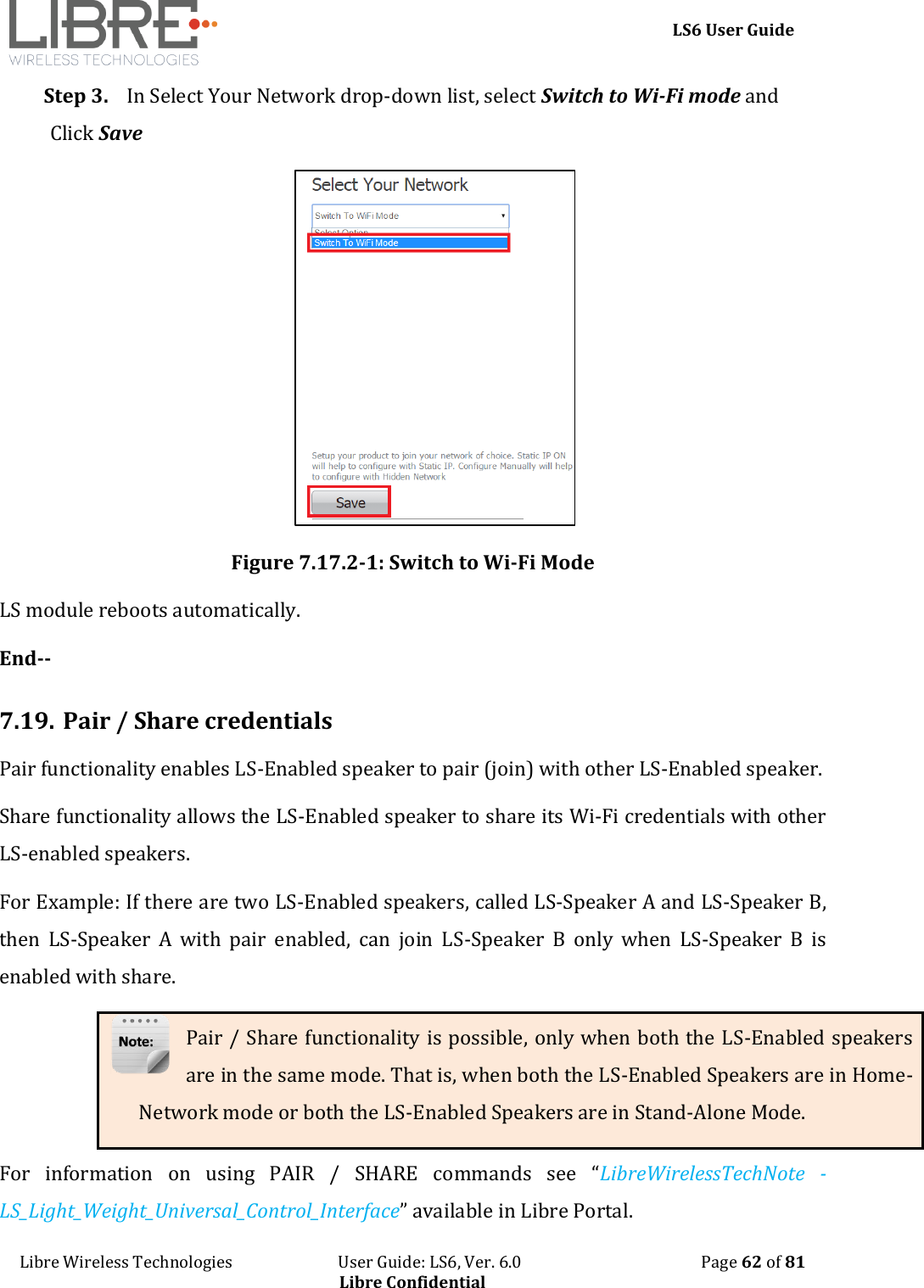
    LS6 User Guide Libre Wireless Technologies                           User Guide: LS6, Ver. 6.0                                              Page 62 of 81 Libre Confidential Step 3. In Select Your Network drop-down list, select Switch to Wi-Fi mode and Click Save  Figure 7.17.2-1: Switch to Wi-Fi Mode LS module reboots automatically. End--  7.19. Pair / Share credentials Pair functionality enables LS-Enabled speaker to pair (join) with other LS-Enabled speaker.  Share functionality allows the LS-Enabled speaker to share its Wi-Fi credentials with other LS-enabled speakers. For Example: If there are two LS-Enabled speakers, called LS-Speaker A and LS-Speaker B, then  LS-Speaker  A  with  pair  enabled,  can  join  LS-Speaker  B  only  when  LS-Speaker  B  is enabled with share. Pair / Share functionality is possible, only when both the LS-Enabled speakers are in the same mode. That is, when both the LS-Enabled Speakers are in Home-Network mode or both the LS-Enabled Speakers are in Stand-Alone Mode. For  information  on  using  PAIR  /  SHARE  commands  see  “LibreWirelessTechNote  - LS_Light_Weight_Universal_Control_Interface” available in Libre Portal.
    LS6 User Guide Libre Wireless Technologies                           User Guide: LS6, Ver. 6.0                                              Page 63 of 81 Libre Confidential 7.20. Multiple SSID LibreSync allows LS-Enabled devices to store Eight different network’s information in Home Network mode.   If the device lose network, it would scan for earlier connected networks and then connects to the network with highest signal strength.  The  details  of  each  network’s  SSID  and  Passphrase  are  stored  in  HN_SSID_x  and HN_PASSPHRASE_x respectively. The device starts storing the information from HN_SSID_7 till HN_SSID_0 and then erases the oldest i.e., HN_SSID_7 to write the new network details.  7.21. Zone Volume. Zone  Volume  uses  scaling  ratios  to  provide a  good user  experience  and  intuitive  system response based on controlling volume levels for dynamic groups of speakers - called "Sound Scenes”.  Zone volume manages an overall Sound Scene’s Volume. Once speakers are adjusted, the Sound Scene Volume will raise and lower each speaker’s volume in a relative way keeping the relationship of volume level between speakers. However as you lower the Sound Scene’s Volume level to zero, every speaker in the Scene will converge to zero at the same time.  For more details see LUCI Tech Note.   7.22. Music Services 7.22.1. vTuner vTuner is  an    internet  radio  device  that  receives  and  plays  streamed  media,  either  from Internet radio or Home network. vTuner on Libre platform can be used to stream music using the Libre APP. To stream music from vTuner proceed as below.
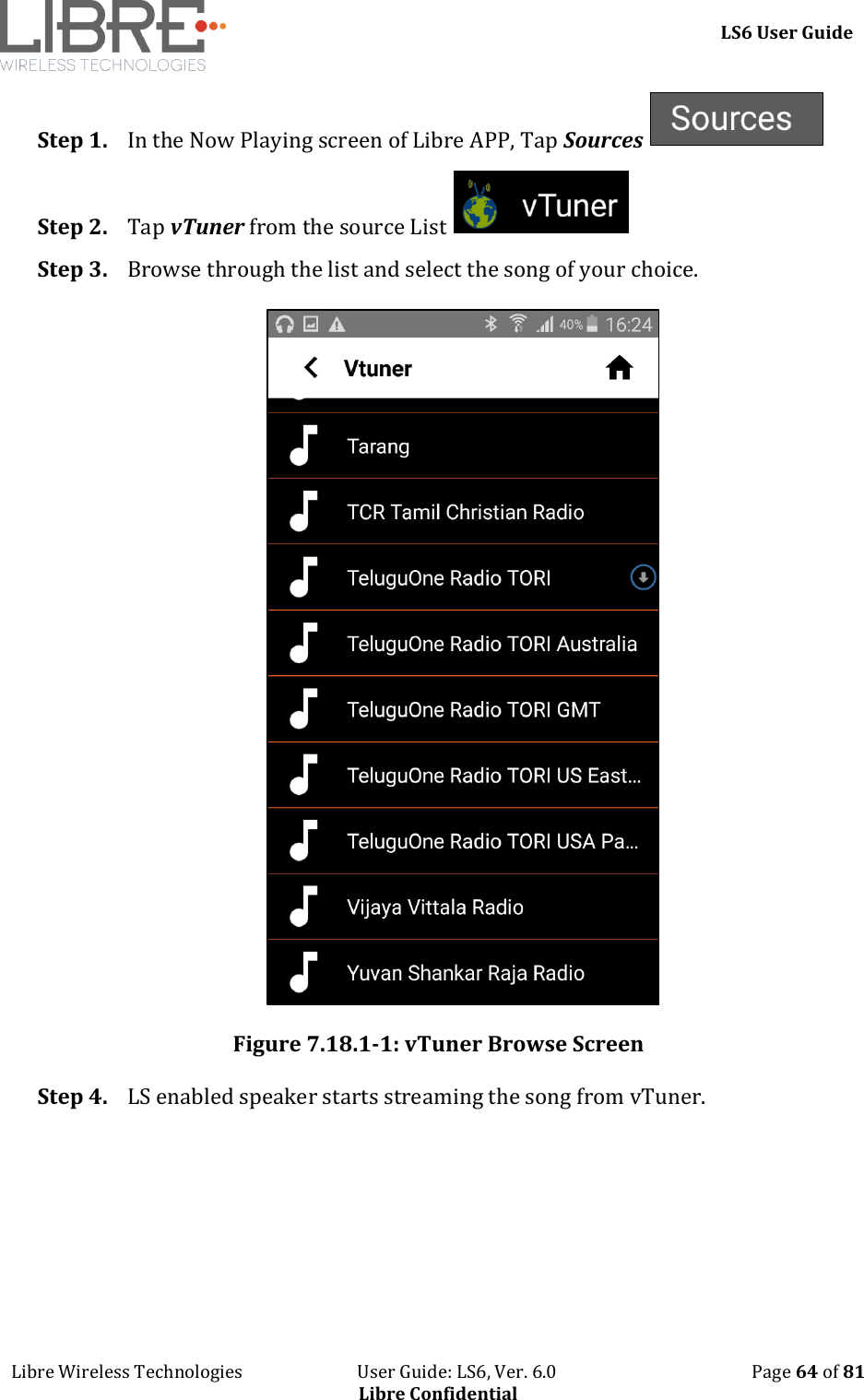
    LS6 User Guide Libre Wireless Technologies                           User Guide: LS6, Ver. 6.0                                              Page 64 of 81 Libre Confidential Step 1. In the Now Playing screen of Libre APP, Tap Sources   Step 2. Tap vTuner from the source List   Step 3. Browse through the list and select the song of your choice.   Figure 7.18.1-1: vTuner Browse Screen Step 4. LS enabled speaker starts streaming the song from vTuner.
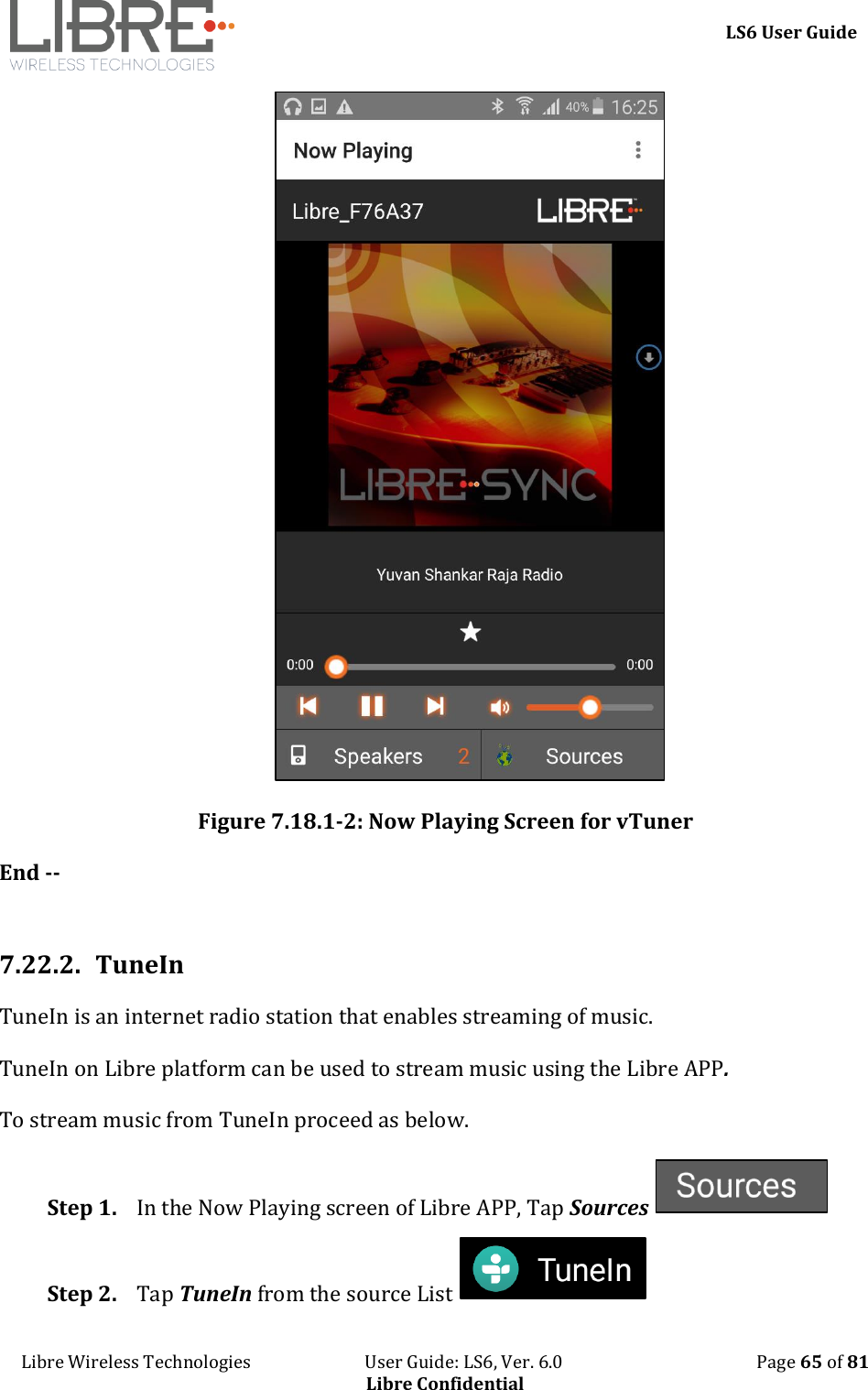
    LS6 User Guide Libre Wireless Technologies                           User Guide: LS6, Ver. 6.0                                              Page 65 of 81 Libre Confidential  Figure 7.18.1-2: Now Playing Screen for vTuner End --  7.22.2. TuneIn TuneIn is an internet radio station that enables streaming of music. TuneIn on Libre platform can be used to stream music using the Libre APP. To stream music from TuneIn proceed as below. Step 1. In the Now Playing screen of Libre APP, Tap Sources   Step 2. Tap TuneIn from the source List
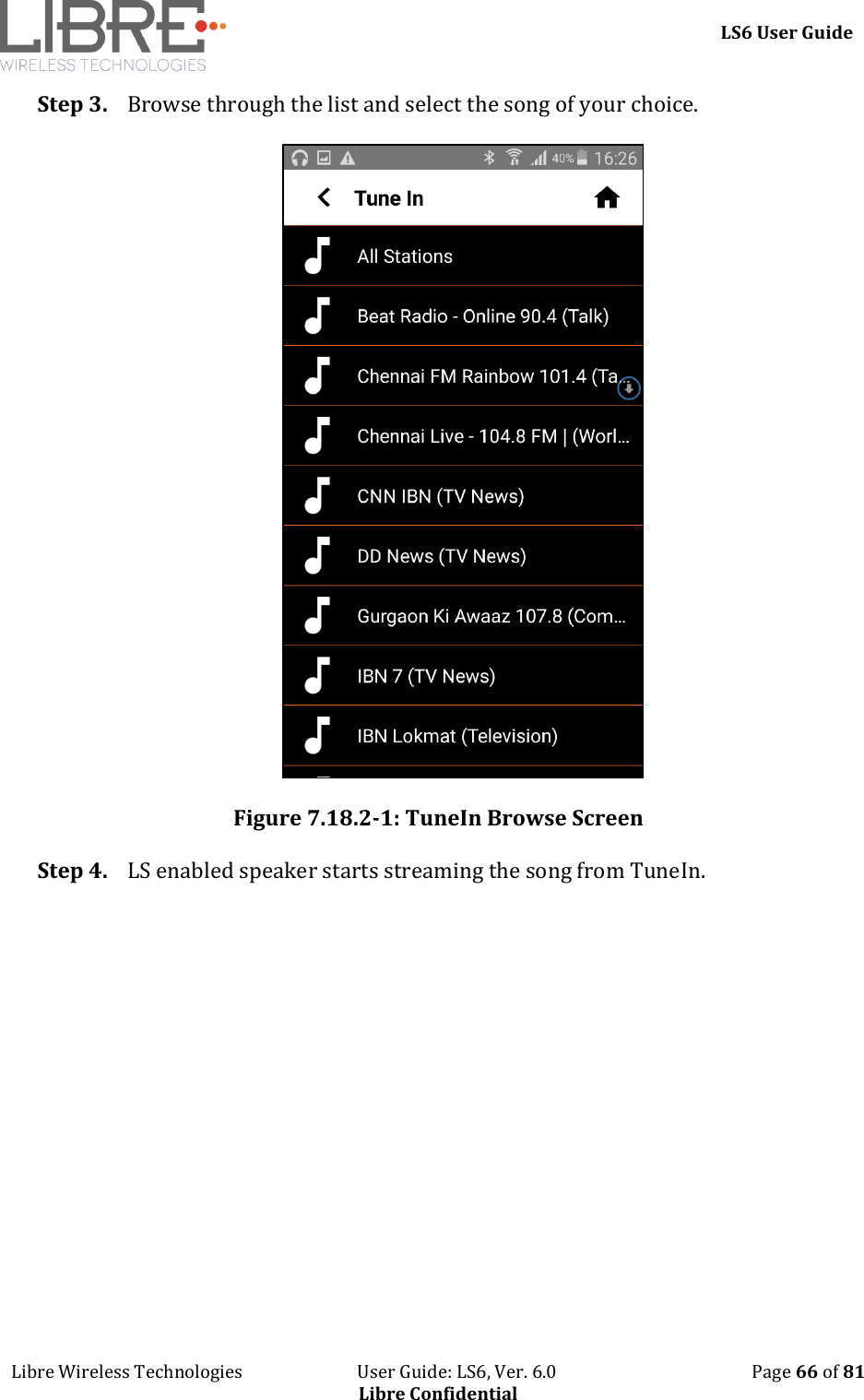
    LS6 User Guide Libre Wireless Technologies                           User Guide: LS6, Ver. 6.0                                              Page 66 of 81 Libre Confidential Step 3. Browse through the list and select the song of your choice.   Figure 7.18.2-1: TuneIn Browse Screen Step 4. LS enabled speaker starts streaming the song from TuneIn.
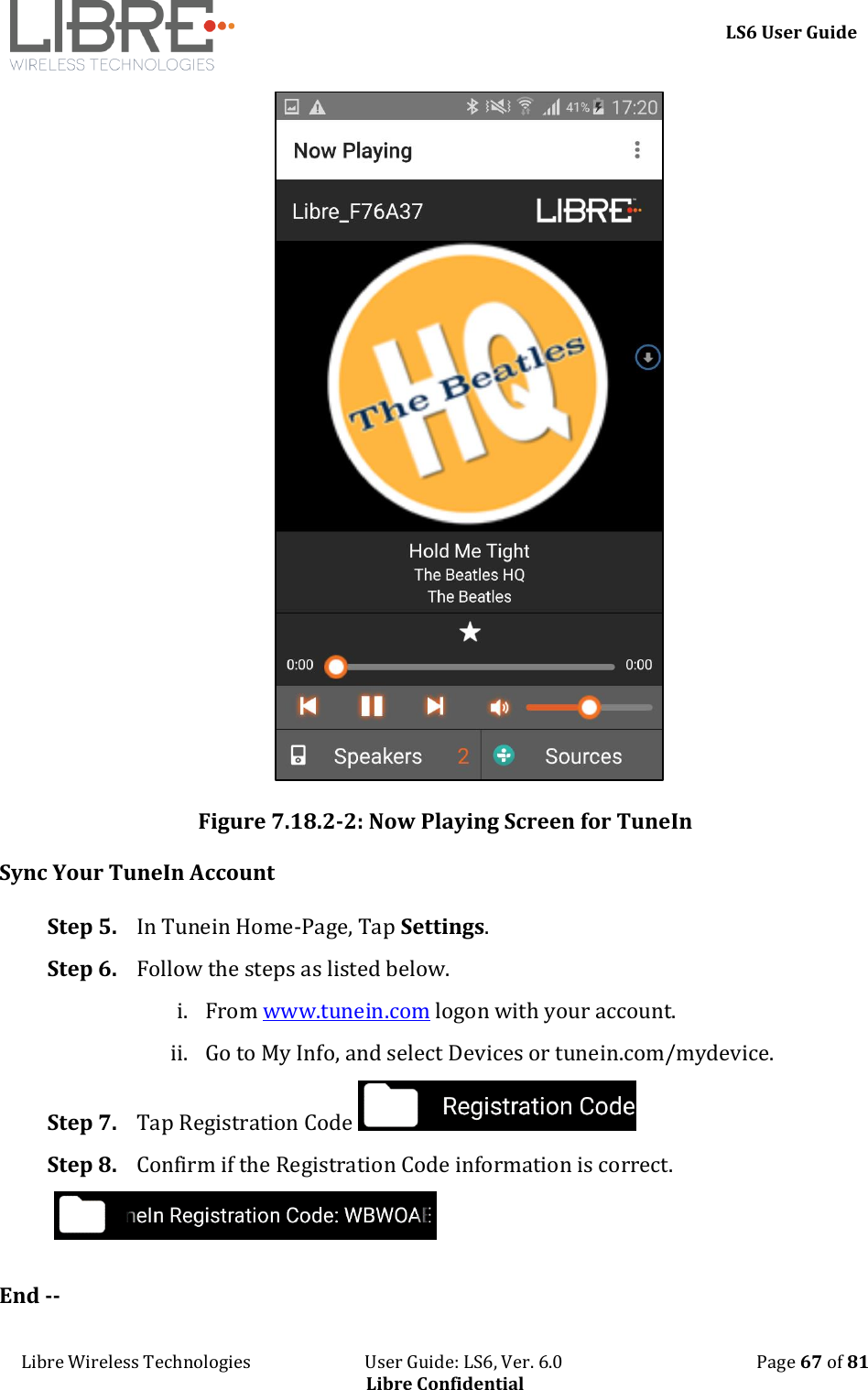
    LS6 User Guide Libre Wireless Technologies                           User Guide: LS6, Ver. 6.0                                              Page 67 of 81 Libre Confidential  Figure 7.18.2-2: Now Playing Screen for TuneIn Sync Your TuneIn Account  Step 5. In Tunein Home-Page, Tap Settings. Step 6. Follow the steps as listed below. i. From www.tunein.com logon with your account. ii. Go to My Info, and select Devices or tunein.com/mydevice. Step 7. Tap Registration Code   Step 8. Confirm if the Registration Code information is correct.   End --
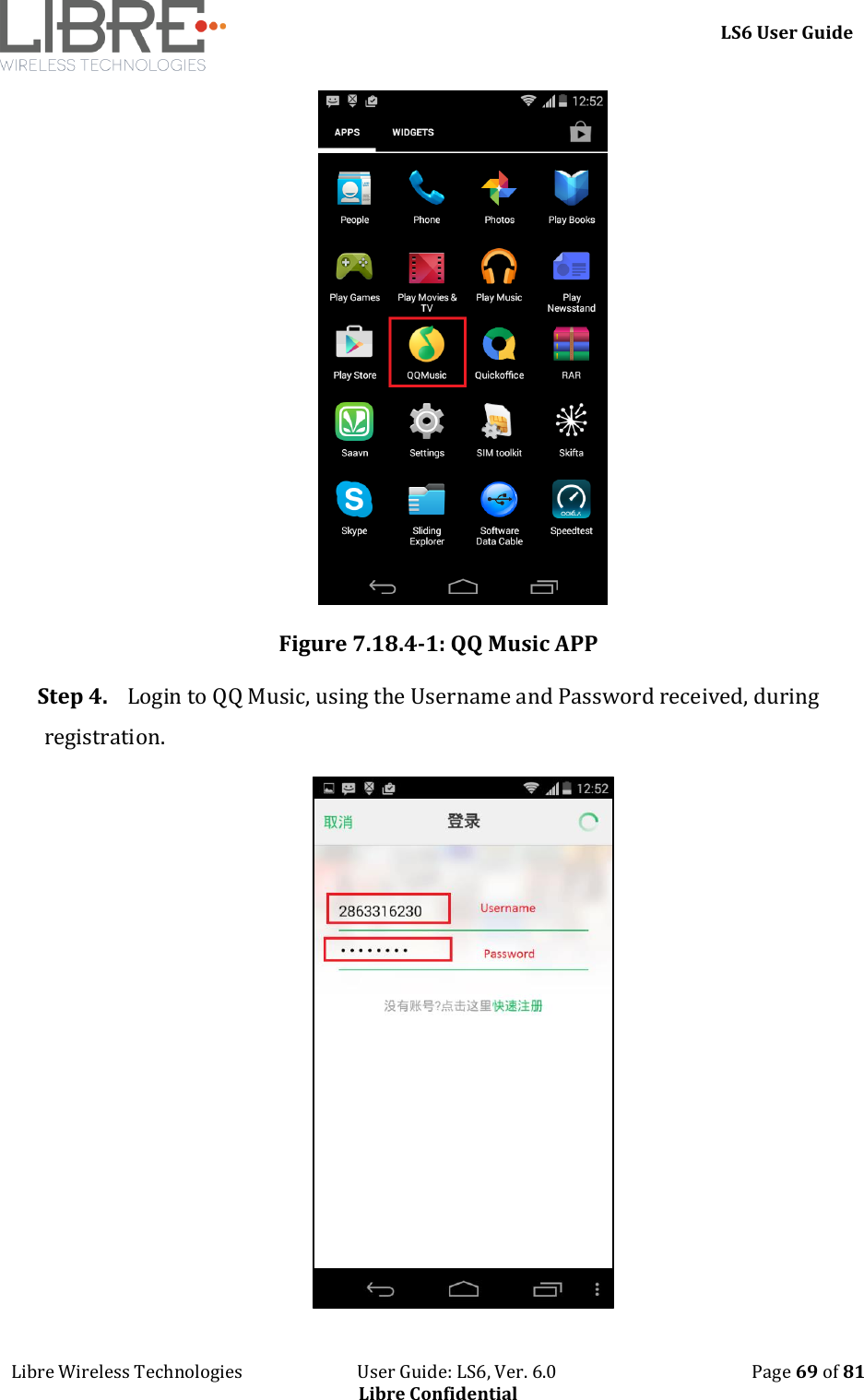
    LS6 User Guide Libre Wireless Technologies                           User Guide: LS6, Ver. 6.0                                              Page 68 of 81 Libre Confidential  7.22.3. Melon  Melon is an online music service, User should use the melon Player to browse through the music of choice.   Melon Application generates the URL for the song selected and sends it to the LS-Speaker using LUCI over Message-Box # 41 and Command ‘2’ to SET. LS-Speaker downloads the song and renders the audio output.  Melon Music service Application should Append the song URL with “MELON:” while sending the command over LUCI.  For Example,  Message-Box #41, 2, PLAYITEM:MELON:(HTTP URL of the Melon Song).  7.22.4. QQ Music LibreSync enable you to stream music via QQ music service.  To use the QQ music service Step 1. Register for QQ Music account and get the Username and Password for the account Step 2. Download the QQ Music app from the Play Store. To stream music from QQ Music proceed as below. Step 1. Reboot the LS enabled device and connect to the network. Step 2. Connect Smartphone to the same network. Step 3. Open the QQ Music APP
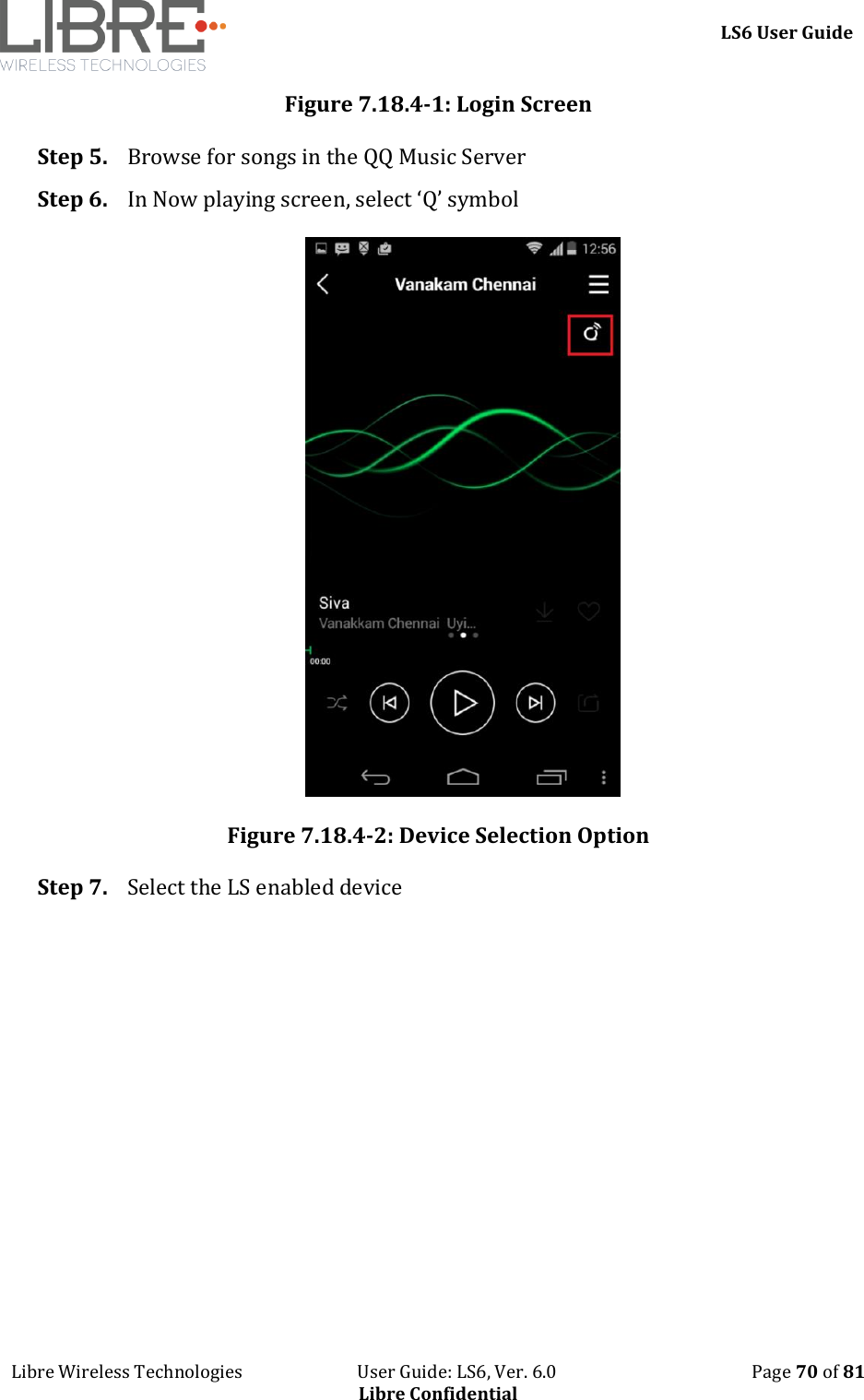
    LS6 User Guide Libre Wireless Technologies                           User Guide: LS6, Ver. 6.0                                              Page 69 of 81 Libre Confidential  Figure 7.18.4-1: QQ Music APP Step 4. Login to QQ Music, using the Username and Password received, during registration.
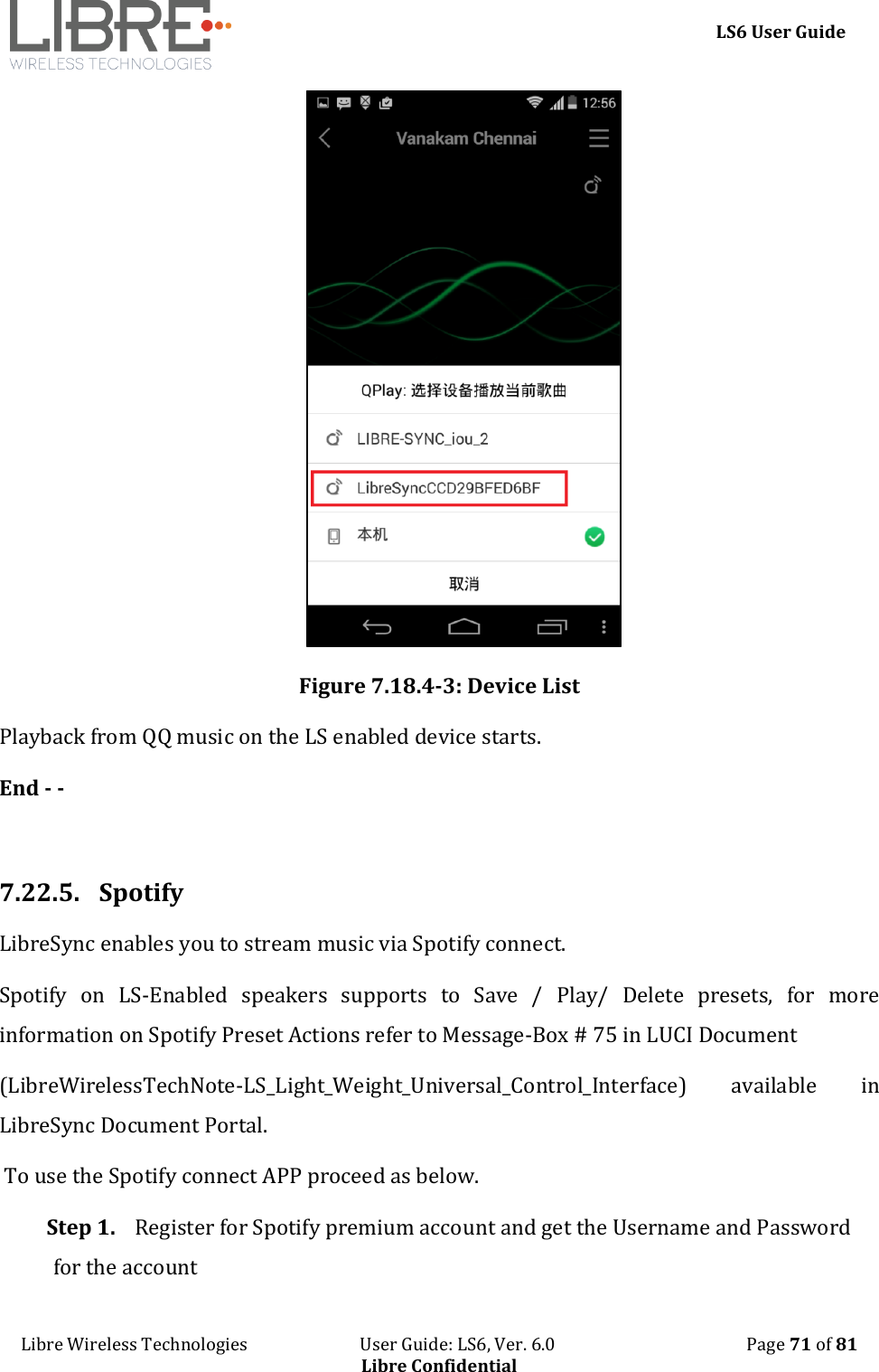
    LS6 User Guide Libre Wireless Technologies                           User Guide: LS6, Ver. 6.0                                              Page 70 of 81 Libre Confidential Figure 7.18.4-1: Login Screen Step 5. Browse for songs in the QQ Music Server Step 6. In Now playing screen, select ‘Q’ symbol  Figure 7.18.4-2: Device Selection Option Step 7. Select the LS enabled device
    LS6 User Guide Libre Wireless Technologies                           User Guide: LS6, Ver. 6.0                                              Page 71 of 81 Libre Confidential  Figure 7.18.4-3: Device List Playback from QQ music on the LS enabled device starts. End - -  7.22.5.  Spotify  LibreSync enables you to stream music via Spotify connect.  Spotify  on  LS-Enabled  speakers  supports  to  Save  /  Play/  Delete  presets,  for  more information on Spotify Preset Actions refer to Message-Box # 75 in LUCI Document  (LibreWirelessTechNote-LS_Light_Weight_Universal_Control_Interface)  available  in LibreSync Document Portal.  To use the Spotify connect APP proceed as below. Step 1. Register for Spotify premium account and get the Username and Password for the account
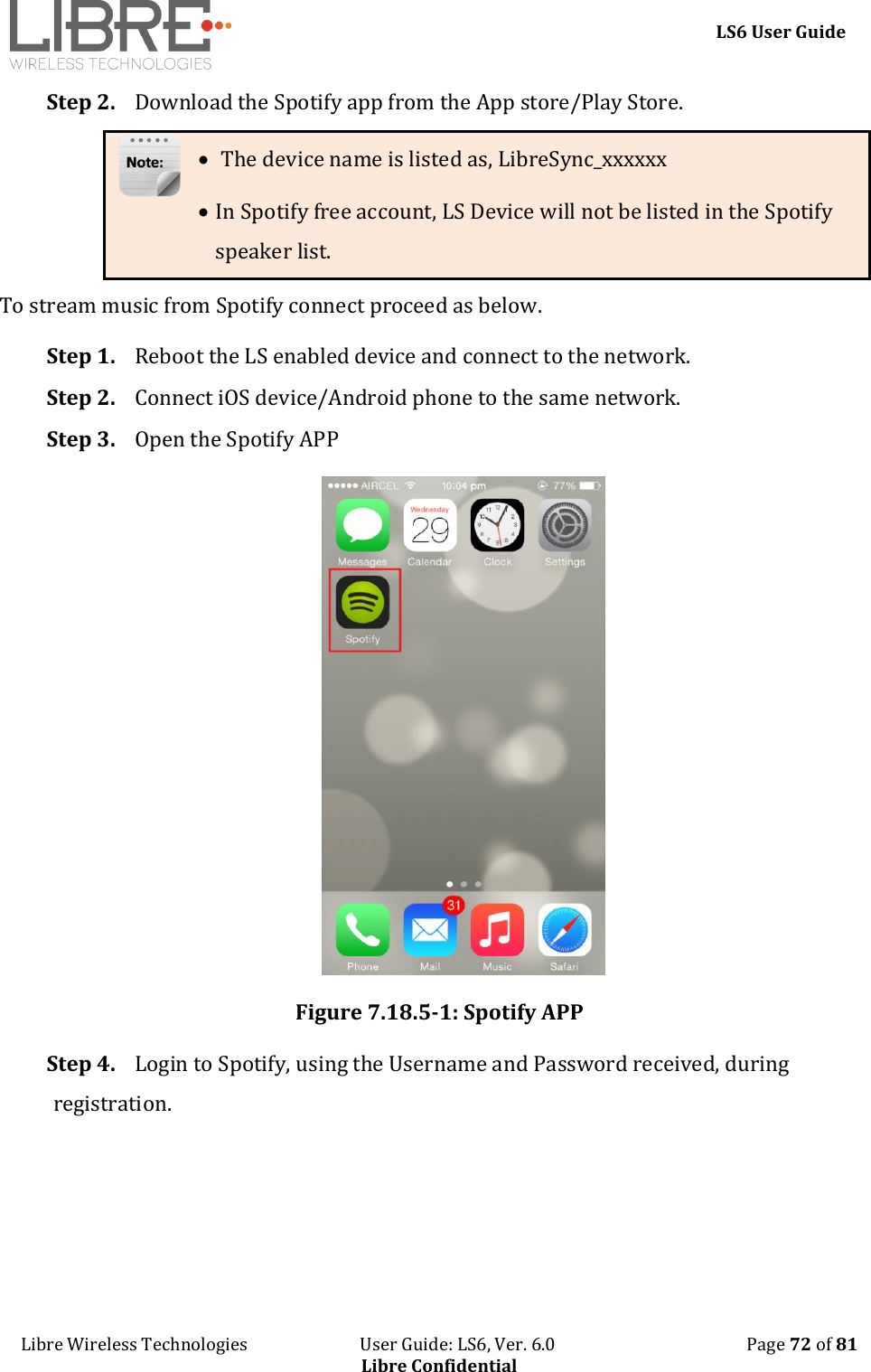
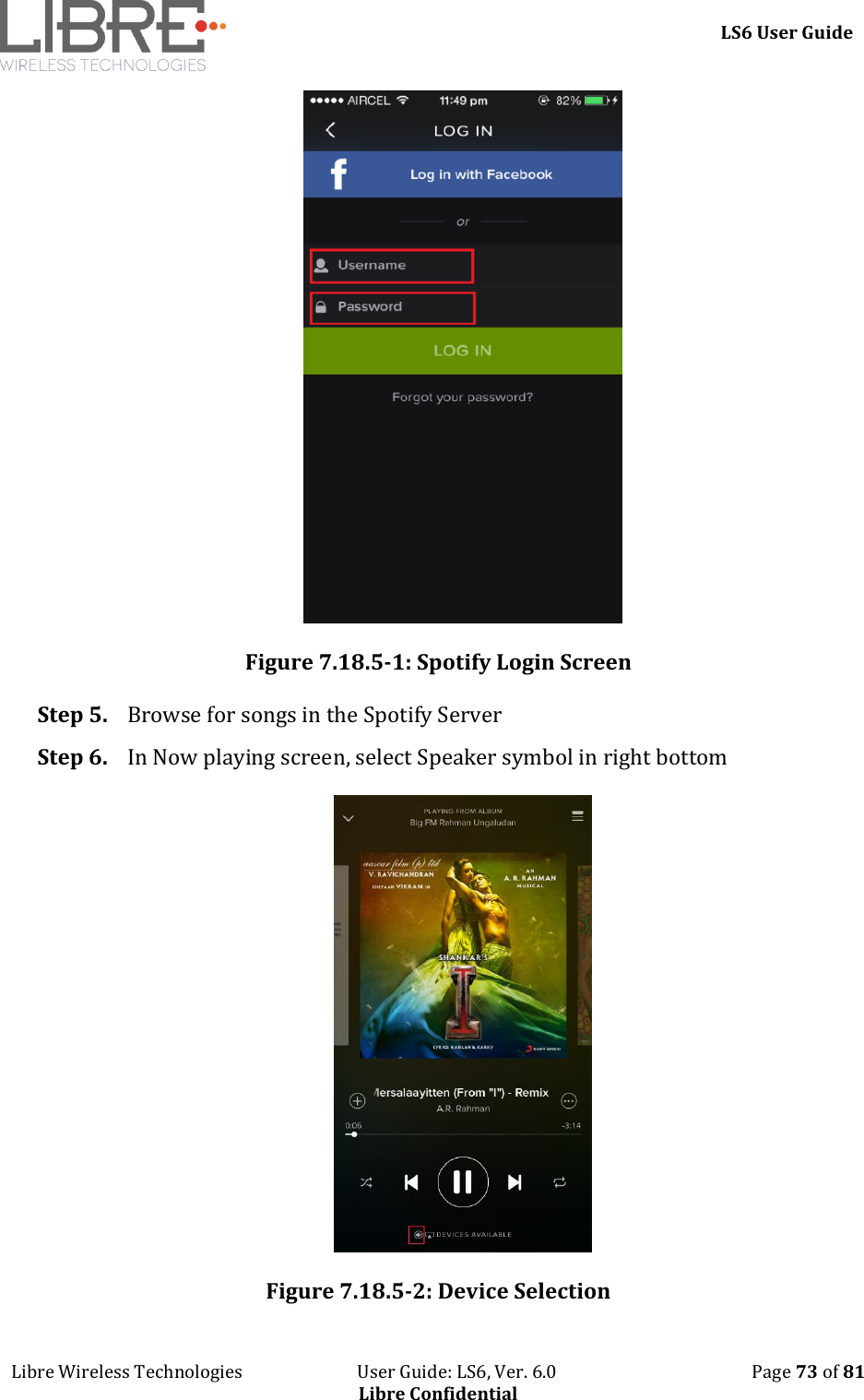
    LS6 User Guide Libre Wireless Technologies                           User Guide: LS6, Ver. 6.0                                              Page 72 of 81 Libre Confidential Step 2. Download the Spotify app from the App store/Play Store.   The device name is listed as, LibreSync_xxxxxx  In Spotify free account, LS Device will not be listed in the Spotify speaker list. To stream music from Spotify connect proceed as below. Step 1. Reboot the LS enabled device and connect to the network. Step 2. Connect iOS device/Android phone to the same network. Step 3. Open the Spotify APP  Figure 7.18.5-1: Spotify APP Step 4. Login to Spotify, using the Username and Password received, during registration.
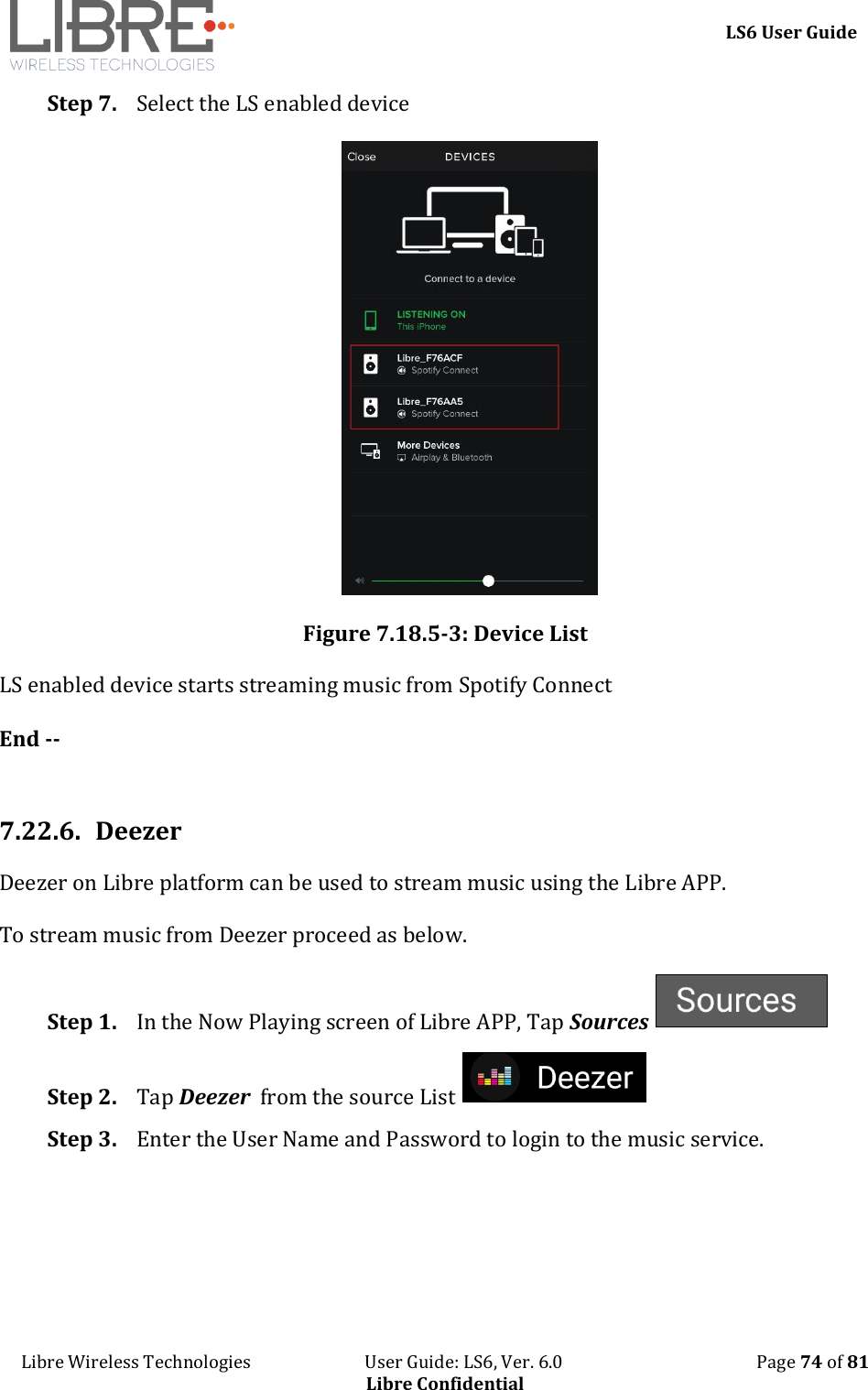
    LS6 User Guide Libre Wireless Technologies                           User Guide: LS6, Ver. 6.0                                              Page 73 of 81 Libre Confidential  Figure 7.18.5-1: Spotify Login Screen Step 5. Browse for songs in the Spotify Server Step 6. In Now playing screen, select Speaker symbol in right bottom  Figure 7.18.5-2: Device Selection
    LS6 User Guide Libre Wireless Technologies                           User Guide: LS6, Ver. 6.0                                              Page 74 of 81 Libre Confidential Step 7. Select the LS enabled device  Figure 7.18.5-3: Device List LS enabled device starts streaming music from Spotify Connect  End --  7.22.6. Deezer Deezer on Libre platform can be used to stream music using the Libre APP.  To stream music from Deezer proceed as below. Step 1. In the Now Playing screen of Libre APP, Tap Sources   Step 2. Tap Deezer  from the source List   Step 3. Enter the User Name and Password to login to the music service.
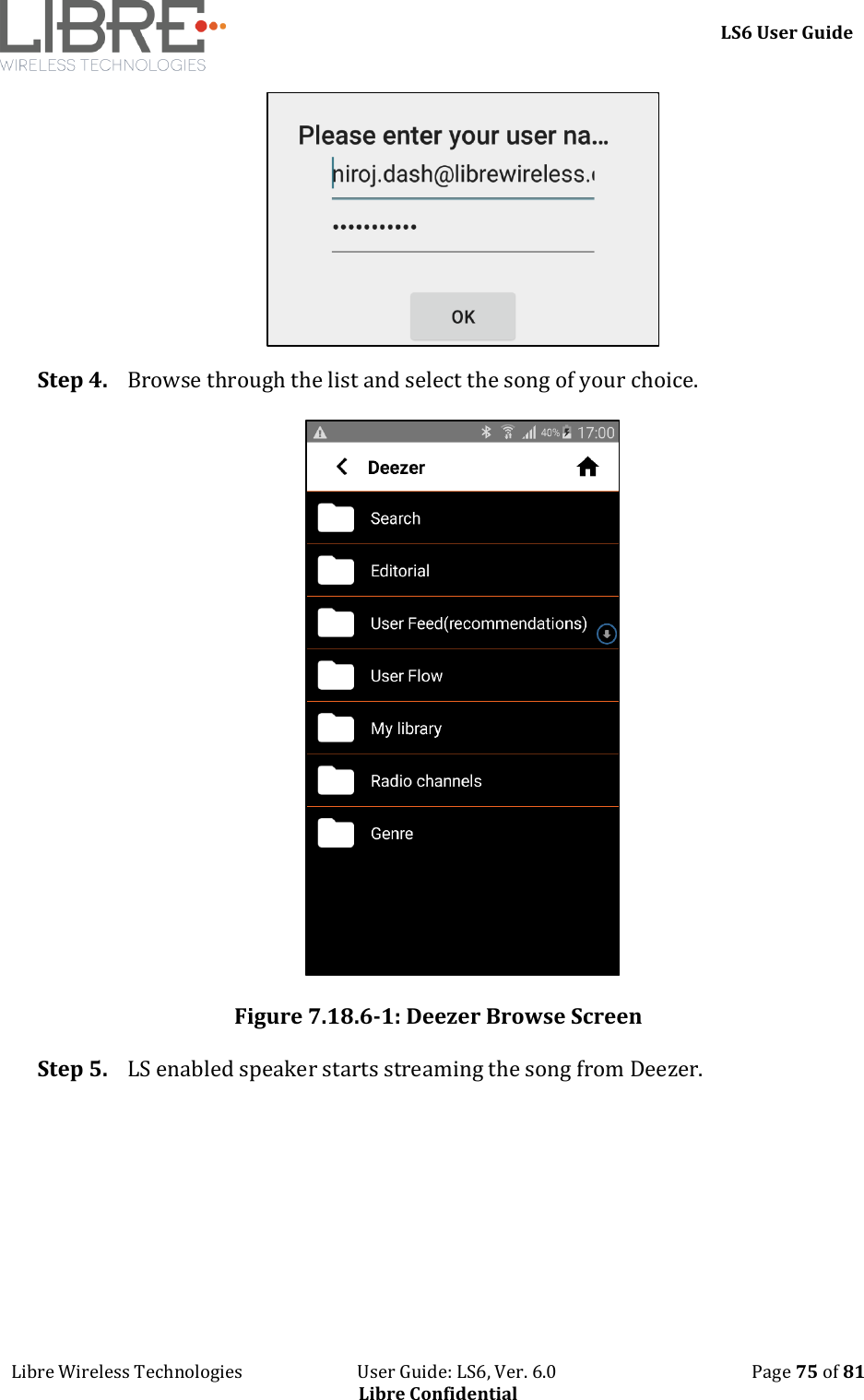
    LS6 User Guide Libre Wireless Technologies                           User Guide: LS6, Ver. 6.0                                              Page 75 of 81 Libre Confidential  Step 4. Browse through the list and select the song of your choice.   Figure 7.18.6-1: Deezer Browse Screen Step 5. LS enabled speaker starts streaming the song from Deezer.
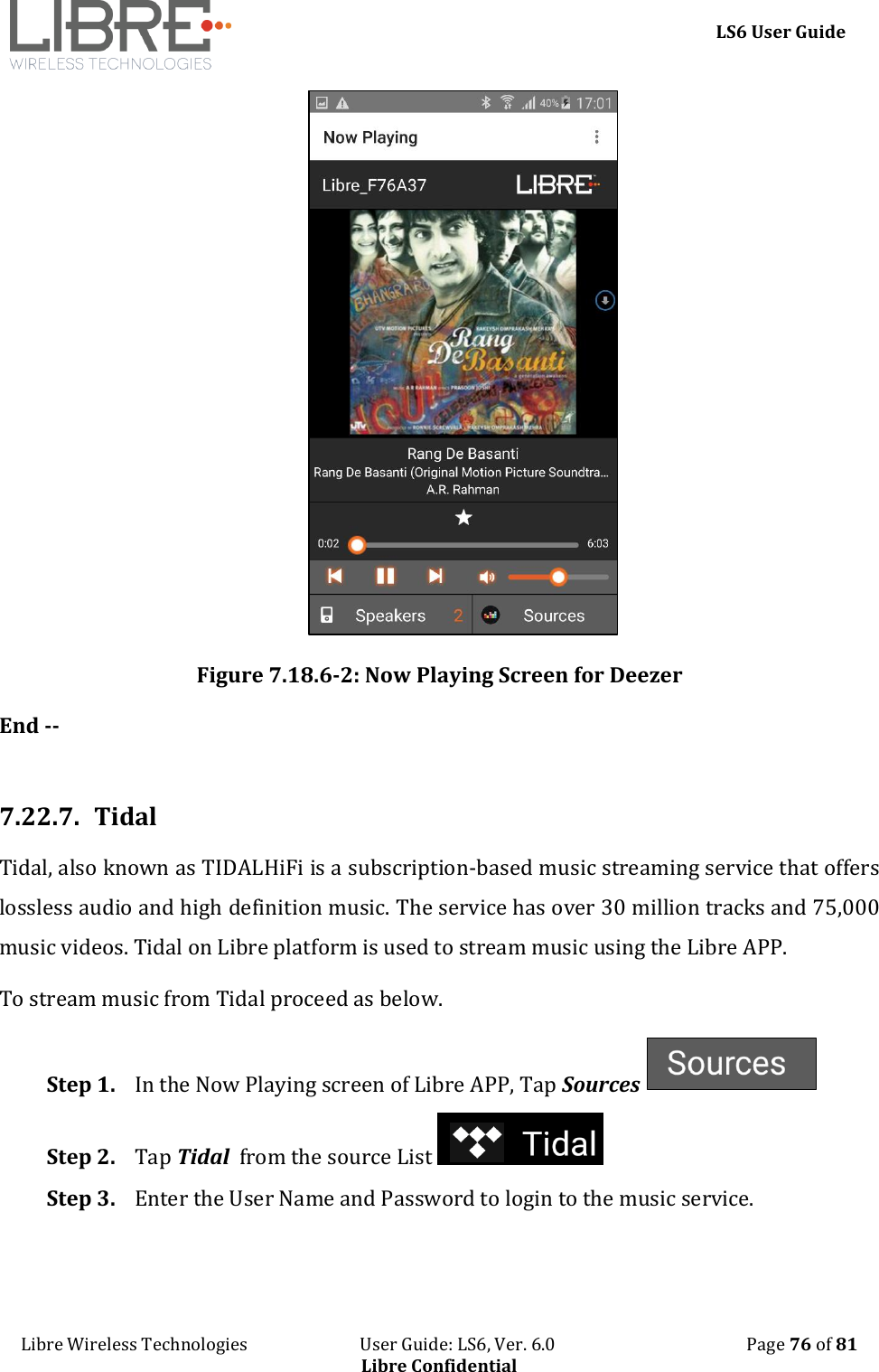
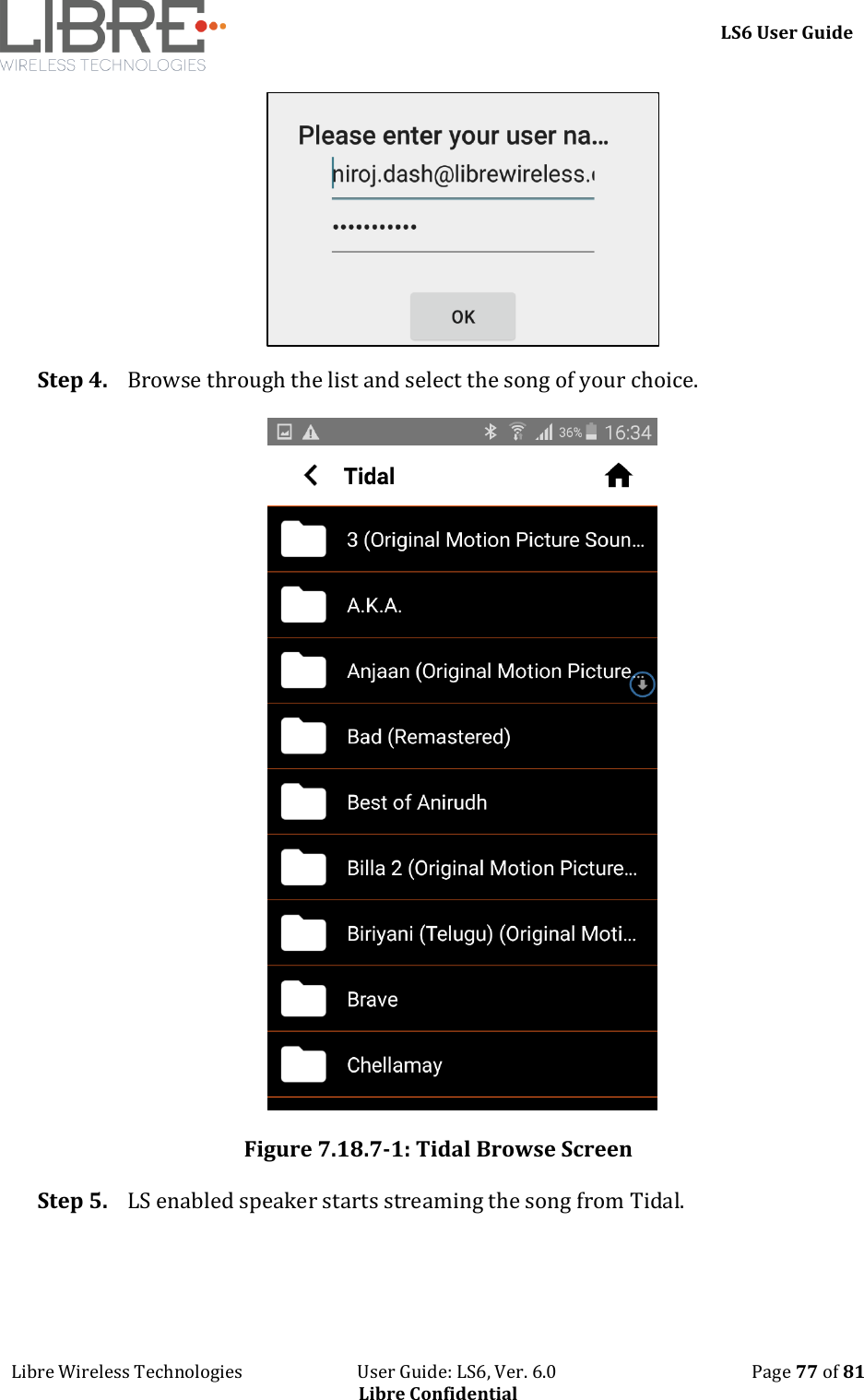
    LS6 User Guide Libre Wireless Technologies                           User Guide: LS6, Ver. 6.0                                              Page 76 of 81 Libre Confidential  Figure 7.18.6-2: Now Playing Screen for Deezer End --  7.22.7. Tidal Tidal, also known as TIDALHiFi is a subscription-based music streaming service that offers lossless audio and high definition music. The service has over 30 million tracks and 75,000 music videos. Tidal on Libre platform is used to stream music using the Libre APP. To stream music from Tidal proceed as below. Step 1. In the Now Playing screen of Libre APP, Tap Sources   Step 2. Tap Tidal  from the source List   Step 3. Enter the User Name and Password to login to the music service.
    LS6 User Guide Libre Wireless Technologies                           User Guide: LS6, Ver. 6.0                                              Page 77 of 81 Libre Confidential  Step 4. Browse through the list and select the song of your choice.   Figure 7.18.7-1: Tidal Browse Screen Step 5. LS enabled speaker starts streaming the song from Tidal.
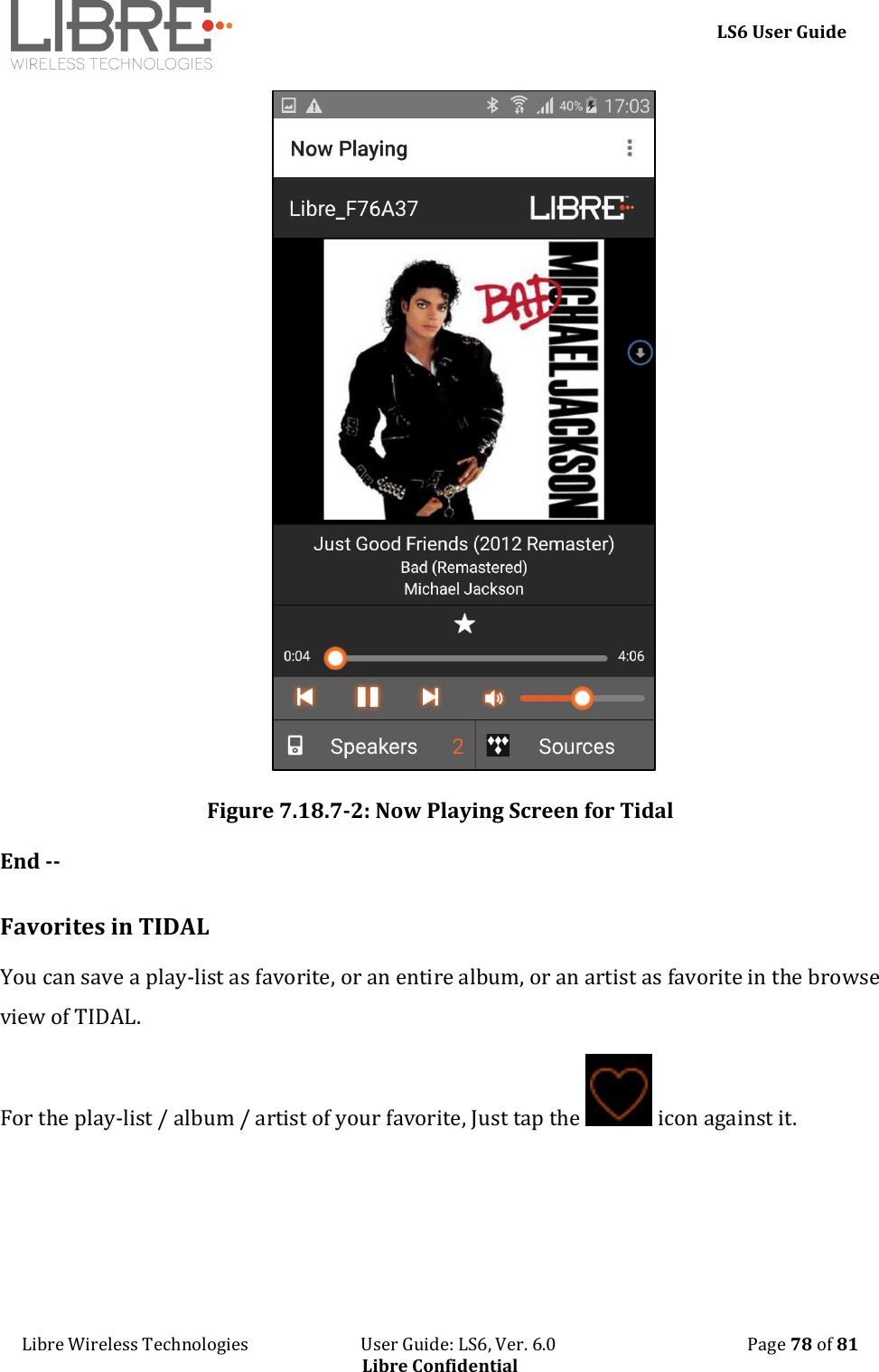
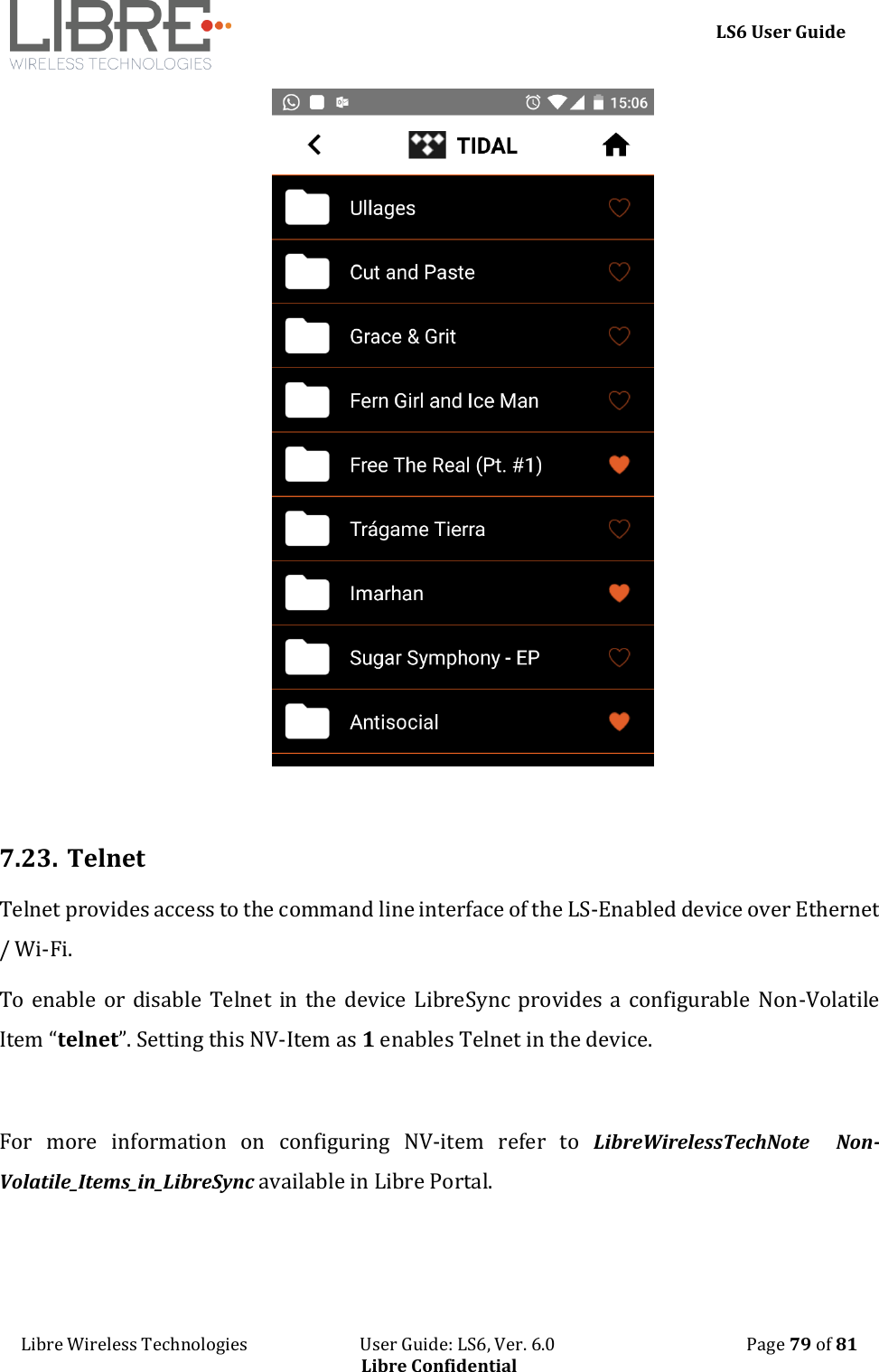
    LS6 User Guide Libre Wireless Technologies                           User Guide: LS6, Ver. 6.0                                              Page 78 of 81 Libre Confidential  Figure 7.18.7-2: Now Playing Screen for Tidal End --  Favorites in TIDAL You can save a play-list as favorite, or an entire album, or an artist as favorite in the browse view of TIDAL.  For the play-list / album / artist of your favorite, Just tap the   icon against it.
    LS6 User Guide Libre Wireless Technologies                           User Guide: LS6, Ver. 6.0                                              Page 79 of 81 Libre Confidential   7.23. Telnet Telnet provides access to the command line interface of the LS-Enabled device over Ethernet / Wi-Fi.  To enable or disable Telnet  in the device LibreSync provides a configurable Non-Volatile Item “telnet”. Setting this NV-Item as 1 enables Telnet in the device.  For  more  information  on  configuring  NV-item  refer  to  LibreWirelessTechNote    Non-Volatile_Items_in_LibreSync available in Libre Portal.
    LS6 User Guide Libre Wireless Technologies                           User Guide: LS6, Ver. 6.0                                              Page 80 of 81 Libre Confidential 8.  Appendix 8.1. Federal Communication Commission Interference Statement This device complies with part 15 of the FCC Rules. Operation is subject to the following two conditions:  i. This device may not cause harmful interference ii. This device must accept any interference received, including interference that may cause undesired operation. Changes or modifications not expressly approved by the party responsible for compliance could void the user's authority to operate the equipment. NOTE: This equipment has been tested and found to comply with the limits for a Class B digital device, pursuant to Part 15 of the FCC Rules. These limits are designed to provide reasonable  protection  against  harmful  interference  in  a  residential  installation.  This equipment generates, uses and can radiate radio frequency energy and, if not installed and used  in  accordance  with  the  instructions,  may  cause  harmful  interference  to  radio communications.  However,  there  is  no  guarantee  that  interference  will  not  occur  in  a particular  installation.  If  this  equipment  does  cause  harmful  interference  to  radio  or television reception, which can be determined by turning the equipment off and on, the user is encouraged to try to correct the interference by one or more of the following measures:  Reorient or relocate the receiving antenna.  Increase the separation between the equipment and receiver.  Connect the equipment into an outlet on a circuit different from that to which the receiver is connected.  Consult the dealer or an experienced radio/TV technician for help.  FCC Radiation Exposure Statement The modular can be installed or integrated in mobile or fix devices only. This modular cannot be installed in any portable device, for example, USB dongle like transmitters is forbidden.
LS6 User Guide Libre Wireless Technologies   User Guide: LS6, Ver. 6.0   Page 81 of 81 Libre Confidential This modular complies with FCC RF radiation exposure limits set forth for an uncontrolled environment. This transmitter must not be co-located or operating in conjunction with any other antenna or transmitter. This modular must be installed and operated with a minimum distance of 20 cm between the radiator and user body. If the FCC identification number is not visible when the module is installed inside another device, then the outside of the device into which the module is installed must also display a label  referring  to  the  enclosed  module.  This  exterior  label  can  use  wording  such  as  the following:  Contains  Transmitter  Module  FCC  ID:  2ADBM-LS6-N22S  or  Contains  FCC  ID: 2ADBM-LS6-N22S when the  module  is  installed  inside another device, the user  manual  of  this  device  must contain below warning statements; 1 This device complies with Part 15 of the FCC Rules. Operation is subject to the following two conditions: i. This device may not cause harmful interference.ii. This device must accept any interference received, includinginterference that may cause undesired operation.2 Changes or modifications not expressly approved by the party responsible for compliance could void the user's authority to operate the equipment. The devices must be installed and used in strict accordance with the manufacturer's instructions as described in the user documentation that comes with the product. Any company of the host device which install this modular with limit modular approval should perform the test of radiated emission and spurious emission according to FCC part 15C : 15.247 and 15.209 requirement, Only if the test result comply with FCC part 15C : 15.247 and 15.209 requirement,then the host can be sold legally.

Navigation menu