LibreStream Technologies MCD2000 Rugged Mobile Collaboration Device User Manual 2
LibreStream Technologies Inc. Rugged Mobile Collaboration Device 2
Contents
- 1. User Manual 1
- 2. User Manual 2
User Manual 2
LibreStream Technologies, Inc.
General inquiries: 204.487.0612
Support: 800.849.5507
support@LibreStream.com
www.LibreStream.com
LED Indicators
LED Name Indicator
Power Green = On or Standby
Network Green = Network available
Off = Network unavailable
Battery Orange = Battery is charging
Off = Battery is charged or power
is not connected.
Basic Operation
Before You Start
The n_sight MCD2000 is designed to communicate with an
MCA (Mobile Collaboration Application) software client on
a PC, using a network that has already been set up and
congured.
• For more information on operating the MCD2000, see the
MCD2000 User Manual provided on the n_sight CD.
• For information on the MCA software client, see the MCA
User Manual provided on the n_sight CD.
Turning Power On
If the MCD is Off or in Standby mode, press and release the
power button.
Going to Standby
Press and release the power button to go to Standby mode.
The Viewnder turns off to use less power but the Power LED
remains on.
Note: The MCD will automatically enter Standby mode if it is
on but not used for a period (default two minutes).
Turning Power Off
If the MCD is On or in Standby mode, press and hold the
power button for two seconds to turn the MCD Off.
Mobile Collaboration Device
freedom to collaborate
© LibreStream Technologies Inc. 2006 - 2008
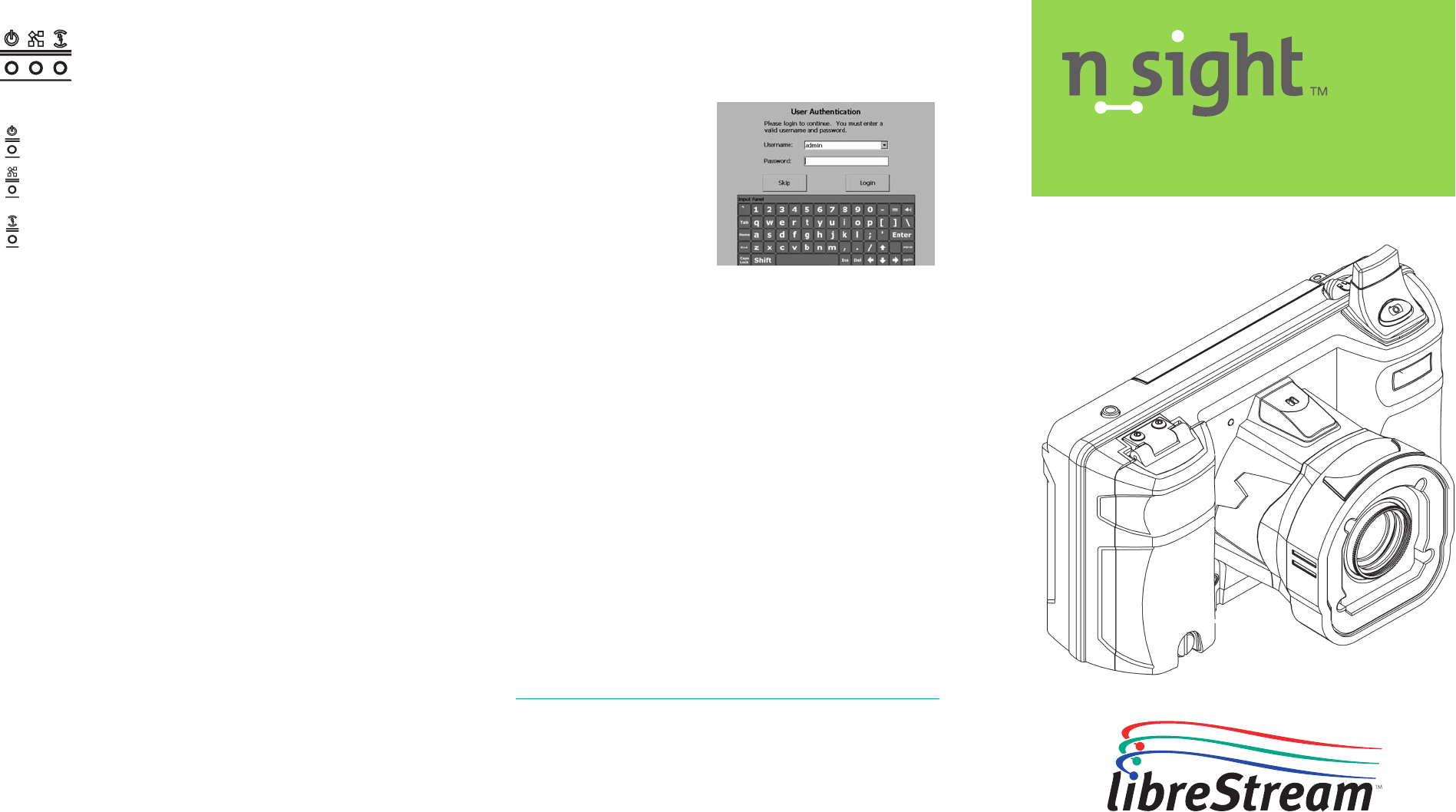
Logging in
If your installation requires a login, you will be prompted
with a login screen on the Viewnder, as shown below.
To login:
1. Tap the Username eld with the stylus and select your user
name from the list (your
site administrator will
provide this to you).
2. Tap the Password eld
with the stylus. An
onscreen keyboard will
appear.
3. Use the stylus to tap
characters to enter them
in the Password eld.
4. Tap the Login button to
nish logging in.
Important: When you are using the Viewnder screen,
always use the stylus provided with the MCD2000. Do not use
other objects, as this could damage the Viewnder screen.
Displaying the Directory
Press the Send button to display the Directory window.
Starting a Call
Display the Directory and use the stylus or navigation pad to
select a name from the Local Contacts list. Then press Send
to start the call. You will hear outgoing rings or a busy signal.
Answering an Incoming Call
To answer a call, press Send.
Turning Streaming On or Off
When a call has been established (you can talk to the other
user), press the green button on top of the MCD to start
streaming media to the MCA software client. Press it again to
stop streaming.
Ending a Call
To end a call, press the End button.
Quick Start Guide
Logging in on the Viewnder screen
Unpacking
When you unpack the MCD2000 you should find:
• MCD2000
• External Power Adapter
• Stylus (2)
• Battery
• Wrist Strap
• I/O Cover
• Power Plug
• Lens Cover
• Quick Start Guide (this
document)
• CD of user manuals, end
user license, copyright,
and MCA software
• Safety and regulatory
information
Before using the MCD2000-Ex, you must read the
enclosed safety and regulatory information.
Important: Before using this device for the first time you
must install and charge the battery.
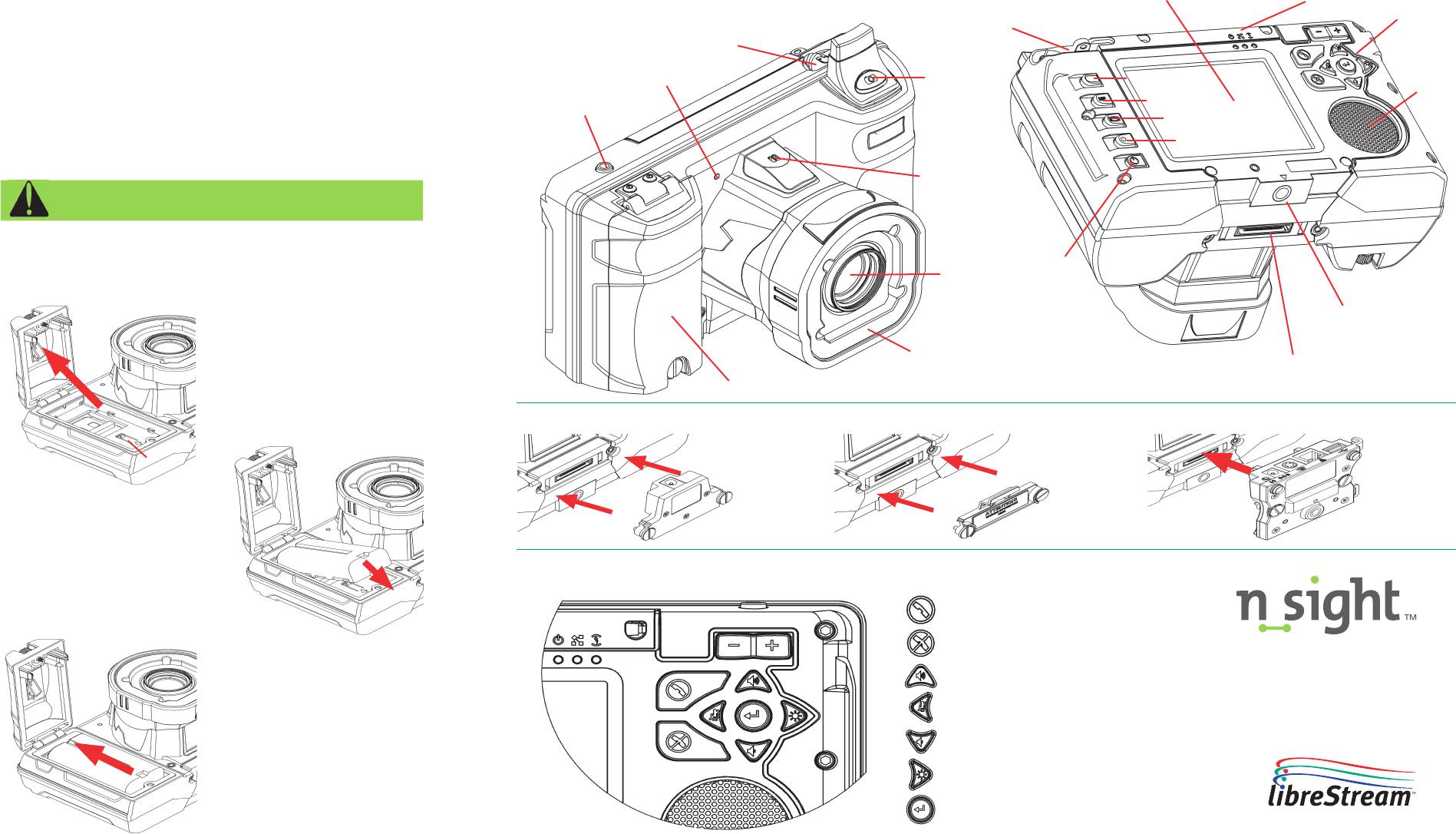
Parts of the MCD2000
freedom to collaborate
Button Function
Start or accept call (Send)
End a call
Volume up
Mic mute
Volume down
Illumination ring on/off
Enter
Mobile Collaboration Device
PN 400096-00
July 2008
Accessories
Navigation Pad
Open the battery
compartment door using
the stylus screwdriver.
Align the contact end of
the battery with the small
recess lines in the battery
compartment.
Slide the battery upward
and rotate downward to
place in battery well. When
the battery is sitting flat
on the compartment floor,
slide the battery towards
the compartment door until
seated.
Close the battery
compartment and tighten
the screw. Note that the
door will not close if the
battery is not fully inserted.
Connect the external power
plug and charge the battery
until the orange LED turns
off (up to eight hours).
Power plug I/O cover Sled
Optional
Charging the Battery
Viewfinder
Navigation pad
Speaker
Streaming indicator
Battery door (SD slot inside)
Headset connector
Still image
capture
Microphone
Lens
Illumination ring
LED indicators
Tripod mount
I/O connector
Streaming on/off
Recording on/off
Display mode
Focus
Function
Power
Stylus w/screwdriver
Recess lines