LibreStream Technologies MCD2000 Rugged Mobile Collaboration Device User Manual MCD2KUserManual RevA
LibreStream Technologies Inc. Rugged Mobile Collaboration Device MCD2KUserManual RevA
Contents
- 1. User Manual 1
- 2. User Manual 2
User Manual 1
MCD2000 User Manual
Version 3.1
Mobile Collaboration Device
freedom to collaborate
LibreStream n_sight MCD2000
User Manual
Doc #: 400097-00
July 2008
Information in this document is
subject to change without notice.
Reproduction in any manner
whatsoever without the written
permission of LibreStream is strictly
forbidden.
Copyright © 2006 – 2008
LibreStream Technologies,
Incorporated.
All rights reserved.
Name of LibreStream Software:
MCD
Copyright Notice:
Copyright 2004 – 2008 LibreStream
Technologies Incorporated. All Rights
Reserved.
Patents Notice: Patents pending in
Canada, the United States and other
countries.
Trademark Notice: LibreStream,
the LibreStream logo, n_sight, the
n_sight logo and MCD are either
registered trademarks or trademarks
of LibreStream Technologies
Incorporated in Canada, the United
States and/or other countries. All
other trademarks are the property of
their respective owners.

LibreStream n_sight MCD2000 User Manual
i
Table of Contents
1.
The n_sight MCD2000 ............................................................. 1
1.1.
About This Guide ................................................................... 1
1.2.
What’s in the Box................................................................... 1
1.3.
Parts of the MCD.................................................................... 2
2.
MCD Basic Operation .............................................................. 6
2.1.
Charging the Battery .............................................................. 6
2.2.
Inserting or Replacing the Battery............................................ 6
2.3.
Calibrating the Integrated Touch Panel ..................................... 7
2.4.
Turning Power On or Off ......................................................... 8
2.5.
Logging On & Off ..................................................................10
2.6.
Inserting and Removing an SD Memory Card............................11
3.
Answering & Initiating Calls ................................................. 12
3.1.
Network Access ....................................................................12
3.2.
Answering an Incoming Call ...................................................12
3.3.
Initiating (Starting) a Call ......................................................12
3.4.
Ending a Call ........................................................................13
3.5.
VoIP Telephone Communication..............................................13
4.
Accessories........................................................................... 14
4.1.
I/O Cover.............................................................................14
4.2.
Power Plug ...........................................................................14
4.3.
I/O Sled...............................................................................15
5.
Audio/Video (AV) Functions ................................................. 16
5.1.
Turning the Video Stream On or Off ........................................16
5.2.
Setting the Subject Audio Source ............................................16
5.3.
Using S-video .......................................................................16
5.4.
Turning the Illumination Ring On or Off ...................................17
5.5.
Adjusting Zoom Levels...........................................................17
5.6.
Focusing ..............................................................................17
5.7.
Telestration (Drawing Lines on the Viewfinder) .........................17
5.8.
Capturing Still Images ...........................................................19
5.9.
Sharing Images ....................................................................19
5.10.
Recording and Playing Videos .................................................19
5.11.
Streaming a Video Recording..................................................21
6.
Viewfinder Features & Display Modes ................................... 22
6.1.
Controlling the Viewfinder Mode..............................................22
7.
Menus ................................................................................... 25
7.1.
Stream Setup .......................................................................25
7.2.
Checking Status....................................................................26
7.3.
Viewing Local Contacts ..........................................................27
7.4.
Managing Files......................................................................28
7.5.
Configuration........................................................................30
8.
Icons .................................................................................... 32

LibreStream n_sight MCD2000 User Manual
ii
9.
Maintaining the MCD............................................................. 34
9.1.
General Recommendations.....................................................34
9.2.
Display/Touch Screen ............................................................34
9.3.
Optics..................................................................................34
9.4.
Ergonomic Recommendations .................................................34
10.
Technical Specifications .................................................... 35
11.
Safety & Regulatory Information ...................................... 36
12.
LibreStream Limited Warranty Agreement........................ 37
13.
End User License Agreement............................................. 38
LibreStream n_sight MCD2000 User Manual
1
1. The n_sight MCD2000
The n_sight system provides mobile real-time video conferencing for
locations that are usually not accessible with standard video conferencing
equipment. This includes locations such as test labs, health care facilities,
factory floors, service departments, remote suppliers, inspection areas,
customer facilities, and other remote work team locations.
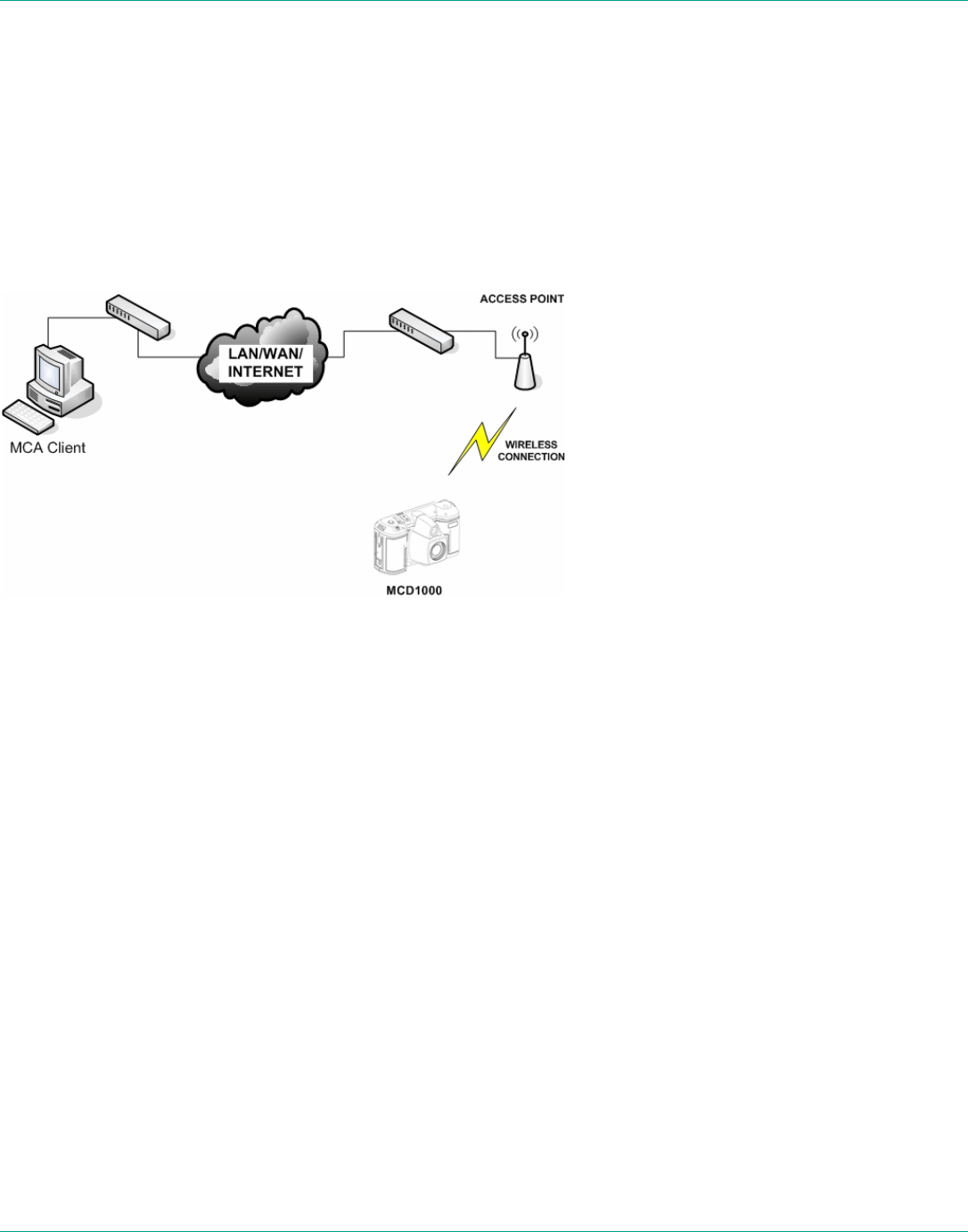
This manual describes the n_sight Mobile Collaboration Device (MCD). An
Operator at a remote site uses the n_sight MCD to communicate with a
Client user over a network.
The MCD allows both the Operator and the Client user to:
• Converse just as they would on a mobile telephone.
• View and listen to streaming audio/video output in real time.
• Stream audio and video recordings to the MCD in real time.
• Capture and save snapshot images.
• Share snapshot images between the MCA and MCD.
• Record and play back video.
• Adjust the controls (e.g., zoom, focus, draw on the screen).
The MCD allows technical experts and remote operators to jointly view,
consult, diagnose and resolve issues by sending high-resolution video,
sound and still images through streaming multimedia from the onsite MCD
to a Mobile Collaboration Application (MCA) on an office workstation.
1.1. About This Guide
This guide describes how to use the n_sight MCD on a system that has
already been set up and configured. For information on MCD configuration,
maintenance and network or other infrastructure setup, please consult the
n_sight System Administration Manual. For information on the MCA
software client application, consult the MCA User Manual.
1.2. What’s in the Box
The MCD2000 n_sight Mobile Collaboration Device
• External power adapter
• Stylus with screwdriver (2 – includes a spare)
LibreStream n_sight MCD2000 User Manual
2
• Rechargeable 2400 mAH Li-Ion battery pack
• Wrist strap
• I/O cover
• Power plug
• Lens cover
• Quick Start Guide
• CD of user manuals, end user license, copyright, and MCA software
• Safety and regulatory information
For information on additional accessories or for updated n_sight MCD
documentation, consult the LibreStream website at
http://www.LibreStream.com/.
1.3. Parts of the MCD
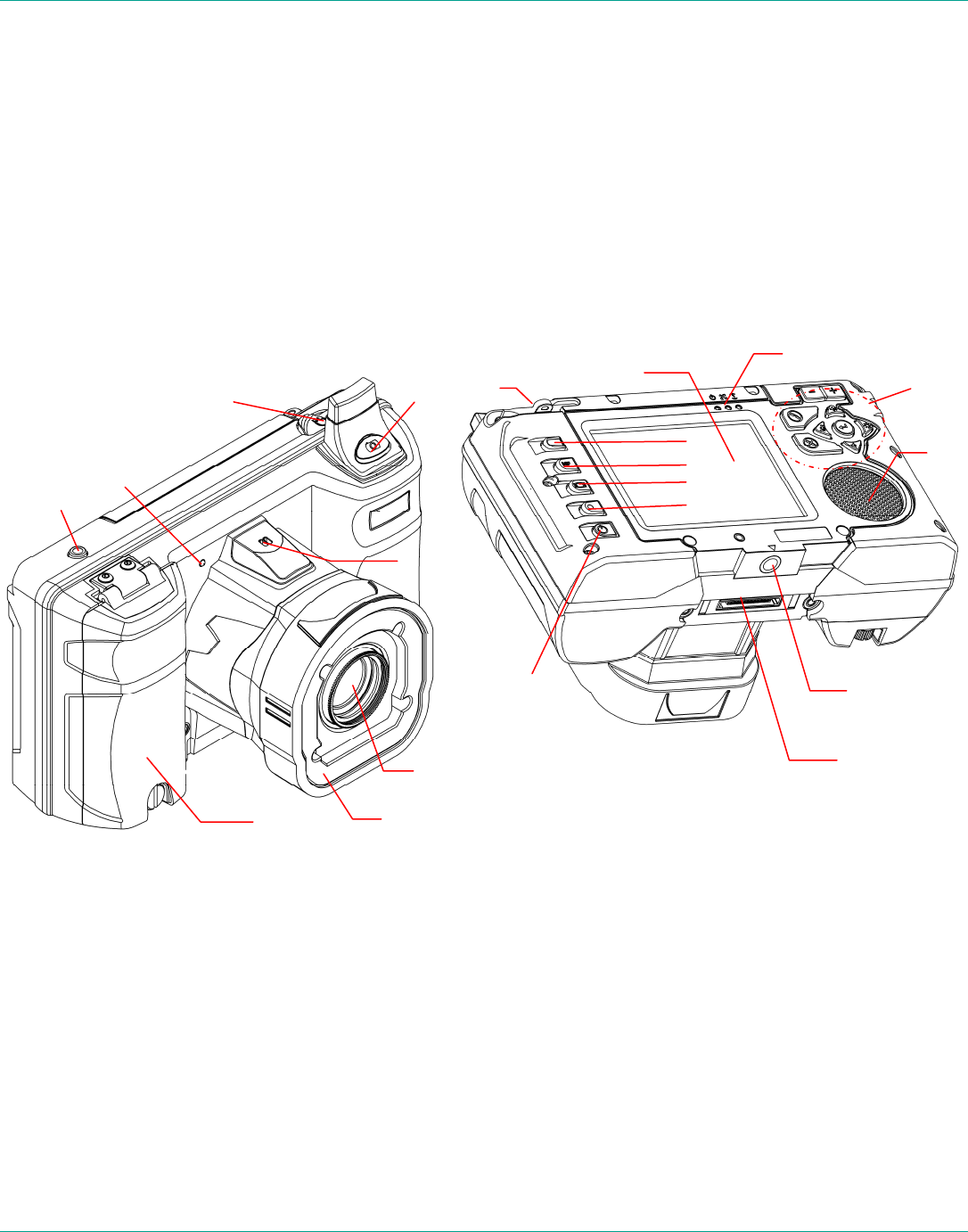
1 – Streaming on/off
2 – Streaming indicator (red
= streaming on)
3 – Headset connector
4 – Still image capture
5 – Microphone
6 – Camera lens
7 – Illumination ring
8 – Battery door (SD
memory card slot inside)
11 – Function (blue pad)
12 – Manual focus
13 – Display
14 – Record (red dot)
15 – Power button
16 – Stylus with screwdriver
17 – Viewfinder
18 – LED indicators
19 – Navigation pad
20 – Speaker
21 – Tripod mount
22 – I/O connector
1
2
3
4
5
6
7
8
15
14
13
12
11
16
17
18
19
20
21
22
LibreStream n_sight MCD2000 User Manual
3
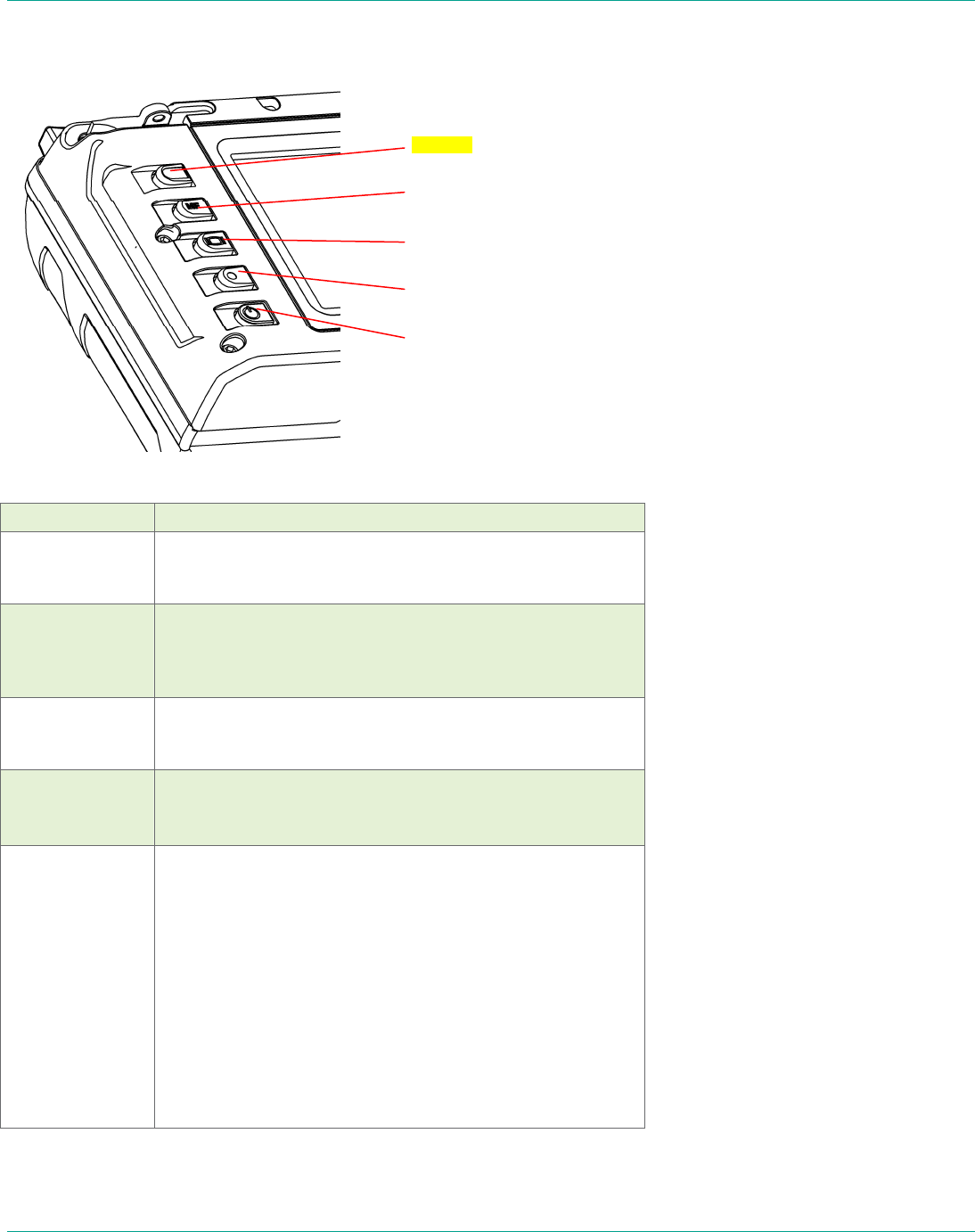
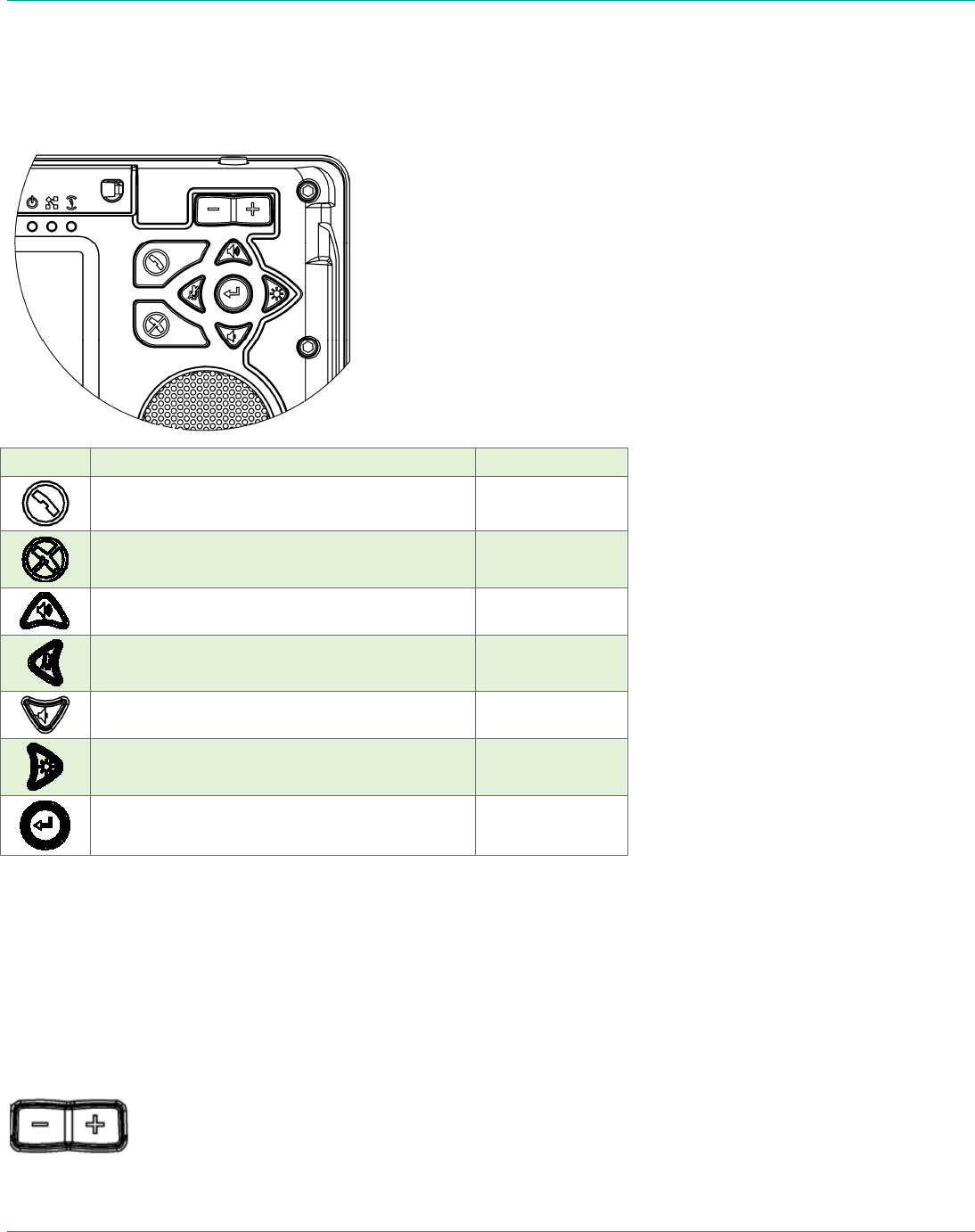
1.3.1. Control Buttons
Button Function
Function Holding this button allows the use of the control buttons
of the Navigation Pad while navigating a menu on the
Viewfinder.
Manual Focus Use this button to set the focus manually or to resume
automatic focusing. It works in combination with the
Zoom buttons. See Focusing on page 17 for more
information.
Display Mode This button cycles through the MCD’s multiple display
modes. See Viewfinder Features & Display Modes, on
page 22 for more information.
Record Press this button to start/stop recording to a local Secure
Digital (SD) memory card.
Power This button controls On/Off/Standby modes. See Turning
Power On or Off on page 8 for more information.
If MCD status is… Power button function
Off Press and release the button to turn
power on.
On Press and release the button to go to
Standby mode.
Standby Press and release the button to enter
Power On mode.
On or Standby Press and hold the button for two
seconds to turn the unit off. A
shutdown message appears.
Manual focus
Display mode
Record
Power
Function
LibreStream n_sight MCD2000 User Manual
4
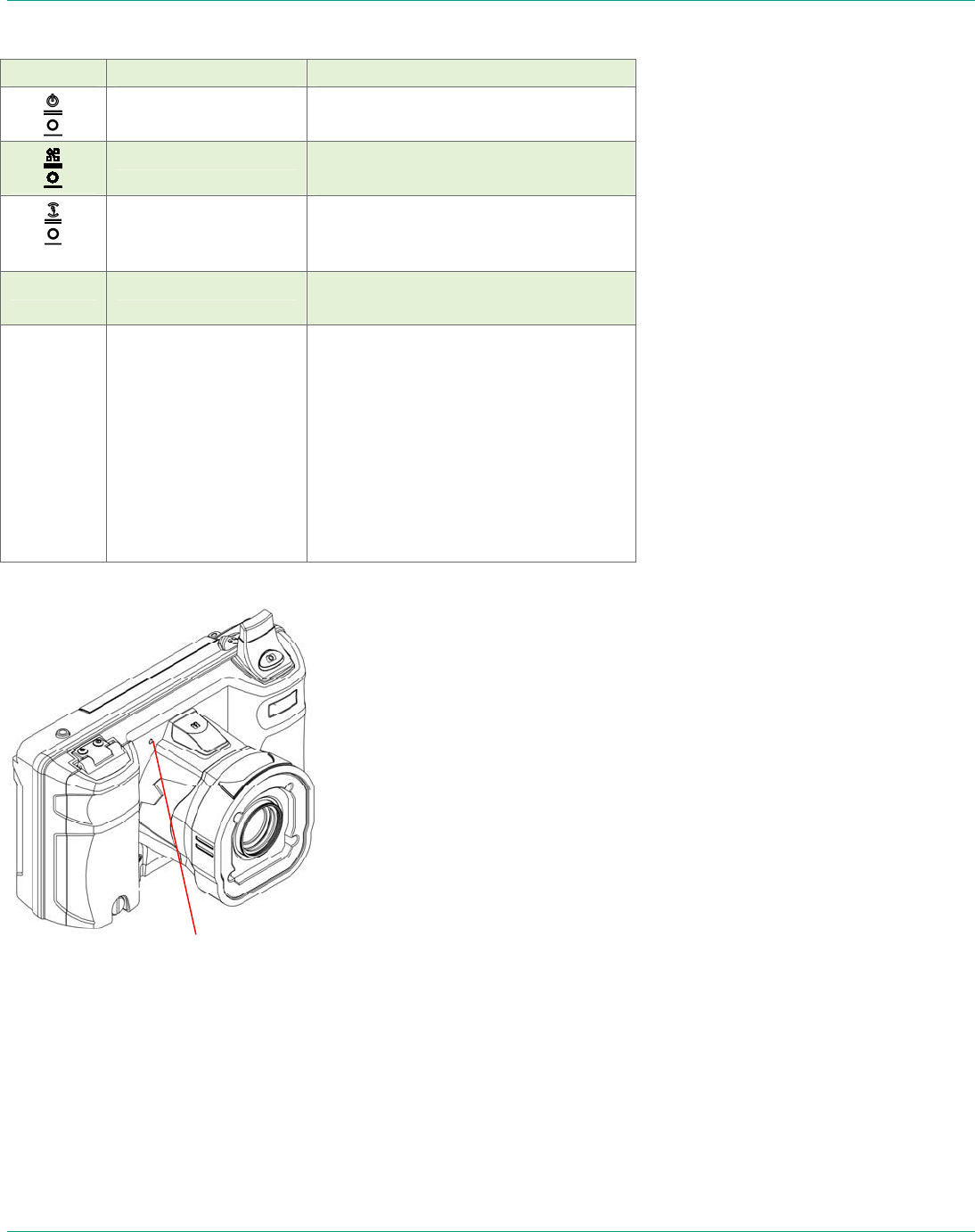
1.3.2. Navigation Pad Buttons
These context-sensitive buttons control audio volume, microphone mute
and the illumination ring. They also function as command buttons and
directional buttons for the menus.
Button Function Menu Function
Start or accept call (Send) OK or Enter
End a call or reject an incoming call
invitation
Cancel
Increase volume Up arrow
Microphone mute Left arrow
Decrease volume Down arrow
Front illumination light normal/macro/off Right arrow
Enter Accept
Note: To use the functions of the Navigation Pad (e.g., Microphone mute)
while navigating a menu, press and hold the Function control button,
then press the navigation button.
1.3.3. Zoom/Manual Focus Controls
The Zoom buttons are located on the back of the MCD, directly above the
Navigation Pad. These allow the Operator to set zoom levels on the
camera or to set focus manually (see page 17).
LibreStream n_sight MCD2000 User Manual
5
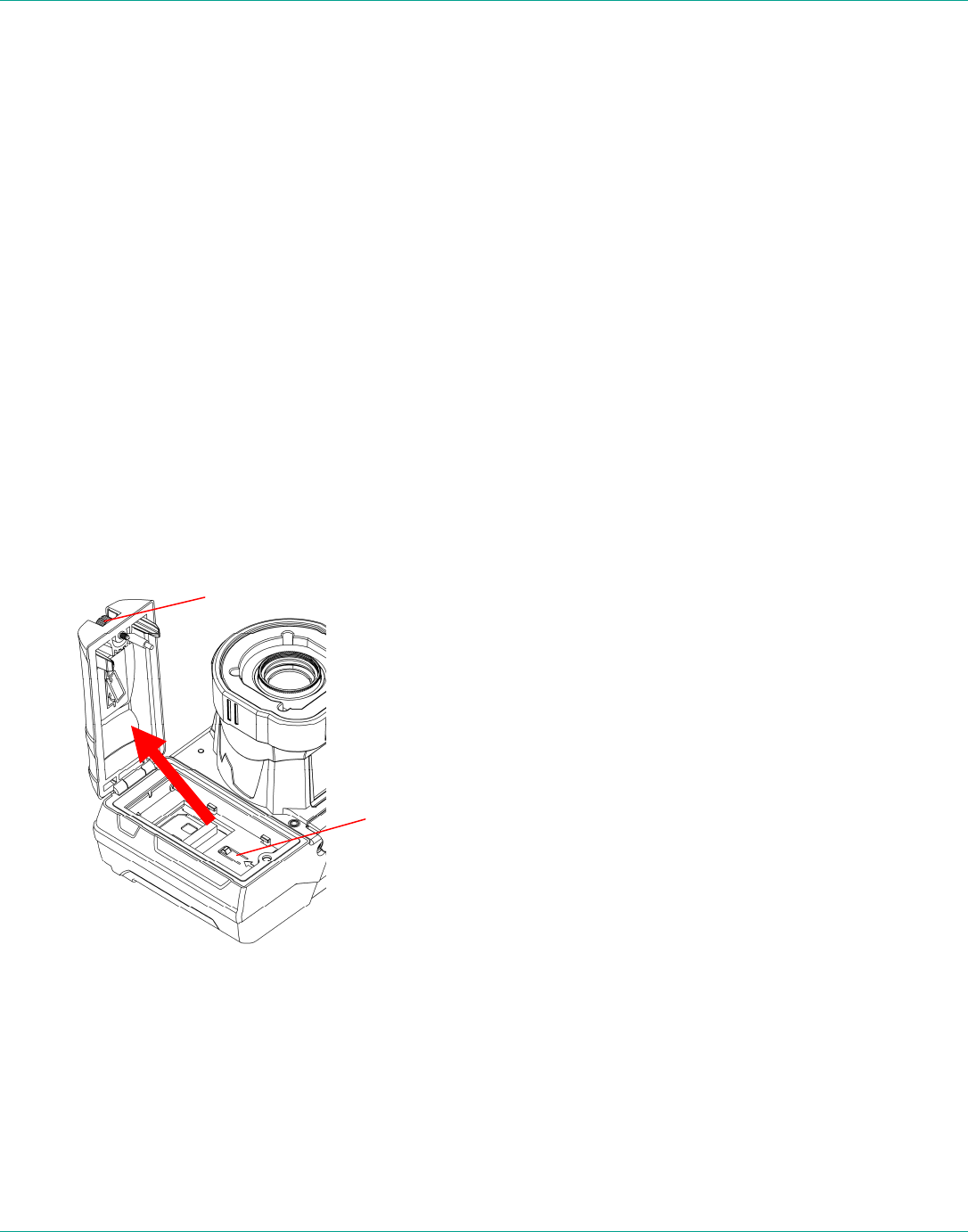
1.3.4. Indicators
Indicator
Name Explanation
Power mode indicator Green = On or Standby
Network indicator Green = Network available
Off = Network unavailable
Battery/power
indicator
Orange = Battery is charging
Off = Battery is charged or power is
not connected
Stream/record Red = streaming/recording on.
Off = streaming/recording off
Network connector The Ethernet Port (found on the I/O
Sled accessory) also includes an LED
indicator:
Yellow On = a wired network link
exists.
Yellow Flashing – indicates wired
network activity
Yellow Off = no wired network link
The green LED is not used at this
time.
1.3.5. Soft Keys
Some screens contain on-screen keys or buttons, e.g., Accept or Cancel
on a configuration screen. You can select these buttons by tapping the key
with your stylus, or by pressing Navigation pad keys.
Stream/record indicator
LibreStream n_sight MCD2000 User Manual
6
2. MCD Basic Operation
2.1. Charging the Battery
New batteries should be charged prior to first use. To do this, plug in the
external power adaptor and allow the battery to charge until the orange
battery indicator extinguishes (up to eight hours). The internal battery
charger will shut itself off to prevent overcharging once the battery is fully
charged.
Note that the MCD shuts itself off when battery power is low.
• If the unit is on, and an Operator is using it in an active call, a warning
message appears so that the Operator has time to plug the MCD in to
the external power adapter, or end the call before the MCD shuts off.
• If the unit is in Standby, it simply shuts itself off.
• If the unit is off, it cannot be started when the battery is low.
To check current battery levels, press the Display button once and check
the Session information at the bottom of the Viewfinder. See page 22 for
more information on Viewfinder and Display modes.
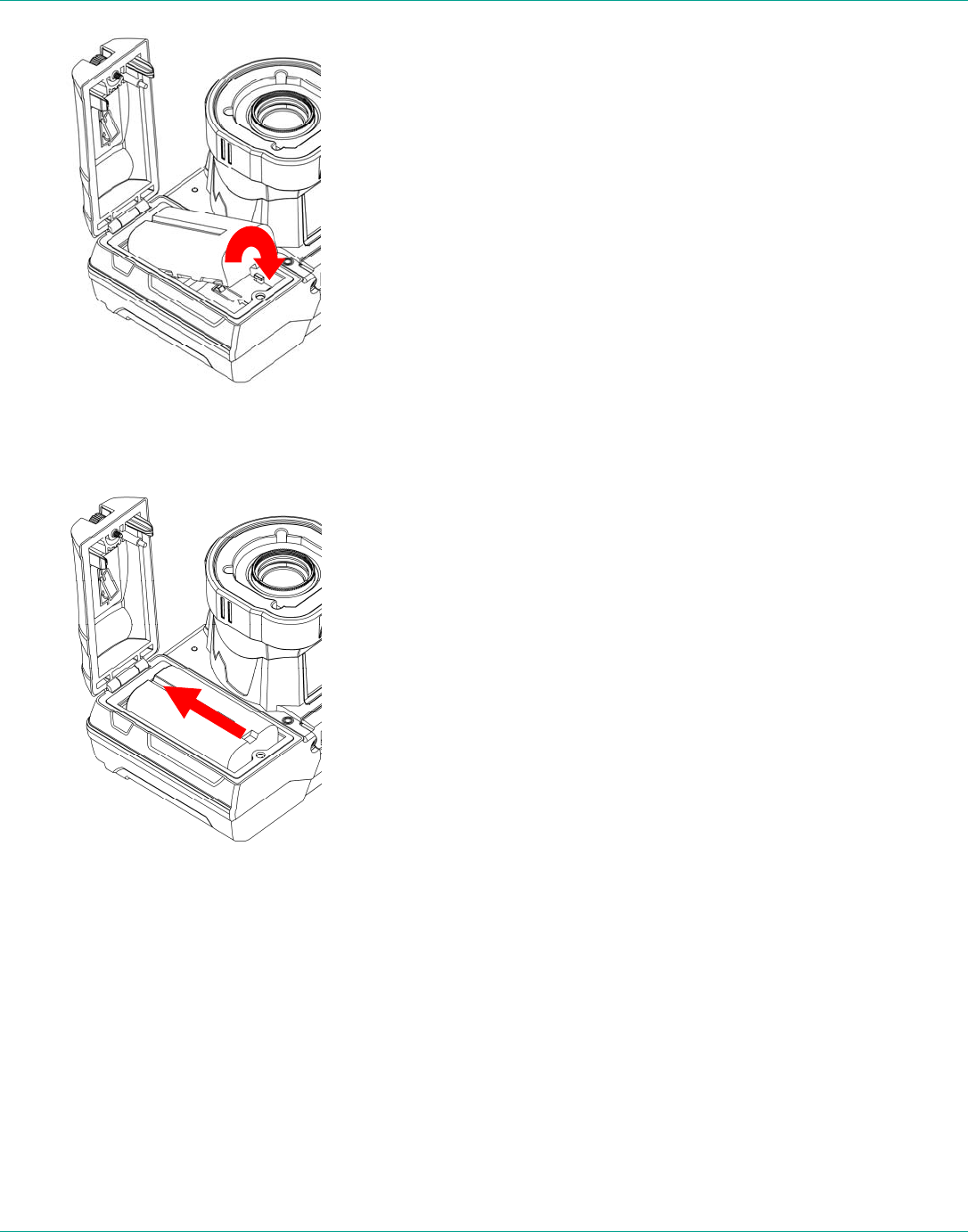
2.2. Inserting or Replacing the Battery
Important: Before using this device for the first time you must install and
charge the battery.
1. Open the battery compartment door using the stylus screwdriver.
Figure 1
2. Align the contact end of the battery with the small recess lines in the
battery compartment, keeping the opposite end of the battery up.
Recess lines
Battery door thumbscrew
LibreStream n_sight MCD2000 User Manual
7
Figure 2
3. Slide the battery upward and rotate downward to place in battery well.
Figure 3
4. When the battery is sitting flat on the compartment floor, slide the
battery towards the compartment door until seated.
5. Close the battery compartment and tighten the screw. Note that the
door will not close if the battery is not fully inserted, and the camera
will not start if the screw is not tight. Connect the external power plug
and charge the battery until the orange LED turns off (up to 8 hours).
Note: The device will not operate on the external adapter alone. You
must have a battery installed.
2.3. Calibrating the Integrated Touch Panel
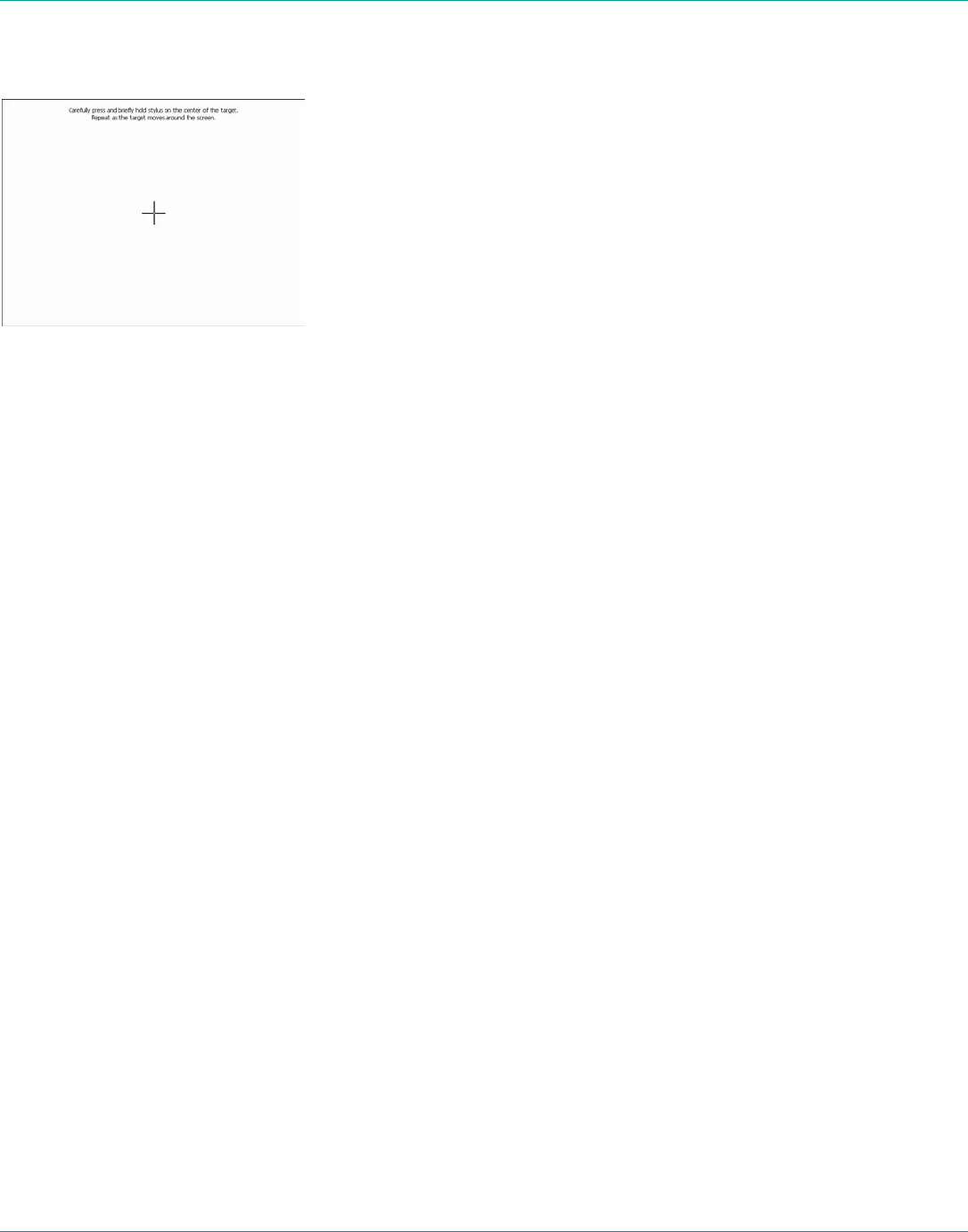
The Viewfinder display on the back of the MCD includes an integrated
touch panel designed for use with the stylus that has been included with
the MCD. The Viewfinder touch panel allows control of many MCD features,
including menu selection, configuration, text entry (via on screen
LibreStream n_sight MCD2000 User Manual
8
keyboard) and on screen button selection. In addition, the touch panel can
be used to draw over images and video. See Telestration on page 17.
Touch screen calibration
Important: When you are using the Viewfinder screen, always use the
stylus provided with the MCD. Do not use other objects, as this could
damage the Viewfinder screen. Tap the screen lightly. Do not press hard or
strike the screen.
When you first start the MCD, if the touch screen has not been calibrated,
the MCD presents a calibration screen. Follow the on-screen instructions to
calibrate your touch panel to permit precise control.
2.3.1. Displaying the calibration screen using navigation pad buttons
If the touch screen is incorrectly calibrated to the extent that it can’t be
used to navigate the menu settings, you can access the screen calibration
function using the keypad: simultaneously press and hold the Up and
Down buttons while not pressing the Enter button. This will display the
touch calibration screen.
2.4. Turning Power On or Off
There are three power modes: On, Off and Standby
2.4.1. Power On Mode
Press and release the Power button to turn the MCD on. When you first
turn the camera on, you may be required to log in, and a touch panel
calibration screen may appear.
When the power is on the Power indicator LED is green.
2.4.2. Power Off Mode
Turning off the MCD automatically logs you out. To turn the MCD Off,
press and hold the Power button for two seconds.
• If the MCD was on, a message is displayed indicating that the MCD is
turning off. If a call was active a prompt appears, asking for
confirmation to terminate the call.
• If the MCD was in standby, it immediately switches off.
When the power is off the Power indicator LED is off.
2.4.3. Standby Mode
Standby mode provides longer battery life than Power On mode because it
shuts down the display and puts the camera into a low power mode.
However, incoming calls may still be received. To enter Standby mode,

LibreStream n_sight MCD2000 User Manual
9
first turn the MCD on. Then press and release the Power button to enter
Standby mode.
If a call was active a prompt is displayed asking for confirmation to
terminate the call. A message is displayed indicating that the MCD is
entering Standby.
When the MCD is in Standby mode, the Power indicator LED is green. This
is the only visible indication that the MCD is in Standby mode and is
capable of receiving incoming calls.
To come out of Standby, press the Power button or answer an incoming
call. If your site requires a log-in, you can answer a call but you must log
in again before you can use the MCD to stream video. A log-in screen is
presented as soon as you do something that requires it.
The MCD also enters Standby mode automatically after a configurable
amount of time. To set the Standby delay:
1. From the standard Viewfinder display window, press and release the
Display button three times (or until the Main Menu appears).
2. Tap the Configuration option with the stylus to display the
Configuration screen.
3. Display the General tab and set the time in the Standby Timeout
field. Enter a time of ‘0’ to disable automatic Standby mode.
2.4.4. Resetting the MCD (Soft Reset)
If the MCD becomes non-responsive and you cannot turn it off by pressing
the Power button for two seconds, a soft reset may be required. To reset
the MCD, press and hold both the Power and Display buttons until the
display clears (approximately 10 seconds).
Do not perform a soft reset on the MCD unless it stops responding to
normal operations.
CAUTION:
A hard reset can be generated using the reset switch accessible
through the access hole located inside the battery compartment.
The hard reset should not be used by non-service personnel
because damage to the MCD file system may result.
LibreStream n_sight MCD2000 User Manual
10
2.5. Logging On & Off
2.5.1. Logging on
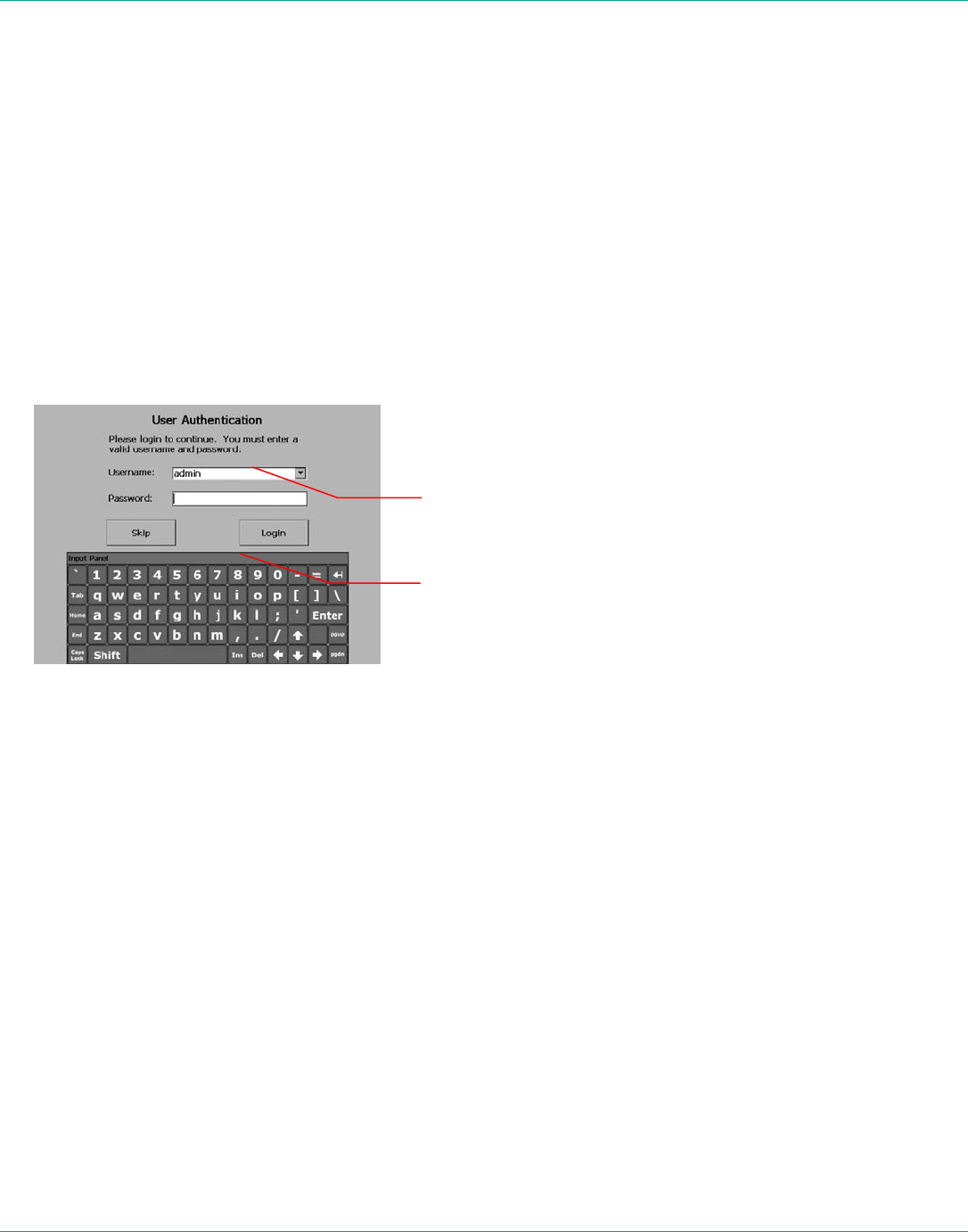
If your site requires a login, you will be prompted with a Login screen, as
shown to the right. See your site administrator for user name and
password.
If the MCD has not been configured, use the default user name and
password.
• User name: admin
• Password: admin
We strongly recommend that you change the administrator password from
the default admin as soon as you log in.
To login to the MCD:
1. Tap the Username field with the stylus. An on screen keyboard
appears.
2. Use the stylus to tap characters on the keyboard to enter them into
the Username field.
3. Use the same process to enter your password.
4. Tap the OK button to finish logging in.
Note: If your site administrator has enabled anonymous login, a Skip
button is available to bypass the login process.
2.5.2. Logging off
To log out:
1. From the standard Viewfinder display window, press and release the
Display button three times (or until the Main Menu appears).
2. Select Signout from the Main Menu by tapping it with the stylus.
To move the onscreen keyboard to a new
location on the screen, touch the stylus to
the edge of the keyboard image and drag it
to a new location.
Keyboard appears when you
select a text field. Tap the keys
with the stylus to enter text.
LibreStream n_sight MCD2000 User Manual
11
2.6. Inserting and Removing an SD Memory Card
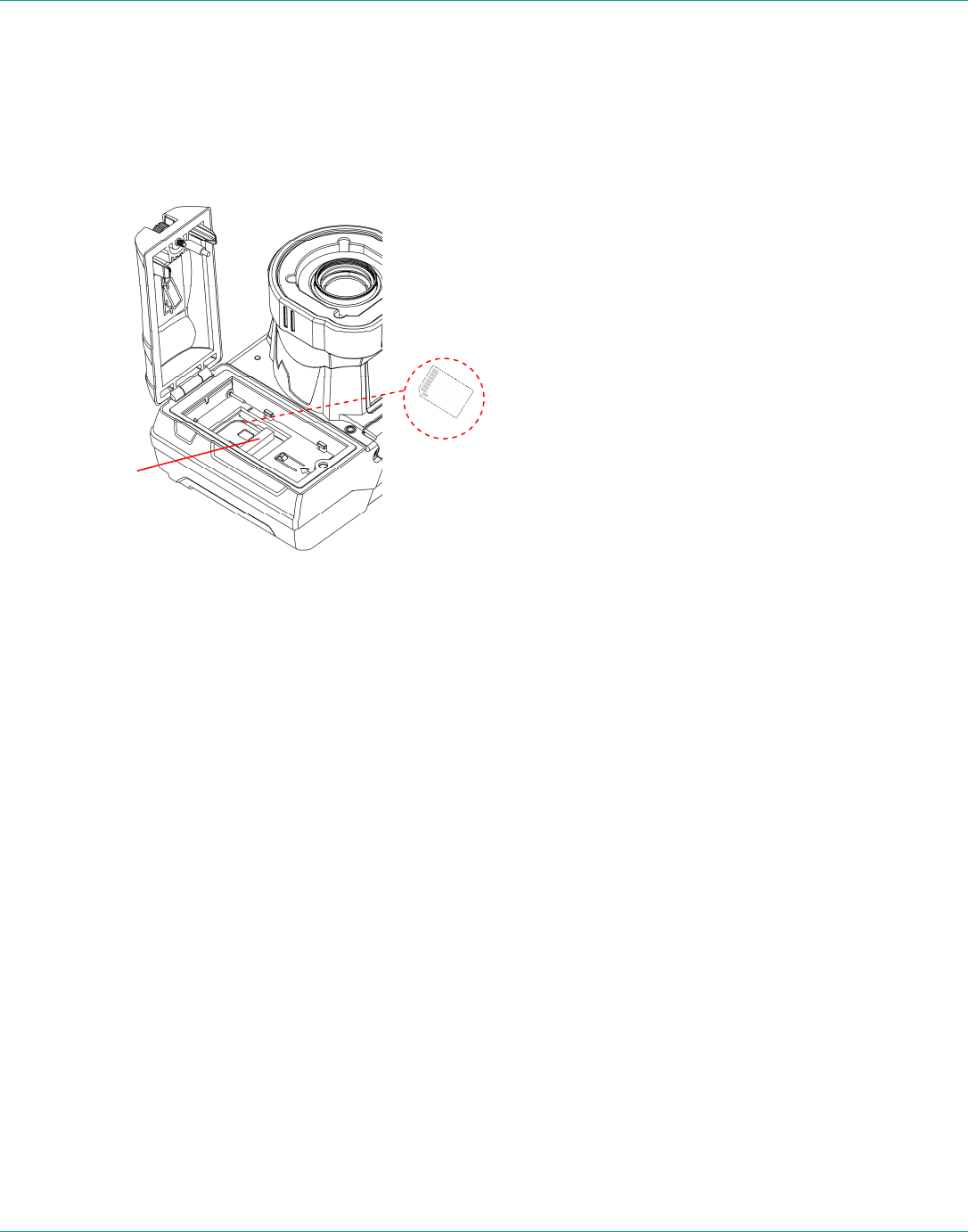
The MCD features an SD memory card slot to support configuration and
system upgrades and also to support future capabilities. To insert or
replace an SD memory card:
1. Open the battery compartment with the stylus screwdriver, and
remove the battery.
2. If there is already an SD memory card in place, flip open the access
door to release it from the slot.
3. Pull the card out. It should slide out easily.
4. Push the card gently in until it clicks into place.
5. Close the access door. Re-insert the battery and close the
compartment door.
Note: Do not remove the SD card while recording. This can corrupt the
card data.
Access door
LibreStream n_sight MCD2000 User Manual
12
3. Answering & Initiating Calls
The MCD Operator can either:
• Call an MCA software client user, or
• Answer an incoming call from an MCA software client user.
Use the Send and End buttons on the Navigation pad to start and end
calls, similar to the keys on a mobile phone. Once a call is established, the
Operator and Client can collaborate using voice, video, audio, images and
annotations.
3.1. Network Access
Before you can answer or initiate a call, you must be able to communicate
with the network, either through a direct wired connection, or wireless
connection. The Network link indicator, the middle of the three indicators
on the top of the MCD, indicates whether or not a Network link exists.
To check current wireless network conditions, you can press the Display
button once and check the Session information at the bottom of the
Viewfinder. Another option is to press the Display button three times to
display the Main Menu. Tap the Status option with the stylus, and then
select Network. See page 22 for more information on the Viewfinder and
Display modes.
3.2. Answering an Incoming Call
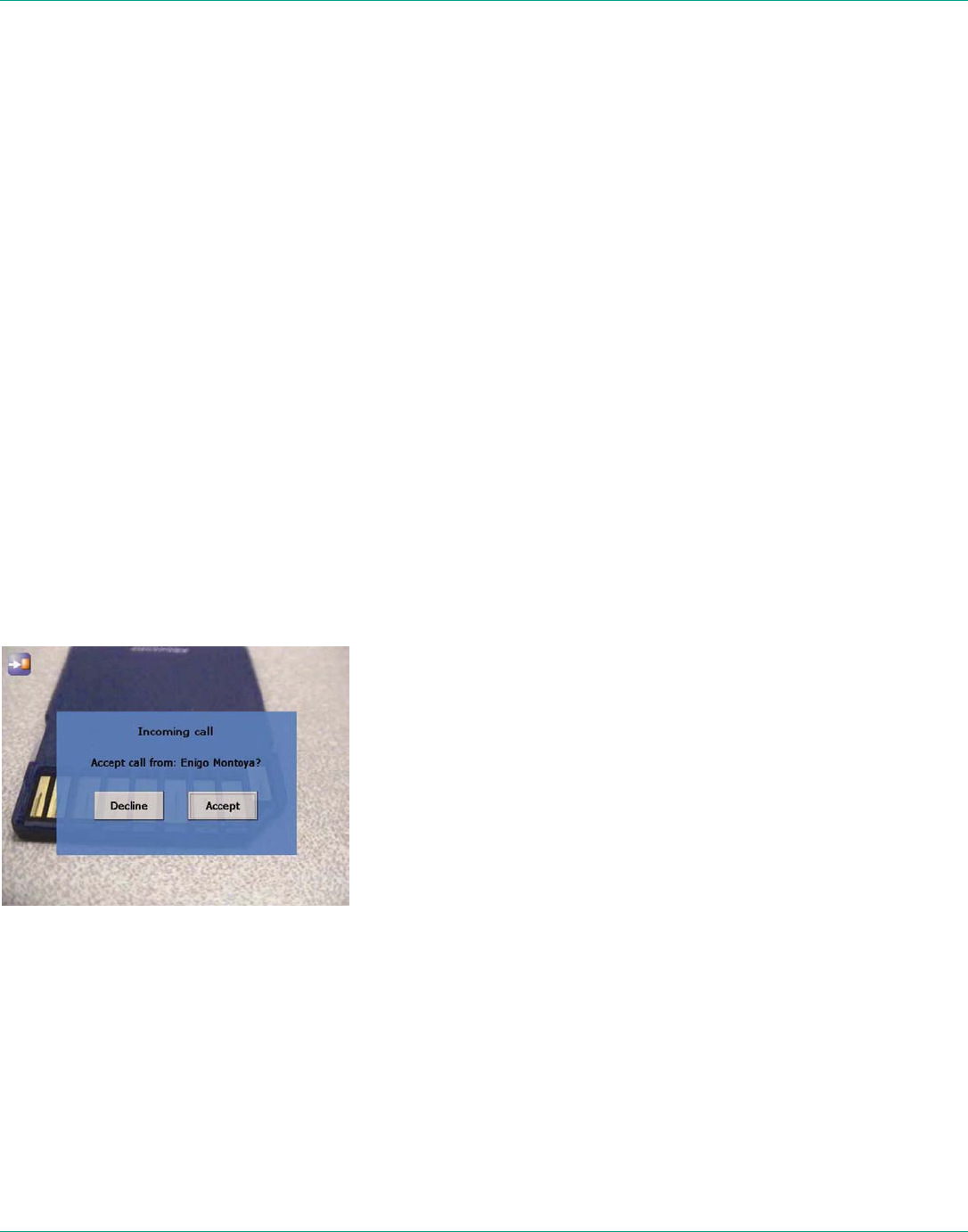
To receive incoming calls, the MCD must be on or in standby mode. When
a call comes in, the MCD rings like a mobile phone and the Viewfinder
displays a dialog box similar to the one shown.
An incoming call displayed on the Viewfinder.
• To accept (answer) the call, tap the Accept button or press the MCD
Send button.
• To refuse the call, tap the Decline button, or press the MCD End
button.
3.3. Initiating (Starting) a Call
To initiate or start a call from an MCD:
1. Press the Send button to display a Directory window listing the Clients
that this MCD has been set up to contact. This list is maintained by
your site’s System Administrator.

LibreStream n_sight MCD2000 User Manual
13
2. Use the Navigation pad buttons to highlight the Client that you want to
call. When you select a name, the Client’s destination address appears
in the field at the bottom of the window.
If the correct name does not exist, tap the field at the bottom of the
window and use the on screen keyboard to enter the address of the
Client you need to call. Consult your site administrator for details.
3. When the desired network address is displayed in the Network
address field, either tap the Dial button with the stylus or press the
Send button to initiate the call.
You will hear the outgoing rings or a busy signal on the MCD just as you
would on a mobile phone. When the Client answers the call, the Operator
and Client can start talking, just like a mobile phone. If the Client declines
the call a message will be displayed indicating the reason.
3.4. Ending a Call
End a call by pressing the End button. The Client user can also terminate
the call from the MCA application.
3.5. VoIP Telephone Communication
For conversation, the MCD can operate using its built-in microphone and
speaker, or a headset:
Speaker phone. If a headset is not attached, the MCD operates as a
speaker phone using a built-in omni-directional microphone and speaker.
Headset. If you plug a headset into the headset connector the MCD uses
the headset microphone and speaker. This is useful in noisy environments
or where privacy is a concern. In this case, Subject Audio continues to use
the built-in microphone or external audio line-in, if selected.
Note: Audio-in, S-video, Ethernet and USB are only available on the Sled
accessory. For more information on using the Sled, see Accessories on
page 14.
If the Operator needs to capture particular sounds as part of the video
stream (e.g., an odd noise being made by a piece of machinery), you can
also set a subject audio source, as described in Setting the Subject Audio
Source on page 16.
LibreStream n_sight MCD2000 User Manual
14
4. Accessories
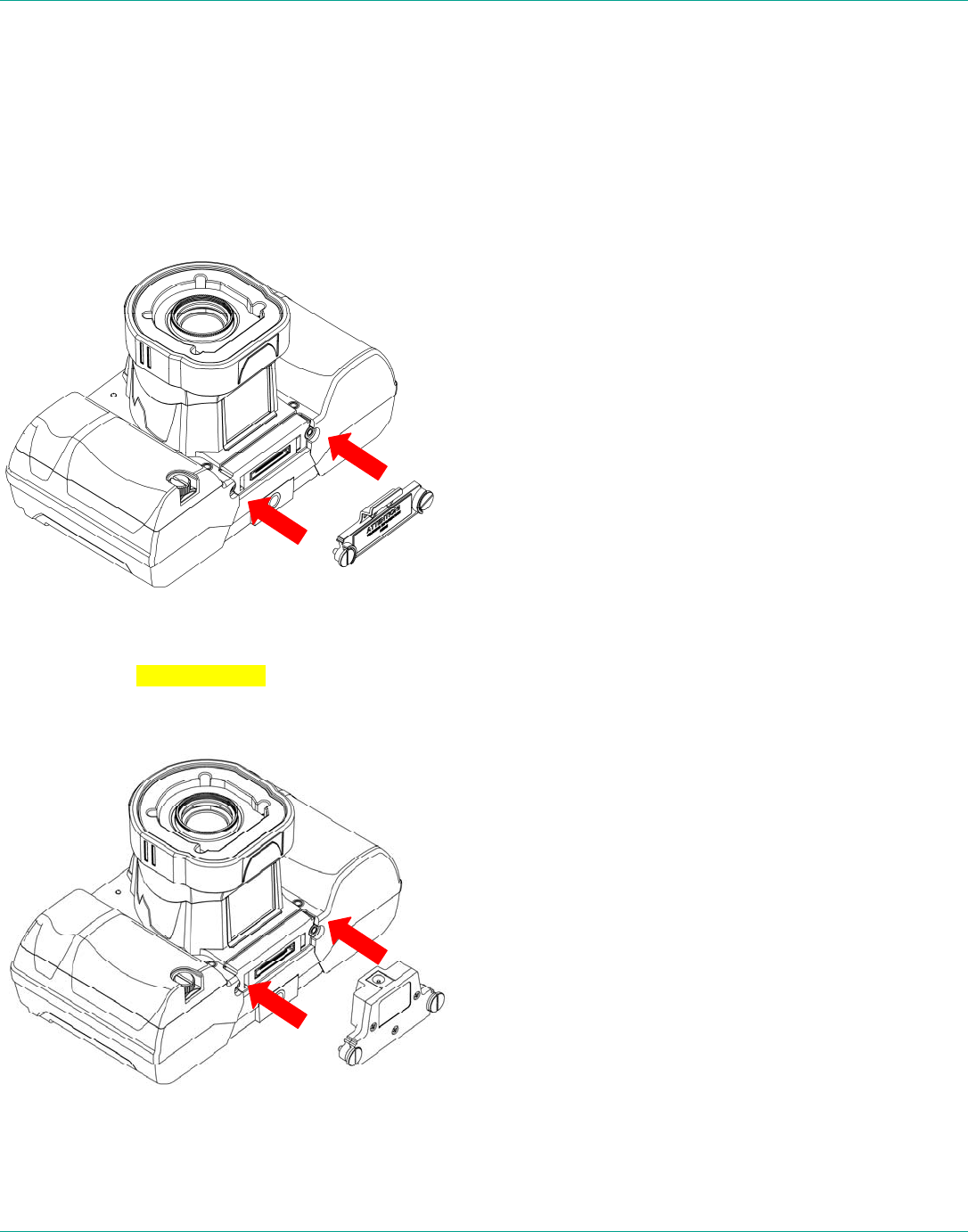
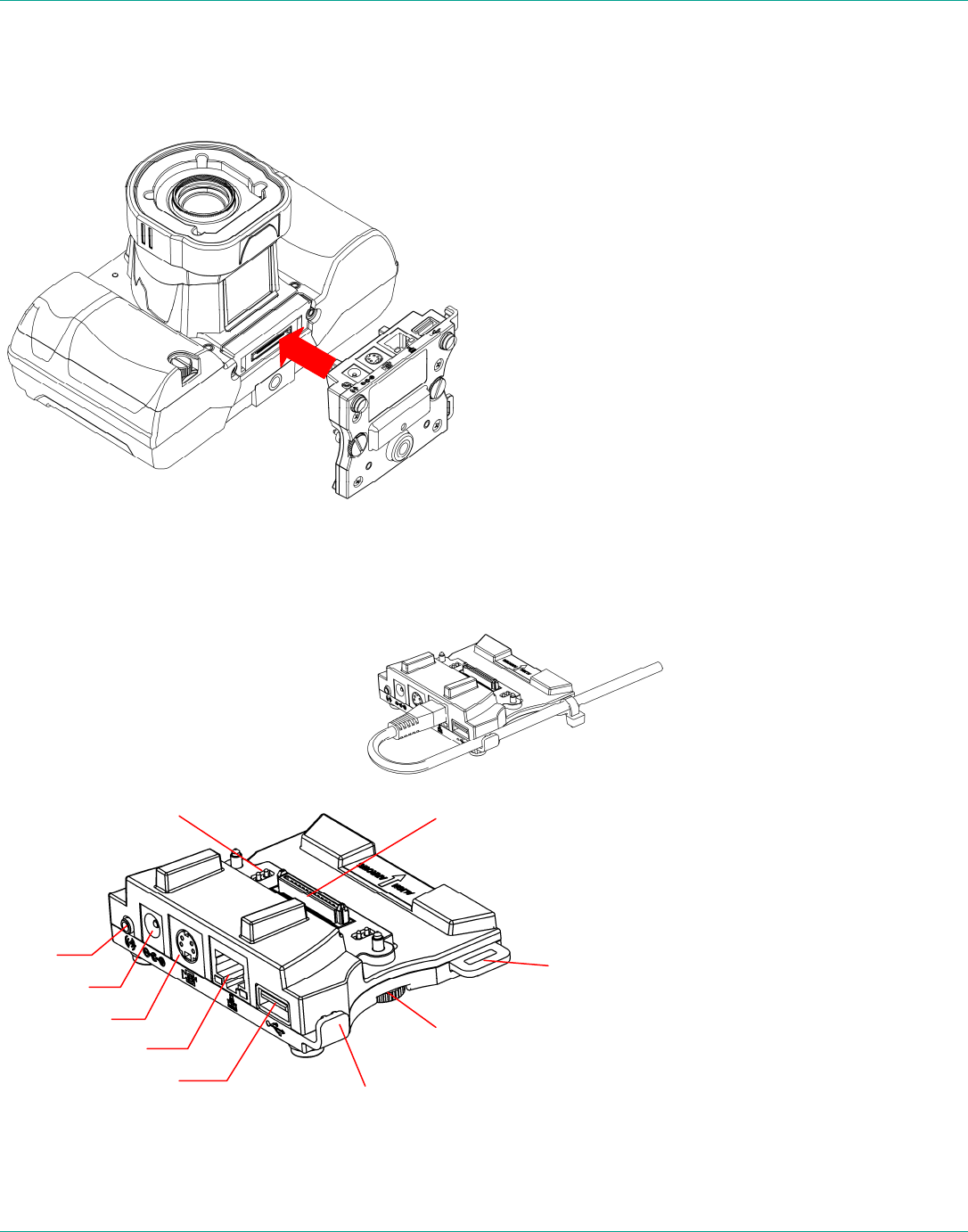
The MCD2000 comes with an I/O Cover and a Power Plug. The Sled is an
optional purchase.
4.1. I/O Cover
The I/O Cover comes attached to the camera and can be removed using
the stylus screwdriver. Remove the cover in order to attach the Power Plug
or Sled devices. Warning for Ex?
4.2. Power Plug
Attach the external Power Plug in order to charge the battery. Remove the
I/O Cover, insert the Power Plug into the I/O Connector, and tighten the
thumb screws with the stylus screwdriver.
LibreStream n_sight MCD2000 User Manual
15
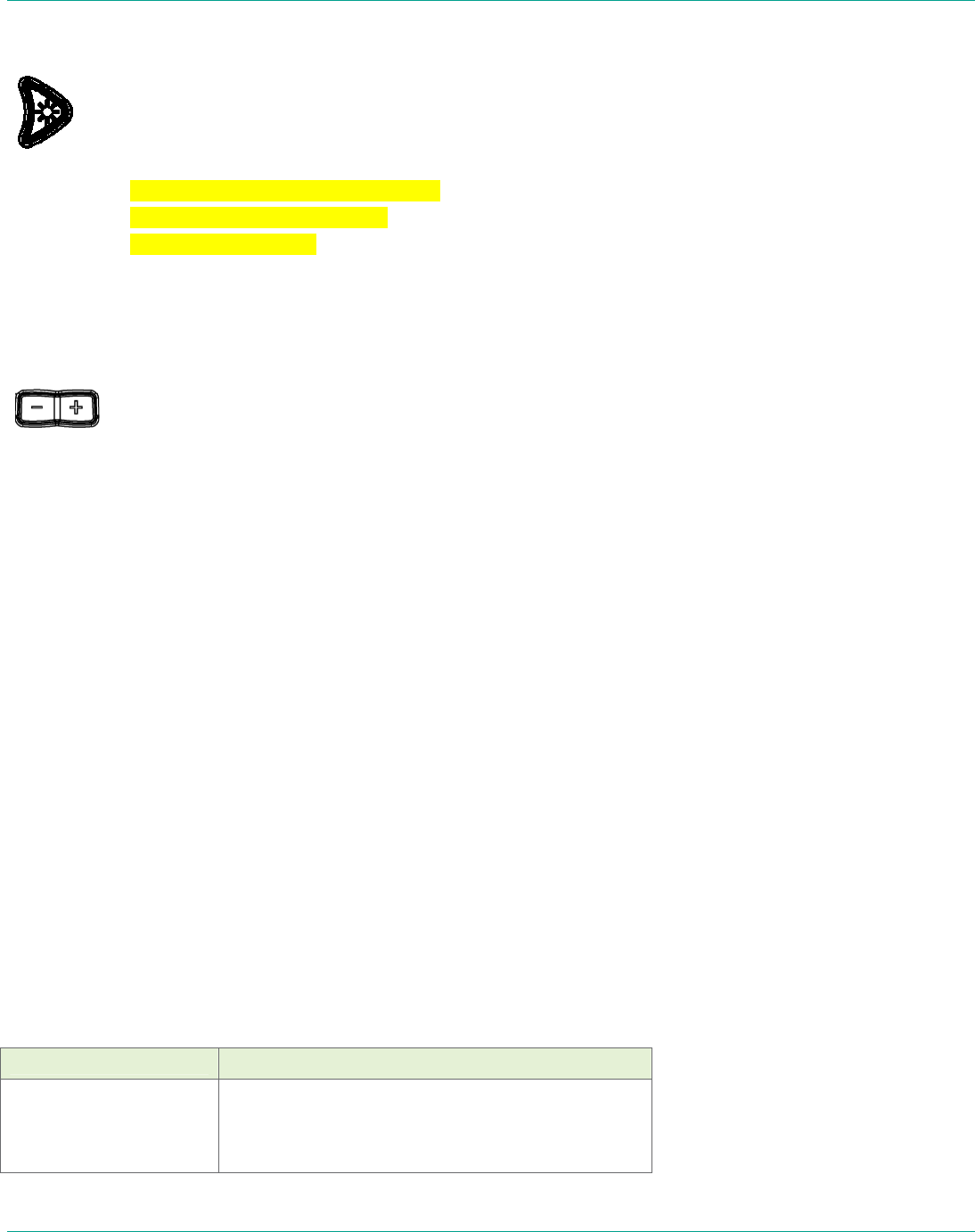
4.3. I/O Sled
The Sled is an optional device that is required in order to use the Audio-in,
S-video, Ethernet and USB features of the MCD2000.
To attach the sled, insert into the I/O connector of the MCD. Tighten the
thumb screws with the stylus screwdriver.
The parts of the sled accessory are as follows:
I/O Sled showing
cable management
Power
Audio-in
S-video
Ethernet
USB
I/O Connector
Power pins (2)
Tie strap loop
(tie strap not supplied)
Thumb screw (2)
Cable slot

LibreStream n_sight MCD2000 User Manual
16
5. Audio/Video (AV) Functions
Once a call is connected, the MCD can send an AV media stream to the
MCA software client.
5.1. Turning the Video Stream On or Off
To start streaming real-time video to the MCA software client, press the
green Stream button on the top of the MCD. Press the Stream button
again to stop streaming. This does not disconnect the call; the stream can
be started and stopped as often as desired within the current call.
This sends a live audio/video media stream from the MCD to the MCA
software client. The stream will continue as long as the call is connected
(i.e., neither user hangs up the call), or until the Operator or MCA user
selects an option to stop streaming.
5.2. Setting the Subject Audio Source
The MCD provides two audio channels: one for subject audio and one for
VoIP telephone communication (see page 13).
The Subject audio — the audio being captured and streamed with the
video — can be captured by the MCD’s built-in microphone or from an
audio source connected to the Audio-In port.
Note: Audio-in, S-video, Ethernet and USB are only available on the Sled
accessory. For more information on using the Sled, see Accessories on
page 14.
The Audio-in port can be configured as either microphone or Line-in. This
allows the MCD to capture and stream high-quality audio that is time-
synchronized with the video. The green Stream button also starts and
stops streaming of Subject Audio, just as in video streaming described
above.
To set which source will act as the Subject Audio Source:
1. From the standard Viewfinder display window, press the Display
button three times (or until the Main Menu appears).
2. Tap the Configuration option with the stylus to display the
Configuration screen.
3. Display the Audio tab. This tab allows you to control speaker and
microphone volume, and to select the Subject Audio Source.
5.3. Using S-video
Note: Audio-in, S-video, Ethernet and USB are only available on the Sled
accessory. For more information on using the Sled, see Accessories on
page 14.
When using an MCD model which has S-video input/output, the S-video
source must be attached to the MCD and powered before setting the video
source to S-video in the Configuration Video tab. Otherwise, the video
stream being sent to the MCA may not synchronize and may not be
aligned to the frame. If synchronization does not occur, correct it by
setting the MCD’s video source to Internal and then back to S-video. See
Configuration on page 30 for more information about configuring the MCD
video.
LibreStream n_sight MCD2000 User Manual
17
5.4. Turning the Illumination Ring On or Off
The light on the front of the MCD can be used to provide extra
lighting in dim lighting situations. There are two light settings
that trigger a different set of lights on the illumination ring. Use
the right cursor pad button to toggle the light settings:
Normal – optimized for distant objects
Macro – optimized for close-ups
Off – turns the light off
Note that if the MCD is displaying a configuration or directory screen, the
Light button operates as a right arrow key. In this case, press and hold
the Function control button, then press the right cursor to adjust the light
setting.
5.5. Adjusting Zoom Levels
To adjust zoom levels, use the zoom buttons located above
the Navigation pad on the back of the MCD.
• To adjust the zoom one step at a time, press and release the Minus (–
) button (zoom out) or the Plus (+) button (zoom in).
• To adjust zoom levels at a faster rate, press and hold the Minus or
Plus button, and release it when the zoom level is where you need it.
The minimum focusing distance changes with the zoom level. As you zoom
in, the minimum focus distance moves out. For example, if you are close
to an object and zoom in on it, the object will become out of focus if you
zoom in too far. The focus adjusts automatically when zooming unless the
MCD is in Manual Focus mode. See Focusing, next.
If you need to get very close to your subject, set the zoom level to 1x
(minimum zoom) and move the MCD until you reach the desired image
size. This will ensure that you achieve the best focus.
5.6. Focusing
5.6.1. Automatic Focus
The MCD normally operates in automatic focus mode and will focus on
subjects centered in the viewfinder. Focus will continuously update as the
distance between the subject and the lens changes or as zoom is adjusted.
There are situations where manual control is desired to fine tune the focus,
particularly for objects not centered in the viewfinder. Manual focus control
is described in the following section.
Note that zoom and focus controls are available regardless of whether the
Viewfinder is currently displayed.
5.6.2. Manual Focus
To set focus manually, the Operator can use the Plus/Minus buttons in
combination with the Manual Focus (MF) button
Manual focus options
Switch to manual
focus and increase or
decrease manual
focus by one step.
While pressing and holding the MF button, press
and release a Plus or Minus button once. When
you release the MF button, the MCD remains in
manual focus mode, locked at the focus level you
LibreStream n_sight MCD2000 User Manual
18
set.
Switch to manual
focus and increase or
decrease manual
focus at a standard
rate.
While pressing and holding the MF button, press
and hold a Plus or Minus button until you reach
the setting you want. Then release the buttons.
When you release the MF button, the MCD
remains in manual focus mode, locked at the focus
level you set.
Switch from manual
focus to automatic
focus mode.
Press and release MF (without pressing Plus or
Minus).
Set a temporary
focus lock.
Press and hold MF (without pressing Plus or
Minus). The focus stays locked for as long as you
continue to hold the MF button. Automatic focus
mode resumes when you release it.
5.7. Telestration (Drawing Lines on the Viewfinder)
Telestration permits the MCD Operator or the MCA software client user to
draw freehand lines on a still image or live media stream using the stylus.
Telestration markings appear on both the Operator’s and the MCA software
client display. The system is configured so that lines drawn by the MCD
Operator and the MCA software client user appear in different colors.
Telestration lines drawn on the Viewfinder.
Telestration is available on the Viewfinder at any time, on both streaming
media and still images. It is disabled if the Viewfinder is hidden (e.g. in the
configuration or directory screens).
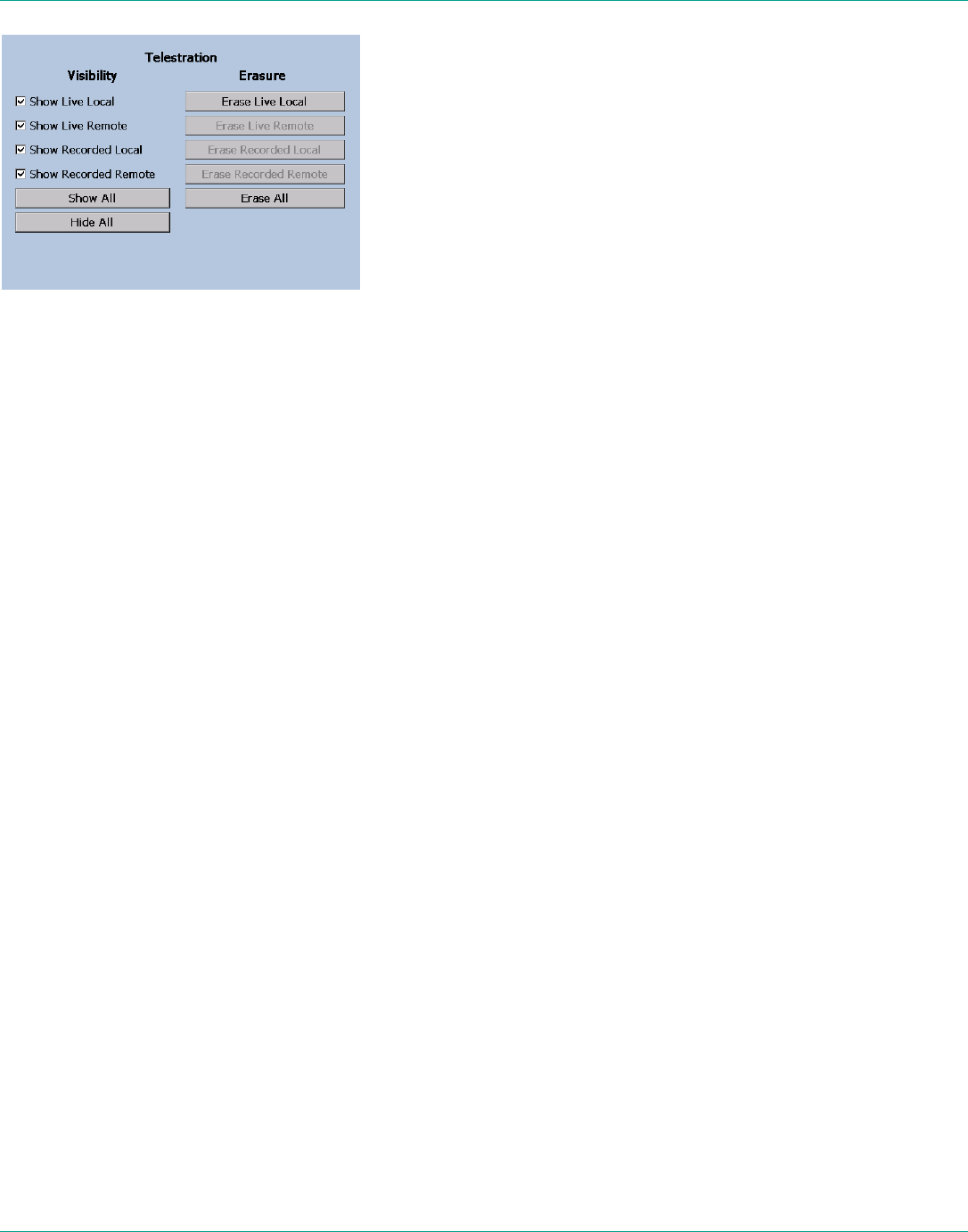
Once telestration lines have been added, an Eraser icon appears in the
viewfinder. Tap the Telestration icon to display the Telestration menu.
Options in the menu allow you to select which telestration lines to show or
hide and which lines to erase.
Tap the Te
lestration icon to
show, hide, or remove
existing telestration lines.
Lines drawn by the
Operator appear in a
different color from lines
drawn by the MCA software
client user.
LibreStream n_sight MCD2000 User Manual
19
Telestration menu
5.8. Capturing Still Images
To capture a still image, press the Capture button on the top of the MCD.
(The Capture button behaves like the shutter button on a digital camera.)
The captured image is also displayed briefly on the Viewfinder and then
cleared. If the MCD is connected to an MCA, the image is sent to the MCA
and displayed in the ImageViewer window, but is not shared. Note that if
there are telestration lines, these are captured as part of the image.
If Configuration > General > Freeze video stream when capturing a
still image is set (see page 30), the video stays frozen in the viewfinder
and the MCA Call window until the Capture button is pressed or you tap
on the Capture icon. This also occurs when sharing images.
5.9. Sharing Images
The MCD operator and MCA client can collaborate by sharing images with
each other while in a call.
To capture and share a new image:
• Press and hold the Capture button until the MCD displays “Still image
sharing started.”
The MCD sends the image to the MCA and saves a copy in the session
folder on the SD card.
To end sharing:
• Press the Capture button briefly.
To share an existing image:
1. Press the Display button repeatedly until the Main menu appears.
2. Tap File Browser.
The File Browser window appears.
3. Tap the folder containing the image that you want to share.
Image thumbnails appear in the pane to the right.
4. Select the image you want to share and tap Share in lower left pane.
The MCD sends the image to the MCA and saves a copy in the session
folder.
5.10. Recording and Playing Videos
The MCD can record video independent of its call state. That is, it can
record while connected, disconnected, or calling. The only time that it
cannot record is while it is playing back a previously recorded video.
LibreStream n_sight MCD2000 User Manual
20
Note: Do not remove the SD card while recording. This can corrupt the
card data.
5.10.1. Recording a video
To record a video:
1. Press the Record button on the back of the MCD.
The message “Please wait – record is starting” appears briefly. The
Record icon in the top right of the viewfinder appears when recording
starts.
2. To stop recording, press the Record button again.
The MCD saves the recording in the location specified in the General
tab of the Configuration screen. (See Configuration on page 30 for
more information.) The file name is based on the date and time of the
recording.
Video recordings include any telestration lines made during the recording.
Telestration lines will appear when you play or stream a video recording,
although they will be in different colors.
When you share an image while recording a session, the image appears in
the recording.
5.10.2. Playing a video recording
To play back a video that you have just recorded or replay a video:
1. Press the Display button on the back of the MCD three times to
display the Main menu.
2. Tap File Playback.
The Video Playback screen appears.
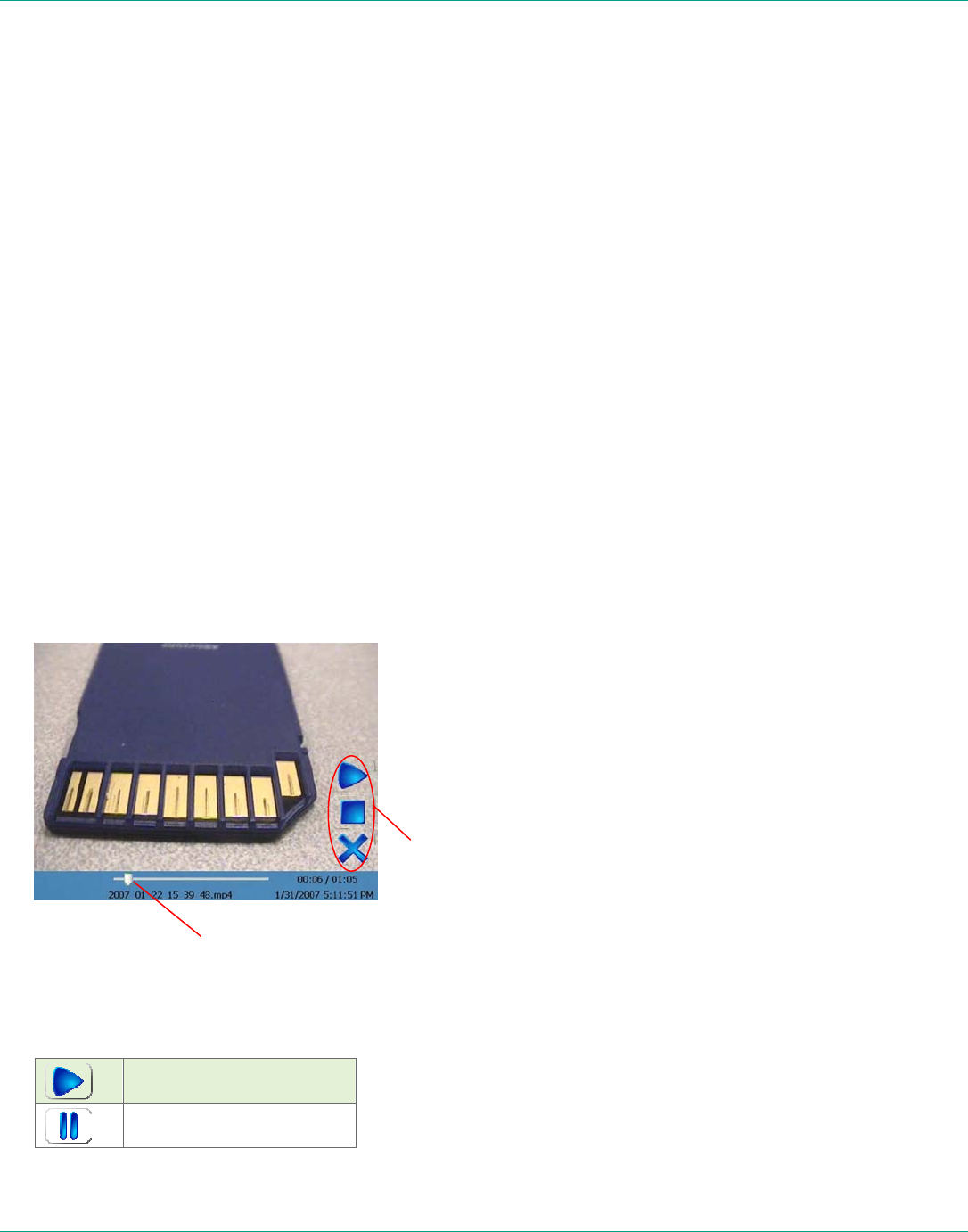
Video Playback screen.
3. Tap the Play icon to start the video.
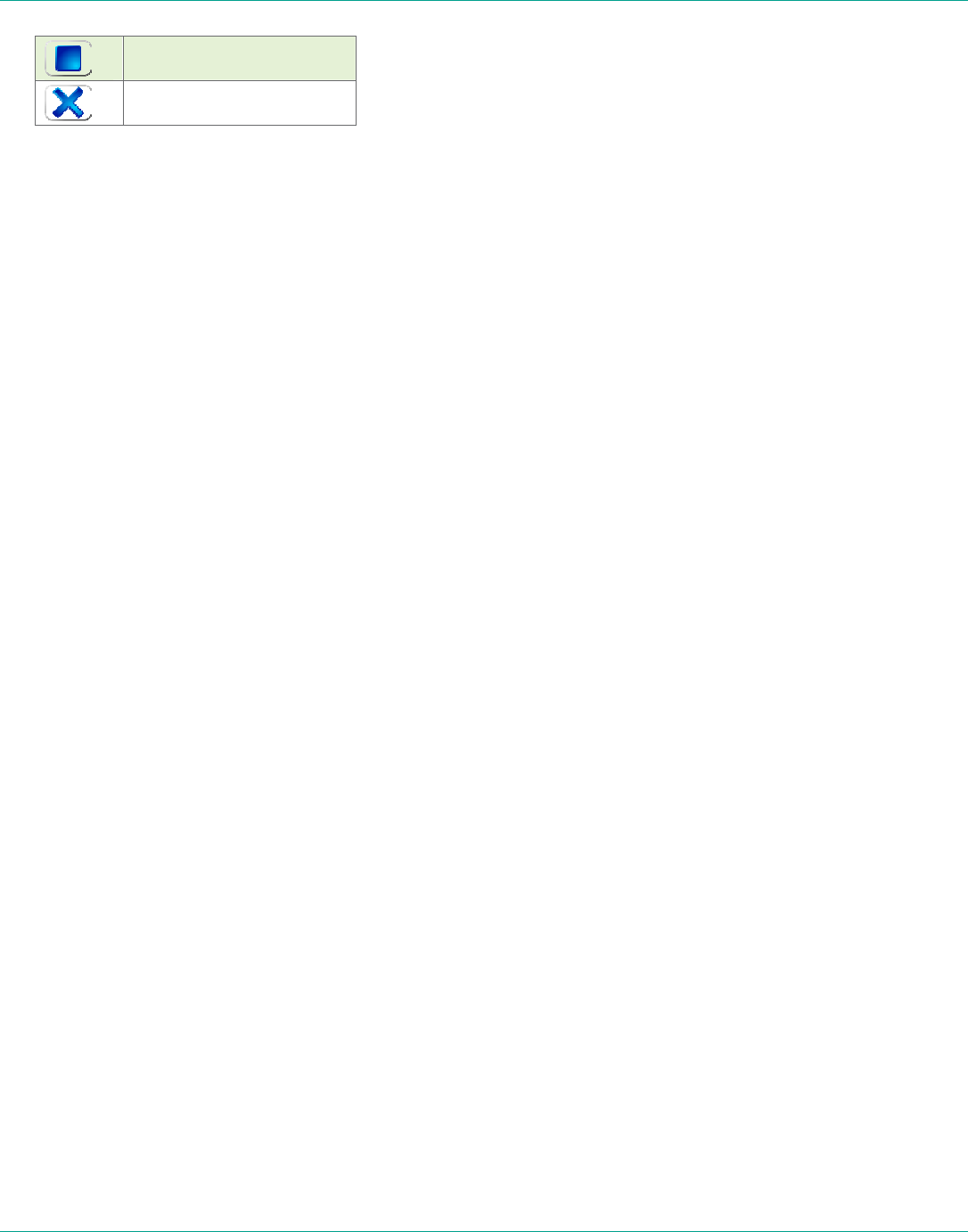
Playback controls
Play
Pause playback
Slide trackbar to advance
the video recording.
Playback
controls
LibreStream n_sight MCD2000 User Manual
21
Stop playback
Return to viewfinder
The MCD plays the last video recorded or the last video played,
whichever is more recent.
To play back a previously recorded video see Play Videos on page 20.
For more information on the Main menu, see Menus on page 25.
5.11. Streaming a Video Recording
You can stream a video that you have just recorded or replay a video to an
MCA. (Note: You cannot stream live video and a recording
simultaneously.)
To stream a video that you have just recorded or replay a video:
1. Connect to an MCA.
2. If the MCD is streaming, press the Streaming button on the top of the
MCD to stop streaming.
3. Press the Display button on the back of the MCD three times to
display the Main menu.
4. Tap File Playback.
The video playback controls appear.
5. Press the Streaming button to start streaming and playing the video.
The MCD streams last video recorded or the last video played,
whichever is more recent
If you don’t want to stream the entire video, you can use the playback
track bar, and the Play and Pause icons to move to the point in the
recording where you want to start streaming. When you find the desired
place, press the Streaming button.
To stream previously recorded videos, use the File Browser. See Managing
Files on page 28.
To switch to the File Browser from the Video Playback screen, tap the
filename just under the trackbar.
The MCA client can also stream a previously recorded video to the MCD.
Playback controls operate the same as when the MCD is streaming the
video.
LibreStream n_sight MCD2000 User Manual
22
6. Viewfinder Features & Display Modes
The display on the back of the MCD functions as a camera viewfinder. By
default, it shows what the lens at the front of the MCD is viewing, but it
can also provide status information and menus. Depending on the display
mode, the Viewfinder uses a status bar, icons and popup windows to
provide information, notifications and prompts as necessary.
Note that status bar information and menus only appear for the MCD
Operator. This information does not appear for the MCA client software
user who is receiving streamed information.
6.1. Controlling the Viewfinder Mode
To control the Viewfinder mode, press the Display button on the back of
the MCD. Starting from the Default mode that appears when the MCD first
turns on, Operators can press Display one or more times to switch the
Viewfinder into a different mode, as described below.
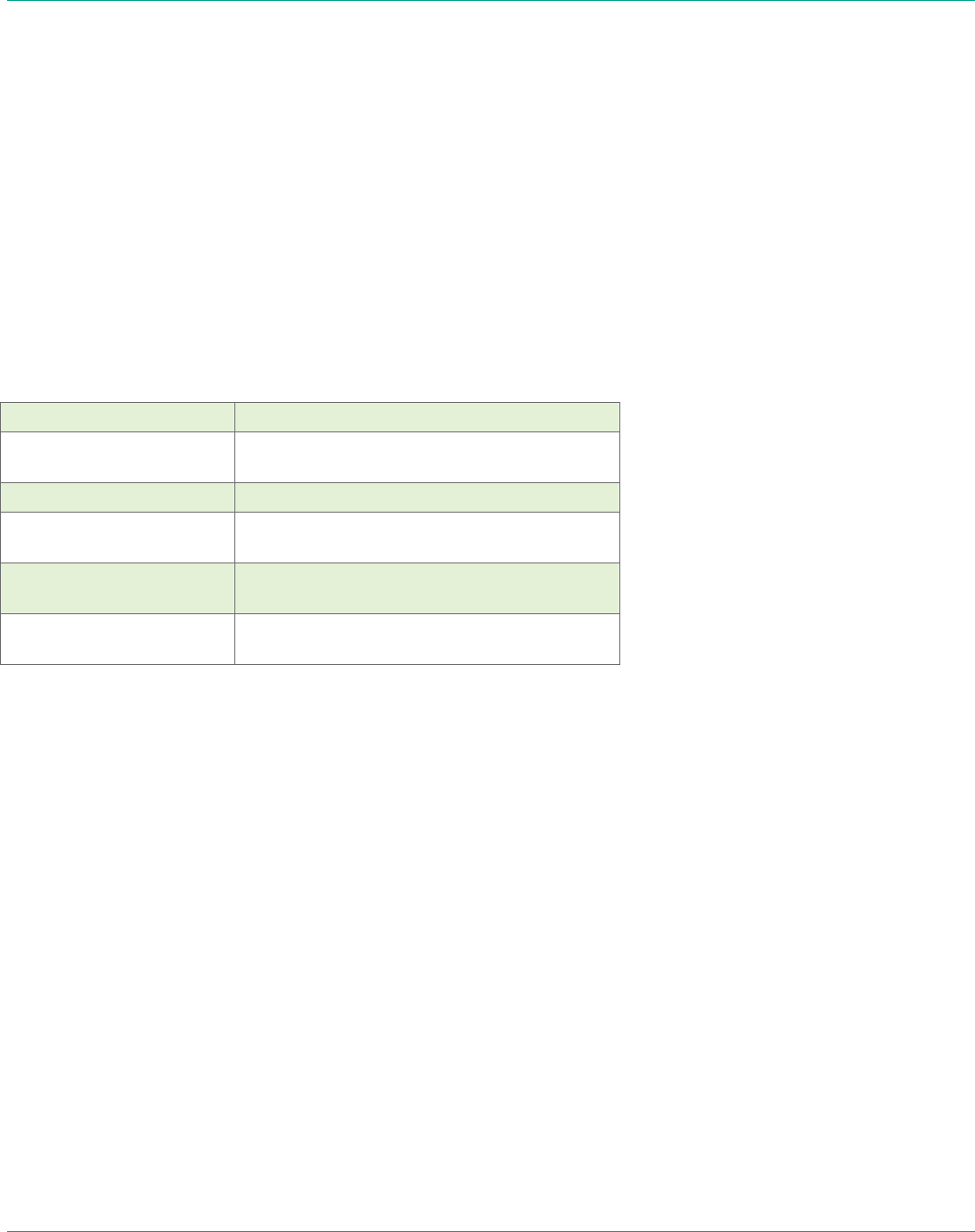
Display button Result
Press and hold Toggles the display backlight on or power
save.
Press and release once Session information displayed.
Press and release
second time
Stream information displayed.
Press and release third
time
Main Menu displayed – for configuration and
other setup options.
Press and release
fourth time
Display returns to default Viewfinder mode.
6.1.1. Turn Viewfinder Backlight On or Power Save
If you are in a call that does not require the Viewfinder backlight, the
Operator can press and hold the Display button until the backlight dims
and enters power-saving mode. Press and hold the button again to turn
the backlight back on. Placing the backlight in power save extends run
time when operating on battery.
Note: The default backlight level can be set from the MCD configuration
screen available from the Main Menu.
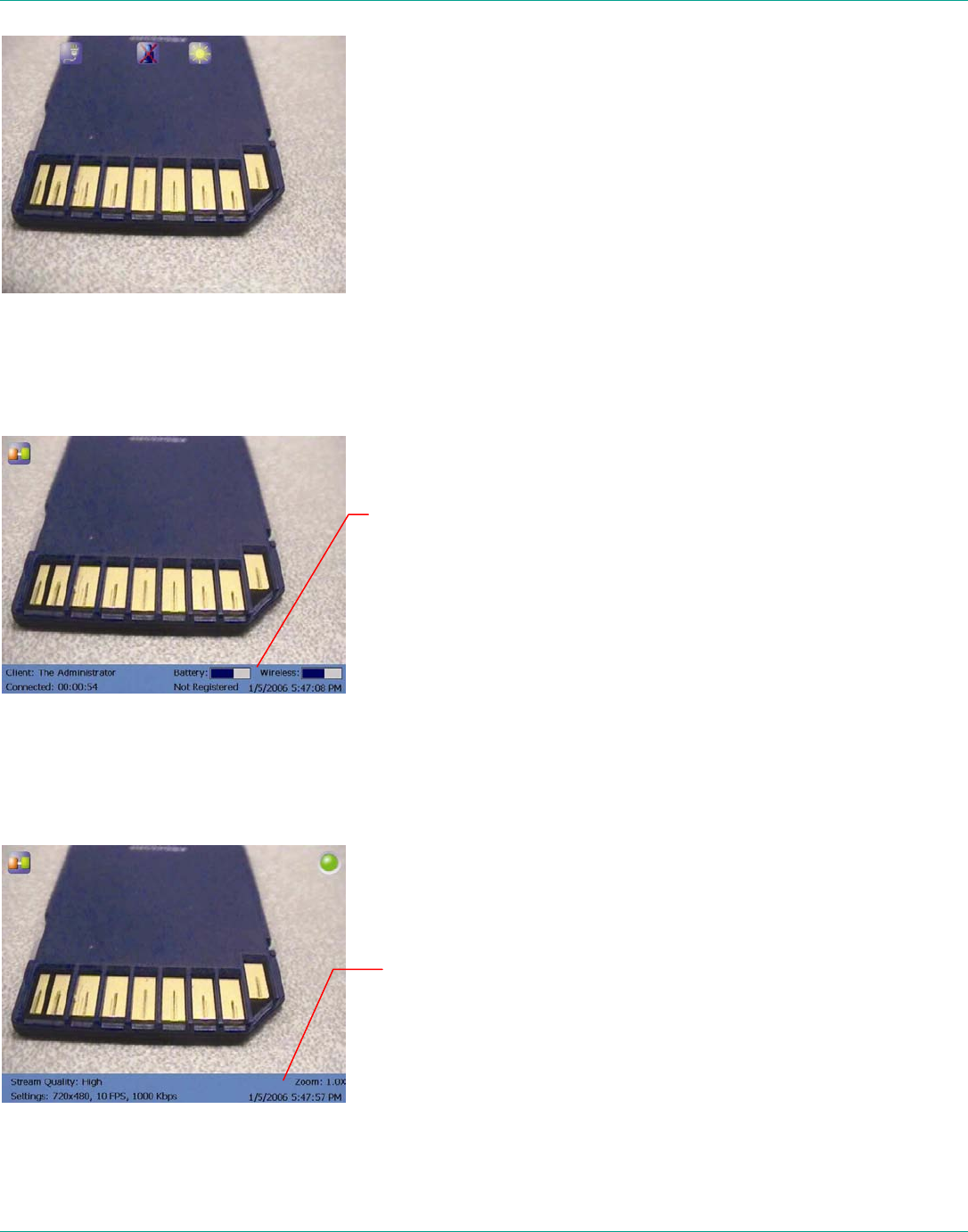
6.1.2. Default Viewfinder Mode
This is the default mode that appears when you first turn the camera on.
Viewfinder mode maximizes the visible video area by providing as little
extraneous screen information as possible. The Status bar area is blank,
but icons, pop-up notifications and prompts appear as necessary.
LibreStream n_sight MCD2000 User Manual
23
Default Viewfinder mode.
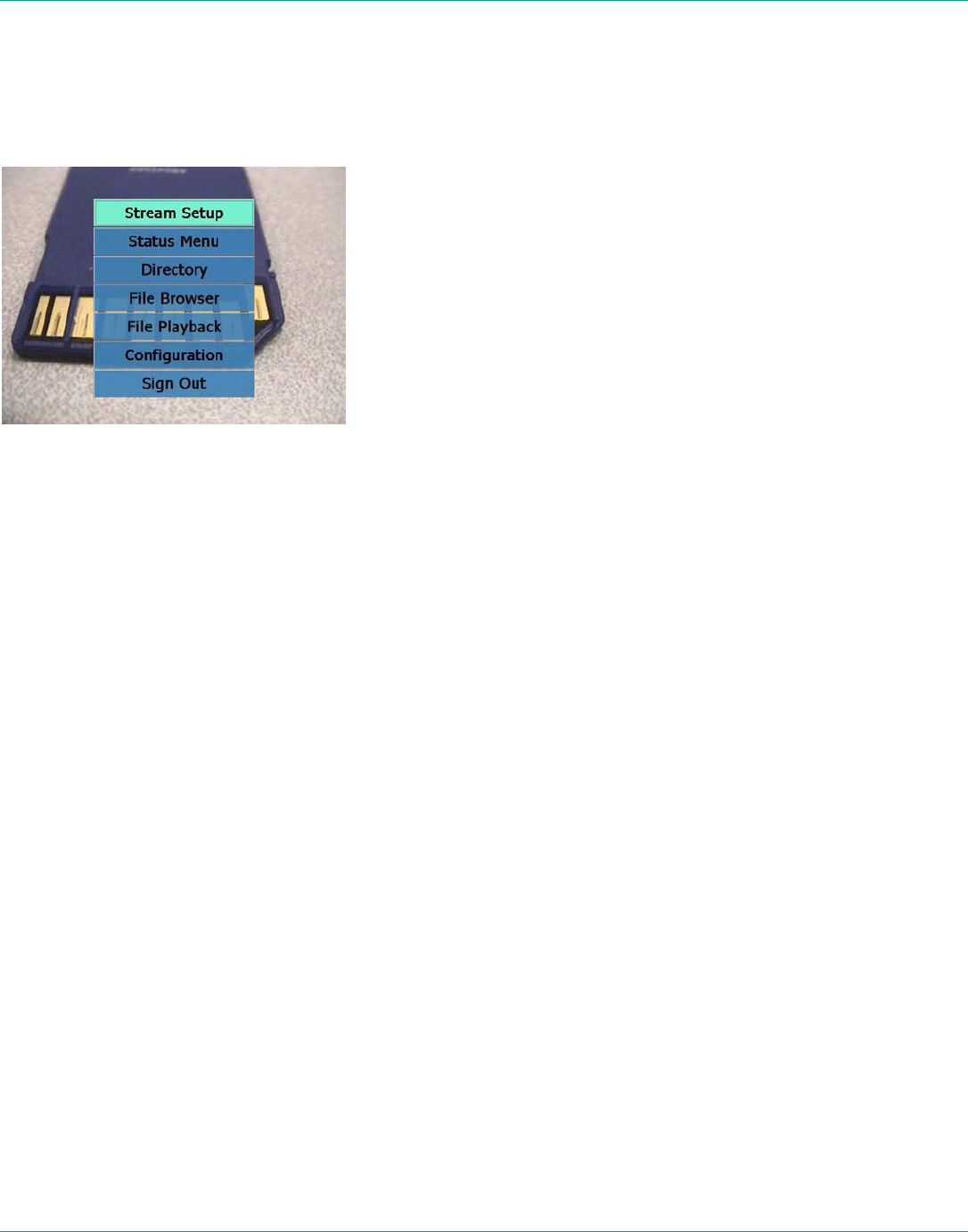
6.1.3. Session Information
Starting from the default viewfinder, press Display once to display session
information in the Status bar. The Viewfinder shows live camera video and
status information as shown at right.
Click the Display button once for Session information.
6.1.4. Streaming Status
Starting from the default viewfinder, press Display twice to display stream
information in the Status bar. The Viewfinder shows live camera video and
status information as shown at right.
Click the Display button twice for Streaming status information.
Client Identifier, Connect
time, Date/Time, Battery
level, Radio signal
strength.
Stream video size,
bit rate, FPS (frame
rate), quality, Zoom
level.
LibreStream n_sight MCD2000 User Manual
24
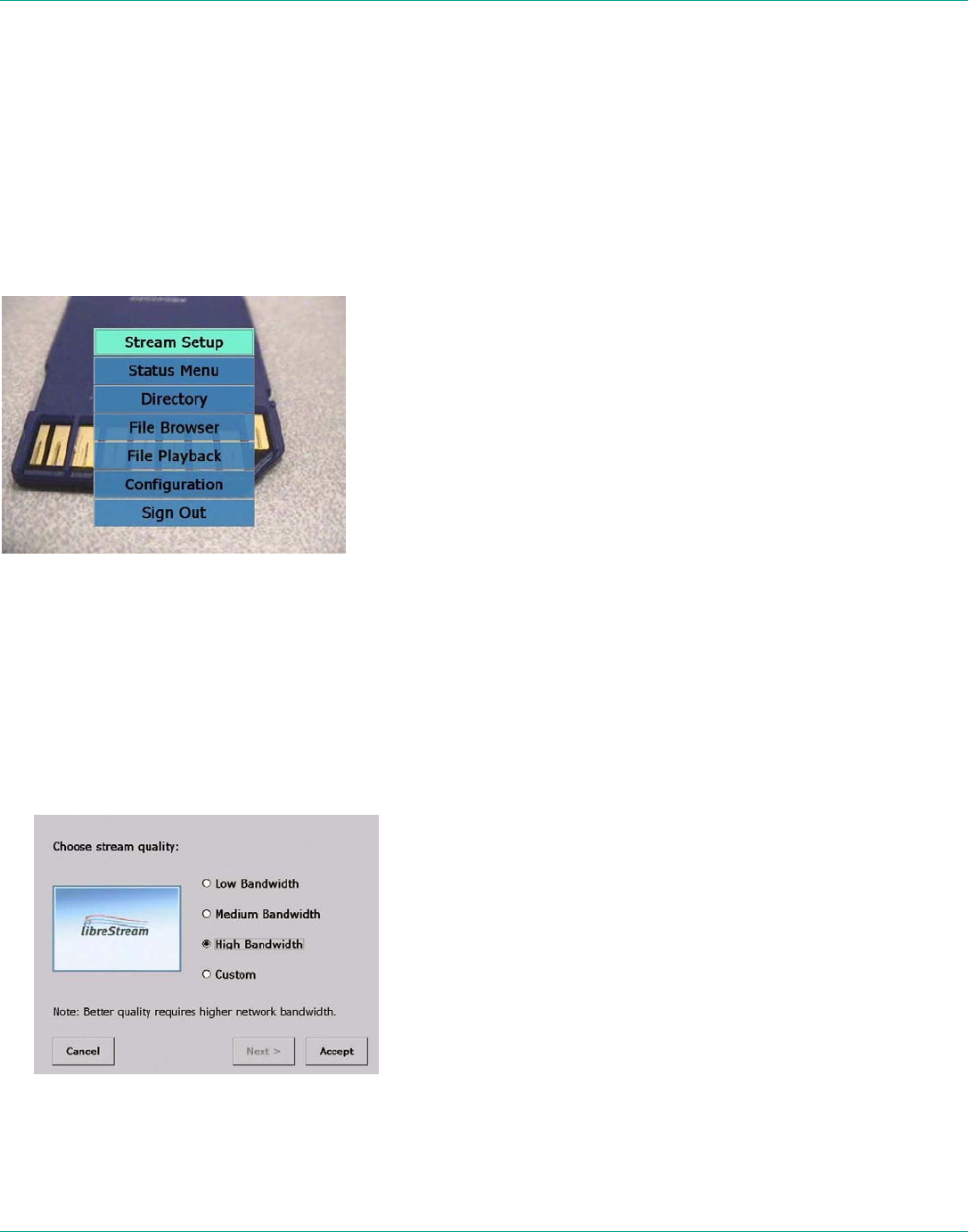
6.1.5. Viewfinder Main Menu
Starting from the default viewfinder, press Display three times to display
the Main Menu. The viewfinder shows live camera video and the menu as
shown at right. For more information on the Main Menu and other menu
options, see page 25.
Click the Display button three times to display the Main Menu.
LibreStream n_sight MCD2000 User Manual
25
7. Menus
The MCD has a menu system that allows Operators to check and update
system settings, view status, access the directory or sign out from the
MCD.
Note that system configuration and other setup tasks are usually
performed by your site administrator and are described in the System
Administration manual.
To display the Main Menu, start from the default viewfinder display, and
press the Display button three times.
Main Menu on the MCD.
You can display the menus at any time, even while streaming media to a
Client user. The person on the receiving end will not see the menus.
7.1. Stream Setup
To check or change streaming setup options:
1. Starting from the default Viewfinder display, press the Display button
three times to display the Main Menu.
2. From the Main Menu, tap Stream Setup to display the streaming
options. Three preset configurations are available (defined by your site
administrator).
Select a preset option, or select Custom to configure a custom stream.
3. To select a built-in configuration, tap Low Bandwidth, Medium
Bandwidth or High Bandwidth, and then select Accept.
4. To set up a custom configuration, tap Custom and then select Next >
to display the Custom Stream Configuration window. This allows an
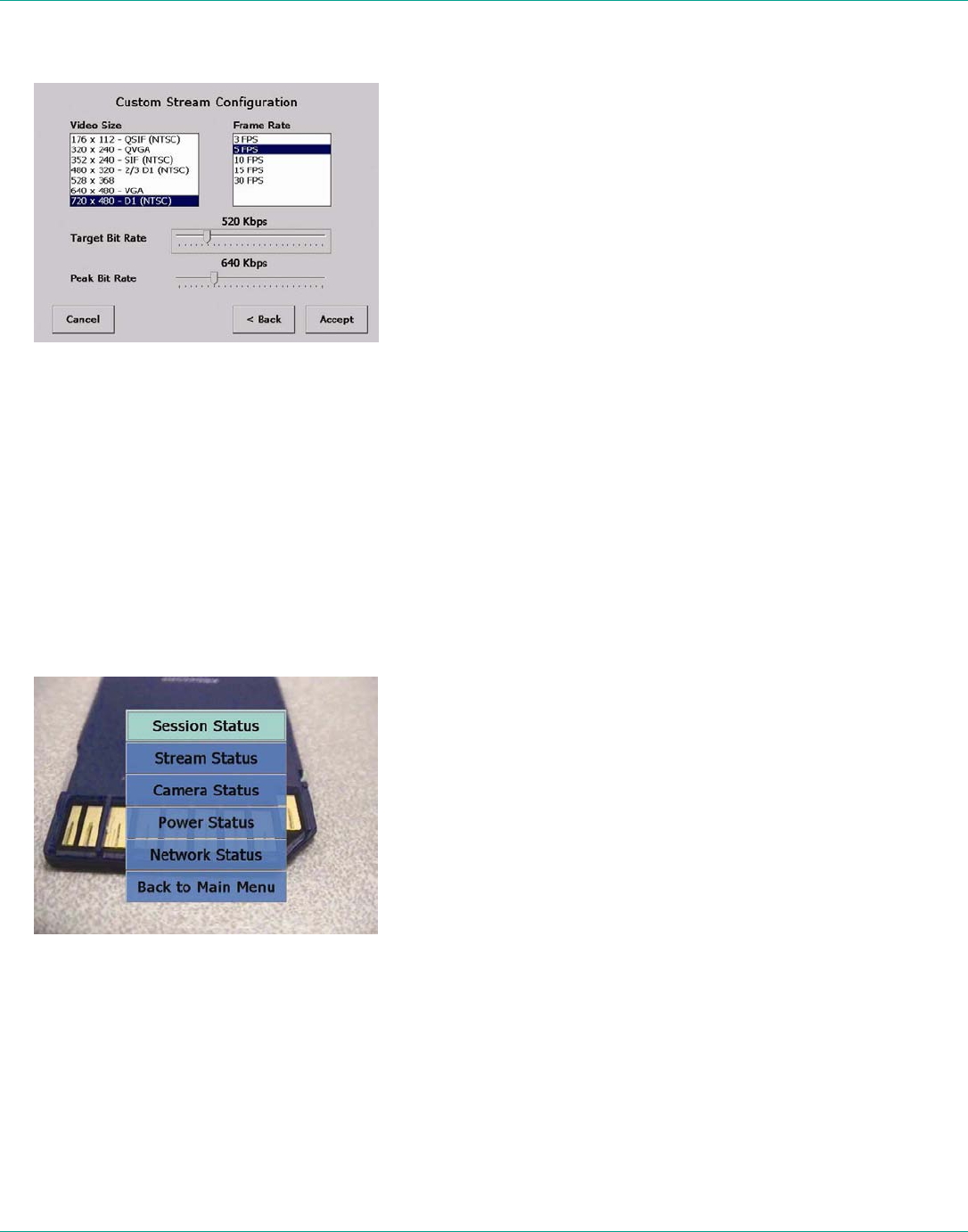
LibreStream n_sight MCD2000 User Manual
26
Operator to configure the stream parameters for circumstances where
the predefined settings are not adequate.
Configuring Custom stream options.
Note: The Video Size and Frame Rate choices change depending on
whether the MCD contains an NTSC or PAL camera.
5. Select your configuration options, and then select Accept.
Note: The stream quality can also be selected by the MCA operator.
7.2. Checking Status
The Main Menu offers a number of options for checking status, as shown
below.
To view status information:
1. Starting from the default Viewfinder display, press the Display button
three times to display the Main Menu.
2. From the Main Menu, tap the Status Menu option to display a second
menu with Status options.
Status options.
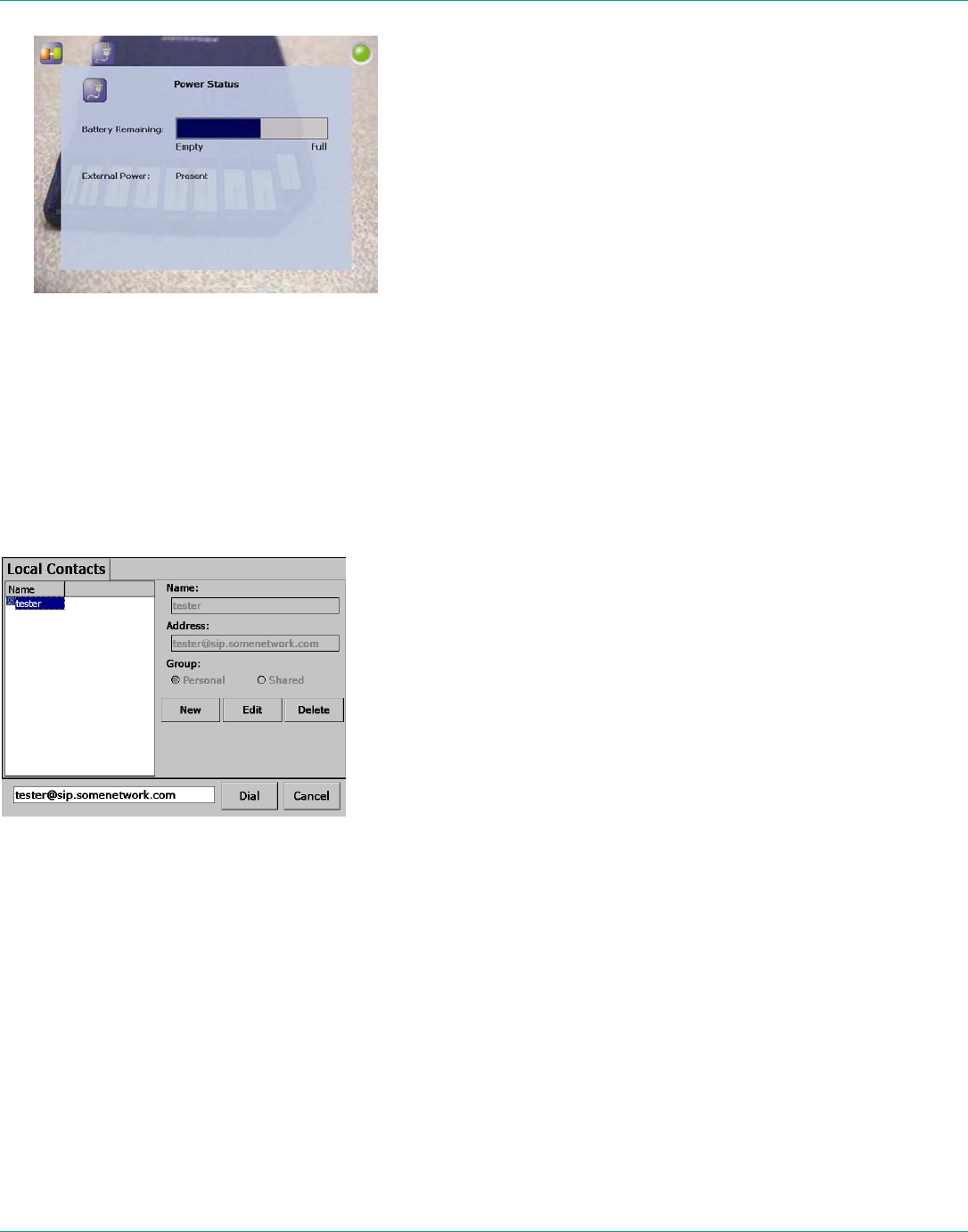
3. Tap a status option to view a Status screen for that item. For example,
see Power Status below.
LibreStream n_sight MCD2000 User Manual
27
Status window for Power.
To dismiss a Status window and return to the Status menu, tap it with
the stylus, or click the Display button.
4. Contact your system administrator for more information on any
particular status item and what it means.
7.3. Viewing Local Contacts
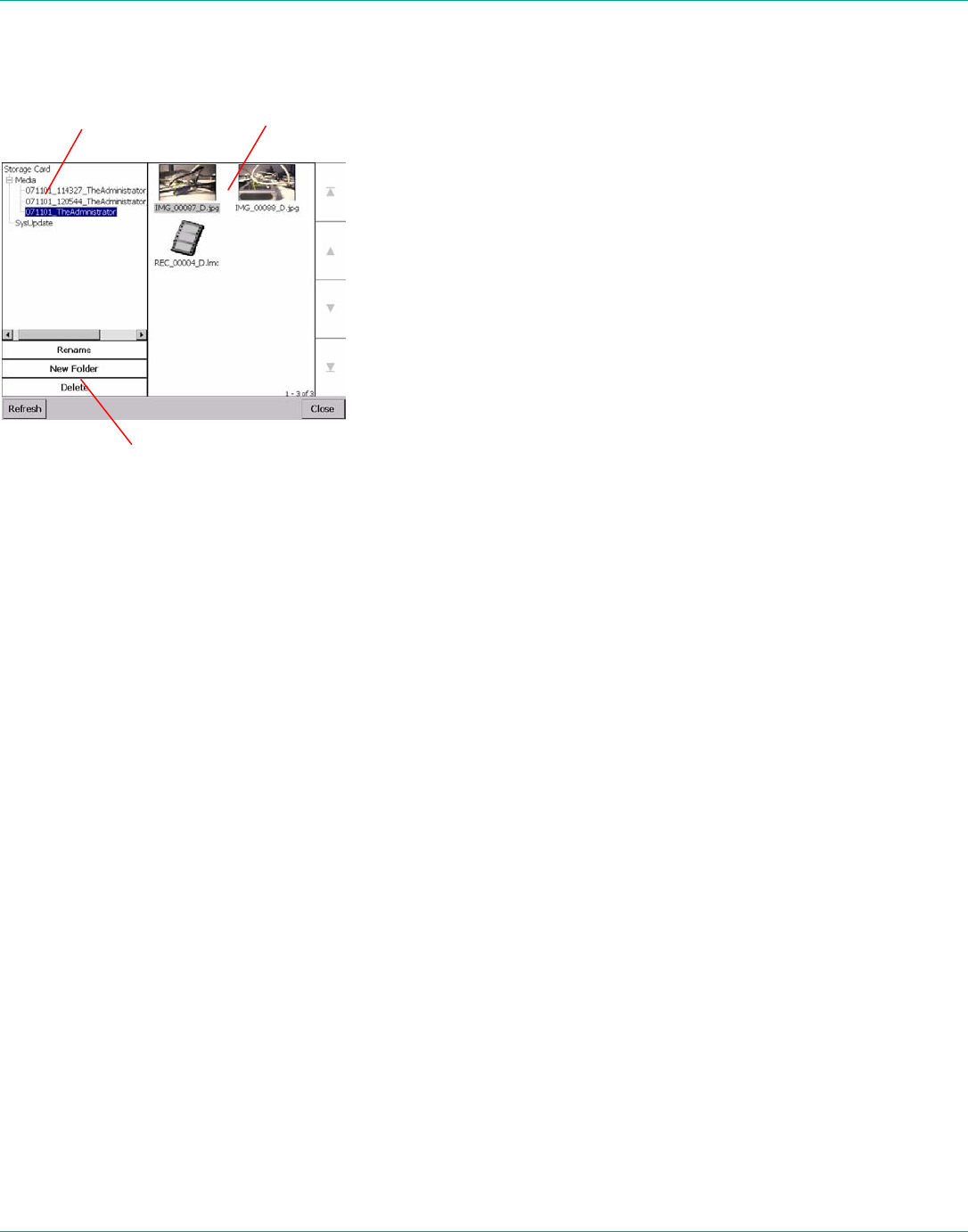
The Local Contacts directory contains a list of names and addresses that
can be called from the MCD. To start a call, Operators can display the
Local Contacts by tapping Directory in the Main Menu, selecting a name
and then tapping the Dial button on the screen.
Local Contacts screen
However, the quickest way to access the Local Contacts from the
viewfinder is to press the Send button, as described on page 12.
If you are logged in as a user with n_sight administrator privileges, you
may edit or delete existing contacts or create new ones. Note that these
changes are not forwarded to other devices.
LibreStream n_sight MCD2000 User Manual
28
7.4. Managing Files
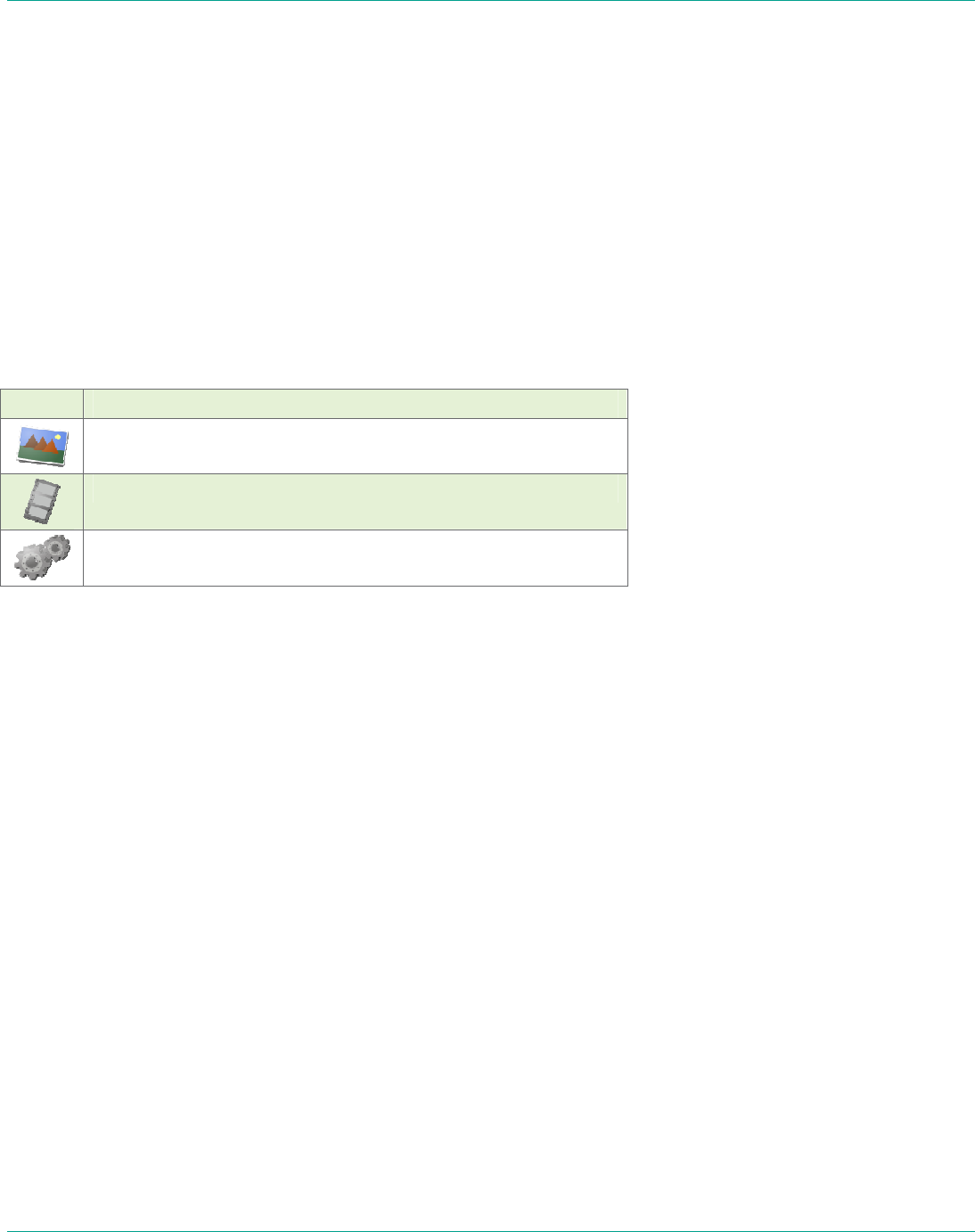
The File Browser allows you to organize and play recorded videos.
File Browser screen.
The Folder pane displays the folders in which video recordings are saved.
Use the Scroll bar to browse through long lists of folders.
The File pane displays the image snapshots and video recordings saved in
the selected folder on the SD card. Use the scroll arrows on the right to
browse through long list of files.
The options in the Controls list allow you to:
• Rename folders and files
• Create new folders
• Delete folders and files
• Play video recordings
• Display still images
• Share still images
• Format the storage card
Session Folders and File Names
When you capture a snapshot or record a video, the MCD creates a session
folder on the SD card in which it saves these files. The name of the folder
is based on the date, time, and user names using the convention:
yymmdd_hhmmss_MCAuser_MCDuser
where:
• yymmdd is the date of the session
• hhmmss is the time that the session started (Present only if connected
to an MCA.)
• MCAuser is the user name that is logged into the MCA (Present only if
connected to an MCA.)
• MCDuser is the user name that is logged into the MCD
Folder pane File pane
Controls list
LibreStream n_sight MCD2000 User Manual
29
The snapshot and recording file names are based on their media type, a
serial number, the source, and a version number. File names use the
convention:
media_serial#_source_version#.extension
where:
• media is either IMG for a snapshot or REC for a recording
• serial# is a sequential number assigned by the source device
• source is either A for MCA or D for MCD
• version# is a sequential number that is added if an image has been
modified during sharing
• extension is either .jpg for snapshots or .lmc for recordings
File Pane Icons
Files listed in the File Pane are displayed as either image thumbnails or file
icons.
Icon Description
Image file. Snapshots usually appear as thumbnails but if the
MCD cannot display a thumbnail, it displays the Image File icon.
Video recording file.
Configuration file. (Files with an .XML extension)
7.4.1. Rename files and folders
To rename a file or folder
1. Select the file or folder you want to rename.
2. Tap Rename.
The on screen keyboard appears.
3. Using the stylus, tap the characters on the keyboard to enter a new
name.
4. Tap Rename.
7.4.2. Play videos
To play a video:
1. Using the Folder and File panes, select the video you want to play.
2. Tap Play.
The video playback controls appear. See Recording and Playing Video
on page 19 for information on using the Video Playback screen.
3. Tap the Play icon to start the playback.
Note: When streaming video recordings, the MCD adjusts the current
stream parameters to match the frame rate, resolution, bit rate, etc. of
the recording.
7.4.3. Display and share images
To display an image file:
1. Using the Folder and File panes, select the image you want to display.
LibreStream n_sight MCD2000 User Manual
30
2. Tap Display.
The MCD opens the image file.
To end still image display:
1. Press the Capture button.
Or
Tap the Camera icon at the top of the screen.
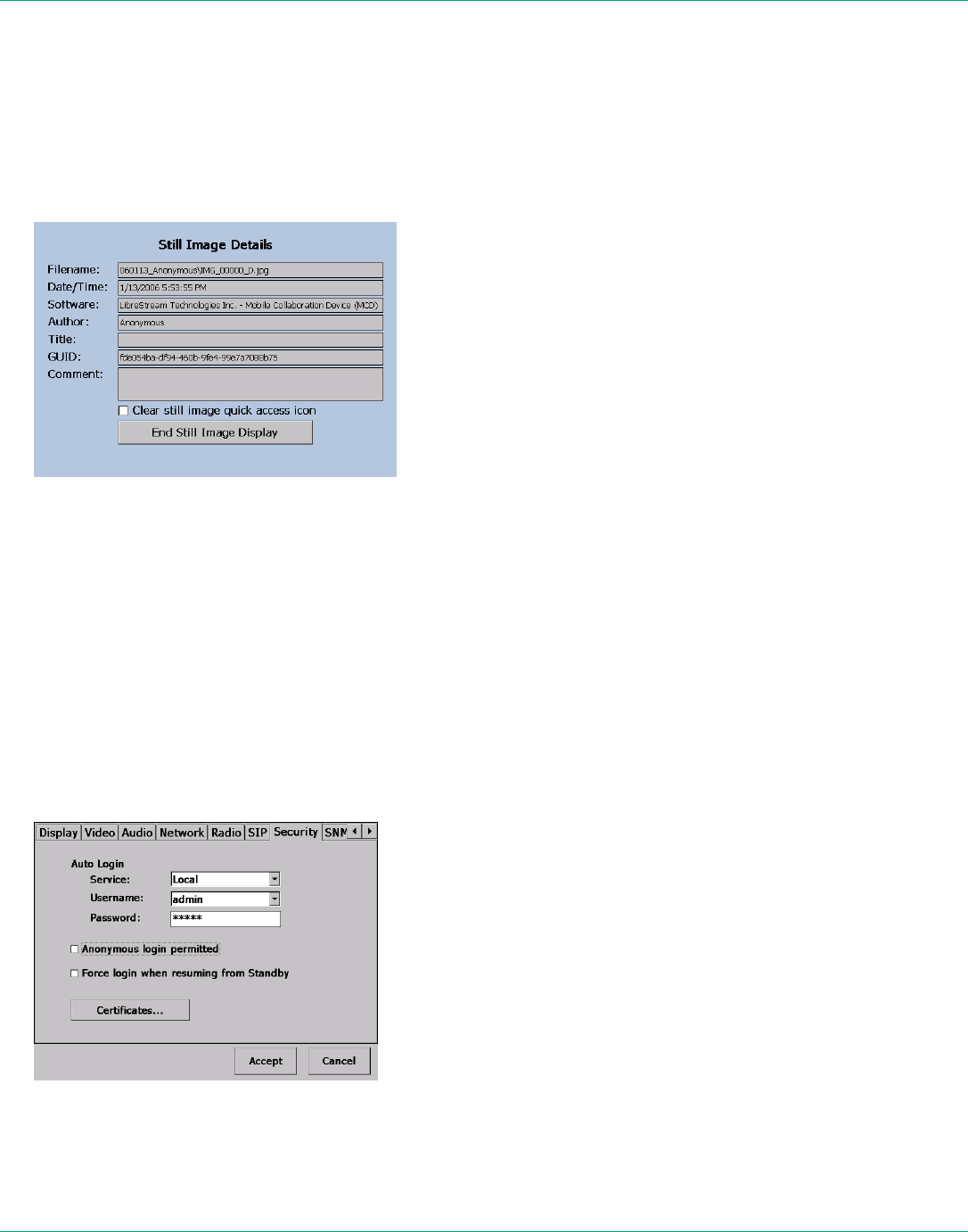
The Still Image Details screen appears.
Still Image Details screen
2. Tap End Still Image Display.
To share an image:
1. Make a call to an MCA.
2. Open the File Browser.
3. Using the Folder and File panes, select the image you want to share.
4. Tap Share.
7.5. Configuration
To check or update MCD configuration options:
1. Starting from the default Viewfinder display, press the Display button
three times to display the Main Menu.
2. From the Main menu, tap the Configuration menu option to display a
Configuration window.
Tabs on the Configuration window.
From here, follow on-screen instructions to adjust the configuration
options as necessary. The table below is provided as an overview. Please

LibreStream n_sight MCD2000 User Manual
31
see the System Administration manual for detailed information on MCD
configuration.
Tab Configuration Options Provided
General Adjust the standby timeout (amount of time before the
MCD will switch from On to Standby, if it is idle).
Specify the location of saved images and video
recordings, and Still Image Capture button mode.
Display Adjust the brightness of the viewfinder backlight or
recalibrate the touch panel.
Video Adjust the video settings of the camera and select the
video source (internal camera or external via S-Video
connector).
Audio Options for controlling volume and mute levels for the
speaker. You can set the maximum ring volume (the
volume will ramp up to this setting regardless of the
overall volume setting of the MCD) and request
voice/audio reduced bandwidth usage. This screen can
also be used to select the source for subject audio –
either the built-in microphone or the Audio line in
connector.
Network This screen allows you to adjust Network settings.
Please see the System Administration manual for
detailed instructions.
Radio Options to enable the radio and select radio channels.
SIP SIP server information necessary for registering this
device.
Security This screen allows you to set default login options and
import security certificates.
SNMP Options to configure the MCD for management by
Remote Maintenance Manager (RMM).
Time Follow on-screen instructions to adjust time and date
settings.
Version MCD version and copyright information. Software
updates may also be done from this screen (consult the
System Administrator’s Guide).
Maintenance Change user passwords and import contacts and users.
(Note that password changes are not forwarded to
other devices.)
LibreStream n_sight MCD2000 User Manual
32
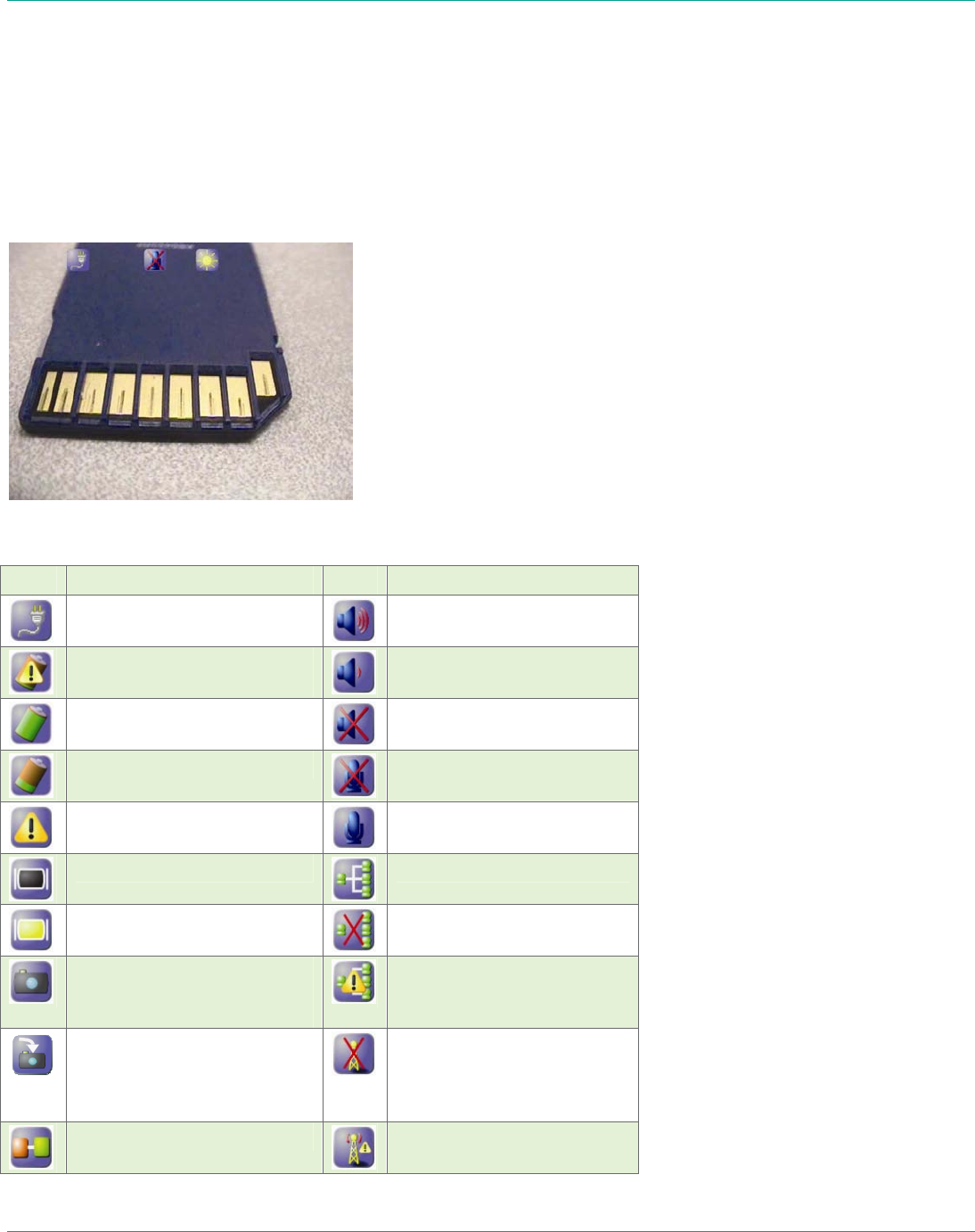
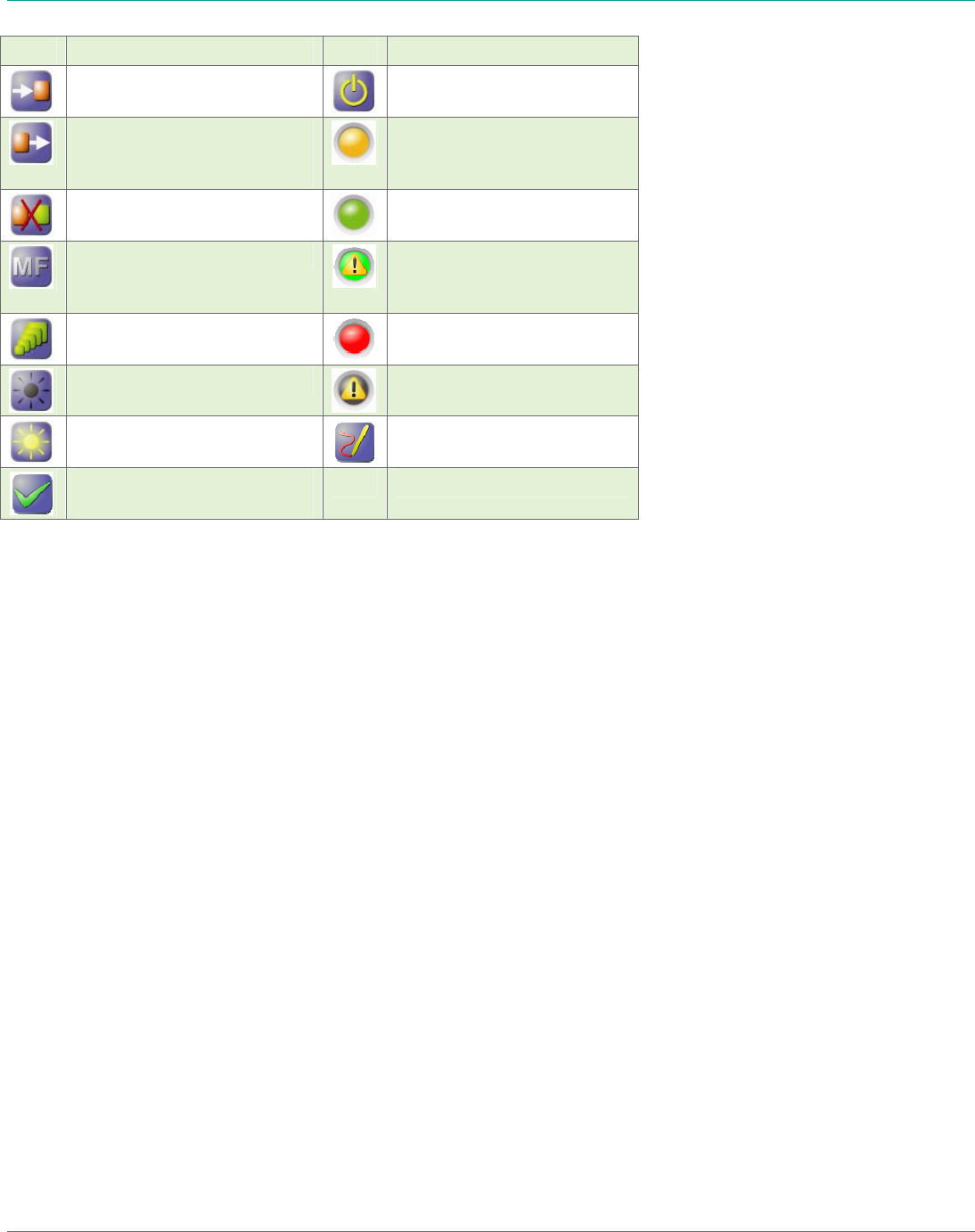
8. Icons
Some options or operating conditions cause notification icons to appear on
the screen. Many of the icons are touch sensitive — tap the icon with the
stylus to view a pop-up message or status screen. For example, tapping
the battery warning icon will provide a status screen showing more
detailed battery status. Tap the status screen again or press the Display
button to dismiss the message.
Viewfinder icons provide status information and other notifications.
Standard MCD Icons
Icon Description Icon Description
Connected to external power
Audio volume increased
Battery level is critically low
or the battery is defective
Audio volume decreased
Battery fully charged
Audio output muted
Battery low
Microphone muted
General alert
Microphone enabled
Backlight power save
Network connected
Backlight on
Network disconnected
Image captured (tap icon or
press Capture button to
return to live video)
Network error
Image captured but not
displayed (tap icon to
display/share the last
captured image)
Radio link disconnected
Call connected
Low radio signal strength
LibreStream n_sight MCD2000 User Manual
33
Icon Description Icon Description
Incoming call invitation
Standby
Outgoing call request
(waiting for remote side to
accept)
Stream initializing
Call disconnected
Media stream active
Manual focus mode
Media stream is
experiencing significant
packet loss
Optical Zoom
Record active
Illumination is off
Media stream error
Illumination is on
Telestration icon (tap icon to
open the Telestration menu)
Process successful (e.g.
software update complete)

LibreStream n_sight MCD2000 User Manual
34
9. Maintaining the MCD
Follow the guidelines below to ensure the MCD remains in good working
order:
9.1. General Recommendations
• Do not expose the MCD to dust, rain or moisture.
• Protect the MCD from temperature extremes (e.g. Do not leave it on
an automobile dashboard or on top of a heat source).
• Observe the rated operating and storage environmental specifications.
• The MCD is a precision instrument and must be protected from drop
and vibration. Always use the provided wrist lanyard or a neck strap to
prevent accidental drop.
• Operate the MCD in a well ventilated area to prevent overheating. Do
not block cooling vents. Do not operate the MCD in a closed
environment where it can overheat (e.g. a sealed plastic bag).
9.2. Display/Touch Screen
• LCD displays deteriorate when exposed to ultraviolet rays. Do not
leave the MCD in direct sunlight or strong ultraviolet rays for extended
periods of time.
• If you store the MCD above or below the rated storage temperature, it
may cause permanent damage to the display.
• Extended contact with water drops or finger grease may cause
discoloration or spots.
• Protect the screen from scratches. Use the supplied stylus or plastic-
tipped pens designed for use on a touch screen. Never use a sharp
object on the touch screen.
• Tap the screen lightly. Do not press hard or strike the screen.
• Clean the screen with a soft cloth moistened with distilled water. Do
not use commercial or household cleaners as they may damage the
screen.
• Consider using a replaceable screen protector to help protect against
scratches.
9.3. Optics
• If you will be using the MCD in a dusty or dirty environment, it is
recommended that the lens be protected with a screw-on lens filter
such as a standard 30mm skylight filter.
• Clean the lens with optical lens cleaning cloth and cleaning solution.
Do not use general purpose tissue.
9.4. Ergonomic Recommendations
Important: Follow the recommendations below to minimize risk of
ergonomic injury.
• Follow the recommendations of your Health and Safety Officer
regarding your company’s safety policies and procedures.
• Whenever possible, reduce or eliminate repetitive motion.
• Maintain a natural position while operating the equipment.

LibreStream n_sight MCD2000 User Manual
35
10. Technical
Specifications
SYSTEM ARCHITECTURE
• High performance,
multiprocessor architecture
optimized for real-time
multimedia processing and
communications in a handheld
form factor
• Microsoft WinCE 5.0
• SIP-based session control
• Windows-based PC Client
allowing for easy call initiation
and camera control
PHYSICAL CHARACTERISTICS
• Size – 174 (6.85”) mm wide x
96.0 (3.78”) mm high x 87.1
(3.43”) mm deep
• Weight – 720 grams (1.59
pounds)
• Non slip hand grips
• Integrated LED-based
illumination
• Integrated water resistant doors
for all external connectors
OPTICAL PERFORMANCE
• CCD image sensor – capable of
high precision close-up video
• 10x optical zoom, f=4.2 mm
(wide) to 42 mm (tele), F1.8 to
F2.9
• 10 mm minimum working
distance (wide end)
• 1000 mm minimum working
distance (tele end)
• 1.5 lx (50 IRE) minimum
illumination
• Automatic/manual white balance
• Manual or automatic focus
VIDEO STANDARD
• MPEG-4 Simple Profile @ L3
• Up to 2.5 Mbps
• User selectable resolutions and
frame rates up to
• NTSC: D1 (720 x 480) at 30 fps
• PAL: D1 (720 x 576) at 25 fps
USER INTERFACE & FEATURES
• VGA (640 x 480)
display/viewfinder
• Integrated touch screen
• User-friendly graphical user
interface
• Dedicated call send and end
buttons – simple end-user
experience much like a mobile
telephone
• Still image capture button
• Stream button – video stream
can be started and stopped by
pushing one button
• Context sensitive cursor pad
buttons (includes volume
controls, microphone mute, and
illumination control)
• Media record to SD card
• Manual focus button
• OSD (On Screen Display) button
for easy access to status and
other information
• Integrated contacts directory
• End user selectable streaming
parameters
• LED indicators for power,
stream/record, power/charging,
and network link
COLLABORATION FEATURES
• Form factor and software
optimized to allow real time voice
and video collaboration related to
subject matter being captured by
the MCD
• Telestration: allowing both the
MCD operator and PC operator to
draw on top of the video or
frozen image – both “ends” of
the conversation see the drawing
simultaneously
• Remote control of major MCD
features – zoom, focus, still
image capture, illumination, and
stream parameters
AUDIO FEATURES
• Built-in omni-directional
microphone for VoIP support
• Built-in microphone or line-in
input for capture of subject audio
time synchronized with the
subject video
• Wired headset support ideal for
high noise environments
• Speakerphone with acoustic echo
cancellation
• Silence suppression of VoIP
communications to minimize
network bandwidth utilization
• Dynamic jitter buffer adjusts to
changing network conditions to
balance low latency with a low
voice dropout rate
AUDIO STANDARDS
• VoIP: G.711, GSM
• Subject Audio: G.711, GSM
SECURITY
• User ID and password control
• WLAN Network Authentication:
• WPA – Enterprise
• WPA – PSK
• WPA2
• WPA2 – PSK
• Open
• Shared
• WLAN Data Encryption:
• WEP
• TKIP
• Disabled
• 802.1X Authentication
• EAP–TLS
• PEAP
EXTERNAL INTERFACES
• SD/SDHC Memory Card
• Minimum write speed: 9.0
MB/sec
• Minimum read speed: 10.0
MB/sec
• S-video
• Models 200058, 200139 PAL
input
• Models 200024, 200070 NTSC
input
• Model 200071 NTSC output
• External power in
• Headset
• mono 32 ohm speaker
• 3.5mm audio jack, 3
conductor, tip mic, ring
speaker
• 10/100 Mb Ethernet
• USB Host 2.0, low/full speed
• Audio Line-in
• 1 Vrms input
• 2.5 mm audio jack, 2
conductor, tip line-in
COMMUNICATIONS

LibreStream n_sight MCD2000 User Manual
36
• IP calls - SIP
• Integrated 802.11 b/g radio
• RJ-45 10/100 Ethernet
POWER
• Rechargeable 2400 mAH Li-Ion
battery pack
• External power
• Input: 12 VDC @ 1A
• External Power Adapter
Specifications:
• Output Voltage: 12 VDC @
1.5A
• Rated Input Voltage:
100 – 240 VAC
• Input Voltage Range:
90 – 264 VAC
• Rated Input Frequency:
50 – 60 Hz
• Input Frequency Range:
47 – 63 Hz
OPERATING ENVIRONMENT
• Temperature:
• Operating: 0° to 40° C
• Storage: –20° to 60° C
• Operating humidity: 5 – 80%
(non-condensing)
10.1.1. Service Information
If you encounter difficulties with the
MCD, contact your corporate
technical support department. They
will determine whether the problem
exists within the network
infrastructure or the n_sight
equipment and will contact
LibreStream Support. See page 45
for LibreStream contact information.
11. Safety & Regulatory
Information
General
• Do not attempt to service this
equipment. All repairs must be
done by an authorized
LibreStream service depot.
• Do not block or insert objects
into the air vents or other
openings in the equipment. Doing
so may damage internal
components and may cause fire
or shock hazards.
• Use only a LibreStream-supplied
power adapter with the
equipment. Use of other adapters
may cause fire or explosion
hazards.
• Operate the external power
adapter in a well ventilated area.
Do not cover the power adapter
with papers or any other items as
the adapter may become hot.
Battery
CAUTION!
Risk of explosion if battery is
replaced by an incorrect type or
installed incorrectly.
• Observe the correct polarity
when changing the lithium
battery. Install battery according
to the manufacturer’s product
documentation.
• Replace battery only with the
same type as recommended by
the manufacturer.
• Dispose of used batteries
according to the manufacturer’s
product documentation and local
disposal requirements.
• Use only LibreStream-supplied
batteries with the MCD. Use of
other types may increase the risk
of fire or explosion or damage to
the equipment.
• Do not store the battery in places
where metallic objects may come
in contact with the battery
terminals (e.g. in a pocket with
keys, in a drawer with paper
clips, etc.). The resulting short-
circuit can cause extremely high
temperatures that may damage
the battery and cause burns or
fires.
• Do not attempt to disassemble
the battery. The battery poses a
burn hazard if handled
improperly. Immediately dispose
of a damaged or leaking battery.
• Do not store or leave the MCD or
MCD battery near a heat source
(e.g. radiator, stove, heater,
automobile dashboard, etc.) as
the battery may explode or
ignite.
Battery Disposal
The MCD2000 uses a Lithium-Ion
battery and must be disposed of
properly:
• The battery must not be disposed
with household or office waste.
• Do not dispose of the battery in a
fire as the battery may explode.
• Contact your local waste disposal
agency for the address of the
nearest battery disposal location.
European Regulatory
Information
This product meets the essential
health and safety requirements and
is in conformity with the relevant EU
Directives listed below:
• R&TTE 1999/5/EC
• EU Low Voltage Directive
72/23/EEC
• EU EMC Directive 89/336/EEC
This product has been tested and
found to comply with EN 61000-6-
2:1999 Immunity for Industrial
Environments. When in the presence
of high levels of radio-frequency
electromagnetic fields, the user may
notice interference within the audio
or video content present on the
equipment. If this occurs the user
should re-orient the equipment or
increase the separation between the
equipment and the interfering
source. If an external audio headset
is being used and is the receiving
source of the interference, the user
may experience improved
performance by using a headset
which has been tested and found to
comply with EN61000-6-2:1999
Immunity for Industrial
Environments.
FCC Class B Notice
This product has been tested and
found to comply with the limits for a
Class B digital device, pursuant to
Part 15 of the FCC Rules. These rules
are designed to provide reasonable
protection against harmful
interference in a residential
installation. This product generates,
uses, and can radiate radio frequency
energy, and if not installed and used
in accordance with the instructions,
may cause harmful interference with
radio communications. However,
there is no guarantee that
interference will not occur in a
particular installation. If the

LibreStream n_sight MCD2000 User Manual
37
equipment does cause harmful
interference to radio or television
reception, which can be determined
by turning the equipment on and off,
the user is encouraged to try to
correct the interference by one or
more of the following measures:
• Reorient or relocate the receiving
antenna.
• Increase the separation between
the equipment and receiver.
• Connect the equipment to an
outlet on a circuit different from
that to which the receiver is
connected.
• Consult the dealer or an
experienced radio/TV technician
for help.
Caution: Changes or modifications
that are not expressly approved by
the manufacturer could void the
user’s authority to operate this
equipment.
Industry Canada Class B Notice
This Class B digital apparatus
complies with Canadian ICES-003.
Cet appareil numérique de classe B
est conforme à la norme NMB-003 du
Canada.
Safety Notice
The mobile streaming camera, Model
MCD2000 was evaluated to IEC
60950-1:2001, EN60950-1:2001, UL
60950-1:2003 and CSA C22.2
60950-1:2003 standards and found
to be in compliance with the standard
requirements.
U8 06 10 61052 001
RF Exposure Notice
For body worn operation, this product
has been tested and meets RF
exposure guidelines when used with
an accessory that contains no metal.
Use of other accessories may not
ensure compliance with RF exposure
guidelines.
This equipment was tested for RF
Exposure compliance and meets the
requirements with Maximum Peak
Spatial-Average SAR1g of 0.01 W/kg.
No metallic accessories should be
used with this device and multiple
devices should not be co-located at a
distance of less than 20 cm.
Warning: Changes or modifications
not expressly approved by
LibreStream Technologies, Inc. could
void the user’s authority to operate
this equipment.
12. LibreStream Limited
Warranty Agreement
Hardware: LibreStream warrants to
the original purchaser (Buyer) that the
hardware Product will be free of
defects in workmanship and materials
for a period of twelve (12) months
from the date of shipment from
LibreStream or its designated
manufacturer, unless otherwise
provided by LibreStream in writing,
provided the Product remains
unmodified and is operated under
normal and proper conditions. The
warranty does not extend to persons
other than the Buyer who purchased
the product in unused condition from
LibreStream. Warranty provisions
and durations on remanufactured
products, and reconditioned or
upgraded products, shall be as
provided in the particular Product
documentation in effect at the time of
purchase.
Products may be serviced with parts,
components, or subassemblies that
originate from returned products and
that have been determined to meet
applicable specifications for
equivalent new material and
Products.
The sole obligation of LibreStream for
defective hardware Products is
limited to repair or replacement (at
LibreStream's option) on a "return to
service depot" basis with prior
LibreStream authorization. Buyer is
responsible for shipment to
LibreStream and assumes all costs
and risks associated with this
transportation; return shipment to
Buyer will be at LibreStream's
expense. The Product must be
returned either in its original
packaging or in a similar package
affording an equal degree of
protection. Buyer shall be responsible
for return shipment charges for
Product returned where LibreStream
determines there is no defect ("No
Defect Found"), or for Product
returned that LibreStream determines
is not eligible for warranty repair. If
after investigation LibreStream
determines that the reported defect
was not covered by warranty, Buyer
shall be liable to pay LibreStream, at
LibreStream’s sole discretion, for the
cost of investigating the problem at
LibreStream’s then prevailing per
incident billable rate. No charge will
be made to Buyer for replacement
parts for warranty repairs.
LibreStream is not responsible for
any damage to or loss of data or
removable data storage media, or the
restoration or reinstallation of any
software programs or data other than
the software, if any, installed by
LibreStream during manufacture of
the Product.
The above warranty provisions shall
not apply to any Product (i) which has
been repaired, tampered with, altered
or modified, except by LibreStream;
(ii) in which the defects or damage to
the Product result from normal wear
and tear, misuse, negligence,
improper storage, water or other
liquids, battery leakage, use of parts
or accessories not approved or
supplied by LibreStream, or failure to
perform operator handling and
scheduled maintenance instructions
supplied by LibreStream; (iii) which
has been subjected to unusual
physical or electrical stress, abuse, or
accident, or forces or exposure
beyond normal use within the
specified operational and

LibreStream n_sight MCD2000 User Manual
38
environmental parameters set forth in
the applicable Product specification;
or (iv) used with any software,
hardware or third party equipment not
approved by LibreStream, nor shall
the above warranty provisions apply
to any expendable or consumable
items, such as batteries, supplied
with the Product.
Software: Any LibreStream software
enclosed or embedded in the
hardware Product is warranted in
accordance with, and is otherwise
subject to, the provisions of the
LibreStream End User License
Agreement that is applicable to that
LibreStream software.
EXCEPT FOR THE WARRANTY OF
TITLE AND THE EXPRESS
WARRANTIES STATED ABOVE,
LIBRESTREAM DISCLAIMS ALL OTHER
WARRANTIES OF ANY NATURE OR
KIND WHATSOVER ON HARDWARE
PRODUCTS FURNISHED HEREUNDER,
INCLUDING ALL IMPLIED WARRANTIES
OR CONDITIONS OF
MERCHANTABILITY AND FITNESS FOR
A PARTICULAR USE. THE REMEDY SET
FORTH IN THIS LIMITED WARRANTY
AGREEMENT IS THE BUYER'S SOLE
AND EXCLUSIVE REMEDY FOR
WARRANTY CLAIMS, AND IS
EXPRESSLY IN LIEU OF ALL OTHER
REMEDIES THAT MAY BE AVAILABLE
TO BUYER AT LAW OR IN EQUITY.
13. End User License
Agreement
IMPORTANT – PLEASE READ THIS
AGREEMENT CAREFULLY.
LIBRESTREAM IS WILLING TO
LICENSE THE SOFTWARE TO
LICENSEES AND ALLOW LICENSEES
TO USE THE SOFTWARE AND
LIBRESTREAM PRODUCTS ONLY
UPON THE CONDITION THAT EACH
LICENSEE ACCEPTS AND AGREES TO
BE BOUND BY ALL OF THE TERMS
AND CONDITIONS CONTAINED IN
THIS AGREEMENT.
FOR ALL INTENTS AND PURPOSES,
EACH PERSON WHO DOWNLOADS
OR INSTALLS ANY SOFTWARE, OR
WHO USES ANY OF THE SOFTWARE
OR ANY LIBRESTREAM PRODUCT, IS
DEEMED TO BE A LICENSEE, WITH
SUCH DOWNLOADING,
INSTALLATION AND/OR USE
CONSTITUTING IMMEDIATE AND
AUTOMATIC ACCEPTANCE OF ALL OF
THE TERMS AND CONDITIONS
CONTAINED IN THIS AGREEMENT,
WHICH WILL BE BINDING ON, AND
ENFORCEABLE AGAINST, THAT
LICENSEE.
IF ANY POTENTIAL LICENSEE DOES
NOT AGREE TO ALL OF THESE
TERMS AND CONDITIONS, THEN
LIBRESTREAM IS NOT WILLING TO
LICENSE ANY OF THE SOFTWARE TO
THAT LICENSEE OR TO ALLOW THAT
LICENSEE TO USE ANY OF THE
SOFTWARE OR ANY LIBRESTREAM
PRODUCT. IN SUCH A CASE:
(a) DO NOT DOWNLOAD, INSTALL
OR USE ANY SOFTWARE, AND
(b) IF YOU HAVE ALREADY
ACQUIRED THE SOFTWARE, RETURN
THE SOFTWARE FOR A FULL REFUND
OR, IF THE SOFTWARE IS SUPPLIED
AS PART OF A LIBRESTREAM
PRODUCT, RETURN THAT
LIBRESTREAM PRODUCT FOR A FULL
REFUND.
1. DEFINITIONS.
1.1 “Agreement” means this End
User License Agreement, including
any Schedule attached hereto.
1.2 “Computer” means any electronic
device that accepts information in
digital or similar form and
manipulates it for a specific result
based on a sequence of instructions.
1.3 “Confidential Information” means
(a) the Software and any portions,
components or sub-files thereof; (b)
the structure, sequence, internal
design and organization of the
Software and the concepts, methods
of operations and ideas disclosed
therein, together with all associated
interface information; (c) any trade
secrets relating to the Software
and/or any LibreStream Product; (d)
any tangible items marked
"confidential" or with a similar
designation by LibreStream or any of
its distributors or other
representatives or by any Third Party
Licensor, and/or any information
disclosed visually or verbally and
identified by LibreStream or any such
distributor or other representative as
confidential at the time of disclosure;
and (e) the terms and conditions of
this Agreement.
1.4 “Intellectual Property” means any
patents, patent rights, trademarks,
service marks, registered designs,
topography and semiconductor mask
work rights, applications for any of
the foregoing, copyrights, know-how,
unregistered design rights, trade
secrets and any other similar
protected rights in any country.
1.5 “LibreStream” means
LibreStream Technologies Inc.
1.6 “LibreStream Product” means
any product developed by or for
LibreStream that incorporates any of
the Software in any manner
whatsoever.
1.7 “LibreStream Software” means
any software that is proprietary to
LibreStream and that is not Third
Party Software, and includes in
particular the LibreStream software
identified in Schedule A hereto.
1.8 “Licensee” means, collectively,
each and every person who
downloads, installs and/or uses any
of the Software and/or any
LibreStream Product.
1.9 “party” means each of Licensee
and LibreStream, and “parties”
means both the Licensee and
LibreStream.
1.10 “person” includes an individual,
a sole proprietor, a partnership, a
corporation, a trust, a syndicate, a
joint venture and any other business
or legal entity of any nature or kind
whatsoever.

LibreStream n_sight MCD2000 User Manual
39
1.11 “Purchase Order” means the
purchase order or other documentary
evidence of any nature or kind
whatsoever that is related to this
Agreement and that was submitted
to and accepted in writing by
LibreStream.
1.12 “Software” means, collectively,
the LibreStream Software and the
Third Party Software, and includes:
(a) all of the contents of the files,
disk(s), CD-ROM(s) or other media
with which this Agreement is
provided or which are installed on
any LibreStream Product (including
firmware) or which are made
available online by LibreStream or
any Third Party Licensor including:
(i) all LibreStream or Third
Party Licensor computer information
or software; and
(ii) any and all related
instructional or supplementary
documentation in human or machine
readable form supplied or otherwise
made available by LibreStream or
any Third Party Licensor; and
(b) all Upgrades in respect of which
Licensee has paid the applicable
license, maintenance and/or support
fee.
Some of the Software may require
activation – Licensees should consult
the Purchase Order, the
documentation that accompanies the
Software and/or the LibreStream
website at www.librestream.com for
further information in this regard.
1.13 “Third Party Licensors” means,
collectively, those third parties who
are the respective owners of the
Third Party Software, and “Third
Party Licensor” means any such third
party.
1.14 “Third Party Software” means
the software of a person other than
LibreStream that is embedded with
the LibreStream Software or that is
otherwise provided to a Licensee by
LibreStream along with the
LibreStream Software.
1.15 “Third Party Software License
Agreement” means a license
agreement for a particular Third
Party Software product, in the form
attached to this End User License
Agreement as a Schedule or in the
form expressly referenced in any
such Schedule.
1.16 “Upgrades” means all upgrades,
modified versions, updates, additions
and copies of any Software (including
related documentation) which are
provided, installed or made available
online or otherwise by LibreStream or
any Third Party Licensor.
1.17 “use” or “using” includes
accessing, downloading, installing or
copying any of the Software or
otherwise benefiting from the
functionality of any of the Software
and/or any LibreStream Product.
2. LIMITED LICENSE.
2.1 Subject to Licensee's strict
compliance with the terms and
conditions of this Agreement,
LibreStream hereby grants to
Licensee, during the term of this
Agreement, a worldwide, non-
transferable, non-exclusive,
revocable, royalty-free limited license
to use the Software for Licensee’s
internal business purposes and for no
other purpose whatsoever. For
greater certainty:
(a) some of the Third Party Software
is licensed to Licensee in accordance
with the provisions of the Third Party
Software License Agreement
applicable thereto, which Licensee
acknowledges reading and agrees is
binding on Licensee;
(b) all of the LibreStream Software
and all Third Party Software that is
not subject to a Third Party Software
License Agreement is licensed to
Licensee in accordance with the
terms and conditions of this End User
License Agreement; and
(c) any default or non-compliance on
the part of Licensee or those for
whom it is responsible in law with the
terms and conditions of this End User
License Agreement or with the
provisions of any Third Party
Software License Agreement shall
constitute default and non-
compliance by Licensee with this End
User License Agreement and all Third
Party Software License Agreements.
2.2 Use of the Software pursuant to
this Agreement shall be limited to the
single LibreStream Product and to a
single Computer as set forth in the
applicable Purchase Order and for
which Licensee has paid to the
LibreStream the required license fee.
2.3 Any use of the Software which is
not expressly authorized by this
Agreement is strictly prohibited.
Without limiting the generality of the
foregoing and notwithstanding any
other provision of this Agreement, in
no event may Licensee do any of the
following or permit any third party to
do any of the following:
(a) transfer, assign or sublicense any
of its license rights to any other
person, or use the Software or any
portion thereof on any unauthorized
or secondhand LibreStream Product
or on any Computer(s) other than
the specific Computer(s) on which
the Software is licensed to be used -
any such transfer, assignment,
sublicense or use shall be null and
void; or
(b) distribute, license, sublicense,
rent, lease or sell the Software or
any portion thereof as a standalone
product - any such distribution,
license, sublicense, rent, lease or
sale shall be null and void; or
(c) make error corrections to or
otherwise modify or adapt the
Software or any portion thereof; or
(d) reverse engineer, decrypt,
disassemble or decompile the
Software or any portion thereof, or
otherwise reduce the Software of any
portion thereof to human-readable
form, except to the extent otherwise
expressly permitted under applicable
law notwithstanding this prohibition;
or
(e) create any derivative works
based upon the Software or any
portion thereof or take any actions
that would cause the Software or any
portion thereof to become subject to
the GPL, the LGPL or any other open
source license (unless that portion is
already expressly subject to the GPL,

LibreStream n_sight MCD2000 User Manual
40
the LGPL or any other open source
license, as expressly noted in any
Third Party Software License
Agreement); or
(f) use the Software or any portion
thereof to perform services for third
parties, whether on a service bureau
or time sharing basis or otherwise,
without the prior express written
consent of LibreStream.
2.4 The Software is licensed, not
sold, and is protected by the
copyright laws of Canada and other
countries and by international treaty
provisions. All right, title and interest
in and to the Software and any
copies thereof, regardless of form or
media, shall remain solely with
LibreStream or the Third Party
Licensors, as the case may be.
Except as expressly provided herein,
this Agreement does not grant
Licensee any rights under any of
LibreStream's or any Third Party
Licensor’s patents, copyrights, trade
secrets, trademarks or other
Intellectual Property rights.
LibreStream and each Third Party
Licensor retain all rights not explicitly
granted herein.
2.5 Licensee may make such limited
copies of the Software as are strictly
necessary for backup purposes only,
provided that Licensee will not
remove, obscure or destroy, and will
reproduce on all copies of the
Software so made, any LibreStream
and any Third Party Licensor names,
logos, copyright or other notices,
trademarks and other proprietary
markings which appear on the
Software.
2.6 Licensee is solely responsible for
any use by Licensee or by any third
party of any password issued to
Licensee by LibreStream or any
LibreStream distributor or other
representative, regardless of whether
or not any such third party use was
authorized by Licensee.
2.7 Licensee may provide
LibreStream or any LibreStream
distributor or other representative
with suggestions, comments or other
feedback regarding Licensee's
evaluation or use of the Software,
including but not limited to suggested
performance improvements to the
Software and/or any LibreStream
Product, code enhancements and/or
error corrections (“Feedback”).
Licensee agrees that any Feedback
shall be voluntarily given and that
any and all Feedback will
immediately and automatically
become the property of LibreStream,
and that LibreStream shall be
entitled to incorporate any Feedback
into the Software and/or any
LibreStream Product without any
compensation or other liability or
obligation of any nature or kind
whatsoever to Licensee.
3. UPGRADES.
3.1 Notwithstanding any other
provision of this Agreement:
(a) Licensee has no license or other
right to use any Upgrade unless
Licensee, at the time of acquiring
that Upgrade, already holds a valid
license to use the Software that is
the subject of that Upgrade and has
paid to LibreStream the applicable
license, maintenance and/or support
fee to use that Upgrade; and
(b) use of Upgrades is limited to the
LibreStream Product in respect of
which Licensee is the original end
user purchaser or lessee and/or to
the specific Computer(s) on which
the Software is licensed to be used,
unless Licensee is otherwise validly
licensed to use that Upgrade and
complies with Section 3.1(a).
4. AUDIT RIGHTS AND
INDEMNITY.
4.1 Licensee shall, within thirty (30)
days following Licensee’s receipt of
written request from LibreStream or
any LibreStream distributor or other
representative, fully document and
certify all uses of the Software that
Licensee has made within the period
of twelve (12) months prior to the
date of receipt of such request. In
addition, Licensee shall, upon
reasonable advance written notice
and during normal business hours,
provide access and allow LibreStream
or any LibreStream distributor or
other representative to inspect
Licensee’s books, records and
computer systems in order to confirm
Licensee’s compliance with this
Agreement.
4.2 In the event that any such
request response or audit determines
that Licensee is or was using the
Software in a manner that exceeds or
exceeded its license rights, Licensee
shall immediately pay to LibreStream
on demand any amount(s) that are
required to rectify such excessive
use. This remedy shall be in addition
to, and not in lieu of, any other right
or remedy that LibreStream may
have pursuant to this Agreement or
otherwise with respect to such
excessive use.
4.3 In the event that any such
request response or audit determines
that Licensee is otherwise not in
compliance with this Agreement, this
Agreement shall immediately
terminate as contemplated in Section
10.1. Such termination shall be in
addition to, and not in lieu of, any
other right or remedy that
LibreStream may have pursuant to
this Agreement or otherwise with
respect to such non-compliance.
4.4 Licensee shall indemnify
LibreStream and save LibreStream
harmless from and against any and
all losses, damages, liabilities, costs
and expenses (including, without
limitation, reasonable attorneys’
fees) that arise out of or are
attributable in any manner
whatsoever to any non-compliance
on the part of Licensee or those for
whom it is in law responsible with
any provision of this Agreement.
5. CONFIDENTIAL
INFORMATION. Licensee shall not
disclose to any third party, or use for
any purpose not expressly permitted
herein, any Confidential Information.
Licensee agrees to take all
reasonable measures to protect the
Confidential Information and to
prevent unauthorized disclosure
thereof, which measures shall be at
least as stringent as those measures
Licensee takes to protect its own

LibreStream n_sight MCD2000 User Manual
41
confidential information of like kind
and which shall in no event be less
than would be taken by a prudent
business person in similar
circumstances. Without in any way
limiting the foregoing, Licensee shall
restrict access to Confidential
Information, including the Software,
to Licensee employees and individual
third party contractors who have
executed a written agreement with
Licensee sufficient to protect the
Confidential Information in
accordance with the provisions of this
Agreement and who have a "need-to-
know" to carry out the licenses
granted herein. Notwithstanding the
foregoing, all Confidential
Information, any and all documents
and other tangible material and/or
objects containing or representing
Confidential Information and any and
all copies thereof shall be and always
remain the property of LibreStream
or the Third Party Licensors, as the
case may be.
6. REPRESENTATIONS AND
WARRANTIES.
6.1 LibreStream warrants that the
LibreStream Software will perform in
substantial conformance to the
applicable LibreStream published
specifications for that LibreStream
Software for a period of 12 months
from the date of shipment from
LibreStream or from the date of
downloading by Licensee, whichever
is earlier, provided that (a) the
LibreStream Software remains
unmodified by anyone other than
LibreStream; (b) the LibreStream
Software is and has always been
operated under normal and proper
conditions on the authorized
LibreStream Product and/or
Computer on which that LibreStream
Software is licensed to be used; (c)
the LibreStream Software has not
been used in any manner for which it
was not designed; (d) the
LibreStream Software has not been
used with any unauthorized software,
hardware or third party equipment;
(e) Licensee is not in breach of this
Agreement; and (f) notice of any
claim under this limited warranty is
received in writing by LibreStream
within the 12 month limited warranty
period.
6.2 Licensee’s sole and exclusive
remedy (at law, in equity or
otherwise), and the sole and entire
responsibility and liability of
LibreStream, with respect to any
claim under the limited warranty set
forth in Section 6.1 is for
LibreStream, at its sole option and
discretion, to either (a) use
commercially reasonable efforts to
bring the non-warranty-compliant
LibreStream Software into substantial
conformance with its published
specifications; or (b) refund to
Licensee the purchase price paid for
the non-warranty-compliant
LibreStream Software.
6.3 NO REPRESENTATION OR
WARRANTY OF ANY NATURE OR
KIND WHATSOEVER IS PROVIDED BY
LIBRESTREAM REGARDING ANY
THIRD PARTY SOFTWARE. IF AND TO
THE EXTENT THAT ANY THIRD PARTY
SOFTWARE LICENSE AGREEMENT IS
ATTACHED TO THIS AGREEMENT AS
A SCHEDULE OR IS EXPRESSLY
REFERENCED IN ANY SCHEDULE TO
THIS AGREEMENT, LICENSEES
SHOULD CAREFULLY REVIEW ANY
SUCH THIRD PARTY SOFTWARE
LICENSE AGREEMENT TO
DETERMINE WHETHER OR NOT ANY
REPRESENTATION OR WARRANTY IS
PROVIDED TO LICENSEE IN RESPECT
OF THE THIRD PARTY SOFTWARE
THAT IS THE SUBJECT OF SUCH
THIRD PARTY SOFTWARE LICENSE
AGREEMENT. OTHERWISE, ALL
THIRD PARTY SOFTWARE IS
PROVIDED "AS IS", WITHOUT ANY
REPRESENTATION, WARRANTY OR
CONDITION OF ANY NATURE OR
KIND WHATSOEVER.
6.4 TO THE MAXIMUM EXTENT
PERMITTED BY APPLICABLE LAW
AND SUBJECT ONLY TO THE LIMITED
WARRANTY IN SECTION 6.1 IN THE
CASE OF THE LIBRESTREAM
SOFTWARE AND TO ANY EXPRESS
PROVISION TO THE CONTRARY IN
ANY THIRD PARTY SOFTWARE
LICENSE AGREEMENT (WHICH SUCH
PROVISION SHALL BE CONFINED TO
THE THIRD PARTY SOFTWARE AND
THE THIRD PARTY LICENSOR THAT
ARE THE SUBJECT OF THAT THIRD
PARTY SOFTWARE LICENSE
AGREEMENT), LIBRESTREAM AND
THE THIRD PARTY LICENSORS
EXPRESSLY DISCLAIM ALL OTHER
REPRESENTATIONS, WARRANTIES
AND CONDITIONS, WHETHER
EXPRESS OR IMPLIED, IN FACT OR
BY OPERATION OF LAW, STATUTORY
OR OTHERWISE, INCLUDING
WITHOUT LIMITATION QUIET
ENJOYMENT, NON-INFRINGEMENT
OF THIRD PARTY INTELLECTUAL
PROPERTY RIGHTS AND THE
IMPLIED WARRANTIES OR
CONDITIONS OF MERCHANTABILITY,
MERCHANTABLE QUALITY AND
FITNESS FOR A PARTICULAR
PURPOSE. IN PARTICULAR, NEITHER
LIBRESTREAM NOR ANY THIRD
PARTY LICENSOR REPRESENTS OR
WARRANTS THAT THE
FUNCTIONALITY OF THE SOFTWARE
WILL SATISFY ANY OR ALL OF
LICENSEE’S REQUIREMENTS, THAT
THE SOFTWARE WILL WORK IN
COMBINATION WITH ANY
HARDWARE OR SOFTWARE
PRODUCTS PROVIDED BY THIRD
PARTIES, THAT THE OPERATION OF
THE SOFTWARE WILL BE
UNINTERRUPTED OR ERROR FREE,
OR THAT ALL ERRORS OR DEFECTS
IN THE SOFTWARE WILL BE
CORRECTED. SOFTWARE UPDATES,
IF ANY, WILL BE PROVIDED AT THE
SOLE DISCRETION OF
LIBRESTREAM. LICENSEE
ACKNOWLEDGES AND AGREES THAT
SOFTWARE IN GENERAL IS NOT
ERROR-FREE, AND THAT THE
EXISTENCE OF MINOR ERRORS OR
DEFECTS IN THE SOFTWARE DOES
NOT MEAN THAT THE SOFTWARE
DOES NOT PERFORM IN
SUBSTANTIAL CONFORMANCE WITH
ITS APPLICABLE PUBLISHED
SPECIFICATIONS. NEITHER
LIBRESTREAM NOR ANY THIRD
PARTY LICENSOR SHALL BE
RESPONSIBLE FOR THE
RECONSTRUCTION OF ANY
CORRUPTED OR LOST DATA FILES.

LibreStream n_sight MCD2000 User Manual
42
6.5 LibreStream reserves the right to
at any time provide a limited
warranty for any LibreStream
Software that is different from the
limited warranty set forth in Sections
6.1 and 6.2. The text of any such
different limited warranty will be
included with that LibreStream
Software, regardless of whether that
LibreStream Software is embedded in
a LibreStream Product, is provided to
Licensee on CDROM or is downloaded
by Licensee. In the event of any
inconsistency between any such
other limited warranty and the
limited warranty set forth in Sections
6.1 and 6.2, the inconsistency shall
be resolved in favor of such other
limited warranty.
6.6 LibreStream may also provide a
separate limited warranty with
respect to the hardware components
of a LibreStream Product.
7. NO LIABILITY FOR INDIRECT
DAMAGES. REGARDLESS OF
CIRCUMSTANCES AND REGARDLESS
OF THE FORM OF ACTION, WHETHER
IN CONTRACT UNDER THIS
AGREEMENT OR IN TORT,
INCLUDING NEGLIGENCE OR
PRODUCTS LIABILITY, AND TO THE
MAXIMUM EXTENT PERMITTED BY
APPLICABLE LAW, IN NO EVENT
SHALL LIBRESTREAM OR ANY THIRD
PARTY LICENSOR HAVE ANY
LIABILITY FOR ANY INDIRECT,
INCIDENTAL, CONSEQUENTIAL,
SPECIAL, PUNITIVE OR EXEMPLARY
LOSSES OR DAMAGES OF ANY
NATURE OR KIND WHATSOEVER,
ARISING OUT OF THIS AGREEMENT
AND/OR LICENSEE'S USE OF, DELAY
IN USING OR INABILITY TO USE THE
SOFTWARE, ANY CONFIDENTIAL
INFORMATION AND/OR ANY
LIBRESTREAM PRODUCT, INCLUDING
BUT NOT LIMITED TO LOST OR
CORRUPTED DATA OF LICENSEE OR
ANY THIRD PARTY, LOST PROFITS
OR LOST GOODWILL, BUSINESS
INTERRUPTION OR LOSS OF
INFORMATION, FAILURE TO REALIZE
SAVINGS, OR FOR ANY CLAIM OR
DEMAND AGAINST LICENSEE BY ANY
THIRD PARTY, EVEN IF
LIBRESTREAM OR ANY THIRD PARTY
LICENSOR MAY HAVE BEEN ADVISED
OF THE POSSIBILITY OF SUCH
LOSSES OR DAMAGES OR EVEN IF
SUCH LOSSES OR DAMAGES WERE
REASONABLY FORESEEABLE.
8. LIMITED LIABILITY FOR DIRECT
DAMAGES. REGARDLESS OF
CIRCUMSTANCES AND REGARDLESS
OF THE FORM OF ACTION, WHETHER
IN CONTRACT UNDER THIS
AGREEMENT OR IN TORT,
INCLUDING NEGLIGENCE OR
PRODUCTS LIABILITY, AND TO THE
MAXIMUM EXTENT PERMITTED BY
APPLICABLE LAW, THE CUMULATIVE
LIABILITY OF LIBRESTREAM AND
THE THIRD PARTY LICENSORS FOR
LICENSEE’S DIRECT DAMAGES
ARISING OUT OF OR RESULTING IN
ANY MANNER WHATSOEVER FROM
THIS AGREEMENT AND/OR
LICENSEE'S USE OF, DELAY IN
USING OR INABILITY TO USE THE
SOFTWARE, ANY CONFIDENTIAL
INFORMATION AND/OR ANY
LIBRESTREAM PRODUCT, INCLUDING
WITHOUT LIMITATION ANY
UNCURED MATERIAL DEFAULT,
BREACH OR FAILURE ON THE PART
OF LIBRESTREAM OR ANY THIRD
PARTY LICENSOR UNDER THIS
AGREEMENT, SHALL IN NO EVENT
EXCEED THE GREATER OF THE
LICENSE FEE INITIALLY PAID BY
LICENSEE FOR THE SOFTWARE OR
ONE DOLLAR ($1.00), IN CANADIAN
CURRENCY.
9. FUNDAMENTAL UNDERSTANDING
REGARDING RISK ALLOCATION.
LICENSEE ACKNOWLEDGES AND
AGREES THAT THE FEES PAYABLE BY
LICENSEE PURSUANT TO THIS
AGREEMENT OR ANY PURCHASE
ORDER HAVE BEEN DETERMINED BY
LIBRESTREAM BASED UPON A
SPECIFIC RISK ALLOCATION
BETWEEN LIBRESTREAM AND THE
THIRD PARTY LICENSORS, ON THE
ONE HAND, AND LICENSEE, ON THE
OTHER HAND, AND THAT
LIBRESTREAM WOULD NOT HAVE
ACCEPTED ANY PURCHASE ORDER
THAT RELATES TO LICENSEE AND
WOULD NOT HAVE LICENSED THE
SOFTWARE TO LICENSEE PURSUANT
TO THIS AGREEMENT IN THE
ABSENCE OF SECTIONS 6, 7 AND 8.
LICENSEE FURTHER
ACKNOWLEDGES AND AGREES THAT
THESE SECTIONS SHALL APPLY
NOTWITHSTANDING ANY FAILURE
OF ESSENTIAL PURPOSE OF ANY
LIMITED REMEDY. IN
JURISDICTIONS THAT PROHIBIT
EXCLUSION OF LIABILITY OR
LIMITATION OF IMPLIED
WARRANTIES, SECTIONS 6, 7 AND 8
MAY BE LIMITED IN THEIR
APPLICATION TO LICENSEE AND,
DEPENDING ON LOCAL LAW,
LICENSEE MAY HAVE OTHER
SPECIFIC LEGAL RIGHTS.
10. TERM AND TERMINATION.
10.1 The licenses granted pursuant
to this Agreement are perpetual
unless terminated earlier as specified
herein. Licensee may terminate the
licenses and this Agreement at any
time upon the provision of written
notice to LibreStream. Without
prejudice to any other right or
remedy which may be available to
LibreStream, the licenses and this
Agreement shall immediately
terminate without the necessity of
any notice from LibreStream in the
event that Licensee:
(a) fails to comply with any provision
of this Agreement; or
(b) makes any voluntary
arrangement with its creditors for the
general settlement of its debts or
becomes subject to the supervision
of a bankruptcy tribunal; or
(c) has an order made against it, or
passes a resolution, for its winding-
up, or has a lien holder take
possession of, or has a receiver or
similar officer appointed over, all or
substantially all of its property or
assets.
10.2 Upon termination of this
Agreement for any reason, Licensee
agrees to immediately cease use of,
and to return or destroy, at
LibreStream's sole option, the
Software and any other Confidential
Information in Licensee's possession,
custody or control, together with all
copies, including but not limited to
deletion of the foregoing from the

LibreStream n_sight MCD2000 User Manual
43
Computer and any other computer
on which the Software or any portion
thereof may have been installed, and
to certify such return or destruction
in writing.
10.3 Notwithstanding anything to the
contrary contained herein, the bold
faced and capitalized wording at the
beginning of this Agreement and
Sections 2.1(c), 2.3, 2.4, 2.6, 2.7, 4,
5, 6, 7, 8, 9, 10, 11, 12 and 13 (and
the relevant definitions in Section 1)
shall survive any termination of this
Agreement for any reason
whatsoever.
11. EXPORT. Some of the
Software and Confidential
Information is subject to United
States export control laws and
regulations, and some or all of the
Software may be subject to export or
import regulations in other countries
as well. Licensee agrees that it will
not export, re-export, transfer or
import any of the Software, any of
the Confidential Information or any
LibreStream Product in violation of
any applicable laws or regulations of
the United States or any other
country. Licensee is responsible for
obtaining any licenses or
authorizations required to export, re-
export, transfer or import all or any
portion of the Software and
Confidential Information or any
LibreStream Product.
12. GOVERNMENT
DEPARTMENTS. In the event that
Licensee is a governmental entity,
only the department(s) or agency(s)
specifically licensed in the Purchase
Order to use the Software shall have
the right to use the Software.
Governmental departments or
agencies not so specifically licensed
must have a separate license and
must pay additional license fees.
13. GENERAL PROVISIONS.
13.1 Licensee shall not assign or
otherwise transfer this Agreement or
any of its rights and/or obligations
hereunder, whether in whole or in
part, including by operation of law,
without the prior express written
consent of LibreStream.
13.2 Licensee hereby acknowledges
that its breach of this Agreement
may cause irreparable harm and
significant injury to LibreStream
and/or one or more of the Third Party
Licensors in an amount that may be
difficult to ascertain and for which a
remedy at law may be inadequate.
Accordingly, Licensee agrees that, in
addition to any other rights and
remedies it may have, LibreStream
shall have the right to seek injunctive
relief in any court of competent
jurisdiction to enforce Licensee's
obligations under this Agreement.
13.3 This Agreement shall be
construed and governed by the laws
in force in the province of Manitoba,
excluding its conflict of laws rules.
The parties consent to the jurisdiction
of all the courts in Manitoba, and
agree that, except for requests for
injunctive relief pursuant to Section
13.2, venue shall lie exclusively in
Manitoba. THE PARTIES EXCLUDE IN
ITS ENTIRETY THE APPLICATION TO
THIS AGREEMENT OF THE UNITED
NATIONS CONVENTION ON
CONTRACTS FOR THE
INTERNATIONAL SALE OF GOODS.
13.4 When any notice is required or
authorized hereunder, such notice
shall be given in writing by
recognized delivery service or
personal delivery addressed to the
other party. Notices shall be sent to
Licensee at the address set forth in
the Purchase Order and to
LibreStream at Suite 110, 895
Waverley Street, Winnipeg,
Manitoba, Canada R3T 5P4. Either
party may change its address for
notice hereunder by providing the
other party with ten (10) days
written notice thereof. Notices shall
be effective upon receipt by the
recipient.
13.5 The original of this Agreement
has been written in the English
language, and the governing
language of this Agreement shall be
English. Licensee hereby waives and
agrees not to assert any right to
have this Agreement written in the
language of Licensee's place of
residence.
13.6 A waiver of any default
hereunder or of any of the terms or
conditions of this Agreement shall not
be deemed to be a continuing waiver
or a waiver of any other default or of
any other term or condition, but shall
apply solely to the instance to which
such waiver is directed. The exercise
of any right or remedy provided in
this Agreement shall be without
prejudice to the right to exercise any
other right or remedy provided at law
or in equity.
13.7 In the event any provision of
this Agreement is found to be invalid,
illegal or unenforceable, the validity,
legality and enforceability of the
remaining provisions shall not in any
way be affected or impaired, and a
valid, legal and enforceable provision
of similar intent and effect shall be
substituted for such invalid, illegal or
unenforceable provision.
13.8 This Agreement constitutes the
entire agreement between the
parties with respect to the license of
the Software and the other subject
matter of this Agreement, and
supersedes and terminates all other
prior and/or contemporaneous verbal
and/or written agreements and
understandings with respect thereto.
No modifications to this Agreement
shall be enforceable except when in
writing and signed by an authorized
signatory of the party to be bound
thereby. Without limiting the
generality of the foregoing, the terms
and conditions of any purchase order
or other document submitted by
Licensee to LibreStream or to any
LibreStream distributor or other
representative shall not be binding
on LibreStream unless definitively
accepted in writing by LibreStream.
13.9 THIS AGREEMENT SHALL
IMMEDIATELY AND AUTOMATICALLY
BE EFFECTIVE AND ENFORCEABLE
UPON ANY DOWNLOADING OR
INSTALLATION OF ANY OF THE
SOFTWARE OR UPON ANY USE OF
ANY OF THE SOFTWARE OR ANY
LIBRESTREAM PRODUCT. It shall not

LibreStream n_sight MCD2000 User Manual
44
be a requirement to the effectiveness
and enforceability of this Agreement
that any Licensee or LibreStream
execute this Agreement.
SCHEDULE A – LIBRESTREAM
SOFTWARE AND LIBRESTREAM
NOTICES
Name of LibreStream Software:
MCD
Copyright Notice: Copyright 2004–
2008 LibreStream Technologies
Incorporated. All Rights Reserved.
Patents Notice: Patents pending in
Canada, the United States and other
countries.
Trademark Notice: LibreStream,
the LibreStream logo, n_sight, the
n_sight logo and MCD are either
registered trademarks or trademarks
of LibreStream Technologies
Incorporated in Canada, the United
States and/or other countries. All
other trademarks are the property of
their respective owners.
SCHEDULE B – THIRD PARTY
SOFTWARE AND THIRD PARTY
LICENSOR NOTICES
1. Third Party Software – LIVE MEDIA
Third Party Licensor – Live Networks,
Inc.
Live Networks Inc.:
Copyright (c) 1996-2005, Live
Networks, Inc. All rights reserved
This library is free software; you can
redistribute it and/or modify it under
the terms of the GNU Lesser General
Public License as published by the
Free Software Foundation; either
version 2.1 of the License, or (at
your option) any later version. (See
<http://www.gnu.org/copyleft/lesser
.html>.)
This library is distributed in the hope
that it will be useful, but WITHOUT
ANY WARRANTY; without even the
implied warranty of
MERCHANTABILITY or FITNESS FOR
A PARTICULAR PURPOSE. See the
GNU Lesser General Public License
for more details.
You should have received a copy of
the GNU Lesser General Public
License along with this library; if not,
write to the Free Software
Foundation, Inc., 59 Temple Place,
Suite 330, Boston, MA 02111-1307
USA
A copy of the GNU Lesser General
Public License is provided on the
product CD in the 'licenses' folder. In
accordance with section (4) of the
GNU General Public License, copies of
Live Networks source code and
Librestream modified Live Networks
code will be provided upon request
from Librestream. To obtain the
source code on a CD, please send
USD$10 for shipping and handling to:
Customer Services
LibreStream Technologies Inc.
Suite 110, 895 Waverley Street
Winnipeg, Manitoba
Canada R3T 5P4
2. Third Party Software – DAS BOOT
Third Party Licensor – U-Boot
#
# (C) Copyright 2000 - 2004
# Wolfgang Denk, DENX Software
Engineering, wd@denx.de.
#
# This program is free software; you
can redistribute it and/or
# modify it under the terms of the
GNU General Public License as
# published by the Free Software
Foundation; either version 2 of
# the License, or (at your option)
any later version.
#
# This program is distributed in the
hope that it will be useful,
# but WITHOUT ANY WARRANTY;
without even the implied warranty of
# MERCHANTABILITY or FITNESS
FOR A PARTICULAR PURPOSE. See
the
# GNU General Public License for
more details.
#
# You should have received a copy of
the GNU General Public License
# along with this program; if not,
write to the Free Software
# Foundation, Inc., 59 Temple Place,
Suite 330, Boston,
# MA 02111-1307 USA
#
A copy of the GNU General Public
License is provided on the product
CD in the 'licenses' folder and may
also be available at
<http://www.gnu.org/copyleft/gpl.ht
ml>. In accordance with section (3)
of the GNU General Public License,
copies of Das U-boot source code and
Librestream modified Das U-boot
code will be provided upon request
from Librestream. To obtain the
source code on a CD, please send
USD$10 for shipping and handling to:
Customer Services
LibreStream Technologies Inc.
Suite 110, 895 Waverley Street
Winnipeg, Manitoba
Canada R3T 5P4
3. Third Party Software – Alchemy
AU1200 BSP
Third Party Licensor – Raza
Microelectronics, Inc.
Copyright (c) Raza Microelectronics
Inc. All rights reserved. Alchemy
and Au1200 are trademarks of Raza
Microelectronics Inc.
The following notice is required
regarding the MPEG-4 MAE enabled
codec:
This software module was originally
developed by Microsoft Corporation
and also edited by multiple parties in
the course of development of the
MPEG-4 Video (ISO/IEC 14496-2).
This software module is an
implementation of a part of one or
more MPEG-4 Video tools as specified
by MPEG-4 Video. ISO/IEC gives
users of MPEG-4 Video free license to
this software module or modifications
thereof for use in hardware or

LibreStream n_sight MCD2000 User Manual
45
software products claiming
conformance to the MPEG-4 Video.
Those intending to use this software
module in hardware or software
products are advised that its use may
infringe existing patents. The current
developer of this software module
and his/her company, the
subsequent editors and their
companies, and ISO/IEC, have no
liability for use of this software
module or modifications thereof in an
implementation. Copyright is not
released for non MPEG-4 Video
conforming products. Microsoft
Corporation and the other originators
of this software retain full right to use
the code for their own purpose,
assign or donate the code to a third
party and to inhibit third parties from
using the code for non ISO/IEC
14496 conforming products. This
copyright notice must be included in
all copies or derivative works.
4. Third Party Software – MPEG-4
Visual Standard
Third Party Licensor – MPEG LA,
L.L.C.
Notices:
THIS PRODUCT IS LICENSED UNDER
THE MPEG-4 VISUAL PATENT
PORTFOLIO LICENSE FOR THE
PERSONAL AND NON-COMMERCIAL
USE OF A CONSUMER FOR (i)
ENCODING VIDEO IN COMPLIANCE
WITH THE MPEG-4 VISUAL
STANDARD ("MPEG-4 VIDEO")
AND/OR (ii) DECODING MPEG-4
VIDEO THAT WAS ENCODED BY A
CONSUMER ENGAGED IN A
PERSONAL AND NON-COMMERCIAL
ACTIVITY AND/OR WAS OBTAINED
FROM A VIDEO PROVIDER LICENSED
BY MPEG LA TO PROVIDE MPEG-4
VIDEO. NO LICENSE IS GRANTED
OR SHALL BE IMPLIED FOR ANY
OTHER USE. ADDITIONAL
INFORMATION INCLUDING THAT
RELATING TO PROMOTIONAL,
INTERNAL AND COMMERCIAL USES
AND LICENSING MAY BE OBTAINED
FROM MPEG LA, LLC. SEE
HTTP://WWW.MPEGLA.COM.
ALL OTHER THIRD PARTY
SOFTWARE INCLUDED IN THE
SOFTWARE IS LICENSED TO
LICENSEE IN ACCORDANCE WITH
THE TERMS AND CONDITIONS OF
THE END USER LICENSE
AGREEMENT TO WHICH THIS
SCHEDULE B IS ATTACHED.
LibreStream Contact
Information
Website www.LibreStream.com
Head Office
LibreStream Technologies, Inc.
895 Waverley St., Suite 110
Winnipeg, Manitoba
Canada, R3T 5P4
General Inquiries:
Email information@LibreStream.com
Phone (204) 487-0612
Fax (204) 487-0914
Support:
Email support@LibreStream.com
Phone (800) 849-5507
Fax (204) 487-0914
freedom to collaborate