LibreStream Technologies WL18 WiFi and Bluetooth Module User Manual 2022 LIB CUBE QSG p3 indd

LibreStream Technologies Inc. WiFi and Bluetooth Module 2022 LIB CUBE QSG p3 indd

Quick Start Guide

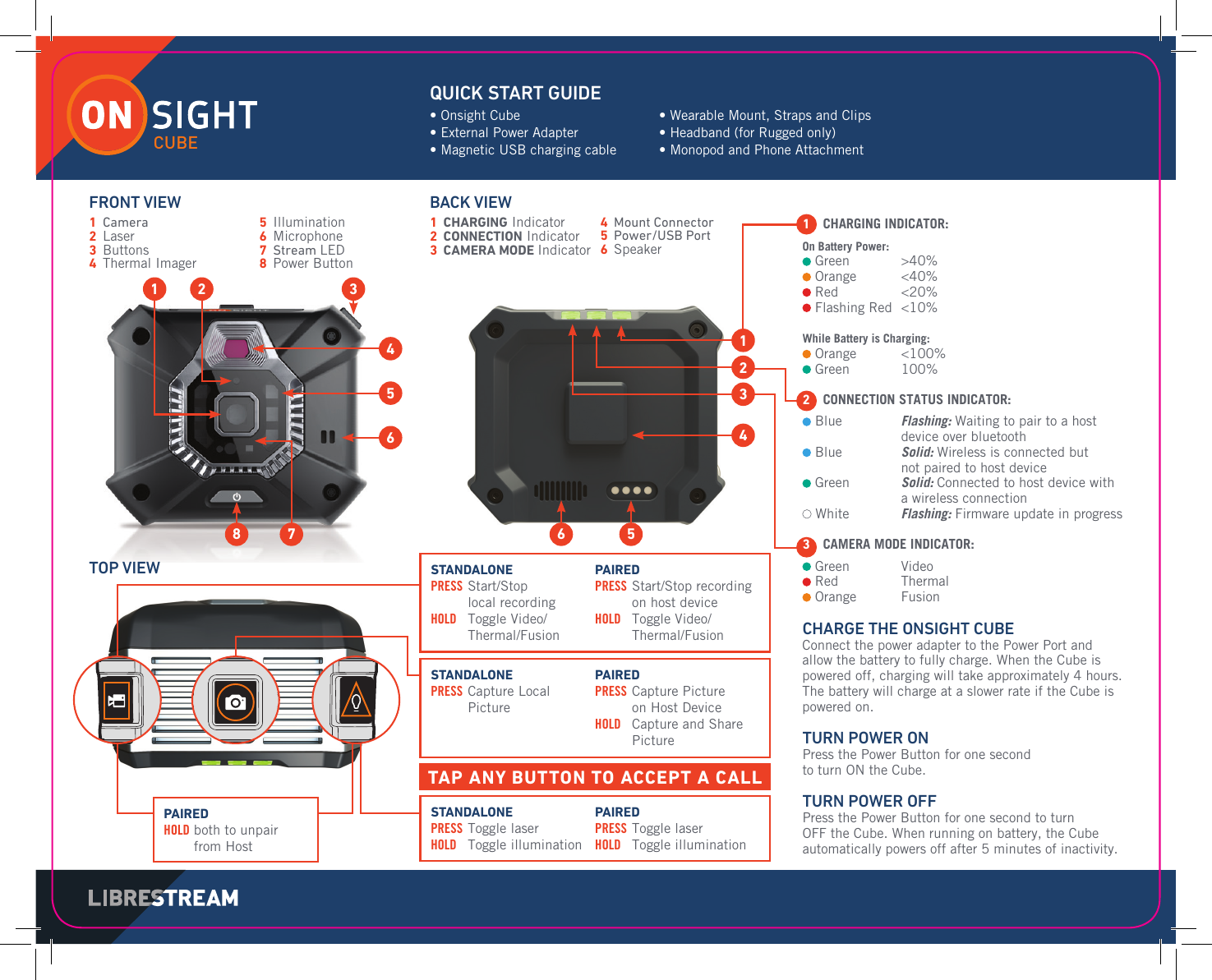
CHARGE THE ONSIGHT CUBE Connect the power adapter to the Power Port and allow the battery to fully charge. When the Cube is powered off, charging will take approximately 4 hours. The battery will charge at a slower rate if the Cube is powered on.TURN POWER ON Press the Power Button for one second  to turn ON the Cube.TURN POWER OFF  Press the Power Button for one second to turn OFF the Cube. When running on battery, the Cube automatically powers off after 5 minutes of inactivity.FRONT VIEWTOP VIEWBACK VIEWCUBE• Onsight Cube• External Power Adapter• Magnetic USB charging cable• Wearable Mount, Straps and Clips• Headband (for Rugged only)• Monopod and Phone Attachment QUICK START GUIDE1 Camera 2    Laser3    Buttons4  Thermal Imager5    Illumination6    Microphone7 Stream LED 8 Power Button1  CHARGING Indicator2  CONNECTION Indicator3  CAMERA MODE Indicator4  Mount Connector 5  Power/USB Port 6  Speaker21 38 7 5664123541 CHARGING INDICATOR: On Battery Power: Green   >40%  Orange  <40%  Red  <20%  Flashing Red  <10%While Battery is Charging: Orange  <100% Green   100%2 CONNECTION STATUS INDICATOR:   Blue   Flashing: Waiting to pair to a host  device over bluetooth  Blue   Solid:  Wireless is connected but  not paired to host device Green   Solid: Connected to host device with  a wireless connection White   Flashing: Firmware update in progress3 CAMERA MODE INDICATOR: Green  Video Red  Thermal Orange  FusionPAIRED HOLD  both to unpair from HostSTANDALONE PRESS  Start/Stop  local recordingHOLD   Toggle Video/ Thermal/FusionPAIRED PRESS  Start/Stop recording  on host deviceHOLD   Toggle Video/ Thermal/FusionSTANDALONE PRESS   Capture Local Picture PAIRED PRESS  Capture Picture  on Host Device  HOLD   Capture and Share PictureSTANDALONE PRESS    Toggle laser HOLD    Toggle illuminationPAIRED PRESS  Toggle laser HOLD   Toggle illumination TAP ANY BUTTON TO ACCEPT A CALL
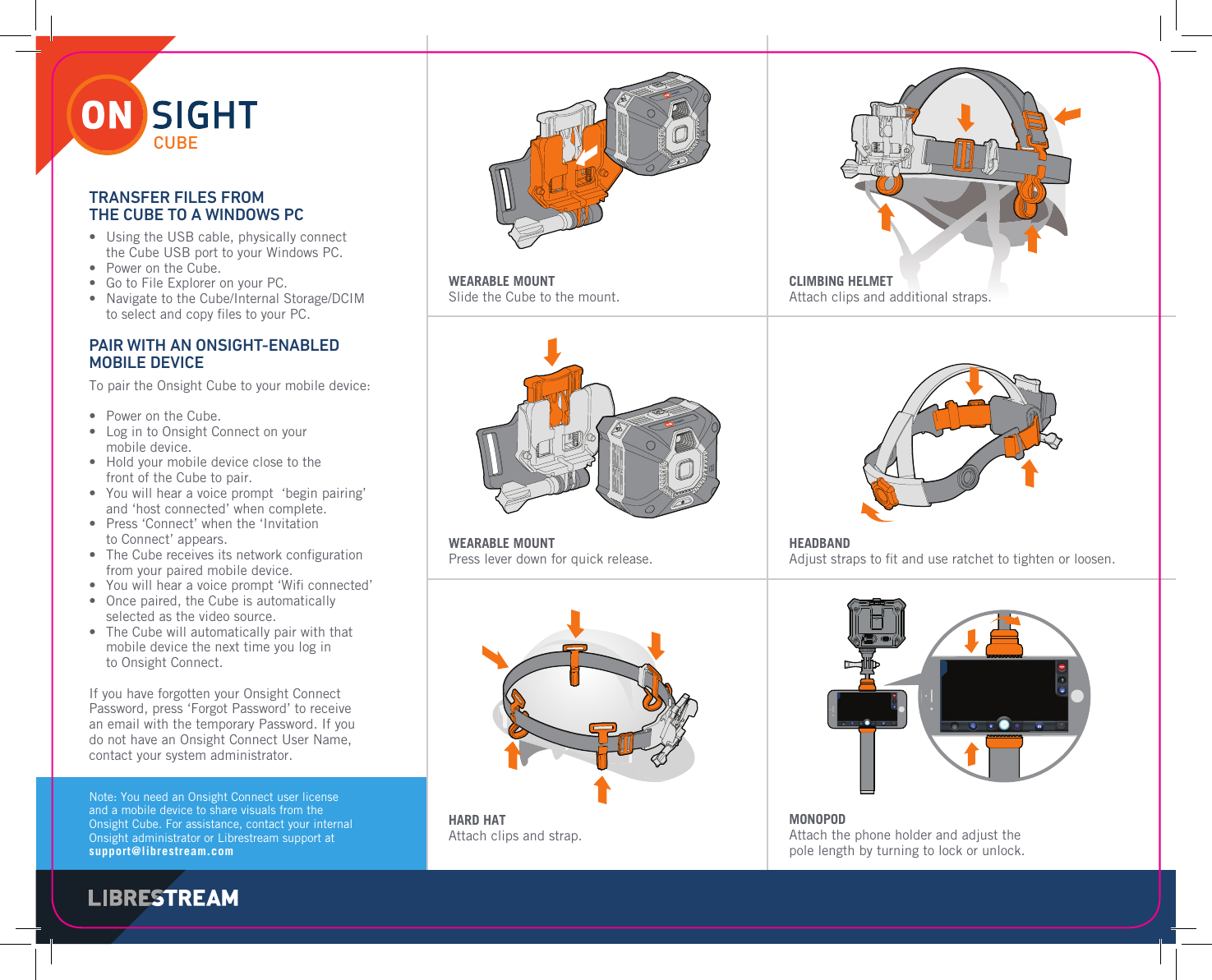
Note: You need an Onsight Connect user license and a mobile device to share visuals from the Onsight Cube. For assistance, contact your internal Onsight administrator or Librestream support at support@librestream.comWEARABLE MOUNTSlide the Cube to the mount.CLIMBING HELMETAttach clips and additional straps.WEARABLE MOUNTPress lever down for quick release.HEADBANDAdjust straps to fi t and use ratchet to tighten or loosen.HARD HATAttach clips and strap.MONOPODAttach the phone holder and adjust the pole length by turning to lock or unlock.TRANSFER FILES FROM THE CUBE TO A WINDOWS PC•   Using the USB cable, physically connect the Cube USB port to your Windows PC. •   Power on the Cube.•   Go to File Explorer on your PC.•   Navigate to the Cube/Internal Storage/DCIM to select and copy fi les to your PC.PAIR WITH AN ONSIGHT-ENABLED MOBILE DEVICETo pair the Onsight Cube to your mobile device:•   Power on the Cube.•   Log in to Onsight Connect on your mobile device.•   Hold your mobile device close to the front of the Cube to pair. •   You will hear a voice prompt  ‘begin pairing’ and ‘host connected’ when complete.•   Press ‘Connect’ when the ‘Invitation to Connect’ appears.•   The Cube receives its network confi guration from your paired mobile device.•   You will hear a voice prompt ‘Wifi  connected’ •   Once paired, the Cube is automatically selected as the video source.•   The Cube will automatically pair with that mobile device the next time you log in to Onsight Connect.If you have forgotten your Onsight Connect Password, press ‘Forgot Password’ to receive an email with the temporary Password. If you do not have an Onsight Connect User Name, contact your system administrator.CUBE

Navigation menu