LifePrint LP002 Lifeprint 3x4.5 Photo Printer User Manual 170829 LP 3x4 5 usermanual
LifePrint Products Inc. Lifeprint 3x4.5 Photo Printer 170829 LP 3x4 5 usermanual
User Manual
Fully Charged
Lifeprint is a social network for printed photos. When creating a Lifeprint account, you
have the option of making your images Public or Private. Those who create a “Public”
prole will share photos within the Lifeprint network via the Explore view, and other
Lifeprint users will be able to visit your prole to like, comment, and print photos that
you’ve shared. Those who create a “Private” prole will never share images publicly
within Explore and no one will be able to visit your prole without your permission.
Any photo can be marked as “Secret”, which will hide that photo from public viewing,
even if your prole is set to “Public”. Furthermore, a “Secret” Hyperphoto will only come
to life for the original creator and those that they shared the photo with.
Printing Photos Privately:
The 3x4.5 Lifeprint Printer now includes a WiFi connection that lets you print from
anywhere! This means you can go on vacation, take a bunch of photos, and print them
out from the Lifeprint app while you're traveling. Your printed photos will be waiting
for you when you get home from wherever you are in the world. Follow the previous
steps to connect and enjoy printing from
anywhere.
Lifeprint’s New WiFi Connection:
Printing Hyperphotos with the Lifeprint App:
(1) Select a video, GIF, or Live Photo to print from your “My Media” screen.
(2) Add a caption and select Hyperphoto settings as well as how many
copies you’d like to print.
(3) [Optional] Edit that photo/video by tapping the “Edit” button.
(4) Hit “Print”and you will see the photo get sent to the Printer.
(5) Open up the “Print Utility” tool (small Printer icon in top left corner) and
select “Print Queue” to determine status of the print or keep it private.
(6) Once the photo is printed, open up the “Hyperphoto viewer” and hold the
photo up to the screen. Try to keep this camera still. Wait 3-5 seconds
and watch as the photo comes to life in your hands.
NOTE - If you have trouble with Hyperphoto playback, the most likely culprit
is a poor internet connection. Do a ‘Speed test’ on your phone to check
your download speed. Write customer service at
support@lifeprintphotos.com if you continue to have issues.
Device Compatibility:
Lifeprint is compatible with iPhone and Android. Please visit www.lifeprintphotos.com/-
compatibility to see if Lifeprint iscompatible with your device.
Watch THIS MANUAL Come to Life!
Hold up the Hyperphoto Viewer to the picture on the front of this manual and
watch a video about how to set up Lifeprint! The cover of this manual is a Hyperphoto
too!
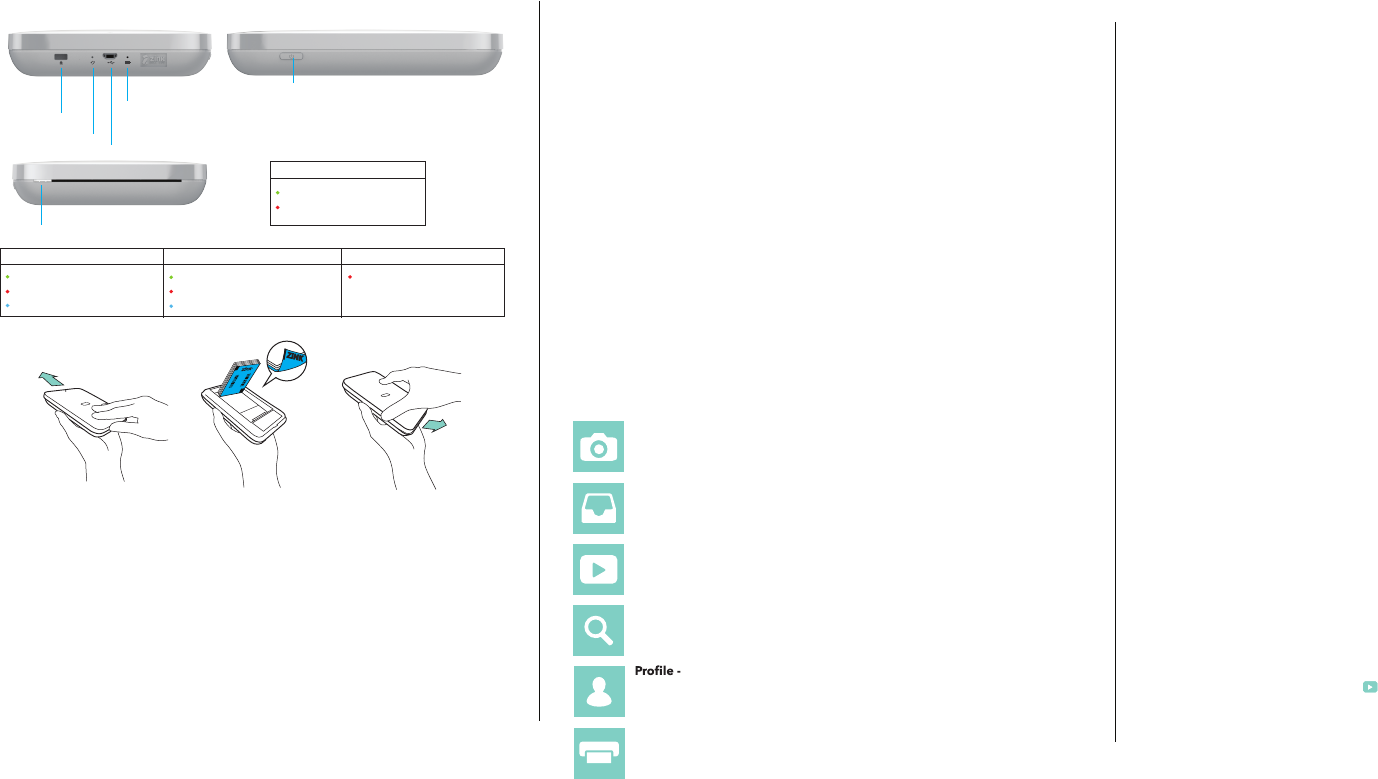
*WARNING: Paper MUST be loaded with Blue Card facing down and white lm facing
up. Failure to do this could cause your Printer to jam and permanently damage your
product.
Parts & Controls:
Visit www.lifeprintphotos.com/support
for video instructions as well as the full user manual.
reset
kensington
lock
charging indicator
charging micro
USB port
status indicator
power on/o
(1) Select Yes when asked if you wish to congure and connect the Printer
WiFi.
(2) The iPhone WiFi conguration is transferred to the Printer.
(3) If the Printer WiFi conguration is successful, the app will display a
conrming alert and the Printer LED will be a solid blue color.
Inserting Photo Paper:
Power On / Bluetooth Pairing and WiFi Setup:
*Congure and Connect the Printer WiFi using the current iPhone WiFi
connection (First Time Setup)
*If the Printer WiFi connection fails
(1) Tap on the Printer icon in upper right hand corner of the App screen.
(2) Tap on the Congure WiFi button.
(3) Follow the instructions provided in the App.
*Congure and Connect the Printer WiFi using the current iPhone WiFi
connection - Changing Setup to use the Printer on a dierent WiFi network
(1) Slide the lid towards the back of the Printer to open.
(2) Unpack the included photo paper and insert it into the Printer with the
“blue smart sheet” facing down.
(3) Replace the lid.
My Media -
PrintBox -
Print Utility -
Using the Lifeprint App:
If you’re having a problem, chances are someone else had it at one point too. Please visit:
www.lifeprintphotos.com/support and check out our FAQ, which should help answer any
questions you have. If not, please email support@lifeprintphotos.com and we’ll be glad to
help.
Having Trouble with the App:
Plug USB cable (included) into Micro USB Port
Average charging time: 1.5 hours
Low battery, charge
Charging indicator
Hyperphoto Viewer -
Explore -
This is a repository of all your photos in your camera roll as well as
on social media. You can access your various social media accounts through the
app, so you can print directly from those sources in addition to images stored on
your device.
The PrintBox is where you will receive notications and alerts when
someone sends you an image. You can also view your saved photos here.
This is the Lifeprint augmented reality viewer, which you can
use to make your hyperphotos come to life.
This is where you can nd new people to “Follow”, see what your friends
are up to and where you can explore what other Lifeprint users are sharing in the
Lifeprint network.
This is also what other users will see when they visit your page. Manage
the people you follow and your followers, add or remove photos, and update
your prole photos.
This is where you can see the current status of your Printer. It will alert
you if there are paper jams, low battery, connectivity issues, or rmware updates. This
is also where you can access your “Printer Queue” to see what is currently being
prepared to print.
(1) Make sure your iPhone is turned on and connected to WiFi.
(2) Turn on the Printer by pressing the power button. The Printer should be
connected to a USB power source if WiFi mode is used.
(3) Open the Bluetooth setting on your phone and make sure Bluetooth is
enabled.
(4) Find and select the Lifeprint Printer to connect.
(5) Select ‘Allow’ when the pop-up box asks permission to connect to your
phone.
(1) The most common reason for a failure is that the iPhone is connected to a
dedicated 5 GHz router channel connection point; the Lifeprint Printer
requires a 2.4 GHz channel connection.
(2) In this case, an Alert box will indicate a connection failure and will provide
a list of 2.4 GHz channel WiFi connections that are available.
(3) Open iOS Settings and select WiFi.
(4) Connect your iPhone to one of the available 2.4 GHz connection channels.
(5) Return to the Lifeprint App and choose the Try Again option in the Alert
Box.
(6) If connection is not successful, please contact Lifeprint Support at
support@lifeprintphotos.com.
Printer Ready
Out of Film
Solid Slow Blink
WiFi connected
Printing an image
Connected to Cloud
Error/Reset Printer
Low battery, charge
Fast Blink
App Store is a service mark of Apple Inc., registered in the U.S. and other countries.
© 2017 All Rights Reserved.
User Manual
WARNING: Lithium Battery Safety
In extreme cases, abuse or misuse of Lithium-Polymer battery packs can cause
explosion, re, heat generation, smoke, or gas.
Charge your device using only the method described in the user manual.
Charge the device at ambient temperatures 40/104F, 5-40C. Do not heat
above 158F, 70C. Do not attempt to replace rechargeable battery. Do not
charge if device has an obvious defect or is damaged in any way. Dispose of
products containing lithium-ion batteries at a special collection center, as
directed and in compliance with local laws and regulations. Only charge this
product with a DC 5V 1A adapter that complies with limited power source
(LPS) requirements.
WARRANTY
Lifeprint provides a ONE (1) YEAR warranty on this product. For current warranty
conditions, please visit our web site at lifeprintphotos.com/warranty or contact
your Lifeprint dealer.
FOR AUSTRALIA ONLY
Lifeprint goods come with guarantees that cannot be excluded under the
Australian Consumer Law. You are entitled to a replacement or refund for a
major failure and for compensation of any other reasonably foreseeable loss
or damage. You are also entitled to have the product repaired or replaced if
the product fails to be of acceptable quality and the failure does not amount
to a major failure.
Please email support@lifeprintphotos.com or call +1-916-500-4280
for any warranty related questions or claims.
PRODUCT SPECIFICATIONS
Brand
Make
Lifeprint
Lifeprint Photo and Video Printer (3x4.5)
LP002
160 x 115 x 28.6mm / 6.3 x 4.5 x1.1 in
280 g /9.9 oz
Bluetooth 4.0 / Wi-Fi 802.11 bgn (2.4 GHz only)
Rated DC 5V / 1.0A (Micro USB Type B port)
1000mAh lithium-ion polymer (7.4V)
Temperature: 15-32 C / 59-90 F: Relative Humidity: Less than 70%
ZINK Paper (Lifeprinted brand only)
76.2 x 114.3 mm / 3 x 4.5 in
Temperature: 20-25 C / 68-77 F; Relative Humidity: 40-55%
Model
Weight
Built-in rechargeable battery
Product operating conditions
Communication
Paper type
Paper size
Paper storage conditions
USB power supply
Size ( L x W x H)
FCC Information to User
This equipment has been tested and found to comply with the limits for a Class B digital device, pursuant
to Part 15 of the FCC Rules. These limits are designed to provide reasonable protection against harmful
interference in a residential installation. This equipment generates, uses and can radiate radio
frequency energy and, if not installed and used in accordance with the instructions, may cause harmful
interference to radio communications. However, there is no guarantee that interference will not occur in
a particular installation. If this equipment does cause harmful interference to radio or television reception,
which can be determined by turning the equipment off and on, the user is encouraged to try to correct
the interference by one of the following measures:
• Reorient or relocate the receiving antenna.
• Increase the separation between the equipment and receiver.
• Connect the equipment into an outlet on a circuit different from that to which the receiver is con-nected.
• Consult the dealer or an experienced radio/TV technician for help.
Caution
Modifications not expressly approved by the party responsible for compliance could void the user’s
authority to operate the equipment.
FCC Compliance Information : This device complies with Part 15 of the FCC Rules. Operation is
subject to the following two conditions: (1) This device may not cause harmful interference, and (2) this
device must accept any interference received, including interference that may cause undesired
operation.