Lifescan Onetouch Profile Blood Glucose Monitor Users Manual OTP Cover Art
bloodglucosemonitor 9ddfc954-ac7f-47d9-90de-9947f854b621 Lifescan Blood Glucose Meter blood glucose monitor User Guide |
2015-02-09
: Lifescan Lifescan-Onetouch-Profile-Blood-Glucose-Monitor-Users-Manual-571840 lifescan-onetouch-profile-blood-glucose-monitor-users-manual-571840 lifescan pdf
Open the PDF directly: View PDF  .
.
Page Count: 74
™™
Owner’s Booklet
Complete Diabetes Tracking System
For diabetes and life.

CAUTION
Before using any product
to test your blood
glucose (blood sugar),
read all instructions and
practise the test. Do all
quality control checks
as directed and consult
with a diabetes health-
care professional.
The One Touch™Profile™System is intended for use
outside the body (in vitro diagnostic use). It should be
used only for testing purposes and only with whole blood
(not plasma or serum). It should not be used for the
diagnosis of diabetes and has not been validated for
testing the blood of newborns.
The One Touch Profile System contains many small parts
which may be dangerous if swallowed. It is therefore best
to keep the system away from small children.
1
Introduction 4
Precautions and limitations 5
One Touch™Profile™Blood Glucose Meter 6
One Touch™Test Strips 8
SETTING THE SYSTEM Coding the meter 10
Check strip test 12
Control solution test 16
TESTING YOUR BLOOD Getting a drop of blood 22
Step- by- step test procedure 29
Event labelling 35
USING THE METER MEMORY Entering the memory 37
Recalling results 38
CHANGING METER SETTINGS Entering the set-up (options) mode 40
Beep prompts 42
2
TABLE OF CONTENTS

Time and date 43
Event averaging 44
Insulin prompt 45
Insulin programming 46
Display language 48
Time format 49
Date format 49
Decimal separator 50
Unit of measure 51
Exiting the set-up mode 51
SOLVING PROBLEMS Test procedure messages 52
Error messages 56
TAKING CARE OF YOUR METER Cleaning the meter 63
Replacing the batteries 66
SPECIFICATIONS Performance characteristics 69
Warranty 70
Insulin Types 71
3

INTRODUCTION
The One Touch™Profile™Glucose
Monitoring System is for people with
diabetes who need to check the level of
glucose (sugar) in their blood. To per-
form a blood glucose test, a One Touch™
Test Strip is inserted into the meter and
a small sample of blood is applied to
the test strip. The meter then measures
the blood glucose level and displays the
result in just 45 seconds. Easy-to-
understand symbols guide you through
the test procedure and help you if any
problems arise.
4
The One Touch Profile Glucose
Monitoring System consists of three main
products: The One Touch™Profile™
Blood Glucose Meter, One Touch Test
Strips and One Touch™Normal Control
Solution.
For reliable results and to maintain the
manufacturer’s total service, support,
and warranty, use only One Touch™
Profile™System products made by
LifeScan.

PRECAUTIONS AND LIMITATIONS
• If you experience symptoms that are not consistent with your blood glucose results,
and you have carefully followed the procedure described in your owner’s booklet,
contact your healthcare professional immediately.
•DO NOT make significant changes to your medication program or ignore physical
symptoms without consulting your healthcare professional.
• If the message HI DANGER appears on the meter display, this indicates severe high
blood sugar (hyperglycemia); contact your doctor immediately.
• Note that extremes in whole blood hematocrits, above 60% or below 25%, can cause
false low results.
• Reducing substances, such as Vitamin C (ascorbic acid), have little effect on blood
glucose results when found in normal blood concentrations. However, abnormally
high concentrations of reducing substances in blood will cause false low test results.
•DO NOT use blood samples with preservatives that contain fluoride (in gray top test
tubes). You will get false low results.
• When testing, removal of the test strip prior to display of the blood glucose result
may give you a false result.
5
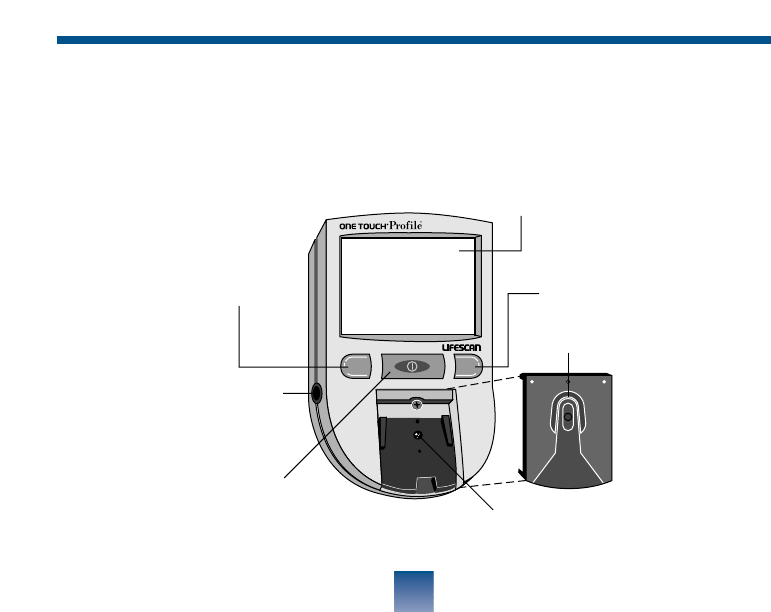
ONE TOUCH™PROFILE™BLOOD GLUCOSE METER
Study this diagram to become familiar with all of the parts of your
One Touch
™
Profile
™
Meter.
6
Battery
Compartment
(on back)
Data Port
CM
C Button
Test Strip
Holder
Display
Test Area
with protective
coating
M Button
On/Off
Button

On/off button. This button turns the meter
on and off.
Display. This is where you read the simple
messages that guide you through test-
ing, setting options, and using the
memory. Your test results will be dis-
played here.
M Button. The One Touch™Profile™
Meter automatically stores your test
results. Use the M button to recall the
information stored in your meter’s
memory and to review your meter’s
set-up options.
C Button. Use the C button to set the code
on the One Touch Profile Meter and
to change the meter’s set-up options.
Test strip holder. The test strip holder holds
a One Touch™Test Strip in place
when you perform a blood glucose or
control solution test.
Test area. The test area is located under the
test strip holder.
Battery compartment. Holds two AAA
batteries. The batteries are already
installed in your meter.
Data port. Allows you to transfer the infor-
mation stored in the meter’s memory
to a computer to view, analyse, and
print. Please call your authorized
LifeScan representative for more
information about our Diabetes
Management System software.
7
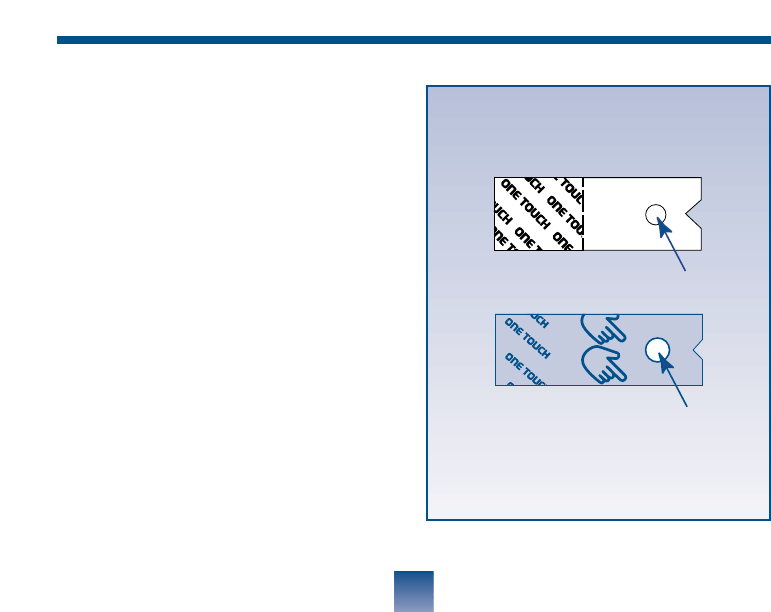
ONE TOUCH™TEST STRIPS
When blood is applied to the white test
spot on the test strip, compounds on the
test strip react with the blood to form a
blue color. The meter reads the color to
determine the blood glucose level.
8
TEST SPOT
OR THIS
NOTE: Your test strip may look
like THIS
Consult your test strip package insert
for specific test strip information.
TEST SPOT

IMPORTANT TEST STRIP INFORMATION
•One Touch™Test Strips are sensitive to heat and light. Keep them sealed in the origi-
nal vial and store in a cool, dry place below 30ºC (86ºF). Do not refrigerate or place
in direct heat or sunlight.
• DO NOT use One Touch Test Strips beyond the expiration date on the vial.
• DO NOT use One Touch Test Strips with plasma or serum samples, as the results
will not be accurate. The strips are intended for use with fresh whole blood or
One Touch™Normal Control Solution.
• When you open a new vial of test strips, record the date vial first opened. Discard
unused test strips four months after first opening the vial.
• DO NOT use One Touch Test Strips that are bent, torn, cut, or changed in any way.
• Use each test strip immediately after removing it from the vial.
• Replace the test strip vial cap immediately after removing a test strip from the vial.
Close cap tightly.
• Do not transfer the test strips from the original vial to any other container.
• Do not carry unwrapped test strips in your meter case.
• DO NOT use bleach, or products containing bleach, near the test strips.
• For reliable results, use only One Touch Test Strips made by LifeScan.
9
INSERT
STRIPCODE 9
CODE 9
7:26AM 1/06/00
CODING THE METER
Code numbers are used to calibrate the
meter with the test strips for reliable
results.
Make sure you set the code:
• Before using the meter for the first
time.
• Every time you change to another vial
of test strips.
Check that the code number on the
display matches the code number on the
test strip vial.
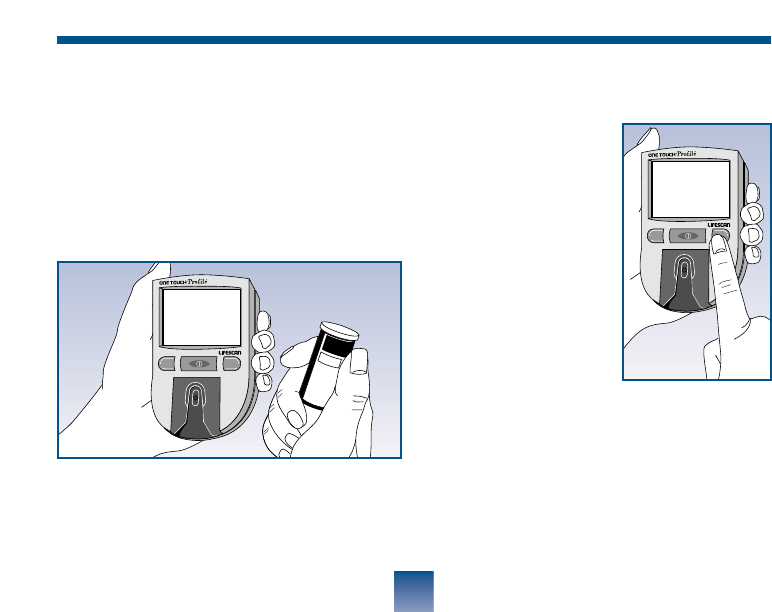
Step 1: Turn on the meter
The meter code will appear on the
display for a moment along with the
current time and date and then the
message INSERT CODE 9 (for
example) STRIP will appear.
10
SETTING THE SYSTEM
Step 2: Match the Code Numbers.
If the code number on the display
matches the code number on your test
strip vial, you may begin testing.
If the two code numbers do not match,
follow Step 3 to code the meter.
Step 3: Code the Meter.
After the word
INSERT is dis-
played on the meter,
press and release the
C button; the code
number will appear.
Continue pressing
the C button until
the number on the
display matches the
code number on the
test strip vial.
The code number is now set for the vial
of test strips you are using, and the
meter will remember this code number
until you change it. You are now ready
to do a test.
11
MC
10
Code
D
o
n
o
t
s
t
o
r
e
T
e
s
t
S
t
r
i
p
s
o
u
t
s
i
d
e
t
h
e
v
i
a
l
T
e
s
t
f
o
r
t
h
e
q
u
a
n
t
i
t
a
t
i
v
e
B
l
o
o
d
B
l
u
c
o
s
e
M
e
t
e
r
s
.
F
o
r
u
s
e
w
i
t
h
O
N
E
T
O
U
C
H
i
n
w
h
o
l
e
b
l
o
o
d
.
m
e
a
s
u
r
e
m
e
n
t
o
f
g
l
u
c
o
s
e
I
n
s
t
r
u
c
t
i
o
n
s
:
R
e
a
d
u
s
i
n
g
t
h
i
s
p
r
o
d
u
c
t
.
p
a
c
k
a
g
e
i
n
s
e
r
t
b
e
f
o
r
e
F
o
r
i
n
v
i
t
r
o
d
i
a
g
n
o
s
t
i
c
u
s
e
o
n
l
y
.
S
t
o
r
e
i
n
a
c
o
o
l
,
d
r
y
p
l
a
c
e
a
t
t
e
m
p
e
r
a
t
u
r
e
s
u
n
d
e
r
8
6
˚
F
(
3
0
˚
C
)
.
D
o
n
o
t
r
e
f
r
i
g
e
r
a
t
e
.
V
i
a
l
C
a
p
:
c
o
n
t
a
i
n
s
n
o
t
m
o
r
e
t
h
a
n
3
g
s
i
l
i
c
a
g
e
l
P
r
o
t
e
c
t
e
d
u
n
d
e
r
t
h
e
f
o
l
l
o
w
i
n
g
U
.
S
.
P
a
t
e
n
t
s
4
,
9
3
5
,
3
4
6
,
5
,
0
4
9
,
4
8
7
,
a
n
d
o
t
h
e
r
p
a
t
e
n
t
s
p
e
n
d
i
n
g
.
25 Test Strips
MC
CODE 9
CODE 10
It is very important that you do the fol-
lowing two simple checks routinely to
make sure you get accurate results.
CHECK STRIP TEST
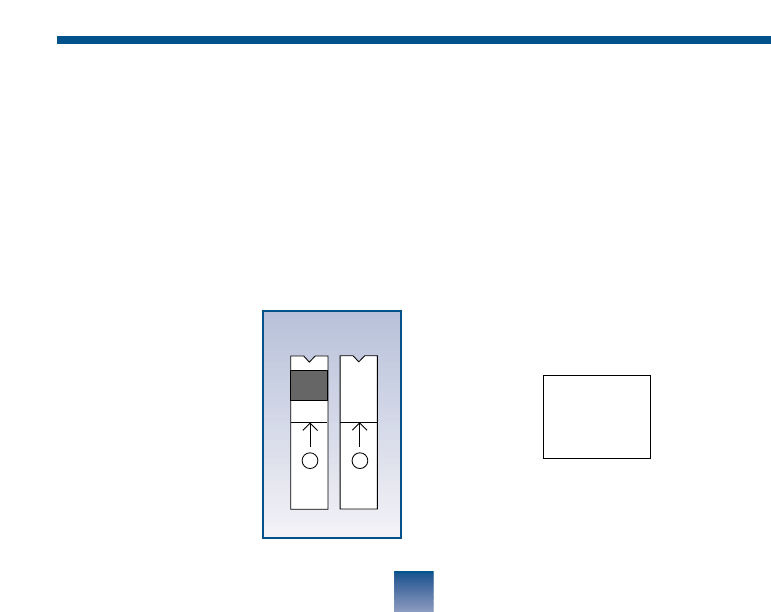
A purple and white check strip is
included in your meter case. Before
doing a check strip
test, make sure the
test strip holder, test
area, and check strip
are clean, dry, and
lint-free. Do the
check strip test at
room temperature
between 18° and
26°C (64°F - 79°F).
Do a check strip test:
• At least once a day
• After cleaning the meter
• Whenever your blood glucose test
results are not consistent with how you
feel, or when you think your results are
not accurate
• Whenever the REDO message
appears before the INSERT CODE
10 (for example) STRIP prompt.
12
1
✔
2
✔
Front Back
REDO
Step 1: Turn on the meter.
The code number will appear on the
display. Next, INSERT CODE 10 (for
example) STRIP will appear.
Step 2: Insert the check strip
Slide the notched
end of the check
strip into the test
strip holder with the
purple side facing
up. After the check
strip has been insert-
ed, WAIT PLEASE
appears for a mo-
ment.
Step 3: Remove the check strip.
When the message APPLY SAMPLE
appears on the display, remove the
check strip from the test strip holder.
Note: This is the only time you should
remove a strip during a test.
13
MC
1
MC
1
INSERT SAMPLE
The display will show ✓
OK if your result falls
within the correct check
strip range printed on the
back of your meter.
If the reading is not
within the recommended
range, the
meter display
will show ✓NOTOK REDO ✓.
Repeat
the check strip test until your result
falls within
the correct
range.
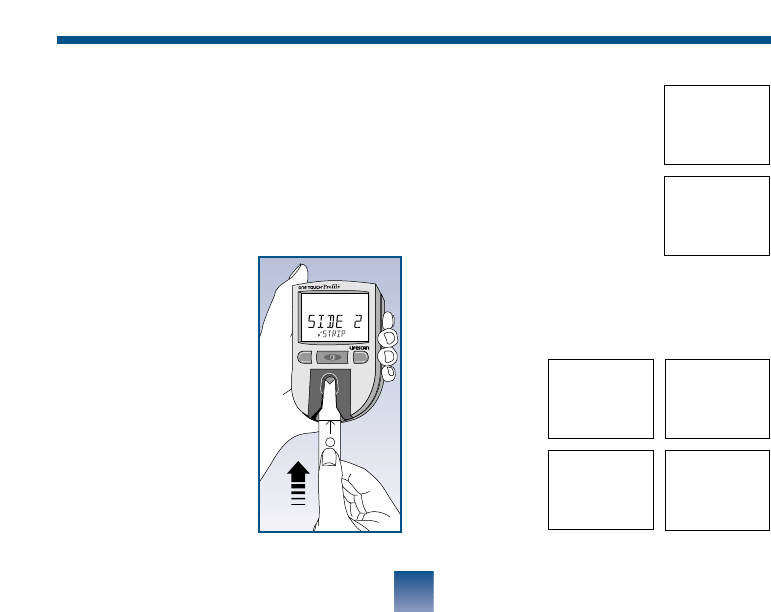
Step 4: Turn the check strip over and
insert it back into the meter.
When INSERT SIDE 2 ✓STRIP
appears, turn the check strip over and
slide it back into the test strip holder. It
must go in notched end first, the white
side facing up. The
meter counts down
from 4 to 0 and then
gives you a check
strip result.
MC
2
14
58mg/dL
REDO ✓
Example
80mg/dL
✓OK
7:40AM 1/06/00
4,4mmol/L
✓OK
7:40AM 1/06/00
58mg/dL
✓
NOTOK
7:40AM 1/06/00
3,2mmol/L
REDO ✓
3,2mmol/L
✓
NOTOK
7:40AM 1/06/00
Example

IMPORTANT CHECK STRIP INFORMATION
• If your check strip result is repeatedly out of range, your meter may not be
working properly. Do not use the meter to test your blood until you get a
check strip result that is within the correct range.
• Make sure both sides of the check strip are clean. If necessary, wipe the check
strip with a soft cloth or tissue dampened with water. Dry it completely.
• Do not get blood, alcohol, control solution, or any other fluid on the
check strip.
• Do not scratch the check strip.
• Do not leave the check strip in sunlight.
• If you lose or damage the check strip, call your authorized LifeScan
representative for a free replacement.
15
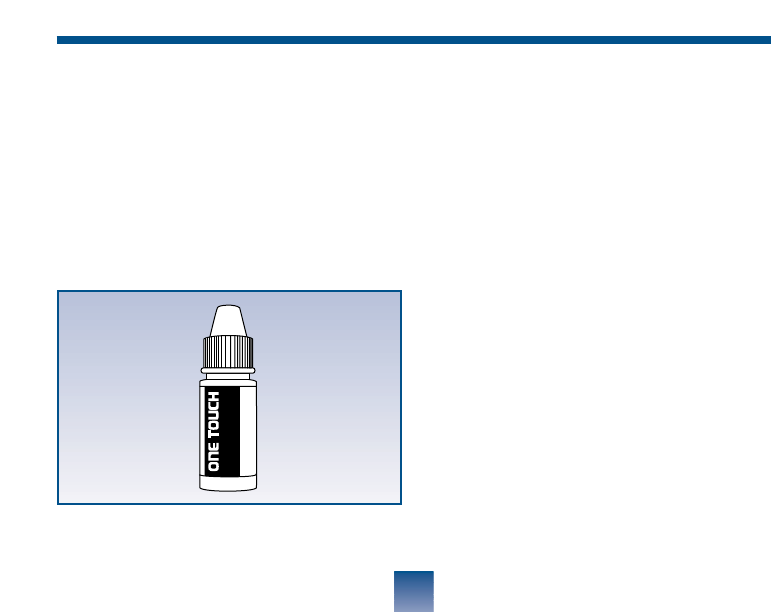
CONTROL SOLUTION TEST
One Touch™Normal Control Solution is
used instead of blood to tell you that the
meter and test strips are working togeth-
er properly. The control solution con-
tains a known amount of glucose that
reacts with a One Touch™Test Strip.
Do a control solution test:
• Before using your meter for the first
time.
• Each time you open a new vial of test
strips.
• At least once a week.
• Whenever you suspect that the meter
or test strips are not working properly.
• When your results do not reflect how
you feel.
• If you drop the meter.
16
Sha
For
Nor
Dis
Un
Lot
LIF
AW
Normal Glucose Control
Solution
R

IMPORTANT CONTROL SOLUTION TEST INFORMATION
• Use only One Touch™Normal Control Solution.
• Check the expiration date of the control solution. Do not use if expired.
Record the discard date on the vial. Discard the vial 90 days after first opening.
• The control solution range printed on the test strip vial is for One Touch
Normal Control Solution only. It is NOT a recommended range for your
blood glucose level.
• Store the glucose control solution at room temperatures below 30°C (86°F).
• Do not refrigerate or freeze.
WARNINGS
• Control solution is not to be used as a cleaning solution.
• Do not swallow or inject control solution or place drops into the eyes.
17
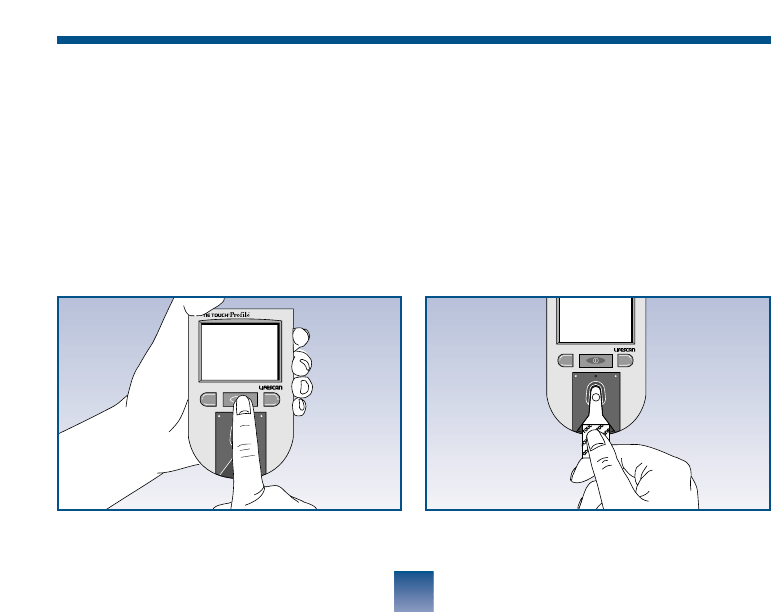
The control solution test follows the
normal test procedure, using control
solution instead of blood.
Step 1: Turn on the meter.
The code number, time, and date will
appear. The code number should match
the code number on the test strip vial.
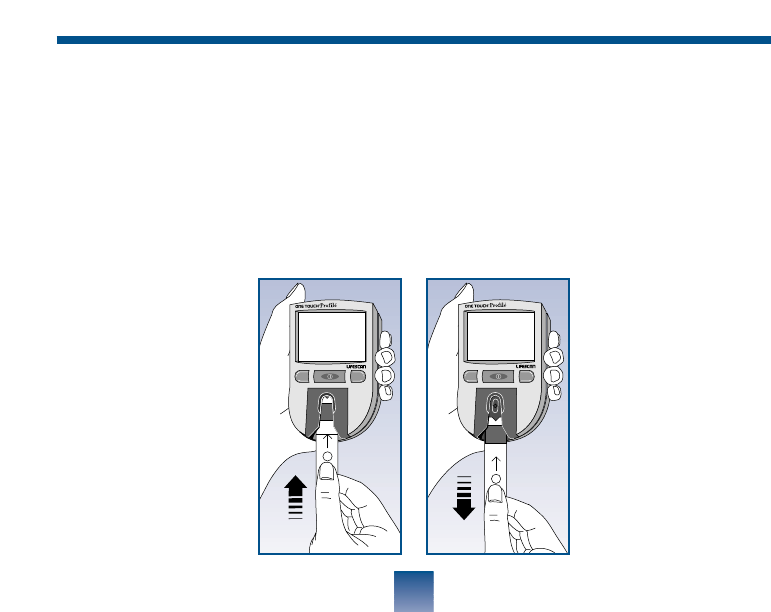
Step 2: Insert a test strip.
When INSERT CODE 10 (for exam-
ple) STRIP appears, slide a test strip
into the test strip holder, notched end
first with the test spot facing up. Make
sure you push the test strip in all the
way until it stops.
18
C
M
CM
CODE 10
7:50AM 1
/
06
/
00
INSERT
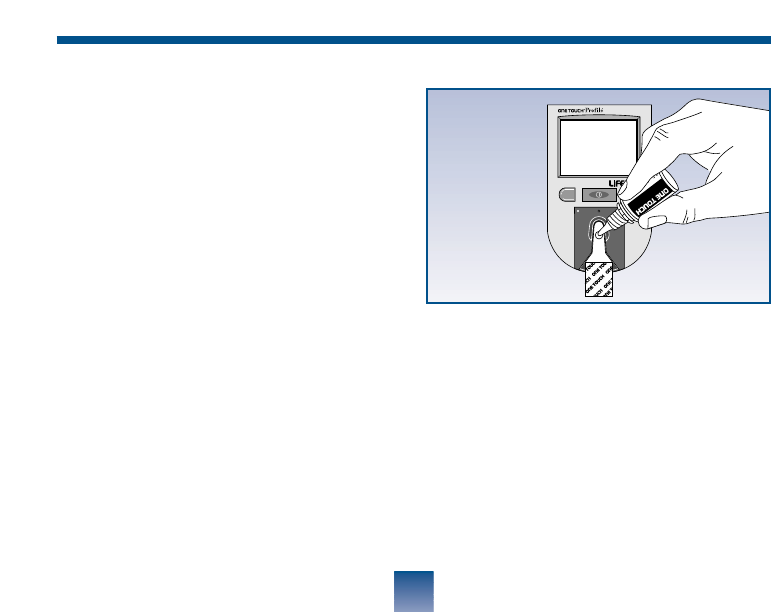
Step 3: Apply control solution.
After the test strip is in the test strip
holder, WAIT PLEASE appears for a
moment, then APPLY SAMPLE
appears. Shake the control solution vial
well before removing the cap and adding
a drop of control solution to the middle
of the test spot, covering it completely.
19
CM
Normal Glucose Control
Solution
R
APPLY
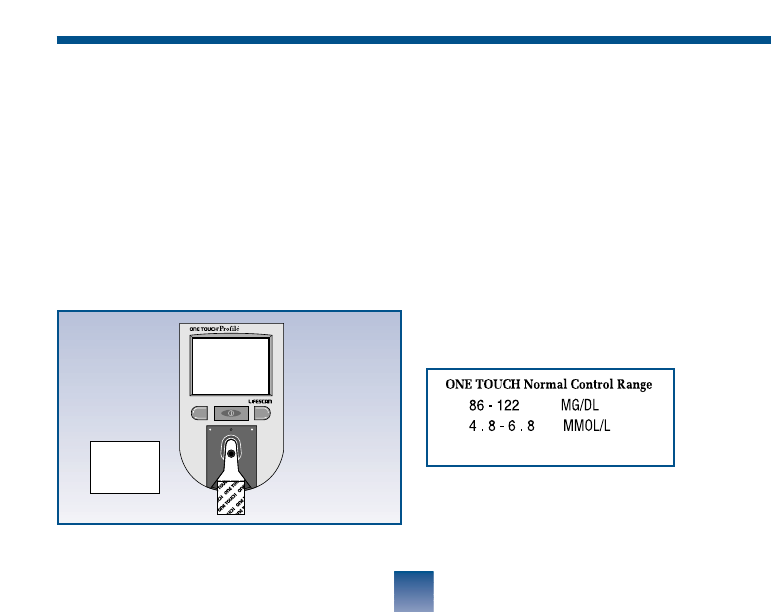
20
Step 4: The result appears within
45 seconds.
Compare the control solution test result
with the control solution range printed
on the One Touch™Test Strip vial.
When the control solution test result lies
within the control range, you are ready
to test your blood.
CM
100mg/dL
CONTRL.
7:52AM 1/06/00
Record control solution tests in the log-
book provided by placing a C next to the
result. If test results fall outside the
expected range, repeat the test. If you are
unable to resolve the problem, call your
authorized LifeScan representative.
Example
5.6mmol/L
CONTRL
7:52AM 1/06/00
Example
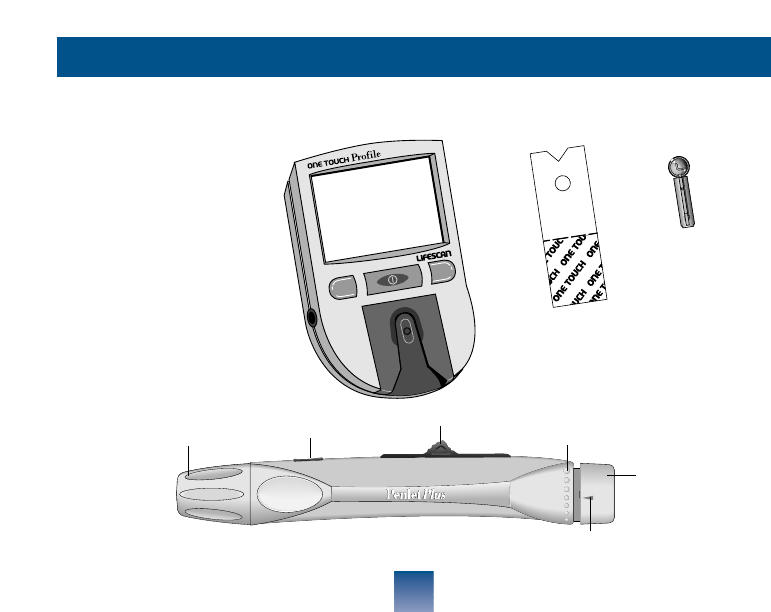
21
TESTING YOUR BLOOD
DETAILED TEST PROCEDURE
Choose a clean, dry
work surface. Make sure
you have all the items
needed to test.
Release Button Ejection/Cocking Control
Depth
Adjustment
Knob
Cap Depth Settings
Depth Indicator
Penlet™Plus Adjustable Blood Sampler
CM
Meter
One Touch™
Test Strip
Sterile
Lancet
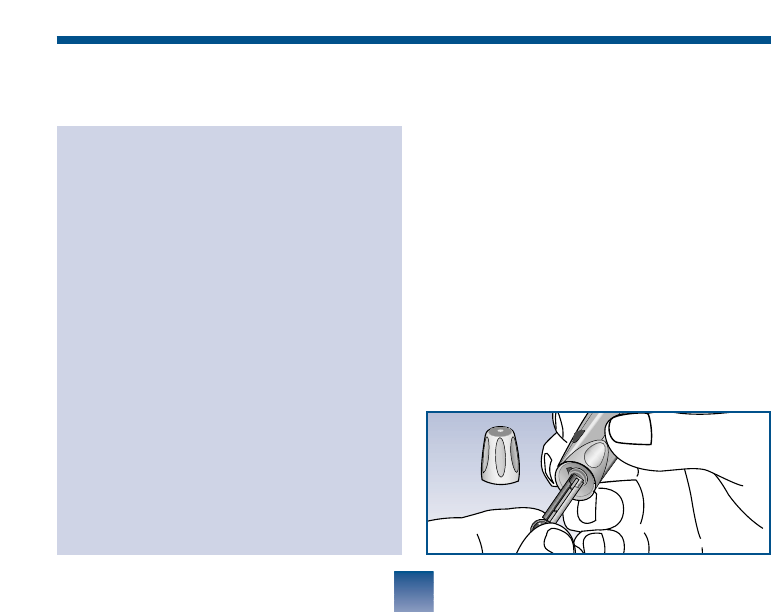
22
CAUTION: To reduce the chance
of infection:
•Never share a lancet with another
person.
• Always use a new, sterile LifeScan
Lancet. Lancets are for single use only.
• The Penlet™Plus Sampler should be
used by only one person. However, in
the event the sampler is shared with
another person, always use a new
lancet and a new or disinfected cap.
• Avoid getting hand lotion, oils, dirt,
or debris in or on the lancets and the
Penlet Plus Sampler.
GETTING A DROP OF BLOOD Step 1: Insert a Lancet into the
Penlet™Plus Adjustable Blood Sampler.
To remove the Penlet™Plus Cap, twist
the cap counterclockwise. Insert a lancet
into the lancet holder. Push down firm-
ly until the lancet is secure in the hold-
er. Do not twist the lancet. For best
results and safety, use only LifeScan
lancets. (Note: To reduce the chance of
contamination and to prevent the cap
from rolling away, set it down on a flat
surface with the small hole pointing up.)
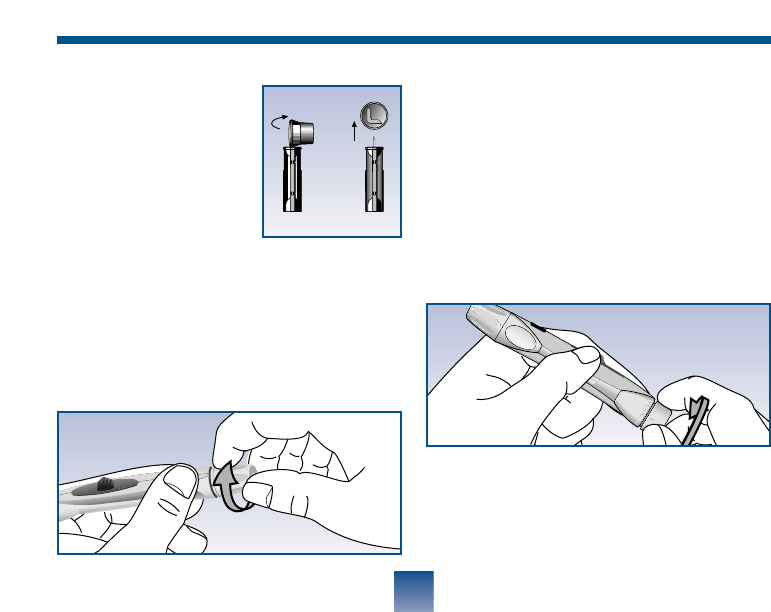
23
Step 2: Adjust Puncture Depth.
Twist the depth adjustment knob
located at the end of the Penlet™Plus
Sampler to desired puncture setting.
Smaller bumps are for shallower punc-
tures, while larger bumps are used for
deeper punctures.
Gently twist off the
lancet’s protective
disk. Make two full
turns to ensure that
the lancet separates
from the protective
disk.
Optional: For safe disposal, save protective
disk to cover lancet after use. See Step 6 option.
Replace the Penlet™Plus Cap. Turn the
cap clockwise until it is snug but not
overly tight.
24
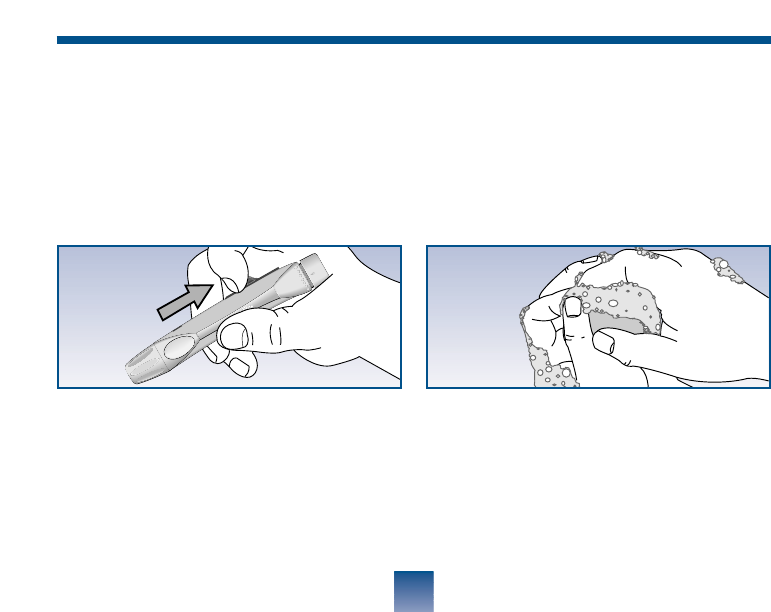
Step 3: Cock the Penlet™Plus Sampler.
Slide the ejection/cocking control back
until you hear a click. If it does not click,
the Penlet Plus Sampler may have been
cocked when the lancet was inserted.
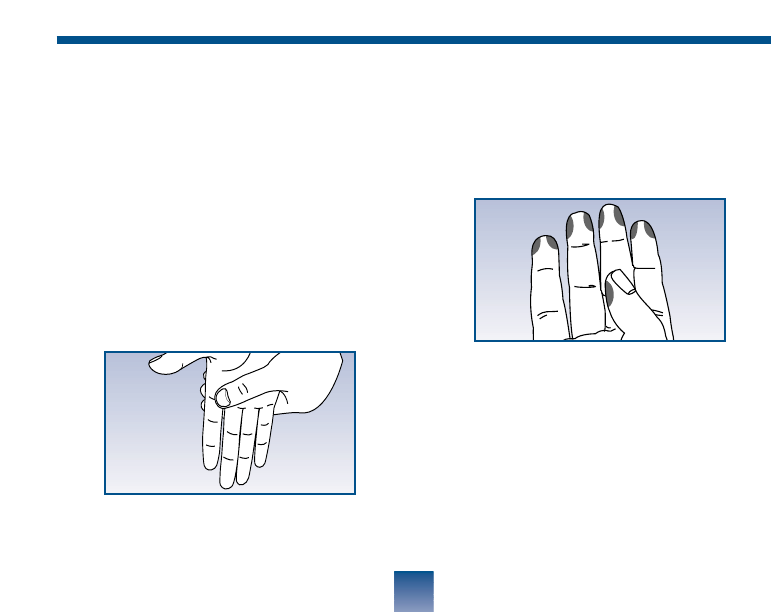
Step 4: Wash Your Hands.
Wash your hands with soap and warm
water. Warm water stimulates blood
flow to the fingers. Rinse and dry
hands thoroughly.
25
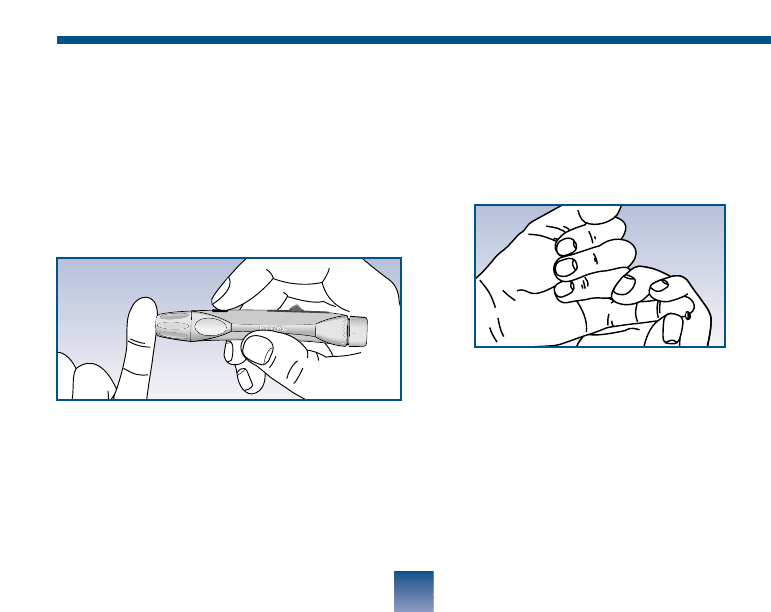
•Choose a spot on the side of a different
finger each time you test. Repeated
punctures in the same spot may cause
soreness and calluses.
Step 5: Get a Drop of Blood.
Helpful tips:
•To increase blood flow to your finger-
tips, massage the hand from the wrist
to the fingertip two or three times
without touching the puncture site.
•Hang your arm down at your side for
10 to 15 seconds before pricking
your finger.
26
Gently massage your finger to obtain
the required blood volume. Proceed
with your blood glucose test (see
“Step-
by-Step Test Procedure”, page 29).
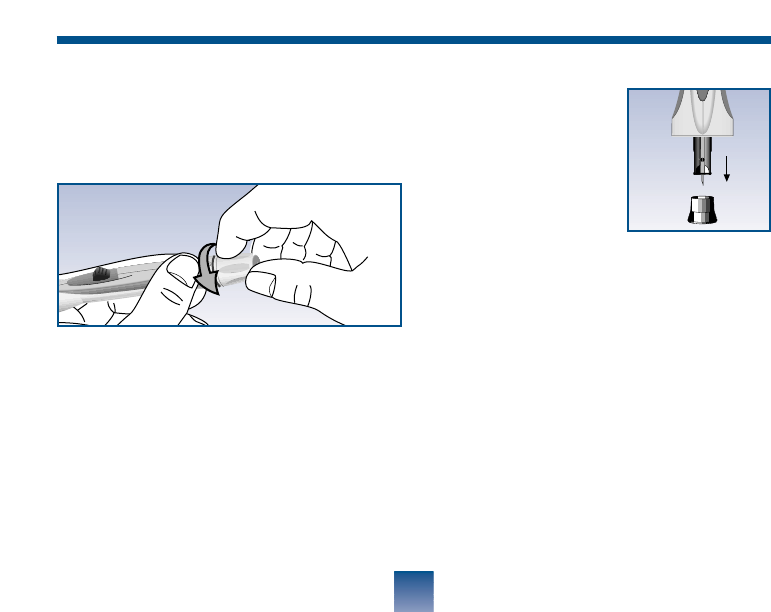
Hold the Penlet™Plus Sampler firmly
against the side of your finger with the
cap resting on your finger. (Greater
pressure of the device against the finger
will cause a deeper puncture.) Press the
release button.
27
Optional: To replace
the protective disk on
the lancet, place the disk
on a hard surface and
push the exposed tip
into the protective disk.
Caution: Always use caution when
removing the lancet.
Step 6: Remove the Lancet.
To remove the Penlet™Plus Cap, twist
the cap counterclockwise.
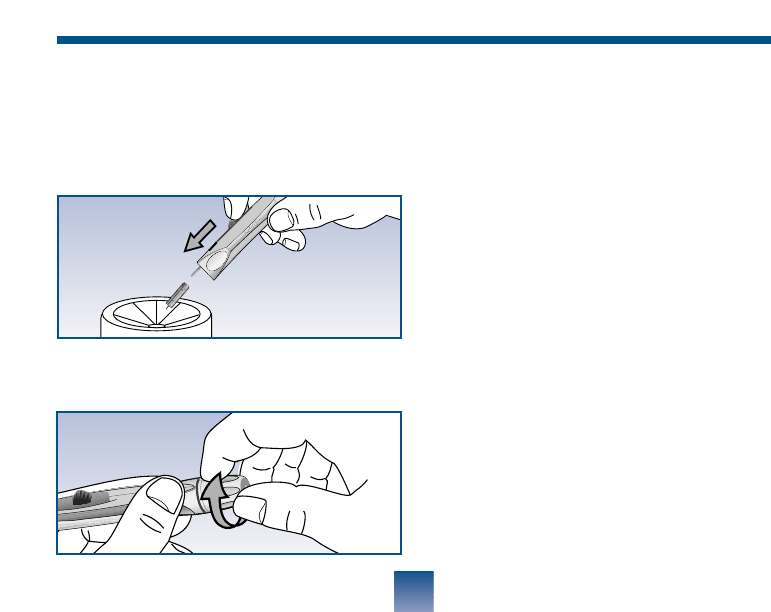
28
Return the ejection/cocking control to
the middle position. Replace the cap.
Point the lancet down and away from you.
Push forward on the ejection/cocking
control and eject the lancet directly into an
appropriate container for sharp objects.
CLEANING THE PENLET™PLUS
SAMPLER
•Clean the Penlet Plus Sampler with
soap and water as needed.
•To disinfect the Penlet Plus Sampler
and cap, prepare a disinfectant solu-
tion of one part household bleach to
10 parts water. Dampen a cloth in this
solution then wipe the Penlet Plus
Sampler thoroughly. Soak only the
cap for at least 30 minutes in the disin-
fectant solution. Rinse the Penlet Plus
Sampler and cap with water and dry
thoroughly.
STEP- BY- STEP TEST
PROCEDURE
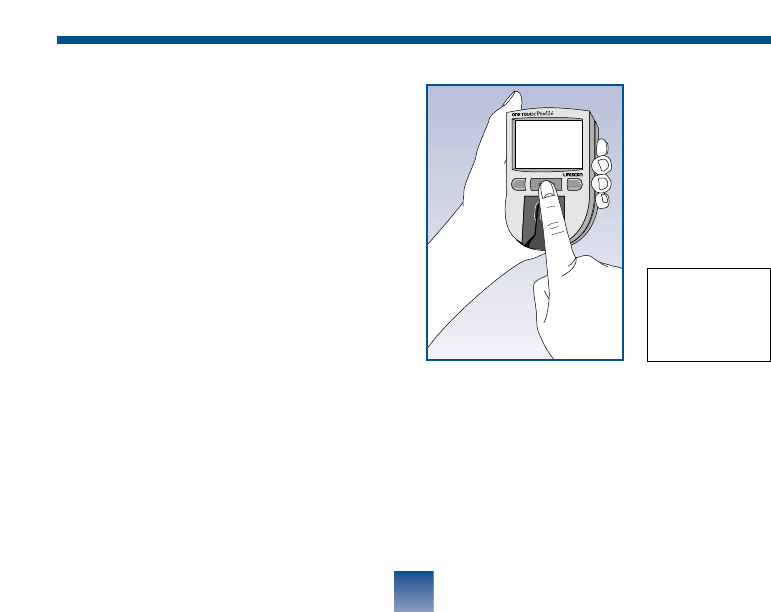
Step 1: Turn on the meter.
Press the power button. A code number
and the date and time will appear. The
code number must match the code
number on the test strip vial. If it does
not, change the meter code number fol-
lowing the instructions on page 11.
29
MC
CODE 10
8:00AM 1/06/00
CODE 10
8:00AM 1/06/00
WAIT
PLEASE
APPLY SAMPLE
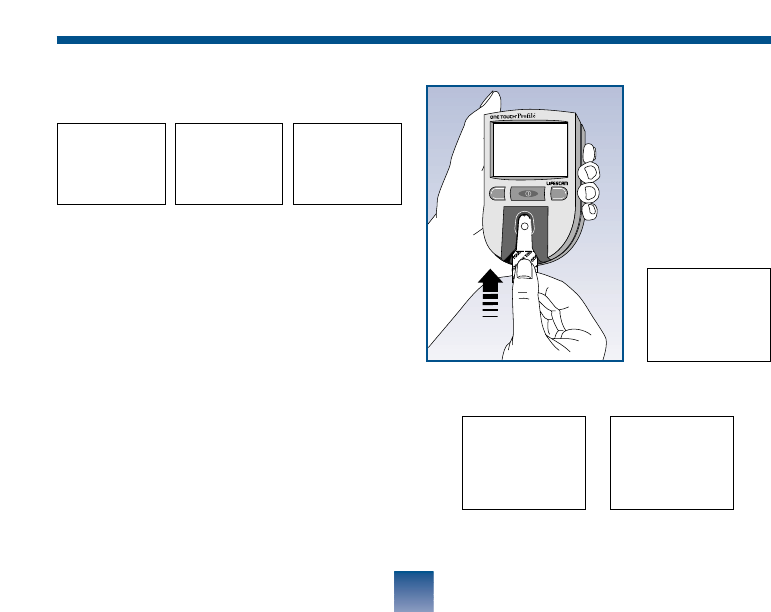
Step 2: Insert a test strip.
Next, INSERT CODE 10 (for exam-
ple) STRIP appears. Slide a test strip
into the strip holder, notched end first,
with the test spot facing up. Make sure
you push the test strip in all the way
until it stops. After WAIT PLEASE, the
meter shows APPLY SAMPLE. You
then have 5 minutes to apply blood to
the test spot, otherwise the meter auto-
matically turns off.
30
Example
MC
INSERT
INSERT CODE 10 STRIP
Many times, the meter can detect if there
is not enough blood and will show
but you should also look at the test strip
to make sure.
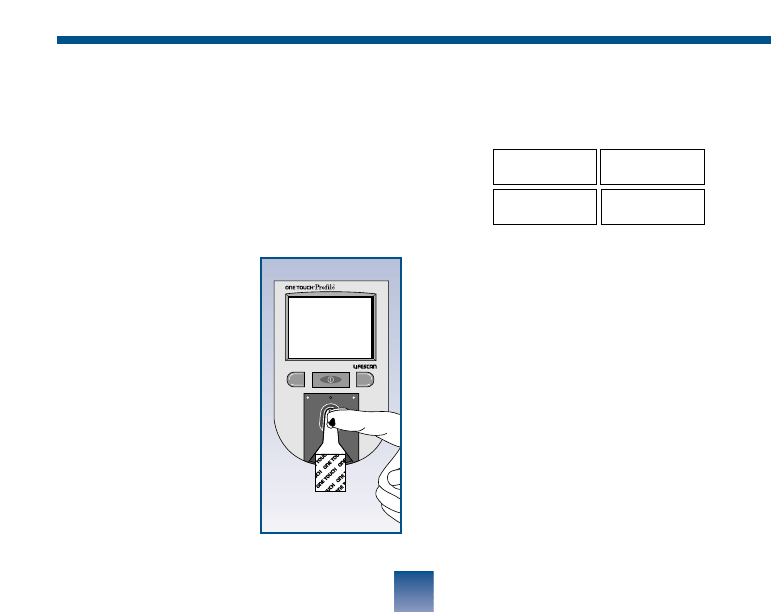
Step 3: Apply blood to the test spot
Apply blood to the test spot so as to cover
it completely with a round drop. It is very
important that enough blood is applied.
Do not:
• Smear blood onto
the test spot.
• Apply a second
drop after the test
begins.
• Move the test strip
as you apply blood.
• Remove the test
strip from the meter
to apply blood.
31
CM
APPLY
NOT
BLOOD
ENOUGH
RETEST
32
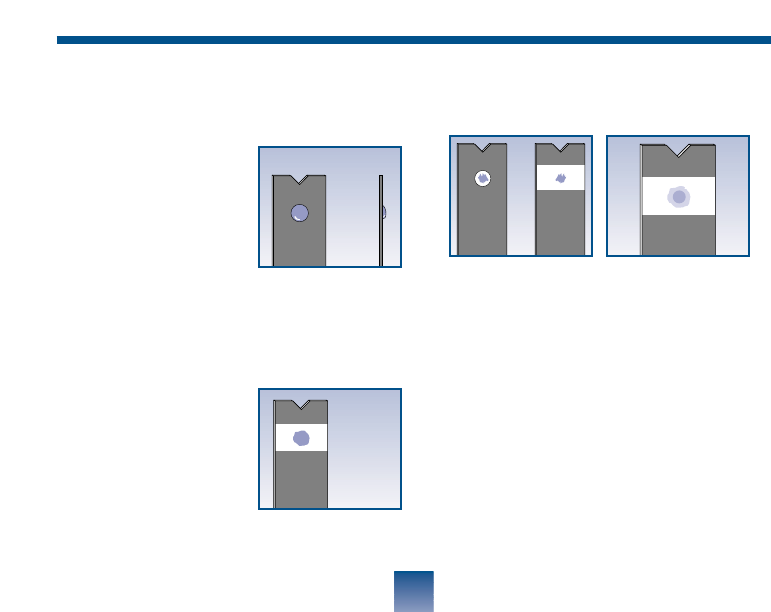
Checking the amount of blood on the
test strip.
•
Remove the test
strip from the meter
and look at the test
spot. It should still
have a wet shiny
drop that complete-
ly covers the circle. If the blood sample
has a dull, dry appearance, you may not
have applied enough blood or you may
have smeared it.
•
Look at the back of
the strip. You should
see a full dark circle.
If there are any
white patches or streaks as shown in illus-
trations you may have smeared the blood
or the drop was too small.
• In either case, you have an inaccurate-
ly low result. Repeat test with a new
test strip.
Front Side
Back
The meter displays results above 600 mg/dL
or 33.3 mmol/L as HI DANGER. A
result that reads HI DANGER means
very high blood glucose (severe
hyperglycemia).
33
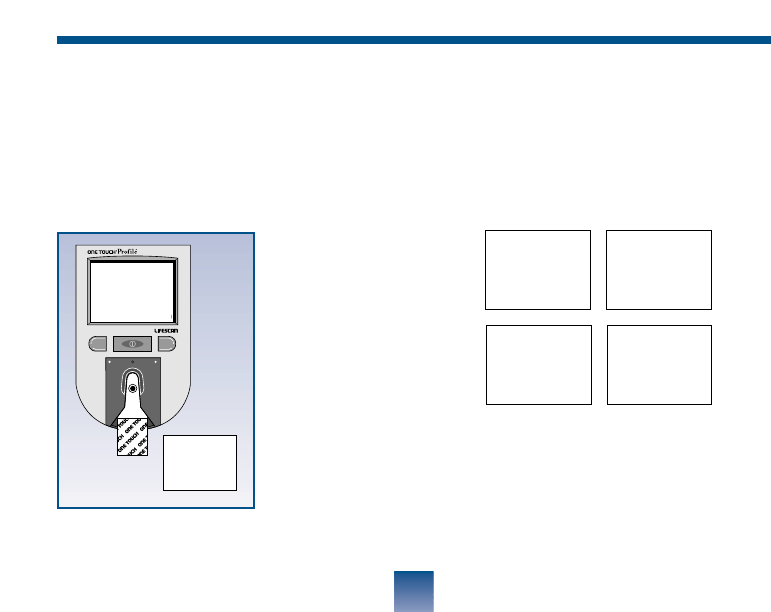
Accurate results in 45 seconds.
The meter then counts down from 45
to 0 seconds, beeps, and displays your
result. Remove the test strip only after
the result is displayed.
CM
106
mg/dL
8:01AM 1/06/00
5,9mmol/L
HImg/dL
8:01 AM 1/06/00
HImg/dL
CALL.DR.
TEST KETONES
HImmol/L
DANGER
DANGER
8:01 AM 1/06/00
HImmol/L
CALL.DR.
CHECK KETONES
8:01AM 1/06/00
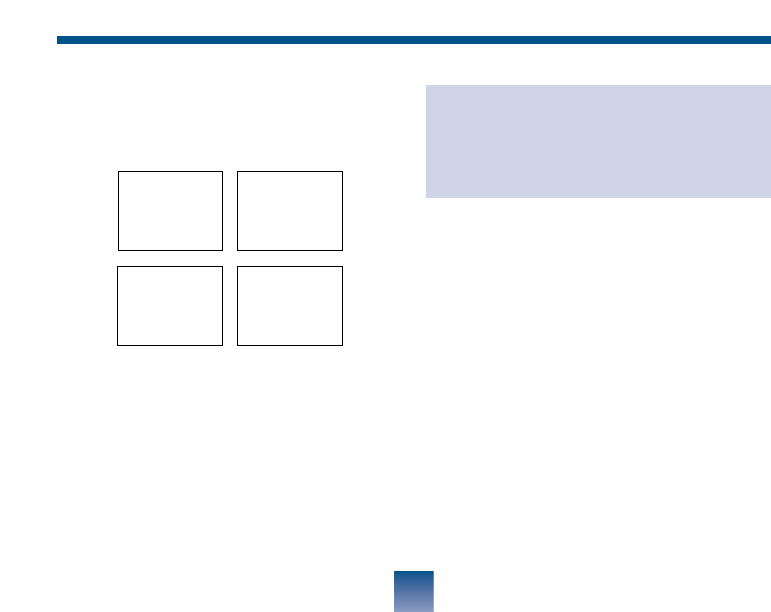
Test results below 60 mg/dL or
3.3 mmol/L mean your blood glucose
is low (hypoglycemia).
IMPORTANT: If you get a HI DAN-
GER result or a result below 60 mg/dL
or 3.3 mmol/L and your test result does
not reflect how you feel, follow the
guidelines on pages 16-20 to ensure
testing accuracy. Then repeat the test
using a new test strip.
Record your test result in your logbook.
You may also want to add event labels
or insulin information. Instructions on
how to do this are provided on pages
35-47.
Press the power button to turn off
the meter.
34
Contact your healthcare professional
immediately if you continue to get
HI DANGER test results or results
below 60 mg/dL or 3.3 mmol/L.
60mg/dL
DO YOU
NEED A SNACK
3,3mmol/L
DO YOU
NEED A SNACK
60mg/dL
8:01AM 1/06/00
3,3mmol/L
8:01AM 1/06/00

EVENT LABELLING
Immediately after testing your blood,
you may want to mark your glucose
readings with event labels. The
One Touch™ Profile™meter has 15 sepa-
rate event labels.
35
•FASTING •PRE BREAKFAST
•AFTER BREAKFAST •PRE NOON MEAL
•AFTER NOON MEAL •PRE DINNER
•AFTER DINNER •DIFFERENT FOOD
•BEDTIME •DURING NIGHT
•PRE EXERCISE •AFTER EXERCISE
•ILLNESS •HYPOGLYCEMIA
•OTHER
You can link an event label to your
blood glucose result immediately after
testing or later when reviewing the tests
stored in your meter’s memory.
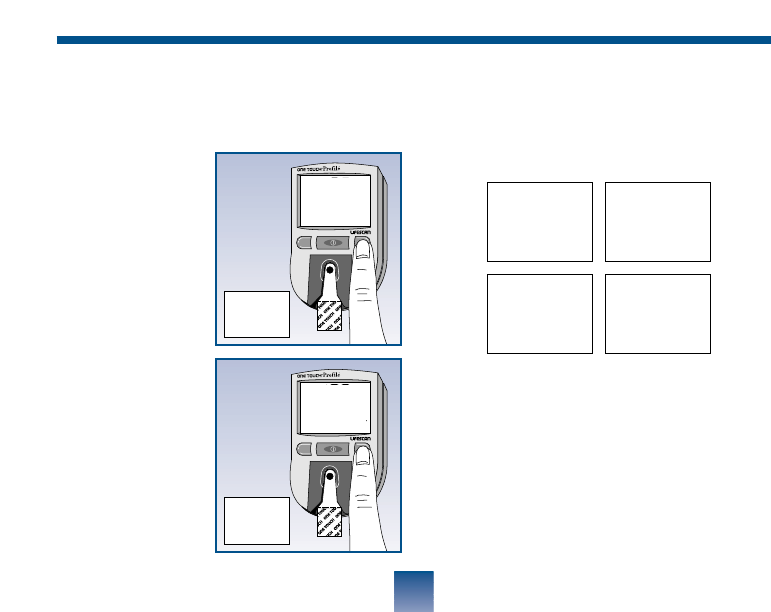
It will appear on the meter display with
your test result, alternating with the
time and date.
36
To select an event label, press the C but-
ton while the blood glucose test result is
still showing on
the meter dis-
play. Each time
you press the C
button, a new
event label will
appear on the
display. Hold
the C button
down to move
more rapidly
through the list.
When you stop,
the event label is
set and stored in
memory.
MC
MC
130
mg/dL
AFTER BREAKFAST
7,2
mmol/L
AFTER BREAKFAST
130
mg/dL
PRE NOON MEAL
7,2
mmol/L
PRE NOON MEAL
130mg/dL
PRE NOON MEAL
7,2mmol/L
PRE NOON MEAL
7,2mmol/L
11:00AM 1/06/00
130mg/dL
11:00AM 1/06/00
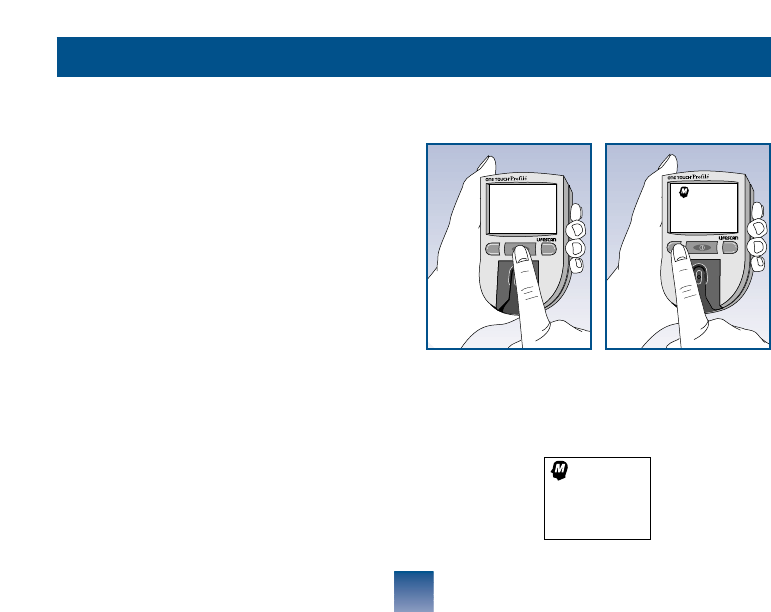
ENTERING THE MEMORY
Turn on the meter. Press the M button
to enter the meter memory.
The word MEMORY will appear briefly.
MEMORY
MC
The One Touch™Profile™Meter stores
up to 250 test results with date and
time. Event labels and insulin records
are also stored. When the memory is
full, the oldest record is dropped as a
new one is added.
However, if you have used the meter at
least once in the past 14 days, the aver-
age of your blood glucose test results
over the past 14 days will appear.
Check strip and control solution tests
are not included.
37
USING THE METER MEMORY
MC
INSERT MEMORY
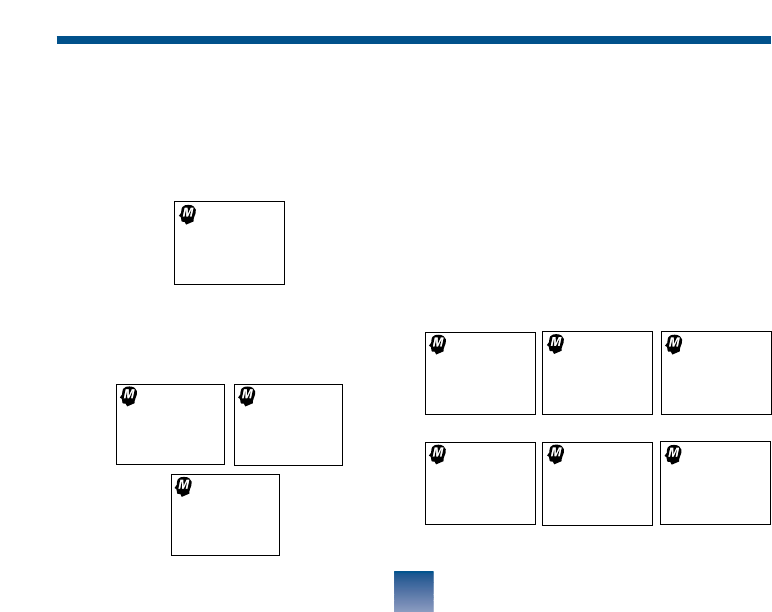
The very first time you turn on your
meter and press the M button, the fol-
lowing message will appear, showing that
there are no results stored in the memory:
RECALLING RESULTS
Turn on the meter. Press the M button
to enter the memory. Press the M button
again and again to see each of your
blood glucose, check strip, control
solution and insulin records. The
records appear in order, the most recent
being shown first.
38
Now press and hold the C button to
see how many tests are included in
the average. 106mg/dL
✓OK
8:01AM 1/06/00
100mg/dL
CONTRL
7:52AM 1/06/00
80mg/dL
7:40AM 1/06/00
5,9mmol/L
✓OK
8:01AM 1/06/00
5,6mmol/L
CONTRL
7:52AM 1/06/00
4,4mmol/L
7:40AM 1/06/00
120mg/dL
AVG.
14 DAY
6.7mmol/L
AVG.
14 DAY
38
TESTS
14 DAY
NODATA
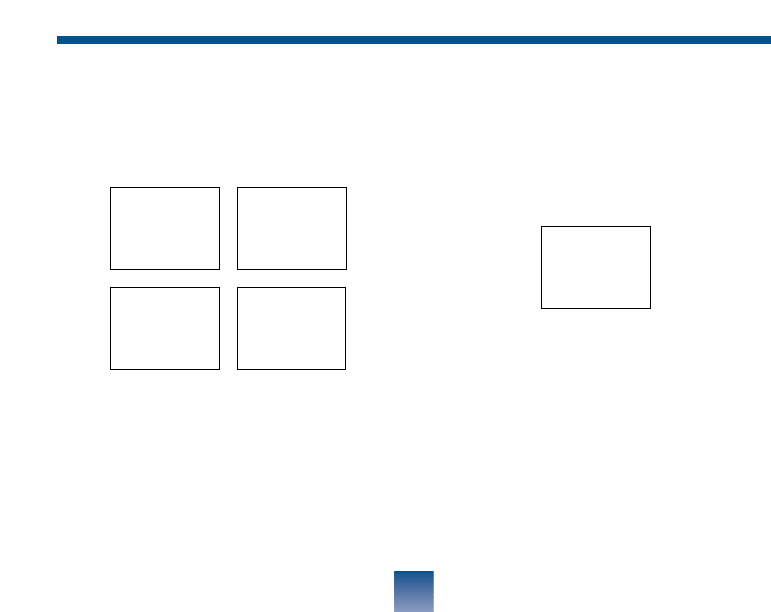
You can change or add event labels or
insulin information stored in memory
while they are displayed on the meter.
To delete an insulin record, simply
select ‘00’ for the units.
See pages 35 on event labelling and
pages 45-47 on the insulin prompt and
insulin programming.
45UNITS
INTERM
8:05AM 1/06/00
39
Any event labels added to blood glucose
tests will alternate with the time and
date when shown on the meter.
130mg/dL
11:00AM 1/06/00
130mg/dL
PRE NOON MEAL
7,2mmol/L
11:00AM 1/06/00
7,2mmol/L
PRE NOON MEAL
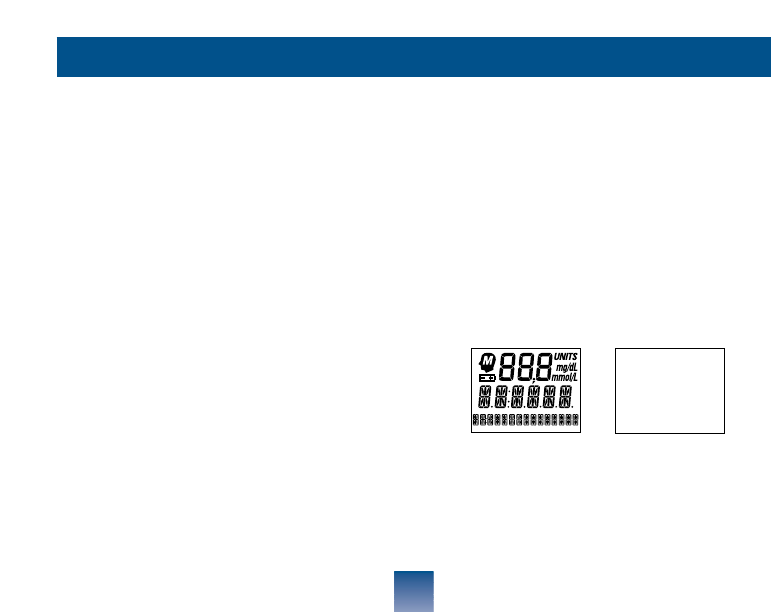
SET-UP
OPTIONS MODE
You can change, or in some cases turn off,
11 features of your One Touch™Profile™
Meter to suit your individual needs.
• Beep prompts
•Time
• Date
• Event averaging
• Insulin prompt
• Insulin programming
• Display language
• Time format
• Date format
• Unit of measure
• Decimal separator
ENTERING THE SET-UP
(OPTIONS) MODE.
1. Make sure the meter is off.
2. Press and hold the power button for
about three seconds until the display
begins to flash.
3. Release the power button.
4. The following screens will appear:
40
CHANGING METER SETTINGS
The meter will then automatically pre-
sent the first option screen. The options
map below will help guide you through
the option screens.
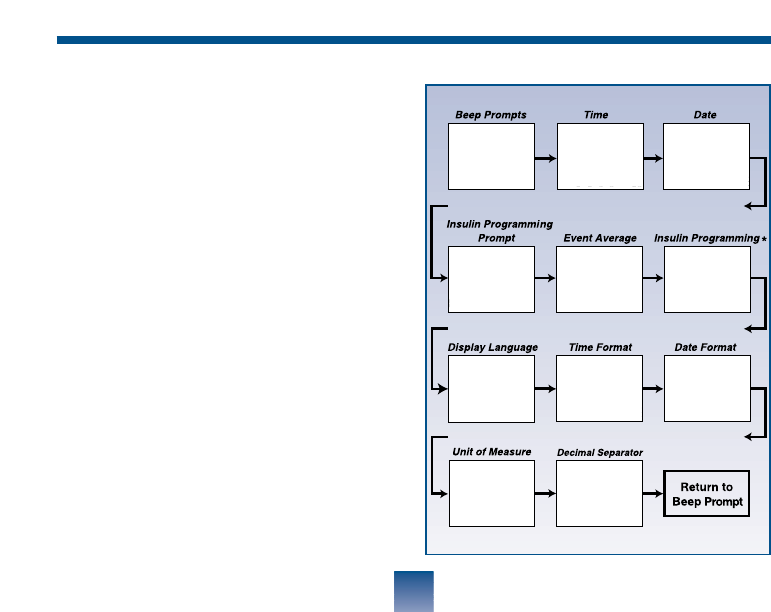
• Use the M button to scroll through
the options or move within an option.
• If you want to change an option set-
ting, use the C button.
• Once you have finished setting an op-
tion, turn the meter off, or press the
M button to move to the next option.
Note: You can exit the options mode at
any time by turning off the meter. If
after two minutes you have not made a
selection, the meter will turn itself off
automatically. All option settings are
saved as they are made.
Entering insulin records in the set-up
mode is not recommended.
41
ON
BEEP
M-MOVE C-CHANGE
10:00AM
M-MOVE C-CHANGE
08.15.00
M-MOVE C-CHANGE
OFF
INSULN
M-MOVE C-CHANGE
OFF
AVG.
M-MOVE C-CHANGE
00
UNITS
SHORT
M-MOVE C-CHANGE
ENGL.
M-MOVE C-CHANGE
AM
/
PM
M-MOVE C-CHANGE
MDY
M-MOVE C-CHANGE
mg/dL
M-MOVE C-CHANGE
0.0
DEC PT
M-MOVE C-CHANGE
BEEP PROMPTS
The One Touch™Profile™Meter uses
beeping tones to signal various steps in
the meter procedures.
The beep option is seen immediately
after entering the set-up
mode. The current set-
ting will automatically
appear on the display.
With the “ON” setting, the meter will
continue to provide beep prompts dur-
ing the test procedure.
ON
BEEP
M-MOVE C-CHANGE
42
Press the C button to
turn off the beep
prompts. The following
display will appear.
You may now turn off the meter or
press the M button to move to the
next option.
OFF
BEEP
M-MOVE C-CHANGE
TIME AND DATE
In the set-up mode, use the M button
to choose the Time option. The current
time will show. Press the C button to
change the time; the hour and AM or
PM will flash. Press the C button again
to advance the hour to the correct set-
ting. Now press the M button and the
minutes will flash. Use the C button to
change the minutes.
Press the M button to
see the new time setting.
To set the date, press the M button in
set-up mode. The current date will
show. Press the C button; the year will
flash. Press the C button again to
change the year to the correct setting.
Now press the M button and the
month will flash. Use the C button to
change the month. Press the M button
and the day will flash. Press the C but-
ton to change the day.
Press the M button
again to display the new
date setting. 6.01.00
M-MOVE C-CHANGE
43
9:00AM
M-MOVE C-CHANGE
EVENT AVERAGING
In the set-up mode, use
the M button to choose
the event averaging
option.
Press the C button to
turn on the event averag-
ing option.
ON
AVG
M-MOVE C-CHANGE
OFF
AVG
M-MOVE C-CHANGE
44
Averages for each event are displayed by
pressing the M button to move from
one event to the next. Averages for up
to 15 separate events, and the 30-day
test average of your blood glucose test
results are shown. At
least one blood glucose
result must have been
linked to an event in the
previous 14 days for it to
appear.
Note: When the time and date are
changed, the calculated 14-day, 30-day,
and event averages may change.
120mg/dL
AVG.
FASTING
6,7mmol/L
AVG.
FASTING
Step 1: Change the insulin type.
When a type of insulin, SHORT for
example, is flashing on the meter,
press the C button until your first type
of insulin
appears on
the display.
00UNITS
SHORT
M-MOVE C-CHANGE
00UNITS
INTERM
M-MOVE C-CHANGE
INSULIN PROMPT
You can add information about your
insulin type and dosage after each blood
glucose test result. In the set-up mode,
use the M button to choose the insulin
prompt option.
The above example will
appear. To turn on the in-
sulin prompt, press the C
button.
From now on, leave the
meter on after completing
a test. Then whenever
you remove the test strip
or check strip, insulin prompts will be
displayed on the meter.
ON
INSULN
M-MOVE C-CHANGE
OFF
INSULN
M-MOVE C-CHANGE
45
Press the M
button to al-
low you to
set the units.
INSULN
FIRST TYPE
00UNITS
SHORT
M-MOVE C-CHANGE
Step 2: Change the insulin units.
When the units area is flashing ‘00’, press
the C button
until your
insulin dose
is displayed.
Press the M button again and follow the
same steps to enter your second type of
insulin and
the dose. 00UNITS
SHORT
M-MOVE C-CHANGE
INSULN
SECOND TYPE
00UNITS
INTERM
M-MOVE C-CHANGE
45UNITS
INTERM
M-MOVE C-CHANGE
INSULIN PROGRAMMING
If you want to enter several insulin records
at a time, or if you forgot to enter your
insulin information after a test, use the
insulin programming option in the meter
set-up.
In the set-up mode, use the M button to
choose the insulin programming option.
Press the C button; the insulin type will
flash. Continue pressing the C button until
your insulin type is displayed. Press the M
button to move to the units area. Use the
C button to enter your insulin units. In the
same way, pressing the M button will allow
you to move to the hour, minutes, year,
month, and day to complete your insulin
record. Use the C button to change the
information in each area.
46
After you have moved through each
area, the complete record will be dis-
played for two seconds, followed by
another insulin programming screen.
You may then press the C button to
enter another insulin record.
47
CARBOHYDRATE COUNTING
You can use the insulin programming
feature to record the number of grams
of carbohydrate in your diet. Follow the
steps for insulin programming, but
select CARBOH instead of an insulin
type. Enter the number of carbohy-
drates, from 1 to 150.
000
CARBOH
M-MOVE C-CHANGE
35
CARBOH
M-MOVE C-CHANGE

The One Touch Profile Meter is pre-set
to prompt you in English. To change
the display language, enter the set-up
mode. Use the M button to choose the
display language option. Press the C
button until the language you want
appears on the display.
48
DISPLAY LANGUAGE
The One Touch™Profile™ Meter can
display messages in 19 languages:
English [ENGL.], Spanish [ESPAN.],
French [FRANC.], Italian [ITALIA],
Hungarian [MAGYAR], Dutch [NEDER.],
Norwegian [NORSK], Polish [POLSKI],
Portuguese [PORT.], Russian [PYCCK.],
Finnish [SUOMI], Swedish [SVENS.],
Turkish [TURKCE], Symbolic [0
X
OO
X
O],
British [BRIT.], Czech [CESKY],
Danish [DANSK], German [DEUTS.],
and Greek [E^^IKA].
DATE FORMAT
The meter is pre-set to display the date
as month-day-year. For example: June
01, 2000 reads as 6-01-00. You can set
the meter to display day-month-year.
To change the date format, enter the
options mode. Use the M button to
choose the date format option. Press the
C button to change the date format.
TIME FORMAT
The meter is pre-set to display the time
in the 12-hour AM/PM format.
However, an alternative 24-hour time
format is available.
To change the time format, enter the
set-up mode. Use the M button to
choose the time format option. Press
the C button to change the time for-
mat.
M.D.Y
M-MOVE C-CHANGE D.M.Y
M-MOVE C-CHANGE
AM/PM
M-MOVE C-CHANGE
49
DECIMAL SEPARATOR
The meter is pre-set to display mil-
limoles per litre (mmol/L) and basal
insulin rate values using a decimal
point. This option allows you to select a
comma instead of a decimal point as a
decimal separator.
0.0
mmol/L
DEC PT
M-MOVE C-CHANGE
0,0
mmol/L
COMMA
M-MOVE C-CHANGE
50
To change the decimal separator, enter
the set-up mode. Use the M button to
choose the decimal separator option.
Press the C button to choose the deci-
mal separator.
EXITING THE SET-UP MODE
After you have completed viewing or
changing your option settings, simply
turn the meter off. The meter will auto-
matically exit the set-up mode and turn
itself off after two minutes.
51
UNIT OF MEASURE
The meter is pre-set to display test
results in milligrams per decilitre
(mg/dL). You have the option to select
millimoles per litre (mmol/L).
To change the unit of measure, enter
the set-up mode. Use the M button to
choose the unit of measure option.
Press the C button to change the unit of
measure.
M-MOVE C-CHANGE
mmol/L
M-MOVE C-CHANGE
mg/dL
The display messages that appear on your One Touch™Profile™Meter will guide you
through testing procedures, alert you to any problems as they occur, and give you informa-
tion about test results stored in the meter’s memory. This section provides you with a com-
plete listing of the display messages, what they mean, and what to do if there is a problem.
TEST PROCEDURE MESSAGES
CODE 10 The meter is first turned on. The code number (1-16) on the
(for example) meter must match the code number on the test strip vial.
7:26 AM 6 01 00
INSERT The meter is ready to perform a blood, check strip, or control
CODE 10 (for example) solution test.
STRIP
WAIT The meter is performing internal checks.
PLEASE
APPLY The meter is ready to receive a blood or control solution sample.
SAMPLE If performing a check strip test, this is your signal to remove the check
strip (purple side up) from the meter.
52
SOLVING PROBLEMS
MESSAGE APPEARS WHEN

45. . . . 0
106 MG/DL or 5.9 MMOL/L A blood test has been completed. This indicates a blood glucose
(for example) resultwhen the meter is set for mg/dL or for mmol/L.
8:01 AM 6-01-00
100 MG/DL or 5.6 MMOL/L
(for example)
CONTRL
7:52 AM 6-01-00
INSERT
SIDE 2
80 MG/DL or 4.4 MMOL/L
(for example)
✓OK
7:40 AM 6-01-00
53
A control solution test has been completed. If you have just
performed a blood glucose test, this means that the blood
sample was too small and the meter read it as control solu-
tion. Repeat the test with a new test strip.
You are performing a check strip test. Turn the check strip
over and insert Side 2.
The meter is counting down from 45 seconds to 0.
The check strip test result falls into the acceptable range which is
printed on the back of your meter.
MESSAGE APPEARS WHEN
60 MG/DL or 3.3 MMOL/L
(for example)
8:01 AM 6-01-00
alternating with
60 MG/DL or 3.3 MMOL/L
(for example)
DO YOU NEED A SNACK
240 MG/DL or 13.3 MMOL/L
(for example)
8:01 AM 6-01-00
alternating with
240 MG/DL or 13.3 MMOL/L
CHECK
KETONES
54
MESSAGE APPEARS WHEN
Your blood glucose test result is 60 mg/dL (3.3 mmol/L).The
message DO YOU NEED A SNACK appears when your
blood glucose test is 60 mg/dL (3.3 mmol/L) or below, possi-
bly indicating hypoglycaemia, you may need food immediately.
Your blood glucose test result is 240 mg/dL (13.3 mmol/L).
The message
CHECK KETONES appears when your blood
glucose test is above
240 mg/dL (13.3 mmol/L)
and below
600 mg/dL (33.3 mmol/L).
You may need to check your urine for ketones.
55
MESSAGE APPEARS WHEN
HI MG/DL or HI MMOL/L
DANGER
8:01 AM 6-01-00
alternating with
HI MG/DL or HI MMOL/L
CALL. DR.
TEST KETONES
Your blood glucose test result is 600 mg/dL (33.3 mmol/L).
This level is severe hyperglycemia. Contact your doctor
immediately.
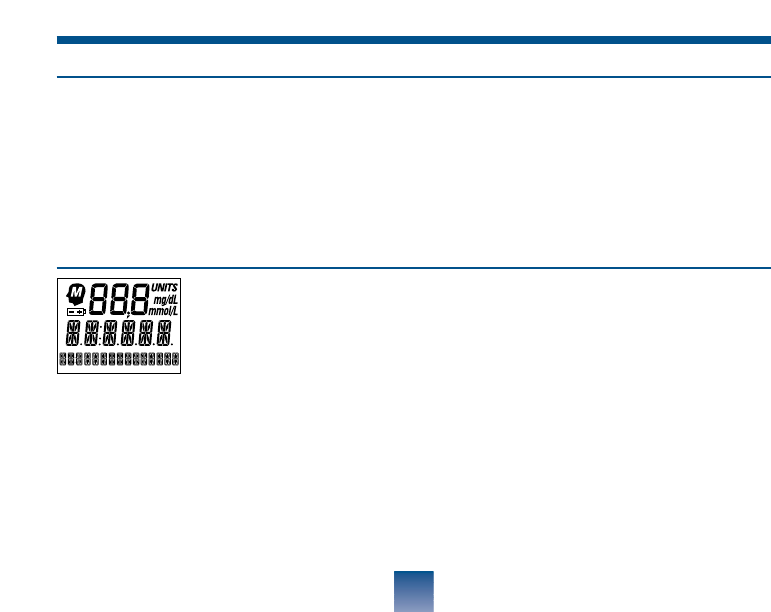
Appears briefly when the meter is turned on. You can see that
all of the display segments are working properly.
When any of the following messages appear, there is a problem with your One Touch™
Profile™Meter or the way in which you are performing a test. In most cases, problems
are easy to fix. If you still have trouble, call your authorized LifeScan representative.
ERROR MESSAGES
PROBLEM
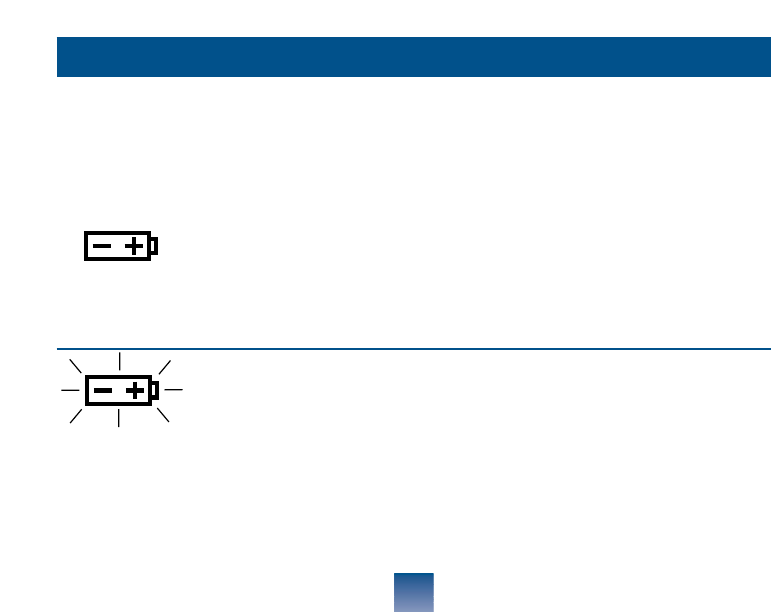
When this symbol appears and
stays on the screen, it means the
batteries are getting low. This
symbol will remain on the dis-
play while the meter is on until
the batteries are replaced.
When this symbol is flashing,
the batteries are too low.
WHAT TO DO
Test results will still be accurate, but
replace the batteries as soon as possible.
Replace the batteries immediately.
The meter will not operate.
MESSAGE
56

57
PROBLEM
1. There is dirt, blood, or lint
on the test area.
2. Your hand or an object cov-
ered the test area during testing.
3. The meter was used in very
bright light.
The test strip was inserted
before the word INSERT
appeared on the display.
If the word CONTRL appears
after a blood test, your blood
sample was too small, smeared,
or another drop was added after
the test began.
WHAT TO DO
1. Clean the test area according to
instructions.
2. Repeat the test. Keep test area
clear.
3. Move the meter away from the
light source. Repeat the test with a
new test strip.
Remove the strip. Wait for the word
INSERT before inserting test strip.
Repeat the test with a new test strip
and apply a larger drop of blood.
MESSAGE
REMOVE
STRIP
CLEAN
TEST
AREA
100 MG/DL or
5.6 MMOL/L
(for example)
CONTRL
8:01AM 6-01-00

58
PROBLEM
The sample was applied before
the words APPLY SAMPLE
appeared.
1. The test strip moved during
the test.
2. The test strip was not insert-
ed correctly.
3. The test strip was removed
before the test was completed.
4. There was not enough blood
on the test strip.
5. The meter was used in very
bright light.
WHAT TO DO
Repeat the test with a new test strip.
1. Repeat the test with a new
test strip.
2. Repeat the test with a new
test strip.
3. Repeat the test with a new test
strip.
4. Repeat the test with a new
test strip.
5. Move the meter away from the
light source. Repeat the test with a
new test strip.
MESSAGE
ERROR 1
RETEST
ERROR 2
RETEST

59
PROBLEM
6. The check strip procedure
was incorrect.
7. The meter may not be
operating correctly.
1. The blood or control solu-
tion sample was too small or
smeared.
2. Your hand or an object cov-
ered the test area while the
meter was turned on.
3. The test strip was not insert-
ed far enough into the test strip
holder.
WHAT TO DO
6. Repeat the check strip test.
7. Call your authorized LifeScan
representative.
1. Repeat the test with a new test
strip and a large, shiny drop of blood
or control solution.
2. Repeat the test with a new test
strip. Keep the meter’s test area clear.
3. Repeat the test, pushing the test
strip all the way into the test strip
holder.
MESSAGE
NOT
ENOUGH
BLOOD
RETEST

60
PROBLEM
1. If appearing when you turn
your meter on, your meter may
have an electronic problem.
2. If appearing at the end of a
test, your meter may have been
moved while applying blood or
during the test process.
3. If appearing during the test,
the strip has been removed at
the WAIT PLEASE screen.
The check strip test result is
outside the acceptable range.
WHAT TO DO
1. Call your authorized LifeScan
representative.
2. Repeat the test, try not to move
the meter.
3. Repeat the test with the new
test strip.
Clean the meter and check strip if
necessary.
Repeat the test.
MESSAGE
NOT OK
58 MG/DL or
3,2 MMOL/L
(for example)
✓NOT OK
7:40 AM
6-01-00
61
PROBLEM
The last check strip test was
outside the acceptable range
and an acceptable repeat test
was not performed.
The last test failed after the
countdown started.
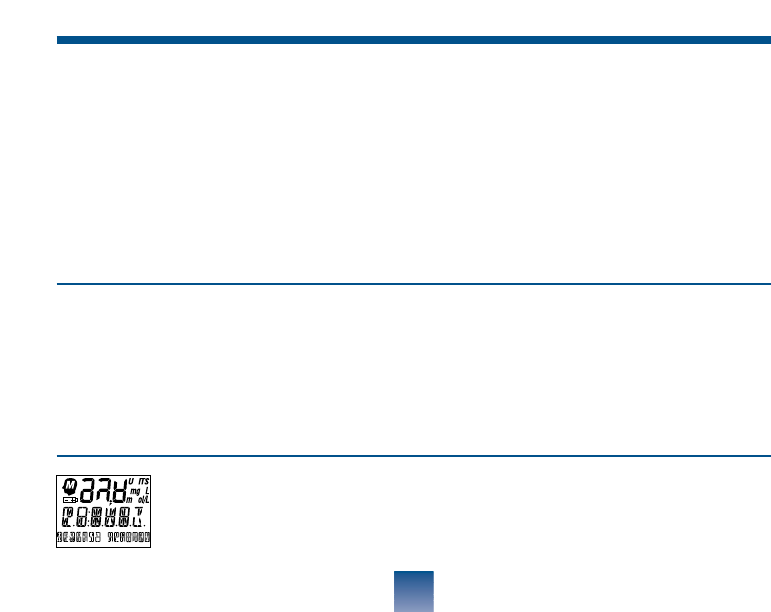
The meter has lost some
important information,
including the code number.
Some parts of the display are
not working.
WHAT TO DO
Repeat the checkstrip test.
Repeat the test.
Use the C button to reset the meter code
to match the code on the test strip vial.
You should also check all of your meter
option settings to be sure they are cor-
rect. If this continues to happen, there
may be a problem with your meter. Call
your authorized LifeScan representative.
Call your authorized LifeScan represen-
tative.
MESSAGE
REDO✓
RETEST
RESET CODE

To keep your One Touch™Profile™
Blood Glucose Meter in good operating
condition, follow these simple rules:
• Keep the test strip holder and test area
clean.
• Keep your meter dry. If you acciden-
tally get water or other liquids inside
the meter, check the meter by doing
check strip tests (see page 12) and
control solution tests (see page 16) to
be sure it is operating properly. Avoid
exposing your meter to extremes in
temperature or humidity. For exam-
ple, do not leave it in your car.
• If you drop the meter make sure the
test strip holder is still securely in
place. Check the meter by doing
check strip and control solution tests
to be sure your meter is working
properly.
• Do not take the meter apart. Sensitive
parts could be damaged, causing false
results. Taking the meter apart will
void the warranty.
• Do not clean the meter with alcohol,
as this will damage the meter.
62
TAKING CARE OF YOUR METER
CAUTION:
• Do not get water inside the meter.
• Do not immerse the meter or
hold if under running water.
CLEANING THE METER
DO A DAILY CHECK: Look through
the small hole in the test strip holder to
make sure there is no lint, dirt, or blood
blocking it.
If there is anything blocking the hole, or
if the test area has dirt, lint, or blood on
it, remove the test strip holder and clean
the test area by following the instructions
given below. Then do a check strip test.
Clean the meter and test strip holder:
• At least once each week
• Whenever the test area looks dirty
• Whenever CLEAN TEST AREA
appears on the display.
Clean the meter using these easy steps:
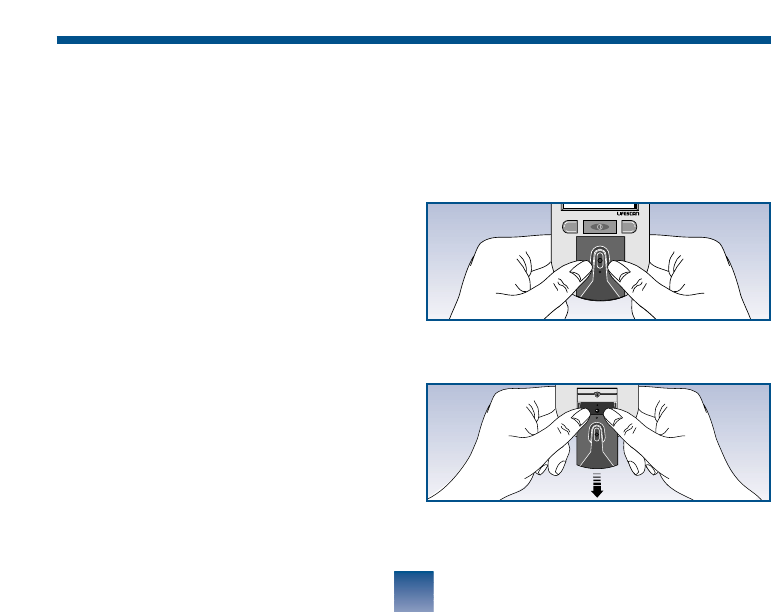
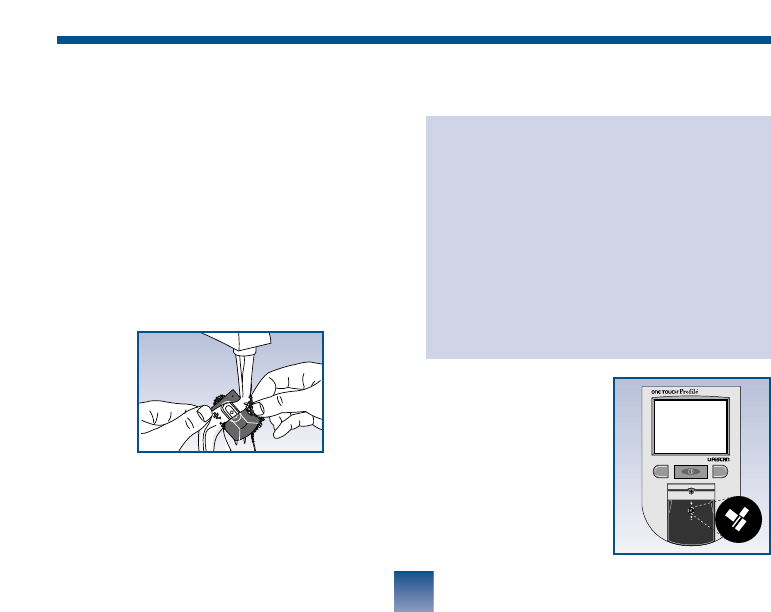
Step 1: Remove the test strip holder
from the meter.
Hold the meter and place your thumbs on
the two raised dots on the test strip holder.
Press down on the raised dots and slide
the test strip holder toward you.
Remove the test strip holder to expose
the test area.
63
CM
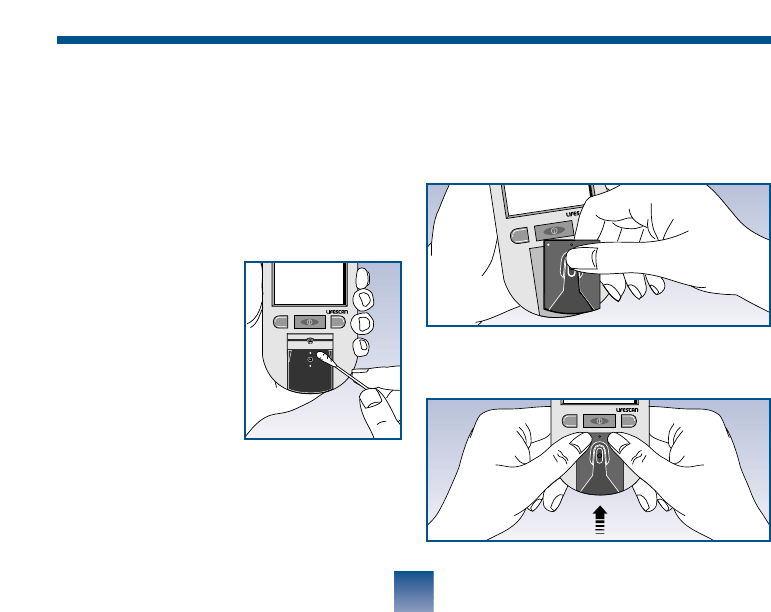
Step 2: Clean the test strip holder.
Wash the test strip holder with soap and
water.
Clean the underside of the test strip hold-
er. Using a cotton swab, clean the small
hole to remove any dirt, blood, or lint.
Rinse well.
Dry completely with a soft cloth or tissue.
Step 3: Clean the test area.
Check the clear,
protective coating
over the test area to
make sure it is not
scratched or dam-
aged.
64
CAUTION:
Do not use the following agents for
cleaning, as they will damage the
meter:
• Alcohol
• Cleansers with ammonia or phenol
• Glass cleaners
• Abrasive cleaners
CM
Rub the test area with a cotton swab or
soft cloth dampened with water to
remove all blood, dirt, or lint from the
test area. If necessary, a mild liquid dish
washing detergent mixed with water
may also be used. Do not apply full-
strength detergent
to the test area. Be
careful not to
scratch the test
area. Dry the test
area with a soft,
dry tissue or cloth.
Remove any lint.
Step 4: Replace the Test Strip Holder.
Hook the bottom of the test strip holder onto
the square notch on the meter.
Press down on the raised dots of the test strip
holder until it snaps firmly into place.
65
CM
C
M
CM
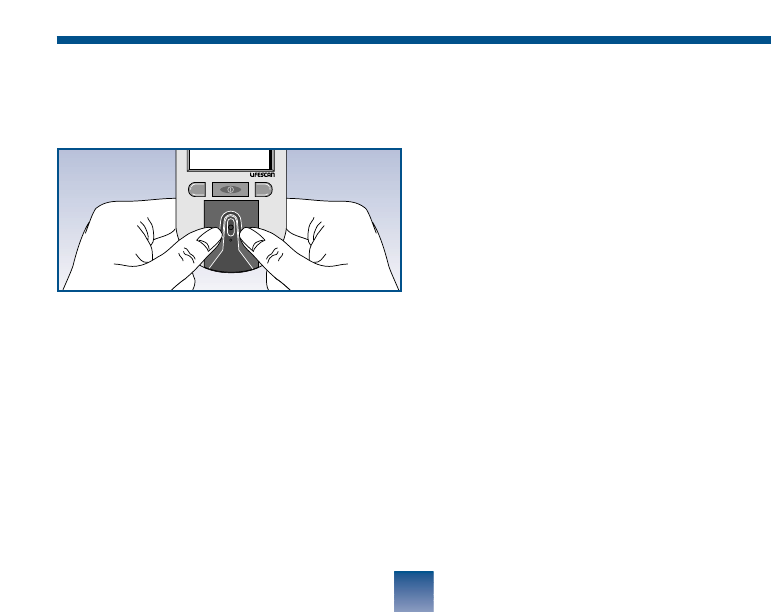
Press forward on the base of the test strip
holder to be sure it is properly in place.
You are now ready to do a check strip
test. If the check strip will not slide into
the test strip holder, repeat Step 4.
REPLACING THE BATTERIES
The One Touch™Profile™Meter comes
with batteries already installed. When
the batteries need to be replaced, use
two AAA, 1.5 volt, alkaline batteries.
The batteries should last about one year
when testing up to 4 times a day. When
the battery symbol appears on the meter
display, the batteries are getting low.
The meter will still provide accurate test
results with low batteries, but they
should be replaced as soon as possible.
66
CM
When
BATTRY`
REPLACE NOW
appears flashing on
the display, the meter will no longer give
results and you must replace the batter-
ies before you can perform another test.
Dead batteries or battery removal will
not affect the information stored in the
meter memory. The time and date will
be saved in the meter for approximately
an hour without the batteries.
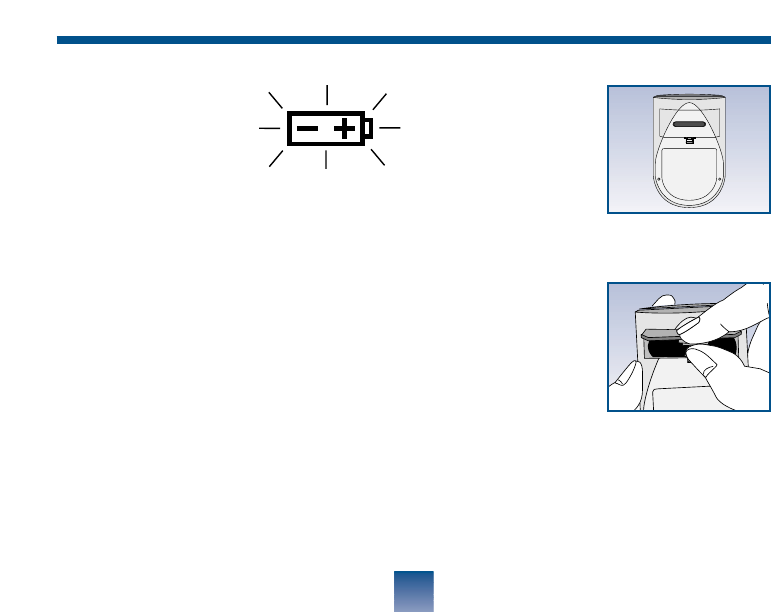
Step 1: Turn the meter over and locate
the battery compartment door.
Make sure the meter is turned off before
you remove the batteries.
Step 2: Remove the
battery compart-
ment door.
Turn the meter
over so that the
front is resting in the palm of your
hand. With your thumb, press upward
on the opening tab
of the battery
compartment door
and lift upward
until it releases
from the clasp.
67
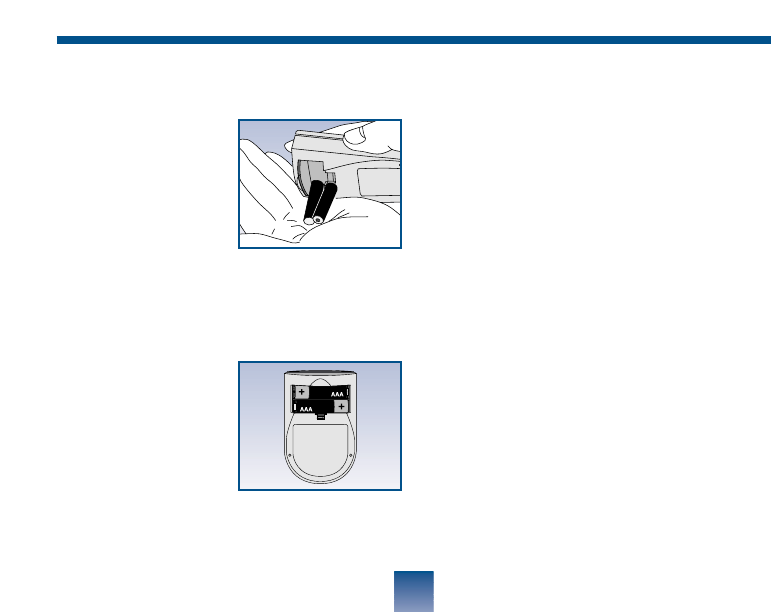
Step 3: Remove the old batteries.
Remove the old
batteries by gently
slapping the meter
against the palm of
your hand. Never
tap the meter
against a hard surface.
Step 4: Insert the new AAA batteries
into the battery compartment.
Make sure that the
plus (+) and minus
(–) signs on the
batteries are cor-
rectly aligned.
To replace the battery compartment door,
insert the tab on the top of the door into
68
the slot in the top of the battery compart-
ment.
Press the opening tab upward toward the
top of the meter.
Lower the battery compartment door
until it snaps shut.
Check to see that your meter is working.
If not, reinstall the batteries.

PERFORMANCE CHARACTERISTICS
Power Supply: 2 x 1.5V. alkaline batteries (AAA)
Battery Life: Approximately one year when testing up to four times a day.
Result Range: 0–600 mg/dL (0–33.3 mmol/L). Values of 600 mg/dL
(33.3 mmol/L) and above displayed as HI.
Display Type: Liquid crystal.
Blood Source: Whole blood (capillary or venous). Do not use samples
that contain fluoride (grey top tubes).
Haematocrit Range: 25–60%.
Dimensions: Length, 10.9 cm. (4.3 inches); Width, 6.6 cm. (2.6 inches);
Height, 3.0 cm. (1.2 inches).
Weight: 127.5 grams (4.5 ounces) with batteries.
Operating Temperatures: 15°–35°C (59°-95°F).
Operating Humidity Range: 0–90% relative humidity (non-condensing).
Altitude: One Touch™Brand Glucose Monitoring Systems, based on One
Touch technology, have been shown to give equivalent perfor-
mance when tested at altitudes up to 2200 meters (7200 feet).
Memory: Up to 250 records with time and date.
Data Port: RS-232 serial communications with special LifeScan cable for
interface with LifeScan InTouch™Diabetes Management System
Software.
69
SPECIFICATIONS

WARRANTY
Five-Year Warranty
If, at any time during the first five years
after purchase, the meter does not work
for any reason (except for obvious abuse),
LifeScan will replace it with a new meter
or equivalent product free of charge.
The warranty policy applies only to the
original purchaser of this meter and
does not include the batteries supplied
with the meter.
Before you return your meter, or any
product, call your authorized LifeScan
representative.
Please complete the warranty service
card and mail it to LifeScan.
The One Touch™Profile™Meter has a
full five-year warranty from the original
date of purchase. Write your date of
purchase here:
The warranty policy does not apply to
the performance of the One Touch
Profile Meter when used with any test
strip other than One Touch™Test
Strips, or when the One Touch Profile
Meter or One Touch Test Strips are
changed or modified in any way.
This warranty is in lieu of all other war-
ranties, express or implied, including
any implied warranty of merchantability
or fitness for a particular purpose.
70

SHORT Short insulin
INTERM Intermediate insulin
LONG Long insulin
XLONG Extra long insulin
30/70 Mixture 30% Short and
70% Intermediate and
50/50 Mixture 50% Short and
50% Intermediate
MIXTUR Mixture other than mixtures
identified
OTHER Other insulin types not
specified
BOLUS Insulin pump setting, insulin
taken over baseline amount
CARBOH Carbohydrate intake
20/80 Mixture 20% Short and
80% Intermediate
40/60 Mixture 40% Short and
60% Intermediate
UNITS WILL ADVANCE ON
THE DISPLAY AS FOLLOWS
BOLUS 0.0 - 20.0 (steps of 0.1)
CARBOH 0 - 150 (steps of 1)
All others 0 - 99 (steps of 1)
71
INSULIN TYPES

1995
The enclosed LifeScan Blood Glucose Meter, as an electro-medical device, has been thoroughly
tested and found to comply with the essential requirements of the ElectroMagnetic
Compatibility Directive (EMC 89/336/EEC), 1995.

For further information on LifeScan products,
please call your authorized LifeScan representative.
© LifeScan, Inc. 2000
Milpitas, California 95035, U.S.A.
U.S. and foreign patents;
other patents pending.
IFD/OB/OTP
Rev.: 02/2000
