Liquid Image XSC-727 Ego User Manual EN 1030
Liquid Image Co. LLC Ego EN 1030
User Manual

Please note before use
1. Check if the Micro SD card of this equipment was installed properly.
2. Check if the memory card has enough free space.
3. The lithium battery must be fully charged before the first use. You can either
use the supplied USB cable and charge it with your computer, or use a wall
charger (sold separately)
4. A Liquid Image charging cable must be used to avoid damage to the camera.
1. 2.
. . .
. . .
. .
Shutter / Select / Wifi Start & Shutdown button LCD Display
3 Camera Lens 4 Mode Light Indicator 5 Power / Mode button
6 Microphone 7 USB Port 8 HDMI Port
9 Micro SD card slot 10 Accessory Knob
10
Accessories:Accessories:
Adjustable Flat Adhesive Mount Waterproof casing Protective face cover
!Liquid Image will update the software regularly, please refer to the
information on our website and download the newest software.
www.liquidimageco.com
2
3
4
7
8
9
15
Part Names:
Basic information
(Shutter / Select / Wifi
Start & Shutdown button)
(Power / Mode button)
Mode button
Shutter
Turn on/off:
Firmware Upgrade Procedure:
The Camera will not function without a Micro SDHC card up to 32GB with a
class 6 or higher rating. Insert Micro SDHC card. Turn on the camera by pressing
the Mode button. The Camera will turn on in the 720p@60fps Mode (Blue LED).
The WiFi signal icon will begin flashing once the WiFi module is available in
about 8 seconds. To turn on the Wifi connection, press and hold the Shutter
button down for 3 seconds or until the WiFi icon becomes solid ( see WiFi
setting section of user manual). To turn off the camera, press and hold the
Mode button for three seconds.
If the camera remains in standby mode for three minutes, it will automatically
power off.
Note: If the WIFI function is on, the function of auto shut down will be inactive.
Copy the firmware file to the root directory of the SD card, outside of the main
directory folders. Then, disconnect the USB cable and the camera will
automatically shut down. Now, with the camera off, press and hold both the
on/off button and the shutter button. Once you hear the camera beep, release
both buttons at the same time.
(Please note that LCD will show UP during the process. After the upgrade finishes, the
camera will shut down automatically.)
!
TipsTips
SOS message
HOT message
When the camera shows SOS, it means the current recording document is
damaged; the user can press any key to repair this document.
LCD display the temperature of the camera is
too high for cooling
temperature of the equipment cannot
be too high
When the shows HOT, it means
and needs to shut down . It won't damage the camera and
is only for reminding the user that the
. The user only needs to reboot the camera after it cools down.
Mode Setting
WIFI wireless WIFI signal icon
Battery shows the battery level
Photo Mode Photo mode or
Continuous photo mode
SD card Icon flashes continuously when
no SD card is recognized
720 mode 720p@60 Frames per second mode
1080 mode 1080p@30 frames per second mode
Mode Switching
720P@60fps recording mode
1080P@30fps recording mode
Photo mode
Pressing the Power / Mode button cycles through the modes in the following
order: 720P 60, 1080P 30, Photo, and Continuous Photo. Press the SHUTTER
and mode buttons at the same time in the 720P/1080P mode will switch to the
PAL / NTSC standard. Press the mode button to switch, and press the SHUTTER
button to save and exit.
Press the SHUTTER button once in the preview mode the camera will start
recording. During the recording process, the blue LED light will flash. Press
again to stop recording the blue LED light will stay .
In the 720P 60 mode, press the ode button briefly to switch to the 1080P 30
mode. In the preview mode, press the SHUTTER button once the camera
will start recording. During the recording process, the green LED light will flash.
Press again to stop recording the green LED light will stay .
In the 1080P 30 mode, press the mode button briefly to switch to the Photo
mode, and the red LED light will be solid.
With the camera in standby mode, if you wish to take a single photo, press the
shutter button briefly. You will hear a beep and see the red LED flash once,
which indicates that a single photo has been taken.
When the camera is turned on, the default mode is 720p@60 frames per second.
This will be indicated by the LED showing solid blue. To switch between the
different modes of the camera, briefly press the mode button.
ing
and
and solid
M
and
and solid
- Blue LED
- Green LED
- red LED
!
TipsTips
Reminder
When the memory card is full, the LCD display will show FUL.
If you wish to format the memory card, please use the following operation:
Insert the memory card into the camera and hold the shutter button. Then,
press the Mode button continuously four times in a row. The LCD will then
show FAT on the screen which indicates that the MicroSD card is being
formatted.
Press MODE
botton
Press MODE
botton
LCD Display
If a Micro SD card is not inserted, and the camera is powered on, the SD card
icon on the right side will flash, as shown in P-01 below. If the Micro SD is
present in the camera, the LCD screen will display as shown in P-02. The display
in the DV mode is as pictured in P-03 below.
P-04
When the battery is low, the LCD display in Video mode will display like picture
P-05. When it is in Camera mode, it will display as shown in P-06. When no bars
remain, it will beep 3 times and the word "LO" flashes on the screen, and the LED
light will flash red. After it stops beeping, the battery icon will begin to flash.
When the battery is about to cut off, the camera will beep 9-12 times. At this
time, the video document that is in the process of recording will be saved before
the power is cut off, and the document will be able to be played normally.
When the USB is used to connect the camera to the computer, the LCD display
will display as shown in P-07. You may access or move the photos and video
files in the camera to the computer. At this time, the battery is also
simultaneously charging.
When an HDMI cable is used to connect to the TV, the LCD display will display as shown
in P-08. The TV will display as shown in P-09.
hen the camera is on, connect it to the TV via the HDMI cable. The camera will play
the first video automatically and stop after this video is completed. Then, press the
shutter button to play the next video, or press the mode button to play the previous
video. If you would like to switch to photo mode, press and hold the mode button for
3 seconds. WHen in photo mode, it will show the first photo automatically. Press the
shutter button to advance to the next photo, or press the mode button to display the
previous photo. To switch back to the video display, press and hold the mode button
for 3 seconds.
The TV screen will show the Digital Video playback icon, the battery symbol,
the video file number/total number of videos, and the playing time/total time.
Picture P-10 is what will be displayed on the TV when connected in photo
viewing mode. It will show the picture file number/ total file number and the
battery symbol.
Only turn the camera off after it has been disconnected from the HDMI cable,
as it will not turn off while still connected to the TV.
hen the camera is connected to both the computer and TV at the same time,
it will override to the MSDC mode, and the LCD screen will display "USB".
While charging, the battery symbol will show the animation
of the battery charging, and the camera will shut down
automatically when it has reached a full charge. If you
wish to use the camera while it is charging, you can press
the shutter button to switch to the 720p mode. Charging
will pause and you will be able to use the camera normally.
While charging, the LCD screen will display as in P-11.
The LCD display shows picture above.
W
W
F/W Upgrade Display When Using Micro SD Card:
Low battery
USB connection mode
HDMI connection mode
Note:
Charging
No SD Card
DV Mode(P-01)
SD Card
DSC Mode(P-02)
SD Card
DV Mode(P-03)
F/W
(P-04)
upgrading
DV Mode DSC Mode
(P-05) (P-06)
USB connect to PC Connect to TV
(P-07) (P-08)
00:0 0:12
00:0 0:12
00:0 0:12
00:0 0:12
00076/000 400076/000 4
Connect to TV - DV Mode(P-09)
00168/001 200168/001 2
Connect to TV - DSC Mode(P-10)
Charging(P-11)
Year setting First two numbers
setting
Next two numbers
setting
Month setting Date setting Clock setting Minute setting
Item Specifications
Insert slot
Base Connection stents
Specification
Video Resolution 1080p @30 frames per second,
720p @60 frames per second.
Video file format H.264 MOV
Audio Yes, Mono
Photo Resolution 12.0 Megapixels
Photo format JPEG
Internal memory 256MB
External memory Micro SDHC Class 6+ up to 32GB
Sensor 3MP sensor
Lens F/3.2
135 degree
Lens focus 0.4m to infinite
Shutter speed 1/2 to 1/8000 second
USB 2.0 High Speed
HDMI Mini HDMI output
Battery Power 1030mAh
WiFi Yes
Field of View
Accessory installation
Screw insert hole
Screw fixed axle
=
Picture of Assembly
Waterproof casing Assembly:Waterproof casing Assembly:
Insert the camera
Hook and
snap closed
Close the water
proof case
Description:
The waterproof housing for the Ego HD can allow you to use the camera in a
variety of environments. The flat adhesive mount connects directly to the
base of the housing and allows you a great amount of versatility and mounting
options.
Power On 1 Beep sound
Button Pressing 1 Beep sound
Wifi activation WIFI icon is solid
720P 60 Video mode Blue light flashes
1080P 30 Video mode Green light flashes
Photo mode Red light flashes once
Continous Photo mode Purple light flashes
Wifi shutdown Wifi icon flashes
Low battery, the battery Red light flashes, short continuous
symbol shows empty beep sounds.
(Sold separately)
User manual
Model:#72 7
NEXT
NEXT NEXT
P-A
The Wifi feature on the camera is off by default, as displayed by the flashing
WiFi icon
To activate the feature, simply hold the shutter button for two seconds,
and you will hear two beeps, and the LCD display will show a solid WiFi symbol.
The WiFi takes 8 seconds to boot, so do not press any buttons during this time.
After the WiFi is activated, press and hold the recording button for two seconds
to shut it off. This procedure will be indicated by a flashing WiFi symbol in the
LCD screen. When the WiFi is activated, it will automatically shut off if you press
the shutter button to begin recording, and will take 8 seconds to complete the
shut-down procedure.
(Note: The WiFi icon will take around 8 seconds after powering on
before it is shown on the LCD screen. Please do not press any buttons until you
see this icon)
(Note: If the WIFI is activated, it will auto switch off if you press shutter button
for recording. And the wifi shutdown process may take around 8 second.)
Wifi setting
Date, time setting
1
2
3
4
Protective Face Cover Camera
+=
Assembled
Warning:
1. Keep the sticking area clean
2.
3.
4.
Please use care to follow the correct installation steps for the waterproof
housing to avoid damage to the camera from immersion.
.
The flat adhesive mount needs to attach to a smooth surface.
Apply the adhesive mount at room temperature.
Let the mount air-dry for 24 hours before use.
Continuous Photo mode
In the photo mode, press the mode button briefly to switch to the Continuous
Photo mode, and the purple LED light will be solid.
With the camera in standby mode (indicated by a solid purple LED) press the
shutter button briefly to activate the continuous shooting mode. You will hear
a beep and see the LED flash every time a photo is recorded. To stop the
continuous shot mode, press the shutter button again briefly, and the LED will
return to a solid state.
- purple LED
With the camera switched off, press the SHUTTER button and press the MODE
button for two seconds to activate the camera, hold the SHUTTER button, and
press the MODE button three times continously to enter the date and time
settings. The sequence of the display is: year-month-day- clock- minute.
The numbers in the LCD screen will flash. To change the numbers press the
mode button, and use the shutter button to confirm your selection.
After you have completed all of your selections for date and time, press the
shutter button and the mode button at the same time to save the settings
and exit.
This manual explains how to safely operate the Ego Sports Camera. Please read
these instructions carefully before using the camera.
6
Waterproof Casing Base Assembly:Waterproof Casing Base Assembly:
Protective Face Cover Assembly:Protective Face Cover Assembly:
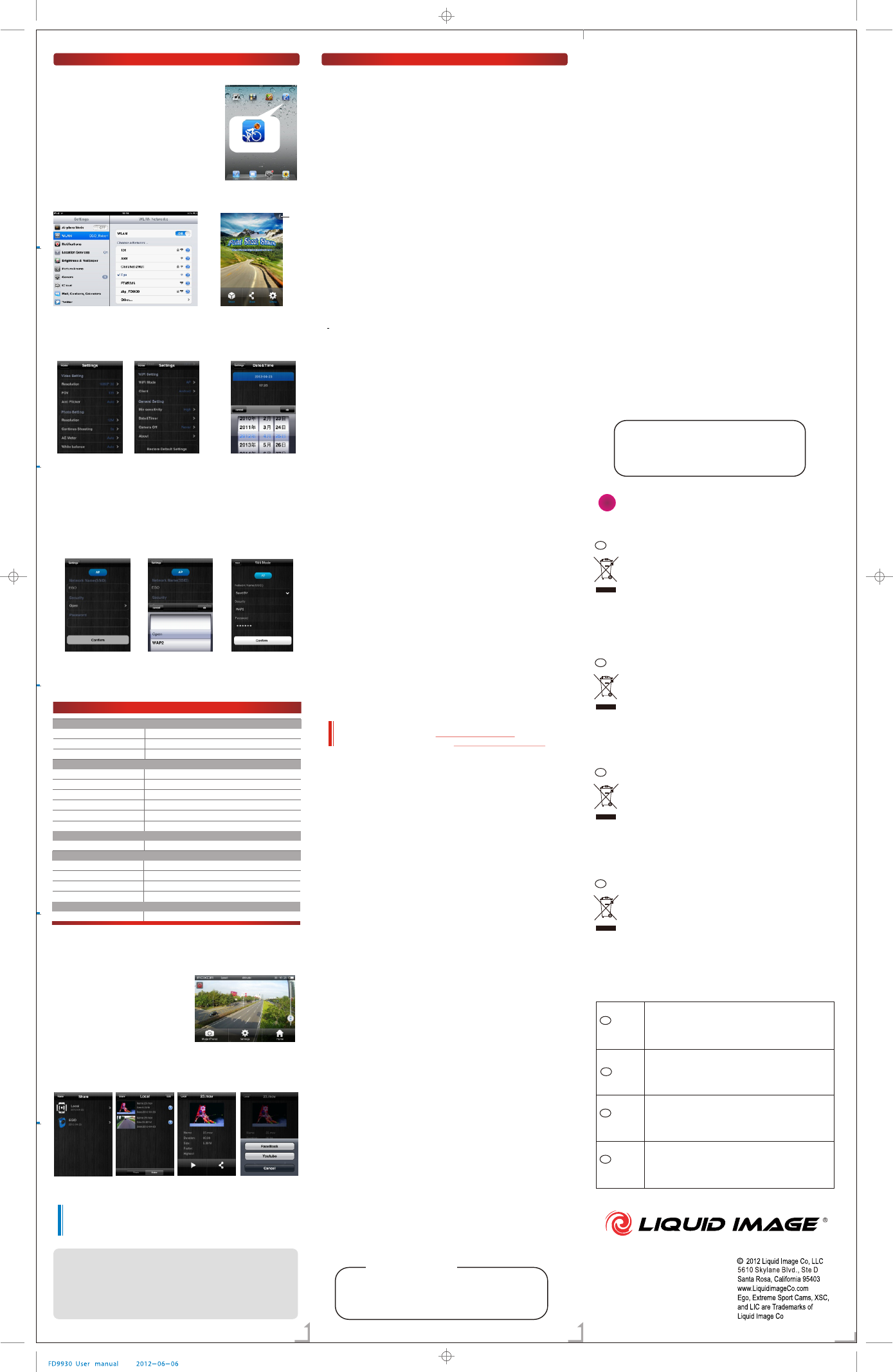
WiFi application
Software installation:
Internet setting:
Active the software:
Setting
WIFI MODE setting
Setting list
Turn on the WiFi to your iOS/Android device and
choose the network named "EGO".
( shown in picture P-B )
Click the Action Connect icon, and activate the
program to enter the software operation.
( as the picture C ).
Click the setting icon to enter the setting list, the user can choose the relative
setting choice. As the picture D E F below
Click the setting "WiFi Mode", and here the user can modify the name of the
SSID. The default SSID for the camera is "EGO". If you would like to set the
password, choose the Security option to select WAP2 password protection.
Then, choose a password, and press finish. The SSID you choose must be
between 1-32 characters without "/" and the password must be between 8-16
characters without "/". The WiFi setting will be activated after the EGO reboots,
and you should see your new SSID name in the list of wireless networks.
(As shown in picture P-G below)
Click the setting of your choice, and it will be applied to the camera immediately.
You can download and install the "Actionconnect"
Application (App) from the Apple Store or Android
marketplace. You will be able to see the icon for
the application as shown in P-A
P-
(P- /P- /P- )
(P- )A
Info
(P-B) (P-C)
Setting list (P-D)Setting list E (P- ) Time Setting F (P- )
SSID Setting ( G)P-
NEXT
Item Specifications
Video Setting
Video Resolution
FOV
Anti-flash
720p @60 fps, 1080p @30 fps
135
Auto, 50Hz, 60Hz
Photo Setting
Photo Resolution
Continuous Photo Mode
AE Meter
White Balance
Contrast
Self Time
12MP, 5MP, 3MP
On, Off
Auto
Auto
Soft / Standard / Hard
On, Off
Wifi Setting
Wifi Mode AP >> Open / WAP2
General Setting
Microphone sensitivity
Date & Time
Camera Auto Off Time
Camera information
High / Medium / Low / Off
Click into date & time setting
Never / 3 min / 10 min / 20 min / 30 min
Camera parameters and version
RESET
Recover default setting OK / Cancel
Shoot
Share
To take a photo, choose the "Shoot" icon. This will activate the "live view
interface" that will allow you to see what the camera sees.
If you enter the "live view interface" and
you see the error message "no camera
lens connection", you must exit and
properly link the camera to your device.
(See application settings)
If you would like to share the files that you have recorded, enter the "Share"
menu where you can access the files. (See photos P-I/J/K below).
Note:
Shoot Mode (P-H)
View the file (P-I) U (P- )pload file K
The conclusion:
Thank you for choosing Liquid Image products! This camera is designed to
be the most versatile and compact camera designed for recording your
favorite outdoor activities. If you have any questions or concerns, please
do not hesitate to contact our customer support team.
More: www.liquidimageco.com
Check whether you have Micro SD inside the camera, Wifi will not function
properly if no Micro SD card present.
Check whether the WiFi icon on the LCD is solid, if the icon is blinking, press
and hold “Record” key for 2s till a long beep is heard, which means the WiFi
on the camera is activated (Note: if you start recording, WiFi will be autom-
atically turned off )
Go to your phone settings and check which WiFi device (SSID) is connected
with your phone, by default, the camera will show as “EGO” in the Phone's
Settings/WiFi/network list (You are able to change the name of your camera
with the "Action connect" application. ), if you see the name “EGO” there,
try to connect with it.
After above steps are executed, enable the Camera WiFi as step 1, connect
the phone to camera as step 2, then start apps and go into “Shoot”, you
should see what the camera sees from the phone.
Firstly go through above troubleshooting and make sure all of them are
properly configured.
if it’s still not working, please try the following steps.
-- Power the camera off and then on.
-- Enable the WiFi by pressing and holding “Record” button till a “Beep” sounded.
-- On the phone, Exit from the app then open it again, on the main menu, go
into “Settings” to see whether you can get data from the camera, and make
sure the WiFi Mode/Client is properly setup.
-- In the apps, back to Home, go into “Shoot”, then you should see what Camera
sees from there.
ing
Nothing needs to be done specially, the message just tell you the camera is
under heavy loading and becomes too hot to operate in its best, it will
automatically stop recording and cool down itself, no need to worry, the
camera will protect itself properly, no damage has happened on your camera.
Check whether there have “FUL” on LCD when trying to record, as it indicates
the memory is full.
Check whether "Hot" is displayed on the LCD which indicates that the
camera is overloaded and needs to cool down.
It could happen when you start the camera, which means some of videos
you previously recorded are corrupted for some reason, if this message
appears, press any button on the camera and the camera will attempt to
repair the corrupted files by itself.
This camera will record 2 videos when you press record button every time,
one video is in the resolution exactly following your selection, either 720p
@60 or 1080p@30, and another video in WQVGA (432 * 240) is used for WiFi
browsing, playback or uploading.
The video format(MOV) taken by the camera is not the core media format
supported by Android, you need to install a Android Media player on your
phone in advance, which you can find a lot from “Google Play”.
Disclaimer:
While every effort has been made to insure that the information in the guide is
accurate and complete, no liability can be accepted for any errors or omissions.
Liquid Image Co reserves the right to change the specifications of the hardware
and software described herein at any time without prior notice.
Liquid Image Co declines all responsibility for damages due to improper use of
this product, failure to adhere to the instructions given in this manual, or
modifications to the camera.
Liquid Image Co makes no warranties and shall not be held responsible for
damages resulting from corrupted or lost data due to a malfunction of the
camera, the software, the memory card, personal computer, peripheral devices,
or for any losses that result from files that could not be recorded, are erased,
destroyed, or damaged in any way due to a problem or a mistake while utilizing
the camera or any of its accessories.
1. If the connection between your Ego camera and iOS/Android devices is not
available, try the following steps:
2. Why I can’t see the live view in the apps “Shoot” menu
3. If the camera is no longer working, try the following steps.
4. What I should do if the Camera shows “Hot” on the LCD
5. Why has? the camera stop recording video or capturing photo.
6. What I should do if the camera shows “Sos” on the LCD
7. Why are there two versions of the videos that I record; in two different
resolutions?
8. Why can't my Android powered phone play the videos properly?
Start the app ( Action Connect ) and go into the “Settings” from apps main
menu, navigate to WiFi Setting/Client, if your phone is iPhone, select
“iPhone” here, if your phone is Android powered, select “Android” here, after
the setup, you need to restart your camera to make the setting activated
and stored on the camera (Note: by default, the camera is using “Android”
protocol, therefore you can omit this step if you are using Android-powered
phone, if you are using Apple device, you need to do this step by only one
time, the setup will be recorded in the camera after you restart it).
Reset the camera by press the “Reset” button, which is located nearby
the Micro SD slot.
Charge the camera with a wall adaptor (Note: if the battery is deeply
exhausted, connecting the camera to the wall adaptor will not wake up it
automatically, in this case, please manually press the “Power” button to wake
up the camera then it will enter into Charging mode.
Products mentioned throughout the manual may be trademarks or registered
trademarks of their respective companies.
For more trouble shooting
Visit our website's help section
Or email our CUSTOMER SUPPORT at
www.LiquidimageCo.com
support@LiquidImageCo.com
FCC Statement
This device complies with Part 15 of the FCC Rules. Operation is subject to the
following two conditions:
(1) this device may not cause harmful interference, and
(2) this device must accept any interference received, including interference
that may cause undesired operation.
Changes or modifications not expressly approved by the party responsible for
compliance could void the user’s authority to operate the equipment.
This equipment has been tested and found to comply with the limits for a Class
B digital device, pursuant to Part 15 of the FCC Rules. These limits are designed
to provide reasonable protection against harmful interference in a residential
installation. This equipment generates, uses and can radiate radio frequency
energy and, if not installed and used in accordance with the instructions, may
cause harmful interference to radio communications. However, there is no
guarantee that interference will not occur in a particular installation.
If this equipment does cause harmful interference to radio or television
reception, which can be determined by turning the equipment off and on, the
user is encouraged to try to correct the interference by one or more of the
following measures:
-- Reorient or relocate the receiving antenna.
-- Increase the separation between the equipment and receiver.
-- Connect the equipment into an outlet on a circuit different from that to
which the receiver is connected.
-- Consult the dealer or an experienced radio/TV technician for help.
This device complies with Industry Canada license-exempt RSS standard(s).
Operation is subject to the following two conditions:
(1) This device may not cause interference, and
(2) This device must accept any interference, including interference that may
cause undesired operation of the device.
Cet appareil s’accorde avec Industrie Canada licence-exempte RSS standard.
(1) Cet appareil ne peut pas causer l’intervention, et
(2) Cet appareil doit accepter de l’intervention, y compris l’intervention qui
peut causer l’opération non désirée de l'appareil.
END
This Class [B] digital apparatus complies with Canadian ICES-003.
Cet appareil numérique de la classe B est conforme à la norme
NMB-003 du Canada.
View the file J (P- )
support@liquidimageco.com
DHinweis zum Umweltschutz:
Ab dem Zeitpunkt der Umsetzung der europäischen Richtlinien 2002/96/EG
und 2006/66/EG in nationales Recht gilt folgendes:
Elektrische und elektronische Geräte sowie Batterien dürfen nicht mit dem
Hausmüll entsorgt werden. Der Verbraucher ist gesetzlich verpflichtet,
elektrische und elektronische Geräte sowie Batterien am Ende ihrer
Lebensdauer an den dafür eingerichteten, öffentlichen Sammelstellen oder
an die Verkaufsstelle zurückzugeben. Einzelheiten dazu regelt das jeweilige
Landesrecht. Das Symbol auf dem Produkt, der Gebrauchsanleitung oder der
Verpackung weist auf diese Bestimmungen hin. Mit der Wiederverwertung,
der stofflichen Verwertung oder anderen Formen der Verwertung von
Altgeräten/Batterien leisten Sie einen wichtigen Beitrag zum Schutz unserer
Umwelt.
GB Note on environmental protection:
After the implementation of the European Directive 2002/96/EU and 2006/
66/EU in the national legal system, the following applies:
Electric and electronic devices as well as batteries must not be disposed of
with household waste.Consumers are obliged by law to return electrical and
electronic devices as well as batteries at the end of their service lives to the
public collecting points set up for this purpose or point of sale. Details to
this are defined by the national law of the respective country.This symbol on
the product, the instruction manual or the package indicates that a product
is subject to these regulations. By recycling, reusing the materials or other
forms of utilising old devices/Batteries, you are making an important
contribution to protecting our environment.
FRemarques concernant la protection de l’environnement:
Conformément à la directive européenne 2002/96/CE et 2006/66/CE, et afin
d'atteindre un certain nombre d'objectifs en matière de protection de
l'environnement, les règles suivantes doivent être appliquées:
Les appareils électriques et électroniques ainsi que les batteries ne doivent
pas être éliminés avec les déchets ménagers. Le pictogramme “picto” présent
sur le produit, son manuel d'utilisation ou son emballage indique que le
produit est soumis à cette réglementation. Le consommateur doit retourner
le produit/la batterie usager aux points de collecte prévus à cet effet. Il peut
aussi le remettre à un revendeur. En permettant enfin le recyclage des
produits ainsi que les batteries, le consommateur contribuera à la protection
de notre environnement. C'est un acte écologique.
ENota sobre la protección medioambiental:
Después de la puesta en marcha de la directiva Europea 2002/96/EU y
2006/66/EU en el sistema legislativo nacional, se aplicara lo siguiente:
Los aparatos eléctricos y electrónicos, así como las baterías, no se
deben evacuar en la basura doméstica. El usuario está legalmente
obligado a llevar los aparatos eléctricos y electrónicos, así como pilas
y pilas recargables, al final de su vida útil a los puntos de recogida
comunales o a devolverlos al lugar donde los adquirió. Los detalles
quedaran definidos por la ley de cada país. El símbolo en el producto,
en las instrucciones de uso o en el embalaje hace referencia a ello.
Gracias al reciclaje, al reciclaje del material o a otras formas de
reciclaje de aparatos/pilas usados, contribuye Usted de forma
importante a la protección de nuestro medio ambiente.
Deutsch
[German]
D
GB
F
E
English
Français
[French]
Español
[Spanish]
Hiermit erklärt Liquid Image Co, LLC, dass sich dieses Gerät in
Übereinstimmung mit den grundlegenden Anforderungen und
den übrigen einschlägigen Bestimmungen der Richtlinie
1999/5/EG befindet. Die Konformitätserklärung nach der R&TTE
Richtlinie 99/5/EG finden Sie unter www.liquidimageCo.com.
Liquid Image Co, LLC hereby declares that this device is in
compliance with the basic requirements and other relevant
regulations of the 1999/5/EC guideline. You will find the
declaration of conformity with R&TTE directive 99/5/EC on the
internet at www.liquidimageCo.com.
La société Liquid Image Co, LLC certifie que cet appareil est
conforme aux exigences de base et aux dispositions de la
directive 1999/5/en vigueur. Vous trouverez la déclaration de
conformité à la directive R&TTE 99/5/CE sur
www.liquidimageCo.com.
Mediante la presente, Liquid Image Co, LLC declara que este
aparato cumple con los requisitos básicos y los demás
reglamentos relevantes de la directiva 1999/5/CE. La declaración
de conformidad según la directiva R&TTE 99/5/CE la encontrará
en www.liquidimageCo.com.
NEXT
P-B
Commonly asked questions and troubleshooting
FOR AMERICAN USERS
The following advisory is included in accordance with the laws of the state of
California (USA)
WARNING:
This product contains chemicals, including lead on the internal electronic board,
known in the State of California to cause cancer, birth defects or other reprodu
ctive harm. Wash hands after handling.
Warning: Changes or modifications to this unit not expressly approved by the
party responsible for compliance could void the user's authority to operate the
equipment.
NOTE: This equipment has been tested and found to comply with the limits for
a Class B digital device, pursuant to Part 15 of the FCC Rules. These limits are
designed to provide reasonable protection against harmful interference in a
residential installation. This equipment generates, uses and can radiate radio
frequency energy and, if not installed and used in accordance with the
instructions, may cause harmful interference to radio communications.
However, there is no guarantee that interference will not occur in a particular
installation. If this equipment does cause harmful interference to radio or
television reception, which can be determined by turning the equipment off
and on, the user is encouraged to try to correct the interference by one or more
of the following measures:
* Reorient or relocate the receiving antenna.
* Increase the separation between the equipment and receiver.
* Connect the equipment into an outlet on a circuit different from that to
which the receiver is connected.
* Consult the dealer or an experienced radio/TV technician for help.
Shielded cables must be used with this unit to ensure compliance with the
Class B FCC limits.
FOR CANADIEN USERS
This Class B digital apparatus complies with Canadian ICES-003.
Declaration of Conformity
CAUTION
RISK OF EXPLOSION IF BATTERY IS REPLACED
BY AN INCORRECT TYPE.
DISPOSE OF USED BATTERIES ACCORDING
TO THE INSTRUCTIONS
Action Connect
This device complies with Part 15 of the FCC Rules.
Operation is subject to the following two conditions:
(1) this device may not cause harmful interference, and
(2) this device must accept any interference received,
including interference that may cause undesired operation.
The live view video is optimized for speed and is best viewed on smart
phones or smaller video players. Live view video on iPads or touchpads
will be pixelated due to the increased size of the screen. Live view is not
the same quality as the HD videos recorded onto the MicroSDHC card.
For your healthy consideration, please keep at least 20CM away from
the device while you are using this device.
when the device Connected to the PC , wifi functions doesn't work.
!