Livescribe 00053 SKY WiFi Smartpen User Manual LS WIFI BASICS Guide EFIGS v8 indd

Livescribe, Inc. SKY WiFi Smartpen LS WIFI BASICS Guide EFIGS v8 indd

Users Manual

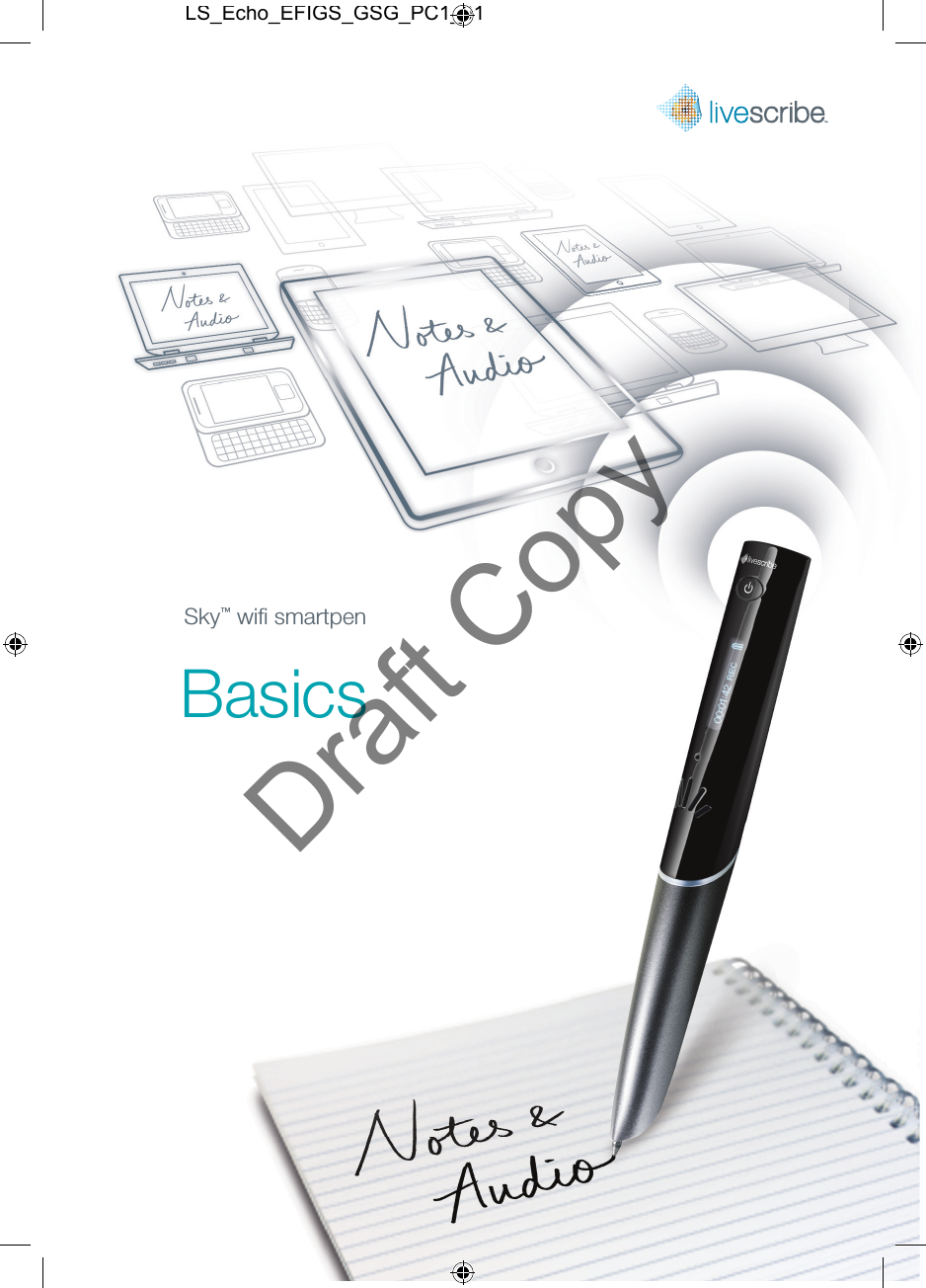
BasicsSky™ wifi  smartpenLS_Echo_EFIGS_GSG_PC1_01Draft Copy
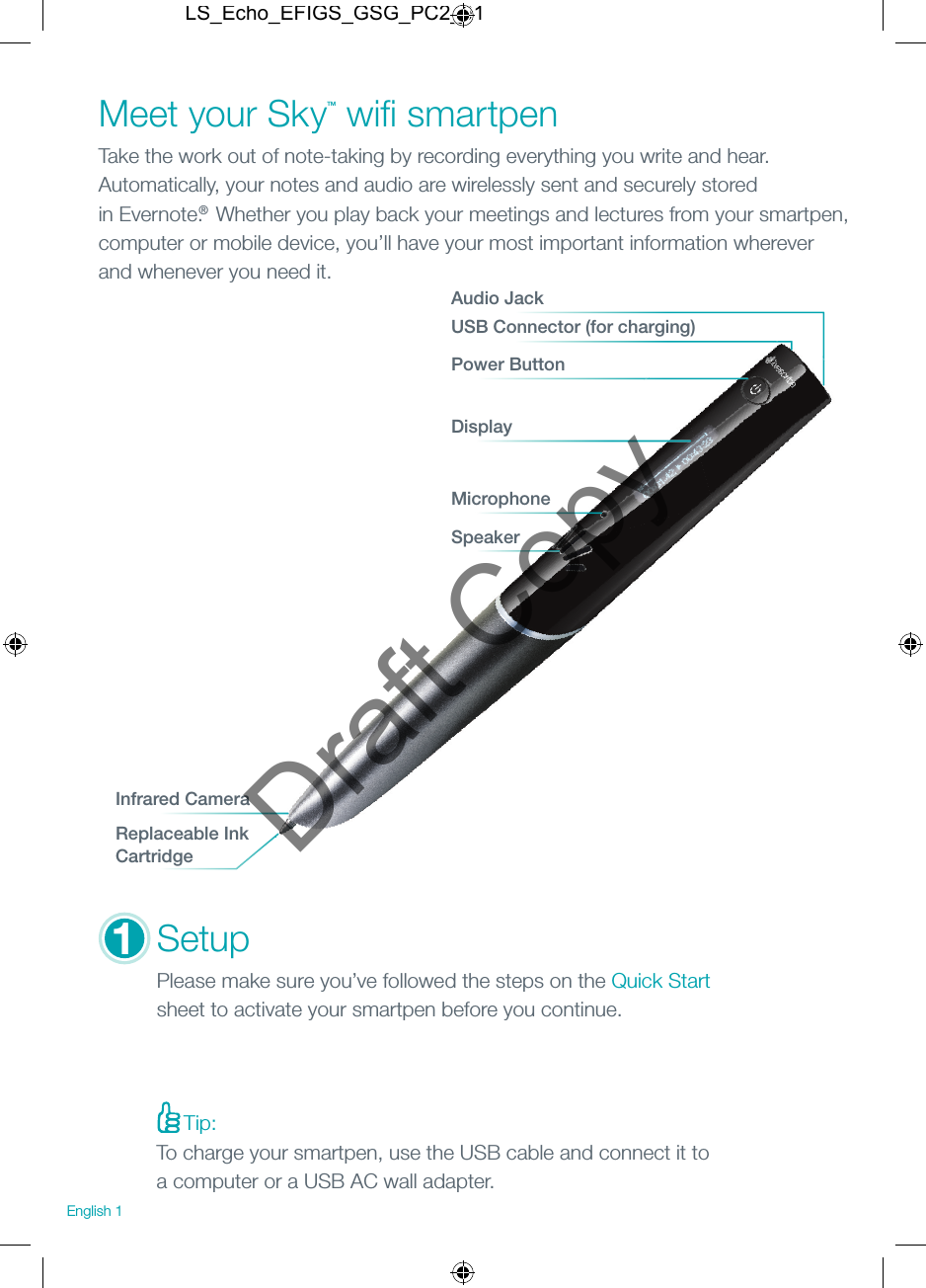
Tip: MicrophoneSpeakerSetupPlease make sure you’ve followed the steps on the Quick Start sheet to activate your smartpen before you continue.Meet your Sky™ wifi  smartpenTake the work out of note-taking by recording everything you write and hear. Automatically, your notes and audio are wirelessly sent and securely stored in Evernote.® Whether you play back your meetings and lectures from your smartpen, computer or mobile device, you’ll have your most important information wherever and whenever you need it.USB Connector (for charging)Audio JackPower ButtonDisplayInfrared CameraReplaceable Ink Cartridge1English 1To charge your smartpen, use the USB cable and connect it to a computer or a USB AC wall adapter.LS_Echo_EFIGS_GSG_PC2_01Draft Copy
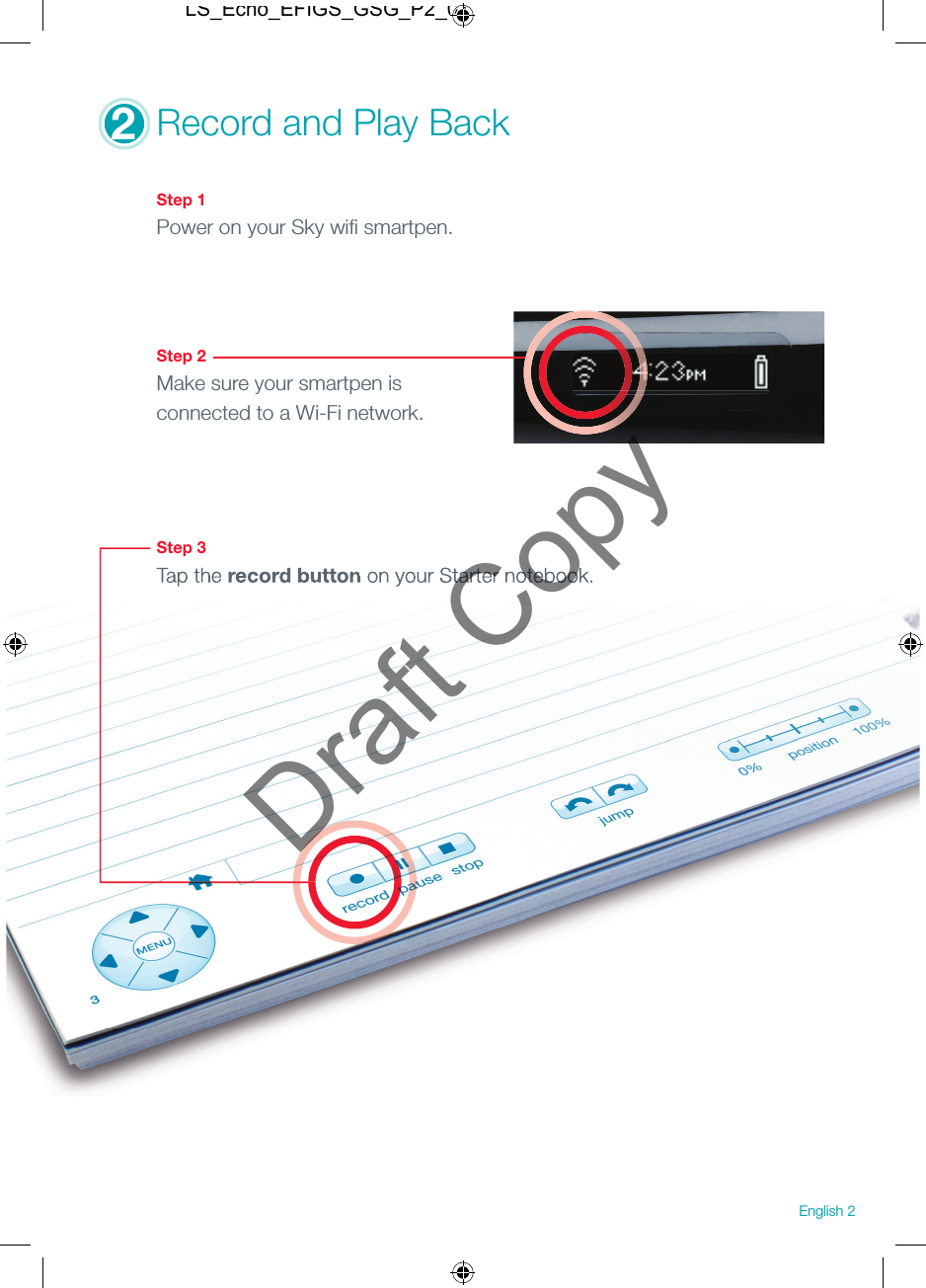
2Record and Play Back Step 1Power on your Sky wifi  smartpen.Step 2Make sure your smartpen is connected to a Wi-Fi network.Step 3Tap the record button on your Starter notebook.Tap the record button on your Starter notebook.English 2LS_Echo_EFIGS_GSG_P2_01Draft Copy
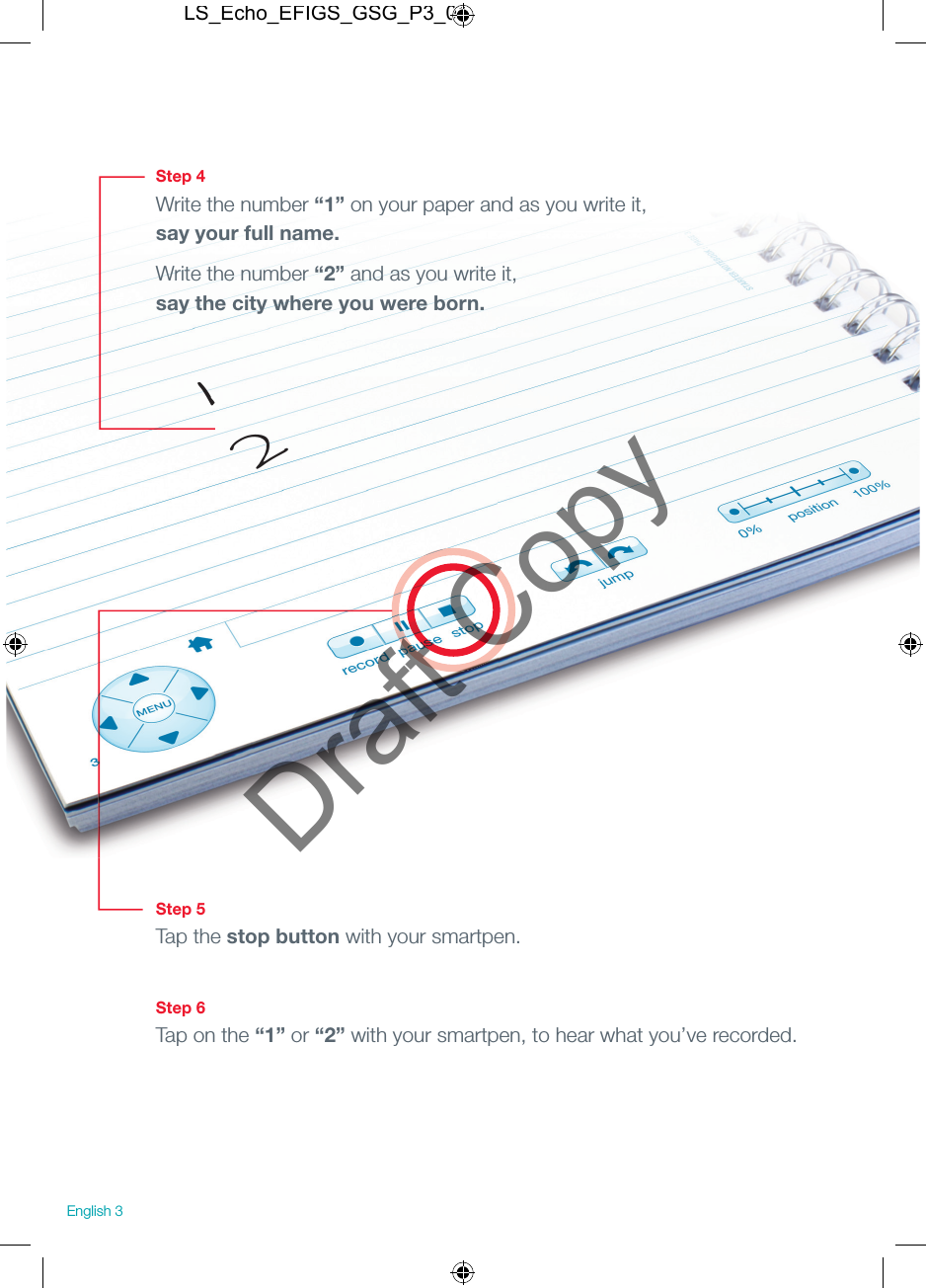
Step 4Write the number “1” on your paper and as you write it, say your full name.Write the number “2” and as you write it, say the city where you were born.Step 5Tap the stop button with your smartpen.Step 6Tap on the “1” or “2” with your smartpen, to hear what you’ve recorded.12English 3LS_Echo_EFIGS_GSG_P3_01Draft Copy
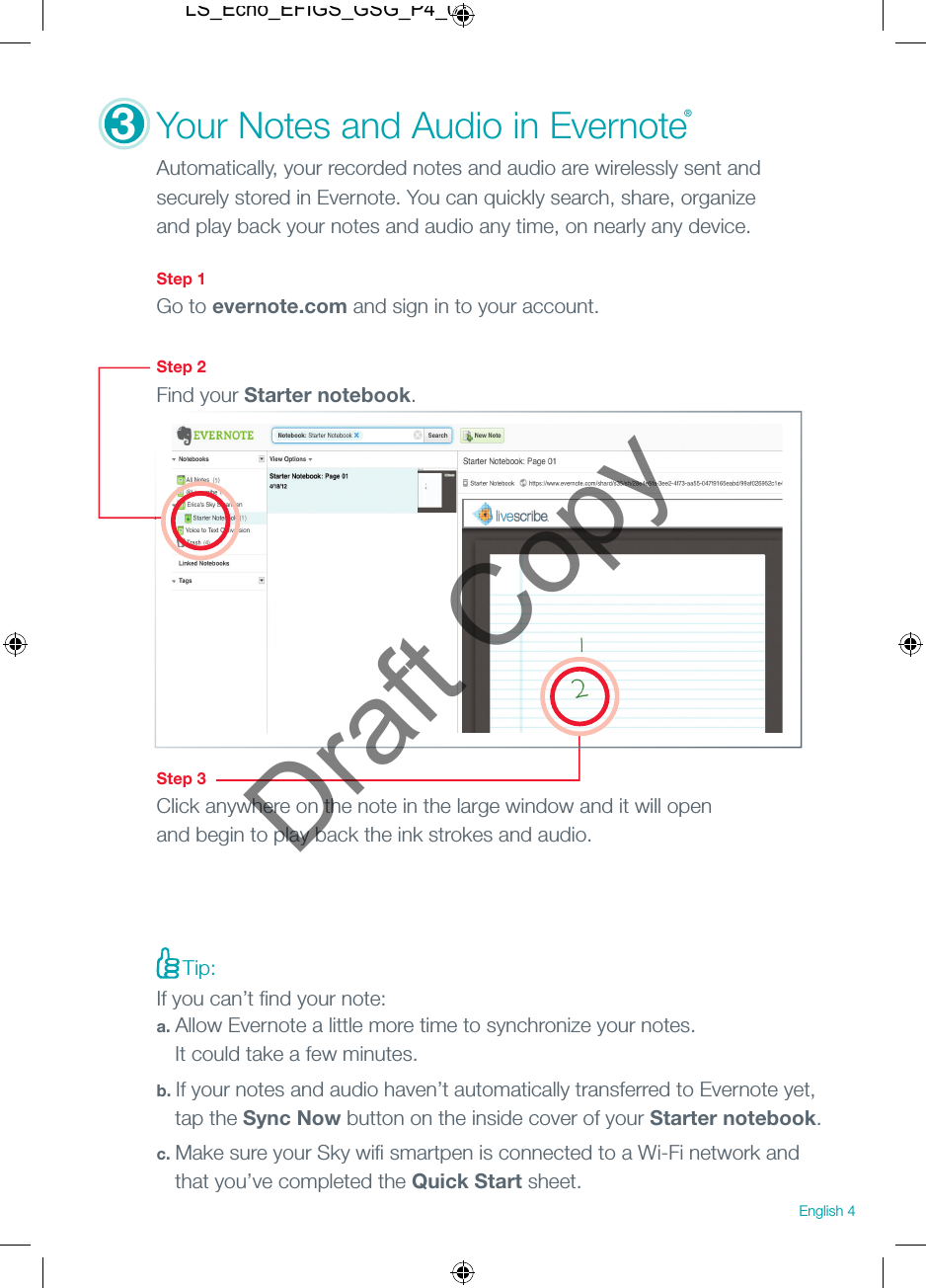
3Your Notes and Audio in Evernote® Automatically, your recorded notes and audio are wirelessly sent and securely stored in Evernote. You can quickly search, share, organize and play back your notes and audio any time, on nearly any device. Step 1Go to evernote.com and sign in to your account. Step 2Find your Starter notebook.Step 3Click anywhere on the note in the large window and it will open and begin to play back the ink strokes and audio.Tip: If you can’t fi nd your note:a. Allow Evernote a little more time to synchronize your notes.   It could take a few minutes.b. If your notes and audio haven’t automatically transferred to Evernote yet,   tap the Sync Now button on the inside cover of your Starter notebook.c. Make sure your Sky wifi  smartpen is connected to a Wi-Fi network and   that you’ve completed the Quick Start sheet.English 4LS_Echo_EFIGS_GSG_P4_01Draft Copy
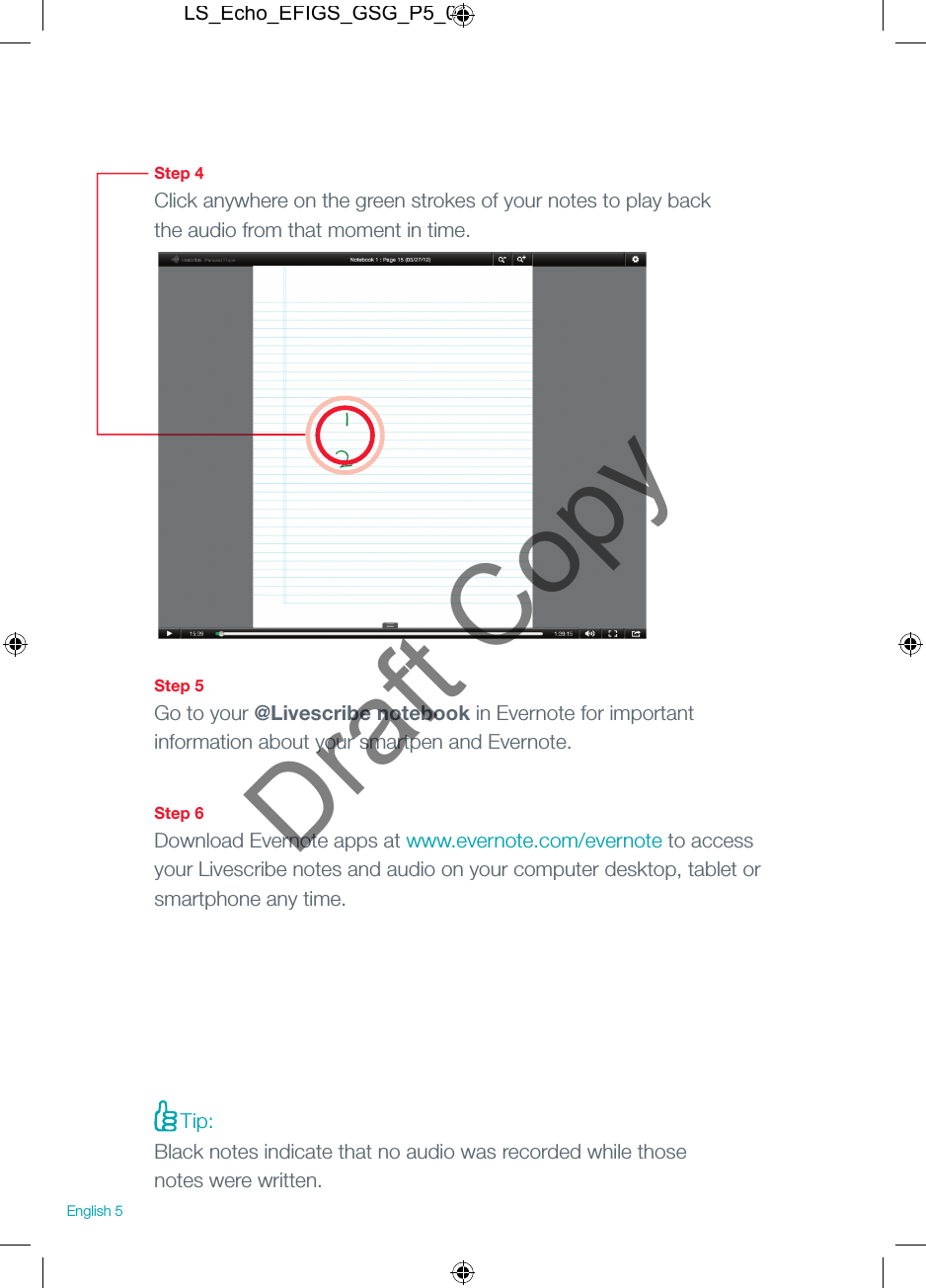
Step 4Click anywhere on the green strokes of your notes to play back the audio from that moment in time.Step 5Go to your @Livescribe notebook in Evernote for important information about your smartpen and Evernote.Step 6Download Evernote apps at www.evernote.com/evernote to access your Livescribe notes and audio on your computer desktop, tablet or smartphone any time.English 5Tip: Black notes indicate that no audio was recorded while those notes were written.LS_Echo_EFIGS_GSG_P5_01Draft Copy
Learn More More Information about your smartpen and Evernote: livescribe.com/skyWi-Fi Help: livescribe.com/wifihelpLivescribe Customer Support: livescribe.com/supportEvernote Customer Support: evernote.com/contact/support/ Join our Communities:Facebook Fan Page: Facebook.com/livescribeGlobal Twitter Page: Twitter.com/livescribeLivescribe Blog: Livescribe.com/blogEducation Twitter Page: Twitter.com/livescribeK12Education Blog: Livescribe.com/blog/education Refer Friends: (U.S. Only)https://refer.livescribe.com/referEnglish 6LS_Echo_EFIGS_GSG_P6_01Draft CopyLivescribe Inc.  Models: 2GB, 4GB, 8GB FCC ID: CKD-00053 IC: 10240A-00053
Ein/Aus-SchalterTipp:MikrofonLautsprecherEinrichtenFolgen Sie den Schritten in der Schnellstartanleitung zur Aktivierung Ihres Smartpens, bevor Sie fortfahren.Lernen Sie Ihren Sky Wifi  Smartpen kennenMachen Sie sich das Notieren einfach, indem Sie alles aufzeichnen, was Sie schreiben oder hören. Ihre Notizen und Audiodaten werden automatisch kabellos an Evernote gesendet und dort gespeichert. Egal, ob Sie Ihre Aufzeichnungen auf dem Smartpen oder einem Computer oder Mobilgerät wiedergeben – die Informationen, die Sie benötigen, sind immer und überall verfügbar.USB-Anschluss (zum Aufl aden)AudiobuchseDisplayInfrarotkameraAustauschbare Tintenpatrone1DE 1Laden Sie den Smartpen mithilfe des beiliegenden USB-Kabels am USB-Port Ihres Computers oder mit einem USB-Netzadapter auf.LS_Echo_EFIGS_GSG_PP7_01Draft Copy
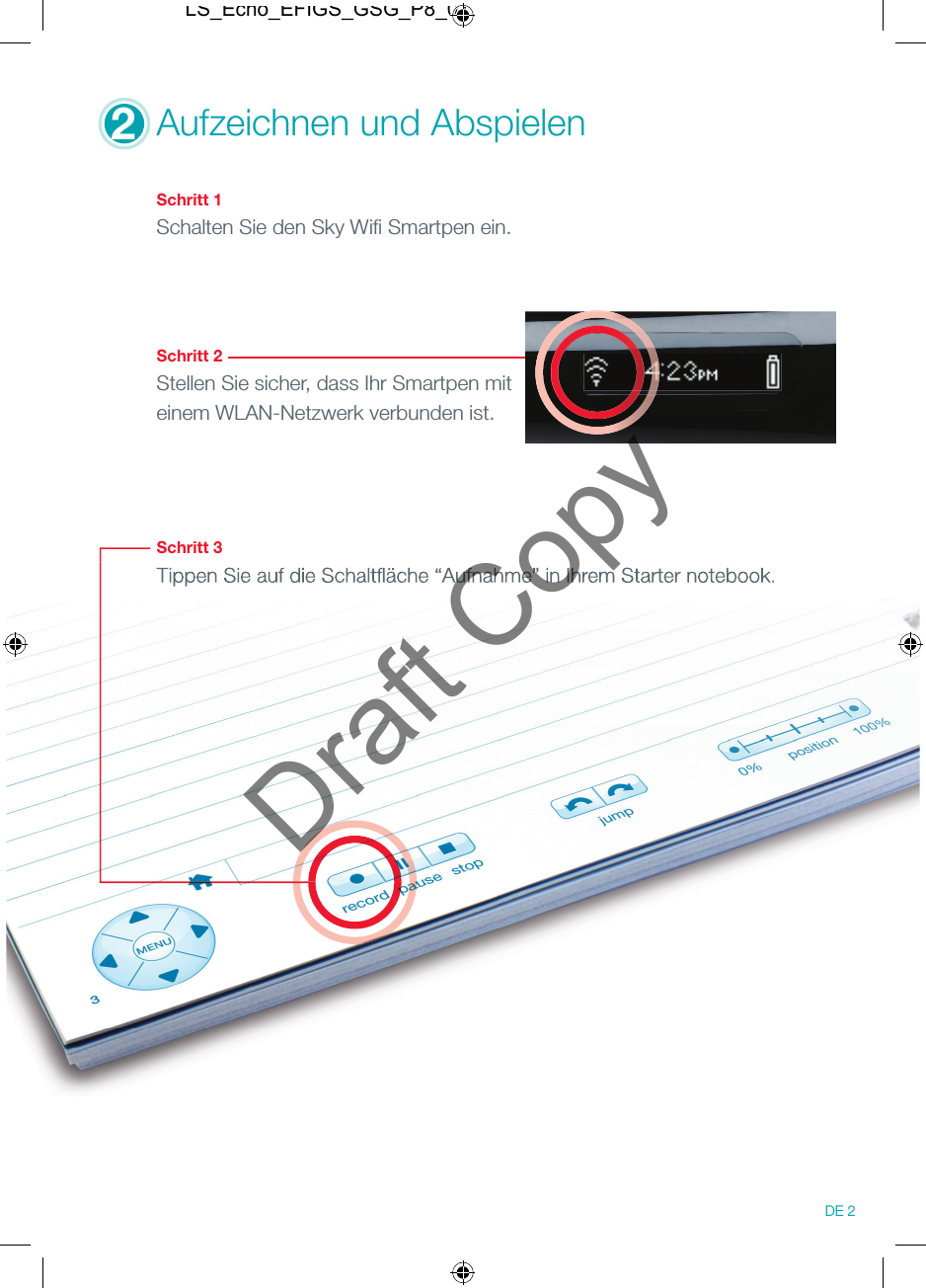
2Aufzeichnen und Abspielen Schritt 1Schalten Sie den Sky Wifi  Smartpen ein.Schritt 2Stellen Sie sicher, dass Ihr Smartpen mit einem WLAN-Netzwerk verbunden ist.Schritt 3Tippen Sie auf die Schaltfl äche “Aufnahme” in Ihrem Starter notebook.Tippen Sie auf die Schaltfl äche “Aufnahme” in Ihrem Starter notebook.DE 2LS_Echo_EFIGS_GSG_P8_01Draft Copy
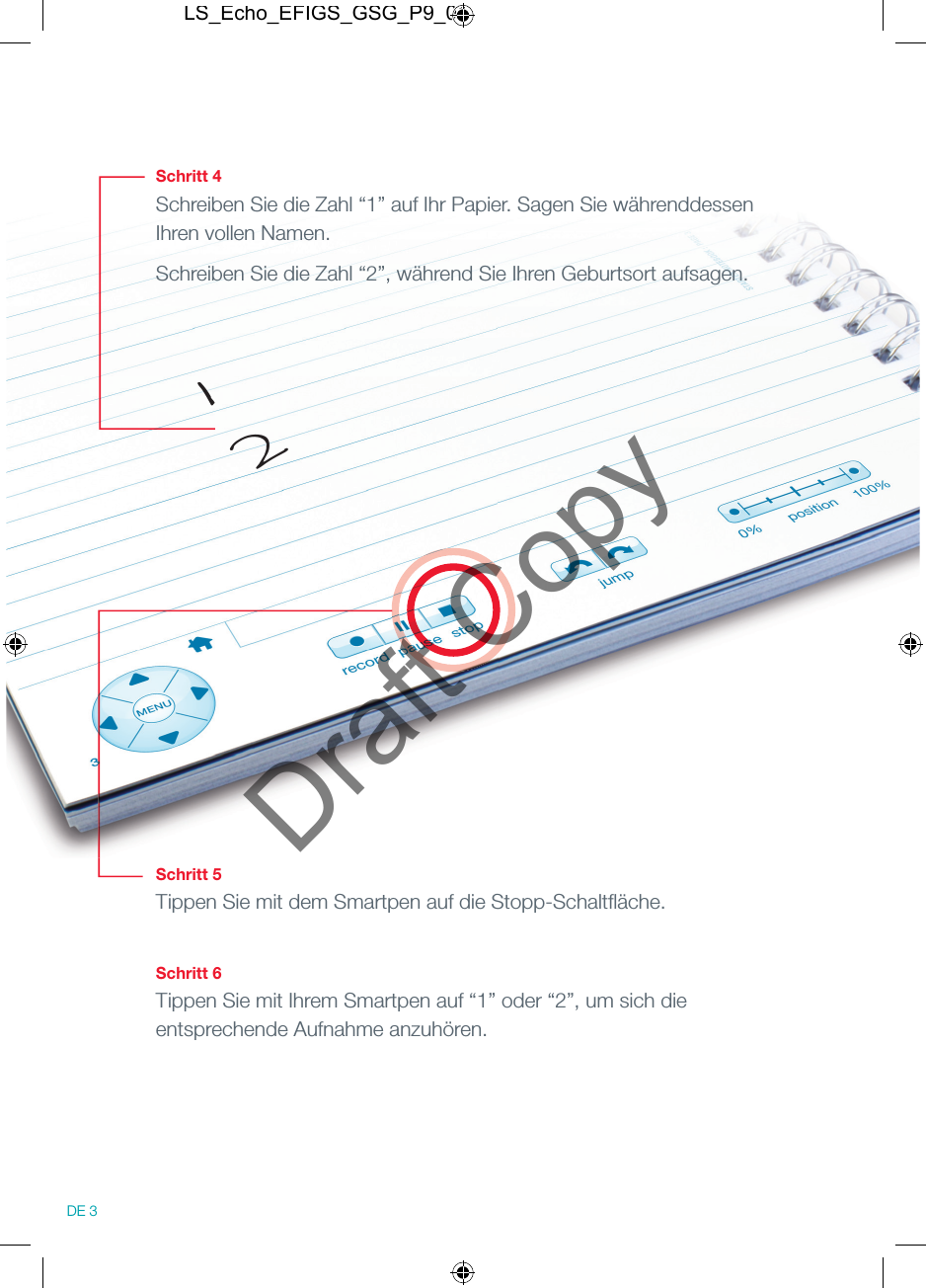
Schritt 4Schreiben Sie die Zahl “1” auf Ihr Papier. Sagen Sie währenddessen Ihren vollen Namen.Schreiben Sie die Zahl “2”, während Sie Ihren Geburtsort aufsagen.Schritt 5Tippen Sie mit dem Smartpen auf die Stopp-Schaltfl äche.Schritt 6Tippen Sie mit Ihrem Smartpen auf “1” oder “2”, um sich die entsprechende Aufnahme anzuhören.12DE 3LS_Echo_EFIGS_GSG_P9_01Draft Copy
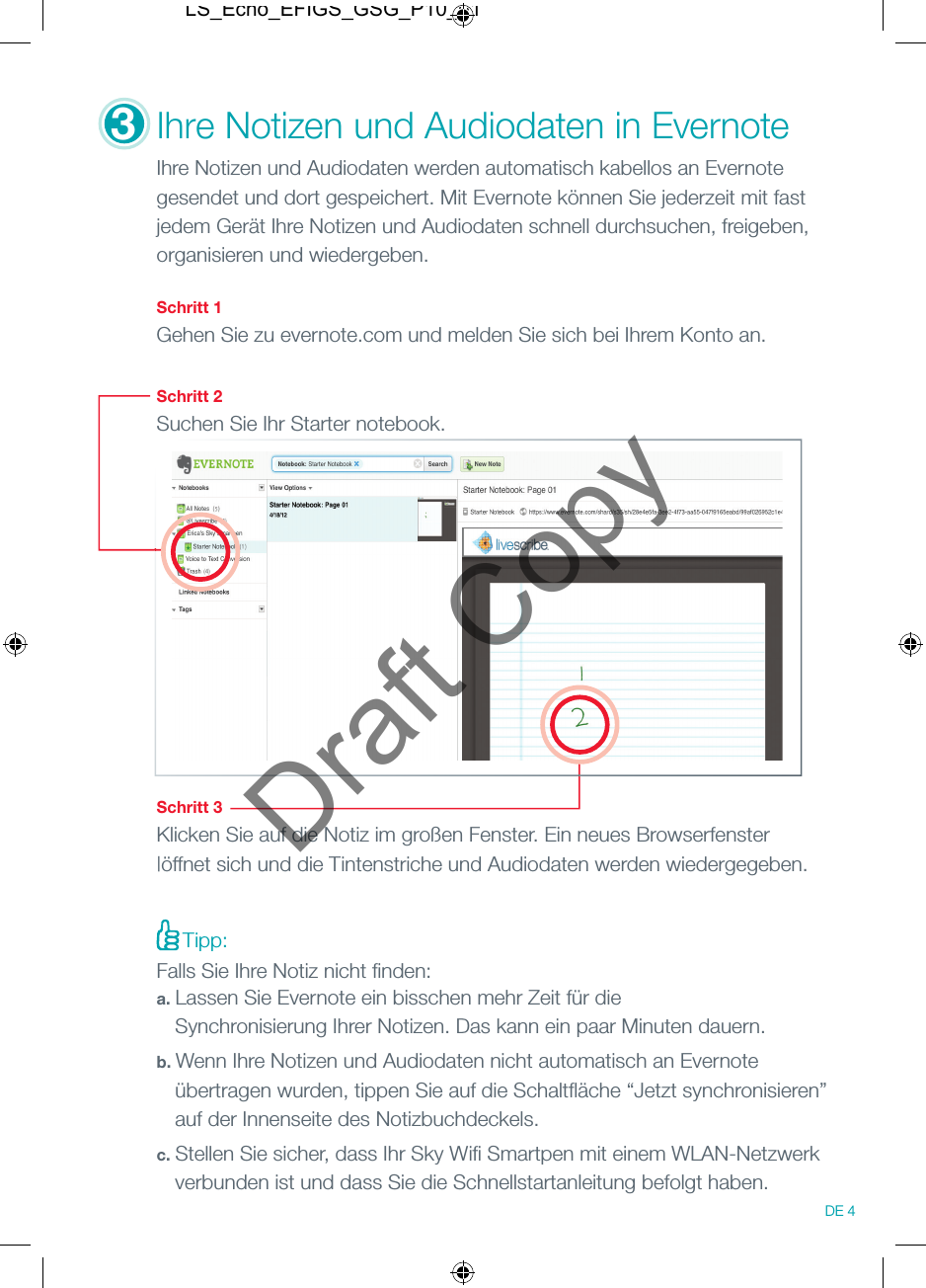
3Ihre Notizen und Audiodaten in Evernote Ihre Notizen und Audiodaten werden automatisch kabellos an Evernote gesendet und dort gespeichert. Mit Evernote können Sie jederzeit mit fast jedem Gerät Ihre Notizen und Audiodaten schnell durchsuchen, freigeben, organisieren und wiedergeben.  Schritt 1Gehen Sie zu evernote.com und melden Sie sich bei Ihrem Konto an.Schritt 2Suchen Sie Ihr Starter notebook.Schritt 3Klicken Sie auf die Notiz im großen Fenster. Ein neues Browserfenster |öffnet sich und die Tintenstriche und Audiodaten werden wiedergegeben.Tipp:Falls Sie Ihre Notiz nicht fi nden:a. Lassen Sie Evernote ein bisschen mehr Zeit für die   Synchronisierung Ihrer Notizen. Das kann ein paar Minuten dauern.b. Wenn Ihre Notizen und Audiodaten nicht automatisch an Evernote   übertragen wurden, tippen Sie auf die Schaltfl äche “Jetzt synchronisieren”   auf der Innenseite des Notizbuchdeckels.c. Stellen Sie sicher, dass Ihr Sky Wifi  Smartpen mit einem WLAN-Netzwerk   verbunden ist und dass Sie die Schnellstartanleitung befolgt haben.DE 4LS_Echo_EFIGS_GSG_P10_01Draft Copy
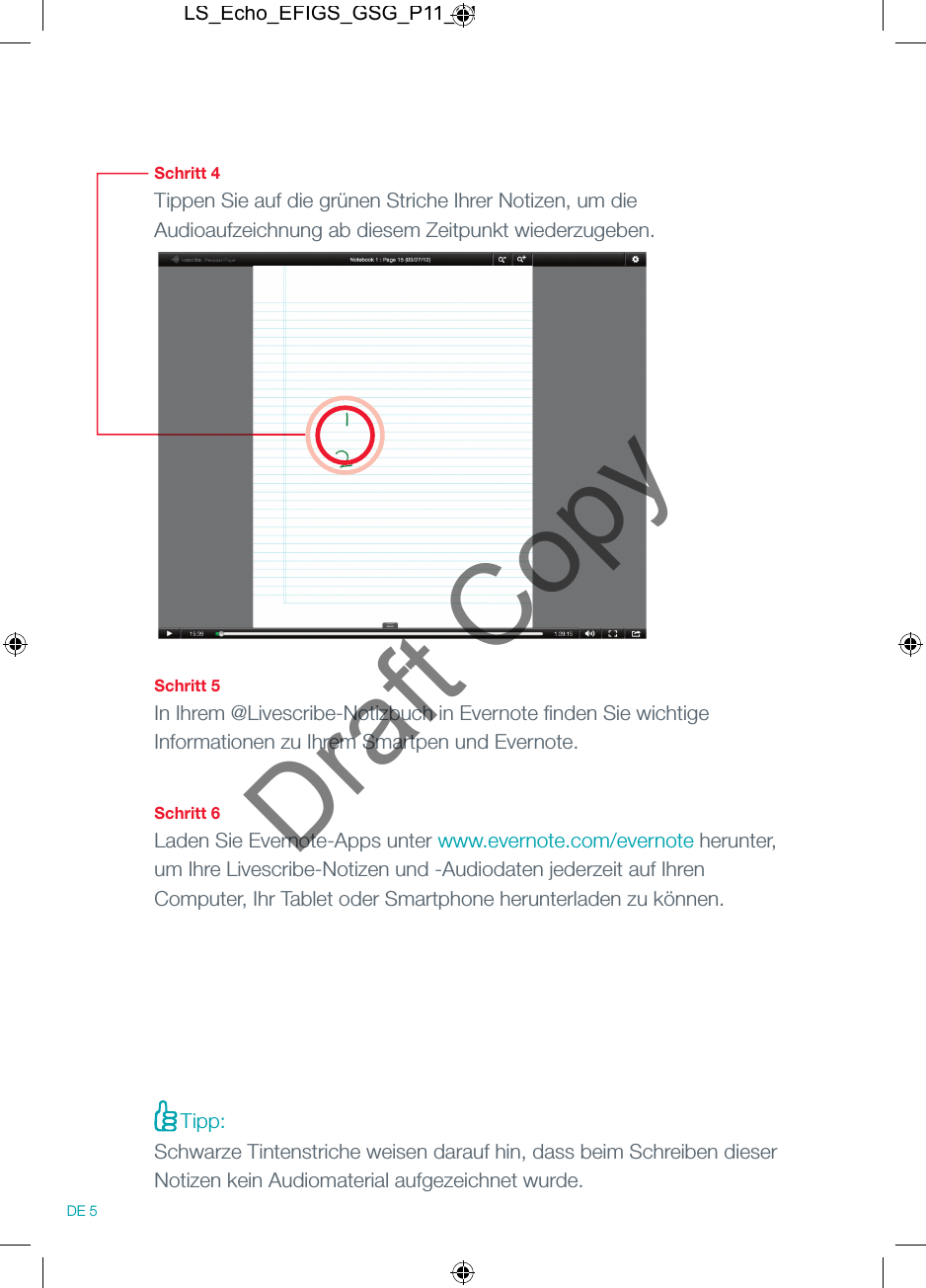
Schritt 4Tippen Sie auf die grünen Striche Ihrer Notizen, um die Audioaufzeichnung ab diesem Zeitpunkt wiederzugeben.Schritt 5In Ihrem @Livescribe-Notizbuch in Evernote fi nden Sie wichtige Informationen zu Ihrem Smartpen und Evernote.Schritt 6Laden Sie Evernote-Apps unter www.evernote.com/evernote herunter, um Ihre Livescribe-Notizen und -Audiodaten jederzeit auf Ihren Computer, Ihr Tablet oder Smartphone herunterladen zu können.DE 5Tipp: Schwarze Tintenstriche weisen darauf hin, dass beim Schreiben dieser Notizen kein Audiomaterial aufgezeichnet wurde.LS_Echo_EFIGS_GSG_P11_01Draft Copy
Weitere Infos Weitere Informationen zum Smartpen und zu Evernote finden Sie unter: livescribe.com/skyWLAN-Hilfe: livescribe.com/wifihelpKundendienst: livescribe.com/supportEvernote-Support: evernote.com/contact/support/ Melden Sie sich bei unseren Communitys an:Facebook-Fanseite: Facebook.com/livescribeGlobale Twitter-Seite: Twitter.com/livescribeLivescribe-Blog: Livescribe.com/blogTwitter-Seite für den Bildungsbereich: Twitter.com/livescribeK12Bildungs-Blog: Livescribe.com/blog/education DE 6LS_Echo_EFIGS_GSG_P12_01Draft Copy
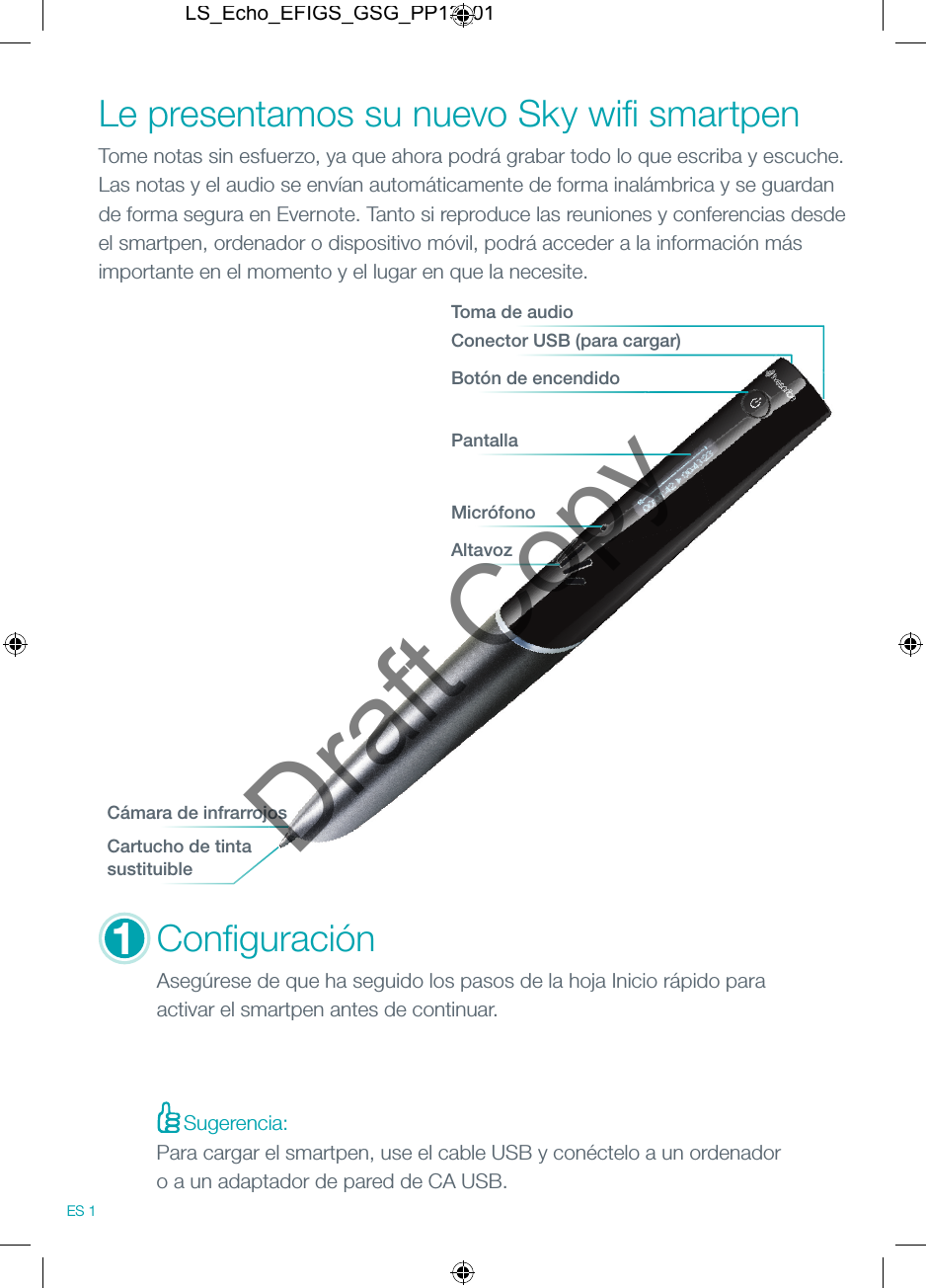
Sugerencia:MicrófonoAltavozConfi guraciónAsegúrese de que ha seguido los pasos de la hoja Inicio rápido para activar el smartpen antes de continuar.Le presentamos su nuevo Sky wifi  smartpenTome notas sin esfuerzo, ya que ahora podrá grabar todo lo que escriba y escuche. Las notas y el audio se envían automáticamente de forma inalámbrica y se guardan de forma segura en Evernote. Tanto si reproduce las reuniones y conferencias desde el smartpen, ordenador o dispositivo móvil, podrá acceder a la información más importante en el momento y el lugar en que la necesite.Conector USB (para cargar)Toma de audioBotón de encendidoPantallaCámara de infrarrojosCartucho de tintasustituible1ES 1Para cargar el smartpen, use el cable USB y conéctelo a un ordenador o a un adaptador de pared de CA USB.LS_Echo_EFIGS_GSG_PP13_01Draft Copy
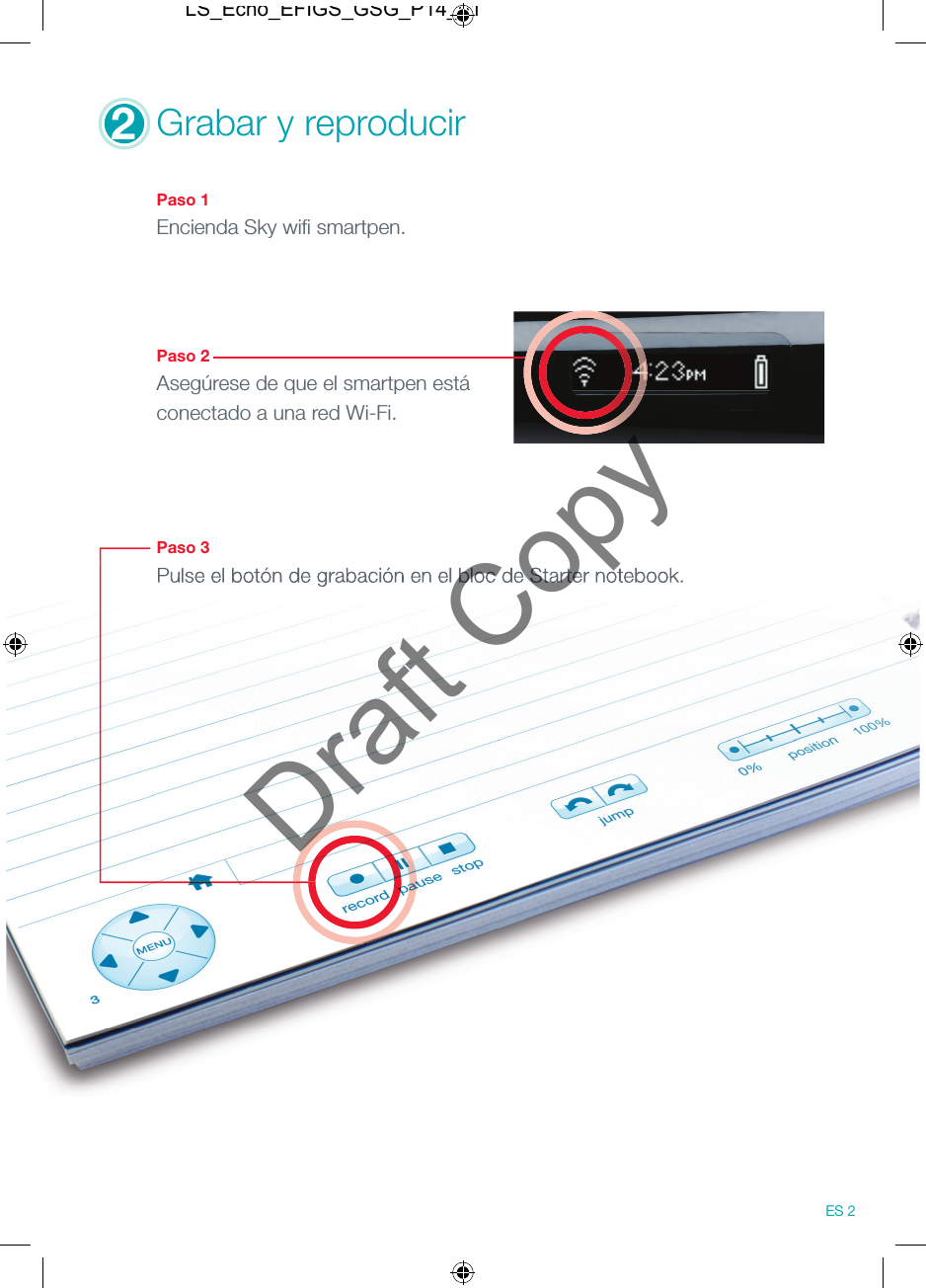
2Grabar y reproducir Paso 1Encienda Sky wifi  smartpen.Paso 2Asegúrese de que el smartpen está conectado a una red Wi-Fi.Paso 3Pulse el botón de grabación en el bloc de Starter notebook.Pulse el botón de grabación en el bloc de Starter notebook.ES 2LS_Echo_EFIGS_GSG_P14_01Draft Copy
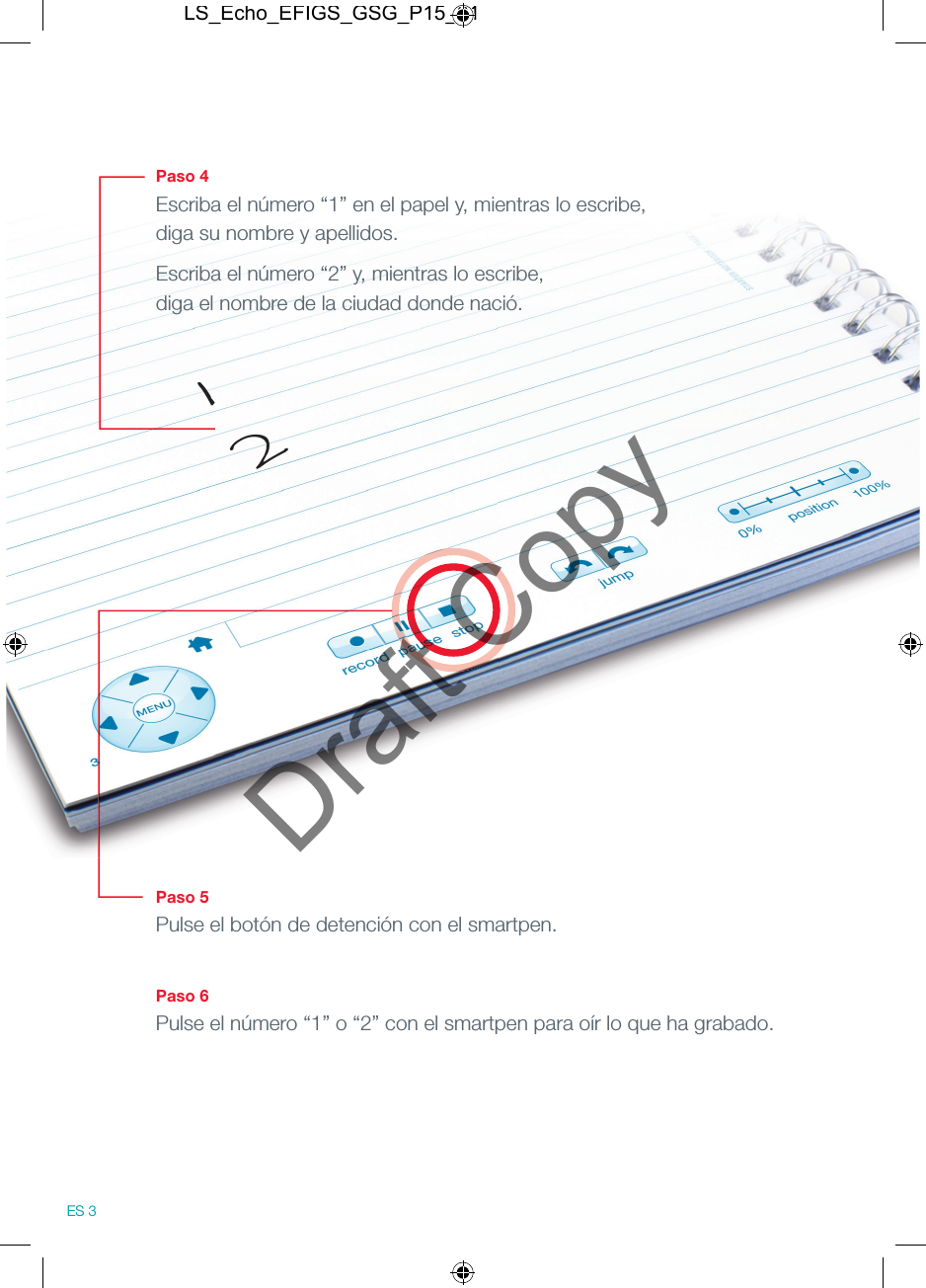
Paso 4Escriba el número “1” en el papel y, mientras lo escribe, diga su nombre y apellidos.Escriba el número “2” y, mientras lo escribe, diga el nombre de la ciudad donde nació.Paso 5Pulse el botón de detención con el smartpen.Paso 6Pulse el número “1” o “2” con el smartpen para oír lo que ha grabado.12ES 3LS_Echo_EFIGS_GSG_P15_01Draft Copy
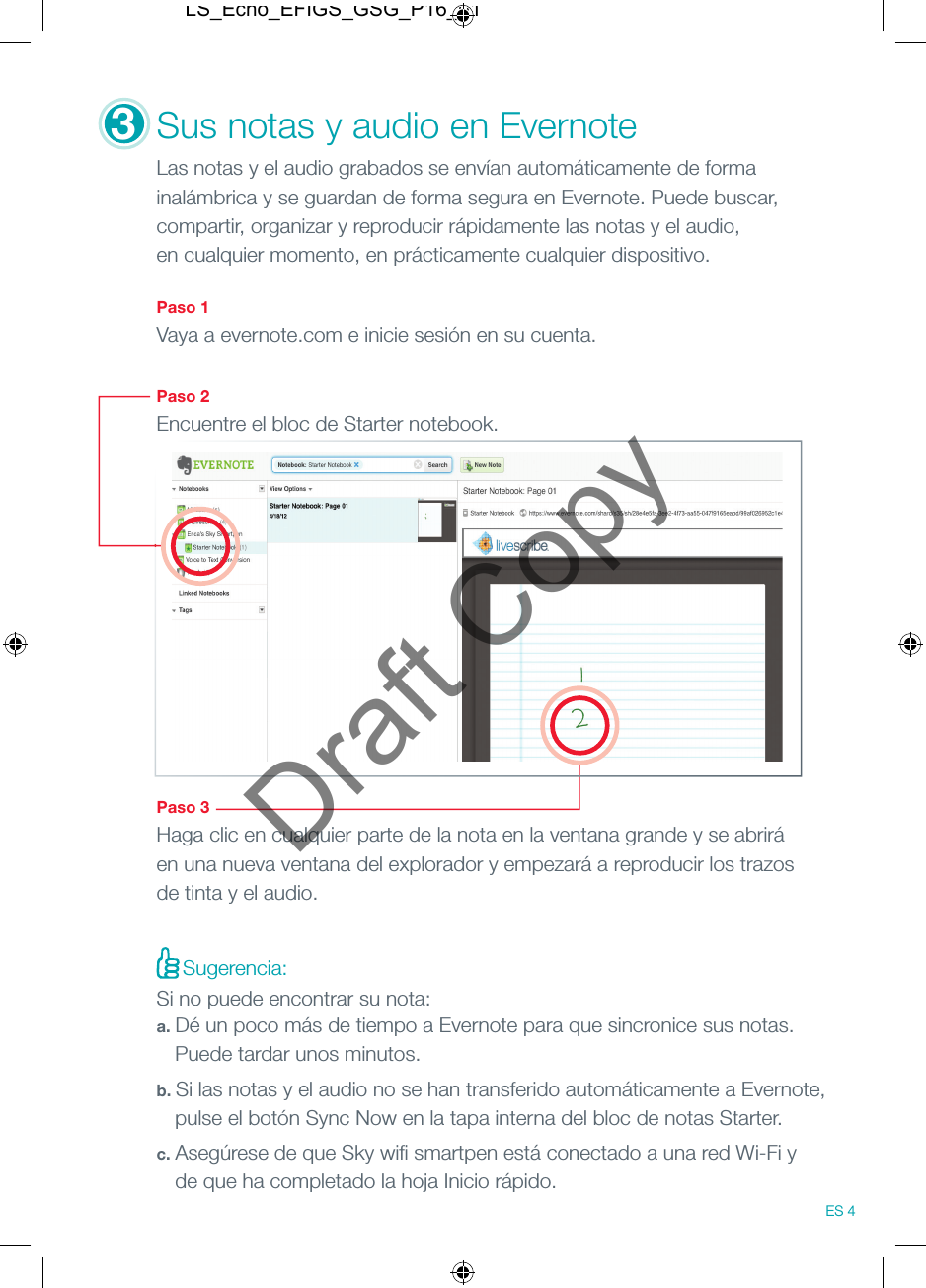
3Sus notas y audio en Evernote Las notas y el audio grabados se envían automáticamente de forma inalámbrica y se guardan de forma segura en Evernote. Puede buscar, compartir, organizar y reproducir rápidamente las notas y el audio, en cualquier momento, en prácticamente cualquier dispositivo.  Paso 1Vaya a evernote.com e inicie sesión en su cuenta. Paso 2Encuentre el bloc de Starter notebook.Paso 3Haga clic en cualquier parte de la nota en la ventana grande y se abrirá en una nueva ventana del explorador y empezará a reproducir los trazos de tinta y el audio.Sugerencia:Si no puede encontrar su nota:a. Dé un poco más de tiempo a Evernote para que sincronice sus notas.   Puede tardar unos minutos.b. Si las notas y el audio no se han transferido automáticamente a Evernote,   pulse el botón Sync Now en la tapa interna del bloc de notas Starter.c. Asegúrese de que Sky wifi  smartpen está conectado a una red Wi-Fi y   de que ha completado la hoja Inicio rápido.ES 4LS_Echo_EFIGS_GSG_P16_01Draft Copy
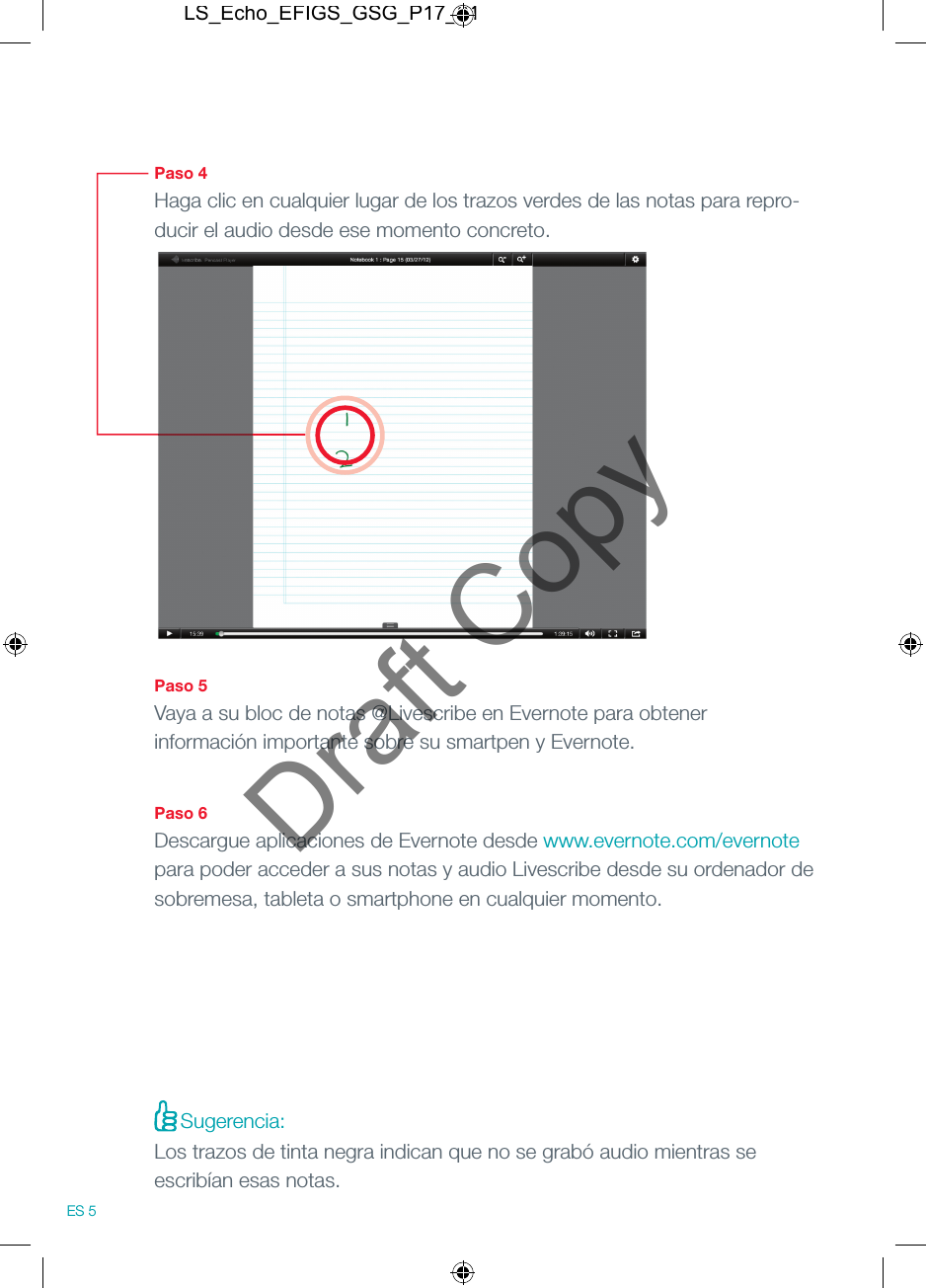
Paso 4Haga clic en cualquier lugar de los trazos verdes de las notas para repro-ducir el audio desde ese momento concreto.Paso 5Vaya a su bloc de notas @Livescribe en Evernote para obtener información importante sobre su smartpen y Evernote.Paso 6Descargue aplicaciones de Evernote desde www.evernote.com/evernote para poder acceder a sus notas y audio Livescribe desde su ordenador de sobremesa, tableta o smartphone en cualquier momento.ES 5Sugerencia:Los trazos de tinta negra indican que no se grabó audio mientras se escribían esas notas.LS_Echo_EFIGS_GSG_P17_01Draft Copy
Mucho más Más información sobre su smartpen y Evernote: livescribe.com/skyAyuda para Wi-Fi: livescribe.com/wifihelpServicio de atención al cliente: livescribe.com/supportSoporte de Evernote: evernote.com/contact/support/ Únase a nuestras comunidades:Página de admiradores en Facebook: Facebook.com/livescribePágina global de Twitter: Twitter.com/livescribeBlog de Livescribe: Livescribe.com/blogPágina de educación de Twitter: Twitter.com/livescribeK12Blog de educación: Livescribe.com/blog/education ES 6LS_Echo_EFIGS_GSG_P18_01Draft Copy
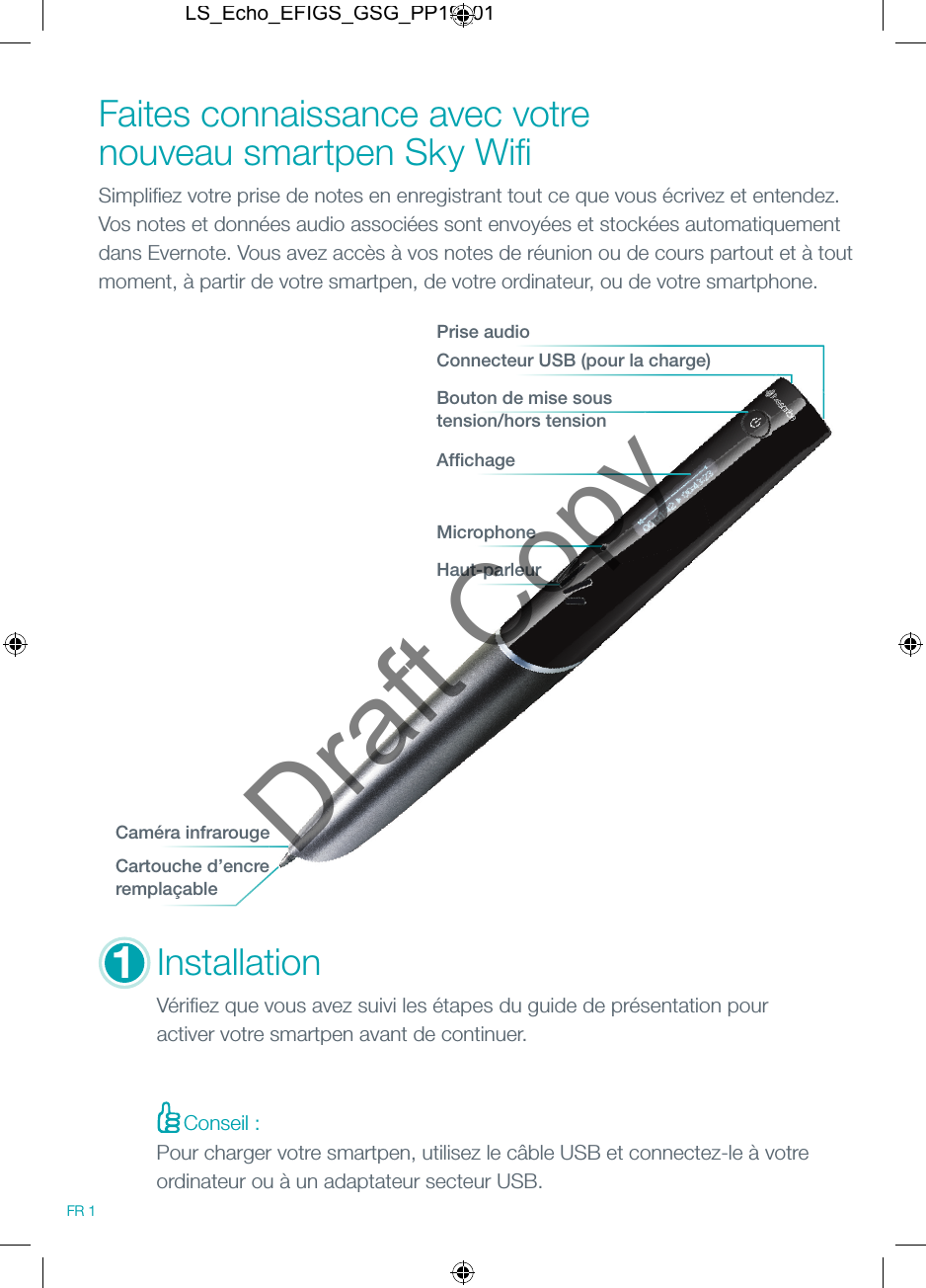
Faites connaissance avec votre nouveau smartpen Sky Wifi   Simplifi ez votre prise de notes en enregistrant tout ce que vous écrivez et entendez.  Vos notes et données audio associées sont envoyées et stockées automatiquement dans Evernote. Vous avez accès à vos notes de réunion ou de cours partout et à tout moment, à partir de votre smartpen, de votre ordinateur, ou de votre smartphone.Conseil :MicrophoneHaut-parleurInstallationVérifi ez que vous avez suivi les étapes du guide de présentation pour activer votre smartpen avant de continuer.Connecteur USB (pour la charge)Prise audioBouton de mise sous tension/hors tensionAffi chageCaméra infrarougeCartouche d’encre remplaçable1FR 1Pour charger votre smartpen, utilisez le câble USB et connectez-le à votre ordinateur ou à un adaptateur secteur USB.LS_Echo_EFIGS_GSG_PP19_01Draft Copy
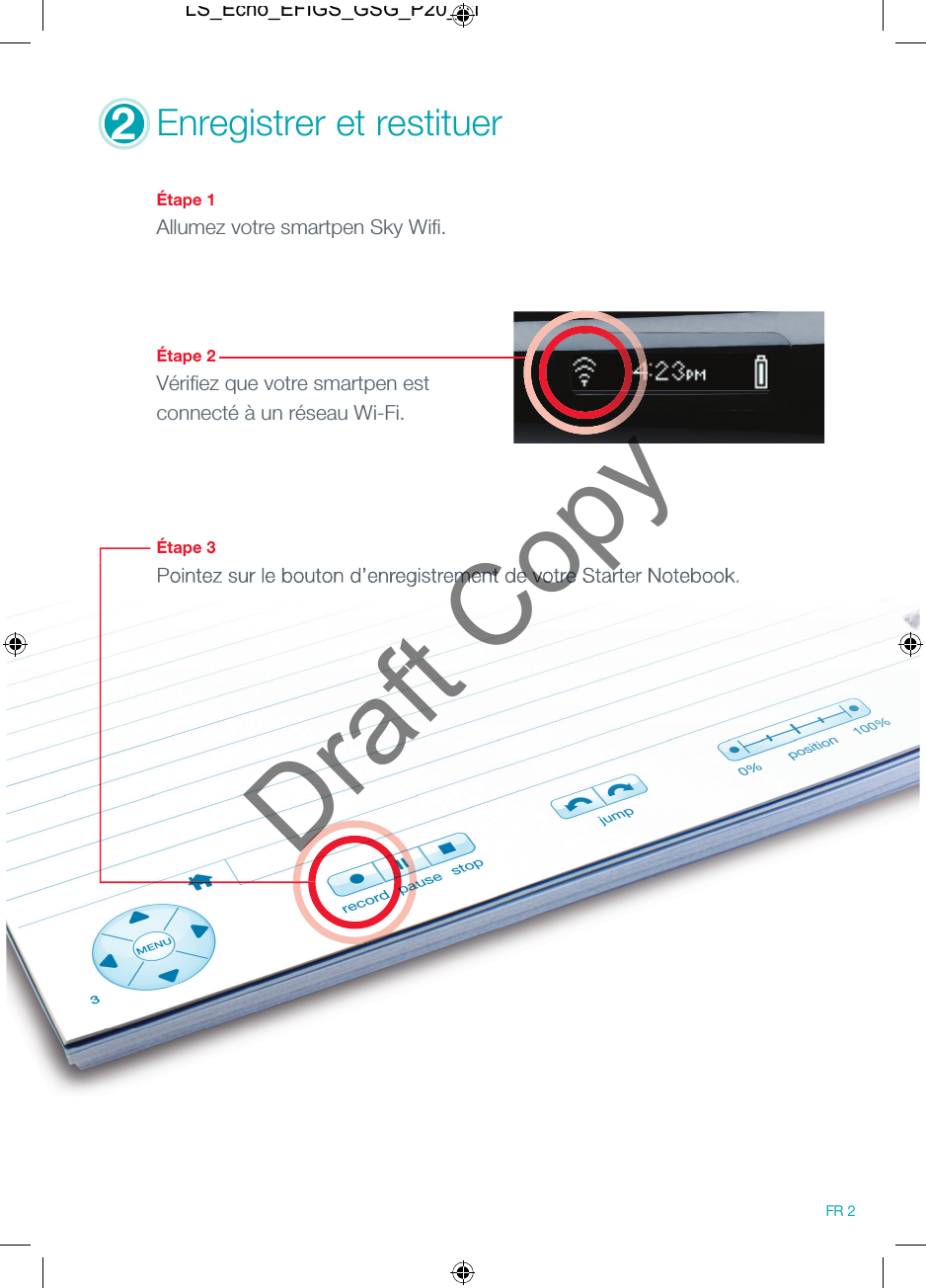
2Enregistrer et restituer Étape 1Allumez votre smartpen Sky Wifi .Étape 2Vérifi ez que votre smartpen est connecté à un réseau Wi-Fi.Étape 3Pointez sur le bouton d’enregistrement de votre Starter Notebook.Pointez sur le bouton d’enregistrement de votre Starter Notebook.FR 2LS_Echo_EFIGS_GSG_P20_01Draft Copy
Étape 4Écrivez le chiffre 1 sur la page et dites votre nom en même temps que vous écrivez.Écrivez ensuite le chiffre 2 tout en disant le nom de votre lieu de naissance.Étape 5Pointez votre smartpen sur le bouton stop.Étape 6Pointez sur 1 ou 2 avec votre smartpen pour entendre ce que vous avez enregistré.12FR 3LS_Echo_EFIGS_GSG_P21_01Draft Copy
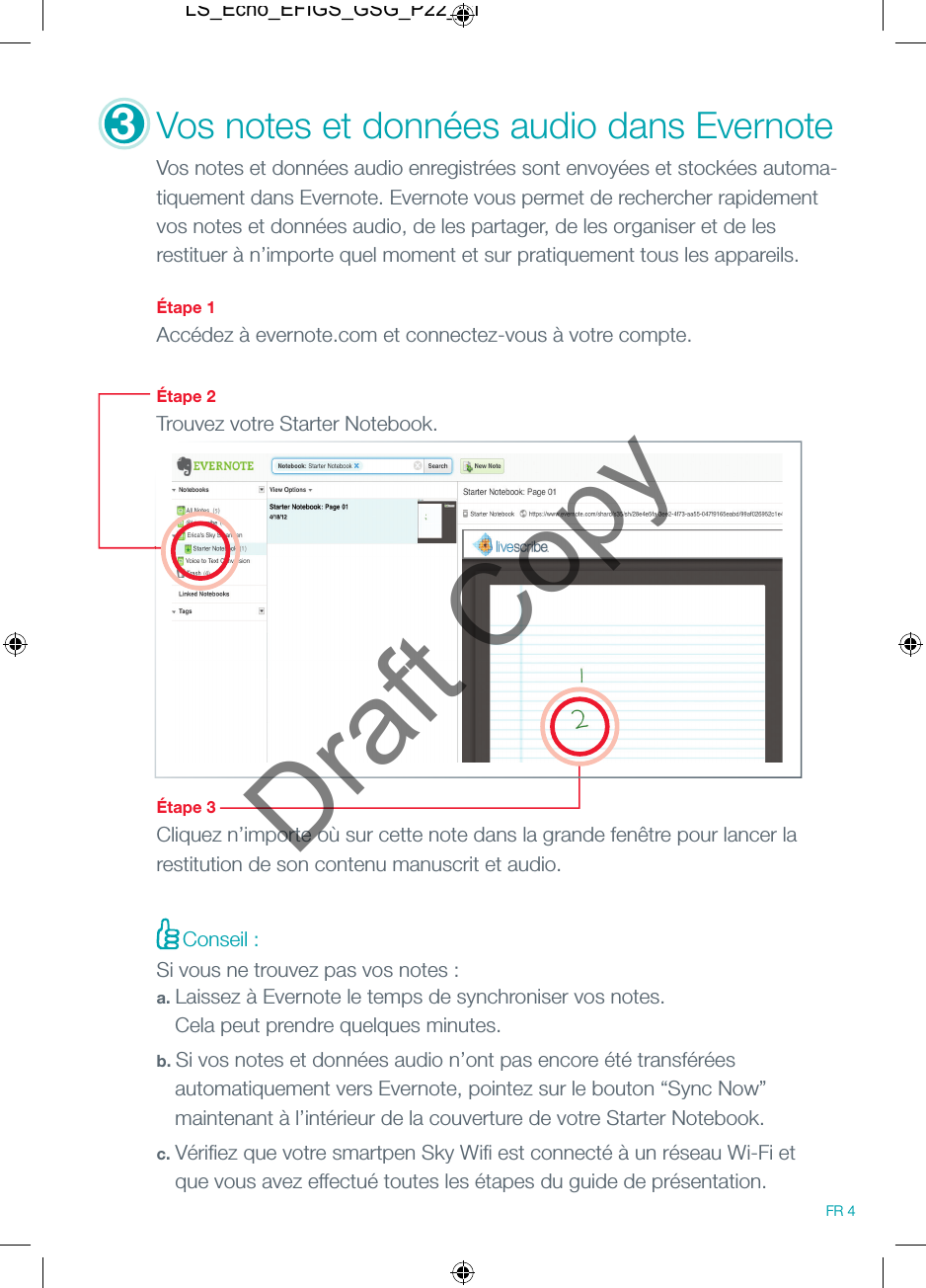
3Vos notes et données audio dans Evernote Vos notes et données audio enregistrées sont envoyées et stockées automa-tiquement dans Evernote. Evernote vous permet de rechercher rapidement vos notes et données audio, de les partager, de les organiser et de les restituer à n’importe quel moment et sur pratiquement tous les appareils.   Étape 1Accédez à evernote.com et connectez-vous à votre compte. Étape 2Trouvez votre Starter Notebook.Étape 3Cliquez n’importe où sur cette note dans la grande fenêtre pour lancer la restitution de son contenu manuscrit et audio.Conseil :Si vous ne trouvez pas vos notes :a. Laissez à Evernote le temps de synchroniser vos notes.    Cela peut prendre quelques minutes.b. Si vos notes et données audio n’ont pas encore été transférées   automatiquement vers Evernote, pointez sur le bouton “Sync Now”   maintenant à l’intérieur de la couverture de votre Starter Notebook.c. Vérifi ez que votre smartpen Sky Wifi  est connecté à un réseau Wi-Fi et   que vous avez effectué toutes les étapes du guide de présentation.FR 4LS_Echo_EFIGS_GSG_P22_01Draft Copy
Étape 4Cliquez n’importe où sur les notes en vert pour restituer les données audio correspondantes.Étape 5Accédez à votre carnet @Livescribe dans Evernote pour obtenir des informations sur votre smartpen et Evernote.Étape 6Téléchargez les applications Evernote sur www.evernote.com/evernote afi n d’accéder à tout moment à vos notes et données audio Livescribe sur votre ordinateur, tablette ou smartphone.FR 5Conseil :Si les notes apparaissent en noir, cela signifi e qu’aucune donnée audio n’a été enregistrée au moment de leur rédaction.LS_Echo_EFIGS_GSG_P23_01Draft Copy
En savoir plus Pour plus d’informations sur votre smartpen et Evernote : livescribe.com/skyAide du Wi-Fi : livescribe.com/wifihelpService d’assistance technique :  livescribe.com/supportCentre de support : evernote.com/contact/support/ Rejoignez nos communautés :Page Facebook : Facebook.com/livescribePage Twitter : Twitter.com/livescribeBlog de Livescribe : Livescribe.com/blogPage Twitter (enseignement) : Twitter.com/livescribeK12Blog éducatif : Livescribe.com/blog/educationFR 6LS_Echo_EFIGS_GSG_P24_01Draft CopyLivescribe Inc.  Models: 2GB, 4GB, 8GB FCC ID: CKD-00053 IC: 10240A-00053
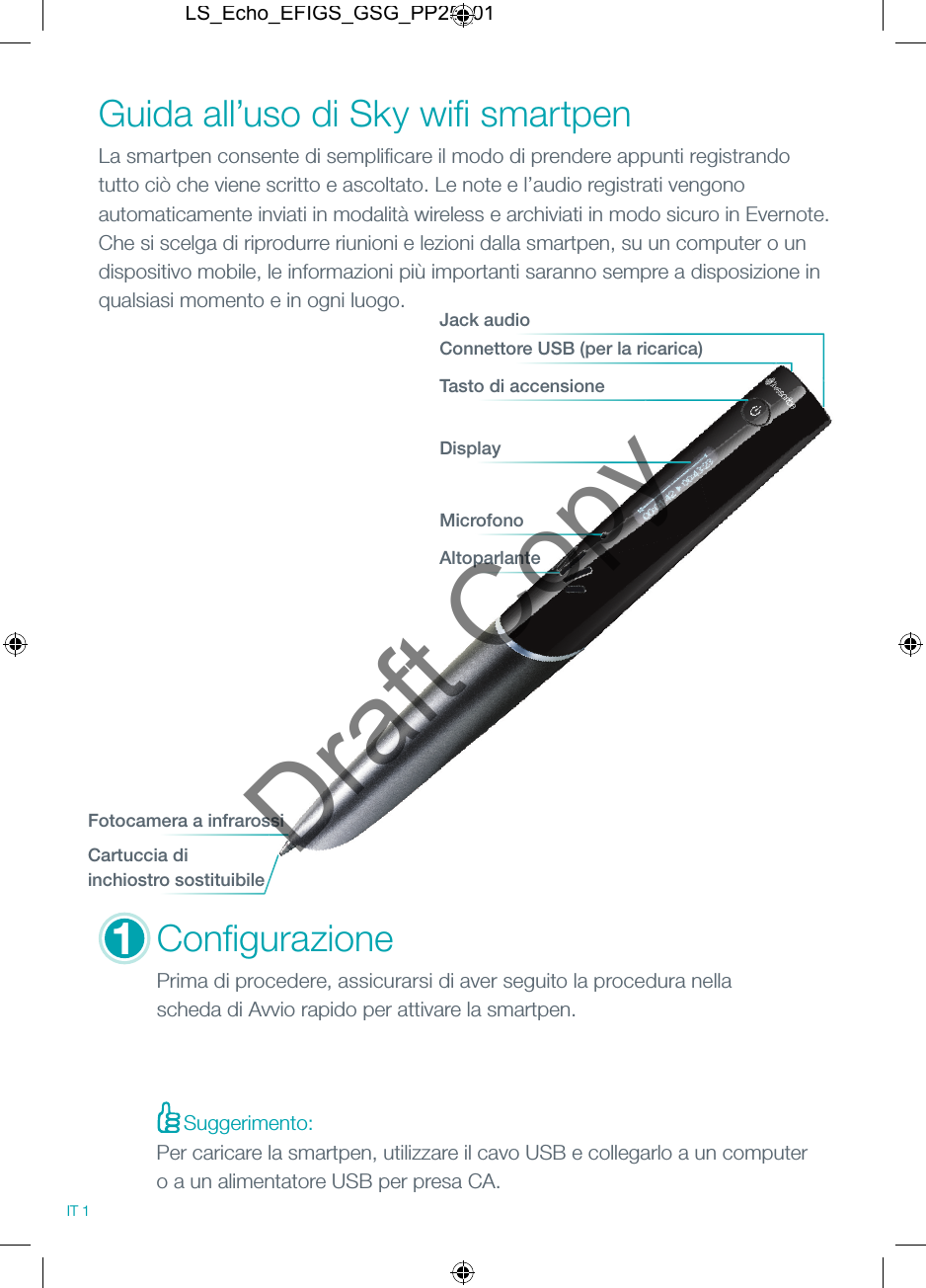
Suggerimento:MicrofonoAltoparlanteConfi gurazionePrima di procedere, assicurarsi di aver seguito la procedura nella scheda di Avvio rapido per attivare la smartpen.Guida all’uso di Sky wifi  smartpenLa smartpen consente di semplifi care il modo di prendere appunti registrando tutto ciò che viene scritto e ascoltato. Le note e l’audio registrati vengono automaticamente inviati in modalità wireless e archiviati in modo sicuro in Evernote. Che si scelga di riprodurre riunioni e lezioni dalla smartpen, su un computer o un dispositivo mobile, le informazioni più importanti saranno sempre a disposizione in qualsiasi momento e in ogni luogo.Connettore USB (per la ricarica)Jack audioTasto di accensioneDisplayFotocamera a infrarossiCartuccia di inchiostro sostituibile1IT 1Per caricare la smartpen, utilizzare il cavo USB e collegarlo a un computer o a un alimentatore USB per presa CA.LS_Echo_EFIGS_GSG_PP25_01Draft Copy
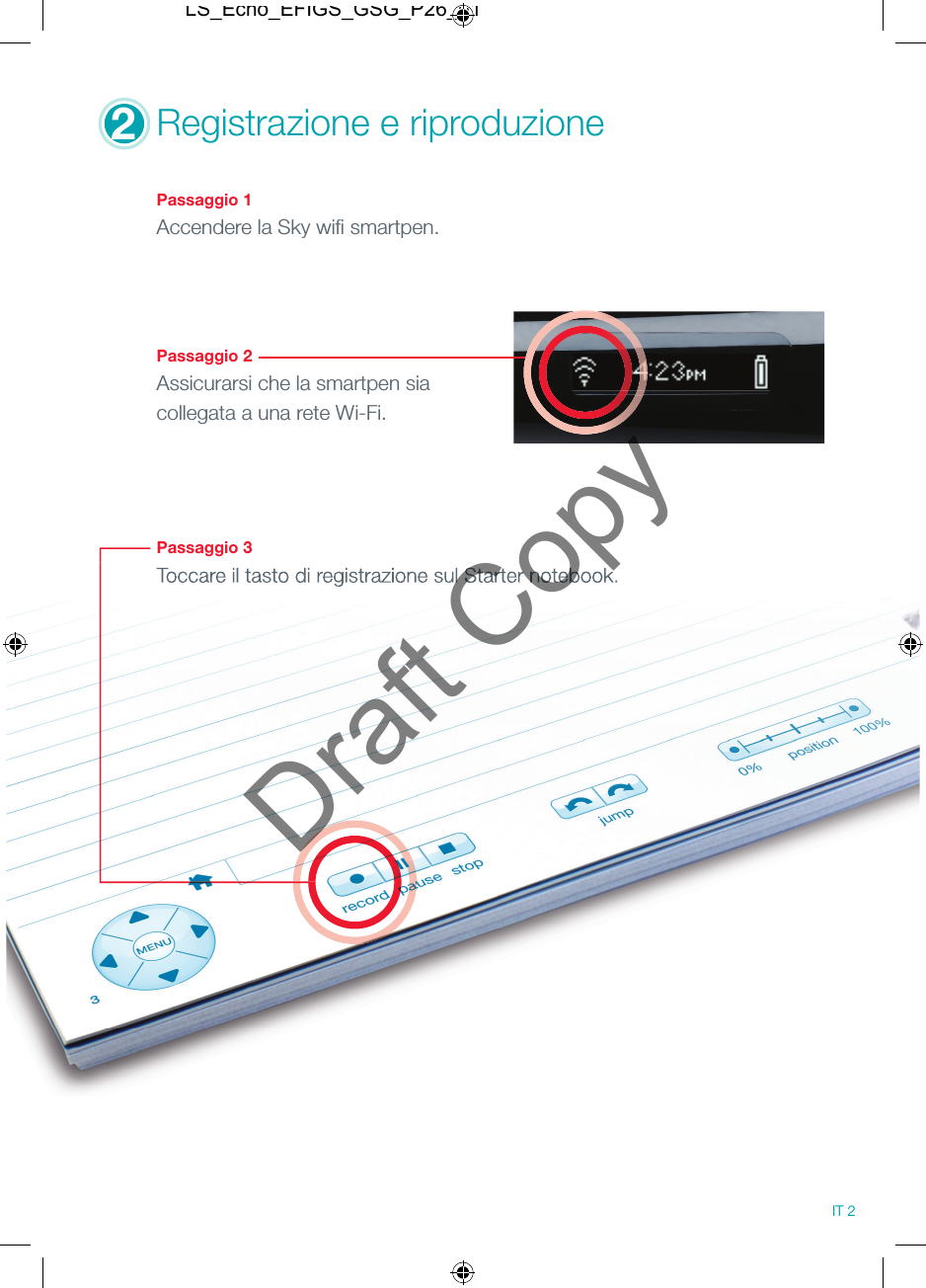
2Registrazione e riproduzione Passaggio 1Accendere la Sky wifi  smartpen.Passaggio 2Assicurarsi che la smartpen sia collegata a una rete Wi-Fi.Passaggio 3Toccare il tasto di registrazione sul Starter notebook.Toccare il tasto di registrazione sul Starter notebook.IT 2LS_Echo_EFIGS_GSG_P26_01Draft Copy
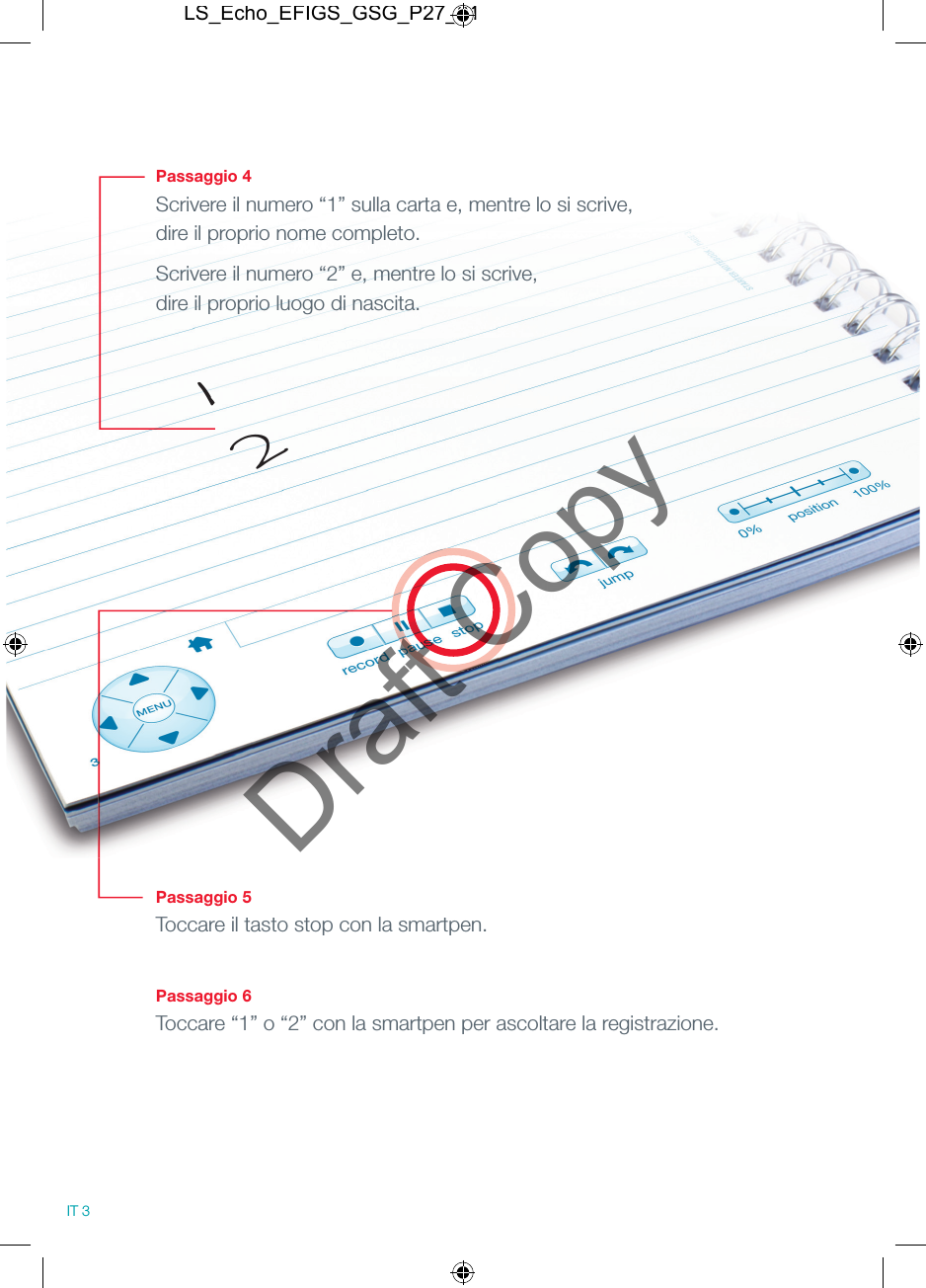
Passaggio 4Scrivere il numero “1” sulla carta e, mentre lo si scrive, dire il proprio nome completo.Scrivere il numero “2” e, mentre lo si scrive, dire il proprio luogo di nascita.Passaggio 5Toccare il tasto stop con la smartpen.Passaggio 6Toccare “1” o “2” con la smartpen per ascoltare la registrazione.12IT 3LS_Echo_EFIGS_GSG_P27_01Draft Copy
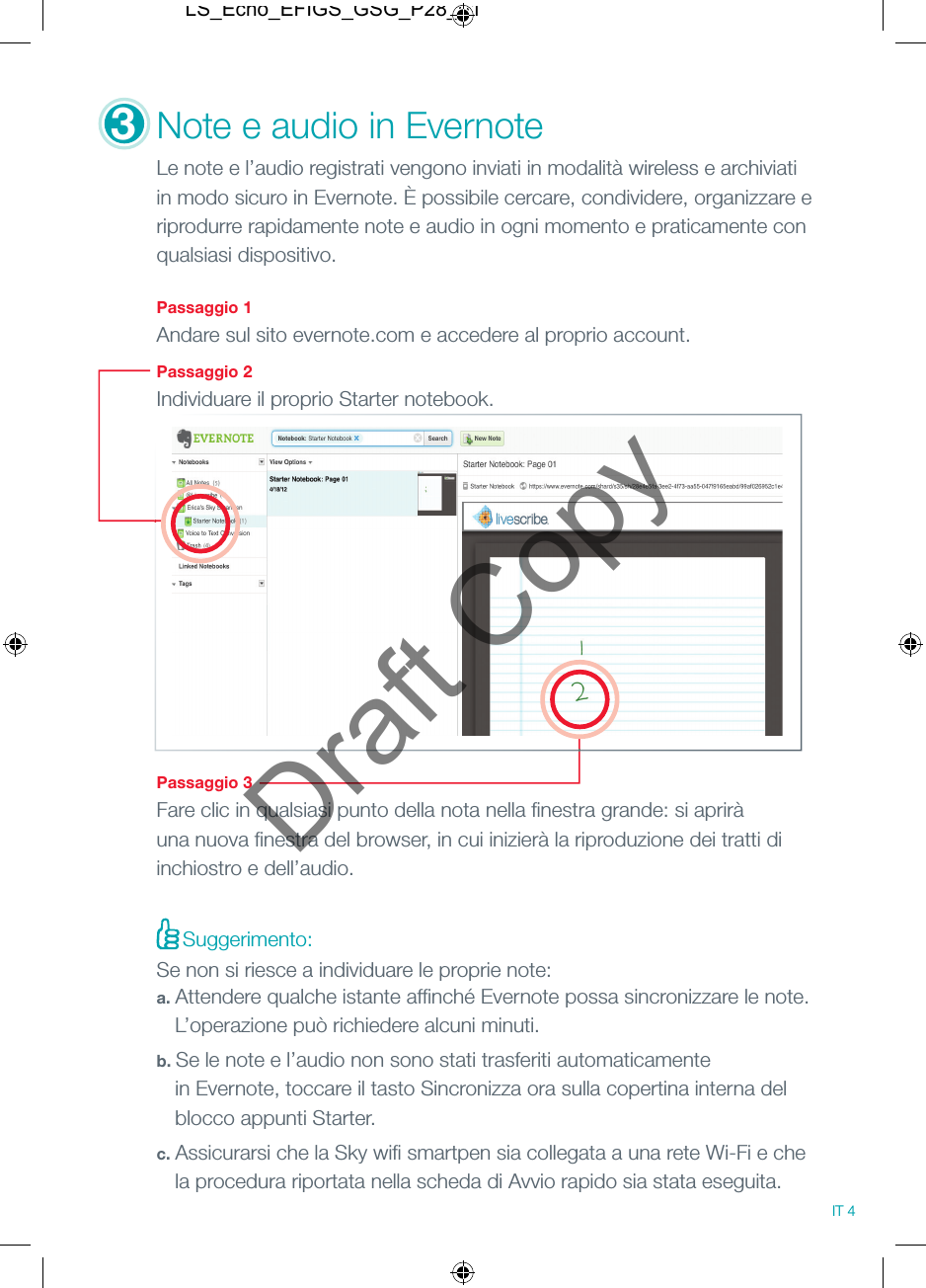
3Note e audio in Evernote Le note e l’audio registrati vengono inviati in modalità wireless e archiviati in modo sicuro in Evernote. È possibile cercare, condividere, organizzare e riprodurre rapidamente note e audio in ogni momento e praticamente con qualsiasi dispositivo. Passaggio 1Andare sul sito evernote.com e accedere al proprio account. Passaggio 2Individuare il proprio Starter notebook.Passaggio 3Fare clic in qualsiasi punto della nota nella fi nestra grande: si aprirà una nuova fi nestra del browser, in cui inizierà la riproduzione dei tratti di inchiostro e dell’audio.Suggerimento:Se non si riesce a individuare le proprie note:a. Attendere qualche istante affi nché Evernote possa sincronizzare le note.    L’operazione può richiedere alcuni minuti.b. Se le note e l’audio non sono stati trasferiti automaticamente   in Evernote, toccare il tasto Sincronizza ora sulla copertina interna del   blocco appunti Starter.c. Assicurarsi che la Sky wifi  smartpen sia collegata a una rete Wi-Fi e che   la procedura riportata nella scheda di Avvio rapido sia stata eseguita.IT 4LS_Echo_EFIGS_GSG_P28_01Draft Copy
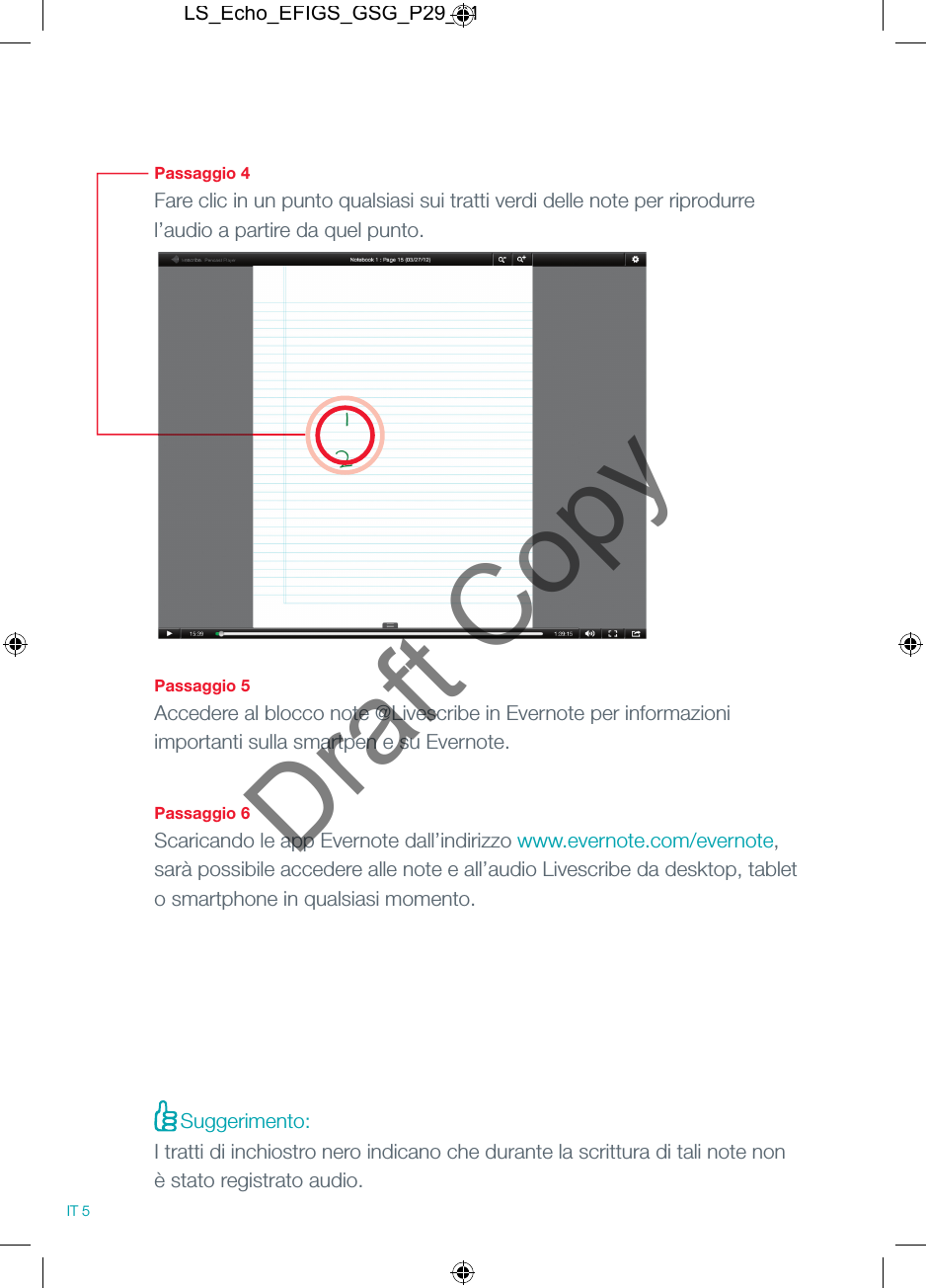
Passaggio 4Fare clic in un punto qualsiasi sui tratti verdi delle note per riprodurre l’audio a partire da quel punto.Passaggio 5Accedere al blocco note @Livescribe in Evernote per informazioni importanti sulla smartpen e su Evernote.Passaggio 6Scaricando le app Evernote dall’indirizzo www.evernote.com/evernote, sarà possibile accedere alle note e all’audio Livescribe da desktop, tablet o smartphone in qualsiasi momento.IT 5Suggerimento:I tratti di inchiostro nero indicano che durante la scrittura di tali note non è stato registrato audio.LS_Echo_EFIGS_GSG_P29_01Draft Copy
Maggiori informazioni Maggiori informazioni sulla smartpen e su Evernote: livescribe.com/skyGuida al Wi-Fi: livescribe.com/wifihelpAssistenza clienti: livescribe.com/supportSupporto tecnico Evernote: evernote.com/contact/support/ Unisciti alle community:Pagina dei fan su Facebook: Facebook.com/livescribePagina Twitter globale: Twitter.com/livescribeBlog Livescribe: Livescribe.com/blogPagina Twitter per l’apprendimento: Twitter.com/livescribeK12Blog per l’apprendimento: Livescribe.com/blog/education IT 6LS_Echo_EFIGS_GSG_P30_01Draft Copy
livescribe.comLIVESCRIBE, SKY, and PAPER REPLAY are trademarks of Livescribe Inc.  ©2012 Livescribe Inc. All rights reserved. Other brands and product names  are trademarks of their respective owners.212-00018-000-AALS_Echo_EFIGS_GSG_P31_01Draft CopyThis device complies with part 15 of the FCC Rules. Operation is subject to the following two conditions: (1) This device may not cause harmful interference, and (2) this device must accept any interference received, including interference that may cause undesired operation.   Caution: Any changes or modification to the equipment not expressly approved by Livescribe, Inc. could void your authority to operate this equipment.   Note: This equipment has been tested and found to comply with the limits for a Class B digital device, pursuant to part 15 of the FCC Rules. These limits are designed to provide reasonable protection against harmful interference in a residential installation. This equipment generates, uses and can radiate radio frequency energy and, if not installed and used in accordance with the instructions, may cause harmful interference to radio communications. However, there is no guarantee that interference will not occur in a particular installation. If this equipment does cause harmful interference to radio or television reception, which can be determined by turning the equipment off and on, the user is encouraged to try to correct the interference by one or more of the following measures:   --Reorient or relocate the receiving antenna.  --Increase the separation between the equipment and receiver.  --Connect the equipment into an outlet on a circuit different from that to which the receiver is connected. --Consult the dealer or an experienced radio/TV technician for help.    Cet appareil est conforme à la partie 15 de la réglementation FCC. Son fonctionnement est soumis aux deux conditions suivantes: (1) Cet appareil ne doit pas provoquer d'interférences nuisibles, et (2) cet appareil doit accepter toute interférence reçue, incluant toute interférence pouvant causer un fonctionnement indésirable.  Attention: Tout changement ou modification de l'équipement non expressément approuvée par Livescribe, Inc pourrait annuler votre droit à utiliser cet appareil.   Remarque: Cet équipement a été testé et jugé conforme aux limites établies pour un dispositif numérique de classe B, conformément à la partie 15 de la réglementation FCC. Ces limites sont conçues pour fournir une protection raisonnable contre les interférences nuisibles dans une installation résidentielle. Cet équipement génère, utilise et peut émettre une énergie de fréquence radio et, s'il n'est pas installé et utilisé conformément aux instructions, il peut causer des interférences nuisibles aux communications radio. Cependant, il n'existe aucune garantie que des interférences ne se produiront pas dans une installation particulière. Si cet équipement provoque des interférences nuisibles à la réception radio ou télévision, ce qui peut être déterminé en mettant l'équipement hors et sous tension, l'utilisateur est encouragé à essayer de corriger l'interférence par une ou plusieurs des mesures suivantes:  -Réorienter ou repositionner l'antenne de réception. -Augmenter la distance entre l'équipement et le récepteur. -Brancher l'équipement dans une prise sur un circuit différent de celui sur lequel le récepteur est branché -Consulter le revendeur ou un technicien radio / télévision qualifié pour obtenir de l'aide.     Este dispositivo cumple con la parte 15 de las normas FCC. La operación está sujeta a las siguientes dos condiciones: (1) Este dispositivo no puede causar interferencia dañina, y (2) este dispositivo debe aceptar cualquier interferencia recibida, incluidas las interferencias que puedan provocar un funcionamiento no deseado.  Precaución: Cualquier cambio o modificación en el equipo sin la aprobación expresa de Livescribe, Inc. podrían invalidar su autoridad para utilizar este equipo.  Nota: Este equipo ha sido probado y ha demostrado cumplir con los límites establecidos para los dispositivos digitales de Clase B, según la Parte 15 de las normas FCC. Estos límites están diseñados para proporcionar una protección razonable contra las interferencias perjudiciales en una instalación residencial. Este equipo genera, utiliza y puede irradiar energía de radiofrecuencia y, si no se instala y utiliza de acuerdo con las instrucciones, puede causar interferencias perjudiciales en las comunicaciones por radio. Sin embargo, no hay garantía que la interferencia no ocurrirá en una instalación en particular. Si este equipo causa interferencias perjudiciales en la recepción de radio o televisión, lo que puede determinarse encendiéndolo y apagándolo, se recomienda al usuario que intente corregir la interferencia mediante una o más de las siguientes medidas: -Cambiar la orientación o ubicación de la antena receptora.  -Aumente la separación entre el equipo y el receptor. -Conecte el equipo a un tomacorriente en un circuito diferente de aquel al que está conectado el receptor. -Consulte a su distribuidor oa un técnico experto en radio / TV para obtener ayuda.

Navigation menu