Livescribe 00072 Livescribe 3 Smartpen User Manual

Livescribe, Inc. Livescribe 3 Smartpen Users Manual

Contents

Users Manual

Basics Guide
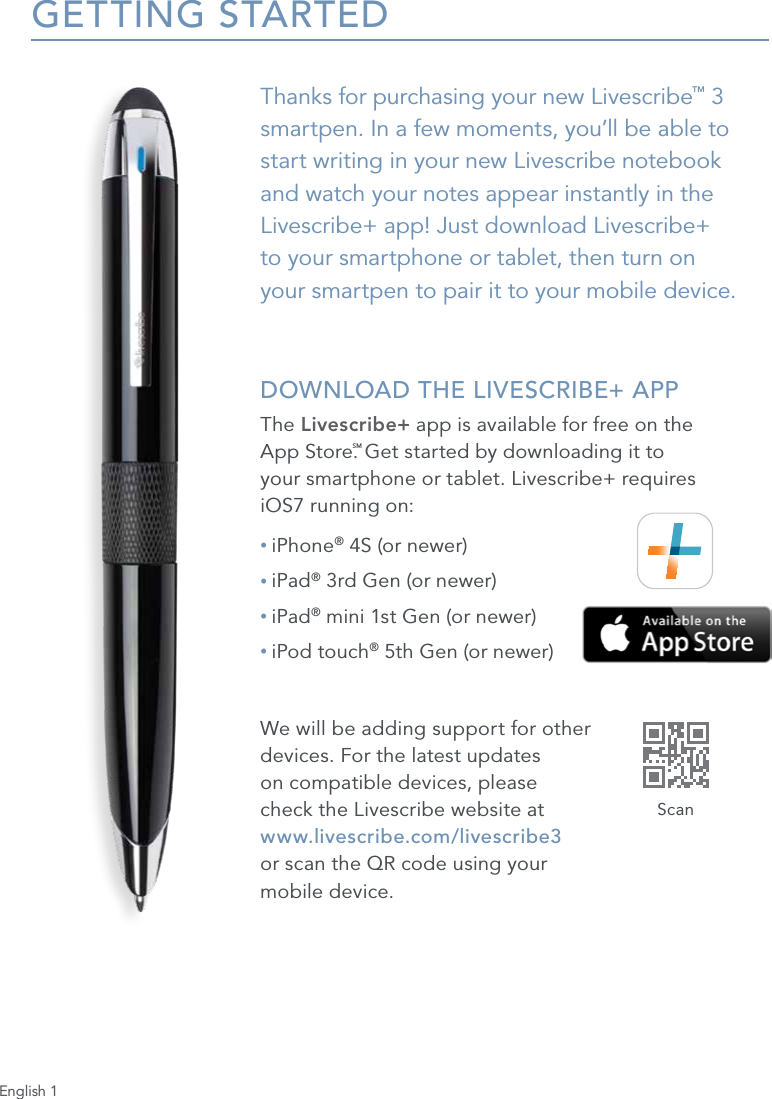
English 1GETTING STARTEDThanks for purchasing your new Livescribe™ 3 smartpen. In a few moments, you’ll be able to start writing in your new Livescribe notebook and watch your notes appear instantly in the Livescribe+ app! Just download Livescribe+  to your smartphone or tablet, then turn on  your smartpen to pair it to your mobile device. DOWNLOAD THE LIVESCRIBE+ APPThe Livescribe+ app is available for free on the  App Store.SM Get started by downloading it to  your smartphone or tablet. Livescribe+ requires  iOS7 running on:• iPhone® 4S (or newer)• iPad® 3rd Gen (or newer)• iPad® mini 1st Gen (or newer)• iPod touch® 5th Gen (or newer)We will be adding support for other  devices. For the latest updates  on compatible devices, please  check the Livescribe website at  www.livescribe.com/livescribe3  or scan the QR code using your  mobile device.Scan
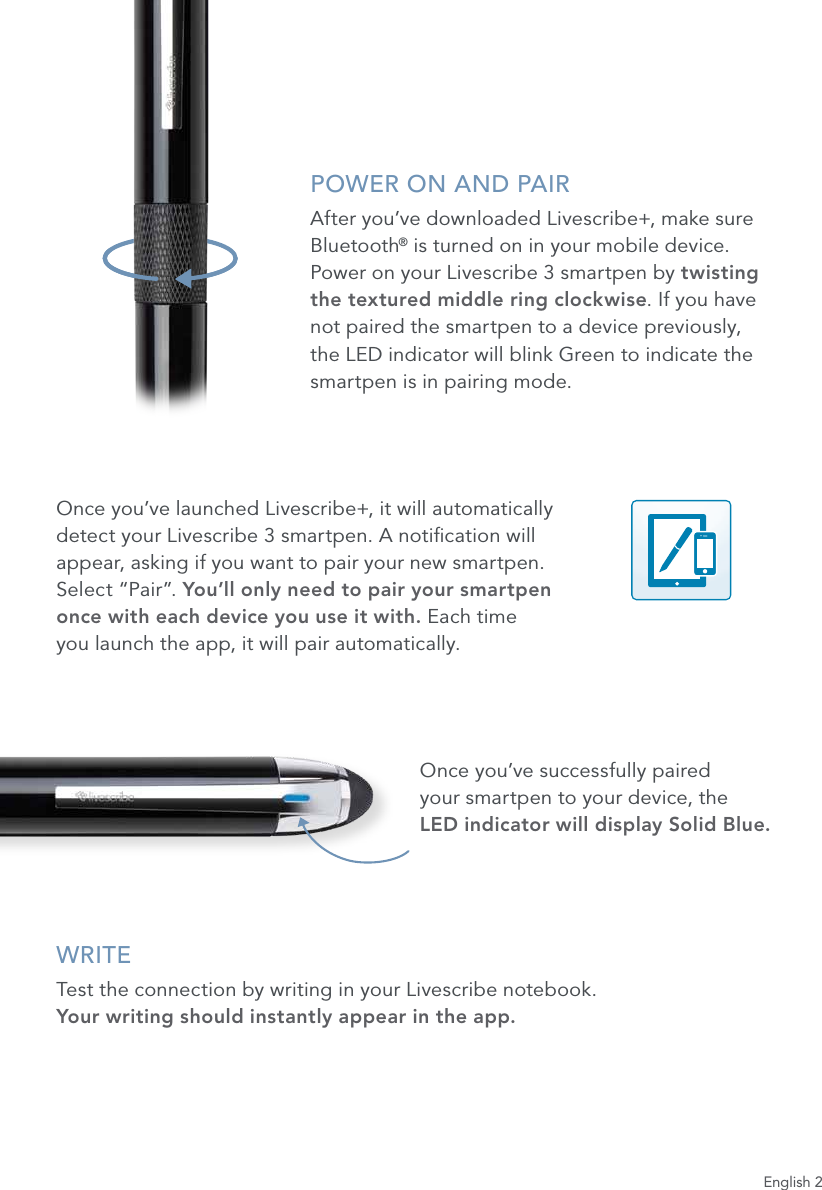
English 2POWER ON AND PAIRAfter you’ve downloaded Livescribe+, make sure Bluetooth® is turned on in your mobile device.  Power on your Livescribe 3 smartpen by twisting  the textured middle ring clockwise. If you have  not paired the smartpen to a device previously, the LED indicator will blink Green to indicate the smartpen is in pairing mode.Once you’ve launched Livescribe+, it will automatically  detect your Livescribe 3 smartpen. A notication will  appear, asking if you want to pair your new smartpen.  Select “Pair”. You’ll only need to pair your smartpen  once with each device you use it with. Each time  you launch the app, it will pair automatically.Once you’ve successfully paired  your smartpen to your device, the  LED indicator will display Solid Blue.WRITETest the connection by writing in your Livescribe notebook.  Your writing should instantly appear in the app.
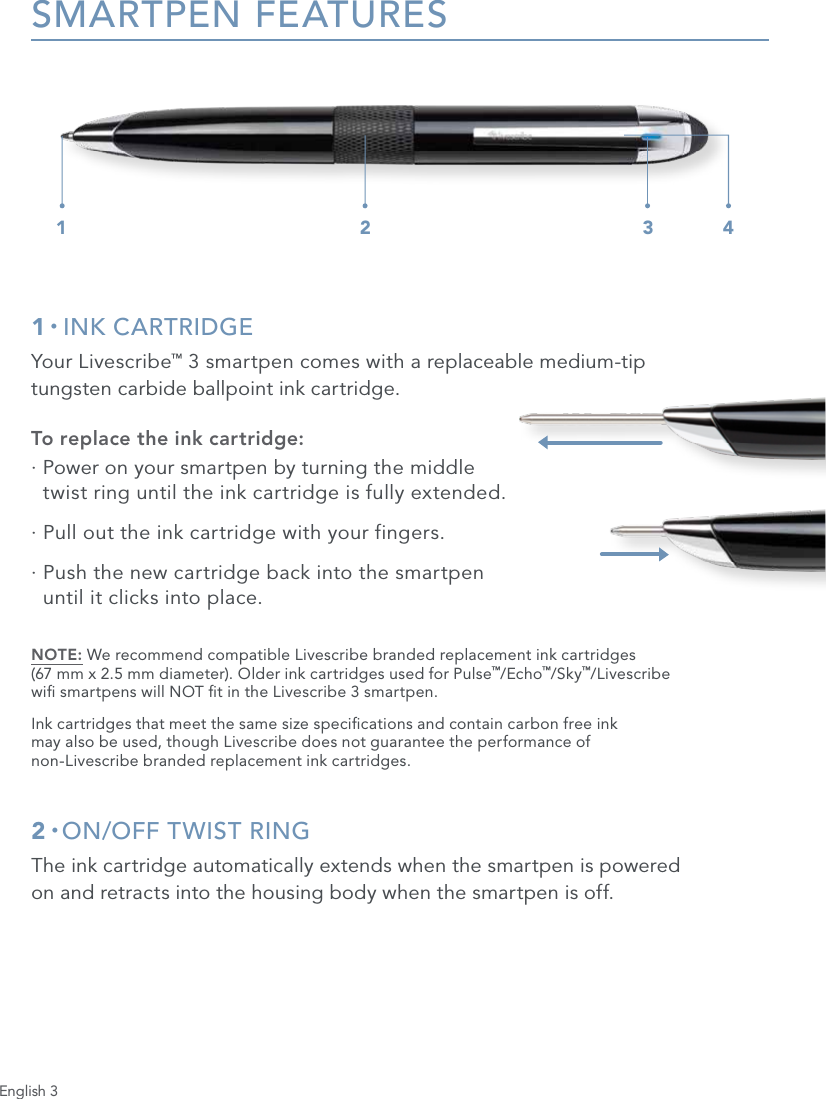
English 3SMARTPEN FEATURES1 • INK CARTRIDGEYour Livescribe™ 3 smartpen comes with a replaceable medium-tip  tungsten carbide ballpoint ink cartridge.To replace the ink cartridge:·  Power on your smartpen by turning the middle  twist ring until the ink cartridge is fully extended.·  Pull out the ink cartridge with your fingers.·  Push the new cartridge back into the smartpen  until it clicks into place.NOTE: We recommend compatible Livescribe branded replacement ink cartridges  (67 mm x 2.5 mm diameter). Older ink cartridges used for Pulse™/Echo™/Sky™/Livescribe  wi smartpens will NOT t in the Livescribe 3 smartpen.Ink cartridges that meet the same size specications and contain carbon free ink  may also be used, though Livescribe does not guarantee the performance of  non-Livescribe branded replacement ink cartridges.2 • ON/OFF TWIST RINGThe ink cartridge automatically extends when the smartpen is powered  on and retracts into the housing body when the smartpen is off.1 2 3 4
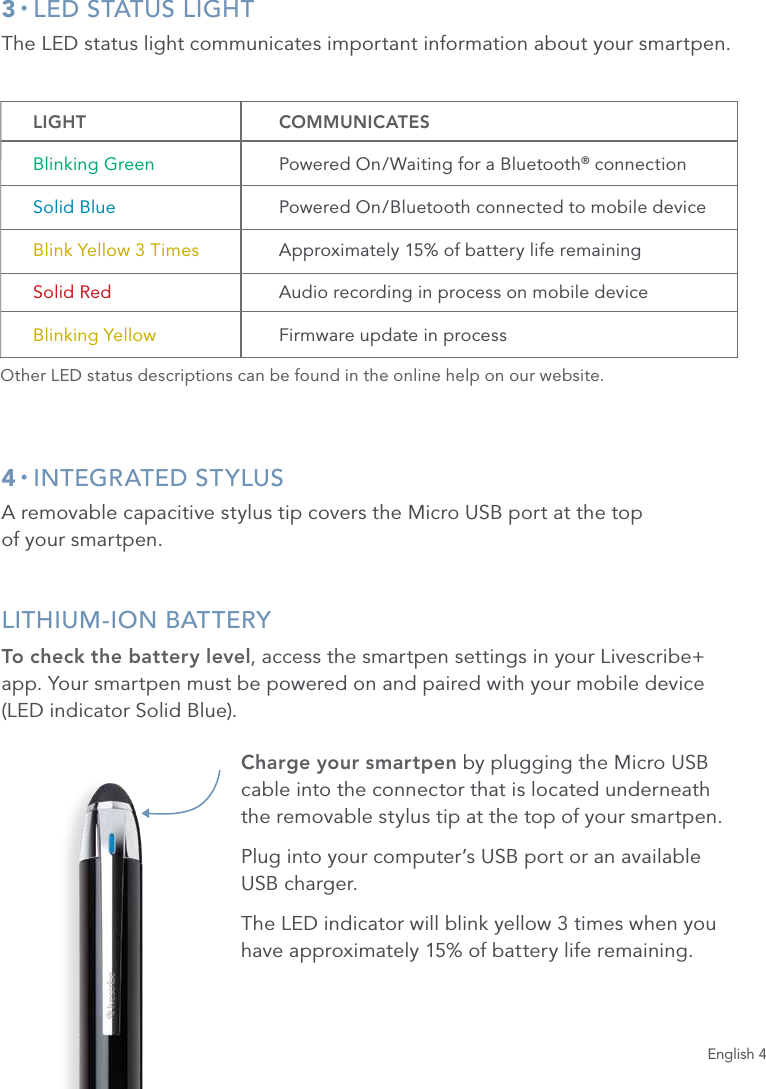
English 43 • LED STATUS LIGHTThe LED status light communicates important information about your smartpen.4 • INTEGRATED STYLUSA removable capacitive stylus tip covers the Micro USB port at the top  of your smartpen. LITHIUM-ION BATTERYTo check the battery level, access the smartpen settings in your Livescribe+  app. Your smartpen must be powered on and paired with your mobile device  (LED indicator Solid Blue).Charge your smartpen by plugging the Micro USB cable into the connector that is located underneath  the removable stylus tip at the top of your smartpen.Plug into your computer’s USB port or an available  USB charger.The LED indicator will blink yellow 3 times when you have approximately 15% of battery life remaining. LIGHT   COMMUNICATES Blinking Green  Powered On/Waiting for a Bluetooth® connection  Solid Blue  Powered On/Bluetooth connected to mobile device  Blink Yellow 3 Times Approximately 15% of battery life remaining Solid Red  Audio recording in process on mobile device  Blinking Yellow  Firmware update in processOther LED status descriptions can be found in the online help on our website.
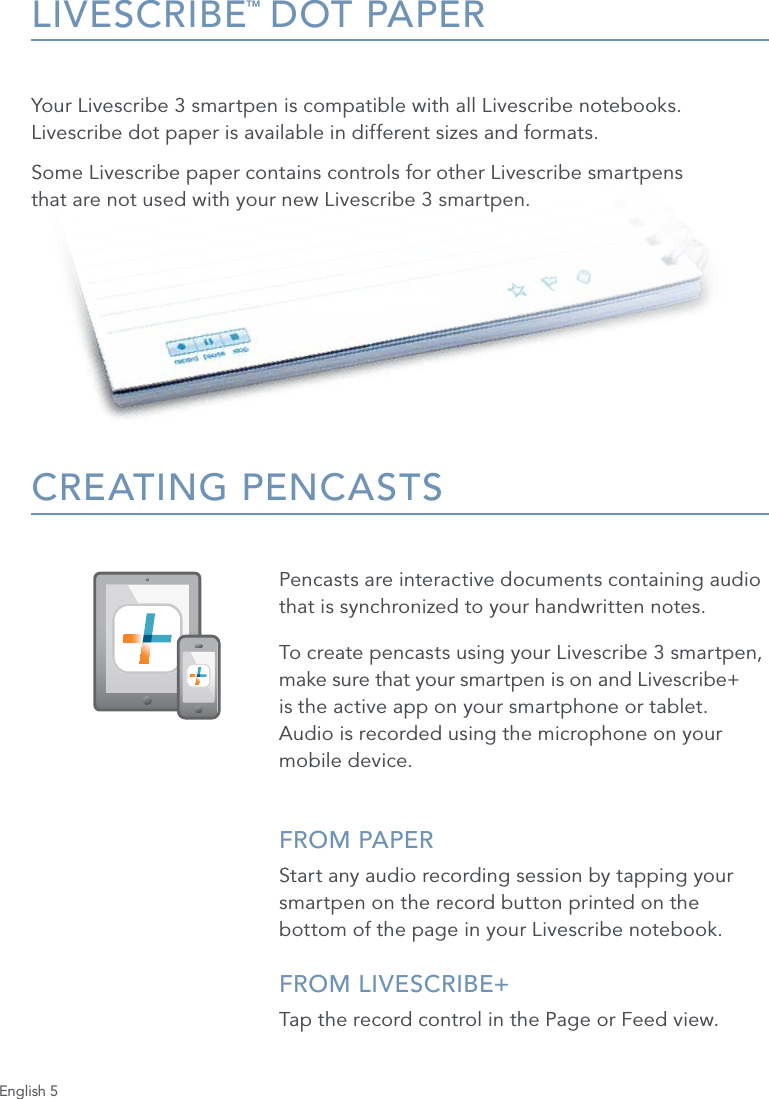
English 5LIVESCRIBE™ DOT PAPERYour Livescribe 3 smartpen is compatible with all Livescribe notebooks. Livescribe dot paper is available in different sizes and formats. Some Livescribe paper contains controls for other Livescribe smartpens  that are not used with your new Livescribe 3 smartpen.CREATING PENCASTSPencasts are interactive documents containing audio that is synchronized to your handwritten notes. To create pencasts using your Livescribe 3 smartpen, make sure that your smartpen is on and Livescribe+  is the active app on your smartphone or tablet.  Audio is recorded using the microphone on your mobile device.FROM PAPERStart any audio recording session by tapping your smartpen on the record button printed on the bottom of the page in your Livescribe notebook.FROM LIVESCRIBE+ Tap the record control in the Page or Feed view.
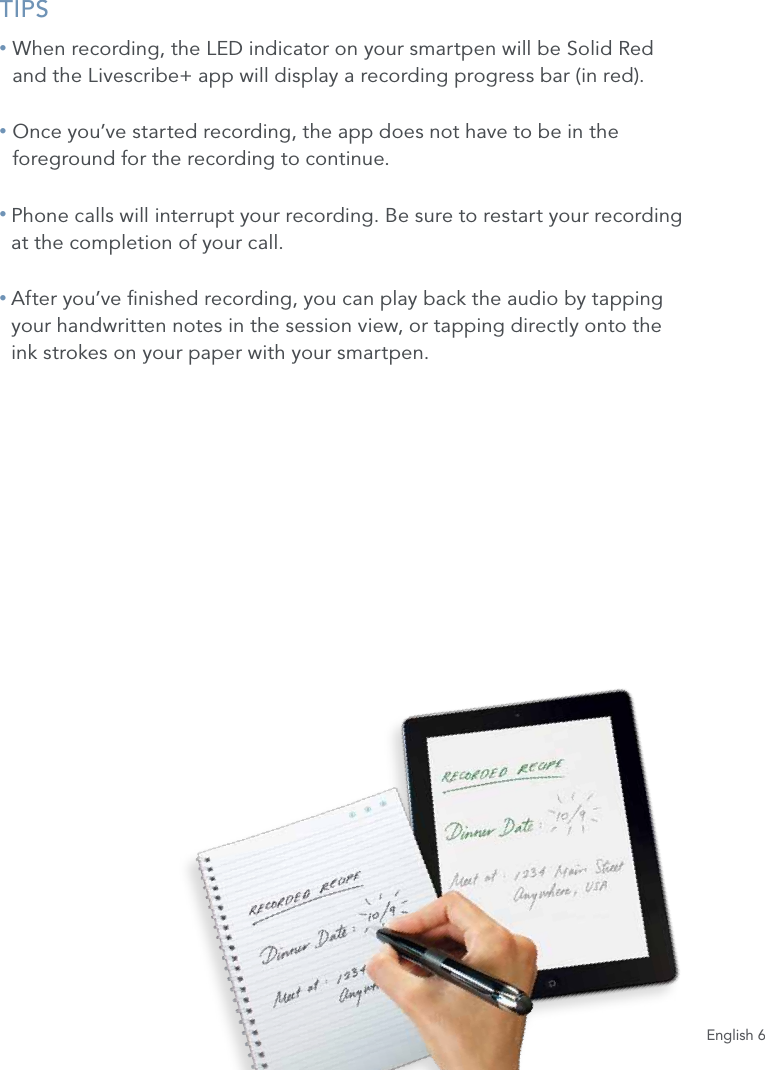
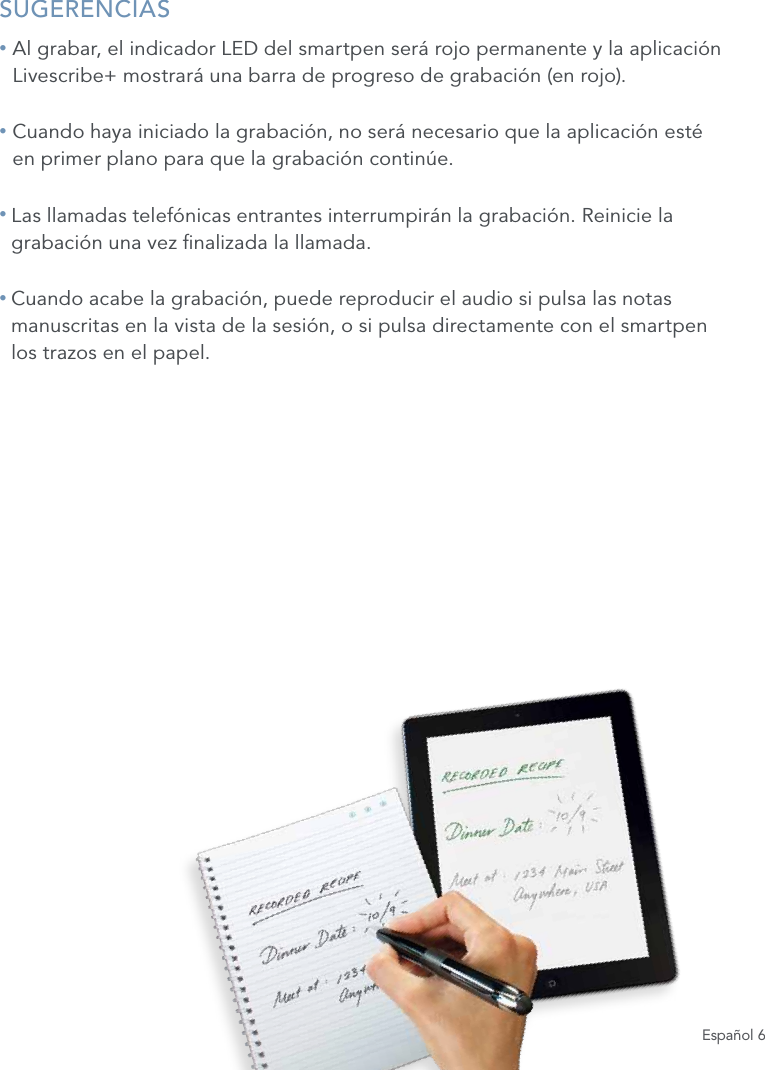
English 6TIPS•  When recording, the LED indicator on your smartpen will be Solid Red  and the Livescribe+ app will display a recording progress bar (in red).•  Once you’ve started recording, the app does not have to be in the foreground for the recording to continue.•  Phone calls will interrupt your recording. Be sure to restart your recording  at the completion of your call.•  After you’ve nished recording, you can play back the audio by tapping  your handwritten notes in the session view, or tapping directly onto the  ink strokes on your paper with your smartpen.
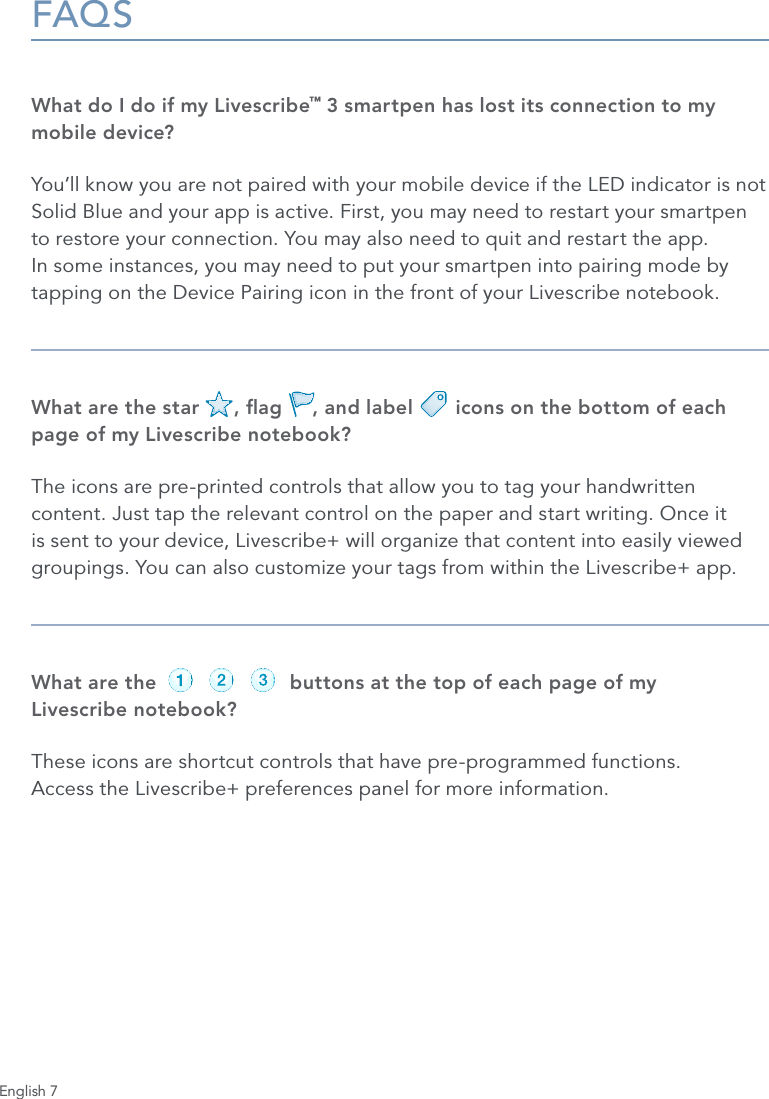
English 7FAQSWhat do I do if my Livescribe™ 3 smartpen has lost its connection to my mobile device?You’ll know you are not paired with your mobile device if the LED indicator is not Solid Blue and your app is active. First, you may need to restart your smartpen to restore your connection. You may also need to quit and restart the app. In some instances, you may need to put your smartpen into pairing mode by tapping on the Device Pairing icon in the front of your Livescribe notebook.What are the star      , ag     , and label       icons on the bottom of each page of my Livescribe notebook?The icons are pre-printed controls that allow you to tag your handwritten content. Just tap the relevant control on the paper and start writing. Once it is sent to your device, Livescribe+ will organize that content into easily viewed groupings. You can also customize your tags from within the Livescribe+ app.What are the                      buttons at the top of each page of my  Livescribe notebook?These icons are shortcut controls that have pre-programmed functions.  Access the Livescribe+ preferences panel for more information.record pause stoprecord pause stoprecord pause stoprecord pause stoprecord pause stoprecord pause stop
English 8LEARN MOREVideos, tips and tricks, and documentation  about your Livescribe 3 smartpen  www.livescribe.com/livescribe3supportOnline Help www.livescribe.com/livescribe3onlinehelpLivescribe Customer Support support.livescribe.comFOLLOW US Fan Page www.facebook.com/livescribeGlobal Twitter Page www.twitter.com/livescribeLivescribe Blog www.livescribe.com/blogYouTube  www.youtube.com/nevermissawordLivescribe Inc. Model: V1110 FCC ID: CKD-00072 IC: 10240A-00072REGULATORYThis device complies with part 15 of the FCC Rules. Operation is subject to the following two conditions: (1) This device may not cause harmful interference, and (2) this device must accept any interference received, including interference that may cause undesired operation. Caution: Any changes or modication to the equipment not expressly approved by Livescribe, Inc. could void your authority to operate this equipment. Note: This equipment has been tested and found to comply with the limits for a Class B digital device, pursuant to part 15 of the FCC Rules. These limits are designed to provide reasonable protection against harmful interference in a residential installation. This equipment generates, uses and can radiate radio frequency energy and, if not installed and used in accordance with the instructions, may cause harmful interference to radio communications. However, there is no guarantee that interference will not occur in a particular installation. If this equipment does cause harmful interference to radio or television reception, which can be determined by turning the equipment off and on, the user is encouraged to try to correct the interference by one or more of the following measures:• Reorient or relocate the receiving antenna. • Increase the separation between the equipment and receiver. • Connect the equipment into an outlet on a circuit different from that to which the receiver is connected. • Consult the dealer or an experienced radio/TV technician for help.This device complies with Industry Canada license-exempt RSS standard(s). Operation is subject to the following two conditions: (1) This device may not cause harmful interference, and (2) this device must accept any interference received, including interference that may cause undesired operation.
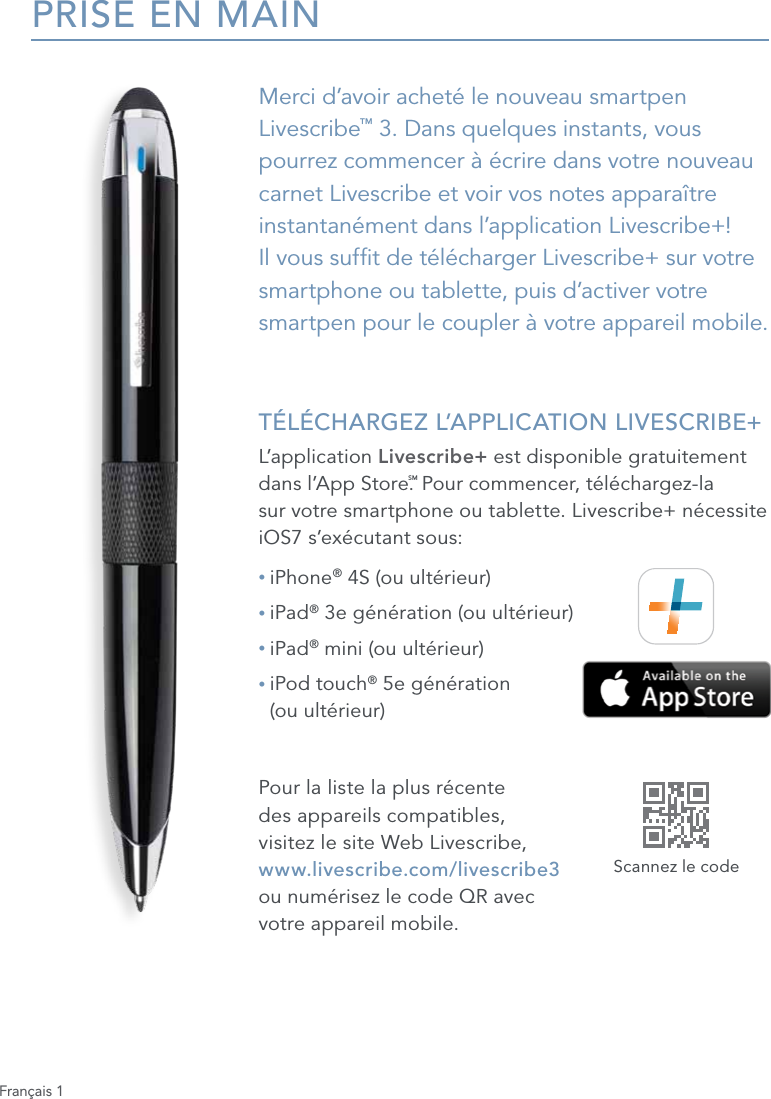
Français 1PRISE EN MAINMerci d’avoir acheté le nouveau smartpen Livescribe™ 3. Dans quelques instants, vous pourrez commencer à écrire dans votre nouveau carnet Livescribe et voir vos notes apparaître instantanément dans l’application Livescribe+!  Il vous suft de télécharger Livescribe+ sur votre smartphone ou tablette, puis d’activer votre  smartpen pour le coupler à votre appareil mobile. TÉLÉCHARGEZ L’APPLICATION LIVESCRIBE+L’application Livescribe+ est disponible gratuitement dans l’App Store.SM Pour commencer, téléchargez-la  sur votre smartphone ou tablette. Livescribe+ nécessite iOS7 s’exécutant sous:• iPhone® 4S (ou ultérieur)• iPad® 3e génération (ou ultérieur)• iPad® mini (ou ultérieur)•  iPod touch® 5e génération  (ou ultérieur)Pour la liste la plus récente  des appareils compatibles,  visitez le site Web Livescribe, www.livescribe.com/livescribe3  ou numérisez le code QR avec  votre appareil mobile.Scannez le code
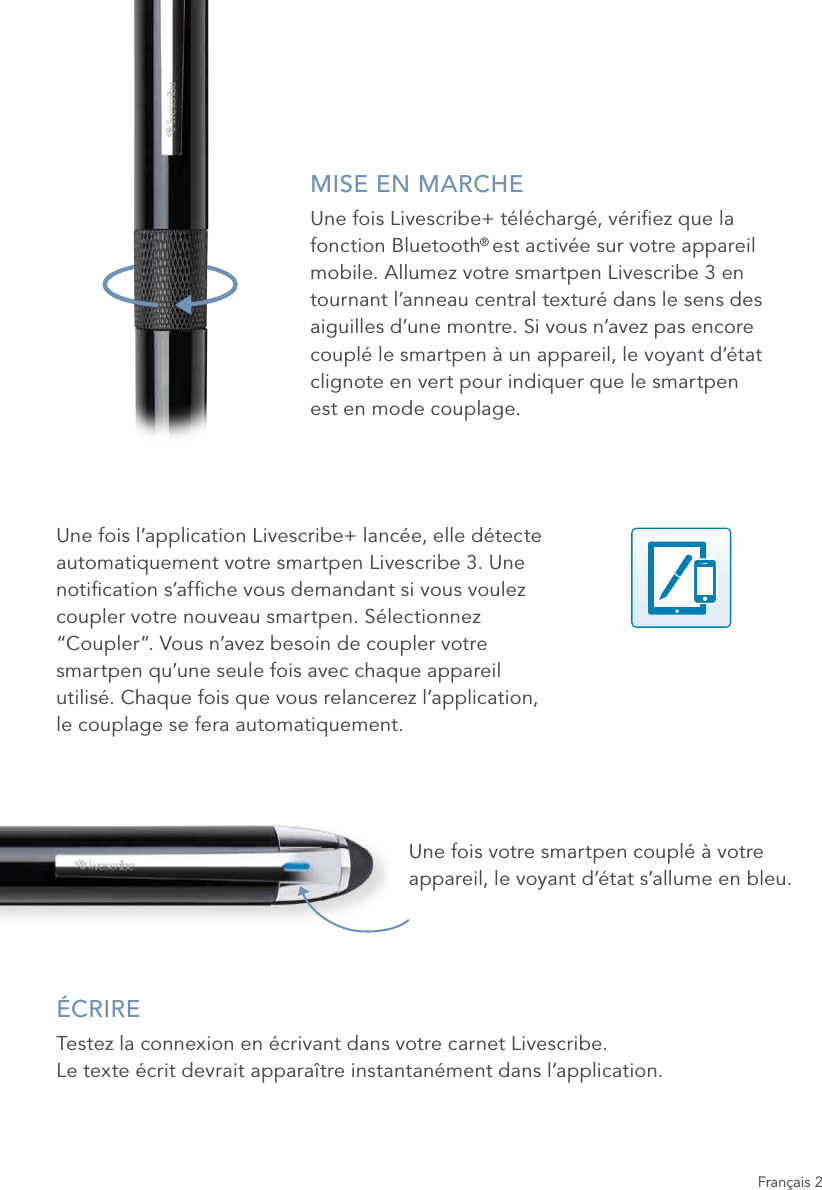
MISE EN MARCHEUne fois Livescribe+ téléchargé, vériez que la fonction Bluetooth® est activée sur votre appareil mobile. Allumez votre smartpen Livescribe 3 en tournant l’anneau central texturé dans le sens des aiguilles d’une montre. Si vous n’avez pas encore couplé le smartpen à un appareil, le voyant d’état clignote en vert pour indiquer que le smartpen  est en mode couplage.Une fois l’application Livescribe+ lancée, elle détecte automatiquement votre smartpen Livescribe 3. Une notication s’afche vous demandant si vous voulez coupler votre nouveau smartpen. Sélectionnez “Coupler”. Vous n’avez besoin de coupler votre smartpen qu’une seule fois avec chaque appareil utilisé. Chaque fois que vous relancerez l’application,  le couplage se fera automatiquement.Une fois votre smartpen couplé à votre appareil, le voyant d’état s’allume en bleu.ÉCRIRETestez la connexion en écrivant dans votre carnet Livescribe.  Le texte écrit devrait apparaître instantanément dans l’application.Français 2
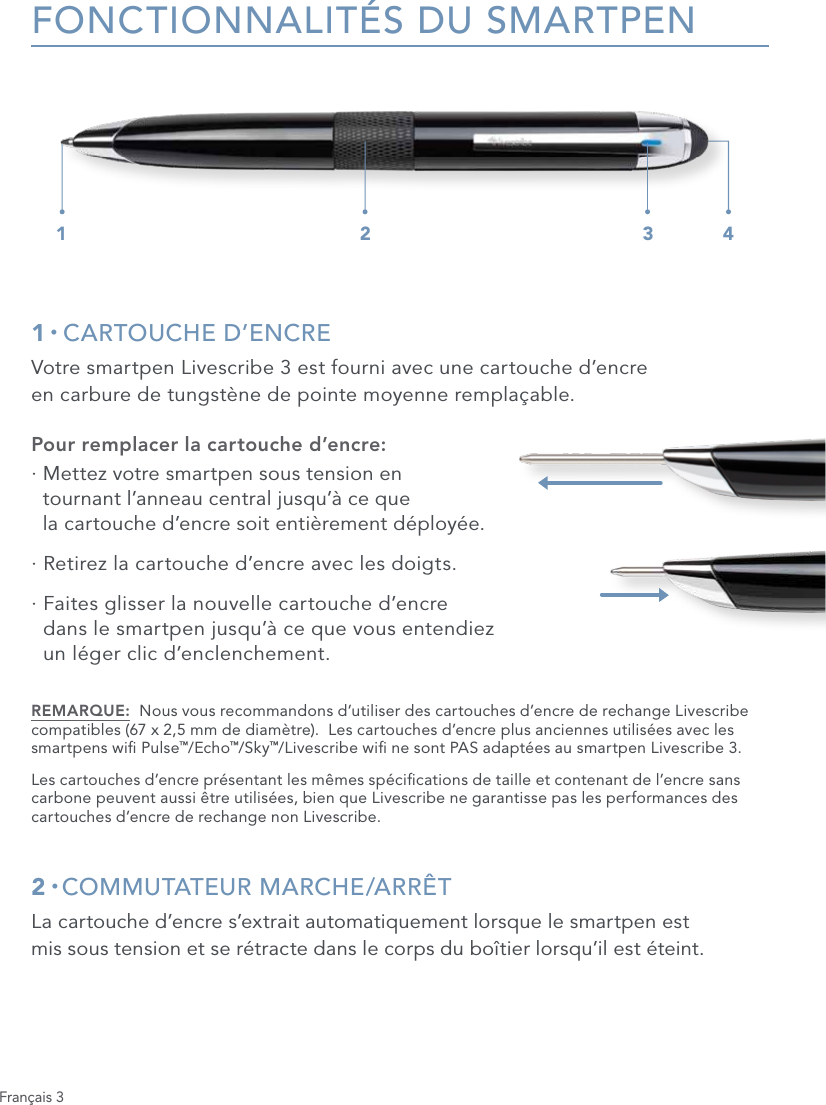
Français 3FONCTIONNALITÉS DU SMARTPEN1 • CARTOUCHE D’ENCREVotre smartpen Livescribe 3 est fourni avec une cartouche d’encre  en carbure de tungstène de pointe moyenne remplaçable.Pour remplacer la cartouche d’encre:·  Mettez votre smartpen sous tension en  tournant l’anneau central jusqu’à ce que  la cartouche d’encre soit entièrement déployée.·  Retirez la cartouche d’encre avec les doigts.·  Faites glisser la nouvelle cartouche d’encre  dans le smartpen jusqu’à ce que vous entendiez  un léger clic d’enclenchement.REMARQUE:  Nous vous recommandons d’utiliser des cartouches d’encre de rechange Livescribe compatibles (67 x 2,5 mm de diamètre).  Les cartouches d’encre plus anciennes utilisées avec les smartpens wi Pulse™/Echo™/Sky™/Livescribe wi ne sont PAS adaptées au smartpen Livescribe 3. Les cartouches d’encre présentant les mêmes spécications de taille et contenant de l’encre sans carbone peuvent aussi être utilisées, bien que Livescribe ne garantisse pas les performances des cartouches d’encre de rechange non Livescribe.2 • COMMUTATEUR  MARCHE/ARRÊTLa cartouche d’encre s’extrait automatiquement lorsque le smartpen est  mis sous tension et se rétracte dans le corps du boîtier lorsqu’il est éteint.1 2 3 4
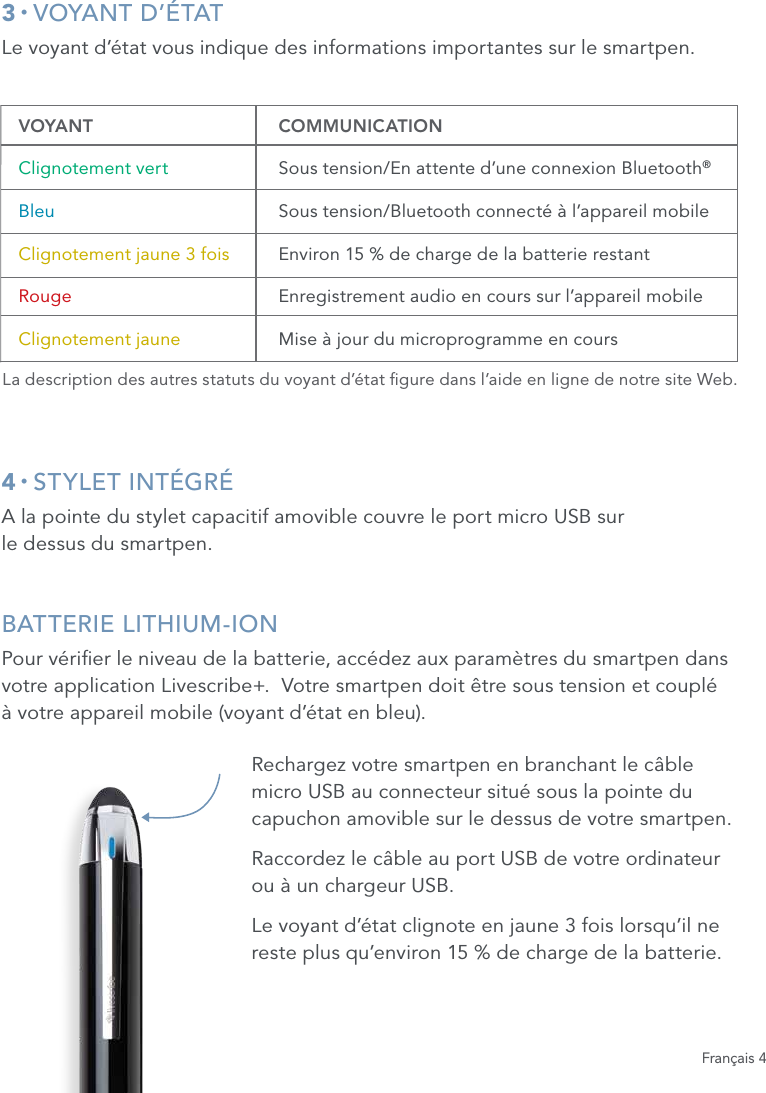
Français 43 • VOYANT D’ÉTATLe voyant d’état vous indique des informations importantes sur le smartpen.4 • STYLET INTÉGRÉA la pointe du stylet capacitif amovible couvre le port micro USB sur  le dessus du smartpen. BATTERIE LITHIUM-IONPour vérier le niveau de la batterie, accédez aux paramètres du smartpen dans votre application Livescribe+.  Votre smartpen doit être sous tension et couplé  à votre appareil mobile (voyant d’état en bleu).Rechargez votre smartpen en branchant le câble micro USB au connecteur situé sous la pointe du capuchon amovible sur le dessus de votre smartpen.Raccordez le câble au port USB de votre ordinateur ou à un chargeur USB.Le voyant d’état clignote en jaune 3 fois lorsqu’il ne reste plus qu’environ 15 % de charge de la batterie.  VOYANT   COMMUNICATION  Clignotement vert Sous tension/En attente d’une connexion Bluetooth® Bleu  Sous tension/Bluetooth connecté à l’appareil mobile  Clignotement jaune 3 fois Environ 15 % de charge de la batterie restant Rouge Enregistrement audio en cours sur l’appareil mobile  Clignotement jaune  Mise à jour du microprogramme en coursLa description des autres statuts du voyant d’état gure dans l’aide en ligne de notre site Web.
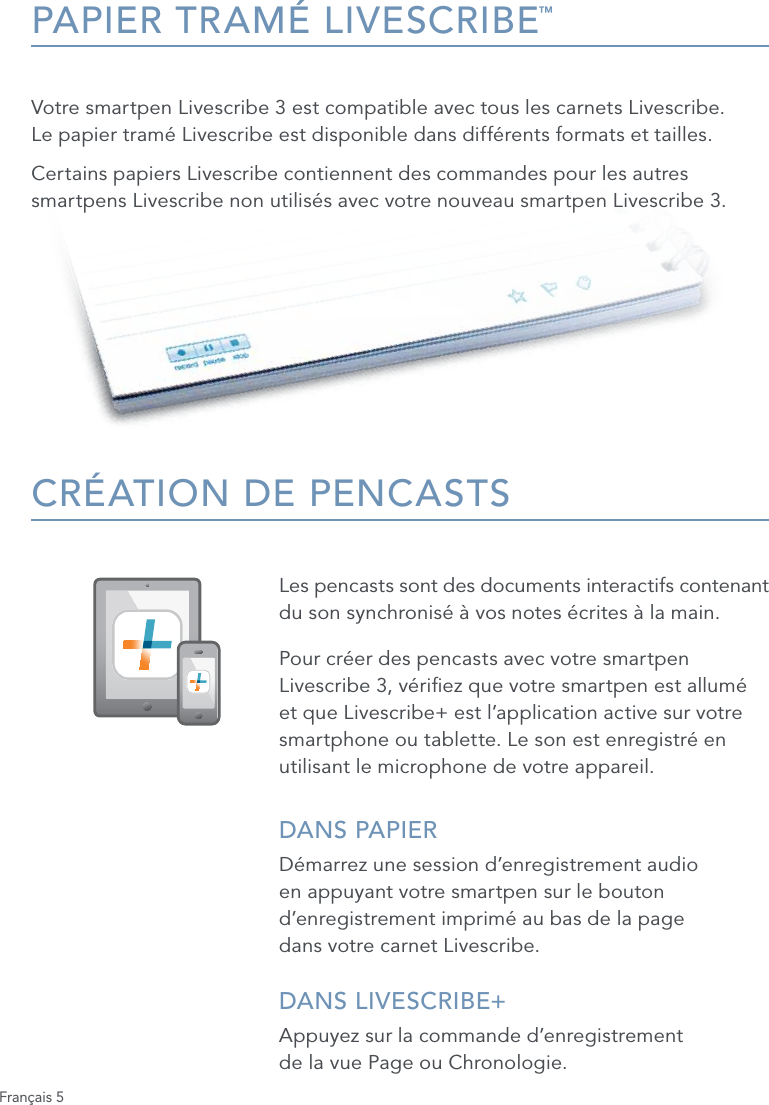
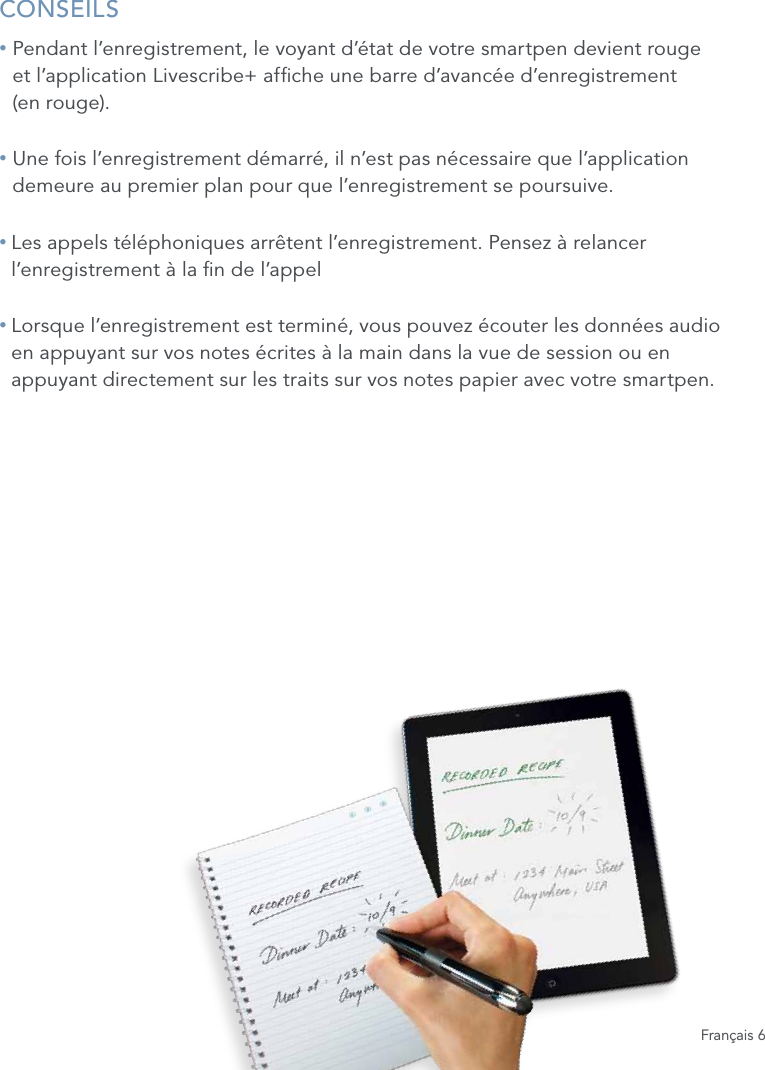
Français 5PAPIER TRAMÉ LIVESCRIBE™Votre smartpen Livescribe 3 est compatible avec tous les carnets Livescribe.  Le papier tramé Livescribe est disponible dans différents formats et tailles. Certains papiers Livescribe contiennent des commandes pour les autres smartpens Livescribe non utilisés avec votre nouveau smartpen Livescribe 3.CRÉATION DE PENCASTSLes pencasts sont des documents interactifs contenant  du son synchronisé à vos notes écrites à la main. Pour créer des pencasts avec votre smartpen Livescribe 3, vériez que votre smartpen est allumé et que Livescribe+ est l’application active sur votre smartphone ou tablette. Le son est enregistré en utilisant le microphone de votre appareil.DANS PAPIERDémarrez une session d’enregistrement audio en appuyant votre smartpen sur le bouton d’enregistrement imprimé au bas de la page  dans votre carnet Livescribe.DANS LIVESCRIBE+ Appuyez sur la commande d’enregistrement  de la vue Page ou Chronologie.
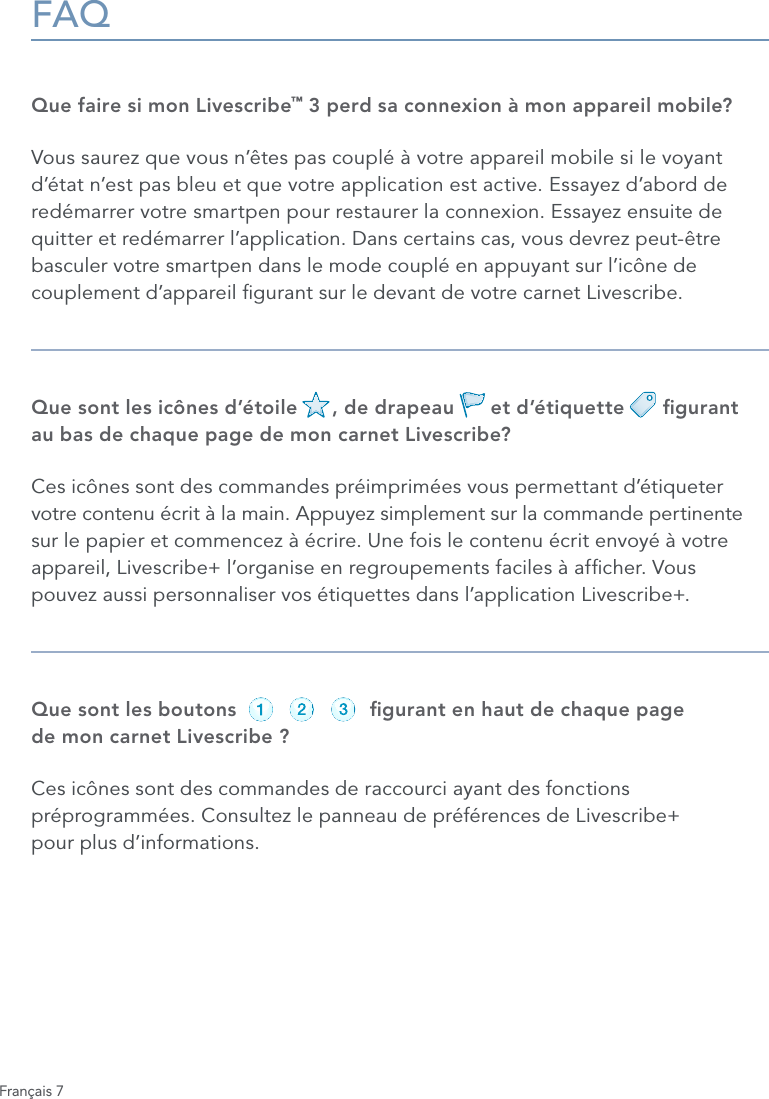
Français 6CONSEILS•  Pendant l’enregistrement, le voyant d’état de votre smartpen devient rouge  et l’application Livescribe+ afche une barre d’avancée d’enregistrement  (en rouge).•  Une fois l’enregistrement démarré, il n’est pas nécessaire que l’application demeure au premier plan pour que l’enregistrement se poursuive.•  Les appels téléphoniques arrêtent l’enregistrement. Pensez à relancer l’enregistrement à la n de l’appel•  Lorsque l’enregistrement est terminé, vous pouvez écouter les données audio en appuyant sur vos notes écrites à la main dans la vue de session ou en appuyant directement sur les traits sur vos notes papier avec votre smartpen.
Français 7FAQQue faire si mon Livescribe™ 3 perd sa connexion à mon appareil mobile?Vous saurez que vous n’êtes pas couplé à votre appareil mobile si le voyant d’état n’est pas bleu et que votre application est active. Essayez d’abord de redémarrer votre smartpen pour restaurer la connexion. Essayez ensuite de quitter et redémarrer l’application. Dans certains cas, vous devrez peut-être basculer votre smartpen dans le mode couplé en appuyant sur l’icône de couplement d’appareil gurant sur le devant de votre carnet Livescribe.Que sont les icônes d’étoile      , de drapeau      et d’étiquette      gurant  au bas de chaque page de mon carnet Livescribe?Ces icônes sont des commandes préimprimées vous permettant d’étiqueter votre contenu écrit à la main. Appuyez simplement sur la commande pertinente sur le papier et commencez à écrire. Une fois le contenu écrit envoyé à votre appareil, Livescribe+ l’organise en regroupements faciles à afcher. Vous  pouvez aussi personnaliser vos étiquettes dans l’application Livescribe+. Que sont les boutons                      gurant en haut de chaque page  de mon carnet Livescribe ?Ces icônes sont des commandes de raccourci ayant des fonctions préprogrammées. Consultez le panneau de préférences de Livescribe+  pour plus d’informations.record pause stoprecord pause stoprecord pause stoprecord pause stoprecord pause stoprecord pause stop
Français 8EN SAVOIR PLUSPour obtenir des vidéos, des conseils et astuces, ainsi que la documentation sur votre smartpen Livescribe 3  www.livescribe.com/livescribe3supportAide en ligne www.livescribe.com/livescribe3onlinehelpService d’assistance technique support.livescribe.comNOTRE ACTUALITÉ Page Facebook www.facebook.com/livescribePage Twitter www.twitter.com/livescribeBlog de Livescribe www.livescribe.com/blogYouTube  www.youtube.com/nevermissawordRÉGLEMENTATIONCet appareil est conforme à la section 15 des règlements de la FCC, commission fédérale des communications américaine. Son utilisation est soumise aux conditions suivantes: (1) cet appareil ne doit pas causer d’interférences nuisibles, et (2) doit accepter toute interférence reçue, y compris les interférences pouvant entraîner un fonctionnement indésirable. Attention: toute modication ou altération de cet équipement non expressément reconnue par Livescribe, Inc. peut entraîner l’annulation de votre autorisation à utiliser cet équipement.  Remarque: cet équipement a été testé et déclaré conforme aux appareils numériques de classe B, au regard de la section 15 des règles de la FCC. Ces critères de conformité ont été conçus an de protéger raisonnablement de toute interférence nuisible dans une installation résidentielle. Ce matériel génère, utilise et peut émettre de l’énergie sous forme de fréquences radio et, s’il n’est pas installé et utilisé conformément aux instructions, peut provoquer des interférences perturbant les communications radio. Nous ne pouvons cependant pas garantir qu’aucune interférence ne se produira dans une installation donnée. Si cet appareil interfère avec la réception radiophonique ou télévisuelle, ce qui se vérie en allumant et éteignant successivement l’appareil, l’utilisateur est invité à corriger ces interférences en prenant l’une des mesures suivantes:• Changer l’orientation ou la position de l’antenne de réception; • Augmenter la distance entre l’appareil et le récepteur; • Connecter l’appareil à une prise d’un autre circuit que celui auquel le récepteur est connecté; • Solliciter l’aide du revendeur ou d’un technicien radio/TV expérimenté.Cet appareil est conforme aux normes d’exemption de licence RSS d’Industrie Canada. Son utilisation est soumise aux conditions suivantes: (1) cet appareil ne doit pas causer d’interférences nuisibles, et (2) doit accepter toute interférence reçue, y compris les interférences pouvant entraîner un fonctionnement indésirable.Livescribe Inc. Model: V1110 FCC ID: CKD-00072 IC: 10240A-00072
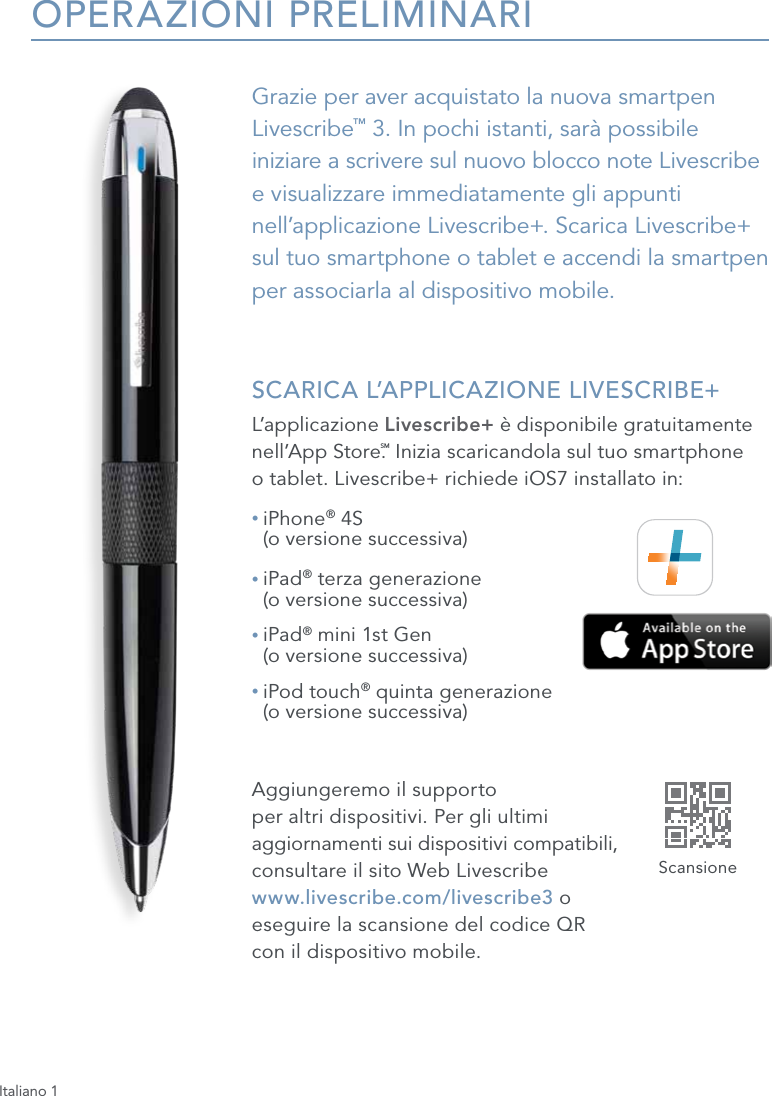
Italiano 1OPERAZIONI PRELIMINARIGrazie per aver acquistato la nuova smartpen Livescribe™ 3. In pochi istanti, sarà possibile iniziare a scrivere sul nuovo blocco note Livescribe  e visualizzare immediatamente gli appunti nell’applicazione Livescribe+. Scarica Livescribe+ sul tuo smartphone o tablet e accendi la smartpen  per associarla al dispositivo mobile. SCARICA L’APPLICAZIONE LIVESCRIBE+L’applicazione Livescribe+ è disponibile gratuitamente nell’App Store.SM Inizia scaricandola sul tuo smartphone  o tablet. Livescribe+ richiede iOS7 installato in:•  iPhone® 4S  (o versione successiva)•  iPad® terza generazione  (o versione successiva)•  iPad® mini 1st Gen  (o versione successiva)•  iPod touch® quinta generazione  (o versione successiva)Aggiungeremo il supporto  per altri dispositivi. Per gli ultimi  aggiornamenti sui dispositivi compatibili,  consultare il sito Web Livescribe  www.livescribe.com/livescribe3 o  eseguire la scansione del codice QR  con il dispositivo mobile.Scansione
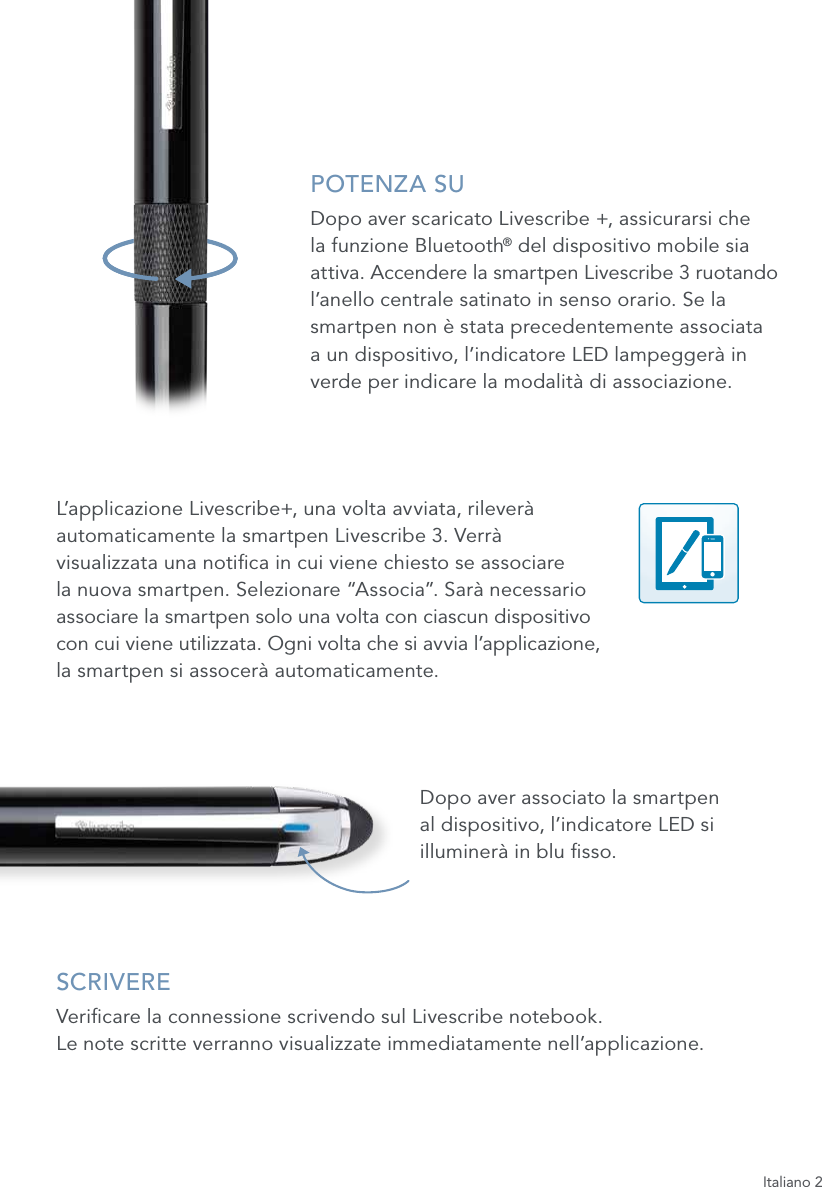
Italiano 2POTENZA SUDopo aver scaricato Livescribe +, assicurarsi che  la funzione Bluetooth® del dispositivo mobile sia attiva. Accendere la smartpen Livescribe 3 ruotando l’anello centrale satinato in senso orario. Se la smartpen non è stata precedentemente associata  a un dispositivo, l’indicatore LED lampeggerà in verde per indicare la modalità di associazione.L’applicazione Livescribe+, una volta avviata, rileverà  automaticamente la smartpen Livescribe 3. Verrà  visualizzata una notica in cui viene chiesto se associare  la nuova smartpen. Selezionare “Associa”. Sarà necessario  associare la smartpen solo una volta con ciascun dispositivo  con cui viene utilizzata. Ogni volta che si avvia l’applicazione,  la smartpen si assocerà automaticamente.Dopo aver associato la smartpen  al dispositivo, l’indicatore LED si illuminerà in blu sso.SCRIVEREVericare la connessione scrivendo sul Livescribe notebook.  Le note scritte verranno visualizzate immediatamente nell’applicazione.
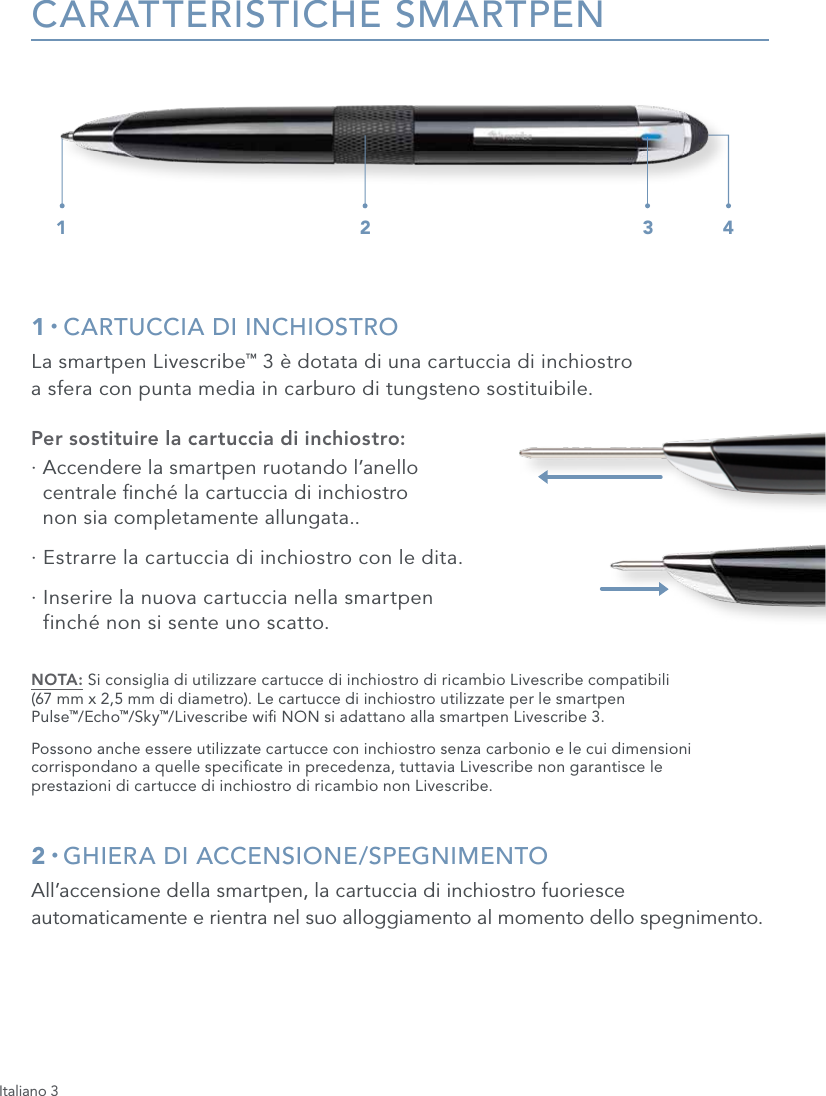
Italiano 3CARATTERISTICHE SMARTPEN1 • CARTUCCIA DI INCHIOSTROLa smartpen Livescribe™ 3 è dotata di una cartuccia di inchiostro  a sfera con punta media in carburo di tungsteno sostituibile.Per sostituire la cartuccia di inchiostro:·  Accendere la smartpen ruotando l’anello  centrale nché la cartuccia di inchiostro  non sia completamente allungata..·  Estrarre la cartuccia di inchiostro con le dita.·  Inserire la nuova cartuccia nella smartpen  finché non si sente uno scatto.NOTA: Si consiglia di utilizzare cartucce di inchiostro di ricambio Livescribe compatibili  (67 mm x 2,5 mm di diametro). Le cartucce di inchiostro utilizzate per le smartpen  Pulse™/Echo™/Sky™/Livescribe wi NON si adattano alla smartpen Livescribe 3.Possono anche essere utilizzate cartucce con inchiostro senza carbonio e le cui dimensioni corrispondano a quelle specicate in precedenza, tuttavia Livescribe non garantisce le  prestazioni di cartucce di inchiostro di ricambio non Livescribe.2 • GHIERA DI ACCENSIONE/SPEGNIMENTOAll’accensione della smartpen, la cartuccia di inchiostro fuoriesce automaticamente e rientra nel suo alloggiamento al momento dello spegnimento.1 2 3 4
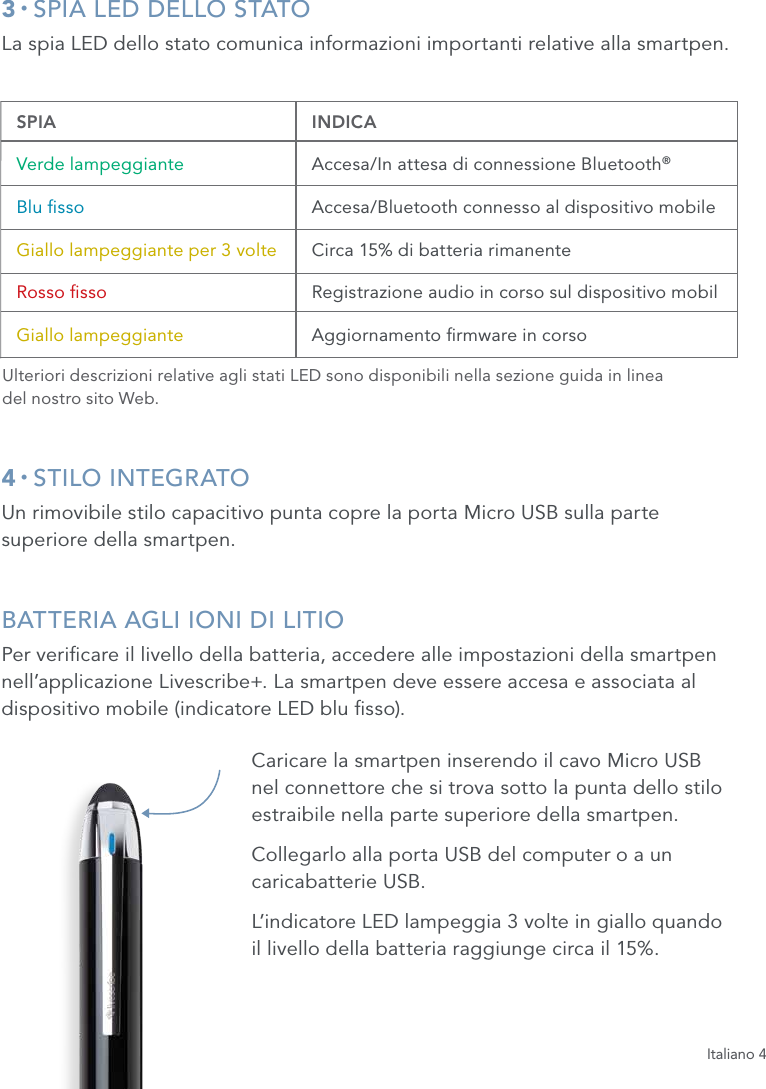
Italiano 43 • SPIA LED DELLO STATOLa spia LED dello stato comunica informazioni importanti relative alla smartpen.4 • STILO INTEGRATOUn rimovibile stilo capacitivo punta copre la porta Micro USB sulla parte superiore della smartpen. BATTERIA AGLI IONI DI LITIOPer vericare il livello della batteria, accedere alle impostazioni della smartpen nell’applicazione Livescribe+. La smartpen deve essere accesa e associata al dispositivo mobile (indicatore LED blu sso).Caricare la smartpen inserendo il cavo Micro USB nel connettore che si trova sotto la punta dello stilo estraibile nella parte superiore della smartpen.  Collegarlo alla porta USB del computer o a un caricabatterie USB.L’indicatore LED lampeggia 3 volte in giallo quando  il livello della batteria raggiunge circa il 15%. SPIA   INDICA Verde lampeggiante Accesa/In attesa di connessione Bluetooth®  Blu sso  Accesa/Bluetooth connesso al dispositivo mobile Giallo lampeggiante per 3 volte Circa 15% di batteria rimanente Rosso sso Registrazione audio in corso sul dispositivo mobil Giallo lampeggiante Aggiornamento rmware in corsoUlteriori descrizioni relative agli stati LED sono disponibili nella sezione guida in linea  del nostro sito Web.
Italiano 5CARTA ISOMETRICA LIVESCRIBE™La smartpen Livescribe 3 è compatibile con tutti i blocchi note Livescribe.  La carta isometrica Livescribe è disponibile in diverse dimensioni e formati. Alcuni tipi di carta Livescribe contengono controlli per altre smartpen Livescribe che non vengono utilizzati con la nuova Livescribe 3.CREAZIONE DI PENCASTI pencast sono documenti interattivi contenenti  audio sincronizzato agli appunti scritti a mano. Per creare pencast utilizzando la smartpen  Livescribe 3, assicurarsi che la smartpen sia  accesa e che l’applicazione Livescribe+ sia  attiva sullo smartphone o tablet. L’audio viene registrato con il microfono del dispositivo.DA CARTAIniziare una sessione di registrazione audio  toccando con la punta della smartpen il   pulsante  di registrazione stampato sulla parte inferiore  della pagina del blocco note Livescribe.DA LIVESCRIBE+ Toccare il pulsante di registrazione nella pagina  o nella visualizzazione dei feed.
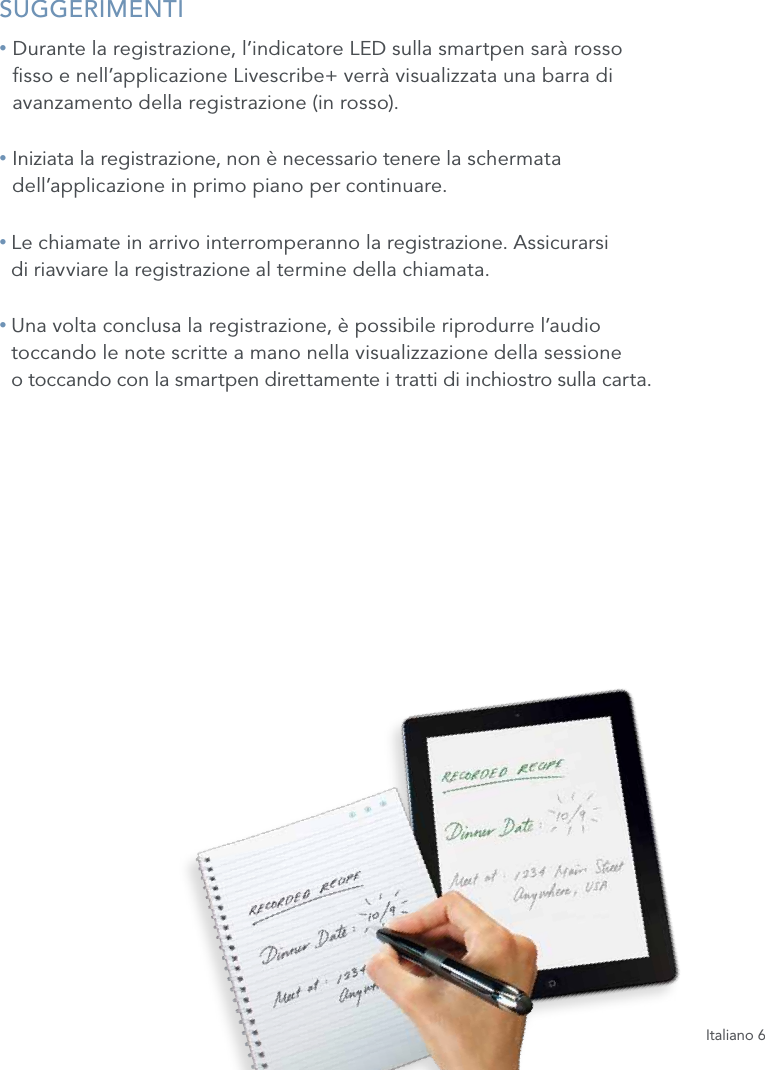
Italiano 6SUGGERIMENTI•  Durante la registrazione, l’indicatore LED sulla smartpen sarà rosso  sso e nell’applicazione Livescribe+ verrà visualizzata una barra di avanzamento della registrazione (in rosso).•  Iniziata la registrazione, non è necessario tenere la schermata  dell’applicazione in primo piano per continuare.•  Le chiamate in arrivo interromperanno la registrazione. Assicurarsi  di riavviare la registrazione al termine della chiamata.•  Una volta conclusa la registrazione, è possibile riprodurre l’audio  toccando le note scritte a mano nella visualizzazione della sessione  o toccando con la smartpen direttamente i tratti di inchiostro sulla carta.
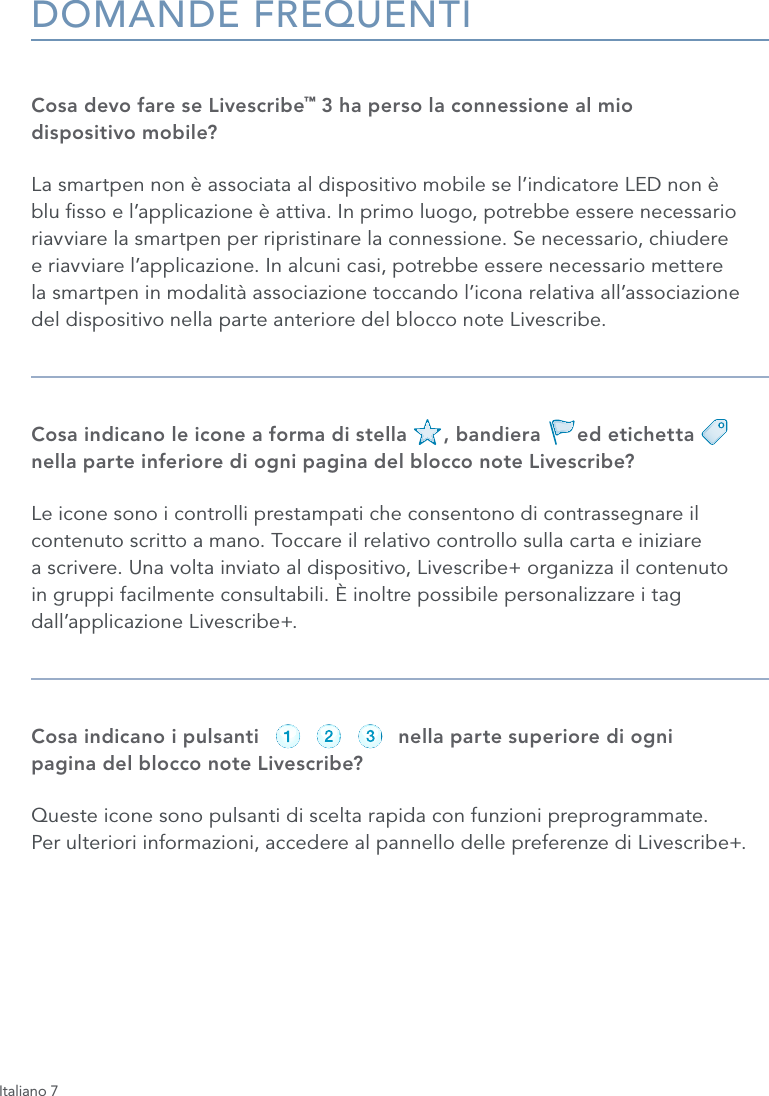
Italiano 7DOMANDE FREQUENTICosa devo fare se Livescribe™ 3 ha perso la connessione al mio  dispositivo mobile?La smartpen non è associata al dispositivo mobile se l’indicatore LED non è blu sso e l’applicazione è attiva. In primo luogo, potrebbe essere necessario riavviare la smartpen per ripristinare la connessione. Se necessario, chiudere  e riavviare l’applicazione. In alcuni casi, potrebbe essere necessario mettere  la smartpen in modalità associazione toccando l’icona relativa all’associazione del dispositivo nella parte anteriore del blocco note Livescribe.Cosa indicano le icone a forma di stella      , bandiera      ed etichetta        nella parte inferiore di ogni pagina del blocco note Livescribe?Le icone sono i controlli prestampati che consentono di contrassegnare il contenuto scritto a mano. Toccare il relativo controllo sulla carta e iniziare  a scrivere. Una volta inviato al dispositivo, Livescribe+ organizza il contenuto in gruppi facilmente consultabili. È inoltre possibile personalizzare i tag dall’applicazione Livescribe+.Cosa indicano i pulsanti                       nella parte superiore di ogni  pagina del blocco note Livescribe?Queste icone sono pulsanti di scelta rapida con funzioni preprogrammate.  Per ulteriori informazioni, accedere al pannello delle preferenze di Livescribe+.record pause stoprecord pause stoprecord pause stoprecord pause stoprecord pause stoprecord pause stop
Italiano 8MAGGIORI INFORMAZIONIPer video, consigli, suggerimenti e documentazione sull’utilizzo della smartpen Livescribe 3 visitare   www.livescribe.com/livescribe3supportGuida in linea www.livescribe.com/livescribe3onlinehelpAssistenza clienti support.livescribe.comSEGUICI Pagina dei fan su Facebook www.facebook.com/livescribePagina Twitter globale www.twitter.com/livescribeBlog Livescribe www.livescribe.com/blogYouTube www.youtube.com/nevermissawordNORMATIVAQuesto dispositivo è conforme all’articolo 15 della direttiva FCC. L’utilizzo del presente dispositivo è soggetto alle due seguenti condizioni: (1) il dispositivo non può causare interferenze dannose e (2) deve essere in grado di accettare eventuali interferenze ricevute, incluse quelle che potrebbero provocare anomalie nel funzionamento. Avviso: eventuali modiche o variazioni apportate al dispositivo in assenza dell’approvazione esplicita da parte di Livescribe, Inc. possono rappresentare motivo di invalidazione del diritto dell’utente all’utilizzo del dispositivo stesso. Nota: il presente dispositivo è stato sottoposto a test ed è risultato conforme ai limiti previsti per i dispositivi digitali di classe B, ai sensi della direttiva FCC, articolo 15. Tali limiti intendono garantire un livello di protezione adeguato da interferenze dannose nell’ambito di installazioni di tipo residenziale. Questo dispositivo genera, utilizza ed emette energia a radiofrequenza e può causare interferenze con le comunicazioni radio, se non installato e utilizzato seguendo le istruzioni fornite. Tuttavia, non esiste alcuna garanzia che tali interferenze non si verichino in una determinata installazione. Qualora il dispositivo generasse interferenze dannose per la ricezione di segnali radio o televisivi (condizione vericabile spegnendo e riaccendendo il dispositivo), si consiglia di adottare le seguenti misure correttive.• Orientare o posizionare diversamente l’antenna ricevente. • Aumentare la distanza tra dispositivo e ricevitore. • Collegare il dispositivo a una presa di corrente su un circuito diverso da quello a cui è collegato il ricevitore. • Rivolgersi al rivenditore o a un tecnico radio/TV per ulteriore assistenza.Questo dispositivo è conforme agli standard canadesi RSS del settore che non richiedono una licenza. L’utilizzo del presente dispositivo è soggetto alle due seguenti condizioni: (1) il dispositivo non può causare interferenze dannose  e (2) deve essere in grado di accettare eventuali interferenze ricevute, incluse quelle che potrebbero provocare anomalie nel funzionamento.Livescribe Inc. Model: V1110 FCC ID: CKD-00072 IC: 10240A-00072
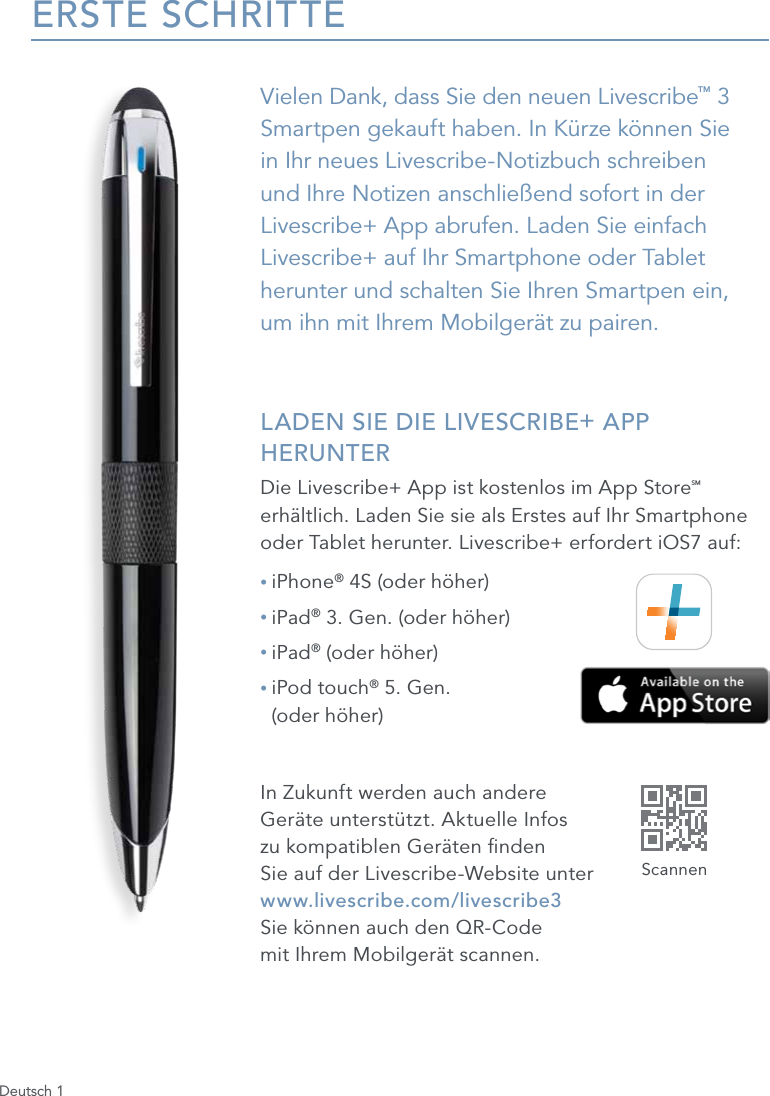
Deutsch 1ERSTE SCHRITTEVielen Dank, dass Sie den neuen Livescribe™ 3 Smartpen gekauft haben. In Kürze können Sie in Ihr neues Livescribe-Notizbuch schreiben und Ihre Notizen anschließend sofort in der Livescribe+ App abrufen. Laden Sie einfach Livescribe+ auf Ihr Smartphone oder Tablet herunter und schalten Sie Ihren Smartpen ein,  um ihn mit Ihrem Mobilgerät zu pairen. LADEN SIE DIE LIVESCRIBE+ APP HERUNTERDie Livescribe+ App ist kostenlos im App StoreSM erhältlich. Laden Sie sie als Erstes auf Ihr Smartphone oder Tablet herunter. Livescribe+ erfordert iOS7 auf:• iPhone® 4S (oder höher)• iPad® 3. Gen. (oder höher)• iPad® (oder höher)•  iPod touch® 5. Gen.  (oder höher)In Zukunft werden auch andere  Geräte unterstützt. Aktuelle Infos  zu kompatiblen Geräten nden  Sie auf der Livescribe-Website unter  www.livescribe.com/livescribe3  Sie können auch den QR-Code  mit Ihrem Mobilgerät scannen.Scannen
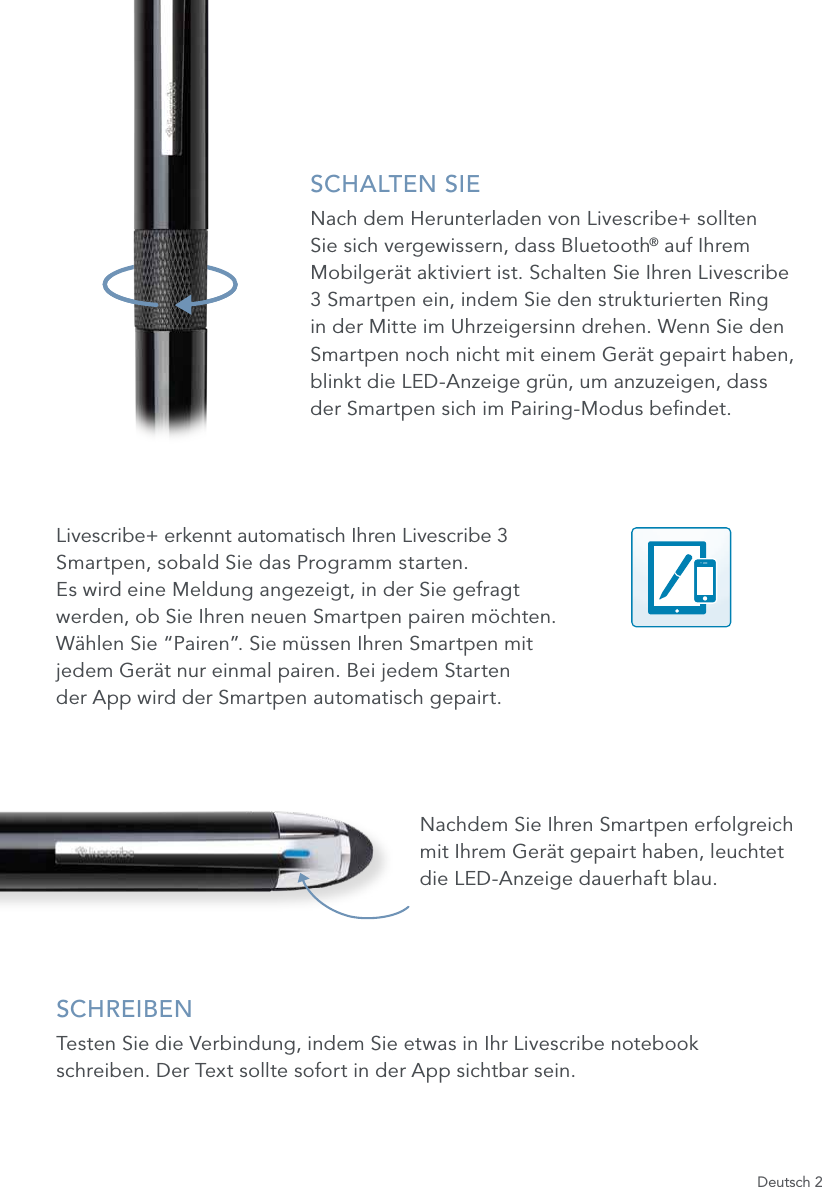
Deutsch 2SCHALTEN SIENach dem Herunterladen von Livescribe+ sollten Sie sich vergewissern, dass Bluetooth® auf Ihrem Mobilgerät aktiviert ist. Schalten Sie Ihren Livescribe 3 Smartpen ein, indem Sie den strukturierten Ring in der Mitte im Uhrzeigersinn drehen. Wenn Sie den Smartpen noch nicht mit einem Gerät gepairt haben, blinkt die LED-Anzeige grün, um anzuzeigen, dass der Smartpen sich im Pairing-Modus bendet.Livescribe+ erkennt automatisch Ihren Livescribe 3  Smartpen, sobald Sie das Programm starten.  Es wird eine Meldung angezeigt, in der Sie gefragt  werden, ob Sie Ihren neuen Smartpen pairen möchten.  Wählen Sie “Pairen”. Sie müssen Ihren Smartpen mit  jedem Gerät nur einmal pairen. Bei jedem Starten  der App wird der Smartpen automatisch gepairt.Nachdem Sie Ihren Smartpen erfolgreich mit Ihrem Gerät gepairt haben, leuchtet die LED-Anzeige dauerhaft blau.SCHREIBENTesten Sie die Verbindung, indem Sie etwas in Ihr Livescribe notebook schreiben. Der Text sollte sofort in der App sichtbar sein.
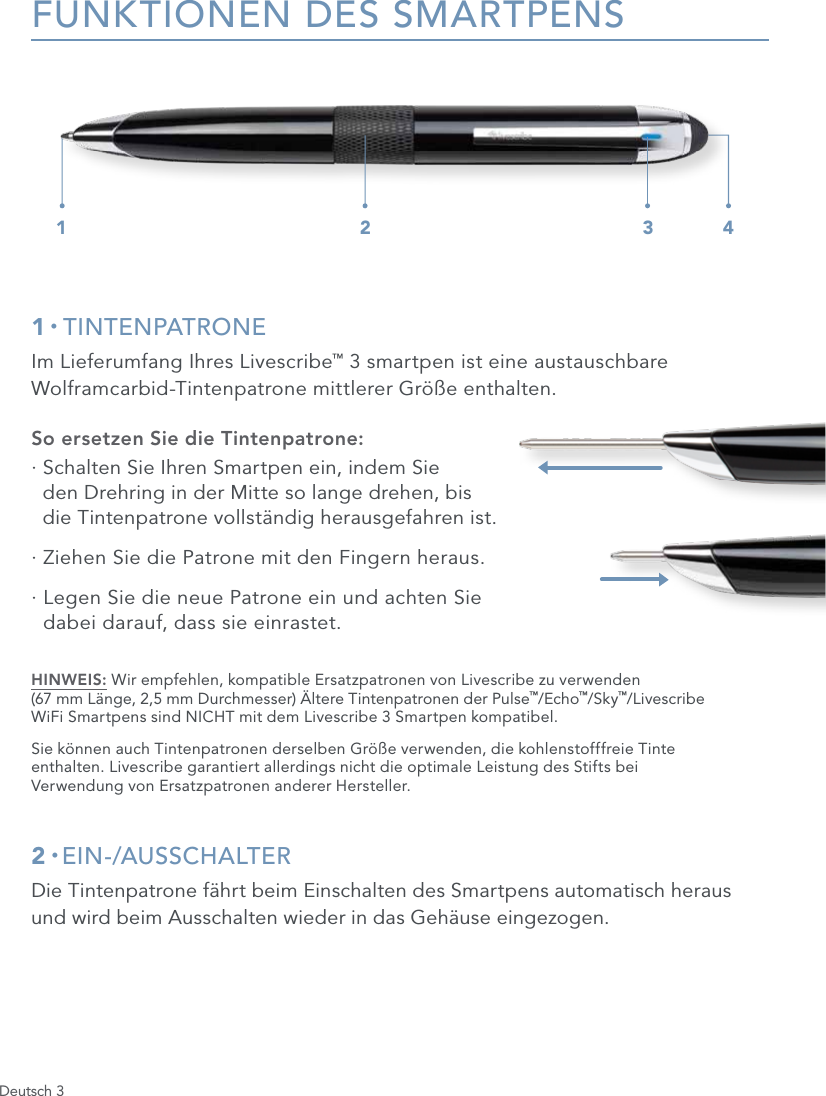
Deutsch 3FUNKTIONEN DES SMARTPENS1 • TINTENPATRONEIm Lieferumfang Ihres Livescribe™ 3 smartpen ist eine austauschbare Wolframcarbid-Tintenpatrone mittlerer Größe enthalten.So ersetzen Sie die Tintenpatrone:·  Schalten Sie Ihren Smartpen ein, indem Sie  den Drehring in der Mitte so lange drehen, bis  die Tintenpatrone vollständig herausgefahren ist.·  Ziehen Sie die Patrone mit den Fingern heraus.·  Legen Sie die neue Patrone ein und achten Sie  dabei darauf, dass sie einrastet.HINWEIS: Wir empfehlen, kompatible Ersatzpatronen von Livescribe zu verwenden  (67 mm Länge, 2,5 mm Durchmesser) Ältere Tintenpatronen der Pulse™/Echo™/Sky™/Livescribe  WiFi Smartpens sind NICHT mit dem Livescribe 3 Smartpen kompatibel.Sie können auch Tintenpatronen derselben Größe verwenden, die kohlenstofffreie Tinte  enthalten. Livescribe garantiert allerdings nicht die optimale Leistung des Stifts bei  Verwendung von Ersatzpatronen anderer Hersteller.2 • EIN-/AUSSCHALTERDie Tintenpatrone fährt beim Einschalten des Smartpens automatisch heraus  und wird beim Ausschalten wieder in das Gehäuse eingezogen.1 2 3 4
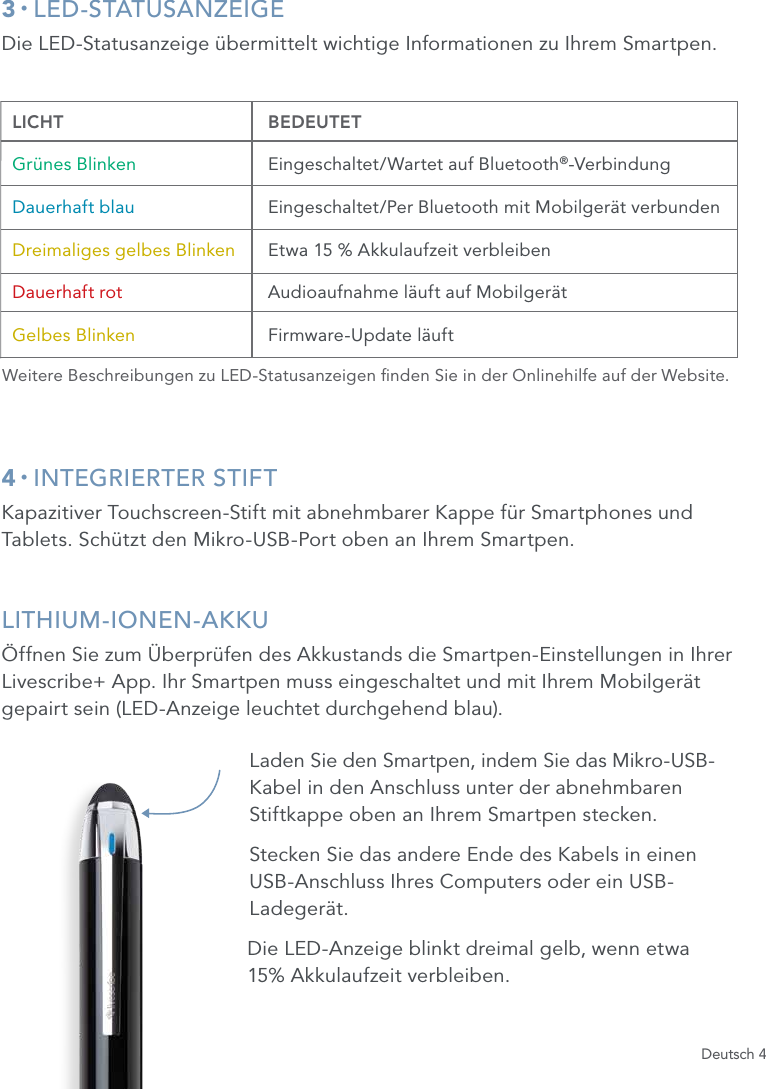
Deutsch 43 • LED-STATUSANZEIGEDie LED-Statusanzeige übermittelt wichtige Informationen zu Ihrem Smartpen.4 • INTEGRIERTER STIFTKapazitiver Touchscreen-Stift mit abnehmbarer Kappe für Smartphones und Tablets. Schützt den Mikro-USB-Port oben an Ihrem Smartpen. LITHIUM-IONEN-AKKUÖffnen Sie zum Überprüfen des Akkustands die Smartpen-Einstellungen in Ihrer Livescribe+ App. Ihr Smartpen muss eingeschaltet und mit Ihrem Mobilgerät gepairt sein (LED-Anzeige leuchtet durchgehend blau).Laden Sie den Smartpen, indem Sie das Mikro-USB-Kabel in den Anschluss unter der abnehmbaren Stiftkappe oben an Ihrem Smartpen stecken.Stecken Sie das andere Ende des Kabels in einen USB-Anschluss Ihres Computers oder ein USB-Ladegerät.Die LED-Anzeige blinkt dreimal gelb, wenn etwa  15% Akkulaufzeit verbleiben.  LICHT   BEDEUTET  Grünes Blinken Eingeschaltet/Wartet auf Bluetooth®-Verbindung  Dauerhaft blau  Eingeschaltet/Per Bluetooth mit Mobilgerät verbunden Dreimaliges gelbes Blinken Etwa 15 % Akkulaufzeit verbleiben  Dauerhaft rot Audioaufnahme läuft auf Mobilgerät  Gelbes Blinken  Firmware-Update läuftWeitere Beschreibungen zu LED-Statusanzeigen nden Sie in der Onlinehilfe auf der Website.
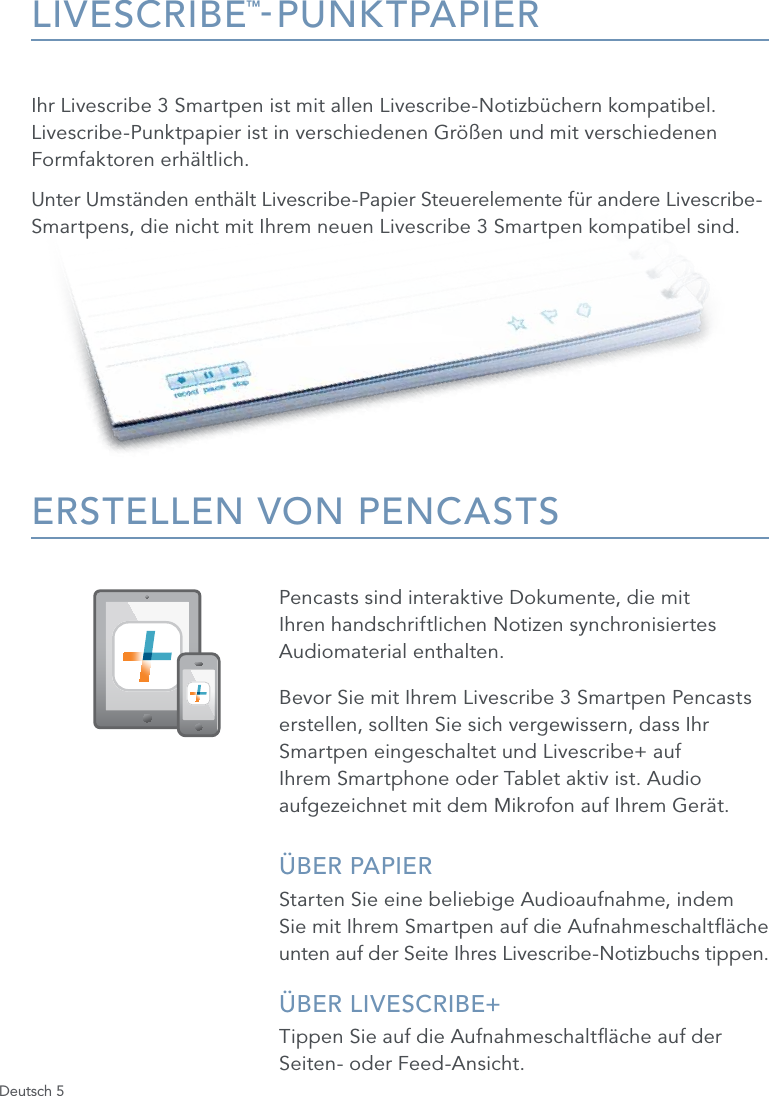
Deutsch 5LIVESCRIBE™-PUNKTPAPIERIhr Livescribe 3 Smartpen ist mit allen Livescribe-Notizbüchern kompatibel. Livescribe-Punktpapier ist in verschiedenen Größen und mit verschiedenen Formfaktoren erhältlich. Unter Umständen enthält Livescribe-Papier Steuerelemente für andere Livescribe- Smartpens, die nicht mit Ihrem neuen Livescribe 3 Smartpen kompatibel sind.ERSTELLEN VON PENCASTSPencasts sind interaktive Dokumente, die mit Ihren handschriftlichen Notizen synchronisiertes Audiomaterial enthalten. Bevor Sie mit Ihrem Livescribe 3 Smartpen Pencasts erstellen, sollten Sie sich vergewissern, dass Ihr Smartpen eingeschaltet und Livescribe+ auf Ihrem Smartphone oder Tablet aktiv ist. Audio aufgezeichnet mit dem Mikrofon auf Ihrem Gerät.ÜBER PAPIERStarten Sie eine beliebige Audioaufnahme, indem  Sie mit Ihrem Smartpen auf die Aufnahmeschaltäche unten auf der Seite Ihres Livescribe-Notizbuchs tippen.ÜBER LIVESCRIBE+ Tippen Sie auf die Aufnahmeschaltäche auf der Seiten- oder Feed-Ansicht.
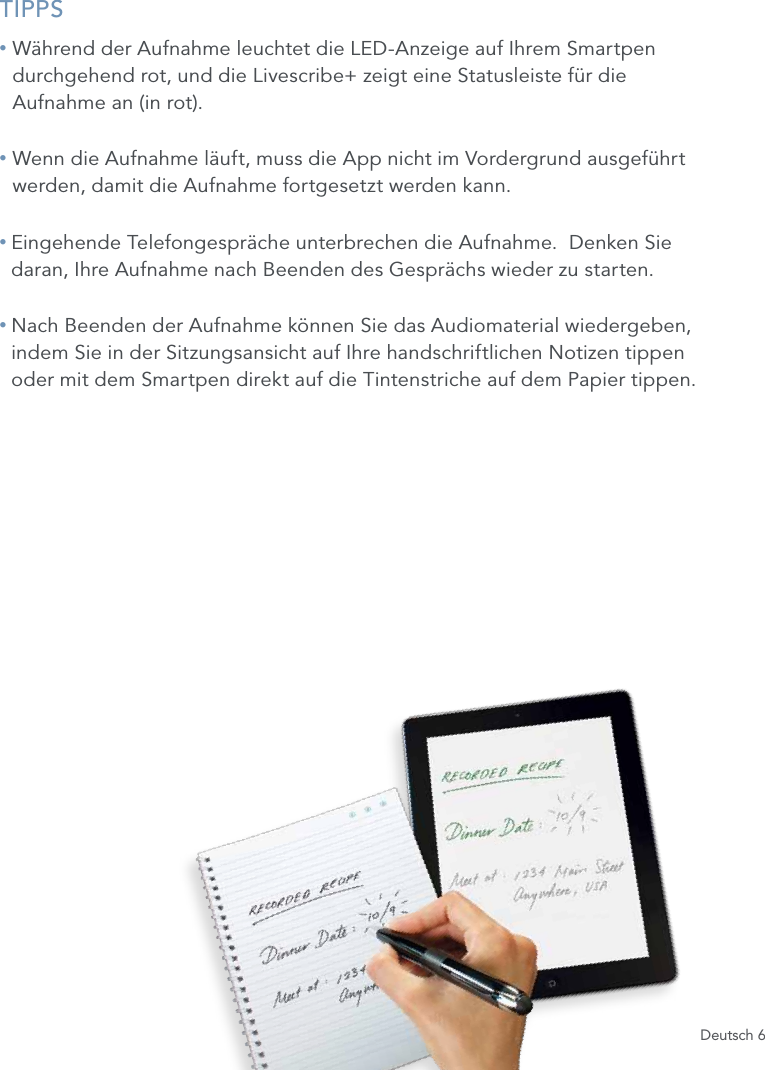
Deutsch 6TIPPS•  Während der Aufnahme leuchtet die LED-Anzeige auf Ihrem Smartpen durchgehend rot, und die Livescribe+ zeigt eine Statusleiste für die  Aufnahme an (in rot).•  Wenn die Aufnahme läuft, muss die App nicht im Vordergrund ausgeführt werden, damit die Aufnahme fortgesetzt werden kann.•  Eingehende Telefongespräche unterbrechen die Aufnahme.  Denken Sie daran, Ihre Aufnahme nach Beenden des Gesprächs wieder zu starten.•  Nach Beenden der Aufnahme können Sie das Audiomaterial wiedergeben, indem Sie in der Sitzungsansicht auf Ihre handschriftlichen Notizen tippen oder mit dem Smartpen direkt auf die Tintenstriche auf dem Papier tippen.
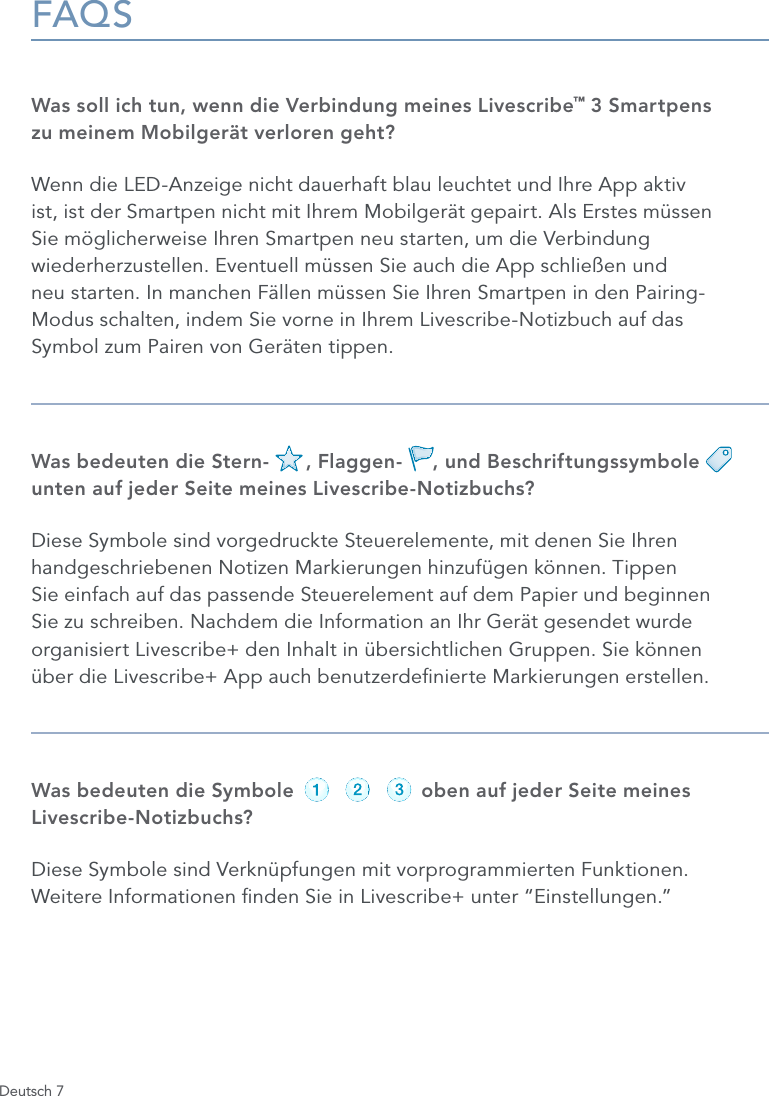
Deutsch 7FAQSWas soll ich tun, wenn die Verbindung meines Livescribe™ 3 Smartpens  zu meinem Mobilgerät verloren geht?Wenn die LED-Anzeige nicht dauerhaft blau leuchtet und Ihre App aktiv ist, ist der Smartpen nicht mit Ihrem Mobilgerät gepairt. Als Erstes müssen Sie möglicherweise Ihren Smartpen neu starten, um die Verbindung wiederherzustellen. Eventuell müssen Sie auch die App schließen und  neu starten. In manchen Fällen müssen Sie Ihren Smartpen in den Pairing- Modus schalten, indem Sie vorne in Ihrem Livescribe-Notizbuch auf das  Symbol zum Pairen von Geräten tippen.Was bedeuten die Stern-      , Flaggen-     , und Beschriftungssymbole       unten auf jeder Seite meines Livescribe-Notizbuchs?Diese Symbole sind vorgedruckte Steuerelemente, mit denen Sie Ihren handgeschriebenen Notizen Markierungen hinzufügen können. Tippen  Sie einfach auf das passende Steuerelement auf dem Papier und beginnen  Sie zu schreiben. Nachdem die Information an Ihr Gerät gesendet wurde organisiert Livescribe+ den Inhalt in übersichtlichen Gruppen. Sie können  über die Livescribe+ App auch benutzerdenierte Markierungen erstellen.Was bedeuten die Symbole                     oben auf jeder Seite meines Livescribe-Notizbuchs?Diese Symbole sind Verknüpfungen mit vorprogrammierten Funktionen.  Weitere Informationen nden Sie in Livescribe+ unter “Einstellungen.”record pause stoprecord pause stoprecord pause stoprecord pause stoprecord pause stoprecord pause stop
Deutsch 8WEITERE INFOSVideos, Tipps und Tricks sowie Dokumentation  zum Livescribe 3 Smartpen nden Sie hier   www.livescribe.com/livescribe3supportOnline-Hilfe www.livescribe.com/livescribe3onlinehelpKundendienst support.livescribe.comFOLGEN SIE UNS Facebook-Fanseite www.facebook.com/livescribeGlobale Twitter-Seite www.twitter.com/livescribeLivescribe-Blog www.livescribe.com/blogYouTube  www.youtube.com/nevermissawordRECHTLICHEDieses Gerät erfüllt Teil 15 der FCC-Bestimmungen. Der Betrieb unterliegt den folgenden beiden Bedingungen:  (1) Das Gerät darf keine störenden Interferenzen verursachen und (2) das Gerät muss Störungen von außen ertragen können. Darunter fallen auch solche Störungen, die zu einer Beeinträchtigung der Funktion führen können. Achtung: Jegliche Änderungen an den Geräten, denen Livescribe, Inc. nicht ausdrücklich zugestimmt hat, können Ihre Berechtigung zur Verwendung dieses Geräts aufheben. Hinweis: Dieses Produkt wurde getestet und entspricht den Grenzwerten für digitale Geräte der Klasse B gemäß Teil 15 der FCC-Bestimmungen. Die Grenzwerte wurden für eine typische Wohnumgebung erarbeitet, um einen angemessenen Schutz vor störenden Interferenzen zu gewährleisten. Das Gerät erzeugt, verwendet und gibt Strahlung im Radiofrequenzbereich ab. Wenn es nicht gemäß der Anleitung installiert und benutzt wird, kann es den Funkverkehr anderer Geräte beeinträchtigen. Es kann jedoch nicht ausgeschlossen werden, dass auch bei ordnungsgemäßer Installation und Verwendung in einigen Fällen Störungen auftreten. Sollte das Gerät den Radio- oder Fernsehempfang stören, was sich durch Ein- und Ausschalten des Geräts nachprüfen lässt, versuchen Sie die Störungen durch eine oder mehrere der folgenden Maßnahmen zu beheben:• Verändern Sie die Position der Antenne oder richten Sie sie neu aus. • Vergrößern Sie den Abstand zwischen dem Gerät und dem gestörten Empfänger. • Schließen Sie das Gerät an einen anderen Stromkreis als den des Empfängers an. • Suchen Sie Rat bei Ihrem Händler oder einem erfahrenen Radio/TV-Techniker.Dieses Gerät erfüllt die Standards für lizenzfreie RSS-Feeds von Industry Canada. Der Betrieb unterliegt den  folgenden beiden Bedingungen: (1) Das Gerät darf keine störenden Interferenzen verursachen und (2) das Gerät  muss Störungen von außen ertragen können. Darunter fallen auch solche Störungen, die zu einer Beeinträchtigung  der Funktion führen können.Livescribe Inc. Model: V1110 FCC ID: CKD-00072 IC: 10240A-00072
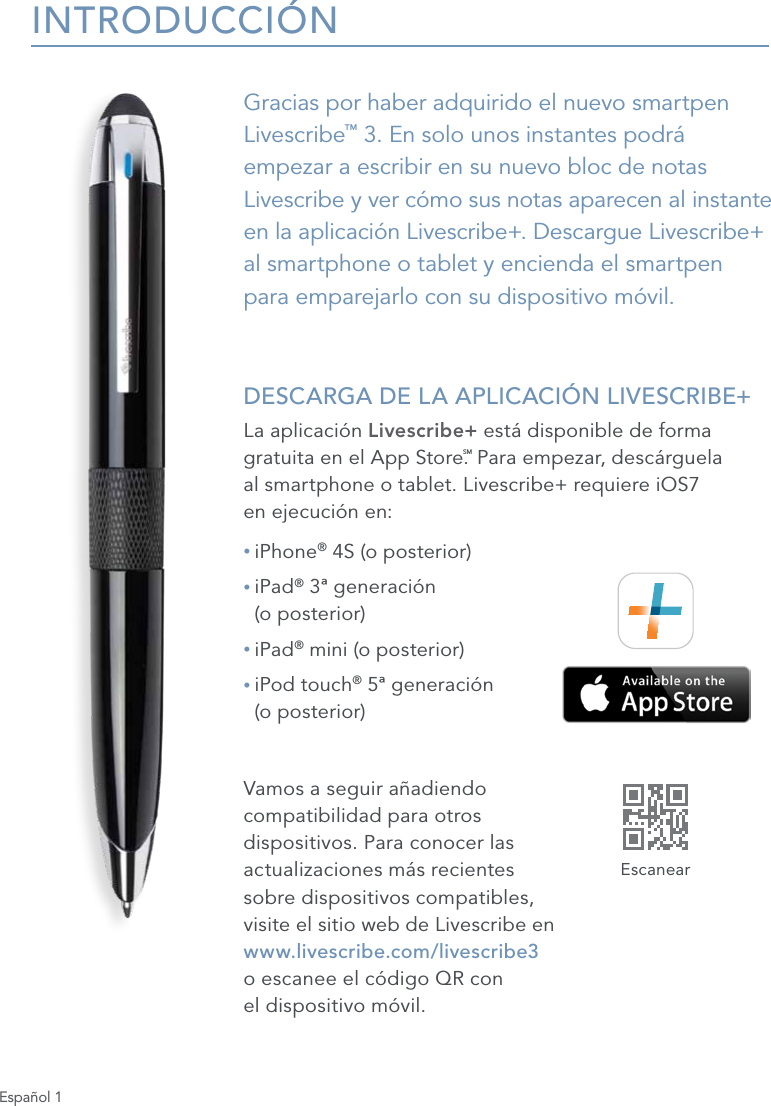
Español 1INTRODUCCIÓNGracias por haber adquirido el nuevo smartpen Livescribe™ 3. En solo unos instantes podrá empezar a escribir en su nuevo bloc de notas Livescribe y ver cómo sus notas aparecen al instante en la aplicación Livescribe+. Descargue Livescribe+ al smartphone o tablet y encienda el smartpen  para emparejarlo con su dispositivo móvil. DESCARGA DE LA APLICACIÓN LIVESCRIBE+La aplicación Livescribe+ está disponible de forma gratuita en el App Store.SM Para empezar, descárguela  al smartphone o tablet. Livescribe+ requiere iOS7  en ejecución en:• iPhone® 4S (o posterior)•  iPad® 3ª generación  (o posterior)• iPad® mini (o posterior)•  iPod touch® 5ª generación  (o posterior)Vamos a seguir añadiendo  compatibilidad para otros  dispositivos. Para conocer las  actualizaciones más recientes  sobre dispositivos compatibles,  visite el sitio web de Livescribe en  www.livescribe.com/livescribe3  o escanee el código QR con  el dispositivo móvil.Escanear
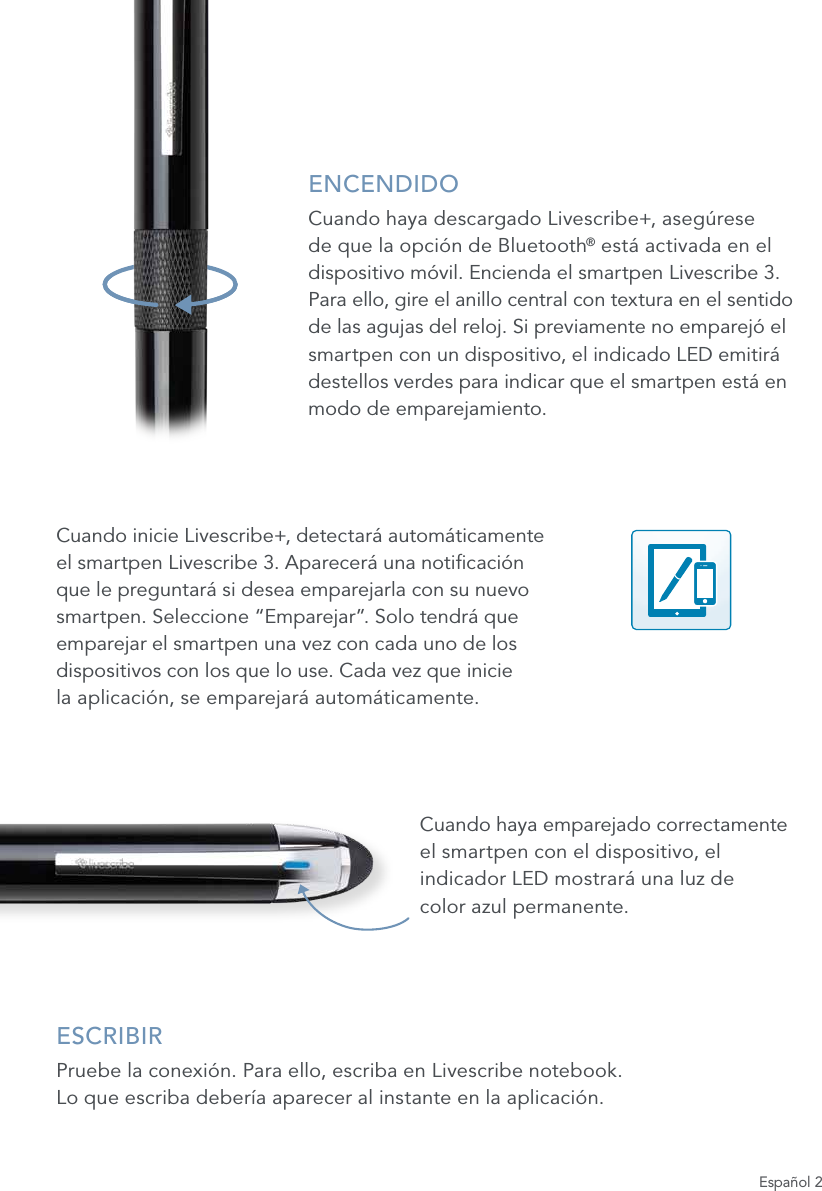
Español 2ENCENDIDOCuando haya descargado Livescribe+, asegúrese de que la opción de Bluetooth® está activada en el dispositivo móvil. Encienda el smartpen Livescribe 3.  Para ello, gire el anillo central con textura en el sentido  de las agujas del reloj. Si previamente no emparejó el smartpen con un dispositivo, el indicado LED emitirá destellos verdes para indicar que el smartpen está en modo de emparejamiento.Cuando inicie Livescribe+, detectará automáticamente el smartpen Livescribe 3. Aparecerá una noticación que le preguntará si desea emparejarla con su nuevo smartpen. Seleccione “Emparejar”. Solo tendrá que emparejar el smartpen una vez con cada uno de los dispositivos con los que lo use. Cada vez que inicie  la aplicación, se emparejará automáticamente.Cuando haya emparejado correctamente el smartpen con el dispositivo, el indicador LED mostrará una luz de  color azul permanente.ESCRIBIRPruebe la conexión. Para ello, escriba en Livescribe notebook.  Lo que escriba debería aparecer al instante en la aplicación.
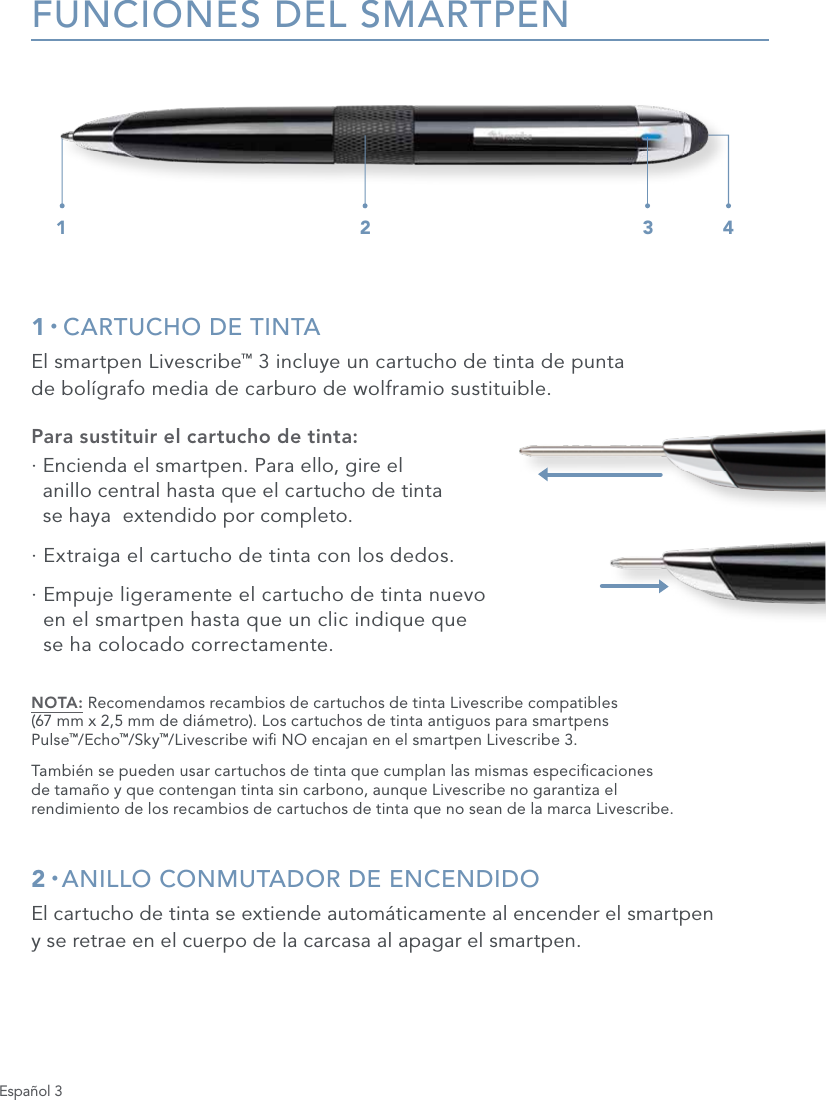
Español 3FUNCIONES DEL SMARTPEN1 • CARTUCHO DE TINTAEl smartpen Livescribe™ 3 incluye un cartucho de tinta de punta  de bolígrafo media de carburo de wolframio sustituible.Para sustituir el cartucho de tinta:·  Encienda el smartpen. Para ello, gire el  anillo central hasta que el cartucho de tinta  se haya  extendido por completo.·  Extraiga el cartucho de tinta con los dedos.·  Empuje ligeramente el cartucho de tinta nuevo  en el smartpen hasta que un clic indique que  se ha colocado correctamente.NOTA: Recomendamos recambios de cartuchos de tinta Livescribe compatibles  (67 mm x 2,5 mm de diámetro). Los cartuchos de tinta antiguos para smartpens  Pulse™/Echo™/Sky™/Livescribe wi NO encajan en el smartpen Livescribe 3.También se pueden usar cartuchos de tinta que cumplan las mismas especicaciones  de tamaño y que contengan tinta sin carbono, aunque Livescribe no garantiza el  rendimiento de los recambios de cartuchos de tinta que no sean de la marca Livescribe.2 • ANILLO CONMUTADOR DE ENCENDIDOEl cartucho de tinta se extiende automáticamente al encender el smartpen  y se retrae en el cuerpo de la carcasa al apagar el smartpen.1 2 3 4
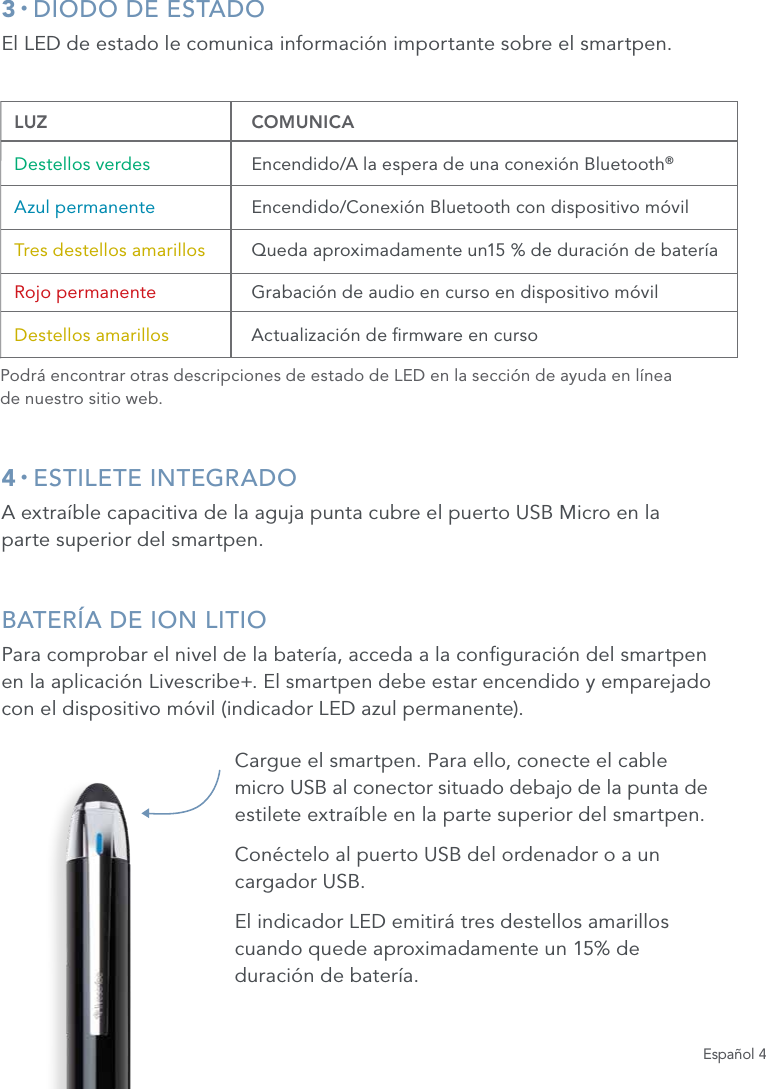
Español 43 • DIODO DE ESTADOEl LED de estado le comunica información importante sobre el smartpen.4 • ESTILETE INTEGRADOA extraíble capacitiva de la aguja punta cubre el puerto USB Micro en la  parte superior del smartpen.BATERÍA DE ION LITIOPara comprobar el nivel de la batería, acceda a la conguración del smartpen  en la aplicación Livescribe+. El smartpen debe estar encendido y emparejado con el dispositivo móvil (indicador LED azul permanente).Cargue el smartpen. Para ello, conecte el cable  micro USB al conector situado debajo de la punta de estilete extraíble en la parte superior del smartpen.Conéctelo al puerto USB del ordenador o a un cargador USB.El indicador LED emitirá tres destellos amarillos cuando quede aproximadamente un 15% de  duración de batería.  LUZ   COMUNICA  Destellos verdes Encendido/A la espera de una conexión Bluetooth®  Azul permanente  Encendido/Conexión Bluetooth con dispositivo móvil  Tres destellos amarillos Queda aproximadamente un15 % de duración de batería  Rojo permanente Grabación de audio en curso en dispositivo móvil  Destellos amarillos  Actualización de rmware en cursoPodrá encontrar otras descripciones de estado de LED en la sección de ayuda en línea  de nuestro sitio web.
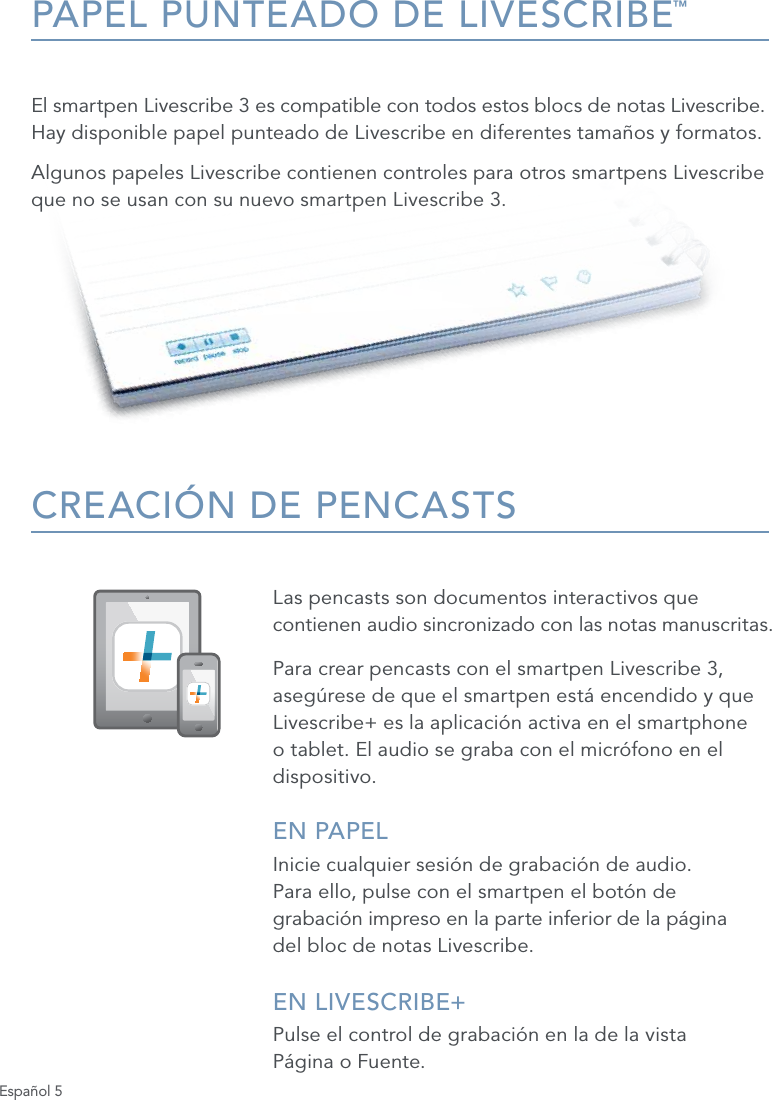
Español 5PAPEL PUNTEADO DE LIVESCRIBE™El smartpen Livescribe 3 es compatible con todos estos blocs de notas Livescribe.  Hay disponible papel punteado de Livescribe en diferentes tamaños y formatos. Algunos papeles Livescribe contienen controles para otros smartpens Livescribe que no se usan con su nuevo smartpen Livescribe 3.CREACIÓN DE PENCASTSLas pencasts son documentos interactivos que contienen audio sincronizado con las notas manuscritas. Para crear pencasts con el smartpen Livescribe 3, asegúrese de que el smartpen está encendido y que Livescribe+ es la aplicación activa en el smartphone o tablet. El audio se graba con el micrófono en el dispositivo.EN PAPELInicie cualquier sesión de grabación de audio.  Para ello, pulse con el smartpen el botón de  grabación impreso en la parte inferior de la página  del bloc de notas Livescribe.EN LIVESCRIBE+ Pulse el control de grabación en la de la vista  Página o Fuente.
Español 6SUGERENCIAS•  Al grabar, el indicador LED del smartpen será rojo permanente y la aplicación Livescribe+ mostrará una barra de progreso de grabación (en rojo).•  Cuando haya iniciado la grabación, no será necesario que la aplicación esté en primer plano para que la grabación continúe.•  Las llamadas telefónicas entrantes interrumpirán la grabación. Reinicie la grabación una vez nalizada la llamada.•  Cuando acabe la grabación, puede reproducir el audio si pulsa las notas manuscritas en la vista de la sesión, o si pulsa directamente con el smartpen  los trazos en el papel.
Español 7PREGUNTAS HABITUALES¿Qué hago si mi Livescribe™ 3 ha perdido la conexión al dispositivo móvil?Sabrá si no existe emparejamiento con el dispositivo móvil si el indicador LED no es azul permanente y la aplicación está activa. Primero, es posible que deba reiniciar el smartpen para restaurar la conexión. También es posible que deba cerrar la aplicación y reiniciarla. En algunos casos, es posible que deba poner el smartpen en modo de emparejamiento mediante una pulsación en el icono de emparejamiento de dispositivos en la parte frontal del bloc de notas Livescribe.¿Qué indican los iconos de estrella      , bandera     , y etiqueta       situados en la parte inferior de cada página del bloc de notas Livescribe?Los iconos son controles preimpresos que permiten etiquetar el contenido manuscrito. Pulse el control relevante en el papel y empiece a escribir. Una vez enviado al dispositivo, Livescribe+ organizará ese contenido en agrupaciones fáciles de ver. También es posible personalizar las etiquetas en la aplicación Livescribe+.¿Qué son los botones                      situados en la parte superior de cada página del bloc de notas Livescribe?Estos iconos son controles de acceso directo con funciones preprogramadas. Acceda al panel de preferencias de Livescribe+ para obtener más información.record pause stoprecord pause stoprecord pause stoprecord pause stoprecord pause stoprecord pause stop
Español 8MÁS INFORMACIÓNSi quiere ver vídeos, sugerencias o documentación relacionada con el smartpen Livescribe 3, visite   www.livescribe.com/livescribe3supportAyuda en línea www.livescribe.com/livescribe3onlinehelpServicio de atención al cliente support.livescribe.comSÍGANOS Página de admiradores en Facebook www.facebook.com/livescribePágina global de Twitter www.twitter.com/livescribeBlog de Livescribe www.livescribe.com/blogYouTube  www.youtube.com/nevermissawordNORMATIVASEste dispositivo cumple con el apartado 15 de las normas de la FCC. Su funcionamiento está sujeto a las dos condiciones siguientes: (1) este dispositivo no debe causar interferencias perjudiciales y (2) este dispositivo debe aceptar cualquier interferencia que reciba, incluidas aquellas que puedan causar un funcionamiento no deseado.  Precaución: los cambios o modicaciones en el equipo que no hayan sido expresamente aprobados por Livescribe, Inc. podrían anular el derecho del usuario para utilizar este equipo.  Nota: se han realizado pruebas de este equipo y se ha determinado que cumple con los límites establecidos para los dispositivos digitales de clase B, según el apartado 15 de las normas de la FCC. Estos límites se han establecido para ofrecer un nivel de protección razonable contra las interferencias perjudiciales en instalaciones residenciales. Este equipo genera, utiliza y puede irradiar energía de radiofrecuencia y, si no se instala y usa de acuerdo con las instrucciones, puede causar interferencias perjudiciales en las radiocomunicaciones. No obstante, no se puede garantizar la ausencia de interferencias en una instalación determinada. Si este equipo causa interferencias perjudiciales en la recepción de radio o televisión, lo que se puede determinar desconectando y volviendo a conectar el equipo, se recomienda al usuario que las corrija mediante una o más de las siguientes medidas:• Reorientar o reubicar la antena receptora. • Aumentar la separación entre el equipo y el receptor. • Conectar el equipo a una toma de corriente de un circuito distinto al que se encuentra conectado el receptor. • Consultar al distribuidor o a un técnico experimentado en radio y televisión para obtener asistencia.Este dispositivo cumple las normas RSS de exención de licencia de Industry Canada. Su funcionamiento está sujeto a las dos condiciones siguientes: (1) este dispositivo no debe causar interferencias perjudiciales y (2) este dispositivo debe aceptar cualquier interferencia que reciba, incluidas aquellas que puedan causar un funcionamiento no deseado.Livescribe Inc. Model: V1110 FCC ID: CKD-00072 IC: 10240A-00072
LIVESCRIBE, PULSE, ECHO, and SKY are trademarks of Livescribe Inc., Oakland, California 94621. Apple, iPhone, iPad, and iPod touch are trademarks of Apple Inc. App Store is a service mark of Apple Inc. All other trademarks are properties of their respective owners. ©2013 Livescribe Inc. All rights reserved.LIVESCRIBE, PULSE, ECHO, et SKY sont des marques commerciales de Livescribe Inc., Oakland, Californie 94621. Apple, iPhone, iPad, et iPod touch sont des marques commerciales d’Apple Inc. App Store est une marque de service d’Apple Inc. Toutes les autres marques commerciales sont la propriété de leurs détenteurs respectifs. ©2013 Livescribe Inc. Tous droits réservés.
Language #P/N: 212-00024-000-AC

Navigation menu