Loewe 32 Hd Users Manual 31963_021_RC3_GB
32 HD to the manual 8d8a9b2d-cd37-4139-9871-dfef36cec419
2015-02-02
: Loewe Loewe-32-Hd-Users-Manual-436143 loewe-32-hd-users-manual-436143 loewe pdf
Open the PDF directly: View PDF  .
.
Page Count: 44

1
233–31963.021
.
Operating Instructions.
■ Spheros 32 HD
■ Spheros 32 HD/DR+
■ Spheros 37 HD
■ Spheros 37 HD/DR+
■ Xelos SL 32 HD
■ Xelos SL 32 HD/DR+
■ Xelos SL 37 HD
■ Xelos SL 37 HD/DR+
TV.
31963_021_RC3_GB 14.01.2005, 10:40 Uhr1

2
Dear Customer,
Congratulations on your purchase of this high quality Loewe television. Loewe stands for innovative
design, excellent quality and exceptional functionality. To ensure that your product retains these
properties for as long as possible, please follow the operating and safety instructions contained in
this manual.
This instruction manual will help you to get started.
Your Loewe Team
Contents
Remote control RC3 – TV functions 3
Rear side connections Signal Box 4
Operation on the Signal Box 5
Setup 6-7
Installation possibilities 6
For your safety... 6
Handling the mesh tube 7
✳ Cleaning the front panel 7
Connect LCD screen and antenna(e) to the
Signal Box 8
Initial installation 9
Batteries 9
Connection 9
Switching on 9
Automatic programming 9
Daily handling 10-12
Remote control RC3 10
TV equipment 10
Use the drive buttons in TV- and STB position
for VCR, DVD or Digital Recorder 10
Switching on/off 10
Changing channels 11
Call Audio/Video programs -
AV selection 11
General menu operation 12
Adjusting the picture 12
Adjusting the sound 12
Operation on the TV set (Signal Box) 12
Modes of operation 13-18
TV mode 13
Menu functions in TV 14
Picture in Picture (PIP) 15
EPG mode 16-17
TV-radio mode (SAT radio) 17
Teletext mode 18
LOEWE Dialog 19
Operation of additional equipment 20-30
Video mode 20
Digital Link Plus 20
Logging in equipment 21
Connecting VCR equipment 21
Search for and store the VCR station 21
Video playback 22
Calling an AV program in the
AV selection list 22
IR-Link 22
Digital input/output 23-24
AV-connection/Select device 24
Converting the remote control in order to
operate a Loewe DVD player or devices
from other manufacturers 24
Converting the remote control for devices from
the code list 24
✳ Rotating the TV set (only Spheros) 26
✳ Viewing angle, range of rotation 26
Connecting Loewe sound systems 27
Loewe sound systems Concertos 28
Loewe sound systems Certos/Concertos 29
Connecting the DVD Preceiver
Auro 8116 DT and Tremo 30
Displaying PC images (VGA/DVI) 31
Connecting personal computers 31
What to do when ... 32-33
Technical data 34
Available accessories 35
Secret code 35
Service addresses 36
Codelist RC3 37-43
Functions marked by ✳ are not available in all
types of TV sets but can usually be retrofitted.
Ask your dealer if you are interested.
Manufactured under license from Dolby
Laboratories. ”Dolby” and the double-D symbol
are trademarks of Dolby Laboratories.
dts
Is a registered trademark of Digital Theater
Systems Inc.
Acoustimass® is a registered trademark of the
Bose Corporation.
31963_021_RC3_GB 14.01.2005, 10:40 Uhr2
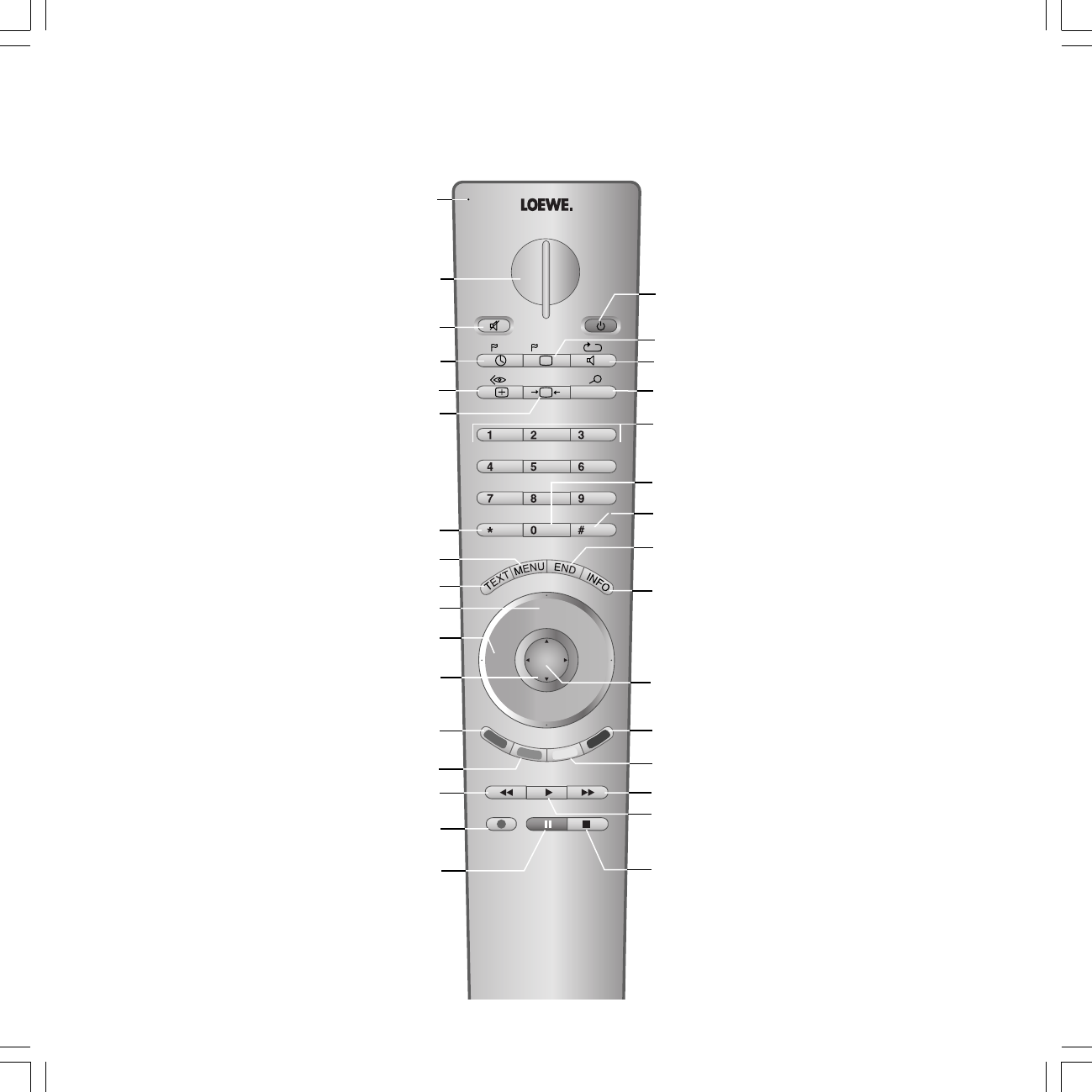
3
abc def
RADIO
-Set
TV
DVD STB
VCR
REC-MENU
ghi jkl mno
pqrs tuv wxyz
EPG AV
DISC-M
CARD
SV
TITLE
C-SET
PIP
P+
OK
P–
V– V+
-List
Sound off/on (mute)
Control LED for programming
the remote control
Switch on/off – in standby
yellow key: last station ✳
Digital Recorder: bookmark forward/fast forward
/PhotoViewer: next picture
TV without Digital Recorder: freeze frame off
Digital Recorder: play/set bookmark
/PhotoViewer: start slide show
TV without Digital Recorder: freeze frame on
Digital Recorder: stop (live picture)
/PhotoViewer: stop slide show
blue key: programme info on/off ✳
/in the PhotoViewer overview: next page of overview
V–/V+ volume quieter/louder
Call main information
/in menu: Info texts on/off
/PhotoViewer: PhotoViewer operating instructions
Status display on/off
/in menu: hide menu
/PhotoViewer: show/hide picture info
Call AV selection
PIP on/off
/PhotoViewer: zoom picture
Picture menu on/off
/PhotoViewer: PhotoViewer operation on/off
Sound menu on/off
Radio mode on/off
Select programme directly
in menu: enter numbers or letters
TV without Digital Recorder: freeze frame on
Digital Recorder: freeze frame/pause
(delayed viewing: start)
/PhotoViewer: stop slide show
Digital Recorder: bookmark back/rewind
/PhotoViewer: previous picture
✳ green key: call standard settings
✳ red key: personal teletext pages
/Digital Recorder: DR archive on/off
/in the PhotoViewer overview: previous page of overview
in menu: select/set
/in the PhotoViewer overview: select picture
/Digital Recorder: LOEWE dialog on
Station table list on
/in menu: confirm
/PhotoViewer: call photo from the PhotoViewer overview
/Call PhotoViewer overview
P+/P– select program up/down
Teletext mode on/off
Call menu /in menu: back
EPG on/off
/PhotoViewer: turn picture
Set picture format
Video operation with video operating lin on/off
Timer overview
Change-over switch for operation of
TV, VCR, DVD recorder/player or Set Top Box
Digital Recorder: record immediately
Remote control RC 3 – TV functions
✳The drive buttons can be switched for
operating a DVD player/recorder or a VCR. ✳You can assign other functions to the color
keys for the TV mode.
31963_021_RC3_GB 14.01.2005, 10:40 Uhr3
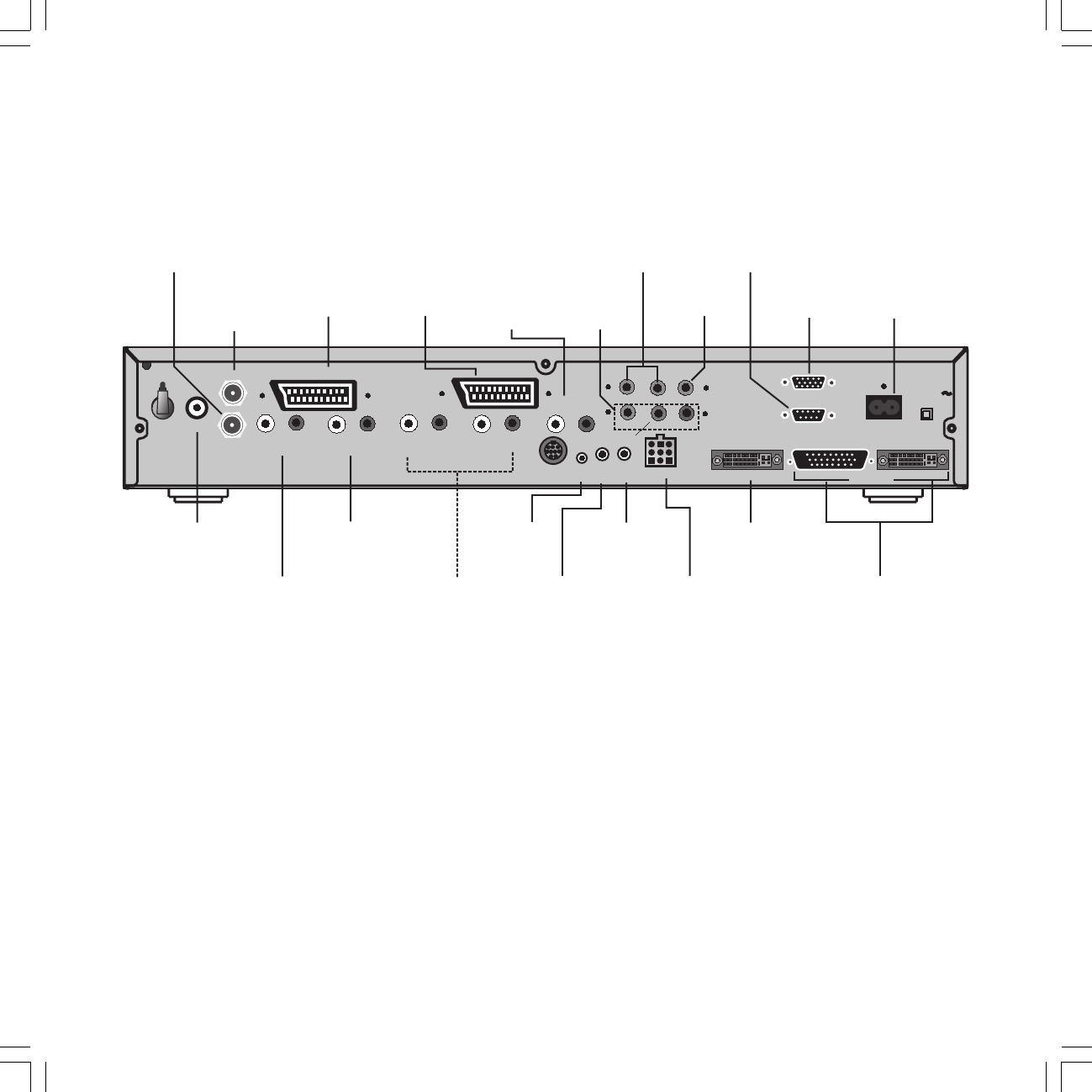
4
120-240V
50/60Hz
SERVICE IR-
Link SYSTEM
ANT-1
ANT-2
PIP UHF/VHF
AUDIO
IN 2
Y
IN1
AUDIO IN1
L R
AV 2 ( RGB )
Center Sub
L R
SOURROUND
DVI-INPUT D-SUB DVI-OUTPUT
CONTROL
RC5/
RC6
VGA
DISPLAY
DIGITAL
L R
AUDIO IN 3
L R
AUDIO OUT
C
R
/P
R
C
B
/P
B
IN2 OUT
AV 1
Socket for
power cable
Loewe Online
VGA input
Connection for
Loewe Online Box
Connections for LCD
monitor
Digital Visual
Interface input
(✳✳✳ VGA input)
Antenna socket
VHF/UHF/cable
Euro-AV
socket 1
Connection
Speaker system
Sound input
analogue (VGA)
✳ Satellite-
antenna socket
(analogue/digital)
✳ Satellite antenna
socket (analogue)
Infrared
signal out
(for HMM)
Infrared Link
RC5/RC6
✳✳Connections
for active
speakers
Euro-AV
socket 2
Digital sound
inputs
Sound output
analogue
left / right
Sound input
analogue
left / right
Sound input
TV Active
Certos/Auro
Component
Video inputs Digital sound
output
Rear side connections Signal Box
✳Only in the set version with ”Digital-TV upgrade kit 2 Sat/Twin-Sat CI”.
✳✳ The ”SURROUND”, ”Center” and ”Sub” sockets are only activated when equipped with
Dolby Digital (AC3).
✳✳✳ VGA Connection via VGA/DVI adapter cable.
31963_021_RC3_GB 14.01.2005, 10:40 Uhr4
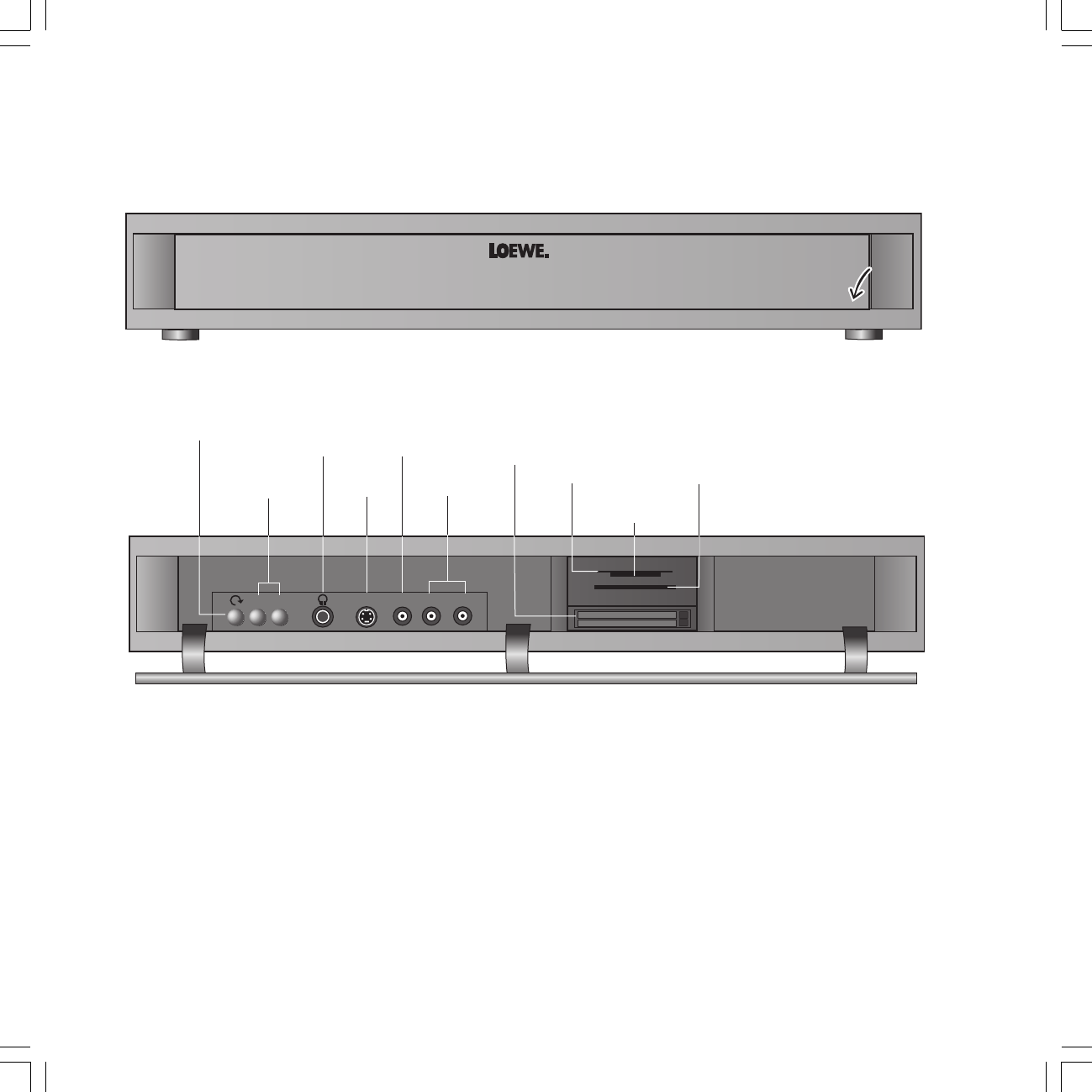
5
AV-S VIDEO L AUDIO R
PHOTOVIEWER
COMMON INTERFACE
–+
Slots for
memory cards
SmartMedia (SM) CompactFlash (CF)
Multi Media Card (MMC)
Secure Digital (SD)
Memory Stick (MS)
AV-S VIDEO L AUDIO R
PHOTOVIEWER
COMMON INTERFACE
–+
Video input AVS
(CVBS)
S-video
input
Display menu
Channel up/down
Set in the menu
Headphone
socket
Sound input
Left / Right
✳ Sockets for
Common-Interface-
Modules
Operation on the Signal Box
Open control panel
✳Only in the set version with ”Digital-TV upgrade kit 2 Sat/Twin-Sat CI”.
31963_021_RC3_GB 14.01.2005, 10:40 Uhr5
6
AV-S VIDEO L AUDIO R
PHOTOVIEWER
COMMON INTERFACE
–+
➝
Setup
Installation possibilities:
•as a desktop unit
–on a sideboard or table (Xelos SL 32 HD/37
HD.
–Using a rotary table stand (Motor Unit) you
can adjust your Spheros 32 HD or 37 HD
easily with the remote control to suit your
sitting position.
•on a Flat-TV F-Stand
as a standing unit, manually rotatable.
•Spheros 32 HD or 37 HD on the
System Rack Cube 1, Cube 2
with motor control for rotating the TV set
and shelves for DVD player, VCR etc.
•as a wall unit, the flat screen (LCD) can
be hung on the wall like a picture. It can be
tilted up to 5°.
Auxiliary devices such as VCRs, DVD players,
Pay-TV decoders, Loewe sound systems
Concertos/Certos can be connected to the
Spheros Signal Box.
Operation
We have designed the TV set in such a way that
it is easy to operate with menus. If you need
information on operating the set, simply press
the i key on the remote control to display the
help texts, which will quickly enable you to
understand the system.
If it is a matter of operating the TV, you can
access a function directly from the index.
This saves you from having to read through
detailed operating instructions and is the
reason, why this operating manual only
explains the most important operating steps.
For your safety ...
For your own safety and to avoid unnecessary
damage to your equipment, protect it against
•moisture, splashing and dripping water
•shock and mechanical stress
•cold, heat and extreme temperature
fluctuations
•dust
•covering which obstructs air circulation
•tampering with the insides
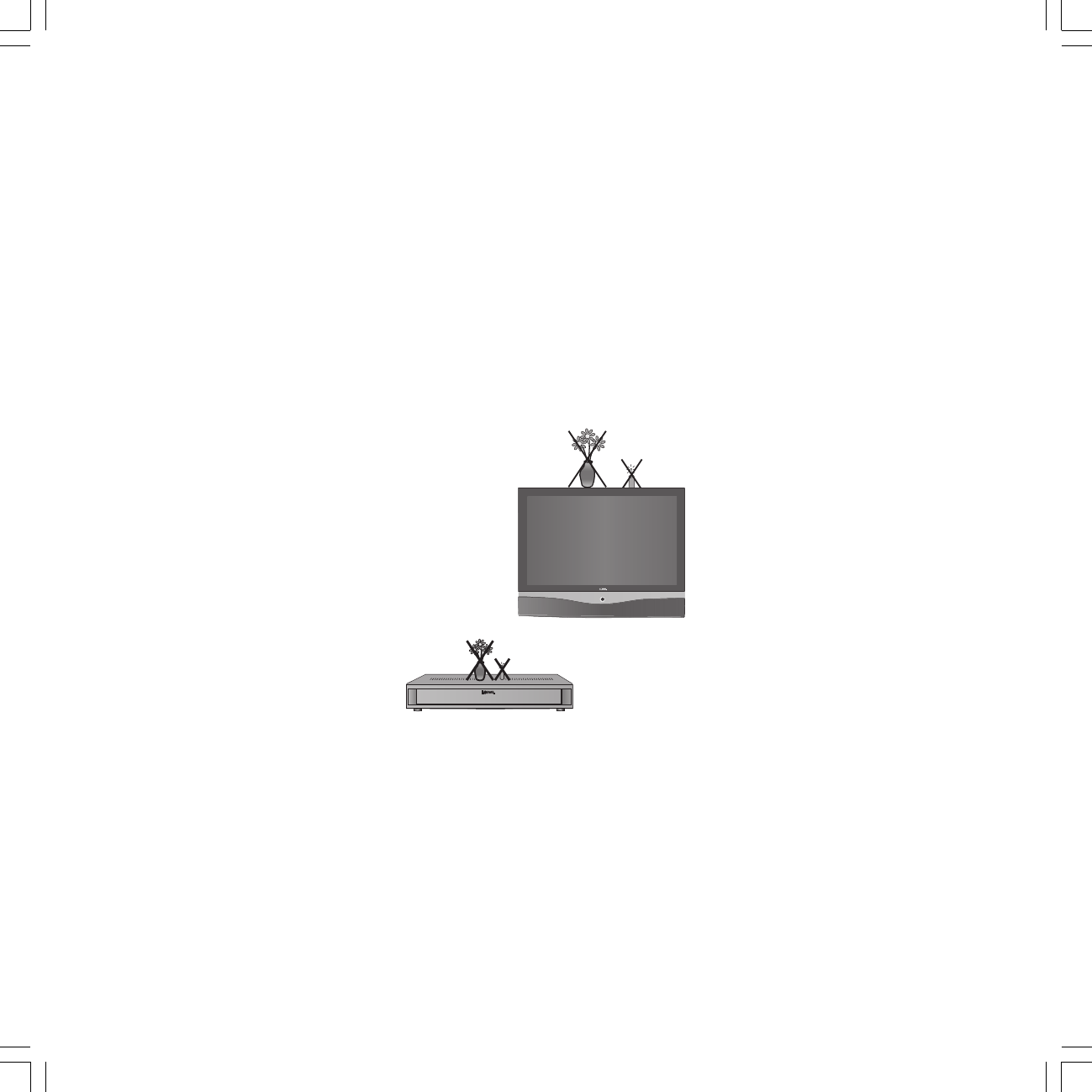
Never place vases filled with water, lit candles
etc. on the TV set.
If you have moved the set out of the cold into a
warm environment, leave it switched off for
about an hour because of the possible forming
of condensation.
Lightning can damage your TV through the
antenna and the mains. Therefore pull out
the antenna and power plugs during
thunderstorms and in longer periods of
absence.
Only transport the unit in an upright
position.
•Avoid metal parts, needles, paper clips,
liquids, wax or similar getting into the TV
set through the air venting slits in the rear
panel. This can lead to short-circuits and
possibly to fire. If something should get into
the set switch it off immediately at the on/
off switch, pull out the power plug and
notify the after-sales service for inspection.
•The TV power plug must be easily accessible
so that the TV can be disconnected from the
power supply at all times.
•Lay the power cable so that it cannot be
damaged. The power cable may not be
kinked or laid over sharp edges, not stood
on and not exposed to chemicals, the latter
also applies to the device as a whole. A
power cable with damaged insulation can
lead to electric shocks and is a fire risk.
•When removing the power plug, pull the
plug housing and not the cable. The wires in
the plug could be damaged and cause a
short circuit the next time it is plugged in.
•Your new TV has been built exclusively for
use in a home environment. The warranty
covers this normal use of the device.
•Only have repairs done by the
Loewe Service.
31963_021_RC3_GB 14.01.2005, 10:40 Uhr6
7
100 mm
100 mm
100
mm
100
mm
.
.
100 mm
100 mm
100
mm
100
mm
AV-S VIDEO L AUDIO R
PHOTOVIEWER
COMMON INTERFACE
–+
Setup and cleaning
Only hold the housing for transporting and
never the panel.
The front panel and the LCD screen underneath
it are made of glass and may break if not
properly handled. If the LCD screen is damaged
(not the glass panel) and in case of leaking
liquid crystal, wear rubber gloves to carry the
device.
In case of contact with the skin, wash the
affected areas thoroughly with water.
Note
During the whole period of use, pixel errors
may appear on the screen in the form of lighter
or darker spots, this phenomenon is typical for
an LCD display. It is not a defect.
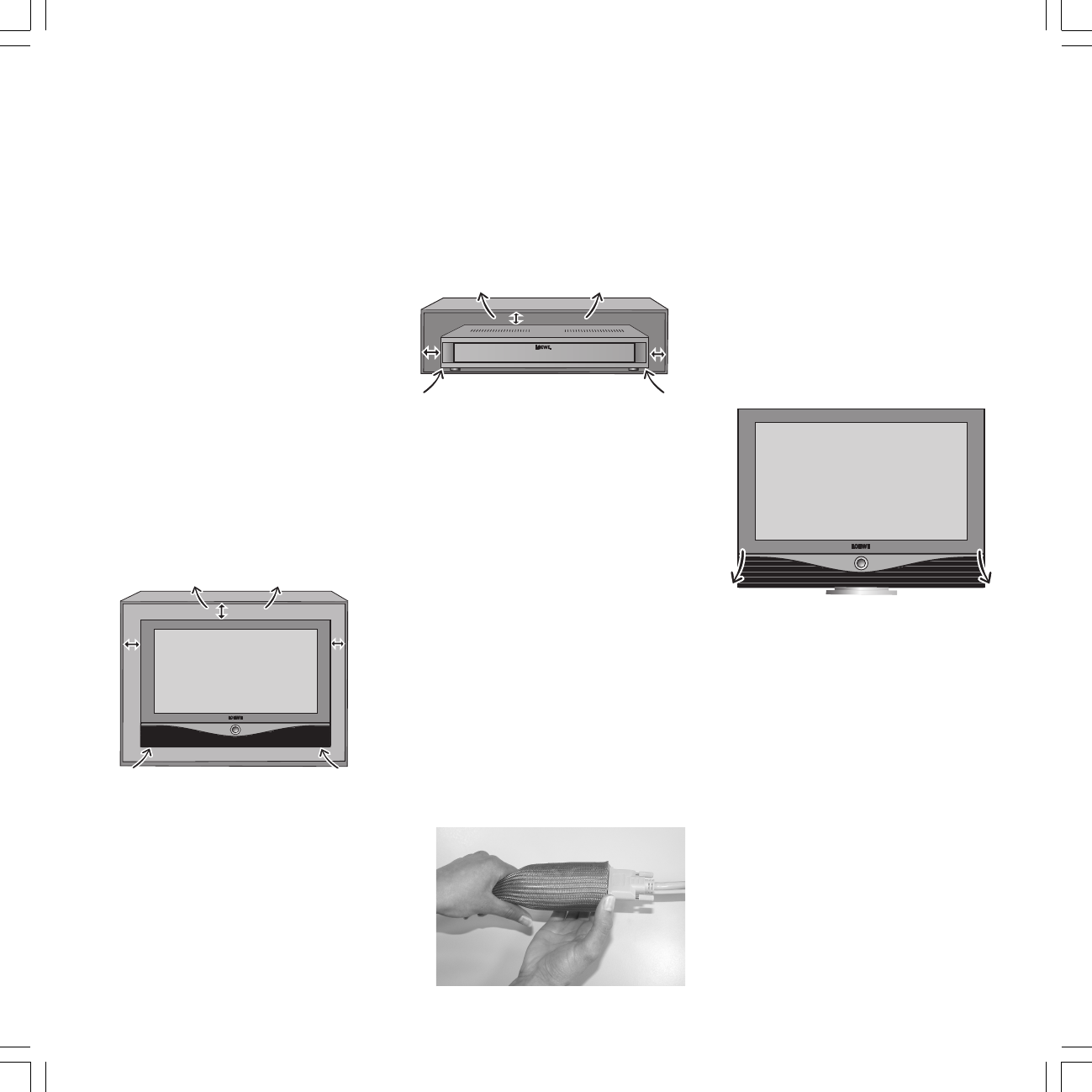
•Install the Spheros Signal Box and the
screen with room for air circulation. The air
vents may not be covered by objects such as
magazines, table cloths, curtains etc.
•Check the strength of furniture (e.g. tables,
sideboards) before placing the set on it.
•Take the swivel range into account when
installing a set with a rotary motor unit.
•Make sure no bright light or sunlight falls
onto the screen otherwise reflections will be
caused and the brilliance of the picture lost.
• Do not place the Signal Box on edge but on
its feet.
•Do not place naked flames, e.g. lit candles,
on the set.
Note on installing the flat screen (LCD):
Observe the enclosed installation instructions
depending on the type of set you have
purchased and installation.
With the Xelos SL 32 HD and 37 HD types a
stand (Xelos table stand) is usually delivered
for the LCD.
Handling the mesh tube
Use the enclosed mesh tube to lay the screen,
base, wall holder or rack cables tidily and guide
the hose with the cables to the Signal box. This
looks more elegant.
The diameter of the mesh tube widens when it
is pushed together lengthwise (see figure). This
makes it easier to push through the cables with
plugs.
Cleaning the front panel
(Only for Spheros 32/37 HD)
The inside of the front panel and the LCD
screen need to be cleaned from time to time.
Only remove the front panel when the TV has
been switched off and has cooled down. The
metal frame of the LCD panel may reach a
temperature of up to 60°C in operation !
•Hold the glass panel at the bottom right
and left and pull the panel out of the guide
about 4 cm.
•Push the glass panel up evenly.
•Unhook the glass panel at the top and
remove.
Use a damp, soft cloth to clean the LCD screen
and a glass cleaner for the glass panel.
Replacing the front panel:
•Make sure you do not damage the LCD
screen with the fastening bolts on the front
panel.
•Hang the glass panel into the guide rails at
the top with both fastening bolts.
•Then press the glass panel down lightly
onto the screen until it snaps into place.
Clean the other components such as the
remote control and signal box with a damp,
soft cloth only (without aggressive and
abrasive cleaning agents).
31963_021_RC3_GB 14.01.2005, 10:40 Uhr7
8
120-240V
50/60Hz
SERVICE IR-
Link SYSTEM
ANT-2
PIP UHF/VHF
AUDIO
IN 2
Y
IN1
AUDIO IN1
L R
AV 2 ( RGB )
Center Sub
L R
SOURROUND
DVI-INPUT D-SUB DVI-OUTPUT
CONTROL
RC5/
RC6
VGA
DISPLAY
DIGITAL
L R
AUDIO IN 3
L R
AUDIO OUT
C
R
/P
R
C
B
/P
B
IN2 OUT
AV 1
DVI-INPUT ✳✳
CONTROL
AC INPUT
220V-240Volt D-SUB
TV R
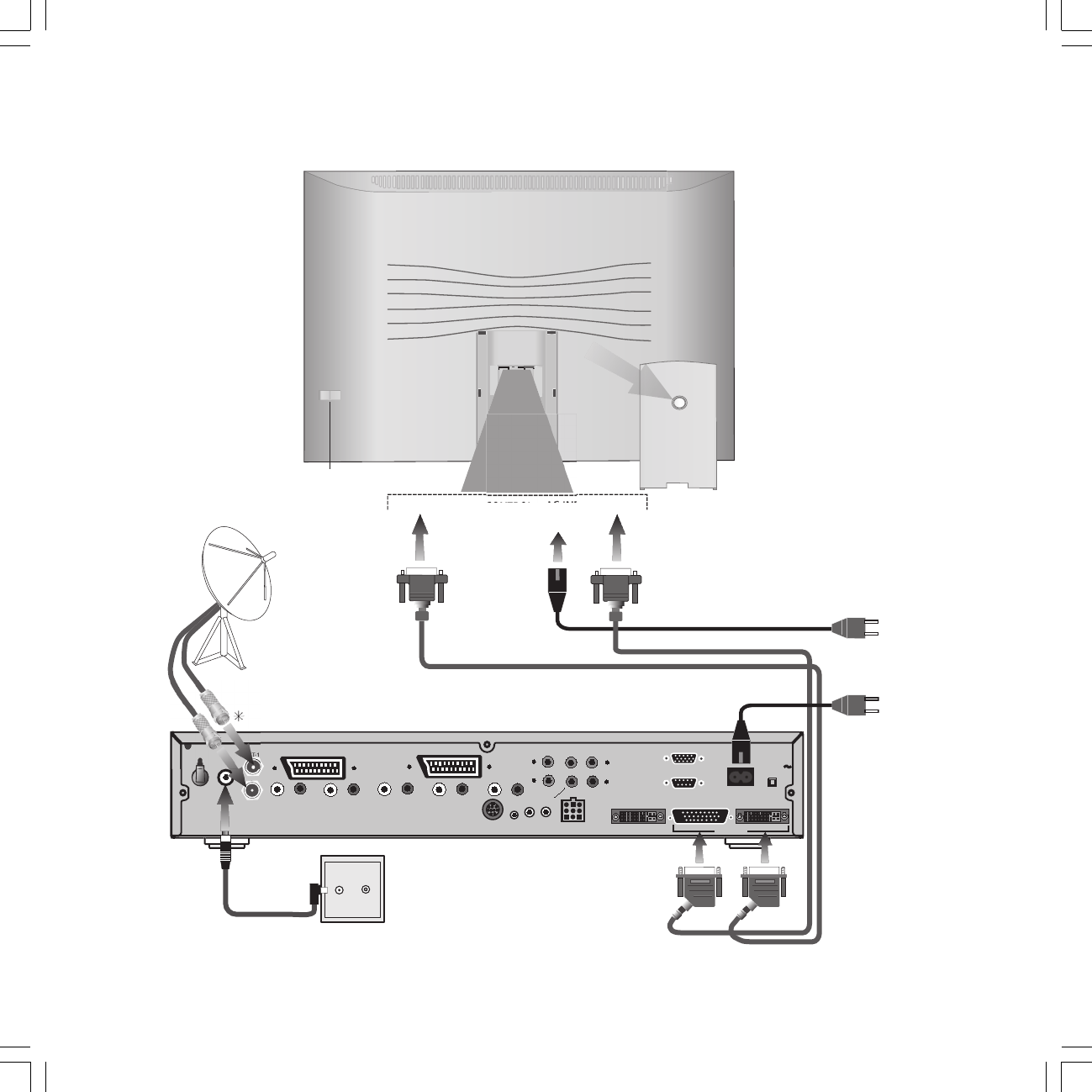
Connect LCD screen and antenna(e) to the Signal Box
TFT-LCD monitor Removing the connection cover
Do not just pull the cover (fig.) back
over the connections.
Reach into the opening in the cover
and pull it back slightly at the top until
it snaps open. Then pull the cover up
and out.
Connect both the system cables and
the power cable to the LCD screen as
shown in the figure.
Then replace the cover.
Switch on/off
Signal Box
✳ The antenna sockets 1 and 2 are only available in the set version with ”Digital-TV upgrade kit 2 Sat/Twin-Sat CI”.
✳✳ The connection socket ”CONTROL” is only available for Spheros 32/37 HD and designed for a Motor Unit!
Note: For optimum picture resolution use the "Digital Visual Interface Input DVI" only connecting cables less than 2 meters long.
31963_021_RC3_GB 14.01.2005, 10:40 Uhr8
9
OK
OK
.
SPHEROS
+
+
SERVICE IR
-
Li
n
ANT-1
PIP
UH
AUDIO IN1
L R
AV 2 ( RGB )
Center Sub
L R
SOURROUND
RC5/
RC6
DIGITAL
L R
AUDIO IN 3
R
OU
T
AV 1
Initial installation
Batteries
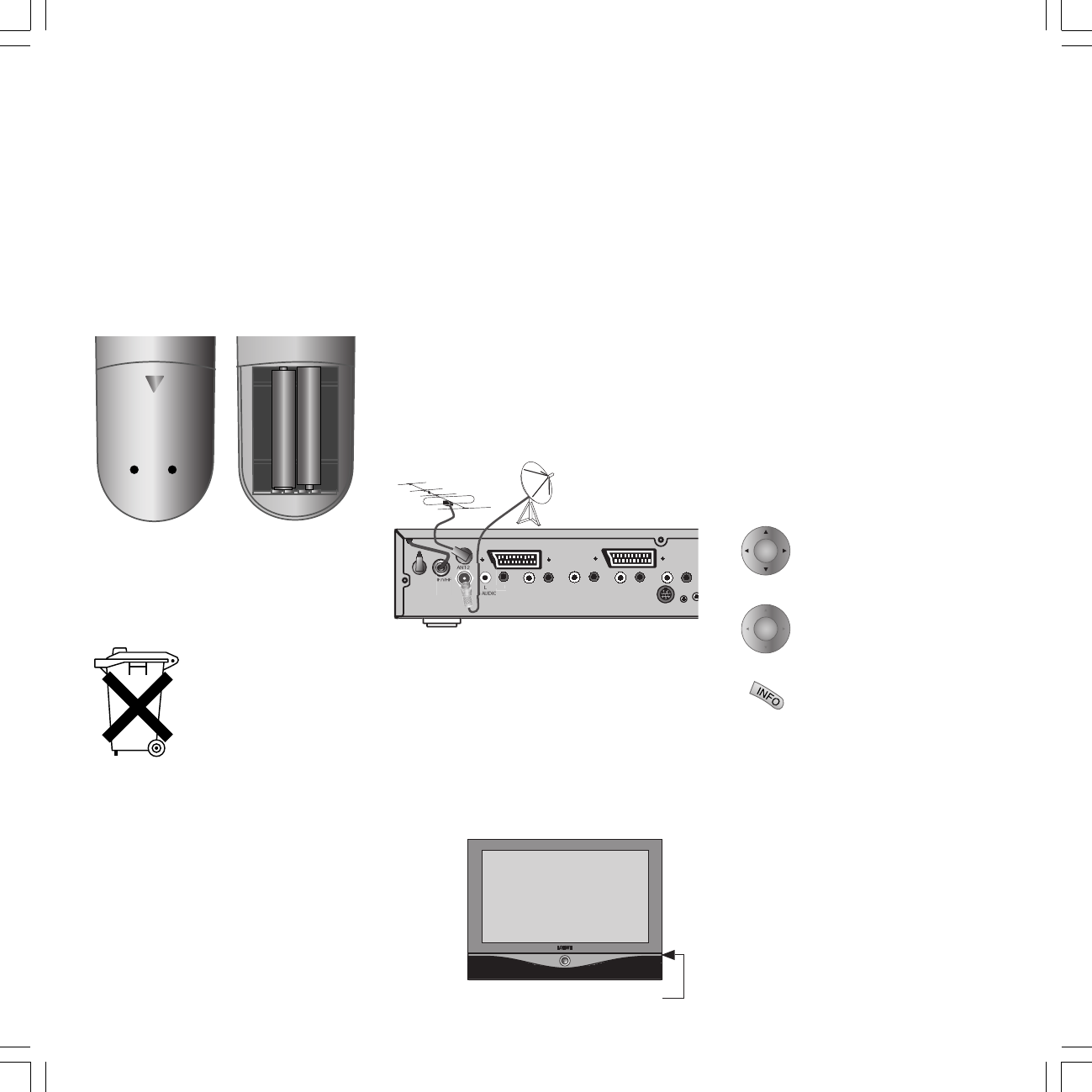
To insert or change the batteries, press the
point marked by an embossed arrow. Push the
cover of the battery compartment down and
remove it. Insert the batteries of the alkaline
manganese type LR 03 (AAA) with the correct
polarity (+/-).
Then push the cover back on.
Note on disposal of batteries:
The original batteries do not
contain any pollutants such as
cadmium, lead and mercury.
Used batteries do not belong in
the domestic waste. They must
be taken to the appropriate
collection points according to
the national laws. Ask your
dealer.
Connecting
Antenna
Connect your antenna or cable system to the
UHF/VHF antenna socket on the back of the
Signal Box.
•In sets with the ”Digital-TV Upgrade Kit 2
Sat/Twin-Sat CI- or CIP” connect the Sat
antenna cable to the ”ANT-1” and ”ANT-2”
sockets, in this way you can receive two
satellite programs simultaneously, e.g. for
PIP display, see fig. on page 9.
•In sets with ”Digital-TV Upgrade Kit 2-T/S”
connect the antennae to the Signal Box as
shown below.
Power mains
After connecting the flat screen to the Signal
Box, connect both devices to 230V/60Hz mains
sockets.
Switching on
Press the On/Off button so that it is pressed in.
Due to the LCD technology it takes about 2
minutes to reach full brightness.
Switch on/off
Automatic programming
Automatic programming of the TV set is started
the first time you switch it on. Follow the
menus.
First you have to select the menu language for
your set. Then you specify which antenna you
have connected to your TV and in what country
you are using it. Then you start the station
search. The TV set searches for, saves and sorts
all programs which are freely receivable on
your antenna system.
You then see a list of the stored stations in
which you can mark your favorites. Finally log
in your video recorders, decoders, Loewe audio
system and Home Automation with the
connection wizard and connect these to the TV
set according to the illustrated connection plan.
Select the settings with the
arrows on the ring ...
... confirm the settings with
OK. You then move on to the
next menu ...
... press this button if you want
information about the settings.
You can repeat initial installation at any time,
e.g. after moving house. Call the index in the
main information (i button). Then select the
item "Repeat initial installation". Then start
"Initial installation" with OK.
31963_021_RC3_GB 14.01.2005, 10:40 Uhr9
10
TV
DVD STB
VCR
OK
OK
EPG
AV
def
wxyz
jkl
TV
DVD STB
VCR
PIP
TV
DVD STB
VCR
OK
Daily handling
Remote control RC3
Remote control for operating different Loewe
units.
Operating the TV:
Set the rotary switch to ”TV”.
Ex-factory settings are: Loewe video recorder,
Loewe DVD recorder and for STB (Set Top Box)
the d-box common in Germany.
The remote control must be switched for
operating a Loewe DVD player.
TV equipment
Functions marked by ✳ are not available in all
types of TV sets but can usually be retrofitted.
Ask your dealer if you are interested.
Menu contents may differ from the ones shown
depending on your TV equipment.
Operation of the ”PhotoViewer functions” or
the ”Digital Recorder”, if available, are
described in a separate operating manual.
You can show your TV
equipment by pressing the
INFO button on the remote
control.
Select the ”Equipment” line in
the ”Main information” menu.
Press the OK button.
Hide the menu again with the
END button.
Use the drive buttons in TV- and STB
position for VCR, DVD or Digital Recorder
You can switch over the six drive buttons both
for TV and STB for operating a VCR or DVD
player/recorder. Operation of the built-in Digital
Recorder Plus is specified ex-factory.
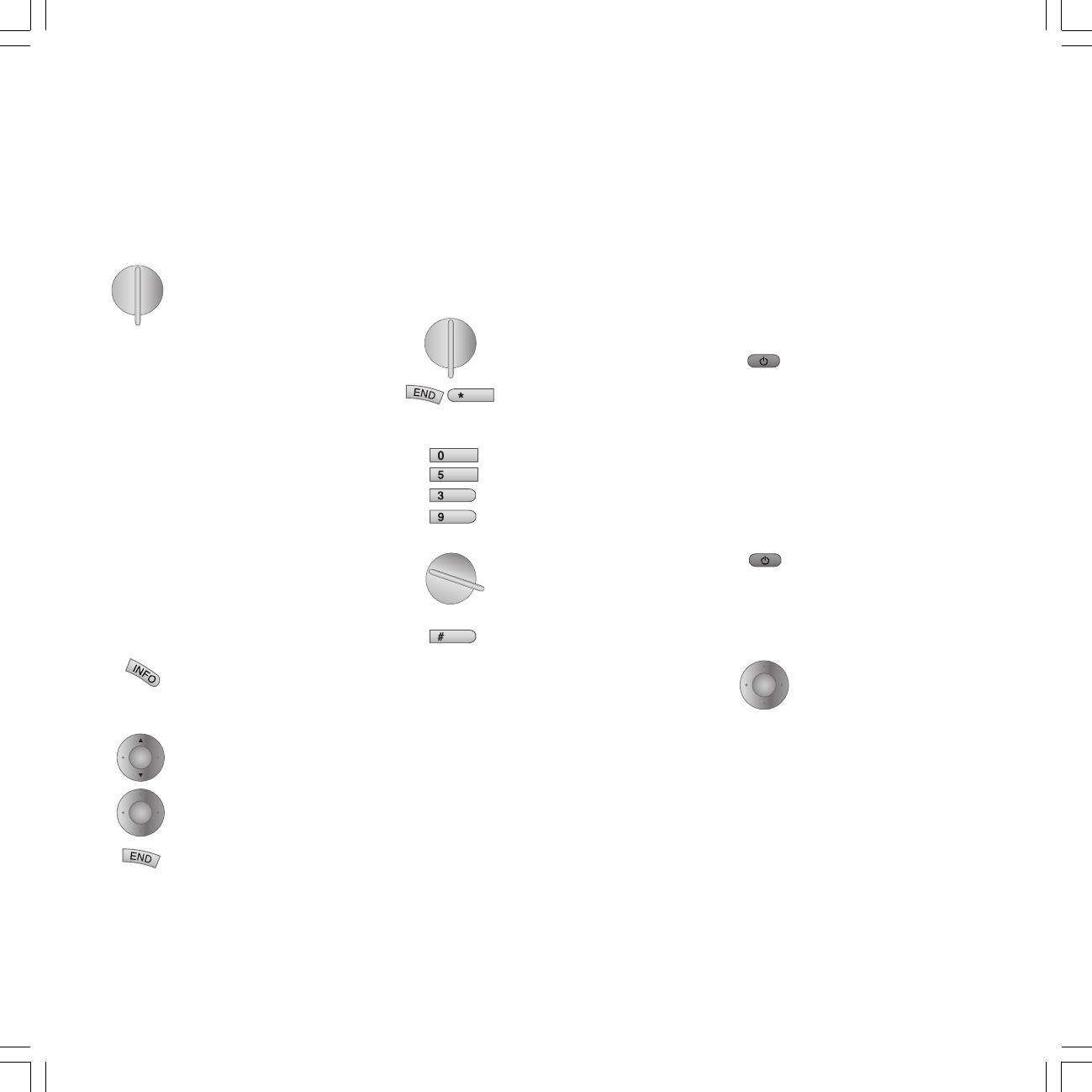
First turn the switch to the main
function TV or STB.
Press the END and * EPG but-
tons at the same time (5 secs).
The display at the top left of the
remote control flashes twice.
Enter the numbers 988 one after
the other. The display again
flashes twice.
Now turn the switch to the
required function for the drive
buttons. DVD, VCR or TV if the
Digital Recorder is to be used.
Press the # PIP button to com-
plete the setting. The display
flashes twice.
The setting is saved.
Switching on/off
Your TV set is equipped with an economy
standby power supply unit. On standby the
power consumption drops to low power. If you
want to save even more electricity, switch the
set off at the On/Off switch (Signal Box).
But remember that EPG data will then be lost
and timed recordings will not be made.
When the TV is switched on,
you can switch it to standby
with the blue on/off button.
The red standby indicator on
the set
lights up. If the green indicator
is also alight a timer recording
on the VCR is in progress, EPG
data input is taking place or
radio mode without on-screen
display is active.
From standby it is best to
switch back on with the blue
On/Off button or with a
numeric key (station 0-9). The
green (blue) operating LED
then lights up.
When you switch on the TV
with OK, you see the station
table and can choose a station.
None of the indicators lights up when you
switch off the TV set with the On/Off button on
the set.
Switch on the TV set with the On/Off button on
the set when it is switched off.
31963_021_RC3_GB 14.01.2005, 10:40 Uhr10
11
P+
OK
P–
V– V+
pqrs
AV
abc
pqrs
tu
v
OK
OK
abc
pqrs
VIDEO AV1 AV2 AVS VGA/XGA DVI COMP.IN
AV Selection
abc
pqrs
OK
OK
Channel overview: TV Numerical
AVS
AV3
AV2
AV1
0 VIDEO
1 ARD
2 ZDF
3 SAT.1
4 RTL
5 VOX
6 S–RTL
7 N–TV
8 DSF
9 TM3
10 PRO7
11 RTL 2
12 WDR 3
13 BR 3
14 HR
15 MDR 3
0 9
Select and
press OK to proceed Menu
Info
End
Change sorting
Change programs
Favourite programs
... Select program:
OK
INFO
MENU
END
AV
wxyz
...
Channel overview: TV Alphabetical
ARD
BR-ALPHA
BR3
CNN INT.
CAM
DSF
DVD
EUROSPRT
HOT
HR
KIKA
MDR 3
N–TV
✳ABCDEFGHIJKLMNOPQRSTUVWXYZ
Select and
press OK to proceed Menu
Info
End
Change sorting
Change programs
Favourite programs
OK
INFO
MENU
END
120-240V
50/60Hz
SERVICE IR-
Link SYSTEM
ANT-1
ANT-2
PIP UHF/VHF
AUDIO
IN 2
Y
IN1
AUDIO IN1
L R
AV 2 ( RGB )
Center Sub
L R
SOURROUND
DVI-INPUT D-SUB DVI-OUTPUT
CONTROL
RC5/
RC6
VGA
DISPLAY
DIGITAL
L R
AUDIO IN 3
L R
AUDIO OUT
C
R
/P
R
C
B
/P
B
IN2 OUT
AV 1
RFin
AV1/TV
AV2/Dec
RFout
Daily handling
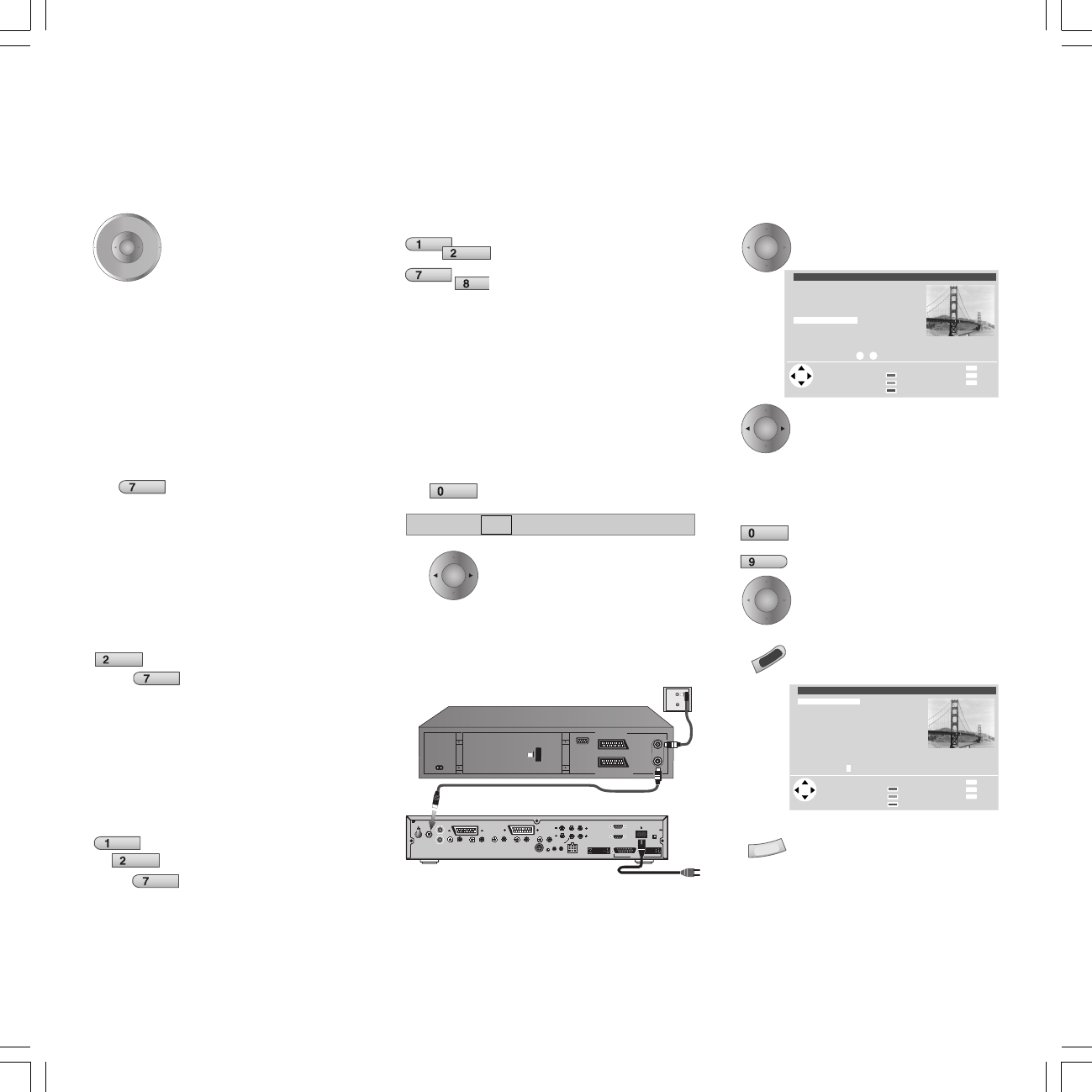
Changing channels
Channels up/down (only favorite
stations if these are shown in the
station table).
With the numeric keys on the remote control
The set has a dynamic memory with 220 (with
DVB 1470) memory slots. If up to 9 stations are
stored, you only need to enter one number, up to
99 two numbers, up to 999 three numbers and
above 999 four numbers (please look in the
station table to find out how many stations have
been stored).
1-digit stations
Keep the button 0 - 9 pressed for
one second, the channel then
changes immediately.
or press the button 0 - 9 briefly,
the channel then changes after 2
seconds (immediately when up to
9 stations are stored).
2-digit stations
Keep the second numeric key
pressed for one second, the
channel then changes
immediately.
or press both numeric keys briefly,
the channel then changes after 2
seconds (immediately when up to
99 stations are stored).
3-digit stations
Keep the third numeric key
pressed for one second, the
channel then changes
immediately.
or press the three numeric keys
briefly, the channel then changes
after 2 seconds (immediately
when up to 999 stations are
stored).
4-digit stations
Press the four numeric keys
briefly, the channel then
changes immediately.
Depending on how many stations have been
stored, you can place one or more zeros in front
of the number and select for example station 7
= 07 or 007 or 0007.
Call Audio/Video programs
- AV selection
for playing AV equipment.
AV connection (e.g. AV1 socket)
or …
Select VIDEO for VCR
transmitters if the VCR is only
connected to the ”VHF/UHF”
antenna socket on the Signal
box. See Fig.
With the station table
Call the station table with OK
Mark the station
(the marked station is shown in
the PIP pictures)
or ...
mark with numeric keys
Call the marked station
Sort alphabetically/numerically
(blue button)
Show favorites only (yellow
button), selectable in the "TV
Menu-Programs".
31963_021_RC3_GB 14.01.2005, 10:40 Uhr11
12
OK
OK
OK
OK
OK
OK
TV menu
Back
Info
End
Standard settings
Sound
zap2text
Picture
Connections
Settings
OK
INFO
MENU
END
Rotate TV
Picture
Contrast
Picture adjustment
Brightness
Sharpness
other ...
Colour 32
Back
Info
End
INFO
MENU
END
Picture vert.
Picture
other ...
Picture format
DMI Plus
AMD
DNC
iDNC (Digital Noise Control)
With DNC you can eliminate or reduce picture
interference, e.g. due to poor reception.
P+
OK
P–
V– V+
Volume 36
other ...
Volume
Sound adjust
Loudness
Listening mode Stereo Panorama Dolby Virtual
OK
OK
TV menu
Standard settings
Sound
zap2text
Picture
Connections
Settings
Rotate TV
Picture
Contrast
Picture adjustment
Brightness
Sharpness
other ...
Colour 32
Picture vert.
OK
OK
OK
OK
OK
+
–
+
–
Daily handling
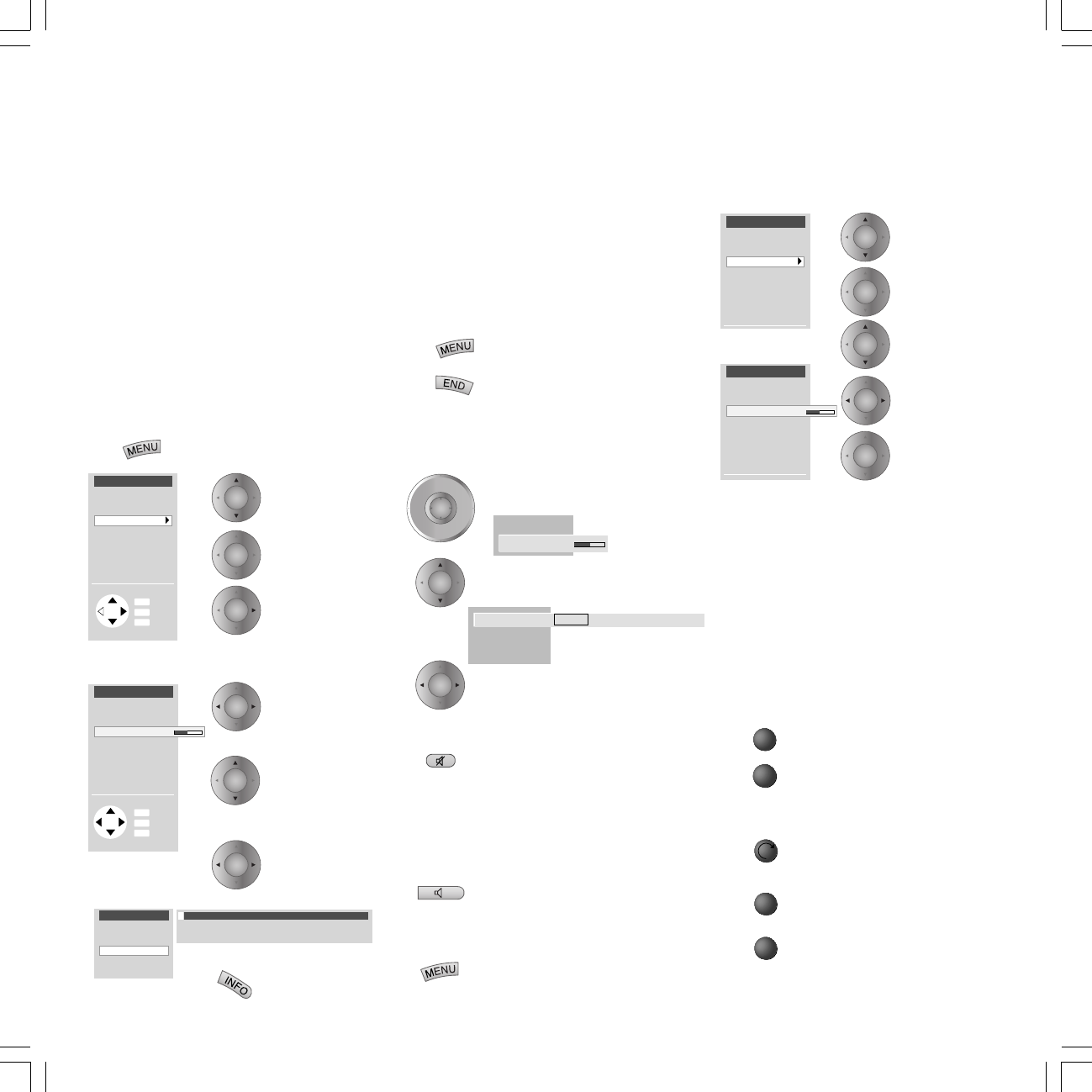
General menu operation
Not all functions can be selected directly with
buttons on the remote control.
To keep the number of buttons on the remote
control to a minimum, operating menus are
offered for several operating functions.
Which buttons you use to operate these is
shown in the respective menu.
Setting the picture
With the remote control RC2/RC3:
Call the TV menu, press the
MENU button.
Mark
(white field)
Call the menu
with OK
or
Grey menu items cannot be
selected
Set
(setting value
and bar)
Mark other
menu items
Set/select
Show/hide
info texts
on/off
Other picture settings are: Contrast, Picture
adaptation, Colour, Brightness, Vertical hold
(not for 16:9 or 4:3), Focus, Tint (only for NTSC),
Picture format, Noise reduction (DNC),
Movement compensation (DMI) and automatic
picture size adaptation (AMD).
Back to the previous menu
level
Hide all menus
Adjusting the sound
Adjusting the volume
Adjust the volume
with "others ..." you can select
and ...
... set other sound settings.
Mute
Sound off; Sound on: press
button again or adjust volume.
The status is displayed briefly
on screen.
Other sound settings
with the remote control RC3:
Call ”TV menu–Sound”,
press the button
with the remote control RC2:
Call the TV menu, press the
MENU button.
Select line
”Sound”.
confirm
Select sound
function
set/
select and ...
accept with OK
Other sound settings: Sound via the
loudspeakers of the TV set or another system.
Listening mode Stereo/Panorama/Dolby Virtual.
Sound adaptation, treble, bass and balance.
Sound select for loudspeakers and headphones,
AV output sound. Volume of the headphones,
automatic volume and max. volume.
Operation on the TV set
(on Signal Box)
Changing channels on the TV set
Channel up
Channel down
Volume, contrast and color
Press the function button until
the desired function is marked
More volume, contrast or color
Less volume, contrast or color
31963_021_RC3_GB 14.01.2005, 10:40 Uhr12
13
Main information
Autom. channel search
Explanation of the remote control
Back
Info
End
Connections
Select control level
Select and call up
with OK
Technical spec. of TV set
Index
OK
INFO
MENU
END
TV menu
Standard settings
Sound
zap2text
Picture
Connections
Settings
Rotate TV
Clock 20:15
1 ARD Stereo
Modes of operation
TV mode
In initial installation and daily operation, the TV
set is in TV mode. This is also the case when
none of the other modes of operation such as
EPG, Teletext, PIP, Video or Radio is selected.
Every one of these modes of operation has a
menu which you can call with the MENU-
button and with some color button
assignments.
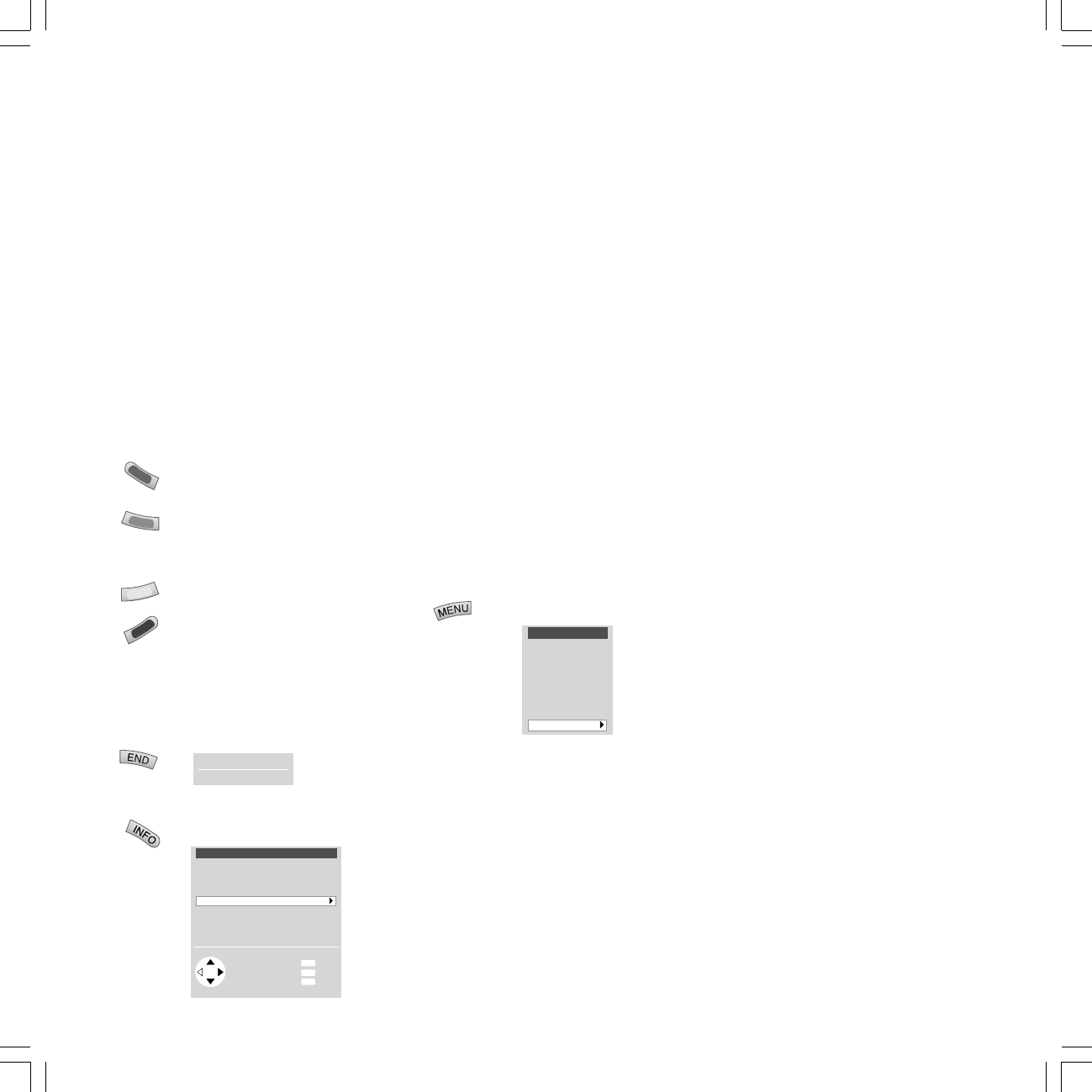
Function of the color buttons in TV mode
You can assign the functions of the four color
buttons yourself. The following functions are set
at the factory:
red: personal teletext page
(with DR+: call DR archive)
green: call picture format
setting (with DR+: call timer
overview)
yellow: call last viewed station
blue: call station info
You can assign other functions to the buttons
in the TV menu "Settings" - "Function keys".
Status display
Show/hide status
Main information
Call main information
The explanation of the remote control
shows the function of every button in different
modes of operation of the TV set and the
remote control.
The index answers many questions regarding
all aspects of the TV. If it is a question about
the operation, you have direct access to the
operating function from the index.
Loewe TV sets are supplied in different models
with different equipment. You can find out
what equipment your TV has under the menu
item "Technical spec. of the TV set".
When you have made all the settings and
connections, you can switch over to
"Simplified control"(not in digital TV) using
"Select Mode". Then the "Settings" and
"Connections" can no longer be launched in all
modes of operation menus. Switch "Simplified
control" back off when you want to make
settings.
TV menu
Launch the TV menu
Standard values
You can save the setting for picture and sound
you have made in this menu and launch them
again later.
Connections
You will find information about this in the
chapter "Logging in and connecting AV
equipment" on page 21/23.
zap2text
Some stations use this service. If teletext pages
are referred to during a program, the TV set
saves and/or displays this page number. You
call the teletext page with the TEXT button
from the display during the program or from
this menu.
Some settings in the TV menu:
Child lock
Use the child lock if you want to prevent your
children watching after a certain time, once or
daily, all or certain programs.
On-screen displays
You can define duration and position of the
displays, the content of the program and status
display and activate or deactivate zap2text as a
display.
Timer functions
You can have your TV switch on and off at
specific times or have yourself reminded by a
signal tone.
Time and date
When you receive teletext, the TV records the
right date and time settings. The time serves as
information for timer recordings, timer
functions and EPG. If you do not receive
teletext you should set the date and time and
not switch the TV off with the mains button as
the settings will then be lost (Not all stations
transmit the full date, you may have to add
missing data manually).
Language
If "your" menu language is not set, you have
to select the "Language" menu in a language
you cannot understand:
Press the MENU-button (TV menu), mark the
last menu item (settings), press the OK button
and mark the last menu item (Language) under
"other ..." and press the OK button.
Now select the right language and confirm with
OK.
31963_021_RC3_GB 14.01.2005, 10:40 Uhr13

14
Modes of operation
Menu functions in TV
EPG
Call the electronic program guide of the TV set.
EPG can be called and hidden with the
EPG
button.
PIP
Call/hide the picture in picture function of the
TV set. PIP can be called and hidden with the
PIP
button.
TV radio (SAT radio)
Switch the radio mode of the TV set on/off with
RADIO
button. Prerequisite: Your TV is
equipped with a satellite tuner (see on page
17).
Video
Call or hide the video control bar.
Press the button .
Format
Call the selection for setting the picture format.
Select the picture format by repeated pressing
of the button.
AV input
Call the AV selection for playing connected
equipment (e.g. VCR, camcorder or DVD player).
The AV selection can be made with the
AV button.
Picture
Show/hide the picture menu. Press the button
You can set the TV picture with the
help of the picture menu. The Picture menu can
also be called by the
TV menu ‘ Picture.
Sound
Show/hide the Sound menu. You can set the TV
sound with the Sound menu. The Sound menu
can be opened under the ”TV menu – Sound”.
On the RC3 remote control also directly with
the button.
Sound mode
Call the sound mode settings of the connected
Loewe DVD-Preceiver "Auro".
Press the button .
Timer
Call the timer overview of the TV set.
Press the button .
Digital PhotoViewer
With the Digital-PhotoViewer integrated in the
Signal Box you can show pictures taken with
digital cameras from the most common
memory cards (see fig. page 5) on the screen.
After inserting the memory card the set
switches to PhotoViewer mode and you first
see an overview of the pictures stored on the
card. The set switches back to TV mode when
the card is pulled out.
You will find a detailed description in the
”Digital PhotoViewer” operating manual
enclosed.
Digital Recorder Plus (DR+)
If a hard disk is integrated in the Signal Box
(set variant), you can record and play TV
programs. Depending on the selected recording
quality the possible recording capacity is
between about 20 and 100 hours.
The possibilities of the Digital Recorder are
much more versatile than those of a video
recorder. Use the separate ”Digital Recorder
Plus” operating manual for operation.
31963_021_RC3_GB 14.01.2005, 10:40 Uhr14
15
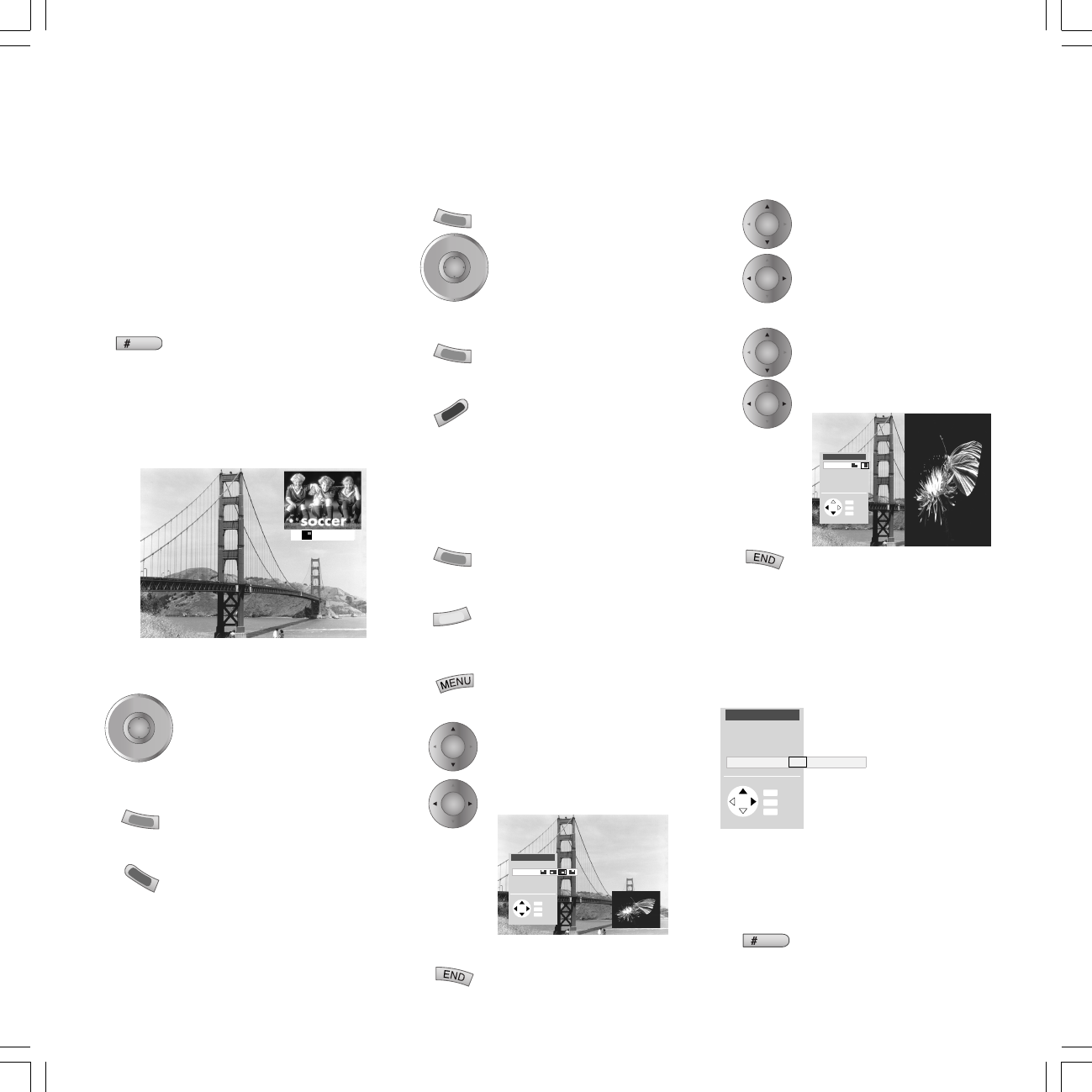
Hide PIP menu
The image on the right pertains to the PIP image
and has no sound. TV image and PIP image are
separated from each other by a colored line (PIP
status).
Adjusting “iPIP”
Switch on the PIP menu with the MENU button.
Mark the “Functionality” bar.
Select “iPIP”.
Hide the menu with the END key.
iPIP function:
In iPIP the presently displayed TV image becomes
the PIP image. For the TV image, select another
channel and retain the PIP image.
In iPIP, the PIP status is orange-colored.
Show/hide PIP picture
Also read the info text; press the INFO key.
The PIP image changes back into TV image,
when you switch off PIP.
Changing the channel of the TV image
The PIP status must be white.
If it is not, press the green
button.
Then select the station as
normal.
PIP channel scan
The PIP status must be green.
If it is not, press the green
button.
Start the PIP scan with the blue
button. The PIP status turns
blue.
The PIP channel now changes automatically.
Stop the station scan with the blue button. The
PIP status turns green again.
Interchanging PIP image/TV image
The PIP status must be green.
If it is not, press the green
button.
Interchange the pictures with
the yellow button.
Position of the PIP image
The PIP status must be green.
Call the PIP menu with the
MENU button.
Mark “Position”.
Select a symbol for the
position.
Hide PIP menu
PIP menu
Back
Info
End
Type
Position
Size
Functionality iPIP Standard-PIP
INFO
MENU
END
OK
OK
PIP
PIP
P+
OK
P–
V— V+
P+
OK
P–
V— V+
OK
OK
OK
OK
4 RTL
PIP menu
Back
Info
End
Type
Position
Size
Functionality
INFO
MENU
END
PIP menu
Back
Info
End
Type
Position
Size
Functionality
INFO
MENU
END
Modes of operation
Picture in Picture (PIP)
PIP can be displayed as Standard PIP, iPIP or
Split Screen by default.
Standard PIP functions:
The Standard PIP displays a PIP image in the
presently displayed TV image.
Show/hide PIP picture
The status of the PIP mode i.e. PIP channel
selection or PIP scan is shown in the status
display in a colored square before the channel
name and appears while changing the channel
or on pressing the END key.
If the PIP status is green, you can select the PIP
channel:
Channel up/down ordirect
PIP image as static image
The PIP status must be
green. If it is not, press the
green button.
Then press the red button;
the PIP image becomes a
static image.
Press the red button again
for a moving image.
Size of the PIP image
Mark “Size” in the PIP menu.
Select “Large” or “Small”.
Split Screen
Mark “Type” in the PIP menu.
Select the symbol for Split Screen.
31963_021_RC3_GB 14.01.2005, 10:40 Uhr15
16
EPG Current: Fri 03.08./20:08
Select
and press
OK to view
Record
Day (Fri 3.8./now)
Topics (all topics)
Programmes (all)
Info
Detail
Menu
End
19:15 VOX Zurück in die Vergangenheit
19:30 ZDF WISO
19:30 BR3 Immer weiter, immer höher und dann?
19:40 SAT1 echt wahr!
19:40 RTL Gute Zeiten, schlechte Zeiten –20:15
19:50 MDR Mach dich ran
20:00 ARD Tagesschau
20:00 HR3 Tagesschau
20:00 NDR Tagesschau
20:00 WDR Tagesschau
OK
INFO
MENU
END
TEXT
now soon 21:00 22:00 23:00 00:00 01:00 02:00 03:00 04:00 05:00 ...
EPG Current: Fri 03.08./20:08
Select
and view
with OK
Record
Day (Sat 3.8./12:00)
Topics (music)
Programs (all)
person. topics all - ... Hobby Sport Child Knowledge Music ...
Info
Menu
End
12:00 NDR WunschBox -13:00
14:03 ARD WunschBox
20:45 MDR Das deutsche Schlagermagazin
21:00 NDR Bi uns to Hus
01:25 NDR Bi uns to Hus
12:00 NDR WunschBox
14:03 ARD WunschBox
OK
INFO
MENU
END
EPG Current: Fri 03.08./20:08
Select and
memorize
with OK
Record
Time (Sat 4.8./14:03)
Topics (Music)
Programs (fav.)
Favorite programs all ARD ...
Info
Menu
End
14:03 ARD WunschBox -15:00
20:45 MDR Das deutsche Schlagermagazin
14:03 ARD WunschBox
OK
INFO
MENU
END
EPG
Modes of operation
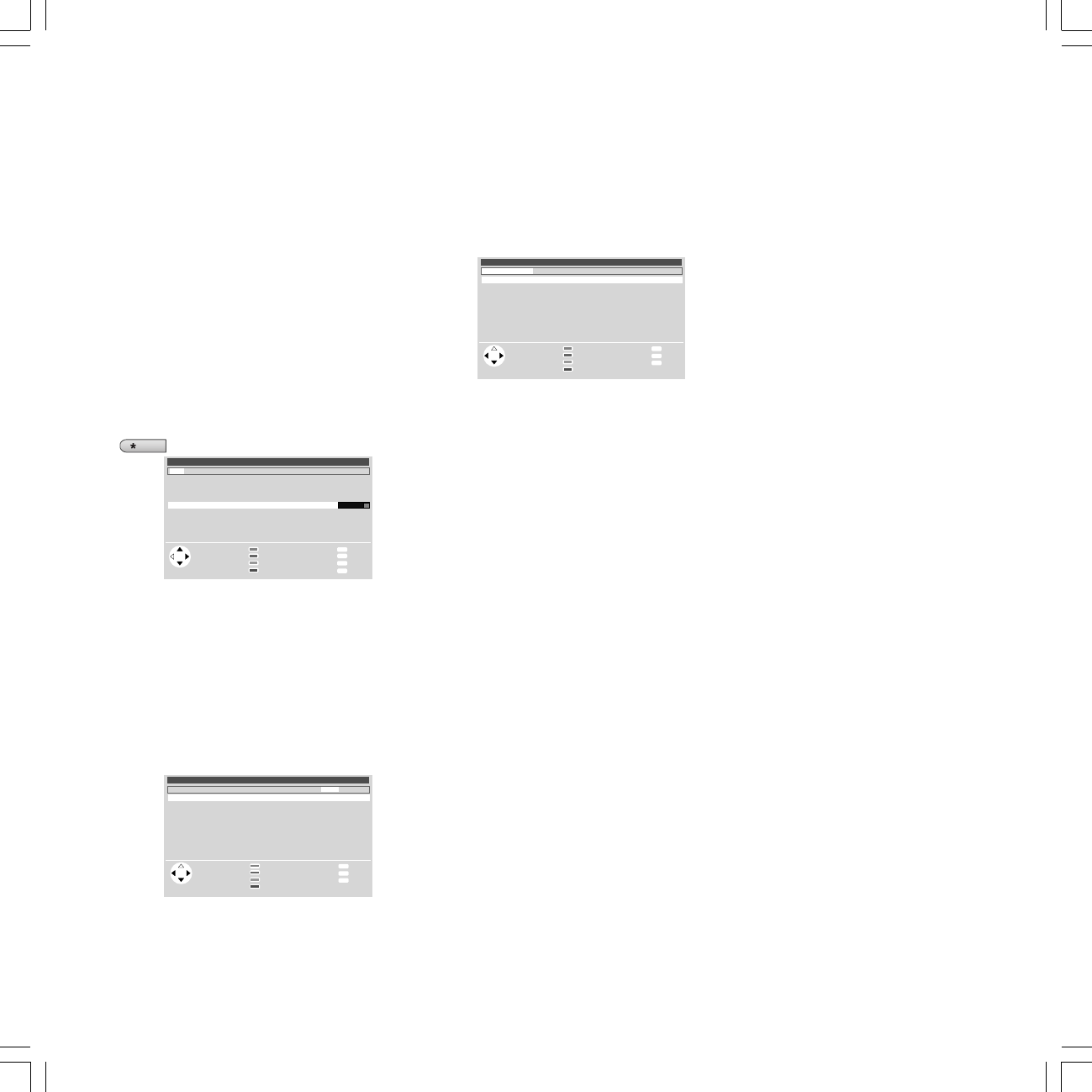
EPG mode
EPG is the electronic station guide for TV
programs. With this system, you can easily find
the programs that interest you (sorted
according to time, day, topics and programs).
You can memorize programs and program
recordings.
A wizard is activated the first time you use EPG
(not with DVB) which guides you through the
necessary settings. Then run the data
acquisition (see page 17).
Using the EPG
Switch EPG on/off
The first line is framed initially in green.
The green frame stands for time and date, with
the green button you switch between time and
day or, if the frame has a different color, back
to the green frame. With the arrow buttons
you select: now, later, the time or day for
starting stations. The list of stations below is
updated accordingly. With the buttons
you mark a station you want to watch (now
running), memorize or record.
The frame turns yellow when you press the
yellow button. The yellow frame means you can
select topics. With the arrow buttons you
choose between personal topics, all topics and
the individual main topics such as Film, News,
Show, Music etc. The list of stations below is
updated accordingly. With the buttons, you
mark a station you want to watch (a program
currently running), memorize or record.
The frame turns blue when you press the blue
button. The blue frame signifies station selection.
Use the arrow buttons to choose between
your favourite stations, all stations or the station
just set. You can select another individual station
by moving to "..." with , marking a station in
the list and storing it with OK.
The respective current settings are shown next to
the operating notes for the color buttons.
Direct input of time
You can also enter the time directly with the
numeric keys of the keypad. After entering the
first digit, the time is displayed first next to the
symbol of the green button by asterisks and is
then replaced by the entered numbers, e.g. 2100.
If the entered time has already passed, its entry
is used for the following day.
Viewing or noting a program
You can watch or note the program selected
with the buttons by pressing the OK
button. A + sign is set in front of the program
title for noting. At the start of the broadcast, this
program is switched to or you see a message.
Programming recording with VCR
You prepare the station marked with the buttons
by pressing the red button. Under "Timer
Recording" you select VCR and whether you
want to record one program or a serial. A red dot
is set in front of the title of the program. If a
program is already marked by a red dot, you can
delete the timer data again with the red button
(the red dot disappears).
Calling detailed information
If detailed information about the selected
station is available, you will see the TEXT-
button displayed additionally. You can call the
detailed information with this button.
Other functions in the EPG menu:
Call the EPG menu with the MENU key.
List of memorized programs
You will find the stations you have memorized
in a list.
Switch on TV at mark
You can have the TV set switch on
automatically from standby mode at the time of
a marked program. If you are not in at this
time, a security prompt makes sure that the TV
switches off again after 5 minutes.
Indicate/start memorized station
If the TV is already on when the memorized
program starts you can have the start of the
program indicated or the TV switched over
immediately.
Short info lines
Short infos are broadcast for many programs.
Set how many lines this information should
have or switch the short info lines off.
EPG entry
If you want to start EPG operation, you can
retain your last settings for topic and program
selection or start with all topics and all
programs.
31963_021_RC3_GB 14.01.2005, 10:40 Uhr16
17
Select provider
Info
3SAT
PRO7
RTL2
TV 5
TRT 1
Select provider
and confirm
with OK
Back
End
Provider search
Change provider list
Program selection
OK
INFO
MENU
END
Select provider
Info
3SAT
PRO7
RTL2
TV 5
TRT 1
Select provider
and confirm
with OK
Back
End
Provider search
Change provider list
Program selection
OK
INFO
MENU
END
EPG menu
other ...
Memorized stations first report
Data acquisition off on
Short info lines none
EPG entry last setting
Info
Back
End
INFO
MENU
END
Select personal topics
Info
Select topics
and mark with OK Back
End
Film
News
Show
Hobby
Sport
Child
Knowledge
Music
Culture
General music
Jazz
Rock/Pop
Classical
Folk/Easy listening
Musicals/Opera
Other
mark all
Mark only
OK
INFO
MENU
END
OK
OK
EPG
OK
OK
EPG menu
List of memorized stations
Select provider/program
Favorite programs
Select personal topics
Timer
Switch on TV when marked yes
other ...
Info
Back
End
OK
INFO
MENU
END
OK
OK
OK
Modes of operation
EPG settings
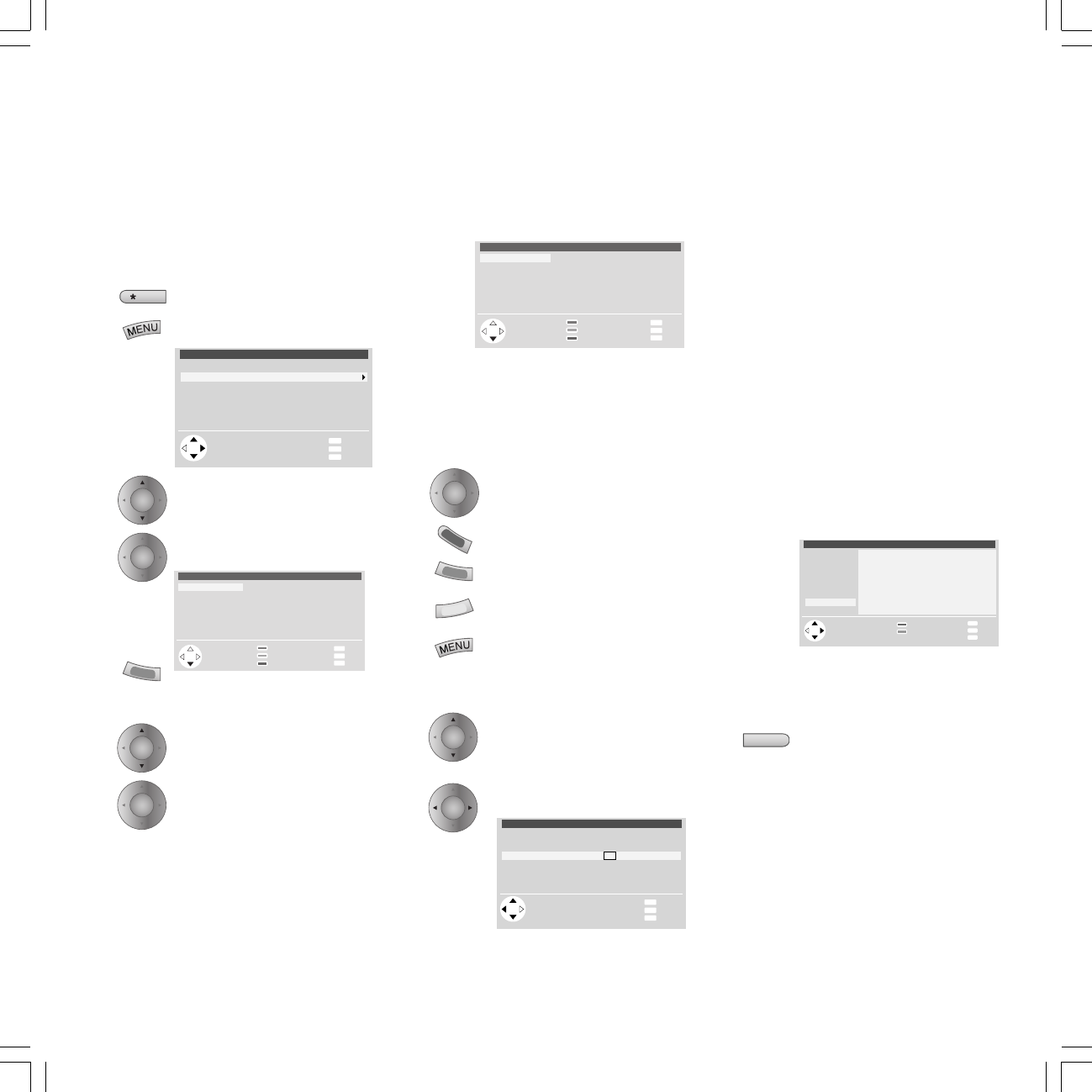
If you want to change the provider or want to
have other programs evaluated, you can do this
in the EPG menu.
Provider search
EPG on/off
Call EPG menu
Mark "Select provider/
program"
Call
Start provider search (green
button). This may take some
time.
Mark the provider
Save the provider
This is followed by a station search and a list of
TV stations is displayed which transmit data.
Move on to the provider selection with the OK-
button. If the stations offered are what you
want, move on to the station selection with the
blue button.
Selecting stations for EPG
Select the stations here for which information
is to be collected.
Stations marked by + are favorite stations. The
provider supplies information for stations
marked by E (terrestrial, cable and analog
satellites) and D (digital), these are already
marked (blue letters).
Mark the station/Remove the
marking
red: Only mark favorite stations
green: Mark all stations
yellow: Only mark this station
Back to the EPG menu
Switching data acquisition on/off
Mark "Data acquisition" in the
EPG menu under "other"
Select data acquisition off/on
If, for example, you cannot receive any EPG
providers and no DVB is installed in the TV set,
you should switch off the data acquisition.
Performing data acquisition
The data must be collected first after these
settings or every time the TV is switched off. To
do this, select the program which you have
defined as a provider and leave it switched on
for about one hour or switch the TV set to
standby mode. The green (blue) LED lights up in
addition to the red LED after about two
minutes. Data acquisition takes about one hour,
in sets with a DVB module a little longer. The
data are automatically collected between 2 and
5 in the morning when the TV is switched off to
standby.
Defining personal topics
You will find the programs that interest you
faster when you define your personal topics.
Mark "Select personal topics" in the EPG menu
and put together your list of personal topics.
TV-Radio mode
Switch the TV-radio mode on or off by pressing
the
RADIO
button.
If a satellite tuner and a DVB module are
installed in your TV, radio stations are available.
If these accessory modules are not installed,
you can select only the audio inputs
(connections AV1 to AVS, DIG IN 1,
DIG IN 2) with the program table or with the
keys and play an external audio signal
through these.
31963_021_RC3_GB 14.01.2005, 10:40 Uhr17
18
Page selection OK view
wer
d
en . . . . . . . . . . . . . . . . . . . . . . . . . . . . . . . .
223
1O.3O Ein Zwilling zu viel . . . . . . . 314
12.OO Tagesschau um zwölf
tagesschau. . . . 11OTV Guide. . 3OO/4OO
Wetter. . . . . . . . . 17OKultur. . . . . . . . . 5OO
Sport. . . . . 2OO/6OOTXT-Quiz. . . . . . . 555
Lotto/Toto. . . . . 666Wirtschaft. . . . . . 7OO
Index. . . . . . . . . . 1O1Impressum. . . . . .1O7
– +
Inhalt tagesschau
1OO 1OO ARD-Text O1.O7.O1 1O:3O:42
ARD-Text Teletext im Ersten
Table of Pages (TOP)
Back
End
Wetter
Vorhersage
Städte
Regional
Reisen
int. Städte
Biowetter
Übersicht
tagesschau
Wetter
Sport 1
TV Guide
ARD heute
ARD morgen
FS-Sendungen
TV Guide 2
Kultur
Gesellschaft
weitere . . .
Select page and
press OK
to view
OK
MENU
END
Page selection
Lotto/Toto. . . . . 666 Wirtschaft. . . . . . 7OO
Index. . . . . . . . . . 1O1 Impressum. . . . . .1O7
– +
Inhalt tagesschau
OK
OK
OK
OK
OK
OK
OK
OK
Page selection
1OO 1OO ARD-Text O1.O7.O1 1O:3O:42
ARD-Text Teletext im Ersten
Letzte Meldung: Libyscher Botschafter
in London schließt Entschädigung für
Lockerbie-Opfer nicht mehr aus
Fußball: Rolf Hüssmann soll neuer
Sportdirektor beim VfB Stuttgart
werden . . . . . . . . . . . . . . . . . . . . . . . . . . . . . . . . 223
1O.3O Ein Zwilling zu viel . . . . . . . 314
12.OO Tagesschau um zwölf
tagesschau. . . . 11O TV Guide. . 3OO/4OO
Wetter. . . . . . . . . 17O Kultur. . . . . . . . . 5OO
Sport. . . . . 2OO/6OO TXT-Quiz. . . . . . . 555
Lotto/Toto. . . . . 666 Wirtschaft. . . . . . 7OO
Index. . . . . . . . . . 1O1 Impressum. . . . . .1O7
– +
Inhalt tagesschau
abc
pqrs
AV
wxyz
PIP
Page selection
1OO 1OO ARD-Text O1.O7.O1 1O:3O:42
ARD-Text Teletext im Ersten
Letzte Meldung: Libyscher Botschafter
in London schließt Entschädigung für
Lockerbie-Opfer nicht mehr aus
Fußball: Rolf Hüssmann soll neuer
Sportdirektor beim VfB Stuttgart
werden . . . . . . . . . . . . . . . . . . . . . . . . . . . . . . . . 223
1O.3O Ein Zwilling zu viel . . . . . . . 314
12.OO Tagesschau um zwölf
tagesschau. . . . 11O TV Guide. . 3OO/4OO
Wetter. . . . . . . . . 17O Kultur. . . . . . . . . 5OO
Sport. . . . . 2OO/6OO TXT-Quiz. . . . . . . 555
Lotto/Toto. . . . . 666 Wirtschaft. . . . . . 7OO
Index. . . . . . . . . . 1O1 Impressum. . . . . .1O7
– +
Inhalt tagesschau
Menu
Station –/+
Sub-page
Recording
Settings
Back
Info
End
Show
TOP table
Timer
News flash
INFO
MENU
END
OK
Geld Optionen 2
1 2 3 4 5 6 7 8 9 1O
– +
Modes of operation
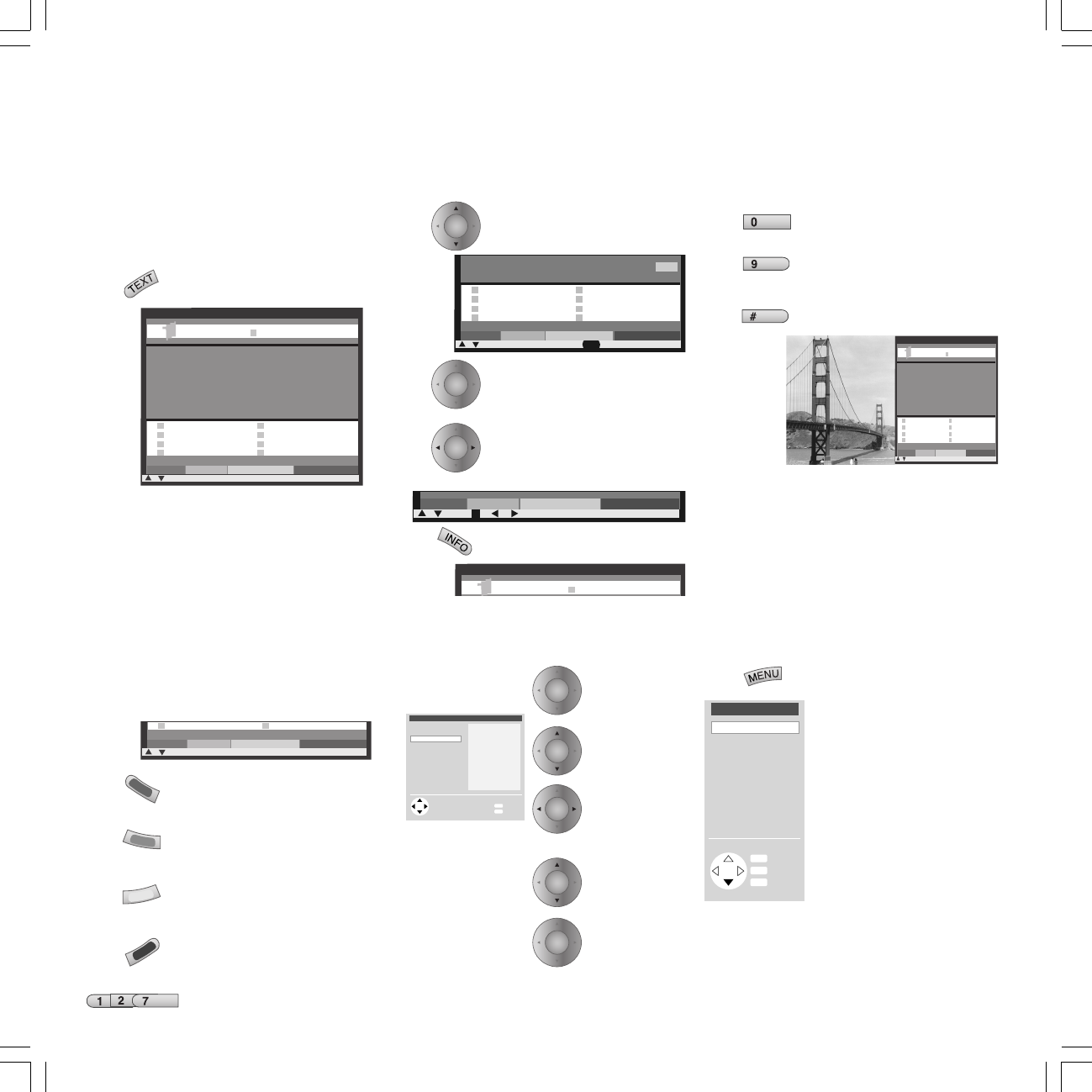
Teletext mode
Teletext transmits information such as News,
Weather, Sport, Program Previews and
Subtitles.
Teletext on/off
Many stations use the TOP operating system,
some use FLOF (e.g. CNN). Your TV supports
both these systems. The pages are divided into
general topics and topics. After switching on
the teletext, up to 3500 pages are stored for
fast access.
Selecting pages with the colored buttons
The colored bars (in TOP) or the colored writing
(in FLOF) in the last line but one show you
which colored buttons to use to scroll to
general topics and topics.
red: back to previously viewed
page (not with FLOF)
green: forward to next page
(not with FLOF)
yellow: to the next topic (only
in TOP and FLOF)
blue: to the next topic (only in
TOP and FLOF)
Page selection with the numeric buttons
Enter the page number directly
More functions for page selection
Mark a specified page number
on the page (Page Catching)
Launch
Scrolling in stored sub-pages.
In the bottom line you will see
which sub-pages you can
already launch
Launch contents page 100
The TOP table is a general list of teletext. You
can only launch the table on channels which
use the TOP operating system.
Launch the TOP
table
Mark a general
topic
Select the
Topics column
Mark
menu items
Display page
Displaying teletext pages
Stop self-turning pages (HOLD)
zoom: top half - bottom half -
normal size
TV picture on/off (Split text)
Program timer recordings
If the remote control is set to "TV" (no
equipment combination), call the program
pages of the current station with the Record
button • in teletext mode. Select the station
you want to record with and confirm with
the OK button. Select VCR for "Timer data".
Confirm with OK.
Teletext menu
Launch teletext menu
Here you will find functions
such as "News flash", "Show"
hidden information, switch to
other channels (if another
tuner is available), enter 4-digit
sub-page number directly and
programme video timer
recordings via teletext.
In the settings you will find
menus to define the preview
pages, subtitle pages and
personal teletext pages.
31963_021_RC3_GB 14.01.2005, 10:40 Uhr18
19
OK
OK
OK
OK
OK
LOEWE Dialog 21:12
09.09.03
other ...
Frontal 21
21:00 - 21:45 ZDF
Wunderschöner Norden
21:00 - 21:45 N3
Rundschau-Magazin
21:00 - 21:15 BR
Quaks &Co
21:00 - 21:45 WDR
other ...
Select and view
with OK
Main info
End
EPG
Record
|TV now |Archive |Favorites |Teletext
OK INFO
END
other ...
Shimla
02.09.03 ZDF
AVO-Session Basel 2002
03.09.03 3Sat
Disco
05.09.03 3Sat
Quaks &Co
06.09.03 WDR
other ...
Select and view
with OK
Main info
End
DR-Archive
|Archive |Favorites |Teletext |TV-now
OK INFO
END
LOEWE Dialog 21:12
09.09.03
other ...
2ZDF
3RTL
4Bayern 3
5SAT1
6Pro 7
8Kabel 1
93sat
10PHOENIX
11Arte
other ...
Select and press
OK to switch
Main info
End
Channel overview
|Favorites |Teletext |TV now |Archive
OK
INFO
END
LOEWE Dialog 21:12
09.09.03
ARD-BOERSE
731 ARD
WETTER
604 BR
NACHRICHT
112 ZDF
Press OK for
more details
Main info
End
Teletext
|Teletext |TV now |Archive |Favorites
OK INFOTEXT
END
LOEWE Dialog 21:12
09.09.03
LOEWE Dialog
(only activated in connection with the Digital Recorder Plus)
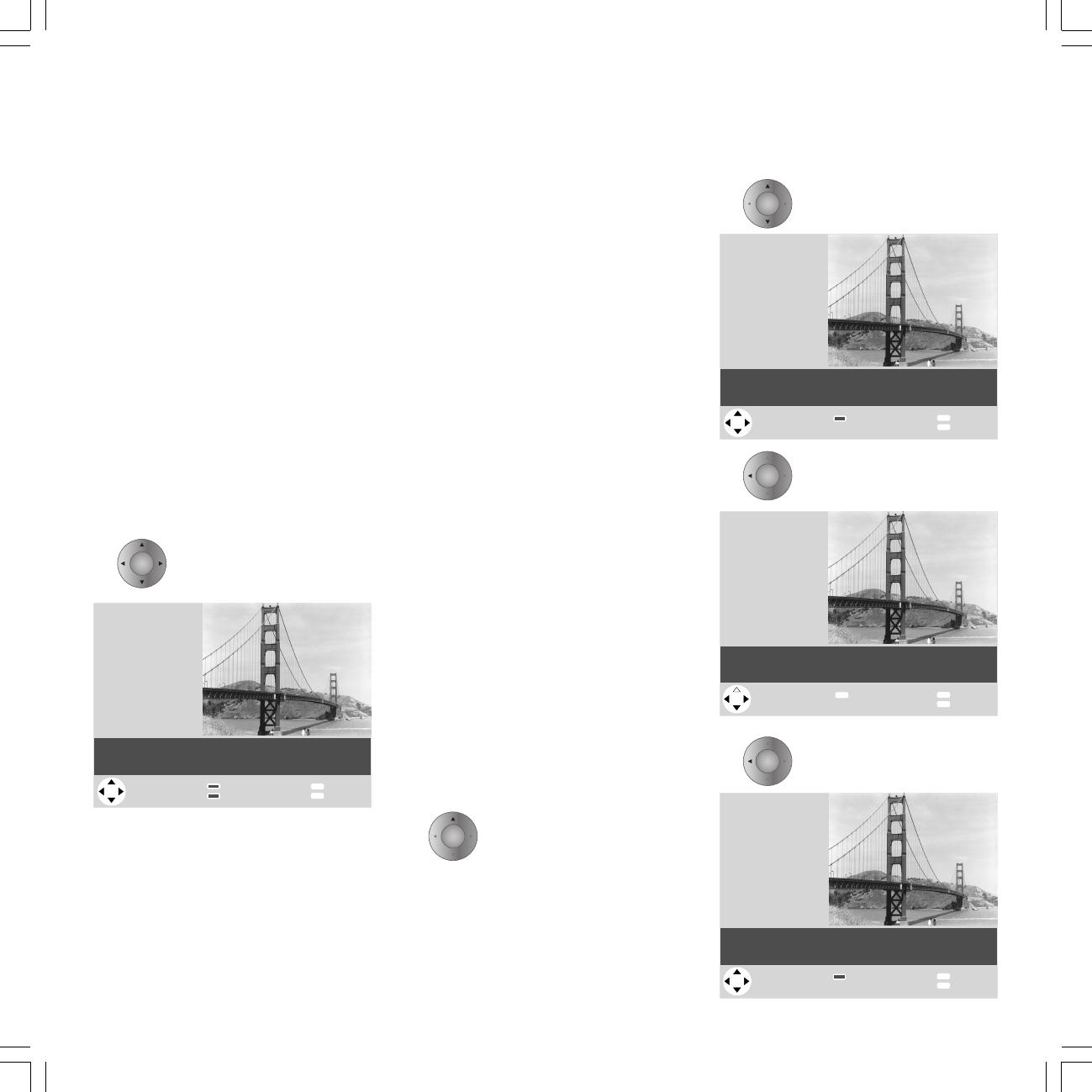
In connection with the Digital Recorder Plus the
LOEWE dialog page offers an overview and
quick access to information content of the TV,
e.g. the programs currently showing, programs
last recorded etc.
You should have already made a few settings
before using the LOEWE Dialog to provide
selection possibilities.
You should have made the EPG settings
described on page 16 and run the EPG data
entry. The Digital Recorder archive should also
already contain recordings. You should have
defined a few personal teletext pages. In all
these cases you then have a useful selection.
No LOEWE dialog is displayed with NTSC
reception.
You call the LOEWE Dialog with the arrow
buttons on the remote control when no menu is
displayed.
Press one of the arrow buttons
for about 1 second.
The TV program just selected is shown in
reduced size (the live picture).
The blue bar shows you the selectable
functions. The function on the left is active. You
can move the function to the active position
with the arrow keys .
Above the selected function you see a selection
which you can navigate with the arrow buttons
and view with OK.
With TV now - The selection of programs
currently running acquired by the EPG system is
displayed in TV now. If no EPG is received, a
programme info of the station currently being
received is displayed.
With Archive - the selection of recorded
programs in the DR archive is displayed.
With Radio - the selection of programs of the
satellite radio is displayed. If you have switched
over to Sat radio mode, LOEWE Dialog cannot
be called. If you do not receive satellite radio
(no satellite tuner/DVD module), Favorites is
displayed in place of Radio, that is favorite
programs you have defined.
With Teletext - the selection of personal
teletext pages is displayed.
This is how you select with the example of the
"TV now" function
Mark the desired station with the arrow
buttons , the name turns blue. Other
stations can be displayed with "others...".
Press the OK button to watch the station.
You can call LOEWE Dialog with the
buttons so that the desired function is ready for
selection on the left.
Call TV now
Call Archive
Call Teletext
Call Favorites
31963_021_RC3_GB 14.01.2005, 10:40 Uhr19
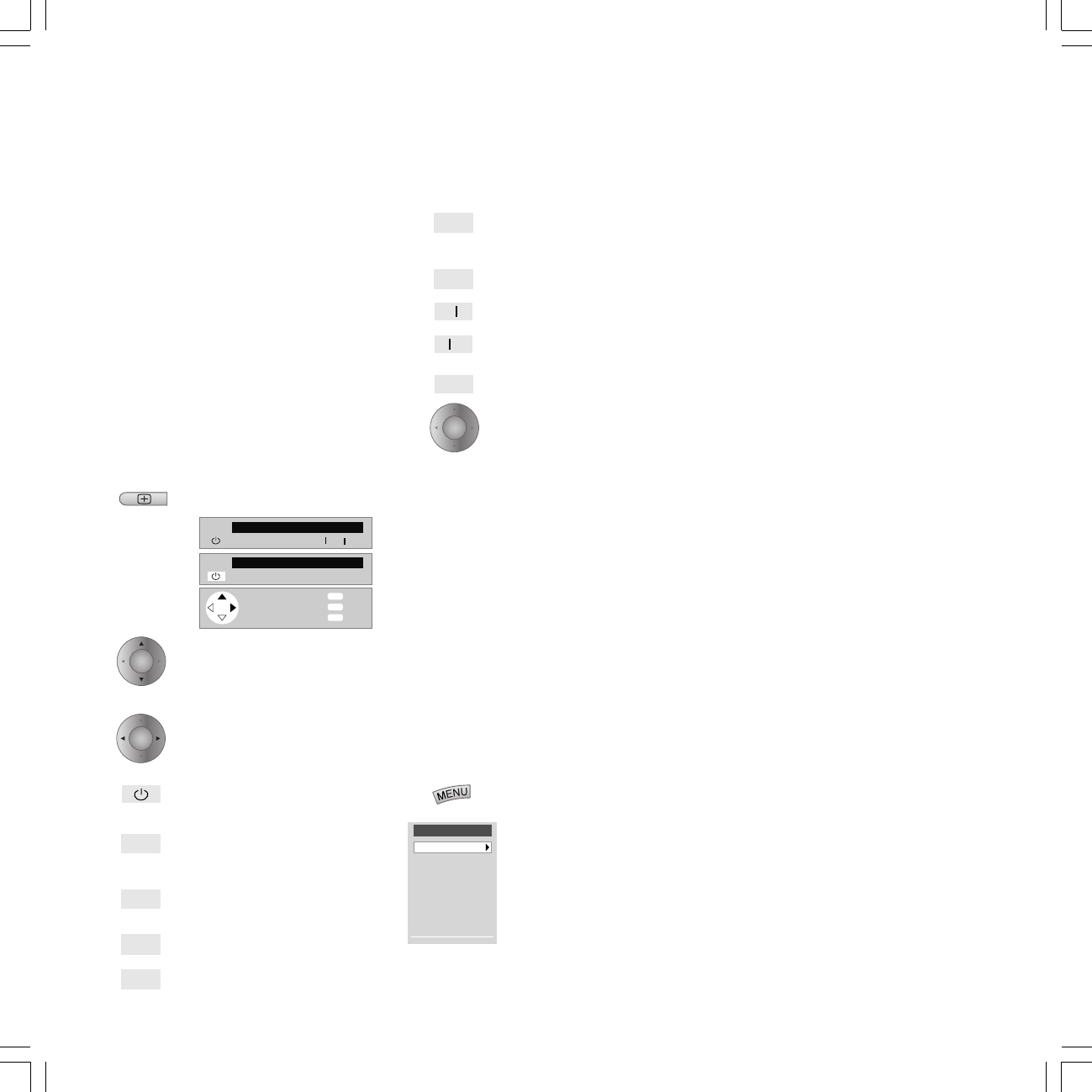
20
●
▼
▼
▼
▼
❚❚
Video menu
DR archive
Connections
Settings
Recording
Timer
■
▼
STOP
▼
▼
▼
▼
▼
❚❚
■
AUX
VCR STOP
▼
▼
▼
▼
▼
●
❚❚
■
Menu
Info
End
DVD
▼
▼
OK
INFO
MENU
END
AUX
▼
▼
OK
OK
OK
Operation of additional equipment
Video mode
You can operate Loewe video recorders and
DVD players with the video control bars even if
they are hidden. The VCR's must be connected
to the Euro AV sockets (Scart) and logged in
under the "Connections" menu.
Digital Link must be switched on on the Loewe
video recorder. Only then can you use the
control bar. You also need Digital Link for timer
recordings of satellite programs controlled by
the TV set.
You can display up to two menu bars, these are
displayed when the appropriate video units are
logged in the "Connections" › "Connections:
Connection plan" menu.
Show/hide video menu bar
Select video menu bar, if for
example several VCRs or a DVD
player and a VCR are
connected.
Select function
Switch VCR/DVD on/off
Select video input (Euro-AV
socket) for the VCR
Rewind (only for VCR) or Scan
in rewind
Stop (STOP)
Playback (PLAY)
Fast forward (only for VCR) or
Scan in fast forward
Pause (PAUSE)
Next chapter (only for DVD)
Previous chapter (only for DVD)
Record
Perform selected function.
When you start a recording, the program you
have just selected is recorded. You cannot
switch over to another channel, it is locked. You
can only switch over when the recording has
finished.
Exceptions:
1. You have installed several tuners (not PIP
tuners) in the TV set, then you can watch
another channel with the second tuner.
2. You can also watch the signal via an AV
connection (e.g. DVD player or a second VCR).
3. In a VCR with Digital Link Plus the VCR tuner
is used for the recording (not for satellite
programs).
Video menu
Show the Video menu
A line is displayed in the
menu if a Link Plus
Recorder is connected.
The Video menu provides you with the
following options:
You can change and delete timer data or
program new recordings in the "Timer" menu.
The "Record" menu gives you the option for
timer programming by EPG, teletext or
manually.
You can call the archive list with "DR Archive"
if a Digital Recorder is built in.
In the "Connections" menu you can log other
AV equipment on or off. In the "Digital Link
Plus transfer" menu the station data of the TV
set (not satellite stations) are transmitted to
the Digital Link Plus VCR.
Digital Link Plus VCRs have the possibility for
transferring the station data from the TV set to
the VCR via the Euro-AV cable (not for satellite
stations). Every time you change the station
memory of the TV, you are asked whether you
want to make a data transfer.
The receiver unit of the VCR is always used for
recording with a Digital Link Plus video
recorder (not satellite stations) and the tuner of
the TV set is available for watching TV.
Loewe VCRs also have Digital Link, a system
for controlling Loewe VCRs via the Euro-AV
cable. If the Loewe VCR only has Digital Link,
the TV tuner is used for recording. If you have
installed your Loewe VCR in a concealed place,
you can operate the Loewe VCR with the
remote control. Operation with the control bar
also works with Digital Link.
Digital Link must be switched on on the
video recorder.
Only use fully wired Euro-AV cables, otherwise
Digital Link or Digital Link Plus will not work.
31963_021_RC3_GB 14.01.2005, 10:40 Uhr20
21
Enter channel
30
Search for
channel (blue
button)
When the station is found:
Store (red
button)
If you want to change the program, e.g. to
"Video", select the "Name" line.
Enter the new program name.
A list of the stored stations is displayed
Overwrite program (program 0
marked)
pressing the red key
Hide menus
Plug the antenna plug back into the VCR.
If you now get interference because a TV
station is transmitting on the same channel as
the VCR station, you have to change the
transmitting station on the VCR (see operating
instructions of the VCR) and search for the VCR
station on the TV again.
Manual adjustment
Frequency 543.25 MHz
Name VIDEO
TV stand. B/G
Back
Info
End
Channel E30 (E21...E69)
Col. st. Autom.
Range UHF
Search
Store
0-9:Entry
INFO
MENU
END
Store
0 VIDEO
1 ARD
2 ZDF
3 SAT.1
4 RTL
5 VOX
6 S–RTL
7 N–TV
8 DSF
9 S–RTL
10 N–TV
11 DSF
12 TM3
13 PRO7
14 RTL 2
15 WDR 3
16 BR 3
17 HR 3
18 KIKA
19 PHOENIX
20 EUROSPRT
21 KABEL 1
22 MTV
23 CNN INT.
24 HOT
25 TV 5
26 VIVA
Back
Info
End
Overwrite station
Insert station
INFO
MENU
END
Stations
Automatic search
Sort
Delete
Enter/change name
Manual adjustment
Preferred stations
Settings
Child lock
On-screen displays
Timer functions
AV settings
Time and date
other ...
Stations
Manual adjustment
Frequency 591.25 MHz
Name VIDEO
TV stand. B/G
Back
Info
Channel E36
Col. st. Autom.
Range VHF UHF Cable
Search
INFO
MENU
Manual adjustment
Frequency 599.25 MHz
Name VIDEO
TV stand. B/G
Channel E37 (E21...E69)
Col. st. Autom.
Range UHF
Back
Info
End
Search
Store
0-9:Entry
INFO
MENU
END
OK
OK
OK
OK
OK
OK
def
AV
TV menu
Standard settings
Sound
zap2text
Picture
Connections
Settings
Rotate TV
120-240V
50/60Hz
SERVICE IR-
Link SYSTEM
ANT-1
ANT-2
PIP UHF/VHF
AUDIO
IN 2
Y
IN1
AUDIO IN1
L R
AV 2 ( RGB )
Center Sub
L R
SOURROUND
DVI-INPUT D-SUB DVI-OUTPUT
CONTROL
RC5/
RC6
VGA
DISPLAY
DIGITAL
L R
AUDIO IN 3
L R
AUDIO OUT
C
R
/P
R
C
B
/P
B
IN2 OUT
AV 1
RFin
AV1/TV
AV2/Dec
RFout
OK
OK
Operation of additional equipment
Logging in equipment
You have already logged in and connected all
connected devices (video recorders,
camcorders, DVD player, DVD recorder, Loewe
audio system, Pay-TV decoders, Loewe home
automation, door intercom) with the
connection wizard when you put it into
operation for the first time. If you want to
connect further or different devices, you have
to call the connection wizard in the TV menu -
"Connections".
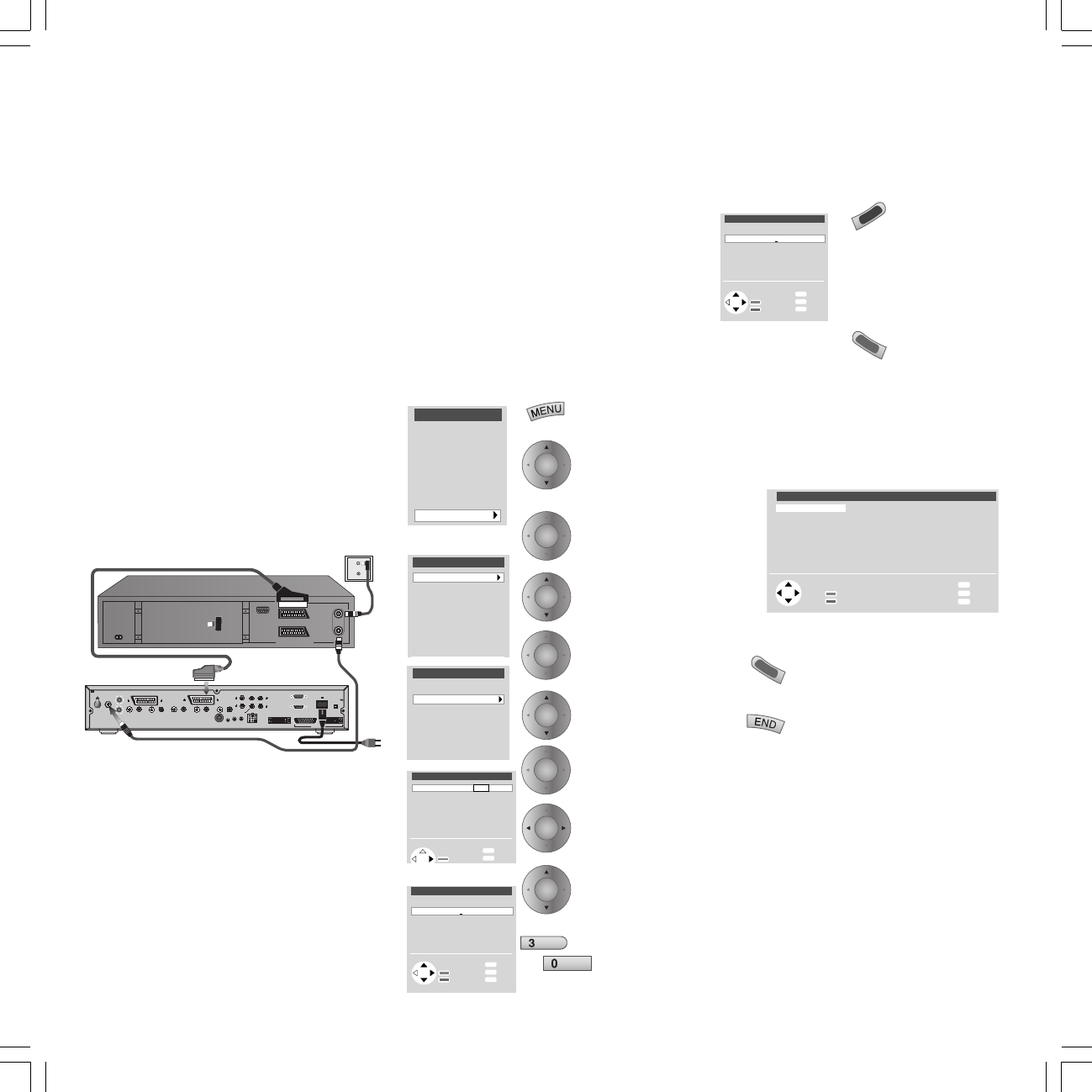
Connecting VCR equipment
In addition to the connection via the Euro-AV
socket, you also have to connect the antenna
(only for antenna or cable systems) through the
VCR to the TV set. The antenna signal is then
available both to the tuner in the VCR and the
TV tuner.
signal box
video recorder
Search for and store the VCR station (if
there is no Euro AV cable)
Switch on the test station on the VCR or insert
a recorded tape and start playback.
Then call program 0 on the TV set (set ex-
factory to channel 36). Select the first menu
item (VCR) in the AV selection list.
To prevent "normal" TV stations being found in
the search, pull out the antenna plug from the
antenna input of the VCR temporarily (the plug
attached to the cable to the antenna system).
Call the TV
menu
Mark
"Settings"
Call
Mark
"Stations"
Call
Mark "Manual
setting"
Call
Mark "Range"
and
Select "UHF"
Mark
"Channel"
31963_021_RC3_GB 14.01.2005, 10:40 Uhr21
22
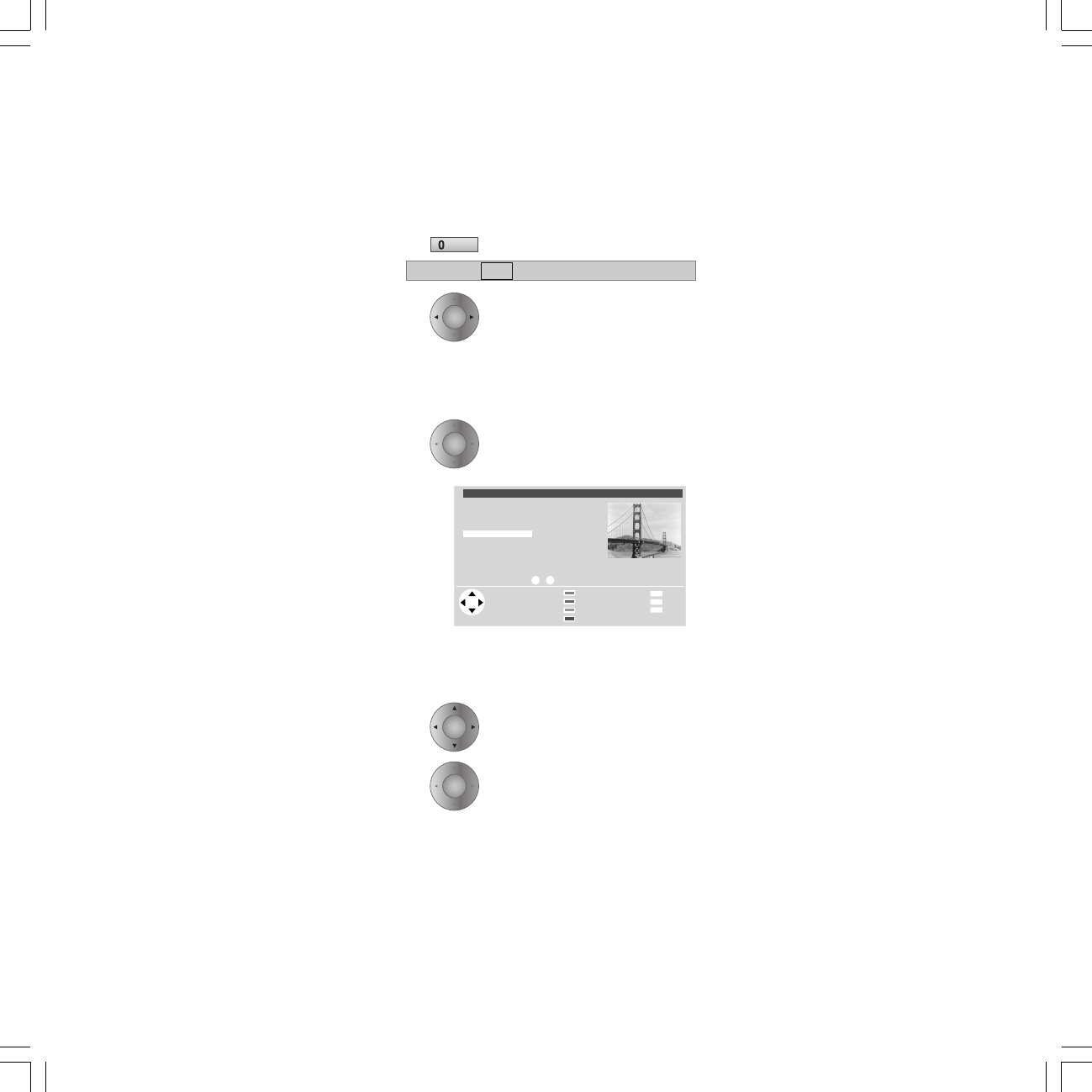
Calling an AV program in the AV selection
list
Call AV selection list
Select AV connection (e.g.
socket AV1) or VIDEO for the
VCR station.
Now you will see the playback from the
connected AV unit.
Calling an AV in the station table
Call the station table
In the numeric sorting you will always find the
AV devices at the top of the list without station
numbers.
Select the AV connection and...
confirm with OK.
Now you will see the playback from the
connected AV unit.
Channel overview: TV Numerical
AVS
AV3
AV2
AV1
0 VIDEO
1 ARD
2 ZDF
3 SAT.1
4 RTL
5 VOX
6 S–RTL
7 N–TV
8 DSF
9 TM3
10 PRO7
11 RTL 2
12 WDR 3
13 BR 3
14 HR
15 MDR 3
0 9
Select and
press OK to proceed Menu
Info
End
Change sorting
Change programs
DR archive
Favourite programs
... Select program:
OK
INFO
MENU
END
AV
OK
OK
OK
OK
VIDEO AV1 AV2 AVS VGA/XGA DVI COMP.IN
AV Selection
Operation of additional equipment
Video playback
There are several ways to see the picture and
hear the sound of the VCR, DVD player or
camcorder on your TV:
1. Use the Euro-AV sockets on the signal box
and VCR. This is the best way to get a good
picture and sound quality. For camcorders it
is best to use the front sockets AVS.
If you are playing back from a VCR with
Digital Link Plus, the VCR picture is shown
on the current station slot.
If you are playing back from a standard
VCR, DVD player or camcorder, select the AV
socket to which the video signal is
connected in the AV selection list or the
station table.
Video recorders emit a switching voltage
during playback which the TV set can
decode (can be activated for every VCR in
the connection wizard or set Settings - AV
Settings - Allow switching voltage to "Yes"
in the TV menu). Then the VCR picture is
shown on the current station slot as in
Digital Link Plus VCR's.
2. You can also control logged in Loewe VCRs
and DVD players with the video menu bar.
See page 11/20 for more details.
3. Use the antenna connection between the
VCR and the signal box. The sound is only
transmitted in mono. Select the first menu
item, e.g. VIDEO, in the AV selection.
IR-Link
”IR-Link” enables you to operate a concealed
d-Box or a video recorder from another
manufacturer with its remote control via the TV
set.
The ”Signal Box” is equipped with a connection
socket (IR-Link) for this purpose. You will need
an ”IR-Link cable” which is obtainable from
Loewe.
Plug the jack plug of the cable with infrared
transmitting diode into the IR-Link socket on
the back of the signal box. The infrared
transmitting diode at the end of this cable must
be placed in front of the concealed device. The
TV must be switched on for transmission.
A napped strip is provided to help to lay the
cable. The strip is self-adhesive; pull off the
backing foil first. Stick the strip to the shelf or
cabinet and press the cable into the naps. You
can cut up the strip into several sections with a
knife.
Point the infrared remote control at the TV to
operate the concealed VCR.
31963_021_RC3_GB 14.01.2005, 10:40 Uhr22
23
TV menu
Standard settings
Sound
zap2text
Picture
Connections
Settings
Rotate TV
Sound
Loudspeaker sound
Headphone sound
AV audio signal
Dig. DVB output tone
Headphone volume
Sound via TV AV amplifier (digital input) HiFi Concertos
AV settings
Allow swichting voltage
Manual adjustment of AV standard
Assign audio digital
RGB insertion at AV2
120-240V
50/60Hz
SERVICE IR-
Link SYSTEM
ANT-1
ANT-2
PIP UHF/VHF
AUDIO
IN 2
Y
IN1
AUDIO IN1
L R
AV 2 ( RGB )
Center Sub
L R
SOURROUND
DVI-INPUT D-SUB DVI-OUTPUT
CONTROL
RC5/
RC6
VGA
DISPLAY
DIGITAL
L R
AUDIO IN 3
L R
AUDIO OUT
C
R
/P
R
C
B
/P
B
IN2 OUT
AV 1
S-VIDEO OUT
DIG OUT
REAR
MAINS
L
R(CVBS) (Y/C)
VIDEO OUT
AUDIO
STEREO OUT VIDEO OUT
I
AUX-
I
/O
II
TO TV-
I
/O
OPT OUT
RIGHT SUBW.
REAR
RIGHT
FRONT
LEFT CENTER
MULTICHANNEL AUDIO OUT
DIGITAL AUDIO OUT
PCM/MPEG2/AC3/DTS
LEFT
FRONT
➜
In
Out
VIDEO
OUT
AUDIO OUT
RL
DIGITAL OUT
COAXIAL
TO TV
S-VIDEO
OUT
VIDEO
OUT
AUDIO OUT
R L
DIGITAL OUT
COAXIAL
TO TV
S-VIDEO
OUT
DVD 1
DVD 2
120-240V
50/60Hz
SERVICE IR-
Link SYSTEM
ANT-1
ANT-2
PIP UHF/VHF
AUDIO
IN 2
Y
IN1
AUDIO IN1
L R
AV 2 ( RGB )
Center Sub
L R
SOURROUND
DVI-INPUT D-SUB DVI-OUTPUT
CONTROL
RC5/
RC6
VGA
DISPLAY
DIGITAL
L R
AUDIO IN 3
L R
AUDIO OUT
C
R
/P
R
C
B
/P
B
IN2 OUT
AV 1
✳
OK
OK
OK
OK
OK
OK
Assign audio digital
Digital In1 no to AV1 to AV2 to AVS
Digital In2 no
➝
Operating additional equipment
Digital input/output
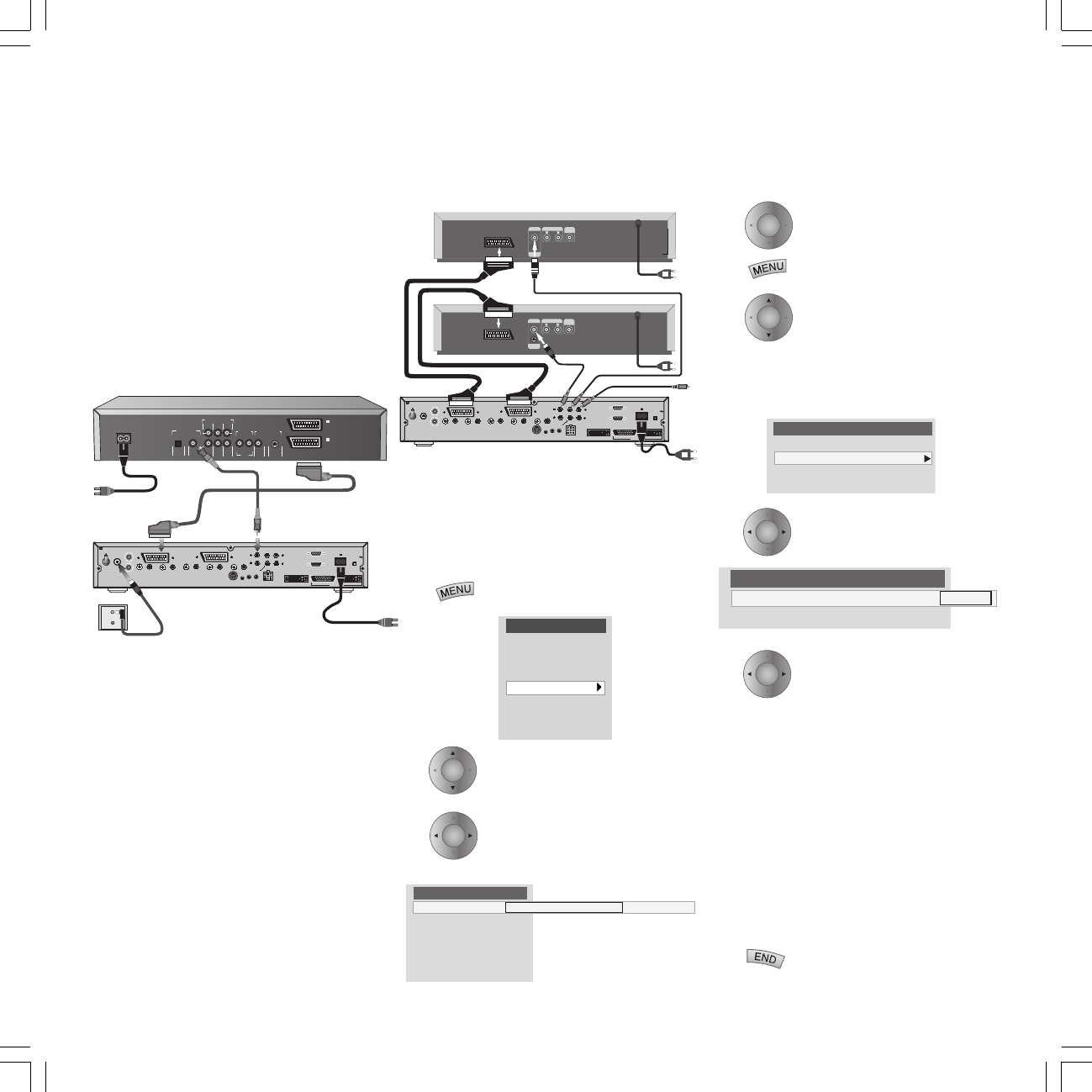
Have you logged in your video equipment, e.g.
DVD players or VCRs in the ”TV menu–
Connections” as described on page 21?
For analog picture and sound signals from the
VCR or DVD player, use a Euro-AV cable to
connect the Euro-AV socket 1 or 2 to the Signal
Box and the corresponding AV socket of the
VCR.
The Signal Box also has 2 coaxial digital audio
inputs ”DIGITAL IN”.
For optimum sound transmission connect the
output socket of the DVD player (DIG OUT) to
the ”DIGITAL IN 1 or IN 2” socket on the Signal
Box with a cinch cable.
The Signal Box has an electronic switch so that
it is possible to assign a digital audio input to
every AV input.
For example, if you switch a DVD player
connected to ”Euro-AV 1” to Play, the
respective assigned audio input ”DIG IN” is
selected automatically.
In this way, you can connect two DVD players,
for example, without the need for tiresome
replugging.
Note
The TV set without Dolby Digital Module can
only play PCM-Stereo sound.
✳ to Concertos or digital receiver or Certos.
Assigning digital inputs
Switch on the ”Radio Mode”. The digital inputs
”DIGITAL IN 1” or ”DIGITAL IN 2” can be
selected directly.
1. Call up the TV menu by
pressing the MENU key.
2. Select the “Sound” line, then
press the OK key.
3. “Sound via” select the “AV
amplifier (Dig. input)” or
“Concertos”, if Concertos has
been connected.
Press the OK key
4. Press the MENU key.
5. Select the bar “Settings“
and confirm with OK.
6. Select the item “AV
settings”, then confirm with
OK.
7. Select the “Assigning Audio
digital“ line and press OK to
confirm.
8. Select "Digital IN 1 - to
AV3" for example for socket
AV3 if a DVD player or CD
player with coaxial-digital
output is connected to digital
input 1 and this device is
logged in in the "Connections"
menu.
If the video signal from a play
console is connected to the
AVS socket, the relevant device
is logged in and the digital
sound is present at the digital
input 2, then select “Digital In
2 – to AVS” etc.
9. You can complete the
settings by pressing the END
31963_021_RC3_GB 14.01.2005, 10:40 Uhr23
24
Once the code has been accepted with two
flashes, you can test the functionality of the
device you have just programmed.
If the device cannot be operated or is difficult to
operate, repeat the code input with the next code
from the list. If no other codes are specified for
this manufacturer, try a code suggested by the
remote control.
Switching over the remote control – with the
suggestions by the remote control (see page
37-43)
Switch on the device to which you want to set the
remote control. Standby is not sufficient!
Using the switch select whether
you want to switch over to a VCR,
DVD player or a Set Top Box.
Press the END and * EPG but-
tons at the same time (5 secs).
The display at the top left of the
remote control flashes twice.
Enter the numbers 991 one after
the other. The display flashes
once after each number is
entered.
Press the # PIP button to select
the first code.
Hold the remote control pointed towards the
device you want to switch over to. Watch the
device.
Now press the (Play) or O
(On/Off) button on the remote
control.
Wait a moment for the reaction
of the device. If the device does
not react, the code is incorrect.
Press the # PIP button to call the
next code.
Press the (Play) or O (On/Off)
button again.
If the device reacts, press the
* EPG button to confirm the
code.
EPG
AV
def
wxyz
EPG
wxyz
wxyz
PIP
PIP
jkl
EPG
TV
DVD STB
VCR
TV
DVD STB
VCR
AV
OK
VIDEO AV1 AV2 AVS VGA/XGA DVI COMP.IN
AV Selection
Operating additional equipment
Audio output ”DIGITAL OUT”
The digital audio signal is applied at the
”DIGITAL OUT” socket of the Signal Box. Here,
for example, you can connect an external Dolby
Digital Decoder or the Loewe sound system
”Certos/Concertos”.
An analog audio signal from the TV set or a
VCR or another sound source which is received
at one of the Euro-AV sockets of the Signal Box
is converted into a digital signal (PCM) and
output at the ”DIGITAL OUT” socket.
The digital signal from the DVD player is output
unchanged at this socket.
The digital TV sound or the sound of a DVD/CD
player is only audible through a Digital
Receiver or the Concertos or Certos system.
AV-connection/Select
device
Press the key 0 on the remote
control a little longer; the AV
selection bar is displayed again.
Select the AV connection to
which the sound source, such as
the DVD player, is connected.
Converting the remote control in order to
operate a Loewe DVD player or devices
from other manufacturers
You can switch over the remote control for VCRs,
DVD players and Set Top Boxes if the infrared
code of the equipment type is listed in the code
list or is in the code memory of the RC3.
Switching over is done on the one hand by
entering a four-digit code and on the other hand
the remote control suggests codes which you
can test on the equipment.
If you cannot find the equipment in the code list,
try a suggestion from the remote control.
Even if the manufacturer of the equipment is
included in the code list, it is possible that it
cannot be operated. Not all functions on the
RC3 are available for this equipment.
Switching over the remote control – with
code input – e.g. to the Loewe DVD player
Look for the code number of your equipment in
the code list. The list is sorted according to
equipment type – DVD, VCR, STB – and alpha-
betically according to manufacturer. You will find
one or more code numbers next to the manufac-
turer name.
Using the switch select whether
you want to switch over to a
VCR, DVD player or a Set Top
Box.
Press the END and * EPG
buttons at the same time (5
secs). The display at the top left
of the remote control flashes
twice.
Enter the four numbers from
the code list one after the other
(0539 for Loewe DVD player).
The display flashes once after
each number is entered. Twice
after the last number.
If the number was incorrect, the
display flashes for longer. The
code number has not been
accepted.
31963_021_RC3_GB 14.01.2005, 10:40 Uhr24
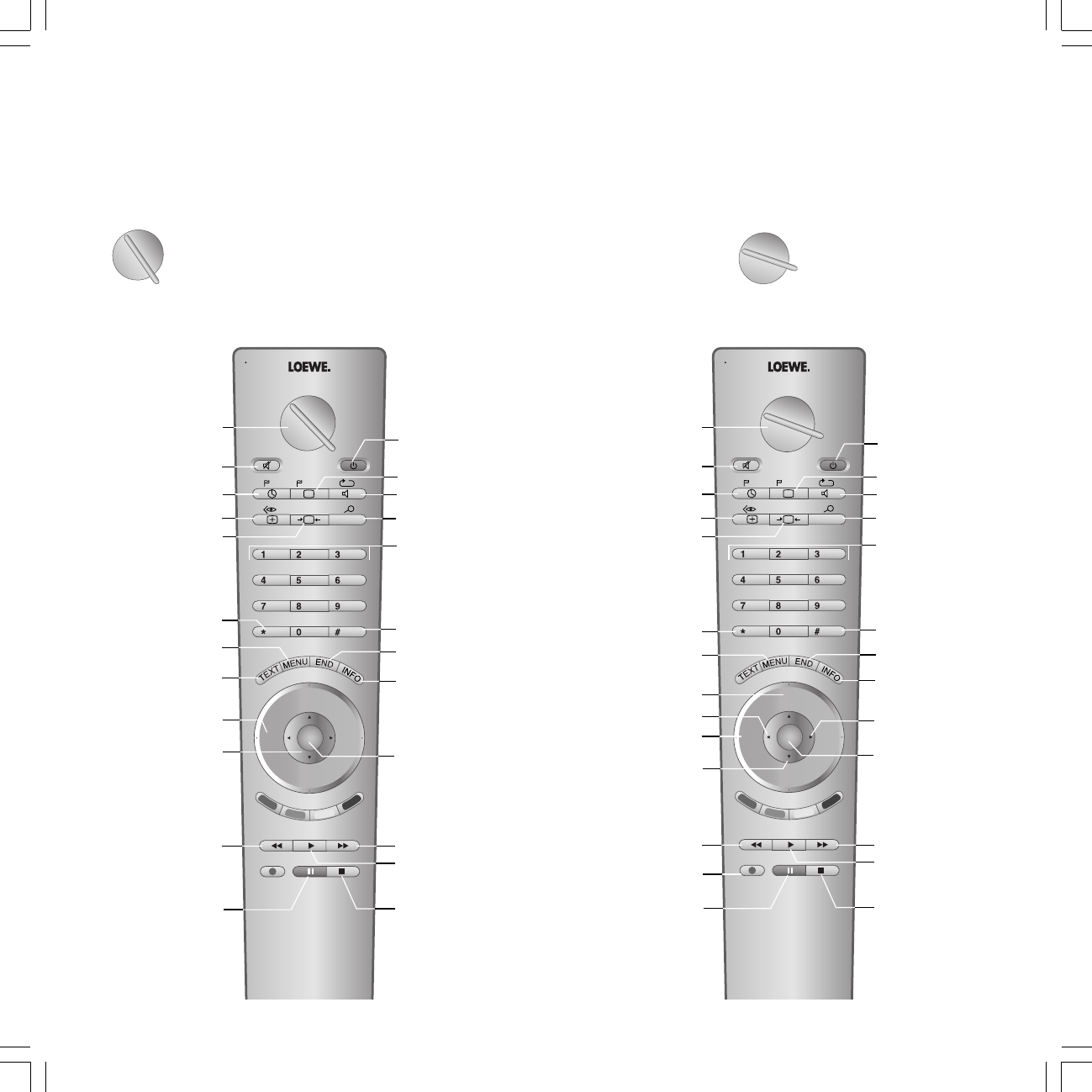
25
TV
DVD STB
VCR
TV
DVD STB
VCR
abc def
RADIO
-Set
TV
DVD STB
VCR
REC-MENU
ghi jkl mno
pqrs tuv wxyz
EPG AV
DISC-M
DVD-AV
CARD
SV
TITLE
C-SET
PIP
P+
OK
P—
V— V+
-List
Sound off/on (mute)
Set marker
Switch DVD player
on/off – in standby
Next chapter
/search forward
Playback
Stop
V–/V+ volume quieter/louder
Menu bar on, previous
function active;
in menu: info on/off
Status display on;
in menu: close menu
Set picture format (TV)
Menu bar on,
select chapter active
Menu bar on,
Repeat active
Menu bar on,
Zoom active
Select Chapter;
in menu: enter digits
Pause
/single frame, slow motion
Beginning of chapter or
previous chapter
/search back
in menu: select Title/Chapter Table;
in menu: cofirm the menu
selection
User interface of
loaded DVD on
DVD menu on;
in menu: close menu
Call AV selection (TV)
User interface of
loaded DVD on
Menu bar on,
select camera position active
Change-over switch
for operation of TV, VCR,
DVD or Set Top Box
abc def
RADIO
-Set
TV
DVD STB
VCR
REC-MENU
ghi jkl mno
pqrs tuv wxyz
EPG AV
DISC-M
CARD
SV
TITLE
C-SET
PIP
P+
OK
P—
V— V+
-List
Sound off/on (mute)
Switch recorder
on/off – in standby
Fast forward
/search forwards
Start playback
Stop tape
V–/V+ volume quieter/louder
Status display
Status display
/in menu: close menu
Set picture format (TV)
Select picture and
sound source
Select sound
/station language selection
Counter reset
Select station directly
/in menu: enter digits
Pause (still frame)
/frame-by-frame
advance
Rewind
/search backwards
Call up station list
/in menu: call up/confirm
P+/P– select program up/down
Call up VCR Menu
Call AV selection (TV)
Switch to Long Play
/Standard Play
Display/close
ShowView timer Menu
Display/close Timer list
Change-over switch
for operation of TV, VCR,
DVD or Set Top Box
Start recording
DVD-AV
/manual tracking
/in menu: select position
Reverse play
/in menu: select/set Slow motion forwards
/in menu: select/set
Operating additional equipment
Remote control RC3 for operating a DVD
recorder or DVD player
Set the rotary switch to
”DVD”.
Using the RC3 remote control for
operating a video recorder
Set the rotary switch to ”VCR”.
The infrared code and the functional scope for
a Loewe VCR is set ex-factory.
31963_021_RC3_GB 14.01.2005, 10:40 Uhr25
26
OK
OK
OK
OK
OK
OK
OK
OK
OK
OK
OK
OK
OK
OK
OK
OK
OK
Operating additional equipment
Rotating the TV set
(Only possible for Spheros 32/37 HD and
equipped with ”Motor Unit”).
If the screen is mounted on a "Motor Unit" you
can rotate it with the remote control to suit
your sitting position.
Launch the TV menu:
Press MENU on the remote
control.
Select the ”Rotate TV” bar.
You determine the direction of
rotation right, stop or left with
the arrows on the button.
Close the menu.
Note:
Do not place any objects in the range of
rotation of the TV set which could obstruct
rotation or be knocked over in the process.
Before activating the rotary function, make sure
that the set can rotate freely and unhindered.
Viewing angle, range of
rotation
Setting the rotation area (a maximum of
+/- 40 degrees)
With this menu, you can determine the
maximum rotation to the left and right.
Press MENU on the remote
control.
Highlight the ”Settings” bar.
Press OK, then to ”other...”
Highlight the ”Rotate TV” bar,
press OK.
Select line "Basic adjustment".
Press the OK button.
You set the desired maximum
range of rotation to the right
by pressing the ring (right).
Rotation stops when you
release the ring.
The setting is saved by pressing
OK .
Then set the desired maximum
rotation to the left by pressing
the ring (left).
Confirm with OK.
Press END to exit the menu.
Determining the switch off position
Here you determine the position of the screen
(TV set) which is adopted when switching off
providing you have activated this function.
Press MENU on the remote
control.
Highlight the ”Settings” bar.
Press OK, then to ”other...”
Highlight the ”Rotate TV” bar,
press OK.
The menu "Rotate TV“
appears. Select
Define "Switch-off position".
You set the desired switch off
position to the right or left by
pressing the ring.
Rotation stops when you
release the button.
Save the "set switch-off
position“ with OK.
31963_021_RC3_GB 14.01.2005, 10:40 Uhr26
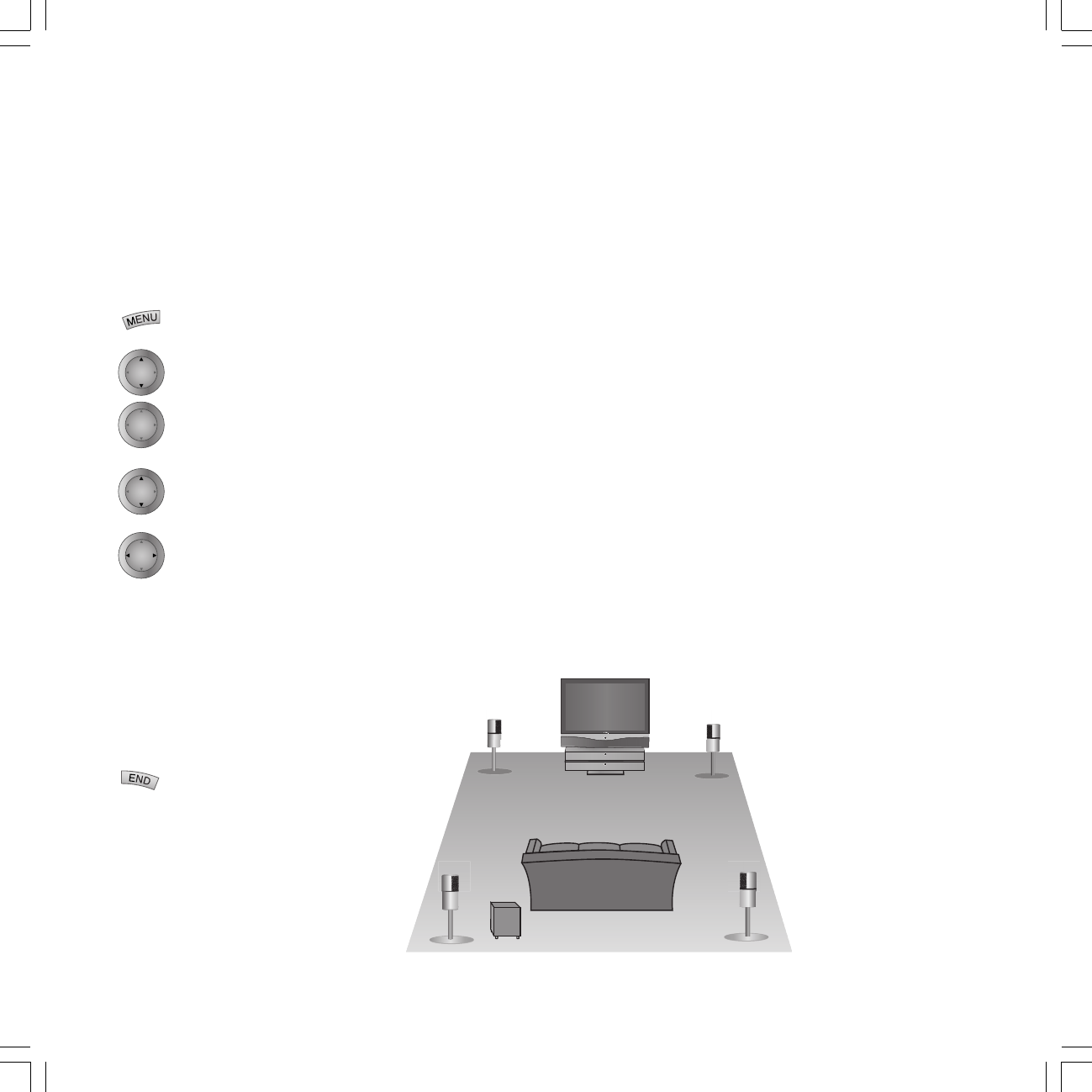
27
OK
OK
OK
OK
Function switch off position on/ off
You determine whether the TV set moves back
to the determined switch off position when
switched off with the remote control (the set
cannot be operated during this time, approx. 35
seconds).
Press MENU on the remote
control.
Highlight the ”Settings” bar.
Press OK, then to ”other...”
Highlight the ”Rotate TV” bar,
press OK.
If you select "yes" in the line
"Activate switch off position"
the TV set will turn to the set
position when switching off
with the remote control.
The TV does not rotate when
switching off if "no" is
selected under "Activate
switch off position".
The TV set stays at the last set
position when it is switched
off.
Press END to exit the menu.
Connecting Loewe sound systems
Loewe Audio systems and active speaker
systems
•Concertos 1
•Concertos 2
•Certos with Concertos
•Tremo and Dolby Digital Decoder
In connection with a Loewe TV with a Loewe
audio system and a Loewe speaker system you
have an excellently tuned Home Cinema
system. Advantages are high operating comfort,
attractive design and adapted technology.
The speakers and the TV set can be arranged as
illustrated below, for example.
The arrangement of the speakers and the
television set might look as depicted below.
However, the layout of the front and surround
speakers should be set up in symmetry to the
television set and your sitting position.
The surround speakers can also be set up
behind your sitting position, facing towards the
front speakers.
The Acoustimass® module can also be set up in
another place, e.g. particularly effective behind
your sitting position, but in such a way that the
bass frequencies are able to radiate freely.
The Concertos sound system offers you a new
type of sound dimension in music and film
performances with integrated electronics.
Even at low volumes, you can then hear the full
bass in the correct ratio to the higher and
medium frequencies.
Loewe offers two sound systems Concertos 1
and Concertos 2, consisting of an
Acoustimass® Module, a set of cables and the
satellite speakers.
If the integrated speakers of the TV set are not
to be used for the center channel, then
Concertos 1 with five Loewe satellite
speakers can be connected.
Use the integrated speakers of the TV as a
center channel, then use Concertos 2 with
only four satellite speakers.
Connecting Concertos
components:
Before connecting the devices,
ensure that they are switched
off or pull out the mains plug.
Connect the components of the
Concertos system to the TV set,
as shown on page 28.
First use:
To put Spheros into use with
the Concertos system, some
settings from the Sound menu
of Spheros are required.
In this context, please read the
separate Operating Instructions
”Concertos 1 / 2 – Sound”.
31963_021_RC3_GB 14.01.2005, 10:40 Uhr27
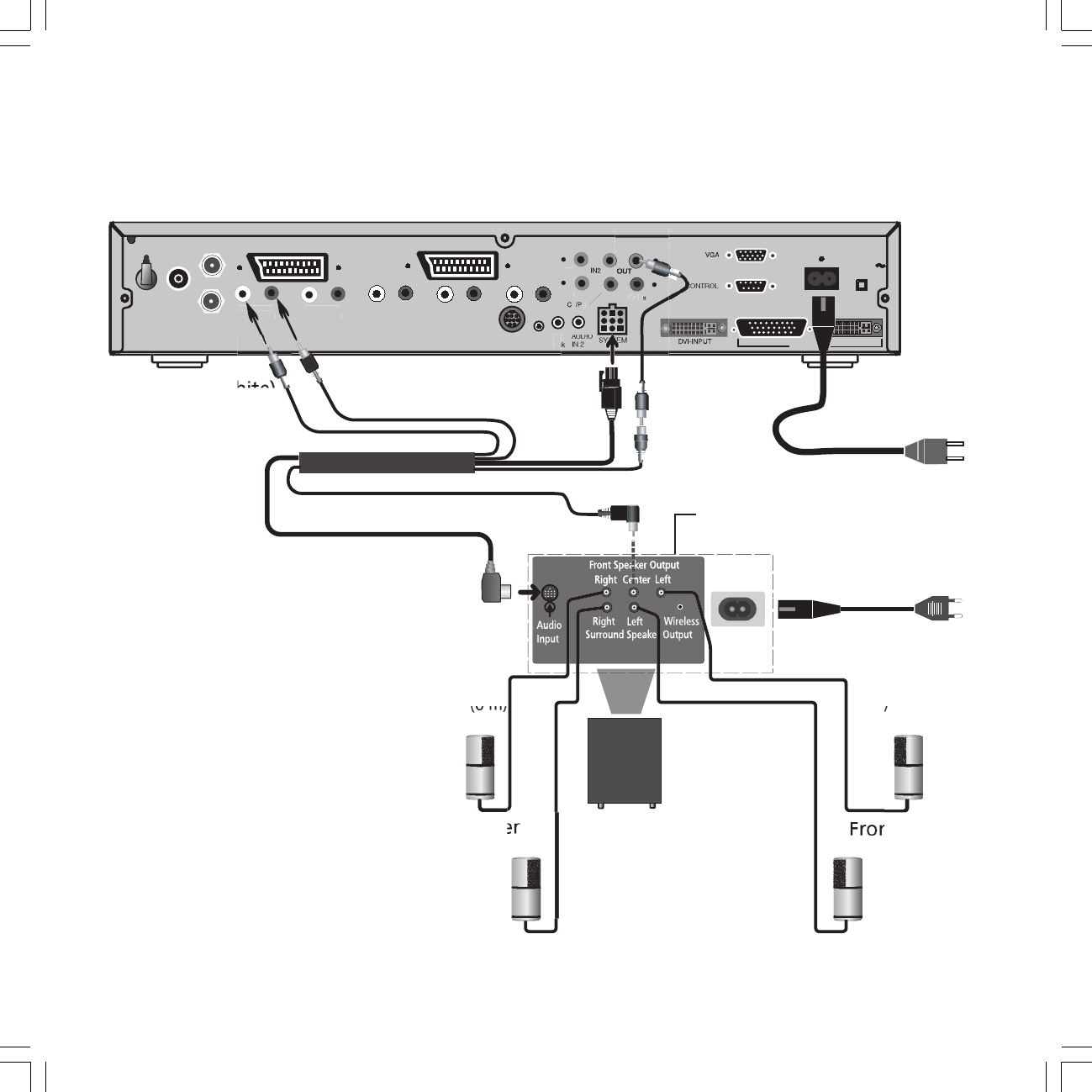
28
K2
(6 m)
K2
(6 m
)
NK
K1
(
15 m
)
K1
(
15 m
)
Signal Box
NK
120-240V
50/60Hz
SERVICE
IR-
Lin
ANT-1
ANT-2
PIP UHF/VHF
AUDIO
Y
IN1
AUDIO IN1
L R
AV 2 ( RGB )
Center Sub
L R
SOURROUND
D-SUB DVI-OUTPUT
RC5/
RC6 DISPLAY
DIGITAL
LR
A
U
DI
O
IN
3
LR
AUDIO OUT
R
R
C
B
/
P
AV 1
(
red
)
(white)
VA
n
t s
p
eaker
left
Front speak
e
ri
g
h
t
Surround speaker
ri
g
ht
Surround speaker
left
Acoustimass®-
module
Connection
p
ort o
n
the bottom of the
Acoustimass® module
Loewe sound systems Concertos
31963_021_RC3_GB 14.01.2005, 10:40 Uhr28

29
K2
(6 m)
K2
(6 m)
NK
K1
(15 m
)
K1
(15 m
)
CES
FM
Antenne
230V ˜ 50–60Hz S-Link
TV EXT
Pre Out
Front Center Rear Aux 2
In Out
Aux 1
In
System-Con.
LFE
LFE
R
L
CERTOS
Euro AV
Bass
Modul DVB
In D-Aux 3
In Digital
Out Digital
Out D-Aux 4
In
➜
➜
DVD UNIT
Certos Master Unit
Name der CD, Titel 5
DVD
Quelle
Song Title 4:51
PREMIUM
NK
AN
CS
➜
➜
AV
Signal Box
➜
DVBC
NK
120-240V
50/60Hz
SERVICE IR-
Link SYSTEM
ANT-1
ANT-2
PIP UHF/VHF
AUDIO
IN 2
Y
IN1
AUDIO IN1
L R
AV 2 ( RGB )
Center Sub
L R
SOURROUND
DVI-INPUT D-SUB DVI-OUTPUT
CONTROL
RC5/
RC6
VGA
DISPLAY
DIGITAL
L R
AUDIO IN 3
L R
AUDIO OUT
C
R
/P
R
C
B
/P
B
IN2 OUT
AV 1
➜
➜
L-Link
➜
Acoustimass®
module
n
t s
p
eake
r
left
Front s
p
e
Surround speaker
right Surround speaker
left
Connection port on
the bottom of the
Acoustimass® module
Loewe sound systems Certos/Concertos
31963_021_RC3_GB 14.01.2005, 10:40 Uhr29

30
120-240V
50/60Hz
SERVICE IR-
Link SYSTEM
ANT-1
ANT-2
PIP UHF/VHF
AUDIO
IN 2
Y
IN1
AUDIO IN1
L R
AV 2 ( RGB )
Center Sub
L R
SOURROUND
DVI-INPUT D-SUB DVI-OUTPUT
CONTROL
RC5/
RC6
VGA
DISPLAY
DIGITAL
L R
AUDIO IN 3
L R
AUDIO OUT
CR/PR
CB/PB
IN2 OUT
AV 1
ON
Line IN
Power OUT
OFF
Bass Intensity
Center to
System connector
230V~50/60Hz
Surr.
Front
Right
Surr.
Front
Subw.
Left
Right
Center
Left
Slave
Master
R
R
L
C
L
Phase
Min. Max.
TV
Sat
0 180
PREOUT
FR
FL
SL SR SUB
C TO TV
TV EXT
12V/15mA L-Link
AM GND FM (75 Ω)
LL
RR
AUX1 IN
DIGITAL
IN
DIGITAL
OUT
AUX OUT AUX 2
Connecting the DVD Preceiver Auro 8116 DT and Tremo
Connecting the Loewe DVD Preceiver Auro
8116 DT to the Signal Box Spheros 32/37
HD or Xelos SL 32/37 HD
When you use the Loewe DVD Preceiver in
connection with a Loewe TV set, connect the
Tremo loudspeaker system to the audio outputs
of the DVD Preceiver.
Connect the cubic socket on the DVD Preceiver
to the ”Master” cubic socket on the Tremo
subwoofer. Use the cubic plug cable enclosed
with the DVD Preceiver Auro (2-wire cable).
Plug the white plug (without kink protection) in
the cubic socket on the subwoofer.
If the loudspeakers of the Loewe TV set are
used for center reproduction, connect the cubic
socket of the TV set to the ”Slave” cubic socket
on the subwoofer with the cubic plug cable.
Use the cubic plug cable enclosed with the
Tremo loudspeaker system. Plug the white plug
(without kink protection) into the cubic socket
on the subwoofer. Set the switch ”Center to”
on the subwoofer to ”TV”.
If on the other hand you want to use the
external center loudspeaker, do not connect
Slave to the TV.
Set the ”Center to” switch on the subwoofer to
”Sat”.
Connect the TV set (Euro AV socket 2) and the
DVD Preceiver with the Euro-AV cable.
Connect the TV set (Service socket) to the TV-L-
Link socket of the DVD Preceiver with the L-
Link cable (delivered with the DVD Preceiver) .
This ensures that the Tremo loudspeaker system
is switched on during radio or CD playback
from the DVD Preceiver but the TV remains
switched off.
Connect the digital output of the TV set with
the DIGITAL IN input of the Auro system with a
cinch cable. This ensures that the digital audio
signal for decoding is fed into the DVD
Preceiver.
See the ”Tremo” operating manual to find out
how to connect the satellite loudspeaker.
Settings on the DVD Preceiver Auro
8116DT
Select the ”Tremo” loudspeaker system in the
DVD menu under Settings, set the Listener/
Speaker distances and level the speakers. Also
have a look at the DVD Preceiver manual
(pages 12 and 13).
31963_021_RC3_GB 14.01.2005, 10:40 Uhr30
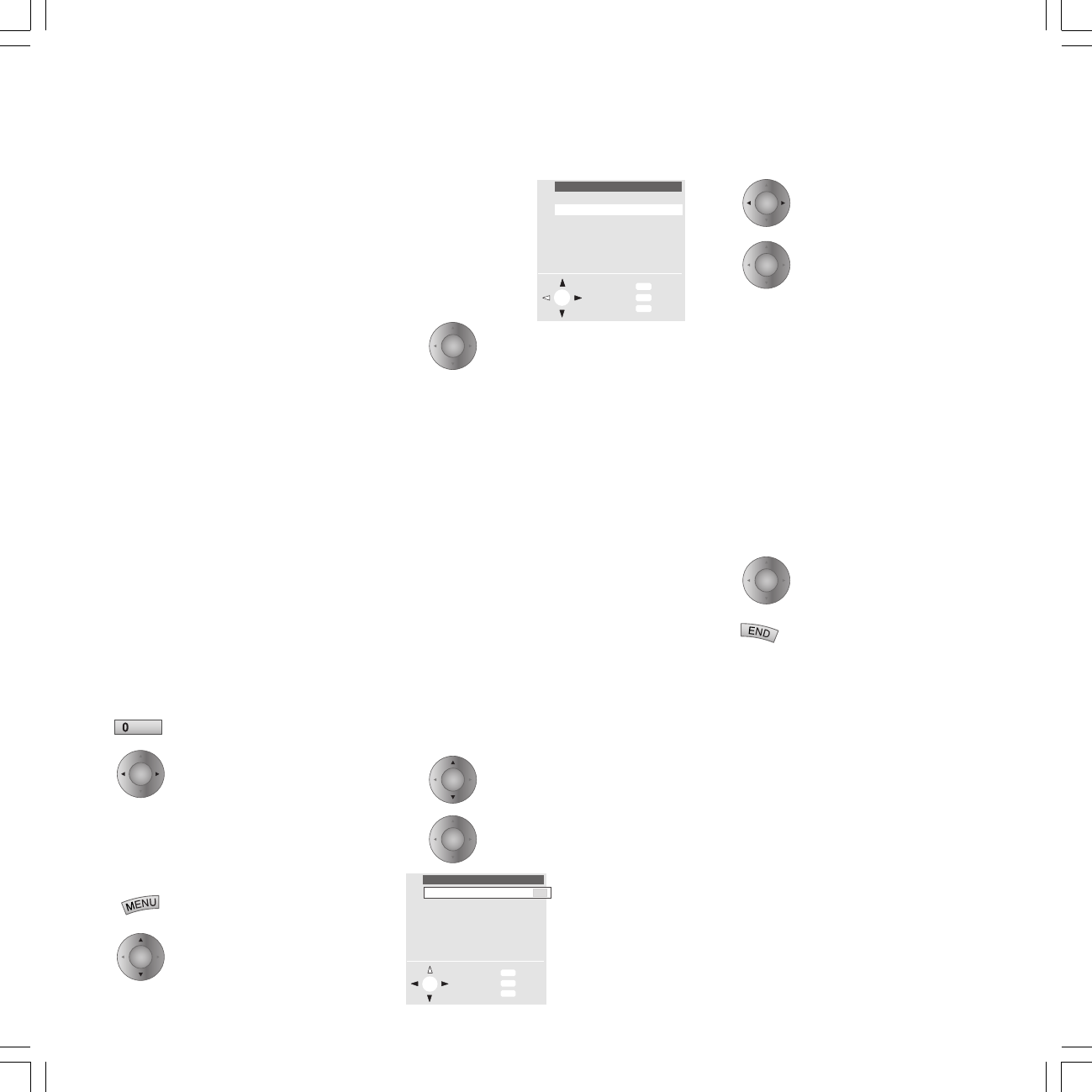
31
Your Spheros/Xelos has a digital visual interface
(DVI) with which you can show PC images on
the TV screen for example.
Connecting personal computers
Connect the PC directly to the socket labeled
"DVI" on the back of the Signal Box. The digital
audio signal can be connected to the input
"Digital In 1 or 2". If your PC does not have a
DVI interface, please use a VGA/DVI adapter
cable. This is available from electronics and
computer dealers. Connect the analogue audio
output of the PC to the "AUDIO IN 2" socket.
The TV set can be connected to the following
standards: VGA (640x480 @85Hz), XGA
(1024x768 @85Hz), SVGA (800x600 @85Hz) or
SXGA (1280x1024 @75Hz).
DDC Function (Display Data Channel)
The DDC function automatically detects graphic
resolutions supported by the TV set.
If you wish to use the DDC function, first
connect the PC to the TV set via the VGA or DVI
socket. Boot the PC. Regardless of whether the
TV set is on or off, you can select the graphic
resolution (e.g. XGA 1024 x 768 at 75 Hz) in the
”Properties” menu on the PC.
Launch the program for displaying PC
images
Press the (Zero) key and ”AV
Selection” appears.
Choose ”VGA”/XGA”
PC image settings
If a PC image is displayed on the screen, you
can call up the ”VGA menu”.
Call up the VGA menu and…
Highlight the ”Picture” line
VGA menu
Sound
VGA geometry
Info
Back
End
Picture
OK
INFO
MENU
END
Rotate TV
VGA geometry
Picture width
Picture hor.
Phase position
Info
Back
End
Input pixels
Input lines
Picture vert.
OK
INFO
MENU
END
Automatic no yes
OK
AV
OK
OK
OK
OK
OK
OK
OK
Displaying PC images (VGA/DVI)
Confirm
In the ”Image” menu, you can select the
contrast, brightness, sharpness, picture format,
colour standard (not with DVI) etc. and adjust
the light ratios to your personal preferences.
To display pictures, you can select the format
4:3, since most camera pictures are taken in
this format.
For an optimum display and maximum picture
focus of standards VGA and SVGA, you can
select "Original" under "Picture format". In
this case the exact format values of the graphic
card must be known and set in the menu "VGA
geometry".
In the ”Sound” menu, you can set the volume
of the loudspeakers or headphones, or select
the tone for two-tone playback.
VGA geometry settings
In the VGA menu, select the
line ”VGA Geometry”
Launch
The setting
options are
restricted in
"DVI".
Select ”Automatic yes” on a
computer with a conventional
graphics format.
Your Spheros will automatically
adjust to the supplied image
format.
Special graphic format may require further
settings to be made:
•Set the picture width
•Move the picture horizontally, to the left or
right
•Move the picture vertically, upwards or
downwards
•Set the phase position to give a picture that is
as jitter-free as possible
•”Input pixels” allows you to set the horizon-
tal resolution of the PC image.
•”Input lines” allows you to set the vertical
resolution of the PC image.
Save settings
Pressing the END key on the
remote control hides the menu.
Selection possibilities for the "COMPONENT IN"
socket: Choose the menu "Connections" and set
it as follows: Connections: Connection plan ➔
Device selection ➔ others ➔ Device to
COMPONENT IN socket yes. After pressing OK
several times, you get the menu
"Connections" with the following selection
possibilities:
•Automatic, it is detected automatically which
signal SDTV or HDTV/Pro scan is applied at
the "COMPONENT IN" socket.
•SDTV for PAL with 625 lines, 50 Hz interlaced
or NTSC 525 lines, 60 Hz interlaced
•HDTV for high definition video signals
•Pro scan for 625 lines/50 Hz or 525 lines/60
Hz progressive.
•With OK, you finally get the menu
"Connections: Assign Audio Digital".
31963_021_RC3_GB 14.01.2005, 10:40 Uhr31
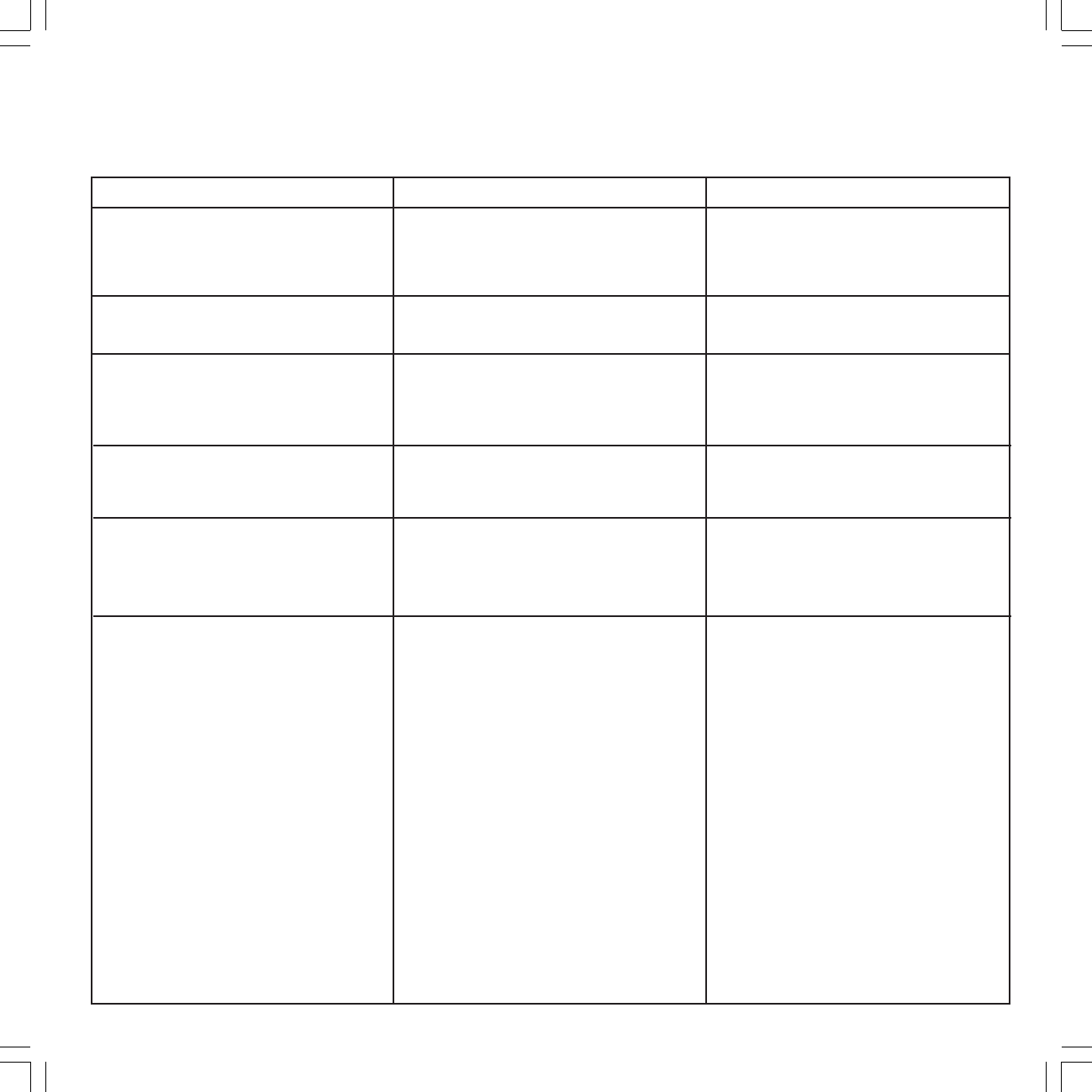
32
What to do when ...
Problem
Various menu items cannot be called (shown in
gray) or the menus for the EPG and teletext
modes of operation cannot be called
Record and Timer are not displayed in the video
menu
"Connections" for example cannot be called in
the video menu (grayed out)
In the TV menu, the menu item “Programs” is
missing and in the Main Information the item
“Automatic channel search” and connections
Control of the Loewe VCR with the video
control bar and the timer does not work or
does not work properly
General problems with connecting external
devices through an AV input
Possible cause
"Simplified operation" activated in the main
information.
No VCR or DVD recorder logged in and no
digital recorder installed
a) A timer recording is in progress (not with
serial timer recording)
b) You are recording from the TV set with the
video bar
The child lock is activated. If these menus were
accessible, children could still set the programs.
a) The VCR's Digital Link function is not
activated or not possible
b) Euro-AV cable not connected
c) Video recorder not logged in
a) The device is not logged in in the
"Connections" menu or is connected
differently to shown in the connection
diagram
b) The AV norm is set incorrectly
c) The AV signal is set incorrectly
Remedy
Deactivate “Simple control” in the Main
Information, press the i-key, select “Select
control level” and call up with OK. Set “Simple
control” to “no”.
Log in VCR in the TV menu - Connections.
a) Wait until the timer recording has ended or
clear the timer.
b) Stop recording.
Deactivate program-related child lock: Switch
off child lock or enter PIN in the TV menu -
Settings.
a) Activate Digital Link in the VCR (see
operating instructions of the VCR)
b) Connect the Euro-AV cable
c) Log in the VCR
a) Compare the connection diagram with the
actual installation in the "Main information"
under "Connections" and connect as shown if
necessary.
b) Set the correct norm.
c) Set the correct AV signal.
If "Automatic" is set for AV norm or AV signal,
this can lead to wrong detection in the case of
non-standardized signals. In this case the norm
and signal must be set according to the
operating instructions of the external device.
31963_021_RC3_GB 14.01.2005, 10:40 Uhr32
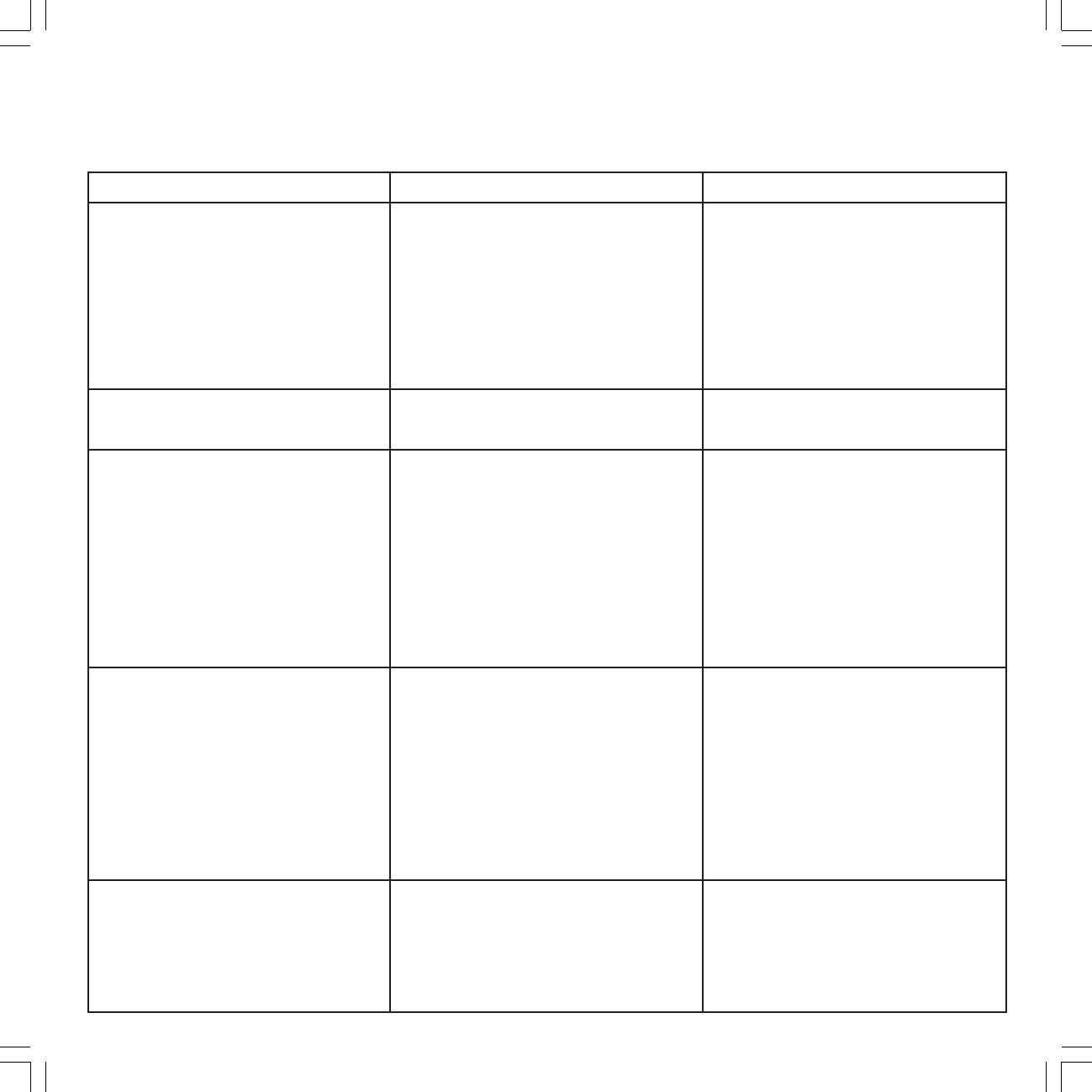
33
What to do when ...
Problem
Connection of a decoder does not work or does
not work properly
No sound through the TV loudspeakers
All menus appear in the wrong language
Digital Link Plus does not work
Various characters are displayed incorrectly in
teletext
Possible cause
a) The signal is not decoded because the
correct decoder programs have not been
selected in the TV menu - Connections
b) The sound is missing in decoder mode
because the wrong decoder sound is
allocated in the TV menu - Connections
The item "Sound from..." in the Sound menu
under "Sound" is not set to "TV"
The wrong menu language has been set.
a) The VCR has not been logged in as a Digital
Link Plus device or has been connected to
the wrong socket
b) The Euro-AV cable is not fully wired (Pin 10
not wired)
c) Some video recorders can only take over the
stations from the TV in initial installation
d) All or some terrestrial or cable stations are
stored at station slots ≥ 99
The wrong character set is set in the teletext
menu
Remedy
a) Follow the instructions in the TV menu -
Connections again and select the
appropriate decoder programs.
b) Follow the instructions in the TV menu -
Connections again and select the right
sound source (decoder, TV or Autom.), see
instructions of the decoder.
Change the setting to "TV".
Set your menu language:
1. Switch off picture-in-picture (PIP) and switch
off all on-screen displays (END button)
2. Call the TV menu (MENU button)
3. Select the last menu item and press OK
4. Select the last menu item on the last page
and press the OK button
5. Now select the right language and....
6. ... confirm with OK.
a) Log in the Digital Link Plus VCR under
"Connections" and connect according to
the diagram.
b) Change the Euro-AV cable
c) Reinstate the original state (ex-factory) of
the VCR (see operating instructions of the
VCR)
d) Sort the terrestrial and cable stations so
that they are between 1 and 99.
Set the right character set: Teletext menu -
Settings - Character set - Standard or the
appropriate character set.
31963_021_RC3_GB 14.01.2005, 10:40 Uhr33
34
Technical data
Type Spheros 32 HD Spheros 37 HD Xelos SL 32 HD Xelos SL 37 HD
Article no. 64406 64451 63443 63444
Dimensions (cm) LCD
display without base
W x H x D 84 x 58,5 x 9 99 x 68 x 9 84,5 x 58,5 x 8,5 99 x 68 x 9
Display technology TFT-LCD TFT-LCD TFT-LCD TFT-LCD
Image format 16:9 16:9 16:9 16:9
Image diagonal 80 cm 94 cm 80 cm 94 cm
Pixel format 1366 x 768 1366 x 768 1366 x 768 1366 x 768
Contrast ratio 800:1 800:1 800:1 800:1
Viewing angle
horizontal./vertical 170 °170 °170 °170 °
Weight (kg) 22,5 31 18,1 21,5
Power cons. (Watt) 135 170 135 170
Relative atmospheric humidity 35 ... 75%
no condensation
Ambient temperature 0º – 40º Celsius
Spheros Signal Box
(with PhotoViewer)
Protection class 2
Chassis name S 2550
Dimensions (cm) 43 x 7,5 x 37 (W x H x D)
Weight (kg) 6.2
Power supply 120 V to 240 V / 50-60Hz
Power consumption In operation up to
30 Watt
Standby < 3 Watt
Signal Box
(with PhotoViewer and Digital Recorder)
Protection class 2
Chassis name S 2550
Dimensions (cm) 43 x 10.5 x 37 (W x H x D)
Weight (kg) 8.2
Power supply 120 V to 240 V / 50-60Hz
Power consumption In operation up to
45 Watt
Standby < 3 Watt
Full Digital AMD / DNC adjustable
Tuner VHF/UHF/ cable
(Hyper band 8 MHz) 42 MHz to 860 MHz
Station slot memory 220
with Digital TV ✳ 1470
TV standards PAL-B/G, PAL-D/K,
PAL-I, PAL-L
PAL M/N, PAL 60
Secam B/G, D/K, L
NTSC / NTSCV
Teletext Hi-Text (Level 2.5)
Sound norms mono/stereo/2-sound
Nicam B/G, L, I
Multi channel (optional) Dolby Digital/PCM/
MPEG
Rated audio power 2 x 15 Watt / 6 Ohm
Audio music output 2 x 40 Watt / 6 Ohm
Speakers 2 closed boxes
Tweeter 2 x 20 mm
Bass 2 x 75 mm
Connections (Signal Box - front):
Mini-DIN S-Video IN (AVS)S-VHS / Hi 8
Cinch Video IN (AVS) VHS / 8 mm
Cinch Audio IN L / R
Jack 6.3 mm headphones 32-200 Ohm
Connections (Signal Box - rear):
IEC socket 75 Ohm Antenna / cable / PIP
✳ ANT 1 / 2 socket F 75 Ohm
EURO-AV 1:
Video IN Y/C (S-VHS / Hi 8)
(VHS / 8 mm)
Video OUT Y/C (S-VHS / Hi 8)
CVBS (VHS / 8 mm)
Audio IN/OUT L / R
EURO-AV 2:
Video IN Y/C (SVHS / Hi 8)
CVBS (VHS / 8 mm)
RGB
Video OUT Y/C (SVHS / Hi 8)
(Only for S-VHS Link Plus)
CVBS (VHS / 8 mm)
Audio IN/OUT L / R
Component IN:
Cinch Y signal
Cinch Cr/Pr signal
Cinch Cb/Pb signal
2xCinch L / R AUDIO OUT
2xCinch L / R AUDIO IN 1
Jack socket 3.5 mm AUDIO IN 2
2xCinch L / R AUDIO IN 3
Cinch input socket IN 1 Digital sound
Cinch input socket IN 2 Digital sound
Cinch output socket OUT Digital sound
SYSTEM-Bush, 9 poles AUDIO
Infrared link Jack socket 3.5 mm
RC5/RC6 Jack socket 2.5 mm
Service-socket 8-pin
Connection DVI/VGA input 26-pin Sub-D
VGA-Loewe Online input 15-pin Sub-D
CONTROL Online Plus 9-pin Sub-D
Connection LCD display 26-pin Sub-D
Connection LCD display DVI OUTPUT
✳ Only in the set version with „Digital-TV kit 2
Sat/Twin-Sat CI".
31963_021_RC3_GB 14.01.2005, 10:40 Uhr34

35
✄
Available accessories
Upgrade kits
Online Plus Box
Separate Online Plus Box for comfortable use
of Internet, e-mail, etc. on the TV.
Sound-System Concertos Concertos 2
Exclusive 5.1 Digital-Surround Sound System.
The center channel is reproduced by the
integrated loudspeakers of the Spheros.
Certos
DVD/CD player with radio and Dolby Digital/
dts-decoder in unusual design.
Dolby Digital (AC3)
For decoding audio signals from the DVD
player,
TV set or other audio equipment to a
5.1 playback with active speakers.
Loewe audio systems (Auro and Tremo) and
active loudspeaker systems
A combination of a Loewe TV set, a Loewe
audio system and a Loewe loudspeaker system
provides an excellently adapted Home Cinema
system with the advantages of high operating
comfort, matching design and adapted
technology.
Wireless Home Automation
For controlling the house lighting circuit,
shutters etc.
Accessories
System cable from the Signal Box to the
flat screen
10 meters long, article number 89236 M25.
Wall holder WM 51
The flat screen can be fixed to the wall and
tilted up to 5 degrees.
Flat-TV F-Stand 3
TV set as a standing unit and mechanically
rotatable.
Motor Unit
(only for Spheros 32 HD and 37 HD)
Motorized rotating table stand (+/– 35
degrees), can be controlled with the remote
control.
Racks
Xelos Rack
With two shelves for video recorders or
DVD players.
System Cube 1/2
(only for Spheros 32 HD and 37 HD)
Rack system with motor unit for rotating the TV
set and shelves for VCRs, DVD players etc. (in
conjunction with the Spheros Cube Adapter).
Cube Adapter Set
Adapter for mounting the set on the rack
systems System Cube 1/2.
The code number 3001 cancels out a secret
code and with it the child lock.
Please keep it in a
safe place.
31963_021_RC3_GB 14.01.2005, 10:40 Uhr35

36
Australia
International Dynamics Australasia Pty Ltd.
129 Palmer Street
AUS - Richmond, Victoria 3121
Tel. 03–94 29 08 22
Fax 03–94 29 08 33
Benelux
Loewe Opta Benelux NV/SA
Uilenbaan 84
B–2160 Antwerpen
Tel. 0902–88 00 2
Fax 030–280 33 27
Loewe Opta Nederland B.V.
Ravenswade, 54A1
NL–3439 LD Nieuwegein (Utrecht)
Tel. 0900–280 33 27
Fax 030–803 327
Česká republika
TIPA sdruzení
Dolní nám. 9
CZ–25069 Klicany/Pruha
CZ–746 01 Opava 1
Tel: 0653-62 49 44
Fax: 0653-62 31 47
GUS
Service Center Loewe
ul. Verkhnyaya Maslovka, d. 29
RUS–125083 Moscow
Tel. 095–212 50 43, 956 67 64
Fax 095–212 47 10
Cyprus
Pangratis Liveras & Son Ltd
P.O. Box 3426
Liveras Building
7 Ajax Street Saint Omologite
CY–Nicosia
Tel. 02–42 05 10
Fax 02–42 87 70, 42 06 53
Danmark
Kjaerulff 1 Development A/S
C.F. Tietgens Boulevard 19
DK–5220 Odense Sø
Danmark
Tel. +4566–13 54 80
Fax +4566–13 54 10
Deutschland
Loewe Opta GmbH
CustomerCareCenter
Industriestraße 11
D–96317 Kronach
Tel. 01801–22 25 63 93
Fax 09261–99 500
España
Gaplasa S.A.
Conde de Torroja, 25
E–28022 Madrid
Tel. 91–748 29 60
Fax 91–329 16 75
France
Sorep Import S.A.
11 rue de la Durance
F–67029 Strasbourg Cédex 1
Tel. 03–88 79 72 50
Fax 03–88 79 72 59
Great Britain
Linn Products Limited
PO Box 8465
Prestwick
UK – KA 7 2YF
Tel. 01292–47 15 52
Fax 01292–47 15 54
Hellas
SOUND HELLAS S.A.
Kleanthous Str. 10
GR–54642 Thessaloniki
Tel. 031–856 100
Fax 031–856 300
Helvetia
Telion AG
Rütistrasse 26
CH-8952 Schlieren
Tel. 01–732 15 11
Fax 01–730 15 02
Italia
General Trading Trust SpA
Via Vittorio Emanuele, 33
I–50041 Calenzano (FI)
Tel. 055–88 11 71
Fax 055–88 11 740
Magyarország
Basys Magyarorszagi KFT
Epitokutja 2-4
H–2040 Budaörs
Tel. 023–415 637-121
Fax 023–415 182
Norge
CableCom AS
Østre Kullerød 5
N–3214 Sandefjord
Tel. 033–48 33 48
Fax 033–44 60 44
Malta
Mirage Holdings Ltd
Flamingo Complex
Cannon Road
M–Qormi
Tel. 49 71 82
Fax 44 59 83
Österreich
Robert Bosch AG
Postfach 146
A–1011 Wien
Tel 01–79 72 24 500
Fax 01–79 72 24 599
Polsko
Piotech
ul. Boh. Getta Warszawskiego 18
PL–81-609 Gdynia
Tel. 058 62 43 467
Fax 58 62 45 009
Portugal
Videoacustica
Comercio e Representacoes de
Equipamentos Electronicos S.A.
Estrada Circunvalacao
Quinto do Paizinho, arm. 5
P–2795-632 Camaxide
Tel. 21–42 41 770
Fax 21–88 0 93
Sverige
Canseda AB
Amalia Jönssons Gata 19
S–42131 Västra Frölunda
Tel. 031–70 93 760
Fax 031–47 65 15
Slovenija
Jadran Trgovsko Podjetje
Partizanska cesta 69
SL–6210 Sezana
Tel. 067–391 402
Fax 067–391 400
Turkey
Enkay Elektronik Servis Müdürlügü
Ambarlar Cad: No: 3/C
Zeytynburmu / Istanbul
Tel. 0212–582 36 69
Fax 0212–671 80 39
Service Adressen/addresses/adresses/indirizzi/direcciones/adresy
Printed in Germany
01.2005
Subject to modification
31963_021_RC3_GB 14.01.2005, 10:40 Uhr36

37
Loewe
DVD-Player 0539
DVD-Recorder ?1922?
STB 1127
VCR 0866
DVD
3DLAB 0539
A-Trend 0714
Acoustic Solutions 0730
AEG 0788 0770
Aiwa 0641 0695
Akai 0790 0788 0690 0716 0713 0705
AKI 0718
Akira 0699
Alba 0717 0699 0713 0723 0695
All-Tel 0790
Amitech 0770
Amstrad 0713
Apex Digital 0672
Audiosonic 0690
AWA 0730
Black Diamond 0713
Blaupunkt 0717
Blue Sky 0699 0695 0713 0672 0651
Boman 0783
Brain Wave 0770
Brandt 0651 0551
Bush 0699 0690 0689 0717 0713 0818
0695 0831 0723
C-Tech 0768
Cambridge Audio 0696
Cambridge Soundworks 0696
CAT 0699
Celestial 0672
Centrex 0672 1004
Centrum 0713
cineULTRA 0699
Classic 0730
Clatronic 0788
Clayton 0713
Coby 0730
Conia 0672
Crown 0770 0651 0690
Cybercom 0831
CyberHome 0714 0816
Cytron 0716 0651 0705
Daewoo 0770 0705 0714
Daewoo International 0699
Dansai 0770 0783
Dantax 0723
DEC 0699 0818
Decca 0770
Denon 0490 0634
Denver 0699 0788
Denzel 0665
Diamond 0651 0768 0723
Digihome 0713
digiRED 0717
Digitrex 0672
DiK 0831
Dinamic 0788
DiViDo 0705
DK digital 0831
DMTECH 0783 0790
Dragon 0831
Dual 0665 0651 0713 0730 0783 0790
0831
E-Boda 0723
Eclipse 0723
Electrohome 0770
Elin 0770
Elta 0690 0770 0788 0790
Emerson 0591 0705
Enzer 0665
Ferguson 0651
Finlux 0741 0770 0783
Firstline 0651
Funai 0695
GE 0717
Global Solutions 0768
Global Sphere 0768
Go Video 0783
GoldStar 0591 0741
Goodmans 0651 1004 0790 0690 0783
0723 0818
Graetz 0665
Grandin 0716
Grundig 0539 0695 0651 0775 0705 0790
0713 0670 0723
Grunkel 0770
H&B 0818 0713
Haaz 0768
Hanseatic 0741
HCM 0788
HDT 0705
HE 0730
Henß 0713
Hitachi 0664 0665 0573
Hiteker 0672
Home Electronics 0730
Hyundai 0783
Ingelen 0788
ISP 0695
Jeken 0699
JMB 0695
JVC 0623 0539 0503 1901 1940
Karcher 0783
Kendo 0699
Kenwood 0534 0490 0737
Kiiro 0718 0770
Kingavon 0818
Kiss 0665
Koda 0818
Koss 0651
Lawson 0705 0716 0768
Lecson 0696
Lenco 0699 0651 0770 0818
Lenoxx 0690
Lexia 0699
LG 0591 0741 1906
Lifetec 0651
Limit 0716 0768
Loewe 0539 1922
LogicLab 0768
Logix 0705 0783
Lumatron 0705
Luxman 0573
Luxor 1004
Magnavox 0503 0818
Magnex 0723
Manhattan 0705
Marantz 0539
Mark 0713
Matsui 0651 0695
MBO 0690 0730
MDS 0699
Medion 0651 0783 0716 0831
Memorex 0831
Metz 0571 0713
MiCO 0723
Codelist RC3
31963_021_RC3_GB 14.01.2005, 10:40 Uhr37

38
Microboss 0718
Micromaxx 0695
Micromedia 0503 0539
Micromega 0539
Microsoft 0522
Microstar 0831
Minax 0713
Minoka 0770
Mitsubishi 0713
Mizuda 0818
Monyka 0665
Mustek 0730
Mx Onda 0651 0723
NAD 0741
Naiko 0770
Neufunk 0665
Nordmende 0831
Omni 0690 0699
Onkyo 0627 0503
Optimus 0571
Orava 0818
Orion 0695
Oritron 0651
P&B 0818
Pacific 0768 0790 0713 0831
Palladium 0695
Palsonic 0689 0672
Panasonic 0490 1908
Panda 0783
Philips 0539 0646 0503 1914
Phonotrend 0699
Pioneer 0571 0631 1900 1902
Pointer 0770
Powerpoint 0718
Proline 0651 0672 0790 1004
Proscan 0522
Prosonic 0699
Provision 0699
Radionette 0741
Raite 0665
Rank Arena 0718
RCA 0522 0651
REC 0689 0490
Red Star 0770 0788
Reoc 0768
Revoy 0699
Roadstar 0699 0690 0689 0713 0818
Rotel 0623
Rowa 1004
Saba 0651
Sabaki 0768
Salora 0741
Samsung 0573 0490
Sansui 0695 0716 0768 0723 0770
Sanyo 0670 0695 0790
Scan 0705
ScanMagic 0730
Schaub Lorenz 0788 0770
Schneider 0651 0783 0705 0790 0788
Scientific Labs 0768
Scott 0718 0651 0672
SEG 0665 0713 0768
Shanghai 0672
Sharp 0630 0695
Sherwood 0717 0741 0633
Shinco 0717
Silva 0788
SilvaSchneider 0831
Singer 0690 0716 0723
Skymaster 0730 0768
Slim Art 0770
SM Electronic 0730 0768 0690
Smart 0718 0705 0713
Sonashi 0716
Sony 0533 0573 1903 1904
Soundmaster 0768
Soundmax 0768
Soundwave 0783
Standard 0651 0768
Starmedia 0818
Sunwood 0788
Supervision 0730 0768
SVA 0672
Synn 0768
Tandberg 0713
Tatung 0770
Teac 0717 0741 0571 0768 0591 0790
Technics 0490 1908
Technika 0770
Techwood 0713
Tensai 0690 0651
Tevion 0651 0768
Theta Digital 0571
Thomson 0551 0522
Tokai 0665 0788
Tokiwa 0705 0716
Toshiba 0503
Umax 0690
United 0788 0730 0790
Universum 0741 0713 0591
Venturer 0790
Vieta 0705
Voxson 0730 0831
Walkvision 0717
Welkin 0831
Wesder 0699
Wharfedale 0696 0723
Windy Sam 0573
XBox 0522
XLogic 0770 0768
XMS 0788 0689
Yamada 1004
Yamaha 0490 0539 0646
Yamakawa 0665 0710 0765
Yelo 0718
Yukai 0730
Zenith 0503 0591 0741
31963_021_RC3_GB 14.01.2005, 10:40 Uhr38

39
VCR
Adyson 0072
Aiwa 0307 0000 0209 0348 0352 0037
0041
Akai 0106 0315 0041 0352 0240
Akashi 0072
Akiba 0072
Akura 0072 0041
Alba 0278 0072 0209 0352 0000 0315
0348 0081
Allorgan 0240
Allstar 0081
Amstrad 0000 0278 0072
Anitech 0072
Ansonic 0000
Aristona 0081
ASA 0037 0081
Asuka 0072 0037 0081 0000 0038
Audiosonic 0278
AVP 0352 0000
AWA 0037 0278 0642 0043
Baird 0106 0278 0104 0041 0000
Basic Line 0278 0209 0072
Bestar 0278
Black Diamond 0642 0278
Black Panther 0278
Blaupunkt 1562 0226 0081
Blue Sky 0037 0209 0348 0072 0352 0278
0000
Bondstec 0072
Brandt 0041 0320
Brandt Electronique 0041
Brinkmann 0209 0348
Bush 0072 0278 0315 0209 0352 0000
0348 0081
Carena 0209 0081
Carrefour 0045
Casio 0000
Cathay 0278
CGE 0041 0000
Cimline 0072 0209
Clatronic 0072 0000
Combitech 0352
Condor 0278
Crown 0278 0072
Cyrus 0081
Daewoo 0278 0642 0209 0348 0352 0045
Dansai 0072 0278
Daytron 0278
de Graaf 0042 0081 0104 0048
Decca 0000 0041 0081 0067 0348 0209
Deitron 0278
Denko 0072
Diamant 0037
Domland 0209
Dual 0041 0081 0278 0000
Dumont 0000 0081 0104
Elbe 0278 0038
Elcatech 0072
Elin 0240
Elsay 0072
Elta 0072 0278
Emerson 0072 0045 0000
ESC 0278 0240
Etzuko 0072
Fast 0897
Ferguson 0041 0320 0000 0278
Fidelity 0000 0072 0240
Finlandia 0104 0081 0042 0000 0048 0384
Finlux 0000 0081 0104 0042
Firstline 0072 0209 0348 0043 0037 0045
0042 0278
Fisher 0047 0104 0038
Flint 0209
Frontech 0072
Fujitsu 0000
Funai 0000
Galaxi 0000
Galaxis 0278
GE 0320
GEC 0081
General Technic 0348
Genexxa 0104
Goldhand 0072
GoldStar 0037 0000
Goodmans 0000 0072 0240 0278 0037
0081 0348 0209 0352 0642
Graetz 0041 0104 0240
Granada 0104 0048 0081 0240 0037 0226
0042 0000
Grandin 0072 0037 0000 0278 0209
Grundig 0081 0347 0226 0320 0348 0072
Haaz 0348 0209
Hanimex 0352
Hanseatic 0037 0209 0278 0081 0038
Harwood 0072
HCM 0072
Hinari 0072 0209 0352 0041 0278 0240
Hisawa 0209 0352
Hischito 0045
Hitachi 0042 0041 0000 0240 0081 0104
0384
Hornyphone 0081
Hypson 0072 0209 0278 0352
Imperial 0000 0240
Ingersoll 0209 0240
Inno Hit 0240 0278 0072
Interbuy 0037 0072
Interfunk 0081 0104
Internal 0278
International 0278 0037
Intervision 0000 0278 0037 0209 0348
Irradio 0072 0037 0081
ITT 0106 0041 0384 0104 0240
ITT Nokia 0048
ITV 0278 0037
JMB 0209 0352
Joyce 0000
JVC 0041 0067 0384
Kaisui 0072
Kambrook 0037
Karcher 0278
Kendo 0106 0209 0315 0348 0072 0037
Kenwood 0041 0038
KIC 0000
Kimari 0047
Kneissel 0352 0209 0348 0037
Kolster 0209 0348
Korpel 0072
Kuba 0047
Kuba Electronic 0047
Kuwa 0226
Kyoto 0072
Lenco 0278
Leyco 0072
LG 0037 0000 0278
Lifetec 0209 0348
Loewe 0081 1562 0226 0866 0037
Logik 0240 0072 0106 0209
Lumatron 0278
Luxor 0106 0043 0072 0104 0047 0048
31963_021_RC3_GB 14.01.2005, 10:40 Uhr39

40
Magnavox 0081
Manesth 0072 0045 0081 0209
Marantz 0081 0038 0209
Mark 0278
Matsui 0209 0348 0037 0240 0352 0000
Mediator 0081
Medion 0209 0348 0352
Melectronic 0000 0037 0038
Memorex 0104 0000 0037 0048 0047
Memphis 0072
Metz 1562 0347 0081 0226 0037
Micormay 0348
Micromaxx 0209
Migros 0000
Mitsubishi 0043 0067 0081
Multitec 0037
Multitech 0000 0072 0104
Murphy 0000
Myryad 0081
NAD 0104
National 1562 0226
NEC 0041 0038 0067 0104 0037
Neckermann 0041 0081
Nesco 0072 0000 0352
Neufunk 0209
Nikkai 0072 0278
Nokia 0104 0106 0315 0041 0278 0240
0048 0042 0081
Nordmende 0041 0384 0320 0067
NU-TEC 0209 0348
Oceanic 0000 0048 0106 0081 0104 0041
Okano 0315 0209 0348 0072 0278
Orbit 0072
Orion 0209 0352 0348
Orson 0000
Osaki 0000 0037 0072
Osume 0072
Otake 0209
Otto Versand 0081
Palladium 0072 0315 0037 0041 0209
0240 0348 0432
Palsonic 0072 0000
Panasonic 1562 0226
Pathe Cinema 0043
Pathe Marconi 0041
Perdio 0000 0209
Philco 0038 0072
Philips 0081 0384
Phoenix 0278
Phonola 0081
Pioneer 0067 0081 0042
Portland 0278
Prinz 0000
Profitronic 0081 0240
Proline 0000 0320
Prosco 0278
Prosonic 0209 0278 0000
Protech 0081
Provision 0278
Pye 0081
Quasar 0278
Quelle 0081
Radialva 0037 0072 0081 0048
Radiola 0081
Rank 0041
Reoc 0209 0348 0278
Rex 0041 0384
RFT 0072
Roadstar 0240 0072 0037 0278
Royal 0072
Saba 0041 0320 0384 0278
Saisho 0209 0348
Salora 0043 0106 0104
Samsung 0240 0432
Sansui 0041 0067 0106 0072 0348
Sanyo 0104 0047 0048 0067
Saville 0352 0278 0240
SBR 0081
Scan Sonic 0240
Schaub Lorenz 0041 0104 0000 0106 0315
Schneider0072 0000 0037 0081 0278 0240
0042 0897
Seaway 0278
SEG 0072 0240 0278 0642 0081
SEI 0081
Sei-Sinudyne 0081
Seleco 0041 0384 0037
Sentra 0072
Setron 0072
Sharp 0048 0037 0569
Shintom 0072 0104
Shivaki 0037
Siemens 0037 0104 0081 0320 0347
Siera 0081
Silva 0037
Silver 0278
Singer 0045
Sinudyne 0081 0209
Smaragd 0348
Sonitron 0047
Sonneclair 0072
Sonoko 0278
Sonolor 0048
Sontec 0037 0278
Sony 0032 0106
Soundwave 0037 0209 0348
Ssangyong 0072
Standard 0278
Starlite 0037 0104
Stern 0278
Sunkai 0209 0348 0278
Sunstar 0000
Suntronic 0000
Sunwood 0072
Supra 0037 0240
Symphonic 0000 0072
T+A 0226
Taisho 0209
Tandberg 0278
Tashiko 0000 0048 0240 0081 0037
Tatung 0000 0041 0081 0048 0043 0209
0348 0352
Teac 0072 0041 0000 0278 0642 0037
0081 0307
TEC 0278 0072
Tech Line 0072
TechniSat 0348 0209
Teleavia 0041
Telefunken 0041 0320 0384 0278
Teletech 0072 0278 0000
Tenosal 0072
Tensai 0000 0037 0072
Tevion 0348 0209
Thomson 0320 0041 0067 0384 0278
Thorn 0041 0104 0037
Thorn-Ferguson 0320
Tokai 0072 0037 0041 0104
Tokiwa 0072
Topline 0348
Toshiba 0045 0041 0384 0043 0081
Towada 0072
31963_021_RC3_GB 14.01.2005, 10:40 Uhr40

41
Tredex 0278
Uher 0037 0240
Ultravox 0278
Unitech 0240
United Quick Star 0278
Universum 0000 0081 0240 0037 0106
0348 0209 0104
Victor 0067
Watson 0081 0352 0278 0642
Weltblick 0037
Yamaha 0041
Yamishi 0072 0278
Yokan 0072
Yoko 0037 0072 0240
ZX 0209
SAT (STB)
@sat 1300
ABsat 0668 0123 1323 0710
ADB 0642
Adcom 0200
AGS 0668 0710
Akai 0200
Akena 0668
Alba 0455 0713
Allsat 0200 1017 1043
Alltech 0713
Alpha 0668 0200
Altai 0396
Amitronica 0713
Ampere 0396 0132
Amstrad 0847 0713 0742 0396 0132 0882
0885 0863 0501 0795 1113
Anglo 0713
Ankaro 0713
AntSat 1017 1083
Apollo 0455
Arcon 1205 1043 0834 0132 1075
Armstrong 0200
Asat 0200
ASLF 0713
AssCom 0853
Astacom 0668 0710
Aston 1129
Astra 0607 0713
Astro 0133 0173 0501 0658 0607 1113
1099 1100 0200
Athena 0668
Atlanta 0871
Aurora 0879
Austar 0863 0642 0497 0879 1176
Avalon 0396
Axiel 0668 0710
Axis 1111 0834
Beko 0455
Bentley Walker 1017
Blaupunkt 0173
Blue Sky 0713 0885
Boca 0132 0713
Boston 0132 0710 0668
Broco 0713
BskyB 0847 1175
BT 0668 0710
Bubu Sat 0713
Cambridge 0501
Canal Satellite 0853
Canal+ 0853
Cherokee 0123 0710 1323
Chess 0157 0605 0713 1085
CityCom 1176 0115 0607 0299
Clemens Kamphus 0834 0396
Cobra 0396
Colombia 0668 0132
Columbia 0132
Columbus 0668
Comag 0132
Condor 0607
Connexions 0396
Conrad 0607 0573 0115 0501
Conrad Electronic 0607 0713
Cryptovision 0455 0795
Cyrus 0200
D-box 1127 1114 0723
Daeryung 0396
Daewoo 1296 0713
Delfa 0863
Deltasat 1075
DGTEC 1242
Digatron 1294
Digenius 0299
Digiality 0607
Digipro 1105
DigiQuest 0863
Discoverer 0605 0157
Discovery 0668 0710
Diseqc 0710
Distratel 0084 0885 1205
Distrisat 0200
DMT 1075
DNT 0200 0396
DREAM multimedia.TV 1237
DStv 0642 0879
Echostar 0610 1169 0871 0167 0853 1086
1200 0454 0396 0713 0668 0511 0453
Einhell 0132 0713 0501
Elap 0713 1129 0668 0710
Elsat 0713
Elta 0200
Emme Esse 0871
Engel 1017 0713
EP Sat 0455
Eurieult 0084 0885 0882
Eurocrypt 0455
Europa 0863 0607 0501 0200
Europhon 0299 0607
Eurosky 0607 0132 0299 0115 0114 0501
Eurostar 0607 0115
Fenner 0668 0157 0605 0713
Ferguson 0455
Fidelity 0501
Finlandia 0455
Finlux 0573 0455
Flair Mate 0713
Force 1101
Fortec Star 1017 1083
Foxtel 0879 0720 0455 0497 0795 1176
Fracarro 0871 0668
Freecom 0501 0173
Freesat 0882
FTEmaximal 0713 0863
Fuba 0396 0173 0573 0115 0299
Fugionkyo 1105
Galaxis 1111 1101 0834 0863 1176 0853
0115 0879
Garnet 1075
GF 0834 1043
GF Star 1043
GOD Digital 0200
Goldbox 0853
Goldvision 1017
Gooding 0571
31963_021_RC3_GB 14.01.2005, 10:40 Uhr41

42
Goodmans 1284 0455
Gradiente 0887
Granada 0455
Grandin 0084
Grundig 0173 0847 1150 1291 1435 0571
0750 0879 0885 0853 0501 1297 1330
Hanseatic 0605 1099 1100
Hänsel & Gretel 0132 0607
Hauppauge 1294
HDT 1011
Heliocom 0607
Helium 0607
Hirschmann 0396 0882 1113 1111 0173
0573 1085 0299 0501 0710 0607 0668
Hitachi 0455
HNE 0742 0132
Houston 0668 0396
Humax 1176 0863
Huth 0132 0607 1017 1075
Hyundai 1011 1159 1075
ID Digital 1176 0863
Imex 0084
Ingelen 0396 0882
International 0132
Interstar 1105 1017
Intervision 0628 0607
Invideo 0871
IRTE 0609
Italtel 0871
ITT Nokia 0573 0455 0723
JOK 0710
JVC 0571
K-SAT 0713
Kamm 0713
Kaon 1300
KaTelco 1111
Kathrein 0658 0249 1057 0173 1221 0200
0713 0668 0742 0123 0115 1323 0710
Kathrein Eurostar 0115
Kiton 0114
Klap 0668 0710
Konig 0607
Koscom 0834 1043
Kreiling 0658 0249 0114
Kreiselmeyer 0173
Kyostar 0132
L&S Electronic 1043
Labgear 1296
LaSAT 0607 0115 0132 0157 0299
Lenco 0713 0115 0607
Lenson 0501
Lexus 0200
LG 1075
Lifesat 0605 0299 1043 0713
Logix 1017 1075
Lorenzen 0299 1294 0607 0742 0132
Luxor 0573 0501
M&B1 0605
Manata 0710 0668 0713
Manhattan1083 0455 0710 0668 0834 1017
Marantz 0200
Maspro 0750 0713 0173 0571
Matsui 0571 0710 0173
Max 0607
MB 0605
Mediabox 0853
Mediacom 1206
MediaSat 0501 0853
Medion 0713 0299 1043
Medison 0713
Mega 0200
Metronic 0713 1215 0084 0885 1205
Metz 0173
Micro 0607 0501 0713
Micro electronic 0713
Micro Technology 0713
Micromaxx 0299
Microtec 0713
Minerva 0571
Mitsubishi 0455
Morgan’s 0200 0713 0132
Motorola 0856
Multichoice 0642 0879
Multitec 0157
Myryad 0200
Mysat 0713
Netgem 1322
Neuhaus 0501 0713 0834 0607
Neusat 0713 0834
Nikko 0713 0723 0200
Nokia 1023 1114 0751 1127 0723 0853
0573 1223 0455 1723 1310 1312
Nordmende 0455
Nova 0879
OctalTV 1294
Okano 0668
OnDigital 0751 0329 0241 0867 0133
Optex 0834
Optus 0879 0853
Orbitech 1099 1100 0200 0501 0157
Origo 0497
Ouralis 1205
Oxford 0668
Pace 0455 0847 0887 1175 0241 0867
0123 1323 0791 0795 0720 0497 0200
0853 0710 1423
Packsat 0710
Palcom 0299
Palladium 0571 0501
Palsat 0501
Panasat 0879 0615
Panasonic 0847 1104 0455 1320
Panda 0455 0607 0173 0834
Patriot 0668
Philips 0200 1114 0853 0455 0750 0710
0668 0571 0173 0133 1336
Phonotrend 0863 1017 1200
Pioneer 0329 0853 0352
Planet 0871 0396
Polytron 0396
Praxis 0511
Preisner 0132 0396 1101 1113
Premiere 0853 1114 1127 0723 1111 1176
1195 1100 0249 0658 1435
Primacom 1111
Profile 0668 0710
Promax 0455
Prosat 0628
Prosonic 0742
Pye 0571
Pyxis 0834
Quadral 0628 0668 0710 1323
Quelle 0607 0742 0115
Radiola 0200
Radix 0396 1113 0882
RFT 0200
Roadstar 0713
Rover 0628 0713
Saba 0710 0885 0115 0607
Sabre 0455
Sagem 0820 1114 1253
31963_021_RC3_GB 14.01.2005, 10:40 Uhr42

43
Samsung 0863 1243 1343 0853 1206 1017
1293 1292
SAT 0501
Sat Control 1300
Sat Partner 0501
Sat Team 0713
Satcom 0605 0607
Satec 0713 0834
Satline 0628
Satstation 1083
Schneider 0710 0668 0157 1206
Schwaiger 0605 0157 0607 0885 1111
0132 1075
SCS 0115 0299
Seemann 0396
SEG 0605 0742 0114 1087
Seleco 0871
Septimo 1205 0885
Siemens 0173
Skantin 0713
Skinsat 0501
SKR 0713
Sky 0847 0856 0887 1014
SKY+ 1175
Skymaster0713 0605 0157 1200 1085 1075
0628
Skymax 0200
SkySat 0157 0605 0713
SL 0132 0742
SM Electronic 0157 0713 1200 1075 1085
Smart 0132 0299 1101 0882 0396 1113
0115 0713
Sony 0282 0847 0853 0455
SR 0132
Starland 0713
Strong 0879 0853 1105 1159 1300
Sunsat 0713
Sunstar 0132
Tantec 0455
Tatung 0455
Teac 1322
Tecatel 1200
TechniSat 0200 1099 1100 1195 0501 1322
Technosat 1206
Technowelt 0607 0885
Techsan 1017
Techwood 0114
Telasat 0605 0115 0607
Teleciel 1043
Telecom 0713
Telefunken 0710
Teleka 0396 0750 0501 0607 0834
Telesat 0605 0607
Telestar 0501 1099 1100 0114 0200 0157
Teletech 0114
Televes 0455 0501 0132
Thomson 0455 0713 0853 0115 0607 1291
0820 0668 0710 1046
Thorn 0455
Tokai 0200
Tonna 0455 0668 0501 0713 0834
Topfield 1206
Toshiba 0455
TPS 0820 1253
Triasat 0501
Triax 0501 0115 0200 0396 0713 0853
0114 1296 1291 0132
Turnsat 0713
Twinner 0132 0713
UEC 0879
Uher 0157
Unisat 0200
Universum 0173 0571 0607 0299 0115
0742 1087
Van Hunen 0299
Variosat 0173
Ventana 0200
Vestel 0742
VH-Sat 0299
Viasat 1323 1023 0820
Visionic 1105
Visiosat 0710 0713
Wetekom 0157 0605 0501
Wewa 0455
Wisi 0173 0396 0299 0455 0501 0607
0834
Worldsat 0710 0114 0123 0668
XCOM 0123 0668
XSat 0668 0713 0123
Xtreme 1300
YES 0887
Zehnder 1075 0742 0114 0115 0419
Zenith 0856
Zeta Technology 0200
Zinwell 1176
Cable Box (STB)
Austar 0276
BT 0003
Canal Plus 0443
Comcrypt 0443
Decsat 0423
Filmnet 0443
France Telecom 0817
General Instruments 0276
Jerrold 0003 0276
Kabelvision 0003
Macab 0817
Melita 0003
MNet 0443
Mr Zapp 0817
Noos 0817
NTL Cabletell 0276
Ono 1068
Optus 0276 1060
Pace 1068 1060
Philips 0817 0286
PVP Stereo Visual 0003
Sagem 0817
Tele+1 0443
Telepiu 0443
Tudi 0286
United Cable 0003
Visiopass 0817
31963_021_RC3_GB 14.01.2005, 10:40 Uhr43

44
31963_021_RC3_GB 14.01.2005, 10:40 Uhr44
