Lowrance Electronic Elite 5M Hd Users Manual
ELITE-5M HD to the manual 490437de-fe00-4eb7-b9be-4adb287d8d63
2015-02-05
: Lowrance-Electronic Lowrance-Electronic-Elite-5M-Hd-Users-Manual-407757 lowrance-electronic-elite-5m-hd-users-manual-407757 lowrance-electronic pdf
Open the PDF directly: View PDF  .
.
Page Count: 40
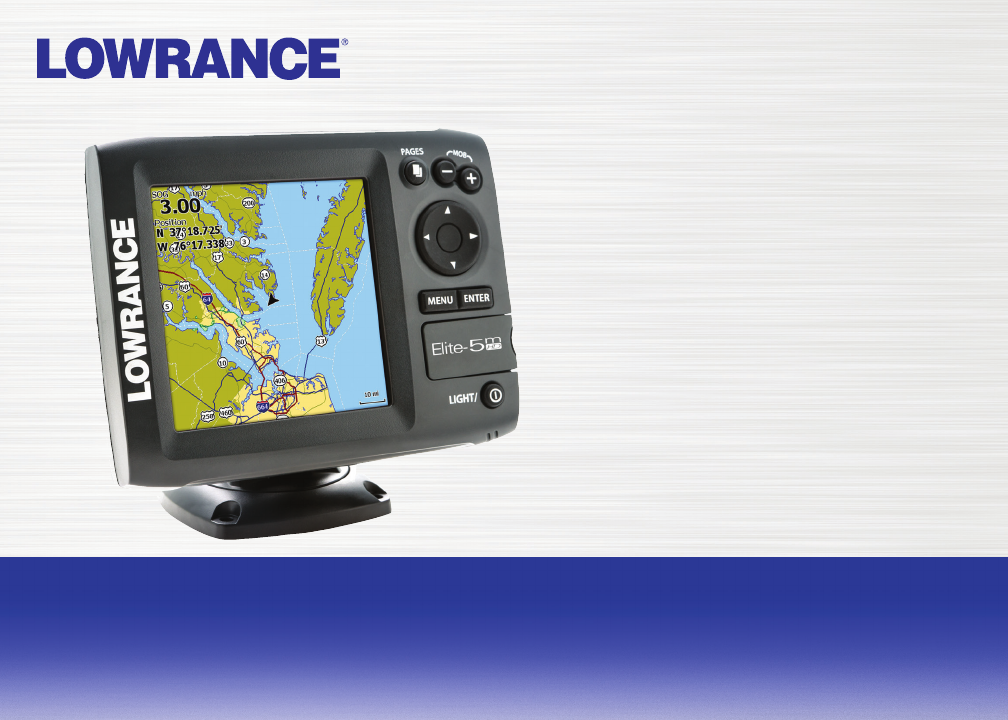
Installation & Operation
manual
Elite-5m HD
Operation manual
Copyright © 2013 Navico
All rights reserved.
Lowrance® and Navico® are registered trademarks of Navico.
Fishing Hot Spots® is a registered trademark of Fishing Hot Spots Inc.
Navionics® is a registered trademark of Navionics, Inc.
Navico may nd it necessary to change or end our policies, regulations and special oers at any time. We reserve
the right to do so without notice. All features and specications subject to change without notice.
Compliance Statements
Lowrance Elite 5m HD
• meets the technical standards in accordance with Part 15.103 of the FCC rules
• complies with CE under RTTE directive 1999/5/EC
• complies with the requirements of level 2 devices of the Radiocommunications (Electromagnetic
Compatibility) standard 2008
For more information please refer to our website: www.lowrance.com.

PB 1
WARNING: When a GPS unit is used in a vehicle, the vehicle operator is solely responsible for operating
the vehicle in a safe manner. Vehicle operators must maintain full surveillance of all pertinent driving or
boating conditions at all times. An accident or collision resulting in damage to property, personal injury or
death could occur if the operator of a GPS-equipped vehicle fails to pay full attention to travel conditions
and vehicle operation while the vehicle is in motion.
Warning
The user is cautioned that any changes or modications not expressly approved by the party responsible for compliance
could void the user’s authority to operate the equipment. This equipment has been tested and found to comply with the
limits for a Class B digital device, pursuant to Part 15 of the FCC rules. These limits are designed to provide reasonable
protection against harmful interference in a residential installation. This equipment generates, uses and can radiate radio
frequency energy and, if not installed and used in accordance with the instructions, may cause harmful interference to
radio communications. However, there is no guarantee that the interference will not occur in a particular installation. If
this equipment does cause harmful interference to radio or television reception, which can be determined by turning the
equipment o and on, the user is encouraged to try to correct the interference by one or more of the following measures:
• Reorient or relocate the receiving antenna
• Increase the separation between the equipment and receiver
• Connect the equipment into an outlet on a circuit different from that of the receiver
• Consult the dealer or an experienced technician for help

23
Table of Contents | Elite-5m HD Table of Contents | Elite-5m HD
Introduction ...................................... 4
Unit Controls ............................................4
Inserting microSD cards ..........................5
Basic Operation ............................... 6
Setup wizard ............................................6
Page menus ............................................6
Accessing the Settings menu ..................7
Accessing menu items.............................7
Working with menus ................................7
Entering text ............................................8
Cursor ......................................................8
Goto cursor ..............................................9
Advanced Mode ......................................9
Restore defaults ......................................9
Pages .............................................. 10
Steer Page.............................................10
Chart Page ............................................10
Overlay Data.......................................... 11
Chart Operation ............................. 13
Chart Menu ............................................13
Waypoints, Routes, Trails ...................... 14
Routes Screen .......................................16
Table of contents
23
Table of Contents | Elite-5m HD Table of Contents | Elite-5m HD
Trails Screen .........................................19
Orientation ............................................. 21
Chart Settings ........................................22
Overlay Data..........................................22
Settings..................................................22
Navigation Settings ...................................24
Settings .......................................... 26
Settings menu........................................26
System...................................................26
Saving Screenshots...............................28
Alarms ...................................................28
Specications ................................ 30
Index ............................................... 31
45
Introduction | Elite-5m HD Introduction | Elite-5m HD
Getting Started
Turn unit on/
o
To turn on/o the unit, press and
hold the LIGHT/POWER key for
three seconds.
Man
Overboard
waypoint
Press the ZOOM IN and ZOOM OUT
keys at the same time to set a Man
Overboard waypoint. Your system
will automatically create an active
route back to the MOB waypoint. You
must cancel navigation to terminate
the function.
Adjusting
the
backlight
This unit has 11 backlight levels.
Press the LIGHT/POWER key to
switch backlight levels.
Muting
Audio
Select Audio from the System menu.
Select Mute and press ENTER.
Selecting a
GPS source
Select GPS from the System settings
menu. Press MENU, select GPS
source and choose the desired source.
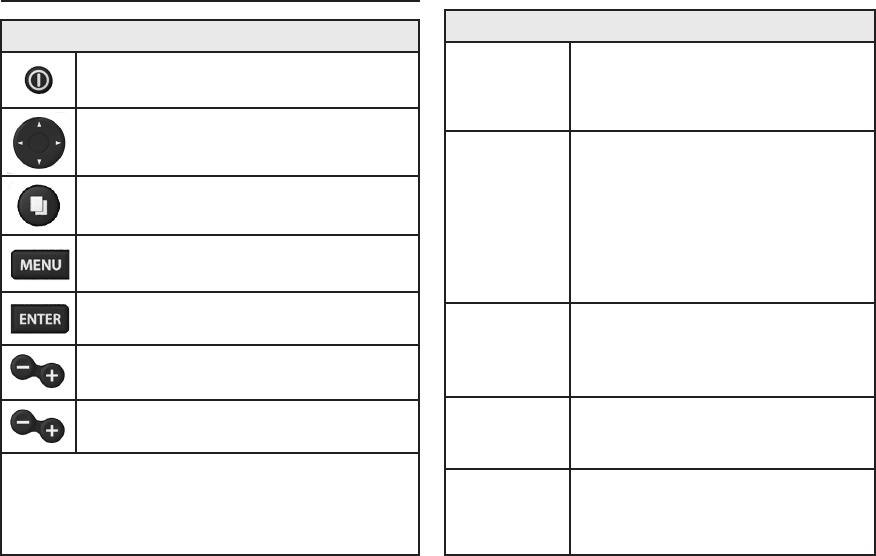
Unit Controls
LIGHT/POWER: controls backlight level
and turns unit on/o
KEYPAD: controls cursor & selects items
on menus
PAGES: allows you to select a page to
view
MENU: opens settings, context and page
menus
ENTER: nalizes menu selections; save
waypoint at cursor position
MOB: press and hold both Zoom keys to
create a Man Overboard waypoint
ZOOM KEYS: (+) used to zoom in; (-) used
to zoom out
microSD slot: insert a blank microSD card to save
screen captures, waypoints, routes and trails; or
insert a microSD mapping card to use mapping
data
Introduction
45
Introduction | Elite-5m HD Introduction | Elite-5m HD
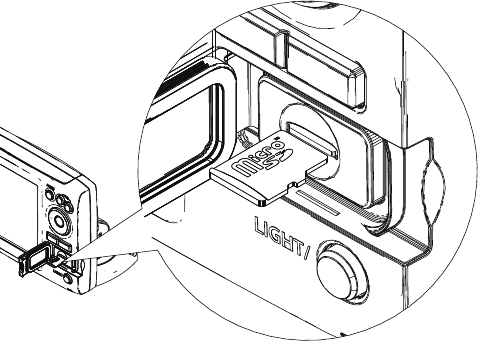
Inserting microSD cards
Carefully slide the microSD card into the slot until it clicks into place.
To remove, carefully push in the card until it clicks out of place.
67
Basic Operation | Elite-5m HD Basic Operation | Elite-5m HD
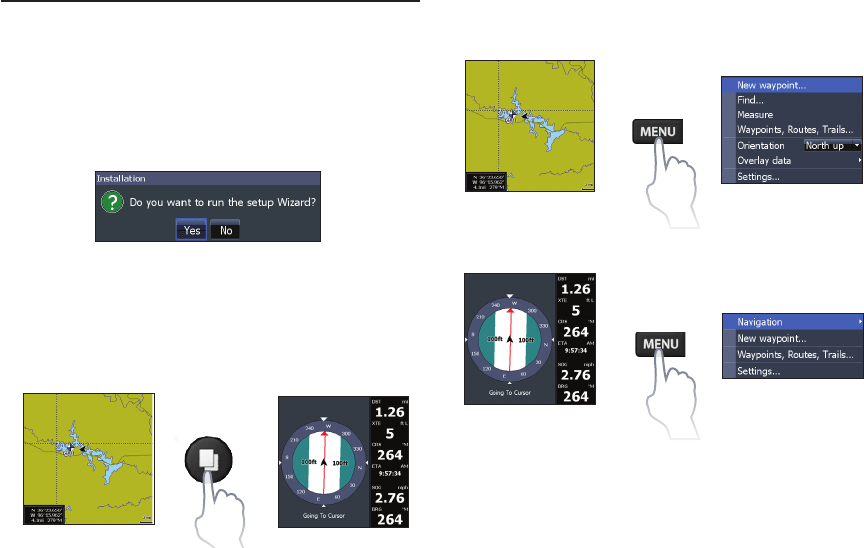
Page menus
The Steer and Chart pages have menus that can
only be accessed when those pages are displayed.
Setup wizard
The Setup wizard will appear when the unit is
turned on for the rst time. To choose your own
settings, do not run the setup wizard. To restart the
Setup wizard, restore defaults.
Pages
This unit has two pages: Steer and Chart. Press the
pages key to switch pages.
Basic Operation
Steer page
Steer menu
Chart page Chart menu
67
Basic Operation | Elite-5m HD Basic Operation | Elite-5m HD
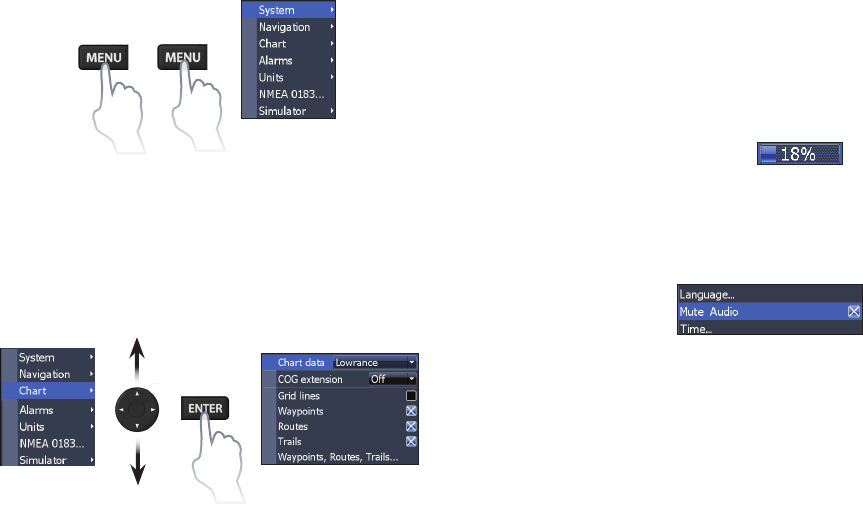
Accessing the Settings menu
Accessing menu items
The keypad and ENTER key are used to select
menu items and open submenus. Use the keypad
to highlight the desired item and press ENTER.
Working with menus
There are several menu types used to make
adjustments to options and settings, including
scrollbars, on/o features and dropdown menus.
Scrollbars
Select the scrollbar and press the
keypad left (decrease) or right
(increase).
On/Off features
Select the on/o item and
press ENTER to turn it
on/o.
89
Basic Operation | Elite-5m HD Basic Operation | Elite-5m HD
To input text:
1. Use the keypad to select the desired
character and press ENTER.
2. Repeat Step 1 for each character.
3. When entry is completed, highlight OK
and press ENTER.
Cursor
The keypad moves the cursor around the display,
allowing you to scroll the map and select map
items.
Press MENU and select Return to vessel or Exit
cursor mode to clear the cursor.
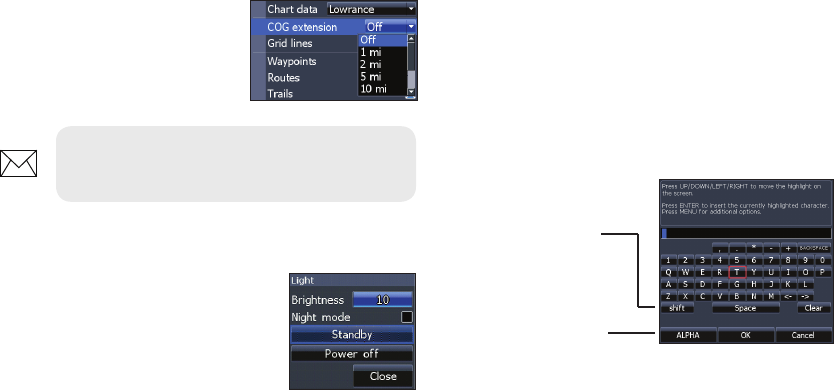
Dropdown menus
Select the dropdown menu
and press the keypad up/
down to select the desired
item. Press ENTER.
Dialogs
Dialogs are used for user input
or for presenting information to
the user. Depending on the type
of information or entry, dierent
methods are used to conrm,
cancel or close the dialog.
Entering text
Some functions, like naming a waypoint, route or
trail, will require you to input text.
NOTE: Press the MENU key to exit
menus.
Switches keyboard
between ALPHA and
QWERTY layout
Switches letters
to uppercase/
lowercase
89
Basic Operation | Elite-5m HD Basic Operation | Elite-5m HD
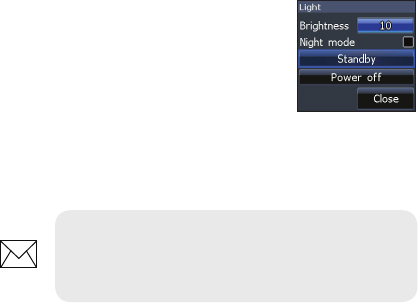
Standby mode
Lowers power consumption by turning o the
display.
1. Press the PWR/LIGHT
key to access the Back-
light dialog.
2. Select Standby and
press ENTER.
3. Press any key to resume normal
operation.
Restore defaults
Sets unit options and settings to default values.
Goto cursor
Used to navigate to the cursor.
1. Move the cursor to a desired location
and press MENU.
2. Select Goto cursor and press ENTER.
Advanced Mode
Enables advanced features and settings.
The following features are enabled when Advanced
mode is turned on:
• Navigation (Enables arrival radius, off-
course distance and Bearings setting)
• Alarms (Enables arrival, off course and
anchor alarm options)
• NMEA 0183 conguration options
• Units (Enables distance, speed and
bearings conguration options)
NOTE: Leaving your unit in Standby
mode when your motor is turned o will
run down your battery.
10 11
Pages | Elite-5m HD Pages | Elite-5m HD
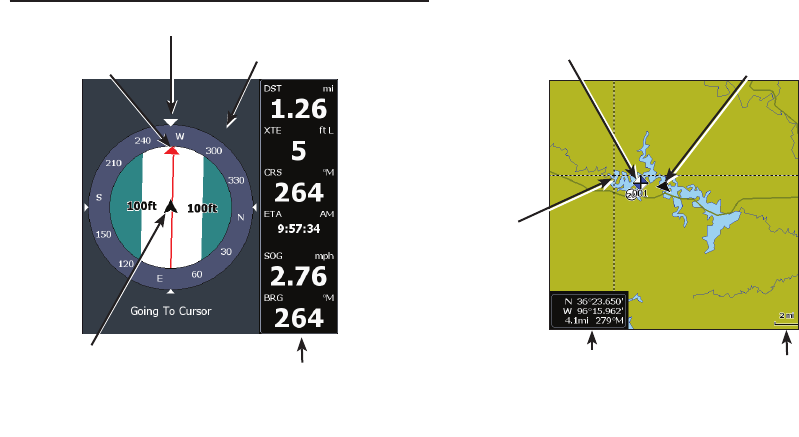
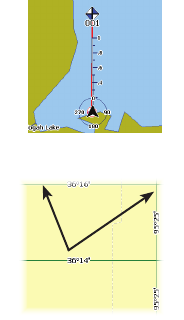
Steer Page
The Steer page has a compass that shows your
current track, the direction to your destination, and
a digital data navigation panel.
Pages
Chart Page
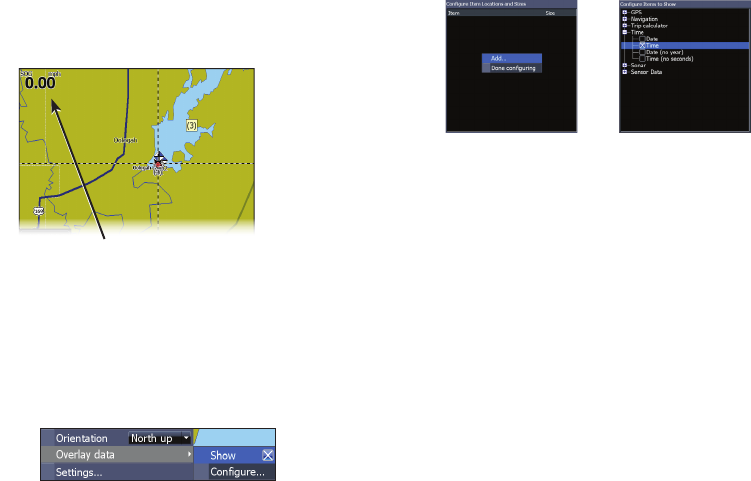
Consists of map that moves in real-time as you
move. By default, the map is shown from a birds-
eye view with North at the top of the screen.
Current location
Course over ground
Compass
Direction to destination
Navigation
information
Current location
Waypoint
Current location and distance/
bearing to cursor Zoom
Range
Cursor
10 11
Pages | Elite-5m HD Pages | Elite-5m HD
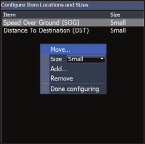
To add overlay data:
1. From the Chart page, press MENU.
2. Select Overlay data and press ENTER.
3. Select Congure and press ENTER.
4. Press Menu and select Add. Press
ENTER.
5. Select a data category and press
ENTER.
6. Select the desired data and press
ENTER.
7. Repeat Steps 5 and 6 to add more data.
8. Press MENU and select Return to
Overlays. Press ENTER.
9. Press MENU, select Done Conguring
and press ENTER.
Overlay Data
Used to select data shown on the Chart page.
Show
Enables/disables the display of overlay data,
allowing you to remove overlay data from the
screen without deleting the current overlay data
conguration.
Congure
Allows you to select/customize overlay data.
Overlay data
12 PB
Pages | Elite-5m HD Pages | Elite-5m HD
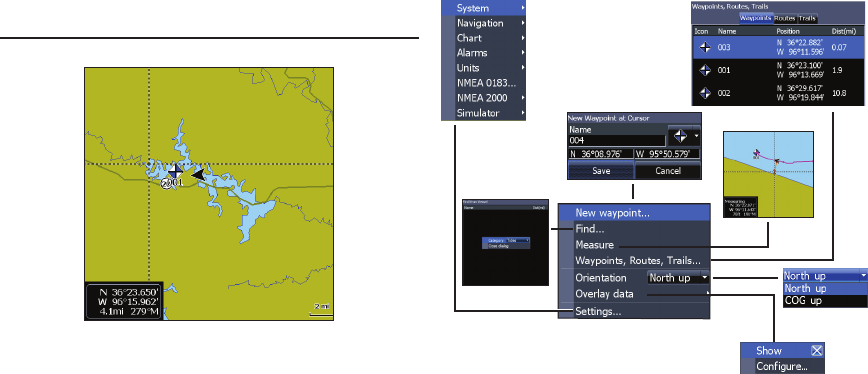
Customizing Overlay Data
You can select a data source, add/remove data and
adjust the size and position of overlay data on the
screen.
Select the desired overlay
data from the “Congure
Item Locations and Sizes
dialog” and press MENU.
The conguration menu will
appear.
PB 13
Chart Operation | Elite-5m HD Chart Operation | Elite-5m HD
New Waypoint
Creates a waypoint at your current location or at the
cursor position. When the cursor is on the screen,
waypoints will be saved at the cursor position. If
the cursor is not active, waypoints will be saved at
your current position.
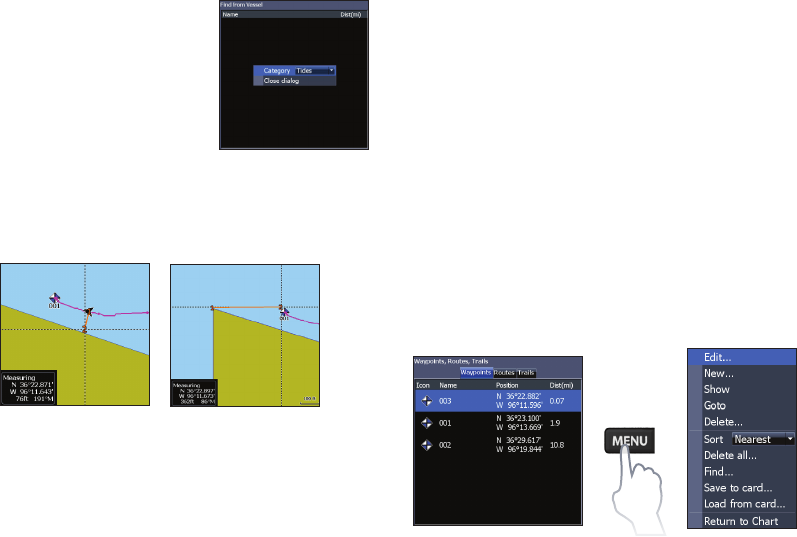
Chart Menu
Press MENU from the Chart page to open the Chart
menu. Press ENTER to launch the New waypoint
dialog.
Chart Operation
Chart menu
14 15
Chart Operation | Elite-5m HD Chart Operation | Elite-5m HD
Find
Used to search for chart
categories from the cursor
position or from your current
position.
Measure
The cursor can be used to measure the distance
between two items on the chart.
To measure distance:
1. Select Measure and press ENTER.
2. Move the cursor to the desired location.
The distance will be shown in the
measuring dialog.
3. To measure from the cursor position to
a new location, press ENTER and move
the cursor to a new location.
4. To stop measuring, press MENU and
select Stop measuring.
Waypoints, Routes, Trails
Used to create, edit, navigate and delete waypoints,
routes and trails.
Press the keypad left/right to toggle between
waypoints, routes and trails tabs.
Waypoints Screen Waypoints menu
14 15
Chart Operation | Elite-5m HD Chart Operation | Elite-5m HD
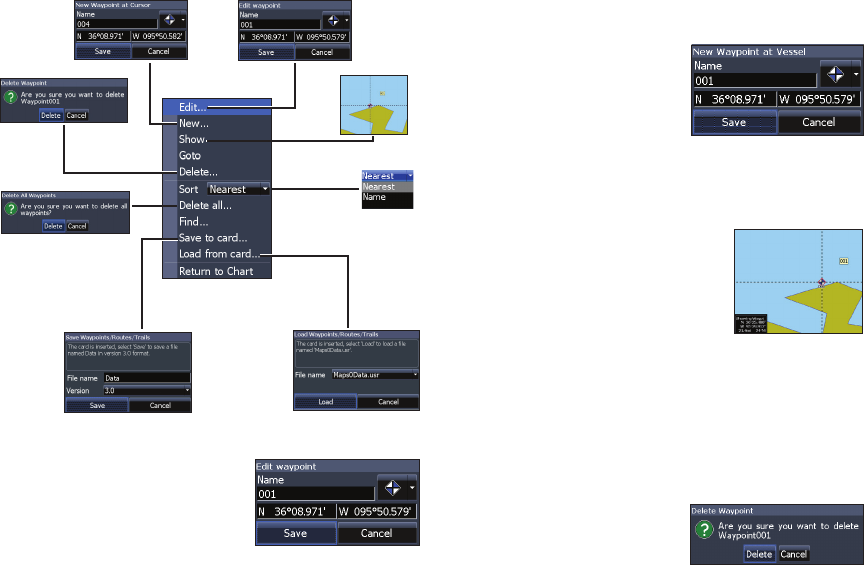
Edit
Allows you to edit the name,
icon and latitude/longitude
of a selected waypoint.
Waypoints
menu
New
Creates a new waypoint
at the cursor or vessel
position. You can also select
waypoint name, icon and
latitude/longitude from the
new waypoint dialog.
Show
Displays the selected waypoint
on the map.
Goto
Allows you to navigate to a waypoint.
Delete and Delete All
Delete is used to delete a
selected waypoint. Delete
All deletes all waypoints.
16 17
Chart Operation | Elite-5m HD Chart Operation | Elite-5m HD
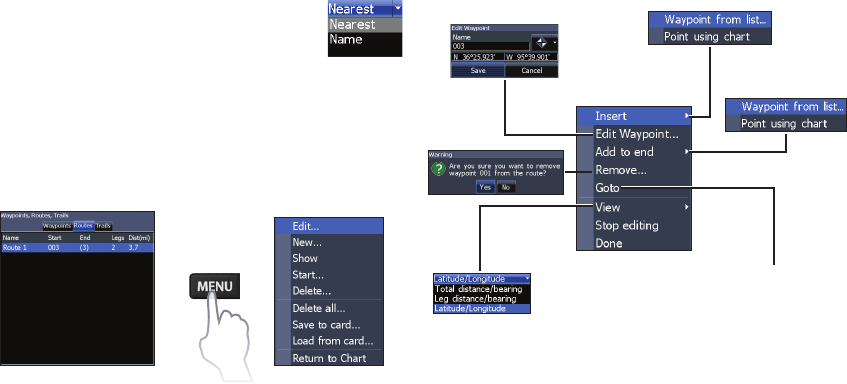
Sort
Controls how the waypoints list will be
sorted — by name or by nearest.
Routes Screen
Used to create, edit, navigate and delete routes.
Use the keypad to highlight the Routes tab to ac-
cess the Routes screen.
Creating a route
Routes can be created by inserting waypoints from
the waypoints list or by using the cursor to posi-
tion new points on the chart. You also can add way-
points to a route by selecting them from the chart
screen.
Routes screen Routes menu
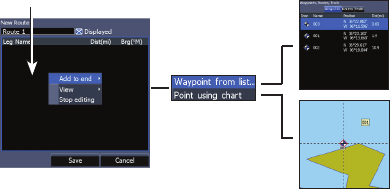
To create a route from waypoint list:
1. Press MENU from the Routes screen.
2. Select New... and press ENTER.
3. Press the keypad down to select the
Leg Name eld and press ENTER.
4. Press MENU, select Add to End and
press ENTER.
Route waypoint
menu
Inserts waypoint between
existing route waypoints
Adds waypoint to
end of the route
Starts navigation
to the selected
route waypoint
16 17
Chart Operation | Elite-5m HD Chart Operation | Elite-5m HD
5. Highlight Waypoint from list and press
ENTER.
6. Select the desired waypoint and press
ENTER.
7. Press MENU and select Add to end to
add another waypoint to the route.
8. When the route is complete, press
MENU, select Stop Editing and press
ENTER.
9. Select Save and press ENTER.
Leg Name eld Creating a route using points from chart:
1. Repeat Steps 1-4 from the instructions
for Creating a route from waypoint list.
2. Select Points using chart and press
ENTER. The chart page will appear.
3. Move the cursor to the desired location.
Press ENTER to set a point.
4. Repeat Step 3 to add more points.
5. Press MENU and select Stop adding.
Press ENTER.
6. Select Save and press ENTER.
Navigating a route
Routes can be navigated in forward or reverse.
1. Select the desired route on the Route
screen and press MENU.
2. Select Start and press ENTER.
18 19
Chart Operation | Elite-5m HD Chart Operation | Elite-5m HD
3. Select Forward or Reverse and press
ENTER.
4. Press MENU and select Return to Chart.
Press ENTER.
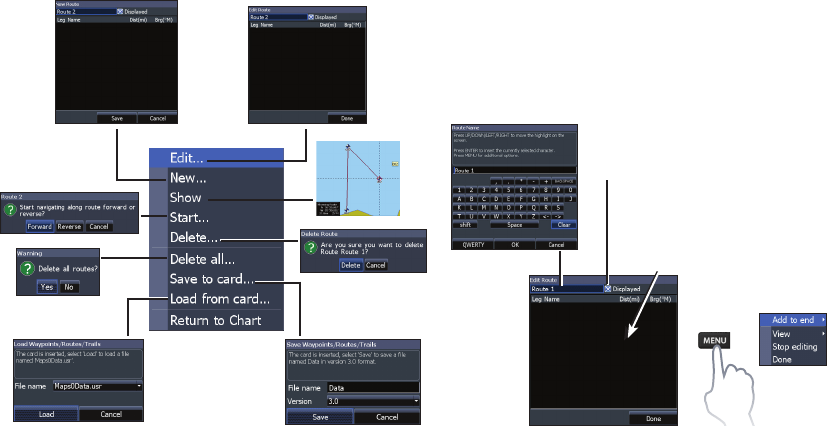
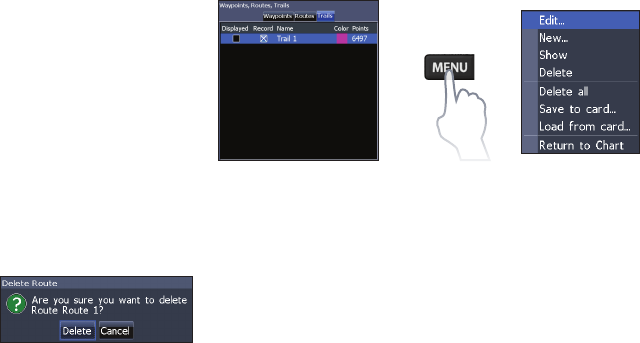
Routes menu
Edit and New Route dialogs
Used to edit/create routes, route names and to turn
on/o the route display.
To cancel navigation:
1. Press Menu from the chart screen.
2. Select Navigation and press ENTER.
3. Highlight Cancel and press ENTER.
4. Select Yes and press ENTER.
Displays/hides
route on the map
To edit/create a route, use the
keypad to select the Route
Leg Name eld and press
ENTER.
18 19
Chart Operation | Elite-5m HD Chart Operation | Elite-5m HD
To access the “Edit” or “New Route” dialog, select
Edit or New on the Routes dialog and press
ENTER.
To nalize changes on the “Edit” or “New Route”
dialogs, highlight the Done button and press
ENTER.
Displayed
Used to show/hide a route on the display, which
prevents the screen from being cluttered by too
many routes.
Delete and Delete All
Delete is used to delete
individual routes. Delete
All, removes all routes.
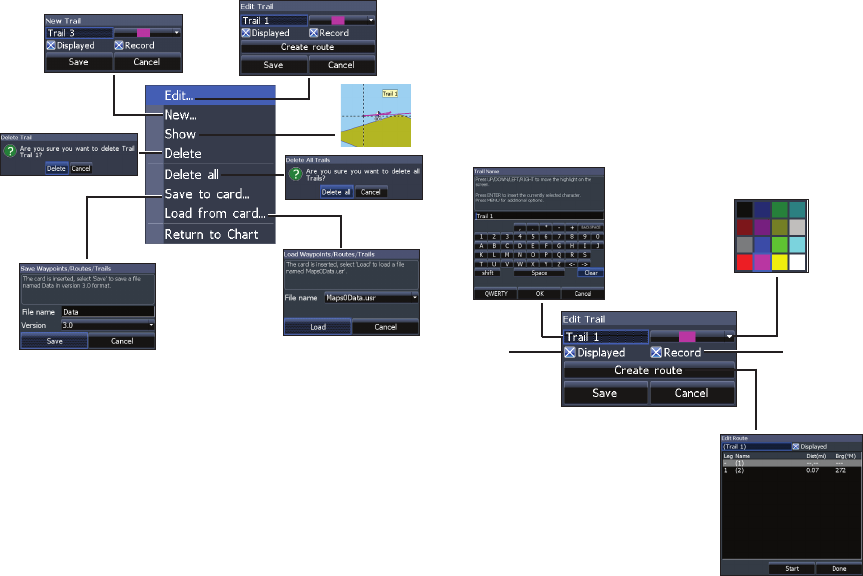
Trails Screen
Used to create, edit, navigate and delete trails. Use
the keypad to highlight the Trails tab to access the
Trails screen.
Creating trails
When creating a trail you can customize the trail
name and color from the New Trail.
Trails screen Trails menu
20 21
Chart Operation | Elite-5m HD Chart Operation | Elite-5m HD
To create a trail:
1. Select New and press ENTER. The
New Trail dialog will appear.
2. Select Save and press ENTER.
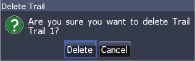
Trails menu
Edit and New Trail dialogs
Allows you to edit/create trails, select trails names,
trail color, trail display and the trail being recorded.
You can also convert a trail into a route from the
Edit Trails dialog.
Turns on/
off trail
display
on map
Turns on/
off trail
recording
Edit Trails dialog
20 21
Chart Operation | Elite-5m HD Chart Operation | Elite-5m HD
Navigating a trail
A trail must be saved as a route before it can be
navigated.
To save a trail as a route:
1. Highlight the desired trail on the Trails
screen and press ENTER. The Edit
Trail menu will appear.
2. Highlight Create Route and press
ENTER. The Edit Route menu will
appear.
3. Highlight Done and press ENTER.
4. For navigation instructions refer to the
“Navigating a route” segment.
Displayed and Record
Displayed allows you to show/hide trails on the
map display, preventing the screen from being
cluttered with trails.
The Record command allows you to record or
resume recording a desired trail.
Delete and Delete All
Delete is used to remove
individual trails. Delete
All removes all trails.
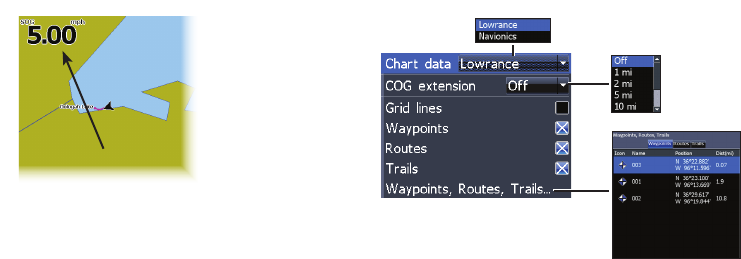
Orientation
Allows you to select North Up or Course Over
Ground (COG) as the map orientation.
22 23
Chart Operation | Elite-5m HD Chart Operation | Elite-5m HD
Overlay Data
Allows you to select data (course over ground, etc)
to be displayed on top of the Chart page.
Overlay data setup is covered in the “Pages” section.
Settings
Accesses the “Chart settings” menu.
Overlay data
Chart Settings
Controls map data used on the chart screen as well
as display settings like grid lines, waypoints, routes
and trails.
Chart Data
Selects map data that will be used on the Chart
display (Lowrance or Navionics regional map). Go
to Navionics.com to see a full selection of available
charts.
Chart Settings menu
22 23
Chart Operation | Elite-5m HD Chart Operation | Elite-5m HD
COG Extension
A line extending from the front
of the current position icon that
estimates the time and distance
to areas in front of you.
Grid Lines
Displays base values for
latitude and longitude, making
it easier to get a general idea of
your location on the latitude/
longitude scale.
Waypoints, Routes and Trail displays
From the Chart Settings menu, you can turn on/
o waypoint, route and trail display properties.
Turning o display properties allows you to get
a better view of the map, if the screen becomes
cluttered with waypoints, routes and/or trails.
Waypoints, Routes, Trails
Accesses the Waypoints, Routes & Trails screen.
Waypoints, Routes and Trails are covered in the
“Chart operation” section.
24 25
Chart Operation | Elite-5m HD Chart Operation | Elite-5m HD
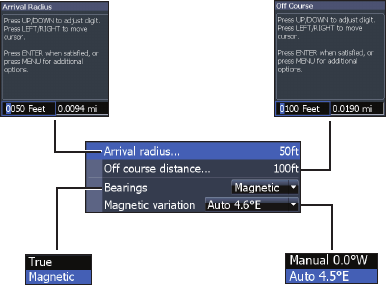
Navigation Settings
(Advanced mode only)
Controls Arrival Radius and O Course distance
settings and is used to turn on/o WAAS/MSAS/
EGNOS.
Navigation Settings menu
Arrival Radius
Sets the arrival radius threshold for the Arrival
alarm. The arrival alarm will sound when your ves-
sel comes within a selected distance (arrival radius)
of the destination waypoint.
Off Course Distance
Sets O Course Distance threshold for the O
Course alarm. When the selected o course dis-
tance is exceeded, the O Course alarm will sound
when the alarm is enabled.
Bearings
Controls whether bearing will be calculated using
True North or Magnetic North. Magnetic North
should be used when navigating with a compass
course or heading; otherwise, use the default set-
ting, True North.

24 25
Chart Operation | Elite-5m HD Chart Operation | Elite-5m HD
Magnetic Variation
Controls whether magnetic variation will be calcu-
lated using Automatic or Manual settings. Magnet-
ic variation is the angle between magnetic north
and true north. The automatic setting reconciles
the variation for you.
WARNING: You should only use the
Manual magnetic variation setting if
you have variation information from a
veried source.
26 27
Settings | Elite-5m HD Settings | Elite-5m HD
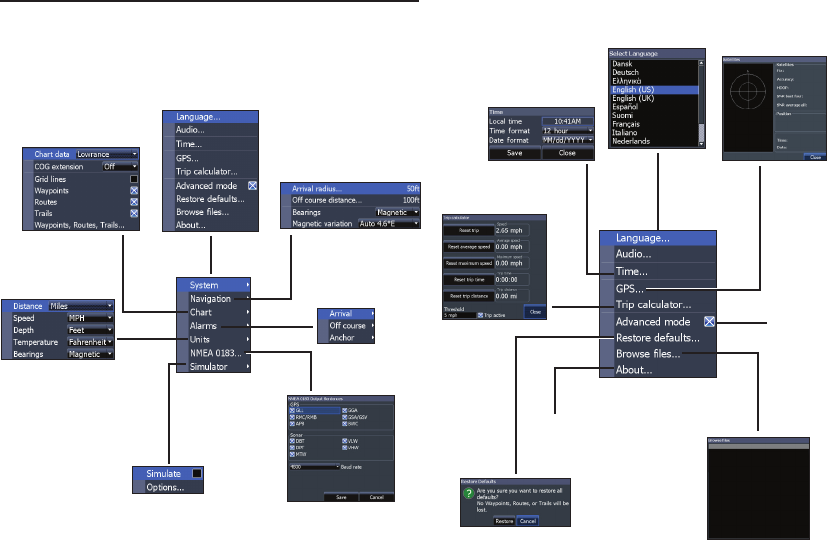
Settings menu
Accesses installation and conguration settings for
your unit.
System
Adjusts unit settings like language, mute audio
and advanced mode.
Settings
Settings
menu
(Advanced mode only)
(Advanced mode
only)
Enables
advanced
features and
settings
Displays software
information
System menu
26 27
Settings | Elite-5m HD Settings | Elite-5m HD
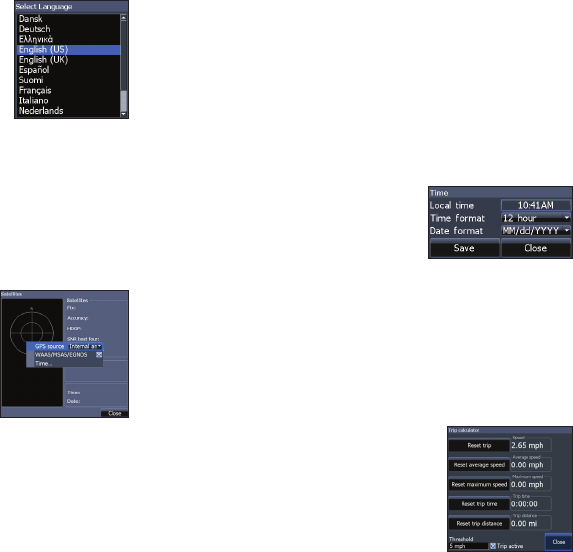
Set Language
Selects the language used on
menus and text boxes.
Audio
Adjusts volume and turns on/o unit audio, like
key beeps, alarm sounds, etc.
GPS
Monitors the location of satellites
in view and the quality of the
unit’s satellite lock-on. GPS
Source, WAAS/MSAS/EGNOS and
Time features are accessed from
the GPS dialog.
GPS Source
Selects the antenna your unit will use for GPS. You
will use the built-in GPS antenna unless you have a
LGC-16W external antenna (p/n: 000-00146-001).
WAAS/MSAS/EGNOS
Turns on/o WAAS, MSAS and EGNOS.
All three systems help increase GPS accuracy for
dierent parts of the world.
Time
Used to set local time, and time
and date formats for your unit.
Trip Calculator
Tracks trip time, speed and distance when you are
moving faster than the selected threshold.
Advanced Mode
Enables features and settings
only available with the unit in
Advanced Mode.
28 29
Settings | Elite-5m HD Settings | Elite-5m HD
Restore Defaults
Switches the unit back to default settings.
Browse Files
Allows you to view a list of the les saved to the
microSD card.
Saving Screenshots
You can save screenshots to a microSD card by
inserting a microSD card into the card slot and
pressing Power and then Zoom (+).
You must view les on a computer or other microSD
compatible device.
About
Displays software information about this unit.
Before attempting a software update, you can
check the version of software your unit is using by
accessing the About screen.
Lowrance periodically updates unit software to
add features and improve functionality. To see
the latest available software version go to www.
lowrance.com.
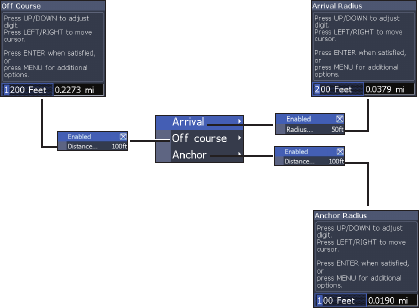
Alarms
Enables alarms and selects alarm thresholds.
“Arrival,” “O Course” and “Anchor” alarms are only
available in Advanced mode.
Alarms
menu
28 29
Settings | Elite-5m HD Settings | Elite-5m HD
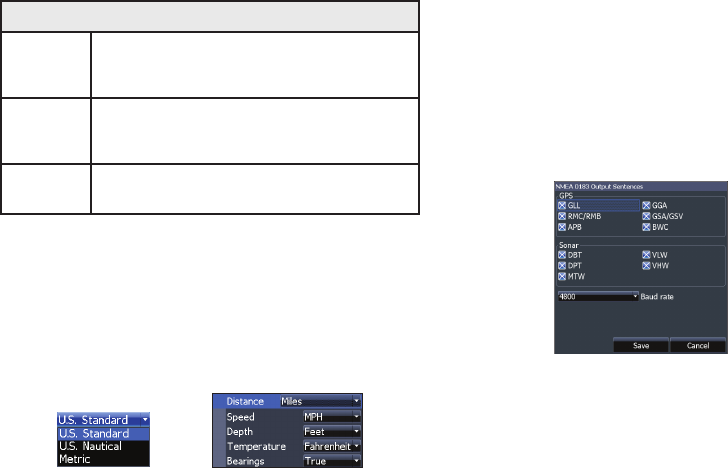
NMEA 0183 Output
You can select the NMEA 0183 sentences the unit
will use when connected to a VHF radio or other
NMEA 0183 device.
You can also adjust the Baud rate, but the default
setting works best under most conditions.
Simulator
Simulates GPS activity. Simulations can be
customized on the Simulator options menu.
Alarms
Arrival
sounds alarm when you are within a selected
distance of your destination (Advanced
Mode only)
Off
Course
sounds alarm when course exceeds a
selected off-course threshold (Advanced
Mode only)
Anchor sounds alarm when vessel moves a selected
distance (Advanced Mode only)
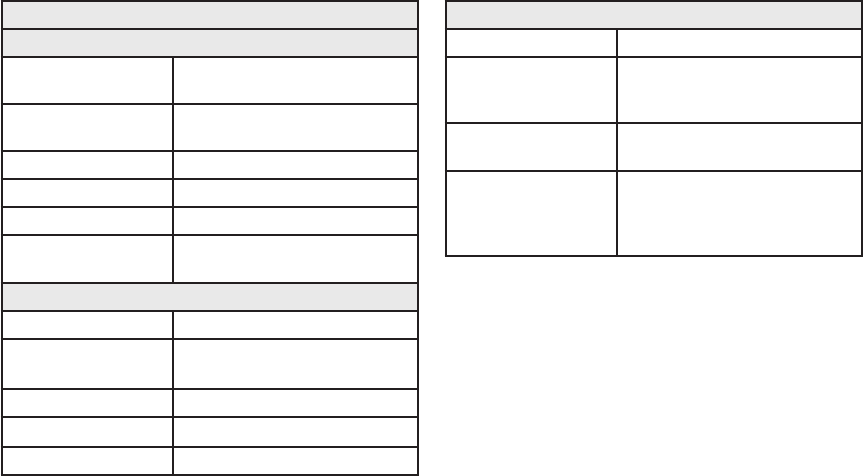
Units
Allows you to select the unit of measure used by
the unit. Unit options vary depending on whether
the unit is in basic or advanced mode.
Advanced Mode
Basic Mode
30 PB
Specications | Elite-5m HD Specications | Elite-5m HD
Elite-5m HD
General
Case Size 5.4” H (136 mm) x 6.9” W (174 mm);
5.9” H (151 mm) with bracket
Display (5” diagonal) 16-bit color Full
color VGA Solar MAX™ Plus TFT
Waterproof standard IPX7
Backlight LED (11 levels)
Communications NMEA 0183 Output
Declaration of
Conformity
Part 15.103 FCC rules & CE RTTE
directive 1999/5/EC
Power
Transmit Power 250W RMS; 30,000 PTP
Power
Requirement 12V
Voltage Input 10 to 17V
Current drain Typical: 1.1A
Fuse type 3-amp Automotive
GPS
Mapping card slot microSD and microSDHC
GPS Antenna
High accuracy GPS antenna
(internal); optional external GPS
antenna sold separately
Mapping
compatibility
Fishing Hot Spots & Navionics
(Hotmaps, Premium and Gold)
Waypoints, Routes &
Trails
Up to 3000 waypoints, 100
routes/100 waypoints per route,
100 retraceable plot trails/up to
10,000 points per trail

PB 31
Index | Elite-5m HD Index | Elite-5m HD
A
About 28
Add overlay data: 11
Adjusting the backlight
4
Advanced Mode 9
Alarms 28
Anchor alarm 29
Arrival alarm 29
Arrival Radius 24
B
Basic Operation 6
Bearings 24
Browse Files 28
C
Cancel navigation 18
Chart 22
Chart Data 22
Chart menu 22
Chart Page 10
COG Extension 23
Creating a route 16
Creating trails 19
Cursor 8
Customizing Overlay
Data 12
D
Data Port 27
Dialogs 8
Dropdown menus 8
E
Editing waypoints 15
G
Goto cursor 9
Goto waypoint 15
GPS Source 27
Grid Lines 23
L
Language 27
M
Magnetic Variation 25
Man Overboard way-
point 4
microSD cards 5
Muting Audio 4
N
Navigating a route 17
Navigating a trail 21
Navigation 24
Navigation menu 24
New Waypoint 13
NMEA 0183 29
O
O Course alarm 29
O Course Distance 24
Index
32 PB
Index | Elite-5m HD Index | Elite-5m HD
On/O features 7
Orientation 21
Overlay Data 11, 22
Congure 11
Customizing 12
Show 11
P
Page menus 6
R
Restore defaults 9
Route display 23
Routes Screen 16
S
Saving Screenshots 28
Scrollbars 7
Selecting a GPS Source
4
Setup wizard 6
Software Updates 28
Sort waypoints 16
Standby mode 9
Steer Page 10
System settings 26
T
Text entry 8
Time 27
Trail display 23
Trails Screen 19
Turn unit on/o 4
U
Unit Controls 4
Units 29
W
WAAS/MSAS/EGNOS
27
Waypoint display 23
Waypoints, Routes,
Trails 14
Working with menus 7
Navico Databases License Agreement
THIS IS A LEGAL AGREEMENT BETWEEN THE END-USER WHO FIRST PURCHASES
THIS PRODUCT AS A CONSUMER ITEM FOR PERSONAL, FAMILY, OR HOUSEHOLD
USE (“YOU”) AND NAVICO, THE MANUFACTURER OF THIS PRODUCT (“WE”,
“OUR”, OR “US”).
USING THE PRODUCT ACCOMPANIED BY THIS LICENSE AGREEMENT
CONSTITUTES ACCEPTANCE OF THESE TERMS AND CONDITIONS.
IF YOU DO NOT ACCEPT ALL TERMS AND CONDITIONS, PROMPTLY RETURN
THE PRODUCT WITHIN 30 DAYS OF PURCHASE. PLEASE RETURN USING THE
ENCLOSED UPS SHIPPING LABEL AND INCLUDE: PROOF OF PURCHASE, NAME,
ADDRESS, AND PHONE NUMBER. YOUR PURCHASE PRICE AND ANY APPLICABLE
TAXES WILL BE REFUNDED. PLEASE ALLOW 4-6 WEEKS TO PROCESS YOUR
REFUND.
1. This License Agreement applies to the one or more databases that your product
may contain. We refer to these singly as a “Database” and together as the “Da-
tabases.” Your product may thus include the “WBS Database” which contains
worldwide background surface mapping data, the “Indigo Database” which
contains inland mapping data, or other Databases.
2. The Databases that your product may contain are licensed, not sold. We grant
to you the nonexclusive, nonassignable right to use these Databases for supple-
mental navigation reference purposes, but only as long as you comply with
the terms and conditions of this License Agreement. We reserve the right to
terminate this license if you violate any aspect of this License Agreement. You
are responsible for using ofcial government charts and prudent navigation for
safe travel.
3. The Databases housed in your product are protected by the copyright notices
appearing on the product or its screen(s). You may NOT modify, adapt, trans-
late, reverse engineer, decompile, disassemble, rent, lease, or resell any Data-
base, and you may NOT create derivative works based upon any Database or its
contents. Any unauthorized reproduction, use, or transfer of a Database may be
a crime and may subject you to damages and attorney fees.
4. This License Agreement will terminate immediately without prior notice from
us if you fail to comply with or violate any of the provisions of this Agreement.
Upon termination, you will promptly return all products containing one or more
Databases to us.
5. Prices and programs are subject to change without notice.
6. This License Agreement shall be governed by the laws of the State of Oklahoma
and comprises the complete and exclusive understanding between you and us
concerning the above subject matter.
Databases Limited Warranty
“We”, “our”, or “us” refers to Navico, the manufacturer of this product. “You” or “your”
refers to the rst person who purchases the product as a consumer item for personal, family, or
household use. The Databases Limited Warranty applies to the one or more databases that your
product may contain. We refer to each of these as a “Database” or together as the “Databases.”
Your product may thus include the “WBS Database” which contains worldwide background
surface mapping data, the “Indigo Database” which contains inland mapping data, or other
Databases.
We warrant to you that we have accurately compiled, processed, and reproduced the portions
of the source material on which the Databases are based. However, we are under no obliga-
tion to provide updates to the Databases, and the data contained in the Databases may be
incomplete when compared to the source material. WE MAKE NO EXPRESS OR IMPLIED
WARRANTY OF ANY KIND ABOUT THE ACCURACY OF THE SOURCE MATERIAL
ITSELF, INCLUDING BUT NOT LIMITED TO IMPLIED WARRANTIES OF MER-
CHANTABILITY OR FITNESS FOR A PARTICULAR PURPOSE.
If there is a defect in any Database, your exclusive remedy shall be, at our option, either a
refund of the price you paid for the product containing the defective Database or a replacement
of such product. WE WILL NOT UNDER ANY CIRCUMSTANCES BE LIABLE TO ANY-
ONE FOR ANY SPECIAL, CONSEQUENTIAL, INCIDENTAL, OR OTHER INDIRECT
DAMAGE OF ANY KIND.
Some states do not allow the exclusion or limitation of incidental or consequential damages, so
the above limitations or exclusions may not apply to you.
This warranty does NOT apply in the following circumstances: (1) when the product has
been serviced or repaired by anyone other than us; (2) when the product has been connected,
installed, combined, altered, adjusted, or handled in a manner other than according to the
instructions furnished with the product; (3) when any serial number has been effaced, altered,
or removed; or (4) when any defect, problem, loss, or damage has resulted from any accident,
misuse, negligence, or carelessness, or from any failure to provide reasonable and necessary
maintenance in accordance with the instructions of the owner’s manual for the product.
We reserve the right to make changes or improvements in our products from time to time
without incurring the obligation to install such improvements or changes on equipment or
items previously manufactured.
This warranty gives you specic legal rights and you may also have other rights which may
vary from state to state.
Your remedies under this warranty will be available so long as you can show in a reasonable
manner that the defect occurred within one (1) year from the date of your original purchase,
and we must receive your warranty claim no later than 30 days after such 1-year period
expires. Your claim must be substantiated by a dated sales receipt or sales slip.
Contact information
Customer Service:
1-800-628-4487
(8 a.m. to 5 p.m. Central Standard Time, M-F)
(Canada)
1-855-361-1564
canada@navico.com
(8 a.m. to 5 p.m. Eastern Standard Time, M-F)
Ordering Accessories
http://store.navico.com/
Visit our website
www.lowrance.com

*988-10520-001*
Visit our website:
www.lowrance.com
N2584
