MAIXIN GROUP MAPAN MaPan Tablet PC User Manual
MAIXIN GROUP (CHINA) CO., LIMITED MaPan Tablet PC Users Manual
Users Manual
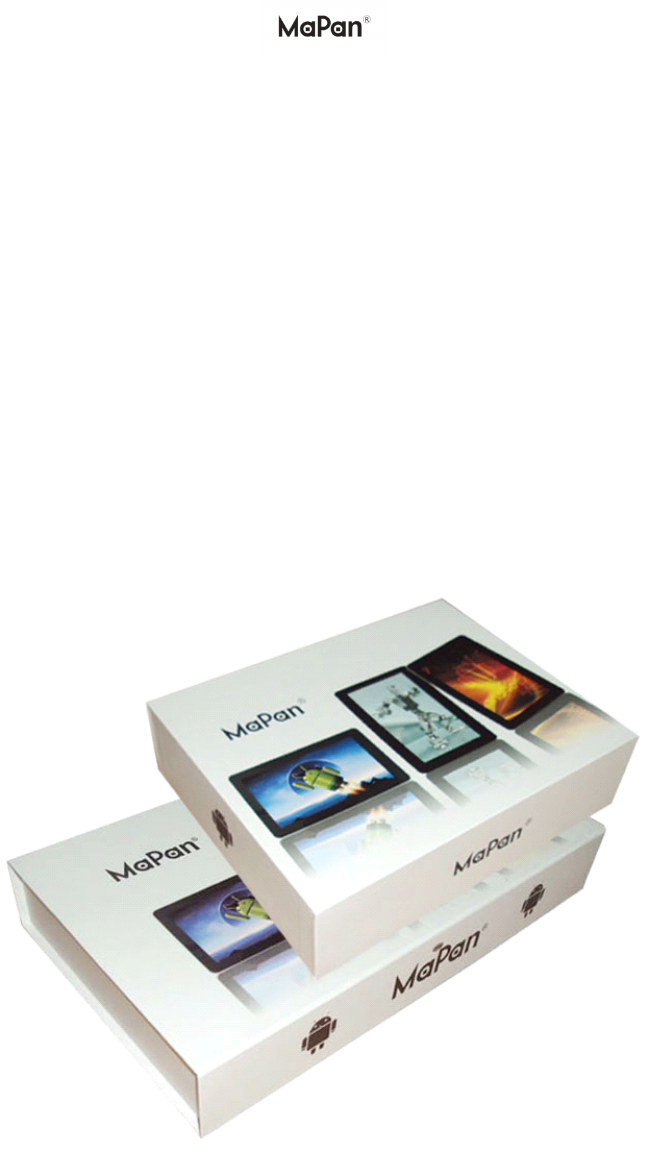
MaPan MaPan MaPan MaPanUser User User User
’’’’
ssssGuide Guide Guide Guide
DearUsers,
ThankyouforbuyingourMaPanTabletPC.
ThisisaMaPanUser
’
sGuide,pleasereaditbeforeyouusetheproductinorderto
makesureyoucanuseitconveniently.

Contents
1.Notes
2.Accessories
3.Hardwarerules
4.Startupandshutdown
5.Thedesktop
6.Buttons
7.Systemsettings
*Wireless&Networks
*Sound
*Date&Time
*display
*Screenstandby
*wireless
*HDMI
8.Install,deleteandruntheapplication
9.Touchcalibration
10.Network
11.Music
12.Video
13.Photobrowse
14.
Wall
paper
15.Recording
16.Photograph
17.Market
18.E-mail
19.Externaldevice
*USBconnection
*OTGuse
*Keyboardandmouse

Notes Notes Notes Notes: :::
*Thisisahigh-densityelectronicproduct;pleasedonotdismantleitbyyourself.
*
A
voidstrongbeatandcollision.
*
A
voidusingthisproductinthefollowingenvironments:highandlowtemperature,
humidity,dusty,withstrongmagneticandlong-termexposuretothesun.
*Pleasewipetheproductshellusetwistdrywetcottonclothgently;theuseofother
chemicalcleaningisprohibited.Thisproductshouldkeepawayfromwaterdropand
watersplash,socupsfilledwithliquidsshouldnotbeplacedneartheproduct.
*Usetheheadsetlongtime,highvolumemaycausepermanentdamagetohearing.
*Donotuseheadphoneswhengoingacrossaroad,drivingamotorcycleorbicycle,
inordertoavoidtrafficaccidents.
*Pleaseusepermittedbattery,chargerandaccessoriesonly,theuseofanyothertype
ofproductwouldbeabreachofwarrantyregulations,andmaybedangerous.
*Pleasedealwithwastemachineryandaccessoriesaccordingtolocalenvironmental
regulations.
*Ifyouhaveanyquestionsintheprocessofusingoftheproduct,pleasecontactthe
localdealerorcontactcustomerservicecenterofourcompanydirectly.
*Forthesmearedmemorylossthatiscausedbyproductdamage,repairorother
causesofproductdamage,repair,thecompanyisnotresponsibleforit,soplease
followtheuser'sguideandtimelybackup.
AAAAccessories ccessories ccessories ccessories: :::
Charger:5V,2500ma
Earphone
Cleaningcloth
USBCable/OTGcable
HHHHardware ardware ardware ardwarerules rules rules rules
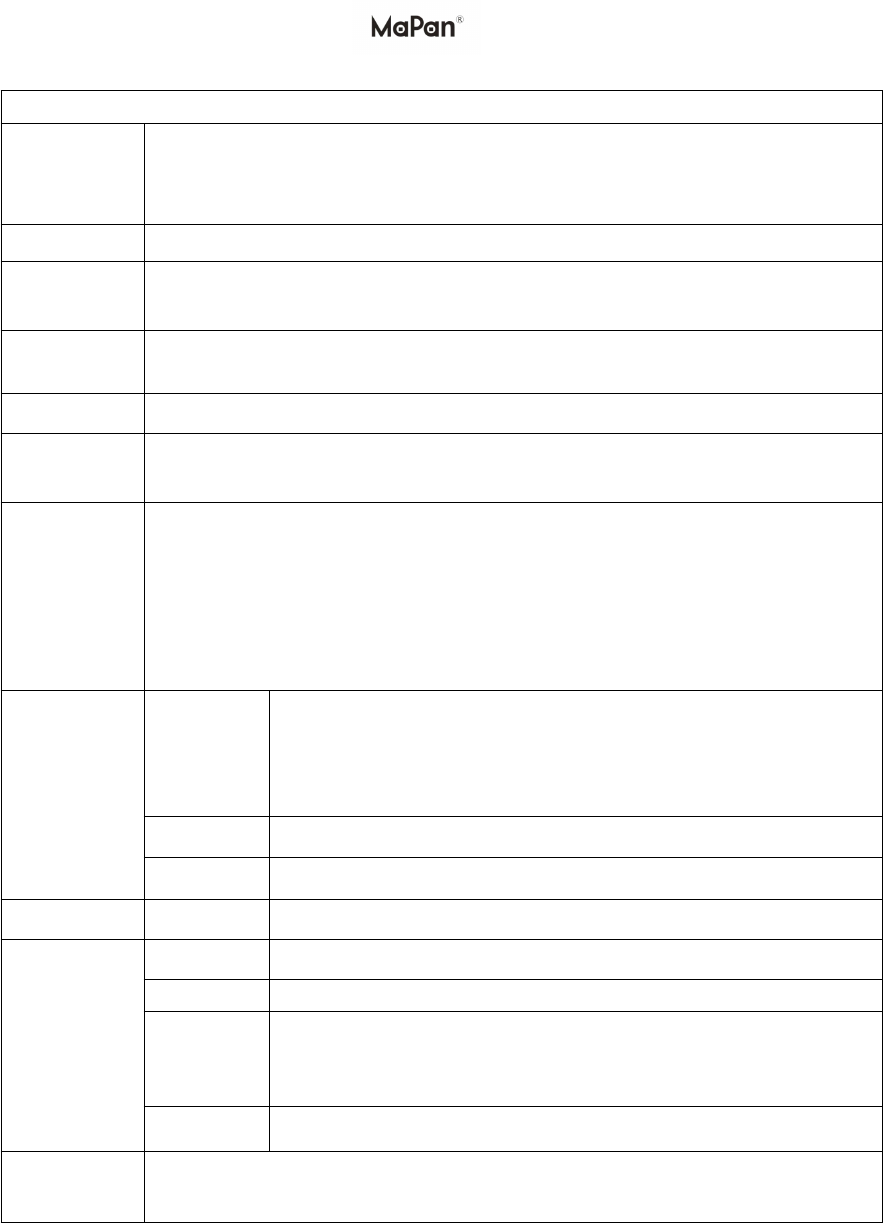
MaPan MaPan MaPan MaPanTablet Tablet Tablet TabletPC PC PC PCHHHHardware ardware ardware ardwareparameters parameters parameters parameters
Processor
ALLWINNERA10/A13highperformanceCotexA8processor
dominantfrequency1.0Ghz~1.5GHZ560MHz
SupporthardwareOpenGL2.03Dimageacceleration
Memory
512MBDDR3or1GBDDR3
;
high-speedbuffermemory
Storage
Inside4GBor8GB
SupportExternalTFcardmaximummemory32GB
WirelessIEEE802.11b/g/nWirelessinternet,
USB
USB2.0OTGhighspeedinterface
videooutput
HDMI-1.3highdefinitionvideooutputinterface(ALLWINNERA13cpu
modelswithoutHDMIoutput).
Audio
3.5mmearphoneinterface
HighQdimensionalsoundacoustics
Built-inmicrophone
Maximumoutputcapacityoftheearphone40mW
Frequencyresponserangeofthecapacity20Hz—20KHz
Signaltonoiseratio:L90dbabove
Screen
Size
7inchCapacitiveMulti-touchTFTscreen
8inchCapacitiveMulti-touchTFTscreen
9inchCapacitiveMulti-touchTFTscreen
10(10.2)inchCapacitiveMulti-touchTFTscreen
Color16,000,000colorsorhigher
Operation
CapacitiveMulti-touch
System
Android4.0OSorhigher
Brand
Brand
MAPANTabletPC
Colorblack/white
ModelNo.
MX713,MX710A3G,MX710ADC,MX710Acheap,
MX710A,MX710ASlim,MX710A2G,MX810A,
MX813,MX913,MX19Aandsoon.
Battery
Built-inpolymerlithiumbattery
Accessories
AdapterforMaPan(DCV/A),USBcable,OTGcable,Earphone,
Cleaningcloth
GSM: Quad Band 850/1900

Startup Startup Startup Startupand and and andshutdown shutdown shutdown shutdown: :::
﹡Startup:topressthepowerkeyandthesystemwillentertheprocessofStartup,as
shownbelow:
StartupLogo,intheprocessofstartup
ThesystemhasbeenstartedandisenteringtheAndroidsystem:
Thenthesystementersthedefaulthomeinterface
﹡Shutdown:pressthepowerkeythentheoptionofPoweroffasbelowshows:
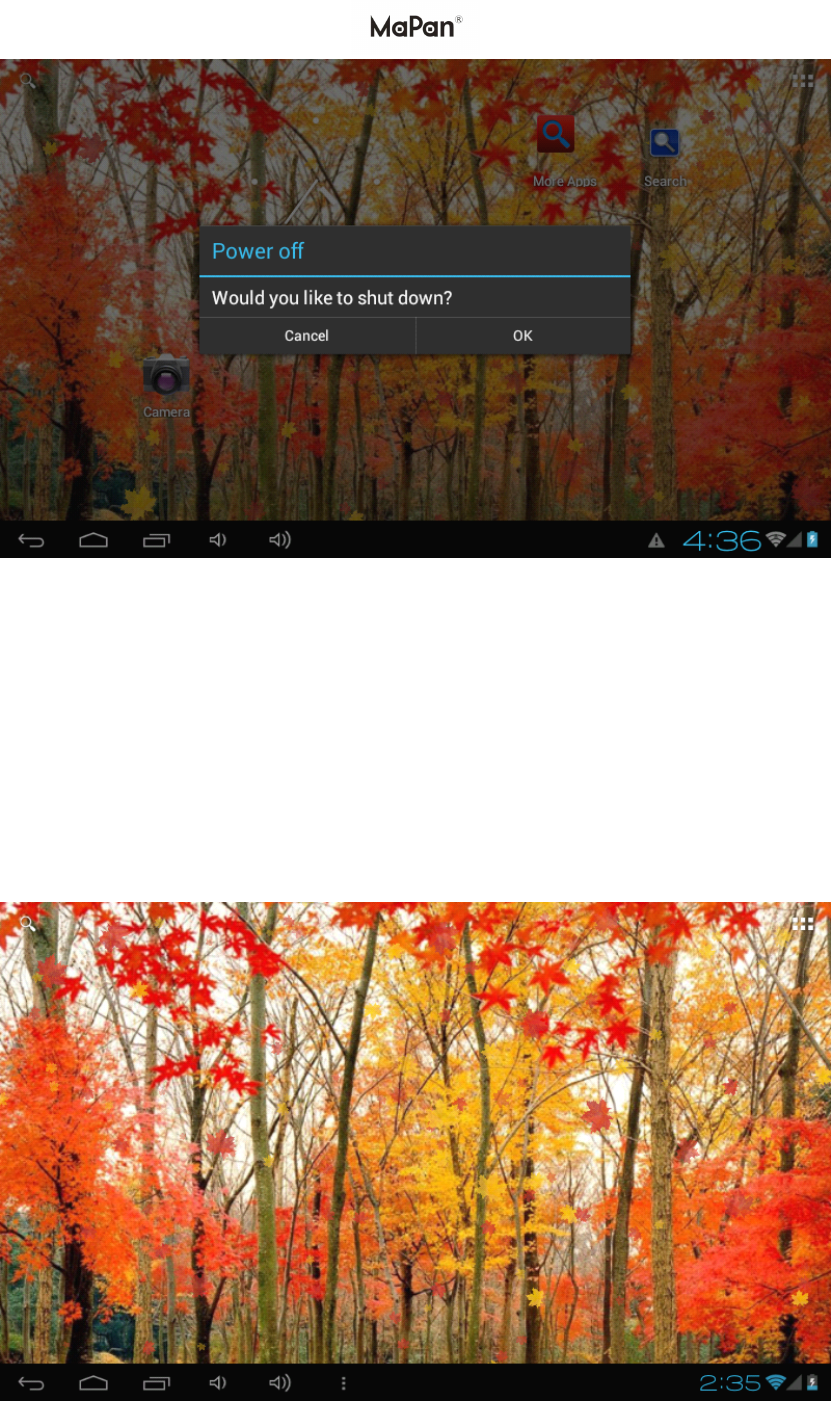
ClickOKtoshutdown.
﹡Sleep:inthenormalstateoperationofthemachine,pressthepowerbuttononce,
enterastateofdormancy,atthistime,thescreenwillbeclosed.Anothershortpress
onthepowerbuttoncanberesumetonormalmode.WhenMaPan(TabletPC)isnot
usedyoucanstartthisfunction,inordertoreducepowerconsumption.
Desktop: Desktop: Desktop: Desktop:
Afterthenormalstartupofthesystemiscompleted,youcanseetheAndroid2.3or
andrid4.0orUpdesktop(below).Thedefaultdesktopisconsistedbyquicksearch
bar,statusbar,menulabelicon.
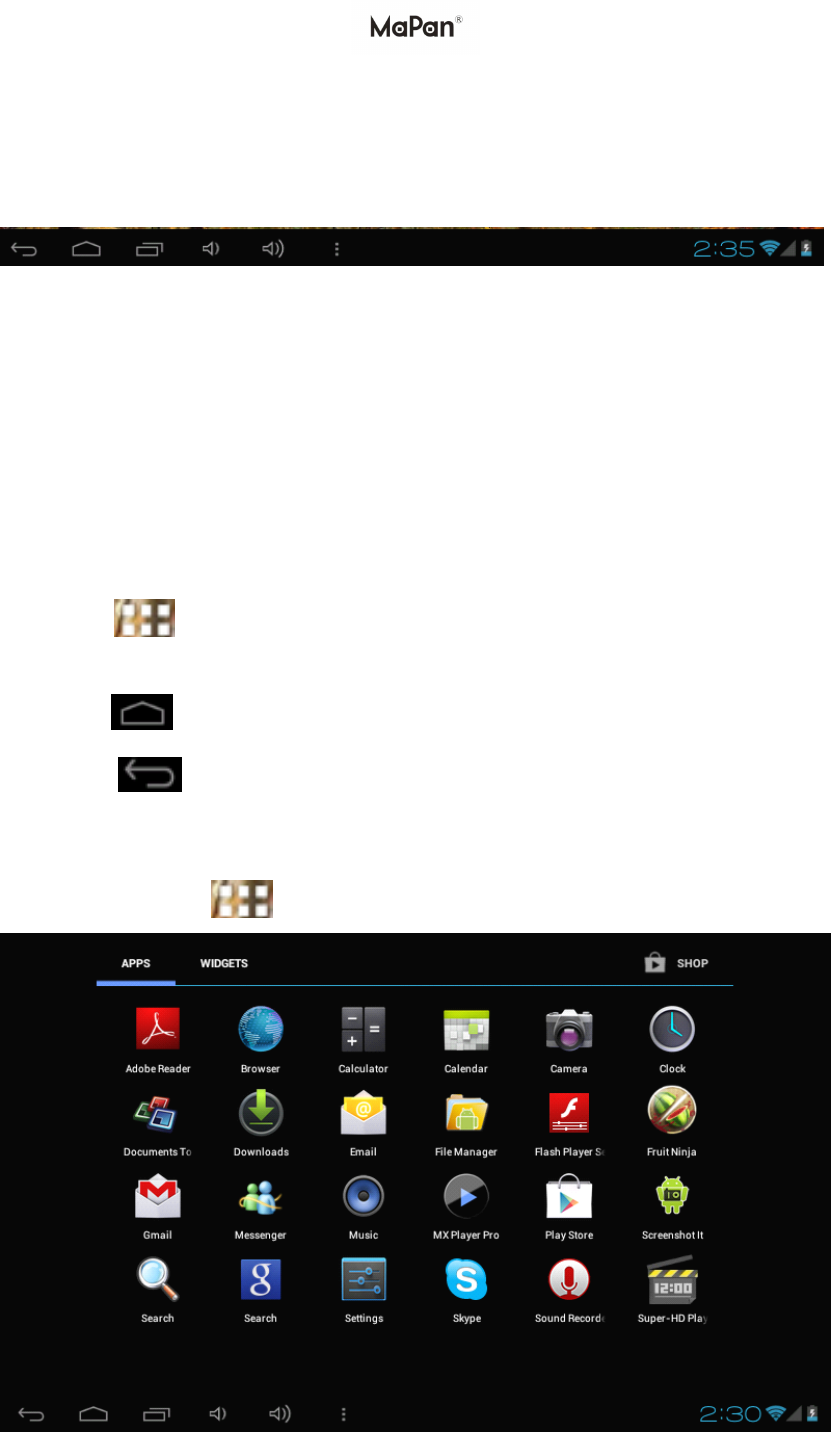
Thestatusbarisusedtodisplaythenetworkstatusofcurrentsystem,batterypower,
timeandotherinformation.
QuicksearchboxisusedbytypingkeywordstodotheInternetsearch.Themain
menutagisintherightmiddlesideofthescreen,clickitandthedefaultmenubarcan
beexpanded.
Thestatusbaraboveofthescreen
Top
leftdisplaythereturn,ESC,RecentApps,V-&V+,settingMenubutton.
Top
rightdisplaythebattery,batterychargeicons,WIFI,currenttime,settime,main
interfacesoftware,T-Flashcard,USBconnectionstatusandsoon
Button Button Button Buttons sss: :::
KeysusedinAndroidsystemsprocess:
Thevolumekeys:Volume+,V olume-inthetaskbarcanbeusedforVolumechange
Thepowerbutton:presslongtimeforswitchingmachine.Pressquicklytoenteror
leavethestateofdormancy.
Menukey
:Atthetoprightcorner,displaythecurrentformofthemenu
item.
Homekey:returnorselectthemaininterface.
Returnkey:returntothelastdesktop.
Main Main Main Mainmenu menu menu menuoperation operation operation operation
Pressthemainmenu
tagatthetoprightconner,asshownbelow:
Inthemainmenu,youcansetthesystem,operatetheexistedapplication,installa
newapplication,andstarttouchcalibration,playmusicandvideo,browsewebpage,
playgameandotheroperations.
System System System Systemsettings: settings: settings: settings:
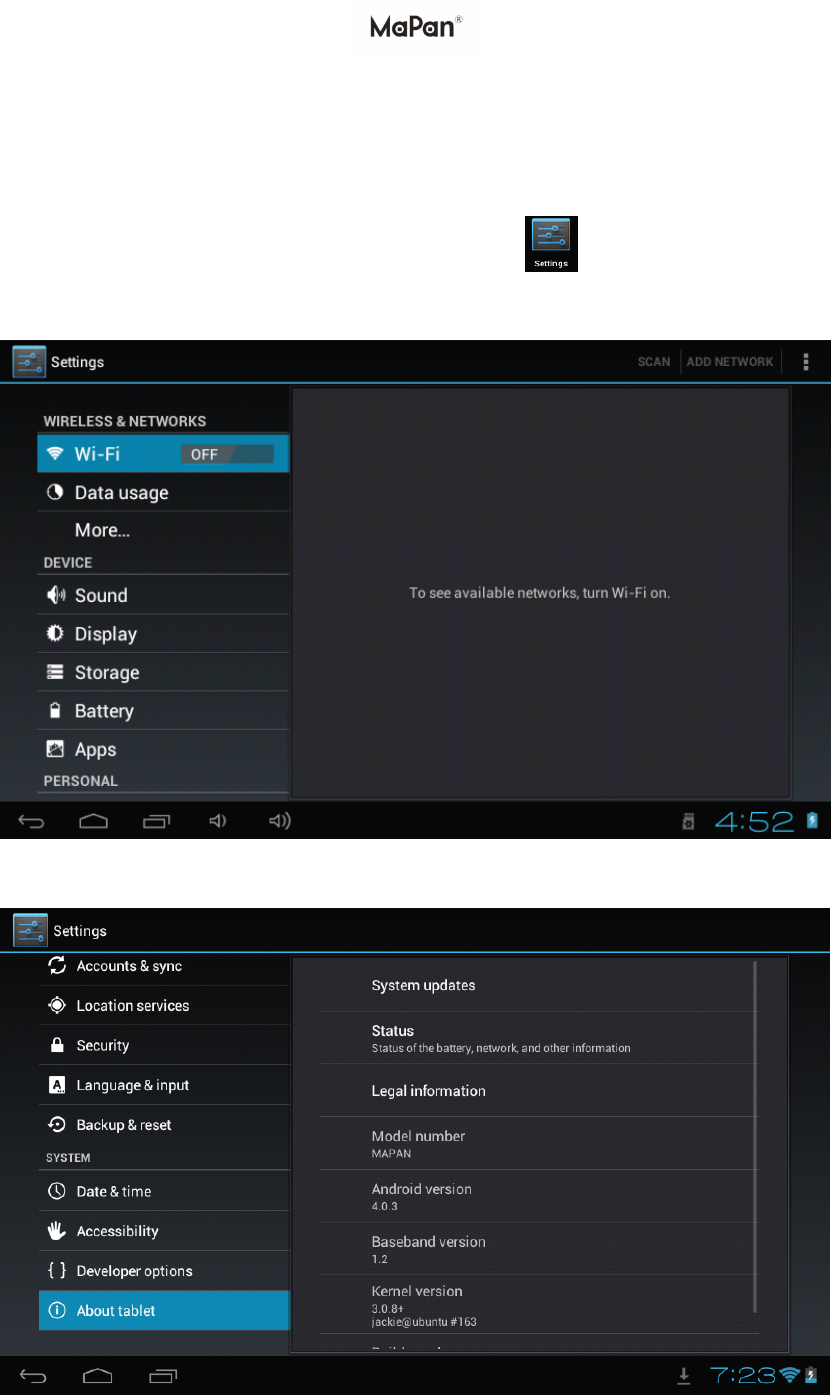
ClickonthemainmenuinterfaceintheSettingsicon
,andthenopenthesystem
settingsinterface,asshownbelow:
Abouttablet:
Selecttherelevantitemstodocorrespondingoperation,forexample:

*Wireless&network
*Dateusage
*Sound
*Display
*Apps
*Date&time
*Andsoon
****Time Time Time Time/ ///date date date datesetting: setting: setting: setting:
Intheinterfaceofthesettingtoselect"thetimeanddatesettings"toenterthedate
andtimesettingsinterface:
Youcanchoosetheautomaticmode:usingthenetworktime.
Youalsocanchoosetosetthedate,selecttimezone,settime,selectdateformat,set
dateandotherinformation
Forexample,choosethesetdate,asshownbelow:
Choose+:meanstheincreaseof1unit,
Select-:meansitreduces1unit.
Youcanalsochoosethenumber,entertheinputpattern.Directlyinputthenumber,
andthenselectthebuttondone:
Select"done".Iftheinputnumberislegitimate,thentheoperationissuccessful,and
thesystemwillusethenewsettings.
****Brightness Brightness Brightness Brightness: :::
Inthesettingoftheinterfacetoselect"displaysettings"intothedisplaysettings
interface,rollingdrop-downlists,select"Brightness",appearedthefollowing
dialogue
****S SSScreen creen creen creenstandby: standby: standby: standby:
Screenstandby:thedelaybeforethescreenstandbyautomaticlocking.
Inthesettingoftheinterfacetoselect"displaysettings"intothedisplaysettings
interface,rollingdrop-downlists,select"screenstandby",appearedthefollowing
interface:
Note:duringvideobroadcast,thescreenautomaticallystandbyfunctionisinvalid.
****wireless&networks wireless&networks wireless&networks wireless&networks: :::
Clickonthe"Settings"iconinthemainmenu,clickonthe"wirelessandnetwork"
intothe"wirelessandnetwork"settings.Clickonthe"WIFI"columnWIFIfunction
canbestartedatonce,click"WIFIsetting"columncanenter"WIFIsettinginterface
".
Inthe"WIFI"interface(picturedabove),clickontheWIFIcolumnyoucanopenand
closetheWIFIfunction,click"networknotification"itwilllistthewirelessrouter
thatissearchedbyMaPantabletPC,clickthesearchedwirelessroutersetupwindow
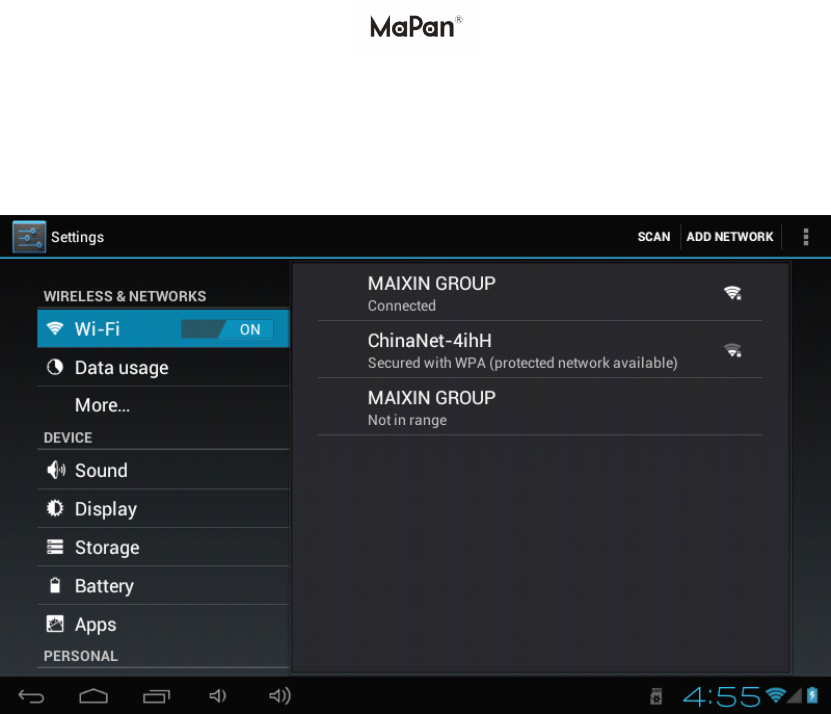
willpop-up,pleaseaccordingtothepromptstocompletetheWIFInetworklinks.
Someencryptionnetwork,needtoenteravalidkey.
AfteryouconnectedWI-FIasshownabove,thefollowimagewillappear,Atthe
buttonrightconner,itwillappearaWIFIicon:
*HDMI *HDMI *HDMI *HDMI
TheModels:MaPanMX710ADC,MX7103G,MX7650B,MX810A,MX19A,
MX710Acheap,MX710A,MX710AslimwithHDMIoutput.
OtherMaPanmodelssuchasMX713,MX813,MX913withoutHDMIoutput.
*UsetheHDMIconnectingcabletoconnecttheMaPanandHDMIdevicewithinput
interface.About5secondslater,thesystemswilltransfertoHDMIoutput,HDMIwill
automaticallyoutputsoundandimage.
WhenusingtheHDMIoutput,LCDdisplaycontentwillscaletheoutputtothe
externaldeviceatthesametime.
Install, Install, Install, Install,un un un uninstall install install install, ,,,run run run runthe the the theapplication application application application
****Androidinstallation:thereareavarietyofwaystoinstallapplications,forexample
byUSBsetup,thirdpartyprogramssupportinstallation.Hereweintroducedtheway
toinstallwiththeassistoftheApps"iReader"foryourreference.
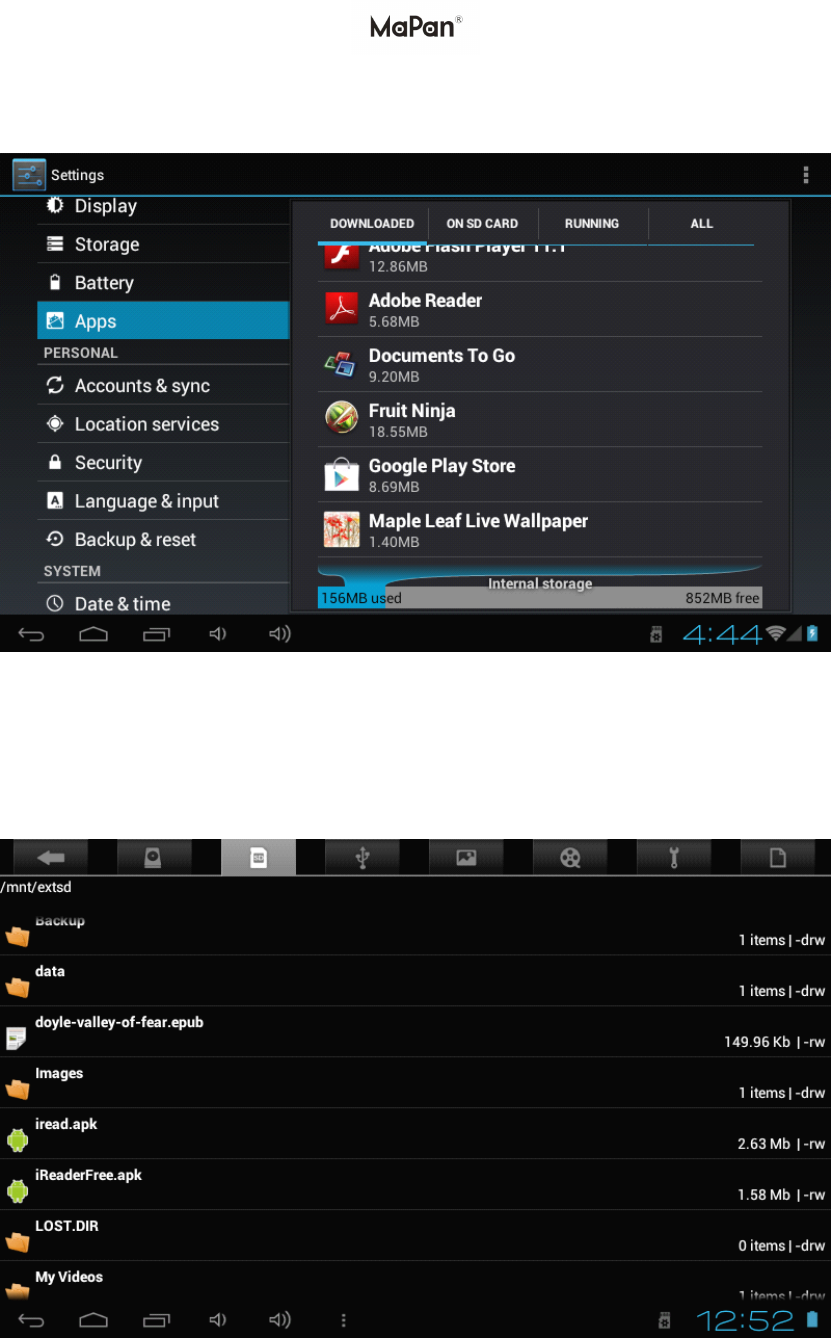
Install Install Install Installapplication application application application" """iReader iReader iReader iReader" """
1.Enterthemenu,selectSettings-Apps,thefollowingimageasbelowshows,you
couldseethere'sno"iReader"init.
2.CopytheAPKsoftwareprogramthatwillbeinstalledtoTFcardorNANDFLASH.
AndinserttheTFcardtotheMaPanTabletPC.Go"FileManage"inthemenu,
Select"SD"page"asbelowpictureshows.
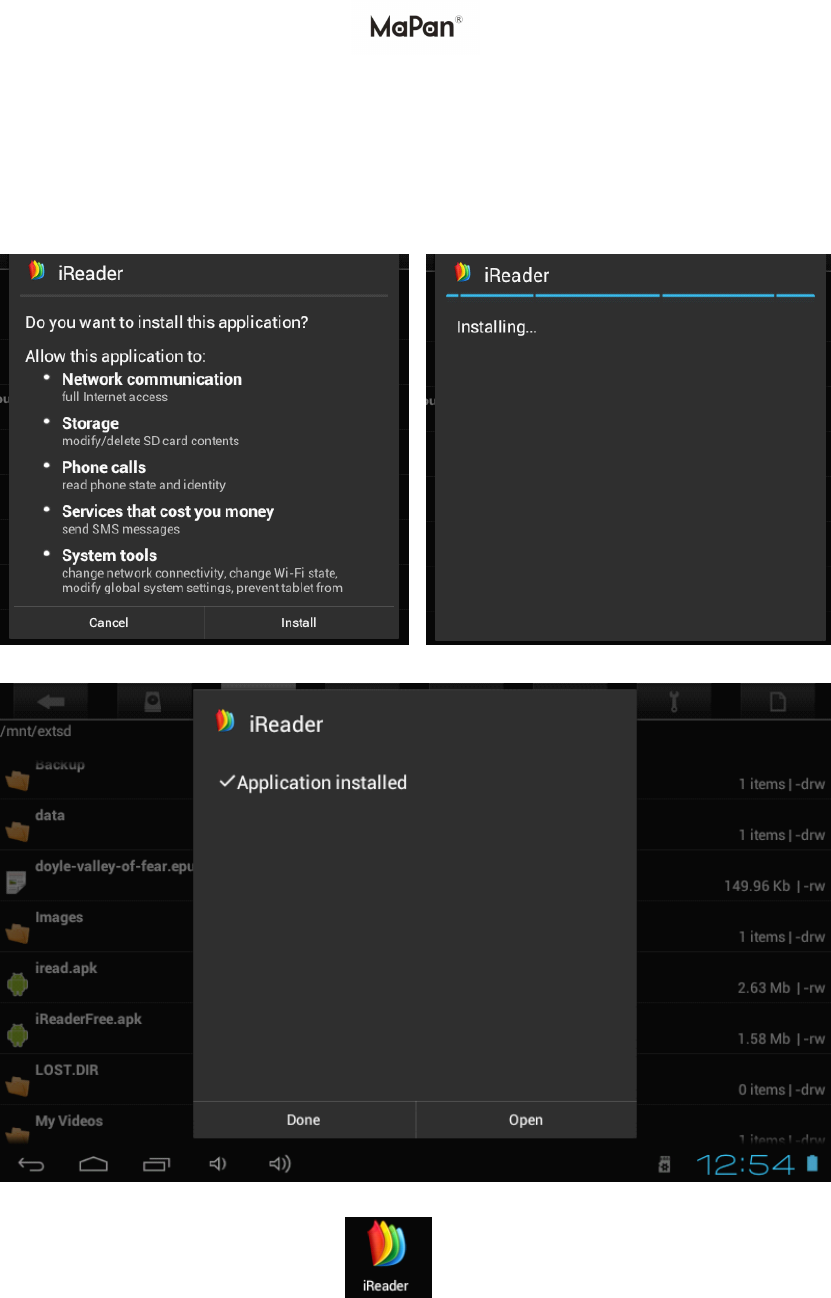
3.Select"iRead.apk",itwillappeartheimageasbelowshow.
Choose"Install"Installing
4.Done.
5.GototheMenu,youwillfindthisicon.Ifyouneeduseit,justtouch
thisiconisok.
Uninstall Uninstall Uninstall Uninstallapplication application application application" """iReader iReader iReader iReader" """
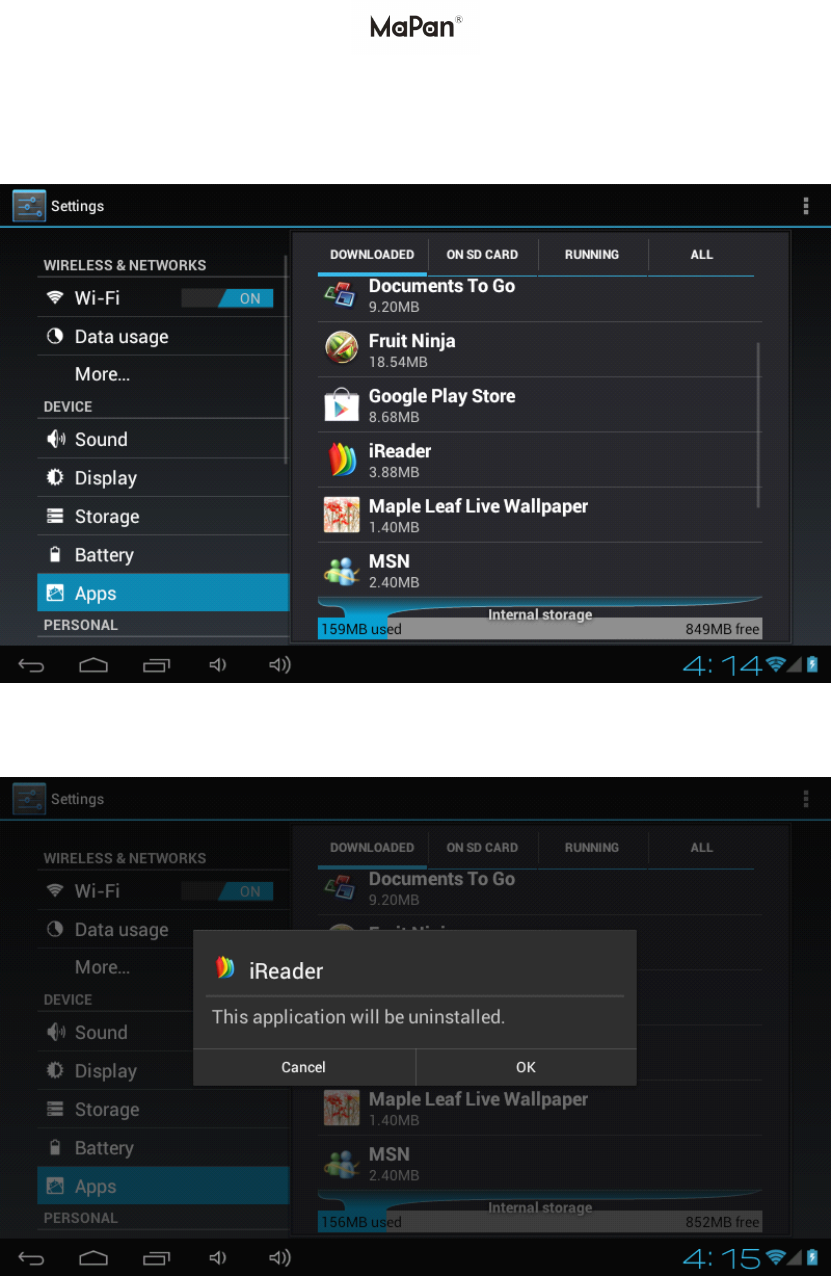
1.Enterthemenu,selectSettings-Apps,thefollowingimageasbelowshows,you
couldfind"iReader"init.
2.Touch"iReader"icon.Andthefollowingwillshowbelowimage.
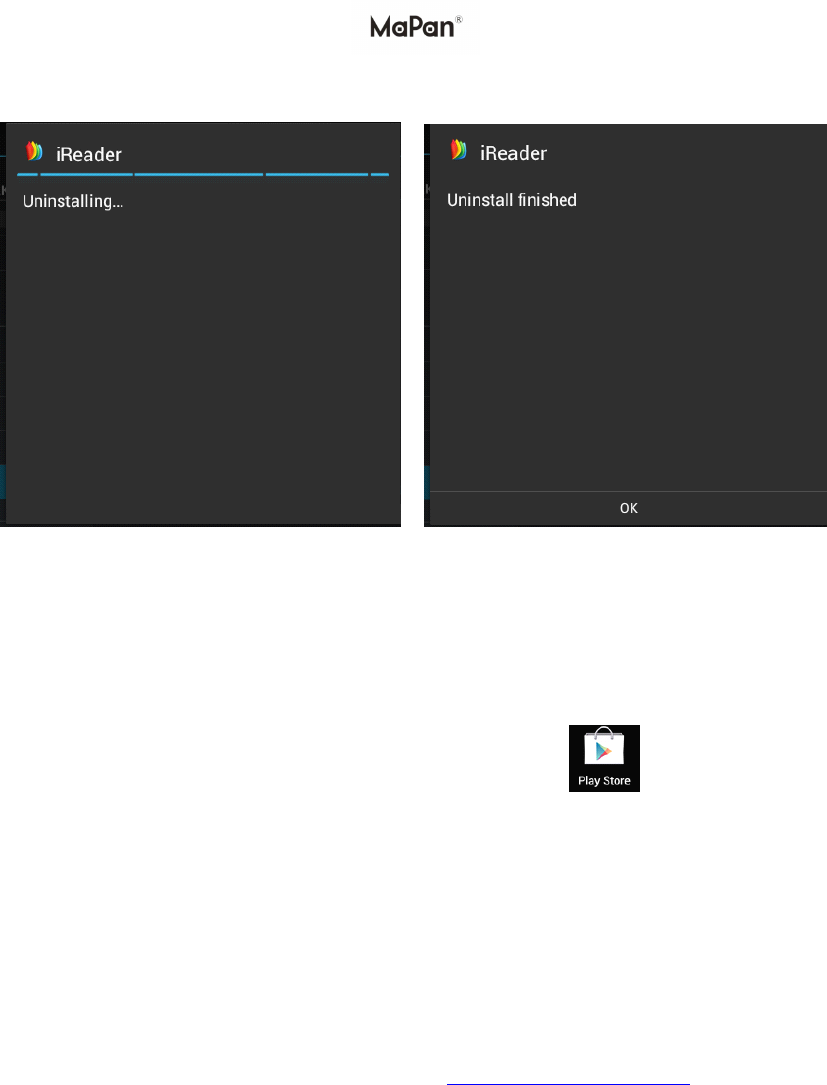
3.Choose"OK".
UninstallingDone.
4.The"iReader"iconwilldisappearfromMenuansAppslist.
IIIInstall nstall nstall nstallthe the the thesearched searched searched searchedapplication application application application
Theusercandoon-lineinstallationthrough“PlayStore
(Androidmarket)",
ordownloadandinstallbythecomputer,orthroughabuilt-inbrowserdownloadand
installonline.
****Uninstalltheapplication:youcanusethebuilt-inAndroidapplicationmanagement
software.Select"Settings"/"Apps"/"DOWNLOADED,ONSD
CARD,RUNNING,ALL",selecttherighticoninstalledapplicationstocheckthe
programinformation,uninstalltheprogramandotheroperations.
*YoucandownloadtheAPKsofewarefromWWW.MAIPAD.NET
.
Network: Network: Network: Network:
Webpagebrowsing:
Whenthenetworkisconnected,openthewebpagebrowserandentertheURL,you
canbrowsewebpage;orthroughthemaindesktopsearchbartoinputthewebsiteand
openthewebpage
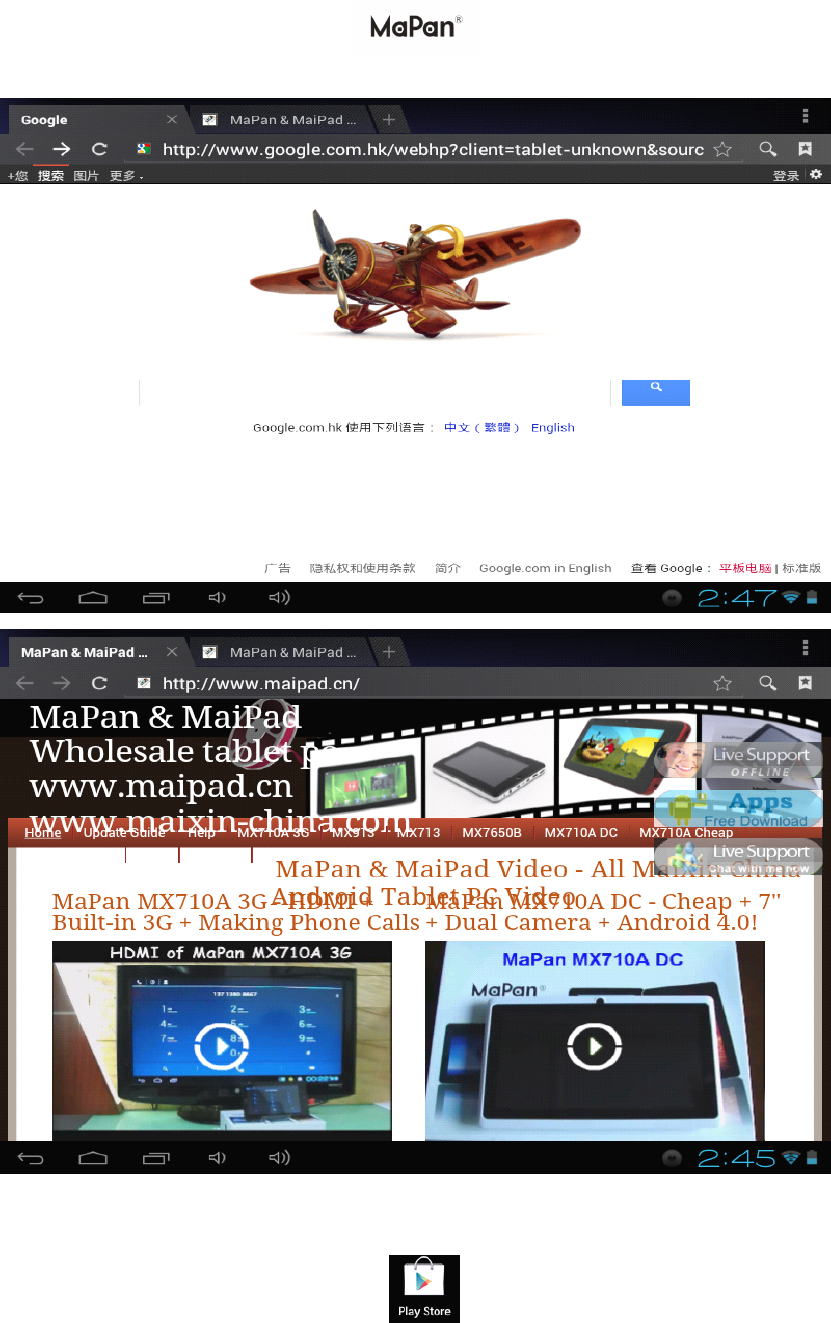
Webpage can be free scaled by the scaling controller, as shown below:
Online video:
Users can through the “ Play store " (android Market) or other ways to
download online video player software, online TV player software, online music
software, and then install in the MaPan tablet PC . To open the installed software, you
can watch online video or online
TV,
listen to online radio.
Users can also download other third party network application software, including the
webpage browsing, video player, website client, instant messaging and other software.
Music
Music
Music
Music player:
player:
player:
player:
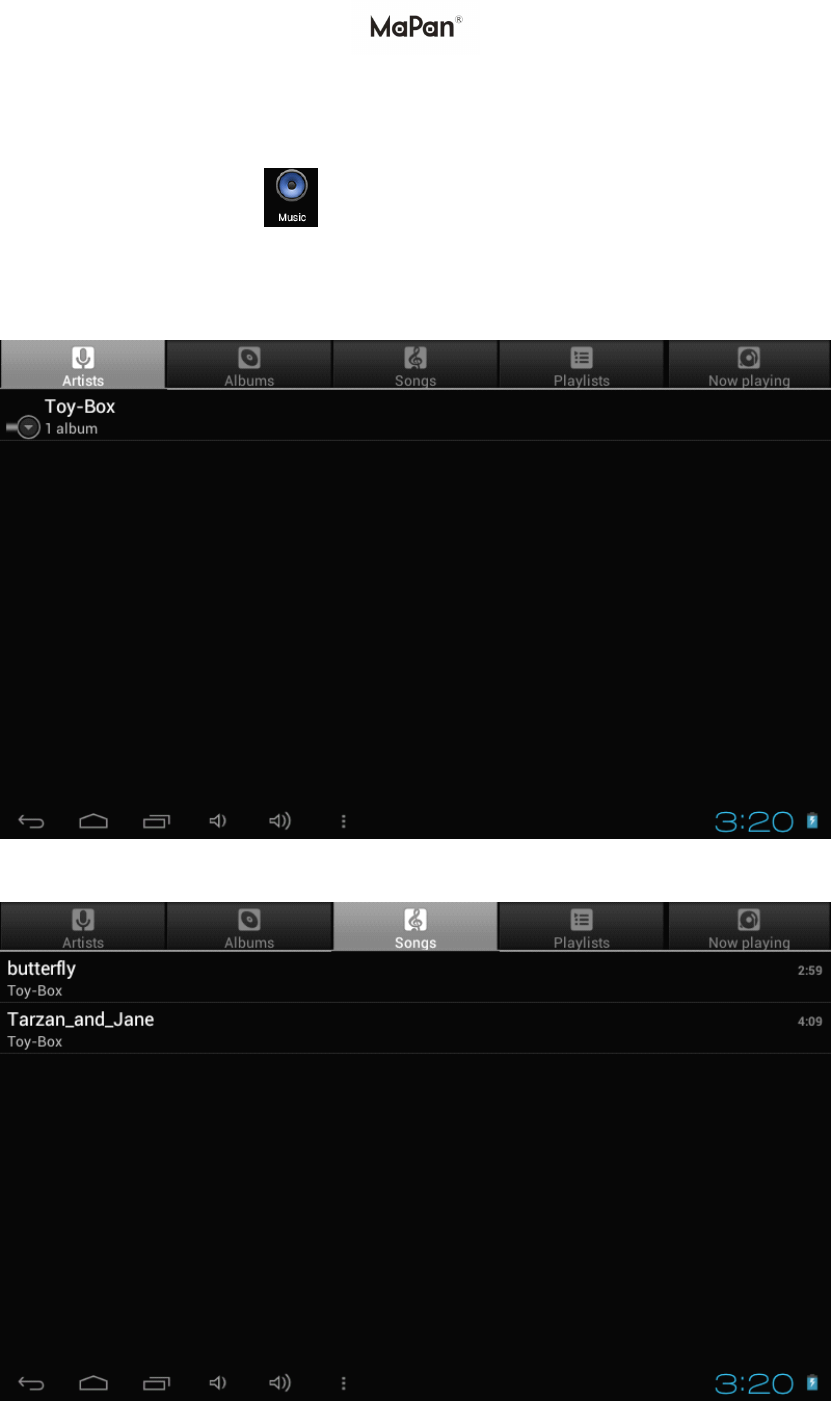
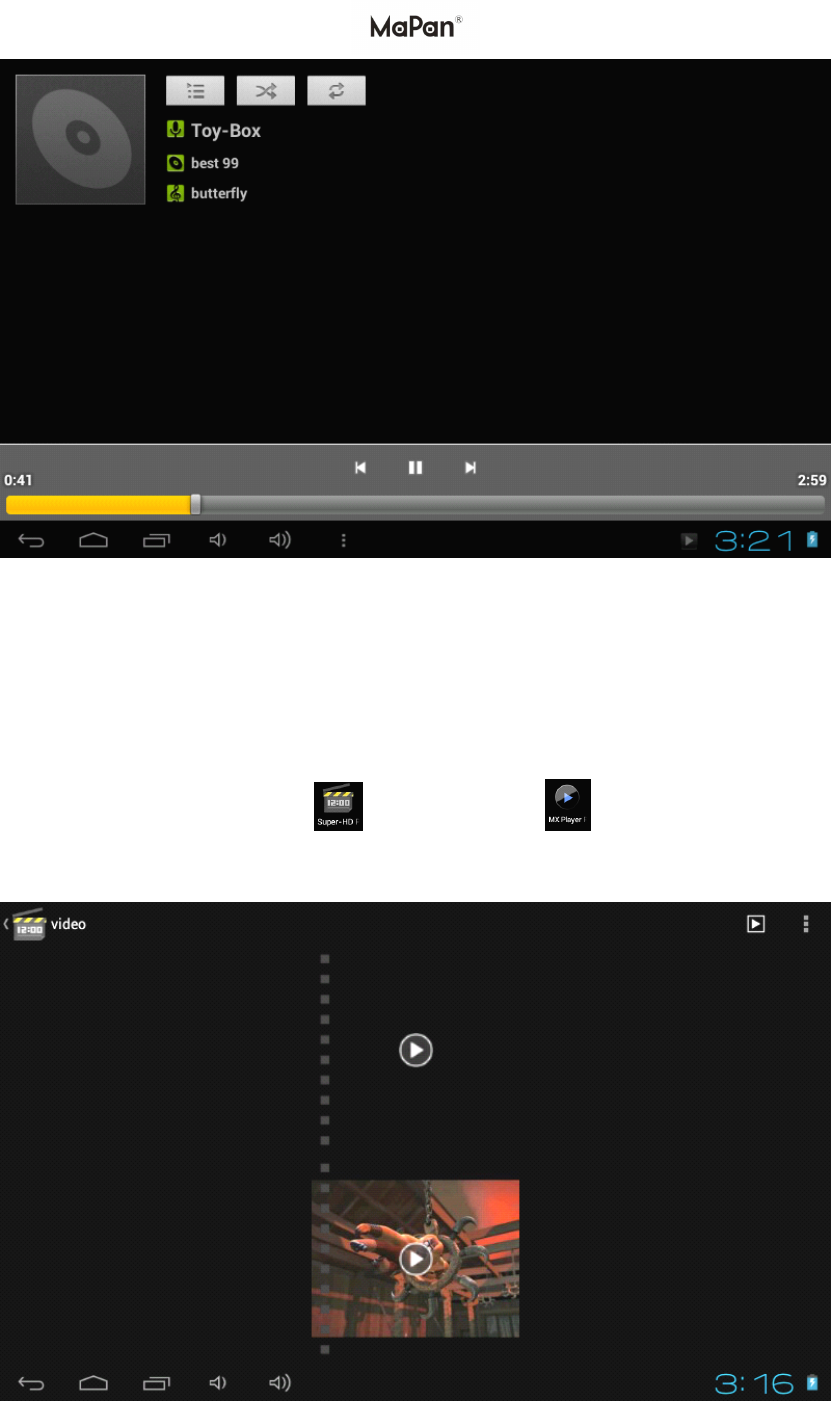
Click on the "music" icon in the main menu, and then enter the music player
interface. The default list system in the user data area for all audio files as shown
below , the interface with "artists", "album", “ song" , " Playlists " a nd " Now playing
" , just touch " Songs ", and select the song you want to play .
Picture 1
Picture 2
Picture 3
You can through the synchronous USB to input audio file, or by inserting a SD card
with audio file to input audio files, you can also through the network to download the
audio file.
Video
Video
Video
Video play:
play:
play:
play:
Click on the " Super-HD player" or " MX Player" in main menu, to enter
the "Super-HD player" main interface, it will list all video files and image files. As
shown below:
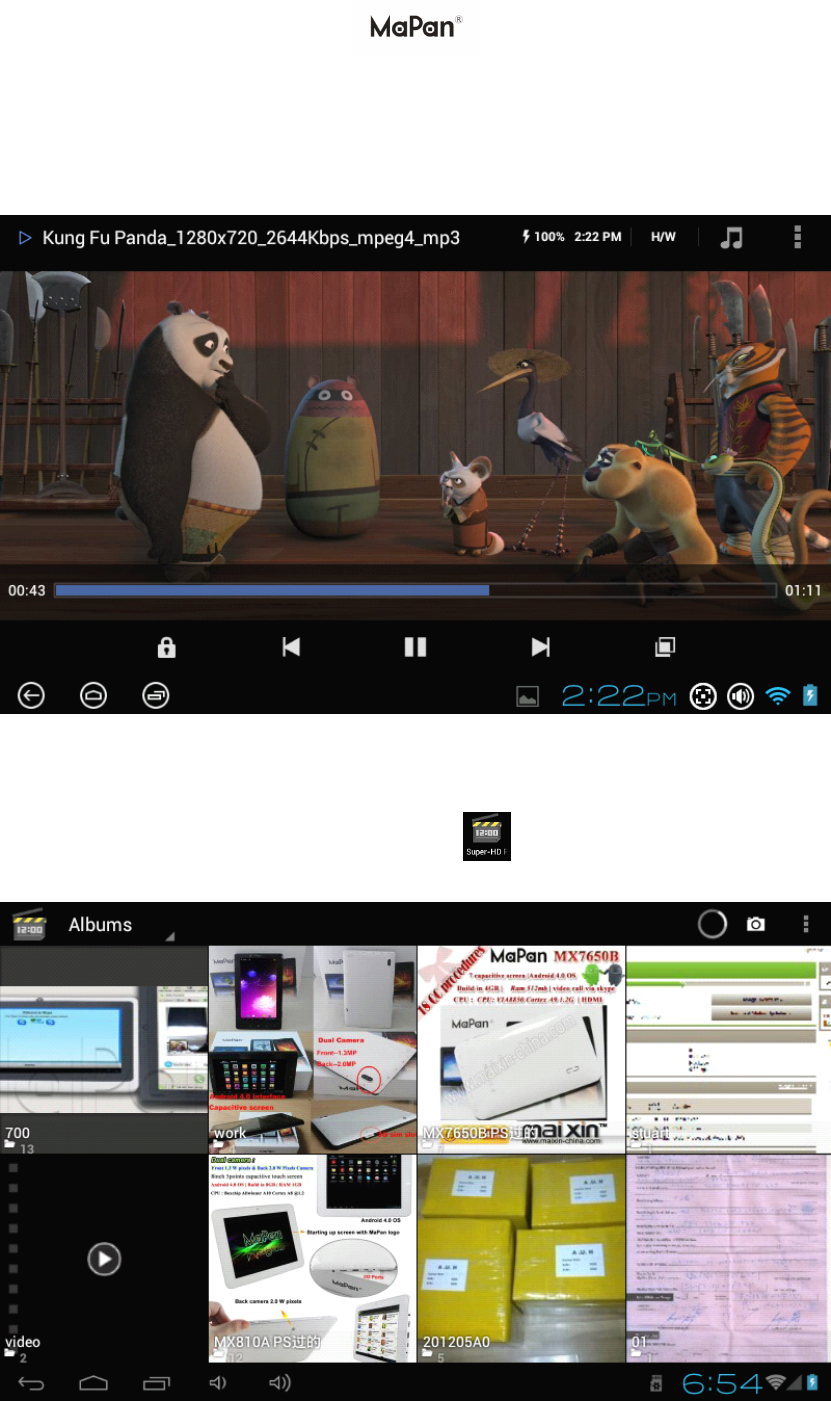
Select the video file and enter the video playing interface, as shown below. Select
"play", "stop", "fast forward", "rewind", "progress" and other control keys to
control the broadcast schedule.
P
P
P
P hoto
hoto
hoto
hoto brows
brows
brows
brows e
e
e
e :
:
:
:
1. Click on the main menu " Super-HD player" , the page will as below picture
shows , you could view the pictures.
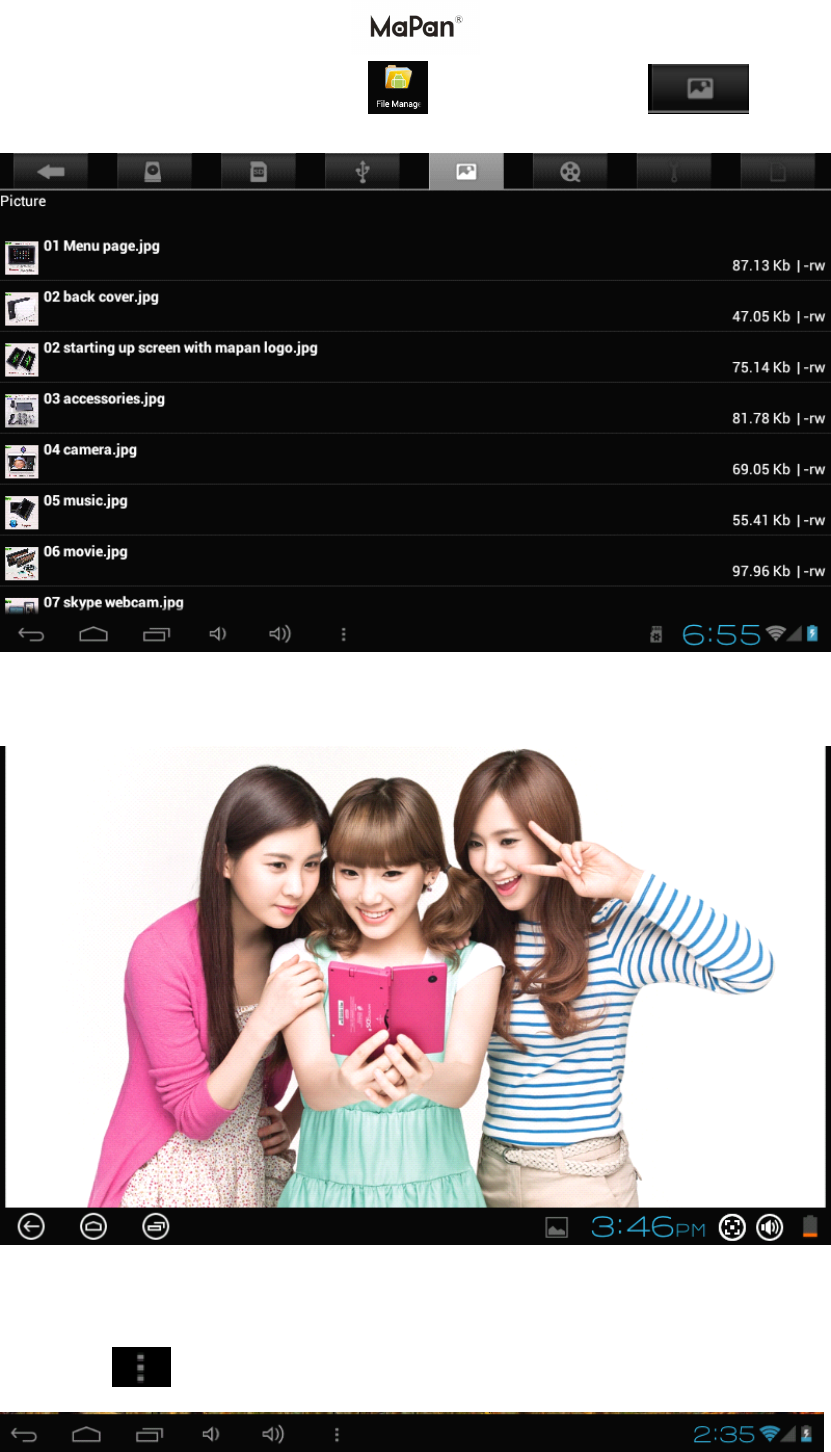
2. Or you could enter " File Manager" , then click this icon to view
this pictures.
3. Select a picture file; enter the picture play interface, as shown below. Select "zoom",
"narrow" "set" and "delete" operation.
Wallpaper:
Wallpaper:
Wallpaper:
Wallpaper:
The system supports static wallpaper, and 3D wallpaper.
Click Icon in below taskbar ,
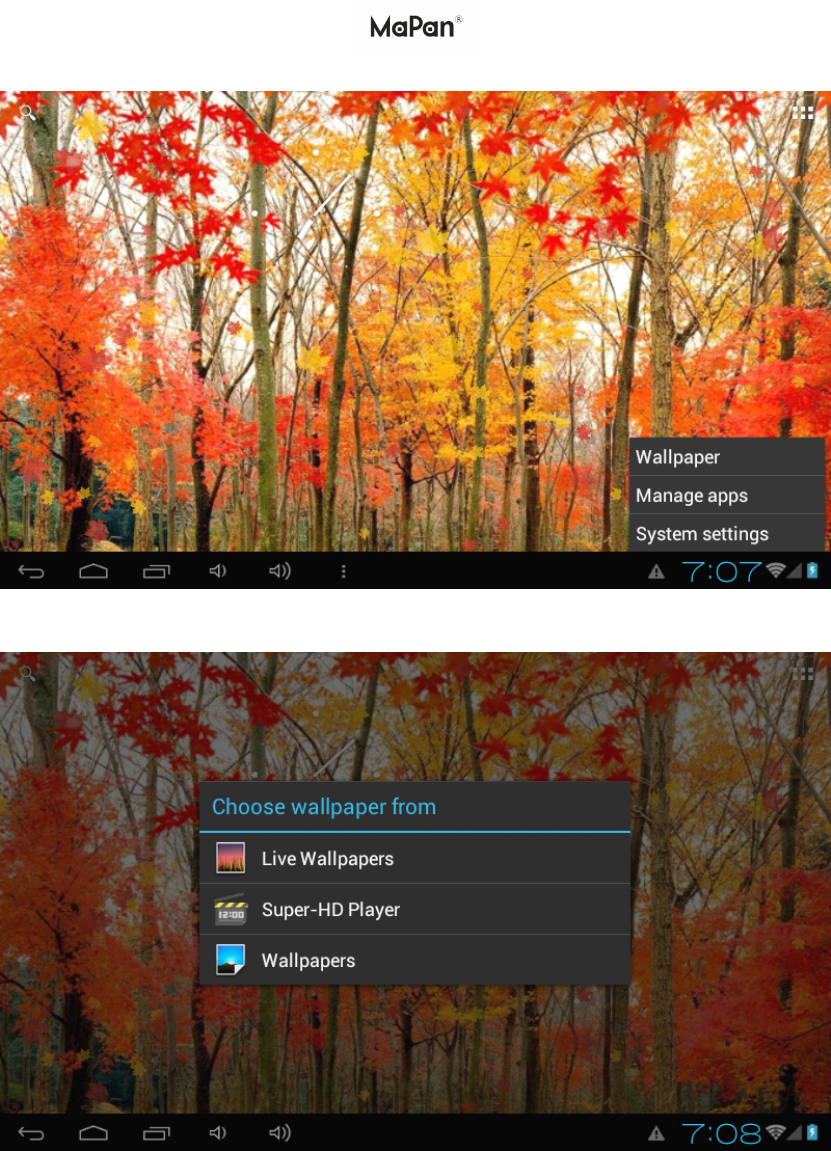
Then the button right conner will shows" Wallpaper " ," Manager apps " and"Syestem settings".
Choose "Wallpaper " to set the effect you want.
There are the following options:
Select "wallpaper": can customized using image as wallpaper.
Select the " Live wallpaper s ": can use the systems supplied 3D wallpaper.
Select the "Gallery": can choose a picture supplied by the system as the static
wallpaper.
Record
Record
Record
Record
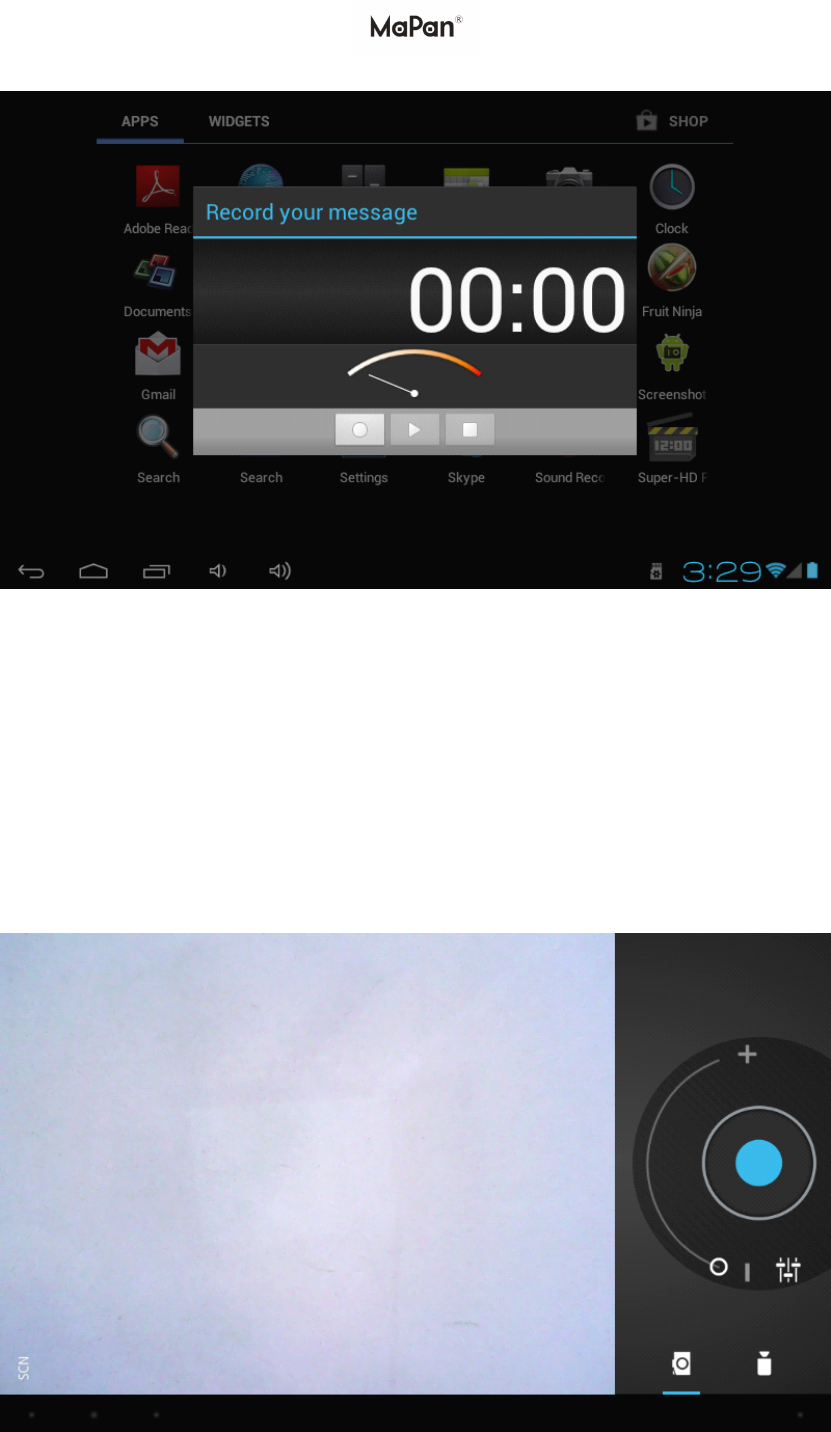
Click on the " Sound recorder" icon in main menu and the main interface as below
show s :
Select the "recording" button to record, after recording is completed, press "stop"
button. At this time you can select the "play" button to play the recorded sound. Select
"Use this recording" button to save the recording, so that you can find the
corresponding audio files in "NAND";
if
you do not need to save, can select the "give
up" button.
Photograph
Photograph
Photograph
Photograph :
:
:
:
Click on the "photographic" icon in the main menu and enter the "camera" main
interface as shown below , C lick on shutter in the camera:
Market
Market
Market
Market
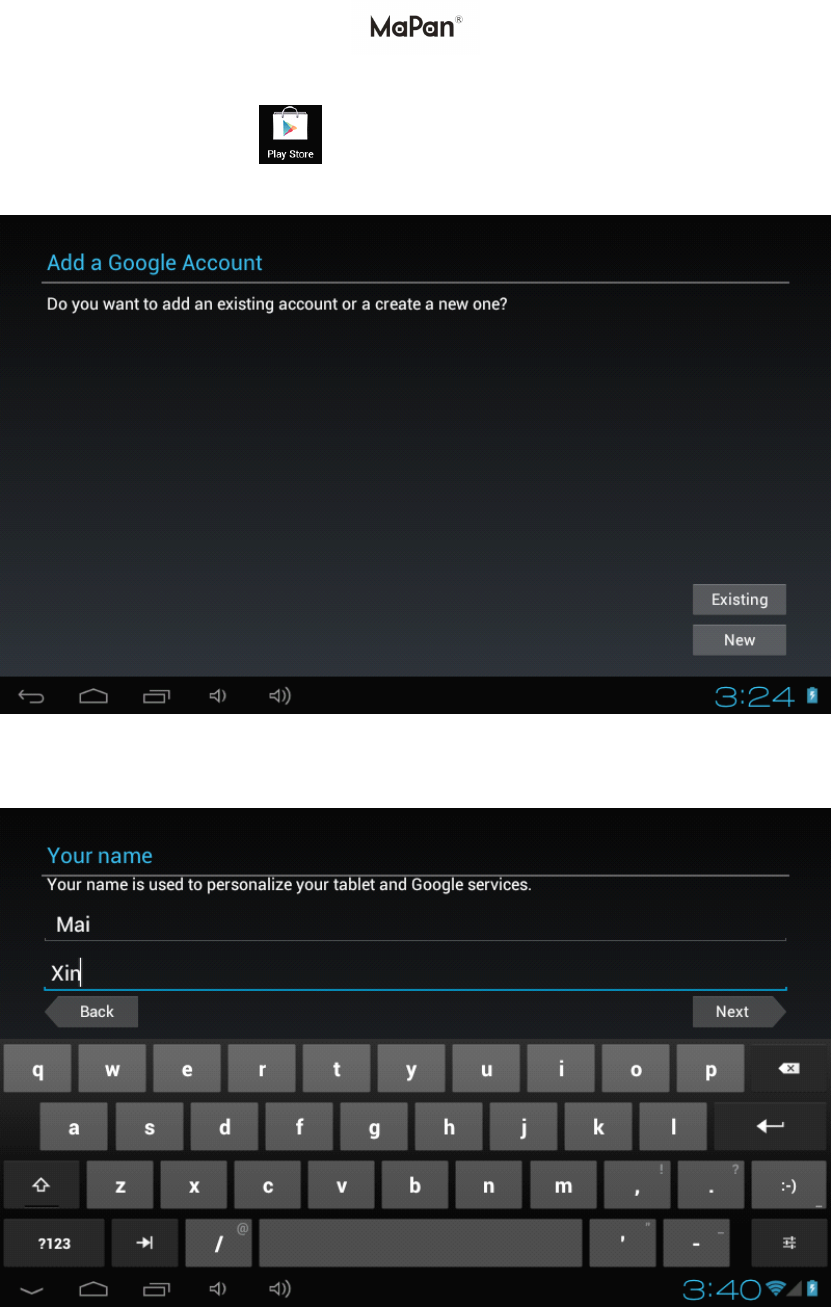
Click on the “ Play Store ( Android market ) " icon in the main menu and enter
the main interface as show n below:
If you have no Gmail account, you need to create a Gmail account, click " next " the
following picture will appear:
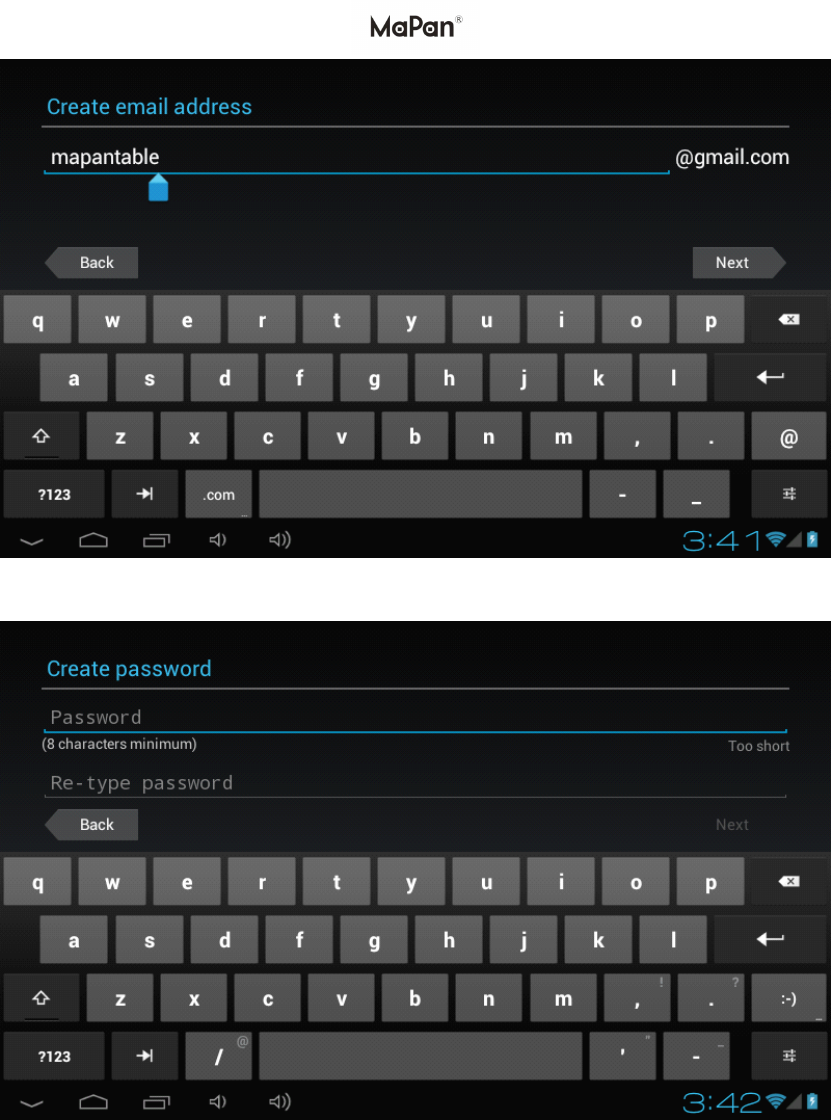
C lick " next " the following picture will appear , and create password :
S elect
“
next ” , the following picture will appear:
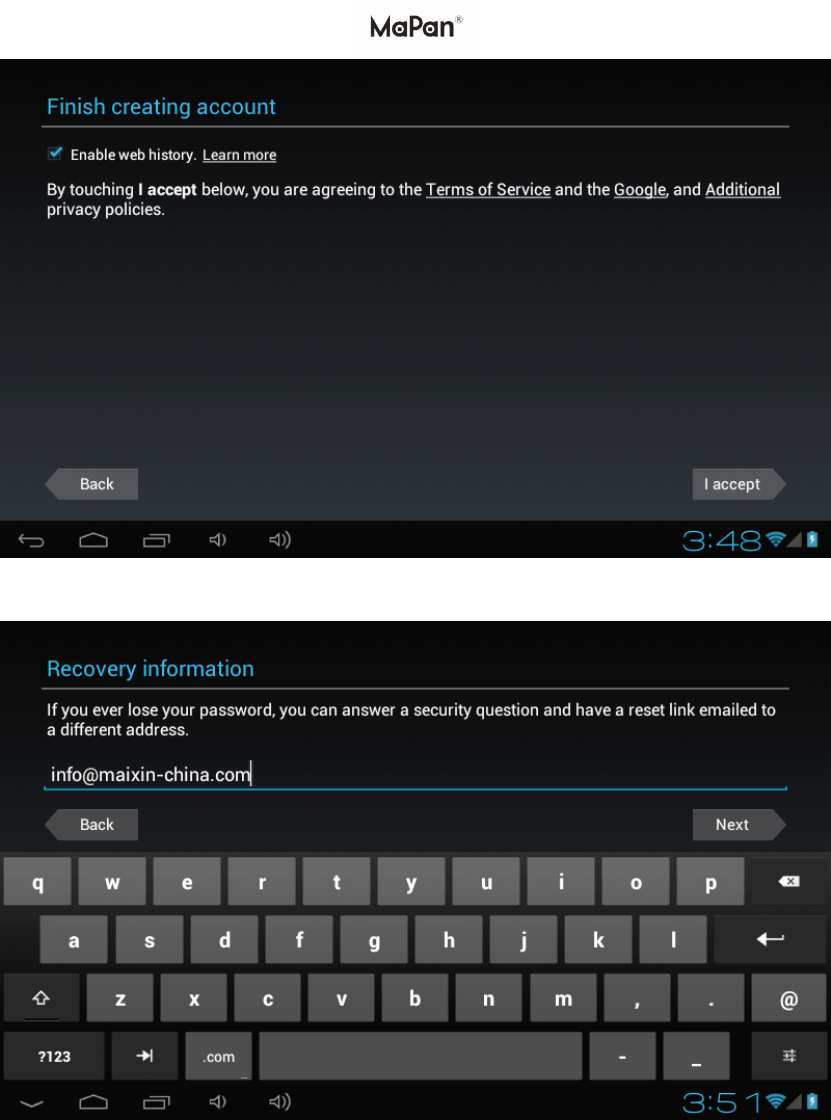
S elect
“
I agree ” , Next, following picture will appear:
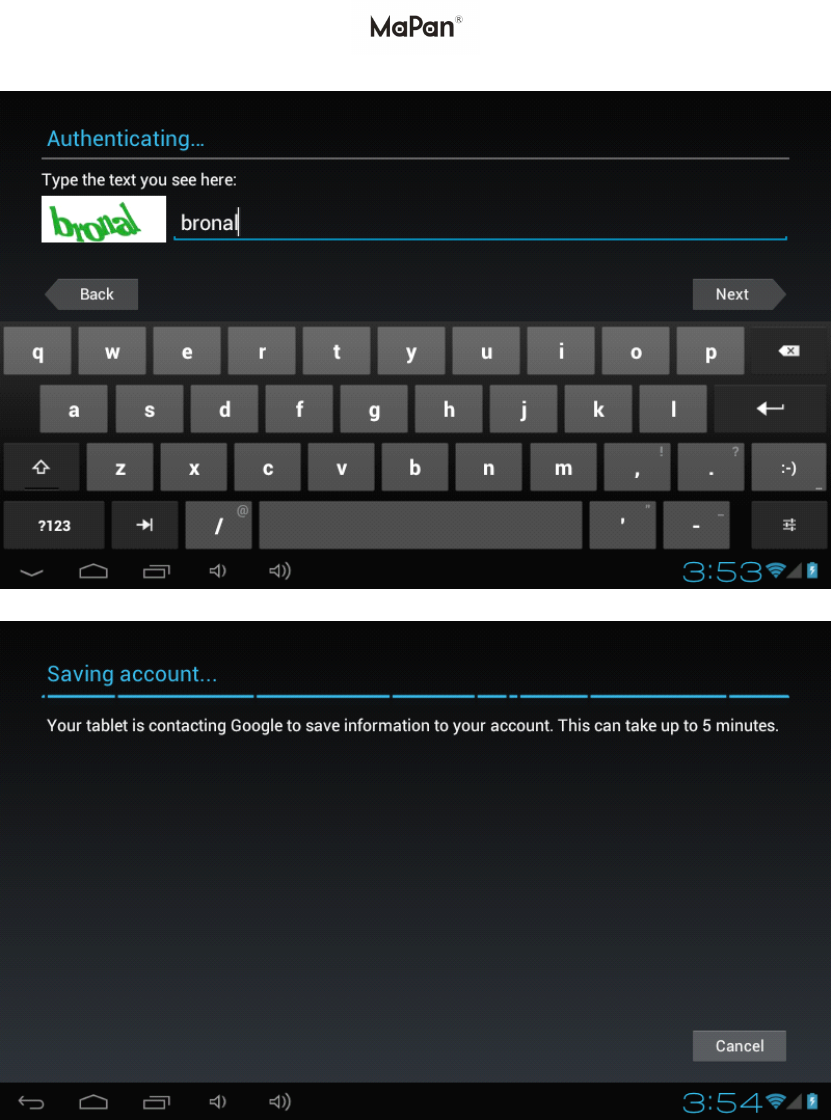
F ollowing picture will appear after the setting is completed and s elect “ next ” 。
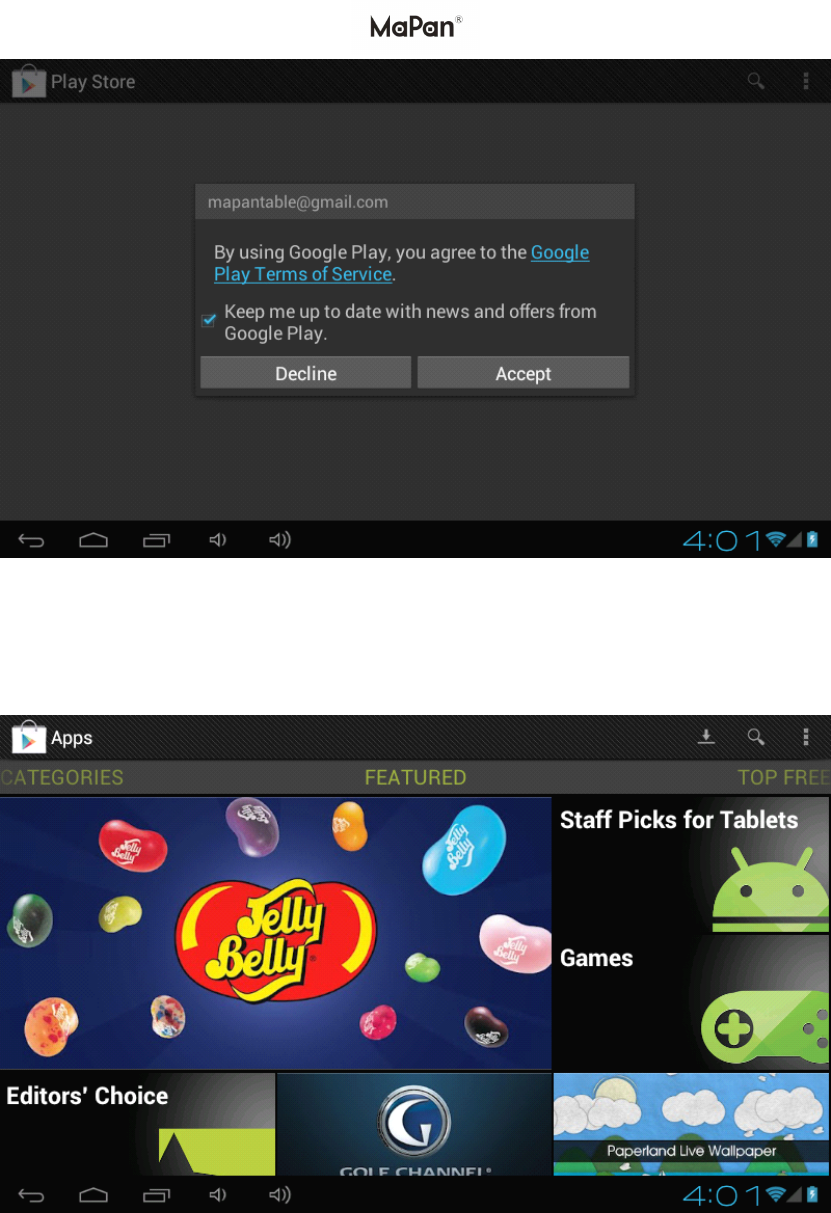
Fill in the code, select the "next" and you will officially enter the "electronic market"
the following picture will appear:
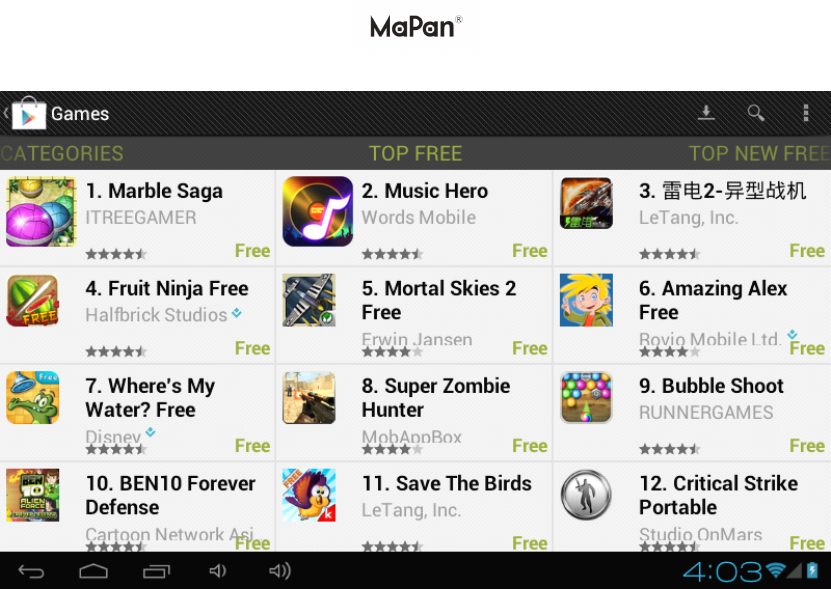
Touch the "Games " icon, the following picture as below shows:
Click on the "search" input the software you want to install,
Click to download and install software, in the " Apps " of setting list shows to find the
software you installed .
E-m
E-m
E-m
E-m ail:
ail:
ail:
ail:
Click on the "e-mail" icon in the main menu to enter email client.
Email requires network support, please ensure that network mail link is normal.
Here we take info @ maixin-china .com as an example:
In the email address bar, enter your valid email address: info @ maixin-china .com
In the password field to enter your valid password: * * * * * * * *
Then you can choose the "next", it will appear the account type selection interface .
Here we are using the POP3 account type. And the receiving service settings will
appear,
Please according to each email provider
’
s information, set different parameter, such
as:
The POP3 server: default is " maixin-china .com", and should be modified for
"pop. maixin-china .com ”
The port number is "110"
Then select the "next ", you will enter the "inspection acceptance server settings",
if
set up correctly, there will be a "foreign server settings" :

Correct the SMIP server " maixin-china .com" for "smtp. maixin-china .com"
Modify the port number "587" to "25"
Drag the scroll bar; select the "next", enter the "check out into the server settings"
interface.
Select the "next ", you will enter the account information custom interface:
In the column "name" to input the name you want to display in the outgoing message,
and then click "finish" button, you can enter the mail interface. It will load the mail
automatically;
Select one of the column to be viewing the message, you can do "Reply", "delete",
"more reply" and other operations at the view bar.
External
External
External
External device
device
device
device :
:
:
:
*
*
*
* USB
USB
USB
USB connection
connection
connection
connection
Using USB to connect the MaPan tablet PC with Computer, the default connection
mode is a synchronous mode. You can drag the status bar to drop, appeared the USB
connected .
"USB is connected": means external memory (SD) loading is completed, and you can
see the corresponding letter in the PC terminal.
*OTG
*OTG
*OTG
*OTG use
use
use
use
Support
FAT32
format mobile equipment: such as U disk, mobile hard disk.
The plug-and-play connection method:
Use the OTG wire to connect the MaPan USB OTG and the external equipment.
*
*
*
* Keyboard
Keyboard
Keyboard
Keyboard and
and
and
and mouse
mouse
mouse
mouse
Support plug and play USB mouse, keyboard device.
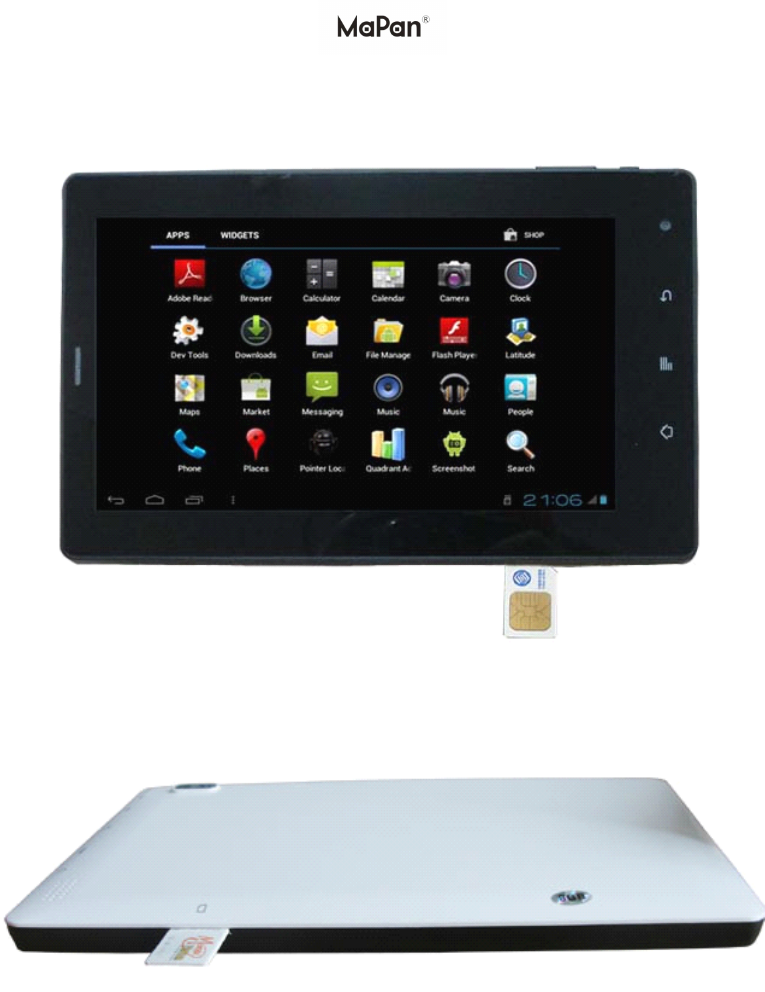
PS:
PS:
PS:
PS: Method of inserting SIM card for build in 3G model MX710A 3G
;
After
inserting the SIM card, you need restart the MaPan tablet PC for using the build in 3G
or 2G .
1.197
of
FCC Regulatory Compliance
Body worn operation
The device complies with RF specifications when used near your ear or at a distance
0 cm from your body. Ensure that the device accessories, such as a device case
and device holster, are not composed of metal components. Keep the device away
from your body to meet the distance requirement.
Certification information (SAR)
This device is also designed to meet the requirements for exposure to radio waves
established by the Federal Communications Commission (USA).
The SAR limit adopted by the USA is 1.6 W/kg averaged over one gram of t issue.
The highest SAR value reported to the FCC for this device type complies with this
limit.
The highest SAR value reported to the FCC for this device type when tested for use at
the ear is 0.194 W/kg, when properly worn on the body is W/kg.
FCC statement
This equipment has been tested and found to comply with the limits for a Class B
digital device, pursuant to Part 15 of the FCC Rules. These limits are designed to
provide reasonable protection against harmful interference in a residential installation.
This equipment generates, uses and can radiate radio frequency energy and, if not
installed and used in accordance with the instructions, may cause harmful
interference to radio communications. However, there is no guarantee that
interference will not occur in a particular installation. If this equipment does cause
harmful interference to radio or television reception, which can be determined by
turning the equipment off and on, the user is encouraged to try to correct the
interference by one or more of the following measures:
--Reorient or relocate the receiving antenna.
--Increase the separation between the equipment and receiver.
-- Connect the equipment into an outlet on a circuit different from that to which the
receiver is connected.
-- Consult the dealer or an experienced radio/TV technician for help.
This device complies with Part 15 of the FCC Rules. Operation is subject to the
following two conditions: (1) this device may not cause harmful interference, and (2)
this device must accept any interference received, including interference that may
cause undesired operation.
Any changes or modifications to this device not expressly approved by Huawei
Technologies Co., Ltd. for compliance could void the user's authority to operate the
equipment.