MAX NICE BH-02 BLUETOOTH HEADSET User Manual Manuel
MAX NICE TRADINGLIMITED BLUETOOTH HEADSET Manuel
MAX NICE >
user manual
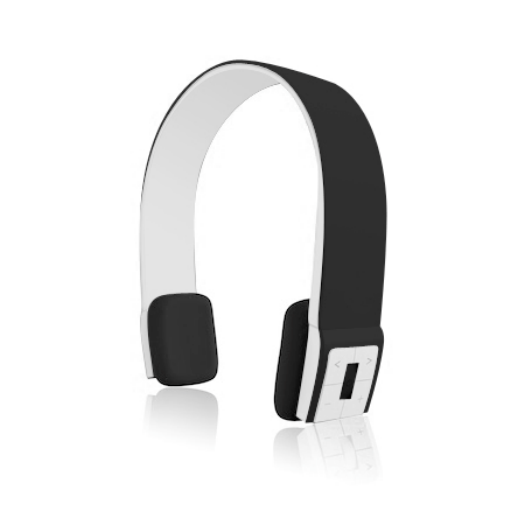
User’s manual
BH-02
Bluetooth headset
SUMMARY
¾ Brief introduction
16
1. Bluetooth wireless communication technology 16
2. About BH-02 16-17
I. Before using 17
1. Overview 17
2. Charging the headset 18
II. How to use 18
1. Switching on/off the headset 18-19
2. Pairing the headset with Bluetooth device 19
a) How to enter pairing mode 19
b) Pairing the headset with Bluetooth mobile phone 19-20
c) Pairing the headset with Bluetooth transmitter 20
3. Multi-Pair 21
4. Re-connecting to a Bluetooth device 21-22
5. Wearing the headset 22
6. Making calls with the headset 23-24
7. Playing music 24-25
8. Restoring factory defaults and resetting 25
9. LED indicator 25-26
10. Indication tone 26
11. Pairing with a computer Windows or MAC 26
¾ Care and maintenance 27
¾
¾ FAQS 28
¾ Specifications 29
Welcome to use this Bluetooth stereo headset, BH-02, please read this user’s manual carefully
before using it.
• Brief introduction
1) Bluetooth wireless communication technology
Bluetooth is a standard of close range radio-communication technology that was drawn up by
Ericsson, IBM, Intel, Nokia and Toshiba. With Bluetooth technology, we can achieve the
highest transmission rate among cell phones, computers, printers, PDAs and other devices.
The max transmission range of class II is 10 meters while the max transmission range of class
I can reach up to 100 meters.
2) About BH-02
BH-02 is a stereo Bluetooth headset. It supports the following Bluetooth profiles:
HSP —— Headset Profile
HFP —— Hands-free Profile
A2DP—— Advanced Audio Distribution Profile
AVRCP——Audio/Video Remote Control Profile
You can enjoy music wirelessly by using the headset.
Steps as following:
1) Pairing with the Bluetooth mobile phone and PDA which support HFP.
• Answer, end and reject call from the headset
• Redial last number
• Voice dial
• Adjust the volume
• Switch the conversation between the headset and the mobile phone
• Microphone mute
2) Pairing with Bluetooth music devices and Bluetooth transmitter which support A2DP
• Enjoy music wirelessly
• Adjust the volume
• Remote control the function of pause/play
• Remote control last/next song
3) Easy to switch between conversation and music, you will not miss the incoming call during
listening to music.
4) Automatic connecting with the last paired device when turn on the headset
Note: Even though the paired device and headset support the same Bluetooth profiles, the
functions may be different due to the specification difference of the paired devices.
I - Before using
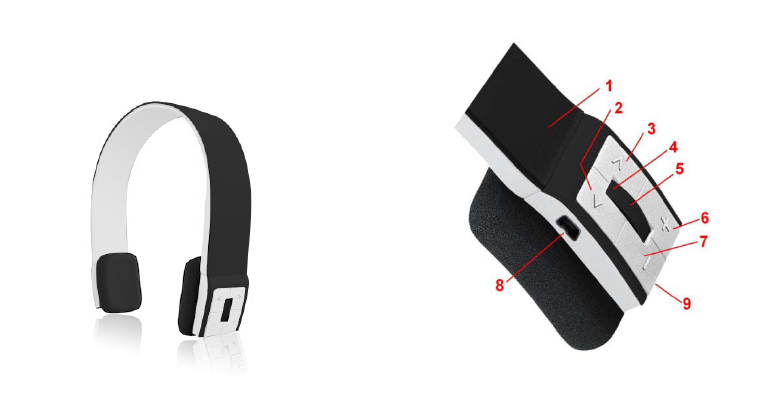
1) Overview
• Retractable string
• < key :last song
• > key :next song
• LED Indicator
• Multifunction button (MFB):Switch on/off the headset, answer, end and reject call,
microphone mute, voice dial and voice transfer, redial last number, pause and play
• + key: volume up / – key: volume down

• Charging port
• Built-in microphone
2) Charging the headset
• First time charging : Before you use this Bluetooth headset, please charge the battery
of headset fully.
• Next time: When you hear three warning tones of “DONG” every 20 seconds, at the
same time, the red light blinks two times. It means the battery is low power and need
to be charged.
A. Charging the battery with USB cable
• Step1: Insert USB charging cable into USB port of PC.
• Step2: Connect charging cable with the charging port of headset.
• When the red light is on, the headset is charging.
• When the red light is off, the headset is charged fully.
• It takes about 3 hours to charge the headset fully.
Note: Choosing travel charger or USB cable depends on different countries or areas and
actual demands.
Warning:
• The battery is recycled.
• Do not dispose of the battery in fire, as it may cause explosion
II - How to use
1) Switching on / off headset
Function Operation LED indicator Indication tone
Switch on
Press the MFB button for 3-5
seconds, and release it till the
blue LED is on
Blue LED is on for 1
second A long “DI” tone
Switch off
Press the MFB button for 3-5
seconds, and release it till the
red LED is on
Red LED is on for 1
second A long “DI” tone

Note: In order to save power, the headset will automatically switch off if no devices can be
connected within 5 minutes after switching on.
2) Pairing the headset with Bluetooth devices
a) How to enter pairing mode
Function Operation LED indicator Indication tone
Enter pairing mode
Make sure the headset is
off. Press and hold MFB
button for 7-9 seconds, and
release it till the red and
blue LEDS blink alternately
Red and blue
LEDs blink
alternately.
Two “DU”
tones
b) Pairing the headset with Bluetooth mobile phone
Please make sure your mobile phone has Bluetooth function that can be used.
Specific pairing procedures may vary with different mobile phone. Please refer to your mobile
phone
manual for further information. Steps as follows:
• Please keep the headset and mobile phone in the range of 1 meter when pairing.
• Make the headset enter into pairing mode (Please refer to “how to enter into pairing
mode”).
• Start the Bluetooth function of mobile phone and search the Bluetooth devices.
After searched, select “BH-02”in the Bluetooth device list.
• According to indication, enter password or PIN No:”0000”, and press the key of” Yes”
or “confirmed”.
• After successful pairing, select “BH-02 in the Bluetooth device list, and press
“connect”.
• After successful connecting, the blue LED of the headset quickly blinks twice or three
times every 4 seconds.
Notes:
• If the pairing is not successful, please switch off headset firstly, and then re-pair
according
to the step 1~6 mentioned above.
• After pairing is successful, paired devices will remember each other. Unless pairing
information is deleted because of new pairing, no need to pair when use next time. The
headset can remember 8 paired devices, when paired devices exceed 8 paired devices,
the first one will be replaced.
• If you want to pair the headset with other devices, please pair it with the new device
according to steps 1~6 mentioned above.
c) Pairing the headset with Bluetooth transmitter
You can enjoy music wirelessly through connecting headset with stereo Bluetooth transmitter.
Pairing steps as follows:
Keep the Bluetooth transmitter and headset in the range of 1 meter when pairing. Make the
headset enter into pairing mode (refer to “How to enter into pairing mode). Turn on the
Bluetooth transmitter. It will search Bluetooth device automatically and start pairing. When
the headset requests PIN No, the Bluetooth transmitter need to respond “0000” automatically.
After successful pairing and connecting, the blue LED of headset quickly blinks twice every 4
seconds.
Notes:
• The pairing password of BH-02 is “0000”, so, the headset can’t pair with the
Bluetooth transmitter which pairing password is not “0000”.
• If the pairing is still not successful after trying several times, please refer to your
Bluetooth transmitter manual carefully..
3) Multi-pair
The headset can connect with two devices at most. One is the mobile phone with HFP profile,
another is the devices with A2DP profiles. If you want to finish the pairing of several
Bluetooth devices, please refer to the following steps:
• Firstly, pair the headset with Bluetooth transmitter (refer to “pairing headset with
Bluetooth
transmitter).
• Switch off the Bluetooth transmitter.
• Pair and connect the headset with the Bluetooth mobile phone (refer to “pairing
headset
with Bluetooth mobile phone”).
• Restart Bluetooth transmitter, it will connect with headset automatically.
Notes:
• After successful pairing with several Bluetooth devices, the paired devices will
remember each other. Unless pairing information is deleted because of new pairing,
otherwise make mobile phone and headset set up hands free connection next time, and
re-start the Bluetooth transmitter, then the connection of several devices can be
performed.
• For the mobile phone which supports the HSP and A2DP at the same time. It may set
up connection with HSP and A2DP simultaneously. At this time, start Bluetooth
transmitter may not connect with the headset again.
4) Re-connecting to a Bluetooth device
• Automatic connecting
Every time the headset is switched on, it will connect to last connected device automatically.
• Manual connecting to last connected HFP device
When the headset is in standby mode and doesn’t connect to any HFP devices, short press
MFB
button twice, it will connect to last connected HFP device automatically.
• Manual connecting to last connected A2DP device
When the headset is in standby mode and doesn’t connect to any A2DP
devices, short press > (next song) button, it will connect to last connected A2DP device
automatically.
Notes:
- Before connecting to a Bluetooth device, please turn on the Bluetoth device’s Bluetooth
function.
- On some Bluetooth devices, take some Nokia mobile phones for example, you have to
allow automatic connecting in the mobile phone’s settings. Please refer to your mobile
phone’s manual for further information.
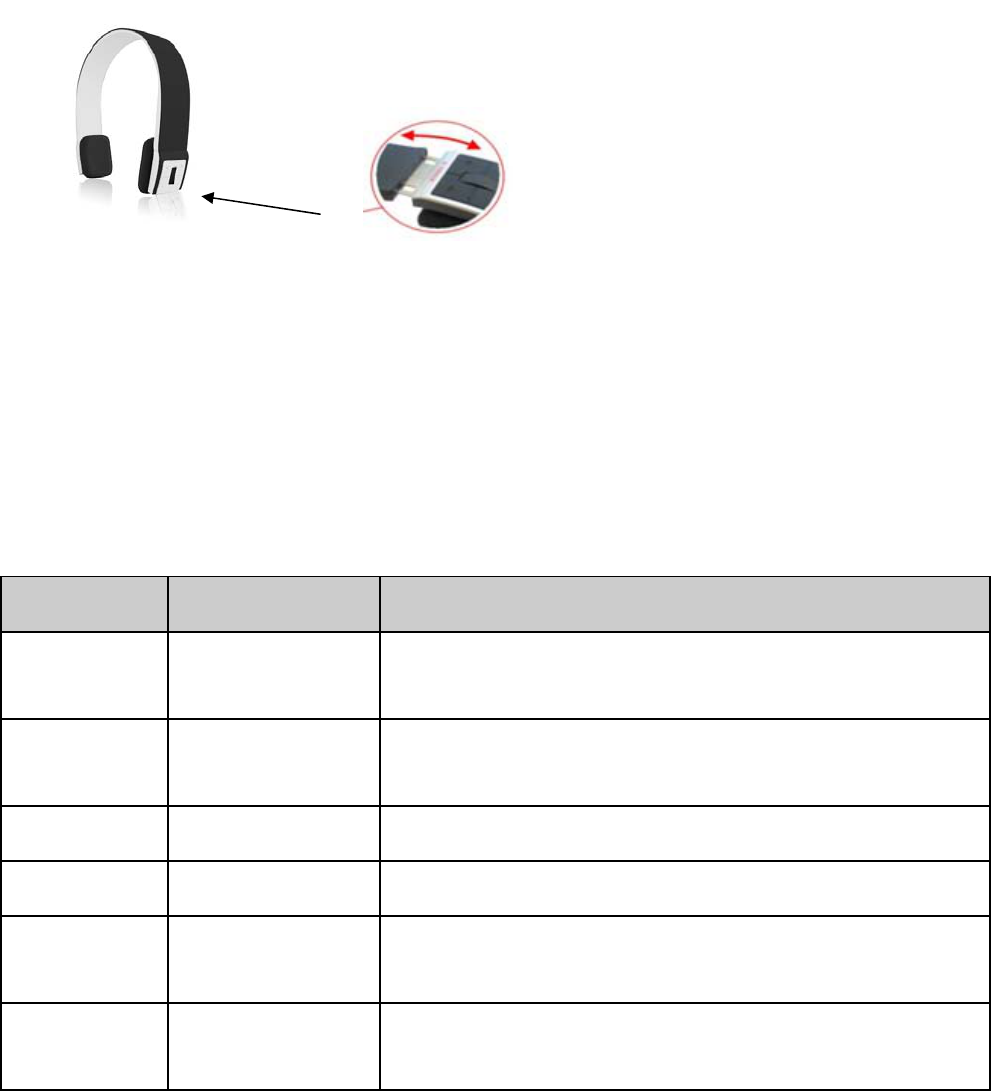
5) Wearing the headset
The string of this headset is retractable, please adjust according to the actual use. Logo “L” of
headset represents left ear, Logo “R” of headset represents right ear. Please wear the headset
according to the indication of the Logo.
6) Making calls with the headset
Function Status of headset Operation
Voice dial Standby mode Press and hold > (next song) button for 2s, release it till
hearing indication sound
Redial last
number Standby mode Short press MFB twice quickly
Volume up Conversation mode Short press or long press + key
Volume down Conversation mode Short press or long press - key
Answer
calling Ringing Short press MFB
Reject calling Ringing Press and hold MFB for 2s, and release it till hearing
indication sound
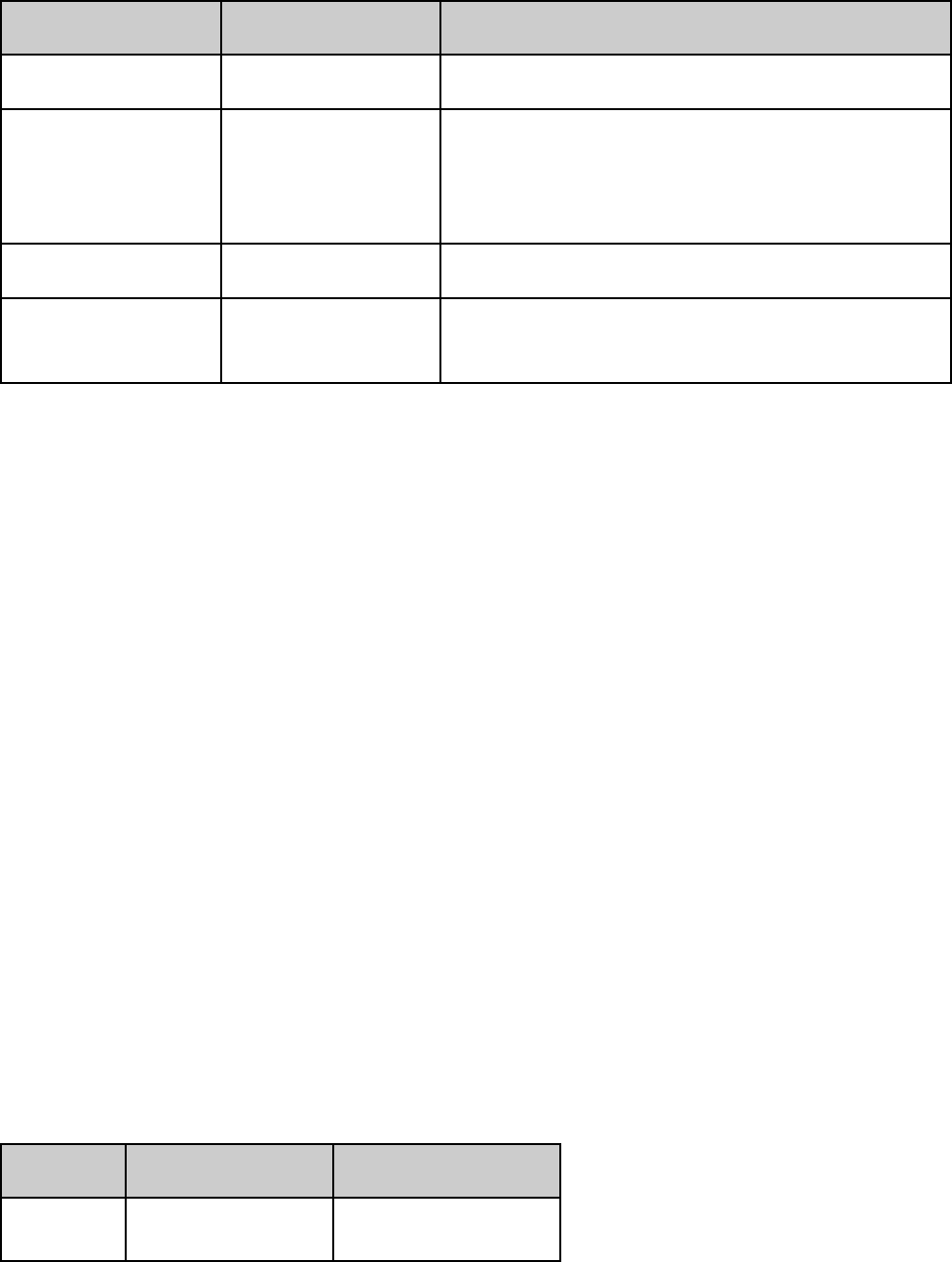
Function Status of headset Operation
End calling Conversation mode Short press MFB
Call transfer Conversation mode
Press and hold MFB for 2s, and release it till
hearing
indication tone
Microphone mute Conversation mode Quickly press the MFB twice
Cancel mute Conversation mode
(mute) Quickly press the MFB twice
Warning: Excessive pressure from headphones can cause hearing loss.
Notes:
• Not all the mobile phones support all the functions listed above. Please refer to the
instruction of your mobile phone.
• Some functions and indication tones may vary with different mobile phones.
• When the volume is adjusted to max or min, you will hear a indication tone.
• For some mobile phones, when you press the key of accepting on the phone, the
conversation will be sent to the mobile phone. At this time, you can switch the call to
headset by using the conversation switch button or through operating on the mobile
phone. Please refer to the instruction of your mobile phone for further information
7) Playing music
When the headset connects with the mobile phone or Bluetooth transmitter which supports
A2DP, you can enjoy music through headset wirelessly.
Function Status of headset Operation
Pause Playing music Short press MFB
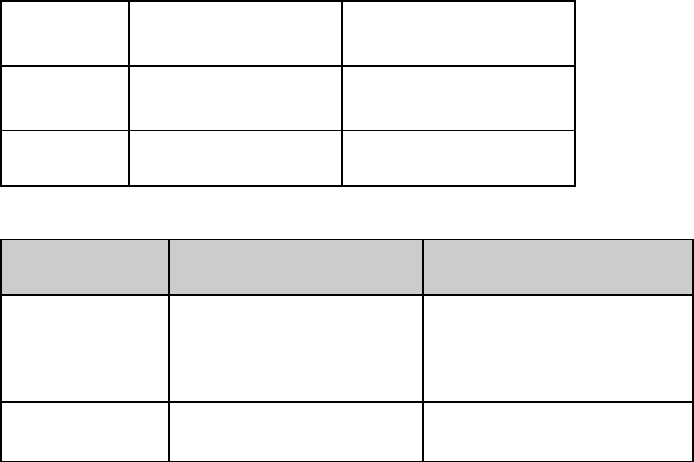
Play Pausing Short press MFB
Last song Playing music Short press < key
Next song Playing music Short press> key
Function Status of the headset Operation
Volume up Playing music Short or long press +
key
Volume down Playing music Short or long press - key
Notes:
• For some of mobile phones, when they are playing music, the music will transmit to
the speaker of mobile phone, you have to choose “transmit the sound through
Bluetooth” in the “setting” of music play interface, and then choose “BH-02” in the
device list, the music will be transmitted to the headset. Please refer to the instruction
of your mobile phone for further information.
• When the volume of headset is adjusted to max. or min, you will hear a indication tone.
• Remote control the function of last song/next song/pause/revert, it needs your mobile
phone or Bluetooth transmitter supports AVRCP. Please refer to the instruction of
your mobile phone or Bluetooth transmitter. for further information.
8) Restoring to factory defaults and resetting
Make sure the headset is off, press and hold MFB and + buttons simultaneously for about 8
seconds, release them when you hear two “DU” tones and see red LED is on, now the headset
restores to factory defaults, and the pairing information will be deleted. Charge the headset to
make it reset.
9) LED indicator
1) Charging
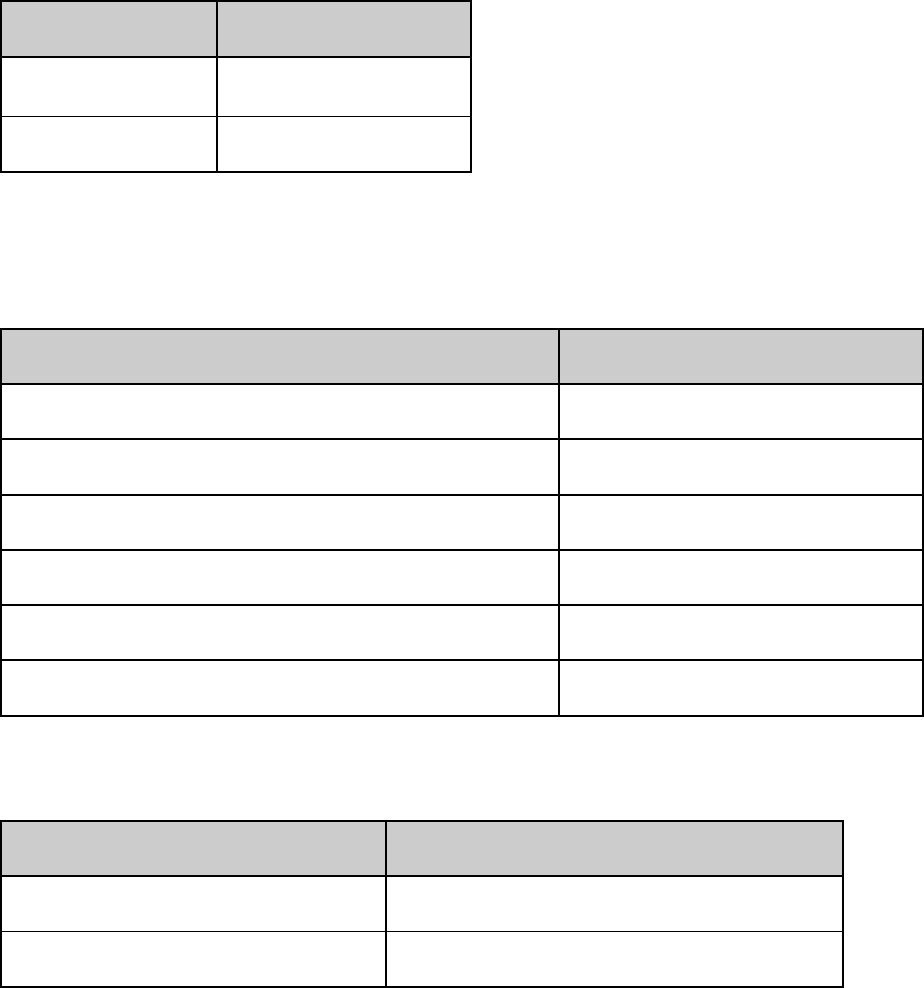
LED indicator Status of the headset
Red LED is on Charging
Red LED is off Finish charging
LED Indicator Status of the headset
Red and blue LEDs blink alternately Pairing mode
Blue LED quickly blinks once every 2 seconds. Not connected to a device
Blue LED quickly blinks twice every 4 seconds Set up HFP or A2DP connection
Blue LED quickly blinks three times every 2 seconds Set up HFP and A2DP connection
Blue LED gradually turns on and off Conversation mode
Red LED blinks twice every 20 seconds Low power
10) Indication tone
Indication tone Status of headset
Two tones every 3 seconds Conversation mode and microphone mute
Three “DU” tones every 20 seconds Low power
11) Pairing with un computer WINDOWS or MAC
If your computer has Bluetooth, you can attach your headset to it. Why thank you consult the
manuals for your computer to set their association with your headset.
• Care and maintenance
Please read the following suggestions carefully, that will help you to fulfill any warranty
obligations and to enjoy this product for many years.
• Keep dry and don’t put it in the dump place, in case of effecting the interior circuit of
product.
• Don’t put the product under the sunlight or place hot areas. High temperature will
short the life of electronic device, destroy the battery, or distort certain plastic.
• Don’t expose the product in the cold areas. It may damage the internal circuit board.
• Don’t try to take apart the product. It may damage the product if you are not
professional.
• Don’t fall off on the floor or knock the hard substance. It may damage interior circuit.
• Don’t use intensify chemical or detergent to clean the product.
• Don’t scrap the surface with sharp things. In case the product doesn’t function
properly, send it to the store you bought it. The staff will help you to solve the
problem.
FAQs
• Why does red light blink twice every 20 seconds?
Battery is low, need to be recharged.
• Why is not the red light bright when charging?
• Please make sure the charging device connects with headset. well
• You didn’t use the headset for a long time, the battery may dry up. At this time, you
have to charge the battery for 30 minutes, and then the red light will be bright.
• How far is the effective rang between the headset and mobile phone?
According to the Bluetooth standard, the max. controllable range of Class2 headset is
10 meters. It varies under different environment.
• Why can not my cell phone search and find the headset?
The mobile phone will not find the headset if headset and mobile phone are not under
the pairing mode, Make sure the headset is under the pairing mode and in the effective
working range, and then the headset can be paired and connected.
• Why can not hear the voice?
• Make sure the headset has been switched on.
• Make sure the volume is not too low or muted.
• Make sure the headset connects with the mobile phone correctly.
• Make sure the distance between the headset and the cell phone is in the normal
working scope.
• Why is the voice not clear in conversation?
• Make sure the mobile phone is in the strong signal area.
• Make sure the headset is in the function range of this product.
• Why can’t control the function of pause, play, last song and next song when
playing music?
This function needs your Bluetooth device supports AVRCP(Audio/Video Remote
Control profile).
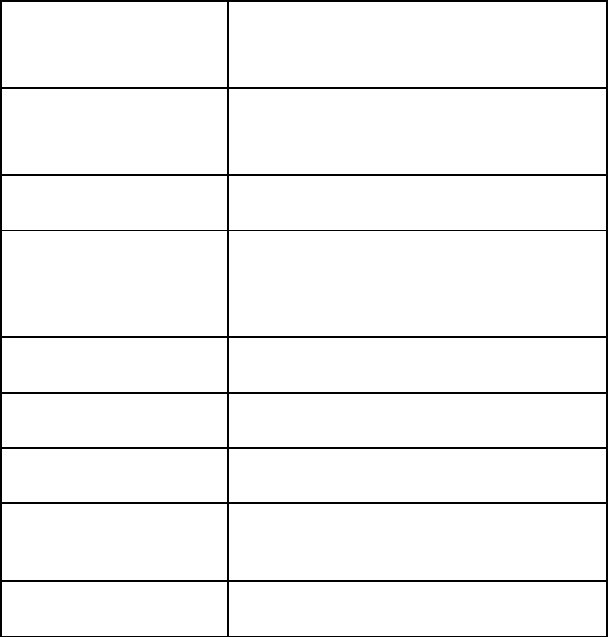
• Specifications
Bluetooth
version Bluetooth V2.1
Bluetooth profiles Headset, Hands free, A2DP,
AVRCP
Effective range 10 meters
Working time Music: Up to 10 hours
Talk: Up to 11hours
Standby time Up to 250 hours
Input DC: 5V/130mA
Charging time Approx 3 hours
Dimensions 162×153.5×
Weight Approx.
FCC STATEMENT
1. This device complies with Part 15 of the FCC Rules. Operation is subject to the following two
conditions:
(1) This device may not cause harmful interference.
(2) This device must accept any interference received, including interference that may cause
undesired operation.
2. Changes or modifications not expressly approved by the party responsible for compliance could
void the user's authority to operate the equipment.
NOTE: This equipment has been tested and found to comply with the limits for a Class B digital
device, pursuant to Part 15 of the FCC Rules. These limits are designed to provide reasonable
protection against harmful interference in a residential installation.
This equipment generates uses and can radiate radio frequency energy and, if not installed and
used in accordance with the instructions, may cause harmful interference to radio communications.
However, there is no guarantee that interference will not occur in a particular installation. If this
equipment does cause harmful interference to radio or television reception, which can be
determined by turning the equipment off and on, the user is encouraged to try to correct the
interference by one or more of the following measures:
Reorient or relocate the receiving antenna.
Increase the separation between the equipment and receiver.
Connect the equipment into an outlet on a circuit different from that to which the receiver is
connected.
Consult the dealer or an experienced radio/TV technician for help.
RF warning statement:
The device has been evaluated to meet general RF exposure requirement. The device can be used
in portable exposure condition without restriction.