MBN Partners SPEEDMBN USB Drive User Manual FCC Compliance Statement
MBN Partners Co., Ltd. USB Drive FCC Compliance Statement
Users Manual
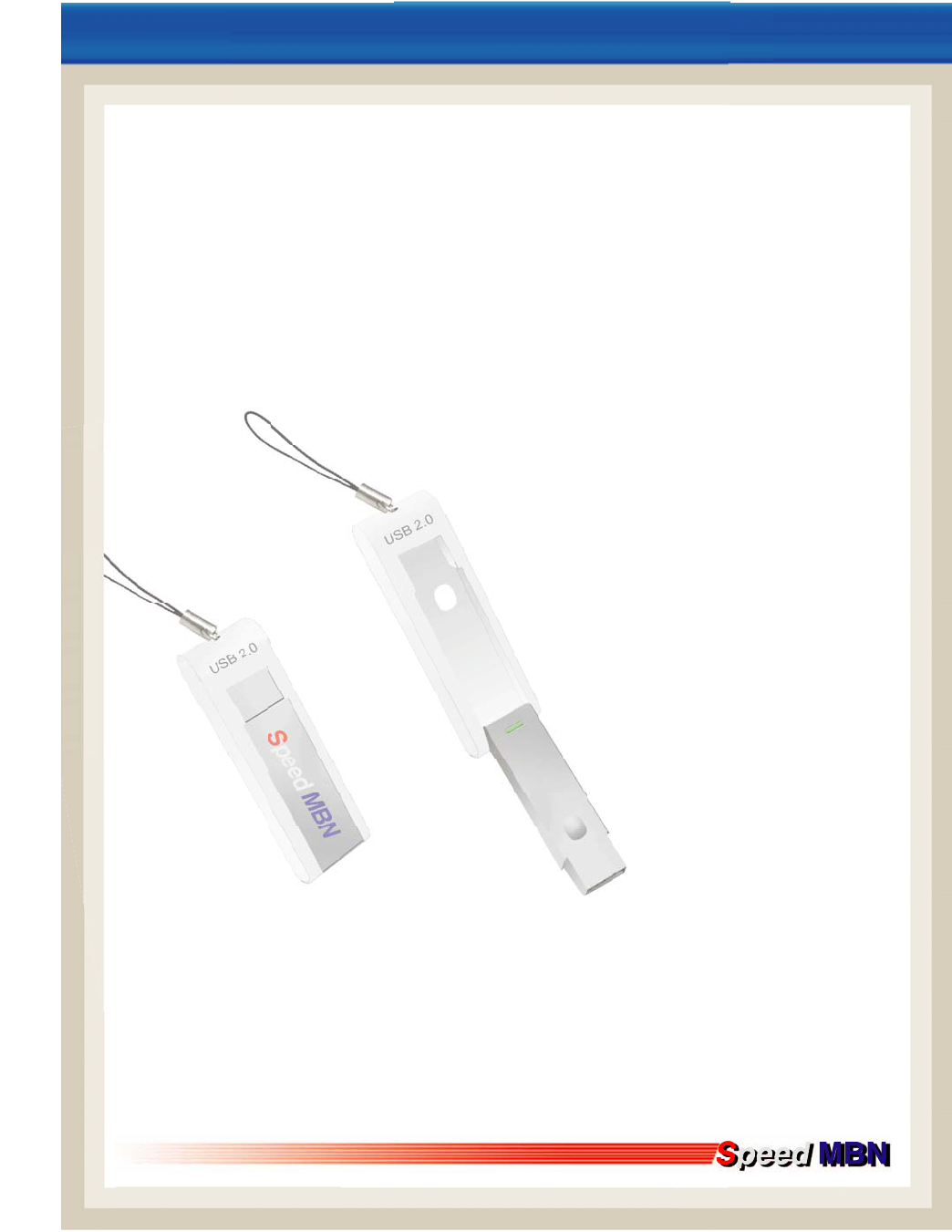
OPERATING MANUAL
USB 2.0
Unibersal Serial Bus
HIGH SPEED DRIVE
* Introduction ·········· 2P
* Product features ········ 2P
* System Requirements ······ 3P
* Caution············· 3P
* How to use ········4P ~ 10P

* Introduction - 2 -
We, MBN Partners, sincerely appreciate for your purchasing Speed MBN-USB Flash Disk.
Using this storage, you can save your data safely and carry them anywhere.
Through USB port onto your computer, this device could be used easily and it doesn't need computer's re-
start while using computer.
You also can use Speed MBN as a personal hard disk drive could be carry out to read, write, copy and
delete files which like MP3 or Video file.
Using the utility program that is provided with this product, you can format the device to be divided as
Public Area and Security Area.
Security Area can be managed with password.
We have to remind you after format, you'll lose all previous data you saved in the storage. Please back up
your important data before doing format.
■ Product features
- USB V.20
- Capacity : 16MB, 32MB, 64MB, 128MB, 256MB,512MB, 1GB
- Read performance : 9M Byte /sec
- Write performance : 7M Byte / sec
- O / S : Windows 98 second edition, ME, 2000, XP and Mac 9.1 or higher
Windows 98 needs the driver install that we provide with product.
- Power supply : No need external power supply
- Easy to partition and set security function.
- Strong from external shock
No cacophony and available to conserve data for long period.
- 3 -

* System Requirements.
- Hardware : IBM PCs / AT Compatible, Power Macintosh,
Power Book, iMAC or iBook
- O/S : Windows 98 Second Edition, ME, 2000 and XP.
Linux 2.4 or higher
Mac 9.0 or higher
* Caution
- Please do not open the case nor disassemble.
- Please do not contact this product to water or liquid materials.
If product is contacted to water or other liquid, please remove the
device from PC immediately.
- Please do not use this product with wet hands.
- Please do not lay the product under direct ray of light and
avoid hot temperature.
- Please avoid strong magnetic and inflammables.
- Losing data from heedless usage can not be warrant,
so we recommend you back up important data.
- 4 –
* How to use
When insert Speed MBN into USB port on your computer, if your O/S is Windows ME, 2000 and XP
then your computer will install the device automatically.
In case of Windows 98, you need to install the driver manually.
To use partition function or security function, you have to install the utility that is provided in CD
ROM.
1. 1. Plug IN & Unplug
While Speed MBN is inserted into computer, the product is ready to be used as storage device as Hard
disk or Floppy disk.
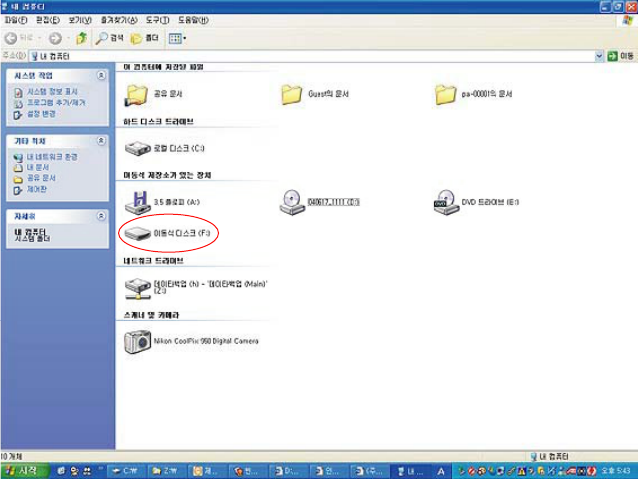
In IBM PCs, open "My computer" to check the new storage drive. "Removable disk" will appear
automatically then you can operate "Speed MBN".
In Macintosh, if insert "Speed MBN" into USB port, "Disk drive icon" will be created.
If your O/S is Linux, you can mount the driver as below procedure;
1. cd/etc/sysconfig/
2. check the device information in 'hwconf' and memo the mount
3. creat directory in '/mnt' (ex;mkdir/mnt/usbHD)
4. if mount place is 'dev/sda', execute 'mount/dev/sda1/mnt/usdHD.
- 5–
Unplug
All O/S
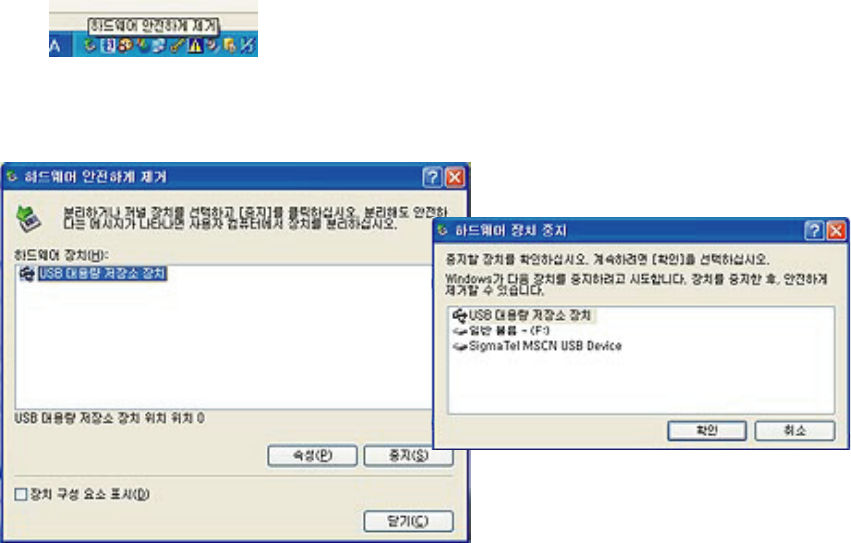
When you remove your device from your computer, you have to be careful. If you remove it suddenly
during reading or reading some files, it may cause data losing. Also even your device is waiting mode;
you need to remove it with the following instructions.
Window XP, 2000 : Execute "Unplug or Eject Hardware" button on Window System
MAC : Throw the Removable Disk icon into "Recycle Bin"
Linux : Remove the disk after execution "Unmount" command.
[Do not unplug while LED is blinking that means the device is under the procedure of reading or writing.]
- 6–
2. User Security Application software.
This product can be divided as Public area and security area.
Public Are can be access without password but security area can be access with password.
Please insert your CD into your computer
And execute software/ssgscu installer.exe.
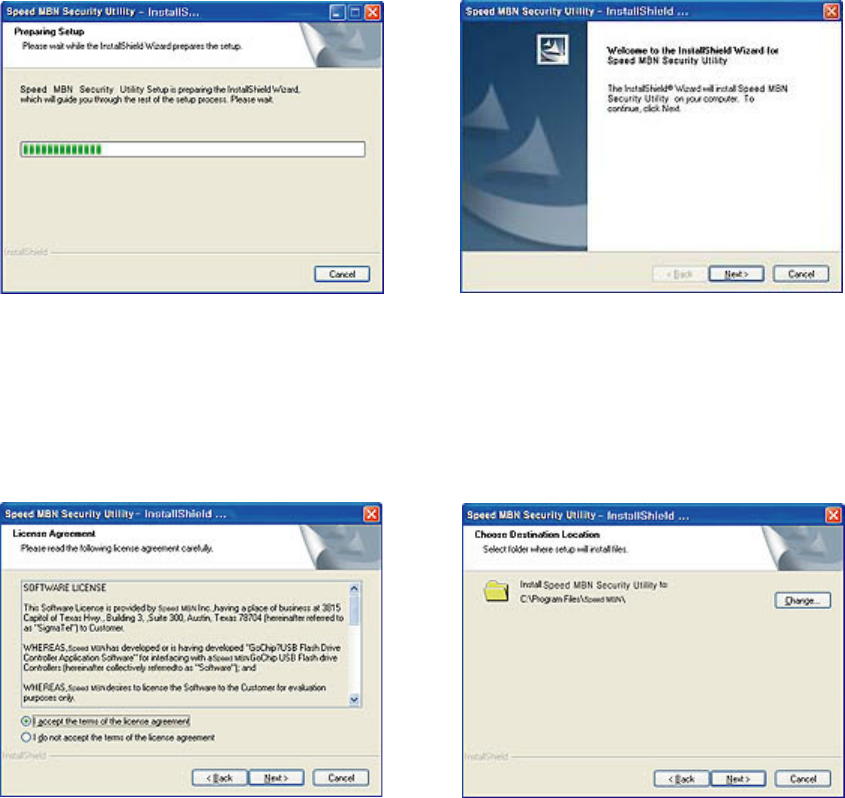
Below #1 window of Speed MBN Security utility-installer shield will be pop up and executed.
#2 window will be pop up, then click next button.
<# 1> <# 2>
#3 window will be shown then check on the circle of "I accept the terms of the license agreement" and
click next button
Below #4 ask to you to specify a location to install the program in your computer
(You can specify a location with click "browse" button if you want) then click next.
<# 3> <# 4>
- 7 –
#5 window will be pop up then click "install" button.
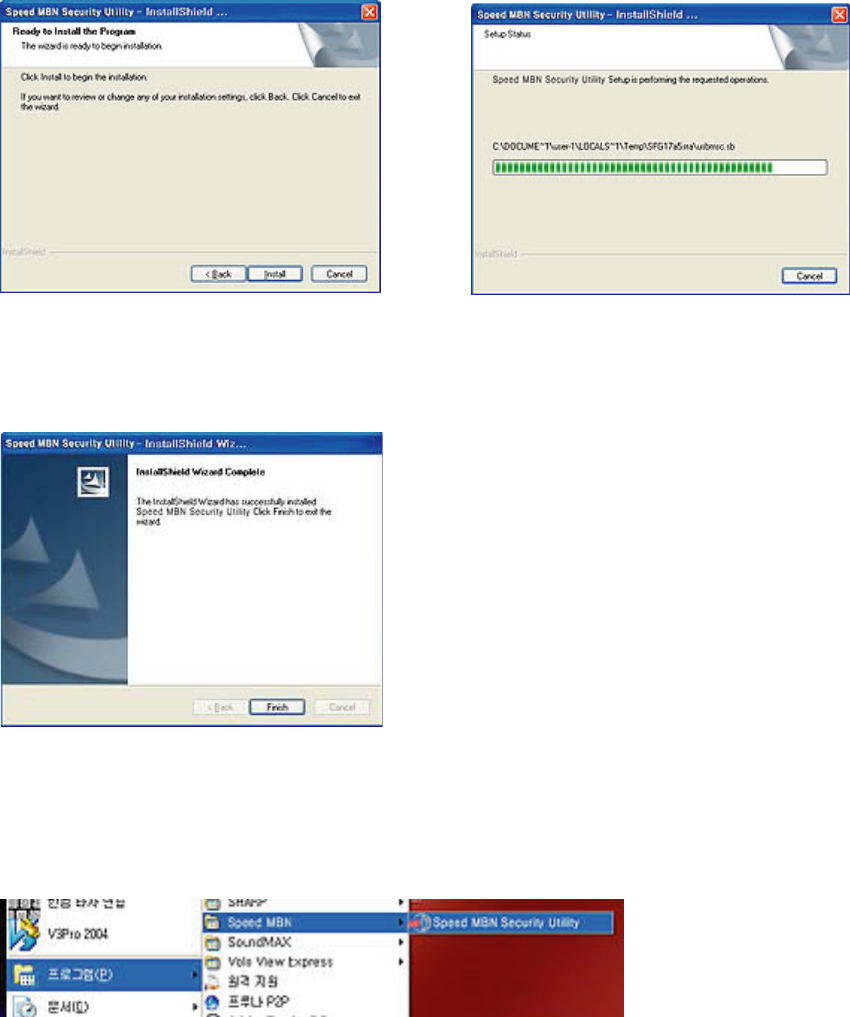
#6 is showing the procedure of installation software.
<# 5> <# 6>
If "installshueld wizard complete" pop up as #7 window, it means installation is finished then click finish
button.
<# 7>
You want to confirm the utility installation in your computer successfully, execute press "start" in window
menu, move your mouse point through program and sigmatel gochip. Then you can see #9 window of
software installed.
<# 8>
- 8 –
<# 9>
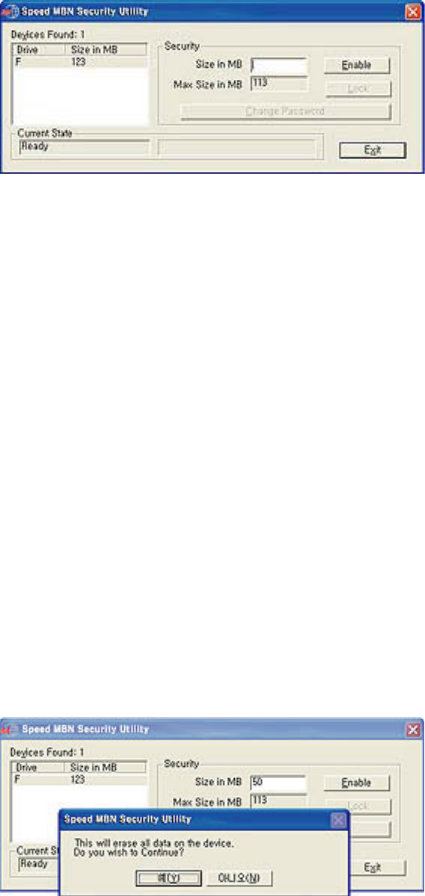
Partition & Password
Click Security configuration utility, #9 window will pop up.
① Means capacity of current product.
For you information, this manual's model is 128Mbyte.
② means to set driver capacity for security using.
For the first time, if the drive is indicated as G before partition security,
the partition for security will be indicated as H
③ means maximum size for partition
<# 10>
Then, set the size you want for security usage and click 'enable' button then below window will be pop
up and meaning is that
"We have to remind you after format, you'll lose all previous data you saved in the storage. Please back
up your important data before doing format".
- 9 –
If you click "yes", then you can set your password as maximum 10 digits.
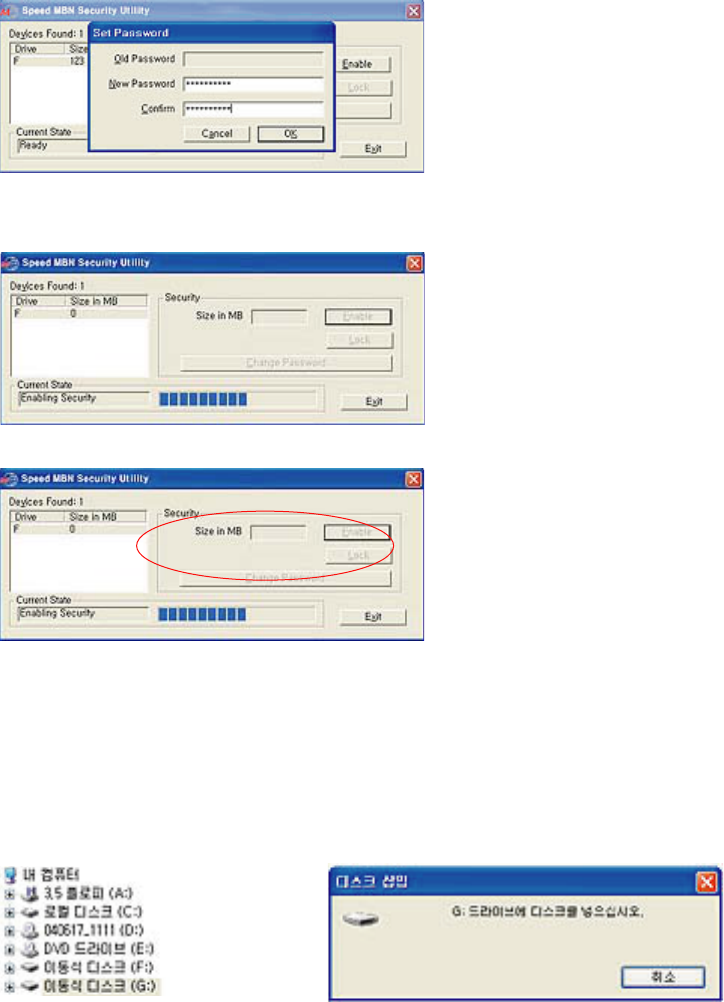
Please input you password on the new password and input again on the confirm.
Then click ok button.
<# 11>
#12 window shows the current procedure of partition, if finish, #13 window will be shown.
<# 12>
<# 13>
① means to select 'disable for g drive' or 'unlock'
② means whether change the previous password was set before partition.
With double clicking of my computer icon, you can confirm successful partition as movable disk F and
movable disk G.
In the execution, if you click G, #15 window will be pop up because G was set by password.
<# 14> <# 15>
- 10 –
If click disable, #10 window of 10th page of this manual will be pop up then #12 window will appear for
showing the procedure. #9 window will be pop up again.
Therefore partition is deleted, the device is back to original condition when you purchased. If you click
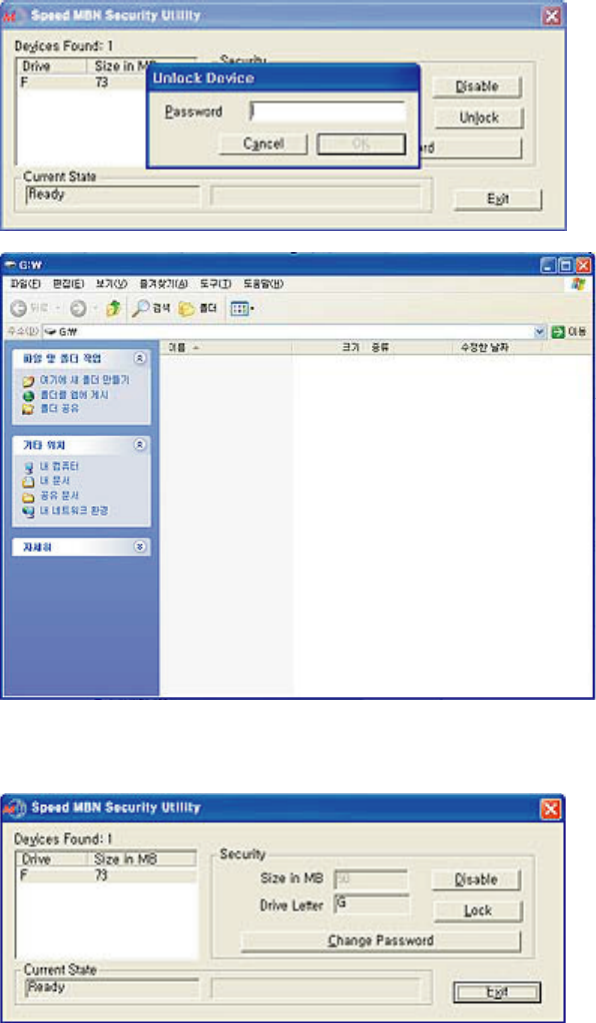
"unlock", #16 window will be pop up then input password and click ok button. Then #17 window will be
popup.
<# 16>
<# 17>
You can divide the device as Public Area - Free Access and Security Area - Password Access. With
Unlock function, you can protect your data from surreptitious use.
<# 18>

FCC Compliance Statement
This device complies with Part 15 of the FCC Rules.
Operation is subject to the following two conditions:
(1) This Device may not cause harmful interference, and
(2) This device must accept any interference received, including
interference that may cause undesired operation.
Caution : Any changes or modifications in construction of this device which are not expressly
approved the party responsible for compliance could void the user's authority to operate the
equipment.
NOTE : This equipment has been tested and found to comply with the limits for a Class B
digital device, pursuant to part 15 of the FCC Rules. These limits are designed to provide
reasonable protection against harmful interference in a residential installation. This equipment
generates, uses and can radiate radio frequency energy and, if not installed and used in
accordance with the instructions, may cause harmful interference to radio communications,
However, there is no guarantee that interference will not occur in a particular installation. If
this equipment does cause harmful interference to radio or television reception, which can be
determined by turning the equipment off and on, the user is encouraged to try to correct the
interference by one or more of the following measures:
- Reorient or relocate the receiving antenna.
- Increase the separation between the equipment and receiver.
- Connect the equipment into an outlet on a circuit different from that to which the receiver
is connected.
Consult the dealer or an experienced radio/TV technician for help.