MEAZON ELECTRONIC SYSTEMS JG JANUS GATEWAY User Manual
MEAZON ELECTRONIC SYSTEMS SA JANUS GATEWAY
User Manual
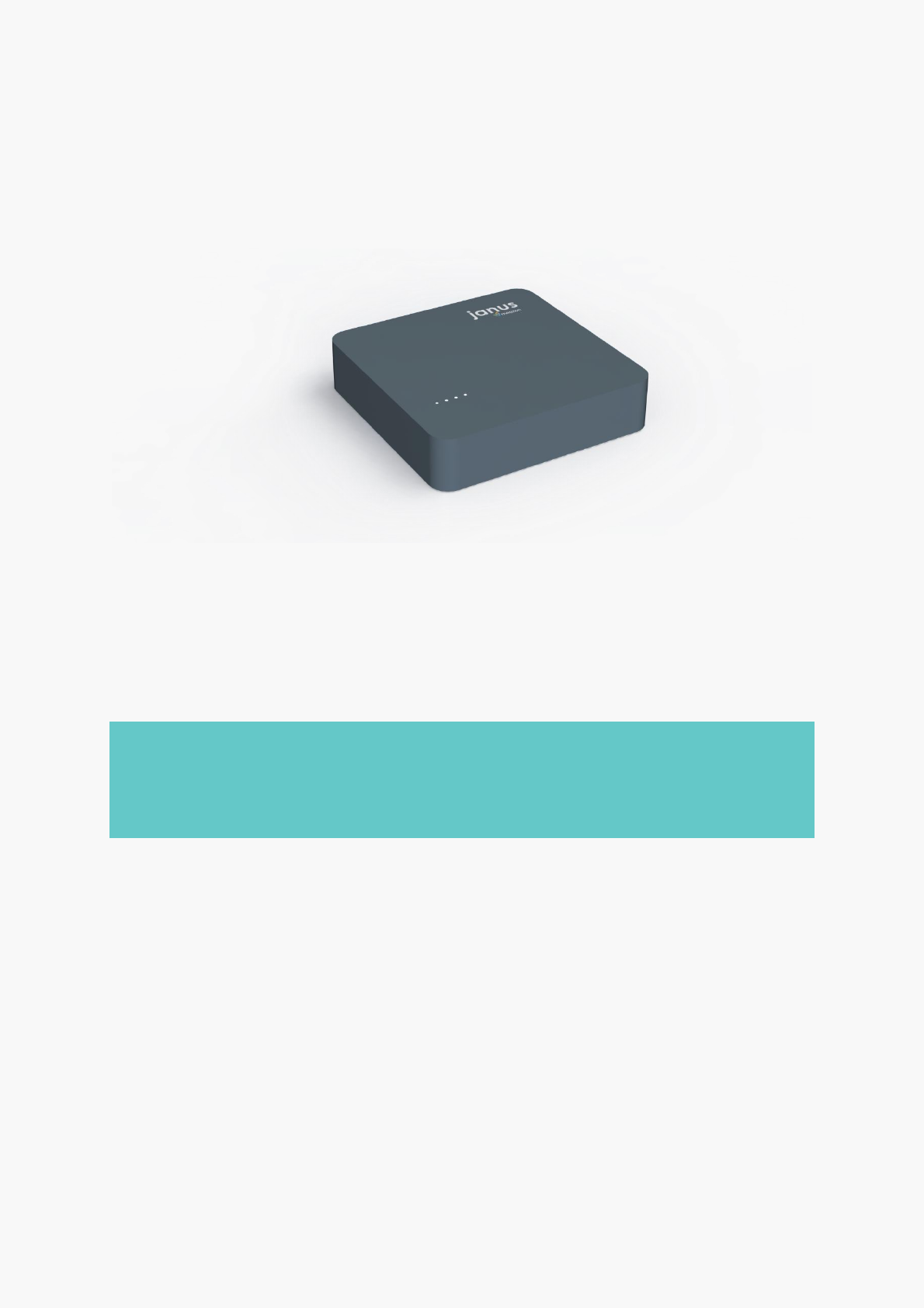
janus Gateway Installation Tool
ΜΕΑΖΟΝ S.A.
57 N.E.O Patron - Athinon Str. 26442, Patra
Τelephone: +30 2610 430000
2
Meazon S.A., 57 N.E.O Patron - Athinon Str. 26442, Patra info@meazon.com
support@meazon.com +30 2610 430000 www.meazon.com
Contents
janus Gateway Installation Tool ............................................................................................................................. 1
Contents .................................................................................................................................................................. 2
Introduction ............................................................................................................................................................ 3
Application Use ...................................................................................................................................................... 4
Log in.................................................................................................................................................................. 4
Home Page .......................................................................................................................................................... 5
Configuration ...................................................................................................................................................... 6
Configure Gateway Location .......................................................................................................................... 6
Add devices .................................................................................................................................................... 6
Configure devices ........................................................................................................................................... 7
Preview ........................................................................................................................................................... 7
Online version settings ................................................................................................................................... 8
Device Monitoring ............................................................................................................................................ 10
Measurements ................................................................................................................................................... 11
Network settings ............................................................................................................................................... 12
3
Meazon S.A., 57 N.E.O Patron - Athinon Str. 26442, Patra info@meazon.com
support@meazon.com +30 2610 430000 www.meazon.com
Introduction
MicroBizy (uBizy) is the web interface of the janus Gateway. This application helps setting up
a ZigBee network between Meazon Gateway and ZigBee submeters. After the installation, visit
the Meazon cloud (https://bizyplus.meazon.com/dashboard) to monitor the devices.
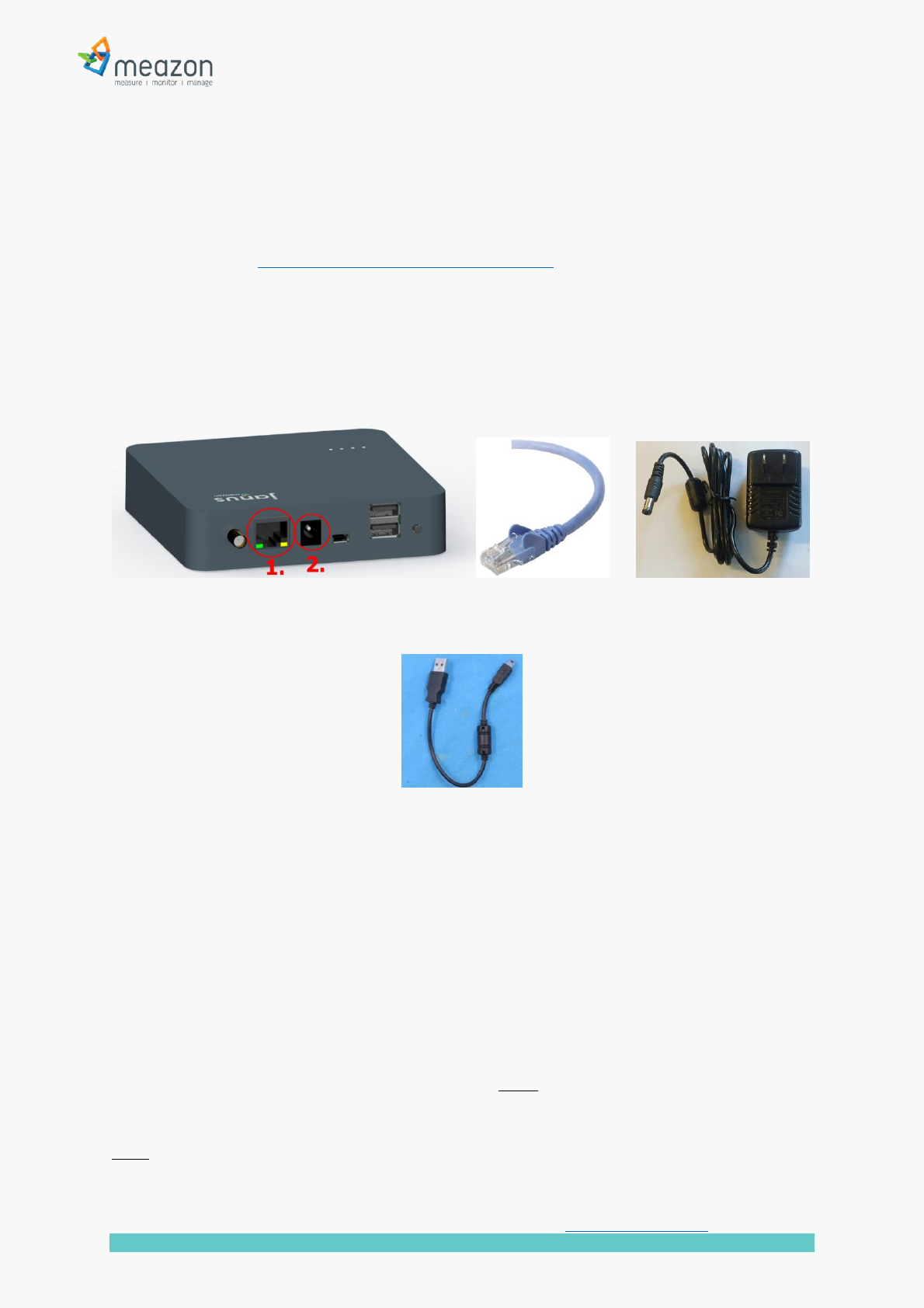
Firstly, the Gateway must connect via Ethernet cable to gain internet network and then via
mini USB or barrel connector to power supply.
(WARNING: the connection priority must be according to the description above).
Step 1. Step 2.
Picture 1
On the upper side of the Gateway there are 4 LED indicators which are blinking under normal
operation. At a status of permanent on or off state, the Gateway must be restarted by
unplugging the power supply. Also, there are 2 LEDs (yellow/orange) on the Ethernet jack
indicating the status of network communication. If they are off, the Gateway has no internet
access. Next to mini-USB jack there are 2 USB Type-A ports, they will be used in future
gateway’s update. Currently, they have no use.
For the connection over USB, it is necessary to download and install drivers in order to obtain
IP: 192.168.7.2.
The drivers are available at the website: http://beagleboard.org/getting-started#step2
Connect the USB cable (picture1) to the Gateway only if it is necessary to configure the IP
parameters.
Note: Gateway’s operation requires Ethernet connection and internet access.
4
Meazon S.A., 57 N.E.O Patron - Athinon Str. 26442, Patra info@meazon.com
support@meazon.com +30 2610 430000 www.meazon.com
Application Use
The application requires a web browser (Google Chrome preferably).
At the URL address of the browser type the Gateway’s IP address (alternatively
http://192.168.7.2 , if USB cable is directly connected to PC)
Log in
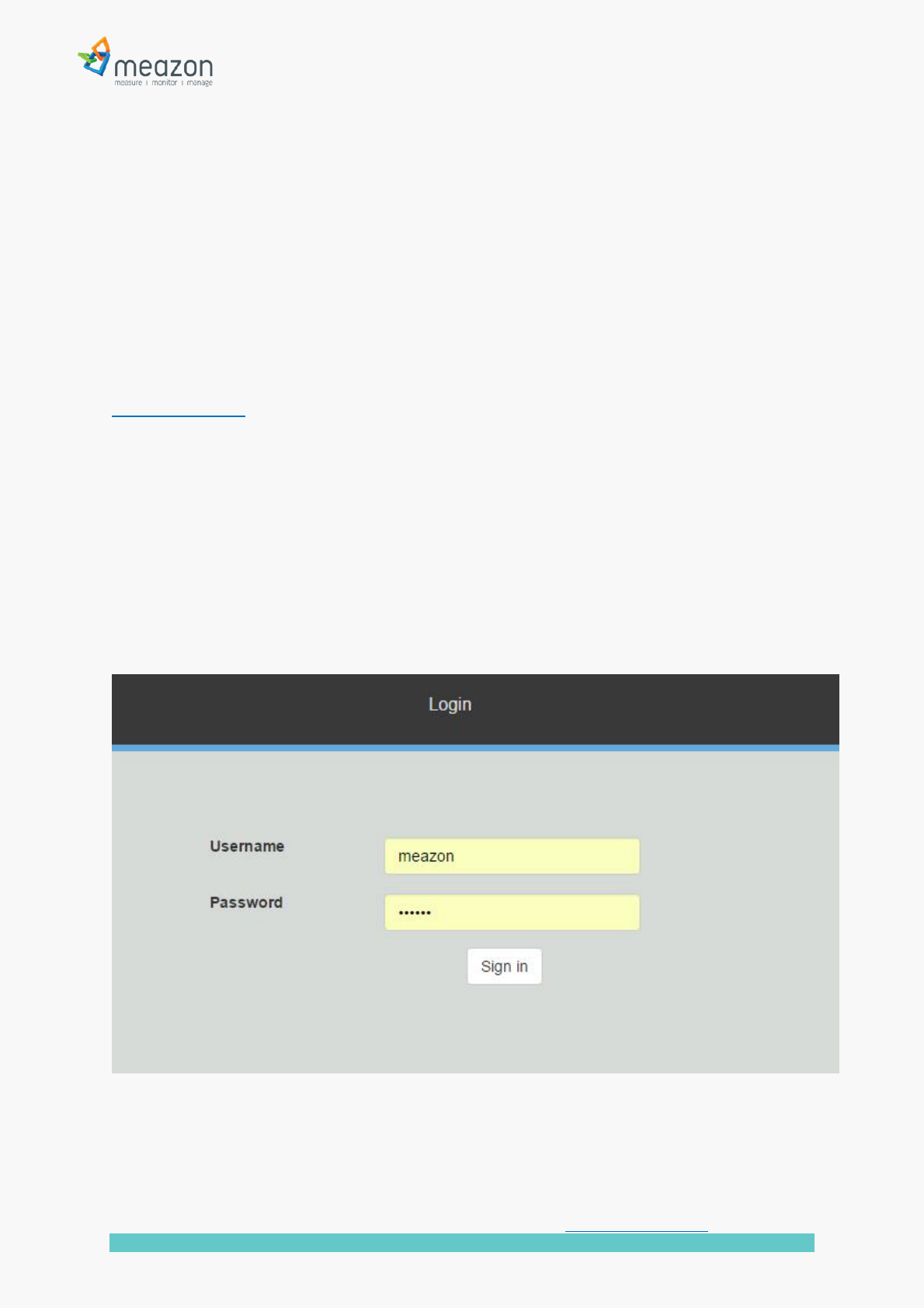
Home page requires Sign in. The default credentials are:
• username: meazon
• password: meazon
Credentials can be changed from the option “User Settings” which is located at the bottom of
the Home Page.

5
Meazon S.A., 57 N.E.O Patron - Athinon Str. 26442, Patra info@meazon.com
support@meazon.com +30 2610 430000 www.meazon.com
uBizy online version needs to log in with your bizyuser account. The same credentials
you use at BizyPlus application.
Home Page
If the Meazon network is not yet configured, it is necessary to set it up and add devices using
the option “Configure devices”.
6
Meazon S.A., 57 N.E.O Patron - Athinon Str. 26442, Patra info@meazon.com
support@meazon.com +30 2610 430000 www.meazon.com
Configuration
Configure Gateway Location
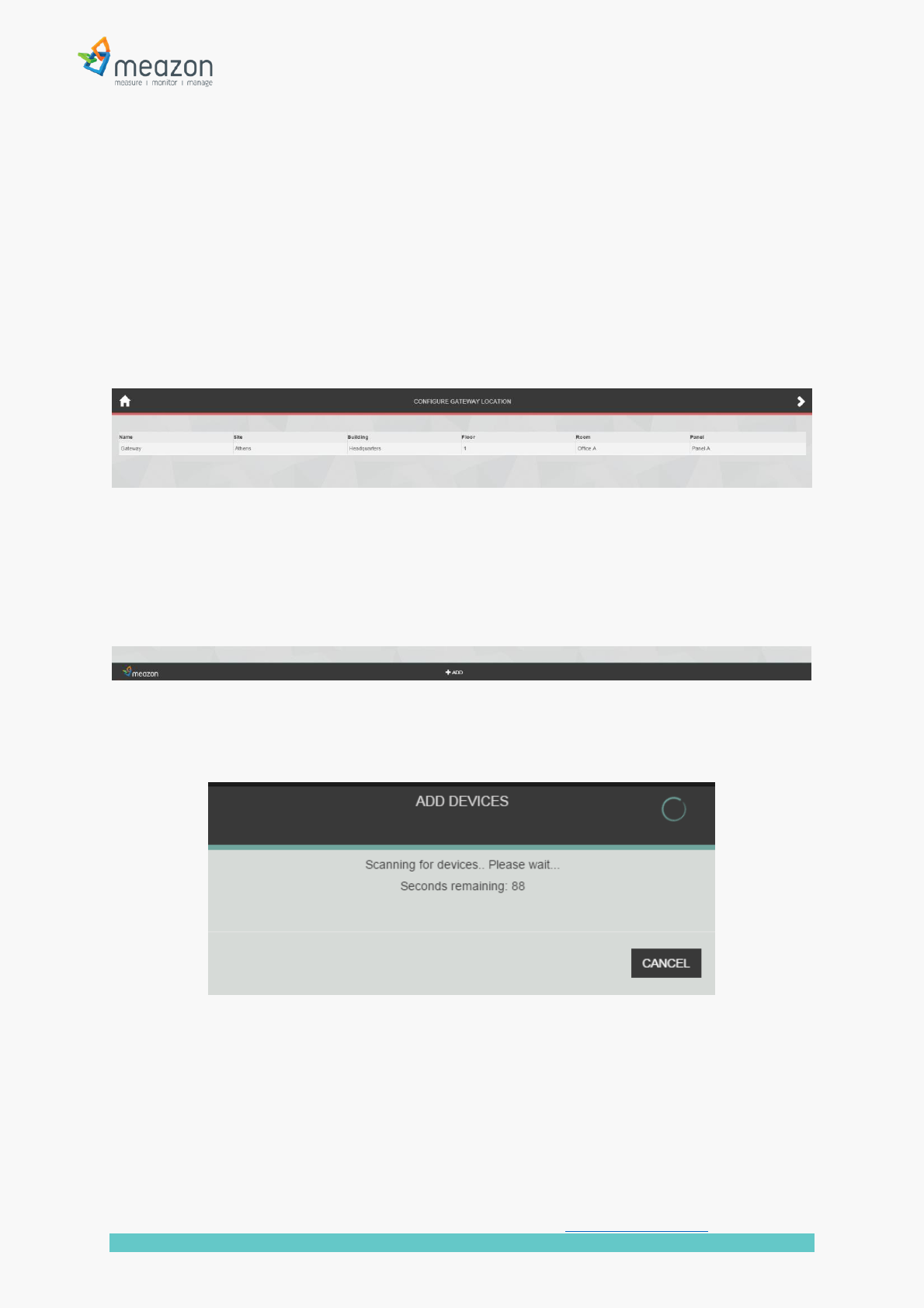
At the first step of the process type the Gateway’s information such as name, site, building,
floor e.t.c. After that press the “right arrow” to continue to the next step.
Add devices
The very first time of an installation, the Meazon network will not have any device. To add a
new device press the button “Add” which is located at the bottom of the screen.
Scanning time lasts 90 seconds.
7
Meazon S.A., 57 N.E.O Patron - Athinon Str. 26442, Patra info@meazon.com
support@meazon.com +30 2610 430000 www.meazon.com
Configure devices
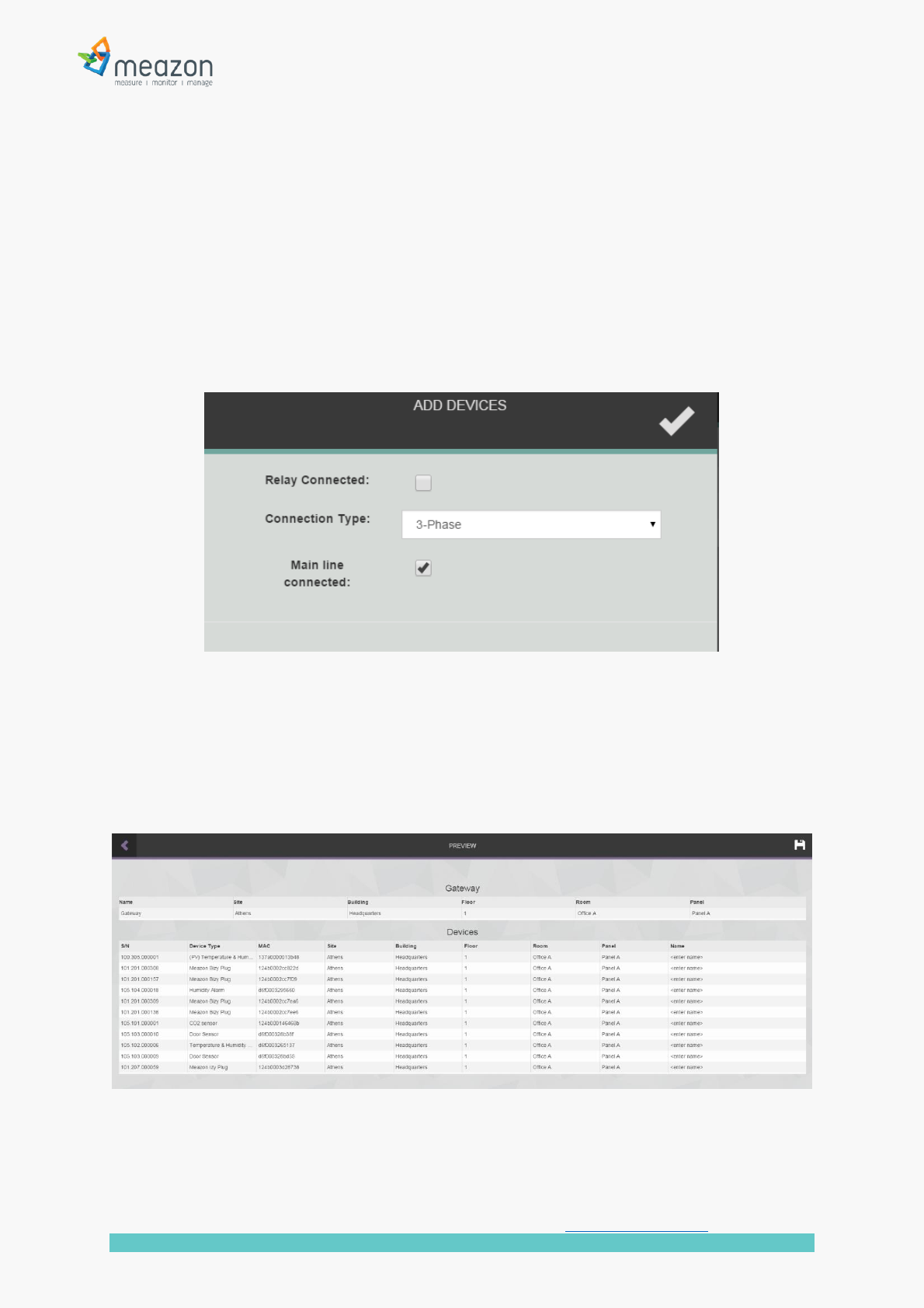
After the completion of scanning, the devices which added appear in the above list.
Information can be edited.
The “Extras” button provides the ability for further settings such as relay control,
single/three phase connection e.t.c.
Preview
After that, the user proceeds to the final step where there is a preview of the network to be
created. By pressing the “Save” button the setup is complete.
(Warning: In case of not saving any changes the edited information will be lost.)
8
Meazon S.A., 57 N.E.O Patron - Athinon Str. 26442, Patra info@meazon.com
support@meazon.com +30 2610 430000 www.meazon.com
Online version settings
The following options are available only at an online uBizy version
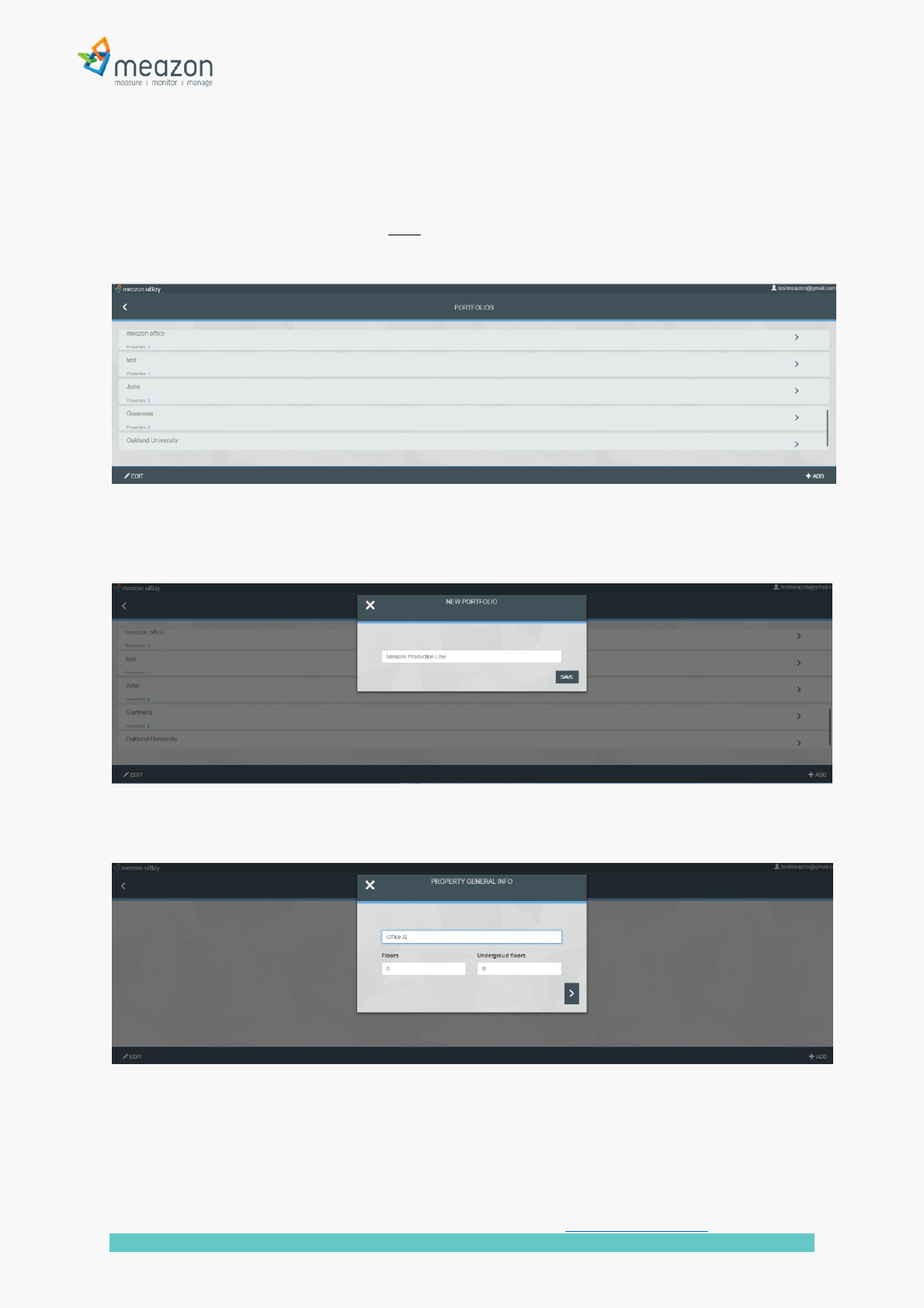
At the First Step the User can choose an existing Portfolio or create a new one.
To create a new Portfolio, the user have to press the “ADD” button at the bottom side of
the screen.
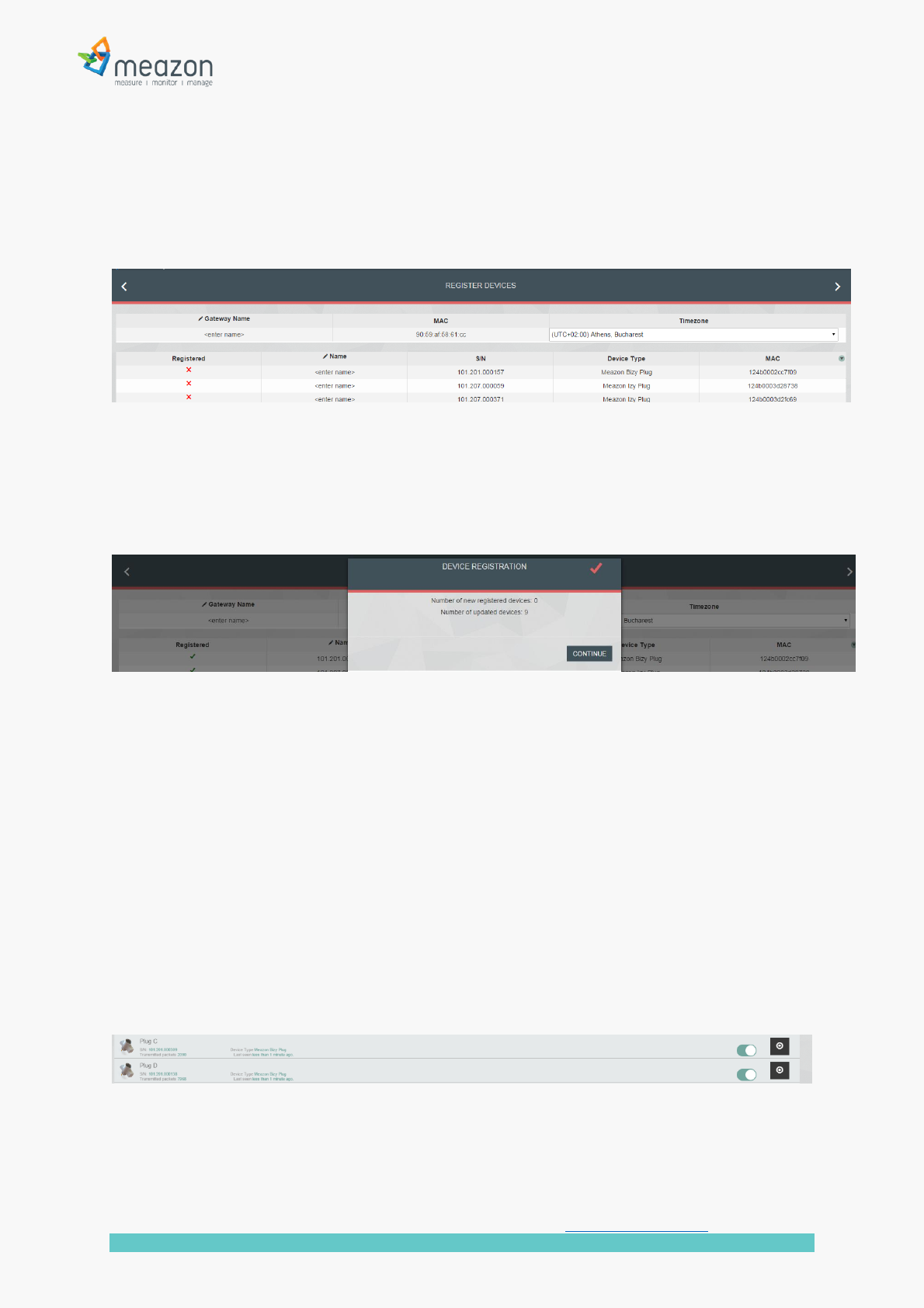
At the next Step the user have to type a Property name and the number of floors
10
Meazon S.A., 57 N.E.O Patron - Athinon Str. 26442, Patra info@meazon.com
support@meazon.com +30 2610 430000 www.meazon.com
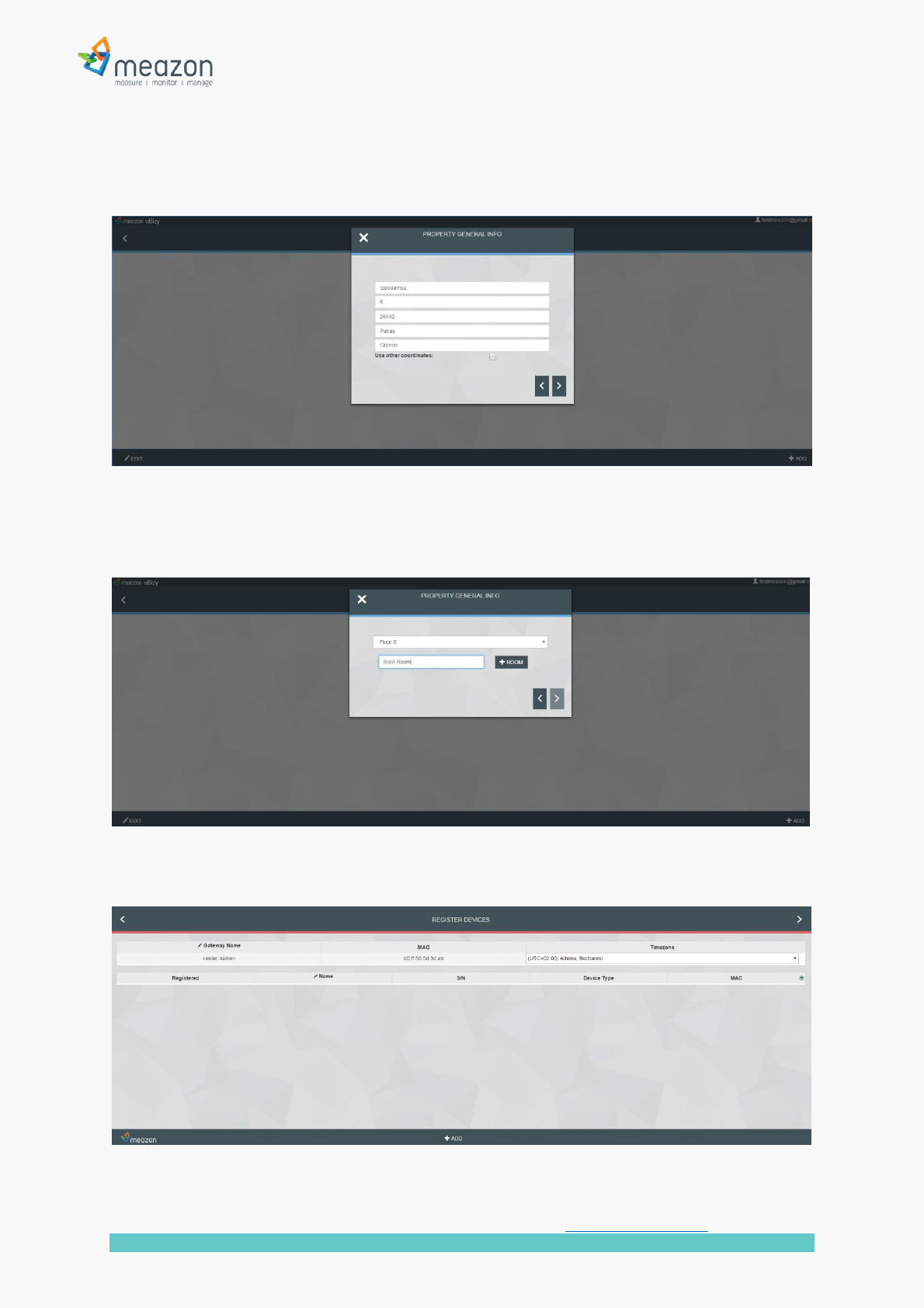
After adding new devices, it will show the information. In the right side there is a
button(next to “MAC”) for extra options.
At the next step is the Registration, all the information that completed in previous steps
now will sync with the Cloud server.
Device Monitoring
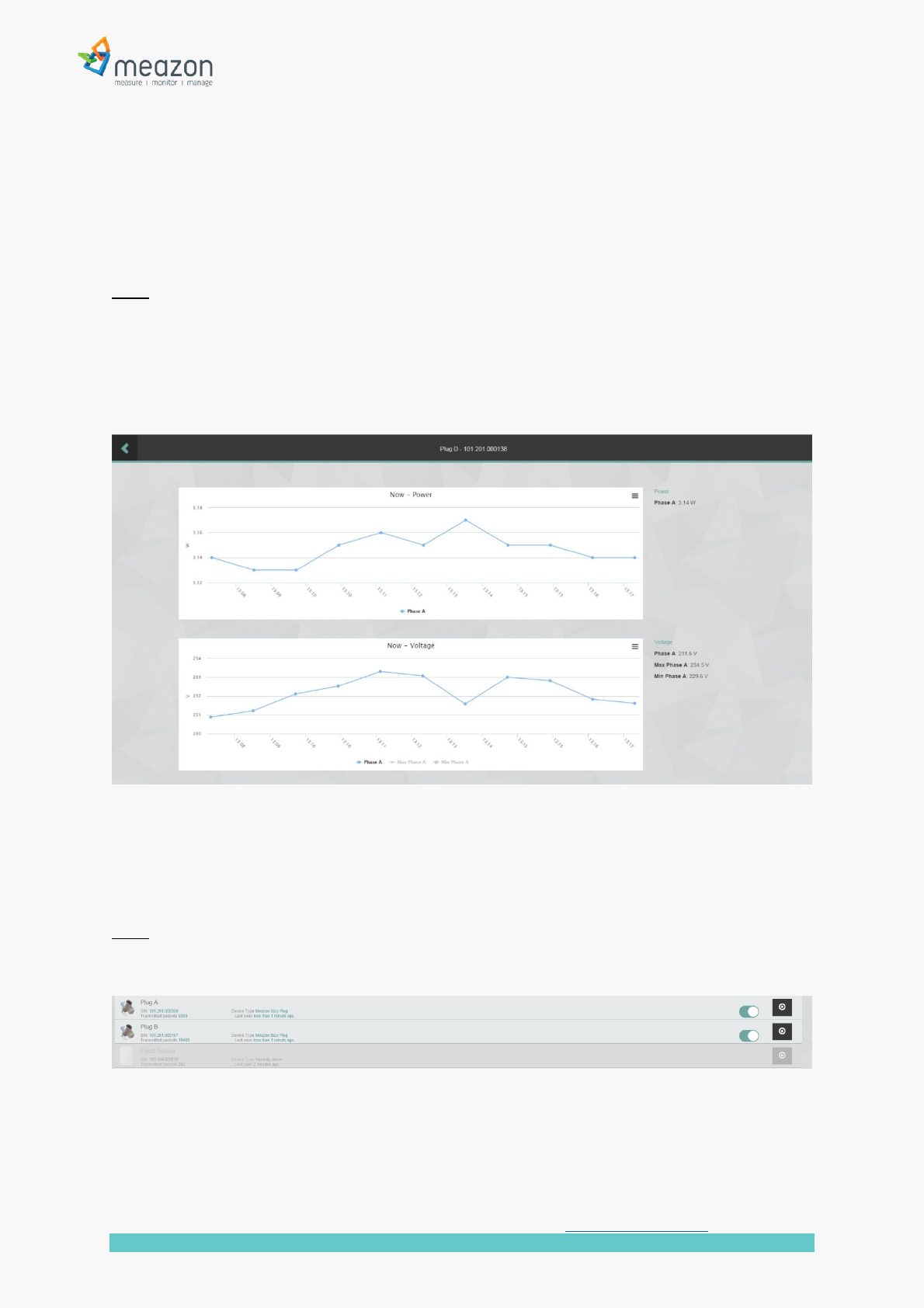
As long as the information is saved the user is navigated to tab “Device Monitoring” (accessed
also from Home Page).
The devices have the updated information that were previously saved. Each device has a serial
number, type e.t.c. the“identify” button where the device’s LED is rapidly blinking to be
identified. In case a device has relay control, an on/off button appears for switching on/off the
device.
11
Meazon S.A., 57 N.E.O Patron - Athinon Str. 26442, Patra info@meazon.com
support@meazon.com +30 2610 430000 www.meazon.com
Measurements
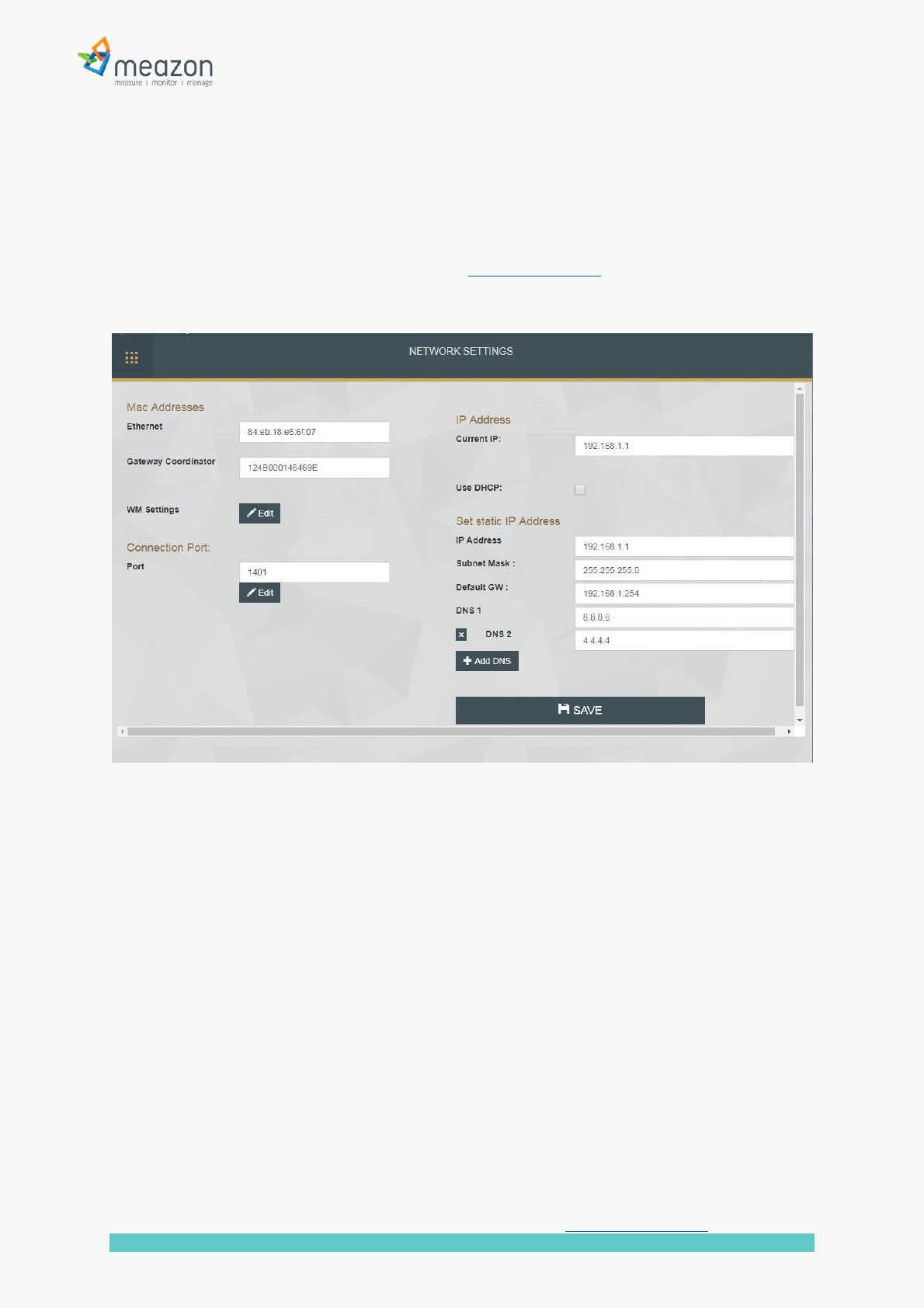
By clicking at a device, the user has access to real time measurements (power, voltage,
temperature e.t.c.)
Note: Until the presentation of the first measurement, the message “No measurements yet”
will be illustrated.
The button “Settings” navigates to the devices' editing menu previously mentioned.
When a device is unplugged or out of range, it appears as “offline” and functions such as relay
on/off and identify are disabled.
Note: Battery operated devices appear “offline” and become “alive” only when a
measurement is reported!
12
Meazon S.A., 57 N.E.O Patron - Athinon Str. 26442, Patra info@meazon.com
support@meazon.com +30 2610 430000 www.meazon.com
Network settings
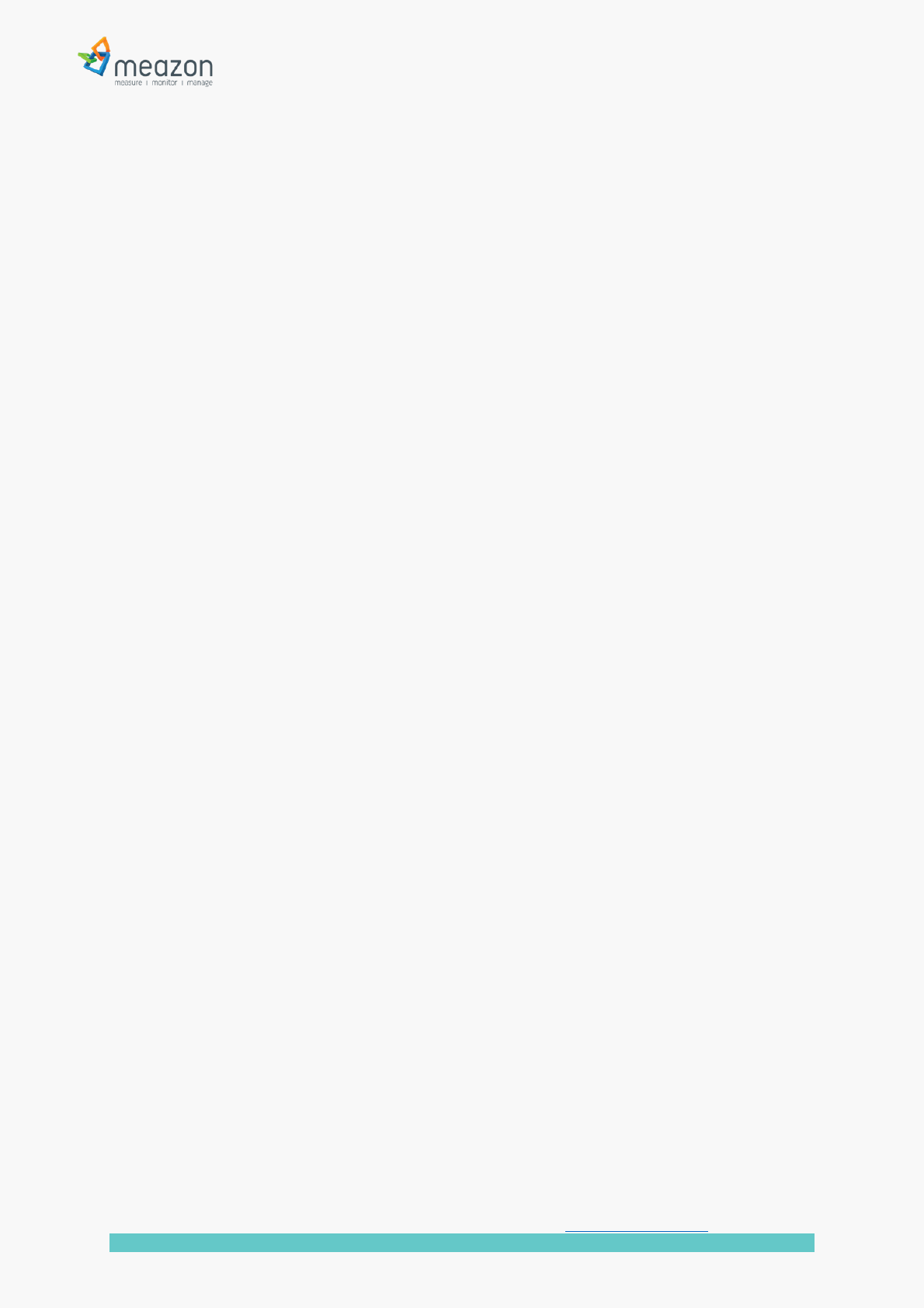
At the Home Page there is a tab about “Network settings”. User can check Gateway’s IP and
or select for a DHCP or Static IP addressing. After setting a new IP the Gateway will restart
automatically and the web page is redirected to http://192.168.7.2 which is the default IP when
the Gateway is directly connected with a PC.
13
Meazon S.A., 57 N.E.O Patron - Athinon Str. 26442, Patra info@meazon.com
support@meazon.com +30 2610 430000 www.meazon.com
NOTE: This equipment has been tested and found to comply with the limits for a
Class B digital device, pursuant to part 15 of the FCC Rules. These limits are
designed to provide reasonable protection against harmful interference in a
residential installation. This equipment generates uses and can radiate radio
frequency energy and, if not installed and used in accordance with the instructions,
may cause harmful interference to radio communications. However, there is no
guarantee that interference will not occur in a particular installation. If this
equipment does cause harmful interference to radio or television reception, which
can be determined by turning the equipment off and on, the user is encouraged to
try to correct the interference by one or more of the following measures:
- Reorient or relocate the receiving antenna.
- Increase the separation between the equipment and receiver.
-Connect the equipment into an outlet on a circuit different from that to which the
receiver is connected.
-Consult the dealer or an experienced radio/TV technician for help
Changes or modifications not expressly approved by the party responsible for compliance
could void the user's authority to operate the equipment. This device complies with Part
15 of the FCC Rules. Operation is subject to the following two conditions:
(1) this device may not cause harmful interference, and
(2) this device must accept any interference received, including interference that may
cause undesired operation.
RF Exposure Warning Statements:
This equipment complies with FCC radiation exposure limits set forth for an uncontrolled
environment. This equipment shall be installed and operated with minimum distance 20cm
between the radiator & body.