MEERA MT-703 Tablet PC User Manual

MEERA INTERNATIONAL LIMITED Tablet PC

user manual

    User Manual  Tablet PC  Model: MT-703   Flastar Technology Co., Ltd.  Made in china
   Contents: Attention 1.Guide 2. First use   2.1 Battery management and charge     2.2 Connection with PC 3. Equipment operation interface     3.1 Main interface describe 3.2 status bar describe 3.3 Use touch panel 4. Equipment basic set   4.1 Basic setting 4.2 Application   4.3 Privacy 4.4 Storage 4.5 Language & keyboard   4.6 Date & time setting     4.7 USB Mode Select   4.8 About device 5. Apps Install and manage 6. Operation   6.1 Network  6.2 Music 6.3 Video 6.4 Picture 6.5 Wallpaper 6.6 Camera  7. Hardware Specifications 8. Problem solution 9. FCC Warning      Thanks: Dear User Thank you for purchasing our product. These operational guidelines for the user, to ensure you a quick and convenient to use, read the instructions carefully before use.
   Attention: This handbook contains important security measures and the correct use of the product information, in order to avoid accidents. Please make sure to reading the manual carefully before use the device. z  Please don’t be in high temperature, moisture or very dust place z  Please don’t be in high temperature, especially in summer don't put the device in the car when Windows closed. z  Avoid fall or Violent collision of the device, don’t make the TFT display screen were violent tremor, this could cause TFT display screen abnormal or damage. z  Please choose the appropriate volume, Use headphones should not be too big volume, If feel tinnitus, Lower the volume or stop using it z  please charge In the following condition, A、 The battery power ICONS shows have no power B、 The system automatically shut off, startup after power off soon C、 Operation buttons no response D、 The machine that the top right corner show red icons  z  When the device in the format or ongoing upload and download file, please don't suddenly disconnect. This could cause application error. z  For those who because of damage to the product, repair, or other causes of erased the memory, The company shall not be liable for any responsibility, please follow the user manual for the standardized operation to use the device. z  Don’t disassemble the product, don’t use alcohol、Thinner or benzene to scrubbing products z  Don't use the device one of the place of prohibit to use electronic equipment in regional (such as the plane) z  Please don't using the Tablet PC when you in driving or walking down the street, z  USB just only be used for data transmission  The company reserves the right to improve product, products specification and design have any change. The information is subject to changes without prior notice. (This tablet is no waterproof function)  【Remark】All pictures in this manual is just for your reference. products specification and design have any change, The information is subject to changes without prior notice.
   1. Guide 1.1 Touch panel Capacitive touch panel: In The Operation, to click, dragging on the touch panel 1.2 POWER   startup: Long Press and hold the power button, the system will enter the main  interface     shutdown: In the main menu interface, Press the power button about 5 second to shutdown, The system can hint "power off" option, Click ”ok”. you can safely shut down. Lock screen: Short press Power button to lock screen or unlock screen. Remark 1.When power is empty, system will shut down automatically. 2. Illegal turn off the device, restart will scan and restore the disk, it may take longer time to enter into system 1.2HOME    Press Home button return home page 1.3VOL+ Turn up volume. 1.4VOL- Turn down volume 1.5 earphone jack 3.5 mm standard earphone jack 1.6 Video output interface  HDMI output interface(Optional) 1.7 TF card     TF-CARD slot: external T-FLASH card 1.8 USB(Micro/Mini)   Charging and external connection USB flash drive;And you can use it to connect the computer for data transmission  . 2. First use 2.1 Battery management and charge       Before first use, please set the device's battery is fully charged       Just need to connect the adaptor or USB interface, then you can charge       The first two times charging please keep about 10 hours, after that you just need 8 hours to charge. 【Remark】: This tablet using Built-in type polymer battery, Charge must be to choose standard adaptor, this device without supply DC charging,. During the charging, the battery icon will scroll When finished charging, battery icon will become green and stop rolling In order to prolong the service life of the machine, suggest use out battery power before charge it 【Remark】: 1. If you long time don’t to use this Tablet, ,in order to avoid power consumption caused damage, please charge/play the battery once a month.
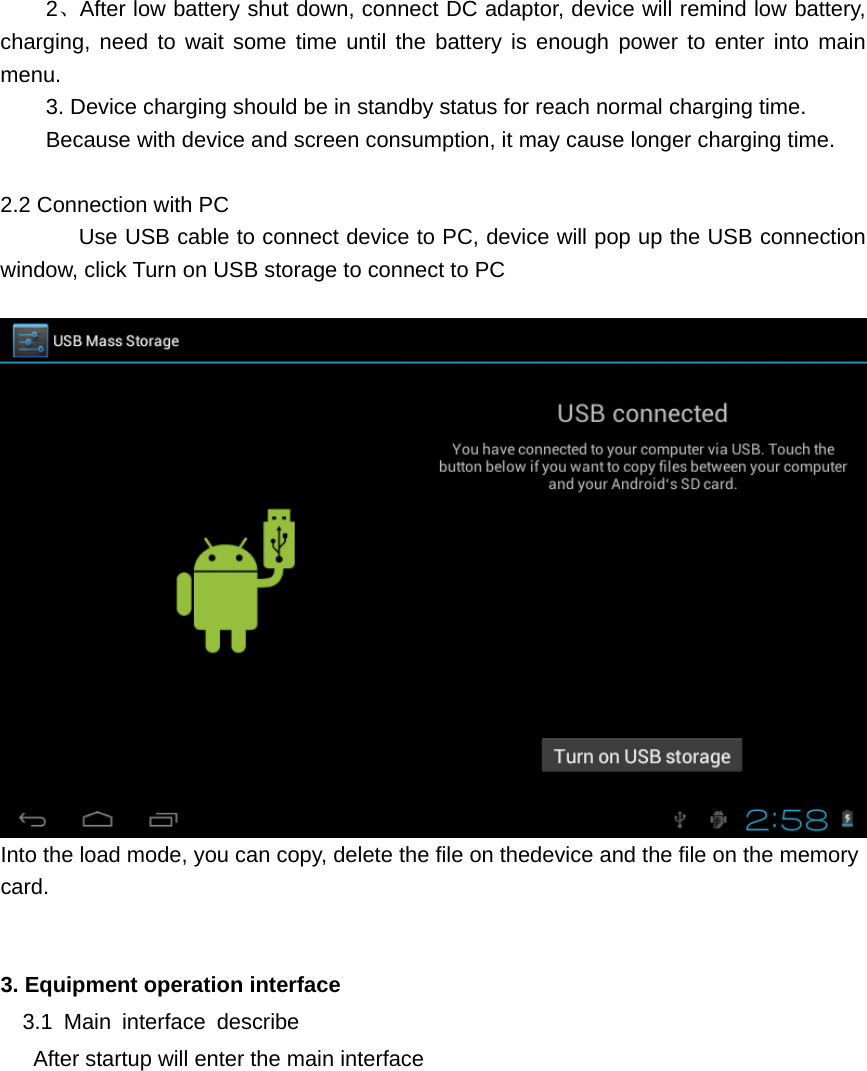
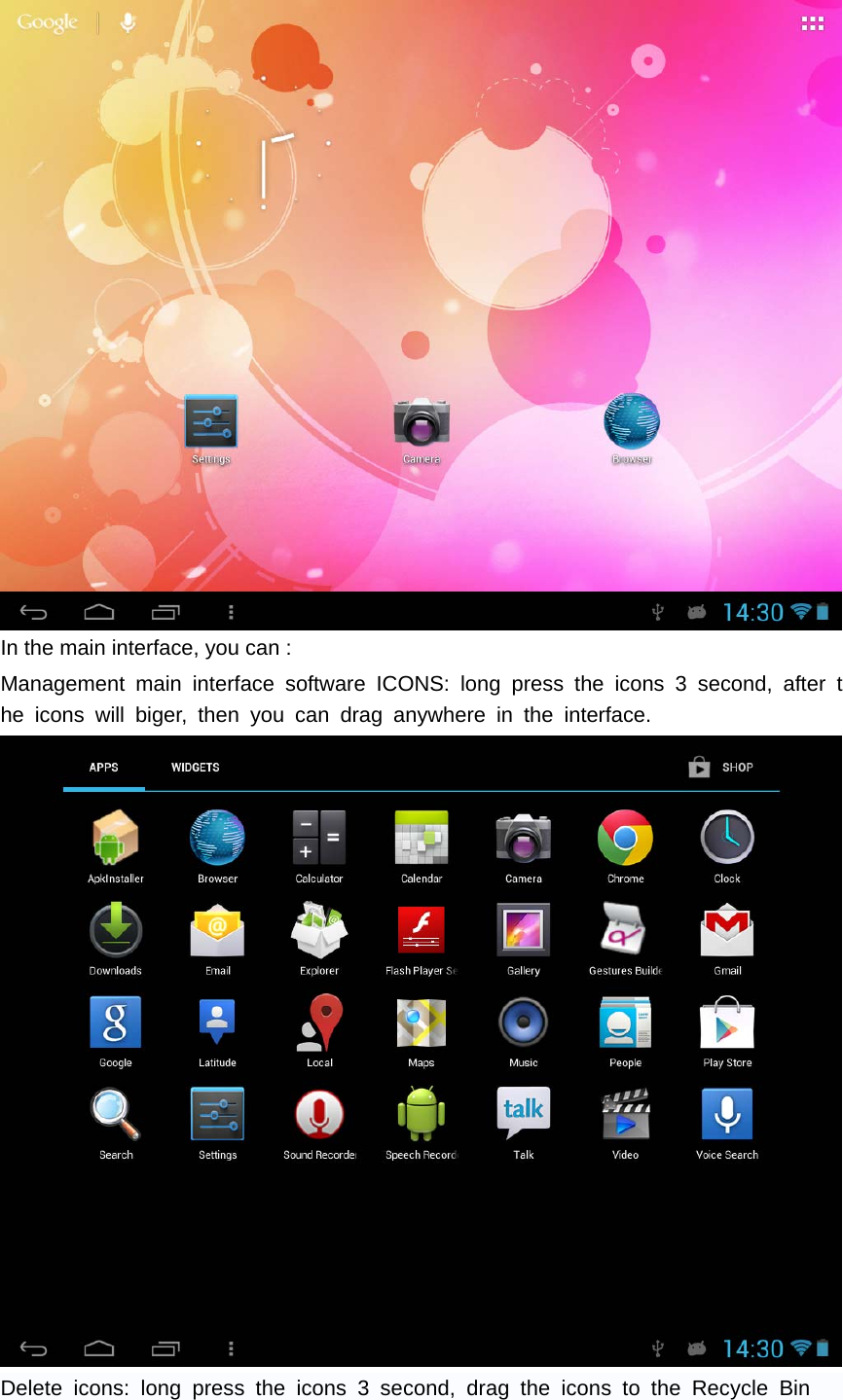
  2、After low battery shut down, connect DC adaptor, device will remind low battery, charging, need to wait some time until the battery is enough power to enter into main menu. 3. Device charging should be in standby status for reach normal charging time. Because with device and screen consumption, it may cause longer charging time.  2.2 Connection with PC      Use USB cable to connect device to PC, device will pop up the USB connection window, click Turn on USB storage to connect to PC   Into the load mode, you can copy, delete the file on thedevice and the file on the memory card.   3. Equipment operation interface   3.1 Main interface describe       After startup will enter the main interface
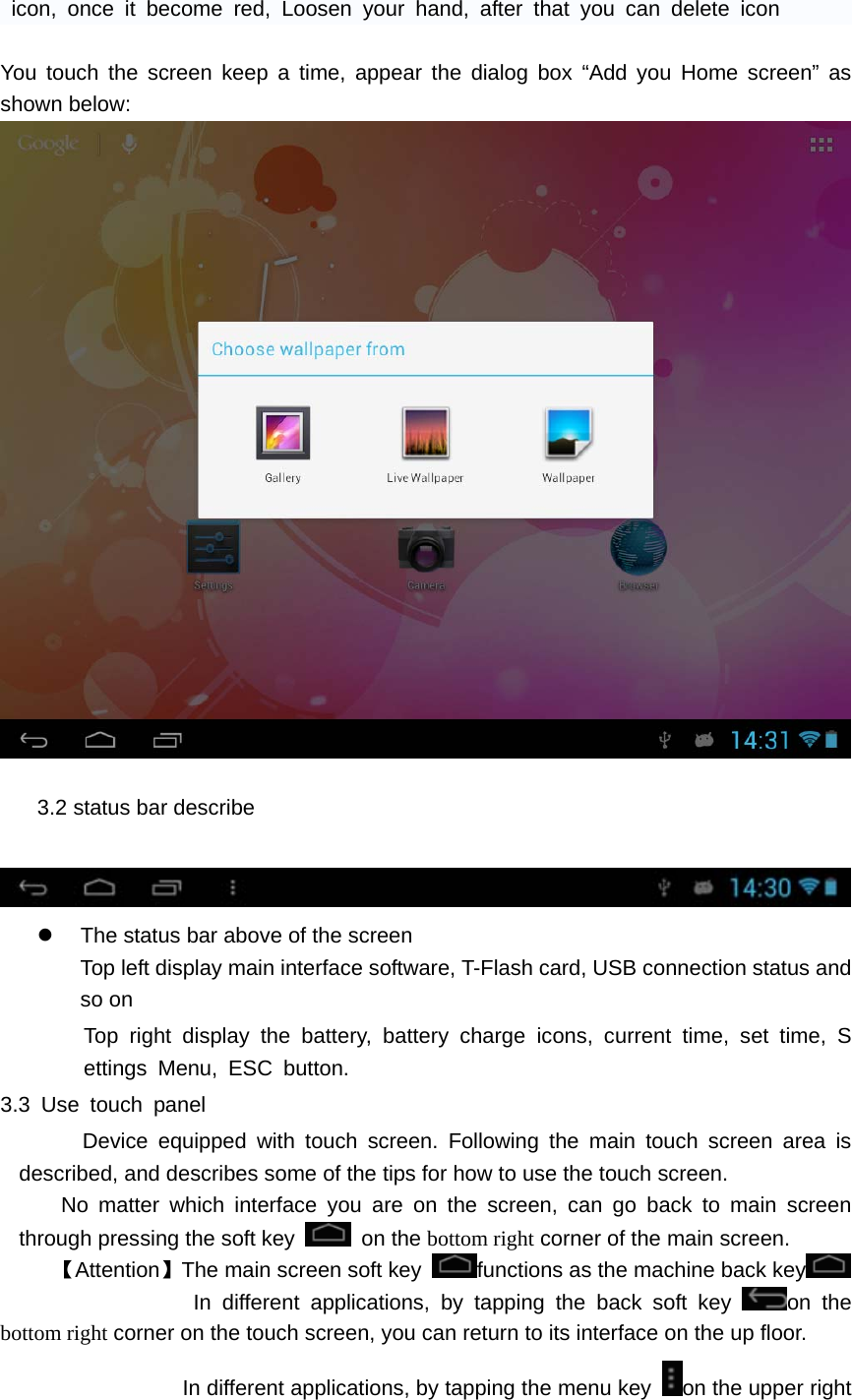
   In the main interface, you can :   Management main interface software ICONS: long press the icons 3 second, after the icons will biger, then you can drag anywhere in the interface.  Delete icons: long press the icons 3 second, drag the icons to the Recycle Bin
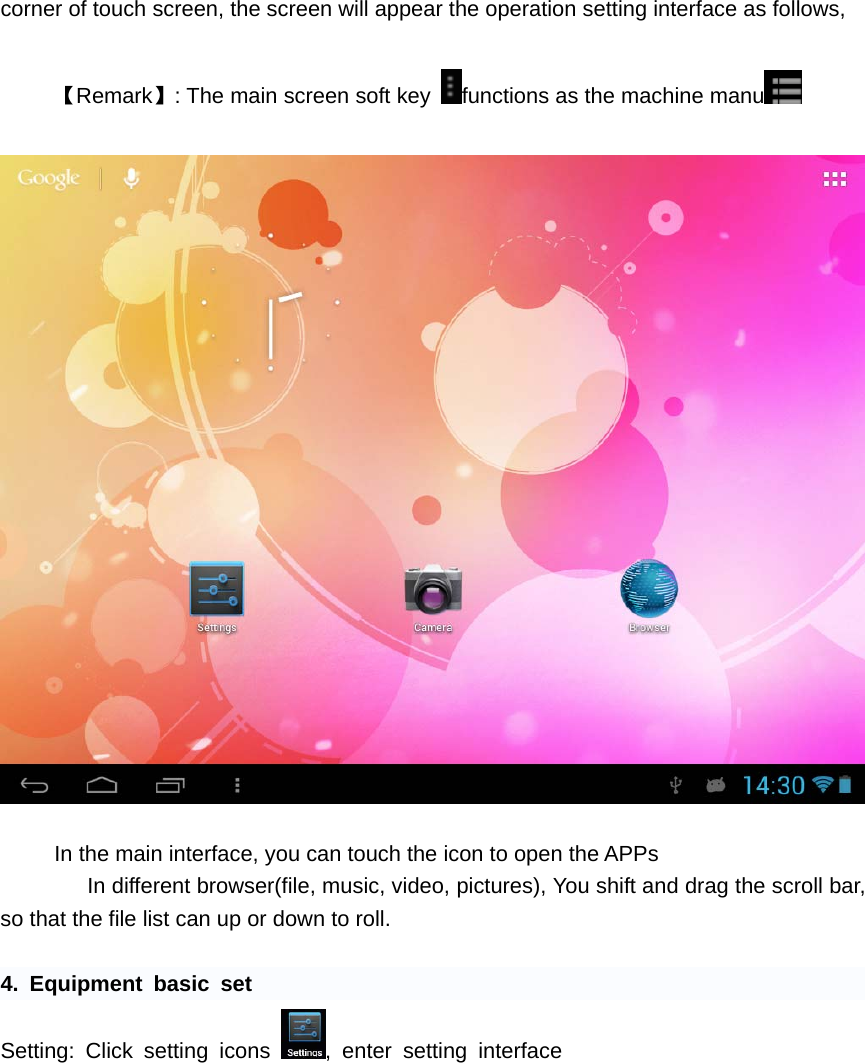
   icon, once it become red, Loosen your hand, after that you can delete icon  You touch the screen keep a time, appear the dialog box “Add you Home screen” as shown below:   3.2 status bar describe     z  The status bar above of the screen Top left display main interface software, T-Flash card, USB connection status and so on Top right display the battery, battery charge icons, current time, set time, Settings Menu, ESC button. 3.3 Use touch panel    Device equipped with touch screen. Following the main touch screen area is described, and describes some of the tips for how to use the touch screen.    No matter which interface you are on the screen, can go back to main screen through pressing the soft key   on the bottom right corner of the main screen. 【Attention】The main screen soft key  functions as the machine back key               In different applications, by tapping the back soft key  on the bottom right corner on the touch screen, you can return to its interface on the up floor. In different applications, by tapping the menu key  on the upper right
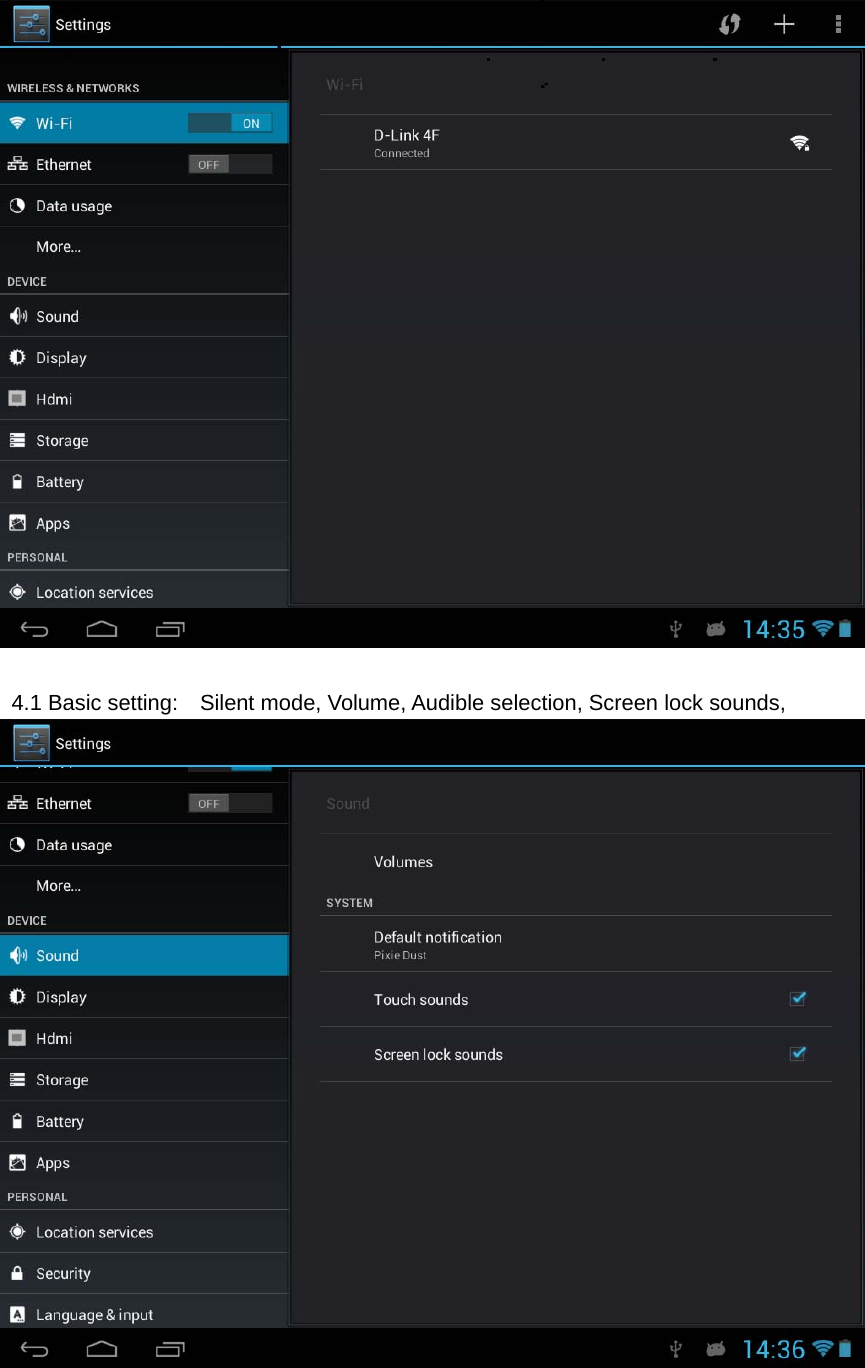
  corner of touch screen, the screen will appear the operation setting interface as follows,    【Remark】: The main screen soft key  functions as the machine manu     In the main interface, you can touch the icon to open the APPs       In different browser(file, music, video, pictures), You shift and drag the scroll bar, so that the file list can up or down to roll.    4. Equipment basic set Setting: Click setting icons  , enter setting interface
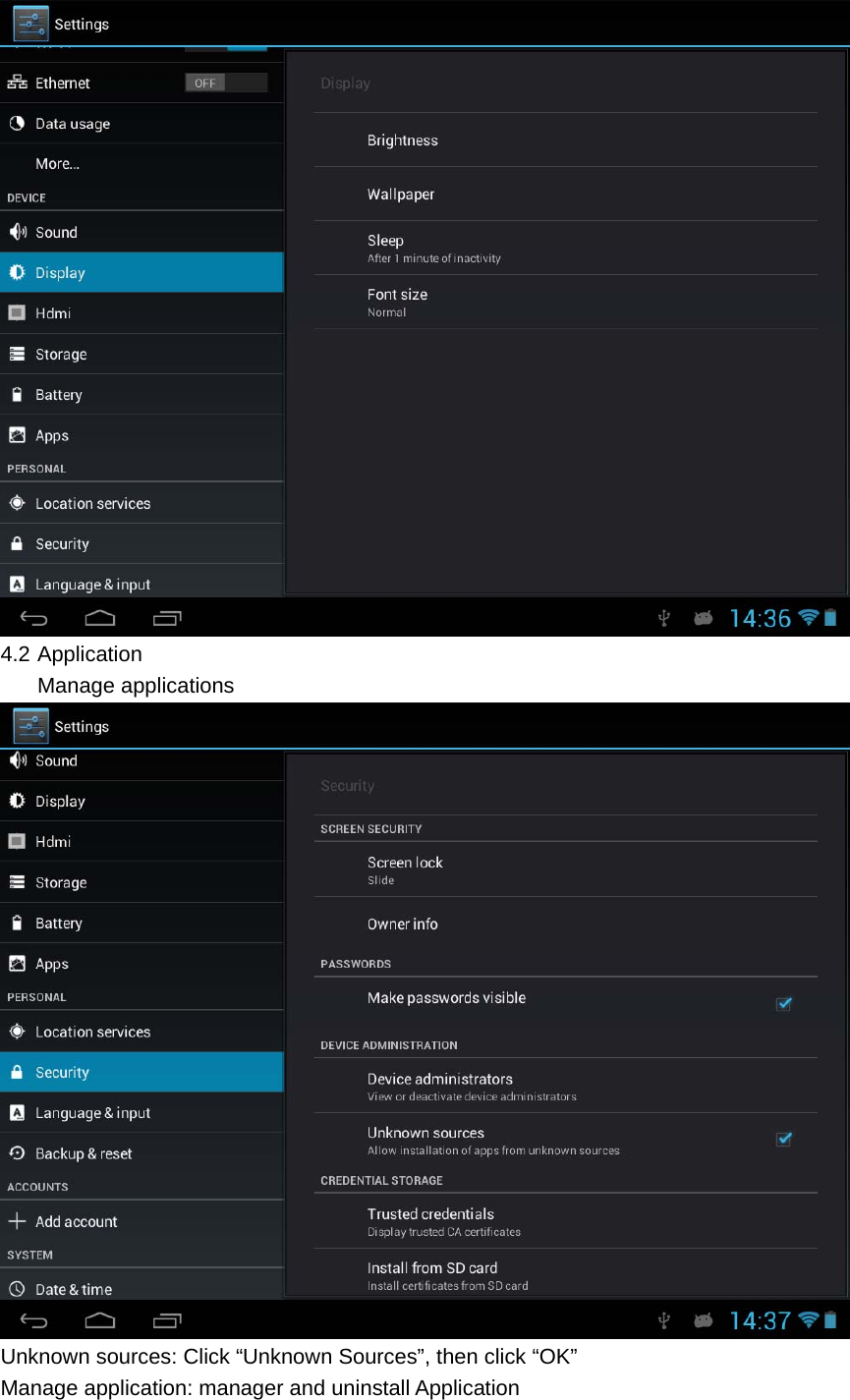
      4.1 Basic setting:    Silent mode, Volume, Audible selection, Screen lock sounds,
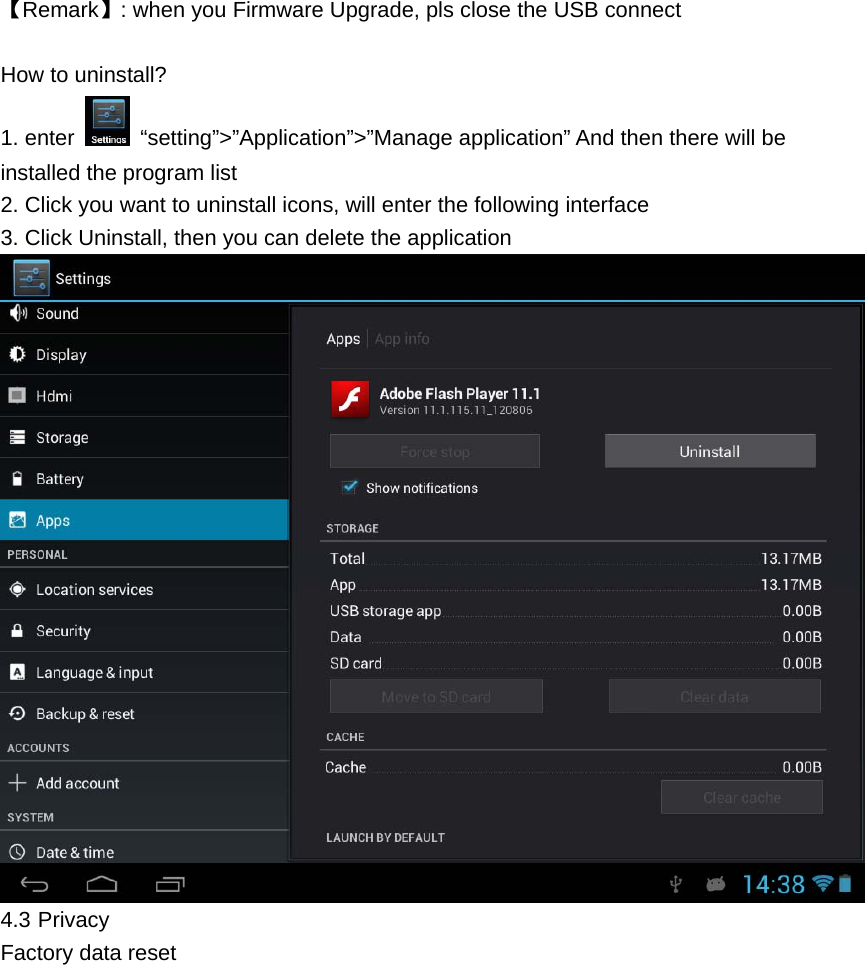
   4.2 Application Manage applications  Unknown sources: Click “Unknown Sources”, then click “OK” Manage application: manager and uninstall Application
   【Remark】: when you Firmware Upgrade, pls close the USB connect  How to uninstall? 1. enter   “setting”>”Application”>”Manage application” And then there will be installed the program list 2. Click you want to uninstall icons, will enter the following interface   3. Click Uninstall, then you can delete the application  4.3 Privacy Factory data reset
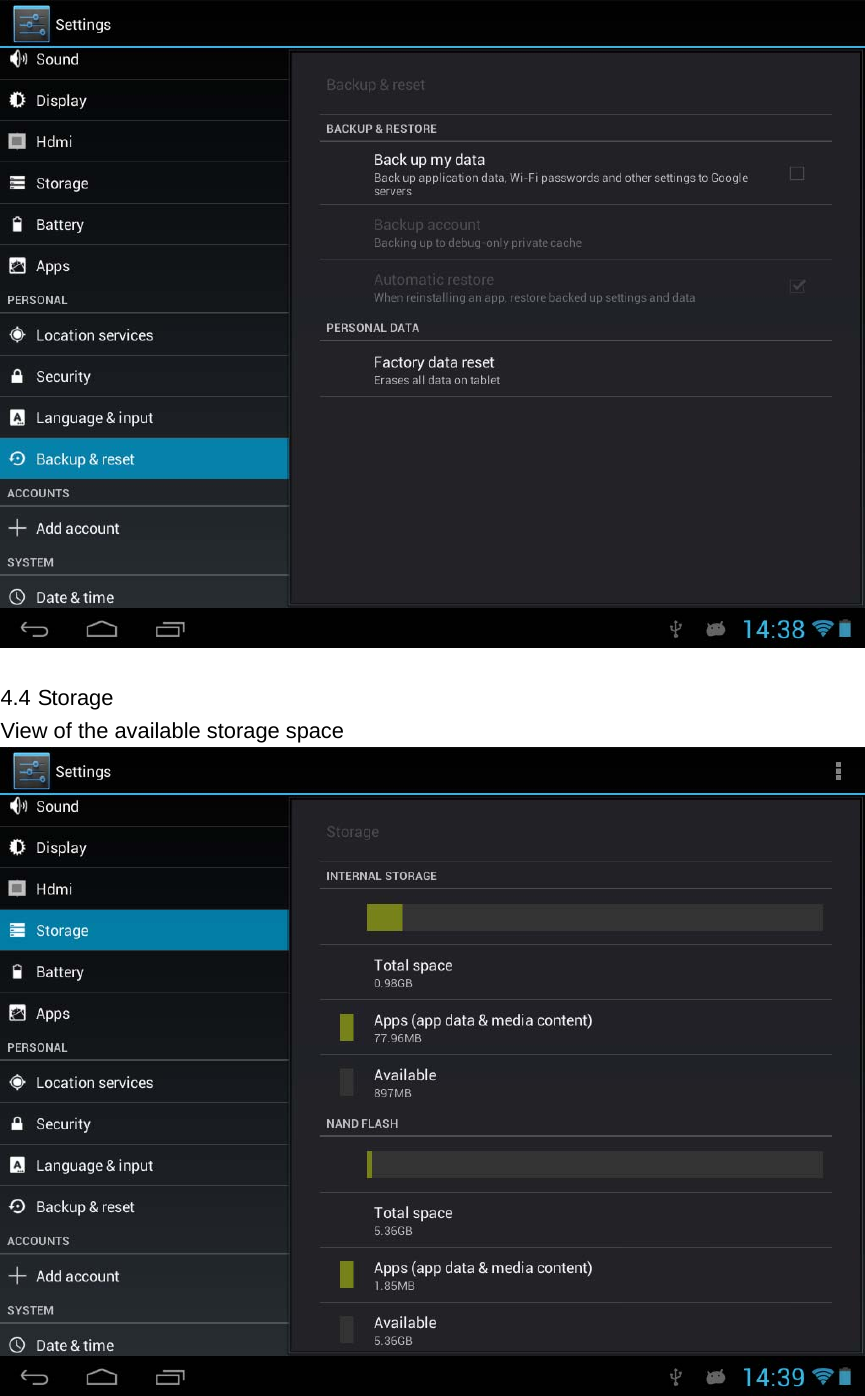
    4.4 Storage View of the available storage space
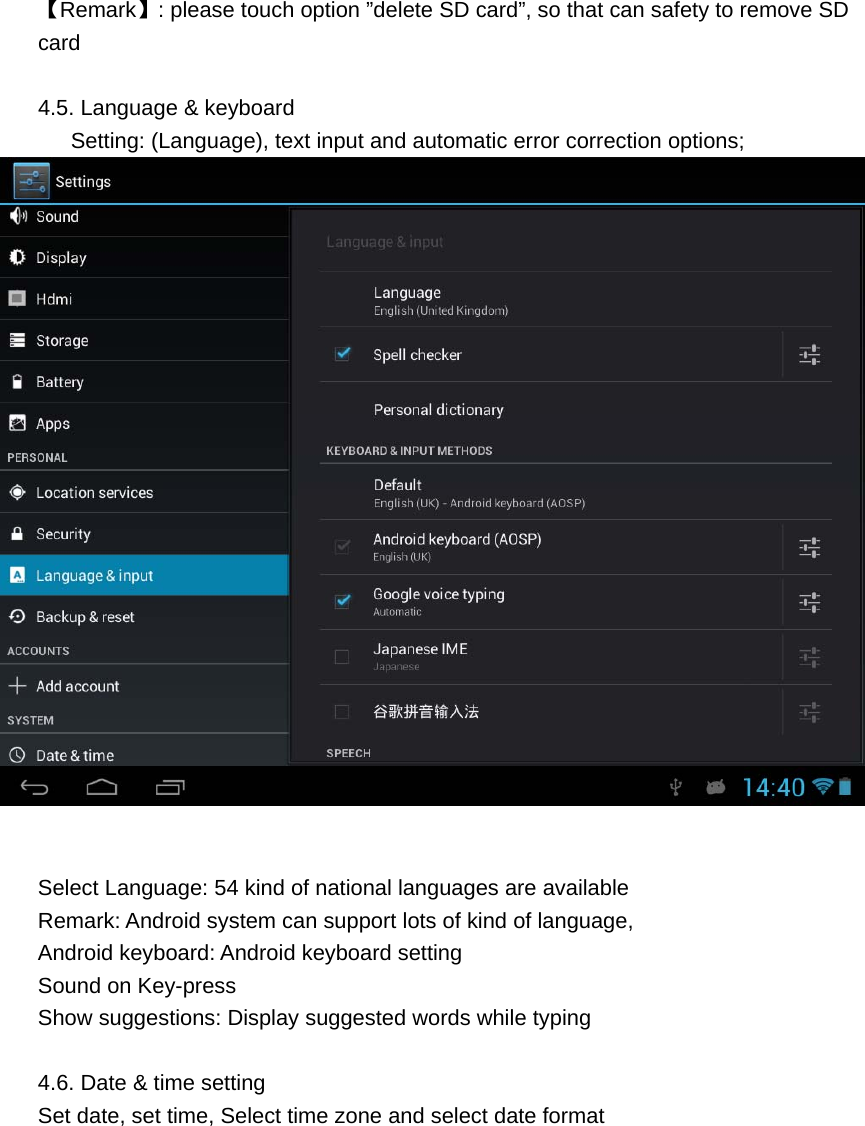
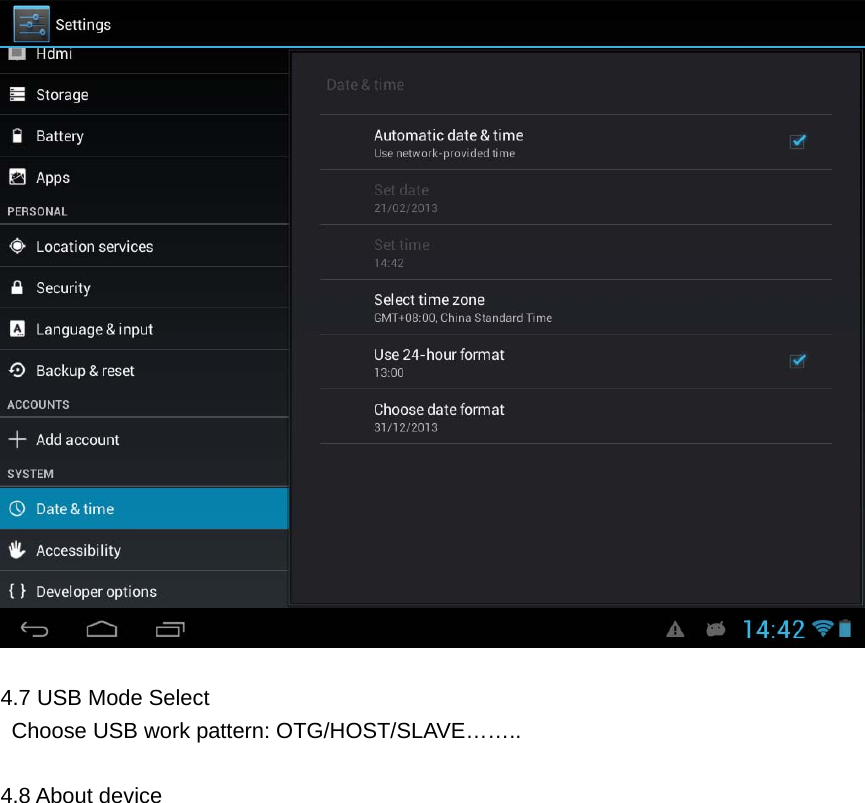
  【Remark】: please touch option ”delete SD card”, so that can safety to remove SD card  4.5. Language & keyboard         Setting: (Language), text input and automatic error correction options;    Select Language: 54 kind of national languages are available Remark: Android system can support lots of kind of language,   Android keyboard: Android keyboard setting Sound on Key-press Show suggestions: Display suggested words while typing  4.6. Date & time setting Set date, set time, Select time zone and select date format
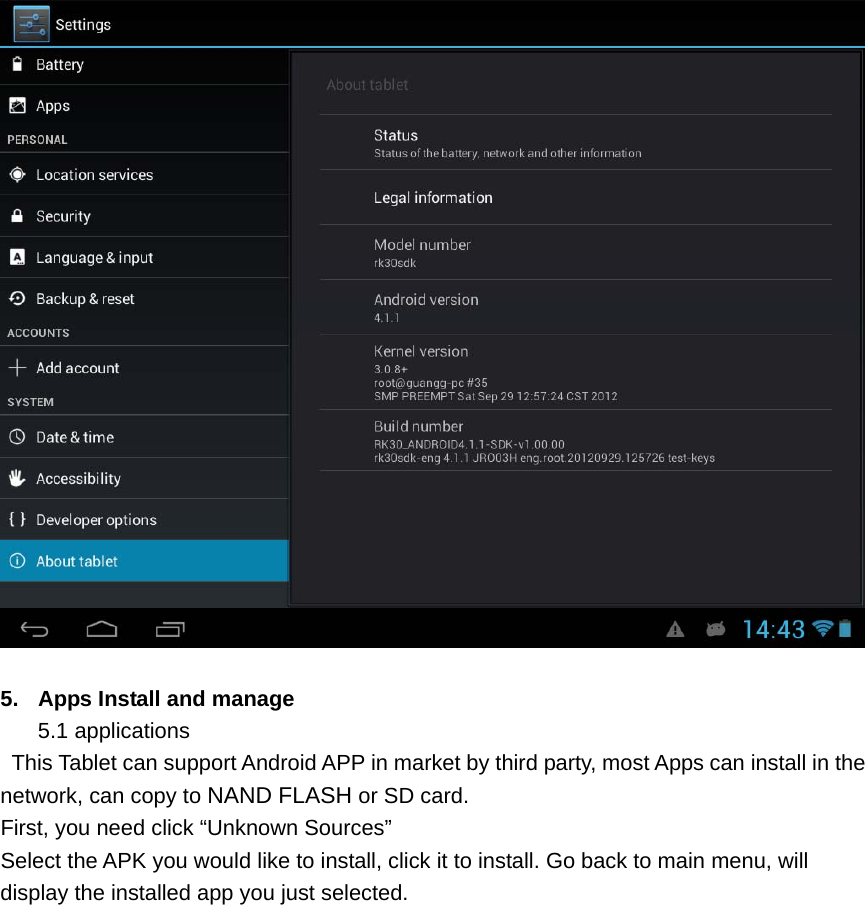
    4.7 USB Mode Select   Choose USB work pattern: OTG/HOST/SLAVE……..  4.8 About device
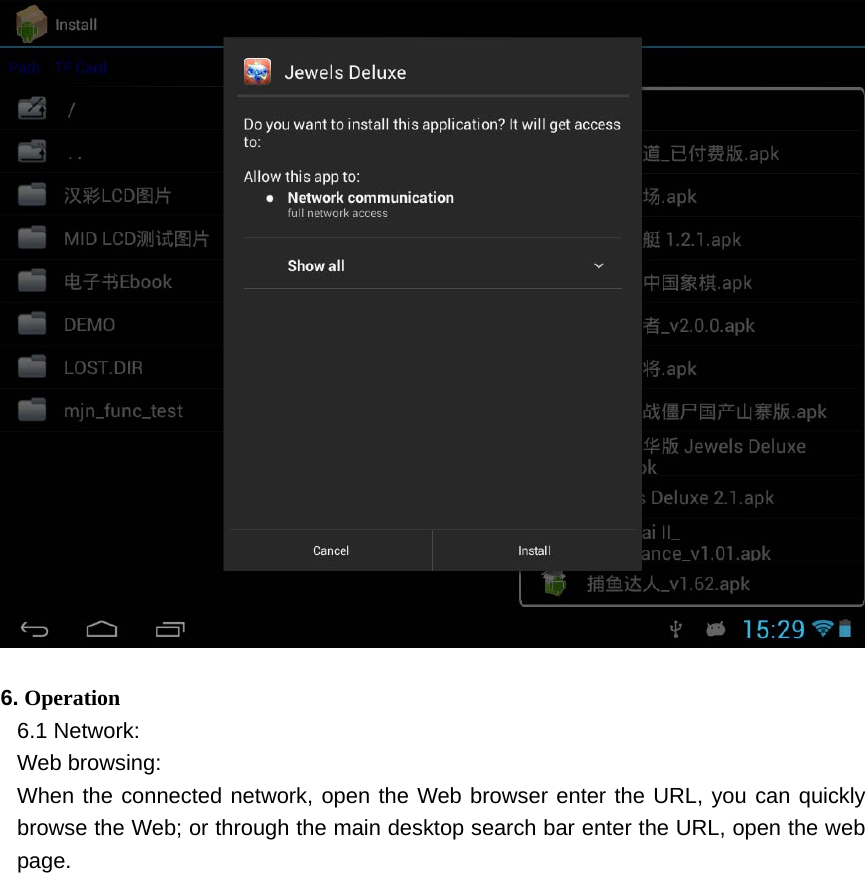
    5.  Apps Install and manage 5.1 applications   This Tablet can support Android APP in market by third party, most Apps can install in the network, can copy to NAND FLASH or SD card. First, you need click “Unknown Sources”   Select the APK you would like to install, click it to install. Go back to main menu, will display the installed app you just selected.
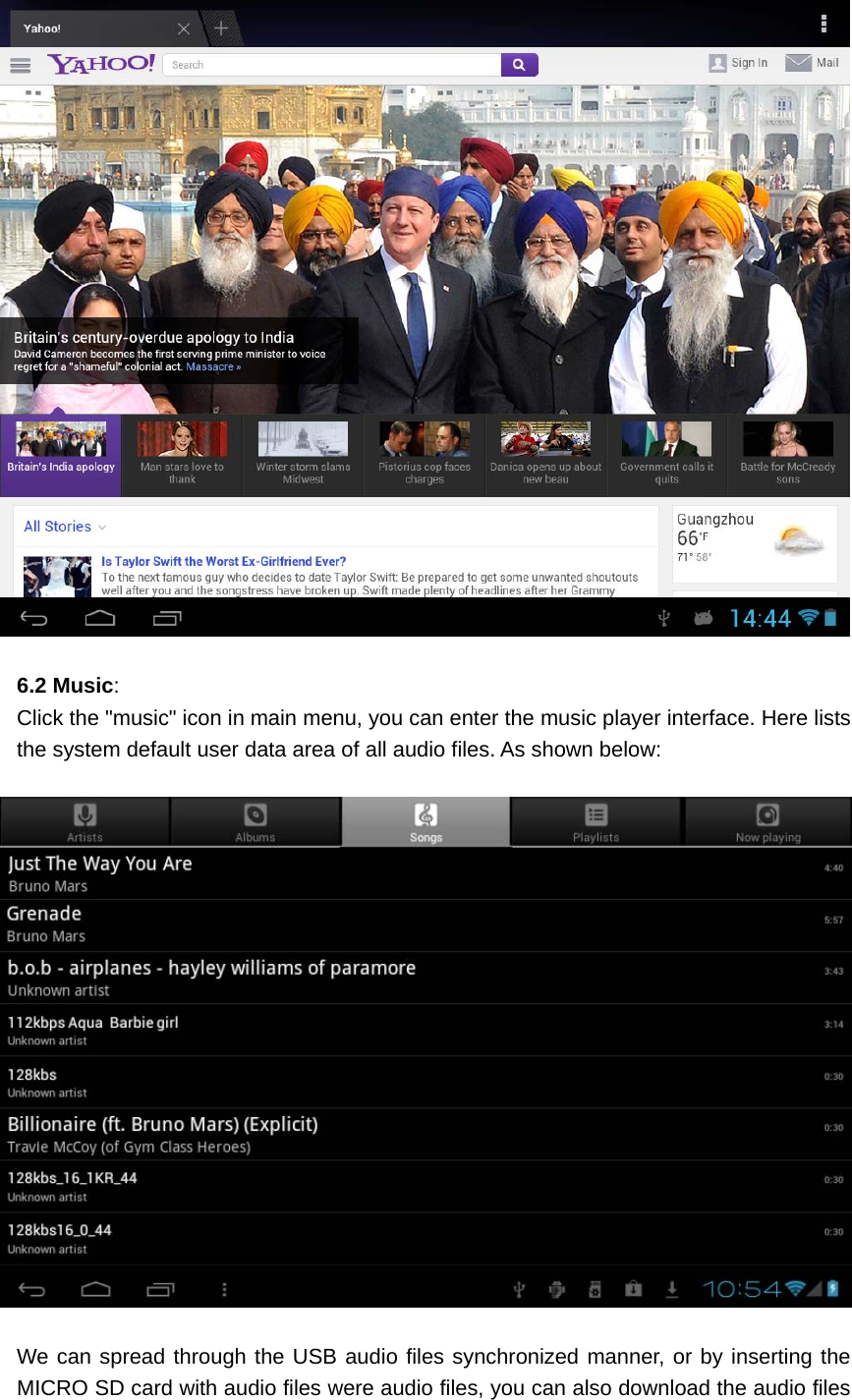
    6. Operation 6.1 Network: Web browsing: When the connected network, open the Web browser enter the URL, you can quickly browse the Web; or through the main desktop search bar enter the URL, open the web page.
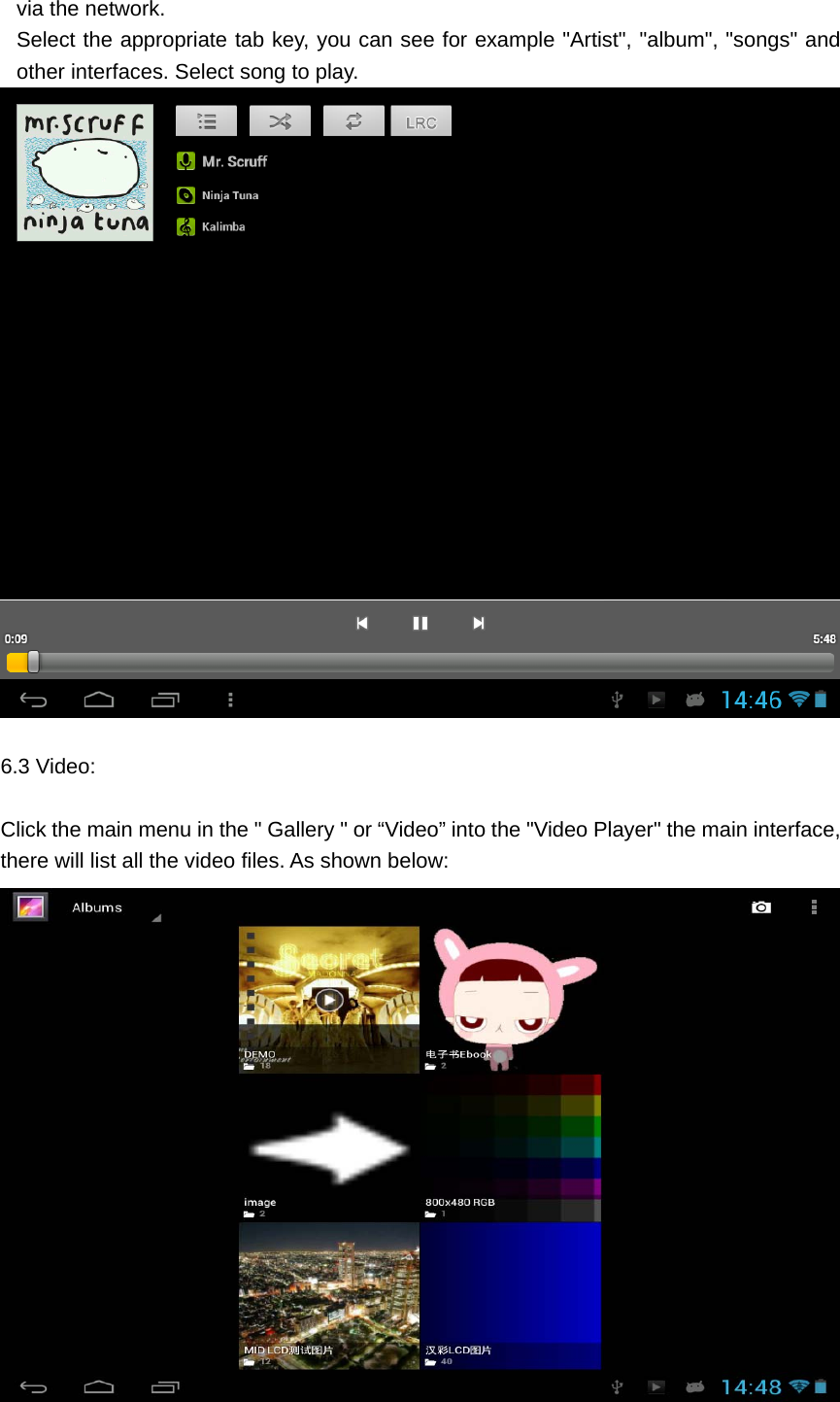
    6.2 Music: Click the "music" icon in main menu, you can enter the music player interface. Here lists the system default user data area of all audio files. As shown below:    We can spread through the USB audio files synchronized manner, or by inserting the MICRO SD card with audio files were audio files, you can also download the audio files
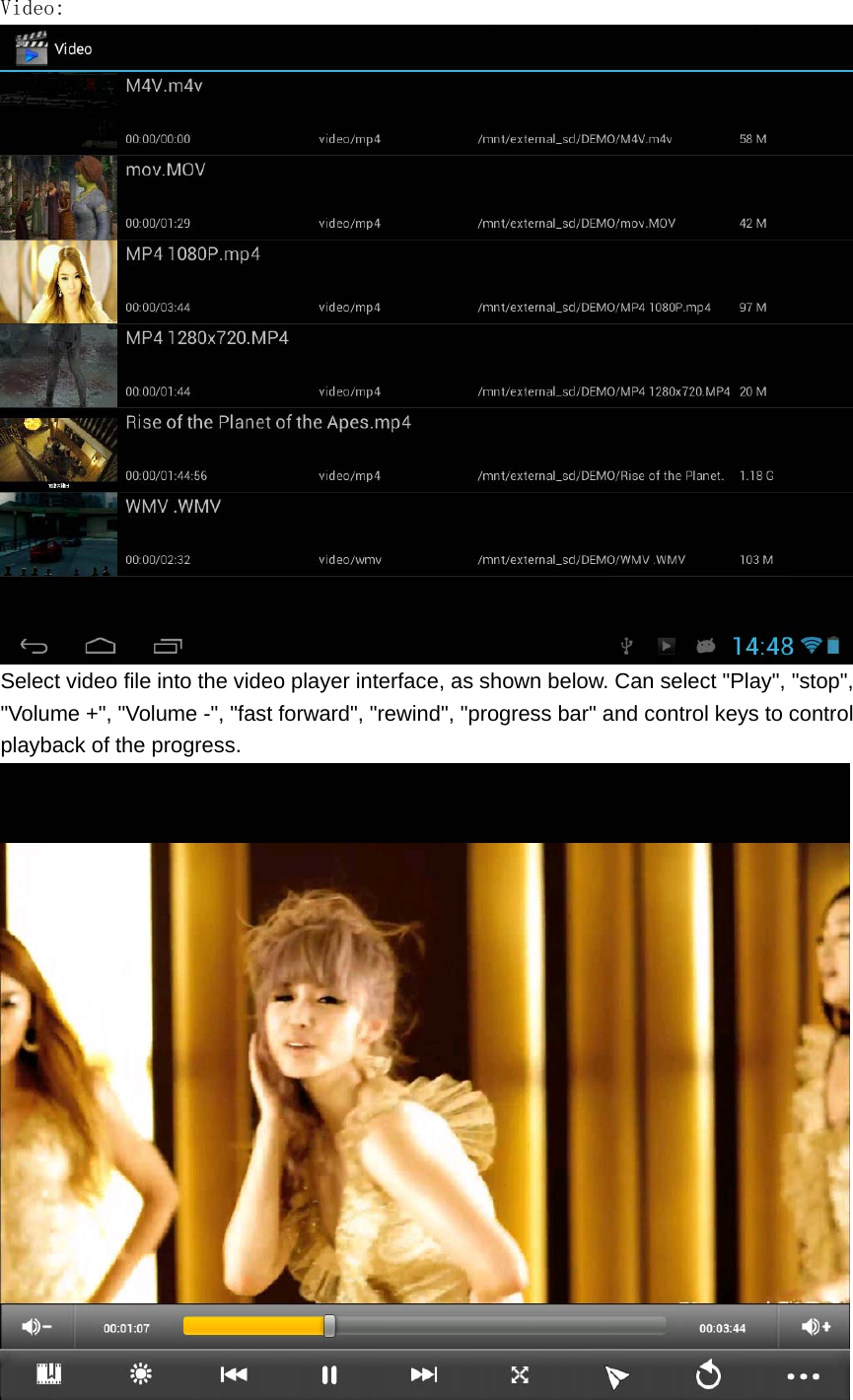
  via the network. Select the appropriate tab key, you can see for example "Artist", "album", "songs" and other interfaces. Select song to play.   6.3 Video:  Click the main menu in the " Gallery " or “Video” into the "Video Player" the main interface, there will list all the video files. As shown below:
  Video:  Select video file into the video player interface, as shown below. Can select "Play", "stop", "Volume +", "Volume -", "fast forward", "rewind", "progress bar" and control keys to control playback of the progress.
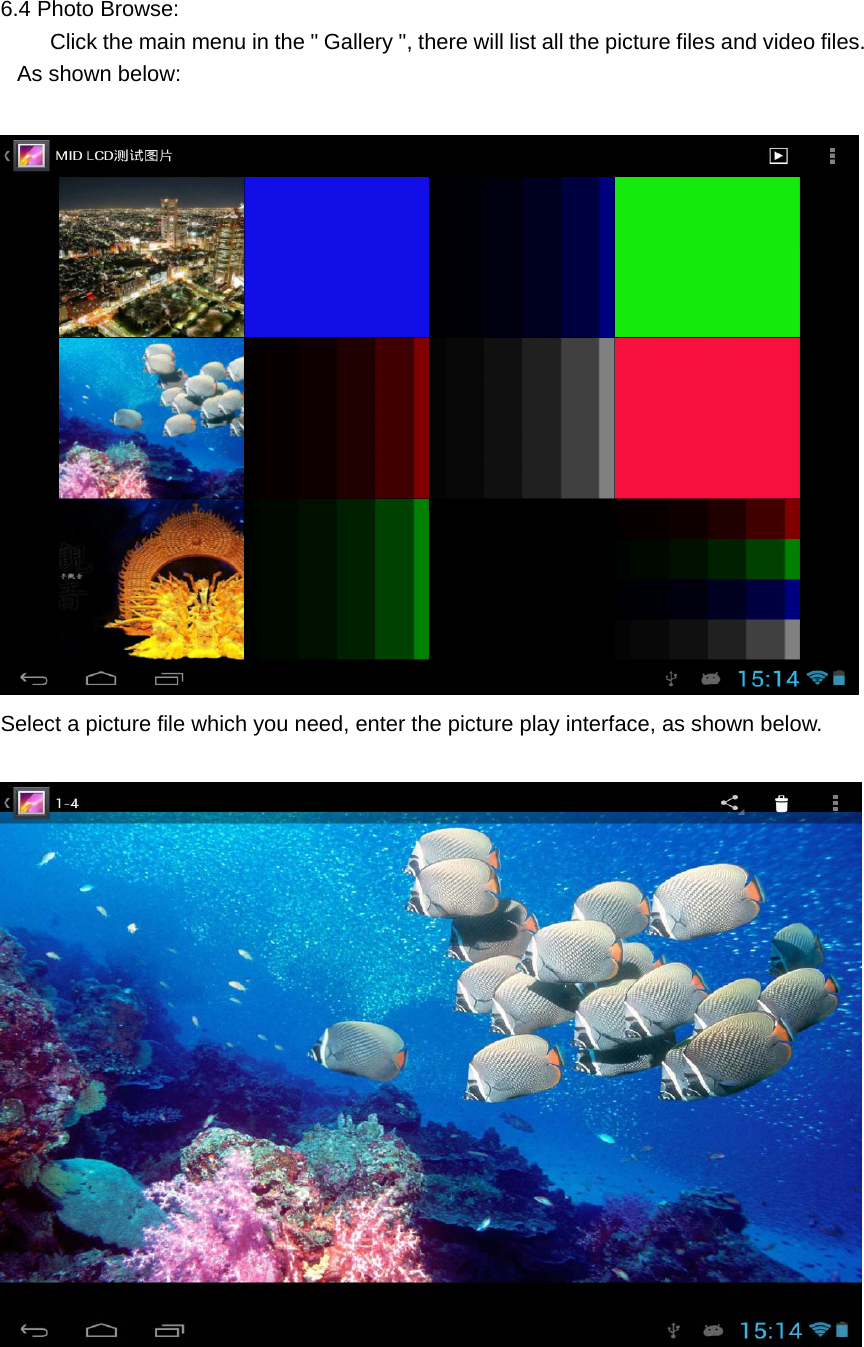
   6.4 Photo Browse:       Click the main menu in the " Gallery ", there will list all the picture files and video files. As shown below:    Select a picture file which you need, enter the picture play interface, as shown below.
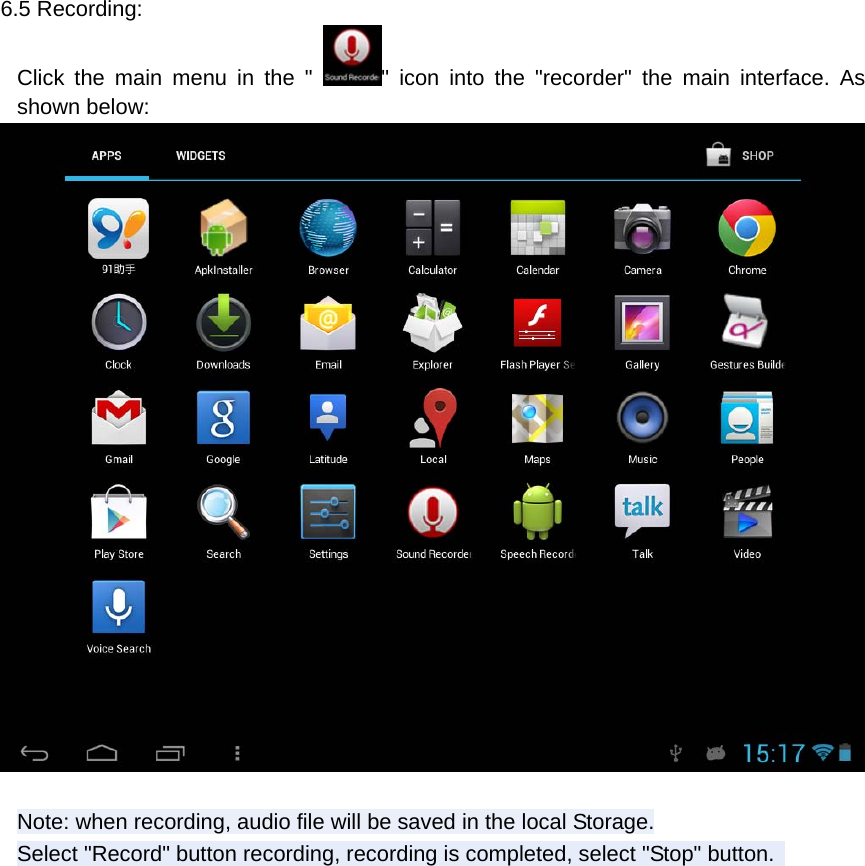
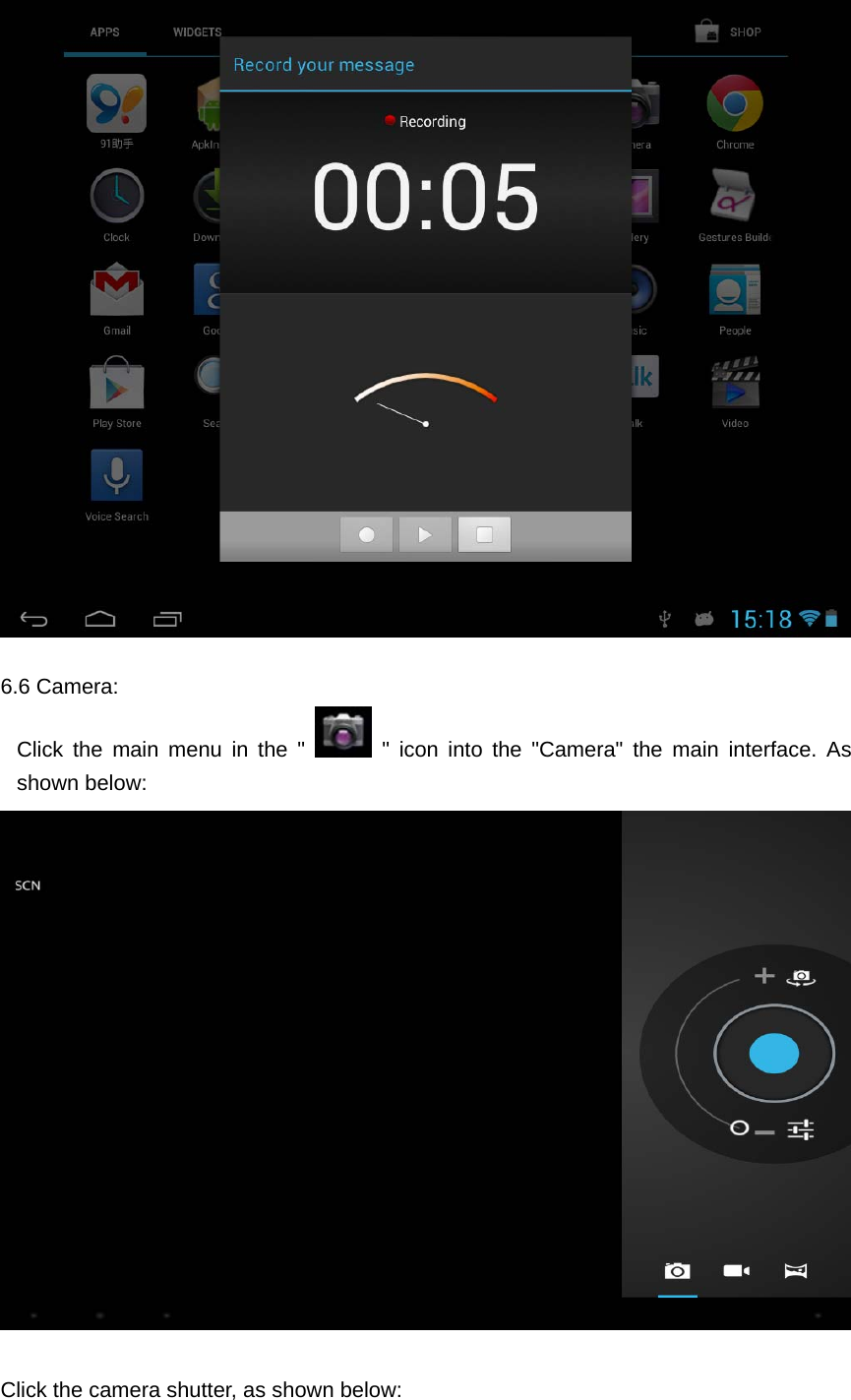
   6.5 Recording: Click the main menu in the " " icon into the "recorder" the main interface. As shown below:   Note: when recording, audio file will be saved in the local Storage. Select "Record" button recording, recording is completed, select "Stop" button.
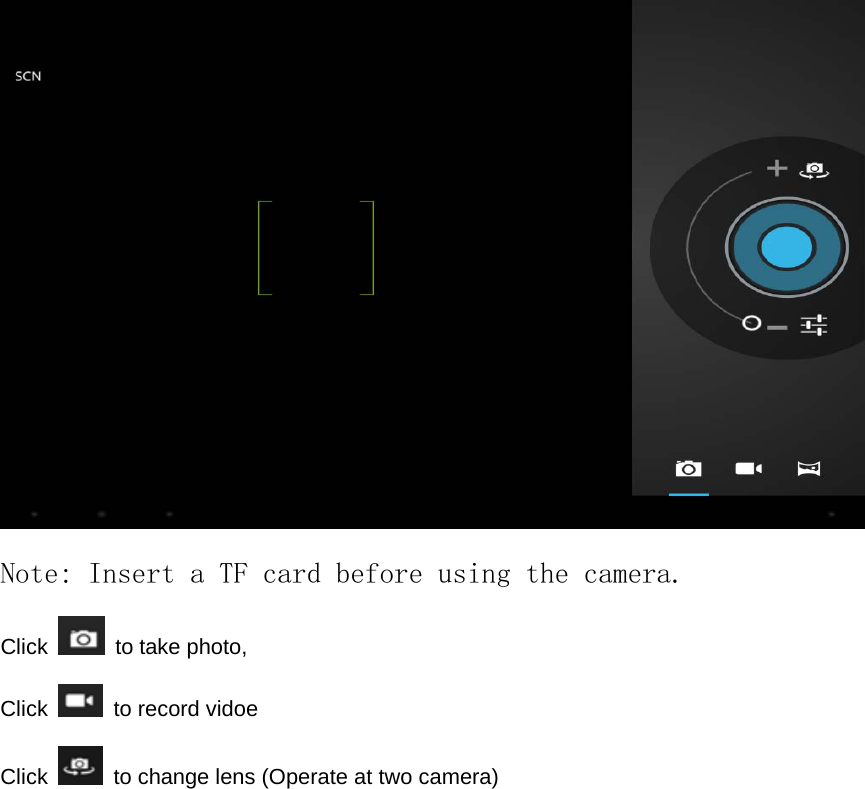
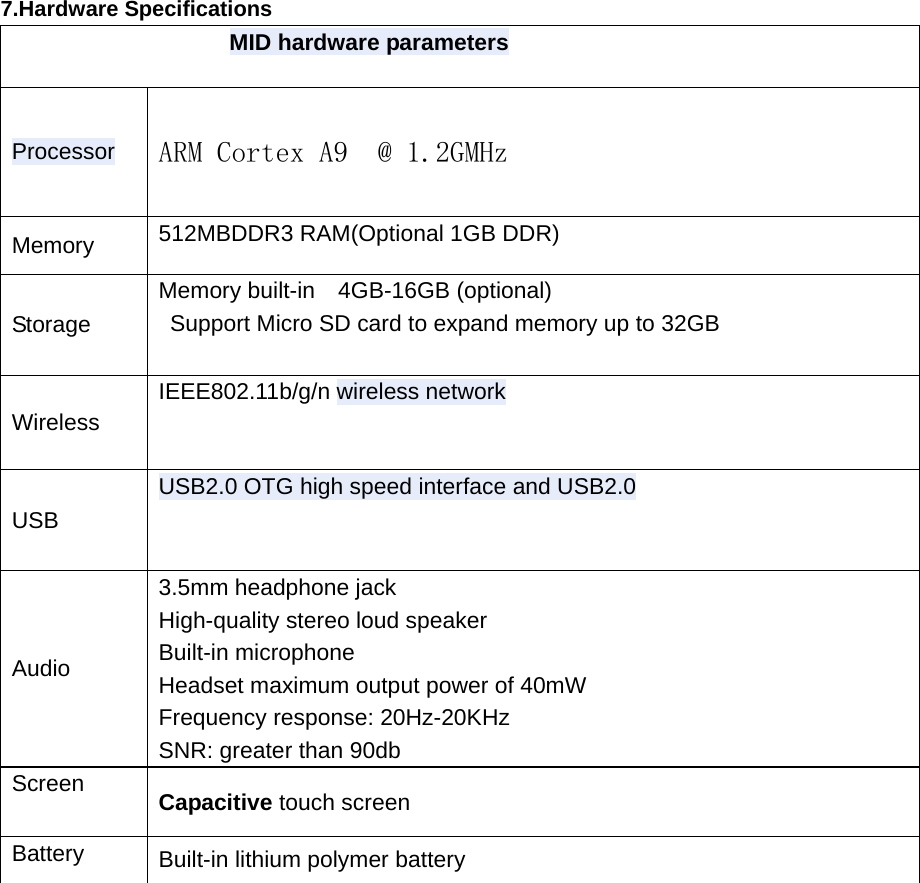
    6.6 Camera: Click the main menu in the "  " icon into the "Camera" the main interface. As shown below:   Click the camera shutter, as shown below:
   Note: Insert a TF card before using the camera. Click   to take photo, Click    to record vidoe Click    to change lens (Operate at two camera)
  7.Hardware Specifications                    MID hardware parameters Processor  ARM Cortex A9  @ 1.2GMHz Memory  512MBDDR3 RAM(Optional 1GB DDR) Storage Memory built-in  4GB-16GB (optional)   Support Micro SD card to expand memory up to 32GB Wireless IEEE802.11b/g/n wireless network USB USB2.0 OTG high speed interface and USB2.0 Audio 3.5mm headphone jack High-quality stereo loud speaker Built-in microphone Headset maximum output power of 40mW Frequency response: 20Hz-20KHz SNR: greater than 90db Screen  Capacitive touch screen Battery  Built-in lithium polymer battery
   8. Problem solution 1.  Device can’t to open 2.  Check the battery power 3.  Connect adaptor first, then check again 4.  After charging then can’t to open, pls contact the supplier  After startup the screen or the opening picture has been appear , the device appear shutdown 1.  Power is not enough, please charge 2.  Headset can't hear the voice 1.  Pls check the volume whether set to 0 2.  Check the music file whether damaged. Try playing other music, if the file have damaged may lead to serious noise or hop sounds. 3.  Can copy file or play music and so on 1.  Pls check between computer and device is correct connection 2.  check the memory storage space is already full 3.  check the USB cable is good or not 4.  USB connection is disconnected
   9. FCC Warning This equipment has been tested and found to comply with the limits for a Class B digital device, pursuant to part 15 of the FCC Rules. These limits are designed to provide reasonable protection against harmful interference in a residential installation. This equipment generates, uses and can radiate radio frequency energy and, if not installed and used in accordance with the instructions, may cause harmful interference to radio communications. However, there is no guarantee that interference will not occur in a particular installation. If this equipment does cause harmful interference to radio or television reception, which can be determined by turning the equipment off and on, the user is encouraged to try to correct the interference by one or more of the following measures: •  Reorient or relocate the receiving antenna. •  Increase the separation between the equipment and receiver. • Connect the equipment into an outlet on a circuit different from that to which the receiver is connected. •  Consult the dealer or an experienced radio/TV technician for help.  Caution: Any changes or modifications to this device not explicitly approved by manufacturer could void your authority to operate this equipment.  This device complies with part 15 of the FCC Rules. Operation is subject to the following two conditions: (1) This device may not cause harmful interference, and (2) this device must accept any interference received, including interference that may cause undesired operation.  The device has been evaluated to meet general RF exposure requirement. The device can be used in portable exposure condition without restriction.

Navigation menu