MEERA MT-901 TABLET PC User Manual

MEERA INTERNATIONAL LIMITED TABLET PC

User Manual

 - 1 -MT-901 User manual User manual catalog  - 1 - 1 Outer appearance and button introduction   ...................................................................... - 2 - 2 Turn on/off ....................................................................................................................... - 3 - 3 Unlock/lock the touch screen ........................................................................................ - 3 - 4 Home Screen .................................................................................................................. - 3 - 5 The virtual keyboard and input method ............................................................................ - 3 - 6 WIFI internet ..................................................................................................................... - 4 - 7 Network download the APK application and the game installation .................................. - 4 - 8 Charge description ............................................................................................................ - 5 - 9 protect the machine and accessories ................................................................................. - 5 -
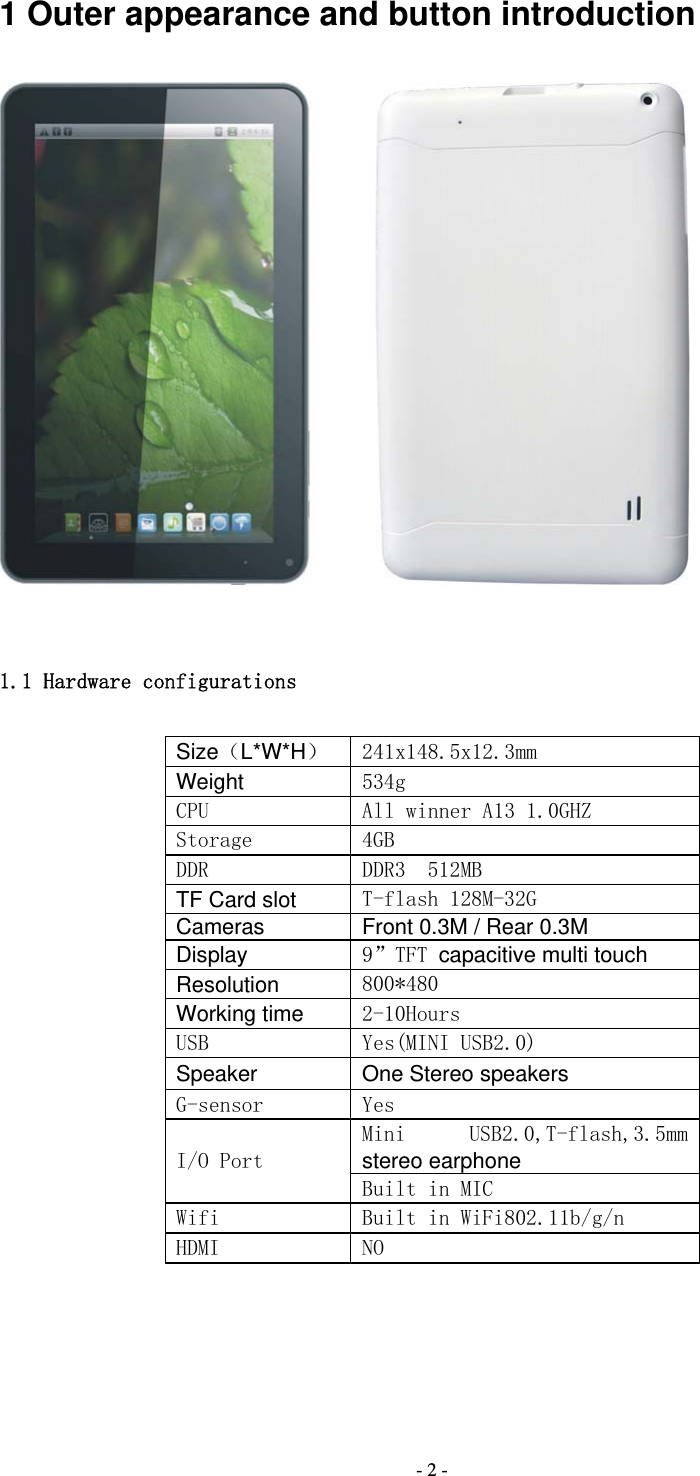
 - 2 -1 Outer appearance and button introduction   1.1 Hardware configurations Size(L*W*H)  241x148.5x12.3mm Weight 534g CPU   All winner A13 1.0GHZ Storage  4GB DDR  DDR3  512MB TF Card slot T-flash 128M-32G Cameras Front 0.3M / Rear 0.3M Display 9”TFT capacitive multi touch Resolution 800*480 Working time 2-10Hours USB  Yes(MINI USB2.0) Speaker One Stereo speakers G-sensor  Yes I/O Port Mini  USB2.0,T-flash,3.5mm stereo earphone Built in MIC Wifi  Built in WiFi802.11b/g/n HDMI   NO
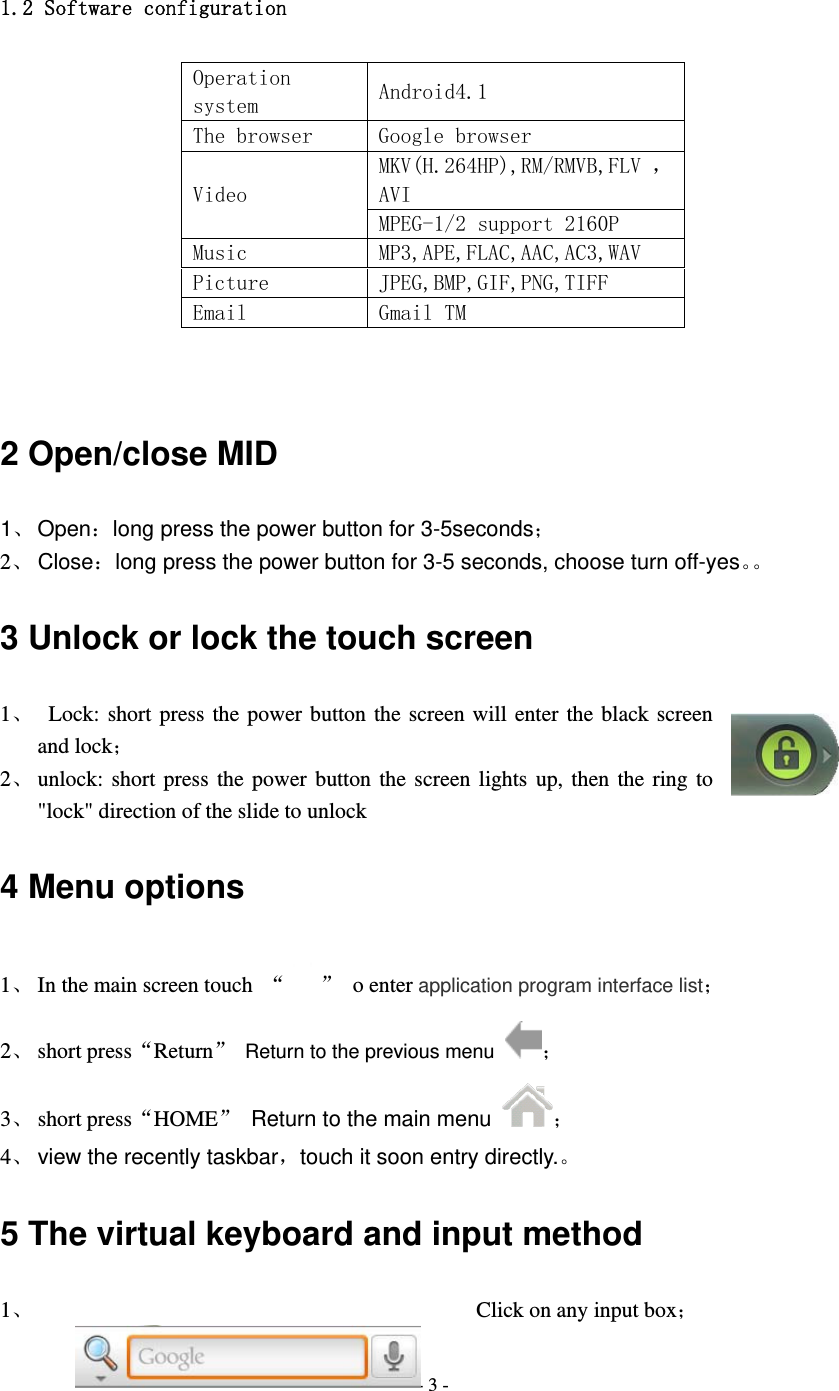
 - 3 - 1.2 Software configuration Operation system  Android4.1 The browser  Google browser Video MKV(H.264HP),RM/RMVB,FLV ,AVI MPEG-1/2 support 2160P  Music  MP3,APE,FLAC,AAC,AC3,WAV Picture  JPEG,BMP,GIF,PNG,TIFF Email  Gmail TM   2 Open/close MID 1、 Open:long press the power button for 3-5seconds; 2、 Close:long press the power button for 3-5 seconds, choose turn off-yes。。 3 Unlock or lock the touch screen 1、  Lock: short press the power button the screen will enter the black screen and lock; 2、 unlock: short press the power button the screen lights up, then the ring to "lock" direction of the slide to unlock 4 Menu options 1、 In the main screen touch  “ ” o enter application program interface list; 2、 short press“Return”  Return to the previous menu ; 3、 short press“HOME”  Return to the main menu ; 4、 view the recently taskbar,touch it soon entry directly.。 5 The virtual keyboard and input method 1、   Click on any input box;
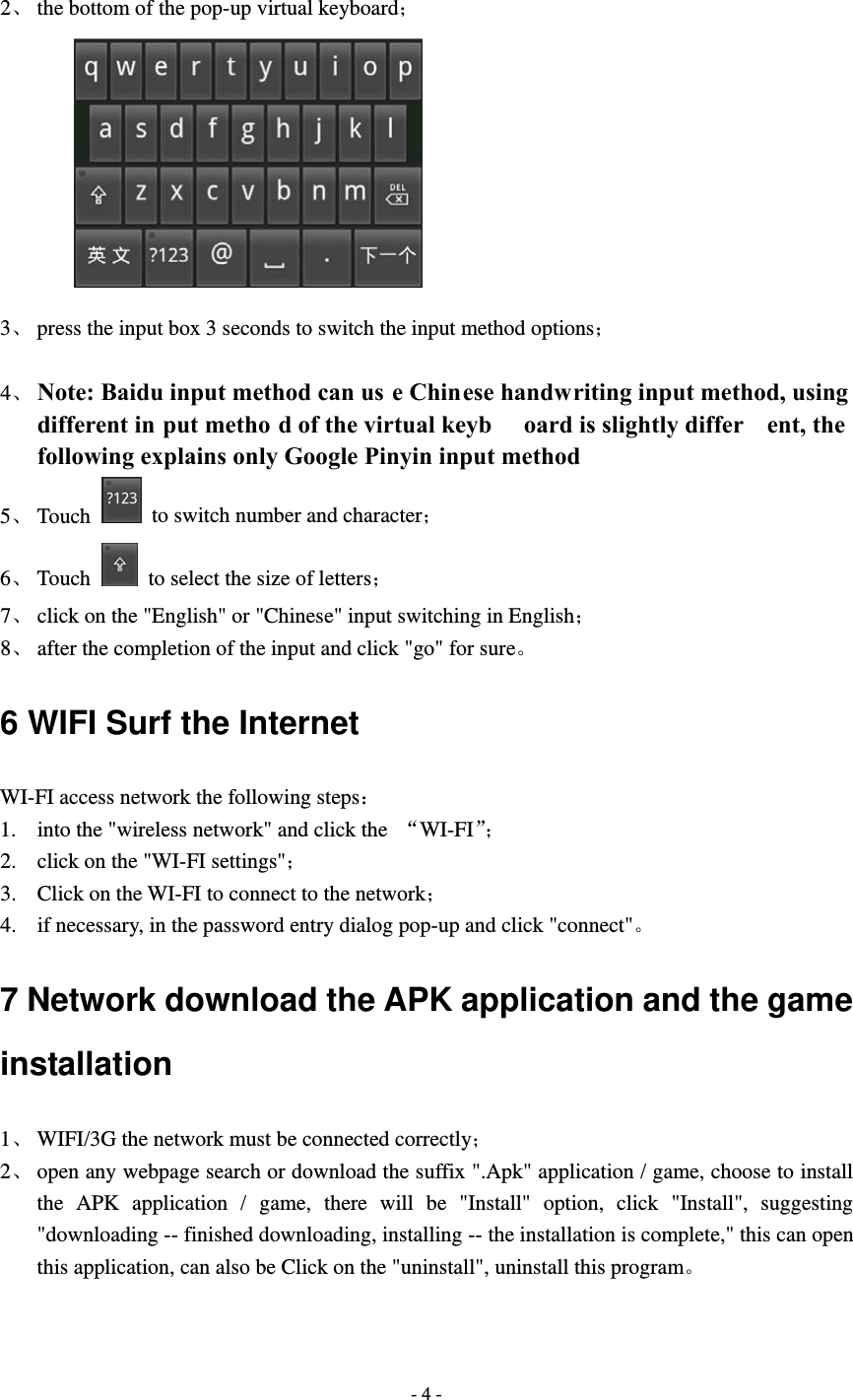
 - 4 -  2、 the bottom of the pop-up virtual keyboard;          3、 press the input box 3 seconds to switch the input method options;  4、 Note: Baidu input method can us e Chinese handwriting input method, using different in put metho d of the virtual keyb oard is slightly differ ent, the following explains only Google Pinyin input method 5、 Touch    to switch number and character; 6、 Touch    to select the size of letters; 7、 click on the "English" or "Chinese" input switching in English; 8、 after the completion of the input and click "go" for sure。 6 WIFI Surf the Internet WI-FI access network the following steps: 1. into the "wireless network" and click the  “WI-FI”; 2. click on the "WI-FI settings"; 3. Click on the WI-FI to connect to the network; 4. if necessary, in the password entry dialog pop-up and click "connect"。 7 Network download the APK application and the game installation 1、 WIFI/3G the network must be connected correctly; 2、 open any webpage search or download the suffix ".Apk" application / game, choose to install the APK application / game, there will be "Install" option, click "Install", suggesting "downloading -- finished downloading, installing -- the installation is complete," this can open this application, can also be Click on the "uninstall", uninstall this program。
 - 5 -8 Charge description Charger A. output voltage:5V-5.5V B. output current:2000mA~2500mA Note: the  charger  sp ecifications must me et the above specifications, or  an y failure or accident, the company is regarded as a man-made damage! 9 protect the machine and accessories This machine is a complex electronic equipment, and can be used as a miniature computer. These tips can help to extend the service life of the machine.  * the best equipment in a safe place, away from the water source to protect the machine and accessories;  * use only original manufacturer in the production of machine parts, the parts without permission is likely to damage the machine, the machine service life shorten;  * avoid by weight, fall from a height, not forced to run the machine。  The machine configuration and software in order to prevail in kind
 - 6 -FCC Statment This device complies with part 15 of the FCC Rules. Operation is subject to the following two conditions: (1) This device may not cause harmful interference, and (2) this device must accept any interference received, including interference that may cause undesired operation. Any Changes or modifications not expressly approved by the party responsible for compliance could void the user's    authority to operate the equipment. Note: This equipment has been tested and found to comply with the limits for a Class B digital device, pursuant to  part 15 of the FCC Rules. These limits are designed to provide reasonable protection against harmful interference in  a residential installation. This equipment generates, uses and can radiate radio frequency energy and, if not installed   and used in accordance with the instructions, may cause harmful interference to radio communications. However,  there is no guarantee that interference will not occur in a particular installation. If this equipment does cause harmful   interference to radio or television reception, equipment generates, uses and can radiate radio frequency energy and, if not installed  and used in accordance with the instructions, may cause harmful interference to radio communications. However,  there is no guarantee that interference will not occur in a particular installation. If this equipment does cause harmful    interference to radio or television reception, —Reorient or relocate the receiving antenna.       —Increase the separation between the equipment and receiver.       —Connect the equipment into an outlet on a circuit different from that to which the receiver is connected. —Consult the dealer or an experienced radio/TV technician for help.  RF warning statement The device has been evaluated to meet general RF exposure requirement.The device can be used in portable exposure condition without restriction.

Navigation menu