MEERA MTNTB785IPS 7.85inch Tablet PC User Manual Android 2

MEERA INTERNATIONAL LIMITED 7.85inch Tablet PC Android 2

User manual

1Tablet PCUser Manual
2Content1 Announcement................................................................................................................................ 32 Introduction..................................................................................................................................... 42.1 Instructions on Keys...............................................................................................................42.2 Features Overview................................................................................................................. 52.3Technical Specifications.......................................................................................................... 63 Quick Guides.................................................................................................................................... 63.1 Switch On/Off.........................................................................................................................63.2 Power Saving Modes and Power off...................................................................................... 73.3 Battery management............................................................................................................. 73.4 Definition for the icons of the Functions............................................................................... 83.5 USB Function..........................................................................................................................83.6 TF Card Storage...................................................................................................................... 94 Network Access................................................................................................................................94.1 Network Access by Wi-Fi....................................................................................................... 95 Storage........................................................................................................................................... 106 Main Functions Introduction......................................................................................................... 106.1 Audio Function.....................................................................................................................106.2 Picture&Video Function.......................................................................................................126.3 Record Function................................................................................................................... 136.4 Internet Browser.................................................................................................................. 146.5 Email Function..................................................................................................................... 166.6 APK Installer......................................................................................................................... 176.7 Camera................................................................................................................................. 207 System Settings.............................................................................................................................. 217.1 Wireless & Networks Setting............................................................................................... 227.2 Sound Setting....................................................................................................................... 227.3 Display Setting..................................................................................................................... 227.4 Screenshot Setting............................................................................................................... 227.5 Security Setting.................................................................................................................... 227.6 Applications Setting............................................................................................................. 227.7 Backup&reset Setting.......................................................................................................... 227.8 Storage Setting.....................................................................................................................227.9 Language & Input Setting.................................................................................................... 227.10 About Tablet Setting.......................................................................................................... 228 FAQ.................................................................................................................................................22
31 AnnouncementThanks for buying the Tablet PC. The manual is to introduce the functions of the device, as well asmatters which need attention. Please read this manual carefully to create the enjoyment with thetablet.1. Please keep the device away from moist and dust.2. Do not put the device in High-temperature environment, especially closed car in hot weather.3. Do not drop or strike the device.4. Do not shake the device violently, especially the LCD Screen part. Or, it will cause abnormaldisplay on the screen.5. Please choose proper volume when using the earphone which will be good for your ear.6. Please charge the device when(1) The power icon shows lowest power.(2) The device is turned off automatically, and when you turn it on, it is turned offautomatically again.(3) No response when operating the buttons.【Note】Please use the charger offered by manufacturer to charge, other chargers may causedamage to the device.7. Do not disconnect the device from PC when downloading, uploading or formatting, otherwise,it will cause programming errors on the device.8. Do not dismounting the device privately without professional guidance.9. Do not use alcohol, thinner or benzene-chemical to clean the surface of the device.10 . Do not use the device in forbidden place, like airplane.11 . Please back-up your files in device’s memory always. The manufacturer is not responsible forthe clear of files after damage or repair of the device.12 . The manufacture reserves all right of device’s technology and design, and will have noobligation to inform the user if there are new versions or designs developed.13 . The device is NOT water-proof; please keep it away from water.14 . The turn on time of this device is about 40 seconds; please don’t operate the device when it isturned on with the 40 seconds.
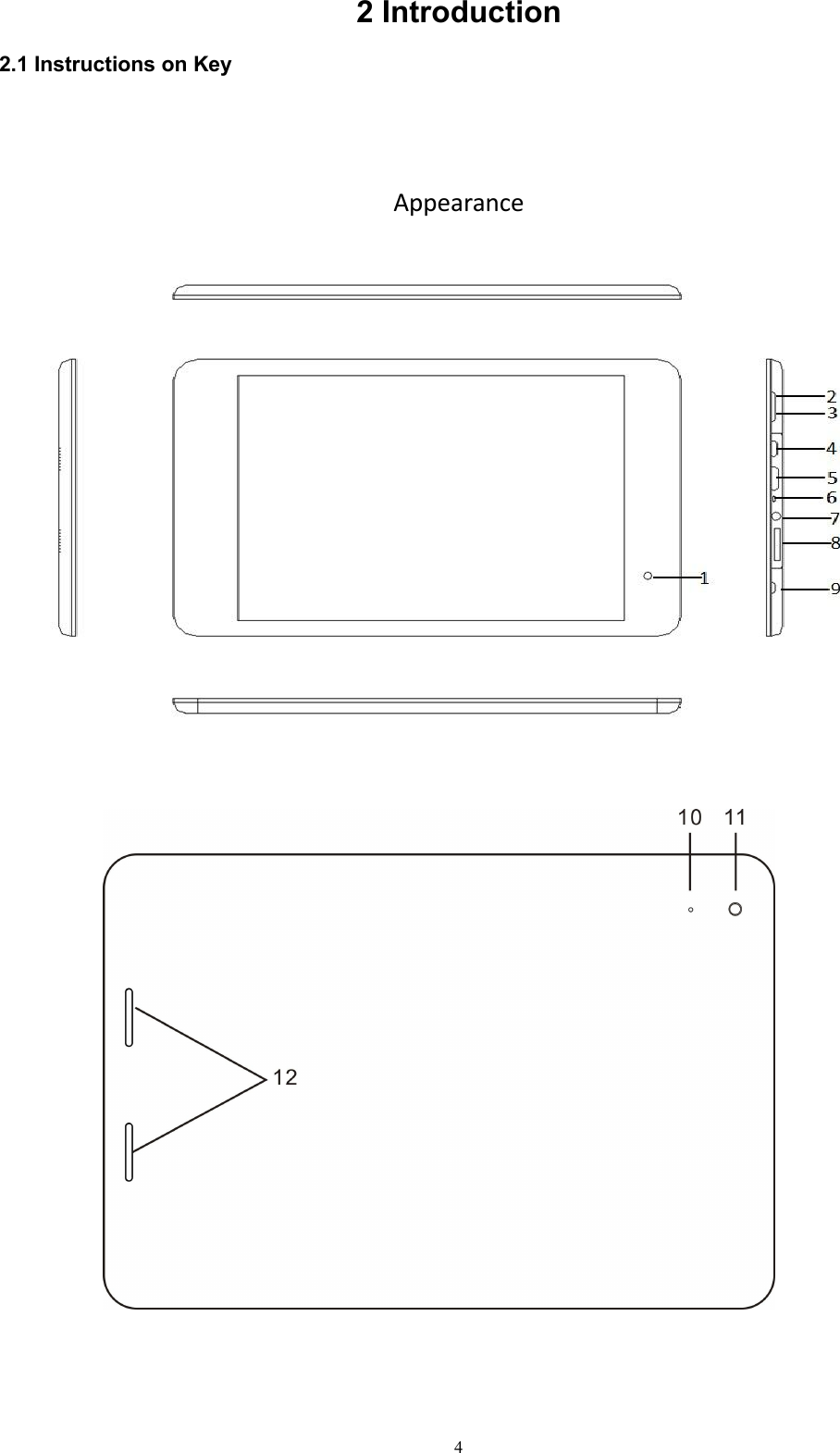
42 Introduction2.1 Instructions on KeyAppearance
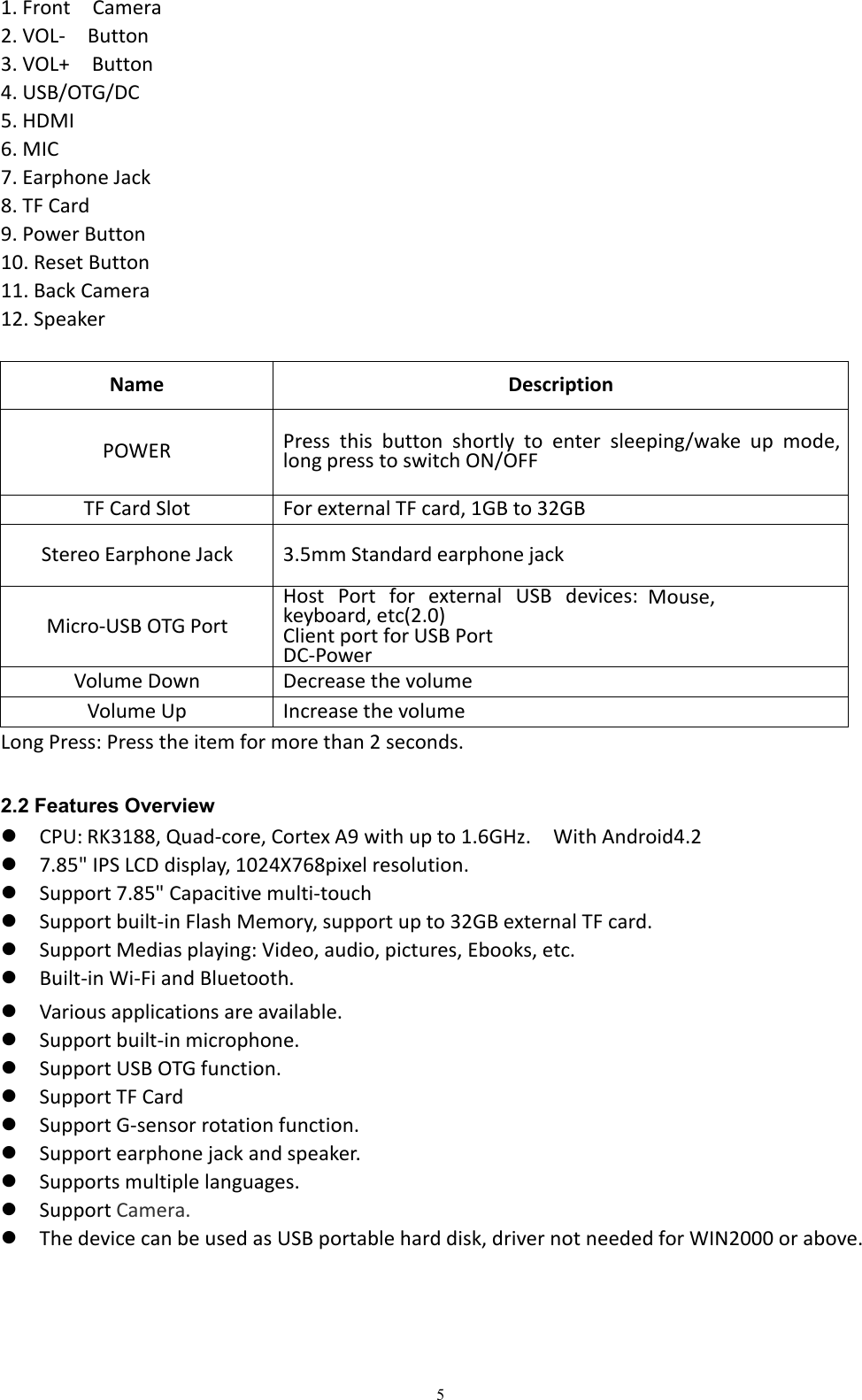
51. Front Camera2. VOL- Button3. VOL+ Button4. USB/OTG/DC5. HDMI6. MIC7. Earphone Jack8. TF Card9. Power Button10. Reset Button11. Back Camera12. SpeakerName DescriptionPOWERPress this button shortly to enter sleeping/wake up mode,long press to switch ON/OFFTF Card Slot For external TF card, 1GB to 32GBStereo Earphone Jack 3.5mm Standard earphone jackMicro-USB OTG PortHost Port for external USB devices:Mouse,keyboard, etc(2.0)Client port for USB PortDC-PowerVolume Down Decrease the volumeVolume Up Increase the volumeLong Press: Press the item for more than 2 seconds.2.2 Features OverviewCPU: RK3188, Quad-core, Cortex A9 with up to 1.6GHz. With Android4.27.85" IPS LCD display, 1024X768pixel resolution.Support 7.85" Capacitive multi-touchSupport built-in Flash Memory, support up to 32GB external TF card.Support Medias playing: Video, audio, pictures, Ebooks, etc.Built-in Wi-Fi and Bluetooth.Various applications are available.Support built-in microphone.Support USB OTG function.Support TF CardSupport G-sensor rotation function.Support earphone jack and speaker.Supports multiple languages.Support Camera.The device can be used as USB portable hard disk, driver not needed for WIN2000 or above.
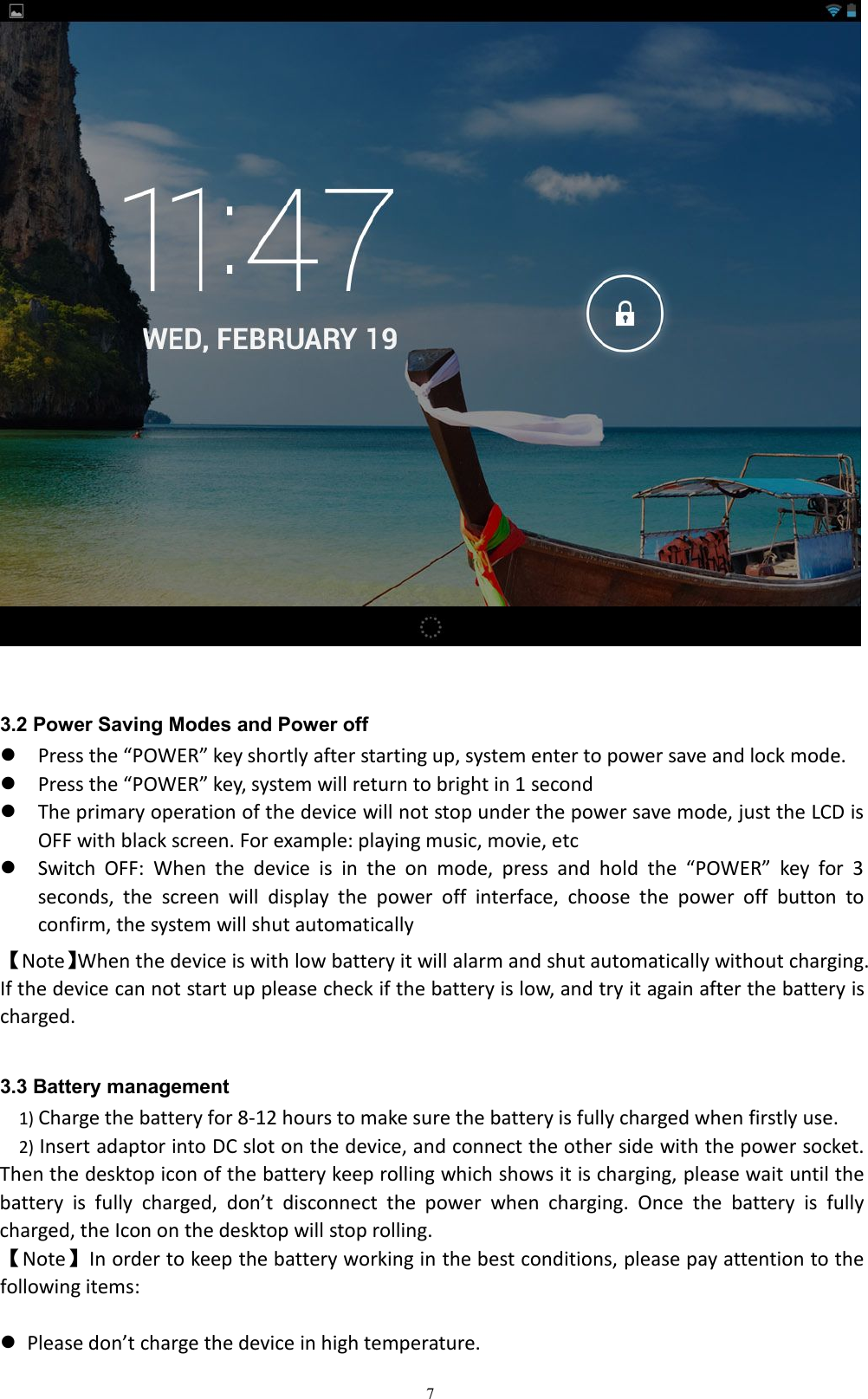
62.3Technical SpecificationsScreen 7.85 inch Capacitive Touch Screen. Multi-touchResolution:1024x768.CPU Chipset: Rk3188; Quad-core ARM Cortex A9;RAM DDR3 1GStorage16GBExternal inserted TF card be extendable from 1GB to 32 GB.System Android 4.2Camera Front 2.0M, Rear: 5.0MNetworkWi-Fi: Built-in Wi-Fi Module. IEEE 802.11b/g/n.VPN: Built-in VPN protocol supportSupport BluetoothApplications APK format applicationsVideo RM, AVI, MOV, WMV, MP4, 3GP, TS, MKV, MPEG,FLV,VOB,MPG,MTSMusic MP3, WMA, WAV, APE, FLAC, AAC, OGG,Pictures JPG, BMP, PNG,GIF,TIFEBooks TXT, PDB, EPUB.Office Files Supported files: Word, Excel, PDF, PPTUSB Micro-USB2.0 OTGBattery Built-in Lithium Battery3 Quick Guides3.1 Switch On/Off.Switch On and Unlock: When the device is in the OFF mode, press and hold “Power” key for 3seconds to turn on the device, it needs about 40 seconds enter into the system desktop, when theLCD is under locked mode, please press and pull the icon to the green point, then the LCDwill unlocked automatically, see the figures below,
73.2 Power Saving Modes and Power offPress the “POWER” key shortly after starting up, system enter to power save and lock mode.Press the “POWER” key, system will return to bright in 1 secondThe primary operation of the device will not stop under the power save mode, just the LCD isOFF with black screen. For example: playing music, movie, etcSwitch OFF: When the device is in the on mode, press and hold the “POWER” key for 3seconds, the screen will display the power off interface, choose the power off button toconfirm, the system will shut automatically【Note】When the device is with low battery it will alarm and shut automatically without charging.If the device can not start up please check if the battery is low, and try it again after the battery ischarged.3.3 Battery management1) Charge the battery for 8-12 hours to make sure the battery is fully charged when firstly use.2) Insert adaptor into DC slot on the device, and connect the other side with the power socket.Then the desktop icon of the battery keep rolling which shows it is charging, please wait until thebattery is fully charged, don’t disconnect the power when charging. Once the battery is fullycharged, the Icon on the desktop will stop rolling.【Note】In order to keep the battery working in the best conditions, please pay attention to thefollowing items:Please don’t charge the device in high temperature.
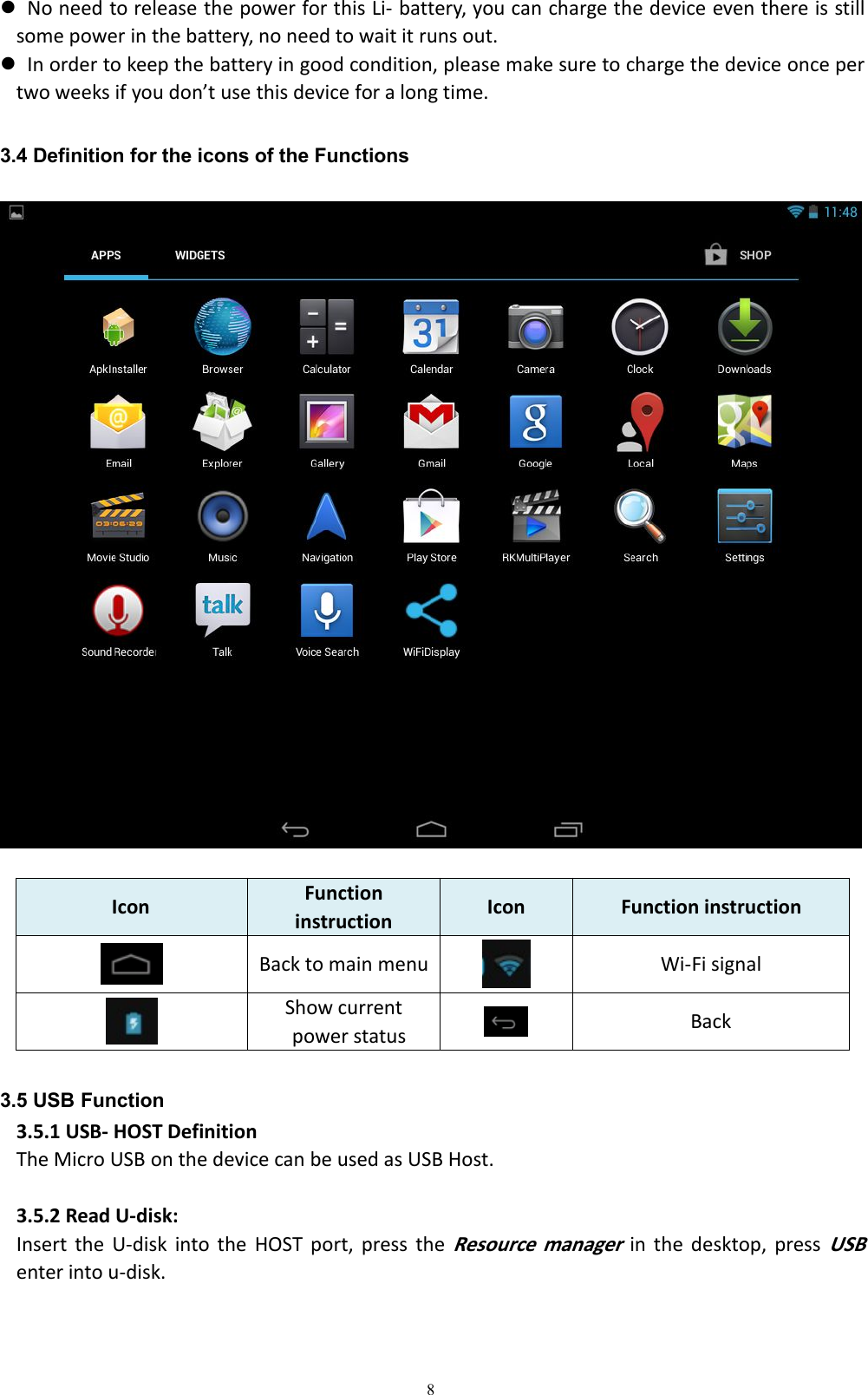
8No need to release the power for this Li- battery, you can charge the device even there is stillsome power in the battery, no need to wait it runs out.In order to keep the battery in good condition, please make sure to charge the device once pertwo weeks if you don’t use this device for a long time.3.4 Definition for the icons of the FunctionsIcon Functioninstruction Icon Function instructionBack to main menu Wi-Fi signalShow currentpower status Back3.5 USB Function3.5.1 USB- HOST DefinitionThe Micro USB on the device can be used as USB Host.3.5.2 Read U-disk:Insert the U-disk into the HOST port, press theResource managerin the desktop, pressUSBenter into u-disk.
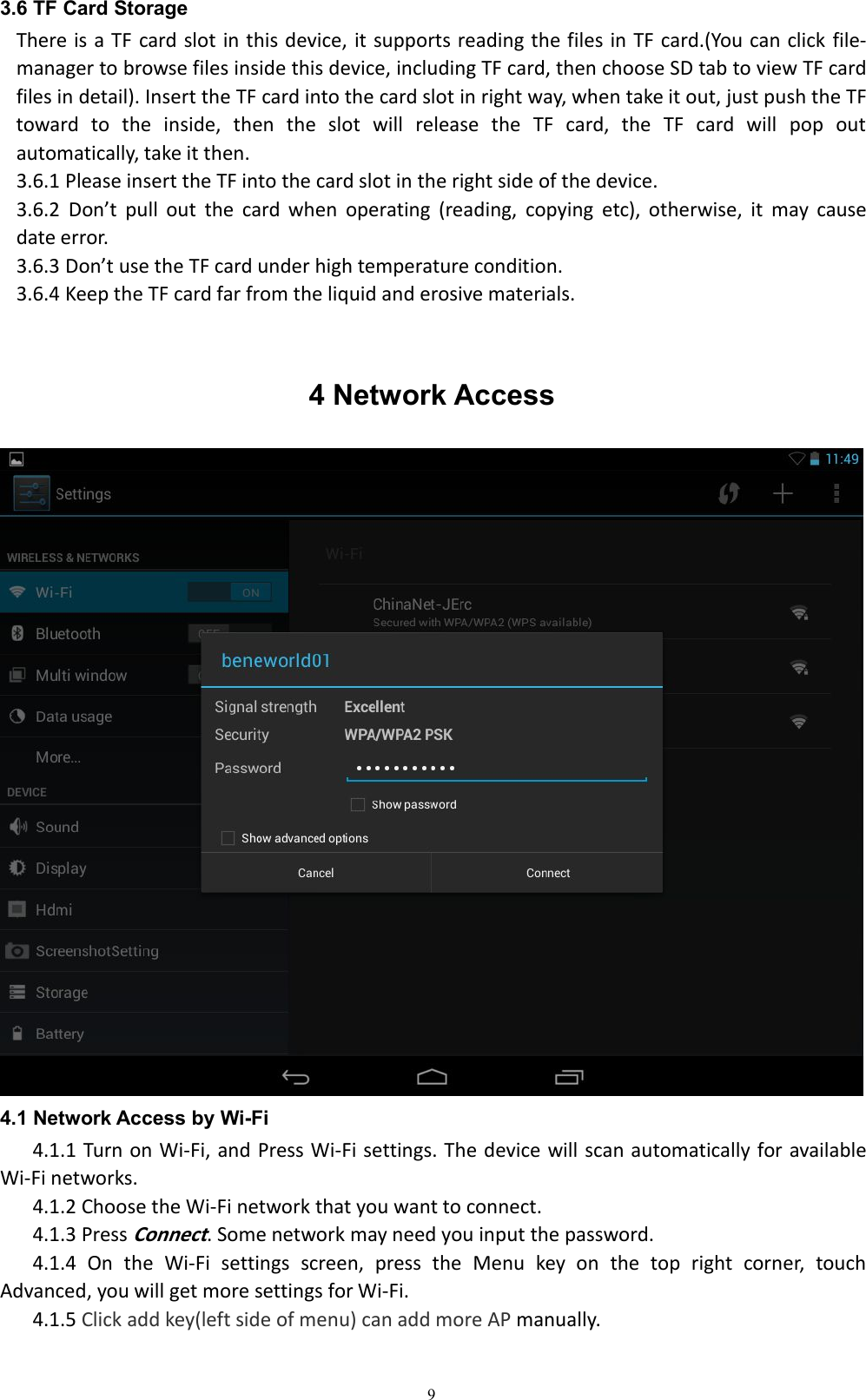
93.6 TF Card StorageThere is a TF card slot in this device, it supports reading the files in TF card.(You can click file-manager to browse files inside this device, including TF card, then choose SD tab to view TF cardfiles in detail). Insert the TF card into the card slot in right way, when take it out, just push the TFtoward to the inside, then the slot will release the TF card, the TF card will pop outautomatically, take it then.3.6.1 Please insert the TF into the card slot in the right side of the device.3.6.2 Don’t pull out the card when operating (reading, copying etc), otherwise, it may causedate error.3.6.3 Don’t use the TF card under high temperature condition.3.6.4 Keep the TF card far from the liquid and erosive materials.4 Network Access4.1 Network Access by Wi-Fi4.1.1 Turn on Wi-Fi, and Press Wi-Fi settings. The device will scan automatically for availableWi-Fi networks.4.1.2 Choose the Wi-Fi network that you want to connect.4.1.3 PressConnect. Some network may need you input the password.4.1.4 On the Wi-Fi settings screen, press the Menu key on the top right corner, touchAdvanced, you will get more settings for Wi-Fi.4.1.5 Click add key(left side of menu) can add more AP manually.
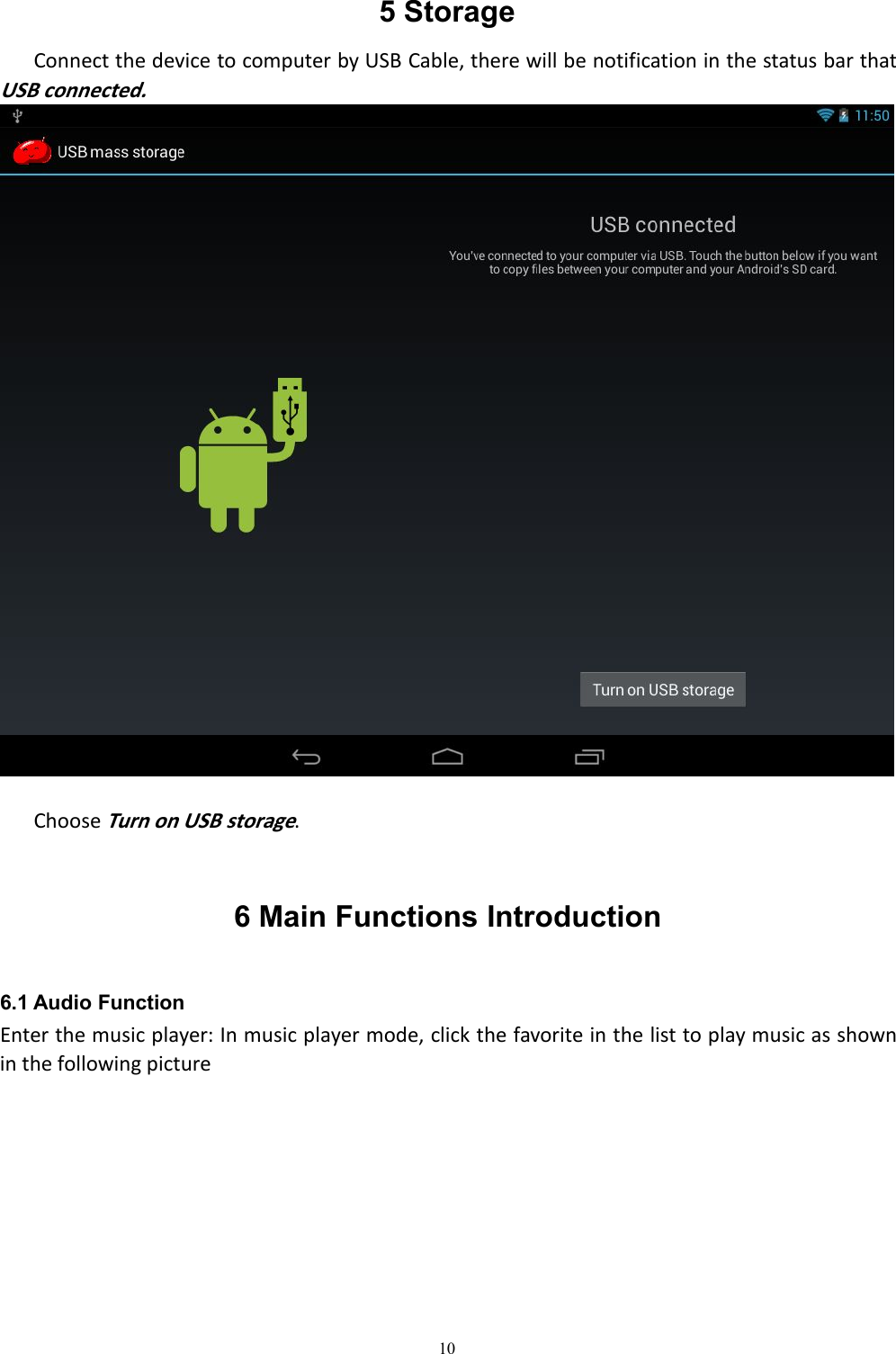
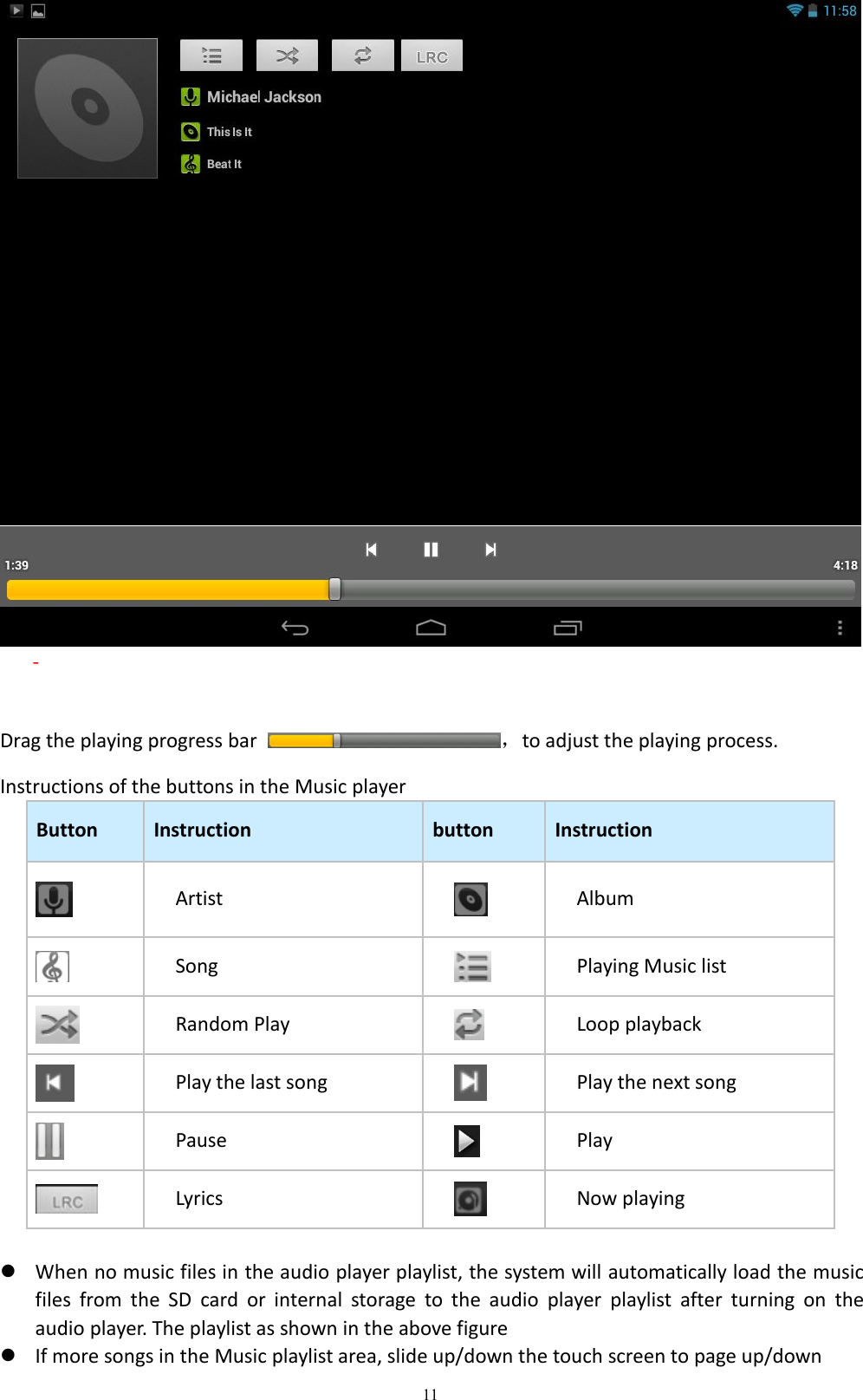
105 StorageConnect the device to computer by USB Cable, there will be notification in the status bar thatUSB connected.ChooseTurn on USB storage.6 Main Functions Introduction6.1 Audio FunctionEnter the music player: In music player mode, click the favorite in the list to play music as shownin the following picture
11-Drag the playing progress bar ,to adjust the playing process.Instructions of the buttons in the Music playerButton Instruction button InstructionArtist AlbumSong Playing Music listRandom Play Loop playbackPlay the last song Play the next songPause PlayLyrics Now playingWhen no music files in the audio player playlist, the system will automatically load the musicfiles from the SD card or internal storage to the audio player playlist after turning on theaudio player. The playlist as shown in the above figureIf more songs in the Music playlist area, slide up/down the touch screen to page up/down
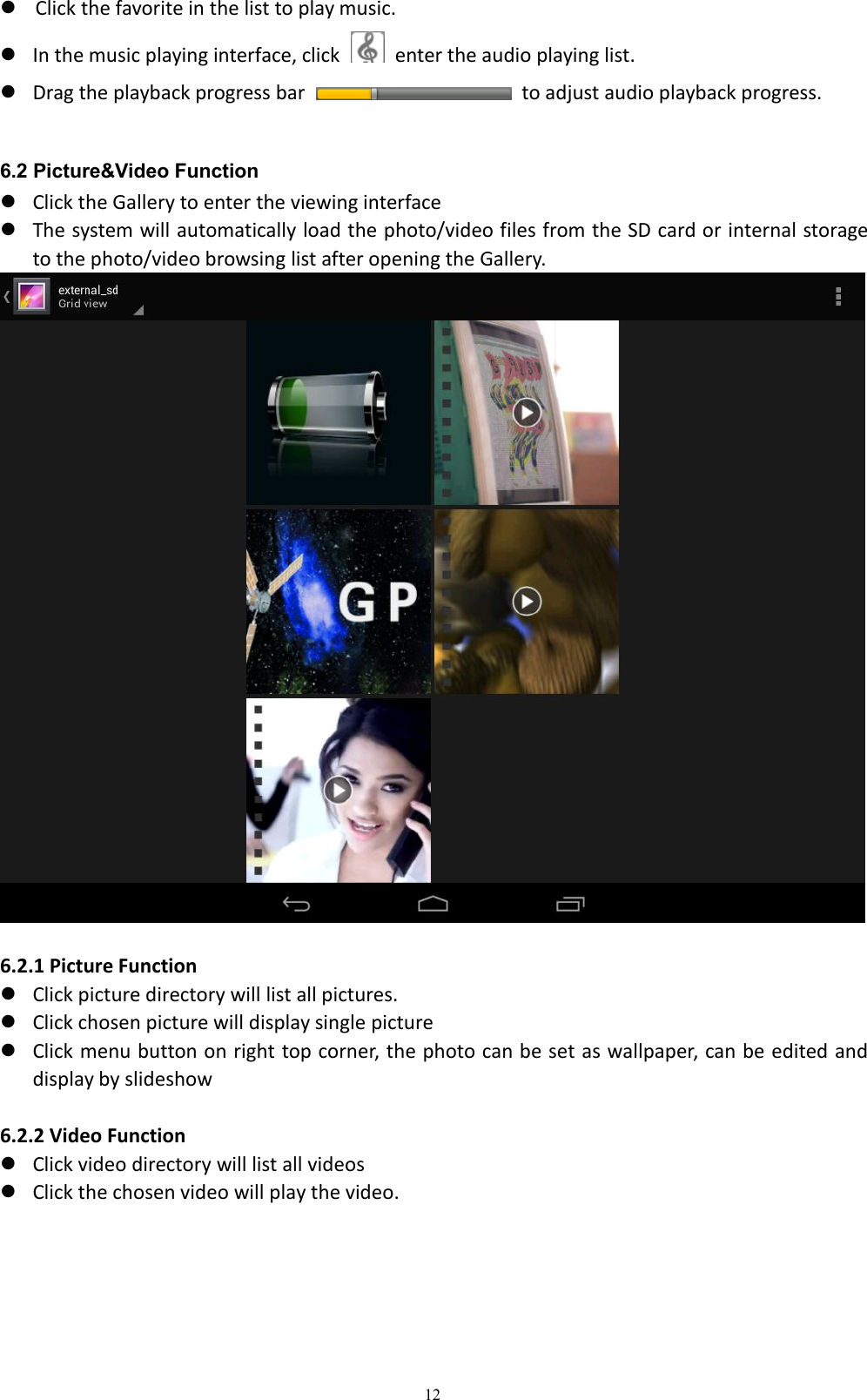
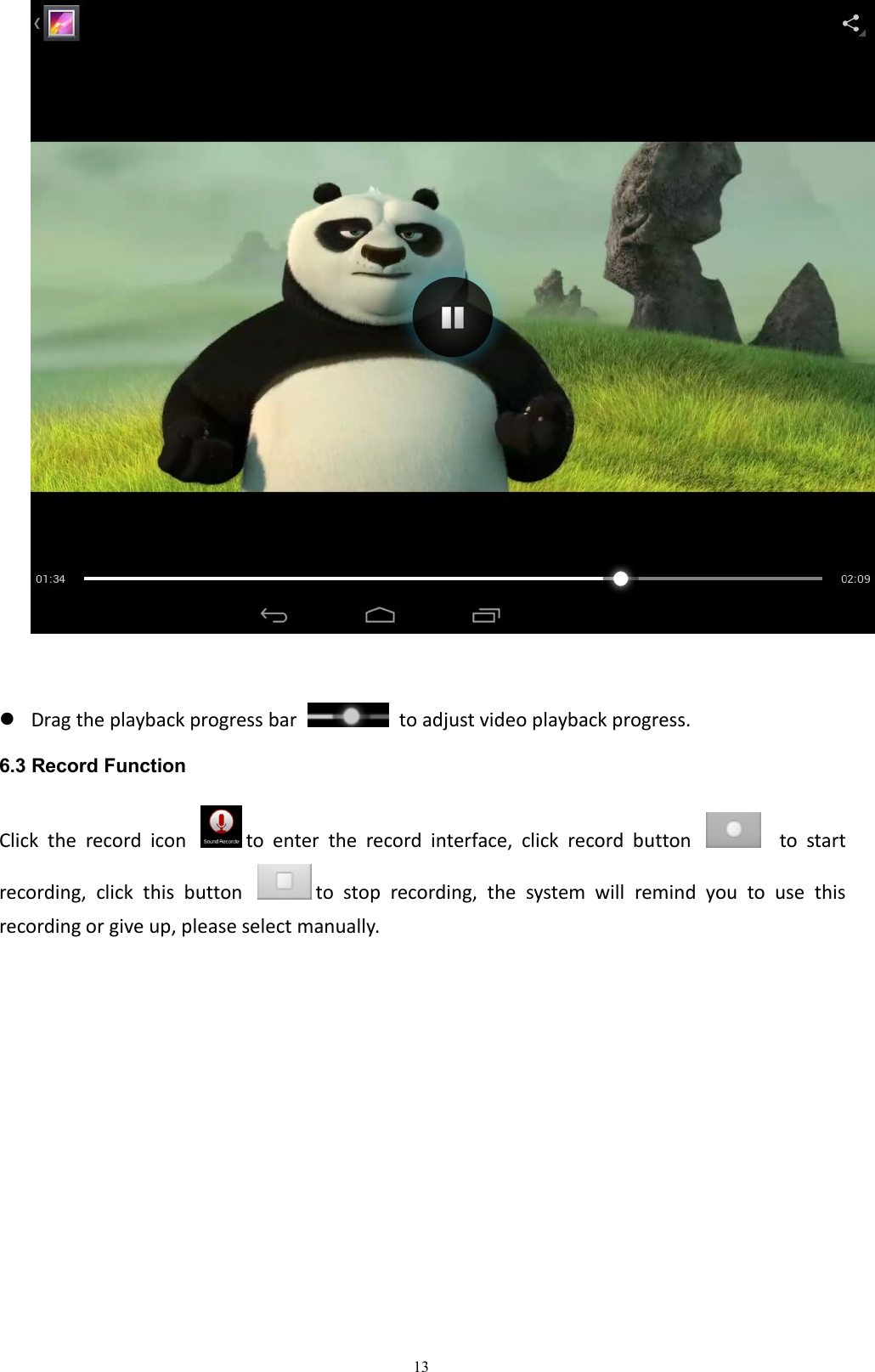
12Click the favorite in the list to play music.In the music playing interface, click enter the audio playing list.Drag the playback progress bar to adjust audio playback progress.6.2 Picture&Video FunctionClick the Gallery to enter the viewing interfaceThe system will automatically load the photo/video files from the SD card or internal storageto the photo/video browsing list after opening the Gallery.6.2.1 Picture FunctionClick picture directory will list all pictures.Click chosen picture will display single pictureClick menu button on right top corner, the photo can be set as wallpaper, can be edited anddisplay by slideshow6.2.2 Video FunctionClick video directory will list all videosClick the chosen video will play the video.
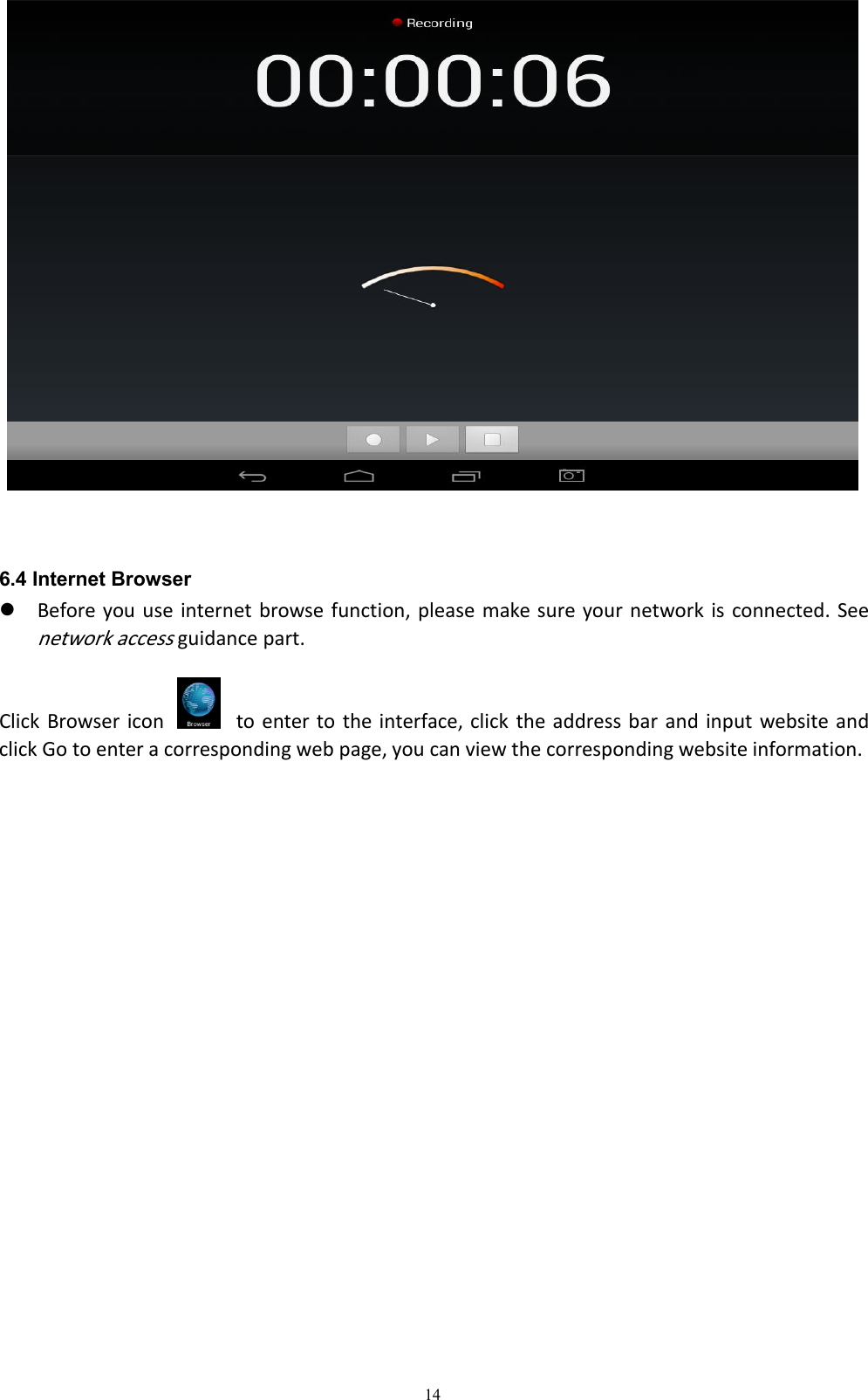
13Drag the playback progress bar to adjust video playback progress.6.3 Record FunctionClick the record icon to enter the record interface, click record button to startrecording, click this button to stop recording, the system will remind you to use thisrecording or give up, please select manually.
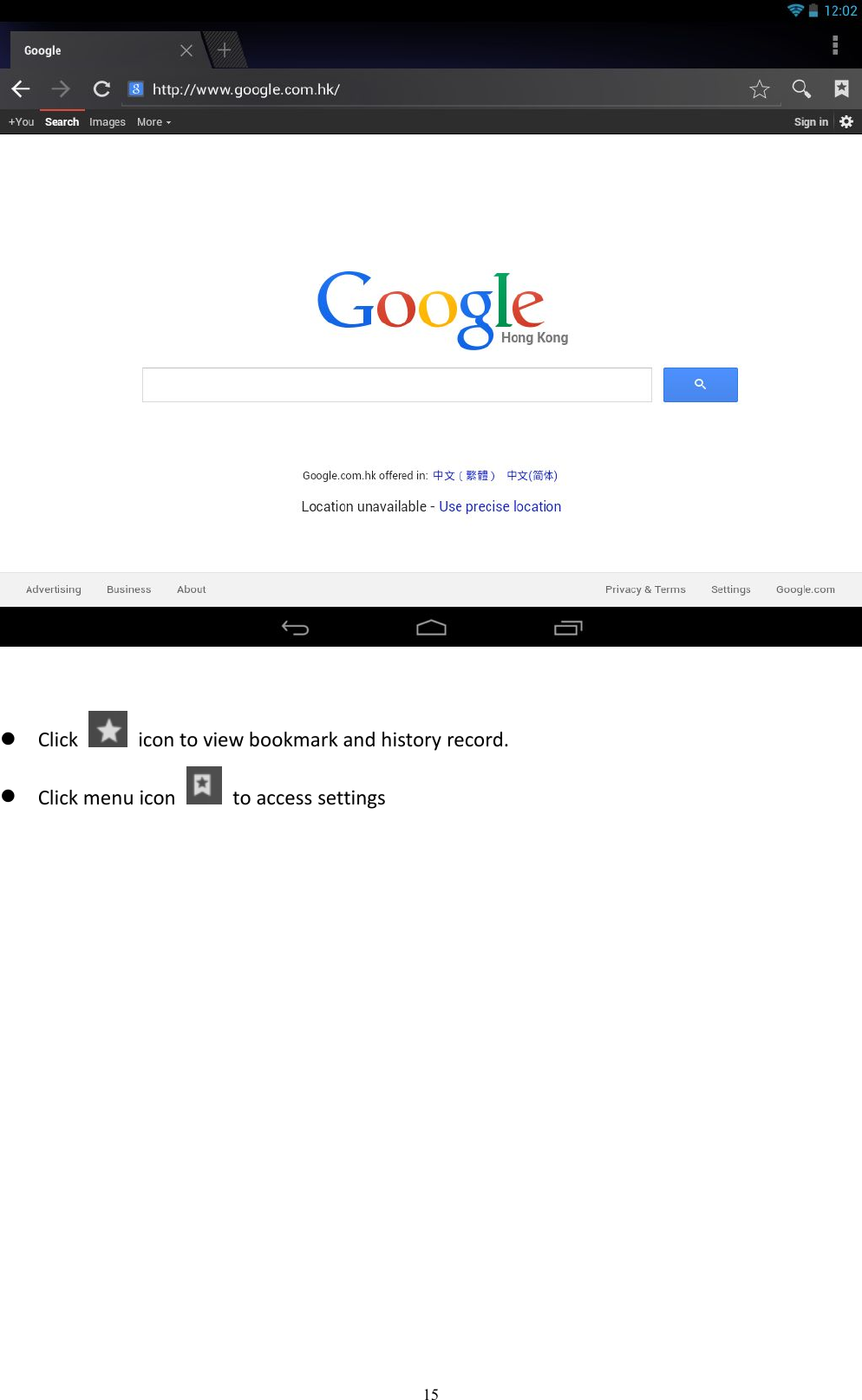
146.4 Internet BrowserBefore you use internet browse function, please make sure your network is connected. Seenetwork accessguidance part.Click Browser icon to enter to the interface, click the address bar and input website andclick Go to enter a corresponding web page, you can view the corresponding website information.
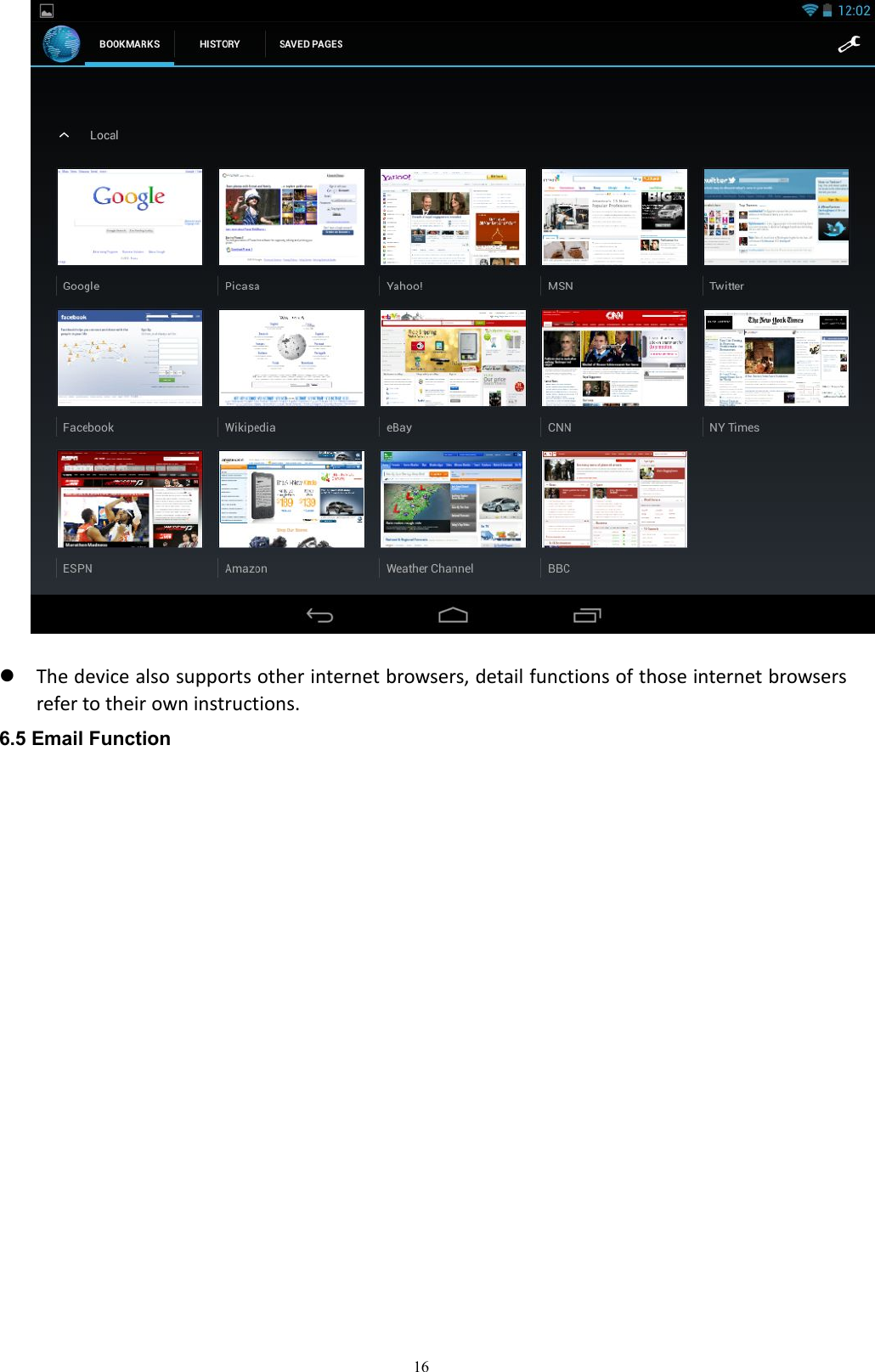
15Click icon to view bookmark and history record.Click menu icon to access settings
16The device also supports other internet browsers, detail functions of those internet browsersrefer to their own instructions.6.5 Email Function
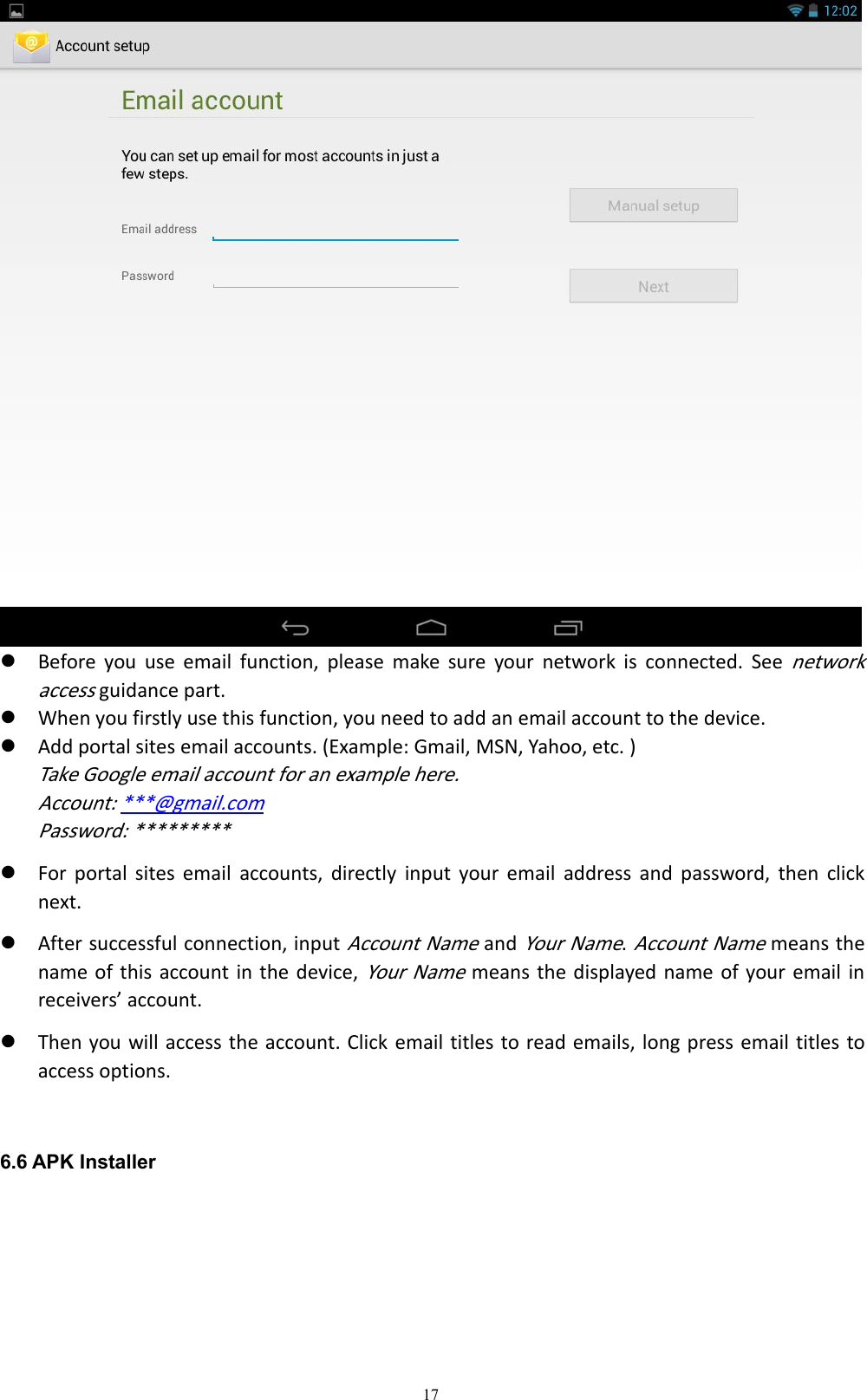
17Before you use email function, please make sure your network is connected. Seenetworkaccessguidance part.When you firstly use this function, you need to add an email account to the device.Add portal sites email accounts. (Example: Gmail, MSN, Yahoo, etc. )Take Google email account for an example here.Account: ***@gmail.comPassword: *********For portal sites email accounts, directly input your email address and password, then clicknext.After successful connection, inputAccount NameandYour Name.Account Namemeans thename of this account in the device,Your Namemeans the displayed name of your email inreceivers’ account.Then you will access the account. Click email titles to read emails, long press email titles toaccess options.6.6 APK Installer
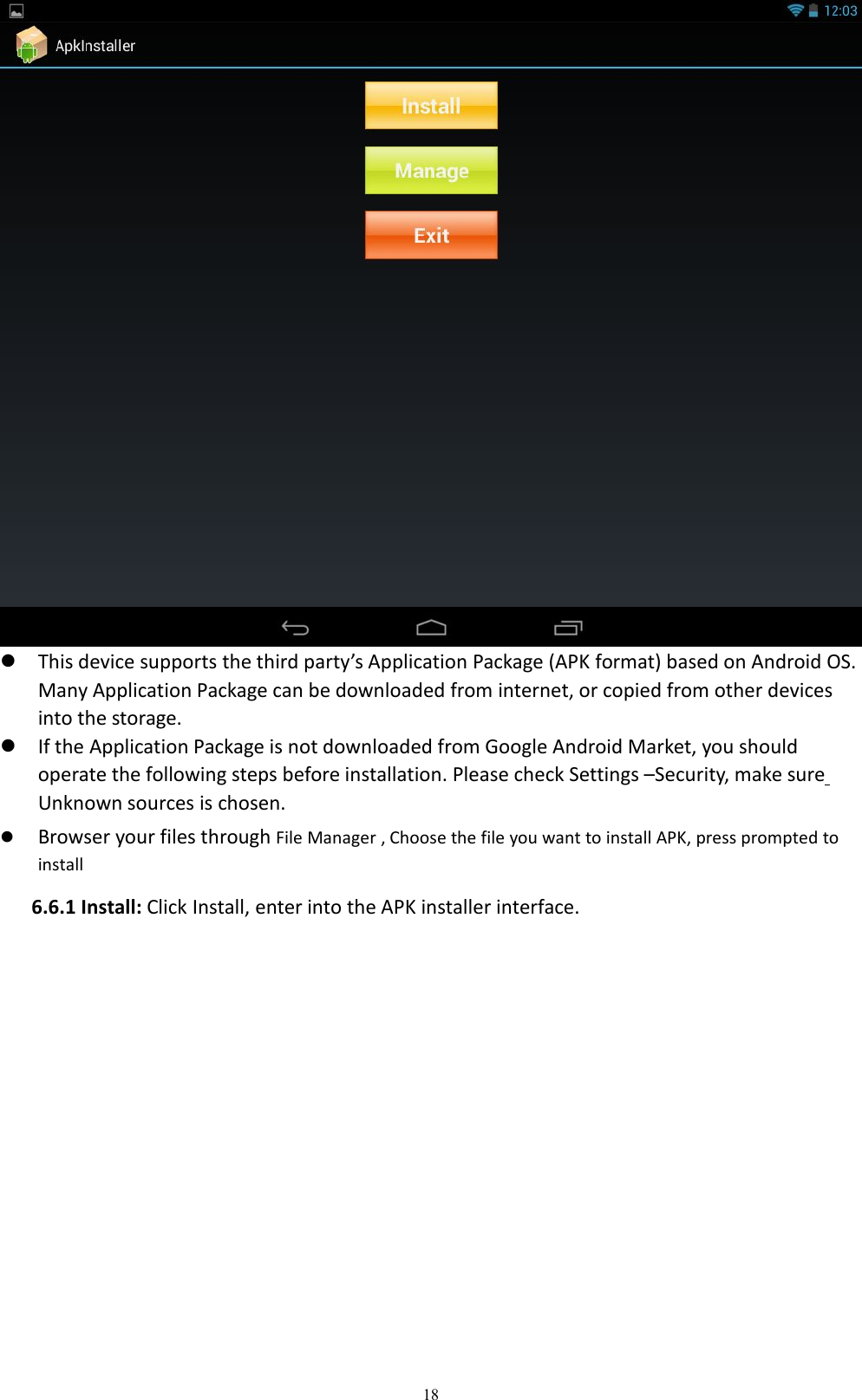
18This device supports the third party’s Application Package (APK format) based on Android OS.Many Application Package can be downloaded from internet, or copied from other devicesinto the storage.If the Application Package is not downloaded from Google Android Market, you shouldoperate the following steps before installation. Please check Settings –Security, make sureUnknown sources is chosen.Browser your files through File Manager , Choose the file you want to install APK, press prompted toinstall6.6.1 Install: Click Install, enter into the APK installer interface.
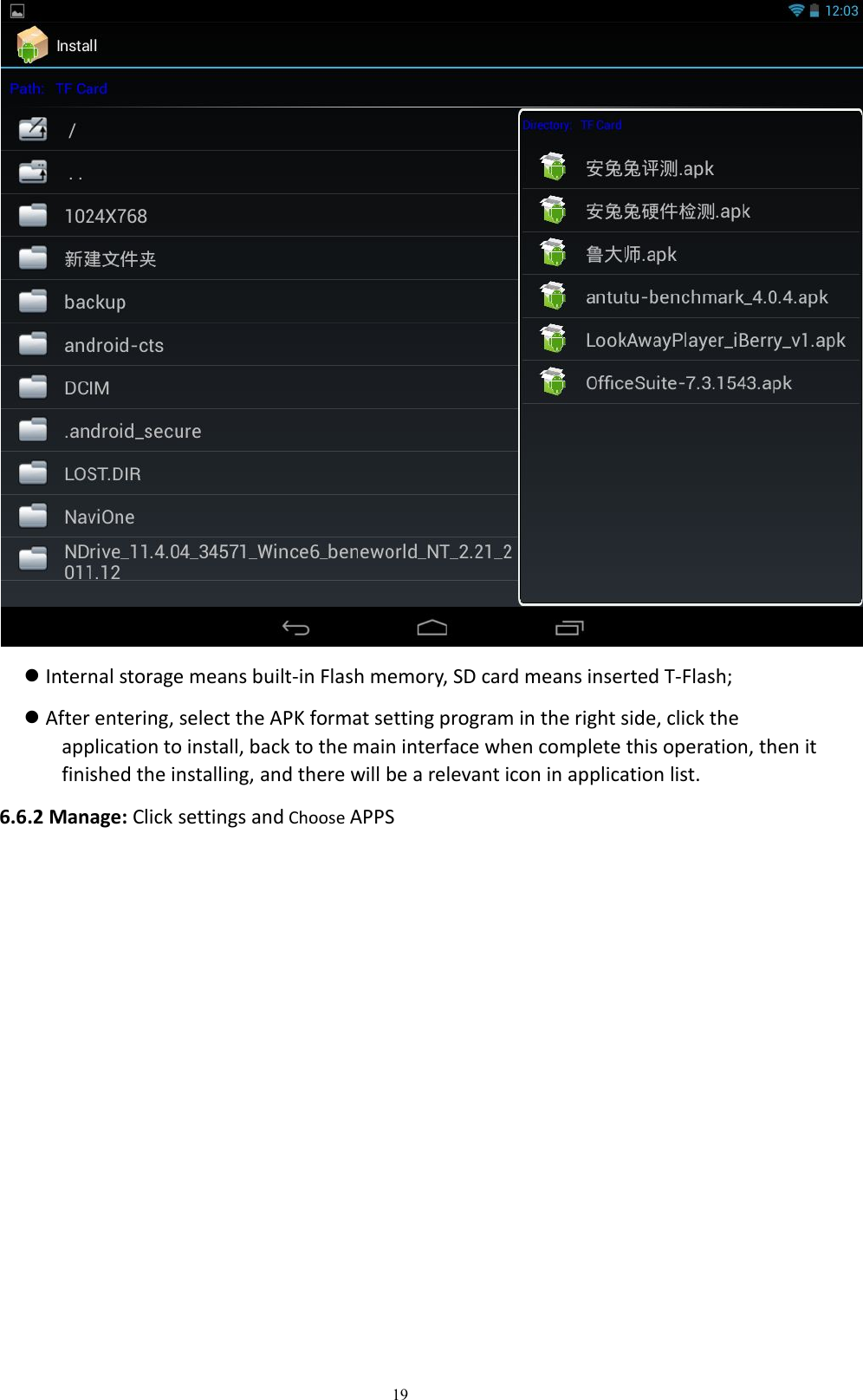
19Internal storage means built-in Flash memory, SD card means inserted T-Flash;After entering, select the APK format setting program in the right side, click theapplication to install, back to the main interface when complete this operation, then itfinished the installing, and there will be a relevant icon in application list.6.6.2 Manage: Click settings and Choose APPS
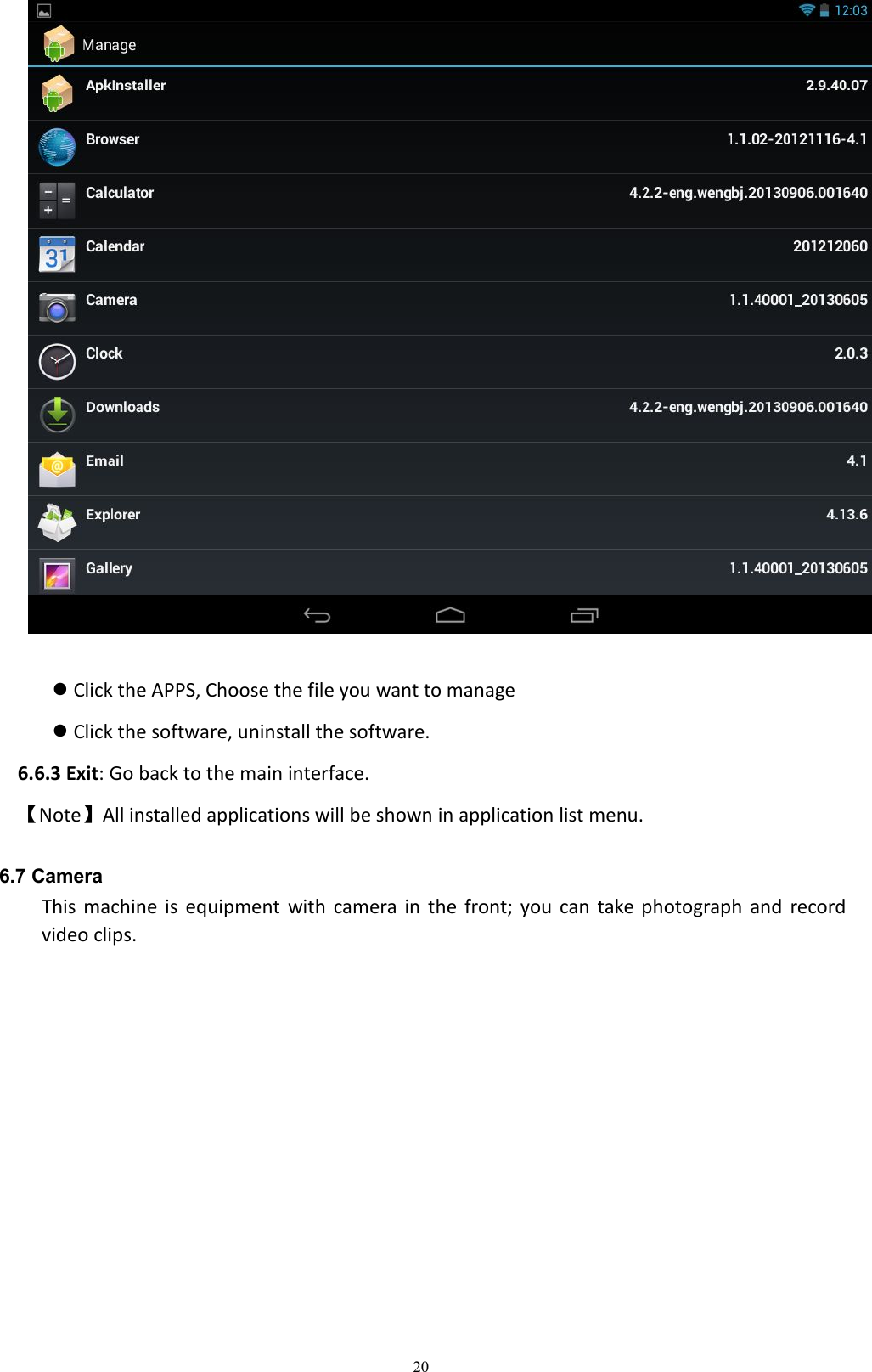
20Click the APPS, Choose the file you want to manageClick the software, uninstall the software.6.6.3 Exit: Go back to the main interface.【Note】All installed applications will be shown in application list menu.6.7 CameraThis machine is equipment with camera in the front; you can take photograph and recordvideo clips.
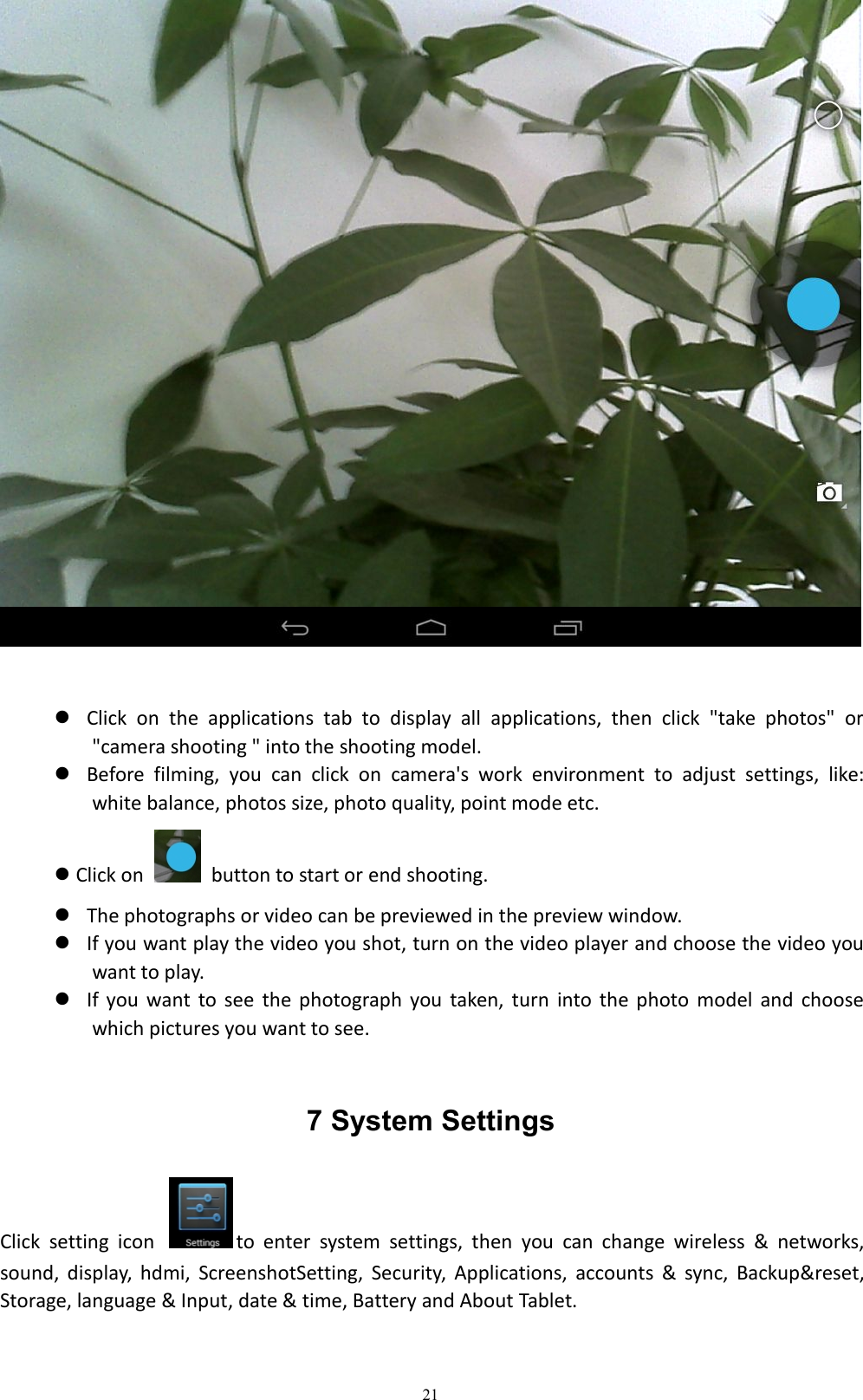
21Click on the applications tab to display all applications, then click "take photos" or"camera shooting " into the shooting model.Before filming, you can click on camera's work environment to adjust settings, like:white balance, photos size, photo quality, point mode etc.Click on button to start or end shooting.The photographs or video can be previewed in the preview window.If you want play the video you shot, turn on the video player and choose the video youwant to play.If you want to see the photograph you taken, turn into the photo model and choosewhich pictures you want to see.7 System SettingsClick setting icon to enter system settings, then you can change wireless & networks,sound, display, hdmi, ScreenshotSetting, Security, Applications, accounts & sync, Backup&reset,Storage, language & Input, date & time, Battery and About Tablet.
227.1 Wireless & Networks SettingSee Section 4.7.2 Sound SettingAdjust Volume, Notification, touch sounds and Screen lock sounds.7.3 Display Setting.Adjust Brightness, Wallpaper, Sleep, Daydream, Front size, Wireless display.7.4 Screenshot SettingSelect delay time to capture the screen, Set the location of screenshot storage, Show thescreenshot button in the status bar .7.5 Security Setting.In this Setting, you can set up screen lock and device administrators.7.6 Applications Setting.Manage applications, check storage and Memory usage.【Note 】If you want to install applications which are not downloaded from Google AndroidMarket, you should turn onUnknown sourcesin advance.7.7 Backup&reset Setting.Back up data, and reset factory default.7.8 Storage Setting.Check storage use【Note】Before you fetch out TF Card (if you have inserted TF card), please un-mount TF cardfirst, in case that some applications will arise problems.7.9 Language & Input Setting.In this setting, you can change the language of system, and choose keyboard inputs.Notice: If you have installed an input and you want to use it, please remember to turn on it in thissetting (All inputs could be turned on here). Long Press the blank where you want to type, it willpopup to choose inputs.7.10 About Tablet Setting.Check device information.8 FAQ1) How can I change languages if I mistakenly choose an unknown language?·Find setting icon in Menu Page to enter Settings.·Then, choose icon to enter language & keyboard setting, the first option is languagesetting.
232) How can I change input when I am typing?Long Press the blank where you are typing, there will be popup to choose inputs.3) I already installed some applications, but I can’t find them now, why?·By default, some applications are installed in external TF card, so if you fetched out the TF cardfrom the device, you will not see these applications.4) The machine can’t be turned on.·Check the battery and charge it if there is no power.·Connect the machine to AC Adapter.·Contact the seller if the machine still can’t be turned on after charged.5) There is no voice in the earphone.·Check if the device is in Mute mode.·Check the volume setting in case it is 0.·Check the connection of earphone.6) Why I can’t install applications?Please checkSettings–security, make sureUnknown sourcesis chosen.7) There is Error Codes on the screen.·System error, restart the device.·The language you are browsing is not supported by built-in languages, please contact the originalmanufacturer to debug.8) There are problems of system, many popup of error.Restart the device by POWER button for 10 seconds, the device will restartIf you have restarted the device and error popup still exist, you can check active applicationsto see if there is any unknown application, uninstall it if any.There may be virus in the device, please install security applications and protect your device.If you have problems after above operations, the device’s firmware needs rebuilt (theoperation is named “flash”).【Note】Before you flash the device, please back up your storage, the flashing will make allsettings and files turn to factory default. Flashing operation need flashing tool and firmware,please contact original manufacturer for flashing operation
24FCC warning statement.This device complies with part 15 of the FCC Rules. Operation is subject to the following twoconditions: (1) This device may not cause harmful interference, and (2) this device mustaccept any interference received, including interference that may cause undesired operation.Any Changes or modifications not expressly approved by the party responsible for compliancecould void the user's authority to operate the equipment.Note: This equipment has been tested and found to comply with the limits for a Class Bdigital device, pursuant to part 15 of the FCC Rules. These limits are designed to providereasonable protection against harmful interference in a residential installation. Thisequipment generates uses and can radiate radio frequency energy and, if not installed andused in accordance with the instructions, may cause harmful interference to radiocommunications. However, there is no guarantee that interference will not occur in aparticular installation. If this equipment does cause harmful interference to radio ortelevision reception, which can be determined by turning the equipment off and on, the useris encouraged to try to correct the interference by one or more of the following measures:-Reorient or relocate the receiving antenna.-Increase the separation between the equipment and receiver.-Connect the equipment into an outlet on a circuit different from that to which the receiver isconnected.-Consult the dealer or an experienced radio/TV technician for help.RF warning statement:The device has been evaluated to meet general RF exposure requirement. The device can beused in portable exposure condition without restriction. ”。

Navigation menu